Tag Archives: Compute

How to re-platform and modernize Java web applications on AWS

Post Syndicated from Rick Armstrong original https://aws.amazon.com/blogs/compute/re-platform-java-web-applications-on-aws/

This post is written by: Bill Chan, Enterprise Solutions Architect

According to a report from Grand View Research, “the global application server market size was valued at USD 15.84 billion in 2020 and is expected to expand at a compound annual growth rate (CAGR) of 13.2% from 2021 to 2028.” The report also suggests that Java based application servers “accounted for the largest share of around 50% in 2020.” This means that many organizations continue to rely on Java application server capabilities to deliver middleware services that underpin the web applications running their transactional, content management and business process workloads.

The maturity of the application server technology also means that many of these web applications were built on traditional three-tier web architectures running in on-premises data centers. And as organizations embark on their journey to cloud, the question arises as to what is the best approach to migrate these applications?

There are seven common migration strategies when moving applications to the cloud, including:

  • Retain – keeping applications running as is and revisiting the migration at a later stage
  • Retire – decommissioning applications that are no longer required
  • Repurchase – switching from existing applications to a software-as-a-service (SaaS) solution
  • Rehost – moving applications as is (lift and shift), without making any changes to take advantage of cloud capabilities
  • Relocate – moving applications as is, but at a hypervisor level
  • Replatform – moving applications as is, but introduce capabilities that take advantage of cloud-native features
  • Refactor – re-architect the application to take full advantage of cloud-native features

Refer to Migrating to AWS: Best Practices & Strategies and the 6 Strategies for Migrating Applications to the Cloud for more details.

This blog focuses on the ‘replatform’ strategy, which suits customers who have large investments in application server technologies and the business case for re-architecting doesn’t stack up. By re-platforming their applications into the cloud, customers can benefit from the flexibility of a ‘pay-as-you-go’ model, dynamically scale to meet demand and provision infrastructure as code. Additionally, customers can increase the speed and agility to modernize existing applications and build new cloud-native applications to deliver better customer experiences.

In this post, we walk through the steps to replatform a simple contact management Java application running on an open-source Tomcat application server, along with modernization aspects that include:

  • Deploying a Tomcat web application with automatic scaling capabilities
  • Integrating Tomcat with Redis cache (using Redisson Session Manager for Tomcat)
  • Integrating Tomcat with Amazon Cognito for authentication (using Boyle Software’s OpenID Connect Authenticator for Tomcat)
  • Delegating user log in and sign up to Amazon Cognito

Overview of solution

Solution architecture overview diagram

The solution is comprised of the following components:

  • A VPC across two Availability Zones
  • Two public subnets, two private app subnets, and two private DB subnets
  • An Internet Gateway attached to the VPC
    • A public route table routing internet traffic to the Internet Gateway
    • Two private route tables routing traffic internally within the VPC
  • A frontend web server application Elastic Load Balancing that routes traffic to the Apache Web Servers
  • An Auto Scaling group that launches additional Apache Web Servers based on defined scaling policies. Each instance of the web server is based on a launch template, which defines the same configuration for each new web server.
  • A hosted zone in Amazon Route 53 with a domain name that routes to the frontend web server Elastic Load Balancing
  • An application Elastic Load Balancing that routes traffic to the Tomcat application servers
  • An Auto Scaling group that launches additional Tomcat Application Servers based on defined scaling policies. Each instance of the Tomcat application server is based on a launch template, which defines the same configuration and software components for each new application server
  • A Redis cache cluster with a primary and replica node to store session data after the user has authenticated, making your application servers stateless
  • A Redis open-source Java client, with a Tomcat Session Manager implementation to store authenticated user session data in Redis cache
  • A MySQL Amazon Relational Database Service (Amazon RDS) Multi-AZ deployment for MySQL RDS to store the contact management and role access tables
  • An Amazon Simple Storage Service (Amazon S3) bucket to store the application and framework artifacts, images, scripts and configuration files that are referenced by any new Tomcat application server instances provisioned by automatic scaling
  • Amazon Cognito with a sign-up Lambda function to register users and insert a corresponding entry in the user account tables. Cognito acts as an identity provider and performs the user authentication using an OpenID Connect Authenticator Java component

Walkthrough

The following steps overviews how to deploy the blog solution:

  • Clone and build the Sample Web Application and AWS Signup Lambda Maven projects from GitHub repository
  • Deploy the CloudFormation template (java-webapp-infra.yaml) to create the AWS networking infrastructure and the CloudFormation template (java-webapp-rds.yaml) to create the database instance
  • Update and build the sample web application and signup Lambda function
  • Upload the packages into your S3 bucket
  • Deploy the CloudFormation template (java-webapp-components.yaml) to create the blog solution components
  • Update the solution configuration files and upload them into your S3 bucket
  • Run a script to provision the underlying database tables
  • Validate the web application, session cache and automatic scaling functionality
  • Clean up resources

Prerequisites

For this walkthrough, you should have the following prerequisites:

  • An AWS account
  • An Amazon Elastic Compute Cloud (Amazon EC2) key pair (required for authentication). For more details, see Amazon EC2 key pairs
  • A Java Integrated Development Environment (IDE) such as Eclipse or NetBeans. AWS also offers a cloud-based IDE that lets you write, run and debug code in your browser without having to install files or configure your development machine, called AWS Cloud9. I will show how AWS Cloud9 can be used as part of a DevOps solution in a subsequent post
  • A valid domain name and SSL certificate for the deployed web application. To validate the OAuth 2.0 integration, Cognito requires the URL that the user is redirected to after successful sign-in to be HTTPS. Refer to a configuring a user pool app client for more details
  • Downloaded the following JARs:

Note: the solution was validated in the preceding versions and therefore, the launch template created for the CloudFormation solution stack refers to these specific JARs. If you decide to use different versions, then the ‘java-webapp-components.yaml’ will need to be updated to reflect the new versions. Alternatively, you can externalize the parameters in the template.

Clone the GitHub repository to your local machine

This repository contains the sample code for the Java web application and post confirmation sign-up Lambda function. It also contains the CloudFormation templates required to set up the AWS infrastructure, SQL script to create the supporting database and configuration files for the web server, Tomcat application server and Redis cache.

Deploy infrastructure CloudFormation template

  1. Log in to the AWS Management Console and open the CloudFormation service.

Diagram showing the first step in creating a CloudFormation stack.

2. Create the infrastructure stack using the java-webapp-infra.yaml template (located in the ‘config’ directory of the repo).

3. Infrastructure stack outputs:

Diagram showing the outputs generated from the infrastructure stack creation

Deploy database CloudFormation template

  1.  Log in to the AWS Management Console and open the CloudFormation service.
  2. Create the infrastructure stack using the java-webapp-rds.yaml template (located in the ‘config’ directory of the repo).
  3. Database stack outputs.

Diagram showing the outputs generated from the relational database service stack creation

Update and build sample web application and signup Lambda function

  1. Import the ‘sample-webapp’ and ‘aws-signup-lambda’ Maven projects from the repository into your IDE.
  2. Update the sample-webapp’s UserDAO class to reflect the RDSEndpoint, DBUserName, and DBPassword from the previous step:”
    // Externalize and update jdbcURL, jdbcUsername, jdbcPassword parameters specific to your environment
    	private String jdbcURL = "jdbc:mysql://<RDSEndpoint>:3306/webappdb?useSSL=false";
    	private String jdbcUsername = "<DBUserName>";
    	private String jdbcPassword = "<DBPassword>";

  3. To build the ‘sample-webapp’ Maven project, use the standard ‘clean install’ goals.
  4. Update the aws-signup-lambda’s signupHandler class to reflect RDSEndpoint, DBUserName, and DBPassword from the solution stack:
    // Update with your database connection details
    		String jdbcURL = "jdbc:mysql://<RDSEndpoint>:3306/webappdb?useSSL=false";
    		String jdbcUsername = "<DBUserName>";
    		String jdbcPassword = "<DBPassword>";

  5. To build the aws-signup-lambda Maven project, use the ‘package shade:shade’ goals to include all dependencies in the package.
  6. Two packages are created in their respective target directory: ‘sample-webapp.war’ and ‘create-user-lambda-1.0.jar’

Upload the packages into your S3 bucket

  1. Log in to the AWS Management Console and open the S3 service.
  2. Select the bucket created by the infrastructure CloudFormation template in an earlier step.

Diagram showing the S3 bucket interface with no objects.

3.  Create a ‘config’ and ‘lib’ folder in the bucket.

Diagram showing the S3 bucket interface with the new folders.

4.  Upload the ‘sample-webapp.war’ and ‘create-user-lambda-1.0.jar’ created an earlier step (along with the downloaded packages from the pre-requisites section) into the ‘lib’ folder of the bucket. The ‘lib’ folder should look like this:

Diagram showing the S3 bucket interface and objects in the lib folder

Note: the solution was validated in the preceding versions and therefore, the launch template created for the CloudFormation solution stack refers to these specific package names.

Deploy the solution components CloudFormation template

1.       Log in to the AWS Management Console and open the CloudFormation service (if you aren’t already logged in from the previous step).

2.       Create the web application solution stack using the ‘java-webapp-components.yaml’ template (located in the ‘config’ directory of the repo).

3.       Guidance on the different template input parameters:

a.       BastionSGSource – default is 0.0.0.0/0, but it is recommended to restrict this to your allowed IPv4 CIDR range for additional security

b.       BucketName – the bucket name created as part of the infrastructure stack. This blog uses the bucket name is ‘chanbi-java-webapp-bucket’

c.       CallbackURL – the URL that the user is redirected to after successful sign up/sign in is composed of your domain name (blog.example.com), the application root (sample-webapp), and the authentication form action ‘j_security_check’. As noted earlier, this needs to be over HTTPS

d.       CreateUserLambdaKey – the S3 object key for the signup Lambda package. This blog uses the key ‘lib/create-user-lambda-1.0.jar’

e.       DBUserName – the database user name for the MySQL RDS. Make note of this as it will be required in a subsequent step

f.        DBUserPassword – the database user password. Make note of this as it will be required in a subsequent step

g.       KeyPairName – the key pair to use when provisioning the EC2 instances. This key pair was created in the pre-requisite step

h.       WebALBSGSource – the IPv4 CIDR range allowed to access the web app. Default is 0.0.0.0/0

i.         The remaining parameters are import names from the infrastructure stack. Use default settings

4.       After successful stack creation, you should see the following java web application solution stack output:

 Diagram showing the outputs generated from the solution components stack creation.

Update configuration files

  1. The GitHub repository’s ‘config’ folder contains the configuration files for the web server, Tomcat application server and Redis cache, which needs to be updated to reflect the parameters specific to your stack output in the previous step.
  2. Update the virtual hosts in ‘httpd.conf’ to proxy web traffic to the internal app load balancer. Use the value defined by the key ‘AppALBLoadBalancerDNS’ from the stack output.
    <VirtualHost *:80>
    ProxyPass / http://<AppALBLoadBalancerDNS>:8080/
    ProxyPassReverse / http://<AppALBLoadBalancerDNS>:8080/
    </VirtualHost>

  3. Update JDBC resource for the ‘webappdb’ in the ‘context.xml, with the values defined by the RDSEndpoint, DBUserName, and DBPassword from the solution components CloudFormation stack:
    <Resource name="jdbc/webappdb" auth="Container" type="javax.sql.DataSource"
                   maxTotal="100" maxIdle="30" maxWaitMillis="10000"
                   username="<DBUserName>" password="<DBPassword>" driverClassName="com.mysql.jdbc.Driver"
                   url="jdbc:mysql://<RDSEndpoint>:3306/webappdb"/>

  4. Log in to the AWS Management Console and open the Amazon Cognito service. Select ‘Manage User Pools’ and you will notice that a ‘java-webapp-pool’ has been created by the solution components CloudFormation stack. Select the ‘java-webapp-pool’ and make note of the ‘Pool Id’, ‘App client id’ and ‘App client secret’.

Diagram showing the Cognito User Pool interface general settings

Diagram showing the Cognito User Pool interface app client settings

5.  Update ‘Valve’ configuration in the ‘context.xml’, with the ‘Pool Id’, ‘App client id’ and ‘App client secret’ values from the previous step. The Cognito IDP endpoint specific to your Region can be found here. The host base URI needs to be replaced with the domain for your web application.

    <Valve className="org.bsworks.catalina.authenticator.oidc.tomcat90.OpenIDConnectAuthenticator"
       providers="[
           {
               name: 'Amazon Cognito',
               issuer: https://<cognito-idp-endpoint-for-you-region>/<cognito-pool-id>,
               clientId: <user-pool-app-client-id>,
               clientSecret: <user-pool-app-client-secret>
           }
       ]"
        hostBaseURI="https://<your-sample-webapp-domain>" usernameClaim="email" />

6.  Update the ‘address’ parameter in ‘redisson.yaml’ with Redis cluster endpoint. Use the value defined by the key ‘RedisClusterEndpoint’ from the solution components CloudFormation stack output.

singleServerConfig:
    address: "redis://<RedisClusterEndpoint>:6379"

7.  No updates are required to the following files:

a.  server.xml – defines a data source realm for the user names, passwords, and roles assigned to users

      <Realm className="org.apache.catalina.realm.DataSourceRealm"
   dataSourceName="jdbc/webappdb" localDataSource="true"
   userTable="user_accounts" userNameCol="user_name" userCredCol="user_pass"
   userRoleTable="user_account_roles" roleNameCol="role_name" debug="9" />
      </Realm>

b.  tomcat.service – allows Tomcat to run as a service

c.  uninstall-sample-webapp.sh – removes the sample web application

Upload configuration files into your S3 bucket

  1. Upload the configuration files from the previous step into the ‘config’ folder of the bucket. The ‘config’ folder should look like this:

Diagram showing the S3 bucket interface and objects in the config folder

Update the Auto Scaling groups

  1. Auto Scaling groups manage the provisioning and removal of the web and application instances in our solution. To start an instance of the web server, update the Auto Scaling group’s desired capacity (1), minimum capacity (1) and maximum capacity (2) as shown in the following image:

Diagram showing the web server auto scaling group interface and group details.

2.  To start an instance of the application server, update the Auto Scaling group’s desired capacity (1), minimum capacity (1) and maximum capacity (2) for as shown in the following image:

Diagram showing the web server auto scaling group interface and group details.

The web and application scaling groups will show a status of “Updating capacity” (as shown in the following image) as the instances start up.

Diagram showing the auto scaling groups interface and updating capacity status.

After web and application servers have started, an instance will appear under ‘Instance management’ with a ‘Healthy’ status for each Auto Scaling group (as shown in the following image).

Diagram showing the web server auto scaling group interface and instance status

Diagram showing the application server auto scaling group interface and instance status

Run the database script webappdb_create_tables.sql

  1. The database script creates the database and underlying tables required by the web application. As the database server resides in the DB private subnet and is only accessible from the application server instance, we need to first connect (via SSH) to the bastion host (using public IPv4 DNS), and from there we can connect (via SSH) to the application server instance (using its private IPv4 address). This will in turn allow us to connect to the database instance and run the database script. Refer to connecting to your Linux instance using SSH for more details. Instance details are located under the ‘Instances’ view (as shown in the following image).

Diagram showing the instances interface and the running instances for the VPC

2.  Transfer the database script webappdb_create_tables.sql to the application server instance via the Bastion Host. Refer to transferring files using a client for details.

3.  Once connected to the application server via SSH, execute the command to connect to the database instance:

mysql -h <RDSEndpoint> -P 3306 -u <DBUserName> -p

4. Enter the DB user password used when creating the database instance. You will be presented with the MySQL prompt after successful login:

Welcome to the MariaDB monitor.  Commands end with ; or \g.
Your MySQL connection id is 300
Server version: 8.0.23 Source distribution

Copyright (c) 2000, 2018, Oracle, MariaDB Corporation Ab and others.

Type 'help;' or '\h' for help. Type '\c' to clear the current input statement.

MySQL [(none)]>

5. Run the command to run the database script webappdb_create_tables.sql:

source /home/ec2-user/webappdb_create_tables.sql

Add an HTTPS listener to the external web load balancer

  1. Log in to the AWS Management Console and select Load Balancers as part of the EC2 service
    Diagram showing the load balancer interface
  2. Add a HTTPS listener on port 443 for the web load balancer. The default action for the listener is to forward traffic to the web instance target group. Refer to create an HTTPS listener for your Application Load Balancer for more details.
    Diagram showing the load balancer add listener interface

Reference the SSL certificate for your domain. In the following example, I have used a certificate from AWS Certificate Manager (ACM) for my domain. You also have the option of using a certificate from Identity Access Management or importing your own certificate.

Diagram showing the secure listener settings interface

Update your DNS to route traffic from the external web load balancer

  1. In this example, I use Amazon Route 53 as the Domain Name Server (DNS) service, but the steps will be similar when using your own DNS service.
  2. Create an A record type that routes traffic from your domain name to the external web load balancer. For more details, refer to creating records by using the Amazon Route 53 console.
    Diagram showing the hosted zone interface

Validate the web application

  1. In your browser, access the following https://<yourdomain.example.com>/sample-webapp
    Diagram showing the log in page for the sample web application.
  2. Select “Amazon Cognito” to authenticate using Cognito as the Identity Provider (IdP). You will be redirected to the login page for your Cognito domain.
    Diagram showing the sign in page provided by Amazon Cognito
  3. Select the “Sign up” to create a new user and enter your email and password. Note the password strength requirements that can be configured as part of the user pool’s policies.
    Diagram showing the sign up page provided by Amazon Cognito
  4. An email with the verification code will be sent to the sign-up email address. Enter the code on the verification code screen.
    Diagram showing the account confirmation page with verification code provided by Amazon Cognito
  5. After successful confirmation, you will be re-directed to the authenticated landing page for the web application.
    Diagram showing the main page with the list of contacts for the sample web application.
  6. The simple web application allows you to add, edit, and delete contacts as shown in the following image.
    Diagram showing the list of contacts for the sample web application with edit and delete functionality.

Validate the session data on Redis

  1. Follow the steps outlined in connecting to nodes for details on connecting to your Redis cache cluster. You will need to connect to your application server instance (via the bastion host) to perform this as the Redis cache is only accessible from the private subnet.
  2. After successfully installing the Redis client, search for your authenticated user session key in the cluster by running the command (from within the ‘redis-stable’ directory):
    src/redis-cli -c -h <RedisClusterEndpoint> -p 6379 -–bigkeys

  3. You should see an output with your Tomcat authenticated session (if you can’t, perform another login via the Cognito login screen):
    # Scanning the entire keyspace to find biggest keys as well as
    # average sizes per key type.  You can use -i 0.1 to sleep 0.1 sec
    # per 100 SCAN commands (not usually needed).
    
    [00.00%] Biggest hash   found so far '"redisson:tomcat_session:AE647D93F2BECEFEE07B5B42C435E3DE"' with 8 fields

  4. Connect to the cache cluster:
    # src/redis-cli -c -h <RedisClusterEndpoint> -p 6379

  5. Run the HGETALL command to get the session details:
    java-webapp-redis-cluster.<xxxxxx>.0001.apse2.cache.amazonaws.com:6379> HGETALL "redisson:tomcat_session:AE647D93F2BECEFEE07B5B42C435E3DE"
     1) "session:creationTime"
     2) "\x04L\x00\x00\x01}\x16\x92\x1bX"
     3) "session:lastAccessedTime"
     4) "\x04L\x00\x00\x01}\x16\x92%\x9c"
     5) "session:principal"
     6) "\x04\x04\t>@org.apache.catalina.realm.GenericPrincipal$SerializablePrincipal\x00\x00\x00\x00\x00\x00\x00\x01\x00\x00\x00\x04>\x04name\x16\x00>\bpassword\x16\x00>\tprincipal\x16\x00>\x05roles\x16\x00\x16>\[email protected]>\[email protected]\x01B\x01\x14>\bstandard"
     7) "session:maxInactiveInterval"
     8) "\x04K\x00\x00\a\b"
     9) "session:isValid"
    10) "\x04P"
    11) "session:authtype"
    12) "\x04>\x04FORM"
    13) "session:isNew"
    14) "\x04Q"
    15) "session:thisAccessedTime"
    16) "\x04L\x00\x00\x01}\x16\x92%\x9c"

Scale your web and application server instances

  1. Amazon EC2 Auto Scaling provides several ways for you to scale instances in your Auto Scaling group such as scaling manually as we did in an earlier step. But you also have the option to scale dynamically to meet changes in demand (such as maintaining CPU Utilization at 50%), predictively scale in advance of daily and weekly patterns in traffic flows, or scale based on a scheduled time. Refer to scaling the size of your Auto Scaling group for more details.
    Diagram showing the auto scaling groups interface and scaling policies
  2. We will create a scheduled action to provision another application server instance.
    Diagram showing the auto scaling group's create schedule action interface.
  3. As per our scheduled action, at 11.30 am, an additional application server instance is started.
    Diagram showing the activity history for the instance.
  4. Under instance management, you will see an additional instance in ‘Pending’ state as it starts.
    Diagram showing the auto scaling groups interface and additional instances.
  5. To test the stateless nature of your application, you can manually stop the original application server instance and observe that your end-user experience is unaffected i.e. you are not prompted to re-authenticate and can continue using the application as your session data is stored in Redis ElastiCache and not tied to the original instance.

Cleaning up

To avoid incurring future charges, remove the resources by deleting the java-webapp-components, java-webapp-rds and java-webapp-infra CloudFormation stacks.

Conclusion

Customers with significant investments in Java application server technologies have options to migrate to the cloud without requiring a complete re-architecture of their applications. In this blog, we’ve shown an approach to modernizing Java applications running on Tomcat Application Server in AWS. And in doing so, take advantage of cloud-native features such as automatic scaling, provisioning infrastructure as code, and leveraging managed services (such as ElastiCache for Redis and Amazon RDS) to make our application stateless. We also demonstrated modernization features such as authentication and user provisioning via an external IdP (Amazon Cognito). For more information on different re-platforming patterns refer to the AWS Prescriptive Guidance on Migration.

Managing and Securing AWS Outposts Instances using AWS Systems Manager, Amazon Inspector, and Amazon GuardDuty

Post Syndicated from sbbusser original https://aws.amazon.com/blogs/compute/managing-and-securing-aws-outposts-instances-using-aws-systems-manager-amazon-inspector-and-amazon-guardduty/

This post is written by Sumeeth Siriyur, Specialist Solutions Architect.

AWS Outposts is a family of fully managed solutions that deliver AWS infrastructure and services to virtually any on-premises or edge location for a truly consistent hybrid experience. Outposts is ideal for workloads that need low latency access to on-premises applications or systems, local data processing, and secure storage of sensitive customer data that must remain anywhere without an AWS region, including inside company-controlled environments or a specific country.

A key feature of Outposts is that it offers the same AWS hardware infrastructure, services, APIs, and tools to build and run your applications on-premises and “in AWS Regions”. Outposts is part of the cloud for a truly consistent hybrid experience. AWS compute, storage, database, and other services run locally on Outposts, and you can access the full range of AWS services available in the Region to build, manage, and scale your on-premises applications using familiar AWS services and tools.

Outposts comes in a variety of form factors, from 1U and 2U servers to 42U Outposts rack. This post focuses on the 42U form factor of Outposts.

This post demonstrates how to use some of the existing AWS services in the Region, such as AWS System Manager (SSM), Amazon Inspector, and Amazon GuardDuty to manage and secure your workload environment on Outposts rack. This is no different from how you use these services for workloads in the AWS Regions.

Solution overview

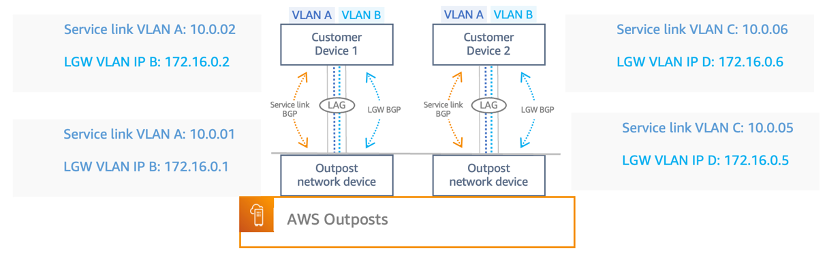
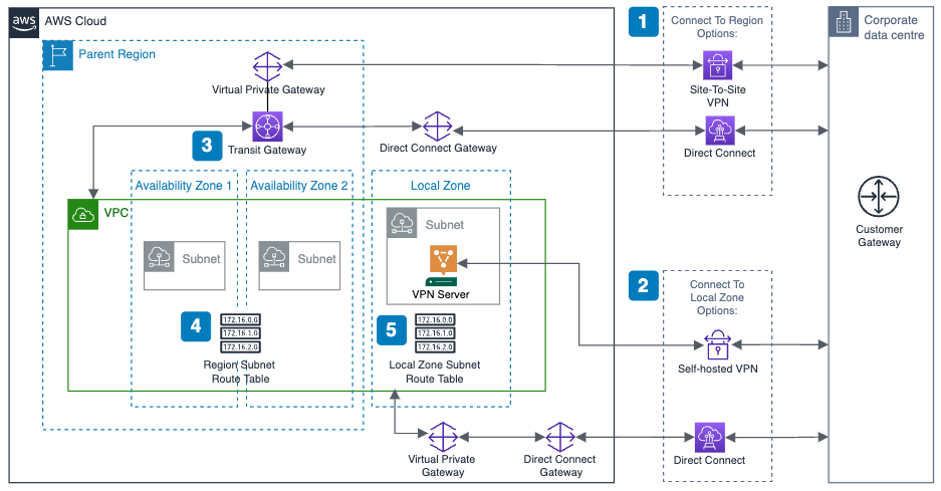
In this scenario, Outposts rack is locally installed in a customer premises. The service link connectivity to the AWS Region can be either via an AWS Direct Connect private virtual interface, a public virtual interface, or the public internet.

The local gateway (LGW) provides connectivity between the Outposts instances and the local on-premises network.

A virtual private cloud (VPC) spans all Availability Zones in its AWS Region. You can extend the VPC in the Region to the Outpost by adding an Outpost subnet. To add an Outpost subnet to a VPC, specify the Amazon Resource Name (ARN) – arn:aws:outposts:region:account-id – of the Outpost when you create the subnet. Outposts rack support multiple subnets. In this scenario, we have extended the VPC from the Region (us-west-2) to the Outpost.

To improve the security posture of the Outposts instance, you can configure AWS SSM to use an interface VPC endpoint in Amazon Virtual Private Cloud (VPC). An interface VPC endpoint lets you connect to services powered by AWS PrivateLink, a technology that lets you privately access AWS SSM APIs by using private IP addresses. See the details in the following AWS SSM section for the VPC endpoints.

Most importantly, to leverage any of the AWS services in the Region, Outposts rack relies on connectivity to the parent AWS Region. Outposts rack is not designed for disconnected operations or environments with limited to no connectivity. We recommend that you have highly-available networking connections back to your AWS Region. For an optimal experience and resiliency, AWS recommends that you use redundant connectivity of at least 500 Mbps (1 Gbps or higher) for the service link connection to the AWS Region.

An overview of the AWS Outposts setup and connectivity back to the region.

Outposts offers a consistent experience with the same hardware infrastructure, services, APIs, management, and operations on-premises as in the AWS Regions. Unlike other hybrid solutions that require different APIs, manual software updates, and purchase of third-party hardware and support, Outposts enables developers and IT operations teams to achieve the same pace of innovation across different environments.

In the first section, let’s see how we can use AWS SSM services for managing and operating Outposts instances.

Managing Outposts instances using AWS SSM

The Amazon Systems Manager Agent (SSM Agent) is installed and running on the Outposts instances.

SSM Agent is installed by default on Amazon Linux, Amazon Linux 2, Ubuntu Server16.04 and Ubuntu Server 18.04 LTS based Amazon Elastic Compute Cloud (EC2) AMIs. If SSM Agent isn’t preinstalled, then you must manually install the agent. Agent communication with SSM is via TCP port 443.

Linux: Manually install SSM Agent on EC2 instances for Linux

Windows: Manually install SSM Agent on EC2 instances for Windows Server

  1. Create an IAM instance profile for SSM

By default, SSM doesn’t have permission to perform actions on your instances. Grant access by using an AWS Identity and Access Management (IAM) instance profile. An instance profile is a container that passes IAM role information to an Amazon EC2 instance at launch. You can create an instance profile for SSM by attaching one or more IAM policies that define the necessary permissions to a new role or to a role that you already created. Make sure that you follow AWS best practices by having a least-privileges policy created.

  1. Create VPC endpoints for SSM.

a. amazonaws.us-west-2.ssm: The endpoint for the Systems Manager service.

b. amazonaws.us-west-2.ec2messages: Systems Manager uses this endpoint to make calls from the SSM Agent to the Systems Manager service.

c. amazonaws.us-west-2.ec2: If you’re using Systems Manager to create VSS-enabled snapshots, then you must make sure that you have an endpoint to the EC2 service. Without the EC2 endpoint defined, a call to enumerate attached Amazon Elastic Block Storage (EBS) volumes fails, which causes the Systems Manager command to fail.

d. amazonaws.us-west-2.ssmmessages: This endpoint is for connecting to your instances with a secure data channel using Session Manager.

e. amazonaws.us-west-2.s3: Systems Manager uses this endpoint to update SSM agent, perform patch operation, and for uploading logs into Amazon Simple Storage Service (S3) buckets.

  1. Once the SSM agent has been installed and the necessary permission has been provided for the Systems Manager, log in to Systems Manager Console and navigate to Fleet Manager to discover the Outposts instances as shown in the following image.

Fleet Manager to discover the Outposts instances.

4. You can use compliance to scan the Outposts instances for patch compliance and configuration inconsistencies.

Compliance to scan the Outposts instances for patch compliance and configuration inconsistencies.

5. AWS Systems Manager Inventory provides visibility into your Outposts computing environment. You can use this inventory to collect metadata about the instances.

AWS SSM inventory to collect metadata about the instances.

6. With Session Manager, you can log into your Outposts instances. You can use either an interactive one-click browser-based shell, or the AWS Command Line Interface (CLI) for Linux based EC2 instances. For Windows instances, you can connect using Remote Desktop Protocol (RDP). For better SEO, suggest replacing this with “Check out”, attach the link to “how to connect to Windows instances from the Fleet Manager console”, and delete can be found here. here.

Note that accessing the Outposts EC2 instances through SSH or RDP via the Region based Session Manager will have more latency via service link than accessing via the LGW.

Session Manager to connect to Outposts EC2 instances.

7. Patch Manager automated the process of patching the Outposts instances with both security-related and other types of updates. In the following you can see that one of the Outposts instances is scanned and updated with an operational update.

AWS SSM Patch Manager to patch the Outposts Instances.

Security at AWS is the highest priority. Security is a shared responsibility between AWS and customers. We offer the security tools and procedures to secure the Outposts instances as in the AWS region. By using AWS services, you can enhance your security posture on Outposts rack in these areas.

In the second section, let’s see how we can use Amazon Inspector running in the AWS Region to scan for vulnerabilities within the Outposts environment. Amazon Inspector uses the widely deployed SSM Agent to automatically scan for vulnerabilities on Outposts instances.

Scan Outposts instances for vulnerabilities using Amazon Inspector

Amazon Inspector is an automated vulnerability management service that continually scans AWS workloads for software vulnerabilities and unintended network exposure. Amazon Inspector automatically discovers all of the Outposts EC2 instances (installed with SSM Agent) and container images residing in Amazon Elastic Container Registry (ECR) that are identified for scanning. Then, it immediately starts scanning them for software vulnerabilities and unintended network exposure.

All workloads are continually rescanned when a new Common Vulnerabilities And Exposures (CVE) is published, or when there are changes in the workloads, such as installation of new software in an Outposts EC2 instance.

Amazon Inspector uses the widely deployed SSM Agent (deployed in the previous scenario) to collect the software inventory and configurations from your Outposts EC2 instances. Use the VPC interface endpoint – com.amazonaws.us-west-2.inspector2 – to privately access Amazon Inspector. The collected application inventory and configurations are used to assess workloads for vulnerabilities.

  1. The following Summary Dashboard provides information on how many Outposts EC2 instances and the container repositories are scanned and discovered.

Amazon Inspector Summary Console.

2. The findings by Vulnerability tab help to identify the most vulnerable Outposts EC2 instances in your environment. In the following, you can see Outposts instances with the following vulnerability highlighted.

a. Port range 0 to 65535 is reachable from an Internet Gateway

b. Port 22 is reachable from an Internet Gateway

Amazon Inspector Vulnerability console.

3. The findings by instance tab shows you all of the active findings for a Single Outposts instance in your environment. In the following, you can see that for this instance there are a total of 12 high and 19 medium findings based on the rules in the Common Vulnerabilities And Exposures (CVE) package.

Amazon Inspector Instances Console.

In the last section, let’s see how we can use GuardDuty to detect any threats within the Outposts environment.

Threat Detection service for your AWS accounts and Outposts workloads using Amazon GuardDuty

GuardDuty is a threat detection service that continuously monitors your AWS accounts and workloads for malicious activities and delivers detailed security findings for visibility and remediation.

GuardDuty continuously monitors and analyses the Outposts instances and reports suspicious activities using the GuardDuty console. It gets this information from CloudTrail Management Events, VPC Flow Logs, and DNS logs.

In this scenario, GuardDuty has detected an SSH brute force attack against an Outposts instance.

Amazon GuardDuty threat detection console.

Costs associated with the scenario

  • Systems Manager: With AWS Systems Manager, you pay only for what you use on the priced feature. In this scenario, we have used the following features.
    1. Inventory – No additional charges
    2. Session Manager – No additional charges
    3. Patch Manager – No additional charges

*Note that there will be charges for the VPC endpoint created.

  • Amazon Inspector: Costs for Amazon Inspector are based on container images scanned to ECR and the EC2 instances being scanned.
    1. The average number of EC2 instances scanned per month in US-WEST-2 region is $1.258 per instance. In the above scenario, there are three instances within the Outposts at $1.258 = $3.774
  • Amazon GuardDuty: VPC Flow logs and CloudWatch logs are used for GuardDuty analysis. In this scenario, Only VPC Flow logs are considered.
    1. VPC Flow log is charged per GB/month. In US-WEST-2 region – the First 500 GB/month is $1 per GB. In the above scenario, there are three instances within the Outposts that would generate approximately 80 MB of data, which is still within the 500 GB limit.
  • Understand more about AWS Outposts rack pricing on our website.

Cleaning up

Please delete example resources if they are no longer needed to avoid incurring future costs.

  • Amazon Inspector: Disable Amazon Inspector from the Amazon Inspector Console.
  • Amazon GuardDuty: You can use the GuardDuty console to suspend or disable GuardDuty. You are not charged for using GuardDuty when the service is suspended.
  • Delete unused IAM policies

Conclusion

On-premises data centers traditionally use a variety of infrastructure, tools, and APIs. This disparate assortment of hardware and software solutions results in complexity. In turn, this leads to greater management costs, inability of staff to translate skills from one setting to another, and limits in innovation and knowledge-sharing between environments.

Using a common set of tools, services in the AWS Regions and on Outposts on premises allows you to have a consistent operation environment, thereby delivering a true hybrid cloud experience. Equally, by using the same tools to deploy and manage workloads in both environments, you can reduce operational overhead.

To get started with Outposts, see AWS Outposts Family. For more information about Outposts availability, see the Outposts rack FAQ.

Creating computing quotas on AWS Outposts rack with EC2 Capacity Reservations sharing

Post Syndicated from Rachel Zheng original https://aws.amazon.com/blogs/compute/creating-computing-quotas-on-aws-outposts-rack-with-ec2-capacity-reservation-sharing/

This post is written by Yi-Kang Wang, Senior Hybrid Specialist SA.

AWS Outposts rack is a fully managed service that delivers the same AWS infrastructure, AWS services, APIs, and tools to virtually any on-premises datacenter or co-location space for a truly consistent hybrid experience. AWS Outposts rack is ideal for workloads that require low latency access to on-premises systems, local data processing, data residency, and migration of applications with local system interdependencies. In addition to these benefits, we have started to see many of you need to share Outposts rack resources across business units and projects within your organization. This blog post will discuss how you can share Outposts rack resources by creating computing quotas on Outposts with Amazon Elastic Compute Cloud (Amazon EC2) Capacity Reservations sharing.

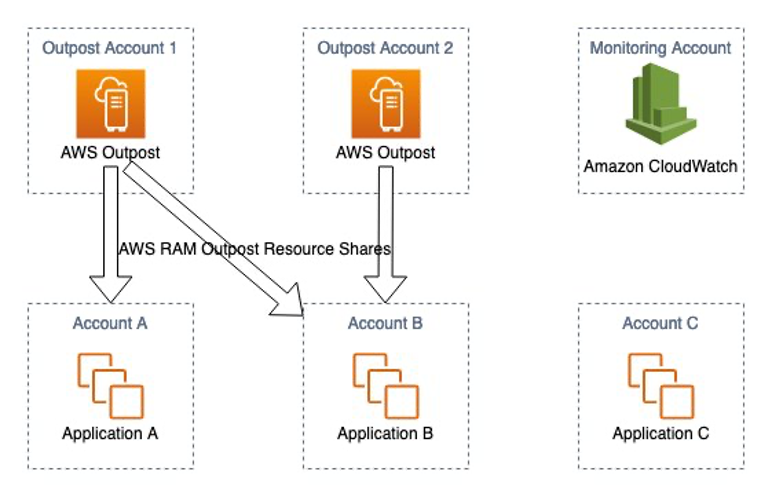
In AWS Regions, you can set up and govern a multi-account AWS environment using AWS Organizations and AWS Control Tower. The natural boundaries of accounts provide some built-in security controls, and AWS provides additional governance tooling to help you achieve your goals of managing a secure and scalable cloud environment. And while Outposts can consistently use organizational structures for security purposes, Outposts introduces another layer to consider in designing that structure. When an Outpost is shared within an Organization, the utilization of the purchased capacity also needs to be managed and tracked within the organization. The account that owns the Outpost resource can use AWS Resource Access Manager (RAM) to create resource shares for member accounts within their organization. An Outposts administrator (admin) can share the ability to launch instances on the Outpost itself, access to the local gateways (LGW) route tables, and/or access to customer-owned IPs (CoIP). Once the Outpost capacity is shared, the admin needs a mechanism to control the usage and prevent over utilization by individual accounts. With the introduction of Capacity Reservations on Outposts, we can now set up a mechanism for computing quotas.

Concept of computing quotas on Outposts rack

In the AWS Regions, Capacity Reservations enable you to reserve compute capacity for your Amazon EC2 instances in a specific Availability Zone for any duration you need. On May 24, 2021, Capacity Reservations were enabled for Outposts rack. It supports not only EC2 but Outposts services running over EC2 instances such as Amazon Elastic Kubernetes (EKS), Amazon Elastic Container Service (ECS) and Amazon EMR. The computing power of above services could be covered in your resource planning as well. For example, you’d like to launch an EKS cluster with two self-managed worker nodes for high availability. You can reserve two instances with Capacity Reservations to secure computing power for the requirement.

Here I’ll describe a method for thinking about resource pools that an admin can use to manage resource allocation. I’ll use three resource pools, that I’ve named reservation pool, bulk and attic, to effectively and extensibly manage the Outpost capacity.

A reservation pool is a resource pool reserved for a specified member account. An admin creates a Capacity Reservation to match member account’s need, and shares the Capacity Reservation with the member account through AWS RAM.

A bulk pool is an unreserved resource pool that is used when member accounts run out of compute capacity such as EC2, EKS, or other services using EC2 as underlay. All compute capacity in the bulk pool can be requested to launch until it is exhausted. Compute capacity that is not under a reservation pool belongs to the bulk pool by default.

An attic is a resource pool created to hold the compute capacity that the admin wouldn’t like to share with member accounts. The compute capacity remains in control by admin, and can be released to the bulk pool when needed. Admin creates a Capacity Reservation for the attic and owns the Capacity Reservation.

The following diagram shows how the admin uses Capacity Reservations with AWS RAM to manage computing quotas for two member accounts on an Outpost equipped with twenty-four m5.xlarge. Here, I’m going to break the idea into several pieces to help you understand easily.

  1. There are three Capacity Reservations created by admin. CR #1 reserves eight m5.xlarge for the attic, CR #2 reserves four m5.xlarge instances for account A and CR #3 reserves six m5.xlarge instances for account B.
  2. The admin shares Capacity Reservation CR #2 and CR #3 with account A and B respectively.
  3. Since eighteen m5.xlarge instances are reserved, the remaining compute capacity in the bulk pool will be six m5.xlarge.
  4. Both Account A and B can continue to launch instances exceeding the amount in their Capacity Reservation, by utilizing the instances available to everyone in the bulk pool.

Concept of defining computing quotas

  1. Once the bulk pool is exhausted, account A and B won’t be able to launch extra instances from the bulk pool.
  2. The admin can release more compute capacity from the attic to refill the bulk pool, or directly share more capacity with CR#2 and CR#3. The following diagram demonstrates how it works.

Concept of refilling bulk pool

Based on this concept, we realize that compute capacity can be securely and efficiently allocated among multiple AWS accounts. Reservation pools allow every member account to have sufficient resources to meet consistent demand. Making the bulk pool empty indirectly sets the maximum quota of each member account. The attic plays as a provider that is able to release compute capacity into the bulk pool for temporary demand. Here are the major benefits of computing quotas.

  • Centralized compute capacity management
  • Reserving minimum compute capacity for consistent demand
  • Resizable bulk pool for temporary demand
  • Limiting maximum compute capacity to avoid resource congestion.

Configuration process

To take you through the process of configuring computing quotas in the AWS console, I have simplified the environment like the following architecture. There are four m5.4xlarge instances in total. An admin account holds two of the m5.4xlarge in the attic, and a member account gets the other two m5.4xlarge for the reservation pool, which results in no extra instance in the bulk pool for temporary demand.

Prerequisites

  • The admin and the member account are within the same AWS Organization.
  • The Outpost ID, LGW and CoIP have been shared with the member account.

Architecture for configuring computing quotas

  1. Creating a Capacity Reservation for the member account

Sign in to AWS console of the admin account and navigate to the AWS Outposts page. Select the Outpost ID you want to share with the member account, choose Actions, and then select Create Capacity Reservation. In this case, reserve two m5.4xlarge instances.

Create a capacity reservation

In the Reservation details, you can terminate the Capacity Reservation by manually enabling or selecting a specific time. The first option of Instance eligibility will automatically count the number of instances against the Capacity Reservation without specifying a reservation ID. To avoid misconfiguration from member accounts, I suggest you select Any instance with matching details in most use cases.

Reservation details

  1. Sharing the Capacity Reservation through AWS RAM

Go to the RAM page, choose Create resource share under Resource shares page. Search and select the Capacity Reservation you just created for the member account.

Specify resource sharing details

Choose a principal that is an AWS ID of the member account.

Choose principals that are allowed to access

  1. Creating a Capacity Reservation for attic

Create a Capacity Reservation like step 1 without sharing with anyone. This reservation will just be owned by the admin account. After that, check Capacity Reservations under the EC2 page, and the two Capacity Reservations there, both with availability of two m5.4xlarge instances.

3.	Creating a Capacity Reservation for attic

  1. Launching EC2 instances

Log in to the member account, select the Outpost ID the admin shared in step 2 then choose Actions and select Launch instance. Follow AWS Outposts User Guide to launch two m5.4xlarge on the Outpost. When the two instances are in Running state, you can see a Capacity Reservation ID on Details page. In this case, it’s cr-0381467c286b3d900.

Create EC2 instances

So far, the member account has run out of two m5.4xlarge instances that the admin reserved for. If you try to launch the third m5.4xlarge instance, the following failure message will show you there is not enough capacity.

Launch status

  1. Allocating more compute capacity in bulk pool

Go back to the admin console, select the Capacity Reservation ID of the attic on EC2 page and choose Edit. Modify the value of Quantity from 2 to 1 and choose Save, which means the admin is going to release one more m5.4xlarge instance from the attic to the bulk pool.

Instance details

  1. Launching more instances from bulk pool

Switch to the member account console, and repeat step 4 but only launch one more m5.4xlarge instance. With the resource release on step 5, the member account successfully gets the third instance. The compute capacity is coming from the bulk pool, so when you check the Details page of the third instance, the Capacity Reservation ID is blank.

6.	Launching more instances from bulk pool

Cleaning up

  1. Terminate the three EC2 instances in the member account.
  2. Unshare the Capacity Reservation in RAM and delete it in the admin account.
  3. Unshare the Outpost ID, LGW and CoIP in RAM to get the Outposts resources back to the admin.

Conclusion

In this blog post, the admin can dynamically adjust compute capacity allocation on Outposts rack for purpose-built member accounts with an AWS Organization. The bulk pool offers an option to fulfill flexibility of resource planning among member accounts if the maximum instance need per member account is unpredictable. By contrast, if resource forecast is feasible, the admin can revise both the reservation pool and the attic to set a hard limit per member account without using the bulk pool. In addition, I only showed you how to create a Capacity Reservation of m5.4xlarge for the member account, but in fact an admin can create multiple Capacity Reservations with various instance types or sizes for a member account to customize the reservation pool. Lastly, if you would like to securely share Amazon S3 on Outposts with your member accounts, check out Amazon S3 on Outposts now supports sharing across multiple accounts to get more details.

New for App Runner – VPC Support

Post Syndicated from Danilo Poccia original https://aws.amazon.com/blogs/aws/new-for-app-runner-vpc-support/

With AWS App Runner, you can quickly deploy web applications and APIs at any scale. You can start with your source code or a container image, and App Runner will fully manage all infrastructure including servers, networking, and load balancing for your application. If you want, App Runner can also configure a deployment pipeline for you.

Starting today, App Runner enables your services to communicate with databases and other applications hosted in an Amazon Virtual Private Cloud (VPC). For example, you can now connect App Runner services to databases in Amazon Relational Database Service (RDS), Redis or Memcached caches in Amazon ElastiCache, or your own applications running in Amazon Elastic Container Service (Amazon ECS), Amazon Elastic Kubernetes Service (EKS), Amazon Elastic Compute Cloud (Amazon EC2), or on-premises and connected via AWS Direct Connect.

Previously, in order for your App Runner application to connect to these resources, they needed to be publicly accessible over the internet. With this feature, App Runner applications can connect to private endpoints in your VPC, and you can enable a more secure and compliant environment by removing public access to these resources.

Within App Runner, you can now create VPC connectors that specify which VPC, subnets, and security groups to use for private networking. Once configured, you can use a VPC connector with one or more App Runner services.

When connected to a VPC, all outbound traffic from your AppRunner service will be routed based on the VPC routing rules. Services will not have access to the public internet (including AWS APIs) unless allowed by a route to a NAT Gateway. You can also set up VPC endpoints to connect to AWS APIs such as Amazon Simple Storage Service (Amazon S3) and Amazon DynamoDB to avoid NAT traffic.

The VPC connectors in App Runner work similarly to VPC networking in AWS Lambda and are based on AWS Hyperplane, the internal Amazon network function virtualization system behind AWS services and resources like Network Load Balancer, NAT Gateway, and AWS PrivateLink.

Let’s see how this works in practice with a web application connected to an RDS database.

Preparing the Amazon RDS Database
I start by configuring a database for my application. To simplify capacity management for this database, I use Amazon Aurora Serverless. In the RDS console, I create an Amazon Aurora MySQL-Compatible database. For the Capacity type, I choose Serverless. For networking, I use my default VPC and the default security group. I don’t need to make the database publicly accessible because I am going to connect using private VPC networking. To simplify connecting later, I enable AWS Identity and Access Management (IAM) database authentication.

I start an Amazon Linux EC2 instance in the same VPC. To connect from the EC2 instance to the database, I need a MySQL client. I install MariaDB, a community-developed branch of MySQL:

sudo yum install mariadb

Then, I connect to the database using the admin user.

mysql -h <DATABASE_HOST> -u admin -P

I enter the admin user password to log in. Then, I create a new user (bookuser) that is configured to use IAM authentication.

CREATE USER bookuser IDENTIFIED WITH AWSAuthenticationPlugin AS 'RDS'; 

I create the bookcase database and give permissions to the bookuser user to query the bookcase database.

CREATE DATABASE bookcase;
GRANT SELECT ON bookcase.* TO 'bookuser'@'%’;

To store information about some of my books, I create the authors and books tables.

CREATE TABLE authors (
  authorId INT,
  name varchar(255)
 );

CREATE TABLE books (
  bookId INT,
  authorId INT,
  title varchar(255),
  year INT
);

Then, I insert some values in the two tables:

INSERT INTO authors VALUES (1, "Issac Asimov");
INSERT INTO authors VALUES (2, "Robert A. Heinlein");
INSERT INTO books VALUES (1, 1, "Foundation", 1951);
INSERT INTO books VALUES (2, 1, "Foundation and Empire", 1952);
INSERT INTO books VALUES (3, 1, "Second Foundation", 1953);
INSERT INTO books VALUES (4, 2, "Stranger in a Strange Land", 1961);

Preparing the Application Source Code Repository
With App Runner, I can deploy a new service from code hosted in a source code repository or using a container image. In this example, I use a private project that I have on GitHub.

It’s a very simple Python web application connecting to the database I just created. This is the source code of the app (server.py):

from wsgiref.simple_server import make_server
from pyramid.config import Configurator
from pyramid.response import Response
import os
import boto3
import mysql.connector

import os

DATABASE_REGION = 'us-east-1'
DATABASE_CERT = 'cert/us-east-1-bundle.pem'
DATABASE_HOST = os.environ['DATABASE_HOST']
DATABASE_PORT = os.environ['DATABASE_PORT']
DATABASE_USER = os.environ['DATABASE_USER']
DATABASE_NAME = os.environ['DATABASE_NAME']

os.environ['LIBMYSQL_ENABLE_CLEARTEXT_PLUGIN'] = '1'

PORT = int(os.environ.get('PORT'))

rds = boto3.client('rds')

try:
    token = rds.generate_db_auth_token(
        DBHostname=DATABASE_HOST,
        Port=DATABASE_PORT,
        DBUsername=DATABASE_USER,
        Region=DATABASE_REGION
    )
    mydb =  mysql.connector.connect(
        host=DATABASE_HOST,
        user=DATABASE_USER,
        passwd=token,
        port=DATABASE_PORT,
        database=DATABASE_NAME,
        ssl_ca=DATABASE_CERT
    )
except Exception as e:
    print('Database connection failed due to {}'.format(e))          

def all_books(request):
    mycursor = mydb.cursor()
    mycursor.execute('SELECT name, title, year FROM authors, books WHERE authors.authorId = books.authorId ORDER BY year')
    title = 'Books'
    message = '<html><head><title>' + title + '</title></head><body>'
    message += '<h1>' + title + '</h1>'
    message += '<ul>'
    for (name, title, year) in mycursor:
        message += '<li>' + name + ' - ' + title + ' (' + str(year) + ')</li>'
    message += '</ul>'
    message += '</body></html>'
    return Response(message)

if __name__ == '__main__':

    with Configurator() as config:
        config.add_route('all_books', '/')
        config.add_view(all_books, route_name='all_books')
        app = config.make_wsgi_app()
    server = make_server('0.0.0.0', PORT, app)
    server.serve_forever()

The application uses the AWS SDK for Python (boto3) for IAM database authentication, the Pyramid web framework, and the MySQL connector for Python. The requirements.txt file describes the application dependencies:

boto3
pyramid==2.0
mysql-connector-python

To use SSL/TLS encryption when connecting to the database, I download a certificate bundle and add it to my source code repository.

Using VPC Support in AWS App Runner
In the App Runner console, I select Source code repository and the branch to use.

Console screenshot.

For the deployment settings, I choose Manual. Optionally, I could have selected the Automatic deployment trigger to have every push to this branch deploy a new version of my service.

Console screenshot.

Then, I configure the build. This is a very simple application, so I pass the build and start commands in the console:

Build commandpip install -r requirements.txt
Start commandpython server.py

For more advanced use cases, I would add an apprunner.yaml configuration file to my repository as in this sample application.

Console screenshot.

In the service configuration, I add the environment variables used by the application to connect to the database. I don’t need to pass a database password here because I am using IAM authentication.

Console screenshot.

In the Security section, I select an IAM role that gives permissions to connect to the database using IAM database authentication as described in Creating and using an IAM policy for IAM database access.

Console screenshot.

Here’s the syntax of the IAM role. I find the database Resource ID in the Configuration tab of the RDS console.

{
    "Version": "2012-10-17",
    "Statement": [
        {
            "Effect": "Allow",
            "Action": [
                "rds-db:connect"
            ],
            "Resource": [
                "arn:aws:rds-db:<REGION>:<ACCOUNT>:dbuser:<DB_RESOURCE_ID>/<DB_USER>"
            ]
        }
    ]
}

For the role trust policy,   I follow the instruction for instance roles in How App Runner works with IAM.

{
  "Version": "2012-10-17",
  "Statement": [
    {
      "Effect": "Allow",
      "Principal": {
        "Service": "tasks.apprunner.amazonaws.com"
      },
      "Action": "sts:AssumeRole"
    }
  ]
}

For Networking, I select the new option to use a Custom VPC for outgoing network traffic and then add a new VPC connector.

Console screenshot.

To add a new VPC connector, I write down a name and then select the VPC, subnets, and security groups to use. Here, I select all the subnets of my default VPC and the default security group. In this way, the App Runner service will be able to connect to the RDS database.

Console screenshot.

The next time, when configuring another application with the same VPC networking requirements, I can just select the VPC connector I created before.

Console screenshot. I review all the settings and then create and deploy the service.

After a few minutes, the service is running, and I choose the default domain to open a new tab in my browser. The application is connected to the database using VPC networking and performs a SQL query to join the books and authors tables and provide some reading suggestions. It works!

Browser screenshot.

Availability and Pricing
VPC connectors are available in all AWS Regions where AWS App Runner is offered. For more information, see the Regional Services List. There is no additional cost for using this feature, but you pay the standard pricing for data transmission or any NAT gateway or VPC endpoints you set up. You can set up VPC connectors with the AWS Management Console, AWS Command Line Interface (CLI), AWS SDKs, and AWS CloudFormation.

With VPC connectors, you can deploy your applications using App Runner and connect them to your private databases, caches, and applications running in a VPC or on-premises and connected via AWS Direct Connect.

Build and run web applications at any scale and connect to your private VPC resources with AWS App Runner.

Danilo

How to mount Linux volume and keep mount point consistency

Post Syndicated from limillan original https://aws.amazon.com/blogs/compute/how-to-mount-linux-volume-and-keep-mount-point-consistency/

This post is written by: Leonardo Azize Martins, Cloud Infrastructure Architect, Professional Services

Customers often use Amazon Elastic Compute Cloud (Amazon EC2) Linux based instances with many Amazon Elastic Block Store (Amazon EBS) volumes attached. In this case, device name can vary depending on some facts, such as virtualization type, instance type, or operating system. As the device name can change, the customer shouldn’t rely on the device name to mount volumes from it. The customer wants to avoid the situation where a volume is mounted on a different mount point just because the device name changed, or the device name doesn’t exist because the name pattern changed.

Customers who want to utilize the latest instance family usually change the instance type when a new one is available. The device name can be different between instance families, such as T2 and T3. T2 uses /dev/sd[a-z], while T3 uses /dev/nvme[0-26]n1. If you mount a device on T2 called /dev/sdc, when you change the instance family to T3 the same device won’t be called /dev/sdc anymore. In this case, it will fail to mount.

Amazon EBS volumes are exposed as NVMe block devices on instances built on the AWS Nitro System. The block device driver can assign NVMe device names in a different order than what you specified for the volumes in the block device mapping. In this situation, a device that should be mounted on /data could end-up being mounted on /logs.

On Linux, you can use the fstab file to mount devices using kernel name descriptors (the traditional way), file system labels, or the file system UUID. Kernel name descriptors aren’t persistent and can change each boot. Therefore, they shouldn’t be used in configuration files.

UUID is a mechanism for giving each filesystem a unique identifier. These identifiers’ attributes are generated by filesystem utilities (mkfs.*) when the device is formatted, and they’re designed so that collisions are unlikely. All GNU/Linux filesystems (including swap and LUKS headers of raw encrypted devices) support UUID.

As UUID is a filesystem attribute, it can also be used with Logical Volume Manager (LVM) and Linux software RAID (mdadm).

Depending on the fstab file configuration, you may find that you can’t access your instance, which requires you to follow a rescue process to fix issues. This is the case if you configure the fstab file with the device name and change the instance type.

This post shows how to mount Linux volumes and keep mount points preserved when the instance type is changed or the instance is rebooted.

Overview of solution

When you create an instance, you specify block devices mapping. It doesn’t mean that the Linux device has the same name or can be discovered in the same order as specified on the instance mapping. This situation can be more evident when using applications that require more volumes.

Using UUID to mount volumes lets you mitigate future issues when you stop and start your instance or change the instance type.

EC2 instance block device mapping

Figure 1: EC2 instance block device mapping

Walkthrough

You will create one instance with three volumes: one root volume and two data volumes. We use Amazon Linux 2 in this post. In this instance type, volumes have a specific name format. Later, you will change the instance type. The new instance type volumes will have another name format.

Follow these steps:

  • Create an instance with three volumes
  • Create the filesystem on the volumes and mount them
  • Change the instance type

Prerequisites

For this walkthrough, you should have the following prerequisites:

Create instance

Create one instance with three volumes: a root volume and two data volumes. Use Launch Instance Wizard with the following details.

Launch Amazon Linux 2 instance

  1. On Step 1, choose Amazon Linux 2 AMI (HVM), SSD Volume Type.
  2. On Step 2, choose micro.
  3. On Step 3, choose Next.
  4. On Step 4, add two new volumes, device /dev/sdb 10 GiB and device /dev/sdc 12 GiB.

Launch instances, add storage

Figure 2: Launch instances, add storage

Create filesystem and mount

Connect to your instance using EC2 Instance Connect or any other method that feels comfortable for you. Mount the device using UUID instead of the device name. Run the following instructions as the user root.

Format and mount the device

  1. Run the following command to confirm that you have three disks:
    $ lsblk
  2. Format disk as xfs, and run the following commands:
    mkfs.xfs /dev/xvdb
    mkfs.xfs /dev/xvdc
  3. Create mount point, and run the following commands:
    mkdir /mnt/disk1
    mkdir /mnt/disk2
  4. Add mount instructions, and run the following commands:
    echo "$(blkid /dev/xvdb | awk '{print $2}') /mnt/disk1 xfs defaults,noatime" | tee -a /etc/fstab
    echo "$(blkid /dev/xvdc | awk '{print $2}') /mnt/disk2 xfs defaults,noatime" | tee -a /etc/fstab
  5. Mount volumes, create dummy file, and run the following commands:
    mount -a
    touch /mnt/disk1/file1.txt
    touch /mnt/disk2/file2.txt

You will have an fstab file like the following:

cat /etc/fstab
UUID=7b355c6b-f82b-4810-94b9-4f3af651f629     /           xfs    defaults,noatime  1   1
UUID="2c160dd6-586c-4258-84bb-c79933b9ae02" /mnt/disk1 xfs defaults,noatime
UUID="3e7a0c28-7cf1-40dc-82a1-2f5cfb53f9a4" /mnt/disk2 xfs defaults,noatime

Change instance type

Change the instance type from t2.micro to t3.micro.

Launch Amazon Linux 2 instance

  1. Stop instance.
  2. Change the instance type to micro.
  3. Start instance.
  4. Connect to your instance using EC2 Instance Connect.
  5. Check the device name, and run the following command:
lsblk
  1. List files, and run the following command:
ls -l /mnt/*

Note that the device names are changed from xvd* to nvme*. All of the devices are mounted without any issue and with the correct mount points.

Cleaning up

To avoid incurring future charges, delete the instance and all of the volumes that you created in this post.

The other side

UUID is an attribute of the filesystem that was generated when you formatted your device. Therefore, it will follow your device even if you create an AMI or snapshot. So you don’t need to worry about a restore process, and it will smoothly proceed to an instance restore. You must be careful if you restore a snapshot from one volume and attach it to the same instance, as you will end-up with two volumes that are using the same UUID. If you try to mount the restored volume on the same instance, then it will fail and you will find this message on /var/log/messages file. kernel: XFS (xvdf1): Filesystem has duplicate UUID f6646b81-f2a6-46ca-9f3d-c746cf015379 - can't mount It is even more important to be careful if you attach a volume created from the snapshot of the root volume and restart your instance. Since both volumes have the same UUID, you may find that a volume other than the one attached to /dev/xvda or /dev/sda has become the root volume of your instance. See the following example for details. Note that both volumes have the same UUID, but the one mounted on / is /dev/xvdf1, not /dev/xvda1, which is the real root volume for this instance.

$ blkid
/dev/xvda1: LABEL="/" UUID="f6646b81-f2a6-46ca-9f3d-c746cf015379" TYPE="xfs" PARTLABEL="Linux" PARTUUID="79fae994-3708-4293-bb29-4d069d1c786b"
/dev/xvdf1: LABEL="/" UUID="f6646b81-f2a6-46ca-9f3d-c746cf015379" TYPE="xfs" PARTLABEL="Linux" PARTUUID="79fae994-3708-4293-bb29-4d069d1c786b"
$ lsblk
NAME    MAJ:MIN RM SIZE RO TYPE MOUNTPOINT
xvda    202:0    0   8G  0 disk
└─xvda1 202:1    0   8G  0 part
xvdf    202:80   0   8G  0 disk
└─xvdf1 202:81   0   8G  0 part /

Conclusion

In this post, we covered how to use UUID to mount Linux devices using fstab file. This keeps the mount point on the correct device. It also lets you change the instance type without changes to the fstab file. You can use UUID with LVM and Linux software RAID (mdadm), UUID, as an attribute of the filesystem, will be the same even after a backup and restore process, snapshot, or clone. To learn more, check out our block device mappings and device names on Linux instances documentation.

AWS Compute Optimizer supports AWS Graviton migration guidance

Post Syndicated from Pranaya Anshu original https://aws.amazon.com/blogs/compute/aws-compute-optimizer-supports-aws-graviton-migration-guidance/

This post is written by Letian Feng, Principal Product Manager for AWS Compute Optimizer, and Steve Cole, Senior EC2 Spot Specialist Solutions Architect.

Today, AWS Compute Optimizer is launching a new capability that makes it easier for you to optimize your EC2 instances by leveraging multiple CPU architectures, including x86-based and AWS Graviton-based instances. Compute Optimizer is an opt-in service that recommends optimal AWS resources for your workloads to reduce costs and improve performance by analyzing historical utilization metrics. AWS Graviton processors are custom-built by Amazon Web Services using 64-bit Arm cores to deliver the best price performance for your cloud workloads running in Amazon EC2, with the potential to realize up to 40% better price performance over comparable current generation x86-based instances. As a result, customers interested in Graviton have been asking for a scalable way to understand which EC2 instances they should prioritize in their Graviton migration journey. Starting today, you can use Compute Optimizer to find the workloads that will deliver the biggest return for the smallest migration effort.

How it works

Compute Optimizer helps you find the workloads with the biggest return for the smallest migration effort by providing a migration effort rating. The migration effort rating, ranging from very low to high, reflects the level of effort that might be required to migrate from the current instance type to the recommended instance type, based on the differences in instance architecture and whether the workloads are compatible with the recommended instance type.

Clues about the type of workload running are useful for estimating the migration effort to Graviton. For some workloads, transitioning to Graviton is as simple as updating the instance types and associated Amazon Machine Images (AMIs) directly or in various launch or CloudFormation templates. For other workloads, you might need to use different software versions or change source codes. The quickest and easiest workloads to transition are Linux-based open-source applications. Many open source projects already support Arm64, and by extension Graviton. Therefore, many customers start their Graviton migration journey by checking whether their workloads are among the list of Graviton-compatible applications. They then combine this information with estimated savings from Compute Optimizer to build a list of Graviton migration opportunities.

Because Compute Optimizer cannot see into an instance, it looks to instance attributes for clues about the workload type running on the EC2 instance. The clues Compute Optimizer uses are based on the instance attributes customers provide, such as instance tags, AWS Marketplace product names, AMI names, and CloudFormation templates names. For example, when an instance is tagged with “key:application-type” and “value:hadoop”, Compute Optimizer will identify the application –Apache Hadoop in this example. Then, because we know that major frameworks, such as Apache Hadoop, Apache Spark, and many others, run on Graviton, Compute Optimizer will indicate that there is low migration effort to Graviton, and point customers to documentation that outlines the required steps for migrating a Hadoop application to Graviton.

As another example, when Compute Optimizer sees an instance is using a Microsoft Windows SQL Server AMI, Compute Optimizer will infer that SQL Server is running. Then, because it takes a lot of effort to modernize and migrate a SQL Server workload to Arm, Compute Optimizer will indicate that there is a high migration effort to Graviton. The most effective way to give Compute Optimizer clues about what application is running is by putting an “application-type” tag onto each instance. If Compute Optimizer doesn’t have enough clues, it will indicate that it doesn’t have enough information to offer migration guidance.

The following shows the different levels of migration effort:

  • Very Low – The recommended instance type has the same CPU architecture as the current instance type. Often, customers can just modify instance types directly, or do a simple re-deployment onto the new instance type. So, this is just an optimization, not a migration.
  • Low – The recommended instance type has different CPU architecture from the current instance type, but there’s a low-effort migration path. For example, migrating Apache Hadoop or Redis from x86 to Graviton falls under this category as both Hadoop and Redis have Graviton-compatible versions.
  • Medium – The recommended instance type has different CPU architecture from the current instance type, but Compute Optimizer doesn’t have enough information to offer migration guidance.
  • High – The recommended instance type has different CPU architecture from the current instance type, and the workload has no known compatible version on the recommended CPU architecture. Therefore, customers may need to re-compile their applications or re-platform their workloads (like moving from SQL Server to MySQL).
More and more applications support Graviton every day. If you’re running an application that you know has low migration effort, but Compute Optimizer isn’t yet aware, please tell us! Shoot us an email at [email protected] with the application type, and we’ll update our migration guidance mappings as quickly as we can. You can also put an “application-type” tag on your instances so that Compute Optimizer can infer your application type with high confidence.

Customers who have already opted into Compute Optimizer recommendations will have immediate access to this new capability. Customers who haven’t can opt-in with a single console click or API, enabling all Compute Optimizer features.

Walk through

Now, let’s take a look at how to get started with Graviton recommendation on Compute Optimizer. When you open the Compute Optimizer console, you will see the dashboard page that provides you with a summary of all optimization opportunities in your account. Graviton recommendation is available for EC2 instances and Auto Scaling groups.

Screenshot of Compute Optimizer dashboard page, which shows the number of EC2 instance and Auto Scaling group recommendations by findings in your AWS account.

After you click on View recommendations for EC2 instances, you will come to the EC2 recommendation list view. Here is where you can see a list of your EC2 instances, their current instance type, our finding (over-provisioned, under-provisioned, or optimized), the recommended optimal instance type, and the estimated savings if there is a downsizing opportunity. By default, we will show you the best-fit instance type for the price regardless of CPU architecture. In many cases this means that Graviton will be recommended because EC2 offers a wide selection of Graviton instances with comparatively high price/performance ratio. If you’d like to only look at recommendations with your current architecture, you can use the CPU architecture preference dropdown to tell Compute Optimizer to show recommendations with only the current CPU architecture.
Compute Optimizer EC2 Recommendation List Page. Here you can select both current and Graviton as the preferred CPU architectures. The recommendation list contains two new columns -- migration effort, and inferred workload types.

Here you can see two new columns — Migration effort and Inferred workload types. The Inferred workload types field shows the type of workload Compute Optimizer has inferred your instance is running. The Migration effort field shows how much effort you might need to spend if you migrate from your current instance type to recommended instance type based on the inferred workload type. When there is no change in CPU architecture (i.e. moving from an x86-instance type to another x86-instance type, like in the third row), the migration effort will be Very low. For x86-instances that are running Graviton-compatible applications, such as Apache Hadoop, NGINX, Memcached, etc., when you migrate the instance to Graviton, the effort will be Low. If Compute Optimizer cannot identify the applications, the migration effort from x86 to Graviton will be Medium, and you can provide application type data by putting an application-type tag key onto the instance. You can click on each row to see more detailed recommendation. Let’s click on the first row.

Compute Optimizer EC2 Recommendation Detail Page. The current instance type is r5.large. Recommended option 1 is r6g.large, with low migration effort. Recommended option 2 is t4g.xlarge, with low migration effort. Recommended option 3 is m6g.xlarge, with low migration effort.

Compute Optimizer identifies this instance to be running Apache Hadoop workloads because there’s Amazon EMR system tag associated with it. It shows a banner that details why Compute Optimizer considers this as a low-effort Graviton migration candidate, and offers a migration guide when you click on Learn more.

Github screenshot of AWS Graviton migration guide. The migration guide details steps to transition workloads from x86-based instances to Graviton-based instances.

The same Graviton recommendation can also be retrieved through Compute Optimizer API or CLI. Here’s a sample CLI that retrieves the same recommendation as discussed above:

aws compute-optimizer get-ec2-instance-recommendations --instance-arns arn:aws:ec2:us-west-2:020796573343:instance/i-0b5ec1bb9daabf0f3 --recommendation-preferences "{\"cpuVendorArchitectures\": [\"CURRENT\" , \"AWS_ARM64\"]}"
{
    "instanceRecommendations": [
        {
            "instanceArn": "arn:aws:ec2:us-west-2:000000000000:instance/i-0b5ec1bb9daabf0f3",
            "accountId": "000000000000",
            "instanceName": "Compute Intensive",
            "currentInstanceType": "r5.large",
            "finding": "UNDER_PROVISIONED",
            "findingReasonCodes": [
                "CPUUnderprovisioned",
                "EBSIOPSOverprovisioned"
            ],
            "inferredWorkloadTypes": [
                "ApacheHadoop"
            ],
            "utilizationMetrics": [
                {
                    "name": "CPU",
                    "statistic": "MAXIMUM",
                    "value": 100.0
                },
                {
                    "name": "EBS_READ_OPS_PER_SECOND",
                    "statistic": "MAXIMUM",
                    "value": 0.0
                },
                {
                    "name": "EBS_WRITE_OPS_PER_SECOND",
                    "statistic": "MAXIMUM",
                    "value": 4.943333333333333
                },
                {
                    "name": "EBS_READ_BYTES_PER_SECOND",
                    "statistic": "MAXIMUM",
                    "value": 0.0
                },
                {
                    "name": "EBS_WRITE_BYTES_PER_SECOND",
                    "statistic": "MAXIMUM",
                    "value": 880541.9921875
                },
                {
                    "name": "NETWORK_IN_BYTES_PER_SECOND",
                    "statistic": "MAXIMUM",
                    "value": 18113.96638888889
                },
                {
                    "name": "NETWORK_OUT_BYTES_PER_SECOND",
                    "statistic": "MAXIMUM",
                    "value": 90.37638888888888
                },
                {
                    "name": "NETWORK_PACKETS_IN_PER_SECOND",
                    "statistic": "MAXIMUM",
                    "value": 2.484055555555556
                },
                {
                    "name": "NETWORK_PACKETS_OUT_PER_SECOND",
                    "statistic": "MAXIMUM",
                    "value": 0.3302777777777778
                }
            ],
            "lookBackPeriodInDays": 14.0,
            "recommendationOptions": [
                {
                    "instanceType": "r6g.large",
                    "projectedUtilizationMetrics": [
                        {
                            "name": "CPU",
                            "statistic": "MAXIMUM",
                            "value": 70.76923076923076
                        }
                    ],
                    "platformDifferences": [
                        "Architecture"
                    ],
                    "migrationEffort": "Low",
                    "performanceRisk": 1.0,
                    "rank": 1
                },
                {
                    "instanceType": "t4g.xlarge",
                    "projectedUtilizationMetrics": [
                        {
                            "name": "CPU",
                            "statistic": "MAXIMUM",
                            "value": 33.33333333333333
                        }
                    ],
                    "platformDifferences": [
                        "Hypervisor",
                        "Architecture"
                    ],
                    "migrationEffort": "Low",
                    "performanceRisk": 3.0,
                    "rank": 2
                },
                {
                    "instanceType": "m6g.xlarge",
                    "projectedUtilizationMetrics": [
                        {
                            "name": "CPU",
                            "statistic": "MAXIMUM",
                            "value": 33.33333333333333
                        }
                    ],
                    "platformDifferences": [
                        "Architecture"
                    ],
                    "migrationEffort": "Low",
                    "performanceRisk": 1.0,
                    "rank": 3
                }
            ],
            "recommendationSources": [
                {
                    "recommendationSourceArn": "arn:aws:ec2:us-west-2:000000000000:instance/i-0b5ec1bb9daabf0f3",
                    "recommendationSourceType": "Ec2Instance"
                }
            ],
            "lastRefreshTimestamp": "2021-12-28T11:00:03.576000-08:00",
            "currentPerformanceRisk": "High",
            "effectiveRecommendationPreferences": {
                "cpuVendorArchitectures": [
                    "CURRENT", 
                    "AWS_ARM64"
                ],
                "enhancedInfrastructureMetrics": "Inactive"
            }
        }
    ],
    "errors": []
}

Conclusion

Compute Optimizer Graviton recommendations are available in in US East (Ohio), US East (N. Virginia), US West (N. California), US West (Oregon), Asia Pacific (Mumbai), Asia Pacific (Seoul), Asia Pacific (Singapore), Asia Pacific (Sydney), Asia Pacific (Tokyo), Canada (Central), Europe (Frankfurt), Europe (Ireland), Europe (London), Europe (Paris), Europe (Stockholm), and South America (São Paulo) Regions at no additional charge. To get started with Compute Optimizer, visit the Compute Optimizer webpage.

Efficiently Scaling kOps clusters with Amazon EC2 Spot Instances

Post Syndicated from Pranaya Anshu original https://aws.amazon.com/blogs/compute/efficiently-scaling-kops-clusters-with-amazon-ec2-spot-instances/

This post is written by Carlos Manzanedo Rueda, WW SA Leader for EC2 Spot, and Brandon Wagner, Senior Software Development Engineer for EC2.

This post focuses on how you can leverage recently released tools to optimize your usage of Amazon EC2 Spot Instances on Kubernetes Operations (kOps) clusters. Spot Instances let you utilize unused capacity in the AWS cloud for up to 90% off compared to On-Demand prices, and they are a great fit for fault-tolerant, containerized applications. kOps is an open source project providing a cohesive toolset for provisioning, operating, and deleting Kubernetes clusters in the cloud.

Even with customers such as Snap Inc., Babylon Health, and Fidelity Investments telling us how Amazon Elastic Kubernetes Service (EKS) is essential for running their containerized workloads, we appreciate that there are scenarios where using Amazon EC2 instances and kOps are a viable alternative. At AWS, we understand “one size does not fit all.” While we encourage Kubernetes users to contribute their feedback to the AWS container roadmap so that we can improve our services, we also would like to reduce heavy lifting and simplify Spot best practices integration in kOps clusters.

To simplify the integration of Spot Instances in kOps clusters, in January of 2021 we introduced a new kops toolbox command: kops toolbox instance-selector. The utility is distributed as part of the standard kOps distribution. Moreover, it simplifies the creation of kOps Instance Groups by configuring them with full adherence to Spot Instances best practices.

Handling Spot interruption notifications in Kubernetes

Let’s quickly recap Spot best practices. Spot Instances perform exactly like any other EC2 Instances, except that in exchange for their discounted price, they can be interrupted with a two-minute warning when EC2 must reclaim capacity. Applications running on Spot can typically recover from transient interruptions by simply starting a new instance. Spot best practices involve measures such as diversifying into as many Spot capacity pools as possible, choosing the right Spot allocation strategy, and utilizing Spot integrated services. These handle the Spot Instances lifecycles for you. This blog post on handling Spot interruptions dives deeper into AWS’s EC2 Spot best practices.

In Kubernetes, to handle spot termination and rebalance recommendation events (both explained in this blog post on proactively managing Spot Instance lifecycle), we utilize the AWS open-source project AWS Node Termination Handler. We will be deploying the Node Termination Handler as a kOps managed addon, which simplifies its setup and configuration.

The Node Termination Handler ensures that the Kubernetes control plane responds appropriately to events that can make EC2 instances unavailable. It can be operated in two different modes: Instance Metadata Service (IMDS), deployed as a DaemonSet, or Queue Processor, deployed as a Deployment Controller. We recommend running it in Queue Processor mode. The Queue Processor controller continuously monitors an Amazon Simple Queue Service (SQS) queue for events received from Amazon EventBridge. This can lead to node termination in your cluster. When one of these events is received, the Node Termination Handler notifies the Kubernetes control plane to cordon and drain the node that is about to be interrupted. Then, the kubelet sends a SIGTERM signal to the Pods and containers running on the node. This lets your application proceed with a graceful termination – one of the recommended best practices of a Twelve-Factor App.

The kOps managed addon will let you configure the Node Termination Handler within your kOps cluster spec and, more importantly, manage provisioning the necessary infrastructure for you.

To deploy the AWS Node Termination Handler, we start by editing our cluster spec:

kops edit cluster --name ${KOPS_CLUSTER_NAME}

We append the nodeTerminationHandler configuration to the spec node:

spec:
  nodeTerminationHandler:
    enabled: true
    enableSQSTerminationDraining: true
    managedASGTag: "aws-node-termination-handler/managed"

Finally, we deploy the changes made to our cluster configuration:

kops update cluster --name ${KOPS_CLUSTER_NAME} –-state {KOPS_STATE_STORE} --yes --admin

${KOPS_CLUSTER_NAME} refers to the environment variable containing the cluster name, and ${KOPS_STATE_STORE} indicates the Amazon Simple Storage Service (S3) bucket – or kOps State Store – where kOps configuration is stored.

To check that your Node Termination Handler deployment was successful, you can execute:

kops get deployment aws-node-termination-handler -n kube-system

Instance Flexibility and Diversification

Diversification and selection of multiple instances types is essential to acquire and maintain Spot capacity, as well as to successfully replace interrupted instances with others from different pools. When running kOps on AWS, this is implemented by utilizing Amazon EC2 Auto Scaling. Amazon Auto Scaling group’s capacity-optimized allocation strategy ensures that Spot capacity is provisioned from the optimal pools, thereby reducing the chances of Spot terminations.

Simplifying adoption of Spot Best practices on kOps

Before the kops toolbox instance-selector, you would have to setup Spot best practices on kOps manually. This involved writing a stub file following the InstanceGroup specification and examples, and then implementing every best practice, including finding every pool that qualifies for our workload.

The new functionality in kops toolbox instance-selector simplifies InstanceGroup creation by moving the focus of kOps users and administrators from this manual configuration over to simply selecting the vCPUs and Memory requirements for their application (or a base instance type), and then letting kops toolbox instance-selector define the right configuration. Behind the scenes, it utilizes a library allowing it to plug into the feature-set of Amazon EC2 instance selector. At its core, ec2 instance selector helps you select compatible instance types for your application to run on. Utilize ec2 instance selector CLI or library when automating your configurations. In the case of kOps, the integration already comes in the kops toolbox.

For example, let’s say your cluster runs stateless, fault tolerant applications that are CPU/Memory bound and have a ratio of vCPU to Memory requiring at least 1vCPU : 4GB of RAM. You can run the following command in order to acquire cluster spot capacity:

kops toolbox instance-selector "spot-group-" \
  --usage-class spot --flexible --cluster-autoscaler \
  --vcpus-to-memory-ratio="1:4" \
  --ig-count 2

Let’s focus first on the command, and later cover its output. You can get a list of parameters and default values by running: kops toolbox instance-selector –help. A few default parameters weren’t passed in the command above, but they will be set to sane defaults, such as the maximum and minimum number of instances in the Instance Group. The parameter –flexible refers to our request to provide a group of flexible instance types spanning multiple generations.

Once you’ve defined the InstanceGroups, start them up by using the command:

kops update cluster \
–state=${KOPS_STATE_STORE} \
–name=${KOPS_CLUSTER_NAME} \
–yes –admin

The two commands above define and create a request for spot capacity from a flexible and diversified pool set, which meet the criteria to provide at least 4GB of RAM for each vCPU. The command creates not just one, but two node groups named “spot-group-1” and “spot-group-2” (–ig-count 2).

Now, let’s check the contents of the configuration file generated by kops toolbox instance-selector. To preview a configuration without making changes, add –dry-run –output yaml.

apiVersion: kops.k8s.io/v1alpha2
kind: InstanceGroup
metadata:
  creationTimestamp: "2020-08-11T10:22:16Z"
  labels:
    kops.k8s.io/cluster: spot-kops-cluster.k8s.local
  name: spot-group-1
spec:
  cloudLabels:
    k8s.io/cluster-autoscaler/enabled: "1"
    k8s.io/cluster-autoscaler/spot-kops-cluster.k8s.local: "1"
    kops.k8s.io/instance-selector: "1"
  image: 099720109477/ubuntu/images/hvm-ssd/ubuntu-focal-20.04-amd64-server-20200716
  machineType: m3.xlarge
  maxSize: 15
  minSize: 2
  mixedInstancesPolicy:
    instances:
    - m3.xlarge
    - m4.xlarge
    - m5.xlarge
    - m5a.xlarge
    - t2.xlarge
    - t3.xlarge
    onDemandAboveBase: 0
    onDemandBase: 0
    spotAllocationStrategy: capacity-optimized
  nodeLabels:
    kops.k8s.io/instancegroup: spot-group-1
  role: Node
  subnets:
  - eu-west-1a
  - eu-west-1b
  - eu-west-1c
...

The configuration above lists one of the groups created by kops toolbox instance-selector in the previous example. The second group will have a very similar make-up and format, except that it will refer to instances such as: r3.xlarge, r4.xlarge, r5.xlarge, and r5a.xlarge in the mixedInstancesPolicy section. By defining the parameter –usage-class to Spot, the configuration created by kops toolbox instance-selector will add the tags identifying this Auto Scaling group as a Spot group. When the nodes are initialized, kOps controller will identify the nodes as Spot and add the label node-role.kubernetes.io/spot-worker=true. Therefore, at a later stage, we can apply placement logic to our cluster by using nodeSelector and affinity. The configuration above adheres to the definition of kOps support for mixed Instance Groups in AWS, and adds all of the right cloudLabels in order to integrate and implement not only with Spot best practices, but also with Cluster Autoscaler Auto-Discovery configuration best practices.

Kubernetes Cluster Autoscaler is a Kubernetes controller that dynamically adjusts the cluster size. According to a 2020 survey by Cloud Native Computing Foundation (CNCF), 70% of Kubernetes workloads plan to autoscale their stateless applications. Dynamically scaling applications and clusters is also a great practice for optimizing your system costs in situations where capacity is unnecessary, as well as for scaling out accordingly in order to meet business demands. If there are Pods that can’t be scheduled due to insufficient resources, then Cluster Autoscaler will issue a Scale-out action. When there are nodes in the cluster that have been under-utilized for a configurable period of time, Cluster Autoscaler will Scale-in the cluster, and even down-scale to 0 instances when applications don’t need to be run.

On Scale-out operations, Cluster Autoscaler evaluates a set of node groups. When Cluster Autoscaler runs on AWS, node groups are implemented by using Auto Scaling groups (referring to the same instance group as a kOps Instance Group). Therefore, to calculate the number of nodes to scale-out, Cluster Autoscaler assumes that every instance in a node group has the same number of vCPUs and memory size.

By creating two node groups, you apply two diversification levels. You diversify within each node group by using an Auto Scaling group with Mixed Instance Policies and capacity-optimized allocation strategy. Then, to increase the pool range you can leverage, you add more than one node group, while still adhering to the best practices required by Cluster Autoscaler.

While we’ve been focusing on Spot Instances, the parameter –usage-class can be utilized to get OnDemand instances instead of Spot. In the next example, let’s say we would like to get On-Demand capacity in order to train complex deep learning models that will take hours to run. To train our models, we need instances that have at least one GPU with 16GB of RAM on instances that have at least 32GB Ram and 8 vCPUs.

kops toolbox instance-selector "ondemand-gpu-group" \
  --gpus-min 1 --gpu-memory-total-min 16gb --memory-min 32gb --vcpus 8\
  --node-count-max 4 --node-count-min 4 --cpu-architecture amd64

The command above, followed by kops update cluster –state=${KOPS_STATE_STORE} –name=${KOPS_CLUSTER_NAME} –yes can be utilized to produce a configuration and create a nodegroup with the right requirements. This could be created at the start of the training procedure, and then – once the training is done and the capacity is no longer needed – you could automate the nodegroup removal with the following command:

kops delete instancegroup ondemand-gpu-group --name ${KOPS_CLUSTER_NAME} –yes

Conclusions

We believe the best way to run Kubernetes on AWS is by using Amazon EKS. However, scenarios may exist where kOps is utilized in AWS. By using the kOps managed add-on to install aws-node-termination-handler and kops toolbox instance-selector, it is easier than ever to apply Spot best practices to Kubernetes workloads on kOps, and cost-optimize fault-tolerant, stateless applications. These tools let kOps workloads gracefully terminate applications, as well as proactively handle the replacement of instances that are at an elevated risk of termination. kops toolbox instance-selector leverages Amazon ec2-instance-selector in order to simplify the creation of Instance Group configurations adhering to Spot Instances best practices, implementing instance type flexibility, and utilizing capacity-optimized allocation strategy.

By adhering to these best practices to reduce the frequency of Spot interruptions, we will optimize not only the cost, but also our Spot Instances selection. This will enable us to acquire capacity at a massive scale if necessary.

To start using the tools we have described, follow along this step-by-step tutorial. Also, head over to the kops toolbox documentation to learn more about the ways in which you can use it.

Unify log aggregation and analytics across compute platforms

Post Syndicated from Hari Ohm Prasath original https://aws.amazon.com/blogs/big-data/unify-log-aggregation-and-analytics-across-compute-platforms/

Our customers want to make sure their users have the best experience running their application on AWS. To make this happen, you need to monitor and fix software problems as quickly as possible. Doing this gets challenging with the growing volume of data needing to be quickly detected, analyzed, and stored. In this post, we walk you through an automated process to aggregate and monitor logging-application data in near-real time, so you can remediate application issues faster.

This post shows how to unify and centralize logs across different computing platforms. With this solution, you can unify logs from Amazon Elastic Compute Cloud (Amazon EC2), Amazon Elastic Container Service (Amazon ECS), Amazon Elastic Kubernetes Service (Amazon EKS), Amazon Kinesis Data Firehose, and AWS Lambda using agents, log routers, and extensions. We use Amazon OpenSearch Service (successor to Amazon Elasticsearch Service) with OpenSearch Dashboards to visualize and analyze the logs, collected across different computing platforms to get application insights. You can deploy the solution using the AWS Cloud Development Kit (AWS CDK) scripts provided as part of the solution.

Customer benefits

A unified aggregated log system provides the following benefits:

  • A single point of access to all the logs across different computing platforms
  • Help defining and standardizing the transformations of logs before they get delivered to downstream systems like Amazon Simple Storage Service (Amazon S3), Amazon OpenSearch Service, Amazon Redshift, and other services
  • The ability to use Amazon OpenSearch Service to quickly index, and OpenSearch Dashboards to search and visualize logs from its routers, applications, and other devices

Solution overview

In this post, we use the following services to demonstrate log aggregation across different compute platforms:

  • Amazon EC2 – A web service that provides secure, resizable compute capacity in the cloud. It’s designed to make web-scale cloud computing easier for developers.
  • Amazon ECS – A web service that makes it easy to run, scale, and manage Docker containers on AWS, designed to make the Docker experience easier for developers.
  • Amazon EKS – A web service that makes it easy to run, scale, and manage Docker containers on AWS.
  • Kinesis Data Firehose – A fully managed service that makes it easy to stream data to Amazon S3, Amazon Redshift, or Amazon OpenSearch Service.
  • Lambda – A compute service that lets you run code without provisioning or managing servers. It’s designed to make web-scale cloud computing easier for developers.
  • Amazon OpenSearch Service – A fully managed service that makes it easy for you to perform interactive log analytics, real-time application monitoring, website search, and more.

The following diagram shows the architecture of our solution.

The architecture uses various log aggregation tools such as log agents, log routers, and Lambda extensions to collect logs from multiple compute platforms and deliver them to Kinesis Data Firehose. Kinesis Data Firehose streams the logs to Amazon OpenSearch Service. Log records that fail to get persisted in Amazon OpenSearch service will get written to AWS S3. To scale this architecture, each of these compute platforms streams the logs to a different Firehose delivery stream, added as a separate index, and rotated every 24 hours.

The following sections demonstrate how the solution is implemented on each of these computing platforms.

Amazon EC2

The Kinesis agent collects and streams logs from the applications running on EC2 instances to Kinesis Data Firehose. The agent is a standalone Java software application that offers an easy way to collect and send data to Kinesis Data Firehose. The agent continuously monitors files and sends logs to the Firehose delivery stream.

BDB-1742-Ec2

The AWS CDK script provided as part of this solution deploys a simple PHP application that generates logs under the /etc/httpd/logs directory on the EC2 instance. The Kinesis agent is configured via /etc/aws-kinesis/agent.json to collect data from access_logs and error_logs, and stream them periodically to Kinesis Data Firehose (ec2-logs-delivery-stream).

Because Amazon OpenSearch Service expects data in JSON format, you can add a call to a Lambda function to transform the log data to JSON format within Kinesis Data Firehose before streaming to Amazon OpenSearch Service. The following is a sample input for the data transformer:

46.99.153.40 - - [29/Jul/2021:15:32:33 +0000] "GET / HTTP/1.1" 200 173 "-" "Mozilla/5.0 (Windows NT 6.1; WOW64) AppleWebKit/537.36 (KHTML, like Gecko) Chrome/51.0.2704.103 Safari/537.36"

The following is our output:

{
    "logs" : "46.99.153.40 - - [29/Jul/2021:15:32:33 +0000] \"GET / HTTP/1.1\" 200 173 \"-\" \"Mozilla/5.0 (Windows NT 6.1; WOW64) AppleWebKit/537.36 (KHTML, like Gecko) Chrome/51.0.2704.103 Safari/537.36\"",
}

We can enhance the Lambda function to extract the timestamp, HTTP, and browser information from the log data, and store them as separate attributes in the JSON document.

Amazon ECS

In the case of Amazon ECS, we use FireLens to send logs directly to Kinesis Data Firehose. FireLens is a container log router for Amazon ECS and AWS Fargate that gives you the extensibility to use the breadth of services at AWS or partner solutions for log analytics and storage.

BDB-1742-ECS

The architecture hosts FireLens as a sidecar, which collects logs from the main container running an httpd application and sends them to Kinesis Data Firehose and streams to Amazon OpenSearch Service. The AWS CDK script provided as part of this solution deploys a httpd container hosted behind an Application Load Balancer. The httpd logs are pushed to Kinesis Data Firehose (ecs-logs-delivery-stream) through the FireLens log router.

Amazon EKS

With the recent announcement of Fluent Bit support for Amazon EKS, you no longer need to run a sidecar to route container logs from Amazon EKS pods running on Fargate. With the new built-in logging support, you can select a destination of your choice to send the records to. Amazon EKS on Fargate uses a version of Fluent Bit for AWS, an upstream conformant distribution of Fluent Bit managed by AWS.

BDB-1742-EKS

The AWS CDK script provided as part of this solution deploys an NGINX container hosted behind an internal Application Load Balancer. The NGINX container logs are pushed to Kinesis Data Firehose (eks-logs-delivery-stream) through the Fluent Bit plugin.

Lambda

For Lambda functions, you can send logs directly to Kinesis Data Firehose using the Lambda extension. You can deny the records being written to Amazon CloudWatch.

BDB-1742-Lambda

After deployment, the workflow is as follows:

  1. On startup, the extension subscribes to receive logs for the platform and function events. A local HTTP server is started inside the external extension, which receives the logs.
  2. The extension buffers the log events in a synchronized queue and writes them to Kinesis Data Firehose via PUT records.
  3. The logs are sent to downstream systems.
  4. The logs are sent to Amazon OpenSearch Service.

The Firehose delivery stream name gets specified as an environment variable (AWS_KINESIS_STREAM_NAME).

For this solution, because we’re only focusing on collecting the run logs of the Lambda function, the data transformer of the Kinesis Data Firehose delivery stream filters out the records of type function ("type":"function") before sending it to Amazon OpenSearch Service.

The following is a sample input for the data transformer:

[
   {
      "time":"2021-07-29T19:54:08.949Z",
      "type":"platform.start",
      "record":{
         "requestId":"024ae572-72c7-44e0-90f5-3f002a1df3f2",
         "version":"$LATEST"
      }
   },
   {
      "time":"2021-07-29T19:54:09.094Z",
      "type":"platform.logsSubscription",
      "record":{
         "name":"kinesisfirehose-logs-extension-demo",
         "state":"Subscribed",
         "types":[
            "platform",
            "function"
         ]
      }
   },
   {
      "time":"2021-07-29T19:54:09.096Z",
      "type":"function",
      "record":"2021-07-29T19:54:09.094Z\tundefined\tINFO\tLoading function\n"
   },
   {
      "time":"2021-07-29T19:54:09.096Z",
      "type":"platform.extension",
      "record":{
         "name":"kinesisfirehose-logs-extension-demo",
         "state":"Ready",
         "events":[
            "INVOKE",
            "SHUTDOWN"
         ]
      }
   },
   {
      "time":"2021-07-29T19:54:09.097Z",
      "type":"function",
      "record":"2021-07-29T19:54:09.097Z\t024ae572-72c7-44e0-90f5-3f002a1df3f2\tINFO\tvalue1 = value1\n"
   },   
   {
      "time":"2021-07-29T19:54:09.098Z",
      "type":"platform.runtimeDone",
      "record":{
         "requestId":"024ae572-72c7-44e0-90f5-3f002a1df3f2",
         "status":"success"
      }
   }
]

Prerequisites

To implement this solution, you need the following prerequisites:

Build the code

Check out the AWS CDK code by running the following command:

mkdir unified-logs && cd unified-logs
git clone https://github.com/aws-samples/unified-log-aggregation-and-analytics .

Build the lambda extension by running the following command:

cd lib/computes/lambda/extensions
chmod +x extension.sh
./extension.sh
cd ../../../../

Make sure to replace default AWS region specified under the value of firehose.endpoint attribute inside lib/computes/ec2/ec2-startup.sh.

Build the code by running the following command:

yarn install && npm run build

Deploy the code

If you’re running AWS CDK for the first time, run the following command to bootstrap the AWS CDK environment (provide your AWS account ID and AWS Region):

cdk bootstrap \
    --cloudformation-execution-policies arn:aws:iam::aws:policy/AdministratorAccess \
    aws://<AWS Account Id>/<AWS_REGION>

You only need to bootstrap the AWS CDK one time (skip this step if you have already done this).

Run the following command to deploy the code:

cdk deploy --requires-approval

You get the following output:

 ✅  CdkUnifiedLogStack

Outputs:
CdkUnifiedLogStack.ec2ipaddress = xx.xx.xx.xx
CdkUnifiedLogStack.ecsloadbalancerurl = CdkUn-ecsse-PY4D8DVQLK5H-xxxxx.us-east-1.elb.amazonaws.com
CdkUnifiedLogStack.ecsserviceLoadBalancerDNS570CB744 = CdkUn-ecsse-PY4D8DVQLK5H-xxxx.us-east-1.elb.amazonaws.com
CdkUnifiedLogStack.ecsserviceServiceURL88A7B1EE = http://CdkUn-ecsse-PY4D8DVQLK5H-xxxx.us-east-1.elb.amazonaws.com
CdkUnifiedLogStack.eksclusterClusterNameCE21A0DB = ekscluster92983EFB-d29892f99efc4419bc08534a3d253160
CdkUnifiedLogStack.eksclusterConfigCommand515C0544 = aws eks update-kubeconfig --name ekscluster92983EFB-d29892f99efc4419bc08534a3d253160 --region us-east-1 --role-arn arn:aws:iam::xxx:role/CdkUnifiedLogStack-clustermasterroleCD184EDB-12U2TZHS28DW4
CdkUnifiedLogStack.eksclusterGetTokenCommand3C33A2A5 = aws eks get-token --cluster-name ekscluster92983EFB-d29892f99efc4419bc08534a3d253160 --region us-east-1 --role-arn arn:aws:iam::xxx:role/CdkUnifiedLogStack-clustermasterroleCD184EDB-12U2TZHS28DW4
CdkUnifiedLogStack.elasticdomainarn = arn:aws:es:us-east-1:xxx:domain/cdkunif-elasti-rkiuv6bc52rp
CdkUnifiedLogStack.s3bucketname = cdkunifiedlogstack-logsfailederrcapturebucket0bcc-xxxxx
CdkUnifiedLogStack.samplelambdafunction = CdkUnifiedLogStack-LambdatransformerfunctionFA3659-c8u392491FrW

Stack ARN:
arn:aws:cloudformation:us-east-1:xxxx:stack/CdkUnifiedLogStack/6d53ef40-efd2-11eb-9a9d-1230a5204572

AWS CDK takes care of building the required infrastructure, deploying the sample application, and collecting logs from different sources to Amazon OpenSearch Service.

The following is some of the key information about the stack:

  • ec2ipaddress – The public IP address of the EC2 instance, deployed with the sample PHP application
  • ecsloadbalancerurl – The URL of the Amazon ECS Load Balancer, deployed with the httpd application
  • eksclusterClusterNameCE21A0DB – The Amazon EKS cluster name, deployed with the NGINX application
  • samplelambdafunction – The sample Lambda function using the Lambda extension to send logs to Kinesis Data Firehose
  • opensearch-domain-arn – The ARN of the Amazon OpenSearch Service domain

Generate logs

To visualize the logs, you first need to generate some sample logs.

  1. To generate Lambda logs, invoke the function using the following AWS CLI command (run it a few times):
aws lambda invoke \
--function-name "<<samplelambdafunction>>" \
--payload '{"payload": "hello"}' /tmp/invoke-result \
--cli-binary-format raw-in-base64-out \
--log-type Tail

Make sure to replace samplelambdafunction with the actual Lambda function name. The file path needs to be updated based on the underlying operating system.

The function should return "StatusCode": 200, with the following output:

{
    "StatusCode": 200,
    "LogResult": "<<Encoded>>",
    "ExecutedVersion": "$LATEST"
}
  1. Run the following command a couple of times to generate Amazon EC2 logs:
curl http://ec2ipaddress:80

Make sure to replace ec2ipaddress with the public IP address of the EC2 instance.

  1. Run the following command a couple of times to generate Amazon ECS logs:
curl http://ecsloadbalancerurl:80

Make sure to replace ecsloadbalancerurl with the public ARN of the AWS Application Load Balancer.

We deployed the NGINX application with an internal load balancer, so the load balancer hits the health checkpoint of the application, which is sufficient to generate the Amazon EKS access logs.

Visualize the logs

To visualize the logs, complete the following steps:

  1. On the Amazon OpenSearch Service console, choose the hyperlink provided for the OpenSearch Dashboard 7URL.
  2. Configure access to the OpenSearch Dashboard.
  3. Under OpenSearch Dashboard, on the Discover menu, start creating a new index pattern for each compute log.

We can see separate indexes for each compute log partitioned by date, as in the following screenshot.

BDB-1742-create-index

The following screenshot shows the process to create index patterns for Amazon EC2 logs.

BDB-1742-ec2

After you create the index pattern, we can start analyzing the logs using the Discover menu under OpenSearch Dashboard in the navigation pane. This tool provides a single searchable and unified interface for all the records with various compute platforms. We can switch between different logs using the Change index pattern submenu.

BDB-1742-unified

Clean up

Run the following command from the root directory to delete the stack:

cdk destroy

Conclusion

In this post, we showed how to unify and centralize logs across different compute platforms using Kinesis Data Firehose and Amazon OpenSearch Service. This approach allows you to analyze logs quickly and the root cause of failures, using a single platform rather than different platforms for different services.

If you have feedback about this post, submit your comments in the comments section.

Resources

For more information, see the following resources:


About the author

HariHari Ohm Prasath is a Senior Modernization Architect at AWS, helping customers with their modernization journey to become cloud native. Hari loves to code and actively contributes to the open source initiatives. You can find him in Medium, Github & Twitter @hariohmprasath.

balluBallu Singh is a Principal Solutions Architect at AWS. He lives in the San Francisco Bay area and helps customers architect and optimize applications on AWS. In his spare time, he enjoys reading and spending time with his family.

Announcing winners of the AWS Graviton Challenge Contest and Hackathon

Post Syndicated from Neelay Thaker original https://aws.amazon.com/blogs/compute/announcing-winners-of-the-aws-graviton-challenge-contest-and-hackathon/

At AWS, we are constantly innovating on behalf of our customers so they can run virtually any workload, with optimal price and performance. Amazon EC2 now includes more than 475 instance types that offer a choice of compute, memory, networking, and storage to suit your workload needs. While we work closely with our silicon partners to offer instances based on their latest processors and accelerators, we also drive more choice for our customers by building our own silicon.

The AWS Graviton family of processors were built as part of that silicon innovation initiative with the goal of pushing the price performance envelope for a wide variety of customer workloads in EC2. We now have 12 EC2 instance families powered by AWS Graviton2 processors – general purpose (M6g, M6gd), burstable (T4g), compute optimized (C6g, C6gd, C6gn), memory optimized (R6g, R6gd, X2gd), storage optimized (Im4gn, Is4gen), and accelerated computing (G5g) available globally across 23 AWS Regions. We also announced the preview of Amazon EC2 C7g instances powered by the latest generation AWS Graviton3 processors that will provide the best price performance for compute-intensive workloads in EC2. Thousands of customers, including Discovery, DIRECTV, Epic Games, and Formula 1, have realized significant price performance benefits with AWS Graviton-based instances for a broad range of workloads. This year, AWS Graviton-based instances also powered much of Amazon Prime Day 2021 and supported 12 core retail services during the massive 2-day online shopping event.

To make it easy for customers to adopt Graviton-based instances, we launched a program called the Graviton Challenge. Working with customers, we saw that many successful adoptions of Graviton-based instances were the result of one or two developers taking a single workload and spending a few days to benchmark the price performance gains with Graviton2-based instances, before scaling it to more workloads. The Graviton Challenge provides a step-by-step plan that developers can follow to move their first workload to Graviton-based instances. With the Graviton Challenge, we also launched a Contest (US-only), and then a Hackathon (global), where developers could compete for prizes by building new applications or moving existing applications to run on Graviton2-based instances. More than a thousand participants, including enterprises, startups, individual developers, open-source developers, and Arm developers, registered and ran a variety of applications on Graviton-based instances with significant price performance benefits. We saw some fantastic entries and usage of Graviton2-based instances across a variety of use cases and want to highlight a few.

The Graviton Challenge Contest winners:

  • Best Adoption – Enterprise and Most Impactful Adoption: VMware vRealize SRE team, who migrated 60 micro-services written in Java, Rust, and Golang to Graviton2-based general purpose and compute optimized instances and realized up to 48% latency reduction and 22% cost savings.
  • Best Adoption – Startup: Kasm Technologies, who realized up to 48% better performance and 25% potential cost savings for its container streaming platform built on C/C++ and Python.
  • Best New Workload adoption: Dustin Wilson, who built a dynamic tile server based on Golang and running on Graviton2-based memory-optimized instances that helps analysts query large geospatial datasets and benchmarked up to 1.8x performance gains over comparable x86-based instances.
  • Most Innovative Adoption: Loroa, an application that translates any given text into spoken words from one language into multiple other languages using Graviton2-based instances, Amazon Polly, and Amazon Translate.

If you are attending AWS re:Invent 2021 in person, you can hear more details on their Graviton adoption experience by attending the CMP213: Lessons learned from customers who have adopted AWS Graviton chalk talk.

Winners for the Graviton Challenge Hackathon:

  • Best New App: PickYourPlace, an open-source based data analytics platform to help users select a place to live based on property value, safety, and accessibility.
  • Best Migrated App: Genie, an image credibility checker based on deep learning that makes predictions on photographic and tampered confidence of an image.
  • Highest Potential Impact: Welly Tambunan, who’s also an AWS Community Builder, for porting big data platforms Spark, Dremio, and AirByte to Graviton2 instances so developers can leverage it to build big data capabilities into their applications.
  • Most Creative Use Case: OXY, a low-cost custom Oximeter with mobile and web apps that enables continuous and remote monitoring to prevent deaths due to Silent Hypoxia.
  • Best Technical Implementation: Apollonia Bot that plays songs, playlists, or podcasts on a Discord voice channel, so users can listen to it together.

It’s been incredibly exciting to see the enthusiasm and benefits realized by our customers. We are also thankful to our judges – Patrick Moorhead from Moor Insights, James Governor from RedMonk, and Jason Andrews from Arm, for their time and effort.

In addition to EC2, several AWS services for databases, analytics, and even serverless support options to run on Graviton-based instances. These include Amazon Aurora, Amazon RDS, Amazon MemoryDB, Amazon DocumentDB, Amazon Neptune, Amazon ElastiCache, Amazon OpenSearch, Amazon EMR, AWS Lambda, and most recently, AWS Fargate. By using these managed services on Graviton2-based instances, customers can get significant price performance gains with minimal or no code changes. We also added support for Graviton to key AWS infrastructure services such as Elastic Beanstalk, Amazon EKS, Amazon ECS, and Amazon CloudWatch to help customers build, run, and scale their applications on Graviton-based instances. Additionally, a large number of Linux and BSD-based operating systems, and partner software for security, monitoring, containers, CI/CD, and other use cases now support Graviton-based instances and we recently launched the AWS Graviton Ready program as part of the AWS Service Ready program to offer Graviton-certified and validated solutions to customers.

Congrats to all of our Contest and Hackathon winners! Full list of the Contest and Hackathon winners is available on the Graviton Challenge page.

P.S.: Even though the Contest and Hackathon have ended, developers can still access the step-by-step plan on the Graviton Challenge page to move their first workload to Graviton-based instances.

New for AWS Backup – Support for VMware and VMware Cloud on AWS

Post Syndicated from Danilo Poccia original https://aws.amazon.com/blogs/aws/new-for-aws-backup-support-for-vmware-and-vmware-cloud-on-aws/

Today, I am happy to announce AWS Backup support for VMware, a new capability that enables you to centralize and automate data protection of virtual machines (VMs) running on VMware on premises and VMware CloudTM on AWS. You can now use a single, centrally managed policy in AWS Backup to protect these VMware environments together with 12 AWS compute, storage, and database services already supported by AWS Backup. You can then use AWS Backup to restore VMware workloads to on-premises data centers and VMware Cloud on AWS.

While doing so, AWS Backup Audit Manager lets you consistently demonstrate compliance by monitoring backup, copy, and restore operations and generating auditor-ready reports to satisfy your data governance and regulatory requirements.

Let’s see how this works in practice.

Using AWS Backup Support for VMware
There are three steps to back up VMware virtual machines (VMs) with AWS Backup:

  1. Create a gateway to connect AWS Backup to your hypervisor.
  2. Connect to your hypervisor through the gateway.
  3. Assign virtual machines managed by your hypervisor to a backup plan.

AWS Back Support for VMware diagram

On the left pane of the AWS Backup console, there is a new External resources section. There, I choose Gateways and then Create gateway. This AWS Backup gateway helps with discovery of the on-premises VMware environment and acts as a cloud gateway to send and receive data.

I download the Open Virtualization Format (OVF) file of the AWS Backup gateway and follow the instructions to deploy the gateway using the VMware vSphere client. I am using an internal test and development VMware environment for this walkthrough.

VMware vCenter screenshot.

After deploying the gateway in my VMware environment, I come back to the AWS Backup console. I write a name for the gateway (for simplicity, I use the same name of the gateway VM) and the IP address of the gateway VM. Optionally, I can add tags to help organize and track my setup. I go on and create the gateway.

Console screenshot.

Now, I choose Add hypervisor. I write a name for the hypervisor and the IP address of the VMware vCenter server host.

Console screenshot.

I enter the username and password of a service account that I created for AWS Backup on the Active Directory domain. The username should include the domain (for example, username@domain). Then, I choose the encryption key to protect the service account credentials. If I don’t choose my own AWS Key Management Service (KMS) key, AWS Backup encrypts the username and password using a key that AWS owns and manages.

Console screenshot.

I select the gateway to connect to the hypervisor and choose Test gateway connection. This test helps ensure that the gateway can communicate with the hypervisor before I complete the configuration. Optionally, I can add tags to help organize and track my setup. I go on and add the hypervisor.

Console screenshot.

After a few minutes, the hypervisor is online, and I see the VMs managed by vCenter in the AWS Backup console. I can now use these virtual machines as resources in my backup plans in the same way as the other AWS compute, storage, and database resources supported by AWS Backup.

Console screenshot.

I create a new backup plan and start with a template. The rules of the template enforce daily backups with five weeks of retention and monthly backups with one year of retention. I can customize these rules based on my requirements.

Console screenshot.

Then, I choose to assign resources to the backup plan, and I select three VMs.

Console screenshot.

If you need, you can create an on-demand backup in the Protected resources section of the console. For example, here I am starting the on-demand backup for one of the VMs.

Console screenshot.

When a backup is complete, VMs are added to the list of the protected resources, and I can initiate a restore.

Console screenshot.

I select the backup and choose Restore. Then, I enter the restore location, which can be the same VMware environment I used for the backup or another (for example, on VMware Cloud on AWS). Below, I specify name, path, compute resource name, and datastore to use for the restore. Then, I choose Restore backup.

Console screenshot.

I monitor the status of my backup and restore jobs from the AWS Backup console. To monitor backup and restore metrics over a period of time, I can use Amazon CloudWatch metrics, logs, and alarms. I can also send events to Amazon EventBridge to receive notifications once a job completes or fails.

Availability and Pricing
AWS Backup support for VMware is available in the US East (N. Virginia, Ohio), US West (N. California, Oregon), GovCloud (US-East, US-West), Canada (Central), Europe (Frankfurt, Ireland, London, Milan, Paris, Stockholm), South America (São Paulo), Asia Pacific (Hong Kong, Mumbai, Seoul, Singapore, Sydney, Tokyo, Osaka), Middle East (Bahrain), and Africa (Cape Town) Regions. Please see the AWS Regional Services List for more information.

AWS Backup supports VMware ESXi 6.7.x and 7.0.x VMs running on NFS, VMFS, and VSAN data stores on premises and in VMware Cloud on AWS. In addition, AWS Backup supports both SCSI Hot-Add and Network Block Device (NBD) transport modes for copying data from source VMs to AWS.

With AWS Backup support for VMware, you pay using the same dimensions that AWS Backup uses today: backup storage, restore, and cross-region data transfer. For more information, see the AWS Backup pricing page.

Your VM backups are stored in a backup vault. All backups stored and managed by AWS Backup are replicated to 3 Availability Zones (AZs) in the Region and designed for 99.999999999 percent (11 9s) durability and 99.99 percent (4 9s) of service availability.

AWS Backup supports first full, then incremental-forever, backups of VMs that you can create on-demand or via a schedule configured in your backup plan. AWS Backup always does full restores even though backups are stored as incremental, enabling you to benefit from storage efficiency cost savings while easily performing restores.

Centrally protect your VMware environments and your AWS compute, storage, and database resources with AWS Backup.

Danilo

New for AWS Compute Optimizer – Resource Efficiency Metrics to Estimate Savings Opportunities and Performance Risks

Post Syndicated from Danilo Poccia original https://aws.amazon.com/blogs/aws/new-for-aws-compute-optimizer-resource-efficiency-metrics-to-estimate-savings-opportunities-and-performance-risks/

By applying the knowledge drawn from Amazon’s experience running diverse workloads in the cloud, AWS Compute Optimizer identifies workload patterns and recommends optimal AWS resources.

Today, I am happy to share that AWS Compute Optimizer now delivers resource efficiency metrics alongside its recommendations to help you assess how efficiently you are using AWS resources:

  • A dashboard shows you savings and performance improvement opportunities at the account level. You can dive into resource types and individual resources from the dashboard.
  • The Estimated monthly savings (On-Demand) and Savings opportunity (%) columns estimate the possible savings for over-provisioned resources. You can sort your recommendations using these two columns to quickly find the resources on which to focus your optimization efforts.
  • The Current performance risk column estimates the bottleneck risk with the current configuration for under-provisioned resources.

These efficiency metrics are available for Amazon Elastic Compute Cloud (Amazon EC2), AWS Lambda, and Amazon Elastic Block Store (EBS) at the resource and AWS account levels.

For multi-account environments, Compute Optimizer continuously calculates resource efficiency metrics at individual account level in an AWS organization to help identify teams with low cost-efficiency or possible performance risks. This lets you to create goals and track progress over time. You can quickly understand just how resource-efficient teams and applications are, easily prioritize recommendation evaluation and adoption by engineering team, and establish a mechanism that drives a cost-aware culture and accountability across engineering teams.

Using Resource Efficiency Metrics in AWS Compute Optimizer
You can opt in using the AWS Management Console or the AWS Command Line Interface (CLI) to start using Compute Optimizer. You can enroll the account that you’re currently signed in to or all of the accounts within your organization. Depending on your choice, Compute Optimizer analyzes resources that are in your individual account or for each account in your organization, and then generates optimization recommendations for those resources.

To see your savings opportunity in Compute Optimizer, you should also opt in to AWS Cost Explorer and enable the rightsizing recommendations in the AWS Cost Explorer preferences page. For more details, see Getting started with rightsizing recommendations.

I already enrolled some time ago, and in the Compute Optimizer console I see the overall savings opportunity for my account.

Console screenshot.

Below that, I have a recap of the performance improvement opportunity. This includes an overview of the under-provisioned resources, as well as the performance risks that they pose by resource type.

Console screenshot.

Let’s dive into some of those savings. In the EC2 instances section, Compute Optimizer found 37 over-provisioned instances.

Console screenshot.

I follow the 37 instances link to get recommendations for those resources, and then sort the table by Estimated monthly savings (On-Demand) descending.

Console screenshot.

On the right, in the same table, I see which is the current instance type, the recommended instance type based on Computer Optimizer estimates, the difference in pricing, and if there are platform differences between the current and recommended instance types.

Console screenshot.

I can select each instance to further drill down into the metrics collected, as well as the other possible instance types suggested by Computer Optimizer.

Back to the Compute Optimizer Dashboard, in the Lambda functions section, I see that eight functions have under-provisioned memory.

Console screenshot.

Again, I follow the 8 functions link to get recommendations for those resources, and then sort the table by Current performance risk. In my case, the risk is always low, but different values can help prioritize your activities.

Console screenshot.

Here, I see the current and recommended configured memory for those Lambda functions. I can select each function to get a view of the metrics collected. Choosing the memory allocated to Lambda functions is an optimization process that balances speed (duration) and cost. See Profiling functions with AWS Lambda Power Tuning in the documentation for more information.

Availability and Pricing
You can use resource efficiency metrics with AWS Compute Optimizer in any AWS Region where it is offered. For more information, see the AWS Regional Services List. There is no additional charge for this new capability. See the AWS Compute Optimizer pricing page for more information.

This new feature lets you implement a periodic workflow to optimize your costs:

  • You can start by reviewing savings opportunities for all of your accounts to identify which accounts have the highest savings opportunity.
  • Then, you can drill into those accounts with the highest savings opportunity. You can refer to the estimated monthly savings to see which recommendations can drive the largest absolute cost impact.
  • Finally, you can communicate optimization opportunities and priority order to the teams using those accounts.

Start using AWS Compute Optimizer today to find and prioritize savings opportunities in your AWS account or organization.

Danilo

Filtering event sources for AWS Lambda functions

Post Syndicated from Benjamin Smith original https://aws.amazon.com/blogs/compute/filtering-event-sources-for-aws-lambda-functions/

This post is written by Heeki Park, Principal Specialist Solutions Architect – Serverless.

When an AWS Lambda function is configured with an event source, the Lambda service triggers a Lambda function for each message or record. The exact behavior depends on the choice of event source and the configuration of the event source mapping. The event source mapping defines how the Lambda service handles incoming messages or records from the event source.

Today, AWS announces the ability to filter messages before the invocation of a Lambda function. Filtering is supported for the following event sources: Amazon Kinesis Data Streams, Amazon DynamoDB Streams, and Amazon SQS. This helps reduce requests made to your Lambda functions, may simplify code, and can reduce overall cost.

Overview

Consider a logistics company with a fleet of vehicles in the field. Each vehicle is enabled with sensors and 4G/5G connectivity to emit telemetry data into Kinesis Data Streams:

  • In one scenario, they use machine learning models to infer the health of vehicles based on each payload of telemetry data, which is outlined in example 2 on the Lambda pricing page.
  • In another scenario, they want to invoke a function, but only when tire pressure is low on any of the tires.

If tire pressure is low, the company notifies the maintenance team to check the tires when the vehicle returns. The process checks if the warehouse has enough spare replacements. Optionally, it notifies the purchasing team to buy additional tires.

The application responds to the stream of incoming messages and runs business logic if tire pressure is below 32 psi. Each vehicle in the field emits telemetry as follows:

{
    "time": "2021-11-09 13:32:04",
    "fleet_id": "fleet-452",
    "vehicle_id": "a42bb15c-43eb-11ec-81d3-0242ac130003",
    "lat": 47.616226213162406,
    "lon": -122.33989110734133,
    "speed": 43,
    "odometer": 43519,
    "tire_pressure": [41, 40, 31, 41],
    "weather_temp": 76,
    "weather_pressure": 1013,
    "weather_humidity": 66,
    "weather_wind_speed": 8,
    "weather_wind_dir": "ne"
}

To process all messages from a fleet of vehicles, you configure a filter matching the fleet id in the following example. The Lambda service applies the filter pattern against the full payload that it receives.

The schema of the payload for Kinesis and DynamoDB Streams is shown under the “kinesis” attribute in the example Kinesis record event. When building filters for Kinesis or DynamoDB Streams, you filter the payload under the “data” attribute. The schema of the payload for SQS is shown in the array of records in the example SQS message event. When working with SQS, you filter the payload under the “body” attribute:

{
    "data": {
        "fleet_id": ["fleet-452"]
    }
}

To process all messages associated with a specific vehicle, configure a filter on only that vehicle id. The fleet id is kept in the example to show that it matches on both of those filter criteria:

{
    "data": {
        "fleet_id": ["fleet-452"],
        "vehicle_id": ["a42bb15c-43eb-11ec-81d3-0242ac130003"]
    }
}

To process all messages associated with that fleet but only if tire pressure is below 32 psi, you configure the following rule pattern. This pattern searches the array under tire_pressure to match values less than 32:

{
    "data": {
        "fleet_id": ["fleet-452"],
        "tire_pressure": [{"numeric": ["<", 32]}]
    }
}

To create the event source mapping with this filter criteria with an AWS CLI command, run the following command.

aws lambda create-event-source-mapping \
--function-name fleet-tire-pressure-evaluator \
--batch-size 100 \
--starting-position LATEST \
--event-source-arn arn:aws:kinesis:us-east-1:0123456789012:stream/fleet-telemetry \
--filter-criteria '{"Filters": [{"Pattern": "{\"tire_pressure\": [{\"numeric\": [\"<\", 32]}]}"}]}'

For the CLI, the value for Pattern in the filter criteria requires the double quotes to be escaped in order to be properly captured.

Alternatively, to create the event source mapping with this filter criteria with an AWS Serverless Application Model (AWS SAM) template, use the following snippet.

Events: 
  TirePressureEvent: 
    Type: Kinesis    
    Properties: 
      BatchSize: 100
      StartingPosition: LATEST
      Stream: "arn:aws:kinesis:us-east-1:0123456789012:stream/fleet-telemetry"
      Filters: 
        - Pattern: "{\"data\": {\"tire_pressure\": [{\"numeric\": [\"<\", 32]}]}}"

For the AWS SAM template, the value for Pattern in the filter criteria does not require escaped double quotes.

For more information on how to create filters, refer to examples of event pattern rules in EventBridge, as Lambda filters messages in the same way.

Reducing costs with event filtering

By configuring the event source with this filter criteria, you can reduce the number of messages that are used to invoke your Lambda function.

Using the example from the Lambda pricing page, with a fleet of 10,000 vehicles in the field, each is emitting telemetry once an hour. Each month, the vehicles emit 10,000 * 24 * 31 = 7,440,000 messages, which trigger the same number of Lambda invocations. You configure the function with 256 MB of memory and the average duration of the function is 100 ms. In this example, vehicles emit low-pressure telemetry once every 31 days.

Without filtering, the cost of the application is:

  • Monthly request charges → 7.44M * $0.20/million = $1.49
  • Monthly compute duration (seconds) → 7.44M * 0.1 seconds = 0.744M seconds
  • Monthly compute (GB-s) → 256MB/1024MB * 0.744M seconds = 0.186M GB-s
  • Monthly compute charges → 0.186M GB-s * $0.0000166667 = $3.10
  • Monthly total charges = $1.49 + $3.10 = $4.59

With filtering, the cost of the application is:

  • Monthly request charges → (7.44M / 31)* $0.20/million = $0.05
  • Monthly compute duration (seconds) → (7.44M / 31) * 0.1 seconds = 0.024M seconds
  • Monthly compute (GB-s) → 256MB/1024MB * 0.024M seconds = 0.006M GB-s
  • Monthly compute charges → 0.006M GB-s * $0.0000166667 = $0.10
  • Monthly total charges = $0.05 + $0.10 = $0.15

By using filtering, the cost is reduced from $4.59 to $0.15, a 96.7% cost reduction.

Designing and implementing event filtering

In addition to reducing cost, the functions now operate more efficiently. This is because they no longer iterate through arrays of messages to filter out messages. The Lambda service filters the messages that it receives from the source before batching and sending them as the payload for the function invocation. This is the order of operations:

Event flow with filtering

Event flow with filtering

As you design filter criteria, keep in mind a few additional properties. The event source mapping allows up to five patterns. Each pattern can be up to 2048 characters. As the Lambda service receives messages and filters them with the pattern, it fills the batch per the normal event source behavior.

For example, if the maximum batch size is set to 100 records and the maximum batching window is set to 10 seconds, the Lambda service filters and accumulates records in a batch until one of those two conditions is satisfied. In the case where 100 records that meet the filter criteria come during the batching window, the Lambda service triggers a function with those filtered 100 records in the payload.

If fewer than 100 records meeting the filter criteria arrive during the batch window, Lambda triggers a function with the filtered records that came during the batch window at the end of the 10-second batch window. Be sure to configure the batch window to match your latency requirements.

The Lambda service ignores filtered messages and treats them as successfully processed. For Kinesis Data Streams and DynamoDB Streams, the iterator advances past the records that were sent via the event source mapping.

For SQS, the messages are deleted from the queue without any additional processing. With SQS, be sure that the messages that are filtered out are not required. For example, you have an Amazon SNS topic with multiple SQS queues subscribed. The Lambda functions consuming each of those SQS queues process different subsets of messages. You could use filters on SNS but that would require the message publisher to add attributes to the messages that it sends. You could instead use filters on the event source mapping for SQS. Now the publisher does not need to make any changes, as the filter is applied on the messages payload directly.

Conclusion

Lambda now supports the ability to filter messages based on a criteria that you define. This can reduce the number of messages that your functions process, may reduce cost, and can simplify code.

You can now build applications for specific use cases that use only a subset of the messages that flow through your event-driven architectures. This can help optimize the compute efficiency of your functions.

Learn more about this capability in our AWS Lambda Developer Guide.

Using EC2 Auto Scaling predictive scaling policies with Blue/Green deployments

Post Syndicated from Pranaya Anshu original https://aws.amazon.com/blogs/compute/retaining-metrics-across-blue-green-deployment-for-predictive-scaling/

This post is written by Ankur Sethi, Product Manager for EC2.

Amazon EC2 Auto Scaling allows customers to realize the elasticity benefits of AWS by automatically launching and shutting down instances to match application demand. Earlier this year we introduced predictive scaling, a new EC2 Auto Scaling policy that predicts demand and proactively scales capacity, resulting in better availability of your applications (if you are new to predictive scaling, I suggest you read this blog post before proceeding). In this blog, I will walk you through how to use a new feature, predictive scaling custom metrics, to configure predictive scaling for an application that follows a Blue/Green deployment strategy.

Blue/Green Deployment using Auto Scaling groups

The fundamental idea behind Blue/Green deployment is to shift traffic between two environments that are running different versions of your application. The Blue environment represents your current application version serving production traffic. In parallel, the Green environment is staged running the newer version. After the Green environment is ready and tested, production traffic is redirected from Blue to Green either all at once or in increments, similar to canary deployments. At the end of the load transfer, you can either terminate the Blue Auto Scaling group or reuse it to stage the next version update. Irrespective of the approach, when a new Auto Scaling group is created as part of Blue/Green deployment, EC2 Auto Scaling, and in turn predictive scaling, does not know that this new Auto Scaling group is running the same application that the Blue one was. Predictive scaling needs a minimum of 24 hours of historical metric data and up to 14 days for the most accurate results, neither of which the new Auto Scaling group has when the Blue/Green deployment is initiated. This means that if you frequently conduct Blue/Green deployments, predictive scaling regularly pauses for at least 24 hours, and you may experience less optimal forecasts after each deployment.

In Blue/Green deployment you have two Auto Scaling groups - Blue Auto Scaling Group running the current version and Green Auto Scaling group staged with the updated version. Once you are ready to make the updated version live, you switch production traffic from Blue to Green through your load balancer or your DNS settings.

Figure 1. In Blue/Green deployment you have two Auto Scaling groups running different versions of an application. You switch production traffic from Blue to Green to make the updated version public.

How to retain your application load history using predictive scaling custom metrics

To make predictive scaling work for Blue/Green deployment scenarios, we need to aggregate load metrics from both Blue and Green environments before using it to forecast capacity as depicted in the following illustration. The key benefit of using the aggregated metric is that, throughout the Blue/Green deployment, predictive scaling can continue to forecast load correctly without a pause, and it can retain the entire 14 days of data to provide the best predictions. For example, if your application observes different patterns during a weekday vs. a weekend, predictive scaling will be able to retain knowledge of that pattern after the deployment.

The aggregated metrics of Blue and Green Auto Scaling groups give you the total load traffic of an application. Prior to Blue/Green deployment, Blue Auto Scaling group served the entire traffic while after the deployment, Green Auto Scaling group handles it. There can be a period of overlap where traffic is split between the two Auto Scaling groups. By adding the traffic on two Auto Scaling groups, you get a single time series which allows predictive scaling to generate forecasts based on complete set of 14 days of history.

Figure 2. The aggregated metrics of Blue and Green Auto Scaling groups give you the total load traffic of an application. Predictive scaling gives most accurate forecasts when based on last 14 days of history.

Example

Let’s explore this solution with an example. I created a sample application and load simulation infrastructure that you can use to follow along by deploying this example AWS CloudFormation Stack in your account. This example deploys two Auto Scaling groups: ASG-myapp-v1 (Blue) and ASG-myapp-v2 (Green) to run a sample application. Only ASG-myapp-v1 is attached to a load balancer and has recurring requests generated for its application. I have applied a target tracking policy and predictive scaling policy to maintain CPU utilization at 25%. You should keep this Auto Scaling group running for at least 24 hours before proceeding with the rest of the example to have enough load generated for predictive scaling to start forecasting.

ASG-myapp-v2 does not have any requests generated of its own. In the following sections, to highlight how metric aggregation works, I will apply a predictive scaling policy to it using Custom Metric configurations aggregating CPU Utilization metrics of both Auto Scaling groups. I’ll then verify if the forecasts are generated for ASG-myapp-v2 based on the aggregated metrics.

As part of your Blue/Green deployment approach, if you alternate between exactly two Auto Scaling groups, then you can use simple math expressions such as SUM (m1, m2) where m1 and m2 are metrics for each Auto Scaling group. However, if you create new Auto Scaling groups for each deployment, then you need to refer to the metrics of all the Auto Scaling groups that were used to run the application in the last 14 days. You can simplify this task by following a naming convention for your Auto Scaling groups and leveraging the Search expression to select the required metrics. The naming convention is ASG-myapp-vx where we name the new Auto Scaling group according to the version number (ASG-myapp-v1ASG-myapp-v2 and so on). Using SEARCH(‘ {Namespace, DimensionName1, DimensionName2} SearchTerm’, ‘Statistic’, Period) expression I can identify the metrics of all the Auto Scaling groups that follow the name according to the SearchTerm. I can then aggregate the metrics by appending another expression. The final expression should look like SUM(SEARCH(…).

Step 1: Apply predictive scaling policy to Green Auto Scaling group ASG-myapp-v2 with custom metrics

To generate forecasts, the predictive scaling algorithm needs three metrics as input: a load metric that represents total demand on an Auto Scaling group, the number of instances that represents the capacity of the Auto Scaling groups, and a scaling metric that represents the average utilization of the instances in the Auto Scaling groups.

Here is how it would work with CPU Utilization metrics. First, create a scaling configuration file where you define the metrics, target value, and the predictive scaling mode for your policy.

cat predictive-scaling-policy-cpu.json
{
        "MetricSpecifications": [
      {
            "TargetValue": 25,
           "CustomizedLoadMetricSpecification": {
        },
           "CustomizedCapacityMetricSpecification": {  
        },
           "CustomizedScalingMetricSpecification": {
        },
            }
    ],
        "Mode": “ForecastOnly”
}
EoF

I’ll elaborate on each of these metric specifications separately in the following sections. You can download the complete JSON file in GitHub.

Customized Load Metric Specification: You can aggregate the demand across your Auto Scaling groups by using the SUM expression. The demand forecasts are generated every hour, so this metric has to be aggregated with a time period of 3600 seconds.

"CustomizedLoadMetricSpecification": {
    "MetricDataQueries": [
        {
            "Id": "load_sum",
            "Expression": "SUM(SEARCH('{AWS/EC2,AutoScalingGroupName} MetricName=\"CPUUtilization\" ASG-myapp', 'Sum', 3600))"
        }
    ]
}

Customized Capacity Metric Specification: Your customized capacity metric represents the total number of instances across your Auto Scaling groups. Similar to the load metric, the aggregation across Auto Scaling groups is done by using the SUM expression. Note that this metric has to follow a 300 seconds interval period.

"CustomizedCapacityMetricSpecification": {
    "MetricDataQueries": [
        {
            "Id": "capacity_sum",
            "Expression": "SUM(SEARCH('{AWS/AutoScaling,AutoScalingGroupName} MetricName=\"GroupInServiceIntances\" ASG-myapp', 'Average', 300))"
        }
    ]
}

Customized Scaling Metric Specification: Your customized scaling metric represents the average utilization of the instances across your Auto Scaling groups. We cannot simply SUM the scaling metric of each Auto Scaling group as the utilization is an average metric that depends on the capacity and demand of the Auto Scaling group. Instead, we need to find the weighted average unit load (Load Metric/Capacity). To do so, we will use an expression: Sum(load)/Sum(capacity). Note that this metric also has to follow a 300 seconds interval period.

"CustomizedScalingMetricSpecification": {
    "MetricDataQueries": [
        {
            "Id": "capacity_sum",
            "Expression": "SUM(SEARCH('{AWS/AutoScaling,AutoScalingGroupName} MetricName=\"GroupInServiceIntances\" ASG-myapp', 'Average', 300))"
            “ReturnData”: “False”
        },
        {
            "Id": "load_sum",
            "Expression": "SUM(SEARCH('{AWS/EC2,AutoScalingGroupName} MetricName=\"CPUUtilization\" ASG-myapp', 'Sum', 300))"
            “ReturnData”: “False”
        },
        {
            "Id": "weighted_average",
            "Expression": "load_sum / capacity_sum”
       }
    ]
}

Once you have created the configuration file, you can run the following CLI command to add the predictive scaling policy to your Green Auto Scaling group.

aws autoscaling put-scaling-policy \
    --auto-scaling-group-name "ASG-myapp-v2" \
    --policy-name "CPUUtilizationpolicy" \
    --policy-type "PredictiveScaling" \
    --predictive-scaling-configuration file://predictive-scaling-policy-cpu.json

Instantaneously, the forecasts will be generated for the Green Auto Scaling group (My-ASG-v2) as if this new Auto Scaling group has been running the application. You can validate this using the predictive scaling forecasts API. You can also use the console to review forecasts by navigating to the Amazon EC2 Auto Scaling console, selecting the Auto Scaling group that you configured with predictive scaling, and viewing the predictive scaling policy located under the Automatic Scaling section of the Auto Scaling group details view.

EC2 Auto Scaling console shows you the capacity and load forecasts generated by your predictive scaling policies against the actual metric values. In this case, we are looking at the forecasts generated for Green Auto Scaling group. Since we aggregated metrics across Auto Scaling groups, the forecasts are generated as if this Auto Scaling group has been running the application from the beginning. You see the actual load and capacity values also aggregated for easier comparison of the forecasted and actual values.

Figure 3. EC2 Auto Scaling console showing capacity and load forecasts for Green Auto Scaling group. The forecasts are generated as if this Auto Scaling group has been running the application from the beginning.

Step 2: Terminate ASG-myapp-v1 and see predictive scaling forecasts continuing

Now complete the Blue/Green deployment pattern by terminating the Blue Auto Scaling group, and then go to the console to check if the forecasts are retained for the Green Auto Scaling group.

aws autoscaling delete-auto-scaling-group \
 --auto-scaling-group-name ASG-myapp-v1

You can quickly check the forecasts on the console for ASG-myapp-v2 to find that terminating the Blue Auto Scaling group has no impact on the forecasts of the Green one. The forecasts are all based on aggregated metrics. As you continue to do Blue/Green deployments in future, the history of all the prior Auto Scaling groups will persist, ensuring that our predictions are always based on the complete set of metric history. Before we conclude, remember to delete the resources you created. As part of this example, to avoid unnecessary costs, delete the CloudFormation stack.

Conclusion

Custom metrics give you the flexibility to base predictive scaling on metrics that most accurately represent the load on your Auto Scaling groups. This blog focused on the use case where we aggregated metrics from different Auto Scaling groups across Blue/Green deployments to get accurate forecasts from predictive scaling. You don’t have to wait for 24 hours to get the first set of forecasts or manually set capacity when the new Auto Scaling group is created to deploy an updated version of the application. You can read about other use cases of custom metrics and metric math in the public documentation such as scaling based on queue metrics.

New – Amazon EC2 R6i Memory-Optimized Instances Powered by the Latest Generation Intel Xeon Scalable Processors

Post Syndicated from Danilo Poccia original https://aws.amazon.com/blogs/aws/new-amazon-ec2-r6i-memory-optimized-instances-powered-by-the-latest-generation-intel-xeon-scalable-processors/

In August, we introduced the general-purpose Amazon EC2 M6i instances powered by the latest generation Intel Xeon Scalable processors (code-named Ice Lake) with an all-core turbo frequency of 3.5 GHz. Compute-optimized EC2 C6i instances were also made available last month.

Today, I am happy to share that we are expanding our sixth-generation x86-based offerings to include memory-optimized Amazon EC2 R6i instances.

Here’s a quick recap of the advantages of the new R6i instances compared to R5 instances:

  • A larger instance size (r6i.32xlarge) with 128 vCPUs and 1,024 GiB of memory that makes it easier and more cost-efficient to consolidate workloads and scale up applications
  • Up to 15 percent improvement in compute price/performance
  • Up to 20 percent higher memory bandwidth
  • Up to 40 Gbps for Amazon Elastic Block Store (EBS) and 50 Gbps for networking which is 2x more than R5 instances
  • Always-on memory encryption.

R6i instances are SAP Certified and are an ideal fit for memory-intensive workloads such as SQL and NoSQL databases, distributed web scale in-memory caches like Memcached and Redis, in-memory databases, and real-time big data analytics like Apache Hadoop and Apache Spark clusters.

Compared to M6i and C6i instances, the only difference is in the amount of memory that is included per vCPU. R6i instances are available in ten sizes:

Name vCPUs Memory
(GiB)
Network Bandwidth
(Gbps)
EBS Throughput
(Gbps)
r6i.large 2 16 Up to 12.5 Up to 10
r6i.xlarge 4 32 Up to 12.5 Up to 10
r6i.2xlarge 8 64 Up to 12.5 Up to 10
r6i.4xlarge 16 128 Up to 12.5 Up to 10
r6i.8xlarge 32 256 12.5 10
r6i.12xlarge 48 384 18.75 15
r6i.16xlarge 64 512 25 20
r6i.24xlarge 96 768 37.5 30
r6i.32xlarge 128 1024 50 40
r6i.metal 128 1024 50 40

Like M6i and C6i instances, these new R6i instances are built on the AWS Nitro System, which is a collection of building blocks that offloads many of the traditional virtualization functions to dedicated hardware, delivering high performance, high availability, and highly secure cloud instances.

As with all sixth generation EC2 instances, you may need to upgrade your Elastic Network Adapter (ENA) for optimal networking performance. For more information, see this article about migrating an EC2 instance to a sixth-generation instance in the AWS Knowledge Center.

R6i instances support Elastic Fabric Adapter (EFA) on r6i.32xlarge and r6i.metal instances for workloads that benefit from lower network latency, such as HPC and video processing.

Availability and Pricing
EC2 R6i instances are available today in four AWS Regions: US East (N. Virginia), US West (Oregon), US East (Ohio), Europe (Ireland). As usual with EC2, you pay for what you use. For more information, see the EC2 pricing page.

Danilo

Insulating AWS Outposts Workloads from Amazon EC2 Instance Size, Family, and Generation Dependencies

Post Syndicated from Emma White original https://aws.amazon.com/blogs/compute/insulating-aws-outposts-workloads-from-amazon-ec2-instance-size-family-and-generation-dependencies/

This post is written by Garry Galinsky, Senior Solutions Architect.

AWS Outposts is a fully managed service that offers the same AWS infrastructure, AWS services, APIs, and tools to virtually any datacenter, co-location space, or on-premises facility for a truly consistent hybrid experience. AWS Outposts is ideal for workloads that require low-latency access to on-premises systems, local data processing, data residency, and application migration with local system interdependencies.

Unlike AWS Regions, which offer near-infinite scale, Outposts are limited by their provisioned capacity, EC2 family and generations, configured instance sizes, and availability of compute capacity that is not already consumed by other workloads. This post explains how Amazon EC2 Fleet can be used to insulate workloads running on Outposts from EC2 instance size, family, and generation dependencies, reducing the likelihood of encountering an error when launching new workloads or scaling existing ones.

Product Overview

Outposts is available as a 42U rack that can scale to create pools of on-premises compute and storage capacity. When you order an Outposts rack, you specify the quantity, family, and generation of Amazon EC2 instances to be provisioned. As of this writing, five EC2 families, each of a single generation, are available on Outposts (m5, c5, r5, g4dn, and i3en). However, in the future, more families and generations may be available, and a given Outposts rack may include a mix of families and generations. EC2 servers on Outposts are partitioned into instances of homogenous or heterogeneous sizes (e.g., large, 2xlarge, 12xlarge) based on your workload requirements.

Workloads deployed through AWS CloudFormation or scaled through Amazon EC2 Auto Scaling generally assume that the required EC2 instance type will be available when the deployment or scaling event occurs. Although in the Region this is a reasonable assumption, the same is not true for Outposts. Whether as a result of competing workloads consuming the capacity, the Outpost having been configured with limited capacity for a given instance size, or an Outpost update resulting in instances being replaced with a newer generation, a deployment or scaling event tied to a specific instance size, family, and generation may encounter an InsufficentInstanceCapacity error (ICE). And this may occur even though sufficient unused capacity of a different size, family, or generation is available.

EC2 Fleet

Amazon EC2 Fleet simplifies the provisioning of Amazon EC2 capacity across different Amazon EC2 instance types and Availability Zones, as well as across On-Demand, Amazon EC2 Reserved Instances (RI), and Amazon EC2 Spot purchase models. A single API call lets you provision capacity across EC2 instance types and purchase models in order to achieve the desired scale, performance, and cost.

An EC2 Fleet contains a configuration to launch a fleet, or group, of EC2 instances. The LaunchTemplateConfigs parameter lets multiple instance size, family, and generation combinations be specified in a priority order.

This feature is commonly used in AWS Regions to optimize fleet costs and allocations across multiple deployment strategies (reserved, on-demand, and spot), while on Outposts it can be used to eliminate the tight coupling of a workload to specific EC2 instances by specifying multiple instance families, generations, and sizes.

Launch Template Overrides

The EC2 Fleet LaunchTemplateConfigs definition describes the EC2 instances required for the fleet. A specific parameter of this definition, the Overrides, can include prioritized and/or weighted options of EC2 instances that can be launched to satisfy the workload. Let’s investigate how you can use Overrides to decouple the EC2 size, family, and generation dependencies.

Overriding EC2 Instance Size

Let’s assume our Outpost was provisioned with an m5 server. The server is the equivalent of an m5.24xlarge, which can be configured into multiple instances. For example, the server can be homogeneously provisioned into 12 x m5.2xlarge, or heterogeneously into 1 x m5.8xlarge, 3 x m5.2xlarge, 8 x m5.xlarge, and 4 x m5.large. Let’s assume the heterogeneous configuration has been applied.

Our workload requires compute capacity equivalent to an m5.4xlarge (16 vCPUs, 64 GiB memory), but that instance size is not available on the Outpost. Attempting to launch this instance would result in an InsufficentInstanceCapacity error. Instead, the following LaunchTemplateConfigs override could be used:

"Overrides": [
    {
        "InstanceType": "m5.4xlarge",
        "WeightedCapacity": 1.0,
        "Priority": 1.0
    },
    {
        "InstanceType": "m5.2xlarge",
        "WeightedCapacity": 0.5,
        "Priority": 2.0
    },
    {
        "InstanceType": "m5.8xlarge",
        "WeightedCapacity": 2.0,
        "Priority": 3.0
    }
]

The Priority describes our order of preference. Ideally, we launch a single m5.4xlarge instance, but that’s not an option. Therefore, in this case, the EC2 Fleet would move to the next priority option, an m5.2xlarge. Given that an m5.2xlarge (8 vCPUs, 32 GiB memory) offers only half of the resource of the m5.4xlarge, the override includes the WeightedCapacity parameter of 0.5, resulting in two m5.2xlarge instances launching instead of one.

Our overrides include a third, over-provisioned and less preferable option, should the Outpost lack two m5.2xlarge capacity: launch one m5.8xlarge. Operating within finite resources requires tradeoffs, and priority lets us optimize them. Note that had the launch required 2 x m5.4xlarge, only one instance of m5.8xlarge would have been launched.

Overriding EC2 Instance Family

Let’s assume our Outpost was provisioned with an m5 and a c5 server, homogeneously partitioned into 12 x m5.2xlarge and 12 x c5.2xlarge instances. Our workload requires compute capacity equivalent to a c5.2xlarge instance (8 vCPUs, 16 GiB memory). As our workload scales, more instances must be launched to meet demand. If we couple our workload to c5.2xlarge, then our scaling will be blocked as soon as all 12 instances are consumed. Instead, we use the following LaunchTemplateConfigs override:

"Overrides": [
    {
        "InstanceType": "c5.2xlarge",
        "WeightedCapacity": 1.0,
        "Priority": 1.0
    },
    {
        "InstanceType": "m5.2xlarge",
        "WeightedCapacity": 1.0,
        "Priority": 2.0
    }
]

The Priority describes our order of preference. Ideally, we scale more c5.2xlarge instances, but when those are not an option EC2 Fleet would launch the next priority option, an m5.2xlarge. Here again the outcome may result in over-provisioned memory capacity (32 vs 16 GiB memory), but it’s a reasonable tradeoff in a finite resource environment.

Overriding EC2 Instance Generation

Let’s assume our Outpost was provisioned two years ago with an m5 server. Since then, m6 servers have become available, and there’s an expectation that m7 servers will be available soon. Our single-generation Outpost may unexpectedly become multi-generation if the Outpost is expanded, or if a hardware failure results in a newer generation replacement.

Coupling our workload to a specific generation could result in future scaling challenges. Instead, we use the following LaunchTemplateConfigs override:

"Overrides": [
    {
        "InstanceType": "m6.2xlarge",
        "WeightedCapacity": 1.0,
        "Priority": 1.0
    },
    {
        "InstanceType": "m5.2xlarge",
        "WeightedCapacity": 1.0,
        "Priority": 2.0
    },
    {
        "InstanceType": "m7.2xlarge",
        "WeightedCapacity": 1.0,
        "Priority": 3.0
    }

]

Note the Priority here, our preference is for the current generation m6, even though it’s not yet provisioned in our Outpost. The m5 is what would be launched now, given that it’s the only provisioned generation. However, we’ve also future-proofed our workload by including the yet unreleased m7.

Deploying an EC2 Fleet

To deploy an EC2 Fleet, you must:

  1. Create a launch template, which streamlines and standardizes EC2 instance provisioning by simplifying permission policies and enforcing best practices across your organization.
  2. Create a fleet configuration, where you set the number of instances required and specify the prioritized instance family/generation combinations.
  3. Launch your fleet (or a single EC2 instance).

These steps can be codified through AWS CloudFormation or executed through AWS Command Line Interface (CLI) commands. However, fleet definitions cannot be implemented by using the AWS Console. This example will use CLI commands to conduct these steps.

Prerequisites

To follow along with this tutorial, you should have the following prerequisites:

Create a Launch Template

Launch templates let you store launch parameters so that you do not have to specify them every time you launch an EC2 instance. A launch template can contain the Amazon Machine Images (AMI) ID, instance type, and network settings that you typically use to launch instances. For more details about launch templates, reference Launch an instance from a launch template .

For this example, we will focus on these specifications:

  • AMI image ImageId
  • Subnet (the SubnetId associated with your Outpost)
  • Availability zone (the AvailabilityZone associated with your Outpost)
  • Tags

Create a launch template configuration (launch-template.json) with the following content:

{
    "ImageId": "<YOUR-AMI>",
    "NetworkInterfaces": [
        {
            "DeviceIndex": 0,
            "SubnetId": "<YOUR-OUTPOST-SUBNET>"
        }
    ],
    "Placement": {
        "AvailabilityZone": "<YOUR-OUTPOST-AZ>"
    },
    "TagSpecifications": [
        {
            "ResourceType": "instance",
            "Tags": [
                {
                    "Key": "<YOUR-TAG-KEY>",
                    "Value": "<YOUR-TAG-VALUE>"
                }
            ]
        }
    ]
}

Create your launch template using the following CLI command:

aws ec2 create-launch-template \
  --launch-template-name <YOUR-LAUNCH-TEMPLATE-NAME> \
  --launch-template-data file://launch-template.json

You should see a response like this:

{
    "LaunchTemplate": {
        "LaunchTemplateId": "lt-010654c96462292e8",
        "LaunchTemplateName": "<YOUR-LAUNCH-TEMPLATE-NAME>",
        "CreateTime": "2021-07-12T15:55:00+00:00",
        "CreatedBy": "arn:aws:sts::<YOUR-AWS-ACCOUNT>:assumed-role/<YOUR-AWS-ROLE>",
        "DefaultVersionNumber": 1,
        "LatestVersionNumber": 1
    }
}

The value for LaunchTemplateId is the identifier for your newly created launch template. You will need this value lt-010654c96462292e8 in the subsequent step.

Create a Fleet Configuration

Refer to Generate an EC2 Fleet JSON configuration file for full documentation on the EC2 Fleet configuration.

For this example, we will use this configuration to override a mix of instance size, family, and generation. The override includes three EC2 instance types:

  • m5.large, the instance family and generation currently available on the Outpost.
  • m6.large, a forthcoming family and generation not yet available for Outposts.
  • m7.large, a potential future family and generation.

Create an EC2 fleet configuration (ec2-fleet.json) with the following content (note that the LaunchTemplateId was the value returned in the prior step):

{
    "TargetCapacitySpecification": {
        "TotalTargetCapacity": 1,
        "OnDemandTargetCapacity": 1,
        "SpotTargetCapacity": 0,
        "DefaultTargetCapacityType": "on-demand"
    },
    "OnDemandOptions": {
        "AllocationStrategy": "prioritized",
        "SingleInstanceType": true,
        "SingleAvailabilityZone": true,
        "MinTargetCapacity": 1
    },
    "LaunchTemplateConfigs": [
        {
            "LaunchTemplateSpecification": {
                "LaunchTemplateId": "lt-010654c96462292e8",
                "Version": "1"
            },
            "Overrides": [
                {
                    "InstanceType": "m6.2xlarge",
                    "WeightedCapacity": 1.0,
                    "Priority": 1.0
                },
                {
                    "InstanceType": "c5.2xlarge",
                    "WeightedCapacity": 1.0,
                    "Priority": 2.0
                },
                {
                    "InstanceType": "m5.large",
                    "WeightedCapacity": 0.25,
                    "Priority": 3.0
                },
                {
                    "InstanceType": "m5.2xlarge",
                    "WeightedCapacity": 1.0,
                    "Priority": 4.0
                },
                {
                    "InstanceType": "r5.2xlarge",
                    "WeightedCapacity": 1.0,
                    "Priority": 5.0
                }


            ]
        }
    ],
    "Type": "instant"
}

Launch the Single Instance Fleet

To launch the fleet, execute the following CLI command (this will launch a single instance, but a similar process can be used to launch multiple):

aws ec2 create-fleet \
  --cli-input-json file://ec2-fleet.json

You should see a response like this:

{
    "FleetId": "fleet-dc630649-5d77-60b3-2c30-09808ef8aa90",
    "Errors": [
        {
            "LaunchTemplateAndOverrides": {
                "LaunchTemplateSpecification": {
                    "LaunchTemplateId": "lt-010654c96462292e8",
                    "Version": "1"
                },
                "Overrides": {
                    "InstanceType": "m6.2xlarge",
                    "WeightedCapacity": 1.0,
                    "Priority": 1.0
                }
            },
            "Lifecycle": "on-demand",
            "ErrorCode": "InvalidParameterValue",
            "ErrorMessage": "The instance type 'm6.2xlarge' is not supported in Outpost 'arn:aws:outposts:us-west-2:111111111111:outpost/op-0000ffff0000fffff'."
        },
        {
            "LaunchTemplateAndOverrides": {
                "LaunchTemplateSpecification": {
                    "LaunchTemplateId": "lt-010654c96462292e8",
                    "Version": "1"
                },
                "Overrides": {
                    "InstanceType": "c5.2xlarge",
                    "WeightedCapacity": 1.0,
                    "Priority": 2.0
                }
            },
            "Lifecycle": "on-demand",
            "ErrorCode": "InsufficientCapacityOnOutpost",
            "ErrorMessage": "There is not enough capacity on the Outpost to launch or start the instance."
        }
    ],
    "Instances": [
        {
            "LaunchTemplateAndOverrides": {
                "LaunchTemplateSpecification": {
                    "LaunchTemplateId": "lt-010654c96462292e8",
                    "Version": "1"
                },
                "Overrides": {
                    "InstanceType": "m5.large",
                    "WeightedCapacity": 0.25,
                    "Priority": 3.0
                }
            },
            "Lifecycle": "on-demand",
            "InstanceIds": [
                "i-03d6323c8a1df8008",
                "i-0f62593c8d228dba5",
                "i-0ae25baae1f621c15",
                "i-0af7e688d0460a60a"
            ],
            "InstanceType": "m5.large"
        }
    ]
}

Results

Navigate to the EC2 Console where you will find new instances running on your Outpost. An example is shown in the following screenshot:

EC2 running instances, AWS console, network view, filtered by tag

Although multiple instance size, family, and generation combinations were included in the Overrides, only the c5.large was available on the Outpost. Instead of launching one m6.2xlarge, four c5.large were launched in order to compensate for their lower WeightedCapacity. From the fleet-create response, the overrides were clearly evaluated in priority order with the error messages explaining why the top two overrides were ignored.

Clean up

AWS CLI EC2 commands can be used to create fleets but can also be used to delete them.

To clean up the resources created in this tutorial:

    1. Note the FleetId values returned in the create-fleet command.
    2. Run the following command for each fleet created:
aws ec2 delete-fleets \
  --fleet-ids  \
  --terminate-instances
  1. Note the launch-template-name used in the create-launch-template command.
  2. Run the following command for each fleet created:
{
    "SuccessfulFleetDeletions": [
        {
            "CurrentFleetState": "deleted_terminating",
            "PreviousFleetState": "active",
            "FleetId": "fleet-dc630649-5d77-60b3-2c30-09808ef8aa90"
        }
    ],
    "UnsuccessfulFleetDeletions": []
}
  1. Clean up any resources you created for the prerequisites.

Conclusion

This post discussed how EC2 Fleet can be used to decouple the availability of specific EC2 instance sizes, families, and generation from the ability to launch or scale workloads. On an Outpost provisioned with multiple families of EC2 instances (say m5 and c5) and different sizes (say m5.large and m5.2xlarge), EC2 Fleet can be used to satisfy a workload launch request even if the capacity of the preferred instance size, family, or generation is unavailable.

To learn more about AWS Outposts, check out the Outposts product page. To see a full list of pre-defined Outposts configurations, visit the Outposts pricing page

Setting up EC2 Mac instances as shared remote development environments

Post Syndicated from Rick Armstrong original https://aws.amazon.com/blogs/compute/setting-up-ec2-mac-instances-as-shared-remote-development-environments/

This post is written by: Michael Meidlinger, Solutions Architect 

In December 2020, we announced a macOS-based Amazon Elastic Compute Cloud (Amazon EC2) instance. Amazon EC2 Mac instances let developers build, test, and package their applications for every Apple platform, including macOS, iOS, iPadOS, tvOS, and watchOS. Customers have been utilizing these instances in order to automate their build pipelines for the Apple platform and integrate their native build tools, such as Jenkins and GitLab.

Aside from build automation, more and more customers are looking to utilize EC2 Mac instances for interactive development. Several advantages exist when utilizing remote development environments over installations on local developer machines:

  • Light-weight process for rolling out consistent, up-to-date environments for every developer without having to install software locally.
  • Solve cross-platform issues by having separate environments for different target platforms, all of which are independent of the developer’s local setup.
  • Consolidate access to source code and internal build tools, as they can be integrated with the remote development environment rather than local developer machines.
  • No need for specialized or powerful developer hardware.

On top of that, this approach promotes cost efficiency, as it enables EC2 Mac instances to be shared and utilized by multiple developers concurrently. This is particularly relevant for EC2 Mac instances, as they run on dedicated Mac mini hosts with a minimum tenancy of 24 hours. Therefore, handing out full instances to individual developers is not practical most often.

Interactive remote development environments are also facilitated by code editors, such as VSCode, which provide a modern GUI based experience on the developer’s local machine while having source code files and terminal sessions for testing and debugging in the remote environment context.

This post will demonstrate how EC2 Mac instances can be setup as remote development servers that can be accessed by multiple developers concurrently in order to compile and run their code interactively via command line access. The proposed setup features centralized user management based on AWS Directory Service and shared network storage utilizing Amazon Elastic File System (Amazon EFS), thereby decoupling those aspects from the development server instances. As a result, new instances can easily be added when needed, and existing instances can be updated to the newest OS and development toolchain version without affecting developer workflow.

Architecture

The following diagram shows the architecture rolled out in the context of this blog.

Architecture Diagram. A detailed description is featured in the blog text.

Compute Layer

The compute layer consists of two EC2 Mac instances running in isolated private subnets in different Availability Zones. In a production setup, these instances are provisioned with every necessary tool and software needed by developers to build and test their code for Apple platforms. Provisioning can be accomplished by creating custom Amazon Machine Images (AMIs) for the EC2 Mac instances or by bootstrapping them with setup scripts. This post utilizes Amazon provided AMIs with macOS BigSur without custom software. Once setup, developers gain command line access to the instances via SSH and utilize them as remote development environments.

Storage Layer

The architecture promotes the decoupling of compute and storage so that EC2 Mac instances can be updated with new OS and/or software versions without affecting the developer experience or data. Home directories reside on a highly available Amazon EFS file system, and they can be consistently accessed from all EC2 Mac instances. From a user perspective, any two EC2 Mac instances are alike, in that the user experiences the same configuration and environment (e.g., shell configurations such as .zshrc, VSCode remote extensions .vscode-server, or other tools and configurations installed within the user’s home directory). The file system is exposed to the private subnets via redundant mount target ENIs and persistently mounted on the Mac instances.

Identity Layer

For centralized user and access management, all instances in the architecture are part of a common Active Directory domain based on AWS Managed Microsoft AD. This is exposed via redundant ENIs to the private subnets containing the Mac instances.

To manage and configure the Active Directory domain, a Windows Instance (MGMT01) is deployed. For this post, we will connect to this instance for setting up Active Directory users. Note: other than that, this instance is not required for operating the solution, and it can be shut down both for reasons of cost efficiency and security.

Access Layer

The access layer constitutes the entry and exit point of the setup. For this post, it is comprised of an internet-facing bastion host connecting authorized Active Directory users to the Mac instances, as well as redundant NAT gateways providing outbound internet connectivity.

Depending on customer requirements, the access layer can be realized in various ways. For example, it can provide access to customer on-premises networks by using AWS Direct Connect or AWS Virtual Private Network (AWS VPN), or to services in different Virtual Private Cloud (VPC) networks by using AWS PrivateLink. This means that you can integrate your Mac development environment with pre-existing development-related services, such as source code and software repositories or build and test services.

Prerequisites

We utilize AWS CloudFormation to automatically deploy the entire setup in the preceding description. All templates and code can be obtained from the blog’s GitHub repository. To complete the setup, you need

Warning: Deploying this example will incur AWS service charges of at least $50 due to the fact that EC2 Mac instances can only be released 24 hours after allocation.

Solution Deployment

In this section, we provide a step-by-step guide for deploying the solution. We will mostly rely on AWS CLI and shell scripts provided along with the CloudFormation templates and use the AWS Management Console for checking and verification only.

1. Get the Code: Obtain the CloudFormation templates and all relevant scripts and assets via git:

git clone https://github.com/aws-samples/ec2-mac-remote-dev-env.git
cd ec2-mac-remote-dev-env
git submodule init 
git submodule update

2. Create an Amazon Simple Storage Service (Amazon S3) deployment bucket and upload assets for deployment: CloudFormation templates and other assets are uploaded to this bucket in order to deploy them. To achieve this, run the upload.sh script in the repository root, accepting the default bucket configuration as suggested by the script:

./upload.sh

3. Create an SSH Keypair for admin Access: To access the instances deployed by CloudFormation, create an SSH keypair with name mac-admin, and then import it with EC2:

ssh-keygen -f ~/.ssh/mac-admin
aws ec2 import-key-pair \
    --key-name "mac-admin" \
    --public-key-material fileb://~/.ssh/mac-admin.pub

4. Create CloudFormation Parameters file: Initialize the json file by copying the provided template parameters-template.json :

cp parameters-template.json parameters.json

Substitute the following placeholders:

a. <YourS3BucketName>: The unique name of the S3 bucket you created in step 2.

b. <YourSecurePassword>: Active Directory domain admin password. This must be 8-32 characters long and can contain numbers, letters and symbols.

c. <YourMacOSAmiID>: We used the latest macOS BigSur AMI at the time of writing with AMI ID ami-0c84d9da210c1110b in the us-east-2 Region. You can obtain other AMI IDs for your desired AWS Region and macOS version from the console.

d. <MacHost1ID> and <MacHost2ID>: See the next step 5. on how to allocate Dedicated Hosts and obtain the host IDs.

5. Allocate Dedicated Hosts: EC2 Mac Instances run on Dedicated Hosts. Therefore, prior to being able to deploy instances, Dedicated Hosts must be allocated. We utilize us-east-2 as the target Region, and we allocate the hosts in the Availability Zones us-east-2b and us-east-2c:

aws ec2 allocate-hosts \
    --auto-placement off \
    --region us-east-2 \
    --availability-zone us-east-2b \
    --instance-type mac1.metal \
    --quantity 1 \
    --tag-specifications 'ResourceType=dedicated-host,Tags=[{Key=Name,Value=MacHost1}]'

aws ec2 allocate-hosts \
    --auto-placement off \
    --region us-east-2 \
    --availability-zone us-east-2c \
    --instance-type mac1.metal \
    --quantity 1 \
    --tag-specifications 'ResourceType=dedicated-host,Tags=[{Key=Name,Value=MacHost2}]'

Substitute the host IDs returned from those commands in the parameters.json file as instructed in the previous step 5.

6. Deploy the CloudFormation Stack: To deploy the stack with the name ec2-mac-remote-dev-env, run the provided sh script as follows:

./deploy.sh ec2-mac-remote-dev-env

Stack deployment can take up to 1.5 hours, which is due to the Microsoft Managed Active Directory, the Windows MGMT01 instance, and the Mac instances being created sequentially. Check the CloudFormation Console to see whether the stack finished deploying. In the console, under Stacks, select the stack name from the preceding code (ec2-mac-remote-dev-env), and then navigate to the Outputs Tab. Once finished, this will display the public DNS name of the bastion host, as well as the private IPs of the Mac instances. You need this information in the upcoming section in order to connect and test your setup.

Solution Test

Now you can log in and explore the setup. We will start out by creating a developer account within Active Directory and configure an SSH key in order for it to grant access.

Create an Active Directory User

Create an SSH Key for the Active Directory User and configure SSH Client

First, we create a new SSH key for the developer Active Directory user. Utilize OpenSSH CLI,

ssh-keygen -f ~/.ssh/mac-developer

Furthermore, utilizing the connection information from the CloudFormation output, setup your ~/.ssh/config to contain the following entries, where $BASTION_HOST_PUBLIC_DNS, $MAC1_PRIVATE_IP and $MAC2_PRIVATE_IP must be replaced accordingly:

Host bastion
  HostName $BASTION_HOST_PUBLIC_DNS
  User ec2-user
  IdentityFile ~/.ssh/mac-admin

Host bastion-developer
  HostName $BASTION_HOST_PUBLIC_DNS
  User developer
  IdentityFile ~/.ssh/mac-developer

Host macos1
  HostName $MAC1_PRIVATE_IP
  ProxyJump %r@bastion-developer
  User developer
  IdentityFile ~/.ssh/mac-developer

Host macos2
  HostName $MAC2_PRIVATE_IP
  ProxyJump %r@bastion-developer
  User developer
  IdentityFile ~/.ssh/mac-developer

As you can see from this configuration, we set up both SSH keys created during this blog. The mac-admin key that you created earlier provides access to the privileged local ec2-user account, while the mac-developer key that you just created grants access to the unprivileged AD developer account. We will create this next.

Login to the Windows MGMT Instance and setup a developer Active Directory account

Now login to the bastion host, forwarding port 3389 to the MGMT01 host in order to gain Remote Desktop Access to the Windows management instance:

ssh -L3389:mgmt01:3389 bastion

While having this connection open, launch your Remote Desktop Client and connect to localhost with Username admin and password as specified earlier in the CloudFormation parameters. Once connected to the instance, open Control Panel>System and Security>Administrative Tools and click Active Directory Users and Computers. Then, in the appearing window, enable View>Advanced Features. If you haven’t changed the Active Directory domain name explicitly in CloudFormation, then the default domain name is example.com with corresponding NetBIOS Name example. Therefore, to create a new user for that domain, select Active Directory Users and Computers>example.com>example>Users, and click Create a new User. In the resulting wizard, set the Full name and User logon name fields to developer, and proceed to set a password to create the user. Once created, right-click on the developer user, and select Properties>Attribute Editor. Search for the altSecurityIdentities property, and copy-paste the developer public SSH key (contained in ~/.ssh/mac-developer.pub) into the Value to add field, click Add, and then click OK. In the Properties window, save your changes by clicking Apply and OK. The following figure illustrates the process just described:

Screenshot from the Windows Management instance depicting the creation of the Active Directory user. A detailed description of this process is contained in the blog text.

Connect to the EC2 Mac instances

Now that the developer account is setup, you can connect to either of the two EC2 Mac instances from your local machine with the Active Directory account:

ssh macos1

When you connect via the preceding command, your local machine first establishes an SSH connection to the bastion host which authorizes the request against the key we just stored in Active Directory. Upon success, the bastion host forwards the connection to the macos1 instance, which again authorizes against Active Directory and launches a  terminal session upon success. The following figure illustrates the login with the macos1 instances, showcasing both the integration with AD (EXAMPLE\Domain Users group membership) as well as with the EFS share, which is mounted at /opt/nfsshare and symlinked to the developer’s home directory.

Screenshot from a terminal window after logging into the macos1 instance. Instructions for doing this are included in the blog text.

Likewise, you can create folders and files in the developer’s home directory such as the test-project folder depicted in the screenshot.

Lastly, let’s utilize VS Code’s remote plugin and connect to the other macos2 instance. Select the Remote Explorer on the left-hand pane and click to open the macos2 host as shown in the following screenshot:

Screenshot depicting how to connect to the macos2 instance using the VSCode Remote SSH extension.

A new window will be opened with the context of the remote server, as shown in the next figure. As you can see, we have access to the same files seen previously on the macos1 host.

Screenshot showing VSCode UI once connected to the macos2 instance.

Cleanup

From the repository root, run the provided destroy.sh script in order to destroy all resources created by CloudFormation, specifying the stack name as input parameter:

./destroy.sh ec2-mac-remote-dev-env

Check the CloudFormation Console to confirm that the stack and its resources are properly deleted.

Lastly, in the EC2 Console, release the dedicated Mac Hosts that you allocated in the beginning. Notice that this is only possible 24 hours after allocation.

Summary

This post has shown how EC2 Mac instances can be set up as remote development environments, thereby allowing developers to create software for Apple platforms regardless of their local hardware and software setup. Aside from increased flexibility and maintainability, this setup also saves cost because multiple developers can work interactively with the same EC2 Mac instance. We have rolled out an architecture that integrates EC2 Mac instances with AWS Directory Services for centralized user and access management as well as Amazon EFS to store developer home directories in a durable and highly available manner. This has resulted in an architecture where instances can easily be added, removed, or updated without affecting developer workflow. Now, irrespective of your client machine, you are all set to start coding with your local editor while leveraging EC2 Mac instances in the AWS Cloud to provide you with a macOS environment! To get started and learn more about EC2 Mac instances, please visit the product page.

Monitoring delay of AWS Batch jobs in transit before execution

Post Syndicated from Emma White original https://aws.amazon.com/blogs/compute/monitoring-delay-of-aws-batch-jobs-in-transit-before-execution/

This post is written by Nikhil Anand, Solutions Architect 

AWS Batch enables developers, scientists, and engineers to easily and efficiently run hundreds of thousands of batch processing jobs on AWS. With AWS Batch you no longer have to install and manage batch computing software or server clusters used to run your jobs. This lets you focus on analyzing results and solving problems, not managing infrastructure. When you use AWS Batch, in the job lifetime, a job goes through several states. When creating a compute environment to run the Batch jobs and submit Batch jobs, a settings misconfiguration could cause the job to get stuck in a transit state. This means the job will not proceed to the desired RUNNING state – a common issue faced by most customers.
If your compute environment contains compute resources, but your jobs don’t progress beyond the RUNNABLE state, then something is preventing the jobs from being placed on a compute resource. There are various reasons why a job could remain in the RUNNABLE state. The usual call to action is referring the troubleshooting documentation in order to fix the issue. Similarly, if your job is dependent on another job, then the job would stay in the PENDING state.

However, if you have scheduled actions to be completed with Batch jobs, or if you do not have any mechanism monitoring the jobs, then your jobs might stay in any of the transit states if left unattended. You may end up continuing forward, unaware that your job has yet to run. Eventually, when you see the jobs not progressing beyond the RUNNABLE or PENDING state, you miss the task that the job was expected to do in the given timeframe. This can result in additional time and effort troubleshooting the stuck job.

To prevent this accidental avoidance or lack of in-transit job monitoring, this post provides a monitoring solution for jobs in transit (from the SUBMITTED to the RUNNING state) in AWS Batch.

You can configure a threshold monitoring duration for your jobs so that if a job stays in SUBMITTED/PENDING/RUNNABLE longer than that, then you get a notification. For example, you might have a job that you would want to proceed to the RUNNING state in approximately 15 minutes since the job submission. Sometimes a slight misconfiguration can cause the job to get stuck in RUNNABLE indefinitely. In that case, you can set a threshold of 15 minutes. Or, suppose you have a job that is dependent on the other job that is stuck in processing. In these situations, once the specified duration is crossed, you are notified about your job staying in transit beyond your defined threshold status.

The solution is deployed by using AWS CloudFormation.

Overview of solution

The solution creates an Amazon CloudWatch Events rule that triggers an AWS Lambda function on a schedule. Then, the Lambda function checks every job in transit for more than ‘X’ seconds on all compute environments since the job submission. Specify your own value for ‘X’ when you launch the AWS CloudFormation stack. The solution consists of the following components created via CloudFormation:

  • An Amazon CloudWatch event rule to monitor the submitted jobs in Batch using the target Lambda function
  • An AWS Lambda function with the logic to monitor the submitted jobs and trigger Amazon Simple Notification Service (Amazon SNS) notifications
  • A Lambda execution AWS Identity and Access Management (IAM) role
  • An Amazon SNS topic to be subscribed by end users in order to be notified about the submitted jobs

The solution components and workflow.

Prerequisites

For this walkthrough, you should have the following prerequisites:

Walkthrough

To provision the necessary solution components, use this CloudFormation template. 

  1. While launching the CloudFormation stack, you will be asked to input the following information in addition to the CloudFormation stack name:
    1. The upper threshold (in seconds) for the jobs to stay in the transit state
    2. The evaluation period after which the Lambda runs periodically
    3. The email ID to get notifications after the job stays in the transit state for the defined threshold value.

pecify parameter values during CloudFormation stack launch

  1. Once the stack is created, the following resources will be provisioned – SNS topic, CloudWatch Events rule, Lambda function, Lambda invoke permissions, and Lambda execution role. View it in the ‘Resources’ tab of your CloudFormation stack.

Successful creation of the CloudFormation stack

  1. After the stack is created, the email ID you entered in step III above will receive an email from Amazon SNS in order to confirm the Amazon SNS subscription.

Subscription confirmation email that you receive on the specified email ID.

Click Confirm subscription in the email.

Subscription confirmed.

  1. Based on the customer’s inputs during stack launch, a Lambda function will be periodically invoked to look out for Batch jobs stuck in the RUNNABLE state for the defined threshold.
  2. An Amazon SNS notification is sent out at the evaluation periods with the job IDs of the jobs that have stayed stuck in the RUNNABLE state.

Verifying the solution

Launch your monitoring solution by using the CloudFormation template. Once the stack creation is complete, I get an email to subscribe to the SNS topic. Then, I subscribe to the SNS topic.

Click to launch Stack. 

Submit a job in AWS Batch by using console, CLI, or SDK. To test the solution, submit a job, Job1, to a job queue associated with a compute environment with no public subnets. Compute resources require access in order to communicate with the Amazon ECS service endpoint. This can be done through an interface VPC endpoint or your compute resources having public IP addresses. Since the compute environment was configured to only have a private subnet, Job1 will not proceed from the RUNNABLE state. Similarly, submit another job, Job2, and during submission add a dependency of Job1 on Job2. Therefore, Job2 will not proceed from the PENDING state. Thus, creating a sample space wherein two jobs will be stuck in transit.

AWS Batch jobs submitted and in transit.

Based on the CloudFormation template inputs, you will get notified on the subscribed Email ID when the job stays in transit for more than ‘X’ seconds (the input provided during stack launch).

otification received for the jobs that stayed in transit longer than expected.

Modifications

The Lambda function uses the ListJobs API call. The maximum number of results is returned by ListJobs in paginated output. Therefore, if you are submitting many jobs, then you must modify the Lambda function to fetch more results from the initial response of the call by using the nextToken response element. Use this nextToken element and iterate through in a loop to keep fetching the paginated results until there are no further nextToken elements present.

Cleaning up

To avoid incurring future charges, delete the resources. You can delete the CloudFormation stack that will clean up every resource that it provisioned for the monitoring solution.

Conclusion

This solution lets you detect AWS Batch jobs that remain in the transit state longer than expected. It provides you with an efficient way to monitor your Batch jobs. If the jobs stay in the RUNNABLE/PENDING/SUBMITTED state for a significant amount of time, then it is indicative of potential misconfiguration with either the compute environment setup, or with the job parameters that were passed during the job submission. An early notification around the issue can help you troubleshoot the misconfigurations early on and take subsequent actions.

If you have multiple jobs that remain in the RUNNABLE state and you realize that they will not proceed further to the RUNNING state due to a misconfiguration, then you can shut down all RUNNABLE jobs by using a simple bash script.

For additional references regarding troubleshooting RUNNABLE jobs in AWS Batch, refer to the suggested Knowledge Center article and the troubleshooting documentation.

Optimizing Apache Flink on Amazon EKS using Amazon EC2 Spot Instances

Post Syndicated from Emma White original https://aws.amazon.com/blogs/compute/optimizing-apache-flink-on-amazon-eks-using-amazon-ec2-spot-instances/

This post is written by Kinnar Sen, Senior EC2 Spot Specialist Solutions Architect

Apache Flink is a distributed data processing engine for stateful computations for both batch and stream data sources. Flink supports event time semantics for out-of-order events, exactly-once semantics, backpressure control, and optimized APIs. Flink has connectors for third-party data sources and AWS Services, such as Apache Kafka, Apache NiFi, Amazon Kinesis, and Amazon MSK. Flink can be used for Event Driven (Fraud Detection), Data Analytics (Ad-Hoc Analysis), and Data Pipeline (Continuous ETL) applications. Amazon Elastic Kubernetes Service (Amazon EKS) is the chosen deployment option for many AWS customers for Big Data frameworks such as Apache Spark and Apache Flink. Flink has native integration with Kubernetes allowing direct deployment and dynamic resource allocation.

In this post, I illustrate the deployment of scalable, highly available (HA), resilient, and cost optimized Flink application using Kubernetes via Amazon EKS and Amazon EC2 Spot Instances (Spot). Learn how to save money on big data streaming workloads by implementing this solution.

Overview

Amazon EC2 Spot Instances

Amazon EC2 Spot Instances let you take advantage of spare EC2 capacity in the AWS Cloud and are available at up to a 90% discount compared to On-Demand Instances. Spot Instances receive a two-minute warning when these instances are about to be reclaimed by Amazon EC2. There are many graceful ways to handle the interruption. Recently EC2 Instance rebalance recommendation has been added to send proactive notifications when a Spot Instance is at elevated risk of interruption. Spot Instances are a great way to scale up and increase throughput of Big Data workloads and has been adopted by many customers.

Apache Flink and Kubernetes

Apache Flink is an adaptable framework and it allows multiple deployment options and one of them being Kubernetes. Flink framework has a couple of key building blocks.

  • Job Client submits the job in form of a JobGraph to the Job Manager.
  • Job Manager plays the role of central work coordinator which distributes the job to the Task Managers.
  • Task Managers are the worker component, which runs the operators for source, transformations and sinks.
  • External components which are optional such as Resource Provider, HA Service Provider, Application Data Source, Sinks etc., and this varies with the deployment mode and options.

Image shows Flink application deployment architecture with Job Manager, Task Manager, Scheduler, Data Flow Graph, and client.

Flink supports different deployment (Resource Provider) modes when running on Kubernetes. In this blog we will use the Standalone Deployment mode, as we just want to showcase the functionality. We recommend first-time users however to deploy Flink on Kubernetes using the Native Kubernetes Deployment.

Flink can be run in different modes such as Session, Application, and Per-Job. The modes differ in cluster lifecycle, resource isolation and execution of the main() method. Flink can run jobs on Kubernetes via Application and Session Modes only.

  • Application Mode: This is a lightweight and scalable way to submit an application on Flink and is the preferred way to launch application as it supports better resource isolation. Resource isolation is achieved by running a cluster per job. Once the application shuts down all the Flink components are cleaned up.
  • Session Mode: This is a long running Kubernetes deployment of Flink. Multiple applications can be launched on a cluster and the applications competes for the resources. There may be multiple jobs running on a TaskManager in parallel. Its main advantage is that it saves time on spinning up a new Flink cluster for new jobs, however if one of the Task Managers fails it may impact all the jobs running on that.

Amazon EKS

Amazon EKS is a fully managed Kubernetes service. EKS supports creating and managing Spot Instances using Amazon EKS managed node groups following Spot best practices. This enables you to take advantage of the steep savings and scale that Spot Instances provide for interruptible workloads. EKS-managed node groups require less operational effort compared to using self-managed nodes. You can learn more in the blog “Amazon EKS now supports provisioning and managing EC2 Spot Instances in managed node groups.”

Apache Flink and Spot

Big Data frameworks like Spark and Flink are distributed to manage and process high volumes of data. Designed for failure, they can run on machines with different configurations, inherently resilient and flexible. Spot Instances can optimize runtimes by increasing throughput, while spending the same (or less). Flink can tolerate interruptions using restart and failover strategies.

Fault Tolerance

Fault tolerance is implemented in Flink with the help of check-pointing the state. Checkpoints allow Flink to recover state and positions in the streams. There are two per-requisites for check-pointing a persistent data source (Apache Kafka, Amazon Kinesis) which has the ability to replay data and a persistent distributed storage to store state (Amazon Simple Storage Service (Amazon S3), HDFS).

Cost Optimization

Job Manager and Task Manager are key building blocks of Flink. The Task Manager is the compute intensive part and Job Manager is the orchestrator. We would be running Task Manager on Spot Instances and Job Manager on On Demand Instances.

Scaling

Flink supports elastic scaling via Reactive Mode, Task Managers can be added/removed based on metrics monitored by an external service monitor like Horizontal Pod Autoscaling (HPA). When scaling up new pods would be added, if the cluster has resources they would be scheduled it not then they will go in pending state. Cluster Autoscaler (CA) detects pods in pending state and new nodes will be added by EC2 Auto Scaling. This is ideal with Spot Instances as it implements elastic scaling with higher throughput in a cost optimized way.

Tutorial: Running Flink applications in a cost optimized way

In this tutorial, I review steps, which help you launch cost optimized and resilient Flink workloads running on EKS via Application mode. The streaming application will read dummy Stock ticker prices send to an Amazon Kinesis Data Stream by Amazon Kinesis Data Generator, try to determine the highest price within a per-defined window, and output will be written onto Amazon S3 files.

Image shows Flink application pipeline with data flowing from Amazon Kinesis Data Generator to Kinesis Data Stream, processed in Apache Flink and output being written in Amazon S3

The configuration files can be found in this github location. To run the workload on Kubernetes, make sure you have eksctl and kubectl command line utilities installed on your computer or on an AWS Cloud9 environment. You can run this by using an AWS IAM user or role that has the Administrator Access policy attached to it, or check the minimum required permissions for using eksctl. The Spot node groups in the Amazon EKS cluster can be launched both in a managed or a self-managed way, in this post I use the EKS Managed node group for Spot Instances.

Steps

When we deploy Flink in Application Mode it runs as a single application. The cluster is exclusive for the job. We will be bundling the user code in the Flink image for that purpose and upload in Amazon Elastic Container Registry (Amazon ECR). Amazon ECR is a fully managed container registry that makes it easy to store, manage, share, and deploy your container images and artifacts anywhere.

1. Build the Amazon ECR Image

  • Login using the following cmd and don’t forget to replace the AWS_REGION and AWS_ACCOUNT_ID with your details.

aws ecr get-login-password --region ${AWS_REGION} | docker login --username AWS —password-stdin ${ACCOUNT_ID}.dkr.ecr.${AWS_REGION}.amazonaws.com

  • Create a repository

aws ecr create-repository --repository-name flink-demo --image-scanning-configuration scanOnPush=true —region ${AWS_REGION}

  • Build the Docker image:

Download the Docker file. I am using multistage docker build here. The sample code is from Github’s Amazon Kinesis Data Analytics Java examples. I modified the code to allow checkpointing and change the sliding window interval. Build and push the docker image using the following instructions.

docker build --tag flink-demo .

  • Tag and Push your image to Amazon ECR

docker tag flink-demo:latest ${ACCOUNT_ID}.dkr.ecr.${AWS_REGION}.amazonaws.com/flink-demo:latest
docker push ${ACCOUNT_ID}.dkr.ecr.${AWS_REGION}.
amazonaws.com/flink-demo:latest

2. Create Amazon S3/Amazon Kinesis Access Policy

First, I must create an access policy to allow the Flink application to read/write from Amazon fFS3 and read Kinesis data streams. Download the Amazon S3 policy file from here and modify the <<output folder>> to an Amazon S3 bucket which you have to create.

  • Run the following to create the policy. Note the ARN.

aws iam create-policy --policy-name flink-demo-policy --policy-document file://flink-demo-policy.json

3. Cluster and node groups deployment

  • Create an EKS cluster using the following command:

eksctl create cluster –name= flink-demo --node-private-networking --without-nodegroup --asg-access –region=<<AWS Region>>

The cluster takes approximately 15 minutes to launch.

  • Create the node group using the nodeGroup config file. I am using multiple nodeGroups of different sizes to adapt Spot best practice of diversification.  Replace the <<Policy ARN>> string using the ARN string from the previous step.

eksctl create nodegroup -f managedNodeGroups.yml

  • Download the Cluster Autoscaler and edit it to add the cluster-name (flink-demo)

curl -LO https://raw.githubusercontent.com/kubernetes/autoscaler/master/cluster-autoscaler/cloudprovider/aws/examples/cluster-autoscaler-autodiscover.yaml

4. Install the Cluster AutoScaler using the following command:

kubectl apply -f cluster-autoscaler-autodiscover.yaml

  • Using EKS Managed node groups requires significantly less operational effort compared to using self-managed node group and enables:
    • Auto enforcement of Spot best practices.
    • Spot Instance lifecycle management.
    • Auto labeling of Pods.
  • eksctl has integrated amazon-ec2-instance-selector to enable auto selection of instances based on the criteria passed. This has multiple benefits
    • ‘instance diversification’ is implemented by enabling multiple instance types selection in the node group which works well with CA
    • Reduces manual effort of selecting the instances.
  • We can create node group manifests using ‘dryrun’ and then create node groups using that.

eksctl create cluster --name flink-demo --instance-selector-vcpus=2 --instance-selector-memory=4 --dry-run

eksctl create node group -f managedNodeGroups.yml

5. Create service accounts for Flink

$ kubectl create serviceaccount flink-service-account
$ kubectl create clusterrolebinding flink-role-binding-flink --clusterrole=edit --serviceaccount=default:flink-service-account

6. Deploy Flink

This install folder here has all the YAML files required to deploy a standalone Flink cluster. Run the install.sh file. This will deploy the cluster with a JobManager, a pool of TaskManagers and a Service exposing JobManager’s ports.

  • This is a High-Availability(HA) deployment of Flink with the use of Kubernetes high availability service.
  • The JobManager runs on OnDemand and TaskManager on Spot. As the cluster is launched in Application Mode, if a node is interrupted only one job will be restarted.
  • Autoscaling is enabled by the use of ‘Reactive Mode’. Horizontal Pod Autoscaler is used to monitor the CPU load and scale accordingly.
  • Check-pointing is enabled which allows Flink to save state and be fault tolerant.

Image shows the Flink dashboard highlighting checkpoints for a job

7. Create Amazon Kinesis data stream and send dummy data      

Log in to AWS Management Console and create a Kinesis data stream name ‘ExampleInputStream’. Kinesis Data Generator is used to send data to the data stream. The template of the dummy data can be found here. Once this sends data the Flink application starts processing.

Image shows Amazon Kinesis Data Generator console sending data to Kinesis Data Strea

Observations

Spot Interruptions

If there is an interruption then the Flick application will be restarted using check-pointed data. The JobManager will restore the job as highlighted in the following log. The node will be replaced automatically by the Managed Node Group.

mage shows logs from a Flink job highlighting job restart using checkpoints.

One will be able to observe the graceful restart in the Flink UI.

Image shows the Flink dashboard highlighting job restart after failure.
AutoScaling

You can observe the elastic scaling using logs. The number of TaskManagers in the Flink UI will also reflect the scaling state.

Image shows kubectl output showing status of HPA during scale-out

Cleanup

If you are trying out the tutorial, run the following steps to make sure that you don’t encounter unwanted costs.

  • Run the delete.sh file.
  • Delete the EKS cluster and the node groups:
    • eksctl delete cluster --name flink-demo
  • Delete the Amazon S3 Access Policy:
    • aws iam delete-policy --policy-arn <<POLICY ARN>>
  • Delete the Amazon S3 Bucket:
    • aws s3 rb --force s3://<<S3_BUCKET>>
  • Delete the CloudFormation stack related to Kinesis Data Generator named ‘Kinesis-Data-Generator-Cognito-User’
  • Delete the Kinesis Data Stream.

Conclusion

In this blog, I demonstrated how you can run Flink workloads on a Kubernetes Cluster using Spot Instances, achieving scalability, resilience, and cost optimization. To cost optimize your Flink based big data workloads you should start thinking about using Amazon EKS and Spot Instances.

Implementing interruption tolerance in Amazon EC2 Spot with AWS Fault Injection Simulator

Post Syndicated from Pranaya Anshu original https://aws.amazon.com/blogs/compute/implementing-interruption-tolerance-in-amazon-ec2-spot-with-aws-fault-injection-simulator/

This post is written by Steve Cole, WW SA Leader for EC2 Spot, and David Bermeo, Senior Product Manager for EC2.

On October 20, 2021, AWS released new functionality to the Amazon Fault Injection Simulator that supports triggering the interruption of Amazon EC2 Spot Instances. This functionality lets you test the fault tolerance of your software by interrupting instances on command. The triggered interruption will be preceded with a Rebalance Recommendation (RBR) and Instance Termination Notification (ITN) so that you can fully test your applications as if an actual Spot interruption had occurred.

In this post, we’ll provide two examples of how easy it has now become to simulate Spot interruptions and validate the fault-tolerance of an application or service. We will demonstrate testing an application through the console and a service via CLI.

Engineering use-case (console)

Whether you are building a Spot-capable product or service from scratch or evaluating the Spot compatibility of existing software, the first step in testing is identifying whether or not the software is tolerant of being interrupted.

In the past, one way this was accomplished was with an AWS open-source tool called the Amazon EC2 Metadata Mock. This tool let customers simulate a Spot interruption as if it had been delivered through the Instance Metadata Service (IMDS), which then let customers test how their code responded to an RBR or an ITN. However, this model wasn’t a direct plug-and-play solution with how an actual Spot interruption would occur, since the signal wasn’t coming from AWS. In particular, the method didn’t provide the centralized notifications available through Amazon EventBridge or Amazon CloudWatch Events that enabled off-instance activities like launching AWS Lambda functions or other orchestration work when an RBR or ITN was received.

Now, Fault Injection Simulator has removed the need for custom logic, since it lets RBR and ITN signals be delivered via the standard IMDS and event services simultaneously.

Let’s walk through the process in the AWS Management Console. We’ll identify an instance that’s hosting a perpetually-running queue worker that checks the IMDS before pulling messages from Amazon Simple Queue Service (SQS). It will be part of a service stack that is scaled in and out based on the queue depth. Our goal is to make sure that the IMDS is being polled properly so that no new messages are pulled once an ITN is received. The typical processing time of a message with this example is 30 seconds, so we can wait for an ITN (which provides a two minute warning) and need not act on an RBR.

First, we go to the Fault Injection Simulator in the AWS Management Console to create an experiment.

AWS Fault Injection Simulator start screen in AWS Management console

At the experiment creation screen, we start by creating an optional name (recommended for console use) and a description, and then selecting an IAM Role. If this is the first time that you’ve used Fault Injection Simulator, then you’ll need to create an IAM Role per the directions in the FIS IAM permissions documentation. I’ve named the role that we created ‘FIS.’ After that, I’ll select an action (interrupt) and identify a target (the instance).

Experiment template screen in AWS Management console with description “interrupt queue worker,” name “interrupt queue worker,” and IAM role “FIS.”

First, I name the action. The Action type I want is to interrupt the Spot Instance: aws:ec2:send-spot-instance-interruptions. In the Action parameters, we are given the option to set the duration. The minimum value here is two minutes, below which you will receive an error since Spot Instances will always receive a two minute warning. The advantage here is that, by setting the durationBeforeInterruption to a value above two minutes, you will get the RBR (an optional point for you to respond) and ITN (the actual two minute warning) at different points in time, and this lets you respond to one or both.

New action form in the create experiment template screen with name, description, action type and durationBeforeInterruption fields filled.

The target instance that we launched is depicted in the following screenshot. It is a Spot Instance that was launched as a persistent request with its interruption action set to ‘stop’ instead of ‘terminate.’ The option to stop a Spot Instance, introduced in 2020, will let us restart the instance, log in and retrieve logs, update code, and perform other work necessary to implement Spot interruption handling.

Now that an action has been defined, we configure the target. We have the option of naming the target, which we’ve done here to match the Name tagged on the EC2 instance ‘qWorker’. The target method we want to use here is Resource ID, and then we can either type or select the desired instance from a drop-down list. Selection mode will be ‘all’, as there is only one instance. If we were using tags, which we will in the next example, then we’d be able to select a count of instances, up to five, instead of just one.

Edit target form in the create experiment template screen with name, resource type, and resource id fields filled. Name is “qWorker,” Resource type is “aws:ec2:spot-Instance,” Target method is “Resource IDs” Resource IDs is “i-019ea405f8f81742b” and Selection mode is “All.”

Once you’ve saved the Action, the Target, and the Experiment, then you’ll be able to begin the experiment by selecting the ‘Start from the Action’ menu at the top right of the screen.

Fault Injection Simulator Experiment template summary screen in the AWS Management console highlights experiment template ID, stop conditions, description, creation time, IAM role, and last update time.

After the experiment starts, you’ll be able to observe its state by refreshing the screen. Generally, the process will take just seconds, and you should be greeted by the Completed state, as seen in the following screenshot.

Fault Injection Simulator Experiment summary screen in the AWS Management console shows status as “Completed.”

In the following screenshot, having opened an interruption log group created in CloudWatch Event Logs, we can see the JSON of the RBR.

CloudWatch Event Logs screen in the AWS Management Console with information on the EC2 Rebalance Recommendation.

Two minutes later, we see the ITN in the same log group.

Cloudwatch Event Logs screen in the AWS Management console with information on the Instance Termination Notification.

Another two minutes after the ITN, we can see the EC2 instance is in the process of stopping (or terminating, if you elect).

EC2 Instance List screen in the AWS Management console with information on the instance that is stopping.

Shortly after the stop is issued by EC2, we can see the instance stopped. It would now be possible to restart the instance and view logs, make code changes, or do whatever you find necessary before testing again.

EC2 Instance List screen in the AWS Management console with information on the Instance that is stopped.

Now that our experiment succeeded in interrupting our Spot Instance, we can evaluate the performance of the code running on the instance. It should have completed the processing of any messages already retrieved at the ITN, and it should have not pulled any new messages afterward.

This experiment can be saved for later use, but it will require selecting the specific instance each time that it’s run. We can also re-use the experiment template by using tags instead of an instance ID, as we’ll show in the next example. This shouldn’t prove troublesome for infrequent experiments, and especially those run through the console. Or, as we did in our example, you can set the instance interruption behavior to stop (versus terminate) and re-use the experiment as long as that particular instance continues to exist. When the experiments get more frequent, it might be advantageous to automate the process, possibly as part of the test phase of a CI/CD pipeline. Doing this is programmatically possible through the AWS CLI or SDK.

Operations use-case (CLI)

Once the developers of our product validate the single-instance fault tolerance, indicating that the target workload is capable of running on Spot Instances, then the next logical step is to deploy the product as a service on multiple instances. This will allow for more comprehensive testing of the service as a whole, and it is a key process in collecting valuable information, such as performance data, response times, error rates, and other metrics to be used in the monitoring of the service. Once data has been collected on a non-interrupted deployment, it is then possible to use the Spot interruption action of the Fault Injection Simulator to observe how well the service can handle RBR and ITN while running, and to see how those events influence the metrics collected previously.

When testing a service, whether it is launched as instances in an Amazon EC2 Auto Scaling group, or it is part of one of the AWS container services, such as Amazon Elastic Container Service (Amazon ECS) or the Amazon Elastic Kubernetes Service (EKS), EC2 Fleet, Amazon EMR, or across any instances with descriptive tagging, you now have the ability to trigger Spot interruptions to as many as five instances in a single Fault Injection Simulator experiment.

We’ll use tags, as opposed to instance IDs, to identify candidates for interruption to interrupt multiple Spot Instances simultaneously. We can further refine the candidate targets with one or more filters in our experiment, for example targeting only running instances if you perform an action repeatedly.

In the following example, we will be interrupting three instances in an Auto Scaling group that is backing a self-managed EKS node group. We already know the software will behave as desired from our previous engineering tests. Our goal here is to see how quickly EKS can launch replacement tasks and identify how the service as a whole responds during the event. In our experiment, we will identify instances that contain the tag aws:autoscaling:groupName with a value of “spotEKS”.

The key benefit here is that we don’t need a list of instance IDs in our experiment. Therefore, this is a re-usable experiment that can be incorporated into test automation without needing to make specific selections from previous steps like collecting instance IDs from the target Auto Scaling group.

We start by creating a file that describes our experiment in JSON rather than through the console:

{
    "description": "interrupt multiple random instances in ASG",
    "targets": {
        "spotEKS": {
            "resourceType": "aws:ec2:spot-instance",
            "resourceTags": {
                "aws:autoscaling:groupName": "spotEKS"
            },
            "selectionMode": "COUNT(3)"
        }
    },
    "actions": {
        "interrupt": {
            "actionId": "aws:ec2:send-spot-instance-interruptions",
            "description": "interrupt multiple instances",
            "parameters": {
                "durationBeforeInterruption": "PT4M"
            },
            "targets": {
            "SpotInstances": "spotEKS"
            }
        }
    },
    "stopConditions": [
        {
            "source": "none"
        }
    ],
    "roleArn": "arn:aws:iam::xxxxxxxxxxxx:role/FIS",
    "tags": {
        "Name": "multi-instance"
    }
}

Then we upload the experiment template to Fault Injection Simulator from the command-line.

aws fis create-experiment-template --cli-input-json file://experiment.json

The response we receive returns our template along with an ID, which we’ll need to execute the experiment.

{
    "experimentTemplate": {
        "id": "EXT3SHtpk1N4qmsn",
        ...
    }
}

We then execute the experiment from the command-line using the ID that we were given at template creation.

aws fis start-experiment --experiment-template-id EXT3SHtpk1N4qmsn

We then receive confirmation that the experiment has started.

{
    "experiment": {
        "id": "EXPaFhEaX8GusfztyY",
        "experimentTemplateId": "EXT3SHtpk1N4qmsn",
        "state": {
            "status": "initiating",
            "reason": "Experiment is initiating."
        },
        ...
    }
}

To check the status of the experiment as it runs, which for interrupting Spot Instances is quite fast, we can query the experiment ID for success or failure messages as follows:

aws fis get-experiment --id EXPaFhEaX8GusfztyY

And finally, we can confirm the results of our experiment by listing our instances through EC2. Here we use the following command-line before and after execution to generate pre- and post-experiment output:

aws ec2 describe-instances --filters\
 Name='tag:aws:autoscaling:groupName',Values='spotEKS'\
 Name='instance-state-name',Values='running'\
 | jq .Reservations[].Instances[].InstanceId | sort

We can then compare this to identify which instances were interrupted and which were launched as replacements.

< "i-003c8d95c7b6e3c63"
< "i-03aa172262c16840a"
< "i-02572fa37a61dc319"
---
> "i-04a13406d11a38ca6"
> "i-02723d957dc243981"
> "i-05ced3f71736b5c95"

Summary

In the previous examples, we have demonstrated through the console and command-line how you can use the Spot interruption action in the Fault Injection Simulator to ascertain how your software and service will behave when encountering a Spot interruption. Simulating Spot interruptions will help assess the fault-tolerance of your software and can assess the impact of interruptions in a running service. The addition of events can enable more tooling, and being able to simulate both ITNs and RBRs, along with the Capacity Rebalance feature of Auto scaling groups, now matches the end-to-end experience of an actual AWS interruption. Get started on simulating Spot interruptions in the console.

Implementing Auto Scaling for EC2 Mac Instances

Post Syndicated from Rick Armstrong original https://aws.amazon.com/blogs/compute/implementing-autoscaling-for-ec2-mac-instances/

This post is written by: Josh Bonello, Senior DevOps Architect, AWS Professional Services; Wes Fabella, Senior DevOps Architect, AWS Professional Services

Amazon Elastic Compute Cloud (Amazon EC2) is a web service that provides secure, resizable compute capacity in the cloud. The introduction of Amazon EC2 Mac now enables macOS based workloads to run in the AWS Cloud. These EC2 instances require Dedicated Hosts usage. EC2 integrates natively with Amazon CloudWatch to provide monitoring and observability capabilities.

In order to best leverage EC2 for dynamic workloads, it is a best practice to use Auto Scaling whenever possible. This will allow your workload to scale to demand, while keeping a minimal footprint during low activity periods. With Auto Scaling, you don’t have to worry about provisioning more servers to handle peak traffic or paying for more than you need.

This post will discuss how to create an Auto Scaling Group for the mac1.metal instance type. We will produce an Auto Scaling Group, a Launch Template, a Host Resource Group, and a License Configuration. These resources will work together to produce the now expected behavior of standard instance types with Auto Scaling. At AWS Professional Services, we have implemented this architecture to allow the dynamic sizing of a compute fleet utilizing the mac1.metal instance type for a large customer. Depending on what should invoke the scaling mechanisms, this architecture can be easily adapted to integrate with other AWS services, such as Elastic Load Balancers (ELB). We will provide Terraform templates as part of the walkthrough. Please take special note of the costs associated with running three mac1.metal Dedicated Hosts for 24 hours.

How it works

First, we will begin in AWS License Manager and create a License Configuration. This License Configuration will be associated with an Amazon Machine Image (AMI), and can be associated with multiple AMIs. We will utilize this License Configuration as a parameter when we create a Host Resource Group. As part of defining the Launch Template, we will be referencing our Host Resource Group. Then, we will create an Auto Scaling Group based on the Launch Template.

Example flow of License Manager, AWS Auto Scaling, and EC2 Instances and their relationship to each other.

The License Configuration will control the software licensing parameters. Normally, License Configurations are used for software licensing controls. In our case, it is only a required element for a Host Resource Group, and it handles nothing significant in our solution.

The Host Resource Group will be responsible for allocating and deallocating the Dedicated Hosts for the Mac1 instance family. An available Dedicated Host is required to launch a mac1.metal EC2 instance.

The Launch Template will govern many aspects to our EC2 Instances, including AWS Identity and Access Management (IAM) Instance Profile, Security Groups, and Subnets. These will be similar to typical Auto Scaling Group expectations. Note that, in our solution, we will use Tenancy Host Resource Group as our compute source.

Finally, we will create an Auto Scaling Group based on our Launch Template. The Auto Scaling Group will be the controller to signal when to create new EC2 Instances, create new Dedicated Hosts, and similarly terminate EC2 Instances. Unutilized Dedicated Hosts will be tracked and terminated by the Host Resource Group.

Limits

Some limits exist for this solution. To deploy this solution, a Service Quota Increase must be submitted for mac1.metal Dedicated Hosts, as the default quota is 0. Deploying the solution without this increase will result in failures when provisioning the Dedicated Hosts for the mac1.metal instances.

While testing scale-in operations of the auto scaling group, you might find that Dedicated Hosts are in “Pending” state. Mac1 documentation says “When you stop or terminate a Mac instance, Amazon EC2 performs a scrubbing workflow on the underlying Dedicated Host to erase the internal SSD, to clear the persistent NVRAM variables. If the bridgeOS software does not need to be updated, the scrubbing workflow takes up to 50 minutes to complete. If the bridgeOS software needs to be updated, the scrubbing workflow can take up to 3 hours to complete.” The Dedicated Host cannot be reused for a new scale-out operation until this scrubbing is complete. If you attempt a scale-in and a scale-out operation during testing, you might find more Dedicated Hosts than EC2 instances for your ASG as a result.

Auto Scaling Group features like dynamic scaling, health checking, and instance refresh can also cause similar side effects as a result of terminating the EC2 instances. These side effects will subside after 24 hours when a mac1 dedicate host can be released.

Building the solution

This walkthrough will utilize a Terraform template to automate the infrastructure deployment required for this solution. The following prerequisites should be met prior to proceeding with this walkthrough:

Before proceeding, note that the AWS resources created as part of the walkthrough have costs associated with them. Delete any AWS resources created by the walkthrough that you do not intend to use. Take special note that at the time of writing, mac1.metal Dedicated Hosts require a 24 minimum allocation time to align with Apple macOS EULA, and that mac1.metal EC2 instances are not charged separately, only the underlying Dedicated Hosts are.
Step 1: Deploy Dedicated Hosts infrastructure

First, we will do one-time setup for AWS License Manager to have the required IAM Permissions through the AWS Management Console. If you have already used License Manager, this has already been done for you. Click on “create customer managed license”, check the box, and then click on “Grant Permissions.”
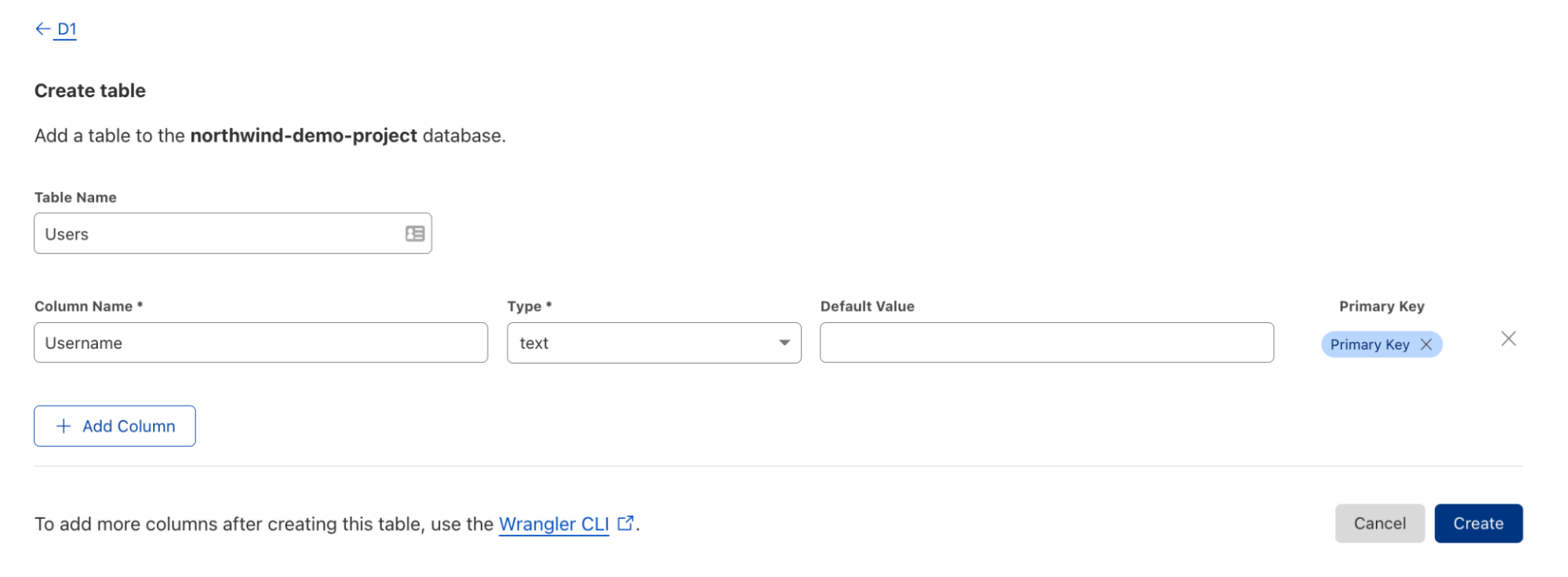
AWS License Manager IAM Permissions Grant

To deploy the infrastructure, we will utilize a Terraform template to automate every component setup. The code is available at https://github.com/aws-samples/amazon-autoscaling-mac1metal-ec2-with-terraform. First, initialize your Terraform host. For this solution, utilize a local machine. For this walkthrough, we will assume the use of the us-west-2 (Oregon) AWS Region and the following links to help check resources will account for this.

terraform -chdir=terraform-aws-dedicated-hosts init

Initializing Terraform host and showing an example of expected output.

Then, we will plan our Terraform deployment and verify what we will be building before deployment.

terraform -chdir=terraform-aws-dedicated-hosts plan

In our case, we will expect a CloudFormation Stack and a Host Resource Group.

Planning Terraform template and showing an example of expected output.

Then, apply our Terraform deployment and verify via the AWS Management Console.

terraform -chdir=terraform-aws-dedicated-hosts apply -auto-approve

Applying Terraform template and showing an example of expected output.

Check that the License Configuration has been made in License Manager with a name similar to MyRequiredLicense.

Example of License Manager License after Terraform Template is applied.

Check that the Host Resource Group has been made in the AWS Management Console. Ensure that the name is similar to mac1-host-resource-group-famous-anchovy.

Example of Cloudformation Stack that is created, with License Manager Host Resource Group name pictured.

Note the host resource group name in the HostResourceGroup “Physical ID” value for the next step.

Step 2: Deploy mac1.metal Auto Scaling Group

We will be taking similar steps as in Step 1 with a new component set.

Initialize your Terraform State:

terraform -chdir=terraform-aws-ec2-mac init

Then, update the following values in terraform-aws-ec2-mac/my.tfvars:

vpc_id : Check the ID of a VPC in the account where you are deploying. You will always have a “default” VPC.

subnet_ids : Check the ID of one or many subnets in your VPC.

hint: use https://us-west-2.console.aws.amazon.com/vpc/home?region=us-west-2#subnets

security_group_ids : Check the ID of a Security Group in the account where you are deploying. You will always have a “default” SG.

host_resource_group_cfn_stack_name : Use the Host Resource Group Name value from the previous step.

Then, plan your deployment using the following:

terraform -chdir=terraform-aws-ec2-mac plan -var-file="my.tfvars"

Once we’re ready to deploy, utilize Terraform to apply the following:

terraform -chdir=terraform-aws-ec2-mac apply -var-file="my.tfvars" -auto-approve

Note, this will take three to five minutes to complete.

Step 3: Verify Deployment

Check our Auto Scaling Group in the AWS Management Console for a group named something like “ec2-native-xxxx”. Verify all attributes that we care about, including the underlying EC2.

Example of Autoscaling Group listing the EC2 Instances with mac1.metal instance type showing InService after Terraform Template is applied.

Check our Elastic Load Balancer in the AWS Management Console with a Tag key “Name” and the value of your Auto Scaling Group.

Check for the existence of our Dedicated Hosts in the AWS Management Console.

Step 4: Test Scaling Features

Now we have the entire infrastructure in place for an Auto Scaling Group to conduct normal activity. We will test with a scale-out behavior, then a scale-in behavior. We will force operations by updating the desired count of the Auto Scaling Group.

For scaling out, update the my.tfvars variable number_of_instances to three from two, and then apply our terraform template. We will expect to see one more EC2 instance for a total of three instances, with three Dedicated Hosts.

terraform -chdir=terraform-aws-ec2-mac apply -var-file="my.tfvars" -auto-approve

Then, take the steps in Step 3: Verify Deployment in order to check for expected behavior.

For scaling in, update the my.tfvars variable number_of_instances to one from three, and then apply our terraform template. We will expect your Auto Scaling Group to reduce to one active EC2 instance and have three Dedicated Hosts remaining until they are capable of being released 24 hours later.

terraform -chdir=terraform-aws-ec2-mac apply -var-file="my.tfvars" -auto-approve

Then, take the steps in Step 3: Verify Deployment in order to check for expected behavior.

Cleaning up

Complete the following steps in order to cleanup resources created by this exercise:

terraform -chdir=terraform-aws-ec2-mac destroy -var-file="my.tfvars" -auto-approve

This will take 10 to 12 minutes. Then, wait 24 hours for the Dedicated Hosts to be capable of being released, and then destroy the next template. We recommend putting a reminder on your calendar to make sure that you don’t forget this step.

terraform -chdir=terraform-aws-dedicated-hosts destroy -auto-approve

Conclusion

In this post, we created an Auto Scaling Group using mac1.metal instance types. Scaling mechanisms will work as expected with standard EC2 instance types, and the management of Dedicated Hosts is automated. This enables the management of macOS based application workloads to be automated based on the Well Architected patterns. Furthermore, this automation allows for rapid reactions to surges of demand and reclamation of unused compute once the demand is cleared. Now you can augment this system to integrate with other AWS services, such as Elastic Load Balancing, Amazon Simple Cloud Storage (Amazon S3), Amazon Relational Database Service (Amazon RDS), and more.

Review the information available regarding CloudWatch custom metrics to discover possibilities for adding new ways for scaling your system. Now we would be eager to know what AWS solution you’re going to build with the content described by this blog post! To get started with EC2 Mac instances, please visit the product page.