Post Syndicated from Jose Romero original https://aws.amazon.com/blogs/big-data/governing-data-in-relational-databases-using-amazon-datazone/
Data governance is a key enabler for teams adopting a data-driven culture and operational model to drive innovation with data. Amazon DataZone is a fully managed data management service that makes it faster and easier for customers to catalog, discover, share, and govern data stored across Amazon Web Services (AWS), on premises, and on third-party sources. It also makes it easier for engineers, data scientists, product managers, analysts, and business users to access data throughout an organization to discover, use, and collaborate to derive data-driven insights.
Amazon DataZone allows you to simply and securely govern end-to-end data assets stored in your Amazon Redshift data warehouses or data lakes cataloged with the AWS Glue data catalog. As you experience the benefits of consolidating your data governance strategy on top of Amazon DataZone, you may want to extend its coverage to new, diverse data repositories (either self-managed or as managed services) including relational databases, third-party data warehouses, analytic platforms and more.
This post explains how you can extend the governance capabilities of Amazon DataZone to data assets hosted in relational databases based on MySQL, PostgreSQL, Oracle or SQL Server engines. What’s covered in this post is already implemented and available in the Guidance for Connecting Data Products with Amazon DataZone solution, published in the AWS Solutions Library. This solution was built using the AWS Cloud Development Kit (AWS CDK) and was designed to be easy to set up in any AWS environment. It is based on a serverless stack for cost-effectiveness and simplicity and follows the best practices in the AWS Well-Architected-Framework.
Self-service analytics experience in Amazon DataZone
In Amazon DataZone, data producers populate the business data catalog with data assets from data sources such as the AWS Glue data catalog and Amazon Redshift. They also enrich their assets with business context to make them accessible to the consumers.
After the data asset is available in the Amazon DataZone business catalog, data consumers such as analysts and data scientists can search and access this data by requesting subscriptions. When the request is approved, Amazon DataZone can automatically provision access to the managed data asset by managing permissions in AWS Lake Formation or Amazon Redshift so that the data consumer can start querying the data using tools such as Amazon Athena or Amazon Redshift. Note that a managed data asset is an asset for which Amazon DataZone can manage permissions. It includes those stored in Amazon Simple Storage Service (Amazon S3) data lakes (and cataloged in the AWS Glue data catalog) or Amazon Redshift.
As you’ll see next, when working with relational databases, most of the experience described above will remain the same because Amazon DataZone provides a set features and integrations that data producers and consumers can use with a consistent experience, even when working with additional data sources. However, there are some additional tasks that need to be accounted for to achieve a frictionless experience, which will be addressed later in this post.
The following diagram illustrates a high-level overview of the flow of actions when a data producer and consumer collaborate around a data asset stored in a relational database using Amazon DataZone.
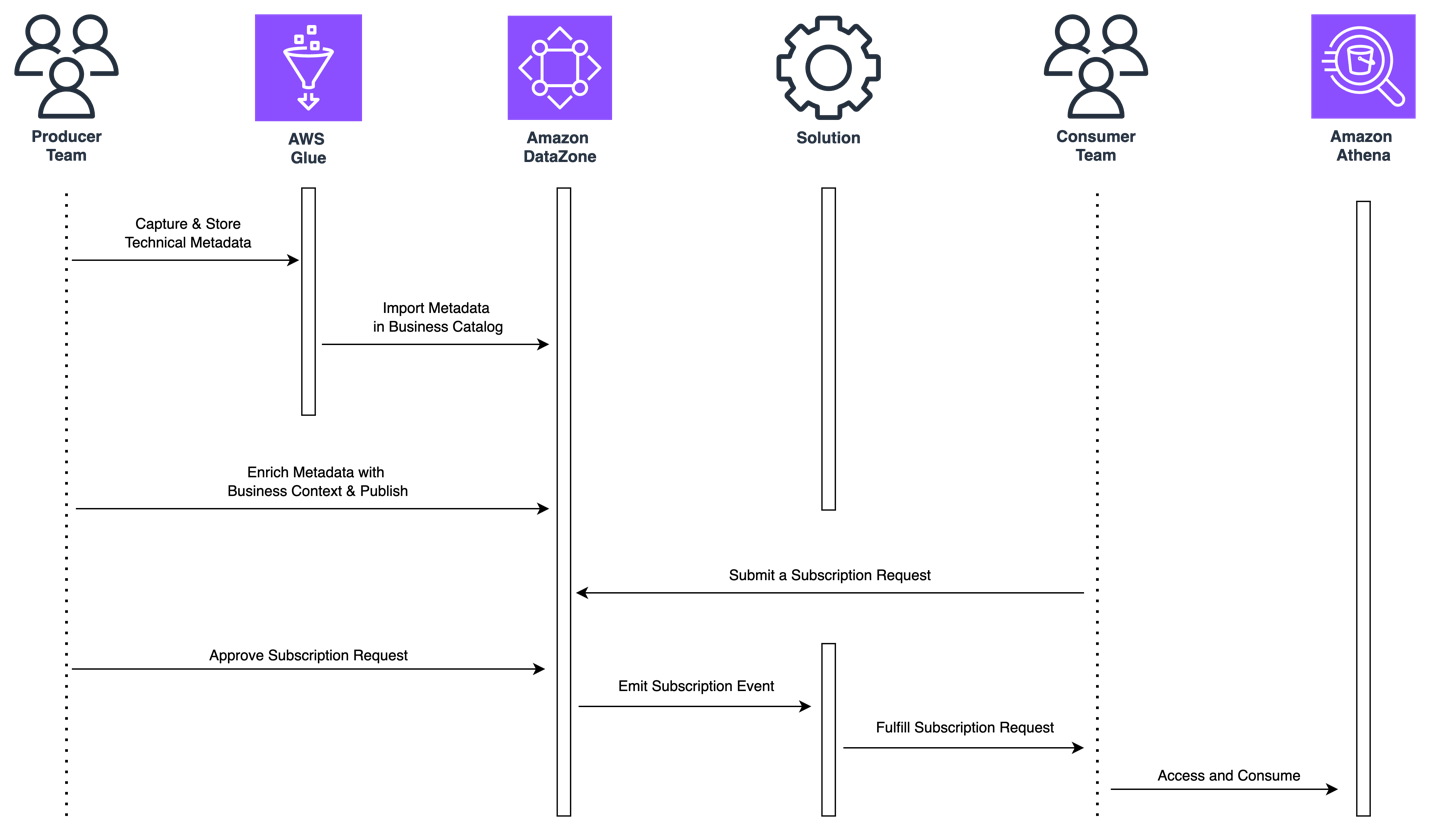
Figure 1: Flow of actions for self-service analytics around data assets stored in relational databases
First, the data producer needs to capture and catalog the technical metadata of the data asset.
The AWS Glue data catalog can be used to store metadata from a variety of data assets, like those stored in relational databases, including their schema, connection details, and more. It offers AWS Glue connections and AWS Glue crawlers as a means to capture the data asset’s metadata easily from their source database and keep it up to date. Later in this post, we’ll introduce how the “Guidance for Connecting Data Products with Amazon DataZone” solution can help data producers easily deploy and run AWS Glue connections and crawlers to capture technical metadata.
Second, the data producer needs to consolidate the data asset’s metadata in the business catalog and enrich it with business metadata. The producer also needs to manage and publish the data asset so it’s discoverable throughout the organization.
Amazon DataZone provides built-in data sources that allow you to easily fetch metadata (such as table name, column name, or data types) of assets in the AWS Glue data catalog into Amazon DataZone’s business catalog. You can also include data quality details thanks to the integration with AWS Glue Data Quality or external data quality solutions. Amazon DataZone also provides metadata forms and generative artificial intelligence (generative AI) driven suggestions to simplify the enrichment of data assets’ metadata with business context. Finally, the Amazon DataZone data portal helps you manage and publish your data assets.
Third, a data consumer needs to subscribe to the data asset published by the producer. To do so, the data consumer will submit a subscription request that, once approved by the producer, triggers a mechanism that automatically provisions read access to the consumer without moving or duplicating data.
In Amazon DataZone, data assets stored in relational databases are considered unmanaged data assets, which means that Amazon DataZone will not be able to manage permissions to them on the customer’s behalf. This is where the “Guidance for Connecting Data Products with Amazon DataZone” solution also comes in handy because it deploys the required mechanism to provision access automatically when subscriptions are approved. You’ll learn how the solution does this later in this post.
Finally, the data consumer needs to access the subscribed data once access has been provisioned. Depending on the use case, consumers would like to use SQL-based engines to run exploratory analysis, business intelligence (BI) tools to build dashboards for decision-making, or data science tools for machine learning (ML) development.
Amazon DataZone provides blueprints to give options for consuming data and provides default ones for Amazon Athena and Amazon Redshift, with more to come soon. Amazon Athena connectors is a good way to run one-time queries on top of relational databases. Later in this post we’ll introduce how the “Guidance for Connecting Data Products with Amazon DataZone” solution can help data consumers deploy Amazon Athena connectors and become a platform to deploy custom tools for data consumers.
Solution’s core components
Now that we have covered what the self-service analytics experience looks like when working with data assets stored in relational databases, let’s review at a high level the core components of the “Guidance for Connecting Data Products with Amazon DataZone” solution.
You’ll be able to identify where some of the core components fit in the flow of actions described in the last section because they were developed to bring simplicity and automation for a frictionless experience. Other components, even though they are not directly tied to the experience, are as relevant since they take care of the prerequisites for the solution to work properly.

Figure 2: Solution’s core components
- The toolkit component is a set of tools (in AWS Service Catalog) that producer and consumer teams can easily deploy and use, in a self-service fashion, to support some of the tasks described in the experience, such as the following.
- As a data producer, capture metadata from data assets stored in relational databases into the AWS Glue data catalog by leveraging AWS Glue connectors and crawlers.
- As a data consumer, query a subscribed data asset directly from its source database with Amazon Athena by deploying and using an Amazon Athena connector.
- The workflows component is a set of automated workflows (orchestrated through AWS Step Functions) that will trigger automatically on certain Amazon DataZone events such as:
- When a new Amazon DataZone data lake environment is successfully deployed so that its default capabilities are extended to support this solution’s toolkit.
- When a subscription request is accepted by a data producer so that access is provisioned automatically for data assets stored in relational databases. This workflow is the mechanism that was referred to in the experience of the last section as the means to provision access to unmanaged data assets governed by Amazon DataZone.
- When a subscription is revoked or canceled so that access is revoked automatically for data assets in relational databases.
- When an existing Amazon DataZone environment deletion starts so that non default Amazon DataZone capabilities are removed.
The following table lists the multiple AWS services that the solution uses to provide an add-on for Amazon DataZone with the purpose of providing the core components described in this section.
| AWS Service | Description |
| Amazon DataZone | Data governance service whose capabilities are extended when deploying this add-on solution. |
| Amazon EventBridge | Used as a mechanism to capture Amazon DataZone events and trigger solution’s corresponding workflow. |
| Amazon Step Functions | Used as orchestration engine to execute solution workflows. |
| AWS Lambda | Provides logic for the workflow tasks, such as extending environment’s capabilities or sharing secrets with environment credentials. |
| AWS Secrets Manager | Used to store database credentials as secrets. Each consumer environment with granted subscription to one or many data assets in the same relational database will have its own individual credentials (secret). |
| Amazon DynamoDB | Used to store workflows’ output metadata. Governance teams can track subscription details for data assets stored in relational databases. |
| Amazon Service Catalog | Used to provide a complementary toolkit for users (producers and consumers), so that they can provision products to execute tasks specific to their roles in a self-service manner. |
| AWS Glue | Multiple components are used, such as the AWS Glue data catalog as the direct publishing source for Amazon DataZone business catalog and connectors and crawlers to connect on infer schemas from data assets stored in relational databases. |
| Amazon Athena | Used as one of the consumption mechanisms that allow users and teams to query data assets that they are subscribed to, either on top of Amazon S3 backed data lakes and relational databases. |
Solution overview
Now let’s dive into the workflow that automatically provisions access to an approved subscription request (2b in the last section). Figure 3 outlines the AWS services involved in its execution. It also illustrates when the solution’s toolkit is used to simplify some of the tasks that producers and consumers need to perform before and after a subscription is requested and granted. If you’d like to learn more about other workflows in this solution, please refer to the implementation guide.
The architecture illustrates how the solution works in a multi-account environment, which is a common scenario. In a multi-account environment, the governance account will host the Amazon DataZone domain and the remaining accounts will be associated to it. The producer account hosts the subscription’s data asset and the consumer account hosts the environment subscribing to the data asset.

Figure 3 – Architecture for subscription grant workflow
Solution walkthrough
1. Capture data asset’s metadata
A data producer captures metadata of a data asset to be published from its data source into the AWS Glue catalog. This can be done by using AWS Glue connections and crawlers. To speed up the process, the solution includes a Producer Toolkit using the AWS Service Catalog to simplify the deployment of such resources by just filling out a form.
Once the data asset’s technical metadata is captured, the data producer will run a data source job in Amazon DataZone to publish it into the business catalog. In the Amazon DataZone portal, a consumer will discover the data asset and subsequently, subscribe to it when needed. Any subscription action will create a subscription request in Amazon DataZone.
2. Approve a subscription request
The data producer approves the incoming subscription request. An event is sent to Amazon EventBridge, where a rule deployed by the solution captures it and triggers an instance of the AWS Step Functions primary state machine in the governance account for each environment of the subscribing project.
3. Fulfill read-access in the relational database (producer account)
The primary state machine in the governance account triggers an instance of the AWS Step Functions secondary state machine in the producer account, which will run a set of AWS Lambda functions to:
- Retrieve the subscription data asset’s metadata from the AWS Glue catalog, including the details required for connecting to the data source hosting the subscription’s data asset.
- Connect to the data source hosting the subscription’s data asset, create credentials for the subscription’s target environment (if nonexistent) and grant read access to the subscription’s data asset.
- Store the new data source credentials in an AWS Secrets Manager producer secret (if nonexistent) with a resource policy allowing read cross-account access to the environment’s associated consumer account.
- Update tracking records in Amazon DynamoDB in the governance account.
4. Share access credentials to the subscribing environment (consumer account)
The primary state machine in the governance account triggers an instance of the AWS Step Functions secondary state machine in the consumer account, which will run a set of AWS Lambda functions to:
- Retrieve connection credentials from the producer secret in the producer account through cross-account access, then copy the credentials into a new consumer secret (if nonexistent) in AWS Secrets Manager local to the consumer account.
- Update tracking records in Amazon DynamoDB in the governance account.
5. Access the subscribed data
The data consumer uses the consumer secret to connect to that data source and query the subscribed data asset using any preferred means.
To speed up the process, the solution includes a consumer toolkit using the AWS Service Catalog to simplify the deployment of such resources by just filling out a form. Current scope for this toolkit includes a tool that deploys an Amazon Athena connector for a corresponding MySQL, PostgreSQL, Oracle, or SQL Server data source. However, it could be extended to support other tools on top of AWS Glue, Amazon EMR, Amazon SageMaker, Amazon Quicksight, or other AWS services, and keep the same simple-to-deploy experience.
Conclusion
In this post we went through how teams can extend the governance of Amazon DataZone to cover relational databases, including those with MySQL, Postgres, Oracle, and SQL Server engines. Now, teams are one step further in unifying their data governance strategy in Amazon DataZone to deliver self-service analytics across their organizations for all of their data.
As a final thought, the solution explained in this post introduces a replicable pattern that can be extended to other relational databases. The pattern is based on access grants through environment-specific credentials that are shared as secrets in AWS Secrets Manager. For data sources with different authentication and authorization methods, the solution can be extended to provide the required means to grant access to them (such as through AWS Identity and Access Management (IAM) roles and policies). We encourage teams to experiment with this approach as well.
How to get started
With the “Guidance for Connecting Data Products with Amazon DataZone” solution, you have multiple resources to learn more, test it, and make it your own.
You can learn more on the AWS Solutions Library solutions page. You can download the source code from GitHub and follow the README file to learn more of its underlying components and how to set it up and deploy it in a single or multi-account environment. You can also use it to learn how to think of costs when using the solution. Finally, it explains how best practices from the AWS Well-Architected Framework were included in the solution.
You can follow the solution’s hands-on lab either with the help of the AWS Solutions Architect team or on your own. The lab will take you through the entire workflow described in this post for each of the supported database engines (MySQL, PostgreSQL, Oracle, and SQL Server). We encourage you to start here before trying the solution in your own testing environments and your own sample datasets. Once you have full clarity on how to set up and use the solution, you can test it with your workloads and even customize it to make it your own.
The implementation guide is an asset for customers eager to customize or extend the solution to their specific challenges and needs. It provides an in-depth description of the code repository structure and the solution’s underlying components, as well as all the details to understand the mechanisms used to track all subscriptions handled by the solution.
About the authors
 Jose Romero is a Senior Solutions Architect for Startups at AWS, based in Austin, TX, US. He is passionate about helping customers architect modern platforms at scale for data, AI, and ML. As a former senior architect with AWS Professional Services, he enjoys building and sharing solutions for common complex problems so that customers can accelerate their cloud journey and adopt best practices. Connect with him on LinkedIn..
 Leonardo Gómez is a Principal Big Data / ETL Solutions Architect at AWS, based in Florida, US. He has over a decade of experience in data management, helping customers around the globe address their business and technical needs. Connect with him on LinkedIn.


 Pradeep Misra is a Principal Analytics Solutions Architect at AWS. He works across Amazon to architect and design modern distributed analytics and AI/ML platform solutions. He is passionate about solving customer challenges using data, analytics, and AI/ML. Outside of work, Pradeep likes exploring new places, trying new cuisines, and playing board games with his family. He also likes doing science experiments with his daughters.
 Deepmala Agarwal works as an AWS Data Specialist Solutions Architect. She is passionate about helping customers build out scalable, distributed, and data-driven solutions on AWS. When not at work, Deepmala likes spending time with family, walking, listening to music, watching movies, and cooking!
 Abhilash Nagilla is a Senior Specialist Solutions Architect at Amazon Web Services (AWS), helping public sector customers on their cloud journey with a focus on AWS analytics services. Outside of work, Abhilash enjoys learning new technologies, watching movies, and visiting new places.








 Jayesh Shinde is Sr. Application Architect with AWS ProServe India. He specializes in creating various solutions that are cloud centered using modern software development practices like serverless, DevOps, and analytics.
 Harshd Yeola is Sr. Cloud Architect with AWS ProServe India helping customers to migrate and modernize their infrastructure into AWS. He specializes in building DevSecOps and scalable infrastructure using containers, AIOPs, and AWS Developer Tools and services.


 Bukhtawar Khan is a Principal Engineer working on Amazon OpenSearch Service. He is interested in building distributed and autonomous systems. He is a maintainer and an active contributor to OpenSearch.
 Gaurav Bafna is a Senior Software Engineer working on OpenSearch at Amazon Web Services. He is fascinated about solving problems in distributed systems. He is a maintainer and an active contributor to OpenSearch.
 Sachin Kale is a senior software development engineer at AWS working on OpenSearch.
 Rohin Bhargava is a Sr. Product Manager with the Amazon OpenSearch Service team. His passion at AWS is to help customers find the correct mix of AWS services to achieve success for their business goals.
 Ranjith Ramachandra is a Senior Engineering Manager working on Amazon OpenSearch Service. He is passionate about highly scalable distributed systems, high performance and resilient systems.






 Raks Khare is an Analytics Specialist Solutions Architect at AWS based out of Pennsylvania. He helps customers architect data analytics solutions at scale on the AWS platform.
 Juan Luis Polo Garzon is an Associate Specialist Solutions Architect at AWS, specialized in analytics workloads. He has experience helping customers design, build and modernize their cloud-based analytics solutions. Outside of work, he enjoys travelling, outdoors and hiking, and attending to live music events.
 Sushmita Barthakur is a Senior Solutions Architect at Amazon Web Services, supporting Enterprise customers architect their workloads on AWS. With a strong background in Data Analytics and Data Management, she has extensive experience helping customers architect and build Business Intelligence and Analytics Solutions, both on-premises and the cloud. Sushmita is based out of Tampa, FL and enjoys traveling, reading and playing tennis.





 Andrea Filippo is a Partner Solutions Architect at AWS supporting Public Sector partners and customers in Italy. He focuses on modern data architectures and helping customers accelerate their cloud journey with serverless technologies.
 Emanuele is a Solutions Architect at AWS, based in Italy, after living and working for more than 5 years in Spain. He enjoys helping large companies with the adoption of cloud technologies, and his area of expertise is mainly focused on Data Analytics and Data Management. Outside of work, he enjoys traveling and collecting action figures.
 Varsha Velagapudi is a Senior Technical Product Manager with Amazon DataZone at AWS. She focuses on improving data discovery and curation required for data analytics. She is passionate about simplifying customers’ AI/ML and analytics journey to help them succeed in their day-to-day tasks. Outside of work, she enjoys nature and outdoor activities, reading, and traveling.







 Masudur Rahaman Sayem is a Streaming Data Architect at AWS. He works with AWS customers globally to design and build data streaming architectures to solve real-world business problems. He specializes in optimizing solutions that use streaming data services and NoSQL. Sayem is very passionate about distributed computing.
 Michael Oguike is a Product Manager for Amazon MSK. He is passionate about using data to uncover insights that drive action. He enjoys helping customers from a wide range of industries improve their businesses using data streaming. Michael also loves learning about behavioral science and psychology from books and podcasts.
 Pratik Patel is Sr. Technical Account Manager and streaming analytics specialist. He works with AWS customers and provides ongoing support and technical guidance to help plan and build solutions using best practices and proactively keep customers’ AWS environments operationally healthy.
 Amar is a Senior Solutions Architect at Amazon AWS in the UK. He works across power, utilities, manufacturing and automotive customers on strategic implementations, specializing in using AWS Streaming and advanced data analytics solutions, to drive optimal business outcomes.


