Tag Archives: Amazon EC2

How to authenticate private container registries using AWS Batch

Post Syndicated from Ben Peven original https://aws.amazon.com/blogs/compute/how-to-authenticate-private-container-registries-using-aws-batch/

This post was contributed by Clayton Thomas, Solutions Architect, AWS WW Public Sector SLG Govtech.

Many AWS Batch users choose to store and consume their AWS Batch job container images on AWS using Amazon Elastic Container Registries (ECR). AWS Batch and Amazon Elastic Container Service (ECS) natively support pulling from Amazon ECR without any extra steps required. For those users that choose to store their container images on other container registries or Docker Hub, often times they are not publicly exposed and require authentication to pull these images. Third-party repositories may throttle the number of requests, which impedes the ability to run workloads and self-managed repositories require heavy tuning to offer the scale that Amazon ECS provides. This makes Amazon ECS the preferred solution to run workloads on AWS Batch.

While Amazon ECS allows you to configure repositoryCredentials in task definitions containing private registry credentials, AWS Batch does not expose this option in AWS Batch job definitions. AWS Batch does not provide the ability to use private registries by default but you can allow that by configuring the Amazon ECS agent in a few steps.

This post shows how to configure an AWS Batch EC2 compute environment and the Amazon ECS agent to pull your private container images from private container registries. This gives you the flexibility to use your own private and public container registries with AWS Batch.

Overview

The solution uses AWS Secrets Manager to securely store your private container registry credentials, which are retrieved on startup of the AWS Batch compute environment. This ensures that your credentials are securely managed and accessed using IAM roles and are not persisted or stored in AWS Batch job definitions or EC2 user data. The Amazon ECS agent is then configured upon startup to pull these credentials from AWS Secrets Manager. Note that this solution only supports Amazon EC2 based AWS Batch compute environments, thus AWS Fargate cannot use this solution.

High-level diagram showing event flow

Figure 1: High-level diagram showing event flow

  1. AWS Batch uses an Amazon EC2 Compute Environment powered by Amazon ECS. This compute environment uses a custom EC2 Launch Template to configure the Amazon ECS agent to include credentials for pulling images from private registries.
  2. An EC2 User Data script is run upon EC2 instance startup that retrieves registry credentials from AWS Secrets Manager. The EC2 instance authenticates with AWS Secrets Manager using its configured IAM instance profile, which grants temporary IAM credentials.
  3. AWS Batch jobs can be submitted using private images that require authentication with configured credentials.

Prerequisites

For this walkthrough, you should have the following prerequisites:

  1. An AWS account
  2. An Amazon Virtual Private Cloud with private and public subnets. If you do not have a VPC, this tutorial can be followed. The AWS Batch compute environment must have connectivity to the container registry.
  3. A container registry containing a private image. This example uses Docker Hub and assumes you have created a private repository
  4. Registry credentials and/or an access token to authenticate with the container registry or Docker Hub.
  5. A VPC Security Group allowing the AWS Batch compute environment egress connectivity to the container registry.

A CloudFormation template is provided to simplify setting up this example. The CloudFormation template and provided EC2 user data script can be viewed here on GitHub.

The CloudFormation template will create the following resources:

  1. Necessary IAM roles for AWS Batch
  2. AWS Secrets Manager secret containing container registry credentials
  3. AWS Batch managed compute environment and job queue
  4. EC2 Launch Configuration with user data script

Click the Launch Stack button to get started:

Launch Stack

Launch the CloudFormation stack

After clicking the Launch stack button above, click Next to be presented with the following screen:

Figure 2: CloudFormation stack parameters

Figure 2: CloudFormation stack parameters

Fill in the required parameters as follows:

  1. Stack Name: Give your stack a unique name.
  2. Password: Your container registry password or Docker Hub access token. Note that both user name and password are masked and will not appear in any CF logs or output. Additionally, they are securely stored in an AWS Secrets Manager secret created by CloudFormation.
  3. RegistryUrl: If not using Docker Hub, specify the URL of the private container registry.
  4. User name: Your container registry user name.
  5. SecurityGroupIDs: Select your previously created security group to assign to the example Batch compute environment.
  6. SubnetIDs: To assign to the example Batch compute environment, select one or more VPC subnet IDs.

After entering these parameters, you can click through next twice and create the stack, which will take a few minutes to complete. Note that you must acknowledge that the template creates IAM resources on the review page before submitting.

Finally, you will be presented with a list of created AWS resources once the stack deployment finishes as shown in Figure 3 if you would like to dig deeper.

Figure 3: CloudFormation created resources

Figure 3: CloudFormation created resources

User data script contained within launch template

AWS Batch allows you to customize the compute environment in a variety of ways such as specifying an EC2 key pair, custom AMI, or an EC2 user data script. This is done by specifying an EC2 launch template before creating the Batch compute environment. For more information on Batch launch template support, see here.

Let’s take a closer look at how the Amazon ECS agent is configured upon compute environment startup to use your registry credentials.

MIME-Version: 1.0
Content-Type: multipart/mixed; boundary="==MYBOUNDARY=="

--==MYBOUNDARY==
Content-Type: text/cloud-config; charset="us-ascii"

packages:
- jq
- aws-cli

runcmd:
- /usr/bin/aws configure set region $(curl http://169.254.169.254/latest/meta-data/placement/region)
- export SECRET_STRING=$(/usr/bin/aws secretsmanager get-secret-value --secret-id your_secrets_manager_secret_id | jq -r '.SecretString')
- export USERNAME=$(echo $SECRET_STRING | jq -r '.username')
- export PASSWORD=$(echo $SECRET_STRING | jq -r '.password')
- export REGISTRY_URL=$(echo $SECRET_STRING | jq -r '.registry_url')
- echo $PASSWORD | docker login --username $USERNAME --password-stdin $REGISTRY_URL
- export AUTH=$(cat ~/.docker/config.json | jq -c .auths)
- echo 'ECS_ENGINE_AUTH_TYPE=dockercfg' >> /etc/ecs/ecs.config
- echo "ECS_ENGINE_AUTH_DATA=$AUTH" >> /etc/ecs/ecs.config

--==MYBOUNDARY==--

This example script uses and installs a few tools including the AWS CLI and the open-source tool jq to retrieve and parse the previously created Secrets Manager secret. These packages are installed using the cloud-config user data type, which is part of the cloud-init packages functionality. If using the provided CloudFormation template, this script will be dynamically rendered to reference the created secret, but note that you must specify the correct Secrets Manager secret id if not using the template.

After performing a Docker login, the generated Auth JSON object is captured and passed to the Amazon ECS agent configuration to be used on AWS Batch jobs that require private images. For an explanation of Amazon ECS agent configuration options including available Amazon ECS engine Auth types, see here. This example script can be extended or customized to fit your needs but must adhere to requirements for Batch launch template user data scripts, including being in MIME multi-part archive format.

It’s worth noting that the AWS CLI automatically grabs temporary IAM credentials from the associated IAM instance profile the CloudFormation stack created in order to retrieve the Secret Manager secret values. This example assumes you created the AWS Secrets Manager secret with the default AWS managed KMS key for Secrets Manager. However, if you choose to encrypt your secret with a customer managed KMS key, make sure to specify kms:Decrypt IAM permissions for the Batch compute environment IAM role.

Submitting the AWS Batch job

Now let’s try an example Batch job that uses a private container image by creating a Batch job definition and submitting a Batch job:

  1. Open the AWS Batch console
  2. Navigate to the Job Definition page
  3. Click create
  4. Provide a unique Name for the job definition
  5. Select the EC2 platform
  6. Specify your private container image located in the Image field
  7. Click create

Figure 4: Batch job definition

Now you can submit an AWS Batch job that uses this job definition:

  1. Click on the Jobs page
  2. Click Submit New Job
  3. Provide a Name for the job
  4. Select the previously created job definition
  5. Select the Batch Job Queue created by the CloudFormation stack
  6. Click Submit
Submitting a new Batch job

Figure 5: Submitting a new Batch job

After submitting the AWS Batch job, it will take a few minutes for the AWS Batch Compute Environment to create resources for scheduling the job. Once that is done, you should see a SUCCEEDED status by viewing the job and filtering by AWS Batch job queue shown in Figure 6.

Figure 6: AWS Batch job succeeded

Figure 6: AWS Batch job succeeded

Cleaning up

To clean up the example resources, click delete for the created CloudFormation stack in the CloudFormation Console.

Conclusion

In this blog, you deployed a customized AWS Batch managed compute environment that was configured to allow pulling private container images in a secure manner. As I’ve shown, AWS Batch gives you the flexibility to use both private and public container registries. I encourage you to continue to explore the many options available natively on AWS for hosting and pulling container images. Amazon ECR or the recently launched Amazon ECR public repositories (for a deeper dive, see this blog announcement) both provide a seamless experience for container workloads running on AWS.

Create CIS hardened Windows images using EC2 Image Builder

Post Syndicated from Vinay Kuchibhotla original https://aws.amazon.com/blogs/devops/cis-windows-ec2-image-builder/

Many organizations today require their systems to be compliant with the CIS (Center for Internet Security) Benchmarks. Enterprises have adopted the guidelines or benchmarks drawn by CIS to maintain secure systems. Creating secure Linux or Windows Server images on the cloud and on-premises can involve manual update processes or require teams to build automation scripts to maintain images. This blog post details the process of automating the creation of CIS compliant Windows images using EC2 Image Builder.

EC2 Image Builder simplifies the building, testing, and deployment of Virtual Machine and container images for use on AWS or on-premises. Keeping Virtual Machine and container images up-to-date can be time consuming, resource intensive, and error-prone. Currently, customers either manually update and snapshot VMs or have teams that build automation scripts to maintain images. EC2 Image Builder significantly reduces the effort of keeping images up-to-date and secure by providing a simple graphical interface, built-in automation, and AWS-provided security settings. With Image Builder, there are no manual steps for updating an image nor do you have to build your own automation pipeline. EC2 Image Builder is offered at no cost, other than the cost of the underlying AWS resources used to create, store, and share the images.

Hardening is the process of applying security policies to a system and thereby, an Amazon Machine Image (AMI) with the CIS security policies in place would be a CIS hardened AMI. CIS benchmarks are a published set of recommendations that describe the security policies required to be CIS-compliant. They cover a wide range of platforms including Windows Server and Linux. For example, a few recommendations in a Windows Server environment are to:

  • Have a password requirement and rotation policy.
  • Set an idle timer to lock the instance if there is no activity.
  • Prevent guest users from using Remote Desktop Protocol (RDP) to access the instance.

While Deploying CIS L1 hardened AMIs with EC2 Image Builder discusses about Linux AMIs, this blog post demonstrates how EC2 Image Builder can be used to publish hardened Windows 2019 AMIs. This solutions uses the following AWS services:

EC2 Image Builder provides all the necessary resources needed for publishing AMIs and that involves –

  • Creating a pipeline by providing details such as a name, description, tags, and a schedule to run automated builds.
  • Creating a recipe by providing a name and version, select a source operating system image, and choose components to add for building and testing. Components are the building blocks that are consumed by an image recipe or a container recipe. For example, packages for installation, security hardening steps, and tests. The selected source operating system image and components make up an image recipe.
  • Defining infrastructure configuration – Image Builder launches Amazon EC2 instances in your account to customize images and run validation tests. The Infrastructure configuration settings specify infrastructure details for the instances that will run in your AWS account during the build process.
  • After the build is complete and has passed all its tests, the pipeline automatically distributes the developed AMIs to the select AWS accounts and regions as defined in the distribution configuration.
    More details on creating an Image Builder pipeline using the AWS console wizard can be found here.

Solution Overview and prerequisites

The objective of this pipeline is to publish CIS L1 compliant Windows 2019 AMIs and this is achieved by applying a Windows Group Policy Object(GPO) stored in an Amazon S3 bucket for creating the hardened AMIs. The workflow includes the following steps:

  • Download and modify the CIS Microsoft Windows Server 2019 Benchmark Build Kit available on the Center for Internet Security website. Note: Access to the benchmarks on the CIS site requires a paid subscription.
  • Upload the modified GPO file to an S3 bucket in an AWS account.
  • Create a custom Image Builder component by referencing the GPO file uploaded to the S3 bucket.
  • Create an IAM Instance Profile that the
  • Launch the EC2 Image Builder pipeline for publishing CIS L1 hardened Windows 2019 AMIs.

Make sure to have these prerequisites checked before getting started:

Implementation

Now that you have the prerequisites met, let’s begin with modifying the downloaded GPO file.

Creating the GPO File

This step involves modifying two files, registry.pol and GptTmpl.inf

  • On your workstation, create a folder of your choice, lets say C:\Utils
  • Move both the CIS Benchmark build kit and the LGPO utility to C:\Utils
  • Unzip the benchmark file to C:\Utils\Server2019v1.1.0. You should find the following folder structure in the benchmark build kit.

Screenshot of folder structure

  • To make the GPO file work with AWS EC2 instances, you need to change the GPO file to prevent it from applying the following CIS recommendations mentioned in the below table and execute the commands mentioned below the table for getting there:


Benchmark rule # Recommendation Value to be configured Reason
2.2.21 (L1) Configure ‘Deny Access to this computer from the network’ Guests Does not include ‘Local account and member of Administrators group’ to allow for remote login.
2.2.26 (L1) Ensure ‘Deny log on through Remote Desktop Services’ is set to include ‘Guests, Local account’ Guests Does not include ‘Local account’ to allow for RDP login.
2.3.1.1 (L1) Ensure ‘Accounts: Administrator account status’ is set to ‘Disabled’ Not Configured Administrator account remains enabled in support of allowing login to the instance after launch.
2.3.1.5 (L1) Ensure ‘Accounts: Rename administrator account’ is configured Not Configured We have retained “Administrator” as the default administrative account for the sake of provisioning scripts that may not have knowledge of “CISAdmin” as defined in the CIS remediation kit.
2.3.1.6 (L1) Configure ‘Accounts: Rename guest account’ Not Configured Sysprep process renames this account to default of ‘Guest’.
2.3.7.4 Interactive logon: Message text for users attempting to log on Not Configured This recommendation is not configured as it causes issues with AWS Scanner.
2.3.7.5 Interactive logon: Message title for users attempting to log on Not Configured This recommendation is not configured as it causes issues with AWS Scanner.
9.3.5 (L1) Ensure ‘Windows Firewall: Public: Settings: Apply local firewall rules’ is set to ‘No’ Not Configured This recommendation is not configured as it causes issues with RDP.
9.3.6 (L1) Ensure ‘Windows Firewall: Public: Settings: Apply local connection security rules’ Not Configured This recommendation is not configured as it causes issues with RDP.
18.2.1 (L1) Ensure LAPS AdmPwd GPO Extension / CSE is installed (MS only) Not Configured LAPS is not configured by default in the AWS environment.
18.9.58.3.9.1 (L1) Ensure ‘Always prompt for password upon connection’ is set to ‘Enabled’ Not Configured This recommendation is not configured as it causes issues with RDP.


  • Parse the policy file located inside MS-L1\{6B8FB17A-45D6-456D-9099-EB04F0100DE2}\DomainSysvol\GPO\Machine\registry.pol into a text file using the command:

C:\Utils\LGPO.exe /parse /m C:\Utils\Server2019v1.1.0\MS-L1\DomainSysvol\GPO\Machine\registry.pol >> C:\Utils\MS-L1.txt

  • Open the generated MS-L1.txt file and delete the following sections:

Computer
Software\Policies\Microsoft\Windows NT\Terminal Services
fPromptForPassword
DWORD:1

Computer
Software\Policies\Microsoft\WindowsFirewall\PublicProfile
AllowLocalPolicyMerge
DWORD:0

Computer
Software\Policies\Microsoft\WindowsFirewall\PublicProfile
AllowLocalIPsecPolicyMerge
DWORD:0

  • Save the file and convert it back to policy file using command:

C:\Utils\LGPO.exe /r C:\Utils\MS-L1.txt /w C:\Utils\registry.pol

  • Copy the newly generated registry.pol file from C:\Utils\ to C:\Utils\Server2019v1.1.0\MS-L1\DomainSysvol\GPO\Machine\. Note:This will replace the existing registry.pol file.
  • Next, open C:\Utils\Server2019v1.1.0\MS-L1\DomainSysvol\GPO\Machine\microsoft\windows nt\SecEdit\GptTmpl.inf using Notepad.
  • Under the [System Access] section, delete the following lines:

NewAdministratorName = "CISADMIN"
NewGuestName = "CISGUEST"
EnableAdminAccount = 0

  • Under the section [Privilege Rights], modify the values as given below:

SeDenyNetworkLogonRight = *S-1-5-32-546
SeDenyRemoteInteractiveLogonRight = *S-1-5-32-546

  • Under the section [Registry Values], remove the following two lines:

MACHINE\Software\Microsoft\Windows\CurrentVersion\Policies\System\LegalNoticeCaption=1,"ADD TEXT HERE"
MACHINE\Software\Microsoft\Windows\CurrentVersion\Policies\System\LegalNoticeText=7,ADD TEXT HERE

  • Save the C:\Utils\Server2019v1.1.0\MS-L1\DomainSysvol\GPO\Machine\microsoft\windows nt\SecEdit\GptTmpl.inf file.
  • Rename the root folder C:\Utils\Server2019v1.1.0 to a simpler name like C:\Utilis\gpos
  • Compress both the C:\Utilis\gpos folder along with the C:\Utils\LGPO.exe file and name it as C:\Utilis\cisbuild.zip and upload it to the image-builder-assets S3 bucket.

Create Build Component

Next step for us is to develop the build component file that details what gets to be installed on the AMI that will be created at the end of the process. For example, you can use the component definition for installing external tools like Python. To build a component, you must provide a YAML-based document, which represents the phases and steps to create the component. Create the CISL1Component following the below steps:

  • Login to the AWS Console and open the EC2 Image Builder dashboard.
  • Click on Components in the left pane.
  • Click on Create Component.
  • Choose Windows for Image Operating System (OS).
  • Type a name for the Component, in this case, we will name it as CIS-Windows-2019-Build-Component.
  • Type in a component version. Since it is the first version, we will choose 1.0.0
  • Optionally, under KMS keys, if you have a custom KMS key to encrypt the image, you can choose that or leave as default.
  • Type in a meaningful description.
  • Under Definition Document, choose “Define document content” and paste the following YAML code:

name: CISLevel1Build
description: Build Component to build a CIS Level 1 Image along with additional libraries
schemaVersion: 1.0

phases:
  - name: build
    steps:
      - name: DownloadUtilities
        action: ExecutePowerShell
        inputs:
          commands:
            - New-Item -ItemType directory -Path C:\Utils
            - Invoke-WebRequest -Uri "https://www.python.org/ftp/python/3.8.2/python-3.8.2-amd64.exe" -OutFile "C:\Utils\python.exe"
      - name: BuildKitDownload
        action: S3Download
        inputs:
          - source: s3://image-builder-assets/cisbuild.zip
            destination: C:\Utils\BuildKit.zip
      - name: InstallPython
        action: ExecuteBinary
        onFailure: Continue
        inputs:
          path: 'C:\Utils\python.exe'
          arguments:
            - '/quiet'
      - name: InstallGPO
        action: ExecutePowerShell
        inputs:
          commands:
            - Expand-Archive -LiteralPath C:\Utils\BuildKit.Zip -DestinationPath C:\Utils
            - "$GPOPath=Get-ChildItem -Path C:\\Utils\\gpos\\USER-L1 -Exclude \"*.xml\""
            - "&\"C:\\Utils\\LGPO.exe\" /g \"$GPOPath\""
            - "$GPOPath=Get-ChildItem -Path C:\\Utils\\gpos\\MS-L1 -Exclude \"*.xml\""
            - "&\"C:\\Utils\\LGPO.exe\" /g \"$GPOPath\""
            - New-NetFirewallRule -DisplayName "WinRM Inbound for AWS Scanner" -Direction Inbound -Action Allow -EdgeTraversalPolicy Block -Protocol TCP -LocalPort 5985
      - name: RebootStep
        action: Reboot
        onFailure: Abort
        maxAttempts: 2
        inputs:
          delaySeconds: 60


The above template has a build phase with the following steps:

  • DownloadUtilities – Executes a command to create a directory (C:\Utils) and another command to download Python from the internet and save it in the created directory as python.exe. Both are executed in PowerShell.
  • BuildKitDownload – Downloads the GPO archive created in the previous section from the bucket we stored it in.
  • InstallPython – Installs Python in the system using the executable downloaded in the first step.
  • InstallGPO – Installs the GPO files we prepared from the previous section to apply the CIS security policies. In this example, we are creating a Level 1 CIS hardened AMI.
    • Note: In order to create a Level 2 CIS hardened AMIs, you need to apply User-L1, User-L2, MS-L1, MS-L2 GPOs.
    • To apply the policy, we use the LGPO.exe tool and run the following command:
      LGPO.exe /g "Path\of\GPO\directory"
    • As an example, to apply the MS-L1 GPO, the command would be as follows:
      LGPO.exe /g "C:\Utils\gpos\MS-L1\DomainSysvol"
    • The last command opens the 5985 port in the firewall to allow AWS Scanner inbound connection. This is a CIS recommendation.
  • RebootStep – Reboots the instance after applying the security policies. A reboot is necessary to apply the policies.

Note: If you need to run any tests/validation you need to include another phase to run the test scripts. Guidelines on that can be found here.

Create an instance profile role for the Image Pipeline

Image Builder launches Amazon EC2 instances in your account to customize images and run validation tests. The Infrastructure configuration settings specify infrastructure details for the instances that will run in your AWS account during the build process. In this step, you will create an IAM Role to attach to the instance that the Image Pipeline will use to create an image. Create the IAM Instance Profile following the below steps:

  • Open the AWS Identity and Access Management (AWS IAM) console and click on Roles on the left pane.
  • Click on Create Role.
  • Choose AWS service for trusted entity and choose EC2 and click Next.
  • Attach the following policies: AmazonEC2RoleforSSM, AmazonS3ReadOnlyAccess, EC2InstanceProfileForImageBuilder and click Next.
  • Optionally, add tags and click Next
  • Give the role a name and description and review if all the required policies are attached. In this case, we will name the IAM Instance Profile as CIS-Windows-2019-Instance-Profile
  • Click Create role.

Create Image Builder Pipeline

In this step, you create the image pipeline which will produce the desired AMI as an output. Image Builder image pipelines provide an automation framework for creating and maintaining custom AMIs and container images. Pipelines deliver the following functionality:

  • Assemble the source image, components for building and testing, infrastructure configuration, and distribution settings.
  • Facilitate scheduling for automated maintenance processes using the Schedule builder in the console wizard, or entering cron expressions for recurring updates to your images.
  • Enable change detection for the source image and components, to automatically skip scheduled builds when there are no changes.

To create an Image Builder pipeline, perform the following steps:

  • Open the EC2 Image Builder console and choose create Image Pipeline.
  • Select Windows for the Image Operating System.
  • Under Select Image, choose Select Managed Images and browse for the latest Windows Server 2019 English Full Base x86 image.
  • Under Build components, choose the Build component CIS-Windows-2019-Build-Component created in the previous section.
  • Optionally, under Tests, if you have a test component created, you can select that.
  • Click Next.
  • Under Pipeline details, give the pipeline a name and a description. For IAM role, select the role CIS-Windows-2019-Instance-Profile that was created in the previous section.
  • Under Build Schedule, you can choose how frequently you want to create an image through this pipeline based on an update schedule. You can select Manual for now.
  • (Optional) Under Infrastructure Settings, select an instance type to customize your image for that type, an Amazon SNS topic to get alerts from as well as Amazon VPC settings. If you would like to troubleshoot in case the pipeline faces any errors, you can uncheck “Terminate Instance on failure” and choose an EC2 Key Pair to access the instance via Remote Desktop Protocol (RDP). You may wish to store the Logs in an S3 bucket as well. Note: Make sure the chosen VPC has outbound access to the internet in case you are downloading anything from the web as part of the custom component definition.
  • Click Next.
  • Under Configure additional settings, you can optionally choose to attach any licenses that you own through AWS License Manager to the AMI.
  • Under Output AMI, give a name and optional tags.
  • Under AMI distribution settings, choose the regions or AWS accounts you want to distribute the image to. By default, your current region is included. Click on Review.
  • Review the details and click Create Pipeline.
  • Since we have chosen Manual under the Build Schedule, manually trigger the Image Builder pipeline for kicking off the AMI creation process. On successful run, Image Builder pipeline will create the image and the output image can be found under Images on the left pane of the EC2 Image Builder console.
  • To troubleshoot any issues, the reasons for failure can be found by clicking on the Image Pipeline you created and view the corresponding output image with the Status as Failed.

Cleanup

Following the above detailed step-by-step process creates EC2 Image Builder Pipeline, Custom Component and an IAM Instance Profile. While none of these resources have any costs associated with them, you are charged for the runtime of the EC2 instance used during the AMI built process and the EBS volume costs associated with the size of the AMI. Make sure to clear the AMIs when not needed for avoiding any unwanted costs.

Conclusion

This blog post demonstrated how you can use EC2 Image Builder to create a CIS L1 hardened Windows 2019 Image in an automated fashion. Additionally, this post also demonstrated on how you can use build components to install any dependencies or executables from different sources like the internet or from an Amazon S3 bucket. Feel free to test this solution in your AWS accounts and provide feedback.

New – Amazon EC2 M6i Instances Powered by the Latest-Generation Intel Xeon Scalable Processors

Post Syndicated from Danilo Poccia original https://aws.amazon.com/blogs/aws/new-amazon-ec2-m6i-instances-powered-by-the-latest-generation-intel-xeon-scalable-processors/

Last year, we introduced the sixth generation of EC2 instances powered by AWS-designed Graviton2 processors. We’re now expanding our sixth-generation offerings to include x86-based instances, delivering price/performance benefits for workloads that rely on x86 instructions.

Today, I am happy to announce the availability of the new general purpose Amazon EC2 M6i instances, which offer up to 15% improvement in price/performance versus comparable fifth-generation instances. The new instances are powered by the latest generation Intel Xeon Scalable processors (code-named Ice Lake) with an all-core turbo frequency of 3.5 GHz.

You might have noticed that we’re now using the “i” suffix in the instance type to specify that the instances are using an Intel processor. We already use the suffix “a” for AMD processors (for example, M5a instances) and “g” for Graviton processors (for example, M6g instances).

Compared to M5 instances using an Intel processor, this new instance type provides:

  • A larger instance size (m6i.32xlarge) with 128 vCPUs and 512 GiB of memory that makes it easier and more cost-efficient to consolidate workloads and scale up applications.
  • Up to 15% improvement in compute price/performance.
  • Up to 20% higher memory bandwidth.
  • Up to 40 Gbps for Amazon Elastic Block Store (EBS) and 50 Gbps for networking.
  • Always-on memory encryption.

M6i instances are a good fit for running general-purpose workloads such as web and application servers, containerized applications, microservices, and small data stores. The higher memory bandwidth is especially useful for enterprise applications, such as SAP HANA, and high performance computing (HPC) workloads, such as computational fluid dynamics (CFD).

M6i instances are also SAP-certified. For over eight years SAP customers have been relying on the Amazon EC2 M-family of instances for their mission critical SAP workloads. With M6i instances, customers can achieve up to 15% better price/performance for SAP applications than M5 instances.

M6i instances are available in nine sizes (the m6i.metal size is coming soon):

Name vCPUs Memory
(GiB)
Network Bandwidth
(Gbps)
EBS Throughput
(Gbps)
m6i.large 2 8 Up to 12.5 Up to 10
m6i.xlarge 4 16 Up to 12.5 Up to 10
m6i.2xlarge 8 32 Up to 12.5 Up to 10
m6i.4xlarge 16 64 Up to 12.5 Up to 10
m6i.8xlarge 32 128 12.5 10
m6i.12xlarge 48 192 18.75 15
m6i.16xlarge 64 256 25 20
m6i.24xlarge 96 384 37.5 30
m6i.32xlarge 128 512 50 40

The new instances are built on the AWS Nitro System, which is a collection of building blocks that offloads many of the traditional virtualization functions to dedicated hardware, delivering high performance, high availability, and highly secure cloud instances.

For optimal networking performance on these new instances, upgrade your Elastic Network Adapter (ENA) drivers to version 3. For more information, see this article about how to get maximum network performance on sixth-generation EC2 instances.

M6i instances support Elastic Fabric Adapter (EFA) on the m6i.32xlarge size for workloads that benefit from lower network latency, such as HPC and video processing.

Availability and Pricing
EC2 M6i instances are available today in six AWS Regions: US East (N. Virginia), US West (Oregon), US East (Ohio), Europe (Ireland), Europe (Frankfurt), and Asia Pacific (Singapore). As usual with EC2, you pay for what you use. For more information, see the EC2 pricing page.

Danilo

Field Notes: Implementing HA and DR for Microsoft SQL Server using Always On Failover Cluster Instance and SIOS DataKeeper

Post Syndicated from Sudhir Amin original https://aws.amazon.com/blogs/architecture/field-notes-implementing-ha-and-dr-for-microsoft-sql-server-using-always-on-failover-cluster-instance-and-sios-datakeeper/

To ensure high availability (HA) of Microsoft SQL Server in Amazon Elastic Compute Cloud (Amazon EC2), there are two options: Always On Failover Cluster Instance (FCI) and Always On availability groups. With a wide range of networking solutions such as VPN and AWS Direct Connect, you have options to further extend your HA architecture to another AWS Region to also meet your disaster recovery (DR) objectives.

You can also run asynchronous replication between Regions, or a combination of both synchronous replication between Availability Zones and asynchronous replication between Regions.

Choosing the right SQL Server HA solution depends on your requirements. If you have hundreds of databases, or are looking to avoid the expense of SQL Server Enterprise Edition, then SQL Server FCI is the preferred option. If you are looking to protect user-defined databases and system databases that hold agent jobs, usernames, passwords, and so forth, then SQL Server FCI is the preferred option. If you already own SQL Server Enterprise licenses we recommend continuing with that option.

On-premises Always On FCI deployments typically require shared storage solutions such as a fiber channel storage area network (SAN). When deploying SQL Server FCI in AWS, a SAN is not a viable option. Although Amazon FSx for Microsoft Windows is the recommended storage option for SQL Server FCI in AWS, it does not support adding cluster nodes in different Regions. To build a SQL Server FCI that spans both Availability Zones and Regions, you can use a solution such as SIOS DataKeeper.

In this blog post, we will show you how SIOS DataKeeper solves both HA and DR requirements for customers by enabling a SQL Server FCI that spans both Availability Zones and Regions. Synchronous replication will be used between Availability Zones for HA, while asynchronous replication will be used between Regions for DR.

Architecture overview

We will create a three-node Windows Server Failover Cluster (WSFC) with the configuration shown in Figure 1 between two Regions. Virtual private cloud (VPC) peering was used to enable routing between the different VPCs in each Region.

High-level architecture showing two cluster nodes replicating synchronously between Availability Zones.

Figure 1 – High-level architecture showing two cluster nodes replicating synchronously between Availability Zones.

Walkthrough

SIOS DataKeeper is a host-based, block-level volume replication solution that integrates with WSFC to enable what is known as a SANLess cluster. DataKeeper runs on each cluster node and has two primary functions: data replication and cluster integration through the DataKeeper volume cluster resource.

The DataKeeper volume resource takes the place of the traditional Cluster Disk resource found in a SAN-based cluster. Upon failover, the DataKeeper volume resource controls the replication direction, ensuring the active cluster node becomes the source of the replication while all the remaining nodes become the target of the replication.

After the SANLess cluster is configured, it is managed through Windows Server Failover Cluster Manager just like its SAN-based counterpart. Configuration of DataKeeper can be done through the DataKeeper UI, CLI, or PowerShell. AWS CloudFormation templates can also be used for automated deployment, as shown in AWS Quick Start.

The following steps explain how to configure a three-node SQL Server SANless cluster with SIOS DataKeeper.

Prerequisites

  • IAM permissions to create VPCs and VPC Peering connection between them.
  • A VPC that spans two Availability Zones and includes two private subnets to host Primary and Secondary SQL Server.
  • Another VPC with single Availability Zone and includes one private subnet to host Tertiary SQL Server Node for Disaster Recovery.
  • Subscribe to the SIOS DataKeeper Cluster Edition AMI in the AWS Marketplace, or sign up for FTP download for SIOS Cluster Edition software.
  • An existing deployment of Active Directory with networking access to support the Windows Failover Cluster and SQL Deployment. Active Directory can deployed on EC2 with AWS Launch Wizard for Active Directory or through our Quick Start for Active Directory.
  • Active Directory Domain administrator account credentials.

Configuring a three-node cluster

Step 1: Configure the EC2 instances

It’s good practice to record the system and network configuration details as shown below[SM1]. Indicate the hostname, volume information, and networking configuration of each cluster node. Each node requires a primary IP address and two secondary IP addresses, one for the core cluster resource and one for the SQL Server client listener.

The example shown in Figure 2 uses a single volume; however, it is completely acceptable to use multiple volumes in your SQL Server FCI.

Figure 2 – Shows Storage, Network and AWS Configuration details of all threes cluster nodes

Figure 2 – Shows Storage, Network and AWS Configuration details of all threes cluster nodes

Due to Region and Availability Zone constructs, each cluster node will reside in a different subnet. A cluster that spans multiple subnets is referred to as a multi-subnet failover cluster. Refer to Create a failover cluster and SQL Server Multi-Subnet Clustering to learn more.

Step 2: Join the domain

With properly configured networking and security groups, DNS name resolution, and Active Directory credentials with required permissions, join all the cluster nodes to the domain. You can use AWS Managed Microsoft AD or manage your own Microsoft Active Directory domain controllers.

Step 3: Create the basic cluster

  1. Install the Failover Clustering feature and its prerequisite software components on all three nodes using PowerShell, shown in the following example.
    Install-WindowsFeature -Name Failover-Clustering -IncludeManagementTools
  2. Run cluster validation [CA2] [CA3] using PowerShell, shown in the following example.
    Test-Cluster -Node wsfcnode1.awslab.com, wsfcnode2.awslab.com, drnode.awslab.com
    NOTE: Windows PowerShell cmdlet Test-Cluster tests the underlying hardware and software, directly and individually, to obtain an accurate assessment of how well Failover Clustering can be supported in a given configuration with the following steps.
  3. Create the cluster using PowerShell, shown in the following example.
    New-Cluster -Name WSFCCluster1 -NoStorage -StaticAddress 10.0.0.101, 10.0.32.101, 11.0.0.101 -Node wsfcnode1.awslab.com, wsfcnode2.awslab.com, drnode.awslab.com
  4. For more information using PowerShell for WSFC, view Microsoft’s documentation.
  5. It is always best practice to configure a file share witness and add it to your cluster quorum. You can use Amazon FSx for Windows to provide a Server Message Block (SMB) share, or you can create a file share on another domain joined server in your environment. See the following for more documentation for more details.

A successful implementation will show all three nodes UP (shown in Figure 3) in the Failover Cluster Manager.

Figure 3 –Shows all three nodes status participating in Windows Failover Cluster

Figure 3 – Shows all three nodes status participating in Windows Failover Cluster

Step 4: Configure SIOS DataKeeper

After the basic cluster is created, you are ready to proceed with the DataKeeper configuration. Below are the basic steps to configure DataKeeper. For more detailed instructions, review the SIOS documentation.

Step 4.1: Install DataKeeper on all three nodes

  • After you sign up for a free demo, SIOS provides you with an FTP URL to download the software package of SIOS Datakeeper Cluster edition. Use the FTP URL to download and run the latest software release.
  • Choose Next, and read and accept the license terms.
  • By Default, both components SIOS Datakeeper Server Components and SIOS DataKeeper User Interface will be selected. Choose Next to proceed.
  • Accept the default install location, and choose Next.
  • Next, you will be prompted to accept the system configuration changes to add firewall exceptions for the required ports. Choose Yes to enable.
  • Enter credentials for SIOS Service account, and choose Next.
  • Finally, choose Yes, and then Finish, to restart your system.

Step 4.2: Relocate the intent log (bitmap) file to the ephemeral drive

  • Relocate the bitmap file to the ephemeral drive (confirm the ephemeral drive uses Z:\ for its drive letter).
  • SIOS DataKeeper uses an intent log (also referred to as a bitmap file) to track changes made to the source, or to target volume during times that the target is unlocked. SIOS recommends to use ephemeral storage as a preferred location for the intent log to minimize the performance impact associated with the intent log. By default, SIOS InstallShield Wizard will store the bitmap at: “C:\Program Files (x86) \SIOS\DataKeeper\Bitmaps”.
  • To change the intent log location, make the following registry changes. Edit registry through regedit. “HKEY_LOCAL_MACHINE\SYSTEM\CurrentControlSet\Services\ExtMirr\Parameter”
  • Modify the “BitmapBaseDir” parameter by changing to the new location (i.e.s, Z:\), and then reboot your system.
  • To ensure the ephemeral drive is reattached upon reboot, specify volume settings in the DriveLetterMappingConfig.json, and save the file under the location.
    “C:\ProgramData\Amazon\EC2-Windows\Launch\Config\DriveLetterMappingConfig.json”.

    { 
      "driveLetterMapping": [
      {
       "volumeName": "Temporary Storage 0",
       "driveLetter": "Z"
      },
      {
       "volumeName": "Data",
        "driveLetter": "D"
      }
     ]
    }
    
  • Next, open Windows PowerShell and use the following command to run the EC2Launch script that initializes the disks:
    C:\ProgramData\Amazon\EC2-Windows\Launch\Scripts\InitializeDisks.ps1 -ScheduleFor more information, see EC2Launch documentation.NOTE: If you are using the SIOS DataKeeper Marketplace AMI, you can skip the previous steps to install SIOS Software and relocating bitmap file, and continue with the following steps.

Step 4.3: Create a DataKeeper job

  • Open SIOS DataKeeper application. From the right-side Actions panel, select Create Job.
  • Enter Job name and Job description, and then choose Create Job.
  • A create mirror wizard will open. In this job, we will set up a mirror relationship between WSFCNode1(Primary) and WSFCNode2(Secondary) within us-east-1 using synchronous replication.
    Select the source WSFCNode1.awscloud.com and volume D. Choose Next to proceed.

    NOTE: The volume on both the source and target systems must be NTFS file system type, and the target volume must be greater than or equal to the size of the source volume.
  • Choose the target WSFCNODE2.awscloud.com and correctly-assigned volume drive D.
  • Now, select how the source volume data should be sent to the target volume.
    For our design, choose Synchronous replication for nodes within us-east-1.
  • After you choose Done, you will be prompted to register the volume into Windows Failover Cluster as a clustered datakeeper volume as a storage resource. When prompted, choose Yes.
  • After you have successfully created the first mirror you will see the status of the mirror job (as shown in Figure 4).
    If you have additional volumes, repeat the previous steps for each additional volume.

    Figure 4 – Shows the SIOS Datakeeper Job Summary of mirrored volume between WFSCNODE1 & WSFCNODE2

    Figure 4 – Shows the SIOS Datakeeper Job Summary of mirrored volume between WFSCNODE1 & WSFCNODE2

  • If you have additional volumes, repeat the previous steps for each additional volume.

Step 4.4: Add another mirror pair to the same job using asynchronous replication between nodes residing in different AWS Regions (us-east-1 and us-east-2)

  • Open the create mirror wizard from the right-side action pane.
  • Choose the source WSFCNode1.awscloud.com and volume D.
  • For Server, enter DRNODE.awscloud.com.
  • After you are connected, select the target DRNODE.awscloud.com and assigned volume D.
  • For, How should the source volume data be sent to the target volume?, choose Asynchronous replication for nodes between us-east-1 and us-east-2.
  • Choose Done to finish, and a pop-up window will provide you with additional information on action to take in the event of failover.
  • You configured WSFCNode1.awscloud.com to mirror asynchronously to DRNODE.awscloud.com. However, during the event of failover, WSFCNode2.awscloud.com will become the new owner of the Failover Cluster and therefore own the source volume. This function of SIOS DataKeeper, called switchover, automatically changes the source of the mirror to the new owner of the Windows Failover Cluster. For our example, SIOS DataKeeper will automatically perform a switchover function to create a new mirror pair between WSFCNODE2.awscloud.com and DRNODE.awscloud.com. Therefore, select Asynchronous mirror type, and choose OK. For more information, see Switchover and Failover with Multiple Targets.
  • A successfully-configured job will appear under Job Overview.


If you prefer to script the process of creating the DataKeeper job, and adding the additional mirrors, you can use the DataKeeper CLI as described in How to Create a DataKeeper Replicated Volume that has Multiple Targets via CLI.

If you have done everything correctly, the DataKeeper UI will look similar to the following image.

Furthermore, Failover Cluster Manager will show the Datakeeper Volume D, online, registered.

Step 5: Install the SQL Server FCI

  • Install SQL Server on WSFCNode1 with the New SQL Server failover cluster installation option in the SQL Server installer.
  • Install SQL Server on WSFCNode2 with the Add node to a SQL Server failover cluster option in the SQL Server installer.
  • If you are using SQL Server Enterprise Edition, install SQL Server on DRNode using the “Add Node to Existing Cluster” option in the SQL Server installer.
  • If you are using SQL Server Standard Edition, you will not be able to add the DR node to the cluster. Follow the SIOS documentation: Accessing Data on the Non-Clustered Disaster Recovery Node.

For detailed information on installing a SQL Server FCI, visit SQL Server Failover Cluster Installation.

At the end of installation, your Failover Cluster Manager will look similar to the following image.

Step 6: Client redirection considerations

When you install SQL Server into a multi-subnet cluster, RegisterAllProvidersIP is set to true. With that setting enabled, your DNS Server will register three Name Records (A), each using the name that you used when you created the SQL Listener during the SQL Server FCI installation. Each Name (A) record will have a different IP address, one for each of the cluster IP addresses that are associated with that cluster name resource.

If your clients are using .NET Framework 4.6.1 or later, the clients will manage the cross-subnet failover automatically. If your clients are using .NET Framework 4.5 through 4.6, then you will need to add MultiSubnetFailover=true to your connection string.

If you have an older client that does not allow you to add the MultiSubnetFailover=true parameter, then you will need to change the way that the failover cluster behaves. First, set the RegisterAllProvidersIP to false, so that only one Name (A) record will be entered in DNS. Each time the cluster fails over the name resource, the Name (A) record in DNS will be updated with the cluster IP address associated with the node coming online. Finally, adjust the TTL of the Name (A) record so that the clients do not have to wait the default 20 minutes before the TTL expires and the IP address is refreshed.

In the following PowerShell, you can see how to change the RegisterAllProvidersIP setting and update the TTL to 30 seconds.

Get-ClusterResource "sql name resource" | Set-ClusterParameter RegisterAllProvidersIP 0  
Set-ClusterParameter -Name HostRecordTTL 30

Cleanup

When you are finished, you can terminate all three EC2 instances you launched.

Conclusion

Deploying a SQL Server FCI, that includes both Availability Zones and AWS Regions, is ideal for a solution that includes HA and DR. Although AWS provides the necessary infrastructure in terms of compute and networking, it is the combination of SIOS DataKeeper with WSFC that makes this configuration possible.

The solution described in this blogpost works with all supported versions of Windows Failover Cluster and SQL Server. Other configurations, such as hybrid-cloud and multi-cloud, are also possible. If adequate networking is in place, and Windows Server is running, where the cluster nodes reside is entirely up to you.

Field Notes provides hands-on technical guidance from AWS Solutions Architects, consultants, and technical account managers, based on their experiences in the field solving real-world business problems for customers.

Insights for CTOs: Part 1 – Building and Operating Cloud Applications

Post Syndicated from Syed Jaffry original https://aws.amazon.com/blogs/architecture/insights-for-ctos-part-1-building-and-operating-cloud-applications/

This 6-part series shares insights gained from various CTOs during their cloud adoption journeys at their respective organizations. This post takes those learnings and summarizes architecture best practices to help you build and operate applications successfully in the cloud. This series will also cover topics on cloud financial management, security, modern data and artificial intelligence (AI), cloud operating models, and strategies for cloud migration.

Optimize cost and performance with AWS services

Your technology costs vs. return on investment (ROI) is likely being constantly evaluated. In the cloud, you “pay as you go.” This means your technology spend is an operational cost rather than capital expenditure, as discussed in Part 3: Cloud economics – OPEX vs. CAPEX.

So, how do you maximize the ROI of your cloud spend? The following sections provide hosting options and to help you choose a hosting model that best suits your needs.

Evaluating your hosting options

EC2 instances and the lift and shift strategy

Using cloud native dynamic provisioning/de-provisioning of Amazon Elastic Compute Cloud (Amazon EC2) instances will help you meet business needs more accurately and optimize compute costs. EC2 instances allow you to use the “lift and shift” migration strategy for your applications. This helps you avoid overhead costs you may incur from upfront capacity planning.

Comparing on-premises vs. cloud infrastructure provisioning

Figure 1. Comparing on-premises vs. cloud infrastructure provisioning

Containerized hosting (with EC2 hosts)

Engineering teams already skilled in containerized hosting have saved additional costs by using Amazon Elastic Kubernetes Service (Amazon EKS) or Amazon Elastic Container Service (Amazon ECS). This is because your unit of deployment is a container instead of an entire instance, and Amazon EKS or Amazon ECS can pack multiple containers into a single instance. Application change management is also less risky because you can leverage Amazon EKS or Amazon ECS built-in orchestration to manage non-disruptive deployments.

Serverless architecture

Use AWS Lambda and AWS Fargate to scale to match unpredictable usage. We have seen AWS software as a service (SaaS) customers build better measures of “cost per user” of an application into their metering systems using serverless. This is because instead of paying for server uptime, you only pay for runtime usage (down to millisecond increments for Lambda) when you run your application.

Further considerations for choosing the right hosting platform

The following table provides considerations for implementing the most cost-effective model for some use cases you may encounter when building your architecture:

Table 1

Building a cloud operating model and managing risk

Building an effective people, governance, and platform capability is summarized in the following sections and discussed in detail in Part 5: Organizing teams to enable effective build/run/manage.

People

If your team only builds applications on virtual machines, asking them to move to the cloud serverless model without sufficiently training them could go poorly. We suggest starting small. Select a handful of applications that have lower risk yet meaningful business value and allow your team to build their cloud “muscles.”

Governance

If your teams don’t have the “muscle memory” to make cloud architecture decisions, build a Cloud Center of Excellence (CCOE) to enforce a consistent approach to building in the cloud. Without this team, managing cost, security, and reliability will be harder. Ask the CCOE team to regularly review the application architecture suitability (cost, performance, resiliency) against changing business conditions. This will help you incrementally evolve architecture as appropriate.

Platform

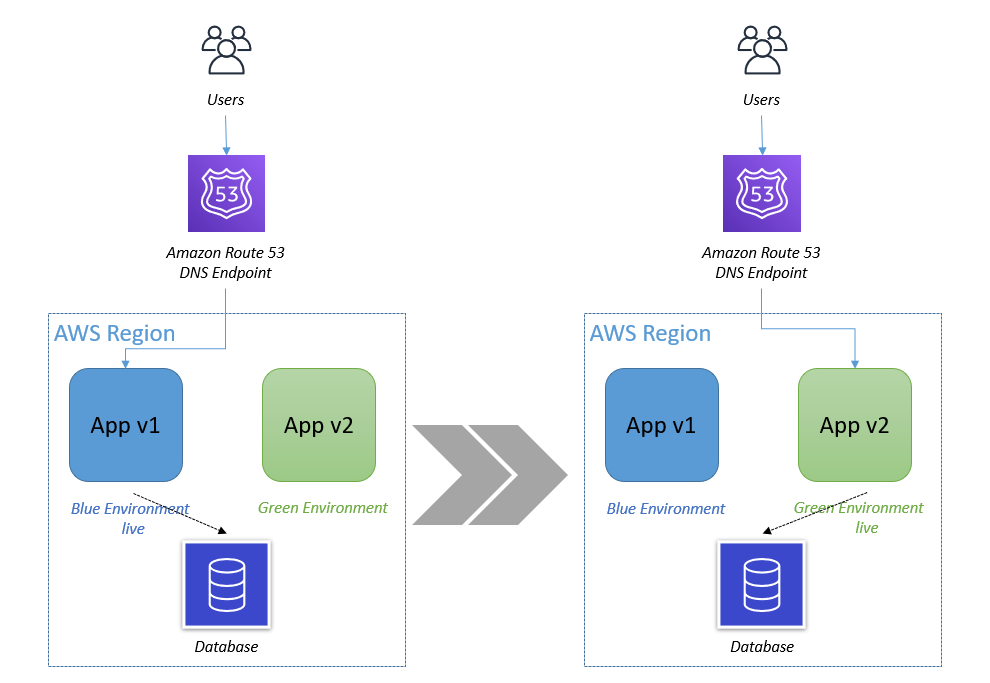
In a typical on-premises environment, changes are deployed “in-place.” This requires a slow and “involve everyone” approach. Deploying in the cloud replaces the in-place approach with blue/green deployments, as shown in Figure 2.

With this strategy, new application versions can be deployed on new machines (green) running side by side with the old machines (blue). Once the new version is validated, switch traffic to the new (green) machines and they become production. This model reduces risk and increases velocity of change.

AWS blue/green deployment model

Figure 2. AWS blue/green deployment model

Securing your application and infrastructure

Security controls in the cloud are defined and enforced in software, which brings risks and opportunities. If not managed with a robust change management process, software-defined firewall misconfiguration can create unexpected threat vectors.

To avoid this, use cloud native patterns like “infrastructure as code” that express all infrastructure provisioning and configuration as declarative templates (JSON or YAML files). Then apply the same “Git pull request” process to infrastructure change management as you do for your applications to enforce strong governance. Use tools like AWS CloudFormation or AWS Cloud Development Kit (AWS CDK) to implement infrastructure templates into your cloud environment.

Apply a layered security model (“defense in depth”) to your application stack, as shown in Figure 3, to prevent against distributed denial of service (DDoS) and application layer attacks. Part 2: Protecting AWS account, data, and applications provides a detailed discussion on security.

Defense in depth

Figure 3. Defense in depth

Data stores

How many is too many?

In on-premises environments, it is typically difficult to provision a separate database per microservice. As a result, the application or microservice isolation stops at the compute layer, and the database becomes the key shared dependency that slows down change.

The cloud provides API instantiable, fully managed databases like Amazon Relational Database Service (Amazon RDS) (SQL), Amazon DynamoDB (NoSQL), and others. This allows you to isolate your application end to end and create a more resilient architecture. For example, in a cell-based architecture where users are placed into self-contained, isolated application stack “cells,” the “blast radius” of an impact, such as application downtime or user experience degradation, is limited to each cell.

Database engines

Relational databases are typically the default starting point for many organizations. While relational databases offer speed and flexibility to bootstrap a new application, they bring complexity when you need to horizontally scale.

Your application needs will determine whether you use a relational or non-relational database. In the cloud, API instantiated, fully managed databases give you options to closely match your application’s use case. For example, in-memory databases like Amazon ElastiCache reduce latency for website content and key-value databases like DynamoDB provide a horizontally scalable backend for building an ecommerce shopping cart.

Summary

We acknowledge that CTO responsibilities can differ among organizations; however, this blog discusses common key considerations when building and operating an application in the cloud.

Choosing the right application hosting platform depends on your application’s use case and can impact the operational cost of your application in the cloud. Consider the people, governance, and platform aspects carefully because they will influence the success or failure of your cloud adoption. Use lower risk application deployment patterns in the cloud. Managed data stores in the cloud open your choice for data stores beyond relational. In the next post of this series, Part 2: Protecting AWS account, data, and applications, we will explore best practices and principles to apply when thinking about security in the cloud.

Related information

  • Part 2: Protecting AWS account, data and applications
  • Part 3: Cloud economics – OPEX vs CAPEX
  • Part 4: Building a modern data platform for AI
  • Part 5: Organizing teams to enable effective build/run/manage
  • Part 6: Strategies and lessons on migrating workloads to the cloud

Understanding Amazon Machine Images for Red Hat Enterprise Linux with Microsoft SQL Server

Post Syndicated from Emma White original https://aws.amazon.com/blogs/compute/understanding-amazon-machine-images-for-red-hat-enterprise-linux-with-microsoft-sql-server/

This post is written by Kumar Abhinav, Sr. Product Manager EC2, and David Duncan, Principal Solution Architect. 

Customers now have access to AWS license-included Amazon Machine Images (AMI) for hosting their SQL Server workloads with Red Hat Enterprise Linux (RHEL). With these AMIs, customers can easily build highly available, reliable, and performant Microsoft SQL Server 2017 and 2019 clusters with RHEL 7 and 8, with a simple pay-as-you-go pricing model that doesn’t require long-term commitments or upfront costs. By switching from Windows Server to RHEL to run SQL Server workloads, customers can reduce their operating system licensing costs and further lower total cost of ownership. This blog post provides a deep dive into how to deploy SQL Server on RHEL using these new AMIs, how to tune instances for performance, and how to reduce licensing costs with RHEL.

Overview

The RHEL AMIs with SQL Server are customized for the following editions of SQL Server 2019 or SQL Server 2017:

  • Express/Web Edition is an entry-level database for small web and mobile apps.
  • Standard Edition is a full-featured database designed for medium-sized applications and data marts.
  • Enterprise Edition is a mission-critical database built for high-performing, intelligent apps.

To maintain high availability (HA), you can bring the same HA configuration from an on-premises Enterprise Edition to AWS by combining SQL Server Availability Groups with the Red Hat Enterprise Linux HA add-on. The HA add-on provides a light-weight cluster management portfolio that runs across multiple AWS Availability Zones to eliminate single point of failure and deliver timely recovery when there is need.

These AMIs include all the software packages required to run SQL Server on RHEL along with the most recent updates and security patches. By removing some of the heavy lifting around deployment, you can deploy SQL Server instances faster to accommodate growth and service events.

The following architecture diagram shows the necessary building blocks for SQL Server Enterprise HA configuration on RHEL.

instance configuration

To build the RHEL 7 and RHEL 8 AMIs, we focused on requirements from the Red Hat community of practice for SQL Server, which includes code, documentation, playbooks, and other artifacts relating to deployment of SQL Server on RHEL. We used Amazon EC2 Image Builder for installing and updating Microsoft SQL Server. For custom configuration or for installing any additional software, you can use the base machine image and extend it using EC2 Image Builder. If you have different, requirements, you can build your own images using the Red Hat Image Builder.

Tuning for virtual performance and compatibility with storage options

It is a common practice to apply pre-built performance profiles for SQL Server deployments when running on-premises. However, you do not need to apply the operating system performance tuning profiles for SQL Server to optimize the performance on Amazon EC2. The AMIs include the virtual-guest tuning from Red Hat along with additional optimizations for the EC2 environment. For example, the images include the timeout for NVMe IO operations set to the maximum possible value for an experience that is more consistent with the way EBS volumes are managed. Database administrators can further configure workload specific tuning parameters such as paging, swapping, and memory pressure using the Microsoft SQL Server performance best practices guidelines.

SQL Server availability groups help achieve HA and improve the read performance of your database cluster. However, this approach only improves availability at the database layer. RHEL with HA further improves the availability of a SQL Server cluster by providing service failover capabilities at the operating system layer. You can easily build a highly available database cluster as shown in the following figure by using the RHEL with SQL Server and HA add-on AMI on an instance of their choice in multiple Availability Zones.


High availability SQL Cluster built on top of RHEL HA

When it comes to storage, AWS offers many different choices. Amazon Elastic Block Storage (EBS) offers Provisioned IOPS volumes for specific performance requirements, where you know you need a specific level of performance required for the database operations. Provisioned IOPS are an excellent option when the general-purpose volume doesn’t meet your requirements of levels of I/O operations necessary for your production database. EBS volumes add the flexibility you need to increase your volume storage space size and performance through API calls. With Amazon EBS, you can also use additional data volumes directly attached to your instance or leverage multiple instance store volumes for performance targets. Volume IOPS are optimized to be sustainable even if they climb into the thousands, and your maximum IOPS does not decrease.

Storing data on secondary volumes improves performance of your database

Provisioning only one large root EBS volume for the database storage and sharing that with the operating system and any logging, management tools, or monitoring processes is not a well-architected solution. That shared activity reduces the bandwidth and operational performance of the database workloads. On the other hand, using practices like separating the database workloads onto separate EBS volumes or leveraging instance store volumes work well for use cases like storing a large number of temp tables. By separating the volumes by specialized activities, the performance of each component is independently manageable. Profile your utilization to choose the right combination of EBS and instance storage options for your workload.

Lower Total Cost of Ownership

Another benefit of using RHEL AMIs with SQL Server is cost savings. When you move from Windows Server to RHEL to run SQL Server, you can reduce the operating system licensing costs. Windows Server virtual machines are priced per core and hence you pay more for virtual machines with large numbers of cores. In other words, the more virtual machine cores you have, the more you pay in software license fees. On the other hand, RHEL has just two pricing tiers. One is for virtual machines with fewer than four cores and the other is for virtual machines with four cores or more. You pay the same operating system software subscription fees whether you choose a virtual machine with two or three virtual cores. Similarly, for larger workloads, your operating system software subscription costs are the same no matter whether you choose a virtual machine with eight or 16 virtual cores.

In addition, with the elasticity of EC2, you can save costs by sizing your starting workloads accordingly and later resizing your instances to prevent over provisioning compute resources when workloads experience uneven usage patterns, such as month end business reporting and batch programs. You can choose to use On-Demand Instances or use Savings Plans to build flexible pricing for long-term compute costs effectively. With AWS, you have the flexibility to right-size your instances and save costs without compromising business agility.

Conclusion

These new RHEL with SQL Server AMIs on Amazon EC2 are pre-configured and optimized to reduce undifferentiated heavy lifting. Customers can easily build highly available, reliable, and performant database clusters using RHEL with SQL Server along with the HA add-on and Provisioned IOPS EBS volumes. To get started, search for RHEL with SQL Server in the Amazon EC2 Console or find it in the AWS Marketplace. To learn more about Red Hat Enterprise Linux on EC2, check out the frequently asked questions page.


EC2 Image Builder and Hands-free Hardening of Windows Images for AWS Elastic Beanstalk

Post Syndicated from Carlos Santos original https://aws.amazon.com/blogs/devops/ec2-image-builder-for-windows-on-aws-elastic-beanstalk/

AWS Elastic Beanstalk takes care of undifferentiated heavy lifting for customers by regularly providing new platform versions to update all Linux-based and Windows Server-based platforms. In addition to the updates to existing software components and support for new features and configuration options incorporated into the Elastic Beanstalk managed Amazon Machine Images (AMI), you may need to install third-party packages, or apply additional controls in order to meet industry or internal security criteria; for example, the Defense Information Systems Agency’s (DISA) Security Technical Implementation Guides (STIG).

In this blog post you will learn how to automate the process of customizing Elastic Beanstalk managed AMIs using EC2 Image Builder and apply the medium and low severity STIG settings to Windows instances whenever new platform versions are released.

You can extend the solution in this blog post to go beyond system hardening. EC2 Image Builder allows you to execute scripts that define the custom configuration for an image, known as Components. There are over 20 Amazon managed Components that you can use. You can also create your own, and even share with others.

These services are discussed in this blog post:

  • EC2 Image Builder simplifies the building, testing, and deployment of virtual machine and container images.
  • Amazon EventBridge is a serverless event bus that simplifies the process of building event-driven architectures.
  • AWS Lambda lets you run code without provisioning or managing servers.
  • AWS Systems Manager Parameter Store provides secure, hierarchical storage for configuration data, and secrets.
  • AWS Elastic Beanstalk is an easy-to-use service for deploying and scaling web applications and services.

Prerequisites

This solution has the following prerequisites:

All of the code necessary to deploy the solution is available on the . The repository details the solution’s codebase, and the “Deploying the Solution” section walks through the deployment process. Let’s start with a walkthrough of the solution’s design.

Overview of solution

The solution automates the following three steps.

Steps being automated

Figure 1 – Steps being automated

The Image Builder Pipeline takes care of launching an EC2 instance using the Elastic Beanstalk managed AMI, hardens the image using EC2 Image Builder’s STIG Medium Component, and outputs a new AMI that can be used by application teams to create their Elastic Beanstalk Environments.

Figure 2 – EC2 Image Builder Pipeline Steps

Figure 2 – EC2 Image Builder Pipeline Steps

To automate Step 1, an Amazon EventBridge rule is used to trigger an AWS Lambda function to get the latest AMI ID for the Elastic Beanstalk platform used, and ensures that the Parameter Store parameter is kept up to date.

AMI Version Change Monitoring Flow

Figure 3 – AMI Version Change Monitoring Flow

Steps 2 and 3 are trigged upon change to the Parameter Store parameter. An EventBridge rule is created to trigger a Lambda function, which manages the creation of a new EC2 Image Builder Recipe, updates the EC2 Image Builder Pipeline to use this new recipe, and starts a new instance of an EC2 Image Builder Pipeline.

EC2 Image Builder Pipeline Execution Flow

Figure 4 – EC2 Image Builder Pipeline Execution Flow

If you would also like to store the ID of the newly created AMI, see the Tracking the latest server images in Amazon EC2 Image Builder pipelines blog post on how to use Parameter Store for this purpose. This will enable you to notify teams that a new AMI is available for consumption.

Let’s dive a bit deeper into each of these pieces and how to deploy the solution.

Walkthrough

The following are the high-level steps we will be walking through in the rest of this post.

  • Deploy SAM template that will provision all pieces of the solution. Checkout the Using container image support for AWS Lambda with AWS SAM blog post for more details.
  • Invoke the AMI version monitoring AWS Lambda function. The EventBridge rule is configured for a daily trigger and for the purposes of this blog post, we do not want to wait that long prior to seeing the pipeline in action.
  • View the details of the resultant image after the Image Builder Pipeline completes

Deploying the Solution

The first step to deploying the solution is to create the Elastic Container Registry Repository that will be used to upload the image artifacts created. You can do so using the following AWS CLI or AWS Tools for PowerShell command:

aws ecr create-repository --repository-name elastic-beanstalk-image-pipeline-trigger --image-tag-mutability IMMUTABLE --image-scanning-configuration scanOnPush=true --region us-east-1
New-ECRRepository -RepositoryName elastic-beanstalk-image-pipeline-trigger -ImageTagMutability IMMUTABLE -ImageScanningConfiguration_ScanOnPush $True -Region us-east-1

This will return output similar to the following. Take note of the repositoryUri as you will be using that in an upcoming step.

ECR repository creation output

Figure 5 – ECR repository creation output

With the repository configured, you are ready to get the solution. Either download or clone the project’s aws-samples/elastic-beanstalk-image-pipeline-trigger GitHub repository to a local directory. Once you have the project downloaded, you can compile it using the following command from the project’s src/BeanstalkImageBuilderPipeline directory.

dotnet publish -c Release -o ./bin/Release/net5.0/linux-x64/publish

The output should look like:

NET project compilation output

Figure 6 – .NET project compilation output

Now that the project is compiled, you are ready to create the container image by executing the following SAM CLI command.

sam build --template-file ./serverless.template
SAM build command output

Figure 7 – SAM build command output

Next up deploy the SAM template with the following command, replacing REPOSITORY_URL with the URL of the ECR repository created earlier:

sam deploy --stack-name elastic-beanstalk-image-pipeline --image-repository <REPOSITORY_URL> --capabilities CAPABILITY_IAM --region us-east-1

The SAM CLI will both push the container image and create the CloudFormation Stack, deploying all resources needed for this solution. The deployment output will look similar to:

SAM deploy command output

Figure 8 – SAM deploy command output

With the CloudFormation Stack completed, you are ready to move onto starting the pipeline to create a custom Windows AMI with the medium DISA STIG applied.

Invoke AMI ID Monitoring Lambda

Let’s start by invoking the Lambda function, depicted in Figure 3, responsible for ensuring that the latest Elastic Beanstalk managed AMI ID is stored in Parameter Store.

aws lambda invoke --function-name BeanstalkManagedAmiMonitor response.json --region us-east-1
Invoke-LMFunction -FunctionName BeanstalkManagedAmiMonitor -Region us-east-1
Lambda invocation output

Figure 9 – Lambda invocation output

The Lambda’s CloudWatch log group contains the BeanstalkManagedAmiMonitor function’s output. For example, below you can see that the SSM parameter is being updated with the new AMI ID.

BeanstalkManagedAmiMonitor Lambda’s log

Figure 10 – BeanstalkManagedAmiMonitor Lambda’s log

After this Lambda function updates the Parameter Store parameter with the latest AMI ID, the EC2 Image Builder recipe will be updated to use this AMI ID as the parent image, and the Image Builder pipeline will be started. You can see evidence of this by going to the ImageBuilderTrigger Lambda function’s CloudWatch log group. Below you can see a log entry with the message “Starting image pipeline execution…”.

ImageBuilderTrigger Lambda’s log

Figure 11 – ImageBuilderTrigger Lambda’s log

To keep track of the status of the image creation, navigate to the EC2 Image Builder console, and select the 1.0.1 version of the demo-beanstalk-image.

EC2 Image Builder images list

Figure 12 – EC2 Image Builder images list

This will display the details for that build. Keep an eye on the status. While the image is being create, you will see the status as “Building”. Applying the latest Windows updates and DISA STIG can take about an hour.

EC2 Image Builder image build version details

Figure 13 – EC2 Image Builder image build version details

Once the AMI has been created, the status will change to “Available”. Click on the version column’s link to see the details of that version.

EC2 Image Builder image build version details

Figure 14 – EC2 Image Builder image build version details

You can use the AMI ID listed when creating an Elastic Beanstalk application. When using the create new environment wizard, you can modify the capacity settings to specify this custom AMI ID. The automation is configured to run on a daily basis. Only for the purposes of this post, did we have to invoke the Lambda function directly.

Cleaning up

To avoid incurring future charges, delete the resources using the following commands, replacing the AWS_ACCOUNT_NUMBER placeholder with appropriate value.

aws imagebuilder delete-image --image-build-version-arn arn:aws:imagebuilder:us-east-1:<AWS_ACCOUNT_NUMBER>:image/demo-beanstalk-image/1.0.1/1 --region us-east-1

aws imagebuilder delete-image-pipeline --image-pipeline-arn arn:aws:imagebuilder:us-east-1:<AWS_ACCOUNT_NUMBER>:image-pipeline/windowsbeanstalkimagepipeline --region us-east-1

aws imagebuilder delete-image-recipe --image-recipe-arn arn:aws:imagebuilder:us-east-1:<AWS_ACCOUNT_NUMBER>:image-recipe/demo-beanstalk-image/1.0.1 --region us-east-1

aws cloudformation delete-stack --stack-name elastic-beanstalk-image-pipeline --region us-east-1

aws cloudformation wait stack-delete-complete --stack-name elastic-beanstalk-image-pipeline --region us-east-1

aws ecr delete-repository --repository-name elastic-beanstalk-image-pipeline-trigger --force --region us-east-1
Remove-EC2IBImage -ImageBuildVersionArn arn:aws:imagebuilder:us-east-1:<AWS_ACCOUNT_NUMBER>:image/demo-beanstalk-image/1.0.1/1 -Region us-east-1

Remove-EC2IBImagePipeline -ImagePipelineArn arn:aws:imagebuilder:us-east-1:<AWS_ACCOUNT_NUMBER>:image-pipeline/windowsbeanstalkimagepipeline -Region us-east-1

Remove-EC2IBImageRecipe -ImageRecipeArn arn:aws:imagebuilder:us-east-1:<AWS_ACCOUNT_NUMBER>:image-recipe/demo-beanstalk-image/1.0.1 -Region us-east-1

Remove-CFNStack -StackName elastic-beanstalk-image-pipeline -Region us-east-1

Wait-CFNStack -StackName elastic-beanstalk-image-pipeline -Region us-east-1

Remove-ECRRepository -RepositoryName elastic-beanstalk-image-pipeline-trigger -IgnoreExistingImages $True -Region us-east-1

Conclusion

In this post, you learned how to leverage EC2 Image Builder, Lambda, and EventBridge to automate the creation of a Windows AMI with the medium DISA STIGs applied that can be used for Elastic Beanstalk environments. Don’t stop there though, you can apply these same techniques whenever you need to base recipes on AMIs that the image origin is not available in EC2 Image Builder.

Further Reading

EC2 Image Builder has a number of image origins supported out of the box, see the Automate OS Image Build Pipelines with EC2 Image Builder blog post for more details. EC2 Image Builder is also not limited to just creating AMIs. The Build and Deploy Docker Images to AWS using EC2 Image Builder blog post shows you how to build Docker images that can be utilized throughout your organization.

These resources can provide additional information on the topics touched on in this article:

Carlos Santos

Carlos Santos

Carlos Santos is a Microsoft Specialist Solutions Architect with Amazon Web Services (AWS). In his role, Carlos helps customers through their cloud journey, leveraging his experience with application architecture, and distributed system design.

Evaluating effort to port a container-based application from x86 to Graviton2

Post Syndicated from Emma White original https://aws.amazon.com/blogs/compute/evaluating-effort-to-port-a-container-based-application-from-x86-to-graviton2/

This post is written by Kevin Jung, a Solution Architect with Global Accounts at Amazon Web Services.

AWS Graviton2 processors are custom designed by AWS using 64-bit Arm Neoverse cores. AWS offers the AWS Graviton2 processor in five new instance types – M6g, T4g, C6g, R6g, and X2gd. These instances are 20% lower cost and lead up to 40% better price performance versus comparable x86 based instances. This enables AWS to provide a number of options for customers to balance the need for instance flexibility and cost savings.

You may already be running your workload on x86 instances and looking to quickly experiment running your workload on Arm64 Graviton2. To help with the migration process, AWS provides the ability to quickly set up to build multiple architectures based Docker images using AWS Cloud9 and Amazon ECR and test your workloads on Graviton2. With multiple-architecture (multi-arch) image support in Amazon ECR, it’s now easy for you to build different images to support both on x86 and Arm64 from the same source and refer to them all by the same abstract manifest name.

This blog post demonstrates how to quickly set up an environment and experiment running your workload on Graviton2 instances to optimize compute cost.

Solution Overview

The goal of this solution is to build an environment to create multi-arch Docker images and validate them on both x86 and Arm64 Graviton2 based instances before going to production. The following diagram illustrates the proposed solution.

The steps in this solution are as follows:

  1. Create an AWS Cloud9
  2. Create a sample Node.js
  3. Create an Amazon ECR repository.
  4. Create a multi-arch image
  5. Create multi-arch images for x86 and Arm64 and  push them to Amazon ECR repository.
  6. Test by running containers on x86 and Arm64 instances.

Creating an AWS Cloud9 IDE environment

We use the AWS Cloud9 IDE to build a Node.js application image. It is a convenient way to get access to a full development and build environment.

  1. Log into the AWS Management Console through your AWS account.
  2. Select AWS Region that is closest to you. We use us-west-2Region for this post.
  3. Search and select AWS Cloud9.
  4. Select Create environment. Name your environment mycloud9.
  5. Choose a small instance on Amazon Linux2 platform. These configuration steps are depicted in the following image.

  1. Review the settings and create the environment. AWS Cloud9 automatically creates and sets up a new Amazon EC2 instance in your account, and then automatically connects that new instance to the environment for you.
  2. When it comes up, customize the environment by closing the Welcome tab.
  3. Open a new terminal tab in the main work area, as shown in the following image.

  1. By default, your account has read and write access to the repositories in your Amazon ECR registry. However, your Cloud9 IDE requires permissions to make calls to the Amazon ECR API operations and to push images to your ECR repositories. Create an IAM role that has a permission to access Amazon ECR then attach it to your Cloud9 EC2 instance. For detail instructions, see IAM roles for Amazon EC2.

Creating a sample Node.js application and associated Dockerfile

Now that your AWS Cloud9 IDE environment is set up, you can proceed with the next step. You create a sample “Hello World” Node.js application that self-reports the processor architecture.

  1. In your Cloud9 IDE environment, create a new directory and name it multiarch. Save all files to this directory that you create in this section.
  2. On the menu bar, choose File, New File.
  3. Add the following content to the new file that describes application and dependencies.
{
  "name": "multi-arch-app",
  "version": "1.0.0",
  "description": "Node.js on Docker"
}
  1. Choose File, Save As, Choose multiarch directory, and then save the file as json.
  2. On the menu bar (at the top of the AWS Cloud9 IDE), choose Window, New Terminal.

  1. In the terminal window, change directory to multiarch .
  2. Run npm install. It creates package-lock.json file, which is copied to your Docker image.
npm install
  1. Create a new file and add the following Node.js code that includes {process.arch} variable that self-reports the processor architecture. Save the file as js.
// Copyright Amazon.com, Inc. or its affiliates. All Rights Reserved. SPDX-License-Identifier: MIT-0

const http = require('http');
const port = 3000;
const server = http.createServer((req, res) => {
      res.statusCode = 200;
      res.setHeader('Content-Type', 'text/plain');
      res.end(`Hello World! This web app is running on ${process.arch} processor architecture` );
});
server.listen(port, () => {
      console.log(`Server running on ${process.arch} architecture.`);
});
  1. Create a Dockerfile in the same directory that instructs Docker how to build the Docker images.
FROM public.ecr.aws/amazonlinux/amazonlinux:2
WORKDIR /usr/src/app
COPY package*.json app.js ./
RUN curl -sL https://rpm.nodesource.com/setup_14.x | bash -
RUN yum -y install nodejs
RUN npm install
EXPOSE 3000
CMD ["node", "app.js"]
  1. Create .dockerignore. This prevents your local modules and debug logs from being copied onto your Docker image and possibly overwriting modules installed within your image.
node_modules
npm-debug.log
  1. You should now have the following 5 files created in your multiarch.
  • .dockerignore
  • app.js
  • Dockerfile
  • package-lock.json
  • package.json

Creating an Amazon ECR repository

Next, create a private Amazon ECR repository where you push and store multi-arch images. Amazon ECR supports multi-architecture images including x86 and Arm64 that allows Docker to pull an image without needing to specify the correct architecture.

  1. Navigate to the Amazon ECR console.
  2. In the navigation pane, choose Repositories.
  3. On the Repositories page, choose Create repository.
  4. For Repository name, enter myrepo for your repository.
  5. Choose create repository.

Creating a multi-arch image builder

You can use the Docker Buildx CLI plug-in that extends the Docker command to transparently build multi-arch images, link them together with a manifest file, and push them all to Amazon ECR repository using a single command.

There are few ways to create multi-architecture images. I use the QEMU emulation to quickly create multi-arch images.

  1. Cloud9 environment has Docker installed by default and therefore you don’t need to install Docker. In your Cloud9 terminal, enter the following commands to download the latest Buildx binary release.
export DOCKER_BUILDKIT=1
docker build --platform=local -o . git://github.com/docker/buildx
mkdir -p ~/.docker/cli-plugins
mv buildx ~/.docker/cli-plugins/docker-buildx
chmod a+x ~/.docker/cli-plugins/docker-buildx
  1. Enter the following command to configure Buildx binary for different architecture. The following command installs emulators so that you can run and build containers for x86 and Arm64.
docker run --privileged --rm tonistiigi/binfmt --install all
  1. Check to see a list of build environment. If this is first time, you should only see the default builder.
docker buildx ls
  1. I recommend using new builder. Enter the following command to create a new builder named mybuild and switch to it to use it as default. The bootstrap flag ensures that the driver is running.
docker buildx create --name mybuild --use
docker buildx inspect --bootstrap

Creating multi-arch images for x86 and Arm64 and push them to Amazon ECR repository

Interpreted and bytecode-compiled languages such as Node.js tend to work without any code modification, unless they are pulling in binary extensions. In order to run a Node.js docker image on both x86 and Arm64, you must build images for those two architectures. Using Docker Buildx, you can build images for both x86 and Arm64 then push those container images to Amazon ECR at the same time.

  1. Login to your AWS Cloud9 terminal.
  2. Change directory to your multiarch.
  3. Enter the following command and set your AWS Region and AWS Account ID as environment variables to refer to your numeric AWS Account ID and the AWS Region where your registry endpoint is located.
AWS_ACCOUNT_ID=aws-account-id
AWS_REGION=us-west-2
  1. Authenticate your Docker client to your Amazon ECR registry so that you can use the docker push commands to push images to the repositories. Enter the following command to retrieve an authentication token and authenticate your Docker client to your Amazon ECR registry. For more information, see Private registry authentication.
aws ecr get-login-password --region ${AWS_REGION} | docker login --username AWS --password-stdin ${AWS_ACCOUNT_ID}.dkr.ecr.${AWS_REGION}.amazonaws.com
  1. Validate your Docker client is authenticated to Amazon ECR successfully.

  1. Create your multi-arch images with the docker buildx. On your terminal window, enter the following command. This single command instructs Buildx to create images for x86 and Arm64 architecture, generate a multi-arch manifest and push all images to your myrepo Amazon ECR registry.
docker buildx build --platform linux/amd64,linux/arm64 --tag ${AWS_ACCOUNT_ID}.dkr.ecr.${AWS_REGION}.amazonaws.com/myrepo:latest --push .
  1. Inspect the manifest and images created using docker buildx imagetools command.
docker buildx imagetools inspect ${AWS_ACCOUNT_ID}.dkr.ecr.${AWS_REGION}.amazonaws.com/myrepo:latest

The multi-arch Docker images and manifest file are available on your Amazon ECR repository myrepo. You can use these images to test running your containerized workload on x86 and Arm64 Graviton2 instances.

Test by running containers on x86 and Arm64 Graviton2 instances

You can now test by running your Node.js application on x86 and Arm64 Graviton2 instances. The Docker engine on EC2 instances automatically detects the presence of the multi-arch Docker images on Amazon ECR and selects the right variant for the underlying architecture.

  1. Launch two EC2 instances. For more information on launching instances, see the Amazon EC2 documentation.
    a. x86 – t3a.micro
    b. Arm64 – t4g.micro
  2. Your EC2 instances require permissions to make calls to the Amazon ECR API operations and to pull images from your Amazon ECR repositories. I recommend that you use an AWS role to allow the EC2 service to access Amazon ECR on your behalf. Use the same IAM role created for your Cloud9 and attach the role to both x86 and Arm64 instances.
  3. First, run the application on x86 instance followed by Arm64 Graviton instance. Connect to your x86 instance via SSH or EC2 Instance Connect.
  4. Update installed packages and install Docker with the following commands.
sudo yum update -y
sudo amazon-linux-extras install docker
sudo service docker start
sudo usermod -a -G docker ec2-user
  1. Log out and log back in again to pick up the new Docker group permissions. Enter docker info command and verify that the ec2-user can run Docker commands without sudo.
docker info
  1. Enter the following command and set your AWS Region and AWS Account ID as environment variables to refer to your numeric AWS Account ID and the AWS Region where your registry endpoint is located.
AWS_ACCOUNT_ID=aws-account-id
AWS_REGION=us-west-2
  1. Authenticate your Docker client to your ECR registry so that you can use the docker pull command to pull images from the repositories. Enter the following command to authenticate to your ECR repository. For more information, see Private registry authentication.
aws ecr get-login-password --region ${AWS_REGION} | docker login --username AWS --password-stdin ${AWS_ACCOUNT_ID}.dkr.ecr.${AWS_REGION}.amazonaws.com
  1. Validate your Docker client is authenticated to Amazon ECR successfully.
  1. Pull the latest image using the docker pull command. Docker will automatically selects the correct platform version based on the CPU architecture.
docker pull ${AWS_ACCOUNT_ID}.dkr.ecr.${AWS_REGION}.amazonaws.com/myrepo:latest
  1. Run the image in detached mode with the docker run command with -dp flag.
docker run -dp 80:3000 ${AWS_ACCOUNT_ID}.dkr.ecr.${AWS_REGION}.amazonaws.com/myrepo:latest
  1. Open your browser to public IP address of your x86 instance and validate your application is running. {process.arch} variable in the application shows the processor architecture the container is running on. This step validates that the docker image runs successfully on x86 instance.

  1. Next, connect to your Arm64 Graviton2 instance and repeat steps 2 to 9 to install Docker, authenticate to Amazon ECR, and pull the latest image.
  2. Run the image in detached mode with the docker run command with -dp flag.
docker run -dp 80:3000 ${AWS_ACCOUNT_ID}.dkr.ecr.${AWS_REGION}.amazonaws.com/myrepo:latest
  1. Open your browser to public IP address of your Arm64 Graviton2 instance and validate your application is running. This step validates that the Docker image runs successfully on Arm64 Graviton2 instance.

  1. We now create an Application Load Balancer. This allows you to control the distribution of traffic to your application between x86 and Arm64 instances.
  2. Refer to this document to create ALB and register both x86 and Arm64 as target instances. Enter my-alb for your Application Load Balancer name.
  3. Open your browser and point to your Load Balancer DNS name. Refresh to see the output switches between x86 and Graviton2 instances.

Cleaning up

To avoid incurring future charges, clean up the resources created as part of this post.

First, we delete Application Load Balancer.

  1. Open the Amazon EC2 Console.
  2. On the navigation pane, under Load Balancing, choose Load Balancers.
  3. Select your Load Balancer my-alb, and choose ActionsDelete.
  4. When prompted for confirmation, choose Yes, Delete.

Next, we delete x86 and Arm64 EC2 instances used for testing multi-arch Docker images.

  1. Open the Amazon EC2 Console.
  2. On the instance page, locate your x86 and Arm64 instances.
  3. Check both instances and choose Instance StateTerminate instance.
  4. When prompted for confirmation, choose Terminate.

Next, we delete the Amazon ECR repository and multi-arch Docker images.

  1. Open the Amazon ECR Console.
  2. From the navigation pane, choose Repositories.
  3. Select the repository myrepo and choose Delete.
  4. When prompted, enter delete, and choose Delete. All images in the repository are also deleted.

Finally, we delete the AWS Cloud9 IDE environment.

  1. Open your Cloud9 Environment.
  2. Select the environment named mycloud9and choose Delete. AWS Cloud9 also terminates the Amazon EC2 instance that was connected to that environment.

Conclusion

With Graviton2 instances, you can take advantage of 20% lower cost and up to 40% better price-performance over comparable x86-based instances. The container orchestration services on AWS, ECR and EKS, support Graviton2 instances, including mixed x86 and Arm64 clusters. Amazon ECR supports multi-arch images and Docker itself supports a full multiple architecture toolchain through its new Docker Buildx command.

To summarize, we created a simple environment to build multi-arch Docker images to run on x86 and Arm64. We stored them in Amazon ECR and then tested running on both x86 and Arm64 Graviton2 instances. We invite you to experiment with your own containerized workload on Graviton2 instances to optimize your cost and take advantage better price-performance.


EC2-Classic is Retiring – Here’s How to Prepare

Post Syndicated from Jeff Barr original https://aws.amazon.com/blogs/aws/ec2-classic-is-retiring-heres-how-to-prepare/

Let’s go back to the summer of 2006 and the launch of EC2. We started out with one instance type (the venerable m1.small), security groups, and the venerable US East (N. Virginia) Region. The EC2-Classic network model was flat, with public IP addresses that were assigned at launch time.

Our initial customers saw the value right away and started to put EC2 to use in many different ways. We hosted web sites, supported the launch of Justin.TV, and helped Animoto to scale to a then-amazing 3400 instances when their Facebook app went viral.

Some of the early enhancements to EC2 focused on networking. For example, we added Elastic IP addresses in early 2008 so that addresses could be long-lived and associated with different instances over time if necessary. After that we added Auto Scaling, Load Balancing, and CloudWatch to help you to build highly scalable applications.

Early customers wanted to connect their EC2 instances to their corporate networks, exercise additional control over IP address ranges, and to construct more sophisticated network topologies. We launched Amazon Virtual Private Cloud in 2009, and in 2013 we made the VPC model essentially transparent with Virtual Private Clouds for Everyone.

Retiring EC2-Classic
EC2-Classic has served us well, but we’re going to give it a gold watch and a well-deserved sendoff! This post will tell you what you need to know, what you need to do, and when you need to do it.

Before I dive in, rest assured that we are going to make this as smooth and as non-disruptive as possible. We are not planning to disrupt any workloads and we are giving you plenty of lead time so that you can plan, test, and perform your migration. In addition to this blog post, we have tools, documentation, and people that are all designed to help.

Timing
We are already notifying the remaining EC2-Classic customers via their account teams, and will soon start to issue notices in the Personal Health Dashboard. Here are the important dates for your calendar:

  • All AWS accounts created after December 4, 2013 are already VPC-only, unless EC2-Classic was enabled as a result of a support request.
  • On October 30, 2021 we will disable EC2-Classic in Regions for AWS accounts that have no active EC2-Classic resources in the Region, as listed below. We will also stop selling 1-year and 3-year Reserved Instances for EC2-Classic.
  • On August 15, 2022 we expect all migrations to be complete, with no remaining EC2-Classic resources present in any AWS account.

Again, we don’t plan to disrupt any workloads and will do our best to help you to meet these dates.

Affected Resources
In order to fully migrate from EC2-Classic to VPC, you need to find, examine, and migrate all of the following resources:

In preparation for your migration, be sure to read Migrate from EC2-Classic to a VPC.

You may need to create (or re-create, if you deleted it) the default VPC for your account. To learn how to do this, read Creating a Default VPC.

In some cases you will be able to modify the existing resources; in others you will need to create new and equivalent resources in a VPC.

Finding EC2-Classic Resources
Use the EC2 Classic Resource Finder script to find all of the EC2-Classic resources in your account. You can run this directly in a single AWS account, or you can use the included multi-account-wrapper to run it against each account of an AWS Organization. The Resource Finder visits each AWS Region, looks for specific resources, and generates a set of CSV files. Here’s the first part of the output from my run:

The script takes a few minutes to run. I inspect the list of CSV files to get a sense of how much work I need to do:

And then I take a look inside to learn more:

Turns out that I have some stopped OpsWorks Stacks that I can either migrate or delete:

Migration Tools
Here’s an overview of the migration tools that you can use to migrate your AWS resources:

AWS Application Migration Service – Use AWS MGN to migrate your instances and your databases from EC2-Classic to VPC with minimal downtime. This service uses block-level replication and runs on multiple versions of Linux and Windows (read How to Use the New AWS Application Migration Service for Lift-and-Shift Migrations to learn more). The first 90 days of replication are free for each server that you migrate; see the AWS Application Service Pricing page for more information.

Support Automation Workflow – This workflow supports simple, instance-level migration. It converts the source instance to an AMI, creates mirrors of the security groups, and launches new instances in the destination VPC.

After you have migrated all of the resources within a particular region, you can disable EC2-Classic by creating a support case. You can do this if you want to avoid accidentally creating new EC2-Classic resources in the region, but it is definitely not required.

Disabling EC2-Classic in a region is intended to be a one-way door, but you can contact AWS Support if you run it and then find that you need to re-enable EC2-Classic for a region. Be sure to run the Resource Finder that mentioned earlier and make sure that you have not left any resources behind. These resources will continue to run and to accrue charges even after the account status has been changed.

IP Address Migration – If you are migrating an EC2 instance and any Elastic IP addresses associated with the instance, you can use move-address-to-vpc then attach the Elastic IP to the migrated instance. This will allow you to continue to reference the instance by the original DNS name.

Classic Load Balancers – If you plan to migrate a Classic Load Balancer and need to preserve the original DNS names, please contact AWS Support or your AWS account team.

Updating Instance Types
All of the instance types that are available in EC2-Classic are also available in VPC. However, many newer instance types are available only in VPC, and you may want to consider an update as part of your overall migration plan. Here’s a map to get you started:

EC2-Classic VPC
M1, T1 T2
M3 M5
C1, C3 C5
CC2 AWS ParallelCluster
CR1, M2, R3 R4
D2 D3
HS1 D2
I2 I3
G2 G3

Count on Us
My colleagues in AWS Support are ready to help you with your migration to VPC. I am also planning to update this post with additional information and other migration resources as soon as they become available.

Jeff;


Amazon EBS io2 Block Express Volumes with Amazon EC2 R5b Instances Are Now Generally Available

Post Syndicated from Channy Yun original https://aws.amazon.com/blogs/aws/amazon-ebs-io2-block-express-volumes-with-amazon-ec2-r5b-instances-are-now-generally-available/

At AWS re:Invent 2020, we previewed Amazon EBS io2 Block Express volumes, the next-generation server storage architecture that delivers the first SAN built for the cloud. Block Express is designed to meet the requirements of the largest, most I/O-intensive, mission-critical deployments of Microsoft SQL Server, Oracle, SAP HANA, and SAS Analytics on AWS.

Today, I am happy to announce the general availability of Amazon EBS io2 Block Express volumes, with Amazon EC2 R5b instances powered by the AWS Nitro System to provide the best network-attached storage performance available on EC2. The io2 Block Express volumes now also support io2 features such as Multi-Attach and Elastic Volumes.

In the past, customers had to stripe multiple volumes together in order go beyond single-volume performance. Today, io2 volumes can meet the needs of mission-critical performance-intensive applications without striping and the management overhead that comes along with it. With io2 Block Express, customers can get the highest performance block storage in the cloud with four times higher throughput, IOPS, and capacity than io2 volumes with sub-millisecond latency, at no additional cost.

Here is a summary of the use cases and characteristics of the key Solid State Drive (SSD)-backed EBS volumes:

General Purpose SSD Provisioned IOPS SSD
Volume type gp2 gp3 io2 io2 Block Express
Durability 99.8%-99.9% durability 99.999% durability
Use cases General applications, good to start with when you do not fully understand the performance profile yet I/O-intensive applications and databases Business-critical applications and databases that demand highest performance
Volume size 1 GiB – 16 TiB 4 GiB – 16 TiB 4 GiB – 64 TiB
Max IOPS 16,000 64,000 ** 256,000
Max throughput 250 MiB/s * 1,000 MiB/s 1,000 MiB/s ** 4,000 MiB/s

* The throughput limit is between 128 MiB/s and 250 MiB/s, depending on the volume size.
** Maximum IOPS and throughput are guaranteed only on instances built on the Nitro System provisioned with more than 32,000 IOPS.

The new Block Express architecture delivers the highest levels of performance with sub-millisecond latency by communicating with an AWS Nitro System-based instance using the Scalable Reliable Datagrams (SRD) protocol, which is implemented in the Nitro Card dedicated for EBS I/O function on the host hardware of the instance. Block Express also offers modular software and hardware building blocks that can be assembled in many ways, giving you the flexibility to design and deliver improved performance and new features at a faster rate.

Getting Started with io2 Block Express Volumes
You can now create io2 Block Express volumes in the Amazon EC2 console, AWS Command Line Interface (AWS CLI), or using an SDK with the Amazon EC2 API when you create R5b instances.

After you choose the EC2 R5b instance type, on the Add Storage page, under Volume Type, choose Provisioned IOPS SSD (io2). Your new volumes will be created in the Block Express format.

Things to Know
Here are a couple of things to keep in mind:

  • You can’t modify the size or provisioned IOPS of an io2 Block Express volume.
  • You can’t launch an R5b instance with an encrypted io2 Block Express volume that has a size greater than 16 TiB or IOPS greater than 64,000 from an unencrypted AMI or a shared encrypted AMI. In this case, you must first create an encrypted AMI in your account and then use that AMI to launch the instance.
  • io2 Block Express volumes do not currently support fast snapshot restore. We recommend that you initialize these volumes to ensure that they deliver full performance. For more information, see Initialize Amazon EBS volumes in Amazon EC2 User Guide.

Available Now
The io2 Block Express volumes are available in all AWS Regions where R5b instances are available: US East (Ohio), US East (N. Virginia), US West (Oregon), Asia Pacific (Singapore), Asia Pacific (Tokyo), Europe (Frankfurt), with support for more AWS Regions coming soon. We plan to allow EC2 instances of all types to connect to io2 Block Volumes, and will have updates on this later in the year.

In terms of pricing and billing, io2 volumes and io2 Block Express volumes are billed at the same rate. Usage reports do not distinguish between io2 Block Express volumes and io2 volumes. We recommend that you use tags to help you identify costs associated with io2 Block Express volumes. For more information, see the Amazon EBS pricing page.

To learn more, visit the EBS Provisioned IOPS Volume page and io2 Block Express Volumes in the Amazon EC2 User Guide.

Channy

Optimizing EC2 Workloads with Amazon CloudWatch

Post Syndicated from Emma White original https://aws.amazon.com/blogs/compute/optimizing-ec2-workloads-with-amazon-cloudwatch/

This post is written by David (Dudu) Twizer, Principal Solutions Architect, and Andy Ward, Senior AWS Solutions Architect – Microsoft Tech.

In December 2020, AWS announced the availability of gp3, the next-generation General Purpose SSD volumes for Amazon Elastic Block Store (Amazon EBS), which allow customers to provision performance independent of storage capacity and provide up to a 20% lower price-point per GB than existing volumes.

This new release provides an excellent opportunity to right-size your storage layer by leveraging AWS’ built-in monitoring capabilities. This is especially important with SQL workloads as there are many instance types and storage configurations you can select for your SQL Server on AWS.

Many customers ask for our advice on choosing the ‘best’ or the ‘right’ storage and instance configuration, but there is no one solution that fits all circumstances. This blog post covers the critical techniques to right-size your workloads. We focus on right-sizing a SQL Server as our example workload, but the techniques we will demonstrate apply equally to any Amazon EC2 instance running any operating system or workload.

We create and use an Amazon CloudWatch dashboard to highlight any limits and bottlenecks within our example instance. Using our dashboard, we can ensure that we are using the right instance type and size, and the right storage volume configuration. The dimensions we look into are EC2 Network throughput, Amazon EBS throughput and IOPS, and the relationship between instance size and Amazon EBS performance.


The Dashboard

It can be challenging to locate every relevant resource limit and configure appropriate monitoring. To simplify this task, we wrote a simple Python script that creates a CloudWatch Dashboard with the relevant metrics pre-selected.

The script takes an instance-id list as input, and it creates a dashboard with all of the relevant metrics. The script also creates horizontal annotations on each graph to indicate the maximums for the configured metric. For example, for an Amazon EBS IOPS metric, the annotation shows the Maximum IOPS. This helps us identify bottlenecks.

Please take a moment now to run the script using either of the following methods described. Then, we run through the created dashboard and each widget, and guide you through the optimization steps that will allow you to increase performance and decrease cost for your workload.


Creating the Dashboard with CloudShell

First, we log in to the AWS Management Console and load AWS CloudShell.

Once we have logged in to CloudShell, we must set up our environment using the following command:

# Download the script locally
wget -L https://raw.githubusercontent.com/aws-samples/amazon-ec2-mssql-workshop/master/resources/code/Monitoring/create-cw-dashboard.py

# Prerequisites (venv and boto3)
python3 -m venv env # Optional
source env/bin/activate  # Optional
pip3 install boto3 # Required

The commands preceding download the script and configure the CloudShell environment with the correct Python settings to run our script. Run the following command to create the CloudWatch Dashboard.

# Execute
python3 create-cw-dashboard.py --InstanceList i-example1 i-example2 --region eu-west-1

At its most basic, you just must specify the list of instances you are interested in (i-example1 and i-example2 in the preceding example), and the Region within which those instances are running (eu-west1 in the preceding example). For detailed usage instructions see the README file here. A link to the CloudWatch Dashboard is provided in the output from the command.


Creating the Dashboard Directly from your Local Machine

If you’re familiar with running the AWS CLI locally, and have Python and the other pre-requisites installed, then you can run the same commands as in the preceding CloudShell example, but from your local environment. For detailed usage instructions see the README file here. If you run into any issues, we recommend running the script from CloudShell as described prior.


Examining Our Metrics


Once the script has run, navigate to the CloudWatch Dashboard that has been created. A direct link to the CloudWatch Dashboard is provided as an output of the script. Alternatively, you can navigate to CloudWatch within the AWS Management Console, and select the Dashboards menu item to access the newly created CloudWatch Dashboard.

The Network Layer

The first widget of the CloudWatch Dashboard is the EC2 Network throughput:

The automatic annotation creates a red line that indicates the maximum throughput your Instance can provide in Mbps (Megabits per second). This metric is important when running workloads with high network throughput requirements. For our SQL Server example, this has additional relevance when considering adding replica Instances for SQL Server, which place an additional burden on the Instance’s network.


In general, if your Instance is frequently reaching 80% of this maximum, you should consider choosing an Instance with greater network throughput. For our SQL example, we could consider changing our architecture to minimize network usage. For example, if we were using an “Always On Availability Group” spread across multiple Availability Zones and/or Regions, then we could consider using an “Always On Distributed Availability Group” to reduce the amount of replication traffic. Before making a change of this nature, take some time to consider any SQL licensing implications.


If your Instance generally doesn’t pass 10% network utilization, the metric is indicating that networking is not a bottleneck. For SQL, if you have low network utilization coupled with high Amazon EBS throughput utilization, you should consider optimizing the Instance’s storage usage by offloading some Amazon EBS usage onto networking – for example by implementing SQL as a Failover Cluster Instance with shared storage on Amazon FSx for Windows File Server, or by moving SQL backup storage on to Amazon FSx.

The Storage Layer

The second widget of the CloudWatch Dashboard is the overall EC2 to Amazon EBS throughput, which means the sum of all the attached EBS volumes’ throughput.

Each Instance type and size has a different Amazon EBS Throughput, and the script automatically annotates the graph based on the specs of your instance. You might notice that this metric is heavily utilized when analyzing SQL workloads, which are usually considered to be storage-heavy workloads.

If you find data points that reach the maximum, such as in the preceding screenshot, this indicates that your workload has a bottleneck in the storage layer. Let’s see if we can find the EBS volume that is using all this throughput in our next series of widgets, which focus on individual EBS volumes.

And here is the culprit. From the widget, we can see the volume ID and type, and the performance maximum for this volume. Each graph represents one of the two dimensions of the EBS volume: throughput and IOPS. The automatic annotation gives you visibility into the limits of the specific volume in use. In this case, we are using a gp3 volume, configured with a 750-MBps throughput maximum and 3000 IOPS.

Looking at the widget, we can see that the throughput reaches certain peaks, but they are less than the configured maximum. Considering the preceding screenshot, which shows that the overall instance Amazon EBS throughput is reaching maximum, we can conclude that the gp3 volume here is unable to reach its maximum performance. This is because the Instance we are using does not have sufficient overall throughput.

Let’s change the Instance size so that we can see if that fixes our issue. When changing Instance or volume types and sizes, remember to re-run the dashboard creation script to update the thresholds. We recommend using the same script parameters, as re-running the script with the same parameters overwrites the initial dashboard and updates the threshold annotations – the metrics data will be preserved.  Running the script with a different dashboard name parameter creates a new dashboard and leaves the original dashboard in place. However, the thresholds in the original dashboard won’t be updated, which can lead to confusion.

Here is the widget for our EBS volume after we increased the size of the Instance:

We can see that the EBS volume is now able to reach its configured maximums without issue. Let’s look at the overall Amazon EBS throughput for our larger Instance as well:

We can see that the Instance now has sufficient Amazon EBS throughput to support our gp3 volume’s configured performance, and we have some headroom.

Now, let’s swap our Instance back to its original size, and swap our gp3 volume for a Provisioned IOPS io2 volume with 45,000 IOPS, and re-run our script to update the dashboard. Running an IOPS intensive task on the volume results in the following:

As you can see, despite having 45,000 IOPS configured, it seems to be capping at about 15,000 IOPS. Looking at the instance level statistics, we can see the answer:

Much like with our throughput testing earlier, we can see that our io2 volume performance is being restricted by the Instance size. Let’s increase the size of our Instance again, and see how the volume performs when the Instance has been correctly sized to support it:

We are now reaching the configured limits of our io2 volume, which is exactly what we wanted and expected to see. The instance level IOPS limit is no longer restricting the performance of the io2 volume:

Using the preceding steps, we can identify where storage bottlenecks are, and we can identify if we are using the right type of EBS volume for the workload. In our examples, we sought bottlenecks and scaled upwards to resolve them. This process should be used to identify where resources have been over-provisioned and under-provisioned.

If we see a volume that never reaches the maximums that it has been configured for, and that is not subject to any other bottlenecks, we usually conclude that the volume in question can be right-sized to a more appropriate volume that costs less, and better fits the workload.

We can, for example, change an Amazon EBS gp2 volume to an EBS gp3 volume with the correct IOPS and throughput. EBS gp3 provides up to 1000-MBps throughput per volume and costs $0.08/GB (versus $0.10/GB for gp2). Additionally, unlike with gp2, gp3 volumes allow you to specify provisioned IOPS independently of size and throughput. By using the process described above, we could identify that a gp2, io1, or io2 volume could be swapped out with a more cost-effective gp3 volume.

If during our analysis we observe an SSD-based volume with relatively high throughput usage, but low IOPS usage, we should investigate further. A lower-cost HDD-based volume, such as an st1 or sc1 volume, might be more cost-effective while maintaining the required level of performance. Amazon EBS st1 volumes provide up to 500 MBps throughput and cost $0.045 per GB-month, and are often an ideal volume-type to use for SQL backups, for example.

Additional storage optimization you can implement

Move the TempDB to Instance Store NVMe storage – The data on an SSD instance store volume persists only for the life of its associated instance. This is perfect for TempDB storage, as when the instance stops and starts, SQL Server saves the data to an EBS volume. Placing the TempDB on the local instance store frees the associated Amazon EBS throughput while providing better performance as it is locally attached to the instance.

Consider Amazon FSx for Windows File Server as a shared storage solutionAs described here, Amazon FSx can be used to store a SQL database on a shared location, enabling the use of a SQL Server Failover Cluster Instance.


The Compute Layer

After you finish optimizing your storage layer, wait a few days and re-examine the metrics for both Amazon EBS and networking. Use these metrics in conjunction with CPU metrics and Memory metrics to select the right Instance type to meet your workload requirements.

AWS offers nearly 400 instance types in different sizes. From a SQL perspective, it’s essential to choose instances with high single-thread performance, such as the z1d instance, due to SQL’s license-per-core model. z1d instances also provide instance store storage for the TempDB.

You might also want to check out the AWS Compute Optimizer, which helps you by automatically recommending instance types by using machine learning to analyze historical utilization metrics. More details can be found here.

We strongly advise you to thoroughly test your applications after making any configuration changes.


Conclusion

This blog post covers some simple and useful techniques to gain visibility into important instance metrics, and provides a script that greatly simplifies the process. Any workload running on EC2 can benefit from these techniques. We have found them especially effective at identifying actionable optimizations for SQL Servers, where small changes can have beneficial cost, licensing and performance implications.


Easily Manage Security Group Rules with the New Security Group Rule ID

Post Syndicated from Sébastien Stormacq original https://aws.amazon.com/blogs/aws/easily-manage-security-group-rules-with-the-new-security-group-rule-id/

At AWS, we tirelessly innovate to allow you to focus on your business, not its underlying IT infrastructure. Sometimes we launch a new service or a major capability. Sometimes we focus on details that make your professional life easier.

Today, I’m happy to announce one of these small details that makes a difference: VPC security group rule IDs.

A security group acts as a virtual firewall for your cloud resources, such as an Amazon Elastic Compute Cloud (Amazon EC2) instance or a Amazon Relational Database Service (RDS) database. It controls ingress and egress network traffic. Security groups are made up of security group rules, a combination of protocol, source or destination IP address and port number, and an optional description.

When you use the AWS Command Line Interface (CLI) or API to modify a security group rule, you must specify all these elements to identify the rule. This produces long CLI commands that are cumbersome to type or read and error-prone. For example:

aws ec2 revoke-security-group-egress \
         --group-id sg-0xxx6          \
         --ip-permissions IpProtocol=tcp, FromPort=22, ToPort=22, IpRanges='[{CidrIp=192.168.0.0/0}, {84.156.0.0/0}]'

What’s New?
A security group rule ID is an unique identifier for a security group rule. When you add a rule to a security group, these identifiers are created and added to security group rules automatically. Security group IDs are unique in an AWS Region. Here is the Edit inbound rules page of the Amazon VPC console:

Security Group Rules Ids

As mentioned already, when you create a rule, the identifier is added automatically. For example, when I’m using the CLI:

aws ec2 authorize-security-group-egress                                  \
        --group-id sg-0xxx6                                              \
        --ip-permissions IpProtocol=tcp,FromPort=22,ToPort=22,           \
                         IpRanges=[{CidrIp=1.2.3.4/32}]
        --tag-specifications                                             \
                         ResourceType='security-group-rule',             \
                         "Tags": [{                                      \
                           "Key": "usage", "Value": "bastion"            \
                         }]

The updated AuthorizeSecurityGroupEgress API action now returns details about the security group rule, including the security group rule ID:

"SecurityGroupRules": [
    {
        "SecurityGroupRuleId": "sgr-abcdefghi01234561",
        "GroupId": "sg-0xxx6",
        "GroupOwnerId": "6800000000003",
        "IsEgress": false,
        "IpProtocol": "tcp",
        "FromPort": 22,
        "ToPort": 22,
        "CidrIpv4": "1.2.3.4/32",
        "Tags": [
            {
                "Key": "usage",
                "Value": "bastion"
            }
        ]
    }
]

We’re also adding two API actions: DescribeSecurityGroupRules and ModifySecurityGroupRules to the VPC APIs. You can use these to list or modify security group rules respectively.

What are the benefits ?
The first benefit of a security group rule ID is simplifying your CLI commands. For example, the RevokeSecurityGroupEgress command used earlier can be now be expressed as:

aws ec2 revoke-security-group-egress \
         --group-id sg-0xxx6         \
         --security-group-rule-ids "sgr-abcdefghi01234561"

Shorter and easier, isn’t it?

The second benefit is that security group rules can now be tagged, just like many other AWS resources. You can use tags to quickly list or identify a set of security group rules, across multiple security groups.

In the previous example, I used the tag-on-create technique to add tags with --tag-specifications at the time I created the security group rule. I can also add tags at a later stage, on an existing security group rule, using its ID:

aws ec2 create-tags                         \
        --resources sgr-abcdefghi01234561   \
        --tags "Key=usage,Value=bastion"

Let’s say my company authorizes access to a set of EC2 instances, but only when the network connection is initiated from an on-premises bastion host. The security group rule would be IpProtocol=tcp, FromPort=22, ToPort=22, IpRanges='[{1.2.3.4/32}]' where 1.2.3.4 is the IP address of the on-premises bastion host. This rule can be replicated in many security groups.

What if the on-premises bastion host IP address changes? I need to change the IpRanges parameter in all the affected rules. By tagging the security group rules with usage : bastion, I can now use the DescribeSecurityGroupRules API action to list the security group rules used in my AWS account’s security groups, and then filter the results on the usage : bastion tag. By doing so, I was able to quickly identify the security group rules I want to update.

aws ec2 describe-security-group-rules \
        --max-results 100 
        --filters "Name=tag-key,Values=usage" --filters "Name=tag-value,Values=bastion" 

This gives me the following output:

{
    "SecurityGroupRules": [
        {
            "SecurityGroupRuleId": "sgr-abcdefghi01234561",
            "GroupId": "sg-0xxx6",
            "GroupOwnerId": "40000000003",
            "IsEgress": false,
            "IpProtocol": "tcp",
            "FromPort": 22,
            "ToPort": 22,
            "CidrIpv4": "1.2.3.4/32",
            "Tags": [
                {
                    "Key": "usage",
                    "Value": "bastion"
                }
            ]
        }
    ],
    "NextToken": "ey...J9"
}

As usual, you can manage results pagination by issuing the same API call again passing the value of NextToken with --next-token.

Availability
Security group rule IDs are available for VPC security groups rules, in all commercial AWS Regions, at no cost.

It might look like a small, incremental change, but this actually creates the foundation for future additional capabilities to manage security groups and security group rules. Stay tuned!

Overview of Data Transfer Costs for Common Architectures

Post Syndicated from Birender Pal original https://aws.amazon.com/blogs/architecture/overview-of-data-transfer-costs-for-common-architectures/

Data transfer charges are often overlooked while architecting a solution in AWS. Considering data transfer charges while making architectural decisions can help save costs. This blog post will help identify potential data transfer charges you may encounter while operating your workload on AWS. Service charges are out of scope for this blog, but should be carefully considered when designing any architecture.

Data transfer between AWS and internet

There is no charge for inbound data transfer across all services in all Regions. Data transfer from AWS to the internet is charged per service, with rates specific to the originating Region. Refer to the pricing pages for each service—for example, the pricing page for Amazon Elastic Compute Cloud (Amazon EC2)—for more details.

Data transfer within AWS

Data transfer within AWS could be from your workload to other AWS services, or it could be between different components of your workload.

Data transfer between your workload and other AWS services

When your workload accesses AWS services, you may incur data transfer charges.

Accessing services within the same AWS Region

If the internet gateway is used to access the public endpoint of the AWS services in the same Region (Figure 1 – Pattern 1), there are no data transfer charges. If a NAT gateway is used to access the same services (Figure 1 – Pattern 2), there is a data processing charge (per gigabyte (GB)) for data that passes through the gateway.

Accessing AWS services in same Region

Figure 1. Accessing AWS services in same Region

Accessing services across AWS Regions

If your workload accesses services in different Regions (Figure 2), there is a charge for data transfer across Regions. The charge depends on the source and destination Region (as described on the Amazon EC2 Data Transfer pricing page).

Accessing AWS services in different Region

Figure 2. Accessing AWS services in different Region

Data transfer within different components of your workload

Charges may apply if there is data transfer between different components of your workload. These charges vary depending on where the components are deployed.

Workload components in same AWS Region

Data transfer within the same Availability Zone is free. One way to achieve high availability for a workload is to deploy in multiple Availability Zones.

Consider a workload with two application servers running on Amazon EC2 and a database running on Amazon Relational Database Service (Amazon RDS) for MySQL (Figure 3). For high availability, each application server is deployed into a separate Availability Zone. Here, data transfer charges apply for cross-Availability Zone communication between the EC2 instances. Data transfer charges also apply between Amazon EC2 and Amazon RDS. Consult the Amazon RDS for MySQL pricing guide for more information.

Workload components across Availability Zones

Figure 3. Workload components across Availability Zones

To minimize impact of a database instance failure, enable a multi-Availability Zone configuration within Amazon RDS to deploy a standby instance in a different Availability Zone. Replication between the primary and standby instances does not incur additional data transfer charges. However, data transfer charges will apply from any consumers outside the current primary instance Availability Zone. Refer to the Amazon RDS pricing page for more detail.

A common pattern is to deploy workloads across multiple VPCs in your AWS network. Two approaches to enabling VPC-to-VPC communication are VPC peering connections and AWS Transit Gateway. Data transfer over a VPC peering connection that stays within an Availability Zone is free. Data transfer over a VPC peering connection that crosses Availability Zones will incur a data transfer charge for ingress/egress traffic (Figure 4).

VPC peering connection

Figure 4. VPC peering connection

Transit Gateway can interconnect hundreds or thousands of VPCs (Figure 5). Cost elements for Transit Gateway include an hourly charge for each attached VPC, AWS Direct Connect, or AWS Site-to-Site VPN. Data processing charges apply for each GB sent from a VPC, Direct Connect, or VPN to Transit Gateway.

VPC peering using Transit Gateway in same Region

Figure 5. VPC peering using Transit Gateway in same Region

Workload components in different AWS Regions

If workload components communicate across multiple Regions using VPC peering connections or Transit Gateway, additional data transfer charges apply. If the VPCs are peered across Regions, standard inter-Region data transfer charges will apply (Figure 6).

VPC peering across Regions

Figure 6. VPC peering across Regions

For peered Transit Gateways, you will incur data transfer charges on only one side of the peer. Data transfer charges do not apply for data sent from a peering attachment to a Transit Gateway. The data transfer for this cross-Region peering connection is in addition to the data transfer charges for the other attachments (Figure 7).

Transit Gateway peering across Regions

Figure 7. Transit Gateway peering across Regions

Data transfer between AWS and on-premises data centers

Data transfer will occur when your workload needs to access resources in your on-premises data center. There are two common options to help achieve this connectivity: Site-to-Site VPN and Direct Connect.

Data transfer over AWS Site-to-Site VPN

One option to connect workloads to an on-premises network is to use one or more Site-to-Site VPN connections (Figure 8 – Pattern 1). These charges include an hourly charge for the connection and a charge for data transferred from AWS. Refer to Site-to-Site VPN pricing for more details. Another option to connect multiple VPCs to an on-premises network is to use a Site-to-Site VPN connection to a Transit Gateway (Figure 8 – Pattern 2). The Site-to-Site VPN will be considered another attachment on the Transit Gateway. Standard Transit Gateway pricing applies.

Site-to-Site VPN patterns

Figure 8. Site-to-Site VPN patterns

Data transfer over AWS Direct Connect

Direct Connect can be used to connect workloads in AWS to on-premises networks. Direct Connect incurs a fee for each hour the connection port is used and data transfer charges for data flowing out of AWS. Data transfer into AWS is $0.00 per GB in all locations. The data transfer charges depend on the source Region and the Direct Connect provider location. Direct Connect can also connect to the Transit Gateway if multiple VPCs need to be connected (Figure 9). Direct Connect is considered another attachment on the Transit Gateway and standard Transit Gateway pricing applies. Refer to the Direct Connect pricing page for more details.

Figure 9. Direct Connect patterns

Figure 9. Direct Connect patterns

A Direct Connect gateway can be used to share a Direct Connect across multiple Regions. When using a Direct Connect gateway, there will be outbound data charges based on the source Region and Direct Connect location (Figure 10).

Direct Connect gateway

Figure 10. Direct Connect gateway

General tips

Data transfer charges apply based on the source, destination, and amount of traffic. Here are some general tips for when you start planning your architecture:

  • Avoid routing traffic over the internet when connecting to AWS services from within AWS by using VPC endpoints:
    • VPC gateway endpoints allow communication to Amazon S3 and Amazon DynamoDB without incurring data transfer charges.
    • VPC interface endpoints are available for some AWS services. This type of endpoint incurs hourly service charges and data transfer charges.
  • Use Direct Connect instead of the internet for sending data to on-premises networks.
  • Traffic that crosses an Availability Zone boundary typically incurs a data transfer charge. Use resources from the local Availability Zone whenever possible.
  • Traffic that crosses a Regional boundary will typically incur a data transfer charge. Avoid cross-Region data transfer unless your business case requires it.
  • Use the AWS Free Tier. Under certain circumstances, you may be able to test your workload free of charge.
  • Use the AWS Pricing Calculator to help estimate the data transfer costs for your solution.
  • Use a dashboard to better visualize data transfer charges – this workshop will show how.

Conclusion

AWS provides the ability to deploy across multiple Availability Zones and Regions. With a few clicks, you can create a distributed workload. As you increase your footprint across AWS, it helps to understand various data transfer charges that may apply. This blog post provided information to help you make an informed decision and explore different architectural patterns to save on data transfer costs.

Prime Day 2021 – Two Chart-Topping Days

Post Syndicated from Jeff Barr original https://aws.amazon.com/blogs/aws/prime-day-2021-two-chart-topping-days/

In what has now become an annual tradition (check out my 2016, 2017, 2019, and 2020 posts for a look back), I am happy to share some of the metrics from this year’s Prime Day and to tell you how AWS helped to make it happen.

This year I bought all sorts of useful goodies including a Toshiba 43 Inch Smart TV that I plan to use as a MagicMirror, some watering cans, and a Dremel Rotary Tool Kit for my workshop.

Powered by AWS
As in years past, AWS played a critical role in making Prime Day a success. A multitude of two-pizza teams worked together to make sure that every part of our infrastructure was scaled, tested, and ready to serve our customers. Here are a few examples:

Amazon EC2 – Our internal measure of compute power is an NI, or a normalized instance. We use this unit to allow us to make meaningful comparisons across different types and sizes of EC2 instances. For Prime Day 2021, we increased our number of NIs by 12.5%. Interestingly enough, due to increased efficiency (more on that in a moment), we actually used about 6,000 fewer physical servers than we did in Cyber Monday 2020.

Graviton2 Instances – Graviton2-powered EC2 instances supported 12 core retail services. This was our first peak event that was supported at scale by the AWS Graviton2 instances, and is a strong indicator that the Arm architecture is well-suited to the data center.

An internal service called Datapath is a key part of the Amazon site. It is highly optimized for our peculiar needs, and supports lookups, queries, and joins across structured blobs of data. After an in-depth evaluation and consideration of all of the alternatives, the team decided to port Datapath to Graviton and to run it on a three-Region cluster composed of over 53,200 C6g instances.

At this scale, the price-performance advantage of the Graviton2 of up to 40% versus the comparable fifth-generation x86-based instances, along with the 20% lower cost, turns into a big win for us and for our customers. As a bonus, the power efficiency of the Graviton2 helps us to achieve our goals for addressing climate change. If you are thinking about moving your workloads to Graviton2, be sure to study our very detailed Getting Started with AWS Graviton2 document, and also consider entering the Graviton Challenge! You can also use Graviton2 database instances on Amazon RDS and Amazon Aurora; read about Key Considerations in Moving to Graviton2 for Amazon RDS and Amazon Aurora Databases to learn more.

Amazon CloudFront – Fast, efficient content delivery is essential when millions of customers are shopping and making purchases. Amazon CloudFront handled a peak load of over 290 million HTTP requests per minute, for a total of over 600 billion HTTP requests during Prime Day.

Amazon Simple Queue Service – The fulfillment process for every order depends on Amazon Simple Queue Service (SQS). This year, traffic set a new record, processing 47.7 million messages per second at the peak.

Amazon Elastic Block Store – In preparation for Prime Day, the team added 159 petabytes of EBS storage. The resulting fleet handled 11.1 trillion requests per day and transferred 614 petabytes per day.

Amazon AuroraAmazon Fulfillment Technologies (AFT) powers physical fulfillment for purchases made on Amazon. On Prime Day, 3,715 instances of AFT’s PostgreSQL-compatible edition of Amazon Aurora processed 233 billion transactions, stored 1,595 terabytes of data, and transferred 615 terabytes of data

Amazon DynamoDBDynamoDB powers multiple high-traffic Amazon properties and systems including Alexa, the Amazon.com sites, and all Amazon fulfillment centers. Over the course of the 66-hour Prime Day, these sources made trillions of API calls while maintaining high availability with single-digit millisecond performance, and peaking at 89.2 million requests per second.

Prepare to Scale
As I have detailed in my previous posts, rigorous preparation is key to the success of Prime Day and our other large-scale events. If your are preparing for a similar event of your own, I can heartily recommend AWS Infrastructure Event Management. As part of an IEM engagement, AWS experts will provide you with architectural and operational guidance that will help you to execute your event with confidence.

Jeff;

Introducing Native Support for Predictive Scaling with Amazon EC2 Auto Scaling

Post Syndicated from Emma White original https://aws.amazon.com/blogs/compute/introducing-native-support-for-predictive-scaling-with-amazon-ec2-auto-scaling/

This post is written by Scott Horsfield, Principal Solutions Architect, EC2 Scalability and Ankur Sethi, Sr. Product Manager, EC2

Amazon EC2 Auto Scaling allows customers to realize the elasticity benefits of AWS by automatically launching and shutting down instances to match application demand. Today, we are excited to tell you about predictive scaling. It is a new EC2 Auto Scaling policy that predicts demand surges, and proactively increases capacity ahead of time, resulting in higher availability. With predictive scaling, you can avoid the need to overprovision capacity, resulting in lower Amazon EC2 costs. Predictive scaling has been available through AWS Auto Scaling plans since 2018 but you can now use it directly as an EC2 Auto Scaling group configuration alongside your other scaling policies. In this blog post, we give you an overview of predictive scaling and illustrate a scenario that this feature helps you with. We also walk you through the steps to configure a predictive scaling policy for an EC2 Auto Scaling group.

Product Overview

EC2 Auto Scaling offers a suite of dynamic scaling policies including target trackingsimple scaling and step scaling. Scaling policies are customer-defined guidelines for when to add or remove instances in an Auto Scaling group based on the value of a certain Amazon CloudWatch metric that represents an application’s load. EC2 Auto Scaling constantly monitors the metric and reacts according to customer-defined policies to trigger the launch of additional number of instances.

Given the inherently reactive nature of dynamic scaling policies, you may find it useful to use predictive scaling in addition to dynamic scaling when:

  • Your application demand changes rapidly but with a recurring pattern. For example, weekly increases in capacity requirement as business resumes after weekends.
  • Your application instances require a long time to initialize.

Now, you can easily configure predictive scaling alongside your existing dynamic scaling policies to increase capacity in advance of a predicted demand increase. You no longer have to overprovision your Auto Scaling group or spend time manually configuring scheduled scaling for routine demand patterns. Predictive scaling uses machine learning to predict capacity requirements based on historical usage and continuously learns on new data to make forecasts more accurate.

A primer on EC2 Auto Scaling capacity parameters

When you launch an Auto Scaling group, you define the minimum, maximum, and desired capacity, expressed as number of EC2 instances. Minimum and maximum capacity are the customer-defined lower and upper boundaries of the Auto Scaling group. Desired capacity is the actual capacity of an Auto Scaling group and is constantly calibrated by EC2 Auto Scaling. With predictive scaling, AWS is introducing a new parameter called predicted capacity.

Every day, predictive scaling forecasts the hourly capacity needed for each of the next 48 hours. Then, at the beginning of each hour, the predicted capacity value is set to the forecasted capacity needed for that hour. At any point of time, three scenarios play out for your Auto Scaling group when using predictive scaling:

  • If actual capacity is lower than predicted capacity, EC2 Auto Scaling scales out your Auto Scaling group so that its desired capacity is equal to the predicted capacity.
  • If actual capacity is already higher than predicted capacity, EC2 Auto Scaling does not scale-in your Auto Scaling group.
  • If the predicted capacity is outside the range of minimum and maximum capacity that you defined, EC2 Auto Scaling does not violate those limits.

Note that predictive scaling policy is not designed for use on its own because it does not trigger scale-in events. It only triggers scale-out events in anticipation of predicted demand. Therefore, you should use predictive scaling with another dynamic scaling policy, either provided by AWS or your own custom scaling automation. Dynamic scaling scales in capacity when it’s no longer needed. Each policy determines its capacity value independently, and the desired capacity is set to the higher value. This ensures that your application scales out when real-time demand is higher than predicted demand.

Predictive scaling policies operate in two modes: Forecast Only or Forecast And Scale. Forecast Only mode allows you to validate that predictive scaling accurately anticipates your routine hourly demand. This is a great way to get started with predictive scaling without impacting your current scaling behavior. Also, you can create multiple policies in Forecast Only mode to compare different configurations, such as forecasting on different metrics. Once you verify the predictions, a simple update is required to switch to Forecast And Scale mode for the policy configuration that is best-suited for your Auto Scaling group. Now that you have an understanding of this new feature, let’s walk through the steps to set it up.

Getting started with Predictive Scaling

In this section, we walk you through steps to add a predictive scaling policy to an Auto Scaling group. But first, let’s look at how dynamic scaling reacts when the demand increases rapidly. To illustrate, we created a load simulation that you can use to follow along by deploying this example AWS CloudFormation Stack in your account. This example deploys two Auto Scaling groups. The first Auto Scaling group is used to run a sample application and is configured with an Application Load Balancer (ALB). The second Auto Scaling group is for generating recurring requests to the application running on the first Auto Scaling group through the ALB. For this example, we have applied a target tracking policy to maintain CPU utilization at 25% to automatically scale the first Auto Scaling group running the application.

The following graph illustrates how dynamic scaling adjusts capacity (blue line) with changing load (red line). We are interested in the ALB Response Time metric (green line).  It represents the time an application takes to process and respond to the incoming requests from the ALB. It is a good representation of the latency observed by the end users of the application. Therefore, any spike observed in this metric (green line) results in bad user experience.

Huge spike in response time when demand changes rapidly

As you can see, there are recurring periods of increased requests (red line) of different ramp-up velocity. For example, from 16:00 to 18:00 UTC, before stabilizing, the load increase is relatively more gradual than what is observed for 08:00 to 10:00 UTC time range. The ALB Response Time metric (green line) remains low for the former period of gradual ramp-up. However, for the latter steep ramp-up, while auto scaling is adding the required number of instances (blue line), we observe a spike in the response time. Let’s zoom in to have a better look at the response time metric.

ALB request count vs request time

In the preceding graph, we see the response time spikes to as high as 35 seconds for the first 5 minutes of the hour before dropping down to subsecond level. Because dynamic scaling is reactive in nature, it failed to keep up with the steep demand change observed here. This may be acceptable for applications that are not sensitive to these latencies. But for others, predictive scaling helps you better manage such scenarios, by setting the baseline capacity proactively at the beginning of the hour.

We’ll now walk you through the steps to configure a predictive scaling policy. Note that, predictive scaling requires at least 24 hours of historical load data to generate forecasts. If you are using the preceding example, allow it to run for 24 hours for the load data to be generated.

Configure Predictive Scaling policy in Forecast Only mode

First, configure your Auto Scaling group with a predictive scaling policy in Forecast Only mode so that you can review the results of the forecast and adjust any parameters to more accurately reflect the behavior you desire.

To do so, create a scaling configuration file where you define the metrics, target value, and the predictive scaling mode for your policy. The following example produces forecasts based on CPU Utilization, with each instance handling 25% of the average hourly CPU utilization for the Auto Scaling group. You can further customize these policies based on the needs of your workload.


cat <<EoF > predictive-scaling-policy-cpu.json
{
    "MetricSpecifications": [
        {
            "TargetValue": 25,
            "PredefinedMetricPairSpecification": {
                "PredefinedMetricType": "ASGCPUUtilization"
            }
        }
    ],
    "Mode": "ForecastAndScale"
}
EoF

Once you have created the configuration file, you can run the following command to add the predictive scaling policy to your Auto Scaling group.

aws autoscaling put-scaling-policy \
    --auto-scaling-group-name "Example Application Auto Scaling Group" \
    --policy-name "CPUUtilizationpolicy" \
    --policy-type "PredictiveScaling" \
    --predictive-scaling-configuration file://predictive-scaling-policy-cpu.json


Reviewing Predictive Scaling forecasts

With the scaling policy in place, and 24 hours of historical load data, you can now use predictive scaling forecasts API to review the forecasted load and forecasted capacity for the Auto Scaling group. You can also use the console to review forecasts by navigating to the Amazon EC2 console, clicking Auto Scaling Groups, selecting the Auto Scaling group that you configured with predictive scaling, and viewing the predictive scaling policy located under the Automatic Scaling section of the Auto Scaling group details view. In the policy details, a chart represents the LoadForecast and CapacityForecast, showing what is forecasted for the next 48 hours, in addition to previous forecasts and actual average instance counts. The following screenshot demonstrates the forecasts for the policy just applied to the Auto Scaling group. The orange line represents the actual values, blue line represents the historic forecast, while the green line represents the forecast for next 2 days.

historic forecast and future forecasts

The upper graph shows that the load forecast against the actual load observed. Since the scaling policy based its forecasts on Auto Scaling group CPU Utilization, the load forecast reflects the total forecasted CPU load your Auto Scaling group must handle hourly. The lower graph shows the corresponding capacity forecast against the actual. As you can see, the forecast gets more accurate with time. Predictive scaling constantly learns about the pattern and improves the forecast accuracy as it gets more data points to forecast on.

For this example, the predictive scaling policy calculates capacity such that instances in an Auto Scaling group consume 25% of the CPU load on average for each hour. Predictive scaling also provides three other predefined metric configurations to help you quickly set up forecasts on metrics other than CPU. You can create multiple predictive scaling policies in Forecast Only mode based on different metrics and target value to determine which scaling policy is the best match for your workload. This helps you compare the behavior of the predictive scaling policy for existing workloads without impacting your current configuration. The current forecasts seem fairly accurate, so we will stick with the same configurations.

Configure scaling policies in forecast and scale mode

When you are ready to allow predictive scaling to automatically adjust your Auto Scaling group’s hourly capacity, you can easily update one of the scaling policies to allow Forecast And Scale directly on the console. Else, to switch modes, create a new predictive scaling policy configuration file with the “Mode” set to “ForecastAndScale”. You can do this with the following command:


cat <<EoF > predictive-scaling-policy-cpu.json
{
    "MetricSpecifications": [
        {
            "TargetValue": 25,
            "PredefinedMetricPairSpecification": {
                "PredefinedMetricType": "ASGCPUUtilization"
            }
        }
    ],
    "Mode": "ForecastAndScale"
}
EoF

Using the configuration file generated, run the following command to update the CPU Predictive Scaling policy.

aws autoscaling put-scaling-policy \
    --auto-scaling-group-name "Example Application Auto Scaling Group" \
    --policy-name "CPUUtilizationpolicy" \
    --policy-type "PredictiveScaling" \
    --predictive-scaling-configuration file://predictive-scaling-policy-cpu.json

With this updated scaling policy in place, the Auto Scaling group’s predicted capacity will now change hourly based on the predictive scaling forecasts. The predicted capacity, which acts as the baseline for an hour, will be launched at the beginning of the hour itself. You may configure to further advance the launch time according to the time an instance takes to get provisioned and warmed-up.

Impact of Switching-On Predictive Scaling

Now that we have switched to ForecastAndScale mode and predictive scaling is actively scaling the Auto Scaling group, let’s revisit the ALB Request Time metric for the Auto Scaling group.

no latency spikes after applying predictive scaling

As you can see in the preceding screenshot, prior to the steep demand (8:00 – 10:00 UTC), 40 instances (blue line) have been added in a single step by predictive scaling. The dynamic scaling policy continues to add the remaining 9 instances required for the increasing demand. Because of the combined effect of both scaling policies, we no longer observe the spike in the response time metric (green line). Let’s zoom into the specific time frame to get a better look.

applying predictive scaling in forecast and scale mode

Throughout, the response time remains less than 0.02 seconds compared to reaching as high as 35 seconds earlier when we were only using dynamic scaling. By launching the instances ahead of steep demand change, predictive scaling has improved the end users’ experience. You do not need to resort to overprovisioning or do manual interventions to scale out your Auto Scaling groups ahead of such demand patterns. As long as there is predictable pattern, auto scaling enhanced with predictive scaling maintains high availability for your applications.

If you are using the example stack, do not forget to clean up after you are done testing the feature by deleting the stack.

Conclusion

Predictive scaling, when combined with dynamic scaling, help you ensure that your EC2 Auto Scaling group workloads have the required capacity to handle predicted and real-time load. You can allow predictive scaling on existing Auto Scaling groups in Forecast Only mode to gain visibility of the predicted capacity without actually taking any scaling actions. You can refine and tune your predictive scaling policies by choosing one of the four predefined metrics and adjusting its target value as necessary. Once completed, you can switch to Forecast And Scale mode to proactively scale your Auto Scaling group capacity based on predicted demand. By using predictive scaling and dynamic scaling together, your Auto Scaling group will have the capacity it needs to meet demand, which can improve your application’s responsiveness and reduce your EC2 costs. To learn more about the feature, refer the EC2 Auto Scaling User Guide.

Field Notes: SQL Server Deployment Options on AWS Using Amazon EC2

Post Syndicated from Saqlain Tahir original https://aws.amazon.com/blogs/architecture/field-notes-sql-server-deployment-options-on-aws-using-amazon-ec2/

Many enterprise applications run Microsoft SQL Server as their backend relational database.  There are various options for customers to benefit from deploying their SQL Server on AWS. This blog will help you choose the right architecture for your SQL Server Deployment with high availability options, using Amazon EC2 for mission-critical applications.

SQL Server on Amazon EC2 offers more efficient control of deployment options and enables customers to fine-tune their Microsoft workload performance with full control. Most importantly you can bring your own licenses (BYOL) on AWS. You can re-host, aka “lift and shift”, your SQL Server to Amazon Elastic Compute Cloud (Amazon EC2) for large scale Enterprise applications. If you are re-hosting, you can still use your existing SQL Server license on AWS. Lifting and shifting your on-premises MS SQL Server environment to AWS using Amazon EC2 is recommended to migrate your SQL Server workloads to the cloud.

First, it is important to understand the considerations for deploying a SQL Server using Amazon EC2. For example, when would you want to use Failover Cluster over Availability Groups?

The following table will help you to choose the right architecture for SQL Server architecture based on the type of workload and availability requirements:

Following table will help you to choose the right architecture for SQL Server architecture based on the type of workload and high availability requirements:

Self-managed MS SQL Server on EC2 usually means hosting MS SQL on EC2 backed by Amazon Elastic Block Store (EBS) or Amazon FSx for Windows File Server. Persistent storage from Amazon EBS and Amazon FSx delivers speed, security, and durability for your business-critical relational databases such as Microsoft SQL Server.

  • Amazon EBS delivers highly available and performant block storage for your most demanding SQL Server deployments to achieve maximum performance.
  • Amazon FSx delivers fully managed Windows native shared file storage (SMB) with a multi-Availability Zone (AZ) design for highly available (HA) SQL environments.

Previously, if you wanted to migrate your Failover Cluster SQL databases to AWS, there was no native shared storage option. You would need to implement third party solutions that added a cost and complexity to install, set up, and maintain the storage configuration.

Amazon FSx for Windows File Server provides shared storage that multiple SQL databases can connect to across multiple AZs for a DR and HA solution. It is also helpful to achieve throughput and certain IOPS without scaling up the instance types to get the same IOPS from EBS volumes.

Overview of solution

Most customers need High Availability (HA) for their SQL Server production environment to ensure uptime and availability. This is important to minimize changes to the SQL Server applications while migrating. Customers may want to protect their investment in Microsoft SQL Server licenses by taking a Bring your own license (BYOL) approach to cloud migration.

There are some scenarios where applications running on Microsoft SQL Server need full control of the infrastructure and software. If customers require it, they can deploy their SQL Server to AWS on Amazon EC2. Currently, there are three ways to deploy SQL Server workloads on AWS as shown in the following diagram:

There are some scenarios where applications running on Microsoft SQL Server need full control of the infrastructure and software. If customers require it, they can deploy their SQL Server to AWS on Amazon EC2. Currently, there are various ways to deploy SQL Server workloads on AWS as shown in the following diagram:

Walkthrough

Now the question comes, how do you deploy the preceding SQL Server architectures?

First, let’s discuss the high-level breakdown of deployment options including the two types of SQL HA modes:

  • Standalone
    • Single SQL Server Node without HA
    • Provision Amazon EC2 instance with EBS volume
    • Single Availability Zone deployment
  • Always On Failover Cluster Instance (FCI): EC2 and FSx for Windows File Server
    • Protects the whole instance, including system databases
    • Failovers over at the instance level
    • Requires Shared Storage, Amazon FSx for Windows File Server is a great option
    • Can be used in conjunction with Availability Groups to provide read-replicas and DR copies (dependent upon SQL Server Edition)
    • Can be implemented at the Enterprise or Standard Edition level (with limitations)
    • Multi Availability Zone Deployment
  • Always On Availability Groups (AG): EC2 and EBS
    • Protects one or more user databases (Standard Edition is limited to a single user database per AG)
    • Failover is at the Availability Group level, meaning potentially only a subset of user databases can failover versus the whole instance
    • System databases are not replicated, meaning users, jobs etc. will not automatically appear on passive nodes, manual creation is needed on all nodes
    • Natively provides access to read-replicas and DR copies (dependent upon Edition)
    • Can be implemented at the Enterprise or Standard
    • Multi Availability Zone Deployment

Prerequisites

For this walkthrough, you should have the following prerequisites:

  • An AWS account
  • SQL Server Licenses in case of BYOL Deployment
  • Identify Software and Hardware requirements for SQL Server Environment
  • Identify SQL Server application requirements based on best practices in this deployment guide

Deployment options on AWS

Here are some tools and services provided by AWS to deploy the SQL Server production ready environment by following best practices.

SQL Server on the AWS Cloud: Quick Start Reference Deployment

Use Case:

You want to deploy SQL Server on AWS for a Proof of Concept (PoC) or Pilot deployment using CloudFormation templates within hours by following these best practices.

Overview:

The Quick Start deployment guide provides step-by-step instructions for deploying SQL Server on the Amazon Web Services (AWS) Cloud, using AWS CloudFormation templates and AWS Systems Manager Automation documents that automate the deployment.

SQL Server on the AWS Cloud: Quick Start Reference Deployment

Implementation:

Quick Start Link: SQL Server with WSFC Quick Start

Source Code: GitHub

SQL Server Always On Deployments with AWS Launch Wizard

Use Case:

You intend to deploy SQL Server on AWS for your production workloads to benefit from automation, time and cost savings, and most importantly by leveraging proven deployment best practices from AWS.

Overview:

AWS Launch Wizard is a service that guides you through the sizing, configuration, and deployment of Microsoft SQL Server applications on AWS, following the AWS Well-Architected Framework. AWS Launch Wizard supports both single instance and high availability (HA) application deployments.

AWS Launch Wizard reduces the time it takes to deploy SQL Server solutions to the cloud. You input your application requirements, including performance, number of nodes, and connectivity, on the service console. AWS Launch Wizard identifies the right AWS resources to deploy and run your SQL Server application. You can also receive an estimated cost of deployment, modify your resources and instantly view the updated cost assessment.

When you approve, AWS Launch Wizard provisions and configures the selected resources in a few hours to create a fully-functioning production-ready SQL Server application. It also creates custom AWS CloudFormation templates, which can be reused and customized for subsequent deployments.

Once deployed, your SQL Server application is ready to use and can be accessed from the EC2 console. You can manage your SQL Server application with AWS Systems Manager.

SQL Server Always On Deployments with AWS Launch Wizard

Implementation:

AWS Launch Wizard Link: AWS Launch Wizard for SQL Server

Simplify your Microsoft SQL Server high availability deployments using Amazon FSx for Windows File Server

Use Case:

You need SQL enterprise edition to run an Always on Availability Group (AG), whereas you only need the standard edition to run Failover Cluster Instance (FCI). You want to use standard licensing to save costs but want to achieve HA. SQL Server Standard is typically 40–50% less expensive than the Enterprise Edition.

Overview:

Always On Failover Cluster (FCI) uses block level replication rather than database-level transactional replication. You can migrate to AWS without re-architecting. As the shared storage handles replication you don’t need to use SQL nodes for it, and frees up CPU/Memory for primary compute jobs. With FCI, the entire instance is protected – if the primary node becomes unavailable, the entire instance is moved to the standby node. This takes care of the SQL Server logins, SQL Server Agent jobs, and certificates that are stored in the system databases. These are physically stored in shared storage.

Simplify your Microsoft SQL Server high availability deployments using Amazon FSx for Windows File Server

Implementation:

FCI implementation: SQL Server Deployment using FCI, FSx QuickStart.

Clustering for SQL Server High Availability using SIOS Data Keeper

Use Case:

Windows Server Failover Clustering is a requirement if you are using SQL Server Enterprise or the SQL Server Standard edition and it might appear to be the perfect HA solution for applications running on Windows Server. But like FCIs, it requires the use of shared storage. If you want to use software SAN across multiple instances, then SIOS Data Keeper can be an option.

Overview:

WSFC has a potential role to play in many HA configurations, including for SQL Server FCIs, but its use requires separate data replication provisions in a SANless environment, whether in an enterprise datacenter or in the cloud.  SIOS data keeper is a partner solution software SAN across multiple instances. Instead of FSx, you deploy another cluster for SIOS data keeper to host the shared volumes or use a hyper-converged model to deploy SQL Server on the same server as the SIOS data keeper. You can also use SIOS DataKeeper Cluster Edition, a highly optimized, host-based replication solution.

Clustering for SQL Server High Availability using SIOS Data Keeper

Implementation:

QuickStart: SIOS DataKeeper Cluster Edition on the AWS Cloud

Conclusion

In this blog post, we covered the different options of SQL Server Deployment on AWS using EC2. The options presented showed how you can have the exact same experience from an administration point of view, as well as full control over your EC2 environment, including sysadmin and root-level access.

We also showed various ways to achieve High Availability, by deploying SQL Server on AWS as a new environment using AWS QuickStart and AWS Launch Wizard. We  also showed how you can deploy SQL Server using AWS managed windows storage Amazon FSx to handle shared storage constraint, cost and IOPS requirement scenarios. If you need shared storage in the cloud outside the Windows FSx option, AWS supports a partner solution using SIOS DataKeeper Cluster Edition.

We hope you found this blog post useful and welcome your feedback in the comments!

Field Notes provides hands-on technical guidance from AWS Solutions Architects, consultants, and technical account managers, based on their experiences in the field solving real-world business problems for customers.

Field Notes: Benchmarking Performance of the New M5zn, D3, and R5b Instance Types with Datadog

Post Syndicated from Ray Zaman original https://aws.amazon.com/blogs/architecture/field-notes-benchmarking-performance-of-the-new-m5zn-d3-and-r5b-instance-types-with-datadog/

This post was co-written with Danton Rodriguez, Product Manager at Datadog. 

At re:Invent 2020, AWS announced the new Amazon Elastic Compute Cloud (Amazon EC2) M5zn, D3, and R5b instance types. These instances are built on top of the AWS Nitro System, a collection of AWS-designed hardware and software innovations that enable the delivery of private networking, and efficient, flexible, and secure cloud services with isolated multi-tenancy.

If you’re thinking about deploying your workloads to any of these new instances, Datadog helps you monitor your deployment and gain insight into your entire AWS infrastructure. The Datadog Agent—open-source software available on GitHub—collects metrics, distributed traces, logs, profiles, and more from Amazon EC2 instances and the rest of your infrastructure.

How to deploy Datadog to analyze performance data

The Datadog Agent is compatible with the new instance types. You can use a configuration management tool such as AWS CloudFormation to deploy it automatically across all your instances. You can also deploy it with a single command directly to any Amazon EC2 instance. For example, you can use the following command to deploy the Agent to an instance running Amazon Linux 2:

DD_AGENT_MAJOR_VERSION=7 DD_API_KEY=[Your API Key] bash -c "$(curl -L https://raw.githubusercontent.com/DataDog/datadog-agent/master/cmd/agent/install_script.sh)"

The Datadog Agent uses an API key to send monitoring data to Datadog. You can find your API key in the Datadog account settings page. Once you deploy the Agent, you can instantly access system-level metrics and visualize your infrastructure. The Agent automatically tags EC2 metrics with metadata, including Availability Zone and instance type, so you can filter, search, and group data in Datadog. For example, the Host Map helps you visualize how I/O load on d3.2xlarge instances is distributed across Availability Zones and individual instances (as shown in Figure 1 ).

Figure 1 – Visualizing read I/O operations on d3.2xlarge instances across three Availability Zones.

Figure 1 – Visualizing read I/O operations on d3.2xlarge instances across three Availability Zones.

Enabling trace collection for better visibility

Installing the Agent allows you to use Datadog APM to collect traces from the services running on your Amazon EC2 instances, and monitor their performance with Datadog dashboards and alerts.

Datadog APM includes support for auto-instrumenting applications built on a wide range of languages and frameworks, such as Java, Python, Django, and Ruby on Rails. To start collecting traces, you add the relevant Datadog tracing library to your code. For more information on setting up tracing for a specific language, Datadog has language-specific guides to help get you started.

Visualizing M5zn performance in Datadog

The new M5zn instances are a high frequency, high speed and low-latency networking variant of Amazon EC2 M5 instances. M5zn instances deliver the highest all-core turbo CPU performance from Intel Xeon Scalable processors in the cloud, with a frequency up to 4.5 GHz —making them ideal for gaming, simulation modeling, and other high performance computing applications across a broad range of industries.

To demonstrate how to visualize M5zn’s performance improvements in Datadog, we ran a benchmark test for a simple Python application deployed behind Apache servers on two instance types:

  • M5 instance (hellobench-m5-x86_64 service in Figure 2)
  • M5zn instance (hellobench-m5zn-x86_64 service in Figure 2).

Our benchmark application used the aiohttp library and was instrumented with Datadog’s Python tracing library. To run the test, we used Apache’s HTTP server benchmarking tool to generate a constant stream of requests across the two instances.

The hellobench-m5zn-x86_64 service running on the M5zn instance reported a 95th percentile latency that was about 48 percent lower than the value reported by the hellobench-m5-x86_64 service running on the M5 instance (4.73 ms vs. 9.16 ms) over the course of our testing. The summary of results is shown in Datadog APM (as shown in figure 2 below):

Figure 2 – Performance benchmarks for a Python application running on two instance types: M5 and M5zn.

Figure 2 – Performance benchmarks for a Python application running on two instance types: M5 and M5zn.

To analyze this performance data, we visualize the complete distribution of the benchmark response time results in a Datadog dashboard. Viewing the full latency distribution allows us to have a more complete picture when considering selecting the right instance type, so we can better adhere to Service Level Objective (SLO) targets.

Figure 3 shows that the M5zn was able to outperform the M5 across the entire latency distribution, both for the median request and for the long tail end of the distribution. The median request, or 50th percentile, was 36 percent faster (299.65 µs vs. 465.28 µs) while the tail end of the distribution process was 48 percent faster (4.73 ms vs. 9.16 ms) as mentioned in the preceding paragraph.


Screenshot of Latency Distribution : M5

Screenshot of Latency Distribution M5zn

Figure 3 – Using a Datadog dashboard to show how the M5zn instance type performed faster across the entire latency distribution during the benchmark test.

We can also create timeseries graphs of our test results to show that the M5zn was able to sustain faster performance throughout the duration of the test, despite processing a higher number of requests. Figure 4 illustrates the difference by displaying the 95th percentile response time and the request rate of both instances across 30-second intervals.

Figure 4 – The M5zn’s p95 latency was nearly half of the M5’s despite higher throughput during the benchmark test.

Figure 4 – The M5zn’s p95 latency was nearly half of the M5’s despite higher throughput during the benchmark test.

We can dig even deeper with Datadog Continuous Profiler, an always-on production code profiler used to analyze code-level performance across your entire environment, with minimal overhead. Profiles reveal which functions (or lines of code) consume the most resources, such as CPU and memory.

Even though M5zn is already designed to deliver excellent CPU performance, Continuous Profiler can help you optimize your applications to leverage the M5zn high-frequency processor to its maximum potential. As shown in Figure 5, the Continuous Profiler highlights lines of code where CPU utilization is exceptionally high, so you can optimize those methods or threads to make better use of the available compute power.

After you migrate your workloads to M5zn, Continuous Profiler can help you quantify CPU-time improvements on a per-method basis and pinpoint code-level bottlenecks. This also occurs even as you add new features and functionalities to your application.

Figure 5 – Using Datadog Continuous Profiler to identify functions with the most CPU time.

Figure 5 – Using Datadog Continuous Profiler to identify functions with the most CPU time.

Comparing D3, D3en, and D2 performance in Datadog

  • The new D3 and D3en instances leverage 2nd-generation Intel Xeon Scalable Processors (Cascade Lake) and provide a sustained all core frequency up to 3.1 GHz.
  • Compared to D2 instances, D3 instances provide up to 2.5x higher networking speed and 45 percent higher disk throughput.
  • D3en instances provide up to 7.5x higher networking speed, 100 percent higher disk throughput, 7x more storage capacity, and 80 percent lower cost-per-TB of storage.

These instances are ideal for HDD storage workloads, such as distributed/clustered file systems, big data and analytics, and high capacity data lakes. D3en instances are the densest local storage instances in the cloud. For our testing, we deployed the Datadog Agent to three instances: the D2, D3, and D3en. We then used two benchmark applications to gauge performance under demanding workloads.

Our first benchmark test used TestDFSIO, an open-source benchmark test included with Hadoop that is used to analyze the I/O performance of an HDFS cluster.

We ran TestDFSIO with the following command:

hadoop jar $HADOOP_HOME/share/hadoop/mapreduce/hadoop-mapreduce-client-jobclient-*-tests.jar TestDFSIO -write -nrFiles 48 -size 10GB

The Datadog Agent automatically collects system metrics that can help you visualize how the instances performed during the benchmark test. The D3en instance led the field and hit a maximum write speed of 259,000 Kbps.

Figure 6 – Using Datadog to visualize and compare write speed of an HDFS cluster on D2, D3, and D3en instance types during the TestDFSIO benchmark test.

Figure 6 – Using Datadog to visualize and compare write speed of an HDFS cluster on D2, D3, and D3en instance types during the TestDFSIO benchmark test.

The D3en instance completed the TestDFSIO benchmark test 39 percent faster than the D2 (204.55 seconds vs. 336.84 seconds). The D3 instance completed the benchmark test 27 percent faster at 244.62 seconds.

Datadog helps you realize additional benefits of the D3en and D3 instances: notably, they exhibited lower CPU utilization than the D2 during the benchmark (as shown in figure 7).

Figure 7 – Using Datadog to compare CPU usage on D2, D3, and D3en instances during the TestDFSIO benchmark test.

Figure 7 – Using Datadog to compare CPU usage on D2, D3, and D3en instances during the TestDFSIO benchmark test.

For our second benchmark test, we again deployed the Datadog Agent to the same three instances: D2, D3, and D3en. In this test, we used TPC-DS, a high CPU and I/O load test that is designed to simulate real-world database performance.

TPC-DS is a set of tools that generates a set of data that can be loaded into your database of choice, in this case PostgreSQL 12 on Ubuntu 20.04. It then generates a set of SQL statements that are used to exercise the database. For this benchmark, 8 simultaneous threads were used on each instance.

The D3en instance completed the TPC-DS benchmark test 59 percent faster than the D2 (220.31 seconds vs. 542.44 seconds). The D3 instance completed the benchmark test 53 percent faster at 253.78 seconds.

Using the metrics collected from Datadog’s PostgreSQL integration, we learn that the D3en not only finished the test faster, but had lower system load during the benchmark test run. This is further validation of the overall performance improvements you can expect when migrating to the D3en.

Figure 8 – Using Datadog to compare system load on D2, D3, and D3en instances during the TPC-DS benchmark test.

Figure 8 – Using Datadog to compare system load on D2, D3, and D3en instances during the TPC-DS benchmark test.

The performance improvements are also visible when comparing rows returned per second. While all three instances had similar peak burst performance, the D3en and D3 sustained a higher rate of rows returned throughout the duration of the TPC-DS test.

Figure 9 – Using Datadog to compare Rows returned per second on D2, D3, and D3en instances during the TPC-DS benchmark test.

Figure 9 – Using Datadog to compare Rows returned per second on D2, D3, and D3en instances during the TPC-DS benchmark test.

From these results, we learn that not only do the new D3en and D3 instances have faster disk throughput, but they also offer improved CPU performance, which translates into superior performance to power your most critical workloads.

Comparing R5b and R5 performance

The new R5b instances provide 3x higher EBS-optimized performance compared to R5 instances, and are frequently used to power large workloads that rely on Amazon EBS. Customers that operate applications with stringent storage performance requirements can consolidate their existing R5 workloads into fewer or smaller R5b instances to reduce costs.

To compare I/O performance across these two instance types, we installed the FIO benchmark application and the Datadog Agent on an R5 instance and an R5b instance. We then added EBS io1 storage volumes to each with a Provisioned IOPS setting of 25,000.

We ran FIO with a 75 percent read, 25 percent write workload using the following command:

sudo fio --randrepeat=1 --ioengine=libaio --direct=1 --gtod_reduce=1 --name=test --filename=/disk-io1/test --bs=4k --iodepth=64 --size=16G —readwrite=randrw —rwmixread=75

Using the metrics collected from the Datadog Agent, we were able to visualize the benchmark performance results. In approximately one minute, FIO ramped up and reached the maximum I/O operations per second.

The left side of Figure 10 shows the R5b instance reaching the provisioned maximum IOPS of 25,000, while the read operations at 25 percent as expected. The right side shows the R5 reaching its EBS IOPS limit of 18,750, with its relative 25 percent write operations.

It should be noted that R5b instances have far higher performance ceilings than what is being shown here, which you can find in the User Guide: Amazon EBS–optimized instances.
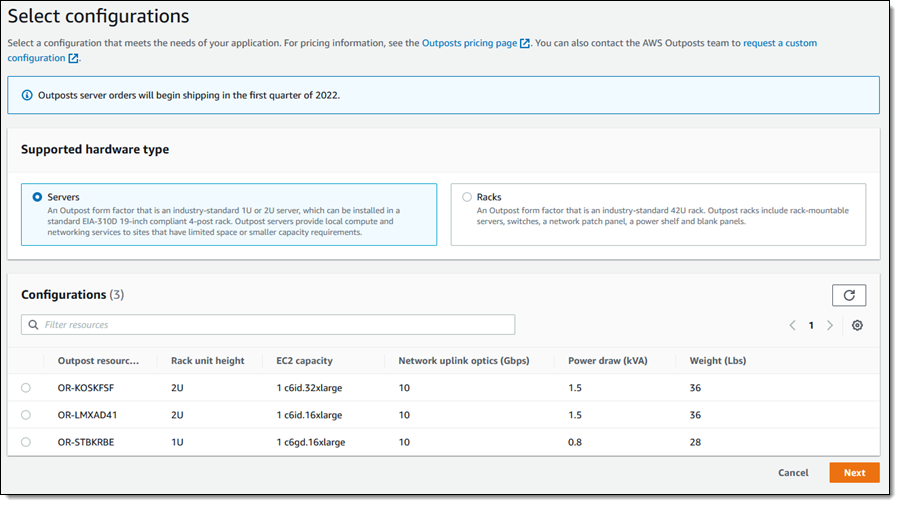
Figure 10 – Comparing IOPS on R5b and R5 instances during the FIO benchmark test.

Figure 10 – Comparing IOPS on R5b and R5 instances during the FIO benchmark test.

Also, note that the R5b finished the benchmark test approximately one minute faster than the R5 (166 seconds vs. 223 seconds). We learn that the shorter test duration is driven by the R5b’s faster read time, which reached a maximum of 75,000 Kbps.

Figure 11 – The R5b instance's faster read time enabled it to complete the benchmark test more quickly than the R5 instance.

Figure 11 – The R5b instance’s faster read time enabled it to complete the benchmark test more quickly than the R5 instance.

From these results, we have learned that the R5b delivers superior I/O capacity with higher throughput, making it a great choice for large relational databases and other IOPS-intensive workloads.

Conclusion

If you are thinking about shifting your workloads to one of the new Amazon EC2 instance types, you can use the Datadog Agent to immediately begin collecting and analyzing performance data. With Datadog’s other AWS integrations, you can monitor even more of your AWS infrastructure and correlate that data with the data collected by the Agent. For example, if you’re running EBS-optimized R5b instances, you can monitor them alongside performance data from your EBS volumes with Datadog’s Amazon EBS integration.

About Datadog

Datadog is an AWS Partner Network (APN) Advanced Technology Partner with AWS Competencies in DevOps, Migration, Containers, and Microsoft Workloads.

Read more about the M5zn, D3en, D3, and R5b instances, and sign up for a free Datadog trial if you don’t already have an account.

Field Notes provides hands-on technical guidance from AWS Solutions Architects, consultants, and technical account managers, based on their experiences in the field solving real-world business problems for customers.


Danton Rodriguez

Danton is a Product Manager at Datadog focused on distributed systems observability and efficiency.

Automate Amazon EC2 instance isolation by using tags

Post Syndicated from Jose Obando original https://aws.amazon.com/blogs/security/automate-amazon-ec2-instance-isolation-by-using-tags/

Containment is a crucial part of an overall Incident Response Strategy, as this practice allows time for responders to perform forensics, eradication and recovery during an Incident. There are many different approaches to containment. In this post, we will be focusing on isolation—the ability to keep multiple targets separated so that each target only sees and affects itself—as a containment strategy.

I’ll show you how to automate isolation of an Amazon Elastic Compute Cloud (Amazon EC2) instance by using an AWS Lambda function that’s triggered by tag changes on the instance, as reported by Amazon CloudWatch Events.

CloudWatch Event Rules deliver a near real-time stream of system events that describe changes in Amazon Web Services (AWS) resources. See also Amazon EventBridge.

Preparing for an incident is important as outlined in the Security Pillar of the AWS Well-Architected Framework.

Out of the 7 Design Principles for Security in the Cloud, as per the Well-Architected Framework, this solution will cover the following:

  • Enable traceability: Monitor, alert, and audit actions and changes to your environment in real time. Integrate log and metric collection with systems to automatically investigate and take action.
  • Automate security best practices: Automated software-based security mechanisms can improve your ability to securely scale more rapidly and cost-effectively. Create secure architectures, including through the implementation of controls that can be defined and managed by AWS as code in version-controlled templates.
  • Prepare for security events: Prepare for an incident by implementing incident management and investigation policy and processes that align to your organizational requirements. Run incident response simulations and use tools with automation to help increase your speed for detection, investigation, and recovery.

After detecting an event in the Detection phase and analyzing in the Analysis phase, you can automate the process of logically isolating an instance from a Virtual Private Cloud (VPC) in Amazon Web Services (AWS).

In this blog post, I describe how to automate EC2 instance isolation by using the tagging feature that a responder can use to identify instances that need to be isolated. A Lambda function then uses AWS API calls to isolate the instances by performing the actions described in the following sections.

Use cases

Your organization can use automated EC2 instance isolation for scenarios like these:

  • A security analyst wants to automate EC2 instance isolation in order to respond to security events in a timely manner.
  • A security manager wants to provide their first responders with a way to quickly react to security incidents without providing too much access to higher security features.

High-level architecture and design

The example solution in this blog post uses a CloudWatch Events rule to trigger a Lambda function. The CloudWatch Events rule is triggered when a tag is applied to an EC2 instance. The Lambda code triggers further actions based on the contents of the event. Note that the CloudFormation template includes the appropriate permissions to run the function.

The event flow is shown in Figure 1 and works as follows:

  1. The EC2 instance is tagged.
  2. The CloudWatch Events rule filters the event.
  3. The Lambda function is invoked.
  4. If the criteria are met, the isolation workflow begins.

When the Lambda function is invoked and the criteria are met, these actions are performed:

  1. Checks for IAM instance profile associations.
  2. If the instance is associated to a role, the Lambda function disassociates that role.
  3. Applies the isolation role that you defined during CloudFormation stack creation.
  4. Checks the VPC where the EC2 instance resides.
    • If there is no isolation security group in the VPC (if the VPC is new, for example), the function creates one.
  5. Applies the isolation security group.

Note: If you had a security group with an open (0.0.0.0/0) outbound rule, and you apply this Isolation security group, your existing SSH connections to the instance are immediately dropped. On the other hand, if you have a narrower inbound rule that initially allows the SSH connection, the existing connection will not be broken by changing the group. This is known as Connection Tracking.

Figure 1: High-level diagram showing event flow

Figure 1: High-level diagram showing event flow

For the deployment method, we will be using an AWS CloudFormation Template. AWS CloudFormation gives you an easy way to model a collection of related AWS and third-party resources, provision them quickly and consistently, and manage them throughout their lifecycles, by treating infrastructure as code.

The AWS CloudFormation template that I provide here deploys the following resources:

  • An EC2 instance role for isolation – this is attached to the EC2 Instance to prevent further communication with other AWS Services thus limiting the attack surface to your overall infrastructure.
  • An Amazon CloudWatch Events rule – this is used to detect changes to an AWS EC2 resource, in this case a “tag change event”. We will use this as a trigger to our Lambda function.
  • An AWS Identity and Access Management (IAM) role for Lambda functions – this is what the Lambda function will use to execute the workflow.
  • A Lambda function for automation – this function is where all the decision logic sits, once triggered it will follow a set of steps described in the following section.
  • Lambda function permissions – this is used by the Lambda function to execute.
  • An IAM instance profile – this is a container for an IAM role that you can use to pass role information to an EC2 instance.

Supporting functions within the Lambda function

Let’s dive deeper into each supporting function inside the Lambda code.

The following function identifies the virtual private cloud (VPC) ID for a given instance. This is needed to identify which security groups are present in the VPC.

def identifyInstanceVpcId(instanceId):
    instanceReservations = ec2Client.describe_instances(InstanceIds=[instanceId])['Reservations']
    for instanceReservation in instanceReservations:
        instancesDescription = instanceReservation['Instances']
        for instance in instancesDescription:
            return instance['VpcId']

The following function modifies the security group of an EC2 instance.

def modifyInstanceAttribute(instanceId,securityGroupId):
    response = ec2Client.modify_instance_attribute(
        Groups=[securityGroupId],
        InstanceId=instanceId)

The following function creates a security group on a VPC that blocks all egress access to the security group.

def createSecurityGroup(groupName, descriptionString, vpcId):
    resource = boto3.resource('ec2')
    securityGroupId = resource.create_security_group(GroupName=groupName, Description=descriptionString, VpcId=vpcId)
    securityGroupId.revoke_egress(IpPermissions= [{'IpProtocol': '-1','IpRanges': [{'CidrIp': '0.0.0.0/0'}],'Ipv6Ranges': [],'PrefixListIds': [],'UserIdGroupPairs': []}])
    return securityGroupId.

Deploy the solution

To deploy the solution provided in this blog post, first download the CloudFormation template, and then set up a CloudFormation stack that specifies the tags that are used to trigger the automated process.

Download the CloudFormation template

To get started, download the CloudFormation template from Amazon S3. Alternatively, you can launch the CloudFormation template by selecting the following Launch Stack button:

Select the Launch Stack button to launch the template

Deploy the CloudFormation stack

Start by uploading the CloudFormation template to your AWS account.

To upload the template

  1. From the AWS Management Console, open the CloudFormation console.
  2. Choose Create Stack.
  3. Choose With new resources (standard).
  4. Choose Upload a template file.
  5. Select Choose File, and then select the YAML file that you just downloaded.
Figure 2: CloudFormation stack creation

Figure 2: CloudFormation stack creation

Specify stack details

You can leave the default values for the stack as long as there aren’t any resources provisioned already with the same name, such as an IAM role. For example, if left with default values an IAM role named “SecurityIsolation-IAMRole” will be created. Otherwise, the naming convention is fully customizable from this screen and you can enter your choice of name for the CloudFormation stack, and modify the parameters as you see fit. Figure 3 shows the parameters that you can set.

The Evaluation Parameters section defines the tag key and value that will initiate the automated response. Keep in mind that these values are case-sensitive.

Figure 3: CloudFormation stack parameters

Figure 3: CloudFormation stack parameters

Choose Next until you reach the final screen, shown in Figure 4, where you acknowledge that an IAM role is created and you trust the source of this template. Select the check box next to the statement I acknowledge that AWS CloudFormation might create IAM resources with custom names, and then choose Create Stack.

Figure 4: CloudFormation IAM notification

Figure 4: CloudFormation IAM notification

After you complete these steps, the following resources will be provisioned, as shown in Figure 5:

  • EC2IsolationRole
  • EC2TagChangeEvent
  • IAMRoleForLambdaFunction
  • IsolationLambdaFunction
  • IsolationLambdaFunctionInvokePermissions
  • RootInstanceProfile
Figure 5: CloudFormation created resources

Figure 5: CloudFormation created resources

Testing

To start your automation, tag an EC2 instance using the tag defined during the CloudFormation setup. If you’re using the Amazon EC2 console, you can apply tags to resources by using the Tags tab on the relevant resource screen, or you can use the Tags screen, the AWS CLI or an AWS SDK. A detailed walkthrough for each approach can be found in the Amazon EC2 Documentation page.

Reverting Changes

If you need to remove the restrictions applied by this workflow, complete the following steps.

  1. From the EC2 dashboard, in the Instances section, check the box next to the instance you want to modify.

    Figure 6: Select the instance to modify

    Figure 6: Select the instance to modify

  2. In the top right, select Actions, choose Instance settings, and then choose Modify IAM role.

    Figure 7: Choose Actions > Instance settings > Modify IAM role

    Figure 7: Choose Actions > Instance settings > Modify IAM role

  3. Under IAM role, choose the IAM role to attach to your instance, and then select Save.

    Figure 8: Choose the IAM role to attach

    Figure 8: Choose the IAM role to attach

  4. Select Actions, choose Networking, and then choose Change security groups.

    Figure 9: Choose Actions > Networking > Change security groups

    Figure 9: Choose Actions > Networking > Change security groups

  5. Under Associated security groups, select Remove and add a different security group with the access you want to grant to this instance.

Summary

Using the CloudFormation template provided in this blog post, a Security Operations Center analyst could have only tagging privileges and isolate an EC2 instance based on this tag. Or a security service such as Amazon GuardDuty could trigger a lambda to apply the tag as part of a workflow. This means the Security Operations Center analyst wouldn’t need administrative privileges over the EC2 service.

This solution creates an isolation security group for any new VPCs that don’t have one already. The security group would still follow the naming convention defined during the CloudFormation stack launch, but won’t be part of the provisioned resources. If you decide to delete the stack, manual cleanup would be required to remove these security groups.

This solution terminates established inbound Secure Shell (SSH) sessions that are associated to the instance, and isolates the instance from new connections either inbound or outbound. For outbound connections that are already established (for example, reverse shell), you either need to shut down the network interface card (NIC) at the operating system (OS) level, restart the instance network stack at the OS level, terminate the established connections, or apply a network access control list (network ACL).

For more information, see the following documentation:

If you have feedback about this post, submit comments in the Comments section below.

Want more AWS Security how-to content, news, and feature announcements? Follow us on Twitter.

Author

Jose Obando

Jose is a Security Consultant on the Global Financial Services team. He helps the world’s top financial institutions improve their security posture in the cloud. He has a background in network security and cloud architecture. In his free time, you can find him playing guitar or training in Muay Thai.

Field Notes: Streaming VR to Wireless Headsets Using NVIDIA CloudXR

Post Syndicated from William Cannady original https://aws.amazon.com/blogs/architecture/field-notes-streaming-vr-to-wireless-headsets-using-nvidia-cloudxr/

It’s exciting to see many consumer-grade virtual reality (VR) hardware options, but setting up hardware can be cumbersome, expensive and complicated. Wired headsets require high-powered graphics workstations, and a solution to prevent you from tripping over the wires. Many room-scale headsets require two external peripherals (or ‘light towers’) to be installed so the headset can position itself in a room. These setups can take days to tune, and need resetting if the light towers are moved.

With the release of the Oculus Quest, users of virtual reality were delighted with a wireless, room-scale headset with dual hand tracking. They could enjoy VR without worrying about light towers or a high-powered graphics workstation. However, because the Quest was battery powered, it used an inherently low-powered central processing unit (CPU) and graphics processing unit (GPU). As a result, VR content had to be simplified to run on the Quest. This prevented customers from using the Quest for the most demanding graphics experiences, such as Computer Aided Design (CAD) review, or playing games such as Half-Life: Alyx.

Customers were faced with a difficult choice: expensive, complicated setups, or reduced-fidelity experiences.

In this blog post, we show you how to stream a full-fidelity VR experience from a computer on AWS to a wireless headset such as the Quest.

Overview of architecture

NVIDIA CloudXR takes NVIDIA’s experience in GPU encoding and decoding, and streams pixels to a remotely connected VR headset. By doing this, the rendering and compute requirements of visually intensive applications take place on a remote server instead of a local headset. This makes mobile headsets work with any application, regardless of their visual complexity and density.


Figure 1: architecture for streaming VR experiences from the AWS Cloud to a VR headset using NVIDIA’s CloudXR server running on EC2.

Figure 1: architecture for streaming VR experiences from the AWS Cloud to a VR headset

To provide global scalability,  NVIDIA announced the CloudXR platform will be available on G4 and P3 EC2 instances. It provides the following benefits:

  • At a global scale, customers can stream remote AR/VR experiences from Regions that are close them.
  • It enables centrally managed and deployed software experiences on Amazon Elastic Compute Cloud (Amazon EC2) instances. Previously these required physical transportation and implementation of devices and server hardware.
  • Lastly, IT administrators can now centrally manage content that may be sensitive or require frequent changes.

Walkthrough

Using CloudXR on AWS requires EC2 instances with NVIDIA GPUs (that is, the P3 or G4 instance types) running within your virtual private cloud (VPC). The instance must be network accessible to a remote CloudXR client running on a VR headset. Connections are 1:1, meaning that each CloudXR client is connected to a dedicated EC2 instance. If needs require multiple CloudXR clients, you can deploy multiple EC2 instances.

Note that the process outlined is accurate as of January 2021. CloudXR, and X Reality (XR) overall, is rapidly changing. Consult the latest information about CloudXR from NVIDIA. Using CloudXR within your AWS account requires you setup P3 or G4 EC2 instances, as you would within an Amazon VPC. You must also add a security group that allows the ports required for CloudXR communication. These specific ports can be found in the CloudXR documentation, available from NVIDIA.

We have created a CloudFormation template that deploys an EC2 instance with CloudXR configured for reference, linked in the prerequisites. Because it makes reference to a private AMI, it must be shared with your account in order to deploy successfully. If you’re interested in using this template, contact your AWS Account team.

Prerequisites

The following steps describe how to configure the EC2 instance manually. CloudXR streaming requires using a connection other than Windows RDP to connect to the remote EC2 instance. We use NICE DCV, which is provided at no cost to EC2 instances for remote connectivity.

For this walkthrough, you should have the following prerequisites:

Deploy CloudXR Server onto Amazon EC2

It’s important to note the steps outlined are for configuring a G4 instance. If you’d prefer to use a P3 instance, manually deploy your P3 instance and install NICE DCV as described in the documentation.

  1. Log into your AWS Account and navigate to the AWS Marketplace to install an EC2 instance with NICE DCV configured.
  2. Create a new security group during deployment that matches the CloudXR port settings and apply it to your instance. Consult the CloudXR documentation for the latest port settings.
  3. Wait 5 minutes for everything to initialize properly. Make note of the issues public IP address (or attach an Elastic IP address to the instance).
  4. Navigate to https://<IP-OF-INSTANCE>:8443 to connect to NICE DCV web-browser client. b.Use the credentials created during EC2 initialization to Log in

NICE DCV login screen

NICE DCV login screen on Web Browser Client

5. Once logged into your EC2 instance, install SteamVR and CloudXR onto the remote EC2 instance. SteamVR is used as an OpenVR/XR proxy between your VR application and CloudXR. CloudXR is used to stream the SteamVR experience to a remote CloudXR Client.

6. Verify installation of the CloudXR plugin into SteamVR by navigating to the Manage Add-ons page within the Advanced Settings option. Make sure it lists CloudXRRemoteHMD as an addon and is set to ON.

Verification of CloudXR Installation

Verification of CloudXR Installation

7. Add an allow entry to the Windows Firewall Entry for VRServer.exe. This allows SteamVR to use the CloudXR to stream properly. By default this file is located at %ProgramFiles% (x86)\Steam\steamapps\common\SteamVR\bin\win64\vrserver.exe\

Enabling the VRSERVER.EXE application through the Windows Application Firewall.


8. Install a CloudXR client onto your VR headset. If using an android-powered headset (that is, the Oculus Quest), you can use the sample APK within the CloudXR SDK

9. Select Finish.

Connect to your CloudXR Server and start streaming

1. Launch SteamVR on your remote EC2 instance by logging into your Steam account or configuring a no-login link following the Installation/use of SteamVR in an environment without internet access instructions.

2. When loaded, it will report a headset cannot be detected. This is OK.

SteamVR will display Headset not Detected—this is OK

SteamVR will display Headset not Detected—this is OK.

3. Within your Client headset, load the CloudXR Client application you recently installed.

4. Once connected, the headset will start display the SteamVR “void”. You also should see a view of your headset if SteamVR mirroring is enabled. The status box on the SteamVR server application will show a headset and 2 controllers attached as well.

SteamVR “Void” and Headset Connected icons

SteamVR “Void” and Headset Connected icons

5. Congratulations. You’re now connected to an AWS EC2 instance using NVIDIA CloudXR! Any VR application you now run on the EC2 server that uses OpenVR will be streamed to your VR headset!

Cleaning up

EC2 instances are billed only when they’re being used. You’ll want to make sure to stop your instance or shut it down when you are finished with your session. Terminating your instance is not necessary.

Conclusion

In this blog post, we showed how to stream a full-fidelity VR experience from a computer on AWS to a wireless headset. Having the ability to remotely connect to GPU-powered servers to run graphic workloads is not necessarily new, but connecting to a remote server with a VR headset and having full interactivity certainly is. With this architecture, you realize the benefits of CloudXR combined with the agility and scalability available on AWS. It becomes less challenging to manage content played on VR headsets because content doesn’t reside on the VR headset—it lives on the EC2 server.

Deploying to any AWS region where GPU instances are available allows you to offer CloudXR to your users at global scale.  As networks get faster and closer through services like AWS Outposts and AWS Wavelength, remote VR work will become possible for more customers. We’re excited to see what new workloads come next as this way of working grows.

Field Notes provides hands-on technical guidance from AWS Solutions Architects, consultants, and technical account managers, based on their experiences in the field solving real-world business problems for customers.


Leo Chan

Leo Chan

Leo Chan is the Worldwide Tech Lead for Spatial Computing at AWS. He loves working at the intersection of Art and Technology and lives with his family in a rain forest just off the coast of Vancouver, Canada.

Secure and automated domain membership management for EC2 instances with no internet access

Post Syndicated from Rakesh Singh original https://aws.amazon.com/blogs/security/secure-and-automated-domain-membership-management-for-ec2-instances-with-no-internet-access/

In this blog post, I show you how to deploy an automated solution that helps you fully automate the Active Directory join and unjoin process for Amazon Elastic Compute Cloud (Amazon EC2) instances that don’t have internet access.

Managing Active Directory domain membership for EC2 instances in Amazon Web Services (AWS) Cloud is a typical use case for many organizations. In a dynamic environment that can grow and shrink multiple times in a day, adding and removing computer objects from an Active Directory domain is a critical task and is difficult to manage without automation.

AWS seamless domain join provides a secure and reliable option to join an EC2 instance to your AWS Directory Service for Microsoft Active Directory. It’s a recommended approach for automating joining a Windows or Linux EC2 instance to the AWS Managed Microsoft AD or to an existing on-premises Active Directory using AD Connector, or a standalone Simple AD directory running in the AWS Cloud. This method requires your EC2 instances to have connectivity to the public AWS Directory Service endpoints. At the time of writing, Directory Service doesn’t have PrivateLink endpoint support. This means you must allow traffic from your instances to the public Directory Service endpoints via an internet gateway, network address translation (NAT) device, virtual private network (VPN) connection, or AWS Direct Connect connection.

At times, your organization might require that any traffic between your VPC and Directory Service—or any other AWS service—not leave the Amazon network. That means launching EC2 instances in an Amazon Virtual Private Cloud (Amazon VPC) with no internet access and still needing to join and unjoin the instances from the Active Directory domain. Provided your instances have network connectivity to the directory DNS addresses, the simplest solution in this scenario is to run the domain join commands manually on the EC2 instances and enter the domain credentials directly. Though this process can be secure—as you don’t need to store or hardcode the credentials—it’s time consuming and becomes difficult to manage in a dynamic environment where EC2 instances are launched and terminated frequently.

VPC endpoints enable private connections between your VPC and supported AWS services. Private connections enable you to privately access services by using private IP addresses. Traffic between your VPC and other AWS services doesn’t leave the Amazon network. Instances in your VPC don’t need public IP addresses to communicate with resources in the service.

The solution in this blog post uses AWS Secrets Manager to store the domain credentials and VPC endpoints to enable private connection between your VPC and other AWS services. The solution described here can be used in the following scenarios:

  1. Manage domain join and unjoin for EC2 instances that don’t have internet access.
  2. Manage only domain unjoin if you’re already using seamless domain join provided by AWS, or any other method for domain joining.
  3. Manage only domain join for EC2 instances that don’t have internet access.

This solution uses AWS CloudFormation to deploy the required resources in your AWS account based on your choice from the preceding scenarios.

Note: If your EC2 instances can access the internet, then we recommend using the seamless domain join feature and using scenario 2 to remove computers from the Active Directory domain upon instance termination.

The solution described in this blog post is designed to provide a secure, automated method for joining and unjoining EC2 instances to an on-premises or AWS Managed Microsoft AD domain. The solution is best suited for use cases where the EC2 instances don’t have internet connectivity and the seamless domain join option cannot be used.

How this solution works

This blog post includes a CloudFormation template that you can use to deploy this solution. The CloudFormation stack provisions an EC2 Windows instance running in an Amazon EC2 Auto Scaling group that acts as a worker and is responsible for joining and unjoining other EC2 instances from the Active Directory domain. The worker instance communicates with other required AWS services such as Amazon Simple Storage Service (Amazon S3), Secrets Manager, and Amazon Simple Queue Service (Amazon SQS) using VPC endpoints. The stack also creates all of the other resources needed for this solution to work.

Figure 1 shows the domain join and unjoin workflow for EC2 instances in an AWS account.

Figure 1: Workflow for joining and unjoining an EC2 instance from a domain with full protection of Active Directory credentials

Figure 1: Workflow for joining and unjoining an EC2 instance from a domain with full protection of Active Directory credentials

The event flow in Figure 1 is as follows:

  1. An EC2 instance is launched or terminated in an account.
  2. An Amazon CloudWatch Events rule detects if the EC2 instance is in running or terminated state.
  3. The CloudWatch event triggers an AWS Lambda function that looks for the tag JoinAD: true to check if the instance needs to join or unjoin the Active Directory domain.
  4. If the tag value is true, the Lambda function writes the instance details to an Amazon Simple Queue Service (Amazon SQS) queue.
  5. A standalone, highly secured EC2 instance acts as a worker and polls the Amazon SQS queue for new messages.
  6. Whenever there’s a new message in the queue, the worker EC2 instance invokes scripts on the remote EC2 instance to add or remove the instance from the domain based on the instance operating system and state.

In this solution, the security of the Active Directory credentials is enhanced by storing them in Secrets Manager. To secure the stored credentials, the solution uses resource-based policies to restrict the access to only intended users and roles.

The credentials can only be fetched dynamically from the EC2 instance that’s performing the domain join and unjoin operations. Any access to that instance is further restricted by a custom AWS Identity and Access Management (IAM) policy created by the CloudFormation stack. The following policies are created by the stack to enhance security of the solution components.

  1. Resource-based policies for Secrets Manager to restrict all access to the stored secret to only specific IAM entities (such as the EC2 IAM role).
  2. An S3 bucket policy to prevent unauthorized access to the Active Directory join and remove scripts that are stored in the S3 bucket.
  3. The IAM role that’s used to fetch the credentials from Secrets Manager is restricted by a custom IAM policy and can only be assumed by the worker EC2 instance. This prevents every entity other than the worker instance from using that IAM role.
  4. All API and console access to the worker EC2 instance is restricted by a custom IAM policy with an explicit deny.
  5. A policy to deny all but the worker EC2 instance access to the credentials in Secrets Manager. With the worker EC2 instance doing the work, the EC2 instances that need to join the domain don’t need access to the credentials in Secrets Manager or to scripts in the S3 bucket.

Prerequisites and setup

Before you deploy the solution, you must complete the following in the AWS account and Region where you want to deploy the CloudFormation stack.

  1. AWS Managed Microsoft AD with an appropriate DNS name (for example, test.com). You can also use your on premises Active Directory, provided it’s reachable from the Amazon VPC over Direct Connect or AWS VPN.
  2. Create a DHCP option set with on-premises DNS servers or with the DNS servers pointing to the IP addresses of directories provided by AWS.
  3. Associate the DHCP option set with the Amazon VPC that you’re going to use with this solution.
  4. Any other Amazon VPCs that are hosting EC2 instances to be domain joined must be peered with the VPC that hosts the relevant AWS Managed Microsoft AD. Alternatively, AWS Transit Gateway can be used to establish this connectivity.
  5. Make sure to have the latest AWS Command Line Interface (AWS CLI) installed and configured on your local machine.
  6. Create a new SSH key pair and store it in Secrets Manager using the following commands. Replace <Region> with the Region of your deployment. Replace <MyKeyPair> with any custom name or leave it default.

Bash:

aws ec2 create-key-pair --region <Region> --key-name <MyKeyPair> --query 'KeyMaterial' --output text > adsshkey
aws secretsmanager create-secret --region <Region> --name "adsshkey" --description "my ssh key pair" --secret-string file://adsshkey

PowerShell:

aws ec2 create-key-pair --region <Region> --key-name <MyKeyPair>  --query 'KeyMaterial' --output text | out-file -encoding ascii -filepath adsshkey
aws secretsmanager create-secret --region <Region> --name "adsshkey" --description "my ssh key pair" --secret-string file://adsshkey

Note: Don’t change the name of the secret, as other scripts in the solution reference it. The worker EC2 instance will fetch the SSH key using GetSecretValue API to SSH or RDP into other EC2 instances during domain join process.

Deploy the solution

With the prerequisites in place, your next step is to download or clone the GitHub repo and store the files on your local machine. Go to the location where you cloned or downloaded the repo and review the contents of the config/OS_User_Mapping.json file to validate the instance user name and operating system mapping. Update the file if you’re using a user name other than the one used to log in to the EC2 instances. The default user name used in this solution is ec2-user for Linux instances and Administrator for Windows.

The solution requires installation of some software on the worker EC2 instance. Because the EC2 instance doesn’t have internet access, you must download the latest Windows 64-bit version of the following software to your local machine and upload it into the solution deployment S3 bucket in subsequent steps.

Note: This step isn’t required if your EC2 instances have internet access.

Once done, use the following steps to deploy the solution in your AWS account:

Steps to deploy the solution:

  1. Create a private Amazon Simple Storage Service (Amazon S3) bucket using this documentation to store the Lambda functions and the domain join and unjoin scripts.
  2. Once created, enable versioning on this bucket using the following documentation. Versioning lets you keep multiple versions of your objects in one bucket and helps you easily retrieve and restore previous versions of your scripts.
  3. Upload the software you downloaded to the S3 bucket. This is only required if your instance doesn’t have internet access.
  4. Upload the cloned or downloaded GitHub repo files to the S3 bucket.
  5. Go to the S3 bucket and select the template name secret-active-dir-solution.json, and copy the object URL.
  6. Open the CloudFormation console. Choose the appropriate AWS Region, and then choose Create Stack. Select With new resources.
  7. Select Amazon S3 URL as the template source, paste the object URL that you copied in Step 5, and then choose Next.
  8. On the Specify stack details page, enter a name for the stack and provide the following input parameters. You can modify the default values to customize the solution for your environment.
    • ADUSECASE – From the dropdown menu, select your required use case. There is no default value.
    • AdminUserId – The canonical user ID of the IAM user who manages the Active Directory credentials stored in Secrets Manager. To learn how to find the canonical user ID for your IAM user, scroll down to Finding the canonical user ID for your AWS account in AWS account identifiers.
    • DenyPolicyName – The name of the IAM policy that restricts access to the worker EC2 instance and the IAM role used by the worker to fetch credentials from Secrets Manager. You can keep the default value or provide another name.
    • InstanceType – Instance type to be used when launching the worker EC2 instance. You can keep the default value or use another instance type if necessary.
    • Placeholder – This is a dummy parameter that’s used as a placeholder in IAM policies for the EC2 instance ID. Keep the default value.
    • S3Bucket – The name of the S3 bucket that you created in the first step of the solution deployment. Replace the default value with your S3 bucket name.
    • S3prefix – Amazon S3 object key where the source scripts are stored. Leave the default value as long as the cloned GitHub directory structure hasn’t been changed.
    • SSHKeyRequired – Select true or false based on whether an SSH key pair is required to RDP into the EC2 worker instance. If you select false, the worker EC2 instance will not have an SSH key pair.
    • SecurityGroupId – Security group IDs to be associated with the worker instance to control traffic to and from the instance.
    • Subnet – Select the VPC subnet where you want to launch the worker EC2 instance.
    • VPC – Select the VPC where you want to launch the worker EC2 instance. Use the VPC where you have created the AWS Managed Microsoft AD.
    • WorkerSSHKeyName – An existing SSH key pair name that can be used to get the password for RDP access into the EC2 worker instance. This isn’t mandatory if you’re using user name and password based login or AWS Systems Manager Session Manager. This is required only if you have selected true for the SSHKeyRequired parameter.
    Figure 2: Defining the stack name and input parameters for the CloudFormation stack

    Figure 2: Defining the stack name and input parameters for the CloudFormation stack

  9. Enter values for all of the input parameters, and then choose Next.
  10. On the Options page, keep the default values and then choose Next.
  11. On the Review page, confirm the details, acknowledge that CloudFormation might create IAM resources with custom names, and choose Create Stack.
  12. Once the stack creation is marked as CREATE_COMPLETE, the following resources are created:
    • An EC2 instance that acts as a worker and runs Active Directory join scripts on the remote EC2 instances. It also unjoins instances from the domain upon instance termination.
    • A secret with a default Active Directory domain name, user name, and a dummy password. The name of the default secret is myadcredV1.
    • A Secrets Manager resource-based policy to deny all access to the secret except to the intended IAM users and roles.
    • An EC2 IAM profile and IAM role to be used only by the worker EC2 instance.
    • A managed IAM policy called DENYPOLICY that can be assigned to an IAM user, group, or role to restrict access to the solution resources such as the worker EC2 instance.
    • A CloudWatch Events rule to detect running and terminated states for EC2 instances and trigger a Lambda function that posts instance details to an SQS queue.
    • A Lambda function that reads instance tags and writes to an SQS queue based on the instance tag value, which can be true or false.
    • An SQS queue for storing the EC2 instance state—running or terminated.
    • A dead-letter queue for storing unprocessed messages.
    • An S3 bucket policy to restrict access to the source S3 bucket from unauthorized users or roles.
    • A CloudWatch log group to stream the logs of the worker EC2 instance.

Test the solution

Now that the solution is deployed, you can test it to check if it’s working as expected. Before you test the solution, you must navigate to the secret created in Secrets Manager by CloudFormation and update the Active Directory credentials—domain name, user name, and password.

To test the solution

  1. In the CloudFormation console, choose Services, and then CloudFormation. Select your stack name. On the stack Outputs tab, look for the ADSecret entry.
  2. Choose the ADSecret link to go to the configuration for the secret in the Secrets Manager console. Scroll down to the section titled Secret value, and then choose Retrieve secret value to display the default Secret Key and Secret Value as shown in Figure 3.

    Figure 3: Retrieve value in Secrets Manager

    Figure 3: Retrieve value in Secrets Manager

  3. Choose the Edit button and update the default dummy credentials with your Active Directory domain credentials.(Optional) Directory_ou is used to store the organizational unit (OU) and directory components (DC) for the directory; for example, OU=test,DC=example,DC=com.

Note: instance_password is an optional secret key and is used only when you’re using user name and password based login to access the EC2 instances in your account.

Now that the secret is updated with the correct credentials, you can launch a test EC2 instance and determine if the instance has successfully joined the Active Directory domain.

Create an Amazon Machine Image

Note: This is only required for Linux-based operating systems other than Amazon Linux. You can skip these steps if your instances have internet access.

As your VPC doesn’t have internet access, for Linux-based systems other than Amazon Linux 1 or Amazon Linux 2, the required packages must be available on the instances that need to join the Active Directory domain. For that, you must create a custom Amazon Machine Image (AMI) from an EC2 instance with the required packages. If you already have a process to build your own AMIs, you can add these packages as part of that existing process.

To install the package into your AMI

  1. Create a new EC2 Linux instance for the required operating system in a public subnet or a private subnet with access to the internet via a NAT gateway.
  2. Connect to the instance using any SSH client.
  3. Install the required software by running the following command that is appropriate for the operating system:
    • For CentOS:
      yum -y install realmd adcli oddjob-mkhomedir oddjob samba-winbind-clients samba-winbind samba-common-tools samba-winbind-krb5-locator krb5-workstation unzip
      

    • For RHEL:
      yum -y  install realmd adcli oddjob-mkhomedir oddjob samba-winbind-clients samba-winbind samba-common-tools samba-winbind-krb5-locator krb5-workstation python3 vim unzip
      

    • For Ubuntu:
      apt-get -yq install realmd adcli winbind samba libnss-winbind libpam-winbind libpam-krb5 krb5-config krb5-locales krb5-user packagekit  ntp unzip python
      

    • For SUSE:
      sudo zypper -n install realmd adcli sssd sssd-tools sssd-ad samba-client krb5-client samba-winbind krb5-client python
      

    • For Debian:
      apt-get -yq install realmd adcli winbind samba libnss-winbind libpam-winbind libpam-krb5 krb5-config krb5-locales krb5-user packagekit  ntp unzip
      

  4. Follow Manually join a Linux instance to install the AWS CLI on Linux.
  5. Create a new AMI based on this instance by following the instructions in Create a Linux AMI from an instance.

You now have a new AMI that can be used in the next steps and in future to launch similar instances.

For Amazon Linux-based EC2 instances, the solution will use the mechanism described in How can I update yum or install packages without internet access on my EC2 instances to install the required packages and you don’t need to create a custom AMI. No additional packages are required if you are using Windows-based EC2 instances.

To launch a test EC2 instance

  1. Navigate to the Amazon EC2 console and launch an Amazon Linux or Windows EC2 instance in the same Region and VPC that you used when creating the CloudFormation stack. For any other operating system, make sure you are using the custom AMI created before.
  2. In the Add Tags section, add a tag named JoinAD and set the value as true. Add another tag named Operating_System and set the appropriate operating system value from:
    • AMAZON_LINUX
    • FEDORA
    • RHEL
    • CENTOS
    • UBUNTU
    • DEBIAN
    • SUSE
    • WINDOWS
  3. Make sure that the security group associated with this instance is set to allow all inbound traffic from the security group of the worker EC2 instance.
  4. Use the SSH key pair name from the prerequisites (Step 6) when launching the instance.
  5. Wait for the instance to launch and join the Active Directory domain. You can now navigate to the CloudWatch log group named /ad-domain-join-solution/ created by the CloudFormation stack to determine if the instance has joined the domain or not. On successful join, you can connect to the instance using a RDP or SSH client and entering your login credentials.
  6. To test the domain unjoin workflow, you can terminate the EC2 instance launched in Step 1 and log in to the Active Directory tools instance to validate that the Active Directory computer object that represents the instance is deleted.

Solution review

Let’s review the details of the solution components and what happens during the domain join and unjoin process:

1) The worker EC2 instance:

The worker EC2 instance used in this solution is a Windows instance with all configurations required to add and remove machines to and from an Active Directory domain. It can also be used as an Active Directory administration tools instance. This instance is continuously running a bash script that is polling the SQS queue for new messages. Upon arrival of a new message, the script performs the following tasks:

  1. Check if the instance is in running or terminated state to determine if it needs to be added or removed from the Active Directory domain.
  2. If the message is from a newly launched EC2 instance, then this means that this instance needs to join the Active Directory domain.
  3. The script identifies the instance operating system and runs the appropriate PowerShell or bash script on the remote EC2.
  4. Similarly, if the instance is in terminated state, then the worker will run the domain unjoin command locally to remove the computer object from the Active Directory domain.
  5. If the worker fails to process a message in the SQS queue, it sends the unprocessed message to a backup queue for debugging.
  6. The worker writes logs related to the success or failure of the domain join to a CloudWatch log group. Use /ad-domain-join-solution to filter for all other logs created by the worker instance in CloudWatch.

2) The worker bash script running on the instance:

This script polls the SQS queue every 5 seconds for new messages and is responsible for following activities:

  • Fetching Active Directory join credentials (user name and password) from Secrets Manager.
  • If the remote EC2 instance is running Windows, running the Invoke-Command PowerShell cmdlet on the instance to perform the Active Directory join operation.
  • If the remote EC2 instance is running Linux, running realm join command on the instance to perform the Active Directory join operation.
  • Running the Remove-ADComputer command to remove the computer object from the Active Directory domain for terminated EC2 instances.
  • Storing domain-joined EC2 instance details—computer name and IP address—in an Amazon DynamoDB table. These details are used to check if an instance is already part of the domain and when removing the instance from the Active Directory domain.

More information

Now that you have tested the solution, here are some additional points to be noted:

  • The Active Directory join and unjoin scripts provided with this solution can be replaced with your existing custom scripts.
  • To update the scripts on the worker instance, you must upload the modified scripts to the S3 bucket and the changes will automatically synchronize on the instance.
  • This solution works with single account, Region, and VPC combination. It can be modified to use across multiple Regions and VPC combinations.
  • For VPCs in a different account or Region, you must share your AWS Managed Microsoft AD with another AWS account when the networking prerequisites have been completed.
  • The instance user name and operating system mapping used in the solution is based on the default user name used by AWS.
  • You can use AWS Systems Manager with VPC endpoints to log in to EC2 instances that don’t have internet access.

The solution is protecting your Active Directory credentials and is making sure that:

  • Active Directory credentials can be accessed only from the worker EC2 instance.
  • The IAM role used by the worker EC2 instance to fetch the secret cannot be assumed by other IAM entities.
  • Only authorized users can read the credentials from the Secrets Manager console, through AWS CLI, or by using any other AWS Tool—such as an AWS SDK.

The focus of this solution is to demonstrate a method you can use to secure Active Directory credentials and automate the process of EC2 instances joining and unjoining from an Active Directory domain.

  • You can associate the IAM policy named DENYPOLICY with any IAM group or user in the account to block that user or group from accessing or modifying the worker EC2 instance and the IAM role used by the worker.
  • If your account belongs to an organization, you can use an organization-level service control policy instead of an IAM-managed policy—such as DENYPOLICY—to protect the underlying resources from unauthorized users.

Conclusion

In this blog post, you learned how to deploy an automated and secure solution through CloudFormation to help secure the Active Directory credentials and also manage adding and removing Amazon EC2 instances to and from an Active Directory domain. When using this solution, you incur Amazon EC2 charges along with charges associated with Secrets Manager pricing and AWS PrivateLink.

You can use the following references to help diagnose or troubleshoot common errors during the domain join or unjoin process.

If you have feedback about this post, submit comments in the Comments section below.

Want more AWS Security how-to content, news, and feature announcements? Follow us on Twitter.

Author

Rakesh Singh

Rakesh is a Technical Account Manager with AWS. He loves automation and enjoys working directly with customers to solve complex technical issues and provide architectural guidance. Outside of work, he enjoys playing soccer, singing karaoke, and watching thriller movies.