Tag Archives: Amazon EC2

Forensic investigation environment strategies in the AWS Cloud

Post Syndicated from Sol Kavanagh original https://aws.amazon.com/blogs/security/forensic-investigation-environment-strategies-in-the-aws-cloud/

When a deviation from your secure baseline occurs, it’s crucial to respond and resolve the issue quickly and follow up with a forensic investigation and root cause analysis. Having a preconfigured infrastructure and a practiced plan for using it when there’s a deviation from your baseline will help you to extract and analyze the information needed to determine the impact, scope, and root cause of an incident and return to operations confidently.

Time is of the essence in understanding the what, how, who, where, and when of a security incident. You often hear of automated incident response, which has repeatable and auditable processes to standardize the resolution of incidents and accelerate evidence artifact gathering.

Similarly, having a standard, pristine, pre-configured, and repeatable forensic clean-room environment that can be automatically deployed through a template allows your organization to minimize human interaction, keep the larger organization separate from contamination, hasten evidence gathering and root cause analysis, and protect forensic data integrity. The forensic analysis process assists in data preservation, acquisition, and analysis to identify the root cause of an incident. This approach can also facilitate the presentation or transfer of evidence to outside legal entities or auditors. AWS CloudFormation templates—or other infrastructure as code (IaC) provisioning tools—help you to achieve these goals, providing your business with consistent, well-structured, and auditable results that allow for a better overall security posture. Having these environments as a permanent part of your infrastructure allows them to be well documented and tested, and gives you opportunities to train your teams in their use.

This post provides strategies that you can use to prepare your organization to respond to secure baseline deviations. These strategies take the form of best practices around Amazon Web Services (AWS) account structure, AWS Organizations organizational units (OUs) and service control policies (SCPs), forensic Amazon Virtual Private Cloud (Amazon VPC) and network infrastructure, evidence artifacts to be collected, AWS services to be used, forensic analysis tool infrastructure, and user access and authorization to the above. The specific focus is to provide an environment where Amazon Elastic Compute Cloud (Amazon EC2) instances with forensic tooling can be used to examine evidence artifacts.

This post presumes that you already have an evidence artifact collection procedure or that you are implementing one and that the evidence can be transferred to the accounts described here. If you are looking for advice on how to automate artifact collection, see How to automate forensic disk collection for guidance.

Infrastructure overview

A well-architected multi-account AWS environment is based on the structure provided by Organizations. As companies grow and need to scale their infrastructure with multiple accounts, often in multiple AWS Regions, Organizations offers programmatic creation of new AWS accounts combined with central management and governance that helps them to do so in a controlled and standardized manner. This programmatic, centralized approach should be used to create the forensic investigation environments described in the strategy in this blog post.

The example in this blog post uses a simplified structure with separate dedicated OUs and accounts for security and forensics, shown in Figure 1. Your organization’s architecture might differ, but the strategy remains the same.

Note: There might be reasons for forensic analysis to be performed live within the compromised account itself, such as to avoid shutting down or accessing the compromised instance or resource; however, that approach isn’t covered here.

Figure 1: AWS Organizations forensics OU example

Figure 1: AWS Organizations forensics OU example

The most important components in Figure 1 are:

  • A security OU, which is used for hosting security-related access and services. The security OU and the associated AWS accounts should be owned and managed by your security organization.
  • A forensics OU, which should be a separate entity, although it can have some similarities and crossover responsibilities with the security OU. There are several reasons for having it within a separate OU and account. Some of the more important reasons are that the forensics team might be a different team than the security team (or a subset of it), certain investigations might be under legal hold with additional access restrictions, or a member of the security team could be the focus of an investigation.

When speaking about Organizations, accounts, and the permissions required for various actions, you must first look at SCPs, a core functionality of Organizations. SCPs offer control over the maximum available permissions for all accounts in your organization. In the example in this blog post, you can use SCPs to provide similar or identical permission policies to all the accounts under the forensics OU, which is being used as a resource container. This policy overrides all other policies, and is a crucial mechanism to ensure that you can explicitly deny or allow any API calls desired. Some use cases of SCPs are to restrict the ability to disable AWS CloudTrail, restrict root user access, and ensure that all actions taken in the forensic investigation account are logged. This provides a centralized way to avoid changing individual policies for users, groups, or roles. Accessing the forensic environment should be done using a least-privilege model, with nobody capable of modifying or compromising the initially collected evidence. For an investigation environment, denying all actions except those you want to list as exceptions is the most straightforward approach. Start with the default of denying all, and work your way towards the least authorizations needed to perform the forensic processes established by your organization. AWS Config can be a valuable tool to track the changes made to the account and provide evidence of these changes.

Keep in mind that once the restrictive SCP is applied, even the root account or those with administrator access won’t have access beyond those permissions; therefore, frequent, proactive testing as your environment changes is a best practice. Also, be sure to validate which principals can remove the protective policy, if required, to transfer the account to an outside entity. Finally, create the environment before the restrictive permissions are applied, and then move the account under the forensic OU.

Having a separate AWS account dedicated to forensic investigations is best to keep your larger organization separate from the possible threat of contamination from the incident itself, ensure the isolation and protection of the integrity of the artifacts being analyzed, and keeping the investigation confidential. Separate accounts also avoid situations where the threat actors might have used all the resources immediately available to your compromised AWS account by hitting service quotas and so preventing you from instantiating an Amazon EC2 instance to perform investigations.

Having a forensic investigation account per Region is also a good practice, as it keeps the investigative capabilities close to the data being analyzed, reduces latency, and avoids issues of the data changing regulatory jurisdictions. For example, data residing in the EU might need to be examined by an investigative team in North America, but the data itself cannot be moved because its North American architecture doesn’t align with GDPR compliance. For global customers, forensics teams might be situated in different locations worldwide and have different processes. It’s better to have a forensic account in the Region where an incident arose. The account as a whole could also then be provided to local legal institutions or third-party auditors if required. That said, if your AWS infrastructure is contained within Regions only in one jurisdiction or country, then a single re-creatable account in one Region with evidence artifacts shared from and kept in their respective Regions could be an easier architecture to manage over time.

An account created in an automated fashion using a CloudFormation template—or other IaC methods—allows you to minimize human interaction before use by recreating an entirely new and untouched forensic analysis instance for each separate investigation, ensuring its integrity. Individual people will only be given access as part of a security incident response plan, and even then, permissions to change the environment should be minimal or none at all. The post-investigation environment would then be either preserved in a locked state or removed, and a fresh, blank one created in its place for the subsequent investigation with no trace of the previous artifacts. Templating your environment also facilitates testing to ensure your investigative strategy, permissions, and tooling will function as intended.

Accessing your forensics infrastructure

Once you’ve defined where your investigative environment should reside, you must think about who will be accessing it, how they will do so, and what permissions they will need.

The forensic investigation team can be a separate team from the security incident response team, the same team, or a subset. You should provide precise access rights to the group of individuals performing the investigation as part of maintaining least privilege.

You should create specific roles for the various needs of the forensic procedures, each with only the permissions required. As with SCPs and other situations described here, start with no permissions and add authorizations only as required while establishing and testing your templated environments. As an example, you might create the following roles within the forensic account:

Responder – acquire evidence

Investigator – analyze evidence

Data custodian – manage (copy, move, delete, and expire) evidence

Analyst – access forensics reports for analytics, trends, and forecasting (threat intelligence)

You should establish an access procedure for each role, and include it in the response plan playbook. This will help you ensure least privilege access as well as environment integrity. For example, establish a process for an owner of the Security Incident Response Plan to verify and approve the request for access to the environment. Another alternative is the two-person rule. Alert on log-in is an additional security measure that you can add to help increase confidence in the environment’s integrity, and to monitor for unauthorized access.

You want the investigative role to have read-only access to the original evidence artifacts collected, generally consisting of Amazon Elastic Block Store (Amazon EBS) snapshots, memory dumps, logs, or other artifacts in an Amazon Simple Storage Service (Amazon S3) bucket. The original sources of evidence should be protected; MFA delete and S3 versioning are two methods for doing so. Work should be performed on copies of copies if rendering the original immutable isn’t possible, especially if any modification of the artifact will happen. This is discussed in further detail below.

Evidence should only be accessible from the roles that absolutely require access—that is, investigator and data custodian. To help prevent potential insider threat actors from being aware of the investigation, you should deny even read access from any roles not intended to access and analyze evidence.

Protecting the integrity of your forensic infrastructures

Once you’ve built the organization, account structure, and roles, you must decide on the best strategy inside the account itself. Analysis of the collected artifacts can be done through forensic analysis tools hosted on an EC2 instance, ideally residing within a dedicated Amazon VPC in the forensics account. This Amazon VPC should be configured with the same restrictive approach you’ve taken so far, being fully isolated and auditable, with the only resources being dedicated to the forensic tasks at hand.

This might mean that the Amazon VPC’s subnets will have no internet gateways, and therefore all S3 access must be done through an S3 VPC endpoint. VPC flow logging should be enabled at the Amazon VPC level so that there are records of all network traffic. Security groups should be highly restrictive, and deny all ports that aren’t related to the requirements of the forensic tools. SSH and RDP access should be restricted and governed by auditable mechanisms such as a bastion host configured to log all connections and activity, AWS Systems Manager Session Manager, or similar.

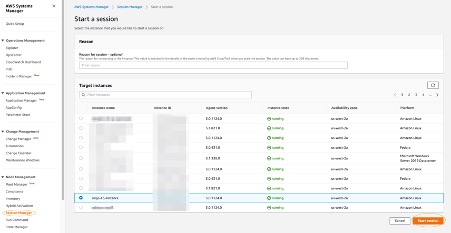
If using Systems Manager Session Manager with a graphical interface is required, RDP or other methods can still be accessed. Commands and responses performed using Session Manager can be logged to Amazon CloudWatch and an S3 bucket, this allows auditing of all commands executed on the forensic tooling Amazon EC2 instances. Administrative privileges can also be restricted if required. You can also arrange to receive an Amazon Simple Notification Service (Amazon SNS) notification when a new session is started.

Given that the Amazon EC2 forensic tooling instances might not have direct access to the internet, you might need to create a process to preconfigure and deploy standardized Amazon Machine Images (AMIs) with the appropriate installed and updated set of tooling for analysis. Several best practices apply around this process. The OS of the AMI should be hardened to reduce its vulnerable surface. We do this by starting with an approved OS image, such as an AWS-provided AMI or one you have created and managed yourself. Then proceed to remove unwanted programs, packages, libraries, and other components. Ensure that all updates and patches—security and otherwise—have been applied. Configuring a host-based firewall is also a good precaution, as well as host-based intrusion detection tools. In addition, always ensure the attached disks are encrypted.

If your operating system is supported, we recommend creating golden images using EC2 Image Builder. Your golden image should be rebuilt and updated at least monthly, as you want to ensure it’s kept up to date with security patches and functionality.

EC2 Image Builder—combined with other tools—facilitates the hardening process; for example, allowing the creation of automated pipelines that produce Center for Internet Security (CIS) benchmark hardened AMIs. If you don’t want to maintain your own hardened images, you can find CIS benchmark hardened AMIs on the AWS Marketplace.

Keep in mind the infrastructure requirements for your forensic tools—such as minimum CPU, memory, storage, and networking requirements—before choosing an appropriate EC2 instance type. Though a variety of instance types are available, you’ll want to ensure that you’re keeping the right balance between cost and performance based on your minimum requirements and expected workloads.

The goal of this environment is to provide an efficient means to collect evidence, perform a comprehensive investigation, and effectively return to safe operations. Evidence is best acquired through the automated strategies discussed in How to automate incident response in the AWS Cloud for EC2 instances. Hashing evidence artifacts immediately upon acquisition is highly recommended in your evidence collection process. Hashes, and in turn the evidence itself, can then be validated after subsequent transfers and accesses, ensuring the integrity of the evidence is maintained. Preserving the original evidence is crucial if legal action is taken.

Evidence and artifacts can consist of, but aren’t limited to:

Access to the control plane logs mentioned above—such as the CloudTrail logs—can be accessed in one of two ways. Ideally, the logs should reside in a central location with read-only access for investigations as needed. However, if not centralized, read access can be given to the original logs within the source account as needed. Read access to certain service logs found within the security account, such as AWS Config, Amazon GuardDuty, Security Hub, and Amazon Detective, might be necessary to correlate indicators of compromise with evidence discovered during the analysis.

As previously mentioned, it’s imperative to have immutable versions of all evidence. This can be achieved in many ways, including but not limited to the following examples:

  • Amazon EBS snapshots, including hibernation generated memory dumps:
    • Original Amazon EBS disks are snapshotted, shared to the forensics account, used to create a volume, and then mounted as read-only for offline analysis.
  • Amazon EBS volumes manually captured:
    • Linux tools such as dc3dd can be used to stream a volume to an S3 bucket, as well as provide a hash, and then made immutable using an S3 method from the next bullet point.
  • Artifacts stored in an S3 bucket, such as memory dumps and other artifacts:
    • S3 Object Lock prevents objects from being deleted or overwritten for a fixed amount of time or indefinitely.
    • Using MFA delete requires the requestor to use multi-factor authentication to permanently delete an object.
    • Amazon S3 Glacier provides a Vault Lock function if you want to retain immutable evidence long term.
  • Disk volumes:
    • Linux: Mount in read-only mode.
    • Windows: Use one of the many commercial or open-source write-blocker applications available, some of which are specifically made for forensic use.
  • CloudTrail:
  • AWS Systems Manager inventory:
  • AWS Config data:
    • By default, AWS Config stores data in an S3 bucket, and can be protected using the above methods.

Note: AWS services such as KMS can help enable encryption. KMS is integrated with AWS services to simplify using your keys to encrypt data across your AWS workloads.

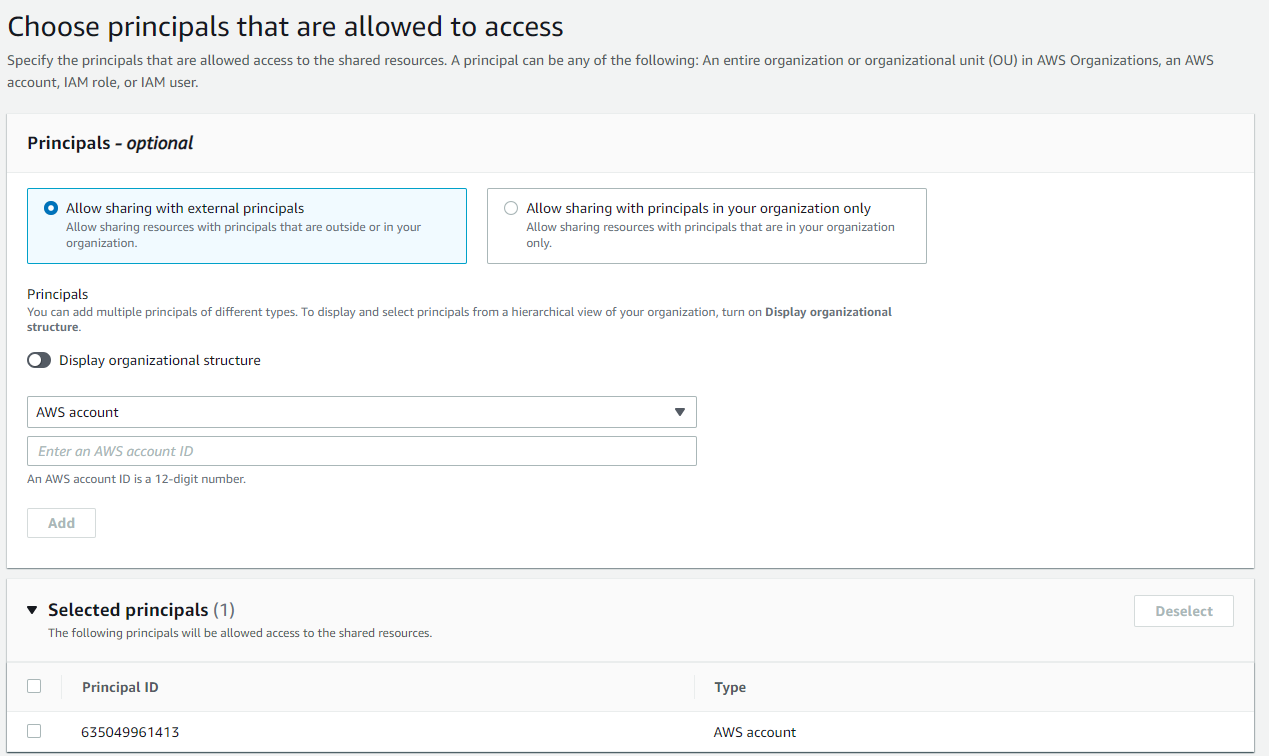
An example use case of Amazon EBS disks being shared as evidence to the forensics account, the following figure—Figure 2—is a simplified S3 bucket folder structure you could use to store and work with evidence.

Figure 2 shows an S3 bucket structure for a forensic account. An S3 bucket and folder is created to hold incoming data—for example, from Amazon EBS disks—which is streamed to Incoming Data > Evidence Artifacts using dc3dd. The data is then copied from there to a folder in another bucket—Active Investigation > Root Directory > Extracted Artifacts—to be analyzed by the tooling installed on your forensic Amazon EC2 instance. Also, there are folders under Active Investigation for any investigation notes you make during analysis, as well as the final reports, which are discussed at the end of this blog post. Finally, a bucket and folders for legal holds, where an object lock will be placed to hold evidence artifacts at a specific version.

Figure 2: Forensic account S3 bucket structure

Figure 2: Forensic account S3 bucket structure

Considerations

Finally, depending on the severity of the incident, your on-premises network and infrastructure might also be compromised. Having an alternative environment for your security responders to use in case of such an event reduces the chance of not being able to respond in an emergency. Amazon services such as Amazon Workspaces—a fully managed persistent desktop virtualization service—can be used to provide your responders a ready-to-use, independent environment that they can use to access the digital forensics and incident response tools needed to perform incident-related tasks.

Aside from the investigative tools, communications services are among the most critical for coordination of response. You can use Amazon WorkMail and Amazon Chime to provide that capability independent of normal channels.

Conclusion

The goal of a forensic investigation is to provide a final report that’s supported by the evidence. This includes what was accessed, who might have accessed it, how it was accessed, whether any data was exfiltrated, and so on. This report might be necessary for legal circumstances, such as criminal or civil investigations or situations requiring breach notifications. What output each circumstance requires should be determined in advance in order to develop an appropriate response and reporting process for each. A root cause analysis is vital in providing the information required to prepare your resources and environment to help prevent a similar incident in the future. Reports should not only include a root cause analysis, but also provide the methods, steps, and tools used to arrive at the conclusions.

This article has shown you how you can get started creating and maintaining forensic environments, as well as enable your teams to perform advanced incident resolution investigations using AWS services. Implementing the groundwork for your forensics environment, as described above, allows you to use automated disk collection to begin iterating on your forensic data collection capabilities and be better prepared when security events occur.

If you have feedback about this post, submit comments in the Comments section below. If you have questions about this post, start a new thread on one of the AWS Security, Identity, and Compliance forums or contact AWS Support.

Want more AWS Security how-to content, news, and feature announcements? Follow us on Twitter.

Author

Sol Kavanagh

Sol is a senior solutions architect and CISSP with 20+ years of experience in the enterprise space. He is passionate about security and helping customers build solutions in the AWS Cloud. In his spare time he enjoys distance cycling, adventure travelling, Buddhist philosophy, and Muay Thai.

Identifying optimal locations for flexible workloads with Spot placement score

Post Syndicated from Pranaya Anshu original https://aws.amazon.com/blogs/compute/identifying-optimal-locations-for-flexible-workloads-with-spot-placement-score/

This post is written by Jessie Xie, Solutions Architect for EC2 Spot, and Peter Manastyrny, Senior Product Manager for EC2 Auto Scaling and EC2 Fleet.

Amazon EC2 Spot Instances let you run flexible, fault-tolerant, or stateless applications in the AWS Cloud at up to a 90% discount from On-Demand prices. Since we introduced Spot Instances back in 2009, we have been building new features and integrations with a single goal – to make Spot easy and efficient to use for your flexible compute needs.

Spot Instances are spare EC2 compute capacity in the AWS Cloud available for steep discounts. In exchange for the discount, Spot Instances are interruptible and must be returned when EC2 needs the capacity back. The location and amount of spare capacity available at any given moment is dynamic and changes in real time. This is why Spot workloads should be flexible, meaning they can utilize a variety of different EC2 instance types and can be shifted in real time to where the spare capacity currently is. You can use Spot Instances with tools such as EC2 Fleet and Amazon EC2 Auto Scaling which make it easy to run workloads on multiple instance types.

The AWS Cloud spans 81 Availability Zones across 25 Regions with plans to launch 21 more Availability Zones and 7 more Regions. However, until now there was no way to find an optimal location (either a Region or Availability Zone) to fulfill your Spot capacity needs without trying to launch Spot Instances there first. Today, we are excited to announce Spot placement score, a new feature that helps you identify an optimal location to run your workloads on Spot Instances. Spot placement score recommends an optimal Region or Availability Zone based on the amount of Spot capacity you need and your instance type requirements.

Spot placement score is useful for workloads that could potentially run in a different Region. Additionally, because the score takes into account your instance type selection, it can help you determine if your request is sufficiently instance type flexible for your chosen Region or Availability Zone.

How Spot placement score works

To use Spot placement score you need to specify the amount of Spot capacity you need, what your instance type requirements are, and whether you would like a recommendation for a Region or a single Availability Zone. For instance type requirements, you can either provide a list of instance types, or the instance attributes, like the number of vCPUs and amount of memory. If you choose to use the instance attributes option, you can then use the same attribute configuration to request your Spot Instances in the recommended Region or Availability Zone with the new attribute-based instance type selection feature in EC2 Fleet or EC2 Auto Scaling.

Spot placement score provides a list of Regions or Availability Zones, each scored from 1 to 10, based on factors such as the requested instance types, target capacity, historical and current Spot usage trends, and time of the request. The score reflects the likelihood of success when provisioning Spot capacity, with a 10 meaning that the request is highly likely to succeed. Provided scores change based on the current Spot capacity situation, and the same request can yield different scores when ran at different times. It is important to note that the score serves as a guideline, and no score guarantees that your Spot request will be fully or partially fulfilled.

You can also filter your score by Regions or Availability Zones, which is useful for cases where you can use only a subset of AWS Regions, for example any Region in the United States.

Let’s see how Spot placement score works in practice through an example.

Using Spot placement score with AWS Management Console

To try Spot placement score, log into your AWS account, select EC2, Spot Requests, and click on Spot placement score to open the Spot placement score window.

Spot placement score screen in AWS Management Console.

Here, you need provide your target capacity and instance type requirements by clicking on Enter requirements. You can enter target capacity as a number of instances, vCPUs, or memory. vCPUs and memory options are useful for vertically scalable workloads that are sized for a total amount of compute resources and can utilize a wide range of instance sizes. Target capacity is limited and based on your recent Spot usage with accounting for potential usage growth. For accounts that do not have recent Spot usage, there is a default limit aligned with the Spot Instances limit.

For instance type requirements, there are two options. First option is to select Specify instance attributes that match your compute requirements tab and enter your compute requirements as a number of vCPUs, amount of memory, CPU architecture, and other optional attributes. Second option is to select Manually select instance types tab and select instance types from the list.

Please note that you need to select at least three different instance types (that is, different families, generations, or sizes). If you specify a smaller number of instance types, Spot placement score will always yield a low score. Spot placement score is designed to help you find an optimal location to request Spot capacity tailored to your specific workload needs, but it is not intended to be used for getting high-level Spot capacity information across all Regions and instance types.

Let’s try to find an optimal location to run a workload that can utilize r5.8xlarge, c5.9xlarge, and m5.8xlarge instance types and is sized at 2000 instances.

Spot placement score screen in AWS Management Console with selected target capacity at 2000 instances and selected r5.8xlarge, c5.9xlarge, and m5.8xlarge instance types..

Once you select 2000 instances under Target capacity, select r5.8xlarge, c5.9xlarge, and m5.8xlarge instances under Select instance types, and click Load placement score button, you will get a list of Regions sorted by score in a descending order. There is also an option to filter by specific Regions if needed.

The highest rated Region for your requirements turns out to be US East (N. Virginia) with a score of 8. The second closest contender is Europe (Ireland) with a score of 5. That tells you that right now the optimal Region for your Spot requirements is US East (N. Virginia).

Spot placement score screen in AWS Management Console with displayed scores on Region level scores.

Let’s now see if it is possible to get a higher score. Remember, the key best practice for Spot is to be flexible and utilize as many instance types as possible. To do that, press the Edit button on the Target capacity and instance type requirements tab. For the new request, keep the same target capacity at 2000, but expand the selection of instance types by adding similarly sized instance types from a variety of instance families and generations, i.e., r5.4xlarge, r5.12xlarge, m5zn.12xlarge, m5zn.6xlarge, m5n.8xlarge, m5dn.8xlarge, m5d.8xlarge, r5n.8xlarge, r5dn.8xlarge, r5d.8xlarge, c5.12xlarge, c5.4xlarge, c5d.12xlarge, c5n.9xlarge. c5d.9xlarge, m4.4xlarge, m4.16xlarge, m4.10xlarge, r4.8xlarge, c4.8xlarge.

After requesting the scores with updated requirements, you can see that even though the score in US East (N. Virginia) stays unchanged at 8, the scores for Europe (Ireland) and US West (Oregon) improved dramatically, both raising to 9. Now, you have a choice of three high-scored Regions to request your Spot Instances, each with a high likelihood to succeed.

To request Spot Instances based on the score, you can use EC2 Fleet or EC2 Auto Scaling. Please note, that the score implies that you use capacity-optimized Spot allocation strategy when requesting the capacity. If you use other allocation strategies, such as lowest-price, the result in the recommended Region or Availability Zone will not align with the score provided.

Spot placement score screen in AWS Management Console with selected target capacity at 2000 instances and selected r5.8xlarge, c5.9xlarge, m5.8xlarge, r5.4xlarge, r5.12xlarge, m5zn.12xlarge, m5zn.6xlarge, m5n.8xlarge, m5dn.8xlarge, m5d.8xlarge, r5n.8xlarge, r5dn.8xlarge, r5d.8xlarge, c5.12xlarge, c5.4xlarge, c5d.12xlarge, c5n.9xlarge. c5d.9xlarge, m4.4xlarge, m4.16xlarge, m4.10xlarge, r4.8xlarge, c4.8xlarge instance types.

You can also request the scores at the Availability Zone level. This is useful for running workloads that need to have all instances in the same Availability Zone, potentially to minimize inter-Availability Zone data transfer costs. Workloads such as Apache Spark, which involve transferring a high volume of data between instances, would be a good use case for this. To get scores per Availability Zone you can check the box Provide placement scores per Availability Zone.

When requesting instances based on Availability Zone recommendation, you need to make sure to configure EC2 Fleet or EC2 Auto Scaling request to only use that specific Availability Zone.

With Spot placement score, you can test different instance type combinations at different points in time, and find the most optimal Region or Availability Zone to run your workloads on Spot Instances.

Availability and pricing

You can use Spot placement score today in all public and AWS GovCloud Regions with the exception of those based in China, where we plan to release later. You can access Spot placement score using the AWS Command Line Interface (CLI), AWS SDKs, and Management Console. There is no additional charge for using Spot placement score, you will only pay EC2 standard rates if provisioning instances based on recommendation.

To learn more about using Spot placement score, visit the Spot placement score documentation page. To learn more about best practices for using Spot Instances, see Spot documentation.

New – Attribute-Based Instance Type Selection for EC2 Auto Scaling and EC2 Fleet

Post Syndicated from Danilo Poccia original https://aws.amazon.com/blogs/aws/new-attribute-based-instance-type-selection-for-ec2-auto-scaling-and-ec2-fleet/

The first AWS service I used, more than ten years ago, was Amazon Elastic Compute Cloud (Amazon EC2). Over time, EC2 has added a wide selection of instance types optimized to fit different use cases, with a varying combination of CPU/GPU, memory, storage, and networking capacity to give you the flexibility to choose the appropriate mix of resources for your applications.

One of the key advantages of the cloud is elasticity. With EC2 Fleet, you can synchronously request capacity across multiple instance types and purchase options, launching your instances across multiple Availability Zones, using the On-Demand, Reserved, and Spot Instances together. With EC2 Auto Scaling, you can automatically add or remove EC2 instances according to conditions you define and add advanced instance management capabilities such as warm pools, instance refresh, and health checks. With these tools, you need to manually update your configurations to benefit from the newest EC2 instances. Also, when you use EC2 Spot Instances to optimize your costs, it is important that you select multiple instance types to access the highest amount of Spot capacity. Until now, there was no easy way to build and maintain instance type configurations in a flexible way.

Today, I am happy to share that we are introducing attribute-based instance type selection (ABS), a new feature that lets you express your instance requirements as a set of attributes, such as vCPU, memory, and storage. Your requirements are translated by ABS to all matching instance types, simplifying the creation and maintenance of instance type configurations. This also allows you to automatically use newer generation instance types when they are released and access a broader range of capacity via EC2 Spot Instances. EC2 Fleet and EC2 Auto Scaling select and launch instances that fit the specified attributes, removing the need to manually pick instance types.

ABS is ideal for flexible workloads and frameworks, such as when running containers or web fleets, processing big data, and implementing continuous integration and deployment (CI/CD) tooling. When using Spot Instances, instead of picking and entering tens of instance types and sizes, you can now just use a simple attribute config to cover all of them and include new ones as they come out.

How Attribute-Based Instance Type Selection Works
With ABS, you replace the list of instance types with your instance requirements. You can specify instance requirements inside a launch template or in the EC2 Fleet or EC2 Auto Scaling requests as a launch template override.

ABS works in two steps:

  • First, ABS determines a list of instance types based on specified attributes, AWS Region, Availability Zone, and price.
  • Then, EC2 Auto Scaling or EC2 Fleet applies the selected allocation strategy to that list.

For Spot Instances, ABS supports the capacity-optimized and the lowest-price allocation strategies.

For On-Demand Instances, ABS supports the lowest-price allocation strategy. EC2 Auto Scaling or EC2 Fleet will resolve ABS attributes to a list of instance types and will launch the lowest priced instance first to fulfill the On-Demand portion of the capacity request, moving to the next lowest priced instance if needed.

By default ABS enables price protection to keep your spending under control. Price protection makes ABS avoid provisioning overly expensive instance types even if they happen to fit the attributes you selected and keeps the prices of provisioned instances within certain boundaries. With price protection enabled, ABS doesn’t select instance types whose price is above price protection thresholds. There are two separate thresholds for Spot and On-Demand instances that you can optionally customize.

Let’s see how ABS works in practice with a couple of examples.

Using Attribute-Based Instance Type Selection with EC2 Auto Scaling
I use the AWS Command Line Interface (CLI) with the --generate-cli-skeleton parameter to generate a file in YAML format with all the parameters accepted by the CreateAutoScalingGroup API.

aws autoscaling create-auto-scaling-group \
    --generate-cli-skeleton yaml-input > create-asg.yaml

In the YAML file, there is a new InstanceRequirements section that can be used to override the configuration of the launch template. These are all the attributes I can choose from with some sample values:

InstanceRequirements:
  VCpuCount:  # [REQUIRED] 
    Min: 0
    Max: 0
  MemoryMiB: # [REQUIRED] 
    Min: 0
    Max: 0
  CpuManufacturers:
  - amd
  MemoryGiBPerVCpu:
    Min: 0.0
    Max: 0.0
  ExcludedInstanceTypes:
  - ''
  InstanceGenerations:
  - previous
  SpotMaxPricePercentageOverLowestPrice: 0
  OnDemandMaxPricePercentageOverLowestPrice: 0
  BareMetal: required  #  Valid values are: included, excluded, required.
  BurstablePerformance: excluded #  Valid values are: included, excluded, required.
  RequireHibernateSupport: true
  NetworkInterfaceCount:
    Min: 0
    Max: 0
  LocalStorage: required  #  Valid values are: included, excluded, required.
  LocalStorageTypes:
  - ssd
  TotalLocalStorageGB:
    Min: 0.0
    Max: 0.0
  BaselineEbsBandwidthMbps:
    Min: 0
    Max: 0
  AcceleratorTypes:
  - inference
  AcceleratorCount:
    Min: 0
    Max: 0
  AcceleratorManufacturers:
  - amazon-web-services
  AcceleratorNames:
  - a100
  AcceleratorTotalMemoryMiB:
    Min: 0
    Max: 0

Instead of providing a list of overrides, each having an InstanceType attribute with a single instance type selected, I can now select the instance types based on my requirements. I can specify the minimum and maximum amount of vCPUs, and the range of memory. Optionally, I can ask for a minimum amount of memory per vCPUs.

There are many more attributes that I can select from. For example, I can include, exclude, or require the use of bare metal or burstable instances. I can add networking or storage requirements. If necessary, I can ask for GPU or FPGA accelerators, and so on.

In my case, I ask for instances with two to four vCPUs and at least 2048 MiB of memory. Previously, it would have taken about 40 overrides, one for each instance type that meets these requirements, but with ABS, I just have to specify three parameters in the InstanceRequirements section. This is the full configuration file I am going to use to create the Auto Scaling group:

AutoScalingGroupName: 'my-asg' # [REQUIRED] 
MixedInstancesPolicy:
  LaunchTemplate:
    LaunchTemplateSpecification:
      LaunchTemplateId: 'lt-0537239d9aef10a77'
    Overrides:
    - InstanceRequirements:
        VCpuCount: # [REQUIRED] 
          Min: 2
          Max: 4
        MemoryMiB: # [REQUIRED] 
          Min: 2048
  InstancesDistribution:
    OnDemandPercentageAboveBaseCapacity: 50
    SpotAllocationStrategy: 'capacity-optimized'
MinSize: 0 # [REQUIRED] 
MaxSize: 100 # [REQUIRED] 
DesiredCapacity: 4
VPCZoneIdentifier: 'subnet-e76a128a,subnet-e66a128b,subnet-e16a128c'

I create the Auto Scaling group passing the configuration file with the --cli-input-yaml parameter:

aws autoscaling create-auto-scaling-group \
    --cli-input-yaml file://my-create-asg.yaml

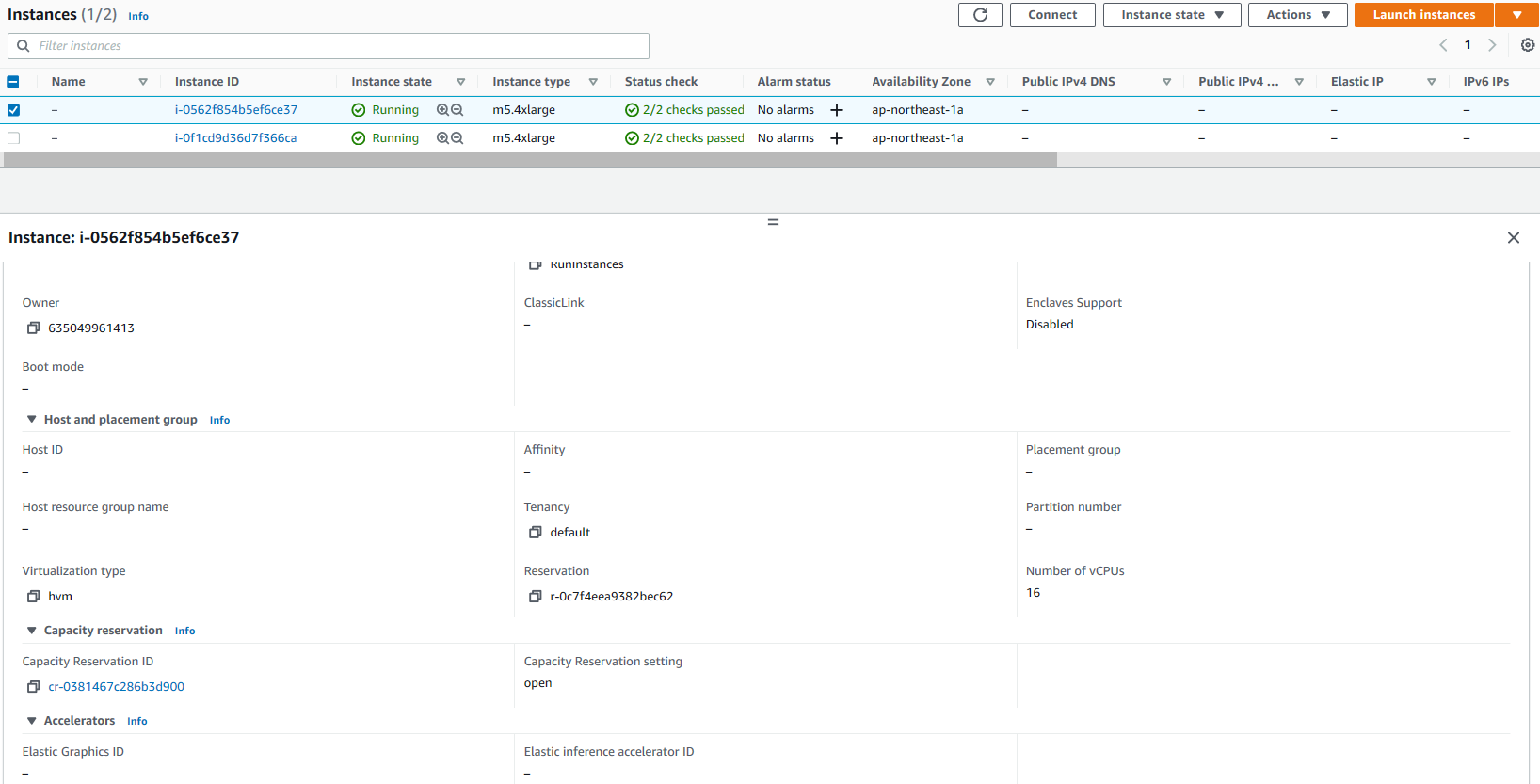
After a few minutes, four EC2 instances (corresponding to my DesiredCapacity) are running in the EC2 console. In the list, I find both C3 and C5a instances, spanning both time and CPU manufacturer.

Console screenshot.

Of those instances, 50 percent is On-Demand (based on the OnDemandPercentageAboveBaseCapacity option in the InstancesDistribution section). In the Spot Request tab of the EC2 console, I see the two requests:

Console screenshot.

As expected, all instance types follow my requirements and have size large. However, I quickly realize my application needs more compute capacity in each instance. I update the Auto Scaling group with the new requirements, asking for more vCPUs (between four and six):

aws autoscaling update-auto-scaling-group \
    --auto-scaling-group-name my-asg \
    --mixed-instances-policy '{
        "LaunchTemplate": {
            "Overrides": [
                {
                    "InstanceRequirements": {
                    "VCpuCount":{"Min": 4, "Max": 6},
                    "MemoryMiB":{"Min": 2048} }
                } ]
        } }' 

Then, I start the instance refresh of the Auto Scaling group:

aws autoscaling start-instance-refresh \
    --auto-scaling-group-name my-asg

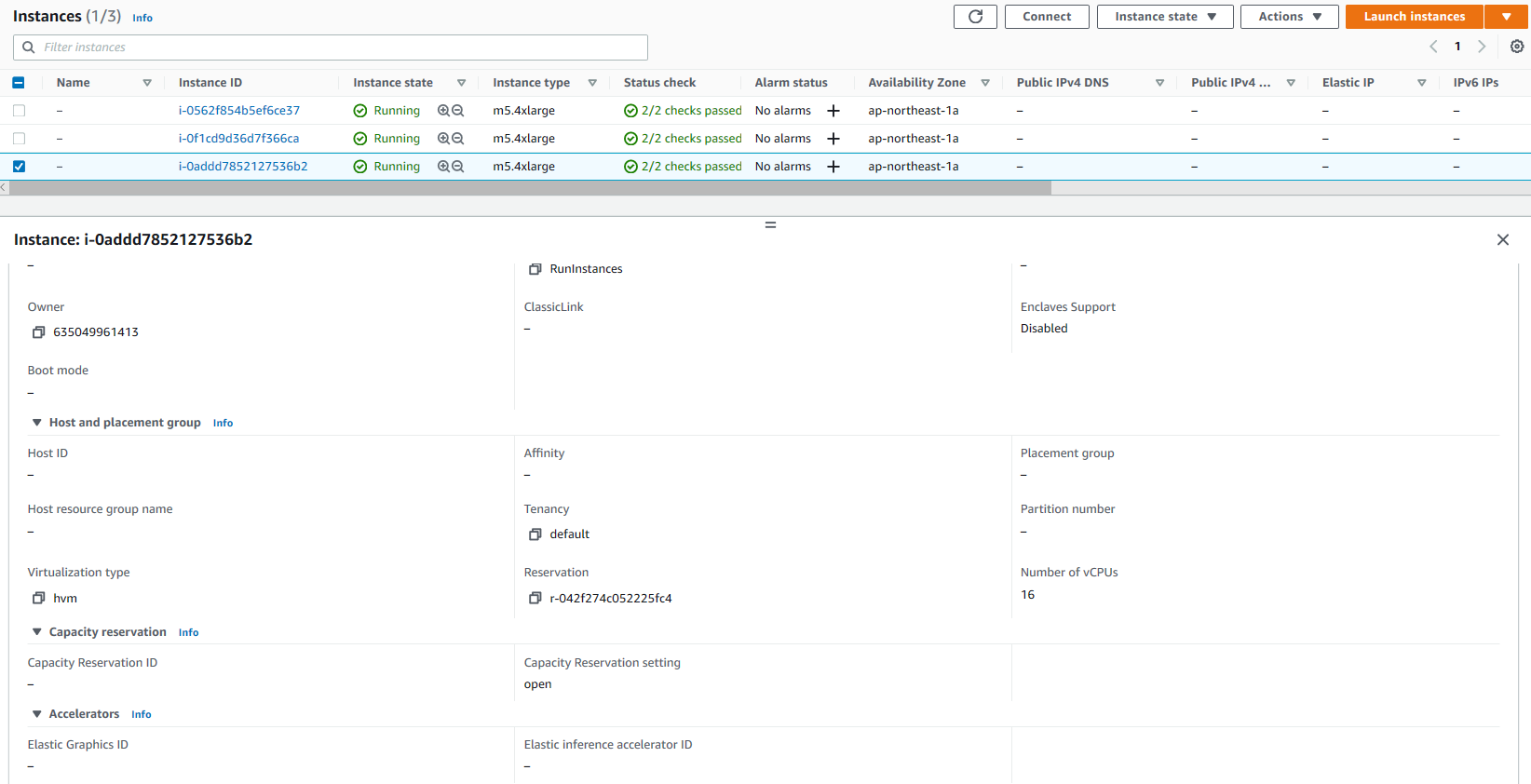
EC2 Auto Scaling performs a rolling replacement of the instances based on the new requirements. After a few minutes, all instances have been replaced by new ones with size xlarge, and I have a mix of C5, C5a, and M3 instances running. All previous instances have been terminated.

Console screenshot.

Similar to before, two of the new instances are launched using Spot requests. The previous Spot requests have been closed.

Console screenshot.

How to Preview Matching Instances without Launching Them
To better understand how the new ABS works, I use the new EC2 GetInstanceTypesFromInstanceRequirements API. This API returns the list of instance types matching my requirements.

First, I create the YAML parameter file:

aws ec2 get-instance-types-from-instance-requirements --generate-cli-skeleton yaml-input > requirements.yaml

I edit the file with the same requirements I used to update the Auto Scaling group. This time, I also ask to use current generation instances:

ArchitectureTypes:  # [REQUIRED] 
- x86_64
VirtualizationTypes: # [REQUIRED] 
- hvm
InstanceRequirements: # [REQUIRED] 
  VCpuCount:
    Min: 4
    Max: 6
  MemoryMiB:
    Min: 2048
  InstanceGenerations:
    - current

Note that here I had to specify the type of architecture (x86_64) and virtualization (hvm). When creating the Auto Scaling group, this information was provided by the Amazon Machine Images (AMI) used by the launch template.

Now, let’s preview all the instance types selected by these requirements:

aws ec2 get-instance-types-from-instance-requirements \
    --cli-input-yaml file://requirements.yaml \
    --output table

------------------------------------------
|GetInstanceTypesFromInstanceRequirements|
+----------------------------------------+
||             InstanceTypes            ||
|+--------------------------------------+|
||             InstanceType             ||
|+--------------------------------------+|
||  c4.xlarge                           ||
||  c5.xlarge                           ||
||  c5a.xlarge                          ||
||  c5ad.xlarge                         ||
||  c5d.xlarge                          ||
||  c5n.xlarge                          ||
||  d2.xlarge                           ||
||  d3.xlarge                           ||
||  d3en.xlarge                         ||
||  g3s.xlarge                          ||
||  g4ad.xlarge                         ||
||  g4dn.xlarge                         ||
||  i3.xlarge                           ||
||  i3en.xlarge                         ||
||  inf1.xlarge                         ||
||  m4.xlarge                           ||
||  m5.xlarge                           ||
||  m5a.xlarge                          ||
||  m5ad.xlarge                         ||
||  m5d.xlarge                          ||
||  m5dn.xlarge                         ||
||  m5n.xlarge                          ||
||  m5zn.xlarge                         ||
||  m6i.xlarge                          ||
||  p2.xlarge                           ||
||  r4.xlarge                           ||
||  r5.xlarge                           ||
||  r5a.xlarge                          ||
||  r5ad.xlarge                         ||
||  r5b.xlarge                          ||
||  r5d.xlarge                          ||
||  r5dn.xlarge                         ||
||  r5n.xlarge                          ||
||  x1e.xlarge                          ||
||  z1d.xlarge                          ||
|+--------------------------------------+|

Using this new EC2 API, I can quickly test different requirements and see how they map to instance types. When new instance types are released, they are automatically added to the list if they match my requirements.

Availability and Pricing
You can use attribute-based instance type selection (ABS) with EC2 Auto Scaling and EC2 Fleet today in all public and GovCloud AWS Regions, with the exception of those based in China where we need more time. You can configure ABS using the AWS Command Line Interface (CLI), AWS SDKs, AWS Management Console, and AWS CloudFormation. There is no additional charge for using ABS; you only pay the standard EC2 pricing for the provisioned instances. For more information on price protection, see the EC2 Auto Scaling documentation.

This new feature makes it easy to use flexible instance type configurations instead of long lists of instance types. In this way, you can automatically use newer generation instance types when they are released in the Region. Also, you can easily access more capacity with your Spot requests.

Simplify your EC2 instance type configurations with attribute-based instance type selection.

Danilo

New – EC2 Instances Powered by Gaudi Accelerators for Training Deep Learning Models

Post Syndicated from Jeff Barr original https://aws.amazon.com/blogs/aws/new-ec2-instances-powered-by-gaudi-accelerators-for-training-deep-learning-models/

There are more applications today for deep learning than ever before. Natural language processing, recommendation systems, image recognition, video recognition, and more can all benefit from high-quality, well-trained models.

The process of building such a model is iterative: construct an initial model, train it on the ground truth data, do some test inferences, refine the model and repeat. Deep learning models contain many layers (hence the name), each of which transforms outputs of the previous layer. The training process is math and processor intensive, and places demands on just about every part of the systems used for training including the GPU or other training accelerator, the network, and local or network storage. This sophistication and complexity increases training time and raises costs.

New DL1 Instances
Today I would like to tell you about our new DL1 instances. Powered by Gaudi accelerators from Habana Labs, the dl1.24xlarge instances have the following specs:

Gaudi Accelerators – Each instance is equipped with eight Gaudi accelerators, with a total of 256 GB of High Bandwidth (HBM2) accelerator memory and high-speed, RDMA-powered communication between accelerators.

System Memory – 768 GB of system memory, enough to hold very large sets of training data in memory, as often requested by our customers.

Local Storage – 4 TB of local NVMe storage, configured as four 1 TB volumes.

Processor – Intel Cascade Lake processor with 96 vCPUs.

Network – 400 Gbps of network throughput.

As you can see, we have maxed out the specs in just about every dimension, with the goal of giving you a highly capable machine learning training platform with a low cost of entry and up to 40% better price-performance than current GPU-based EC2 instances.

Gaudi Inside
The Gaudi accelerators are custom-designed for machine learning training, and have a ton of cool & interesting features & attributes:

Data Types – Support for floating point (BF16 and FP32), signed integer (INT8, INT16, and INT32), and unsigned integer (UINT8, UINT16, and UINT32) data.

Generalized Matrix Multiplier Engine (GEMM) – Specialized hardware to accelerate matrix multiplication.

Tensor Processing Cores (TPCs) – Specialized VLIW SIMD (Very Long Instruction Word / Single Instruction Multiple Data) processing units designed for ML training. The TPCs are C-programmable, although most users will use higher-level tools and frameworks.

Getting Started with DL1 Instances
The Gaudi SynapseAI Software Suite for Training will help you to build new models and to migrate existing models from popular frameworks such as PyTorch and TensorFlow:

Here are some resources to get you started:

TensorFlow User Guide – Learn how to run your TensorFlow models on Gaudi.

PyTorch User Guide – Learn how to run your PyTorch models on Gaudi.

Gaudi Model Migration Guide – Learn how to port your PyTorch or TensorFlow to Gaudi.

HabanaAI Repo – This large, active repo contains setup instructions, reference models, academic papers, and much more.

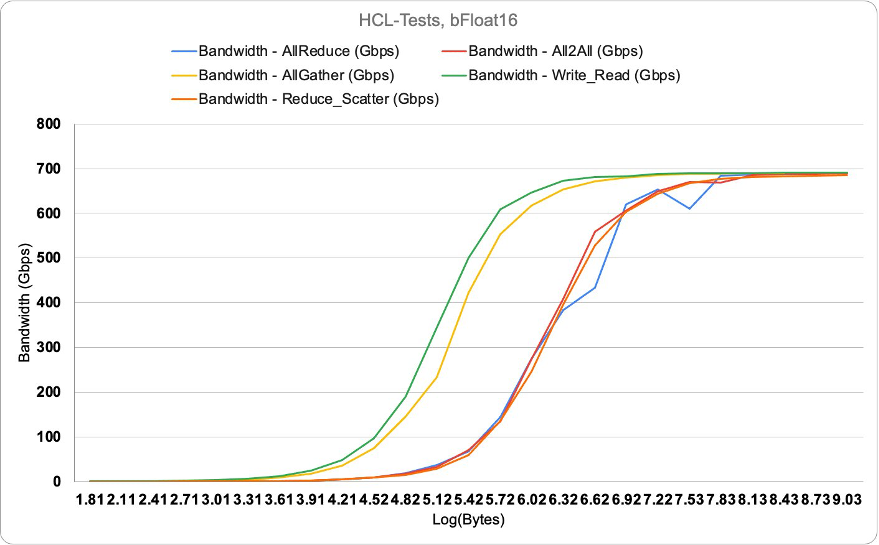
You can use the TPC Programming Tools to write, simulate, and debug code that runs directly on the TPCs, and you can use the Habana Communication Library (HCL) to build applications that harness the power of multiple accelerators. The Habana Collective Communications Library (HCCL) runs atop HCL and gives you access to collective primitives for Reduce, Broadcast, Gather, and Scatter operations.

Now Available
DL1 instances are available today in the US East (N. Virginia) and US West (Oregon) Regions in On-Demand and Spot form. You can purchase Reserved Instances and Savings plans as well.

Jeff;

Optimizing your AWS Infrastructure for Sustainability, Part III: Networking

Post Syndicated from Katja Philipp original https://aws.amazon.com/blogs/architecture/optimizing-your-aws-infrastructure-for-sustainability-part-iii-networking/

In Part I: Compute and Part II: Storage of this series, we introduced strategies to optimize the compute and storage layer of your AWS architecture for sustainability.

This blog post focuses on the network layer of your AWS infrastructure and proposes concepts to optimize your network utilization.

Optimizing the networking layer of your AWS infrastructure

When you make your applications available to more customers, the packets that travel across the network will increase. Similarly, the larger the size of data, as well as the more distance a packet has to travel, the more resources are required to transmit it. With growing number of application users, optimizing network traffic can ensure that network resource consumption is not growing linearly.

The recommendations in the following sections will help you use your resources more efficiently for the network layer of your workload.

Reducing the network traveled per request

Reducing the data sent over the network and optimizing the path a packet takes will result in a more efficient data transfer. The following table provides metrics related to some AWS services that can help you find potential network optimization opportunities.

Service Metric/Check Source
Amazon CloudFront Cache hit rate Viewing CloudFront and Lambda@Edge metrics
AWS Trusted Advisor check reference
Amazon Simple Storage Service (Amazon S3) Data transferred in/out of a bucket Metrics and dimensions
AWS Trusted Advisor check reference
Amazon Elastic Compute Cloud (Amazon EC2) NetworkPacketsIn/NetworkPacketsOut List the available CloudWatch metrics for your instances
AWS Trusted Advisor CloudFront Content Delivery Optimization AWS Trusted Advisor check reference

We recommend the following concepts to optimize your network utilization.

Read local, write global

The following strategies allow users to read the data from the source closest to them; thus, fewer requests travel longer distances.

  • If you are operating within a single AWS Region, you should choose a Region that is near the majority of your users. The further your users are away from the Region, the further data needs to travel through the global network.
  • If your users are spread over multiple Regions, set up multiple copies of the data to reside in each Region. Amazon Relational Database Service (Amazon RDS) and Amazon Aurora let you set up cross-Region read replicas. Amazon DynamoDB global tables allow for fast performance and alleviate network load.

Use a content delivery network

Content delivery networks (CDNs) bring your data closer to the end user. When requested, they cache static content from the original server and deliver it to the user. This shortens the distance each packet has to travel.

  • CloudFront optimizes network utilization and delivers traffic over CloudFront’s globally distributed edge network. Figure 1 shows a global user base that accesses an S3 bucket directly versus serving cached data from edge locations.
  • Trusted Advisor includes a check that recommends whether you should use a CDN for your S3 buckets. It analyzes the data transferred out of your S3 bucket and flags the buckets that could benefit from a CloudFront distribution.
Comparison of accessing an S3 bucket directly versus via a CloudFront distribution/edge locations

Figure 1. Comparison of accessing an S3 bucket directly versus via a CloudFront distribution/edge locations

Optimize CloudFront cache hit ratio

CloudFront caches different versions of an object depending upon the request headers (for example, language, date, or user-agent). You can further optimize your CDN distribution’s cache hit ratio (the number of times an object is served from the CDN versus from the origin) with a Trusted Advisor check. It automatically checks for headers that do not affect the object and then recommends a configuration to ignore those headers and not forward the request to the origin.

Use edge-oriented services

Edge computing brings data storage and computation closer to users. By implementing this approach, you can perform data preprocessing or run machine learning algorithms on the edge.

  • Edge-oriented services applied on gateways or directly onto user devices reduce network traffic because data does not need to be sent back to the cloud server.
  • One-time, low-latency tasks are a good fit for edge use cases, like when an autonomous vehicle needs to detect objects nearby. You should generally archive data that needs to be accessed by multiple parties in the cloud, but consider factors such as device hardware and privacy regulations first.
  • CloudFront Functions can run compute on edge locations and Lambda@Edge can generate Regional edge caches. AWS IoT Greengrass provides edge computing for Internet of Things (IoT) devices.

Reducing the size of data transmitted

Serve compressed files

In addition to caching static assets, you can further optimize network utilization by serving compressed files to your users. You can configure CloudFront to automatically compress objects, which results in faster downloads, leading to faster rendering of webpages.

Enhance Amazon EC2 network performance

Network packets consist of data that you are sending (frame) and the processing overhead information. If you use larger packets, you can pass more data in a single packet and decrease processing overhead.

Jumbo frames use the largest permissible packet that can be passed over the connection. Keep in mind that outside a single virtual private cloud (VPC), over virtual private network (VPN) or internet gateway, traffic is limited to a lower frame regardless of using jumbo frames.

Optimize APIs

If your payloads are large, consider reducing their size to reduce network traffic by compressing your messages for your REST API payloads. Use the right endpoint for your use case. Edge-optimized API endpoints are best suited for geographically distributed clients. Regional API endpoints are best suited for when you have a few clients with higher demands, because they can help reduce connection overhead. Caching your API responses will reduce network traffic and enhance responsiveness.

Conclusion

As your organization’s cloud adoption grows, knowing how efficient your resources are is crucial when optimizing your AWS infrastructure for environmental sustainability. Using the fewest number of resources possible and using them to their fullest will have the lowest impact on the environment.

Throughout this three-part blog post series, we introduced you to the following architectural concepts and metrics for the compute, storage, and network layers of your AWS infrastructure.

  • Reducing idle resources and maximizing utilization
  • Shaping demand to existing supply
  • Managing your data’s lifecycle
  • Using different storage tiers
  • Optimizing the path data travels through a network
  • Reducing the size of data transmitted

This is not an exhaustive list. We hope it is a starting point for you to consider the environmental impact of your resources and how you can build your AWS infrastructure to be more efficient and sustainable. Figure 2 shows an overview of how you can monitor related metrics with CloudWatch and Trusted Advisor.

Overview of services that integrate with CloudWatch and Trusted Advisor for monitoring metrics

Figure 2. Overview of services that integrate with CloudWatch and Trusted Advisor for monitoring metrics

Ready to get started? Check out the AWS Sustainability page to find out more about our commitment to sustainability. It provides information about renewable energy usage, case studies on sustainability through the cloud, and more.

Other blog posts in this series

Related information

Amazon EC2 Auto Scaling will no longer add support for new EC2 features to Launch Configurations

Post Syndicated from Pranaya Anshu original https://aws.amazon.com/blogs/compute/amazon-ec2-auto-scaling-will-no-longer-add-support-for-new-ec2-features-to-launch-configurations/

This post is written by Scott Horsfield, Principal Solutions Architect, EC2 Scalability and Surabhi Agarwal, Sr. Product Manager, EC2.

In 2010, AWS released launch configurations as a way to define the parameters of instances launched by EC2 Auto Scaling groups. In 2017, AWS released launch templates, the successor of launch configurations, as a way to streamline and simplify the launch process for Auto Scaling, Spot Fleet, Amazon EC2 Spot Instances, and On-Demand Instances. Launch templates define the steps required to create an instance, by capturing instance parameters in a resource that can be used across multiple services. Launch configurations have continued to live alongside launch templates but haven’t benefitted from all of the features we’ve added to launch templates.

Today, AWS is recommending that customers using launch configurations migrate to launch templates. We will continue to support and maintain launch configurations, but we will not be adding any new features to them. We will focus on adding new EC2 features to launch templates only. You can continue using launch configurations, and AWS is committed to supporting applications you have already built using them, but in order for you to take advantage of our most recent and upcoming releases, a migration to launch templates is recommended. Additionally, we plan to no longer support new instance types with launch configurations by the end of 2022. Our goal is to have all customers moved over to launch templates by then.

Moving to launch templates is simple to accomplish and can be done easily today. In this blog, we provide more details on how you can transition from launch configurations to launch templates. If you are unable to transition to launch templates due to lack of tooling or specific functions, or have any concerns, please contact AWS Support.

Launch templates vs. launch configurations

Launch configurations have been a part of Amazon EC2 Auto Scaling Groups since 2010. Customers use launch configurations to define Auto Scaling group configurations that include AMI and instance type definition. In 2017, AWS released launch templates, which reduce the number of steps required to create an instance by capturing all launch parameters within one resource that can be used across multiple services. Since then, AWS has released many new features such as Mixed Instance Policies with Auto Scaling groups, Targeted Capacity Reservations, and unlimited mode for burstable performance instances that only work with launch templates.

Launch templates provide several key benefits to customers, when compared to launch configurations, that can improve the availability and optimization of the workloads you host in Auto Scaling groups and allow you to access the full set of EC2 features when launching instances in an Auto Scaling group.

Some of the key benefits of launch templates when used with Auto Scaling groups include:

How to determine where you are using launch configurations

Use the Launch Configuration Inventory Script to find all of the launch configurations in your account. You can use this script to generate an inventory of launch configurations across all regions in a single account or all accounts in your AWS Organization.

The script can be run with a variety of options for different levels of account access. You can learn more about these options in this GitHub post. In its simplest form it will use the default credentials profile to inventory launch configurations across all regions in a single account.

Screenshot of Launch Configuration Inventory script

Once the script has completed, you can view the generated inventory.csv file to get a sense of how many launch configurations may need to be converted to launch templates or deleted.

Screenshot of script

How to transition to launch templates today

If you’re ready to move to launch templates now, making the transition is simple and mostly automated through the AWS Management Console. For customers who do not use the AWS Management Console, most popular Infrastructure as Code (IaC), such as CloudFormation and Terraform, already support launch templates, as do the AWS CLI and SDKs.

To perform this transition, you will need to ensure that your user has the required permissions.

Here are some examples to get you started.

AWS Management Console

  1. Open the EC2 Launch Configuration console. You must sign in if you are not already authenticated.
  2. From the Launch Configuration console, click on the Copy to launch template button and select Copy all.
    1. Alternatively, you can select individual launch configurations, and use the Copy selected option to selectively copy certain launch configurations.copy to launch template screenshot
  1. Review the list of templates and click on the Copy button when you’re ready to proceed.3. Review the list of templates and click on the Copy button when you’re ready to proceed.
  1. Once the copy process has completed, you can close the wizard.

4. Once the copy process has completed, you can close the wizard.

  1. Navigate to the EC2 Launch Template console to view your newly created launch templates.5. Navigate to the EC2 Launch Template console to view your newly created launch templates.
  1. Your launch templates are now ready to replace launch configurations in your Auto Scaling group configuration. Navigate to the Auto Scaling group console, select your Auto Scaling group, and click on the Edit.

. Navigate to the Auto Scaling group console, select your Auto Scaling group, and click on the Edit button.

  1. Next, scroll down to the Launch configuration section, and click Switch to launch template.7. Next, scroll down to the Launch configuration section, and click Switch to launch template.
  1. Select your newly created Launch template, review and confirm your configuration, and when ready scroll down to the bottom of the page and click the Update button.when ready scroll down to the bottom of the page and click the Update button.
  2. Now that you’ve migrated your launch configurations to launch templates you can prevent users from creating new launch configurations by updating their IAM permissions to deny the autoscaling:CreateLaunchConfiguration action.

Instances launched by this Auto Scaling group continue to run and are not automatically be replaced by making this change. Any instance launched after making this change uses the launch template for its configuration. As your Auto Scaling group scales up and down, the older instances are replaced. If you’d like to force an update, you can use Instance Refresh to ensure that all instances are running the same launch template and version.

CloudFormation and Terraform

If you use CloudFormation to create and manage your infrastructure, you should use the AWS::EC2::LaunchTemplate resource to create launch templates. After adding a launch template resource to your CloudFormation stack template file update your Auto Scaling group resource definition by adding a LaunchTemplate property and removing the existing LaunchConfigurationName property. We have several examples available to help you get started.

Using launch templates with Terraform is a similar process. Update your template file to include a aws_launch_template resource and then update your aws_autoscaling_group resources to reference the launch template.

In addition to making these changes, you may also want to consider adding a MixedInstancesPolicy to your Auto Scaling group. A MixedInstancesPolicy allows you to configure your Auto Scaling group with multiple instance types and purchase options. This helps improve the availability and optimization of your applications. Some examples of these benefits include using Spot Instances and On-Demand Instances within the same Auto Scaling group, combining CPU architectures such as Intel, AMD, and ARM (Graviton2), and having multiple instance types configured in case of a temporary capacity issue.

You can generate and configure example templates for CloudFormation and Terraform in the AWS Management Console.

AWS CLI

If you’re using the AWS CLI to create and manage your Auto Scaling groups, these examples will show you how to accomplish common tasks when using launch templates.

SDKs

AWS SDKs already include APIs for creating launch templates. If you’re using one of our SDKs to create and configure your Auto Scaling groups, you can find more information in the SDK documentation for your language of choice.

Next steps

We’re excited to help you take advantage of the latest EC2 features by making the transition to launch templates as seamless as possible. As we make this transition together, we’re here to help and will continue to communicate our plans and timelines for this transition. If you are unable to transition to launch templates due to lack of tooling or functionalities or have any concerns, please contact AWS Support. Also, stay tuned for more information on tools to help make this transition easier for you.

Offloading SQL for Amazon RDS using the Heimdall Proxy

Post Syndicated from Antony Prasad Thevaraj original https://aws.amazon.com/blogs/architecture/offloading-sql-for-amazon-rds-using-the-heimdall-proxy/

Getting the maximum scale from your database often requires fine-tuning the application. This can increase time and incur cost – effort that could be used towards other strategic initiatives. The Heimdall Proxy was designed to intelligently manage SQL connections to help you get the most out of your database.

In this blog post, we demonstrate two SQL offload features offered by this proxy:

  1. Automated query caching
  2. Read/Write split for improved database scale

By leveraging the solution shown in Figure 1, you can save on development costs and accelerate the onboarding of applications into production.

Figure 1. Heimdall Proxy distributed, auto-scaling architecture

Figure 1. Heimdall Proxy distributed, auto-scaling architecture

Why query caching?

For ecommerce websites with high read calls and infrequent data changes, query caching can drastically improve your Amazon Relational Database Sevice (RDS) scale. You can use Amazon ElastiCache to serve results. Retrieving data from cache has a shorter access time, which reduces latency and improves I/O operations.

It can take developers considerable effort to create, maintain, and adjust TTLs for cache subsystems. The proxy technology covered in this article has features that allow for automated results caching in grid-caching chosen by the user, without code changes. What makes this solution unique is the distributed, scalable architecture. As your traffic grows, scaling is supported by simply adding proxies. Multiple proxies work together as a cohesive unit for caching and invalidation.

View video: Heimdall Data: Query Caching Without Code Changes

Why Read/Write splitting?

It can be fairly straightforward to configure a primary and read replica instance on the AWS Management Console. But it may be challenging for the developer to implement such a scale-out architecture.

Some of the issues they might encounter include:

  • Replication lag. A query read-after-write may result in data inconsistency due to replication lag. Many applications require strong consistency.
  • DNS dependencies. Due to the DNS cache, many connections can be routed to a single replica, creating uneven load distribution across replicas.
  • Network latency. When deploying Amazon RDS globally using the Amazon Aurora Global Database, it’s difficult to determine how the application intelligently chooses the optimal reader.

The Heimdall Proxy streamlines the ability to elastically scale out read-heavy database workloads. The Read/Write splitting supports:

  • ACID compliance. Determines the replication lag and know when it is safe to access a database table, ensuring data consistency.
  • Database load balancing. Tracks the status of each DB instance for its health and evenly distribute connections without relying on DNS.
  • Intelligent routing. Chooses the optimal reader to access based on the lowest latency to create local-like response times. Check out our Aurora Global Database blog.

View video: Heimdall Data: Scale-Out Amazon RDS with Strong Consistency

Customer use case: Tornado

Hayden Cacace, Director of Engineering at Tornado

Tornado is a modern web and mobile brokerage that empowers anyone who aspires to become a better investor.

Our engineering team was tasked to upgrade our backend such that it could handle a massive surge in traffic. With a 3-month timeline, we decided to use read replicas to reduce the load on the main database instance.

First, we migrated from Amazon RDS for PostgreSQL to Aurora for Postgres since it provided better data replication speed. But we still faced a problem – the amount of time it would take to update server code to use the read replicas would be significant. We wanted the team to stay focused on user-facing enhancements rather than server refactoring.

Enter the Heimdall Proxy: We evaluated a handful of options for a database proxy that could automatically do Read/Write splits for us with no code changes, and it became clear that Heimdall was our best option. It had the Read/Write splitting “out of the box” with zero application changes required. And it also came with database query caching built-in (integrated with Amazon ElastiCache), which promised to take additional load off the database.

Before the Tornado launch date, our load testing showed the new system handling several times more load than we were able to previously. We were using a primary Aurora Postgres instance and read replicas behind the Heimdall proxy. When the Tornado launch date arrived, the system performed well, with some background jobs averaging around a 50% hit rate on the Heimdall cache. This has really helped reduce the database load and improve the runtime of those jobs.

Using this solution, we now have a data architecture with additional room to scale. This allows us to continue to focus on enhancing the product for all our customers.

Download a free trial from the AWS Marketplace.

Resources

Heimdall Data, based in the San Francisco Bay Area, is an AWS Advanced Tier ISV partner. They have Amazon Service Ready designations for Amazon RDS and Amazon Redshift. Heimdall Data offers a database proxy that offloads SQL improving database scale. Deployment does not require code changes. For other proxy options, consider the Amazon RDS Proxy, PgBouncer, PgPool-II, or ProxySQL.

Securely extend and access on-premises Active Directory domain controllers in AWS

Post Syndicated from Mangesh Budkule original https://aws.amazon.com/blogs/security/securely-extend-and-access-on-premises-active-directory-domain-controllers-in-aws/

If you have an on-premises Windows Server Active Directory infrastructure, it’s important to plan carefully how to extend it into Amazon Web Services (AWS) when you’re migrating or implementing cloud-based applications. In this scenario, existing applications require Active Directory for authentication and identity management. When you migrate these applications to the cloud, having a locally accessible Active Directory domain controller is an important factor in achieving fast, reliable, and secure Active Directory authentication.

In this blog post, I’ll provide guidance on how to securely extend your existing Active Directory domain to AWS and optimize your infrastructure for maximum performance. I’ll also show you a best practice that implements a remote desktop gateway solution to access your domain controllers securely while using the minimum required ports. Additionally, you will learn about how AWS Systems Manager Session Manager port forwarding helps provide a secure and simple way to manage your domain resources remotely, without the need to open inbound ports and maintain RDGW hosts.

Administrators can use this blog post as guidance to design Active Directory on Amazon Elastic Compute Cloud (Amazon EC2) domain controllers. This post can also be used to determine which ports and protocols are required for domain controller infrastructure communication in a segmented network.

Design and guidelines for EC2-hosted domain controllers

This section provides a set of best practices for designing and deploying EC2-hosted domain controllers in AWS.

AWS has multiple options for hosting Active Directory on AWS, which are discussed in detail in the Active Directory Domain Services on AWS Design and Planning Guide. One option is to use AWS Directory Service for Microsoft Active Directory (AWS Managed Microsoft AD). AWS Managed Microsoft AD provides you with a complete new forest and domain to start your Active Directory deployment on AWS. However, if you prefer to extend your existing Active Directory domain infrastructure to AWS and manage it yourself, you have the option of running Active Directory on EC2-hosted domain controllers. See our Quick Start guide for instructions on how to deploy both of these options (AWS Managed Microsoft AD or EC2-hosted domain controllers on AWS).

If you’re operating in more than one AWS Region and require Active Directory to be available in all these Regions, use the best practices in the Design and Planning Guide for a multi-Region deployment strategy. Within each of the Regions, follow the guidelines and best practices described in this blog post.

Figure 1 shows an example of how to deploy Active Directory on EC2 instances in multiple Regions with multiple virtual private clouds (VPCs). In this example, I’m showing the Active Directory design in multiple Regions that interconnect to each other by using AWS Transit Gateway.
 

Figure 1: Extended EC2 domain controllers architecture

Figure 1: Extended EC2 domain controllers architecture

In order to extend your existing Active Directory deployment from on-premises to AWS as shown in the example, you do two things. First, you add additional domain controllers (running on Amazon EC2) to your existing domain. Second, you place the domain controllers in multiple Availability Zones (AZs) within your VPC, in multiple Regions, by keeping the same forest (Example.com) and domain structure.

Consider these best practices when you deploy or extend Active Directory on EC2 instances:

  1. We recommend deploying at least two domain controllers (DCs) in each Region and configuring a minimum of two AZs, to provide high availability.
  2. If you require additional domain controllers to achieve your performance goals, add more domain controllers to existing AZs or deploy to another available AZ.
  3. It’s important to define Active Directory sites and subnets correctly to prevent clients from using domain controllers that are located in different Regions, which causes increased latency.
  4. Configure the VPC in a Region as a single Active Directory site and configure Active Directory subnets accordingly in the AD Sites and Services console. This configuration confirms that your clients correctly select the closest available domain controller.
  5. If you have multiple VPCs, centralize the Active Directory services in one of your existing VPCs or create a shared services VPC to centralize the domain controllers.
  6. Make sure that robust inter-Region connectivity exists between all of the Regions. Within AWS, you can leverage cross-Region VPC peering to achieve highly available private connectivity between Regions. You can also use the Transit Gateway VPC solution, as shown in Figure 1, to interconnect multiple Regions.
  7. Make sure that you’re deploying your domain controllers in a private subnet without internet access.
  8. Keep your security patches up to date on EC2 domain controllers. You can use AWS Systems Manager to patch your domain controllers in a controlled manner.
  9. Have a dedicated AWS account for directory services and don’t share the account with other general services and applications. This helps you to control access to the AWS account and add domain controller–specific automation.
  10. If your users need to manage AWS services and access AWS applications with their Active Directory credentials, we recommend integrating your identity service with the management account in AWS Organizations. You can configure the AWS Single Sign-On (AWS SSO) service to use AD Connector in a primary account VPC to connect to self-managed Active Directory domain controllers that are hosted in a Shared Services account.

    Alternatively, you can deploy AWS Managed Microsoft AD in the management account, with trust to your EC2 Active Directory domain, to allow users from any trusted domain to access AWS applications. However, you could host these EC2 domain controllers in the primary account, similar to the AWS Managed AD option.

  11. Build domain controllers with end-to-end automation using version control (for example, GIT and AWS CodeCommit) and Desired State Configuration (DSC)/PowerShell.

Security considerations for EC2-hosted domains

This section explains how you can maximize the security of your extended EC2-hosted domain controller infrastructure, and use AWS services to help achieve security compliance. You should also refer to your organization’s IT system security policies to determine the most relevant recommendations to implement.

AWS operates under a shared security responsibility model, where AWS is responsible for the security of the underlying cloud infrastructure and you are responsible for securing workloads you deploy in AWS.

Our recommendations for security for EC2-hosted domains are as follows:

  1. We recommend that you place EC2-hosted domain controllers in a single dedicated AWS account or deploy them in your AWS Organizations management account. This makes it possible for you to use your Active Directory credentials for authentication to access the AWS Management Console and other AWS applications.
  2. Use tag-based policies to restrict access to domain controllers if you’re using the Shared Services account for hosting domain controllers.
  3. Take advantage of the EC2 Image Builder service to deploy a domain controller that uses a CIS standard base image. By doing this, you can avoid manual deployment by setting up an image pipeline.
  4. Secure the AWS account where the domain controllers are running by following the principle of least privilege and by using role-based access control.
  5. Take advantage of these AWS services to help secure your workloads and application:
    • AWS Landing Zone–A solution that helps you more quickly set up a secure, multi-account AWS environment, based on AWS best practices.
    • AWS Organizations–A service that helps you centrally manage and govern your environment as you grow and scale your AWS resources.
    • Amazon Guard Duty–An automated threat detection service that continuously monitors for suspicious activity and unauthorized behavior to protect your AWS accounts, workloads, and data that are stored in Amazon Simple Storage Service (Amazon S3).
    • Amazon Detective–A service that can analyze, investigate, and quickly identify the root cause of potential security issues or suspicious activities.
    • Amazon Inspector–An automated security assessment service that helps improve the security and compliance of applications that are deployed on AWS.
    • AWS Security Hub–A service that provides customers with a comprehensive view of their security and compliance status across their AWS accounts. You can import critical patch compliance findings into Security Hub for easy reference.

Use data encryption

AWS offers you the ability to add a layer of security to your data at rest in the cloud, providing scalable and efficient encryption features. These are some best practices for data encryption:

  1. Encrypt the Amazon Elastic Block Store (Amazon EBS) volumes that are attached to the domain controllers, and keep the customer master key (CMK) safe with AWS Key Management Service (AWS KMS) or AWS CloudHSM, according to your security team’s guidance and policies.
  2. Consider using a separate CMK for the Active Directory and restrict access to the CMK to a specific team.
  3. Enable LDAP over SSL (LDAPS) on all domain controllers, for secure authentication, if your application supports LDAPS authentication.
  4. Deploy and manage a public key infrastructure (PKI) on AWS. For more information, see the Microsoft PKI Quick Start guide.

Restrict account and instance access

Provide management access for directory service accounts and domain controller instances only to the specific team that manages the Active Directory. To do this, follow these guidelines:

  1. Restrict access to an EC2 domain controller’s start, stop, and terminate behavior by using AWS Identity and Access Management (IAM) policy and resources tags. Example: Restrict-ec2-iam
  2. Restrict access to Amazon EBS volumes and snapshots.
  3. Restrict account root access and implement multi-factor authentication (MFA) for this access.

Network access control for domain controllers

Whenever possible, block all unnecessary traffic to and from your domain controllers to limit the communication so that only the necessary ports are opened between a domain controller and another computer. Use these best practices:

  1. Allow only the required network ports between the client and domain controllers, and between domain controllers.
  2. Use a security group to narrow down the access to domain controllers.
  3. Use network access control lists (network ACLs) to filter Active Directory ports as this gives you better control than using ephemeral ports.
  4. Deploy domain controllers in private subnets.
  5. Route only the required subnets into the VPC that contains the domain controllers.

Secure administration

AWS provides services that continuously monitor your data, accounts, and workloads to help protect them from unauthorized access. We recommend that you take advantage of the following services to securely administer your domain controller’s deployment:

  1. Use AWS Systems Manager Session Manager or Run Command to manage your instances remotely. The command actions are sent to Amazon CloudWatch Logs or Amazon S3 for auditing purposes. Leaving inbound Remote Desktop Protocol (RDP), WinRM ports, and remote PowerShell ports open on your instances greatly increases the risk of entities running unauthorized or malicious commands on the instances. Session Manager helps you improve your security posture by letting you close these inbound ports, which frees you from managing SSH keys and certificates, bastion hosts, and jump boxes.
  2. Use Amazon EventBridge to set up rules to detect when changes happen to your domain controller EC2 instances and to send notifications by using Amazon Simple Notification Service (Amazon SNS) when a command is run.
  3. Manage configuration drift on EC2 instances. Systems Manager State Manager helps you automate the process of keeping your domain controller EC2 instances in the desired state and integrates with Systems Manager Compliance.
  4. Avoid any manual interventions while you build and manage domain controllers. Automate the domain join process for Amazon EC2 instances from multiple AWS accounts and Regions.
  5. For developing your applications with domain controllers, use the Windows DC locator service or use the Dynamic DNS (DDNS) service of your AWS Managed Microsoft AD to locate domain controllers. Do not hard-code applications with the address of a domain controller.
  6. Use AWS Config to manage your domain controller configuration.
  7. Use Systems Manager Parameter Store or Secrets Manager to store all secrets, as well as configurations for your domain controller automation.
  8. Use version control to update the domain controller source code with pipeline approvals to avoid any misconfigurations and faulty deployments.

Logging and monitoring

AWS provides tools and features that you can use to see what’s happening in your AWS environment. We recommend that you use these logging and monitoring practices for your EC2-hosted domain controllers:

  1. Enable VPC Flow Logs data for each domain controller’s accounts to monitor the traffic that’s reaching your domain controller instance.
  2. Log Windows and Active Directory events in Amazon CloudWatch Logs for increased visibility.
  3. Consider setting up alerts and notifications for key security events for EC2 domain controllers, in real time. These alerts can be sent to your Red and Blue security response teams for further analysis.
  4. Deploy the CloudWatch agent or the Amazon Kinesis Agent for Windows on EC2 for detail monitoring and alerting at the domain controller operating system level.
  5. Log Systems Manager API calls with AWS CloudTrail.

Other security considerations

As a best practice, implement domain controller security at the operating system level, according to your security team’s recommendations. We recommend these options:

  1. Block executables from running on domain controllers.
  2. Prevent web browsing from domain controllers.
  3. Configure a Windows Server Core base image for domain controllers.
  4. Integrate bastion hosts with Systems Manager Session Manager and use MFA to manage domain controllers remotely.
  5. Perform regular system state backups of your Active Directory environments. Encrypt these backups.
  6. Perform Active Directory administrative management from a remote server, and avoid logging in to domain controllers interactively unless needed.
  7. For FSMO roles, you can follow the same recommendations you would follow for your on-premises deployment to determine FSMO roles on domain controllers. For more information, see these best practices from Microsoft. In the case of AWS Managed Microsoft AD, all domain controllers and FSMO role assignments are managed by AWS and don’t require you to manage or change them.

Domain controller ports

In this section, I’m going to cover the network ports and protocols that are needed to deploy domain services securely. Understanding how traffic flows and is processed by a network firewall is essential when someone requests or implements firewall rules, to avoid any connectivity issues.

Here are some common problems that you might observe because of network port blockage:

  • The RPC server is unavailable
  • Name resolution issues
  • A connectivity issue is detected with LDAP, LDAPS, and Kerberos
  • Domain replication issues
  • Domain authentication issues
  • Domain trust issues between on-premises Active Directory and AWS Managed Microsoft AD
  • AD Connector connectivity issues
  • Issues with domain join, password reset, and more

Understand Active Directory firewall ports

You must allow traffic from your on-premises network to the VPC that contains your extended domain controllers. To do this, make sure that the firewall ports that opened with the VPC subnets that were used to deploy your EC2-hosted domain controllers and the security group rules that are configured on your domain controllers both allow the network traffic to support domain trusts.

Domain controller to domain controller core ports requirements

The following table lists the port requirements for establishing DC-to-DC communication in all versions of Windows Server.

Source Destination Protocol Port Type Active Directory usage Type of traffic
Any domain controller Any domain controller TCP and UDP 53 Bi-directional User and computer authentication, name resolution, trusts DNS
TCP and UDP 88 Bi-directional User and computer authentication, forest level trusts Kerberos
UDP 123 Bi-directional Windows Time, trusts Windows Time
TCP 135 Bi-directional Replication RPC, Endpoint Mapper (EPM)
UDP 137 Bi-directional User and computer authentication NetLogon, NetBIOS name resolution
UDP 138 Bi-directional Distributed File System (DFS), Group Policy DFSN, NetLogon, NetBIOS Datagram Service
TCP 139 Bi-directional User and computer authentication, replication DFSN, NetBIOS Session Service, NetLogon
TCP and UDP 389 Bi-directional Directory, replication, user, and computer authentication, Group Policy, trustss LDAP
TCP and UDP 445 Bi-directional Replication, user, and computer authentication, Group Policy, trusts SMB, CIFS, SMB2, DFSN, LSARPC, NetLogonR, SamR, SrvSvc
TCP and UDP 464 Bi-directional Replication, user, and computer authentication, trusts Kerberos change/set password
TCP 636 Bi-directional Directory, replication, user, and computer authentication, Group Policy, trusts LDAP SSL (required only if LDAP over SSL is configured)
TCP 3268 Bi-directional Directory, replication, user, and computer authentication, Group Policy, trusts LDAP Global Catalog (GC)
TCP 3269 Bi-directional Directory, replication, user, and computer authentication, Group Policy, trusts LDAP GC SSL (required only if LDAP over SSL is configured)
TCP 5722 Bi-directional File replication RPC, DFSR (SYSVOL)
TCP 9389 Bi-directional AD DS web services SOAP
TCP Dynamic 49152–65535 Bi-directional Replication, user, and computer authentication, Group Policy, trusts RPC, DCOM, EPM, DRSUAPI, NetLogonR, SamR, File Replication Service (FRS)
UDP Dynamic 49152–65535 Bi-directional Group Policy DCOM, RPC, EPM

Note: There is no need to open a DNS port on domain controllers if you are not using a domain controller as a DNS server, or if you’re using any third-party DNS solutions.

Client to domain controller core ports requirements

The following table lists the port requirements for establishing client to domain controller communication for Active Directory.

Source Destination Protocol Port Type Usage Type of traffic
All internal company client network IP subnets Any domain controller TCP 53 Uni-directional DNS DNS
UDP 53 Uni-directional DNS Kerberos
TCP 88 Uni-directional Kerberos Auth Kerberos
UDP 88 Uni-directional Kerberos Auth Kerberos
UDP 123 Uni-directional Windows Time Windows Time
TCP 135 Uni-directional RPC, EPM RPC, EPM
UDP 137 Uni-directional NetLogon, NetBIOS name User and computer authentication
UDP 138 Uni-directional DFSN, NetLogon, NetBIOS datagram service DFS, Group Policy, NetBIOS, NetLogon, browsing
TCP 389 Uni-directional LDAP Directory, replication, user, and computer authentication, Group Policy, trust
UDP 389 Uni-directional LDAP Directory, replication, user, and computer authentication, Group Policy, trust
TCP 445 Uni-directional SMB, CIFS, SMB3, DFSN, LSARPC, NetLogonR, SamR, SrvSvc Replication, user, and computer authentication, Group Policy, trust
TCP 464 Uni-directional Kerberos change/set password Replication, user, and computer authentication, trust
UDP 464 Uni-directional Kerberos change/set password Replication, user, and computer authentication, trust
TCP 636 Uni-directional LDAP SSL Directory, replication, user, and computer authentication, Group Policy, trust
TCP 3268 Uni-directional LDAP GC Directory, replication, user, and computer authentication, Group Policy, trust
TCP 3269 Uni-directional LDAP GC SSL Directory, replication, user, and computer authentication, Group Policy, trust
TCP 9389 Uni-directional SOAP AD DS web service
TCP 49152–65535 Uni-directional DCOM, RPC, EPM Group Policy

Note:

  • You must allow network traffic communication from your on-premises network to the VPC that contains your AWS-hosted EC2 domain controllers.
  • You also can restrict DC-to-DC replication traffic and DC-to-client communications to specific ports.
  • Packet fragmentation can cause issues with services such as Kerberos. You should make sure that maximum transmission unit (MTU) sizes match your network devices.
  • Additionally, unless a tunneling protocol is used to encapsulate traffic to Active Directory, ranges of ephemeral TCP ports between 49152 to 65535 are required. Ephemeral ports are also known as service response ports. These ports are created dynamically for session responses for each client that establishes a session. These ports are required not only for Windows but for Linux and UNIX.

Manage domain controllers securely using a bastion host and RDGW

We recommend that you restrict the domain controller’s management by using a secure, highly available, and scalable Microsoft Remote Desktop Gateway (RDGW) solution in conjunction with bastion hosts. A bastion host that is designed to work with a specific part of the infrastructure should work with that unit only, and nothing else. Limiting the use of bastion hosts to a specific instance example domain controller can help improve your security posture.

The reference architecture shown in Figure 2 restricts management access to your domain controllers and access via port 443. The bastion hosts in the diagram are configured to only allow RDP from the RDGW.
 

For additional security, follow these best practices:

  • Configure RDGW and bastions hosts to use MFA for logins.
  • Implement login restrictions by using a Group Policy Object (GPO), so that only required administrators log in to RDGW and the bastion host, based on their group membership.

Bastion host to domain controllers ports requirements

The following table lists the port requirements for establishing bastion host-to-DC communication in all versions of Windows Server.

Source Destination Protocol Ports Type Usage Type of traffic
Bastion host to domain controller Any domain controller subset TCP 443 Uni-directional TPKT Remote Protocol Gateway access
UDP 3389 Uni-directional TPKT Remote Desktop Protocol
TCP 3389 Uni-directional WS-Man Remote Desktop Protocol
TCP 5985 Bi-directional HTTPS Windows Remote Management (WinRM)
TCP 5985 Bi-directional WS-Man Windows Remote Management (WinRM)

You can also take advantage of Systems Manager Session Manager to manage domain joined resources instead of using bastion hosts for management. This option eliminates the need to manage bastion infrastructure and open any inbound rules. It also integrates natively with IAM and AWS CloudTrail, two services that enhance your security and audit posture. In the next section, I’ll discuss Session Manager and how it is useful in this context.

Session Manager port forwarding

Active Directory administrators are accustomed to managing domain resources by using Remote Server Administrators Tools (RSAT) that are installed on either their workstations or a member server in the domain (for example, RDP to a bastion host). Although RDP is effective, using RDP requires more management, such as managing inbound rules for port 3389. In some cases, having this port exposed to the internet might put your systems at risk. For example, systems can be susceptible to brute force or unauthorized dictionary activity. Instead of using a RDGW host and opening RDP inbound RDP ports, we recommend using the Session Manager Service, which provides port-forwarding ability without opening inbound ports.

Port forwarding provides the ability to forward traffic between your clients to open ports on your EC2 instance. After you configure port forwarding, you can connect to the local port and access the server application that is running inside the instance, as shown in Figure 3. To configure the port-forwarding feature in Session Manager, you can use IAM policies and the AWS-StartPortForwardingSession document.
 

Figure 3: Session Manager tunnel

Figure 3: Session Manager tunnel

To start a session using the AWS Command Line Interface (AWS CLI), run the following command.

aws ssm start-session --target "instance-id" --document-name AWS StartPortForwardingSession -parameters portNumber="3389",localPortNumber="9999"

Note: You can use any available ephemeral port. 9999 is just an example. Install and configure the AWS CLI, if you haven’t already.

You can also start a session by using an IAM policy like the one shown in the following example. To learn more about creating IAM policies for Session Manager, see the topic Quickstart default IAM policies for Session Manager.

In this policy example, I created the policy for Systems Manager for both AWS-StartPortForwadingSession and AWS-StartSSHSession for Linux (SSH) environments, for your reference and guidance.

{
    "Version": "2012-10-17",
    "Statement": [
        {
            "Effect": "Allow",
            "Action": [
                "ssm:StartSession",
                "ssm:SendCommand"
            ],
            "Resource": [
                "arn:aws:ec2:*: <AccountID>:instance/*",
                "arn:aws:ssm:*: <AccountID>:document/SSM-SessionManagerRunShell"
            ],
            "Condition": {
                "StringLike": {
                    "ssm:resourceTag/TAGKEY": [
                        "TAGVALUE"
                    ]
                }
            }
        },
        {

            "Effect": "Allow",
            "Action": [
                "ssm:StartSession"
            ],
            "Resource": [
                "arn:aws:ssm:*:*:document/AWS-StartSSHSession",
                "arn:aws:ssm:*:*:document/AWS-StartPortForwardingSession"
            ]
        },
        {

            "Effect": "Allow",

            "Action": [

                "ssm:DescribeSessions",

                "ssm:GetConnectionStatus",

                "ssm:DescribeInstanceInformation",
                "ssm:DescribeInstanceProperties",
                "ec2:DescribeInstances"
            ],
            "Resource": "*"
        },
        {
            "Effect": "Allow",
            "Action": [
                "ssm:TerminateSession"
            ],
            "Resource": [
                "arn:aws:ssm:*:*:session/${aws:username}-*"
            ]
        }
    ]
}

When you use the port-forwarding feature in Session Manager, you have the option to use an auditing service like AWS CloudTrail to provide a record of the connections made to your instances. You can also monitor the session by using Amazon CloudWatch Events with Amazon SNS to receive notifications when a user starts or ends session activity.

There is no additional charge for accessing EC2 instances by using Session Manager port forwarding. Port forwarding is available today in all AWS Regions where Systems Manager is available. You will be charged for the outgoing bandwidth from the NAT Gateway or your VPC Private Link.

Bastion host architecture using Session Manager

In this section, I discuss how to use a bastion host with Session Manager. Session Manager uses the Systems Manager infrastructure to create an SSH-like session with an instance. Session Manager tunnels real SSH connections, which allows you to tunnel to another resource within your VPC directly from your local machine. A managed instance that you create, acts as a bastion host, or gateway, to your AWS resources. The benefits of this configuration are:

  • Increased security: This configuration uses only one EC2 instance (the bastion host), and connects outbound port 443 to Systems Manager infrastructure. This allows you to use Session Manager without any inbound connections. The local resource must allow inbound traffic only from the instance that is acting as bastion host. Therefore, there is no need to open any inbound rule publicly.
  • Ease of use: You can access resources in your private VPC directly from your local machine.

In the example shown in Figure 4, the EC2 instance is acting as a domain controller that must be accessed securely by an Active Directory administrator who is working remotely via bastion host. To support this use case, I’ve chosen to use an interface VPC endpoint for Systems Manager, in order to facilitate private connectivity between Systems Manager Agent (SSM Agent) on the EC2 instance that is acting as a bastion host, and the Systems Manager service endpoints. You can configure Session Manager to enable port forwarding between the administrator’s local workstation and the private EC2 bastion instances, so that they can securely access the bastion host from the internet. This architecture helps you to eliminate RDGW infrastructure setup and reduce management efforts. You can add MFA at the bastion host level to enhance security.
 

Note:

  • If you want to use the AWS CLI to start and end sessions that connect you to your managed instances, you must first install the Session Manager plugin on your local machine.
  • Make sure that the bastion host has SSM Agent installed, because Session Manager only works with Systems Manager managed instances.
  • Follow the steps in Creating an interface endpoint to create the following interface endpoints:
    • com.amazonaws.<region>.ssm – The endpoint for the Systems Manager service.
    • com.amazonaws.><region>.ec2messages – Systems Manager uses this endpoint to make calls from the SSM Agent to the Systems Manager service.
    • com.amazonaws.<region>.ec2 – The endpoint to the EC2 service. If you’re using Systems Manager to create VSS-enabled snapshots, you must ensure that you have this endpoint. Without the EC2 endpoint defined, a call to enumerate attached EBS volumes fails. This causes the Systems Manager command to fail.
    • com.amazonaws.<region>.ssmmessages – This endpoint is required for connecting to your instances through a secure data channel by using Session Manager, in this case the port-forwarding requirement.

Support for domain controllers in Session Manager

You can use Session Manager to connect EC2 domain controllers directly, as well. To initiate a connection with either the default Session Manager connection or the port-forwarding feature discussed in this post, complete these steps.

To initiation a connection

  1. Create the ssm-user in your domain.
  2. Add the ssm-user to the domain groups that grant the user local access to the domain controller. One example is to add the user to the Domain Admins group.

IMPORTANT: Follow your organization’s security best practices when you grant the ssm-user access to the domain.

Conclusion

In this blog post, I described best practices for deploying domain controllers on EC2 instances and extending on-premises Active Directory to AWS for your guidance and quick reference. I also covered how you can maximize security for your extended EC2-hosted domain controller infrastructure by using AWS services. In addition, you learned about how AWS Systems Manager Session Manager port forwarding to RDP provides a simple and secure way to manage your domain resources remotely, without the need to open inbound ports and maintain RDGW hosts. Port forwarding works for Windows and Linux instances. It’s available today in all AWS Regions where Systems Manager is available. Depending on your use case, you should consider additional protection mechanisms per your organization’s security best practices.

To learn more about migrating Windows Server or SQL Server, visit Windows on AWS. For more information about how AWS can help you modernize your legacy Windows applications, see Modernize Windows Workloads with AWSContact us to start your modernization journey today.

If you have feedback about this post, submit comments in the Comments section below.

Want more AWS Security how-to content, news, and feature announcements? Follow us on Twitter.

Author

Mangesh Budkule

Mangesh is a Microsoft Specialist Solutions Architect at AWS. He works with customers to provide architectural guidance and technical assistance on AWS services, improving the value of their solutions when using AWS.

Migrate Resources Between AWS Accounts

Post Syndicated from Ashok Srirama original https://aws.amazon.com/blogs/architecture/migrate-resources-between-aws-accounts/

Have you ever wondered how to move resources between Amazon Web Services (AWS) accounts? You can really view this as a migration of resources. Migrating resources from one AWS account to another may be desired or required due to your business needs. Following are a few scenarios where this may be of benefit:

  1. When you acquire, sell, or merge overseas operations from other businesses.
  2. When you move regional operations from one Managed Service Provider (MSP) to another.
  3. When you reorganize your AWS account and organizational structure.

This process may involve migrating the infrastructure either partially or completely.

In this blog, we will discuss various approaches to migrating resources based on type, configuration, and workload needs. Usually, the first consideration is infrastructure. What’s in your environment? What are the interdependencies? How will you migrate each resource?

Using this information, you can outline a plan on how you will approach migrating each of the resources in your portfolio, and in what order.

Here are some considerations to address for a typical migration:

Let’s look at each of these considerations in detail.

Migrating infrastructure

To migrate infrastructure that includes ephemeral resources, you can use one of the following Infrastructure as Code (IaC) approaches, shown in Figure 1. IaC templates are like programming scripts that automate the provisioning of IT resources.

Figure 1. Approaches to migrate infrastructure using IaC

Figure 1. Approaches to migrate infrastructure using IaC

1. If you are already using AWS CloudFormation templates, you can easily import the existing templates to the target AWS account.

AWS CloudFormation simplifies provisioning and management on AWS. You can create templates for quick and reliable provisioning of services or applications (called “stacks”).

2. You can use tools like Former2 to templatize your existing resources in the source AWS account and deploy them in the target account.

Former2 is an open-source project that allows you to generate IaC templates. For example, AWS CloudFormation or HashiCorp Terraform can be generated from the existing resources within your AWS account. Read Accelerate infrastructure as code development with open source Former2 for step-by-step guidance.

Migrating compute resources

To migrate compute resources that have a persistent state, you can use one of the following approaches, shown in Figure 2. These provide a virtual computing environment, allowing you to launch instances with a variety of operating systems.

Figure 2. Approaches to migrate compute resources

Figure 2. Approaches to migrate compute resources

1. If you are already using AWS Backup service and AWS Organizations to centrally manage backup policies, you can enable AWS Backup cross-account management feature. This manages, monitors, restores your backup, and copies jobs across AWS accounts. Ensure you have both accounts in same AWS Organization. Once the backups are available in the target account, you can restore EC2 instances. Follow detailed instructions at Creating backup copies across AWS accounts.

AWS Backup is a fully managed data protection service that centralizes and automates data across AWS services, in the cloud, and on-premises. You can configure backup policies and monitor activity for your AWS resources. You can automate and consolidate backup tasks that were previously performed service-by-service. This removes the need to create custom scripts and use manual processes.

2. Create an Amazon Machine Image of your EC2 instances and share it with the target account. You can launch new EC2 instances using the shared AMI. Follow step-by-step instructions: How do I transfer an Amazon EC2 instance or AMI to a different AWS account?

Amazon Machine Image (AMI) provides the information required to launch an instance. Specify an AMI and then launch multiple instances from a single AMI with the same configuration. You can use different AMIs to launch instances when you need instances with different configurations.

For migrating non-persistent compute resources, refer Migrating Infrastructure section.

Migrating storage resources

AWS offers various storage services including object, file, and block storage. To migrate objects from a S3 bucket, you can take the following approaches, shown in Figure 3a.

Figure 3a. Approaches to migrate S3 buckets

Figure 3a. Approaches to migrate S3 buckets

1. Use Amazon S3 command line interface (CLI) commands to copy the initial load of objects from the source account to the target account. Read How can I copy S3 objects from another AWS account? After the initial copy, you can enable Amazon S3 replication feature to continuously replicate object changes across accounts. Add a bucket policy to grant source bucket permission to replicate objects in destination bucket. Read this walkthrough on how to configure replications.

2. If the S3 bucket contains large number of objects, use Amazon S3 Batch operations to copy objects across AWS accounts in bulk. Read Cross-account bulk transfer of files using Amazon S3 Batch Operations.

To migrate files from an Amazon EFS file system, you can take the following approach, shown in Figure 3b.

Figure 3b. Approach to migrate EFS file systems

Figure 3b. Approach to migrate EFS file systems

Use AWS DataSync agent to transfer data from one EFS file system to another. AWS DataSync is an online transfer service that simplifies moving, copying, and synchronizing large amounts of data between on-premises storage systems and AWS storage services. Read Transferring file data across AWS Regions and accounts using AWS DataSync for step-by-step guidance.

Migrating database resources

AWS offers various purpose-built database engines. These include relational, key-value, document, in-memory, graph, time series, wide column, and ledger databases. To migrate relational databases, you can take one of the following approaches, shown in Figure 4.

Figure 4. Approaches to migrate relational database resources

Figure 4. Approaches to migrate relational database resources

1. If you want to continuously replicate data changes, use AWS Database Migration Service (AWS DMS) to replicate your data across AWS accounts with high availability. The source database remains fully operational during the migration, minimizing downtime to applications that rely on the database. You can set up a DMS task for either one-time migration or on-going replication. An on-going replication task keeps your source and target databases in sync. Once set up, the on-going replication task will continuously apply source changes to the target with minimal latency. Learn how to Set Up AWS DMS for Cross-Account Migration.

AWS DMS is a cloud service that streamlines the migration of relational databases, data warehouses, NoSQL databases, and other types of data stores. You can use AWS DMS to migrate your data into the AWS Cloud or between combinations of cloud and on-premises setups.

2. Use RDS Snapshots to create and share database backups across AWS accounts. Use the shared snapshots to launch new Amazon Relational Database Service (RDS) instances in the target account. Read step-by-step instructions: How can I share an encrypted Amazon RDS DB snapshot with another account?

3. Use AWS Backup to create backup policies that automatically back up your AWS resources. Use AWS Backup cross-account management feature to manage and monitor your backup, restore, and copy jobs across AWS accounts. Once the backups are available in the target account, you can restore RDS instances. Learn about Creating backup copies across AWS accounts.

In this section, we discussed relational databases migration. You can also use AWS DMS for migrating other databases. Read supported AWS DMS source and target databases.

Conclusion

In this blog post, we discussed various approaches you can take to migrate resources from one account to another depending upon the resource type and configuration. Additionally, you can also explore CloudEndure Migration for continuous data replication. Learn more about Migrating workloads across AWS Regions with CloudEndure Migration.

Field Notes: Set Up a Highly Available Database on AWS with IBM Db2 Pacemaker

Post Syndicated from Sai Parthasaradhi original https://aws.amazon.com/blogs/architecture/field-notes-set-up-a-highly-available-database-on-aws-with-ibm-db2-pacemaker/

Many AWS customers need to run mission-critical workloads—like traffic control system, online booking system, and so forth—using the IBM Db2 LUW database server. Typically, these workloads require the right high availability (HA) solution to make sure that the database is available in the event of a host or Availability Zone failure.

This HA solution for the Db2 LUW database with automatic failover is managed using IBM Tivoli System Automation for Multiplatforms (Tivoli SA MP) technology with IBM Db2 high availability instance configuration utility (db2haicu). However, this solution is not supported on AWS Cloud deployment because the automatic failover may not work as expected.

In this blog post, we will go through the steps to set up an HA two-host Db2 cluster with automatic failover managed by IBM Db2 Pacemaker with quorum device setup on a third EC2 instance. We will also set up an overlay IP as a virtual IP pointing to a primary instance initially. This instance is used for client connections and in case of failover, the overlay IP will automatically point to a new primary instance.

IBM Db2 Pacemaker is an HA cluster manager software integrated with Db2 Advanced Edition and Standard Edition on Linux (RHEL 8.1 and SLES 15). Pacemaker can provide HA and disaster recovery capabilities on AWS, and an alternative to Tivoli SA MP technology.

Note: The IBM Db2 v11.5.5 database server implemented in this blog post is a fully featured 90-day trial version. After the trial period ends, you can select the required Db2 edition when purchasing and installing the associated license files. Advanced Edition and Standard Edition are supported by this implementation.

Overview of solution

For this solution, we will go through the steps to install and configure IBM Db2 Pacemaker along with overlay IP as virtual IP for the clients to connect to the database. This blog post also includes prerequisites, and installation and configuration instructions to achieve an HA Db2 database on Amazon Elastic Compute Cloud (Amazon EC2).

Figure 1. Cluster management using IBM Db2 Pacemaker

Prerequisites for installing Db2 Pacemaker

To set up IBM Db2 Pacemaker on a two-node HADR (high availability disaster recovery) cluster, the following prerequisites must be met.

  • Set up instance user ID and group ID.

Instance user id and group id’s must be set up as part of Db2 Server installation which can be verified as follows:

grep db2iadm1 /etc/group
grep db2inst1 /etc/group

  • Set up host names for all the hosts in /etc/hosts file on all the hosts in the cluster.

For both of the hosts in the HADR cluster, ensure that the host names are set up as follows.

Format: ipaddress fully_qualified_domain_name alias

  • Install kornshell (ksh) on both of the hosts.

sudo yum install ksh -y

  • Ensure that all instances have TCP/IP connectivity between their ethernet network interfaces.
  • Enable password less secure shell (ssh) for the root and instance user IDs across both instances.After the password less root ssh is enabled, verify it using the “ssh <host name> -l root ls” command (hostname is either an alias or fully-qualified domain name).

ssh <host name> -l root ls

  • Activate HADR for the Db2 database cluster.
  • Make available the IBM Db2 Pacemaker binaries in the /tmp folder on both hosts for installation. The binaries can be downloaded from IBM download location (login required).

Installation steps

After completing all prerequisites, run the following command to install IBM Db2 Pacemaker on both primary and standby hosts as root user.

cd /tmp
tar -zxf Db2_v11.5.5.0_Pacemaker_20201118_RHEL8.1_x86_64.tar.gz
cd Db2_v11.5.5.0_Pacemaker_20201118_RHEL8.1_x86_64/RPMS/

dnf install https://dl.fedoraproject.org/pub/epel/epel-release-latest-8.noarch.rpm -y
dnf install */*.rpm -y

cp /tmp/Db2_v11.5.5.0_Pacemaker_20201118_RHEL8.1_x86_64/Db2/db2cm /home/db2inst1/sqllib/adm

chmod 755 /home/db2inst1/sqllib/adm/db2cm

Run the following command by replacing the -host parameter value with the alias name you set up in prerequisites.

/home/db2inst1/sqllib/adm/db2cm -copy_resources
/tmp/Db2_v11.5.5.0_Pacemaker_20201118_RHEL8.1_x86_64/Db2agents -host <host>

After the installation is complete, verify that all required resources are created as shown in Figure 2.

ls -alL /usr/lib/ocf/resource.d/heartbeat/db2*

Figure 2. List of heartbeat resources

Configuring Pacemaker

After the IBM Db2 Pacemaker is installed on both primary and standby hosts, initiate the following configuration commands from only one of the hosts (either primary or standby hosts) as root user.

  1. Create the cluster using db2cm utility.Create the Pacemaker cluster using db2cm utility using the following command. Before running the command, replace the -domain and -host values appropriately.

/home/db2inst1/sqllib/adm/db2cm -create -cluster -domain <anydomainname> -publicEthernet eth0 -host <primary host alias> -publicEthernet eth0 -host <standby host alias>

Note: Run ifconfig to get the –publicEthernet value and replace in the former command.

  1. Create instance resource model using the following commands.Modify -instance and -host parameter values in the following command before running.

/home/db2inst1/sqllib/adm/db2cm -create -instance db2inst1 -host <primary host alias>
/home/db2inst1/sqllib/adm/db2cm -create -instance db2inst1 -host <standby host alias>

  1. Create the database instance using db2cm utility. Modify -db parameter value accordingly.

/home/db2inst1/sqllib/adm/db2cm -create -db TESTDB -instance db2inst1

After configuring Pacemaker, run crm status command from both the primary and standby hosts to check if the Pacemaker is running with automatic failover activated.

Figure 3. Pacemaker cluster status

Quorum device setup

Next, we shall set up a third lightweight EC2 instance that will act as a quorum device (QDevice) which will act as a tie breaker avoiding a potential split-brain scenario. We need to install only corsync-qnetd* package from the Db2 Pacemaker cluster software.

Prerequisites (quorum device setup)

  1. Update /etc/hosts file on Db2 primary and standby instances to include the host details of QDevice EC2 instance.
  2. Set up password less root ssh access between Db2 instances and the QDevice instance.
  3. Ensure TCP/IP connectivity between the Db2 instances and the QDevice instance on port 5403.

Steps to set up quorum device

Run the following commands on the quorum device EC2 instance.

cd /tmp
tar -zxf Db2_v11.5.5.0_Pacemaker_20201118_RHEL8.1_x86_64.tar.gz
cd Db2_v11.5.5.0_Pacemaker_20201118_RHEL8.1_x86_64/RPMS/
dnf install */corosync-qnetd* -y

  1. Run the following command from one of the Db2 instances to join the quorum device to the cluster by replacing the QDevice value appropriately.

/home/db2inst1/sqllib/adm/db2cm -create -qdevice <hostnameofqdevice>

  1. Verify the setup using the following commands.

From any Db2 servers:

/home/db2inst1/sqllib/adm/db2cm -list

From QDevice instance:

corosync-qnetd-tool -l

Figure 4. Quorum device status

Setting up overlay IP as virtual IP

For HADR activated databases, virtual IP provides a common connection point for the clients so that in case of failovers there is no need to update the connection strings with the actual IP address of the hosts. Furtermore, the clients can continue to establish the connection to the new primary instance.

We can use the overlay IP address routing on AWS to send the network traffic to HADR database servers within Amazon Virtual Private Cloud (Amazon VPC) using a route table so that the clients can connect to the database using the overlay IP from the same VPC (any Availability Zone) where the database exists. aws-vpc-move-ip is a resource agent from AWS which is available along with the Pacemaker software that helps to update the route table of the VPC.

If you need to connect to the database using overlay IP from on-premises or outside of the VPC (different VPC than database servers), then additional setup is needed using either AWS Transit Gateway or Network Load Balancer.

Prerequisites (setting up overlay IP as virtual IP)

  • Choose the overlay IP address range which needs to be configured. This IP should not be used anywhere in the VPC or on-premises, and should be a part of the private IP address range as defined in RFC 1918. If the VPC is configured in the range of 0.0.0.0/8 or 172.16.0.0/12, we can use the overlay IP from the range of 192.168.0.0/16.We will use the following IP and ethernet settings.

192.168.1.81/32
eth0

  • To route traffic through overlay IP, we need to disable source and target destination checks on the primary and standby EC2 instances.

aws ec2 modify-instance-attribute –profile <AWS CLI profile> –instance-id EC2-instance-id –no-source-dest-check

Steps to configure overlay IP

The following commands can be run as root user on the primary instance.

  1. Create the following AWS Identity and Access Management (IAM) policy and attach it to the instance profile. Update region, account_id, and routetableid values.
{
  "Version": "2012-10-17",
  "Statement": [
    {
      "Sid": "Stmt0",
      "Effect": "Allow",
      "Action": "ec2:ReplaceRoute",
      "Resource": "arn:aws:ec2:<region>:<account_id>:route-table/<routetableid>"
    },
    {
      "Sid": "Stmt1",
      "Effect": "Allow",
      "Action": "ec2:DescribeRouteTables",
      "Resource": "*"
    }
  ]
}
  1. Add the overlay IP on the primary instance.

ip address add 192.168.1.81/32 dev eth0

  1. Update the route table (used in Step 1) with the overlay IP specifying the node with the Db2 primary instance. The following command returns True.

aws ec2 create-route –route-table-id <routetableid> –destination-cidr-block 192.168.1.81/32 –instance-id <primrydb2instanceid>

  1. Create a file overlayip.txt with the following command to create the resource manager for overlay ip.

overlayip.txt

primitive db2_db2inst1_db2inst1_TESTDB_AWS_primary-OIP ocf:heartbeat:aws-vpc-move-ip \
  params ip=192.168.1.81 routing_table=<routetableid> interface=<ethernet> profile=<AWS CLI profile name> \
  op start interval=0 timeout=180s \
  op stop interval=0 timeout=180s \
  op monitor interval=30s timeout=60s

eifcolocation db2_db2inst1_db2inst1_TESTDB_AWS_primary-colocation inf:

db2_db2inst1_db2inst1_TESTDB_AWS_primary-OIP:Started
db2_db2inst1_db2inst1_TESTDB-clone:Master

order order-rule-db2_db2inst1_db2inst1_TESTDB-then-primary-oip Mandatory:

db2_db2inst1_db2inst1_TESTDB-clone db2_db2inst1_db2inst1_TESTDB_AWS_primary-OIP
location prefer-node1_db2_db2inst1_db2inst1_TESTDB_AWS_primary-OIP

db2_db2inst1_db2inst1_TESTDB_AWS_primary-OIP 100: <primaryhostname>
location prefer-node2_db2_db2inst1_db2inst1_TESTDB_AWS_primary-OIP

db2_db2inst1_db2inst1_TESTDB_AWS_primary-OIP 100: <standbyhostname>

The following parameters must be replaced in the resource manager create command in the file.

    • Name of the database resource agent (This can be found through crm config show | grep primitive | grep DBNAME command. For this example, we will use: db2_db2inst1_db2inst1_TESTDB)
    • Overlay IP address (created earlier)
    • Routing table ID (used earlier)
    • AWS command-line interface (CLI) profile name
    • Primary and standby host names
  1. After the file with commands is ready, run the following command to create the overlay IP resource manager.

crm configure load update overlayip.txt

  1. Next, create the VIP resource manager—not in managed state. Run the following command to manage and start the resource.

crm resource manage db2_db2inst1_db2inst1_TESTDB_AWS_primary-OIP

  1. Validate the setup with crm status command.

Figure 5. Pacemaker cluster status along with overlay IP resource

Test failover with client connectivity

For the purpose of this testing, launch another EC2 instance with Db2 client installed, and catalog the Db2 database server using overlay IP.

Figure 6. Database directory list

Establish a connection with the Db2 primary instance using the cataloged alias (created earlier) using overlay IP address.

Figure 7. Connect to database

If we connect to the primary instance and check the applications connected, we can see the active connection from the client’s IP as shown in Figure 8.

Check client connections before failover

Figure 8. Check client connections before failover

Next, let’s stop the primary Db2 instance and check if the Pacemaker cluster promoted the standby to primary and we can still connect to the database using the overlay IP, which now points to the new primary instance.

If we check the CRM status from the new primary instance, we can see that the Pacemaker cluster has promoted the standby database to new primary database as shown in Figure 9.

Figure 9. Automatic failover to standby

Let’s go back to our client and reestablish the connection using the cataloged DB alias created using overlay IP.

Figure 10. Database reconnection after failover

If we connect to the new promoted primary instance and check the applications connected, we can see the active connection from the client’s IP as shown in Figure 11.

Check client connections after failover

Figure 11. Check client connections after failover

Cleaning up

To avoid incurring future charges, terminate all EC2 instances which were created as part of the setup referencing this blog post.

Conclusion

In this blog post, we have set up automatic failover using IBM Db2 Pacemaker with overlay (virtual) IP to route traffic to secondary database instance during failover, which helps to reconnect to the database without any manual intervention. In addition, we can also enable automatic client reroute using the overlay IP address to achieve a seamless failover connectivity to the database for mission-critical workloads.

Field Notes provides hands-on technical guidance from AWS Solutions Architects, consultants, and technical account managers, based on their experiences in the field solving real-world business problems for customers.

Build Your Own Game Day to Support Operational Resilience

Post Syndicated from Lewis Taylor original https://aws.amazon.com/blogs/architecture/build-your-own-game-day-to-support-operational-resilience/

Operational resilience is your firm’s ability to provide continuous service through people, processes, and technology that are aware of and adaptive to constant change. Downtime of your mission-critical applications can not only damage your reputation, but can also make you liable to multi-million-dollar financial fines.

One way to test operational resilience is to simulate life-like system failures. An effective way to do this is by running events in your organization known as game days. Game days test systems, processes, and team responses and help evaluate your readiness to react and recover from operational issues. The AWS Well-Architected Framework recommends game days as a key strategy to develop and operate highly resilient systems because they focus not only on technology resilience issues but identify people and process gaps.

This blog post will explain how you can apply game day concepts to your workloads to help achieve a highly resilient workload.

Why does operational resilience matter from a regulatory perspective?

In March 2021, the Bank of England, Prudential Regulation Authority, and Financial Conduct Authority published their Building operational resilience: Feedback to CP19/32 and final rules policy. In this policy, operational resilience refers to a firm’s ability to prevent, adapt, and respond to and return to a steady system state when a disruption occurs. Further, firms are expected to learn and implement process improvements from prior disruptions.

This policy will not apply to everyone. However, across the board if you don’t establish operational resilience strategies, you are likely operating at an increased risk. If you have a service disruption, you may incur lost revenue and reputational damage.

What does it mean to be operationally resilient?

The final policy provides guidance on how firms should achieve operational resilience, which includes but is not limited to the following:

  • Identify and prioritize services based on the potential of intolerable harm to end consumers or risk to market integrity.
  • Define appropriate maximum impact tolerance of an important business service. This is reviewed annually using metrics to measure impact tolerance and answers questions like, “How long (in hours) can a service be offline before causing intolerable harm to end consumers?”
  • Document a complete view of all the aspects required to deliver each important service. This includes people, processes, technology, facilities, and information (resources). Firms should also test their ability to remain within the impact tolerances and provide assurance of resilience along with areas that need to be addressed.

What is a game day?

The AWS Well-Architected Framework defines a game day as follows:

“A game day simulates a failure or event to test systems, processes, and team responses. The purpose is to actually perform the actions the team would perform as if an exceptional event happened. These should be conducted regularly so that your team builds “muscle memory” on how to respond. Your game days should cover the areas of operations, security, reliability, performance, and cost.

In AWS, your game days can be carried out with replicas of your production environment using AWS CloudFormation. This enables you to test in a safe environment that resembles your production environment closely.”

Running game days that simulate system failure helps your organization evaluate and build operational resilience.

How can game days help build operational resilience?

Running a game day alone is not sufficient to ensure operational resilience. However, by navigating the following process to set up and perform a game day, you will establish a best practice-based approach for operating resilient systems.

Stage 1 – Identify key services

As part of setting up a game day event, you will catalog and identify business-critical services.

Game days are performed to test services where operational failure could result in significant financial, customer, and/or reputational impact to the firm. Game days can also evaluate other key factors, like the impact of a failure on the wider market where your firm operates.

For example, a firm may identify its digital banking mobile application from which their customers can initiate payments as one of its important business services.

Stage 2 – Map people, process, and technology supporting the business service

Game days are holistic events. To get a full picture of how the different aspects of your workload operate together, you’ll generate a detailed map of people and processes as they interact and operate the technical and non-technical components of the system. This mapping also helps your end consumers understand how you will provide them reliable support during a failure.

Stage 3 – Define and perform failure scenarios

Systems fail, and failures often happen when a system is operating at scale because various services working together can introduce complexity. To ensure operational resilience, you must understand how systems react and adapt to failures. To do this, you’ll identify and perform failure scenarios so you can understand how your systems will react and adapt and build “muscle memory” for actual events.

AWS builds to guard against outages and incidents, and accounts for them in the design of AWS services—so when disruptions do occur, their impact on customers and the continuity of services is as minimal as possible. At AWS, we employ compartmentalization throughout our infrastructure and services. We have multiple constructs that provide different levels of independent, redundant components.

Stage 4 – Observe and document people, process, and technology reactions

In running a failure scenario, you’ll observe how technological and non-technological components react to and recover from failure. This helps you identify failures and fix them as they cascade through impacted components across your workload. This also helps identify technical and operational challenges that might not otherwise be obvious.

Stage 5 – Conduct lessons learned exercises

Game days generate information on people, processes, and technology and also capture data on customer impact, incident response and remediation timelines, contributing factors, and corrective actions. By incorporating these data points into the system design process, you can implement continuous resilience for critical systems.

How to run your own game day in AWS

You may have heard of AWS GameDay events. This is an AWS organized event for our customers. In this team-based event, AWS provides temporary AWS accounts running fictional systems. Failures are injected into these systems and teams work together on completing challenges and improving the system architecture.

However, the method and tooling and principles we use to conduct AWS GameDays are agnostic and can be applied to your systems using the following services:

  • AWS Fault Injection Simulator is a fully managed service that runs fault injection experiments on AWS, which makes it easier to improve an application’s performance, observability, and resiliency.
  • Amazon CloudWatch is a monitoring and observability service that provides you with data and actionable insights to monitor your applications, respond to system-wide performance changes, optimize resource utilization, and get a unified view of operational health.
  • AWS X-Ray helps you analyze and debug production and distributed applications (such as those built using a microservices architecture). X-Ray helps you understand how your application and its underlying services are performing to identify and troubleshoot the root cause of performance issues and errors.

Please note you are not limited to the tools listed for simulating failure scenarios. For complete coverage of failure scenarios, we encourage you to explore additional tools and strategies.

Figure 1 shows a reference architecture example that demonstrates conducting a game day for an Open Banking implementation.

Game day reference architecture example

Figure 1. Game day reference architecture example

Game day operators use Fault Injection Simulator to catalog and perform failure scenarios to be included in your game day. For example, in our Open Banking use case in Figure 1, a failure scenario might be for the business API functions servicing Open Banking requests to abruptly stop working. You can also combine such simple failure scenarios into a more complex one with failures injected across multiple components of the architecture.

Game day participants use CloudWatch, X-Ray, and their own custom observability and monitoring tooling to identify failures as they cascade through systems.

As you go through the process of identifying, communicating, and fixing issues, you’ll also document impact of failures on end-users. From there, you’ll generate lessons learned to holistically improve your workload’s resilience.

Conclusion

In this blog, we discussed the significance of ensuring operational resilience. We demonstrated how to set up game days and how they can supplement your efforts to ensure operational resilience. We discussed how using AWS services such as Fault Injection Simulator, X-Ray, and CloudWatch can be used to facilitate and implement game day failure scenarios.

Ready to get started? For more information, check out our AWS Fault Injection Simulator User Guide.

Related information:

What to Consider when Selecting a Region for your Workloads

Post Syndicated from Saud Albazei original https://aws.amazon.com/blogs/architecture/what-to-consider-when-selecting-a-region-for-your-workloads/

The AWS Cloud is an ever-growing network of Regions and points of presence (PoP), with a global network infrastructure that connects them together. With such a vast selection of Regions, costs, and services available, it can be challenging for startups to select the optimal Region for a workload. This decision must be made carefully, as it has a major impact on compliance, cost, performance, and services available for your workloads.

Evaluating Regions for deployment

There are four main factors that play into evaluating each AWS Region for a workload deployment:

  1. Compliance. If your workload contains data that is bound by local regulations, then selecting the Region that complies with the regulation overrides other evaluation factors. This applies to workloads that are bound by data residency laws where choosing an AWS Region located in that country is mandatory.
  2. Latency. A major factor to consider for user experience is latency. Reduced network latency can make substantial impact on enhancing the user experience. Choosing an AWS Region with close proximity to your user base location can achieve lower network latency. It can also increase communication quality, given that network packets have fewer exchange points to travel through.
  3. Cost. AWS services are priced differently from one Region to another. Some Regions have lower cost than others, which can result in a cost reduction for the same deployment.
  4. Services and features. Newer services and features are deployed to Regions gradually. Although all AWS Regions have the same service level agreement (SLA), some larger Regions are usually first to offer newer services, features, and software releases. Smaller Regions may not get these services or features in time for you to use them to support your workload.

Evaluating all these factors can make coming to a decision complicated. This is where your priorities as a business should influence the decision.

Assess potential Regions for the right option

Evaluate by shortlisting potential Regions.

  • Check if these Regions are compliant and have the services and features you need to run your workload using the AWS Regional Services website.
  • Check feature availability of each service and versions available, if your workload has specific requirements.
  • Calculate the cost of the workload on each Region using the AWS Pricing Calculator.
  • Test the network latency between your user base location and each AWS Region.

At this point, you should have a list of AWS Regions with varying cost and network latency that looks something Table 1:

Region Compliance Latency Cost Services / Features
Region A

15 ms $$
Region B

20 ms

$$$

X

Region C

80 ms $

Table 1. Region evaluation matrix

Many workloads such as high performance computing (HPC), analytics, and machine learning (ML), are not directly linked to a customer-facing application. These would not be sensitive to network latency, so you may want to select the Region with the lowest cost.

Alternatively, you may have a backend service for a game or mobile application in which network latency has a direct impact on user experience. Measure the difference in network latency between each Region, and determine if it is worth the increased cost. You can leverage the Amazon CloudFront edge network, which helps reduce latency and increases communication quality. This is because it uses a fully managed AWS network infrastructure, which connects your application to the edge location nearest to your users.

Multi-Region deployment

You can also split the workload across multiple Regions. The same workload may have some components that are sensitive to network latency and some that are not. You may determine you can benefit from both lower network latency and reduced cost at the same time. Here’s an example:

Figure 1. Multi-Region deployment optimized for feature availability

Figure 1. Multi-Region deployment optimized for feature availability

Figure 1 shows a serverless application deployed at the Bahrain Region (me-south-1) which has a close proximity to the customer base in Riyadh, Saudi Arabia. Application users enjoy a lower latency network connecting to the AWS Cloud. Analytics workloads are deployed in the Ireland Region (eu-west-1), which has a lower cost for Amazon Redshift and other features.

Note that data transfer between Regions is not free and, in this example, costs $0.115 per GB. However, even with this additional cost factored in, running the analytical workload in Ireland (eu-west-1) is still more cost-effective. You can also benefit from additional capabilities and features that may have not yet been released in the Bahrain (me-south-1) Region.

This multi-Region setup could also be beneficial for applications with a global user base. The application can be deployed in multiple secondary AWS Regions closer to the user base locations. It uses a primary AWS Region with a lower cost for consolidated services and latency-insensitive workloads.

Figure 2. Multi-Region deployment optimized for network latency

Figure 2. Multi-Region deployment optimized for network latency

Figure 2 allows for an application to span multiple Regions to serve read requests with the lowest network latency possible. Each client will be routed to the nearest AWS Region. For read requests, an Amazon Route 53 latency routing policy will be used. For write requests, an endpoint routed to the primary Region will be used. This primary endpoint can also have periodic health checks to failover to a secondary Region for disaster recovery (DR).

Other factors may also apply for certain applications such as ones that require Amazon EC2 Spot Instances. Regions differ in size, with some having three, and others up to six Availability Zones (AZ). This results in varying Spot Instance capacity available for Amazon EC2. Choosing larger Regions offers larger Spot capacity. A multi-Region deployment offers the most Spot capacity.

Conclusion

Selecting the optimal AWS Region is an important first step when deploying new workloads. There are many other scenarios in which splitting the workload across multiple AWS Regions can result in a better user experience and cost reduction. The four factors mentioned in this blog post can be evaluated together to find the most appropriate Region to deploy your workloads.

If the workload is bound by any regulations, shortlist the Regions that are compliant. Measure the network latency between each Region and the location of the user base. Estimate the workload cost for each Region. Check that the shortlisted Regions have the services and features your workload requires. And finally, determine if your workload can benefit from running in multiple Regions.

Dive deeper into the AWS Global Infrastructure Website for more information.

Optimizing Cloud Infrastructure Cost and Performance with Starburst on AWS

Post Syndicated from Kinnar Kumar Sen original https://aws.amazon.com/blogs/architecture/optimizing-cloud-infrastructure-cost-and-performance-with-starburst-on-aws/

Amazon Web Services (AWS) Cloud is elastic, convenient to use, easy to consume, and makes it simple to onboard workloads. Because of this simplicity, the cost associated with onboarding workloads is sometimes overlooked.

There is a notion that when an organization moves its workload to the cloud, agility, scalability, performance, and cost issues will disappear. While this may be true for agility and scalability, you must optimize your workload. You can do this with services like Amazon EC2 Auto Scaling via Amazon Elastic Compute Cloud (Amazon EC2) and Amazon EC2 Spot Instances to realize the performance and cost benefits the cloud offers.

In this blog post, we show you how Starburst Enterprise (Starburst) addressed a sudden increase in cost for their data analytics platform as they grew their internal teams and scaled out their infrastructure. After reviewing their architecture and deployments with AWS specialist architects, Starburst and AWS concluded that they could take the following steps to greatly reduce costs:

  1. Use Spot Instances to run workloads.
  2. Add Amazon EC2 Auto Scaling into their training and demonstration environments, because the Starburst platform is designed to elastically scale up and down.

For analytics workloads, when you rein in costs, you typically rein in performance. Starburst and AWS worked together to balance the cost and performance of Starburst’s data analytics platform while also harnessing the flexibility, scalability, security, and performance of the cloud.

What is Starburst Enterprise?

Starburst provides a Massively Parallel Processing SQL (MPPSQL) engine based on open source Trino. It is an analytics platform that provides the cornerstone in customers’ intelligent data mesh and offers the following benefits and services:

  • The platform gives you a single point to access, monitor, and secure your data mesh.
  • The platform gives you options for your data compute. You no longer have to wait on data migrations or extract, transform, and load (ETL), there is no vendor lock-in, and there is no need to swap out your existing analytics tools.
  • Starburst Stargate (Stargate) ensures that large jobs are completed within each data domain of your data mesh. Only the result set is retrieved from the domain.
    • Stargate reduces data output, which reduces costs and increases performance.
    • Data governance policies can also be applied uniquely in each data domain, ensuring security compliance and federation.

As shown in Figure 1, there are many connectors for input and output that ensure you experience improved performance and security.

Starburst platform

Figure 1. Starburst platform

Integrating Starburst Enterprise with AWS

As shown in Figure 2, Starburst Enterprise uses AWS services to deliver elastic scaling and optimize cost. The platform is architected with decoupled storage and compute. This allows the platform to scale as needed to analyze petabytes of data.

The platform can be deployed via AWS CloudFormation or Amazon Elastic Kubernetes Service (Amazon EKS). Starburst on AWS allows you to run analytic queries across AWS data sources and on-premises systems such as Teradata and Oracle.

Deployment architecture of Starburst platform on AWS

Figure 2. Deployment architecture of Starburst platform on AWS

Amazon EC2 Auto Scaling

Enterprises have diverse analytic workloads; their compute and memory requirements vary with time. Starburst uses Amazon EKS and Amazon EC2 Auto Scaling to elastically scale compute resources to meet the demands of their analytics workloads.

  • Amazon EC2 Auto Scaling ensures that you have the compute capacity for your workloads to handle the load elastically. It is used to architect sophisticated, elastic, and resilient applications on the AWS Cloud.
    • Starburst uses the scheduled scaling feature of Amazon EC2 Auto Scaling to scale the cluster up/down based on time. Thus, they incur no costs when the cluster is not in use.
  • Amazon EKS is a fully managed Kubernetes service that allows you to run Kubernetes on AWS without needing to install, operate, and maintain your own Kubernetes control plane.

Scaling cloud resource consumption on demand has a major impact on controlling cloud costs. Starburst supports scaling down elastically, which means removing compute resources doesn’t impact the underlying processes.

Amazon EC2 Spot Instances

Spot Instances let you take advantage of unused EC2 capacity in the AWS Cloud. They are available at up to a 90% discount compared to On-Demand Instance prices. If EC2 needs capacity for On-Demand Instance usage, Spot Instances can be interrupted by Amazon EC2 with a two-minute notification. There are many ways to handle the interruption to ensure that the application is well architected for resilience and fault tolerance.

Starburst has integrated Spot Instances as a part of the Amazon EKS managed node groups to cost optimize the analytics workloads. This best practice of instance diversification is implemented by using the integration eksctl and instance selector with dry-run flag. This creates a list of instances of same size (vCPU/Mem ratio) and uses them in the underlying node groups.

Same size instances are required to make best use of Kubernetes Cluster Autoscaler, which is used to manage the size of the cluster.

Scaling down, handling interruptions, and provisioning compute

“Scaling in” an active application is tricky, but Starburst was built with resiliency in mind, and it can effectively manage shut downs.

Spot Instances are an ideal compute option because Starburst can handle potential interruptions natively. Starburst also uses Amazon EKS managed node groups to provision nodes in the cluster. This requires significantly less operational effort compared to using self-managed node groups. It allows Starburst to enforce best practices like capacity optimized allocation strategy, capacity rebalancing, and instance diversification.

When you need to “scale out” the deployment, Amazon EKS and Amazon EC2 Auto Scaling help to provision capacity, as depicted in Figure 3.

Depicting “scale out” in a Starburst deployment

Figure 3. Depicting “scale out” in a Starburst deployment

Benefits realized from using AWS services

In a short period, Starburst was able to increase the number of people working on AWS. They added five times the number of Solutions Architects, they have previously. Additionally, in their initial tests of their new deployment architecture, their Solutions Architects were able to complete up to three times the amount of work than they had been able to previously. Even after the workload increased more than 15 times, with two simple changes they only had a slight increase in total cost.

This cost and performance optimization allows Starburst to be more productive internally and realize value for each dollar spent. This further justified investing more into building out infrastructure footprint.

Conclusion

In building their architecture with AWS, Starburst realized the importance of having a robust and comprehensive cloud administration plan that they can implement and manage going forward. They are now able to balance the cloud costs with performance and stability, even after considering the SLA requirements. Starburst is planning to teach their customers about the Spot Instance and Amazon EC2 Auto Scaling best practices to ensure they maintain a cost and performance optimized cloud architecture.

If you want to see the Starburst data analytics platform in action, you can get a free trial in the AWS Marketplace: Starburst Data Free Trial.

Disaster Recovery (DR) for a Third-party Interactive Voice Response on AWS

Post Syndicated from Priyanka Kulkarni original https://aws.amazon.com/blogs/architecture/disaster-recovery-dr-for-a-third-party-interactive-voice-response-on-aws/

Voice calling systems are prevalent and necessary to many businesses today. They are usually designed to provide a 24×7 helpline support across multiple domains and use cases. Reliability and availability of such systems are important for a good customer experience. The thoughtful design of a cost-optimized solution will allow your business to sustain the system into the future.

We address a scenario in which you are mandated to host the workload on a corporate data center (DC), and configure the backup site on Amazon Web Services (AWS). Since the primary objective of a backup site is disaster recovery (DR) management, this site is often referred to as a DR site.

Disaster Recovery on AWS

DR strategy defines the recovery objectives for downtime and data loss. The workload has a recovery time objective (RTO) and a recovery point objective (RPO). RTO is the maximum acceptable delay between the interruption of service and the restoration of service. RPO is the maximum acceptable amount of time since the last data recovery point. AWS defines four DR strategies in increasing order of complexity, and decreasing order of RTO and RPO. These are backup and restore, active/passive (pilot light or warm standby), or active/active.

Figure 1. Disaster recovery (DR) options

Figure 1. Disaster recovery (DR) options

In our use case, the DR site on AWS must serve the user traffic with RPO and RTO in seconds. Warm standby is the optimal choice in this case. It is a scaled-down version of a fully functional environment, and is always running in the cloud.

Amazon Connect is an omnichannel cloud contact center that helps you provide great customer service at a lower cost. But in some situations, Amazon Connect may not be available. In other cases, the customer may want to use their home developed or third-party contact center application. Our solution is designed to help in both these scenarios.

This architecture enables customers facing challenges of cost overhead with redundant Session Initiation Protocol (SIP) trunks for the DC and DR sites. It allows you to optimize your spend and yet retain a reliable workflow.

SIP trunk communication on AWS

Let’s see how the SIP trunk termination on the AWS network handles the failover scenario of a third-party IVR application installed on Amazon EC2 at the DR site.

There will be two connections made from the AWS Direct Connect location (DX). The first will be for a point-to-point connectivity between the corporate DC and the AWS DR site. The second connection will be originating from the multiplexer (MUX) of the telecom provider who is providing you the SIP trunk.

The telecom provider will lay the SIP trunk from its MUX to the customer router at the DX location. At this point, the mode of communication becomes IP-based. The telecom provider will send the call to the IP address attached to the Network Load Balancer (NLB) in Amazon Virtual Private Cloud (VPC).

Figure 2. Communication circuitry at telecom side

Figure 2. Communication circuitry at telecom side

AWS Network Load Balancers can now distribute traffic to AWS resources using their IP addresses and instance IDs as targets. You can also distribute the traffic with on-premises resources over AWS Direct Connect. Load balancing across AWS and on-premises resources using the same load balancer streamlines migrate-to-cloud, burst-to-cloud, or failover-to-cloud.

In the backup site, the NLB will point to the Session Border Controller (SBC). This is a special-purpose device that protects and regulates IP communications flows. You can bring your own SBC, or you can use an SBC offered in the AWS Marketplace.

Best practices for high availability of IVR solution on AWS

  • Configure the multiple Availability Zone (Multi-AZ) SBC setup
  • Make sure that the telecom provider for the SIP trunk is different from the internet service provider (ISP). This is for last mile connectivity for the DC from Direct Connect
  • Consider redundancy for Direct Connect by using a Site-to-Site VPN tunnel
Figure 3. Solution architecture of DR on AWS for a third-party IVR solution

Figure 3. Solution architecture of DR on AWS for a third-party IVR solution

Communication flow for an IVR solution deployed on a corporate DC and its DR on AWS

  1. The callers are received on the telecom providers SIP line, which terminates on the AWS Direct Connect location.
  2. At the DX location, you will configure a route in the AWS router to send the traffic to the IP address of the NLB. The NLB should be configured to perform health checks on the virtual machine in your on-premises DC. Based on these health checks, the NLB will do the routing and the failover.
  3. In a live scenario with successful health checks at the DC, the NLB will forward the call to the IP of the on-premises virtual machine. This is where the IVR application will be installed.
  4. The communication between the NLB in Amazon VPC and the virtual machine in DC, will happen over Direct Connect.
  5. In a DR scenario, the NLB will failover the communication to SBCs in Amazon VPC.

Conclusion

This solution is useful when a third-party IVR system is deployed in a corporate data center, and the passive DR site is hosted on AWS. Cost optimization on telecom components is an important aspect of this design. AWS Direct Connect provides dedicated connectivity to the AWS environment, from 50 Mbps up to 10 Gbps. This gives you managed and controlled latency. It also provides provisioned bandwidth, so your workload can connect to AWS resources in a reliable, scalable, and cost-effective way.

The solution in this blog explains the end-to-end flow of communication, from the user to the IVR agents. It also provides insights into managing failover and failback between DR and the DR site.

Further Reading:

Optimize costs by up to 70% with new Amazon T3 Dedicated Hosts

Post Syndicated from Emma White original https://aws.amazon.com/blogs/compute/optimize-costs-by-up-to-70-with-new-amazon-t3-dedicated-hosts/

This post is written by Andy Ward, Senior Specialist Solutions Architect, and Yogi Barot, Senior Specialist Solutions Architect.

Customers have been taking advantage of Amazon Elastic Compute Cloud (Amazon EC2) Dedicated Hosts to enable them to use their eligible software licenses from vendors such as Microsoft and Oracle since the feature launched in 2015. Amazon EC2 Dedicated Hosts have gained new features over the years. For example, Customers can launch different-sized instances within the same instance family and use AWS License Manager to track and manage software licenses. Host Resource Groups have enabled customers to take advantage of automated host management. Further, the ability to use license included Windows Server on Dedicated Hosts has opened up new possibilities for cost-optimization.

The ability to bring your own license (BYOL) to Amazon EC2 Dedicated Hosts has been an invaluable cost-optimization tool for customers. Since the introduction of Dedicated Hosts on Amazon EC2, customers have requested additional flexibility to further optimize their ability to save on licensing costs on AWS. We listened to that feedback, and are now launching a new type of Amazon EC2 Dedicated Host to enable additional cost savings.

In this blog post, we discuss how our customers can benefit from the newest member of our Amazon EC2 Dedicated Hosts family – the T3 Dedicated Host. The T3 Dedicated Host is the first Amazon EC2 Dedicated Host to support general-purpose burstable T3 instances, providing the most cost-efficient way of using eligible BYOL software on dedicated hardware.

Introducing T3 Dedicated Hosts

When we talk to our customers about BYOL, we often hear the following:

  • We currently run our workloads on-premises and want to move our workloads to AWS with BYOL.
  • We currently benefit from oversubscribing CPU on our on-premises hosts, and want to retain our oversubscription benefits when bringing our eligible BYOL software to AWS.
  • How can we further cost-optimize our AWS environment, increasing the flexibility and cost effectiveness of our licenses?
  • Some of our virtual servers use minimal resources. How can we use smaller instance sizes with BYOL?

T3 Dedicated Hosts differ from our other EC2 Dedicated Hosts. Where our traditional EC2 Dedicated Hosts provide fixed CPU resources, T3 Dedicated Hosts support burstable instances capable of sharing CPU resources, providing a baseline CPU performance and the ability to burst when needed. Sharing CPU resources, also known as oversubscription, is what enables a single T3 Dedicated Host to support up to 4x more instances than comparable general-purpose Dedicated Hosts. This increase in the number of instances supported can enable customers to save on licensing and infrastructure costs by as much as 70%.

Advantages of T3 Dedicated Hosts

 T3 Dedicated Hosts drive a lower total cost of ownership (TCO) by delivering a higher instance density than any other EC2 Dedicated Host. Burstable T3 instances allow customers to consolidate a higher number of instances with low-to-moderate average CPU utilization on fewer hosts than ever before.

T3 Dedicated Hosts also offer smaller instance sizes, in a greater number of vCPU and memory combinations, than other EC2 Dedicated Hosts. Smaller instance sizes can contribute to lower TCO and help deliver consolidation ratios equivalent to or greater than on-premises hosts.

AWS hypervisor management features provide consistent performance for customer workloads. Customers can choose between a wide selection of instance configurations with different vCPU and memory sizes, mixing and matching instances sizes from t3.nano up to t3.2xlarge

You can use your existing eligible per-socket, per-core, or per-VM software licenses, including licenses for Windows Server, SQL Server, SUSE Linux Enterprise Server and Red Hat Enterprise Linux. As licensing terms often change over time, we recommend checking eligibility for BYOL with your license vendor.

You can track your license usage using your license configuration in AWS License Manager. For more information, see the Track your license using AWS License Manager blog post and the Manage Software Licenses with AWS License Manager video on YouTube.

When to use T3 Dedicated Hosts

T3 Dedicated Hosts are best suited for running instances such as small and medium databases and application servers, virtual desktops, and development and test environments. In common with on-premises hypervisor hosts that allow CPU oversubscription, T3 Dedicated Hosts are less suitable for workloads that experience correlated CPU burst patterns.

T3 Dedicated Hosts support all instance sizes of the T3 family, with a wide variety of CPU and RAM ratios. Additionally, as T3 Dedicated Hosts are powered by the AWS Nitro System, they support multiple instance sizes on a single host. Customers can run up to 192 instances on a single T3 Dedicated Host, each capable of supporting multiple processes. The maximum instance limits are shown in the following table:

Instance Family Sockets Physical Cores nano micro small medium large xlarge 2xlarge
t3 2 48 192 192 192 192 96 48 24


Any combination of T3 instance types can be run, up to the memory limit of the host (768GB). Examples of supported blended instance type combinations are:

  • 132 t3.small and 60 t3.large
  • 128 t3.small and 64 t3.large
  • 24 t3.xlarge and 12 t3.2xlarge

Use Cases

If you are looking for ways to decrease your license costs and host footprint in order to achieve the lowest TCO, then using T3 Dedicated Hosts enables a set of previously unavailable scenarios to help you achieve this goal. The ability to run a greater number of instances per host compared to existing Dedicated Hosts leads directly to lower licensing and infrastructure costs on AWS, for suitable BYOL workloads.

The following three scenarios are typical examples of benefits that can be realized by customers using T3 Dedicated Hosts.

Retaining Existing Server Consolidation Ratios While Migrating to AWS

On-premises, you are taking advantage of the fact that you can easily oversubscribe your physical CPUs on VMware hosts and achieve high-levels of consolidation. As you can license Windows Server on a per-physical-core basis, you only need to license the physical cores of the VMware hosts, and not the vCPUs of the Windows Server virtual machines.

  • You are currently running 7 x 48 core VMware Hosts on-premises.
  • Each host is running 150 x 2 vCPU low average-CPU-utilization Windows Server virtual machines.
  • You have Windows Server Datacenter licenses that are eligible for BYOL to AWS.

In this scenario, T3 Dedicated Hosts enable you to achieve similar, or better, levels of consolidation. Additionally, the number of Windows Server Datacenter licenses required in order to bring your workloads to AWS is reduced from 336 cores to 288 cores – a saving of 14%.

On-Premises VMware Hosts T3 Dedicated Hosts Savings
Physical Servers (48 Cores) 7 6
2 vCPU VMs per Host 150 192
Total number of VMs 1000 1000
Total Windows Server Datacenter Licenses (Per Core) 336 288 14%

Reducing License Requirements While Migrating To AWS

On-premises you are taking advantage of the fact that you can easily oversubscribe your physical CPUs on VMware hosts and achieve high-levels of consolidation. You can now achieve far greater levels of consolidation by moving your virtual machines to T3 Dedicated Hosts, which have double the amount of RAM compared to your current on-premises VMware hosts.

  • You are currently using 10 x 36 core, 384GB RAM VMware Hosts on-premises.
  • Each host is running 96 x 2 vCPU, 4GB RAM low average-CPU-utilization Windows Server virtual machines.

By taking advantage of oversubscription and the increased RAM on T3 Dedicated Hosts, you can now achieve far greater levels of consolidation. Additionally, you are able to reduce the number of Windows Server Datacenter licenses required for BYOL. In this scenario, you can achieve a license reduction from 360 cores to 240 cores – a 33% saving.

On-Premises VMware Hosts T3 Dedicated Hosts Savings
Physical Servers 10 5
Physical Cores per Host 36 48
RAM per Host (GB) 384 768
2 vCPU, 4GB RAM VMs per Host 96 192
Total number of VMs 960 960
Total Windows Server Datacenter Licenses (Per Core) = Number of Servers * Physical Core Count 10 * 36 = 360 5 * 48 = 240 33%

Reducing License and Infrastructure Cost by Migrating from C5 Dedicated Hosts to T3 Dedicated Hosts

In this scenario, you are taking advantage of the fact that you can bring your own eligible Windows Server and SQL Server licenses to AWS for use on Dedicated Hosts. However, as your instances all have low average-CPU-utilization, your current C5 Dedicated Hosts, with fixed CPU resources, are largely underutilized.

  • You are currently using C5 EC2 Dedicated Hosts on AWS with eligible Windows Server Datacenter licenses and SQL Server 2017 Enterprise Edition (BYOL).
  • Each host is running 36 x 2 vCPU low average-CPU-utilization Windows Server virtual machines.

By migrating to T3 Dedicated Hosts, you can achieve a substantial reduction in licensing costs. As the total number of physical cores requiring licensing is reduced, you can benefit from a corresponding reduction in the number of SQL Server Enterprise Edition licenses required – a saving of 71%.

C5 Dedicated Hosts T3 Dedicated Hosts Savings
Total Number of Hosts Required 28 6
2 vCPU, 4GB VMs per Host 36 192
Total number of VMs 1008 1008
Total SQL Server EE Licenses = Number of Servers * Physical Core Count 36 * 28 = 1008 48 * 6 = 288 71%

Conclusion

In this blog post, we described the new T3 Dedicated Hosts and how they help customers benefit from running more instances per host in BYOL scenarios. We showed that heavily oversubscribed on-premises environments can be migrated to T3 Dedicated Hosts on AWS while lowering existing licensing and infrastructure costs. We further showed how significant licensing and infrastructure savings can be realized by moving existing workloads from EC2 Dedicated Hosts with fixed CPU resources to new T3 Dedicated Hosts.

Visit the Dedicated Hosts, AWS License Manager and host resource group pages to get started with saving costs on licensing and infrastructure.

AWS can help you assess how your company can get the most out of cloud. Join the millions of AWS customers that trust us to migrate and modernize their most important applications in the cloud. To learn more on modernizing Windows Server or SQL Server, visit Windows on AWS. Contact us to start your migration journey today.

New – Amazon EC2 VT1 Instances for Live Multi-stream Video Transcoding

Post Syndicated from Channy Yun original https://aws.amazon.com/blogs/aws/new-amazon-ec2-vt1-instances-for-live-multi-stream-video-transcoding/

Global demand for video content has been rapidly increasing and now has the major audiences of Internet and mobile network traffic. Over-the-top streaming services such as Twitch continue to see an explosion of content creators who are seeking live delivery with great image quality, while live event broadcasters are increasingly looking to embrace agile cloud infrastructure to reduce costs without sacrificing reliability, and efficiently scale with demand.

Today, I am happy to announce the general availability of Amazon EC2 VT1 instances that are designed to provide the best price performance for multi-stream video transcoding with resolutions up to 4K UHD. These VT1 instances feature Xilinx® Alveo™ U30 media accelerator transcoding cards with accelerated H.264/AVC and H.265/HEVC codecs and provide up to 30% better price per stream compared to the latest GPU-based EC2 instances and up to 60% better price per stream compared to the latest CPU-based EC2 instances.

Customers with their own live broadcast and streaming video pipelines can use VT1 instances to transcode video streams with resolutions up to 4K UHD. VT1 instances feature networking interfaces of up to 25 Gbps that can ingest multiple video streams over IP with low latency and low jitter. This capability makes it possible for these customers to fully embrace scalable, cost-effective, and resilient infrastructure.

Amazon EC2 VT1 Instance Type
EC2 VT1 instances are available in three sizes. The accelerated H.264/AVC and H.265/HEVC codecs are integrated into Xilinx Zynq ZU7EV SoCs. Each Xilinx® Alveo™ U30 media transcoding accelerator card contains two Zynq SoCs.

Instance size vCPUs Xilinx U30 card Memory Network bandwidth EBS-optimized bandwidth 1080p60 Streams per instance
vt1.3xlarge 12 1 24GB Up to 25 Gbps Up to 4.75 Gbps 8
vt1.6xlarge 24 2 48GB 25 Gbps 4.75 Gbps 16
vt1.24xlarge 96 8 192GB 25 Gbps 19 Gbps 64

The VT1 instances are suitable for transcoding multiple streams per instance. The streams can be processed independently in parallel or mixed (picture-in-picture, side-by-side, transitions). The vCPU cores help with implementing image processing, audio processing, and multiplexing. The Xilinx® Alveo™ U30 card can simultaneously output multiple streams at different resolutions (1080p, 720p, 480p, and 360p) and in both H.264 and H.265.

Each VT1 instance can be configured to produce parallel encoding with different settings, resolutions and transmission bit rate (“ABR ladders“). For example, a 4K UHD stream can be encoded at 60 frames per second with H.265 for high resolution display. Multiple lower resolutions can be encoded with H.264 for delivery to standard displays.

Get Started with EC2 VT1 Instances
You can now launch VT1 instances in the Amazon EC2 console, AWS Command Line Interface (AWS CLI), or using an SDK with the Amazon EC2 API.

We provide a number of sample video processing pipelines for the VT1 instances. There are tutorials and code examples in the GitHub repository that cover how to tune the codecs for image quality and transcoding latency, call the runtime for the U30 cards directly from your own applications, incorporate video filters such as titling and watermarking, and deploy with container orchestration frameworks.

Xilinx provides the “Xilinx Video Transcoding SDK” which includes:

VT1 instances can be coupled with Amazon Elastic Container Service (Amazon ECS) and Amazon Elastic Kubernetes Service (Amazon EKS) to efficiently scale transcoding workloads and with Amazon CloudFront to deliver content globally. VT1 instances can also be launched with Amazon Machine Images (AMIs) and containers developed by AWS Marketplace partners, such as Nginx for supplemental video processing functionality.

You can complement VT1 instances with AWS Media Services for reliable packaging and origination of transcoded content. To learn more, you can use a solution library of Live Streaming on AWS to build a live video workflow using these AWS services.

Available Now
Amazon EC2 VT1 instances are now available in the US East (N. Virginia), US West (Oregon), Europe (Ireland), Asia Pacific (Tokyo) Regions. To learn more, visit the EC2 VT1 instance page. Please send feedback to the AWS forum for Amazon EC2 or through your usual AWS support contacts.

– Channy

Enabling parallel file systems in the cloud with Amazon EC2 (Part I: BeeGFS)

Post Syndicated from Ben Peven original https://aws.amazon.com/blogs/compute/enabling-parallel-file-systems-in-the-cloud-with-amazon-ec2-part-i-beegfs/

This post was authored by AWS Solutions Architects Ray Zaman, David Desroches, and Ameer Hakme.

In this blog series, you will discover how to build and manage your own Parallel Virtual File System (PVFS) on AWS. In this post you will learn how to deploy the popular open source parallel file system, BeeGFS, using AWS D3en and I3en EC2 instances. We will also provide a CloudFormation template to automate this BeeGFS deployment.

A PVFS is a type of distributed file system that distributes file data across multiple servers and provides concurrent data access to multiple execution tasks of an application. PVFS focuses on high-performance access to large datasets. It consists of a server process and a client library, which allows the file system to be mounted and used with standard utilities. PVFS on the Linux OS originated in the 1990’s and today several projects are available including Lustre, GlusterFS, and BeeGFS. Workloads such as shared storage for video transcoding and export, batch processing jobs, high frequency online transaction processing (OLTP) systems, and scratch storage for high performance computing (HPC) benefit from the high throughput and performance provided by PVFS.

Implementation of a PVFS can be complex and expensive. There are many variables you will want to take into account when designing a PVFS cluster including the number of nodes, node size (CPU, memory), cluster size, storage characteristics (size, performance), and network bandwidth. Due to the difficulty in estimating the correct configuration, systems procured for on-premises data centers are typically oversized, resulting in additional costs, and underutilized resources. In addition, the hardware procurement process is lengthy and the installation and maintenance of the hardware adds additional overhead.

AWS makes it easy to run and fully manage your parallel file systems by allowing you to choose from a variety of Amazon Elastic Compute Cloud (EC2) instances. EC2 instances are available on-demand and allow you to scale your workload as needed. AWS storage-optimized EC2 instances offer up to 60 TB of NVMe SSD storage per instance and up to 336 TB of local HDD storage per instance. With storage-optimized instances, you can easily deploy PVFS to support workloads requiring high-performance access to large datasets. You can test and iterate on different instances to find the optimal size for your workloads.

D3en instances leverage 2nd-generation Intel Xeon Scalable Processors (Cascade Lake) and provide a sustained all core frequency up to 3.1 GHz. These instances provide up to 336 TB of local HDD storage (which is the highest local storage capacity in EC2), up to 6.2 GiBps of disk throughput, and up to 75 Gbps of network bandwidth.

I3en instances are powered by 1st or 2nd generation Intel® Xeon® Scalable (Skylake or Cascade Lake) processors with 3.1 GHz sustained all-core turbo performance. These instances provide up to 60 TB of NVMe storage, up to 16 GB/s of sequential disk throughput, and up to 100 Gbps of network bandwidth.

BeeGFS, originally released by ThinkParQ in 2014, is an open source, software defined PVFS that runs on Linux. You can scale the size and performance of the BeeGFS file-system by configuring the number of servers and disks in the clusters up to thousands of nodes.

BeeGFS architecture

D3en instances offer HDD storage while I3en instances offer NVMe SSD storage. This diversity allows you to create tiers of storage based on performance requirements. In the example presented in this post you will use four D3en.8xlarge (32 vCPU, 128 GB, 16x14TB HDD, 50 Gbit) and two I3en.12xlarge (48 vCPU, 384 GB, 4 x 7.5-TB NVMe) instances to create two storage tiers. You may choose different sizes and quantities to meet your needs. The I3en instances, with SSD, will be configured as tier 1 and the D3en instances, with HDD, will be configured as tier 2. One disk from each instance will be formatted as ext4 and used for metadata while the remaining disks will be formatted as XFS and used for storage. You may choose to separate metadata and storage on different hosts for workloads where these must scale independently. The array will be configured RAID 0, since it will provide maximum performance. Software replication or other RAID types can be employed for higher durability.

BeeGFS architecture

Figure 1: BeeGFS architecture

You will deploy all instances within a single VPC in the same Availability Zone and subnet to minimize latency. Security groups must be configured to allow the following ports:

  • Management service (beegfs-mgmtd): 8008
  • Metadata service (beegfs-meta): 8005
  • Storage service (beegfs-storage): 8003
  • Client service (beegfs-client): 8004

You will use the Debian Quick Start Amazon Machine Image (AMI) as it supports BeeGFS. You can enable Amazon CloudWatch to capture metrics.

How to deploy the BeeGFS architecture

Follow the steps below to create the PVFS described above. For automated deployment, use the CloudFormation template located at AWS Samples.

  1. Use the AWS Management Console or CLI to deploy one D3en.8xlarge instance into a VPC as described above.
  2. Log in to the instance and update the system:
    • sudo apt update
    • sudo apt upgrade
  3. Install the XFS utilities and load the kernel module:
    • sudo apt-get -y install xfsprogs
    • sudo modprobe -v xfs

Format the first disk ext4 as it is used for metadata, the rest are formatted xfs. The disks will appear as “nvme???” which actually represent the HDD drives on the D3en instances.

4. View a listing of available disks:

    • sudo lsblk

5. Format hard disks:

    • sudo mkfs -t ext4 /dev/nvme0n1
    • sudo mkfs -t xfs /dev/nvme1n1
    • Repeat this command for disks nvme2n1 through nvme15n1

6. Create file system mount points:

    • sudo mkdir /disk00
    • sudo mkdir /disk01
    • Repeat this command for disks disk02 through disk15

7. Mount the filesystems:

    • sudo mount /dev/nvme0n1 /disk00
    • sudo mount /dev/nvme0n1 /disk01
    • Repeat this command for disks disk02 through disk15

Repeat steps 1 through 7 on the remaining nodes. Remember to account for fewer disks for i3en.12xlarge instances or if you decide to use different instance sizes.

8. Add the BeeGFS Repo to each node:

    • sudo apt-get -y install gnupg
    • wget https://www.beegfs.io/release/beegfs_7.2.3/dists/beegfs-deb10.list
    • sudo cp beegfs-deb10.list /etc/apt/sources.list.d/
    • sudo wget -q https://www.beegfs.io/release/latest-stable/gpg/DEB-GPG-KEY-beegfs -O- | sudo apt-key add -
    • sudo apt update

9. Install BeeGFS management (node 1 only):

    • sudo apt-get -y install beegfs-mgmtd
    • sudo mkdir /beegfs-mgmt
    • sudo /opt/beegfs/sbin/beegfs-setup-mgmtd -p /beegfs-mgmt/beegfs/beegfs_mgmtd

10. Install BeeGFS metadata and storage (all nodes):

    • sudo apt-get -y install beegfs-meta beegfs-storage beegfs-meta beegfs-client beegfs-helperd beegfs-utils
    • # -s is unique ID based on node - change this!, -m is hostname of management server
    • sudo /opt/beegfs/sbin/beegfs-setup-meta -p /disk00/beegfs/beegfs_meta -s 1 -m ip-XXX-XXX-XXX-XXX
    • # Change -s to nodeID and -i to (nodeid)0(disk), -m is hostname of management server
    • sudo /opt/beegfs/sbin/beegfs-setup-storage -p /disk01/beegfs_storage -s 1 -i 101 -m ip-XXX-XXX-XXX-XXX
    • sudo /opt/beegfs/sbin/beegfs-setup-storage -p /disk02/beegfs_storage -s 1 -i 102 -m ip-XXX-XXX-XXX-XXX
    • Repeat this last command for the remaining disks disk03 through disk15

11. Start the services:

    • #Only on node1
    • sudo systemctl start beegfs-mgmtd
    • #All servers
    • sudo systemctl start beegfs-meta
    • sudo systemctl start beegfs-storage

At this point, your BeeGFS cluster is running and ready for use by a client system. The client system requires BeeGFS client software in order to mount the cluster.

12. Deploy an m5n.2xlarge instance into the same subnet as the PVFS cluster.

13. Log in to the instance, install, and configure the client:

    • sudo apt update
    • sudo apt upgrade
    • sudo apt-get -y install gnupg
    • #Need linux sources for client compilation
    • sudo apt-get -y install linux-source
    • sudo apt-get -y install linux-headers-4.19.0-14-all
    • wget https://www.beegfs.io/release/beegfs_7.2.3/dists/beegfs-deb10.list
    • sudo cp beegfs-deb10.list /etc/apt/sources.list.d/
    • sudo wget -q https://www.beegfs.io/release/latest-stable/gpg/DEB-GPG-KEY-beegfs -O- | sudo apt-key add -
    • sudo apt update
    • sudo apt-get -y install beegfs-client beegfs-helperd beegfs-utils
    • sudo /opt/beegfs/sbin/beegfs-setup-client -m ip-XXX-XXX-XXX-XX # use the ip address of the management node
    • sudo systemctl start beegfs-helperd
    • sudo systemctl start beegfs-client

14. Create the storage pools:

    • sudo beegfs-ctl --addstoragepool —desc="tier1" —targets=501,502,503,601,602,603
    • sudo beegfs-ctl --addstoragepool --desc="tier2" --targets=101,102,103,104,105,106,107,108,109,110,111,112,113,114,115,201,202,203,204,205,206,207,208,209,210,
      211,212,213,214,215,301,302,303,304,305,306,307,308,309,310,311,312,313,314,315,401,402,403,404,405,406,407,
      408,409,410,411,412,413,414,415
    • sudo beegfs-ctl --liststoragepools
    • Pool ID Pool Description                      Targets                 Buddy Groups
    • ======= ================== ============================ ============================
      • Default
      • tier1 501,502,503,601,602,603
      • tier2 101,102,103,104,105,106,107,
        • 108,109,110,111,112,113,114,
        • 115,201,202,203,204,205,206,
        • 207,208,209,210,211,212,213,
        • 214,215,301,302,303,304,305,
        • 306,307,308,309,310,311,312,
        • 313,314,315,401,402,403,404,
        • 405,406,407,408,409,410,411,
        • 412,413,414,415

15. Mount the pools to the file system:

    • sudo beegfs-ctl --setpattern --storagepoolid=2 /mnt/beegfs/tier1
    • sudo beegfs-ctl --setpattern --storagepoolid=3 /mnt/beegfs/tier2

The BeeGFS PVFS is now ready to be used by the client system.

How to test your new BeeGFS PVFS

BeeGFS provides StorageBench to evaluate the performance of BeeGFS on the storage targets. This benchmark measures the streaming throughput of the underlying file system and devices independent of the network performance. To simulate client I/O, this benchmark generates read/write locally on the servers without any client communication.

It is possible to benchmark specific targets or all targets together using the “servers” parameter. A “read” or “write” parameter sets the type pf test to perform. The “threads” parameter is set to the number of storage devices.

Try the following commands to test performance:

Write test (1x d3en):

sudo beegfs-ctl --storagebench --servers=1 --write --blocksize=512K —size=20G —threads=15

Write test (4x d3en):

sudo beegfs-ctl --storagebench --alltargets --write --blocksize=512K —size=20G —threads=15

Read test (4x d3en):

sudo beegfs-ctl --storagebench --servers=1,2,3,4 --read --blocksize=512K --size=20G --threads=15

Write test (1x i3en):

sudo beegfs-ctl --storagebench --servers=5 --write --blocksize=512K --size=20G --threads=3

Read test (2x i3en):

sudo beegfs-ctl --storagebench --servers=5,6 --read --blocksize=512K —size=20G —threads=3

StorageBench is a great way to test what the potential performance of a given environment looks like by reducing variables like network throughput and latency, but you may want to test in a more real-world fashion. For this, tools like ‘fio’ can generate mixed read/write workloads against files on the client BeeGFS mountpoint.

First, we need to define which directory goes to which Storage Pool (tier) by setting a pattern:

sudo beegfs-ctl --setpattern --storagepoolid=2 /mnt/beegfs/tier1 sudo beegfs-ctl --setpattern --storagepoolid=3 /mnt/beegfs/tier2

You can see how a file gets striped across the various disks in a pool by adding a file and running the command:

sudo beegfs-ctl —getentryinfo /mnt/beegfs/tier1/myfile.bin

Install fio:

sudo apt-get install -y fio

Now you can run a fio test against one of the tiers.  This example command runs eight threads running a 75/25 read/write workload against a 10-GB file:

sudo fio --numjobs=8 --randrepeat=1 --ioengine=libaio --direct=1 --gtod_reduce=1 --name=test --filename=/mnt/beegfs/tier1/test --bs=512k --iodepth=64 --size=10G --readwrite=randrw --rwmixread=75

Cleaning up

To avoid ongoing charges for resources you created, you should:

Conclusion

In this blog post we demonstrated how to build and manage your own BeeGFS Parallel Virtual File System on AWS. In this example, you created two storage tiers using the I3en and D3en. The I3en was used as the first tier for SSD storage and the D3en was used as a second tier for HDD storage. By using two different tiers, you can optimize performance to meet your application requirements.

Amazon EC2 storage-optimized instances make it easy to deploy the BeeGFS Parallel Virtual File System. Using combinations of SSD and HDD storage available on the I3en and D3en instance types, you can achieve the capacity and performance needed to run the most demanding workloads. Read more about the D3en and I3en instances.

Field Notes: Automate Disaster Recovery for AWS Workloads with Druva

Post Syndicated from Girish Chanchlani original https://aws.amazon.com/blogs/architecture/field-notes-automate-disaster-recovery-for-aws-workloads-with-druva/

This post was co-written by Akshay Panchmukh, Product Manager, Druva and Girish Chanchlani, Sr Partner Solutions Architect, AWS.

The Uptime Institute’s Annual Outage Analysis 2021 report estimated that 40% of outages or service interruptions in businesses cost between $100,000 and $1 million, while about 17% cost more than $1 million. To guard against this, it is critical for you to have a sound data protection and disaster recovery (DR) strategy to minimize the impact on your business. With the greater adoption of the public cloud, most companies are either following a hybrid model with critical workloads spread across on-premises data centers and the cloud or are all in the cloud.

In this blog post, we focus on how Druva, a SaaS based data protection solution provider, can help you implement a DR strategy for your workloads running in Amazon Web Services (AWS). We explain how to set up protection of AWS workloads running in one AWS account, and fail them over to another AWS account or Region, thereby minimizing the impact of disruption to your business.

Overview of the architecture

In the following architecture, we describe how you can protect your AWS workloads from outages and disasters. You can quickly set up a DR plan using Druva’s simple and intuitive user interface, and within minutes you are ready to protect your AWS infrastructure.

Figure 1. Druva architecture

Druva’s cloud DR is built on AWS using native services to provide a secure operating environment for comprehensive backup and DR operations. With Druva, you can:

  • Seamlessly create cross-account DR sites based on source sites by cloning Amazon Virtual Private Clouds (Amazon VPCs) and their dependents.
  • Set up backup policies to automatically create and copy snapshots of Amazon Elastic Compute Cloud (Amazon EC2) and Amazon Relational Database Service (Amazon RDS) instances to DR Regions based on recovery point objective (RPO) requirements.
  • Set up service level objective (SLO) based DR plans with options to schedule automated tests of DR plans and ensure compliance.
  • Monitor implementation of DR plans easily from the Druva console.
  • Generate compliance reports for DR failover and test initiation.

Other notable features include support for automated runbook initiation, selection of target AWS instance types for DR, and simplified orchestration and testing to help protect and recover data at scale. Druva provides the flexibility to adopt evolving infrastructure across geographic locations, adhere to regulatory requirements (such as, GDPR and CCPA), and recover workloads quickly following disasters, helping meet your business-critical recovery time objectives (RTOs). This unified solution offers taking snapshots as frequently as every five minutes, improving RPOs. Because it is a software as a service (SaaS) solution, Druva helps lower costs by eliminating traditional administration and maintenance of storage hardware and software, upgrades, patches, and integrations.

We will show you how to set up Druva to protect your AWS workloads and automate DR.

Step 1: Log into the Druva platform and provide access to AWS accounts

After you sign into the Druva Cloud Platform, you will need to grant Druva third-party access to your AWS account by pressing Add New Account button, and following the steps as shown in Figure 2.

Figure 2. Add AWS account information

Druva uses AWS Identity and Access Management (IAM) roles to access and manage your AWS workloads. To help you with this, Druva provides an AWS CloudFormation template to create a stack or stack set that generates the following:

  • IAM role
  • IAM instance profile
  • IAM policy

The generated Amazon Resource Name (ARN) of the IAM role is then linked to Druva so that it can run backup and DR jobs for your AWS workloads. Note that Druva follows all security protocols and best practices recommended by AWS. All access permissions to your AWS resources and Regions are controlled by IAM.

After you have logged into Druva and set up your account, you can now set up DR for your AWS workloads. The following steps will allow you to set up DR for AWS infrastructure.

Step 2: Identify the source environment

A source environment refers to a logical grouping of Amazon VPCs, subnets, security groups, and other infrastructure components required to run your application.

Figure 3. Create a source environment

In this step, create your source environment by selecting the appropriate AWS resources you’d like to set up for failover. Druva currently supports Amazon EC2 and Amazon RDS as sources that can be protected. With Druva’s automated DR, you can failover these resources to a secondary site with the press of a button.

Figure 4. Add resources to a source environment

Note that creating a source environment does not create or update existing resources or configurations in your AWS account. It only saves this configuration information with Druva’s service.

Step 3: Clone the environment

The next step is to clone the source environment to a Region where you want to failover in case of a disaster. Druva supports cloning the source environment to another Region or AWS account that you have selected. Cloning essentially replicates the source infrastructure in the target Region or account, which allows the resources to be failed over quickly and seamlessly.

Figure 5. Clone the source environment

Step 4: Set up a backup policy

You can create a new backup policy or use an existing backup policy to create backups in the cloned or target Region. This enables Druva to restore instances using the backup copies.

Figure 6. Create a new backup policy or use an existing backup policy

Figure 7. Customize the frequency of backup schedules

Step 5: Create the DR plan

A DR plan is a structured set of instructions designed to recover resources in the event of a failure or disaster. DR aims to get you back to the production-ready setup with minimal downtime. Follow these steps to create your DR plan.

  1. Create DR Plan: Press Create Disaster Recovery Plan button to open the DR plan creation page.

Figure 8. Create a disaster recovery plan

  1. Name: Enter the name of the DR plan.
    Service Level Objective (SLO): Enter your RPO and RTO.
    • Recovery Point Objective – Example: If you set your RPO as 24 hours, and your backup was scheduled daily at 8:00 PM, but a disaster occurred at 7:59 PM, you would be able to recover data that was backed up on the previous day at 8:00 PM. You would lose the data generated after the last backup (24 hours of data loss).
    • Recovery Time Objective – Example: If you set your RTO as 30 hours, when a disaster occurred, you would be able to recover all critical IT services within 30 hours from the point in time the disaster occurs.

Figure 9. Add your RTO and RPO requirements

  1. Create your plan based off the source environment, target environment, and resources.
Environments
Source Account By default, this is the Druva account in which you are currently creating the DR plan.
Source Environment Select the source environment applicable within the Source Account (your Druva account in which you’re creating the DR plan).
Target Account Select the same or a different target account.
Target Environment Select the Target Environment, applicable within the Target Account.
Resources
Create Policy If you do not have a backup policy, then you can create one.
Add Resources Add resources from the source environment that you want to restore. Make sure the verification column shows a ‘Valid Backup Policy’ status. This ensures that the backup policy is frequently creating copies as per the RPO defined previously.

Figure 10. Create DR plan based off the source environment, target environment, and resources

  1. Identify target instance type, test plan instance type, and run books for this DR plan.
Target Instance Type Target Instance Type can be selected. If instance type is not selected then:

  • Select an instance type which is large in size.
  • Select an instance type which is smaller.
  • Fail the creation of the instance.
Test Plan Instance Type There are many options. To reduce incurring cost, the lower instance type can be selected from all available AWS instance types.
Run Books Select this option if you would like to shutdown the source server after failover occurs.

Figure 11. Identify target instance type, test plan instance type, and run books

Step 6: Test the DR plan

After you have defined your DR plan, it is time to test it so that you can—when necessary—initiate a failover of resources to the target Region. You can now easily try this on the resources in the cloned environment without affecting your production environment.

Figure 12. Test the DR plan

Testing your DR plan will help you to find answers for some of the questions like: How long did the recovery take? Did I meet my RTO and RPO objectives?

Step 7: Initiate the DR plan

After you have successfully tested the DR plan, it can easily be initiated with the click of a button to failover your resources from the source Region or account to the target Region or account.

Conclusion

With the growth of cloud-based services, businesses need to ensure that mission-critical applications that power their businesses are always available. Any loss of service has a direct impact on the bottom line, which makes business continuity planning a critical element to any organization. Druva offers a simple DR solution which will help you keep your business always available.

Druva provides unified backup and cloud DR with no need to manage hardware, software, or costs and complexity. It helps automate DR processes to ensure your teams are prepared for any potential disasters while meeting compliance and auditing requirements.

With Druva, you can easily validate your RTO and RPO with automated regular DR testing, cross-account DR for protection against attacks and accidental deletions, and ensure backups are isolated from your primary production account for DR planning. With cross-Region DR, you can duplicate the entire Amazon VPC environment across Regions to protect you against Regionwide failures. In conclusion, Druva is a complete solution built with a goal to protect your native AWS workloads from any disasters.

To learn more, visit: https://www.druva.com/use-cases/aws-cloud-backup/

Field Notes provides hands-on technical guidance from AWS Solutions Architects, consultants, and technical account managers, based on their experiences in the field solving real-world business problems for customers.
Akshay Panchmukh

Akshay Panchmukh

Akshay Panchmukh is the Product Manager focusing on cloud-native workloads at Druva. He loves solving complex problems for customers and helping them achieve their business goals. He leverages his SaaS product and design thinking experience to help enterprises build a complete data protection solution. He works combining the best of technology, data, product, empathy, and design to execute a successful product vision.

Scaling Data Analytics Containers with Event-based Lambda Functions

Post Syndicated from Brian Maguire original https://aws.amazon.com/blogs/architecture/scaling-data-analytics-containers-with-event-based-lambda-functions/

The marketing industry collects and uses data from various stages of the customer journey. When they analyze this data, they establish metrics and develop actionable insights that are then used to invest in customers and generate revenue.

If you’re a data scientist or developer in the marketing industry, you likely often use containers for services like collecting and preparing data, developing machine learning models, and performing statistical analysis. Because the types and amount of marketing data collected are quickly increasing, you’ll need a solution to manage the scale, costs, and number of required data analytics integrations.

In this post, we provide a solution that can perform and scale with dynamic traffic and is cost optimized for on-demand consumption. It uses synchronous container-based data science applications that are deployed with asynchronous container-based architectures on AWS Lambda. This serverless architecture automates data analytics workflows utilizing event-based prompts.

Synchronous container applications

Data science applications are often deployed to dedicated container instances, and their requests are routed by an Amazon API Gateway or load balancer. Typically, an Amazon API Gateway routes HTTP requests as synchronous invocations to instance-based container hosts.

The target of the requests is a container-based application running a machine learning service (SciLearn). The service container is configured with the required dependency packages such as scikit-learn, pandas, NumPy, and SciPy.

Containers are commonly deployed on different targets such as on-premises, Amazon Elastic Container Service (Amazon ECS), Amazon Elastic Compute Cloud (Amazon EC2), and AWS Elastic Beanstalk. These services run synchronously and scale through Amazon Auto Scaling groups and a time-based consumption pricing model.

Figure 1. Synchronous container applications diagram

Figure 1. Synchronous container applications diagram

Challenges with synchronous architectures

When using a synchronous architecture, you will likely encounter some challenges related to scale, performance, and cost:

  • Operation blocking. The sender does not proceed until Lambda returns, and failure processing, such as retries, must be handled by the sender.
  • No native AWS service integrations. You cannot use several native integrations with other AWS services such as Amazon Simple Storage Service (Amazon S3), Amazon EventBridge, and Amazon Simple Queue Service (Amazon SQS).
  • Increased expense. A 24/7 environment can result in increased expenses if resources are idle, not sized appropriately, and cannot automatically scale.

The New for AWS Lambda – Container Image Support blog post offers a serverless, event-based architecture to address these challenges. This approach is explained in detail in the following section.

Benefits of using Lambda Container Image Support

In our solution, we refactored the synchronous SciLearn application that was deployed on instance-based hosts as an asynchronous event-based application running on Lambda. This solution includes the following benefits:

  • Easier dependency management with Dockerfile. Dockerfile allows you to install native operating system packages and language-compatible dependencies or use enterprise-ready container images.
  • Similar tooling. The asynchronous and synchronous solutions use Amazon Elastic Container Registry (Amazon ECR) to store application artifacts. Therefore, they have the same build and deployment pipeline tools to inspect Dockerfiles. This means your team will likely spend less time and effort learning how to use a new tool.
  • Performance and cost. Lambda provides sub-second autoscaling that’s aligned with demand. This results in higher availability, lower operational overhead, and cost efficiency.
  • Integrations. AWS provides more than 200 service integrations to deploy functions as container images on Lambda, without having to develop it yourself so it can be deployed faster.
  • Larger application artifact up to 10 GB. This includes larger application dependency support, giving you more room to host your files and packages in oppose to hard limit of 250 MB of unzipped files for deployment packages.

Scaling with asynchronous events

AWS offers two ways to asynchronously scale processing independently and automatically: Elastic Beanstalk worker environments and asynchronous invocation with Lambda. Both options offer the following:

  • They put events in an SQS queue.
  • They can be designed to take items from the queue only when they have the capacity available to process a task. This prevents them from becoming overwhelmed.
  • They offload tasks from one component of your application by sending them to a queue and process them asynchronously.

These asynchronous invocations add default, tunable failure processing and retry mechanisms through “on failure” and “on success” event destinations, as described in the following section.

Integrations with multiple destinations

“On failure” and “on success” events can be logged in an SQS queue, Amazon Simple Notification Service (Amazon SNS) topic, EventBridge event bus, or another Lambda function. All four are integrated with most AWS services.

“On failure” events are sent to an SQS dead-letter queue because they cannot be delivered to their destination queues. They will be reprocessed them as needed, and any problems with message processing will be isolated.

Figure 2 shows an asynchronous Amazon API Gateway that has placed an HTTP request as a message in an SQS queue, thus decoupling the components.

The messages within the SQS queue then prompt a Lambda function. This runs the machine learning service SciLearn container in Lambda for data analysis workflows, which are integrated with another SQS dead letter queue for failures processing.

Figure 2. Example asynchronous-based container applications diagram

Figure 2. Example asynchronous-based container applications diagram

When you deploy Lambda functions as container images, they benefit from the same operational simplicity, automatic scaling, high availability, and native integrations. This makes it an appealing architecture for our data analytics use cases.

Design considerations

The following can be considered when implementing Docker Container Images with Lambda:

  • Lambda supports container images that have manifest files that follow these formats:
    • Docker image manifest V2, schema 2 (Docker version 1.10 and newer)
    • Open Container Initiative (OCI) specifications (v1.0.0 and up)
  • Storage in Lambda:
  • On create/update, Lambda will cache the image to speed up the cold start of functions during execution. Cold starts occur on an initial request to Lambda, which can lead to longer startup times. The first request will maintain an instance of the function for only a short time period. If Lambda has not been called during that period, the next invocation will create a new instance
  • Fine grain role policies are highly recommended for security purposes
  • Container images can use the Lambda Extensions API to integrate monitoring, security and other tools with the Lambda execution environment.

Conclusion

We were able to architect this synchronous service based on a previously deployed on instance-based hosts and design it to become asynchronous on Amazon Lambda.

By using the new support for container-based images in Lambda and converting our workload into an asynchronous event-based architecture, we were able to overcome these challenges:

  • Performance and security. With batch requests, you can scale asynchronous workloads and handle failure records using SQS Dead Letter Queues and Lambda destinations. Using Lambda to integrate with other services (such as EventBridge and SQS) and using Lambda roles simplifies maintaining a granular permission structure. When Lambda uses an Amazon SQS queue as an event source, it can scale up to 60 more instances per minute, with a maximum of 1,000 concurrent invocations.
  • Cost optimization. Compute resources are a critical component of any application architecture. Overprovisioning computing resources and operating idle resources can lead to higher costs. Because Lambda is serverless, it only incurs costs on when you invoke a function and the resources allocated for each request.

Use IAM Access Analyzer to generate IAM policies based on access activity found in your organization trail

Post Syndicated from Mathangi Ramesh original https://aws.amazon.com/blogs/security/use-iam-access-analyzer-to-generate-iam-policies-based-on-access-activity-found-in-your-organization-trail/

In April 2021, AWS Identity and Access Management (IAM) Access Analyzer added policy generation to help you create fine-grained policies based on AWS CloudTrail activity stored within your account. Now, we’re extending policy generation to enable you to generate policies based on access activity stored in a designated account. For example, you can use AWS Organizations to define a uniform event logging strategy for your organization and store all CloudTrail logs in your management account to streamline governance activities. You can use Access Analyzer to review access activity stored in your designated account and generate a fine-grained IAM policy in your member accounts. This helps you to create policies that provide only the required permissions for your workloads.

Customers that use a multi-account strategy consolidate all access activity information in a designated account to simplify monitoring activities. By using AWS Organizations, you can create a trail that will log events for all Amazon Web Services (AWS) accounts into a single management account to help streamline governance activities. This is sometimes referred to as an organization trail. You can learn more from Creating a trail for an organization. With this launch, you can use Access Analyzer to generate fine-grained policies in your member account and grant just the required permissions to your IAM roles and users based on access activity stored in your organization trail.

When you request a policy, Access Analyzer analyzes your activity in CloudTrail logs and generates a policy based on that activity. The generated policy grants only the required permissions for your workloads and makes it easier for you to implement least privilege permissions. In this blog post, I’ll explain how to set up the permissions for Access Analyzer to access your organization trail and analyze activity to generate a policy. To generate a policy in your member account, you need to grant Access Analyzer limited cross-account access to access the Amazon Simple Storage Service (Amazon S3) bucket where logs are stored and review access activity.

Generate a policy for a role based on its access activity in the organization trail

In this example, you will set fine-grained permissions for a role used in a development account. The example assumes that your company uses Organizations and maintains an organization trail that logs all events for all AWS accounts in the organization. The logs are stored in an S3 bucket in the management account. You can use Access Analyzer to generate a policy based on the actions required by the role. To use Access Analyzer, you must first update the permissions on the S3 bucket where the CloudTrail logs are stored, to grant access to Access Analyzer.

To grant permissions for Access Analyzer to access and review centrally stored logs and generate policies

  1. Sign in to the AWS Management Console using your management account and go to S3 settings.
  2. Select the bucket where the logs from the organization trail are stored.
  3. Change object ownership to bucket owner preferred. To generate a policy, all of the objects in the bucket must be owned by the bucket owner.
  4. Update the bucket policy to grant cross-account access to Access Analyzer by adding the following statement to the bucket policy. This grants Access Analyzer limited access to the CloudTrail data. Replace the <organization-bucket-name>, and <organization-id> with your values and then save the policy.
    {
        "Version": "2012-10-17",
        "Statement": 
        [
        {
            "Sid": "PolicyGenerationPermissions",
            "Effect": "Allow",
            "Principal": {
                "AWS": "*"
            },
            "Action": [
                "s3:GetObject",
                "s3:ListBucket"
            ],
            "Resource": [
                "arn:aws:s3:::<organization-bucket-name>",
                "arn:aws:s3:::my-organization-bucket/AWSLogs/o-exampleorgid/${aws:PrincipalAccount}/*
    "
            ],
            "Condition": {
    "StringEquals":{
    "aws:PrincipalOrgID":"<organization-id>"
    },
    
                "StringLike": {"aws:PrincipalArn":"arn:aws:iam::${aws:PrincipalAccount}:role/service-role/AccessAnalyzerMonitorServiceRole*"            }
            }
        }
        ]
    }
    

By using the preceding statement, you’re allowing listbucket and getobject for the bucket my-organization-bucket-name if the role accessing it belongs to an account in your Organizations and has a name that starts with AccessAnalyzerMonitorServiceRole. Using aws:PrincipalAccount in the resource section of the statement allows the role to retrieve only the CloudTrail logs belonging to its own account. If you are encrypting your logs, update your AWS Key Management Service (AWS KMS) key policy to grant Access Analyzer access to use your key.

Now that you’ve set the required permissions, you can use the development account and the following steps to generate a policy.

To generate a policy in the AWS Management Console

  1. Use your development account to open the IAM Console, and then in the navigation pane choose Roles.
  2. Select a role to analyze. This example uses AWS_Test_Role.
  3. Under Generate policy based on CloudTrail events, choose Generate policy, as shown in Figure 1.
     
    Figure 1: Generate policy from the role detail page

    Figure 1: Generate policy from the role detail page

  4. In the Generate policy page, select the time window for which IAM Access Analyzer will review the CloudTrail logs to create the policy. In this example, specific dates are chosen, as shown in Figure 2.
     
    Figure 2: Specify the time period

    Figure 2: Specify the time period

  5. Under CloudTrail access, select the organization trail you want to use as shown in Figure 3.

    Note: If you’re using this feature for the first time: select create a new service role, and then choose Generate policy.

    This example uses an existing service role “AccessAnalyzerMonitorServiceRole_MBYF6V8AIK.”
     

    Figure 3: CloudTrail access

    Figure 3: CloudTrail access

  6. After the policy is ready, you’ll see a notification on the role page. To review the permissions, choose View generated policy, as shown in Figure 4.
     
    Figure 4: Policy generation progress

    Figure 4: Policy generation progress

After the policy is generated, you can see a summary of the services and associated actions in the generated policy. You can customize it by reviewing the services used and selecting additional required actions from the drop down. To refine permissions further, you can replace the resource-level placeholders in the policies to restrict permissions to just the required access. You can learn more about granting fine-grained permissions and creating the policy as described in this blog post.

Conclusion

Access Analyzer makes it easier to grant fine-grained permissions to your IAM roles and users by generating IAM policies based on the CloudTrail activity centrally stored in a designated account such as your AWS Organizations management accounts. To learn more about how to generate a policy, see Generate policies based on access activity in the IAM User Guide.

If you have feedback about this blog post, submit comments in the Comments section below. If you have questions about this blog post, start a new thread on the IAM forum or contact AWS Support.

Want more AWS Security how-to content, news, and feature announcements? Follow us on Twitter.

Mathangi Ramesh

Mathangi Ramesh

Mathangi is the product manager for AWS Identity and Access Management. She enjoys talking to customers and working with data to solve problems. Outside of work, Mathangi is a fitness enthusiast and a Bharatanatyam dancer. She holds an MBA degree from Carnegie Mellon University.