Tag Archives: AWS Identity and Access Management (IAM)

How to implement SaaS tenant isolation with ABAC and AWS IAM

Post Syndicated from Michael Pelts original https://aws.amazon.com/blogs/security/how-to-implement-saas-tenant-isolation-with-abac-and-aws-iam/

Multi-tenant applications must be architected so that the resources of each tenant are isolated and cannot be accessed by other tenants in the system. AWS Identity and Access Management (IAM) is often a key element in achieving this goal. One of the challenges with using IAM, however, is that the number and complexity of IAM policies you need to support your tenants can grow rapidly and impact the scale and manageability of your isolation model. The attribute-based access control (ABAC) mechanism of IAM provides developers with a way to address this challenge.

In this blog post, we describe and provide detailed examples of how you can use ABAC in IAM to implement tenant isolation in a multi-tenant environment.

Choose an IAM isolation method

IAM makes it possible to implement tenant isolation and scope down permissions in a way that is integrated with other AWS services. By relying on IAM, you can create strong isolation foundations in your system, and reduce the risk of developers unintentionally introducing code that leads to a violation of tenant boundaries. IAM provides an AWS native, non-invasive way for you to achieve isolation for those cases where IAM supports policies that align with your overall isolation model.

There are several methods in IAM that you can use for isolating tenants and restricting access to resources. Choosing the right method for your application depends on several parameters. The number of tenants and the number of role definitions are two important dimensions that you should take into account.

Most applications require multiple role definitions for different user functions. A role definition refers to a minimal set of privileges that users or programmatic components need in order to do their job. For example, business users and data analysts would typically have different set of permissions to allow minimum necessary access to resources that they use.

In software-as-a-service (SaaS) applications, in addition to functional boundaries, there are also boundaries between tenant resources. As a result, the entire set of role definitions exists for each individual tenant. In highly dynamic environments (e.g., collaboration scenarios with cross-tenant access), new role definitions can be added ad-hoc. In such a case, the number of role definitions and their complexity can grow significantly as the system evolves.

There are three main tenant isolation methods in IAM. Let’s briefly review them before focusing on the ABAC in the following sections.

Figure 1: IAM tenant isolation methods

Figure 1: IAM tenant isolation methods

RBAC – Each tenant has a dedicated IAM role or static set of IAM roles that it uses for access to tenant resources. The number of IAM roles in RBAC equals to the number of role definitions multiplied by the number of tenants. RBAC works well when you have a small number of tenants and relatively static policies. You may find it difficult to manage multiple IAM roles as the number of tenants and the complexity of the attached policies grows.

Dynamically generated IAM policies – This method dynamically generates an IAM policy for a tenant according to user identity. Choose this method in highly dynamic environments with changing or frequently added role definitions (e.g., tenant collaboration scenario). You may also choose dynamically generated policies if you have a preference for generating and managing IAM policies by using your code rather than relying on built-in IAM service features. You can find more details about this method in the blog post Isolating SaaS Tenants with Dynamically Generated IAM Policies.

ABAC – This method is suitable for a wide range of SaaS applications, unless your use case requires support for frequently changed or added role definitions, which are easier to manage with dynamically generated IAM policies. Unlike Dynamically generated IAM policies, where you manage and apply policies through a self-managed mechanism, ABAC lets you rely more directly on IAM.

ABAC for tenant isolation

ABAC is achieved by using parameters (attributes) to control tenant access to resources. Using ABAC for tenant isolation results in temporary access to resources, which is restricted according to the caller’s identity and attributes.

One of the key advantages of the ABAC model is that it scales to any number of tenants with a single role. This is achieved by using tags (such as the tenant ID) in IAM polices and a temporary session created specifically for accessing tenant data. The session encapsulates the attributes of the requesting entity (for example, a tenant user). At policy evaluation time, IAM replaces these tags with session attributes.

Another component of ABAC is the assignation of attributes to tenant resources by using special naming conventions or resource tags. The access to a resource is granted when session and resource attributes match (for example, a session with the TenantID: yellow attribute can access a resource that is tagged as TenantID: yellow).

For more information about ABAC in IAM, see What is ABAC for AWS?

ABAC in a typical SaaS architecture

To demonstrate how you can use ABAC in IAM for tenant isolation, we will walk you through an example of a typical microservices-based application. More specifically, we will focus on two microservices that implement a shipment tracking flow in a multi-tenant ecommerce application.

Our sample tenant, Yellow, which has many users in many roles, has exclusive access to shipment data that belongs to this particular tenant. To achieve this, all microservices in the call chain operate in a restricted context that prevents cross-tenant access.

Figure 2: Sample shipment tracking flow in a SaaS application

Figure 2: Sample shipment tracking flow in a SaaS application

Let’s take a closer look at the sequence of events and discuss the implementation in detail.

A shipment tracking request is initiated by an authenticated Tenant Yellow user. The authentication process is left out of the scope of this discussion for the sake of brevity. The user identity expressed in the JSON Web Token (JWT) includes custom claims, one of which is a TenantID. In this example, TenantID equals yellow.

The JWT is delivered from the user’s browser in the HTTP header of the Get Shipment request to the shipment service. The shipment service then authenticates the request and collects the required parameters for getting the shipment estimated time of arrival (ETA). The shipment service makes a GetShippingETA request using the parameters to the tracking service along with the JWT.

The tracking service manages shipment tracking data in a data repository. The repository stores data for all of the tenants, but each shipment record there has an attached TenantID resource tag, for instance yellow, as in our example.

An IAM role attached to the tracking service, called TrackingServiceRole in this example, determines the AWS resources that the microservice can access and the actions it can perform.

Note that TrackingServiceRole itself doesn’t have permissions to access tracking data in the data store. To get access to tracking records, the tracking service temporarily assumes another role called TrackingAccessRole. This role remains valid for a limited period of time, until credentials representing this temporary session expire.

To understand how this works, we need to talk first about the trust relationship between TrackingAccessRole and TrackingServiceRole. The following trust policy lists TrackingServiceRole as a trusted entity.

{
  "Version": "2012-10-17",
  "Statement": [
    {
      "Effect": "Allow",
      "Principal": {
        "AWS": "arn:aws:iam::<account-id>:role/TrackingServiceRole"
      },
      "Action": "sts:AssumeRole"
    },
    {
      "Effect": "Allow",
      "Principal": {
        "AWS": "arn:aws:iam::<account-id>:role/TrackingServiceRole"
      },
      "Action": "sts:TagSession",
      "Condition": {
        "StringLike": {
          "aws:RequestTag/TenantID": "*"
        }
      }
    }
  ]
}

This policy needs to be associated with TrackingAccessRole. You can do that on the Trust relationships tab of the Role Details page in the IAM console or via the AWS CLI update-assume-role-policy method. That association is what allows the tracking service with the attached TrackingServiceRole role to assume TrackingAccessRole. The policy also allows TrackingServiceRole to attach the TenantID session tag to the temporary sessions it creates.

Session tags are principal tags that you specify when you request a session. This is how you inject variables into the request context for API calls executed during the session. This is what allows IAM policies evaluated in subsequent API calls to reference TenantID with the aws:PrincipalTag context key.

Now let’s talk about TrackingAccessPolicy. It’s an identity policy attached to TrackingAccessRole. This policy makes use of the aws:PrincipalTag/TenantID key to dynamically scope access to a specific tenant.

Later in this post, you can see examples of such data access policies for three different data storage services.

Now the stage is set to see how the tracking service creates a temporary session and injects TenantID into the request context. The following Python function does that by using AWS SDK for Python (Boto3). The function gets the TenantID (extracted from the JWT) and the TrackingAccessRole Amazon Resource Name (ARN) as parameters and returns a scoped Boto3 session object.

import boto3

def create_temp_tenant_session(access_role_arn, session_name, tenant_id, duration_sec):
    """
    Create a temporary session
    :param access_role_arn: The ARN of the role that the caller is assuming
    :param session_name: An identifier for the assumed session
    :param tenant_id: The tenant identifier the session is created for
    :param duration_sec: The duration, in seconds, of the temporary session
    :return: The session object that allows you to create service clients and resources
    """
    sts = boto3.client('sts')
    assume_role_response = sts.assume_role(
        RoleArn=access_role_arn,
        DurationSeconds=duration_sec,
        RoleSessionName=session_name,
        Tags=[
            {
                'Key': 'TenantID',
                'Value': tenant_id
            }
        ]
    )
    session = boto3.Session(aws_access_key_id=assume_role_response['Credentials']['AccessKeyId'],
                    aws_secret_access_key=assume_role_response['Credentials']['SecretAccessKey'],
                    aws_session_token=assume_role_response['Credentials']['SessionToken'])
    return session

Use these parameters to create temporary sessions for a specific tenant with a duration that meets your needs.

access_role_arn – The assumed role with an attached templated policy. The IAM policy must include the aws:PrincipalTag/TenantID tag key.

session_name – The name of the session. Use the role session name to uniquely identify a session. The role session name is used in the ARN of the assumed role principal and included in the AWS CloudTrail logs.

tenant_id – The tenant identifier that describes which tenant the session is created for. For better compatibility with resource names in IAM policies, it’s recommended to generate non-guessable alphanumeric lowercase tenant identifiers.

duration_sec – The duration of your temporary session.

Note: The details of token management can be abstracted away from the application by extracting the token generation into a separate module, as described in the blog post Isolating SaaS Tenants with Dynamically Generated IAM Policies. In that post, the reusable application code for acquiring temporary session tokens is called a Token Vending Machine.

The returned session can be used to instantiate IAM-scoped objects such as a storage service. After the session is returned, any API call performed with the temporary session credentials contains the aws:PrincipalTag/TenantID key-value pair in the request context.

When the tracking service attempts to access tracking data, IAM completes several evaluation steps to determine whether to allow or deny the request. These include evaluation of the principal’s identity-based policy, which is, in this example, represented by TrackingAccessPolicy. It is at this stage that the aws:PrincipalTag/TenantID tag key is replaced with the actual value, policy conditions are resolved, and access is granted to the tenant data.

Common ABAC scenarios

Let’s take a look at some common scenarios with different data storage services. For each example, a diagram is included that illustrates the allowed access to tenant data and how the data is partitioned in the service.

These examples rely on the architecture described earlier and assume that the temporary session context contains a TenantID parameter. We will demonstrate different versions of TrackingAccessPolicy that are applicable to different services. The way aws:PrincipalTag/TenantID is used depends on service-specific IAM features, such as tagging support, policy conditions and ability to parameterize resource ARN with session tags. Examples below illustrate these techniques applied to different services.

Pooled storage isolation with DynamoDB

Many SaaS applications rely on a pooled data partitioning model where data from all tenants is combined into a single table. The tenant identifier is then introduced into each table to identify the items that are associated with each tenant. Figure 3 provides an example of this model.

Figure 3: DynamoDB index-based partitioning

Figure 3: DynamoDB index-based partitioning

In this example, we’ve used Amazon DynamoDB, storing each tenant identifier in the table’s partition key. Now, we can use ABAC and IAM fine-grained access control to implement tenant isolation for the items in this table.

The following TrackingAccessPolicy uses the dynamodb:LeadingKeys condition key to restrict permissions to only the items whose partition key matches the tenant’s identifier as passed in a session tag.

{
  "Version": "2012-10-17",
  "Statement": [
    {
      "Effect": "Allow",
      "Action": [
        "dynamodb:GetItem",
        "dynamodb:BatchGetItem",
        "dynamodb:Query"
      ],
      "Resource": [
        "arn:aws:dynamodb:<region>:<account-id>:table/TrackingData"
      ],
      "Condition": {
        "ForAllValues:StringEquals": {
          "dynamodb:LeadingKeys": [
            "${aws:PrincipalTag/TenantID}"
          ]
        }
      }
    }
  ]
}

This example uses the dynamodb:LeadingKeys condition key in the policy to describe how you can control access to tenant resources. You’ll notice that we haven’t bound this policy to any specific tenant. Instead, the policy relies on the aws:PrincipalTag tag to resolve the TenantID parameter at runtime.

This approach means that you can add new tenants without needing to create any new IAM constructs. This reduces the maintenance burden and limits your chances that any IAM quotas will be exceeded.

Siloed storage isolation with Amazon Elasticsearch Service

Let’s look at another example that illustrates how you might implement tenant isolation of Amazon Elasticsearch Service resources. Figure 4 illustrates a silo data partitioning model, where each tenant of your system has a separate Elasticsearch index for each tenant.

Figure 4: Elasticsearch index-per-tenant strategy

Figure 4: Elasticsearch index-per-tenant strategy

You can isolate these tenant resources by creating a parameterized identity policy with the principal TenantID tag as a variable (similar to the one we created for DynamoDB). In the following example, the principal tag is a part of the index name in the policy resource element. At access time, the principal tag is replaced with the tenant identifier from the request context, yielding the Elasticsearch index ARN as a result.

{
  "Version": "2012-10-17",
  "Statement": [
    {
      "Effect": "Allow",
      "Action": [
        "es:ESHttpGet",
        "es:ESHttpPut"
      ],
      "Resource": [
        "arn:aws:es:<region>:<account-id>:domain/test/${aws:PrincipalTag/TenantID}*/*"
      ]
    }
  ]
}

In the case where you have multiple indices that belong to the same tenant, you can allow access to them by using a wildcard. The preceding policy allows es:ESHttpGet and es:ESHttpPut actions to be taken on documents if the documents belong to an index with a name that matches the pattern.

Important: In order for this to work, the tenant identifier must follow the same naming restrictions as indices.

Although this approach scales the tenant isolation strategy, you need to keep in mind that this solution is constrained by the number of indices your Elasticsearch cluster can support.

Amazon S3 prefix-per-tenant strategy

Amazon Simple Storage Service (Amazon S3) buckets are commonly used as shared object stores with dedicated prefixes for different tenants. For enhanced security, you can optionally use a dedicated customer master key (CMK) per tenant. If you do so, attach a corresponding TenantID resource tag to a CMK.

By using ABAC and IAM, you can make sure that each tenant can only get and decrypt objects in a shared S3 bucket that have the prefixes that correspond to that tenant.

Figure 5: S3 prefix-per-tenant strategy

Figure 5: S3 prefix-per-tenant strategy

In the following policy, the first statement uses the TenantID principal tag in the resource element. The policy grants s3:GetObject permission, but only if the requested object key begins with the tenant’s prefix.

The second statement allows the kms:Decrypt operation on a KMS key that the requested object is encrypted with. The KMS key must have a TenantID resource tag attached to it with a corresponding tenant ID as a value.

{
  "Version": "2012-10-17",
  "Statement": [
    {
      "Effect": "Allow",
      "Action": "s3:GetObject",
      "Resource": "arn:aws:s3:::sample-bucket-12345678/${aws:PrincipalTag/TenantID}/*"
    },
    {
      "Effect": "Allow",
      "Action": "kms:Decrypt",
       "Resource": "arn:aws:kms:<region>:<account-id>:key/*",
       "Condition": {
           "StringEquals": {
           "aws:PrincipalTag/TenantID": "${aws:ResourceTag/TenantID}"
        }
      }
    }
  ]
}

Important: In order for this policy to work, the tenant identifier must follow the S3 object key name guidelines.

With the prefix-per-tenant approach, you can support any number of tenants. However, if you choose to use a dedicated customer managed KMS key per tenant, you will be bounded by the number of KMS keys per AWS Region.

Conclusion

The ABAC method combined with IAM provides teams who build SaaS platforms with a compelling model for implementing tenant isolation. By using this dynamic, attribute-driven model, you can scale your IAM isolation policies to any practical number of tenants. This approach also makes it possible for you to rely on IAM to manage, scale, and enforce isolation in a way that’s integrated into your overall tenant identity scheme. You can start experimenting with IAM ABAC by using either the examples in this blog post, or this resource: IAM Tutorial: Define permissions to access AWS resources based on tags.

If you have feedback about this post, submit comments in the Comments section below. If you have questions about this post, start a new thread on the AWS IAM forum or contact AWS Support.

Want more AWS Security how-to content, news, and feature announcements? Follow us on Twitter.

Author

Michael Pelts

As a Senior Solutions Architect at AWS, Michael works with large ISV customers, helping them create innovative solutions to address their cloud challenges. Michael is passionate about his work, enjoys the creativity that goes into building solutions in the cloud, and derives pleasure from passing on his knowledge.

Author

Oren Reuveni

Oren is a Principal Solutions Architect and member of the SaaS Factory team. He helps guide and assist AWS partners with building their SaaS products on AWS. Oren has over 15 years of experience in the modern IT and Cloud domains. He is passionate about shaping the right dynamics between technology and business.

Building fine-grained authorization using Amazon Cognito, API Gateway, and IAM

Post Syndicated from Artem Lovan original https://aws.amazon.com/blogs/security/building-fine-grained-authorization-using-amazon-cognito-api-gateway-and-iam/

June 5, 2021: We’ve updated Figure 1: User request flow.


Authorizing functionality of an application based on group membership is a best practice. If you’re building APIs with Amazon API Gateway and you need fine-grained access control for your users, you can use Amazon Cognito. Amazon Cognito allows you to use groups to create a collection of users, which is often done to set the permissions for those users. In this post, I show you how to build fine-grained authorization to protect your APIs using Amazon Cognito, API Gateway, and AWS Identity and Access Management (IAM).

As a developer, you’re building a customer-facing application where your users are going to log into your web or mobile application, and as such you will be exposing your APIs through API Gateway with upstream services. The APIs could be deployed on Amazon Elastic Container Service (Amazon ECS), Amazon Elastic Kubernetes Service (Amazon EKS), AWS Lambda, or Elastic Load Balancing where each of these options will forward the request to your Amazon Elastic Compute Cloud (Amazon EC2) instances. Additionally, you can use on-premises services that are connected to your Amazon Web Services (AWS) environment over an AWS VPN or AWS Direct Connect. It’s important to have fine-grained controls for each API endpoint and HTTP method. For instance, the user should be allowed to make a GET request to an endpoint, but should not be allowed to make a POST request to the same endpoint. As a best practice, you should assign users to groups and use group membership to allow or deny access to your API services.

Solution overview

In this blog post, you learn how to use an Amazon Cognito user pool as a user directory and let users authenticate and acquire the JSON Web Token (JWT) to pass to the API Gateway. The JWT is used to identify what group the user belongs to, as mapping a group to an IAM policy will display the access rights the group is granted.

Note: The solution works similarly if Amazon Cognito would be federating users with an external identity provider (IdP)—such as Ping, Active Directory, or Okta—instead of being an IdP itself. To learn more, see Adding User Pool Sign-in Through a Third Party. Additionally, if you want to use groups from an external IdP to grant access, Role-based access control using Amazon Cognito and an external identity provider outlines how to do so.

The following figure shows the basic architecture and information flow for user requests.

Figure 1: User request flow

Figure 1: User request flow

Let’s go through the request flow to understand what happens at each step, as shown in Figure 1:

  1. A user logs in and acquires an Amazon Cognito JWT ID token, access token, and refresh token. To learn more about each token, see using tokens with user pools.
  2. A RestAPI request is made and a bearer token—in this solution, an access token—is passed in the headers.
  3. API Gateway forwards the request to a Lambda authorizer—also known as a custom authorizer.
  4. The Lambda authorizer verifies the Amazon Cognito JWT using the Amazon Cognito public key. On initial Lambda invocation, the public key is downloaded from Amazon Cognito and cached. Subsequent invocations will use the public key from the cache.
  5. The Lambda authorizer looks up the Amazon Cognito group that the user belongs to in the JWT and does a lookup in Amazon DynamoDB to get the policy that’s mapped to the group.
  6. Lambda returns the policy and—optionally—context to API Gateway. The context is a map containing key-value pairs that you can pass to the upstream service. It can be additional information about the user, the service, or anything that provides additional information to the upstream service.
  7. The API Gateway policy engine evaluates the policy.

    Note: Lambda isn’t responsible for understanding and evaluating the policy. That responsibility falls on the native capabilities of API Gateway.

  8. The request is forwarded to the service.

Note: To further optimize Lambda authorizer, the authorization policy can be cached or disabled, depending on your needs. By enabling cache, you could improve the performance as the authorization policy will be returned from the cache whenever there is a cache key match. To learn more, see Configure a Lambda authorizer using the API Gateway console.

Let’s have a closer look at the following example policy that is stored as part of an item in DynamoDB.

{
   "Version":"2012-10-17",
   "Statement":[
      {
         "Sid":"PetStore-API",
         "Effect":"Allow",
         "Action":"execute-api:Invoke",
         "Resource":[
            "arn:aws:execute-api:*:*:*/*/*/petstore/v1/*",
            "arn:aws:execute-api:*:*:*/*/GET/petstore/v2/status"
         ],
         "Condition":{
            "IpAddress":{
               "aws:SourceIp":[
                  "192.0.2.0/24",
                  "198.51.100.0/24"
               ]
            }
         }
      }
   ]
}

Based on this example policy, the user is allowed to make calls to the petstore API. For version v1, the user can make requests to any verb and any path, which is expressed by an asterisk (*). For v2, the user is only allowed to make a GET request for path /status. To learn more about how the policies work, see Output from an Amazon API Gateway Lambda authorizer.

Getting started

For this solution, you need the following prerequisites:

  • The AWS Command Line Interface (CLI) installed and configured for use.
  • Python 3.6 or later, to package Python code for Lambda

    Note: We recommend that you use a virtual environment or virtualenvwrapper to isolate the solution from the rest of your Python environment.

  • An IAM role or user with enough permissions to create Amazon Cognito User Pool, IAM Role, Lambda, IAM Policy, API Gateway and DynamoDB table.
  • The GitHub repository for the solution. You can download it, or you can use the following Git command to download it from your terminal.

    Note: This sample code should be used to test out the solution and is not intended to be used in production account.

     $ git clone https://github.com/aws-samples/amazon-cognito-api-gateway.git
     $ cd amazon-cognito-api-gateway
    

    Use the following command to package the Python code for deployment to Lambda.

     $ bash ./helper.sh package-lambda-functions
     …
     Successfully completed packaging files.
    

To implement this reference architecture, you will be utilizing the following services:

Note: This solution was tested in the us-east-1, us-east-2, us-west-2, ap-southeast-1, and ap-southeast-2 Regions. Before selecting a Region, verify that the necessary services—Amazon Cognito, API Gateway, and Lambda—are available in those Regions.

Let’s review each service, and how those will be used, before creating the resources for this solution.

Amazon Cognito user pool

A user pool is a user directory in Amazon Cognito. With a user pool, your users can log in to your web or mobile app through Amazon Cognito. You use the Amazon Cognito user directory directly, as this sample solution creates an Amazon Cognito user. However, your users can also log in through social IdPs, OpenID Connect (OIDC), and SAML IdPs.

Lambda as backing API service

Initially, you create a Lambda function that serves your APIs. API Gateway forwards all requests to the Lambda function to serve up the requests.

An API Gateway instance and integration with Lambda

Next, you create an API Gateway instance and integrate it with the Lambda function you created. This API Gateway instance serves as an entry point for the upstream service. The following bash command below creates an Amazon Cognito user pool, a Lambda function, and an API Gateway instance. The command then configures proxy integration with Lambda and deploys an API Gateway stage.

Deploy the sample solution

From within the directory where you downloaded the sample code from GitHub, run the following command to generate a random Amazon Cognito user password and create the resources described in the previous section.

 $ bash ./helper.sh cf-create-stack-gen-password
 ...
 Successfully created CloudFormation stack.

When the command is complete, it returns a message confirming successful stack creation.

Validate Amazon Cognito user creation

To validate that an Amazon Cognito user has been created successfully, run the following command to open the Amazon Cognito UI in your browser and then log in with your credentials.

Note: When you run this command, it returns the user name and password that you should use to log in.

 $ bash ./helper.sh open-cognito-ui
  Opening Cognito UI. Please use following credentials to login:
  Username: cognitouser
  Password: xxxxxxxx

Alternatively, you can open the CloudFormation stack and get the Amazon Cognito hosted UI URL from the stack outputs. The URL is the value assigned to the CognitoHostedUiUrl variable.

Figure 2: CloudFormation Outputs - CognitoHostedUiUrl

Figure 2: CloudFormation Outputs – CognitoHostedUiUrl

Validate Amazon Cognito JWT upon login

Since we haven’t installed a web application that would respond to the redirect request, Amazon Cognito will redirect to localhost, which might look like an error. The key aspect is that after a successful log in, there is a URL similar to the following in the navigation bar of your browser:

http://localhost/#id_token=eyJraWQiOiJicVhMYWFlaTl4aUhzTnY3W...

Test the API configuration

Before you protect the API with Amazon Cognito so that only authorized users can access it, let’s verify that the configuration is correct and the API is served by API Gateway. The following command makes a curl request to API Gateway to retrieve data from the API service.

 $ bash ./helper.sh curl-api
{"pets":[{"id":1,"name":"Birds"},{"id":2,"name":"Cats"},{"id":3,"name":"Dogs"},{"id":4,"name":"Fish"}]}

The expected result is that the response will be a list of pets. In this case, the setup is correct: API Gateway is serving the API.

Protect the API

To protect your API, the following is required:

  1. DynamoDB to store the policy that will be evaluated by the API Gateway to make an authorization decision.
  2. A Lambda function to verify the user’s access token and look up the policy in DynamoDB.

Let’s review all the services before creating the resources.

Lambda authorizer

A Lambda authorizer is an API Gateway feature that uses a Lambda function to control access to an API. You use a Lambda authorizer to implement a custom authorization scheme that uses a bearer token authentication strategy. When a client makes a request to one of the API operations, the API Gateway calls the Lambda authorizer. The Lambda authorizer takes the identity of the caller as input and returns an IAM policy as the output. The output is the policy that is returned in DynamoDB and evaluated by the API Gateway. If there is no policy mapped to the caller identity, Lambda will generate a deny policy and request will be denied.

DynamoDB table

DynamoDB is a key-value and document database that delivers single-digit millisecond performance at any scale. This is ideal for this use case to ensure that the Lambda authorizer can quickly process the bearer token, look up the policy, and return it to API Gateway. To learn more, see Control access for invoking an API.

The final step is to create the DynamoDB table for the Lambda authorizer to look up the policy, which is mapped to an Amazon Cognito group.

Figure 3 illustrates an item in DynamoDB. Key attributes are:

  • Group, which is used to look up the policy.
  • Policy, which is returned to API Gateway to evaluate the policy.


Figure 3: DynamoDB item

Figure 3: DynamoDB item

Based on this policy, the user that is part of the Amazon Cognito group pet-veterinarian is allowed to make API requests to endpoints https://<domain>/<api-gateway-stage>/petstore/v1/* and https://<domain>/<api-gateway-stage>/petstore/v2/status for GET requests only.

Update and create resources

Run the following command to update existing resources and create a Lambda authorizer and DynamoDB table.

 $ bash ./helper.sh cf-update-stack
Successfully updated CloudFormation stack.

Test the custom authorizer setup

Begin your testing with the following request, which doesn’t include an access token.

$ bash ./helper.sh curl-api
{"message":"Unauthorized"}

The request is denied with the message Unauthorized. At this point, the Amazon API Gateway expects a header named Authorization (case sensitive) in the request. If there’s no authorization header, the request is denied before it reaches the lambda authorizer. This is a way to filter out requests that don’t include required information.

Use the following command for the next test. In this test, you pass the required header but the token is invalid because it wasn’t issued by Amazon Cognito but is a simple JWT-format token stored in ./helper.sh. To learn more about how to decode and validate a JWT, see decode and verify an Amazon Cognito JSON token.

$ bash ./helper.sh curl-api-invalid-token
{"Message":"User is not authorized to access this resource"}

This time the message is different. The Lambda authorizer received the request and identified the token as invalid and responded with the message User is not authorized to access this resource.

To make a successful request to the protected API, your code will need to perform the following steps:

  1. Use a user name and password to authenticate against your Amazon Cognito user pool.
  2. Acquire the tokens (id token, access token, and refresh token).
  3. Make an HTTPS (TLS) request to API Gateway and pass the access token in the headers.

Before the request is forwarded to the API service, API Gateway receives the request and passes it to the Lambda authorizer. The authorizer performs the following steps. If any of the steps fail, the request is denied.

  1. Retrieve the public keys from Amazon Cognito.
  2. Cache the public keys so the Lambda authorizer doesn’t have to make additional calls to Amazon Cognito as long as the Lambda execution environment isn’t shut down.
  3. Use public keys to verify the access token.
  4. Look up the policy in DynamoDB.
  5. Return the policy to API Gateway.

The access token has claims such as Amazon Cognito assigned groups, user name, token use, and others, as shown in the following example (some fields removed).

{
    "sub": "00000000-0000-0000-0000-0000000000000000",
    "cognito:groups": [
        "pet-veterinarian"
    ],
...
    "token_use": "access",
    "scope": "openid email",
    "username": "cognitouser"
}

Finally, let’s programmatically log in to Amazon Cognito UI, acquire a valid access token, and make a request to API Gateway. Run the following command to call the protected API.

$ bash ./helper.sh curl-protected-api
{"pets":[{"id":1,"name":"Birds"},{"id":2,"name":"Cats"},{"id":3,"name":"Dogs"},{"id":4,"name":"Fish"}]}

This time, you receive a response with data from the API service. Let’s examine the steps that the example code performed:

  1. Lambda authorizer validates the access token.
  2. Lambda authorizer looks up the policy in DynamoDB based on the group name that was retrieved from the access token.
  3. Lambda authorizer passes the IAM policy back to API Gateway.
  4. API Gateway evaluates the IAM policy and the final effect is an allow.
  5. API Gateway forwards the request to Lambda.
  6. Lambda returns the response.

Let’s continue to test our policy from Figure 3. In the policy document, arn:aws:execute-api:*:*:*/*/GET/petstore/v2/status is the only endpoint for version V2, which means requests to endpoint /GET/petstore/v2/pets should be denied. Run the following command to test this.

 $ bash ./helper.sh curl-protected-api-not-allowed-endpoint
{"Message":"User is not authorized to access this resource"}

Note: Now that you understand fine grained access control using Cognito user pool, API Gateway and lambda function, and you have finished testing it out, you can run the following command to clean up all the resources associated with this solution:

 $ bash ./helper.sh cf-delete-stack

Advanced IAM policies to further control your API

With IAM, you can create advanced policies to further refine access to your APIs. You can learn more about condition keys that can be used in API Gateway, their use in an IAM policy with conditions, and how policy evaluation logic determines whether to allow or deny a request.

Summary

In this post, you learned how IAM and Amazon Cognito can be used to provide fine-grained access control for your API behind API Gateway. You can use this approach to transparently apply fine-grained control to your API, without having to modify the code in your API, and create advanced policies by using IAM condition keys.

If you have feedback about this post, submit comments in the Comments section below. If you have questions about this post, start a new thread on the Amazon Cognito forum or contact AWS Support.

Want more AWS Security how-to content, news, and feature announcements? Follow us on Twitter.

Author

Artem Lovan

Artem is a Senior Solutions Architect based in New York. He helps customers architect and optimize applications on AWS. He has been involved in IT at many levels, including infrastructure, networking, security, DevOps, and software development.

Analyze and understand IAM role usage with Amazon Detective

Post Syndicated from Sheldon Sides original https://aws.amazon.com/blogs/security/analyze-and-understand-iam-role-usage-with-amazon-detective/

In this blog post, we’ll demonstrate how you can use Amazon Detective’s new role session analysis feature to investigate security findings that are tied to the usage of an AWS Identity and Access Management (IAM) role. You’ll learn about how you can use this new role session analysis feature to determine which Amazon Web Services (AWS) resource assumed the role that triggered a finding, and to understand the context of the activities that the resource performed when the finding was triggered. As a result of this walkthrough, you’ll gain an understanding of how to quickly ascertain anomalous identity and access behaviors. While this demonstration utilizes an Amazon GuardDuty finding as a starting point, the techniques demonstrated within this post highlight how Detective can be utilized to investigate any access behaviors that are tied to using IAM roles.

IAM roles provide a valuable mechanism that you can use to delegate access to users and services for managing and accessing your AWS resources, but using IAM roles can make it more complex to determine who performed an action. AWS CloudTrail logs do track all usage tied to IAM roles, but attributing activity to a specific resource that assumed a role requires storage of CloudTrail logs and analysis of this log telemetry. Understanding role usage through log analysis gets even more complex if cross-account role assumptions are involved, since that requires you to collate and analyze logs from multiple accounts. In some cases, permissions may allow a resource to sequentially assume a series of different roles (role chaining), further complicating the attribution of activity to a specific resource.

With its built-in, multi-account log analysis, Detective’s new role session analysis feature provides visibility into role usage, cross-account role assumptions and into any role chaining activities that may have been performed across the accounts. With this feature, you can quickly determine who or what assumed a role, regardless of whether this was a federated, IAM user or other resource. The feature shows you when roles were assumed and for how long, and helps you determine the activities that were performed during the assumption. Detective visualizes these results based upon its automatic analysis of CloudTrail logs and VPC flow log traffic that it continuously processes for enabled accounts, regardless of whether these log sources are enabled on each account.

To demonstrate this feature, we’ll investigate a “CloudTrail logging disabled” finding that is triggered by Amazon GuardDuty as a result of activity performed by a resource that has assumed an IAM role. Amazon GuardDuty is an AWS service that continuously monitors for malicious or unauthorized behavior to help protect your AWS resources, including your AWS accounts, access keys, and EC2 instances. GuardDuty identifies unusual or unauthorized activity, like crypto-currency mining, access to data stored in S3 from unusual locations, or infrastructure deployments in a region that has never been used.

Start the investigation in GuardDuty

GuardDuty issues a CloudTrailLoggingDisabled finding to alert you that CloudTrail logging has been disabled in one of your accounts. This is an important finding, because it could indicate that an attacker is attempting to hide their tracks. Since Detective receives a copy of CloudTrail traffic directly from the AWS infrastructure, Detective will continue to receive API calls that are made after CloudTrail logging is disabled.

In order to properly investigate this type of finding and determine if this is an issue that you need to be concerned about, you’ll need to answer a few specific questions:

  1. You’ll need to determine which user or resource disabled CloudTrail.
  2. You’ll need to see what other actions they performed after disabling logging.
  3. You’ll want to understand if their access pattern and behavior is consistent with their previous access patterns and behaviors.

Let’s take a look at a CloudTrailLoggingDisabled finding in GuardDuty as we start trying to answer these questions. When you access the GuardDuty console, a list of your recent findings is displayed. In Figure 1, a filter has been applied to display the CloudTrailLoggingDisabled finding.

Figure 1: A GuardDuty finding showing that CloudTrail was disabled

Figure 1: A GuardDuty finding showing that CloudTrail was disabled

After you select the GuardDuty finding, you can see the finding details, including some of the user information related to the finding. Figure 2 shows the Resources affected section of the finding.

Figure 2: Viewing user data related to the GuardDuty finding

Figure 2: Viewing user data related to the GuardDuty finding

The Affected resources field indicates that the demo-trail-2 trail was where logging was disabled. You can also see that User type is set to AssumedRole and that User name contains the role AWSReservedSSO_AdministratorAccess_598c5f73f8b2b4e5. This was the role that was assumed and using which CloudTrail logging was disabled. This information can help you understand the resources this role delegates access to and the permissions it provides. You still need to identify who specifically assumed the role to disable CloudTrail logging and the activities they performed afterwards. You can use Amazon Detective to answer these questions.

Investigate the finding in Detective

In order to investigate this GuardDuty finding in Detective, you select the finding and then select Investigate in the Actions menu, as shown in Figure 3.

Figure 3: Choose 'Investigate with Detective' and select the GuardDuty finding ID on the pop-up to investigate the finding

Figure 3: Choose ‘Investigate with Detective’ and select the GuardDuty finding ID on the pop-up to investigate the finding

View the finding profile page

Choosing the Investigate action for this CloudTrailLoggingDisabled finding in GuardDuty opens the finding’s profile page in the Detective console, as shown in Figure 4. Detective has the concept of a profile page, which displays summaries and analytics gleaned from CloudTrail management logs, VPC flow traffic and GuardDuty findings for AWS resources, IP addresses, and user agents. Each profile page can display up to 12 months of information for the selected resource and is intended to help an investigator review and understand the behavior of a resource, or quickly triage and delve into potential issues. Detective doesn’t require a customer to enable CloudTrail or VPC Flog logging in order to retrieve this data and provides these 12 months of visibility regardless of the customers log retention or archiving policies.

Figure 4: Viewing a GuardDuty finding in Detective

Figure 4: Viewing a GuardDuty finding in Detective

Scope time

To help focus your investigation, Detective defaults the time range and thus the displayed information in a finding profile to cover the period of time from when the finding was created through when it was last updated. In the case of this finding, the scope time covers a 1-hour period of time. You can change the scope time by choosing the calendar icon at the top right of the page, if you want to examine additional information before or after the finding was created. The defaulted scope time is sufficient for this investigation, so we can leave it as-is.

Role session overview

Detective uses tabs to group information on profile pages, and for this finding it shows the role session overview tab by default. The role session represents the activities and behavior of the resource that assumed the role tied to our finding. In this case, the role was assumed by someone with the user name sara, as shown in the Assumed by field. (We’ll assume that the user’s first name is Sara.) By analyzing the role session information in the CloudTrail logs, Detective was able to immediately identify that sara was the user who disabled CloudTrail logging and caused the finding to be triggered. You now have an answer to the question of who did this action.

Before we move to answer our other questions about what Sara did after disabling logging and whether her behavior changed, let’s discuss role sessions in more detail. Every role session has a role session name, sara in this case, and a unique role session identifier. The role session identifier is the role ID of the role assumed and the role session name, concatenated together. Best practices dictate that for a specific role that’s assumed by a specific resource, the role session name represents the user name of the IAM or federated user, or includes other useful information about the resource that assumed the role (for more information, see the Naming of individual IAM role sessions blog post). In this case, because the best practices are being followed, Detective is able to track Sara’s activities and behavior each time she assumes the AWSReservedSSO_AdministratorAccess_598c5f73f8b2b4e5 role.

Detective tracks statistics such as when a role session was first observed (October in Sara’s case, for this role), as well as the actions performed and behavioral insights such as the geolocations where Sara initiated her role assumptions. Knowing that Sara has assumed this role before is useful, because you can now assess whether her usage of the role changed during the 1-hour window of the scope time that you’re looking at now, compared to all of her previous assumptions of this role.

Review changes in Sara’s access patterns and operations

Detective tracks changes in geographical access and operations on the New behavior tab. Let’s choose the New behavior tab for the role session to see this information, as displayed in Figure 5.

Figure 5: Viewing new role session behavior

Figure 5: Viewing new role session behavior

During a security investigation, determining that access patterns have changed can be helpful in highlighting malicious activity. Since Detective tracks Sara’s assumptions of the AWSReservedSSO_AdministratorAccess_598c5f73f8b2b4e5 role, it can show the location where Sara assumed the role and whether the current assumption took place from the same location as her previous ones.

In Figure 5, you can see that Sara has a history of assuming the AWSReservedSSO_AdministratorAccess_598c5f73f8b2b4e5 role from Bellevue, WA and Ashburn, VA, since those geographies are shown in blue. If she had assumed this role from a new location, you would see the new location indicated on the map in orange. Since the API calls being made by this user are from a previously observed location, it’s very unlikely that the user’s credentials were compromised. Making this determination through a manual analysis of CloudTrail logs would have been much more time consuming.

Other information that you can gather from the New behavior role session tab includes newly observed API calls, API calls with increased volume, newly observed autonomous system organizations, and newly observed user agents. It’s useful to be able to validate that the operations Sara performed during the current scope time are relatively consistent with the operations she has performed in the past. This helps us be more certain that it was indeed Sara who was conducting this activity.

Investigate Sara’s API activity

Now that we’ve determined that Sara’s access pattern and activities are consistent with previous behavior, let’s use Detective to look further into Sara’s activity to determine if she accidentally disabled CloudTrail logging or if there was possible malicious intent behind her action.

To investigate the user’s actions

  1. On the finding profile page, in the dropdown list at the top of the screen, select Overview: Role Session to go back to the Overview tab for the role session.

    Figure 6: Navigating to the 'Overview: Role Session' page

    Figure 6: Navigating to the ‘Overview: Role Session’ page

  2. Once you’re on the Overview tab, navigate to the Overall API call volume panel.
    Figure 7: Navigating to the Overall API call volume panel

    Figure 7: Navigating to the ‘Overall API call volume’ panel

    This panel displays a chart of the successful and failed API calls that Sara has made while she assumes the AWSReservedSSO_AdministratorAccess_598c5f73f8b2b4e5 role. The chart shows a black rectangle around activities that were performed during the CloudTrail findings scope time. It also displays historical activities and shows a baseline across the chart so that you can understand how actively she uses the permissions granted to her by assuming this role.

  3. Choose the display details for scope time button to retrieve the details of the API calls that were invoked by Sara during the scope time, so that you can determine her actions after she disabled CloudTrail logging.
    Figure 8: Displaying details based on scope time

    Figure 8: Displaying details based on scope time

    You will now see the Overall API call volume panel expand to show you all the IP addresses, API calls, and access keys used by Sara during the scope time window of this finding.

  4. Choose the API method tab to see a list of all the API calls that were made.
    Figure 9: Viewing the API methods called

    Figure 9: Viewing the API methods called

    She invoked just two API calls during this scope time: the StopLogging and AssumeRole API calls. You were already aware that Sara disabled CloudTrail logging, but you weren’t aware that she assumed another role. When a user assumes a role while they have another one assumed, this is called role chaining. Although role chaining can be used because a user needs additional permissions, it can also be used to hide activities. Because we don’t know what other actions Sara performed after assuming this second role, let’s dig further. That may shed light on why she chose to disable CloudTrail logging.

Examine chained role assumptions

To find out more about Sara’s use of role chaining, let’s look at the other role that she assumed during this role session.

To view the user’s other role

  1. Navigate back to the top of the finding profile page. In the Role session details panel, choose AWSReservedSSO_AdministratorAccess_598c5f73f8b2b4e5.
    Figure 10: Locating the 'Assumed role' name

    Figure 10: Locating the ‘Assumed role’ name

    Detective displays the AWS Role profile page for this role, and you can now see the activity that has occurred across all resources that have assumed this role. In order to highlight information that’s relevant to the time frame of your investigation, Detective maintains your scope time as you move from the CloudTrailLoggingDisabled finding profile page to this role profile page.

  2. The goal for coming to this page is to determine which other role Sara assumed after assuming the AWSReservedSSO_AdministratorAccess_598c5f73f8b2b4e5 role, so choose the Resource interaction tab. On this tab, you will see the following three panels: Resources that assumed this role, Assumed roles, and Sessions involved.In Figure 11, you can see the Resources that assumed this role panel, which lists all the AWS resources that have assumed this role, their type (EC2 instance, federated or IAM user, IAM role), their account, and when they assumed the role for the first and last time. Sara is on this list, but Detective does not show an AWS account next to her because federated users aren’t tied to a specific account. The account field is populated for other resource types that are displayed on this panel and can be useful to understand cross-account role assumptions.

    Figure 11: Viewing resources that have assumed a role

    Figure 11: Viewing resources that have assumed a role

  3. On the same Resource Interaction tab, as you scroll down you will see the Assumed Roles panel, Figure 12, which helps you understand role chaining by listing the other roles that have been assumed by the AWSReservedSSO_AdministratorAccess_598c5f73f8b2b4e5 role. In this case, the role has assumed several other roles, including DemoRole1 during the same window of time when the CloudTrailLoggingDisabled finding occurred.

    Figure 12: Viewing the roles that have been assumed

    Figure 12: Viewing the roles that have been assumed

  4. In Figure 13, you can see the Sessions involved panel, which shows the role sessions for all the resources that have assumed this role, and role sessions where this role has assumed other roles within the current scope time. You see two role sessions with the session name sara, one where Sara assumed the AWSReservedSSO_AdministratorAccess_598c5f73f8b2b4e5 role and another where AWSReservedSSO_AdministratorAccess_598c5f73f8b2b4e5 assumed DemoRole1.

    Figure 13: Viewing the role sessions this role was involved with

    Figure 13: Viewing the role sessions this role was involved with

Now that you know that Sara also used the role DemoRole1 during her role session, let’s take a closer look at what actions she performed.

View API operations that were called within the chained role

In this step, we’ll view Sara’s activity within the DemoRole1 role, focusing on the API calls that were made.

To view the user’s activity in another role

  1. In the Sessions involved panel, in the Session name column, find the row where DemoRole1 is the Assumed Role value. Choose the session name in this row, sara, to go to the role session profile page.
  2. You will be most interested in the API methods that were called during this role session, and you can view those in the Overall API call volume panel. As shown in Figure 14, you can see that Sara has accessed DemoRole1 before, because there are calls graphed prior to the calls in our scope time.
  3. Choose the display details for scope time button on the Overall API call volume panel, and then choose the API method tab.

    Figure 14: Viewing the role session API method calls

    Figure 14: Viewing the role session API method calls

In Figure 14, you can see that calls were made to the DescribeInstances and RunInstances API methods. So you now know that Sara determined the type of Amazon Elastic Compute Cloud (Amazon EC2) instances that were running in your account and then successfully created an EC2 instance by calling the RunInstances API method. You can also see that successful and failed calls were made to the AttachRolePolicy API method as a part of the session. This could possibly be an attempt to elevate permissions in the account and would justify further investigation into the user’s actions.

As an investigator, you’ve determined that Sara was the user who disabled CloudTrail logging and that her access pattern was consistent with her past accesses. You’ve also determined the other actions she performed after she disabled logging and assumed a second role, but you can continue to investigate further by answering additional questions, such as:

  • What did Sara do with DemoRole1 when she assumed this role in the past? Are her current activities consistent with those past activities?
  • What activities are being performed across this account? Are those consistent with Sara’s activities?

By using Detective’s features that have been demonstrated in this post, you will be able to answer the questions like the ones listed above.

Summary

After you read this post, we hope you have a better understanding of the ways in which Amazon Detective collects, organizes, and presents log data to simplify your security investigations. All Detective service subscriptions include the new role session analysis capabilities. With these capabilities, you can quickly attribute activity performed under a role to a specific resource in your environment, understand cross-account role assumptions, determine role chaining behavior, and quickly see called APIs.

All customers receive a 30-day free trial when they enable Amazon Detective. See the AWS Regional Services page for all the Regions where Detective is available. To learn more, visit the Amazon Detective product page or see the additional resources at the end of this post to further expand your knowledge of Detective capabilities and features.

Additional resources

Amazon Detective features

Amazon Detective overview and demo

Amazon Detective FAQs

Amazon Detective Regions, endpoints, and quotas

Naming of individual IAM role sessions

If you have feedback about this post, submit comments in the Comments section below.

Want more AWS Security how-to content, news, and feature announcements? Follow us on Twitter.

Author

Sheldon Sides

Sheldon is a Senior Solutions Architect, focused on helping customers implement native AWS security services. He enjoys using his experience as a consultant and running a cloud security startup to help customers build secure AWS Cloud solutions. His interests include working out, software development, and learning about the latest technologies.

Author

Gagan Prakash

Gagan is a Product Manager on the Amazon Detective team and is passionate about ensuring that Detective’s new features and capabilities address the needs of our customers. He leverages his past experiences in cybersecurity startups and software companies to help drive product improvements. His interests include spending time with family, reading, and learning more about the world at large.

Operating Lambda: Building a solid security foundation – Part 1

Post Syndicated from James Beswick original https://aws.amazon.com/blogs/compute/operating-lambda-building-a-solid-security-foundation-part-1/

In the Operating Lambda series, I cover important topics for developers, architects, and systems administrators who are managing AWS Lambda-based applications. This two-part series discusses core security concepts for Lambda-based applications.

In the AWS Cloud, the most important foundational security principle is the shared responsibility model. This broadly shares security responsibilities between AWS and our customers. AWS is responsible for “security of the cloud”, such as the underlying physical infrastructure and facilities providing the services. Customers are responsible for “security in the cloud”, which includes applying security best practices, controlling access, and taking measures to protect data.

One of the main reasons for the popularity of Lambda-based applications is that AWS manages even more of the security operations compared with traditional cloud-based compute. For example, Lambda customers using zip file deployments do not need to patch underlying operating systems or apply security patches – these tasks are managed automatically by the Lambda service.

This post explains the Lambda execution environment and mechanisms used by the service to protect customer data. It also covers applying the principles of least privilege to your application and what this means in terms of permissions and Lambda function scope.

Understanding the Lambda execution environment

When your functions are invoked, the Lambda service runs your code inside an execution environment. Lambda scrubs the memory before it is assigned to an execution environment. Execution environments are run on hardware virtualized virtual machines (MicroVMs) which are dedicated to a single AWS account. Execution environments are never shared across functions and MicroVMs are never shared across AWS accounts. This is the isolation model for the Lambda service:

Isolation model for the Lambda service

A single execution environment may be reused by subsequent function invocations. This helps improve performance since it reduces the time taken to prepare and environment. Within your code, you can take advantage of this behavior to improve performance further, by caching locally within the function or reusing long-lived connections. All of these invocations are handled by a single process, so any process-wide state (such as static state in Java) is available across all invocations within the same execution environment.

There is also a local file system available at /tmp for all Lambda functions. This is local to each function but shared across invocations within the same execution environment. If your function must access large libraries or files, these can be downloaded here first and then used by all subsequent invocations. This mechanism provides a way to amortize the cost and time of downloading this data across multiple invocations.

While data is never shared across AWS customers, it is possible for data from one Lambda function to be shared with another invocation of the same function instance. This can be useful for caching common values or sharing libraries. However, if you have information only intended for a single invocation, you should:

  • Ensure that data is only used in a local variable scope.
  • Delete any /tmp files before exiting, and use a UUID name to prevent different instances from accessing the same temporary files.
  • Ensure that any callbacks are complete before exiting.

For applications requiring the highest levels of security, you may also implement your own memory encryption and wiping process before a function exits. At the function level, the Lambda service does not inspect or scan your code. Many of the best practices in security for software development continue to apply in serverless software development.

The security posture of an application is determined by the use-case but developers should always take precautions against common risks such as misconfiguration, injection flaws, and handling user input. Developers should be familiar with common security concepts and security risks, such as those listed in the OWASP Top 10 Web Application Security Risks and the OWASP Serverless Top 10. The use of static code analysis tools, unit tests, and regression tests are still valid in a serverless compute environment.

To learn more, read “Amazon Web Services: Overview of Security Processes”, “Compliance validation for AWS Lambda”, and “Security Overview of AWS Lambda”.

Applying the principles of least privilege

AWS Identity and Access Management (IAM) is the service used to manage access to AWS services. Before using IAM, it’s important to review security best practices that apply across AWS, to ensure that your user accounts are secured appropriately.

Lambda is fully integrated with IAM, allowing you to control precisely what each Lambda function can do within the AWS Cloud. There are two important policies that define the scope of permissions in Lambda functions. The event source uses a resource policy that grants permission to invoke the Lambda function, whereas the Lambda service uses an execution role to constrain what the function is allowed to do. In many cases, the console configures both of these policies with default settings.

As you start to build Lambda-based applications with frameworks such as AWS SAM, you describe both policies in the application’s template.

Resource and execution role policy

By default, when you create a new Lambda function, a specific IAM role is created for only that function.

IAM role for a Lambda function

This role has permissions to create an Amazon CloudWatch log group in the current Region and AWS account, and create log streams and put events to those streams. The policy follows the principle of least privilege by scoping precise permissions to specific resources, AWS services, and accounts.

Developing least privilege IAM roles

As you develop a Lambda function, you expand the scope of this policy to enable access to other resources. For example, for a function that processes objects put into an Amazon S3 bucket, it requires read access to objects stored in that bucket. Do not grant the function broader permissions to write or delete data, or operate in other buckets.

Determining the exact permissions can be challenging, since IAM permissions are granular and they control access to both the data plane and control plane. The following references are useful for developing IAM policies:

One of the fastest ways to scope permissions appropriately is to use AWS SAM policy templates. You can reference these templates directly in the AWS SAM template for your application, providing custom parameters as required:

SAM policy templates

In this example, the S3CrudPolicy template provides full create, read, update, and delete permissions to one bucket, and the S3ReadPolicy template provides only read access to another bucket. AWS SAM named templates expand into more verbose AWS CloudFormation policy definitions that show how the principle of least privilege is applied. The S3ReadPolicy is defined as:

        "Statement": [
          {
            "Effect": "Allow",
            "Action": [
              "s3:GetObject",
              "s3:ListBucket",
              "s3:GetBucketLocation",
              "s3:GetObjectVersion",
              "s3:GetLifecycleConfiguration"
            ],
            "Resource": [
              {
                "Fn::Sub": [
                  "arn:${AWS::Partition}:s3:::${bucketName}",
                  {
                    "bucketName": {
                      "Ref": "BucketName"
                    }
                  }
                ]
              },
              {
                "Fn::Sub": [
                  "arn:${AWS::Partition}:s3:::${bucketName}/*",
                  {
                    "bucketName": {
                      "Ref": "BucketName"
                    }
                  }
                ]
              }
            ]
          }
        ]

It includes the necessary, minimal permissions to retrieve the S3 object, including getting the bucket location, object version, and lifecycle configuration.

Access to CloudWatch Logs

To log output, Lambda roles must provide access to CloudWatch Logs. If you are building a policy manually, ensure that it includes:

{
    "Version": "2012-10-17",
    "Statement": [
        {
            "Effect": "Allow",
            "Action": "logs:CreateLogGroup",
            "Resource": "arn:aws:logs:region:accountID:*"
        },
        {
            "Effect": "Allow",
            "Action": [
                "logs:CreateLogStream",
                "logs:PutLogEvents"
            ],
            "Resource": [
                "arn:aws:logs:region:accountID:log-group:/aws/lambda/functionname:*"
            ]
        }
    ]
}

If the role is missing these permissions, the function still runs but it is unable to log any output to the CloudWatch service.

Avoiding wildcard permissions in IAM policies

The granularity of IAM permissions means that developers may choose to use overly broad permissions when they are testing or developing code.

IAM supports the “*” wildcard in both the resources and actions attributes, making it easier to select multiple matching items automatically. These may be useful when developing and testing functions in specific development AWS accounts with no access to production data. However, you should ensure that “star permissions” are never used in production environments.

Wildcard permissions grant broad permissions, often for many permissions or resources. Many AWS managed policies, such as AdministratorAccess, provide broad access intended only for user roles. Do not apply these policies to Lambda functions, since they do not specify individual resources.

In Application design and Service Quotas – Part 1, the section Using multiple AWS accounts for managing quotas shows a multiple account example. This approach provisions a separate AWS account for each developer in a team, and separates accounts for beta and production. This can help prevent developers from unintentionally transferring overly broad permissions to beta or production accounts.

For developers using the Serverless Framework, the Safeguards plugin is a policy-as-code framework to check deployed templates for compliance with security.

Specialized Lambda functions compared with all-purpose functions

In the post on Lambda design principles, I discuss architectural decisions in choosing between specialized functions and all-purpose functions. From a security perspective, it can be more difficult to apply the principles of least privilege to all-purpose functions. This is partly because of the broad capabilities of these functions and also because developers may grant overly broad permissions to these functions.

When building smaller, specialized functions with single tasks, it’s often easier to identify the specific resources and access requirements, and grant only those permissions. Additionally, since new features are usually implemented by new functions in this architectural design, you can specifically grant permissions in new IAM roles for these functions.

Avoid sharing IAM roles with multiple Lambda functions. As permissions are added to the role, these are shared across all functions using this role. By using one dedicated IAM role per function, you can control permissions more intentionally. Every Lambda function should have a 1:1 relationship with an IAM role. Even if some functions have the same policy initially, always separate the IAM roles to ensure least privilege policies.

To learn more, the series of posts for “Building well-architected serverless applications: Controlling serverless API access” – part 1, part 2, and part 3.

Conclusion

This post explains the Lambda execution environment and how the service protects customer data. It covers important steps you should take to prevent data leakage between invocations and provides additional security resources to review.

The principles of least privilege also apply to Lambda-based applications. I show how you can develop IAM policies and practices to ensure that IAM roles are scoped appropriately, and why you should avoid wildcard permissions. Finally, I explain why using smaller, specialized Lambda functions can help maintain least privilege.

Part 2 will discuss security workloads with public endpoints and how to use AWS CloudTrail for governance, compliance, and operational auditing of Lambda usage.

For more serverless learning resources, visit Serverless Land.

Use tags to manage and secure access to additional types of IAM resources

Post Syndicated from Michael Switzer original https://aws.amazon.com/blogs/security/use-tags-to-manage-and-secure-access-to-additional-types-of-iam-resources/

AWS Identity and Access Management (IAM) now enables Amazon Web Services (AWS) administrators to use tags to manage and secure access to more types of IAM resources, such as customer managed IAM policies, Security Assertion Markup Language (SAML) providers, and virtual multi-factor authentication (MFA) devices. A tag is an attribute that consists of a key and an optional value that you can attach to an AWS resource. With this launch, administrators can attach tags to additional IAM resources to identify resource owners and grant fine-grained access to these resources at scale using attribute-based access control. For example, a security administrator in an AWS organization can now attach tags to all customer managed policies and then create a single policy for local administrators within the member accounts, which grants them permissions to manage only those customer managed policies that have a matching tag.

In this post, I first discuss the additional IAM resources that now support tags. Then I walk you through two use cases that demonstrate how you can use tags to identify an IAM resource owner, and how you can further restrict access to AWS resources based on prefixes and tag values.

Which IAM resources now support tags?

In addition to IAM roles and IAM users that already support tags, you can now tag more types of IAM resources. The following table shows other IAM resources that now support tags. The table also highlights which of the IAM resources support tags on the IAM console level and at the API/CLI level.

IAM resources Support tagging at IAM console Support tagging at API and CLI level
Customer managed IAM policies Yes Yes
Instance profiles No Yes
OpenID Connect Provider Yes Yes
SAML providers Yes Yes
Server certificates No Yes
Virtual MFAs No Yes

Fine-grained resource ownership and access using tags

In the next sections, I will walk through two examples of how to use tagging to classify your IAM resources and define least-privileged access for your developers. In the first example, I explain how to use tags to allow your developers to declare ownership of a customer managed policy they create. In the second example, I explain how to use tags to enforce least privilege allowing developers to only pass IAM roles with Amazon Elastic Compute Cloud (Amazon EC2) instance profiles they create.

Example 1: Use tags to identify the owner of a customer managed policy

As an AWS administrator, you can require your developers to always tag the customer managed policies they create. You can then use the tag to identify which of your developers owns the customer managed policies.

For example, as an AWS administrator you can require that your developers in your organization to tag any customer managed policy they create. To achieve this, you can require the policy creator to enter their username as the value for the key titled Owner on resource tag creation. By enforcing tagging on customer managed policies, administrators can now easily identify the owner of these IAM policy types.

To enforce customer managed policy tagging, you first grant your developer the ability to create IAM customer managed policies, and include a conditional statement within the IAM policy that requires your developer to apply their AWS user name in the tag value field titled Owner when they create the policy.

Step 1: Create an IAM policy and attach it to your developer role

Following is a sample IAM policy (TagCustomerManagedPolicies.json) that you can assign to your developer. You can use this policy to follow along with this example in your own AWS account. For your own policies and commands, replace the instances of <AccountNumber> in this example with your own AWS account ID.

{
    "Version": "2012-10-17",
    "Statement": [
        {
            "Sid": "TagCustomerManagedPolicies",
            "Effect": "Allow",
            "Action": [
                "iam:CreatePolicy",
                "iam:TagPolicy"
            ],
            "Resource": "arn:aws:iam::: <AccountNumber>:policy/Developer-*",
            "Condition": {
                "StringEquals": {
                    "aws:RequestTag/Owner": "${aws:username}"
                }
            }
        }
    ]
} 

This policy requires the developer to enter their AWS user name as the tag value to declare AWS resource ownership during customer managed policy creation. The TagCustomerManagedPolicies.json also requires the developer to name any customer managed policy they create with the Developer- prefix.

Create the TagCustomerManagedPolicies.json file, then create a managed policy using the the following CLI command:

$aws iam create-policy --policy-name TagCustomerManagedPolicies --policy-document file://TagCustomerManagedPolicies.json

When you create the TagCustomerManagedPolicies.json policy, attach the policy to your developer with the following command. Assume your developer has an IAM user profile and their AWS user name is JohnA.

$aws iam attach-user-policy --policy-arn arn:aws:iam::<AccountNumber>:policy/TagCustomerManagedPolicies --user-name JohnA

Step 2: Ensure the developer uses appropriate tags when creating IAM policies

If your developer attempts to create a customer managed policy without applying their AWS user name as the value for the Owner tag and fails to name the customer managed policy with the required prefix Developer-, this IAM policy will not allow the developer to create this AWS resource. The error received by the developer is shown in the following example.

$ aws iam create-policy --policy-name TestPolicy --policy-document file://Developer-TestPolicy.json 

An error occurred (AccessDenied) when calling the CreatePolicy operation: User: arn:aws:iam::<AccountNumber>:user/JohnA is not authorized to perform: iam:CreatePolicy on resource: policy TestPolicy

However, if your developer applies their AWS user name as the value for the Owner tag and names the policy with the Developer- prefix, the IAM policy will enable your developer to successfully create the customer managed policy, as shown in the following example.

$aws iam create-policy --policy-name Developer-TestPolicy --policy-document file://Developer-TestPolicy.json --tags '{"Key": "Owner", "Value": "JohnA"}'

{
  "Policy": {
    "PolicyName": "Developer-Test_policy",
    "PolicyId": "<PolicyId>",
    "Arn": "arn:aws:iam::<AccountNumber>:policy/Developer-Test_policy",
    "Path": "/",
    "DefaultVersionId": "v1",
    "Tags": [
      {
        "Key": "Owner",
        "Value": "JohnA"
      }
    ],
    "AttachmentCount": 0,
    "PermissionsBoundaryUsageCount": 0,
    "IsAttachable": true,
    "CreateDate": "2020-07-27T21:18:10Z",
    "UpdateDate": "2020-07-27T21:18:10Z"
  }
}

Example 2: Use tags to control which IAM roles your developers attach to an instance profile

Amazon EC2 enables customers to run compute resources in the cloud. AWS developers use IAM instance profiles to associate IAM roles to EC2 instances hosting their applications. This instance profile is used to pass an IAM role to an EC2 instance to grant it privileges to invoke actions on behalf of an application hosted within it.

In this example, I show how you can use tags to control which IAM roles your developers can add to instance profiles. You can use this as a starting point for your own workloads, or follow along with this example as a learning exercise. For your own policies and commands, replace the instances of <AccountNumber> in this example with your own AWS account ID.

Let’s assume your developer is running an application on their EC2 instance that needs read and write permissions to objects within various developer owned Amazon Simple Storage Service (S3) buckets. To allow your application to perform these actions, you need to associate an IAM role with the required S3 permissions to an instance profile of your EC2 instance that is hosting your application.

To achieve this, you will do the following:

  1. Create a permissions boundary policy and require your developer to attach the permissions boundary policy to any IAM role they create. The permissions boundary policy defines the maximum permissions your developer can assign to any IAM role they create. For examples of how to use permissions boundary policies, see Add Tags to Manage Your AWS IAM Users and Roles.
  2. Grant your developer permissions to create and tag IAM roles and instance profiles. Your developer will use the instance profile to pass the IAM role to their EC2 instance hosting their application.
  3. Grant your developer permissions to create and apply IAM permissions to the IAM role they create.
  4. Grant your developer permissions to assign IAM roles to instance profiles of their EC2 instances based on the Owner tag they applied to the IAM role and instance profile they created.

Step 1: Create a permissions boundary policy

First, create the permissions boundary policy (S3ActionBoundary.json) that defines the maximum S3 permissions for the IAM role your developer creates. Following is an example of a permissions boundary policy.

{
    "Version": "2012-10-17",
    "Statement": [
        {
            "Sid": "S3ActionBoundary",
            "Effect": "Allow",
            "Action": [
                "S3:CreateBucket",
                "S3:ListAllMyBuckets",
                "S3:GetBucketLocation",
                "S3:PutObject",
                "S3:PutObjectAcl"
            ],
            "Resource": "arn:aws:s3:::Developer-*",
            "Condition": {
                "StringEquals": {
                    "aws:RequestedRegion": "us-east-1"
                }
            }
        }
    ]
}

When used as a permissions boundary, this policy enables your developers to grant permissions to some S3 actions, as long as two requirements are met. First, the S3 bucket must begin with the Developer prefix. Second, the region used to make the request must be US East (N. Virginia).

Similar to the previous example, you can create the S3ActionBoundary.json, then create a managed IAM policy using the following CLI command:

$aws iam create-policy --policy-name S3ActionBoundary --policy-document file://S3ActionBoundary.json

Step 2: Grant your developer permissions to create and tag IAM roles and instance profiles

Next, create the IAM permission (DeveloperCreateActions.json) that allows your developer to create IAM roles and instance profiles. Any roles they create will not be allowed to exceed the permissions of the boundary policy we created in step 1, and any resources they create must be tagged according to the guideline we established earlier. Following is an example DeveloperCreateActions.json policy.

{
    "Version": "2012-10-17",
    "Statement": [
        {
            "Sid": "CreateRole",
            "Effect": "Allow",
            "Action": "iam:CreateRole",
            "Resource": "arn:aws:iam::<AccountNumber>:role/Developer-*",
            "Condition": {
                "StringEquals": {
                    "aws:RequestTag/Owner": "${aws:username}",
                    "iam:PermissionsBoundary": "arn:aws:iam::<AccountNumber>:policy/S3ActionBoundary"
                }
            }
        },
        {
            "Sid": "CreatePolicyandInstanceProfile",
            "Effect": "Allow",
            "Action": [
                "iam:CreateInstanceProfile",
                "iam:CreatePolicy"
            ],
            "Resource": [
                "arn:aws:iam::<AccountNumber>:instance-profile/Developer-*",
                "arn:aws:iam::<AccountNumber>:policy/Developer-*"
            ],
            "Condition": {
                "StringEquals": {
                    "aws:RequestTag/Owner": "${aws:username}"
                }
            }
        },
        {
            "Sid": "TagActionsAndAttachActions",
            "Effect": "Allow",
            "Action": [
                "iam:TagInstanceProfile",
                "iam:TagPolicy",
                "iam:AttachRolePolicy",
                "iam:TagRole"
            ],
            "Resource": [
                "arn:aws:iam::<AccountNumber>:instance-profile/Developer-*",
                "arn:aws:iam::<AccountNumber>:policy/Developer-*",
                "arn:aws:iam::<AccountNumber>:role/Developer-*"
            ],
            "Condition": {
                "StringEquals": {
                    "aws:ResourceTag/Owner": "${aws:username}"
                }
            }
        }
    ]
}

I will walk through each statement in the policy to explain its function.

The first statement CreateRole allows creating IAM roles. The Condition element of the policy requires your developer to apply their AWS user name as the Owner tag to any IAM role or instance profile they create. It also requires your developer to attach the S3ActionBoundary as a permissions boundary policy to any IAM role they create.

The next statement CreatePolicyAndInstanceProfile allows creating IAM policies and instance profiles. The Condition element requires your developer to name any IAM role or instance profile they create with the Developer- prefix, and to attach the Owner tag to the resources they create.

The last statement TagActionsAndAttachActions allows tagging managed policies, instance profiles and roles with the Owner tag. It also allows attaching role policies, so they can configure the permissions for the roles they create. The Resource and Condition elements of the policy require the developer to use the Developer- prefix and their AWS user name as the Owner tag, respectively.

Once you create the DeveloperCreateActions.json file locally, you can create it as an IAM policy and attach it to your developer role using the following CLI commands:

$aws iam create-policy --policy-name DeveloperCreateActions --policy-document file://DeveloperCreateActions.json 

$aws iam attach-user-policy --policy-arn arn:aws:iam::<AccountNumber>:policy/DeveloperCreateActions --user-name JohnA

With the preceding policy, your developer can now create an instance profile, an IAM role, and the permissions they will attach to the IAM role. For example, if your developer creates an instance profile and doesn’t apply their AWS user name as the Owner tag, the IAM Policy will prevent the resource creation process from occurring render an error as shown in the following example.

$aws iam create-instance-profile --instance-profile-name Developer-EC2-InstanceProfile

An error occurred (AccessDenied) when calling the CreateInstanceProfile operation: User: arn:aws:iam::<AccountNumber>:user/JohnA is not authorized to perform: iam:CreateInstanceProfile on resource: arn:aws:iam::<AccountNumber>:instance-profile/Developer-EC2

When your developer names the instance profile with the prefix Developer- and includes their AWS user name as value for the Owner tag in the create request, the IAM policy allows the create action to occur as shown in the following example.

$aws iam create-instance-profile --instance-profile-name Developer-EC2-InstanceProfile --tags '{"Key": "Owner", "Value": "JohnA"}'

{
    "InstanceProfile": {
        "Path": "/",
        "InstanceProfileName":"Developer-EC2-InstanceProfile",
        "InstanceProfileId":" AIPAR3HKUNWB24NBA3HRC",
        "Arn": "arn:aws:iam::<AccountNumber>:instance-profile/Developer-EC2-InstanceProfile",
        "CreateDate": "2020-07-30T21:24:30Z",
        "Roles": [],
        "Tags": [
            {
                "Key": "Owner",
                "Value": "JohnA"
            }
        ]

    }
}

Let’s assume your developer creates an IAM role called Developer-EC2. The Developer-EC2 role has your developer’s AWS user name (JohnA) as the Owner tag. The developer has the S3ActionBoundaryPolicy.json as their permissions boundary policy and the Developer-ApplicationS3Access.json policy as the permissions policy that your developer will pass to their EC2 instance to allow it to call S3 on behalf of their application. This is shown in the following example.

<Details of the role trust policy – RoleTrustPolicy.json>
{
    "Version": "2012-10-17",
    "Statement": [
        {
            "Effect": "Allow",
            "Principal": {
                "Service": "ec2.amazonaws.com"
            },
            "Action": "sts:AssumeRole"
        }
    ]
}
<Details of IAM role permissions – Developer-ApplicationS3Access.json>

{
    "Version": "2012-10-17",
    "Statement": [
        {
            "Sid": "S3Access",
            "Effect": "Allow",
            "Action": [
                "S3:GetBucketLocation",
                "S3:PutObject",
                "S3:PutObjectAcl"
            ],
            "Resource": "arn:aws:s3:::Developer-*"
        }
    ]
}

<Your developer creates IAM role with a permissions boundary policy and a role trust policy>

$aws iam create-role --role-name Developer-EC2
--assume-role-policy-document file://RoleTrustPolicy.json
--permissions-boundary arn:aws:iam::<AccountNumber>:policy/S3ActionBoundary --tags '{"Key": "Owner", "Value": "JohnA"}'


<Your developer creates IAM policy for the newly created IAM role>
$aws iam create-policy –-policy-name Developer-ApplicationS3Access –-policy-document file://Developer-ApplicationS3Access.json --tags '{"Key": "Owner", "Value": "JohnA"}'

<Your developer attaches newly created IAM policy to the newly created IAM role >
$aws iam attach-role-policy --policy-arn arn:aws:iam::<AccountNumber>:policy/Developer-ApplicationS3Access --role-name Developer-EC2

Step 3: Grant your developer permissions to create and apply IAM permissions to the IAM role they create

By using the AddRoleAssociateInstanceProfile.json IAM Policy provided below, you are allowing your developers the permissions to pass their new IAM role to an instance profile they create. They need to follow these requirements because the DeveloperCreateActions.json permission, which you already assigned to your developer in an earlier step, allows your developer to only administer resources that are properly prefixed with Developer- and have their user name assigned to the resource tag. The following example shows details of the AddRoleAssociateInstanceProfile.json policy.

< AddRoleAssociateInstanceProfile.json>
{
    "Version": "2012-10-17",
    "Statement": [
        {
            "Sid": "AddRoleToInstanceProfile",
            "Effect": "Allow",
            "Action": [
                "iam:AddRoleToInstanceProfile",
                "iam:PassRole"
            ],
            "Resource": [
                "arn:aws:iam::<AccountNumber>:instance-profile/Developer-*",
                "arn:aws:iam::<AccountNumber>:role/Developer-*"
            ],
            "Condition": {
                "StringEquals": {
                    "aws:ResourceTag/Owner": "${aws:username}"
                }
            }
        },
        {
            "Sid": "AssociateInstanceProfile",
            "Effect": "Allow",
            "Action": "ec2:AssociateIamInstanceProfile",
            "Resource": "arn:aws:ec2:us-east-1:<AccountNumber>:instance/Developer-*"
        }
    ]
}

Once you create the DeveloperCreateActions.json file locally, you can create it as an IAM policy and attach it to your developer role using the following CLI commands:

$aws iam create-policy –-policy-name AddRoleAssociateInstanceProfile –-policy-document file://AddRoleAssociateInstanceProfile.json

$aws iam attach-user-policy –-policy-arn arn:aws:iam::<AccountNumber>:policy/ AddRoleAssociateInstanceProfile –-user-name Developer

If your developer’s AWS user name is the Owner tag for the Developer-EC2-InstanceProfile instance profile and the Developer-EC2 IAM role, then AWS allows your developer to add the Developer-EC2 role to the Developer-EC2-InstanceProfile instance profile. However, if your developer attempts to add the Developer-EC2 role to an instance profile they don’t own, AWS won’t allow the action, as shown in the following example.

aws iam add-role-to-instance-profile --instance-profile-name EC2-access-Profile --role-name Developer-EC2

An error occurred (AccessDenied) when calling the AddRoleToInstanceProfile operation: User: arn:aws:iam::<AccountNumber>:user/Developer is not authorized to perform: iam:AddRoleToInstanceProfile on resource: instance profile EC2-access-profile

When your developer adds the IAM role to the instance profile they own, the IAM policy allows the action, as shown in the following example.

aws iam add-role-to-instance-profile --instance-profile-name Developer-EC2-InstanceProfile --role-name Developer-EC2

You can verify this by checking which instance profiles contain the Developer-EC2 role, as follows.

$aws iam list-instance-profiles-for-role --role-name Developer-EC2


<Result>
{
    "InstanceProfiles": [
        {
            "InstanceProfileId": "AIDGPMS9RO4H3FEXAMPLE",
            "Roles": [
                {
                    "AssumeRolePolicyDocument": "<URL-encoded-JSON>",
                    "RoleId": "AIDACKCEVSQ6C2EXAMPLE",
                    "CreateDate": "2020-06-07T20: 42: 15Z",
                    "RoleName": "Developer-EC2",
                    "Path": "/",
                    "Arn":"arn:aws:iam::<AccountNumber>:role/Developer-EC2"
                }
            ],
            "CreateDate":"2020-06-07T21:05:24Z",
            "InstanceProfileName":"Developer-EC2-InstanceProfile",
            "Path": "/",
            "Arn":"arn:aws:iam::<AccountNumber>:instance-profile/Developer-EC2-InstanceProfile"
        }
    ]
}

Step 4: Grant your developer permissions to add IAM roles to instance profiles based on the Owner tag

Your developer can then associate the instance profile (Developer-EC2-InstanceProfile) to their EC2 instance running their application, by using the following command.

aws ec2 associate-iam-instance-profile --instance-id i-1234567890EXAMPLE --iam-instance-profile Name="Developer-EC2-InstanceProfile"

{
    "IamInstanceProfileAssociation": {
        "InstanceId": "i-1234567890EXAMPLE",
        "State": "associating",
        "AssociationId": "iip-assoc-0dbd8529a48294120",
        "IamInstanceProfile": {
            "Id": "AIDGPMS9RO4H3FEXAMPLE",
            "Arn": "arn:aws:iam::<AccountNumber>:instance-profile/Developer-EC2-InstanceProfile"
        }
    }
}

Summary

You can use tags to manage and secure access to IAM resources such as IAM roles, IAM users, SAML providers, server certificates, and virtual MFAs. In this post, I highlighted two examples of how AWS administrators can use tags to grant access at scale to IAM resources such as customer managed policies and instance profiles. For more information about the IAM resources that support tagging, see the AWS Identity and Access Management (IAM) User Guide.

If you have feedback about this post, submit comments in the Comments section below. If you have questions about this post, start a new thread on the AWS IAM forum or contact AWS Support.

Want more AWS Security how-to content, news, and feature announcements? Follow us on Twitter.

Author

Michael Switzer

Mike is the product manager for the Identity and Access Management service at AWS. He enjoys working directly with customers to identify solutions to their challenges, and using data-driven decision making to drive his work. Outside of work, Mike is an avid cyclist and outdoorsperson. He holds a master’s degree in computational mathematics from the University of Washington.


Contributor

Special thanks to Derrick Oigiagbe who made significant contributions to this post.

Field Notes: How FactSet Uses ‘microAccounts’ to Reduce Developer Friction and Maintain Security at Scale

Post Syndicated from Tarik Makota original https://aws.amazon.com/blogs/architecture/field-notes-how-factset-uses-microaccounts-to-reduce-developer-friction-and-maintain-security-at-scale/

This is post was co-written by FactSet’s Cloud Infrastructure team, Gaurav Jain, Nathan Goodman, Geoff Wang, Daniel Cordes, Sunu Joseph and AWS Solution Architects, Amit Borulkar and Tarik Makota.

FactSet considers developer self-service and DevOps essential for realizing cloud benefits.  As part of their cloud adoption journey, they wanted developers to have a frictionless infrastructure provisioning experience while maintaining standardization and security of their cloud environment.  To achieve their objectives, they use what they refer to as a ‘microAccounts approach’. In their microAccount approach, each AWS account is allocated for one project and is owned by a single team.

In this blog, we describe how FactSet manages 1000+ AWS accounts at scale using the microAccounts approach. First, we cover the core concepts of their approach. Then we outline how they manage access and permissions. Finally, we show how they manage their networking implementation and how they use automation to manage their AWS Cloud infrastructure.

How FactSet started with AWS

They started their cloud adoption journey with what they now call a ‘macroAccounts’ approach. In the early days they would set up a handful of AWS accounts. These macroAccounts were then shared across several different application teams and projects.   They have hundreds of application teams along with thousands of developers and they quickly experienced the challenges of a macroAccounts approach. These include the following:

  1. AWS Identity and Access Management (IAM) policies and resource tagging were complex to design in order to maintain least privilege. For example, if a developer desired the ability to start/stop Amazon EC2 instances, they would need to ensure that they are limited to starting/stopping only their own instances.  This complexity kept increasing as developers wanted to automate their workflows using constructs such as AWS Lambda functions, and containers.
  2. They had difficulty in properly attributing cloud costs across departments.  More importantly they kept going back and forth on: how do we establish accountability and transparency around spends by groups, projects, or teams?
  3. It was difficult to track and manage impact of infrastructure change to FactSet applications. For example, how is maintenance off underlying security group or IAM policy affecting FactSet applications?
  4. Significant effort was required in managing service quotas and limits across various applications being under single AWS account.

FactSet’s solution – microAccounts

Recognizing the issues, they decided to take a different approach to AWS account management. Instead of creating a few shared macro-accounts, they decided to create one AWS account per project (microAccounts) with clearly defined ownership and product allocation.  An analogy might be that macro-accounts were like leaving the main door of a house open but locking individual closets and rooms to limit access. This is opposed to safeguarding the entry to the house but largely leaving individual closets and rooms open for the tenant to manage.

Benefits of microAccounts

They have been operating their AWS Cloud infrastructure using microAccounts for about two years now. Benefits of the microAccount approach include:

1.      Access & Permissions: By associating an account with a project they simplified which services are allowed, which resources that development team can access, and are able to ensure that those permissions cascade properly to underlying resources.  The following diagram shows their microAccount strategy.


Tagging versus microAccount strategy

Figure 1 – Tagging versus microAccount strategy

2.      Service Quotas & Limits: Given most service quotas are account specific, microAccounts allow their developers to plan limits based on their application needs.  In a shared account configuration, there was no mechanism to limit separate teams from using up a larger portion of the service quota, leaving other teams with less.  These limits extend beyond infrastructure provisioning to run time tasks like Lambda concurrency, API throttling limits on parameter store and more.

3.      AWS Service Permissions: microAccounts allowed FactSet to easily implement least privilege across services. By using IAM service control policies (SCPs) they limit what AWS services an account can access.  They start with a default set of services and based on business need we can grant a specific account access to other non-common services without having to worry about those services creeping into other use cases.  For example, they disable storage gateway by default, but can allow access for a specific account if needed.

4.      Blast Radius Containment:  microAccounts provides the ability to create safety boundaries. This is in the event of any stability and security issues, they stay isolated within that specific application (AWS account) and they don’t affect operations of other applications.

5.     Cost Attributions:  Clearly defined account ownership provides a simple and straightforward way to attribute costs to a specific team, project, or product.  They don’t have to enforce the tagging individual resources for cost purposes. AWS account acts like an application resource group so all resources in the account are implicitly tagged.

6.      Account Notifications & Operations:  Single threaded account ownership allows FactSet to automatically relay any required notification to right developers.  Moreover, given that account ownership is fundamental in defining who is allowed access to the account, there is a high level of confidence in the validity of this mapping as opposed to relying on just tagging.

7.      Account Standards & Extensions: we manage microAccounts through a CI/CD pipeline which allows us to standardize and extend without interruptions.  For example, all their microAccounts are provisioned with a standard AWS Key Management Service (AWS KMS) key, an AWS Backup Vault & policy, private Amazon Route 53 zone, AWS Systems Manager Parameter Store with network information for Terraform or AWS CloudFormation templates.

8.      Developer Experience: microAccount automation and guardrails allow developers to get started quickly instead of spending time debugging things like correct SCP/IAM permissions and more. Developers tend to work across multiple applications and their experience has improved as they have a standard set of expectations for their AWS environment. This is particularly useful as they move from application to application.

Access and permissions for microAccounts

FactSet creates every AWS account with a standard set of IAM roles and permissions. Furthermore, each account has its own SCP which defines the list of services allowed in the account.  Based on application needs, they can extend the permissions.  Interactive roles are mapped to an ActiveDirectory (AD) group, and membership of the AD group is managed by the development teams themselves.  Standard roles are:

  • DevOps Role – Interactive role used to provision and manage infrastructure.
  • Developer Role – Interactive role used to read/write data (and some infrastructure)
  • ReadOnly Role – Interactive role with read-only access to the account.  This can be granted to account supervisors, product developers, and other similar roles.
  • Support Roles – Interactive roles for certain admin teams to assist account owners if needed
  • ServiceExecutionRole – Role that can be attached to entities such as Lambda functions, CodeBuild, EC2 instances, and has similar permissions to a developer role.
IAM Role Privileges

Figure 2 – IAM Role Privileges

Networking for microAccounts

  • FactSet leverages AWS Resource Access Manager (RAM) to share appropriate subnets with each account.  Each microAccount provisioned has access to subnets by sing AWS Shared VPCs.  They create a single VPC per business unit per environment (Dev, Prod, UAT, and Shared Services) in each region.  RAM enabled them to easily and securely share AWS resources with any AWS account within their AWS Organization.  When an account is created they allocate appropriate subnets to that account.
  • They use AWS Transit Gateway to manage inter-VPC routing and communication across multiple VPCs in a region.  They didn’t want to limit our ability to scale up quickly.  AWS Transit Gateway is a single place to land their AWS Direct Connect circuits in each Region.  It provides them with a consolidated place to manage routing tables that propagated to each VPC when they are attached.


VPC Sharing for microAccounts

Figure 3 – VPC Sharing for microAccounts

Automation & Config Management for microAccounts

To create frictionless self-service cloud infrastructure early on, FactSet realized that automation is a must.  Their infrastructure automation uses source-control as a source of truth for defining each microAccount. This helps them ensure repeatable and standardized account provisioning process, as well as flexibility to adjust specific settings and permissions on per account needs.

Account provisioning flow

Figure 4 – Account provisioning flow

By default, their accounts are only enabled in a small set of Regions.  They control it via the following policy block.  If they add new Region(s), they would implement that change in source-control and automated enforcement checks would add it to SCP.

{
    "Sid": "DenyOtherRegions",
    "Effect": "Deny",
    "Action": "*",
    "Resource": "*",
    "Condition": {
        "StringNotEquals": {
            "aws:RequestedRegion": ["us-east-1","eu-west-2"]
        },
        "ForAllValues:StringNotLike": {
            "aws:PrincipalArn": [
                "arn:aws:iam::*:role/cloud-admin-role"
    }
}

Lessons Learned

During their journey to adopt microAccounts, FactSet came across some new challenges that are worth highlighting:

  1. IAM role creation: Their DevOps Role can create new IAM roles within the account.  To ensure that newly created role complies with least-privilege principles, they attach a standard permission boundary which limits its permissions to not extend beyond DevOps level.
  2. Account Deletion: While AWS provides APIs for account creation, currently there is no API to delete or rename an account.  This is not an issue since only a small percentage of accounts had to be deleted because of a cancelled project for example.
  3. Account Creation / Service Activation: Although automation is used to provision accounts it can still take time for all services in account to be fully activated.  Some services like Amazon EC2 have asynchronous processes to be activated in a new account.
  4. Account Email, Root Password, and MFA: Upon account creation, they don’t set up a root password or MFA.  That is only setup on the primary (master) account.  Given each account requires a unique email address, they leverage Amazon Simple Email Service (Amazon SES) to create a new email address with cloud administrator team as the recipients.  When they need to log in as root (very unusual), they go through the process of password reset before logging in.
  5. Service Control Policies: There were two primary challenges related to SCPs:
    • SCP is a property in the primary (master) account that is attached to a child microAccount.  However, they also wanted to manage SCP like any other account config and store it in source-control along with other account configuration.  This required IAM role used by our automation to have special permissions to be able to create/attach/detach SCPs in the primary (master) account.
    • There is a hard limit of 1000 SCPs in the primary (master) account.  If you have a SCP per account, this would limit you to 1000 microAccounts.  They solved this by re-using SCPs across accounts with same policies.  Content of a policy is hashed to create a unique SCP identifier, and accounts with same hashes are attached to same SCP.
  6. Sharing data (typically S3) across microAccounts: they leverage a concept of “trusted-accounts” to allow other accounts access to an account’s resources including S3 and KMS keys.
  7. It may feel like an anti-pattern to have resources with static costs like Application Load Balancers (ALB) and KMS for individual projects as opposed to a shared pool.  The list of resources with a base cost is small as most of the services are largely priced based on usage.  For FactSet, resource isolation is a key benefit of microAccounts, and therefore outweighs some of these added costs.
  8. Central Inventory & Logging: With 100s of accounts, it is worth investing in a more centralized inventory and AWS CloudTrail logs collection system.
  9. Costs, Reserved Instances (RI), and Savings Plans: FactSet found AWS Cost Explorer at the level of your primary (master) account to be a great tool for cost-transparency.  They leverage AWS Cost Explorer’s API to import that data into their internal cost transparency tools.  RIs and Savings Plans are managed centrally and leverage automatic sharing between accounts within the same master (primary) organization.

Conclusion

The microAccounts approach provides FactSet with the agility to operate according to specific needs of different teams and projects in the enterprise. They are currently deploying in twelve AWS Regions with automated AWS account provisioning happening in minutes and drift checks executing multiple times throughout the day. This frees up their developers to focus on solving business problems to maximize the benefits of cloud computing, so that their business can innovate and accelerate their clients’ digital transformations.

Their experience operating regulated infrastructure in the cloud demonstrated that microAccounts are pivotal for managing cloud at scale. With microAccounts they were able to accelerate projects onboarded to cloud by 5X, reduce number of IAM permission tickets by 10X, and experienced 3X fewer stability issues. We hope that this blog post provided useful insights to help determine if the microAccount strategy is a good fit for you.

In their own words, FactSet creates flexible, open data and software solutions for tens of thousands of investment professionals around the world, which provides instant access to financial data and analytics that investors use to make crucial decisions. At FactSet, we are always working to improve the value that our products provide.

Recommended Reading:

Defining an AWS Multi-Account Strategy for telecommunications companies

Why should I set up a multi-account AWS environment?

Field Notes provides hands-on technical guidance from AWS Solutions Architects, consultants, and technical account managers, based on their experiences in the field solving real-world business problems for customers.


Techniques for writing least privilege IAM policies

Post Syndicated from Ben Potter original https://aws.amazon.com/blogs/security/techniques-for-writing-least-privilege-iam-policies/

In this post, I’m going to share two techniques I’ve used to write least privilege AWS Identity and Access Management (IAM) policies. If you’re not familiar with IAM policy structure, I highly recommend you read understanding how IAM works and policies and permissions.

Least privilege is a principle of granting only the permissions required to complete a task. Least privilege is also one of many Amazon Web Services (AWS) Well-Architected best practices that can help you build securely in the cloud. For example, if you have an Amazon Elastic Compute Cloud (Amazon EC2) instance that needs to access an Amazon Simple Storage Service (Amazon S3) bucket to get configuration data, you should only allow read access to the specific S3 bucket that contains the relevant data.

There are a number of ways to grant access to different types of resources, as some resources support both resource-based policies and IAM policies. This blog post will focus on demonstrating how you can use IAM policies to grant restrictive permissions to IAM principals to meet least privilege standards.

In AWS, an IAM principal can be a user, role, or group. These identities start with no permissions and you add permissions using a policy. In AWS, there are different types of policies that are used for different reasons. In this blog, I only give examples for identity-based policies that attach to IAM principals to grant permissions to an identity. You can create and attach multiple identity-based policies to your IAM principals, and you can reuse them across your AWS accounts. There are two types of managed policies. Customer managed policies are created and managed by you, the customer. AWS managed policies are provided as examples, cannot be modified, but can be copied, enhanced, and saved as Customer managed policies. The main elements of a policy statement are:

  • Effect: Specifies whether the statement will Allow or Deny an action.
  • Action: Describes a specific action or actions that will either be allowed or denied to run based on the Effect entered. API actions are unique to each service. For example, s3:ListBuckets is an Amazon S3 service API action that enables an IAM Principal to list all S3 buckets in the same account.
  • NotAction: Can be used as an alternative to using Action. This element will allow an IAM principal to invoke all API actions to a specific AWS service except those actions specified in this list.
  • Resource: Specifies the resources—for example, an S3 bucket or objects—that the policy applies to in Amazon Resource Name (ARN) format.
  • NotResource: Can be used instead of the Resource element to explicitly match every AWS resource except those specified.
  • Condition: Allows you to build expressions to match the condition keys and values in the policy against keys and values in the request context sent by the IAM principal. Condition keys can be service-specific or global. A global condition key can be used with any service. For example, a key of aws:CurrentTime can be used to allow access based on date and time.

Starting with the visual editor

The visual editor is my default starting place for building policies as I like the wizard and seeing all available services, actions, and conditions without looking at the documentation. If there is a complex policy with many services, I often look at the AWS managed policies as a starting place for the actions that are required, then use the visual editor to fine tune and check the resources and conditions.

The policy I’m going to walk you through creating is to grant an AWS Lambda function permission to get specific objects from Amazon S3, and put items in a specific table in Amazon DynamoDB. You can access the visual editor when you choose Create policy under policies in the IAM console, or add policies when viewing a role, group, or user as shown in Figure 1. If you’re not familiar with creating policies, you can follow the full instructions in the IAM documentation.

Figure 1: Use the visual editor to create a policy

Figure 1: Use the visual editor to create a policy

Begin by choosing the first service—S3—to grant access to as shown in Figure 2. You can only choose one service at a time, so you’ll need to add DynamoDB after.

Figure 2: Select S3 service

Figure 2: Select S3 service

Now you will see a list of access levels with the option to manually add actions. Expand the read access level to show all read actions that are supported by the Amazon S3 service. You can now see all read access level actions. For getting an object, check the box for GetObject. Selecting the ? next to an action expands information including a description, supported resource types, and supported condition keys as shown in Figure 3.

Figure 3: Expand Read in Access level, select GetObject, and select the ? next to GetObject

Figure 3: Expand Read in Access level, select GetObject, and select the ? next to GetObject

Expand Resources, you will see that the visual editor has listed object as that is the only resource supported by the GetObject action as shown in Figure 4.

Figure 4: Expand Resources

Figure 4: Expand Resources

Select Add ARN, which opens a dialogue to help you specify the ARN for the objects. Enter a bucket name—such as doc-example-bucket—and then the object name. For the object name you can use a wildcard (*) as a suffix. For example, to allow objects beginning with alpha you would enter alpha*. This is an important step. For this least privileged policy, you are restricting to a specific bucket, and an object prefix. You could even specify an individual object depending on your use case.

Figure 5: Enter bucket name and object name

Figure 5: Enter bucket name and object name

If you have multiple ARNs (bucket and objects) to allow, you can repeat the step.

Figure 6: ARN added for S3 object

Figure 6: ARN added for S3 object

The final step is to expand the request conditions, and choose Add condition. The Add request condition dialogue will open. Select the drop down next to Condition key to list the global condition keys, then the service level condition keys are listed after. You’ll see that there’s an s3:ExistingObjectTag condition that—as the name suggests—matches an existing object tag. You can use this condition key to allow the GetObject request only when the object tag meets your condition. That means you can tag your objects with a specific tag key and value pair, and your policy condition must match this key-value pair to allow the action to execute. When you’re using condition keys with multiple keys or values, you can use condition operators and evaluation logic. As shown in Figure 7, tag-key is entered directly below the condition key. This is the key of the tag to match. For the Operator, select StringEquals to match the tag exactly. Checking If exists tests at least one member of the set of request values, and at least one member of the set of condition key values. The Value to enter is the actual tag value: tag-value as shown in figure 7.

Figure 7: ARN added for S3 object

Figure 7: ARN added for S3 object

That’s it for adding the S3 action, as shown in figure 8.

Figure 8: S3 GetObject action with resource and conditions configured

Figure 8: S3 GetObject action with resource and conditions configured

Now you need to add the DynamoDB permissions by selecting Add additional permissions. Select Choose a service and then select DynamoDB. For actions, expand the Write access level, then choose PutItem.

Figure 9: Choose write access level

Figure 9: Choose write access level

Expand Resources and then select Add ARN. The dialogue that appears will help you build the ARN just like it did for the Amazon S3 service. Enter the Region, for example the ap-southeast-2 (Sydney) Region, the account ID, and the table name. Choosing Add will add the resource ARN to your policy.

Figure 10: Enter Region, account, and table name

Figure 10: Enter Region, account, and table name

Now it’s time to add conditions. Expand Request conditions and then choose Add condition.

There are many DynamoDB conditions that you could use, however you can choose dynamodb:LeadingKeys to represent the first key, or partition keys in a table. You can see from the documentation that a qualifier of For all values in request is recommend. For the Operator you can use StringEquals as your string is going to exactly match, then a Value can use a prefix with wildcard, such as alpha* as shown in figure 11.

Figure 11: Add request conditions

Figure 11: Add request conditions

Choosing Add will take you back to the main visual editor where you can choose Review policy to continue. Enter a name and description for the policy, and then choose Create policy.

You can now attach it to a role to test.

You can see in this example that a policy can use least privilege by using specific resources and conditions. Note that sometimes when you use the AWS Management Console, it requires additional permissions to provide information for the console experience.

Starting with AWS managed policies

AWS managed policies can be a good starting place to see the actions typically associated with a particular service or job function. For example, you can attach the AmazonS3ReadOnlyAccess policy to a role used by an Amazon EC2 instance that allows read-only access to all Amazon S3 buckets. It has an effect of Allow to allow access, and there are two actions that use wildcards (*) to allow all Get and List actions for S3—for example, s3:GetObject and s3:ListBuckets. The resource is a wildcard to allow all S3 buckets the account has access to. A useful feature of this policy is that it only allows read and list access to S3, but not to any other services or types of actions.

Let’s make our own custom IAM policy to make it least privilege. Starting with the action element, you can use the reference for Amazon S3 to see all actions, a description of what each action does, the resource type for each action, and condition keys for each action. Now let’s imagine this policy is used by an Amazon EC2 instance to fetch an application configuration object from within an S3 bucket. Looking at the descriptions for actions starting with Get you can see that the only action that we really need is GetObject. You can then use the resource element to restrict an action to a set of objects prefixed with config within a specific bucket.

         "Effect": "Allow",
         "Action": "s3:GetObject",
         "Resource": "arn:aws:s3::: <doc-example-bucket>/<config*>"

Now that you’ve reduced the scope of what this policy can do for service actions and resources, you can add a condition element that uses attribute based access control (ABAC) to define conditions based on attributes—in this case, a resource tag. In this example, when you’re reading objects from a single bucket, you can set specific conditions to further reduce the scope of permissions given to an IAM principal. There’s an s3:ExistingObjectTag condition that you can use to allow the GetObject request only when the object tag meets your condition. That means you can tag your objects with a specific tag key and value pair, and your IAM policy condition must match this key-value pair to allow the API action to successfully run. When you’re using condition keys with multiple keys or values, you can use condition operators and evaluation logic. You can see that ForAnyValue tests at least one member of the set of request values, and at least one member of the set of condition key values. Alternatively, you can use global condition keys that apply to all services:

         "Effect": "Allow",
         "Action": "s3:GetObject",
         "Resource": "arn:aws:s3:::<doc-example-bucket>/<config*>",
         "Condition": {
                "ForAnyValue:StringEquals": {
                    "s3:ExistingObjectTag/<tag-key>": "<tag-value>"
            }

In the preceding policy example, the condition element only allows s3:GetObject permissions if the object is tagged with a key of tag-key and a value of tag-value. While you’re experimenting, you can identify errors in your custom policies by using the IAM policy simulator or reviewing the errors messages recorded in AWS CloudTrail logs.

Conclusion

In this post, I’ve shown two different techniques that you can use to create least privilege policies for IAM. You can adapt these methods to create AWS Single Sign-On permission sets and AWS Organizations service control policies (SCPs). Starting with managed policies is a useful strategy when an AWS supplied managed policy already exists for your use case, and then to reduce the scope of what it can do through permissions. I tend to use the visual editor the most for editing policies because it saves looking up the resource and conditions for each action. I suggest that you start by reviewing the policies you’re already using. Start with policies that grant excessive permissions—like the example Administrator policy—and tie them back to the use case of the users or things that need the access. Use the last accessed information, IAM best practices, and look at the AWS Well-Architected best practices and AWS Well-Architected tool.

If you have feedback about this post, submit comments in the Comments section below.

Want more AWS Security how-to content, news, and feature announcements? Follow us on Twitter.

Author

Ben Potter

Ben is the global security leader for the AWS Well-Architected Framework and is responsible for sharing best practices in security with customers and partners. Ben is also an ambassador for the No More Ransom initiative helping fight cyber crime with Europol, McAfee, and law enforcement across the globe. You can learn more about him in this interview.

Aligning IAM policies to user personas for AWS Security Hub

Post Syndicated from Vaibhawa Kumar original https://aws.amazon.com/blogs/security/aligning-iam-policies-to-user-personas-for-aws-security-hub/

AWS Security Hub provides you with a comprehensive view of your security posture across your accounts in Amazon Web Services (AWS) and gives you the ability to take action on your high-priority security alerts. There are several different user personas that use Security Hub, and they typically require different AWS Identity and Access Management (IAM) permissions. Those personas include: a security administrator; a security analyst or engineer on a central security team or in a Cloud Center of Excellence; and a Developer Operations (DevOps) engineer or application builder who is the primary owner of an AWS account. In this post, we show how to deploy sample IAM policies for these three personas.

The first persona, a security administrator or cloud system administrator (sysadmin), is responsible for setting up and configuring Security Hub, and they typically need access to all of the Security Hub APIs to do this work. As part of this work, the sysadmin enables Security Hub on various accounts and Regions, decides which standards and controls should be enabled on which accounts, enables product integrations, creates insights, sets up custom actions and automated remediations, and configures IAM policies for other users.

The second persona, a security analyst or engineer using Security Hub, is part of a central security team, often part of a Cloud Center of Excellence. We often see that cloud security efforts are centralized in Cloud Centers of Excellence within a company. These security analysts or engineers typically have access to the master account in Security Hub and can view and take action on findings from any of the connected member accounts. They typically are not configuring Security Hub, so they don’t need permissions to do so.

The third persona is a DevOps engineer or application builder. This user needs the ability to view findings and take action only on the findings associated with their account. For cloud workloads, security is often decentralized down to these users. Security Hub enables them to take more proactive responsibility for the security of their own account by directly viewing and taking action on findings in their account. They typically don’t need permissions to set up and configure Security Hub, because that is done by a central sysadmin.


Overview

The following reference architecture presents an overview of a Security Hub master-member account structure and three personas: a security administrator, a security analyst/engineer, and a DevOps engineer.
 

Figure 1: Reference architecture

Figure 1: Reference architecture

In this blog post, we show how you can create and use the following AWS managed and customer managed IAM policies to support these three personas:

  • The sysadmin persona needs permissions to configure and manage Security Hub, account memberships, insights, and integrations, and to create remediations and take actions and perform record and workflow updates. The AWS managed IAM policy called AWSSecurityHubFullAccess provides the permissions for this persona. An IAM user or role with these permissions can deploy and configure Security Hub in master and member accounts. They can also update findings. The sysadmin also requires permissions to configure AWS Config and Amazon CloudWatch event rules to set up automated responses and remediations.
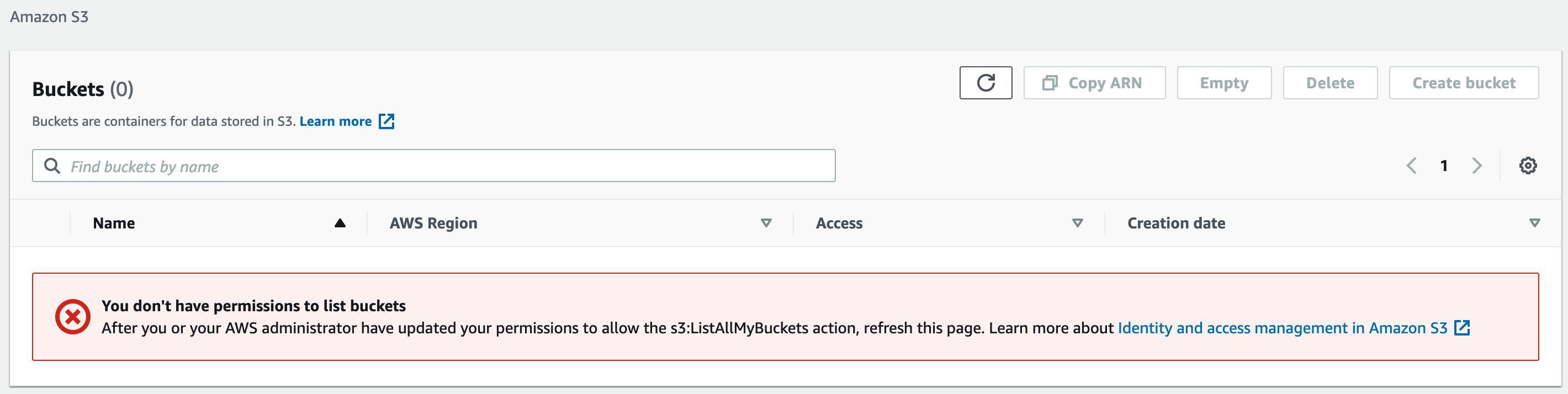
  • The security analyst persona needs permissions to read, list, and describe findings, standards, controls, and products; to update findings; and to create and update insights for Security Hub resources in the master account. The AWS managed IAM policy called AWSSecurityHubReadOnlyAccess provides the permissions needed for read, list, and describe actions, and a customer managed policy will be attached to give permissions to create and update insights and to update findings.
  • The DevOps engineer persona needs the same permissions as the security analyst persona, but they will only have the ability to access their own Security Hub member AWS account(s) and won’t have access to the master account.

Depending on your specific use case, you might want to provide additional permissions to the security analyst and DevOps engineer personas. For example, you might want to also grant them permissions to create custom actions by using the UpdateActionTarget API. In that case, you should also ensure that they have appropriate permissions to create CloudWatch event rules. You can also restrict these personas to only be able to update certain fields in findings (for example, only update workflow status but not severity) by using IAM context keys.

Prerequisites

You must have already enabled Security Hub with one account as master and other associated accounts as members. You will use the following AWS services:

Implementation

To create the required customer managed policies and associate them to users and roles, you will perform these tasks, described in more detail later in this section:

  1. Create a customer managed policy and associate it with the user and role for the security analyst persona in the Security Hub master account, along with the AWSSecurityHubReadOnlyAccess AWS managed policy.
  2. Create a customer managed policy and associate it with the user and role for the DevOps persona in the Security Hub member account, along with the AWSSecurityHubReadOnlyAccess AWS managed policy.
  3. Create a sysadmin user and role and associate it with the AWS managed policy for AWSSecurityHubFullAccess, along with AWS Config and CloudWatch event rule permissions in the Security Hub master account.

The following policy JSON script is for those two customer managed policies.

Security Hub - Security Analyst policy 
MasterCustomer Managed Policy:
{
    "Version": "2012-10-17",
    "Statement": [
        {
            "Sid": "SecurityAnalystMasterCMP",
            "Effect": "Allow",
            "Action": [
                "securityhub:UpdateInsight",
                "securityhub:CreateInsight",
	  			"securityhub:BatchUpdateFindings"
            ],
            "Resource": "*"
        }
    ]
}

Security Hub – DevOps Engineer policy: 
MemberCustomer Managed Policy:
{
    "Version": "2012-10-17",
    "Statement": [
        {
            "Sid": "DevOpsMemberCMP",
            "Effect": "Allow",
            "Action": [
                "securityhub:UpdateInsight",
                "securityhub:CreateInsight",
                "securityhub:BatchUpdateFindings"
            ],
            "Resource": "*"
        }
    ]
}

Step 1: Create the user and role for the security analyst persona

First, create a customer managed policy and associate it with the user and role for the security analyst persona in the Security Hub master account, along with the AWSSecurityHubReadOnlyAccess AWS managed policy.

To create the IAM policy, user, and role (console method)

  1. Sign in to the AWS Management Console in the Security Hub master account and open the IAM console.
  2. In the IAM console navigation pane, choose Policies, and then choose Create Policies.
  3. Choose the JSON tab.
  4. Copy the Security Hub – Security Analyst policy JSON shown earlier in this section, and paste it into the visual editor. When you are finished, choose Review policy.
  5. On the Review policy page, enter a name and a description (optional) for the policy that you’re creating. Review the policy summary to see the permissions that are granted by your policy. Then choose Create policy to save your work.
  6. Follow the instructions in the AWS Identity and Access Management User Guide to create a user and role, and attach the policy you just created.
  7. In the IAM console navigation pane, choose the user or role (or both) that you just created, and on the Permissions tab, choose Add Permissions.
  8. Choose the permissions category Attach existing policies directly to filter and select the managed policy AWSSecurityHubReadOnlyAccess. Review the permissions and then choose Add permissions.
  9. Save all the changes and try using the user and role after few minutes.

Step 2: Create the user and role for the DevOps persona

Next, create a customer managed policy and associate it with the user and role for the DevOps persona in the Security Hub member account, along with the AWSSecurityHubReadOnlyAccess AWS managed policy.

To create the IAM policy, user, and role (console method)

  1. Sign in to the AWS Management Console in the Security Hub member account and open the IAM console.
  2. In the IAM console navigation pane, choose Policies and then choose Create Policies.
  3. Choose the JSON tab.
  4. Copy the Security Hub – DevOps Engineer policy JSON shown earlier in this section, and paste it into the visual editor. When you are finished, choose Review policy.
  5. On the Review policy page, enter a name and a description (optional) for the policy that you are creating. Review the policy summary to see the permissions that are granted by your policy. Then choose Create policy to save your work.
  6. Follow the instructions in the AWS Identity and Access Management User Guide to create a user and role, and attach the policy you just created.
  7. In the IAM console navigation pane, choose the user or role (or both) that you just created, and on the Permissions tab, choose Add Permissions.
  8. Choose the permissions category Attach existing policies directly to filter and select the managed policy AWSSecurityHubReadOnlyAccess. Review the permissions and then choose Add permissions.
  9. Save all the changes and try using the user and role after few minutes.

Step 3: Create the user and role for the sysadmin persona

Next, create a user and role for the sysadmin persona and associate it with the AWS managed policies AWSSecurityHubFullAccess, CloudWatchEventsFullAccess, and full access to AWS Config in the Security Hub master account.

To create the IAM user and role (console method)

  1. Sign in to the AWS Management Console in the Security Hub member account and open the IAM console.
  2. Follow the instructions in the AWS Identity and Access Management User Guide to create a user and role.
  3. In the IAM console navigation pane, choose the user or role (or both) that you just created, and on the Permissions tab, choose Add Permissions.
  4. Choose the permissions category Attach existing policies directly to filter and select managed policies, and attach the managed policies AWSSecurityHubFullAccess and CloudWatchEventsFullAccess.
  5. Create another policy to grant full access to AWS Config as described in the AWS Config Developer Guide, and attach the policy to the user or role. Review the permissions, and choose Add permissions.
  6. Save all the changes and try using the user and role after few minutes.

Test the users and roles in the Security Hub master and member accounts

Finally, test the three users and roles that you created for the respective personas in the preceding steps.

To test the users and roles

  1. Security analyst user and role:
    1. Sign in to the AWS Management Console in the master account and open Security Hub.
    2. Make sure that Security Hub UI features (such as the Summary, Security Standard, Insights, Findings, and Integrations) are rendered so that the Security Analyst can view them.
    3. Navigate to a finding and change the workflow status as described in the topic Setting the workflow status for findings.
  2. DevOps engineer user and role:
    1. Sign in to the AWS Management Console in the member account and open Security Hub.
    2. Make sure that Security Hub UI features (such as the Summary, Security Standard, Insights, Findings, and Integrations) are rendered so that the DevOps Engineer can view them.
    3. Create a custom insight for the member account and other attribute groupings.
  3. Sysadmin user and role:
    1. Sign in to the AWS Management Console in the master or member account, and open Security Hub.
    2. Try admin-related operations such as create a custom action, invite another account, and so on.

Adding policy conditions

You might want to further restrict the permissions for the security analyst and DevOps personas. IAM policies for Security Hub’s BatchUpdateFindings API enable you to specify conditions to prevent a user from making any update to a specific finding field. The following example disallows setting the Workflow Status field to Suppressed.

{
	"Sid": "CMPCondition",
	"Effect": "Deny",
	"Action": "securityhub:BatchUpdateFindings",
	"Resource": "*",
	"Condition": {
		"StringEquals": {
			"securityhub:ASFFSyntaxPath/Workflow.Status": "SUPPRESSED"
		}
	}
}

Summary

In this post, we showed you how to align AWS managed and customer managed IAM policies to different user personas, so that you can allow different users to access Security Hub with least privilege permissions. Security Hub enables both central security teams and individual DevOps engineers to understand and improve the security posture of the AWS accounts in their organization.

If you have feedback about this post, submit comments in the Comments section below. If you have questions about this post, start a new thread on the AWS Security Hub forum or contact AWS Support.

Want more AWS Security how-to content, news, and feature announcements? Follow us on Twitter.

Author

Vaibhawa Kumar

Vaibhawa is a Cloud Infra Architect with AWS Professional Services. He helps customers on their cloud journey of critical workloads to the AWS cloud with infrastructure security and automations. In his free time, you can find him spending time with family, sports, and cooking.

Author

Sanjay Patel

Sanjay is a Senior Cloud Application Architect with AWS Professional Services. He has a diverse background in software design, enterprise architecture, and API integrations. He has helped AWS customers automate infrastructure security. He enjoys working with AWS customers to identify and implement the best fit solution.

Author

Ely Kahn

Ely is the Principal Product Manager for AWS Security Hub. Before his time at AWS, Ely was a co-founder for Sqrrl, a security analytics startup that AWS acquired and is now Amazon Detective. Earlier, Ely served in a variety of positions in the federal government, including Director of Cybersecurity at the National Security Council in the White House.

New! Streamline existing IAM Access Analyzer findings using archive rules

Post Syndicated from Andrea Nedic original https://aws.amazon.com/blogs/security/new-streamline-existing-iam-access-analyzer-findings-using-archive-rules/

AWS Identity and Access Management (IAM) Access Analyzer generates comprehensive findings to help you identify resources that grant public and cross-account access. Now, you can also apply archive rules to existing findings, so you can better manage findings and focus on the findings that need your attention most.

You can think of archive rules as similar to email rules. You define email rules to automatically organize emails. With IAM Access Analyzer, you can define archive rules to automatically mark findings as intended access. Now, those rules can apply to existing as well as new IAM Access Analyzer findings. This helps you focus on findings for potential unintended access to your resources. You can then easily track and resolve these findings by reducing access, helping you to work towards least privilege.

In this post, first I give a brief overview of IAM Access Analyzer. Then I show you an example of how to create an archive rule to automatically archive findings for intended access. Finally, I show you how to update an archive rule to mark existing active findings as intended.

IAM Access Analyzer overview

IAM Access Analyzer helps you determine which resources can be accessed publicly or from other accounts or organizations. IAM Access Analyzer determines this by mathematically analyzing access control policies attached to resources. This form of analysis—called automated reasoning—applies logic and mathematical inference to determine all possible access paths allowed by a resource policy. This is how IAM Access Analyzer uses provable security to deliver comprehensive findings for potential unintended bucket access. You can enable IAM Access Analyzer in the IAM console by creating an analyzer for an account or an organization. Once you’ve created your analyzer, you can review findings for resources that can be accessed publicly or from other AWS accounts or organizations.

Create an archive rule to automatically archive findings for intended access

When you review findings and discover common patterns for intended access, you can create archive rules to automatically archive those findings. This helps you focus on findings for unintended access to your resources, just like email rules help streamline your inbox.

To create an archive rule

In the IAM console, choose Archive rules under Access Analyzer. Then, choose Create archive rule to display the Create archive rule page shown in Figure 1. There, you find the option to name the rule or use the name generated by default. In the Rule section, you define criteria to match properties of findings you want to archive. Just like email rules, you can add multiple criteria to the archive rule. You can define each criterion by selecting a finding property, an operator, and a value. To help ensure a rule doesn’t archive findings for public access, the criterion Public access is false is suggested by default.
 

Figure 1: IAM Access Analyzer create archive rule page where you add criteria to create a new archive rule

Figure 1: IAM Access Analyzer create archive rule page where you add criteria to create a new archive rule

For example, I have a security audit role external to my account that I expect to have access to resources in my account. To mark that access as intended, I create a rule to archive all findings for Amazon S3 buckets in my account that can be accessed by the security audit role outside of the account. To do this, I include two criteria: Resource type matches S3 bucket, and the AWS Account value matches the security audit role ARN. Once I add these criteria, the Results section displays the list of existing active findings the archive rule matches, as shown in Figure 2.
 

Figure 2: A rule to archive all findings for S3 buckets in an account that can be accessed by the audit role outside of the account, with matching findings displayed

Figure 2: A rule to archive all findings for S3 buckets in an account that can be accessed by the audit role outside of the account, with matching findings displayed

When you’re done adding criteria for your archive rule, select Create and archive active findings to archive new and existing findings based on the rule criteria. Alternatively, you can choose Create rule to create the rule for new findings only. In the preceding example, I chose Create and archive active findings to archive all findings—existing and new—that match the criteria.

Update an archive rule to mark existing findings as intended

You can also update an archive rule to archive existing findings retroactively and streamline your findings. To edit an archive rule, choose Archive rules under Access Analyzer, then select an existing rule and choose Edit. In the Edit archive rule page, update the archive rule criteria and review the list of existing active findings the archive rule applies to. When you save the archive rule, you can apply it retroactively to existing findings by choosing Save and archive active findings as shown in Figure 3. Otherwise, you can choose Save rule to update the rule and apply it to new findings only.

Note: You can also use the new IAM Access Analyzer API operation ApplyArchiveRule to retroactively apply an archive rule to existing findings that meet the archive rule criteria.


Figure 3: IAM Access Analyzer edit archive rule page where you can apply the rule retroactively to existing findings by choosing Save and archive active findings

Figure 3: IAM Access Analyzer edit archive rule page where you can apply the rule retroactively to existing findings by choosing Save and archive active findings

Get started

To turn on IAM Access Analyzer at no additional cost, open the IAM console. IAM Access Analyzer is available at no additional cost in the IAM console and through APIs in all commercial AWS Regions, AWS China Regions, and AWS GovCloud (US). To learn more about IAM Access Analyzer and which resources it supports, visit the feature page.

If you have feedback about this post, submit comments in the Comments section below. If you have questions about this post, start a new thread on the AWS IAM forum or contact AWS Support.

Want more AWS Security how-to content, news, and feature announcements? Follow us on Twitter.

Author

Andrea Nedic

Andrea is a Sr. Tech Product Manager for AWS Identity and Access Management. She enjoys hearing from customers about how they build on AWS. Outside of work, Andrea likes to ski, dance, and be outdoors. She holds a PhD from Princeton University.

How to automatically archive expected IAM Access Analyzer findings

Post Syndicated from Josh Joy original https://aws.amazon.com/blogs/security/how-to-automatically-archive-expected-iam-access-analyzer-findings/

AWS Identity and Access Management (IAM) Access Analyzer continuously monitors your Amazon Web Services (AWS) resource-based policies for changes in order to identify resources that grant public or cross-account access from outside your AWS account or organization. Access Analyzer findings include detailed information that you can use to make an informed decision about whether access to the shared resource was intended or not. The findings information includes the affected AWS resource, the external principal that has access, the condition from the policy statement that grants the access, and the access level, such as read, write, or the ability to modify permissions.

In this blog post, we show you how to automatically archive Access Analyzer findings for expected events, such as authorized resource access. The benefit of automatically archiving expected findings is to help you reduce distraction from findings that don’t require action, enabling you to concentrate on remediating any unexpected access to your shared resources.

Access Analyzer provides you with the ability to archive findings that show intended cross-account sharing of your AWS resources. The AWS service-provided archive mechanism provides you with built-in archive rules that can automatically archive new findings that meet the criteria you define (such as directive controls). For example, your organizational access controls might allow your auditor to have read-only IAM role cross-account access from your security account into all of your accounts. In this security auditor scenario, you can define a built-in archive rule to automatically archive the findings related to the auditor cross-account IAM role that has authorized read-only access.

A limitation of the built-in archive rules is that they are static and based only on simple pattern matching. To build your own custom archiving logic, you can create an AWS Lambda function that listens to Amazon CloudWatch Events. Access Analyzer forwards all findings to CloudWatch Events, and you can easily configure a CloudWatch Events rule to trigger a Lambda function for each Access Analyzer finding. For example, if you want to look up the tags on a resource, you can make an AWS API call based on the Amazon Resource Name (ARN) for the resource in your Lambda function. As another example, you might want to compute an overall risk score based on the various parts of a finding and archive everything below a certain threshold score that you define.

In this blog post, we show you how to configure a built-in archive rule, how to add context enrichment for more complex rules, and how to trigger an alert for unintended findings. We first cover the scenario of the auditor role using a built-in archive rule. Then, we show how to perform automated archive remediation by using CloudWatch Events with AWS Step Functions to add context enrichment and automatically remediate the authorized sharing of a cross-account AWS Key Management Service (AWS KMS) key. Finally, we show how to trigger alerts for the unintended sharing of a public Amazon Simple Storage Service (Amazon S3) bucket.

Prerequisites

The solution we give here assumes that you have Access Analyzer enabled in your AWS account. You can find more details about enabling Access Analyzer in the Getting Started guide for that feature. Access Analyzer is available at no additional cost in the IAM console and through APIs in all commercial AWS Regions. Access Analyzer is also available through APIs in the AWS GovCloud (US) Regions.

How to use the built-in archive rules

In our first example, there is a security auditor cross-account IAM role that can be assumed by security automation tools from the central security AWS account. We use the built-in archive rules to automatically archive cross-account findings related to the cross-account security auditor IAM role.

To create a built-in archive rule

  1. In the AWS Management Console, choose Identity and Access Management (IAM). On the dashboard, choose Access Analyzer, and then choose Archive rules.
  2. Choose the Create archive rule button.
     
    Figure 1: Create archive rule

    Figure 1: Create archive rule

  3. You can select archive rule criteria based on your use case. For this example, in the search box, choose AWS Account as the criteria, since we want to automatically archive the security auditor account.
     
    Figure 2: Select archive rule criteria

    Figure 2: Select archive rule criteria

  4. You can now enter the value for the selected criteria. In this case, for Criteria, choose AWS Account, and then choose the equals operator.
  5. After you’ve entered your criteria, choose the Create archive rule button.
     
    Figure 3: Finish creating the archive rule

    Figure 3: Finish creating the archive rule

    You should see a message confirming that you’ve successfully created a new archive rule.
     

    Figure 4: Successful creation of a new archive rule

    Figure 4: Successful creation of a new archive rule

How to automatically archive expected findings

We now show you how to automatically archive expected findings by using a serverless workflow that you define by using AWS Step Functions. We show you how to leverage Step Functions to enrich an Access Analyzer finding, evaluate the finding against your customized rule engine logic, and finally either archive the finding or send a notification. A CloudWatch Event Rule will trigger the Step Functions workflow when Access Analyzer generates a new finding.

Solution architecture – serverless workflow

The CloudWatch event bus delivers the Access Analyzer findings to the Step Functions workflow. The Step Functions workflow responds to each Access Analyzer finding and either archives the finding for authorized access or sends an Amazon Simple Notification Service (Amazon SNS) email notification for an unauthorized access finding, as shown in figure 5.
 

Figure 5: Solution architecture for automatic archiving

Figure 5: Solution architecture for automatic archiving

The Step Functions workflow enriches the finding and provides contextual information to the rules engine for evaluation, as shown in figure 6. The Access Analyzer finding is either archived or generates an alert, based on the result of the rules engine evaluation and the associated risk level. If you’re interested in remediating the finding, you can learn more by watching the talk AWS re:Invent 2019: [NEW LAUNCH!] Dive Deep into IAM Access Analyzer (SEC309).
 

Figure 6: Finding analysis and archival

Figure 6: Finding analysis and archival

This example uses four Lambda functions. One function is for context enrichment, a second function is for rule evaluation logic, a third function is to archive expected findings, and finally a fourth function is to send a notification for findings that require investigation by your security operations team.

First, the enrichment Lambda function retrieves the tags associated with the AWS resource. The following code example retrieves the S3 bucket tags.

def lookup_s3_tags(resource_arn):
  tags = {}

  s3_client = boto3.client("s3")
  bucket_tags = s3_client.get_bucket_tagging(Bucket=resource_arn)["TagSet"]

  return bucket_tags

The Lambda function can perform additional enrichment beyond looking up tags, such as looking up the AWS KMS key alias, as shown in the next code example.

def additional_enrichment(resource_type, resource_arn):
  additional_context = {}

  if resource_type == "AWS::KMS::Key":
    kms_client = boto3.client("kms")
    aliases = kms_client.list_aliases(KeyId=resource_arn)["Aliases"]
    additional_context["key_aliases"] = [alias["AliasName"] for alias in aliases]

  return additional_context

Next, the evaluation rule Lambda function determines whether the finding is authorized and can be archived, or whether the finding is unauthorized and a notification needs to be generated. In this example, we first check whether the resource is shared publicly and then immediately alert if there’s an unexpected public sharing of a resource. Additionally, we explicitly don’t want public sharing of resources that are tagged Confidential. Our example method checks whether the value “Confidential” is set as the “Data Classification” tag and correspondingly returns False in order to trigger a notification.

Also, we allow cross-account sharing of a key in the development environment with the tag key “IsAllowedToShare” and tag value “true”, tag key “Environment” with tag value “development”, and a key alias of “DevelopmentKey”.

# Evaluate Risk Level
# Return True to raise alert if risk level exceeds threshold
# Return False to archive finding
def should_raise_alert(finding_details, tags, additional_context):
  if (
      finding_details["isPublic"]
      and not is_allowed_public(finding_details, tags, additional_context)
     ):
    return True
  elif (
        tags.get("IsAllowedToShare") == "true"
        and tags.get("Environment") == "development"
        and "DevelopmentKey" in additional_context.get("key_aliases", [])
    ):
    return False

  return True

def is_allowed_public(finding_details, tags, additional_context):
  # customize your logic here
  # for example, Data Classification is Confidential, return False for no public access
  if "Data Classification" in tags and tags["Data Classification"] == "Confidential":
    return False 

  return True
  if should_raise_alert(finding_details, tags, additional_context):
    return {"status": "NOTIFY"}
  else:
    return {"status": "ARCHIVE"}     

We then use the Choice condition to trigger either the archive or notification step.

 next(sfn.Choice(self, "Archive?"). \
  when(sfn.Condition.string_equals("$.guid.status", "ARCHIVE"), archive_task). \
  when(sfn.Condition.string_equals("$.guid.status", "NOTIFY"), notification_task) \
 )

The archive Lambda step archives the Access Analyzer finding if a rule is successfully evaluated.

def archive_finding(finding_id, analyzer_arn):
  access_analyzer_client = boto3.client("accessanalyzer")
  access_analyzer_client.update_findings(
    analyzerArn=analyzer_arn,
    ids=[finding_id],
    status="ARCHIVED"
  )

Otherwise, we raise an SNS notification because there is unauthorized resource sharing.

  resource_type = event["detail"]["resourceType"]
  resource_arn = event["detail"]["resource"]

  sns_client = boto3.client('sns')
  sns_client.publish(
      TopicArn=sns_topic_arn,
      Message=f"Alert {resource_type} {resource_arn} exceeds risk level.",
      Subject="Alert Access Analyzer Finding"
  )

Solution deployment

You can deploy the solution through either the AWS Management Console or the AWS Cloud Development Kit (AWS CDK).

Prerequisites

Make sure that Access Analyzer is enabled in your AWS account. You can find an AWS CloudFormation template for doing so in the GitHub repository. It’s also possible for you to enable Access Analyzer across your organization by using the scripts for AWS CloudFormation StackSets found in the GitHub repository. See more details in the blog post Enabling AWS IAM Access Analyzer on AWS Control Tower accounts.

To deploy the solution by using the AWS Management Console

  1. In your security account, launch the template by choosing the following Launch Stack button.
     
    Select the Launch Stack button to launch the template
  2. Provide the following parameter for the security account:
    EmailSubscriptionParameter: The email address to receive subscription notifications for any findings that exceed your defined risk level.

To deploy the solution by using the AWS CDK

Additionally, you can find the latest code on GitHub, where you can also contribute to the sample code. The following commands shows how to deploy the solution by using the AWS Cloud Development Kit (AWS CDK). First, upload the Lambda assets to S3. Then, deploy the solution to your account.

cdk bootstrap

cdk deploy --parameters EmailSubscriptionParameter=YOUR_EMAIL_ADDRESS_HERE

To test the solution

  1. Create a cross-account KMS key. You should receive an email notification after several minutes.
  2. Create a cross-account KMS key with the tags IsAllowedToShare=true and Environment=development. Also, create a KMS key alias named alias/DevelopmentKey for this key. After a few seconds, you should see that the finding was automatically archived.

Summary

In this blog post, we showed you how IAM Access Analyzer can help you identify resources in your organization and accounts that are shared with an external identity. We explained how to automatically archive expected findings by using the built-in archive rules. Then, we walked you through how to automatically archive expected shared resources. We showed you how to create a serverless workflow that uses AWS Step Functions, which performs context enrichment and then automatically archives your findings for expected shared resources.

After you follow the steps in this blog post for automatic archiving, you will only receive Access Analyzer findings for unexpected AWS resource sharing. A good way to manage these unexpected Access Analyzer findings is with AWS Security Hub, alongside your other findings. Visit Getting started with AWS Security Hub to learn more. You can also see the blog post Automated Response and Remediation with AWS Security Hub for event patterns and remediation code examples.

If you have feedback about this post, submit comments in the Comments section below.

Want more AWS Security how-to content, news, and feature announcements? Follow us on Twitter.

Author

Josh Joy

Josh is a Security Consultant with the AWS Global Security Practice, a part of our Worldwide Professional Services Organization. Josh helps customers improve their security posture as they migrate their most sensitive workloads to AWS. Josh enjoys diving deep and working backwards in order to help customers achieve positive outcomes.

Author

Andrew Gacek

Andrew is a Principal Applied Scientist in the Automated Reasoning Group at Amazon. He designs analyses to ensure the safety and security of AWS customer configurations. Prior to joining Amazon, Andrew worked at Rockwell Collins where he used automated reasoning to verify aerospace applications. He holds a PhD in Computer Science from the University of Minnesota.

New IAMCTL tool compares multiple IAM roles and policies

Post Syndicated from Sudhir Reddy Maddulapally original https://aws.amazon.com/blogs/security/new-iamctl-tool-compares-multiple-iam-roles-and-policies/

If you have multiple Amazon Web Services (AWS) accounts, and you have AWS Identity and Access Management (IAM) roles among those multiple accounts that are supposed to be similar, those roles can deviate over time from your intended baseline due to manual actions performed directly out-of-band called drift. As part of regular compliance checks, you should confirm that these roles have no deviations. In this post, we present a tool called IAMCTL that you can use to extract the IAM roles and policies from two accounts, compare them, and report out the differences and statistics. We will explain how to use the tool, and will describe the key concepts.

Prerequisites

Before you install IAMCTL and start using it, here are a few prerequisites that need to be in place on the computer where you will run it:

To follow along in your environment, clone the files from the GitHub repository, and run the steps in order. You won’t incur any charges to run this tool.

Install IAMCTL

This section describes how to install and run the IAMCTL tool.

To install and run IAMCTL

  1. At the command line, enter the following command:
    pip3 install git+ssh://[email protected]/aws-samples/[email protected]
    

    You will see output similar to the following.

    Figure 1: IAMCTL tool installation output

    Figure 1: IAMCTL tool installation output

  2. To confirm that your installation was successful, enter the following command.
    iamctl –h
    

    You will see results similar to those in figure 2.

    Figure 2: IAMCTL help message

    Figure 2: IAMCTL help message

Now that you’ve successfully installed the IAMCTL tool, the next section will show you how to use the IAMCTL commands.

Example use scenario

Here is an example of how IAMCTL can be used to find differences in IAM roles between two AWS accounts.

A system administrator for a product team is trying to accelerate a product launch in the middle of testing cycles. Developers have found that the same version of their application behaves differently in the development environment as compared to the QA environment, and they suspect this behavior is due to differences in IAM roles and policies.

The application called “app1” primarily reads from an Amazon Simple Storage Service (Amazon S3) bucket, and runs on an Amazon Elastic Compute Cloud (Amazon EC2) instance. In the development (DEV) account, the application uses an IAM role called “app1_dev” to access the S3 bucket “app1-dev”. In the QA account, the application uses an IAM role called “app1_qa” to access the S3 bucket “app1-qa”. This is depicted in figure 3.

Figure 3: Showing the “app1” application in the development and QA accounts

Figure 3: Showing the “app1” application in the development and QA accounts

Setting up the scenario

To simulate this setup for the purpose of this walkthrough, you don’t have to create the EC2 instance or the S3 bucket, but just focus on the IAM role, inline policy, and trust policy.

As noted in the prerequisites, you will switch between the two AWS accounts by using the AWS CLI named profiles “dev-profile” and “qa-profile”, which are configured to point to the DEV and QA accounts respectively.

Start by using this command:

mkdir -p iamctl_test iamctl_test/dev iamctl_test/qa

The command creates a directory structure that looks like this:
Iamctl_test
|– qa
|– dev

Now, switch to the dev folder to run all the following example commands against the DEV account, by using this command:

cd iamctl_test/dev

To create the required policies, first create a file named “app1_s3_access_policy.json” and add the following policy to it. You will use this file’s content as your role’s inline policy.

{
    "Version": "2012-10-17",
    "Statement": [
        {
            "Effect": "Allow",
            "Action": [
                "s3:Get*",
                "s3:List*"
            ],
            "Resource": [
         "arn:aws:s3:::app1-dev/shared/*"
            ]
        }
    ]
}

Second, create a file called “app1_trust_policy.json” and add the following policy to it. You will use this file’s content as your role’s trust policy.

{
  "Version": "2012-10-17",
  "Statement": [
    {
      "Effect": "Allow",
      "Principal": {
        "Service": "ec2.amazonaws.com"
      },
      "Action": "sts:AssumeRole"
    }
  ]
}

Now use the two files to create an IAM role with the name “app1_dev” in the account by using these command(s), run in the same order as listed here:

#create role with trust policy

aws --profile dev-profile iam create-role --role-name app1_dev --assume-role-policy-document file://app1_trust_policy.json

#put inline policy to the role created above
 
aws --profile dev-profile iam put-role-policy --role-name app1_dev --policy-name s3_inline_policy --policy-document file://app1_s3_access_policy.json

In the QA account, the IAM role is named “app1_qa” and the S3 bucket is named “app1-qa”.

Repeat the steps from the prior example against the QA account by changing dev to qa where shown in bold in the following code samples. Change the directory to qa by using this command:

cd ../qa

To create the required policies, first create a file called “app1_s3_access_policy.json” and add the following policy to it.

{
    "Version": "2012-10-17",
    "Statement": [
        {
            "Effect": "Allow",
            "Action": [
                "s3:Get*",
                "s3:List*"
            ],
            "Resource": [
         "arn:aws:s3:::app1-qa/shared/*"
            ]
        }
    ]
}

Next, create a file, called “app1_trust_policy.json” and add the following policy.

{
  "Version": "2012-10-17",
  "Statement": [
    {
      "Effect": "Allow",
      "Principal": {
        "Service": "ec2.amazonaws.com"
      },
      "Action": "sts:AssumeRole"
    }
  ]
}

Now, use the two files created so far to create an IAM role with the name “app1_qa” in your QA account by using these command(s), run in the same order as listed here:

#create role with trust policy
aws --profile qa-profile iam create-role --role-name app1_qa --assume-role-policy-document file://app1_trust_policy.json

#put inline policy to the role create above
aws --profile qa-profile iam put-role-policy --role-name app1_qa --policy-name s3_inline_policy --policy-document file://app1_s3_access_policy.json

So far, you have two accounts with an IAM role created in each of them for your application. In terms of permissions, there are no differences other than the name of the S3 bucket resource the permission is granted against.

You can expect IAMCTL to generate a minimal set of differences between the DEV and QA accounts, assuming all other IAM roles and policies are the same, but to be sure about the current state of both accounts, in IAMCTL you can run a process called baselining.

Through the process of baselining, you will generate an equivalency dictionary that represents all the known string patterns that reduce the noise in the generated deviations list, and then you will introduce a change into one of the IAM roles in your QA account, followed by a final IAMCTL diff to show the deviations.

Baselining

Baselining is the process of bringing two accounts to an “equivalence” state for IAM roles and policies by establishing a baseline, which future diff operations can leverage. The process is as simple as:

  1. Run the iamctl diff command.
  2. Capture all string substitutions into an equivalence dictionary to remove or reduce noise.
  3. Save the generated detailed files as a snapshot.

Now you can go through these steps for your baseline.

Go ahead and run the iamctl diff command against these two accounts by using the following commands.

#change directory from qa to iamctl-test
cd ..

#run iamctl init
iamctl init

The results of running the init command are shown in figure 4.

Figure 4: Output of the iamctl init command

Figure 4: Output of the iamctl init command

If you look at the iamctl_test directory now, shown in figure 5, you can see that the init command created two files in the iamctl_test directory.

Figure 5: The directory structure after running the init command

Figure 5: The directory structure after running the init command

These two files are as follows:

  1. iam.jsonA reference file that has all AWS services and actions listed, among other things. IAMCTL uses this to map the resource listed in an IAM policy to its corresponding AWS resource, based on Amazon Resource Name (ARN) regular expression.
  2. equivalency_list.jsonThe default sample dictionary that IAMCTL uses to suppress false alarms when it compares two accounts. This is where the known string patterns that need to be substituted are added.

Note: A best practice is to make the directory where you store the equivalency dictionary and from which you run IAMCTL to be a Git repository. Doing this will let you capture any additions or modifications for the equivalency dictionary by using Git commits. This will not only give you an audit trail of your historical baselines but also gives context to any additions or modifications to the equivalency dictionary. However, doing this is not necessary for the regular functioning of IAMCTL.

Next, run the iamctl diff command:

#run iamctl diff
iamctl diff dev-profile dev qa-profile qa
Figure 6: Result of diff command

Figure 6: Result of diff command

Figure 6 shows the results of running the diff command. You can see that IAMCTL considers the app1_qa and app1_dev roles as unique to the DEV and QA accounts, respectively. This is because IAMCTL uses role names to decide whether to compare the role or tag the role as unique.

You will add the strings “dev” and “qa” to the equivalency dictionary to instruct IAMCTL to substitute occurrences of these two strings with “accountname” by adding the follow JSON to the equivalency_list.json file. You will also clean up some defaults already present in there.

echo “{“accountname”:[“dev”,”qa”]}” > equivalency_list.json

Figure 7 shows the equivalency dictionary before you take these actions, and figure 8 shows the dictionary after these actions.

Figure 7: Equivalency dictionary before

Figure 7: Equivalency dictionary before

Figure 8: Equivalency dictionary after

Figure 8: Equivalency dictionary after

There’s another thing to notice here. In this example, one common role was flagged as having a difference. To know which role this is and what the difference is, go to the detail reports folder listed at the bottom of the summary report. The directory structure of this folder is shown in figure 9.

Notice that the reports are created under your home directory with a folder structure that mimics the time stamp down to the second. IAMCTL does this to maintain uniqueness for each run.

tree /Users/<username>/aws-idt/output/2020/08/24/08/38/49/
Figure 9: Files written to the output reports directory

Figure 9: Files written to the output reports directory

You can see there is a file called common_roles_in_dev_with_differences.csv, and it lists a role called “AwsSecurity***Audit”.

You can see there is another file called dev_to_qa_common_role_difference_items.csv, and it lists the granular IAM items from the DEV account that belong to the “AwsSecurity***Audit” role as compared to QA, but which have differences. You can see that all entries in the file have the DEV account number in the resource ARN, whereas in the qa_to_dev_common_role_difference_items.csv file, all entries have the QA account number for the same role “AwsSecurity***Audit”.

Add both of the account numbers to the equivalency dictionary to substitute them with a placeholder number, because you don’t want this role to get flagged as having differences.

echo “{“accountname”:[“dev”,”qa”],”000000000000”:[“123456789012”,”987654321098”]}” > equivalency_list.json

Now, re-run the diff command.

#run iamctl diff
iamctl diff dev-profile dev qa-profile qa

As you can see in figure 10, you get back the result of the diff command that shows that the DEV account doesn’t have any differences in IAM roles as compared to the QA account.

Figure 10: Output showing no differences after completion of baselining

Figure 10: Output showing no differences after completion of baselining

This concludes the baselining for your DEV and QA accounts. Now you will introduce a change.

Introducing drift

Drift occurs when there is a difference in actual vs expected values in the definition or configuration of a resource. There are several reasons why drift occurs, but for this scenario you will use “intentional need to respond to a time-sensitive operational event” as a reason to mimic and introduce drift into what you have built so far.

To simulate this change, add “s3:PutObject” to the qa app1_s3_access_policy.json file as shown in the following example.

{
    "Version": "2012-10-17",
    "Statement": [
        {
            "Effect": "Allow",
            "Action": [
                "s3:Get*",
                "s3:List*",
                "s3:PutObject"
            ],
            "Resource": [
         "arn:aws:s3:::app1-qa/shared/*"
            ]
        }
    ]
}

Put this new inline policy on your existing role “app1_qa” by using this command:

aws --profile qa-profile iam put-role-policy --role-name app1_qa --policy-name s3_inline_policy --policy-document file://app1_s3_access_policy.json

The following table represents the new drift in the accounts.

Action Account-DEV
Role name: app1_dev
Account-QA
Role name: app1_qa
s3:Get* Yes Yes
s3:List* Yes Yes
s3: PutObject No Yes

Next, run the iamctl diff command to see how it picks up the drift from your previously baselined accounts.

#change directory from qa to iamctL-test
cd ..
iamctl diff dev-profile dev qa-profile qa
Figure 11: Output showing the one deviation that was introduced

Figure 11: Output showing the one deviation that was introduced

You can see that IAMCTL now shows that the QA account has one difference as compared to DEV, which is what we expect based on the deviation you’ve introduced.

Open up the file qa_to_dev_common_role_difference_items.csv to look at the one difference. Again, adjust the following path example with the output from the iamctl diff command at the bottom of the summary report in Figure 11.

cat /Users/<username>/aws-idt/output/2020/09/18/07/38/15/qa_to_dev_common_role_difference_items.csv

As shown in figure 12, you can see that the file lists the specific S3 action “PutObject” with the role name and other relevant details.

Figure 12: Content of file qa_to_dev_common_role_difference_items.csv showing the one deviation that was introduced

Figure 12: Content of file qa_to_dev_common_role_difference_items.csv showing the one deviation that was introduced

You can use this information to remediate the deviation by performing corrective actions in either your DEV account or QA account. You can confirm the effectiveness of the corrective action by re-baselining to make sure that zero deviations appear.

Conclusion

In this post, you learned how to use the IAMCTL tool to compare IAM roles between two accounts, to arrive at a granular list of meaningful differences that can be used for compliance audits or for further remediation actions. If you’ve created your IAM roles by using an AWS CloudFormation stack, you can turn on drift detection and easily capture the drift because of changes done outside of AWS CloudFormation to those IAM resources. For more information about drift detection, see Detecting unmanaged configuration changes to stacks and resources. Lastly, see the GitHub repository where the tool is maintained with documentation describing each of the subcommand concepts. We welcome any pull requests for issues and enhancements.

If you have feedback about this post, submit comments in the Comments section below. If you have questions about this post, start a new thread on the AWS IAM forum or contact AWS Support.

Want more AWS Security how-to content, news, and feature announcements? Follow us on Twitter.

Author

Sudhir Reddy Maddulapally

Sudhir is a Senior Partner Solution Architect who builds SaaS solutions for partners by day and is a tech tinkerer by night. He enjoys trips to state and national parks, and Yosemite is his favorite thus far!

Author

Soumya Vanga

Soumya is a Cloud Application Architect with AWS Professional Services in New York, NY, helping customers design solutions and workloads and to adopt Cloud Native services.

Enhance programmatic access for IAM users using a YubiKey for multi-factor authentication

Post Syndicated from Edouard Kachelmann original https://aws.amazon.com/blogs/security/enhance-programmatic-access-for-iam-users-using-yubikey-for-multi-factor-authentication/

Organizations are increasingly providing access to corporate resources from employee laptops and are required to apply the correct permissions to these computing devices to make sure that secrets and sensitive data are adequately protected. The combination of Amazon Web Services (AWS) long-term credentials and a YubiKey security token for multi-factor authentication (MFA) is an option for providing secure programmatic access to AWS for organizations that aren’t yet ready or able to use identity federation. For example, a user should be able to list AWS Identity and Access Management (IAM) roles with their default programmatic access, but would be required to provide MFA to assume an IAM role.

In this blog post, we show you how to use a YubiKey token for MFA with the AWS Command Line Interface (AWS CLI) to create temporary credentials with the permissions that developers need to perform tasks. The user will configure the long-term credentials and then temporarily assume a role with broader permissions by using MFA when needed. MFA adds extra security, because it requires users to provide second-factor authentication from an AWS-supported MFA mechanism in addition to static security credentials such as their user name and password.

The goal for any organization is to move to the recommended best practices for allowing individual programmatic access that include using temporary security credentials that aren’t stored with the user, but are generated dynamically and provided to the user when requested, such as identity federation due to the temporary nature of those credentials. If your organization uses AWS Single Sign-On (AWS SSO) along with an identity provider (IdP) such as Okta, Azure Active Directory (AD), or AWS Managed Microsoft AD, you can then use the instructions from this earlier blog post to leverage the AWS CLI v2 native integration with AWS SSO and take advantage of the multi-factor authentication support of your IdP.

Overview

This post describes the configuration of IAM users and roles and initialization of the YubiKey token as an MFA device by an administrator, and then how developers can use the YubiKey device to retrieve temporary credentials and assume a role with elevated permissions within the AWS CLI.

The overall process flow looks like this:

  1. Create an IAM user with programmatic access, MFA, and a policy that allows you to assume a more privileged IAM role. The user will retrieve a Time-based One-time Password (TOTP) token code by using a YubiKey as MFA.
  2. Assume the more privileged role, which is restricted by an MFA conditional, by using the TOTP token code.

Figure 1 shows the steps of the process.

Figure 1: A visual overview of the steps to assume roles with elevated permissions by using a YubiKey for MFA

Figure 1: A visual overview of the steps to assume roles with elevated permissions by using a YubiKey for MFA

Prerequisites

To get started you need:

  • An AWS account.
  • A YubiKey (available on Amazon.com). YubiKey 4 and 5 series are compatible, because they support the required OATH application.

    Note: The Yubico Security Keys (the blue tokens) aren’t supported, because they lack the OATH application. If you already have a corporate YubiKey device, this capability might have been disabled.

  • To complete the process for:

Notes:

  • AWS CLI v2 doesn’t yet support Universal 2nd factor (U2F) MFA. As a workaround, we use a YubiKey as a virtual device MFA.
  • OATH (Initiative for Open Authentication) is an organization that specifies two open authentication standards: TOTP and HMAC-based One-time Password (HOTP). For this solution, we use the TOTP standard.

Getting started

Initializing YubiKey for MFA

The following steps show you, as cloud administrator, how to initialize the YubiKey as a virtual MFA device and configure an IAM user that can assume a role with elevated permissions, on the condition that the user is using an MFA device. In this example, your developers will assume a role with permissions to access Amazon Elastic Compute Cloud (Amazon EC2).

To configure the IAM user and initialize the YubiKey device as MFA

  1. Create a role with elevated permissions that your developers can assume.
    1. Sign in to the AWS IAM console, and in the right-hand pane, choose Roles. Then choose Create role.

      Figure 2: Create a role in the IAM console

      Figure 2: Create a role in the IAM console

    2. For the type of trusted entity, choose Another AWS account. Enter your account ID, which you can find by using these methods, described in the IAM User Guide. Choose Next:Permissions.

      Figure 3: Select the type of trusted entity and provide the account ID

    3. Search for the AmazonEC2FullAccess policy, and select the check box next to it. Choose Next:Tags, and add relevant tags if needed. Choose Next:Review.
    4. Name the role developer-ec2-mfa, and then choose Create role.
    5. Go back to the role you just created. Change the maximum session duration value to limit how long the developer’s session can be valid after assuming the role. For this example, we set the duration to 1 hour (3,600 seconds) by using a custom value. Limit this duration to abide by your organization’s recommended authentication time.
    6. Take note of the Amazon Resource Name (ARN) for the new role as shown on the summary page.

      Figure 4: Summary page of the new role

      Figure 4: Summary page of the new role

  2. Create a new IAM policy that provides a limited scope of actions for users when they use their long-term credentials.
    1. Navigate to the AWS IAM console, and in the navigation pane, choose Policies. Choose Create policy.

      Figure 5: Create a policy in the IAM console

      Figure 5: Create a policy in the IAM console

    2. Because we’ve already written the policy in JSON, you don’t need to use the Visual Editor, so you can choose the JSON tab and paste the content of the following JSON policy document (remember to replace the placeholder for the role ARN).Following the least privilege approach, add only the Amazon Resource Names (ARNs) of the role or roles with required elevated permissions that the developer will be able to assume. In this case, use the developer-ec2-mfa ARN for the role that you created previously.
      {
         "Version": "2012-10-17",
         "Statement": [
            {
               "Sid": "",
               "Effect": "Allow",
               "Action": "sts:AssumeRole",
               "Resource": <Elevated Role ARN(s)>,
               "Condition": {
                  "Bool": {
                     "aws:multifactorAuthPresent": true
                  }
               }
            }
         ]
      }
      

      Note: The condition “aws:MultiFactorAuthPresent”: “true” requires that the user who assumes the role has been authenticated with an AWS MFA device.

    3. Choose Review policy.
    4. Name the policy yubi-policy-mfa-level-one. Choose Create policy.
  3. Create a new IAM group that lets you specify permissions for multiple users and makes it easier to manage the permissions for those users.
    1. Navigate to the IAM console, and in the navigation pane, choose Groups. Choose Create New Group.

      Figure 6: Create a group in the IAM console

      Figure 6: Create a group in the IAM console

    2. Enter developers-mfa as the group name. Choose Next Step.
    3. On the Attach Policy screen, in the filter box, search for the policy yubi-policy-mfa-level-one that you created in the previous step. Make sure you select the check box next to the policy, and then choose Next Step.

      Figure 7: Attach the policy to the IAM group

      Figure 7: Attach the policy to the IAM group

    4. Review the group information, and then choose Create Group.
  4. Create a user in IAM for the developer using the AWS CLI.
    1. Navigate to the IAM console and in the navigation pane, choose Users. Choose Add user.
    2. On the Add user screen, enter the name for your user. In this example, our developer is named JohnDoe. For Access type, select the check box next to Programmatic access. Choose Next: Permissions.

      Figure 8: Create an IAM user with programmatic access

      Figure 8: Create an IAM user with programmatic access

    3. For permissions, select Add user to group, and select the developers-mfa group. Choose Next: Tags.
    4. Add the relevant tags if needed, and then choose Next: Review.
    5. Review the user configuration, and then choose Create user.
    6. Make sure you save the access key ID and secret access key to share with your user. Choose Close.
  5. Assign an MFA device to the user.
    1. Go back to the Users section of the IAM console. Choose the IAM user that you created previously, and go to the Security credentials tab. For Assigned MFA device, choose Manage.

      Figure 9: Assign MFA device to the IAM user

      Figure 9: Assign MFA device to the IAM user

    2. Select Virtual MFA device, because the AWS CLI doesn’t yet support U2F MFA. Choose Continue.

      Figure 10: Select the Virtual MFA device type

      Figure 10: Select the Virtual MFA device type

    3. Instead of using the QR code, choose Show secret key.

      Note: The secret key is a randomly generated string shared between IAM and the physical YubiKey. It is used to generate a one-time password using a hash function with the current timestamp.


      Figure 11: Retrieve the secret key on the virtual MFA device configuration page

      Figure 11: Retrieve the secret key on the virtual MFA device configuration page

    4. Copy the secret key to use in the next step as the MFA_SECRET to configure the MFA device.
  6. To obtain the TOTP token codes from the YubiKey to synchronize the key with the IAM user, do the following.
    1. Insert the YubiKey token in your USB port, and verify that the OATH application is enabled for your YubiKey by running the following command and looking for Enabled USB interfaces: OTP+FIDO+CCID in the output.
      $ ykman info
      
      Device type: YubiKey 5 NFC
      Serial number: 123456789
      Firmware version: 5.2.4
      Form factor: Keychain (USB-A)
      Enabled USB interfaces: OTP+FIDO+CCID
      NFC interface is enabled.
      
      Applications USB NFC
      OTP Enabled Enabled
      FIDO U2F Enabled Enabled
      OpenPGP Enabled Enabled
      PIV Enabled Enabled
      OATH Enabled Enabled
      FIDO2 Enabled Enabled
      

    2. For each MFA device, you need to generate a unique identifier that will be used during the process. We recommend that you create this identifier based on the ARN of the IAM user, by using the following template.
      arn:aws:iam::<ACCOUNT_ID>:mfa/<IAM_USERNAME>
      

    3. Add a new credential to your YubiKey based on the MFA device ARN. Use the MFA_SECRET that you copied in the previous step (step 5).
      ykman oath add -t arn:aws:iam::<ACCOUNT_ID>:mfa/<IAM_USERNAME> <MFA_SECRET>
      

    4. Obtain two TOTP token codes by using the following command (remember to replace the placeholder for the <MFA device ARN>). Wait up to 30 seconds for the device to generate the second token code (you will be prompted to touch the token).
      ykman oath code <MFA device ARN>
      

    5. After obtaining each of the TOTP token codes, go back to the IAM console where you were setting up the virtual MFA device, and enter the code in the MFA code box. After entering the two MFA codes, choose Assign MFA.

      Figure 12: Enter the two consecutive YubiKey codes in the virtual MFA device configuration page

      Figure 12: Enter the two consecutive YubiKey codes in the virtual MFA device configuration page

  7. You can then provide the following information to your developer:
    1. The YubiKey device along with the generated MFA device ARN
    2. The ARNs for the roles that will be assumed
    3. The long-term AWS credentials

Assuming a role with the YubiKey as MFA

The following steps show how you, as a developer, can retrieve temporary credentials using the YubiKey device as MFA, and assume a role with wider permissions. You can do this after the YubiKey device, one or more role ARNs, and long-term credentials have been shared with you by the cloud administrator.

To assume a role with broader permissions by using YubiKey

  1. As part of the prerequisites, you should have the AWS CLI v2 already installed. Now configure the default profile with the long-term credentials provided by your cloud administrator, by using the following command.
    $ aws configure
    
    AWS Access Key ID [None]: <Enter your AWS access key>
    AWS Secret Access Key [None]: <Enter your AWS secret access key>
    Default region name [None]: <Enter your AWS default region>
    Default output format [None]: <Enter your output default format>
    

  2. Obtain a TOTP code from YubiKey (you will be prompted to touch the token). Submit your request immediately after generating the codes. If you generate the codes and then wait too long to submit the request, the code won’t be valid anymore.
    ykman oath code arn:aws:iam::<ACCOUNT_ID>:mfa/<IAM_USERNAME>
    

  3. Using the MFA token code you obtained by using the YubiKey, assume the relevant role that will provide access to larger permissions. In our example, the ARN is for the role developer-ec2-mfa that was provided by the IAM administrator. Enter a role session name that will uniquely identify a session when the same role is assumed by different principals.
    aws sts assume-role --role-arn <Role ARN> --role-session-name <Role Name> --serial-number <MFA device ARN> --token-code <token code> --duration-seconds 3600 
    

    Note: The user should only have access to sts:AssumeRole for a specific set of roles. Here we chose the session duration of one hour. You can edit the session duration so the developer can authenticate for the duration of a workday (the default value is 1 hour and can be up to 12 hours). Limit this duration to abide by your organization’s recommended authentication time.

    You should see the following output.

    {
       "AssumedRoleUser": {
          "AssumedRoleId": "ABCD123ABCDEFGHIJKLMN:<role-session-name>",
          "Arn": "arn:aws:sts::<ACCOUNT_ID>:assumed-role/developer-ec2-mfa/<role-session-name>"
       },
       "Credentials": {
          "SecretAccessKey": <aws_secret_access_key>,
          "SessionToken": <aws_session_token>,
          "Expiration": "2020-07-13T19:24:20Z",
          "AccessKeyId": <aws_access_key_id>
       }
    }
    

  4. Edit a new AWS CLI profile named johndoe-developer-role as seen following. Copy the access key and secret key that were retrieved as temporary credentials from the get-session-token command. Then set the additional parameter aws_session_token, which was returned along with the temporary credentials. Edit your CLI with the information for the new role.
    aws configure --profile johndoe-developer-role
    aws configure --profile johndoe-developer-role set aws_session_token <Session Token> 
    

  5. Attempt to make a call to relevant services that are allowed by the newly assumed role. Here’s an example using the Amazon EC2 API to describe the EC2 instances.
    aws --profile johndoe-developer-role ec2 describe-instances
    

The developer now has access to the larger permissions set through the assumed role for the next hour.

Summary

In this post, we introduced the capability to further secure long-term AWS credentials with a YubiKey for MFA, for organizations that are still using long-term credentials. These credentials are stored in the ~/.aws/credentials file. If an unauthorized user was able to retrieve these long-term credentials, they wouldn’t be able to use them, because the user needs to have the physical MFA in order to assume a role with broader permissions. The steps in this blog post can be converted to a script that your developers can use repeatedly to simplify the process.

In general, we recommend that all customers move away from using IAM users and static credentials and instead use IAM roles and temporary credentials wherever possible. An easy way to get started down that road is by using AWS SSO for identity federation.

If you have feedback about this post, submit comments in the Comments section below. If you have questions about this post, start a new thread on the AWS IAM forum or contact AWS Support.

Want more AWS Security how-to content, news, and feature announcements? Follow us on Twitter.

Author

Edouard Kachelmann

Edouard is an Enterprise Solutions Architect at Amazon Web Services. He is a passionate technology enthusiast who enjoys working with customers and helping them build innovative solutions. Prior to his work at AWS, Edouard worked for the French National Cybersecurity Agency, sharing its security expertise and assisting government departments and operators of vital importance. In his free time, Edouard likes to explore new places to eat, try new French recipes, and play with his kid.

Author

Anthony Pasquariello

Anthony is an Enterprise Solutions Architect based in New York City. He provides technical consultation to customers during their cloud journey, especially around security best practices. He has an MS and BS in electrical & computer engineering from Boston University. In his free time, he enjoys ramen, writing nonfiction, and philosophy.

Introducing IAM and Lambda authorizers for Amazon API Gateway HTTP APIs

Post Syndicated from Julian Wood original https://aws.amazon.com/blogs/compute/introducing-iam-and-lambda-authorizers-for-amazon-api-gateway-http-apis/

Amazon API Gateway HTTP APIs enable you to create RESTful APIs with lower latency and lower cost than API Gateway REST APIs.

The API Gateway team is continuing work to improve and migrate popular REST API features to HTTP APIs. We are adding two of the most requested features, AWS Identity and Access Management (IAM) authorizers and AWS Lambda authorizers.

HTTP APIs already support JWT authorizers as a part of OpenID Connect (OIDC) and OAuth 2.0 frameworks. For more information, see “Simple HTTP API with JWT Authorizer.”

IAM authorization

AWS IAM roles and policies offer flexible, robust, and fully managed access controls, without writing any code. You can use IAM roles and policies to control who can create and manage your APIs, in addition to who can invoke them. IAM authorization for HTTP API routes is the best choice for internal or private APIs called by other AWS services like AWS Lambda.

IAM authorization for HTTP API APIs is similar to that for REST APIs. IAM access is determined by identity policies, which are attached to IAM users, groups, or roles. These policies define what identity can access which HTTP APIs routes. See “AWS Services That Work with IAM.”

Lambda authorization

A Lambda authorizer is a Lambda function which API Gateway calls for an authorization check when a client makes a request to an HTTP API route. You can use Lambda authorizers to implement custom authorization schemes to comply with your security requirements.

New authorizer features

HTTP API Lambda authorizers have some new features compared to REST APIs. There is a new payload and response format, including a simple Boolean authorization option.

New payload versions and response format

Lambda authorizers for HTTP APIs introduce a new payload format, version 2.0. If you need compatibility to use the same Lambda authorizers for both REST and HTTP APIs, you can continue to use version 1.0.

The payload format version also determines the request format and response structure that you must send to and return from your Lambda authorizer function. The version 2.0 payload context now allows non-string values. With version 1.0, your Lambda authorizer must return an IAM policy that allows or denies access to your API route. This is the same existing functionality as REST APIs. You can use standard IAM policy syntax in the policy. For examples of IAM policies, see “Control access for invoking an API.”

If you choose the new 2.0 format version when configuring the authorizer, you can now return either a Boolean value, or an IAM policy. The Boolean value enables simple responses from the authorizer without having to construct an IAM policy, and is in the format:

{
  "isAuthorized": true/false,
  "context": {
    "exampleKey": "exampleValue"
  }
}

The context object is optional. You can pass context properties on to Lambda integrations or access logs by using $context.authorizer.property. To learn more, see “Customizing HTTP API access logs.”

Caching authorizer responses

You can enable caching for a Lambda authorizer for up to one hour. To enable caching, your authorizer must have at least one identity source. API Gateway calls the Lambda authorizer function only when all of the specified identity sources are present. API Gateway uses the identity sources as the cache key. If a client specifies the same identity source parameters within the cache TTL, API Gateway uses the cached authorizer result. The Lambda authorizer function is not invoked.

Caching is enabled at the API Gateway level per authorizer. It is important to understand the effect of caching, particularly with simple responses and multiple routes. When using a simple response, the authorizer fully allows or denies all API requests that match the cached identity source values.

For example, you have two different routes using the same Lambda authorizer with a simple response. Both routes have different access requirements. The first route allows access to GET /list-users with an Authorization header with the value SecretTokenUsers. The second route denies access using the same header to GET /list-admins.

The Lambda authorizer has a single identity source, $request.header.Authorization, with the following code:

$request.header.Authorization.
exports.handler = async(event, context) => {
    let response = {
        "isAuthorized": false,
        "context": {
            "AuthInfo": "defaultdeny"
        }
    };
    if ((event.routeKey === "GET /list-users") && (event.headers.Authorization === "SecretTokenUsers")) {
        response = {
            "isAuthorized": true,
            "context": {
                "AuthInfo": "true-users"
            }
        };
    }
    if ((event.routeKey === "GET /list-admins") && (event.headers.authorization === "SecretTokenUsers")) {
        response = {
            "isAuthorized": false,
            "context": {
                "AuthInfo": "false-admins",
            }
        };
    }
    return response;
};

As both routes share the same identity source parameter, a cache result from successfully accessing /list-users with the Authorization header could allow access to /list-admins which is not intended. To cache responses differently per route, add $context.routeKey as an additional identity source. This creates a cache key that is unique for each route.

If more granular permissions are required, disable simple responses and return an IAM policy instead.

Testing Lambda authorizers

You have an existing Lambda function behind an HTTP API and want to add a Lambda authorizer using the new Boolean simple response. Create a new Lambda authorizer function with the following code.

exports.handler = async(event, context) => {
    let response = {
        "isAuthorized": false,
        "context": {
            "AuthInfo": "defaultdeny"
        }
    };
    if (event.headers.Authorization === "secretToken") {
        response = {
            "isAuthorized": true,
            "context": {
                "AuthInfo": "Customer1"
            }
        };
    }
    return response;
};

The authorizer returns true if a header called Authorization has the value secretToken.

To create an authorizer, browse to the API Gateway console. Navigate to your HTTP API, choose Authorization under Develop, select the Attach authorizers to routes tab, and choose Create and attach an authorizer.

Create and attach HTTP API authorizer

Create and attach HTTP API authorizer

Create the Lambda authorizer, pointing to your Lambda authorizer function. Select Payload format version 2.0 with a Simple response.

Create Lambda simple authorizer settings

Create Lambda simple authorizer settings

Enable caching and add two identity sources, $request.header.Authorization and $context.routeKey, to ensure that your cache key is unique when adding multiple routes.

Add caching and identity sources to Lambda authorizer

Add caching and identity sources to Lambda authorizer

Choose Create and attach. The route is now using a Lambda authorizer.

HTTP API route includes Lambda authorizer

HTTP API route includes Lambda authorizer

The following examples to test the API authentication use Postman but you can use any HTTP client.

Send a GET request to the HTTP APIs URL without specifying any authorization header.

Postman unauthorized GET request

Postman unauthorized GET request

API Gateway returns a 401 Unauthorized response, as expected. The required $request.header.Authorization identity source is not provided, so the Lambda authorizer is not called.

Enter a valid Authorization header key, but an invalid value.

Postman Forbidden GET request

Postman Forbidden GET request

API Gateway returns a 403 Forbidden response as the request is now passed to the Lambda authorizer, which has evaluated the value, and returned "isAuthorized": false.

Supply a valid Authorization header key and value.

Postman successful authorized GET request

Postman successful authorized GET request

API Gateway authorizes the request using the Lambda authorizer and sends the request to the Lambda function integration which returns a successful 200 response.

For more Lambda authorizer code examples see “Custom Authorizer Blueprints for AWS Lambda.”

AWS CloudFormation support

Lambda authorizers for HTTP APIs are configured as AWS::ApiGatewayV2::Authorizer CloudFormation resources. Today, they are imported into AWS Serverless Application Model (AWS SAM) applications as native CloudFormation resources.

LambdaAuthorizer:
    Type: 'AWS::ApiGatewayV2::Authorizer'
    Properties:
    Name: LambdaAuthorizer
    ApiId: !Ref HttpApi
    AuthorizerType: REQUEST
    AuthorizerUri: arn:aws:apigateway:{region}:lambda:path/2015-03-31/functions/arn:aws:lambda: {region}:{account id}:function:{Function name}/invocations
    IdentitySource:
        - $request.header.Authorization
    AuthorizerPayloadFormatVersion: 2.0

Conclusion

IAM and Lambda authorizers are two of the most requested features for Amazon API Gateway HTTP APIs. You can now use IAM authorization in a similar way to API Gateway REST APIs. Lambda authorizers for HTTP APIs offer the option of a simpler Boolean response with the new version 2.0 payload and response format. You configure identity sources to specify the location of data that’s required to authorize a request, which are also used as the cache key.

These authorizers are generally available in all AWS Regions where API Gateway is available. To learn more about options for protecting your APIs, you can read the documentation. For more information about Amazon API Gateway, visit the product page.

For the latest blogs, videos, and training for AWS Serverless, see https://serverlessland.com/.

Role-based access control using Amazon Cognito and an external identity provider

Post Syndicated from Eran Medan original https://aws.amazon.com/blogs/security/role-based-access-control-using-amazon-cognito-and-an-external-identity-provider/

Amazon Cognito simplifies the development process by helping you manage identities for your customer-facing applications. As your application grows, some of your enterprise customers may ask you to integrate with their own Identity Provider (IdP) so that their users can sign-on to your app using their company’s identity, and have role-based access-control (RBAC) based on their company’s directory group membership.

For your own workforce identities, you can use AWS Single Sign-On (SSO) to enable single sign-on to your cloud applications or AWS resources.

For your customers who would like to integrate your application with their own IdP, you can use Amazon Cognito user pools’ external identity provider integration.

In this post, you’ll learn how to integrate Amazon Cognito with an external IdP by deploying a demo web application that integrates with an external IdP via SAML 2.0. You will use directory groups (for example, Active Directory or LDAP) for authorization by mapping them to Amazon Cognito user pool groups that your application can read to make access decisions.

Architecture

The demo application is implemented using Amazon Cognito, AWS Amplify, Amazon API Gateway, AWS Lambda, Amazon DynamoDB, Amazon Simple Storage Service (S3), and Amazon CloudFront to achieve a serverless architecture. You will make use of infrastructure-as-code by using AWS CloudFormation and the AWS Cloud Development Kit (CDK) to model and provision your cloud application resources, using familiar programming languages.

The following diagram shows an overview of this architecture and the steps in the login flow, which should help clarify what you are going to deploy.
 

Figure 1: Architecture Diagram

Figure 1: Architecture Diagram

First visit

When a user visits the web application at the first time, the flow is as follows:

  1. The client side of the application (also referred to as the front end) uses the AWS Amplify JavaScript library (Amplify.js) to simplify authentication and authorization. Using Amplify, the application detects that the user is unauthenticated and redirects to Amazon Cognito, which then sends a SAML request to the IdP.
  2. The IdP authenticates the user and sends a SAML response back to Amazon Cognito. The SAML response includes common attributes and a multi-value attribute for group membership.
  3. Amazon Cognito handles the SAML response, and maps the SAML attributes to a just-in-time user profile. The SAML groups attribute is mapped to a custom user pool attribute named custom:groups.
  4. An AWS Lambda function named PreTokenGeneration reads the custom:groups custom attribute and converts it to a JSON Web Token (JWT) claim named cognito:groups. This associates the user to a group, without creating a group.

    This attribute conversion is optional and implemented to demo how you can use Pre Token Generation Lambda trigger to customize your JWT token claims, mapping the IdP groups to the attributes your application recognizes. You can also use this trigger to make additional authorization decisions. For example, if user is a member of multiple groups, you may choose to map only one of them.

  5. Amazon Cognito returns the JWT tokens to the front end.
  6. The Amplify client library stores the tokens and handles refreshes.
  7. The front end makes a call to a protected API in Amazon API Gateway.
  8. API Gateway uses an Amazon Cognito user pools authorizer to validate the JWT’s signature and expiration. If this is successful, API Gateway passes the JWT to the application’s Lambda function (also referred to as the backend).
  9. The backend application code reads the cognito:groups claim from the JWT and decides if the action is allowed. If the user is a member of the right group then the action is allowed, otherwise the action is denied.

We will go into more detail about these steps after describing a bit more about the implementation details.

For more information about JWT tokens and claims, see Introduction to JSON Web Tokens.

Prerequisites

The following are the prerequisites for the solution described in this post:

Cost estimate

For an account under the 12-month Free Tier period, there should be no cost associated with running this example. However, to avoid any unexpected costs you should terminate the example stack after it’s no longer needed. For more information, see AWS Free Tier and AWS Pricing.

Running the demo application

In this part, you will go over the steps to setup and run the demo application. All the example code in this solution can be found on the amazon-cognito-example-for-external-idp code repository on GitHub.

To deploy the application without an IdP integration

  1. Open a bash-compatible command-line terminal and navigate to a directory of your choice. For Windows users: install Git for Windows and open Git BASH from the start menu.
  2. To get the code from the GitHub repository, enter the following:
    git clone https://github.com/aws-samples/amazon-cognito-example-for-external-idp 
    cd amazon-cognito-example-for-external-idp
    

  3. The template env.sh.template contains configuration settings for the application that you will modify later when you configure the IdP. To copy env.sh.template to env.sh, enter the following:
    cp env.sh.template env.sh

    Figure 2: Cloning the example repository and copying the template configuration file

    Figure 2: Cloning the example repository and copying the template configuration file

  4. The install.sh script will install the AWS CDK toolkit with the dependencies and will configure and bootstrap your environment:
    ./install.sh
    

    Figure 3: Installing dependencies

    Figure 3: Installing dependencies

    You may get prompted to agree to sending Angular analytics. You will also get notified if there are package vulnerabilities. If this is the case run npm audit –fix –prod in all subdirectories to resolve them.

  5. Once the environment has been successfully bootstrapped you need to deploy the CloudFormation stack:
    ./deploy.sh 
    

    Figure 4: Deploying the CloudFormation stack

    Figure 4: Deploying the CloudFormation stack

  6. You will be prompted to accept the IAM changes. These changes will allow API gateway service to call the demo application lambda function (APIFunction), Amazon Cognito to invoke Pre-Token Generation lambda function, demo application lambda function to access DynamoDB user’s table (used to implement user’s global sign out), and more. You’ll need to review these changes according to your current security approval level and confirm them to continue.

    Under Do you wish to deploy these changes (y/n)?, type y and press Enter.

    Figure 5: Reviewing and confirming changes

    Figure 5: Reviewing and confirming changes

  7. A few moments after deploying the application’s CloudFormation stack, the terminal displays the IdP settings, which should look like the following:
     
    Figure 6: IdP settings

    Figure 6: IdP settings

    Make a note of these values; you will use them later to configure the IdP.

Configure the IdP

Every IdP is different, but there are some common steps you will need to follow. To configure the IdP, do the following:

  1. Provide the IdP with the values for the following two properties, which you made note of in the previous section:
    • Single sign on URL / Assertion Consumer Service URL / ACS URL:
      https://<domainPrefix>.auth.<region>.amazoncognito.com/saml2/idpresponse
      

    • Audience URI / SP Entity ID / Entity ID:
      urn:amazon:cognito:sp:<yourUserPoolID>
      

  2. Configure the field mapping for the SAML response in the IdP. Map the first name, last name, email, and groups (as a multivalue attribute) into SAML response attributes with the names firstName, lastName, email, and groups, respectively.

    Recommended: Filter the mapped groups to only those that are relevant to the application (for example, by a prefix filter). There is a 2,048-character limit on the custom attribute, so filtering avoids exceeding the character limit, and also avoids passing irrelevant information to the application.

  3. In the IdP, create two demo groups called pet-app-users and pet-app-admins, and create two demo users, for example, [email protected] and [email protected], and then assign one to each group, respectively.

See the following specific instructions for some popular IdPs, or see the documentation for your customer’s specific IdP:

Get the IdP SAML metadata URL or file

Get the metadata URL or file from the IdP: you will use this later to configure your Cognito user pool integration with the IdP. For more information, see Integrating Third-Party SAML Identity Providers with Amazon Cognito User Pools.

To update the application with the SAML metadata URL or file

The following will configure the SAML IdP in the Amazon Cognito User Pool using the IdP metadata above:

  1. Using your favorite text editor, open the env.sh file.
  2. Uncomment the line starting with # export IDENTITY_PROVIDER_NAME (remove the # sign).
  3. Uncomment the line starting with # export IDENTITY_PROVIDER_METADATA.
  4. If you have a metadata URL from the IdP, enter it following the = sign:
    export IDENTITY_PROVIDER_METADATA=REPLACE_WITH_URL
    

    Or, if you downloaded the metadata as a file, enter $(cat path/to/downloaded-metadata.xml):

    export IDENTITY_PROVIDER_METADATA=$(cat REPLACE_WITH_PATH)
    

    Figure 7: Editing the identity provider metadata in the env.sh configuration file

    Figure 7: Editing the identity provider metadata in the env.sh configuration file

To re-deploy the application

  1. Run ./diff.sh to see the changes to the CloudFormation stack (added metadata URL).
     
    Figure 8: Run ./diff.sh

    Figure 8: Run ./diff.sh

  2. Run ./deploy.sh to deploy the update.

To launch the UI

There is both an Angular version and a React version of the same UI, both have the same functionality. You can use either version depending on your preference.

  1. Start the front end application with your chosen version of the UI with one of the following:
    • React: cd ui-react && npm start
    • Angular: cd ui-angular && npm start
  2. To simulate a new session, in your web browser, open a new window in private browsing or incognito mode, then for the URL, enter http://localhost:3000. You should see a screen similar to the following:
     
    Figure 9: Private browsing sign-in screen

    Figure 9: Private browsing sign-in screen

  3. Choose Single Sign On to be taken to the IdP’s sign-in page, where you will sign in if needed. After you are authenticated by the IdP, you’ll be redirected back to the application.

    If you have multiple IdPs, or if you have both internal and external users that will authenticate directly with the user pool, you can choose the Sign In / Sign Up button instead. This redirects you to the Amazon Cognito hosted UI sign in page, rather than taking you directly to the IdP. For more information, see Using the Amazon Cognito Hosted UI for Sign-Up and Sign-In.

  4. Using a new private browsing session (to clear any state), sign in with the user associated with the group pet-app-users and create some sample entries. Then, sign out. Open another private browsing session, and sign in with the user associated with the pet-app-admins group. Notice that you can see the other user’s entries. Now, create a few entries as an admin, then sign out. Open another new private browsing session, sign in again as the pet-app-users user, and notice that you can’t see the entries created by the admin user.
     
    Figure 10: Example view for a user who is only a member of the pet-app-users group

    Figure 10: Example view for a user who is only a member of the pet-app-users group


    Figure 11: Example view for a user who is also a member of the pet-app-admins group

    Figure 11: Example view for a user who is also a member of the pet-app-admins group

Implementation

Next, review the details of what each part of the demo application does, so that you can modify it and use it as a starting point for your own application.

Infrastructure

Take a look at the code in the cdk.ts file—a sample CDK file that creates the infrastructure. You can find it in the amazon-cognito-example-for-external-idp/cdk/src directory in the cloned GitHub repo. The key resources it creates are the following:

  1. A Cognito user pool (new cognito.UserPool…). This is where the just-in-time provisioning created users who federate in from the IdP. It also creates a custom attribute named groups, which you can see as custom:groups in the console.
     
    Figure 12: Custom attribute named groups

    Figure 12: Custom attribute named groups

  2. IdP integration which provides the mapping between the attributes in the SAML assertion from the IdP and Amazon Cognito attributes. For more information, see Specifying Identity Provider Attribute Mappings for Your User Pool.
    (new cognito.CfnUserPoolIdentityProvider…).
  3. An authorizer (new apigateway.CfnAuthorizer…). The authorizer is linked to an API resource method (authorizer: {authorizerId: cfnAuthorizer.ref}).

    It ensures that the user must be authenticated and must have a valid JWT token to make API calls to this resource. It uses Lambda proxy integration to intercept requests.

  4. The PreTokenGeneration Lambda trigger, which is used for the mapping between a user’s Active Directory or LDAP groups (passed on the SAML response from the IdP) to user pool groups (const preTokenGeneration = new lambda.Function…). For the PreTokenGeneration Lambda trigger code used in this solution, see the index.ts file on GitHub.

The application

Backend

The example application in this solution uses a serverless backend, but you can modify it to use Amazon Elastic Compute Cloud (Amazon EC2), Amazon Elastic Container Service (Amazon ECS), Amazon Elastic Kubernetes Service (Amazon EKS), AWS Fargate, AWS Elastic Beanstalk, or even an on-premises server as the backend. To configure your API gateway to point to a server-based application, see Set up HTTP Integrations in API Gateway or Set up API Gateway Private Integrations.

Middleware

Take a look at the code in the express.js sample in the app.ts file on GitHub. You’ll notice some statements starting with app.use. These are interceptors that are invoked for all requests.

app.use(eventContext());

app.use(authorizationMiddleware({
  authorizationHeaderName: authorizationHeaderName,
  supportedGroups: [adminsGroupName, usersGroupName],
  forceSignOutHandler: forceSignOutHandler,
  allowedPaths: ["/"],
}));

Some explanation:

  1. eventContext: the example application in this solution uses AWS Serverless Express which allows you to run the Express framework for Node.js directly on AWS Lambda.
  2. authorizationMiddleware is a helper middleware that does the following:
    1. It enriches the express.js request object with several syntactic sugars such as req.groups and req.username (a shortcut to get the respective claims from the JWT token).
    2. It ensures that the currently logged in user is a member of at least one of the supportedGroups provided. If not, it will return a 403 response.

Endpoints

Still in the Express.js app.ts file on GitHub, take a closer look at one of the API’s endpoints (GET /pets).

app.get("/pets", async (req: Request, res: Response) => {

  if (req.groups.has(adminsGroupName)) {
    // if the user has the admin group, we return all pets
    res.json(await storageService.getAllPets());
  } else {
    // else, just owned pets (middleware ensure that the user has at least one group)
    res.json(await storageService.getAllPetsByOwner(req.username));
  }
});

With the groups claim information, your application can now make authorization decisions based on the user’s role (show all items if they are an admin, otherwise just items they own). Having this logic as part of the application also allows you to unit test your authorization logic, and run it locally, or offline, before deploying it.

Front end

The front end can be built in your framework of choice. You can start with the sample UIs provided for either React or Angular. In both, the AWS Amplify client library handles the integration with Amazon Cognito and API Gateway for you. For more information about AWS Amplify, see the Amplify Framework page on GitHub.

Note: You can use AWS Amplify to create the infrastructure in a wizard-like way, without writing CloudFormation. In our example, because we used the AWS CDK for the infrastructure, we needed a configuration file to point Amplify to the created infrastructure.

The following are some notable files, and explanations of what they do:

  • generateConfig.ts reads the CloudFormation stack output parameters, and creates a file named autoGenConfig.js, which looks like the following:
    // this file is auto generated, do not edit it directly
    export default {
      cognitoDomain: "youruniquecognitodomain.auth.region.amazoncognito.com",
      region: "region",
      cognitoUserPoolId: "youruserpoolid",
      cognitoUserPoolAppClientId: "yourusepoolclientid",
      apiUrl: "https://yourapigwapiid.execute-api.region.amazonaws.com/prod/",
    };
    

    The file generateConfig.ts is triggered after calling ./deploy.sh, or ./config-ui.sh.

  • APIService.ts: calls the backend API, passing the user’s token. For example, calling the GET/pets API:
    public async getAllPets(): Promise<Pet[]> {
      const authorizationHeader = await this.getAuthorizationHeader();
      return await this.api.get(REST_API_NAME, '/pets', {headers: authorizationHeader});
    }
    

Step-by-step example

Now that you have an understanding of the solution, we will take you through a step-by-step example. You can see how everything works together in sequence, and how the tokens are passing between Cognito, your demo application, and the API gateway.

  1. Create a new browser session by starting a private/incognito session.
  2. Launch the UI by using the Angular example from the To launch the UI section:
    cd ui-angular && npm start
    

  3. Open the developer tools in your browser. In most browsers, you can do this by pressing F12 (in Chrome and FireFox in Windows), or Option+Command+i (Chrome, Firefox, or Safari on a Mac).
  4. In the developer tools panel, navigate to the Network tab, and ensure that it is in recording mode and logs are persisting. For more details for various browsers, see How to View a SAML Response in Your Browser for Troubleshooting.
  5. When the page loads, the following happens behind the scenes in the front end (example code available for either Angular or React):
    1. Using Amplify.js, AWS Amplify checks if the user is currently logged in
      let cognitoUser = await Auth.currentAuthenticatedUser();
      

      Because this is a new browsing session, the user is not logged in, and the Sign In / Sign Up and Single Sign On buttons will appear.

    2. Choose Single Sign On, and AWS Amplify will redirect the browser to the IdP.
      Auth.federatedSignIn(idpName)
      

  6. In the IdP sign-in page, sign in as one of the users created earlier (e.g. [email protected] or [email protected]).
  7. In the Network tab of your browser’s developer tools panel, locate the request to Amazon Cognito’s /saml2/idresponse endpoint.
  8. The following is an example using Chrome, but you can do it similarly using other browsers. In the Form Data section, you can see the SAMLResponse field that was sent back from the IdP after you authenticated.
     
    Figure 13: Inspecting the SAML response

    Figure 13: Inspecting the SAML response

  9. Copy the SAMLResponse value (drag to select the area marked in green above, and make sure you don’t include the RelayState field).
  10. At the command line, use the following example to decode the SAMLResponse value. Be sure to replace SAMLResponse by pasting the text copied in the previous step:
    echo "SAMLResponse" | base64 --decode > saml_response.xml 
    

  11. Open the saml_response.xml file, and look at the part that starts with <saml2:Attribute Name="groups". This is the attribute that contains the groups that your user belongs to, according to the IdP. For more ways to inspect and troubleshoot the SAML response, see How to View a SAML Response in Your Browser for Troubleshooting.
  12. Amazon Cognito applies the mapping defined in the CloudFormation stack to these attributes. For example, the IdP SAML response attribute named groups is mapped to the user pool custom attribute named custom:groups.
    • In order to modify the mapping, edit your local copy of the cdk.ts file.
    • In order to view the mapped attribute for a user, do the following:
      1. Sign into the AWS Management Console using the same account you used for the demo setup.
      2. Select Manage User Pools.
      3. Select the pool you created for this demo and choose Users and groups.
      4. Search for the user account you just signed in with, and choose its username.

        As you can see in the following example, the custom:groups claim is set automatically. (the custom: prefix is added to all custom attributes automatically):

    Figure 14: Mapped user attributes

    Figure 14: Mapped user attributes

  13. The PreTokenGeneration Lambda function then reads the mapped custom:groups attribute value, parses it, and converts it to an array; and then stores it in the cognito:groups claim. In order to customize the mapping, edit the Lambda function’s code in your local copy of the index.ts file and run ./deploy.sh to redeploy your application.
  14. Now that the front end has the JWT token, when the page loads, it will request to load all the items (a call to a protected API, passing the token in the form of an authorization header).
  15. Look at the Network tab again, under the GET request that starts with pets.

    Under Request Headers, look at the authorization header. The long value you see is the encoded token passed as part of the request. The following is an example of how the decoded JWT will look:

    {
      "cognito:groups": [
        "pet-app-users",
        "pet-app-admins"
      ], // <- this is what the PreTokenGeneration lambda added
      
      "cognito:username": "IdP_Alice",
      "custom:groups": "[pet-app-users, pet-app-admins]", //what we got via SAML
      "email": "[email protected]"
      …
    
    }
    

  16. Optionally, if you’d like to modify or add new requests to a new API paths, edit your local copy of the APIService.ts file by using one of the following examples.
    • Sending the request with the authorization header:
      public async getAllPets(): Promise<Pet[]> {
        const authorizationHeader = await this.getAuthorizationHeader();
        return await this.api.get(REST_API_NAME, '/pets', 
          {headers: authorizationHeader});
      }
      

    • The authorization header is obtained using this helper function:
      private async getAuthorizationHeader() {
        const session = await this.auth.currentSession();
        const idToken = session.getIdToken().getJwtToken();
        return {Authorization: idToken}
      }
      

  17. After the previous request is sent to Amazon API Gateway, the Amazon Cognito user pool authorizer validated the JWT token based on the token signature, to ensure that it was not tampered with, and that it was still valid. You can see the way the authorizer is setup in the cdk.ts file on GitHub.
  18. Based on which user you signed-in with previously, you’ll either see all items, or only items you own. How does it work? As mentioned earlier, the backend application code reads the groups claim from the validated token and decides if the action is allowed. If the user is a member of a specific group or has a specific attribute, allow; else, deny. The relevant code that makes that decision can be seen in the Express.js example app file in the app.ts file on GitHub.

Customizing the application

The following are some important issues to consider when customizing the app to your needs:

  • If you modify the app client, do not add the aws.cognito.signin.user.admin scope to it. The aws.cognito.signin.user.admin scope grants access to Amazon Cognito User Pool API operations that require access tokens, such as UpdateUserAttributes and VerifyUserAttribute. The demo application makes authorization decisions based on the custom:group attribute populated from the IdP. Because the IdP is the single source of truth for its users, they should not be able to modify any attribute, particularly the custom:groups attribute.
  • We recommend that you do not change the mapped attribute after the stack is deployed. The reason is that the attribute gets persisted in the user profile after it is mapped. For example, if you first map groups to custom:groups, and a user signs in, then later you change the mapping of groups to custom:groups2, the next time the user signs in, their profile will have both attributes: custom:groups (with the last value it was mapped to it) as well as custom:groups2 (with the current value). To avoid having to clear old mapped attributes, we recommend not changing the mapping after it is created.
  • This solution utilizes Amazon Cognito’s OAuth 2.0 flows to provide federated sign-in from an external IdP (and optionally also sign-in directly with the user pool via the hosted UI in case you would like to support both use cases). It is not applicable for non OAuth 2.0 flows (e.g. the custom UI), for example, using InititateAuth/SRP.

Conclusion

You can integrate your application with your customer’s IdP of choice for authentication and authorization for your application, without integrating with LDAP, or Active Directory directly. Instead, you can map read-only, need-to-know information from the IdP to the application. By using Amazon Cognito, you can normalize the structure of the JWT token, so that you can add multiple IdPs, social login providers, and even regular username and password-based users (stored in user pools). And you can do all this without changing any application code. Amazon API Gateway’s native integration with Amazon Cognito user pools authorizer streamlines your validation of the JWT integrity, and after it has been validated, you can use it to make authorization decisions in your application’s backend. Using this example, you can focus on what differentiates your application, and let AWS do the undifferentiated heavy lifting of identity management for your customer-facing applications.

For all the code examples described in this post, see the amazon-cognito-example-for-external-idp code repository on GitHub.

If you have feedback about this post, submit comments in the Comments section below. If you have questions about this post, start a new thread on the Amazon Cognito forum or contact AWS Support.

Want more AWS Security how-to content, news, and feature announcements? Follow us on Twitter.

Author

Eran Medan

Eran is a Software Development Manager based in Atlanta and leads the AWS Jam team, which uses Amazon Cognito and other services mentioned in this post to run their service. Other than jamming on AWS, Eran likes to jam on his guitar or fly airplanes in virtual reality.

Yuri Duchovny

Yuri is a New York-based Solutions Architect specializing in cloud security, identity, and compliance. He supports cloud transformations at large enterprises, helping them make optimal technology and organizational decisions. Prior to his AWS role, Yuri’s areas of focus included application and networking security, DoS, and fraud protection. Outside of work, he enjoys skiing, sailing, and traveling the world.

How to use trust policies with IAM roles

Post Syndicated from Jonathan Jenkyn original https://aws.amazon.com/blogs/security/how-to-use-trust-policies-with-iam-roles/

November 3, 2022: We updated this post to fix some syntax errors in the policy statements and to add additional use cases.

August 30, 2021: This post is currently being updated. We will post another note when it’s complete.


AWS Identity and Access Management (IAM) roles are a significant component of the way that customers operate on Amazon Web Service (AWS). In this post, we will dive into the details of how role trust policies work and how you can use them to restrict how your roles are assumed.

There are several different scenarios where you might use IAM roles on AWS:

  • An AWS service or resource accesses another AWS resource in your account – When an AWS resource needs access to other AWS services, functions, or resources, you can create a role that has appropriate permissions for use by that AWS resource. Services like AWS Lambda and Amazon Elastic Container Service (Amazon ECS) assume roles to deliver temporary credentials to your code that’s running in them.
  • An AWS service generates AWS credentials to be used by devices running outside AWS
    AWS IAM Roles Anywhere, AWS IoT Core, and AWS Systems Manager hybrid instances can deliver role session credentials to applications, devices, and servers that don’t run on AWS.
  • An AWS account accesses another AWS account – This use case is commonly referred to as a cross-account role pattern. It allows human or machine IAM principals from one AWS account to assume this role and act on resources within a second AWS account. A role is assumed to enable this behavior when the resource in the target account doesn’t have a resource-based policy that could be used to grant cross-account access.
  • An end user authenticated with a web identity provider or OpenID Connect (OIDC) needs access to your AWS resources – This use case allows identities from Facebook or OIDC providers such as GitHub, Amazon Cognito, or other generic OIDC providers to assume a role to access resources in your AWS account.
  • A customer performs workforce authentication using SAML 2.0 federation – This occurs when customers federate their users into AWS from their corporate identity provider (IdP) such as Okta, Microsoft Azure Active Directory, or Active Directory Federation Services (ADFS), or from AWS Single Sign-On (AWS SSO).

An IAM role is an IAM principal whose entitlements are assumed in one of the preceding use cases. An IAM role differs from an IAM user as follows:

  • An IAM role can’t have long-term AWS credentials associated with it. Rather, an authorized principal (an IAM user, AWS service, or other authenticated identity) assumes the IAM role and inherits the permissions assigned to that role.
  • Credentials associated with an IAM role are temporary and expire.
  • An IAM role has a trust policy that defines which conditions must be met to allow other principals to assume it.

Managing access to IAM roles

Let’s dive into how you can control access to IAM roles by understanding the policy types that you can apply to an IAM role.

There are three circumstances where policies are used for an IAM role:

  • Trust policy – The trust policy defines which principals can assume the role, and under which conditions. A trust policy is a specific type of resource-based policy for IAM roles. The trust policy is the focus of the rest of this blog post.
  • Identity-based policies (inline and managed) – These policies define the permissions that the user of the role is able to perform (or is denied from performing), and on which resources.
  • Permissions boundary – A permissions boundary is an advanced feature for using a managed policy to set the maximum permissions for a role. A principal’s permissions boundary allows it to perform only the actions that are allowed by both its identity-based permissions policies and its permissions boundaries. You can use permissions boundaries to delegate permissions management tasks, such as IAM role creation, to non-administrators so that they can create roles in self-service.

For the rest of this post, you’ll learn how to enforce the conditions under which roles can be assumed by configuring their trust policies.

An example of a simple trust policy

A common use case is when you need to provide access to a role in account A to assume a role in Account B. To facilitate this, you add an entry in the role in account B’s trust policy that allows authenticated principals from account A to assume the role through the sts:AssumeRole API call.

Important: If you reference :root in an IAM role’s trust policy, you might allow more principals to assume your role than you intended, so it’s a best practice to use the Principal element or conditions to only allow specific principals or paths to assume a role. Later in this post, we show you how to limit this access to more specific principals.

{
  "Version": "2012-10-17",
  "Statement": [
    {
      "Effect": "Allow",
      "Principal": {
        "AWS": "arn:aws:iam::111122223333:root"
      },
      "Action": "sts:AssumeRole"
    }
  ]
}

This trust policy has the same structure as other IAM policies with Effect, Action, and Condition components. It also has the Principal element, but no Resource element. This is because the resource is the IAM role itself. For the same reason, the Action element will only ever be set to relevant actions for role assumption.

Note: The suffix :root in the policy’s Principal element equates to the principals in the account, not the root user of that account.

Using the Principal element to limit who can assume a role

In a trust policy, the Principal element indicates which other principals can assume the IAM role. In the preceding example, 111122223333 represents the AWS account number for the auditor’s AWS account. This allows a principal in the 111122223333 account with sts:AssumeRole permissions to assume this role.

To allow a specific IAM role to assume a role, you can add that role within the Principal element. For example, the following trust policy would allow only the IAM role LiJuan from the 111122223333 account to assume the role it is attached to.

{
  "Version": "2012-10-17",
  "Statement": [
    {
      "Effect": "Allow",
      "Principal": {
        "AWS": "arn:aws:iam::111122223333:role/LiJuan"
      },
      "Action": "sts:AssumeRole"
    }
  ]
}

The principals included in the Principal element can be a principal defined within the IAM documentation, and can refer to an AWS or a federated principal. You can’t use a wildcard (“*” or “?”) within the Principal element for a trust policy, other than one case which we will cover later. You must define precisely which principal you are referring to because there is a translation that occurs when you submit your trust policy that ties it to each principal’s ID. For more information, see Why is there an unknown principal format in my IAM resource-based policy?

If an IAM role has a principal from the same account in its trust policy directly, that principal doesn’t need an explicit entitlement in its identity-attached policy to assume the role.

Using the Condition element in a trust policy

The Condition element in a role trust policy sets additional requirements for the Principal trying to assume the role. The Condition element is a flexible way to reduce the set of users that are able to assume the role without necessarily specifying the principals.

Condition elements of role trust policies behave identically to condition elements in identity-based policies and other resource policies on AWS.

Using SAML identity federation on AWS

Federated users from a SAML 2.0 compliant IdP are given permissions to access AWS accounts through the use of IAM roles. The mapping of which enterprise users get which roles is established within the directory used by the SAML 2.0 IdP and is placed inside the signed SAML assertion by the IdP.

The Principal element of a role trust policy for SAML federation contains the ARN of the SAML IdP in the same AWS account. IdPs in other accounts can’t be referenced. Roles assumed by SAML federation can use SAML-specific condition keys in their role trust policy.

A role trust policy for a role to be assumed by SAML places the ARN of the SAML IDP in the Principal element, and checks the intended audience (SAML:aud) of the SAML assertion. Setting the audience condition is important because it means that only SAML assertions intended for AWS can be used to assume a role:

{
    "Version": "2012-10-17",
    "Statement": {
      "Effect": "Allow",
      "Action": "sts:AssumeRoleWithSAML",
      "Principal": {"Federated": "arn:aws:iam::account-id:saml-provider/PROVIDER-NAME"},
      "Condition": {"StringEquals": {"SAML:aud": "https://signin.aws.amazon.com/saml"}}
    }
  }

The AWS documentation covers creating roles for SAML 2.0 federation in detail. For information about how to manage the role trust policies of roles assumed by SAML from multiple AWS Regions for resiliency, see the blog post How to use regional SAML endpoints for failover.

For federating workforce access to AWS, you can use AWS IAM Identity Center (successor to AWS Single Sign-On) to broker access to IAM roles through SAML. Roles managed by IAM Identity Center can’t have their trust policy modified by IAM directly.

SAML IDPs used in a role trust policy must be in the same account as the role is.

Assuming a role with WebIdentity

Roles can also be assumed with tokens issued by web identity providers and OpenID Connect (OIDC) compliant providers.

After you’ve created an OpenID Connect identity provider in your account, you can configure roles to be assumed by that OpenID Connect identity provider.

The following is a trust policy that allows a role to be assumed by the identity provider auth.example.com where the value of the sub claim is equal to Administrator and the aud is equal to MyappWebIdentity.

{
    "Version": "2012-10-17",
    "Statement": [
        {
            "Effect": "Allow",
            "Principal": {
                "Federated": "arn:aws:iam::11112222333:oidc-provider/auth.example.com"
            },
            "Action": "sts:AssumeRoleWithWebIdentity",
            "Condition": {
                "StringEquals": {
                    "auth.example.com:sub": "Administrator",
  "auth.example.com:aud": "MyappWebIdentity"
                }
            }
        }
    ]
}

The condition keys used for roles assumed by OIDC identity providers are always prefixed with the name of the OIDC identity provider (for example, auth.example.com). So to use claims in the ID Token like aud, sub, and amr, they are prefixed to become auth.example.com:aud, auth.example.com:sub, and auth.example.com:amr, respectively, in a trust policy to be evaluated as a condition key. Only ID Token claims listed in the STS documentation can be used in role trust policies as condition keys.

It’s important to set the:aud condition in role trust policies to help verify that the tokens being used to assume roles in your AWS accounts are tokens that are intended to be used for that purpose, and are for your application or tenant if your web identity provider is a public or multi-tenant identity provider, such as Google or GitHub.

Amazon Elastic Kubernetes Service (Amazon EKS) clusters have OIDC identity provider capabilities and can be used to assume roles in AWS accounts.

OIDC identity providers used to assume a role must be in the same AWS account as the role.

Limiting role use based on an identifier

At times you might need to give a third-party access to your AWS resources. Suppose that you hired a third-party company, Example Corp, to monitor your AWS account and help optimize costs. To track your daily spending, Example Corp needs access to your AWS resources, so you allow them to assume an IAM role in your account. However, Example Corp also tracks spending for other customers, and there could be a configuration issue in the Example Corp environment that allows another customer to compel Example Corp to attempt to take an action in your AWS account, even though that customer should only be able to take the action in their own account. This is referred to as the cross-account confused deputy problem. This section shows you a way to mitigate this risk.

The following trust policy requires that principals from the Example Corp AWS account, 444455556666, have provided a special string, called an external ID, when making their request to assume the role. Adding this condition reduces the risk that someone from the 444455556666 account will assume this role by mistake. This string is configured by specifying an ExternalID conditional context key.

External IDs should be generated by the third-party assuming your role, like Example Corp, and associated with the other assume role calls to assume a given customer’s role by Example Corp. By doing this, other Example Corp customers won’t be able to compel Example Corp to assume your roles on their behalf because they can’t force Example Corp to use your external ID through their tenant even if they become aware of your external ID.

{
  "Version": "2012-10-17",
  "Statement": [
    {
      "Effect": "Allow",
      "Principal": {
        "AWS": "arn:aws:iam::444455556666:role/ExampleCorpRole"
      },
      "Action": "sts:AssumeRole",
      "Condition": {
        "StringEquals": {
          "sts:ExternalId": "ExampleUniquePhrase"
        }
      }
    }
  ]
}

The external IDs should be unique for every customer of a service provider. AWS doesn’t treat external IDs as secrets—they can be seen by anyone with entitlements to view a role’s trust policy.

If you assume roles in your customers’ accounts, it’s a best practice to generate unique external ID values on behalf of your customers and associate them with your customers, and you shouldn’t allow your customers to specify an external ID.

Roles with the sts:ExternalId condition can’t be assumed through the AWS console, unless there is another Allow statement without that condition.

Limiting role use based on IP addresses or CIDR ranges

You can put IP address conditions into a role trust policy to limit the networks from which a role can be assumed. For example, you can limit role assumption to a corporate network or VPN range. The following example trust policy will only allow the role to be assumed if the call is made from within the 203.0.113.0/24 CIDR range.

{
  "Version": "2012-10-17",
  "Statement": [
    {
      "Effect": "Allow",
      "Principal": {
        "AWS": "arn:aws:iam::111122223333:role/IpBoundedRole"
      },
      "Action": "sts:AssumeRole",
      "Condition": {
        "IpAddress": {
          "aws:SourceIp": "203.0.113.0/24"
        }
      }
    }
  ]
}

By using aws:SourceIP in the trust policy, you limit where the role can be assumed from, but this doesn’t limit where the credentials can be used from after they are assumed. To restrict where the credentials can be used from, you can use aws:SourceIP as a condition within the principal’s identity-based policy or the service control policies that apply to it. For more information on restricting where credentials can be used from, see Establishing a data perimeter on AWS.

Limiting role use based on tags

You can use IAM tagging capabilities to build flexible and adaptive trust policies. You can use an attribute-based access control (ABAC) model for assuming IAM roles in the same way that you can for accessing objects in an Amazon Simple Storage Service (Amazon S3) bucket. You can build trust policies that only permit principals that have already been tagged with a specific key and value to assume a specific role. The following example trust policy requires that IAM principals in the AWS account 111122223333 have the value of their principal tag department match the value of the IAM role’s tag owningDepartment.

{
  "Version": "2012-10-17",
  "Statement": [
    {
      "Effect": "Allow",
      "Principal": {
        "AWS": "arn:aws:iam::111122223333:root"
      },
      "Action": "sts:AssumeRole",
      "Condition": {
        "StringEquals": {
          "aws:PrincipalTag/department": "${aws:ResourceTag/owningDepartment}"
        }
      }
    }
  ]
}

As an example, in the preceding policy, if the role is tagged with an owningDepartment of finance, then only principals within account 111122223333 who have a tag department with a value of finance will be able to assume the role.

When using ABAC, it’s important to have governance around who can set tags on resources, principals, and sessions. If someone can change or modify tags on principals, resources, or sessions, they might be able to access resources that you didn’t intend them to. Principals from AWS accounts outside of your control might have different tag governance practices than your own organization, and you should take this into account when using principal tags as part of cross-account role assumption. You can use tag policies to help govern tags within your organization, and later in this blog post, we show how to manage tags set on assumption by using role trust policies.

For more information, see the Attribute-Based Access Control (ABAC) for AWS page.

Limiting role assumption to only principals within your organization

Since its announcement in 2016, the vast majority of enterprise customers that we work with use AWS Organizations. This AWS service allows you to create an organizational structure for your accounts by creating logical boundaries/organizational units that allow grouping of AWS accounts that need common guardrails applied. You can use the PrincipalOrgID condition key to limit the use of roles solely to principals within your organization in AWS Organizations.

The following example shows a policy that denies assumption of this role except by AWS services or by principals that are a member of the o-abcd12efg1 organization. This statement can be broadly applied to prevent someone outside your AWS organization from assuming your roles.

{
    "Version": "2012-10-17",
    "Statement": [
        {
            "Effect": "Deny",
            "Principal": {
                "AWS": "*"
            },
            "Action": "sts:AssumeRole",
            "Condition": {
                "StringNotEquals": {
                    "aws:PrincipalOrgID": "o-abcd12efg1"
                },
                "Bool": {
                    "aws:PrincipalIsAWSService": "false"
                }
            }
        }
    ]
}

In the preceding example, the StringNotEquals operator denies access to this role by a principal that doesn’t belong to a member account of the specified organization.

AWS roles that you intend to use with AWS services need to be able to be assumed by those AWS services. In the preceding example, we added the aws:PrincipalIsAWSService condition key so that an AWS service principal isn’t impacted by the explicit Deny statement. All principals, including AWS services, are still required to have an explicit Allow statement in a role’s trust policy to assume that role. Requests to customer resources by AWS service principals do so with the aws:PrincipalIsAWSService condition key set to a value of true, which means that the preceding Deny statement won’t apply to a service principal, but an Allow statement will let a service principal assume the role.

You can also use the aws:PrincipalOrgPaths condition key to limit role assumption to member accounts within a specific OU of an organization if you want role assumption to be more fine-grained.

Enforcing invariants with Deny statements

Only allowing principals in your organization to assume your roles is an example of a security invariant. Security invariants are security principles that you want to always apply. Deny statements are useful in trust policies to restrict conditions under which you would never want a role to be assumable. In AWS authorization, the presence of an applicable Deny statement overrides an applicable Allow statement. So having a Deny statement with conditions in it that should never be met such as allowing a role to be assumed by a principal outside of your organization is powerful.

Setting the source identity on role sessions to help trace actions in CloudTrail

You can configure a role session to have a source identity when assumed. This is most common when customers federate users into IAM through SAML2.0 or Web Identity/OpenID Connect to assume roles. You can configure your IdP to set the SourceIdentity attribute on the role session. Setting the source identity causes AWS CloudTrail logs for actions taken by this role session to contain the source identity so that you can trace actions taken by roles back to the user that assumed them. The SourceIdentity attribute also follows that role session if it assumes another role.

To set a source identity, you need to grant the IdP the sts:SetSourceIdentity entitlement in the role’s trust policy.

{
    "Version": "2012-10-17",
    "Statement": {
      "Effect": "Allow",
      "Action": ["sts:AssumeRoleWithSAML","sts:SetSourceIdentity"],
      "Principal": {"Federated": "arn:aws:iam::111122223333:saml-provider/PROVIDER-NAME"},
      "Condition": {"StringEquals": {"SAML:aud": "https://signin.aws.amazon.com/saml"}}
    }
  }

In order for a role session that has a SourceIdentity set to assume a second role, it must also have the sts:SetSourceIdentity entitlement in that second role’s trust policy. If it doesn’t, the first role won’t be able to assume the second role.

You can also use the sts:SourceIdentity condition key to enforce that the SourceIdentity attribute that is being set conforms to an expected standard:

            "Condition": {
                "StringLike": {"sts:SourceIdentity": "*@example.org"}
            }

In the preceding example, for the Condition element, all requests must contain @example.org.

Setting tags on role sessions

You can set tags on role sessions, which can then be used in IAM and resource policy authorization decisions. Tags on role sessions are evaluated with the same condition key that tags on IAM roles are: aws:PrincipalTag/TagKey. Tag values that are set when a role is assumed have precedence over tag values that are attached to the role.

If you’re basing authorization on principal tags in your AWS accounts, it’s important that you control who can set the session tags and principal tags in your accounts so that access isn’t granted to unintended parties.

The ability to tag a role session must be granted in a role’s trust policy using the sts:TagSession permission, and you can use conditions and condition keys to restrict which tags can be set to which values.

The following is an example statement for a role trust policy that allows a principal from account 111122223333 to assume the role and requires that the three session tags for Project, CostCenter and Department are set. The Department tag must have a value of either Engineering or Marketing. The third Condition statement allows the Project and Department tags to be set as transitive when the role is assumed. Because conditions for the tags are in the same Allow statement as the AssumeRole entitlement, these tags are required to be set.

        {
            "Effect": "Allow",
            "Action": ["sts:TagSession","sts:AssumeRole"],
            "Principal": {"AWS": "arn:aws:iam::111122223333:root"},
            "Condition": {
                "StringLike": {
                    "aws:RequestTag/Project": "*",
                    "aws:RequestTag/CostCenter": "*"
                },
                "StringEquals": {
                    "aws:RequestTag/Department": [
                        "Engineering",
                        "Marketing"
                    ]
                },
                "ForAllValues:StringEquals": {
                    "sts:TransitiveTagKeys": [
                        "Project",
                        "Department"
                    ]
                }
            }
        }

When a role session assumes another role, transitive tags from the calling role session are set to the same value within the subsequent role session. For more information, see Chaining roles with session tags.

You can use Deny statements with the sts:TagSession operation to restrict certain tags from being set. In the following example, attempts to tag a session with an Admin tag would be denied:

{
    "Effect": "Deny",
    "Action": "sts:TagSession",
    "Principal": {"AWS": "*"},
    "Condition": {
        "Null": {
            "aws:RequestTag/Admin": false
        }
    }
}

In the following example statements, we deny tagging operations on role sessions where the Team tag is equal to Admin, but we allow the setting of a different tag value.

{
    "Effect": "Deny",
    "Action": "sts:TagSession",
    "Principal": {"AWS": "*"},
    "Condition": {
        "StringEquals": {
            "aws:RequestTag/Team": "Admin"
        }
    }
},
{
    "Effect": "Allow",
    "Action": "sts:TagSession",
    "Principal": {"AWS": "*"},
    "Condition": {
        "StringLike": {
            "aws:RequestTag/Team": "*"
        }
    }
}

What happens when a role in a trust policy is deleted

When you specify a role in the Principal element of a trust policy, AWS uses that role’s unique RoleId to make the authorization decision. If the ExampleCorpRole role from the earlier policy examples was deleted and re-created in account 111122223333, then the unique RoleId would be different, and the new ExampleCorpRole wouldn’t be able to assume the roles that trusted it in the Principal element.

When a role is deleted, the trust policy of the remaining roles that referenced this now-deleted role will show the unique RoleId it trusted in the Principal element when viewed:

"Principal": {
				"AWS": "AROA1234567123456D"
			}

Because the policy references a now-invalid RoleID, it can’t be modified until the invalid RoleID is removed from it. You can retrieve the original role ARNs by looking at CloudTrail logs for UpdateAssumeRolePolicy and CreateRole events for a role and reading the trust policy from the log entries.

For more information about using the Principal element in policy statements, see IAM role principals.

Principals placed inside the Condition block of a trust policy statement are not referenced to their RoleID but instead use the ARN of the role. The following trust policy statement would allow the ExampleCorpRole to assume the role that trusted it, even if the ExampleCorpRole role was deleted and re-created.

  "Version": "2012-10-17",
  "Statement": [
    {
      "Effect": "Allow",
      "Principal": {
        "AWS": "arn:aws:iam::111122223333:root"
      },
      "Action": "sts:AssumeRole",
      "Condition": {
    "ArnEquals": {
      "aws:PrincipalArn": "arn:aws:iam::111122223333:role/ExampleCorpRole"
    }
  }
    }
  ]
}

When creating a role trust policy, you should determine the behavior that you want to occur when a role is deleted. Your organization’s security posture might dictate that a deleted and re-created role should no longer be able to assume a role in your account, so using a specific principal in the Principal element is appropriate. Or you might want to allow the role to be assumed in the event that a given principal is deleted and re-created.

If you use the aws:PrincipalArn condition with a principal of :root to allow role assumption within the same account, the principal doing the assuming will need the sts:AssumeRole action in its identity-based policy.

Wildcarding principals

Earlier we noted that wildcards can’t be placed in the Principal element of a policy as part of an ARN. However, wildcards can be used in the Condition block of a policy, so wildcarding is possible with the ArnLike and StringLike condition operators. This is useful when you don’t know the specific roles, but you do have other controls that limit the path where known roles are created, such as delegated administrator models. The following policy allows a role from account 111122223333 in the path OpsRoles to assume it.

  "Version": "2012-10-17",
  "Statement": [
    {
      "Effect": "Allow",
      "Principal": {
        "AWS": "arn:aws:iam::111122223333:root"
      },
      "Action": "sts:AssumeRole",
      "Condition": {
    "ArnLike": {
      "aws:PrincipalArn": "arn:aws:iam::111122223333:role/OpsRoles/*"
    }
  }
    }
  ]
}

It’s a best practice to restrict role assumption to specific paths or principals instead of allowing an entire account where possible.

Using multiple statements

So far, the examples in this post have been single policy statements. Trust policies, like other policies on AWS, can have multiple statements up to the quota for role trust policy length.

You can combine multiple statements together to create complex role trusts like the following, which allows ExampleRole to assume a role and tag the session, but only from the network range 203.0.113.0/24 while forbidding that the Admin tag be set:

{
    "Version": "2012-10-17",
    "Statement": [
        {
            "Effect": "Allow",
            "Principal": {
                "AWS": [
                    "arn:aws:iam::111122223333:role/ExampleRole"
                ]
            },
            "Action": [
                "sts:AssumeRole",
                "sts:TagSession"
            ],
            "Condition": {
                "IpAddress": {
                    "aws:SourceIp": "203.0.113.0/24"
                }
            }
        },
        {
            "Effect": "Deny",
            "Action": "sts:TagSession",
            "Principal": {
                "AWS": "*"
            },
            "Condition": {
                "Null": {
                    "aws:RequestTag/Admin": false 
                }
            }
        }
    ]
}

Although it’s possible to use multiple statements, it’s a best practice that you don’t use roles for unrelated purposes, and that you don’t share roles across different AWS services. It’s also a best practice to use different IAM roles for different use cases and AWS services, and to avoid situations where different principals have access to the same IAM role.

Working with services that deliver role-session credentials

IAM Roles Anywhere, AWS IoT Core, and Systems Manager can deliver AWS role session credentials to devices, servers, and applications running outside of AWS. These roles are assumed by AWS services and delivered to your devices, servers, and applications after they authenticate to their respective AWS services.

For more information about these services and their requirements, see the following documentation:

Role chaining

When a role assumes another role, it’s called role chaining. Sessions created by role chaining have a maximum lifetime of 1 hour regardless of the maximum session length that a role is configured to allow.

Roles that are assumed by other means are not considered role chaining and are not subject to this restriction.

Conclusion

In this post, you learned how to craft trust policies for your IAM roles to restrict their assumption by specific principals and under certain conditions, and to combine multiple statements with different conditions. You also learned how to use features like source identity and session tags, how to protect against the cross-account confused deputy problem, and the nuances of the Principal element. You now have the tools that you need to build robust and effective trust policies for roles in your organization.

If you have feedback about this post, submit comments in the Comments section below. If you have questions about this post, contact AWS Support.

Want more AWS Security news? Follow us on Twitter.

Author

Jonathan Jenkyn

Jonathan is a Senior Security Growth Strategies Consultant with AWS Professional Services. He’s an active member of the People with Disabilities affinity group, and has built several Amazon initiatives supporting charities and social responsibility causes. Since 1998, he has been involved in IT Security at many levels, from implementation of cryptographic primitives to managing enterprise security governance. Outside of work, he enjoys running, cycling, fund-raising for the BHF and Ipswich Hospital Charity, and spending time with his wife and 5 children.

Liam Wadman

Liam Wadman

Liam is a Solutions Architect with the Identity Solutions team. When he’s not building exciting solutions on AWS or helping customers, he’s often found in the hills of British Columbia on his Mountain Bike. Liam points out that you cannot spell LIAM without IAM.