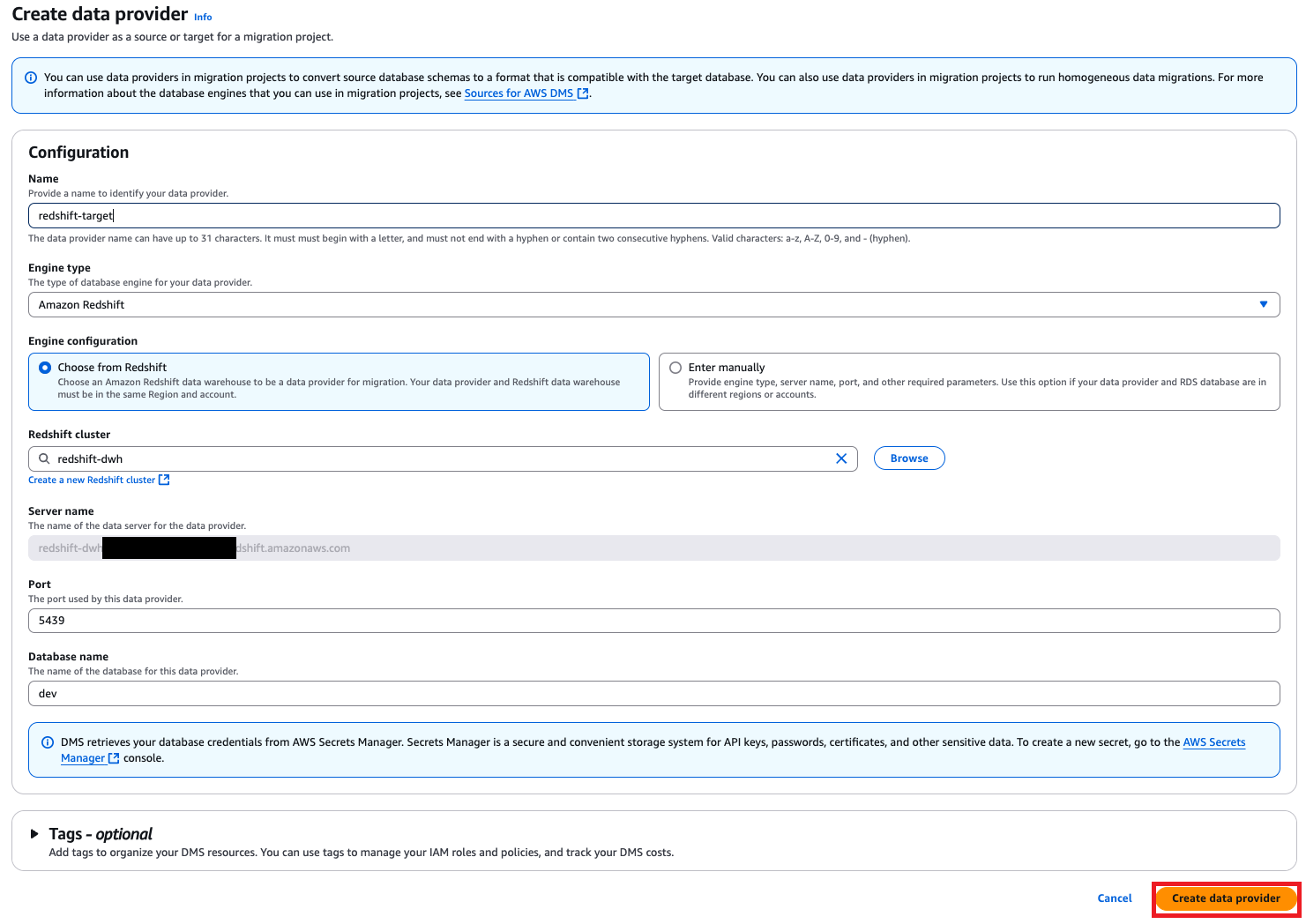
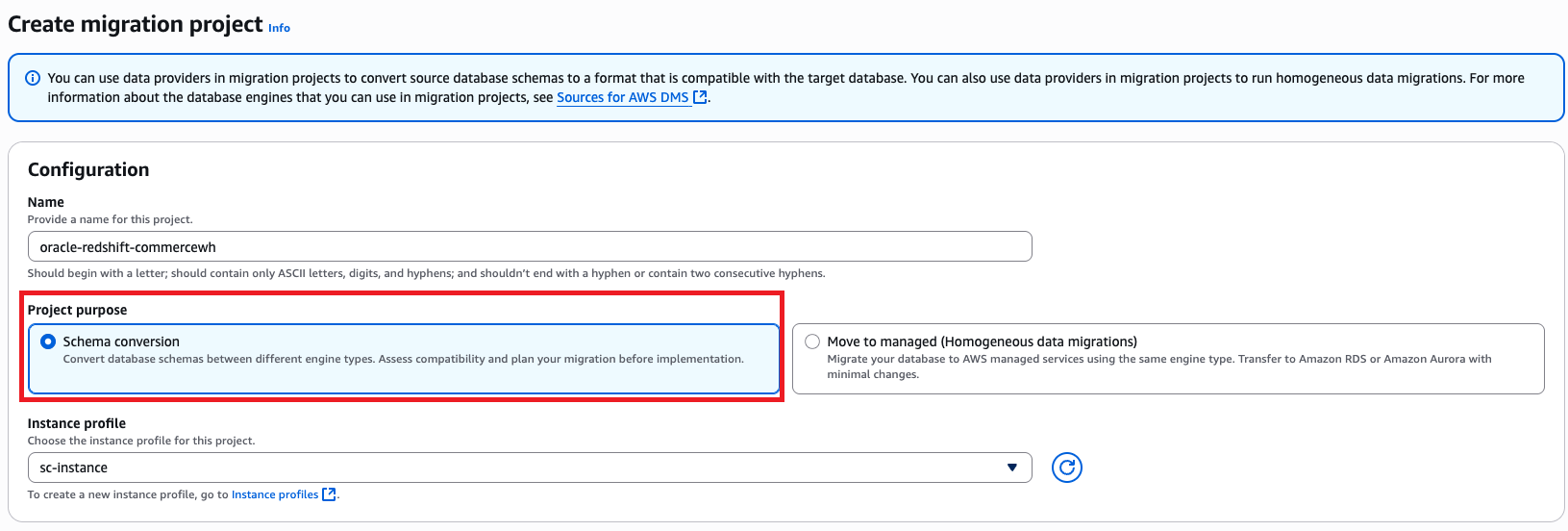
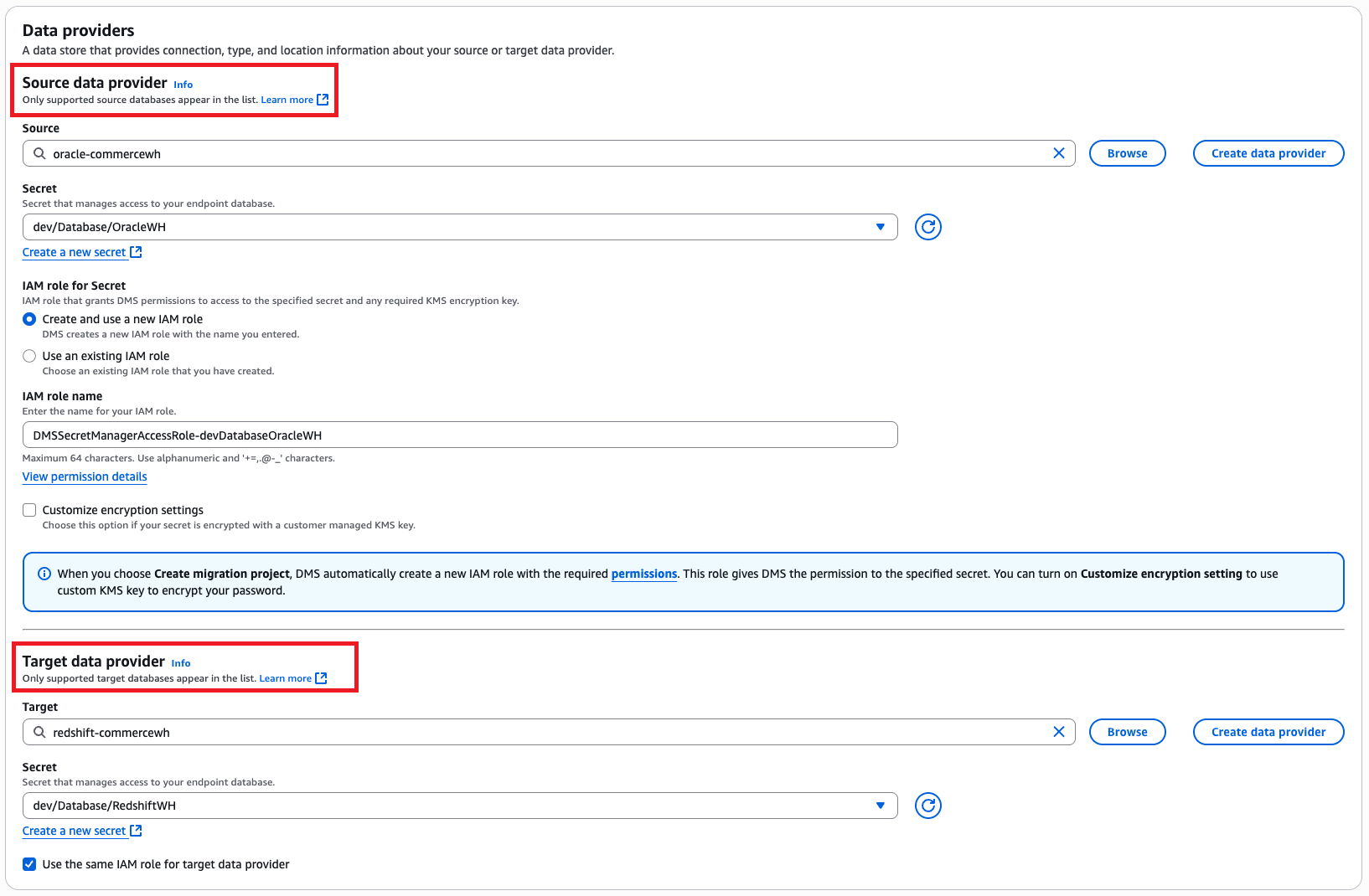
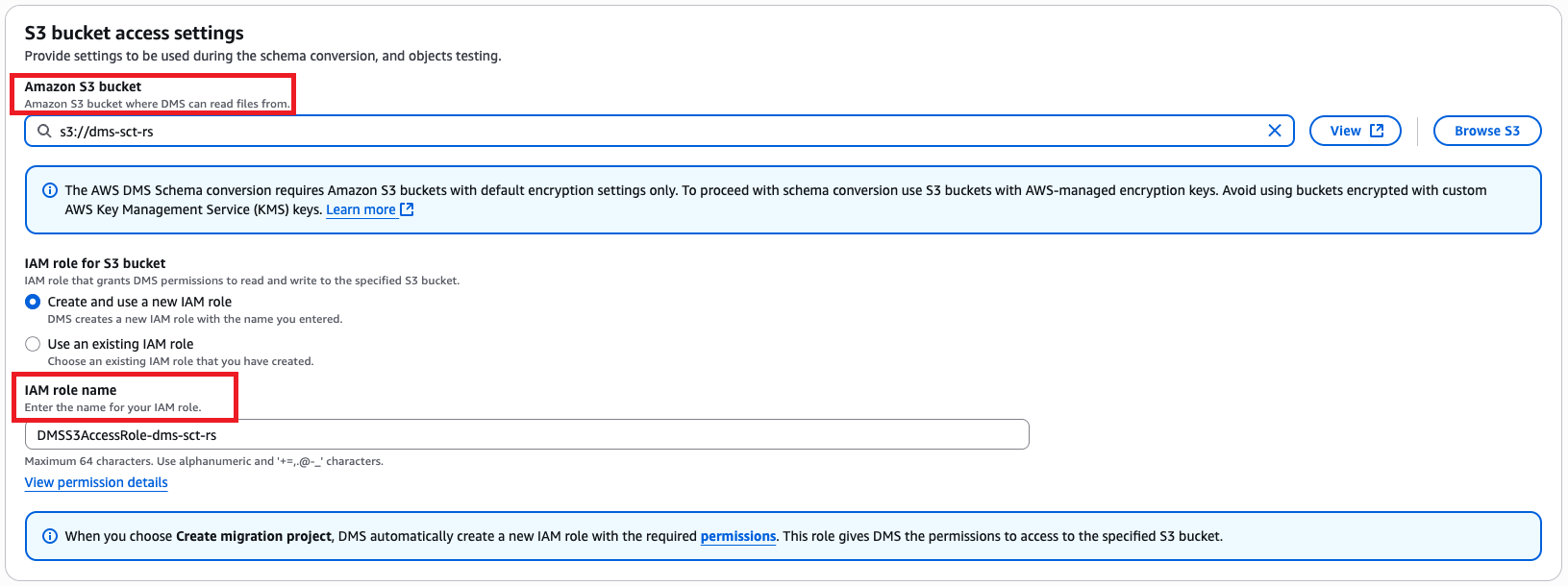
When processing data at scale, many organizations use Apache Spark on Amazon EMR to run shared clusters that handle workloads across tenants, business units, or classification levels. In such multi-tenant environments, different datasets often require distinct AWS Key Management Service (AWS KMS) keys to enforce strict access controls and meet compliance requirements. At the same time, operational efficiency might drive these organizations to consolidate their data pipelines. Instead of running separate Spark jobs for each dataset, it could be more efficient to run a single job on Amazon EMR that processes inputs once and writes multiple outputs to Amazon Simple Storage Service (Amazon S3), each encrypted with its own KMS key.
Although consolidating multiple datasets in one Spark job reduces orchestration overhead and simplifies code maintenance, you might encounter challenges with encryption configurations. By default, the EMRFS and S3A file system clients cache their settings, which can cause encryption keys to persist incorrectly across writes. This means if you change the encryption key between writes to Amazon S3 in an Apache Hadoop environment, some output files can end up encrypted with unintended keys, leading to possible security and compliance concerns.
In this post, we show how to securely write data to Amazon S3 from Spark jobs running on Amazon EMR, while dynamically managing different KMS keys for encryption. We discuss three approaches to solve this challenge and how to choose the right solution for your use case.
Amazon S3 server-side encryption options with Amazon EMR
When writing data to Amazon S3 from Amazon EMR, you can choose from multiple server-side encryption options. The two most commonly used options are:
Server-side encryption with Amazon S3 managed keys (SSE-S3) – Amazon S3 manages the encryption keys for you
Server-side encryption with KMS keys (SSE-KMS) – AWS KMS manages the keys, and you can use custom KMS keys with fine-grained access control
When running Spark jobs on Amazon EMR, data writes to Amazon S3 occur through one of the following file system implementations:
EMRFS – The default implementation for Amazon EMR versions below 7.10.0
S3A – The default implementation starting from Amazon EMR 7.10.0
Both implementations provide configuration properties to control server-side encryption. The following tables show how to specify the KMS key for SSE-KMS encryption.
For EMRFS (default in Amazon EMR versions below 7.10.0), refer to the following table.
Property
Description
fs.s3.enableServerSideEncryption
Enables server-side encryption. Defaults to SSE-S3 if no KMS key is provided.
fs.s3.serverSideEncryption.kms.keyId
Specifies the KMS key ID or ARN for SSE-KMS encryption.
For S3A (default in Amazon EMR starting from 7.10.0), refer to the following table.
Property
Description
fs.s3a.encryption.algorithm
Specifies the encryption algorithm.
fs.s3a.encryption.key
Specifies the KMS key ID or ARN for SSE-KMS encryption.
Starting from the Amazon EMR 7.10.0 release, the S3A file system has replaced EMRFS as the default EMR S3 connector. For more information, refer to Migration Guide: EMRFS to S3A Filesystem.
Challenges to prevent encryption key reuse due to file system caching
In practice, a unified Spark job might write outputs for multiple tenants or classifications in a single run. In this situation, applying the correct encryption key for each output is critical to maintaining compliance and enforcing isolation in multi-tenant S3 buckets without the complexity of managing separate Spark jobs for each dataset.
When Spark executors write to Amazon S3, they use a file system (EMRFS or S3A) client that is cached and reused for performance optimization. The problem is that each file system instance keeps the encryption settings it was first created with. Each executor’s Java Virtual Machine (JVM) creates and caches a file system (and its underlying S3 client) for a given S3 bucket. This cached instance, along with its encryption configuration, persists throughout the executor’s lifecycle. If you change the encryption key in Spark after some data has been written, the existing cached client can’t pick up the new key.
For example, the following PySpark code first creates a Spark session with S3 server-side encryption enabled. It then writes a DataFrame to two different folders within the same S3 bucket amzn-s3-demo-bucket1, but with different KMS keys. The first write operation writes the data to folder1 using kmsKey1 for encryption, and the second write operation writes to folder2 using kmsKey2.
# Pseudo-code: setting different keys for successive writes to different folders within the same S3 bucket

spark = SparkSession.builder \
.appName("Write data to S3 with KMS") \
.config("spark.hadoop.fs.s3.enableServerSideEncryption", "true") \
.getOrCreate()

df.write.option('fs.s3.serverSideEncryption.kms.keyId', kmsKey1).save("s3://amzn-s3-demo-bucket1/folder1/")
df.write.option('fs.s3.serverSideEncryption.kms.keyId', kmsKey2).save("s3://amzn-s3-demo-bucket1/folder2/")
You might expect files in folder1/ to use kmsKey1 and files in folder2/ to use kmsKey2. But due to caching, the second write can still use the client configured with kmsKey1. This leads to mixed or incorrect encryption key usage across outputs.
Solution overview
Our objective is to achieve correct encryption of each output S3 object with its intended KMS key, even when a single Spark job writes multiple outputs. To implement this, you can use one of the following approaches:
Disable file system cache – Turn off S3 client caching so a new client is created for each write, picking up the current key
Separate Spark applications or sessions – Run a separate Spark application (or session) for each distinct encryption key, so each client is initialized fresh
Use S3 bucket default encryption – Configure bucket-level SSE-KMS with the desired key so Amazon S3 automatically applies the correct encryption key
Each method offers a different balance of implementation complexity, performance, and flexibility. The following sections provide detailed implementation steps and considerations for each approach.
Method 1: Disable file system cache
Disabling the file system cache forces Spark to create a new S3 client for each write, which applies the updated encryption settings. This can be done using a Spark configuration or EMR cluster settings.
The property name for disabling the cache depends on your URI scheme (s3:// or s3a://), not on your choice of file system (EMRFS or S3A). The following table summarizes which configuration property name you should use to disable the cache.
Properties for s3:// URI scheme
Properties for s3a:// URI scheme
fs.s3.impl.disable.cache
fs.s3a.impl.disable.cache
spark.hadoop.fs.s3.impl.disable.cache
spark.hadoop.fs.s3a.impl.disable.cache
To use this method, complete the following steps:
Disable the file system cache in Spark configuration. For s3:// scheme, you can manually set spark.hadoop.fs.s3.impl.disable.cache=true, for example (PySpark):
# PySpark example for "s3://"
# Create Spark session
spark = SparkSession.builder \
.appName("Write data to S3 with KMS") \
.config("spark.hadoop.fs.s3.impl.disable.cache", "true") \
.getOrCreate()
Alternatively, you can use the following spark-defaults configuration classification:
For s3a:// scheme, you can manually set spark.hadoop.fs.s3a.impl.disable.cache=true, for example (PySpark):
# PySpark example for "s3a://"
# Create Spark session
spark = SparkSession.builder \
.appName("Write data to S3 with KMS") \
.config("spark.hadoop.fs.s3a.impl.disable.cache", "true") \
.getOrCreate()
Alternatively, you can use the following spark-defaults configuration classification:
Instead of disabling the cache specifically for Spark applications, you can optionally configure the EMR cluster’s core-site.xml to disable the file system cache globally at cluster level. You must configure the /etc/hadoop/conf/core-site.xml file on the primary nodes of your EMR cluster. For example, when creating or modifying the cluster, use the following configuration. For s3:// scheme:
Enable SSE-KMS encryption. For EMRFS, set spark.hadoop.fs.s3.enableServerSideEncryption=true for Spark applications only or use the following configuration to enable encryption at cluster level:
For S3A, set spark.hadoop.fs.s3a.encryption.algorithm=SSE-KMS for Spark applications only or use the following configuration to enable encryption at cluster level:
When using EMRFS with fs.s3.impl.disable.cache=true, you must also disable the EMRFS S3-optimized committer to avoid errors. You can do this by either manually setting spark.sql.parquet.fs.optimized.committer.optimization-enabled=false or using the following spark-defaults configuration classification:
Use this method when you need to write data to an S3 bucket using multiple KMS keys within a single Spark application. This is a quick, straightforward implementation that works well for the following use cases:
Testing environments and debugging sessions
Proof-of-concept demonstrations
Low-volume or one-time jobs where write performance is not critical
Workloads that frequently switch encryption keys to write data to different S3 prefixes within the same bucket
Before implementation, consider the following performance impacts:
Increased latency for each write
Additional S3 API operations
Extra connection overhead
Although this method provides a pragmatic solution when splitting work into separate Spark applications isn’t feasible, we don’t recommend it for high-throughput or latency-sensitive production workloads. The increased API traffic can lead to higher costs and potential throttling. For production implementations, consider Method 2 and Method 3.
Method 2: Use separate Spark applications or sessions
When writing data with multiple encryption keys, use a separate Spark application (or Spark session) for each distinct key. The file system needs to be initialized with the correct encryption key in a fresh JVM context when writing data with different keys. You can achieve this by either submitting a separate Spark application or starting a new Spark session. This enables the S3 client to be created with the intended encryption key.
Complete the following steps:
Divide the write tasks by KMS key. For example, prepare separate DataFrames or filter logic for each key.
Submit separate jobs. Choose either of the following options:
# For EMRFS
for kmsKey in [kmsKey1, kmsKey2]:
    spark = SparkSession.builder \
        .appName("Write data to S3 with KMS") \
        .config("spark.hadoop.fs.s3.enableServerSideEncryption", "true") \
        .config("spark.hadoop.fs.s3.serverSideEncryption.kms.keyId", kmsKey) \
        .getOrCreate()
    write_df_for_key(kmsKey)  # Pseudocode for writing data for this key
    spark.stop()

# For S3A
for kmsKey in [kmsKey1, kmsKey2]:
    spark = SparkSession.builder \
        .appName("Write data to S3 with KMS") \
        .config("spark.hadoop.fs.s3a.encryption.algorithm", "SSE-KMS") \
        .config("spark.hadoop.fs.s3a.encryption.key", kmsKey) \
        .getOrCreate()
    write_df_for_key(kmsKey)  # Pseudocode for writing data for this key
    spark.stop()
Use your preferred workflow (such as AWS Step Functions, Apache Airflow, or a wrapper script) to launch jobs in sequence or parallel.
Considerations
Use this method when you need a production-grade solution for applying different KMS keys at scale. This approach maintains file system caching benefits and works well for the following use cases:
High-throughput or latency-sensitive workloads with frequent write operations
Scenarios requiring strong isolation between different KMS keys
Multi-tenant environments with separate compliance boundaries
This method creates fresh S3 clients with each new Spark application or session. Compared to Method 1, it offers several advantages:
Enforces credential boundaries between workloads and improves operational and compliance isolation by assigning each Spark application or session a dedicated key
Before implementation, consider the following trade-offs:
Requires orchestration of multiple Spark applications and sessions or clusters
Involves higher resource overhead
Increases operational complexity
Choose this method when performance, cost predictability, and security isolation are more important than single-process simplicity.
On the Amazon S3 console or using the AWS Command Line Interface (AWS CLI), enable default SSE-KMS for the bucket with the desired key. For instructions on enabling SSE-KMS for S3 buckets, refer to Configuring default encryption.
With default encryption enabled for the S3 bucket, you can write without specifying a KMS key in Spark. Amazon S3 can encrypt each object with the bucket’s key. Your Spark code only needs standard write operations.
Considerations
Use this method when your workloads can use a single KMS key per bucket. This approach works well for the following use cases:
Production environments prioritizing operational simplicity
Workloads where all data in a bucket shares the same security requirements
Scenarios where encryption configuration should be managed at the bucket level
Use cases that map naturally to per-bucket separation
This method provides several advantages:
Alleviates the need to configure encryption in Spark applications
Automatically applies the default KMS key for all writes
Simplifies encryption management
Before implementation, consider the following limitations:
You must have all data in one bucket to use the same encryption key
You can’t apply different keys to different prefixes within the same bucket
Choose this method when you need a simple, reliable approach that provides strong security while simplifying operational management.
Choosing the right approach
Choose the method based on your workload’s security requirements, performance needs, and operational constraints:
Method 1 – Use when you need to apply multiple KMS keys within a single Spark job and can accept some performance impact
Method 2 – Use for production workloads that require different encryption keys within the same bucket and need optimal performance
Method 3 – Use when a single KMS key per bucket meets your encryption requirements and you want simplified operations
Conclusion
In this post, we demonstrated how to handle multiple KMS keys when writing to Amazon S3 from Spark jobs on Amazon EMR. When encrypting multiple outputs with different encryption keys in a single Spark application, it’s important to consider the file system caching behavior. We presented several practical solutions with their respective trade-offs. You can start implementing these solutions in your environment by first testing the file system cache-disable method, which provides a straightforward approach to handling multiple encryption keys. As your workload grows, consider evolving to separate Spark sessions or S3 bucket default encryption based on your specific requirements. After implementing a solution, verify that each S3 object’s SSE-KMS key is the intended one (for example, by checking S3 object metadata). We also recommend measuring job performance and S3 API usage, especially for the cache-disable approach.
When you enable IAM Identity center, it provides an access portal for workforce users to access their AWS applications and accounts either by signing in to the access portal using a URL or by using a bookmark for the application URL. In either case, the access portal handles user authentication before granting access to applications and accounts. Supporting both IPv4 and IPv6 connectivity to the access portal helps facilitate seamless access for clients, such as browsers and applications, regardless of their network configuration.
The launch of IPv6 support in IAM Identity Center introduces new dual-stack endpoints that support both IPv4 and IPv6, so that users can connect using IPv4, IPv6, or dual-stack clients. Current IPv4 endpoints continue to function with no action required. The dual stack capability offered by Identity Center extends to managed applications. When users access the application dual-stack endpoint, the application automatically routes to the Identity Center dual-stack endpoint for authentication. To use Identity Center from IPv6 clients, you must direct your workforce to use the new dual-stack endpoints, and update configurations on your external identity provider (IdP), if you use one.
In this post, we show you how to update your configuration to allow IPv6 clients to connect directly to IAM Identity Center endpoints without requiring network address translation services. We also show you how to monitor which endpoint users are connecting to. Before diving into the implementation details, let’s review the key phases of the transition process.
Transition overview
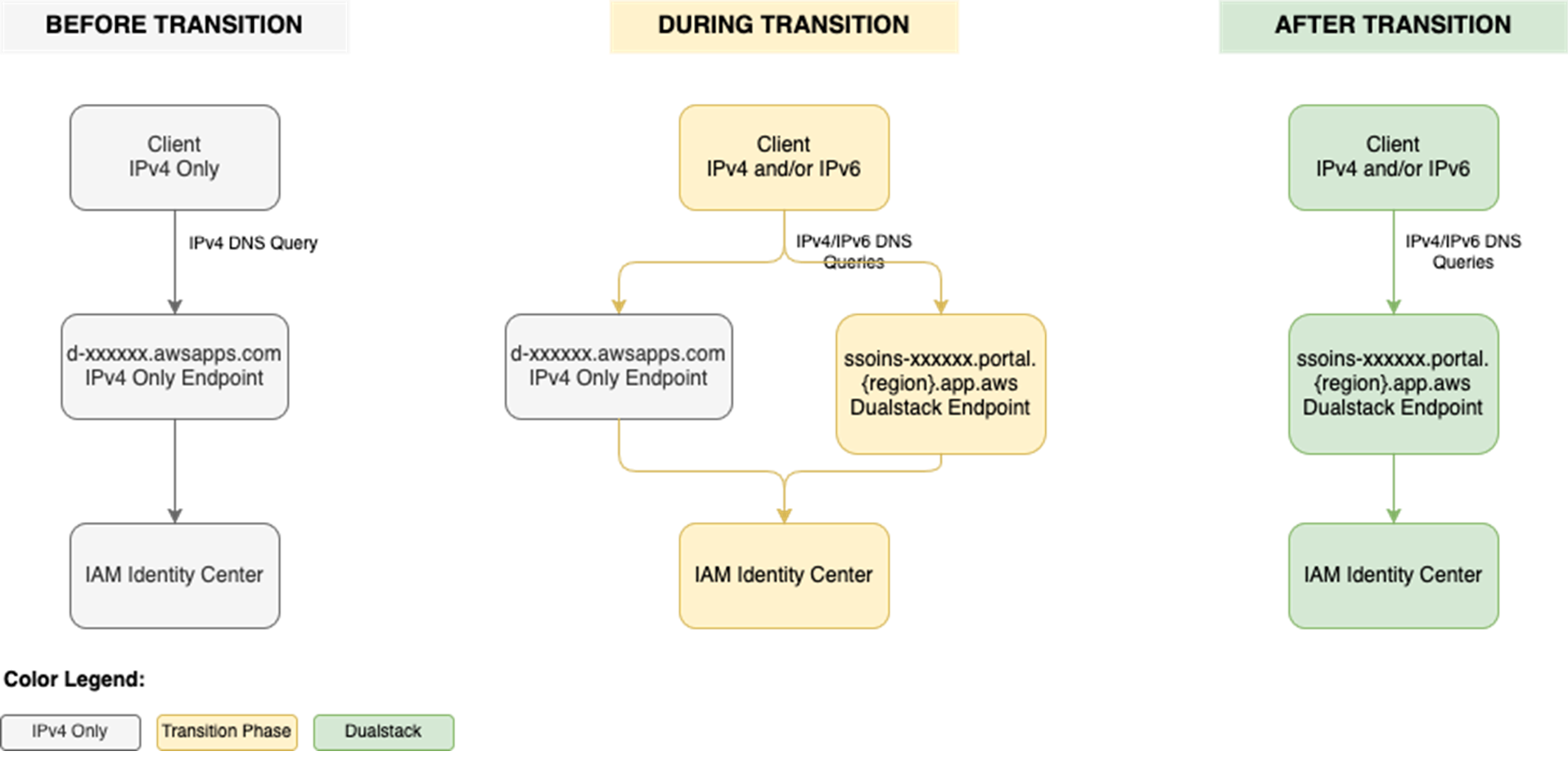
To use IAM Identity Center from an IPv6 network and client, you need to use the new dual-stack endpoints. Figure 1 shows what the transition from IPv4 to IPv6 over dual-stack endpoints looks like when using Identity Center. The figure shows:
A before state where clients use the IPv4 endpoints.
The transition phase, when your clients use a combination of IPv4 and dual-stack endpoints.
After the transition is complete, your clients will connect to dual-stack endpoints using their IPv4 or IPv6, depending on their preferences.
Figure 1: Transition from IPv4-only to dual-stack endpoints
Prerequisites
You must have the following prerequisites in place to enable IPv6 access for your workforce users and administrators:
Work with your network administrators to update the configuration of your firewalls and gateways and to verify that your clients, such as laptops or desktops, are ready to accept IPv6 connectivity. If you have already enabled IPv6 connectivity for other AWS services, you might be familiar with these changes. Next, implement the two steps that follow.
Step 1: Update your IdP configuration
You can skip this step If you don’t use an external IdP as your identity source.
In this step, you update the Assertion Consumer Service (ACS) URL from your IAM Identity Center instance into your IdP’s configuration for single sign-on and the SCIM configuration for user provisioning. Your IdP’s capability determines how you update the ACS URLs. If your IdP supports multiple ACS URLs, configure both IPv4 and dual-stack URLs to enable a flexible transition. With that configuration, some users can continue using IPv4-only endpoints while others use dual-stack endpoints for IPv6. If your IdP supports only one ACS URL, to use IPv6 you must update the new dual-stack ACS URL in your IdP and transition all users to using dual-stack endpoints. If you don’t use an external IdP, you can skip this step and go to the next step.
Update both the SAML single sign-on and the SCIM provisioning configurations:
Update the single sign-on settings in your IdP to use the new dual-stack URLs. First, locate the URLs in the AWS Management Console for IAM Identity Center.
Choose Settings in the navigation pane and then select Identity source.
Choose Actions and select Manage authentication.
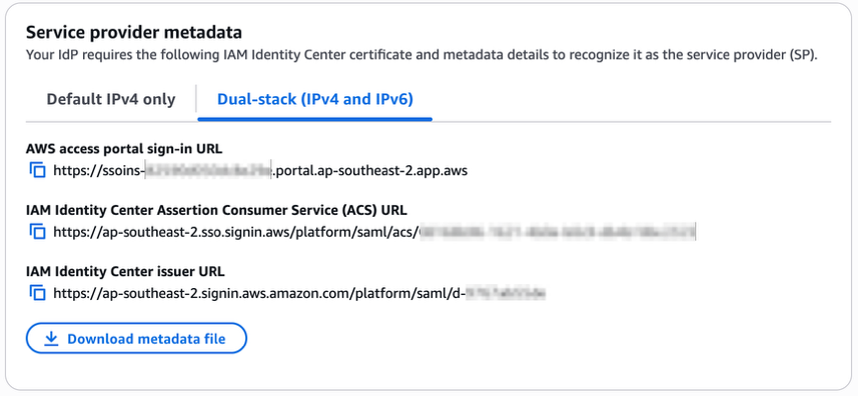
in Under Manage SAML 2.0 authentication, you will find the following URLs under Service provider metadata:
AWS access portal sign-in URL
IAM Identity Center Assertion Consumer Service (ACS) URL
IAM Identity Center issuer URL
If your IdP supports multiple ACS URLs, then add the dual-stack URL to your IdP configuration alongside existing IPv4 one. With this setting, you and your users can decide when to start using the dual-stack endpoints, without all users in your organization having to switch together.
Figure 2: Dual-stack single sign-on URLs
If your IdP does not support multiple ACS URLs, replace the existing IPv4 URL with the new dual-stack URL, and switch your workforce to use only the dual-stack endpoints.
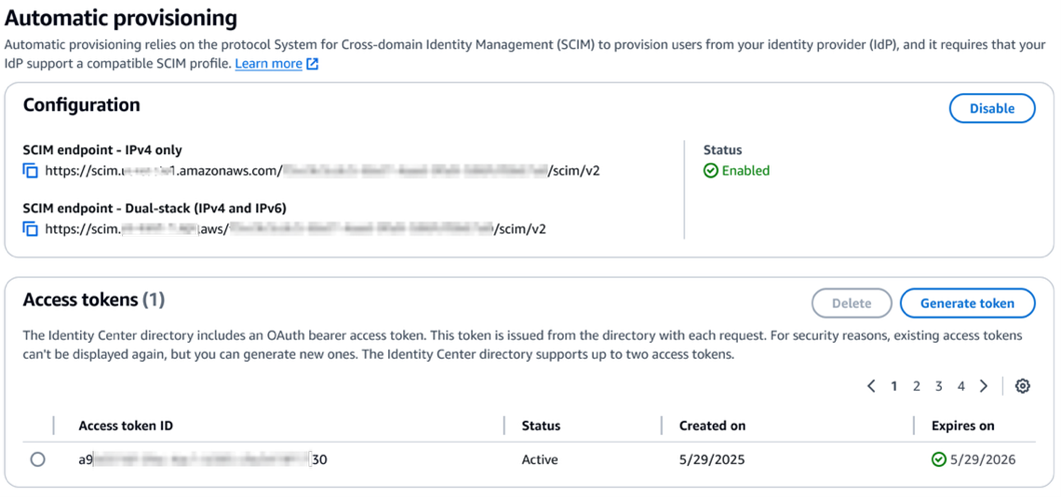
Update the provisioning endpoint in your IdP. Choose Settings in the navigation pane and under Identity source, choose Actions and select Manage provisioning. Under Automatic provisioning, copy the new SCIM endpoint that ends in api.aws. Update this new URL in your external IdP.
Figure 3: Dual-stack SCIM endpoint URL
Step 2: Locate and share the new dual-stack endpoints
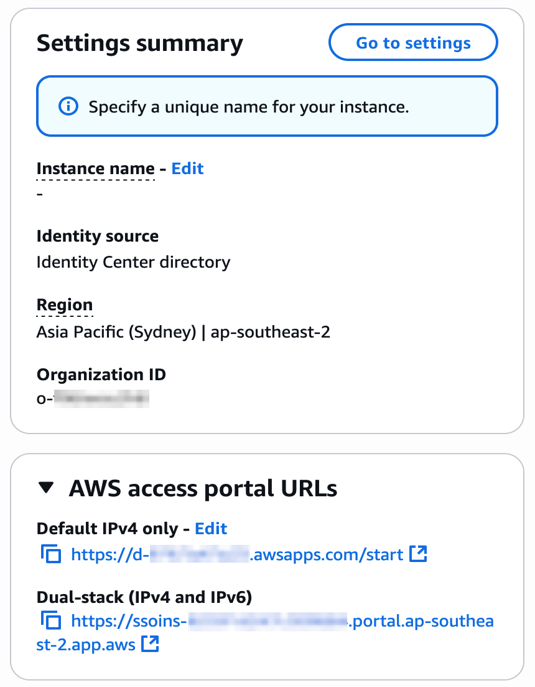
Your organization needs two kinds of URLs for IPv6 connectivity. The first is the new dual-stack access portal URL that your workforce users use to access their assigned AWS applications and accounts. The dual-stack access portal URL is available in the IAM Identity Center console, listed as the Dual-stack in the Settings summary (you might need to expand the Access portal URLs section, shown in Figure 4).
This dual-stack URL ends with app.aws as its top-level domain (TLD). Share this URL with your workforce and ask them to use this dual-stack URL to connect over IPv6. As an example, if your workforce uses the access portal to access AWS accounts, they will need to sign in through the new dual-stack access portal URL when using IPv6 connectivity. Alternately, if your workforce accesses the application URL, you need to enable the dual-stack application URL following application-specific instructions. For more information, see AWS services that support IPv6.
The URLs that administrators use to manage IAM Identity Center are the second kind of URL your organization needs. The new dual-stack service endpoints end in api.aws as their TLD and are listed in the Identity Center service endpoints. Administrators can use these service endpoints to manage users and groups in Identity Center, update their access to applications and resources, and perform other management operations. As an example, if your administrator uses identitystore.{region}.amazonaws.com to manage users and groups in Identity Center, they should now use the dual-stack version of the same service endpoint which is identitystore.{region}.api.aws, so they can connect to service endpoints using IPv6 clients and networks.
If your users or administrators use an AWS SDK to access AWS applications and accounts or manage services, follow Dual-stack and FIPS endpoints to enable connectivity to the dual-stack endpoints.
After completing these two steps, your workforce and administrators can connect to IAM Identity Center using IPv6. Remember, these endpoints also support IPv4, so clients not yet IPv6-capable can continue to connect using IPv4.
Monitoring dual-stack endpoint usage
You can optionally monitor AWS CloudTrail logs to track usage of dual-stack endpoints. The key difference between IPv4-only and dual-stack endpoint usage is the TLD and appears in the clientProvidedHostHeader field. The following example shows the difference between these CloudTrail events for the CreateTokenWithIAM API call.
IAM Identity Center now allows clients to connect over IPv6 natively with no network address translation infrastructure. This post showed you how to transition your organization to use IPv6 with Identity Center and its integrated applications. Remember that existing IPv4 endpoints will continue to function, so you can transition at your own pace. Also, no immediate action is required by you. However, we recommend planning your transition to take advantage of IPv6 benefits and meet compliance requirements. If you have questions, comments, or concerns, contact AWS Support, or start a new thread in the IAM Identity Center re:Post channel.
If you have feedback about this post, submit comments in the Comments section below. If you have questions about this post, contact AWS Support.
Customers often want to deploy Amazon OpenSearch Service domains in virtual private clouds (VPC) and use single sign-on (SSO) with SAML for access control to enhance security. However, setting this up can be challenging.
In this post, we explore different OpenSearch Service authentication methods and network topology considerations. Then we show how to build an architecture to access an OpenSearch Service domain hosted in a VPC using AWS Client VPN, AWS Transit Gateway, and AWS IAM Identity Center.
Solution overview
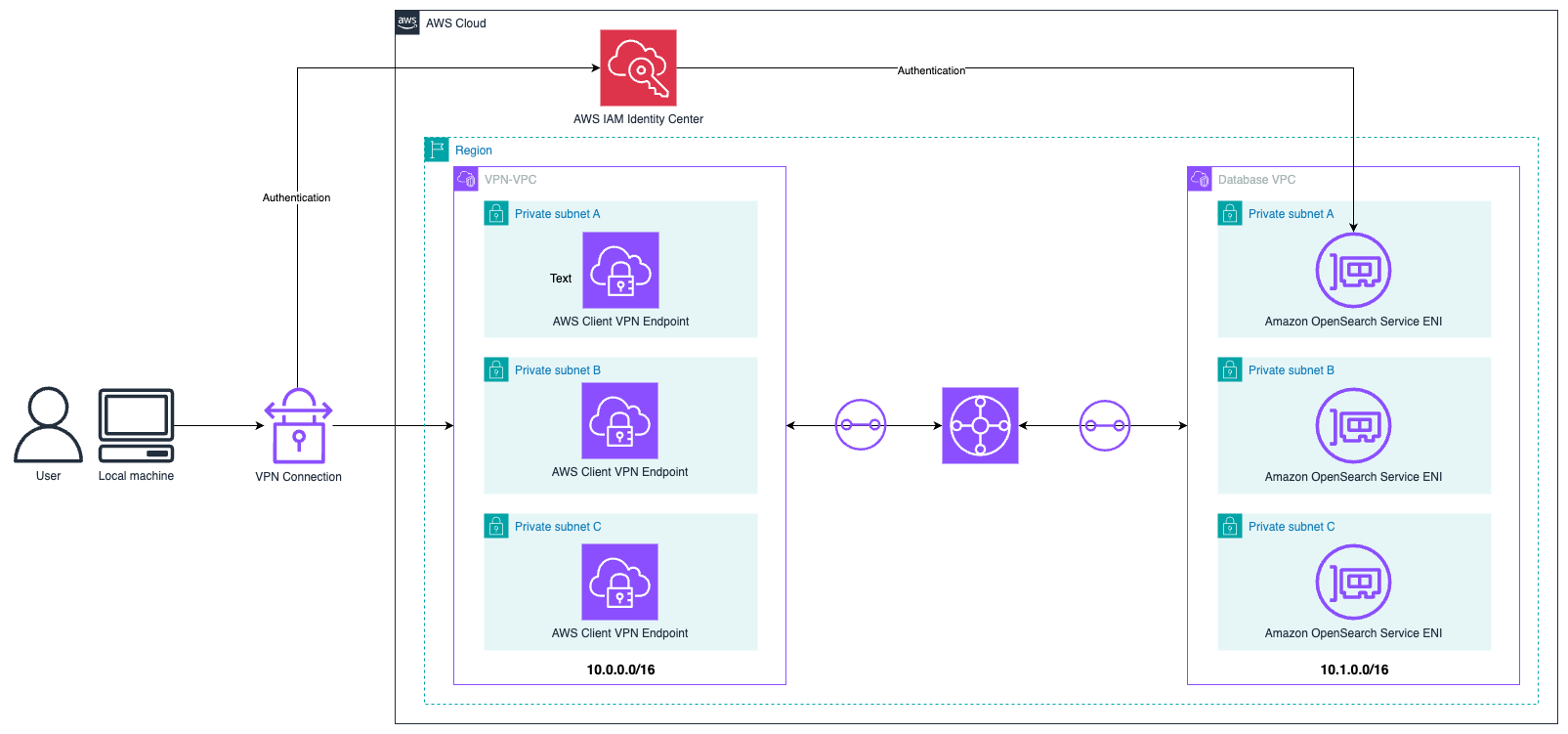
The following diagram illustrates the solution architecture.
The end-user authenticates with IAM Identity Center and connects to the AWS environment from their browser through Client VPN. The traffic is routed from the VPN VPC to the database VPC where the OpenSearch service endpoints are deployed. The user then authenticates to OpenSearch Service through IAM Identity Center. This architecture provides a scalable, enterprise-grade solution that avoids using bastion hosts while making sure only authorized users can access your OpenSearch Service domains through a secure VPN connection. In the following sections, we walk through the steps to set up IAM Identity Center, configure Transit Gateway to facilitate communication between VPCs, and configure SAML-based authentication using IAM Identity Center for both OpenSearch Service and VPN access. Prior experience setting up Client VPN, IAM Identity Center, and Transit Gateway would be beneficial but is not necessary to follow along with this post.
OpenSearch Service authentication methods and SAML
OpenSearch Service supports multiple authentication methods. You can use AWS Identity and Access Management (IAM) to call the OpenSearch Service configuration API (for details, see Making and signing OpenSearch Service requests). However, this doesn’t give you access to the visual dashboard. To access the visual dashboard and call the OpenSearch Service configuration API, you can use the OpenSearch Service built-in internal user database or Amazon Cognito for authentication and user management features. However, these options use separate user pools, which adds additional security and management overhead when adding and removing users.
Therefore, many customers choose to use SAML federation to integrate OpenSearch Service authentication with their existing identity providers like Entra ID, Okta, or JumpCloud. For this post, we use the IAM Identity Center directory as our identity source. One limitation of this approach is that it only supports identity provider-initiated authentication. This means that users must log in through the IAM Identity Center portal and then access their OpenSearch Service dashboard from there.
Private network topology options for OpenSearch Service
When deploying OpenSearch Service domains in a private VPC, organizations must establish secure and reliable network connectivity to access their OpenSearch Service domains. AWS offers several networking solutions that can be implemented individually or in combination to meet specific access requirements. These options include Transit Gateway for centralized network management, AWS Direct Connect or AWS Site-to-Site VPN for on-premises connectivity, and Client VPN for secure remote access. Each solution provides unique benefits and can be combined to meet different organizational needs, security requirements, and performance expectations.
AWS Transit Gateway
Transit Gateway functions as a cloud router that simplifies network connectivity by acting as a central hub for connecting VPCs and on-premises networks. Implementing Transit Gateway with OpenSearch Service enables consolidated access to your OpenSearch Service domain across multiple VPCs and AWS accounts. Through Transit Gateway route tables, you can precisely control traffic flow between attached networks. It supports transitive routing between VPCs and on-premises networks, significantly reducing the number of peering connections needed to access your OpenSearch Service domain. This centralized approach is a common pattern used by customers, which makes network management scalable as your infrastructure grows.
AWS Client VPN
With Client VPN, you can securely access your private OpenSearch Service domain through a managed OpenVPN-based solution. Using Client VPN removes the need to use a bastion host or proxy server to access an OpenSearch Service domain, reducing your management burden and improving security. Client VPN supports both certificate-based and SAML-based authentication. Client VPN endpoints can be associated with multiple subnets to provide high availability. The service includes comprehensive security features such as connection logging and security group controls.
Combining Client VPN with Transit Gateway provides a scalable and flexible way to access an OpenSearch Service domain in a private VPC. In the subsequent sections, we walk you through how to integrate the various services.
Prerequisites
If you haven’t yet set up IAM Identity Center, refer to Enable IAM Identity Center to enable it. Both organization instances and account instances will work. The Identity Center instance must be deployed in the same AWS Region as your OpenSearch Service domain.
After you set up IAM Identity Center, complete the following steps to create an IAM Identity Center group:
On the IAM Identity Center console, choose Groups in the navigation pane.
Choose Create group and create a group (for this example, we name the group vpn_users.
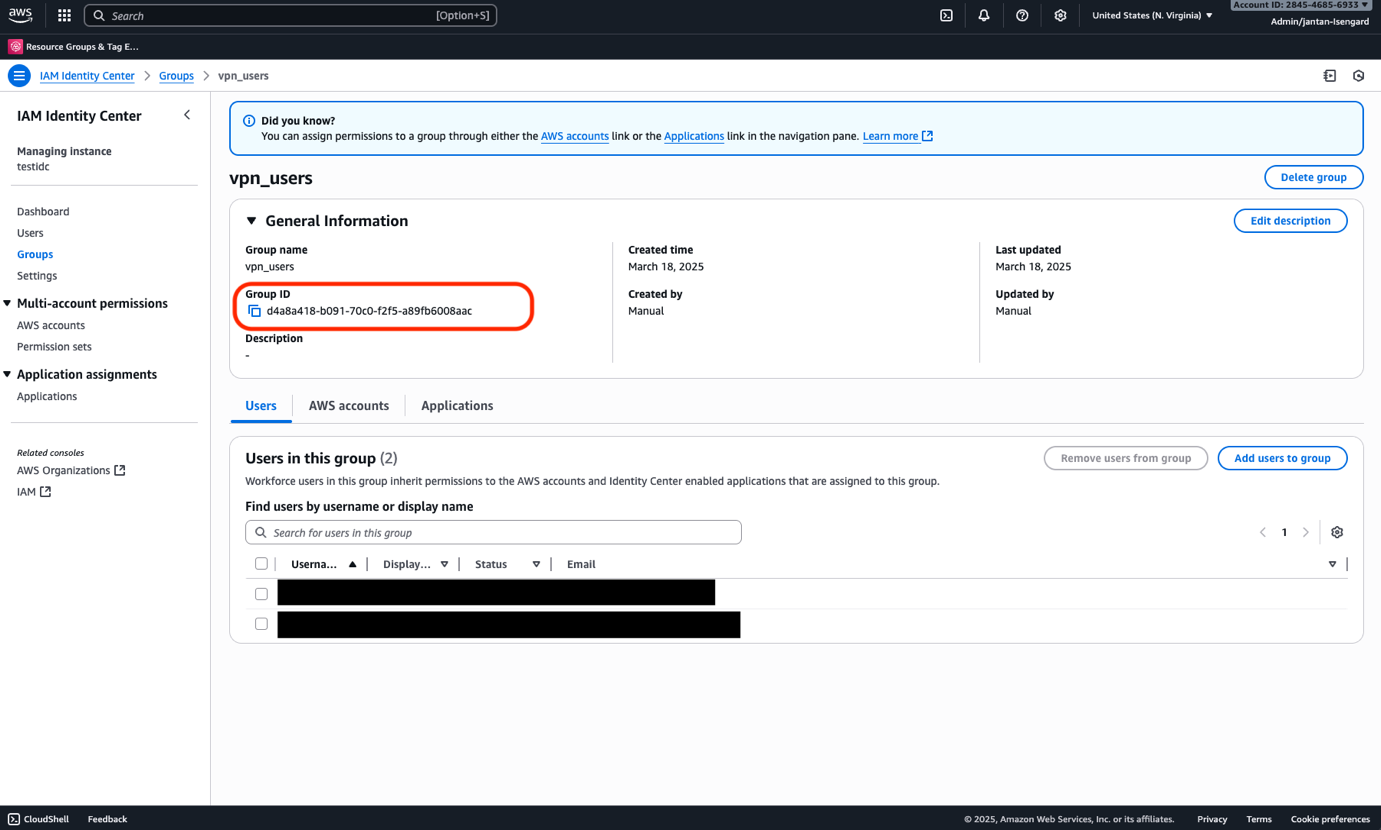
After you create the group, choose the group name to open its details page.
Locate the group ID under General information. Save this in a text editor.
Create a user (or multiple users) and assign them to the vpn_users group. This can be done directly through the user creation flow or after creating the user.
Set up the initial network topology
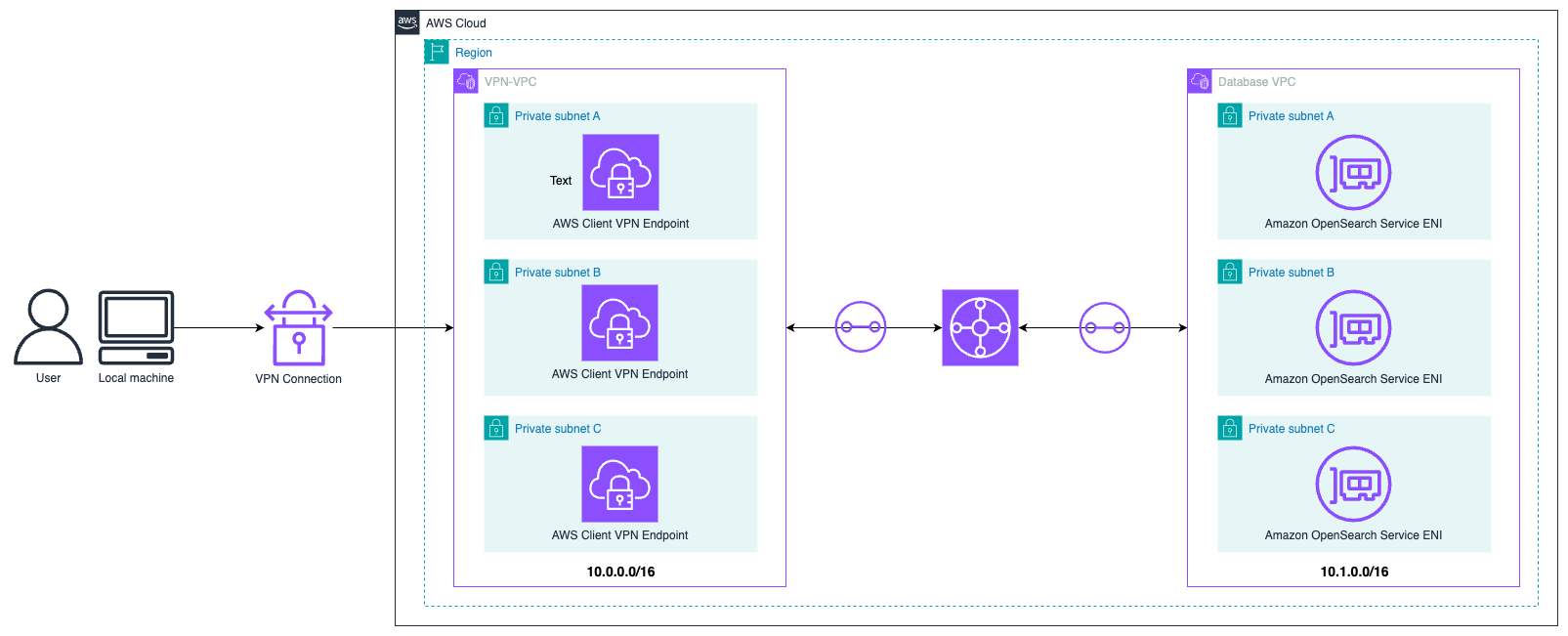
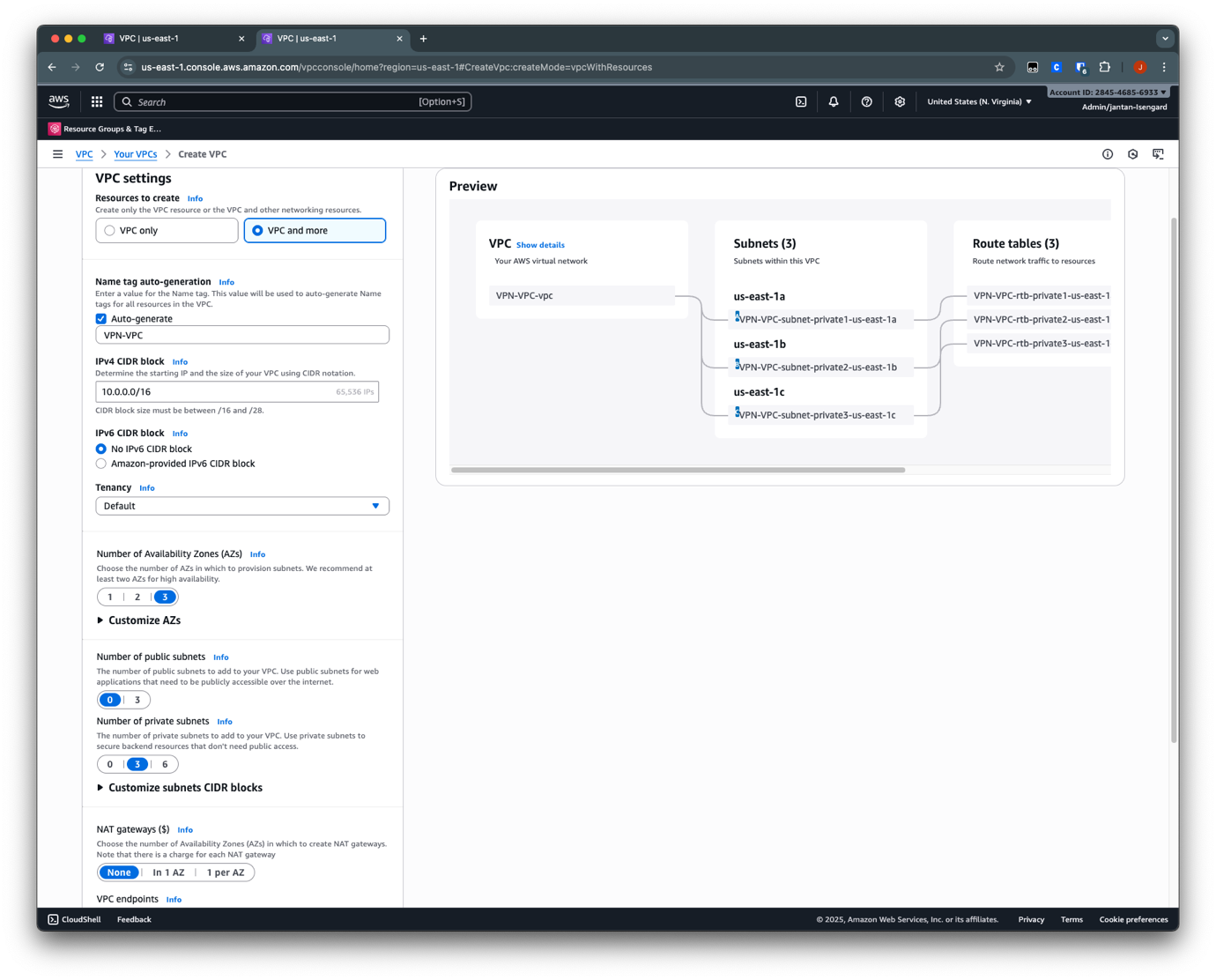
For this post, we use the network topology shown in the following diagram. One VPC hosts the client VPN endpoint with CIDR range 10.0.0.0/16 and a separate VPC with CIDR range 10.1.0.0/16 that hosts our OpenSearch Service nodes. The two VPCs are connected with Transit Gateway. The CIDR ranges in your environment may vary. The only requirement is that they can’t overlap.
Next, you must update each VPC route table to facilitate connectivity to the OpenSearch Service domain.
On the Amazon VPC console, choose Route tables in the navigation pane.
For VPN-VPC, add routes on the subnets where the Client VPN endpoints are attached. The route is 10.1.0.0/16 using Transit Gateway. This route allows VPN users to reach Database-VPC.
For Database-VPC, add routes on the subnets of the OpenSearch Service domain endpoint. The route is 10.0.0.0/16 using Transit Gateway. This route allows responses from Database-VPC back to reach the VPN users.
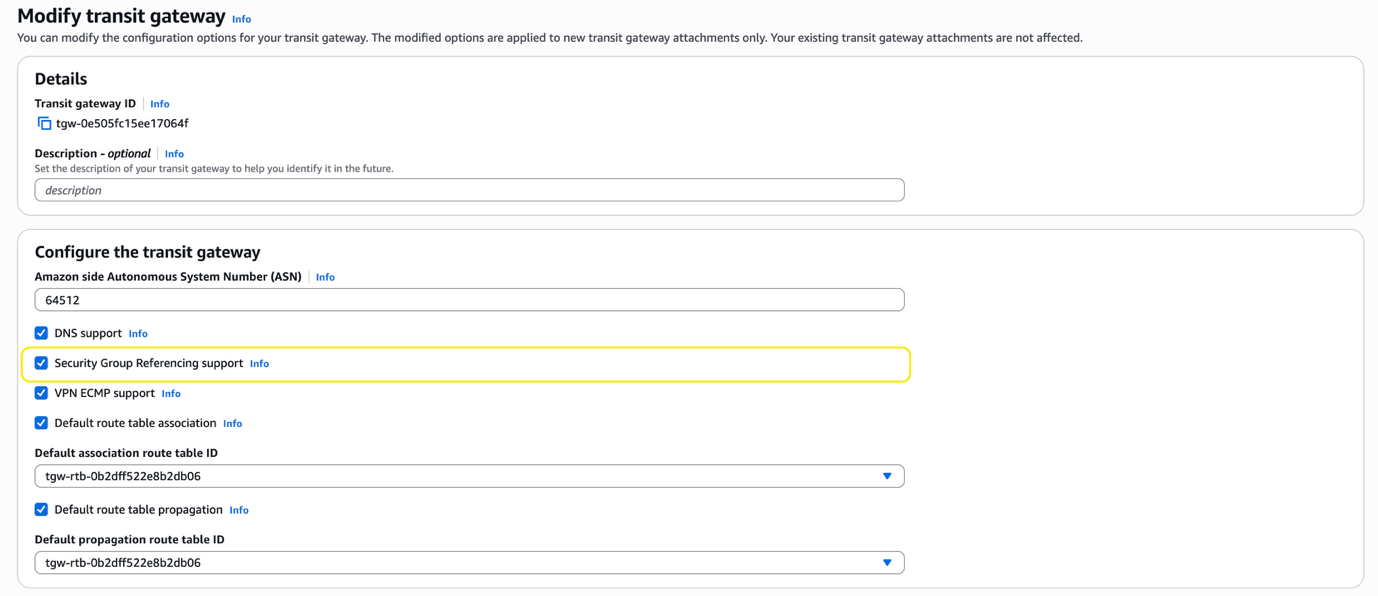
Next, you must update the Transit Gateway Security Group Referencing support configuration. This allows the OpenSearch Service domain’s security group to open port 443 to only the Client VPN security group. This makes applying least privilege simpler.
On the Transit Gateway console, select the transit gateway you’re using.
On the Actions menu, choose Modify transit gateway.
Select Security Group Referencing support and choose Modify transit gateway.
Configure Client VPN authentication
Client VPN can be associated to multiple VPC subnets for high availability. Client VPN supports multiple client authentication methods. For this post, we use SAML-based authentication with IAM Identity Center.
To set up SAML-based authentication with IAM Identity Center, follow the instructions in the following sections. For more details, refer to Authenticate AWS Client VPN users with AWS IAM Identity Center. Deploy and associate the Client VPN endpoint with VPN-VPC.
Configure Client VPN access to database VPC
During the initial setup of the Client VPN endpoint, you defined authorization rules that authorized the VPN_users group to access the VPN-VPC network, which is 10.0.0.0/16.Complete the following steps to add connectivity to database-VPC:
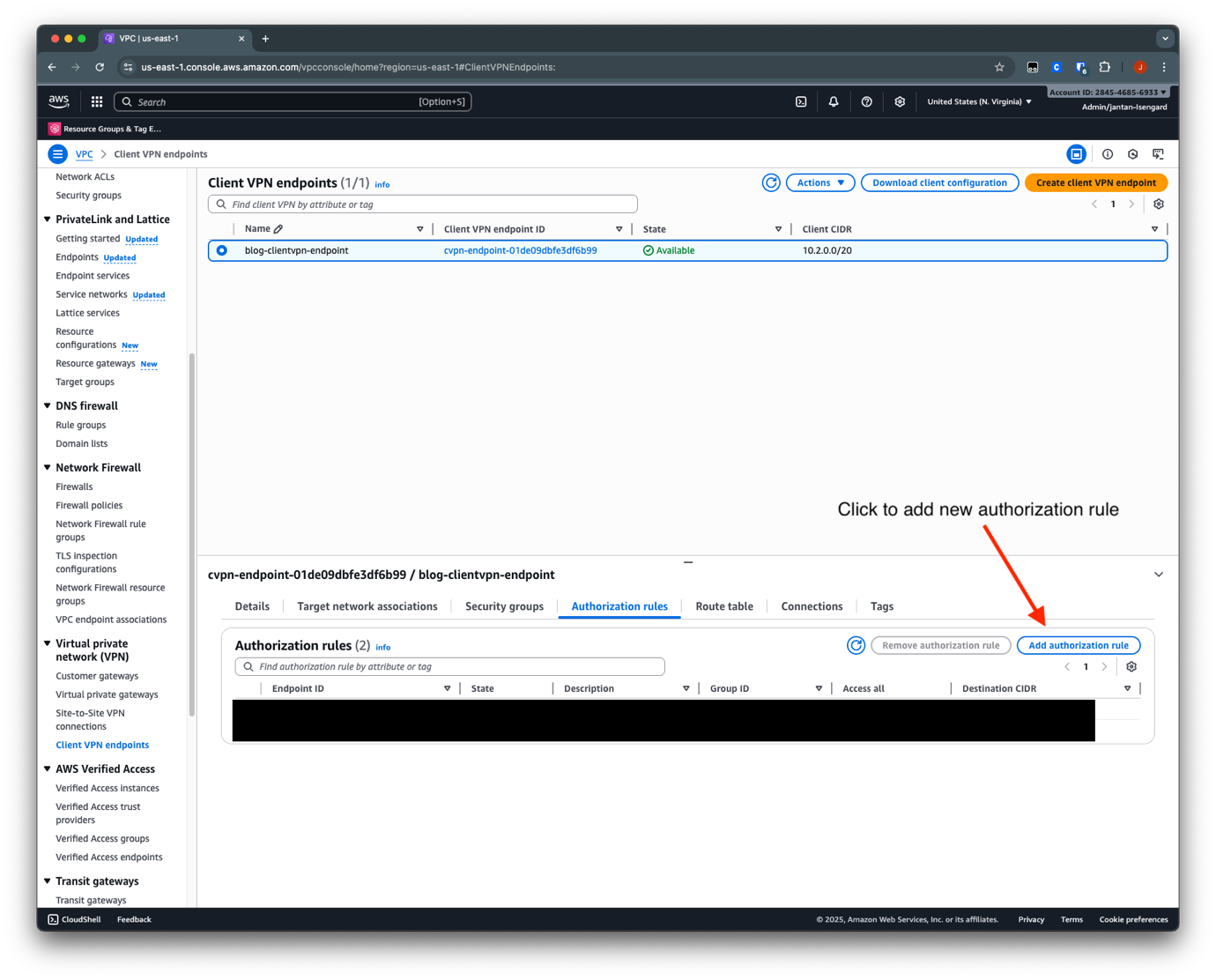
On the Amazon VPC console, choose Client VPC endpoints in the navigation pane.
Select the endpoint you created.
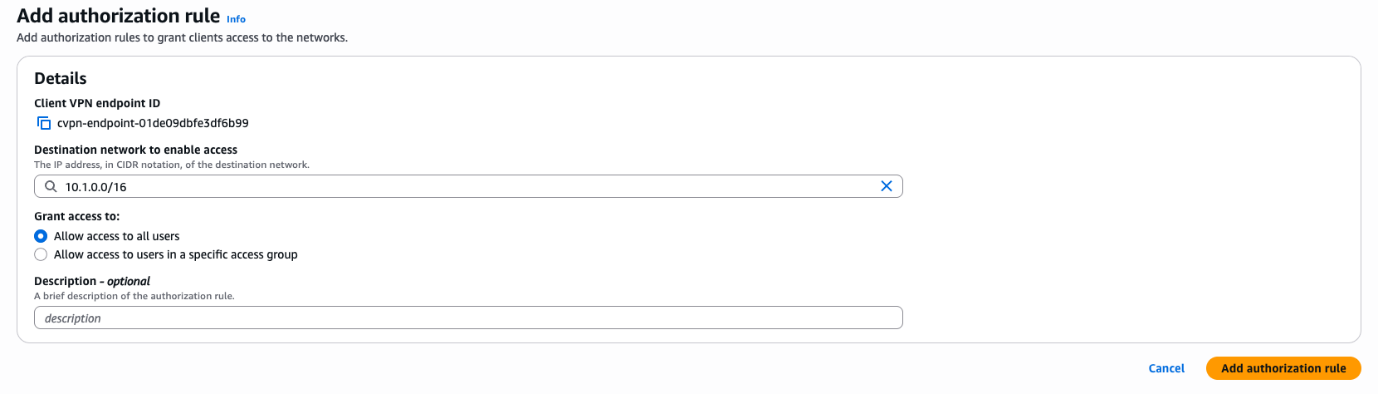
In the Authorization rules section, choose Add authorization rules.
For Destination network to enable access, enter 10.1.0.0/16 (this is the database VPC).
For Grant access to, select Allow access to all users.
Choose Add authorization rule.
After you create the authorization rule, the user now has access to that CIDR range. Next, you add an entry in the Client VPN endpoint’s route table to provide reachability from a network perspective.
On the Client VPN endpoints page, select the endpoint you just created.
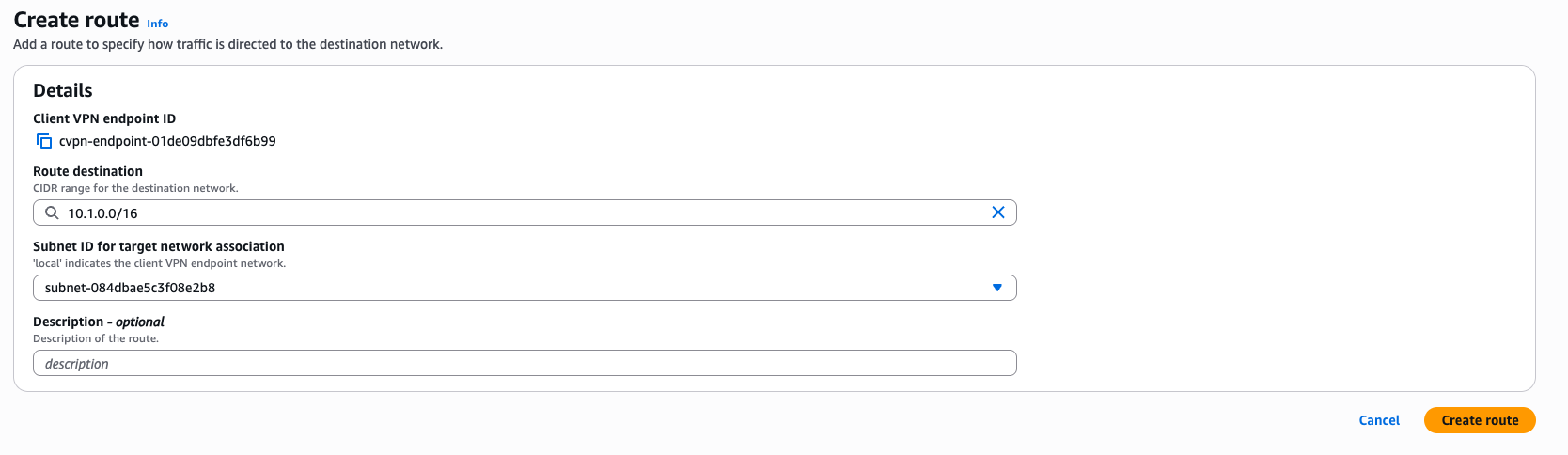
In the Route table section, choose Create route.
For Route destination, enter the CIDR range for Database-VPC (10.1.0.0/16).
For Subnet ID for target network association, choose a subnet ID.
Choose Create route.
You should see the new route in the “Creating” state. After it has reached the “Active” state, VPN users will have a network path to the database VPC to be able to reach the OpenSearch Service domain.
Configure Client VPN application on your client
Complete the following steps to configure the Client VPN application to your client:
Download the relevant installer for Client VPN for Desktop and install Client VPN.
Download and prepare the Client VPN endpoint file.
Open the Client VPN application.
Choose Manage Profile, then choose Add Profile.
Enter a display name and upload the VPN configuration file.
Choose Add Profile.
Set up federation with IAM Identity Center with OpenSearch Service
Complete the following steps to set up federation with IAM Identity Center with OpenSearch Service:
Set up the SAML integration between OpenSearch Service and IAM Identity Center. Assign the same groups that you assigned to the VPN custom application to the OpenSearch Service custom application.
Modify the security group associated with the OpenSearch Service domain to allow access from the Client VPN subnet.
Modify the security group of Client VPN and add the following entry:
Type: HTTPS
Source: Use Custom and reference the security group of the OpenSearch Service domain
Test the end-to-end flow
Now you can test the entire flow end-to-end:
Run Client VPN on your local machine. Use the profile that you previously configured. The client will prompt you to authenticate with IAM Identity Center. After authentication, you will see the message “Authentication details received, processing details. You may close this window at any time.”
Access your IAM Identity Center access portal URL (this can be found on the IAM Identity Center console, under Dashboard). Sign in as a user that has been assigned to the OpenSearch Service custom application in the previous step.
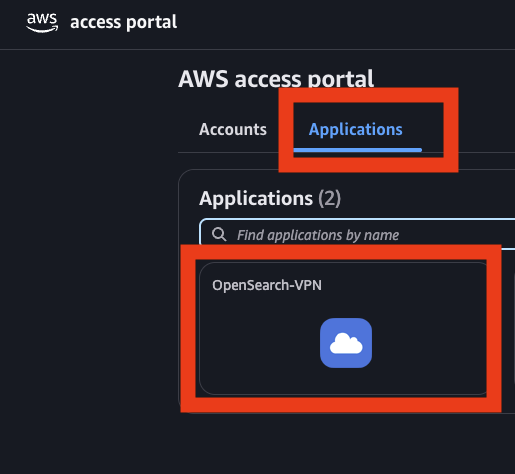
After authentication, choose the Applications tab in AWS Access Portal and choose the OpenSearch Service application.
This should redirect you to the OpenSearch Service Dashboards page with the role that you assigned.
Clean up
After you test the solution, delete the resources you created to avoid incurring future charges:
Delete the OpenSearch Service domain and the SAML application, users, and groups in IAM Identity Center.
Delete the client VPN endpoints that you created and remove the routing rules from Transit Gateway.
Conclusion
In this post, we discussed the networking options for securely accessing an OpenSearch Service domain deployed in a private VPC through services like Transit Gateway, Client VPN, and Site-to-Site VPN. We also discussed how to use IAM Identity Center for authentication and authorization, helping you simplify identity management for OpenSearch Service. If you have feedback about this post, provide it in the comments section.
Organizations increasingly depend on trusted, high-quality data to drive analytics, regulatory reporting, and operational decision-making. When data quality issues go undetected, they can lead to inaccurate insights, stalled initiatives, and compliance gaps that directly affect business outcomes. As data volumes grow and pipelines become more distributed, maintaining consistent data quality across teams and data domains becomes progressively more challenging.
You can address these challenges with AWS Glue Data Quality by providing automated, rule-based data validation across datasets in the AWS Glue Data Catalog and within AWS Glue ETL pipelines. With the Data Quality Definition Language (DQDL), you can author both straightforward and advanced validation rules to detect data quality issues early in the lifecycle, before they reach downstream applications or analytics environments.
In this post, we highlight the new DQDL labels feature, which enhances how you organize, prioritize, and operationalize your data quality efforts at scale. We show how labels such as business criticality, compliance requirements, team ownership, or data domain can be attached to data quality rules to streamline triage and analysis. You’ll learn how to quickly surface targeted insights (for example, “all high-priority customer data failures owned by marketing” or “GDPR-related issues from our Salesforce ingestion pipeline”) and how DQDL labels can help teams improve accountability and accelerate remediation workflows.
Managing complex data quality rules across teams and use cases
As organizations advance in their data quality programs, a few rules often grow into hundreds or thousands maintained across many teams and business domains. Take the example of AnyCompany, a large retail organization with multiple data teams managing customer, product, and sales data across different business units. These teams run a variety of data quality rules, including weekly customer checks, daily product validations, frequent sales checks, and monthly compliance reviews, with different naming patterns, schedules, and response processes. This creates a fragmented, hard-to-navigate system where teams operate in isolation and data quality practices become inconsistent.
The challenge lies in the volume of rules and the lack of organizational context around them. When dozens of data quality rules pass or fail, teams still lack clarity on ownership, urgency, or business impact. This slows incident response, limits executive insight, and complicates resource planning. To move from technical monitoring to strategic value, organizations need a unified structure that connects data quality rules to teams, domains, and priorities, bringing essential business context to data quality operations.
Metadata-driven rule organization
AWS Glue DQDL labels address organizational challenges because you can attach custom metadata to data quality rules, transforming anonymous validations into contextually rich, business-aware checks. Labels work as key-value pairs attached to individual rules or entire rule sets, and you can organize quality operations around business dimensions such as team ownership, criticality, frequency, and regulatory requirements, as in the case of the AnyCompany example. When a rule fails, you immediately identify what failed, who should respond, how urgent it is, and which business area is affected, whether it’s the marketing department tracking email completeness with daily frequency tags, compliance teams monitoring age verification with regulation labels, or the finance team validating payment data with high-criticality markers.
Labels integrate with existing DQDL syntax without requiring changes to current rule definitions, working consistently across AWS Glue Data Quality execution contexts. The feature’s flexibility supports organizational taxonomies from cost centers and geographic regions to data sensitivity levels and service-level agreement (SLA) requirements with single rules carrying multiple labels simultaneously for sophisticated filtering and analysis. Labels appear in the outputs, including rule outcomes, row-level results, and API responses, so organizational context travels with quality results whether you’re troubleshooting failures, analyzing trends in Amazon Athena, or building executive dashboards in Amazon Quick Sight.
Getting started: Writing your first labeled data quality rules
Let’s walk through creating your first labeled data quality rules using AnyCompany’s customer data scenario. We’ll use their customer demographics dataset, which contains customer information that multiple teams need to validate with different priorities and frequencies.
DQDL labels follow a straightforward key-value pair syntax that integrates naturally with existing rule definitions. The basic syntax supports two approaches: default labels that apply to the rules in a rule set, and rule-specific labels that apply to individual rules. Rule-specific labels can override default labels when using the same key, providing fine-grained control over your labeling strategy.
When implementing DQDL labels, keep the following constraints in mind:
Maximum of 10 labels per rule
Label keys are limited to 128 characters and can’t be empty
Label values are limited to 256 characters and can’t be empty
Both keys and values are case-sensitive
Rule-specific labels override default labels when using the same key
Using this labeling approach, you can organize and manage data quality rules efficiently across different teams and validation requirements.
Best practices for label naming conventions
Here are some proven labeling strategies that scale across enterprise environments:
Establish a complete standardized taxonomy upfront – Define label keys in DefaultLabels with sensible defaults such as regulation=none or sla=24h to provide rules with identical keys for cross-team queries.
Use consistent key naming patterns – Establish standard keys such as team, criticality, sla, impact, and regulation across rule sets to maintain query consistency.
Implement hierarchical values – Use formats such as team=marketing-analytics to support both broad and specific filtering while keeping key structure consistent.
Include operational metadata in defaults – Define labels such as sla, escalation-level, or notification-channel as defaults to drive automated response workflows.
Plan for reporting dimensions – Include keys such as cost-center, region, or business-unit in your default taxonomy to support meaningful business analytics.
Use standardized value patterns – Establish consistent formats such as criticality=high/medium/low or sla=15m/1h/1d for predictable filtering and sorting.
These are guidelines rather than requirements but following them from the start enables powerful cross-team analytics and reduces future refactoring effort.
Customer data validation hands-on example
This post assumes you’re familiar with AWS Glue Data Quality and ETL operations. Using the following hands-on walkthrough, you’ll learn how to implement DQDL labels for organizational data quality management.
Start by establishing default labels that automatically apply to every rule in the rule set, providing consistent organizational context:
DefaultLabels provide a foundational taxonomy that automatically propagates across your entire rule set, creating uniformity and reducing configuration overhead. By defining default values at the organizational level, such as team=data-team, criticality=medium, regulation=none, sla=24h, and impact=medium, every rule inherits these standardized attributes without requiring explicit declaration. This inheritance model promotes consistency while maintaining the flexibility individual teams need to address their unique operational contexts.
Individual teams can selectively override inherited defaults to reflect their specific requirements. For example, examine the following complete rule set:
Notice how the compliance team changes regulation from 'none' to 'age21' for age verification rules and analytics elevates criticality to 'high' for business-critical checks. Unspecified labels automatically inherit the default values, providing consistency while maintaining team-level flexibility.
Applying labeled rules against the dataset
Now let’s see DQDL labels in action by applying AnyCompany’s rule set to actual data through an AWS Glue ETL pipeline. This section assumes you’re familiar with AWS Glue EvaluateDataQuality transform and basic extract, transform, and load (ETL) job creation.
We use AWS Glue EvaluateDataQuality transform within an ETL job to process our customer dataset and apply our labeled rule set. The transform generates two types of outputs: rule-level outcomes that show which rules passed or failed with their associated labels and row-level results that identify specific records and the labeled rules they violated.
By default, labels are excluded from row-level results. However, by enabling them you can analyze data quality results at both the individual record level and across organizational dimensions such as teams and criticality levels.
To enable labels in row-level results, you must configure the additionalOptions parameter in your EvaluateDataQuality transform. The key setting is "rowLevelConfiguration.ruleWithLabels":"ENABLED", which instructs AWS Glue to include label metadata for each rule evaluation at the individual record level.
Here’s how to implement an ETL pipeline that applies our AnyCompany’s rule set with labels enabled:
To run this example, update the s3_bucket variable with your own Amazon Simple Storage Service (Amazon S3) bucket name, then create and execute the ETL job in AWS Glue.
After the job is completed, you’ll find:
Rule-level and row-level results stored in your S3 bucket
Two new tables automatically created in your default database: dqrulelevel and dqrowlevel
In the next section, we query these tables using Amazon Athena to analyze the labeled data quality outcomes and extract actionable insights.
Analyzing data quality results by labels using Amazon Athena
We’ve stored our labeled data quality results in Amazon S3 and as a table in the AWS Glue data catalog. Now, we can use Amazon Athena to analyze these results across the organizational dimensions captured in your labels. The labeled metadata transforms raw data quality outcomes into actionable business intelligence that drives targeted remediation and strategic decision-making.
Querying row-level results
With labels stored alongside row-level outcome, you can query specific records that failed data quality checks based on label criteria. For example, the following query identifies individual customer records that failed high criticality compliance rules. You can use it to quickly locate and remediate problematic data for regulatory or business-critical use cases:
SELECT
c_customer_id,
c_age,
failed_rule
FROM (
SELECT *
FROM dqrowlevel
WHERE dataqualityevaluationresult = 'Failed'
)
CROSS JOIN UNNEST(dataqualityrulesfail) AS t(failed_rule)
WHERE failed_rule LIKE '%criticality"="high"%'
AND failed_rule LIKE '%team"="compliance"%'
LIMIT 5;
You can see the query results above showing failed records filtered by 'high' criticality and 'compliance' team labels.
Querying rule-level results
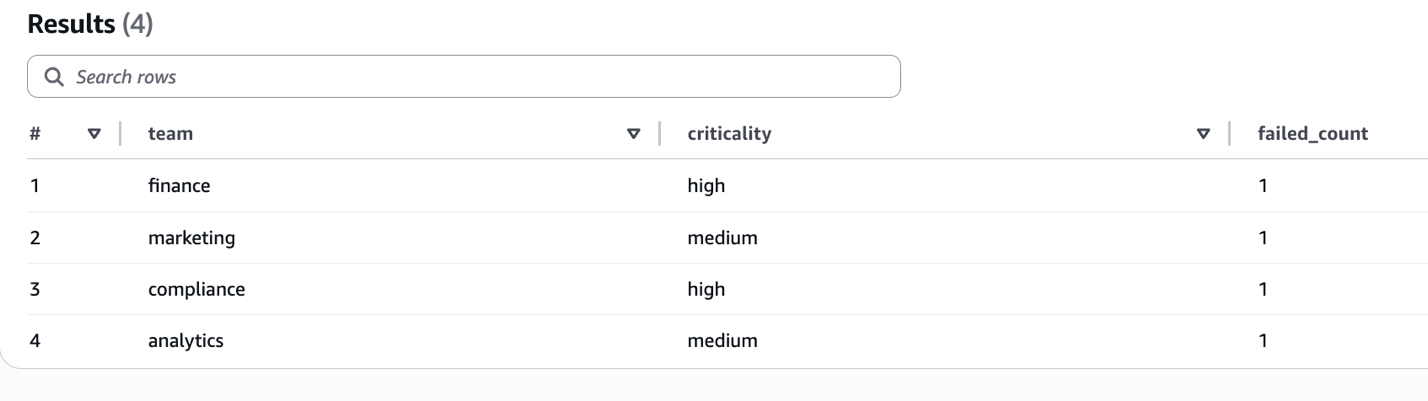
Now that we have stored rule-level outcomes with labels, we can run aggregation queries to analyze failures across different dimensions. For example, the following query groups failed rules by criticality and team to identify which teams have the most high-severity failures. You can use it to prioritize remediation efforts and allocate resources effectively:
SELECT
    labels['team'] AS team,
    labels['criticality'] AS criticality,
    COUNT(*) AS failed_count
FROM dqrulelevel
WHERE outcome = 'Failed'
GROUP BY labels['criticality'], labels['team']
ORDER BY failed_count DESC;
The following screenshot shows aggregated failure counts grouped by team and criticality level.
Viewing data quality results using AWS CLI
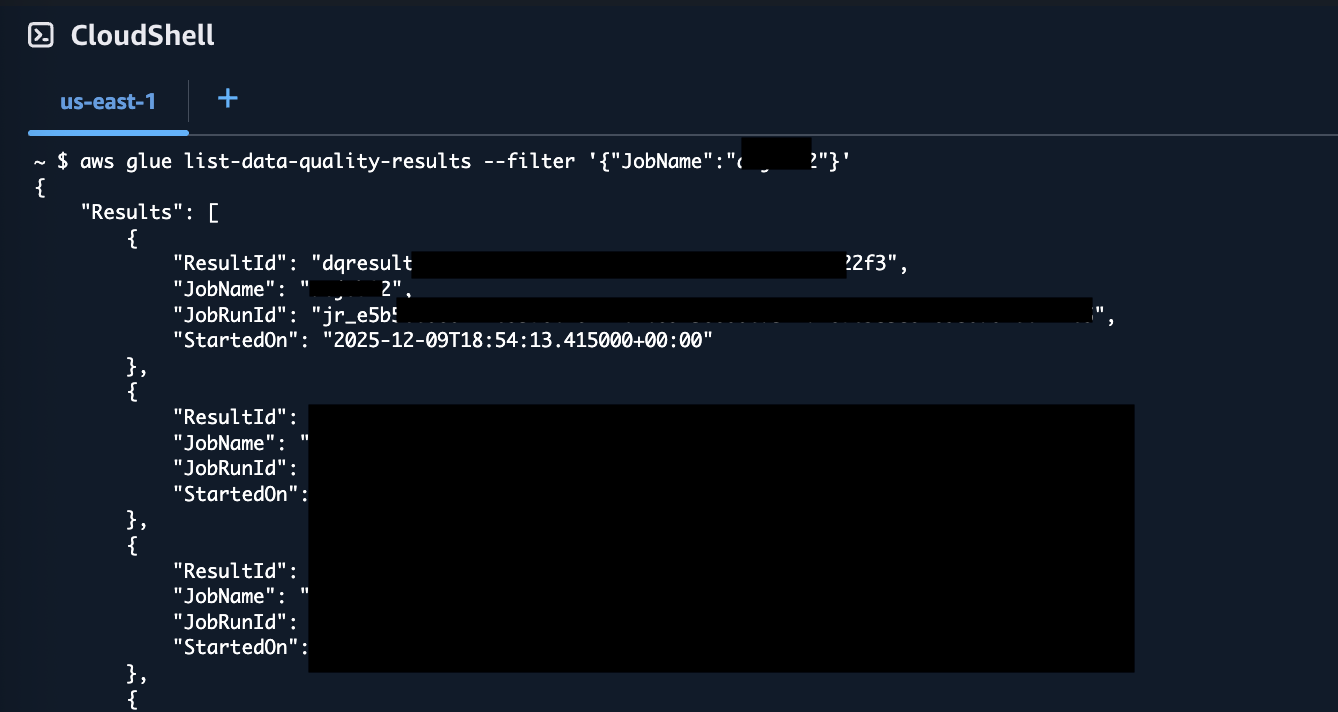
Beyond querying results in Athena, you can also retrieve data quality outcomes directly using the AWS Command Line Interface (AWS CLI). This is useful for automation, scripting, and integrating data quality checks into continuous integration and continuous delivery (CI/CD) pipelines.
To list data quality results for your ETL job, enter the following:
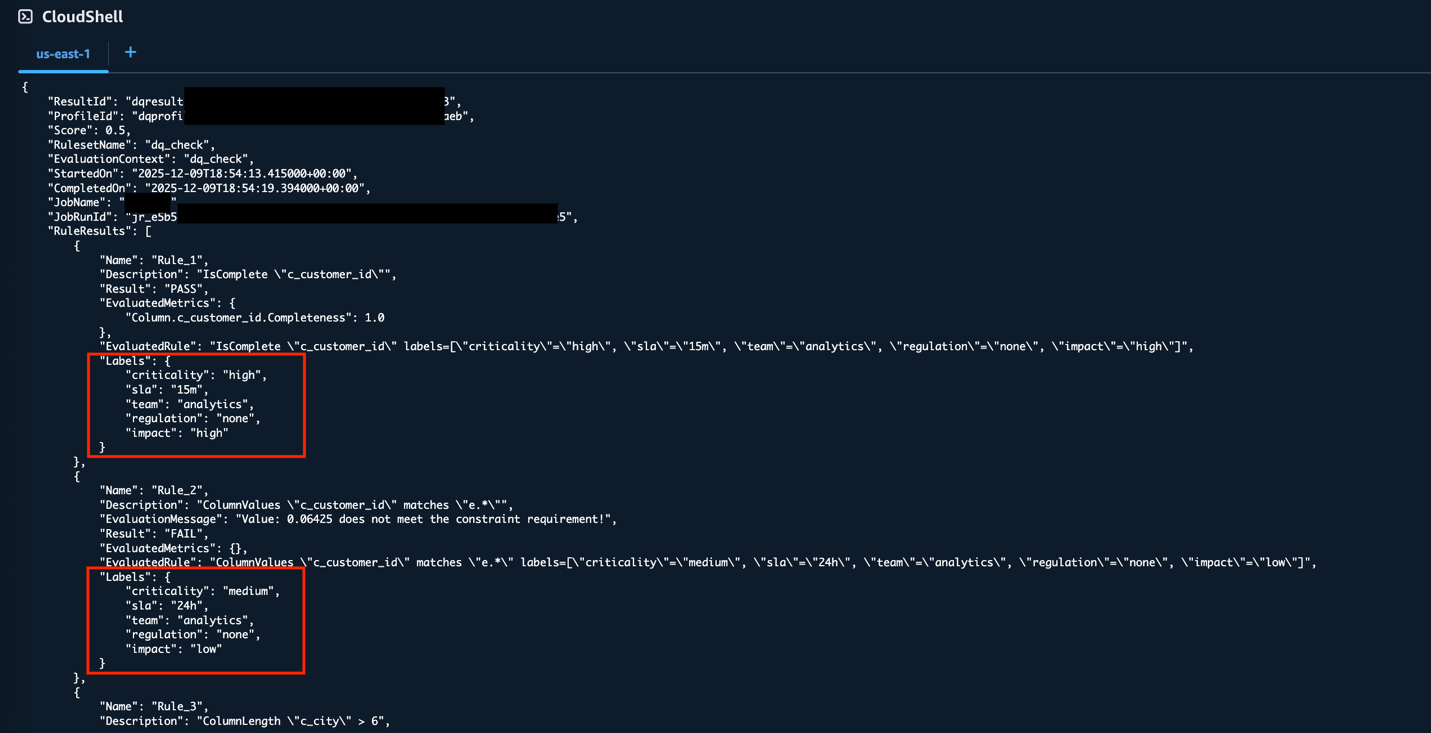
The output includes a Labels object for each rule in the RuleResults array, containing the label key-value pairs you defined. This provides programmatic access to the same labeled data quality results, which can be useful for automation and scripting workflows.
Cleanup
To avoid incurring ongoing charges, delete the resources created in this post:
To delete the S3 folders containing the data quality results, follow the directions at Deleting Amazon S3 objects.
To delete the ETL job you created for the test, follow the directions at Delete jobs in the AWS Glue User Guide.
To delete the AWS Glue Data Catalog dqrulelevel and dqrowlevel tables, follow the directions at DeleteTable in the AWS Glue Web API Reference.
Conclusion
AWS Glue DQDL labels add organizational context to data quality management by attaching business metadata directly to validation rules. This helps teams identify rule ownership, prioritize failures, and coordinate remediation efforts more effectively.Throughout this post, we’ve seen how AnyCompany moved from managing hundreds of generic rules to implementing a labeled system where data quality results include team ownership and business context. Marketing teams can identify their email validation failures, compliance teams can focus on regulatory violations, and finance teams can address payment-related issues without manual coordination.To implement DQDL Labels in your organization:
Start simple – Begin with basic organizational dimensions such as team ownership, criticality levels, and SLA requirements. Expand your labeling approach as needed.
Establish standards – Define your label taxonomy up front, including default values for unused dimensions. This consistency supports analytics across teams.
Integrate gradually – Add labels to existing rule sets during routine maintenance.
Use analytics – Apply the Athena query patterns from this post to build tools such as dashboards and alerting workflows.
Build smart automation – Explore creating alerts and notifications tailored to your business criticality and SLA definitions. For example, configure immediate notifications for high-criticality compliance failures while batching low-priority marketing issues into daily reports.
We look forward to seeing how you implement DQDL labels in your organization and expand beyond the examples we’ve covered here. To dive into the AWS Glue Data Quality APIs, refer to Data Quality API documentation. To learn more about AWS Glue Data Quality, check out AWS Glue Data Quality.
As organizations scale their observability and analytics capabilities across multiple AWS Regions and environments, maintaining consistent dashboards becomes increasingly complex. Teams often spend hours manually recreating dashboards, creating workspaces, linking data sources, and validating configurations across deployments—a repetitive and error-prone process that slows down operational visibility.
The next generation OpenSearch UI in Amazon OpenSearch Service introduces a unified, managed analytics experience that decouples from individual OpenSearch domains and OpenSearch collections. It provides workspaces, dedicated team spaces with collaborator management and a tailored environment for observability, search, and security analytics use cases. Each workspace can connect to multiple data sources, including OpenSearch Service domains, Amazon OpenSearch Serverless collections, and external sources such as Amazon Simple Storage Service (Amazon S3). OpenSearch UI also supports access with AWS IAM Identity Center, AWS Identity and Access Management (IAM), Identity provider (IdP)-initiated single sign-on (SAML using IAM federation), and AI-powered insights.)-initiated single sign-on (SAML using IAM federation),and AI-powered insights.
In this post, you’ll learn how to use the AWS Cloud Development Kit (AWS CDK) to deploy an OpenSearch UI application and integrate it with an AWS Lambda function that automatically creates workspaces and dashboards using the OpenSearch Dashboards Saved Objects APIs. Using this automation means that environments launch with ready-to-use analytics that are standardized, version-controlled, and consistent across deployments. that are standardized, version-controlled, and consistent across deployments.
Specifically, you’ll learn how to:
Deploy an OpenSearch UI application using AWS CDK that in turn uses AWS CloudFormation
Automatically create workspaces and dashboards using a Lambda based custom resource
Generate and ingest sample data for immediate visualization
Build visualizations programmatically using the OpenSearch Dashboards Saved Objects API
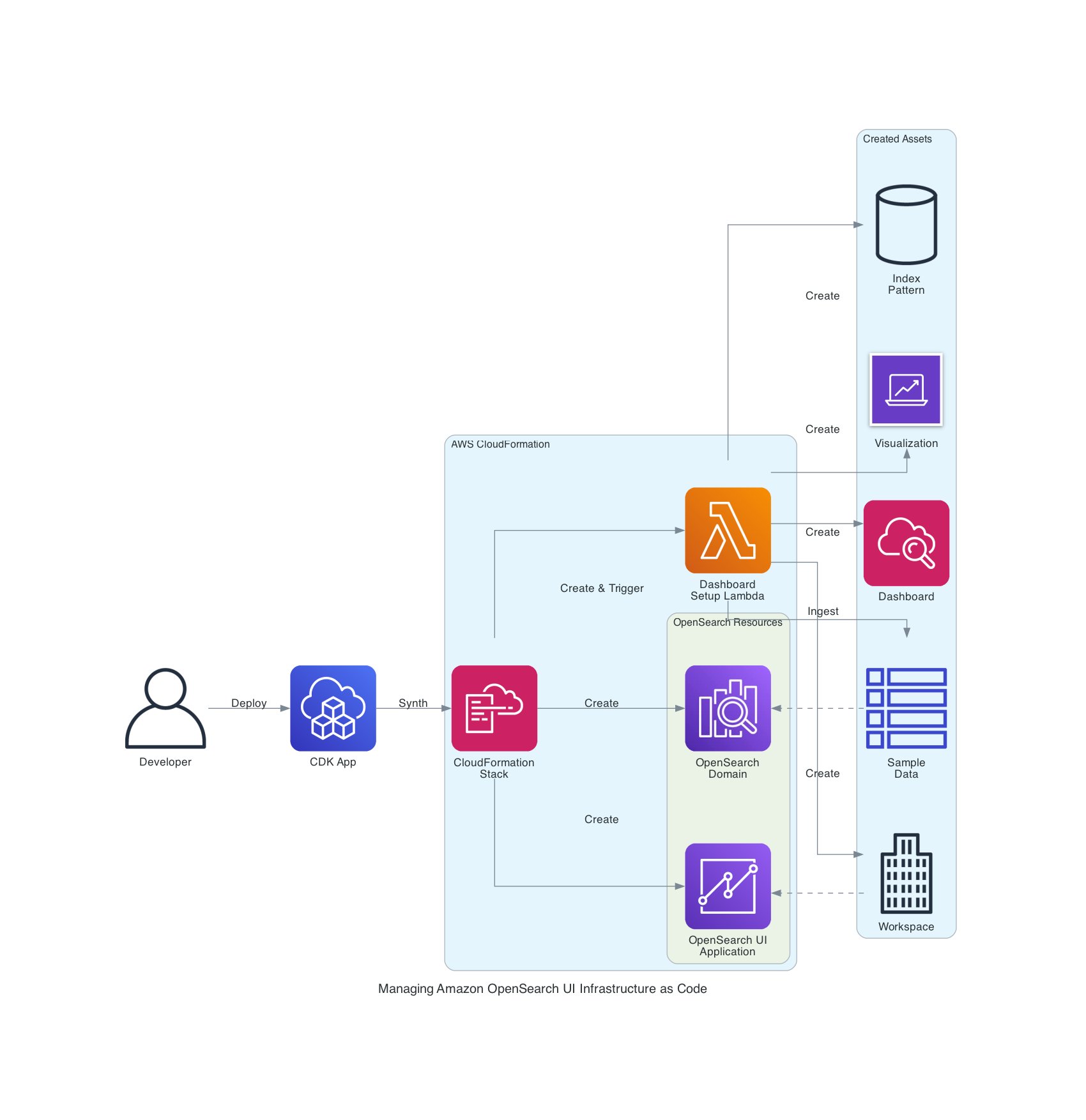
The following architecture demonstrates how to automate OpenSearch UI workspace and dashboard creation using AWS CDK, AWS Lambda, and the OpenSearch UI APIs.
The workflow flows from left to right:
Deploy stack – Developer runs cdk deploy to launch the infrastructure and create the CloudFormation stack.
Create domain – CloudFormation creates the OpenSearch domain (which serves as the data source)
Trigger Lambda – CloudFormation invokes the Lambda function as a custom resource
Generate and ingest data – Lambda generates sample metrics and ingests them into the domain
Create workspaces and assets using saved object API – Lambda creates the workspace, index pattern, visualization (pie chart), and dashboard using OpenSearch UI API calls
The result is a fully configured OpenSearch UI with sample data and a ready-to-use dashboard automated through infrastructure as code (IaC). The same workflow can also be integrated into existing infrastructure for OpenSearch UI applications to automatically create or update dashboards during future deployments, maintaining consistency across environments. consistency across environments.
Prerequisites
To perform the solution, you need the following prerequisites:
An AWS user or role with sufficient permissions – You’ll need permissions to create and manage AWS resources such as OpenSearch Service domains, OpenSearch UI applications, Lambda functions, IAM roles and policies, virtual private cloud (VPC) networking components (subnets and security groups), and CloudFormation stacks. For testing or proof-of-concept deployments, we recommend using an administrative role. For production, follow the principle of least privilege.
This sample demonstrates how to deploy an OpenSearch UI application, create a workspace, ingest sample data, and automatically generate visualizations and dashboards using IaC.
After cloning the repository, you can deploy the stack to automatically create your first OpenSearch workspace and dashboard with sample data.
Understanding the solution
Before deploying, let’s examine how the solution works. The following steps explain the architecture and automation logic that will execute automatically when you deploy the AWS CDK stack. The next section contains the actual deployment commands you’ll run.
Provision OpenSearch UI resources
The AWS CDK integrates seamlessly with AWS CloudFormation. This means you can define your OpenSearch resources and automation workflows as IaC. In this solution, AWS CDK provisions the OpenSearch domain, OpenSearch UI application, and a Lambda based custom resource that performs the automation logic.
When deploying OpenSearch UI automation, the order of resource creation is important to correctly resolve dependencies. The recommended order is as follows:
Create the Lambda execution role – Required for access to AppConfigs and APIs
Create the OpenSearch domain – Serves as the primary data source
Create the OpenSearch UI application – References the Lambda role in its AppConfigs
Create the Lambda function – Defines the automation logic
Create the custom resource – Triggers the Lambda automation during stack deployment
The following code snippet (from cdk/lib/dashboard-stack.ts) shows the key infrastructure definitions:
The Lambda role must be created before the OpenSearch UI application so its Amazon Resource Name (ARN) can be referenced in dashboardAdmin.groups
The Lambda role includes both opensearch:ApplicationAccessAll (for OpenSearch UI API access) and es:ESHttp* permissions (for ingesting data into the OpenSearch domain)
The custom resource enables the automation function to run during deployment, passing both OpenSearch UI and OpenSearch domain endpoints as parameters
Authenticate with OpenSearch UI APIs
When programmatically interacting with the OpenSearch UI (Dashboards) APIs, proper authentication is required so your Lambda function or automation script can securely access the APIs. The OpenSearch UI uses AWS Signature Version 4 (SigV4) authentication—similar to the OpenSearch domain APIs—but with a few important distinctions.
When signing OpenSearch UI API requests, the service name must be opensearch, not es. This is a common source of confusion: the OpenSearch domain endpoint still uses the legacy service name es, but the OpenSearch UI endpoints require opensearch. Using the wrong service name will cause your requests to fail authentication, even if the credentials are valid.
For POST, PUT, or DELETE requests, include the following headers to satisfy the OpenSearch UI API security requirements:
Header
Description
1
Content-Type
Set to application/json for JSON payloads
2
osd-xsrf
Required for state-changing operations (set to true)
3
x-amz-content-sha256
SHA-256 hash of the request body to ensure data integrity
The SigV4 signing process automatically computes this body hash when using the botocore AWSRequest object, maintaining request integrity and preventing tampering during transmission.
The following code snippet (from lambda/sigv4_signer.py) demonstrates how to sign and send a request to the OpenSearch UI API:
def get_common_headers(body: bytes = b"{}") -> Dict[str, str]:
    """
    Get common headers for OpenSearch UI API requests.

    Args:
        body: Request body bytes to hash

    Returns:
        Dictionary of required headers
    """
    body_hash = hashlib.sha256(body).hexdigest()
    return {
        "Content-Type": "application/json",
        "x-amz-content-sha256": body_hash,
        "osd-xsrf": "osd-fetch",
        "osd-version": "3.1.0",
    }


def make_signed_request(
    method: str,
    url: str,
    headers: Dict[str, str],
    body: bytes = b"",
    region: str = None,
) -> Any:
    session = boto3.Session()
    if not region:
        region = session.region_name

    # Create AWS request
    request = AWSRequest(method=method, url=url, data=body, headers=headers)

    # Sign with SigV4 using 'opensearch' service name (not 'es')
    credentials = session.get_credentials()
    SigV4Auth(credentials, "opensearch", region).add_auth(request)

    # Send request using URLLib3Session
    http_session = URLLib3Session()
    return http_session.send(request.prepare())
This utility function signs the request using the correct service name (opensearch), attaches the required headers, and sends it securely to the OpenSearch UI endpoint.
Create workspace and dashboard with sample data
The Lambda function (lambda/dashboard_automation.py) automates the entire process of provisioning a workspace, generating sample data, and creating visualizations and dashboards through the OpenSearch UI APIs. Visit the following lists of APIs:
Locate or create a workspace. Each dashboard in the OpenSearch UI must exist within a workspace. The function first checks whether a workspace already exists and creates one if necessary. The workspace associates one or more data sources (for example, an OpenSearch domain or OpenSearch Serverless collection):
This logic enables repeated deployments to remain idempotent; the Lambda function reuses existing workspaces rather than creating duplicates.
Generate and ingest sample data. To make the dashboards meaningful upon first launch, the Lambda function generates a small dataset simulating HTTP request metrics and ingests it into the OpenSearch domain using the Bulk API:
def generate_sample_metrics(num_docs: int = 50) -> list:
    """Generate realistic HTTP API request metrics."""
    endpoints = ["/api/users", "/api/products", "/api/orders"]
    status_codes = [200, 201, 400, 404, 500]
    status_weights = [0.70, 0.15, 0.08, 0.05, 0.02]  # Realistic distribution

    documents = []
    for i in range(num_docs):
        documents.append({
            "@timestamp": generate_timestamp(),
            "endpoint": random.choice(endpoints),
            "status_code": random.choices(status_codes, weights=status_weights)[0],
            "response_time_ms": random.randint(20, 500)
        })
    return documents
The function then ingests this data into the domain:
This enables each deployment to include sample analytics data that immediately populates the dashboard upon first login.
Create a visualization. After the index pattern is available, the Lambda function creates a pie chart visualization that shows HTTP status code distribution:
This completes the dashboard creation process, providing users with an interactive visualization of application metrics as soon as they access the workspace.
The full implementation, including logging, error handling, and helper utilities, is available in the AWS Samples GitHub repository.
Deploy the infrastructure with AWS CDK
With the AWS CDK stack and Lambda automation in place, you’re ready to deploy the full solution and verify that your OpenSearch UI dashboard is created automatically.
Deploy the stack
From the root directory of the cloned repository, navigate to the AWS CDK folder and deploy the stack using your IAM user ARN from the Prerequisites section:
cd cdk
npm install
npx cdk bootstrap  # First time only
npx cdk deploy -c masterUserArn=arn:aws:iam::123456789012:user/your-username
The deployment process typically takes 20–25 minutes because AWS CDK provisions the OpenSearch domain, OpenSearch UI application, Lambda function, and custom resource that runs the automation.
Verify the deployment
After the deployment completes:
Open the OpenSearch UI endpoint displayed in the AWS CDK output.
Sign in using your IAM credentials.
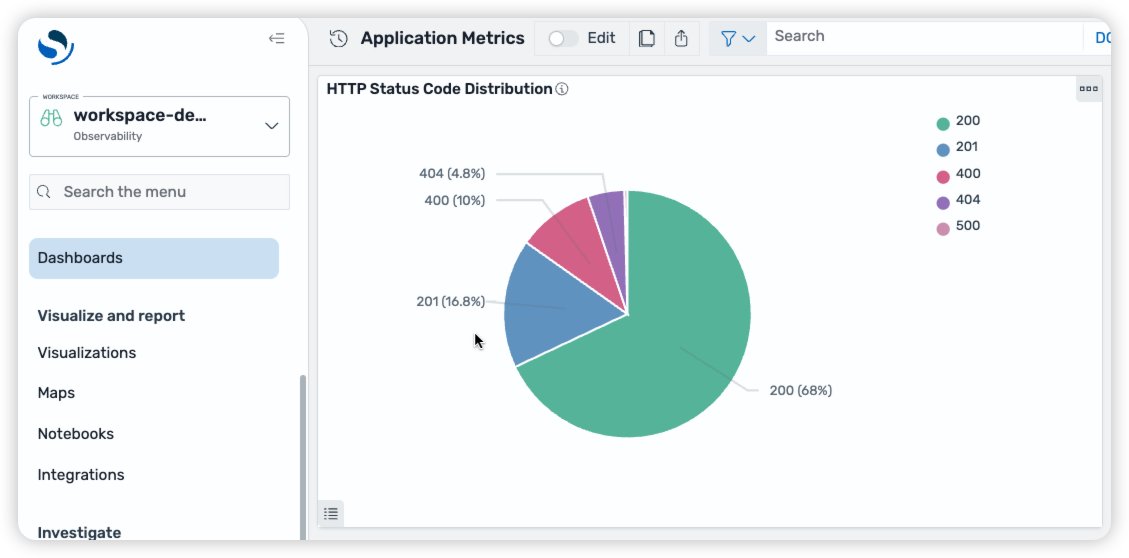
Switch to the newly created workspace-demo workspace.
Open the Application Metrics dashboard.
View the pie chart visualization that displays the distribution of HTTP status codes from the sample data.
The dashboard automatically displays a pie chart visualization populated with synthetic application metrics, demonstrating how the Saved Objects API can be used to bootstrap meaningful analytics dashboards immediately after deployment.
Enhancement 1: Simplify dashboard creation with Saved Object Import API
As your OpenSearch Dashboards evolve, managing complex dependencies between index patterns, visualizations, and dashboards can become increasingly difficult. Each dashboard often references multiple saved objects, and manually recreating or syncing them across environments can be time-consuming and error prone.
To simplify this process, we recommend using the Saved Objects Import/Export API. You can use this API to bundle entire dashboards, including their dependent objects, into a single transferable artifact. By using this approach, you can version, migrate, and deploy dashboards across environments as part of your CI/CD workflow, maintaining consistency and reducing operational overhead.
Select the dashboard and related objects (for example, visualizations and index patterns)
Choose Export
Save the exported file as dashboard.ndjson
This file contains saved objects serialized in newline-delimited JSON (NDJSON) format, ready for versioning or deployment automation.
Import dashboards programmatically
You can programmatically import the NDJSON file into a target workspace using the Saved Objects import API:
# Pseudo code for import function
def import_dashboard(workspace_id, ndjson_file):
    # Read the exported dashboard file
    dashboard_config = read_file(ndjson_file)


    # POST to import to opensearch ui endpoint
    url = f"{opensearch_ui_endpoint}/w/{workspace_id}/api/saved_objects/_import"
    response = make_signed_request("POST", url, dashboard_config)

    return response.success
By using this approach, you can treat dashboards as deployable assets, exactly like application code. You can store your exported dashboards in source control, integrate them into your AWS CDK or CloudFormation pipelines, and automatically deploy them to multiple environments with confidence.
Enhancement 2: Improved security configurations
In some cases, you might want to improve the security configuration of your OpenSearch UI application, or you might be dealing with OpenSearch domains that have been deployed with additional security configurations. In this section, we discuss how you can improve the security configuration of your OpenSearch UI application and still achieve IaC with AWS CDK. More specifically, we explain how you can set up your OpenSearch UI application when your OpenSearch domain is in a VPC and when fine-grained access control is enabled.
When the OpenSearch Domain resides within a VPC, additional configurations will be needed to properly connect with your dashboard.
Enable communication between Lambda functions used to ingest data and the OpenSearch domain in the VPC
When the OpenSearch Service domain resides in a VPC, the Lambda functions that ingest data into the domain must be able to communicate with it. The most straightforward way of doing this is to allow the Lambda function to be executed within the same VPC as your OpenSearch Service domain and give it the same security group. An example is provided in the GitHub repository.
Allow HTTPS communications from clients trying to communicate with your OpenSearch Service domain. In this example, the client will be using the same security group used in the OpenSearch Service domain:
openSearchSecurityGroup.addIngressRule(
  openSearchSecurityGroup,
  ec2.Port.tcp(443),
  'Allow inbound HTTPS traffic from itself',
);
Add this managed policy to the role assumed by the Lambda function to allow it access to the VPC:
Specify the VPC and the security group your Lambda function will be using. In this case, the VPC is the same one used by your OpenSearch Service domain:
Authorize OpenSearch UI service for VPC endpoint access
For the OpenSearch Service domain to be accessible to your dashboard, VPC endpoint access must be enabled. This can be achieved by using a custom resource, as shown in the following configuration:
When you use fine-grained access control in combination with an OpenSearch UI, you have more control over which operations are allowed for each user. This can be especially useful when you want to limit your users’ actions beyond the admin, read, or write permissions that come with OpenSearch UI. Unique roles can be created and mapped to one or more users to achieve precise control over who can access what functionality.
In the previous sections, the same Lambda was used to make requests to both the OpenSearch Service domain and the OpenSearch UI. However, in situations where the main role isn’t the same between the OpenSearch Service domain and the OpenSearch UI, we recommend creating a Lambda function for each role. Again, when deploying OpenSearch UI automation, the order of resource creation is important to correctly resolve dependencies. As illustrated previously, the recommended order is as follows:
Create the dashboard Lambda execution role – Required for access to AppConfigs and APIs
Create the OpenSearch domain main role – Required for domain creation and APIs
Create the OpenSearch domain – Serves as the primary data source
Create the OpenSearch domain Lambda function – Defines the automation logic for the OpenSearch domain
Create the OpenSearch domain custom resources – Triggers the Lambda automation during stack deployment
Create the OpenSearch UI application – References the Lambda role in its AppConfigs
Create the OpenSearch UI Lambda function – Defines the automation logic for the OpenSearch UI
Create the OpenSearch UI custom resource – Triggers the Lambda automation during stack deployment
When creating the OpenSearch Service domain, specify the fine-grained access control parameter, as follows:
// Step 3: Create OpenSearch Domain
const opensearchDomain = new opensearch.Domain(this, 'OpenSearchDomain', {
  // ... additional configuration
  // Enable Fine-Grained Access Control in your OpenSearch Domain
  fineGrainedAccessControl: {
    masterUserArn: openSearchMasterRole.roleArn,
  }
});
The Lambda function responsible for communicating with the OpenSearch Service domain should have the necessary permissions to write to it. The following is a configuration example where the Lambda function assumes the domain’s main role:
// Step 4: Create Lambda Function for OpenSearch Domain
const domainFn = new lambda.Function(this, 'DomainSetup', {
  // ... additional configuration
  role: openSearchMasterRole
});
Then, add the custom resources to create the roles and role mappings, as needed:
// Step 5: Create Custom Resources for OpenSearch Domain
const domainProvider = new cr.Provider(this, 'DomainProvider', {
  onEventHandler: domainFn
});

// A custom resource to create roles (Optional)
new cdk.CustomResource(this, 'DomainRoleSetupResource', {
  serviceToken: domainProvider.serviceToken,
  // ... additional configuration
});

// A custom resource to create role mappings (Optional)
new cdk.CustomResource(this, 'DomainRolesMappingSetupResource', {
  serviceToken: domainProvider.serviceToken,
  // ... additional configuration
});
Create additional roles in the OpenSearch Service domain (Optional)
If you want to grant specific permissions to some users, we recommend creating roles for them. This can be achieved by making the following requests to the OpenSearch Service domain endpoint.
For more information about the roles endpoint, review the Create role in the OpenSearch documentation.
Create role mappings in the OpenSearch domain for your dashboard users (Optional)
Users can be mapped to one or more roles to control their access to the OpenSearch Service domain, which will be reflected in the OpenSearch UI dashboard connected to the domain.
For more information about the rolesmapping endpoint, review the Create role mapping in the OpenSearch documentation.
# Pseudo code to create a role mapping
def create_role_mapping(domain_endpoint: str, region: str,
                        new_role_name: str) -> bool:
    """Create a new role mapping"""
    url = f"https://{domain_endpoint}/_plugins/_security/api/rolesmapping/{new_role_name}"

    payload = {
        "backend_roles": [
            "<ROLE_ARN_1>",
            "<ROLE_ARN_2>",
        ],
    }

    response = make_domain_request("PUT", url, headers, json.dumps(payload).encode(), region)
    return response.success
These are some important implementation notes:
By default, the OpenSearch Domain will create a role mapping for its main user, under all_access and security_manager. If you modify those mappings, we recommend keeping the main user in the list to prevent accidental loss of access.
When fine-grained access control is used, if a user opens the OpenSearch UI without being mapped to a role in the OpenSearch Domain, they will be unable to visualize or modify the data located in the OpenSearch Domain, even if they’re part of the OpenSearch UI’s admin group. For this reason, we recommend creating custom resources to add the appropriate role mappings. OpenSearch UI admins will still be able to make changes to the OpenSearch UI dashboards.
When programmatically interacting with the OpenSearch Domain APIs, proper authentication is required so your Lambda function or automation script can securely access the APIs. The OpenSearch Domain uses SigV4 authentication. When signing the OpenSearch Domain API requests, the service name must be es.
Cost considerations
This solution uses several AWS services, each with its own cost component:
Amazon OpenSearch Service – This is the main cost driver. Charges are based on instance type, number of nodes, and Amazon Elastic Block Store (Amazon EBS) storage. For testing, you can use a smaller instance (for example, t3.small.search) or delete the domain after use to minimize cost.) or delete the domain after use to minimize cost.
AWS Lambda – The automation function runs only during deployment and incurs minimal charges for a few short invocations.
AWS CDK and CloudFormation – Create temporary IAM roles and Amazon S3 deployment assets with negligible cost.
To avoid incurring ongoing costs, clean up the resources created by this solution when you’ve completed your testing.Open your project directory and destroy the AWS CDK stack:
cd cdk
npx cdk destroy
This command removes the resources provisioned by the AWS CDK stack, including:
The Amazon OpenSearch Service domain
The OpenSearch UI application
The AWS Lambda function and custom resource
IAM roles and policies associated with the deployment
By cleaning up, you stop the related charges and maintain a tidy, cost-efficient AWS environment.
By integrating the Saved Objects API with the next-generation Amazon OpenSearch UI, you can programmatically create entire analytics experiences—including workspaces, sample data, visualizations, and dashboards—directly from your IaC.
This approach brings the power of IaC to your analytics layer. Using AWS CDK and AWS Lambda, you can version, deploy, and update dashboards consistently across environments, reducing manual setup while improving reliability and governance. With this automation in place, your teams can focus on insights rather than setup—delivering observability-as-code that scales with your organization.
In this post, we show how to migrate an Oracle data warehouse to Amazon Redshift using Oracle GoldenGate and DMS Schema Conversion, a feature of AWS Database Migration Service (AWS DMS). This approach facilitates minimal business disruption through continuous replication. Amazon Redshift is a fast, fully managed, petabyte-scale data warehouse service that makes it simple and cost-effective to efficiently analyze your data using your existing business intelligence tools.
Solution overview
Our migration approach combines DMS Schema Conversion for schema migration and Oracle GoldenGate for data replication. The migration process consists of four main steps:
Schema conversion using DMS Schema Conversion.
Initial data load using Oracle GoldenGate.
Change data capture (CDC) for ongoing replication.
Final cutover to Amazon Redshift.
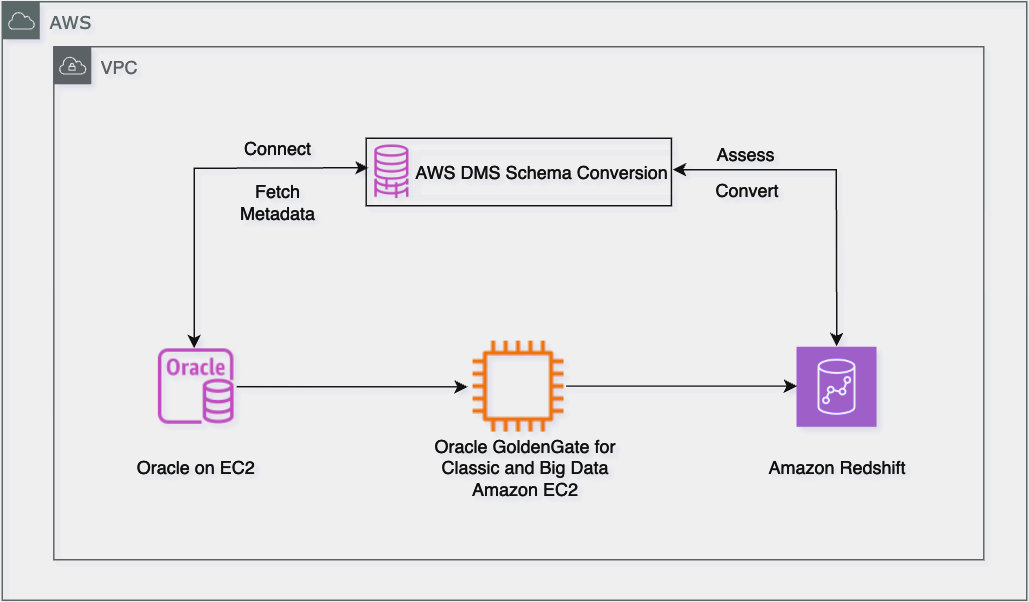
The following diagram shows the migration workflow architecture from Oracle to Amazon Redshift, where DMS Schema Conversion handles schema migration and Oracle GoldenGate manages both initial data load and continuous replication through Extract and Replicat processes running on Amazon Elastic Compute Cloud (Amazon EC2) instances. The solution facilitates minimal downtime by maintaining real-time data synchronization until the final cutover.
The solution comprises the following key migration components:
In the following sections, we walk through how to migrate an Oracle data warehouse to Amazon Redshift. For demonstration purposes, we use an Oracle data warehouse consisting of four tables:
DMS Schema Conversion automatically converts your Oracle database schemas and code objects to Amazon Redshift-compatible formats. This includes tables, views, stored procedures, functions, and data types.
Set up network for DMS Schema Conversion
DMS Schema Conversion requires network connectivity to both your source and target databases. To set up this connectivity, complete the following steps:
Specify a virtual private cloud (VPC) and subnet where DMS Schema Conversion will run.
Configure security group rules to allow traffic between the following:
DMS Schema Conversion and your source Oracle database
DMS Schema Conversion and your target Redshift cluster
DMS Schema Conversion saves items such as assessment reports, converted SQL code, and information about database schema objects in an S3 bucket. For instructions to create an S3 bucket, refer to Create an S3 bucket.
Create IAM policies and roles
To set up DMS Schema Conversion, you must create appropriate IAM policies and roles. This process makes sure AWS DMS has the necessary permissions to access your source and target databases, as well as other AWS services required for the migration.
Prepare DMS Schema Conversion
In this section, we go through the steps to configure DMS Schema Conversion.
Set up instance profile
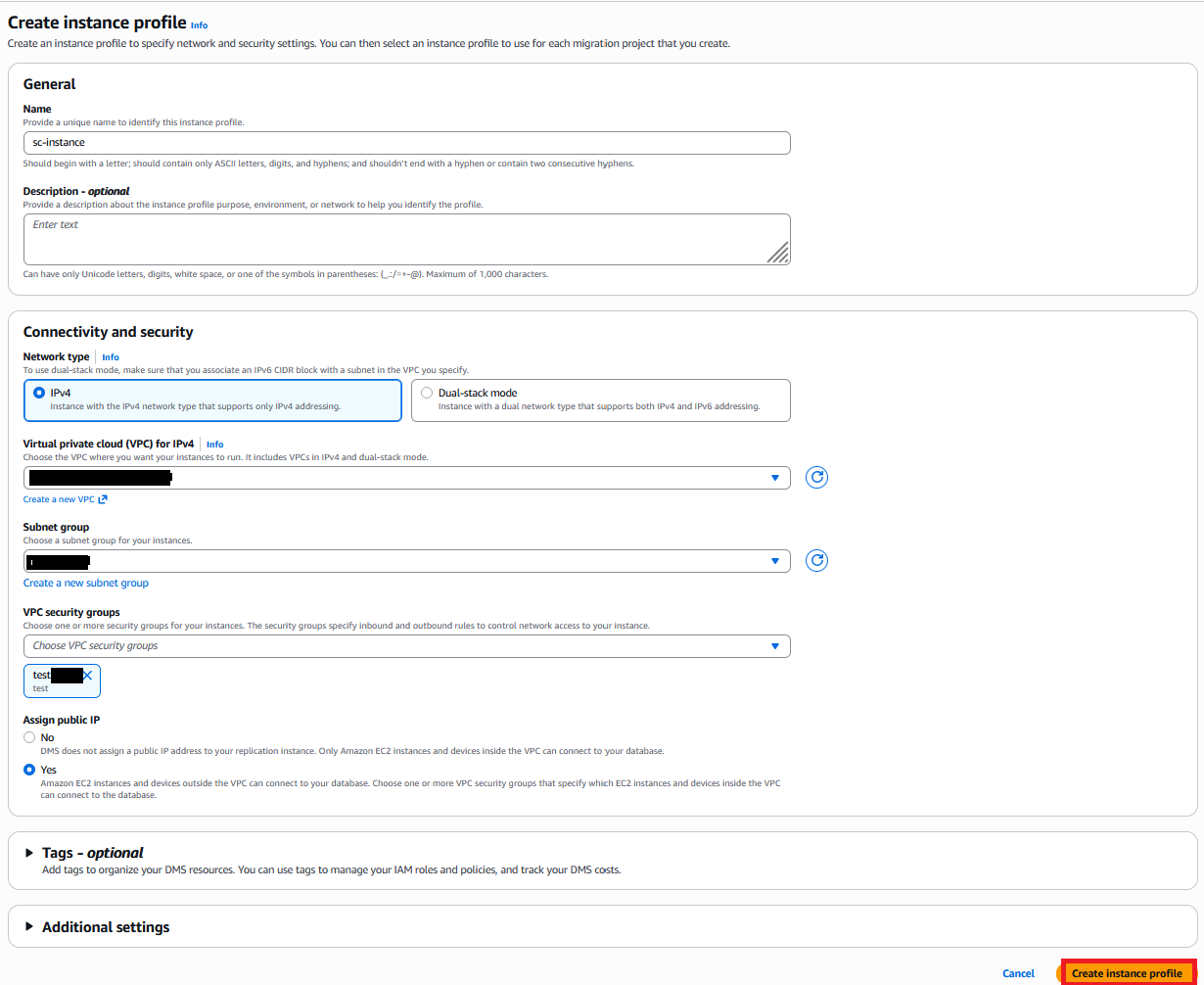
An instance profile specifies the network, security, and Amazon S3 settings for DMS Schema Conversion to use. Create an instance profile with the following steps:
On the AWS DMS console, choose Instance profiles in the navigation pane.
Choose Create instanceprofile.
For Name, enter a name (for example, sc-instance).
For Network type, we use IPv4. DMS Schema Conversion also offers Dual-stack mode for both IPv4 and IPv6.
For Virtual private cloud (VPC) for IPv4, choose Default VPC.
For Subnet group, choose your subnet group (for this post, default).
For VPC security groups, choose your security groups. As previously stated, the instance profile’s VPC security group must have access to both the source and target databases.
For S3 bucket, specify a bucket to store schema conversion metadata.
Choose Create instance profile.
Add data providers
Data providers store database types and information about source and target databases for DMS Schema Conversion to connect to. Configure data providers for the source and target databases with the following steps:
On the AWS DMS console, choose Data providers in the navigation pane.
Choose Create data provider.
To create your target, for Name, enter a name (for example, redshift-target).
For Engine type, choose Amazon Redshift.
For Engine configuration, select Choose from Redshift.
For Redshift cluster, choose the target Redshift cluster.
For Port, enter the port number.
For Database name, enter the name of your database.
Choose Create data provider.
Repeat similar steps to create your source data provider.
Create migration project
The DMS Schema Conversion migration project defines migration entities, including instance profiles, source and target data providers, and migration rules. Create a migration project with the following steps:
On the AWS DMS console, choose Migration projects in the navigation pane.
Choose Create migration project.
For Name, enter a name to identify your migration project (for example, oracle-redshift-commercewh).
For Instance profile, choose the instance profile you created.
In the Data providers section, enter the source and target data providers, Secrets Manager secret, and IAM roles.
In the Schema conversion settings section, enter the S3 URL and choose the applicable IAM role.
Choose Create migration project.
Use DMS Schema Conversion to transform Oracle database objects
On the AWS DMS console, choose Migration projects in the navigation pane.
Choose the migration project you created.
On the Schema conversion tab, choose Launch schema conversion.
The schema conversion project will be ready when the launch is complete. The left navigation tree represents the source database, and the right navigation tree represents the target database.
Select the objects you want to convert and then choose Convert on the Actions menu to convert the source objects to the target database.
The conversion process might take some time depending on the number and complexity of the selected objects.
You can save the converted code to the S3 bucket that you created earlier in the prerequisite steps.
To save the SQL scripts, select the object in the target database tree and choose Save as SQL on the Actions menu.
After you finalize the scripts, run them manually in the target database.
Alternatively, you can apply the scripts directly to the database using DMS Schema Conversion. Select the specific schema in the target database, and on the Actions menu, choose Apply changes.
This will apply the automatically converted code to the target database.
If some objects require action items, DMS Schema conversion flags them and provides details of action items. For the items that require resolution, perform manual changes and apply the converted changes directly to the target database.
Perform data migration
The migration from Oracle Database to Amazon Redshift using Oracle GoldenGate begins with an initial load process, where Oracle GoldenGate’s Extract process captures the existing data from the Oracle source tables and sends this data to the Replicat process, which loads it into Redshift target tables through the appropriate database connectivity. Simultaneously, Oracle GoldenGate’s CDC mechanism tracks the ongoing changes (inserts, updates, and deletes) in the source Oracle database by reading the redo logs. These captured changes are then synchronized to Amazon Redshift in near real time through the Extract-Pump-Replicat process, facilitating data consistency between the source and target systems throughout the migration process.
Prepare source Oracle database for GoldenGate
Prepare your database for Oracle GoldenGate, including configuring connections and logging, enabling Oracle GoldenGate in your database, setting up the flashback query, and managing server resources.
To handle this situation, configure Extract to generate trail records with the column values (enable trandata for the columns). Alternatively, you can disable this check by setting gg.abend.on.missing.columns=false, which may result in unintended NULLs on the target database.When gg.abend.on.missing.columns=true, Replicat process on Oracle GoldenGate for BigData fails and returns the following error for compressed update records:
ERROR OGG-15051 Java or JNI exception: java.lang.IllegalStateException: The UPDATE operation record in the trail at pos[0/XXXXXXX] for table [SCHEMA.TABLENAME] has missing columns.
Install Oracle GoldenGate software on Amazon EC2
You must run Oracle GoldenGate on EC2 instances. The instances must have adequate CPU, memory, and storage to handle the anticipated replication volume. For more details, refer to Operating System Requirements. After you determine the CPU and memory requirements, select a current generation EC2 instance type for Oracle GoldenGate.
When the EC2 instance is up and running, download the following Oracle GoldenGate software from the Oracle GoldenGate Downloads page:
The initial load configuration transfers existing data from Oracle Database to Amazon Redshift. Complete the following configuration steps:
Create an initial load extract parameter file for the source Oracle database using GoldenGate for Oracle. The following code is the sample file content:
Add the EXTRACT on the GoldenGate for Oracle prompt by running the following command:
ADD EXTRACT INITLE11, SOURCEISTABLE

GGSCI (ip-**-**-**-**.us-west-2.compute.internal) 1> info INITLE11

Extract    INITLE11  Initialized  2025-07-08 03:44   Status STOPPED
Checkpoint Lag       Not Available
Log Read Checkpoint  Not Available
                     First Record         Record 0
Task                 SOURCEISTABLE
Create a Replicat parameter file for the target Redshift database for the initial load using GoldenGate for Big Data. The following code is the sample file content:
# Add Extract and Register (EXTPRD)

ADD EXTRACT EXTPRD, INTEGRATED TRANLOG, BEGIN NOW

REGISTER EXTRACT EXTPRD DATABASE

ADD EXTTRAIL /u01/app/oracle/product/21.3.0/oggcore_1/dirdat/ep, EXTRACT
EXTPRD

GGSCI (ip-**-**-**-**.us-west-2.compute.internal) 3>  info EXTPRD

Extract    EXTPRD    Initialized  2025-07-08 03:50   Status STOPPED
Checkpoint Lag       00:00:00 (updated 00:00:36 ago)
Log Read Checkpoint  Oracle Integrated Redo Logs
                     2025-07-08 03:50:33
Create an Extract Pump parameter file for the source Oracle database to send the trail files to the target Redshift database. The following code is the sample file content:
# Pump process addition

ADD EXTRACT PMPPRD, EXTTRAILSOURCE /u01/app/oracle/product/21.3.0/oggcore_1/dirdat/ep

ADD RMTTRAIL /home/ec2-user/ogg_bd/dirdat/pt, EXTRACT PMPPRD

GGSCI (ip-**-**-**-**.us-west-2.compute.internal) 4> info PMPPRD

Extract    PMPPRD    Initialized  2025-07-08 03:51   Status STOPPED
Checkpoint Lag       00:00:00 (updated 00:00:09 ago)
Log Read Checkpoint  File /u01/app/oracle/product/21.3.0/oggcore_1/dirdat/ep000000000
                     First Record  RBA 0
Configure Oracle GoldenGate Redshift handler to apply changes to target
To configure an Oracle GoldenGate Replicat to send data to a Redshift cluster, you must set up a Redshift properties file and a Replicat parameter file that defines how data is migrated to Amazon Redshift. Complete the following steps:
Configure the Replicat properties file (rs.props), which consists of an S3 event handler and Redshift event handler. The following is an example Replicat properties file configured to connect to Amazon Redshift:
To authenticate Oracle GoldenGate’s access to the Redshift cluster for data load operations, you have two options. The recommended and more secure method is to use IAM role authentication by configuring the gg.eventhandler.redshift.AwsIamRole property in the properties file. This approach provides more secure, role-based access. Alternatively, you can use access key authentication by setting the environment variables AWS_ACCESS_KEY_ID and AWS_SECRET_ACCESS_KEY. For more information, refer to the Oracle GoldenGate for BigData documentation.
Create a Replicat parameter file for the target Redshift database using Oracle GoldenGate for BigData. The following code is the sample file content:
# Add Replicat
ADD REPLICAT RSPRD, EXTTRAIL /home/ec2-user/ogg_bd/dirdat/pt, BEGIN NOW

GGSCI (ip-**-**-**-**.us-west-2.compute.internal) 3> info RSPRD

Replicat   RSPRD     Initialized  2025-07-08 03:52   Status STOPPED
Checkpoint Lag       00:00:00 (updated 00:00:07 ago)
Log Read Checkpoint  File /home/ec2-user/ogg_bd/dirdat/pt000000000
                     2025-07-08 03:52:48.471461
Start initial load and change sync
First start the change sync extract and data pump on the source Oracle database. This will start capturing changes while you perform the initial load.
In the GoldenGate for Oracle GGSCI utility, start EXTPRD and PMPPRD:
GGSCI (ip-**-**-**-**.us-west-2.compute.internal as ggsuser@ORCL) 13> start EXTPRD

Sending START request to Manager ...
Extract group EXTPRD starting.


GGSCI (ip-**-**-**-**.us-west-2.compute.internal as ggsuser@ORCL) 15> start PMPPRD

Sending START request to Manager ...
Extract group PMPPRD starting.
Do not start Replicat at this point.
Record the Source System Change Number (SCN) from the Oracle database, which serves as the starting point for replication on the target system:
select current_scn from v$database;

CURRENT_SCN
13940177
Start the initial load Extract process, which will automatically trigger the corresponding initial load Replicat on the target system:
GGSCI (ip-**-**-**-**.us-west-2.compute.internal as ggsuser@ORCL) 21> start INITLE11

Sending START request to Manager ...
Extract group INITLE11 starting.
Monitor the initial load completion status by executing the following command on the GoldenGate for BigData GGSCI utility. Make sure the initial load process has completed successfully before proceeding to the next step. The report will indicate the load status and potential errors that need attention.
VIEW REPORT INITLR11
Start the change synchronization Replicat RSPRD using the previously captured SCN to facilitate continuous data replication:
GGSCI (ip-**-**-**-**.us-west-2.compute.internal) 17> start RSPRD , aftercsn 13940177

Sending START request to Manager ...
Replicat group RSPRD starting.
Refer to the Oracle GoldenGate documentation for Amazon Redshift handlers to learn more about its detailed functionality, unsupported operations, and system limitations.
When transitioning from initial load to continuous replication in an Oracle database to Amazon Redshift migration using Oracle GoldenGate, it’s crucial to properly manage data collisions to maintain data integrity. The key is to capture and use an appropriate SCN that marks the exact point where initial load ends and CDC begins. Without proper collision handling, you might encounter duplicate records or missing data during the transition period. Implementing appropriate collision handling mechanisms makes sure duplicate records are properly managed without causing data inconsistencies in the target system. For more information on HANDLECOLLISIONS, refer to the Oracle GoldenGate documentation.
Clean up
When the migration is complete, complete the following steps:
Stop and remove Oracle GoldenGate processes (EXTRACT, PUMP, REPLICAT).
Delete EC2 instances used for Oracle GoldenGate.
Remove IAM roles created for migration.
Delete S3 buckets used for DMS Schema Conversion (if no longer needed).
Update application connection strings to point to the new Redshift cluster.
Conclusion
In this post, we showed how to modernize your data warehouse by migrating to Amazon Redshift using Oracle GoldenGate. This approach facilitates minimal downtime and provides a flexible, reliable method for transitioning your critical data workloads to the cloud. With the complexity involved in database migrations, we highly recommend testing the migration steps in non-production environments prior to making changes in production. By following the best practices outlined in this post, you can achieve a smooth migration process and set the foundation for a scalable, cost-effective data warehousing solution on AWS. Remember to continuously monitor your new Amazon Redshift environment, optimize query performance, and take advantage of the AWS suite of analytics tools to derive maximum value from your modernized data warehouse.
Modern streaming workloads are highly dynamic—traffic volumes fluctuate based on time of day, business cycles, or event-driven bursts. Customers need to dynamically scale Apache Kafka clusters up and down to maintain consistent throughput and performance without incurring unnecessary cost. For example, ecommerce platforms see sharp traffic increases during seasonal sales, and financial systems experience load spikes during market hours. Scaling clusters helps teams align cluster capacity with increased ingress throughput in response to these variations, leading to more efficient utilization and a better cost-to-performance ratio.
Amazon Managed Streaming for Apache Kafka (Amazon MSK) Express brokers are a key component to dynamically scaling clusters to meet demand. Express based clusters deliver 3 times higher throughput, 20 times faster scaling capabilities, and 90% faster broker recovery compared to Amazon MSK Provisioned clusters. In addition, Express brokers support intelligent rebalancing for 180 times faster operation performance, so partitions are automatically and consistently well distributed across brokers. This feature is enabled by default for all new Express based clusters and comes at no additional cost to customers. This capability alleviates the need for manual partition management when modifying cluster capacity. Intelligent rebalancing automatically tracks cluster health and triggers partition redistribution when resource imbalances are detected, maintaining performance across brokers.
This post demonstrates how to use the intelligent rebalancing feature and build a custom solution that scales Express based clusters horizontally (adding and removing brokers) dynamically based on Amazon CloudWatch metrics and predefined schedules. The solution provides capacity management while maintaining cluster performance and minimizing overhead.
Overview of Kafka scaling
Scaling Kafka clusters involves adding or removing brokers to the cluster while providing balanced data distribution and uninterrupted service. When new brokers are added, partition reassignment is required to evenly distribute load across the cluster. This process is typically performed manually—either through the Kafka command line tools (kafka-reassign-partitions.sh) or by using automation frameworks such as Cruise Control, which intelligently calculates and executes reassignment plans. During scale-in operations, partitions hosted on the brokers marked for removal must first be migrated to other brokers, leaving the target brokers empty before decommissioning.
Challenges of scaling Kafka dynamically
The complexity of scaling depends heavily on the underlying storage model. In deployments where broker data resides entirely on local storage, scaling involves physical data movement between brokers, which can take considerable time depending on partition size and replication factor. In contrast, environments that use tiered storage shift most of the data to remote object storage such as Amazon Simple Storage Service (Amazon S3), making scaling a largely metadata-driven operation. This significantly reduces data transfer overhead and accelerates both broker addition and removal, enabling more elastic and operationally efficient Kafka clusters.
However, scaling Kafka remains a non-trivial operation due to the interplay between storage, data movement, and broker resource utilization. When partitions are reassigned across brokers, large volumes of data must be copied over the network, often leading to network bandwidth saturation, storage bandwidth exhaustion, and elevated CPU utilization. Depending on data volume and replication factor, partition rebalancing can take several hours, during which time cluster performance and throughput might temporarily degrade and often require additional configuration to throttle the data movement. Although tools like Cruise Control automate this process, they introduce another layer of complexity: selecting the right combination of rebalancing goals (such as disk capacity, network load, or replica distribution) requires a deep understanding of Kafka internals and trade-offs between speed, balance, and stability. As a result, efficient scaling is an optimization problem, demanding careful orchestration of storage, compute, and network resources.
How Express brokers simplify scaling
Express brokers manage Kafka scaling through their decoupled compute and storage architecture. This innovative design enables unlimited storage without pre-provisioning, significantly simplifying cluster sizing and management. The separation of compute and storage resources allows Express brokers to scale faster than standard MSK brokers, enabling rapid cluster expansion within minutes. With Express brokers, administrators can adjust capacity both vertically and horizontally as needed, alleviating the need for over-provisioning. The architecture provides sustained broker throughput during scaling operations, with Express brokers capable of handling 500 MBps ingress and 1000 MBps egress on m7g.16xl instances. For more information about how the scaling process works in Express based clusters, see Express brokers for Amazon MSK: Turbo-charged Kafka scaling with up to 20 times faster performance.
Added to this faster scaling capability, when you add or remove brokers from your Express based clusters, intelligent rebalancing automatically redistributes partitions to balance resource utilization across the brokers. This makes sure the cluster continues to operate at peak performance, making scaling in and out possible with a single update operation. Intelligent rebalancing is enabled by default on new Express broker clusters and continuously monitors cluster health for resource imbalances or hotspots. For example, if certain brokers become overloaded due to uneven distribution of partitions or skewed traffic patterns, intelligent rebalancing will automatically move partitions to less utilized brokers to restore balance.
Finally, Express based clusters automate client configuration of broker bootstrap connection strings to allow clients to connect to clusters seamlessly as brokers are added and removed. Express based clusters provide three connection strings, one per Availability Zone, which are independent of the brokers in the cluster. This means clients only need to configure these connection strings to maintain consistent connections as brokers are added or removed. These key capabilities of Express based clusters—rapid scaling, intelligent rebalancing, and dynamic broker bootstrapping—are critical to enabling dynamic scaling in Kafka clusters. In the following section, we explore how we use these capabilities to automate the scaling process of Express based clusters.
On-demand and scheduled scaling
Leveraging fast scaling capabilities of Express brokers together with intelligent rebalancing, you can build a flexible and dynamic scaling solution to optimize your Kafka cluster resources. There are two primary approaches for automatic scaling that balance performance needs with cost efficiency: on-demand and scheduled scaling.
On-demand scaling
On-demand scaling tracks cluster performance and responds to capacity demands. This approach addresses scenarios where workload patterns experience traffic spikes. On-demand scaling tracks Amazon MSK performance indicators as CPU utilization and network ingress and egress throughput per broker. Beyond these infrastructure metrics, the solution also supports using CloudWatch metrics to enable business-logic-driven scaling decisions.
The solution evaluates the performance metrics continuously against configurable thresholds to determine when scaling actions are necessary. When brokers operate above capacity thresholds consistently over a period of time, it invokes an Amazon MSK API to increase the broker count of the cluster. The solution in this post currently supports horizontal scaling (adding and removing brokers) only. Intelligent rebalancing will then automatically redistribute the partitions to spread the load across the new brokers that are added. Similarly, when utilization drops below thresholds, the solution invokes an Amazon MSK API to remove brokers. The rebalancing process automatically moves partitions from the broker marked for removal to other brokers in the cluster. This solution requires topics to have sufficient partitions to support rebalancing to new brokers as brokers are added.
The following diagram illustrates the on-demand scaling workflow.
Scheduled scaling
Scheduled scaling adjusts cluster capacity using time-based triggers. This approach is useful for applications with traffic patterns that correlate with business hours or schedules. For example, ecommerce platforms benefit from scheduled scaling during peak sale periods when customer activity peaks. Scheduled scaling is also useful for customers who want to avoid cluster modification operations during business hours. This solution uses a configurable schedule to scale out the cluster capacity before business hours to handle the anticipated traffic and scale in after business hours to reduce costs. This particular solution currently supports horizontal scaling (adding/removing brokers) only. With scheduled scaling, you can handle specific scenarios such as weekday business hours, weekend maintenance windows, or specific dates. You can also specify the desired number of brokers at scale-out and scale-in.
The following diagram illustrates the scheduled scaling workflow.
Solution overview
This solution provides scaling automation for Express brokers through two approaches:
On-demand scaling – Tracks built-in cluster performance metrics or custom CloudWatch metrics and adjusts broker capacity when thresholds are crossed
Scheduled scaling – Scales clusters based on specific schedules
In the following sections, we provide the implementation details for both scaling methods.
Prerequisites
Complete the following steps as prerequisites:
Create an Express cluster with intelligent rebalancing enabled. The intelligent rebalancing feature is required for this solution to work. Note the Amazon Resource Name (ARN) of the cluster.
The solution uses an AWS Lambda function that is triggered by an Amazon EventBridge scheduler periodically. The Lambda function checks the cluster state and time since the last broker addition or removal was done. This is done to determine if the cluster is ready to scale. If the cluster is ready for scaling, the function collects the CloudWatch metrics that need to be evaluated to make the scaling decision. Based on the scaling configuration and using the metrics in CloudWatch, the function evaluates the scaling logic and executes the scaling decision. The scaling decision can lead to addition or removal of brokers to the cluster. In both cases, intelligent rebalancing handles partition distribution across brokers without manual intervention. You can find more details of the scaling logic in the GitHub repo.
The following diagram illustrates the architecture of the on-demand scaling solution.
Deploy on-demand scaling solution
Follow these steps to deploy the on-demand scaling infrastructure. For this post, we demonstrate the on-demand scale-out functionality.
Modify the thresholds to match your MSK broker instance size and business requirements by editing src/config/on_demand_scaling_config.json. Refer to the configuration documentation for more details of the configuration options available. By default, on_demand_scaling_config.json considers the express.m7g.large broker instance size. Therefore the scale-in/scale-out ingress/egress thresholds are configured at 70% of the recommended sustained throughput for the instance size.
Bootstrap your environment for use with the AWS CDK.
The monitoring_frequency_minutes parameter controls how often the EventBridge scheduler invokes the scaling logic Lambda function to evaluate cluster metrics.
The deployment creates the AWS resources required to run the on-demand scaling solution. The details of the resources created are shown in the output of the command.
Create a Kafka topic in the cluster. Update the following command for the specific authentication method in Amazon MSK. Refer to the Amazon MSK Labs workshop for more details.
Topics should have a sufficient number of partitions that can be distributed across a larger set of brokers.
Generate load on the MSK cluster to trigger and verify the scaling operations. You can use an existing application that drives load to your cluster. You can also use the kafka-producer-perf-test.sh utility that is bundled as part of the Kafka distribution to generate load:
Monitor the scaling operations by tailing the Lambda function logs:
aws logs tail /aws/lambda/MSKOnDemandScalingStack-MSKScalingFunction  \
--follow --format short
In the logs, look for the following messages to identify the exact times when scaling operations occurred. The log statements above these messages show the rationale behind the scaling decision:
The solution also creates a CloudWatch dashboard that provides visibility into scaling operations and many other broker metrics. The link to the dashboard is shown in the output of the cdk deploy command.
The following figure shows a cluster that started with three brokers. After the 09:15 mark, it received consistent inbound traffic, which exceeded the thresholds set in the solution. The solution added three more brokers that came into service at around the 09:45 mark. Intelligent rebalancing reassigned some of the partitions to the newly added brokers and the incoming traffic was split across six brokers. The solution continued adding more brokers until the cluster had 12 brokers and the intelligent rebalancing feature continued distributing the partitions across the newly added brokers.
The following figure shows the times when partition rebalancing was active (value=1). In the context of this solution, that typically occurs after new brokers are added or removed and the scaling operations are complete.
The following figure shows the number of brokers added (positive values) or removed (negative values) from the cluster. This helps visualize and track the size of the cluster as it goes through scaling operations.
Scheduled scaling solution
The scheduled scaling implementation supports timing patterns through an EventBridge schedule. You can configure timing to trigger an action using cron expressions. Based on the cron expression, the EventBridge Scheduler triggers a Lambda function at the specified time to scale out or scale in. The Lambda function performs checks if the cluster is ready for a scaling operation and performs the requested scaling operation by invoking the Amazon MSK control plane API. The service allows removing only three brokers at a time from a cluster. The solution handles this scenario by repeatedly removing the brokers in counts of three until the desired number of brokers are reached.
The following diagram illustrates the architecture of the scheduled scaling solution.
Configuration parameters
EventBridge schedules support cron expressions for precise timing control, so you can fine-tune scaling operations for specific times of day and days of the week. For example, you can configure scaling to occur at 8:00 AM on weekdays using the cron expression cron(0 8 ? * MON-FRI *). To scale in at 6:00 PM on the same days, use cron(0 18 ? * MON-FRI *). For more patterns, refer to Setting a schedule pattern for scheduled rules (legacy) in Amazon EventBridge. You can also configure the desired broker count to be reached during scale-out and scale-in operations.
Deploy scheduled scaling solution
Follow these steps to deploy the scheduled scaling solution:
Modify the scaling schedule by editing scaling/cdk/src/config/scheduled_scaling_config.json. Refer to the configuration documentation for more details of the configuration options available.
Deploy the scheduled scaling AWS CDK application:
cdk deploy MSKScheduledScalingStack \
    --app "python3 msk_scheduled_scaling_stack.py" \
    --context cluster_arn="<< ARN of the MSK Cluster >>" \
    --context stack_name="MSKScheduledScalingStack"
Test and monitor the scheduled scaling solution
The scheduled scaling is triggered as specified in the EventBridge Scheduler cron. However, if you want to test the scale-out operations, run the following command to manually invoke the Lambda function:
Monitor the scaling operations by tailing the Lambda function logs:
aws logs tail /aws/lambda/MSKScheduledScalingStack-MSKScheduledScalingFunction  \
--follow --format short
You can monitor scheduled scaling using the CloudWatch dashboard as described in the on-demand scaling section.
Review scaling configuration parameters
The configuration parameters for both on-demand and scheduled scaling are documented in Configuration Options. These configurations give you flexibility to change how and when the scaling happens. It is important to go through the configuration parameters and make sure they meet your business requirement. For on-demand scaling, you can scale the cluster based on built-in performance metrics or custom metrics (for example MessagesInPerSec).
Considerations
Keep in mind the following considerations when deploying either solution:
EventBridge notifications for scaling failures – Both on-demand and scheduled scaling solutions publish EventBridge notifications when scaling operations fail. Create EventBridge rules to route these failure events to your monitoring and alerting system to detect failures in scaling and respond to them. For details on event sources, types, and payloads, refer to the EventBridge notifications section in the GitHub repo.
Cool-down period management – Properly configure cool-down periods to prevent scaling oscillations where the cluster repeatedly scales out and scales in rapidly. Oscillations typically occur when traffic patterns have short-term spikes that don’t represent sustained demand. Oscillations can also happen when thresholds are set too close to normal operating levels. Set cool-down periods based on your workload characteristics and the scaling completion times. Also consider different cool-down periods for scale-out vs. scale-in operations by setting longer cool-down periods for scale-in operations (scale_in_cooldown_minutes) compared to scaling out (scale_out_cooldown_minutes). Test cool-down settings under realistic load patterns before production deployment to achieve optimal performance.
Cost control through monitoring frequency – The solution incurs costs for services like Lambda functions, EventBridge schedules, CloudWatch metrics, and logs that are used in the solution. Both on-demand and scheduled scaling solutions work by running periodically to check the cluster health status and if a scaling operation needs to be performed. The default 1-minute monitoring frequency provides responsive scaling but increases other costs associated with the solution. Consider increasing the monitoring interval based on your workload characteristics to balance scaling responsiveness and the cost incurred by the solution. You can change the monitoring frequency by changing the monitoring_frequency_minutes when you deploy the solution.
Solution isolation – The on-demand and scheduled scaling solutions were designed and tested in isolation to support predictable behavior and optimal performance. You can deploy either solution, but avoid running both solutions simultaneously on the same cluster. Using both approaches together can cause unpredictable scaling behavior where the solutions might conflict with each other’s scaling decisions, leading to resource contention and potential scaling oscillations. Choose the approach that best matches your workload patterns and deploy only one scaling solution per cluster.
Clean up
Follow these steps to delete the resources created by the solution. Make sure all the scaling operations that are in flight are completed before you run the cleanup.Delete the on-demand scaling solution with the following code:
In this post, we showed how to use intelligent rebalancing to scale your Express based cluster based on your business requirements without requiring manual partition rebalancing. You can extend the solution to use the specific CloudWatch metrics that your business depends on to dynamically scale your Kafka cluster. Similarly, you can adjust the scheduled scaling solution to scale out and scale in your cluster when you anticipate significant change in traffic to your cluster at specific times.To learn more about the services used in this solution, refer to the following resources:
Organizations face challenges in accessing and analyzing governed data across multiple sources through their preferred business intelligence (BI) and analytics tools while maintaining security and governance. They need a seamless way to connect their familiar tools (like Tableau, Power BI, Excel) to Amazon SageMaker‘s data assets without compromising data governance and security protocols.
Amazon SageMaker supports authentication through the Amazon Athena JDBC driver, allowing data users to query their subscribed data lake assets via popular BI and analytics tools like Tableau, Power BI, Excel, SQL Workbench, DBeaver, and more. This integration empowers data users to access and analyze governed data within Amazon SageMaker using familiar tools, boosting both productivity and flexibility.
Customers use Amazon SageMaker Unified Studio to streamline data access and governance by enabling data users to locate and subscribe to data from multiple sources within a single project. Amazon SageMaker Unified Studio natively integrates with Amazon-specific options like Amazon Athena, Amazon Redshift, and Amazon SageMaker AI, allowing users to analyze their project governed data. With this launch of JDBC connectivity, Amazon SageMaker Unified Studio expands its support for data users, including analysts and scientists, allowing them to work in their preferred tools, whether it’s SQL Workbench, Domino, or Amazon-native solutions like Amazon Athena, while ensuring secure, governed access within Amazon SageMaker Unified Studio.
Getting Started
To get started, download and install the latest Athena JDBC driver for your tool of choice. After installation, copy the JDBC connection string from the Amazon SageMaker Unified Studio portal into the JDBC connection configuration to establish a connection from your tool. This directs you to authenticate using single sign-on (SSO) with your corporate credentials. After connecting, you can query, visualize, and share data—governed by Amazon SageMaker Unified Studio–within the tools you already know and trust.
In this post, we guide you through connecting various analytics tools to Amazon SageMaker Unified Studio using the Athena JDBC driver, enabling seamless access to your subscribed data within your Amazon SageMaker Unified Studio projects.
Solution overview
To demonstrate these capabilities, consider a use case where your marketing team wants to analyze sales data to understand patterns in sales by stores and sales representatives. To achieve this, your marketing team needs access to sales_performance_by_store, and sales_performance_by_rep data owned by the sales team. The sales team, acting as the data producer, publishes the necessary data assets to Amazon SageMaker Unified Studio, allowing the marketing team, as a consumer, to discover and subscribe to these assets.
After the subscription is approved, the data assets become available within the marketing team’s project environment in Amazon SageMaker Unified Studio. The marketing team can then use their preferred tool to perform data exploration. An example architecture of how this is done using DBeaver is shown in the following image:
Prerequisites
To follow along with this post, you need the following prerequisites in place:
Publish data assets – As the data producer from the sales team, you can now ingest individual data assets into Amazon SageMaker Unified Studio. For this use case, create a data source and import the technical metadata of two data assets – sales_performance_by_store, and sales_performance_by_rep – from AWS Glue Data Catalog. Ensure the data assets are enriched with business descriptions and published to the catalog. Note: Here we are using tables which are in the Glue catalog but with Sagemaker Lakehouse you have the option to bring assets from other sources.
Subscribe data assets – As a data analyst from the marketing team, you can now discover and subscribe to the data assets. The data producer from the retail team reviews and approves your subscription. Upon successful fulfillment, the data assets are added to your SageMaker Unified project.
The following figure shows the subscribed assets added to the subscribed assets section in your marketing project catalog.
In the following sections, we walk you through the steps to configure DBeaver to consume the subscribed assets from Amazon SageMaker Unified Studio.
Configuring DBeaver to access subscribed data assets
In this section, you configure DBeaver to access the subscribed assets from the Marketing project
To configure DBeaver:
Connect with JDBC: In the Amazon SageMaker Unified Studio, (1) open the Marketing project, (2) on the Project overview screen, (3) choose JDBC connection details tab.
Copy the JDBC connection URL into a text editor. The URL should have the following parameters needed for configuring the database connection in DBeaver – Domain ID, Environment ID, Region, and IDC Issuer URL.
Download and install the latest Athena driver:
If DBeaver has the Athena driver pre-installed, it might be the older (v2) version. To ensure compatibility with Amazon SageMaker Unified Studio, you need the latest driver (v3), which includes the necessary authentication features.
Go to Database and then to Driver Manager in DBeaver.
Select the Athena driver and choose Edit.
Visit the Libraries tab.
Choose Download/Update to fetch the latest driver version.
If prompted, select the appropriate version and confirm the download.
In the DBeaver SQL client, create a new database connection and select the Athena driver.
Switch to the Driver Properties tab, enter the values of the following properties that are available in the JDBC connection URL you copied from Amazon SageMaker Unified Studio. If any of these properties are not already available, you can add them and provide their respective values.
CredentialsProvider: The credentials provider to authenticate requests to AWS
DataZoneDomainId: The ID of your Amazon DataZone domain
DataZoneDomainRegion: The AWS Region where your domain is hosted
DataZoneEnvironmentId: The ID of your DefaultDataLake environment
OutputLocation: Amazon S3 path for storing query results
Region: The Region where the environment is created
Workgroup: Amazon Athena workgroup of the environment
ListenPort: Pick any four digits port number. This is the port number that listens for the IAM Identity Center response
Choose Test Connection….
You are redirected to the IAM Identity Center sign-in portal. Sign in with Marketing user credentials. If you’re already signed in through single sign-on (SSO), this step can be skipped.
After you sign in, if you are prompted to authorize the DataZoneAuthPlugin. Choose Allow access to authorize access to Amazon DataZone from DBeaver.
After sign in completes, you see the following message. You can close the window and go to the DBeaver.
After the connection is established, the following success message appears.
You can now view and query all subscribed assets directly within DBeaver.
These steps might also apply to other analytics tools and clients that support JDBC connections. If you’re using a different tool, you might need to adapt these instructions accordingly to ensure proper configuration and access to Amazon SageMaker Unified Studio data assets.
Integration with other applications
You can use similar steps for other BI and analytics tools that support standard database connections.
Connect to Tableau Desktop
Use the Athena JDBC driver to connect Tableau to Amazon SageMaker Unified Studio and visualize your subscribed data.To connect to Tableau Desktop:
Copy the JDBC driver file and place it in the appropriate folders for your operating system
For Mac OS: ~/Library/Tableau/Drivers
For Windows: C:\Program Files\Tableau\Drivers
Open Tableau Desktop. From the To a Server connection menu, select Other Databases (JDBC) to connect to Amazon SageMaker Unified Studio.
Paste the JDBC connection URL you copied from the SageMaker Unified Studio portal into the URL. Leave other fields such as Dialect, Username, and Password blank and choose Sign in. If you get a port is occupied error – add “;ListenPort=8055” to the URL to change the port. You can use any port number.
This redirects you to authenticate with IAM Identity Center. Enter the credentials of the Identity Center user that you used to sign in to the SageMaker Unified Studio portal. Authorize the DataZoneAuthPlugin to access Amazon DataZone from Tableau. Once the connection is established with the success message, you can view your project’s subscribed data directly within Tableau and build dashboards.
Connect to Microsoft Power BI
Now, we look at connecting Amazon SageMaker Unified Studio with Microsoft Power BI on Windows.While Amazon Athena provides a native ODBC driver for connecting to ODBC-compatible tools like Microsoft Power BI, it currently doesn’t support Amazon SageMaker Unified Studio authentication. Therefore, in this post, we use an ODBC-JDBC bridge to connect Amazon SageMaker Unified Studio with Microsoft Power BI using the Athena JDBC driver, which supports SageMaker Unified Studio authentication.
In this post, we’re using the ZappySys driver as the ODBC-JDBC bridge. This is a third-party solution that requires a separate licensing fee, which isn’t included in the AWS solution. You can choose to use any other solution for ODBC-JDBC bridge.To connect to Power BI:
Make sure that you have administrator privileges to run the ODBC Data Source Administrator.
From the Windows Start menu, run the ODBC Data Source Administrator (the 64-bit version) using run as Administrator.
Create a New Data Source with the ZappySys JDBC Bridge Driver. You are prompted to enter your connection details.
Paste the JDBC URL you copied from the SageMaker Unified Studio portal in the Connection String, along with the driver class and JDBC driver file. Make sure that you’re using the latest Athena JDBC 3.x driver.
Choose Test Connection. A new dialog window pops up after the connection is successful.
This redirects you to authenticate with IAM Identity Center. Enter the credentials of the Identity Center user that you used to sign in to the SageMaker Unified Studio portal. Authorize the DataZoneAuthPlugin.
Choose Preview tab on ZappySys JDBC Bridge Driver window and choose one of the subscribed tables to access data.
After configuring the data source, launch Power BI. Create a blank report or use an existing report to integrate the new visuals. Choose Get Data and select the name of the data source you created. This opens a new browser window to authenticate your credentials. Allow access to authorize the DataZone Auth plugin. After authorization is complete, you can build your reports in Microsoft Power BI with the subscribed data assets.
Connect to SQL Workbench
Discover how SQL Workbench can connect to Amazon SageMaker Unified Studio for users who prefer a SQL interface to query data lake tables and views subscribed through projects in Amazon SageMaker Unified Studio.
Select the option to add a new driver. Enter a name for it, such as SMUSAthenaJDBC, and import the driver you downloaded in the previous steps.
Create a new connection profile and enter a name it, such as smus-profile. In the Driver dropdown, select the driver you configured. For the URL, enter the string jdbc:athena://region=us-east-1; (In the example, the Virginia Region is being used). Choose Extended Properties.
Under Extended Properties, add the following parameters that you copied from the SageMaker Unified Studio portal. You can also include these parameters in the JDBC (URL) connection string. Choose OK.
Workgroup
OutputLocation
DataZoneDomainId
IdentityCenterIssuerURL
CredentialsProvider
DatazoneEnvironmentId
DataZoneDomainRegain
Alos add “ListenPort” with any port number.
This redirects you to authenticate with IAM Identity Center. Enter the credentials of the Identity Center user that you used to sign in to the SageMaker Unified Studio portal. Authorize the DataZoneAuthPlugin.
After successful connection, in SQL Workbench/J, under Database Explorer, select the database from the marketing project of SageMaker unified studio. Choose a subscribed table. Select the Data tab to see the data in the table.
Cleanup
To ensure no additional charges are incurred after testing, be sure to delete the Amazon SageMaker Unified Studio domain. See Delete domains for instructions.
Conclusion
Amazon SageMaker Unified Studio continues to expand its offerings, providing you with more flexibility to access, analyze, and visualize your subscribed data. With support for the Athena JDBC driver, you can now use a wide range of popular BI and analytics tools, making data accessed through Amazon SageMaker Unified Studio more accessible than ever before. Whether you’re using Tableau, Power BI, or other familiar tools, the integration with Amazon SageMaker Unified Studio ensures that your data remains secure and accessible to authorized users.
The feature is supported in all AWS commercial Regions where Amazon SageMaker Unified Studio is currently available. Get started with our technical documentation.
Accelerating data analysis and machine learning (ML) development requires AI tools that understand your specific data environment, not just generic code generation. General-purpose AI assistants lack context about your specific data environment, creating a gap between AI capabilities and practical implementation. Data practitioners often start by looking for relevant tables, understanding relationships, and writing exploratory code before answering their first business question. Data teams still spend time translating AI-generated suggestions into working code that correctly references their actual data assets, understands their organization’s data relationships, and integrates with their existing workflows.
AWS released Amazon SageMaker Data Agent in November 2025, addressing these challenges by providing an AI assistant that’s deeply integrated within Amazon SageMaker (IAM-based domains only) with notebooks. SageMaker Data Agent has direct access to your AWS data context, including AWS Glue Data Catalog metadata, Amazon DataZone business data catalog, and your current notebook state. This helps it generate environment-aware code that works directly with your petabyte-scale data through serverless compute resources, helping you analyze massive datasets without infrastructure management overhead. With this contextual awareness, the agent creates executable analysis plans from natural language prompts that specifically reference your actual tables, data types, and analytical needs, while maintaining reasoning throughout multi-step analyses. Importantly, the agent performs these operations securely within the AWS environment, using built-in governance controls, Amazon Identity and Access Management (IAM) policies, and data security features to make sure your data doesn’t leave your organizational boundaries. By operating within your Amazon SageMaker Unified Studio interface, it reduces context-switching between AI assistants and your development environment, improving how you interact with your analytics and ML workflows.
In this post, we demonstrate the capabilities of SageMaker Data Agent, discuss the challenges it addresses, and explore a real-world example analyzing New York City taxi trip data to see the agent in action.
Challenges in data workflows
General AI tools can generate code snippets, but you still face three key challenges when applying these to your specific data environments:
Contextual disconnect – Standard AI assistants generate generic code referencing hypothetical tables like customers rather than your actual tables like customer_activity_prod, forcing extensive modifications to work with your data environment.
Complex data environment – Many enterprises work with complex data environments containing numerous tables and large-scale data stores, making it extremely difficult to locate relevant data assets for analysis. You must navigate complex catalog structures, understand table relationships, and determine which subset of data is relevant for your specific analytical needs before you can begin actual analysis.
Language and syntax barriers – You must work across multiple programming languages and query syntaxes during analysis workflows. Some might excel in SQL but struggle with Python, while others might be Python experts but have limited PySpark knowledge.
Additionally, you face challenges around data quality validation, data governance, and performance optimization. SageMaker Data Agent addresses these fundamental workflow challenges while adapting to your requirements.
Solution overview
SageMaker Data Agent addresses these key challenges through its context-aware architecture and deep AWS integration. In this section, we discuss how it works.
Context-aware understanding
SageMaker Data Agent builds a detailed understanding of your specific data environment and references your actual tables through two parallel processes. SageMaker Data Agent is embedded within your AWS data environment, allowing it to understand what you’re asking, what data you have available, how it’s structured, and how it relates to your analytical objectives. The following are the two ways the agent achieves this contextual understanding:
Integrated data environment – SageMaker Data Agent exists within the same integrated environment as your data, harnessing the power of your AWS infrastructure. It begins by exploring the AWS Glue Data Catalog and the Amazon DataZone business data catalog, which reveal business metadata, glossaries, and relationships, enabling it to reference your actual tables rather than generic placeholders. This intelligence extends to working directly with your full datasets where they naturally reside, preserving your existing security policies and access controls without requiring data movement. The agent integrates with Amazon Simple Storage Service (Amazon S3), Amazon Athena, and Amazon SageMaker AI to use their respective capabilities for data storage, query processing, and ML while adapting to your data environment. This lets you process petabyte-scale data through serverless compute resources with the agent acting as an intelligent interface to your complete data environment.
Notebook context awareness – Simultaneously, the agent examines your current notebook state, including existing dataframes, imported libraries, previous cell results, and ML artifacts. This context awareness makes sure generated code works with your specific environment without extensive modifications.
Language and syntax flexibility
SageMaker Data Agent resolves language and syntax barriers by selecting the optimal language for each analytical task. The agent can switch between SQL for efficient data querying and Python and PySpark for complex transformations and ML operations without requiring practitioners to manually translate between languages. This avoids language barriers, because the agent automatically selects and generates the appropriate code syntax, whether SQL, Python, or PySpark, based on the specific analytical or ML task at hand.
SageMaker Data Agent provides four key capabilities that work together to give you control over complex analyses:
When handling complex requests, the agent creates structured analysis plans by breaking them into logical steps with clear reasoning for each operation.
At each stage, you have intermediate validation points where you can review and approve each step before proceeding to the next.
Throughout multi-step analyses, the agent maintains consistent context, retaining understanding of your data environment and previous steps.
Most importantly, you maintain human-in-the-loop control with full oversight and the ability to modify any generated code to match your specific requirements.
Interaction modes
SageMaker Data Agent provides two interaction modes optimized for different analytical tasks: the Agent Panel and in-line assistance.
The Agent Panel supports comprehensive analytical tasks by breaking them down into structured steps, each with generated code that builds on previous results. When you submit a request such as “perform customer segmentation,” the agent identifies relevant tables, understands their relationships, and creates a complete analysis workflow with intermediate review points. The following screenshot illustrates this example.
In-line assistance mode supports direct cell modifications, one-click error fixes, and keyboard shortcuts (Alt+A for Windows/Linux, Opt+A for Mac) that maintain your coding flow. You can quickly enhance existing code or fix errors without leaving your current notebook context, improving productivity during iterative development. You can code directly within notebook cells by using the inline prompt interface, as illustrated in the following screenshot. Use in-line assistance for focused tasks like specific queries or visualizations directly within cells.
Execution and control
Throughout the process, you maintain execution control. You can review generated plans before execution, execute steps individually with intermediate result review, modify code as needed for your specific requirements by providing feedback, and get AI-powered error diagnosis and fixes using the Fix with AI option when issues arise. This human-in-the-loop approach makes sure you maintain oversight while benefiting from AI assistance.
The following screenshots demonstrate how the Fix with AI feature works in practice, showing how the agent diagnoses code errors and provides corrected solutions with explanations.
By bringing together context-aware understanding, reasoning, and interaction modes within your existing AWS environment, SageMaker Data Agent improves how you work. It removes the traditional friction between AI assistance and your actual data environment, providing direct access to petabyte-scale data with no operational overhead. This combination helps you shift your focus from repetitive setup tasks to high-value analysis and decision-making, accelerating insights while maintaining control over the analytical process.
Getting started with SageMaker Data Agent
Now that you understand how SageMaker Data Agent works, let’s see these capabilities in action. Getting started with SageMaker Data Agent is straightforward. For detailed setup instructions, refer to New one-click onboarding and notebooks with a built-in AI agent in Amazon SageMaker Unified Studio. It provides step-by-step guidance on setting up your environment and beginning your journey with SageMaker Data Agent.
To get the most from SageMaker Data Agent, begin by asking clear, specific questions about your data rather than generic requests. Provide context about your analytical goals so the agent can tailor its responses to your specific use case. Always review and validate generated code before execution, using the agent’s built-in explanations to understand the approach. For complex analyses, take advantage of the agent’s reasoning capabilities that can break down multi-step processes and explain the logic behind each recommendation.
NYC taxi trip analysis
In this section, we demonstrate how SageMaker Data Agent helps analyze the NYC Taxi Trip dataset, a collection of over 1.2 billion taxi trips (approximately 63.7 GB) throughout New York City with information on pickup/drop-off locations, timestamps, trip distances, fare amounts, payment types, and passenger counts.
If you’re looking to try a simpler end-to-end flow before diving into this large-scale analysis, SageMaker Unified Studio provides a sample database with pre-loaded customer churn data. You can perform similar analytical workflows on this smaller dataset to quickly familiarize yourself with the agent’s capabilities before working with larger, more complex datasets. To explore this dataset, complete the following steps:
On the SageMaker Unified Studio console, choose Data in the navigation pane.
In the data explorer, under Catalogs, select AwsDataCatalog.
Select sagemaker_sample_db.
Select the churn table from the tables list.
NYC Taxi Trip dataset
The NYC Taxi Trip dataset is publicly available in Amazon S3 at s3://aws-data-analytics-workshops/shared_datasets/nyc_taxi_trips_parquet/.
To replicate this, you can work with this dataset in two ways:
Catalog it beforehand (recommended for repeated analysis)
Provide the S3 path directly in your prompt (quickest for one-time exploration)
For this demonstration, we used SageMaker Data Agent to catalog the dataset prior to analysis.
Our analysis approach
For this demonstration, we asked SageMaker Data Agent to perform a comprehensive analysis on the cataloged taxi trip data to uncover business insights. We used the following prompt:
Using Apache Spark, analyze the NYC taxi trips dataset to extract meaningful insights. Please provide:
1/ Fare analysis across different NYC boroughs
2/ Trip trends across boroughs and time
Conclude with multi-panel dashboard and an executive summary highlighting the 3-5 most significant findings and their potential business implications.
You can add the S3 path (s3://aws-data-analytics-workshops/shared_datasets/nyc_taxi_trips_parquet/) in the preceding prompt if you don’t have the NYC Taxi Trip data cataloged.
The following video demonstrates how SageMaker Data Agent processes this natural language prompt and creates a complete analytical workflow. The agent constructs a six-step analysis plan, generates executable code for each step, and progressively builds toward actionable insights.
The outputs shown in this demonstration video are specific to this analysis session. Due to the generative nature of AI, your results might vary when running the same prompts.The agent executed each step sequentially, so we can review intermediate results and provide feedback. After loading and cleaning NYC taxi trip records, the agent analyzed fare patterns and trip trends across boroughs and time periods, then created a comprehensive multi-panel dashboard visualizing key insights, as shown in the following screenshots.
Finally, it provided actionable business insights, highlighting the most significant findings and their business recommendations.
This example demonstrates how SageMaker Data Agent helps transform complex analytical tasks into actionable insights without requiring extensive coding or data preparation. The agent’s ability to understand both the data structure and business context allows it to generate meaningful analyses that directly address business objectives.
Security and governance
SageMaker Data Agent follows your AWS security settings. It accesses data you’ve explicitly permitted through your IAM access controls or using AWS Lake Formation, helping maintain your organization’s security policies. To use SageMaker Data Agent, your project role must have permissions to invoke specific Amazon DataZone APIs, including SendMessage, GenerateCode, StartConversation, GetConversation, and ListConversations. For more information, visit Actions, resources, and condition keys for Amazon DataZone.
Guardrails
SageMaker Data Agent has in-built guardrails to prevent the agent from responding to undesired requests. These include but are not limited to requests asking the agent to reveal its system prompt, internal tools, or other technical implementation. These guardrails also prohibit the agent from talking about non-AWS related topics and from generating output in any language except English.
Data storage and privacy
SageMaker Data Agent doesn’t store code you write or modify yourself, notebook context or metadata, or data from your AWS Glue Data Catalog or other sources. The agent only stores your natural language prompts, questions, and generated code/responses in the AWS Region where your SageMaker Unified Studio domain was created. AWS might use stored content (prompts, questions, and generated code/responses) to improve the service, fix issues, or for debugging, but maintains clear boundaries by not using your self-written code, manually modified code, notebook metadata, or actual data sources for service improvement. To opt out of data usage for service improvement, you can configure an AI services opt-out policy for Amazon DataZone in AWS Organizations, which will delete previously collected data and prevent future collection or usage. For more information, refer to Data storage in the SageMaker Data Agent, Service improvement, and AI services opt-out policies.
Conclusion
SageMaker Data Agent improves how data practitioners accelerate insights. By combining context-aware understanding, AWS integration, and flexible interaction modes, it alleviates the traditional friction between AI-assisted development and your actual data environment. The NYC taxi analysis demonstrated this in practice: what might have required manual data exploration, catalog navigation, and code translation instead took minutes through natural language prompts.
The real value extends beyond speed. SageMaker Data Agent preserves your security posture, maintains governance controls, and keeps your data within your AWS environment while supporting petabyte-scale analysis without operational overhead. More importantly, it shifts your team’s focus from repetitive setup to business analysis and decision-making.
Getting started is straightforward. Begin with simple prompts against your existing data catalog, then progressively tackle more complex analytical challenges. Invest time enriching your data catalog with business metadata—this investment directly multiplies the agent’s effectiveness by providing richer context for code generation.
SageMaker Data Agent adapts to your specific analytical needs, such as analyzing customer behavior, working with financial data, or building ML models. Access it today through your IAM-based SageMaker Unified Studio domain, and discover how context-aware AI assistance can accelerate your organization’s data-driven decision-making.
Customers migrating from on-premises Oracle databases to AWS face a challenge: efficiently relocating large object data types (LOBs) to object storage while maintaining data integrity and performance. This challenge originates from the traditional enterprise database design where LOBs are stored alongside structured data, leading to storage capacity constraints, backup complexity, and performance bottlenecks during data retrieval and processing. LOBs, which can include images, videos, and other large files, often cause traditional data migrations to suffer from slow speeds and LOB truncation issues. These issues are particularly problematic for long-running migrations that can span several years.
In this post, we present a scalable solution that uses Amazon Managed Streaming for Apache Kafka (Amazon MSK), Amazon Aurora PostgreSQL-Compatible Edition, and Amazon MSK Connect. The data streaming enables data replication where modifications are sent and received in a continuous flow, allowing the target database to access and apply the changes in real time. This solution generates events for database actions such as insert, update, and delete, triggering AWS Lambda functions to download LOBs from the source Oracle database and upload them to Amazon Simple Storage Service (Amazon S3) buckets. Simultaneously, the streaming events migrate the structured data from the Oracle database to the target database while maintaining proper linking with their respective LOBs.
The complete implementation is available on GitHub, including AWS Cloud Development Kit (AWS CDK) deployment code, configuration files, and setup instructions.
Solution overview
Although traditional Oracle database migrations handle structured data effectively, they struggle with LOBs that can include images, videos, and documents. These migrations often fail due to size limitations and truncation issues, creating significant business risks, including data loss, extended downtime, and project delays that can force you to delay your cloud transformation initiatives. The problem becomes more acute during long-running migrations spanning several years, where maintaining operational continuity is critical. This solution addresses the key challenges of LOB migration, enabling continuous, long-term operations without compromising performance or reliability.
By removing the size limitations associated with traditional migration technologies, our solution provides a robust framework that helps you seamlessly relocate LOBs while facilitating data integrity throughout the process.
Our approach uses a modern streaming architecture to alleviate the traditional constraints of Oracle LOB migration. The solution includes the following core components:
Amazon MSK – Provides the streaming infrastructure.
Amazon MSK Connect – Using two connectors:
Debezium Connector for Oracle as a source connector to capture row-level changes that occur in Oracle database. The connector emits change events and publishes to a Kafka source topic.
Debezium Connector for JDBC as a sink connector to consume events from Kafka source topic and then write those events to Aurora PostgreSQL-Compatible by using a JDBC driver.
Lambda function – Triggered by an event source mapping to Amazon MSK. The function processes events from the Kafka source topic, extracting the Oracle row primary key from each event payload. It uses this key to download the corresponding BLOB data from the source Oracle database and uploads it to Amazon S3, organizing files by primary key folders to maintain simple linking with the relational database records.
Aurora PostgreSQL-Compatible – Used as the target database for migrated data.
Amazon S3 – Used as object storage for storing the BLOB data from source database.
The following diagram shows the Oracle LOB data migration architecture solution.
Message flow
When data changes occur in the source Amazon RDS for Oracle database, the solution executes the following sequence, moving through event detection and publication, BLOB processing with Lambda, and structured data processing:
The Oracle source connector captures the change data capture (CDC) events, including the change to BLOB data column. This connector configures the BLOB data column to exclude from the Kafka event to optimize the Kafka payload.
The connector publishes this event to an MSK topic.
The MSK event triggers the BLOB Downloader Lambda function for the CDC events.
The Lambda function examines two key conditions: the Debezium event code (specifically checking for create (c) or update(u)) and the configured list of Oracle BLOB table names along with their column names. When a Kafka message matches both the configured table list and valid Debezium events, the Lambda function initiates the BLOB data download from the Oracle source using the primary key and table name; otherwise, the function bypasses the BLOB download process. This selective approach makes sure the Lambda function only executes SQL queries when processing Kafka messages for tables containing BLOB data, optimizing database interactions.
The Lambda function uploads the BLOB to Amazon S3, organizing by primary key folders with unique object names, which enables linking between structured database records and their corresponding BLOB data in Amazon S3.
The PostgreSQL sink connector receives the event from the MSK topic.
The connector applies these changes to the Aurora PostgreSQL database for the Oracle database changes except the BLOB data column. The BLOB data column is excluded by the Oracle source connector.
Key benefits
The solution offers the following key advantages:
Cost optimization and licensing – Our approach offers significant cost optimization benefits by reducing the overall size of your database and alleviating your need for expensive licenses associated with traditional databases and replication technologies. By decoupling LOB storage from the database and using Amazon S3, you can reduce your overall database footprint and reduce costs associated with traditional licensing and replication technologies. The streaming architecture also minimizes your infrastructure overhead during long-running migrations.
Avoids size constraints and migration failures – Traditional migration tools often impose size limitations on LOB transfers, leading to truncation issues and failed migrations. This solution removes those constraints entirely, so you can migrate LOBs of different sizes while maintaining data integrity. The event-driven architecture enables near real-time data replication, allowing your source systems to remain operational during migration.
Business continuity and operational excellence – Changes flow continuously to your target environment, allowing for business continuity. The solution preserves relationships between structured database records and their corresponding LOBs through primary key-based organization in Amazon S3, allowing for referential integrity while providing the flexibility of object storage for large files.
Architectural advantages – Storing LOBs in Amazon S3 while maintaining structured data in Aurora PostgreSQL-Compatible creates a clear separation. This architecture simplifies your backup and recovery operations, improves query performance on structured data, and provides flexible access patterns for binary objects through Amazon S3.
Implementation best practices
Consider the following best practices when implementing this solution:
Start small and scale gradually – To implement this solution, start with a pilot project using non-production data to validate your approach before committing to full-scale migration. This gives you a chance to work out issues in a controlled environment and refine your configuration without impacting production systems.
Monitoring – Set up comprehensive monitoring through Amazon CloudWatch to track key metrics like Kafka lag, Lambda function errors, and replication latency. Establish alerting thresholds early so you can catch and resolve issues quickly before they impact your migration timeline. Size your MSK cluster based on expected CDC volume and configure Lambda reserved concurrency to handle peak loads during initial data synchronization.
Security – For security, use encryption in transit and at rest for both structured data and LOBs, and follow the principle of least privilege when setting up AWS Identity and Access Management (IAM) roles and policies for your MSK cluster, Lambda functions, S3 buckets, and database instances. Document your schema mappings between Oracle and Aurora PostgreSQL-Compatible, including how database records link to their corresponding LOBs in Amazon S3.
Testing and preparation – Before you go live, test your failover and recovery procedures thoroughly. Validate scenarios like Lambda function failures, MSK cluster issues, and network connectivity problems to ensure you’re prepared for potential issues. Finally, remember that this streaming architecture maintains eventual consistency between your source and target systems, so there might be brief lag times during high-volume periods. Plan your cutover strategy with this in mind.
Limitations and considerations
Although this solution provides a robust approach for migrating Oracle databases with LOBs to AWS, there are several inherent constraints to understand before implementation.
This solution requires network connectivity between your source Oracle database and AWS environment. For on-premises Oracle databases, you must establish AWS Direct Connect or VPN connectivity before deployment. Network bandwidth directly impacts replication speed and overall migration performance, so your connection must be able to handle the expected volume of CDC events and LOB transfers.
The solution uses Debezium Connector for Oracle as the source connector and Debezium Connector for JDBC as the sink connector. This architecture is specifically designed for your Oracle-to-PostgreSQL migrations. Other database combinations require different connector configurations or might not be supported by the current implementation. Migration throughput is also constrained by your MSK cluster capacity and Lambda concurrency limits. You can also exceed AWS service quotas for large-scale migrations and you might need to request quota increases through AWS Enterprise Support.
Conclusion
In this post, we presented a solution that addresses the critical challenge of migrating your large binary objects from Oracle to AWS by using a streaming architecture that separates LOB storage from structured data. This approach avoids size constraints, reduces Oracle licensing costs, and preserves data integrity throughout extended migration periods.
Ready to transform your Oracle migration strategy? Visit the GitHub repository, where you will find the complete AWS CDK deployment code, configuration files, and step-by-step instructions to get started.
Organizations managing large-scale analytical workloads increasingly face challenges with traditional Apache Parquet-based data lakes with Hive-style partitioning, including slow queries, complex file management, and limited consistency guarantees. Apache Iceberg addresses these pain points by providing ACID transactions, seamless schema evolution, and point-in-time data recovery capabilities that transform how enterprises handle their data infrastructure.
In this post, we demonstrate how you can achieve migration at scale from existing Parquet tables to Apache Iceberg tables. Using Amazon DynamoDB as a central orchestration mechanism, we show how you can implement in-place migrations that are highly configurable, repeatable, and fault-tolerant—unlocking the full potential of modern data lake architectures without extensive data movement or duplication.
Solution overview
When performing in-place migration, Apache Iceberg uses its ability to directly reference existing data files. This capability is only supported for formats such as Parquet, ORC, and Avro, because these formats are self-describing and include consistent schema and metadata information. Unlike raw formats such as CSV or JSON, they enforce structure and support efficient columnar or row-based access, which allows Iceberg to integrate them without rewriting the data.
In this post, we demonstrate how you can migrate an existing Parquet-based data lake that isn’t cataloged in AWS Glue by using two methodologies:
Apache Iceberg migrate and register_table approach. Ideal for converting existing Hive-registered Parquet tables into Iceberg-managed tables.
Iceberg add_files approach. Best suited for quickly onboarding raw Parquet data into Iceberg without rewriting files.
The solution also incorporates a DynamoDB table that acts as a scalable control plane, so you can perform in-place migration of your data lake from Parquet format to Iceberg format.
The following diagram shows different methodologies that you can use to achieve this in-place migration of your Hive-style partitioned data lake:
You use DynamoDB to track the migration state, handling retries and recording errors and outcomes. This provides the following benefits:
An Amazon EMR cluster using Hive as the metastore, with SSH access. (See Appendix A for setup instructions.)
An Amazon EMR cluster or Amazon EMR Serverless environment using AWS Glue Data Catalog as the Spark metastore, with SSH access. (See Appendix B for setup instructions.)
For AWS Glue exchange, transform, and load (ETL), use Glue 4.0 or later.
Create sample Parquet dataset as a source
You can create the sample Parquet dataset for testing the different methodologies using the Athena query editor. Replace <amzn-s3-demo-bucket> with an available bucket in your account.
Create an AWS Glue database(test_db), if not present.
CREATE DATABASE IF NOT EXISTS test_db
Create a sample Parquet table (table1) and add to be used for testing the add_files approach.
CREATE TABLE table1
WITH (
  external_location = 's3://<amzn-s3-demo-bucket>/table1/',
  format = 'PARQUET',
  partitioned_by = ARRAY['date', 'hour']
)
AS
SELECT
  1 as id,
  'John Doe' as name,
  25 as age,
  'Engineer' as job_title,
  current_date as created_date,
  current_date as date,
  hour(current_timestamp) as hour
UNION ALL
SELECT 2, 'Jane Smith', 30, 'Manager', current_date, current_date, hour(current_timestamp)
UNION ALL
SELECT 3, 'Bob Johnson', 35, 'Analyst', current_date, current_date, hour(current_timestamp);
Create a sample Parquet table (table2) and add data to be used for testing the migrate and register_table approach. Replace <amzn-s3-demo-bucket> with your bucket name.
CREATE TABLE table2
WITH (
  external_location = 's3://<amzn-s3-demo-bucket>/table2/',
  format = 'PARQUET',
  partitioned_by = ARRAY['date', 'hour']
)
AS
SELECT
  1 as id,
  'John Doe' as name,
  25 as age,
  'Engineer' as job_title,
  current_date as created_date,
  current_date as date,
  hour(current_timestamp) as hour
UNION ALL
SELECT 2, 'Jane Smith', 30, 'Manager', current_date, current_date, hour(current_timestamp)
UNION ALL
SELECT 3, 'Bob Johnson', 35, 'Analyst', current_date, current_date, hour(current_timestamp);
Drop the tables from the Data Catalog because you only need Parquet data with the Hive-style partitioning structure.
DROP TABLE IF EXISTS test_db.table1
Create a DynamoDB control table
Before beginning the migration process, you must create a DynamoDB table that serves as the control plane. This table maps source Amazon S3 paths to their corresponding Iceberg database and table destinations, enabling systematic tracking of the migration process.
To implement this control mechanism, create a table with the following structure:
A primary key s3_path that stores the source Parquet data location
Two attributes that define the target Iceberg location:
target_db_name
target_table_name
To create the DynamoDB control table
Create the Amazon DynamoDB table using the following AWS CLI command:
In this section, you explore two methodologies for migrating your existing Parquet tables to Apache Iceberg format:
Apache Iceberg migrate and register_table approach – This approach first converts your Parquet table to Iceberg format using the native migrate procedure, followed by registering it in AWS Glue using the register_table procedure.
Apache Iceberg add_files approach – This method creates an empty Iceberg table and uses the add_files procedure to import existing Parquet data files without physically moving them.
Apache Iceberg migrate and register_table procedure
Use the Apache Iceberg Migrate procedure that is used for in-place conversion of an existing Hive or Parquet table into an Iceberg-managed table. Thereafter, you can use the Apache Iceberg RegisterTable procedure to register the respective table in AWS Glue.
Migrate
In your EMR cluster with Hive as the metastore, create a PySpark session with the following Iceberg Packages:
This post uses Iceberg v1.9.1 (Amazon EMR build), which is native to Amazon EMR 7.11. Always verify the latest supported version and update package coordinates accordingly.
Next, create your corresponding table in your Hive catalog (you can skip this step if you already have tables created in your hive catalog). Replace <amzn-s3-demo-bucket> with the name of your S3 bucket. In the following snippet, change or remove the PARTITIONED BY command based on the partition strategy of your table, the MSCK Repair table command should only be run if your respective table is partitioned.
#You can automate this for production Scaling with DynamoDB as control table
s3_path = "s3://<amzn-s3-demo-bucket>/table1/"
target_db_name = "test_db"
target_table_name = "table1"
# Read data in a dataframe to infer schema
df = spark.read.parquet(s3_path)
df.createOrReplaceTempView("temp_view")
# Get schema as string
schema = spark.table("temp_view").schema
schema_string = ", ".join([f"{field.name} {field.dataType.simpleString()}" for field in schema])
# Create Database If not exists
spark.sql(f"CREATE DATABASE IF NOT EXISTS {target_db_name}").show()
# full_table_name= test_db.table1
full_table_name = f"{target_db_name}.{target_table_name}"
# Create table
spark.sql(f"""
CREATE TABLE IF NOT EXISTS {full_table_name} (
    {schema_string}
)
STORED AS PARQUET
PARTITIONED BY (date, hour)
LOCATION '{s3_path}'
""")
# Refresh, repair, and validate
spark.sql(f"REFRESH TABLE {full_table_name}")
spark.sql(f"MSCK REPAIR TABLE {full_table_name}")
Convert the Parquet table to an Iceberg table in Hive
# Run migration procedure
spark.sql(f"CALL spark_catalog.system.migrate('{full_table_name}')")
# Validate that the table is successfully migrated
spark.sql(f"DESCRIBE FORMATTED {full_table_name}").show(truncate=False)
Run the migrate command to convert the Parquet-based table to an Iceberg table, creating the metadata folder and the metadata.json file therein
You can stop at this point if you don’t intend to migrate your existing iceberg table from Hive to the Data Catalog.
Register
Sign in to the AWS Glue as Spark Catalog enabled EMR cluster.
Register the Iceberg table to your Data Catalog.
Create the session with the respective Iceberg Packages. Replace <amzn-s3-demo-bucket> with your bucket name, and <warehouse> with warehouse directory.
Run the register_table command to make the Iceberg table visible in AWS Glue.
register_table registers an existing Iceberg table’s metadata file (metadata.json) with a catalog(glue_catalog) so that Spark (and other engines) can query it.
The procedure creates a Data Catalog entry for the table, pointing it to the given metadata location.
Replace <amzn-s3-demo-bucket> and <metadata-prefix> with the name of your S3 bucket and metadata prefix name.
Ensure that your EMR Spark Cluster has been configured with appropriate AWS Glue permissions
# You can automate this for production Scaling with DynamoDB as control table
metadata_location = "s3://<amzn-s3-demo-bucket>/table1/metadata/<metadata-prefix>.metadata.json"
target_db_name = "test_db"
target_table_name = "table1"
full_table_name = f"{target_db_name}.{target_table_name}"
# Register existing Iceberg table metadata in Glue Catalog
spark.sql(f"CALL glue_catalog.system.register_table('{full_table_name}', '{metadata_location}')")
# Set table properties (example: Iceberg format version 2)
spark.sql(f"ALTER TABLE glue_catalog.{full_table_name} SET TBLPROPERTIES('format-version'='2')")
Validate that the Iceberg table is now visible in the Data Catalog.
# Lookout for format as iceberg/parquet
spark.sql("SHOW TBLPROPERTIES glue_catalog.test_db.table1").show()
Apache Iceberg’s add_files procedure
Here, you’re going to use Iceberg’s add_files procedure to import raw data files (Parquet, ORC, Avro) into an existing Iceberg table by updating its metadata. This procedure works for both Hive and Data Catalog, it doesn’t physically move or rewrite the files—it only registers them so Iceberg can manage them.
This methodology comprises the following steps:
Create an empty Iceberg table in AWS Glue. Because the add_files procedure expects the iceberg table to be already present, you need to create an empty Iceberg table by inferring the table schema.
Register existing data locations to the Iceberg table
Using the add_files procedure in a Glue-backed Iceberg catalog will register the target S3 path along with all its subdirectories to the empty Iceberg table created in the previous step.
You can consolidate both steps into a single Spark job. For the following AWS Glue job, you have specified iceberg as a value for the --datalake-formats job parameter. See the AWS Glue job configuration documentation for more details.
Replace <amzn-s3-demo-bucket> with your S3 bucket name and <warehouse> with warehouse directory.
When working with non-Hive partitioned datasets, a direct migration to Apache Iceberg using add_files might not behave as expected. See Appendix C for more information.
Considerations
Let’s explore two key considerations that you should address when implementing your migration strategy.
State management using DynamoDB control table
Use the following sample code snippet to update the state of DynamoDB table:
This ensures that any errors are logged and saved to DynamoDB as error_message. On successive retries, previous errors move to prev_error_message and new errors overwrite error_message. Successful operations clear error_message and archive the last error.
Protecting your data from unintended deletion
To protect your data from unintended deletion, never delete data or metadata files from Amazon S3 directly. Iceberg tables that are registered in AWS Glue or Athena are managed tables and should be deleted using the DROP TABLE command from Spark or Athena. The DROP TABLE command deletes both the table metadata and the underlying data files in S3. See Appendix D for more information.
Clean up
Complete the following steps to clean up your resources:
Delete the EMR clusters and AWS Glue job used for testing
Conclusion
In this post, we showed you how to modernize your Parquet-based data lake into an Apache Iceberg–powered lakehouse without rewriting or duplicating data. You learned two complementary approaches for this in-place migration:
Migrate and register – Ideal for converting existing Hive-registered Parquet tables into Iceberg-managed tables.
add_files – Best suited for quickly onboarding raw Parquet data into Iceberg without rewriting files.
Both approaches benefit from DynamoDB centralized state tracking, which enables retries, error auditing, and lifecycle management across multiple datasets.
By combining Apache Iceberg with Amazon EMR, AWS Glue, and Amazon DynamoDB, you can create a production-ready migration pipeline that is observable, automated, and straightforward to extend to future data format upgrades. This pattern forms a solid foundation for building an Iceberg-based lakehouse on AWS, helping you achieve faster analytics, better data governance, and long-term flexibility for evolving workloads.
To get started, try implementing this solution using the sample tables (table1 and table2) that you created using Athena queries. we encourage you to share your migration experiences and questions in the comments.
Appendix A — Creating an EMR cluster for Hive metastore using console and AWS CLI
Console steps:
Open AWS Management Console for Amazon EMR and choose Create cluster.
Select Spark or Hive under applications.
Under AWS Glue Data Catalog settings, make sure the following options are not selected:
Appendix C — Non-Hive partitioned datasets and Iceberg add_files
This appendix explains why a direct in-place migration using an add_files-style procedure might not behave as expected for datasets that aren’t Hive-partitioned and shows recommended fixes and examples.
AWS Glue and Athena follow Hive-style partitioning, where partition column values are encoded in the S3 path rather than inside the data files. For example, following the Parquet dataset created in the Create Sample Parquet Dataset as a source section of this post:
If you try to create an empty Iceberg table and directly load it using add_files on a non-hive layout, the following happens:
Iceberg cannot automatically map partitions, add_files operations fail or register files with incorrect or missing partition metadata.
Queries in Athena or AWS Glue will return unexpected NULLs or incomplete results.
Successive incremental writes using add_files will fail.
Recommended approaches:
Create an AWS Glue table and use the Iceberg snapshot procedure:
Create a table in AWS Glue pointing to your existing Parquet dataset.
You might need to manually provide the schema because glue crawler might fail to automatically infer it for you.
Use Iceberg’ s snapshot procedure to convert and move the AWS Glue table into your target Iceberg table.
This works because Iceberg relies on AWS Glue for schema inference, so this approach ensures correct mapping of columns and partitions without rewriting the data. For more information, see Snapshot procedure.
Appendix D — Understanding table types: Managed compared to external
By default, all non-Iceberg tables created in AWS Glue or Athena are external tables, Athena doesn’t manage the underlying data. If you use CREATE TABLE without the EXTERNAL keyword for non-Iceberg tables, Athena issues an error.
However, when dealing with Iceberg tables, AWS Glue and Athena also manage the underlying data for the respective tables, so these tables are treated as internal tables.
Running DROP TABLE on Iceberg tables will delete the table and the underlying data.
The following table describes how the effect of DELETE and DROP TABLE actions on Iceberg tables in AWS Glue and Athena:
Operation
What it does
Effect on S3 data
DELETE FROM mydb.products_iceberg WHERE date = 2025-10-06;
In this post, we show you how to implement real-time data ingestion from multiple Kafka topics to Apache Hudi tables using Amazon EMR. This solution streamlines data ingestion by processing multiple Amazon Managed Streaming for Apache Kafka (Amazon MSK) topics in parallel while providing data quality and scalability through change data capture (CDC) and Apache Hudi.
Organizations processing real-time data changes across multiple sources often struggle with maintaining data consistency and managing resource costs. Traditional batch processing requires reprocessing entire datasets, leading to high resource usage and delayed analytics. By implementing CDC with Apache Hudi’s MultiTable DeltaStreamer, you can achieve real-time updates; efficient incremental processing with atomicity, consistency, isolation, durability (ACID) guarantees; and seamless schema evolution while minimizing storage and compute costs.
Using Amazon Simple Storage Service (Amazon S3), Amazon CloudWatch, Amazon EMR, Amazon MSK and AWS GlueData Catalog, you’ll build a production-ready data pipeline that processes changes from multiple data sources simultaneously. Through this tutorial, you’ll learn to configure CDC pipelines, manage table-specific configurations, implement 15-minute sync intervals, and maintain your streaming pipeline. The result is a robust system that maintains data consistency while enabling real-time analytics and efficient resource utilization.
What is CDC?
Imagine a constantly evolving data stream, a river of information where updates flow continuously. CDC acts like a sophisticated net, capturing only the modifications—the inserts, updates, and deletes—happening within that data stream. Through this targeted approach, you can focus on the new and changed data, significantly improving the efficiency of your data pipelines.There are numerous advantages to embracing CDC:
Reduced processing time – Why reprocess the entire dataset when you can focus only on the updates? CDC minimizes processing overhead, saving valuable time and resources.
Real-time insights – With CDC, your data pipelines become more responsive. You can react to changes almost instantaneously, enabling real-time analytics and decision-making.
Simplified data pipelines – Traditional batch processing can lead to complex pipelines. CDC streamlines the process, making data pipelines more manageable and easier to maintain.
Why Apache Hudi?
Hudi simplifies incremental data processing and data pipeline development. This framework efficiently manages business requirements such as data lifecycle and improves data quality. You can use Hudi to manage data at the record-level in Amazon S3 data lakes to simplify CDC and streaming data ingestion and handle data privacy use cases requiring record-level updates and deletes. Datasets managed by Hudi are stored in Amazon S3 using open storage formats, while integrations with Presto, Apache Hive, Apache Spark, and Data Catalog give you near real time access to updated data. Apache Hudi facilitates incremental data processing for Amazon S3 by:
Managing record-level changes – Ideal for update and delete use cases
Open formats – Integrates with Presto, Hive, Spark, and Data Catalog
HoodieMultiTableDeltaStreamer – Simplifies ingestion into multiple tables using centralized configurations
Hudi MultiTable Delta Streamer
The HoodieMultiTableStreamer offers a streamlined approach to data ingestion from multiple sources into Hudi tables. By processing multiple sources simultaneously through a single DeltaStreamer job, it eliminates the need for separate pipelines while reducing operational complexity. The framework provides flexible configuration options, and you can tailor settings for diverse formats and schemas across different data sources.
One of its key strengths lies in unified data delivery, organizing information in respective Hudi tables for seamless access. The system’s intelligent upsert capabilities efficiently handle both inserts and updates, maintaining data consistency across your pipeline. Additionally, its robust schema evolution support enables your data pipeline to adapt to changing business requirements without disruption, making it an ideal solution for dynamic data environments.
Solution overview
In this section, we show how to stream data to Apache Hudi Table using Amazon MSK. For this example scenario, there are data streams from three distinct sources residing in separate Kafka topics. We aim to implement a streaming pipeline that uses the Hudi DeltaStreamer with multitable support to ingest and process this data at 15-minute intervals.
Mechanism
Using MSK Connect, data from multiple sources flows into MSK topics. These topics are then ingested into Hudi tables using the Hudi MultiTable DeltaStreamer. In this sample implementation, we create three Amazon MSK topics and configure the pipeline to process data in JSON format using JsonKafkaSource, with the flexibility to handle Avro format when needed through the appropriate deserializer configuration
The following diagram illustrates how our solution processes data from multiple source databases through Amazon MSK and Apache Hudi to enable analytics in Amazon Athena. Source databases send their data changes—including inserts, updates, and deletes—to dedicated topics in Amazon MSK, where each data source maintains its own Kafka topic for change events. An Amazon EMR cluster runs the Apache Hudi MultiTable DeltaStreamer, which processes these multiple Kafka topics in parallel, transforming the data and writing it to Apache Hudi tables stored in Amazon S3. Data Catalog maintains the metadata for these tables, enabling seamless integration with analytics tools. Finally, Amazon Athena provides SQL query capabilities on the Hudi tables, allowing analysts to run both snapshot and incremental queries on the latest data. This architecture scales horizontally as new data sources are added, with each source getting its dedicated Kafka topic and Hudi table configuration, while maintaining data consistency and ACID guarantees across the entire pipeline.
To set up the solution, you need to complete the following high-level steps:
Set up Amazon MSK and create Kafka topics
Create the Kafka topics
Create table-specific configurations
Launch Amazon EMR cluster
Invoke the Hudi MultiTable DeltaStreamer
Verify and query data
Prerequisites
To perform the solution, you need to have the following prerequisites. For AWS services and permissions, you need:
The Hudi MultiTable DeltaStreamer configuration is divided into two major components to streamline and standardize data ingestion:
Common configurations – These settings apply across all tables and define the shared properties for ingestion. They include details such as shuffle parallelism, Kafka brokers, and common ingestion configurations for all topics.
Table-specific configurations – Each table has unique requirements, such as the record key, schema file paths, and topic names. These configurations tailor each table’s ingestion process to its schema and data structure.
Create common configuration file
Common Config: kafka-hudi config file where we specify kafka broker and common configuration for all topics as below
Create the kafka-hudi-deltastreamer.properties file with the following properties:
These configurations form the backbone of Hudi’s ingestion pipeline, enabling efficient data handling and maintaining real-time consistency. Schema configurations define the structure of both source and target data, maintaining seamless data transformation and ingestion. Operational settings control how data is uniquely identified, updated, and processed incrementally.
The following are critical details for setting up Hudi ingestion pipelines:
hoodie.deltastreamer.schemaprovider.source.schema.file – The schema of the source record
hoodie.deltastreamer.schemaprovider.target.schema.file – The schema for the target record
hoodie.deltastreamer.source.kafka.topic – The source MSK topic name
bootstap.servers – The Amazon MSK bootstrap server’s private endpoint
auto.offset.reset – The consumer’s behavior when there is no committed position or when an offset is out of range
Key operational fields to achieve in-place updates for the generated schema include:
hoodie.datasource.write.recordkey.field – The record key field. This is the unique identifier of a record in Hudi.
hoodie.datasource.write.precombine.field – When two records have the same record key value, Apache Hudi picks the one with the largest value for the pre-combined field.
hoodie.datasource.write.operation – The operation on the Hudi dataset. Possible values include UPSERT, INSERT, and BULK_INSERT.
Launch Amazon EMR cluster
This step creates an EMR cluster with Apache Hudi installed. The cluster will run the MultiTable DeltaStreamer to process data from your Kafka topics. To create the EMR cluster, enter the following:
This step configures and starts the DeltaStreamer job that will continuously process data from your Kafka topics into Hudi tables. Complete the following steps:
Connect to the Amazon EMR master node:
# Get master node public DNS
MASTER_DNS=$(aws emr describe-cluster --cluster-id $CLUSTER_ID --query 'Cluster.MasterPublicDnsName' --output text)

# SSH to master node
ssh -i myKey.pem hadoop@$MASTER_DNS
For continuous mode, you need to add the following property:
--continuous \
--min-sync-interval-seconds 900
With the job configured and running on Amazon EMR, the Hudi MultiTable DeltaStreamer efficiently manages real-time data ingestion into your Amazon S3 data lake.
Verify and query data
To verify and query the data, complete the following steps:
Register tables in Data Catalog:
# Start Spark shell
spark-shell --conf "spark.serializer=org.apache.spark.serializer.KryoSerializer" \
  --conf "spark.sql.catalog.spark_catalog=org.apache.spark.sql.hudi.catalog.HoodieCatalog" \
  --conf "spark.sql.extensions=org.apache.spark.sql.hudi.HoodieSparkSessionExtension" \
  --jars "/usr/lib/hudi/hudi-spark-bundle.jar"

# In Spark shell
spark.sql("CREATE DATABASE IF NOT EXISTS hudi_sales_tables")

spark.sql("""
CREATE TABLE hudi_sales_tables.cust_sales_details
USING hudi
LOCATION 's3://hudi-data-bucket-$AWS_ACCOUNT_ID/hudi/hudi_sales_tables.cust_sales_details'
""")

# Repeat for other tables
Query with Athena:
-- Sample query
SELECT * FROM hudi_sales_tables.cust_sales_details LIMIT 10;
You can use Amazon CloudWatch alarms to alert you of issues with the EMR job or data processing. To create a CloudWatch alarm to monitor EMR job failures, enter the following:
With the pipeline configured and running, you can achieve real-time updates to your data lake, enabling faster analytics and decision-making. For instance:
Analytics – Up-to-date inventory data maintains accurate dashboards for ecommerce platforms.
Monitoring – CloudWatch metrics confirm the pipeline’s health and efficiency.
Flexibility – The seamless handling of schema evolution minimizes downtime and data inconsistencies.
Cleanup
To avoid incurring future charges, follow these steps to clean up resources:
In this post, we showed how you can build a scalable data ingestion pipeline using Apache Hudi’s MultiTable DeltaStreamer on Amazon EMR to process data from multiple Amazon MSK topics. You learned how to configure CDC with Apache Hudi, set up real-time data processing with 15-minute sync intervals, and maintain data consistency across multiple sources in your Amazon S3 data lake.
By combining CDC with Apache Hudi, you can build efficient, real-time data pipelines. The streamlined ingestion processes simplify management, enhance scalability, and maintain data quality, making this approach a cornerstone of modern data architectures.
At re:Invent 2025, Matt Garman announced AWS DevOps Agent, a frontier agent that resolves and proactively prevents incidents, continuously improving reliability and performance. As a member of the DevOps Agent team, we’ve focused heavily on making sure that the “incident response” capability of the DevOps Agent generates useful findings and observations. In particular, we’ve been working on making root cause analysis for native AWS applications accurate and performant. Under the hood, DevOps Agent has a multi-agent architecture where a lead agent acts as an incident commander: it understands the symptom, creates an investigation plan, and delegates individual tasks to specialized sub-agents when those tasks benefit from context compression. A sub-agent executes its task with a pristine context window and reports compressed results back to the lead agent. For example, when examining high-volume log records, a sub-agent filters through the noise to surface only relevant messages to the lead agent.
In this blog post, we want to focus on the mechanisms one needs to develop to build an agentic product that works. Building a prototype with large language models (LLMs) has a low barrier to entry – you can showcase something that works fairly quickly. However, graduating that prototype into a product that performs reliably across diverse customer environments is a different challenge entirely, and one that is frequently underestimated. This post shares what we learned building AWS DevOps Agent so you can apply these lessons to your own agent development.
In our experience, there are five mechanisms necessary to continuously improve agent quality and bridge the gap from prototype to production. First, you need evaluations (evals) to identify where your agent fails and where it can improve, while establishing a quality baseline for the types of scenarios your agent handles well. Second, you need a visualization tool to debug agent trajectories and understand where exactly the agent went wrong. Third, you need a fast feedback loop with the ability to rerun those failing scenarios locally to iterate. Fourth, you need to make intentional changes: establishing success criteria before modifying your system to avoid confirmation bias. Finally, you need to read production samples regularly to understand actual customer experience and discover new scenarios your evals don’t yet cover.
Evaluations
Evals are the machine learning equivalent of a test suite in traditional software engineering. Just like building any other software product, a collection of good test cases builds confidence in quality. Iterating on agent quality is similar to test-driven development (TDD): you have an eval scenario that the agent fails (the test is red), you make changes until the agent passes (the test is green). A passing eval means the agent arrived at an accurate, useful output through correct reasoning.
For AWS DevOps Agent, the size of an individual eval scenario is similar to an end-to-end test in the traditional software engineering testing pyramid. Looking through the lens of “Given-When-Then” style tests:
When – Once the fault is injected, an alarm fires, and this triggers the AWS DevOps Agent to start its investigation. The eval framework polls the records that the Agent generates, just like how the DevOps Agent web application renders them. This section isn’t fundamentally different from defining the action in an integration or end-to-end test.
Then – This asserts and reports on multiple metrics. Fundamentally, there’s a single “PASS” (1) or “FAIL” (0) metric for quality. For the DevOps Agent’s incident response capability, a “PASS” means the right root cause surfaced to the customer – in our example, this means identifying the faulty deployment as the root cause and tracing the dependency chain to surface the impacted resources and observations that reveal the missing S3 write permission; otherwise “FAIL”. We define this as a rubric: not just “did the agent find the root cause?” but “did the agent arrive at the root cause through the correct reasoning with the right supporting evidence?”The ground truth (the “expected” or “wanted” in software testing parlance) is compared to the system response (the “actual”) via an LLM Judge – an LLM that receives both the ground truth and the agent’s actual output, then emits its reasoning and a verdict on whether they match. We use an LLM for comparison because the agent’s output is non-deterministic: the agent follows an overall output format but generates the actual text freely, so each run may use different words or sentence structures while conveying the same semantic meaning. We don’t want to strictly search for keywords in the final root cause analysis report but rather evaluate whether the essence of the rubric is met.
The evaluation report is structured with scenarios as rows and metrics as columns. Key metrics that we keep track of are capability (pass@k – whether the agent passed at least once in k attempts), reliability (pass^k – how many times the agent passed across k attempts, e.g., 0.33 means passed 1 out of 3 times for k=3), latency, and token usage.
Why are evals important?
There are several benefits to having evals:
Red scenarios provide obvious investigation points for the agent development team to increase product quality.
Over time, green scenarios act as regression tests, notifying us when changes to the system degrade the existing customer experience.
Once pass rates are green, we can improve customer experience along additional metrics. For example, reducing end-to-end latency and/or optimizing cost (proxied by token usage) while maintaining the quality bar.
What makes evals challenging?
Fast feedback loops help developers know whether code works (is it correct, performant, secure) and whether ideas are good (do they improve key business metrics). This may seem obvious, but far too often, teams and organizations tolerate slow feedback loops […] — Nicole Forsgren and Abi Noda, Frictionless: 7 Steps to Remove Barriers, Unlock Value, and Outpace Your Competition in the AI Era
There are several challenges with evals. In decreasing order of difficulty:
Realistic and diverse scenarios are hard to author. Coming up with realistic applications and fault scenarios is difficult. Authoring high fidelity microservice applications and faults is significant work that requires prior industry experience. What we’ve found effective: we author a few “environments” (based on real application architectures) but create many failure scenarios on top of them. The environment is the expensive portion of the evaluation setup, so we maximize reuse across multiple scenarios.
Slow feedback loops. If the “Given” takes 20 minutes to deploy for an eval scenario and then the “When” takes another 10-20 minutes for complex investigations to complete, agent developers won’t thoroughly test their changes. Instead, they’ll be satisfied with a single passing eval, then release to production, potentially introducing regressions until the comprehensive eval report is generated. Additionally, slow feedback loops encourages batching multiple changes together rather than small incremental experiments, making it harder to understand which change actually moved the needle. We’ve found three mechanisms effective for speeding up feedback loops:
Long-running environments for eval scenarios. The application and its healthy state are created once and kept running. Fault injection happens periodically (e.g., over weekends), and developers point their agent credentials at the faulty environment, completely skipping the “Given” portion of the test.
Isolated testing of only the agent surface area that matters. In our multi-agent system, developers can trigger a specific sub-agent directly with a prompt from a past eval run rather than running the entire end-to-end flow. Additionally, we built a “fork” feature: developers can initialize any agent with the conversation history from a failing run up to a specific checkpoint message, then iterate only on the remaining trajectory. Both of these approaches significantly lowers the wait time of the “When” portion.
Local development of the agentic system. If developers must merge changes and release to a cloud environment before testing, the loop is too slow. Running locally enables rapid iteration.
Visualize trajectories
When an agent fails an eval or a production run, where do you start investigating? The most productive method is error analysis. Visualize the agent’s complete trajectory, every user-assistant message exchange including sub-agent trajectories, and annotate each step as “PASS” or “FAIL” with notes on what went wrong. This process is tedious but effective.
For AWS DevOps Agent, agent trajectories map to OpenTelemetry traces and you can use tools like Jaeger to visualize them. Software development kits like Strands provide tracing integration with minimal setup.
Figure 1 – A sample trace from AWS DevOps Agent.
Each span contains user-assistant message pairs. We annotate each span’s quality in a table such as the following:
This low-level analysis consistently surfaces multiple improvements, not just one. For a single failing eval, one will typically identify many concrete changes spanning accuracy, performance, and cost.
You’ve identified failing scenarios and diagnosed the issues through trajectory analysis. Now it’s time to modify the system.
The biggest fallacy we’ve observed at this stage: confirmation bias leading to overfitting. Given the eval challenges mentioned earlier (slow feedback loops and the impracticality of comprehensive test suites) developers typically test only the few specific failing scenarios locally until they pass. One modifies the context (system prompt, tool specifications, tool implementations, etc.) until one or two scenarios pass, without considering broader impact. When changes don’t follow context engineering best practices, they likely have negative effects that we can’t capture through limited evals.
You need both diligence and judgment: establish success criteria through available evals and reusable past production scenarios, but also educate yourself on context engineering best practices to guide your changes. We’ve found Anthropic’s prompting best practices and engineering blog, Drew Breunig’s how long contexts fail, and lessons from building Manus particularly helpful resources.
Establish success criteria first
Before making any change, define what success looks like:
Baseline. Fix specific git commit IDs for the current system. Think deliberately about which metrics would improve both the agent’s experience and the customer’s experience, then gather those metrics for the baseline.
Test scenarios. Which evals will measure your change’s impact? How many times will you rerun these evals? Convince yourself this set represents broader customer patterns, not just the one failure you’re investigating.
Comparison. Measure your changes against the baseline using the same metrics.
This intentional framing protects against confirmation bias (interpreting results favorably) and sunk cost fallacy (accepting changes simply because you invested time). If your modifications don’t move the metrics as expected, reject them.
For example, when optimizing a sub-agent within AWS DevOps Agent, we establish a baseline by fixing git commit IDs and running the same scenario seven times. This reveals both typical performance and variance.
Each metric measures a different dimension:
Correct observations – How many relevant signals (log records, metric data, code snippets, etc.) that are directly related to the incident did the sub-agent surface?
Irrelevant observations – How much noise did the sub-agent introduce to the lead agent? This counts signals that are unrelated to the incident and could distract the agent’s investigation.
Latency – How long did the sub-agent take (measured in minutes and seconds)?
Sub-agent tokens – How many tokens did the sub-agent to accomplish its task? This serves as a proxy for the cost of running the sub-agent.
Lead-agent tokens – How much of the lead agent’s context window is the sub-agent’s input and output consuming? This gives us a tangible way to identify optimization opportunities for the sub-agent tool: can we compress the instructions to the sub-agent or the results it returns?
After establishing the baseline, we compare these metrics against the same measurements with our proposed changes. This makes it clear whether the change is an actual improvement.
Read production samples
We’ve been fortunate to have several Amazon teams adopt AWS DevOps Agent early. A DevOps agent team member on rotation regularly samples real production runs using our trajectory visualization tool (similar to the OpenTelemetry-based visualization discussed earlier, but customized to render DevOps Agent-specific artifacts like root cause analysis reports and observations), marking whether the agent’s output was accurate and identifying failure points. Production samples are irreplaceable; they reveal the actual customer experience. Additionally, reviewing samples continuously refines your intuition of what the agent is good and bad at. When production runs aren’t satisfactory, you have real-world scenarios to iterate against: modify your agent locally, then rerun it against the same production environment until the desired outcome is reached. Establishing rapport with a few critical early adopter teams willing to partner in this way is invaluable. They provide ground truth for rapid iteration and create opportunities to identify new eval scenarios. This tight feedback loop with production data works in conjunction with eval-driven development to form a comprehensive test suite.
Closing thoughts
Building an agent prototype that demonstrates the feasibility of solving a real business problem is an exciting first step. The harder work is graduating that prototype into a product that performs reliably across diverse customer environments and tasks. In this post, we’ve shared five mechanisms that form the foundation for systematically improving agent quality: evals with realistic and diverse scenarios, fast feedback loops, trajectory visualization, intentional changes, and production sampling.
If you’re building an agentic application, start building your eval suite today. Even starting with a handful critical scenarios will establish the quality baseline needed to measure and improve systematically. To see how AWS DevOps Agent applies these principles to incident response, check out our getting started guide.
Amazon Redshift Serverless removes infrastructure management and manual scaling requirements from data warehousing operations. Amazon Redshift Serverless queue-based query resource management, helps you protect critical workloads and control costs by isolating queries into dedicated queues with automated rules that prevent runaway queries from impacting other users. You can create dedicated query queues with customized monitoring rules for different workloads, providing granular control over resource usage. Queues let you define metrics-based predicates and automated responses, such as automatically aborting queries that exceed time limits or consume excessive resources.
Different analytical workloads have distinct requirements. Marketing dashboards need consistent, fast response times. Data science workloads might run complex, resource-intensive queries. Extract, transform, and load (ETL) processes might execute lengthy transformations during off-hours.
As organizations scale analytics usage across more users, teams, and workloads, ensuring consistent performance and cost control becomes increasingly challenging in a shared environment. A single poorly optimized query can consume disproportionate resources, degrading performance for business-critical dashboards, ETL jobs, and executive reporting. With Amazon Redshift Serverless queue-based Query Monitoring Rules (QMR), administrators can define workload-aware thresholds and automated actions at the queue level—a significant improvement over previous workgroup-level monitoring. You can create dedicated queues for distinct workloads such as BI reporting, ad hoc analysis, or data engineering, then apply queue-specific rules to automatically abort, log, or restrict queries that exceed execution-time or resource-consumption limits. By isolating workloads and enforcing targeted controls, this approach protects mission-critical queries, improves performance predictability, and prevents resource monopolization—all while maintaining the flexibility of a serverless experience.
In this post, we discuss how you can implement your workloads with query queues in Redshift Serverless.
Queue-based vs. workgroup-level monitoring
Before query queues, Redshift Serverless offered query monitoring rules (QMRs) only at the workgroup level. This meant the queries, regardless of purpose or user, were subject to the same monitoring rules.
Queue-based monitoring represents a significant advancement:
Granular control – You can create dedicated queues for different workload types
Role-based assignment – You can direct queries to specific queues based on user roles and query groups
Independent operation – Each queue maintains its own monitoring rules
Solution overview
In the following sections, we examine how a typical organization might implement query queues in Redshift Serverless.
Architecture Components
Workgroup Configuration
The foundational unit where query queues are defined
Contains the queue definitions, user role mappings, and monitoring rules
Queue Structure
Multiple independent queues operating within a single workgroup
Each queue has its own resource allocation parameters and monitoring rules
User/Role Mapping
Directs queries to appropriate queues based on:
User roles (e.g., analyst, etl_role, admin)
Query groups (e.g., reporting, group_etl_inbound)
Query group wildcards for flexible matching
Query Monitoring Rules (QMRs)
Define thresholds for metrics like execution time and resource usage
Specify automated actions (abort, log) when thresholds are exceeded
Prerequisites
To implement query queues in Amazon Redshift Serverless, you need to have the following prerequisites:
Redshift Serverless environment:
Active Amazon Redshift Serverless workgroup
Associated namespace
Access requirements:
AWS Management Console access with Redshift Serverless permissions
AWS CLI access (optional for command-line implementation)
Administrative database credentials for your workgroup
Required permissions:
IAM permissions for Redshift Serverless operations (CreateWorkgroup, UpdateWorkgroup)
Ability to create and manage database users and roles
Identify workload types
Begin by categorizing your workloads. Common patterns include:
Interactive analytics – Dashboards and reports requiring fast response times
Data science – Complex, resource-intensive exploratory analysis
ETL/ELT – Batch processing with longer runtimes
Administrative – Maintenance operations requiring special privileges
Define queue configuration
For each workload type, define appropriate parameters and rules. For a practical example, let’s assume we want to implement three queues:
Dashboard queue – Used by analyst and viewer user roles, with a strict runtime limit set to stop queries longer than 60 seconds
ETL queue – Used by etl_role user roles, with a limit of 100,000 blocks on disk spilling (query_temp_blocks_to_disk) to control resource usage during data processing operations
Admin queue – Used by admin user roles, without a query monitoring limit enforced
On the Redshift Serverless console, go to your workgroup.
On the Limits tab, under Query queues, choose Enable queues.
Configure each queue with appropriate parameters, as shown in the following screenshot.
Each queue (dashboard, ETL, admin_queue) is mapped to specific user roles and query groups, creating clear boundaries between query rules. The query monitoring rules implement automated resource governance—for example, the dashboard queue automatically stops queries exceeding 60 seconds (short_timeout) while allowing ETL processes longer runtimes with different thresholds. This configuration helps prevent resource monopolization by establishing separate processing lanes with appropriate guardrails, so critical business processes can maintain necessary computational resources while limiting the impact of resource-intensive operations.
In the following example, we create a new workgroup named test-workgroup within an existing namespace called test-namespace. This makes it possible to create queues and establish associated monitoring rules for each queue using the following command:
Start simple – Begin with a minimal set of queues and rules
Align with business priorities – Configure queues to reflect critical business processes
Monitor and adjust – Regularly review queue performance and adjust thresholds
Test before production – Validate query metrics behavior in a test environment before applying to production
Clean up
To clean up your resources, delete the Amazon Redshift Serverless workgroups and namespaces. For instructions, see Deleting a workgroup.
Conclusion
Query queues in Amazon Redshift Serverless bridge the gap between serverless simplicity and fine-grained workload control by enabling queue-specific Query Monitoring Rules tailored to different analytical workloads. By isolating workloads and enforcing targeted resource thresholds, you can protect business-critical queries, improve performance predictability, and limit runaway queries, helping minimize unexpected resource consumption and better control costs, while still benefiting from the automatic scaling and operational simplicity of Redshift Serverless.
This is a guest post by Andries Engelbrecht, Principal Partner Solutions Engineer at Snowflake, in partnership with AWS.
AWS announced a new catalog federation feature that allows you to directly access data from Snowflake Horizon Catalog through the AWS Glue Data Catalog. This integration enables you to discover and query Horizon Catalog data in Iceberg format through REST endpoints while applying fine-grained access controls using AWS Lake Formation. The new catalog federation combined with Snowflake’s catalog-linked database feature means users can access data stored across AWS and Snowflake from a single point of entry, reducing data movement and associated costs by eliminating the need to duplicate data across platforms.
In this post, we show you how to connect the AWS Glue Data Catalog to Snowflake Horizon Catalog and query the data using AWS analytics services. We cover how to set up catalogs in Horizon Catalog and configure required permissions, create and configure the federation connection in AWS Glue, implement fine-grained access controls using AWS Lake Formation, and finally, query federated tables using Amazon Athena. This step-by-step approach guides you through the complete process of establishing a integration between your Snowflake and AWS data environments.
Business examples and key benefits
Catalog federation enables several critical business scenarios while delivering key operational and strategic benefits.
Common examples
This federation capability addresses several key business scenarios:
Governed, cross-platform analytics: Query data across AWS and Snowflake environments to improve data-driven decision making without data movement or duplication
Data mesh implementation: Enable secure and federated data discovery while maintaining domain-oriented ownership
Compliance management: Implement consistent access controls and auditing across platforms
Key benefits
Operational efficiency: Eliminate data duplication and reduce Extract Transform Load (ETL) workloads
Enhanced security: Centralize access control through AWS Lake Formation with fine-grained permissions
Cost optimization: Minimize data transfer and storage costs across platforms
Improved agility: Enable faster time to insights with direct query access
Simplified governance: Maintain unified compliance and audit framework
Solution overview
The solution uses catalog federation in the AWS Glue Data Catalog to integrate with Snowflake Horizon Catalog. This integration supports both Snowflake Horizon, where the catalog is internal to Snowflake, and external catalogs such as Apache Polaris, Snowflake Open Catalog (a managed service that hosts Apache Polaris), and others.
The following diagram illustrates how AWS Glue Data Catalog federates with Snowflake Horizon Catalog, enabling customers to directly access Iceberg-format data managed by Snowflake Horizon Catalog through the Glue Data Catalog.
The integration works through three main components:
Authentication: Uses OAuth2 credentials of Snowflake principal
An AWS Identity and Access Management (IAM) role that is a Lake Formation data lake administrator in your AWS account. A data lake administrator is an IAM principal that can register Amazon S3 locations, access the Data Catalog, grant Lake Formation permissions to other users, and view AWS CloudTrail. See Create a data lake administrator for more information. This IAM role needs access to:
Configure Snowflake Horizon Catalog for Iceberg external access
Snowflake Horizon Catalog already supports managing Iceberg tables. For this walkthrough, you need to create Snowflake-managed Iceberg tables with data stored in Amazon S3.
Create an Iceberg table: Create your Iceberg table using the external volume. Follow the instructions to Create Iceberg Table.
After completing these steps, your Snowflake-managed Iceberg tables are ready to federate with AWS Glue Data Catalog.
Configure access control and authentication
To enable AWS Glue to access your Snowflake-managed Iceberg tables, you need to configure access control and obtain authentication credentials.
Step 1: Configure access control
Create a dedicated Snowflake role for external engine access to establish clear governance boundaries. Follow the instructions in Configure Access Control for external engines and set up the appropriate permissions for your Iceberg tables.
Choose the authentication method that best fits your security requirements and follow the corresponding Snowflake documentation to generate your credentials.
For this post, we use custom authentication and generate access token using PAT. Replace role_name with the principal role and token_value with the principal’s Programmatic Access Token.
With access control configured and authentication credentials in hand, AWS Glue Catalog Federation can now connect to and access Snowflake’s Horizon Catalog.
As the catalog owner of a federated catalog in AWS Glue Data Catalog, you can use Lake Formation to implement comprehensive access controls for your data teams:
Access control options
You can implement access controls at different granularity levels depending on your governance needs:
Coarse-grained: Table-level permissions
Fine-grained: Column-level, row-level, and cell-level filtering
Tag-based: Dynamic access based on data classification tags
Lake Formation requires an IAM role with permissions to access the underlying S3 locations of your external catalog.
Create an IAM role that enables the Glue Connection to access AWS Secrets Manager, VPC configurations (optional) and Lake formation to manage credential vending for S3 bucket/prefix.
Required permissions
Secrets Manager access: The Glue connection requires permissions to retrieve secret values from Secrets Manager for OAuth tokens stored for your Snowflake service connection.
Amazon Virtual Private Cloud (VPC) Access (optional): When using VPC endpoints to restrict connectivity to your Snowflake Open Catalog account, the Glue connection needs permissions to describe and use VPC network interfaces. This configuration ensures secure, controlled access to both your stored credentials and network resources while maintaining proper isolation through VPC endpoints.
S3 bucket and AWS Key Management Service (KMS) key permission: The Glue connection requires S3 permissions to read certificates if used in the connection setup. Additionally, Lake Formation requires read permissions on the bucket/prefix where the remote catalog table data resides. If the data is encrypted using a KMS key, additional KMS permissions are required.
Setup steps:
Run the following command using AWS CLI by replacing the placeholder with your setup information:
Create a JSON file (e.g., trust-policy.json) with the following structure:
AWS Glue supports the SNOWFLAKEICEBERGRESTCATALOG connection type for connecting Glue Data Catalog with Snowflake Horizon Catalog and Snowflake Open Catalog. This Glue connector supports OAuth2 authentication and includes additional configuration parameters like CASING_TYPE to customize how AWS Glue Data Catalog discovers metadata in the Snowflake Horizon Catalog accounts.
Log in to your AWS console as a data lake admin and open the AWS Lake Formation console.
Choose Catalog in the left navigation pane and select Create catalog.
Choose the data source as Snowflake Horizon Catalog.
Provide the following information:
Name: Name of the federated catalog in Glue Catalog. For this post, we use federated_lakehousedb
Catalog name in Snowflake: Catalog name existing in Snowflake Horizon Catalog, this should match exact name in Horizon catalog. For this post, we use LAKEHOUSEDB
For Connection details, choose New connection configurations:
Connection name: Name for the glue connection. For this post, we use federatedconnection1.
Authentication type: choose Custom. Alternatively, you can select OAuth2 authentication. For Custom authentication, an access token is created, refreshed, and managed by the customer’s application or system and stored using AWS Secrets Manager.
OAuth Secret: Provide the secret manager ARN that was created in the previous step.
If you have AWS PrivateLink setup and/or a proxy setup, you can provide network details under Settings for network configurations (optional).
For Register Glue connection with Lake Formation:
Choose the IAM role created earlier(LFDataAccessRole) to manage data access using Lake Formation.
To test the connection, choose Run test. After the connection information is validated, it shows as successful.
You can now create the catalog by selecting Create catalog.
Alternatively, you can use AWS CLI to create connection and catalog using example commands:
In this post, we demonstrated how to establish a secure connection between AWS Analytics services and Snowflake Horizon Catalog, enabling you to access your data from a single connected and governed view. You learned how to:
Configure catalog federation between AWS Glue Data Catalog and Snowflake Horizon Catalog
Set up OAuth2 authentication for secure access
Grant access to Iceberg table in Snowflake Horizon Catalog using AWS Lake Formation
Query federated tables using Amazon Athena
You can follow the same steps to establish a secure connection with open-source catalog options such as Snowflake Open Catalog, a managed service for Apache Iceberg. Remember to clean up any resources you created while following this tutorial to avoid ongoing charges.
To further explore this solution in your environment, consider the following resources:
These resources can help you to implement and optimize this integration pattern for your specific use case. As you begin this journey, remember to start small, validate your architecture with test data, and gradually scale your implementation based on your organization’s needs. Stay tuned for future workshops and resources.
Amazon Elastic Kubernetes Service (Amazon EKS) on AWS Outposts brings the power of managed Kubernetes to your on-premises infrastructure. Use Amazon EKS on Outposts rack to create hybrid cloud deployments that maintain consistent AWS experiences across environments. As organizations increasingly adopt edge computing and hybrid architectures, storage optimization and performance tuning become critical for successful workload deployment.
Outposts extend AWS infrastructure, services, APIs, and tools to virtually any datacenter, co-location space, or on-premises facility. In this blog post you will learn about your storage options and their performance characteristics which is essential for building resilient, high-performing applications using Amazon EKS on Outposts.
Amazon EKS extended clusters on Outposts provide a powerful solution for organizations seeking to use the benefits of Kubernetes while maintaining certain workloads on-premises, as shown in the following figure. This hybrid architecture allows businesses to extend their EKS clusters from the AWS Cloud to their own data centers or edge locations using Outposts. The Kubernetes control plane remains in the AWS Region, providing centralized management and benefiting from the AWS infrastructure in the cloud and on the Outpost.
Outposts is designed to be a connected service, and needs reliablenetwork connectivity to the AWS Region using the Outposts service link.
Figure 1 : Extended cluster
Amazon EKS local cluster architecture
Amazon EKS local clusters deploy the Kubernetes control plane on your Outpost, as shown in the following figure. This provides greater network resilience against outages as cluster operations run entirely on the Outposts and reduces the dependency on network connectivity to the AWS Region. Having the Kubernetes control plane hosted on your Outpost also reduces latency for cluster operations.
Figure 2: Local cluster
Storage options for Amazon EKS extended clusters on Outposts
Persistent Volumes (PV) and Persistent Volume Claims (PVC) serve as a critical abstraction layer in Kubernetes, separating the storage consumption details from storage provisioning, and allowing administrators to manage storage resources independently from how applications consume them. PVs and PVCs make sure of data persistence across pod restarts and rescheduling events, making them essential for applications that need to maintain state, such as databases, file storage systems, and other data-intensive workloads. The abstraction provided by PV and PVC enables platform-agnostic storage management, where applications can request storage through PVCs without needing to know the underlying storage implementation details. PVs and PVCs support dynamic provisioning through Storage Classes, allowing for automated storage allocation based on application demands, while also providing features such as access modes, capacity management, and reclaim policies to effectively manage the storage lifecycle in a Kubernetes cluster.
Integrating Amazon EBS with Amazon EKS
Amazon Elastic Block Store (Amazon EBS) provides high-performance block storage that’s ideal for low-latency applications providing consistent performance. When deployed on Outposts racks, EBS volumes are stored on the Outposts hardware, providing significant performance advantages over network-attached storage solutions, as shown in the following figure.
Figure 3 : Integrating Amazon EBS with Amazon EKS on Outposts
Benefits and use cases
Storage: EBS volumes on Outposts racks provide data access without dependency on external connectivity.
Performance: Local storage delivers consistent latency and high IOPS/throughput.
Cost: On-premises storage eliminates data transfer costs and reduces bandwidth needs, lowering the total cost of ownership.
Implementation considerations
Consider the following when using EBS on Outposts rack:
EBS volumes on Outposts are tied to a single rack and the availability zone the Outpost is homed to, needing applications to address single-point-of-failure risks.
Protect data using EBS snapshots in the parent Region and schedule regular backups.
Capacity on Outposts is finite, monitor Outposts storage usage and plan expansions proactively to avoid insufficient capacity errors.
Amazon Elastic File System (Amazon EFS) provides scalable, shared file storage that can be accessed across multiple AWS Availability Zones (AZs) and on-premises environments. Although Amazon EFS with Amazon EKS on Outposts maintains the same setup procedures as standard cloud deployments, there is a critical dependency on the service link connection between your Outposts and the AWS Region. Amazon EFS is not a locally supported service on Outposts, so connectivity to the AWS Region is required to use this service with your Outpost.
Amazon EFS allows multiple pods to concurrently access shared file systems. It is well-suited for applications that need collaborative data access, content management, and distributed processing workloads.
Amazon EFS as a persistent storage solution for Amazon EKS extended cluster instances
Amazon EFS as a PV for your Amazon EKS extended cluster operates through a hybrid architecture where the Amazon EFS file system resides in the Region, but mount points can be created on the worker nodes running on Outposts subnets through the service link as shown in the following figure.
Figure 4 : Amazon EFS as a persistent storage solution for extended clusters
Benefits and use cases
Shared storage capabilities: multiple pods can access a centralized file system, enabling shared data, code, and assets across instances.
Scalability: storage capacity and performance automatically scale with usage, eliminating manual provisioning and upfront planning.
Compliance: Amazon EFS provides full file system features and compatibility for traditional applications, such as locking, permissions, and directory structure.
Challenges and limitations
Consider the following when using Amazon EFS with Outposts:
Network latency: file access involves network traversal to Amazon EFS in the Region, adding more latency and making small or metadata operations potentially slow for latency-sensitive applications.
Throughput: aggregate throughput is restricted by the available bandwidth on the service link between the Outposts and AWS Region. This impacts concurrent access and large file transfers during peak usage.
Dependency on AWS Region connectivity: Amazon EFS needs continuous connectivity to the parent Region. Disruptions may affect file system availability, operations, and disaster recovery processes.
Data Transfer charges: Since EFS is in AWS Parent region and EKS worker nodes and pods are in Outpost additional charges are applicable.
Deploying pods on extended clusters using Amazon EFS as PV
Refer to Use Elastic File System Storage with Amazon EFS for deployment guidance. Note, Create Amazon EFS mount targets in subnets that are in the same Availability Zone (AZ) as the Outposts subnets.
Amazon S3 with Amazon EKS extended cluster
Amazon Simple Storage Service (Amazon S3) on Outposts delivers local object storage on your Outposts, allowing applications to use Amazon S3 APIs for storing and retrieving data while keeping it onsite. It is ideal for workloads that need Amazon S3 compatibility, low latency access to object data, and local data residency.
You should use Amazon S3 access point Amazon Resource Names (ARNs) and not bucket ARNs for proper integration with Amazon EKS workloads.
Figure 5 : Amazon S3 with Amazon EKS extended cluster on Outposts
Benefits and use cases
Data archiving and compliance: Enables cost-effective, locally retained storage for logs, audit trails, regulatory compliance, backups, and sensitive healthcare data with strict residency requirements.
Content distribution and media: Provides ultra-low latency local storage for serving static content, media streaming, digital asset management, and gaming asset delivery.
Data lake and analytics: Supports local data processing for analytics, ETL, machine learning (ML), real-time Internet of Things (IoT) data handling, and business intelligence with reduced latency and transfer costs.
Application integration: Seamlessly integrates with Amazon S3 compatible apps for backup, synchronization, microservices storage, API-driven workflows, and container image management on-premises.
Optimizing performance starts with selecting the right storage type for your workload: Amazon EBS for low-latency, high-throughput block storage; Amazon EFS for shared POSIX-compliant file systems; and Amazon S3 for scalable object storage with API compatibility. Ensure proper volume sizing, monitor usage proactively, and configure CPU and memory requests accurately to balance performance and efficiency—auto scaling and QoS classes can further optimize resource management. Improve data locality by using local storage, apply caching with intelligent eviction, and design for efficient, asynchronous, and compressed data access patterns.
Monitoring and observability
Monitoring key performance metrics is essential to maintain storage efficiency and application reliability. For Amazon EBS, track IOPS, throughput, latency, burst balance, queue depth, and snapshot performance to avoid degradation—see the Amazon CloudWatch metrics for Amazon EBS for the full list. For Amazon EFS, monitor total I/O, throughput, client connections, metadata operations, burst credits, and Regional data transfers to support effective capacity planning—refer to CloudWatch metrics for Amazon EFS. For Amazon S3, observe request and error rates, data transfer, storage usage, latency, multipart upload efficiency, and access patterns to optimize performance and cost—see Metrics and dimensions.
Security considerations
Strong security practices are critical for Amazon EKS on Outposts. Use AWS Key Management Service (AWS KMS) for Amazon EBS encryption, encrypt Amazon EFS data at rest and in transit, and enable server- or client-side encryption for Amazon S3. Enforce TLS for all data transfers and apply key rotation with compliance controls. Implement least privilege IAM policies, scoped roles, and Kubernetes Role-Based Access Control (RBAC) for granular pod access. Secure traffic with security groups and NACLs, and maintain audit logs for all storage operations.
Cost optimization strategies
Manage storage costs by right-sizing volumes, automating lifecycle policies, selecting appropriate storage classes, monitoring data transfer, and using de-duplication and compression where applicable. Lower operational expenses through automated backups, infrastructure as code (IaC), monitoring automation, leveraging managed services, applying cost allocation tags, and conducting regular usage reviews.
Conclusion
Amazon EKS on Outposts empowers organizations to build hybrid applications with storage options that align to performance, compliance, and data residency needs. By selecting the right storage solution for each workload and leveraging Outposts’ local infrastructure, you can reduce latency, minimize network dependencies, and maintain consistency across environments. As Outposts capabilities continue to evolve, they offer a strong foundation for modern, resilient, and cost-efficient hybrid cloud architectures.
Reach out to your AWS account team, or fill out this form to learn more about running containarized applications on Outposts.
A new version of AWS Security Hub, is now generally available, introducing new ways for organizations to manage and respond to security findings. The enhanced Security Hub helps you improve your organization’s security posture and simplify cloud security operations by centralizing security management across your Amazon Web Services (AWS) environment. The new Security Hub transforms how organizations handle security findings through advanced automation capabilities with real-time risk analytics, automated correlation, and enriched context that you can use to prioritize critical issues and reduce response times. Automation also helps ensure consistent response procedures and helps you meet compliance requirements.
AWS Security Hub CSPM (cloud security posture management) is now an integral part of the detection engines for Security Hub. Security Hub provides centralized visibility across multiple AWS security services to give you a unified view of your cloud environment, including risk-based prioritization views, attack path visualization, and trend analytics that help you understand security patterns over time.
This is the third post in our series on the new Security Hub capabilities. In our first post, we discussed how Security Hub unifies findings across AWS services to streamline risk management. In the second post, we shared the steps to conduct a successful Security Hub proof of concept (PoC).
We walk through the setup and configuration of automation rules, share best practices for creating effective response workflows, and provide real-world examples of how these tools can be used to automate remediation, escalate high-severity findings, and support compliance requirements.
Security Hub automation enables automatic response to security findings to help ensure critical findings reach the right teams quickly, so that they can reduce manual effort and response time for common security incidents while maintaining consistent remediation processes.
Note: Automation rules evaluate new and updated findings that Security Hub generates or ingests after you create them, not historical findings. These automation capabilities help ensure critical findings reach the right teams quickly.
Why automation matters in cloud security
Organizations often operate across hundreds of AWS accounts, multiple AWS Regions, and diverse services—each producing findings that must be triaged, investigated, and acted upon. Without automation, security teams face high volumes of alerts, duplication of effort, and the risk of delayed responses to critical issues.
Manual processes can’t keep pace with cloud operations; automation helps solve this by changing your security operations in three ways. Automation filters and prioritizes findings based on your criteria, showing your team only relevant alerts. When issues are detected, automated responses trigger immediately—no manual intervention needed.
If you’re managing multiple AWS accounts, automation applies consistent policies and workflows across your environment through centralized management, shifting your security team from chasing alerts to proactively managing risk before issues escalate.
Designing routing strategies for security findings
With Security Hub configured, you’re ready to design a routing strategy for your findings and notifications. When designing your routing strategy, ask whether your existing Security Hub configuration meets your security requirements. Consider whether Security Hub automations can help you meet security framework requirements like NIST 800-53 and identify KPIs and metrics to measure whether your routing strategy works.
Security Hub automation rules and automated responses can help you meet the preceding requirements, however it’s important to understand how your compliance teams, incident responders, security operations personnel, and other security stakeholders operate on a day-to-day basis. For example, do teams use the AWS Management Console for AWS Security Hub regularly? Or do you need to send most findings downstream to an IT systems management (ITSM) tool (such as Jira or ServiceNow) or third-party security orchestration, automation, and response (SOAR) platforms for incident tracking, workflow management, and remediation?
Next, create and maintain an inventory of critical applications. This helps you adjust finding severity based on business context and your incident response playbooks.
Consider the scenario where Security Hub identifies a medium-severity vulnerability on an Elastic Compute Cloud instance. In isolation, this might not trigger immediate action. When you add business context—such as strategic objectives or business criticality—you might discover that this instance hosts a critical payment processing application, revealing the true risk. By implementing Security Hub automation rules with enriched context, this finding can be upgraded to critical severity and automatically routed to ServiceNow for immediate tracking. In addition, by using Security Hub automation with Amazon EventBridge, you can trigger an AWS Systems Manager Automation document to isolate the EC2 instance for security forensics work to then be carried out.
Because Security Hub offers OCSF format and schema, you can use the extensive schema elements that OCSF offers you to target findings for automation and help your organization meet security strategy requirements.
Example use cases
Security Hub automation supports many use cases. Talk with your teams to understand which fit your needs and security objectives. The following are some examples of how you can use security hub automation:
Automated finding remediation
Use automated finding remediation to automatically fix security issues as they’re detected.
Supporting patterns:
Direct remediation: Trigger AWS Lambda functions to fix misconfigurations
Resource tagging: Add tags to non-compliant resources for tracking
Configuration correction: Update resource configurations to match security policies
Step 2: Create automation rules to update finding details and third-party integration
After Security Hub collects findings you can create automation rules to update and route the findings to the appropriate teams. The steps to create automation rules that update finding details or to a set up a third-party integration—such as Jira or ServiceNow—based on criteria you define can be found in Creating automation rules in Security Hub.
With automation rules, Security Hub evaluates findings against the defined rule and then makes the appropriate finding update or calls the APIs to send findings to Jira or ServiceNow. Security Hub sends a copy of every finding to Amazon EventBridge so that you can also implement your own automated response (if needed) for use cases outside of using Security Hub automation rules.
In addition to sending a copy of every finding to EventBridge, Security Hub classifies and enriches security findings according to business context, then delivers them to the appropriate downstream services (such as ITSM tools) for fast response.
Best practices
AWS Security Hub automation rules offer capabilities for automatically updating findings and integrating with other tools. When implementing automation rules, follow these best practices:
Centralized management: Only the Security Hub administrator account can create, edit, delete, and view automation rules. Ensure proper access control and management of this account.
Regional deployment: Automation rules can be created in one AWS Region and then applied across configured Regions. When using Region aggregation, you can only create rules in the home Region. If you create an automation rule in an aggregation Region, it will be applied in all included Regions. If you create an automation rule in a non-linked Region, it will be applied only in that Region. For more information, see Creating automation rules in Security Hub.
Define specific criteria: Clearly define the criteria that findings must match for the automation rule to apply. This can include finding attributes, severity levels, resource types, or member account IDs.
Understand rule order: Rule order matters when multiple rules apply to the same finding or finding field. Security Hub applies rules with a lower numerical value first. If multiple findings have the same RuleOrder, Security Hub applies a rule with an earlier value for the UpdatedAt field first (that is, the rule which was most recently edited applies last). For more information, see Updating the rule order in Security Hub.
Provide clear descriptions: Include a detailed rule description to provide context for responders and resource owners, explaining the rule’s purpose and expected actions.
Use automation for efficiency: Use automation rules to automatically update finding fields (such as severity and workflow status), suppress low-priority findings, or create tickets in third-party tools such as Jira or ServiceNow for findings matching specific attributes.
Consider EventBridge for external actions: While automation rules handle internal Security Hub finding updates, use EventBridge rules to trigger actions outside of Security Hub, such as invoking Lambda functions or sending notifications to Amazon Simple Notification Service (Amazon SNS) topics based on specific findings. Automation rules take effect before EventBridge rules are applied. For more information, see Automation rules in EventBridge.
Manage rule limits: This is a maximum limit of 100 automation rules per administrator account. Plan your rule creation strategically to stay within this limit.
Regularly review and refine: Periodically review automation rules, especially suppression rules, to ensure they remain relevant and effective, adjusting them as your security posture evolves.
Conclusion
You can use Security Hub automation to triage, route, and respond to findings faster through a unified cloud security solution with centralized management. In this post, you learned how to create automation rules that route findings to ticketing systems integrations and upgrade critical findings for immediate response. Through the intuitive and flexible approach to automation that Security Hub provides, your security teams can make confident, data-driven decisions about Security Hub findings that align with your organization’s overall security strategy.
With Security Hub automation features, you can centrally manage security across hundreds of accounts while your teams focus on critical issues that matter most to your business. By implementing the automation capabilities described in this post, you can streamline response times at scale, reduce manual effort, and improve your overall security posture through consistent, automated workflows.
AWS has launched the catalog federation capability, enabling direct access to Apache Iceberg tables managed in Databricks Unity Catalog through the AWS Glue Data Catalog. With this integration, you can discover and query Unity Catalog data in Iceberg format using an Iceberg REST API endpoint, while maintaining granular access controls through AWS Lake Formation. This approach significantly reduces operational overhead for managing catalog synchronization and associated costs by alleviating the need to replicate or duplicate datasets between platforms.
In this post, we demonstrate how to set up catalog federation between the Glue Data Catalog and Databricks Unity Catalog, enabling data querying using AWS analytics services.
Use cases and key benefits
This federation capability is particularly valuable if you run multiple data platforms, because you can maintain your existing Iceberg catalog investments while using AWS analytics services. Catalog federation supports read operations and provides the following benefits:
Interoperability – You can enable interoperability across different data platforms and tools through Iceberg REST APIs while preserving the value of your established technology investments.
Cross-platform analytics – You can connect AWS analytics tools (Amazon Athena, Amazon Redshift, Apache Spark) to query Iceberg and UniForm tables stored in Databricks Unity Catalog. It supports Databricks on AWS integration with the AWS Glue Iceberg REST Catalog for metadata retrieval, while using Lake Formation for permission management.
Metadata management – The solution avoids manual catalog synchronization by making Databricks Unity Catalog databases and tables discoverable within the Data Catalog. You can implement unified governance through Lake Formation for fine-grained access control across federated catalog resources.
Solution overview
The solution uses catalog federation in the Data Catalog to integrate with Databricks Unity Catalog. The federated catalog created in AWS Glue mirrors the catalog objects in Databricks Unity Catalog and supports OAuth-based authentication. The solution is represented in the following diagram.
The integration involves three high-level steps:
Set up an integration principal in Databricks Unity Catalog and provide required read access on catalog resources to this principal. Enable OAuth-based authentication for the integration principal.
Set up catalog federation to Databricks Unity Catalog in the Glue Data Catalog:
Create a federated catalog in the Data Catalog using an AWS Glue connection.
Create an AWS Glue connection that uses the credentials of the integration principal (in Step 1) to connect to Databricks Unity Catalog. Configure an AWS Identity and Access Management (IAM) role with permission to Amazon Simple Storage Service (Amazon S3) locations where the Iceberg table data resides. In a cross-account scenario, make sure the bucket policy grants required access to this IAM role.
Discover Iceberg tables in federated catalogs using Lake Formation or AWS Glue APIs. During query operations, Lake Formation manages fine-grained permissions on federated resources and credential vending for access to the underlying data.
In the following sections, we walk through the steps to integrate the Glue Data Catalog with Databricks Unity Catalog on AWS.
Prerequisites
To follow along with the solution presented in this post, you must have the following prerequisites:
Databricks Workspace (on AWS) with Databricks Unity Catalog configured.
An IAM role that is a Lake Formation data lake administrator in your AWS account. A data lake administrator is an IAM principal that can register S3 locations, access the Data Catalog, grant Lake Formation permissions to other users, and view AWS CloudTrail logs. See Create a data lake administrator for more information.
Configure Databricks Unity Catalog for external access
Catalog federation to a Databricks Unity Catalog uses the OAuth2 credentials of a Databricks service principal configured in the workspace admin settings. This authentication mechanism allows the Data Catalog to access the metadata of various objects (such as catalogs, databases, and tables) within Databricks Unity Catalog, based on the privileges associated with the service principal. For proper functionality, grant the service principal with the necessary permissions (read permission on catalog, schema, and tables) to read the metadata of these objects and allow access from external engines.
Next, catalog federation enables discovery and query of Iceberg tables in your Databricks Unity Catalog. For reading delta tables, enable UniForm on a Delta Lake table in Databricks to generate Iceberg metadata. For more information, refer to Read Delta tables with Iceberg clients.
Follow the Databricks tutorial and documentation to create the service principal and associated privileges in your Databricks workspace. For this post, we use a service principal named integrationprincipal that is configured with required permissions (SELECT, USE CATALOG, USE SCHEMA) on Databricks Unity Catalog objects and will be used for authentication to catalog instance.
Catalog federation supports OAuth2 authentication, so enable OAuth for the service principal and note down the client_id and client_secret for later use.
Set up Data Catalog federation with Databricks Unity Catalog
Now that you have service principal access for Databricks Unity Catalog, you can set up catalog federation in the Data Catalog. To do so, you create an AWS Secrets Manager secret and create an IAM role for catalog federation.
Enter a name for your secret (for this post, we use dbx).
Choose Store.
Create IAM role for catalog federation
As the catalog owner of a federated catalog in the Data Catalog, you can use Lake Formation to implement comprehensive access controls, including table filters, column filters, and row filters, as well as tag-based access for your data teams.
Lake Formation requires an IAM role with permissions to access the underlying S3 locations of your external catalog.
In this step, you create an IAM role that enables the AWS Glue connection to access Secrets Manager, optional virtual private cloud (VPC) configurations, and Lake Formation to manage credential vending for the S3 bucket and prefix:
Secrets Manager access – The AWS Glue connection requires permissions to retrieve secret values from Secrets Manager for OAuth tokens stored for your Databricks Unity service connection.
VPC access (optional) – When using VPC endpoints to restrict connectivity to your Databricks Unity account, the AWS Glue connection needs permissions to describe and utilize VPC network interfaces. This configuration provides secure, controlled access to both your stored credentials and network resources while maintaining proper isolation through VPC endpoints.
S3 bucket and AWS KMS key permission – The AWS Glue connection requires Amazon S3 permissions to read certificates if used in the connection setup. Additionally, Lake Formation requires read permissions on the bucket and prefix where the remote catalog table data resides. If the data is encrypted using an AWS Key Management Service (AWS KMS) key, additional AWS KMS permissions are required.
Complete the following steps:
Create an IAM role called LFDataAccessRole with the following policies:
AWS Glue supports the DATABRICKSICEBERGRESTCATALOG connection type for connecting the Data Catalog with managed Databricks Unity Catalog. This AWS Glue connector supports OAuth2 authentication for discovering metadata in Databricks Unity Catalog.
Complete the following steps to create the federated catalog:
Sign in to the console as a data lake admin.
On the Lake Formation console, choose Catalogs in the navigation pane.
Choose Create catalog.
For Name, enter a name for your catalog.
For Catalog name in Databricks, enter the name of a catalog existing in Databricks Unity Catalog.
For Connection name, enter a name for the AWS Glue connection.
For Workspace URL, enter the Unity Iceberg REST API URL (in format https://<workspace-url>/cloud.databricks.com).
For Authentication, provide the following information:
For Authentication type,choose OAuth2. Alternatively, you can choose Custom authentication. For Custom authentication, an access token is created, refreshed, and managed by the customer’s application or system and stored using Secrets Manager.
For Token URL, enter the token authentication server URL.
For OAuth Client ID, enter the client_id for integrationprincipal.
For OAuth Secret, enter the secret ARN that you created in the previous step. Alternatively, you can provide the client_secret directly.
For Token URL parameter map scope, provide the API scope supported.
If you have AWS PrivateLink set up or a proxy set up, you can provide network details under Settings for network configurations.
For Register Glue connection with Lake Formation, choose the IAM role (LFDataAccessRole) created earlier to manage data access using Lake Formation.
When the setup is done using AWS Command Line Interface (AWS CLI) commands, you have options to create two separate IAM roles:
IAM role with policies to access network and secrets, which AWS Glue assumes to manage authentication
IAM role with access to the S3 bucket, which Lake Formation assumes to manage credential vending for data access
On the console, this setup is simplified with a single role having combined policies. For more details, refer to Federate to Databricks Unity Catalog.
To test the connection, choose Run test.
You can proceed to create the catalog.
After you create the catalog, you can see the databases and tables in Databricks Unity Catalog listed under the federated catalog. You can implement fine-grained access control on the tables by applying row and column filters using Lake Formation. The following video shows the catalog federation setup with Databricks Unity Catalog.
Discover and query the data using Athena
In this post, we show how to use the Athena query editor to discover and query the Databricks Unity Catalog tables. On the Athena console, run the following query to access the federated table:SELECT * FROM "customerschema"."person" limit 10;The following video demonstrates querying the federated table from Athena.
If you use the Amazon Redshift query engine, you must create a resource link on the federated database and grant permission on the resource link to the user or role. This database resource link is automounted under awsdatacatalog based on the permission granted for the user or role and available for querying. For instructions, refer to Creating resource links.
Clean up
To clean up your resources, complete the following steps:
Delete the catalog and namespace in Databricks Unity Catalog for this post.
Drop the resources in the Data Catalog and Lake Formation created for this post.
Delete the IAM roles and S3 buckets used for this post.
Delete any VPC and KMS keys if used for this post.
Conclusion
In this post, we explored the key elements of catalog federation and its architectural design, illustrating the interaction between the AWS Glue Data Catalog and Databricks Unity Catalog through centralized authorization and credential distribution for protected data access. By removing the requirement for complicated synchronization workflows, catalog federation makes it possible to query Iceberg data on Amazon S3 directly at its source using AWS analytics services with data governance across multi-catalog platforms. Try out the solution for your own use case, and share your feedback and questions in the comments.
Amazon SageMaker announced a new feature that you can use to add custom tags to resources created through an Amazon SageMaker Unified Studio project. This helps you enforce tagging standards that conform to your organization’s service control policies (SCPs) and helps enable cost tracking reporting practices on resources created across the organization.
As a SageMaker administrator, you can configure a project profile with tag configurations that will be pushed down to projects that currently use or will use that project profile. The project profile is set up to pass either required key and value tag pairings or pass the key of the tag with a default value that can be modified during project creation. All tags passed to the project will result in the resources created by that project being tagged. This provides you with a governance mechanism that enforces that project resources have the expected tags across all projects of the domain.
The first release of custom tags for project resources is supported through an application programming interface (API), through Amazon DataZone SDKs. In this post, we look at use cases for custom tags and how to use the AWS Command Line Interface (AWS CLI) to add tags to project resources.
What we hear from customers
As customers continue to build and collaborate using AWS tools for model development, generative AI, data processing, and SQL analytics, they see the need to bring control and visibility into the resources being created. To support connectivity to these AWS tools from SageMaker Unified Studio projects, many different types of resources across AWS services need to be created. These resources are created through AWS CloudFormation stacks (through project environment deployment) by the Amazon SageMaker service. From customers we hear the following use cases:
Customers need to enforce that tagging practices conform to company policies through the use of AWS controls, such as SCPs, for resource creation. These controls block the creation of resources unless specific tags are placed on the resource.
Customers can also start with policies to enforce that the correct tags are placed when resources are created with the additional goal of standardizing on resource reporting. By placing identifiable information on resources when created, they enforce consistency and completeness when performing cost attribution reporting and observability.
Customer Swiss Life uses SageMaker as a single solution for cataloging, discovery, sharing, and governance of their enterprise data across business domains. They require all resources have a set of mandatory tags for their finance group to bill organizations across their company for the AWS resources created.
“The launch of project resource tags for Amazon SageMaker allows us to bring visibility to the costs incurred across our accounts. With this capability we are able to meet the resource tagging guidelines of our company and have confidence in attributing costs across our multi-account setup for the resources created by Amazon SageMaker projects.”
– Tim Kopacz, Software Developer at Swiss Life
Prerequisites
To get started with custom tags, you must have the following resources:
An IAM entity authorized to make changes to the domain IAM provisioning role. If SageMaker created this for you, it will be called AmazonSageMakerProvisioning-<accountId>. The provisioning role provisions and manages resources defined in the selected blueprints in your account.
How to set up project resource tags
The following steps outline how you can configure custom tags for your SageMaker Unified Studio project resources:
(Optional) Update the SageMaker provisioning role to permit specific tag keys.
Create a new project profile with project resource tags configured.
Create a new project with project resource tags.
Update an existing project with project resource tags.
Validate that the resources are tagged.
(Optional) Update a SageMaker provisioning role to permit tag key values
The AmazonSageMakerProvisioning-<accountId> role has an AWS managed policy with condition aws:TagKeys allowing tags to be created by this role only if the tag key begins with AmazonDataZone. For this example, we will change the tag key to begin with different strings. Skip to Create a new project profile with project resource tags configured if you don’t need tag keys to have a different structure (such as begins with, contains, and so on)
In the list, choose AmazonSageMakerProvisioning-<accountId>.
Choose the Permissions tab.
Choose Add permissions, and then choose Create inline policy.
Under Policy editor, select JSON.
Enter the following policy. Add the strings under the condition aws:TagKeys. In this example, tag keys beginning with ACME or tag keys with the exact match of CostCenter will be created by the role.
Create a project profile using the following CLI command.
The project-resource-tags parameter consists of key (tag key), value (tag value), and isValueEditable (boolean indicating if the tag value can be modified during project creation or update).
The allow-custom-project-resource-tags parameter set to true permits the project creator to create additional key-value pairs. The key needs to conform to the inline policy of the AmazonSageMakerProvisioning-<accountId> role.
The project-resource-tags-description parameter is a description field for project resource tags. The max character limit is 2,048. The description needs to be passed in every time create-project-profile or update-project-profile is called.
This project profile will have the tag ACME-Application = SageMaker placed on all projects associated to the project profile and cannot be modified by the project creator. The tag CostCenter = 123 can have the value modified by the project creator because the isValueEditable property is set to true.
Grant permissions for users to use the project profile during project creation. In the Authorization section of the project profile set either Selected users or groups or Allow all users and groups.
The use of the allow-custom-project-resource-tags parameter means the project creator can add their own tags (key-value pair). The key must conform to the condition check in the policy of the provisioning role (AmazonSageMakerProvisioning-<accountId>). If the allow-custom-project-resource-tagsparameter is changed to false after a project created tags, tags created by the project will be removed during the next project update.
Updates to the project profile
Updates to project resource tags are possible through the update-project-profile command. The command will replace all values in the project-resource-tags section so be sure to include the exhaustive set of tags. Updates to the project profile are reflected in projects after running the update-project command or when a new project is created using the project profile. The following example adds a new tag, ACME-BusinessUnit = Retail.
There are three ways to work with the project-resource-tags parameter when updating the project profile.
Passing a non-empty list of project resource tags will replace the tags currently configured on the project profile.
Passing an empty list of project resource tags will clear out all previously configured tags:
--project-resource-tags '[]'
Not including the project resource tag parameter will keep previously configured tags as-is.
The following steps walk you through creating a new project that inherits tags from the project profile and lets the project creator modify one of the tag values.
Create a project using the following example CLI command.
Modify the CostCenter tag value using the --resource-tags parameter. Tags configured on the project profile where the isValueEditable attribute is false will be pushed to the project automatically.
Update existing project with project resource tags
For existing projects associated to the project profile, you must update the project for the new tags to be applied.
Update the project using the following example CLI command.
In this scenario, an editable value needs to be updated and a new tag added. Tag CostCenter will have its default value overwritten as “789” and the new ACME-Department = Finance tag will be added.
Project level tags (those not configured from the project profile) need to be passed during project update to be preserved. For tags with isValueEditable = true configured from the project profile, any override previously set needs to be applied or the value will revert to the default from the project profile.
Validating resources are tagged
Validate that tags are placed correctly. An example resource that is created by the project is the project IAM role. Viewing the tags for this role should show the tags configured from the project profile.
Open SageMaker Unified Studio to get the project role from the Project details section of the project. The role name begins with datazone_usr_role_.
In this post, we discussed tagging related use cases from customers and walked through getting started with custom tags in Amazon SageMaker to place tags on the resources created by the project. By giving administrators a way to configure project profiles with standardized tag configurations, you can now help ensure consistent tagging practices across all SageMaker Unified Studio projects while maintaining compliance with SCPs. This feature addresses two critical customer needs: enforcing organizational tagging standards through automated governance mechanisms and enabling accurate cost attribution reporting across multi-service deployments.
You can now create Data Catalog views using a cross-account AWS Identity and Access Management (IAM) definer role. A definer role is an IAM role used to create the Data Catalog view and has SELECT permissions on all columns of the underlying base tables. This definer role is assumed by AWS Glue and AWS Lake Formation service principals to vend credentials to the base tables’ data whenever the view is queried. The definer role allows the Data Catalog view to be shared to principals or AWS accounts so that you can share a filtered subset of data without sharing the base tables.
Previously, Data Catalog views required a definer role within the same AWS account as the base tables. The introduction of cross-account definer roles enables Data Catalog view creation in enterprise data mesh architectures. In this setup, database and table metadata is centralized in a governance account, and individual data owner accounts maintain control over table creation and management through their IAM roles. Data owner accounts can now create and manage Data Catalog views in the central governance accounts using their existing continuous integration and continuous delivery (CI/CD) pipeline roles.
In this post, we show you a cross-account scenario involving two AWS accounts: a central governance account containing the tables and hosting the views and a data owner (producer) account with the IAM role used to create and manage views. We provide implementation details for both SPARK dialect using AWS SDK code samples and ATHENA dialect using SQL commands. Using this approach, you can implement sophisticated data governance models at enterprise scale while maintaining operational efficiency across your AWS environment.
Key benefits
Key benefits for cross-account definer roles are as follows:
Enhanced data mesh support – Enterprises with multi-account data lakehouse architectures can now maintain their existing operational model where data owner accounts manage table creation and updates using their established IAM roles. These same roles can now create and manage Data Catalog views across account boundaries.
Strengthened security controls – By keeping table and view management within data owner account roles:
Security posture is enhanced through proper separation of duties.
Audit trails become more comprehensive and meaningful.
Access controls follow the principle of least privilege.
Elimination of data duplication – Data owner accounts can create views in central accounts that:
Provide access to specific data subsets without duplicating tables.
Reduce storage costs and management overhead.
Maintain a single source of truth while enabling targeted data sharing.
Solution overview
An example customer has a database with two transaction tables in their central account, where the catalog and permissions are maintained. With the database shared to the data owner (producer) account, we create a Data Catalog view in the central account on these two tables, using the producer’s definer role. The view from the central account can be shared to additional consumer accounts and queried. We illustrate creating the SPARK dialect using create-table CLI, and add the ATHENA dialect for the same view from the Athena console. We also provide the AWS SDK sample code for CreateTable() and UpdateTable(), with view definition and a sample pySpark script to read and verify the view in AWS Glue.
The following diagram shows the table, view, and definer IAM role placements between a central governance account and data producer account.
Prerequisites
To perform this solution, you need to have the following prerequisites:
Two AWS accounts with AWS Lake Formation set up. For details, refer to Set up AWS Lake Formation. The Lake Formation setup includes registering your IAM admin role as Lake Formation administrator. In the Data Catalog settings, shown in the following screenshot, Default permissions for newly created databases and tables is set to use Lake Formation permissions only. Cross-account version settings is set to Version 4.
Create an IAM role Data-Analyst in the producer account. For the IAM permissions on this role, refer to Data analyst permissions. This role will also be used as the view definer role. Add the permissions to this definer role from the Prerequisites for creating views.
Create database and tables in the central account
In this step, you create two tables in the central governance account and populate them with few rows of data:
Choose Grant and provide the following information:
For Principals, select External accounts and enter the producer account ID, as shown in the following screenshot.
For Named Data Catalog Resources, select the default catalog and database bankdata_icebergdb, as shown in the following screenshot.
Under Database permissions, select Describe. For Grantablepermissions, select Describe.
Choose Grant.
Repeat the preceding steps to grant access to the producer account definer role Data-Analyst on the database bankdata_icebergdb and the two tables transaction_table1 and transaction_table2 as follows.
Under Database permissions, grant Create table and Describe permissions.
Under Table permissions, grant Select and Describe on all columns.
With these steps, the central governance account data admin steward has shared the database and tables to the producer account definer role.
Steps for producer account
Follow these steps for the producer account:
Sign in to the Lake Formation console on the producer account as the Lake Formation administrator.
In the left navigation pane, choose Databases. A blue banner will appear on the console, showing pending invitations from AWS Resource Access Manager (AWS RAM).
Open the AWS RAM console and review the AWS RAM shares under Shared with me. You will see the AWS RAM shares in pending state. Select the pending AWS RAM share from central account and choose Accept resource share. After the resource share request is accepted, the shared database shows up in the producer account.
On the Lake Formation console, select the database. On the Create dropdown list, choose Resource link. Provide a name rl_bank_iceberg and choose Create.
Let’s grant Describe permission on the resource link to the Data-Analyst role in the producer account in the following steps.
In the left navigation pane, choose Data permissions. Choose the Data-Analyst role. Select the resource link rl_bank_iceberg for the database as shown in the following screenshot.
Grant Describe permission on the resource link.
Note: Cross-account Data Catalog views can’t be created using a resource link, although a resource link is needed for the SDK use of SPARK dialect.
Next, add the central account Data Catalog as a Data Source in Athena from producer account:
Open the Athena console.
On the left navigation pane, choose Data sources and catalogs. Choose Create data source.
Select S3-AWS Glue Data Catalog.
Choose AWS – Glue Data Catalog in another account and name the data source as centraladmin.
Choose Next and then create data source.
After the data source is created, navigate to the Query editor and verify the Data sourcecentraladmin appears, as shown in the following screenshot.
The definer role can also now access and query the central catalog database.
Create SPARK dialect view
In this step, you create a view with SPARK dialect, using AWS Glue CLI command create-table:
Sign in to the AWS console in the producer account as Data-Analyst role. Enter the following command in your CLI environment, such as AWS CloudShell, to create a SPARK DIALECT:
Open the Lake Formation console and verify if the view is created. Verify the dialect of the view on the SQL definitions tab for the view details.
Add ATHENA dialect
To add ATHENA dialect, follow these steps:
On the Athena console, select centraladmin from the Data source.
Enter the following SQL script to create the ATHENA dialect for the same view:
ALTER VIEW mdv_transaction1 FORCE ADD DIALECT
AS
SELECT t1.transaction_id, t1.transaction_type, t1.transaction_amount, t2.transaction_location, t2.transaction_date FROM transaction_table1 t1 JOIN transaction_table2 t2 ON t1.transaction_id = t2.transaction_id WHERE t1.transaction_amount > 100
We can’t use the resource link rl_bank_iceberg in the Athena query editor to create or alter a view in the central account.
Verify the added dialect by running a preview in Athena. For running the query, you can use either the resource link rl_bank_iceberg from the producer account catalog or use the centraladmin catalog.
The following screenshot shows querying using the resource link of the database in the producer account catalog.
The following screenshot shows querying the view from the producer using the connected catalog centraladmin as the data source.
Verify the dialects on the view by inspecting the table in the Lake Formation console.
You can now query the view as the Data-Analyst role in the producer account, using both Athena and Spark. The view will also show in the central account as shown in the following code example, with access to the Lake Formation admin.
You can also create the view with ATHENA dialect and add the SPARK dialect. The SQL syntax to create the view in ATHENA dialect is shown in the following example:
create protected multi dialect view mdv_transaction1
security definer
as
SELECT t1.transaction_id, t1.transaction_type, t1.transaction_amount, t2.transaction_location, t2.transaction_date FROM transaction_table1 t1
JOIN transaction_table2 t2
ON t1.transaction_id = t2.transaction_id
WHERE t1.transaction_amount > 100;
The update-table CLI to add the corresponding SPARK dialect is shown in the following example:
The following is a sample Python script to create a SPARK dialect view: glueview-createtable.py.
The following code block is a sample AWS Glue extract, transfer, and load (ETL) script to access the Spark dialect of the view from AWS Glue 5.0 from the central account. The AWS Glue job execution role should have Lake Formation SELECT permission on the AWS Glue view:
In this post, we demonstrated how to use cross-account IAM definer roles with AWS Glue Data Catalog views. We showed how data owner accounts can create and manage views in a central governance account while maintaining security and control over their data assets. This feature enables enterprises to implement sophisticated data mesh architectures without compromising on security or requiring data duplication.
The ability to use cross-account definer roles with Data Catalog views provides several key advantages:
Streamlines view management in multi-account environments
Maintains existing CI/CD workflows and automation
Enhances security through centralized governance
Reduces operational overhead by eliminating the need for data duplication
As organizations continue to build and scale their data lakehouse architectures across multiple AWS accounts, cross-account definer roles for Data Catalog views provide a crucial capability for implementing efficient, secure, and well-governed data sharing patterns.
About the authors
The collective thoughts of the interwebz
Manage Consent
To provide the best experiences, we use technologies like cookies to store and/or access device information. Consenting to these technologies will allow us to process data such as browsing behavior or unique IDs on this site. Not consenting or withdrawing consent, may adversely affect certain features and functions.
Functional
Always active
The technical storage or access is strictly necessary for the legitimate purpose of enabling the use of a specific service explicitly requested by the subscriber or user, or for the sole purpose of carrying out the transmission of a communication over an electronic communications network.
Preferences
The technical storage or access is necessary for the legitimate purpose of storing preferences that are not requested by the subscriber or user.
Statistics
The technical storage or access that is used exclusively for statistical purposes.The technical storage or access that is used exclusively for anonymous statistical purposes. Without a subpoena, voluntary compliance on the part of your Internet Service Provider, or additional records from a third party, information stored or retrieved for this purpose alone cannot usually be used to identify you.
Marketing
The technical storage or access is required to create user profiles to send advertising, or to track the user on a website or across several websites for similar marketing purposes.