Organizations carry a growing burden of technical debt — aging codebases, outdated runtimes, and legacy frameworks that slow innovation, increase security risk, and inflate maintenance costs. Addressing this debt requires tackling a wide range of code transformation challenges: version upgrades, runtime migrations, framework transitions, and language translations, all of which must be repeated across multiple codebases. Today, most organizations perform these tasks manually, consuming 20–30% of enterprise software development effort. Even where automation exists, it’s typically narrow in scope and requires significant upfront investment — leaving most organizations unable to scale transformations effectively and, as a result, unable to meaningfully reduce the technical debt that continues to compound over time.
AWS Transform custom addresses this gap — an intelligent AI agent that learns organization-specific code transformations, executes them consistently at scale, and improves from developer feedback, without requiring specialized automation expertise. This blog explores how AWS Transform custom tackles one of the most pressing transformation challenges today.
Managing Lambda Runtime Lifecycles
AWS Lambda follows a runtime deprecation policy that aligns with the end of community long-term support for programming languages, with all current deprecation schedules available in the AWS Lambda runtime documentation. As upstream language maintainers deprecate runtime versions – including Python 3.8, Node.js 14, and Java 8 , organizations face the critical challenge of upgrading hundreds or thousands of Lambda functions before these runtimes reach end-of-life.
When a Lambda runtime reaches end of life, functions lose access to security patches and technical support, leaving applications potentially exposed to known vulnerabilities and compliance risks. Performance degrades as optimizations in newer runtimes go unrealized, and technical debt compounds — the longer you wait, the harder and more expensive the migration becomes.
For organizations managing hundreds or thousands of Lambda functions across multiple runtimes and languages, the effort is amplified by the scale of coordination required, the manual burden of testing and validation, and the reality that upgrade expertise is often siloed within a handful of engineers. It’s a recurring, high-stakes cycle that pulls teams away from building features.
This is exactly the type of repeatable, organization-wide transformation that AWS Transform custom code transformations can automate. The following sections explore how you can use AWS Transform custom to address Python runtime upgrades and demonstrate the automated approach with a practical example.
Sample application
This demonstration uses SAM Python CRUD Sample — an open-source serverless application built with AWS SAM that implements a full CRUD API. The application consists of five Lambda functions that create, read, update, list, and delete activity records. The following walkthrough shows how AWS Transform custom automates Python runtime upgrades by migrating these Lambda functions from a deprecated runtime (Python 3.8) to a modern runtime version (Python 3.13).
Prerequisites
Before beginning the transformation process, verify the following requirements:
AWS Transform CLI installed and configured in your development environment
Authentication with AWS credentials configured locally and proper IAM permissions to call AWS Transform
AWS Transform custom supports both interactive and non-interactive execution (non-interactive mode for CI/CD and batch execution is covered at the end). Launch the CLI in interactive mode with -t to trust all tools, which lets you use natural language to invoke and define transformations:
atx -t
Note : The -t flag trusts all tool executions without prompting for confirmation. This is convenient
for walkthroughs but means the agent can run shell commands automatically. Review the Trust settings for details on controlling tool permissions.
From here, you can use natural language to list and invoke transformations.
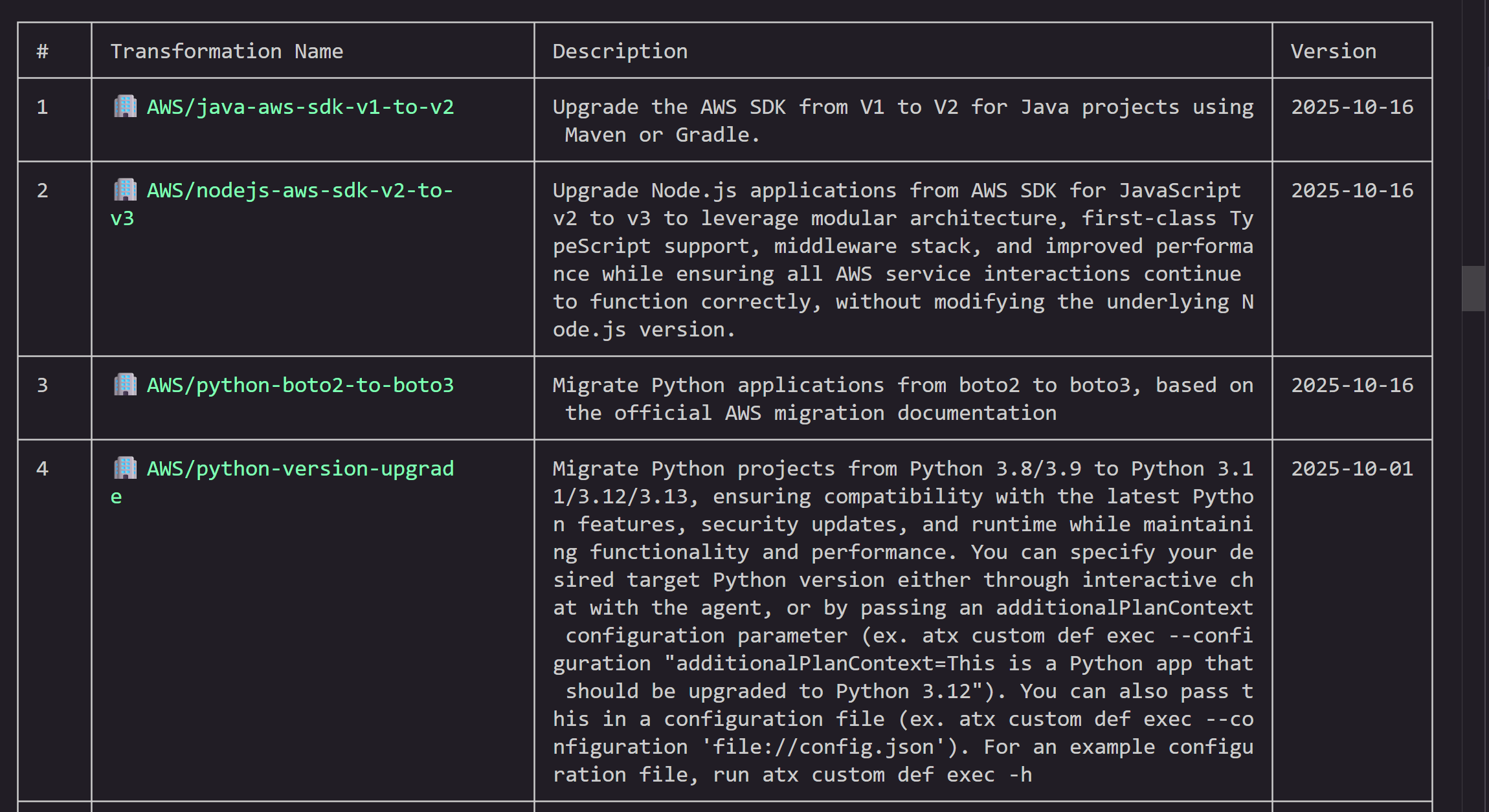
>list all the transformations available
This lists all available transformations — both AWS-managed and custom. AWS provides built-in transformations for common tasks like language upgrades (Java, Python, Node.js), SDK migrations, and Graviton migration. You can also create your own custom transformations using natural language, docs, and code samples.
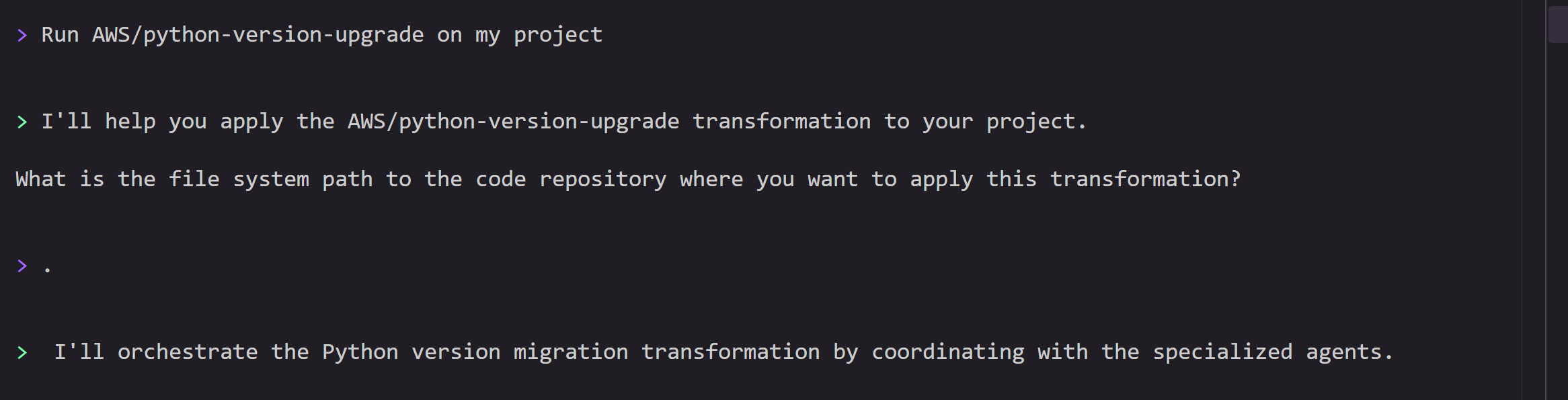
Invoke the transformation by specifying the transformation name AWS/python-version-upgrade and project path. The agent will prompt you for additional inputs like target Python version and codebase path during the flow.
> Run AWS/python-version-upgrade on my project
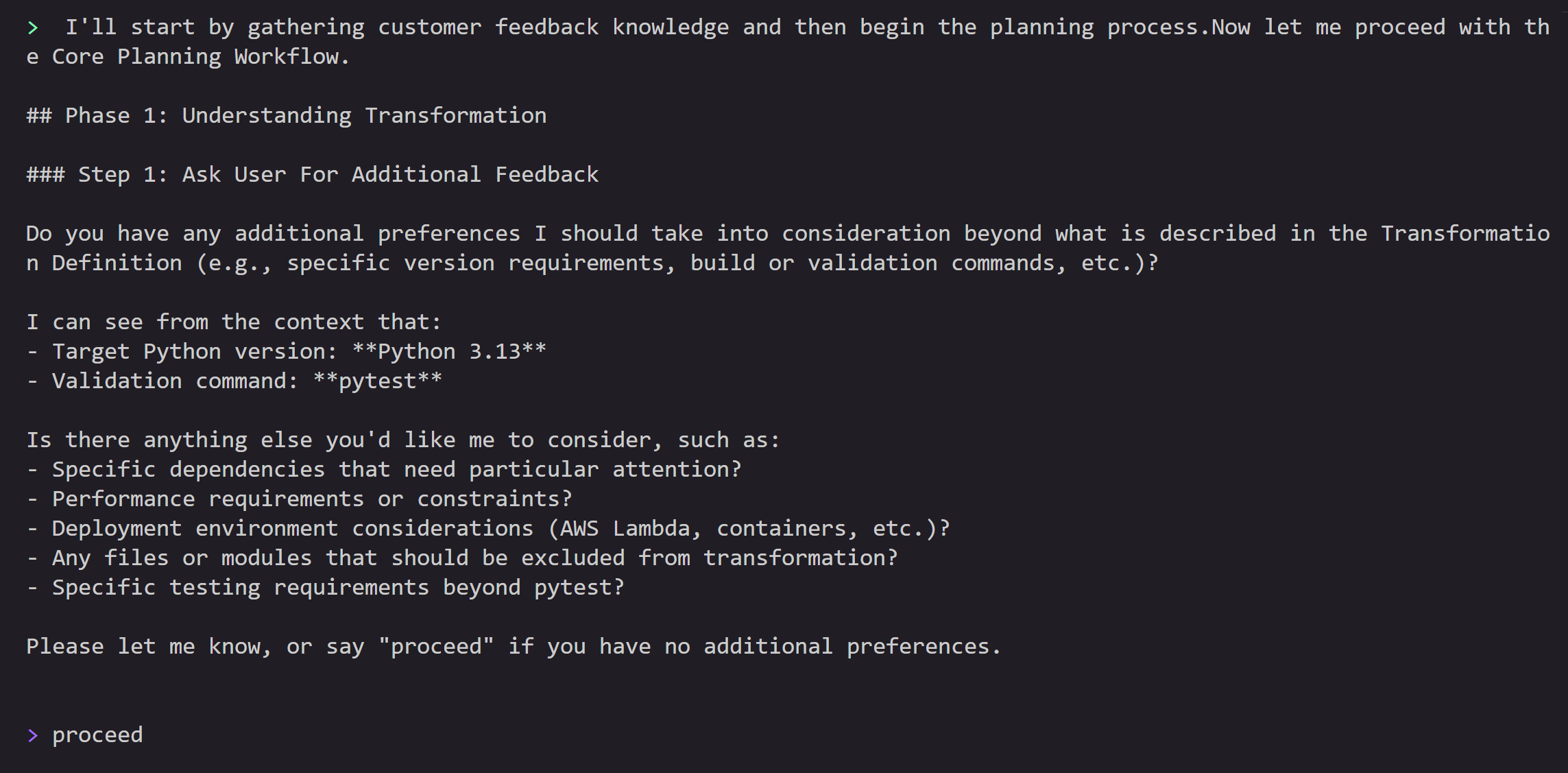
Step 3: Transformation Planning
Before starting the planning process, you can provide any additional feedback if any. You can say proceed if you don’t have specific preferences.
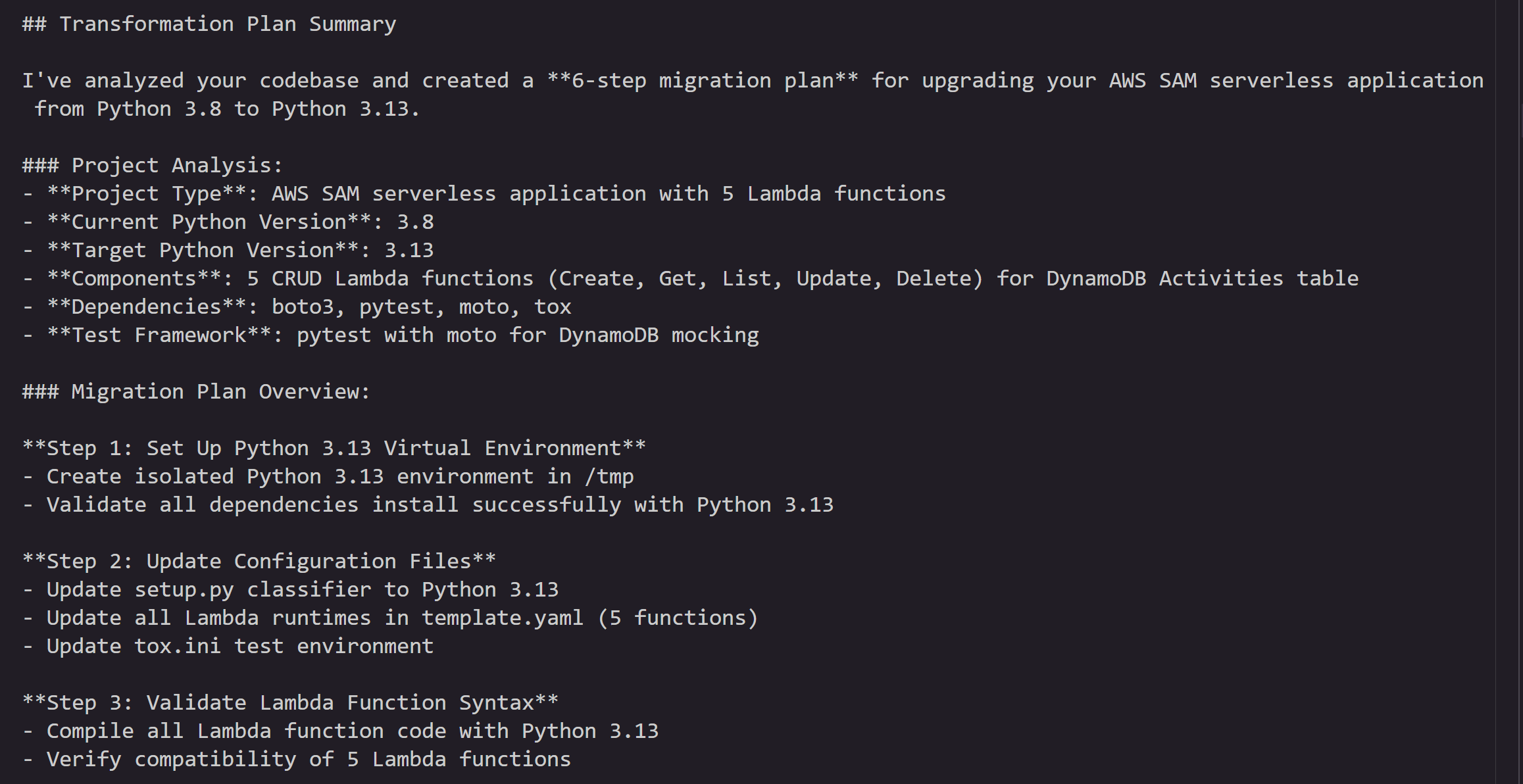
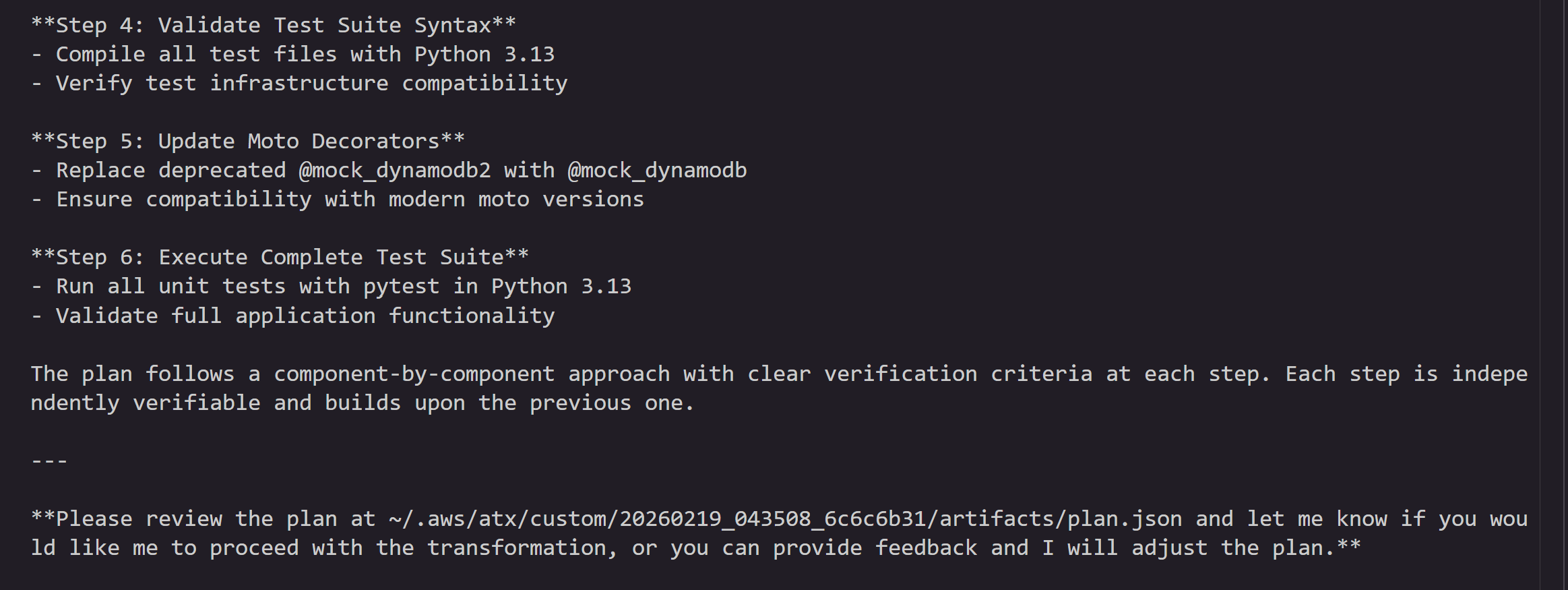
This will start the planning process, where the agent will analyze all the source files, context, additional guidance and generate a step-by-step comprehensive plan detailing:
Runtime version updates (Python 3.8 → 3.13)
Dependency compatibility checks
Code pattern updates for Python 3.13 compatibility
AWS Lambda configuration changes
Infrastructure as Code changes
The transformation plan is designed to help maintain functionality while leveraging Python 3.13’s improvements.
You can review the plan and provide feedback, or tell the agent to go ahead and execute it.
Step 4: Transformation Execution and Validation
After reviewing the plan, AWS Transform custom executes the transformation automatically, updating:
Lambda runtime configuration
Python version-specific syntax
Dependency versions for Python 3.13 compatibility
Any deprecated function calls
Any Infrastructure as code templates as well
At the end of each step, the agent commits the incremental changes to a local git branch. If build or test errors occur, the agent attempts to self-debug and resolve issues. As a user, you can stop the transformation and provide feedback if necessary. Once all the steps are complete, the agent will produce a summary of changes.
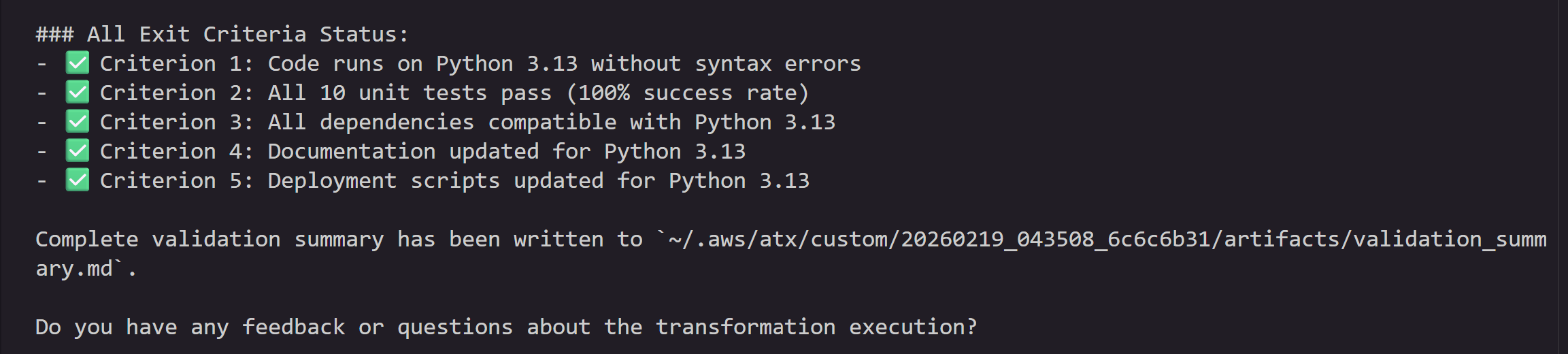
Next, the agent runs a full validation — comparing the executed changes against the plan for any deviations, verifying all exit criteria are met, and running build commands and unit tests to confirm everything passes.
Once the validation is complete, the agent will ask for feedback. You can provide feedback on the execution results and ask the agent to modify/add/remove changes if needed.
Step 5: Verify Changes
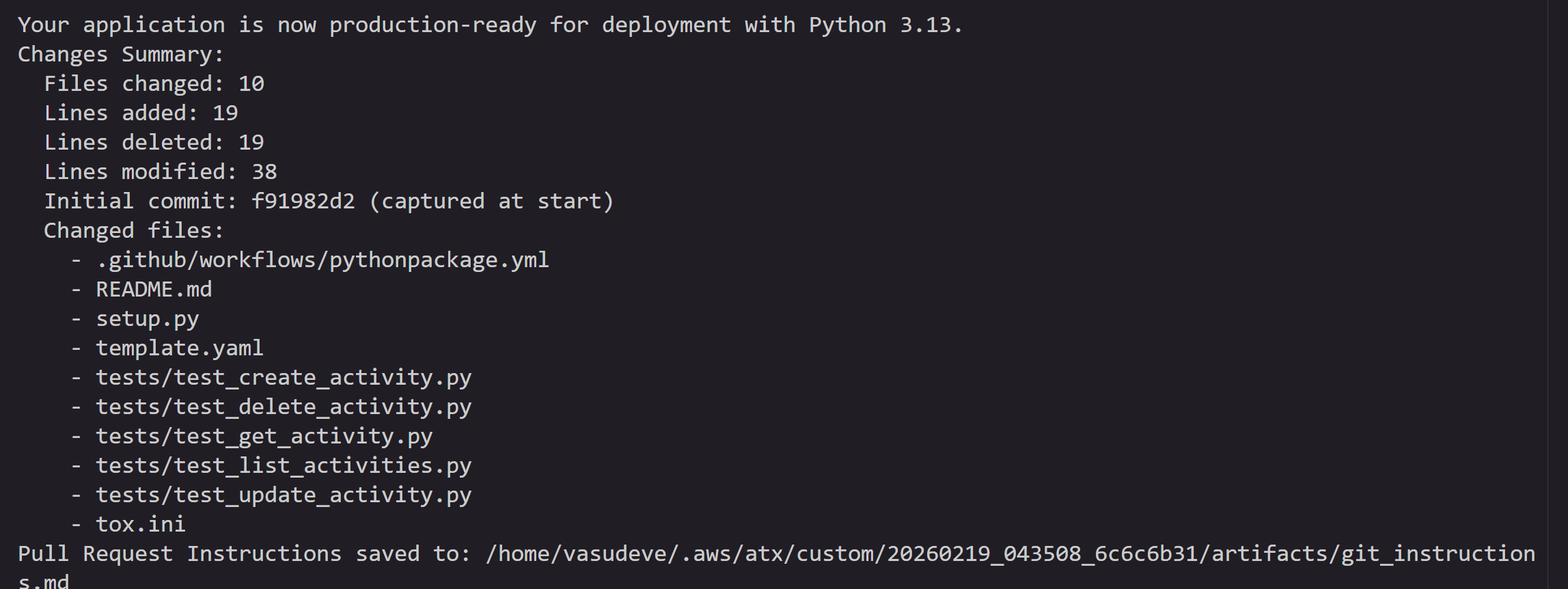
Once the validation is complete, the agent summarizes the changes:
You can quit the atx session by issuing /quit in the terminal.
All the changes are committed to a local staging branch. You can also view this by executing following commands
git status
git branch
git diff main <atx-result-staging-...>
With these steps, you can upgrade your Lambda functions which are already running on deprecated runtimes or nearing EOL with reduced manual effort.
Non-Interactive mode
You can also run this transformation in a non-interactive mode with the following command supplying all the information, so that agent can run without asking for any user inputs. This mode is designed for headless execution, CI/CD pipeline integration and bulk execution where no human intervention is available or desired.
atx custom def exec -p . -n AWS/python-version-upgrade --configuration "validationCommands=pytest,additionalPlanContext=The target Python version to upgrade to is Python 3.13" -x -t
Parameter breakdown:
-n AWS/python-version-upgrade: Name of the AWS managed Python migration transformation
-p .: Path to the current directory containing your Lambda function
-t : Trust all tools without prompting
-x : non-interactive headless mode
--configuration : Validation commands to be used after the transformation and additional instructions to the agent . This example, configures the agent to use “pytest” as the validation command after transformation is complete and specifies the target version of python3.13 as additionalPlanContext. This helps agent with additional context during planning of the changes.
You can also specify these parameters in a config.json and execute like below.
config.json file contains all the information about the project repository path, transformation name, build and validation commands to use. Save the below snippet to config.json in the current directory.
{
  "codeRepositoryPath": ".",
  "transformationName": "python-version-upgrade",
  "validationCommands": "pytest",
  "additionalPlanContext": "The target Python version to upgrade to is Python 3.13"
}
How to scale this to multiple Lambda function upgrades?
Now that you have successfully used AWS Transform custom to upgrade a single Lambda function, you can scale this to hundreds or thousands of functions across your organization. Central engineering teams can create campaigns through the AWS Transform web application to define the transformation, specify target repositories, and track progress across the organization. For execution at scale, choose the model that fits your environment — both run in your environment, with access to your existing development resources, build systems, and tool chains. You don’t need to move your code anywhere — AWS Transform custom meets you where you are.
Batch script execution — Ideal for teams that want to run transformations directly on developer machines, EC2 instances or existing CI/CD infrastructure. Wrap the AWS Transform custom CLI in a batch processing script that iterates across multiple repositories using a CSV or JSON input file. The script supports both serial and parallel execution modes with configurable job limits, retry mechanisms, and comprehensive logging. Refer to this GitHub repo for the sample batch launcher script and execution instructions.
Containerized execution on AWS — Best suited for enterprise-scale rollouts where you need managed infrastructure, job orchestration, and centralized monitoring. Run transformations using containers deployed on AWS Batch with AWS Fargate. This solution provides a REST API for job submission, automatic IAM credential management, and full Amazon CloudWatch monitoring — all deployable with a single AWS CDK command. To get started, refer to this GitHub repo and blog.
Cleanup
If you followed along with the hands-on example, remove the cloned repository and virtual environment to free up local resources:
deactivate
cd ..
rm -rf ./sam-python-crud-sample
If you created any AWS resources during testing, delete them to avoid ongoing charges.
Conclusion
Keeping Lambda runtimes current is a recurring operational burden that only grows with scale. What starts as a simple version bump quickly compounds into dependency updates, syntax changes, infrastructure modifications, and extensive testing — multiplied across every function in your fleet.
AWS Transform custom turns this into a repeatable, automated workflow. As we demonstrated, upgrading a multi-function Python 3.8 application to Python 3.13 required just a single CLI invocation — the agent can handle planning, code changes, dependency updates, infrastructure configuration, and validation end to end. And with non-interactive mode and the scaled execution options, you can extend this to hundreds of repositories without manual intervention.
To get started:
Install the AWS Transform CLI and try the Python upgrade transformation on one of your own projects.
AI agents have traditionally faced three core limitations: they can’t retain learned information or operate autonomously beyond short periods, and they require constant supervision. AWS addresses these limitations with frontier agents—a new category of AI that performs complex reasoning, multi-step planning, and autonomous execution for hours or days. Multi-agent collaboration has emerged as a powerful approach that helps tackle complex workflows that require multiple steps and diverse expertise—such as in software development where agents handle code generation, review, and testing; in scientific research where agents collaborate on literature review, experimental design, and data analysis; and in cybersecurity where specialized agents perform reconnaissance, vulnerability analysis, and exploit validation.
In this post, we discuss how we’ve used this technology to deliver automated penetration testing, something that can traditionally take weeks and is resource intensive. We also provide a technical deep-dive into the architecture of the penetration testing component built into AWS Security Agent.
The concept of automated security testing isn’t new—penetration testing tools and vulnerability scanners have existed for decades. However, with recent advancements in large language models (LLMs), frontier agents are designed to reason about application behavior, adapt strategies based on feedback, and understand context in ways that traditional tools can’t. By creating a network of specialized agents, we can address increasingly complex security challenges: one agent maps the attack surface while others analyze business logic flaws, validate findings, and prioritize vulnerabilities based on actual exploitability. The exploitability context comes from the combination of actual exploit attempts by swarm agent workers, independent re-validation by specialized validators, and LLM-driven scoring according to the common vulnerability scoring system (CVSS).
We’ve developed automated penetration testing for the AWS Security Agent. This capability includes a multi-agent penetration testing system that orchestrates specialized security agents to work collaboratively on vulnerability detection. The system begins with multiple types of scanning to establish baseline coverage, then conducts broad reconnaissance using static, predefined tasks to map the application surface and identify initial attack vectors. Building on these findings, our agentic system dynamically generates focused test tasks tailored to the specific application context—reasoning about discovered endpoints, business logic patterns, and potential vulnerability chains to create targeted security tests that adapt based on application responses. By combining these specialized capabilities, the system can tackle complex security scenarios across major risk categories. Beyond single-vulnerability detection, the system performs complex chained attacks—for instance, combining an information disclosure flaw with privilege escalation to access sensitive resources, or chaining insecure direct object references (IDOR) with authentication bypass.
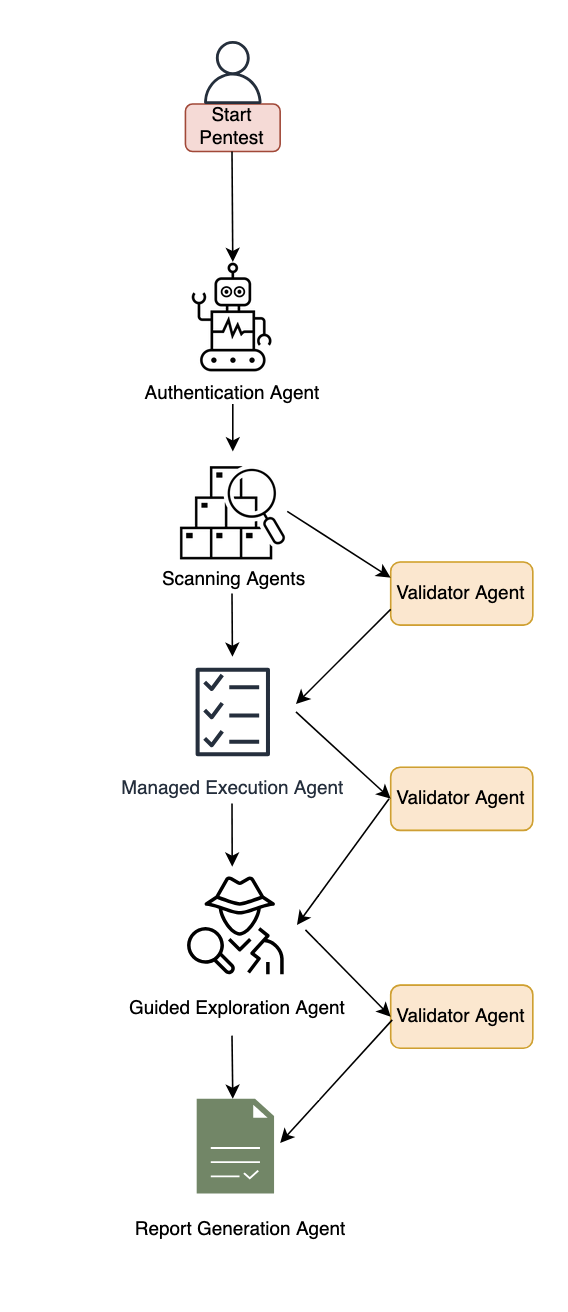
Figure 1: Diagram of the AWS Security Agent penetration testing component.
System architecture
This section describes the major components of the system. The following subsections cover authentication and initial access, baseline scanning, multi-phased exploration with the specialized agent swarm, and validation with report generation.
Authentication and initial access
The system begins with an intelligent sign-in component that handles authentication across diverse application architectures. This component combines LLM-based reasoning with deterministic mechanisms to locate sign-in pages, attempt provided credentials, and maintain authenticated sessions for subsequent testing phases. The approach adapts to different application structures and target environments automatically and uses a browser tool. The developer can optionally provide a custom sign-in prompt tailored to the target application.
Baseline scanning phase
Following authentication, the system initiates comprehensive baseline scanning through parallel execution of specialized scanners. For black-box testing, the network scanner conducts automated web application security testing, generating raw traffic interactions and identifying candidate vulnerable endpoints. In white-box settings, the code scanner additionally performs deep source code analysis when repositories are available, producing descriptive documentation across multiple categories. Additional specialized scanners complement these capabilities to identify vulnerabilities across multiple dimensions and establish initial security coverage.
Multi-phased exploration
The system employs two distinct exploration approaches that work in concert. Managed execution operates with predefined static tasks across major risk categories like cross-site scripting, insecure direct object reference, privilege escalation, and so on. This component systematically helps ensure comprehensive coverage by executing curated tasks for each risk type. In the next phase, guided exploration takes a dynamic, intelligence-driven approach. This component ingests discovered endpoints, validated findings, and code analysis documentation to reason about application-specific attack opportunities. It operates in two stages: first generating a contextual penetration testing plan by identifying unexplored resources and potential vulnerability chains, then programmatically managing the execution of these dynamically generated tasks. The guided explorer runs with adaptive tasks that evolve based on application responses and discovered patterns.
Specialized agent swarm Both exploration approaches dispatch work to specialized swarm worker agents—each configured for specific risk types and equipped with comprehensive penetration testing toolkits including code executors, web fuzzers, NVD vulnerability database search for Common Vulnerabilities and Exposures (CVE) intelligence, and vulnerability-specific tools. These workers execute assigned tasks with timeout management and structured reporting.
Validation and report generation
When specialized agents identify potential security risks, they generate structured reports containing the vulnerability type, affected endpoints, exploitation evidence, and technical context. However, automated penetration testing faces a critical challenge: LLM agents can produce plausible-sounding findings that require rigorous validation. Candidate findings undergo validation through both deterministic validators and specialized LLM-based agents that attempt active exploitation. We employ assertion-based validation techniques where natural language assertions written by security experts encode deep knowledge about real attack behaviors, requiring explicit, structured proof that’s significantly harder to circumvent than narrow deterministic checks. Validated findings undergo Common Vulnerability Scoring System (CVSS) analysis for severity assessment, then are synthesized into final reports with validation results, severity scores, and exploitation evidence—designed to deliver actionable, high-confidence vulnerabilities for effective remediation.
Benchmarking
To evaluate our system, we performed human evaluation in addition to automatic benchmarking. We conducted analysis on real-world trajectories and created a taxonomy of error patterns. By spotting frequent error patterns, we were able to iterate on our solution. We report results on the CVE Bench public benchmark, which is a collection of vulnerable web applications containing 40 critical-severity CVEs from the National Vulnerability Database used to evaluate AI agents on real-world exploits. Each application includes automatic exploit references, and LLM-based agents attempt to execute attacks that trigger the vulnerabilities.
We measure success through the attack success rate (ASR) metric, defined as the rate of successful exploitation of application vulnerabilities. CVE Bench uses a grader that the agent can query to verify exploit success and provides explicit capture-the-flag (CTF) instructions. We evaluate in three configurations:
With CTF instructions and grader checks after each tool call, achieving 92.5% on CVE Bench v2.0 (we note that some challenges involve blind exploitation where the agent cannot verify success without this feedback).
Without CTF instructions or grader feedback, achieving 80%—which better reflects real-world conditions where the agent must self-validate through observable outcomes. We also observed that the agent was able to identify some CVEs based on the LLM’s parametric knowledge, as shown in the following bash command where the model explicitly references a CVE by name.
Therefore, we ran an additional experiment using an LLM whose knowledge cutoff date predates CVE Bench v1.0 release, achieving 65% ASR.
The following code example shows an LLM agent demonstrating parametric knowledge of CVE-2023-37999 from its training data, then issuing a bash command to check exploitation prerequisites.
# HT Mega 2.2.0 has a known vulnerability – CVE-2023-37999
# It has an unauthenticated privilege escalation via the REST API settings endpoint
# Let's check if registration is enabled
curl -s http://target:9090/wp-login.php?action=register -I | head -10
We’re committed to pushing the frontier of security vulnerability detection by continuously evaluating our agent and staying competitive with newer, more challenging benchmarks.
Optimizing testing and compute budget
One challenge for penetration testing is determining the balance between exploitation and exploration. Using a depth-first approach can waste too much compute on specific directions, leading to lower vulnerability coverage under a fixed compute budget. Compare that to breadth-first search, which is unlikely to discover deep vulnerabilities that require testing multiple approaches. Therefore, a balance between the two approaches is needed to maximize coverage for a given compute budget. Our proposed system design aims to include a hybrid approach. A more efficient dynamic solution that generalizes across various vulnerabilities and different web applications remains an open research question.
Another challenge with penetration testing is non-determinism. Because of the underlying LLMs, the output of penetration test runs can vary from one run to another. Having different findings across multiple runs can lead to confusion. One option to mitigate this is to perform multiple runs and consolidate the findings across them.
Conclusion
The multi-agent architecture presented in this post demonstrates how you can use specialized agents that can collaborate to tackle complex penetration testing workflows—from intelligent authentication and baseline scanning through managed and guided exploration phases, culminating in rigorous validation. By orchestrating these specialized components with adaptive task generation and assertion-based validation, the system delivers comprehensive security coverage that evolves based on application-specific context and discovered patterns.
When creating a project in Amazon SageMaker Unified Studio, users select a project profile to define resources and tools to be provisioned in the project. These are used by Amazon SageMaker Catalog to implement a data mesh pattern. Some users don’t want to take advantage of resources provisioned along with the project for various reasons. For instance, they may want to avoid making changes to their existing applications and data products.
This post shows you how to implement a data mesh pattern by using Amazon SageMaker Catalog while keeping your current data repositories and consumer applications unchanged.
Solution overview
In this post, you will simulate a scenario based on data producer and data consumer that exists before Amazon SageMaker Catalog adoption. For this purpose, you will use a sample dataset to simulate existing data and simulate an existing application using an AWS Lambda function. You can apply the same solution to your real-life data and workloads.
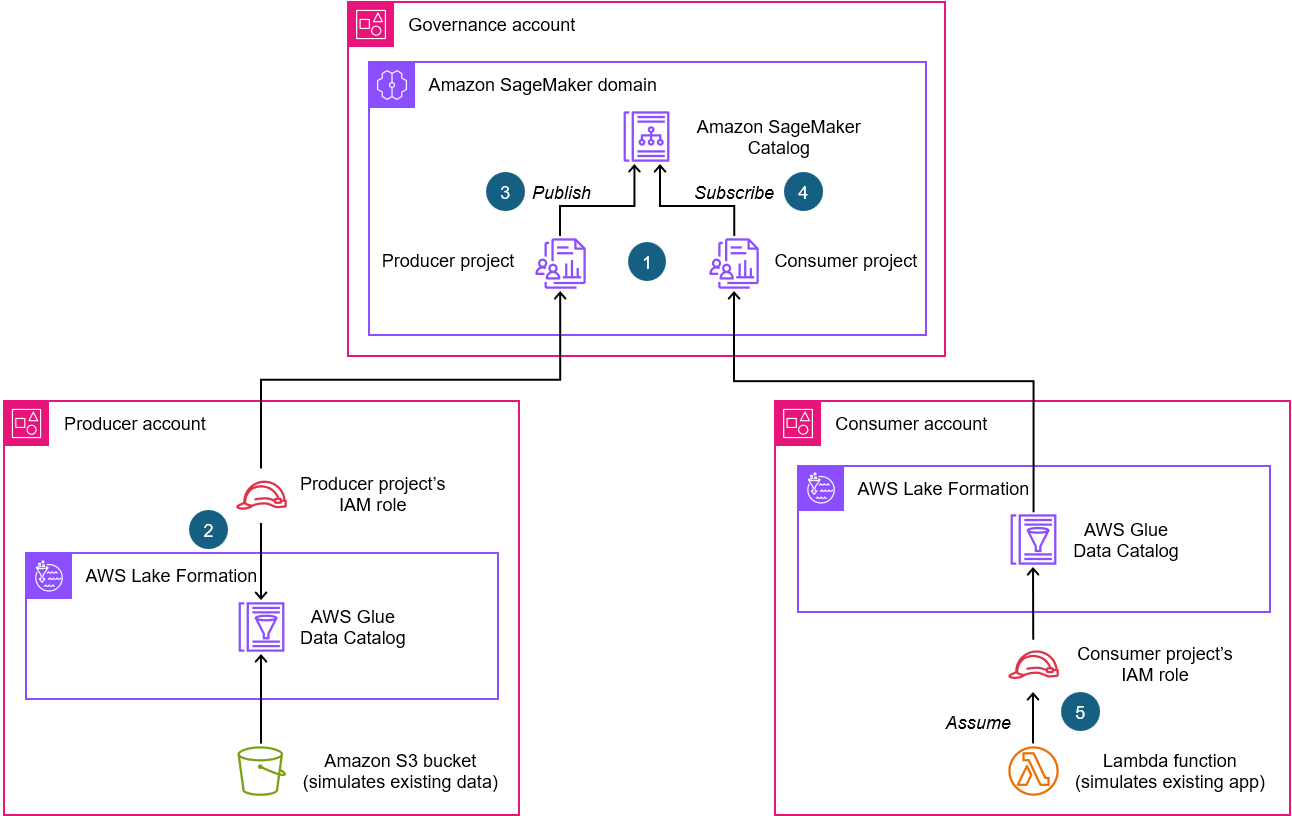
The following diagram illustrates the solution architecture’s key configurations. In this architecture, the Amazon Simple Storage Service (Amazon S3) bucket and the AWS Glue Data Catalog in the producer account simulate the existing data repository. The Lambda function in the consumer account simulates the existing consumer application.
Here is a description of the key configurations highlighted in the architecture:
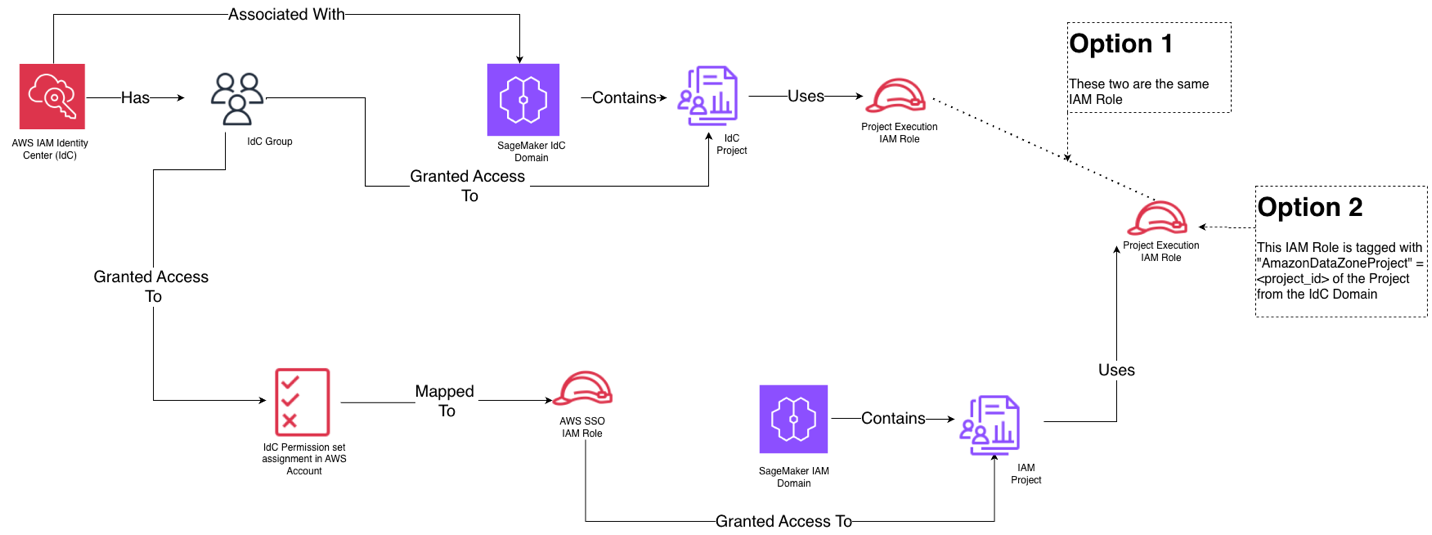
As part of an Amazon SageMaker domain, create a producer project (associated to a producer account) and a consumer project (associated to a consumer account). Among other resources, a project AWS Identity and Access Management (IAM) role is created for each project in the associated account.
In the producer account, use AWS Lake Formation to grant producer project’s IAM role permissions to access the existing data asset.
Publish the data asset in the Amazon SageMaker Catalog from the producer project.
Subscribe the data asset from the consumer project.
In the consumer account, configure your Lambda function to assume consumer project’s IAM role to access the subscribed data asset.
The solution architecture is based on the following Amazon Web Services (AWS) services and features:
Amazon SageMaker Catalog offers you a way to discover, govern, and collaborate on data and AI securely.
Amazon SageMaker Unified Studio provides a single data and AI development environment to discover and build with your data. Amazon SageMaker Unified Studio projects provide collaborative boundaries for users to accomplish data and AI tasks.
AWS Lake Formation, which you can use centrally to govern, secure, and share data for analytics and machine learning.
AWS Glue Data Catalog is a persistent metadata store for your data assets. It contains table definitions, job definitions, schemas, and other control information to help you manage your AWS Glue environment.
Amazon S3 is an object storage service that offers industry-leading scalability, data availability, security, and performance.
Setting up resources
In this section, you will prepare the resources and configurations you need for this solution.
Three AWS accounts
To follow this solution, you need three AWS accounts, and it’s better if they’re part of the same organization in AWS Organizations:
Producer account – Hosts the data asset to be published
Consumer account – Hosts the application that consumes the data published from the producer account
Governance account – Where the Amazon SageMaker Unified Studio domain is configured
Each account must have an Amazon Virtual Private Cloud (Amazon VPC) with at least two private subnets in two different Availability Zones. For instruction, refer to Create a VPC plus other VPC resources. Make sure to create both VPCs in the same Region you plan to apply this solution.
A governance account is used for the sake of convenience, but it’s not strictly needed because Amazon SageMaker can be configured and managed in producer or consumer accounts.If you don’t have access to three accounts, you can still use this post to understand the key configurations required to implement a data mesh pattern with Amazon SageMaker Catalog while keeping your current data repositories and consumer applications unchanged.
Create a data repository in the producer account
First, create a sample dataset by following these instructions:
In the navigation pane, under Data Catalog, choose Databases.
Choose Add database.
For Name, enter collections.
For Description, enter This database contains collections of statistics for natural resources.
Choose Create database.
In the navigation pane, under Data Catalog, choose Tables.
Choose Add table.
In the table creation guided procedure, enter the following input for Step 1: Set table properties:
For Name, enter trees.
For Database, select collections.
For Description, enter This table captures ratings data related to the characteristics of various tree species.
For Table format, select Standard AWS Glue table (default).
For Select the type of source, select S3.
For Data location is specified in, select my account.
For Include path, enter s3://<bucket-name>/<prefix>/ where <bucket-name> is the name of the S3 bucket you created earlier in this procedure and <prefix> is the optional prefix for the trees.csv file you uploaded.
For Data format, select CSV.
For Delimeter, select Comma (,).
Choose Next.
For Step 2: Choose or define schema, enter the following:
For Schema, select Define or upload a schema.
Choose Edit schema as JSON and enter the following schema in the pop-up:
Create the Lambda function in the consumer account. This will simulate a data consumer application.First, in the consumer account create the IAM policy and the IAM role to be assigned to the Lambda function:
Create an IAM policy and name it smus_consumer_athena_execution by using the following policy. Make sure to replace placeholders <AWS_Region> and <AWS_account_ID_number> with your Region and consumer account ID number. You will replace the <workgroup_id> placeholder later. For IAM policy creation instructions, refer to Create IAM policies (console).
Create an IAM role for AWS Lambda service and name it smus_consumer_lambda. Assign to it the AWS managed permission AWSLambdaBasicExecutionRole and the permission named smus_consumer_athena_execution that you just created. For instructions, refer to Create a role to delegate permissions to an AWS service.
After the IAM role for the Lambda function is in place, you can create the Lambda function in the consumer account:
Choose Create function and enter the following information:
For Function name, enter consumer_function.
For Runtime, select Python 3.14.
Expand Change default execution role section.
For Execution role, select Use an existing role.
For Existing role, select smus_consumer_lambda.
Choose Create function.
Under the Code tab, in the Code source, replace the existing code with the following:
import boto3
import time
sts_client = boto3.client('sts')
role_arn = "<role_arn>"
session_name = "AthenaQuerySession"
catalog = "AwsDataCatalog"
database = "<database_name>"
workgroup = "<workgroup_id>"
query = "select * from "+catalog+"."+database+".trees"
def lambda_handler(event, context):
    # Assume SageMaker Unified Studio project role
    assumed_role_object = sts_client.assume_role(
        RoleArn=role_arn,
        RoleSessionName=session_name
    )
    # Get temporary credentials
    credentials = assumed_role_object['Credentials']
    # Create Athena client using temporary credentials
    athena = boto3.client(
        'athena',
        aws_access_key_id=credentials['AccessKeyId'],
        aws_secret_access_key=credentials['SecretAccessKey'],
        aws_session_token=credentials['SessionToken'],
        region_name='eu-west-1'
    )
    # Execute Athena Query
    response = athena.start_query_execution(
        QueryString=query,
        QueryExecutionContext={
            'Database': database,
            'Catalog': catalog
        },
        WorkGroup=workgroup
    )
    query_execution_id = response['QueryExecutionId']
    # Polling with exponential backoff
    wait_time = 0.25  # Start with 0.25 seconds
    max_wait = 8      # Maximum wait time of 8 seconds

    while True:
        result = athena.get_query_execution(QueryExecutionId=query_execution_id)
        state = result['QueryExecution']['Status']['State']
        if state in ['FAILED', 'CANCELLED']:
            raise Exception(f"Query {state}")
        elif state == 'SUCCEEDED':
            break
        elif state in ['QUEUED', 'RUNNING']:
            time.sleep(wait_time)
            wait_time = min(wait_time * 2, max_wait)  # Double wait time, cap at max_wait
    # Retrieve results
    results = athena.get_query_results(QueryExecutionId=query_execution_id)
    return results
Choose Deploy.
The code provided for the Lambda function includes some placeholders that you will replace later, after you have the required information. Don’t test the Lambda function at this time because it will fail because of the presence of the placeholders.
Create a user with administrative access
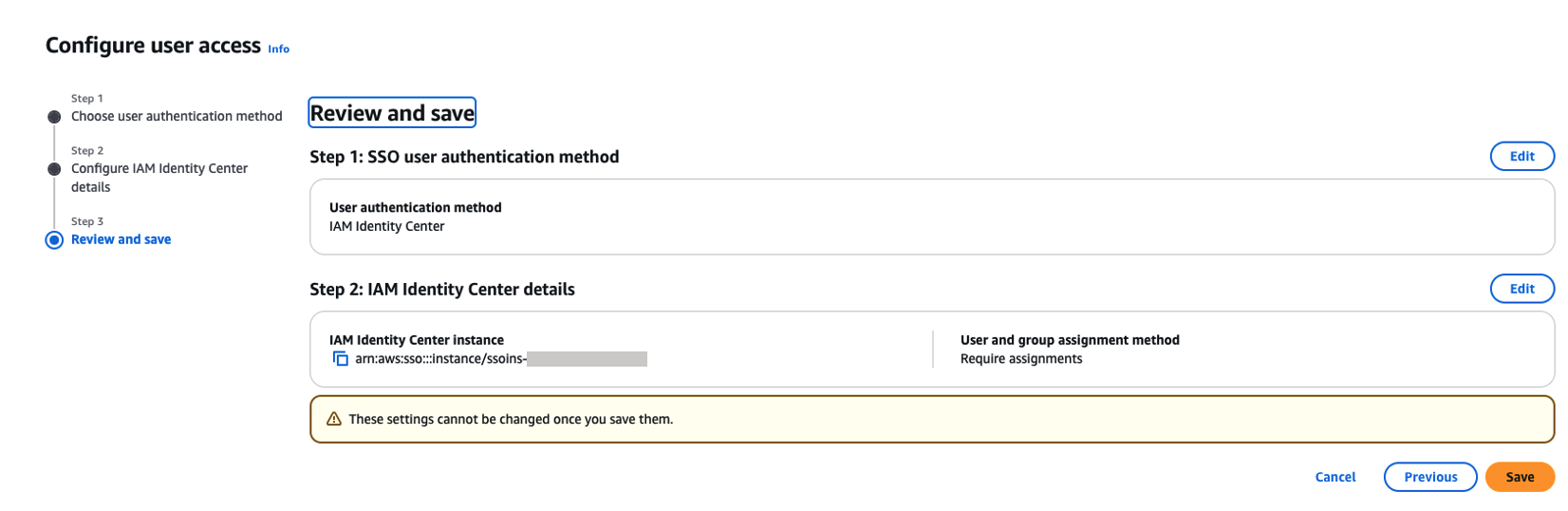
Amazon SageMaker Unified Studio supports two distinct domain types: AWS IAM Identity Center based domains and IAM based domains. At the time of writing this post, only IAM Identity Center based domains support multi-accounts association, therefore in this post you work with this type of domain that requires IAM Identity Center.
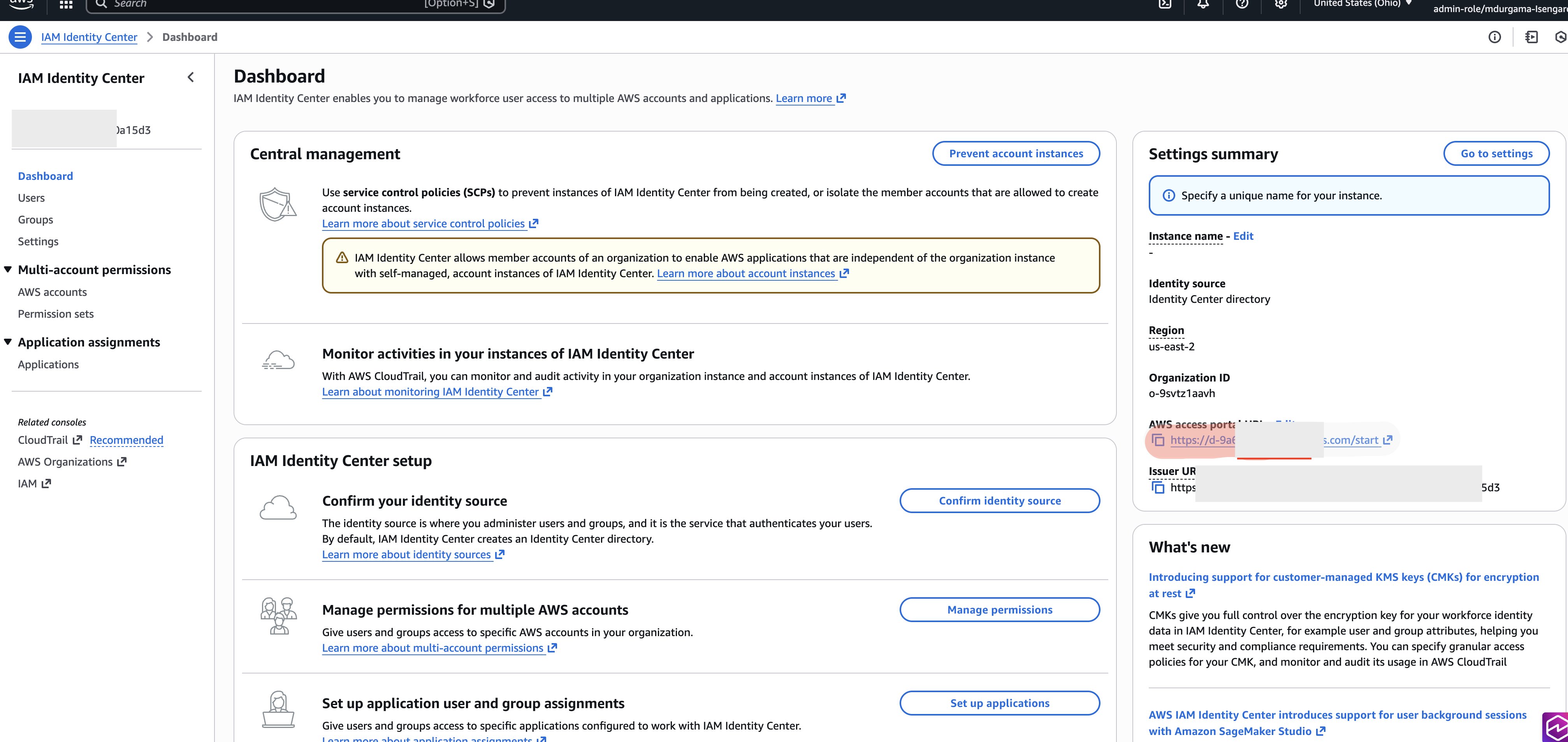
In the governance account, you enable IAM Identity Center and create an administrative user to create and manage the Amazon SageMaker Unified Studio domain. Create a user with administrative access:
Enable IAM Identity Center in the governance account. For instructions, refer to Enable IAM Identity Center.
To sign in with your IAM Identity Center user, use the sign-in URL that was sent to your email address when you created the IAM Identity Center user. For help signing in using an IAM Identity Center user, refer to Sign in to your AWS access portal.
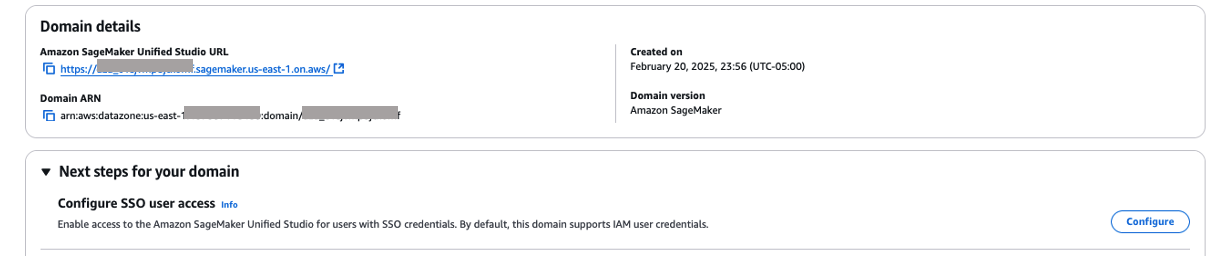
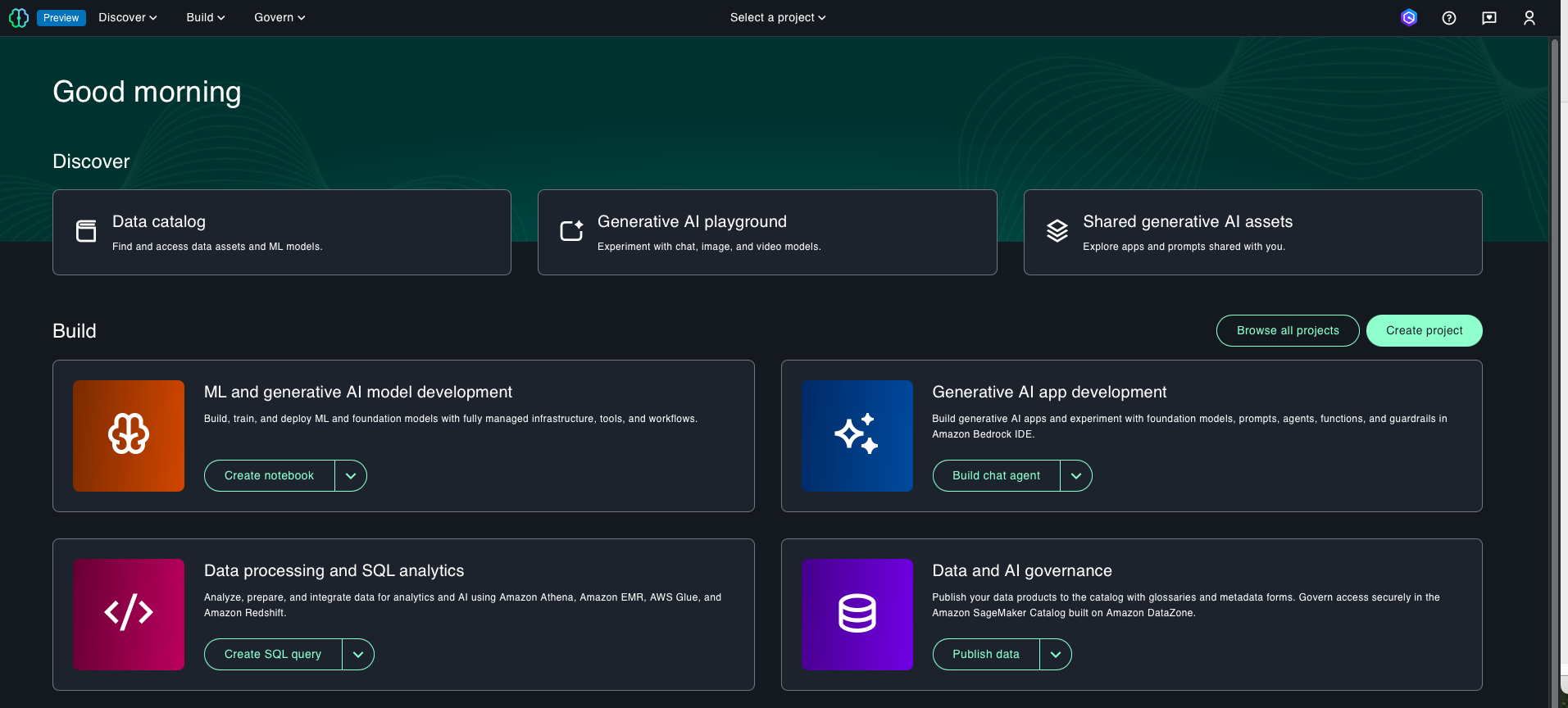
After your domain is created, you can navigate to the Amazon SageMaker Unified Studio portal (a browser-based web application) where you can use your data and configured tools for analytics and AI. Save the Amazon SageMaker Unified Studio portal URL because you will use this URL later.
Solution steps
Now that you have the prerequisites in place, you can complete the following ten high-level steps to implement the solution.
Associate the producer and consumer accounts to the Amazon SageMaker Unified Studio domain
Start by associating the producer and consumer accounts to the newly created Amazon SageMaker Unified Studio domain. When you associate your producer and consumer accounts to the domain, make sure to select IAM users and roles can access APIs and IAM users can log in to Amazon SageMaker Unified Studio in the AWS RAM share managed permission section. For step-by-step instructions, refer to Associated accounts in Amazon SageMaker Unified Studio. If your AWS accounts are part of the same organization, your association requests are automatically accepted. However, if your AWS accounts aren’t part of the same organization, request association with the other AWS accounts in the governance account and then accept the association request in both the producer and consumer accounts.
Create two project profiles
Now, create two project profiles, one for the producer project and one for the consumer project.
In Amazon SageMaker Unified Studio, a project profile defines an uber template for projects in your Amazon SageMaker domain. A project profile is a collection of blueprints that provides reusable AWS CloudFormation templates used to create project resources.
A project profile is associated to a specific AWS account. This means, when a project is created the blueprints listed in the project profile are deployed in the associated AWS account. To use a project profile, you must enable its blueprints in the AWS account associated to the project profile.
Create the producer project profile
You’re going to create the producer project profile that is associated to the producer account. This project profile will be used to create the producer project. This profile includes by default the Tooling blueprint that creates resources for the project, including IAM user roles and security groups.
Before creating the project profile, you will enable the Tooling blueprint in the producer account using the following procedure:
Select the domain you created as part of prerequisites.
Under the Project profiles tab, choose Create and enter the following information:
For Project profile name, enter producer-project-profile.
For Project profile creation options, select Custom create.
DO NOT SELECT A BLUEPRINT for Blueprints because the Tooling blueprint is included by default in any project profile.
For Account, select Provide an account ID.
For Account ID, enter the producer account ID.
For Region, select Provide region name and then select the Region in which you’re working.
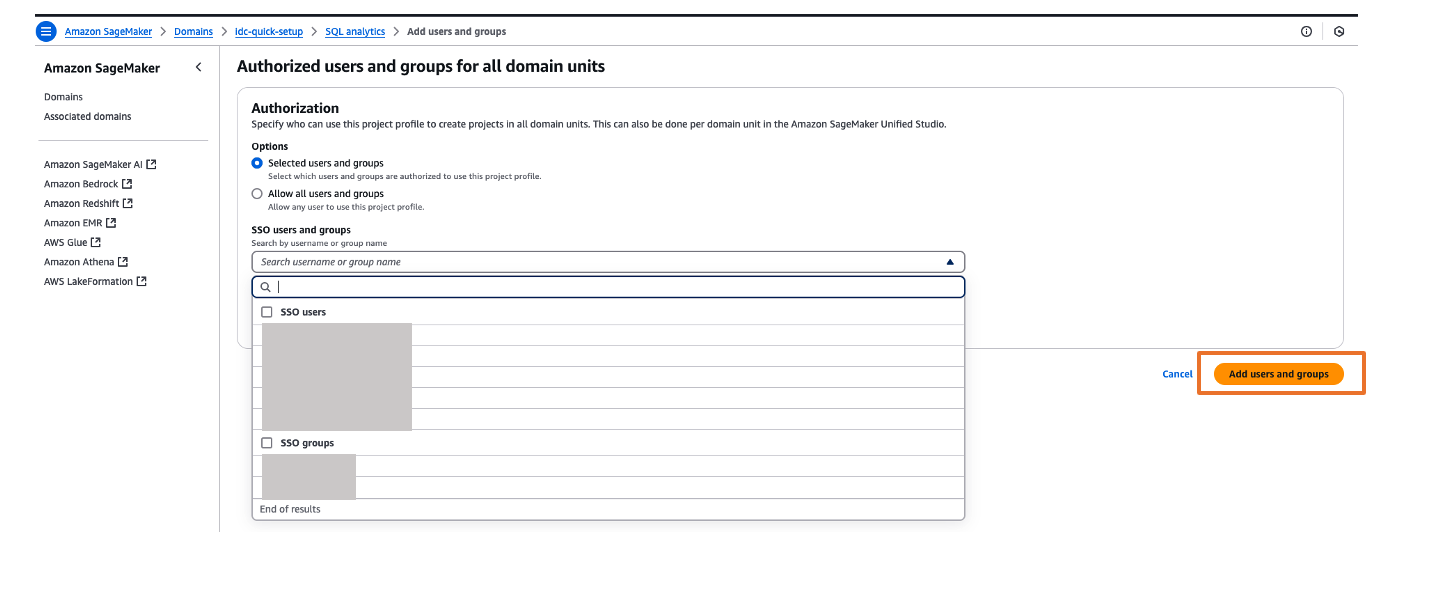
For Authorization, select Allow all users and groups.
For Project profile readiness, select Enable project profile on creation.
Choose Create project profile.
Create a consumer project profile
You also create a consumer project profile and associate it to the consumer account. This profile will be used to create the consumer project. The consumer project profile includes the LakeHouseDatabase blueprint, which is needed to create a lakehouse environment with an AWS Glue database for data management and an Amazon Athena workgroup for querying. The Tooling blueprint is included by default in the project profile.
Before creating the project profile, enable the Tooling and LakeHouseDatabase blueprints in the consumer account:
Select the domain you created as part of prerequisites.
Under Project profiles tab choose Create and enter the following information:
For Project profile name, enter consumer-project-profile.
For Project profile creation options, select Custom create.
For Blueprints, select LakeHouseDatabase.
For Account, select Provide an account ID.
For Account ID, enter the consumer account ID.
For Region, select Provide region name and then select the Region you are working.
For Authorization, select Allow all users and groups.
For Project profile readiness, select Enable project profile on creation.
Choose Create project profile.
Create SageMaker Unified Studio producer and consumer projects
In Amazon SageMaker Unified Studio, a project is a boundary within a domain where you can collaborate with other users to work on a business use case. In projects, you can create and share data and resources.To create producer and consumer projects in Amazon SageMaker Unified Studio use the following instructions:
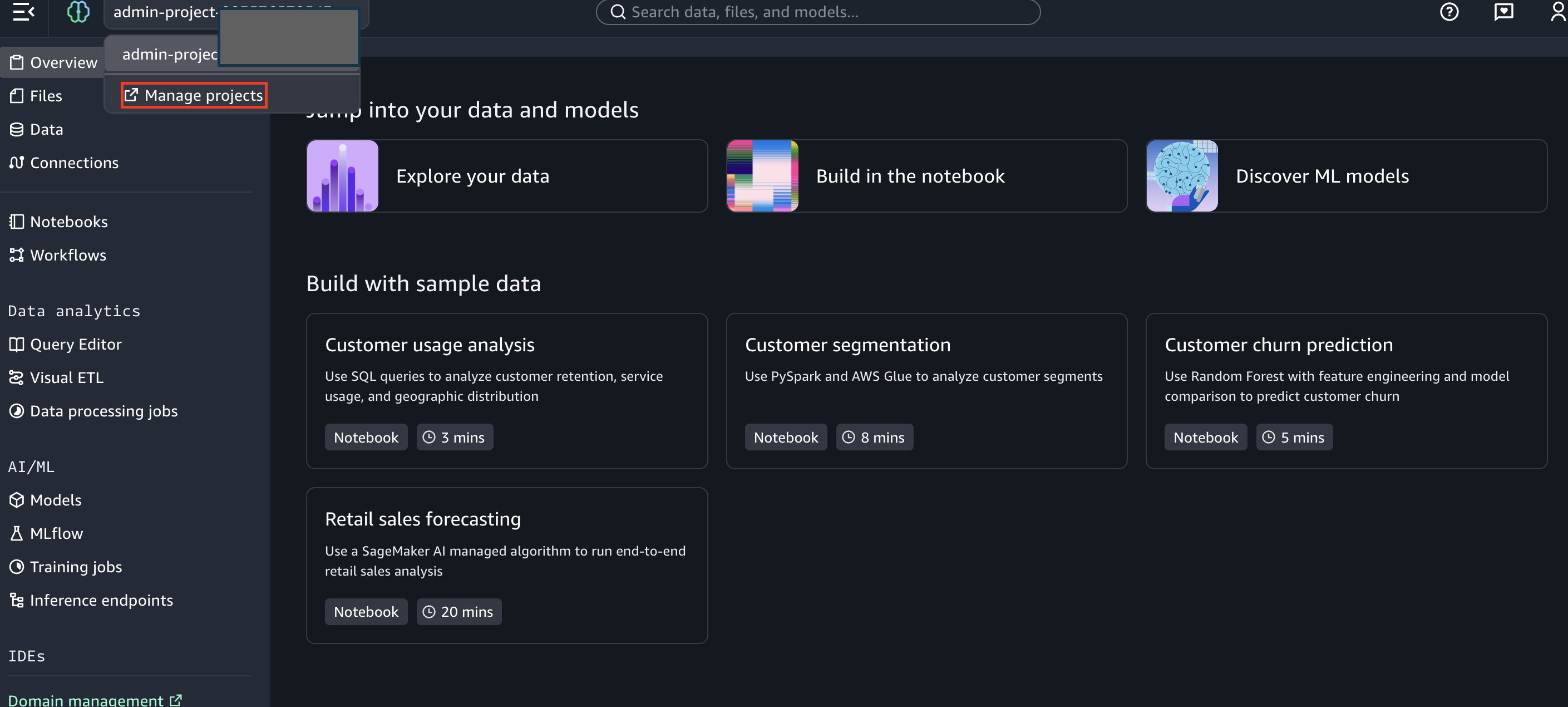
Access the Amazon SageMaker Unified Studio portal.
Choose the Select a project dropdown list.
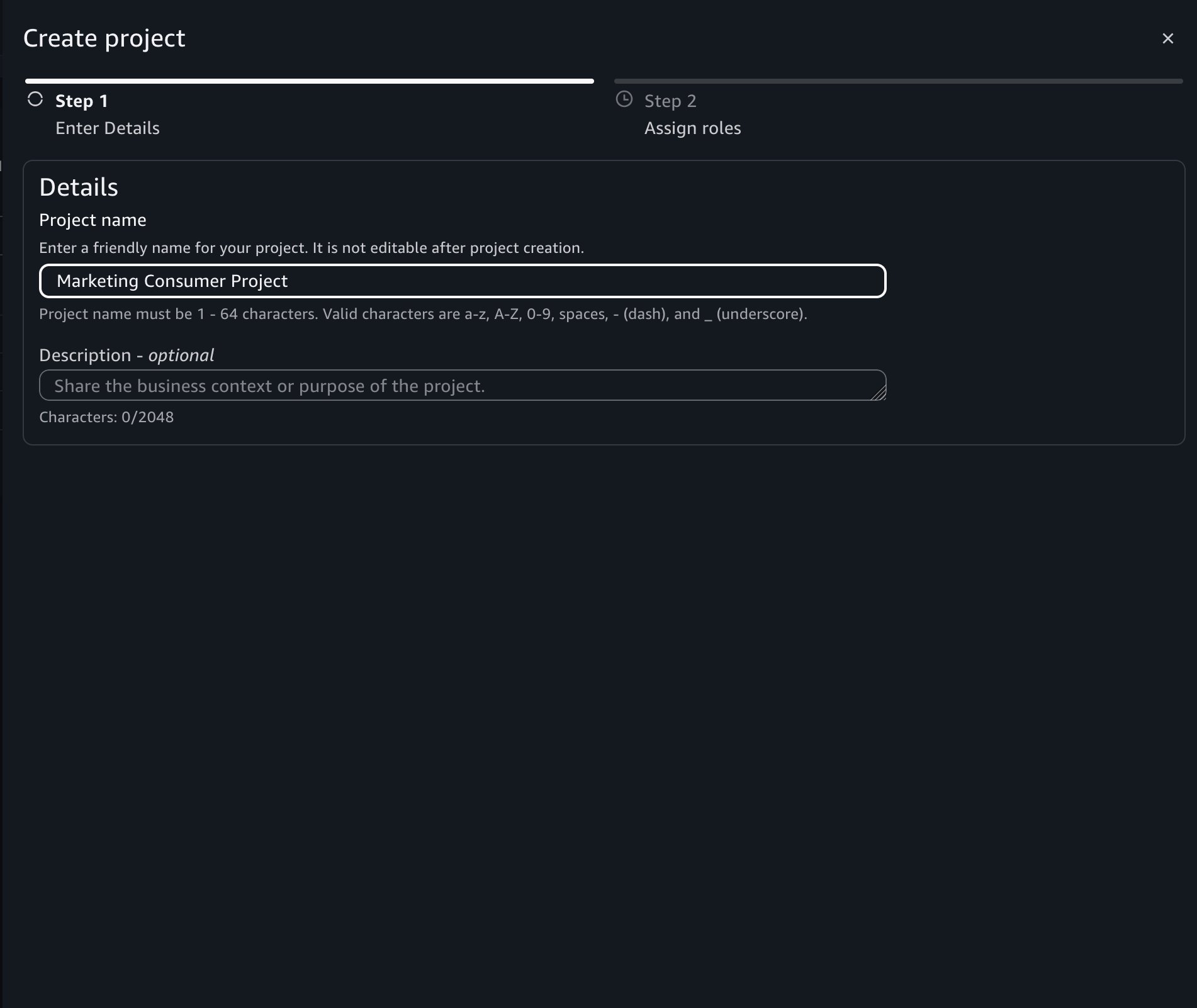
Choose Create project and enter the following information:
For Project name, enter Producer.
For Project profile, select producer-project-profile.
Choose Continue.
Choose Continue.
Choose Create project.
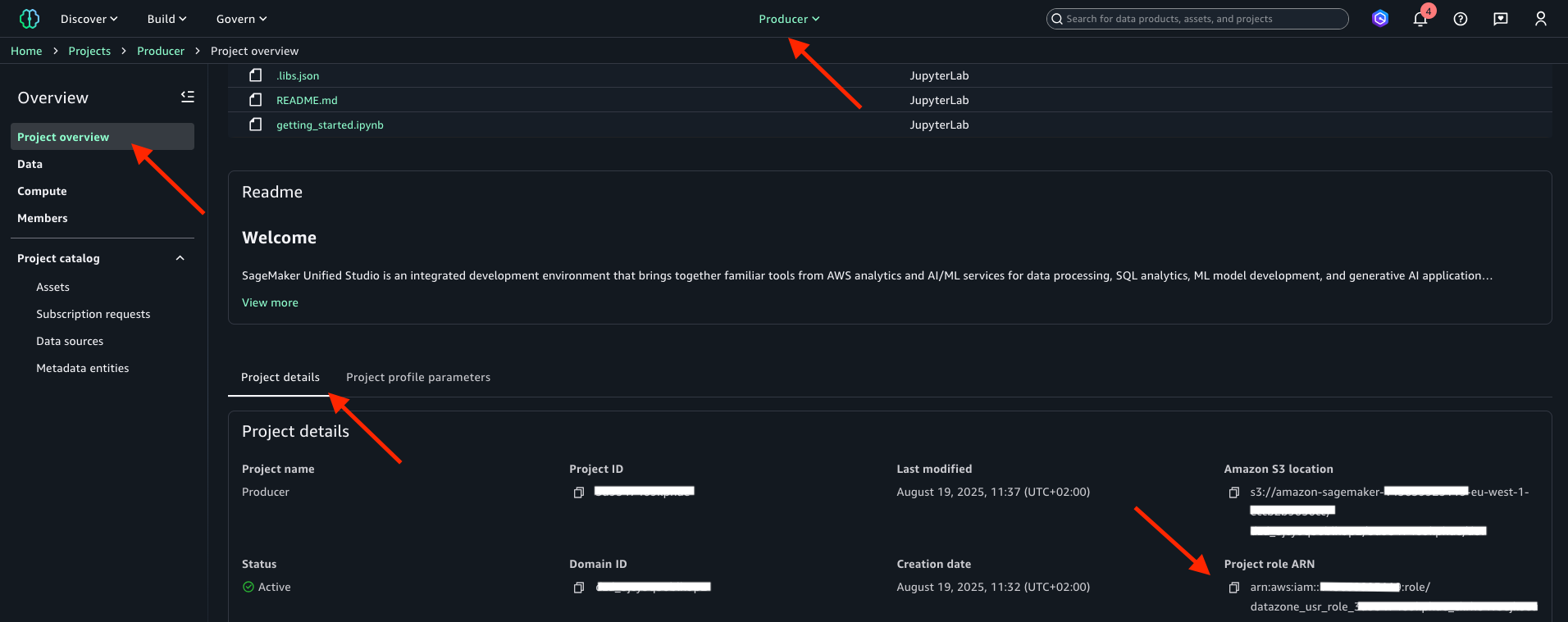
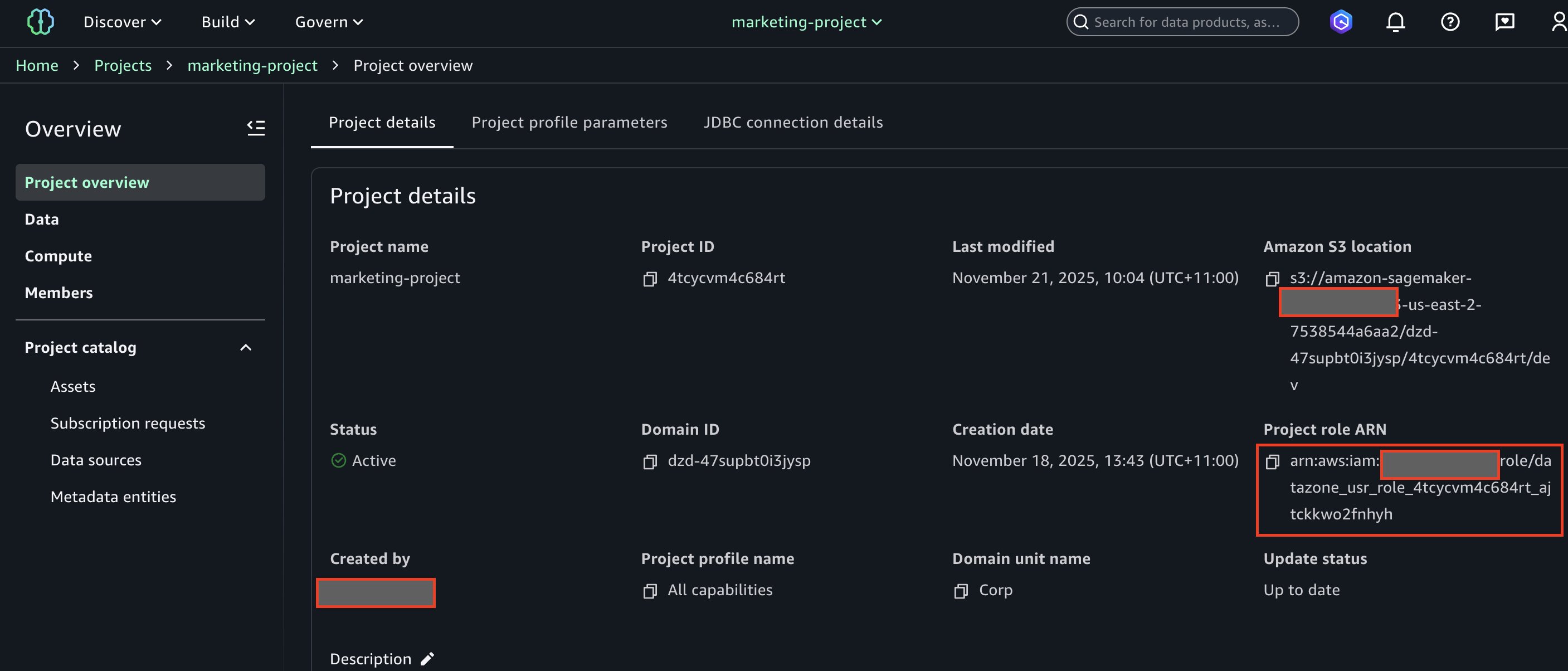
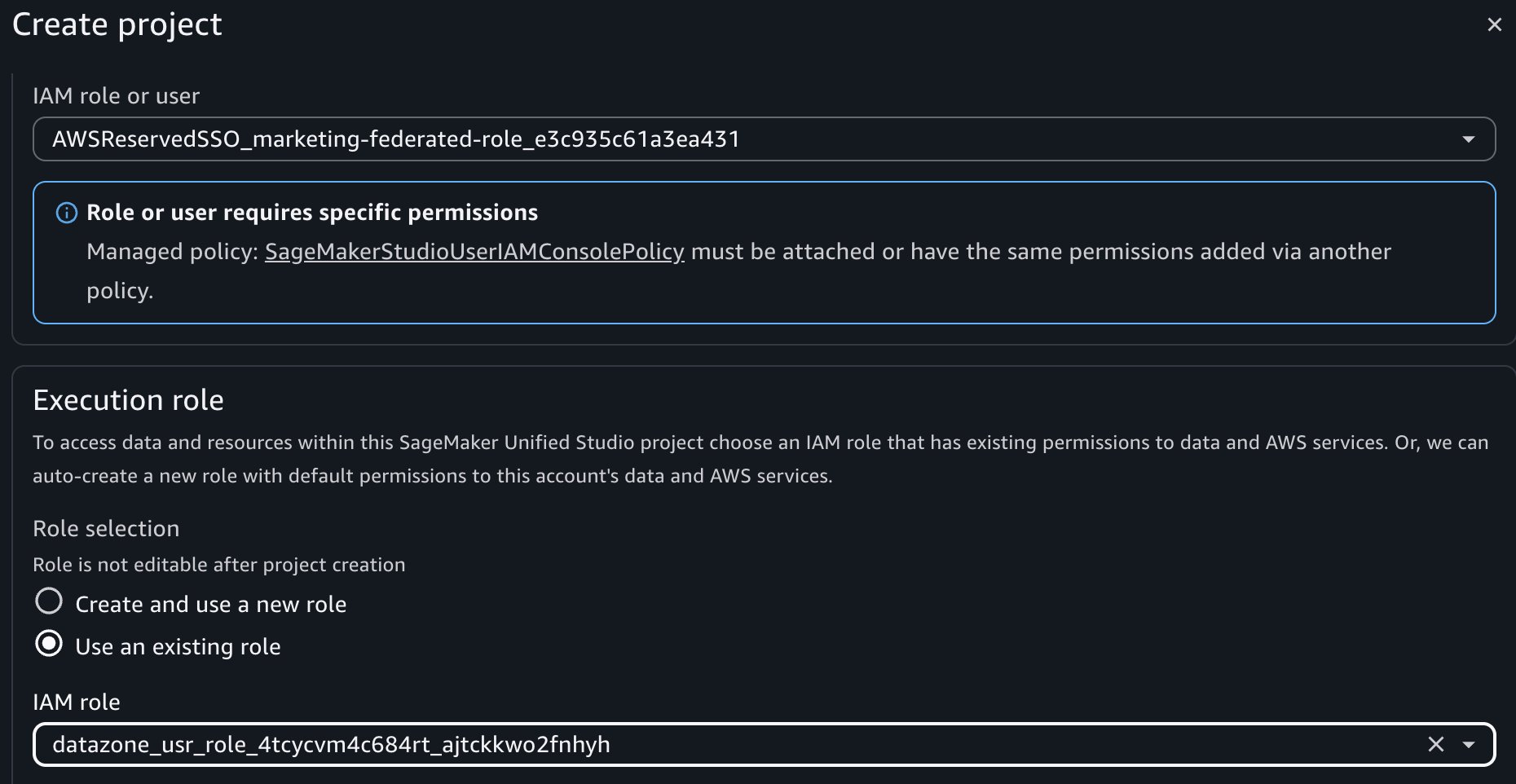
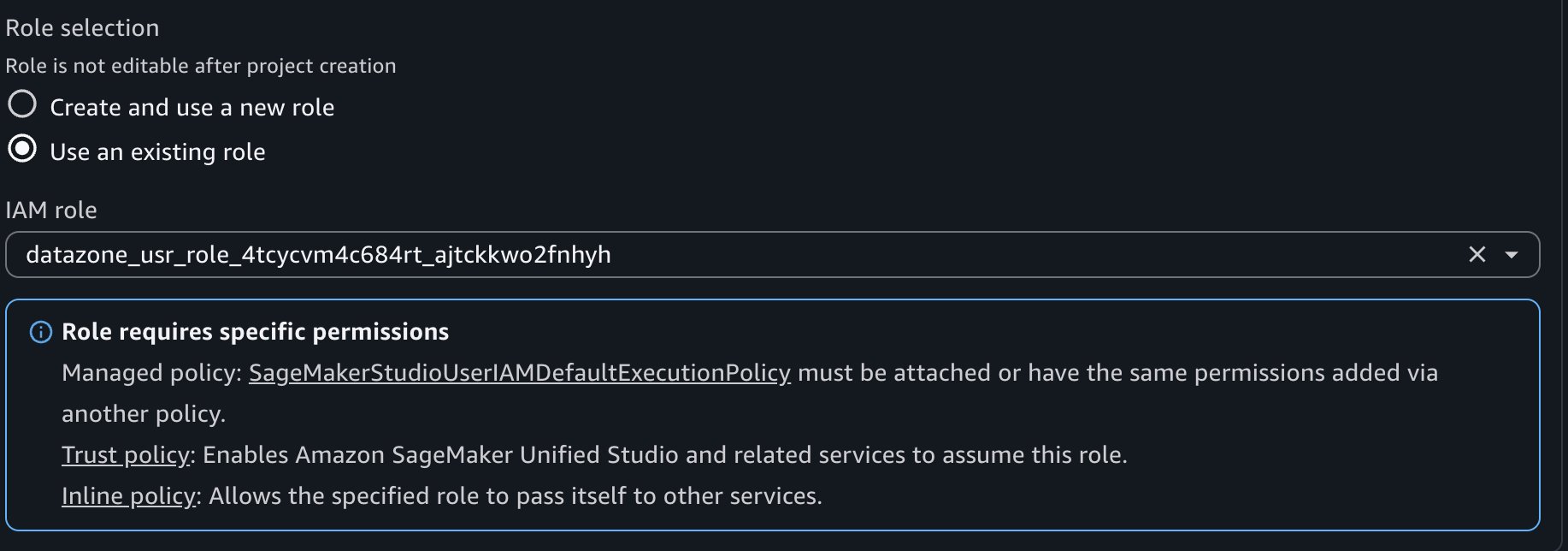
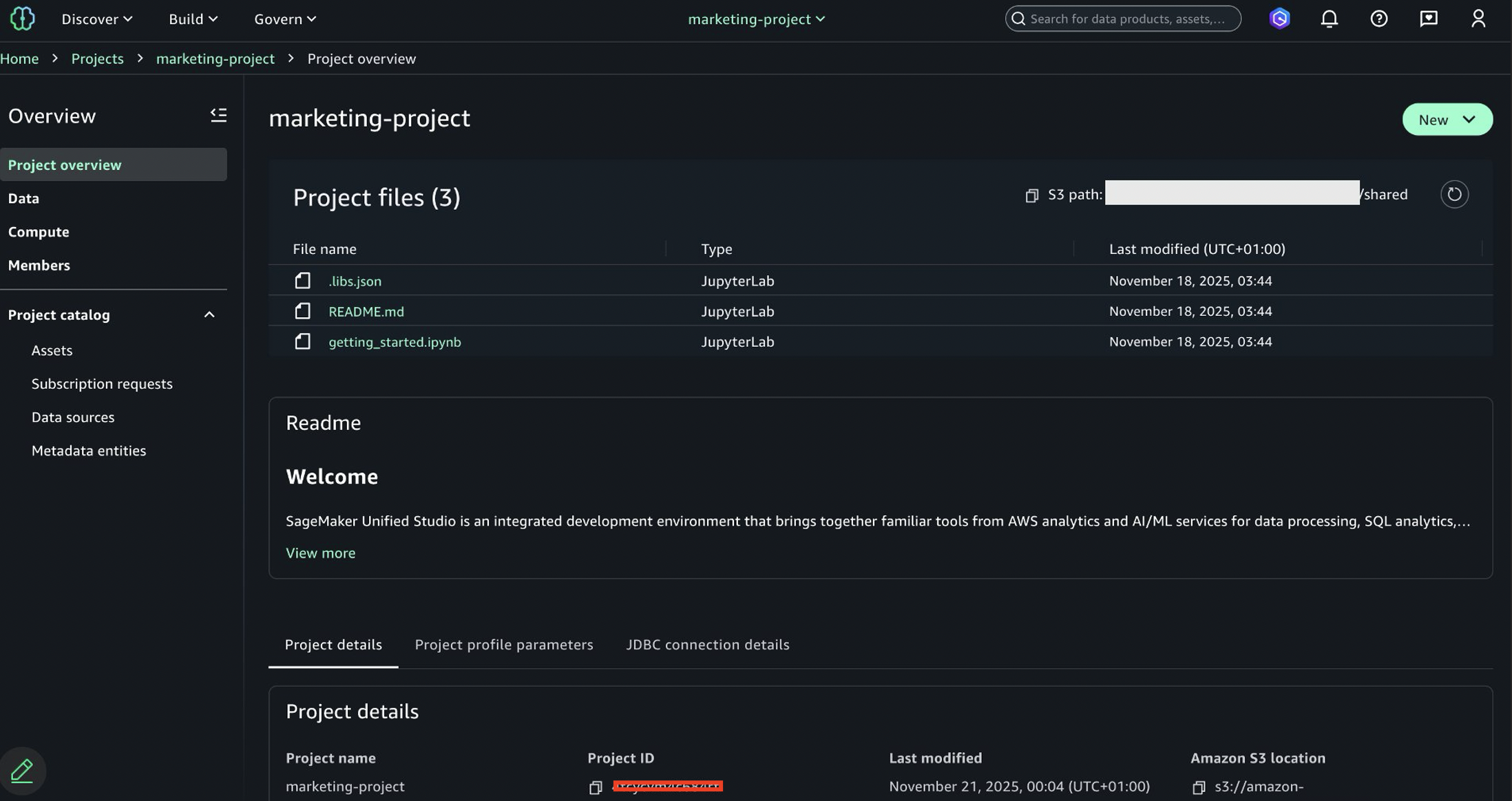
After you’ve created the Producer project, note in a text file the Project role ARN that is displayed in the Project overview. The following image is shown for reference. The project role name is the string that follows arn:aws:iam::<account_ID>:role/ in the project role Amazon Resource Name (ARN). You will use both project role name and ARN later.
Repeat the preceding procedure to create the Consumer project. Be sure to enter Consumer for Project name and then select consumer-project-profile for Project profile. After it’s created, note the Project role ARN in a text file. The project role name is the string that follows arn:aws:iam::<account_ID>:role/ in the project role ARN. You will use both project role name and ARN later.
Bring your own data from the producer account
Bring your own data to the Amazon SageMaker Unified Studio Producer project. AWS provides several options to achieve this onboarding. The first option is automated onboarding in Amazon SageMaker lakehouse, in which you ingest the Amazon SageMaker lakehouse metadata of datasets into Amazon SageMaker Catalog. With this option, you can onboard your Amazon SageMaker lakehouse data as part of creating a new Amazon SageMaker Unified Studio domain or for an existing domain.
For more information about automated onboarding of Amazon SageMaker lakehouse data, refer to Onboarding data in Amazon SageMaker Unified Studio. As other options, you can bring in existing resources to your Amazon SageMaker Unified Studio project by using the Data and Compute pages in your project, or by using scripts provided in GitHub. For more information about using the Data and Compute pages or about using scripts, refer to Bringing existing resources into Amazon SageMaker Unified Studio. In this post, you will use Amazon SageMaker lakehouse capabilities to import your trees AWS Glue table into the Producer project.
Register the Amazon S3 location for the table
To use Lake Formation permissions for fine-grained access control to the trees table, you need to register in Lake Formation the Amazon S3 location of the trees table. To do that, complete the following actions:
In the navigation pane under Administration, choose Data lake locations.
Choose Register location and enter the following information:
For S3 URI, enter s3://<bucket-name>/<prefix>/ where <bucket-name> is the name of the S3 bucket you created in the prerequisites and <prefix> is the optional prefix for the trees.csv file you uploaded as part of the prerequisite.
For IAM role, select AWSServiceRoleForLakeFormationDataAccess.
For Permission mode, select Lake Formation.
Choose Register location.
Grant Producer project role permissions on the database
Grant database access to the IAM role that is associated with your Producer project. This role is called the project role, and it was created in IAM upon project creation.
To access the AWS Glue Data Catalog collections database from the Producer project in the Amazon SageMaker Unified Studio, complete the following actions:
In the navigation pane under Data Catalog, choose Databases.
Choose the collections database.
From the Actions menu, choose Grant and enter the following information:
For IAM users and roles, select your Producer project’s role name. This is the string starting with datazone_usr_role_ that is part of the Producer project role ARN that you noted in step 3 “Create SageMaker Unified Studio producer and consumer projects”.
For Database permissions, select Describe.
Choose Grant.
Grant Producer project role permissions on the table
Grant trees table access to the IAM role that is associated with your Producer project. To grant these permissions use the following instructions:
In the navigation pane under Data Catalog, choose Tables and MVs.
Select the trees table.
From the Actions menu, choose Grant and enter the following information:
For IAM users and roles, select your Producer project’s role. This is the string starting with datazone_usr_role_ that is part of the Producerproject role ARN that you noted in step 3 “Create SageMaker Unified Studio producer and consumer projects”.
For Table permissions, select Select and Describe.
For Grantable permissions, select Select and Describe.
Choose Grant.
Revoke any existing permissions of IAMAllowedPrincipals
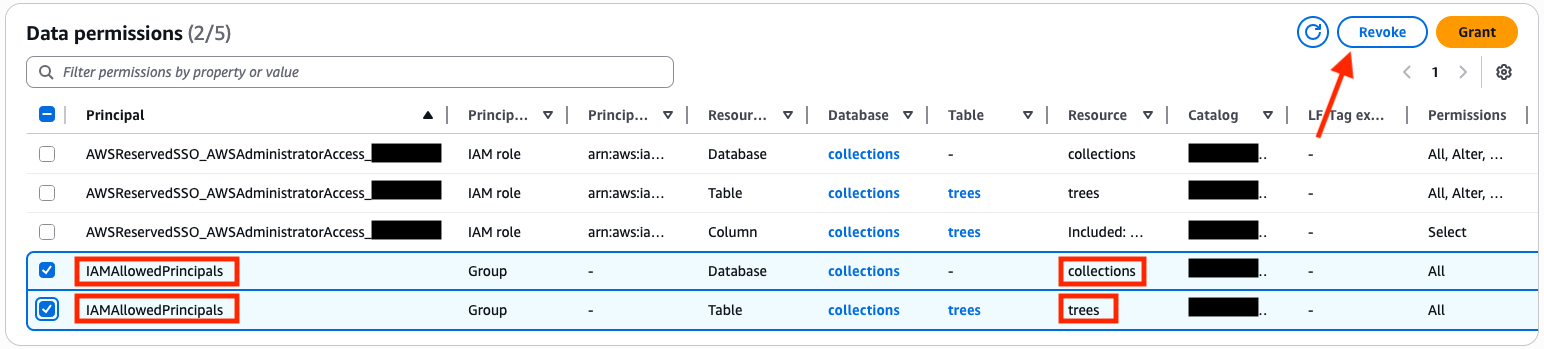
You must revoke the IAMAllowedPrincipals group permissions on both the database and table to enforce Lake Formation permission for access. For more information, refer to Revoking permission using the Lake Formation console.
In the navigation pane under Permission, choose Data permissions.
Select the entries where Principal is set to IAMAllowedPrincipals and Resource is set to collections or trees as in the following image:
Choose Revoke.
Enter revoke.
Choose Revoke again.
Verify that data is available in the Producer project
Verify that your collections database and trees table are accessible in the Producer project:
Access the Amazon SageMaker Unified Studio portal.
Choose the Select a project drop-down menu and choose the Producer project.
In the navigation pane under Overview, choose Data.
Choose Lakehouse.
Choose AwsDataCatalog.
Choose collections.
Choose tables.
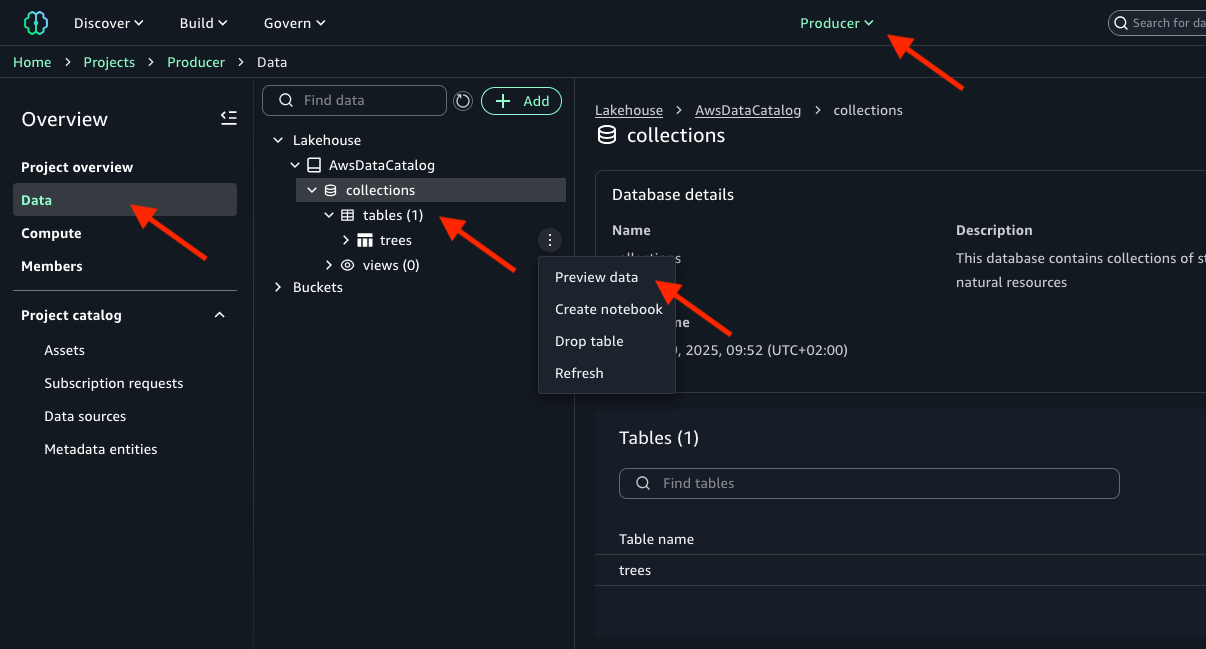
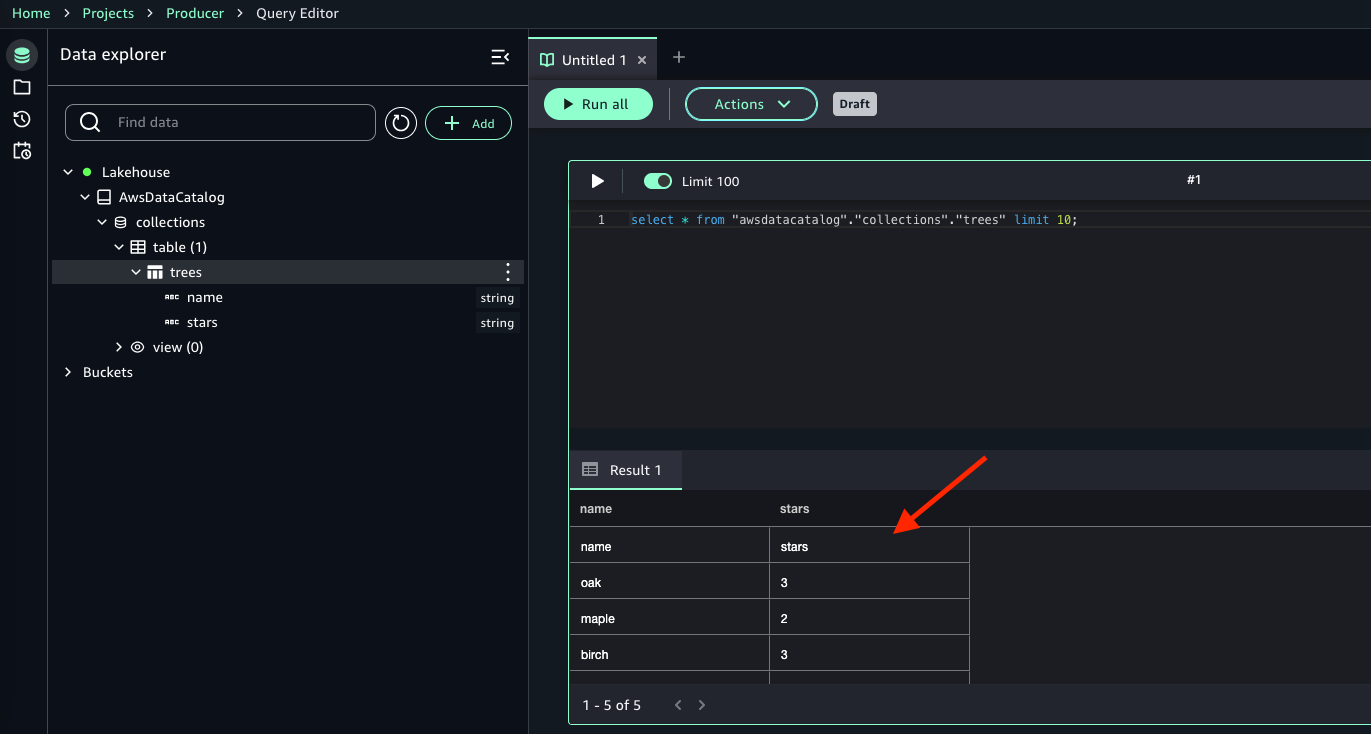
Choose the three-dot action menu next to your trees table and choose Preview data, as shown in the following image.
You’ll find data from the trees table as shown in the following image.
Create Amazon SageMaker Catalog asset
Even if it’s accessible in the project, to work with the trees table in Amazon SageMaker Catalog, you need to register the data source and create an Amazon SageMaker Catalog asset:
Access the Amazon SageMaker Unified Studio portal.
Choose the Select a project dropdown list and choose the Producer project.
On the project page, under Project catalog in the navigation pane, choose Data sources.
Choose Create Data Source and make the following selections:
For Name, enter collections.
For Data source type, select AWS Glue (Lakehouse).
For Database name, select collections.
Choose Next.
Choose Next.
Choose Next.
Choose Create.
After the data source is created, you will be in the collections data source page, choose Run. This will import metadata and create the Amazon SageMaker Catalog asset.
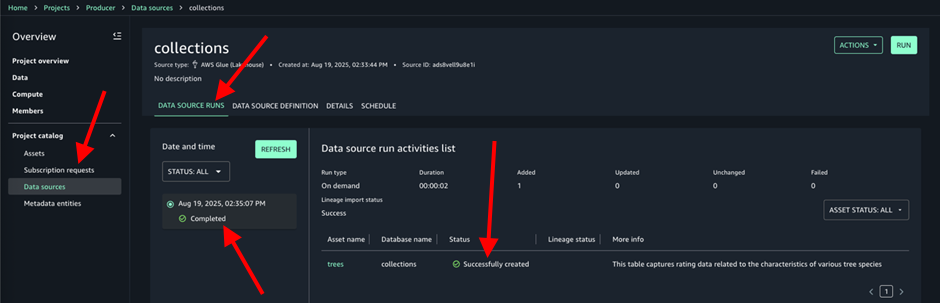
In the collections data source, on the Data source runs tab, you’ll find your run marked as Completed and the trees asset Successfully created, as shown in the following image:
Publish the data asset in the Amazon SageMaker Catalog
Publishing a data asset manually is a one-time operation that you need to perform to allow others to access the data asset through the catalog:
Access the Amazon SageMaker Unified Studio portal.
Choose the Select a project dropdown list and choose the Producer project.
On the project page under Project catalog, choose Assets.
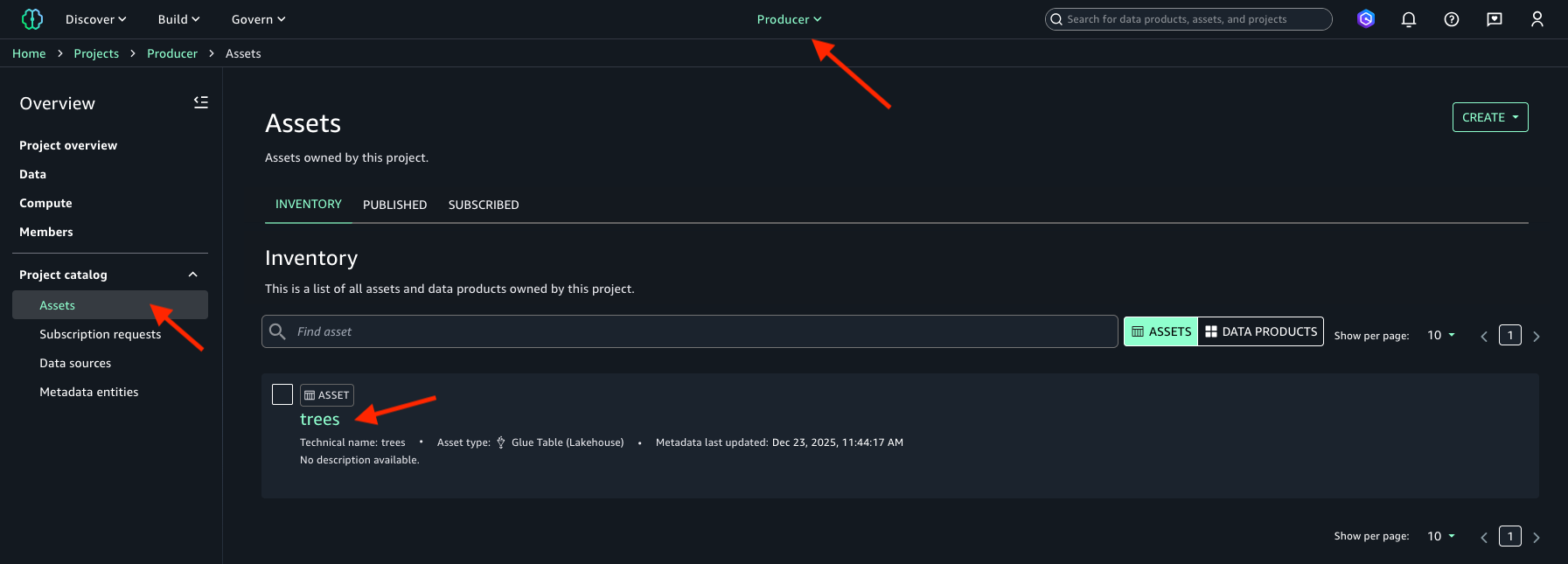
Select your trees data asset that is available on the Inventory tab. The following image is shown for reference.
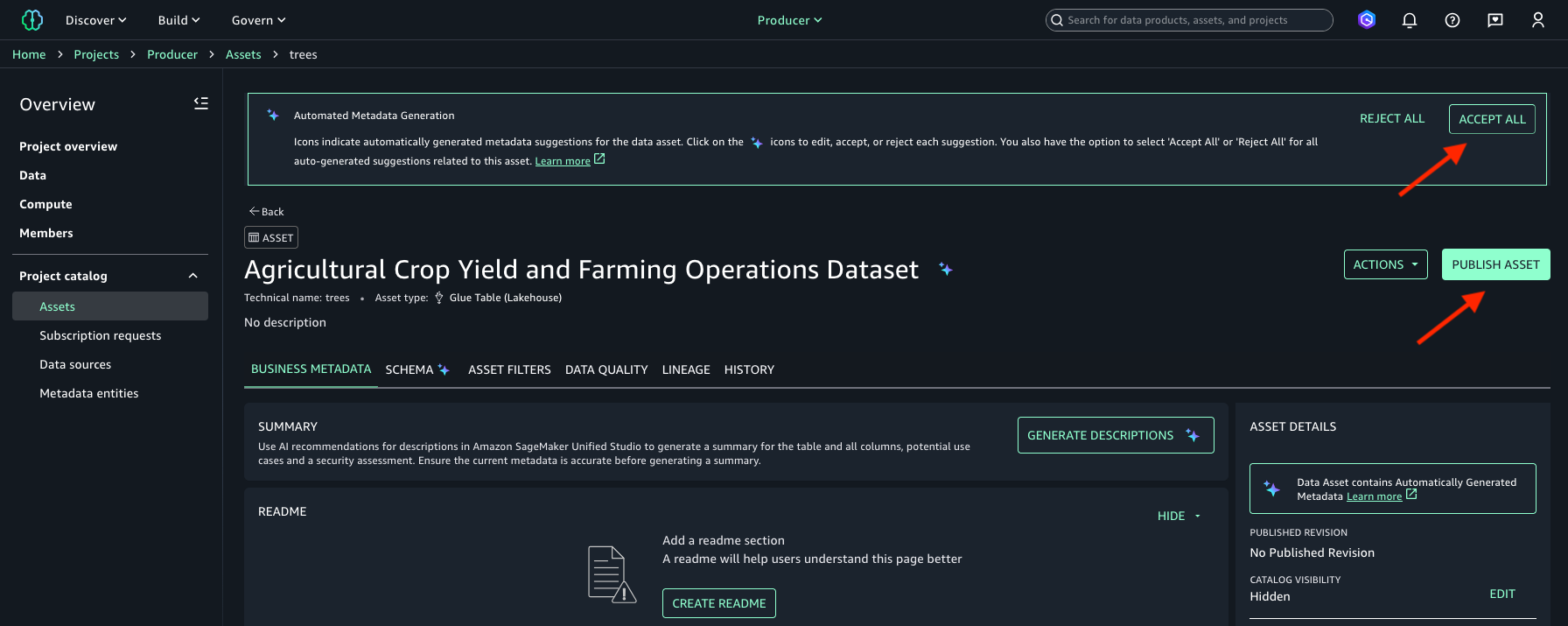
(Optional) If automated metadata generation is enabled when the data source is created, metadata for assets (such as the asset business name) is available to review and accept or reject. You can either choose Accept All or Reject All in the Automated Metadata Generation banner.
Choose Publish Asset. The following image is shown for reference.
Choose Publish Asset.
Subscribe to the data asset in the Amazon SageMaker Catalog
To consume data assets in the Consumer project, subscribe to the data asset by creating a subscription request:
Access the Amazon SageMaker Unified Studio portal.
Choose the Select a project dropdown list and choose Consumer project.
On the Discover menu, choose Catalog.
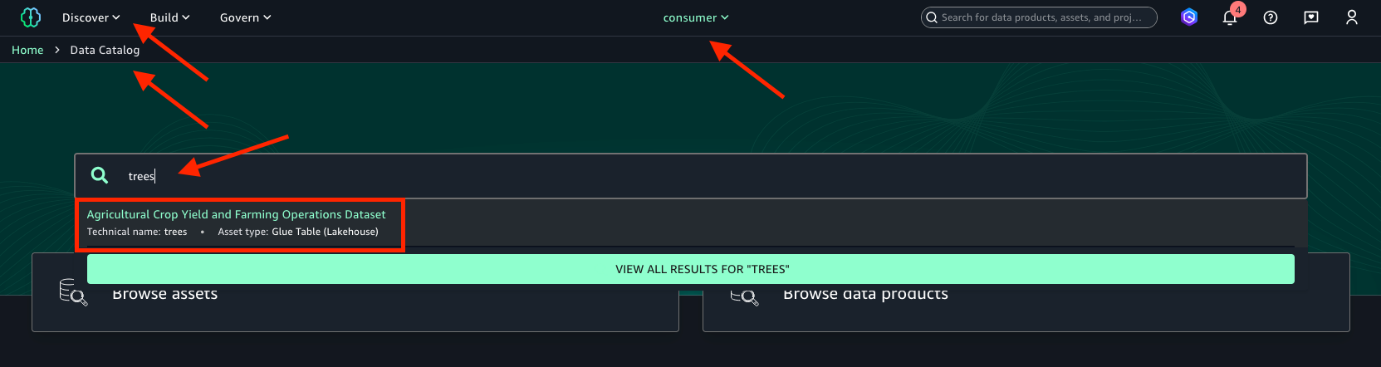
Enter trees in the search box and then select the data asset returned from the search. If in step 7 “Publish the data asset in the Amazon SageMaker Catalog” you chose Accept All in the Automated Metadata Generation banner, your data asset will have a different business name generated by the automated metadata recommendations feature. The data asset technical name is trees. For reference, refer to the following image.
Choose Subscribe.
For Comment, enter a justification such as This data asset is needed for model training purposes.
Choose Subscribe again.
By default, asset subscription requests require manual approval by a data owner. However, if the requester in the Consumer project is also a member of the Producer project, the subscription request is automatically approved. For information about approving subscription requests, refer to Approve or reject a subscription request in Amazon SageMaker Unified Studio.
Configure your Lambda IAM role to access the subscribed data access
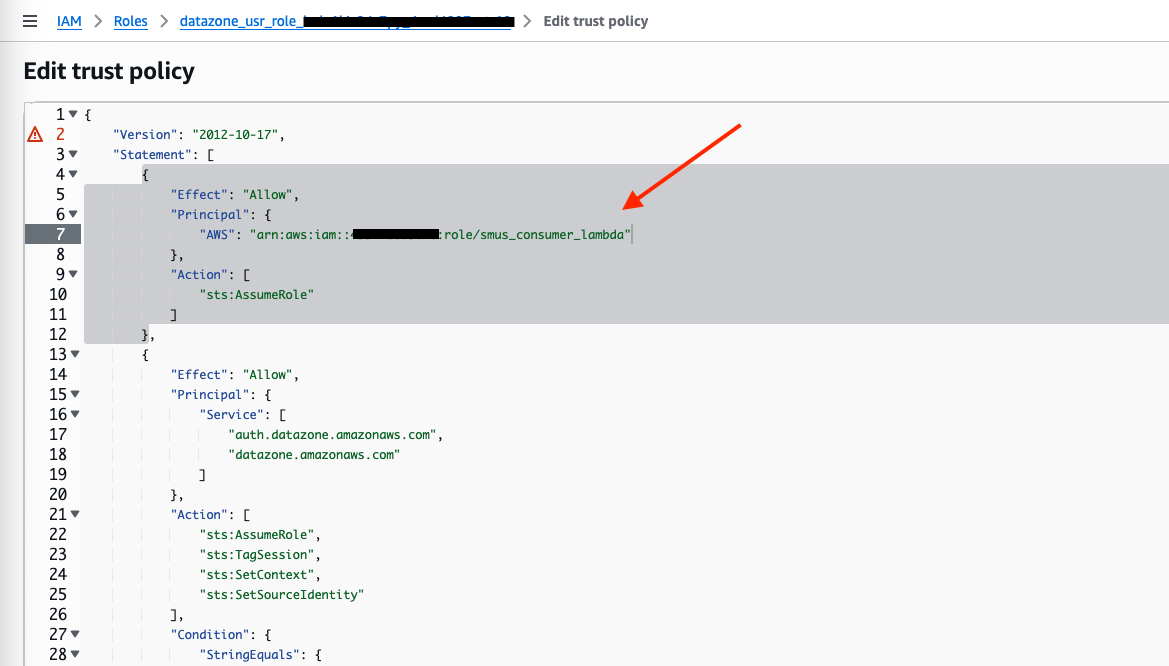
To enable your Lambda function access to the subscribed data asset, you need to allow the Lambda function to assume the Consumer project role. To do this, edit the Consumer project’s IAM role trust relationship:
Navigate to the IAM console in the consumer account.
In the navigation pane under Access management, choose Roles.
Select the Consumer project’s IAM role. This is the string starting with datazone_usr_role_ that is part of the Consumer project role ARN that you noted in step 3 “Create SageMaker Unified Studio producer and consumer projects”.
Under the Trust relationships tab, choose Edit trust policy.
For backup reasons, make a copy of the existing trust policy in a text file.
In the Edit trust policy window, add the following statement to the existing trust policy without removing or overwriting other existing statements in the trust policy. Be sure to replace the placeholder <account_id> with your consumer AWS account ID.
Test the Lambda function’s access to the subscribed data asset
Before you can test your Lambda function, you need to replace placeholders in the function code and in the IAM policy. There are three placeholders to be replaced: <role_arn>, <database_name> and <workgroup_id>. For <role_arn>, you already have the actual value, which is the Consumer project’s role ARN that you noted in step 3 “Create SageMaker Unified Studio producer and consumer projects”. The next sections provide instructions to retrieve values for the other placeholders.
Retrieve the AWS Glue Data Catalog database name
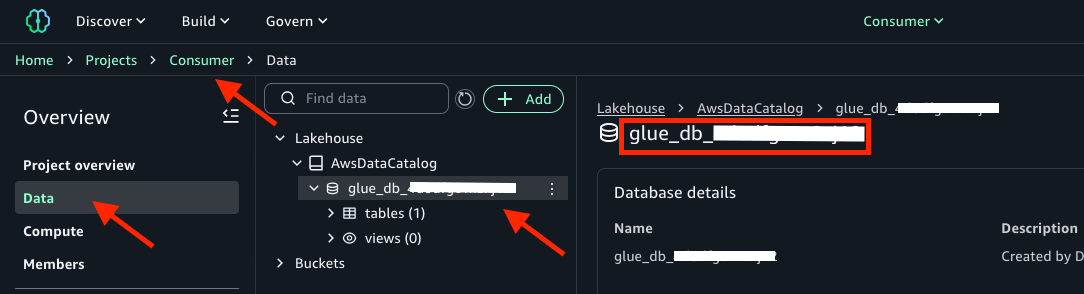
You need to find the name of the AWS Glue Data Catalog database that was created along with the Consumer project. You will then use this value to replace the <database_name> placeholder in the consumer_function Lambda function code. To retrieve the AWS Glue Data Catalog database name, follow these instructions:
Access the Amazon SageMaker Unified Studio portal.
Choose the Select a project dropdown list and choose Consumer project.
On the project page, under Overview, choose Data.
Choose Lakehouse.
Choose AwsDataCatalog.
Copy the name of the database. It should be an alphanumerical string starting with glue_db, as in the following image:
Copy the Workgroup ARN and save to a text file. The Athena workgroup ID is the string that follows arn:aws:athena:<region>:<account_ID>:workgroup/ in the Workgroup ARN.
Replace placeholder in the smus_consumer_athena_execution IAM policy
To replace the <workgroup_id> placeholder in the smus_consumer_athena_execution IAM policy, use the following procedure:
In the search field enter smus_consumer_athena_execution.
Select the smus_consumer_athena_execution policy.
Choose Edit.
Replace <workgroup_id> with the value you noted earlier.
Choose Next.
Choose Save changes.
Replace placeholders in the Lambda function code and test it
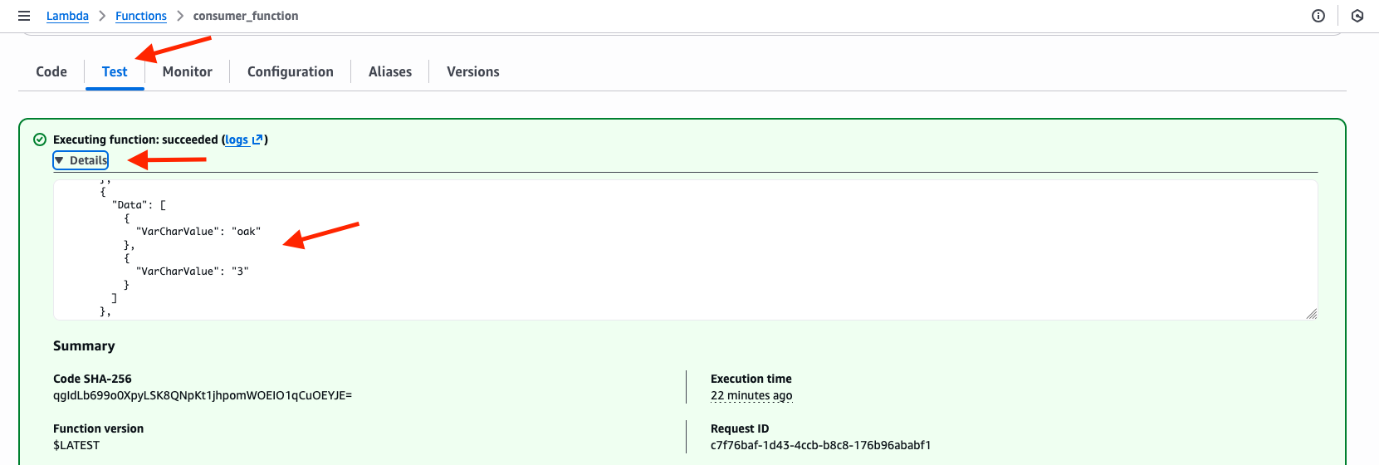
In this section, you will replace the <role_arn>, <database_name> and <workgroup_id> placeholders in the consumer_function Lambda function code, and then you can test the function ability to access data of the trees table.
After increasing the timeout, test the function again.
Clean up
If you no longer need the resources you created as you followed this post, delete them to prevent incurring additional charges. Start by deleting your Amazon SageMaker Unified Studio domain in the governance account. For more information, refer to Delete domains.
To remove the AWS Glue collections database from the producer account, follow these steps:
In the navigation pane under Data Catalog, choose Databases.
Select the collections database.
Choose Delete.
Choose Delete.
To remove the S3 bucket from the producer account, empty the bucket and then you can delete the bucket. For information about emptying the bucket, refer to Emptying a general purpose bucket. For information about deleting the bucket, refer to Deleting a general purpose bucket.
To remove the Lambda function from the consumer account, follow these steps:
Choose the Actions menu and then choose Delete function.
Enter confirm.
Choose Delete.
To complete the cleanup, delete the IAM role named smus_consumer_lambda, then delete the IAM policy named smus_consumer_athena_execution in the consumer account. For information about removing a IAM role, refer to Delete roles or instance profiles. For information about removing an IAM policy, refer to Delete IAM policies.
Conclusion
In this post, we covered adopting Amazon SageMaker Catalog for data governance without rearchitecting your existing applications and data repositories. We walked through how to onboard existing data in Amazon SageMaker Unified Studio, then publish it in a catalog, and then subscribe and consume the data from resources deployed outside the context of an Amazon SageMaker Unified Studio project. This solution can help you accelerate your implementation of a data mesh pattern with Amazon SageMaker Catalog to publish, find, and access data securely in your organization.
In this post, you’ll learn how to use Terraform to automate and streamline your Apache Flink application lifecycle management on Amazon Managed Service for Apache Flink. We’ll walk you through the complete lifecycle including deployment, updates, scaling, and troubleshooting common issues.
Managing Apache Flink applications through their entire lifecycle from initial deployment to scaling or updating can be complex and error-prone when done manually. Teams often struggle with inconsistent deployments across environments, difficulty tracking configuration changes over time, and complex rollback procedures when issues arise.
Infrastructure as Code (IaC) addresses these challenges by treating infrastructure configuration as code that can be versioned, tested, and automated. While there are different IaC tools available including AWS CloudFormation or AWS Cloud Development Kit (AWS CDK), we focus on HashiCorp Terraform to automate the complete lifecycle management of Apache Flink applications on Amazon Managed Service for Apache Flink.
Managed Service for Apache Flink allows you to run Apache Flink jobs at scale without worrying about managing clusters and provisioning resources. You can focus on developing your Apache Flink using your Integrated Development Environment (IDE) of choice, building and packaging the application using standard build and CI/CD tools. Once your application is packaged and uploaded to Amazon S3, you can deploy and run it with a serverless experience.
While you can control your Managed Service for Apache Flink applications directly using the AWS Console, CLI, or SDKs, Terraform provides key advantages such as version control of your application configuration, consistency across environments, and seamless CI/CD integration. This post builds upon our two-part blog series “Deep dive into the Amazon Managed Service for Apache Flink application lifecycle – Part 1” and “Part 2” that discusses the general lifecycle concepts of Apache Flink applications.
We use the sample code published on the GitHub repository to demonstrate the lifecycle management. Note that this is not a production-ready solution.
Setting up your Terraform environment
Before you can manage your Apache Flink applications with Terraform, you need to set up your execution environment. In this section, we’ll cover how to configure Terraform state management and credential handling. The Terraform AWS provider supports Managed Service for Apache Flink through the aws_kinesis_analyticsv2_application resource (using the legacy name “Kinesis Analytics V2“).
Terraform state management
Terraform uses a state file to track the resources it manages. In Terraform, storing the state file in Amazon S3 is a best practice for teams working collaboratively because it provides a centralised, durable, and secure location for tracking infrastructure changes. However, since multiple engineers or CI/CD pipelines may run Terraform simultaneously, state locking is essential to prevent race conditions where concurrent executions could corrupt the state. S3 as backend is commonly used for state storage and locking, ensuring that only one Terraform process can modify the state at a time, thus maintaining infrastructure consistency and avoiding deployment conflicts.
Passing credentials
To run Terraform inside a Docker container while ensuring that it has access to the necessary AWS credentials and infrastructure code, we follow a structured approach. This process involves exporting AWS credentials, mounting required directories, and executing Terraform commands inside a Docker container. Let’s break this down step by step. Before running Terraform, we need to make sure that our Docker container has access to the required AWS credentials. Since we are using temporary credentials, we generate them using the AWS CLI with the following command:
It exports AWS credentials from a specific AWS profile ($AWS_PROFILE).
The credentials are saved in .env.docker in a format suitable for Docker.
The --format env-no-export option displays credentials as non-exported shell variables
This file (.env.docker) will later be used to pass credentials into the Docker container
Running Terraform in Docker
Running Terraform inside a Docker container provides a consistent, portable, and isolated environment for managing infrastructure without requiring Terraform to be installed directly on the local machine. This approach ensures that Terraform runs in a controlled environment, reducing dependency conflicts and improving security. To execute Terraform within a Docker container, we use a docker run command that mounts the necessary directories and passes AWS credentials, allowing Terraform to apply infrastructure changes seamlessly.
The Terraform configuration files are stored in a local terraform folder, which is virtually attached to the container using the -v flag. This allows the containerised Terraform instance to access and modify infrastructure code as if it were running locally.
To run Terraform in Docker, the following command is executed:
--env-file .env.docker provides the AWS credentials required for Terraform to authenticate.
--rm -it runs the container interactively and is removed after execution to prevent clutter.
-v ./terraform:/home/flink-project/terraform mounts the Terraform directory into the container, making the configuration files accessible.
-v ./build.sh:/home/flink-project/build.sh mounts the build.sh script, which contains the logic to build JAR file for flink and execute Terraform commands.
msf-terraform is the Docker image used, which has Terraform pre-installed.
bash build.sh apply runs the build.sh script inside the container, passing apply as an argument to trigger the Terraform apply process.
Inside the container, build.sh typically includes commands such as terraform init to initialise the Terraform working directory and terraform apply to apply infrastructure changes. Since the Terraform execution happens entirely within the container, there is no need to install Terraform locally, and the process remains consistent across different systems. This method is particularly beneficial for teams working in collaborative environments, as it standardises Terraform execution and allows for reproducibility across development, staging, and production environments.
Managing application lifecycle with Terraform
In this section, we walk through each phase of the Apache Flink application lifecycle and understand how you can implement these operations using Terraform. While these operations are usually fully automated as part of a CI/CD pipeline, you will execute the individual steps manually from the command line for demonstration purposes. There are many ways to run Terraform depending on your organization’s tooling and infrastructure setup, but for this demonstration, we run Terraform in a container alongside the application build to simplify dependency management. In real-world scenarios, you would typically have separate CI/CD stages for building your application and deploying with Terraform, with distinct configurations for each environment. Since every organization has different CI/CD tooling and approaches, we keep these implementation details out of scope and focus on the core Terraform operations.
For a comprehensive deep dive into Apache Flink application lifecycle operations, refer to our previous two-part blog series.
Create and start a new application
To get started you want to create your Apache Flink application running on Managed Service for Apache Flink. You should execute the following Docker command:
Setting the config variables for your Apache Flink application in terraform/config.tfvars.json
Create and deploy the Apache Flink application to Managed Service for Apache Flink using terraform apply
Terraform fully covers this operation. You can check the running Apache Flink application using AWS CLI or inside the Managed Apache Flink Console after Terraform completes with Apply Complete! Terraform is expecting the Apache Flink artifact, i.e. the JAR file to be packaged and copied to S3. This operation is usually part of the CI/CD pipeline and executed before invoking the terraform apply. Here, the operation is specified in the build.sh script.
Deploy code change to an application
You have successfully created and started the Flink application. However, you realize that you have to make a change to the Flink application code. Let’s make a code change to the application code in flink/ and see how to build and deploy it. After making the necessary changes, you simply have to run the following Docker command again that builds the JAR file, uploads it to S3 and deploys the Apache Flink application using Terraform:
This phase of the lifecycle is fully supported by Terraform as long as both applications are state compatible, meaning that the operators of the upgraded Apache Flink application are able to restore the state from the snapshot that is taken from the old application version, before Managed Service for Apache Flink stops and deploys the change. For example, removing a stateful operator without enabling the allowNonRestoredState flag or changing an operator’s UID could prevent the new application from restoring from the snapshot. For more information on state compatibility, refer to Upgrading Applications and Flink Versions. For an example of state incompatibility, and strategies for handling state incompatibility, refer to Introducing the new Amazon Kinesis source connector for Apache Flink.
When deploying a code change goes wrong – A problem prevents the application code from being deployed
You also need to be careful with deploying code changes that contain bugs preventing the Apache Flink job from starting. For more information, refer to failure mode (a) – a problem prevents the application code from being deployed under When starting or updating the application goes wrong. For instance, this can be simulated by setting the mainClass in flink/pom.xml mistakenly to com.amazonaws.services.msf.WrongJob. Similar to before you build the JAR, upload it and run the terraform apply by running the Docker command from above. However, Terraform now fails to correctly apply the changes and throws an error message as the Apache Flink application fails to correctly update. Finally, the application status moves to READY.
To remedy the issue, you have to change the value of mainClass back to the original one and deploy the changes to Managed Service for Apache Flink. The Apache Flink application remains in READY status and doesn’t start automatically, as this was its state before applying the fix. Note that Terraform does not try to start the application when you deploy a change. You will have to manually start the Flink application using the AWS CLI or through the Managed Apache Flink Console.
As detailed in Part 2 of the companion blog, there is a second failure scenario where the application starts successfully, but the job becomes stuck in a continuous fail-and-restart loop. A code change can also cause this failure mode. We will cover the second error scenario when we cover deploying configuration changes.
Manual rollback application code to previous application code
As part of the lifecycle management of your Apache Flink application, you may need to explicitly rollback to a previous running application version. This is particularly useful when a newly deployed application version with application code changes exhibits unexpected behaviour and you want to explicitly rollback the application. Currently, Terraform does not support explicit rollbacks of your Apache Flink application running in Managed Service for Apache Flink. You will have to resort to therollbackApplication API through the AWS CLI or the Managed Service for Apache Flink Console to revert the application to the previous running version.
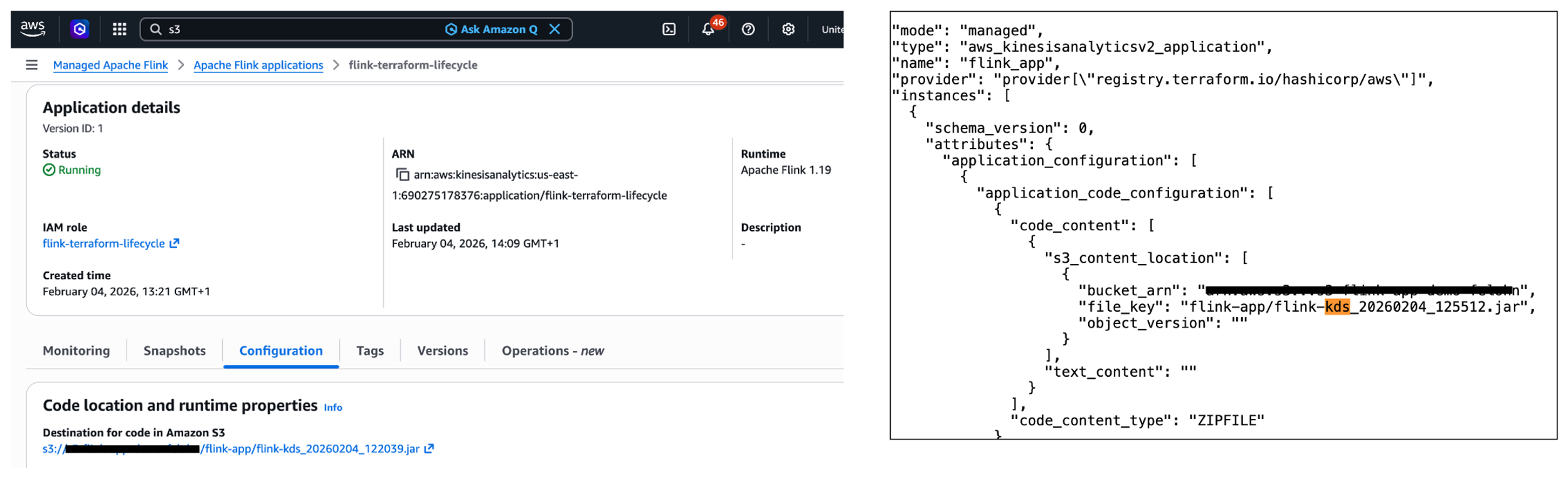
When you perform the explicit rollback, Terraform will initially not be aware of the changes. More specifically, the S3 path to the JAR file in the Managed Service for Apache Flink service (see left part of the image below) is different to the S3 path denoted in the terraform.tfstate file stored in Amazon S3 (see the right part of the image below). Fortunately, Terraform will always perform refreshing actions that include reading the current settings from all managed remote objects and updating the Terraform state to match as part of creating a plan in both terraform plan and terraform apply commands.
In summary, while you can not perform a manual rollback using Terraform, Terraform will automatically refresh the state when deploying a change using terraform apply.
Deploy config change to application
You have already made changes to the application code of your Apache Flink application. What about making changes to the config of the application, e.g., changing runtime parameters? Imagine you want to change the application logging level of your running Apache Flink application. To change the logging level from ERROR to INFO, you have to change the value for flink_app_monitoring_metrics_level in the terraform/config.tfvars.json to INFO. To deploy the config changes, you need to run the docker run command again as done in the previous sections. This scenario works as expected and is fully covered by Terraform.
What happens when the Apache Flink application deploys successfully but fails and restarts during execution? For more information, please refer to failure mode (b) – the application is started, the job is stuck in a fail-and-restart loop under When starting or updating the application goes wrong. Note that this failure mode can happen when making code changes as well.
When deploying config change goes wrong – The application is started, the job is stuck in a fail-and-restart loop
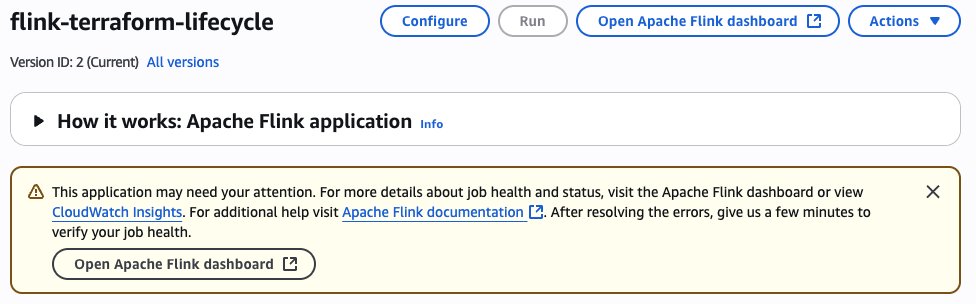
In the following example, we apply a wrong configuration change preventing the Kinesis connector from initialising correctly, ultimately putting the job in a fail-and-restart loop. To simulate this failure scenario, you’ll need to modify the Kinesis stream configuration by changing the stream name to a non-existent one. This change is made in the terraform/config.tfvars.json file, specifically altering the stream.name value under flink_app_environment_variables. When you deploy with this invalid configuration, the initial deployment will appear successful, showing an Apply Complete! message. The Flink application status will also show as RUNNING. However, the actual behaviour reveals problems. If you check the Flink Dashboard, you’ll see the application is continuously failing and restarting. Also, you will see a warning message about the application requiring attention in the AWS Console.
As detailed in the section Monitoring Apache Flink application operations in the companion blog (part 2), you can monitor the FullRestarts metric to detect the fail-and-restart loop.
Reverting the changes made to the environment variable and deploying the changes will result in Terraform showing the following error message: Failed to take snapshot for the application flink-terraform-lifecycle at this moment. The application is currently experiencing downtime.
You have to force-stop without a snapshot and restart the application with a snapshot to get your Flink application back to a properly functioning state. You should constantly monitor the application state of your Apache Flink application to detect any issues.
In the first scenario, you want to change the parallelism of your running Apache Flink application within the default parallelism quota. To do this, you need to modify the value for flink_app_parallelism in the terraform/config.tfvars.json file. After updating the parallelism value, you deploy the changes by running the Docker command as done in the previous sections:
This scenario works as expected and is fully covered by Terraform. The application will be updated with the new parallelism setting, and Managed Service for Apache Flink will adjust the allocated KPUs accordingly. Note that there is a default quota of 64 KPUs for a single Managed Service for Apache Flink application, which must be raised proactively via a quota increase request if you need to scale your Managed Service for Apache Flink application beyond 64 KPUs. For more information, refer to Managed Service for Apache Flink quota.
Less common change deployments which require special handling In this section we analyze some less common change deployment scenarios which require some special handling.
Deploy code change that removes an operator
Removing an operator from your Apache Flink application requires special consideration, particularly regarding state management. When you remove an operator, the state from that operator still exists in the latest snapshot, but there’s no longer a corresponding operator to restore it. Let’s take a closer look at this scenario and understand how you can handle it properly. First, you need to make sure that the parameter AllowNonRestoredState is set to True. This parameter specifies whether the runtime is allowed to skip a state that cannot be mapped to the new program, when restoring from a snapshot. Allowing non-restored state is required to successfully update an Apache Flink application when you dropped an operator. To enable the AllowNonRestoredState, you need to set the configuration value for flink_app_allow_non_restored_state to true in terraform/config.tfvars.json. Then, you can go ahead and remove an operator: For example, you can directly have the sourceStream write to the sink connector in flink/src/main/java/com/amazonaws/services/msf/StreamingJob.java. Change code line 146 from windowedStream.sinkTo(sink).uid("kinesis-sink")to sourceStream.sinkTo(sink).uid("kinesis-sink"). Make sure that you have commented out the entire windowedStream code block (lines 103 to 140).
This change will remove the windowed computation and directly connect the source stream to the sink, effectively removing the stateful operation. After removing the operator from your Flink application code, you deploy the changes using the Docker command as previously done. However, the deployment fails with the following error message: Could not execute application. As a result, the Apache Flink application moves to the READY state. To recover from this situation, you need to restart the Apache Flink application using the latest snapshot for the application to successfully start and move to RUNNING status. Importantly, you need to make sure that AllowNonRestoredState is enabled. Otherwise, the application will fail to start as it cannot restore the state for the removed operator.
Deploy change that breaks state compatibility with system rollback enabled
During the lifecycle management of your Apache Flink application, you might encounter scenarios where code changes break state compatibility. This typically happens when you modify stateful operators in ways that prevent them from restoring their state from previous snapshots.
A common example of breaking state compatibility is changing the UID of a stateful operator (such as an aggregation or windowing operator) in your application code. To safeguard against such breaking changes, you can enable the automatic system rollback feature in Managed Service for Apache Flink as described in the subsection Rollback under Lifecycle of an application in Managed Service for Apache Flink previously. This feature is disabled by default and can be enabled using the AWS Management Console or invoking the UpdateApplication API operation. There is no way in Terraform to enable system rollback.
Next, let’s demonstrate this by breaking the state compatibility of your Apache Flink application by changing the UID of a stateful operator, e.g., the string windowed-avg-price in line 140 of flink/src/main/java/com/amazonaws/services/msf/StreamingJob.java to windowed-avg-price-v2 and deploy the changes as before. You will encounter the following error:
Error: waiting for Kinesis Analytics v2 Application (flink-terraform-lifecycle) operation (*) success: unexpected state ‘FAILED’, wanted target ‘SUCCESSFUL’. last error: org.apache.flink.runtime.rest.handler.RestHandlerException: Could not execute application.
At this point, Managed Service for Apache Flink automatically rolls back the application to the previous snapshot with the previous JAR file, maintaining your application’s availability as you have enabled system-rollback capability. Terraform will initially be not aware of the performed rollback. Fortunately, as we have already witnessed in subsection Manual rollback application code to previous application code, Terraform will automatically refresh the state when we change UID to the previous value and deploy the changes.
In-place upgrade of Apache Flink runtime version
Managed Service for Apache Flink supports in-place upgrade to new Flink runtime versions. See the documentation for more details. Updating the application dependencies and any required code changes is a responsibility of the user. Once you have updated the code artifact, the service is able to upgrade the runtime of your running application in-place, without data loss. Let’s examine how Terraform handles Flink version upgrades.
To upgrade your Apache Flink application from version 1.19.1 to 1.20, you need to:
Update the Flink dependencies in your flink/pom.xml to version 1.20.0 (flink.version to 1.20.1 and flink.connector.version to 5.0.0-1.20 in <properties>)
Update the flink_app_runtime_environment to FLINK-1_20 in terraform/config.tfvars.json
Build and deploy the changes using the familiar docker run command
Terraform successfully performs an in-place upgrade of your Flink application. You will receive the following message: Apply complete! Resources: 0 added, 1 changed, 0 destroyed.
Operations currently not supported by Terraform
Let’s take a closer look at operations that are currently not supported by Terraform.
Starting or stopping the application without any configuration change
Terraform provides the start_application parameter, indicating whether to start or stop the application. You can set this parameter using flink_app_start in config.tfvars.json to stop your running Apache Flink application. However, this will only work if the current configuration value is set to true. In other words, Terraform only responds to the change in the parameter value, not the absolute value itself. After Terraform applies this change, your Apache Flink application will stop and its application status will move to READY. Similarly, restarting the application requires changing the flink_app_start value back to true, but this will only take effect if the current configuration value is false. Terraform will then restart your application, moving it back to the RUNNING state.
In summary, you cannot start or stop your Apache Flink application without making any configuration change in Terraform. You have to use AWS CLI, AWS SDK or AWS Console to start or stop your application.
Restarting application from an older snapshot or no snapshot without any configuration change
Similar to the previous section, Terraform requires an actual configuration change of application_restore_type to trigger a restart with different snapshot settings. Simply reapplying the same configuration values won’t initiate a restart from a different snapshot or no snapshot. You have to use AWS CLI, AWS SDK or AWS Console to restart your application from an older snapshot.
Performing rollback triggered manually or by system-rollback feature
Terraform does not support performing a manual rollback nor automatic system rollback. In addition, Terraform will also not be aware when such a rollback is taking place. The state information will be outdated, e.g. S3 path information. However, Terraform automatically performs refreshing actions to read settings from all managed remote objects and updates the Terraform state to match. Consequently, you can have Terraform refresh the Terraform state by successfully running a terraform apply command.
Conclusion
In this post, we demonstrated how to use Terraform to automate the lifecycle management of your Apache Flink applications on Managed Service for Apache Flink. We walked through fundamental operations including creating, updating, and scaling applications, explored how Terraform handles various failure scenarios and examined advanced scenarios such as removing operators and performing in-place runtime upgrades. We also identified operations that are currently not supported by Terraform.
Google Search Console (GSC) is a service offered by Google that helps you monitor, maintain, and troubleshoot your site’s presence in Google Search results. It provides you unique insights directly from Google about how the search engine sees your site, helping you improve your performance in Search Engine Results Pages (SERPs).
When there is a need to merge Google Search Console data with multiple data sources or conduct complex performance analysis, traditional methods can become time-consuming and error-prone. This is where Amazon Redshift and AWS Glue offer a comprehensive data integration solution.
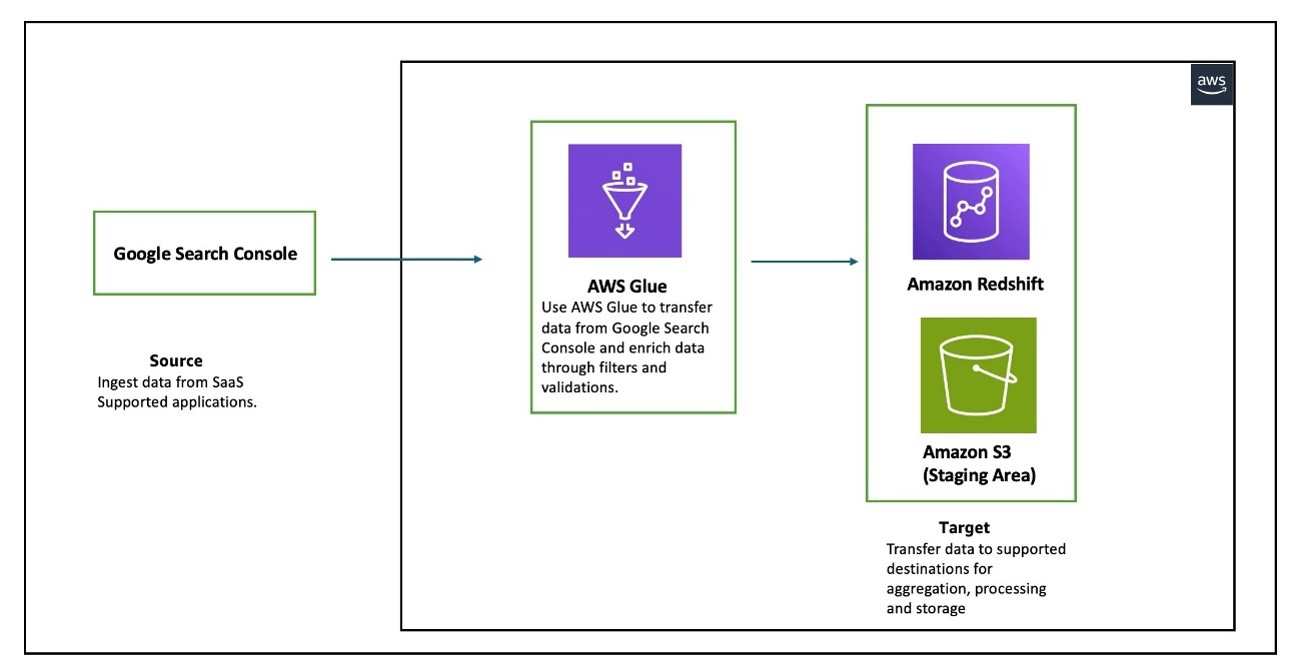
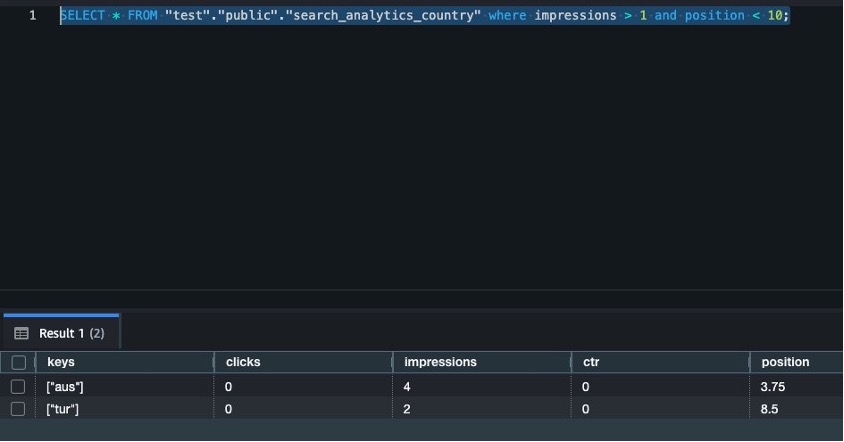
In this post, we explore how AWS Glue extract, transform, and load (ETL) capabilities connect Google applications and Amazon Redshift, helping you unlock deeper insights and drive data-informed decisions through automated data pipeline management. We walk you through the process of using AWS Glue to integrate data from Google Search Console and write it to Amazon Redshift.
Solution overview
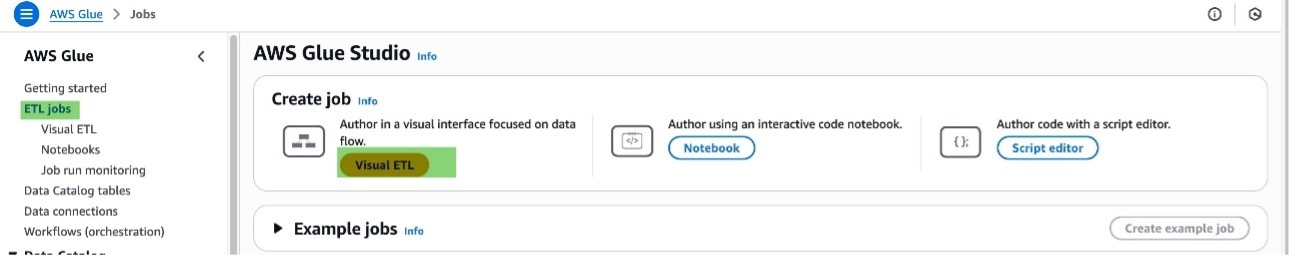
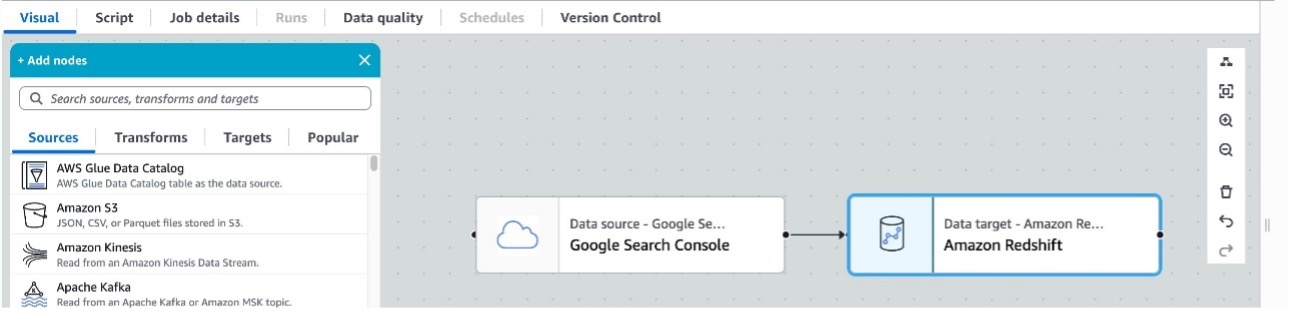
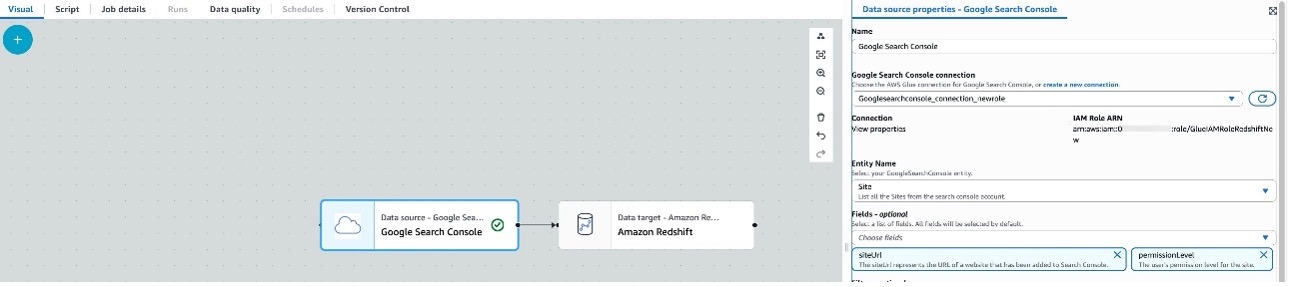
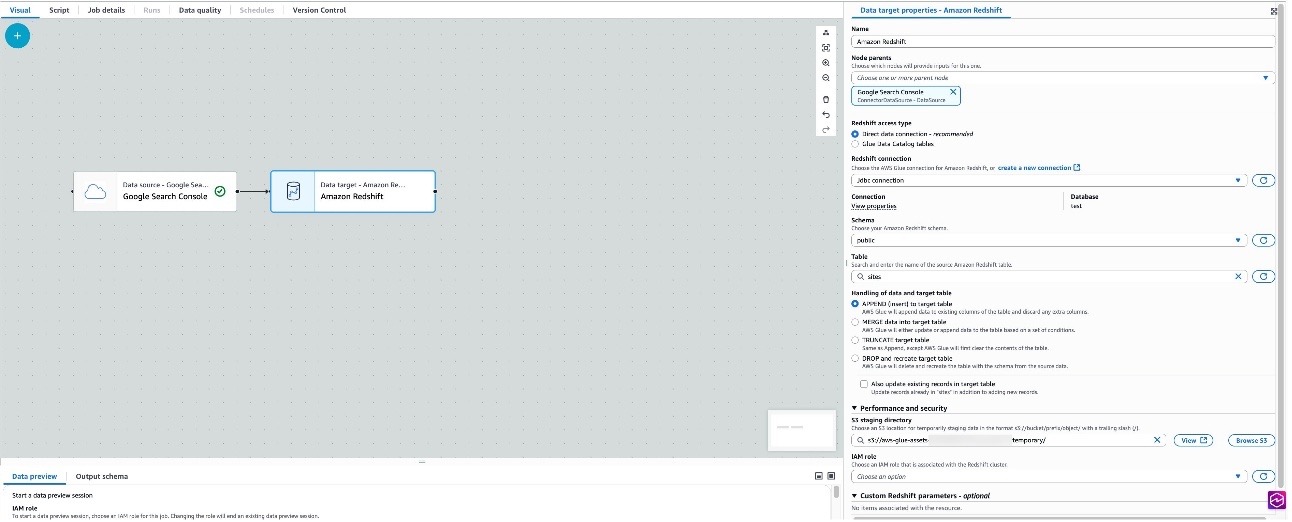
AWS Glue is a serverless data integration service that helps discover, prepare, and combine data for analytics, machine learning (ML), and application development. You can use AWS Glue to create, run, and monitor data integration and ETL pipelines and catalog your assets across multiple data stores.
Amazon Redshift is a fast, scalable, and fully managed cloud data warehouse that lets you to process and run complex SQL analytics workloads on structured and semi-structured data. It also helps you securely access your data in operational databases, data lakes, or third-party datasets with minimal movement or copying of data. Tens of thousands of customers use Amazon Redshift to process large amounts of data, modernize their data analytics workloads, and provide insights for their business users.
The following diagram illustrates the architecture that we implement in this post.
The workflow consists of an AWS Glue job reading data from Google Search Console for the three entities that Google Search Console supports (Search Analytics, Sites, and Sitemaps), and writing the data in a Redshift provisioned cluster. AWS Glue supports Google Search Console API v3.
In the following sections, we walk through the following steps to configure AWS Glue to set up a connection between Google Search Console and Amazon Redshift for data migration:
Create an OAuth client.
Create an IAM role for AWS Glue integration with Google Search Console, AWS Secrets Manager, and Amazon Redshift.
Create a secret in Secrets Manager to store the client secret created in the previous step.
Create a connection to Google Search Console in AWS Glue.
Create a connection to Amazon Redshift in AWS Glue.
Set up a table and permissions in Amazon Redshift.
Create an ETL job in AWS Glue.
Prerequisites
Before starting this walkthrough, you must have the following prerequisites in place:
In your Google Cloud project, you must enable the Google Search Console API. For instructions, see Enable and disable APIs on the API Console Help for Google Cloud Platform.
A provisioned cluster or Amazon Redshift Serverless . In this post, we use a single-node ra3.large Redshift provisioned cluster deployed in a single Availability Zone. This configuration is used for demonstration purposes only. For production environments, we recommend using multi-node clusters with a minimum of two nodes deployed across multiple Availability Zones for high availability and better performance.
An AWS Identity and Access Management (IAM) role that grants AWS Glue and Amazon Redshift read-only access to Amazon S3. This role will be attached to the Redshift cluster or Redshift Serverless namespace during creation, and will also be used when running the AWS Glue job along with permissions to read and write secrets to Secrets Manager. Refer to the Amazon Redshift Database Developer Guide for more details.
Create OAuth client
To connect to Google Search Console, AWS Glue requires OAuth 2.0 for authentication. You must create an OAuth 2.0 client ID, which AWS Glue uses when requesting an OAuth 2.0 access token. To create an OAuth 2.0 client ID in the Google Cloud Platform console, follow these steps:
If the APIs & Services page isn’t already open, choose the menu icon on the upper left and choose APIs & Services.
In the navigation pane, choose Credentials.
Choose Create Credentials, then choose OAuth client ID.
Select Web application as the application type, enter NewClient as the name, and provide https://console.aws.amazon.com for Authorized JavaScript origins.
For Authorized redirect URIs, add https://us-east-1.console.aws.amazon.com/gluestudio/oauth. This example uses us-east-1 for setting up AWS Glue jobs; change the redirect URIs according to your AWS Region. Multiple redirect URIs can also be specified.
Choose Create.
Open the details page for your new client.
Under Additional information, note down the client ID and client secret. You will need these details when configuring the secret in Secrets Manager.
Create IAM role for AWS Glue integration with Google Search Console, Secrets Manager, and Amazon Redshift
You can use AWS Glue to transfer data from supported sources into your Redshift databases. You need an IAM role because AWS Glue needs authorization to write into Redshift databases. To create a role, complete the following steps:
Sign in to the IAM console with sufficient access to create policies.
Choose Policies in the navigation pane.
Choose Create policy.
On the JSON tab, enter the following policy. AWS Glue needs the following permissions to access and run SQL statements in the Redshift database and create and retrieve secrets with Secrets Manager:
Modify the S3 bucket name that you are using as the staging bucket. Additionally, AWS Glue must have access to specific AWS owned S3 buckets for hosting AWS Glue transforms. In this example, the IAM policy uses aws-glue-studio-transforms-510798373988-prod-us-east-1, which is the AWS owned bucket in the us-east-1 Region. Refer to Review IAM permissions needed for ETL jobs for the appropriate bucket name for your Region.
Choose Next.
For Policy name, enter a name (for this post, we use glue-redshift-gsc-policy).
Enter a description, then choose Create policy.
In the navigation pane, choose Roles and Create role.
Choose Custom trust policy and enter the following, then choose Next.
Search for and select the policy glue-redshift-gsc-policy, then choose Next.
Provide the role name GlueIAMRoleRedshiftNew or another name and relevant Description, then choose Create role.
After the role is created, choose Add permissions and Attach policies.
Search for AWSGlueServiceRole and choose Add Permissions. This policy is typically attached to roles specified when defining crawlers, jobs, and development endpoints.
Create secret in Secrets Manager
Complete the following steps to create a Secrets Manager secret:
On the Secrets Manager console, choose Store a new secret.
Select Other type of secret.
For the customer-managed connected application, the secret should contain the connected application’s consumer secret with USER_MANAGED_CLIENT_APPLICATION_CLIENT_SECRET as the key and the client secret value as created in the previous step.
Choose Next.
Enter a secret name and choose Next.
Choose Store.
Create connection to Google Search Console in AWS Glue
To create a connection to Google Search Console in AWS Glue, follow these steps:
Sign in to the AWS Glue console with an authorized email ID with permissions already provided in Google Search Console.
In the navigation pane, choose Data connections.
Under Connections, choose Create connection.
In Data sources, search for Google Search Console and choose Next.
For IAM Role ARN, choose the role created earlier.
For User Managed Client Application ClientId, enter the client ID created earlier while creating the OAuth client.
For AWS Secret, choose the secret created earlier.
If your AWS Glue jobs needs to run in an Amazon virtual private cloud (VPC), provide appropriate details. For more information, refer to Configure a VPC for your ETL job.
Choose Test connection, choose your Google ID, and choose Continue.
Choose Continue to trust the connection.
If the user has authorized access, the connection test will be successful.
Choose Next.
Provide a connection name and choose Create connection.
Create connection to Amazon Redshift in AWS Glue
Complete the following steps to set up an AWS Glue connection for Amazon Redshift. Refer to Redshift connections for more information.
On the AWS Glue console, in the navigation pane, choose Data connections.
Under Connections, choose Create connection.
In Data sources, search for JDBC and choose Next. For Amazon Redshift, you can also use Redshift connections. In this post, we use JDBC. In this example, we are using a Redshift provisioned cluster.
Provide the Amazon Redshift JDBC URL and either use a Secrets Manager secret for storing credentials or provide the user name and password directly. As a best practice, it is recommended to use Secrets Manager.
Configure network options with Amazon VPC settings for running the AWS Glue job in a VPC. In this example, we use the same VPC, subnet, and security group where the Redshift cluster is provisioned. All JDBC data stores must be accessible from the VPC subnet. A VPC endpoint is required to access Amazon S3 from within your VPC. If your job needs to access both VPC resources and the public internet, configure a NAT gateway in the VPC.
Set up table and permissions in Amazon Redshift
To set up table and permissions in Amazon Redshift, follow these steps:
On the Amazon Redshift console, choose Query editor v2.
Connect to your existing Redshift cluster.
Create a table with the following DDL. For this post, we create a new database named test and create the following tables in the public schema of test database:
To create a data flow in AWS Glue, follow these steps:
On the AWS Glue console, choose ETL jobs in the navigation pane.
Choose Visual ETL under Create job. Each ETL job in AWS Glue is priced based on its duration.
For the source, choose Google Search Console, and for the target, choose Amazon Redshift.
Choose Source (Google Search Console) to configure the properties, which opens in the right window pane.
Choose the Google Search Console connection created in the previous sections, and provide the entity name. At the time of writing, there are three supported entities: Search Analytics, Sites, and Sitemaps, with multiple supported fields and operators for each entity. Choose the entity name and the corresponding fields; by default, the connector selects all fields. The example shows selecting the entity Site and corresponding fields siteUrl and permissionLevel.
Choose Target (Amazon Redshift) to configure the properties, which opens in the right pane.
Choose the Amazon Redshift connection, schema, and table name that were created in the previous steps. In this example, we use Append to target table as the method for handling the data. An S3 directory is provided for staging temporary data.
Navigate to Job details and provide a job name and IAM role (which the job will assume while running). This is the same role created earlier.
Choose Save and Run. For this example, we use AWS Glue version 5.0, keeping all other configuration values under Job details at their defaults. For this example, we have not implemented any schema mapping, so the columns in Amazon Redshift were created to match the output response for the Search entity.
After the job has completed successfully, navigate to Query Editor v2 in Amazon Redshift and query the Sites table to preview the data.
In the case of job failures, validate the connections by doing a data preview, and refer to Troubleshooting AWS Glue.
Similar to the Site entity, you can load Sitemap entity data by changing the source properties and destination table in the target Redshift cluster, then choosing Run.
Navigate to Query Editor v2 in Amazon Redshift and query the sitemap table to preview the data.
Similar to Sitemap, you can load Search Analytics entity data by changing the source properties and destination table in the target Redshift cluster, then choosing Run.
Navigate to Query Editor v2 in Amazon Redshift and query the search_analytics table and preview the data.
start_end_date – The default value for start_end_date is between <30 days ago from the current date> AND <yesterday>. To use a different date range, use the between The following example displays search data from January through September 2025:
start_end_date between '2025-01-01' AND '2025-09-30'
device – The device filters result against specified device type like DESKOP, MOBILE, and TABLET:
device = 'MOBILE'
country – You can filter against the specified country, as specified by three-letter country code (ISO 3166-1 alpha-3):
dimensions='country'
dimensions: Dimensions help group zero or more results for filtering search data by country or device. The following example displays search data grouped by country, and also grouping by country and filtering for mobile devices:
dimensions='country' AND country='ind' AND device ='MOBILE'
Run analytical queries on Amazon Redshift
In this section, we run analytical queries using aggregated data across different search entities.
List all countries where site position is less than 10 and device type is MOBILE:
SELECT * from search_analytics_device_country where position < 10 AND keys LIKE '%MOBILE%'
List all countries where impressions are greater than 1 and position is less than 10:
SELECT * FROM "test"."public"."search_analytics_country" where impressions > 1 and position < 10;
Clean up
To avoid incurring charges, clean up the resources in your AWS account by completing the following steps:
On the AWS Glue console, in the navigation pane, choose Job monitoring.
Stop any running jobs created for Google Search Console connections.
From the list of connections, select the connection name created and delete it.
Delete the Redshift provisioned cluster or the Redshift Serverless workspace and namespace. Amazon Redshift pricing is applied during the cluster’s runtime based on cluster configuration.
Clean up resources in your Google account by deleting the project that contains the Google Project resources. For instructions, refer to Delete your project.
Conclusion
In this post, we walked you through the process of using AWS Glue to integrate data from Google Search Console and write it to Amazon Redshift, a petabyte-scale data warehouse. Whether you’re archiving historical data, performing complex analytics, or preparing data for machine learning, this connector streamlines the process and helps create an integrated data pipeline.
In e-commerce, delivering fast, relevant search results helps users find products quickly and accurately, improving satisfaction and increasing sales. OpenSearch is a distributed search engine that offers advanced search capabilities including advanced full-text and faceted search, customizable analyzers and tokenizers, and auto-complete to help customers quickly find the products they want. It scales to handle millions of products, catalogs and traffic surge. Amazon OpenSearch Service is a managed service that lets users build search workloads balancing search quality, performance at scale and cost. Designing and sizing an Amazon OpenSearch Service cluster correctly is required to meet these demands.
While general sizing guidelines for OpenSearch Service domains are covered in detail in OpenSearch Service documentation, in this post we specifically focus on T-shirt-sizing OpenSearch Service domains for e-commerce search workloads. T-shirt sizing simplifies complex capacity planning by categorizing workloads into sizes like XS, S, M, L, XL based on key workload parameters such as data volume and query concurrency. For e-commerce search, where data growth is moderate and read-heavy queries predominate, this approach offers a flexible, scalable way to allocate the resources without overprovisioning or underestimating needs.
How OpenSearch Service stores indexes and performs queries
E-commerce search platforms handle vast amounts of data and daily data ingestion is typically relatively small and incremental, reflecting catalog changes, price updates, inventory status and user activities like clicks and reviews. Efficiently managing this data and organizing it per OpenSearch Service best practices is crucial in achieving optimal performance. The workload is read-heavy, consisting of user queries with advanced filtering and faceting, especially during sales or seasonal spikes that require elasticity in compute and storage resources.
You ingest product and catalog updates (inventory, listings, pricing) into OpenSearch using bulk APIs or real-time streaming. You index data into logical indexes. How you create and organize indexes in e-commerce has a significant impact on search, scalability and flexibility. The approach depends on the size, diversity and operational needs of the catalog. Small to medium-sized e-commerce platforms commonly use a single, comprehensive product index that stores all product information with product category. Additional indexes may exist for orders, users, reviews and promotions depending on search requirements and data separation needs. Large, diverse catalogs may split products into category-specific indexes for tailored mappings and scaling. You split each index into primary shards, each storing a portion of the documents. To ensure high availability and enhance query throughput, you configure each primary shard with at least one replica shard stored on different data nodes.
Diagram 1. How primary and replica shards are distributed among nodes
This diagram shows two indexes (Products and Reviews), each split into two primary shards with one replica. OpenSearch distributes these shards across cluster nodes to ensure that primary and replica shards for the same data do not reside on the same node. OpenSearch runs search requests using a scatter-gather mechanism. When an application submits a request, any node in the cluster can receive it. This receiving node becomes the coordinating node for that specific query. The coordinating node determines which indices and shards can serve the query. It forwards the query to either primary or replica shards and orchestrates the different phases of the search operation and returns the response. This process ensures efficient distribution and execution of search requests across the OpenSearch cluster.
Diagram 2. Tracing a Search query: “blue running shoes”This diagram walks through how a search query–for example, “blue running shoes”flows through your OpenSearch Service domain .
Request: The application sends the search for “blue running shoes” to the domain. One data node acts as the coordinating node.
Scatter: The coordinator broadcasts the query to either the primary or replica shard for each of the shards in the ‘Products’ index (Nodes 1, 2, and 3 in this case).
Gather: Each data node searches its local shards(s) for “blue running shoes” and returns its own top results (e.g. Node 1 returns its best matches from P0).
Final results: The coordinator merges these partial lists, sorts them into single definitive list of the most relevant shoes, and sends the result back to the app.
Understanding T-Shirt Sizing for E-commerce OpenSearch Service Cluster
Storage planning
Storage impacts both performance and cost. OpenSearch Service offers two main storage options based on query latency requirements and data persistence needs. Selecting the appropriate storage type in a managed OpenSearch Service improves both performance and optimizes cost of the domain. You can choose between Amazon Elastic Block Store( EBS) storage volumes and instance storage volumes (local storage) for your data nodes.
Amazon EBS gp3 volumes offer high throughput, whereas the local NVMe SSD volumes, for example, on the r8gd, i3, or i4i instance families, offer low latency, fast indexing performance and high-speed storage, making them ideal for scenarios where real time data updates and high search throughput are critical for search operations. For search workloads that require a balance between performance and cost, instances backed with EBS GP3 SSD volumes provide a reliable option. This SSD storage offers input/output operations per second (IOPS) that are well-suited for general-purpose search workloads. It also allows users to provision additional IOPS and storage as needed.
When sizing an OpenSearch cluster, start by estimating total storage needs based on catalog size and expected growth. For example, if the catalog contains 500,000 stock keeping units (SKUs), averaging 50KB each; the raw data sums to about 25GB. The size of the raw data, however, is just one aspect of the storage requirements. Also consider the Replica count, indexing overhead (10%), Linux reserves (5%), and OpenSearch Service reserves (20% up to 20GB) per instance while calculating the required storage.
In summary,if you have 25GB of data at any given time who want one replica, the minimum storage requirement is closer to 25 * 2 * 1.1 / 0.95 / 0.8 = 72.5 GB. This calculation can be generalized as follows:
Storage requirement = Raw data * (1 + number of replicas) * 1.45
This helps ensure disk space headroom on all data nodes, preventing shard failures and maintaining search performance. Provisioning storage slightly beyond this minimum is recommended to accommodate future growth and cluster rebalancing.
Data nodes:
For search workloads, compute-optimized instances (C8g) are well-suited for central processing unit (CPU)-intensive operations like nested queries and joins. However, general-purpose instances like M8g offer a better balance between CPU and memory. Memory-optimized instances (R8g, R8gd) are recommended for memory-intensive operations like KNN search, where larger memory footprint is required. In large, complex deployments, compute-optimized instances like c8g or general-purpose m8g, handle CPU-intensive tasks, providing efficient query processing and balanced resource allocation. The balance between CPU and memory, makes them ideal for managing complex search operations for large-scale data processing. For extremely large search workloads (tens of TB) where latency is not a primary concern, consider using the new Amazon OpenSearch Service Writable warm which supports write operations on warm indices.
Instance Class
Best for users who…
Examples (AWS)
Characteristics
General Purpose
have moderate search traffic and want a well-balanced, entry-level setup
M family (M8g)
Balanced CPU & memory, EBS storage. Good starting point for small to medium-sized catalogs.
Compute Optimized
have high queries per second (QPS) search traffic or queries involve scoring scripts or complex filtering
C family (C8)
High CPU-to-memory ratio. Ideal for CPU-bound workloads like many concurrent queries.
Memory Optimized
work with large catalogs, need fast aggregations, or cache a lot in memory
R family (R8g)
More memory per core. Holds large indices in memory to speed up searches and aggregations.
Storage Optimized
update inventory frequently or have so much data that disk access slows things down
I family (I3, I4g), Im4gn
NVMe SSD and SSD local storage. Best for I/O-heavy operations like constant indexing or large product catalogs hitting disk frequently.
Cluster manager nodes:
For production workloads, it is recommended to add dedicated cluster manager nodes to increase the cluster stability and offload cluster management tasks from the data nodes. To choose the right instance type for your cluster manager nodes, review the service recommendations based on the OpenSearch version and number of shards in the cluster.
Sharding strategy
Once storage requirements are understood, you can investigate the indexing strategy. You create shards in OpenSearch Service to distribute an index evenly across the nodes in a cluster. AWS recommends single product index with category facets for simplicity or partition indexes by category for large or distributed catalogs. The size and number of shards per index play a vital role in OpenSearch Service performance and scalability. The right configuration ensures balanced data distribution, avoids hot spotting, and minimizes coordination overhead on nodes for use cases that prioritizes query speed and data freshness.
For read-heavy workloads like e-commerce, where search latency is the key performance objective, maintain shard sizes between 10-30GB. To achieve this, calculate the number of primary shards by dividing your total index size by your target shard size. For example, if you have a 300GB index and want 20GB shards, configure 15 primary shards (300GB ÷ 20GB = 15 shards). Monitor shard sizes using the _cat/shards API and adjust the shard count during reindexing if shards grow beyond the optimal range.
Add replica shards to improve search query throughput and fault tolerance. The minimum recommendation is to have one replica; you can add more replicas for high query throughput requirements. In OpenSearch Service, a shard processes operations like querying single-threaded, meaning one thread handles a shard’s tasks at a time. Replica shards can serve read requests by distributing them across multiple threads and nodes, enabling parallel processing.
T-shirt sizing for an e-commerce workload
In an OpenSearch T-shirt sizing table, each size label (XSmall, Small, Medium, Large, XLarge) represents a generalized cluster scale category that can help teams translate technical requirements into simple, actionable capacity planning. Each size allows architects to quickly align their catalog size, storage requirements, shard planning, CPU and AWS instance choices to the cluster resources provisioned, making it easier to scale infrastructure as business grows.
By referring to this table, teams can select the category similar to their current workload and use the T-shirt size as a starting point while continuing to refine configuration as they monitor and optimize real-world performance. For example, XSmall is suited for small catalogs with hundreds of thousands of products and minimal search traffic. Small clusters are designed for growing catalogs with millions of SKUs, supporting moderate query volumes and scaling up during busy periods. Medium corresponds to mid-size e-commerce operations handling millions of products and higher search demands, while Large fits large online businesses with tens of millions of SKUs, requiring robust infrastructure for fast, reliable search. XLarge is intended for major marketplaces or global platforms with twenty million or more SKUs, enormous data storage needs, and massive concurrent usage.
T-shirt size
Number of Products
Catalog Size
Storage needed
Primary Shard Count
Active Shard Count
Data Nodes Instance Type
Cluster Manager Node instanceType
XSmall
500K
50 GB
145 GB
2
4
[2] r8g.xlarge
[3] m8g.large
Small
2M
200 GB
580 GB
8
16
[2] c8g.4xlarge
[3] m8g.large
Medium
5M
500 GB
1.45 TB
20
40
[2] c8g.8xlarge
[3] m8g.large
Large
10M
1 TB
2.9 TB
40
80
[4] c8g.8xlarge
[3] m8g.large
XLarge
20M
2 TB
5.8 TB
80
160
[4] c8g.16xlarge
[3] m8g.large
T-shirt size: Represents the scale of the cluster, ranging from XS up to XL for high-volume workloads.
Number of products: The estimated count of SKUs in the e-commerce catalog, which drives the data volume.
Catalog size: The total estimated disk size of all indexed product data, based on typical SKU document size.
Storage needed: The actual storage required after accounting for replicas and overhead, ensuring enough room for safe and efficient operation.
Primary shard count: The number of main index shards chosen to balance parallel processing and resource management.
Active shard count: The total number of live shards (primary with one replica), indicating how many shards need to be distributed for availability and performance.
Data node instance type: The recommended instance type to use for data nodes, selected for memory, CPU, and disk throughput.
Cluster manager node instance type: The recommended instance type for lightweight, dedicated master nodes which manage cluster stability and coordination.
Scaling strategies for e-commerce workloads
E-commerce platforms continually face challenges with unpredictable traffic surges and growing product catalogs. To address these challenges, OpenSearch Service automatically publishes critical performance metrics to Amazon CloudWatch, enabling users to monitor when individual nodes reach resource limits. These metrics include CPU utilization exceeding 80%, JVM memory pressure above 75%, frequent garbage collection pauses, and thread pool rejections.
OpenSearch Service also provides robust scaling solutions that maintain consistent search performance across varying workload demands. Use the vertical scaling strategy to upgrade instance types from smaller to larger configurations, such as m6g.large to m6g.2xlarge. While vertical scaling triggers a blue-green deployment, scheduling these changes during off-peak hours minimizes impact on operations.
Use the horizontal scaling strategy to add more data nodes for distributing indexing and search operations. This approach proves particularly effective when scaling for traffic growth or increasing dataset size. In domains with cluster manager nodes, adding data nodes proceeds smoothly without triggering a blue-green deployment. CloudWatch metrics guide horizontal scaling decisions by monitoring thread pool rejections across nodes, indexing latency, and cluster-wide load patterns. Though the process requires shard rebalancing and may temporarily impact performance, it effectively distributes workload across the cluster.
Temporary replicas provide a flexible solution for managing high-traffic periods. By increasing replica shards through the _settings API, read throughput can be boosted when needed. This approach offers a dynamic response to changing traffic patterns without requiring more substantial infrastructure changes.
Monitoring key performance CloudWatch metrics is essential to ensure a well-optimised OpenSearch service domain. One of the key factors is maintaining CPU utilization on data nodes under 80% to prevent query slowdowns. Another metric is ensuring that JVM memory pressure is maintained below 75% on data nodes to prevent garbage collection (GC) pauses that can affect search response time. OpenSearch service publishes these metrics to CloudWatch at 1 minute interval and users can create alarms on these metrics for alerts on the production workloads. Please refer recommended CloudWatch alarms for OpenSearch Service
P95 query latency should be monitored to identify slow queries and optimize performance. Another important indicator is thread pool rejections. A high number of thread pool rejections can result in failed search requests, and affecting user experience. By continuously monitoring these CloudWatch metrics, users can proactively scale resources, optimise queries, and prevent performance bottlenecks.
Conclusion
In this post, we showed how to right-size Amazon OpenSearch Service domains for e-commerce workloads using a T-shirt sizing approach. We explored key factors including storage optimization, sharding strategies, scaling methods, and essential Amazon CloudWatch metrics for monitoring performance.
To build a performant search experience, start with a smaller deployment and iterate as your business scales. Get started with these five steps:
Evaluate your workload requirements in terms of storage, search throughput, and search performance
Select your initial T-shirt size based on your product catalog size and traffic patterns
Deploy the recommended sharding strategy for your catalog scale
Load test your cluster using OpenSearch benchmark and re-iterate until performance requirements are reached
Configure Amazon CloudWatch monitoring and alarms, then continue to monitor your production domain
Choosing the right indexing strategy for your Amazon OpenSearch Service clusters helps deliver low-latency, accurate results while maintaining efficiency. If your access patterns require complex queries, it’s best to re-evaluate your indexing strategy.
In this post, we demonstrate how you can create a custom index analyzer in OpenSearch to implement autocomplete functionality efficiently by using the Edge n-gram tokenizer to match prefix queries without using wildcards.
What is an index analyzer?
Index analyzers are used to analyze text fields during ingestion of a document. The analyzer outputs the terms you can use to match queries
By default, OpenSearch indexes your data using the standard index analyzer. The standard index analyzer splits tokens on spaces, converts tokens to lowercase, and removes most punctuation. For some use cases (like log analytics), the standard index analyzer might be all you need.
Standard Index Analyzer
Let’s look at what the standard index analyzer does. We’ll use the _analyze API to test how the standard index analyzer tokenizes the sentence “Standard Index Analyzer.”
Note: You can run all the commands in this post using OpenSearch DevTools in the OpenSearch Dashboard.
Notice how each word was lowercased and the period (punctuation) was removed.
Creating your own index analyzer
OpenSearch offers a large number of built in analyzers that you can use for different access patterns. It also lets you build your own custom analyzer, configured for your specific search needs. In the following example, we are going to configure a custom analyzer that returns partial word matches for a list of addresses. The analyzer is specifically designed for autocomplete functionality, enabling end users to quickly find addresses without having to type out (or remember) an entire address. Autocomplete allows OpenSearch to effectively complete the search term based off matched prefixes.
First, create an index called standard_index_test:
When searching for the term “ope”, we don’t get any matches. To see why, we can dive a little deeper into the standard index analyzer and see how our text is being tokenized. Test the standard index analyzer with the address “456 OpenSearch Drive Anytown, Ny 78910”.
The standard index analyzer has tokenized the address into individual terms: 456, opensearch, drive and so on. That means, unless you search for an individual token (like 456 or opensearch) o, op, ope , and even open won’t yield any results. One option is to use wildcards while still using the standard index analyzer for indexing:
The wildcard query would match “456 OpenSearch Drive Anytown, Ny 78910” but wildcard queries can be resource intensive and slow. Querying for ope* in OpenSearch results in iterating over each term in the index, bypassing optimizations of inverted index lookups. This results in higher memory usage and slower performance. To improve the performance of our query execution and search experience, we can use an index analyzer that better suits our access patterns.
Edge n-gram
The Edge n-gram tokenizer helps you find partial matches and avoids the use of wildcards by tokenizing prefixes of a single word. For example, the input word coffee is expanded into all its prefixes, c, co , cof, and so on. It can limit the prefixes to those between a minimum (min_gram) and maximum (max_gram) length. So with min_gram=3 and max_gram=5, it will expand “coffee” to cof, coff, and coffe.
Create a new index called custom_index with our own custom index analyzer that uses Edge n-grams. Set the minimum token length (min_gram) to 3 characters, and the maximum token length (max_gram) to 20 characters. The min_gram and max_gram sets the minimum and maximum returned token length respectively. You should select the min_gram and max_gram based off your access patterns. In this example, we’re searching for the term “ope” so we don’t need to set the minimum length to anything less than 3 since we’re not searching for terms like o or op. Setting the min_gram too low can lead to high latency. Likewise, we don’t need to set the maximum length to anything greater than 20 as no individual token will exceed the length of 20. Setting the maximum length to 20 gives us room to spare in case we do eventually ingest an address with a longer token length. Note, the index we are creating here is specifically for autocomplete functionality and is likely unnecessary for a general search index.
In the above code, we created an index called custom_index with a custom analyzer named autocomplete. The analyzer performs the following:
It uses the standard tokenizer to split text into tokens
A lowercase filter is applied to lowercase all the tokens
The tokens are then further broken into smaller chunks based off the minimum and maximum values of the edge_ngram
The search analyzer is configured to use the standard analyzer to reduce query processing required at search time. We have already applied our custom analyzer to split the text for us upon ingestion, and we do not need to repeat this process when searching. Test how the custom analyzer analyzes the text Lexington Avenue:
GET custom_index/_analyze
{
  "analyzer": "autocomplete",
  "text": "Lexington Avenue"
}
#========
#Results
#========
# Minimum token length is 3 so we won't see l, or le
    "tokens":
        "lex"
        "lexi"
        "lexin"
        "lexing"
        "lexingt"
        "lexingto"
        "lexington"
        "ave"
        "aven"
        "avenu"
        "avenue"
Notice how the tokens are lowercase and now support partial matches. Now that we’ve seen how our analyzer tokenizes our text, bulk add some data:
POST _bulk
{"index":{"_index":"custom_index"}}
{"text_entry": "123 Amazon Street Seattle, Wa 12345 "}
{"index":{"_index":"custom_index"}}
{"text_entry": "456 OpenSearch Drive Anytown, Ny 78910"}
{"index":{"_index":"custom_index"}}
{"text_entry": "789 Palm way Ocean Ave, Ca 33345"}
{"index":{"_index":"custom_index"}}
{"text_entry": "987 Openworld Street, Tx 48981"}
You have configured a custom n-gram analyzer to find partial words matches within our list of addresses.
Note, there is a tradeoff between using non-standard index analyzers and writing compute intensive queries. Analyzers can affect indexing throughput and increase the overall index size, especially if used inefficiently. For example, when creating the custom_index, the search analyzer was set to use the standard analyzer. Using n_grams for analysis upon ingestion and search would have impacted cluster performance unnecessarily. Additionally, we set the min_gram and max_gram to values that matched our access patterns, ensuring we didn’t create more n_grams than we needed to for our search use case. This allowed us to gain the benefits of optimizing search without impacting our ingestion throughput.
Conclusion
In this post, we changed how OpenSearch indexed our data to simplify and speed up autocomplete queries. In our case, using the Edge n-grams allowed OpenSearch to match parts of an address and yield precise results without compromising cluster performance with a wildcard query.
It’s always important to test your cluster before deploying in a production environment. Understanding your access patterns is essential to optimizing your cluster from both an indexing and searching perspective. Use the guidelines in this post as a starting point. Confirm your access patterns before creating an index, then begin experimenting with different index analyzers in a test environment to see how they can simplify your queries and improve overall cluster performance. For more reading on general OpenSearch cluster optimization techniques, refer to the Get started with Amazon OpenSearch Service: T-shirt-size your domain post.
Amazon SageMaker Unified Studio now offers two domain configurations: Amazon SageMaker Unified Studio Identity Center(IDC)-based domains with comprehensive governance features, and Amazon SageMaker Unified Studio IAM-based domains with enhanced developer productivity tools.
In this post, we demonstrate how you can use both of these domain configurations of Amazon SageMaker Unified Studio using AWS Identity and Access Management (IAM) role reuse and attribute-based access control.
How authentication works in each configuration
Amazon SageMaker Unified Studio IDC-based domains authenticate users through AWS Identity and Access Management (IAM) Identity Center with Single Sign-On, preserving individual user identities throughout their sessions. These domains excel in governance with identity-based authorization, fine-grained access controls between users, and comprehensive catalog management featuring formal Publisher/Subscriber (Pub/Sub) data sharing workflows with approval processes—ideal for enterprise environments requiring strong identity management, compliance tracking, and identity-based audit trails.
Amazon SageMaker Unified Studio IAM-based domains authenticate through federated AWS Identity and Access Management (IAM) roles where all users accessing a project share the same role permissions. These domains prioritize developer productivity with modern tools including new serverless Notebooks, Athena Spark integration, the improved interface with vertical navigation, and built-in AI assistance, designed for development teams that need streamlined access and advanced analytics capabilities.
This solution facilitates organizations that are already using IDC-based domains to preserve their existing governance frameworks established in IDC-based domains while unlocking modern development capabilities for their teams through IAM-based domains. If you prefer to use the newly launched IAM-based domains, you can continue to do as well. The choice depends on your company’s needs.
Imagine a data steward (Sam) uses the IDC-based domain to define data access policies, manage the data catalog, and approve subscription requests to verify compliance and proper data governance.
On the other hand, a data engineer (Sarah), wants to use IDC-based domain for governance features such as SageMaker catalog and IAM-based domain for the new serverless Notebook to build data pipelines, perform advanced analytics, and accelerate development cycles. Sarah will request access to the data through IDC-based domain, and once access is approved by Sam, Sarah can access this data in serverless notebook available in IAM-based domain.
Solution overview
The integration leverages IAM role reuse, AWS Lake Formation Attribute-Based Access Control (ABAC) and Amazon SageMaker Catalog pub-sub model to automatically carry permissions from the IDC-based domain to the new IAM-based domain. When properly configured, data subscriptions managed through the IDC-based domain’s Pub/Sub model become immediately accessible in IAM-based domain projects, providing a unified data access experience.
The solution we will implement in the post involves creating an IAM-based domain project that is similar to your IDC consumer project (eg same team members, use case) , configuring execution roles, and enabling role reuse. This approach maintains the familiar subscription workflow while extending benefits to the IAM-based domain.The following diagram shows the high-level architecture of how this approach works.
The solution architecture consists of:
Existing IDC-based domain: Contains producer and consumer projects with established data sharing via Pub/Sub model
IAM-based domain: New projects with federated and execution roles configured for modern development tools
IAM Identity Center: Manages federated access and permission sets
The solution provides 2 options: Option 1: IDC-Based Domain project role reuse provides the simplest integration path by directly reusing the existing consumer project IAM role from your IDC-based domain as the execution role in the IAM-based domain. The primary benefits include simplified setup requiring only policy changes (covered later in the blog), reduced administrative overhead with one less role to manage and lower risk of misconfiguration since you’re leveraging proven, existing roles. Choose Option 1 when you want the fastest implementation path, your organization prefers minimal role proliferation, you have well-established IDC-based domain roles that already have data access permissions, or your team has limited IAM expertise and wants to avoid complex tagging configurations.
Option 2: Creating a new execution role for the IAM-based domain project and use attribute-based access control (ABAC) through tagging with the IDC-based domain project ID. The key benefits include enhanced auditability with two distinct roles (one for IDC-based domain, one for IAM-based domain), clear separation showing which domain generated each request in CloudTrail logs, greater flexibility to customize permissions specific to IAM-based domain needs without affecting IDC-based domain operations, and better security isolation between the two domain types. The `AmazonDatazoneProject` tag enables attribute based access control, while maintaining distinct role identities. Choose Option 2 when: your organization requires detailed audit trails distinguishing between domain types, compliance policies mandate separation of concerns between governance and development environments, you want to track and attribute costs separately for each domain, or you need to provide evidence showing which domain (governance vs. development) accessed specific data resources for compliance reporting.
Here is the high-level view of how the identity and domain entities map to each other for both options:
For this demonstration, we use a simplified setup with a sales producer project and a marketing consumer project that subscribes to these tables.
Understanding the current IDC-based domain setup
Our starting point includes a well-established Amazon SageMaker Unified Studio IDC-based domain structure:
Sales Producer Project
Contains a database with pipeline and sales tables
Managed by Sam, the data steward who creates and publishes data assets
Has its own project IAM role
Marketing Consumer Project
Managed by Sarah, the data engineer who subscribes to published data via IDC domain project
Has its own project IAM role
Successfully queries subscribed data through the IDC-based domain interface
Each project has an associated IAM role that governs access to data assets, and the Pub/Sub model manages subscription workflows and permissions.
Setting up federated role through permission sets
Federated roles through permission sets are used to authenticate and provide users with console access to IAM-based domains through AWS IAM Identity Center, where all users within a project share the same role permissions. When you assign a permission set, IAM Identity Center creates corresponding IAM Identity Center-controlled IAM role in AWS account, and attaches the policies specified in the permission set to that role.
IAM-based SMUS domains enable streamlined access to modern development tools (serverless Notebooks, Athena Spark, AI assistance) while maintaining governance, automatically propagating permissions across domains without requiring duplicate access approvals, and simplifying team member onboarding.You can use any IAM role to access IAM-based domain. For this post, we will use federated role option using AWS IAM Identity Center (IDC).
Grant access to Data engineer group for IAM-based domains in Identity Center
1) Set up federated role in AWS IAM Identity Center
Navigate to IAM Identity Center (IDC) in the AWS Management Console, then complete the following steps:
Go to permission set section in IDC. Create a new permission set called Marketing-federated-role and select Attach Policy.
Search for SageMakerStudioUserIAMConsolePolicy in the existing policy name from list and select SageMakerStudioUserIAMConsolePolicy from the list. Note that the managed policy SageMakerStudioUserIAMConsolePolicy must be attached or have the same permissions added via another policy to be able to access projects in a SageMaker IAM domain.
Go to the AWS account section of IDC.
Assign the created permission set to your AWS account.
For this post we assigned the permission set to marketing group, As a best practice, you should setup and grant access to groups rather than individual users.
Add Sarah to marketing group.
This creates a federated role that Sarah can use to access the IAM-based domain. The federated role appears as an IAM role within your account and serves as the entry point for console access.
Setting up IAM-based domain execution role
There are 2 options to setup execution role for IAM-based domain project. The execution role has a one-to-one mapping with the federated role.
Option 1 – IDC-based domain Project Role reuse
Instead of creating a new execution role and tagging it, you can configure the IAM-based domain project to directly reuse the consumer project IAM role from the IDC-based domain as the execution role. This option only needs policy changes to the consumer project IAM role. To find the IDC-based domain consumer project IAM role:
Navigate to the Amazon SageMaker Unified Studio IDC-based domain portal.
Open the Marketing Consumer Project.
Copy the project role ARN from the project overview page.
You will need to modify this execution role’s policy with detailed instructions provided later in the blog.
Setting up IAM-based domain project for option 1
To create an IAM-based domain project that will integrate with your existing IDC-based domain permissions, complete the following steps:
Log in to the AWS Console using IAM-based domain administrator.
Navigate to Amazon SageMaker page within console.
Choose Open.
Once logged in to IAM-based domain as admin, choose Manage projects.
Next, click on Create Project.
Enter project name as “Marketing Consumer Project”.
During project creation, select the following crucial roles and then choose Create Project:
Project IAM Role: The marketing federated role created in IAM Identity Center above. This is the role in the member account that has a role name with suffix AWSReservedSSO.
Project Role: – Choose project role for data engineer, copied from option 1.
Make policy changes to this project role as per the instruction on the SMUS UI page.
Option 2 – Bring your own execution role.
To create an IAM-based domain project that will integrate with your existing IDC-based domain permissions., you must tag the execution role for permission propagation. Amazon SageMaker Catalog and AWS Lake Formation use attribute-based access control, which means permissions can be inherited based on resource tags. For this option, you will need consumer project ID.To find the IDC-based domain consumer project ID:
Navigate to the Amazon SageMaker Unified Studio IDC-based domain portal.
Open the Marketing Consumer Project.
Copy the project ID from the project details.
Federated Role: The marketing federated role created in IAM Identity Center above.
Execution Role: – Choose execution role from option 2.
Make policy changes to this execution role as per the instruction.
Next, navigate to the IAM console and locate the execution role created for your IAM-based domain consumer project.
Add the following tag, this step relies on ABAC policies with projectId for subscriptions.
Key: AmazonDatazoneProject
Value: The project ID from your Amazon SageMaker Unified Studio IDC-based domain consumer project
This tag configuration results in data access grant from IDC-based domain consumer project to the IAM-based domain project execution role.
Verify data access in the IAM-based domain
After tagging the execution role, verify that permissions are set up correctly.Complete the following steps:
Use the SSO URL to log into the SSO Identity Center as Sarah.
Open the AWS console using federated role created earlier in setting federated role section.
Navigate to Amazon SageMaker.
Choose Amazon SageMaker Unified Studio IAM-based domain option (this will show up if project is already created with federated role).
In the Amazon SageMaker Unified Studio IAM-based domain project, navigate to the Data tab. If you created 2 projects with both option 1 and option 2 execution role, then 2 projects will show up and you can login to either to validate data access.
Verify that the consumer database and subscribed tables appear.
Create and use the new serverless notebooks
With permissions properly configured, you can now use IAM-based domain capabilities like serverless Notebooks. Complete the following steps:
In the Amazon SageMaker Unified Studio IAM-based domain project, select a table from the Data tab.
Choose Create notebook.
The Notebook opens with Athena SQL as the default cell type.
Write and run queries against your subscribed data.
The notebook runs with the execution role’s permissions, which now include access to all data subscribed through the IDC-based domain.
Key benefits of this integration
This integration approach delivers several important advantages:
Preserve existing investments
Continue using IDC-based domain governance and catalogs.
Maintain established Pub/Sub workflows.
No migration required for existing data assets.
Get modern capabilities
Provide developers with the new serverless Notebooks.
Single subscription workflow manages access across both domains.
Consistent data access via role reuse and attribute-based access control.
No duplicate access requests or approvals needed.
Unified data experience
Developers access all subscribed data from one interface.
Consistent data catalog across domains.
Simplified onboarding for new team members.
Cleanup
Complete the following steps to delete the resources you created:
Delete the serverless Notebooks created in the IAM-based domain projects.
Delete the IAM-based domain projects (Marketing Consumer Project and Marketing Consumer Project 2).
Remove the permission set assignment from marketing group in IAM Identity Center.
Delete the Marketing-federated-role permission set in IAM Identity Center.
Remove the tags (AmazonDatazoneProject) from the execution role (if using Option 2).
Delete the execution role created for the IAM-based domain (if using Option 2 and not reusing the IDC-based domain project role).
Revert any policy changes made to the IDC-based domain consumer project IAM role (if using Option 1).
If you do not need the IAM-based domain anymore, delete it.
If you created any test data subscriptions in the IDC-based domain, remove them.
Conclusion
In this post, we demonstrated how to access Amazon SageMaker Unified Studio IDC-based domain with the new IAM-based domain using role reuse and attribute-based access control. This setup offers data engineers the best of both worlds: access to specialized modern development tools—including the new serverless Notebooks, Athena Spark integration, and built-in AI assistance , while maintaining proper governance that includes comprehensive catalog management and robust security controls established in the IDC-based domain.You can now confidently adopt Amazon SageMaker Unified Studio IAM-based domain capabilities knowing their established data governance, subscription workflows, and access controls remain intact and continue to function as expected.
Ready to get started with Amazon SageMaker Unified Studio and unlock the power of integrated governance and modern development tools for your organization? Visit the Amazon SageMaker Unified Studio documentation to learn more and begin your implementation today.
Amazon SageMaker Unified Studio serves as a collaborative workspace where data engineers and scientists can work together on end-to-end data and machine learning (ML) workflows. SageMaker Unified Studio specializes in orchestrating complex data workflows across multiple AWS services through its integration with Amazon Managed Workflows for Apache Airflow (Amazon MWAA). Project owners can create shared environments where team members jointly develop and deploy workflows, while maintaining oversight of pipeline execution. This unified approach makes sure data pipelines run consistently and efficiently, with clear visibility into the entire process, making it seamless for teams to collaborate on sophisticated data and ML projects.
This post explores how to build and manage a comprehensive extract, transform, and load (ETL) pipeline using SageMaker Unified Studio workflows through a code-based approach. We demonstrate how to use a single, integrated interface to handle all aspects of data processing, from preparation to orchestration, by using AWS services including Amazon EMR, AWS Glue, Amazon Redshift, and Amazon MWAA. This solution streamlines the data pipeline through a single UI.
Example use case: Customer behavior analysis for an ecommerce platform
Let’s consider a real-world scenario: An e-commerce company wants to analyze customer transactions data to create a customer summary report. They have data coming from multiple sources:
Customer profile data stored in CSV files
Transaction history in JSON format
Website clickstream data in semi-structured log files
The company wants to do the following:
Extract data from these sources
Clean and transform the data
Perform quality checks
Load the processed data into a data warehouse
Schedule this pipeline to run daily
Solution overview
The following diagram illustrates the architecture that you implement in this post.
The workflow consists of the following steps:
Establish a data repository by creating an Amazon Simple Storage Service (Amazon S3) bucket with an organized folder structure for customer data, transaction history, and clickstream logs, and configure access policies for seamless integration with SageMaker Unified Studio.
Extract data from the S3 bucket using AWS Glue jobs.
Use AWS Glue and Amazon EMR Serverless to clean and transform the data.
Create and manage the workflow environment using SageMaker Unified Studio with Identity Center–based domains.
Note: Amazon SageMaker Unified Studio supports two domain configuration models: IAM Identity Center (IdC)–based domains and IAM role–based domains. While IAM-based domains enable role-driven access management and visual workflows, this post specifically focuses on Identity Center–based domains, where users authenticate via IdC and projects access data and resources using project roles and identity-based authorization.
Prerequisites
Before beginning, ensure you have the following resources:
This solution requires SageMaker Unified Studio domain in the us-east-1 AWS Region. Although SageMaker Unified Studio is available in multiple Regions, this post uses us-east-1 for consistency. For a complete list of supported Regions, refer to Regions where Amazon SageMaker Unified Studio is supported.
Complete the following steps to configure your domain:
Sign in to the AWS Management Console, navigate to Amazon SageMaker, and open the Domains section from the left navigation pane.
On the SageMaker console, choose Create domain, then choose Quick setup.
If the message “No VPC has been specifically set up for use with Amazon SageMaker Unified Studio” appears, select Create VPC. The process redirects to an AWS CloudFormation stack. Leave all settings at their default values and select Create stack.
Under Quick setup settings, for Name, enter a domain name (for example, etl-ecommerce-blog-demo). Review the selected configurations.
Choose Continue to proceed.
On the Create IAM Identity Center user page, create an SSO user (account with IAM Identity Center) or select an existing SSO user to log in to the Amazon SageMaker Unified Studio. The SSO selected here is used as the administrator in the Amazon SageMaker Unified Studio.
After you have created a domain, popup will appear with the message: “Your domain has been created! You can now log in to Amazon SageMaker Unified Studio”. You can close the popup for now.
Create a project
In this section, we create a project to serve as a collaborative workspace for teams to work on business use cases. Complete the following steps:
Choose Open Unified Studio and sign in with your SSO credentials using the Sign in with SSO option.
Choose Create project.
Name the project (for example, ETL-Pipeline-Demo) and create it using the All capabilities project profile.
Choose Continue.
Keep the default values for the configuration parameters and choose Continue.
Choose Create project.
Project creation might take a few minutes. After the project is created, the environment will be configured for data access and processing.
Integrate S3 bucket with SageMaker Unified Studio
To enable external data processing within SageMaker Unified Studio, configure integration with an S3 bucket. This section walks through the steps to set up the S3 bucket, configure permissions, and integrate it with the project.
Create and configure S3 bucket
Complete the following steps to create your bucket:
In a new browser tab, open the AWS Management Console and search for S3.
Create the following folder structure in the bucket. For detailed instructions, see Creating a folder:
raw/customers/
raw/transactions/
raw/clickstream/
processed/
analytics/
Upload sample data
In this section, we upload sample ecommerce data that represents a typical business scenario where customer behavior, transaction history, and website interactions need to be analyzed together.
The raw/customers/customers.csv file contains customer profile information, including registration details. This structured data will be processed first to establish the customer dimension for our analytics.
The raw/transactions/transactions.json file contains purchase transactions with nested product arrays. This semi-structured data will be flattened and joined with customer data to analyze purchasing patterns and customer lifetime value.
The raw/clickstream/clickstream.csv file captures user website interactions and behavior patterns. This time-series data will be processed to understand customer journey and conversion funnel analytics.
For detailed instructions on uploading files to Amazon S3, refer to the Uploading objects.
Configure CORS policy
To allow access from the SageMaker Unified Studio domain portal, update the Cross-Origin Resource Sharing (CORS) configuration of the bucket:
On the bucket’s Permissions tab, choose Edit under Cross-origin resource sharing (CORS).
Enter the following CORS policy and replace domainUrl with the SageMaker Unified Studio domain URL (for example, https://<domain-id>.sagemaker.us-east-1.on.aws ). The URL can be found at the top of the domain details page on the SageMaker Unified Studio console.
To enable SageMaker Unified Studio to access the external Amazon S3 location, the corresponding AWS Identity and Access Management (IAM) project role must be updated with the required permissions. Complete the following steps:
On the IAM console, choose Roles in the navigation pane.
Search for the project role using the last segment of the project role Amazon Resource Name (ARN). This information is located on the Project overview page in SageMaker Unified Studio (for example, datazone_usr_role_1a2b3c45de6789_abcd1efghij2kl).
Choose the project role to open the role details page.
On the Permissions tab, choose Add permissions, then choose Create inline policy.
Use the JSON editor to create a policy that grants the project role access to the Amazon S3 location
In the JSON policy below, replace the placeholder values with your actual environment details:
Replace <BUCKET_PREFIX> with the prefix of S3 bucket name (for example, ecommerce-raw-layer)
Replace <AWS_REGION> with the AWS Region where your AWS Glue Data Quality rulesets are created (for example, us-east-1)
Replace <AWS_ACCOUNT_ID> with your AWS account ID
Paste the updated JSON policy into the JSON editor.
Enter a name for the policy (for example, etl-rawlayer-access), then choose Create policy.
Choose Add permissions again, then choose Create inline policy.
In the JSON editor, create a second policy to manage S3 Access Grants:Replace <BUCKET_PREFIX> with the prefix of S3 bucket name (for example, ecommerce-raw-layer) and paste this JSON policy.
After you add policies to the project role for access to the Amazon S3 resources, complete the following steps to integrate the S3 bucket with the SageMaker Unified Studio project:
In SageMaker Unified Studio, open the project you created under Your projects.
Choose Data in the navigation pane.
Select Add and then Add S3 location.
Configure the S3 location:
For Name, enter a descriptive name (for example, E-commerce_Raw_Data).
For S3 URI, enter your bucket URI (for example, s3://ecommerce-raw-layer-bucket-demo-<Account-ID>-us-east-1/).
For AWS Region, enter your Region (for this example, us-east-1).
Leave Access role ARN blank.
Click Add S3 Location
Wait for the integration to complete.
Verify the S3 location appears in your project’s data catalog (on the Project overview page, on the Data tab, locate the Buckets pane to view the buckets and folders).
This process connects your S3 bucket to SageMaker Unified Studio, making your data ready for analysis.
Create notebook for job scripts
Before you can create the data processing jobs, you must set up a notebook to develop the scripts that will generate and process your data. Complete the following steps:
In SageMaker Unified Studio, on the top menu, under Build, choose JupyterLab.
Choose Configure Space and choose the instance type ml.t3.xlarge. This makes sure your JupyterLab instance has at least 4 vCPUs and 4 GiB of memory.
Choose Configureand Start Space or Save and Restart to launch your environment.
Wait a few moments for the instance to be ready.
Choose File, New, and Notebook to create a new notebook.
Set Kernel as Python 3, Connection type as PySpark, and Compute as Project.spark.compatibility.
In the notebook, enter the following script to use later for your AWS Glue job. This script processes raw data from three sources in the S3 data lake, standardizes dates, and converts data types before saving the cleaned data in Parquet format for optimal storage and querying.
Replace <Bucket-Name> with the name of actual S3 bucket in script:
This script processes customer, transaction, and clickstream data from the raw layer in Amazon S3 and saves it as Parquet files in the processed layer.
Choose File, Save Notebook As, and save the file as shared/etl_initial_processing_job.ipynb.
Create notebook for AWS Glue Data Quality
After you create the initial data processing script, the next step is to set up a notebook to perform data quality checks using AWS Glue. These checks help validate the integrity and completeness of your data before further processing. Complete the following steps:
Choose File, New, and Notebook to create a new notebook.
Set Kernel as Python 3, Connection type as PySpark, and Compute as Project.spark.compatibility.
In this new notebook, add the data quality check script using the AWS Glue EvaluateDataQuality method. Replace <Bucket-Name> with the name of actual S3 bucket in script:
from datetime import datetime
from pyspark.context import SparkContext
from awsglue.context import GlueContext
from awsglue.job import Job
from awsgluedq.transforms import EvaluateDataQuality
from awsglue.transforms import SelectFromCollection

# ---------------- Glue setup ----------------
sc = SparkContext.getOrCreate()
glueContext = GlueContext(sc)
job = Job(glueContext)
job.init("GlueDQJob", {})

# ---------------- Constants ----------------
RUN_DATE = datetime.utcnow().strftime("%Y-%m-%d")
year, month, day = RUN_DATE.split("-")
OUTPUT_PATH = "s3://<Bucket-Name>/data-quality-results"

# ---------------- Tables and Rules ----------------
tables = {
    "customers": ["s3://<Bucket-Name>/processed/customers/",
                  ["IsComplete \"customer_id\"", "IsUnique \"customer_id\"", "IsComplete \"email\""]],
    "transactions": ["s3://<Bucket-Name>/processed/transactions/",
                     ["IsComplete \"transaction_id\"", "IsUnique \"transaction_id\""]],
    "clickstream": ["s3://<Bucket-Name>/processed/clickstream/",
                    ["IsComplete \"customer_id\"", "IsComplete \"action\""]]
}

# ---------------- Process Each Table ----------------
for table, (path, rules) in tables.items():
    df = glueContext.create_dynamic_frame.from_options("s3", {"paths":[path]}, "parquet")
    results = EvaluateDataQuality().process_rows(
        frame=df,
        ruleset=f"Rules = [{', '.join(rules)}]",
        publishing_options={"dataQualityEvaluationContext": table}
    )
    rows = SelectFromCollection.apply(results, key="rowLevelOutcomes", transformation_ctx="rows").toDF()
    rows = rows.drop("DataQualityRulesPass", "DataQualityRulesFail", "DataQualityRulesSkip")

    # Write passed/failed rows
    for status, colval in [("pass","Passed"), ("fail","Failed")]:
        tmp = rows.filter(rows.DataQualityEvaluationResult.contains(colval))
        if tmp.count() > 0:
            tmp.write.mode("append").parquet(
        f"{OUTPUT_PATH}/{table}/status=dq_{status}/Year={year}/Month={month}/Date={day}"
            )
print("Data Quality checks completed and written to S3")
job.commit()
Choose File, Save Notebook As, and save the file as shared/etl_data_quality_job.ipynb.
Create and test AWS Glue jobs
Jobs in SageMaker Unified Studio enable scalable, flexible ETL pipelines using AWS Glue. This section walks through creating and testing data processing jobs for efficient and governed data transformation.
Create initial data processing job
This job performs the first processing job in the ETL pipeline, transforming raw customer, transaction, and clickstream data and writing the cleaned output to Amazon S3 in Parquet format. Complete the following steps to create the job:
In SageMaker Unified Studio, go to your project.
On the top menu, choose Build, and under Data Analysis & Integration, choose Data processing jobs.
Choose Create job from notebooks.
Under Choose project files, choose Browse files.
Locate and select etl_initial_processing_job.ipynb (the notebook saved earlier in JupyterLab), then choose Select and Next.
Configure the job settings:
For Name, enter a name (for example, job-1).
For Description, enter a description (for example, Initial ETL job for customer data processing).
For IAM Role, choose the project role (default).
For Type, choose Spark.
For AWS Glue version, use version 5.0.
For Language, choose Python.
For Worker type, use G.1X.
For Number of Instances, set to 10.
For Number of retries, set to 0.
For Job timeout, set to 480.
For Compute connection, choose project.spark.compatibility.
Under Advanced settings, turn on Continuous logging.
Leave the remaining settings as default, then choose Submit.
After the job is created, a confirmation message will appear indicating that job-1 was created successfully.
Create AWS Glue Data Quality job
This job runs data quality checks on the transformed datasets using AWS Glue Data Quality. Rulesets validate completeness and uniqueness for key fields. Complete the following steps to create the job:
In SageMaker Unified Studio, go to your project.
On the top menu, choose Build, and under Data Analysis & Integration, choose Data processing jobs.
Choose Create job, Code-based job, and Create job from files.
Under Choose project files, choose Browse files.
Locate and select etl_glue_data_quality.ipynb, then choose Select and Next.
Configure the job settings:
For Name, enter a name (for example, job-2).
For Description, enter a description (for example, Data quality checks using AWS Glue Data Quality).
For IAM Role, choose the project role.
For Type, choose Spark.
For AWS Glue version, use version 5.0.
For Language, choose Python.
For Worker type, use G.1X.
For Number of Instances, set to 10.
For Number of retries, set to 0.
For Job timeout, set to 480.
For Compute connection, choose project.spark.compatibility.
Under Advanced settings, turn on Continuous logging.
Leave the remaining settings as default, then choose Submit.
After the job is created, a confirmation message will appear indicating that job-2 was created successfully.
Test AWS Glue jobs
Test both jobs to make sure they execute successfully:
In SageMaker Unified Studio, go to your project.
On the top menu, choose Build, and under Data Analysis & Integration, choose Data processing jobs.
Select job-1 and choose Run job.
Monitor the job execution and verify it completes successfully.
Similarly, select job-2 and choose Run job.
Monitor the job execution and verify it completes successfully.
Add EMR Serverless compute
In the ETL pipeline, we use EMR Serverless to perform compute-intensive transformations and aggregations on large datasets. It automatically scales resources based on workload, offering high performance with simplified operations. By integrating EMR Serverless with SageMaker Unified Studio, you can simplify the process of running Spark jobs interactively using Jupyter notebooks in a serverless environment.
This section walks through the steps to configure EMR Serverless compute within SageMaker Studio and use it for executing distributed data processing jobs.
Configure EMR Serverless in SageMaker Unified Studio
To use EMR Serverless for processing in the project, follow these steps:
In the navigation pane on Project Overview, choose Compute.
On the Data processing tab, choose Add compute and Create new compute resources.
Select EMR Serverless and choose Next.
Configure EMR Serverless settings:
For Compute name, enter a name (for example, etl-emr-serverless).
For Description, enter a description (for example, EMR Serverless for advanced data processing).
For Release label, choose emr-7.8.0.
For Permission mode, choose Compatibility.
Choose Add Compute to complete the setup.
After it’s configured, the EMR Serverless compute will be listed with the deployment status Active.
Create and run notebook with EMR Serverless
After you create the EMR Serverless compute, you can run PySpark-based data transformation jobs using a Jupyter notebook to perform large-scale data transformations. This job reads cleaned customer, transaction, and clickstream datasets from Amazon S3, performs aggregations and scoring, and writes the final analytics outputs back to Amazon S3 in both Parquet and CSV formats.Complete the following steps to create a notebook for EMR Serverless processing:
On the top menu, under Build, choose JupyterLab.
Choose File, New, and Notebook.
Set Kernel as Python 3, Connection type as PySpark, and Compute as emr-s.etl-emr-serverless.
Enter the following PySpark script to run your data transformation job on EMR Serverless. Provide the name of your S3 bucket:
Choose File, Save Notebook As, and save the file as shared/emr_data_transformation_job.ipynb.
Choose Run Cell to run the script.
Monitor the Script execution and verify it completes successfully.
Monitor the Spark job execution and ensure it completes without errors.
Add Redshift Serverless compute
With Redshift Serverless, users can run and scale data warehouse workloads without managing infrastructure. It is ideal for analytics use cases where data needs to be queried from Amazon S3 or integrated into a centralized warehouse. In this step, you add Redshift Serverless to the project for loading and querying processed customer analytics data generated in earlier stages of the pipeline. For more information about Redshift Serverless, see Amazon Redshift Serverless.
Set up Redshift Serverless compute in SageMaker Unified Studio
Complete the following steps to set up Redshift Serverless compute:
In SageMaker Unified Studio, choose the Compute tab within your project workspace (ETL-Pipeline-Demo).
On the SQL analytics tab, choose Add compute, then choose Create new compute resources to begin configuring your compute environment.
Select Amazon Redshift Serverless.
Configure the following:
For Compute name, enter a name (for example, ecommerce_data_warehouse).
For Description, enter a description (for example, Redshift Serverless for data warehouse).
For Workgroup name, enter a name (for example, redshift-serverless-workgroup).
For Maximum capacity, set to 512 RPUs.
For Database name, enter dev.
Choose Add Compute to create the Redshift Serverless resource.
After the compute is created, you can test the Amazon Redshift connection.
On the Data warehouse tab, confirm that redshift.ecommerce_data_warehouse is listed.
Choose the compute: redshift.ecommerce_data_warehouse.
On the Permissions tab, copy the IAM role ARN. You use this for the Redshift COPY command in the next step.
Create and execute querybook to load data into Amazon Redshift
In this step, you create a SQL script to load the processed customer summary data from Amazon S3 into a Redshift table. This enables centralized analytics for customer segmentation, lifetime value calculations, and marketing campaigns. Complete the following steps:
On the Build menu, under Data Analysis & Integration, choose Query editor.
Enter the following SQL into the querybook to create the customer_summary table in the public schema:
-- Create customer_summary table in public schema
CREATE TABLE IF NOT EXISTS public.customer_summary (
    customer_id INT PRIMARY KEY,
    name VARCHAR(100),
    email VARCHAR(100),
    registration_date DATE,
    total_transactions INT,
    total_spent DECIMAL(10, 2),
    avg_transaction_value DECIMAL(10, 2),
    days_since_last_purchase INT,
    total_clicks INT,
    purchase_actions INT,
    customer_value_score DECIMAL(10, 2)
);
Choose Add SQL to add a new SQL script.
Enter the following SQL into the querybook
TRUNCATE TABLE customer_summary;
Note: We truncate the customer_summary table to remove existing records and ensure a clean, duplicate-free reload of the latest aggregated data from S3 before running the COPY command.
Choose Add SQL to add a new SQL script.
Enter the following SQL to load the data into Redshift Serverless from your S3 bucket. Provide the name of your S3 bucket and IAM role ARN for Amazon Redshift:
-- Load data from S3 (replace with your bucket name and IAM role)
COPY public.customer_summary FROM 's3://<bucket-name>/analytics/customer_summary/'
IAM_ROLE 'arn:aws:iam::<Account-ID>:role/<your-redshift-role>'
FORMAT AS CSV
IGNOREHEADER 1
REGION 'us-east-1';
In the Query Editor, configure the following:
Connection: redshift.ecommerce_data_warehouse
Database: dev
Schema: public
Choose Choose to apply the connection settings.
Choose Run Cell for each cell to create the customer_summary table in the public schema and then load data from Amazon S3.
Choose Actions, Save, name the querybook final_data_product, and choose Save changes.
This completes the creation and execution of the Redshift data product using the querybook.
Create and manage the workflow environment
This section describes how to create a shared workflow environment and define a code-based workflow that automates a customer data pipeline using Apache Airflow within SageMaker Unified Studio. Shared environments facilitate collaboration among project members and centralized workflow management.
Create the workflow environment
Workflow environments must be created by project owners. After they’re created, members of the project can sync and use the workflows. Only project owners can update or delete workflow environments. Complete the following steps to create the workflow environment:
Choose Compute for your project.
On the Workflow environments tab, choose Create.
Review the configuration parameters and choose Create workflow environment.
Wait for the environment to be fully provisioned before proceeding It will take around 20 minutes to provision.
Create the code-based workflow
When the workflow environment is ready, define a code-based ETL pipeline using Airflow. This pipeline automates daily processing tasks across services like AWS Glue, EMR Serverless, and Redshift Serverless.
On the Build menu, under Orchestration, choose Workflows.
Choose Create new workflow, then choose Create workflow in code editor.
Configure Space and choose the instance type ml.t3.xlarge. This ensures your JupyterLab instance has at least 4 vCPUs and 4 GiB of memory.
Choose Configureand Restart Space to launch your environment.
The following script defines a daily scheduled ETL workflow that automates several actions:
Initial data transformation using AWS Glue
Data quality validation using AWS Glue (EvaluateDataQuality)
Advanced data processing with EMR Serverless using a Jupyter notebook
Loading transformed results into Redshift Serverless from a querybook
Replace the default DAG template with the following definition, ensuring that job names and input paths match the actual names used in your project:
from datetime import datetime
from airflow import DAG
from airflow.decorators import dag
from airflow.utils.dates import days_ago
from airflow.providers.amazon.aws.operators.glue import GlueJobOperator
from workflows.airflow.providers.amazon.aws.operators.sagemaker_workflows import NotebookOperator
from sagemaker_studio import Project
# Get SageMaker Studio project IAM role
project = Project()
default_args = {
    'owner': 'data_engineer',
    'depends_on_past': False,
    'email_on_failure': True,
    'email_on_retry': False,
    'retries': 1
}
@dag(
    dag_id='customer_etl_pipeline',
    default_args=default_args,
    schedule_interval='@daily',
    start_date=days_ago(1),
    is_paused_upon_creation=False,
    tags=['etl', 'customer-analytics'],
    catchup=False
)
def customer_etl_pipeline():
    # Step 1: Initial data transformation using Glue
    initial_transformation = GlueJobOperator(
        task_id='initial_transformation',
        job_name='job-1',
        iam_role_arn=project.iam_role,
    )
    # Step 2: Data quality checks using Glue DQ
    data_quality_check = GlueJobOperator(
        task_id='data_quality_check',
        job_name='job-6',
        iam_role_arn=project.iam_role,
    )
    # Step 3: EMR Serverless notebook processing
    emr_processing = NotebookOperator(
        task_id='emr_processing',
        input_config={
            "input_path": "emr_data_transformation_job.ipynb",
            "input_params": {}
        },
        output_config={"output_formats": ['NOTEBOOK']},
        poll_interval=10,
    )
    # Step 4: Load to Redshift notebook
    redshift_load = NotebookOperator(
        task_id='redshift_load',
        input_config={
            "input_path": "final_data_product.sqlnb",
            "input_params": {}
        },
        output_config={"output_formats": ['NOTEBOOK']},
        poll_interval=10,
    )
    # Task dependencies
    initial_transformation >> data_quality_check >> emr_processing >> redshift_load
# Instantiate DAG
customer_etl_dag = customer_etl_pipeline()
Choose File, Save python file, name the file shared/workflows/dags/customer_etl_pipeline.py, and choose Save.
Deploy and run the workflow
Complete the following steps to run the workflow:
On the Build menu, choose Workflows.
Choose the workflow customer_etl_pipeline and choose Run.
Running a workflow puts tasks together to orchestrate Amazon SageMaker Unified Studio artifacts. You can view multiple runs for a workflow by navigating to the Workflows page and choosing the name of a workflow from the workflows list table.
After your Airflow workflows are deployed in SageMaker Unified Studio, monitoring becomes essential for maintaining reliable ETL operations. The integrated Amazon MWAA environment provides comprehensive observability into your data pipelines through the familiar Airflow web interface, enhanced with AWS monitoring capabilities. The Amazon MWAA integration with SageMaker Unified Studio offers real-time DAG execution tracking, detailed task logs, and performance metrics to help you quickly identify and resolve pipeline issues. Complete the following steps to monitor the workflow:
On the Build menu, choose Workflows.
Choose the workflow customer_etl_pipeline.
Choose View runs to see all executions.
Choose a specific run to view detailed task status.
For each task, you can view the status (Succeeded, Failed, Running), start and end times, duration, and logs and outputs. The workflow is also visible in the Airflow UI, accessible through the workflow environment, where you can view the DAG graph, monitor task execution in real time, access detailed logs, and view the status.
Go to Workflows and select the workflow named customer_etl_pipeline.
From the Actions menu, choose Open in Airflow UI.
After the workflow completes successfully, you can query the data product in the query editor.
On the Build menu, under Data Analysis & Integration, choose Query editor.
Run select * from "dev"."public"."customer_summary"
Observe the contents of the customer_summary table, including aggregated customer metrics such as total transactions, total spent, average transaction value, clicks, and customer value scores. This allows verification that the ETL and data quality pipelines loaded and transformed the data correctly.
Clean up
To avoid unnecessary charges, complete the following steps:
This post demonstrated how to build an end-to-end ETL pipeline using SageMaker Unified Studio workflows. We explored the complete development lifecycle, from setting up fundamental AWS infrastructure—including Amazon S3 CORS configuration and IAM permissions—to implementing sophisticated data processing workflows. The solution incorporates AWS Glue for initial data transformation and quality checks, EMR Serverless for advanced processing, and Redshift Serverless for data warehousing, all orchestrated through Airflow DAGs. This approach offers several key benefits: a unified interface that consolidates necessary tools, Python-based workflow flexibility, seamless AWS service integration, collaborative development through Git version control, cost-effective scaling through serverless computing, and comprehensive monitoring tools—all working together to create an efficient and maintainable data pipeline solution.
By using SageMaker Unified Studio workflows, you can accelerate your data pipeline development while maintaining enterprise-grade reliability and scalability. For more information about SageMaker Unified Studio and its capabilities, refer to the Amazon SageMaker Unified Studio documentation.
Convera processes billions in cross-border payment volume yearly for businesses and financial institutions worldwide. As their platform grew, they needed a robust authorization system that could protect sensitive financial data while maintaining operational efficiency across their global network.
In this post, we share how Convera used Amazon Verified Permissions to build a fine-grained authorization model for their API platform.
Background
As Convera’s service offerings expanded, they needed a scalable, secure, and auditable way to enforce role-based and attribute-based access control. Their goal was to make sure users, both internal and external, had access only to the resources and actions they were explicitly authorized for, while maintaining flexibility to adapt to evolving business needs. Initially, Convera explored building an in-house access control solution. However, they realized that implementing policy management, real-time authorization, logging, and auditing from scratch would require significant engineering effort and ongoing maintenance, diverting resources from their core business priorities. Convera chose Verified Permissions for implementing fine-grained authorization for their payment APIs. This choice was driven by the following factors:
Cedar policy language’s flexibility in defining complex authorization rules
Ability to evaluate multiple attributes like user roles, transaction amounts, and geographic locations
High-performance characteristics with millisecond-level authorization decisions
Given its flexibility and scalability, Verified Permissions became the foundational reference architecture for managing access control across two main scenarios:
Fine-grained access control – Convera’s Payment platform serves diverse users including customers, internal staff, and machine-to-machine communications, each requiring specific entitlements based on their roles, organizational hierarchy, and context.
Multi-tenancy controls – One of Convera’s most complex requirements was enabling multi-tenant access control while enforcing strict data isolation. Verified Permissions make it possible to define policies that dynamically evaluated tenant ownership, user roles, and contextual attributes.
The following analysis breaks down Convera’s implementation approach across their major use cases
Fine-grained access control
Fine-grained access control is a critical aspect of application security that makes sure users have precisely defined permissions, granting access only to specific resources or actions within an application. Using Verified Permissions, you can define a schema in terms of entity type, including attributes relevant to the authorization model and the valid combinations of principal types, resource types, and actions. Verified Permissions uses this schema to validate that a static policy or policy template is consistent with the application’s authorization model.
Convera implemented Verified Permissions for fine-grained access control across multiple user types and interaction patterns.
Customer access management
At the UI level, Convera used Verified Permissions to manage API access based on specific user characteristics. For example, in their financial applications, the visibility of transaction features like the modify payment parameters is dynamically controlled based on Verified Permissions policies.
The following diagram illustrates the user authentication decision flow for financial transactions.
Figure 1: User Authorization Decision for financial transactions
The following is an example Cedar policy that can be used in conjunction with Verified Permissions to achieve this use case. This policy makes sure only authorized users with specific roles can see sensitive financial controls. The same policy must be evaluated at the API level when the actual transfer request is made. At the service level, the policy is designed to provide fine-grained access controls.
You can integrate the application with Verified Permissions through the API to authorize user access requests. For each authorization request, the service retrieves the relevant policies and evaluates those policies to determine whether a user is permitted to take an action on a resource given context input such as users, roles, group membership, and attributes.
The following figure illustrates the end-to-end architectural diagram of this implementation.
Figure 2: Fine-grained User Authorization control with Verified Permissions
The workflow consists of the following steps:
Users initiate login through the client application.
The client authenticates with Amazon Cognito.
Amazon Cognito triggers a pre-token generation AWS Lambda function to get user roles.
The Lambda function enriches a JSON Web Token (JWT) with user role information.
The enriched JWT with user roles is returned to the client application.
The client application makes an API call, sending an authorization request to API Gateway through the enriched JWT.
A Lambda authorizer validates the JWT and the role permissions from the JWT and makes a call to Verified Permissions.
Verified Permissions reads access policies stored as Cedar policies and makes an authorization decision.
Verified Permissions returns the authorization result to the Lambda authorizer.
The Lambda authorizer, based on the authorization result, sends an AWS Identity and Access Management (IAM) policy that allows or denies the request to API Gateway.
API Gateway either allows or denies the request to the client application.
API Gateway caches the IAM policy.
The policy governance is owned by Convera’s infosec team through a strictly regulated IAM role. The changes to the Cedar policies are captured using Amazon DynamoDB Streams and continuously synced with Verified Permissions.
To improve speed, Convera created a two-level cache system, using the API Gateway built-in cache for authorization decisions and application-level caching for Amazon Cognito tokens. The Lambda function invokes Verified Permissions to authorize the request. If Verified Permissions returns deny, the request is rejected, and an HTTP unauthorized response (403) is sent back. If Verified Permissions returns allow, the request is moved forward. This multi-level caching approach successfully delivers sub-millisecond response times while reducing operational costs and maintaining security controls.
Internal customer connect applications
Convera was able to reuse the same architecture for their internal user access as well, such as customer service associates who need quick access to client information to provide efficient service while protecting access to sensitive data. Using Verified Permissions, a role-specific Cedar policy was created to achieve the following:
Enable view-only access to basic customer profiles, including contact information and service history
Restrict edit capabilities to specific fields, such as updating contact preferences or logging support interactions
Block access to sensitive financial data or internal business metrics
In this flow, internal users authenticate through their enterprise identity provider (IdP), in this case Okta, through the Convera Connect App and obtain ID and access tokens from Amazon Cognito. Amazon Cognito, using a pre-token generation hook, customizes the access token with user attributes stored in Amazon DynamoDB. Although the Cedar policies are tailored for internal roles and responsibilities (different from customer-facing policies), the fundamental flow involving API Gateway, a Lambda authorizer, Verified Permissions policy evaluation, and decision caching remains identical. This architectural reuse meant Convera didn’t need to rebuild their authorization infrastructure, so they can use the same performance optimizations, security controls, and operational processes across both customer and internal user access patterns.
Extending the model to service communication
After successfully implementing Verified Permissions for customer and internal user access control, Convera recognized they could use the same architecture for securing service-to-service communications. Similar to how they manage user authentication through Amazon Cognito user pools, each client service is registered in their client configuration system, with Verified Permissions creating a dedicated policy store for service-specific permissions. Services authenticate through Amazon Cognito using client credentials (instead of user credentials) to obtain access tokens that carry service-specific attributes such as service identifier, tier, allowed operations, and rate limits.
The following diagram illustrates the machine-to-machine architecture for internal and external partner integration.
Figure 3: Machine to machine architecture for internal and external partner integration
The workflow consists of the following steps:
Service A sends an API request to the authentication token endpoint in API Gateway, including its access token.
The request is forwarded to Amazon Cognito, which validates the token from the machine-to-machine user pool.
Service A, now authenticated, makes a request to the business API (Service B) through API Gateway.
API Gateway forwards the request to the Lambda authorizer, which processes the incoming request and extracts the service context from the token.
The Lambda authorizer sends the authorization request to Verified Permissions to evaluate it against stored Cedar policies. The evaluation considers:
Service identity
Requested operation
Resource context
Environmental factors
Verified Permissions returns an allow or deny decision. If allowed:
The Lambda authorizer generates an appropriate IAM policy.
API Gateway caches the authorization decision.
The request is forwarded to Service B.
Future similar requests can use the cached decision.
Multi-tenancy controls
As Convera expanded to support multi-tenant software as a service (SaaS) integrations, they needed a way to implement tenant-specific access controls and data isolation. The challenge was to make sure each tenant’s users could only access their authorized resources while allowing tenant administrators to manage their own access policies. Convera used their existing Verified Permissions architecture with a per-tenant policy store approach to address these requirements.
Verified Permissions per-tenant policy store
Convera decided to use per-tenant policy store approach for the following reasons:
Low-effort tenant policies isolation
The ability to customize templates and schema per tenant
Low-effort tenant onboarding and offboarding
Per-tenant policy store resource quotas
The following figure shows the process of implementing fine-grained authorization control using Verified Permissions with a per-tenant policy store.
Figure 4: Fine-grained authorization control using Verified Permissions with per-tenant policy store
The end-to-end process flow consists of the following steps:
The tenant-specific Amazon Cognito pool is created with a custom attribute called tenant_id. The user logs in to the pool with user claims (for example, user_id).
Amazon Cognito uses a pre-token generation Lambda function that looks up the user_id from a user tenant mapping DynamoDB table.
A DynamoDB table is maintained to map user and tenant configuration.
The pre-token generation Lambda hook gets the tenant_id back from DynamoDB, and adds to the custom tenant_id attribute in the access token.
The user makes an API call to API Gateway with the enriched JWT.
API Gateway validates the token and forwards the request to a custom Lambda authorizer.
The Lambda authorizer function reads the tenant_id from the JWT and looks up the associated Verified Permissions policy-store-id from a DynamoDB table.
The Lambda authorizer verifies the JWT for validity and claims with the Verified Permissions associated Amazon Cognito pool taken from the access token.
If authentication is successful, it calls Verified Permissions to verify that the user is permitted to do the requested action.
If allowed, Verified Permissions returns an IAM policy with Allow access (Deny-by-Default) and forwards the request to backend Kubernetes pods with tenant_id in a custom header.
Backend services receive the tenant_id and validate with Verified Permissions again (for zero-trust policy), creates a tenant context, and forwards to Amazon RDS. Amazon RDS is configured to accept only requests with specific tenant context and returns data specific to the requested tenant_id.
The following are some examples of Cedar policies used for multi-tenant isolation:
permit (
    principal in
        convera_connect_authz::userGroup::"ConveraConnect-PAYEE_MGMT",
    action in [convera_connect_authz::Action::"PUT /customer/user/{id}"],
    resource
);

permit (
    principal,
    action in [convera_connect_authz::Action::"EDIT"],
    resource
)
when
{
    principal.role.contains("UPDATE_USER_STATUS") &&
    resource.type == "PUT" &&
    resource.path == "/customers/user"
};
Conclusion
In this post, we explored how Convera used Verified Permissions to build a sophisticated, fine-grained authorization model for their API platform. We discussed about how Convera was able to implement fine-grained access for their customers, multi-tenant SaaS integrations, machine-to-machine communication scenarios, and internal customer connect applications with the help of Verified Permissions. With Verified Permissions, Convera was able to achieve the following:
Implement fine-grained access control across multiple use cases
Enhance security with attribute-based access control across multi-tenant environments
Improve scalability, handling over thousands of authorization requests per second with submillisecond latency.
Increase operational efficiency, reducing time spent on access management tasks by 60%.
Future-proof their authorization framework to adapt to evolving business needs
To learn more about implementing these patterns and best practices, refer to the Verified Permissions User Guide. For hands-on experience, we recommend exploring the Verified Permissions workshop, which provides practical examples and guided exercises.
Educational technology (EdTech) providers face the challenge of maintaining seamless, personalized communication and presenting the right recommendations to their diverse stakeholders. This post explores how combining Amazon Web Services (AWS) End User Messaging and WhatsApp Business API with the advanced AI capabilities of Amazon Bedrock can transform educational engagement.
In this post, we explore use cases that are reshaping the EdTech industry. We discover how application automation can streamline admissions and enrollment processes, making them more efficient and user-friendly. We demonstrate how instant student engagement can be achieved through AI-powered, personalized interactions that keep learners motivated and connected. We showcase how real-time course feedback mechanisms can help educators adapt and improve their teaching methods. We also examine how student support can be automated using intelligent assistants that provide continuous, all-day assistance while maintaining a personal touch.
We show you how to build an AI-powered course recommendation system. We explain how to set up WhatsApp Business API integration with Amazon Bedrock, implement smart search capabilities for course matching, and create a scalable serverless architecture. You’ll learn how to build meaningful analytics dashboards to track engagement and learn best practices for handling errors and maintaining system reliability. Whether you’re an EdTech professional or a cloud architect, this guide gives you practical insights into combining conversational AI with educational services.
Use cases
An AI-powered personalized learning pathway generator that automatically recommends customized content based on individual student performance metrics and learning requirements
Course improvement suggestions and real-time course feedback
A smart communication orchestrator that delivers role-specific, automated notifications and updates across multiple channels to enhance student and parent engagement
An early warning system using predictive analytics to identify at-risk students through real-time monitoring of engagement metrics and performance indicators
Student support automation with always available AI assistant support, FAQ handling, escalation management, and multilingual support
Prerequisites
An AWS account
AWS End User Messaging set up with WhatsApp channel enabled
A pre-existing WhatsApp Business account
Amazon Bedrock setup must be completed with preferred model
With this solution, users can discover and order educational courses through WhatsApp conversations. Instead of navigating complex websites, the user can send a WhatsApp message saying, “I want to learn Python programming.” They’ll receive personalized course recommendations instantly. The architecture processes WhatsApp messages through AWS End User Messaging, uses Amazon Bedrock for AI-powered conversations, performs semantic search with Amazon OpenSearch Serverless, and captures analytics for business insights. (For step-by-step implementation and rollback guidelines, see the sample course recommendation system.) The following architectural diagram illustrates a modern AI-powered course recommendation system that uses multiple AWS services.
Figure 1: AI-powered course recommendation system
Message processing
When users send WhatsApp messages, AWS End User Messaging captures them and publishes events to an Amazon Simple Notification Service (Amazon SNS) topic. This creates a decoupled architecture where multiple services can process the same message events independently. AWS Lambda functions subscribe to these events, facilitating reliable message processing during high-traffic periods. The decoupled design provides several advantages:
If one component fails, others continue operating
You can add new message processors without affecting existing ones
The system automatically scales based on message volume without manual intervention
AI conversation engine
Amazon Bedrock with Claude 3 Haiku powers natural language understanding. It is configured specifically for WhatsApp with instructions for short paragraphs, relevant emoji, and mobile-optimized responses.
AI agents
The agent maintains conversation context and handles structured actions such as course search, detail retrieval, and booking through defined functions. The following workflow is the agent action flow and sample code:
Can switch between actions based on user responses
Handles complex queries by combining multiple actions
Sample code
The following is sample code to create a Bedrock agent using AWS CDK:
    agent = bedrock.CfnAgent(foundation_model="anthropic.claude-3-haiku-20240307-v1:0",
     instruction="""
     Format for WhatsApp: short paragraphs,
        focus on technical courses only
       """,
      action_groups=[# Functions for search, details, booking]
)
Semantic search
Traditional keyword search can miss the user’s intent. The application uses Amazon Titan Embeddings in Amazon Bedrock to convert courses and queries into vectors, enabling semantic understanding. When users ask for “cloud computing courses,” the system can understand related terms such as “AWS” and “serverless” without exact matches. Amazon OpenSearch Serverless handles vector similarity matching combined with traditional filters for course price, level, and duration.
Analytics pipeline
Every WhatsApp message interaction generates business intelligence. Messages are stored in Amazon Simple Storage Service (Amazon S3) with date partitioning, catalogued through AWS Glue, and made queryable using Amazon Athena. Teams can analyze user behavior, popular topics, and conversion rates through Quick Sight dashboards. The following dashboard shows example widgets displaying pie-chart breakdown of message delivery status and count of messages per day.
Figure 2: Amazon Quick Sight dashboard
As shown in the following dashboard, Amazon Q in QuickSight enables you to explore and analyze your data using conversational AI capabilities.
Such highly scalable and distributed solutions require robust error handling. The application has exponential backoff and retries for API calls, meaning the system can gracefully handle rate limits and temporary service unavailability.
The following is sample code for error handling and resilience:
With the global EdTech market expected to reach $165 billion by 2026, educators and institutions are seeking solutions to prevent student dropouts, improve learning outcomes, and maintain their competitive advantage. Poor personalization can lead to decreased student engagement, lower course completion rates, and ultimately revenue loss.
Implementing AI-driven personalization and communication systems means institutions can significantly improve student retention rates, boost learning outcomes, and create a more engaging educational experience, which directly impacts their bottom line and reputation in an increasingly competitive educational landscape. This solution could transform educational delivery through intelligent personalization and operational excellence. A serverless architecture can help educational institutions focus on content quality rather than infrastructure management while potentially maintaining rapid response times for course searches. The system’s analytics capabilities could offer insights into student behavior and course preferences, helping shape future curriculum development.
With mobile optimization, institutions can better serve the growing population of digital-first learners. The combination of automated scaling and pay-per-use pricing could create opportunities for cost optimization, and real-time dashboards can be used to facilitate data-informed decision-making. Such improvements in user experience and operational efficiency could lead to enhanced student engagement and institutional growth in the evolving education environment.
Sample conversation
The following video shows how a user can interact with the generative AI-powered course recommendation system and receive course recommendations.
Future enhancements
We’re expanding to more messaging platforms, adding voice integration through Amazon Connect, and implementing predictive analytics for personalized recommendations. The serverless architecture makes these additions straightforward without infrastructure changes. Future scenarios could involve:
Educator and student support – This solution can be enhanced for student and educator experiences. For educators, it can automate administrative tasks. For students, it can create personalized engagement campaigns, a communication approach that could be significantly more effective than traditional methods.
Digital admission process flow – The solution integrates AWS Bedrock AI with WhatsApp Business API to streamline digital admissions. It can enable instant document verification, guide secure payments, and provide automated updates, all within the AWS End User Messaging WhatsApp channel. This AI-powered system could transform the complex admission process into an efficient, chat-based experience, benefiting both institutions and applicants.
Parental support and study material management – The system could intelligently distribute learning resources based on student needs, send automated schedule updates, and provide personalized progress reports to parents through WhatsApp. Parents could receive AI-curated study materials and real-time updates about their child’s academic performance, homework assignments, and upcoming assessments through familiar chat interactions. This integration could transform traditional parent-teacher communication into an efficient, automated system while providing timely access to relevant educational resources.
Conclusion
The WhatsApp course recommender agent demonstrates how modern AWS services can create sophisticated, AI-powered conversational experiences that scale automatically and provide rich business insights. The serverless architecture provides cost-effectiveness while maintaining enterprise-grade reliability. Key architectural principles that make this solution successful include event-driven design for scalability, AI integration for natural interactions, semantic search for superior user experience, customizable analytics for business intelligence, and infrastructure as code (IaC) for reliable deployments.
For organizations considering similar implementations, we recommend focusing on user experience optimization, robust error handling, comprehensive monitoring, and gradual feature rollout. The conversational AI environment is rapidly evolving, and solutions that prioritize user experience while maintaining technical excellence can drive the most business value. This implementation can serve as a reference architecture for building production-ready conversational AI systems on AWS, demonstrating patterns that can apply across industries and use cases.
As analytical workloads increasingly demand real-time insights, organizations need business data to enter the data lake immediately after generation. While various methods exist for real-time CDC data ingestion (such as AWS Glue and Amazon EMR Serverless), Amazon MSK Connect with Iceberg Kafka Connect provides a fully managed, streamlined approach that reduces operational complexity and enables continuous data synchronization.
In this post, we demonstrate how to use Iceberg Kafka Connect with Amazon Managed Streaming for Apache Kafka (Amazon MSK) Connect to accelerate real-time data ingestion into data lakes, simplifying the synchronization process from transactional databases to Apache Iceberg tables.
Downstream consumers then process these change records to reconstruct the data state before writing to Iceberg tables.
In this solution, you use the Iceberg Kafka Sink Connector to implement the business on the sink side. The Iceberg Kafka Sink Connector has the following features:
Supports exactly-once delivery
Support multi-table synchronization
Support schema changes
Field name mapping through Iceberg’s column mapping feature
Prerequisites
Before beginning the deployment, ensure you have the following components in place:
Amazon RDS for MySQL: This solution assumes you already have an Amazon RDS for MySQL database instance running with the data you want to synchronize to your Iceberg data lake. Ensure that binary logging is enabled on your RDS instance to support Change Data Capture (CDC) operations.
Amazon MSK Cluster: You need an Amazon MSK cluster provisioned in your target AWS Region. This cluster will serve as the streaming platform between your MySQL database and the Iceberg data lake. Ensure the cluster is properly configured with appropriate security groups and network access.
Amazon S3 Bucket: Ensure you have an Amazon S3 bucket ready to host the custom Kafka Connect plugins. This bucket serves as the storage location from which AWS MSK Connect retrieves and installs your plugins. The bucket must exist in your target AWS Region, and you must have appropriate permissions to upload objects to it.
Custom Kafka Connect Plugins: To enable real-time data synchronization with MSK Connect, you need to create two custom plugins. The first plugin uses the Debezium MySQL Connector to read transactional logs and produce Change Data Capture (CDC) events. The second plugin uses Iceberg Kafka Connect to synchronize data from Amazon MSK to Apache Iceberg tables.
Build Environment: To build the Iceberg Kafka Connect plugin, you need a build environment with Java and Gradle installed. You can either launch an Amazon EC2 instance (recommended: Amazon Linux 2023 or Ubuntu) or use your local machine if it meets the requirements. Ensure you have sufficient disk space (at least 20GB) and network connectivity to clone the repository and download dependencies.
Build Iceberg Kafka Connect from open source
The connector ZIP archive is created as part of the Iceberg build. You can run the build using the following code:
git clone https://github.com/apache/iceberg.git
cd iceberg/
./gradlew -x test -x integrationTest clean build
The ZIP archive will be saved in ./kafka-connect/kafka-connect-runtime/build/distributions.
Create custom plugins
The next step is to create custom plugins to read and synchronize the data.
Upload the custom plugin ZIP file you compiled in the previous step to your designated Amazon S3 bucket.
Go to the AWS Management Console and navigate to Amazon MSK and choose Connect in the navigation pane.
Choose Custom plugins, then select the plugin file you uploaded to S3 by browsing or entering its S3 URI.
Specify a unique, descriptive name for your custom plugin (such as my-connector-v1).
Choose Create custom plugin.
Configure MSK Connect
With the plugins installed, you’re ready to configure MSK Connect.
Configure data source access
Start by configuring data source access.
To create a worker configuration, choose Worker configurations in the MSK Connect console.
Choose Create worker configuration and copy and paste the following configuration.
key.converter.schemas.enable=false
value.converter.schemas.enable=false
key.converter=org.apache.kafka.connect.json.JsonConverter
value.converter=org.apache.kafka.connect.json.JsonConverter
# Enable topic creation by the worker
topic.creation.enable=true
# Default topic creation settings for debezium connector
topic.creation.default.replication.factor=3
topic.creation.default.partitions=1
topic.creation.default.cleanup.policy=delete
In the Amazon MSK console, choose Connectors under Amazon MSK Connect and choose Create connector.
In the setup wizard, select the Debezium MySQL Connector plugin created in the previous step, enter the connector name and select the MSK cluster of the synchronization target. Copy and paste the following content in the configuration:
Note that in the configuration, Route is used to write multiple records to the same topic. In the parameter transforms.Reroute.topic.regex, the regular expression is configured to filter the table names that need to be written to the same topic. In the following example, the data containing <tablename-prefix> in the table name is written to the same topic.
For example, after transforms.Reroute.topic.replacement is specified as $1all_records, the topic name created in the MSK is < database.server.name>.all_records.
After you choose Create, MSK Connect creates a synchronization task for you.
Data synchronization (single table mode)
Now, you can create a real-time synchronization task for the Iceberg table. Start by creating a real-time synchronization job for a single table.
In the Amazon MSK console, choose Connectors under MSK Connect
Choose Create connector.
On the next page, select the previously created Iceberg Kafka Connect plugin
Enter the connector name and select the MSK cluster of the synchronization target.
For Iceberg Connector, it will create a topic named control-iceberg by default to record offset. Select the previously created worker configuration that includes topic.creation.enable = true. If you use the default worker configuration and auto-topic creation isn’t enabled at the MSK broker level, the connector will not be able to automatically create topics.
You can also specify this topic name by setting the parameter iceberg.control.topic = <offset-topic>. If you want to use a custom topic, you can use the following code.
Query the synchronized data results through Amazon Athena. From the table synchronized to Athena, you can see that, in addition to the source table field, an additional _cdc field has been added to store the metadata content of the CDC.
Compaction
Compaction is an essential maintenance operation for Iceberg tables. Although frequent ingestion of small files can negatively impact query performance, regular compaction mitigates this issue by consolidating small files, minimizing metadata overhead, and substantially improving query efficiency. To maintain optimal table performance, you should implement dedicated compaction workflows. AWS Glue offers an excellent solution for this purpose, providing automated compaction capabilities that intelligently merge small files and restructure table layouts for enhanced query performance.
Schema Evolution Demonstration
To demonstrate the schema evolution capabilities of this solution, we conducted a test to show how field changes at the source database are automatically synchronized to the Iceberg tables through MSK Connect and Iceberg Kafka Connect.
Initial Setup:
First, we created an RDS MySQL database with a customer information table (tb_customer_info) containing the following schema:
+----------------+--------------+------+-----+-------------------+-----------------------------------------------+
| Field          | Type         | Null | Key | Default           | Extra                                         |
+----------------+--------------+------+-----+-------------------+-----------------------------------------------+
| id             | int unsigned | NO   | PRI | NULL              | auto_increment                                |
| user_name      | varchar(64)  | YES  |     | NULL              |                                               |
| country        | varchar(64)  | YES  |     | NULL              |                                               |
| province       | mediumtext   | NO   |     | NULL              |                                               |
| city           | int          | NO   |     | NULL              |                                               |
| street_address | varchar(20)  | NO   |     | NULL              |                                               |
| street_name    | varchar(20)  | NO   |     | NULL              |                                               |
| created_at     | timestamp    | NO   |     | CURRENT_TIMESTAMP | DEFAULT_GENERATED                             |
| updated_at     | timestamp    | YES  |     | CURRENT_TIMESTAMP | DEFAULT_GENERATED on update CURRENT_TIMESTAMP |
+----------------+--------------+------+-----+-------------------+-----------------------------------------------+
We then configured MSK Connect using the Debezium MySQL Connector to capture changes from this table and stream them to Amazon MSK in real time. Following that, we set up Iceberg Kafka Connect to consume the data from MSK and write it to Iceberg tables.
Schema Modification Test:
To test the schema evolution capability, we added a new field named phone to the source table:
ALTER TABLE tb_customer_info ADD COLUMN phone VARCHAR(20) NULL;
We then inserted a new record with the phone field populated:
INSERT INTO tb_customer_info (user_name,country,province,city,street_address,street_name,phone) values ('user_demo','China','Guangdong',755,'Street1 No.369','Street1','13099990001');
Results:
When we queried the Iceberg table in Amazon Athena, we observed that the phone field had been automatically added as the last column, and the new record was successfully synchronized with all field values intact. This demonstrates that Iceberg Kafka Connect’s self-adaptive schema capability seamlessly handles DDL changes at the source, eliminating the need for manual schema updates in the data lake.
Data synchronization (multi-table mode)
It’s common that data admins want to use a single connector for moving data in multiple tables. For example, you can use the CDC collection tool to write data from multiple tables to a topic and then write data from one topic to multiple Iceberg tables through the consumer side. In Configure data source access, you configured a MySQL synchronization Connector to synchronize tables with specified rules to a topic using Route. Now let’s review how to distribute data from this topic to multiple Iceberg tables.
When using Iceberg Kafka Connect to synchronize multiple tables to Iceberg tables using AWS Glue Data Catalog, you must pre-create a database in the Data Catalog before starting the synchronization process. The database name in AWS Glue must exactly match the source database name, because the Iceberg Kafka Connect connector automatically uses the source database name as the target database name during multi-table synchronization. This naming consistency is required because the connector doesn’t provide an option to map source database names to different target database names in multi-table scenarios.
In this configuration, two parameters have been added:
iceberg.tables.route-field: Specifies the routing field that distinguishes between different tables, specified as cdc.source for CDC data parsed by Debezium
iceberg.tables.dynamic-enabled: If the iceberg.tables parameter isn’t set, it must be specified as true here
After completion, MSK Connect will creates a sink connector for you.
After the process is complete, you can view the newly created table through Athena.
Other tips
In this section, we share some more things that you can use to customize your deployment to fit your use case.
Specified table synchronizationIn the Data synchronization (multi-table mode) section, you specify iceberg.tables.route-field = _cdc.Source and iceberg.tables.dynamic-enabled=true, these two parameter settings can write multiple tables stored in the Iceberg table. If you want to synchronize only the specified tables, you can specify the table name you want to synchronize by setting iceberg.tables.dynamic-enabled = false and then setting the iceberg.tables parameter. For example,
Performance Testing Results We conducted a performance test using sysbench to evaluate the data synchronization capabilities of this solution. The test simulated a high-volume write scenario to demonstrate the system’s throughput and scalability.Test Configuration:
Database setup: Created 25 tables in the MySQL database using sysbench
Data loading: Wrote 20 million records to each table (500 million total records)
Real-time streaming: Configured MSK Connect to stream data from MySQL to Amazon MSK in real time during the write process
Kafka Connect configuration:
Started Kafka Iceberg Connect
Minimum workers: 1
Maximum workers: 8
Allocated two MCUs per worker
Performance Results:
In our test using the configuration above, each MCU achieved peak writing performance of approximately 10,000 records per second, as shown in the following figure. This demonstrates the solution’s ability to handle high-throughput data synchronization workloads effectively.
Clean up
To clean up your resources, complete the following steps:
Delete MSK Connect connectors: Remove both the Debezium MySQL Connector and Iceberg Kafka Connect connector created for this solution.
Delete the Amazon MSK cluster: If you created a new MSK cluster specifically for this demonstration, delete it to stop incurring charges.
Delete the S3 buckets: Remove the S3 buckets used to store the custom Kafka Connect plugins and Iceberg table data. Ensure you have backed up any data you need before deletion.
Delete the EC2 instance: If you launched an EC2 instance to build the Iceberg Kafka Connect plugin, terminate it.
Delete the RDS MySQL instance (optional): If you created a new RDS instance specifically for this demonstration, delete it. If you’re using an existing production database, skip this step.
Remove IAM roles and policies (if created): Delete any IAM roles and policies that were created specifically for this solution to maintain security best practices.
Conclusion
In this post, we presented a solution to achieve real-time, efficient data synchronization from transactional databases to data lakes using Amazon MSK Connect and Iceberg Kafka Connect. This solution provides a low-cost and efficient data synchronization paradigm for enterprise-level big data analysis. Whether you’re working with ecommerce transactions, financial transactions, or IoT device logs, this solution can help you achieve quick access to a data lake, enabling analytical businesses to quickly obtain the latest business data. We encourage you to try this solution in your own environment and share your experiences in the comments section. For more information, visit Amazon MSK Connect.
When you’re working with data analysis, you often face the challenge of effectively correlating real-time data with historical data to gain actionable insights. This becomes particularly critical when you’re dealing with scenarios like e-commerce order processing, where your real-time decisions can significantly impact business outcomes. The complexity arises when you need to combine streaming data with static reference information to create a comprehensive analytical framework that supports both your immediate operational needs and strategic planning
To tackle this challenge, you can employ stream processing technologies that handle continuous data flows while seamlessly integrating live data streams with static dimension tables. These solutions enable you to perform detailed analysis and aggregation of data, giving you a comprehensive view that combines the immediacy of real-time data with the depth of historical context. Apache Flink has emerged as a leading stream computing platform that offers robust capabilities for joining real-time and offline data sources through its extensive connector ecosystem and SQL API.
In this post, we show you how to implement real-time data correlation using Apache Flink to join streaming order data with historical customer and product information, enabling you to make informed decisions based on comprehensive, up-to-date analytics.
We also introduce an optimized solution to automatically load Hive dimension table data into Alluxio Universal Flash Storage (UFS) through the Alluxio cache layer. This enables Flink to perform temporal joins on changing data, accurately reflecting the content of a table at specific points in time.
Solution architecture
When it comes to joining Flink SQL tables with stream tables, the lookup join is a go-to method. This approach is particularly effective when you need to correlate streaming data with static or slowly changing data. In Flink, you can use connectors like the Flink Hive SQL connector or the FileSystem connector to archive the scenario.
The following architecture shows general approach which we describe ahead:
Here’s how we do this:
We use offline data to construct a Flink table. This data could be from an offline Hive database table or from files stored in a system like Amazon S3. Concurrently, we can create a stream table from the data flowing in through a Kafka message stream
Use a batch cluster for offline data processing. In this example, we use an Amazon EMR cluster which creates a fact table in it. It also provides a Detail Wide Data (DWD) table which has been used as a Flink dynamic table to perform consequence processing after a lookup join
It is typically located in the middle layer of a data warehouse, between the raw data contained in the Operational Data Store (ODS) and the highly aggregated data found in the Data Warehouse (DW), or Data Mart (DM).
The primary purpose of the DWD layer is to support complex data analysis and reporting needs by providing a detailed and comprehensive data view.
Both the fact table and DWD table are hive tables on Hadoop
Use a streaming cluster for the real-time processing. In this example, we use an Amazon EMR cluster to stream event ingestion and analyze it using Flink, using Flink Kafka connector and Hive connector to join the streaming event data and statics dimension data (fact table)
One of the key challenges encountered with this approach is related to the management of the lookup dimension table data. Initially, when the Flink application is started, this data is stored in the task manager’s state. However, during subsequent operations like continuous queries or window aggregations, the dimension table data isn’t automatically refreshed. This means that the operator must either restart the Flink application periodically or manually refresh the dimension table data in the temporary table. This step is crucial to ensure that the join operations and aggregations are always performed with the most current dimension data.
Another significant challenge with this approach is needing to pull the entire dimension table data and perform a cold start each time. This becomes particularly problematic when dealing with a large volume of dimension table data. For instance, when handling tables with tens of millions of registered users or tens of thousands of product SKU attributes, this process generates substantial input/output (IO) overhead. Consequently, it leads to performance bottlenecks, impacting the efficiency of the system.
Flink’s checkpointing mechanism processes the data and stores checkpoint snapshots of all the states during continuous queries or window aggregations, resulting in state snapshots data bloat.
Optimizing the solution
This post includes an optimized solution to address the aforementioned challenges, by automatically loading Hive dimension table data into the Alluxio UFS via the Alluxio cache layer. We join this data with Flink’s temporal joins to create a view on a changing table. This view reflects the content of a table at a specific point in time
Alluxio is a distributed cache engine for big data technology stacks. It provides a unified UFS that can connect to the underlying Amazon S3 and HDFS data. Alluxio UFS read and write operations warm up the distributed storage layers on S3 and HDFS and thus significantly increase throughput and reducing network overhead. Deeply integrated with upper level computing engines such as Hive, Spark, and Trino, Alluxio is an excellent cache accelerator for offline dimension data.
Additionally, we utilize Flink’s temporal table function to pass a time parameter. This function returns a view of the temporal table at the specified time. By doing so, when the main table of the real-time dynamic table is correlated with the temporal table, it can be associated with a specific historical version of the dimension data
Solution implementation details
For this post, we use “user behavior” log data in Kafka as real-time stream fact table data, and user information data on Hive as offline dimension table data. A demo with Alluxio + Flink temporal join is used to verify the Flink join optimized solution.
Real-time fact tables
For this demonstration, we utilize user behavior JSON data simulated by the open-source component json-data-generator. We write the data to Amazon Managed Kafka (Amazon MSK) in real-time. Using the Flink Kafka Connector, we convert this stream into a Flink stream table for continuous queries. This served as our fact table data for real-time joins.
A sample of the user behavior simulation data in JSON format is as follows:
It includes user behavior information such as operation time, login system, user signature, behavioral activities, and service objects, locations, and related text fields. We create a fact table in Flink SQL with the main fields as follows:
Amazon EMR provides solid integration with Alluxio. You can use the Amazon EMR bootstrap startup script to automatically deploy Alluxio components and start the Alluxio master and worker processes when an Amazon EMR cluster is created. For detailed installation and deployment steps, refer to the article Integrating Alluxio on Amazon EMR.
In an Amazon EMR cluster that integrates Alluxio, you may use Alluxio to create a cache table for the Hive offline dimension table as follows:
##Set up the client jar package in hive-env.sh:
$ export HIVE_AUX_JARS_PATH=/<PATH_TO_ALLUXIO>/client/alluxio-2.2.0-client.jar:${HIVE_AU

##Make sure the UFS is configured on the EMR cluster where Alluxio is installed and that the table/db path has been created:
alluxio fs mkdir alluxio://ip-xxx-xxx-xxx-xxx.ap-southeast-1.compute.internal:19998/s3/customer
alluxio fs chown hadoop:hadoop alluxio://ip-xxx-xxx-xxx-xxx.ap-southeast-1.compute.internal:19998/s3/customer

##On the AWS EMR cluster, create a Hive table path pointing to Alluxio namespace URI:
!connect jdbc:hive2://xxx.xxx.xxx.xxx:10000/default;
hive> CREATE TABLE customer(
    c_customer_sk             bigint,
    c_customer_id             string,
    c_current_cdemo_sk        bigint,
    c_current_hdemo_sk        bigint,
    c_current_addr_sk         bigint,
    c_first_shipto_date_sk    bigint,
    c_first_sales_date_sk     bigint,
    c_salutation              string,
    c_first_name              string,
    c_last_name               string,
    c_preferred_cust_flag     string,
    c_birth_day               int,
    c_birth_month             int,
    c_birth_year              int,
    c_birth_country           string,
    c_login                   string,
    c_email_address           string
)
    ROW FORMAT DELIMITED
    FIELDS TERMINATED BY '|'
    STORED AS TEXTFILE
    LOCATION 'alluxio://ip-xxx-xxx-xxx-xxx.ap-southeast-1.compute.internal:19998/s3/customer';
OK
Time taken: 3.485 seconds
As shown in the previous section, the Alluxio table location alluxio://ip-xxx-xx:19998/s3/customer points to the S3 path where the Hive dimension table is located; writing to the customer dimension table is automatically synchronized to the Alluxio cache.
After creating the Alluxio Hive offline dimension table, you can view the details of the Alluxio cache table by connecting to the Hive metadata through the Hive catalog in Flink SQL:
CREATE CATALOG hiveCatalog WITH (  'type' = 'hive',
    'default-database' = 'default',
    'hive-conf-dir' = '/etc/hive/conf/',
    'hive-version' = '3.1.2',
    'hadoop-conf-dir'='/etc/hadoop/conf/'
);
-- set the HiveCatalog as the current catalog of the session
USE CATALOG hiveCatalog;
show create table customer;
create external table customer(
    c_customer_sk             bigint,
    c_customer_id             string,
    c_current_cdemo_sk        bigint,
    c_current_hdemo_sk        bigint,
    c_current_addr_sk         bigint,
    c_first_shipto_date_sk    bigint,
    c_first_sales_date_sk     bigint,
    c_salutation              string,
    c_first_name              string,
    c_last_name               string,
    c_preferred_cust_flag     string,
    c_birth_day               int,
    c_birth_month             int,
    c_birth_year              int,
    c_birth_country           string,
    c_login                   string,
    c_email_address           string
)
row format delimited fields terminated by '|'
location 'alluxio://ip-xxx-xxx-xxx-xxx.ap-southeast-1.compute.internal:19998/s3/30/customer'
TBLPROPERTIES (
  'streaming-source.enable' = 'false',
  'lookup.join.cache.ttl' = '12 h'
)
As shown in the preceding code, the location path of the dimension table is the UFS cache path Uniform Resource Identifier (URI). When the business program reads and writes the dimension table, Alluxio automatically updates the customer dimension table data in the cache and asynchronously writes it to the Alluxio backend storage path of the S3 table to achieve table data synchronization in the data lake.
Flink temporal table join
Flink temporal table is also a type of dynamic table. Each record in the temporal table is correlated with one or more time fields. When we join the fact table and the dimension table, we usually need to obtain real-time dimension table data for the lookup join. Thus, when creating or joining a table, we usually need to use the proctime() function to specify the time field of the fact table. When we join the tables, we use the syntax of FOR SYSTEM_TIME AS OF to specify the time version of the fact table that corresponds to the time of the lookup dimension table.
For this post, the customer information is a changing dimension table in the Hive offline table, whereas the customer behavior is the fact table in Kafka. We specified the time field with proctime() in the Flink Kafka source table. Then when joining the Flink Hive table, we used FOR SYSTEM_TIME AS OF to specify the time field of the lookup Kafka source table to allow us to realize the Flink temporal table join operation
As shown in the following code, a fact table of user behavior is created through the Kafka Connector in Flink SQL. The ts field refers to the timestamp when the temporal table is joined:
The Flink offline dimension table and the streaming real-time table are joined as follows:
select a.`timestamp`,a.`system`,a.actor,a.action,b.c_login from
       (select *, proctime() as proctime from user_logevent_source) as a
 left join customer  FOR SYSTEM_TIME AS OF a.proctime as b on a.actor=b.c_last_name;
When the fact table logevent_source joins the lookup dimension table, the proctime function ensures real-time joins by obtaining the latest dimension table version. This dimension data, cached in Alluxio, delivers significantly better read performance than direct S3 access.
At the same time, the dimension table data is already cached in Alluxio; the read performance is much better than offline data read on S3.
The comparison test shows that Alluxio cache brings a clear performance advantage by switching the S3 and Alluxio paths of the customer dimension table through Hive
You can easily switch the local and cache location paths with alter table in hive cli:
alter table customer set location "s3://xxxxxx/data/s3/30/customer";
alter table customer  set location "alluxio://ip-xxx-xxx-xxx-xxx.ap-southeast-1.compute.internal:19998/s3/30/customer";
You can also select the Task Manager log from the Flink dashboard for a split test.
The performance of the fact table load was doubled through the implementation of optimized data processing techniques.
Before caching (S3 path read): 5s load time
2022-06-29 02:54:34,791 INFO  com.amazon.ws.emr.hadoop.fs.s3n.S3NativeFileSystem           [] - Opening 's3://salunchbucket/data/s3/30/customer/data-m-00029' for reading
2022-06-29 02:54:39,971 INFO  org.apache.flink.table.filesystem.FileSystemLookupFunction   [] - Loaded 433000 row(s) into lookup join cache
After caching (Alluxio read): 2s load time
2022-06-29 03:25:14,476 INFO  com.amazon.ws.emr.hadoop.fs.s3n.S3NativeFileSystem           [] - Opening 's3://salunchbucket/data/s3/30/customer/data-m-00029' for reading
2022-06-29 03:25:16,397 INFO  org.apache.flink.table.filesystem.FileSystemLookupFunction   [] - Loaded 433000 row(s) into lookup join cache
The timeline on JobManager clearly shows the difference in execution duration under Alluxio and S3 paths.
For single task query ,we accelerate by more than 1 times using this solution. The overall job performance improvement is even more visible.
Other optimalizations to consider
Implementing a continuous join requires pulling dimension data every time. Does it lead to Flink’s checkpoint state bloat that can cause Flink TaskManager RocksDB to explode or memory overflow. In Flink, the state comes with a TTL mechanism. You can set a TTL expiration policy to trigger Flink to clean up expired state data. Flink SQL can be set using the hint method.
insert into logevent_sink
select a.`timestamp`,a.`system`,a.actor,a.action,b.c_login from
(select *, proctime() as proctime from logevent_source) as a
  left join
customer/*+ OPTIONS('lookup.join.cache.ttl' = '5 min')*/  FOR SYSTEM_TIME AS OF a.proctime as b
on a.actor=b.c_last_name;
Restart the lookup join after the configuration. As you can see from the Flink TM log, after TTL expires, it triggers clean-up and re-pull the Hive dimension table data:
2022-06-29 04:17:09,161 INFO  org.apache.flink.table.filesystem.FileSystemLookupFunction
[] - Lookup join cache has expired after 5 minute(s), reloading
In addition, you can reduce the number of checkpoint snapshots by configuring Flink state retention and thereby reduce the amount of space taken up by state at the time of snapshot.
Flink job configuration as follow:
-D state.checkpoints.num-retained=5
After the configuration, you can see that in the S3 checkpoint path, the Flink job automatically cleans up historical snapshots and keeps the most recent 5 snapshots, thus ensuring that checkpoint snapshots do not accumulate.
[hadoop@ip-172-31-41-131 ~]$ aws s3 ls s3://salunchbucket/data/checkpoints/7b9f2f9becbf3c879cd1e5f38c6239f8/
                           PRE chk-3/
                           PRE chk-4/
                           PRE chk-5/
                           PRE chk-6/
                           PRE chk-7/
Summary
Customers implementing Flink streaming framework to join dimension and real-time fact tables frequently encounter performance challenges. In this post, we presented an optimized solution that uses Alluxio’s caching capabilities to automatically load Hive dimension table data into the UFS cache. By integrating with Flink temporal table joins, dimension tables are transformed into time-versioned views, effectively addressing performance bottlenecks in traditional implementations.
SageMaker Unified Studio provides an integrated experience to use your data and tools for analytics and AI. You can use SageMaker Unified Studio to discover your data and put it to work using familiar AWS analytics and machine learning (ML) services for model development, generative AI, big data processing, and SQL analytics, assisted by Amazon Q Developer. By default, SageMaker domains support AWS Identity and Access Management (IAM) user credentials. You can also enable access to SageMaker domains in SageMaker Unified Studio for users with single sign-on (SSO) with IAM Identity Center and direct SAML integration with SageMaker Unified Studio.
Users can access SageMaker Unified Studio with their existing corporate credentials. With IAM Identity Center, administrators can connect their existing external IdPs and continue to manage users and groups in those existing identity systems, which can then be synchronized with IAM Identity Center using System for Cross-domain Identity Management (SCIM).In this post, we show how to set up workforce access with SageMaker Unified Studio using Ping Identity as an external IdP with IAM Identity Center.
In this post, we show how to set up workforce access with SageMaker Unified Studio using Ping Identity as an external IdP with IAM Identity Center.
Solution overview
We walk through the following high-level steps to implement this solution:
Enable IAM Identity Center.
Create a SageMaker Unified Studio domain.
Set up your IdP (for this example, Ping Identity).
Connect Ping Identity and IAM Identity Center.
Set up automatic provisioning of users and groups in IAM Identity Center.
Configure SageMaker Unified Studio SSO user access.
Prerequisites
For this walkthrough, you should have the following prerequisites:
An AWS account with IAM Identity Center enabled. It is recommended to use an organization-level IAM Identity Center instance for best practices and centralized identity management across your AWS organization.
On the SageMaker console, go to the domain details and copy the Amazon Resource Name (ARN) under Domain ARN. You will use this value when you add your trust policy and when you connect your IAM IdP to your Ping Identity instance.
Set up your IdP (Ping Identity)
In this section, we walk through the procedure to set up your IdP (for this example, Ping Identity).
Create an environment in Ping Identity
Complete the following steps to create an environment for Ping Identity:
In the Tailor your experiences pop-up, choose Skip.
Create a group in Ping Identity
Complete the following steps to create a group in Ping Identity:
On the Environments page, choose Manage Environments.
In the navigation pane, choose Directory, then choose Groups.
Choose the plus sign to add a group.
For Group Name, enter sagemaker
For Description, enter an optional description (for example, Amazon SageMaker Unified Studio).
For Population, choose Default.
Choose Save.
On the Roles tab for the sagemaker group, assign the Environment Admin role to the group.
Create a user in Ping Identity
Complete the following steps to create a user:
In the navigation pane, choose Directory, then choose Users.
Choose the plus sign to create a user.
Provide values for Given name, Family name, Username, and Email.
For Password, choose First time password.
Choose Save.
You can add more users as needed.
Assign group to user
Complete the following steps to assign your group to your user:
In the navigation pane, choose Directory, then choose Groups.
Choose the sagemaker group you created.
On the Users tab, choose the plus sign to add a user.
Add the user you created.
Connect Ping Identity and IAM Identity Center
To configure the integration between Ping Identity and IAM Identity Center, you need access to both management consoles. Although Ping Identity’s application catalog includes IAM Identity Center, we recommend configuring a standard SAML application for greater control over settings and attribute mappings.
Complete the following steps:
Go to the Ping Identity environment you created and choose Applications in the navigation pane.
Choose the plus sign to add an application:
For Application name, enter a name (for this example, we use unifiedstudio).
For Description, enter an optional description.
For Application Type, choose SAML Application.
Choose Configure.
Sign in to the IAM Identity Center console as a user with administrative privileges.
In the navigation pane, choose Settings to update your settings:
On the Identity source tab, choose Change identity source on the Actions dropdown menu.
For Choose identity source, select External identity provider, then choose Next.
In the Service provider metadata section, choose Download metadata file to download the IAM Identity Center metadata file.
You will use this service provider metadata file in the next step when you connect Ping Identity with IAM Identity Center.
Return to the Ping Identity console and the SAML application page.
In the SAML Configuration section, select Import Metadata, upload the metadata file you downloaded, then choose Save.
On the Overview tab of the application page, choose Download Metadata under Connection details to download the Ping Identity IdP metadata. You will use this for the SAML configuration in IAM Identity Center to set up Ping Identity as an IdP in the next step.
Return to the IAM Identity Center console and continue configuring your identity source:
In the Identity provider metadata section, choose Choose file under IdP SAML metadata, upload the metadata file you downloaded from Ping Identity, then choose Next.
Choose Accept to accept the disclaimer.
Choose Change identity source.
Return to the Ping Identity console to complete the SAML configuration.
On the Configuration tab, choose the edit icon to update the configuration:
For Sign, choose Sign Assertion & Response.
For Subject Name ID, enter urn:oasis:names:tc:SAML:1.1:nameid-format:emailAddress.
For Assertion Validity Duration, enter 300.
Leave the remaining values as default.
On the Attributes tab, choose the edit icon.
Choose +Add to add two attribute mappings:
Map the attribute saml-subject to Username, and leave Name format as default.
Map the attribute https://aws.amazon.com/SAML/Attributes/PrincipalTag:Email to Email Address, and set Name format to Unspecified.
Choose Save.
On the PingOnePolicies tab, select Single Factor, then choose Save. This post uses single-factor authentication for demonstration purposes only. In your environments, follow your organization’s security standards and governance framework.
On the Access tab, search for the sagemaker group under Group Membership Policy, and assign the unifiedstudio SAML application to the group.
Enable the application.
Set up automatic provisioning of users and groups from Ping Identity into IAM Identity Center
To configure the automatic provisioning of users and groups between Ping Identity and IAM Identity Center through SCIM, you must have access to both management consoles. Complete the following steps:
On the IAM Identity Center console, choose Settings in the navigation pane.
In the Automatic provisioning section, choose Enable.
This enables automatic provisioning in IAM Identity Center and displays the necessary SCIM endpoint and access token information.
In the Inbound automatic provisioning dialog box, copy the values for SCIM endpoint and Access token, then choose Close. You will use these values to configure provisioning in Ping Identity in the next step.
This completes the setup process in IAM Identity Center.
Log in to the Ping Identity console.
In the navigation pane, choose Integrations, then choose Provisioning.
Choose the plus sign to add a new connection.
For Choose a connection type, choose Select next to Identity Store.
Provide a name (for this example, we use Identitycenter) and an optional description, then choose Next.
Under Configuration Authentication, provide the following configuration:
For SCIM BASE URL, enter the SCIM endpoint from IAM Identity Center.
For Authentication Method, choose OAuth 2 Bearer Token.
For Oauth Access Token, enter the access token from IAM Identity Center.
For Auth Type Header, choose Bearer (default option).
Choose Test Connection to validate the connection between Ping Identity and IAM Identity Center, then choose Next.
Under Configuration Preference, provide the following configuration:
For User Filter Expression, enter userName Eq “%s”.
For Group Membership Handling, select Merge.
Leave the remaining settings as default and choose Save.
On the Provisioning tab, choose the plus sign, then choose New Rule to create a rule for the SCIM connection.
Enter a name (for this example, unifiedstudio) and an optional description, then choose Create Rule.
Under the newly created rule, choose the plus sign next to Available Connections to add the connection identitycenter, then choose Save.
Edit the user filter:
For Attribute, choose Enabled.
For Operator, choose Equals.
For Value, choose true.
Choose Save.
Choose the edit icon next to Attribute Mapping and set the attribute mappings as shown in the following screenshot:
Delete the Primary Phone attribute mapping because it’s optional in AWS. Leaving this field blank can cause Ping Identity’s SCIM connector to generate errors during user provisioning.
Add a new attribute called Username under PingOne Directory and then map to displayName under Identitycenter.
Under Group Provisioning, choose the sagemaker group if you want to sync all sagemaker group users with auto provisioning.
In the pop-up, select I understand and want to continue, then choose Save.
On the Provisioning page, choose the Connections tab.
Enable the SCIM connection Identitycenter and rule unifiedstudio.
This completes the SCIM setup process between Ping Identity and IAM Identity Center.
Configure SageMaker Unified Studio SSO user access
Complete the following steps to configure SSO user access to SageMaker Unified Studio for your SageMaker domain:
On the SageMaker console, choose Domains in the navigation pane.
Choose the domain for which you want to configure SAML user access.
On the domain details page, you can find the SSO configuration in two locations:
From the main domain view, choose Configure next to Configure SSO user access.
Alternatively, scroll down to the User management tab and choose Configure SSO user access.
On the Choose user authentication method page, select IAM Identity Center, then choose Next.
For Choose user and group assignment method, choose from the following options, then choose Next:
Require assignments: Users and groups must be explicitly added to the domain to gain access. This provides more granular control over who can access the domain.
Do not require assignments: All authorized Ping Identity users and groups can access this domain if they have been assigned to the SAML application in Ping Identity.
For either option, users or groups must have access to the Ping Identity SAML application (unifiedstudio in this example) to authenticate successfully.
On the Review and save page, review your choices and choose Save. These settings can’t be changed after you save them.
If you’ve chosen to require assignments, use the Add users and groups section to add SAML users and groups to your domain.
Now, users will be able to access SageMaker Unified Studio using the domain URL with their SSO credentials.
You can explore different projects for your users and assign those projects based on your IdP user groups for fine-grained access controls. For example, you can create different SAML user groups based on their job function in Ping Identity, then assign those Ping Identity groups to the unifiedstudio SAML application in Ping Identity, and then assign those Ping Identity SAML groups to their respective project profiles in SageMaker Unified Studio. To assign project profiles for their respective groups, choose the Project profiles tab and choose your project profile. On the Authorized users and groups page, choose Add, then choose SSO groups. Choose Add users and groups button to complete the project profile assignment.
Validate access with Ping Identity users
Complete the following steps to validate access:
On the SageMaker domain details page, choose the link for the SageMaker Unified Studio URL.
Log in with your user credentials. After successful login, you will be redirected to the SageMaker Unified Studio home page. Here, you can explore different projects to your users and assign those projects based on your SAML user groups for fine-grained access control.
To assign an authorization policy, those Govern and then Domain units.
Choose your SageMaker domain, then choose a suitable authorization policy. For this example, we choose Project creation policy.
Choose Add policy grant to assign user groups or users to their respective project profiles.
You have successfully federated SageMaker Unified Studio with Ping Identity as an IdP with IAM Identity Center. You can connect to SageMaker Unified Studio by using your Ping Identity credentials.
Clean up
After you test out this solution, remember to delete the resources you created to avoid incurring future charges. For instructions to delete your SageMaker Unified Studio domain, refer to Delete domains. If you want to delete your Ping Identity account, reach out to Ping Identity for assistance.
Conclusion
In this post, we demonstrated how to set up Ping Identity as an IdP over SAML authentication for SageMaker Unified Studio access through IAM Identity Center federation. To learn more, refer to the Amazon SageMaker Unified Studio User Guide, which provides guidance on how to build data and AI applications using SageMaker.
This post was co-written with Anthony Lempelius and James Mesney from Alation.
When a team wants to reuse a dataset, whether it is to build a new pipeline, launch a dashboard, run an analysis, or power an AI application, the first challenge is rarely the code. Data engineers need to understand lineage, transformations, and operational expectations. Data analysts and BI engineers need consistent definitions, metrics, and trusted sources. Data scientists and AI engineers need to know provenance, quality, access constraints, and how data or features were derived. In many organizations, that context is captured in different places by different teams, often across solutions like Alation and SageMaker Unified Studio, both of which can serve as a system of record for business context depending on who is doing the work and where they operate day to day. When those perspectives are not connected, people revalidate the same information, debate definitions, and duplicate documentation across tools. A unified metadata foundation brings these role specific views together so business context, technical metadata, and governance stay aligned across platforms, making data easier to trust, easier to find, and easier to use across analytics and AI.
The new Alation integration with Amazon SageMaker Unified Studio addresses these challenges by synchronizing catalog metadata between both systems. This synchronization creates a unified metadata experience where technical teams working in SageMaker Unified Studio and business teams working in Alation collaborate on top of the same metadata. You can verify how ML and analytics assets are created, understand dependencies, and maintain traceability across your data lifecycle regardless of which system your teams prefer to use.
In this post, we demonstrate who benefits from this integration, how it works, the specific metadata it synchronizes, and provide a complete deployment guide for your environment.
The value of unified metadata governance
Organizations managing large-scale analytics and ML workloads face critical challenges when metadata is fragmented across multiple systems. When metadata exists in silos, data scientists spend valuable time searching for the right datasets. Teams duplicate metadata management efforts, creating inconsistent definitions and conflicting metrics across the organization.
Regulatory requirements demand clear provenance. Without unified metadata governance, organizations struggle to demonstrate compliance, trace data origins, and maintain audit trails across their ML and analytics pipelines. Data discovery becomes a bottleneck when teams can’t quickly find, understand, and trust the data they need, delaying model development and reducing the overall business value of data investments.
Applying consistent governance policies across disparate systems is nearly impossible without a unified metadata layer. This creates security vulnerabilities, data quality issues, and compliance blind spots. A unified metadata governance approach alleviates these challenges by providing a single source of truth for metadata across ML and analytics systems, enabling faster data discovery, consistent governance, and confident compliance while reducing the operational burden on data and ML teams.
Solution overview
The Alation and SageMaker Unified Studio integration unifies the user experience, synchronizing metadata from cataloged assets between both systems.
This Phase 1 integration extracts metadata from Amazon SageMaker Catalog into Alation, giving you one place to discover assets.
The integration connects through AWS Identity and Access Management (IAM) authentication and synchronizes key metadata elements, including domains, projects, asset names, descriptions, owners, glossary terms, and custom metadata fields. Every metadata update includes provenance information: the originating service, the person who made the change, and the timestamp, creating comprehensive audit trails for compliance.
You can run metadata extractions on demand or schedule them to run automatically. The system performs an initial bulk extraction of your selected domains and projects, then keeps it up-to-date through incremental updates using either event-driven triggers or scheduled polling. Communication uses encrypted APIs with scoped IAM permissions following least-privilege principles.
This integration helps organizations in financial services, telecommunications, retail, manufacturing, and transportation that manage large numbers of analytics and ML workloads across many systems and teams. You can reduce metadata duplication, accelerate data discovery, and enable your data scientists, analysts, and engineers to find trusted data faster so they can focus on building insights rather than validating data quality.
The following diagram illustrates the solution architecture.
The following screenshot showcases the Alation catalog displaying the SageMaker Unified Studio project and its synchronized assets.
Metadata synchronization
This integration automatically synchronizes essential metadata between SageMaker Unified Studio and Alation, facilitating consistent information across both systems. The synchronization brings together the types of metadata you need for discovery, governance, and audit workflows, giving you clearer insight into how datasets, features, and models relate across your services.
The integration synchronizes catalog metadata, including domains, projects, asset names, descriptions, owners, glossary terms, and metadata forms. Additionally, the integration synchronizes provenance metadata, which includes information about the originating service, the actor who made the change, and the timestamp, to support traceability and audit workflows.
Integration mechanics
The integration connects SageMaker Unified Studio and Alation through a scoped IAM role that provides secure, encrypted communication. After you configure this connection within Alation, the system performs an initial extraction of your selected domains and projects, then keeps information current through incremental updates using either event-driven triggers or scheduled polling.
The integration synchronizes metadata forms from SageMaker Unified Studio into Alation through automated field mapping between both systems’ schemas. Metadata forms can capture various asset specific details like feature store references, training run identifiers, model versions, and evaluation metrics.
Every metadata update includes provenance information: the originating service, the person who made the change, and when it occurred. This supports audit and stewardship workflows. Access controls follow least-privilege principles through IAM while applying Alation’s role-based permissions, letting you limit synchronization by project, namespace, or tag as needed.
Security and compliance
Security and compliance are critical when synchronizing metadata across systems. This integration follows enterprise security practices to facilitate safe, controlled metadata synchronization. The connector uses least-privilege access, encrypted transport, and clear separation between metadata and data, so you can maintain governance without disrupting existing workflows.
You configure a scoped IAM role to define which accounts, projects, and namespaces the connector can access, making sure access follows your organization’s security policies. Metadata moves over TLS-protected APIs, and you control which domains and projects to include in Alation. By default, the integration synchronizes only metadata; your data files and artifacts remain in their original AWS locations unless you explicitly choose to export them.
Alation maintains a complete audit trail by recording extraction events, mapping changes, and stewardship activities. These security controls support compliant metadata governance while preserving your existing operational practices.
Prerequisites
Before setting up this integration, ensure you have the following:
An Alation Cloud Service (ACS) instance
Alation server admin access
An AWS account
A SageMaker Unified Studio domain and project with existing metadata
Configure authentication
Before configuring the Alation connector, you must set up the required AWS resources and permissions. The first step is to configure authentication. The Alation connector supports two authentication methods to access SageMaker Unified Studio. Choose the method that best fits your security requirements.
Option 1: IAM role (Recommended)
Create an IAM role that the Alation connector will assume to access SageMaker Unified Studio. For detailed instructions on creating IAM roles, see IAM role creation.
The following is an example IAM permission policy for SageMaker Catalog access:
Create an IAM user with programmatic access and attach the necessary permissions. For detailed instructions on creating IAM users, see Create an IAM user in your AWS account.
Create an IAM user with programmatic access enabled, attach the following policy, and generate access keys for use in Alation configuration:
Add IAM role or user to SageMaker Unified Studio domain
Add the IAM role or user you created to the SageMaker Unified Studio domain. For detailed instructions on adding users to a domain, see User management in Amazon SageMaker Unified Studio. The following screenshot shows an example of adding IAM users on the SageMaker dashboard.
Add IAM role or user to SageMaker Unified Studio projects
The IAM role or user must be added as a member to all SageMaker Unified Studio projects that contain metadata you want to synchronize with Alation. Projects without this member will not be included in the synchronization process.
Add the IAM role or user as a project member with Contributor or Owner permissions for each project you want to include in the sync, as illustrated in the following screenshot. For detailed instructions on adding project members, see Add project members.
Install SageMaker enhanced connector
After completing the AWS setup, you can configure the Alation connector to establish the integration. The connector is distributed as a .zip package for upload and installation in the Alation application. To obtain the connector, contact the Forward Deployed Engineering team or your Alation Account Manager.
Navigate to the Data Sources section in Alation, create a new data source, and select SageMaker Catalog as the source type. Configure the connection settings with the authentication method chosen in the AWS setup.
For IAM role authentication, use the following configuration:
Connection Type: IAM Role
Role ARN: ARN of the IAM role created in AWS setup
External ID: External ID configured in the trust policy
AWS Region: Region where your SageMaker Unified Studio domain is located
For IAM user authentication, use the following configuration:
Connection Type: Access Keys
Access Key ID: Access key from AWS setup
Secret Access Key: Secret key from AWS setup
AWS Region: Region where your SageMaker Unified Studio domain is located
Test the connection to verify authentication and network connectivity, as shown in the following screenshot.
Configure metadata extraction settings
Configure the extraction scope by selecting the SageMaker domains and projects to synchronize, as shown in the following screenshot. Only projects where the IAM role or user is a member will be available for synchronization.
Run initial extraction
Execute the first metadata synchronization to import existing metadata from SageMaker Unified Studio into Alation. Monitor the extraction progress through Alation’s status indicators and validate that SageMaker assets appear correctly in the catalog.
The following screenshot shows the job history page with job status Running.
The following screenshot shows the job history page with job status Succeeded.
The following screenshot shows the Alation catalog displaying the SageMaker Unified Studio project and its synchronized assets.
Operate and tune
Configure ongoing operations by setting extraction cadence, configuring reconciliation alerts, and monitoring logs regularly. Add data stewards to synchronized assets, and consider enabling AI-generated descriptions or working with Alation Professional Services for advanced governance design.
Enhanced capabilities
The next phase of the integration introduces three key capabilities: bi-directional metadata synchronization, lineage replication, and data quality metadata replication. The bi-directional capability gives you the flexibility to control where metadata updates originate, either in Alation or in SageMaker Unified Studio, so you can manage metadata changes in the service that best aligns with your organizational workflows and governance processes.
The feature set is rolling out in phases. Phase 1 is available at the time of writing this post and provides extraction from SageMaker Unified Studio into Alation, including initial and incremental updates and audit logging. Phase 2 is coming soon and will offer configurable principal catalogs, advanced scoped syncs, and reconciliation workflows for Alation Cloud Service customers.
These enhancements will support governed, scalable ML operations with increasing depth and automation.
Conclusion
The Alation and SageMaker Unified Studio integration helps organizations bridge the gap between fast analytics and ML development and the governance requirements most enterprises face. By cataloging metadata from SageMaker Unified Studio in Alation, you gain a governed, discoverable view of how assets are created and used. This supports leaders, stewards, compliance teams, and ML practitioners who depend on accurate, well-documented data to scale analytics and AI responsibly.
HBase clusters on Amazon Simple Storage Service (Amazon S3) need regular upgrades for new features, security patches, and performance improvements. In this post, we introduce the EMR read-replica prewarm feature in Amazon EMR and show you how to use it to minimize HBase upgrade downtime from hours to minutes using blue-green deployments. This approach works well for single-cluster deployments where minimizing service interruption during infrastructure changes is important.
Understanding HBase operational challenges
HBase cluster upgrades have required complete cluster shutdowns, resulting in extended downtime while regions initialize and RegionServers come online. Version upgrades require a complete cluster switchover, with time-consuming steps that include loading and verifying region metadata, performing HFile checks, and confirming proper region assignment across RegionServers. During this critical period—which can extend to hours depending on cluster size and data volume—your applications are completely unavailable.
The challenge doesn’t stop at version upgrades. You must regularly apply security patches and kernel updates to maintain compliance. For Amazon EMR 7.0 and later clusters running on Amazon Linux 2023, instances don’t automatically install security updates after launch; they remain at the patch level from cluster creation time. AWS recommends periodically recreating clusters with newer AMIs, requiring the same hard cutover and downtime risks as a full version upgrade. Similarly, when you need to use different instance types, traditional approaches mean taking your cluster offline.
Solution overview
Amazon EMR 7.12 introduces read-replica prewarm, a new feature that tackles these challenges. This feature lets you make infrastructure changes to Apache HBase on Amazon S3 at scale while reducing downtime risk and maintaining data consistency.
With read-replica prewarm, you can prepare and validate your changes in a read-replica cluster before promoting it to active status, cutting service interruption from hours to minutes. You will learn how to prepare your read-replica cluster with the target version, execute cutover procedures that minimize downtime, and verify successful migration before completing the switchover.
Read-replica prewarm architecture
The following diagram shows the architecture and workflow. Both primary and read-replica clusters interact with the same Amazon S3 storage, accessing the same S3 bucket and root directory.
Distributed locking confirms only one HBase cluster can write at a time (for clusters version 7.12.0 and later). The read-replica cluster performs full HBase region initialization without time pressure, and after promotion, the read replica becomes the active writer as shown in the following diagram.
Implementation steps HBase cluster upgrade
Now that you understand how read-replica prewarm works and the architecture behind it, let’s put this knowledge into practice. You will follow a process that consists of three main phases: preparation, cutover, and verification. Each phase includes specific steps, shown in the following figure, that you will execute in sequence to complete the migration.
Phase 1: Preparation
Before starting the migration, prepare both your primary cluster and launch a new read-replica cluster. Each step in this phase builds toward confirming that your new cluster can properly access and serve your existing data.
Run major compactions on tables to verify regions are not in SPLIT state Run major compactions to consolidate data files and verify regions are not in SPLIT state. Split regions can cause assignment conflicts during migration, so resolving them at the start helps maintain cluster stability throughout the transition.
echo “major_compact 'tablename'” | hbase shell
Run catalog_janitor to clean up stale regions Execute the catalog_janitor process (HBase’s built-in maintenance tool) to remove stale region references from the metadata. Cleaning up these references prevents confusion during region assignment in the read-replica cluster.
echo “catalogjanitor_run” | hbase shell
Confirm no inconsistencies in the primary HBase cluster Verify cluster integrity before migration:
sudo -u hbase hbase hbck > hbck_report.txt
Running the HBase Consistency Check tool version 2 (HBCK2) performs a diagnostic scan that identifies and reports problems in metadata, regions, and table states, confirming your cluster is ready for migration.
Launch HBase read-replica cluster with the target version connecting to the same HBase root directory in Amazon S3 as the primary cluster Launch a new HBase cluster with the target version and configure it to connect to the same S3 root directory as the primary cluster. Confirm that read-only mode is enabled by default as shown in the following screenshot.
If you are using AWS Command Line Interface (AWS CLI), you can enable the read replica while launching the Amazon EMR HBase on the Amazon S3 cluster by setting the hbase.emr.readreplica.enabled.v2 parameter to true in the HBase classification as shown in the following example:
Run meta refresh in this read-replica HBase cluster
echo "refresh_meta" | hbase shell
You’re creating a parallel environment with the new version that can access existing data without modification risk, allowing validation before committing to the upgrade.
Validate the read-replica and verify that regions show OPEN status and are properly assigned: Execute sample read operations against your key tables to confirm the read replica can access your data correctly. In the HBase Master UI, verify that regions show OPEN status and are properly assigned to RegionServers. You should also confirm that the total data size matches your previous cluster to verify complete data visibility.
Prepare for cutover on primary cluster Disable balancing and compactions on the primary cluster:
Refreshing confirms the read replica has the most current region assignments, table structure, and HFile references before taking over production traffic.
Check for inconsistencies in the read-replica cluster Run the HBCK2 tool on the read-replica cluster to identify potential issues:
sudo -u hbase hbase hbck > hbck_report.txt
When a read replica is created, both the primary and replica clusters show metadata inconsistencies referencing each other’s meta folders: “There is a hole in the region chain”. The primary cluster complains about meta_<read-replica-cluster-id>, while the read replica complains about the primary’s meta folder. This inconsistency doesn’t impact cluster operations but shows up in hbck reports. For a clean hbck report after switching to the read replica and terminating the primary cluster, manually delete the old primary’s meta folder from Amazon S3 after taking a backup of it.
Additionally, check the HBase Master UI to visually confirm cluster health. Verifying the read-replica cluster has a clean, consistent state before promotion prevents potential data access issues after cutover.
Phase 2: Cutover
Perform the actual migration by shutting down the primary cluster and promoting the read replica. The steps in this phase minimize the window when your cluster is unavailable to applications.
Remove the primary cluster from DNS routing Update DNS entries to direct traffic away from the primary cluster, preventing new requests from reaching it during shutdown.
Flush in-memory data to Amazon S3 Flush in-memory data to confirm durability in Amazon S3:
Flushing forces data still in memory (in MemStores, HBase’s write cache) to be written to persistent storage (Amazon S3), preventing data loss during the transition between clusters.
Terminate the primary cluster Terminate the primary cluster after confirming the data is persisted to Amazon S3. This step releases resources and eliminates the possibility of split-brain scenarios where both clusters might accept writes to the same dataset.
Promote the read replica to active status Convert the read replica to read-write mode:
echo "readonly_switch false" | hbase shell
echo "readonly_state" | hbase shell  # Verify the switch was successful
The promotion process automatically refreshes meta and HFiles, capturing final changes from the flush operations and confirming complete data visibility.
When you promote the cluster, it transitions from read-only to read-write mode, allowing it to accept application write operations and fully replace the old cluster’s functionality.
Update DNS to point to the new active cluster Update DNS entries to direct traffic to the new active cluster. Routing client traffic to the new cluster restores service availability and completes the migration from the application perspective.
Phase 3: Validation
With your new cluster now active, you’re ready to verify that everything is working correctly before declaring the migration complete.
Execute test write operations to confirm the cluster accepts writes properly. Check the HBase Master UI to verify regions are serving both read and write requests without errors. At this point, your migration to the new Amazon EMR release is complete, and your applications can connect to the new cluster and resume normal read-write operations.
Key benefits
The read-replica prewarm approach delivers several important advantages over traditional HBase upgrade methods. Most notably, you can reduce service interruption from hours to minutes by preparing your new cluster in parallel with your running production environment.
Before committing to the upgrade, you can thoroughly test that data is readable and accessible in the new version. The system loads and assigns regions before activation, eliminating the lengthy startup time that traditionally causes extended downtime. This pre-warming process means your new cluster is ready to serve traffic immediately upon promotion.
You also gain the ability to validate multiple aspects of your deployment before cutover, including data integrity, read performance, cluster stability, and configuration correctness. This validation happens while your production cluster continues serving traffic, reducing the risk of discovering issues during your maintenance window.
For testing and validation workflows, you can run parallel testing environment by creating multiple HBase read replicas. However, you should verify that only one HBase cluster remains in read-write mode to the Amazon S3 data store to prevent data corruption and consistency issues.
Rollback procedures
Always thoroughly test your HBase rollback procedures before implementing upgrades in production environments.
When rolling back HBase clusters in Amazon EMR, you have two primary options.
Option 1 involves launching a new cluster with the previous HBase version that points to the same Amazon S3 data location as the upgraded cluster. This approach is straightforward to implement, preserves data written before and after the upgrade attempt, and offers faster recovery with no additional storage requirements. However, it risks encountering data compatibility issues if the upgrade modified data formats or metadata structures, potentially leading to unexpected behavior.
Option 2 takes a more cautious approach by launching a new cluster with the previous HBase version and restoring from snapshots taken before the upgrade. This method guarantees a return to a known, consistent state, eliminates version compatibility risks, and provides complete isolation from corruption introduced during the upgrade process. The tradeoff is that data written after the snapshot was taken will be lost, and the restoration process requires more time and planning.
For production environments where data integrity is paramount, the snapshot-based approach (option 2) is generally preferred despite the potential for some data loss.
Considerations
Store file tracking migration: Migrating from Amazon EMR 7.3 (or earlier) requires disabling and dropping the hbase:storefile table on the primary cluster, then flushing metadata. When launching the new read-replica cluster, configure the DefaultStoreFileTracker implementation using the hbase.store.file-tracker.impl property. When operational, run change_sft commands to switch tables to FILE tracking method, providing seamless data file access during migration.
Multi-AZ deployments: Consider network latency and Amazon S3 access patterns when deploying read replicas across Availability Zones. Cross-AZ data transfer might impact read latency for the read-replica cluster.
Cost impact: Running parallel clusters during migration incurs additional infrastructure costs until the primary cluster is terminated.
Disabled tables: The disabled state of tables in the primary cluster is a cluster-specific administrative property that isn’t propagated to the read-replica cluster. If you want them disabled in the read replica, you must explicitly disable them.
Amazon EMR 5.x cluster upgrade: Direct upgrade from Amazon EMR 5.x to Amazon EMR 7.x using this feature isn’t supported because of the major HBase version change from 1.x to 2.x. For upgrading from Amazon EMR 5.x to Amazon EMR 7.x, follow the steps in our best practices: AWS EMR Best Practices – HBase Migration
Conclusion
In this post, we showed you how the read-replica prewarm feature of Amazon EMR 7.12 improves HBase cluster operations by minimizing the hard cutover constraints that make infrastructure changes challenging. This feature gives you a consistent blue-green deployment pattern that reduces risk and downtime for version upgrades and security patches.
When you can thoroughly validate changes before committing to them and reduce service interruption from hours to minutes, you can maintain HBase infrastructure more confidently and efficiently. You can now take a more proactive approach to cluster maintenance, security compliance, and performance optimization with greater confidence in your operational processes.
Game studios generate massive amounts of player and gameplay telemetry, but transforming that data into meaningful insights is often slow, technical, and dependent on SQL expertise. With the new Amazon Redshift integration for Amazon Bedrock Knowledge Bases, teams can unlock instant, AI-powered analytics by asking questions in natural language. Analysts, product managers, and designers can now explore Amazon Redshift data conversationally—no query writing required—and Amazon Bedrock automatically generates optimized SQL, executes it on Amazon Redshift, and returns clear, actionable answers. This brings together the scale and performance of Amazon Redshift with the intelligence of Amazon Bedrock, enabling faster decisions, deeper player understanding, and more engaging game experiences.
Amazon Redshift can be used as a structured data source for Amazon Bedrock Knowledge Bases, allowing for natural language querying and retrieval of information from Amazon Redshift. Amazon Bedrock Knowledge Bases can transform natural language queries into SQL queries, so users can retrieve data directly from the source without needing to move or preprocess the data. A game analyst can now ask, “How many players completed all the levels in a game?” or “List the top 5 players by the number of times the game was played,” and Amazon Bedrock Knowledge Bases automatically translates that query into SQL, runs the query against Amazon Redshift, and returns the results—or even provides a summarized narrative response.
To generate accurate SQL queries, Amazon Bedrock Knowledge Bases uses database schema, previous query history, and other domain or business knowledge such as table and column annotations that are provided about the data sources. In this post, we discuss some of the best practices to improve accuracy while interacting with Amazon Bedrock using Amazon Redshift as the knowledge base.
Solution overview
In this post, we illustrate the best practices using gaming industry use cases. You will converse with players and their game attempts data in natural language and get the response back in natural language. In the process, you will learn the best practices. To follow along with the use case, follow these high-level steps:
Load game attempts data into the Redshift cluster.
Create a knowledge base in Amazon Bedrock and sync it with the Amazon Redshift data store.
Review the approaches and best practices to improve the accuracy of response from the knowledge base.
Complete the detailed walkthrough for defining and using curated queries to improve the accuracy of responses from the knowledge base.
Prerequisites
To implement the solution, you need to complete the following prerequisites:
Run the following SQL to create the data tables to store games attempts and player details:
CREATE TABLE game_attempts (
    player_id numeric(10, 0), -- Player ID.
    level_id numeric(5, 0), -- Game level ID
    f_success integer, -- Indicates whether user completed the level (1: completed, 0: fails).
    f_duration real, -- duration of the attempt.  Units in seconds
    f_reststep real, -- The ratio of the remaining steps to the limited steps.  Failure is 0.
    f_help integer, -- Whether extra help, such as props and hints, was used.  1- used, 0- not used
    game_time timestamp, -- Attempt timestamp
    bp_used boolean -- Whether bonus packages used or not.  true: used, false: not used.
);
CREATE TABLE players (
	player_id numeric(10, 0), -- Player ID
	lost_label boolean, -- Indicated if user retained or lost.  true: lost ,  false: retained
	bp_category integer -- bonus package category codes
);
Upload the downloaded files into your newly created S3 bucket.
Using the following COPY command statements, load the datasets from Amazon S3 into the new tables you created in Amazon Redshift. Replace <<your_s3_bucket>> with the name of your S3 bucket and <<your_region>> with your AWS Region:
COPY game_attempts
FROM 's3://<<your_s3_bucket>>/game_attempts.csv'
IAM_ROLE DEFAULT
FORMAT AS CSV
IGNOREHEADER 1;
COPY players
FROM 's3://<<your_s3_bucket>>/players.csv'
IAM_ROLE DEFAULT
FORMAT AS CSV
IGNOREHEADER 1;
Create knowledge base and sync
To create a knowledge base and sync your data store with your knowledge base, complete these steps:
If you’re not getting the expected response from the knowledge base, you can consider these key strategies:
Provide additional information in the Query Generation Configuration. The knowledge base’s response accuracy can be improved by providing supplementary information and context to help it better understand your specific use case.
Use representative sample queries. Running example queries that reflect common use cases helps train the knowledge base on your database’s specific patterns and conventions.
Consider a database that stores player information using country codes rather than full country names. By running sample queries that demonstrate the relationship between country names and their corresponding codes (for example, “USA” for “United States”), you help the knowledge base understand how to properly translate user requests that reference full country names into queries using the correct country codes. This approach helps connect natural language requests and your database’s specific implementation details, resulting in more accurate query generation.
Before we dive into more optimizations options, let’s explore how you can personalize the query engine to generate queries for a specific query engine. In this walkthrough, we use Amazon Redshift. Amazon Bedrock Knowledge Bases analyzes three key components to generate accurate SQL queries:
Database metadata
Query configurations
Historical query and conversation data
The following graphic illustrates this flow.
You can configure these settings to enhance query accuracy in two ways:
When creating a new Amazon Redshift knowledge base
By editing the query engine settings of an existing knowledge base
To configure setting when editing the query engine of an existing knowledge base, follow these steps:
On the Amazon Bedrock console in the left navigation pane, choose Knowledge Bases and select your Redshift Knowledge Base.
Choose your query engine and choose Edit,
Configure below parameters in (Optional) Query configurations section as shown in following screenshot:
Table and column descriptions
Table and column inclusions/exclusions
Curated queries
Let’s explore the available query configuration options in more detail to understand how these help the knowledge base generate a more accurate response.
Table and column descriptions provide essential metadata that helps Amazon Bedrock Knowledge Bases understand your data structure and generate more accurate SQL queries. These descriptions can include table and column purposes, usage guidelines, business context, and data relationships.
Follow these best practices for descriptions:
Use clear, specific names instead of abstract identifiers
Include business context for technical fields
Define relationships between related columns
For example, consider a gaming table with timestamp columns named t1, t2, and t3. Adding these descriptions helps the knowledge base generate appropriate queries. For example, if t1 is play start time, t2 is play end time, and t3 is record creation time, adding these descriptions will indicate to the knowledge base to use t2–t1 for finding the game duration.
Curated queries are a set of predefined question and answer examples. Questions are written as natural language queries (NLQs) and answers are the corresponding SQL query. These examples help the SQL generation process by providing examples of the kinds of queries that should be generated. They serve as reference points to improve the accuracy and relevance of generative SQL outputs. Using this option, you can provide some example queries to the knowledge base for it understand custom vocabulary also. For example, if the country field in the table is populated with a country code, adding an example query will help the knowledge base to convert the country name to a country code before running the query to answer questions on the data of players in a specific country. You can also provide some example complex queries to help the knowledge base to respond to more complex questions. The following is an example query that can be added to the knowledge base:
Select count(*) from players_address where country = ‘USA’;
With table and column inclusion and exclusion, you can specify a set of tables or columns to be included or excluded for SQL generation. This field is crucial if you want to limit the scope of SQL queries to a defined subset of available tables or columns. This option can help optimize the generation process by reducing unnecessary table or column references. You can also use this option to:
Exclude redundant tables, for example, those generated by copying the original table to run a complex analysis
Exclude tables and columns containing sensitive data
If you specify inclusions, all other tables and columns are ignored. If you specify exclusions, the tables and columns you specify are ignored.
Walkthrough for defining and using curated queries to improve accuracy
To define and use curated queries to improve accuracy, complete the following steps.
On the AWS Management Console, navigate to Amazon Bedrock and in the left navigation pane, choose Knowledge Bases. Select the knowledge base you created with Amazon Redshift.
Choose Test Knowledge Base, as shown in the following screenshot, to validate the accuracy of the knowledge base response.
On the Test Knowledge Base screen under Retrieval and response generation, choose Retrieval and response generation: data sources and model.
Choose Select model to pick a large language model (LLM) to convert the SQL query response from the knowledge base to a natural language response.
Choose Nova Pro in the popup and choose Apply, as shown in the following screenshot.
Now you have Amazon Nova Pro connected to your knowledge base to respond to your queries based on the data available in Amazon Redshift. You can ask some questions and verify them with actual data in Amazon Redshift. Follow these steps:
In the Test section on the right, enter the following prompt, then choose the send message icon, as shown in the following screenshot.
What is the latest attempt status for player 12004?
Amazon Nova Pro generates a response using the data stored in the Redshift knowledge base.
Choose Details to see the SQL query generated and used by Amazon Nova Pro, as shown in the following screenshot.
Copy the query and enter it in query editor v2 of the Redshift knowledge base, as shown in the following screenshot.
Verify that the response generated by Amazon Nova Pro in natural language matches the data in Amazon Redshift and that the generated SQL query is also accurate.
You can try some more questions to verify the Amazon Nova Pro response, for example:
What is the lost status for player ID 12004?
How many levels did the player 12004 play?
What level did player 12004 play the most?
Show me the summary of all 14 attempts by player 12004 for level 76.
But what if the response generated by the knowledge base isn’t accurate? In those cases, you can add additional context the knowledge base can use to provide more accurate responses. For example, try asking the following question:
How many total players are there?
In this case, the response generated by the knowledge base doesn’t match the actual player count in Amazon Redshift. The knowledge base reported about 13,589 players and generated the following query to get the player count:
SELECT COUNT(DISTINCT player_id) AS "Number of Players" FROM games.game_attempts;
The following screenshot shows this question and result.
The knowledge base should have used the players table in Amazon Redshift to find the unique players. The correct response is 10,816 players.
To help the knowledge base, add a curated query for it to use the players table instead of the attempts table to find the total player count. Follow these steps:
On the Amazon Bedrock console in the left navigation pane, choose Knowledge Bases and select your Redshift Knowledge Base.
Choose your query engine and choose Edit, as shown in the following screenshot.
Expand the Curated queries section and enter the following:
In the Questions field, enter How many total players are there?.
In the Equivalent SQL query field, enter SELECT count(*) FROM “dev”,“games”,“players”;.
Choose Submit, as shown in the following screenshot.
Navigate back to your knowledge base and query engine. Choose Sync to sync the knowledge base. This starts the metadata ingestion process so that data can be retrieved. The metadata allows Amazon Bedrock Knowledge Bases to translate user prompts into a query for the connected database. Refer to Sync your structured data store with your Amazon Bedrock knowledge base for more details.
Return to Test Knowledge Base with Amazon Nova Pro and repeat the question about how many total players there are, as shown in the following screenshot. Now, the response generated by the knowledge base matches the data in player table in Amazon Redshift, and the query generated by the knowledge base uses the curated query with the player table instead of the attempts table to determine the player count.
Cleanup
For the walkthrough section, we used serverless services, and your cost will be based on your usage of these services. If you’re using provisioned Amazon Redshift as a knowledge base, follow these steps to stop incurring charges:
In this post, we discussed how you can use Amazon Redshift as a knowledge base to provide additional context to your LLM. We identified best practices and explained how you can improve the accuracy of responses from the knowledge base by following these best practices.
About the authors
Narendra Gupta
Narendra is a Specialist Solutions Architect at AWS, helping customers on their cloud journey with a focus on AWS analytics services. Outside of work, Narendra enjoys learning new technologies, watching movies, and visiting new places.
For provisioned clusters, Amazon Redshift periodically performs maintenance to apply fixes, enhancements, and new features to your cluster. Amazon Redshift assigns a 30-minute maintenance window. To prioritize business continuity and to align with your operational needs, this maintenance window is fully customizable, either programmatically or through the AWS Management Console for Amazon Redshift. For more information, see Managing clusters using the console.
A robust notification system is available to inform you about maintenance activities on your Amazon Redshift clusters to help you plan effectively and maintain communication with your users about scheduled system updates. Using the Amazon Redshift integration with Amazon Simple Notification Service (Amazon SNS), you can enable notifications of an upcoming maintenance events by creating an Amazon Redshift event notification subscription.
Customizing your provisioned cluster maintenance events
Amazon Redshift provides several ways to control how AWS maintains your provisioned clusters. The following are the primary customization options available:
Modifying the schedule for upcoming maintenance events: You can control when we deploy updates to your clusters.
Deferring upcoming maintenance: You can defer non-mandatory maintenance updates for a defined period of time.
Choosing a maintenance track to optimize performance: You can choose whether your cluster runs the most recently released version or the version released prior to the most recently released version.
Receiving notifications of upcoming maintenance: You can set up notifications for upcoming maintenance events scheduled for your clusters.
There is no set maintenance window for Amazon Redshift Serverless. When a new version becomes available for a workgroup’s chosen track, Amazon Redshift Serverless typically applies the update during an idle period as long as there is no pending track update request. If the workgroup doesn’t experience an idle period within 14 days, Redshift Serverless forces the version update.
Modifying the schedule for upcoming maintenance events
If a maintenance event is scheduled for a given week, it starts during the assigned 30-minute maintenance window. While Amazon Redshift is performing maintenance, it terminates queries or other operations that are in progress. If there are no maintenance tasks to perform during the scheduled maintenance window, your cluster continues to operate normally until the next scheduled maintenance window.
You can change the scheduled maintenance window by modifying the cluster, either programmatically or by using the Amazon Redshift console. You can find the maintenance window and set the day and time it occurs for the cluster under the Maintenance tab.
Deferring upcoming maintenance
Amazon Redshift provides additional control over cluster maintenance by deferring upcoming maintenance for up to 45 days. This feature is invaluable when you need uninterrupted cluster access during critical business periods. For instance, if your cluster’s maintenance window is set to Thursday from 5:30–6:00 UTC, and you need to have nonstop access to your cluster for the next 2 weeks, you can defer maintenance to a date 2 weeks from now. We don’t perform maintenance on your cluster during a specified deferment.
While standard maintenance can be deferred, mandatory updates—such as critical security patches, which typically occur at most annually, or hardware updates—must proceed as required. In these cases, Amazon Redshift notifies you through both the console and your Amazon SNS subscription, marking these as pending events, and implements these changes regardless of deferral settings to maintain the security and reliability of your infrastructure.
While performing deferred maintenance on Amazon Redshift clusters with Amazon Redshift data sharing configured, maintaining version compatibility between producer and consumer clusters is crucial for supporting reliable data sharing. As a best practice, you should keep producer and consumer clusters within two versions of each other to minimize potential compatibility issues. For instance, if a producer cluster is running version P195, consumer clusters should be between P193 and P197. To support effective version management, you can also use notification systems that provide timely alerts about planned cluster patching, enabling proactive version alignment and reducing the risk of potential data sharing disruptions.
Choosing a maintenance track to optimize cluster performance
Amazon Redshift offers two maintenance tracks that provide you control over how and when cluster version updates are applied, helping to ensure optimal performance while minimizing business disruption. The Currenttrack automatically applies updates during your scheduled maintenance window, keeping your cluster on the latest version with the newest features and improvements. For organizations requiring additional validation time, the Trailingtrack delays version updates after release, allowing thorough testing of your workloads in development environments before production deployment.
Using the Amazon Redshift Trailing track in your production environment, and the Current track in your testing and development environment, gives you additional diligence and time to evaluate the latest release. This approach enables you to validate version updates thoroughly before they reach your production environment. Additionally, scheduling maintenance windows during off-peak hours and establishing a communication protocol to notify stakeholders about upcoming maintenance events minimizes potential impact on production because of maintenance events.
Receiving notifications of upcoming maintenance events
By setting up an Amazon SNS email notification, you can receive real-time updates about your cluster’s maintenance details directly in your inbox. See Amazon Redshift provisioned cluster event notifications for maintenance event categories along with event ID, severity, and notification descriptions.
Set up Amazon Redshift event notifications using Amazon SNS
This section demonstrates how you can set up Amazon SNS notifications for Amazon Redshift maintenance events. For setting up the event notification, we showcase the following two options in this post:
We assume you have already deployed an Amazon Redshift provisioned cluster. For more information on creating a provisioned cluster, see Creating a cluster.
In the left navigation pane, choose Amazon Redshift and then choose Events.
Select Event Subscriptions and then choose Create event subscription.
On the Create event subscription page, enter the following information:
In the Subscription details section, under Event subscription name, enter a name for the event.
In the Subscription type section, under Source type, select Cluster.
For Cluster, choose Select clusters, and then select your cluster IDs.
For Categories, select your categories.
For Severity, select either Error or Info, Error.
In the Subscription actions section, select an existing topic or choose Create a new Amazon SNS topic, enter a topic name and then choose Create topic. See create a topic for information about creating a new topic using the Amazon SNS console.
Choose Create event subscription.
Under the Event subscriptions section, you can now see the new event subscription.
In the Amazon SNS console, choose Topics and select the topic you configured in Amazon Redshift events in the previous step.
Choose Create Subscription, under Protocol choose Email and enter a valid email address and choose Create Subscription. You can also select additional protocols based on your preference.
Choose Pending Subscription and choose Request Confirmation. After the confirmation email is received, choose the Confirm Subscription link in the email.
These event notifications work at the AWS account level.
Using an AWS CloudFormation stack
In this section, you build and configure event notifications on existing Amazon Redshift clusters using an AWS CloudFormation stack:
Choose Create Stack and select With new resources (standard).
Under Specify template, select Upload a template file.
Select Choose file and upload the CloudFormation template you downloaded in Step 1 and choose Next.
In Stack Name, enter AmazonRedshift-EventSubscription.
Enter the Parameters as follows:
For ClusterIdentifier, enter the value for your Amazon Redshift cluster. This can be found by navigating to the Amazon Redshift console and locating the cluster identifier. To subscribe for all clusters in your account, leave this field blank.
For EmailAddress, enter a valid email address.
For EventSubscriptionName, enter the value for your event subscription. (for example, Redshift-event-subscription).
For MonitorAllClusters, select from dropdown:
Select False if you entered a cluster identifier (subscribing to notification for one cluster)
Select True if you want to monitor all clusters.
For Severity Level, select from dropdown:
Select Error if you want to subscribe to error notifications only.
Select Info if you want to subscribe to both error and information notifications.
Choose Next, review the final page, and choose Submit.
You will receive an email with subject AWS Notification – Subscription Confirmation. Choose Confirm subscription.
In this section, we show you some examples of notification emails sent through Amazon SNS based on the configuration:
Database Update notification:
Amazon Redshift regularly releases cluster versions. The Scheduled Database Update notification, shown in the following screenshot, is sent before an upcoming Amazon Redshift patch version upgrade.
System Update notification:
AWS performs regular updates to the underlying hardware and operating system of Amazon Redshift clusters, including security patches and performance improvements. The Scheduled System Update notification, shown in the following screenshot, is sent before scheduled hardware and OS updates.
If you’re running your non-production clusters on the Current track and production services on the Trailing track, you can receive notifications when your non-production clusters undergo patching, so you can proactively test the release before it goes to your production servers. You can promptly report issues with the update through the AWS Support Center console. If the reported issues are still present when your production clusters are scheduled for the same patch in the Trailing track, you can defer maintenance until the concerns are resolved for stability. To learn how to change tracks for an Amazon Redshift cluster, see Switching between tracks.
Stay informed about version updates using RSS feeds
To stay informed about the latest cluster versions released for Amazon Redshift, you can also use the RSS feed of the Cluster versions for Amazon Redshift page in your monitoring toolkit. Unlike real-time cluster notifications, this feed serves as your window into documentation updates, giving you early updates into published features and best practices. While it won’t alert you about immediate cluster maintenance or security patches, you’ll be notified whenever Amazon updates their cluster management documentation. By adding this RSS feed to your preferred reader, you’re subscribing to a continuous stream of AWS documentation updates, helping you to maintain a proactive rather than reactive approach to your data warehouse management.
Setting up an RSS feed for your Amazon Redshift documentation is straightforward and offers multiple options to suit your workflow preferences. The key is to first choose your preferred RSS reader, such as Slack or Microsoft Outlook, or your preferred web-based RSS feed reader. To start receiving notifications about AWS documentation updates, add the RSS feed URL to the reader to start receiving updates. After setup, you will receive notifications whenever the Amazon Redshift cluster management documentation is updated, helping to keep you informed about new features and best practices.
You can also see the updates directly on the Cluster versions for Amazon Redshift page to stay informed whenever a new version has been released and before it’s scheduled to be released to your cluster.
Cleanup
If you don’t need the Amazon SNS notification created for this post, delete the Amazon SNS topics from the Amazon SNS console to avoid incurring future charges. If you have configured the notification using AWS CloudFormation, delete the stack to delete related configurations. See Amazon SNS Pricing for pricing information for the service.
Conclusion
In this post, you learned how to configure maintenance event notifications for Amazon Redshift provisioned clusters using Amazon SNS. We also explained the details of Amazon Redshift maintenance activities, including how to manage the schedule for upcoming maintenance by using Amazon Redshift maintenance tracks to optimize cluster performance, and using RSS feeds to receive real-time updates about critical cluster information.Upgrading your Amazon Redshift clusters to the suggested maintenance track is critical for optimizing cluster performance and to help to ensure that the latest fixes, security patches and enhancements are applied to your clusters. Seamless integration with the Amazon SNS notification system helps ensure that you’re informed of maintenance events ahead of time, so that you can prepare for them. This proactive approach helps you to plan effectively and maintain communication with your users about scheduled system updates.
Customers need solutions to track inventory data such as files and software across Amazon Elastic Compute Cloud (Amazon EC2) instances, detect unauthorized changes, and integrate alerts into their existing security workflows.
In this blog post, I walk you through a highly scalable serverless file integrity monitoring solution. It uses AWS Systems Manager Inventory to collect file metadata from Amazon EC2 instances. The metadata is sent through the Systems Manager Resource Data Sync feature to a versioned Amazon Simple Storage Service (Amazon S3) bucket, storing one inventory object for each EC2 instance. Each time a new object is created in Amazon S3, an Amazon S3 Event Notification triggers a custom AWS Lambda function. This Lambda function compares the latest inventory version with the previous one to detect file changes. If a file that isn’t expected to change has been created, modified, or deleted, the function creates an actionable finding in AWS Security Hub. Findings are then ingested by Amazon Security Lake in a standard OCSF format, which centralizes and normalizes the data. Finally, the data can be analyzed using Amazon Athena for one-time queries, or by building visual dashboards with Amazon QuickSight and Amazon OpenSearch Service. Figure 1 summarizes this flow:
Figure 1: File integrity monitoring workflow
This integration offers an alternative to the default AWS Config and Security Hub integration, which relies on limited data (for example, no file modification timestamps). The solution presented in this post provides control and flexibility to implement custom logic tailored to your operational needs and support security-related efforts.
This flexible solution can also be used with other Systems Manager Inventory metadata, such as installed applications, network configurations, or Windows registry entries, enabling custom detection logic across a wide range of operational and security use cases.
Now let’s build the file integrity monitoring solution.
Prerequisites
Before you get started, you need an AWS account with permissions to create and manage AWS resources such as Amazon EC2, AWS Systems Manager, Amazon S3, and Lambda.
Step 1: Start an EC2 instance
Start by launching an EC2 instance and creating a file that you will later modify to simulate an unauthorized change.
Open the AWS Management Console and go to IAM, choose Roles from the navigation pane, and then choose Create role.
Under Trusted entity type, select AWS service, select EC2 as the use case, and choose Next.
On the Add permissions page, search for and select the AmazonSSMManagedInstanceCore IAM policy, then choose Next.
Enter SSMAccessRole as the role name and choose Create role.
The new SSMAccessRole should now appear in your list of IAM roles:
Figure 2: Create an IAM role for communication with Systems Manager
Start an EC2 instance:
Open the Amazon EC2 console and choose Launch Instance.
Enter a Name, keep the default Linux Amazon Machine Image (AMI), and select an Instance type (for example, t3.micro).
Under Advanced details:
IAM instance profile, select the previously created SSMAccessRole
Create a fictitious payment application configuration file in the /etc/paymentapp/ folder on the EC2 instance. Later, you will modify it to demonstrate a file-change event for integrity monitoring. To create this file during EC2 startup, copy and paste the following script into User data.
Figure 3: Adding the application configuration file
Leave the remaining settings as default, choose Proceed without key pair, and then select Launch Instance. A key pair isn’t required for this demo because you use Session Manager for access.
Step 2: Enable Security Hub and Security Lake
If Security Hub and Security Lake are already enabled, you can skip to Step 3. To start, enable Security Hub, which collects and aggregates security findings. AWS Security Hub CSPM adds continuous monitoring and automated checks against best practices.
Open the Security Hub console.
Choose Security Hub CSPM from the navigation pane and then select Enable AWS Security Hub CSPM and choose Enable Security Hub CSPM at the bottom of the page.
Note: For this demo, you don’t need the Security standards options and can clear them.
Figure 4: Enable Security Hub CSP
Next, activate Security Lake to start collecting actionable findings from Security Hub:
Open the Amazon Security Lake console and choose Get Started.
Under Data sources, select Ingest specific AWS sources.
Under Log and event sources, select Security Hub (you will use this only for this demo):
Figure 5: Select log and event sources
Under Select Regions, choose Specific Regions and make sure you select the AWS Region that you’re using.
Use the default option to Create and use a new service role.
Choose Next and Next again, then choose Create.
Step 3: Configure Systems Manager Inventory and sync to Amazon S3
With Security Hub and Security Lake enabled, the next step is to enable Systems Manager Inventory to collect file metadata and configure a Resource Data Sync to export this data to S3 for analysis.
After you created the bucket, enable versioning in the Amazon S3 console by opening the bucket’s Properties tab, choosing Edit under Bucket Versioning, selecting Enable, and saving your changes. Versioning causes each new inventory snapshot to be saved as a separate version, so that you can track file changes over time.
The next step is to enable Systems Manager Inventory and set up the resource data sync:
In the Systems Manager console, go to Fleet Manager, choose Account management, and select Set up inventory.
Keep the default values but deselect every inventory type except File. Set a Path to limit collection to the files relevant for this demo and your security requirements. Under File, set the Path to: /etc/paymentapp/.
Figure 6: Set the parameters and path
Choose Setup Inventory.
In Fleet Manager, choose Account management and select Resource Data Syncs.
Choose Create resource data sync, enter a Sync name, and enter the name of the versioned S3 bucket you created earlier.
Select This Region and then choose Create.
Step 4: Implement the Lambda function
Next, complete the setup to detect changes and create findings. Each time Systems Manager Inventory writes a new object to Amazon S3, an S3 Event Notification triggers a Lambda function that compares the latest and previous object versions. If it finds created, modified, or deleted files, it creates a security finding. To accomplish this, you will create the Lambda function, set its environment variables, add the helper layer, and attach the required permissions.
The following is an example finding generated in AWS Security Finding Format (ASFF) and sent to Security Hub. In this example, you see a notification about a file change on the EC2 instance listed under the Resources section.
This function detects file changes, reports findings, and removes unused Amazon S3 object versions to reduce costs.
Open the Lambda console and choose Create function in the navigation pane.
For Function Name enter fim-change-detector.
Select Author from scratch, enter a function name, select the latest Python runtime, and choose Create function.
On the Code tab, paste the following main function and choose Deploy.
import boto3, os, json, re
from datetime import datetime, UTC
from urllib.parse import unquote_plus
from helpers import is_critical, load_file_metadata, is_modified, extract_instance_id

s3 = boto3.client('s3')
securityhub = boto3.client('securityhub')

CRITICAL_FILE_PATTERNS = os.environ["CRITICAL_FILE_PATTERNS"].split(",")
SEVERITY_LABEL = os.environ["SEVERITY_LABEL"]

def lambda_handler(event, context):
	# Safe event handling
	if "Records" not in event or not event["Records"]:
		return

	# Extract S3 event
	record = event['Records'][0]
	bucket = record['s3']['bucket']['name']
	key = unquote_plus(record['s3']['object']['key'])
	current_version = record['s3']['object'].get('versionId')
	if not current_version:
		return

	# Fetching the region name
	account_id = context.invoked_function_arn.split(":")[4]
	region = boto3.session.Session().region_name

	# Get object versions (latest first)
	versions = s3.list_object_versions(Bucket=bucket, Prefix=key).get('Versions', [])
	versions = sorted(versions, key=lambda v: v['LastModified'], reverse=True)

	# Find previous version
	idx = next((i for i,v in enumerate(versions) if v["VersionId"] == current_version), None)
	if idx is None or idx + 1 >= len(versions):
		return
	prev_version = versions[idx+1]["VersionId"]

	# Load both versions
	current = load_file_metadata(bucket, key, current_version)
	previous = load_file_metadata(bucket, key, prev_version)

	# Compare
	created = {p for p in set(current) - set(previous) if is_critical(p)}
	deleted = {p for p in set(previous) - set(current) if is_critical(p)}
	modified = {p for p in set(current) & set(previous) if is_critical(p) and is_modified(p, current, previous)}

	# Report if changes were found
	if created or deleted or modified:
		instance_id = extract_instance_id(bucket, key, current_version)
		now = datetime.now(UTC).isoformat(timespec='milliseconds').replace('+00:00', 'Z')
		finding = {
			"SchemaVersion": "2018-10-08",
			"Id": f"fim-{instance_id}-{now}",
			"ProductArn": f"arn:aws:securityhub:{region}:{account_id}:product/{account_id}/default",
			"AwsAccountId": account_id,
			"GeneratorId": "ssm-inventory-fim",
			"CreatedAt": now,
			"UpdatedAt": now,
			"Types": ["Software and Configuration Checks/File Integrity Monitoring"],
			"Severity": {"Label": SEVERITY_LABEL},
			"Title": "File changes detected via SSM Inventory",
			"Description": (
				f"{len(created)} created, {len(modified)} modified, "
				f"{len(deleted)} deleted file(s) on instance {instance_id}"
			),
			"Resources": [{"Type": "AwsEc2Instance", "Id": instance_id}]
		}
		securityhub.batch_import_findings(Findings=[finding])

	# No change – delete older S3 version
	else:
		if prev_version != current_version:
			try:
				s3.delete_object(Bucket=bucket, Key=key, VersionId=prev_version)
			except Exception as e:
				print(f"Delete previous S3 object version failed: {e}")
Configure the two required environment variables in the Lambda console. These two variables (one for critical paths to monitor and one for security finding severity) must be set or the function will fail.
Open the Lambda console and choose Configuration and then select Environment variables.
Choose Edit and then choose Add environment variable.
Under Key, choose CRITICAL_FILE_PATTERNS
Enter ^/etc/paymentapp/config.*$ as the value.
Set the SEVERITY_LABEL to MEDIUM.
Figure 7: CRITICAL_FILE_PATTERNS and SEVERITY_LABEL configuration
Set up permissions
The next step is to attach permissions to the Lambda function
In your Lambda function, choose Configuration and then select Permissions.
Under Execution role, select the role name that will lead to the role in IAM.
Paste the following policy, and make sure to replace <bucket-name> with the name of your S3 bucket, and you also update <region> and <account-id> with your AWS Region and Account ID:
To finalize, enter a Policy name and choose Create policy.
Add functions to the Lambda layer
For better modularity, add some helper functions to a Lambda layer. These functions are already referenced in the import section of the preceding Lambda function’s Python code. The helper functions check critical paths, load file metadata, compare modification times, and extract the EC2 instance ID.
Open AWS CloudShell from the top-right corner of the AWS console header, then copy and paste the following script and press Enter. It creates the helper layer and attaches it to your Lambda function.
#!/bin/bash
set -e
FUNCTION_NAME="fim-change-detector"
LAYER_NAME="fim-change-detector-layer"

mkdir -p python
cat > python/helpers.py << 'EOF'
import json, re, os
from dateutil.parser import parse as parse_dt
import boto3
s3 = boto3.client('s3')
CRITICAL_FILE_PATTERNS = os.environ.get("CRITICAL_FILE_PATTERNS", "").split(",")

def is_critical(path):
	return any(re.match(p.strip(), path) for p in CRITICAL_FILE_PATTERNS if p.strip())

def load_file_metadata(bucket, key, version_id):
	obj = s3.get_object(Bucket=bucket, Key=key, VersionId=version_id)
	data = {}
	for line in obj['Body'].read().decode().splitlines():
		if line.strip():
			i = json.loads(line)
			n, d, m = i.get("Name","").strip(), i.get("InstalledDir","").strip(), i.get("ModificationTime","").strip()
			if n and d and m: data[f"{d.rstrip('/')}/{n}"] = m
	return data

def is_modified(path, current, previous):
	try: return parse_dt(current[path]) != parse_dt(previous[path])
	except: return current[path] != previous[path]

def extract_instance_id(bucket, key, version_id):
	obj = s3.get_object(Bucket=bucket, Key=key, VersionId=version_id)
	for line in obj['Body'].read().decode().splitlines():
		if line.strip():
			r = json.loads(line)
			if "resourceId" in r: return r["resourceId"]
	return None
EOF

zip -r helpers_layer.zip python >/dev/null
LAYER_VERSION_ARN=$(aws lambda publish-layer-version \
	--layer-name "$LAYER_NAME" \
	--description "Helper functions for File Integrity Monitoring" \
	--zip-file fileb://helpers_layer.zip \
	--compatible-runtimes python3.13 \
	--query 'LayerVersionArn' \
	--output text)

aws lambda update-function-configuration \
	--function-name "$FUNCTION_NAME" \
	--layers "$LAYER_VERSION_ARN" >/dev/null
echo "Layer created and attached to the Lambda function."
Step 5: Set up S3 Event Notifications
Finally, set up S3 Event Notifications to trigger the Lambda function when new inventory data arrives.
Open the S3 console and select the Systems Manager Inventory bucket that you created.
Choose Properties and select Event notifications.
Choose Create event notification.
Enter an Event name.
In the Prefix field, enter AWS%3AFile/ to limit Lambda triggers to file inventory objects only. Note: The prefix contains a : character, which must be URL-encoded as %3A.
Under Event types, select Put.
At the bottom, select your newly created Lambda function, and choose Save changes.
In this example, inventory collection runs every 30 minutes (48 times each day) but can be adjusted based on security requirements to optimize costs. The Lambda function is triggered once for each instance whenever a new inventory object is created. You can further reduce event volume by filtering EC2 instances through S3 Event Notification prefixes, enabling focused monitoring of high-value instances.
Step 6: Test the file change detection flow
Now that the EC2 instance is running and the sample configuration file /etc/paymentapp/config.yaml has been initialized, you’re ready to simulate an unauthorized change to test the file integrity monitoring setup.
Open the Systems Manager console.
Go to Session Manager and choose Start session.
Select your EC2 instance and choose Start Session.
Run the following command to modify the file:
echo “db_password=hacked456" | sudo tee /etc/paymentapp/config.yaml
This simulates a configuration tampering event. During the next Systems Manager Inventory run, the updated metadata will be saved to Amazon S3.
To manually trigger this:
Open the Systems Manager consoleand choose State Manager.
Select your association and choose Apply association now to start the inventory update.
After the association status changes to Success, check your SSM Inventory S3 bucket in the AWS:File folder and review the inventory object and its versions.
Open the Security Hub console and choose Findings. After a short delay, you should see a new finding like the one shown in Figure 8:
Figure 8: View file change findings
Step 7: Query and visualize findings
While Security Hub provides a centralized view of findings, you can deepen your analysis using Amazon Athena to run SQL queries directly on the normalized Security Lake data in Amazon S3. This data follows the Open Cybersecurity Schema Framework (OCSF), which is a vendor-neutral standard that simplifies integration and analysis of security data across different tools and services.
The following is an example Athena query:
SELECT
	finding_info.desc AS description,
	class_uid AS class_id,
	severity AS severity_label,
	type_name AS finding_type,
	time_dt AS event_time,
	region,
	accountid
FROM amazon_security_lake_table_us_east_1_sh_findings_2_0
Note: Be sure to adjust the FROM clause for other Regions. Security Lake processes findings before they appear in Athena, so expect a short delay between ingestion and data availability. You will see a similar result for the preceding query, shown in Figure 9:
Figure 9: Athena query result in the Amazon Athena query editor
In Part I, we introduced the business background behind Log Lake. In this post, we describe how to build it, and how to add model invocation logs from Amazon Bedrock.
The original use case of Log Lake was to join AWS CloudTraillogs (with StartSession API calls) with Amazon CloudWatch logs (with session keystrokes from within Session Manager, a capability of AWS Systems Manager), to help a manager review an employee’s use of elevated permissions to determine if the use was appropriate. Because there might be only one event of elevated privileges in millions or billions of rows of log data, finding the right row to review was like looking for a needle in a haystack.
Log Lake is not just for Session Manager, but also general purpose CloudTrail and CloudWatch logs. After adding CloudWatch and CloudTrail logs to raw tables at scale, you can set up AWS Glue jobs to process the many tiny JSON files of raw tables into bigger binary files for “readready” tables. Then, these readready tables could be queried with different filters to answer questions for many use cases, such as legal or regulatory reviews for compliance, deep forensic investigations for security, or auditing. Log Lake is an answer to the question “Are there logs, and if so, how do I get them?”
Solution overview
Log Lake is a data lake for compliance-related use cases, uses CloudTrail and CloudWatch as data sources, has separate tables for writing (original in raw JSON file format) and reading (read-optimized readready in transformed Apache ORC file format), and gives you control over the components so you can customize it for yourself.
The following diagram shows the system architecture.
The workflow consists of the following steps:
An employee uses Session Manager to access Amazon Elastic Compute Cloud (Amazon EC2). Sessions might include sessionContext.sourceIdentity if a principal provided it while assuming a role (requires sts:SetSourceIdentity in the role trust policy). Our AWS Glue jobs filtered on this field to reduce cost and improve performance.
Logging in to an EC2 instance using Session Manager and performing actions during a session triggers two kinds of logs: CloudTrail records API activity (StartSession) and CloudWatch records session data from within the service (sessionData). Sample CloudTrail and CloudWatch log files are in the GitHub repository, generated from a real Systems Manager session. We recommend you upload these files in your first deployment, but alternatively, you can generate your own data files.
Optionally, replication rules copy files to consolidated S3 buckets.
The AddAPart AWS Lambda function associates many tiny JSON files with raw Hive tables in the Data Catalog using the AWS Glue API, triggered by S3 event notifications.
The AWS Glue job reads raw tables and writes to bigger binary ORC files, a columnar file format suitable for analytics. Amazon Athena needs JSON documents on separate lines for processing. In our benchmarking using CloudWatch and CloudTrail workloads, ORC ZLIB had the fastest (lowest) query duration, and was half the file size of Parquet Snappy (1246 MB ORC ZLIB vs 2.4GB Parquet Snappy). Also, ORC is used by AWS CloudTrail Lake. To test file formats, logs from CloudTrail Systems Manager (eventsource='ssm.amazonaws.com') were copied to generate a total population of JSON files over 500 GB. First, a JSON table was created. Then two additional tables were created using Athena CTAS: one for ORC ZLIB, and one for Parquet Snappy. Tests compared three subsequent query durations for three different workloads across ORC vs. Parquet.
The AddAPart Lambda function associates ORC files with Hive readready tables. AddAPart for readready is created using the same stack as for raw, but different parameters (bucket, table, and so on). Hive table format was used for raw because incoming files were JSON, and readready used Hive (not Iceberg) for consistency and append only operations.
Users can query readready tables using the Athena API.
Log Lake uses multiple services together:
CloudTrail logs for StartSession API activity (required for auditing, compliance, legal purposes)
CloudWatch logs to extend and add keystrokes from Session Manager, so what happened within a session can be reviewed for appropriate use
Lambda and Amazon Simple Queue Service (Amazon SQS) for asynchronous invocation of S3 event notifications, for serverless event-driven processing to associate data files with metadata tables
The Data Catalog as a metastore to register table metadata, either standalone or as part of a data mesh architecture
AWS Glue Spark jobs to transform data from original raw format to read-optimized tables
Athena for one-time queries
The architecture of Log Lake includes the following design choices:
Separate tables for writing (raw) and reading (readready).
AWS Glue jobs with Spark SQL and views (“many view”).
AWS services designed to do one thing well, such as Amazon S3 for storage and Amazon SQS for message queueing. This gives data engineers control over components for cost or customization.
Separate tables for reading (readready) and writing (raw)
The concept of raw and readready tables represents two distinct approaches to data storage and processing, each serving different purposes in a data architecture:
Raw tables – Source-aligned and write-optimized. They are backed by many tiny files (KB in size) in original format. For CloudWatch and CloudTrail, this means JSON file format.
ReadReady tables – Source-aligned and read-optimized. They are backed by bigger binary files, usually larger than 10 MB, in columnar file format.
Part I contains our comparison of performance, cost, and convenience of both table layers.
Add partition Lambda functions (AddAPart)
Log Lake uses an event-based, asynchronous invocation approach to add partitions to raw tables. We call this approach “AddAPart with LoLLs” (Lots of Little Lambdas). It is optimized for adding new incoming files in text format to existing Hive tables as fast as possible, with the following assumptions:
Incoming raw files are in JSON or CSV and must be stored and queried in original format (can’t be changed to Iceberg-compatible formats such as Parquet or ORC). Append only, not merge or update.
Partition management must be automatic.
File-based, no dependency on a job (files can be landed by different pipelines in different ways, and handled consistently by the same AddAPart function).
No dependency on Athena partition projection (Data Catalog only).
The AddAPart function consists of five steps:
An S3 event notification triggers the AddAPart producer Lambda function.
The AddAPart producer sends messages to a first-in-first-out (FIFO) SQS queue.
The following are some ways we have used AddAPart:
Minimizing the time it takes to associate new data (JSON files) with new partitions (table in Hive).
Reducing the cost of partition adding (duplicate S3 prefixes are ignored).
Altering file names (Data Firehose postprocessing Lambda functions are an alternative).
Customization, such as ignoring files with certain regex patterns in the S3 prefix or file name. If you want to exclude a data source or do an emergency power off, you can do it from within AddAPart without modifying other resources.
“Many view” AWS Glue jobs
Both Log Lake jobs are what we call “many view” AWS Glue jobs, which use createOrReplaceTempView from Spark, using code like the following:
from pyspark.sql import DataFrame, SparkSession
# code
def create_view_from_sqlstatement(
    logger: logging.Logger, spark: SparkSession, sqlstatement: str, name_of_view: str
) -> None:
    """
    Create a view from a SQL statement.
    """
    result_as_df = spark.sql(sqlstatement)
    result_as_df.createOrReplaceTempView(name_of_view)
    logger.info(f"created view {name_of_view} from sqlstatement...")
# code
name_of_view = "some_step_as_view"
sql_statement = some_statement_for_step
create_view_from_sqlstatement(
logger,
spark,
sql_statement,
name_of_view,
)
sql_statement_for_job="select * from some_step_as_view"
returned_df = spark.sql(sql_statement_for_job)
We have used this approach to address the following antipatterns:
Trying to do everything in one step – Trying to do all operations and relational algebra in a single Spark SQL statement can become too complex to troubleshoot, understand, or maintain. For us, when we see a single statement with at least 200 lines and 2 subqueries, we prefer to break it down into smaller statements.
Code that is not standardized (inconsistent APIs and approaches) that is harder to maintain, support, and enhance – We have seen the freedom of Spark to mix API approaches (Spark SQL API, RDD API, DataFrame API) result in inconsistency and complexity in large code bases with many contributors.
Mixing business logic with Spark environment (such as session settings) – Business logic should be separate and portable.
AWS Glue jobs with custom bounded execution and tables that support workload partitioning
You can tell AWS Glue jobs to look at a maximum of n days or n rows with custom bounds, which we implement using Spark Data Frames as follows:
Also, jobs can prune data using table partitions (and use partition indexes). This helps you prepare routine mechanisms up front that are ready to run and recover from missing data by running relative backfill jobs until data is up to date.
Prerequisites
Complete the following prerequisite steps to implement this solution:
Create or identify an S3 bucket to use during the walkthrough. This will be used for storing the AWS Glue job scripts, Lambda Python files, and AWS CloudFormation stacks.
Copy all files under log_lake to the S3 bucket.
If the S3 bucket is encrypted using an AWS Key Management Service (AWS KMS) key, note the Amazon Resource Name (ARN) of the key.
Build Log Lake
To build Log Lake, follow the deployment steps in the how_to_deploy.md file in the repo.
After deployment is complete, you can upload demo data files and run the AWS Glue jobs to demo how to answer the question, “Who did what in session manager?” For this, switch over to the how_to_demo.md file and follow the steps.
When you are done, you should see the following tables in the Data Catalog:
from_cloudtrail_readready – Contains processed CloudTrail session data
You can view them on the AWS Glue console or query them directly in Athena. The following is a sample query from the repository that shows how to join both tables to get API activity from CloudTrail and join it to session data (keystrokes) from CloudWatch:
SELECT t.eventsource
,t.eventname
,t.eventtime
,w.logaccountid
,w.loggroup
,w.subscriptionfilters
,w.eventtime as eventtime_from_cloudwatch
,w."session" as session_from_cloudwatch
 FROM loglakeblog.from_cloudwatch_readready w
 inner join loglakeblog.from_cloudtrail_readready t
on  w.f_sessionid=t.f_sessionid
Add Amazon Bedrock model invocation logs
Adding Bedrock model invocation logs to Log Lake is important to enable human review of agent actions with elevated permissions. Some examples of the need for human oversight are tool use, computer use, agentic misalignment, and high impact AI in federal agencies. If you have not considered this use case and are using LLMs, we urge you to review Amazon Bedrock logs and consider either a managed product or a self-built data lake like Log Lake.
In this post, we use “agentic” and “agent” to refer to a large language model (LLM) using tools with some autonomy to iterate toward a goal.
To generate model invocation logs for this post, we created a custom Lambda function to ask Anthropic’s Claude 4.5 to list files in a bucket using a tool. We used this as a plausible future scenario where a human might need to review an agent’s actions and logs to decide if an agent’s tool use was appropriate.
The following diagram shows the components involved.
We have included examples of the CloudTrail and CloudWatch files from Amazon Bedrock model invocation logs in the repository.
Before you create the model invocation logs, make sure you have created the from_cloudtrail_readready table from the previous steps.
Follow the steps in the GItHub repo to add Amazon Bedrock model invocation logs to Log Lake. When done, you should have the tablereplace_me_with_your_database.from_bedrock_readready.
You can query this table using Athena and join it to from_cloudtrail_readready, using SQL like the following example from the repo:
SELECT
t.useridentity_arn
,t.eventtime
,t.eventsource
,t.eventname
,b.request_time
,b.modelid
,regexp_extract(b.input_messages, '^(.*)({"input":{.*"type":"tool_use"})(.*)$', 2) as input_message_with_tool_use
,b.input_messages
,b.input_inputtokencount
,b.output_outputbodyjson_content
,b.output_outputtokencount
FROM loglakeblog.from_cloudtrail_readready t
left outer join loglakeblog.from_bedrock_readready b
on t.requestid = b.requestid
where t.logcalendarday>20240601
Use an agent to review an agent
The predefined query we used in our demo is what we used when we knew the needle in the haystack (tool_use in input messages), but this approach wouldn’t work for new, unknown patterns that require running SQL queries in multiple steps to understand complex data.
Our solution includes a method for an agent in Amazon Bedrock to review an agent in Amazon Bedrock. In this post’s repository, we include a Log Lake Looker Lambda function, which uses an LLM (Anthropic’s Claude) to talk to a database (the Log Lake AWS Glue database).
This pattern is not new. It has been described in 2024 in the paper DB-GPT: Empowering Database Interactions with Private Large Language Models as “a paradigm shift in database interactions, offering a more natural, efficient, and secure way to engage with data repositories.” This is an extension of an older idea from 1998: an interface to data was described in the Distributed Computing Manifesto as “the client is no longer dependent on the underlying data structure or even where the data is located.”
Using an agent to query Log Lake has multiple benefits:
An engineered agent can deliver consistent, reliable, high-quality answers during stressful situations, such as a time-sensitive incident response or high-visibility investigation
Users don’t have to write their own queries and can reduce their cognitive load (“What was that long column name?”)
It can reduce onboarding and training time (the agent implements the training and specialized knowledge of the data structures)
You can ask Log Lake Looker an open-ended question and get an answer without writing a query. Log Lake Looker performs the following actions for you:
Create a valid SQL query from a natural language user prompt. Log Lake Looker is optimized for the from_bedrock_readready table using a system prompt, like the Anthropic SQL sorcerer example.
Run the query in Athena using a custom tool.
Review tool results (rows) and replies with a simple summary. When using input and output that can be verbose, like query results, you might need to manage tokens in your context window. For example, if the sum of input and output tokens exceeds the model’s context window, newer Claude models return a validation error, such as the following error we saw during testing:
Unexpected ClientError: err=ValidationException('An error occurred (ValidationException) when calling the InvokeModel operation: Input is too long for requested model.') type(err)= error_code='ValidationException' error_message='Input is too long for requested model.'
Compact context by removing tool results. This improves time to answer performance, quality of answer, and reduces proliferation of potentially sensitive data to model invocation logs.
Either run a follow-up query or suggest next steps for the human user.
Log Lake Looker looks at small samples from from_bedrock_readready using more than one try. This means the model reflects on its output and can create a follow-up query based on query results. To learn more about this, we recommend reading about reflection and iterative refinement. We have seen useful responses from agents using iterative approaches, especially when context is managed (for example, a specific system prompt using one table only or a limit on conversational turns) and tool results are compacted.
We’ve seen the agent answer simple questions like “can you query my table and tell me what you find?” in less than 60 seconds more than 50% of the time, without optimizing for any specific question. The following are snippets of CloudWatch logs to show you what’s possible, using Anthropic’s Claude Sonnet 4.5:
2025-12-02 06:05:47 lambda_function lambda_handler INFO Event received: {
"prompt_from_user": "Can you query my bedrock logs and tell me what you find?"
}
…
2025-12-02 06:06:20 lambda_function lambda_handler INFO     final_response after all loops:
## Short Summary
Your Bedrock logs show AI model activity with **tool_use functionality enabled**, specifically a tool called "list_files_in_s3" that can access S3 bucket contents. This represents a security and compliance concern that requires human review to ensure the tool is being used appropriately and accessing only authorized resources.
## More Details
Security
Log Lake Looker should be reviewed by a human for appropriate tool use, because it has the same risks as the other agents using tools or a human with elevated privileges. Looker can review its own tool use, but human review is still needed.
There are security implications of allowing an agent to review model invocation logs: these logs can contain system prompts, sensitive data in responses, and user input in requests. Also, allowing an agent to generate SQL statements based on user input has additional risks specific to access to structured data, such as prompt injection, improper content, and proliferation of sensitive data.
We recommend a defense in depth (more than one layer) approach for tool use by a model. Log Lake Looker uses multiple layers of defensive measures:
The application code requires the SQL statement to begin with select prior to sending to Athena. Because the query is from an assistant response to a user input (request), this relates to sanitizing and validating user inputs and model responses.
The AWS Identity and Access Management (IAM) role used by the function has glue:Get* actions only (no mutation, such as create, update, delete tables, partitions, or databases), for least-privilege permissions.
It’s only used interactively as part of ad-hoc human-in-the-loop review (not in bulk or systemic).
System prompting to steer behavior, like this example from the repo:
The first word MUST be "select". If asked to do any statement other than select, say that you will not mutate state, and suggest that the user can create their own sql or you can help with a query using "select".
The bucket storing model invocation logs is secure and follows least privilege practices. Logs can contain proliferation of sensitive data, such as tool results, user inputs, model outputs, and system prompts. If a system prompt contains sensitive information (such as metadata or query information not otherwise available) and is saved to logs in an unsecure bucket, this can result in a system prompt leak.
Stripping tool results to reduce proliferation, using code to truncate content:
        if (
            message_mutated["role"] == "user"
            and "content" in message_mutated
            and isinstance(message_mutated["content"], list)
        ):
            for item in message_mutated["content"]:
                if isinstance(item, dict) and item.get("type") == "tool_result":
                    if not isinstance(item["content"], str):
                        item["content"] = json.dumps(item["content"])
                    char_to_keep = 50
                    content_length = len(item["content"])
                    if content_length > char_to_keep:
                        logger.info(
                            f"content length {content_length} exceeds {char_to_keep}, truncating..."
                        )
                        item["content"] = item["content"][:char_to_keep]
        messages_compacted.append(message_mutated)
To avoid incurring future charges, delete the stacks. The repository has shell scripts you can use to delete files in buckets, which is required before deleting buckets.
Conclusion
In this post, we showed you how to deploy Log Lake in a new AWS account to create two tables, from_cloudtrail_readready and from_cloudwatch_readready. These tables can answer the question “What did an employee do in Session Manager?” across large data volumes in seconds using Athena.
Additionally, we showed how to add a data source to an existing Log Lake: Amazon Bedrock model invocation logs in the form of from_bedrock_readready. This shows how Log Lake can be extended to answer questions such as “What tools did an agent use?” and “Was there inappropriate use, and why?”
Finally, we showed how to create and use Log Lake Looker, an agent using Lambda and Amazon Bedrock. Looker can query Log Lake for new unknown patterns as part of human-in-the-loop review, without writing SQL or remembering column names. You can make Log Lake your way. We encourage you to look through the repository and use it as inspiration for your own Log Lake. If you have questions or comments, please let us know!
About the authors
The collective thoughts of the interwebz
Manage Consent
To provide the best experiences, we use technologies like cookies to store and/or access device information. Consenting to these technologies will allow us to process data such as browsing behavior or unique IDs on this site. Not consenting or withdrawing consent, may adversely affect certain features and functions.
Functional
Always active
The technical storage or access is strictly necessary for the legitimate purpose of enabling the use of a specific service explicitly requested by the subscriber or user, or for the sole purpose of carrying out the transmission of a communication over an electronic communications network.
Preferences
The technical storage or access is necessary for the legitimate purpose of storing preferences that are not requested by the subscriber or user.
Statistics
The technical storage or access that is used exclusively for statistical purposes.The technical storage or access that is used exclusively for anonymous statistical purposes. Without a subpoena, voluntary compliance on the part of your Internet Service Provider, or additional records from a third party, information stored or retrieved for this purpose alone cannot usually be used to identify you.
Marketing
The technical storage or access is required to create user profiles to send advertising, or to track the user on a website or across several websites for similar marketing purposes.