Tag Archives: Technical How-to

Build a Two-Way Email-to-SMS Service with Amazon SES and Amazon End User Messaging

Post Syndicated from Cheng Wang original https://aws.amazon.com/blogs/messaging-and-targeting/build-a-two-way-email-to-sms-service-with-amazon-ses-and-amazon-end-user-messaging/

Introduction

Businesses and organizations today struggle to effectively communicate with their customers, employees, or other stakeholders across the diverse range of digital channels they now use. One common problem arises when the requirement to exchange information quickly and reliably extends beyond traditional email. This issue challenges organizations where recipients lack immediate access to email. This applies to field workers, remote teams, or customers who prefer to communicate via text messages. It is vital to bridge this gap between email and SMS communication for timely updates, urgent notifications, and seamless collaboration. However, separate management of these disparate channels independently proves cumbersome and leads to inefficiencies.

To address this challenge, one approach is to leverage Amazon Simple Email Service (SES) and Amazon End User Messaging services to create a robust, scalable, and cost-effective messaging system. This system seamlessly bridges the gap between email and SMS, enhances the reach and delivery of your messages and streamlines your communication workflows. Ultimately, this approach delivers a superior experience for your audience, ensuring that critical information reaches recipients through their preferred channels in a timely and efficient manner.

This blog post will delve into the step-by-step process of building a solution that enables both Email-to-SMS and SMS-to-Email communication. This solution allows you to send SMS messages using email and receive any SMS replies on the same email address you used to send the original message. Furthermore, you can continue the conversation by replying to the email you receive in response. By the end, you’ll have the knowledge and tools necessary to revolutionize your communication strategy and deliver a superior experience to your audience.

Here are some of the use cases for this solution:

  • Real estate agents can use this solution to send listing updates to clients via SMS, and then receive client inquiries and responses as emails.
  • Customer service team can leverage the Email to SMS functionality to proactively reach out to customers with important notifications. Customers are able to respond directly via SMS.
  • Retailers can use this solution to send order confirmations, shipping updates, and promotional offers to customers via SMS. Customers are able to respond with inquiries or feedback that are then received as emails.
  • Medical practices and hospitals can leverage the Email to SMS functionality to quickly notify patients of appointment reminders, prescription refills, or other time-sensitive information. Patients can then respond via SMS, which gets converted to an email that the healthcare staff can access.

Solution Overview

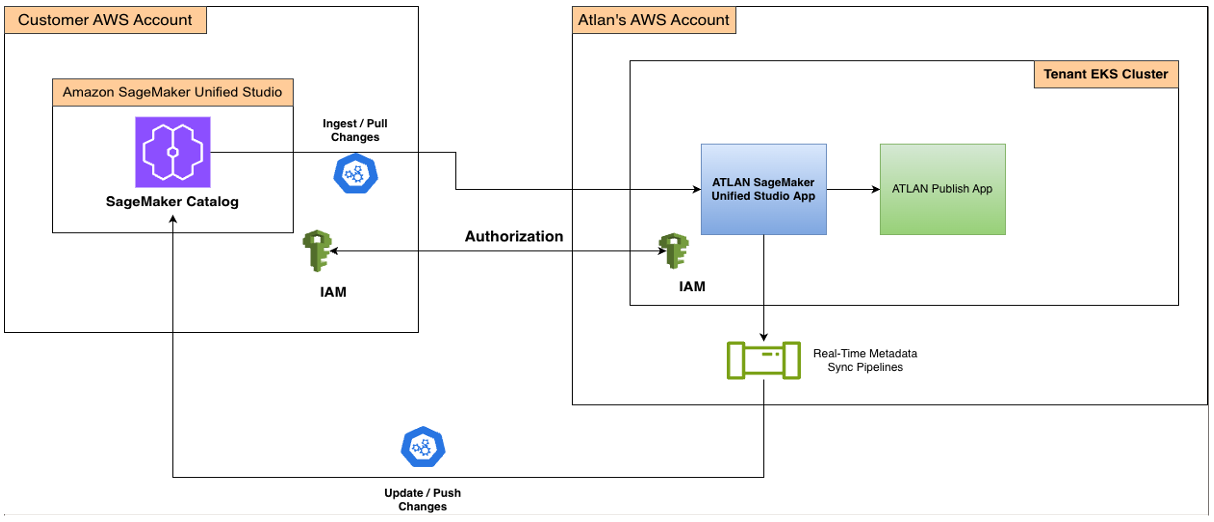
The following figure shows the high level architecture for this solution.

Figure 1: Two-Way Email-To-SMS architecture

  1. Email Users send an email to the email address formatted as “mobile-number@verified-domain”. Amazon SES email receiving receives the email and triggers a receipt rule.
  2. The email is published to Amazon Simple Notification Service (SNS) topic (EmailToSMS) based on the receipt rule action, which triggers an AWS Lambda function (ConvertEmailToSMS). The ConvertEmailToSMS Lambda function performs the following actions:
    1. Receives the event from SNS and constructs a text message using the email body content.
    2. The constructed message is then sent to the “mobile-number” in the destination email address using the “SendTextMessage” API from AWS End User Messaging SMS. This is achieved by using a phone number in AWS End User Messaging SMS as the origination identity.
    3. The SMS message ID and source email address are stored as items in the Amazon DynamoDB table (MessageTrackingTable). This tracks email addresses for replies from SMS users.
  3. Mobile Users receive the SMS, and they have the option to reply to the phone number with two-way SMS messaging
  4. AWS End User Messaging receives the incoming SMS message from the Mobile Users. It then publishes this message to a SNS topic (SMSToEmail) for two-way SMS integration, which triggers a Lambda function (ConvertSMSToEmail). The ConvertSMSToEmail Lambda function performs the following actions:
    1. Retrieves the item from “MessageTrackingTable” using “previousPublishedMessageId” (SMS message ID) from the SNS event, and locate the corresponding email address.
    2. Sends the SMS message body to the Email Users using SES. This step uses “mobile-number@verified-domain” as the source email address, and the email address retrieved from the previous step as the destination.
  5. Email Users receive the email, and they have the option to reply to the email to continue the conversation. Mobile Users will receive the latest reply from Email Users.

Walkthrough

This section will dive into the step-by step process for the deployment. There are 4 steps to deploy this solution:

  1. Configure SES verified identity for email receiving and sending.
  2. Deploy the CloudFormation stack for the Email to SMS functionality.
  3. Deploy the CloudFormation stack for the SMS to Email functionality.
  4. Set up two-way SMS messaging in AWS End User Messaging SMS.

Note: the Lambda code for this solution is developed based on phone numbers and long code as the supported origination identity in Australia. You need to adjust the Lambda code (“format_phone_number” function) accordingly for this to work in your country.

Refer to this GitHub repository for the solution source code.

Prerequisites

Prerequisites for this walkthrough:

  1. Administrator-level access to an AWS account
  2. A domain or subdomain that you own to create SES verified identity
  3. An origination identity that supports two-way messaging, following Choosing an origination identity for two-way messaging use cases. Simulator phone numbers are available if you are in the US
  4. A mobile phone to send and receive SMS
  5. An email address to send and receive emails

Step 1: Configure SES Verified Identity

Follow the steps outlined in Creating a domain identity to create a verified identity for your domain in your AWS account. Confirm your domain identity is in the “Verified” status before proceeding to the next step:

Figure 2: Verified Identity

Step 2: Deploy Email to SMS functionality

The following steps create a CloudFormation stack to deploy the required components for Email to SMS functionality:

  1. Sign in to your AWS account.
  2. Download the email-to-sms.yaml for creating the stack.
  3. Navigate to the AWS CloudFormation page.
  4. Choose Create stack, and then choose With new resources (standard).
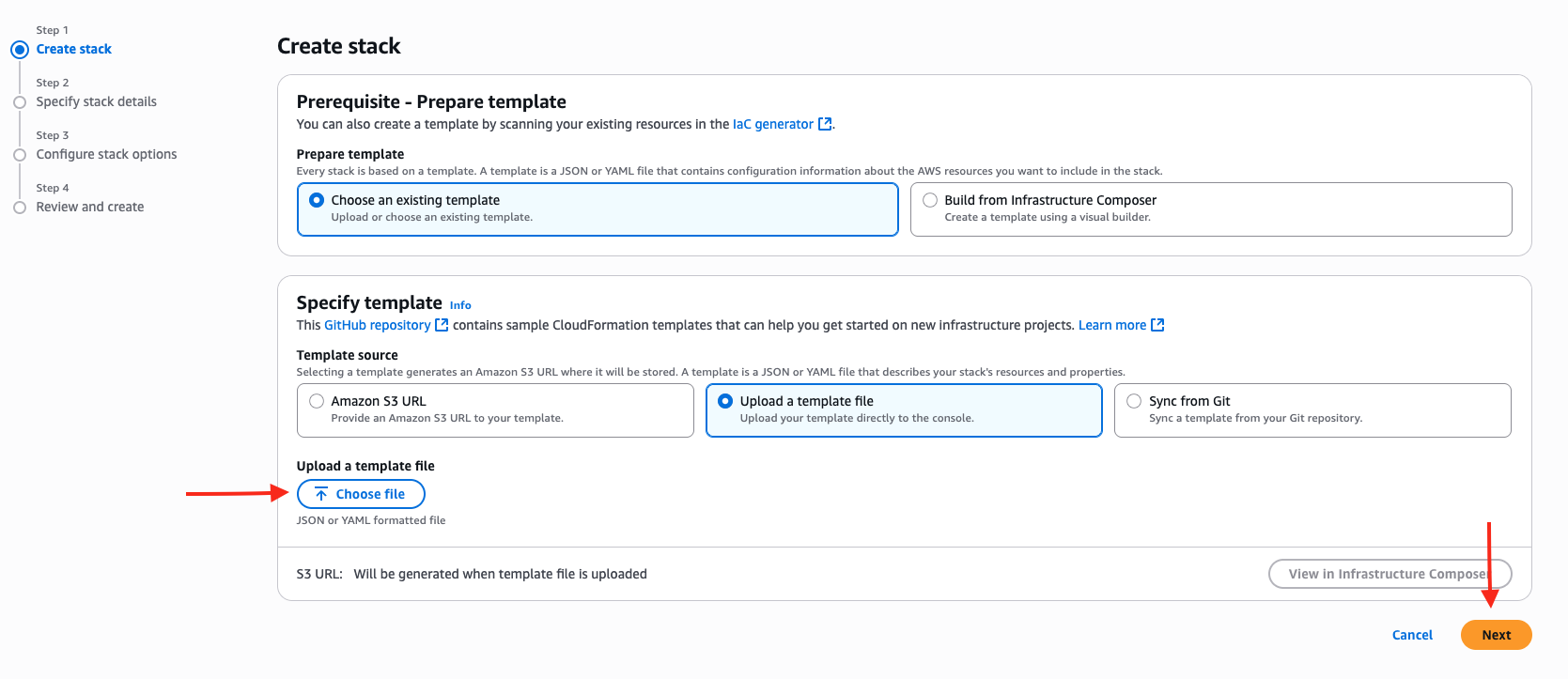
  5. Choose Upload a template file and upload the CloudFormation template that you downloaded earlier: email-to-sms.yaml. Then choose Next.
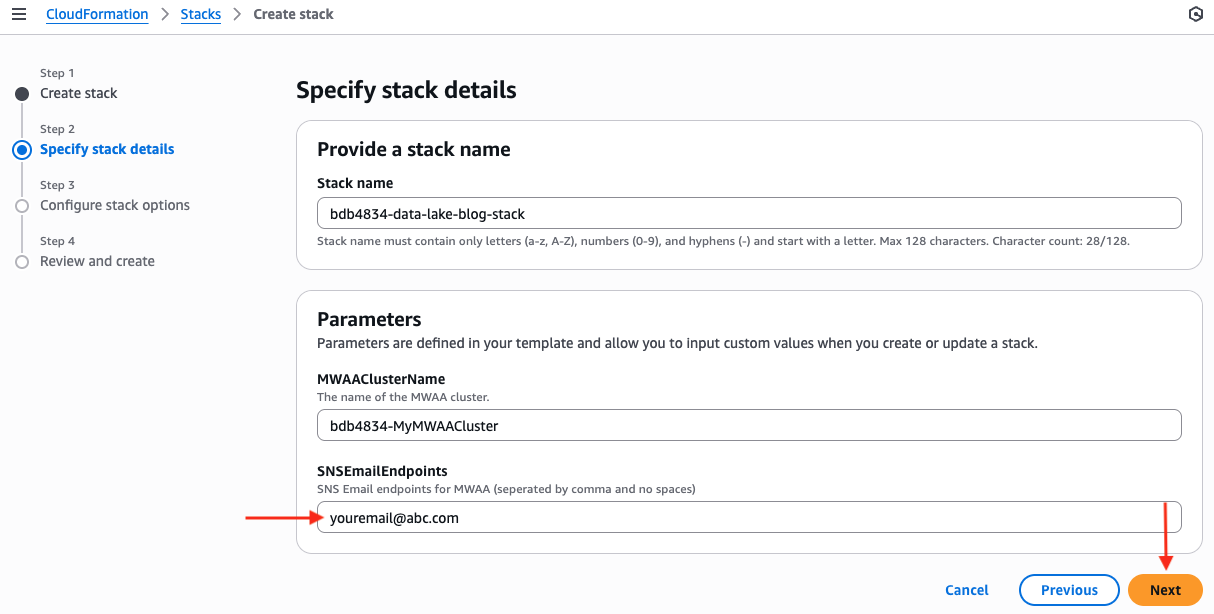
  6. Enter the stack name Email-To-SMS.
  7. Enter the following values for the parameters:
    • RuleName: The name of your SES Rule Set and receipt rule.
    • Recipient1: Domain name used for recipient condition in the SES Rule Set.
    • Recipient2: Domain name used for recipient condition in the SES Rule Set if you need additional recipients.
    • PhoneNumberId: Phone number ID of the phone number to send SMS messages.
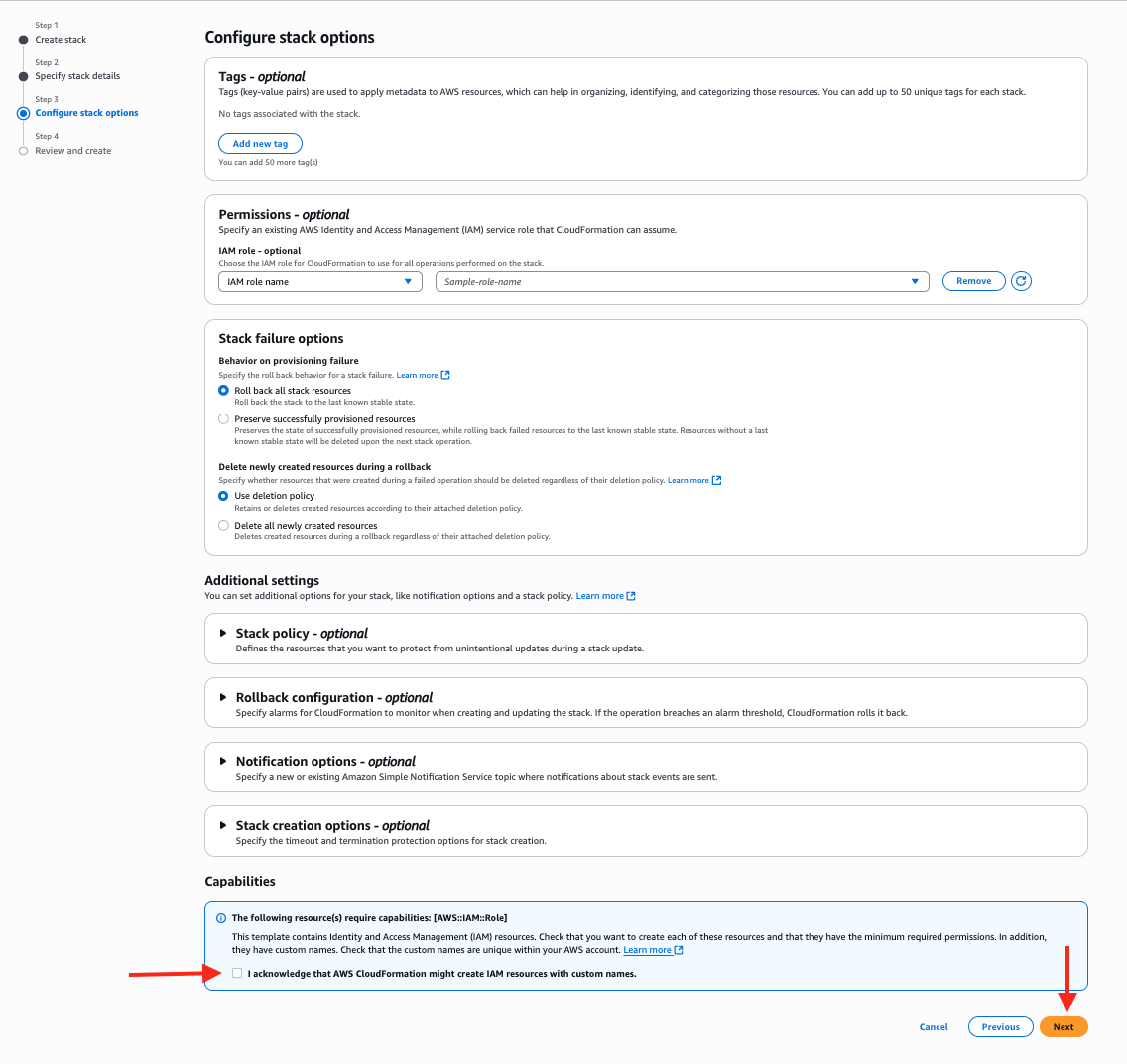
  8. Choose Next, and then optionally enter tags and choose Submit. Wait for the stack creation to finish.

Now you have the required components to convert email to text, and sending it as SMS to a phone number using AWS End User Messaging SMS.

Note: if required, modify the following code in email-to-sms.yaml to format your phone numbers accordingly:

def format_phone_number(email_address):

    # Extract the local part of the email address (before @)

    local_part = email_address.split('@')[0]   

    # Remove the leading '0' and add '+61' for phone number (Australia)

    if local_part.startswith('0'):

        formatted_number = '+61' + local_part[1:]

    return formatted_number

Step 3: Deploy SMS to Email functionality

The following steps create a CloudFormation stack to deploy the required components for SMS to Email functionality:

  1. Sign in to your AWS account.
  2. Download the sms-to-email.yaml for creating the stack.
  3. Navigate to the AWS CloudFormation page.
  4. Choose Create stack, and then choose With new resources (standard).
  5. Choose Upload a template file and upload the CloudFormation template that you downloaded earlier: sms-to-email.yaml. Then choose Next.
  6. Enter the stack name SMS-To-Email.
  7. Enter the following values for the parameters:
    • EmailDomain: The email domain to use for the SMS-to-Email function
  8. Choose Next, and then optionally enter tags and choose Submit. Wait for the stack creation to finish.

Note: if required, modify the following code in sms-to-email.yaml to format your phone numbers accordingly:

def format_phone_number(phone_number):

    # Replace the '+61' with '0' from the phone number (Australia)

    formatted_number = f"0{mobile_number[3:]}"

    return formatted_number

Step 4: Set up Two-Way Messaging in AWS End User Messaging SMS

Follow the steps 1 – 5 outlined in Set up two-way SMS messaging for a phone number in AWS End User Messaging SMS.

For step 6:

  • For Destination type, choose Amazon SNS.
  • Choose Existing SNS standard topic.
  • For Incoming messages destination, choose the SNS topic created from Step 3 (default topic name is SMSToEmailTopic).
  • For Two-way channel role, choose Use SNS topic policies.
  • Choose Save changes.

This allows your origination identity (phone number) to receive incoming messages, which is then published to an SNS topic and converted into emails by Lambda.

Testing

To test the solution, send an email with the destination address of “mobile-number@verified-domain”. You should receive a SMS on your mobile with the following information:

Note: AWS End User Messaging SMS has character limit for SMS messages depending on the type of characters the message contains. This solution takes the first 160 characters of the email body by default, you can adjust the EmailToSMS Lambda function as required.

Reply directly to the SMS, you should receive an email at the same email address that sent the original email, with the following information:

  • Subject: Re:mobile-number
  • Body: SMS message content
  • Source email address: mobile-number@verified-domain

If you are not receiving the email or SMS, check the Lambda CloudWatch logs for troubleshooting.

Cleaning up

To remove unneeded resources after testing the solution, follow these steps:

  1. In the CloudFormation console, delete the Email-To-SMS stack
  2. In the CloudFormation console, delete the SMS-To-Email stack
  3. If applicable, in Amazon SES, delete the verified identities
  4. If applicable, in AWS End User Messaging, release the unused phone numbers

Additional Consideration

Conclusion

This blog has explored how organizations can leverage AWS services to build a flexible, two-way communication solution bridging the gap between email and SMS channels. By integrating Amazon SES and Amazon End User Messaging, businesses can reach their audience through multiple channels, ensuring timely and effective delivery of critical messages.

The detailed guide provided the knowledge to create a scalable, cost-effective system tailored to evolving communication needs – whether facilitating email-to-SMS or SMS-to-email exchanges. This unified approach to email and SMS capabilities empowers companies to address the common challenge of managing disparate communication platforms, streamlining workflows and enhancing responsiveness.

If you run into issues or want to submit a feature request, use the New issue button under the issues tab in the GitHub repository.

How Volkswagen Autoeuropa built a data mesh to accelerate digital transformation using Amazon DataZone

Post Syndicated from Dhrubajyoti Mukherjee original https://aws.amazon.com/blogs/big-data/how-volkswagen-autoeuropa-built-a-data-mesh-to-accelerate-digital-transformation-using-amazon-datazone/

This is a joint blog post co-authored with Martin Mikoleizig from Volkswagen Autoeuropa.

Volkswagen Autoeuropa is a Volkswagen Group plant that produces the T-Roc. The plant is located near Lisbon, Portugal and produces about 934 cars per day. In 2023, Volkswagen Autoeuropa represented 1.3% of the national GDP of Portugal and 4% in national export of goods impact with a sales volume of 3.3511 billion Euros. Volkswagen Autoeuropa aims to become a data-driven factory and has been using cutting-edge technologies to enhance digitalization efforts.

In this post, we discuss how Volkswagen Autoeuropa used Amazon DataZone to build a data marketplace based on data mesh architecture to accelerate their digital transformation. The data mesh, built on Amazon DataZone, simplified data access, improved data quality, and established governance at scale to power analytics, reporting, AI, and machine learning (ML) use cases. As a result, the data solution offers benefits such as faster access to data, expeditious decision making, accelerated time to value for use cases, and enhanced data governance.

Understanding Volkswagen Autoeuropa’s challenges

At the time of writing this post, Volkswagen Autoeuropa has already implemented more than 15 successful digital use cases in the context of real-time visualization, business intelligence, industrial computer vision, and AI.

Before the AWS partnership, Volkswagen Autoeuropa faced the following challenges.

  • Long lead time to access data – The digital use cases launched by Volkswagen Autoeuropa spent most of their project time getting access to the data that was relevant to their use cases. After the right data for the use case was found, the IT team provided access to the data through manual configuration. The lead time to access data was often from several days to weeks.
  • Insufficient data governance and auditing – Data was shared directly to use cases by copying it. Therefore, the IT team connected the data manually from their sources to the desired destinations multiple times. This process wasn’t centrally tracked to discover any information on the data sharing process. For example, if the data was copied in the past, how many use cases have access to the data, when access was granted, and who granted the access.
  • Redundant effort to process the same information – Because the IT team copied the data sources based on the exact use case requirements, they shared specific columns of the tables from the data. As additional use cases requested access to the same data with different column requirements, even more copies of the data were created.
  • Repeated process to establish security and governance guardrails – Each time the IT and the security team provided a connection to a new data source, they had to set up the security and governance guardrails. This required repeated manual effort.
  • Data quality issues – Because the data was processed redundantly and shared multiple times, there was no guarantee of or control over the quality of the data. This led to reduced trust in the data.
  • Absence of data catalog and metadata management – Data didn’t have any metadata associated with it, and so use cases couldn’t consume the data without further explanation from the data source owners and specialists. Furthermore, no process to discover new data existed. Similar to the consumption process, use cases would consult specialists to understand the context of the data and if it could provide value.

Envisioning a data solution for Volkswagen Autoeuropa

To address these challenges, Volkswagen Autoeuropa embarked on a bold vision. They envisioned a seamless data consumption process, similar to an online shopping experience. They envisioned a data marketplace where data users could browse and access high-quality, secure data with clear specifications, business context, and relevant attributes. This vision materialized into a project aimed at transforming data accessibility and governance as the foundation for the digital ecosystem. The vision to be realized: Data as seamless as online shopping.

In collaboration with Amazon Web Services (AWS), Volkswagen Autoeuropa joined the Enhanced Plant Onboarding Program of the Global Volkswagen Group’s Digital Production Platform (DPP EPO) strategy. Through this partnership, AWS and Volkswagen Autoeuropa created a data marketplace that significantly improved data availability.

In the discovery phase of the project, Volkswagen Autoeuropa and AWS evaluated several options to build the data solution. In the end, Volkswagen Autoeuropa chose a solution based on data mesh architecture using Amazon DataZone. Being a managed service, Amazon DataZone provided the necessary speed and agility to build the solution. At the same time, it led to higher operational efficiencies and lower operational overhead. The team adopted a data mesh architecture because the principles of the data mesh aligned with Volkswagen Autoeuropa’s vision of being a data driven factory.

Solution overview

This section describes the key features and architecture of the Volkswagen Autoeuropa data solution. The solution is based on a data mesh architecture.

Data solution features

The following figure shows the key capabilities of the Volkswagen Autoeuropa data solution.

The key capabilities of the solution are:

  • Data quality – In the solution, we’ve built a data quality framework to streamline the process of data quality checks and publishing quality scores. It uses AWS Glue Data Quality to generate recommendation rulesets, run orchestrated jobs, store results, and send notifications to users. This framework can be seamlessly integrated into AWS Glue jobs, providing a quality score for data pipeline jobs. In addition, the quality score is published in the Amazon DataZone data portal, allowing consumers to subscribe to the data based on its quality score.Assigning a quality score to the data helps build trust in the data, and shifts the responsibility of maintaining data quality to the data owner. As a result, the quality of the results delivered by these use cases improves.
  • Data registration – The producers sign in to the Amazon DataZone data portal using their AWS Identity and Access Management (IAM) credentials or single sign-on with integration through AWS IAM Identity Center. They register their data assets, which are stored in Amazon Simple Storage Service (Amazon S3), in the Amazon DataZone data catalog. The metadata of the data assets is stored in an AWS Glue catalog and made available in the business data catalog of Amazon DataZone and in the Amazon DataZone data source. The producers add business context such as business unit name, data owner contact information, and data refresh frequency using Amazon DataZone glossaries and metadata forms. In addition, they use generative AI capabilities to generate business metadata. After the business metadata is generated, they review the changes and modify the metadata if needed.Because all data products in Volkswagen Autoeuropa are now registered in the same location, the likelihood of data duplication is significantly reduced. Moreover, the data producers are improving the quality of the data by adding business context to it.
  • Data discovery – The consumers sign in to the Amazon DataZone data portal using their IAM credentials or single sign-on with integration through IAM Identity Center and search the data using keywords in the search bar. After the results are returned, they can further filter the results using glossary terms and project names. Finally, they review the business metadata of the data assets to evaluate if the data is relevant to their business use cases. They can check the quality score of the data assets and the refresh schedule for their use cases.With a data discovery capability in place, consumers can gain information about the data without the need to consult the source system owners or specialists.
  • Data access management – When the consumers find a data asset that’s relevant to their use case, they request access to it using the subscription feature of Amazon DataZone. Data is classified as public, internal, and confidential. For public and internal data assets, the access request is automatically approved. For confidential data assets, the data producer team reviews the access request and either accepts or rejects the subscription request.With a central place to manage data access, data owners can view which use cases have access to their data and when the access request was granted. The fine-grained access control feature of Amazon DataZone gives data owners granular control of their data at the row and column levels.
  • Data consumption – Upon approval of the subscription request, Amazon DataZone provisions the backend infrastructure to make the data accessible to the corresponding consumers. After this process is complete, the consumers can access the data through Amazon Athena using the deep link feature of Amazon DataZone. The data consumption pattern in Volkswagen Autoeuropa supports two use cases:
    • Cloud-to-cloud consumption – Both data assets and consumer teams or applications are hosted in the cloud.
    • Cloud-to-on-premises consumption – Data assets are hosted in the cloud and consumer use cases or applications are hosted on-premises.

Requirements specific to a use case requires access to the relevant data assets; sharing data to use cases using Amazon DataZone doesn’t require creating multiple copies. As a result, duplication and processing of data. Furthermore, by reducing the number of copies of the data, the overall quality of the data products improves. In addition, the backend automation of Amazon DataZone to make data available to use cases reduces the manual effort and improves the lead time to access data.

  • Single collaborative environment – The Amazon DataZone data portal provides a single collaborative environment to the users in Volkswagen Autoeuropa. Data consumers such as use case owners, data engineers, data scientists, and ML engineers can browse and request access to data assets. At the same time, data producers, such as use case owners and source system owners, can publish and curate their data in the Amazon DataZone data portal. This collaborative experience promotes teamwork and accelerates the realization of business value. Furthermore, the security and governance guardrails scales across the organization as the number of use cases increases.

Data solution architecture

The following figure displays the reference architecture of the data solution at Volkswagen Autoeuropa. In the next part of the post, we discuss how we arrived at the solution.

The architecture includes:

  1. The data from SAP applications, manufacturing execution systems (MES), and supervisory control and data acquisition (SCADA) systems is ingested into the producer accounts of Volkswagen Autoeuropa.
  2. In the producer account, raw data is transformed using AWS Glue. The technical metadata of the data is stored in AWS Glue catalog. The data quality is measured using the data quality framework. The data stored in Amazon Simple Storage Service (Amazon S3) is registered as an asset in the Amazon DataZone data catalog hosted in the central governance account.
  3. The central governance account hosts the Amazon DataZone domain and the related Amazon DataZone data portal. The AWS accounts of the data producers and consumers are associated with the Amazon DataZone domain. Amazon DataZone projects belonging to the data producers and consumers are created under the related Amazon DataZone domain units.
  4. Consumers of the data products sign in to the Amazon DataZone data portal hosted in the central governance account using their IAM credentials or single sign-on with integration through IAM Identity Center. They search, filter, and view asset information (for example, data quality, business, and technical metadata).
  5. After the consumer finds the asset they need, they request access to the asset using the subscription feature of Amazon DataZone. Based on the validity of the request, the asset owner approves or rejects the request.
  6. After the subscription request is granted and fulfilled, the asset is accessed in the consumer account for a one-time query using Athena and Microsoft Power BI applications hosted on premises. This consumption pattern can be extended for AI and machine learning (AI/ML) model development using Amazon SageMaker and reporting purposes using Amazon QuickSight.

User journey

After discussing the desired system with the use case teams and stakeholders and analyzing the current workflow, Volkswagen Autoeuropa grouped the user personas of the data solution into three main categories: data producer, data consumer, and data solution administrator. This sets the foundation for the desired user experience and what’s needed to achieve the solution goals.

Data producer

Data producers create the data products in the data solution. There are two types of data producers.

  • Data source owners – Data source owners publish the raw data in the Amazon DataZone data portal. These data products are attributed as source-based data.
  • Use case owners – Use case owners publish data that’s fit for consumption by other use cases. These data products are called consumer-based data.

The following figure shows the user journey of a data producer:


A data producer’s journey includes:

  1. Identify data of interest
    1. Identify data (Volkswagen Autoeuropa network).
    2. Perform data quality checks (Volkswagen Autoeuropa network).
  2. Connect data to the data solution
    1. Ingest data into the data solution (Amazon DataZone portal).
    2. Start process to connect data using AWS Glue.
  3. Locate the data source in the data solution
    1. Register data (Amazon DataZone portal).
    2. Add data to the inventory in Amazon DataZone.
  4. Add or edit metadata
    1. Add or edit metadata (Amazon DataZone portal).
    2. Publish data assets (Amazon DataZone portal).
  5. Approve or reject subscription request
    1. Review subscription requests.
  6. Maintain data assets
    1. Manage data assets (Amazon DataZone portal).

Data consumer

Data consumers use data for business analytics, machine learning, AI, and business reporting. Data consumers are data engineers, data scientists, ML engineers, and business users. The following diagram shows the journey of a data consumer.

A data consumer’s journey includes:

  1. Access Amazon DataZone portal
    1. Amazon DataZone portal – Access is granted based on the user’s assigned domain and projects.
  2. Search for data assets
    1. Data assets in Amazon DataZone portal – Search for data and brows the results by glossary terms or the project name. Use additional filters to refine the results.
  3. View business metadata
    1. Select a data asset to see additional information – Review the description, data quality score and metadata.
  4. Request access to data (subscribe)
    1. Subscribe to request access.
    2. After the subscription request is approved, review the data products that you have access to.
    3. Query the data to view and consume the data.
  5. Retrieve additional data
    1. Repeat the steps as needed to access and retrieve additional data.

Data solution administrator

Data solution administrators are responsible for performing administrative tasks on the data solution. The following figure shows the common tasks performed by the data solution administrator.

A data administrator’s journey includes:

  1. Manage projects
    1. Manage Amazon DataZone domain.
    2. Manage Amazon DataZone projects within the domain.
  2. Manage environment
    1. Set up the environment to manage the infrastructure.
  3. Manage business metadata glossary
    1. Manage and enable Amazon DataZone glossaries and metadata forms.
  4. Manage data assets
    1. Manage assets.
    2. Query the data to view and consume the data.
  5. Manage access to data solution
    1. Monitor and revoke access when appropriate.

Conclusion

In this post, you learned how Volkswagen Autoeuropa embarked on a bold vision to become a data driven factory. It shows how this vision was put into action by building a data solution based on data mesh architecture using Amazon DataZone. It highlights the key features and architecture of the data solutions and presents the user journey. As of writing this post, Volkswagen Autoeuropa reduced the data discovery time from days to minutes using the data solution. The time to access data took several weeks before the Volkswagen Autoeuropa and AWS collaboration. Now, with the help of the data solution, the data access time has been reduced to several minutes.

In May 2024, the team achieved a major milestone by successfully offering data on the data solution and transporting it instantly to Power BI, a process that previously took several weeks.

“After one year of work, we did the full roundtrip from offering data on our new data marketplace built using Amazon DataZone to transporting it instantly to third-party tools, a process that previously took several weeks. This was a big achievement for our team.”

– Jorge Paulino, Product owner of the data solution. Volkswagen Autoeuropa.

The next post of the two-part series details discusses how we built the solution, its technical details, and the business value created.

If you want to harness the agility and scalability of a data mesh architecture and Amazon DataZone to accelerate innovation and drive business value for your organization, we have the resources to get you started. Be sure to check out the AWS Prescriptive Guidance: Strategies for building a data mesh-based enterprise solution on AWS. This comprehensive guide covers the key considerations and best practices for establishing a robust, well-governed data mesh on AWS. From aligning your data mesh with overall business strategy to scaling the data mesh across your organization, this Prescriptive Guidance provides a clear roadmap to help you succeed.

If you’re curious to get hands-on, see the GitHub repository: Building an enterprise Data Mesh with Amazon DataZone, Amazon DataZone, AWS CDK, and AWS CloudFormation. This open source project delivers a step-by-step guide to build a data mesh architecture using Amazon DataZone, AWS Cloud Development Kit (AWS CDK), and AWS CloudFormation.


About the Authors

Dhrubajyoti Mukherjee is a Cloud Infrastructure Architect with a strong focus on data strategy, data analytics, and data governance at Amazon Web Services (AWS). He uses his deep expertise to provide guidance to global enterprise customers across industries, helping them build scalable and secure AWS solutions that drive meaningful business outcomes. Dhrubajyoti is passionate about creating innovative, customer-centric solutions that enable digital transformation, business agility, and performance improvement. An active contributor to the AWS community, Dhrubajyoti authors AWS Prescriptive Guidance publications, blog posts, and open-source artifacts, sharing his insights and best practices with the broader community. Outside of work, Dhrubajyoti enjoys spending quality time with his family and exploring nature through his love of hiking mountains.

Ravi Kumar is a Data Architect and Analytics expert at Amazon Web Services; he finds immense fulfillment in working with data. His days are dedicated to designing and analyzing complex data systems, uncovering valuable insights that drive business decisions. Outside of work, he unwinds by listening to music and watching movies, activities that allow him to recharge after a long day of data wrangling.

Martin Mikoleizig studied mechanical engineering and production technology at the RWTH Aachen University before starting to work in Dr. h.c. Ing. F. Porsche AG 2015 as a production planner for the engine assembly. In several years as a Project Manager on Testing Technology for new engine models he also introduced several innovations like human-machine-collaborations and intelligent assistance systems. From 2017, he was responsible for the Shopfloor IT team of the module lines in Zuffenhausen before he became responsible for the Planning of the E-Drive assembly at Porsche. Beside this he was responsible for the Digitalisation Strategy of the Production Ressort at Porsche. Since October 2022, he has been assigned to Volkswagen Autoeuropa in Portugal in the role of a Digital Transformation Manager for the plant driving the Digital Transformation towards a Data Driven Factory.

Weizhou Sun is a Lead Architect at Amazon Web Services, specializing in digital manufacturing solutions and IoT. With extensive experience in Europe, she has enhanced operational efficiencies, reducing latency and increasing throughput. Weizhou’s expertise includes Industrial Computer Vision, predictive maintenance, and predictive quality, consistently delivering top performance and client satisfaction. A recognized thought leader in IoT and remote driving, she has contributed to business growth through innovations and open-source work. Committed to knowledge sharing, Weizhou mentors colleagues and contributes to practice development. Known for her problem-solving skills and customer focus, she delivers solutions that exceed expectations. In her free time, Weizhou explores new technologies and fosters a collaborative culture.

Shameka Almond is an Advisory Consultant at Amazon Web Services. She works closely with enterprise customers to help them better understand the business impact and value of implementing data solutions, including data governance best practices. Shameka has over a decade of wide-ranging IT experience in the manufacturing and aerospace industries, and the nonprofit sector. She has supported several data governance initiatives, helping both public and private organizations identify opportunities for improvement and increased efficiency. Outside of the office she enjoys hosting large family gatherings, and supporting community outreach events dedicated to introducing students in K-12 to STEM.

Adjoa Taylor has over 20 years of experience in industrial manufacturing, providing industry and technology consulting services, digital transformation, and solution delivery. Currently Adjoa leads Product Centric Digital Transformation, enabling customers to solve complex manufacturing problems by leveraging Smart Factory and Industry leading transformation mechanisms. Most recently driving value with AI/ML and generative AI use-cases for the plant floor. Adjoa is an experienced leader spending over 20 years of her career delivering projects in countries throughout North America, Latin America, Europe, and Asia. Through prior roles, Adjoa brings deep experience across multiple business segments with a focus on business outcome driven solutions. Adjoa is passionate about helping customers solve problems while realizing the art of the possible via the right impacting value-based solution.

Modernize your legacy databases with AWS data lakes, Part 3: Build a data lake processing layer

Post Syndicated from Anoop Kumar K M original https://aws.amazon.com/blogs/big-data/modernize-your-legacy-databases-with-aws-data-lakes-part-3-build-a-data-lake-processing-layer/

This is the final part of a three-part series where we show how to build a data lake on AWS using a modern data architecture. This post shows how to process data with Amazon Redshift Spectrum and create the gold (consumption) layer. To review the first two parts of the series where we load data from SQL Server into Amazon Simple Storage Service (Amazon S3) using AWS Database Migration Service (AWS DMS) and load the data into the silver layer of the data lake, see the following:

Solution overview

Choosing the right tools and technology stack to build the data lake in order to build a scalable solution and have shorter time to market is critical. In this post, we go over the process of building a data lake, providing rationale behind the different decisions, and share best practices when building such a data solution.

The following diagram illustrates the different layers of the data lake.

The data lake is designed to serve a multitude of use cases. In the silver layer of the data lake, the data is stored as it is loaded from sources, preserving the table and schema structure. In the gold layer, we create data marts by combining, aggregating, and enriching data as required by our use cases. The gold layer is the consumption layer for the data lake. In this post, we describe how you can use Redshift Spectrum as an API to query data.

To create data marts, we use Amazon Redshift Query Editor. It provides a web-based analyst workbench to create, explore, and share SQL queries. In our use case, we use Redshift Query Editor to create data marts using SQL code. We also use Redshift Spectrum, which allows you to efficiently query and retrieve structured and semi-structured data from files stored on Amazon S3 without having to load the data into the Redshift tables. The Apache Iceberg tables, which we created and cataloged in Part 2, can be queried using Redshift Spectrum. For the latest information on Redshift Spectrum integration with Iceberg, see Using Apache Iceberg tables with Amazon Redshift.

We also show how to use RedshiftDataAPIService to run SQL commands to query the data mart using a Boto3 Python SDK. You can use the Redshift Data API to create the resulting datasets on Amazon S3, and then use the datasets in use cases such as business intelligence dashboards and machine learning (ML).

In this post, we walk through the following steps:

  1. Set up a Redshift cluster.
  2. Set up a data mart.
  3. Query the data mart.

Prerequisites

To follow the solution, you need to set up certain access rights and resources:

  • An AWS Identity and Access Management (IAM) role for the Redshift cluster with access to an external data catalog in AWS Glue and data files in Amazon S3 (these are the data files populated by the silver layer in Part 2). The role also needs Redshift cluster permissions. This policy must include permissions to do the following:
    • Run SQL commands to copy, unload, and query data with Amazon Redshift.
    • Grant permissions to run SELECT statements for related services, such as Amazon S3, Amazon CloudWatch logs, Amazon SageMaker, and AWS Glue.
    • Manage AWS Lake Formation permissions (in case the AWS Glue Data Catalog is managed by Lake Formation).
  • An IAM execution role for AWS Lambda with permissions to access Amazon Redshift and AWS

For more information about setting up IAM roles for Redshift Spectrum, see Getting started with Amazon Redshift Spectrum.

Set up a Redshift cluster

Redshift Spectrum is a feature of Amazon Redshift that queries data stored in Amazon S3 directly, without having to load it into Amazon Redshift. In our use case, we use Redshift Spectrum to query Iceberg data stored as Parquet files on Amazon S3. To use Redshift Spectrum, we first need a Redshift cluster to run the Redshift Spectrum compute jobs. Complete the following steps to provision a Redshift cluster:

  1. On the Amazon Redshift console, choose Clusters in the navigation pane.
  2. Choose Create cluster.
  3. For Cluster identifier, enter a name for your cluster.
  4. For Choose the size of the cluster, select I’ll choose.
  5. For Node type, choose xlplus.
  6. For Number of nodes, enter 1.

can

  1. For Admin password, select Manage admin credentials in AWS Secrets Manager if you want to use Secrets Manager, otherwise you can generate and store the credentials manually.

  1. For the IAM role, choose the IAM role created in the prerequisites.
  2. Choose Create cluster.

We chose the cluster Availability Zone, number of nodes, compute type, and size for this post to minimize costs. If you’re working on larger datasets, we recommend reviewing the different instance types offered by Amazon Redshift to select the one that is appropriate for your workloads.

Set up a data mart

A data mart is a collection of data organized around a specific business area or use case, providing focused and quickly accessible data for analysis or consumption by applications or users. Unlike a data warehouse, which serves the entire organization, a data mart is tailored to the specific needs of a particular department, allowing for more efficient and targeted data analysis. In our use case, we use data marts to create aggregated data from the silver layer and store it in the gold layer for consumption. For our use case, we use the schema HumanResources in the AdventureWorks sample database we loaded in Part 1 (FIX LINK). This database contains a factory’s employee shift information for different departments. We use this database to create a summary of the shift rate changes for different departments, years, and shifts to see which years had the most rate changes.

We recommend using the auto mount feature in Redshift Spectrum. This feature removes the need to create an external schema in Amazon Redshift to query tables cataloged in the Data Catalog.

Complete the following steps to create a data mart:

  1. On the Amazon Redshift console, choose Query editor v2 in the navigation pane.
  2. Choose the cluster you created and choose AWS Secrets Manager or Database username and password depending on how you chose to store the credentials.
  3. After you’re connected, open a new query editor.

You will be able to see the AdventureWorks database under awsdatacatalog. You can now start querying the Iceberg database in the query editor.

query-editor

If you encounter permission issues, choose the options menu (three dots) next to the cluster, choose Edit connection, and connect using Secrets Manager or your database user name and password. Then grant privileges for the IAM user or role with the following command, and reconnect with your IAM identity:

GRANT USAGE ON DATABASE awsdatacatalog to "IAMR:MyRole"

For more information, see Querying the AWS Glue Data Catalog.

Next, you create a local schema to store the definition and data for the view.

  1. On the Create menu, choose Schema.
  2. Provide a name and set the type as local.
  3. For the data mart, create a dataset that combines different tables in the silver layer to generate a report of the total shift rate changes by department, year, and shift. The following SQL code will return the required dataset:
SELECT dep.name AS "Department Name",
extract(year from emp_pay_hist.ratechangedate) AS "Rate Change Year",
shift.name AS "Shift",
COUNT(emp_pay_hist.rate) AS "Rate Changes"
FROM "dev"."{redshift_schema_name}"."department" dep
INNER JOIN "dev"."{redshift_schema_name}"."employeedepartmenthistory" emp_hist
ON dep.departmentid = emp_hist.departmentid
INNER JOIN "dev"."{redshift_schema_name}"."employeepayhistory" emp_pay_hist
ON emp_pay_hist.businessentityid = emp_hist.businessentityid
INNER JOIN "dev"."{redshift_schema_name}"."employee" emp
ON emp_hist.businessentityid = emp.businessentityid
INNER JOIN "dev"."{redshift_schema_name}"."shift" shift
ON emp_hist.shiftid = shift.shiftid
WHERE emp.currentflag = 'true'
GROUP BY dep.name, extract(year from emp_pay_hist.ratechangedate), shift.name;
  1. Create an internal schema where you want Amazon Redshift to store the view definition:

CREATE SCHEMA IF NOT EXISTS {internal_schema_name};

  1. Create a view in Amazon Redshift that you can query to get the dataset:
CREATE OR REPLACE VIEW {internal_schema_name}.rate_changes_by_department_year AS
SELECT dep.name AS "Department Name",
extract(year from emp_pay_hist.ratechangedate) AS "Rate Change Year",
shift.name AS "Shift",
COUNT(emp_pay_hist.rate) AS "Rate Changes"
FROM "dev"."{redshift_schema_name}"."department" dep
INNER JOIN "dev"."{redshift_schema_name}"."employeedepartmenthistory" emp_hist
ON dep.departmentid = emp_hist.departmentid
INNER JOIN "dev"."{redshift_schema_name}"."employeepayhistory" emp_pay_hist
ON emp_pay_hist.businessentityid = emp_hist.businessentityid
INNER JOIN "dev"."{redshift_schema_name}"."employee" emp
ON emp_hist.businessentityid = emp.businessentityid
INNER JOIN "dev"."{redshift_schema_name}"."shift" shift
ON emp_hist.shiftid = shift.shiftid
WHERE emp.currentflag = 'true'
GROUP BY dep.name, extract(year from emp_pay_hist.ratechangedate), shift.name
WITH NO SCHEMA BINDING;

If the SQL takes a long time to run or produces a large result set, consider using Redshift Unlike regular views, which are computed in the moment, the results from materialized views can be pre-computed and stored on Amazon S3. When the data is requested, Amazon Redshift can point to an Amazon S3 location where the results are stored. Materialized views can be refreshed on demand and on a schedule.

Query the data mart

Lastly, we query the data mart using a Lambda function to show how the data can be retrieved using an API. The Lambda function requires an IAM role to access Secrets Manager where the Redshift user credentials are stored. We use the Redshift Data API to retrieve the dataset we created in the previous step. First, we call the execute_statement() command to run the view. Next , we check the status of the run by calling the describe_statement() call. Finally , when the statement has successfully run, we use the get_statement_result() call to get the result set. The Lambda function shown in the following code implements this logic and returns the result set from querying the view rate_changes_by_department_year:

import json
import boto3
import time

def lambda_handler(event, context):
	client = boto3.client('redshift-data')

	# Use the Redshift execute statement api to query the data mart
	response = client.execute_statement(
	ClusterIdentifier='{redshift cluster name}',
	Database='dev',
	SecretArn='{redshift cluster secrets manager secret arn}',
	Sql='select * from {internal_schema_name}.rate_changes_by_department_year',
	StatementName='query data mart'
	)

	statement_id = response["Id"]
	query_status = True
	resultSet = []

	# Check the status of the sql statement, once the statement has finished executing we can retrive the resultset
	while query_status:
	if client.describe_statement(Id=statement_id)["Status"] == "FINISHED":

	print("SQL statement has finished successfully and we can get the resultset")

	response = client.get_statement_result(
	Id=statement_id
	)
	columns = response["ColumnMetadata"]
	results = response["Records"]
	while "NextToken" in response:
	response = client.get_servers(NextToken=response["NextToken"])
	results.extend(response["Records"])

	resultSet.append(str(columns[0].get("label")) + "," + str(columns[1].get("label")) + "," + str(columns[2].get("label")) + "," + str(columns[3].get("label")))

	for result in results:
	resultSet.append(str(result[0].get("stringValue")) + "," + str(result[1].get("longValue")) + "," + str(result[2].get("stringValue")) + "," + str(result[3].get("longValue")))

	query_status = False

	# In case the statement runs into errors we abort the resultset retrival
	if client.describe_statement(Id=statement_id)["Status"] == "ABORTED" or client.describe_statement(Id=statement_id)["Status"] == "FAILED":
	query_status = False
	print("SQL statement has failed or aborted")

	# To avoid spamming the API with requests on the status of the statement, we introduce a 2 second wait between calls
	else:
	print("Query Status ::" + client.describe_statement(Id=statement_id)["Status"])
	time.sleep(2)

	return {
	'statusCode': 200,
	'body': resultSet
	}

The Redshift Data API allows you to access data from many different types of traditional, cloud-based, containerized, web service-based, and event-driven applications. The API is available in many programming languages and environments supported by the AWS SDK, such as Python, Go, Java, Node.js, PHP, Ruby, and C++. For larger datasets that don’t fit into memory, such as ML training datasets, you can use the Redshift UNLOAD command to move the results of the query to an Amazon S3 location.

Clean up

In this post, you created an IAM role, Redshift cluster, and Lambda function. To clean up your resources, complete the following steps:

  1. Delete the IAM role:
    1. On the IAM console, choose Roles in the navigation pane.
    2. Select the role and choose Delete.
  2. Delete the Redshift cluster:
    1. On the Amazon Redshift console, choose Clusters in the navigation pane.
    2. Select the cluster you created and on the Actions menu, choose Delete.
  3. Delete the Lambda function:
    1. On the Lambda console, choose Functions in the navigation pane.
    2. Select the function you created and on the Actions menu, choose Delete.

Conclusion

In this post, we showed how you can use Redshift Spectrum to create data marts on top of the data in your data lake. Redshift Spectrum can query Iceberg data stored in Amazon S3 and cataloged in AWS Glue. You can create views in Amazon Redshift that compute the results from the underlying data on demand, or pre-compute results and store them (using materialized views). Lastly, the Redshift Data API is a great tool for running SQL queries on the data lake from a wide variety of sources.

For more insights into the Redshift Data API and how to use it, refer to Using the Amazon Redshift Data API to interact with Amazon Redshift clusters. To continue to learn more about building a modern data architecture, refer to Analytics on AWS.


About the Authors

Shaheer Mansoor is a Senior Machine Learning Engineer at AWS, where he specializes in developing cutting-edge machine learning platforms. His expertise lies in creating scalable infrastructure to support advanced AI solutions. His focus areas are MLOps, feature stores, data lakes, model hosting, and generative AI.

Anoop Kumar K M is a Data Architect at AWS with focus in the data and analytics area. He helps customers in building scalable data platforms and in their enterprise data strategy. His areas of interest are data platforms, data analytics, security, file systems and operating systems. Anoop loves to travel and enjoys reading books in the crime fiction and financial domains.

Sreenivas Nettem is a Lead Database Consultant at AWS Professional Services. He has experience working with Microsoft technologies with a specialization in SQL Server. He works closely with customers to help migrate and modernize their databases to AWS.

Modernize your legacy databases with AWS data lakes, Part 2: Build a data lake using AWS DMS data on Apache Iceberg

Post Syndicated from Shaheer Mansoor original https://aws.amazon.com/blogs/big-data/modernize-your-legacy-databases-with-aws-data-lakes-part-2-build-a-data-lake-using-aws-dms-data-on-apache-iceberg/

This is part two of a three-part series where we show how to build a data lake on AWS using a modern data architecture. This post shows how to load data from a legacy database (SQL Server) into a transactional data lake (Apache Iceberg) using AWS Glue. We show how to build data pipelines using AWS Glue jobs, optimize them for both cost and performance, and implement schema evolution to automate manual tasks. To review the first part of the series, where we load SQL Server data into Amazon Simple Storage Service (Amazon S3) using AWS Database Migration Service (AWS DMS), see Modernize your legacy databases with AWS data lakes, Part 1: Migrate SQL Server using AWS DMS.

Solution overview

In this post, we go over the process of building a data lake, providing the rationale behind the different decisions, and share best practices when building such a solution.

The following diagram illustrates the different layers of the data lake.

Overall Architecture

To load data into the data lake, AWS Step Functions can define a workflow, Amazon Simple Queue Service (Amazon SQS) can track the order of incoming files, and AWS Glue jobs and the Data Catalog can be used create the data lake silver layer. AWS DMS produces files and writes these files to the bronze bucket (as we explained in Part 1).

We can turn on Amazon S3 notifications and push the new arriving file names to an SQS first-in-first-out (FIFO) queue. A Step Functions state machine can consume messages from this queue to process the files in the order they arrive.

For processing the files, we need to create two types of AWS Glue jobs:

  • Full load – This job loads the entire table data dump into an Iceberg table. Data types from the source are mapped to an Iceberg data type. After the data is loaded, the job updates the Data Catalog with the table schemas.
  • CDC – This job loads the change data capture (CDC) files into the respective Iceberg tables. The AWS Glue job implements the schema evolution feature of Iceberg to handle schema changes such as addition or deletion of columns.

As in Part 1, the AWS DMS jobs will place the full load and CDC data from the source database (SQL Server) in the raw S3 bucket. Now we process this data using AWS Glue and save it to the silver bucket in Iceberg format. AWS Glue has a plugin for Iceberg; for details, see Using the Iceberg framework in AWS Glue.

Along with moving data from the bronze to the silver bucket, we also create and update the Data Catalog for further processing the data for the gold bucket.

The following diagram illustrates how the full load and CDC jobs are defined inside the Step Functions workflow.

Step Functions for loading data into the lake

In this post, we discuss the AWS Glue jobs for defining the workflow. We recommend using AWS Step Functions Workflow Studio, and setting up Amazon S3 event notifications and an SNS FIFO queue to receive the filename as messages.

Prerequisites

To follow the solution, you need the following prerequisites set up as well as certain access rights and AWS Identity and Access Management (IAM) privileges:

  • An IAM role to run Glue jobs
  • IAM privileges to create AWS DMS resources (this role was created in Part 1 of this series; you can use the same role here)
  • The AWS DMS job from Part 1 working and producing files for the source database on Amazon S3.

Create an AWS Glue connection for the source database

We need to create a connection between AWS Glue and the source SQL Server database so the AWS Glue job can query the source for the latest schema while loading the data files. To create the connection, follow these steps:

  1. On the AWS Glue console, choose Connections in the navigation pane.
  2. Choose Create custom connector.
  3. Give the connection a name and choose JDBC as the connection type.
  4. In the JDBC URL section, enter the following string and replace the name of your source database endpoint and database that was set up in Part 1: jdbc:sqlserver://{Your RDS End Point Name}:1433/{Your Database Name}.
  5. Select Require SSL connection, then choose Create connector.

Clue Connections

Create and configure the full load AWS Glue job

Complete the following steps to create the full load job:

  1. On the AWS Glue console, choose ETL jobs in the navigation pane.
  2. Choose Script editor and select Spark.
  3. Choose Start fresh and select Create script.
  4. Enter a name for the full load job and choose the IAM role (mentioned in the prerequisites) for running the job.
  5. Finish creating the job.
  6. On the Job details tab, expand Advanced properties.
  7. In the Connections section, add the connection you created.
  8. Under Job parameters, pass the following arguments to the job:
    1. target_s3_bucket – The silver S3 bucket name.
    2. source_s3_bucket – The raw S3 bucket name.
    3. secret_id – The ID of the AWS Secrets Manager secret for the source database credentials.
    4. dbname – The source database name.
    5. datalake-formats – This sets the data format to iceberg.

Glue Job Parameters

The full load AWS Glue job starts after the AWS DMS task reaches 100%. The job loops over the files located in the raw S3 bucket and processes them one at time. For each file, the job infers the table name from the file name and gets the source table schema, including column names and primary keys.

If the table has one or more primary keys, the job creates an equivalent Iceberg table. If the job has no primary key, the file is not processed. In our use case, all the tables have primary keys, so we enforce this check. Depending on your data, you might need to handle this scenario differently.

You can use the following code to process the full load files. To start the job, choose Run.

import sys, boto3, json
import boto3
import json
from awsglue.utils import getResolvedOptions
from pyspark.context import SparkContext
from awsglue.context import GlueContext
from awsglue.job import Job
from pyspark.sql import SparkSession

#Get the arguments passed to the script
args = getResolvedOptions(sys.argv, ['JOB_NAME',
                           'target_s3_bucket',
                           'secret_id',
                           'source_s3_bucket'])
dbname = "AdventureWorks"
schema = "HumanResources"

#Initialize parameters
target_s3_bucket = args['target_s3_bucket']
source_s3_bucket = args['source_s3_bucket']
secret_id = args['secret_id']
unprocessed_tables = []
drop_column_list = ['db', 'table_name', 'schema_name', 'Op', 'last_update_time']  # DMS added columns

#Helper Function: Get Credentials from Secrets Manager
def get_db_credentials(secret_id):
    secretsmanager = boto3.client('secretsmanager')
    response = secretsmanager.get_secret_value(SecretId=secret_id)
    secrets = json.loads(response['SecretString'])
    return secrets['host'], int(secrets['port']), secrets['username'], secrets['password']

#Helper Function: Load Iceberg table with Primary key(s)
def load_table(full_load_data_df, dbname, table_name):

    try:
        full_load_data_df = full_load_data_df.drop(*drop_column_list)
        full_load_data_df.createOrReplaceTempView('full_data')

        query = """
        CREATE TABLE IF NOT EXISTS glue_catalog.{0}.{1}
        USING iceberg
        LOCATION "s3://{2}/{0}/{1}"
        AS SELECT * FROM full_data
        """.format(dbname, table_name, target_s3_bucket)
        spark.sql(query)
        
        #Update Table property to accept Schema Changes
        spark.sql("""ALTER TABLE glue_catalog.{0}.{1} SET TBLPROPERTIES (
                      'write.spark.accept-any-schema'='true'
                    )""".format(dbname, table_name))
        
    except Exception as ex:
        print(ex)
        failed_table = {"table_name": table_name, "Reason": ex}
        unprocessed_tables.append(failed_table)
        
def get_table_key(host, port, username, password, dbname):
    
    jdbc_url = "jdbc:sqlserver://{0}:{1};databaseName={2}".format(host, port, dbname)
    
    connectionProperties = {
      "user" : username,
      "password" : password
    }
    
    spark.read.jdbc(url=jdbc_url, table='INFORMATION_SCHEMA.TABLE_CONSTRAINTS', properties=connectionProperties).createOrReplaceTempView("TABLE_CONSTRAINTS")
    spark.read.jdbc(url=jdbc_url, table='INFORMATION_SCHEMA.CONSTRAINT_COLUMN_USAGE', properties=connectionProperties).createOrReplaceTempView("CONSTRAINT_COLUMN_USAGE")
    df_table_pkeys = spark.sql("select c.TABLE_NAME, C.COLUMN_NAME as primary_key FROM TABLE_CONSTRAINTS T JOIN CONSTRAINT_COLUMN_USAGE C ON C.CONSTRAINT_NAME=T.CONSTRAINT_NAME WHERE T.CONSTRAINT_TYPE='PRIMARY KEY'")
    return df_table_pkeys


#Setup Spark configuration for reading and writing Iceberg tables
spark = (
    SparkSession.builder
    .config("spark.sql.extensions", "org.apache.iceberg.spark.extensions.IcebergSparkSessionExtensions")
    .config("spark.sql.catalog.glue_catalog", "org.apache.iceberg.spark.SparkCatalog")
    .config("spark.sql.catalog.glue_catalog.warehouse", "s3://{0}".format(dbname))
    .config("spark.sql.catalog.glue_catalog.catalog-impl", "org.apache.iceberg.aws.glue.GlueCatalog")
    .config("spark.sql.catalog.glue_catalog.io-impl", "org.apache.iceberg.aws.s3.S3FileIO")
    .getOrCreate()
)


#Initialize MSSQL credentials
host, port, username, password = get_db_credentials(secret_id)

#Initialize primary keys for all tables
df_table_pkeys = get_table_key(host, port, username, password, dbname)

#Read Full load csv files from s3
s3 = boto3.client('s3')
full_load_tables = s3.list_objects_v2(Bucket=source_s3_bucket, Prefix="raw/{0}/{1}".format(args['dbname'], args['schema']))

#Loop over files
for item in full_load_tables['Contents']:
    pkey_list = []
    table_name = item["Key"].split("/")[3].lower()
    print("Table name {0}".format(table_name))
    current_table_df = df_table_pkeys.where(df_table_pkeys.TABLE_NAME == table_name)

    # Only Process tables with at least 1 Primary key
    if not current_table_df.isEmpty():
        for i in current_table_df.collect():
            pkey_list.append(i["primary_key"])
    else:
        failed_table = {"table_name": table_name, "Reason": "No primary key"}
        unprocessed_tables.append(failed_table)
        # ToDo Handle these cases

    full_data_path = "s3://{0}/{1}".format(source_s3_bucket, item['Key'])
    full_load_data_df = (spark
                        .read
                        .option("header", True)
                        .option("inferSchema", True)
                        .option("recursiveFileLookup", "true")
                        .csv(full_data_path)
                        )

    primary_key = ",".join(pkey_list)

    if table_name not in unprocessed_tables:
        load_table(full_load_data_df, dbname, table_name)

When the job is complete, it creates the database and tables in the Data Catalog, as shown in the following screenshot.

Data lake silver layer data

Create and configure the CDC AWS Glue job

The CDC AWS Glue job is created similar to the full load job. As with the full load AWS Glue job, you need to use the source database connection and pass the job parameters with one additional parameter, cdc_file, which contains the location of the CDC file to be processed. Because a CDC file can contain data for multiple tables, the job loops over the tables in a file and loads the table metadata from the source table ( RDS column names).

If the CDC operation is DELETE, the job deletes the records from the Iceberg table. If the CDC operation is INSERT or UPDATE, the job merges the data into the Iceberg table.

You can use the following code to process the CDC files. To start the job, choose Run

import sys
import boto3
import json
from awsglue.utils import getResolvedOptions
from pyspark.context import SparkContext
from awsglue.context import GlueContext
from awsglue.job import Job
from pyspark.sql import SparkSession

# Get the arguments passed to the script
args = getResolvedOptions(sys.argv, ['JOB_NAME',
                           'target_s3_bucket',
                           'secret_id',
                           'source_s3_bucket',
                           'cdc_file'])
dbname = "AdventureWorks"
schema = "HumanResources"
target_s3_bucket = args['target_s3_bucket']
source_s3_bucket = args['source_s3_bucket']
secret_id = args['secret_id']
cdc_file = args['cdc_file']
unprocessed_tables = []
drop_column_list = ['db', 'table_name', 'schema_name', 'Op', 'last_update_time']  # DMS added columns
source_s3_cdc_file_key = "raw/AdventureWorks/cdc/" + cdc_file


# Helper Function: Get Credentials from Secrets Manager
def get_db_credentials(secret_id):
    secretsmanager = boto3.client('secretsmanager')
    response = secretsmanager.get_secret_value(SecretId=secret_id)
    secrets = json.loads(response['SecretString'])
    return secrets['host'], int(secrets['port']), secrets['username'], secrets['password']

# Helper Function: Column names from RDS
def get_table_colums(table, host, port, username, password, dbname):

    jdbc_url = "jdbc:sqlserver://{0}:{1};databaseName={2}".format(host, port, dbname)
    
    connectionProperties = {
      "user" : username,
      "password" : password
    }
    
    spark.read.jdbc(url=jdbc_url, table='INFORMATION_SCHEMA.COLUMNS', properties= connectionProperties).createOrReplaceTempView("TABLE_COLUMNS")
    columns = list((row.COLUMN_NAME) for (index, row) in spark.sql("select TABLE_NAME, TABLE_CATALOG, COLUMN_NAME from TABLE_COLUMNS where TABLE_NAME = '{0}' and TABLE_CATALOG = '{1}'".format(table, dbname)).select("COLUMN_NAME").toPandas().iterrows())
    return columns

# Helper Function: Get Colum names and datatypes from RDS
def get_table_colum_datatypes(table, host, port, username, password, dbname):

    jdbc_url = "jdbc:sqlserver://{0}:{1};databaseName={2}".format(host, port, dbname)
    
    connectionProperties = {
      "user" : username,
      "password" : password
    }
    
    spark.read.jdbc(url=jdbc_url, table='INFORMATION_SCHEMA.COLUMNS', properties= connectionProperties).createOrReplaceTempView("TABLE_COLUMNS")
    return spark.sql("select TABLE_NAME, COLUMN_NAME, DATA_TYPE from TABLE_COLUMNS WHERE TABLE_NAME ='{0}'".format(table))

# Helper Function: Setup the primary key condition
def get_iceberg_table_condition(database, tablename):
    
    jdbc_url = "jdbc:sqlserver://{0}:{1};databaseName={2}".format(host, port, database)
    
    connectionProperties = {
      "user" : username,
      "password" : password
    }
    
    spark.read.jdbc(url=jdbc_url, table='INFORMATION_SCHEMA.TABLE_CONSTRAINTS', properties=connectionProperties).createOrReplaceTempView("TABLE_CONSTRAINTS")
    spark.read.jdbc(url=jdbc_url, table='INFORMATION_SCHEMA.CONSTRAINT_COLUMN_USAGE', properties=connectionProperties).createOrReplaceTempView("CONSTRAINT_COLUMN_USAGE")
    
    condition = ''
    
    for key in spark.sql("select C.COLUMN_NAME FROM TABLE_CONSTRAINTS T JOIN CONSTRAINT_COLUMN_USAGE C ON C.CONSTRAINT_NAME=T.CONSTRAINT_NAME WHERE T.CONSTRAINT_TYPE='PRIMARY KEY' AND c.TABLE_NAME = '{0}'".format(table)).collect():
        condition += "target.{0} = source.{0} and".format(key.COLUMN_NAME)
    return condition[:-4]

    
# Read incoming data from Amazon S3
def read_cdc_S3(source_s3_bucket, source_s3_cdc_file_key):
    
    inputDf = (spark
                    .read
                    .option("header", False)
                    .option("inferSchema", True)
                    .option("recursiveFileLookup", "true")
                    .csv("s3://" + source_s3_bucket + "/" + source_s3_cdc_file_key)
                    )
    return inputDf

# Setup Spark configuration for reading and writing Iceberg tables
spark = (
    SparkSession.builder
    .config("spark.sql.extensions", "org.apache.iceberg.spark.extensions.IcebergSparkSessionExtensions")
    .config("spark.sql.catalog.glue_catalog", "org.apache.iceberg.spark.SparkCatalog")
    .config("spark.sql.catalog.glue_catalog.warehouse", "s3://{0}".format(target_s3_bucket))
    .config("spark.sql.catalog.glue_catalog.catalog-impl", "org.apache.iceberg.aws.glue.GlueCatalog")
    .config("spark.sql.catalog.glue_catalog.io-impl", "org.apache.iceberg.aws.s3.S3FileIO")
    .getOrCreate()
)

#Initialize MSSQL credentials
host, port, username, password = get_db_credentials(secret_id)

#Read the cdc file 
cdc_df = read_cdc_S3(source_s3_bucket, source_s3_cdc_file_key)

tables = cdc_df.toPandas()._c1.unique().tolist()

#Loop over tables in the cdc file
for table in tables:
    #Create dataframes for delets and for inserts and updates
    table_df_deletes = cdc_df.where((cdc_df._c1 == table) & (cdc_df._c0 == "D")).drop(cdc_df.columns[0], cdc_df.columns[1], cdc_df.columns[2], cdc_df.columns[3])
    table_df_upserts = cdc_df.where((cdc_df._c1 == table) & ((cdc_df._c0 == "I") | (cdc_df._c0 == "U"))).drop(cdc_df.columns[0], cdc_df.columns[1], cdc_df.columns[2], cdc_df.columns[3])
    
    #Update column names for the dataframes
    columns = get_table_colums(table, host, port, username, password, dbname) 
    selectExpr = [] 

    for column in columns: 
        selectExpr.append(cdc_df.where((cdc_df._c1 == table)).drop(cdc_df.columns[0], cdc_df.columns[1], cdc_df.columns[2], cdc_df.columns[3]).columns[columns.index(column)] + " as " + column)

    table_df_deletes = table_df_deletes.selectExpr(selectExpr) 
    table_df_upserts = table_df_upserts.selectExpr(selectExpr)
    
    #Process Deletes
    if table_df_deletes.count() > 0:
        
        print("Delete Triggered")
        table_df_deletes.createOrReplaceTempView('deleted_rows')
        
        sql_string = """MERGE INTO glue_catalog.{0}.{1} target
                        USING (SELECT * FROM deleted_rows) source
                        ON {2}
                        WHEN MATCHED 
                        THEN DELETE""".format(database, table.lower(), get_iceberg_table_condition(database, table.lower()))
        spark.sql(sql_string)
    
    if table_df_upserts.count() > 0:
        print("Upsert triggered")

        #Upsert Records when there are Schema Changes
        if len(table_df_upserts.columns) != len(columns):

            #Handle column deletes
            if len(table_df_upserts.columns) < len(columns):

                drop_columns = list(set(columns) - set(table_df_upserts.columns))

                for drop_column in drop_columns:
                    sql_string = """
                                    ALTER TABLE glue_catalog.{0}.{1}
                                    DROP COLUMN {2}""".format(dbname.lower(), table.lower(), drop_column)
                    spark.sql(sql_string)

            #Handle column additions
            elif len(table_df_upserts.columns) > len(columns):

                column_datatype_df = get_table_colum_datatypes(table, host, port, username, password, dbname)
                add_columns = list(set(table_df_upserts.columns) - set(columns))

                for add_column in add_columns:

                    #Set Iceberg data type
                    data_type = list((row.DATA_TYPE) for (index, row) in column_datatype_df.filter("COLUMN_NAME='{0}'".format(add_column)).select("DATA_TYPE").toPandas().iterrows())[0]

                    # Convert MSSQL Datatypes to Iceberg supported datatypes
                    if data_type.lower() in ["varchar", "char"]:
                        data_type = "string"

                    if data_type.lower() in ["bigint"]:
                        data_type = "long"

                    if data_type.lower() in ["array"]:
                        data_type = "list"

                    sql_string = """
                                    ALTER TABLE glue_catalog.{0}.{1}
                                    ADD COLUMN {2} {3}""".format(dbname.lower(), table.lower(), add_column, data_type)
                    spark.sql(sql_string)
                    
            #Create statement to update columns
            update_table_column_list = ""
            insert_column_list = ""
            columns = get_table_colums(table, host, port, username, password, dbname)             

            for column in columns:

                update_table_column_list+="""target.{0}=source.{0},""".format(column)
                insert_column_list+="""source.{0},""".format(column)

            table_df_upserts.createOrReplaceTempView('updated_rows')

            sql_string = """MERGE INTO glue_catalog.{0}.{1} target
                            USING (SELECT * FROM updated_rows) source
                            ON {2}
                            WHEN MATCHED 
                            THEN UPDATE SET {3} 
                            WHEN NOT MATCHED THEN INSERT ({4}) VALUES ({5})""".format(dbname.lower(), 
                                                                                      table.lower(), 
                                                                                      get_iceberg_table_condition(dbname.lower(), table.lower()), 
                                                                                      update_table_column_list.rstrip(","), 
                                                                                      ",".join(columns), 
                                                                                      insert_column_list.rstrip(","))

            spark.sql(sql_string)

    
print("CDC job complete")

The Iceberg MERGE INTO syntax can handle cases where a new column is added. For more details on this feature, see the Iceberg MERGE INTO syntax documentation. If the CDC job needs to process many tables in the CDC file, the job can be multi-threaded to process the file in parallel.


Configure EventBridge notifications, SQS queue, and Step Functions state machine

You can use EventBridge notifications to send notifications to EventBridge when certain events occur on S3 buckets, such as when new objects are created and deleted. For this post, we’re interested in the events when new CDC files from AWS DMS arrive in the bronze S3 bucket. You can create event notifications for new objects and insert the file names into an SQS queue. A Lambda function within Step Functions would consume from the queue, extract the file name, start a CDC Glue job, and pass the file name as a parameter to the job.

AWS DMS CDC files contain database insert, update, and delete statements. We need to process these in order, so we use an SQS FIFO queue, which preserves the order of messages in which they arrive. You can also configure Amazon SQS to set a time to live (TTL); this parameter defines how long a message stays in the queue before it expires.

Another important parameter to consider when configuring an SQS queue is the message visibility timeout value. While a message is being processed, it disappears from the queue to make sure that the message isn’t consumed by multiple consumers (AWS Glue jobs in our case). If the message is consumed successfully, it should be deleted from the queue before the visibility timeout. However, if the visibility timeout expires and the message isn’t deleted, the message reappears in the queue. In our solution, this timeout must be greater than the time it takes for the CDC job to process a file.

Lastly, we recommend using Step Functions to define a workflow for handling the full load and CDC files. Step Functions has built-in integrations to other AWS services like Amazon SQS, AWS Glue, and Lambda, which makes it a good candidate for this use case.

The Step Functions state machine starts with checking the status of the AWS DMS task. The AWS DMS tasks can be queried to check the status of the full load, and we check the value of the parameter FullLoadProgressPercent. When this value gets to 100%, we can start processing the full load files. After the AWS Glue job processes the full load files, we start polling the SQS queue to check the size of the queue. If the queue size is greater than 0, this means new CDC files have arrived and we can start the AWS Glue CDC job to process these files. The AWS Glue jobs processes the CDC files and deletes the messages from the queue. When the queue size reaches 0, the AWS Glue job exits and we loop in the Step Functions workflow to check the SQS queue size.

Because the Step Functions state machine is supposed to run indefinitely, it’s good to keep in mind that there will be service limits you need to adhere to. Namely, the maximum runtime, which is 1 year, and maximum run history size, i.e., state transitions or events for a state machine which is 25,000. We recommend adding an additional step at the end to check if either of these conditions are being met to stop the current state machine run and start a new one.

The following diagram illustrates how you can use Step Functions state machine history size to monitor and start a new Step Functions state machine run.

Step Functions Workflow

Configure the pipeline

The pipeline needs to be configured to address cost, performance, and resilience goals. You might want a pipeline that can load fresh data into the data lake and make it available quickly, and you might also want to optimize costs by loading large chunks of data into the data lake. At the same time, you should make the pipeline resilient and be able to recover in case of failures. In this section, we cover the different parameters and recommended settings to achieve these goals.

Step Functions is designed to process incoming AWS DMS CDC files by running AWS Glue jobs. AWS Glue jobs can take a couple of minutes to boot up, and when they’re running, it’s efficient to process large chunks of data. You can configure AWS DMS to write CSV files to Amazon S3 by configuring the following AWS DMS task parameters:

  • CdcMaxBatchInterval – Defines the maximum time limit AWS DMS will wait before writing a batch to Amazon S3
  • CdcMinFileSize – Defines the minimum file size AWS DMS will write to Amazon S3

Whichever condition is met first will invoke the write operation. If you want to prioritize data freshness, you should have a short CdcMaxBatchInterval value (10 seconds) and a small CdcMinFileSize value (1–5 MB). This will result in many small CSV files being written to Amazon S3 and will invoke a lot of AWS Glue jobs to process the data, making the extract, transform, and load (ETL) process faster. If you want to optimize costs, you should have a moderate CdcMaxBatchInterval (minutes) and a large CdcMinFileSize value (100–500 MB). In this scenario, we start a few AWS Glue jobs that will process large chunks of data, making the ETL flow more efficient. In a real-world use case, the required values for these parameters might fall somewhere that’s a good compromise between throughput and cost. You can configure these parameters when creating a target endpoint using the AWS DMS console, or by using the create-endpoint command in the AWS Command Line Interface (AWS CLI).

For the full list of parameters, see Using Amazon S3 as a target for AWS Database Migration Service.

Choosing the right AWS Glue worker types for the full load and CDC jobs is also crucial for performance and cost optimization. The AWS Glue (Spark) workers range from G1X to G8X, which have an increasing number of data processing units (DPUs). Full load files are usually much larger in size compared to CDC files, and therefore it’s more cost- and performance-effective to select a larger worker. For CDC files, it would be more cost-effective to select a smaller worker because files sizes are smaller.

You should design the Step Functions state machine in such a way that if anything fails, the pipeline can be redeployed after repair and resume processing from where it left off. One important parameter here is TTL for the messages in the SQS queue. This parameter defines how long a message stays in the queue before expiring. In case of failures, we want this parameter to be long enough for us to deploy a fix. Amazon SQS has a maximum of 14 days for a message’s TTL. We recommend setting this to a large enough value to minimize messages being expired in case of pipeline failures.

Clean up

Complete the following steps to clean up the resources you created in this post:

  1. Delete the AWS Glue jobs:
    1. On the AWS Glue console, choose ETL jobs in the navigation pane.
    2. Select the full load and CDC jobs and on the Actions menu, choose Delete.
    3. Choose Delete to confirm.
  2. Delete the Iceberg tables:
    1. On the AWS Glue console, under Data Catalog in the navigation pane, choose Databases.
    2. Choose the database in which the Iceberg tables reside.
    3. Select the tables to delete, choose Delete, and confirm the deletion.
  3. Delete the S3 bucket:
    1. On the Amazon S3 console, choose Buckets in the navigation pane.
    2. Choose the silver bucket and empty the files in the bucket.
    3. Delete the bucket.

Conclusion

In this post, we showed how to use AWS Glue jobs to load AWS DMS files into a transactional data lake framework such as Iceberg. In our setup, AWS Glue provided highly scalable and simple-to-maintain ETL jobs. Furthermore, we share a proposed solution using Step Functions to create an ETL pipeline workflow, with Amazon S3 notifications and an SQS queue to capture newly arriving files. We shared how to design this system to be resilient towards failures and to automate one of the most time-consuming tasks in maintaining a data lake: schema evolution.

In Part 3, we will share how to process the data lake to create data marts.


About the Authors

Shaheer Mansoor is a Senior Machine Learning Engineer at AWS, where he specializes in developing cutting-edge machine learning platforms. His expertise lies in creating scalable infrastructure to support advanced AI solutions. His focus areas are MLOps, feature stores, data lakes, model hosting, and generative AI.

Anoop Kumar K M is a Data Architect at AWS with focus in the data and analytics area. He helps customers in building scalable data platforms and in their enterprise data strategy. His areas of interest are data platforms, data analytics, security, file systems and operating systems. Anoop loves to travel and enjoys reading books in the crime fiction and financial domains.

Sreenivas Nettem is a Lead Database Consultant at AWS Professional Services. He has experience working with Microsoft technologies with a specialization in SQL Server. He works closely with customers to help migrate and modernize their databases to AWS.

Using Semantic Versioning to Simplify Release Management

Post Syndicated from Brandon Kindred original https://aws.amazon.com/blogs/devops/using-semantic-versioning-to-simplify-release-management/

Any organization that manages software libraries and applications needs a standardized way to catalog, reference, import, fix bugs and update the versions of those libraries and applications. Semantic Versioning enables developers, testers, and project managers to have a more standardized process for committing code and managing different versions. It’s benefits also extend beyond development teams to end users by using change logs and transparent feature documentation. This alleviates the operational burden of communicating changes for each release cycle.

In this post, we dive deep into how Semantic Versioning works and how to use the NodeJS package semantic-release/npm in a GitHub Actions continuous integration and continuous delivery (CI/CD) pipeline to automatically version an Amazon Web Services (AWS) Cloud Development Kit (AWS CDK) project. Once we’re done, you’ll be ready to deliver AWS CDK projects that are automatically versioned so your team can focus more on code instead of versioning for each release.

How does Semantic Versioning work?

With Semantic Versioning, version number changes convey a specific meaning about the underlying code change. This helps others to understand what has changed from one version to the next.

Semantic Versioning is defined in a Major.Minor.Patch format, which is a guideline to track the scope and potential impact of changes for feature development, major updates and bug fixes. The Major version number change signifies that this release will have breaking changes and any upgrade to this version should be validated for backward compatibility. The Minor version number change signifies a feature release in a backward-compatible manner. Finally, the Patch version number signifies a small insignificant change or a bug fix and users can upgrade to this version without introducing breaking changes or new features.

Each version number is always incremented by one digit and when a higher digit increments, the lower digits reset to zero. For example, version 1.5.2 means that the software is in its first major version, and has released 5 features with 2 patches implemented. When a new feature is added, it will be released as version 1.6.0. If there are any bugs reported and a fix is release for that bug, the next release version will be 1.6.1. For a version 2.0.0 release there will be breaking changes, and may not be backward compatible with previous 1.x.x versions.

What is semantic-release?

Now that we have covered how Semantic Versioning works, and why it’s useful in software projects, let’s review semantic-release. It is a Node.js tool that simplifies Semantic Versioning management. Semantic-release can do more than just apply Semantic Versioning to your projects. With a variety of plugins available, you can track what sort of changes are being made with commit analysis or by generating a changelog for each release. This automates what would otherwise have been a manual and time-consuming process to create and review roadmaps and documentation tracking the new features and fixes that comprise a release. Semantic-release is also straightforward to integrate with CI tools such as GitHub Actions, GitLab CI, Travis CI, and CircleCI 2.0 workflows.

Unfortunately, if your commit messages don’t match the format semantic-release requires, the automatic versioning won’t work correctly. To verify that commit messages are in the right format, you can integrate tools such as commitizen or commitlint, which can validate that commit messages are in a valid format.

Using semantic-release

Commit message formats

By default, semantic-release uses Angular Commit Message Conventions, however the commit message format can be altered by using config options. Let’s take a quick look at the three different types of commit messages, fixes, features, and breaking changes.

Patches and fixes

For patch or fix commits, you need to start your commit message with “fix(context):”. This tells semantic-release that this is a minor patch—meaning that if your version is 0.0.1, after this commit is merged the version will be incremented to 0.0.2. Following is an example commit message.

fix(printer): inform user when printer is out of paper

Features

Feature commit messages start with “feat(context):” which indicates to semantic-release that this is a feature release, also referred to as a minor release. If your version is 0.1.0, after a feature commit is merged, the version will be incremented to 0.2.0. Following is an example of a feature commit.

feat(printer): add option for printing in color

Breaking changes

Breaking change commits are intended for marking a major breaking change—meaning that the commit introduces changes that are not compatible with existing or previous versions. The way that commit messages are marked as breaking changes is slightly different than the previous commit types. For a breaking change, the commit footer needs to include “BREAKING CHANGE:”. For example, a breaking change commit, might look like the following.

perf(printer): remove color printing option

BREAKING CHANGE: The color printing option has been removed. The default black and white printing option is always used for performance reasons.

Release change log

To generate a release change log, we only need to add the semantic-release/changelog plugin to the package.json file. We’ll demonstrate how to do this in the next section.

Adding Semantic Release to an AWS CDK project

To demonstrate semantic-release in action we will build an example with AWS CDK and the NPM semantic-release library. All code provided in the remainder of this blog can be found in the semantic-versioning demo repository (aws-cdk-semantic-release) on GitHub.

To get started we’ll need to create a Node.js CDK application, add semantic-release and its plugins, commit changes, then build the project. If you don’t have AWS CDK installed yet, check out the Getting Stated with CDK guide.

To begin, navigate to the folder where the project will be saved. Next, we initialize a new AWS CDK project and add semantic-release. Then, we configure the branches that Semantic Versioning should be applied to and add a few NPM plugins to extend the functionality of semantic-release. While there are many plugins available, only a few are needed to get started. Below, we’ll walk through which plugins to install and how to install them.

Initiate a new AWS CDK Typescript project and add semantic-release

In a command terminal, navigate to the folder where you want to store your AWS CDK project and run the following three commands. The first line will create the project and the next two will install the semantic-release NPM and Git plugins in the AWS CDK project.

cd <<PROJECT_FOLDER>>
cdk init app --language typescript
npm install @semantic-release/npm -D
npm install @semantic-release/git -D

Define which branches to apply versioning to

We need to tell NPM which branches can trigger a new release. In the example we’ll use the main branch and the staging branches for release. We will add a new section to the package.json file along with the branches we want to use for releases.

"release": {
  "branches": ["main"]
}

Add supporting plugins to package.json

In order for semantic-release to pick up commits, generate release notes, and be able to perform a release with GitHub we need to add the commit-analyzer, release-notes-generator, changelog, NPM, Git, and GitHub plugins. Add the following plugins section to the package.json file after the “release” section we added in the previous step.

"plugins": [
    "@semantic-release/commit-analyzer",
    "@semantic-release/release-notes-generator",
    "@semantic-release/changelog",
    "@semantic-release/npm",
    [
        "@semantic-release/git",
        {
            "assets": [
                "package.json",
                "CHANGELOG.md"
            ],
            "message": "chore(release): ${nextRelease.version}[skip ci]\n\n${nextRelease.notes}"
        }
    ],
    "@semantic-release/github"
],

Putting it all together, our package.json file should look similar to the following.

{
    "name": "aws-cdk-semantic-release",
    "version": "0.1.0",
    "bin": {
        "aws-cdk-semantic-release": "bin/aws-cdk-semantic-release.js"
    },
    "scripts": {
        "build": "tsc",
        "watch": "tsc -w",
        "test": "jest",
        "cdk": "cdk"
    },
    "plugins": [
        "@semantic-release/commit-analyzer",
        "@semantic-release/release-notes-generator",
        "@semantic-release/changelog",
        "@semantic-release/npm",
        [
            "@semantic-release/git",
            {
                "assets": [
                    "package.json",
                    "CHANGELOG.md"
                ],
                "message": "chore(release): ${nextRelease.version} [skip ci]\n\n${nextRelease.notes}"
            }
        ],
        "@semantic-release/github"
    ],
    "release": {
        "branches": [
            "main"
        ]
    },
    "devDependencies": {
        "@semantic-release/changelog": "^6.0.3",
        "@semantic-release/git": "^10.0.1",
        "@semantic-release/npm": "^11.0.2",
        "@types/jest": "^29.5.12",
        "@types/node": "20.11.16",
        "aws-cdk": "2.127.0",
        "jest": "^29.7.0",
        "ts-jest": "^29.1.2",
        "ts-node": "^10.9.2",
        "typescript": "~5.3.3"
    },
    "dependencies": {
        "aws-cdk-lib": "2.127.0",
        "constructs": "^10.0.0",
        "source-map-support": "^0.5.21"
    }
}

With the necessary package.json changes in place, we can commit our code and build the project again.

git commit -m "feat(semver): added semantic release plugins and set main branch for versioning"
npm run build

Configure GitHub Actions

In the projects root folder, we are going to create folders for .github/workflows so that we can configure GitHub Actions release steps.

mkdir .github
cd .github
mkdir workflows
cd workflows

Create a file called release.yaml in the workflows folder that has the following.

name: Release
on:
  push:
    branches:
      - main
jobs:
  release:
    runs-on: ubuntu-latest
    steps:
      - name: Checkout Code
         uses: actions/checkout@v3
      - name: Setup Node.js
         uses: actions/setup-node@v3
         with:
           node-version: '20.8.1'
      - name: Install Dependencies
         run: npm install
      - name: Semantic Release
         env:
           GITHUB_TOKEN: ${{ secrets.GITHUB_TOKEN }}
           NPM_TOKEN: ${{ secrets.NPM_TOKEN }}
         run: npx semantic-release

The GITHUB_TOKEN is automatically generated and managed by GitHub Actions, so we don’t need to worry about retrieving or defining this value in our GitHub Actions steps. However, NPM_TOKEN is not automatically provided to us, so we need to define the NPM token. To do this we need to login to npmjs.com and create an account. Once we’re logged in, we need to create an access token. Once the NPM access token is created, then we need to add the token to GitHub secrets.

Verify Semantic-Release is setup correctly

Now that we have everything configured, new merges and commits to the main branch will kick off a CI/CD pipeline through GitHub Actions that builds the project and increments the version. To verify that everything is working correctly, we’ll alter the CDK code to include an AWS Lambda function. Afterward, we’ll commit changes to the main branch to verify that semantic-release is working correctly.

Make a change, commit, push and verify

In the AWS CDK project lib/aws-cdk-semantic-release-stack.ts file we’ll update the visibilityTimeout duration to 600, then commit the changes. We want to be sure to use the Semantic Versioning format for the commit message so that our changes are versioned correctly. For this we use the following commit message.

“fix(sqs-visibility): increased visibility timeout to 600”

After committing the changes, we push the changes to the remote GitHub repository to initiate the GitHub Actions build process. Once the build is complete, we see that the build number has been incremented from the previous version. You can review the releases for the sample code to see how it has been versioned. Following are examples of what it should look like before and after executing this. Please note that the version numbers depicted may not match yours.

GitHub releases view with information about release v1.1.0 including features and assets that were updated as part of v1.1.0

Screenshot of GitHub releases page showing release 1.0.0 and the associated features changelog

Figure 1 – Before the new commits

GitHub releases view with information about release v1.1.1 followed by the previous release v1.1.0.

Screenshot of GitHub releases page showing a previous release and the latest release along with their respective versions of 1.1.0 and 1.1.1

Figure 2 – After GitHub Actions generates a new build

Conclusion

Semantic Versioning offers a structured and reliable way to manage software changes. When paired with the significant benefits of using Node.js packages like semantic-release, version management can become effortless. All of this enables automated version management Node.js projects such as AWS CDK pipelines for automated code deployment. It enhances clarity, stability, and collaboration, while also supporting automation and fostering user confidence.

By adopting Semantic Versioning, development teams can achieve more predictable and efficient workflows, ultimately leading to higher quality software. It also builds confidence among users without going into much details with respect to software upgrades and backward compatibility. As a best practice, start incorporating Semantic Versioning for existing and future applications.

Contact an AWS Representative to know how we can help accelerate your business.

Reference

CDK setup and deployment of application with CDK V2 Construct:

Headshot of Brandon Kindred (CAA), a white man with short hair, a beard and wearing a black shirt

Brandon Kindred

Brandon is a Cloud Application Architect at AWS ProServe where he helps companies achieve their cloud goals through tailored strategies and cost-effective solutions. With a passion for teaching, he enjoys empowering others to harness the full potential of cloud technologies while optimizing their cloud spend. Brandon also enjoys providing guidance on development best practices, ensure teams build resilient and scalable applications in the cloud.

Sunita Dubey (Sr CAA)

Sunita Dubey

Sunita Dubey is a senior Cloud Application Architect based out of New Jersey. She focuses on designing, architecting and delivering end to end solutions for customers in financial domain. She has solved multiple customer challenges to move their workload to AWS and saved cost in the migration process. She insists on highest standard in all the deliverables.

Adding threat detection to custom authentication flow with Amazon Cognito advanced security features

Post Syndicated from Vishal Jakharia original https://aws.amazon.com/blogs/security/adding-threat-detection-to-custom-authentication-flow-with-amazon-cognito-advanced-security-features/

Recently, passwordless authentication has gained popularity compared to traditional password-based authentication methods. Application owners can add user management to their applications while offloading most of the security heavy-lifting to Amazon Cognito. You can use Amazon Cognito to customize user authentication flow by implementing passwordless authentication. Amazon Cognito enhances the security posture of your applications because it handles the storage and management of user information securely. Additionally, Amazon Cognito provides secure authentication flow and verifiable tokens.

This post explores how you can use the advanced security features of Amazon Cognito to add threat detection to your passwordless authentication custom authentication flow, further strengthening your defenses against account takeover risks.

Overview

Amazon Cognito is a customer identity and access management (CIAM) service that streamlines the process of building secure, scalable, and user-friendly authentication solutions. With Amazon Cognito, you can integrate user sign-up, sign-in, and access control functionalities into your web and mobile applications. One of the key features of Amazon Cognito is that it supports custom authentication flow, which you can use to implement passwordless authentication for your users or you can require users to solve a CAPTCHA or answer a security question before being allowed to authenticate.

Custom authentication flows, such as passwordless authentication, offer an improved user experience while enhancing security by using strong custom factors. In addition, it is recommended to implement additional measures to detect and mitigate potential risks. Amazon Cognito advanced security provides a suite of powerful features designed to detect risks and allows you to take action to protect your user accounts.

For more information on the features offered by Amazon Cognito advanced security, see User pool advanced security features.

By combining passwordless authentication with Amazon Cognito advanced security features, you can enhance your application’s overall security posture while providing a seamless and user-friendly authentication experience to your users.

Advanced security support for custom authentication flow

Amazon Cognito advanced security now supports custom authentication flows to provide additional threat detection, including passwordless authentication. You can improve the security of applications that use custom authentication factors by enabling risk detection and adaptive authentication.

The custom authentication flow triggers three AWS Lambda functions, as shown in Figure 1.

Figure 1: Custom authentication flow

Figure 1: Custom authentication flow

The custom authentication flow depicted in Figure 1 includes the following steps:

  1. A user initiates authentication from the custom sign-in page, which sends the authentication request to the Amazon Cognito user pool.
  2. The user pool calls the Define Auth Challenge Lambda function. This function determines which custom challenge needs to be created. At the end, it reports back to Amazon Cognito to issue a token if authentication is successful. The function is invoked at the start of the custom authentication flow and after each completion of the Verify Auth Challenge Response Lambda trigger.
  3. The user pool calls the Create Auth Challenge Lambda function. This function is invoked to create a unique challenge for the user based on the instruction of the Define Auth Challenge Lambda trigger.
  4. The user responds to the challenge with their answer, which is sent by making a RespondToAuthChallenge API call to the Amazon Cognito user pool.
  5. The user pool calls the Verify Auth Challenge Response Lambda function with the response from the user. The function determines if the answer is correct.
  6. The user pool then calls the Define Auth Challenge Lambda function. This function verifies that the challenge has been successfully answered and that no further challenge is needed. It includes issueTokens: true in its response to the user pool.
  7. When advanced security is enabled, Amazon Cognito performs risk analysis on the authentication request. If a risk is detected, it’s mitigated as configured in advanced security. The user pool now considers the user to be authenticated and sends the user a valid JSON Web Token (JWT) (in response to step 4, the authentication challenge).

How to configure advanced security for custom authentication flow

In this section, you set up a custom passwordless authentication flow and then add advanced security features (ASF) to protect your existing authentication flow.

Configure advanced security features

  1. Start by implementing passwordless authentication with Amazon Cognito and WebAuthn.
  2. After setting up passwordless authentication, go to the AWS Management Console for Amazon Cognito and configure advanced security features for your passwordless authentication flow.
  3. Navigate to the user pool that has been created for the passwordless authentication solution.
  4. Choose the Advanced Security tab and choose Activate.
  5. In the Included features and initial states pop-up, you’ll see the Threat protection for standard authentication and Threat protection for custom authentication have already been included in Audit-only mode, choose Activate.

    Note: It’s recommended to run advanced security features in audit only mode initially to evaluate risk patterns and decide the appropriate settings for each risk level.

    Figure 2: Activate advanced security features

    Figure 2: Activate advanced security features

  6. To set up full function mode and enforcement for Threat protection for custom authentication, choose Set up full-function mode.
    Figure 3: Activate threat protection for custom authentication flow

    Figure 3: Activate threat protection for custom authentication flow

  7. For Custom authentication enforcement mode, you can select:
    • No enforcement – Amazon Cognito doesn’t gather metrics on detected risks or automatically take preventive actions.
    • Audit-only – Amazon Cognito gathers metrics on detected risks, but doesn’t take automatic action.
    • Full-function – Amazon Cognito automatically takes preventive actions in response to different levels of risk that you configure for your user pool.

    Select Full-function.

    Figure 4: Configure enforcement level

    Figure 4: Configure enforcement level

  8. You can choose either Cognito defaults or Custom to respond to each level of risk when Amazon Cognito detects potential malicious activity.
    1. Cognito defaults will block sign-in attempts for low, medium, and high risks.
      Figure 5: Adaptive authentication configuration

      Figure 5: Adaptive authentication configuration

    2. If you choose Custom, you can customize the risk configuration for each risk level.
      • Allow – Sign-in attempts will be allowed without additional authentication factors.
      • Optional MFA – Amazon Cognito will send a multi-factor authentication (MFA) challenge to the user if the user is eligible for MFA. A user is eligible for MFA if:
        1. They have configured an authenticator app and TOTP MFA is enabled for the user pool.
        2. They have a phone number or email address, and SMS or email message MFA is enabled for the user pool.

        If the user is eligible for MFA, they must respond correctly to the MFA challenge. If the user is not eligible for MFA, Cognito will allow sign-in without additional authentication factors.

      • Require MFA – Amazon Cognito will send an MFA challenge to the user if the user is eligible for MFA. If the user is eligible for MFA, they must respond correctly to the MFA challenge. If the user is not eligible for MFA, Cognito will block the sign-in attempt.
      • Block – Cognito blocks future sign-in attempts.
  9. You can notify users when adaptive authentication detects potentially suspicious activity using a customized email message. This notification is sent to users to confirm their activity, and Amazon Cognito uses the user’s response to learn their behavior patterns over time. By customizing the notification message, you can provide a better user experience and make sure communication regarding the security measure is clear to your users.
    Figure 6: Adaptive authentication message template

    Figure 6: Adaptive authentication message template

  10. Review the threat protection configuration.
    Figure 7: Custom auth flow threat protection configuration

    Figure 7: Custom auth flow threat protection configuration

Test the configuration

To test the configuration, sign in from multiple devices and locations. Amazon Cognito will calculate risk and take action based on your configuration. After you’ve signed in multiple times through different devices, you can view the User event history.

  1. In the Amazon Cognito console, go to the user pool and search for the user you signed in as.
  2. Select the user name and navigate to User event history.
Figure 8: User event history

Figure 8: User event history

You can see the user event history with the risk levels and actions taken by Amazon Cognito as shown in Figure 8. In the figure, Amazon Cognito advanced security has detected a high-risk event and has blocked the sign-in attempt.

Amazon Cognito will associate a risk level with each sign-in attempt and based on your adaptive configuration; it will either allow the sign in, request an MFA response, or block the request.

Note: Populating UserContextData in the request is important to the functionality of the risk engine. Some SDKs, such as AWS Amplify, will populate this object by default, but in custom code, you need to make sure userContextData is calculated and populated correctly in relevant events. See Adding user device and session data to API requests for more information about populating userContextData.

Additionally, you can export user authentication event history to Amazon CloudWatch, a Amazon Data Firehose stream, or an Amazon Simple Storage Service (Amazon S3) bucket for further analysis of the security event.

Conclusion

In this post, you learned how to enable threat detection for a custom authentication flow such as passwordless authentication in Amazon Cognito. Threat detection helps you to monitor user activity and enhances security measures even when your users sign in through a custom authentication flow.

If you have feedback about this post, submit comments in the Comments section below.

Vishal Jakharia

Vishal Jakharia

Vishal is a Cloud Support Engineer based in New Jersey, USA. He’s an Amazon Cognito subject matter expert who loves to work with customers and provide them solutions for implementing secure authentication and authorization. He helps customers migrate and build secure scalable architecture on the AWS Cloud.

Varun Sharma

Varun is a Senior AWS Cloud Security Engineer who wears his security cape proudly. With a knack for unravelling the mysteries of Amazon Cognito and IAM, Varun is a go-to subject matter expert for these services. When he’s not busy securing the cloud, you’ll find him in the world of security penetration testing. And when the pixels are at rest, Varun switches gears to capture the beauty of nature through the lens of his camera.

How to implement trusted identity propagation for applications protected by Amazon Cognito

Post Syndicated from Joseph de Clerck original https://aws.amazon.com/blogs/security/how-to-implement-trusted-identity-propagation-for-applications-protected-by-amazon-cognito/

Amazon Web Services (AWS) recently released AWS IAM Identity Center trusted identity propagation to create identity-enhanced IAM role sessions when requesting access to AWS services as well as to trusted token issuers. These two features can help customers build custom applications on top of AWS, which requires fine-grained access to data analytics-focused AWS services such as Amazon Q Business, Amazon Athena, and AWS Lake Formation, and Amazon S3 Access Grants. You can use AWS services compatible with trusted identity propagation to grant access to users and groups belonging to IAM Identity Center instead of solely relying on AWS Identity and Access Management (IAM) role permissions. With a trusted token issuer, you can propagate identities that you have authenticated in your custom application to the underlying AWS services. In the case of an Amazon Q Business application, you can create a different web experience or integrate an Amazon Q Business application as an assistant into an existing web application to help your workforce.

These two features rely on the OAuth 2.0 protocol to exchange user information. For the identity to be consumable by AWS services, your custom application’s identity provider needs to be able to issue OAuth 2.0 tokens for your users.

This blog post from November 2023 covers how to interconnect with an OAuth 2.0 compatible identity provider such as Microsoft Entra ID, Okta, or PingFederate.

In this post, I show you how to use an Amazon Cognito user pool as a trusted token issuer for IAM Identity Center. You will also learn how to use IAM Identity Center as a federated identity provider for a Cognito user pool to provide a seamless authentication flow for your IAM Identity Center custom applications. Note that this content doesn’t cover building a custom application for Amazon Q Business. If needed, you can find more details in Build a custom UI for Amazon Q Business.

IAM Identity Center concepts

IAM Identity Center is the recommended service for managing your workforce’s access to AWS applications. It supports multiple identity sources, such as an internal directory, external Active Directory, or a SAML-compliant identity provider (IdP) with optional SCIM integration.

With trusted identity propagation, a user can sign in to an application, and that application can pass the user’s identity context when creating an identity-enhanced AWS session to access data in AWS services. Because access is now tied to the user’s identity in IAM Identity Center, AWS services can rely on both the IAM role permissions to authorize access as well as the user’s granted scopes and group memberships.

Trusted token issuers are OAuth 2.0 authorization servers that create signed tokens and enable you to use trusted identity propagation with applications that authenticate outside of AWS. With trusted token issuers, you can authorize these applications to make requests on behalf of their users to access AWS managed applications. The trusted token issuers feature is completely independent from the authentication feature of IAM Identity Center and doesn’t need to be the same identity provider as is used for authenticating into IAM Identity Center.

When performing a token exchange, the token must contain an attribute that maps to an existing user in IAM Identity Center, such as an email address or external ID. A token can be exchanged only once.

On the other side, an Amazon Cognito user pool is a user directory and an OAuth 2.0 compliant identity provider (IdP). From the perspective of your application, a Cognito user pool is an OpenID Connect (OIDC) IdP. Your application users can either sign in directly through a user pool, or they can federate through a third-party IdP. When you federate Cognito to a SAML IdP, or OIDC IdPs, your user pool acts as a bridge between multiple identity providers and your application.

Overview of solution

The solution architecture includes the following elements and steps and is depicted in Figure 1.

  1. The custom application: The custom application provides access to the Amazon Q Business application through APIs. Users are authenticated using Amazon Cognito as an OAuth 2.0 IdP.
  2. Amazon Q Business: The Amazon Q Business application requires identity-enhanced AWS credentials issued by AWS Security Token Service (AWS STS) to authorize requests from the custom application.
  3. AWS STS: STS issues identity-enhanced AWS credentials to the custom application through the setContext and AssumeRole API calls. SetContext requires the user’s identity context to be passed from a JSON web token (JWT) issued by IAM Identity Center.
  4. IAM Identity Center: To issue a JWT, IAM Identity Center requires the custom application to perform a token exchange operation from a trusted IAM role and a trusted token issuer (Cognito).
  5. Amazon Cognito user pool: The user pool authenticates users into the custom application. The user pool uses SAML federation to delegate authentication to Identity Center. Users are automatically created in the user pool when the federated authentication is successful. The user pool returns a JWT to the custom application.
  6. SAML-based customer managed application (when IAM Identity Center is acting as a SAML identity provider): By using the SAML customer managed application in IAM Identity Center, you can delegate the authentication from Cognito to IAM Identity Center. One benefit of using IAM Identity Center is to help guarantee that the user exists in IAM Identity Center before authenticating to Cognito, as long as IAM Identity Center is the only way to authenticate to the client application. User existence is a requirement to perform the token exchange operation.
Figure 1: Solution architecture

Figure 1: Solution architecture

Walkthrough

The focus of this post is steps 3–6 of the architecture, which follow a three-step approach.

  1. Creation and initial configuration of the Amazon Cognito user pool and domain
  2. Configuration of the OAuth integration for trusted identity propagation
  3. Configuration of the SAML federation trust between IAM Identity Center and Cognito

Prerequisites

For this walkthrough, you need the following prerequisites:

Step 1: Create the Cognito user pool, the user pool domain and the user pool client

The following bash script sets up the Amazon Cognito user pool, user pool domain, and user pool client and outputs the issuer URL and audience that you need to set up IAM Identity Center.

Note: The Cognito user pool domain prefix must be unique across all AWS accounts for a given AWS Region. Replace <demo-tti> with a unique prefix for your user pool domain.

#!/bin/bash
export AWS_PAGER="" # Disable sending response to less
export USER_POOL_NAME=BlogTrustedTokenIssuer
export COGNITO_DOMAIN_PREFIX=<demo-tti> # Must be unique
# Create the user pool
USER_POOL_ID=$(aws cognito-idp create-user-pool \
  --pool-name ${USER_POOL_NAME} \
  --alias-attributes email \
  --schema Name=email,Required=true,Mutable=true,AttributeDataType=String \
  --query "UserPool.Id" \
  --admin-create-user-config AllowAdminCreateUserOnly=True \
  --output text)
# Create the user pool domain
aws cognito-idp create-user-pool-domain \
  --domain ${COGNITO_DOMAIN_PREFIX} \
  --user-pool-id ${USER_POOL_ID}
# Create the user pool client
AUDIENCE=$(aws cognito-idp create-user-pool-client \
  --user-pool-id ${USER_POOL_ID} \
  --client-name TTI \
  --explicit-auth-flows ALLOW_REFRESH_TOKEN_AUTH ALLOW_USER_SRP_AUTH \
  --allowed-o-auth-flows-user-pool-client \
  --allowed-o-auth-scopes openid email profile \
  --allowed-o-auth-flows code \
  --callback-urls "http://localhost:8080" \
  --query "UserPoolClient.ClientId" \
  --output text )
ISSUER_URL="https://cognito-idp.${AWS_REGION}.amazonaws.com/${USER_POOL_ID}"

Step 2: Create the OAuth integration for trusted identity propagation

To create the OAuth integration, you need to set up a trusted token issuer and configure the OAuth customer managed application.

Configure a trusted token issuer

Start by configuring IAM Identity Center to trust tokens issued by the Amazon Cognito user pool.

INSTANCE_ARN=$(aws sso-admin list-instances --output text --query "Instances[*].InstanceArn")
TRUSTED_TOKEN_ISSUER_ARN=$(aws sso-admin create-trusted-token-issuer \
  --name cognito \
  --instance-arn $INSTANCE_ARN \
  --trusted-token-issuer-configuration "OidcJwtConfiguration={IssuerUrl=$ISSUER_URL,ClaimAttributePath=email,IdentityStoreAttributePath=emails.value,JwksRetrievalOption=OPEN_ID_DISCOVERY}" \
  --trusted-token-issuer-type OIDC_JWT\
  --output text \
  --query "TrustedTokenIssuerArn"
  )

Configure OAuth customer managed application

Create the OAuth customer managed application, which will allow your AWS account to exchange tokens issued for the Cognito user pool client.

# Create the OAuth customer managed application
OAUTH_APPLICATION_ARN=$(aws sso-admin create-application \
    --instance-arn $INSTANCE_ARN \
    --application-provider-arn "arn:aws:sso::aws:applicationProvider/custom" \
    --name DemoApplication \
    --output text \
    --query "ApplicationArn")

# Disable using explicit assignment for user access to this application
aws sso-admin put-application-assignment-configuration \
    --application-arn $OAUTH_APPLICATION_ARN \
    --no-assignment-required
# Allow token exchange process for tokens issuer by the trusted token issuer
cat << EOF > /tmp/grant.json
{
  "JwtBearer": {
    "AuthorizedTokenIssuers": [
      {
        "TrustedTokenIssuerArn": "$TRUSTED_TOKEN_ISSUER_ARN",
        "AuthorizedAudiences": ["$AUDIENCE"]
      }
    ]
  }
}
EOF
aws sso-admin put-application-grant \
    --application-arn $OAUTH_APPLICATION_ARN \
    --grant-type "urn:ietf:params:oauth:grant-type:jwt-bearer" \
    --grant file:///tmp/grant.json
# Allow use of this application for Q Business applications
for scope in qbusiness:messages:access qbusiness:messages:read_write qbusiness:conversations:access qbusiness:conversations:read_write qbusiness:qapps:access; do
    aws sso-admin put-application-access-scope \
        --application-arn $OAUTH_APPLICATION_ARN \
        --scope $scope
done
# Allow this AWS Account Id to invoke the API to exchange token (CreateTokenWithIAM)
AWS_ACCOUNTID=$(aws sts get-caller-identity --output text --query "Account")
cat << EOF > /tmp/authentication-method.json
{
  "Iam": {
    "ActorPolicy": {
      "Version": "2012-10-17",
      "Statement": [
        {
          "Effect": "Allow",
          "Principal": { 
            "AWS": "${AWS_ACCOUNTID}" 
          },
          "Action": "sso-oauth:CreateTokenWithIAM",
          "Resource": "$OAUTH_APPLICATION_ARN",
        }
      ]
    }
  }
}
EOF
aws sso-admin put-application-authentication-method \
  --application-arn $OAUTH_APPLICATION_ARN \
  --authentication-method file:///tmp/authentication-method.json \
  --authentication-method-type IAM

Step 3: Create the SAML federation trust between IAM Identity Center and Cognito

The SAML integration between IAM Identity Center and Amazon Cognito is useful when your source of identity is IAM Identity Center. In this scenario, SAML integration helps ensure that users will authenticate with IAM Identity Center credentials before being authenticated to your Cognito user pool. When using federated identities, the Cognito user pool will automatically create user profiles, so you don’t need to maintain the user directory separately.

Configure IAM Identity Center

  1. Sign in to the AWS Management Console and navigate to IAM Identity Center.
  2. Choose Applications from the navigation pane.
  3. Choose Add application.
  4. Select I have an application I want to set up, select SAML 2.0, and then choose Next.
  5. For Display name, enter DemoSAMLApplication.
  6. Copy the IAM Identity Center SAML metadata file URL for later use.
  7. For Application properties, leave both fields blank.
  8. For Application ACS URL, enter https://<CognitoUserPoolDomain>.auth.<AWS_REGION>.amazoncognito.com/saml2/idpresonse.

    Replace <CognitoUserPoolDomain> with the domain you chose in Step 1 and <AWS_REGION> with the Region in which you created the Cognito user pool.

  9. For Application SAML audience, enter urn:amazon:cognito:sp:<CognitoUserPoolId>.

    Replace <CognitoUserPoolId> with the ID of the Cognito user pool you created in Step 1.

  10. Choose Submit.

Configure mapping attributes

  1. Choose Actions and select Edit attribute mappings.
  2. Enter ${user:email} for the field Maps to this string value or user attribute in IAM Identity Center.
  3. Select Persistent for Format.
  4. Choose Save changes.

Configure Cognito user pool

  1. Navigate to the Amazon Cognito console and choose User pools from the navigation pane.
  2. Select the user pool created in Step 1.
  3. Choose the Sign-in experience tab.
  4. Under Federated identity provider sign-in, choose Add identity provider.
  5. Select SAML.
  6. Under Provider name, enter IAMIdentityCenter.
  7. Under Metadata document source, select Enter metadata document endpoint URL and paste the URL copied from step 6 of Configure IAM Identity Center
  8. Under SAML attribute, enter Subject.
  9. Choose Add Identity Provider.

Configure app integration to use IAM Identity Center

  1. Choose the App integration tab.
  2. Under App clients and analytics, choose TTI.
  3. Under Hosted UI, choose Edit.
  4. For Identity providers, select IAMIdentityCenter.
  5. Choose Save changes.

Architecture diagram

Figure 2 shows the authentication flow from the user connecting to the web application up to the chat interaction with Amazon Q Business APIs.

Note: The AWS resources can be in the same Region, but it’s not required for Amazon Cognito and IAM Identity Center.

  1. The application redirects the user to Amazon Cognito for authentication.
  2. Cognito redirects the user to IAM Identity Center for authentication.
  3. Cognito parses the SAML assertion from IAM Identity Center.
  4. Cognito returns a JWT to the application.
  5. The application exchanges the token with IAM Identity Center.
  6. The application assumes an IAM role and sets the context using the IAM Identity Center token.
  7. The application invokes the Amazon Q Business APIs with the context-aware STS session.
Figure 2: Authentication flow

Figure 2: Authentication flow

Clean up

To avoid future charges to your AWS account, delete the resources you created in this walkthrough. The resources include:

  • The Amazon Cognito user pool (deleting this will also delete sub resources such as the user pool client)
  • The SAML application in IAM Identity Center
  • The OAuth application in IAM Identity Center
  • The trusted token issuer configuration in IAM Identity Center

Conclusion

In this post, we demonstrated how to implement trusted identity propagation for applications that are protected by Amazon Cognito. We also showed you how to authenticate Cognito users with IAM Identity Center to help ensure that users are authenticating using the correct mechanisms and policies and to reduce the operational burden of managing the Cognito directory by automatically provisioning users as they sign in.

Using Amazon Cognito as a trusted token issuer is useful when your application is already secured with a user pool, and you want to implement data functionalities such as Amazon Q Business chat capabilities or secure access to S3 buckets using S3 Access Grants.

If your users are authenticating with different identity providers, the solution in this post can reduce the work needed for identity integration by enabling you to add multiple identity providers to a single user pool. By using this solution, you will need to configure the trusted token issuer in IAM Identity Center only for Amazon Cognito and not for every token provider.

This walkthrough doesn’t include a demo web application because I wanted to dive into the integration of IAM Identity Center and Amazon Cognito. I recommend reading Build a custom UI for Amazon Q Business, which shows you how to implement a custom user interface for an Amazon Q Business application using Amazon Cognito for user authentication.

Because trusted identity propagation is becoming more prevalent within AWS services, I recommend the following blog posts to learn more about using it with various services.

If you have feedback about this post, submit comments in the Comments section below.

Joseph de Clerck

Joseph de Clerck

Joseph is a senior Cloud Infrastructure Architect at AWS. He uses his expertise to help enterprises solve their business challenges by effectively using AWS services. His broad understanding of cloud technologies enables him to devise tailored solutions on topics such as analytics, security, infrastructure, and automation.

How to mitigate bot traffic by implementing Challenge actions in your AWS WAF custom rules

Post Syndicated from Javier Sanchez Navarro original https://aws.amazon.com/blogs/security/how-to-mitigate-bot-traffic-by-implementing-challenge-actions-in-your-aws-waf-custom-rules/

If you are new to AWS WAF and are interested in learning how to mitigate bot traffic by implementing Challenge actions in your AWS WAF custom rules, here is a basic, cost-effective way of using this action to help you reduce the impact of bot traffic in your applications. We also cover the basics of using the Bot Control feature to implement Challenge actions as a more sophisticated and robust option for an additional cost.

AWS WAF is a web application firewall that helps you protect against common web exploits and bots that can affect availability, compromise security, or consume excessive resources. In AWS WAF, you can create web access control lists (ACLs) that you can set with managed or custom rules. There are five possible actions you can define to take when the rules are triggered: Allow, Count, Block, CAPTCHA, or Challenge. The Challenge action, which we focus on in this post, is useful for detecting requests from automated tools without affecting the user experience.

Why is it important to mitigate bot traffic?

In cybersecurity, we typically use the term bot to describe a range of tools that allow the automation or simulation of HTTP requests. These bots can be legitimate (such as search engine crawlers that index your app or site) or malicious (tools that are used to automate unwanted requests), but both types have the potential to impact your app availability and performance. By properly handling bot traffic, you can reduce this impact, which can help you optimize costs and improve the stability of your infrastructure and the availability of your business.

Before starting

If you’ve never used AWS WAF before, we recommend that you read Getting started with AWS WAF to learn the basics of how to set up this service.

How does the Challenge action work, and what are the benefits?

When a request matches your rule that contains a Challenge action, the HTTP client is presented with a challenge, which most web browsers or non-automated clients are able to process. After solving that challenge, the client receives a token that will be included in subsequent requests—that’s how AWS WAF considers the request to be non-automated and permits access. Using a Challenge action adds a protection layer because bots and other automated tools typically can’t process the challenge as a legitimate web browser would.

A more effective mechanism against bots is to present a CAPTCHA action, in which the user must solve a puzzle. However, this action affects the user experience because it requires human interaction, and it typically involves higher costs than the Challenge option. Challenge actions, which consist of a JavaScript function that most web browsers can support and process in the background, are a great first step to monitor web requests because they don’t affect the user experience directly and are more economic than CAPTCHA.

Implementation options

In this blog post, we discuss two options for you to start handling the traffic from bots. Although the focus of this post is implementing the Challenge action through a custom rule (a rule you can create and set yourself), we’ve also included basic instructions for implementing the Challenge action through Bot Control, which allows you to directly use client application integration for more sophisticated detections.

Option 1: Implementing the Challenge action through a custom rule

The first step in setting up a custom rule with the Challenge option is to understand and define clearly what the expected normal behaviors are from users who access your app. Specifically, you need to know the expected number of requests in a given period of time from a single IP and the maximum time length of a typical session.

How do I define the normal rate of requests?

Both the maximum session length and the rate of requests expected will vary depending on each webpage or app, and this information needs to come from the business and application teams. When a user browses a page, they might trigger several requests (for example, the user will trigger a separate request for each image the page contains). You can use this information to estimate and define how many requests per IP a valid user can generate in a given time.

Additionally, you can enable web ACL logging, which will allow you to query logs from Amazon CloudWatch Logs Insights. From these logs, you can get an understanding of the current behaviors and trends in your web traffic and compare that with the expected behavior that you defined.

What parameters should I use to trigger the challenge?

  • Implementing challenges based on the headers in the request or the user-agent isn’t a good idea. Although you can act based on either of these fields for valid crawlers like those used by search engines, malicious bots might evolve and tamper with these fields as their creators notice they are being stopped.
  • Filtering by static IP won’t always work. Only valid crawlers tend to use the same IP range over time and malicious bots often change IP ranges.
  • Filtering by path might be a good option. If there are parts of your app that shouldn’t be indexed or crawled, you can declare that in your robots.txt file. Bots that disregard these directives can be considered suspicious, and you can present them with the challenge. However, this approach isn’t always good enough: A bot might be set to respect the directives.
  • A rate-limit rule is an effective option for triggering your challenge when you’re attempting to handle malicious bots. You can define the normal rate of requests that you expect valid users to make as described earlier in this section. Users that go over that rate will be presented with the challenge. You should set this rule as the top priority in order for it to be more efficient.

To create and set the rate-limit rule

  1. Open the AWS WAF & Shield console, choose Web ACLs, and then choose the web ACL to which you will add the rule.

    Figure 1: AWS WAF web ACLs

    Figure 1: AWS WAF web ACLs

  2. On the Web ACL page, choose the Rules tab.
  3. In the Add rules drop-down list, choose Add my own rules and rule groups. If you already have your rate-based custom rule in place, select the checkbox to the left of the rule, and then choose Edit.

    Figure 2: Add your own rules and rule groups

    Figure 2: Add your own rules and rule groups

  4. For Rule type, choose Rule builder. For Rule, enter a name for your rule. For Type, choose Rate-based rule.

    Figure 3: Start the rule builder

    Figure 3: Start the rule builder

  5. Under Rate-limiting criteria, set the rate limit and define the evaluation window, which is customizable.
  6. For Request aggregation, choose Source IP address. For Scope of inspection and rate limiting, choose Consider all requests.

    Figure 4: Set the rate-limiting criteria

    Figure 4: Set the rate-limiting criteria

  7. For Action, choose Challenge.
  8. For Immunity time (which specifies how long a Challenge token is valid before a new one is needed), choose a value according to the maximum time a normal session could last.

    When you set a challenge through custom rules and the token expires, subsequent requests will include an invalid cookie and will therefore be rejected until a new session is started. For example, if a normal session’s maximum duration is 5 minutes, you can leave immunity set to the default, but if the maximum duration can be longer (as in an online shop), then you will need to increase the immunity time according to your use case. (Note that SDK application integration, which we cover in the next section, takes care of presenting a new token if the current one expires, without impacting human users.)

    Figure 5: Set the action to Challenge

    Figure 5: Set the action to Challenge

  9. Choose Add rule.
  10. Set the rule priority by selecting the rule and moving it up in the list. Note that we’re considering a scenario where you set a web ACL for a single account. In this case, remember to place the rate-limiting rule at the top of the list, so that you prevent undesired traffic from triggering additional rules. This is even more important if you have paid rules later in the list.

    Figure 6: Set the rule priority

    Figure 6: Set the rule priority

Option 2: Implementing the Challenge action by using Bot Control

Implementing Challenge actions through the Bot Control feature in AWS WAF is an easier, more robust and flexible solution than using a custom rule. However, it has extra costs associated that you should be aware of and evaluate.

Bot Control is a managed rules group that provides improved visibility and automated detection and mitigation mechanisms for bots. You are charged differently depending on the tier of Bot Control you use (Common or Targeted). The Common tier detects a variety of self-identifying bots by using static request data analysis. The Targeted tier adds active analysis of client blueprints and behavior as well as machine learning, and is capable of detection and mitigation of more sophisticated agents. You can read more about the Bot Control protection levels in the documentation.

Some of the main features of Bot Control include the following:

An in-depth explanation of how to use Bot Control is beyond the scope of this post, but we provide instructions on how to enable it here. For further recommendations, see the AWS WAF Bot Control main page and the topics in the AWS WAF Developer Guide.

To enable Bot Control and configure the rule

  1. Open the WAF & Shield console, choose Web ACLs, and choose the web ACL you want Bot Control enabled on.
  2. On the Rules tab, in the Add rules drop-down list, instead of adding your own rules, choose Add managed rule groups.

    Figure 7: Add managed rule groups to your web ACL

    Figure 7: Add managed rule groups to your web ACL

  3. On the Add managed rule groups page, expand the first option, AWS managed rule groups, and scroll down to find Bot Control. Then select the Add to web ACL toggle button to enable Bot Control.

    Figure 8: Enable the Bot Control rule group

    Figure 8: Enable the Bot Control rule group

  4. You will need to customize the configuration. To do so, choose Edit.
  5. First, choose the level of inspection you want to use. Common detects a variety of self-identifying bots, but, in this example, we chose Targeted because it adds advanced detection for sophisticated bots by using machine learning and allows the challenge application integration that we mentioned earlier.
  6. Choose the scope of inspection. You can keep the scope set to Inspect all web requests or choose to use scope-down statements if you want a more granular filtering.
  7. Choose the action on a per-bot category basis or choose a single action for all the categories. In this example, we used the same settings for the Challenge action for all the categories.

    Figure 9: Set Bot Control actions

    Figure 9: Set Bot Control actions

  8. Similar to the recommendations for Option 1 earlier in this post, we recommend that you define your use cases and how you want to handle each bot category in the Common section and each rule in the Targeted The settings need to be aligned with your business needs, with the understanding that your needs can change over time. The settings you choose might also be specific to each application—for example, in the case of search engine bots, you need to consider the impact of blocking or mitigating them on your search engine optimization (SEO) and find a balance with app performance.

    Figure 10: Targeted rules

    Figure 10: Targeted rules

  9. Choose Save rule and then choose Add rules.
  10. On the Set rule priority page, set the rule priority by selecting the rule and moving it up or down in the list. Make sure you set the Bot Control managed rule group (AWS-AWSManagedRulesBotControlRuleSet) to be lower in priority than the free rules (both custom and managed). Because Bot Control rules pricing is based on the number of requests processed and the number of CAPTCHA or Challenge actions presented, putting Bot Control rules at the bottom of the list helps you to optimize your costs.
  11. You can now integrate the challenge into your application by using the SDK. For more information, see AWS WAF client application integration.

Next steps

As your cloud infrastructure grows, you need to start managing your protection at scale and centrally. AWS Firewall Manager provides you with a single place to centrally configure, manage, and monitor your AWS WAF firewall, AWS Shield Advanced protections, Amazon Virtual Private Cloud (Amazon VPC) security groups, VPC network ACLs, AWS Network Firewall instances, and Amazon Route 53 Resolver DNS Firewall rules across multiple AWS accounts and resources.

For more information, see the Security Blog posts Centrally manage AWS WAF and AWS Managed Rules at scale with Firewall Manager and How to enforce a security baseline for an AWS WAF ACL across your organization using AWS Firewall Manager.

Conclusion

In this post, we reviewed how you can mitigate bot traffic by implementing Challenge actions. By implementing this action type through a custom rule, you can set up basic, cost-effective measures to handle basic bots and control automated traffic to your applications. As your business grows, you can achieve higher efficiency and better protection against more sophisticated bots by enabling Bot Control rules, which use machine learning for advanced detection. To learn more about these topics, see the following links.

Recommended reading

If you have feedback about this post, submit comments in the Comments section below. If you have questions about this post, contact AWS Support.
Javier Sanchez Navarro

Javier is a Technical Account Manager at AWS, based in Argentina. He is passionate about cybersecurity, the game industry, and knowledge sharing. In his current role, he supports customers’ business success by helping them operate their workloads efficiently in the cloud.

Analyze Amazon EMR on Amazon EC2 cluster usage with Amazon Athena and Amazon QuickSight

Post Syndicated from Boon Lee Eu original https://aws.amazon.com/blogs/big-data/analyze-amazon-emr-on-amazon-ec2-cluster-usage-with-amazon-athena-and-amazon-quicksight/

Gaining granular visibility into application-level costs on Amazon EMR on Amazon Elastic Compute Cloud (Amazon EC2) clusters presents an opportunity for customers looking for ways to further optimize resource utilization and implement fair cost allocation and chargeback models. By breaking down the usage of individual applications running in your EMR cluster, you can unlock several benefits:

  • Informed workload management – Application-level cost insights empower organizations to prioritize and schedule workloads effectively. Resource allocation decisions can be made with a better understanding of cost implications, potentially improving overall cluster performance and cost-efficiency.
  • Cost optimization – With granular cost attribution, organizations can identify cost-saving opportunities for individual applications. They can right-size underutilized resources or prioritize optimization efforts for applications that are driving high usage and costs.
  • Transparent billing – In multi-tenant environments, organizations can implement fair and transparent cost allocation models based on individual application resource consumption and associated costs. This fosters accountability and enables accurate chargebacks to tenants.

In this post, we guide you through deploying a comprehensive solution in your Amazon Web Services (AWS) environment to analyze Amazon EMR on EC2 cluster usage. By using this solution, you will gain a deep understanding of resource consumption and associated costs of individual applications running on your EMR cluster. This will help you optimize costs, implement fair billing practices, and make informed decisions about workload management, ultimately enhancing the overall efficiency and cost-effectiveness of your Amazon EMR environment. This solution has been only tested on Spark workloads running on EMR on EC2 that uses YARN as its resource manager. It hasn’t been tested on workloads from other frameworks that run on YARN, such as HIVE or TEZ.

Solution overview

The solution works by running a Python script on the EMR cluster’s primary node to collect metrics from the YARN resource manager and correlate them with cost usage details from the AWS Cost and Usage Reports (AWS CUR). The script activated by a cronjob makes HTTP requests to the YARN resource manager to collect two types of metrics from paths /ws/v1/cluster/metrics for cluster metrics and /ws/v1/cluster/apps for application metrics. The cluster metrics contain utilization information of cluster resources, and the application metrics contain utilization information of an application or job. These metrics are stored in an Amazon Simple Storage Service (Amazon S3) bucket.

There are two YARN metrics that capture the resource utilization information of an application or job.

  • memorySeconds – This is the memory (in MB) allocated to an application times the number of seconds the application ran
  • vcoreSeconds – This is the number of YARN vcores allocated to an application times the number of seconds application ran

The solution uses memorySeconds to derive the cost of running the application or job. It can be modified to use vcoreSeconds instead if necessary.

The metadata of the YARN metrics collected in Amazon S3 is created, stored, and represented as database and tables in AWS Glue Data Catalog, which is in turn available to Amazon Athena for further processing. You can now write SQL queries in Athena to correlate the YARN metrics with the cost usage information from AWS CUR to derive the detailed cost breakdown of your EMR cluster by infrastructure and application. This solution creates two corresponding Athena views of the respective cost breakdown that will become the data source to Amazon QuickSight for visualization.

The following diagram shows the solution architecture.

EMR Cluster Usage Utility Solution Architecture

Prerequisites

To perform the solution, you need the following prerequisites:

  1. Confirm that a CUR is created in your AWS account. It needs an S3 bucket to store the report files. Follow the steps described in Creating Cost and Usage Reports to create the CUR on the AWS Management Console. When creating the report, make sure the following settings are enabled:
    • Include resource IDs
    • Time granularity is set to hourly
    • Report data integration to Athena

It can take up to 24 hours for AWS to start delivering reports to your S3 bucket. Thereafter, your CUR gets updated at least one time a day.

  1. The solution needs Athena to run queries against the data from the CUR using standard SQL. To automate and streamline the integration of Athena with CUR, AWS provides an AWS CloudFormation template, crawler-cfn.yml, which is automatically generated in the same S3 bucket during CUR creation. Follow the instructions in Setting up Athena using AWS CloudFormation templates to integrate Athena with the CUR. This template will create an AWS Glue database that references to the CUR, an AWS Lambda event and an AWS Glue crawler that gets invoked by S3 event notification to update the AWS Glue database whenever the CUR gets updated.
  2. Make sure to activate the AWS generated cost allocation tag, aws:elasticmapreduce:job-flow-id. This enables the field, resource_tags_aws_elasticmapreduce_job_flow_id, in the CUR to be populated with the EMR cluster ID and is used by the SQL queries in the solution. To activate the cost allocation tag from the management console, follow these steps:
    • Sign in to the payer account’s AWS Management Console and open the AWS Billing and Cost Management console
    • In the navigation pane, choose Cost Allocation Tags
    • Under AWS generated cost allocation tags, choose the aws:elasticmapreduce:job-flow-id tag
    • Choose Activate. It can take up to 24 hours for tags to activate.

The following screenshot shows an example of the aws:elasticmapreduce:job-flow-id tag being activated.

CostAllocationTag

You can now test out this solution on an EMR cluster in a lab environment. If you’re not already familiar with EMR, follow the detailed instructions provided in Tutorial: Getting started with Amazon EMR to launch a new EMR cluster and run a sample Spark job.

Deploying the solution

To deploy the solution, follow the steps in the next sections.

Installing scripts to the EMR cluster

Download two scripts from the GitHub repository and save them into an S3 bucket:

  • emr_usage_report.py – Python script that makes the HTTP requests to YARN Resource Manager
  • emr_install_report.sh  – Bash script that creates a cronjob to run the python script every minute

To install the scripts, add a step to the EMR cluster through the console or AWS Command Line Interface (AWS CLI) using aws emr add-step command.

Replace:

  • REGION with the AWS Regions where the cluster is running (for example, Europe (Ireland) eu-west-1)
  • MY-BUCKET with the name of the bucket where the script is stored (for example, my.artifact.bucket)
  • MY_REPORT_BUCKET with the bucket name where you want to collect YARN metrics (for example, my.report.bucket)
aws emr add-steps \
--cluster-id j-XXXXXXXXXXXXX \
--steps Type=CUSTOM_JAR,Name="Install YARN reporter",Jar=s3://REGION.elasticmapreduce/libs/script-runner/script-runner.jar,Args=[s3://<MY-BUCKET>/emr-install_reporter.sh,s3://<MY-BUCKET>/emr_usage_reporter.py,MY_REPORT_BUCKET]

You can now run some Spark jobs on your EMR cluster to start generating application usage metrics.

Launching the CloudFormation stack

When the prerequisites are met and you have the scripts deployed so that your EMR clusters are sending YARN metrics to an S3 bucket, the rest of the solution can be deployed using CloudFormation.

Before launching the stack, upload a copy of this QuickSight definition file into an S3 bucket required by the CloudFormation template to build the initial analysis in QuickSight. When ready, proceed to launch your stack to provision the remaining resources of the solution.

  1. Choose

This automatically launches AWS CloudFormation in your AWS account with a template. It prompts you to sign in as needed and make sure you create the stack in your intended Region.

The CloudFormation stack requires a few parameters, as shown in the following screenshot.

CloudFormationStack

The following table describes the parameters.

Parameter Description
Stack name A meaningful name for the stack; for example, EMRUsageReport
S3 configuration
YARNS3BucketName Name of S3 bucket where YARN metrics are stored
Cost Usage Report configuration
CURDatabaseName Name of Cost Usage Report database in AWS Glue
CURTableName Name of Cost Usage Report table in AWS Glue
AWS Glue Database configuration
EMRUsageDBName Name of AWS Glue database to be created for the EMR Cost Usage Report
EMRInfraTableName Name of AWS Glue table to be created for infrastructure usage metrics
EMRAppTableName Name of AWS Glue table to be created for application usage metrics
QuickSight configuration
QSUserName Name of QuickSight user in default namespace to manage the EMR Usage Report resources in QuickSight.
QSDefinitionsFile S3 URI of the definition JSON file for the EMR Usage Report.
  1. Enter the parameter values from the preceding table.
  2. Choose Next.
  3. On the next screen, enter any necessary tags, an AWS Identity and Access Management (IAM) role, stack failure, or advanced options if necessary. Otherwise, you can leave them as default.
  4. Choose Next.
  5. Review the details on the final screen and select the check boxes confirming AWS CloudFormation might create IAM resources with custom names or require CAPABILITY_AUTO_EXPAND.
    CloudFormationCheckbox
  6. Choose Create.

The stack will take a couple of minutes to create the remaining resources for the solution. After the CloudFormation stack is created, on the Outputs tab, you can find the details of the resources created.

Reviewing the correlation results

The CloudFormation template creates two Athena views containing the correlated cost breakdown details of the YARN cluster and application metrics with the CUR. The CUR aggregates cost hourly and therefore correlation to derive the cost of running an application is prorated based on the hourly running cost of the EMR cluster.

The following screenshot shows the Athena view for the correlated cost breakdown details of YARN cluster metrics.

CorrelationResults

The following table describes the fields in the Athena view for YARN cluster metrics.

Field Type Description
cluster_id string ID of the cluster.
family string Resource type of the cluster. Possible values are compute instance, elastic map reduce instance, storage and data transfer.
billing_start timestamp Start billing hour of the resource.
usage_type string A specific type or unit of the resource such as BoxUsage:m5.xlarge of compute instance.
cost string Cost associated with the resource.

The following screenshot shows the Athena view for the correlated cost breakdown details of YARN application metrics.

CostBreakdownYARNAppMetrics

The following table describes the fields in the Athena view for YARN application metrics.

Field Type Description
cluster_id string ID of the cluster
id string Unique identifier of the application run
user string User name
name string Name of the application
queue string Queue name from YARN resource manager
finalstatus string Final status of application
applicationtype string Type of the application
startedtime timestamp Start time of the application
finishedtime timestamp End time of the application
elapsed_sec double Time taken to run the application
memoryseconds bigint The memory (in MB) allocated to an application times the number of seconds the application ran
vcoreseconds int The number of YARN vcores allocated to an application times the number of seconds application ran
total_memory_mb_avg double Total amount of memory (in MB) available to the cluster in the hour
memory_sec_cost double Derived unit cost of memoryseconds
application_cost double Derived cost associated with the application based on memoryseconds
total_cost double Total cost of resources associated with the cluster for the hour

Building your own visualization

In QuickSight, the CloudFormation template creates two datasets that reference Athena views as data sources and a sample analysis. The sample analysis has two sheets, EMR Infra Spend and EMR App Spend. They have a prepopulated bar chart and pivot tables to demonstrate how you can use the datasets to build your own visualization to present the cost breakdown details of your EMR clusters.

EMR Infra Spend sheet references to the YARN cluster metrics dataset. There is a filter for date range selection and a filter for cluster ID selection. The sample bar chart shows the consolidated cost breakdown of the resources for each cluster during the period. The pivot table breaks them down further to show their daily expenditure.

The following screenshot shows the EMR Infra Spend sheet from sample analysis created by the CloudFormation template.

EMR App Spend sheet references to the YARN application metrics. There is a filter for date range selection and a filter for cluster ID selection. The pivot table in this sheet shows how you can use the fields in the dataset to present the cost breakdown details of the cluster by users to observe the applications that were run, whether they were completed successfully or not, the time and duration of each run, and the derived cost of the run.

The following screenshot shows the EMR App Spend sheet from sample analysis created by the CloudFormation template.

Cleanup

If you no longer need the resources you created during this walkthrough, delete them to prevent incurring additional charges. To clean up your resources, complete the following steps:

  1. On the CloudFormation console, delete the stack that you created using the template
  2. Terminate the EMR cluster
  3. Empty or delete the S3 bucket used for YARN metrics

Conclusion

In this post, we discussed how to implement a comprehensive cluster usage reporting solution that provides granular visibility into the resource consumption and associated costs of individual applications running on your Amazon EMR on EC2 cluster. By using the power of Athena and QuickSight to correlate YARN metrics with cost usage details from your Cost and Usage Report, this solution empowers organizations to make informed decisions. With these insights, you can optimize resource allocation, implement fair and transparent billing models based on actual application usage, and ultimately achieve greater cost-efficiency in your EMR environments. This solution will help you unlock the full potential of your EMR cluster, driving continuous improvement in your data processing and analytics workflows while maximizing return on investment.


About the authors

Boon Lee Eu is a Senior Technical Account Manager at Amazon Web Services (AWS). He works closely and proactively with Enterprise Support customers to provide advocacy and strategic technical guidance to help plan and achieve operational excellence in AWS environment based on best practices. Based in Singapore, Boon Lee has over 20 years of experience in IT & Telecom industries.

Kyara Labrador is a Sr. Analytics Specialist Solutions Architect at Amazon Web Services (AWS) Philippines, specializing in big data and analytics. She helps customers in designing and implementing scalable, secure, and cost-effective data solutions, as well as migrating and modernizing their big data and analytics workloads to AWS. She is passionate about empowering organizations to unlock the full potential of their data.

Vikas Omer is the Head of Data & AI Solution Architecture for ASEAN at Amazon Web Services (AWS). With over 15 years of experience in the data and AI space, he is a seasoned leader who leverages his expertise to drive innovation and expansion in the region. Vikas is passionate about helping customers and partners succeed in their digital transformation journeys, focusing on cloud-based solutions and emerging technologies.

Lorenzo Ripani is a Big Data Solution Architect at AWS. He is passionate about distributed systems, open source technologies and security. He spends most of his time working with customers around the world to design, evaluate and optimize scalable and secure data pipelines with Amazon EMR.

Simplify your query performance diagnostics in Amazon Redshift with Query profiler

Post Syndicated from Raks Khare original https://aws.amazon.com/blogs/big-data/simplify-your-query-performance-diagnostics-in-amazon-redshift-with-query-profiler/

Amazon Redshift is a fast, scalable, secure, and fully managed cloud data warehouse that lets you analyze your data at scale. Amazon Redshift Serverless lets you access and analyze data without the usual configurations of a provisioned data warehouse. Resources are automatically provisioned and data warehouse capacity is intelligently scaled to deliver fast performance for even the most demanding and unpredictable workloads. If you prefer to manage your Amazon Redshift resources manually, you can create provisioned clusters for your data querying needs. For more information, refer to Amazon Redshift clusters.

Amazon Redshift provides performance metrics and data so you can track the health and performance of your provisioned clusters, serverless workgroups, and databases. The performance data you can use on the Amazon Redshift console falls into two categories:

  • Amazon CloudWatch metrics – Helps you monitor the physical aspects of your cluster or serverless, such as resource utilization, latency, and throughput.
  • Query and load performance data – Helps you monitor database activity, inspect and diagnose query performance problems.

Amazon Redshift has introduced a new feature called the Query profiler. The Query profiler is a graphical tool that helps users analyze the components and performance of a query. This feature is part of the Amazon Redshift console and provides a visual and graphical representation of the query’s run order, execution plan, and various statistics. The Query profiler makes it easier for users to understand and troubleshoot their queries.

In this post, we cover two common use cases for troubleshooting query performance. We show you step-by-step how to analyze and troubleshoot long-running queries using the Query profiler.

Overview

For Amazon Redshift Serverless, the Query profiler can be accessed by going to the Serverless console. Choose Query and database monitoring, select a query, and then navigate to the Query plan tab. If a query plan is available, you will observe a list of child queries. Choose a query to view it in Query profiler.

For Amazon Redshift provisioned, the Query profiler can be accessed by going to the provisioned clusters dashboard. Choose Query and loads, and choose a query. Navigate to the Query plan tab. If a query plan is available, you will observe a list of child queries. Choose a query to view it in Query profiler.

Prerequisites

  • You can use the following sample AWS Identity and Access Management (IAM) policy to configure your IAM user or role with minimum privileges to access Query profiler from the AWS console. If your IAM user or role already has access to Query and loads section of Redshift provisioned cluster dashboard or Query and database monitoring section of Redshift serverless dashboard, then no additional permissions are needed:
{
    "Version": "2012-10-17",
    "Statement": [
        {
            "Effect": "Allow",
            "Action": [
                "redshift:DescribeClusters",
                "redshift-serverless:ListNamespaces",
                "redshift-serverless:ListWorkgroups",
                "redshift-data:ExecuteStatement",
                "redshift-data:DescribeStatement",
                "redshift-data:GetStatementResult"
            ],
            "Resource": [
                "arn:aws:redshift-serverless:<your-namespace>",
                "arn:aws:redshift-serverless:<your-workgroupname>",
                "arn:aws:redshift:<your-clustername>"
            ]
        }
    ]
}
  • You can choose to use Query profiler in your account with an existing Amazon Redshift data warehouse and queries. However, if you would like to implement this demo in your existing Amazon Redshift data warehouse, download Redshift query editor v2 notebook, Redshift Query profiler demo, and refer to the Data Loading section later in this post.
  • You must connect to the cluster using database credentials and grant the sys:operator or sys:monitor role to the database user to view queries run by users.

Data loading

Amazon Redshift Query Editor v2 comes with sample data that can be loaded into a sample database and corresponding schema. To test Query profiler against the sample data, load the tpcds sample data and run queries.

  1. To load the tpcds sample data, launch Redshift query editor v2 and expand the database sample_data_dev.
  2. Choose the icon associated with the tpcds.
  3. The query editor v2 then loads the data into a schema tpcds in the database sample_data_dev.

The following screenshot shows these steps.
Load Data

  1. Verify the data by running the following sample query, as shown in the following screenshot.
select count(*) from sample_data_dev.tpcds.customer;

Verify Data

Use cases

In this post, we describe two common uses cases around query performance and how to use Query profiler to troubleshoot the performance issues:

  1. Nested loop joins – This join type is the slowest of the possible join types. Nested loop joins are the cross-joins without a join condition that result in the Cartesian product of two tables.
  2. Suboptimal data distribution – If data distribution is suboptimal, you might notice a large broadcast or redistribution of data across compute nodes when two large tables are joined together.

Use case 1: Nested loop joins

To troubleshoot performance issues with nest loop joins using Query profiler, follow these steps:

  1. Import notebook downloaded previously in prerequisites section of the blog into Redshift query editor v2.
  2. Set the context of database to sample_data_dev in Query Editor v2, as shown in the following screenshot.
    Set the database context
  3. Run cell #3 from demo notebook to diagnose a query performance issue related to nested loop joins.
    Step 3

The query takes around 12 seconds to run, as shown in the Query Editor v2 results panel in the following screenshot.

Step 4 results

  1. Run cell #5 to capture the query id from the SYS_QUERY_HISTORY system view filtering based on the query label you set in the preceding step.Cell 5
  2. On the Amazon Redshift console, in the navigation pane, select Query and loads and choose the cluster name where the query was originally executed, as shown in the following screenshot.
    Query and loads
  3. This will open the new Query profiler. Under the Query history section, choose Connect to database.After successful connection to the database, you will observe the Status showing as Connected and displaying the query history, as shown in the following screenshot.
    Connec to database
  4. You can find your queries either by Query ID or Process ID. Enter the Query ID captured in the preceding step to filter the long-running query for further analysis and choose the corresponding Query ID, as shown in the following screenshot.
    Search query
  5. Under the Query plan section, choose Child query 1, as shown in the following screenshot. If there are multiple child queries, you will have to inspect each one for performance issues.
    Child queryThis will open the query plan in a tree view along with additional metrics on the side panel. This allows you to quickly analyze the query streams, segments and steps. For more information about streams, segments, and steps, refer to Query planning and execution workflow in the Amazon Redshift Database Developer Guide.
  6. Turn on View streams and, in the Streams side panel, investigate and identify which stream has the highest execution time. In this case, Streams ID 5 is where the query spends the majority of time, as shown in the following screenshot
    Enable view stream
  7. In the Streams side panel, under ID, select 5 to focus on Stream 5 for further analysis. Stream 5 shows a step of Nestloop, as shown in the following screenshot.
    Nestloop step
  8. Choose the Nestloop step to further analyze. The side panel will change with step details and additional metrics about the nested loop join.
  9. By looking at Step details – nestloop, we can inspect the Input rows and compare that with the Output rows, as shown in the following screenshot. In this case, due to the cross-joining with the Store_returns table, 287,514 input rows explodes to 950,233,770 rows, thus causing our query to run slower.
    Nestloop step details
  10. Fix the query by introducing a join condition between the store_sales and store_returns. Run cell #7 from Query editor v2 demo notebook.The re-written query runs in just 307 milliseconds.Cell 7

Use case 2: Suboptimal data distribution

  1. To demonstrate suboptimal data distribution, change the distribution style of tables web_sales and web_returns to EVEN by running cell #10 of Query editor v2 demo notebook.Cell 10
  1. Run cell #12. The query takes 409 milliseconds to run, as shown by the elapsed time in the following screenshot of the Query editor v2.Cell 12
  2. Follow steps 3–10 from use case 1 to locate the query_id and to open the Query profiler view for the preceding query.
  3. On the Query profiler page for the preceding query, turn on View streams. In the Streams side panel, investigate and identify which stream has the highest execution time. In this case, Stream ID 6 is where the query spends a majority of the time, as shown in the following screenshot.
    View streams
  4. Under ID, select 6 from the Streams side panel for further analysis.
    Streams side panel

Stream 6 shows a step of hash join, which involves a hash join of two tables that are both redistributed. This can be inferred from Hash Right Join DS_DIST_BOTH under Explain plan node information in the following screenshot. Usually, these redistributions occur because the tables aren’t joined on their distribution keys, or they don’t have the correct distribution style. In the case of large tables, these redistributions can lead to significant performance degradation and, hence, it is important to identify and fix such steps to optimize query performance.

Hashjoin step

  1. Fix this suboptimal data distribution pattern by choosing the appropriate distribution keys on the tables involved: web_sales and web_returns. To change the distribution styles, run cell #14 of demo notebook to alter table commands.
    Cell 14
  2. After the preceding commands finish running, run cell #16 to re-execute the select query. As shown in the Query Editor in the following screenshot, now the same query finished in 244 milliseconds after updating the distribution style to key for tables web_sales and web_returns.
    Cell 16

  3. In the Query profiler view, turn on View streams and notice that Streams 5 now took the most time. It took 8 milliseconds to finish, as compared to 13 milliseconds in the preceding step.
    View streams
  4. In the Streams side panel, under ID, select 5 to drill down further, then choose the Hashjoin As the following screenshot shows, after changing the distribution style to key for both web_sales and web_return tables, none of the tables need to be redistributed at the query runtime, resulting in optimized performance.
    Hashjoin step

Considerations

Consider the following details while using Query profiler:

  1. Query profiler displays information returned by the SYS_QUERY_HISTORY, SYS_QUERY_EXPLAIN, SYS_QUERY_DETAIL, and SYS_CHILD_QUERY_TEXT views.
  2. Query profiler only displays query information for queries that have recently run on the database. If a query completes using a prepopulated resultset cache, Query profiler won’t have information about it because Amazon Redshift doesn’t generate a query plan for such queries.
  3. Queries run by Query profiler to return the query information run on the same data warehouse as the user-defined queries.

Clean Up

To avoid unexpected costs, complete the following action to delete the resources you created:

Drop all the tables in the sample_data_dev under tpcds schema.

Conclusion

In this post, we discussed how to use Amazon Redshift Query profiler to monitor and troubleshoot long-running queries. We demonstrated a step-by-step approach to analyze query performance by examining the query execution plan and statistics and identifying the root cause of query slowness. Try this feature in your environment and share your feedback with us.


About the Authors

Raks KhareRaks Khare is a Senior Analytics Specialist Solutions Architect at AWS based out of Pennsylvania. He helps customers across varying industries and regions architect data analytics solutions at scale on the AWS platform. Outside of work, he likes exploring new travel and food destinations and spending quality time with his family.

Blessing Bamiduro is part of the Amazon Redshift Product Management team. She works with customers to help explore the use of Amazon Redshift ML in their data warehouse. In her spare time, Blessing loves travels and adventures.

Ekta Ahuja is an Amazon Redshift Specialist Solutions Architect at AWS. She is passionate about helping customers build scalable and robust data and analytics solutions. Before AWS, she worked in several different data engineering and analytics roles. Outside of work, she enjoys landscape photography, traveling, and board games.

Apache HBase online migration to Amazon EMR

Post Syndicated from Dalei Xu original https://aws.amazon.com/blogs/big-data/apache-hbase-online-migration-to-amazon-emr/

Apache HBase is an open source, non-relational distributed database developed as part of the Apache Software Foundation’s Hadoop project. HBase can run on Hadoop Distributed File System (HDFS) or Amazon Simple Storage Service (Amazon S3), and can host very large tables with billions of rows and millions of columns.

The followings are some typical use cases for HBase:

  • In an ecommerce scenario, when retrieving detailed product information based on the product ID, HBase can provide a quick and random query function.
  • In security assessment and fraud detection cases, the evaluation dimensions for users vary. HBase’s non-relational architectural design and ability to freely scale columns help cater to the complex needs.
  • In a high-frequency, real-time trading platform, HBase can support highly concurrent reads and writes, resulting in higher productivity and business agility.

Recommended HBase deployment mode

Starting with Amazon EMR 5.2.0, you have the option to run Apache HBase on Amazon S3.

Running HBase on Amazon S3 has several added benefits, including lower costs, data durability, and easier scalability. And during HBase migration, you can export the snapshot files to S3 and use them for recovery.

Recommended HBase migration mode

For existing HBase clusters (including self-built based on open source HBase or provided by vendors or other cloud service providers), we recommend using HBase snapshot and replication technologies to migrate to Apache HBase on Amazon EMR without significant downtime of service.

This blog post introduces a set of typical HBase migration solutions with best practices based on real-world customers’ migration case studies. Additionally, we deep dive into some key challenges faced during migrations, such as:

  • Using HBase snapshots to implement initial migration and HBase replication for real-time data migration.
  • HBase provided by other cloud platforms doesn’t support snapshots.
  • A single table with large amounts of data, for example more than 50 TB.
  • Using BucketCache to improve read performance after migration.

HBase snapshots allow you to take a snapshot of a table without too much impact on region servers, snapshots, clones, and restore operations don’t involve data copying. Also, exporting a snapshot to another cluster has little impact on the region servers.

HBase replication is a way to copy data between HBase clusters. It allows you to keep one cluster’s state synchronized with that of another cluster, using the write-ahead log (WAL) of the source cluster to propagate changes. It can work as a disaster recovery solution and also provides higher availability in the architecture.

Prerequisites

To implement HBase migration, you must have the following prerequisites:

Solution summary

In this example, we walk through a typical migration solution, which is from the source HBase on HDFS cluster (Cluster A) to the target Amazon EMR HBase on S3 (Cluster B). The following diagram illustrates the solution architecture.

Solution architecture

To demonstrate the best practice recommended to the HBase migration process, the following are the detailed steps we will walk through, as shown in the preceding diagram.

Step Activity Description Estimated time
1

Configure cluster A

(Source HBase)

Modify the configuration of the source HBase cluster to prepare for subsequent snapshot exports Less than 5 minutes
2

Create cluster B

(Amazon EMR HBase on S3)

Create an EMR cluster with HBase on Amazon S3 as the migration target cluster Less than 10 minutes
3 Configure replication Configure replication from the source HBase cluster to Amazon EMR HBase, but do not start Less than 1 minute
4 Pause service Pause the service of the source HBase cluster Less than 1 minute
5 Create snapshot Create a snapshot for each table on the source HBase cluster Less than 5 minutes
6 Resume service Resume the service of the source HBase cluster Less than 1 minute
7 Snapshot export and restore Use snapshot to migrate data from the source HBase cluster to the Amazon EMR HBase cluster Depends on the size of the table data volume
8 Start replication Start the replication of the source HBase cluster to Amazon EMR HBase and synchronize incremental data Depends on the size of the data accumulated during the snapshot export restore.
9 Test and verify Test the and verify the Amazon EMR HBase

Solution walkthrough

In the preceding diagram and table, we have listed the operational steps of the solution. Next, we will elaborate the specific operations for each step shown in the preceding table.

1. Configure cluster A (source HBase)

When exporting a snapshot from the source HBase cluster to the Amazon EMR HBase cluster, you must modify the following settings on the source cluster to ensure the performance and stability of data transmission.

Configuration classification Configuration item Suggested value Comment
core-site fs.s3.awsAccessKeyId Your AWS access key ID The snapshot export takes a relatively long time. Without an access key and secret key, the snapshot export to Amazon S3 will encounter errors such as com.amazon.aws.emr.hadoop.fs.shaded.com. amazonaws.SdkClientException: Unable to load AWS credentials from any provider in the chain.
core-site fs.s3.awsSecretAccessKey Your AWS secret access key
yarn-site yarn.nodemanager.resource.memory-mb Half of a single core node RAM The amount of physical memory, in MB, that can be allocated for containers.
yarn-site yarn.scheduler.maximum-allocation-mb Half of a single core node RAM The maximum allocation for every container request at the ResourceManager in MB. Because snapshot export runs in the YARN Map Reduce task, it’s necessary to allocate sufficient memory to YARN to ensure transmission speed.

These values are set depending on the cluster resource, workload, and table data volume. The modification can be done using a web UI if available or by suing a standard configuration XML file. Restart the HBase service after the change is complete.

2. Create cluster B (EMR HBase on S3)

Use the following recommend settings to launch an EMR cluster:

Configuration classification Configuration item Suggested value Comment
yarn-site yarn.nodemanager.resource.memory-mb 20% of a single core node RAM Amount of physical memory, in MB, that can be allocated for containers.
yarn-site yarn.scheduler.maximum-allocation-mb 20% of a single core node RAM The maximum allocation for every container request at the ResourceManager in MB. Because snapshot restore runs in the HBase, it’s necessary to allocate a small amount of small memory to YARN and leave sufficient memory to HBase to ensure restore.
hbase-env.export HBASE_MASTER_OPTS 70% of a single core node RAM Set the Java heap size for the primary HBase.
hbase-env.export HBASE_REGIONSERVER_OPTS 70% of a single core node RAM Set the Java heap size for the HBase region server.
hbase hbase.emr.storageMode S3 Indicates that HBase uses S3 to store data.
hbase-site hbase.rootdir <Your-HBase-Folder-on-S3> Your HBase data folder on S3.

See Configure HBase for more details. Additionally, the default YARN configuration on Amazon EMR for each Amazon EC2 instance type can be found in Task configuration.

The configuration of our example is as shown in the following figure.

Instance group configurations

3. Config replication

Next, we configure the replication peer from the source HBase to the EMR cluster.

The operations include:

  • Create a peer.
  • Because the snapshot migration hasn’t been done, we start by disabling the peer.
  • Specify the table that requires replication for the peer.
  • Enable table replication.

Let’s use the table usertable as an example. The shell script is as follows:

MASTER_IP="<Master-IP>"
TABLE_NAME="usertable"
cat << EOF | sudo -u hbase hbase shell 2>/dev/null
add_peer 'PEER_$TABLE_NAME', CLUSTER_KEY => '$MASTER_IP:2181:/hbase'
disable_peer 'PEER_$TABLE_NAME'
enable_table_replication '$TABLE_NAME'
EOF

The result will like the following text.

hbase:001:0> add_peer 'PEER_usertable', CLUSTER_KEY => '<Master-IP>:2181:/hbase'
Took 13.4117 seconds 
hbase:002:0> disable_peer 'PEER_usertable'
Took 8.1317 seconds 
hbase:003:0> enable_table_replication 'usertable'
The replication of table 'usertable' successfully enabled
Took 168.7254 seconds

In this experiment, we’re using the table usertable as an example. If we have many tables that need to be configured for replication, we can use the following code:

MASTER_IP="<Master-IP>"

# Get all tables
TABLE_LIST=$(echo 'list' | sudo -u hbase hbase shell 2>/dev/null | sed -e '1,/TABLE/d' -e '/seconds/,$d' -e '/row/,$d')
# Iterate each table
for TABLE_NAME in $TABLE_LIST; do
# Add the operation
cat << EOF | sudo -u hbase hbase shell 2>/dev/null
add_peer 'PEER_$TABLE_NAME', CLUSTER_KEY => '$MASTER_IP:2181:/hbase'
disable_peer 'PEER_$TABLE_NAME'
enable_table_replication '$TABLE_NAME'
EOF
done

In the scripts of following steps, if you need to apply the operations for all tables, you can refer to the preceding code sample.

At this point, the status of the peer is Disabled, so replication won’t be started. And the data that needs to be synchronized from the source to the target EMR cluster will be backlogged at the source HBase cluster and won’t be synchronized to HBase on the EMR cluster.

After the snapshot restore (step 7) is completed on the HBase on Amazon EMR cluster, we can enable the peer to start synchronizing data.

If the source HBase version is 1.x, you must run the set_peer_tableCFs function. See HBase Cluster Replication.

4. Pause the service

To pause the service of the source HBase cluster, disable the HBase tables. You can use the following script:

sudo -u hbase bash /usr/lib/hbase/bin/disable_all_tables.sh 2>/dev/null

The result is shown in the following figure.

Disable all tables

After disabling all tables, observe the HBase UI to ensure that no background tasks are being run, and then stop any services accessing the source HBase. This will take 5-10 minutes.

The HBase UI is as shown in the following figure.

Check background tasks

5. Create a snapshot

Make sure the tables in the source HBase are disabled. Then, you can create a snapshot of the source. This process will take 1-5 minutes.

Let’s use the table usertable as an example. The shell script is as follows:

DATE=`date +"%Y%m%d"`
TABLE_NAME="usertable"
sudo -u hbase hbase snapshot create -n "${TABLE_NAME/:/_}-$DATE" -t ${TABLE_NAME} 2>/dev/null

You can check the snapshot with a script:

sudo -u hbase hbase snapshot info -list-snapshots 2>/dev/null

And the result is as shown in the following figure.

Create snapshot

6. Resume service

After the snapshot is successfully created on the source HBase, you can enable the tables and resume the services that access the source HBase. These operations take several minutes, so the total data unavailability time on the source HBase during the implementation (steps 3 to step 6) will be approximately 10 minutes.

The command to enable the table is as follows:

TABLE_NAME="usertable"
echo -e "enable '$TABLE_NAME'" | sudo -u hbase hbase shell 2>/dev/null

The result is shown in the following figure.

Enable table

At this point, you can write data to the source HBase, because the status of the replication peer is disabled, so the incremental data won’t be synchronized to the target cluster.

7. Snapshot export and restore

After the snapshot created in the source HBase, it’s time to export the snapshot to the HBase data directory on the target EMR cluster. The example script is as follows:

DATE=`date +"%Y%m%d"`
TABLE_NAME="usertable"
TARGET_BUCKET="<Your-HBase-Folder-on-S3>"
nohup sudo -u hbase hbase snapshot export -snapshot ${TABLE_NAME/:/_}-$DATE -copy-to $TARGET_BUCKET &> ${TABLE_NAME/:/_}-$DATE-export.log &

Exporting the snapshot will take from 10 minute to several hours to complete, depending on the amount of data to be exported. So we run it in the background. You can check the progress by using the yarn application -list command, as shown in the following figure.

Exporting snapshot process

As an example, if you’re using an HBase cluster with 20 r6g.4xlarge core nodes, it will take about 3 hours for 50 TB of data to be exported to Amazon S3 in same AWS Region.

After the snapshot export is completed at the source HBase, you can check the snapshot in the target EMR cluster using the following script:

sudo -u hbase hbase snapshot info -list-snapshots 2>/dev/null

The result is shown in the following figure.

Check snapshot

Confirm the snapshot name—for example, usertable-20240710 and run snapshot restore on the target EMR cluster using the following script.

TABLE_NAME="usertable"
SNAPSHOT_NAME="usertable-20240710"
cat << EOF | nohup sudo -u hbase hbase shell &> restore-snapshot.out &
disable '$TABLE_NAME'
restore_snapshot '$SNAPSHOT_NAME'
enable '$TABLE_NAME'
EOF

The snapshot restore will take from 10 minute to several hours to complete, depending on the amount of data to be restored, so we run it in the background. The result is as shown in the following figure.

Restore snapshot

You can check the progress of the restore through The Amazon EMR web interface for HBase, as shown in the following figure.

Check snapshot restore

From the Amazon EMR web interface for HBase, you can found it takes about 2 hours to run Clone Snapshot for a sample table with 50 TB of data, and then 1 additional hour to run . After these two stages, the snapshot restore is completed.

8. Start replication

After the snapshot restore is completed on the EMR cluster and the status of the table is set to enabled, you can enable HBase replication in the source HBase. The incremental data will be synchronized to the target EMR cluster.

In the source HBase, the example script is as follows:

TABLE_NAME="usertable"
echo -e "enable_peer 'PEER_$TABLE_NAME'" | sudo -u hbase hbase shell 2>/dev/null

The result is as shown in the following figure.

Enable peer

Wait for the incremental data to be synchronized from the source HBase to the HBase on EMR cluster. The time taken depends on the amount of data accumulated in the source HBase during the snapshot export and restore. In our example, it took about 10 minutes to complete the data synchronization.

You can check the replication status with scripts:

echo -e "status 'replication'" | sudo -u hbase hbase shell 2>/dev/null

The result is shown in the following figure.

Replication status

9. Test and verify

After incremental data synchronization is complete, you can start testing and verifying the results. You can use the same HBase API to access both the source and the target HBase clusters and compare the results.

To guarantee the data integrity, you can check the number of HBase table region and store files for the replicated tables from the Amazon EMR web interface for HBase, as shown in the following figure.

Check hbase region and store files

For small tables, we recommend using the HBase command to verify the number of records. After signing in to the primary node of the Amazon EMR using SSH, you can run the following command:

sudo -u hbase hbase org.apache.hadoop.hbase.mapreduce.RowCounter 'usertable'

Then, in the hbase.log file of the HBase log directory, find the number of records for the table usertable.

For large tables, you can use the HBase Java API to validate the row count in a range of row keys.

We provided sample Java code to implement this functionality. For example, we imported the demo data to usertable using the following script:

java -classpath hbase-utils-1.0-SNAPSHOT-jar-with-dependencies.jar HBaseAccess <Your-Zookeeper-IP> put 1000 20

The result is shown in the following figure.

Put demo data into HBase table

You can run the script multiple times to import enough demo data into the table, then you can use the following script to count the number of records where the value of Row Key is between user1000 and user5000, and the value of the column family:field0 is value0

java -classpath hbase-utils-1.0-SNAPSHOT-jar-with-dependencies.jar HBaseRowCounter <Your-Zookeeper-IP> usertable "user1000" "user1100" "family:field0" "value0"

The result is shown in the following figure.

HBase table row counter

You can run the same code on both the source HBase and the target Amazon EMR HBase to verify that the results are consistent. See complete code.

After these steps are complete, you can switch from the source HBase to the target Amazon EMR Hbase, completing the migration.

Clean up

After you’re done with the solution walkthrough, complete the following steps to clean up your resources:

  1. Stop the Amazon EMR on EC2 cluster.
  2. Delete the S3 bucket that stores the HBase data.
  3. Stop the source HBase cluster, and release its related resource, for example, the Amazon EC2 cluster or resources provided by other vendors or cloud service providers.

Key challenges in HBase migration

In the previous sections, we have detailed the steps to implement HBase online migration through snapshots and replication for general scenario. Many customers’ scenarios may have some differences from the general scenario, and you need to make some modifications to the process steps in order to accomplish the migration.

HBase in the cloud doesn’t support snapshot

Many cloud providers have made modifications to the open source version of HBase, resulting in these versions of HBase not providing snapshot and replication functions. However, these cloud providers will provide data transfer tools for HBase, such as Lindorm Tunnel Service, that can be used to transfer HBase data to an HBase cluster with data on HDFS.

To deploy HBase on Amazon S3, you should follow the previous migration process as the best practice, using snapshot and replication techniques to migrate to an Amazon EMR environment. To solve the problem of HBase versions that don’t support snapshots and replication, you can create an HBase on HDFS as a jump or relay cluster, which can be used to synchronize the data from a source HBase to an HDFS-based HBase cluster, then migrate from the middle cluster to the target HBase on S3.

The following diagram illustrates the solution architecture.

Solution architecture for HBase in the cloud doesn’t support snapshot

You need to add three more steps in addition to the migration steps described previously.

Step Activity Description Estimated time
1

Create Cluster B

(EMR HBase on HDFS)

Create an EMR cluster with HBase on HDFS as the relay cluster. Less than 10 minutes
2 Configure data transfer Configure the data transfer from the outer HBase cluster to Amazon EMR HBase on HDFS and start the data transfer. Less than 5 minutes
3

HBase migration

(snapshot and replication)

Treat the outer HBase cluster as an application which writes data into the Amazon EMR HBase cluster, then you can use the steps in the previous scenario to complete the migration to Amazon EMR HBase on Amazon S3.

Single table with large amounts of data

During the migration process, if the amount of data in a single table in the source HBase (Cluster A) is too large—such as 10 TB or even 50TB—you must modify the target Amazon EMR HBase cluster (Cluster B) configuration to ensure that there are no interruptions during the migration process, especially during the snapshot restore on the Amazon EMR HBase cluster. After the snapshot restore is complete, you can rebuild the Amazon EMR HBase cluster (Cluster C).

The following diagram illustrates the solution architecture for handling a very large table.

Solution architecture for handling a very large table

The following are the steps.

Step Activity Description Estimated time
1 Create Cluster B (EMR HBase on S3 for restore) Create an EMR cluster with the required configuration for a large table snapshot restore. Less than 10 minutes
2

HBase migration

(snapshot and replication)

Consider the Amazon EMR HBase on Amazon S3 as the target cluster, then you can use the steps in the first scenario to complete the migration from the source HBase to the Amazon EMR HBase on S3.
3

Recreate Cluster C

(EMR HBase on S3 for production)

After the migration is complete, Cluster B needs to be changed back to its previous configuration before migration. If it’s inconvenient to modify the parameters, you can use the previous configuration to recreate the EMR cluster (Cluster C). Less than 15 minutes
4 Rebuild replication After recreating the EMR cluster, if replication is still needed to synchronize the data, the replication from the source HBase cluster to the new EMR HBase cluster must be rebuilt. Before building the new EMR cluster, the write service on the source HBase cluster should be paused to avoid data loss on the Amazon EMR HBase. Less than 1 minute

In Step 1, create cluster B (EMR HBase on S3 for restore), use the following configuration for snapshot restore. All time values are in milliseconds.

Configuration classification Configuration item Default value Suggested value Explanation
emrfs-site fs.s3.maxConnections 1000 50000 The number of concurrent Amazon S3 connections that your applications need. The default value is 1000 and must be increased to avoid errors such as com. amazon. ws. emr. hadoop. fs. shaded. com. amazonaws. SdkClientException: Unable to execute HTTP request: timeout waiting for connection from pool.
hbase-site hbase.client.operation.timeout 300000 18000000 Operation timeout is a top-level restriction that makes sure a blocking operation in a table will not be blocked for longer than the timeout.
hbase-site hbase.master.cleaner.interval 60000 18000000 The default is to run HBase Clearer in 60,000 milliseconds, which will clear some files in the archive, resulting in an error that HFile cannot be found.
hbase-site hbase.rpc.timeout 60000 18000000 This property limits how long a single RPC call can run before timing out.
hbase-site hbase.snapshot.master.timeout.millis 300000 18000000 Timeout for the primary HBase for the snapshot procedure.
hbase-site hbase.snapshot.region.timeout 300000 18000000 Timeout for region servers to keep threads in a snapshot request pool waiting.
hbase-site hbase.hregion.majorcompaction 604800000 0

Default is 604,800,000 ms (1 week). Set to 0 to disable automatic triggering of compaction. Note that because of the change to manual triggering, you must make compaction one of the daily operation and maintenance tasks, and run it during periods of low activity to avoid impacting production. The following is the compaction script:

echo -e "major_compact '$TABLE_NAME'" | sudo -u hbase hbase shell

Adjust the suggested values based on the amount of table data, which requires conducting some experiments to determine the values to be used in the final migration plan.

Before you recreate a new EMR cluster in the production environment, disable the HBase table on the active EMR cluster. The command line is as follows:

sudo -u hbase bash /usr/lib/hbase/bin/disable_all_tables.sh 2>/dev/null
echo -e "flush 'hbase:meta'" | sudo -u hbase hbase shell 2>/dev/null

Wait for the command to execute successfully and terminate the current EMR cluster (Cluster B). Now the HBase data is kept in Amazon S3; create a new EMR cluster (Cluster C) with the previous configuration before migration, and specify HBase date folder on S3 to be the same as Cluster B.

Using Bucket Cache to improve read performance

To enhance HBase’s read performance, one of most effective method involves caching data. HBase uses BlockCache to implement caching mechanisms for the region server. Currently, HBase provides two different BlockCache implementations to cache data read from HDFS: the default on-heap LruBlockCache and the BucketCache, which is usually off-heap. Bucket cache is the most used method.

BucketCache can be deployed in offheap, file, or mmaped file mode. These three working modes are the same in terms of memory logical organization and caching process; however, the final storage media corresponding to these three working modes are different, that is, the IOEngine is different.

We recommend that customers use BucketCache in file mode, because the default storage type of Amazon Elastic Block Store (Amazon EBS) in Amazon EMR is SSD. You can put all hot data into BucketCache, which is on Amazon EBS. You can then determine the file size used by BucketCache based on the volume of hot data.

The following are the HBase configurations for BucketCache.

Configuration classification Configuration item Suggested value Explanation
emrfs-site hbase.bucketcache.ioengine files:/mnt1/hbase/cache_01.data Where to store the contents of the bucket cache. You can use offheap, file, files, mmap, or pmem. If a file or files, set it to files. Note that some earlier Amazon EMR versions can only support using one file per core node.
hbase-site hbase.bucketcache.persistent.path file:/mnt1/hbase/cache.meta The path to store the metadata of the bucket cache, used to recover the cache during startup.
hbase-site hbase.bucketcache.size Depends on the hot data volume be cached The capacity in MBs of BucketCache for each core node. If you use multiple cache files, then this size is the sum of the capacities of multiple files.
hbase-site hbase.rs.prefetchblocksonopen TRUE Whether the server should asynchronously load all the blocks when a store file is opened (data, metadata, and index). Note that enabling this property contributes to the time the region server takes to open a region and therefore initialize.
hbase-site hbase.rs.cacheblocksonwrite TRUE Whether an HFile block should be added to the block cache when the block is finished.
hbase-site hbase.rs.cachecompactedblocksonwrite TRUE Whether to cache compressed blocks during writing.

More configuration instructions for BucketCache would refer to Configuration properties.

We provided sample Java code to test HBase read performance. In the Java code, we use the putDemoData method to write test data to the table usertable, ensuring that the data is evenly distributed across HBase table regions, and then use the getDemoData method to read the data.

We tested three scenarios: HBase data stored on HDFS, on Amazon S3 without using BucketCache, and on S3 using BucketCache. To ensure that the written data isn’t cached in the first two scenarios, the cache can be cleared by restarting the the region servers.

We tested on the EMR HBase cluster, which has 10 r6g. 2xlarge core nodes. The command is as follows:

java -classpath hbase-utils-1.0-SNAPSHOT-jar-with-dependencies.jar HBaseAccess <Your-Zookeeper-IP> get 20 100

The result is shown in the following figure.

Read HBase table

Benchmark results and key learning

For the three scenarios, we use 100 HBase record row keys as input, ensure these row keys distributed evenly in HBase table regions, we call the API consecutively with 20 times, 50 times, and 100 times, and we got the time cost result as the following figure. We found the read latency is the shortest when the data is on S3 and using BucketCache.

Read performance

Above, we introduced four migration scenarios. In migration processes in production, we’ve gained invaluable knowledge and experience. We’re sharing the results here for you to use as best practices and a recommended run book.

Configuration parameters

In the configurations provided earlier, some are necessary for BucketCache settings while others mitigate known errors to reduce the snapshot duration. For example, the parameter hbase.snapshot.master.timeout.millis is related to the HBASE-14680 issue. It’s advisable to retain these configurations as much as possible throughout the migration process.

Version choice

When migrating to Amazon EMR and choosing a suitable HBase version, it is recommended to select a more recent minor version and patch version, while keeping the major version unchanged. That is to say:

  • If the source HBase is version 1.x, we recommend using EMR 5.36.1, whose HBase version is 1.4.13, because the HBase 1.x API is compatible and won’t require you to make code changes.
  • If the source HBase is version 2.x, we recommend using EMR 6.15.0, which has an HBase of 2.4.17.

The HBase API under the same major version can be universal. See HBase Version to learn more.

Allocating enough space

HDFS needs to leave enough space when exporting snapshots, it depends on the data volume. Data will be moved to the archive, causing double storage is needed for the table.

Replication

At present, there is compatibility problem if replication and WAL compression are used together. If you are using replication, set the hbase.regionserver.wal.enablecompression property to false. See HBASE-26849 for more information.

By default, replication in HBase is asynchronous, as the write-ahead log (WAL) is sent to another cluster in the background. This implies that when using replication for data recovery, some data loss may occur. Additionally, there is a potential for data overwrite conflicts when concurrently writing the same record within a short time frame. However, HBase v2.x introduces synchronous replication as a solution to this issue. For more details, refer to the Serial Replication documentation.

Disk type for BucketCache

Because BucketCache uses a portion of Amazon EBS IO and throughput to synchronize data, it’s recommended to choose Amazon EBS gp3 volumes for their higher IOPS and throughput.

Response latency when accessing to HBase

Users sometimes face the issue of high response latency from their Hbase on EMR clusters using API calls or the HBase shell tool.

In our testing, we found that the communication between HMaster and RegionServer takes an unusually long time to resolve through DNS. You can reduce latency by adding the host name and IP mapping to the /etc/hosts file in the HBase client host.

Conclusion

In this post, we used the results of real-world migration cases to introduce the process of migrating HBase to Amazon EMR HBase using HBase snapshot and replication and the deployment mode of HBase on Amazon S3. We included how to resolve challenges, such as how to configure the cluster to make the migration process smoother when migrating a single large table, or how to use BucketCache to improve reading performance. We also described techniques for testing performance.

We encourage you to migrate HBase to Amazon EMR HBase. For more information about HBase migration, see Amazon EMR HBase best practices.


About the Authors

Dalei XuDalei Xu is a Analytics Specialist Solution Architect at Amazon Web Services, responsible for consulting, designing, and implementing AWS data analytics solutions. With over 20 years of experience in data-related work, proficient in data development, migration to AWS, architecture design, and performance optimization. Hoping to promote AWS data analytics services to more customers, achieving a win-win situation and mutual growth with customers.

Zhiyong Su is a Migration Specialist Solution Architect at Amazon Web Services, primarily responsible for cloud migration or cross-cloud migration for enterprise-level clients. Has held positions such as R&D Engineer, Solutions Architect, and has years of practical experience in IT professional services and enterprise application architecture.

Shijian TangShijian Tang is a Analytics Specialist Solution Architect at Amazon Web Services.

Infor’s Amazon OpenSearch Service Modernization: 94% faster searches and 50% lower costs

Post Syndicated from Allan Pienaar original https://aws.amazon.com/blogs/big-data/infors-amazon-opensearch-service-modernization-94-faster-searches-and-50-lower-costs/

This post is cowritten by Arjan Hammink from Infor.

Robust storage and search capabilities are critical components of Infor’s enterprise business cloud software. Infor’s Intelligent Open Network (ION) OneView platform provides real-time reporting, dashboards, and data visualization to help customers access and analyze information across their organization. To enhance the search functionality within ION OneView, Infor used Amazon OpenSearch Service to improve their software products and offer better service to their customers by providing real-time visibility. By modernizing their use of OpenSearch Service, Infor has been able to deliver a 94% improvement in search performance for customers, along with a 50% reduction in storage costs.

In this post, we’ll explore Infor’s journey to modernize its search capabilities, the key benefits they achieved, and the technologies that powered this transformation. We’ll also discuss how Infor’s customers are now able to more effectively search through business messages, documents, and other critical data within the ION OneView platform.

Where Infor started

Infor’s ION OneView was built on top of Elasticsearch v5.x on Amazon OpenSearch Service, hosted across eight AWS Regions. This architecture enabled users to track business documents from a consolidated view, search using various criteria, and correlate messages while viewing content based on user roles. Over time, Infor expanded its functionality to include “Enrich” and “Archive” capabilities, which added significant complexity. The Enrich process would build searchable messages by aggregating related events, requiring constant document updates to the OpenSearch indices. The Archive process would then move these messages and events to Amazon Simple Storage Service (Amazon S3), while using a delete_by_query to remove the corresponding documents from OpenSearch Service. These read-update-write-delete workloads, coupled with large all-encompassing indices with shard sizes of over 100GB, resulted in high volumes of deleted documents and exponential data growth that the system struggled to keep up with. To address increasing performance needs, Infor continually horizontally scaled out their OpenSearch Service domain.

Challenges 

The key challenges Infor faced underscored the need for a more scalable, resilient, and cost-effective search capability that could seamlessly integrate with their cloud environment. These included the inability to effectively archive data because of high ingestion rates, resulting in longer upgrade and recovery times. Escalating costs from scaling the solution and the need for custom development to enable newer OpenSearch Service features created significant operational burdens. Additionally, Infor was seeing increasing search latency, with CPU utilization peaking at 75% and occasionally spiking above 90% (as shown in the following figures), demonstrating the performance limitations of Infor’s existing infrastructure. Collectively, these issues drove Infor’s need for a modernized search solution.

SearchLatency Pre-Modernization

Screenshot shows CloudWatch metric SearchLatency before Modernization

CPUUtilization Pre-Modernization

Screenshot shows CloudWatch metric CPUUtilization before Modernization

Infor’s journey to modernize search with OpenSearch Service

To address the growing challenges with ION OneView, Infor partnered with AWS to undertake a comprehensive modernization effort. This involved optimizing operational processes, storage configurations, and instance selections, while also upgrading to the later versions within OpenSearch Service.

Operational review and enhancements

As a collaborative effort between Infor and AWS, a comprehensive operational review of Infor’s OpenSearch Service cluster was undertaken. With the help of slow logs and adjusting the logging thresholds, the review was able to identify long-running queries and the archival process consuming the largest amount of CPU capacity. Infor rewrote the long-running queries that used high cardinality fields, reducing the average query time.

Next, the team turned their attention to redesigning Infor’s archival process to reduce stress on the CPU. Instead of a single large index, we implemented independent indices based on customer license types. This improved delete performance by allowing the team to target old indices, using index aliases to manage the transition. We also replaced the delete_by_query approach where a query is sent to locate documents prior to a delete with a standard delete passing document IDs directly, because all the document IDs to be archived were known ahead of time. This reduced round-trip time and CPU stress compared to the sequential search requests performed by delete_by_query. This was followed by the tuning of the refresh interval based on the workload requirements, improving the indexing performance, and memory and CPU utilization.

Storage optimization

The team switched from GP2 to GP3 storage, provisioning additional input/output operations per second (IOPS) and throughput only when needed. This resulted in a 9% reduction in storage costs for most of Infor’s workloads. In all use cases where IOPS was a bottleneck, the team was able to provision additional IOPS and throughput independent of the volume size using GP3, further reducing Infor’s overall storage costs. Additionally, we implemented a shard size-based rollover strategy that provided a sharding strategy where total shards were divisible by the number of nodes to reduce the shard size to the recommended number of less than 50 GiB. This helped ensure an even distribution of data and workloads across the nodes for each index, and the performance improvements indicated that more vCPU would be beneficial given the thread pool queues and latencies. Appropriate master and data node instance types were chosen based on the new storage requirements. To support the reindexing process, the team also temporarily scaled up the storage and compute resources.

Upgrading OpenSearch Service

After optimizing the storage and compute configurations based on best practices, the Infor ION team turned their attention to using the latest features of OpenSearch Service. With the shards now at an appropriate boundary and the memory and CPU utilization at the right levels, the team was able to seamlessly upgrade from Elasticsearch version 5.x to 6.x and then to 7.x in OpenSearch Service. Each major version upgrade required careful testing and client-side code changes to make sure that the appropriate compatible client libraries were used, and the team took the necessary time after each upgrade to thoroughly validate the system and provide a smooth transition for Infor’s customers. This commitment to a methodical upgrade process allowed Infor to take advantage of the latest OpenSearch Service features, such as Graviton support, performance improvements, bug fixes, and security posture improvements, while minimizing disruption to their users.

Optimizing instance selection for performance

In collaboration with the AWS team, Infor carefully evaluated local non-volatile memory express (NVMe)-backed instance types for their ION OneView search cluster, comparing options such as i3 and R6gd instances to balance memory, latency, and storage requirements. For write-heavy workloads, the team found that using NVMe storage provided better performance and price compared to Amazon Elastic Block Store (Amazon EBS) volumes because of the high IOPS requirement of the workload, allowing them to be less reliant on off-heap memory usage. By selecting the most appropriate instance types, the ION OneView search cluster was able to resize and scale down the number of data nodes by 63% while still achieving improved throughput and reduced latency. Staying on the latest AWS instance families was also a key consideration, and the team further optimized costs by purchasing Reserved Instances after establishing a good baseline for their performance and compute consumption, with discounts ranging from 30% to 50% depending on the commitment term.

Results

The following figures show the improvements of the modernization.

New indices with the correct shard size can be seen in the increase in shards, shown in the following figure.

Figure showing increase in shards with new indices and correct shard size

The updated shard strategy combined with a version upgrade led to a ten-fold increase in the volume of traffic and efficient archiving as shown in the following figure.

Figure illustrates 10x increase in traffic volume and improved archiving due to updated shard strategy and version upgrade

The SearchRate increase is shown in the following figure.

Figure shows increase in SearchRate

The following figure shows that the CPU increase was minimal compared to the traffic increase.

Figure demonstrates CPU increase was minimal compared to traffic increase

The SearchLatency reduction post upgrade and implementation of the new indexing and shard strategy is shown in the following figure.

Figure illustrates reduction in CloudWatch metric SearchLatency after upgrade and new indexing/shard strategy implementation

The following figure shows the monthly spend over the past 4 quarters for two Infor ION products.

Figure shows the monthly spend over 4 quarters for two Infor ION products.

Conclusion

Through their careful modernization of the OpenSearch Service infrastructure, Infor was able to achieve 50% reduction in infrastructure costs coupled with a 94% improvement in cluster performance. The optimized clusters are now healthier and more resilient, enabling faster blue/green deployments to process even greater data volumes.

This successful transformation was driven by Infor’s close collaboration with the AWS team, using deep technical expertise and best practices to accelerate the optimization process and unlock the full potential of OpenSearch Service. Infor’s OpenSearch Service modernization has empowered the company to provide an improved, high-performing search experience for their customers at a significantly lower cost, positioning their ION OneView platform for continued growth and success.

Every workload is unique, with its own distinct characteristics. While the best practices outlined in the Amazon OpenSearch Service developer guide serve as a valuable guide, the most important step is to deploy, test, and continuously tune your own domains to find the optimal configuration, stability, and cost for your specific needs.


About the Authors

Author image of Allan PiennarAllan Pienaar is an OpenSearch SME and Customer Success Engineer at AWS. He works closely with enterprise customers in ensuring operational excellence, maintaining production stability and optimizing cost using the Amazon OpenSearch Service.

Author image of Gokul Sarangaraju Gokul Sarangaraju is a Senior Solutions Architect at AWS. He helps customers adopt AWS services and provides guidance in AWS cost and usage optimization. His areas of expertise include building scalable and cost-effective data analytics solutions using AWS services and tools.

Author image of Arjan Hammink Arjan Hammink is a Senior Director of Software Development at Infor, bringing over 25 years of expertise in software development and team management. He currently oversees Infor ION, a project he has been integral to since its inception in 2010 when he began as a Software Engineer. Infor ION is a robust middleware designed to streamline software integration, a key component of Infor OS, Infor’s cloud technology platform.

How to use interface VPC endpoints to meet your security objectives

Post Syndicated from Joaquin Manuel Rinaudo original https://aws.amazon.com/blogs/security/how-to-use-interface-vpc-endpoints-to-meet-your-security-objectives/

Amazon Virtual Private Cloud (Amazon VPC) endpoints—powered by AWS PrivateLink—enable customers to establish private connectivity to supported AWS services, enterprise services, and third-party services by using private IP addresses. There are three types of VPC endpoints: interface endpoints, Gateway Load Balancer endpoints, and gateway endpoints. An interface VPC endpoint, in particular, allows customers to design applications that connect to AWS services privately, including the more than 130 AWS services that are available over AWS PrivateLink. For a complete list of services that integrate with PrivateLink, see the documentation for VPC endpoints.

The decision regarding when to use interface VPC endpoints to further secure your AWS infrastructure depends on your need for additional security controls or your preferred architecture patterns. In this blog post, we present four security objectives that VPC endpoints help you achieve. It’s important to note that other non-security benefits, such as reduced latency and cost management, are not covered in this post. For more information on those benefits, see these topics:

Background

By default, network packets that originate in the AWS network with a destination on the AWS network (for example, public endpoints for AWS services) stay in the AWS network, except traffic to and from AWS China Regions. In addition, all data flowing across the AWS global network that interconnects AWS data centers and Regions is automatically encrypted at the physical layer before it leaves AWS secured facilities.

AWS PrivateLink VPC endpoints enable customers to further enhance the security posture of their applications by establishing private connectivity to supported AWS services, enterprise services, and third-party services by using a private IP address. You can find patterns for how to use the different types of endpoints in the Securely Access Services Over AWS PrivateLink whitepaper.

An interface VPC endpoint is a collection of one or more elastic network interfaces with private IP addresses. These endpoints can serve as an entry point for traffic destined to a supported AWS service in the same AWS Region as the VPC, without requiring an internet gateway, NAT device, VPN connection, AWS Direct Connect connection, or a public IP. Customers can then use interface VPC endpoints to help meet multiple security objectives, such as the following:

  1. Implement networks that are isolated from the internet
  2. Implement a data perimeter by using VPC endpoint policies
  3. Enable private connectivity to AWS service API endpoints for on-premises environments
  4. Align with specific compliance requirements

In the rest of this post, we’ll discuss each of these objectives in detail and how interface VPC endpoints can help you implement them.

Security objective 1: Implementing networks that are isolated from the internet

If you operate sensitive workloads, you might require that they run in private subnets that are isolated from the internet. In this scenario, the subnets in the network don’t have routes to an internet gateway and won’t be able to either send packets to the internet or receive packets from it.

In this case, you can use interface VPC endpoints to connect your VPC to AWS services in the same Region as if they were in your VPC, without configuring an internet gateway, NAT instance, or route tables. For information on how to configure a cross-Region VPC interface endpoint by using VPC peering, see this guidance.

Figure 1 shows an example architecture with an Amazon Elastic Compute Cloud (Amazon EC2) instance running in an isolated network and using interface VPC endpoints to send messages to Amazon Simple Queue Service (Amazon SQS).

Figure 1

Figure 1: Isolated subnet for EC2 server sending messages to Amazon SQS

Security objective 2: Implement a data perimeter using VPC endpoint policies

A data perimeter is a set of guardrails to help ensure that only your trusted identities are accessing trusted resources from expected networks. Learn more about data perimeters on AWS.

You can use VPC endpoint policies to implement a data perimeter by allowing access to only trusted entities and resources from your network, helping to prevent unintended access. This enables you to take advantage of the power of AWS Identity and Access Management (IAM) policy and flexibility to control access to your resources at a granular level.

In the VPC diagram in Figure 2, EC2 instance traffic flows out through a firewall endpoint, NAT gateway, and internet gateway to reach the S3 public API endpoint, remaining within the AWS network. However, this setup does not allow the implementation of a logical data perimeter to control the specific resources that the EC2 instance can access.

Figure 2

Figure 2: Before implementing a data perimeter

In contrast, in the diagram in Figure 3, you can see how VPC interface endpoints enable the use of VPC endpoint policies to enforce a data perimeter, such as only allowing certain S3 buckets to be accessed by the EC2 instance.

Figure 3

Figure 3: After implementing a data perimeter

For example, you can attach a policy, similar to the one below, to an Amazon S3 interface or gateway VPC endpoint to restrict access from the VPC to only S3 buckets that are owned by the same AWS Organizations organization. Make sure to replace <MY-ORG-ID> with your own information.

{
    "Version": "2012-10-17",
        "Statement": [
        {
            "Effect": "Allow",
            "Principal": "*",
            "Action": "s3:*",
            "Resource": "*",
            "Condition": { "StringEquals": { "aws:ResourceOrgID": <MY-ORG-ID>}}
        }
    ]
}

As a further example, the following policy shows how you can limit access to only trusted identities. You can attach this policy to an S3 interface VPC endpoint to permit access only to principals from your organization, to help mitigate the risk of unintended disclosure through non-corporate credentials. Make sure to replace <MY-ORG-ID> with your own information.

{    "Version": "2012-10-17",
        "Statement": [
        {
            "Effect": "Allow",
            "Principal": "*",
            "Action": "s3:*",
            "Resource": "*",
            "Condition": { "StringEquals": { "aws:PrincipalOrgID": "<MY-ORG-ID>"}}
        }
    ]
}

Finally, you can create resource policies for your resources to restrict access to only VPC interface endpoints. For example, you can use the following policy from our Amazon S3 User Guide for S3 buckets. Make sure to replace <MY-VPCE-ID> and <MY-BUCKET> with your own information.

 {  "Version": "2012-10-17",
        "Statement": [
        {
            "Effect": "Deny",
            "Principal": "*",
            "Action": "s3:*",
            "Resource": ["arn:aws:s3::<MY-BUCKET>", "arn:aws:s3::<MY-BUCKET>/*"]
            "Condition": { "StringNotEquals": { "aws:SourceVpce": "<MY-VPCE-ID>"}}
        }
    ]
}

For more information on the use of these condition keys and how to implement a data perimeter, see this blog post.

Security objective 3: Enable private connectivity to AWS service API endpoints for on-premises environments

You might be required to run private connectivity to AWS only from your on-premises environments, such as when your on-premises firewalls are configured to limit the connectivity to the internet, including AWS public endpoints.

In this case, you can use interface VPC endpoints with Direct Connect private virtual interfaces (VIFs) or Site-to-Site VPN to extend private connectivity to your on-premises networks. With this setup, you can also enforce data perimeter rules like those shown earlier in this post.

For example, customers can use interface VPC endpoints from Amazon CloudWatch agents running on on-premises servers to CloudWatch through a private connection, as demonstrated in this blog post.

In the diagram in Figure 4, we show how you can extend this approach to include other services, such as Amazon S3, in a single VPC setup. To implement this pattern, you need to set up conditional forwarding on your on-premises DNS resolver to forward queries for amazonaws.com to an Amazon Route 53 Resolver’s inbound endpoint IPs.

The flow in this scenario is as follows:

  1. The DNS query for your S3 endpoint from your on-premises host is routed to the locally configured on-premises DNS server.
  2. The on-premises DNS server performs conditional forwarding to an Amazon Route 53 inbound resolver endpoint IP address.
  3. The inbound resolver returns the IP address of the interface VPC endpoint, which allows the on-premises host to establish private connectivity through AWS VPN or AWS Direct Connect.
Figure 4

Figure 4: On-premises private connectivity to Amazon S3 and Amazon CloudWatch

You can extend this architecture to support a cross-Region and multi-VPC setup by using AWS Transit Gateway and Amazon Route 53 private hosted zones, as described in the Building a Scalable and Secure Multi-VPC AWS Network Infrastructure whitepaper. Keep in mind that a distributed VPC endpoint approach (one that uses one endpoint per VPC) will allow you to implement least-privilege policies in VPC endpoints. A centralized approach, while more cost-effective, can increase the complexity of maintaining least privilege in a single policy and increase the scope of impact of a security event.

Security objective 4: Align with specific compliance requirements

In certain cases, customers operating in industries such as financial services or healthcare need to maintain compliance with regulations or standards such as HIPAA, the EU-US Data Privacy Framework, and PCI DSS. Although all communication between instances and services hosted in AWS use the AWS private network, using an interface VPC endpoint can help prove to auditors that you’re applying a defense-in-depth approach. This approach includes designing your workloads to run in networks that are isolated from the internet or implementing additional conditions such as the example VPC endpoint policies shown earlier in this post.

You can use AWS Audit Manager to get started mapping your compliance requirements to industry and geographic frameworks, such as NIST SP 800-53 Rev. 5, FedRAMP, and PCI DSS, and to automate evidence collection for controls such as the use of VPC endpoints. If you also have custom compliance requirements, you can create your own custom controls by using the Configure Amazon Virtual Private Cloud (VPC) service endpoints core control in the AWS Audit Manager control library console.

If you want to know how the use of VPC endpoints can help you align with compliance requirements for your specific workload and require assistance beyond what is provided in the public documentation on the AWS Compliance Programs webpage, you can consult with AWS Security Assurance Services (AWS SAS). AWS SAS has expert consultants and advisors who can help you design your systems to achieve, maintain, and automate compliance in the cloud.

Conclusion

In this blog post, we presented four security objectives to consider when deciding whether to use AWS interface VPC endpoints. You can use this information when you design your architecture or create a threat model to help implement secure architectures for your AWS hosted workloads. If you want to learn more about AWS PrivateLink and interface endpoints, see the AWS PrivateLink documentation. If you’re interested in learning more about implementing data perimeter concepts by using VPC endpoints, we suggest this workshop.

If you have feedback about this post, submit comments in the Comments section below. If you have questions about this post, contact AWS Support.
Jonathan-Jenkyn

Jonathan-Jenkyn

Jonathan (“JJ”) is a Senior Security and Compliance Consultant with AWS Privacy, Security, and Assurance. He’s an active member of the People with Disabilities affinity group and has built several Amazon initiatives supporting charities and social responsibility causes. Since 1998, he has been involved in IT Security and Compliance at many levels, from implementation of cryptographic primitives to managing enterprise security governance. He also enjoys running, cycling, swimming, fundraising for the BHF and Ipswich Hospital Charity, and spending time with his wife and five children.

Andrea_Di_Fabio

Andrea Di Fabio

Andrea is a Senior Security Assurance Consultant with the AWS Professional Services Security Risk and Compliance team. In this role, Andrea uses a risk-based approach to help enterprise customers improve business agility as they operationalize the shared responsibility model throughout their technology transformation journey in AWS.

Zaur _Molotnikov

Zaur Molotnikov

Zaur is a Security Consultant at AWS Professional Services, specializing in complex application security code reviews for top global companies. With a passion for security management, he uses his expertise to help companies achieve robust protection measures. Outside work, Zaur enjoys the thrill of motorcycle riding and the creativity of working with power tools on construction projects.

Joaquin-Manuel-Rinaudo

Joaquin Manuel Rinaudo

Joaquin is a Principal Security Architect with AWS Professional Services. He is passionate about building solutions that help developers improve their software quality. Before joining AWS, he worked across multiple domains in the security industry, from mobile security to cloud- and compliance-related topics. In his free time, Joaquin enjoys spending time with family and reading science fiction novels

Instant Well-Architected CDK Resources with Solutions Constructs Factories

Post Syndicated from Biff Gaut original https://aws.amazon.com/blogs/devops/instant-well-architected-cdk-resources-with-solutions-constructs-factories/

For several years, AWS Solutions Constructs have helped thousands of AWS Cloud Development Kit (CDK) users accelerate their creation of well-architected workloads by providing small, composable patterns linking two or more AWS services, such as an Amazon S3 bucket triggering an AWS Lambda function. Over this time, customers with use cases that don’t match an existing Solutions Construct have expressed a desire to create individual well-architected resources directly. Solutions Constructs Factories allow clients to create well-architected individual resources using the same internal code that Solutions Constructs use when composing larger patterns. While deploying a single AWS resource using the AWS CDK is often a trivial task, deploying that resource following all the best practices requires more knowledge and effort. For instance, a properly configured S3 bucket should include versioning, encryption, access logging, bucket policies allowing only TLS calls, and lifecycle policies. The AWS Solutions Constructs S3BucketFactory()method implements a fully well-architected CDK S3 bucket with all the best practices configured, including an additional bucket to hold S3 Access Logs. At the same time, every aspect of each resource can be overridden to satisfy any unique requirements for your use case. Best of all, the resources created are all standard CDK L2 constructs that integrate with any CDK stack.

Solutions Constructs Factories are a new feature of AWS Solutions Constructs, a library of common architectural patterns built on top of the AWS CDK. These multi-service patterns allow you to deploy multiple resources with a single CDK Construct. Solutions Constructs follow best practices by default – both for the configuration of the individual resources as well as their interaction. While each Solutions Construct implements a very small architectural pattern, they are designed so that multiple constructs can be combined by sharing a common resource. For instance, a Solutions Construct that implements an S3 bucket invoking a Lambda function can be deployed along with a second Solutions Construct that deploys a Lambda function that writes to an Amazon SQS queue by sharing the same Lambda function between the two constructs. There are currently over 70 Solutions Constructs available, covering Amazon API Gateway, Amazon Simple Storage Service (S3), Amazon SNS, Amazon Simple Queue Service (SQS), AWS Lambda, AWS Secrets Manager, IoT, Amazon ElasticCache, AWS Step Functions, AWS Fargate, AWS WAF, Application Load Balancers, Amazon Kinesis, Amazon Data Firehose, Amazon Sagemaker, AWS Elemental Mediastore, and more.

The AWS CDK provides a programming model above the static AWS CloudFormation template, representing all AWS resources with instantiated objects in a high-level programming language. When you instantiate CDK objects in your Typescript (or other language) code, the CDK “compiles” those objects into a JSON template, then deploys that template with CloudFormation. The use of programming languages such as Typescript or Python rather than the declarative YAML or JSON allows much more flexibility in defining your infrastructure. If you are not yet familiar with the AWS CDK you should check it out.

Visual representation of how AWS Solutions Constructs build abstractions upon the AWS CDK, which is then compiled into static CloudFormation templates. Solutions Constructs Factories are a feature found within AWS Solutions Constructs

Infrastructure as Code Abstraction Layers

How Constructs Factories Work

This demo will guide you through building a small CDK stack that uses one of the new Solutions Constructs Factories. The app will use a factory to create an S3 bucket that fully implements all the recommended best practices with a single function call.

First, create a Typescript CDK app and install the Solutions Constructs libraries:

md factories-blog
cd factories-blog
cdk init -l=typescript
npm install @aws-solutions-constructs/aws-constructs-factories

Next, open lib/factories-blog-stack.ts, delete the comments and add the indicated new lines of code:

import * as cdk from 'aws-cdk-lib';
import { Construct } from 'constructs';
// Add this import statement:
import { ConstructsFactories } from '@aws-solutions-constructs/aws-constructs-factories';

export class FactoriesBlogStack extends cdk.Stack {
  constructor(scope: Construct, id: string, props?: cdk.StackProps) {
    super(scope, id, props);

    // Add these two lines
    const factories = new ConstructsFactories(this, 'constructs-factories');
    const response = factories.s3BucketFactory('default-bucket', {});
  }
}

Now build and deploy the app:

npm run build
cdk deploy

A key consideration for Constructs Factories is that the resources they create integrate seamlessly with the rest of your CDK stack. That’s why factories are implemented as methods that return standard AWS CDK L2 constructs rather than L3 constructs. Instantiating the ConstructsFactories object gives you access to the factory methods, but on its own adds nothing to your stack. In this case you called s3BucketFactory(), passing two arguments: a string id upon which all resource names will be based, and an empty S3BucketFactoryProps object. The method added 4 resources to your CDK stack. You can explore everything this app just deployed either in the console or through the synthesized template in ./cdk.out. Here’s a synopsis of what you’ll find:

  • An S3 bucket for storage (the goal of the call), with the following configuration:
    • AES-256 server side encryption
    • All public ACLs and policies blocked
    • Versioning enabled
    • A bucket policy blocking all access not via aws:SecureTransport (TSL)
    • Access logging enabled to a separate bucket
    • A lifecycle rule transitioning non-current versions to Glacier after 90 days
  • A second S3 bucket to contain the access logs, with a similar configuration:
    • AES-256 server side encryption
    • All public ACLs and policies blocked
    • Versioning enabled
    • A bucket policy blocking all access not via aws:SecureTransport (TSL)

A single call has deployed two resources with all best practices configured by default! As most workloads have some unique requirements, all of these resources can be customized to integrate into the overall stack. Diving a little deeper, recall the empty S3BucketFactoryProps object you passed to the factory call. The S3BucketFactoryProps argument allows you to send any properties to override the default settings for the main bucket and the logging bucket. For instance, if you need the bucket to send notifications to EventBridge you can enable that through the properties:

const response = factories.s3BucketFactory('customized-bucket', {
  bucketProps: {
    eventBridgeEnabled:true
  }
});

Second, the factory call returned an S3FactoryResponse object, which exposes standard CDK L2 Bucket constructs for both the main and logging buckets (you can also access the new BucketPolicies through these Bucket constructs).

const arn = response.s3Bucket.bucketArn;

Available Factories

The first release of Solutions Constructs Factories focuses on services where configuring a resource according to best practices requires the launch of additional resources, or other additional complexity. We currently support 3 different resources:

S3 Buckets

The s3BucketFactory() function will create an S3 bucket with:

  • TLS access required
  • Access logging enabled (to an additional log bucket by default)
  • Versioning enabled
  • All public ACLs and policies blocked
  • AWS managed server side encryption
  • Lifecycle policies that transition non-current versions to S3 Glacier after 90 days

Step Functions State Machines

The stateMachineFactory() function will create a Step Functions state machine with:

  • CloudWatch logs names prefixed with /aws/vendedlogs/ and unique to your stack, avoiding any issues with resource policy size without risk of name collisions in your account.
  • CloudWatch alarms for:
    • 1 or more failed executions
    • 1 or more throttled executions
    • 1 or more aborted executions

SQS Queues

The sqsQueueFactory() function will create an SQS queue with:

  • KMS managed encryption
  • A DLQ configured to accept messages that can’t be processed
  • A resource policy ensuring that only the queue owner can perform operations on the queue

Conclusion

A single call to an AWS Solutions Constructs Factory deploys a resource with all best practice settings, as well as any additional infrastructure required to make the resource part of a well-architected application. Since the factories return standard AWS CDK L2 constructs, you can use them in any new or existing CDK stack. The first Solutions Constructs Factories were launched earlier this year and more will be added soon. If you have factories you’d like to see implemented, enter an Issue on the Solutions Constructs github page. The next time you launch any of these three resources in a stack, try using a Constructs factory – you may never directly instantiate a CDK construct again.

Five ways to optimize code with Amazon Q Developer

Post Syndicated from Karthik Chemudupati original https://aws.amazon.com/blogs/devops/five-ways-to-optimize-code-with-amazon-q-developer/

Practical improvement and optimization of software quality requires expert-level knowledge across various subjects. As such, in this blog we shall look at how Amazon Q Developer can help improve your development team productivity and application stability by enabling automation around code optimization by improving your code’s quality, performance, application infrastructure specifications.

The blog will also look at sample prompts that can be used to discover optimization options, control the scope of modifications, choose improvements and iterate through code changes. Being a generative AI–powered software development assistant that integrates with your integrated development environment (IDE), Amazon Q Developer supports in code explanation, code generation, and code improvements such as debugging and optimization. Amazon Q Developer can be configured for IDEs such as Visual Studio Code or Jet Brains IDEs, using AWS Identity and Access Management (IAM) Identity Center or AWS Builder ID.

To illustrate the optimization techniques, we will use the quant-trading sample application from the github aws-samples repo, to look at optimizations across the following domains – 1) Portability 2) Complexity 3) Code Performance 4) Infrastructure 5) Architecture and non-functionals 6) Running on AWS

Please note that as Amazon Q Developer continues to evolve, and due to the non-deterministic nature of Generative AI, the outputs you see when trying this yourself may differ from the examples shown in this blog post.

Amazon Q Developer can assess your code, provide recommendations, and generate an optimized version based on your prompts. A prompt is a natural language text that requests the generative AI to perform a specific task. Among areas you can optimize are portability and complexity.

Portability optimization

To assess portability of your code base, Let us use Portfolio Generator python code from quant-trading sample.

  • In the Integrated development environment (IDE), select the entire code in the file, open Amazon Q Chat and type your prompt: “Is the selected code portable?”

Amazon Q Developer will generate an assessment of portability of your code, as shown in Figure 1. Any specific improvements possible will also be specified.

This image shows two side-by-side screenshots of an Amazon Q chat interface discussing code portability. The left panel displays a question "Is the selected code portable?" followed by a detailed response outlining factors affecting code portability, including use of relative imports, hard-coded paths, external libraries, and AWS SDK integration. The right panel continues the discussion with suggestions on how to make the code more portable, including using absolute imports, avoiding hard-coded paths, isolating dependencies, and separating AWS-specific functionality. The interface has a dark theme with white text on a black background. At the bottom, there are suggested follow-up questions and a note about the AWS Responsible AI Policy.

Figure 1: Optimize code quality. Assessment and recommendations

  • Add code snippets directly to the prompt as context, for further response improvements by:
    1. Right click on the IDE
    2. choose “Send to Amazon Q”
    3. Select “Send to Prompt”.

Now, the context includes the code, its portability assessment and recommendations for further improvements.

  • Ask – “Rewrite code for maximum portability”

However, such a generic prompt would likely result in numerous code modifications chosen by Amazon Q Developer, as shown in Figure 2. To achieve a more specific and higher quality output, in addition to enriched context, the prompt must be more precise and targeted.

This image shows three side-by-side panels of code and explanations in an Amazon Q chat interface. The left panel displays Python code with various import statements and function definitions. The middle panel contains a summary of key changes made to improve code portability, including the use of environment variables, absolute imports, argument parsing, decimal usage, error handling, and formatting. The right panel shows more detailed Python code with import statements, function definitions, and file path configurations. All panels have a dark theme with light-colored text on a dark background. The interface includes options for asking questions or accessing quick actions at the bottom of each panel.

Figure 2: Specific optimization – externalizing config.

  • Ask Amazon Q Developer to perform optimization addressing only hardcoded path values in a specific way.
    • “Rewrite this code to be more portable. Move hardcoded file paths into a separate JSON configuration file under the node “file-paths”. Leave the rest of the file unchanged.”

Amazon Q Developer will now rewrite a few lines of the code and externalized configuration into a JSON file, as shown in Figure 3.

This image shows three panels of an Amazon Q chat interface discussing code portability improvement. The left panel displays a request to rewrite code for better portability by moving hardcoded file paths to a JSON configuration file. It then shows the rewritten Python code with import statements and a highlighted section for loading file paths from the configuration file. The middle panel contains some Python code and an example of the JSON configuration file with "file-paths" node. It explains how the rewritten code loads file paths from the config.json file, making the code more portable and easier to modify for different environments. The right panel shows more detailed Python code, including import statements and function definitions. A section of this code is highlighted, showing sys.path.append() statements that are likely the target of the portability improvement. All panels have a dark theme with colorful syntax highlighting for the code. The interface includes options for asking questions or accessing quick actions at the bottom of each panel.

    Figure 3: Specific optimization – externalizing config.

Note: Dialogue with Amazon Q Developer can span several iterations, allowing you to analyze and narrow down to a very specific aspect of your code. This approach will appear in line with pair programming, iteratively collaborating on a better solution.

  • Continue iterating for optimizations per your code. Examples are – ask “Use YAML format for config.” or “Use path names in config similar to their original values.” or “Add error handling when working with files.”

Such an iterative approach will allow you to gradually apply modifications while preserving control over the scope of changes.

Complexity Optimization

Now let’s analyze and reduce the complexity of the write_portfolio method:

  1. Ask either:
    • “Can the selected code be simplified?”
    • “How can I reduce complexity of the selected code?”
  2. Drill down into a specific, scoped optimization.
    • “Simplify loops, conditions and variables of the selected code.”

Be specific about the kind of optimizations you want Amazon Q Developer to apply (see Figure 4). Example, ask direct prompts such as – “Replace portfolio dictionary with JSON.”

This image shows two panels of an Amazon Q chat interface discussing code simplification. The left panel displays a request to "Simplify loops, conditions and variables of the selected code" followed by a simplified Python function called write_portfolio. The function creates a portfolio dictionary with various keys and values, and includes simplified logic for selecting tickers and creating a positions list using list comprehension. The right panel shows the original Python code that is being simplified. This code includes the write_portfolio function definition with similar structure but more verbose implementation. The file path at the top indicates this is from a file named portfolio_generator.py. Both panels use a dark theme with syntax highlighting in various colors for better code readability. The interface includes an option to ask questions or enter commands at the bottom of the left panel.

Figure 4: Simplify code example

Code Performance optimization

To improve code performance, we shall leverage Amazon Q Developer’s “Optimize” feature. It initiates a dialogue for code performance optimization via the right-click menu or key shortcut (see Figure 5).

This image shows two main panels of an Amazon Q chat interface discussing code optimization. The left panel displays a request to optimize a specific part of the code, followed by suggestions for improvement. These suggestions include using generator expressions instead of list comprehensions, avoiding unnecessary conversions, using conditional assignment, and considering NumPy or Pandas for large numerical datasets. Each suggestion is accompanied by a code snippet demonstrating the optimization. The right panel shows the original Python code in a file editor, with the function calculate_weights highlighted. This appears to be the function targeted for optimization. The editor interface includes various options like "Go to Definition", "Find All References", and "Optimize" visible in a dropdown menu. Both panels use a dark theme with syntax highlighting in various colors for better code readability. The interface includes tabs at the top for different files or chat sessions, and an option to ask questions or enter commands at the bottom of the left panel.

Figure 5: IDE “built-in” feature for code improvement. Amazon Q -> Optimize

The selected code is sent to Amazon Q Developer, which then provides recommendations and generates optimized code.

Let’s now look at how we can use Amazon Q Developer to improve the calculate_weights method.

As shown in Figure 5, Amazon Q Developer explains step-by-step every optimization it suggests. You can further follow-up with a more precise prompt, targeting a specific optimization for a specific code block. For instance, “Optimize only selected method and only avoid unnecessary type conversions. Leave the rest of code unchanged.”

A screenshot of a code editor displaying Python code with a dark background theme. The image shows multiple functions and methods, including 'calculate_weights', 'get_final_payload', and 'add_parameter'. On the left side, there's a blue banner with instructions to optimize a selected method and avoid unnecessary type conversions. Below this, an explanation of the optimized 'calculate_weights' method is provided, highlighting changes made to improve performance. The code is syntax-highlighted, making different elements like functions, variables, and comments easily distinguishable.

Figure 6: Follow-up with a more specific prompt for performance optimization

You can copy-paste newly generated code or insert it directly at the cursor by choosing “Insert code”.

To achieve even higher precision, include in your prompt what not to do or to avoid.

Infrastructure optimization

Amazon Q Developer also supports Infrastructure as Code (IaC) out of the box, providing expert advice and code generation for CloudFormation, CDK, and Terraform. This allows you to leverage code optimization techniques and patterns for your infrastructure.

As a demonstration, let’s improve portability of the CDK code in lambda.ts by introducing environment variables to inject configurations into the runtime.

To begin,

  1. Start a new chat with a broad question – “Could you recommend techniques to inject system variables into a Lambda container function?” Amazon Q Developer will generally provide options to inject environment variables into an AWS Lambda function.
  2. Send function code to the prompt and ask Amazon Q Developer. This generates the code for injecting environment variables through Lambda runtime by using prompt – “Could you add some deployment variables into the tradingStartStopFunction function?”
This image shows three side-by-side screenshots of an Amazon Q chat interface and code editor. The left panel displays a conversation about injecting system variables into a Lambda container function, listing five techniques. The middle panel shows a code snippet for a 'tradingStartStopFunction' with a question about adding deployment variables. The right panel displays more detailed code for Lambda functions related to trading operations. All three panels have a dark theme with syntax-highlighted code in various colors.

Figure 7: Optimizing infrastructure code by introducing environment variables in a Lambda function

Architecture and non-functional optimization

With Amazon Q Developer, you can go beyond code and enhance your system architecture. Let’s consider lambda_function.py which interacts with Amazon DynamoDB and AWS Systems Manager Parameter Store.

  • Send the entire function to the prompt and ask the following in sequence.
    • “What are the architecture implications if I call this lambda function daily?”
    • “How do I optimize this function to be called daily.”
    • Then, follow up with –“How do I optimize this function to be called every 1 second.”
A split-screen image showing two chat conversations and a code editor. The left panel discusses architectural implications of calling a Lambda function daily, covering topics like concurrency, idempotency, error handling, separation of concerns, monitoring, and security. The middle panel offers optimization strategies for calling a Lambda function every 1 second, including separating concerns, caching, batching, and scaling. The right panel shows Python code for a Lambda function, including imports and a function definition dealing with DynamoDB operations.A split-screen image showing two chat conversations and a code editor. The left panel discusses architectural implications of calling a Lambda function daily, covering topics like concurrency, idempotency, error handling, separation of concerns, monitoring, and security. The middle panel offers optimization strategies for calling a Lambda function every 1 second, including separating concerns, caching, batching, and scaling. The right panel shows Python code for a Lambda function, including imports and a function definition dealing with DynamoDB operations.

Figure 8: NFRs and business rules impact architecture enhancements

  • Compare Amazon Q’s outputs to see how each use case impacts the architectural recommendations, such as introducing caching, batch processing, queues, or concurrency mechanisms.

Following the techniques discussed earlier, you can dive in more specific implementations of suggested architecture enhancements. For example, ask “Implement a mechanism to execute only one instance of lambda function at any given moment of time. Implement cache for SSM Parameter store value, but not for Portfolio table.”

Optimize code to run on AWS

As a versatile developer assistant, Amazon Q Developer excels at helping you adhere to AWS best practices and recommendations.

Let’s examine if our sample – IntradayMomentum Lambda function handler can be improved.

  • Send the code to the Amazon Q Developer prompt and ask – “Is this lambda handler following AWS recommended best practices?”
This image shows a split-screen view of an Amazon Q chat interface on the left and a code editor on the right. The left side displays a conversation about AWS Lambda function best practices, listing 9 points of improvement for the provided code, including separation of concerns, environment variables usage, logging, error handling, dependency management, performance optimization, security, idempotency, and testing. The right side shows Python code for a Lambda function. The code includes a lambda_handler function with various operations like getting symbols, calculating updates and weights, and interacting with a DynamoDB table. The code is syntax-highlighted, indicating it's being viewed in a code editor. At the top of the code editor, there are tab names suggesting multiple files are open, including "lambda_function.py" and "portfolio_generator.py". The overall theme of the interface is dark, suggesting a dark mode IDE or development environment.

Figure 9: Optimize code to run on AWS. AWS-recommended best practices for the Lambda handler

The analysis generated by Amazon Q Developer is based on AWS code, best practices and documentation. Not only does it suggest improvements, but also highlights what’s been done correctly, reinforcing best practices.

  • Following an iterative technique described earlier, continue asking Amazon Q developer for further recommendations with more specific prompts. For example – “Add exception handling to the code.”
This image shows a split-screen interface with an Amazon Q chat on the left and a code editor on the right, both using a dark theme. The left side displays a chat conversation about adding exception handling to the code. It shows Python code for a Lambda function with newly added exception handling, including imports for logging and a try-except block. The right side shows the original Python code for the Lambda function in a code editor. The code includes functions for handling portfolio updates, interacting with DynamoDB, and processing various data elements. At the top of the screen, there are multiple tabs open in the code editor, including "lambda_function.py", "portfolio_generator.py", and "deploy_portfolio.py". The image demonstrates the process of improving the Lambda function code by adding error handling based on the chat conversation's recommendations.

Figure 10: Rewrite code with Best Practices in place. Adding Exception Handling.

Conclusion

In this blog post, we discussed approaches for code optimization with the help of Amazon Q Developer. We explored code optimization from various perspectives, such as code quality, performance, application infrastructure, following best practices, and enhancing architecture. We saw the importance of prompt engineering and context when optimizing code with Amazon Q Developer – a generative AI coding assistant. Starting with open, generic prompts helps build the necessary context and discover optimization options. In contrast, precise and specific follow-up prompts help define the scope of changes and incrementally generate optimized code.

It has never been easier for developers to have a development assistant and start improving code with the help of natural language dialogue, provided by Amazon Q.

About the authors

Roman Martynenko is a Senior Solutions Architect at Amazon Web Services with over 20 years of experience in Software Engineering, Architecture and Cloud technologies. Roman is helping Canadian public sector customers with their cloud journey. He focuses on next-generation developer experience, helping organizations re-imagine the entire Software Development Lifecycle. Outside of work, he enjoys hiking, home automation, and DIY projects.

Karthik Chemudupati is a Principal Technical Account Manager (TAM) with AWS, focused on helping customers achieve cost optimization and operational excellence. He has more than 20 years of IT experience in software engineering, cloud operations and automations. Karthik joined AWS in 2016 as a TAM and worked with more than dozen Enterprise Customers across US-West. Outside of work, he enjoys spending time with his family.

Shardul Vaidya is a Worldwide Partner Solutions Architect with AWS, focused on helping partners and customers build and effectively use Generative AI powered developer experiences. Shardul joined AWS in 2020 as part of their early career talent Solutions Architect team and worked with over a hundred modernization and DevOps partners across the world. Outside of work, he’s a music lover and collects records.

Take manual snapshots and restore in a different domain spanning across various Regions and accounts in Amazon OpenSearch Service

Post Syndicated from Madhan Kumar Baskaran original https://aws.amazon.com/blogs/big-data/take-manual-snapshots-and-restore-in-a-different-domain-spanning-across-various-regions-and-accounts-in-amazon-opensearch-service/

Snapshots are crucial for data backup and disaster recovery in Amazon OpenSearch Service. These snapshots allow you to generate backups of your domain indexes and cluster state at specific moments and save them in a reliable storage location such as Amazon Simple Storage Service (Amazon S3).

Snapshots play a critical role in providing the availability, integrity and ability to recover data in OpenSearch Service domains. By implementing a robust snapshot strategy, you can mitigate risks associated with data loss, streamline disaster recovery processes and maintain compliance with data management best practices.

This post provides a detailed walkthrough about how to efficiently capture and manage manual snapshots in OpenSearch Service. It covers the essential steps for taking snapshots of your data, implementing safe transfer across different AWS Regions and accounts, and restoring them in a new domain. This guide is designed to help you maintain data integrity and continuity while navigating complex multi-Region and multi-account environments in OpenSearch Service.

Refer to this developer guide to understand more about index snapshots

Understanding manual snapshots

Manual snapshots are point-in-time backups of your OpenSearch Service domain that are initiated by the user. Contrary to automated snapshots, which are taken on a regular basis in accordance with the specified retention policy by OpenSearch Service, manual snapshots give you the ability to take backups whenever required, whether for the full cluster or for individual indices. This is particularly useful when you want to preserve a specific state of your data for future reference or before implementing significant changes to your domain.

Snapshots are not instantaneous. They take time to complete and don’t represent perfect point-in-time views of the domain. While a snapshot is in progress, you can still index documents and make other requests to the domain, but new documents and updates to existing documents generally aren’t included in the snapshot. The snapshot includes primary shards as they existed when you initiate the snapshot process.

The following are some scenarios where manual snapshots play an important role:

  • Data recovery – The primary purpose of snapshots, whether manual or automated, is to provide a means of data recovery in the event of a failure or data loss. If something goes wrong with your domain, you can restore it to a previous state using a snapshot.
  • Migration – Manual snapshots can be useful when you want to migrate data from one domain to another. You can create a snapshot of the source domain and then restore it on the target domain.
  • Testing and development – You can use snapshots to create copies of your data for testing or development purposes. This allows you to experiment with your data without affecting the production environment.
  • Backup control – Manual snapshots give you more control over your backup process. You can choose exactly when to create a snapshot, which can be useful if you have specific requirements that are not met by automated snapshots.
  • Long-term archiving – Manual snapshots can be kept for as long as you want, which can be useful for long-term archiving of data. Automated snapshots, on the other hand, are often deleted after a certain period of time.

Solution overview

The following sections outline the procedure for taking a manual snapshot and then restoring it in a different domain, spanning across various Regions and accounts. The high-level steps are as follows:

  1. Create an AWS Identity and Access Management (IAM) role and user.
  2. Register a manual snapshot repository.
  3. Take manual snapshots.
  4. Set up S3 bucket replication.
  5. Create an IAM role and user in the target account.
  6. Add a bucket policy.
  7. Register the repository and restore snapshots in the target domain.

Prerequisite

This post assumes you have the following resources set up:

  • An active and running OpenSearch Service domain.
  • An S3 bucket to store the manual snapshots of your OpenSearch Service domain. The bucket has to be in the same Region where the OpenSearch Service domain is hosted.

Create an IAM role and user

Complete the following steps to create your IAM role and user:

  1. Create an IAM role to grant permissions to OpenSearch Service. For this post, we name the role TheSnapshotRole.
  2. Create a new policy using the following code and attach it to the role to allow access to the S3 bucket.
{
  "Version": "2012-10-17",
  "Statement": [
    {
      "Action": [
        "s3:ListBucket"
      ],
      "Effect": "Allow",
      "Resource": [
        "arn:aws:s3:::s3-bucket-name"
      ]
    },
    {
      "Action": [
        "s3:GetObject",
        "s3:PutObject",
        "s3:DeleteObject",
        "iam:PassRole"
      ],
      "Effect": "Allow",
      "Resource": [
        "arn:aws:s3:::s3-bucket-name/*"
      ]
    }
  ]
}
  1. Edit the trust relationship of TheSnapshotRole to specify OpenSearch Service in the Principal statement, as shown in the following example. Under the Condition block, we recommend that you use the aws:SourceAccount and aws:SourceArn condition keys to protect yourself against the confused deputy problem. The source account is the owner and the source ARN is the ARN of the OpenSearch Service domain.
{
  "Version": "2012-10-17",
  "Statement": [
    {
      "Sid": "",
      "Effect": "Allow",
      "Principal": {
        "Service": "es.amazonaws.com"
      },
      "Action": "sts:AssumeRole",
      "Condition": {
        "StringEquals": {
          "aws:SourceAccount": "account-id"
        },
        "ArnLike": {
          "aws:SourceArn": "arn:aws:es:region:account-id:domain/domain-name"
        }
      }
    }
  ]
}
  1. Generate an IAM user to register the snapshot repository. For this post, we name the user TheSnapUser.
  2. To register a snapshot repository, you need to pass TheSnapshotRole to OpenSearch Service. You also need access to the es:ESHttpPut To grant both of these permissions, attach the following policy to the IAM role whose credentials are being used to sign the request.
{
  "Version": "2012-10-17",
  "Statement": [
    {
      "Effect": "Allow",
      "Action": "iam:PassRole",
      "Resource": "arn:aws:iam::123456789012:role/TheSnapshotRole"
    },
    {
      "Effect": "Allow",
      "Action": "es:ESHttpPut",
      "Resource": "arn:aws:es:region:123456789012:domain/domain-name/*"
    }
  ]
}

Register a manual snapshot repository

Complete the following steps to map the snapshot role and the user in OpenSearch Dashboards (if using fine-grained access control):

  1. Navigate to the OpenSearch Dashboards endpoint connected to your OpenSearch Service domain.
  2. Sign in with the admin user or a user with the security_manager role
  3. From the main menu, choose Security, Roles, and select the manage_snapshots role
  4. Choose Mapped users, then choose Manage mapping.
  5. Add the ARN of TheSnapshotRole for Backend role and the ARN of TheSnapUser for User:
    1. arn:aws:iam::123456789123:role/TheSnapshotRole
    2. arn:aws:iam::123456789123:user/TheSnapUser
  6. Choose Map and confirm the user and role shows up under Mapped users.
  7. To register a snapshot repository, send a PUT request to the OpenSearch Service domain endpoint through an API platform like Postman or Insomnia. For more details, see Registering a manual snapshot repository.

Note: While using Postman or Insomnia to run the API calls mentioned throughout this blog, choose AWS IAM v4 as the authentication method and input your IAM credentials in the Authorization section. Ensure you use the credentials of an OpenSearch user who has the ‘all_access’ OpenSearch role assigned on the domain.

curl -XPUT domain-endpoint/_snapshot/my-snapshot-repo-name
{
  "type": "s3",
  "settings": {
    "bucket": "s3-bucket-name",
    "region": "region",
    "role_arn": "arn:aws:iam::123456789012:role/TheSnapshotRole"
  }
}

If your domain resides within a virtual private cloud (VPC), you must be connected to the VPC for the request to successfully register the snapshot repository. Accessing a VPC varies by network configuration, but likely involves connecting to a VPN or corporate network. To check that you can reach the OpenSearch Service domain, navigate to https://<your-vpc-domain.region>.es.amazonaws.com in a web browser and verify that you receive the default JSON response.

Take manual snapshots

Taking a snapshot isn’t possible if another snapshot is currently in progress. The Ultrawarm storage tier migration process also utilizes snapshots to move data between hot and warm storage, running this process in the background. Additionally, automated snapshots are taken based on the schedule configured for the cluster by the service. See Protecting data with encryption for protecting your Amazon S3 data.

  1. To verify, run the following command
curl -XGET 'domain-endpoint/_snapshot/_status
  1. After you confirm no snapshot is running, run the following command to take a manual snapshot
curl -XPUT 'domain-endpoint/_snapshot/repository-name/snapshot-name

  1. Run the following command to verify the state of all snapshots of your domain
curl -XGET 'domain-endpoint/_snapshot/repository-name/_all?pretty

Set up S3 bucket replication

Before you start, have the following in place:

  1. Locate the destination bucket where the data will be replicated. If you don’t have one, create a new S3 bucket in a distinct region, separate from the region of the source bucket.
  2. To allow access to objects in this bucket by other AWS accounts (because the destination OpenSearch Service domain is in a different account), you need to enable access control lists (ACLs) on the bucket. ACLs will be used to specify and manage access permissions for the bucket and its objects.

Complete the following steps to set up S3 bucket replication. For more information, see Walkthroughs: Examples for configuring replication.

  1. On the Amazon S3 console, choose Buckets in the navigation pane.
  2. Choose the bucket you want to replicate (the source bucket with snapshots).
  3. On the Management tab, choose Create replication rule.
  4. Replication requires versioning to be enabled for the source bucket, so choose Enable bucket versioning and enable versioning.
  5. Specify the following details:
    1. For Rule ID, enter a name for your rule.
    2. For Status, choose Enabled.
    3. For Rule scope, specify the data to be replicated.
    4. For Destination S3 bucket, enter the target bucket name where the data will be replicated.
    5. For IAM role, choose Create new role.
  6. Choose Save.
  7. In the Replicate existing objects pop-up window, select Yes, replicate existing objects to start replication.
  8. Choose Submit.

You will see a new active replication rule in the replication table on the Management tab of the source S3 bucket.

Create an IAM role and user in the target account

Complete the following steps to create your IAM role and user in the target account.

  1. Create an IAM role to grant permissions to the target OpenSearch Service. For this post, name the role DestinationSnapshotRole.
  2. Create a new policy using the following code and attach it to the role DestinationSnapshotRole to allow access to the target S3 bucket
{
  "Version": "2012-10-17",
  "Statement": [
    {
      "Action": [
        "s3:ListBucket"
      ],
      "Effect": "Allow",
      "Resource": [
        "arn:aws:s3:::s3-bucket-name" -> Replicated s3 bucket
      ]
    },
    {
      "Action": [
        "s3:GetObject",
        "s3:PutObject",
        "s3:DeleteObject",
        "iam:PassRole"
      ],
      "Effect": "Allow",
      "Resource": [
        "arn:aws:s3:::s3-bucket-name/*" -> Replicated s3 bucket 
      ]
    }
  ]
}
  1. Edit the trust relationship of DestinationSnapshotRole to specify OpenSearch Service in the Principal statement as shown in the following example.
{
  "Version":"2012-10-17",
  "Statement":[
    {
      "Sid":"",
      "Effect":"Allow",
      "Principal":{
        "Service":"es.amazonaws.com"
      },
      "Action":"sts:AssumeRole",
      "Condition":{
        "StringEquals":{
          "aws:SourceAccount":"account-id" -> Target Account
        },
        "ArnLike":{
          "aws:SourceArn":"arn:aws:es:region:account-id:domain/domain-name/*" -> Target OpenSearch Domain
        }
      }
    }
  ]
}
  1. Generate an IAM user to register the snapshot repository. For this post, name the user DestinationSnapUser.
  2. To register a snapshot repository, you need to pass DestinationSnapshotRole to OpenSearch Service. You also need access to the es:ESHttpPut To grant both of these permissions, attach the following policy to the IAM role whose credentials are being used to sign the request
{
  "Version":"2012-10-17",
  "Statement":[
    {
      "Effect":"Allow",
      "Action":"iam:PassRole",
      "Resource":"arn:aws:iam::123456789012:role/DestinationSnapshotRole"
    },
    {
      "Effect":"Allow",
      "Action":"es:ESHttpPut",
      "Resource":"arn:aws:es:region:123456789012:domain/domain-name/*" -> Target OpenSearch Domain
    }
  ]
}

Complete the following steps to map the snapshot role and user in the target OpenSearch Dashboards (if using fine-grained access control).

  1. Navigate to the OpenSearch Dashboard’s endpoint connected with your OpenSearch Service domain.
  2. Sign in with the admin user or a user with the security_manager role
  3. From the main menu, choose Security, Roles, and choose the manage_snapshots role
  4. Choose Mapped users, then choose Manage mapping.
  5. Add the ARN of TheSnapshotRole for Backend role and the ARN of TheSnapUser for User:
    1. arn:aws:iam::123456789123:role/DestinationSnapshotRole
    2. arn:aws:iam::123456789123:user/DestinationSnapUser
  6. Choose Map and confirm the user and role shows up under Mapped users.

Add a bucket policy

In the destination S3 bucket details page, on the Permissions tab, choose Edit, then add the following bucket policy. This policy allows the target OpenSearch Service domain from another AWS account to access the snapshot created by a different AWS account.

{
  "Version":"2012-10-17",
  "Id":"Policy1568001010746",
  "Statement":[
    {
      "Sid":"Stmt1568000712531",
      "Effect":"Allow",
      "Principal":{
        "AWS":"arn:aws:iam::Account B:role/cross" -> DestinationSnapshotRole
      },
      "Action":"s3:*",
      "Resource":"arn:aws:s3:::snapshot"
    },
    {
      "Sid":"Stmt1568001007239",
      "Effect":"Allow",
      "Principal":{
        "AWS":"arn:aws:iam::Account B:role/cross" -> DestinationSnapshotRole
      },
      "Action":[
        "s3:GetObject",
        "s3:PutObject",
        "s3:DeleteObject"
      ],
      "Resource":"arn:aws:s3:::snapshot/*"
    }
  ]
}

Register the repository and restore snapshots in the target domain

To complete this step, you need an active and running OpenSearch Service domain in the target account.

Identify the snapshot you want to restore. Make sure all settings for this index, such as custom analyzer packages or allocation requirement settings, and data are compatible with the domain. Then complete the following steps

  1. To register the repository in the target OpenSearch Service domain, run the following command.
curl -XPUT domain-endpoint/_snapshot/my-snapshot-repo-name
{
  "type": "s3",
  "settings": {
    "bucket": "s3-bucket-name",
    "region": "region",
    "role_arn": "arn:aws:iam::123456789012:role/DestinationSnapshotRole"
  }
}
  1. After you register the repository, run the following command to see all snapshots.
curl -XGET 'domain-endpoint/_snapshot/repository-name/_all?pretty
  1. To restore a snapshot, run the following command.
curl -XPOST 'domain-endpoint/_snapshot/repository-name/snapshot-name/_restore
  1. Alternately, you might want to restore all indexes except the dashboards and fine-grained access control indexes.
curl -XPOST 'domain-endpoint/_snapshot/repository-name/snapshot-name/_restore' \
-d '{"indices": "-.kibana*,-.opendistro*"}' \
-H 'Content-Type: application/json'
  1. Sign in to OpenSearch Dashboards connected to the target OpenSearch Service domain and run the following command to check if the data is getting restored.
curl -XGET _cat/indices?v
  1. Run the following recovery command to check the progress of the restore operation.
curl -XGET _cat/recovery?v

Troubleshooting

This re:Post article addresses the majority of common errors that arise when attempting to restore a manual snapshot, along with effective solutions to resolve them.

Conclusion

In this post, we presented a procedure for taking manual snapshots and restoring them in OpenSearch Service. With manual snapshots, you have the power to manage your data backups, preserving key moments in time, confidently experimenting with domain modifications, and protecting against any data loss. Additionally, being able to restore snapshots across various domains, Regions, and accounts enables a new degree of data portability and flexibility, giving you the freedom to better manage and optimize your domains.

With great data protection comes great innovation. Now that you’re equipped with this knowledge, you can explore the endless possibilities that OpenSearch Service offers, confident in your ability to secure, restore, and thrive in the dynamic world of cloud-based data analytics and management.

See blog post to understand how to use snapshot management policies to manage automated snapshot in OpenSearch Service.

If you have feedback about this post, submit it in the comments section. If you have questions about this post, start a new thread on the Amazon OpenSearch Service forum or contact AWS Support.
Stay tuned for more exciting updates and new features in Amazon OpenSearch Service.


About the authors

Madhan Kumar Baskaran works as a Search Engineer at AWS, specializing in Amazon OpenSearch Service. His primary focus involves assisting customers in constructing scalable search applications and analytics solutions. Based in Bellevue, Washington, Madhan has a keen interest in data engineering and DevOps.

Priyanshi Omer is a Customer Success Engineer at AWS OpenSearch, based in Bengaluru. Her primary focus involves assisting customers in constructing scalable search applications and analytics solutions. She works closely with customers to help them migrate their workloads and aids existing customers in fine-tuning their clusters to achieve better performance and cost savings. Outside of work, she enjoys spending time with her cats and playing video games

Perform data parity at scale for data modernization programs using AWS Glue Data Quality

Post Syndicated from Himanshu Sahni original https://aws.amazon.com/blogs/big-data/perform-data-parity-at-scale-for-data-modernization-programs-using-aws-glue-data-quality/

Today, customers are embarking on data modernization programs by migrating on-premises data warehouses and data lakes to the AWS Cloud to take advantage of the scale and advanced analytical capabilities of the cloud. Customers are migrating their on-premises data warehouse solutions built on databases like Netezza, PostgreSQL, Greenplum, and Teradata to AWS based modern data platforms using services like Amazon Simple Storage Service (Amazon S3) and Amazon Redshift. AWS based modern data platforms help you break down data silos and enable analytics and machine learning (ML) use cases at scale.
During migration, you might want to establish data parity checks between on-premises databases and AWS data platform services. Data parity is a process to validate that data was migrated successfully from source to target without any errors or failures. A successful data parity check means that data in the target platform has the equivalent content, values, and completeness as that of the source platform.

Data parity can help build confidence and trust with business users on the quality of migrated data. Additionally, it can help you identify errors in the new cloud-based extract, transform, and load (ETL) process.

Some customers build custom in-house data parity frameworks to validate data during migration. Others use open source data quality products for data parity use cases. These options involve a lot of custom code, configurations, and installation, and have scalability challenges. This takes away important person hours from the actual migration effort into building and maintaining a data parity framework.

In this post, we show you how to use AWS Glue Data Quality, a feature of AWS Glue, to establish data parity during data modernization and migration programs with minimal configuration and infrastructure setup. AWS Glue Data Quality enables you to automatically measure and monitor the quality of your data in data repositories and AWS Glue ETL pipelines.

Overview of solution

In large data modernization projects of migrating from an on-premises database to an Amazon S3 based data lake, it’s common to have the following requirements for data parity:

  • Compare one-time historical data from the source on-premises database to the target S3 data lake.
  • Compare ongoing data that is replicated from the source on-premises database to the target S3 data lake.
  • Compare the output of the cloud-based new ETL process with the existing on-premises ETL process. You can plan a period of parallel runs, where the legacy and new systems run in parallel, and the data is compared daily.
  • Use functional queries to compare high-level aggregated business metrics between the source on-premises database and the target data lake.

In this post, we use an example of PostgreSQL migration from an on-premises database to an S3 data lake using AWS Glue Data Quality.

The following diagram illustrates this use case’s historical data migration architecture.

The architecture shows a common pattern for on-premises databases (like PostgreSQL) to Amazon S3 based data lake migration. The workflow includes the following steps:

  1. Schemas and tables are stored in an on-premises database (PostgreSQL), and you want to migrate to Amazon S3 for storage and AWS Glue for compute.
  2. Use AWS Database Migration Service (AWS DMS) to migrate historical data from the source database to an S3 staging bucket.
  3. Use AWS Glue ETL to curate data from the S3 staging bucket to an S3 curated bucket. In the curated bucket, AWS Glue tables are created using AWS Glue crawlers or an AWS Glue ETL job.
  4. Use an AWS Glue connection to connect AWS Glue with the on-premises PostgreSQL database.
  5. Use AWS Glue Data Quality to compare historical data from the source database to the target S3 bucket and write results to a separate S3 bucket.

The following diagram illustrates the incremental data migration architecture.

After historical data is migrated and validated, the workflow proceeds to the following steps:

  1. Ingest incremental data from the source systems to the S3 staging bucket. This is done using an ETL ingestion tool like AWS Glue.
  2. Curate incremental data from the S3 staging bucket to the S3 curated bucket using AWS Glue ETL.
  3. Compare the incremental data using AWS Glue Data Quality.

In the next sections, we demonstrate how to use AWS Glue Data Quality to establish data parity between source (PostgreSQL) and target (Amazon S3). We cover the following scenarios:

  • Establish data parity for historical data migration – Historical data migration is defined as a one-time bulk data migration of historical data from legacy on-premises databases to the AWS Cloud. The data parity process maintains the validity of migrated historical data.
  • Establish data parity for incremental data – After the historical data migration, incremental data is loaded to Amazon S3 using the new cloud-based ETL process. The incremental data is compared between the legacy on-premises database and the AWS Cloud.
  • Establish data parity using functional queries – We perform business- and functional-level checks using SQL queries on migrated data.

Prerequisites

You need to set up the following prerequisite resources:

Establish data parity for historical data migration

For historical data migration and parity, we’re assuming that setting up a PostgreSQL database, migrating data to Amazon S3 using AWS DMS, and data curation have been completed as a prerequisite to perform data parity using AWS Glue Data Quality. For this use case, we use an on-premises PostgreSQL database with historical data loaded on Amazon S3 and AWS Glue. Our objective is to compare historical data between the on-premises database and the AWS Cloud.

We use the following tables in the on-premises PostgreSQL database. These have been migrated to the AWS Cloud using AWS DMS. As part of data curation, the following three additional columns have been added to the test_schema.sample_data table in the curated layer: id, etl_create_ts, and etl_user_id.

  1. Create sample_data with the following code:
create table test_schema.sample_data
(
    job              text,
    company          text,
    ssn              text,
    residence        text,
    current_location text,
    website          text,
    username         text,
    name             text,
    gender_id        integer,
    blood_group_id   integer,
    address          text,
    mail             text,
    birthdate        date,
    insert_ts        timestamp with time zone,
    update_ts        timestamp with time zone
);
  1. Create gender with the following code (contains gender details for lookup):
create table test_schema.gender
(
    gender_id integer,
    value     varchar(1)
);
  1. Create blood_group with the following code (contains blood group information for lookup):
create table test_schema.blood_group
(
    blood_group_id integer,
    value          varchar(10)
);

We’re assuming that the preceding tables have been migrated to the S3 staging bucket using AWS DMS and curated using AWS Glue. For detailed instructions on how to set up AWS DMS to replicate data, refer to the appendix at the end of this post.

In the following sections, we showcase how to configure an AWS Glue Data Quality job for comparison.

Create an AWS Glue connection

AWS Glue Data Quality uses an AWS Glue connection to connect to the source PostgreSQL database. Complete the following steps to create the connection:

  1. On AWS Glue console, under Data Catalog in the navigation pane, choose Connections.
  2. Choose Create connection.
  3. Set Connector type as JDBC.
  4. Add connection details like the connection URL, credentials, and networking details.

Refer to AWS Glue connection properties for additional details.

AWS Glue 4.0 uses PostgreSQL JDBC driver 42.3.6. If your PostgreSQL database requires a different version JDBC driver, download the JDBC driver corresponding to your PostgreSQL version.

Create an AWS Glue data parity job for historical data comparison

As part of the preceding steps, you used AWS DMS to pull historical data from PostgreSQL to the S3 staging bucket. You then used an AWS Glue notebook to curate data from the staging bucket to the curated bucket and created AWS Glue tables. As part of this step, you use AWS Glue Data Quality to compare data between PostgreSQL and Amazon S3 to confirm the data is valid. Complete the following steps to create an AWS Glue job using the AWS Glue visual editor to compare data between PostgreSQL and Amazon S3:

  1. Set the source as the PostgreSQL table sample_data.
  2. Set the target as the AWS Glue table sample_data.

  1. In the curated layer, we added a few additional columns: id, etl_create_ts, and etl_user_id. Because these columns are newly created, we use a transformation to drop these columns for comparison.
  2. Additionally, the birth_date column is a timestamp in AWS Glue, so we change it to date format prior to comparison.

  1. Choose Evaluate Data Quality in Transformations.
  2. Specify the AWS Glue Data Quality rule as DatasetMatch, which checks if the data in the primary dataset matches the data in a reference dataset.
  3. Provide the unique key (primary key) information for source and target. In this example, the primary key is a combination of columns job and username.

  1. For Data quality transform output, specify your data to output:
    1. Original data – This output includes all rows and columns in original data. In addition, you can select Add new columns to indicate data quality errors. This option adds metadata columns for each row that can be used to identify valid and invalid rows and the rules that failed validation. You can further customize row-level output to select only valid rows or convert the table format based on the use case.
    2. Data quality results – This is a summary output grouped by a rule. For our data parity example, this output will have one row with a summary of the match percentage.

  1. Configure the Amazon S3 targets for ruleOutcomes and rowLevelOutcomes to write AWS Glue Data Quality output in the Amazon S3 location in Parquet format.

  1. Save and run the AWS Glue job.
  2. When the AWS Glue job is complete, you can run AWS Glue crawler to automatically create rulesummary and row_level_output tables and view the output in Amazon Athena.

The following is an example of rule-level output. The screenshot shows the DatasetMatch value as 1.0, which implies all rows between the source PostgreSQL database and target data lake matched.

The following is an example of row-level output. The screenshot shows all source rows along with additional columns that confirm if a row has passed or failed validation.

Let’s update a few records in PostgreSQL to simulate a data issue during the data migration process:

update test_schema.sample_data set residence = null where blood_group_id = 8
Records updated 1,272

You can rerun the AWS Glue job and observe the output in Athena. In the following screenshot, the new match percentage is 87.27%. With this example, you were able to capture the simulated data issue with AWS Glue Data Quality successfully.

If you run the following query, the output will match the record count with the preceding screenshot:

SELECT count(*) FROM "gluedqblog"."rowleveloutput" where dataqualityevaluationresult='Failed'

Establish data parity for incremental data

After the initial historical migration, the next step is to implement a process to validate incremental data between the legacy on-premises database and the AWS Cloud. For incremental data validation, data output from the existing ETL process and the new cloud-based ETL process is compared daily. You can add a filter to the preceding AWS Glue data parity job to select data that has been modified for a given day using a timestamp column.

Establish data parity using functional queries

Functional queries are SQL statements that business analysts can run in the legacy system (for this post, an on-premises database) and the new AWS Cloud-based data lake to compare data metrics and output. To make sure the consumer applications work correctly with migrated data, it’s imperative to validate data functionally. The previous examples are primarily technical validation to make sure there is no data loss in the target data lake after data ingestion from both historical migration and change data capture (CDC) context. In a typical data warehouse migration use case, the historical migration pipeline often pulls data from a data warehouse, and the incremental or CDC pipeline integrates the actual source systems, which feed the data warehouse.

Functional data parity is the third step in the overall data validation framework, where you have the flexibility to continue similar business metrics validation driven by an aggregated SQL query. You can construct your own business metrics validation query, preferably working with subject matter experts (SMEs) from the business side. We have noticed that agility and perfection matter for a successful data warehouse migration, therefore reusing the time-tested and business SME-approved aggregated SQL query from the legacy data warehouse system with minimal changes can fast-track the implementation as well as maintain business confidence. In this section, we demonstrate how to implement a sample functional parity for a given dataset.

In this example, we use a set of source PostgreSQL tables and target S3 data lake tables for comparison. We use an AWS Glue crawler to create Data Catalog tables for the source tables, as described in the first example.

The sample functional validation compares the distribution count of gender and blood group for each company. This could be any functional query that joins facts and dimension tables and performs aggregations.

You can use a SQL transformation to generate an aggregated dataset for both the source and target query. In this example, the source query uses multiple tables. Apply SQL functions on the columns and required filter criteria.

The following screenshot illustrates the Source Functional Query transform.

The following screenshot illustrates the Target Functional Query transform.

The following screenshot illustrates the Evaluate Data Quality transform. You can apply the DatasetMatch rule to achieve a 100% match.

After the job runs, you can find the job run status on AWS Glue console.

The Data quality tab displays the data quality results.
AWS Glue Data Quality provides row- and rule-level outputs, as described in the previous examples.
Check the rule-level output in the Athena table. The outcome of the DatasetMatch rule shows a 100% match between the PostgreSQL source dataset and target data lake.

Check the row-level output in the Athena table. The following screenshot displays the row-level output with data quality evaluation results and rule status.

Let’s change the company value for Spencer LLC to Spencer LLC – New to simulate the impact on the data quality rule and overall results. This creates a gap in the count of records for the given company name while comparing source and target.

By rerunning the job and checking the AWS Glue Data Quality results, you will discover that the data quality rule has failed. This is due to the difference in company name between the source and target dataset because the data quality rule evaluation is tracking a 100% match. You can reduce the match percentage in the data quality expression based on the required threshold.

Next, revert the changes made for the data quality rule failure simulation.


If you rerun the job and validate the AWS Glue Data Quality results, you can find the data quality score is back to 100%.


Clean up

If you no longer want to keep the resources you created as part of this post in your AWS account, complete the following steps:

  1. Delete the AWS Glue notebook and visual ETL jobs.
  2. Remove all data and delete the staging and curated S3 buckets.
  3. Delete the AWS Glue connection to the PostgreSQL database.
  4. Delete the AWS DMS replication task and instance.
  5. Delete the Data Catalog.

Conclusion

In this post, we discussed how you can use AWS Glue Data Quality to build a scalable data parity pipeline for data modernization programs. AWS Glue Data Quality enables you to maintain the quality of your data by automating many of the manual tasks involved in data quality monitoring and management. This helps prevent bad data from entering your data lakes and data warehouses. The examples in this post provided an overview on how to set up historical, incremental, and functional data parity jobs using AWS Glue Data Quality.

To learn more about AWS Glue Data Quality, refer to Evaluating data quality with AWS Glue Studio and AWS Glue Data Quality. To dive into the AWS Glue Data Quality APIs, see Data Quality API.

Appendix

In this section, we demonstrate how to set up AWS DMS and replicate data. You can use AWS DMS to copy one-time historical data from the PostgreSQL database to the S3 staging bucket. Complete the following steps:

  1. On the AWS DMS console, under Migrate data in the navigation pane, choose Replication instances.
  2. Choose Create a replication instance.
  3. Choose a VPC that has connectivity to the PostgreSQL instance.

After the instance is created, it should appear with the status as Available on the AWS DMS console.

  1. 4. Based on our solution architecture, you now create an S3 staging bucket for AWS DMS to write replicated output. For this post, the staging bucket name is gluedq-blog-dms-staging-bucket.
  2. Under Migrate data in the navigation pane, choose Endpoints.
  3. Create a source endpoint for the PostgreSQL connection.

  1. After you create the source endpoint, choose Test endpoint to make sure it’s connecting successfully to the PostgreSQL Instance.
  2. Similarly, create a target endpoint with the S3 staging bucket as a target and test the target endpoint.

  1. We’ll be writing replicated output from PostgreSQL in CSV format. the addColumnName=true; property in the AWS DMS configuration to make sure the schema information is written as headers in CSV output.

Now you’re ready to create the migration task.

  1. Under Migrate data in the navigation pane, choose Database migration tasks.
  2. Create a new replication task.
  3. Specify the source and target endpoints you created and choose the table that needs to be replicated.

After the replication task is created, it will start replicating data automatically.

When the status shows as Load complete, data should appear in the following S3 locations (the bucket name in this example is a placeholder):

  • s3://<gluedq-blog-dms-staging-bucket>/staging_layer/test_schema/sample_data/
  • s3://<gluedq-blog-dms-staging-bucket>/staging_layer/test_schema/gender/
  • s3://<gluedq-blog-dms-staging-bucket>/staging_layer/test_schema/blood_group/

About the Authors

Himanshu Sahni is a Senior Data Architect in AWS Professional Services. Himanshu specializes in building Data and Analytics solutions for enterprise customers using AWS tools and services. He is an expert in AI/ ML and Big Data tools like Spark, AWS Glue and Amazon EMR. Outside of work, Himanshu likes playing chess and tennis.

Arunabha Datta is a Senior Data Architect at AWS Professional Services. He collaborates with customers and partners to create and execute modern data architecture using AWS Analytics services. Arunabha’s passion lies in assisting customers with digital transformation, particularly in the areas of data lakes, databases, and AI/ML technologies. Besides work, his hobbies include photography and he likes to spend quality time with his family.

Charishma Ravoori is an Associate Data & ML Engineer at AWS Professional Services. She focuses on developing solutions for customers that include building out data pipelines, developing predictive models and generating ai chatbots using AWS/Amazon tools. Outside of work, Charishma likes to experiment with new recipes and play the guitar.

Accelerate Serverless Streamlit App Deployment with Terraform

Post Syndicated from Kevon Mayers original https://aws.amazon.com/blogs/devops/accelerate-serverless-streamlit-app-deployment-with-terraform/

Image depicting the HashiCorp Terraform and Amazon Web Services (AWS) logos. Underneath the AWS logo are AWS service logos for Amazon Elastic Container Service (ECS), AWS CodePipeline, AWS CodeBuild, and Amazon CloudFront

Graphic created by Kevon Mayers.

Introduction

As customers increasingly seek to harness the power of generative AI (GenAI) and machine learning to deliver cutting-edge applications, the need for a flexible, intuitive, and scalable development platform has never been greater. In this landscape, Streamlit has emerged as a standout tool, making it easy for developers to prototype, build, and deploy GenAI-powered apps with minimal friction. It is an open-source Python framework designed to simplify the development of custom web applications for data science, machine learning, and GenAI projects. With Streamlit, developers can quickly transform Python scripts into interactive dashboards, LLM-powered chatbots, and web apps, using just a few lines of code. Its unique combination of simplicity, interactivity, and speed is the perfect complement to the rapid advancements in AI.

When deploying Streamlit applications, customers often face the challenge of ensuring their applications are highly available and can scale to meet a variable amount of demand. To achieve these goals, customers are looking at serverless approaches to deploying their Streamlit apps. With a serverless application, you only pay for the resources required and do not want have to worry about managing servers or capacity planning.

In this post, we will walk you through deploying containerized, serverless Streamlit applications automatically via HashiCorp Terraform, an Infrastructure as Code (IaC) tool that enables users to define and provision infrastructure across cloud platforms.

Solution Overview

For this solution, we have the Streamlit app running on an Amazon Elastic Container Service (ECS) cluster across multiple availability zones (AZs), using AWS Fargate to manage the compute. Fargate is a serverless, pay-as-you-go compute engine that lets you focus on building apps without managing servers. Using Fargate helps reduce the undifferentiated heavy lifting that can come with building and maintaining web applications. It is also often desirable to use a Content Delivery Network (CDN) to ensure low latency for users globally by caching the content at edge locations closer to where the users are geographically located.

Let’s zoom in on the two architectures – the Streamlit App hosting architecture, and the Streamlit App deployment pipeline.

Streamlit app hosting

Image depicting the AWS data flow architecture for the solution. The architecture shows an Amazon Elastic Container Service (ECS) cluster that spans across two availability zones. Within each availability zone are a public and private subnet. A NAT gateway is within the public subnet, and an ECS Cluster with AWS Fargate deployment type is in the private subnet. An Internet Gateway (IGW) is used to allow traffic to flow through the NAT Gateway out to the internet.An Application Load Balancer (ALB) is used to distribute the load to the ECS cluster. Amazon CloudFront is used as the content delivery network (CDN).

In the above architecture, the following flow applies:

  1. Users access the Streamlit App using the public DNS endpoint for an Amazon CloudFront distribution.
  2. Using an Internet Gateway (IGW), user requests are routed to a public-facing Application Load Balancer (ALB).
  3. This ALB has target groups which map to ECS task nodes that are part of an ECS cluster running in two AZs (us-east-1a and us-east-1b in this example).
  4. Fargate will automatically scale the underlying compute nodes in the ECS cluster based on the demand.

Streamlit app deployment pipeline

Image depicting the Streamlit app deployment pipeline architecture. Within it, a developer uploads a .zip file called streamlit-app-assets.zip to an Amazon S3 Bucket. This upload event is processed by Amazon EventBridge, which in turn invokes an AWS CodePipeline to run. Related artifacts are stored in a connected CodePipeline S3 bucket. CodePipeline orchestrates an AWS CodeBuild project that creates a new Docker image using the .zip file that was uploaded, and stores in an Amazon Elastic Container Registry (ECR) repository. This image upload triggers a new Amazon Elastic Container Service (ECS) deployment. Terraform then creates a Amazon CloudFront invalidation to serve the new version of the application to customers.

In the above architecture, the following flow applies:

  1. User develops a local Streamlit App and defines the path of these assets in the module configuration, then runs terraform apply to generate a local .zip file comprised of the Streamlit App directory, and upload this to an Amazon S3 bucket (Streamlit Assets) with versioning enabled, which is configured to trigger the Streamlit CI/CD pipeline to run.
  2. AWS CodePipeline (Streamlit CI/CD pipeline) begins running. The pipeline copies the .zip file from the Streamlit Assets S3 Bucket, stores the contents in a connected CodePipeline Artifacts S3 bucket, and passes the asset to the AWS CodeBuild project that is also part of the pipeline.
  3. CodeBuild (Streamlit CodeBuild Project) configures a compute/build environment and fetches a Python Docker Image from a public Amazon ECR repository. CodeBuild uses Docker to build a new Streamlit App image based on what is defined in the Dockerfile within the .zip file, and pushes the new image to a private ECR repository. It tags the image with latest, an app_version (user-defined in Terraform), as well as the S3 Version ID of the .zip file and pushes the image to ECR.
  4. ECS has a task definition that references the image in ECR based on the S3 Version ID tag which will always be a unique value, as it is generated whenever a new version of the file is created. This also serves as data lineage so versions of the Streamlit App .zip files in S3 can be linked to versions of the image stored in ECR. Once a new image is pushed to ECR (with a unique image tag), the task definition is updated and the ECS service begins a new deployment using the new version of the Streamlit App.
  5. When a new image is pushed to ECR, the Terraform Module is configured to use the local-exec provisioner to run an AWS CLI command that creates a CloudFront invalidation. This enables users of the Streamlit app to use the new version without waiting for the time-to-live (TTL) of the cached file to expire on the edge locations (default is 24 hours).
    Both of these pipelines are built and packaged into a Terraform module that can be reused efficiently with only a few lines of code.

Both of these pipelines are built and packaged into a Terraform module that can be reused efficiently with only a few lines of code.

Prerequisites

This solution requires the following prerequisites:

  • An AWS account. If you don’t have an account, you can sign up for one.
  • Terraform v1.0.0 or newer installed.
  • python v3.8 or newer installed.
  • A Streamlit app. If you don’t have a Streamlit project already, you can download this app directory as a sample Streamlit app for this post and save it to a local folder.

Your folder structure will look something like this:

terraform_streamlit_folder
├── README.md
└── app                 # Streamlit app directory
    ├── home.py         # Streamlit app entry point
    ├── Dockerfile      # Dockerfile
     └── pages/          # Streamlit pages

Create and initialize a Terraform project

In the same folder where you have the your Streamlit app saved, in the above example in the terraform_streamlit_folder, you will create and initialize a new Terraform project.

  1.  In your preferred terminal, create a new file named main.tf by running the following command on Unix/Linux machines, or an equivalent command on Windows machines:
    touch main.tf
  2. Open up the main.tf file and add the following code to it:
    module "serverless-streamlit-app" {
      source          = "aws-ia/serverless-streamlit-app/aws"
      app_name        = "streamlit-app"
      app_version     = "v1.1.0" 
      path_to_app_dir = "./app" # Replace with path to your app
    }

    This code utilizes a module block with a source pointing to the Terraform module, and the appropriate input variables passed in. When Terraform encounters a module block, it loads and processes that module’s configuration files using the source. The Serverless Streamlit App Terraform module has many optional input variables. If you have existing resources, such as an existing VPC, subnets, and security groups that you’d like to reuse instead of deploying new ones, you can use the module’s input variables to reference your existing resources. However, in this post, we’re deploying all of the resources in the above architecture from scratch. Here, we simply define the source that references the module hosted in the Terraform Registry, provide an app_name that will be used as a prefix for naming your resources, the app_version that is used for tracking changes to your app, and the path_to_app_dir which is the path to the local directory where the assets for your Streamlit app are stored.

  3. Save the file.
  4. To initialize the Terraform working directory, run the following command in your terminal:
    terraform init

    The output will contain a successful message like the following:

    "Terraform has been successfully initialized"

Output the CloudFront URL

To be able to easily access the Cloudfront URL of the deployed Streamlit application, you can add the URL as a Terraform output.

  1. In your terminal, create a new file named outputs.tf by running the following command on Unix/Linux machines, or an equivalent command on Windows machines:
    touch outputs.tf
  2. Open up the outputs.tf file and add the following code to it:
    output "streamlit_cloudfront_distribution_url" {
      value = module.serverless-streamlit-app.streamlit_cloudfront_distribution_url
    }
  3. Save the file.
    Now, your folder structure will look like:

    terraform_streamlit_folder
    ├── README.md
    ├── app                 # Streamlit app directory
    │   ├── home.py         # Streamlit app entry point
    │   ├── Dockerfile      # Dockerfile
    │   └── pages/          # Streamlit pages
    │     
    ├── main.tf             # Terraform Code (where you call the module) 
    └── outputs.tf          # Outputs definition

Deploy the solution

Now you can use Terraform to deploy the resources defined in your main.tf file.

  1. In your terminal, run the following command to apply to deploy the infrastructure. This includes the hosting for your Streamlit application using ECS and CloudFront, as well as the pipeline that is used to push updates.
    terraform apply

    When the apply command finishes running, you’ll see the Terraform outputs displayed in the terminal.

  2. Navigate to the streamlit_cloudfront_distribution_url to see your Streamlit application that is hosted on AWS.
  3. When you make changes to your Streamlit codebase, you can go ahead and re-run terraform apply to push your new changes to your cloud environment.

When updating the Streamlit codebase, the CodePipeline and CodeBuild processes kick off to automatically update your new changes, which get reflected on your Streamlit application. CodePipeline automates the entire software release process, managing stages like source retrieval, building, testing, and deployment. It integrates with AWS services and third-party tools (such as GitHub and Jenkins) to enhance automation, speed, and security. CodeBuild focuses on automating code compilation, testing, and packaging, supporting multiple languages and custom Docker environments, while integrating with CodePipeline for scalable, secure builds. With this CI/CD pipeline, when you make changes to your code, all you need to run is terraform apply to update your cloud environment. For an example buildspec, see the example in the repo.

You can find full examples of deploying the infrastructure with and without existing resources in the GitHub repository.

Clean up

When you no longer need the resources deployed in this post, you can clean up the resources by using the Terraform destroy command. Simply run terraform destroy . This will remove all of the resources you have deployed in this post with Terraform.

Conclusion

Building serverless Streamlit applications with Terraform on AWS offers a powerful combination of scalability, efficiency, and automation. As you continue to build and refine your Streamlit applications, Terraform’s flexibility ensures that your infrastructure can evolve seamlessly, supporting rapid innovation and agile development. With Streamlit and Terraform, you have the tools to create dynamic, serverless applications that scale effortlessly and operate reliably in the cloud.

Authors

Image depicting Kevon Mayers, a Solutions Architect at AWS

Kevon Mayers

Kevon Mayers is a Solutions Architect at AWS. Kevon is a Terraform Contributor and has led multiple Terraform initiatives within AWS. Prior to joining AWS he was working as a DevOps Engineer and Developer, and before that was working with the GRAMMYs/The Recording Academy as a Studio Manager, Music Producer, and Audio Engineer. He also owns a professional production company, MM Productions.

Image depicting Alexa Perlov, a Prototyping Architect at AWS

Alexa Perlov

Alexa Perlov is a Prototyping Architect with the Prototyping Acceleration team at AWS. She helps customers build with emerging technologies by open sourcing repeatable projects. She is currently based out of Pittsburgh, PA.

Image depicting Shravani Malipeddi, a Solutions Architect at AWS

Shravani Malipeddi

Shravani Malipeddi is a Solutions Architect at AWS who came out of the TechU Program. She currently supports strategic accounts and is based out of San Francisco, CA. .

Securing communications at the edge with AWS Wickr

Post Syndicated from Erik Iwanski original https://aws.amazon.com/blogs/messaging-and-targeting/securing-communications-at-the-edge-with-aws-wickr/

Organizations that are looking to establish secure communication networks at the edge often encounter challenges. The use of disparate collaboration tools on personal and government-issued devices can make it difficult to protect sensitive data and avoid communication gaps.

This blog post highlights four common communication issues that customers encounter when operating in disconnected (or intermittently connected) environments, and how end-to-end encrypted messaging and collaboration service AWS Wickr can help you address them.

Issue 1: Seamless communication—multiple agencies and partners need to collaborate effectively.

Federal, state, and local organizations tend to use different means and mechanisms to communicate both internally and externally with third parties, which often leads to interoperability challenges. They need to seamlessly coordinate and connect with mission partners—including government agencies, military teams, medical professionals, and first responders—even in disconnected environments in order to work together effectively.

Issue 2: Out-of-band communication—teams need a way to ensure that communication is possible when primary channels are down or compromised.

Network disruptions, security events, and system failures can impact communication channels. The use of a separate, secure, out-of-band communication tool that can be used as a backup when primary channels are unavailable or compromised is critical to protecting sensitive information, maintaining business continuity, and coordinating incident response activities.

Issue 3: Data retention—messages and files need to be retained to help meet recordkeeping requirements, and facilitate after-action reports.

Virtually all federal, state, and local government agencies must adhere to various data retention and records management policies, regulations, and laws. Many are subject to Federal Records Act (FRA) and National Archives and Records Administration (NARA) regulations that require them to collect, store, and manage federal records that are created, received, and used in daily operations. For those subject to Freedom of Information Act (FOIA) requests and U.S. Department of Defense (DOD) Instruction 8170.01—which prescribes procedures for the collection, distribution, storage, and processing of DOD information through electronic messaging services—effectively retaining messages is about more than supporting security and compliance; it’s about maintaining public trust.

Issue 4: Security and control—communications must be adequately protected and administrative control must be maintained, no matter the environment.

The transmission of sensitive and mission-critical data through messaging apps and collaboration tools that lack critical encryption and security protocols increases the likelihood of a security incident. Popular consumer messaging apps don’t provide controls that allow for individual devices or accounts to be suspended or removed, increasing the threat of data exposure stemming from a lost or stolen device. Enterprise collaboration apps lack the advanced security provided by end-to-end encryption.

How AWS Wickr can help

AWS Wickr is a secure messaging and collaboration service that protects one-to-one and group messaging, voice and video calling, file sharing, screen sharing, and location sharing with 256-bit encryption.

Wickr combines the security and privacy of end-to-end encryption with the data retention and administrative controls you need to accelerate collaboration, even in disconnected environments.

Wickr provides the following capabilities to help you address common communication challenges:

  • Seamless communication: Federation and guest access features allow you to exchange sensitive information with mission partners, without the need to connect to a virtual private network (VPN). You can assign groups of users to specific federation rules, restrict access to select agencies and partners, and allow or disable the guest user access feature for individual security groups.
  • Out-of-band communication: Wickr provides a communication channel outside of existing systems that can help you keep teams connected and protect sensitive information, even when primary channels are down or compromised. The user interface is intuitive; response teams can simply open the application on their device and start collaborating, without special software or training.
  • Data retention: Wickr network administrators can configure and apply data retention to both internal and external communications in a Wickr network. This includes conversations with guest users, external teams, and other partner networks, so you can retain messages and files sent to and from the organization to help meet requirements. Data retention is implemented as an always-on recipient that is added to conversations, similar to the blind carbon copy (BCC) feature in email. The data retention process can run anywhere Docker workloads are supported: on-premises, on an Amazon Elastic Compute Cloud (Amazon EC2) virtual machine, or at a location of your choice.
  • Security and control: With Wickr, each message gets a unique Advanced Encryption Standard (AES) private encryption key, and a unique Elliptic-curve Diffie–Hellman (ECDH) public key to negotiate the key exchange with recipients. Message content—including text, files, audio, or video—is encrypted on the sending device using the message-specific AES key. This key is then exchanged via the ECDH key exchange mechanism so that no one other than intended recipients can decrypt the content (not even AWS). Fine-grained administrative controls allow you to organize users into security groups with restricted access to features and content at their level. You can apply policies to each group that are custom-tailored to meet desired outcomes. Wickr app data can be deleted remotely both by administrators, and end users.

Communicating at the edge

Wickr is available in two deployment models: cloud-native AWS Wickr and AWS WickrGov, which are available through the AWS Management Console, and self-hosted Wickr Enterprise. Wickr Enterprise offers the same secure collaboration features as AWS Wickr and AWS WickrGov, but can be self-hosted on any private on-premises infrastructure (such as an AWS Outpost or Snowball Edge device), private cloud infrastructure, or in a multi-cloud deployment. Wickr Enterprise can maintain secure communications when internet access (via broadband, mobile, 5G, or satellite) to cloud-based networks fails. You can run Wickr Enterprise without any internet connectivity and it supports architectural resiliency, such as deploying a fully managed network backhaul that is capable of federating with AWS Wickr users when internet connectivity is available.

Figure 1 illustrates a hybrid architecture that combines AWS Wickr and Wickr Enterprise. The Snowball Edge device running Wickr allows disconnected communications at the edge between Wickr Enterprise users. When internet connectivity becomes available, Wickr Enterprise users can federate with AWS Wickr users and send data retention logs to Amazon S3 or any customer-defined storage.

Figure 1: Hybrid of Wickr Enterprise self-hosted on Snowball Edge and AWS Wickr in the Cloud. A hybrid solution federates AWS Wickr in the cloud with a local deployment of Wickr Enterprise for extended resilience and redundancy.

Collaborate with confidence

Securing communications at the edge is critical to protecting sensitive data and maintaining operational resilience. AWS Wickr offers a secure, simple-to-use, reliable solution that can help you address common challenges and collaborate effectively, even in the harshest environments. By choosing the features and deployment options that meet your needs, you can facilitate secure and compliant communications everywhere, and seamlessly collaborate with mission partners.

AWS Wickr has been authorized for Department of Defense Cloud Computing Security Requirements Guide Impact Level 4 and 5 (DoD CC SRG IL4 and IL5) in the AWS GovCloud (US-West) Region. It is also Federal Risk and Authorization Management Program (FedRAMP) authorized at the Moderate impact level in the AWS US East (N. Virginia) Region, FedRamp High authorized in the AWS GovCloud (US-West) Region, and meets compliance programs and standards such as Health Insurance Portability and Accountability Act (HIPAA) eligibility, International Organization for Standardization (ISO) 27001, and System and Organization Controls (SOC) 1,2, and 3.

For more information, please visit the AWS Wickr webpage, or email [email protected].

About the Authors

Erik Iwanski

Erik is a Principal Worldwide Go-to-Market (GTM) Specialist for Amazon Web Services (AWS) and is based in Montana. He focuses on global customers and leads the global GTM plan for AWS Wickr. Erik has 15-plus years of experience working across industries from national security, federal/SLED sales, healthcare, and technology. He holds a master’s degree in microbiology from California State University Long Beach and a bachelor’s degree in Biological Sciences from the University of California Irvine.
Anne Grahn

Anne is a Senior Worldwide Security GTM Specialist at AWS, based in Chicago. She has more than 13 years of experience in the security industry, and focuses on effectively communicating cybersecurity risk. She maintains a Certified Information Systems Security Professional (CISSP) certification.