Tag Archives: AWS Outposts

Deploy your Amazon EKS Clusters Locally on AWS Outposts

Post Syndicated from Sébastien Stormacq original https://aws.amazon.com/blogs/aws/deploy-your-amazon-eks-clusters-locally-on-aws-outposts/

I am pleased to announce the availability of local clusters for Amazon Elastic Kubernetes Service (Amazon EKS) on AWS Outposts. It means that starting today, you can deploy your Amazon EKS cluster entirely on Outposts: both the Kubernetes control plane and the nodes.

Amazon EKS is a managed Kubernetes service that makes it easy for you to run Kubernetes on AWS and on premises. AWS Outposts is a family of fully managed solutions delivering AWS infrastructure and services to virtually any on-premises or edge location for a truly consistent hybrid experience.

To fully understand the benefits of local clusters for Amazon EKS on Outposts, I need to first share a bit of background.

Some customers use Outposts to deploy Kubernetes cluster nodes and pods close to the rest of their on-premises infrastructure. This allows their applications to benefit from low latency access to on-premises services and data while managing the cluster and the lifecycle of the nodes using the same AWS API, CLI, or AWS console as they do for their cloud-based clusters.

Until today, when you deployed Kubernetes applications on Outposts, you typically started by creating an Amazon EKS cluster in the AWS cloud. Then you deployed the cluster nodes on your Outposts machines. In this hybrid cluster scenario, the Kubernetes control plane runs in the parent Region of your Outposts, and the nodes are running on your on-premises Outposts. The Amazon EKS service communicates through the network with the nodes running on the Outposts machine.

But, remember: everything fails all the time. Customers told us the main challenge they have in this scenario is to manage site disconnections. This is something we cannot control, especially when you deploy Outposts on rough edges: areas with poor or intermittent network connections. When the on-premises facility is temporarily disconnected from the internet, the Amazon EKS control plane running in the cloud is unable to communicate with the nodes and the pods. Although the nodes and pods work perfectly and continue to serve the application on the on-premises local network, Kubernetes may consider them unhealthy and schedule them for replacement when the connection is reestablished (see pod eviction in Kubernetes documentation). This may lead to application downtimes when connectivity is restored.

I talked with Chris, our Kubernetes Product Manager and expert, while preparing this blog post. He told me there are at least seven distinct options to configure how a control plane reconnects to its nodes. Unless you master all these options, the system status at re-connection is unpredictable.

To simplify this, we are giving you the ability to host your entire Amazon EKS cluster on Outposts. In this configuration, both the Kubernetes control plane and your worker nodes run locally on premises on your Outposts machine. That way, your cluster continues to operate even in the event of a temporary drop in your service link connection. You can perform cluster operations such as creating, updating, and scaling applications during network disconnects to the cloud.

EKS Local Cluster DiagramLocal clusters are identical to Amazon EKS in the cloud and automatically deploy the latest security patches to make it easy for you to maintain an up-to-date, secure cluster. You can use the same tooling you use with Amazon EKS in the cloud and the AWS Management Console for a single interface for your clusters running on Outposts and in AWS Cloud.

Let’s See It In Action
Let’s see how we can use this new capability. For this demo, I will deploy the Kubernetes control plane on Amazon Elastic Compute Cloud (Amazon EC2) instances running on premises on an Outposts rack.

I use an Outposts rack already configured. If you want to learn how to get started with Outposts, you can read the steps on the Get Started with AWS Outposts page.

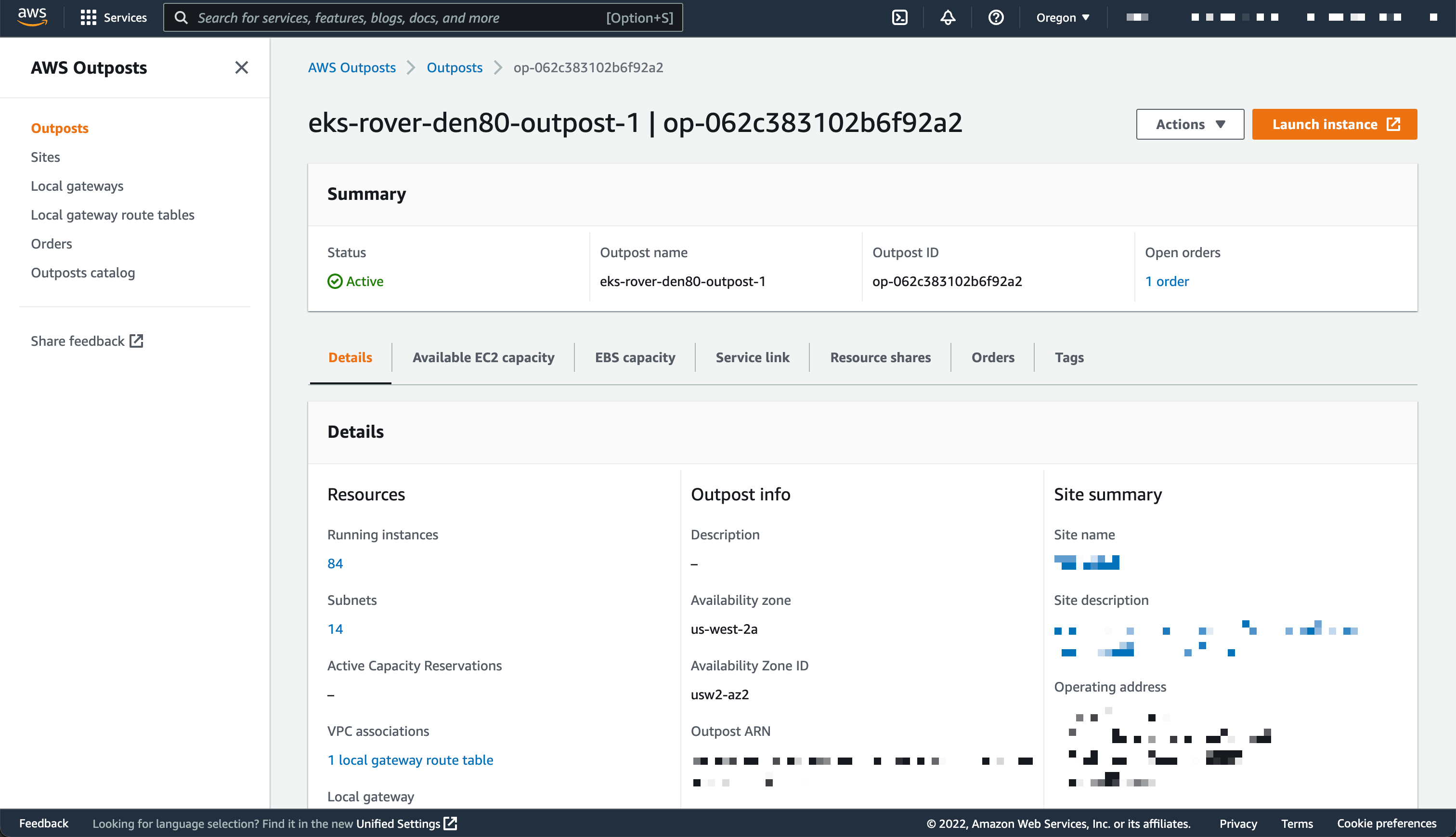
AWS Outposts Configuration

This demo has two parts. First, I create the cluster. Second, I connect to the cluster and create nodes.

Creating Cluster
Before deploying the Amazon EKS local cluster on Outposts, I make sure I created an IAM cluster role and attached the AmazonEKSLocalOutpostClusterPolicy managed policy. This IAM cluster role will be used in cluster creation.

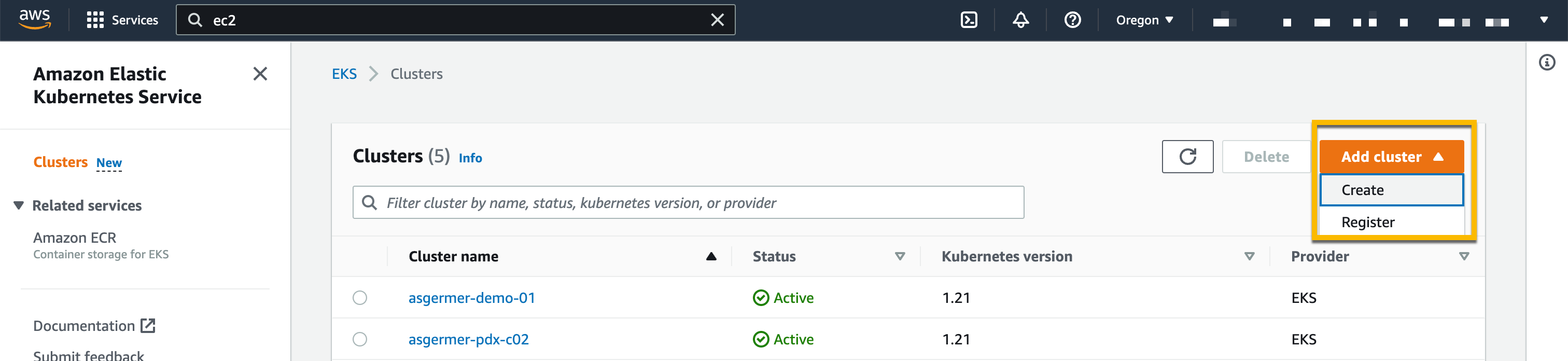
Then, I switch to the Amazon EKS dashboard, and I select Add Cluster, then Create.

Creating Cluster

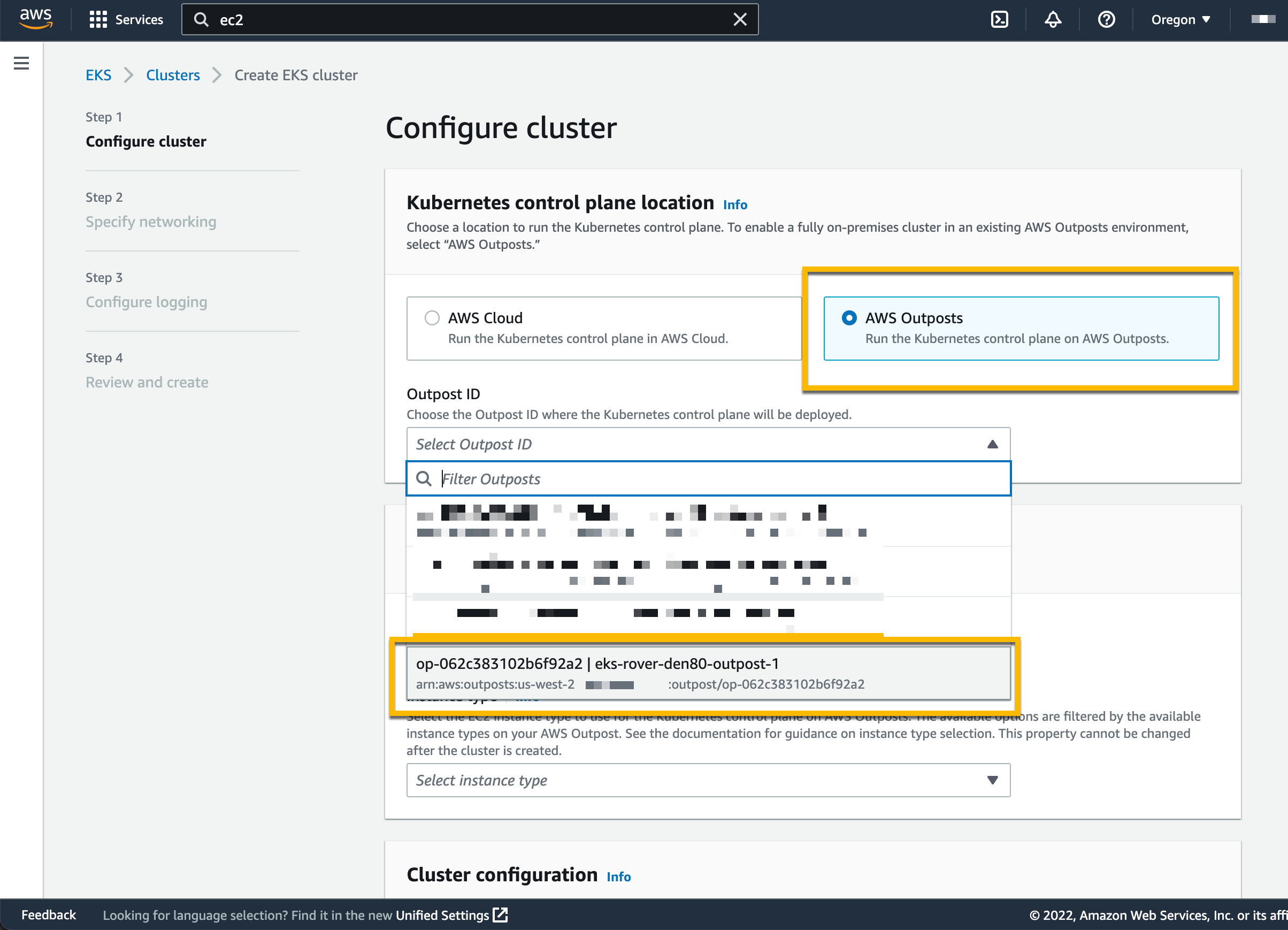
On the following page, I chose the location of the Kubernetes control plane: the AWS Cloud or AWS Outposts. I select AWS Outposts and specify the Outposts ID.

Configure EKS Cluster to Use AWS Outposts

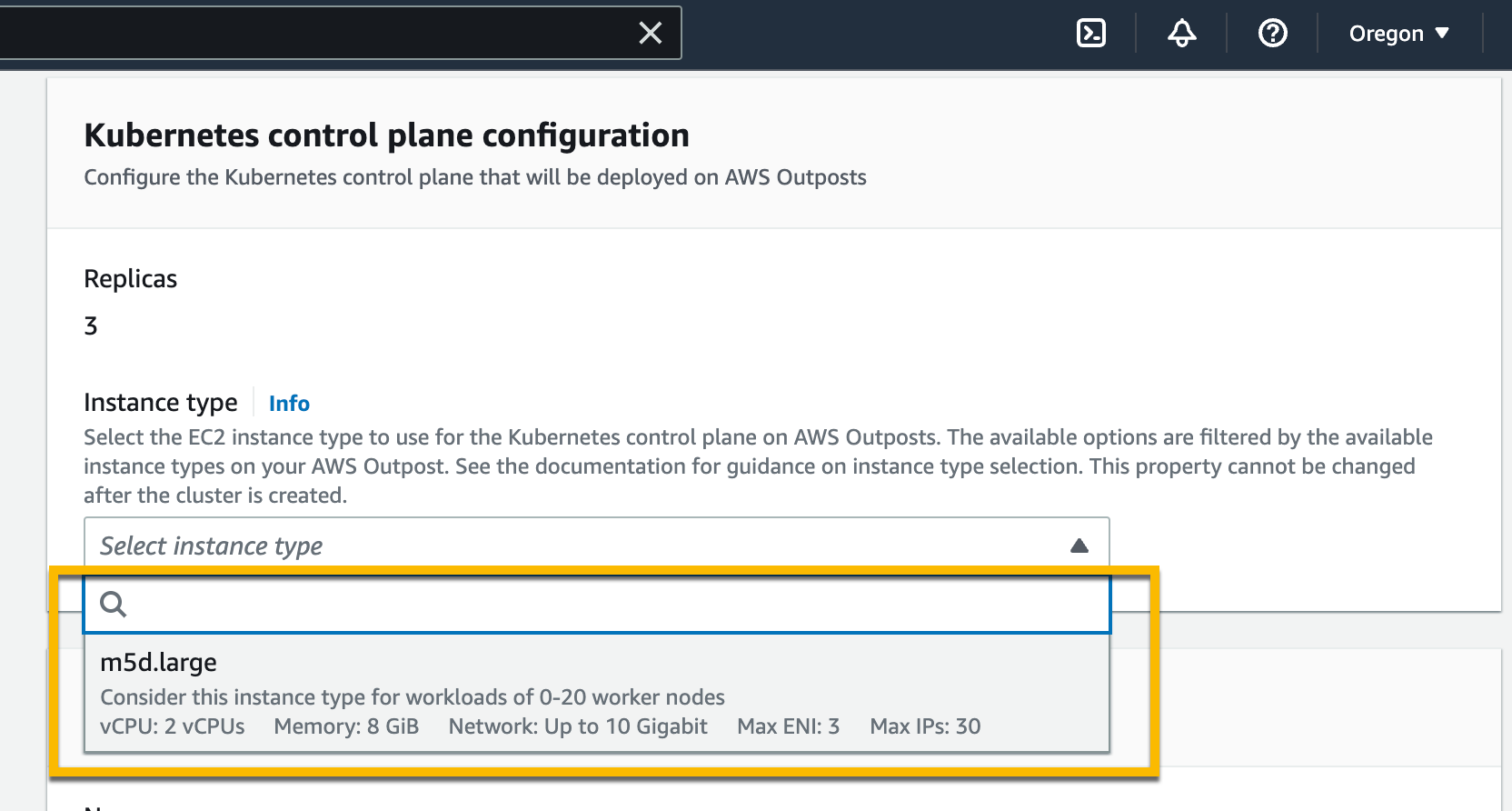
The Kubernetes control plane on Outposts is deployed on three EC2 instances for high availability. That’s why I see three Replicas. Then, I choose the instance type according to the number of worker nodes needed for workloads. For example, to handle 0–20 worker nodes, it is recommended to use m5d.large EC2 instances.

Setting Instance Type

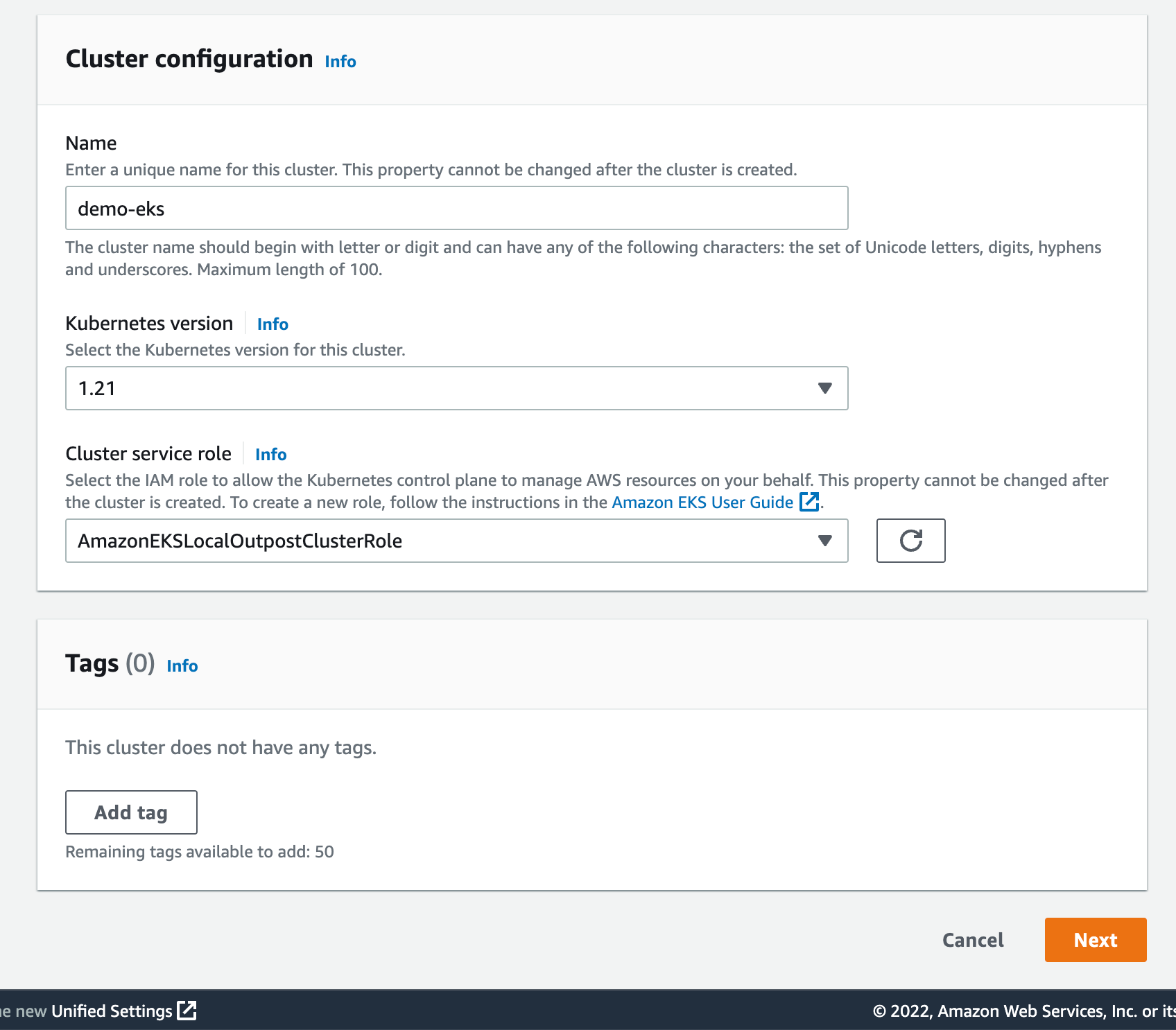
On the same page, I specify configuration values for the Kubernetes cluster, such as its Name, Kubernetes version, and the Cluster service role that I created earlier.

Cluster Configuration

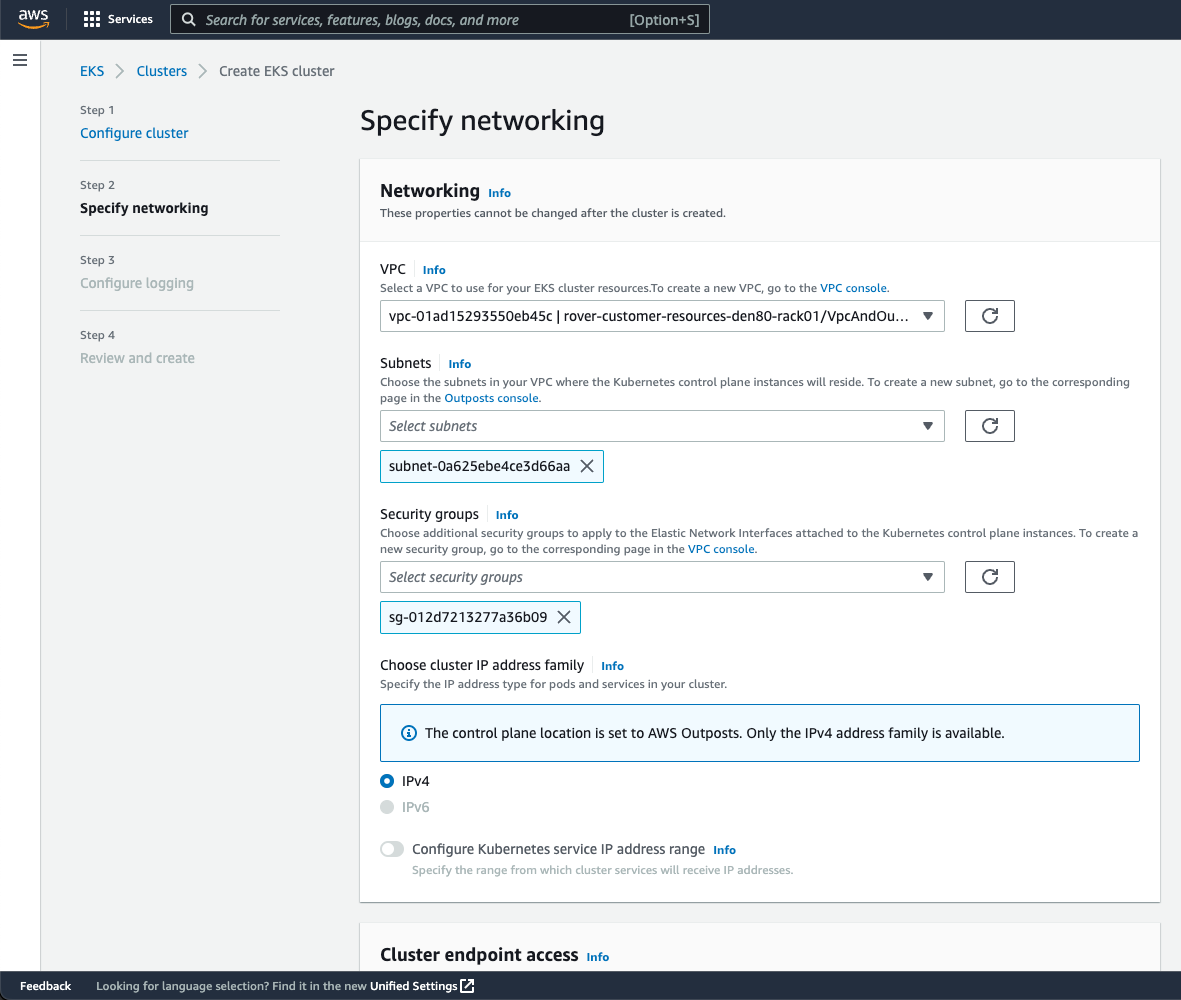
On the next page, I configure the networking options. Since Outposts is an extension of an AWS Region, I need to use the VPC and Subnets used by Outposts to enable communication between Kubernetes control plane and worker nodes. For Security Groups, Amazon EKS creates a security group for local clusters that enables communication between my cluster and my VPC. I can also define additional security groups according to my application requirements.

Specify Networking

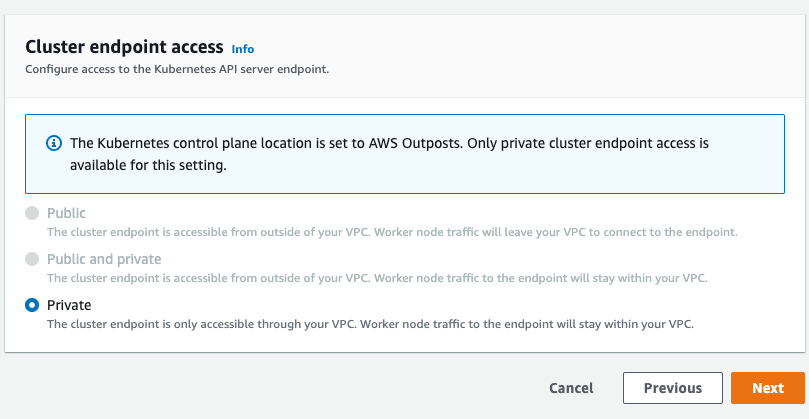
As we run the Kubernetes control plane inside Outposts, the Cluster endpoint access can only be accessed privately. This means I can only access the Kubernetes cluster through machines that are deployed in the same VPC or over the local network via the Outposts local gateway with Direct VPC Routing.

Private Cluster Endoint Access
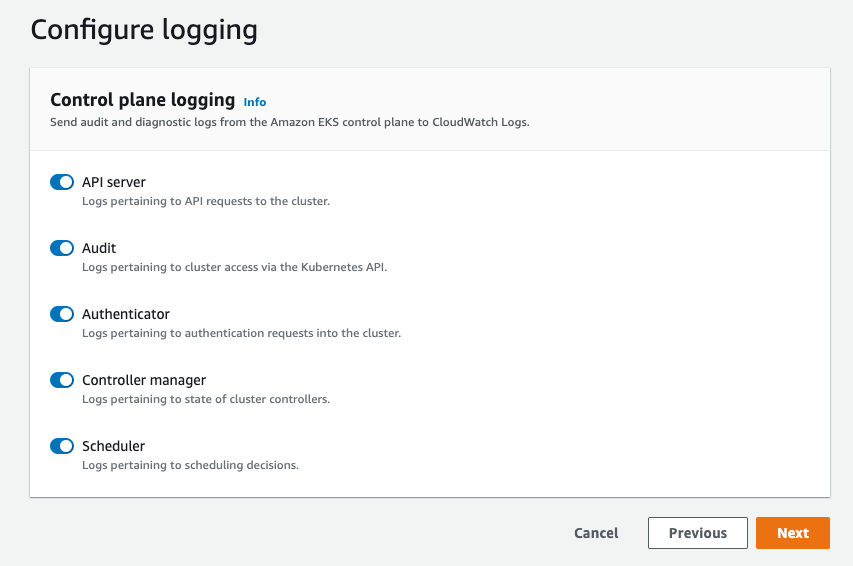
On the next page, I define logging. Logging is disabled by default, and I may enable it as needed. For more details about logging, you can read the Amazon EKS control plane logging documentation.

Configure Logging

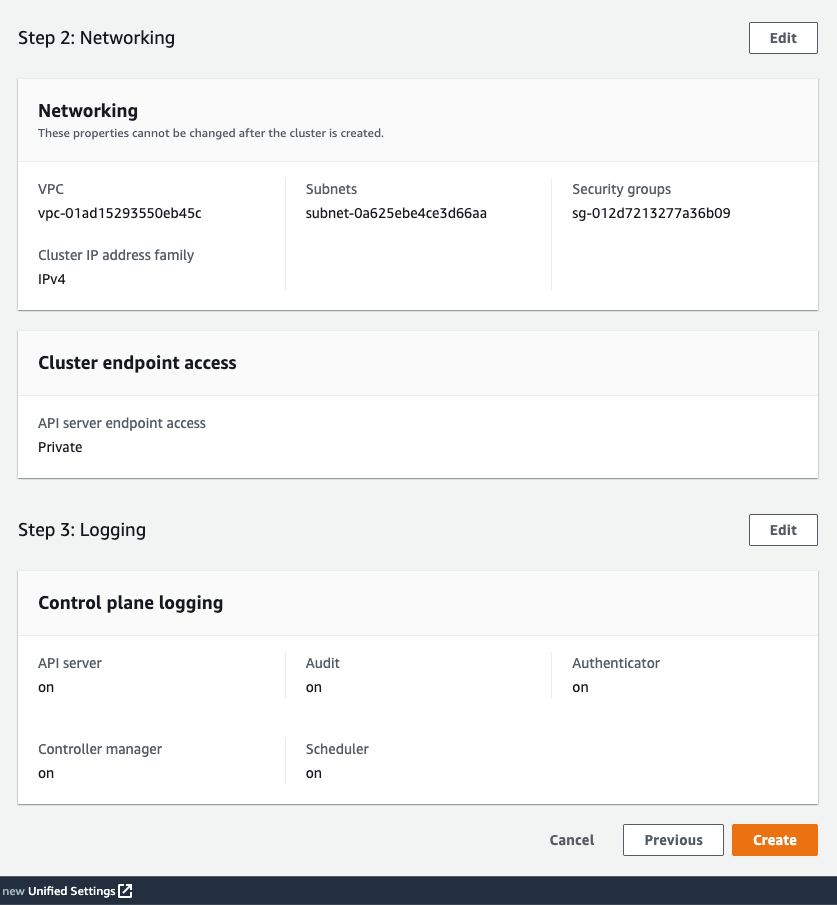
The last screen allows me to review all configuration options. When I’m satisfied with the configuration, I select Create to create the cluster.

Networking

The cluster creation takes a few minutes. To check the cluster creation status, I can use the console or the terminal with the following command:

$ aws eks describe-cluster \ 
--region <REGION_CODE> \ 
--name <CLUSTER_NAME> \ 
--query "cluster.status"

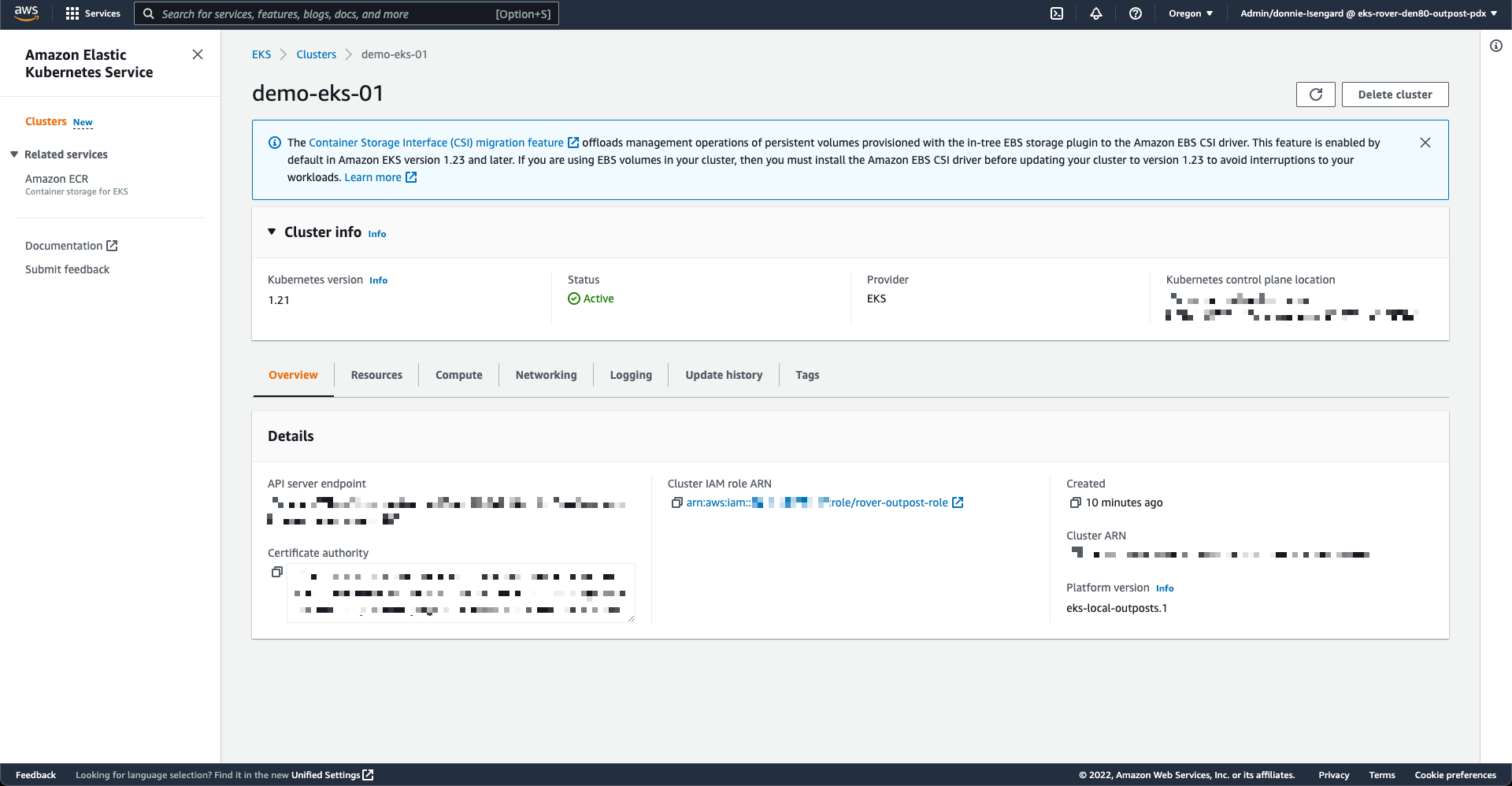
The Status section tells me when the cluster is created and active.

Active Cluster

In addition to using the AWS Management Console, I can also create a local cluster using the AWS CLI. Here is the command snippet to create a local cluster with the AWS CLI:

$ aws eks create-cluster \ 
--region <REGION_CODE> \ 
--name <CLUSTER_NAME> \ 
--resources-vpc-config subnetIds=<SUBNET_ID>\ 
--role-arn <ARN_CLUSTER_ROLE> \ 
--outpost-config controlPlaneInstanceType=<INSTANCE_TYPE> \ 
--outpostArns=<ARN_OUTPOST>

Connecting to the Cluster
The endpoint access for a local cluster is private; therefore, I can access it from a local gateway with Direct VPC Routing or from machines that are in the same VPC. To find out how to use local gateways with Outposts, you can follow the information on the Working with local gateways page. For this demo, I use an EC2 instance as a bastion host, and I manage the Kubernetes cluster using kubectl command.

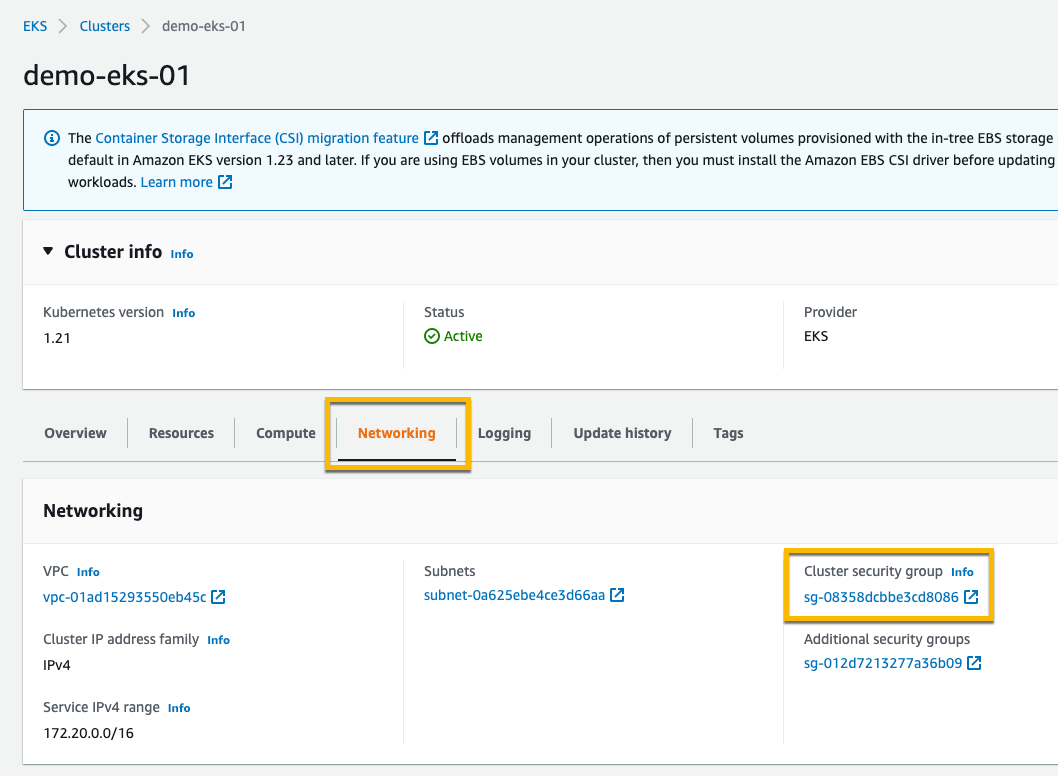
The first thing I do is edit Security Groups to open traffic access from the bastion host. I go to the detail page of the Kubernetes cluster and select the Networking tab. Then I select the link in Cluster security group.

Networking & Security Group

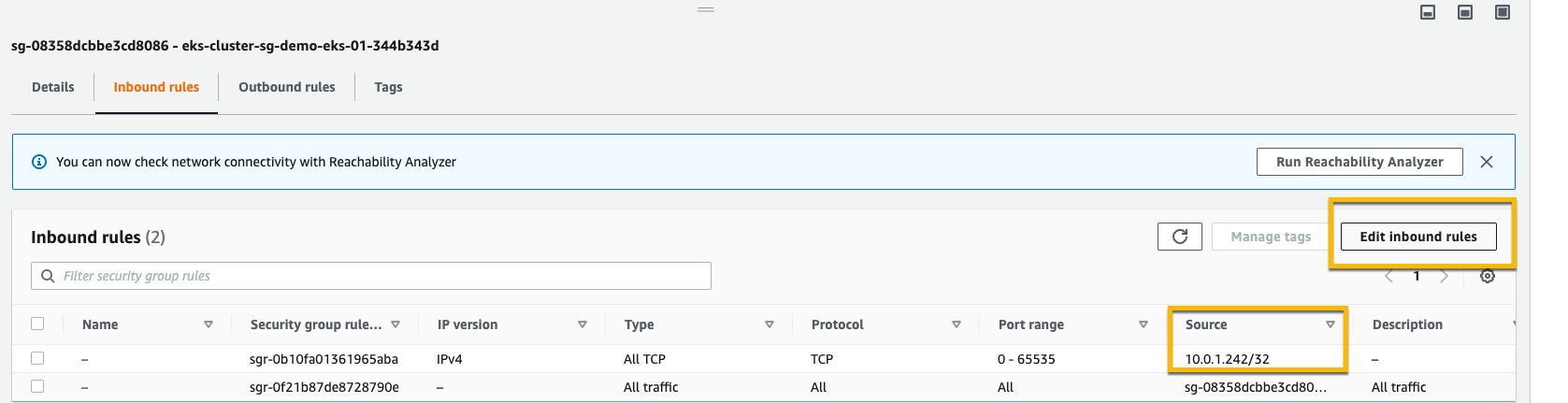
Then, I add inbound rules, and I provide access for the bastion host by specifying its IP address.

Adding Inbound Rule in Security Group

Once I’ve allowed the access, I create kubeconfig in the bastion host by running the command:

$ aws eks update-kubeconfig --region <REGION_CODE> --name <CLUSTER_NAME>

Finally, I use kubectl to interact with the Kubernetes API server, just like usual.

$ kubectl get nodes -o wide
NAME STATUS ROLES AGE VERSION INTERNAL-IP EXTERNAL-IP OS-IMAGE KERNEL-VERSION CONTAINER-RUNTIME
ip-10-X-Y-Z.us-west-2.compute.internal NotReady control-plane,master 10h v1.21.13 10.X.Y.Z <none> Bottlerocket OS 1.8.0 (aws-k8s-1.21) 5.10.118 containerd://1.6.6+bottlerocket
ip-10-X-Y-Z.us-west-2.compute.internal NotReady control-plane,master 9h v1.21.13 10.X.Y.Z <none> Bottlerocket OS 1.8.0 (aws-k8s-1.21) 5.10.118 containerd://1.6.6+bottlerocket

Kubernetes local clusters running on AWS Outposts run on three EC2 instances. We see on the output above that the status of three worker nodes is NotReady. This is because they are used by the control plane exclusively, and we cannot use them to schedule pods.

From this stage, you can deploy self-managed node groups using the Amazon EKS local cluster.

Pricing and Availability
Amazon EKS local clusters are charged at the same price as traditional EKS clusters. It starts at $0.10/hour. The EC2 instances required to deploy the Kubernetes control plane and nodes on Outposts are included in the price of the Outposts. As usual, the pricing page has the details.

Amazon EKS local clusters are available in all AWS Regions where Outposts is available.

Go build and create your first EKS local cluster today!

— seb and Donnie.

AWS Week in Review – September 19, 2022

Post Syndicated from Jeff Barr original https://aws.amazon.com/blogs/aws/aws-week-in-review-september-19-2022/

Things are heating up in Seattle, with preparation for AWS re:Invent 2022 well underway. Later this month the entire News Blog team will participate in our now-legendary “speed storming” event. Over the course of three or four days, each of the AWS service teams with a launch in the works for re:Invent will give us an overview and share their PRFAQ (Press Release + FAQ) with us. After the meetings conclude, we’ll divvy up the launches and get to work on our blog posts!

Last Week’s Launches
Here are some of the launches that caught my eye last week:

Amazon Lex Visual Conversation Builder – This new tool makes bot design easier than ever. You get a complete view of the conversation in one place, and you can manage complex conversations that have dynamic paths. To learn more and see the builder in action, read Announcing Visual Conversation Builder for Amazon Lex on the AWS Machine Learning Blog.

AWS Config Conformance Pack Price Reduction – We have reduced the price for evaluation of AWS Config Conformance Packs by up to 58%. These packs contain AWS Config rules and remediation actions that can be deployed as a single entity in account and a region, or across an entire organization. The price reduction took effect September 14, 2022; it lowers the cost per evaluation and decreases the number of evaluations needed to reach each pricing tier.

CDK (Cloud Development Kit) Tree View – The AWS CloudFormation console now includes a Constructs tree view that automatically organizes the resources that were synthesized by AWS CDK constructs. The top level of the tree view includes the named constructs and the second level includes all of the resources generated by the named construct. Read the What’s New to learn more!

AWS Incident Detection and ResponseAWS Enterprise Support customers now have access to proactive monitoring and incident management for selected workloads running on AWS. As part of the onboarding process, AWS experts review workloads for reliability and operational excellence, and work with the customer to identify critical metrics and associated alarms. Incident Management Engineers then monitor the workloads, detect critical incidents, and initiate a call bridge to accelerate recovery. Read the AWS Incident Detection and Response page and the What’s New to learn more.

ECS Cluster Scale-In Speed – Auto-Scaled ECS clusters can now scale-in (reduce capacity) faster than ever before. Previously, each scale-in would reduce the capacity within an Auto Scaling Group (ASG) by 5% at a time. Now, capacity can be reduced by up to 50%. This change makes scaling more responsive to workload changes while still maintaining availability for spiky traffic patterns. Read Faster Scaling-In for Amazon ECS Cluster Auto Scaling and the What’s New to learn more.

AWS Outposts Rack Networking – AWS Outposts racks now support local gateway ingress routing to redirect incoming traffic to an Elastic Network Interface (ENI) attached to an EC2 instance before traffic reaches workloads running on the Outpost; read Deploying Local Gateway Ingress Routing on AWS Outposts to learn more. Outposts racks now also support direct VPC routing to simplify the process of communicating with your on-premises network; read the What’s New to learn more.

Amazon SWF Console Experience Updated – The new console experience for Amazon Simple Workflow Service (SWF) gives you better visibility of your SWF domains along with additional information about your workflow executions and events. You can efficiently manage high-volume workloads and quickly find the detailed information that helps you to operate at peak efficiency. Read the What’s New to learn more.

Dynamic Intermediate Certificate Authorities – According to a post on the AWS Security Blog, public certificates issued through AWS Certificate Manager (ACM) will soon (October 11, 2022) be issued from one of several intermediate certificate authorities managed by Amazon. This change will be transparent to most customers and applications, except those that make use of certificate pinning. In some cases, older browsers will need to be updated in order to properly trust the Amazon Trust Services CAs.

X in Y – We launched existing AWS services and instance types in additional regions:

Other AWS News
AWS Open Source – Check out Installment #127 of the AWS Open Source News and Updates Newsletter to learn about new tools for AWS CloudFormation, AWS Lambda, Terraform / EKS, AWS Step Functions, AWS Identity and Access Management (IAM), and more.

New Case Study – Read this new case study to learn how the Deep Data Research Computing Center at Stanford University is creating tools designed to bridge the gap between biology and computer science in order to help researchers in precision medicine deliver tangible medical solutions.

Application Management – The AWS DevOps Blog showed you how to Implement Long-Running Deployments with AWS CloudFormation Custom Resources Using AWS Step Functions.

Architecture – The AWS Architecture Blog showed you how to Maintain Visibility Over the Use of Cloud Architecture Patterns.

Big Data – The AWS Big Data Blog showed you how to Optimize Amazon EMR Costs for Legacy and Spark Workloads.

Migration – In a two-part series on the AWS Compute Blog, Marcia showed you how to Lift and Shift a Web Application to AWS Serverless (Part 1, Part 2).

Mobile – The AWS Mobile Blog showed you how to Build Your Own Application for Route Optimization and Tracking using AWS Amplify and Amazon Location Service.

Security – The AWS Security Blog listed 10 Reasons to Import a Certificate into AWS Certificate Manager and 154 AWS Services that have achieved HITRUST Certificiation.

Training and Certification – The AWS Training and Certification Blog talked about The Value of Data and Pursuing the AWS Certified Data Analytics – Specialty Certification.

Containers – The AWS Containers Blog encouraged you to Achieve Consistent Application-Level Tagging for Cost Tracking in AWS.

Upcoming AWS Events
Check your calendar and sign up for an AWS event in your locale:

AWS Summits – Come together to connect, collaborate, and learn about AWS. Registration is open for the following in-person AWS Summits: Mexico City (September 21–22), Bogotá (October 4), and Singapore (October 6).

AWS Community DaysAWS Community Day events are community-led conferences to share and learn with one another. In September, the AWS community in the US will run events in Arlington, Virginia (September 30). In Europe, Community Day events will be held in October. Join us in Amersfoort, Netherlands (October 3), Warsaw, Poland (October 14), and Dresden, Germany (October 19).

AWS Fest – This third-party event will feature AWS influencers, community heroes, industry leaders, and AWS customers, all sharing AWS optimization secrets (September 29th), register here.

Stay Informed
I hope that you have enjoyed this look back at some of what took place in AWS-land last week! To better keep up with all of this news, please check out the following resources:

Jeff;

Deploying Local Gateway Ingress Routing on AWS Outposts

Post Syndicated from Sheila Busser original https://aws.amazon.com/blogs/compute/deploying-local-gateway-ingress-routing-on-aws-outposts/

This post is written by Leonardo Solano, Senior Hybrid Cloud Solution Architect and Chris Lunsford, Senior Specialist Solutions Architect, AWS Outposts.

AWS Outposts lets customers use the same Amazon Virtual Private Cloud (VPC) security mechanisms, such as security groups and network access control lists, to control traffic flows for on-premises applications running on Outposts. Some customers, desiring additional security or consistency with on-premises systems, want the ability to inspect and filter incoming application traffic as it enters the Outpost. Ideally, they would like to deploy virtual appliances in front of the workloads running on Outposts.

Today, we are announcing a new feature called Outposts local lateway (LGW) ingress routing. This lets you create LGW inbound routes to redirect incoming traffic to an Amazon Elastic Compute Cloud (EC2) Elastic Network Interface (ENI) associated with an EC2 instance running on Outposts rack. The traffic is redirected for inspection before it reaches the workloads running on Outposts rack. Moreover, it lets the EC2 virtual appliance inspect, filter, or optimize the traffic in a similar way as VPC ingress routing in the Region.

Use case

A common use case for this feature is deploying a customer-preferred third-party virtual network appliance. The appliance can inspect, modify, or monitor the incoming traffic for policy compliance and forward compliant traffic on to the workloads running on the Outpost. A typical virtual appliance could be a firewall, intrusion detection system (IDS), or intrusion prevention system (IPS). The features provided by the virtual appliances vary, and they may include deep packet inspection, traffic optimization, and flow monitoring. This new Outposts rack feature modifies the default behavior of the local gateway routing table (LGW-RTB), and it lets customers redirect traffic coming into an Outposts deployment to the virtual appliance.
 Local Gateway Ingress Routing on Outposts Architecture

The new behavior?

Now you can create static routes in the LGW-RTB that target a specific ENI on the Outpost as the next hop. These static routes are propagated toward the customer network through the Border Gateway Protocol (BGP) peering sessions with the Customer Networking Devices. The on-premises network will route traffic to the specified Classless Inter-Domain Routing (CIDR) prefixes, as defined in the static routes, toward the Outposts Network Devices.
 Local Gateway Routing Table

In the preceeding diagram, the static route 198.19.33.248/29 has a longer prefix length than 198.19.33.240/28, and both routes will be propagated toward the customer network via BGP. The incoming traffic for the 198.19.33.248/29 prefix will be directed toward the ENI eni-1234example0. The architecture looks like the following diagram, where the security virtual appliance is seated between the LGW and a set of EC2 instances in Outposts.

Local Gateway Advertised routes

As ingress traffic is routed through the virtual appliance for inspection and filtering, the destination addresses of packets arriving at the ENI of the virtual appliance won’t match its ENI’s private IP address (the packets are transiting the instance). By default, the ENI will drop the inbound traffic unless you disable source/destination checking on the virtual appliance instance ENI settings. The following screenshot shows how you can disable the EC2 instance source/destination checking in the AWS console.

(aka, source-destination-check.png) . EC2 source/destination Check

Considerations for LGW ingress routing

Consider the following requirements when preparing to deploy LGW ingress routing:

  • The ENIs used as the next-hop target must be deployed in an Outposts Subnet.
  • The subnets must belong to a VPC associated with the LGW-RTB.
  • Routes with the longest matches are prioritized. If there are two with the same destination CIDR, then static routes are preferred over propagated ones.

Working with Outposts LGW ingress routing

The following output shows what the LGW route table looks like before applying the ingress routing feature:

{
    "Routes": [
        {
            "DestinationCidrBlock": "0.0.0.0/0",
            "LocalGatewayVirtualInterfaceGroupId": "lgw-vif-grp-XXX",
            "Type": "static",
            "State": "active",
            "LocalGatewayRouteTableId": "lgw-rtb-XXX",
            "LocalGatewayRouteTableArn": "arn:aws:ec2:>AWS-REGION>:<account-id>:local-gateway-route-table/lgw-rtb-XXX",
            "OwnerId": "<account-id>"
        },
        {
            "DestinationCidrBlock": "198.19.33.16/28",
            "CoipPoolId": "coip-pool-0000aaaabbbbcccc1111",
            "Type": "propagated",
            "State": "active",
            "LocalGatewayRouteTableId": "lgw-rtb-XXX",
            "LocalGatewayRouteTableArn": "arn:aws:ec2:<AWS-REGION>:<account-id>:local-gateway-route-table/lgw-XXX",
            "OwnerId": "<account-id>"
        },
        {
            "DestinationCidrBlock": "198.19.33.240/28",
            "CoipPoolId": "coip-pool-0000aaaabbbbcccc2222",
            "Type": "propagated",
            "State": "active",
            "LocalGatewayRouteTableId": "lgw-rtb-XXX",
            "LocalGatewayRouteTableArn": "arn:aws:ec2:<AWS-REGION>:<account-id>:local-gateway-route-table/lgw-XXX",
            "OwnerId": "<account-id>"
        }
     ]
}

The relevant change under an LGW-RTB before to add a local-gateway-route is the presence of the “propagated routes”. This represents the Outposts Subnets that can’t be deleted or modified with Next-Hop as specific ENIs present in Outposts. In the following section, we will cover how it will look after the creation of a local-gateway-route.

Configuring LGW ingress routing

To configure LGW ingress routing, you must provide the LGW route table ID, the ENI ID that will be utilized as a next-hop, and the destination CIDR block. Once you have identified those three parameters, you can configure LGW ingress routing via the This is shown in the following example, where the prefix 198.19.33.248/29 is routed to an Outpost. If the route points to an ENI attached to an instance, then the route will show as active. If the route points to an ENI that isn’t attached to an EC2 instance, then the route will show a blackhole state.

$ aws ec2 create-local-gateway-route \
  --local-gateway-route-table-id <lgw-rtb-id> \
  --network-interface-id <eni-id> \
  --destination-cidr-block 198.19.33.248/29
  
{
    "Route": {
        "DestinationCidrBlock": "198.19.33.248/29",
        "NetworkInterfaceId": "eni-id",
        "Type": "static",
        "State": "active",
        "LocalGatewayRouteTableId": "lgw-rtb-id",
        "LocalGatewayRouteTableArn": "arn:aws:ec2:<AWS-REGION>:<account-id>:local-gateway-route-table/<lgw-rtb-id>",
        "OwnerId": "<account-id>"
    }
}

Once LGW ingress routing has been configured, the LGW will route traffic destined to the 198.19.33.248/29 prefix to the target ENI. This must be present as part of the Outposts subnets. Note that the segment 198.19.33.248/29 is part of the Outposts CIDR range of 198.19.33.240/28. This belongs, in this case, to the Outposts customer-owned IP address (CoIP) CIDRs. When traffic follows a static route to an ENI, the packet destination address is preserved and isn’t translated to the private address of the ENI.

In this case, the new LGW-RTB will look like the following:

{
    "Routes": [
        {
            "DestinationCidrBlock": "0.0.0.0/0",
            "LocalGatewayVirtualInterfaceGroupId": "lgw-vif-grp-XXX",
            "Type": "static",
            "State": "active",
            "LocalGatewayRouteTableId": "lgw-rtb-XXX",
            "LocalGatewayRouteTableArn": "arn:aws:ec2:<AWS-REGION>:<account-id>:local-gateway-route-table/lgw-rtb-XXX",
            "OwnerId": "<account-id>"
        },
        {
            "DestinationCidrBlock": "198.19.33.16/28",
            "CoipPoolId": "coip-pool-0000aaaabbbbcccc1111",
            "Type": "propagated",
            "State": "active",
            "LocalGatewayRouteTableId": "lgw-rtb-XXX",
            "LocalGatewayRouteTableArn": "arn:aws:ec2:<AWS-REGION>:<account-id>:local-gateway-route-table/lgw-XXX",
            "OwnerId": "<account-id>"
        },
        {
            "DestinationCidrBlock": "198.19.33.240/28",
            "CoipPoolId": "coip-pool-0000aaaabbbbcccc1111",
            "Type": "propagated",
            "State": "active",
            "LocalGatewayRouteTableId": "lgw-rtb-XXX",
            "LocalGatewayRouteTableArn": "arn:aws:ec2:<AWS-REGION>:<account-id>:local-gateway-route-table/lgw-XXX",
            "OwnerId": "<account-id>"
        },
         {
            "DestinationCidrBlock": "198.19.33.248/29",
            "NetworkInterfaceId": "eni-XXX",
            "Type": "static",
            "State": "active",
            "LocalGatewayRouteTableId": "lgw-rtb-XXX",
            "LocalGatewayRouteTableArn": "arn:aws:ec2:<AWS-REGION>:<account-id>:local-gateway-route-table/lgw-rtb-XXX",
            "OwnerId": "<account-id>"
        }
     ]
}

In the AWS console, the LGW-RTB will show the new ingress routing route:

 (aka, LWG-RTB) Console Local Gateway Routing Table

Modifying LGW ingress routing

Utilize a similar AWS CLI command to the one that we used previously to create the LGW ingress routing route to modify existing routes. In this case, the command will be aws ec2 modify-local-gateway-route, and the arguments are the same as with the create command. Use this command when you want to shift inbound traffic from one EC2 instance to another – perhaps from an active to a standby network appliance while you perform required maintenance on the primary instance.

$ aws ec2 modify-local-gateway-route \
  --local-gateway-route-table-id <lgw-rtb-id> \
  --network-interface-id <new-eni-id> \
  --destination-cidr-block 198.19.33.248/29
{
    "Route": {
        "DestinationCidrBlock": "198.19.33.248/29",
        "NetworkInterfaceId": "new-eni-id",
        "Type": "static",
        "State": "active",
        "LocalGatewayRouteTableId": "lgw-rtb-id",
        "LocalGatewayRouteTableArn": "arn:aws:ec2:<AWS-REGION>:<account-id>:local-gateway-route-table/<lgw-rtb-id>",
        "OwnerId": "<account-id>"
    }
}

Conclusion

AWS Outposts LGW ingress routing allows AWS customers and partners to deploy virtual appliances on Outposts rack and direct inbound traffic through those appliances. The virtual appliance can inspect, filter, and optimize the ingress traffic before forwarding it on to the workloads running on Outposts rack, creating fine-grained network and security policies for your workloads. To learn more about AWS Outposts rack, visit the product overview page.

New – Direct VPC Routing Between On-Premises Networks and AWS Outposts Rack

Post Syndicated from Steve Roberts original https://aws.amazon.com/blogs/aws/new-direct-vpc-routing-between-on-premises-networks-and-aws-outposts-rack/

Today, we announced direct VPC routing for AWS Outposts rack. This enables you to connect Outposts racks and on-premises networks using simplified IP address management. Direct VPC routing automatically advertises Amazon Virtual Private Cloud (Amazon VPC) subnet CIDR addresses to on-premises networks. This enables you to use the private IP addresses of resources in your VPC when communicating with your on-premises network. Furthermore, you can enable direct VPC routing using a self-serve process without needing to contact AWS.

AWS Outposts rack

If you’re unfamiliar, AWS Outposts rack, a part of the Outposts family, is a fully-managed service that offers the same AWS infrastructure, AWS services, APIs, and tools to virtually any on-premises datacenter or co-location space for a consistent hybrid experience. They’re ideal for workloads that require low-latency access to on-premises systems, local data processing, data residency, and migration of applications with local system interdependencies. Once installed, your Outposts rack becomes an extension of your VPC, and it’s managed using the same APIs, tools, and management controls that you already use in the cloud.

With direct VPC routing, you now have two options to configure and connect your Outposts rack to your on-premises networks. Previously, to configure network routing between an on-premises network and an Outposts rack, you needed to use Customer-owned IP addresses (CoIP). During an Outposts rack installation, this involved providing a separate IP address range/CIDR from your on-premises network for AWS to create an address pool, which is known as a CoIP pool. When an Amazon Elastic Compute Cloud (Amazon EC2) instance on your Outposts rack needed to communicate with your on-premises network, Outposts rack would perform a 1:1 network address translation (NAT) from the VPC private IP address to a CoIP address in the CoIP pool. Using CoIP means that you must manage both VPC and CoIP address pools, without overlap, and configure route propagation between the two sets of addresses. When adding a subnet to a VPC, you also needed to follow several steps to update route propagation between your networks to recognize the new subnet addresses.

Managing IP address ranges for AWS cloud and onsite resources, as well as dealing with CoIP ranges on Outposts rack, can be an operational burden. Although the option to use CoIP is still available and will continue to be fully supported, the new direct VPC routing option simplifies your IP address management. Automatic advertisement of CIDR addresses for subnets, including new subnets added in the future, between the VPC and your Outposts rack, removes the need for you to reconfigure IP addresses. This also keeps route propagation up-to-date, thereby saving you time and effort. Furthermore, as mentioned earlier, you can enable all of this with a self-serve option.

Enabling Direct VPC Routing
You can select either CoIP or direct VPC routing approaches and utilize a new self-service API, CreateLocalGatewayRouteTable, to configure direct VPC routing for both new and existing Outposts racks. This eliminates the need to contact AWS to enable the configuration. To enable direct VPC routing, simply set the mode property in the CreateLocalGatewayRouteTable API’s request parameters to the value direct-vpc-routing. If you’re already using CoIP, then you must delete and recreate the route table that’s propagating traffic between the Outposts rack and your on-premises network.

The following example diagram, taken from the user guide, illustrates the setup for an Outposts rack running several Amazon EC2 instances and connected to an on-premises network, with automatic address advertisement. Note that private IP address ranges are utilized across the Outposts rack resources and the on-premises network.

Example of direct VPC routing

Get started with Direct VPC Routing today
The option to enable direct VPC routing is available now for both new and existing Outposts racks. As mentioned earlier, the option to use CoIP will continue to be supported, but now you can choose between direct VPC routing and CoIP based on your on-premises networking needs. Direct VPC routing is available in all AWS Regions where Outposts rack is supported.

Find more information on this topic in the AWS Outposts User Guide. More information on AWS Outposts rack is available here.

— Steve

Selecting Network Switches for Your AWS Outposts

Post Syndicated from Sheila Busser original https://aws.amazon.com/blogs/compute/selecting-network-switches-for-your-aws-outposts/

This blog post is written by, Frankie Negro, Outposts Solution Architect.

AWS Outposts is a family of fully managed solutions that extend AWS infrastructure, services, APIs, and tools to customer premises. Outposts is available in a variety of form factors, from 1U and 2U Outposts servers (https://aws.amazon.com/outposts/servers/) to 42U Outposts racks (https://aws.amazon.com/outposts/rack/). AWS Outposts is ideal for workloads that require low-latency access to on-premises systems, local data processing, data residency, and application migration with local system interdependencies.

When operating and consuming services in the AWS Regions, the underlying networking layer is completely abstracted. You do not need to be aware of the underlying networking topology, device port speeds, connectors, transports, links, and media types. Instead, the focus is on design, with the architecture leveraging the high-level constructs available for the Amazon Virtual Private Cloud (VPC), such as VPCs, Subnets, Route Tables, Security Groups, and network access control lists. The network bandwidth available for an Amazon Elastic Compute Cloud (Amazon EC2) instance depends on the number of vCPUs that it has.

AWS Outposts requires a dedicated network connection to an AWS Region defined by the customer when ordering the product. This connection is called the Service Link, and it connects to either public or private anchors (not both) in a specific Availability Zone (AZ) in the selected parent Region. AWS recommends redundant connections that meet the bandwidth requirements for Outposts rack and Outposts servers.

The purpose of AWS Outposts is to fulfill use cases where the workload has requirements that prevent or make it unfeasible to operate in the AWS Regions. Most of these use cases, such as low latency and local data processing, require strong and reliable network infrastructure to handle a high volume of packets per second.

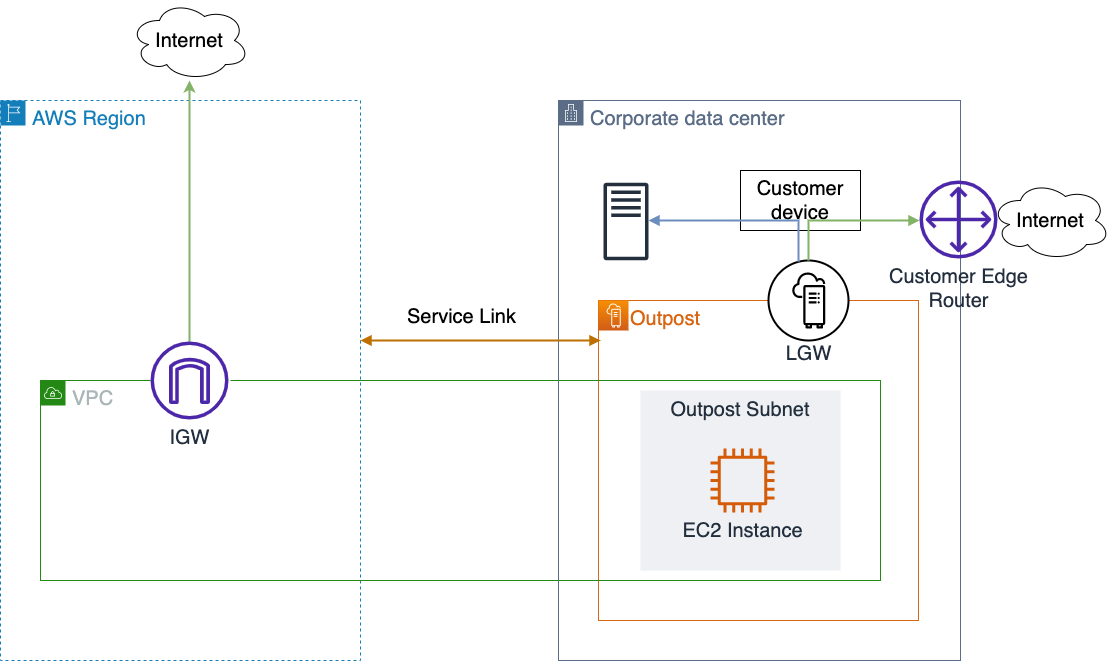
The construct connecting AWS Outposts to the customer on-premises network is called local gateway (LGW) for Outposts rack and local network interface (LNI) for Outposts Servers. These logical elements mediate the data traffic between Outposts and the customer premises.

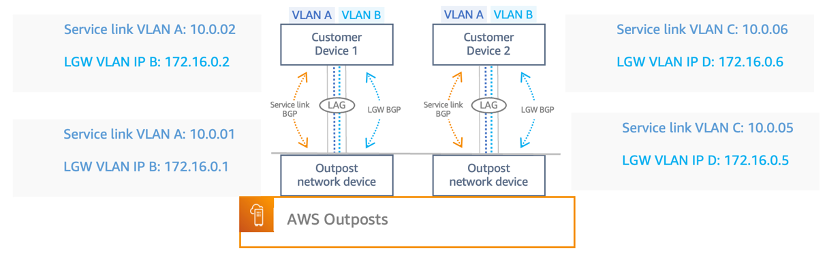
On Outposts rack, Service Link and LGW traffic flows through the same network connection, which can be a single link per physical device or an aggregated link. Network packets sent to the Region or to your local network are segregated using distinct virtual LANs (VLANs) on Outposts rack. The smaller family members, Outposts servers, use two distinct physical ports.

The physical network elements providing the connections between the devices and services are called Outposts Networking Devices (ONDs) on the AWS side and Customer Networking Devices (CNDs) on the customer side. For its part, Outposts rack can deliver throughput up to 400 Gbps, aggregating 4 x 100 Gbps uplinks to support Service Link and LGW network traffic, while an Outposts server can provide a 10 Gbps dedicated network port for each traffic.

Outpost network traffic segments and logical elements

The upstream devices you provide play a fundamental role in the harmonic coexistence and operation at the ethernet physical and data link layers, which are the basis for performance and stability of the upper network and transport layers as defined by the OSI model. A careful selection of your upstream networking devices must combine reliable operations, cost effectiveness, and long-term vision.

The physical layer (L1)

Here we are talking about physical cables and media interfaces. There are no supported options for UTP Cables with RJ-45 connectors, as Outposts rack only supports Fiber Optic cables with Lucent Connectors (LC). For short distances you can use MMF (Multi-Mode Fiber) or MMF OM4 (Optical Multimode) with LC.  Longer distances can be achieved using SMF (Single Mode Fiber). Distance limits depend on the Fiber Mode and Type.

: Lucent Connector (LC) DuplexEach Outposts server has one physical QSFP+ interface. A 4-way breakout cable is supplied with SFP+ transceivers. You will use two interfaces: One for the LNI traffic and another for the Service Link traffic.

With this is mind, RJ-45 ports on upstream switches will not suit any AWS Outposts connections. Switch models that combine RF-45 and optical ports can be used in conjunction with copper ethernet cables category 8 (CAT8), which support up to 40 Gbps speeds, to connect other segments while the optical ports can be used for AWS Outposts.

When evaluating your upstream switches, bear in mind that Outposts rack switches are always capable of 1 / 10 / 40 / 100 Gbps speeds, and it is the same equipment regardless of the selected AWS Outposts resource ID and uplink connection speed defined during the order process.

It is recommended to account for future traffic needs from the beginning and specify upstream switches with 40 or 100 Gbps ports rather than start small and upgrade in the future. Upgrades and changes always carry risk, so limiting future risk by minimizing the need for upgrades will help mitigate issues and provide a stable, productive environment.

Another characteristic to look for when selecting your networking devices is “non-blocking” switches. These switches can handle all ports at full capacity simultaneously, without contention. It is a simple feature to select, and you can expect high performance out-of-the box without having to go too deep into details such as buffering mechanisms.

The Data Link layer (L2)

This layer establishes and terminates the logical links between nodes and exchange frames end-to-end. Outposts rack requires that your upstream devices support 802.1Q (Dot1q) standards that implement the VLAN support needed to segregate traffic to be forwarded to the Region (via Service Link) from traffic to be forwarded to the customer’s local network.

Most core switches ship with this capability. One good spec to evaluate is the maximum size of the MAC Address Table per VLAN supported by the switch. If the MAC Table gets full, your equipment may fail over to broadcast mode in that VLAN, which introduces additional stress in the network and is a potential exploit condition.

Another common feature for core switches is to support link aggregation or bundle links together so they act like a single, logical link. While AWS Outposts will work with just a single connection per OND, a recommended fault tolerance and high availability best practice is to aggregate multiple paths to withstand the failure of one or multiple members of the logical aggregation group.

As defined in the AWS Well-Architected Framework Reliability pillar design principles, to observe best practices of Automatically recover from failure and Scale horizontally to increase aggregate workload availability, you should consider implementing, for example, 4 x 10 Gbps instead of a single 40 Gbps uplink. AWS Outposts uses link aggregation control protocol (LACP) aggregations with the immediate customer network device (CND) according to the IEEE 802.3ad standard.

To learn more about how you can architect Outposts for network failures, check out the AWS Outposts High Availability Design and Architecture Considerations at this URL.

The logical interface defined as a result of the link aggregation (LAG) can be configured as an ethernet trunk port defined in the IEEE 802.1q standard to allow the use of multiple VLANs. Alternatively, the logical interface can be configured as an L3 interface with the Service Link and LGW defined as VLAN sub-interfaces. This is how AWS Outposts segregates traffic forwarded to Service Link from packets sent to the customer local network.

The Network layer (L3)

At this layer, we get into routing and logical addressing. Outposts rack requires Border Gateway Protocol (BGP) to dynamically exchange routes. Each OND device will establish eBGP peering with the upstream routing device for the Service Link and the LGW.

The architectural decision will be a trade-off between discrete components for routing and switching and an L3 switch capable of BGP routing. This aspect requires a careful assessment. It is common for a core switch to offer L3 capabilities, but BGP support is not available in most cases.

Switch design often aims for excelling at L2 and basic L3. If the network design requires advanced routing features or large IP routing tables, the safest path is to specify a powerful L2 switch and a dedicated L3 router.

Redundant equipment for fault tolerance is recommended as well. AWS does not have restrictions on how the customer implements core switches, but it’s always a good practice to keep it simple and standard, avoiding designs that include proprietary solutions, such as Virtual Chassis and Switch Clustering, because it can make troubleshooting difficult.

Conclusion

In this post, I showed the importance of dedicating time and effort to carefully evaluating the networking landscape where your AWS Outposts will be deployed, assessing the network device options available to you, designing for high-availability, and selecting switch models with proper feature sets and future-proof specifications.

The performance and operation of your AWS Outposts is largely dependent on your network substrate, and all efforts dedicated to making good decisions will be time well spent, allowing you to get the best value out of your hybrid solution while focusing on creating compelling applications and addressing your use cases with AWS Outposts.

Configuring low latency connectivity between AWS Outposts rack and on-premises data using CoIP

Post Syndicated from Sheila Busser original https://aws.amazon.com/blogs/compute/configuring-low-latency-connectivity-between-aws-outposts-rack-using-coip-and-on-premises-data/

This blog post is written by, Leonardo Azize Martins, Cloud Infrastructure Architect, Professional Services.

AWS Outposts rack enables applications that need to run on-premises due to low latency, local data processing, or local data storage needs by connecting Outposts rack to your on-premises network via the local gateway (LGW).

Each Outpost rack includes a local gateway to provide low latency connectivity between the Outpost and any local data sources, end users, local machinery and equipment, or local databases. If you have an Outpost rack, you can include a local gateway as the target in your VPC subnet route table where the destination is your on-premises network. Local gateways are only available for Outposts rack and can only be used in route tables where the VPC has been associated with an LGW.

In a previous blog post on connecting AWS Outposts to on-premises data sources, you learned the different use cases to use AWS Outposts connected with your local network. In this post, you will dive deep into local gateway usage and specific details about it. You will learn how to use Outpost local gateway when it is configured as Customer-owned IP addresses (CoIP) mode. You will also learn how to integrate it with your Amazon Virtual Private Cloud (Amazon VPC) and how different routes work regarding Amazon Elastic Compute Cloud (Amazon EC2) instances running on Outposts.

Overview of solution

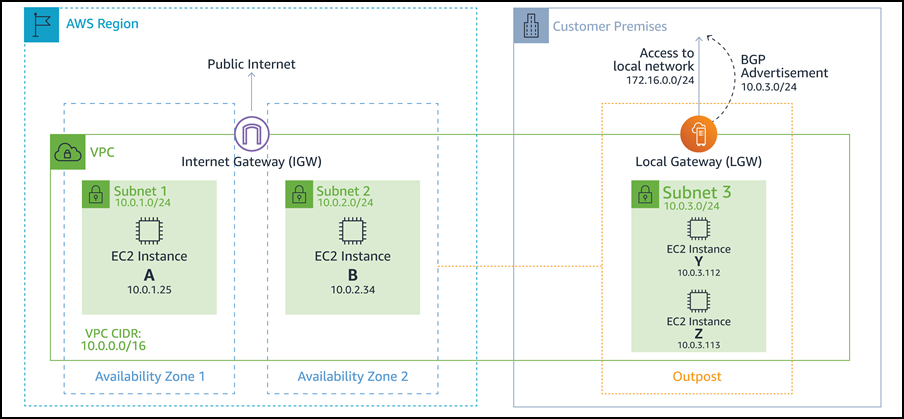
The primary role of a local gateway is to provide connectivity from an Outpost to your local on-premises LAN. It also provides AWS Outposts connectivity to the internet through your on-premises network via the LGW, so you don’t need to rely on an internet gateway (IGW). The local gateway can also provide a data plane path back to the AWS Region. If you already have connectivity between your LAN and the Region through AWS Site-to-Site VPN or AWS Direct Connect, you can use the same path to connect from the Outpost to the AWS Region privately.

Outpost subnet

Public subnets and private subnets are important concepts to understand for Outposts networking. A public subnet has a route to an internet gateway. The same concept applies to Outpost subnets, when a public subnet exists on Outposts, it will have a route to an internet gateway, which will use a service link as a communication path between an Outpost and the internet gateway in the parent AWS Region.

Outpost public route via internet gateway

A private subnet does not have a direct route to the internet gateway. It will only be local inside the VPC, or it could have a route to a Network Address Translation (NAT) gateway. In both cases, the communication between Outpost subnets and AWS Region subnets will be done via the service link.

Outpost private route via NAT gateway

Your subnet can be private and only be allowed to communicate with your on-premises network. You just need a route pointing to the LGW.

Outpost private route via LGW

You can also provide internet connectivity to your Outpost subnets via LGW. In this case, it will not use the service link. As soon as it traverses the LGW and goes to your next hop, it will follow your routing flow to the internet.

Outpost public route via LGW

Routing

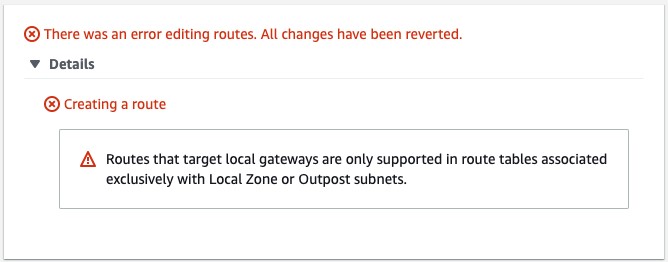
By default, every Outpost subnet inherits the main route table from its VPC. You can create a custom route table and associate it with an Outpost subnet. You can include a local gateway as the target when the destination is your on-premises network. A local gateway can only be used in VPC and subnet route tables that are exclusively associated with an Outpost subnet. If the route table is associated with an Outpost subnet and a Region subnet, it will not allow you to add a local gateway as the target.

Error message: addition of a local gateway as the target is denied

Local gateways are also not supported in the main route table.

Error message: routes that target local gateways not supported in main route table

The local gateway advertises Outpost IP address ranges to your on-premises network via BGP. In the other direction, from an on-premises network to the Outpost, it doesn’t use BGP, which means there is no propagation. You need to configure your VPC route table with static routes.

As of this writing, the LGW does not support jumbo frame.

Outposts IP addresses

Outposts can be configured in customer-owned IP (CoIP) mode.

Customer-owned IP

During the installation process, uses information that you provide about your on-premises network to create an address pool, which is known as a customer-owned IP address pool (CoIP pool). AWS then assigns it to the local gateway for use and advertises back to your on-premises network through BGP.

CoIP addresses provide local or external connectivity to resources in your Outpost subnets through your on-premises network. You can assign these IP addresses to resources on your Outpost, such as an EC2 instance, by allocating a new Elastic IP address from the customer-owned IP pool and then assigning this new Elastic IP address to your EC2 instance.

A local gateway serves as NAT for EC2 instances that have been assigned addresses from your customer-owned IP pool.

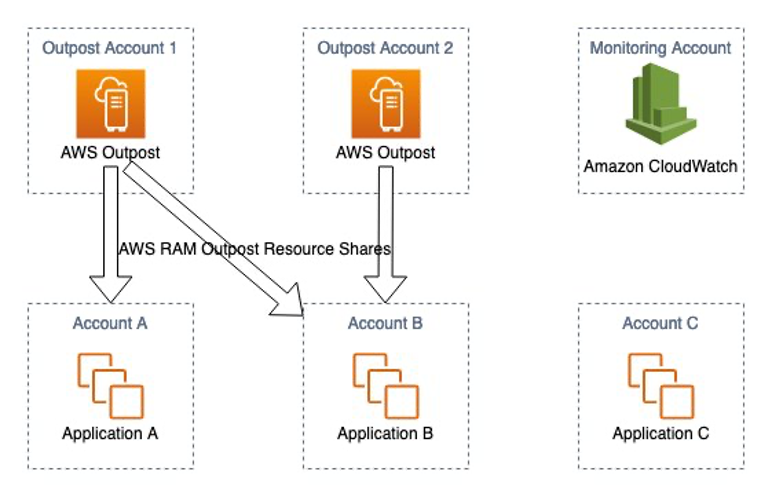
You can optionally share your customer-owned pool with multiple AWS accounts in your AWS Organizations using the AWS Resource Access Manager (RAM). After you share the pool, participants can allocate and associate Elastic IP addresses from the customer-owned IP pool.

Communication between your Outpost and on-premises network will use the CoIP Elastic IP addresses to address instances in the Outpost; the VPC CIDR range is not used.

Walkthrough

You will follow the steps required to configure your VPC to use LGW configured as CoIP, including:

  • Associate your VPC with the LGW route table.
  • Create an Outposts subnet.
  • Create and associate the VPC route table with the subnet.
  • Add a route to on-premises network with LGW as the target.

Prerequisites

For this walkthrough, you should have the following prerequisites:

  • An AWS account.
  • An Outpost that consists of one or more Outposts racks configured in CoIP mode.

Associate VPC with LGW route table

Use the following procedure to associate a VPC with the LGW route table. You can’t associate VPCs that have a CIDR block conflict.

  1. Open the AWS Outposts console.
  2. In the navigation pane, choose Local gateway route tables.
  3. Select the route table and then choose Actions, Associate VPC.
  4. For VPC ID, select the VPC to associate with the local gateway route table.
  5. Choose Associate VPC.

Create an Outpost subnet

You can add Outpost subnets to any VPC in the parent AWS Region for the Outpost. When you do so, the VPC also spans the Outpost.

  1. Open the AWS Outposts console.
  2. On the navigation pane, choose Outposts.
  3. Select the Outpost, and then choose Actions, Create subnet.
  4. Select the VPC and specify an IP address range for the subnet.
  5. Choose Create.

Create and associate VPC route table with the Outpost subnet

You can create a custom route table for your VPC using the Amazon VPC console. It is a best practice to have one specific route table for each subnet.

  1. Open the Amazon VPC console.
  2. In the navigation pane, choose Route Tables.
  3. Choose Create route table.
  4. For VPC, choose your VPC.
  5. Choose Create.
  6. On the Subnet associations tab, choose Edit subnet associations.
  7. Select the check box for the subnet to associate with the route table and then choose Save associations.

Add a route to on-premises network with LGW as the target

You can add a route to a route table using the Amazon VPC console.

  1. Open the Amazon VPC console.
  2. In the navigation pane, choose Route Tables and select
  3. Choose Actions, Edit routes.
  4. Choose Add route. For Destination, enter the destination CIDR block, a single IP address, or the ID of a prefix list.
  5. Choose Save routes.

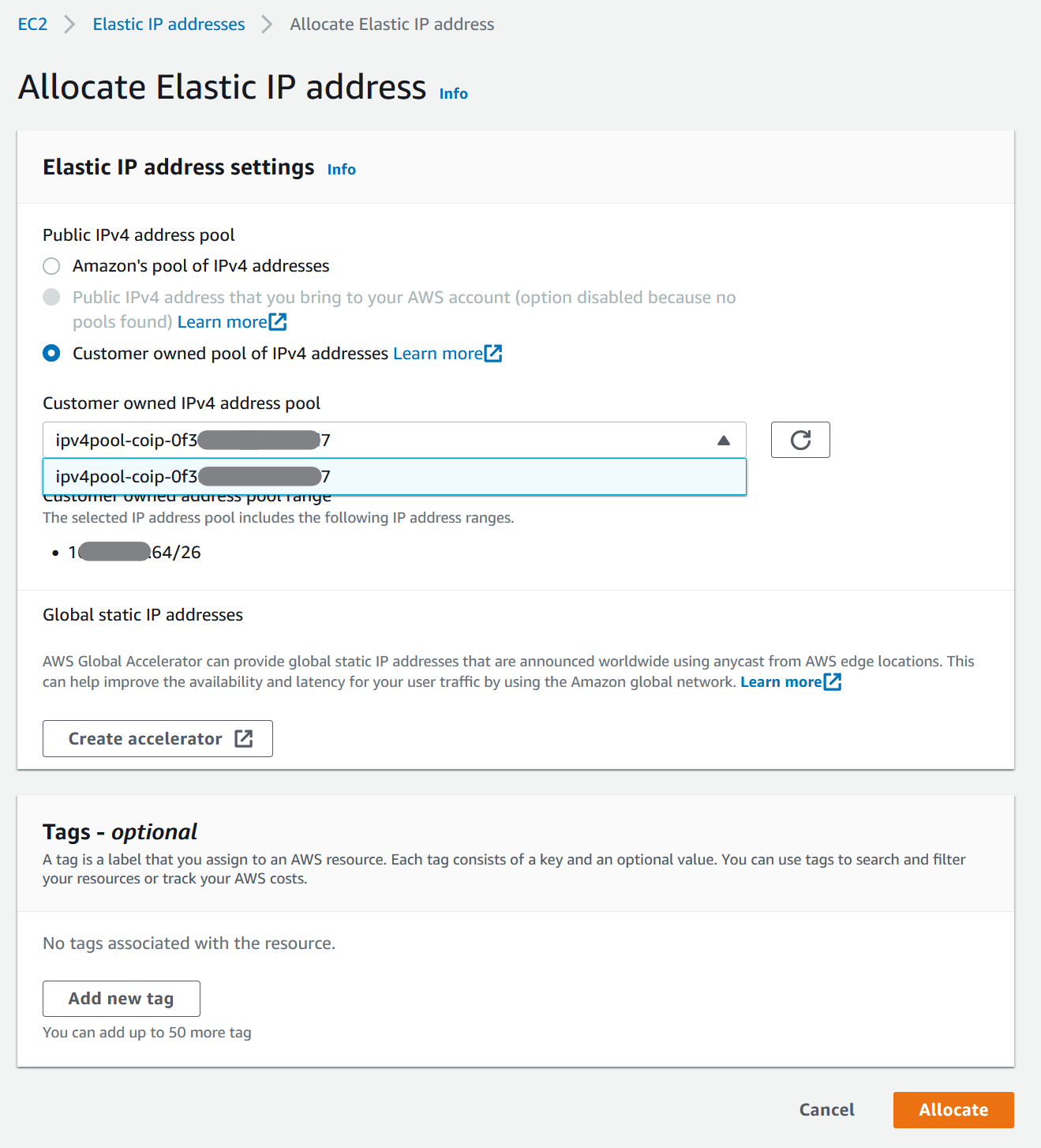
Allocate and associate a customer-owned IP address

  1. Open the Amazon EC2 console.
  2. In the navigation pane, choose Elastic IPs.
  3. Choose Allocate new address.
  4. For Network Border Group, select the location from which the IP address is advertised.
  5. For Public IPv4 address pool, choose Customer owned IPv4 address pool.
  6. For Customer owned IPv4 address pool, select the pool that you configured.
  7. Choose Allocate and close the confirmation screen.
  8. In the navigation pane, choose Elastic IPs.
  9. Select an Elastic IP address and choose Actions, Associate address.
  10. Select the instance from Instance and then choose Associate.

For more information about Launch an instance on your Outpost, refer to the AWS Outposts User Guide.

Allocate Elastic IP address

Cleaning up

To avoid incurring future charges, delete the resources, like EC2 instances.

Conclusion

In this post, I covered how to use the Outposts rack local gateway to communicate with your on-premises network. You learned how a subnet route table can influence the connectivity of public or private Outpost instances.

To learn more, check out our Outposts local gateway documentation and the networking reference architecture.

Running AWS Lambda functions on AWS Outposts using AWS IoT Greengrass

Post Syndicated from Sheila Busser original https://aws.amazon.com/blogs/compute/running-aws-lambda-functions-on-aws-outposts-using-aws-iot-greengrass/

This blog post is written by Adam Imeson, Sr. Hybrid Edge Specialist Solution Architect.

Today, AWS customers can deploy serverless applications in AWS Regions using a variety of AWS services. Customers can also use AWS Outposts to deploy fully managed AWS infrastructure at virtually any datacenter, colocation space, or on-premises facility.

AWS Outposts extends the cloud by bringing AWS services to customers’ premises to support their hybrid and edge workloads. This post will describe how to deploy Lambda functions on an Outpost using AWS IoT Greengrass.

Consider a customer who has built an application that runs in an AWS Region and depends on AWS Lambda. This customer has a business need to enter a new geographic market, but the nearest AWS Region is not close enough to meet application latency or data residency requirements. AWS Outposts can help this customer extend AWS infrastructure and services to their desired geographic region. This blog post will explain how a customer can move their Lambda-dependent application to an Outpost.

Overview

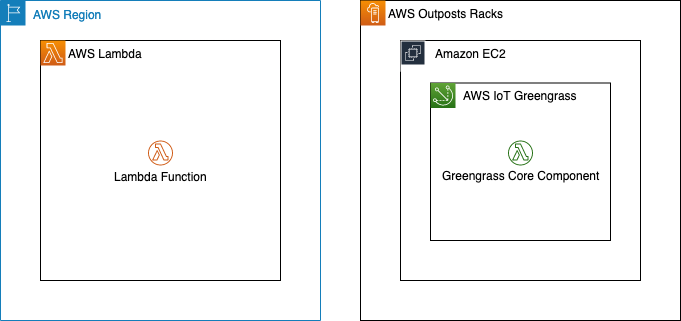
In this walkthrough you will create a Lambda function that can run on AWS IoT Greengrass and deploy it on an Outpost. This architecture results in an AWS-native Lambda function running on the Outpost.

Architecture overview - Lambda functions on AWS Outposts

Deploying Lambda functions on Outposts rack

Prerequisites: Building a VPC

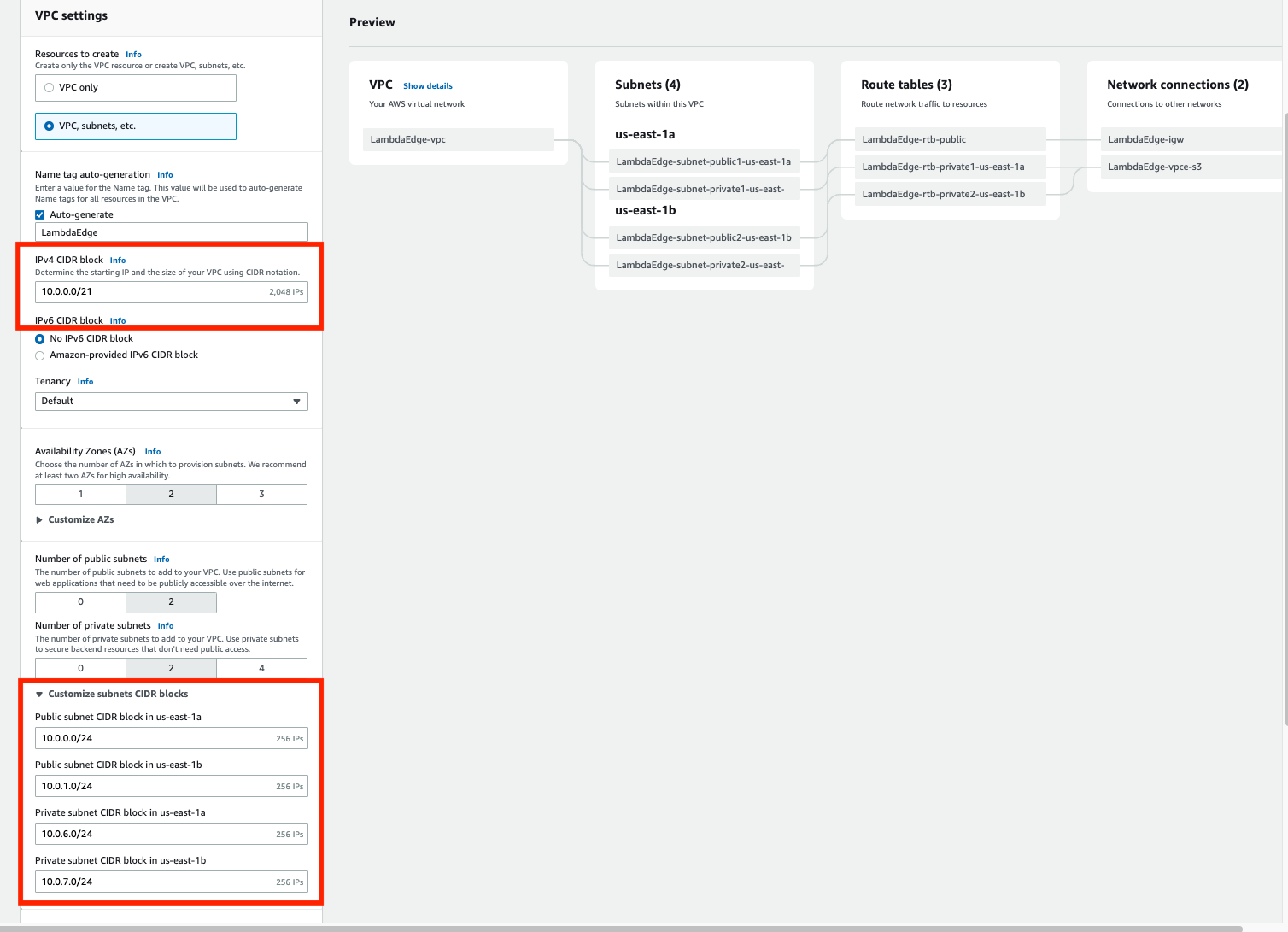
To get started, build a VPC in the same Region as your Outpost. You can do this with the create VPC option in the AWS console. The workflow allows you to set up a VPC with public and private subnets, an internet gateway, and NAT gateways as necessary. Do not consume all of the available IP space in the VPC with your subnets in this step, because you will still need to create Outposts subnets after this.

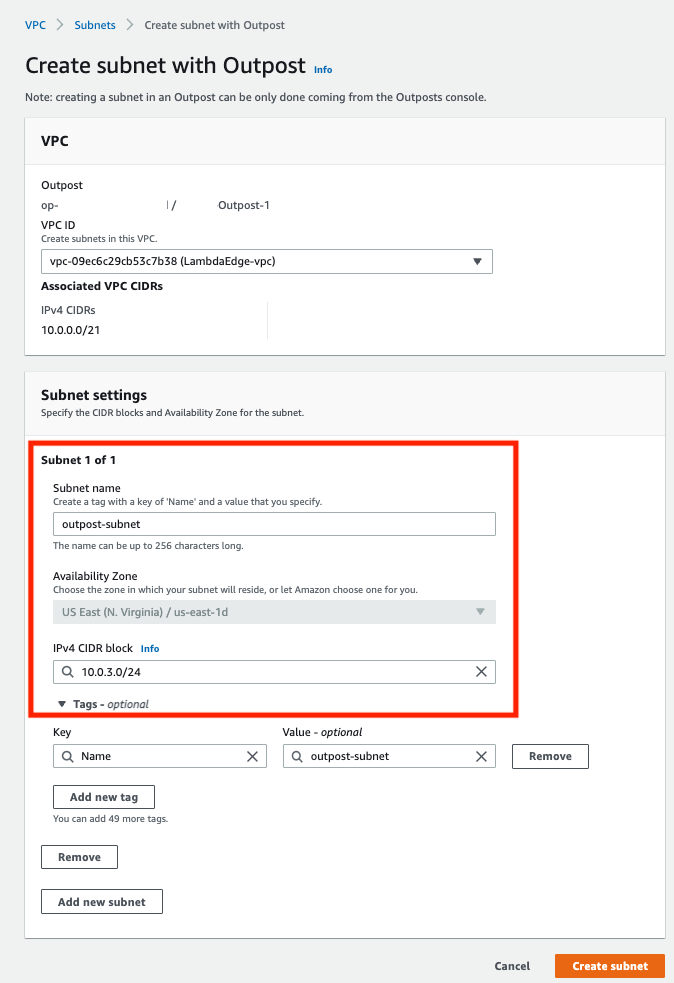
Now, build a subnet on your Outpost. You can do this by selecting your Outpost in the Outposts console and choosing Create Subnet in the drop-down Actions menu in the top right.

Confirm subnet details

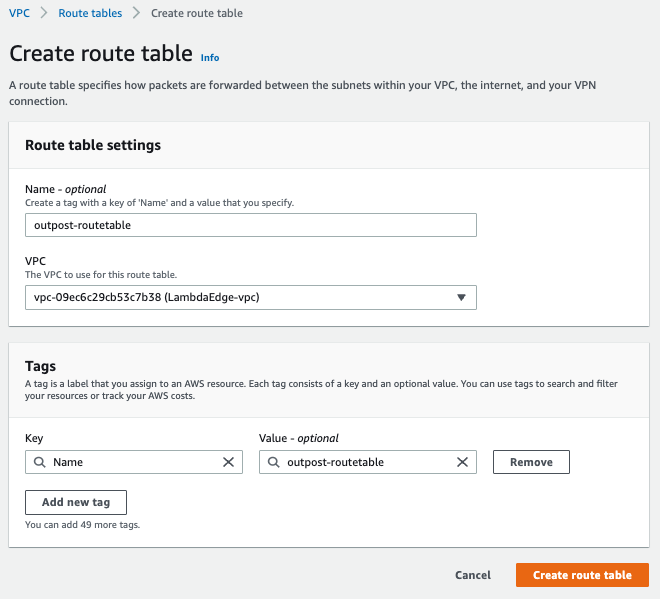
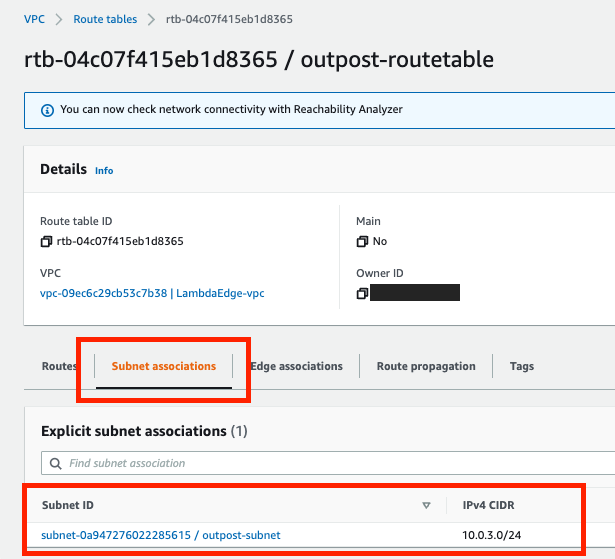
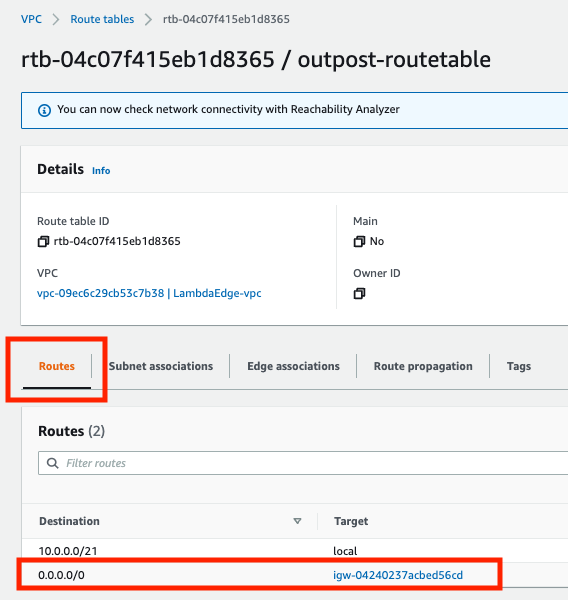
Choose the VPC you just created and select a CIDR range for your new subnet that doesn’t overlap with the other subnets that are already in the VPC. Once you’ve created the subnet, you need to create a new subnet route table and associate it with your new subnet. Go into the subnet route tables section of the VPC console and create a new route table. Associate the route table with your new subnet. Add a 0.0.0.0/0 route pointing at your VPC’s internet gateway. This sets the subnet up as a public subnet, which for the purposes of this post will make it easier to access the instance you are about to build for Greengrass Core. Depending on your requirements, it may make more sense to set up a private subnet on your Outpost instead. You can also add a route pointing at your Outpost’s local gateway here. Although you won’t be using the local gateway during this walkthrough, adding a route to the local gateway makes it possible to trigger your Outpost-hosted Lambda function with on-premises traffic.

Create a new route table

Associate the route table with the new subnet

Add a 0.0.0.0/0 route pointing at your VPC’s internet gateway

Setup: Launching an instance to run Greengrass Core

Create a new EC2 instance in your Outpost subnet. As long as your Outpost has capacity for your desired instance type, this operation will proceed the same way as any other EC2 instance launch. You can check your Outpost’s capacity in the Outposts console or in Amazon CloudWatch:

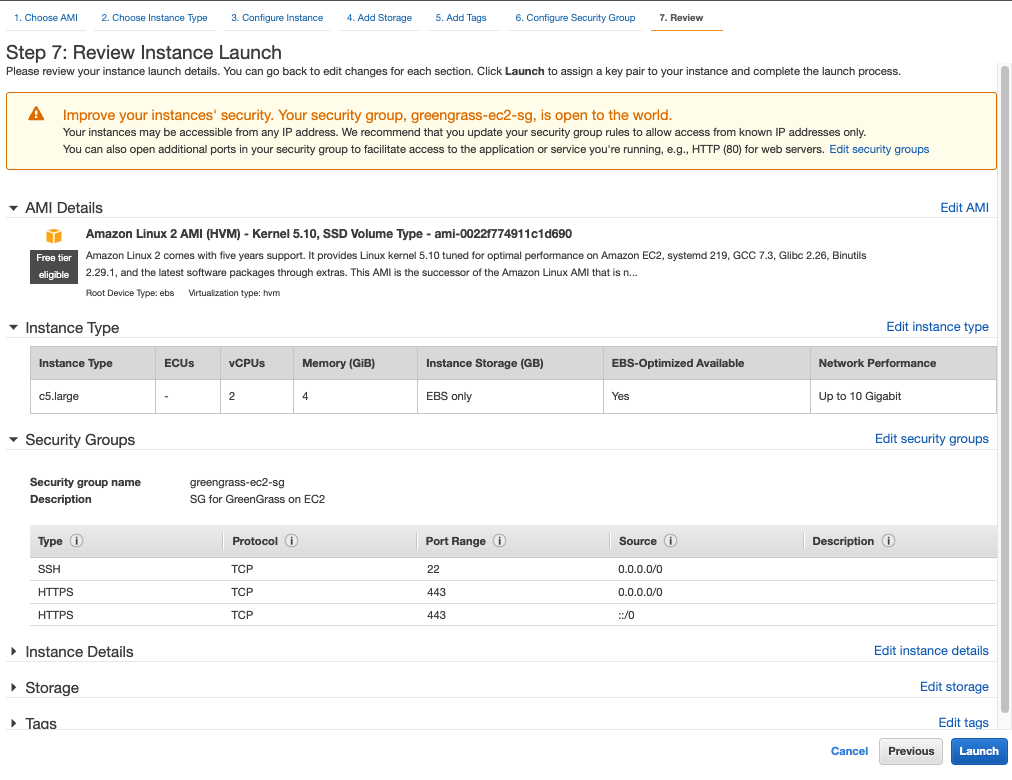
I used a c5.large instance running Amazon Linux 2 with 20 GiB of Amazon EBS storage for this walkthough. You can pick a different instance size or a different operating system in accordance with your application’s needs and the AWS IoT Greengrass documentation. For the purposes of this tutorial, we assign a public IP address to the EC2 instance on creation.

Step 1: Installing the AWS IoT Greengrass Core software

Once your EC2 instance is up and running, you will need to install the AWS IoT Greengrass Core software on the instance. Follow the AWS IoT Greengrass documentation to do this. You will need to do the following:

  1. Ensure that your EC2 instance has appropriate AWS permissions to make AWS API calls. You can do this by attaching an instance profile to the instance, or by providing AWS credentials directly to the instance as environment variables, as in the Greengrass documentation.
  2. Log in to your instance.
  3. Install OpenJDK 11. For Amazon Linux 2, you can use sudo amazon-linux-extras install java-openjdk11 to do this.
  4. Create the default system user and group that runs components on the device, with
    sudo useradd —system —create-home ggc_user
    sudo groupadd —system ggc_group
  5. Edit the /etc/sudoers file with sudo visudosuch that the entry for the root user looks like root ALL=(ALL:ALL) ALL
  6. Enable cgroups and enable and mount the memory and devices cgroups. In Amazon Linux 2, you can do this with the grubby utility as follows:
    sudo grubby --args="cgroup_enable=memory cgroup_memory=1 systemd.unified_cgroup_hierarchy=0" --update-kernel /boot/vmlinuz-$(uname -r)
  7. Type sudo reboot to reboot your instance with the cgroup boot parameters enabled.
  8. Log back in to your instance once it has rebooted.
  9. Use this command to download the AWS IoT Greengrass Core software to the instance:
    curl -s https://d2s8p88vqu9w66.cloudfront.net/releases/greengrass-nucleus-latest.zip > greengrass-nucleus-latest.zip
  10. Unzip the AWS IoT Greengrass Core software:
    unzip greengrass-nucleus-latest.zip -d GreengrassInstaller && rm greengrass-nucleus-latest.zip
  11. Run the following command to launch the installer. Replace each argument with appropriate values for your particular deployment, particularly the aws-region and thing-name arguments.
    sudo -E java -Droot="/greengrass/v2" -Dlog.store=FILE \
    -jar ./GreengrassInstaller/lib/Greengrass.jar \
    --aws-region region \
    --thing-name MyGreengrassCore \
    --thing-group-name MyGreengrassCoreGroup \
    --thing-policy-name GreengrassV2IoTThingPolicy \
    --tes-role-name GreengrassV2TokenExchangeRole \
    --tes-role-alias-name GreengrassCoreTokenExchangeRoleAlias \
    --component-default-user ggc_user:ggc_group \
    --provision true \
    --setup-system-service true \
    --deploy-dev-tools true
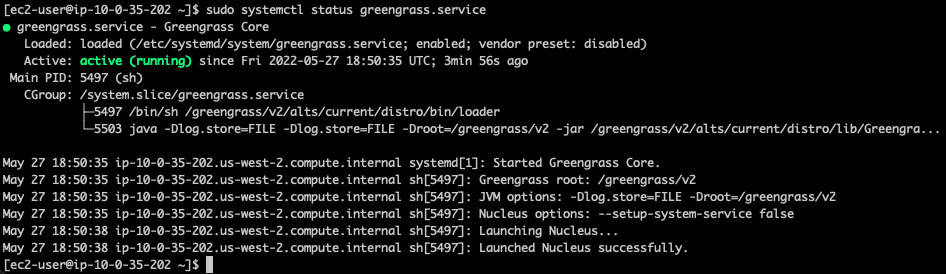
  12. You have now installed the AWS IoT Greengrass Core software on your EC2 instance. If you type sudo systemctl status greengrass.service then you should see output similar to this:

Step 2: Building and deploying a Lambda function

Now build a Lambda function and deploy it to the new Greengrass Core instance. You can find example local Lambda functions in the aws-greengrass-lambda-functions GitHub repository. This example will use the Hello World Python 3 function from that repo.

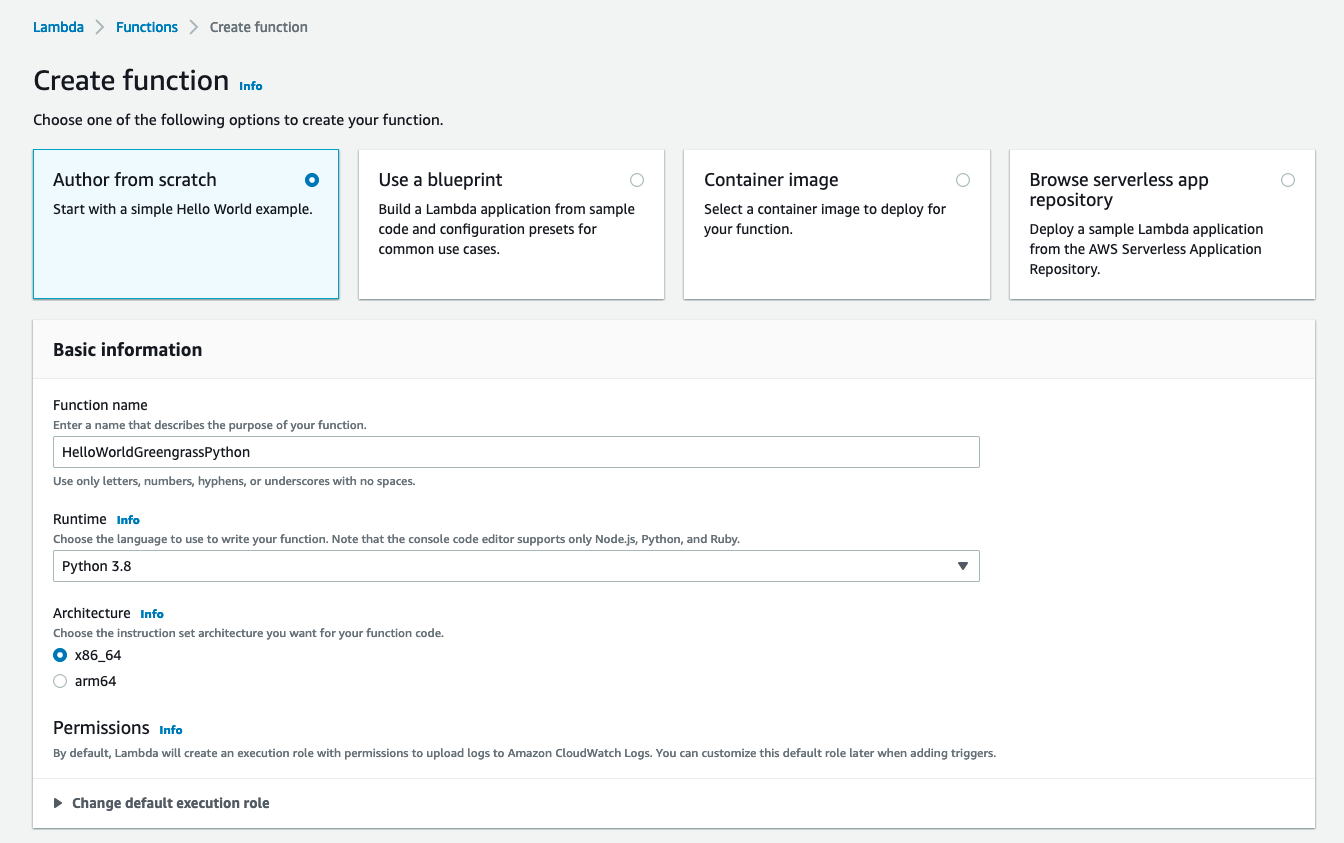
  1. Create the Lambda function. Go to the Lambda console, choose Create function, and select the Python 3.8 runtime:

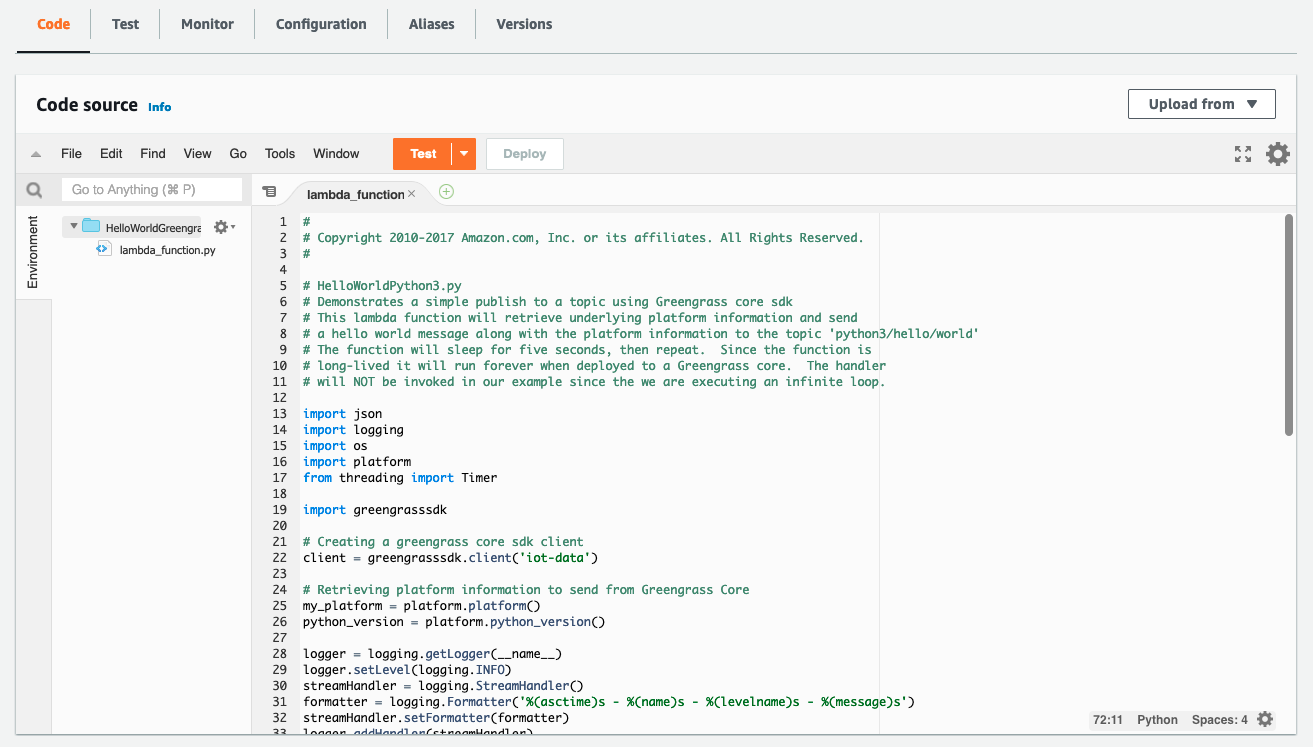
  1. Choose Create function at the bottom of the page. Once your new function has been created, copy the code from the Hello World Python 3 example into your function:

  1. Choose Deploy to deploy your new function’s code.
  2. In the top right, choose Actions and select Publish new version. For this particular function, you would need to create a deployment package with the AWS IoT Greengrass SDK for the function to work on the device. I’ve omitted this step for brevity as it is not a main focus of this post. Please reference the Lambda documentation on deployment packages and the Python-specific deployment package docs if you want to pursue this option.

  1. Go to the AWS IoT Greengrass console and choose Components in the left-side pop-in menu.
  2. On the Components page, choose Create component, and then Import Lambda function. If you prefer to do this programmatically, see the relevant AWS IoT Greengrass documentation or AWS CloudFormation documentation.
  3. Choose your new Lambda function from the drop-down.

Create component

  1. Scroll to the bottom and choose Create component.
  2. Go to the Core devices menu in the left-side nav bar and select your Greengrass Core device. This is the Greengrass Core EC2 instance you set up earlier. Make a note of the core device’s name.

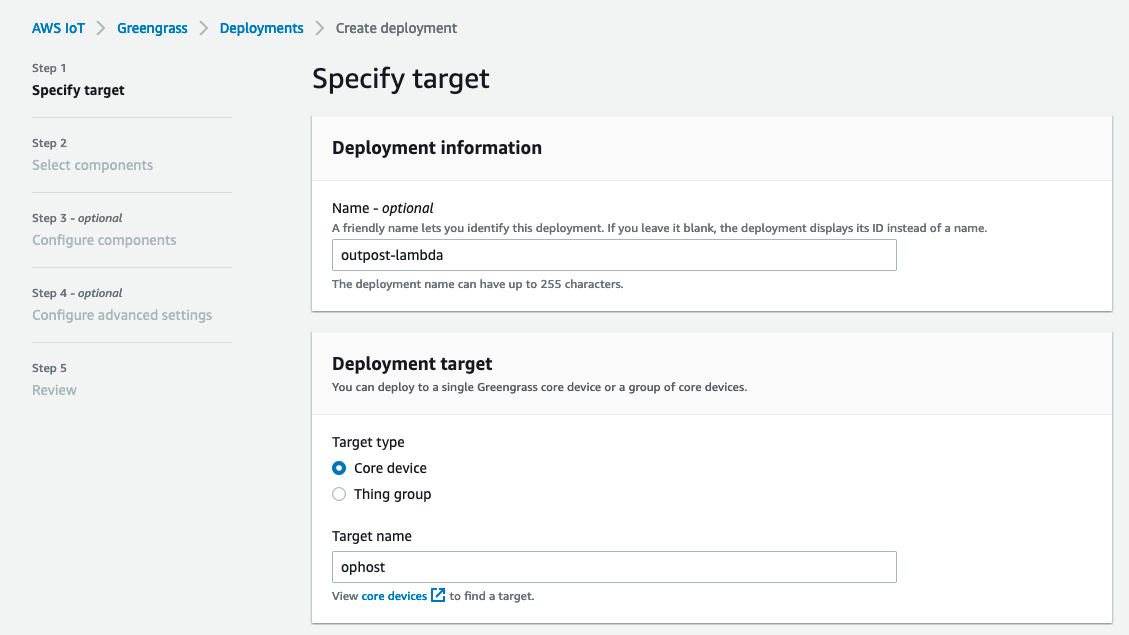
  1. Use the left-side nav bar to go to the Deployments menu. Choose Create to create a new deployment, which will place your Lambda function on your Outpost-hosted core device.
  2. Give the deployment a name and select Core device, providing the name of your core device. Choose Next.

  1. Select your Lambda function and choose Next.

  1. Choose Next again, on both the Configure components and Configure advanced settings On the last page, choose Deploy.

You should see a green message at the top of the screen indicating that your configuration is now being deployed.

Clean up

  1. Delete the Lambda function you created.
  2. Terminate the Greengrass Core EC2 instance.
  3. Delete the VPC.

Conclusion

Many customers use AWS Outposts to expand applications into new geographies. Some customers want to run Lambda-based applications on Outposts. This blog post shows how to use AWS IoT Greengrass to build Lambda functions which run locally on Outposts.

To learn more about Outposts, please contact your AWS representative and visit the Outposts homepage and documentation.

AWS Week in Review – May 9, 2022

Post Syndicated from Danilo Poccia original https://aws.amazon.com/blogs/aws/aws-week-in-review-may-9-2022/

This post is part of our Week in Review series. Check back each week for a quick roundup of interesting news and announcements from AWS!

Another week starts, and here’s a collection of the most significant AWS news from the previous seven days. This week is also the one-year anniversary of CloudFront Functions. It’s exciting to see what customers have built during this first year.

Last Week’s Launches
Here are some launches that caught my attention last week:

Amazon RDS supports PostgreSQL 14 with three levels of cascaded read replicas – That’s 5 replicas per instance, supporting a maximum of 155 read replicas per source instance with up to 30X more read capacity. You can now build a more robust disaster recovery architecture with the capability to create Single-AZ or Multi-AZ cascaded read replica DB instances in same or cross Region.

Amazon RDS on AWS Outposts storage auto scalingAWS Outposts extends AWS infrastructure, services, APIs, and tools to virtually any datacenter. With Amazon RDS on AWS Outposts, you can deploy managed DB instances in your on-premises environments. Now, you can turn on storage auto scaling when you create or modify DB instances by selecting a checkbox and specifying the maximum database storage size.

Amazon CodeGuru Reviewer suppression of files and folders in code reviews – With CodeGuru Reviewer, you can use automated reasoning and machine learning to detect potential code defects that are difficult to find and get suggestions for improvements. Now, you can prevent CodeGuru Reviewer from generating unwanted findings on certain files like test files, autogenerated files, or files that have not been recently updated.

Amazon EKS console now supports all standard Kubernetes resources to simplify cluster management – To make it easy to visualize and troubleshoot your applications, you can now use the console to see all standard Kubernetes API resource types (such as service resources, configuration and storage resources, authorization resources, policy resources, and more) running on your Amazon EKS cluster. More info in the blog post Introducing Kubernetes Resource View in Amazon EKS console.

AWS AppConfig feature flag Lambda Extension support for Arm/Graviton2 processors – Using AWS AppConfig, you can create feature flags or other dynamic configuration and safely deploy updates. The AWS AppConfig Lambda Extension allows you to access this feature flag and dynamic configuration data in your Lambda functions. You can now use the AWS AppConfig Lambda Extension from Lambda functions using the Arm/Graviton2 architecture.

AWS Serverless Application Model (SAM) CLI now supports enabling AWS X-Ray tracing – With the AWS SAM CLI you can initialize, build, package, test on local and cloud, and deploy serverless applications. With AWS X-Ray, you have an end-to-end view of requests as they travel through your application, making them easier to monitor and troubleshoot. Now, you can enable tracing by simply adding a flag to the sam init command.

Amazon Kinesis Video Streams image extraction – With Amazon Kinesis Video Streams you can capture, process, and store media streams. Now, you can also request images via API calls or configure automatic image generation based on metadata tags in ingested video. For example, you can use this to generate thumbnails for playback applications or to have more data for your machine learning pipelines.

AWS GameKit supports Android, iOS, and MacOS games developed with Unreal Engine – With AWS GameKit, you can build AWS-powered game features directly from the Unreal Editor with just a few clicks. Now, the AWS GameKit plugin for Unreal Engine supports building games for the Win64, MacOS, Android, and iOS platforms.

For a full list of AWS announcements, be sure to keep an eye on the What’s New at AWS page.

Other AWS News
Some other updates you might have missed:

🎂 One-year anniversary of CloudFront Functions – I can’t believe it’s been one year since we launched CloudFront Functions. Now, we have tens of thousands of developers actively using CloudFront Functions, with trillions of invocations per month. You can use CloudFront Functions for HTTP header manipulation, URL rewrites and redirects, cache key manipulations/normalization, access authorization, and more. See some examples in this repo. Let’s see what customers built with CloudFront Functions:
  • CloudFront Functions enables Formula 1 to authenticate users with more than 500K requests per second. The solution is using CloudFront Functions to evaluate if users have access to view the race livestream by validating a token in the request.
  • Cloudinary is a media management company that helps its customers deliver content such as videos and images to users worldwide. For them, Lambda@Edge remains an excellent solution for applications that require heavy compute operations, but lightweight operations that require high scalability can now be run using CloudFront Functions. With CloudFront Functions, Cloudinary and its customers are seeing significantly increased performance. For example, one of Cloudinary’s customers began using CloudFront Functions, and in about two weeks it was seeing 20–30 percent better response times. The customer also estimates that they will see 75 percent cost savings.
  • Based in Japan, DigitalCube is a web hosting provider for WordPress websites. Previously, DigitalCube spent several hours completing each of its update deployments. Now, they can deploy updates across thousands of distributions quickly. Using CloudFront Functions, they’ve reduced update deployment times from 4 hours to 2 minutes. In addition, faster updates and less maintenance work result in better quality throughout DigitalCube’s offerings. It’s now easier for them to test on AWS because they can run tests that affect thousands of distributions without having to scale internally or introduce downtime.
  • Amazon.com is using CloudFront Functions to change the way it delivers static assets to customers globally. CloudFront Functions allows them to experiment with hyper-personalization at scale and optimal latency performance. They have been working closely with the CloudFront team during product development, and they like how it is easy to create, test, and deploy custom code and implement business logic at the edge.

AWS open-source news and updates – A newsletter curated by my colleague Ricardo to bring you the latest open-source projects, posts, events, and more. Read the latest edition here.

Reduce log-storage costs by automating retention settings in Amazon CloudWatch – By default, CloudWatch Logs stores your log data indefinitely. This blog post shows how you can reduce log-storage costs by establishing a log-retention policy and applying it across all of your log groups.

Observability for AWS App Runner VPC networking – With X-Ray support in App runner, you can quickly deploy web applications and APIs at any scale and take advantage of adding tracing without having to manage sidecars or agents. Here’s an example of how you can instrument your applications with the AWS Distro for OpenTelemetry (ADOT).

Upcoming AWS Events
It’s AWS Summits season and here are some virtual and in-person events that might be close to you:

You can now register for re:MARS to get fresh ideas on topics such as machine learning, automation, robotics, and space. The conference will be in person in Las Vegas, June 21–24.

That’s all from me for this week. Come back next Monday for another Week in Review!

Danilo

Managing and Securing AWS Outposts Instances using AWS Systems Manager, Amazon Inspector, and Amazon GuardDuty

Post Syndicated from sbbusser original https://aws.amazon.com/blogs/compute/managing-and-securing-aws-outposts-instances-using-aws-systems-manager-amazon-inspector-and-amazon-guardduty/

This post is written by Sumeeth Siriyur, Specialist Solutions Architect.

AWS Outposts is a family of fully managed solutions that deliver AWS infrastructure and services to virtually any on-premises or edge location for a truly consistent hybrid experience. Outposts is ideal for workloads that need low latency access to on-premises applications or systems, local data processing, and secure storage of sensitive customer data that must remain anywhere without an AWS region, including inside company-controlled environments or a specific country.

A key feature of Outposts is that it offers the same AWS hardware infrastructure, services, APIs, and tools to build and run your applications on-premises and “in AWS Regions”. Outposts is part of the cloud for a truly consistent hybrid experience. AWS compute, storage, database, and other services run locally on Outposts, and you can access the full range of AWS services available in the Region to build, manage, and scale your on-premises applications using familiar AWS services and tools.

Outposts comes in a variety of form factors, from 1U and 2U servers to 42U Outposts rack. This post focuses on the 42U form factor of Outposts.

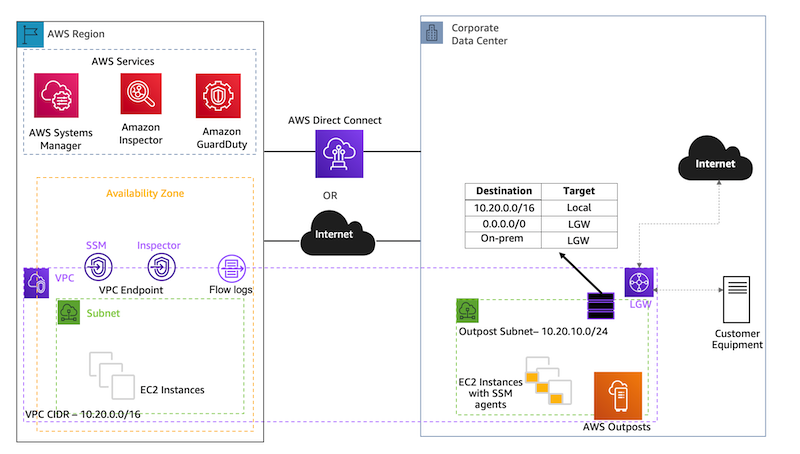
This post demonstrates how to use some of the existing AWS services in the Region, such as AWS System Manager (SSM), Amazon Inspector, and Amazon GuardDuty to manage and secure your workload environment on Outposts rack. This is no different from how you use these services for workloads in the AWS Regions.

Solution overview

In this scenario, Outposts rack is locally installed in a customer premises. The service link connectivity to the AWS Region can be either via an AWS Direct Connect private virtual interface, a public virtual interface, or the public internet.

The local gateway (LGW) provides connectivity between the Outposts instances and the local on-premises network.

A virtual private cloud (VPC) spans all Availability Zones in its AWS Region. You can extend the VPC in the Region to the Outpost by adding an Outpost subnet. To add an Outpost subnet to a VPC, specify the Amazon Resource Name (ARN) – arn:aws:outposts:region:account-id – of the Outpost when you create the subnet. Outposts rack support multiple subnets. In this scenario, we have extended the VPC from the Region (us-west-2) to the Outpost.

To improve the security posture of the Outposts instance, you can configure AWS SSM to use an interface VPC endpoint in Amazon Virtual Private Cloud (VPC). An interface VPC endpoint lets you connect to services powered by AWS PrivateLink, a technology that lets you privately access AWS SSM APIs by using private IP addresses. See the details in the following AWS SSM section for the VPC endpoints.

Most importantly, to leverage any of the AWS services in the Region, Outposts rack relies on connectivity to the parent AWS Region. Outposts rack is not designed for disconnected operations or environments with limited to no connectivity. We recommend that you have highly-available networking connections back to your AWS Region. For an optimal experience and resiliency, AWS recommends that you use redundant connectivity of at least 500 Mbps (1 Gbps or higher) for the service link connection to the AWS Region.

An overview of the AWS Outposts setup and connectivity back to the region.

Outposts offers a consistent experience with the same hardware infrastructure, services, APIs, management, and operations on-premises as in the AWS Regions. Unlike other hybrid solutions that require different APIs, manual software updates, and purchase of third-party hardware and support, Outposts enables developers and IT operations teams to achieve the same pace of innovation across different environments.

In the first section, let’s see how we can use AWS SSM services for managing and operating Outposts instances.

Managing Outposts instances using AWS SSM

The Amazon Systems Manager Agent (SSM Agent) is installed and running on the Outposts instances.

SSM Agent is installed by default on Amazon Linux, Amazon Linux 2, Ubuntu Server16.04 and Ubuntu Server 18.04 LTS based Amazon Elastic Compute Cloud (EC2) AMIs. If SSM Agent isn’t preinstalled, then you must manually install the agent. Agent communication with SSM is via TCP port 443.

Linux: Manually install SSM Agent on EC2 instances for Linux

Windows: Manually install SSM Agent on EC2 instances for Windows Server

  1. Create an IAM instance profile for SSM

By default, SSM doesn’t have permission to perform actions on your instances. Grant access by using an AWS Identity and Access Management (IAM) instance profile. An instance profile is a container that passes IAM role information to an Amazon EC2 instance at launch. You can create an instance profile for SSM by attaching one or more IAM policies that define the necessary permissions to a new role or to a role that you already created. Make sure that you follow AWS best practices by having a least-privileges policy created.

  1. Create VPC endpoints for SSM.

a. amazonaws.us-west-2.ssm: The endpoint for the Systems Manager service.

b. amazonaws.us-west-2.ec2messages: Systems Manager uses this endpoint to make calls from the SSM Agent to the Systems Manager service.

c. amazonaws.us-west-2.ec2: If you’re using Systems Manager to create VSS-enabled snapshots, then you must make sure that you have an endpoint to the EC2 service. Without the EC2 endpoint defined, a call to enumerate attached Amazon Elastic Block Storage (EBS) volumes fails, which causes the Systems Manager command to fail.

d. amazonaws.us-west-2.ssmmessages: This endpoint is for connecting to your instances with a secure data channel using Session Manager.

e. amazonaws.us-west-2.s3: Systems Manager uses this endpoint to update SSM agent, perform patch operation, and for uploading logs into Amazon Simple Storage Service (S3) buckets.

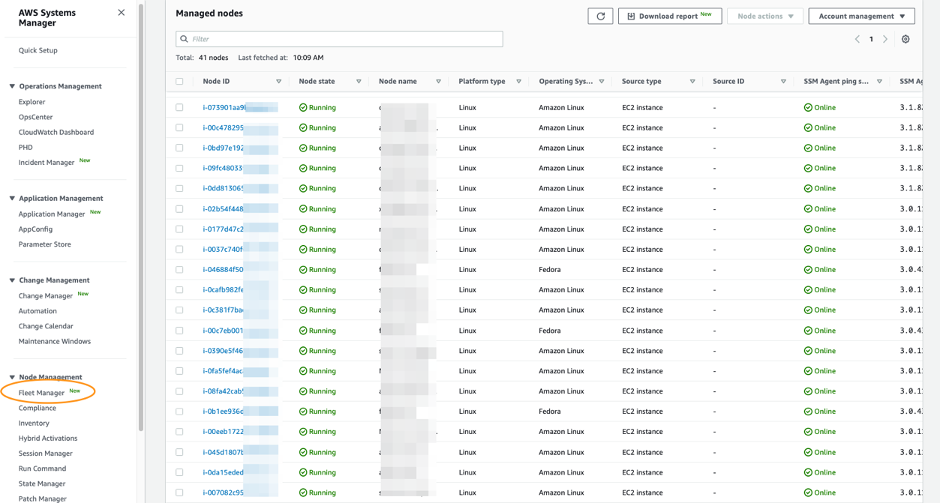
  1. Once the SSM agent has been installed and the necessary permission has been provided for the Systems Manager, log in to Systems Manager Console and navigate to Fleet Manager to discover the Outposts instances as shown in the following image.

Fleet Manager to discover the Outposts instances.

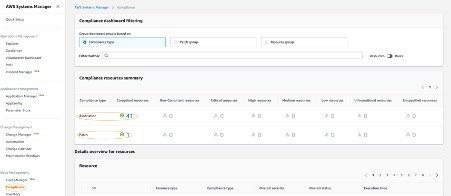
4. You can use compliance to scan the Outposts instances for patch compliance and configuration inconsistencies.

Compliance to scan the Outposts instances for patch compliance and configuration inconsistencies.

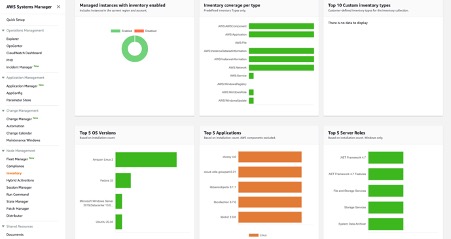
5. AWS Systems Manager Inventory provides visibility into your Outposts computing environment. You can use this inventory to collect metadata about the instances.

AWS SSM inventory to collect metadata about the instances.

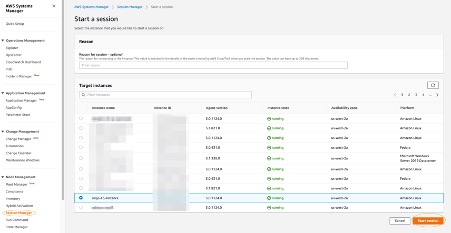
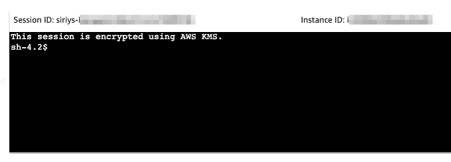
6. With Session Manager, you can log into your Outposts instances. You can use either an interactive one-click browser-based shell, or the AWS Command Line Interface (CLI) for Linux based EC2 instances. For Windows instances, you can connect using Remote Desktop Protocol (RDP). For better SEO, suggest replacing this with “Check out”, attach the link to “how to connect to Windows instances from the Fleet Manager console”, and delete can be found here. here.

Note that accessing the Outposts EC2 instances through SSH or RDP via the Region based Session Manager will have more latency via service link than accessing via the LGW.

Session Manager to connect to Outposts EC2 instances.

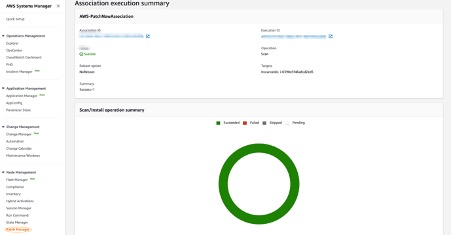
7. Patch Manager automated the process of patching the Outposts instances with both security-related and other types of updates. In the following you can see that one of the Outposts instances is scanned and updated with an operational update.

AWS SSM Patch Manager to patch the Outposts Instances.

Security at AWS is the highest priority. Security is a shared responsibility between AWS and customers. We offer the security tools and procedures to secure the Outposts instances as in the AWS region. By using AWS services, you can enhance your security posture on Outposts rack in these areas.

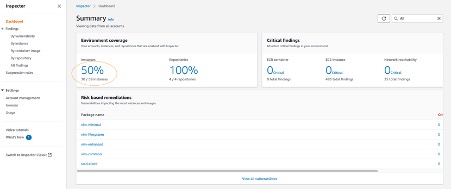
In the second section, let’s see how we can use Amazon Inspector running in the AWS Region to scan for vulnerabilities within the Outposts environment. Amazon Inspector uses the widely deployed SSM Agent to automatically scan for vulnerabilities on Outposts instances.

Scan Outposts instances for vulnerabilities using Amazon Inspector

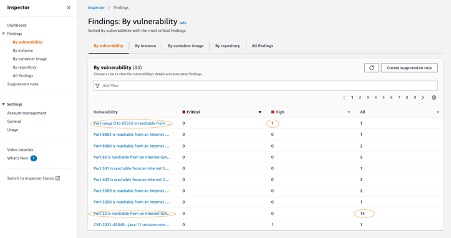
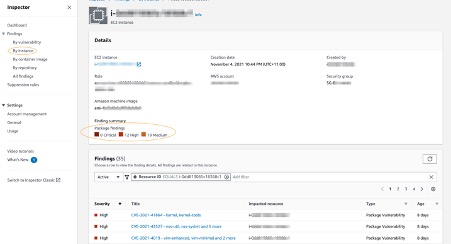
Amazon Inspector is an automated vulnerability management service that continually scans AWS workloads for software vulnerabilities and unintended network exposure. Amazon Inspector automatically discovers all of the Outposts EC2 instances (installed with SSM Agent) and container images residing in Amazon Elastic Container Registry (ECR) that are identified for scanning. Then, it immediately starts scanning them for software vulnerabilities and unintended network exposure.

All workloads are continually rescanned when a new Common Vulnerabilities And Exposures (CVE) is published, or when there are changes in the workloads, such as installation of new software in an Outposts EC2 instance.

Amazon Inspector uses the widely deployed SSM Agent (deployed in the previous scenario) to collect the software inventory and configurations from your Outposts EC2 instances. Use the VPC interface endpoint – com.amazonaws.us-west-2.inspector2 – to privately access Amazon Inspector. The collected application inventory and configurations are used to assess workloads for vulnerabilities.

  1. The following Summary Dashboard provides information on how many Outposts EC2 instances and the container repositories are scanned and discovered.

Amazon Inspector Summary Console.

2. The findings by Vulnerability tab help to identify the most vulnerable Outposts EC2 instances in your environment. In the following, you can see Outposts instances with the following vulnerability highlighted.

a. Port range 0 to 65535 is reachable from an Internet Gateway

b. Port 22 is reachable from an Internet Gateway

Amazon Inspector Vulnerability console.

3. The findings by instance tab shows you all of the active findings for a Single Outposts instance in your environment. In the following, you can see that for this instance there are a total of 12 high and 19 medium findings based on the rules in the Common Vulnerabilities And Exposures (CVE) package.

Amazon Inspector Instances Console.

In the last section, let’s see how we can use GuardDuty to detect any threats within the Outposts environment.

Threat Detection service for your AWS accounts and Outposts workloads using Amazon GuardDuty

GuardDuty is a threat detection service that continuously monitors your AWS accounts and workloads for malicious activities and delivers detailed security findings for visibility and remediation.

GuardDuty continuously monitors and analyses the Outposts instances and reports suspicious activities using the GuardDuty console. It gets this information from CloudTrail Management Events, VPC Flow Logs, and DNS logs.

In this scenario, GuardDuty has detected an SSH brute force attack against an Outposts instance.

Amazon GuardDuty threat detection console.

Costs associated with the scenario

  • Systems Manager: With AWS Systems Manager, you pay only for what you use on the priced feature. In this scenario, we have used the following features.
    1. Inventory – No additional charges
    2. Session Manager – No additional charges
    3. Patch Manager – No additional charges

*Note that there will be charges for the VPC endpoint created.

  • Amazon Inspector: Costs for Amazon Inspector are based on container images scanned to ECR and the EC2 instances being scanned.
    1. The average number of EC2 instances scanned per month in US-WEST-2 region is $1.258 per instance. In the above scenario, there are three instances within the Outposts at $1.258 = $3.774
  • Amazon GuardDuty: VPC Flow logs and CloudWatch logs are used for GuardDuty analysis. In this scenario, Only VPC Flow logs are considered.
    1. VPC Flow log is charged per GB/month. In US-WEST-2 region – the First 500 GB/month is $1 per GB. In the above scenario, there are three instances within the Outposts that would generate approximately 80 MB of data, which is still within the 500 GB limit.
  • Understand more about AWS Outposts rack pricing on our website.

Cleaning up

Please delete example resources if they are no longer needed to avoid incurring future costs.

  • Amazon Inspector: Disable Amazon Inspector from the Amazon Inspector Console.
  • Amazon GuardDuty: You can use the GuardDuty console to suspend or disable GuardDuty. You are not charged for using GuardDuty when the service is suspended.
  • Delete unused IAM policies

Conclusion

On-premises data centers traditionally use a variety of infrastructure, tools, and APIs. This disparate assortment of hardware and software solutions results in complexity. In turn, this leads to greater management costs, inability of staff to translate skills from one setting to another, and limits in innovation and knowledge-sharing between environments.

Using a common set of tools, services in the AWS Regions and on Outposts on premises allows you to have a consistent operation environment, thereby delivering a true hybrid cloud experience. Equally, by using the same tools to deploy and manage workloads in both environments, you can reduce operational overhead.

To get started with Outposts, see AWS Outposts Family. For more information about Outposts availability, see the Outposts rack FAQ.

Creating computing quotas on AWS Outposts rack with EC2 Capacity Reservations sharing

Post Syndicated from Rachel Zheng original https://aws.amazon.com/blogs/compute/creating-computing-quotas-on-aws-outposts-rack-with-ec2-capacity-reservation-sharing/

This post is written by Yi-Kang Wang, Senior Hybrid Specialist SA.

AWS Outposts rack is a fully managed service that delivers the same AWS infrastructure, AWS services, APIs, and tools to virtually any on-premises datacenter or co-location space for a truly consistent hybrid experience. AWS Outposts rack is ideal for workloads that require low latency access to on-premises systems, local data processing, data residency, and migration of applications with local system interdependencies. In addition to these benefits, we have started to see many of you need to share Outposts rack resources across business units and projects within your organization. This blog post will discuss how you can share Outposts rack resources by creating computing quotas on Outposts with Amazon Elastic Compute Cloud (Amazon EC2) Capacity Reservations sharing.

In AWS Regions, you can set up and govern a multi-account AWS environment using AWS Organizations and AWS Control Tower. The natural boundaries of accounts provide some built-in security controls, and AWS provides additional governance tooling to help you achieve your goals of managing a secure and scalable cloud environment. And while Outposts can consistently use organizational structures for security purposes, Outposts introduces another layer to consider in designing that structure. When an Outpost is shared within an Organization, the utilization of the purchased capacity also needs to be managed and tracked within the organization. The account that owns the Outpost resource can use AWS Resource Access Manager (RAM) to create resource shares for member accounts within their organization. An Outposts administrator (admin) can share the ability to launch instances on the Outpost itself, access to the local gateways (LGW) route tables, and/or access to customer-owned IPs (CoIP). Once the Outpost capacity is shared, the admin needs a mechanism to control the usage and prevent over utilization by individual accounts. With the introduction of Capacity Reservations on Outposts, we can now set up a mechanism for computing quotas.

Concept of computing quotas on Outposts rack

In the AWS Regions, Capacity Reservations enable you to reserve compute capacity for your Amazon EC2 instances in a specific Availability Zone for any duration you need. On May 24, 2021, Capacity Reservations were enabled for Outposts rack. It supports not only EC2 but Outposts services running over EC2 instances such as Amazon Elastic Kubernetes (EKS), Amazon Elastic Container Service (ECS) and Amazon EMR. The computing power of above services could be covered in your resource planning as well. For example, you’d like to launch an EKS cluster with two self-managed worker nodes for high availability. You can reserve two instances with Capacity Reservations to secure computing power for the requirement.

Here I’ll describe a method for thinking about resource pools that an admin can use to manage resource allocation. I’ll use three resource pools, that I’ve named reservation pool, bulk and attic, to effectively and extensibly manage the Outpost capacity.

A reservation pool is a resource pool reserved for a specified member account. An admin creates a Capacity Reservation to match member account’s need, and shares the Capacity Reservation with the member account through AWS RAM.

A bulk pool is an unreserved resource pool that is used when member accounts run out of compute capacity such as EC2, EKS, or other services using EC2 as underlay. All compute capacity in the bulk pool can be requested to launch until it is exhausted. Compute capacity that is not under a reservation pool belongs to the bulk pool by default.

An attic is a resource pool created to hold the compute capacity that the admin wouldn’t like to share with member accounts. The compute capacity remains in control by admin, and can be released to the bulk pool when needed. Admin creates a Capacity Reservation for the attic and owns the Capacity Reservation.

The following diagram shows how the admin uses Capacity Reservations with AWS RAM to manage computing quotas for two member accounts on an Outpost equipped with twenty-four m5.xlarge. Here, I’m going to break the idea into several pieces to help you understand easily.

  1. There are three Capacity Reservations created by admin. CR #1 reserves eight m5.xlarge for the attic, CR #2 reserves four m5.xlarge instances for account A and CR #3 reserves six m5.xlarge instances for account B.
  2. The admin shares Capacity Reservation CR #2 and CR #3 with account A and B respectively.
  3. Since eighteen m5.xlarge instances are reserved, the remaining compute capacity in the bulk pool will be six m5.xlarge.
  4. Both Account A and B can continue to launch instances exceeding the amount in their Capacity Reservation, by utilizing the instances available to everyone in the bulk pool.

Concept of defining computing quotas

  1. Once the bulk pool is exhausted, account A and B won’t be able to launch extra instances from the bulk pool.
  2. The admin can release more compute capacity from the attic to refill the bulk pool, or directly share more capacity with CR#2 and CR#3. The following diagram demonstrates how it works.

Concept of refilling bulk pool

Based on this concept, we realize that compute capacity can be securely and efficiently allocated among multiple AWS accounts. Reservation pools allow every member account to have sufficient resources to meet consistent demand. Making the bulk pool empty indirectly sets the maximum quota of each member account. The attic plays as a provider that is able to release compute capacity into the bulk pool for temporary demand. Here are the major benefits of computing quotas.

  • Centralized compute capacity management
  • Reserving minimum compute capacity for consistent demand
  • Resizable bulk pool for temporary demand
  • Limiting maximum compute capacity to avoid resource congestion.

Configuration process

To take you through the process of configuring computing quotas in the AWS console, I have simplified the environment like the following architecture. There are four m5.4xlarge instances in total. An admin account holds two of the m5.4xlarge in the attic, and a member account gets the other two m5.4xlarge for the reservation pool, which results in no extra instance in the bulk pool for temporary demand.

Prerequisites

  • The admin and the member account are within the same AWS Organization.
  • The Outpost ID, LGW and CoIP have been shared with the member account.

Architecture for configuring computing quotas

  1. Creating a Capacity Reservation for the member account

Sign in to AWS console of the admin account and navigate to the AWS Outposts page. Select the Outpost ID you want to share with the member account, choose Actions, and then select Create Capacity Reservation. In this case, reserve two m5.4xlarge instances.

Create a capacity reservation

In the Reservation details, you can terminate the Capacity Reservation by manually enabling or selecting a specific time. The first option of Instance eligibility will automatically count the number of instances against the Capacity Reservation without specifying a reservation ID. To avoid misconfiguration from member accounts, I suggest you select Any instance with matching details in most use cases.

Reservation details

  1. Sharing the Capacity Reservation through AWS RAM

Go to the RAM page, choose Create resource share under Resource shares page. Search and select the Capacity Reservation you just created for the member account.

Specify resource sharing details

Choose a principal that is an AWS ID of the member account.

Choose principals that are allowed to access

  1. Creating a Capacity Reservation for attic

Create a Capacity Reservation like step 1 without sharing with anyone. This reservation will just be owned by the admin account. After that, check Capacity Reservations under the EC2 page, and the two Capacity Reservations there, both with availability of two m5.4xlarge instances.

3.	Creating a Capacity Reservation for attic

  1. Launching EC2 instances

Log in to the member account, select the Outpost ID the admin shared in step 2 then choose Actions and select Launch instance. Follow AWS Outposts User Guide to launch two m5.4xlarge on the Outpost. When the two instances are in Running state, you can see a Capacity Reservation ID on Details page. In this case, it’s cr-0381467c286b3d900.

Create EC2 instances

So far, the member account has run out of two m5.4xlarge instances that the admin reserved for. If you try to launch the third m5.4xlarge instance, the following failure message will show you there is not enough capacity.

Launch status

  1. Allocating more compute capacity in bulk pool

Go back to the admin console, select the Capacity Reservation ID of the attic on EC2 page and choose Edit. Modify the value of Quantity from 2 to 1 and choose Save, which means the admin is going to release one more m5.4xlarge instance from the attic to the bulk pool.

Instance details

  1. Launching more instances from bulk pool

Switch to the member account console, and repeat step 4 but only launch one more m5.4xlarge instance. With the resource release on step 5, the member account successfully gets the third instance. The compute capacity is coming from the bulk pool, so when you check the Details page of the third instance, the Capacity Reservation ID is blank.

6.	Launching more instances from bulk pool

Cleaning up

  1. Terminate the three EC2 instances in the member account.
  2. Unshare the Capacity Reservation in RAM and delete it in the admin account.
  3. Unshare the Outpost ID, LGW and CoIP in RAM to get the Outposts resources back to the admin.

Conclusion

In this blog post, the admin can dynamically adjust compute capacity allocation on Outposts rack for purpose-built member accounts with an AWS Organization. The bulk pool offers an option to fulfill flexibility of resource planning among member accounts if the maximum instance need per member account is unpredictable. By contrast, if resource forecast is feasible, the admin can revise both the reservation pool and the attic to set a hard limit per member account without using the bulk pool. In addition, I only showed you how to create a Capacity Reservation of m5.4xlarge for the member account, but in fact an admin can create multiple Capacity Reservations with various instance types or sizes for a member account to customize the reservation pool. Lastly, if you would like to securely share Amazon S3 on Outposts with your member accounts, check out Amazon S3 on Outposts now supports sharing across multiple accounts to get more details.

Building Resilient and High Performing Cloud-based Applications in Hawaii

Post Syndicated from Marie Yap original https://aws.amazon.com/blogs/architecture/building-resilient-and-high-performing-cloud-based-applications-in-hawaii/

Hawaii is building a digital economy for a sustainable future. Many local businesses are already embarking on their journey to the cloud to meet their customers’ growing demand for digital services. To access Amazon Web Services (AWS) on the US mainland, customers’ data must traverse through submarine fiber-optic cable networks approximately 2,800 miles across the Pacific Ocean. As a result, organizations have two primary concerns:

  • Resiliency concerns about multiple outage events that could arise from breaks in the submarine cables.
  • Latency concerns for mission-critical applications driven by physical distance.

These problems can be solved by architecting the workloads for reliability, secure connectivity, and high performance.

Designing network connectivity that is reliable, secure, and highly performant

A typical workload in AWS can be broken down into three layers – Network, Infrastructure, and Application. For each layer, we can design for resiliency and latency concerns. Starting at the network layer, there are two recommended options for connecting the on-premises network within the island to AWS.

  • Use of AWS Direct Connect over a physical connection. AWS Direct Connect is a dedicated network connection that connects your on-premises environment to AWS Regions. In this case, the connection is traversing the fiber-optic cable across the Pacific Ocean to the mainland’s meet-me-point facilities. It can be provisioned from 50 Mbps up to 100 Gbps. This provides you with a presence in an AWS Direct Connect location, a third-party colocation facility, or an Internet Service Provider (ISP) that provides last-mile connectivity to AWS. In addition, the Direct Connect location establishes dedicated connectivity to Amazon Virtual Private Clouds (VPC). This improves application performance and addresses latency concerns by connecting directly to AWS and bypassing the public internet.
  • Use of AWS VPN over an internet connection. As a secondary option to Direct Connect, AWS Site-to-Site VPN provide connectivity into AWS over the public internet using VPN encryption technologies. The Site-to-Site VPN connects on-premises sites to AWS resources in an Amazon VPC. As a result, you can securely connect your on-premises network to AWS using an internet connection.

We recommend choosing the us-west-2 AWS Region in Oregon to build high performant connectivity closest to Hawaii. The us-west-2 Region generally provides more AWS services at a lower cost versus us-west-1. In addition, there are various options for AWS Direct Connect Locations in the US West Region. Many of these locations support up to 100 Gbps and support MACsec, which is an IEEE standard for security encryption in wired Ethernet LANs. Typically, customers will use multiple 10-Gbps connections for higher throughput and redundancy.

Subsea Cable Hawaii Cable Landing Station Mainland Cable Landing Station Nearest Direct Connect Location
Southern Cross Cable Network (SCCN)
Kahe Point (Oahu) Morro Bay, CA CoreSite, Equinix
Southern Cross Cable Network (SCCN) Kahe Point (Oahu) Hillsboro, OR Equnix, EdgeConnex, Pittock Block, CoreSite, T5, TierPoint
Hawaiki Kapolei (Oahu) Hillsboro, OR Equnix, EdgeConnex, Pittock Block, CoreSite, T5, TierPoint
Asia-America Gateway (AAG) Keawaula (Oahu) San Luis Obispo, CA CoreSite, Equinix
Japan-US Cable Network (JUS) Makaha (Oahu) Morro Bay, CA CoreSite, Equinix
SEA-US Makaha (Oahu) Hermosa Beach, CA CoreSite, Equinix, T5

Table 1. Subsea fiber-optic cables connecting Hawaii to the US mainland

(Source: Submarine Cable Map from TeleGeography)

To build resilient connectivity, six cables connect Hawaii to the mainland US: Hawaiki, SEA-US, Asia-America Gateway (AAG), Japan-US (JUS), and two Southern Cross (SCCN) cables. In addition, these cables connect to various locations on the US West Coast. If you require high resiliency, we recommend a minimum of two physically redundant Direct Connect connections into AWS. In addition, we recommend designing four Direct Connect connections that span two Direct Connect locations for maximum resiliency. If you build your architecture following these recommendations, AWS offers this published service level agreement (SLA).

Figure 1. Redundant direct connection from Hawaii to the US mainland

Figure 1. Redundant direct connection from Hawaii to the US mainland

Most customers select an ISP to get them connectivity across the Pacific Ocean to an AWS Direct location. The Direct Connect locations are third-party colocation providers who act as meet-me points for AWS customers and the AWS Regions.  For example, our local AWS Partner DRFortress connects multiple ISPs in a data center in Hawaii to the AWS US West Region. We recommend having at least two ISPs for resilient applications, each providing connectivity across a separate subsea cable from Hawaii to the mainland. If one cable should fail for any reason, connectivity to AWS would still be available. The red links in figure 2 are the ISP-provided connectivity that spans the Pacific Ocean. This is a minimum starting point for business-critical applications and should be designed with additional Direct Connect links for greater resiliency.

Architecting for high performance and resiliency

Moving from the network to the infrastructure and application layer, organizations have the option in building their application all in the cloud or in combination with an on-premises environment. An example of an application built all in the cloud is the LumiSight platform in AWS built by local AWS Partner, DataHouse. LumiSight has helped dozens of organizations quickly and securely reopen safely during the pandemic.

Other customers need a hybrid cloud architecture solution. These organizations require that their data processing and locally hosted applications analysis is close to other components within the island’s data center. With this proximity, they can deliver near real-time responses to their end users. AWS Outposts Family extends the capabilities of an AWS Region to the island. This enables local businesses to build and run low latency applications on-premises on an AWS fully managed infrastructure. You can now deploy Compute, Storage, Containers, Data Analytics clusters, Relational, and Cache databases in high performance, redundant and secure infrastructure maintained by AWS. Outposts can be shipped to Hawaii, connecting to the us-west-1 or us-west-2 Regions.

Another option for improving application performance is providing an efficient virtual desktop to access their applications anywhere. Amazon WorkSpaces provides a secure, managed cloud-based virtual desktop experience. Many workers who bring their own device (BYOD) or work remotely use Workspaces to access their corporate applications securely. Workspaces use streaming protocols that provide a secure and responsive desktop experience to end users located in remote Regions, like Hawaii. Workspaces can quickly provide a virtual desktop without managing the infrastructure, OS versions, and patches. You can test your connection to Workspaces from Hawaii, or anywhere else in the world, at the Connection Health Check page.

Architecting for resiliency in the infrastructure and application stack is vital for Business Continuity and Disaster Recovery (BCDR) plans. Organizations in Hawaii who are already using VMware can take advantage of creating a recovery site using VMware Cloud on AWS as their solution for disaster recovery. The VMware Cloud on AWS is a fully managed VMware software-defined Data Center (SDDC) running on AWS, which provides access to native AWS services. Organizations can pair their on-premises vCenter and virtual machines to the fully managed vCenter and virtual machines residing in the cloud. The active Site Recovery Manager provides the automation of failing over and failing back applications between on-premises to the cloud DR site and vice versa. Additionally, organizations can define their SDDC in the us-west-2 Region using AWS Direct Connect to minimize the latency of replicating the data from and to the data centers in the islands.

Conclusion

Organizations in Hawaii can build resilient and high performant cloud-based workloads with the help of AWS services in each layer of their workloads. Starting with the network layer, you can establish reliable and lower latency connectivity through redundant AWS Direct Connect connections. Next, for low latency, hybrid applications, we extend infrastructure capabilities locally through AWS Outposts. We also improve the user experience in accessing cloud-based applications by providing Amazon WorkSpaces as the virtual desktop. Finally, we build resilient infrastructure and applications using a familiar solution called VMware Cloud on AWS.

To start learning the fundamentals and building on AWS, visit the Getting Started Resource Center.

New – AWS Outposts Servers in Two Form Factors

Post Syndicated from Jeff Barr original https://aws.amazon.com/blogs/aws/new-aws-outposts-servers-in-two-form-factors/

AWS Outposts gives you on-premises compute and storage that is monitored and managed by AWS, and controlled by the same, familiar AWS APIs. You may already know about the AWS Outposts rack, which occupies a full 42U rack.

Last year I told you that we were working on new sizes of Outposts suitable for locations such as branch offices, factories, retail stores, health clinics, hospitals, and cell sites that are space-constrained and need access to low-latency compute capacity. Today we are launching three AWS Outposts servers, all powered by AWS Nitro System and with your choice of x86 or Arm/Graviton2 processors. Here’s an overview:

Name/Rack Size/Catalog ID
EC2 Instance Capacity
Processor / Architecture
vCPUs Memory
Local NVMe
SSD Storage
Outposts 1U
(STBKRBE)
c6gd.16xlarge Graviton2 / Arm 64 128 GiB 3.8 TB
( 2x 1.9 TB)
Outposts 2U
(LMXAD41)
c6id.16xlarge Intel Ice Lake / x86 64 128 GiB 3.8 TB
(2 x 1.9 TB)
Outposts 2U
(KOSKFSF)
c6id.32xlarge Intel Ice Lake / x86 128 256 GiB 7.6 TB
(4 x 1.9 GB)

You can create VPC subnets on each Outpost, and you can launch Amazon Elastic Compute Cloud (Amazon EC2) instances from EBS-backed AMIs in the parent region. The c6gd.16xlarge model supports six instance sizes, as follows:

Instance Name vCPUs Memory Local Storage
c6gd.large 2 4 GiB 118 GB
c6gd.xlarge 4 8 GiB 237 GB
c6gd.2xlarge 8 16 GiB 474 GB
c6gd.4xlarge 16 32 GiB 950 GB
c6gd.8xlarge 32 64 GiB 1.9 TB
c6gd.16xlarge 64 128 GiB 3.8 TB

The c6id.16xlarge model supports all but the largest of the following instance sizes, and the c6id.32xlarge supports all of them:

Instance Name vCPUs Memory Local Storage
c6id.large 2 4 GiB 118 GB
c6id.xlarge 4 8 GiB 237 GB
c6id.2xlarge 8 16 GiB 474 GB
c6id.4xlarge 16 32 GiB 950 GB
c6id.8xlarge 32 64 GiB 1.9 TB
c6id.16xlarge 64 128 GiB 3.8 TB
c6id.32xlarge 128 256 GiB 7.6 TB

Within each of your Outposts servers, you can launch any desired mix of instance sizes as long as you remain within the overall processing and storage available. You can create Amazon Elastic Container Service (Amazon ECS) clusters (Amazon Elastic Kubernetes Service (EKS) is coming soon) , and the code you run on-premises can make use of the entire lineup of services in the AWS Cloud.

Each Outposts server connects to the cloud via the public Internet or across a private AWS Direct Connect line. Additionally, each Outpost server supports a Local Network Interface (LNI) that provides a Level 2 presence on your local network for AWS service endpoints.

Outposts servers incorporate many powerful Nitro features including high speed networking and enhanced security. The security model is locked-down and prevents administrative access, preventing tampering or human error. Additionally, data at rest is protected by a NIST-compliant physical security key.

While I was writing this post, I stopped in to say hello to the design and development team, and met with my colleague Bianca Nagy to learn more about the Outposts server:

Ordering Outposts Servers
Let’s walk through the process of ordering an Outposts server from the AWS Management Console. I visit the AWS Outposts Console, make sure that I am in the desired AWS Region, and click Place order to get started:

I click Servers, and then choose the desired configuration. I pick the c6gd.16xlarge, and click Next to proceed:

Then I create a new Outpost:

And a new Site:

Then I review my payment options and select my shipping address:

On the next page I review all of my options, click Place order, and await delivery:

In general, we expect to be able to deliver Outposts servers in two to six weeks, starting in the first quarter of 2022. After you receive yours, you or a member of your IT team can mount it in a 19″ rack or position it on a flat surface, cable it to power and networking, and power the device on. You then use a set of temporary AWS credentials to confirm the identity of the device, and to verify that the device is able to use DHCP to obtain an IP address. Once the device has established connectivity to the designated AWS parent region, we will finalize the provisioning of EC2 instance capacity and make it available to you.

After that, you are ready to launch instances and to deploy your on-premises applications.

We will monitor hardware performance and will contact you if your device is in need of maintenance. We will ship a replacement device for arrival within 2 business days. You can migrate your workloads to a redundant device, and use tracking information & notifications to track delivery status. When the replacement arrives, you install it and then destroy the physical security key in the old one before shipping it back to AWS.

Outposts API Update
We are also enhancing the Outposts API as part of this launch. Here are some of the new functions:

ListCatalogItem – Get a list of items in the Outposts catalog, with optional filtering by EC2 family or supported storage options.

GetCatalogItem – Get full information about a single item in the Outposts catalog.

GetSiteAddress – Get the physical address of a site where an Outposts rack or server is installed.

You can use the information returned by GetCatalogItem to place an order that contains the desired quantity of one or more catalog items.

Things to Know
Here are a couple of important things to know about Outposts servers:

Availability – Outposts servers are available for order to most locations where Outposts racks are available (currently 23 regions and 49 countries), with more to follow in 2022.

Ordering at Scale – I showed you the console-based ordering process above, and also gave you a glimpse at the Outposts API. If you need hundreds or thousands of devices, get in touch and we will give you a template that you can fill in and then upload.

re:Invent 2021 Outposts Server Selfie Challenge
If you attend AWS re:Invent, be sure to visit the AWS Hybrid kiosk in the AWS Booth (#1719) to see the new Outposts Servers up close and personal. While you are there, take a fun & creative selfie, tag it with #AWSOutposts & #AWSPromotion, and share it on Twitter. I will post my three favorites at the end of the show!

Jeff;

Insulating AWS Outposts Workloads from Amazon EC2 Instance Size, Family, and Generation Dependencies

Post Syndicated from Emma White original https://aws.amazon.com/blogs/compute/insulating-aws-outposts-workloads-from-amazon-ec2-instance-size-family-and-generation-dependencies/

This post is written by Garry Galinsky, Senior Solutions Architect.

AWS Outposts is a fully managed service that offers the same AWS infrastructure, AWS services, APIs, and tools to virtually any datacenter, co-location space, or on-premises facility for a truly consistent hybrid experience. AWS Outposts is ideal for workloads that require low-latency access to on-premises systems, local data processing, data residency, and application migration with local system interdependencies.

Unlike AWS Regions, which offer near-infinite scale, Outposts are limited by their provisioned capacity, EC2 family and generations, configured instance sizes, and availability of compute capacity that is not already consumed by other workloads. This post explains how Amazon EC2 Fleet can be used to insulate workloads running on Outposts from EC2 instance size, family, and generation dependencies, reducing the likelihood of encountering an error when launching new workloads or scaling existing ones.

Product Overview

Outposts is available as a 42U rack that can scale to create pools of on-premises compute and storage capacity. When you order an Outposts rack, you specify the quantity, family, and generation of Amazon EC2 instances to be provisioned. As of this writing, five EC2 families, each of a single generation, are available on Outposts (m5, c5, r5, g4dn, and i3en). However, in the future, more families and generations may be available, and a given Outposts rack may include a mix of families and generations. EC2 servers on Outposts are partitioned into instances of homogenous or heterogeneous sizes (e.g., large, 2xlarge, 12xlarge) based on your workload requirements.

Workloads deployed through AWS CloudFormation or scaled through Amazon EC2 Auto Scaling generally assume that the required EC2 instance type will be available when the deployment or scaling event occurs. Although in the Region this is a reasonable assumption, the same is not true for Outposts. Whether as a result of competing workloads consuming the capacity, the Outpost having been configured with limited capacity for a given instance size, or an Outpost update resulting in instances being replaced with a newer generation, a deployment or scaling event tied to a specific instance size, family, and generation may encounter an InsufficentInstanceCapacity error (ICE). And this may occur even though sufficient unused capacity of a different size, family, or generation is available.

EC2 Fleet

Amazon EC2 Fleet simplifies the provisioning of Amazon EC2 capacity across different Amazon EC2 instance types and Availability Zones, as well as across On-Demand, Amazon EC2 Reserved Instances (RI), and Amazon EC2 Spot purchase models. A single API call lets you provision capacity across EC2 instance types and purchase models in order to achieve the desired scale, performance, and cost.

An EC2 Fleet contains a configuration to launch a fleet, or group, of EC2 instances. The LaunchTemplateConfigs parameter lets multiple instance size, family, and generation combinations be specified in a priority order.

This feature is commonly used in AWS Regions to optimize fleet costs and allocations across multiple deployment strategies (reserved, on-demand, and spot), while on Outposts it can be used to eliminate the tight coupling of a workload to specific EC2 instances by specifying multiple instance families, generations, and sizes.

Launch Template Overrides

The EC2 Fleet LaunchTemplateConfigs definition describes the EC2 instances required for the fleet. A specific parameter of this definition, the Overrides, can include prioritized and/or weighted options of EC2 instances that can be launched to satisfy the workload. Let’s investigate how you can use Overrides to decouple the EC2 size, family, and generation dependencies.

Overriding EC2 Instance Size

Let’s assume our Outpost was provisioned with an m5 server. The server is the equivalent of an m5.24xlarge, which can be configured into multiple instances. For example, the server can be homogeneously provisioned into 12 x m5.2xlarge, or heterogeneously into 1 x m5.8xlarge, 3 x m5.2xlarge, 8 x m5.xlarge, and 4 x m5.large. Let’s assume the heterogeneous configuration has been applied.

Our workload requires compute capacity equivalent to an m5.4xlarge (16 vCPUs, 64 GiB memory), but that instance size is not available on the Outpost. Attempting to launch this instance would result in an InsufficentInstanceCapacity error. Instead, the following LaunchTemplateConfigs override could be used:

"Overrides": [
    {
        "InstanceType": "m5.4xlarge",
        "WeightedCapacity": 1.0,
        "Priority": 1.0
    },
    {
        "InstanceType": "m5.2xlarge",
        "WeightedCapacity": 0.5,
        "Priority": 2.0
    },
    {
        "InstanceType": "m5.8xlarge",
        "WeightedCapacity": 2.0,
        "Priority": 3.0
    }
]

The Priority describes our order of preference. Ideally, we launch a single m5.4xlarge instance, but that’s not an option. Therefore, in this case, the EC2 Fleet would move to the next priority option, an m5.2xlarge. Given that an m5.2xlarge (8 vCPUs, 32 GiB memory) offers only half of the resource of the m5.4xlarge, the override includes the WeightedCapacity parameter of 0.5, resulting in two m5.2xlarge instances launching instead of one.

Our overrides include a third, over-provisioned and less preferable option, should the Outpost lack two m5.2xlarge capacity: launch one m5.8xlarge. Operating within finite resources requires tradeoffs, and priority lets us optimize them. Note that had the launch required 2 x m5.4xlarge, only one instance of m5.8xlarge would have been launched.

Overriding EC2 Instance Family

Let’s assume our Outpost was provisioned with an m5 and a c5 server, homogeneously partitioned into 12 x m5.2xlarge and 12 x c5.2xlarge instances. Our workload requires compute capacity equivalent to a c5.2xlarge instance (8 vCPUs, 16 GiB memory). As our workload scales, more instances must be launched to meet demand. If we couple our workload to c5.2xlarge, then our scaling will be blocked as soon as all 12 instances are consumed. Instead, we use the following LaunchTemplateConfigs override:

"Overrides": [
    {
        "InstanceType": "c5.2xlarge",
        "WeightedCapacity": 1.0,
        "Priority": 1.0
    },
    {
        "InstanceType": "m5.2xlarge",
        "WeightedCapacity": 1.0,
        "Priority": 2.0
    }
]

The Priority describes our order of preference. Ideally, we scale more c5.2xlarge instances, but when those are not an option EC2 Fleet would launch the next priority option, an m5.2xlarge. Here again the outcome may result in over-provisioned memory capacity (32 vs 16 GiB memory), but it’s a reasonable tradeoff in a finite resource environment.

Overriding EC2 Instance Generation

Let’s assume our Outpost was provisioned two years ago with an m5 server. Since then, m6 servers have become available, and there’s an expectation that m7 servers will be available soon. Our single-generation Outpost may unexpectedly become multi-generation if the Outpost is expanded, or if a hardware failure results in a newer generation replacement.

Coupling our workload to a specific generation could result in future scaling challenges. Instead, we use the following LaunchTemplateConfigs override:

"Overrides": [
    {
        "InstanceType": "m6.2xlarge",
        "WeightedCapacity": 1.0,
        "Priority": 1.0
    },
    {
        "InstanceType": "m5.2xlarge",
        "WeightedCapacity": 1.0,
        "Priority": 2.0
    },
    {
        "InstanceType": "m7.2xlarge",
        "WeightedCapacity": 1.0,
        "Priority": 3.0
    }

]

Note the Priority here, our preference is for the current generation m6, even though it’s not yet provisioned in our Outpost. The m5 is what would be launched now, given that it’s the only provisioned generation. However, we’ve also future-proofed our workload by including the yet unreleased m7.

Deploying an EC2 Fleet

To deploy an EC2 Fleet, you must:

  1. Create a launch template, which streamlines and standardizes EC2 instance provisioning by simplifying permission policies and enforcing best practices across your organization.
  2. Create a fleet configuration, where you set the number of instances required and specify the prioritized instance family/generation combinations.
  3. Launch your fleet (or a single EC2 instance).

These steps can be codified through AWS CloudFormation or executed through AWS Command Line Interface (CLI) commands. However, fleet definitions cannot be implemented by using the AWS Console. This example will use CLI commands to conduct these steps.

Prerequisites

To follow along with this tutorial, you should have the following prerequisites:

Create a Launch Template

Launch templates let you store launch parameters so that you do not have to specify them every time you launch an EC2 instance. A launch template can contain the Amazon Machine Images (AMI) ID, instance type, and network settings that you typically use to launch instances. For more details about launch templates, reference Launch an instance from a launch template .

For this example, we will focus on these specifications:

  • AMI image ImageId
  • Subnet (the SubnetId associated with your Outpost)
  • Availability zone (the AvailabilityZone associated with your Outpost)
  • Tags

Create a launch template configuration (launch-template.json) with the following content:

{
    "ImageId": "<YOUR-AMI>",
    "NetworkInterfaces": [
        {
            "DeviceIndex": 0,
            "SubnetId": "<YOUR-OUTPOST-SUBNET>"
        }
    ],
    "Placement": {
        "AvailabilityZone": "<YOUR-OUTPOST-AZ>"
    },
    "TagSpecifications": [
        {
            "ResourceType": "instance",
            "Tags": [
                {
                    "Key": "<YOUR-TAG-KEY>",
                    "Value": "<YOUR-TAG-VALUE>"
                }
            ]
        }
    ]
}

Create your launch template using the following CLI command:

aws ec2 create-launch-template \
  --launch-template-name <YOUR-LAUNCH-TEMPLATE-NAME> \
  --launch-template-data file://launch-template.json

You should see a response like this:

{
    "LaunchTemplate": {
        "LaunchTemplateId": "lt-010654c96462292e8",
        "LaunchTemplateName": "<YOUR-LAUNCH-TEMPLATE-NAME>",
        "CreateTime": "2021-07-12T15:55:00+00:00",
        "CreatedBy": "arn:aws:sts::<YOUR-AWS-ACCOUNT>:assumed-role/<YOUR-AWS-ROLE>",
        "DefaultVersionNumber": 1,
        "LatestVersionNumber": 1
    }
}

The value for LaunchTemplateId is the identifier for your newly created launch template. You will need this value lt-010654c96462292e8 in the subsequent step.

Create a Fleet Configuration

Refer to Generate an EC2 Fleet JSON configuration file for full documentation on the EC2 Fleet configuration.

For this example, we will use this configuration to override a mix of instance size, family, and generation. The override includes three EC2 instance types:

  • m5.large, the instance family and generation currently available on the Outpost.
  • m6.large, a forthcoming family and generation not yet available for Outposts.
  • m7.large, a potential future family and generation.

Create an EC2 fleet configuration (ec2-fleet.json) with the following content (note that the LaunchTemplateId was the value returned in the prior step):

{
    "TargetCapacitySpecification": {
        "TotalTargetCapacity": 1,
        "OnDemandTargetCapacity": 1,
        "SpotTargetCapacity": 0,
        "DefaultTargetCapacityType": "on-demand"
    },
    "OnDemandOptions": {
        "AllocationStrategy": "prioritized",
        "SingleInstanceType": true,
        "SingleAvailabilityZone": true,
        "MinTargetCapacity": 1
    },
    "LaunchTemplateConfigs": [
        {
            "LaunchTemplateSpecification": {
                "LaunchTemplateId": "lt-010654c96462292e8",
                "Version": "1"
            },
            "Overrides": [
                {
                    "InstanceType": "m6.2xlarge",
                    "WeightedCapacity": 1.0,
                    "Priority": 1.0
                },
                {
                    "InstanceType": "c5.2xlarge",
                    "WeightedCapacity": 1.0,
                    "Priority": 2.0
                },
                {
                    "InstanceType": "m5.large",
                    "WeightedCapacity": 0.25,
                    "Priority": 3.0
                },
                {
                    "InstanceType": "m5.2xlarge",
                    "WeightedCapacity": 1.0,
                    "Priority": 4.0
                },
                {
                    "InstanceType": "r5.2xlarge",
                    "WeightedCapacity": 1.0,
                    "Priority": 5.0
                }


            ]
        }
    ],
    "Type": "instant"
}

Launch the Single Instance Fleet

To launch the fleet, execute the following CLI command (this will launch a single instance, but a similar process can be used to launch multiple):

aws ec2 create-fleet \
  --cli-input-json file://ec2-fleet.json

You should see a response like this:

{
    "FleetId": "fleet-dc630649-5d77-60b3-2c30-09808ef8aa90",
    "Errors": [
        {
            "LaunchTemplateAndOverrides": {
                "LaunchTemplateSpecification": {
                    "LaunchTemplateId": "lt-010654c96462292e8",
                    "Version": "1"
                },
                "Overrides": {
                    "InstanceType": "m6.2xlarge",
                    "WeightedCapacity": 1.0,
                    "Priority": 1.0
                }
            },
            "Lifecycle": "on-demand",
            "ErrorCode": "InvalidParameterValue",
            "ErrorMessage": "The instance type 'm6.2xlarge' is not supported in Outpost 'arn:aws:outposts:us-west-2:111111111111:outpost/op-0000ffff0000fffff'."
        },
        {
            "LaunchTemplateAndOverrides": {
                "LaunchTemplateSpecification": {
                    "LaunchTemplateId": "lt-010654c96462292e8",
                    "Version": "1"
                },
                "Overrides": {
                    "InstanceType": "c5.2xlarge",
                    "WeightedCapacity": 1.0,
                    "Priority": 2.0
                }
            },
            "Lifecycle": "on-demand",
            "ErrorCode": "InsufficientCapacityOnOutpost",
            "ErrorMessage": "There is not enough capacity on the Outpost to launch or start the instance."
        }
    ],
    "Instances": [
        {
            "LaunchTemplateAndOverrides": {
                "LaunchTemplateSpecification": {
                    "LaunchTemplateId": "lt-010654c96462292e8",
                    "Version": "1"
                },
                "Overrides": {
                    "InstanceType": "m5.large",
                    "WeightedCapacity": 0.25,
                    "Priority": 3.0
                }
            },
            "Lifecycle": "on-demand",
            "InstanceIds": [
                "i-03d6323c8a1df8008",
                "i-0f62593c8d228dba5",
                "i-0ae25baae1f621c15",
                "i-0af7e688d0460a60a"
            ],
            "InstanceType": "m5.large"
        }
    ]
}

Results

Navigate to the EC2 Console where you will find new instances running on your Outpost. An example is shown in the following screenshot:

EC2 running instances, AWS console, network view, filtered by tag

Although multiple instance size, family, and generation combinations were included in the Overrides, only the c5.large was available on the Outpost. Instead of launching one m6.2xlarge, four c5.large were launched in order to compensate for their lower WeightedCapacity. From the fleet-create response, the overrides were clearly evaluated in priority order with the error messages explaining why the top two overrides were ignored.

Clean up

AWS CLI EC2 commands can be used to create fleets but can also be used to delete them.

To clean up the resources created in this tutorial:

    1. Note the FleetId values returned in the create-fleet command.
    2. Run the following command for each fleet created:
aws ec2 delete-fleets \
  --fleet-ids  \
  --terminate-instances
  1. Note the launch-template-name used in the create-launch-template command.
  2. Run the following command for each fleet created:
{
    "SuccessfulFleetDeletions": [
        {
            "CurrentFleetState": "deleted_terminating",
            "PreviousFleetState": "active",
            "FleetId": "fleet-dc630649-5d77-60b3-2c30-09808ef8aa90"
        }
    ],
    "UnsuccessfulFleetDeletions": []
}
  1. Clean up any resources you created for the prerequisites.

Conclusion

This post discussed how EC2 Fleet can be used to decouple the availability of specific EC2 instance sizes, families, and generation from the ability to launch or scale workloads. On an Outpost provisioned with multiple families of EC2 instances (say m5 and c5) and different sizes (say m5.large and m5.2xlarge), EC2 Fleet can be used to satisfy a workload launch request even if the capacity of the preferred instance size, family, or generation is unavailable.

To learn more about AWS Outposts, check out the Outposts product page. To see a full list of pre-defined Outposts configurations, visit the Outposts pricing page

VMware Cloud on AWS Outposts Brings VMware SDDC as a Fully Managed Service on Premises

Post Syndicated from Channy Yun original https://aws.amazon.com/blogs/aws/vmware-cloud-on-aws-outposts-brings-vmware-sddc-as-a-fully-managed-service-on-premises/

In 2017, AWS and VMware brought VMware Cloud on AWS, the VMware enterprise-class Software-Defined Data Center (SDDC) software for all vSphere-based workloads, to the AWS Cloud with optimized access to native AWS services. VMware Cloud on AWS provides dedicated, single-tenant cloud infrastructure, delivered on the next-generation bare-metal AWS infrastructure based on the latest Amazon EC2 storage optimized high I/O instances and featuring low-latency non-volatile memory express (NVMe) based SSDs.

Some customers have certain workloads that will likely need to remain on premises, such as applications that are latency-sensitive, have to meet specific data residency to the requirement for data to be stored locally, and proceed local data to the need to run apps closer to where data resides or need to be in close proximity to on-premises assets. These customers would like to be able to use the same VMware tools, APIs, and skill sets that they’ve been using to run their infrastructure on premises and seamlessly integrate these on-premises workloads with the rest of their applications in the AWS Cloud.

AWS and VMware are bringing the VMware Cloud on AWS experience on premises by announcing the general availability of VMware Cloud on AWS Outposts, VMware’s enterprise-class SDDC software deployed on AWS Nitro System-based EC2 bare-metal instances in AWS Outposts, a fully managed service that brings AWS infrastructure and services on premises for a truly consistent hybrid experience. VMware Cloud on AWS Outposts runs on AWS infrastructure within any location provided to us by the customer to support applications that require low latency and to accommodate local data processing and data residency needs as long as the network requirements are met.

AWS Outposts VMware Cloud on AWS Outposts VMware Cloud on AWS
Use cases Low-latency compute, Local data processing, Data residency, Migration and modernization Low-latency compute, Local data processing, Data residency, Migration and modernization with consistent VMware environments Cloud Migrations, Data center extension, Disaster Recovery, Scalable VDI and DevTest, and App modernization
Control Plane AWS console VMware Cloud portal
Software AWS services VMware SDDC built on AWS services*
Infrastructure AWS custom-built hardware
Hardware Location Customers’ datacenters, co-location space, or on-premises facilities AWS Regions

* VMware Cloud runs on Amazon Nitro System-based EC2 bare-metal instances provisioned in AWS Outposts or AWS Regions.

With VMware Cloud on AWS Outposts, you can remove the overhead associated with designing, procuring, and managing IT infrastructure, thereby improving IT efficiency. You can get operational consistency with a single pane of glass in vCenter that allows you to manage your SDDCs in the AWS Regions, on VMware Cloud on AWS Outposts, and in your self-managed on-premises VMware environments.

Preview with VMware on AWS Outposts
To get started with VMware Cloud on AWS Outposts, a group of experts from AWS or VMware will help you understand your specific requirements and sizing needs. Please contact your usual sales representatives from either AWS or VMware before the order.

After your requirements and site conditions are collected, you can simply log into the VMware Cloud Service Portal. Choose VMware Cloud on AWS Outposts from My Services, and start an order. This ordering process via the VMware Cloud Service Portal will be generally available by the end of VMware’s Q3FY22 fiscal quarter (October 29, 2021). If you need to order VMware Cloud on AWS Outposts sooner, contact your AWS or VMware representative.

This order initiates a process for us to collect the necessary site and installation information. You will receive an email confirmation once the order is successfully submitted and confirmed.

AWS will contact you to schedule and perform the site assessment. If your site is compliant with all requirements, then your Outpost will be ordered and installed on your site. Once the VMware Cloud on AWS Outposts capacity is delivered to your site and plugged into power and network connections, AWS will provision the Amazon EC2 instances for SDDC consumption. VMware will perform additional validation and notify you when the VMware Cloud on AWS Outposts service is available.

Next, you will be able to see the available capacity on the VMware Cloud Service Portal and create your SDDC as needed. The connection to your on-premises network is already configured based on the information we collected from the previous steps.

You will need to configure or use your own Virtual Private Cloud (VPC) and subnet to connect as you use in AWS. Workloads running on VMware Cloud on AWS Outpost communicate with other resources in your VPC through elastic network interface (ENI) the same way they do for VMware Cloud on AWS. Performance is subject to the service link connection to the parent AWS Region.

Things to Know
Here are a couple of things to keep in mind about VMware Cloud on AWS Outposts:

Support Process: Unlike AWS Outposts, the VMware Cloud on AWS Outposts service is operated and managed by AWS and VMware. VMware will be your first line of support for VMware Cloud on AWS Outposts. AWS will contact you regarding hardware-related maintenance and replacement. For all other issues, you can use the in-service chat support, which is available 24×5 in English across all global Regions or contact your enterprise support personnel from VMware.

Hybrid with Other Outposts: Similar to VMware Cloud on AWS, you can use ENI to connect your SDDCs to AWS services running on another AWS Outpost or in an AWS Region. VMware Cloud on AWS Outposts has been validated to function with native AWS services such as Amazon CloudWatch, AWS Systems Manager, and Amazon S3 from the connected VPC in the AWS Region. Also, it can fully integrate with all native AWS services such as Amazon EC2, S3, and Amazon RDS that are supported on a native AWS Outposts rack that exists in the same location. Please reach out to your AWS or VMware representative for additional assistance in setting up the connectivity between your Outpost and the nearest AWS Region.

Network Connectivity: While VMware Cloud on AWS Outposts requires reliable network connectivity to the nearest AWS Region, the SDDC continues functioning if network connectivity to the AWS Region is temporarily unavailable. However, the VMware Cloud control plane will be unavailable when network connectivity is down. SDDC configurations can be accessed but network functions such as creating a new logical network , deleting an existing logical network and modifying a logical network will fail. However, you can still access vCenter to perform VM operations, and your data remains safely stored on your Outpost during periods of disconnect.

Data Residency: Your data will remain on VMware Cloud on AWS Outposts by default. This is enabled through the local storage and VMware vSAN technology. You may choose to replicate some or all of your data to AWS Regions or VMware Cloud on AWS based on your specific residency requirements. Some limited metadata will flow back to the AWS Region and the VMware Cloud Service Platform. As an example, information about instance health, instance activity (launched, stopped), and the underlying hypervisor system may be sent back to the parent AWS Region. This information enables AWS to provide alerting on instance health and capacity and apply patches and updates to the Outpost.

Get started with VMware Cloud on AWS Outposts
We’re pleased to announce the general availability of VMware Cloud on AWS Outposts. It can be shipped to the United States and connected to an AWS Region where VMware Cloud on AWS is supported: US East (N. Virginia) or US West (Oregon). If you want to deploy VMware Cloud on AWS Outposts outside the United States or connect VMware Cloud on AWS Outposts to other AWS Regions, please contact your AWS or VMware sales representative.

You can contact your AWS or VMware sales representative to place an order. You will also be able to place an order via the VMware Cloud Service Portal by October 29, 2021. When purchasing through AWS, you can also take advantage of your existing AWS enterprise contracts and AWS field promotional programs such as Migration Acceleration Program (MAP).

To learn more, visit the VMware Cloud on AWS Outposts page. Please send feedback to the VMware forum for VMware on AWS or through your usual AWS support contacts.

Channy

Building Modern Applications with Amazon EKS on Amazon Outposts

Post Syndicated from Emma White original https://aws.amazon.com/blogs/compute/building-modern-applications-with-amazon-eks-on-amazon-outposts/

This post is written by Brad Kirby, Principal Outposts Specialist, and Chris Lunsford, Senior Outposts SA. 

Customers are modernizing applications by deconstructing monolithic architectures and migrating application components into container–based, service-oriented, and microservices architectures. Modern applications improve scalability, reliability, and development efficiency by allowing services to be owned by smaller, more focused teams.

This post shows how you can combine Amazon Elastic Kubernetes Service (Amazon EKS) with AWS Outposts to deploy managed Kubernetes application environments on-premises alongside your existing data and applications.

For a brief introduction to the subject matter, the watch this video, which demonstrates:

  • The benefits of application modernization
  • How containers are an ideal enabling technology for microservices architectures
  • How AWS Outposts combined with Amazon container services enables you to unwind complex service interdependencies and modernize on-premises applications with low latency, local data processing, and data residency requirements

Understanding the Amazon EKS on AWS Outposts architecture

Amazon EKS

Many organizations chose Kubernetes as their container orchestration platform because of its openness, flexibility, and a growing pool of Kubernetes literate IT professionals. Amazon EKS enables you to run Kubernetes clusters on AWS without needing to install and manage the Kubernetes control plane. The control plane, including the API servers, scheduler, and cluster store services, runs within a managed environment in the AWS Region. Kubernetes clients (like kubectl) and cluster worker nodes communicate with the managed control plane via public and private EKS service endpoints.

AWS Outposts

The AWS Outposts service delivers AWS infrastructure and services to on-premises locations from the AWS Global Cloud Infrastructure. An Outpost functions as an extension of the Availability Zone (AZ) where it is anchored. AWS operates, monitors, and manages AWS Outposts infrastructure as part of its parent Region. Each Outpost connects back to its anchor AZ via a Service Link connection (a set of encrypted VPN tunnels). AWS Outposts extend Virtual Private Cloud (VPC) environments from the Region to on-premises locations and enables you to deploy VPC subnets to Outposts in your data center and co-location spaces. The Outposts Local Gateway (LGW) routes traffic between Outpost VPC subnets and the on-premises network.

Amazon EKS on AWS Outposts

You deploy Amazon EKS worker nodes to Outposts using self-managed node groups. The worker nodes run on Outposts and register with the Kubernetes control plane in the AWS Region. The worker nodes, and containers running on the nodes, can communicate with AWS services and resources running on the Outpost and in the region (via the Service Link) and with on-premises networks (via the Local Gateway).


You use the same AWS and Kubernetes tools and APIs to work with EKS on Outposts nodes that you use to work with EKS nodes in the Region. You can use eksctl, the AWS Management Console, AWS CLI, or infrastructure as code (IaC) tools like AWS CloudFormation or HashiCorp Terraform to create self-managed node groups on AWS Outposts.

Amazon EKS self-managed node groups on AWS Outposts

Like many customers, you might use managed node groups when you deploy EKS worker nodes in your Region, and you may be wondering, “what are self-managed node groups?”

Self-managed node groups, like managed node groups, use standard Amazon Elastic Compute Cloud (Amazon EC2) instances in EC2 Auto Scaling groups to deploy, scale-up, and scale-down EKS worker nodes using Amazon EKS optimized Amazon Machine Images (AMIs). Amazon configures the EKS optimized AMIs to work with the EKS service. The images include Docker, kubelet, and the AWS IAM Authenticator. The AMIs also contain a specialized bootstrap script /etc/eks/bootstrap.sh that allows worker nodes to discover and connect to your cluster control plane and add Kubernetes labels that identify the nodes in the cluster.

What makes the node groups self-managed? Managed node groups have additional features that simplify updating nodes in the node group. With self-managed nodes, you must implement a process to update or replace your node group when you want to update the nodes to use a new Amazon EKS optimized AMI.

You create self-managed node groups on AWS Outposts using the same process and resources that you use to deploy EC2 instances using EC2 Auto Scaling groups. All instances in a self-managed node group must:

  • Be the same Instance type
  • Be running the same Amazon Machine Image (AMI)
  • Use the same Amazon EKS node IAM role
  • Be tagged with the io/cluster/<cluster-name>=owned tag

Additionally, to deploy on AWS Outposts, instances must:

  • Use encrypted EBS volumes
  • Launch in Outposts subnets

Kubernetes authenticates all API requests to a cluster. You must configure an EKS cluster to allow nodes from a self-managed node group to join the cluster. Self-managed nodes use the node IAM role to authenticate with an EKS cluster. Amazon EKS clusters use the AWS IAM Authenticator for Kubernetes to authenticate requests and Kubernetes native Role Based Access Control (RBAC) to authorize requests. To enable self-managed nodes to register with a cluster, configure the AWS IAM Authenticator to recognize the node IAM role and assign the role to the system:bootstrappers and system:nodes RBAC groups.

In the following tutorial, we take you through the steps required to deploy EKS worker nodes on an Outpost and register those nodes with an Amazon EKS cluster running in the Region. We created a sample Terraform module aws-eks-self-managed-node-group to help you get started quickly. If you are interested, you can dive into the module sample code to see the detailed configurations for self-managed node groups.

Deploying Amazon EKS on AWS Outposts (Terraform)

To deploy Amazon EKS nodes on an AWS Outposts deployment, you must complete two high-level steps:

Step 1: Create a self-managed node group

Step 2: Configure Kubernetes to allow the nodes to register

We use Terraform in this tutorial to provide visibility (through the sample code) into the details of the configurations required to deploy self-managed node groups on AWS Outposts.

Prerequisites

To follow along with this tutorial, you should have the following prerequisites:

  • An AWS account.
  • An operational AWS Outposts deployment (Outpost) associated with your AWS account.
  • AWS Command Line Interface (CLI) version 1.25 or later installed and configured on your workstation.
  • HashiCorp Terraform version 14.6 or later installed on your workstation.
  • Familiarity with Terraform HashiCorp Configuration Language (HCL) syntax and experience using Terraform to deploy AWS resources.
  • An existing VPC that meets the requirements for an Amazon EKS cluster. For more information, see Cluster VPC considerations. You can use the Getting started with Amazon EKS guide to walk you through creating a VPC that meets the requirements.
  • An existing Amazon EKS cluster. You can use the Creating an Amazon EKS cluster guide to walk you through creating the cluster.
  • Tip: We recommend creating and using a new VPC and Amazon EKS cluster to complete this tutorial. Procedures like modifying the aws-auth ConfigMap on the cluster may impact other nodes, users, and workloads on the cluster. Using a new VPC and Amazon EKS cluster will help minimize the risk of impacting other applications as you complete the tutorial.
  • Note: Do not reference subnets deployed on AWS Outposts when creating Amazon EKS clusters in the Region. The Amazon EKS cluster control plane runs in the Region and attaches to VPC subnets in the Region availability zones.
  • A symmetric KMS key to encrypt the EBS volumes of the EKS worker nodes. You can use the alias/aws/ebs AWS managed key for this prerequisite.

Using the sample code

The source code for the amazon-eks-self-managed-node-group Terraform module is available in AWS-Samples on GitHub.

Setup

To follow along with this tutorial, complete the following steps to setup your workstation:

  1. Open your terminal.
  2. Make a new directory to hold your EKS on Outposts Terraform configurations.
  3. Change to the new directory.
  4. Create a new file named providers.tf with the following contents:
    terraform {
      required_providers {
        aws = {
          source  = "hashicorp/aws"
          version = "~> 3.27"
        }
    
        kubernetes = {
          source  = "hashicorp/kubernetes"
          version = "~> 1.13.3"
        }
      }
    }

  5. Keep your terminal open and do all the work in this tutorial from this directory.

Step 1: Create a self-managed node group

To create a self-managed node group on your Outpost

  1. Create a new Terraform configuration file named self-managed-node-group.tf.
  2. Configure the aws Terraform provider with your AWS CLI profile and Outpost parent Region:
    provider "aws" {
      region  = "us-west-2"
      profile = "default"
    }
    

  3. Configure the aws-eks-self-managed-node-group module with the following (minimum) arguments:
    • eks_cluster_name the name of your EKS cluster
    • instance_type an instance type supported on your AWS Outposts deployment
    • desired_capacity, min_size, and max_size as desired to control the number of nodes in your node group (ensure that your Outpost has sufficient resources available to run the desired number nodes of the specified instance type)
    • subnets the subnet IDs of the Outpost subnets where you want the nodes deployed
    • (Optional) Kubernetes node_labels to apply to the nodes
    • Allow ebs_encrypted and configure the ebs_kms_key_arn with KMS key you want to use to encrypt the nodes’ EBS volumes (required for Outposts deployments)

Example:

module "eks_self_managed_node_group" {
  source = "github.com/aws-samples/amazon-eks-self-managed-node-group"

  eks_cluster_name = "cmluns-eks-cluster"
  instance_type    = "m5.2xlarge"
  desired_capacity = 1
  min_size         = 1
  max_size         = 1
  subnets          = ["subnet-0afb721a5cc5bd01f"]

  node_labels = {
    "node.kubernetes.io/outpost"    = "op-0d4579457ff2dc345"
    "node.kubernetes.io/node-group" = "node-group-a"
  }

  ebs_encrypted   = true
  ebs_kms_key_arn = "arn:aws:kms:us-west-2:799838960553:key/0e8f15cc-d3fc-4da4-ae03-5fadf45cc0fb"
}

You may configure other optional arguments as appropriate for your use case – see the module README for details.

Step 2: Configure Kubernetes to allow the nodes to register

Use the following procedures to configure Terraform to manage the AWS IAM Authenticator (aws-auth) ConfigMap on the cluster. This adds the node-group IAM role to the IAM authenticator and Kubernetes RBAC groups.

Configure the Terraform Kubernetes Provider to allow Terraform to interact with the Kubernetes control plane.

Note: If you add a node group to a cluster with existing node groups, mapped IAM roles, or mapped IAM users, the aws-auth ConfigMap may already be configured on your cluster. If the ConfigMap exists, you must download, edit, and replace the ConfigMap on the cluster using kubectl. We do not provide a procedure for this operation as it may affect workloads running on your cluster. Please see the section Managing users or IAM roles for your cluster in the Amazon EKS User Guide for more information.

To check if your cluster has the aws-auth ConfigMap configured

  1. Run the aws eks --region <region> update-kubeconfig --name <cluster-name> command to update your workstation’s ~/.kube/config with the information needed to connect to your cluster, substituting your <region> and <cluster-name>.
❯ aws eks --region us-west-2 update-kubeconfig --name cmluns-eks-cluster
Updated context arn:aws:eks:us-west-2:799838960553:cluster/cmluns-eks-cluster in ~/.kube/config
  1. Run the kubectl describe configmap -n kube-system aws-auth
  • If you receive an error stating, Error from server (NotFound): configmaps "aws-auth" not found, then proceed with the following procedures to use Terraform to apply the ConfigMap.
❯ kubectl describe configmap -n kube-system aws-auth
Error from server (NotFound): configmaps "aws-auth" not found
  • If you do not receive the preceding error, and kubectl returns an aws-auth ConfigMap, then you should not use Terraform to manage the ConfigMap.

To configure the Terraform Kubernetes provider

  1. Create a new Terraform configuration file named aws-auth-config-map.tf.
  2. Add the aws_eks_cluster Terraform data source, and configure it to look up your cluster by name.
data "aws_eks_cluster" "selected" {
  name = "cmluns-eks-cluster"
}
  1. Add the aws_eks_cluster_auth Terraform data source, and configure it to look up your cluster by name.
data "aws_eks_cluster_auth" "selected" {
  name = "cmluns-eks-cluster"
}
  1. Configure the kubernetes provider with your cluster host (endpoint address), cluster_ca_certificate, and the token from the aws_eks_cluster and aws_eks_cluster_auth data sources.
provider "kubernetes" {
  load_config_file       = false
  host                   = data.aws_eks_cluster.selected.endpoint
  cluster_ca_certificate = base64decode(data.aws_eks_cluster.selected.certificate_authority[0].data)
  token                  = data.aws_eks_cluster_auth.selected.token
}

To configure the AWS IAM Authenticator on the cluster

  1. Open the aws-auth-config-map.tf Terraform configuration file you created in the last step.
  2. Add a kubernetes_config_map Terraform resource to add the aws-auth ConfigMap to the kube-system
  3. Configure the data argument with a YAML format heredoc string that adds the Amazon Resource Name (ARN) for your IAM role to the mapRoles
resource "kubernetes_config_map" "aws_auth" {
  metadata {
    name      = "aws-auth"
    namespace = "kube-system"
  }

  data = {
    mapRoles = <<-EOT
      - rolearn: ${module.eks_self_managed_node_group.role_arn}
        username: system:node:{{EC2PrivateDNSName}}
        groups:
          - system:bootstrappers
          - system:nodes
    EOT
  }
}

Apply the configuration and verify node registration

You have created the Terraform configurations to deploy an EKS self-managed node group to your Outpost and configure Kubernetes to authenticate the nodes. Now you apply the configurations and verify that the nodes register with your Kubernetes cluster.

To apply the Terraform configurations

  1. Run the terraform init command to download the providers, self-managed node group module, and prepare the directory for use.
  2. Run the terraform apply
  3. Review the resources that will be created.
  4. Enter yes to confirm that you want to create the resources.
    ❯ terraform apply
    
    Terraform used the selected providers to generate the following execution plan. Resource actions are indicated with the following symbols:
      + create
    
    Terraform will perform the following actions:
    
    <-- Output omitted for brevity -->
    
    Plan: 9 to add, 0 to change, 0 to destroy.
    
    Do you want to perform these actions?
      Terraform will perform the actions described above.
      Only 'yes' will be accepted to approve.
    
      Enter a value: yes
    

  5. Press Enter.
    <-- Output omitted for brevity -->
    
    Apply complete! Resources: 9 added, 0 changed, 0 destroyed.
    

  6. Run the aws eks --region <region> update-kubeconfig --name <cluster-name> command to update your workstation’s ~/.kube/config with the information required to connect to your cluster – substituting your <region> and <cluster-name>.
    ❯ aws eks --region us-west-2 update-kubeconfig --name cmluns-eks-cluster
    Updated context arn:aws:eks:us-west-2:799838960553:cluster/cmluns-eks-cluster in ~/.kube/config
    

  7. Run the kubectl get nodes command to view the status of your cluster nodes.
  8. Verify your new nodes show up in the list with a STATUS of Ready.
    ❯ kubectl get nodes
    NAME                                          STATUS   ROLES    AGE   VERSION
    ip-10-253-46-119.us-west-2.compute.internal   Ready    <none>   37s   v1.18.9-eks-d1db3c
    

  9. (Optional) If your nodes are registering, and their STATUS does not show Ready, run the kubectl get nodes --watch command to watch them come online.
  10. (Optional) Run the kubectl get nodes --show-labels command to view the node list with the labels assigned to each node. The nodes created by your AWS Outposts node group will have the labels you assigned in Step 1.

To verify the Kubernetes system pods deploy on the worker nodes

  1. Run the kubectl get pods --namespace kube-system
  2. Verify that each pod shows READY 1/1 with a STATUS of Running.
❯ kubectl get pods --namespace kube-system
NAME                       READY   STATUS    RESTARTS   AGE
aws-node-84xlc             1/1     Running   0          2m16s
coredns-559b5db75d-jxqbp   1/1     Running   0          5m36s
coredns-559b5db75d-vdccc   1/1     Running   0          5m36s
kube-proxy-fspw4           1/1     Running   0          2m16s

The nodes in your AWS Outposts node group should be registered with the EKS control plane in the Region and the Kubernetes system pods should successfully deploy on the new nodes.

Clean up

One of the nice things about using infrastructure as code tools like Terraform is that they automate stack creation and deletion. Use the following procedure to remove the resources you created in this tutorial.

To clean up the resources created in this tutorial

  1. Run the terraform destroy
  2. Review the resources that will be destroyed.
  3. Enter yes to confirm that you want to destroy the resources.
❯ terraform destroy

An execution plan has been generated and is shown below.
Resource actions are indicated with the following symbols:
  - destroy

Terraform will perform the following actions:

Plan: 0 to add, 0 to change, 9 to destroy.

Do you really want to destroy all resources?
  Terraform will destroy all your managed infrastructure, as shown above.
  There is no undo. Only 'yes' will be accepted to confirm.

  Enter a value: yes
  1. Press Enter.

Destroy complete! Resources: 9 destroyed.

  1. Clean up any resources you created for the prerequisites.

Conclusion

In this post, we discussed how containers sit at the heart of the application modernization process, making it easy to adopt microservices architectures that improve application scalability, availability, and performance. We also outlined the challenges associated with modernizing on-premises applications with low latency, local data processing, and data residency requirements. In these cases, AWS Outposts brings cloud services, like Amazon EKS, close to the workloads being refactored. We also walked you through deploying Amazon EKS worker nodes on-premises on AWS Outposts.

Now that you have deployed Amazon EKS worker nodes on in a test VPC using Terraform, you should adapt the Terraform module(s) and resources to prepare and deploy your production Kubernetes clusters on-premises on Outposts. If you don’t have an Outpost and you want to get started modernizing your on-premises applications with Amazon EKS and AWS Outposts, contact your local AWS account Solutions Architect (SA) to help you get started.

Ensure Workload Resiliency and Comply with Data Residency Requirements with AWS Outposts

Post Syndicated from Pedram Jahangiri original https://aws.amazon.com/blogs/architecture/ensure-workload-resiliency-and-comply-with-data-residency-requirements-with-aws-outposts/

Personally Identifiable Information (PII) and Personal Health Information (PHI) data are critical to the continued operation of healthcare organizations. Disaster recovery (DR) strategies must ensure that healthcare provider workloads with PII and PHI data operate with near-zero data loss recovery point objective (RPO) and recovery time objective (RTO). In most cases, an organization would typically use a multi-Region active/active strategy for DR to achieve this goal.

However, in a country like the UK where there is only one AWS Region available, you can’t use the typical approach to set up a multi-Region DR strategy. Additionally, laws like the UK General Data Protection Regulation (UK GDPR) apply to many businesses and organizations. These data residency requirements protect the privacy of data and workloads by storing and processing data within a particular country or geographic location.

In this post, we show you a use case from a healthcare organization in the UK. This example shows you how to set up a modified multi-Region DR strategy that uses one Region and AWS Outposts to ensure the resiliency of your workload and address data residency requirements. While our use case applies to healthcare, this solution can be applied to any industry where you need a highly available workload that must meet data residency requirements.

Overview of AWS Outposts

With Outposts, you get same reliable, secure, and high-performance infrastructure as AWS Cloud. It also provides services, APIs, tools for automation, deployment pipelines, and security controls.

Outposts are racks (as shown in Figure 1) moved from a Region and placed in your local data center. They are typically connected to a Region using AWS Direct Connect or an AWS VPN. These racks reside in a particular country, state, or municipality for regulatory, contractual, or security reasons. They provide a secondary data store in the same country or geographic area, which can be independent from the Region.

Outposts offers similar AWS infrastructure, AWS services, APIs, and tools to almost any data center, co-location space, or on-premises facility for a consistent integrated experience. They can run in any facility. AWS will deliver, install, and maintain the hardware infrastructure. If you do not want to host Outposts long term, you can migrate your applications to an AWS Local Zone or a Region.

Outpost (open standard 42U rack)

Figure 1. Outpost (open standard 42U rack)

Addressing UK GDPR requirements and maintaining workload RTO/RPO

For our use case, we worked with a healthcare organization in the UK. Their workload presented us with a couple of uncommon requirements. We had to set up a multi-Region DR strategy to comply with UK GDPR data residency requirements for PHI and PII data, and only one Region (eu-west-2 in London) was available.

Implementing a multi-Region DR strategy with AWS Outposts

To maintain business continuity in the event of a disaster, we physically installed an Outposts rack in the customer’s on-premises location in the UK. We selected the Outpost’s parent Region as another Region (Ireland). This way, the Outpost’s control plane stays accessible if the London Region is impacted by an outage.

All customer and workload data is stored locally in the UK in Outposts and provisioned by Amazon Elastic Block Store (Amazon EBS) and Amazon Simple Storage Service (Amazon S3). It is then synced between the workload Region (London Region) and the Outpost.

With the architecture shown in Figure 2, only control plane traffic such as instance health, instance activity (launched, stopped), and the underlying hypervisor system is sent back to the parent Region (Ireland). This information allows us to provide alerts on instance health and capacity and apply patches and updates to the Outpost.

Architecture for a multi-Region setup using a Region and Outpost

Figure 2. Architecture for a multi-Region setup using a Region and Outpost

Meeting data residency requirements

In our architecture, no customer data gets transferred out of the country. Also, through Direct Connect, all IP addressing is private. No public IPs are required.

The data plane path for the Outposts local gateway travels from the Outpost, through the local gateway, and to a private local gateway LAN segment. It then follows a private path back to the AWS service endpoints in the London Region through Direct Connect.

Figure 3 shows how to connect Outposts to a local network:

  • The local network equipment is connected via ports provided in the Outpost’s top of rack (TOR) switches.
  • Virtual interfaces (VIFs) are mapped to VLANs using Link Aggregation Control Protocol (LACP).
  • The new local gateway (LGW) on the Outpost routes traffic to and from the local network using these VIFs.
How to connect Outposts to your local network

Figure 3. How to connect Outposts to your local network

Summary

This post outlines our solution for running mission-critical workloads that need multi-Region environments and have data residency requirements. We showed you how to configure an Outpost to use a control plane in an external Region. This limits workload traffic to the country with the data residency requirement.

Our use case applies to healthcare. However, this solution is widely applicable. It can be used for other industries, such as power and utilities, that have workloads that need a multi-Region DR strategy and must meet data residency requirements. To deploy an Outpost in your facility, follow the steps in Getting Started with AWS Outposts.

New – Amazon Elastic Block Store Local Snapshots on AWS Outposts

Post Syndicated from Channy Yun original https://aws.amazon.com/blogs/aws/new-amazon-elastic-block-store-local-snapshots-on-aws-outposts/

Today I am happy to announce that AWS Outposts customers can now make local snapshots of their Amazon Elastic Block Store (EBS) volumes, making it easy to meet data residency and local backup requirements. AWS Outposts is a fully managed service that extends AWS infrastructure, services, APIs, and tools to virtually any datacenter, co-location space, or on-premises facility for a truly consistent hybrid experience. Until now, Amazon EBS snapshots on Outposts were stored by default on Amazon Simple Storage Service (S3) in the AWS Region. If your Outpost is provisioned with Amazon S3 on Outposts, now you have the option to store your snapshots locally on your Outpost.

Customers use AWS Outposts to support applications that need to run on-premises due to low latency, local data processing, or data residency requirements. Customers looking to use AWS services in countries where no AWS Region exists today can opt to run their applications on Outposts. Sometimes data needs to remain in a particular country, state, or municipality for regulatory, contractual, or information security reasons. These customers need the data for snapshots and Amazon Machine Image (AMI) to be stored locally on Outposts to operate their applications. In addition, some of our customers could also see value for workloads that need low latency access to local backups.

EBS Local Snapshots on Outposts is a new capability that enables snapshots and AMI data to be stored locally on Amazon S3 on Outposts. Now you can create and manage EBS Local Snapshots on Outposts through the AWS Management Console, AWS Command Line Interface (CLI), and AWS SDKs. You can also continue to take snapshots of EBS volumes on Outposts, which are stored in S3 in the associated parent Region.

How to Get Started With EBS Local Snapshots on Outposts
To get started, visit the AWS Outposts Management Console to order an Outposts configuration that includes your selected EBS and Amazon S3 storage capacity (EBS snapshots use Amazon S3 on Outposts to store snapshots), or you can add S3 storage to your existing Outposts. EBS Local Snapshots are enabled on Outposts provisioned with Amazon S3 on Outposts.

To create a local EBS snapshot on Outposts, go to the EBS volume console and select the volume you want to create a snapshot from. Click the Actions button, then select Create Snapshot in the dropdown menu.

You can create a snapshot either in the AWS Region or your Outposts when you choose the Snapshot destination. The AWS Region snapshot uses Amazon S3 in the region and the AWS Outposts snapshot uses S3 storage on Outposts for storing the snapshots. Amazon S3 on Outposts is a new storage class, which is designed to durably and redundantly store data on Outposts. Note that due to its scale, Amazon S3 in a region offers higher durability than S3 on Outposts.

You can call CreateSnapshot with the outpost-arn parameter set to the Outposts ARN that uniquely identifies your installation. If data residency is not a concern, you can also get the CreateSnapshot API to create the snapshot in the parent AWS Region by specifying AWS Region as the destination.

$ aws ec2 create-snapshot \
     --volume-id vol-1234567890abcdef0 \
     --outpost-arn arn:aws:outposts:us-east-1:123456789012:outpost/op-1a2b3c \ 
	 --description "local snapshots in outpost"

You can also use commands for the AWS Command Line Interface (CLI) and AWS SDKs e.g. CreateSnapshots, DescribeSnapshot, CopySnapshot, and DeleteSnapshot to manage snapshots on Outposts, and use Amazon Data Lifecycle Manager to automate snapshots management on Outposts. All local snapshots on Outposts are Encrypted by Default (EBD).

You can set IAM policies for data residency of your snapshots. The policy example below will enforce data residency on the Outposts by denying CreateSnapshot(s) calls to create snapshots in the region from outpost volumes.

{
   "Version":"2012-10-17",
   "Statement":[
      {
         "Effect":"Deny",
         "Action":[
            "ec2:CreateSnapshot",
            "ec2:CreateSnapshots"
         ],
         "Resource":"arn:aws:ec2:us-west-2::snapshot/*",
         "Condition":{
            "StringEquals":{
               "ec2:SourceOutpostArn":"arn:aws:outposts:us-west-2:1234567890:outpost/op-1a2b3c"
            },
            "Null":{
               "ec2:OutpostArn":"true"
            }
         }
      },
      {
         "Effect":"Allow",
         "Action":[
            "ec2:CreateSnapshot",
            "ec2:CreateSnapshots"
         ],
         "Resource":"*"
      }
   ]
}

You can audit your own data residency compliance by calling the DescribeSnapshots API that will return the snapshot’s storage location. All creation, update, and copy operations are logged in AWS CloudTrail audit logs.

You can copy AMI snapshots from the AWS Region to your Outposts and register them as AMI to launch your EC2 instances on Outposts.

Also, you can do this via simple AWS Command Line Interface (CLI) commands as follows:

$ aws ec2 copy-snapshot \
     --region us-west-2 \
     --source-region us-west-2 \
     --source-snapshot-id snap-1 \
     --destination-outpost-arn arn:aws:outposts:us-west-2:123456789012:outpost/op-1a2b3c \ 
	 --description "This is my copied snapshot."

Now you can register the snapshot as a local AMI for launching your EC2 instances on your Outposts.

$ aws ec2 register-image \
    --root-device-name /dev/sda1 \
    --block-device-mappings '[ \
       {"DeviceName": "/dev/sda1", "Ebs" :{"VolumeSize":100, "SnapshotId":"snap-1-copy"}}]'

You can also copy your regional AMIs to Outposts using the copy-image command. Specify the ID of the AMI to copy, the source Region, and the ARN of the destination Outpost.

$ aws ec2 copy-image \
       --source-region us-west-2 \
	   --source-image-id ami-1234567890abcdef0  \
	   --name "Local AMI copy"  \
	   --destination-outpost-arn arn:aws:outposts:us-west-2:123456789012:outpost/op-1a2b3c

Copying of local snapshots on Outposts to the parent AWS Region is not supported. In scenarios where data residency is required, you can only create local snapshots or copy snapshots from the parent Region. To ensure your data residency requirements are met on AWS Outposts, I recommend you refer to whitepapers such as AWS Policy Perspectives: Data Residency and Addressing Data Residency Requirements with AWS Outposts, and confirm and work closely with your compliance and security teams.

CloudEndure Migration and Disaster Recovery services, offered by AWS, allow customers to migrate or replicate workloads for recovery purposes into AWS from physical, virtual, or cloud-based sources. Up until now, if customers selected an Outposts device as a migration or recovery target, the snapshot data had to be copied to a public region before being copied back into the Outposts device. This led to increased cutover and recovery times, as well as other data transfer impacts.

With the newly launched availability of EBS Local Snapshots on Outposts, you can migrate, replicate and recover workloads from any sources directly into Outposts, or between Outposts devices, without requiring the EBS snapshot data to go through a public region, leading to lower latencies, greater performance, and reduced costs. Supported use cases related to Outposts for migration and disaster recovery include: from on-premises to Outposts, from public AWS Regions into Outposts, from Outposts into public AWS Regions, and between two Outposts devices. Learn more about CloudEndure Migration and CloudEndure Disaster Recovery.

Available Now
Amazon EBS Local Snapshots on AWS Outposts is available for all Outposts provisioned with S3 on Outposts. To learn more, take a look at the documentation. Please send feedback to the AWS Outposts team, your usual AWS support contacts, or Outposts partners.

Learn all the details about AWS Outposts and get started today.

Channy

Monitoring AWS Outposts capacity

Post Syndicated from Shubha Kumbadakone original https://aws.amazon.com/blogs/compute/monitoring-aws-outposts-capacity/

This post is authored by Mike Burbey, Sr. Outposts SA

AWS Outposts is a fully managed service that offers the same AWS infrastructure, AWS services, APIs, and tools to any data center, colocation space, or on-premises facility for a consistent hybrid experience. AWS Outposts is ideal for workloads that require low latency, access to on-premises systems, local data processing, data residency, and migration of applications with local system interdependencies.

As part of the AWS Shared Responsibility Model, customers are responsible for capacity planning while using AWS Outposts. Customers must forecast compute and storage needs in addition to data center space, power, and HVAC requirements along with associated lead times. This blog demonstrates how to create a dashboard and alarms to assist in capacity planning. Amazon CloudWatch is used to capture the metrics and create dashboards while Amazon Simple Notification Service (SNS) sends notifications when capacity exceeds a threshold.

Solution

Create a dashboard

  1. First, log into the account that the AWS Outpost is installed in. In the AWS console go to CloudWatch, then click on Dashboards, then click on Create dashboard to create a dashboard for AWS Outposts capacity.
  2. Provide the dashboard a name and click Create dashboard.
  3. Select a line widget and click Next.                                               
  4. This widget is metrics-based. Select Metrics and click Configure.
  5. Click Outposts.                                                                            
  6. Click By Outpost and Instance Family.                          
  7. Select all of the InstanceFamily options where the Metric Name is InstanceFamilyCapacityUtilization then click Create widget.                                                                                          
  8. The first widget has been added to the dashboard. This widget displays the percent of capacity used for the entire instance family. Additional widgets may be created to display the capacity available or for a specific instance type (in this case, c5.2xlarge).                                                                                  
  9. Now, I add an Amazon EBS capacity widget to the dashboard. To do this, click Add widget, select Line as the widget type and Metrics as the data source.
  10. Click Outposts.                                                                          
  11. Click Outpostid, VolumeType.                                          
  12. Select EBSVolumeTypeCapacityUtilization and then Create widget.
  13. The dashboard now has two widgets setup. Click Save dashboard. If you do not save the dashboard, your changes do not save. The following image shows what your two dashboards should look like.
  14. Dashboards are useful for monitoring capacity over time. It is unlikely that someone is looking at the dashboard at the moment when usage increases. To ensure you are notified when an increase in utilization happens, you can create an alarm that sends a notification to Amazon Simple Notification Service (SNS).

Create alarms

When creating CloudWatch alarms, only one metric can be configured per alarm. So, a single alarm can only report on a single EC2 instance family. Additional alarms must be configured for each EC2 instance family deployed in an AWS Outpost. To learn more about CloudWatch alarms, visit the technical documentation.

  1. To create a new alarm, click Create alarm.                        
  2. Click Select metric.                                                                                                                
  3. To select a metric for EC2 capacity utilization, select Outposts, By Outpost and Instance Family. Select the Instance Family to create an alarm for. In this example, the alarm is created for the C5 Instance Family and is based on capacity utilization. Click Select metric.                                              
  4. Define the threshold to alarm when the metric is greater than or equal to 80% and click Next.
  5. When setting up the first alarm, an Amazon SNS topic must be created. The topic can be re-used when setting up additional alarms. Click Create topic. Enter a name for the SNS topic and email addresses that should receive the notification. Click Add notification, then click Next.                                        
  6. Enter a name and description for the alarm, click Next, and click Create alarm.

Amazon SNS requires topic subscriptions to be confirmed. Each email address receives an email message from AWS Notifications. Remember to create an alarm for each EC2 family type and EBS volume to ensure that alerts are received for all resources on the AWS Outpost. For more information on Amazon SNS, visit the developer guide.

Conclusion

You now have visibility into the compute and storage capacity of the AWS Outposts. This provides visibility to inform capacity planning activities. To learn about additional CloudWatch metrics available for AWS Outposts, visit the user guide.

For additional information on AWS Outposts capacity management check out this webinar to learn more about additional AWS Outposts metrics and the installation process.

re:Invent 2020 – Preannouncements for Tuesday, December 1

Post Syndicated from Jeff Barr original https://aws.amazon.com/blogs/aws/reinvent-2020-preannouncements-for-tuesday-december-1/

Andy Jassy just gave you a hint about some upcoming AWS launches, and I’ll have more to say about them when they are ready. To tide you over until then, here’s a summary of what he pre-announced:

Smaller AWS Outpost Form Factors – We are introducing two new sizes of AWS Outposts, suitable for locations such as branch offices, factories, retail stores, health clinics, hospitals, and cell sites that are space-constrained and need access to low-latency compute capacity. The 1U (rack unit) Outposts server will be equipped with AWS Graviton 2 processors; the 2U Outposts server will be equipped with Intel® processors. Both sizes will be able to run EC2, ECS, and EKS workloads locally, all provisioned and managed by AWS (including automated patching and updates).

Amazon ECS Anywhere – You will soon be able to run Amazon Elastic Container Service (ECS) in your own data center, giving you the power to select and standardize on a single container orchestrator that runs both on-premises and in the cloud. You will have access to the same ECS APIs, and you will be able to manage all of your ECS resources with the same cluster management, workload scheduling, and monitoring tools and utilities. Amazon ECS Anywhere will also make it easy for you to containerize your existing on-premises workloads, run them locally, and then connect them to the AWS Cloud.

Amazon EKS Anywhere – You will also soon be able to run Amazon Elastic Kubernetes Service (EKS) in your own data center, making it easy for you to set up, upgrade, and operate Kubernetes clusters. The default configuration for each new cluster will include logging, monitoring, networking, and storage, all optimized for the environment that will host the cluster. You will be able to spin up clusters on demand, and you will be able to backup, recover, patch, and upgrade production clusters with minimal disruption.

Again, I’ll have more to say about these when they are ready, so stay tuned, and enjoy the rest of AWS re:Invent!

Jeff;

Field Notes: Setting Up Disaster Recovery in a Different Seismic Zone Using AWS Outposts

Post Syndicated from Vijay Menon original https://aws.amazon.com/blogs/architecture/field-notes-setting-up-disaster-recovery-in-a-different-seismic-zone-using-aws-outposts/

Recovering your mission-critical workloads from outages is essential for business continuity and providing services to customers with little or no interruption. That’s why many customers replicate their mission-critical workloads in multiple places using a Disaster Recovery (DR) strategy suited for their needs.

With AWS, a customer can achieve this by deploying multi Availability Zone High-Availability setup or a multi-region setup by replicating critical components of an application to another region.  Depending on the RPO and RTO of the mission-critical workload, the requirement for disaster recovery ranges from simple backup and restore, to multi-site, active-active, setup. In this blog post, I explain how AWS Outposts can be used for DR on AWS.

In many geographies, it is possible to set up your disaster recovery for a workload running in one AWS Region to another AWS Region in the same country (for example in US between us-east-1 and us-west-2). For countries where there is only one AWS Region, it’s possible to set up disaster recovery in another country where AWS Region is present. This method can be designed for the continuity, resumption and recovery of critical business processes at an agreed level and limits the impact on people, processes and infrastructure (including IT). Other reasons include to minimize the operational, financial, legal, reputational and other material consequences arising from such events.

However, for mission-critical workloads handling critical user data (PII, PHI or financial data), countries like India and Canada have regulations which mandate to have a disaster recovery setup at a “safe distance” within the same country. This ensures compliance with any data sovereignty or data localization requirements mandated by the regulators. “Safe distance” means the distance between the DR site and the primary site is such that the business can continue to operate in the event of any natural disaster or industrial events affecting the primary site. Depending on the geography, this safe distance could be 50KM or more. These regulations limit the options customers have to use another AWS Region in another country as a disaster recovery site of their primary workload running on AWS.

In this blog post, I describe an architecture using AWS Outposts which helps set up disaster recovery on AWS within the same country at a distance that can meet the requirements set by regulators. This architecture also helps customers to comply with various data sovereignty regulations in a given country. Another advantage of this architecture is the homogeneity of the primary and disaster recovery site. Your existing IT teams can set up and operate the disaster recovery site using familiar AWS tools and technology in a homogenous environment.

Prerequisites

Readers of this blog post should be familiar with basic networking concepts like WAN connectivity, BGP and the following AWS services:

Architecture Overview

I explain the architecture using an example customer scenario in India, where a customer is using AWS Mumbai Region for their mission-critical workload. This workload needs a DR setup to comply with local regulation and the DR setup needs to be in a different seismic zone than the one for Mumbai. Also, because of the nature of the regulated business, the user/sensitive data needs to be stored within India.

Following is the architecture diagram showing the logical setup.

This solution is similar to a typical AWS Outposts use case where a customer orders the Outposts to be installed in their own Data Centre (DC) or a CoLocation site (Colo). It will follow the shared responsibility model described in AWS Outposts documentation.

The only difference is that the AWS Outpost parent Region will be the closest Region other than AWS Mumbai, in this case Singapore. Customers will then provision an AWS Direct Connect public VIF locally for a Service Link to the Singapore Region. This ensures that the control plane stays available via the AWS Singapore Region even if there is an outage in AWS Mumbai Region affecting control plane availability. You can then launch and manage AWS Outposts supported resources in the AWS Outposts rack.

For data plane traffic, which should not go out of the country, the following options are available:

  • Provision a self-managed Virtual Private Network (VPN) between an EC2 instances running router AMI in a subnet of AWS Outposts and AWS Transit Gateway (TGW) in the primary Region.
  • Provision a self-managed Virtual Private Network (VPN) between an EC2 instances running router AMI in a subnet of AWS Outposts and Virtual Private Gateway (VGW) in the primary Region.

Note: The Primary Region in this example is AWS Mumbai Region. This VPN will be provisioned via Local Gateway and DX public VIF. This ensures that data plane traffic will not traverse any network out of the country (India) to comply with data localization mandated by the regulators.

Architecture Walkthrough

  1. Make sure your data center (DC) or the choice of collocate facility (Colo) meets the requirements for AWS Outposts.
  2. Create an Outpost and order Outpost capacity as described in the documentation. Make sure that you do this step while logged into AWS Outposts console of the AWS Singapore Region.
  3. Provision connectivity between AWS Outposts and network of your DC/Colo as mentioned in AWS Outpost documentation.  This includes setting up VLANs for service links and Local Gateway (LGW).
  4. Provision an AWS Direct Connect connection and public VIF between your DC/Colo and the primary Region via the closest AWS Direct Connect location.
    • For the WAN connectivity between your DC/Colo and AWS Direct Connect location you can choose any telco provider of your choice or work with one of AWS Direct Connect partners.
    • This public VIF will be used to attach AWS Outposts to its parent Region in Singapore over AWS Outposts service link. It will also be used to establish an IPsec GRE tunnel between AWS Outposts subnet and a TGW or VGW for data plane traffic (explained in subsequent steps).
    • Alternatively, you can provision separate Direct Connect connection and public VIFs for Service Link and data plane traffic for better segregation between the two. You will have to provision sufficient bandwidth on Direct Connect connection for the Service Link traffic as well as the Data Plane traffic (like data replication between primary Region and AWS outposts).
    • For an optimal experience and resiliency, AWS recommends that you use dual 1Gbps connections to the AWS Region. This connectivity can also be achieved over Internet transit; however, I recommend using AWS Direct Connect because it provides private connectivity between AWS and your DC/Colo  environment, which in many cases can reduce your network costs, increase bandwidth throughput, and provide a more consistent network experience than Internet-based connections.
  5. Create a subnet in AWS Outposts and launch an EC2 instance running a router AMI of your choice from AWS Marketplace in this subnet. This EC2 instance is used to establish the IPsec GRE tunnel to the TGW or VGW in primary Region.
  6. Add rules in security group of these EC2 instances to allow ISAKMP (UDP 500), NAT Traversal (UDP 4500), and ESP (IP Protocol 50) from VGW or TGW endpoint public IP addresses.
  7. NAT (Network Address Translation) the EIP assigned in step 5 to a public IP address at your edge router connecting to AWS Direct connect or internet transit. This public IP will be used as the customer gateway to establish IPsec GRE tunnel to the primary Region.
  8. Create a customer gateway using the public IP address used to NAT the EC2 instances step 7. Follow the steps in similar process found at Create a Customer Gateway.
  9. Create a VPN attachment for the transit gateway using the customer gateway created in step 8. This VPN must be a dynamic route-based VPN. For steps, review Transit Gateway VPN Attachments. If you are connecting the customer gateway to VPC using VGW in primary Region then follow the steps mentioned at How do I create a secure connection between my office network and Amazon Virtual Private Cloud?.
  10. Configure the customer gateway (EC2 instance running a router AMI in AWS Outposts subnet) side for VPN connectivity. You can base this configuration suggested by AWS during the creation of VPN in step 9. This suggested sample configuration can be downloaded from AWS console post VPN setup as discussed in this document.
  11. Modify the route table of AWS outpost Subnets to point to the EC2 instance launched in step 5 as the target for any destination in your VPCs in the primary Region, which is AWS Mumbai in this example.

At this point, you will have end-to-end connectivity between VPCs in a primary Region and resources in an AWS Outposts. This connectivity can now be used to replicate data from your primary site to AWS Outposts for DR purposes. This  keeps the setup compliant with any internal or external data localization requirements.

Conclusion

In this blog post, I described an architecture using AWS Outposts for Disaster Recovery on AWS in countries without a second AWS Region. To set up disaster recovery, your existing IT teams can set up and operate the disaster recovery site using the familiar AWS tools and technology in a homogeneous environment. To learn more about AWS Outposts, refer to the documentation and FAQ.

Field Notes provides hands-on technical guidance from AWS Solutions Architects, consultants, and technical account managers, based on their experiences in the field solving real-world business problems for customers.