Register now with discount code SALUZwmdkJJ to get $150 off your full conference pass to AWS re:Inforce. For a limited time only and while supplies last.
Today we want to tell you about some of the exciting governance, risk, and compliance sessions planned for AWS re:Inforce 2022. AWS re:Inforce is a conference where you can learn more about security, compliance, identity, and privacy. When you attend the event, you have access to hundreds of technical and business sessions, an AWS Partner expo hall, a keynote speech from AWS Security leaders, and more. AWS re:Inforce 2022 will take place in person in Boston, MA on July 26 and 27. AWS re:Inforce 2022 features content in the following five areas:
Data protection and privacy
Governance, risk, and compliance
Identity and access management
Network and infrastructure security
Threat detection and incident response
This post will highlight of some of the governance, risk, and compliance offerings that you can sign up for, including breakout sessions, chalk talks, builders’ sessions, and workshops. For the full catalog of all tracks, see the AWS re:Inforce session preview.
Breakout sessions
These are lecture-style presentations that cover topics at all levels and are delivered by AWS experts, builders, customers, and partners. Breakout sessions typically include 10–15 minutes of Q&A at the end.
GRC201: Learn best practices for auditing AWS with Cloud Audit Academy Do you want to know how to audit in the cloud? Today, control framework language is catered toward on-premises environments, and security IT auditing techniques have not been reshaped for the cloud. The AWS Cloud–specific Cloud Audit Academy provides auditors with the education and tools to audit for security on AWS using a risk-based approach. In this session, experience a condensed sample domain from a four-day Cloud Audit Academy workshop.
GRC203: Panel discussion: Continuous compliance and auditing on AWS In this session, an AWS leader speaks with senior executives from enterprise customer and AWS Partner organizations as they share their paths to success with compliance and auditing on AWS. Join this session to hear how they have used AWS Cloud Operations to help make compliance and auditing more efficient and improve business outcomes. Also hear how AWS Partners are supporting customer organizations as they automate compliance and move to the cloud.
GRC205: Crawl, walk, run: Accelerating security maturity Where are you on your cloud security journey? Where do you want to end up? What are your next steps? In this step-by-step roadmap, we provide a comprehensive overview of the AWS security journey based on lessons learned with other organizations. Learn where you are, how to take the next step and how to improve your cloud security program. In this session, we will leverage cloud-native tools like AWS Control Tower, AWS Config, and AWS Security Hub to demonstrate how knowing your current state of security can drive more effective and efficient story telling of your posture.
GRC302: Using AWS security services to build our cloud operations foundation Organizations new to the cloud need to quickly understand what foundational security capabilities should be considered as a baseline. In this session, learn how AWS security services can help you improve your cloud security posture. Learn how to incorporate security into your AWS architecture based on the AWS Cloud Operations model, which will help you implement governance, manage risk, and achieve compliance while proactively discovering opportunities for improvement.
GRC331: Automating security and compliance with OSCAL Documentation exports can be very time consuming. In this session, learn how the National Institute of Science and Technology is developing the Open Security Controls Assessment Language (OSCAL) to provide common translation between XML, JSON, and YAML formats. OSCAL also provides a common means to identify and version shared resources, and standardize the expression of assessment artifacts. Learn how AWS is working to implement OSCAL for our security documentation exports so that you can save time when creating and maintaining ATO packages.
Builders’ sessions
These are small-group sessions led by an AWS expert who guides you as you build the service or product on your own laptop. Use your laptop to experiment and build along with the AWS expert.
GRC351: Implementing compliance as code on AWS To manage compliance at the speed and scale the cloud requires, organizations need to implement automation and have an effective mechanism to manage it. In this builders’ session, learn how to implement compliance as code (CaC). CaC shares many of the same benefits as infrastructure as code: speed, automation, peer review, and auditability. Learn about defining controls with AWS Config rules, customizing those controls, using remediation actions, packaging and deploying with AWS Config conformance packs, and validating using a CI/CD pipeline.
GRC352: Deploying repeatable, secure, and compliant Amazon EKS clusters In this builders’ session, learn how to deploy, manage, and scale containerized applications that run Kubernetes on AWS with AWS Service Catalog. Walk through how to deploy the Kubernetes control plane into a virtual private cloud (VPC), connect worker nodes to the cluster, and configure a bastion host for cluster administrative operations. Using AWS CloudFormation registry resource types, learn how to declare Kubernetes manifests or Helm charts to deploy and manage your Kubernetes applications. With AWS Service Catalog, you can empower your teams to deploy securely configured Amazon Elastic Kubernetes Service (Amazon EKS) clusters in multiple accounts and Regions.
GRC354: Building remediation workflows to simplify compliance Automation and simplification are key to managing compliance at scale. Remediation is one of the key elements of simplifying and managing risk. In this builders’ session, walk through how to build a remediation workflow using AWS Config and AWS Systems Manager Automation. Then, explore how the workflow can be deployed at scale and monitored with AWS Security Hub to oversee your entire organization.
GRC355: Build a Security Posture Leaderboard using AWS Security Hub This builders’ session introduces you to the possibilities of creating a robust and comprehensive leaderboard using AWS Security Hub findings to improve security and compliance visibility in your organization. Learn how to design and support various use cases, such as combining security and compliance data into a single, centralized dashboard that allows you to make more informed decisions; correlating Security Hub findings with operational data for deeper insights; building a security and compliance scorecard across various dimensions to share across different stakeholders; and supporting a decentralized organization structure with centralized or shared security function.
Chalk talks
These are highly interactive sessions with a small audience. Experts lead you through problems and solutions on a digital whiteboard as the discussion unfolds.
GRC233: Critical infrastructure: Supply chain and compliance impacts In this chalk talk, learn how you can benefit from cloud-based solutions that build in security from the beginning. Review technical details around cybersecurity best practices for OT systems in adherence with government partnership with public and private industries. Dive deep into use cases and best practices for using AWS security services to help improve cybersecurity specifically for water utilities. Hear about opportunities to receive AWS cybersecurity training designed to teach you the skills necessary to support cloud adoption.
GRC304: Scaling the possible: Digitizing the audit experience Do you want to increase the speed and scale of your audits? As companies expand to new industries and environments, so too does the scale of regulatory compliance. AWS undergoes over 500 audits in a year. In this session, hear from AWS experts as they digitize and automate the regulator/auditor experience. Walk through pre-audit educational training, self-service of control evidence and walkthrough information, live chatting with an audit control owner, and virtual data center tours. This session discusses how innovation and digitization allows companies to build trust with regulators and auditors while reducing the level of effort for internal audit teams and compliance executives.
GRC334: Shared responsibility deep dive at the service level Auditors and regulators often need assistance understanding which configuration settings and security responsibilities are in the company’s control. Depending on the service, the AWS shared responsibility model can vary, which can affect the process for meeting compliance goals. Join AWS subject-matter experts in this chalk talk for an in-depth discussion on the next wave of compliance activation for AWS customers. Explore the configurable security decisions that users have for each service and how you can map to AWS best practices and security controls.
GRC431: Building purpose-driven and data-rich GRC solutions Are you getting everything you need out of your data? Or do you not have enough information to make data-driven security decisions? Many organizations trying to modernize and innovate using data often struggle with finding the right data security solutions to build data-driven applications. In this chalk talk, explore how you can use Amazon Virtual Private Cloud (Amazon VPC), AWS Identity and Access Management (IAM), AWS Key Management Service (AWS KMS), AWS Systems Manager, AWS Single Sign-On (AWS SSO), and AWS Config to drive valuable insights to make more informed decisions. Hear about best practices and lessons learned to help you on your journey to garner purpose-filled information.
Workshops
These are interactive learning sessions where you work in small teams to solve problems using AWS Cloud security services. Come prepared with your laptop and a willingness to learn!
GRC272: Executive Security Simulation The Executive Security Simulation takes senior security management and IT/business executive teams through an experiential exercise that illuminates key decision points for a successful and secure cloud journey. During this team-based, game-like competitive simulation, participants leverage an industry case study to make strategic security, risk, and compliance time-based decisions and investments. Participants experience the impact of these investments and decisions on the critical aspects of their secure cloud adoption. Join this workshop to understand the major success factors to lead security, risk, and compliance in the cloud, and learn applicable decision and investment approaches to specific secure cloud adoption journeys.
GRC371: Automate your compliance and evidence collection with AWS Automation and simplification are key to managing compliance at scale. Remediation is one of the key elements of simplifying and managing risk. In this workshop, we will walk through building a remediation workflow using AWS Config and AWS Systems Manager and show how it can be deployed at scale and then monitored with Security Hub across the entire organization. In this workshop, you will learn how you can set up a continuous collection process that not only establishes controls to help meet the requirements of compliance but also automates the process of collecting evidence to avoid the time-consuming manual effort to prepare for audits.
GRC372: How to implement governance on AWS with ServiceNow Many AWS customers use IT service management (ITSM) solutions such as ServiceNow to implement governance and compliance and manage security incidents. In this workshop, learn how to use AWS services such as AWS Service Catalog, AWS Config, AWS Systems Manager, and AWS Security Hub on the ServiceNow service portal. Learn how AWS services align to service management standards by integrating AWS capabilities through ITSM process integration with ServiceNow. Design and implement a curated provisioning strategy, along with incident management and resource transparency/compliance, by using the AWS Service Management Connector for ServiceNow.
GRC471: Building guardrails to meet your custom control requirements In this session, you will experience the process of identifying, designing, and implementing security configurations, as well as detective and preventive guardrails, to meet custom control requirements. You will use a pre-built environment, read a customer scenario to identify specific control needs, and then learn how to design and implement the custom controls.
If any of these sessions look interesting to you, consider joining us in Boston by registering for re:Inforce 2022. We look forward to seeing you there!
One of the best ways for individuals and businesses to protect themselves online is through multi-factor authentication (MFA). MFA offers an additional layer of protection to help prevent unauthorized individuals from gaining access to systems or data.
In fall 2021, Amazon Web Services (AWS) Security began offering a free MFA security key to AWS account owners in the United States. I’m happy to announce that eligible customers can now order the free security key through the ordering portal in the AWS Management Console. In response to customer demand, we’ve streamlined the ordering process, especially for linked accounts. At this time, only U.S.-based AWS account root users who have spent more than $100 each month over the past 3 months are eligible to place an order.
To order your free security key
Confirm your eligibility at the ordering portal. You will be prompted to sign in if you haven’t already.
Choose your free security key from the available options.
Provide your email address for order confirmation and your shipping address.
Place your order.
You can connect the security key to AWS, as well as other security key–enabled applications, such as Dropbox, GitHub, and Gmail. If your organization is still early in adopting MFA, the free security key is another way to help protect your AWS account credentials, as well as to jump start your MFA journey by showing how convenient modern security keys are to use. As you expand your AWS usage, all your users should obtain and enable MFA. This can be done at the AWS Identity and Access Management (IAM) user level in the AWS identity system or upstream in your federated identity provider, since using federated identities is a best practice.
We encourage everyone to use MFA to help protect themselves online. Although some applications do not yet support security keys, nearly all provide an MFA option, such as time-based password codes or mobile push notifications. So, whether you’re signing in to your AWS account, your favorite social networks, or your bank account, MFA can help level-up your security posture.
If you’re not eligible for a free security key but would still like a security key, check out our MFA recommendations, which are available for purchase from many sellers, including Amazon. For more information about the MFA program, see our Free MFA Security Key page.
If you have feedback about this post, submit comments in the Comments section below.
Want more AWS Security how-to content, news, and feature announcements? Follow us on Twitter.
We’re excited to announce the completion of our annual Outsourced Service Provider’s Audit Report (OSPAR) audit cycle on July 1, 2022. The 2022 OSPAR certification cycle includes the addition of 15 new services in scope, bringing the total number of services in scope to 142 in the AWS Asia Pacific (Singapore) Region.
Newly added services in scope include the following:
Successful completion of the OSPAR assessment demonstrates that AWS has a system of controls in place that meet the Association of Banks in Singapore (ABS) Guidelines on Control Objectives and Procedures for Outsourced Service Providers. Our alignment with the ABS guidelines demonstrates our commitment to meet the security expectations for cloud service providers set by the financial services industry in Singapore. Customers can use the OSPAR assessment to conduct due diligence, and to help reduce the effort and costs required for compliance. An independent third-party auditor, selected from the ABS list of approved auditors, performs the OSPAR assessment.
As always, we’re committed to bringing new services into the scope of our OSPAR program based on your architectural and regulatory needs. If you have questions about the OSPAR report, contact your AWS account team.
If you have feedback about this post, submit comments in the Comments section below.
Want more AWS Security how-to content, news, and feature announcements? Follow us on Twitter.
AWS Identity and Access Management (IAM) has now made it easier for you to use IAM roles for your workloads that are running outside of AWS, with the release of IAM Roles Anywhere. This feature extends the capabilities of IAM roles to workloads outside of AWS. You can use IAM Roles Anywhere to provide a secure way for on-premises servers, containers, or applications to obtain temporary AWS credentials and remove the need for creating and managing long-term AWS credentials.
In this post, I will briefly discuss how IAM Roles Anywhere works. I’ll mention some of the common use cases for IAM Roles Anywhere. And finally, I’ll walk you through an example scenario to demonstrate how the implementation works.
Background
To enable your applications to access AWS services and resources, you need to provide the application with valid AWS credentials for making AWS API requests. For workloads running on AWS, you do this by associating an IAM role with Amazon Elastic Compute Cloud (Amazon EC2), Amazon Elastic Container Service (Amazon ECS), Amazon Elastic Kubernetes Service (Amazon EKS), or AWS Lambda resources, depending on the compute platform hosting your application. This is secure and convenient, because you don’t have to distribute and manage AWS credentials for applications running on AWS. Instead, the IAM role supplies temporary credentials that applications can use when they make AWS API calls.
IAM Roles Anywhere enables you to use IAM roles for your applications outside of AWS to access AWS APIs securely, the same way that you use IAM roles for workloads on AWS. With IAM Roles Anywhere, you can deliver short-term credentials to your on-premises servers, containers, or other compute platforms. When you use IAM Roles Anywhere to vend short-term credentials you can remove the need for long-term AWS access keys and secrets, which can help improve security, and remove the operational overhead of managing and rotating the long-term credentials. You can also use IAM Roles Anywhere to provide a consistent experience for managing credentials across hybrid workloads.
In this post, I assume that you have a foundational knowledge of IAM, so I won’t go into the details here about IAM roles. For more information on IAM roles, see the IAM documentation.
How does IAM Roles Anywhere work?
IAM Roles Anywhere relies on public key infrastructure (PKI) to establish trust between your AWS account and certificate authority (CA) that issues certificates to your on-premises workloads. Your workloads outside of AWS use IAM Roles Anywhere to exchange X.509 certificates for temporary AWS credentials. The certificates are issued by a CA that you register as a trust anchor (root of trust) in IAM Roles Anywhere. The CA can be part of your existing PKI system, or can be a CA that you created with AWS Certificate Manager Private Certificate Authority (ACM PCA).
Your application makes an authentication request to IAM Roles Anywhere, sending along its public key (encoded in a certificate) and a signature signed by the corresponding private key. Your application also specifies the role to assume in the request. When IAM Roles Anywhere receives the request, it first validates the signature with the public key, then it validates that the certificate was issued by a trust anchor previously configured in the account. For more details, see the signature validation documentation.
After both validations succeed, your application is now authenticated and IAM Roles Anywhere will create a new role session for the role specified in the request by calling AWS Security Token Service (AWS STS). The effective permissions for this role session are the intersection of the target role’s identity-based policies and the session policies, if specified, in the profile you create in IAM Roles Anywhere. Like any other IAM role session, it is also subject to other policy types that you might have in place, such as permissions boundaries and service control policies (SCPs).
There are typically three main tasks, performed by different personas, that are involved in setting up and using IAM Roles Anywhere:
Initial configuration of IAM Roles Anywhere – This task involves creating a trust anchor, configuring the trust policy of the role that IAM Roles Anywhere is going to assume, and defining the role profile. These activities are performed by the AWS account administrator and can be limited by IAM policies.
Provisioning of certificates to workloads outside AWS – This task involves ensuring that the X.509 certificate, signed by the CA, is installed and available on the server, container, or application outside of AWS that needs to authenticate. This is performed in your on-premises environment by an infrastructure admin or provisioning actor, typically by using existing automation and configuration management tools.
Using IAM Roles Anywhere – This task involves configuring the credential provider chain to use the IAM Roles Anywhere credential helper tool to exchange the certificate for session credentials. This is typically performed by the developer of the application that interacts with AWS APIs.
I’ll go into the details of each task when I walk through the example scenario later in this post.
Common use cases for IAM Roles Anywhere
You can use IAM Roles Anywhere for any workload running in your data center, or in other cloud providers, that requires credentials to access AWS APIs. Here are some of the use cases we think will be interesting to customers based on the conversations and patterns we have seen:
Send security findings from on-premises sources to AWS Security Hub
Enable hybrid workloads to access AWS services over the course of phased migrations
Example scenario and walkthrough
To demonstrate how IAM Roles Anywhere works in action, let’s walk through a simple scenario where you want to call S3 APIs to upload some data from a server in your data center.
Prerequisites
Before you set up IAM Roles Anywhere, you need to have the following requirements in place:
The certificate bundle of your own CA, or an active ACM PCA CA in the same AWS Region as IAM Roles Anywhere
An end-entity certificate and associated private key available on the on-premises server
Administrator permissions for IAM roles and IAM Roles Anywhere
Setup
Here I demonstrate how to perform the setup process by using the IAM Roles Anywhere console. Alternatively, you can use the AWS API or Command Line Interface (CLI) to perform these actions. There are three main activities here:
Create a trust anchor
Create and configure a role that trusts IAM Roles Anywhere
Under Trust anchors, choose Create a trust anchor.
On the Create a trust anchor page, enter a name for your trust anchor and select the existing AWS Certificate Manager Private CA from the list. Alternatively, if you want to use your own external CA, choose External certificate bundle and provide the certificate bundle.
Figure 1: Create a trust anchor in IAM Roles Anywhere
To create and configure a role that trusts IAM Roles Anywhere
Using the AWS Command Line Interface (AWS CLI), you are going to create an IAM role with appropriate permissions that you want your on-premises server to assume after authenticating to IAM Roles Anywhere. Save the following trust policy as rolesanywhere-trust-policy.json on your computer.
Save the following identity-based policy as onpremsrv-permissions-policy.json. This grants the role permissions to write objects into the specified S3 bucket.
You can optionally use condition statements based on the attributes extracted from the X.509 certificate to further restrict the trust policy to control the on-premises resources that can obtain credentials from IAM Roles Anywhere. IAM Roles Anywhere sets the SourceIdentity value to the CN of the subject (onpremsrv01 in my example). It also sets individual session tags (PrincipalTag/) with the derived attributes from the certificate. So, you can use the principal tags in the Condition clause in the trust policy as additional authorization constraints.
For example, the Subject for the certificate I use in this post is as follows.
Subject: … O = Example Corp., OU = SecOps, CN = onpremsrv01
So, I can add condition statements like the following into the trust policy (rolesanywhere-trust-policy.json):
On the Create a profile page, enter a name for the profile.
For Roles, select the role that you created in the previous step (ExampleS3WriteRole).
5. Optionally, you can define session policies to further scope down the sessions delivered by IAM Roles Anywhere. This is particularly useful when you configure the profile with multiple roles and want to restrict permissions across all the roles. You can add the desired session polices as managed policies or inline policy. Here, for demonstration purpose, I add an inline policy to only allow requests coming from my specified IP address.
Figure 2: Create a profile in IAM Roles Anywhere
At this point, IAM Roles Anywhere setup is complete and you can start using it.
Use IAM Roles Anywhere
IAM Roles Anywhere provides a credential helper tool that can be used with the process credentials functionality that all current AWS SDKs support. This simplifies the signing process for the applications. See the IAM Roles Anywhere documentation to learn how to get the credential helper tool.
To test the functionality first, run the credential helper tool (aws_signing_helper) manually from the on-premises server, as follows.
Figure 3: Running the credential helper tool manually
You should successfully receive session credentials from IAM Roles Anywhere, similar to the example in Figure 3. Once you’ve confirmed that the setup works, update or create the ~/.aws/config file and add the signing helper as a credential_process. This will enable unattended access for the on-premises server. To learn more about the AWS CLI configuration file, see Configuration and credential file settings.
To verify that the config works as expected, call the aws sts get-caller-identity AWS CLI command and confirm that the assumed role is what you configured in IAM Roles Anywhere. You should also see that the role session name contains the Serial Number of the certificate that was used to authenticate (cc:c3:…:85:37 in this example). Finally, you should be able to copy a file to the S3 bucket, as shown in Figure 4.
Figure 4: Verify the assumed role
Audit
As with other AWS services, AWS CloudTrail captures API calls for IAM Roles Anywhere. Let’s look at the corresponding CloudTrail log entries for the activities we performed earlier.
The first log entry I’m interested in is CreateSession, when the on-premises server called IAM Roles Anywhere through the credential helper tool and received session credentials back.
You can see that the cert, along with other parameters, is sent to IAM Roles Anywhere and a role session along with temporary credentials is sent back to the server.
The next log entry we want to look at is the one for the s3:PutObject call we made from our on-premises server.
In addition to the CloudTrail logs, there are several metrics and events available for you to use for monitoring purposes. To learn more, see Monitoring IAM Roles Anywhere.
Additional notes
You can disable the trust anchor in IAM Roles Anywhere to immediately stop new sessions being issued to your resources outside of AWS. Certificate revocation is supported through the use of imported certificate revocation lists (CRLs). You can upload a CRL that is generated from your CA, and certificates used for authentication will be checked for their revocation status. IAM Roles Anywhere does not support callbacks to CRL Distribution Points (CDPs) or Online Certificate Status Protocol (OCSP) endpoints.
Another consideration, not specific to IAM Roles Anywhere, is to ensure that you have securely stored the private keys on your server with appropriate file system permissions.
Conclusion
In this post, I discussed how the new IAM Roles Anywhere service helps you enable workloads outside of AWS to interact with AWS APIs securely and conveniently. When you extend the capabilities of IAM roles to your servers, containers, or applications running outside of AWS you can remove the need for long-term AWS credentials, which means no more distribution, storing, and rotation overheads.
I mentioned some of the common use cases for IAM Roles Anywhere. You also learned about the setup process and how to use IAM Roles Anywhere to obtain short-term credentials.
If you have any questions, you can start a new thread on AWS re:Post or reach out to AWS Support.
In Part 1 of this two-part series, we shared an overview of some of the most important 2021 Amazon Web Services (AWS) Security service and feature launches. In this follow-up, we’ll dive deep into additional launches that are important for security professionals to be aware of and understand across all AWS services. There have already been plenty in the first half of 2022, so we’ll highlight those soon, as well.
AWS Identity
You can use AWS Identity Services to build Zero Trust architectures, help secure your environments with a robust data perimeter, and work toward the security best practice of granting least privilege. In 2021, AWS expanded the identity source options, AWS Region availability, and support for AWS services. There is also added visibility and power in the permission management system. New features offer new integrations, additional policy checks, and secure resource sharing across AWS accounts.
AWS Single Sign-On
For identity management, AWS Single Sign-On (AWS SSO) is where you create, or connect, your workforce identities in AWS once and manage access centrally across your AWS accounts in AWS Organizations. In 2021, AWS SSO announced new integrations for JumpCloud and CyberArk users. This adds to the list of providers that you can use to connect your users and groups, which also includes Microsoft Active Directory Domain Services, Okta Universal Directory, Azure AD, OneLogin, and Ping Identity.
For access management, there have been a range of feature launches with AWS Identity and Access Management (IAM) that have added up to more power and visibility in the permissions management system. Here are some key examples.
IAM made it simpler to relate a user’s IAM role activity to their corporate identity. By setting the new source identity attribute, which persists through role assumption chains and gets logged in AWS CloudTrail, you can find out who is responsible for actions that IAM roles performed.
IAM added support for policy conditions, to help manage permissions for AWS services that access your resources. This important feature launch of service principal conditions helps you to distinguish between API calls being made on your behalf by a service principal, and those being made by a principal inside your account. You can choose to allow or deny the calls depending on your needs. As a security professional, you might find this especially useful in conjunction with the aws:CalledVia condition key, which allows you to scope permissions down to specify that this account principal can only call this API if they are calling it using a particular AWS service that’s acting on their behalf. For example, your account principal can’t generally access a particular Amazon Simple Storage Service (Amazon S3) bucket, but if they are accessing it by using Amazon Athena, they can do so. These conditions can also be used in service control policies (SCPs) to give account principals broader scope across an account, organizational unit, or organization; they need not be added to individual principal policies or resource policies.
Another very handy new IAM feature launch is additional information about the reason for an access denied error message. With this additional information, you can now see which of the relevant access control policies (for example, IAM, resource, SCP, or VPC endpoint) was the cause of the denial. As of now, this new IAM feature is supported by more than 50% of all AWS services in the AWS SDK and AWS Command Line Interface, and a fast-growing number in the AWS Management Console. We will continue to add support for this capability across services, as well as add more features that are designed to make the journey to least privilege simpler.
IAM Access Analyzer also launched the ability to generate fine-grained policies based on analyzing past AWS CloudTrail activity. This feature provides a great new capability for DevOps teams or central security teams to scope down policies to just the permissions needed, making it simpler to implement least privilege permissions. IAM Access Analyzer launched further enhancements to expand policy checks, and the ability to generate a sample least-privilege policy from past activity was expanded beyond the account level to include an analysis of principal behavior within the entire organization by analyzing log activity stored in AWS CloudTrail.
AWS Resource Access Manager
AWS Resource Access Manager (AWS RAM) helps you securely share your resources across unrelated AWS accounts within your organization or organizational units (OUs) in AWS Organizations. Now you can also share your resources with IAM roles and IAM users for supported resource types. This update enables more granular access using managed permissions that you can use to define access to shared resources. In addition to the default managed permission defined for each shareable resource type, you now have more flexibility to choose which permissions to grant to whom for resource types that support additional managed permissions. Additionally, AWS RAM added support for global resource types, enabling you to provision a global resource once, and share that resource across your accounts. A global resource is one that can be used in multiple AWS Regions; the first example of a global resource is found in AWS Cloud WAN, currently in preview as of this publication. AWS RAM helps you more securely share an AWS Cloud WAN core network, which is a managed network containing AWS and on-premises networks. With AWS RAM global resource sharing, you can use the Cloud WAN core network to centrally operate a unified global network across Regions and accounts.
AWS Directory Service
AWS Directory Service for Microsoft Active Directory, also known as AWS Managed Microsoft Active Directory (AD), was updated to automatically provide domain controller and directory utilization metrics in Amazon CloudWatch for new and existing directories. Analyzing these utilization metrics helps you quantify your average and peak load times to identify the need for additional domain controllers. With this, you can define the number of domain controllers to meet your performance, resilience, and cost requirements.
Amazon Cognito
Amazon Cognitoidentity pools (federated identities) was updated to enable you to use attributes from social and corporate identity providers to make access control decisions and simplify permissions management in AWS resources. In Amazon Cognito, you can choose predefined attribute-tag mappings, or you can create custom mappings using the attributes from social and corporate providers’ access and ID tokens, or SAML assertions. You can then reference the tags in an IAM permissions policy to implement attribute-based access control (ABAC) and manage access to your AWS resources. Amazon Cognito also launched a new console experience for user pools and now supports targeted sign out through refresh token revocation.
Governance, control, and logging services
There were a number of important releases in 2021 in the areas of governance, control, and logging services.
This approach provides a powerful new middle ground between the older security models of prevention (which provide developers only an access denied message, and often can’t distinguish between an acceptable and an unacceptable use of the same API) and a detect and react model (when undesired states have already gone live). The Cfn-Guard 2.0 model gives builders the freedom to build with IaC, while allowing central teams to have the ability to reject infrastructure configurations or changes that don’t conform to central policies—and to do so with completely custom error messages that invite dialog between the builder team and the central team, in case the rule is unnuanced and needs to be refined, or if a specific exception needs to be created.
For example, a builder team might be allowed to provision and attach an internet gateway to a VPC, but the team can do this only if the routes to the internet gateway are limited to a certain pre-defined set of CIDR ranges, such as the public addresses of the organization’s branch offices. It’s not possible to write an IAM policy that takes into account the CIDR values of a VPC route table update, but you can write a Cfn-Guard 2.0 rule that allows the creation and use of an internet gateway, but only with a defined and limited set of IP addresses.
AWS Systems Manager Incident Manager
An important launch that security professionals should know about is AWS Systems Manager Incident Manager. Incident Manager provides a number of powerful capabilities for managing incidents of any kind, including operational and availability issues but also security issues. With Incident Manager, you can automatically take action when a critical issue is detected by an Amazon CloudWatch alarm or Amazon EventBridge event. Incident Manager runs pre-configured response plans to engage responders by using SMS and phone calls, can enable chat commands and notifications using AWS Chatbot, and runs automation workflows with AWS Systems Manager Automation runbooks. The Incident Manager console integrates with AWS Systems Manager OpsCenter to help you track incidents and post-incident action items from a central place that also synchronizes with third-party management tools such as Jira Service Desk and ServiceNow. Incident Manager enables cross-account sharing of incidents using AWS RAM, and provides cross-Region replication of incidents to achieve higher availability.
Amazon Simple Storage Service (Amazon S3) is one of the most important services at AWS, and its steady addition of security-related enhancements is always big news. Here are the 2021 highlights.
Access Points aliases
Amazon S3 introduced a new feature, Amazon S3 Access Points aliases. With Amazon S3 Access Points aliases, you can make the access points backwards-compatible with a large amount of existing code that is programmed to interact with S3 buckets rather than access points.
To understand the importance of this launch, we have to go back to 2019 to the launch of Amazon S3 Access Points. Access points are a powerful mechanism for managing S3 bucket access. They provide a great simplification for managing and controlling access to shared datasets in S3 buckets. You can create up to 1,000 access points per Region within each of your AWS accounts. Although bucket access policies remain fully enforced, you can delegate access control from the bucket to its access points, allowing for distributed and granular control. Each access point enforces a customizable policy that can be managed by a particular workgroup, while also avoiding the problem of bucket policies needing to grow beyond their maximum size. Finally, you can also bind an access point to a particular VPC for its lifetime, to prevent access directly from the internet.
With the 2021 launch of Access Points aliases, Amazon S3 now generates a unique DNS name, or alias, for each access point. The Access Points aliases look and acts just like an S3 bucket to existing code. This means that you don’t need to make changes to older code to use Amazon S3 Access Points; just substitute an Access Points aliases wherever you previously used a bucket name. As a security team, it’s important to know that this flexible and powerful administrative feature is backwards-compatible and can be treated as a drop-in replacement in your various code bases that use Amazon S3 but haven’t been updated to use access point APIs. In addition, using Access Points aliases adds a number of powerful security-related controls, such as permanent binding of S3 access to a particular VPC.
S3 Bucket Keys were launched at the end of 2020, another great launch that security professionals should know about, so here is an overview in case you missed it. S3 Bucket Keys are data keys generated by AWS KMS to provide another layer of envelope encryption in which the outer layer (the S3 Bucket Key) is cached by S3 for a short period of time. This extra key layer increases performance and reduces the cost of requests to AWS KMS. It achieves this by decreasing the request traffic from Amazon S3 to AWS KMS from a one-to-one model—one request to AWS KMS for each object written to or read from Amazon S3—to a one-to-many model using the cached S3 Bucket Key. The S3 Bucket Key is never stored persistently in an unencrypted state outside AWS KMS, and so Amazon S3 ultimately must always return to AWS KMS to encrypt and decrypt the S3 Bucket Key, and thus, the data. As a result, you still retain control of the key hierarchy and resulting encrypted data through AWS KMS, and are still able to audit Amazon S3 returning periodically to AWS KMS to refresh the S3 Bucket Keys, as logged in CloudTrail.
Returning to our review of 2021, S3 Bucket Keys gained the ability to use Amazon S3 Inventory and Amazon S3 Batch Operations automatically to migrate objects from the higher cost, slightly lower-performance SSE-KMS model to the lower-cost, higher-performance S3 Bucket Keys model.
To understand this launch, we need to go in time to the origins of Amazon S3, which is one of the oldest services in AWS, created even before IAM was launched in 2011. In those pre-IAM days, a storage system like Amazon S3 needed to have some kind of access control model, so Amazon S3 invented its own: Amazon S3 access control lists (ACLs). Using ACLs, you could add access permissions down to the object level, but only with regard to access by other AWS account principals (the only kind of identity that was available at the time), or public access (read-only or read-write) to an object. And in this model, objects were always owned by the creator of the object, not the bucket owner.
After IAM was introduced, Amazon S3 added the bucket policy feature, a type of resource policy that provides the rich features of IAM, including full support for all IAM principals (users and roles), time-of-day conditions, source IP conditions, ability to require encryption, and more. For many years, Amazon S3 access decisions have been made by combining IAM policy permissions and ACL permissions, which has served customers well. But the object-writer-is-owner issue has often caused friction. The good news for security professionals has been that a deny by either type of access control type overrides an allow by the other, so there were no security issues with this bi-modal approach. The challenge was that it could be administratively difficult to manage both resource policies—which exist at the bucket and access point level—and ownership and ACLs—which exist at the object level. Ownership and ACLs might potentially impact the behavior of only a handful of objects, in a bucket full of millions or billions of objects.
With the features released in 2021, Amazon S3 has removed these points of friction, and now provides the features needed to reduce ownership issues and to make IAM-based policies the only access control system for a specified bucket. The first step came in 2020 with the ability to make object ownership track bucket ownership, regardless of writer. But that feature applied only to newly-written objects. The final step is the 2021 launch we’re highlighting here: the ability to disable at the bucket level the evaluation of all existing ACLs—including ownership and permissions—effectively nullifying all object ACLs. From this point forward, you have the mechanisms you need to govern Amazon S3 access with a combination of S3 bucket policies, S3 access point policies, and (within the same account) IAM principal policies, without worrying about legacy models of ACLs and per-object ownership.
Additional database and storage service features
AWS Backup Vault Lock
AWS Backup added an important new additional layer for backup protection with the availability of AWS Backup Vault Lock. A vault lock feature in AWS is the ability to configure a storage policy such that even the most powerful AWS principals (such as an account or Org root principal) can only delete data if the deletion conforms to the preset data retention policy. Even if the credentials of a powerful administrator are compromised, the data stored in the vault remains safe. Vault lock features are extremely valuable in guarding against a wide range of security and resiliency risks (including accidental deletion), notably in an era when ransomware represents a rising threat to data.
ACM Private CA achieved FedRAMP authorization for six additional AWS Regions in the US.
Additional certificate customization now allows administrators to tailor the contents of certificates for new use cases, such as identity and smart card certificates; or to securely add information to certificates instead of relying only on the information present in the certificate request.
Additional capabilities were added for sharing CAs across accounts by using AWS RAM to help administrators issue fully-customized certificates, or revoke them, from a shared CA.
Integration with Kubernetes provides a more secure certificate authority solution for Kubernetes containers.
Online Certificate Status Protocol (OCSP) provides a fully-managed solution for notifying endpoints that certificates have been revoked, without the need for you to manage or operate infrastructure yourself.
Network and application protection
We saw a lot of enhancements in network and application protection in 2021 that will help you to enforce fine-grained security policies at important network control points across your organization. The services and new capabilities offer flexible solutions for inspecting and filtering traffic to help prevent unauthorized resource access.
AWS WAF
AWS WAF launched AWS WAF Bot Control, which gives you visibility and control over common and pervasive bots that consume excess resources, skew metrics, cause downtime, or perform other undesired activities. The Bot Control managed rule group helps you monitor, block, or rate-limit pervasive bots, such as scrapers, scanners, and crawlers. You can also allow common bots that you consider acceptable, such as status monitors and search engines. AWS WAF also added support for custom responses, managed rule group versioning, in-line regular expressions, and Captcha. The Captcha feature has been popular with customers, removing another small example of “undifferentiated work” for customers.
AWS Shield Advanced
AWS Shield Advanced now automatically protects web applications by blocking application layer (L7) DDoS events with no manual intervention needed by you or the AWS Shield Response Team (SRT). When you protect your resources with AWS Shield Advanced and enable automatic application layer DDoS mitigation, Shield Advanced identifies patterns associated with L7 DDoS events and isolates this anomalous traffic by automatically creating AWS WAF rules in your web access control lists (ACLs).
Amazon CloudFront
In other edge networking news, Amazon CloudFront added support for response headers policies. This means that you can now add cross-origin resource sharing (CORS), security, and custom headers to HTTP responses returned by your CloudFront distributions. You no longer need to configure your origins or use custom Lambda@Edge or CloudFront Functions to insert these headers.
Following Route 53 Resolver’s much-anticipated launch of DNS logging in 2020, the big news for 2021 was the launch of its DNS Firewall capability. Route 53 Resolver DNS Firewall lets you create “blocklists” for domains you don’t want your VPC resources to communicate with, or you can take a stricter, “walled-garden” approach by creating “allowlists” that permit outbound DNS queries only to domains that you specify. You can also create alerts for when outbound DNS queries match certain firewall rules, allowing you to test your rules before deploying for production traffic. Route 53 Resolver DNS Firewall launched with two managed domain lists—malware domains and botnet command and control domains—enabling you to get started quickly with managed protections against common threats. It also integrated with Firewall Manager (see the following section) for easier centralized administration.
AWS Network Firewall and Firewall Manager
Speaking of AWS Network Firewall and Firewall Manager, 2021 was a big year for both. Network Firewall added support for AWS Managed Rules, which are groups of rules based on threat intelligence data, to enable you to stay up to date on the latest security threats without writing and maintaining your own rules. AWS Network Firewall features a flexible rules engine enabling you to define firewall rules that give you fine-grained control over network traffic. As of the launch in late 2021, you can enable managed domain list rules to block HTTP and HTTPS traffic to domains identified as low-reputation, or that are known or suspected to be associated with malware or botnets. Prior to that, another important launch was new configuration options for rule ordering and default drop, making it simpler to write and process rules to monitor your VPC traffic. Also in 2021, Network Firewall announced a major regional expansion following its initial launch in 2020, and a range of compliance achievements and eligibility including HIPAA, PCI DSS, SOC, and ISO.
Elastic Load Balancing now supports forwarding traffic directly from Network Load Balancer (NLB) to Application Load Balancer (ALB). With this important new integration, you can take advantage of many critical NLB features such as support for AWS PrivateLink and exposing static IP addresses for applications that still require ALB.
The AWS Networking team also made Amazon VPC private NAT gateways available in both AWS GovCloud (US) Regions. The expansion into the AWS GovCloud (US) Regions enables US government agencies and contractors to move more sensitive workloads into the cloud by helping them to address certain regulatory and compliance requirements.
Compute
Security professionals should also be aware of some interesting enhancements in AWS compute services that can help improve their organization’s experience in building and operating a secure environment.
Amazon Elastic Compute Cloud (Amazon EC2) launched the Global View on the console to provide visibility to all your resources across Regions. Global View helps you monitor resource counts, notice abnormalities sooner, and find stray resources. A few days into 2022, another simple but extremely useful EC2 launch was the new ability to obtain instance tags from the Instance Metadata Service (IMDS). Many customers run code on Amazon EC2 that needs to introspect about the EC2 tags associated with the instance and then change its behavior depending on the content of the tags. Prior to this launch, you had to associate an EC2 role and call the EC2 API to get this information. That required access to API endpoints, either through a NAT gateway or a VPC endpoint for Amazon EC2. Now, that information can be obtained directly from the IMDS, greatly simplifying a common use case.
Amazon EC2 launched sharing of Amazon Machine Images (AMIs) with AWS Organizations and Organizational Units (OUs). Previously, you could share AMIs only with specific AWS account IDs. To share AMIs within AWS Organizations, you had to explicitly manage sharing of AMIs on an account-by-account basis, as they were added to or removed from AWS Organizations. With this new feature, you no longer have to update your AMI permissions because of organizational changes. AMI sharing is automatically synchronized when organizational changes occur. This feature greatly helps both security professionals and governance teams to centrally manage and govern AMIs as you grow and scale your AWS accounts. As previously noted, this feature was also added to EC2 Image Builder. Finally, Amazon Data Lifecycle Manager, the tool that manages all your EBS volumes and AMIs in a policy-driven way, now supports automatic deprecation of AMIs. As a security professional, you will find this helpful as you can set a timeline on your AMIs so that, if the AMIs haven’t been updated for a specified period of time, they will no longer be considered valid or usable by development teams.
Looking ahead
In 2022, AWS continues to deliver experiences that meet administrators where they govern, developers where they code, and applications where they run. We will continue to summarize important launches in future blog posts. If you’re interested in learning more about AWS services, join us for AWS re:Inforce, the AWS conference focused on cloud security, identity, privacy, and compliance. AWS re:Inforce 2022 will take place July 26–27 in Boston, MA. Registration is now open. Register now with discount code SALxUsxEFCw to get $150 off your full conference pass to AWS re:Inforce. For a limited time only and while supplies last. We look forward to seeing you there!
To stay up to date on the latest product and feature launches and security use cases, be sure to read the What’s New with AWS announcements (or subscribe to the RSS feed) and the AWS Security Blog.
If you have feedback about this post, submit comments in the Comments section below. If you have questions about this post, contact AWS Support.
Want more AWS Security news? Follow us on Twitter.
We’re excited to announce that a new Information Security Registered Assessors Program (IRAP) report is now available on AWS Artifact. Amazon Web Services (AWS) successfully completed an IRAP assessment in May 2022 by an independent ASD (Australian Signals Directorate) certified IRAP assessor. The new IRAP report includes an additional nine AWS services that are now assessed at the PROTECTED classification under IRAP. This brings the total number of services assessed at PROTECTED to 132.
For a full list of these services, see the IRAP tab on the AWS Services in Scope page. The following services are the nine newly assessed services:
The IRAP package on AWS Artifact also includes the AWS Consumer Guide and the whitepaper Reference Architectures for ISM PROTECTED Workloads in the AWS Cloud.
The IRAP documentation pack is developed to assist Australian government agencies and their partners to plan, architect, and assess risk for their workloads when they use AWS Cloud services. Reach out to your AWS representatives to let us know which additional services you would like to see in scope for upcoming IRAP assessments. We strive to bring more services into scope at the PROTECTED level to support your requirements.
If you have feedback about this post, submit comments in the Comments section below.
Want more AWS Security how-to content, news, and feature announcements? Follow us on Twitter.
After five years of intensive research and cryptanalysis among partners from academia, the cryptographic community, and the National Institute of Standards and Technology (NIST), NIST has selected Kyber for post-quantum key encapsulation mechanism (KEM) standardization. This marks the beginning of the next generation of public key encryption. In time, the classical key establishment algorithms we use today, like RSA and elliptic curve cryptography (ECC), will be replaced by quantum-secure alternatives. At AWS Cryptography, we’ve been researching and analyzing the candidate KEMs through each round of the NIST selection process. We began supporting Kyber in round 2 and continue that support today.
A cryptographically relevant quantum computer that is capable of breaking RSA and ECC does not yet exist. However, we are offering hybrid post-quantum TLS with Kyber today so that customers can see how the performance differences of PQC affect their workloads. We also believe that the use of PQC raises the already-high security bar for connecting to AWS KMS and ACM, making this feature attractive for customers with long-term confidentiality needs.
Performance of hybrid post-quantum TLS with Kyber
Hybrid post-quantum TLS incurs a latency and bandwidth overhead compared to classical crypto alone. To quantify this overhead, we measured how long S2N-TLS takes to negotiate hybrid post-quantum (ECDHE + Kyber) key establishment compared to ECDHE alone. We performed the tests with the Linux perf subsystem on an Amazon Elastic Compute Cloud (Amazon EC2) c6i.4xlarge instance in the US East (Northern Virginia) AWS Region, and we initiated 2,000 TLS connections to a test server running in the US West (Oregon) Region, to include typical internet latencies.
Figure 1 shows the latencies of a TLS handshake that uses classical ECDHE and hybrid post-quantum (ECDHE + Kyber) key establishment. The columns are separated to illustrate the CPU time spent by the client and server compared to the time spent sending data over the network.
Figure 1: Latency of classical compared to hybrid post-quantum TLS handshake
Figure 2 shows the bytes sent and received during the TLS handshake, as measured by the client, for both classical ECDHE and hybrid post-quantum (ECDHE + Kyber) key establishment.
Figure 2: Bandwidth of classical compared to hybrid post-quantum TLS handshake
This data shows that the overhead for using hybrid post-quantum key establishment is 0.25 ms on the client, 0.23 ms on the server, and an additional 2,356 bytes on the wire. Intra-Region tests would result in lower network latency. Your latencies also might vary depending on network conditions, CPU performance, server load, and other variables.
The results show that the performance of Kyber is strong; the additional latency is one of the top contenders among the NIST PQC candidates that we analyzed in a previous blog post. In fact, the performance of these ciphers has improved during our latest test, because x86-64 assembly-optimized versions of these ciphers are now available for use.
Configure a Maven project for hybrid post-quantum TLS
In this section, we provide a Maven configuration and code example that will show you how to get started using our assembly-optimized, hybrid post-quantum TLS configuration with Kyber.
To configure a Maven project for hybrid post-quantum TLS
Configure the desired cipher suite in your code’s initialization. The following code sample configures an AWS KMS client to use the latest hybrid post-quantum cipher suite.
// Check platform support
if(!TLS_CIPHER_PREF_PQ_TLSv1_0_2021_05.isSupported()){
    throw new RuntimeException(“Hybrid post-quantum cipher suites are not supported.”);
}

// Configure HTTP client
SdkAsyncHttpClient awsCrtHttpClient = AwsCrtAsyncHttpClient.builder()
          .tlsCipherPreference(TLS_CIPHER_PREF_PQ_TLSv1_0_2021_05)
          .build();

// Create the AWS KMS async client
KmsAsyncClient kmsAsync = KmsAsyncClient.builder()
         .httpClient(awsCrtHttpClient)
         .build();
With that, all calls made with your AWS KMS client will use hybrid post-quantum TLS. You can use the latest hybrid post-quantum cipher suite with ACM by following the preceding example but using an AcmAsyncClient instead.
Tune connection settings for hybrid post-quantum TLS
Although hybrid post-quantum TLS has some latency and bandwidth overhead on the initial handshake, that cost is amortized over the duration of the TLS session, and you can fine-tune your connection settings to help further reduce the cost. In this section, you learn three ways to reduce the impact of hybrid PQC on your TLS connections: connection pooling, connection timeouts, and TLS session resumption.
Connection pooling
Connection pools manage the number of active connections to a server. They allow a connection to be reused without closing and reopening it, which amortizes the cost of connection establishment over time. Part of a connection’s setup time is the TLS handshake, so you can use connection pools to help reduce the impact of an increase in handshake latency.
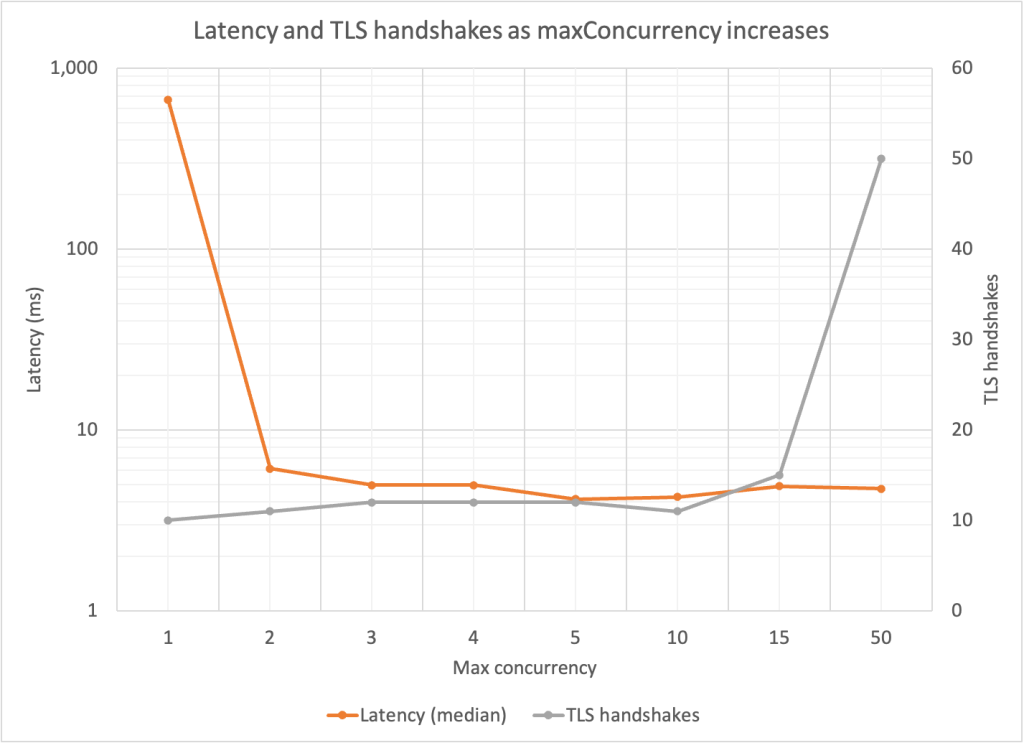
To illustrate this, we wrote a test application that generates approximately 200 transactions per second to a test server. We varied the maximum concurrency setting of the HTTP client and measured the latency of the test request. In the AWS CRT HTTP client, this is the maxConcurrency setting. If the connection pool doesn’t have an idle connection available, the request latency includes establishing a new connection. Using Wireshark, we captured the network traffic to observe the number of TLS handshakes that took place over the duration of the application. Figure 3 shows the request latency and number of TLS handshakes as the maxConcurrency setting is increased.
Figure 3: Median request latency and number of TLS handshakes as concurrency pool size increases
The biggest latency benefit occurred with a maxConcurrency value greater than 1. Beyond that, the latencies were past the point of diminishing returns. For all maxConcurrency values of 10 and below, additional TLS handshakes took place within the connections, but they didn’t have much impact on median latency. These inflection points will depend on your application’s request volume. The takeaway is that connection pooling allows connections to be reused, thereby spreading the cost of any increased TLS negotiation time over many requests.
Connection timeouts work in conjunction with connection pooling. Even if you use a connection pool, there is a limit to how long idle connections stay open before the pool closes them. You can adjust this time limit to save on connection establishment overhead.
A nice way to visualize this setting is to imagine bursty traffic patterns. Despite tuning the connection pool concurrency, your connections keep closing because the burst period is longer than the idle time limit. By increasing the maximum idle time, you can reuse these connections despite bursty behavior.
To simulate the impact of connection timeouts, we wrote a test application that starts 10 threads, each of which activate at the same time on a periodic schedule every 5 seconds for a minute. We set maxConcurrency to 10 to allow each thread to have its own connection. We set connectionMaxIdleTime of the AWS CRT HTTP client to 1 second for the first test; and to 10 seconds for the second test.
When the maximum idle time was 1 second, the connections for all 10 threads closed during the time between each burst. As a result, 100 total connections were formed over the life of the test, causing a median request latency of 20.3 ms. When we changed the maximum idle time to 10 seconds, the 10 initial connections were reused by each subsequent burst, reducing the median request latency to 5.9 ms.
By setting the connectionMaxIdleTime appropriately for your application, you can reduce connection establishment overhead, including TLS negotiation time, to help achieve time savings throughout the life of your application.
TLS session resumption allows a client and server to bypass the key agreement that is normally performed to arrive at a new shared secret. Instead, communication quickly resumes by using a shared secret that was previously negotiated, or one that was derived from a previous secret (the implementation details depend on the version of TLS in use). This feature requires that both the client and server support it, but if available, TLS session resumption allows the TLS handshake time and bandwidth increases associated with hybrid PQ to be amortized over the life of multiple connections.
Conclusion
As you learned in this post, hybrid post-quantum TLS with Kyber is available for AWS KMS and ACM. This new cipher suite raises the security bar and allows you to prepare your workloads for post-quantum cryptography. Hybrid key agreement has some additional overhead compared to classical ECDHE, but you can mitigate these increases by tuning your connection settings, including connection pooling, connection timeouts, and TLS session resumption. Begin using hybrid key agreement today with AWS KMS and ACM.
If you have feedback about this post, submit comments in the Comments section below.
Want more AWS Security news? Follow us on Twitter.
Amazon Web Services (AWS) is the first cloud service provider to produce an Open Security Control Assessment Language (OSCAL)–formatted system security plan (SSP) for the FedRAMP Project Management Office (PMO). OSCAL is the first step in the AWS effort to automate security documentation to simplify our customers’ journey through cloud adoption and accelerate the authorization to operate (ATO) process.
AWS continues its commitment to innovation and customer obsession. Our incorporation of the OSCAL format will improve the customer experience of reviewing and assessing security documentation. It can take an estimated 4,200 workforce hours for companies to receive an ATO, with much of the effort due to manual review and transcription of documentation. Automating this process through a machine-translatable language gives our customers the ability to ingest security documentation into a governance, risk management, and compliance (GRC) tool to automate much of this time-consuming task. AWS worked with an AWS Partner, to ingest the AWS SSP through their tool, Xacta.
This is a first step in several initiatives AWS has planned to automate the security assurance process across multiple compliance frameworks. We continue to look for ways to earn trust with our customers, and over the next year we will continue to release new solutions that customers can use to rapidly deploy secure and innovative services.
“Providing the SSP packages in OSCAL is a great milestone in security automation marking the beginning of a new era in cybersecurity. We appreciate the leadership in this area and look forward to working with all cyber professionals, in particular with the visionary cloud service providers, to help deliver secure innovation faster to the people they serve.”
– Dr. Michaela Iorga, OSCAL Strategic Outreach Director, NIST
To learn more about OSCAL, visit the NIST OSCAL website. To learn more about FedRAMP’s plans for OSCAL, visit the FedRAMP Blog.
At Amazon Web Services (AWS), we continuously innovate to deliver you a cloud computing environment that works to help meet the requirements of the most security-sensitive organizations. To respond to evolving technology and regulatory standards for Transport Layer Security (TLS), we will be updating the TLS configuration for all AWS service API endpoints to a minimum of version TLS 1.2. This update means you will no longer be able to use TLS versions 1.0 and 1.1 with all AWS APIs in all AWS Regions by June 28, 2023. In this post, we will tell you how to check your TLS version, and what to do to prepare.
We have continued AWS support for TLS versions 1.0 and 1.1 to maintain backward compatibility for customers that have older or difficult to update clients, such as embedded devices. Furthermore, we have active mitigations in place that help protect your data for the issues identified in these older versions. Now is the right time to retire TLS 1.0 and 1.1, because increasing numbers of customers have requested this change to help simplify part of their regulatory compliance, and there are fewer and fewer customers using these older versions.
If you are one of the more than 95% of AWS customers who are already using TLS 1.2 or later, you will not be impacted by this change. You are almost certainly already using TLS 1.2 or later if your client software application was built after 2014 using an AWS Software Development Kit (AWS SDK), AWS Command Line Interface (AWS CLI), Java Development Kit (JDK) 8 or later, or another modern development environment. If you are using earlier application versions, or have not updated your development environment since before 2014, you will likely need to update.
If you are one of the customers still using TLS 1.0 or 1.1, then you must update your client software to use TLS 1.2 or later to maintain your ability to connect. It is important to understand that you already have control over the TLS version used when connecting. When connecting to AWS API endpoints, your client software negotiates its preferred TLS version, and AWS uses the highest mutually agreed upon version.
To minimize the availability impact of requiring TLS 1.2, AWS is rolling out the changes on an endpoint-by-endpoint basis over the next year, starting now and ending in June 2023. Before making these potentially breaking changes, we monitor for connections that are still using TLS 1.0 or TLS 1.1. If you are one of the AWS customers who may be impacted, we will notify you on your AWS Health Dashboard, and by email. After June 28, 2023, AWS will update our API endpoint configuration to remove TLS 1.0 and TLS 1.1, even if you still have connections using these versions.
What should you do to prepare for this update?
To minimize your risk, you can self-identify if you have any connections using TLS 1.0 or 1.1. If you find any connections using TLS 1.0 or 1.1, you should update your client software to use TLS 1.2 or later.
AWS CloudTrail records are especially useful to identify if you are using the outdated TLS versions. You can now search for the TLS version used for your connections by using the recently added tlsDetails field. The tlsDetails structure in each CloudTrail record contains the TLS version, cipher suite, and the fully qualified domain name (FQDN, also known as the URL) field used for the API call. You can then use the data in the records to help you pinpoint your client software that is responsible for the TLS 1.0 or 1.1 call, and update it accordingly. Nearly half of AWS services currently provide the TLS information in the CloudTrail tlsDetails field, and we are continuing to roll this out for the remaining services in the coming months.
We recommend you use one of the following options for running your CloudTrail TLS queries:
Amazon CloudWatch Log Insights: There are two built-in CloudWatch Log Insights sample CloudTrail TLS queries that you can use, as shown in Figure 1.
Figure 1: Available sample TLS queries for CloudWatch Log Insights
Amazon Athena: You can query AWS CloudTrail logs in Amazon Athena, and we will be adding support for querying the TLS values in your CloudTrail logs in the coming months. Look for updates and announcements about this in future AWS Security Blog posts.
In addition to using CloudTrail data, you can also identify the TLS version used by your connections by performing code, network, or log analysis as described in the blog post TLS 1.2 will be required for all AWS FIPS endpoints. Note that while this post refers to the FIPS API endpoints, the information about querying for TLS versions is applicable to all API endpoints.
Will I be notified if I am using TLS 1.0 or TLS 1.1?
If we detect that you are using TLS 1.0 or 1.1, you will be notified on your AWS Health Dashboard, and you will receive email notifications. However, you will not receive a notification for connections you make anonymously to AWS shared resources, such as a public Amazon Simple Storage Service (Amazon S3) bucket, because we cannot identify anonymous connections. Furthermore, while we will make every effort to identify and notify every customer, there is a possibility that we may not detect infrequent connections, such as those that occur less than monthly.
How do I update my client to use TLS 1.2 or TLS 1.3?
If you are using an AWS Software Developer Kit (AWS SDK) or the AWS Command Line Interface (AWS CLI), follow the detailed guidance about how to examine your client software code and properly configure the TLS version used in the blog post TLS 1.2 to become the minimum for FIPS endpoints.
We encourage you to be proactive in order to avoid an impact to availability. Also, we recommend that you test configuration changes in a staging environment before you introduce them into production workloads.
What is the most common use of TLS 1.0 or TLS 1.1?
The most common use of TLS 1.0 or 1.1 are .NET Framework versions earlier than 4.6.2. If you use the .NET Framework, please confirm you are using version 4.6.2 or later. For information about how to update and configure the .NET Framework to support TLS 1.2, see How to enable TLS 1.2 on clients in the .NET Configuration Manager documentation.
What is Transport Layer Security (TLS)?
Transport Layer Security (TLS) is a cryptographic protocol that secures internet communications. Your client software can be set to use TLS version 1.0, 1.1, 1.2, or 1.3, or a subset of these, when connecting to service endpoints. You should ensure that your client software supports TLS 1.2 or later.
Is there more assistance available to help verify or update my client software?
If you have any questions or issues, you can start a new thread on the AWS re:Post community, or you can contact AWS Support or your Technical Account Manager (TAM).
Additionally, you can use AWS IQ to find, securely collaborate with, and pay AWS certified third-party experts for on-demand assistance to update your TLS client components. To find out how to submit a request, get responses from experts, and choose the expert with the right skills and experience, see the AWS IQ page. Sign in to the AWS Management Console and select Get Started with AWS IQ to start a request.
What if I can’t update my client software?
If you are unable to update to use TLS 1.2 or TLS 1.3, contact AWS Support or your Technical Account Manager (TAM) so that we can work with you to identify the best solution.
If you have feedback about this post, submit comments in the Comments section below.
Want more AWS Security how-to content, news, and feature announcements? Follow us on Twitter.
Register now with discount code SALXTDVaB7y to get $150 off your full conference pass to AWS re:Inforce. For a limited time only and while supplies last.
Today we’re going to highlight just some of the sessions focused on threat detection and incident response that are planned for AWS re:Inforce 2022. AWS re:Inforce is a learning conference focused on security, compliance, identity, and privacy. The event features access to hundreds of technical and business sessions, an AWS Partner expo hall, a keynote featuring AWS Security leadership, and more. AWS re:Inforce 2022 will take place in-person in Boston, MA on July 26-27.
AWS re:Inforce organizes content across multiple themed tracks: identity and access management; threat detection and incident response; governance, risk, and compliance; networking and infrastructure security; and data protection and privacy. This post highlights some of the breakout sessions, chalk talks, builders’ sessions, and workshops planned for the threat detection and incident response track. For additional sessions and descriptions, see the re:Inforce 2022 catalog preview. For other highlights, see our sneak peek at the identity and access management sessions and sneak peek at the data protection and privacy sessions.
Breakout sessions
These are lecture-style presentations that cover topics at all levels and delivered by AWS experts, builders, customers, and partners. Breakout sessions typically include 10–15 minutes of Q&A at the end.
TDR201: Running effective security incident response simulations Security incidents provide learning opportunities for improving your security posture and incident response processes. Ideally you want to learn these lessons before having a security incident. In this session, walk through the process of running and moderating effective incident response simulations with your organization’s playbooks. Learn how to create realistic real-world scenarios, methods for collecting valuable learnings and feeding them back into implementation, and documenting correction-of-error proceedings to improve processes. This session provides knowledge that can help you begin checking your organization’s incident response process, procedures, communication paths, and documentation.
TDR202: What’s new with AWS threat detection services AWS threat detection teams continue to innovate and improve the foundational security services for proactive and early detection of security events and posture management. Keeping up with the latest capabilities can improve your security posture, raise your security operations efficiency, and reduce your mean time to remediation (MTTR). In this session, learn about recent launches that can be used independently or integrated together for different use cases. Services covered in this session include Amazon GuardDuty, Amazon Detective, Amazon Inspector, Amazon Macie, and centralized cloud security posture assessment with AWS Security Hub.
TDR301: A proactive approach to zero-days: Lessons learned from Log4j In the run-up to the 2021 holiday season, many companies were hit by security vulnerabilities in the widespread Java logging framework, Apache Log4j. Organizations were in a reactionary position, trying to answer questions like: How do we figure out if this is in our environment? How do we remediate across our environment? How do we protect our environment? In this session, learn about proactive measures that you should implement now to better prepare for future zero-day vulnerabilities.
TDR303: Zoom’s journey to hyperscale threat detection and incident response Zoom, a leader in modern enterprise video communications, experienced hyperscale growth during the pandemic. Their customer base expanded by 30x and their daily security logs went from being measured in gigabytes to terabytes. In this session, Zoom shares how their security team supported this breakneck growth by evolving to a centralized infrastructure, updating their governance process, and consolidating to a single pane of glass for a more rapid response to security concerns. Solutions used to accomplish their goals include Splunk, AWS Security Hub, Amazon GuardDuty, Amazon CloudWatch, Amazon S3, and others.
Builders’ sessions
These are small-group sessions led by an AWS expert who guides you as you build the service or product on your own laptop.
TDR351: Using Kubernetes audit logs for incident response automation In this hands-on builders’ session, learn how to use Amazon CloudWatch and Amazon GuardDuty to effectively monitor Kubernetes audit logs—part of the Amazon EKS control plane logs—to alert on suspicious events, such as an increase in 403 Forbidden or 401 Unauthorized Error logs. Also learn how to automate example incident responses for streamlining workflow and remediation.
TDR352: How to mitigate the risk of ransomware in your AWS environment Join this hands-on builders’ session to learn how to mitigate the risk from ransomware in your AWS environment using the NIST Cybersecurity Framework (CSF). Choose your own path to learn how to protect, detect, respond, and recover from a ransomware event using key AWS security and management services. Use Amazon Inspector to detect vulnerabilities, Amazon GuardDuty to detect anomalous activity, and AWS Backup to automate recovery. This session is beneficial for security engineers, security architects, and anyone responsible for implementing security controls in their AWS environment.
Chalk talks
Highly interactive sessions with a small audience. Experts lead you through problems and solutions on a digital whiteboard as the discussion unfolds.
TDR231: Automated vulnerability management and remediation for Amazon EC2 In this chalk talk, learn about vulnerability management strategies for Amazon EC2 instances on AWS at scale. Discover the role of services like Amazon Inspector, AWS Systems Manager, and AWS Security Hub in vulnerability management and mechanisms to perform proactive and reactive remediations of findings that Amazon Inspector generates. Also learn considerations for managing vulnerabilities across multiple AWS accounts and Regions in an AWS Organizations environment.
TDR332: Response preparation with ransomware tabletop exercises Many organizations do not validate their critical processes prior to an event such as a ransomware attack. Through a security tabletop exercise, customers can use simulations to provide a realistic training experience for organizations to test their security resilience and mitigate risk. In this chalk talk, learn about Amazon Managed Services (AMS) best practices through a live, interactive tabletop exercise to demonstrate how to execute a simulation of a ransomware scenario. Attendees will leave with a deeper understanding of incident response preparation and how to use AWS security tools to better respond to ransomware events.
Workshops
These are interactive learning sessions where you work in small teams to solve problems using AWS Cloud security services. Come prepared with your laptop and a willingness to learn!
TDR271: Detecting and remediating security threats with Amazon GuardDuty This workshop walks through scenarios covering threat detection and remediation using Amazon GuardDuty, a managed threat detection service. The scenarios simulate an incident that spans multiple threat vectors, representing a sample of threats related to Amazon EC2, AWS IAM, Amazon S3, and Amazon EKS, that GuardDuty is able to detect. Learn how to view and analyze GuardDuty findings, send alerts based on the findings, and remediate findings.
TDR371: Building an AWS incident response runbook using Jupyter notebooks This workshop guides you through building an incident response runbook for your AWS environment using Jupyter notebooks. Walk through an easy-to-follow sample incident using a ready-to-use runbook. Then add new programmatic steps and documentation to the Jupyter notebook, helping you discover and respond to incidents.
TDR372: Detecting and managing vulnerabilities with Amazon Inspector Join this workshop to get hands-on experience using Amazon Inspector to scan Amazon EC2 instances and container images residing in Amazon Elastic Container Registry (Amazon ECR) for software vulnerabilities. Learn how to manage findings by creating prioritization and suppression rules, and learn how to understand the details found in example findings.
TDR373: Industrial IoT hands-on threat detection Modern organizations understand that enterprise and industrial IoT (IIoT) yields significant business benefits. However, unaddressed security concerns can expose vulnerabilities and slow down companies looking to accelerate digital transformation by connecting production systems to the cloud. In this workshop, use a case study to detect and remediate a compromised device in a factory using security monitoring and incident response techniques. Use an AWS multilayered security approach and top ten IIoT security golden rules to improve the security posture in the factory.
TDR374: You’ve received an Amazon GuardDuty EC2 finding: What’s next? You’ve received an Amazon GuardDuty finding drawing your attention to a possibly compromised Amazon EC2 instance. How do you respond? In part one of this workshop, perform an Amazon EC2 incident response using proven processes and techniques for effective investigation, analysis, and lessons learned. Use the AWS CLI to walk step-by-step through a prescriptive methodology for responding to a compromised Amazon EC2 instance that helps effectively preserve all available data and artifacts for investigations. In part two, implement a solution that automates the response and forensics process within an AWS account, so that you can use the lessons learned in your own AWS environments.
If any of the sessions look interesting, consider joining us by registering for re:Inforce 2022. Use code SALXTDVaB7y to save $150 off the price of registration. For a limited time only and while supplies last. Also stay tuned for additional sessions being added to the catalog soon. We look forward to seeing you in Boston!
This whitepaper is intended for RBNZ-regulated institutions that are looking to run material workloads in the AWS Cloud, and is particularly useful for leadership, security, risk, and compliance teams that need to understand RBNZ requirements and guidance.
The whitepaper summarizes RBNZ requirements and guidance related to outsourcing, cyber resilience, and the cloud. It also gives RBNZ-regulated institutions information they can use to commence their due diligence and assess how to implement the appropriate programs for their use of AWS cloud services.
This document joins existing guides for other jurisdictions in the Asia Pacific region, such as Australia, India, Singapore, and Hong Kong. As the regulatory environment continues to evolve, we’ll provide further updates on the AWS Security Blog and the AWS Compliance page. You can find more information on cloud-related regulatory compliance at the AWS Compliance Center. You can also reach out to your AWS account manager for help finding the resources you need.
If you have feedback about this post, submit comments in the Comments section below. If you have questions about this post, contact AWS Support.
Want more AWS Security news? Follow us on Twitter.
Amazon Web Services (AWS) is excited to announce that AWS Wickr has achieved Federal Risk and Authorization Management Program (FedRAMP) authorization at the Moderate impact level from the FedRAMP Joint Authorization Board (JAB).
FedRAMP is a U.S. government–wide program that promotes the adoption of secure cloud services by providing a standardized approach to security and risk assessment for cloud technologies and federal agencies.
Customers find security and control in Wickr
AWS Wickr is an end-to-end encrypted messaging and collaboration service with features designed to help keep your communications secure, private, and compliant. Wickr protects one-to-one and group messaging, voice and video calling, file sharing, screen sharing, and location sharing with 256-bit encryption, and provides data retention capabilities.
Administrative controls allow your AWS Wickr administrators to add, remove, and invite users, and organize them into security groups to manage messaging, calling, security, and federation settings. You can reset passwords and delete profiles remotely, helping you reduce the risk of data exposure stemming from a lost or stolen device.
You can log internal and external communications—including conversations with guest users, contractors, and other partner networks—in a private data store that you manage. This allows you to retain messages and files that are sent to and from your organization, to help meet requirements such as those that fall under the Federal Records Act (FRA) and the National Archives and Records Administration (NARA).
The FedRAMP milestone
In obtaining a FedRAMP Moderate authorization, AWS Wickr has been measured against a set of security controls, procedures, and policies established by the U.S. Federal Government, based on National Institute of Standards and Technology (NIST) standards.
“For many federal agencies and organizations, having the ability to securely communicate and share information—whether in an office or out in the field—is key to helping achieve their critical missions. AWS Wickr helps our government customers collaborate securely through messaging, calling, file and screen sharing with end-to-end encryption. The FedRAMP Moderate authorization for Wickr demonstrates our commitment to delivering solutions that give government customers the control and confidence they need to support their sensitive and regulated workloads.” – Christian Hoff, Director, US Federal Civilian & Health at AWS
FedRAMP on AWS
AWS is continually expanding the scope of our compliance programs to help you use authorized services for sensitive and regulated workloads. We now offer148 services authorized in the AWS US East/West Regions under FedRAMP Moderate authorization, and 128 services authorized in the AWS GovCloud (US) Regions under FedRAMP High authorization.
The FedRAMP Moderate authorization of AWS Wickr further validates our commitment at AWS to public-sector customers. With AWS Wickr, you can combine the security of end-to-end encryption with the administrative flexibility you need to secure mission-critical communications, and keep up with recordkeeping requirements. AWS Wickr is available under FedRAMP Moderate in the AWS US East (N. Virginia) Region.
As an Amazon Web Services (AWS) customer, you don’t have to assess the controls that you inherit from the AWS HITRUST Validated Assessment Questionnaire, because AWS already has completed HITRUST assessment using version 9.4 in 2021. You can deploy your environments onto AWS and inherit our HITRUST CSF certification, provided that you use only in-scope services and apply the controls detailed on the HITRUST website.
HITRUST certification allows you to tailor your security control baselines to a variety of factors—including, but not limited to, regulatory requirements and organization type. HITRUST CSF has been widely adopted by leading organizations in a variety of industries as part of their approach to security and privacy. Visit the HITRUST website for more information.
Have you submitted HITRUST Inheritance Program requests to AWS, but haven’t received a response yet? Understand why …
The HITRUST MyCSF manual provides step-by-step instructions for completing the HITRUST Inheritance process. It’s a simple four-step process, as follows:
You create the Inheritance request in the HITRUST MyCSF tool.
Finally, you can apply all approved Inheritance requests to your HITRUST Compliance Assessment.
Unless a request is submitted to AWS, we will not be able to approve it. If a prolonged period of time has gone by and you haven’t received a response from AWS, most likely you created the request but didn’t submit it to AWS.
We are committed to helping you achieve and maintain the highest standard of security and compliance. As always, we value your feedback and questions. Feel free to contact the team through AWS Compliance Contact Us. If you have feedback about this post, submit comments in the Comments section below.
Want more AWS Security how-to content, news, and feature announcements? Follow us on Twitter.
Financial institutions across the globe use Amazon Web Services (AWS) to transform the way they do business. Regulations continue to evolve in this space, and we’re working hard to help customers proactively respond to new rules and guidelines. In many cases, the AWS Cloud makes it simpler than ever before to assist customers with their compliance efforts with different regulations and frameworks around the world.
These Statements are relevant to the use of cloud services. AWS strives to help support our customers with their compliance obligations and help them meet their regulator’s expectations. We offer our customers a wide range of services that can simplify and directly assist in complying with these Statements, which apply from March 2022.
What do these Statements from the UK Financial Regulators mean for AWS customers?
For AWS and our customers, the key takeaway is that these Statements provide a regulatory framework for cloud usage in a resilient manner. The PRA’s outsourcing paper, in particular, sets out conditions that can help give PRA-regulated firms assurance that they can deploy to the cloud in a safe and resilient manner, including for material, regulated workloads. When they consider or use third-party services (such as AWS), many UK financial institutions already follow due diligence, risk management, and regulatory notification processes that are similar to the processes identified in these Statements, the EBA Outsourcing Guidelines, and FG 16/5. UK financial institutions can use a variety of AWS security and compliance services to help them meet requirements on security, resilience, and assurance.
Risk-based approach
The Statements reference the principle of proportionality throughout. In the case of the outsourcing requirements, this includes a focus on material outsourcing arrangements and incorporating a risk-based approach that expects regulated entities to identify, assess, and mitigate the risks associated with outsourcing arrangements. The recognition of a shared responsibility model, referenced by the PRA and the recognition in FCA Guidance FG 16/5 that firms need to be clear about where responsibility lies between themselves and their service providers, is consistent with the long-standing AWS shared responsibility model. The proportionality and risk-based approach applies throughout the Statements, including the areas such as risk assessment, contractual and audit requirements, data location and transfer, operational resilience, and security implementation:
Risk assessment – The Statements emphasize the need for UK financial institutions to assess the potential impact of outsourcing arrangements on their operational risk. The AWS shared responsibility model helps customers formulate their risk assessment approach, because it illustrates how their security and management responsibilities change depending on the services from AWS they use. For example, AWS operates some controls on behalf of customers, such as data center security, while customers operate other controls, such as event logging. In practice, AWS helps customers assess and improve their risk profile relative to traditional, on-premises environments.
Contractual and audit requirements – The PRA supervisory statement on outsourcing and third-party risk management, the EBA Outsourcing Guidelines, and the FCA guidance FG 16/5 lay out requirements for the written agreement between a UK financial institution and its service provider, including access and audit rights. For UK financial institutions that are running regulated workloads on AWS, please contact your AWS account team to address these contractual requirements. We also help institutions that require contractual audit rights to comply with these requirements through the AWS Security & Audit Series, which facilitates customer audits. To align with regulatory requirements and expectations, our audit program incorporates feedback that we’ve received from EU and UK financial supervisory authorities. UK financial services customers interested in learning more about the audit engagements offered by AWS can reach out to their AWS account teams.
Data location and transfer – The UK Financial Regulators do not place restrictions on where a UK financial institution can store and process its data, but rather state that UK financial institutions should adopt a risk-based approach to data location. AWS continually monitors the evolving regulatory and legislative landscape around data privacy to identify changes and determine what tools our customers might need to help meet their compliance needs. Refer to our Data Protection page for our commitments, including commitments on data access and data storage.
Operational resilience – Resiliency is a shared responsibility between AWS and the customer. It is important that customers understand how disaster recovery and availability, as part of resiliency, operate under this shared model. AWS is responsible for resiliency of the infrastructure that runs all of the services offered in the AWS Cloud. This infrastructure comprises the hardware, software, networking, and facilities that run AWS Cloud services. AWS uses commercially reasonable efforts to make these AWS Cloud services available, ensuring that service availability meets or exceeds the AWS Service Level Agreements (SLAs).
The customer’s responsibility will be determined by the AWS Cloud services that they select. This determines the amount of configuration work they must perform as part of their resiliency responsibilities. For example, a service such as Amazon Elastic Compute Cloud (Amazon EC2) requires the customer to perform all of the necessary resiliency configuration and management tasks. Customers that deploy Amazon EC2 instances are responsible for deploying EC2 instances across multiple locations (such as AWS Availability Zones), implementing self-healing by using services like AWS Auto Scaling, as well as using resilient workload architecture best practices for applications that are installed on the instances.
For managed services, such as Amazon Simple Storage Service (Amazon S3) and Amazon DynamoDB, AWS operates the infrastructure layer, the operating system, and platforms, whereas customers access the endpoints to store and retrieve data. Customers are responsible for managing resiliency of their data, including backup, versioning, and replication strategies. For more details about our approach to operational resilience in financial services, refer to this whitepaper.
Security implementation – The Statements set expectations on data security, including data classification and data security, and require UK financial institutions to consider, implement, and monitor various security measures. Using AWS can help customers meet these requirements in a scalable and cost-effective way, while helping improve their security posture. Customers can use AWS Config or AWS Security Hub to simplify auditing, security analysis, change management, and operational troubleshooting.
As part of their cybersecurity measures, customers can activate Amazon GuardDuty, which provides intelligent threat detection and continuous monitoring, to generate detailed and actionable security alerts. Amazon Macie uses machine learning and pattern matching to help customers classify their sensitive and business-critical data in AWS. Amazon Inspector automatically assesses a customer’s AWS resources for vulnerabilities or deviations from best practices and then produces a detailed list of security findings prioritized by level of severity.
Customers can also enhance their security by using AWS Key Management Service (AWS KMS) (creation and control of encryption keys), AWS Shield (DDoS protection), and AWS WAF (helps protect web applications or APIs against common web exploits). These are just a few of the many services and features we offer that are designed to provide strong availability and security for our customers.
As reflected in these Statements, it’s important to take a balanced approach when evaluating responsibilities in cloud implementation. AWS is responsible for the security of the AWS infrastructure, and for all of our data centers, we assess and manage environmental risks, employ extensive physical and personnel security controls, and guard against outages through our resiliency and testing procedures. In addition, independent third-party auditors evaluate the AWS infrastructure against more than 2,600 standards and requirements throughout the year.
Conclusion
We encourage customers to learn about how these Statements apply to their organization. Our teams of security, compliance, and legal experts continue to work with our UK financial services customers, both large and small, to support their journey to the AWS Cloud. AWS is closely following how the UK regulatory authorities apply the Statements and will provide further updates as needed. If you have any questions about compliance with these Statements and their application to your use of AWS, reach out to your account representative or request to be contacted.
Want more AWS Security news? Follow us on Twitter.
Register now with discount code SALFNj7FaRe to get $150 off your full conference pass to AWS re:Inforce. For a limited time only and while supplies last.
AWS re:Inforce 2022 will take place in-person in Boston, MA, on July 26 and 27 and will include some exciting identity and access management sessions. AWS re:Inforce 2022 features content in the following five areas:
The identity and access management track will showcase how quickly you can get started to securely manage access to your applications and resources as you scale on AWS. You will hear from customers about how they integrate their identity sources and establish a consistent identity and access strategy across their on-premises environments and AWS. Identity experts will discuss best practices for establishing an organization-wide data perimeter and simplifying access management with the right permissions, to the right resources, under the right conditions. You will also hear from AWS leaders about how we’re working to make identity, access control, and resource management simpler every day. This post highlights some of the identity and access management sessions that you can add to your agenda. To learn about sessions from across the content tracks, see the AWS re:Inforce catalog preview.
Breakout sessions
Lecture-style presentations that cover topics at all levels and are delivered by AWS experts, builders, customers, and partners. Breakout sessions typically conclude with 10–15 minutes of Q&A.
IAM201: Security best practices with AWS IAM AWS IAM is an essential service that helps you securely control access to your AWS resources. In this session, learn about IAM best practices like working with temporary credentials, applying least-privilege permissions, moving away from users, analyzing access to your resources, validating policies, and more. Leave this session with ideas for how to secure your AWS resources in line with AWS best practices.
IAM301: AWS Identity and Access Management (IAM) the practical way Building secure applications and workloads on AWS means knowing your way around AWS Identity and Access Management (AWS IAM). This session is geared toward the curious builder who wants to learn practical IAM skills for defending workloads and data, with a technical, first-principles approach. Gain knowledge about what IAM is and a deeper understanding of how it works and why.
IAM302: Strategies for successful identity management at scale with AWS SSO Enterprise organizations often come to AWS with existing identity foundations. Whether new to AWS or maturing, organizations want to better understand how to centrally manage access across AWS accounts. In this session, learn the patterns many customers use to succeed in deploying and operating AWS Single Sign-On at scale. Get an overview of different deployment strategies, features to integrate with identity providers, application system tags, how permissions are deployed within AWS SSO, and how to scale these functionalities using features like attribute-based access control.
IAM304: Establishing a data perimeter on AWS, featuring Vanguard Organizations are storing an unprecedented and increasing amount of data on AWS for a range of use cases including data lakes, analytics, machine learning, and enterprise applications. They want to make sure that sensitive non-public data is only accessible to authorized users from known locations. In this session, dive deep into the controls that you can use to create a data perimeter that allows access to your data only from expected networks and by trusted identities. Hear from Vanguard about how they use data perimeter controls in their AWS environment to meet their security control objectives.
IAM305: How Guardian Life validates IAM policies at scale with AWS Attend this session to learn how Guardian Life shifts IAM security controls left to empower builders to experiment and innovate quickly, while minimizing the security risk exposed by granting over-permissive permissions. Explore how Guardian validates IAM policies in Terraform templates against AWS best practices and Guardian’s security policies using AWS IAM Access Analyzer and custom policy checks. Discover how Guardian integrates this control into CI/CD pipelines and codifies their exception approval process.
IAM306: Managing B2B identity at scale: Lessons from AWS and Trend Micro Managing identity for B2B multi-tenant solutions requires tenant context to be clearly defined and propagated with each identity. It also requires proper onboarding and automation mechanisms to do this at scale. Join this session to learn about different approaches to managing identities for B2B solutions with Amazon Cognito and learn how Trend Micro is doing this effectively and at scale.
IAM307: Automating short-term credentials on AWS, with Discover Financial Services As a financial services company, Discover Financial Services considers security paramount. In this session, learn how Discover uses AWS Identity and Access Management (IAM) to help achieve their security and regulatory obligations. Learn how Discover manages their identities and credentials within a multi-account environment and how Discover fully automates key rotation with zero human interaction using a solution built on AWS with IAM, AWS Lambda, Amazon DynamoDB, and Amazon S3.
Builders’ sessions
Small-group sessions led by an AWS expert who guides you as you build the service or product on your own laptop. Use your laptop to experiment and build along with the AWS expert.
IAM351: Using AWS SSO and identity services to achieve strong identity management Organizations often manage human access using IAM users or through federation with external identity providers. In this builders’ session, explore how AWS SSO centralizes identity federation across multiple AWS accounts, replaces IAM users and cross-account roles to improve identity security, and helps administrators more effectively scope least privilege. Additionally, learn how to use AWS SSO to activate time-based access and attribute-based access control.
IAM352: Anomaly detection and security insights with AWS Managed Microsoft AD This builders’ session demonstrates how to integrate AWS Managed Microsoft AD with native AWS services like Amazon CloudWatch Logs and Amazon CloudWatch metrics and alarms, combined with anomaly detection, to identify potential security issues and provide actionable insights for operational security teams.
Chalk talks
Highly interactive sessions with a small audience. Experts lead you through problems and solutions on a digital whiteboard as the discussion unfolds.
IAM231: Prevent unintended access: AWS IAM Access Analyzer policy validation In this chalk talk, walk through ways to use AWS IAM Access Analyzer policy validation to review IAM policies that do not follow AWS best practices. Learn about the Access Analyzer APIs that help validate IAM policies and how to use these APIs to prevent IAM policies from reaching your AWS environment through mechanisms like AWS CloudFormation hooks and CI/CD pipeline controls.
IAM232: Navigating the consumer identity first mile using Amazon Cognito Amazon Cognito allows you to configure sign-in and sign-up experiences for consumers while extending user management capabilities to your customer-facing application. Join this chalk talk to learn about the first steps for integrating your application and getting started with Amazon Cognito. Learn best practices to manage users and how to configure a customized branding UI experience, while creating a fully managed OpenID Connect provider with Amazon Cognito.
IAM331: Best practices for delegating access on AWS This chalk talk demonstrates how to use built-in capabilities of AWS Identity and Access Management (IAM) to safely allow developers to grant entitlements to their AWS workloads (PassRole/AssumeRole). Additionally, learn how developers can be granted the ability to take self-service IAM actions (CRUD IAM roles and policies) with permissions boundaries.
IAM332: Developing preventive controls with AWS identity services Learn about how you can develop and apply preventive controls at scale across your organization using service control policies (SCPs). This chalk talk is an extension of the preventive controls within the AWS identity services guide, and it covers how you can meet the security guidelines of your organization by applying and developing SCPs. In addition, it presents strategies for how to effectively apply these controls in your organization, from day-to-day operations to incident response.
IAM333: IAM policy evaluation deep dive In this chalk talk, learn how policy evaluation works in detail and walk through some advanced IAM policy evaluation scenarios. Learn how a request context is evaluated, the pros and cons of different strategies for cross-account access, how to use condition keys for actions that touch multiple resources, when to use principal and aws:PrincipalArn, when it does and doesn’t make sense to use a wildcard principal, and more.
Workshops
Interactive learning sessions where you work in small teams to solve problems using AWS Cloud security services. Come prepared with your laptop and a willingness to learn!
IAM271: Applying attribute-based access control using AWS IAM This workshop provides hands-on experience applying attribute-based access control (ABAC) to achieve a secure and scalable authorization model on AWS. Learn how and when to apply ABAC, which is native to AWS Identity and Access Management (IAM). Also learn how to find resources that could be impacted by different ABAC policies and session tagging techniques to scale your authorization model across Regions and accounts within AWS.
IAM371: Building a data perimeter to allow access to authorized users In this workshop, learn how to create a data perimeter by building controls that allow access to data only from expected network locations and by trusted identities. The workshop consists of five modules, each designed to illustrate a different AWS Identity and Access Management (IAM) and network control. Learn where and how to implement the appropriate controls based on different risk scenarios. Discover how to implement these controls as service control policies, identity- and resource-based policies, and virtual private cloud endpoint policies.
IAM372: How and when to use different IAM policy types In this workshop, learn how to identify when to use various policy types for your applications. Work through hands-on labs that take you through a typical customer journey to configure permissions for a sample application. Configure policies for your identities, resources, and CI/CD pipelines using permission delegation to balance security and agility. Also learn how to configure enterprise guardrails using service control policies.
If these sessions look interesting to you, join us in Boston by registering for re:Inforce 2022. We look forward to seeing you there!
In this post, we show how you can use the AWS Certificate Manager Private Certificate Authority (ACM Private CA) to help follow security best practices when you build a CA hierarchy. This blog post walks through certificate authority (CA) lifecycle management topics, including an architecture overview, centralized security, separation of duties, certificate issuance auditing, and certificate sharing by means of templates. These topics provide best practices surrounding your ACM Private CA hierarchy so that you can build the right CA hierarchy for your organization.
With ACM Private CA, you can create private certificate authority hierarchies, including root and subordinate CAs, without the upfront investment and ongoing maintenance costs of operating your own private CA. You can issue certificates for authenticating internal users, computers, applications, services, servers or other devices, and code signing.
In this blog post, you’ll see an example automotive manufacturing company and their supplier companies. Each will have associated AWS accounts, which we will call Manufacturer Account(s) and Supplier Account(s), respectively.
Automotive manufacturing companies usually have modules that come from different suppliers. Modules, in the automotive context, are embedded systems that control electrical systems in the vehicle. These modules might be interconnected throughout the in-vehicle network or provide connectivity external to the vehicle, for example, for navigation or sending telemetry to off-board systems.
The architecture needs to allow the Manufacturer to retain control of their CA hierarchy, while giving their external Suppliers limited access to sign the certificates on these modules with the Manufacturer’s CA hierarchy. The architecture we provide here gives you the basic information you need to cover the following objectives:
IAM role creation for specific personas to manage the CA lifecycle
Auditing the CA hierarchy by using audit reports
Cross-account sharing by using AWS RAM with certificate template scoping
Architecture overview
Figure 1 shows the solution architecture.
Figure 1: Multi-account certificate authority hierarchy using ACM Private CA
The Manufacturer has two categories of AWS accounts:
A dedicated account to hold the Manufacturer’s root CA
An account to hold their subordinate CA
Note: The diagram shows two subordinate CAs in the Manufacturer account. However, depending on your security needs, you can have a subordinate CA per account per supplier.
Additionally, each Supplier has one AWS account. These accounts will have the Manufacturer’s subordinate CA shared by using AWS RAM. The Manufacturer will have a subordinate CA for each Supplier.
Logically separate accounts
In order to minimize the scope of impact and scope users to actions within their duties, it’s critical that you logically separate AWS accounts based on workload within the CA hierarchy. The following section shows a recommendation for how to do that.
AWS account that holds the root CA
You, the Manufacturer, should place the ACM Private root CA within its own dedicated AWS account to segment and tightly control access to the root CA. This limits access at the account level and only uses the dedicated account for a single purpose: holding the root CA for your organization. This account will only have access from IAM principals that maintain the CA hierarchy through a federation service like AWS Single Sign-On (AWS SSO) or direct federation to IAM through an existing identity provider. This account also has AWS CloudTrail enabled and configured for business-specific alerting, including actions like creation, updating, or deletion of the root CA.
AWS account that holds the subordinate CAs
You, the Manufacturer, will have a dedicated account where the entire CA hierarchy below the root will be located. You should have a separate subordinate CA for each Supplier, and in some cases a separate subordinate CA for each hardware module the Supplier is building. The subordinate CAs can issue certificates for specific hardware modules within the Supplier account.
This Manufacturer account shares each subordinate CA to the respective Supplier’s AWS account by using AWS RAM. This provides joint control to the shared subordinate CA, creating isolation between individual Suppliers. AWS RAM allows Suppliers to control certificate issuance and revocation if this is allowed by the Manufacturer. Each Supplier is only shared certificate provisioning access through AWS RAM configuration, which means that you can tightly monitor and revoke access through AWS RAM. Given this sharing through AWS RAM, the Suppliers don’t have access to modify or delete the CA hierarchy itself and can only provision certificates from it.
Supplier AWS account(s)
These AWS accounts are owned by each respective Supplier. For example, you might partner with radio, navigation system, and telemetry suppliers. Each Supplier would have their own AWS account, which they control. The Supplier accepts an invitation from the manufacturer through AWS RAM, sharing the subordinate CA. The subordinate is allowed to take only certain actions, based on how the Manufacturer configured the share (more on this later in the post).
Separation of duties by means of IAM role creation
In this flow, one IAM role is able to disable the CA, and a second principal can delete the CA. This enables two-person control for this highly privileged action—meaning that you need a two-person quorum to rotate the CA certificate.
We recommend that you, the Manufacturer, create a two-person process for highly privileged events like CA certificate rotation ceremonies. The preceding policies serve two purposes. First, they allow you to designate separation of management duties between day-to-day CA admin tasks and infrequent root CA rotation ceremonies. The day-to-day CA admin policy allows all ACM Private CA actions except the ability to delete the root CA. This is because the day-to-day CA admin should not be deleting the root CA. Meanwhile, the privileged CA admin policy has the ability to call DeleteCertificateAuthority. However, in order to call DeleteCertificateAuthority, you first need to have the day-to-day CA admin role disable the root CA.
This means that both roles listed here are necessary to perform a root CA deletion for a rotation or replacement ceremony. This arrangement creates a way to control the deletion of the CA resource by requiring two separate actors to disable and delete. It’s crucial that the two roles are assumed by two different people at the identity provider. Having one person assume both of these roles negates the increased security created by each role.
Your Suppliers should also follow least privilege when creating IAM roles within their own accounts. However, as we’ll see in the Cross-account sharing by using AWS RAM section, even if the Suppliers don’t follow best practices, the Manufacturer’s ACM Private CA hierarchy is still isolated and secure.
That being said, here are common IAM roles that your Suppliers should create within their own accounts:
Developers who provision certificates for development and QA workloads
Developers who provision certificates for production
These certificate issuing roles give the Supplier the ability to issue end-entity certificates from the CA hierarchy. In this use case, the Supplier needs two different levels of permissions: non-production certificates and production certificates. To simplify the roles within IAM, the Supplier decided to use ABAC. These ABAC policies allow operations when the principal’s tag matches the resource tag. Because the Supplier has many similar policies, each with a different set of users, they use ABAC to create a single IAM policy that uses principal tags rather than creating multiple slightly different IAM policies.
This single policy enables all personas to be scoped to least privilege access. If you look at the Condition portion of the IAM policy, you can see the power of ABAC. This condition verifies that the PrincipalTag matches the ResourceTag. The Supplier is federating into IAM roles through AWS SSO and tagging the Supplier’s principals within its selected identity providers.
Because you as the Manufacturer have tagged the subordinate CAs that are shared with the Supplier, the Supplier can use identity provider (IdP) attributes as tags to simplify the Supplier’s IAM strategy. In this example, the Supplier configures each relevant user in the IdP with the attribute (tag) key: access-team. This tag matches the tagging strategy used by the Manufacturer. Here’s the mapping for each persona within the use case:
Dev environment:
access-team: DevTeam
Production environment:
access-team: ProdTeam
You can choose to add or remove tags depending on your use case, and the preceding scenario serves as a simple example. This offloads the need to create new IAM policies as the number of subordinate CAs grow. If you decide to use ABAC, make sure that you require both principal tagging and resource tagging upon creation of each, because these tags become your authorization mechanism.
CA lifecycle: Audit report published by the Manufacturer
In terms of auditing and monitoring, we recommend that the Manufacturer have a mechanism to track how many certificates were issued for a specific Supplier or module. Within the Manufacturer accounts, you can generate audit reports through the console or CLI. This allows you, the manufacturer, to gather metrics on certificate issuance and revocation. Following is an example of a certificate issuance.
Figure 2: Audit report output for certificate issuance
With AWS RAM, you can share CAs with another account. We recommend that you, as a Manufacturer, use AWS RAM to share CAs with Suppliers so that they can issue certificates without administrator access to the CA. This arrangement allows you as the Manufacturer to more easily limit and revoke access if you change Suppliers. The Suppliers can create certificates through the ACM console or through the CLI, API, or AWS CloudFormation. Manufacturers are only sharing the ability to create, manage, bind, and export certificates from the CA hierarchy. The CA hierarchy itself is contained within the Manufacturers’ accounts, and not within the Suppliers’ accounts. By using AWS RAM, the Suppliers don’t have any administrator access to the CA hierarchy. From a cost perspective, you can centrally control and monitor the costs of your private CA hierarchy without having to deal with cost-sharing across Suppliers.
Certificate templates with AWS RAM managed permissions
AWS RAM has the ability to create managed permissions in order to define the actions that can be performed on shared resources. For each shareable resource type, you can use AWS RAM managed permissions to define which permissions to grant to whom for shared resource types that support additional managed permissions. This means that when you use AWS RAM to share a resource (in this case ACM Private CA), you can now specify which IAM actions can take place on that resource. AWS RAM managed permissions integrate with the following ACM Private CA certificate templates:
These five certificate templates allow a Manufacturer to scope its Suppliers to the certificate template provisioning level. This means that you can limit which certificate templates can be issued by the Suppliers.
Let’s assume you have a Supplier that is supplying a module that has infotainment media capability, and you, the manufacturer, want the Supplier to provision the end-entity client certificate but you don’t want them to be able to revoke that certificate. You can use AWS RAM managed permissions to scope that Supplier’s shared private CA to allow the EndEntityClientAuthCertificate issuance template, which implicitly denies RevokeCertificate template actions. This further scopes down what the Supplier is authorized to issue on the shared CA, gives the responsibility for revoking infotainment device certificates to the Manufacturer, but still allows the Supplier to load devices with a certificate upon creation.
Example of creating a resource share in AWS RAM by using the AWS CLI
This walkthrough shows you the general process of sharing a private CA by using AWS RAM and then accepting that shared resource in the partner account.
Create your shared resource in AWS RAM from the Manufacturer subordinate CA account. Notice that in the example that follows, we selected one of the certificate templates within the managed permissions option. This limits the shared CA so that it can only issue certain types of certificate templates.
Note: Replace the <variable> placeholders with your own values.
In this blog post, you learned about the various considerations for building a secure public key infrastructure (PKI) hierarchy by using ACM Private CA through an example customer’s prescriptive setup. You learned how you can use AWS RAM to share CAs across accounts easily and securely. You also learned about sharing specific CAs through the ability to define permissions to specific principals across accounts, allowing for granular control of permissions on principals that might act on those resources.
The main takeaways of this post are how to create least privileged roles within IAM in order to scope down the activities of each persona and limit the potential scope of impact for your organization’s private CA hierarchy. Although these best practices are specific to manufacturer business requirements, you can alter them based on your business needs. With the managed permissions in AWS RAM, you can further scope down the actions that principals can perform with your CA by limiting the certificate templates allowed on that CA when you share it. Using all of these tools, you can help your PKI hierarchy to have a high level of security. To learn more, see the other ACM Private CA posts on the AWS Security Blog.
If you have feedback about this post, submit comments in the Comments section below. If you have questions about this post, contact AWS Support.
Want more AWS Security news? Follow us on Twitter.
Amazon Web Services (AWS) recently released a new whitepaper, Does data localization cause more problems than it solves?, as part of the AWS Innovating Securely briefing series. The whitepaper draws on research from Emily Wu’s paper Sovereignty and Data Localization, published by Harvard University’s Belfer Center, and describes how countries can realize similar data localization objectives through AWS services without incurring the unintended effects highlighted by Wu.
Wu’s research analyzes the intent of data localization policies, and compares that to the reality of the policies’ effects, concluding that data localization policies are often counterproductive to their intended goals of data security, economic competitiveness, and protecting national values.
The new whitepaper explains how you can use the security capabilities of AWS to take advantage of up-to-date technology and help meet your data localization requirements while maintaining full control over the physical location of where your data is stored.
AWS offers robust privacy and security services and features that let you implement your own controls. AWS uses lessons learned around the globe and applies them at the local level for improved cybersecurity against security events. As an AWS customer, after you pick a geographic location to store your data, the cloud infrastructure provides you greater resiliency and availability than you can achieve by using on-prem infrastructure. When you choose an AWS Region, you maintain full control to determine the physical location of where your data is stored. AWS also provides you with resources through the AWS compliance program, to help you understand the robust controls in place at AWS to maintain security and compliance in the cloud.
An important finding of Wu’s research is that localization constraints can deter innovation and hurt local economies because they limit which services are available, or increase costs because there are a smaller number of service providers to choose from. Wu concludes that data localization can “raise the barriers [to entrepreneurs] for market entry, which suppresses entrepreneurial activity and reduces the ability for an economy to compete globally.” Data localization policies are especially challenging for companies that trade across national borders. International trade used to be the remit of only big corporations. Current data-driven efficiencies in shipping and logistics mean that international trade is open to companies of all sizes. There has been particular growth for small and medium enterprises involved in services trade (of which cross-border data flows are a key element). In a 2016 worldwide survey conducted by McKinsey, 86 percent of tech-based startups had at least one cross-border activity. The same report showed that cross-border data flows added some US$2.8 trillion to world GDP in 2014.
However, the availability of cloud services supports secure and efficient cross-border data flows, which in turn can contribute to national economic competitiveness. Deloitte Consulting’s report, The cloud imperative: Asia Pacific’s unmissable opportunity, estimates that by 2024, the cloud will contribute $260 billion to GDP across eight regional markets, with more benefit possible in the future. The World Trade Organization’s World Trade Report 2018 estimates that digital technologies, which includes advanced cloud services, will account for a 34 percent increase in global trade by 2030.
Wu also cites a link between national data governance policies and a government’s concerns that movement of data outside national borders can diminish their control. However, the technology, storage capacity, and compute power provided by hyperscale cloud service providers like AWS, can empower local entrepreneurs.
AWS continually updates practices to meet the evolving needs and expectations of both customers and regulators. This allows AWS customers to use effective tools for processing data, which can help them meet stringent local standards to protect national values and citizens’ rights.
Wu’s research concludes that “data localization is proving ineffective” for meeting intended national goals, and offers practical alternatives for policymakers to consider. Wu has several recommendations, such as continuing to invest in cybersecurity, supporting industry-led initiatives to develop shared standards and protocols, and promoting international cooperation around privacy and innovation. Despite the continued existence of data localization policies, countries can currently realize similar objectives through cloud services. AWS implements rigorous contractual, technical, and organizational measures to protect the confidentiality, integrity, and availability of customer data, regardless of which AWS Region you select to store their data. As an AWS customer, this means you can take advantage of the economic benefits and the support for innovation provided by cloud computing, while improving your ability to meet your core security and compliance requirements.
With Amazon Cognito, you can quickly add user sign-up, sign-in, and access control to your web and mobile applications. After a user signs in successfully, Cognito generates an identity token for user authorization. The service provides a pre token generation trigger, which you can use to customize identity token claims before token generation. In this blog post, we’ll demonstrate how to perform fine-grained authorization, which provides additional details about an authenticated user by using claims that are added to the identity token. The solution uses a pre token generation trigger to add these claims to the identity token.
Scenario
Imagine a web application that is used by a construction company, where engineers log in to review information related to multiple projects. We’ll look at two different ways of designing the architecture for this scenario: a standard design and a more optimized design.
Standard architecture
A sample standard architecture for such an application is shown in Figure 1, with labels for the various workflow steps:
The user interface is implemented by using ReactJS (a JavaScript library for building user interfaces).
AWS Lambda functions exist to implement business logic.
The AWS Lambda CheckUserAccess function (5) checks whether the user has authorization to call the AWS Lambda functions (4).
The project information is stored in an Amazon DynamoDB database.
Figure 1: Lambda functions that need the user’s projectID call the GetProjectID Lambda function
In this scenario, because the user has access to information from several projects, several backend functions use calls to the CheckUserAccess Lambda function (step 5 in Figure 1) in order to serve the information that was requested. This will result in multiple calls to the function for the same user, which introduces latency into the system.
Optimized architecture
This blog post introduces a new optimized design, shown in Figure 2, which substantially reduces calls to the CheckUserAccess API endpoint:
The user logs in.
Amazon Cognito makes a single call to the PretokenGenerationLambdaFunction-pretokenCognito function.
The PretokenGenerationLambdaFunction-pretokenCognito function queries the Project ID from the DynamoDB table and adds that information to the Identity token.
DynamoDB delivers the query result to the PretokenGenerationLambdaFunction-pretokenCognito function.
This Identity token is passed in the authorization header for making calls to the Amazon API Gateway endpoint.
Information in the identity token claims is used by the Lambda functions that contain business logic, for additional fine-grained authorization. Therefore, the CheckUserAccess function (7) need not be called.
The improved architecture is shown in Figure 2.
Figure 2. Get the projectID and inset it in a custom claim in the Identity token
The benefits of this approach are:
The number of calls to get the Project ID from the DynamoDB table are reduced, which in turn reduces overall latency.
The dependency on the CheckUserAccess Lambda function is removed from the business logic. This reduces coupling in the architecture, as depicted in the diagram.
In the code sample provided in this post, the user interface is run locally from the user’s computer, for simplicity.
Code sample
You can download a zip file that contains the code and the AWS CloudFormation template to implement this solution. The code that we provide to illustrate this solution is described in the following sections.
Prerequisites
Before you deploy this solution, you must first do the following:
The code provided with this post installs the following infrastructure in your AWS account.
Resource
Description
Amazon Cognito user pool
The users, added by the addUserInfo.py script, are added to this pool. The client ID is used to identify the web client that will connect to the user pool. The user pool domain is used by the web client to request authentication of the user.
Policies used for running the Lambda function and connecting to the DynamoDB database.
Lambda function for the pre token generation trigger
A Lambda function to add custom claims to the Identity token.
DynamoDB table with user information
A sample database to store user information that is specific to the application.
Deploy the solution
In this section, we describe how to deploy the infrastructure, save the trigger configuration, add users to the Cognito user pool, and run the web application.
To deploy the solution infrastructure
Download the zip file to your machine. The readme.md file in the addclaimstoidtoken folder includes a table that describes the key files in the code.
Change the directory to addclaimstoidtoken. cd addclaimstoidtoken
Review stackInputs.json. Change the value of the userPoolDomainName parameter to a random unique value of your choice. This example uses pretokendomainname as the Amazon Cognito domain name; you should change it to a unique domain name of your choice.
Deploy the infrastructure by running the following Python script. python3 setup_pretoken.py
After the CloudFormation stack creation is complete, you should see the details of the infrastructure created as depicted in Figure 3.
Figure 3: Details of infrastructure
Now you’re ready to add users to your Amazon Cognito user pool.
To add users to your Cognito user pool
To add users to the Cognito user pool and configure the DynamoDB store, run the Python script from the addclaimstoidtoken directory. python3 add_user_info.py
This script adds one user. It will prompt you to provide a username, email, and password for the user.
Note: Because this is sample code, advanced features of Cognito, like multi-factor authentication, are not enabled. We recommend enabling these features for a production application.
The addUserInfo.py script performs two actions:
Adds the user to the Cognito user pool.
Figure 4: User added to the Cognito user pool
Adds sample data to the DynamoDB table.
Figure 5: Sample data added to the DynamoDB table named UserInfoTable
Now you’re ready to run the application to verify the custom claim addition.
To run the web application
Change the directory to the pre-token-web-app directory and run the following command. cd pre-token-web-app
This directory contains a ReactJS web application that displays details of the identity token. On the terminal, run the following commands to run the ReactJS application. npm install npm start
This should open http://localhost:8081 in your default browser window that shows the Login button.
Figure 6: Browser opens to URL http://localhost:8081
Choose the Login button. After you do so, the Cognito-hosted login screen is displayed. Log in to the website with the user identity you created by using the addUserInfo.py script in step 1 of the To add users to your Cognito user pool procedure.
Figure 7: Input credentials in the Cognito-hosted login screen
When the login is successful, the next screen displays the identity and access tokens in the URL. You can reveal the token details to verify that the custom claim has been added to the token by choosing the Show Token Detail button.
Figure 8: Token details displayed in the browser
What happened behind the scenes?
In this web application, the following steps happened behind the scenes:
When you ran the npm start command on the terminal command line, that ran the react-scripts start command from package.json. The port number (8081) was configured in the pre-token-web-app/.env file. This opened the web application that was defined in app.js in the default browser at the URL http://localhost:8081.
The Login button is configured to navigate to the URL that was defined in the constants.js file. The constants.js file was generated during the running of the setup_pretoken.py script. This URL points to the Cognito-hosted default login user interface.
When you provided the login information (username and password), Amazon Cognito authenticated the user. Before generating the set of tokens (identity token and access token), Cognito first called the pre-token-generation Lambda trigger. This Lambda function has the code to connect to the DynamoDB database. The Lambda function can then access the project information for the user that is stored in the userInfo table. The Lambda function read this project information and added it to the identity token that was delivered to the web application.
After a successful login, Amazon Cognito redirected to the URL that was specified in the App Client Settings section, and added the token to the URL.
The webpage detected the token in the URL and displayed the Show Token Detail button. When you selected the button, the webpage read the token in the URL, decoded the token, and displayed the information in the relevant text boxes.
Notice that the Decoded ID Token box shows the custom claim named projects that displays the projectID that was added by the PretokenGenerationLambdaFunction-pretokenCognito trigger.
How to use the sample code in your application
We recommend that you use this sample code with the following modifications:
The code provided does not implement the API Gateway and Lambda functions that consume the custom claim information. You should implement the necessary Lambda functions and read the custom claim for the event object. This event object is a JSON-formatted object that contains authorization data.
The projectId of the user is available in the token. Therefore, when the token is passed by the Authorization trigger to the back end, this custom claim information can be used to perform actions specific to the project for that user. For example, getting all of that user’s work items that are related to the project.
Because the token is valid for one hour, the information in the custom claim information is available to the user interface during that time.
You can use the AWS Amplify library to simplify the communication between your web application and Amazon Cognito. AWS Amplify can handle the token retention and refresh token mechanism for the web application. This also removes the need for the token to be displayed in the URL.
If you’re using Amazon Cognito to manage your users and authenticate them, using the Amazon Cognito user pool to control access to your API is easier, because you don’t have to write the authentication code in your authorizer.
If you decide to use Lambda authorizers, note the following important information from the topic Steps to create an API Gateway Lambda authorizer: “In production code, you may need to authenticate the user before granting authorization. If so, you can add authentication logic in the Lambda function as well by calling an authentication provider as directed in the documentation for that provider.”
Lambda authorizer is recommended if the final authorization (not just token validity) decision is made based on custom claims.
Conclusion
In this blog post, we demonstrated how to implement fine-grained authorization based on data stored in the back end, by using claims stored in an identity token that is generated by the Amazon Cognito pre token generation trigger. This solution can help you achieve a reduction in latency and improvement in performance.
We’re excited to announce that Amazon Web Services (AWS) has successfully achieved ISO 22301:2019 certification without audit findings. ISO 22301:2019 is a rigorous third-party independent assessment of the international standard for Business Continuity Management (BCM). Published by the International Organization for Standardization (ISO), ISO 22301:2019 is designed to help organizations prevent, prepare for, respond to, and recover from unexpected and disruptive events.
EY CertifyPoint, an independent third-party auditor, issued the certificate on June 2, 2022. The covered AWS Regions are included on the ISO 22301:2019 certificate, and the full list of AWS services in scope for ISO 22301:2019 is available on our ISO and CSA STAR Certified webpage. You can view and download the AWS ISO 22301:2019 certificate on demand online and in the AWS Management Console through AWS Artifact.
As always, we value your feedback and questions and are committed to helping you achieve and maintain the highest standard of security and compliance. Feel free to contact our team through AWS Compliance Contact Us. If you have feedback about this post, submit comments in the Comments section below.
Want more AWS Security how-to content, news, and feature announcements? Follow us on Twitter.
Many of our customers use AWS Organizations to manage multiple Amazon Web Services (AWS) accounts. There are many benefits to using multiple accounts in your organization, such as grouping workloads with a common business purpose, complying with regulatory frameworks, and establishing strong isolation barriers between applications based on ownership. Customers are even using distinct accounts for development, testing, and production. As these accounts proliferate, customers need a way to centrally set guardrails and controls.
In this blog post, we will walk you through different techniques that you can use to get more out of AWS Organizations service control policies (SCPs) in a multi-account environment. We focus on policy evaluation logic and how SCPs fit into it, show an overview of SCP inheritance, and describe methods for writing compact SCPs. We cover the following five techniques:
Consider the number of policies per entity
Use policy inheritance
Segment by workload type
Combine policies together
Compact your policies
AWS Organizations provides a mechanism to set distinct logical boundaries by using organizational units (OUs). This is useful when you have similar workloads across different AWS accounts that require common guardrails. SCPs are a type of organization policy that you can use to manage permissions in your organization. SCPs offer central control over the maximum available permissions for all accounts in your organization. SCPs help you make sure that your accounts stay within your organization’s access control guidelines. A key distinction of SCPs is that they are useful to set broad guardrails across your environment. You can think of guardrails as a way to enforce specific governance policies at varying levels of your environment, which we will discuss in this post.
Policy evaluation logic and how SCPs fit in
Before we dig into the details, let’s first look at how SCPs work from an overall policy perspective, along with the evaluation logic. An explicit Deny statement in any policy trumps an Allow statement. Organization SCPs that apply to any AWS account that is part of an organization in AWS Organizations require an Allow statement before proceeding in the policy evaluation flow.
For an in-depth look at how policies are evaluated, see Policy evaluation logic in the documentation.
Now, let’s walk through five recommended techniques that can help you get more out of SCPs.
1. Consider the number of policies per entity
An organization is a collection of AWS accounts that you manage together. You can use OUs to group accounts within an organization and administer them as a single unit. This greatly simplifies the management of your accounts. It’s possible to create multiple OUs within a single organization, and you can create OUs within other OUs, otherwise known as nested OUs. You have the flexibility to attach multiple policies to the root of the organization, to an OU, or to an account. For example, in an organization that has the root, one OU, and one account, attaching five SCPs to each of them would produce a total of 15 SCPs (five SCPs at the root, five SCPs at the OU, and five SCPs on the one account).
The number of SCPs that you can apply is limited, and being close to or at the quota could restrict your ability to add more policies in the future. The current published quotas are as follows:
Maximum number of SCPs attached to the root: 5
Maximum number of SCPs attached to each OU: 5
OU maximum nesting in a root: 5 levels of OUs under a root
Maximum number of SCPs attached to each account: 5
Consider the following sample organization structure to understand how you can apply multiple SCPs at different levels in an organization.
Figure 1: A sample organization showing the maximum number of SCPs applicable at each level (root, OU, account)
2. Use policy inheritance
Policy inheritance refers to the inheritance of policies that are attached to the organization’s root or to an OU. All accounts that are members of the organization root or OU where a policy is attached are affected by that policy, but inheritance works differently for Allow and Deny statements. For a permission to be allowed for a specified account, every SCP from the root through each OU in the direct path to the account, and even attached to the account itself, must allow that permission. In other words, a statement that allows access needs to exist at every level of a hierarchy; it’s not inherited. However, a Deny statement is inherited and evaluated at each level.
At this point, you should start thinking about the policies from a broader controls perspective: Controls that you want to implement on the whole organization should go into your organization’s root-level SCP. Controls should be more granular as you move down the hierarchy in AWS Organizations.
For example, when a Deny policy is attached to the organization’s root, all accounts in the organization are affected by that policy. When you attach a Deny policy to a specific OU, accounts that are directly under that OU or nested OUs under it are affected by that policy. Because you can attach policies to multiple levels in the organization, accounts might have multiple applicable policy documents, as shown in Figure 2.
By default, AWS Organizations attaches an AWS managed SCP named FullAWSAccess to every root and OU when it’s created. This policy allows all services and actions.
Note: Adding an SCP with full AWS access doesn’t give all the principals in an account access to everything. SCPs don’t grant permissions; they are used to filter permissions. Principals still need a policy within the account that grants them access.
Additionally, the policies that are applied to an OU only affect the accounts or the child OUs under it and don’t affect other OUs created under the root. For example, a policy applied to the Sandbox OU doesn’t affect the Workloads OU.
The two tables that follow show examples of the policies that result from inheritance. As discussed previously, if an Allow isn’t present at all levels (root, OU, and account) the account won’t have access to any service. Consider the last example in the Sandbox OU table with a “Deny S3 access” SCP at the root, which limits access to Amazon Simple Storage Service (Amazon S3). Although there is “Allow S3 access” applied to the Sandbox OU and “Full AWS access” at the account level, the resultant policy on account A is “No service access” because there is no policy with an effect of “Allow” in the SCP at the root level.
The following table shows the inheritance of policies in the Sandbox OU.
A key feature of AWS Organizations is the ability to create distinct workload boundaries by using organizational units (OUs). You can think of OUs as a logical boundary where you can directly apply SCPs. You can also nest OUs up to five levels deep and apply different policies at each level. By using OUs, you can segment your workload types and create purpose-driven guardrails to match your security and compliance requirements.
To illustrate this, let’s take an example where there are three distinct workload types divided into three separate OUs: Infrastructure, Sandbox, and Workload, as shown in Figure 3. A best practice would be to tailor your SCPs to each specific OU type. Your security organization wouldn’t want to allow private workloads to be reachable from the internet. However, workloads that serve your external customers would require external network connectivity. To support innovation and experimentation, you can establish a Sandbox OU that has fewer policy restrictions but might limit connectivity back to your corporate data center.
For additional information on how to organize your OUs, see Recommended OUs.
Figure 3: Example organization showing different workloads
4. Combine policies together
Similar to AWS Identity and Access Management (IAM) policies, you can have multiple statements within a service control policy. You can combine statements in a single policy to avoid hitting the quota limit of five policies per account, OU, or root. An AWS full access policy is attached by default when you enable SCPs on an organization. You can combine the full access policy with additional controls and combine statements, as shown in the following example policy. Each SCP that you apply can have a policy size of 5,120 bytes. When combining statements, make sure that the resultant statement doesn’t alter your original intent. You can combine the Action elements in an SCP if the policy has the same values for Effect, Resource, and Condition.
One difference between IAM policies and SCPs is that whitespace counts against the size quota in SCPs. Compacting related actions in a policy can help you shorten the policy. Following are four methods to compact your policy:
Remove whitespace. If you use the AWS Management Console, whitespace is automatically removed. However, if you don’t want to manually update policies by using the console every time, you can incorporate a script that removes the whitespace. (Method four later in this list provides an example of this type of script.)
Use wildcards and prefixes to combine multiple actions. For example, the following policy denies access to disable configuration in AWS Security Hub.
Important: When you combine actions together as in this example, be aware that there could be a potential impact if new actions are released in the future that start with the Disable keyword, because these actions will be covered by the wildcard and denied.
SCPs can be configured to work as either deny lists or allow lists. For additional details on allow lists and deny lists, see Strategies for using SCPs. We recommend that you use deny lists where possible, because they are more flexible and can help simplify your policies, which will result in less maintenance. To expand on this strategy, deny statements support conditions (as shown in the following example), and for specific resources to be specified. For example, when AWS adds a new service, you don’t have to go back and update your policy if you’ve used a deny statement. To support this, AWS Organizations attaches an AWS managed SCP named FullAWSAccess to every root and OU when it’s created. This policy allows all services and actions. Additionally, deny statements coupled with NotAction statements can help you write shorter policies.
Consider the following scenario: Your security organization requires that application teams use specific AWS Regions. The recommended approach is to create a deny list that blocks everything except what is in the NotAction block. Following is an example where the SCP denies any operation outside of specified Regions that your organization has authorized for use.
Note: The list includes AWS global services that cannot be allowlisted based on a Region.
Shorten the Sid value in your policy: The Sid (statement ID) is an optional identifier that you provide for the policy statement. Remove it completely from your policy if it serves no purpose for you. We also have customers who find it effective to maintain a list of SID values and details on corresponding policies in an index file locally.
The following sample Python code can compress a provided policy by removing whitespace and Sid values.
You can export the compressed policy in the file named Compressed_Policy.json or show the output on the terminal by removing # from the following code.
import json
def compress_json(policy):
    statement = policy["Statement"]
    if not isinstance(statement, list):
        statement = [statement]
    for s in statement:
        s.pop("Sid", None)

    # json.dumps removes whitespace around separators in a JSON and converts it to a JSON formatted string.
    # To get the most compact representation, specify separators=(item_separator, key_separator)
    policy_without_whitespace = json.dumps(policy, separators=(',', ':'))

    return policy_without_whitespace

if __name__ == '__main__':
  path = input("Enter the path to policy file like: \n  /Users/swara/Desktop/policy.json or ./policy.json  \n >  ")
  with open(path) as f:
    policy = json.load(f)

original_len = len(str(policy))
mini_policy = compress_json(policy)
#To print the output on the screen
print(mini_policy)
compressed_len = len(str(mini_policy))
print("\n \t original length: {} -> compressed length: {} \n".format(original_len, compressed_len))
#To write output to a file named Compressed_Policy.json
with open("Compressed_Policy.json", "w") as Output_file:
     print(mini_policy, file=Output_file)
Example output on screen:
{"Version":"2012-10-17","Statement":[{"Action":["iam:AttachRolePolicy","iam:DeleteRole","iam:DeleteRolePermissionsBoundary","iam:DeleteRolePolicy","iam:DetachRolePolicy","iam:PutRolePermissionsBoundary","iam:PutRolePolicy","iam:UpdateAssumeRolePolicy","iam:UpdateRole","iam:UpdateRoleDescription"],"Resource":["arn:aws:iam::*:role/role-to-deny"],"Effect":"Deny"}]}

original length: 433 -> compressed length: 364
To download the sample python code and the example policy shown above, download the files compress-policy.py and policy.json.
Conclusion
In this post, we walked you through different techniques that you can use to get more out of service control policies in a multi-account environment. By using these techniques, you can establish a well-considered strategy for how your organization can adopt SCPs in a multi-account environment. You also learned about how SCPs fit into the overall policy landscape for AWS. SCPs are a powerful tool to help customers establish guardrails. As you evaluate your IAM strategy, consider what you’re trying to achieve. If you’re trying to establish broad guardrails for multiple accounts, then we suggest looking at SCPs first.
If you have feedback about this post, submit comments in the Comments section below. If you have questions about this post, contact AWS Support.
Want more AWS Security news? Follow us on Twitter.
The collective thoughts of the interwebz
Manage Consent
To provide the best experiences, we use technologies like cookies to store and/or access device information. Consenting to these technologies will allow us to process data such as browsing behavior or unique IDs on this site. Not consenting or withdrawing consent, may adversely affect certain features and functions.
Functional
Always active
The technical storage or access is strictly necessary for the legitimate purpose of enabling the use of a specific service explicitly requested by the subscriber or user, or for the sole purpose of carrying out the transmission of a communication over an electronic communications network.
Preferences
The technical storage or access is necessary for the legitimate purpose of storing preferences that are not requested by the subscriber or user.
Statistics
The technical storage or access that is used exclusively for statistical purposes.The technical storage or access that is used exclusively for anonymous statistical purposes. Without a subpoena, voluntary compliance on the part of your Internet Service Provider, or additional records from a third party, information stored or retrieved for this purpose alone cannot usually be used to identify you.
Marketing
The technical storage or access is required to create user profiles to send advertising, or to track the user on a website or across several websites for similar marketing purposes.