In Finland, where I live, spring has arrived. The snow has melted, and the trees have grown their first buds. But I don’t get my hopes high, as usually around Easter we have what is called takatalvi. Takatalvi is a Finnish world that means that the winter returns unexpectedly in the spring.
Last Week’s Launches Here are some launches that got my attention during the previous week.
AWS Batch – AWS Batch now allows you to configure ephemeral storage up to 200GiB on AWS Fargate type jobs. With this launch, you no longer need to limit the size of your data sets or the size of the Docker images to run machine learning inference.
Application Load Balancer – Application Load Balancer (ALB) now supports Transport Layer Security (TLS) protocol version 1.3, enabling you to optimize the performance of your application while keeping it secure. TLS 1.3 on ALB works by offloading encryption and decryption of TLS traffic from your application server to the load balancer.
Other AWS News Some other updates and news that you may have missed:
I read the post Implementing an event-driven serverless story generation application with ChatGPT and DALL-E a few days ago, and since then I have been reading my child a lot of AI-generated stories. In this post, David Boyne, explains step by step how you can create an event-driven serverless story generation application. This application produces a brand-new story every day at bedtime with images, which can be played in audio format.
Podcast Charlas Técnicas de AWS – If you understand Spanish, this podcast is for you. Podcast Charlas Técnicas is one of the official AWS podcasts in Spanish, and every other week there is a new episode. The podcast is meant for builders, and it shares stories about how customers have implemented and learned AWS services, how to architect applications, and how to use new services. You can listen to all the episodes directly from your favorite podcast app or at AWS Podcasts en español.
AWS open-source news and updates – The open source newsletter is curated by my colleague Ricardo Sueiras to bring you the latest open-source projects, posts, events, and more.
Upcoming AWS Events Check your calendars and sign up for the AWS Summit closest to your city. AWS Summits are free events that bring the local community together, where you can learn about different AWS services.
Customers who require private keys for their TLS certificates to be stored in FIPS 140-2 Level 3 certified hardware security modules (HSMs) can use AWS CloudHSM to store their keys for websites hosted in the cloud. In this blog post, we will show you how to automate the deployment of a web application using NGINX in AWS Fargate, with full integration with CloudHSM. You will also use AWS CodeDeploy to manage the deployment of changes to your Amazon Elastic Container Service (Amazon ECS) service.
CloudHSM offers FIPS 140-2 Level 3 HSMs that you can integrate with NGINX or Apache HTTP Server through the OpenSSL Dynamic Engine. The CloudHSM Client SDK 5 includes the OpenSSL Dynamic Engine to allow your web server to use a private key stored in the HSM with TLS versions 1.2 and 1.3 to support applications that are required to use FIPS 140-2 Level 3 validated HSMs.
CloudHSM uses the private key in the HSM as part of the server verification step of the TLS handshake that occurs every time that a new HTTPS connection is established between the client and server. Using the exchanged symmetric key, OpenSSL software performs the key exchange and bulk encryption. For more information about this process and how CloudHSM fits in, see How SSL/TLS offload with AWS CloudHSM works.
Solution overview
This blog post uses the AWS Cloud Development Kit (AWS CDK) to deploy the solution infrastructure. The AWS CDK allows you to define your cloud application resources using familiar programming languages.
Figure 1 shows an overview of the overall architecture deployed in this blog. This solution contains three CDK stacks: The TlsOffloadContainerBuildStack CDK stack deploys the CodeCommit, CodeBuild, and AmazonECR resources. The TlsOffloadEcsServiceStack CDK stack deploys the ECS Fargate service along with the required VPC resources. The TlsOffloadPipelineStack CDK stack deploys the CodePipeline resources to automate deployments of changes to the service configuration.
Figure 1: Overall architecture
At a high level, here’s how the solution in Figure 1 works:
Clients make an HTTPS request to the public IP address exposed by Network Load Balancer to connect to the web server and establish a secure connection that uses TLS.
Network Load Balancer routes the request to one of the ECS hosts running in private virtual private cloud (VPC) subnets, which are connected to the CloudHSM cluster.
The NGINX web server that is running on ECS containers performs a TLS handshake by using the private key stored in the HSM to establish a secure connection with the requestor.
Note: Although we don’t focus on perimeter protection in this post, AWS has a number of services that help provide layered perimeter protection for your internet-facing applications, such as AWS Shield and AWS WAF.
Figure 2 shows an overview of the automation infrastructure that is deployed by the TlsOffloadContainerBuildStack and TlsOffloadPipelineStack CDK stacks.
Figure 2: Deployment pipeline
At a high level, here’s how the solution in Figure 2 works:
A developer makes changes to the service configuration and commits the changes to the AWS CodeCommit repository.
An RSA private key in the HSM with a corresponding fake PEM file and certificate signed by a trusted Certificate Authority for the web server. Fake PEM files are PEM-encoded key files that store a reference to the key on the HSM instead of storing the private key information. For instructions on how to generate this file, see Generate or import a private key and SSL/TLS certificate.
An environment configured with AWS CDK to deploy the CDK stacks with the relevant resources. For instructions on how to set up this environment, see Getting started with the AWS CDK.
Step 1: Store secrets in Secrets Manager
As with other container projects, you need to decide what to build statically into the container (for example, libraries, code, or packages) and what to set as runtime parameters, to be pulled from a parameter store. In this walkthrough, we use Secrets Manager to store sensitive parameters and use the integration of Amazon ECS with Secrets Manager to securely retrieve them when the container is launched.
Important: You need to store the following information in Secrets Manager as plaintext, not as key/value pairs.
The web server certificate – In this example, the name of the secret for the web server certificate is tls/servercert. It will look similar to the following:
Figure 4: Store the web server certificate
The fake PEM file for the private key stored in the HSM that you generated in the Prerequisites section. In this example, the name of the secret for the fake PEM file is tls/fakepem.
Figure 5: Store the fake PEM
The HSM pin used to authenticate with the HSMs in your cluster. In this example, the name of the secret for the HSM pin is tls/pin.
Figure 6: Store the HSM pin
After you’ve stored your secrets, you should see output similar to the following:
Figure 7: List of required secrets
Step 2: Download and configure the CDK app
This post uses the AWS CDK to deploy the solution infrastructure. In this section, you will download the CDK app and configure it.
Run the following command to build the CDK stacks from the root of the project directory.
npm run build
To view the stacks that are available to deploy, run the following command from the root of the project directory.
cdk ls
You should see the following stacks available to deploy:
TlsOffloadContainerBuildStack — Deploys the CodeCommit, CodeBuild, and ECR repository that builds the ECS container image.
TlsOffloadEcsServiceStack — Deploys the ECS Fargate service along with the required VPC resources.
TlsOffloadPipelineStack — Deploys the CodePipeline that automates the deployment of updates to the service.
Step 3: Deploy the container build stack
In this step, you will deploy the container build stack, and then create a build and verify that the image was built successfully.
To deploy the container build stack
Deploy the TlsOffloadContainerBuildStack stack that we described in Figure 2 to your AWS account. In your CDK environment, run the following command:
cdk deploy TlsOffloadContainerBuildStack
The command line interface (CLI) will prompt you to approve the changes. After you approve them, you will see the following resources deployed to your newly created CodeCommit repository.
Dockerfile — This file provides a containerized environment for each of the Fargate containers to run. It downloads and installs necessary dependencies to run the NGINX web server with CloudHSM.
nginx.conf — This file provides NGINX with the configuration settings to run an HTTPS web server with CloudHSM configured as the SSL engine that performs the TLS handshake. The following nginx.conf values have already been configured in the file; if you want to make changes, update the file before deployment:
ssl_engine is set to cloudhsm
the environment variable is env CLOUDHSM_PIN
error_log is set to stderr so that the Fargate container can capture the logs in CloudWatch
the server section is set up to listen on port 443
ssl_ciphers are configured for a server with an RSA private key
run.sh — This script configures the CloudHSM OpenSSL Dynamic Engine on the Fargate task before the NGINX server is started.
nginx.service — This file specifies the configuration settings that systemd uses to run the NGINX service. Included in this file is a reference to the file that contains the environment variables for the NGINX service. This provides the HSM pin to the OpenSSL Engine.
index.html — This file is a sample HTML file that is displayed when you navigate to the HTTPS endpoint of the load balancer in your browser.
dhparam.pem — This file provides sample Diffie-Hellman parameters for demonstration purposes, but AWS recommends that you generate your own. You can generate your own Diffie-Hellman parameters by running the following command with the OpenSSL CLI. These parameters are not required for TLS but are recommended to provide perfect forward secrecy in your encrypted messages.
openssl dhparam -out ./dhparam.pem 2048
Your repository should look like the following:
Figure 8: CodeCommit repository
Before you deploy the Amazon ECS service, you need to build your first Docker image to populate the ECR repository. To successfully deploy the service, you need to have at least one image already present in the repository.
To create a build and verify the image was built successfully
Find the CodeBuild project that was created by the CDK deployment and select it.
Choose Start Build to initiate a new build.
Wait for the build to complete successfully, and then open the Amazon ECR console.
Select the repository that the CDK deployment created.
You should now see an image in your repository, similar to the following:
Figure 9: ECR repository
Step 4: Deploy the Amazon ECS service
Now that you have successfully built an ECR image, you can deploy the Amazon ECS service. This step deploys the following resources to your account:
VPC endpoints for the required AWS services that your ECS task needs to communicate with, including the following:
Amazon ECR
Secrets Manager
CloudWatch
CloudHSM
Network Load Balancer, which load balances HTTPS traffic to your ECS tasks.
A CloudWatch Logs log group to host the logs for the ECS tasks.
An ECS cluster with ECS tasks using your previously built Docker image that hosts the NGINX service.
To deploy the Amazon ECS service with the CDK
In your CDK environment, run the following command:
cdk deploy TlsOffloadEcsServiceStack
The CLI will prompt you to approve the changes. After you approve them, you will see these resources deploy to your account.
Checkpoint
At this point, you should have a working service. To confirm that you do, in your browser, navigate using HTTPS to the public address associated with the Network Load Balancer. While not covered in this blog, you can additionally configure DNS routing using Amazon Route53 to setup a custom domain name for your web service. You should see a screen similar to the following.
Figure 10: The sample website
Step 5: Use CodePipeline to automate the deployment of changes to the web server
Now that you have deployed a preliminary version of the application, you can take a few steps to automate further releases of the web server. As you maintain this application in production, you might need to update one or more of the following items:
Your website HTML source and other required libraries (for example, CSS or JavaScript)
Your Docker environment, such as the OpenSSL libraries, operating system and CloudHSM packages, and NGINX version.
Re-deploy the service after rotating your web server private key and certificate in Secrets Manager
Next, you will set up a CodePipeline project that orchestrates the end-to-end deployment of a change to the application—from an update to the code in our CodeCommit repo to the deployment of updated container images and the redirection of user traffic by the load balancer to the updated application.
This step deploys to your account a deployment pipeline that connects your CodeCommit, CodeBuild, and Amazon ECS services.
Deploy the CodePipeline stack with CDK
In your CDK environment, run the following command:
cdk deploy TlsOffloadPipelineStack
The CLI will prompt you to approve the changes. After you approve them, you will see the resources deploy to your account.
Start a deployment
To verify that your automation is working correctly, start a new deployment in your CodePipeline by making a change to your source repository. If everything works, the CodeBuild project will build the latest version of the Dockerfile located in your CodeCommit repository and push it to Amazon ECR. Then, the CodeDeploy application will create a new version of the ECS task definition and deploy new tasks while spinning down the existing tasks.
View your website
Now that the deployment is complete, you should again be able to view your website in your browser by navigating to the website for your application. If you made changes to the source code, such as changes to your index.html file, you should see these changes now.
Verify that the web server is properly configured by checking that the website’s certificate matches the one that you created in the Prerequisites section. Figure 11 shows an example of a certificate.
Figure 11: Certificate for the application
To verify that your NGINX service is using your CloudHSM cluster to offload the TLS handshake, you can view the CloudHSM client logs for this application in CloudWatch in the log group that you specified when you configured the ECS task definition.
Select the log group corresponding to your CloudHSM cluster. The log group has the following format: /aws/cloudhsm/<cluster-id>.
You can see entries similar to the following, which indicates that the NGINX application is connecting and logging in to the HSM to perform cryptographic operations.
Time: 02/04/23 17:45:40.333033, usecs:1675532740333033
Version No : 1.0
Sequence No : 0x2
Reboot counter : 0x8
Opcode : CN_LOGIN (0xd)
Command Type(hex) : CN_MGMT_CMD (0x0)
User id : 3
Session Handle : 0x15010002
Response : 0x0:HSM Return: SUCCESS
Log type : USER_AUTH_LOG (2)
User Name : crypto_user
User Type : CN_CRYPTO_USER (1)
Conclusion
In this post, you learned how to set up a NGINX web server on Fargate in a secure, private subnet that offloads the TLS termination to a FIPS 140-2 Level 3 HSM environment that uses the CloudHSM OpenSSL Dynamic Engine. You also learned how to set up a deployment pipeline to automate the Fargate deployments when updates are made.
You can expand this solution to fit your individual use case. For example, you can use the NGINX web server as a reverse proxy for additional servers in your internal network, and set up mutual TLS between these internal servers.
If you have feedback about this post, submit comments in the Comments section below. If you have questions about this post, start a new thread on the AWS CloudHSM re:Post or contact AWS Support.
Want more AWS Security news? Follow us on Twitter.
Over the past three years, AWS CIRT has supported customers with security events in their AWS accounts. These include the unauthorized use of AWS Identity and Access Management (IAM) credentials, ransomware, and data deletion in an AWS account.
In this post, I will walk you through key AWS services and features that provide backup and recovery solutions to restore your data based upon the lessons our team has learned when supporting customers experiencing security events.
Backup and recovery configuration are a part of the customer’s side of the shared responsibility model. AWS doesn’t have the ability to recover a deleted resource. It doesn’t matter how quickly the event is reported to AWS. The inability to recover resources includes actions by the AWS account root user or an IAM principal in the account.
Customers are also responsible for managing their data (including encryption options), classifying their assets, and using IAM tools to apply the appropriate permissions. AWS strives to make it simple for customers to back up and restore their data. We recommend that you compare the risk and costs associated with losing data to the available solutions to make the best decision for your data and business use cases.
Why do you need backups?
The National Institute of Technology (NIST) Computer Security Incident Handling Guide SP 800-61 Rev. 2 defines a computer security incident as “a violation or imminent threat of violation of computer security policies, acceptable use policies, or standard security practices.” AWS recently updated the AWS Security Incident Response Guide as a resource to help customers throughout the incident response life cycle.
Backup and restore processes help you restore data to a point in time before unauthorized actions. Unauthorized actions can be accidental or part of a security event. Implementing backup and restore processes can help you reduce costs by limiting the number of resources that need backups, associated storage, and overall timelines associated with acceptable Recovery Time Objectives (RTOs) and Recovery Point Objectives (RPOs). For additional guidance on backup solutions and programs, see Top 10 security best practices for securing backups in AWS
How does AWS help?
AWS provides several solutions for backups to integrate with your operational and security incident recovery procedures which I describe in more detail in this section. For additional information, see AWS Backup & Restore.
Amazon EC2
Amazon EC2 provides scalable computing capacity in the AWS Cloud. Using Amazon EC2 can help eliminate your need to invest in hardware up front, helping you to develop and deploy applications faster.
EBS volumes are the primary persistent storage option for Amazon EC2. Use this block storage for structured data, such as databases, or unstructured data, such as files in a file system on a volume. An EBS snapshot takes a copy of the EBS volume and places it in Amazon S3, where it is stored redundantly in multiple Availability Zones.
Create a golden image by preloading needed software and configuration on an EC2 instance, and then creating an image of that. Then, use the resulting image to launch new instances, with updates needed only for the period after image creation.
Amazon FSx for Windows File Server provides fully-managed Microsoft Windows file servers, backed by a fully native Windows file system. To help ensure file system consistency, Amazon FSx uses the Volume Shadow Copy Service (VSS) in Microsoft Windows. Each FSx for Windows File Server backup contains the information that is needed to create a new file system from the backup, effectively restoring a point-in-time snapshot of the file system. For more information, see Amazon FSx: Working with backups.
Amazon EC2 Recycle Bin is a data recovery feature that enables you to restore Amazon EBS snapshots and EBS-backed AMIs that were accidentally deleted. If your resources are deleted, they are retained in the Recycle Bin for a period that you specify, before they are permanently deleted.
Transactional databases
In cloud computing, the ideal scenario is to keep persistent transactional states in databases so that those resources are the only things that actively require backups. When used in conjunction with AWS compute services, this minimizes the volume of data that you need to back up. Everything else is restored from a golden image or equivalent through auto scaling or a continuous integration and continuous delivery (CI/CD) pipeline. To estimate costs associated with service usage and the use of backup storage, use the AWS Pricing Calculator. Work backwards from your critical data that requires backups to help limit costs associated with your overall backup solution.
Amazon Aurora backups are continuous and incremental so that you can quickly restore to any point within the backup retention period. You can specify a backup retention period of 1 to 35 days when you create or modify a database cluster. Aurora backups are stored in Amazon S3.
Amazon DynamoDB allows you to back up your table data continuously by using point-in-time recovery (PITR). When you use PITR, DynamoDB backs up your table data automatically with per-second granularity to restore to any second in the preceding 35 days. For more information, see DynamoDB PITR.
Amazon Neptune is a fast, reliable, fully managed graph database service. The core of Neptune is a purpose-built, high-performance graph database engine. Neptune backups are continuous and incremental so that you can quickly restore to any point within the backup retention period. You can specify a backup retention period, from 1 to 35 days, when you create or modify a DB cluster.
Amazon Relational Database Service (Amazon RDS) creates and saves automated backups of your DB instance during the backup window of your DB instance. Amazon RDS creates a storage volume snapshot of your DB instance, backing up the entire DB instance and not just individual databases. Amazon RDS saves the automated backups of your DB instance according to the backup retention period that you specify between 0 and 35 days. If necessary, you can recover your database to any point in time during the backup retention period.
Amazon Elastic File System
Amazon Elastic File System (Amazon EFS) provides serverless, fully elastic file storage to help you share file data without provisioning or managing storage capacity and performance. The service manages the file storage infrastructure for you to avoid the complexity of deploying, patching, and maintaining complex file system configurations.
The EFS-to-EFS Backup solution is suitable for Amazon EFS file systems in each AWS Region. It includes an AWS CloudFormation template that launches, configures, and runs the AWS services required to deploy the solution. This solution follows AWS best practices for security and availability.
If you need a backup strategy for multiple services or to manage backups from a single solution, consider using AWS Backup. AWS Backup is a fully-managed service that makes it simple to centralize and automate data protection across AWS services in the cloud, and on premises. For a list of supported services and resource feature availability, see the AWS Backup Developer Guide.
AWS Backup provides for centralized, policy-based data protection. Your backup data is encrypted using encryption keys managed by AWS Key Management Service (KMS), reducing your need to build and maintain a key management infrastructure. With AWS Backup, you can do the following:
Set backup retention policies that automatically retain and expire backups, minimizing backup storage costs.
Copy backups across different AWS Regions and accounts from a central console to help you meet your compliance and disaster recovery needs.
Create data protection policies and use AWS Organizations to enforce the protection policies throughout the accounts in that organization.
Set resource-based access policies on backup vaults. Use resource-based access policies to control access to backups in a backup vault across users, rather than having to define permissions for each user.
AWS Backup can help you align with your data protection needs with real-time analytics and insights, as follows:
You can audit and report on the compliance of your data protection policies to help meet your business and regulatory needs with AWS Backup Audit Manager.
AWS Backup supports legal hold, which is used when an organization must retain certain data either for preservation, auditing, or as evidence in legal proceedings and e-Discovery.
You can choose your controls. For information on the available controls, their customizable parameters, and their AWS Config recording resource types, see Choosing your controls. Every control requires the recording resource type AWS Config: resource compliance because this type records your compliance status with either the AWS Backup Framework or a custom framework that you define.
How much will this cost?
To estimate costs for individual services and features, use the AWS Pricing Calculator. For additional cost information, see the feature page for each service at AWS Cloud Products.
Conclusion
In this blog post, you learned about several AWS services and features to help you back up and restore your data. By analyzing and configuring backup and restore capabilities, you can enable resilience from an accidental deletion or security event.
AWS Network Firewall is a stateful, managed, network firewall and intrusion detection and prevention service for your Amazon VPC. With Network Firewall, you can filter inbound and outbound traffic to or from internet gateways; AWS Direct Connect gateways; AWS PrivateLink, AWS Site-to-Site VPN, and AWS Client VPN gateways; NAT gateways; and even between other attached VPCs and subnets.
You can use Network Firewall to help prevent your VPC from accessing unauthorized domains, to block IP addresses, and to perform deep packet inspection or protocol filtering. However, it can be time consuming to update your firewall’s rule groups to add, remove, or modify the list of IP addresses across multiple Network Firewall instances that can be deployed in distributed, centralized, or combined deployment models.
With prefix lists, you can group one or more CIDR blocks into a single object. Therefore, you can group IP addresses that you frequently use in a prefix list, and reference this list in Network Firewall rule groups. With this approach, you don’t need to update individual firewall rules when scaling the network to add new IP addresses, and the Network Firewall rule groups that reference the prefix list are automatically updated.
In this post, we will show you how to build an example configuration in your test environment that uses customer-managed prefix lists in a Network Firewall rule group.
In this post, we will show you how to create a simple architecture in a VPC to create three different VPC prefix lists for private and public subnets and provide protection by restricting traffic flow to the firewall subnet. Then you will create a stateful Network Firewall rule group to include IP set references that are mapped to VPC prefix lists. Figure 1 illustrates the architecture of a protected VPC.
Figure 1: Simple architecture of a protected VPC
In this example, the following three subnets are in the protected VPC:
Firewall subnet: 10.1.0.0/28 This subnet is dedicated for use by Network Firewall. The Network Firewall endpoint is deployed into a dedicated subnet of the VPC.
Public subnet (protected subnet): 10.1.2.0/28 The resources are designed to be internet-facing, so this subnet needs to communicate with the internet gateway. The NAT gateway and load balancer are also hosted on this subnet.
Private subnet (protected workload subnet): 10.1.3.0/28 This is the subnet where you host your private workload that doesn’t accept incoming traffic from the internet (in our example, this is the webservers). The private workload can send requests to the internet through the NAT gateway.
Deploy the CloudFormation template
The following AWS CloudFormation template deploys a network firewall and related resources in a distributed architecture across two Availability Zones. In production, AWS recommends that you use multiple Availability Zones to help ensure high availability and improve fault tolerance. To simplify the instructions, we will focus on a single Availability Zone for this blog post.
To deploy the CloudFormation template
Choose the following Launch Stack button.
Launch the CloudFormation template in the Region of your choice. Make sure that the Region that you choose supports Network Firewall. Select the Availability Zone or Zones to be used for this deployment, and leave the rest of the options as default.
Create the VPC prefix lists
In this section, we will show you how to define your requirements and implement them within Network Firewall to only enable Secure Shell (SSH) traffic from a trusted IP range (an authorized public subnet on the protected VPC) to the private subnet. We will also show you how to block Internet Control Message Protocol (ICMP) traffic from another IP range (with CIDR 10.0.1.0/24).
You will create the following VPC prefix lists:
Public-ip-list — includes the protected subnet: 10.1.2.0/28
Private-deny-list — includes a CIDR block from the other VPC: 10.0.1.0/24
Private-allow-list — includes the protected workload subnet: 10.1.3.0/28
Choose Create prefix list, and then do the following, as shown in Figure 2:
For Prefix list name, enter a name for the prefix list. In our example, the name is Public-ip-list.
For Max entries, enter the maximum number of entries for the prefix list. In our example, this number is 10.
For Address family, select the prefix list that supports IPv4 entries.
Note: Network Firewall currently supports only references to IPv4 prefix lists.
For Prefix list entries, choose Add new entry, and then enter the CIDR block and a description for the entry. In our example, the CIDR block is 10.1.2.0/28.
Choose Create prefix list.
Figure 2: Example of managed prefix lists
Repeat the preceding steps for the two remaining prefix lists: Private-deny-list and Private-allow-list.
When you’ve finished creating the prefix lists, you can view them under Managed prefix lists, as shown in Figure 3.
Figure 3: Example of VPC prefix lists
Create a Network Firewall rule group
The next step is to create a Network Firewall rule group. A Network Firewall rule group is a reusable set of criteria for inspecting and handling network traffic. As part of this configuration, we will take advantage of customer-managed VPC prefix lists as a variable to simplify the management of the rules.
To create a Network Firewall rule group
In the Amazon VPC console, in the left navigation pane, choose Network Firewall rule groups.
From the Rule groups tab, select Create Network Firewall rule group, and then do the following, as shown in Figure 4:
For Rule group type, select Stateful rule group.
For Name, enter your network firewall rule group.
For Capacity, enter 25 or another appropriate value.
For Stateful rule group options, select 5-tuple.
Under Stateful rule order, select Default.
Figure 4: Network Firewall rule group
In the IP set references section, do the following, as shown in Figure 5:
For IP set preference variable name, enter new variable names for each of your VPC prefix lists.
From the IP set resource ID dropdown, select an IP set.
In this example, you are creating three IP set references that are mapped to the VPC prefix lists that you configured in the previous sections, as shown in the following table.
IP set references variable name
Mapped VPC prefix list name to IP set references
CIDR block
IP_list_Allow_ssh_subnets
public-ip-list
10.1.2.0/28
IP_list_Private_Deny
private-deny-list
10.0.1.0/24
IP_list_private_subnets
private-allow-list
10.1.3.0/28
Figure 5: Example of IP set references
In the Add rule section, do the following, as shown in Figure 6:
Select the protocol.
For Source, select Custom and then enter the IP set reference variable name for the source IP address with the following format: <@Your_ip_set_reference_name>. In our example, the name is @IP_list_Allow_ssh_subnets.
For Source port, select Custom and enter the appropriate port number.
For Destination, choose Custom and then enter the IP set reference variable name for the destination IP address with the following format: <@Your_ip_set_reference_name>. In our example, the name is @IP_list_Private_subnets.
For Destination port, choose Custom and enter the appropriate port number.
For Traffic direction, select Any.
For Action, select Pass.
Choose Add rule.
Figure 6: Example of a Network Firewall rule group with custom IP set references
For the next set of rules, repeat the preceding steps and choose the appropriate protocol, source, destination, traffic direction, and action, as shown in the following table.
Protocol
Source
Destination
Source port
Destination port
Direction
Action
SSH
@IP_list_Allow_ssh_subnets
@IP_list_private_subnets
22
22
Forward
Pass
SSH
Any
@IP_list_private_subnets
Any
22
Forward
Drop
ICMP
@IP_list_Private_Deny
Any
Any
Any
Forward
Drop
After completion, you will have a set of stateful rules, as shown in Figure 7.
Figure 7: Example list of Network Firewall rules
Congratulations! You have configured Network Firewall rule groups by using VPC prefix lists for a simplified management to allow SSH traffic only from authorized subnets and to deny ICMP traffic from unauthorized subnets.
For the next steps, you can test your configuration by trying to use protocols such as SSH or ICMP from unauthorized subnets to your private subnets and reviewing the behavior. You can also test your configuration by doing the same from authorized subnets and comparing the results. Furthermore, you can create logging and monitoring solutions in Network Firewall to review the dropped or allowed packets from your Network Firewall log groups in CloudWatch Logs or use contributor insights to analyze Network Firewall logs.
Clean up the resources
To clean up the resources that you created for this walkthrough, do the following:
In this post, you learned how to use Amazon VPC managed prefix lists to simplify management of IP addresses within Network Firewall rule groups. IP set preferences that are mapped to your VPC prefix lists are a great tool to help simplify your firewall rules and reduce operational overhead and administration as you scale your network.
A new week starts, and Spring is almost here! If you’re curious about AWS news from the previous seven days, I got you covered.
Last Week’s Launches Here are the launches that got my attention last week:
Amazon S3 – Last week there was AWS Pi Day 2023 celebrating 17 years of innovation since Amazon S3 was introduced on March 14, 2006. For the occasion, the team released many new capabilities:
Amazon S3 has also simplified private connectivity from on-premises networks: with private DNS for S3, on-premises applications can use AWS PrivateLink to access S3 over an interface endpoint, while requests from your in-VPC applications access S3 using gateway endpoints.
We released Mountpoint for Amazon S3, a high performance open source file client. Read more in the blog. Note that Mountpoint isn’t a general-purpose networked file system, and comes with some restrictions on file operations.
Amazon Neptune – Now offers a graph summary API to help understand important metadata about property graphs (PG) and resource description framework (RDF) graphs. Neptune added support for Slow Query Logs to help identify queries that need performance tuning.
Amazon OpenSearch Service – The team introduced security analytics that provides new threat monitoring, detection, and alerting features. The service now supports OpenSearchversion 2.5 that adds several new features such as support for Point in Time Search and improvements to observability and geospatial functionality.
AWS Lake Formation and Apache Hive on Amazon EMR – Introduced fine-grained access controls that allow data administrators to define and enforce fine-grained table and column level security for customers accessing data via Apache Hive running on Amazon EMR.
Amazon Macie is a fully managed data security service that uses machine learning and pattern matching to discover and help protect your sensitive data, such as personally identifiable information (PII), payment card data, and Amazon Web Services (AWS) credentials. Analyzing large volumes of data for the presence of sensitive information can be expensive, due to the nature of compute-intensive operations involved in the process.
Macie offers several capabilities to help customers reduce the cost of discovering sensitive data, including automated data discovery, which can reduce your spend with new data sampling techniques that are custom-built for Amazon Simple Storage Service (Amazon S3). In this post, we will walk through such Macie capabilities and best practices so that you can cost-efficiently discover sensitive data with Macie.
Overview of the Macie pricing plan
Let’s do a quick recap of how customers pay for the Macie service. With Macie, you are charged based on three dimensions: the number of S3 buckets evaluated for bucket inventory and monitoring, the number of S3 objects monitored for automated data discovery, and the quantity of data inspected for sensitive data discovery. You can read more about these dimensions on the Macie pricing page.
The majority of the cost incurred by customers is driven by the quantity of data inspected for sensitive data discovery. For this reason, we will limit the scope of this post to techniques that you can use to optimize the quantity of data that you scan with Macie.
Not all security use cases require the same quantity of data for scanning
Broadly speaking, you can choose to scan your data in two ways—run full scans on your data or sample a portion of it. When to use which method depends on your use cases and business objectives. Full scans are useful when customers have identified what they want to scan. A few examples of such use cases are: scanning buckets that are open to the internet, monitoring a bucket for unintentionally added sensitive data by scanning every new object, or performing analysis on a bucket after a security incident.
The other option is to use sampling techniques for sensitive data discovery. This method is useful when security teams want to reduce data security risks. For example, just knowing that an S3 bucket contains credit card numbers is enough information to prioritize it for remediation activities.
Macie offers both options, and you can discover sensitive data either by creating and running sensitive data discovery jobs that perform full scans on targeted locations, or by configuring Macie to perform automated sensitive data discovery for your account or organization. You can also use both options simultaneously in Macie.
Use automated data discovery as a best practice
Automated data discovery in Macie minimizes the quantity of data scanning that is needed to a fraction of your S3 estate.
When you enable Macie for the first time, automated data discovery is enabled by default. When you already use Macie in your organization, you can enable automatic data discovery in the management console of the Amazon Macie administrator account. This Macie capability automatically starts discovering sensitive data in your S3 buckets and builds a sensitive data profile for each bucket. The profiles are organized in a visual, interactive data map, and you can use the data map to identify data security risks that need immediate attention.
Automated data discovery in Macie starts to evaluate the level of sensitivity of each of your buckets by using intelligent and fully managed data sampling techniques to minimize the quantity of data scanning needed. During evaluation, objects are organized with similar S3 metadata, such as bucket names, object-key prefixes, file-type extensions, and storage class, into groups that are likely to have similar content. Macie then selects small, but representative, samples from each identified group of objects and scans them to detect the presence of sensitive data. Macie has a feedback loop that uses the results of previously scanned samples to prioritize the next set of samples to inspect.
The automated sensitive data discovery feature is designed to detect sensitive data at scale across hundreds of buckets and accounts, which makes it easier to identify the S3 buckets that need to be prioritized for more focused scanning. Because the amount of data that needs to be scanned is reduced, this task can be done at fraction of the cost of running a full data inspection across all your S3 buckets. The Macie console displays the scanning results as a heat map (Figure 1), which shows the consolidated information grouped by account, and whether a bucket is sensitive, not sensitive, or not analyzed yet.
Figure 1: A heat map showing the results of automated sensitive data discovery
There is a 30-day free trial period when you enable automatic data discovery on your AWS account. During the trial period, in the Macie console, you can see the estimated cost of running automated sensitive data discovery after the trial period ends. After the evaluation period, we charge based on the total quantity of S3 objects in your account, as well as the bytes that are scanned for sensitive content. Charges are prorated per day. You can disable this capability at any time.
Tune your monthly spend on automated sensitive data discovery
To further reduce your monthly spend on automated sensitive data, Macie allows you to exclude buckets from automated discovery. For example, you might consider excluding buckets that are used for storing operational logs, if you’re sure they don’t contain any sensitive information. Your monthly spend is reduced roughly by the percentage of data in those excluded buckets compared to your total S3 estate.
Figure 2 shows the setting in the heatmap area of the Macie console that you can use to exclude a bucket from automated discovery.
Figure 2: Excluding buckets from automated sensitive data discovery from the heatmap
You can also use the automated data discovery settings page to specify multiple buckets to be excluded, as shown in Figure 3.
Figure 3: Excluding buckets from the automated sensitive data discovery settings page
How to run targeted, cost-efficient sensitive data discovery jobs
Making your sensitive data discovery jobs more targeted make them more cost-efficient, because it reduces the quantity of data scanned. Consider using the following strategies:
Make your sensitive data discovery jobs as targeted and specific as possible in their scope by using the Object criteria settings on the Refine the scope page, shown in Figure 4.
Figure 4: Adjusting the scope of a sensitive data discovery job
Options to make discovery jobs more targeted include:
Include objects by using the “last modified” criterion — If you are aware of the frequency at which your classifiable S3-hosted objects get modified, and you want to scan the resources that changed at a particular point in time, include in your scope the objects that were modified at a certain date or time by using the “last modified” criterion.
Consider using random object sampling — With this option, you specify the percentage of eligible S3 objects that you want Macie to analyze when a sensitive data discovery job runs. If this value is less than 100%, Macie selects eligible objects to analyze at random, up to the specified percentage, and analyzes the data in those objects. If your data is highly consistent and you want to determine whether a specific S3 bucket, rather than each object, contains sensitive information, adjust the sampling depth accordingly.
Include objects with specific extensions, tags, or storage size — To fine tune the scope of a sensitive data discovery job, you can also define custom criteria that determine which S3 objects Macie includes or excludes from a job’s analysis. These criteria consist of one or more conditions that derive from properties of S3 objects. You can exclude objects with specific file name extensions, exclude objects by using tags as the criterion, and exclude objects on the basis of their storage size. For example, you can use a criteria-based job to scan the buckets associated with specific tag key/value pairs such as Environment: Production.
Specify S3 bucket criteria in your job — Use a criteria-based job to scan only buckets that have public read/write access. For example, if you have 100 buckets with 10 TB of data, but only two of those buckets containing 100 GB are public, you could reduce your overall Macie cost by 99% by using a criteria-based job to classify only the public buckets.
Consider scheduling jobs based on how long objects live in your S3 buckets. Running jobs at a higher frequency than needed can result in unnecessary costs in cases where objects are added and deleted frequently. For example, if you’ve determined that the S3 objects involved contain high velocity data that is expected to reside in your S3 bucket for a few days, and you’re concerned that sensitive data might remain, scheduling your jobs to run at a lower frequency will help in driving down costs. In addition, you can deselect the Include existing objects checkbox to scan only new objects.
Figure 5: Specifying the frequency of a sensitive data discovery job
As a best practice, review your scheduled jobs periodically to verify that they are still meaningful to your organization. If you aren’t sure whether one of your periodic jobs continues to be fit for purpose, you can pause it so that you can investigate whether it is still needed, without incurring potentially unnecessary costs in the meantime. If you determine that a periodic job is no longer required, you can cancel it completely.
Figure 6: Pausing a scheduled sensitive data discovery job
If you don’t know where to start to make your jobs more targeted, use the results of Macie automated data discovery to plan your scanning strategy. Start with small buckets and the ones that have policy findings associated with them.
In multi-account environments, you can monitor Macie’s usage across your organization in AWS Organizations through the usage page of the delegated administrator account. This will enable you to identify member accounts that are incurring higher costs than expected, and you can then investigate and take appropriate actions to keep expenditure low.
Take advantage of the Macie pricing calculator so that you get an estimate of your Macie fees in advance.
Conclusion
In this post, we highlighted the best practices to keep in mind and configuration options to use when you discover sensitive data with Amazon Macie. We hope that you will walk away with a better understanding of when to use the automated data discovery capability and when to run targeted sensitive data discovery jobs. You can use the pointers in this post to tune the quantity of data you want to scan with Macie, so that you can continuously optimize your Macie spend.
If you have feedback about this post, submit comments in the Comments section below. If you have questions about this post, start a new thread on Amazon Macie re:Post.
Want more AWS Security news? Follow us on Twitter.
This blog post was written by Abeer Naffa’, Sr. Solutions Architect, Solutions Builder AWS, David Filiatrault, Principal Security Consultant, AWS and Jared Thompson, Hybrid Edge SA Specialist, AWS.
In this post, we will explore how organizations can use AWS Control Tower landing zone and AWS Organizations custom guardrails to enable compliance with data residency requirements on AWS Outposts rack. We will discuss how custom guardrails can be leveraged to limit the ability to store, process, and access data and remain isolated in specific geographic locations, how they can be used to enforce security and compliance controls, as well as, which prerequisites organizations should consider before implementing these guardrails.
Data residency is a critical consideration for organizations that collect and store sensitive information, such as Personal Identifiable Information (PII), financial, and healthcare data. With the rise of cloud computing and the global nature of the internet, it can be challenging for organizations to make sure that their data is being stored and processed in compliance with local laws and regulations.
One potential solution for addressing data residency challenges with AWS is to use Outposts rack, which allows organizations to run AWS infrastructure on premises and in their own data centers. This lets organizations store and process data in a location of their choosing. An Outpost is seamlessly connected to an AWS Region where it has access to the full suite of AWS services managed from a single plane of glass, the AWS Management Console or the AWS Command Line Interface (AWS CLI). Outposts rack can be configured to utilize landing zone to further adhere to data residency requirements.
The landing zones are a set of tools and best practices that help organizations establish a secure and compliant multi-account structure within a cloud provider. A landing zone can also include Organizations to set policies – guardrails – at the root level, known as Service Control Policies (SCPs) across all member accounts. This can be configured to enforce certain data residency requirements.
When leveraging Outposts rack to meet data residency requirements, it is crucial to have control over the in-scope data movement from the Outposts. This can be accomplished by implementing landing zone best practices and the suggested guardrails. The main focus of this blog post is on the custom policies that restrict data snapshots, prohibit data creation within the Region, and limit data transfer to the Region.
Prerequisites
Landing zone best practices and custom guardrails can help when data needs to remain in a specific locality where the Outposts rack is also located. This can be completed by defining and enforcing policies for data storage and usage within the landing zone organization that you set up. The following prerequisites should be considered before implementing the suggested guardrails:
1. AWS Outposts rack
AWS has installed your Outpost and handed off to you. An Outpost may comprise of one or more racks connected together at the site. This means that you can start using AWS services on the Outpost, and you can manage the Outposts rack using the same tools and interfaces that you use in AWS Regions.
2. Landing Zone Accelerator on AWS
We recommend using Landing Zone Accelerator on AWS (LZA) to deploy a landing zone for your organization. Make sure that the accelerator is configured for the appropriate Region and industry. To do this, you must meet the following prerequisites:
A clear understanding of your organization’s compliance requirements, including the specific Region and industry rules in which you operate.
Knowledge of the different LZAs available and their capabilities, such as the compliance frameworks with which you align.
Have the necessary permissions to deploy the LZAs and configure it for your organization’s specific requirements.
Note that LZAs are designed to help organizations quickly set up a secure, compliant multi-account environment. However, it’s not a one-size-fits-all solution, and you must align it with your organization’s specific requirements.
3. Set up the data residency guardrails
Using Organizations, you must make sure that the Outpost is ordered within a workload account in the landing zone.
Figure 1: Landing Zone Accelerator – Outposts workload on AWS high level Architecture
Utilizing Outposts rack for regulated components
When local regulations require regulated workloads to stay within a specific boundary, or when an AWS Region or AWS Local Zone isn’t available in your jurisdiction, you can still choose to host your regulated workloads on Outposts rack for a consistent cloud experience. When opting for Outposts rack, note that, as part of the shared responsibility model, customers are responsible for attesting to physical security, access controls, and compliance validation regarding the Outposts, as well as, environmental requirements for the facility, networking, and power. Utilizing Outposts rack requires that you procure and manage the data center within the city, state, province, or country boundary for your applications’ regulated components, as required by local regulations.
Procuring two or more racks in the diverse data centers can help with the high availability for your workloads. This is because it provides redundancy in case of a single rack or server failure. Additionally, having redundant network paths between Outposts rack and the parent Region can help make sure that your application remains connected and continue to operate even if one network path fails.
However, for regulated workloads with strict service level agreements (SLA), you may choose to spread Outposts racks across two or more isolated data centers within regulated boundaries. This helps make sure that your data remains within the designated geographical location and meets local data residency requirements.
In this post, we consider a scenario with one data center, but consider the specific requirements of your workloads and the regulations that apply to determine the most appropriate high availability configurations for your case.
Outposts rack workload data residency guardrails
Organizations provide central governance and management for multiple accounts. Central security administrators use SCPs with Organizations to establish controls to which all AWS Identity and Access Management (IAM) principals (users and roles) adhere.
Now, you can use SCPs to set permission guardrails. A suggested preventative controls for data residency on Outposts rack that leverage the implementation of SCPs are shown as follows. SCPs enable you to set permission guardrails by defining the maximum available permissions for IAM entities in an account. If an SCP denies an action for an account, then none of the entities in the account can take that action, even if their IAM permissions let them. The guardrails set in SCPs apply to all IAM entities in the account, which include all users, roles, and the account root user.
Upon finalizing these prerequisites, you can create the guardrails for the Outposts Organization Unit (OU).
Note that while the following guidelines serve as helpful guardrails – SCPs – for data residency, you should consult internally with legal and security teams for specific organizational requirements.
To exercise better control over workloads in the Outposts rack and prevent data transfer from Outposts to the Region or data storage outside the Outposts, consider implementing the following guardrails. Additionally, local regulations may dictate that you set up these additional guardrails.
When your data residency requirements require restricting data transfer/saving to the Region, consider the following guardrails:
If your data residency requirements mandate restrictions on data storage in the Region, consider implementing this guardrail to prevent the use of S3 in the Region.
c. If your data residency requirements mandate restrictions on data storage in the Region, consider implementing “DenyDirectTransferToRegion” guardrail.
Out of Scope is metadata such as tags, or operational data such as KMS keys.
If your data residency requirements require limitations on data storage in the Region, consider implementing this guardrail “DenySnapshotsToRegion” and “DenySnapshotsNotOutposts” to restrict the use of snapshots in the Region.
a. Deny creating snapshots of your Outpost data in the Region “DenySnapshotsToRegion”
Make sure to update the Outposts “<outpost_arn_pattern>”.
b. Deny copying or modifying Outposts Snapshots “DenySnapshotsNotOutposts”
Make sure to update the Outposts “<outpost_arn_pattern>”.
Note: “<outpost_arn_pattern>” default is arn:aws:outposts:*:*:outpost/*
This guardrail helps to prevent the launch of Amazon EC2 instances or creation of network interfaces in non-Outposts subnets. It is advisable to keep data residency workloads within the Outposts rather than the Region to ensure better control over regulated workloads. This approach can help your organization achieve better control over data residency workloads and improve governance over your AWS Organization.
Make sure to update the Outposts subnets “<outpost_subnet_arns>”.
When implementing data residency guardrails on Outposts rack, consider backup and disaster recovery strategies to make sure that your data is protected in the event of an outage or other unexpected events. This may include creating regular backups of your data, implementing disaster recovery plans and procedures, and using redundancy and failover systems to minimize the impact of any potential disruptions. Additionally, you should make sure that your backup and disaster recovery systems are compliant with any relevant data residency regulations and requirements. You should also test your backup and disaster recovery systems regularly to make sure that they are functioning as intended.
Additionally, the provided SCPs for Outposts rack in the above example do not block the “logs:PutLogEvents”. Therefore, even if you implemented data residency guardrails on Outpost, the application may log data to CloudWatch logs in the Region.
Highlights
By default, application-level logs on Outposts rack are not automatically sent to Amazon CloudWatch Logs in the Region. You can configure CloudWatch logs agent on Outposts rack to collect and send your application-level logs to CloudWatch logs.
logs: PutLogEvents does transmit data to the Region, but it is not blocked by the provided SCPs, as it’s expected that most use cases will still want to be able to use this logging API. However, if blocking is desired, then add the action to the first recommended guardrail. If you want specific roles to be allowed, then combine with the ArnNotLike condition example referenced in the previous highlight.
Conclusion
The combined use of Outposts rack and the suggested guardrails via AWS Organizations policies enables you to exercise better control over the movement of the data. By creating a landing zone for your organization, you can apply SCPs to your Outposts racks that will help make sure that your data remains within a specific geographic location, as required by the data residency regulations.
Note that, while custom guardrails can help you manage data residency on Outposts rack, it’s critical to thoroughly review your policies, procedures, and configurations to make sure that they are compliant with all relevant data residency regulations and requirements. Regularly testing and monitoring your systems can help make sure that your data is protected and your organization stays compliant.
We’ve launched a new AWS Security Blog homepage! While we currently have no plans to deprecate our existing list-view homepage, we have recently launched a new, security-centered homepage to provide readers with more blog info and easy access to the rest of AWS Security. Please bookmark the new page, and let us know what you think, by adding a comment, below.
The new AWS Security Blog homepage
If you have feedback about this post, submit comments in the Comments section below.
Want more AWS Security news? Follow us on Twitter.
Companies that store and process data on Amazon Web Services (AWS) want to prevent transfers of that data to or from locations outside of their company’s control. This is to support security strategies, such as data loss prevention, or to comply with the terms and conditions set forth by various regulatory and privacy agreements. On AWS, a resource perimeter is a set of AWS Identity and Access Management (IAM) features and capabilities that you can use to build your defense-in-depth protection against unintended data transfers. In this third blog post of the Establishing a data perimeter on AWS series, we review the benefits and implementation considerations when you define your resource perimeter.
The resource perimeter is one of the three perimeters in the data perimeter framework on AWS and has the following two control objectives:
My identities can access only trusted resources – This helps to ensure that IAM principals that belong to your AWS Organizations organization can access only the resources that you trust.
Only trusted resources can be accessed from my network – This helps to ensure that only resources that you trust can be accessed through expected networks, regardless of the principal that is making the API call.
Trusted resources are the AWS resources, such as Amazon Simple Storage Service (Amazon S3) buckets and objects or Amazon Simple Notification Service (Amazon SNS) topics, that are owned by your organization and in which you store and process your data. Additionally, there are resources outside your organization that your identities or AWS services acting on your behalf might need to access. You will need to consider these access patterns when you define your resource perimeter.
Security risks addressed by the resource perimeter
The resource perimeter helps address three main security risks.
Unintended data disclosure through use of corporate credentials — Your developers might have a personal AWS account that is not part of your organization. In that account, they could configure a resource with a resource-based policy that allows their corporate credentials to interact with the resource. For example, they could write an S3 bucket policy that allows them to upload objects by using their corporate credentials. This could allow the intentional or unintentional transfer of data from your corporate environment — your on-premises network or virtual private cloud (VPC) — to their personal account. While you advance through your least privilege journey, you should make sure that access to untrusted resources is prohibited, regardless of the permissions granted by identity-based policies that are attached to your IAM principals. Figure 1 illustrates an unintended access pattern where your employee uses an identity from your organization to move data from your on-premises or AWS environment to an S3 bucket in a non-corporate AWS account.
Figure 1: Unintended data transfer to an S3 bucket outside of your organization by your identities
Unintended data disclosure through non-corporate credentials usage — There is a risk that developers could introduce personal IAM credentials to your corporate network and attempt to move company data to personal AWS resources. We discussed this security risk in a previous blog post: Establishing a data perimeter on AWS: Allow only trusted identities to access company data. In that post, we described how to use the aws:PrincipalOrgID condition key to prevent the use of non-corporate credentials to move data into an untrusted location. In the current post, we will show you how to implement resource perimeter controls as a defense-in-depth approach to mitigate this risk.
Unintended data infiltration — There are situations where your developers might start the solution development process using commercial datasets, tooling, or software and decide to copy them from repositories, such as those hosted on public S3 buckets. This could introduce malicious components into your corporate environment, your on-premises network, or VPCs. Establishing the resource perimeter to only allow access to trusted resources from your network can help mitigate this risk. Figure 2 illustrates the access pattern where an employee with corporate credentials downloads assets from an S3 bucket outside of your organization.
Figure 2: Unintended data infiltration
Implement the resource perimeter
To achieve the resource perimeter control objectives, you can implement guardrails in your AWS environment by using the following AWS policy types:
Service control policies (SCPs) – Organization policies that are used to centrally manage and set the maximum available permissions for your IAM principals. SCPs help you ensure that your accounts stay within your organization’s access control guidelines. In the context of the resource perimeter, you will use SCPs to help prevent access to untrusted resources from AWS principals that belong to your organization.
VPC endpoint policy – An IAM resource-based policy that is attached to a VPC endpoint to control which principals, actions, and resources can be accessed through a VPC endpoint. In the context of the resource perimeter, VPC endpoint policies are used to validate that the resource the principal is trying to access belongs to your organization.
The condition key used to constrain access to resources in your organization is aws:ResourceOrgID. You can set this key in an SCP or VPC endpoint policy. The following table summarizes the relationship between the control objectives and the AWS capabilities used to implement the resource perimeter.
Control objective
Implemented by using
Primary IAM capability
My identities can access only trusted resources
SCPs
aws:ResourceOrgID
Only trusted resources can be accessed from my network
VPC endpoint policies
aws:ResourceOrgID
In the next section, you will learn how to use the IAM capabilities listed in the preceding table to implement each control objective of the resource perimeter.
My identities can access only trusted resources
The following is an example of an SCP that limits all actions to only the resources that belong to your organization. Replace <MY-ORG-ID> with your information.
In this policy, notice the use of the negated condition key StringNotEqualsIfExists. This means that this condition will evaluate to true and the policy will deny API calls if the organization identifier of the resource that is being accessed differs from the one specified in the policy. It also means that this policy will deny API calls if the resource being accessed belongs to a standalone account, which isn’t part of an organization. The negated condition operators in the Deny statement mean that the condition still evaluates to true if the key is not present in the request; however, as a best practice, I added IfExists to the end of the StringNotEquals operator to clearly express the intent in the policy.
Note that for a permission to be allowed for a specific account, a statement that allows access must exist at every level of the hierarchy of your organization.
Only trusted resources can be accessed from my network
You can achieve this objective by combining the SCP we just reviewed with the use of aws:PrincipalOrgID in your VPC endpoint policies, as shown in the Establishing a data perimeter on AWS: Allow only trusted identities to access company data blog post. However, as a defense in depth, you can also apply resource perimeter controls on your networks by using aws:ResourceOrgID in your VPC endpoint policies.
The following is an example of a VPC endpoint policy that allows access to all actions but limits access to only trusted resources and identities that belong to your organization. Replace <MY-ORG-ID> with your information.
The preceding VPC endpoint policy uses the StringEquals condition operator. To invoke the Allow effect, the principal making the API call and the resource they are trying to access both need to belong to your organization. Compared to the SCP example that we reviewed earlier, your intent for this policy is different — you want to make sure that the Allow condition evaluates to true only if the specified key exists in the request. Additionally, VPC endpoint policies apply to principals, as long as their request flows through the VPC endpoint.
In VPC endpoint policies, you do not grant permissions; rather, you define the maximum allowed access through the network. Therefore, this policy uses an Allow effect.
Extend your resource perimeter
The previous two policies help you ensure that your identities and networks can only be used to access AWS resources that belong to your organization. However, your company might require that you extend your resource perimeter to also include AWS owned resources — resources that do not belong to your organization and that are accessed by your principals or by AWS services acting on your behalf. For example, if you use the AWS Service Catalog in your environment, the service creates and uses Amazon S3 buckets that are owned by the service to store products. To allow your developers to successfully provision AWS Service Catalog products, your resource perimeter needs to account for this access pattern. The following statement shows how to account for the service catalog access pattern. Replace <MY-ORG-ID> with your information.
Note that the EnforceResourcePerimeter statement in the SCP was modified to exclude s3:GetObject, s3:PutObject, and s3:PutObjectAcl actions from its effect (NotAction element). This is because these actions are performed by the Service Catalog to access service-owned S3 buckets. These actions are then restricted in the ExtendResourcePerimeter statement, which includes two negated condition keys. The second statement denies the previously mentioned S3 actions unless the resource that is being accessed belongs to your organization (StringNotEqualsIfExists with aws:ResourceOrgID), or the actions are performed by Service Catalog on your behalf (ForAllValues:StringNotEquals with aws:CalledVia). The aws:CalledVia condition key compares the services specified in the policy with the services that made requests on behalf of the IAM principal by using that principal’s credentials. In the case of the Service Catalog, the credentials of a principal who launches a product are used to access S3 buckets that are owned by the Service Catalog.
It is important to highlight that we are purposely not using the aws:ViaAWSService condition key in the preceding policy. This is because when you extend your resource perimeter, we recommend that you restrict access to only calls to buckets that are accessed by the service you are using.
You might also need to extend your resource perimeter to include the third-party resources of your partners. For example, you could be working with business partners that require your principals to upload or download data to or from S3 buckets that belong to their account. In this case, you can use the aws:ResourceAccount condition key in your resource perimeter policy to specify resources that belong to the trusted third-party account.
The following is an example of an SCP that accounts for access to the Service Catalog and third-party partner resources. Replace <MY-ORG-ID> and <THIRD-PARTY-ACCOUNT> with your information.
To account for access to trusted third-party account resources, the condition StringNotEqualsIfExists in the ExtendResourcePerimeter statement now also contains the condition key aws:ResourceAccount. Now, the second statement denies the previously mentioned S3 actions unless the resource that is being accessed belongs to your organization (StringNotEqualsIfExists with aws:ResourceOrgID), to a trusted third-party account (StringNotEqualsIfExists with aws:ResourceAccount), or the actions are performed by Service Catalog on your behalf (ForAllValues:StringNotEquals with aws:CalledVia).
The next policy example demonstrates how to extend your resource perimeter to permit access to resources that are owned by your trusted third parties through the networks that you control. This is required if applications running in your VPC or on-premises need to be able to access a dataset that is created and maintained in your business partner AWS account. Similar to the SCP example, you can use the aws:ResourceAccount condition key in your VPC endpoint policy to account for this access pattern. Replace <MY-ORG-ID>, <THIRD-PARTY-ACCOUNT>, and <THIRD-PARTY-RESOURCE-ARN> with your information.
The second statement, AllowRequestsByOrgsIdentitiesToThirdPartyResources, in the updated VPC endpoint policy allows s3:GetObject, s3:PutObject, and s3:PutObjectAcl actions on trusted third-party resources (StringEquals with aws:ResourceAccount) by principals that belong to your organization (StringEquals with aws:PrincipalOrgID).
Note that you do not need to modify your VPC endpoint policy to support the previously discussed Service Catalog operations. This is because calls to Amazon S3 made by Service Catalog on your behalf originate from the Service Catalog service network and do not traverse your VPC endpoint. However, you should consider access patterns that are similar to the Service Catalog example when defining your trusted resources. To learn about services with similar access patterns, see the IAM policy samples section later in this post.
Our GitHub repository contains policy examples that illustrate how to implement perimeter controls for a variety of AWS services. The policy examples in the repository are for reference only. You will need to tailor them to suit the specific needs of your AWS environment.
Conclusion
In this blog post, you learned about the resource perimeter, the control objectives achieved by the perimeter, and how to write SCPs and VPC endpoint policies that help achieve these objectives for your organization. You also learned how to extend your perimeter to include AWS service-owned resources and your third-party partner-owned resources.
For additional learning opportunities, see the Data perimeters on AWS page. This information resource provides additional materials such as a data perimeter workshop, blog posts, whitepapers, and webinar sessions.
If you have questions, comments, or concerns, contact AWS Support or browse AWS re:Post. If you have feedback about this post, submit comments in the Comments section below.
Want more AWS Security news? Follow us on Twitter.
The new IRAP report includes an additional six AWS services, as well as the new AWS Melbourne Region, that are now assessed at the PROTECTED level under IRAP. This brings the total number of services assessed at the PROTECTED level to 139.
The following are the six newly assessed services:
AWS has developed an IRAP documentation pack to assist Australian government agencies and their partners to plan, architect, and assess risk for their workloads when they use AWS Cloud services.
The IRAP pack on AWS Artifact also includes newly updated versions of the AWS Consumer Guide and the whitepaper Reference Architectures for ISM PROTECTED Workloads in the AWS Cloud.
Reach out to your AWS representatives to let us know which additional services you would like to see in scope for upcoming IRAP assessments. We strive to bring more services into scope at the PROTECTED level under IRAP to support your requirements.
If you have feedback about this post, submit comments in the Comments section below. If you have questions about this post, contact AWS Support.
Want more AWS Security news? Follow us on Twitter.
Today AWS launched two new global condition context keys that make it simpler for you to write policies in which Amazon Elastic Compute Cloud (Amazon EC2) instance credentials work only when used on the instance to which they are issued. These new condition keys are available today in all AWS Regions, as well as AWS GovCloud and China partitions.
Using these new condition keys, you can write service control policies (SCPs) or AWS Identity and Access Management (IAM) policies that restrict the virtual private clouds (VPCs) and private IP addresses from which your EC2 instance credentials can be used, without hard-coding VPC IDs or IP addresses in the policy. Previously, you had to list specific VPC IDs and IP addresses in the policy if you wanted to use it to restrict where EC2 credentials were used. With this new approach, you can use less policy space and reduce the time spent on updates when your list of VPCs and network ranges changes.
In this blog post, we will show you how to use these new condition keys in an SCP and a resource policy to help ensure that the IAM role credentials assigned to your EC2 instances can only be used from the instances to which they were issued.
New global condition keys
The two new condition keys are as follows:
aws:EC2InstanceSourceVPC — This single-valued condition key contains the VPC ID to which an EC2 instance is deployed.
aws:EC2InstanceSourcePrivateIPv4 — This single-valued condition key contains the primary IPv4 address of an EC2 instance.
These new conditions are available only for use with credentials issued to an EC2 instance. You don’t have to make configuration changes to activate the new condition keys.
Let’s start by reviewing some existing IAM conditions and how to combine them with the new conditions. When requests are made to an AWS service over a VPC endpoint, the value of the aws:SourceVpc condition key is the ID of the VPC into which the endpoint is deployed. The value of the aws:VpcSourceIP condition key is the IP address from which the endpoint receives the request. The aws:SourceVpc and aws:VpcSourceIP keys are null when requests are made through AWS public service endpoints. These condition keys relate to dynamic properties of the network path by which your AWS Signature Version 4-signed request reached the API endpoint. For a list of AWS services that support VPC endpoints, see AWS services that integrate with AWS PrivateLink.
The two new condition keys relate to dynamic properties of the EC2 role credential itself. By using the two new credential-relative condition keys with the existing network path-relative aws:SourceVPC and aws:VpcSourceIP condition keys, you can create SCPs to help ensure that credentials for EC2 instances are only used from the EC2 instances to which they were issued. By writing policies that compare the two sets of dynamic values, you can configure your environment such that requests signed with an EC2 instance credential are denied if they are used anywhere other than the EC2 instance to which they were issued.
Policy examples
In the following SCP example, access is denied if the value of aws:SourceVpc is not equal to the value of aws:ec2InstanceSourceVPC, or if the value of aws:VpcSourceIp is not equal to the value of aws:ec2InstanceSourcePrivateIPv4. The policy uses aws:ViaAWSService to allow certain AWS services to take action on your behalf when they use your role’s identity to call services, such as when Amazon Athena queries Amazon Simple Storage Service (Amazon S3).
Because we encase aws:SourceVpc and aws:VpcSourceIp in “${}” in these policies, they are treated as a variable using the value in the request being made. However, in the IAM policy language, the operator on the left side of a comparison is implicitly treated as a variable, while the operator on the right side must be explicitly declared as a variable. The “Null” operator on the ec2:SourceInstanceARN condition key is designed to ensure that this policy only applies to EC2 instance roles, and not roles used for other purposes, such as those used in AWS Lambda functions.
The two deny statements in this example form a logical “or” statement, such that either a request from a different VPC or a different IP address evaluates in a deny. But functionally, they act in an “and” fashion. To be allowed, a request must satisfy both the VPC-based and the IP-based conditions because failure of either denies the call. Because VPC IDs are globally unique values, it’s reasonable to use the VPC-based condition without the private IP condition. However, you should avoid evaluating only the private IP condition without also evaluating the VPC condition. Private IPs can be the same across different environments, so aws:ec2InstanceSourcePrivateIPv4 is safe to use only in conjunction with the VPC-based condition.
If you have specific EC2 instance roles that you want to exclude from the statement, you can apply exception logic through tags or role names.
The following example applies to roles used as EC2 instance roles, except those with a tag of exception-to-vpc-ip where the value is equal to true by using the aws:PrincipalTag condition key. The three condition operators (StringNotEquals, Null, and BoolIfExists) in the same condition block are evaluated with a logical AND operation, and if either of the tests doesn’t evaluate, then the deny statement doesn’t apply. Hence, EC2 instance roles with a principal tag of exception-to-vpc-ip equal to true are not subject to this SCP.
You can apply exception logic to other attributes of your IAM roles. For example, you can use the aws:PrincipalArn condition key to exempt certain roles based on their AWS account. You can also specify where you want this SCP to be applied in your AWS Organizations organization. You can apply SCPs directly to accounts, organizational units, or organizational roots. For more information about inheritance when applying SCPs in Organizations, see Understanding policy inheritance.
You can also apply exception logic to your SCP statements at the IAM Action. The following example statement restricts an EC2 instance’s credential usage to only the instance from which it was issued, except for calls to IAM by using a NotAction element. You should use this exception logic if an AWS service doesn’t have a VPC endpoint, or if you don’t want to use VPC endpoints to access a particular service.
Because these new condition keys are global condition keys, you can use the keys in all relevant AWS policy types, such as the following policy for an S3 bucket. When using this as a bucket policy, make sure to replace <DOC-EXAMPLE-BUCKET> with the ARN of your S3 bucket.
This policy restricts access to your S3 bucket to EC2 instance roles that are used only from the instance to which they were vended. Like the previous policy examples, there are two deny statements in this example to form a logical “or” statement but a functional “and” statement, because a request must come from the same VPC and same IP address of the instance that it was issued to, or else it evaluates to a deny.
Conclusion
In this blog post, you learned about the newly launchedaws:ec2InstanceSourceVPC and aws:ec2InstanceSourcePrivateIPv4 condition keys. You also learned how to use them with SCPs and resource policies to limit the usage of your EC2 instance roles to the instances from which they originated when requests are made over VPC endpoints. Because these new condition keys are global condition keys, you can use them in all relevant AWS policy types. These new condition keys are available today in all Regions, as well as AWS GovCloud and China partitions.
Amazon Simple Queue Service (Amazon SQS) is a fully-managed message queueing service that enables you to decouple and scale microservices, distributed systems, and serverless applications. Amazon SQS provides authentication mechanisms so that you can control who has access to the queue. It also provides encryption in transit with HTTP over SSL or TLS, and it supports server-side encryption using AWS Key Management Service (AWS KMS) to help protect the data passing through Amazon SQS. These controls allow you to use Amazon SQS to exchange sensitive data between applications. With the integration of Amazon SQS and AWS KMS, you can centrally-manage the keys that protect Amazon SQS, as well as the keys that protect your other AWS resources.
AWS services, such as Amazon Simple Storage Service (Amazon S3) and Amazon Simple Notification Service (Amazon SNS), can act as event sources that send events to Amazon SQS. To enable an event source to access an encrypted SQS queue, you will need to configure the queue with a customer managed key in AWS KMS, and then use the key policy to allow the event source to use the required AWS KMS API methods. The event source also requires permissions to authenticate access to the queue to send events. You can achieve this by using an SQS policy, which is a resource-based policy that you can use to control access to the SQS queue and its data.
In this post, we will walk you through a common use case to illustrate how you can build the key policy and the SQS queue policy. This use case is shown in Figure 1.
Figure 1: Architecture to publish Amazon SNS messages to Amazon SQS
As shown in Figure 1, the solution has the following steps:
The message producer is an Amazon SNS topic. The topic is configured to send messages to an encrypted Amazon SQS queue. The queue is encrypted by using an AWS KMS customer-managed key.
The SQS queue is configured to send failed messages to a dead-letter queue (DLQ). This can help you debug your application or messaging system because DLQs let you isolate unconsumed messages to determine why their processing didn’t succeed.
The SQS policy defined in this post doesn’t support redriving messages directly to the same or a different SQS queue.
Prerequisites
This post contains only the required IAM permissions in the form of policy statements. To construct the policy, you need to add the statements to your SQS policy or your AWS KMS key policy. This post doesn’t walk you through how to create the SQS queue or the AWS KMS key. Therefore, to use the policies included in this post, make sure that you’ve completed the following prerequisites:
Set up an SQS queue. For instructions, see Create a queue (console) in the Amazon SQS documentation.
Create an AWS KMS key. For instructions, see Creating keys in the AWS KMS documentation.
Least-privilege key policy for Amazon SQS
In this section, we describe the required least-privilege permissions in AWS KMS for the customer-managed key that you use to encrypt your SQS queue. With these permissions, you can limit access to only the intended entities while implementing least privilege. The key policy must consist of the following policy statements, which we describe in detail below:
Grant administrator permissions to the KMS key
Grant read-only access to the key metadata
Grant AWS KMS permissions to Amazon SNS to publish messages to the queue
Allow consumers to decrypt messages from the queue
Grant administrator permissions to the KMS key
To create an AWS KMS key, you need to provide AWS KMS administrator permissions to the IAM role that you use to deploy the KMS key. These administrator permissions are defined in the AllowKeyAdminPermissions policy statement that follows. When you add this statement to your key policy, make sure to replace <admin-role ARN> with the Amazon Resource Name (ARN) of the IAM role used to deploy the KMS key, manage the KMS key, or both. This can be the IAM role of your deployment pipeline or the administrator role for your organization in AWS Organizations.
Note: In a key policy, the value of the Resource element needs to be “*”, which means “this KMS key”. The asterisk (“*”) identifies the KMS key to which the key policy is attached.
Grant read-only access to the key metadata
To grant other IAM roles read-only access to your key metadata, add the following AllowReadAccessToKeyMetaData statement to your key policy. This statement allows you, for example, to list the KMS keys in your account for auditing purposes. The statement grants the AWS account root user read-only access to the key metadata. Therefore, an IAM principal in the account can have access to the key metadata when their identity-based policies have the following permissions listed in the statement: kms:Describe*, kms:Get*, and kms:List*. Make sure to replace <account-ID> with your own information.
Grant AWS KMS permissions to Amazon SNS to publish messages to the queue
To allow your SNS topic to publish messages to your encrypted SQS queue, add the following AllowSNSToSendToSQS policy statement to your key policy. This statement grants Amazon SNS permissions to use the KMS key to publish to your SQS queue. Make sure to replace <account-id> with your own information.
Note: The Condition element limits access to the SNS service in the same AWS account where the SNS topic exists.
Allow consumers to decrypt messages from the queue
The following AllowConsumersToReceiveFromTheQueue statement grants the SQS message consumer the required permissions to decrypt messages received from the encrypted SQS queue. When you attach the policy statement, replace <consumer’s runtime role ARN> with the ARN for the IAM runtime role of the message consumer.
In this section, we will walk you through least-privilege SQS queue policies to help you send Amazon SNS messages to Amazon SQS. The defined policy is designed to prevent unintended access by using a mix of both allow and deny statements. The allow statements grant access to the intended entity or entities. The deny statements prevent other unintended entities from accessing the SQS queue, while excluding the intended entity within the policy condition. The SQS policy includes the following statements, which we describe in detail below:
Restrict Amazon SQS management permissions
Restrict SQS queue actions from the specified organization
Grant SQS permissions to consumers
Enforce encryption in transit
Restrict message transmission to a specific SNS topic
(Optional) Restrict message reception to a specific VPC endpoint
Restrict Amazon SQS management permissions
The following RestrictAdminQueueActions policy statement restricts the Amazon SQS management permissions to only the IAM role or roles that you use to deploy the queue, manage the queue, or both.
Make sure to replace the <placeholder values> with your own information. Specify the ARN of the IAM role used to deploy the SQS queue, as well as the ARNs of each administrator role that should have SQS management permissions. For the Resource element, you can specify either “*” or the ARN of the SQS queue.
Restrict SQS queue actions from the specified organization
To help protect your Amazon SQS resources from external access (that is, access by an entity outside your AWS Organizations organization), use the following statement. The statement limits SQS queue access to the organization that you specify in the Condition element. Make sure to replace <org-id> with your organization ID. For the Resource element, you can specify either “*” or the ARN of the SQS queue.
To receive messages from the SQS queue, you need to provide the message consumer with the necessary permissions. The following policy statement grants the consumer, which you specify, the required permissions to consume messages from the SQS queue. When adding the statement to your SQS policy, make sure to replace <consumer’s IAM runtime role ARN> with the ARN of the IAM runtime role used by the consumer. For the Resource element, you can specify either “*” or the ARN of the SQS queue.
To prevent other entities from receiving messages from the SQS queue, add the following DenyOtherConsumersFromReceiving statement to the SQS queue policy. This statement restricts message consumption to the consumer that you specify—allowing no other consumer to have access, even when their identity permissions would grant them access. Make sure to replace <consumer’s runtime role ARN> with your own information. For the Resource element, you can specify either “*” or the ARN of the SQS queue.
The following DenyUnsecureTransport policy statement enforces the consumers and producers to use secure channels (TLS connections) to send and receive messages to and from the SQS queue. For the Resource element, you can specify either “*” or the ARN of the SQS queue.
Restrict message transmission to a specific SNS topic
The following AllowSNSToSendToTheQueue policy statement allows the specified SNS topic to send messages to the SQS queue. Make sure to replace <SNS topic ARN> with the SNS topic ARN. For the Resource element, you can specify either “*” or the ARN of the SQS queue.
The following DenyAllProducersExceptSNSFromSending policy statement prevents other producers from sending messages to the queue. Replace <SNS topic ARN> with your own information. For the Resource element, you can specify either “*” or the ARN of the SQS queue.
(Optional) Restrict message reception to a specific VPC endpoint
To restrict the receipt of messages to only a specific VPC endpoint, add the following DenyReceivingIfNotThroughVPCE policy statement to your SQS queue policy. This statement prevents a message consumer from receiving messages from the queue unless the messages are from the desired VPC endpoint. Replace <vpce_id> with the ID of the VPC endpoint that you created for your SQS queue. For the Resource element, you can specify either “*” or the ARN of the SQS queue.
In this section, we will walk you through how to manage access to your SQS queue when you are using it as a dead-letter queue (DLQ) for another SQS queue.
Add policy statements to your DLQ access policy
Add the following policy statements, identified by their statement ID, to your DLQ access policy. These are the same policy statements introduced earlier in this post.
RestrictAdminQueueActions
DenyQueueActionsOutsideOrg
AllowConsumersToReceiveFromTheQueue
DenyOtherConsumersFromReceiving
DenyUnsecureTransport
In addition to adding the preceding policy statements to your DLQ access policy, you should add a statement to restrict message transmission to SQS queues, which we describe in the next section.
Restrict message transmission to SQS queues
To restrict access to only SQS queues from the same account, add the following DenyAnyProducersExceptSQS policy statement to the DLQ access policy. This statement doesn’t limit message transmission to a specific queue because you need to deploy the DLQ before you create the main queue, so you won’t know the SQS queue ARN when you create the DLQ. If you need to limit access to only one SQS queue, modify the aws:SourceArn in the Condition element with the ARN of your SQS source queue when you know it.
Important: The SQS queue policies defined in this post don’t restrict the sqs:PurgeQueue action to a certain IAM role or roles. The sqs:PurgeQueue action enables you to delete all messages in the SQS queue. You can also use this action to make changes to the message format without replacing the SQS queue. When debugging an application, you can clear the SQS queue to remove potentially erroneous messages. When testing the application, you can drive a high message volume through the SQS queue and then purge the queue to start fresh before entering production. The reason for not restricting this action to a certain role is that this role might not be known when deploying the SQS queue. You will need to add this permission to the role’s identity-based policy to be able to purge the queue.
Prevent the cross-service confused deputy problem
The confused deputy problem is a security issue where an entity that doesn’t have permission to perform an action can coerce a more privileged entity to perform the action. To help prevent this problem, AWS provides tools that help you protect your account if you provide third parties (known as cross-account) or other AWS services (known as cross-service) access to resources in your account. The policy statements in this post can help you prevent the cross-service confused deputy problem.
Cross-service impersonation can occur when one service (the calling service) calls another service (the called service). The calling service can be manipulated to use its permissions to act on another customer’s resources in a way it shouldn’t otherwise have permission to access. To help protect against this issue, the resource-based policies defined in this post use the aws:SourceArn, aws:SourceAccount, and aws:PrincipalOrgID global IAM condition context keys. These limit the permissions that a service has to a specific resource, a specific account, or a specific organization in AWS Organizations.
For example, the following AllowS3ToSendToTheQueue policy statement allows Amazon S3 to deliver messages to your Amazon SQS queue; the aws:SourceArn condition in this policy grants access to a specific S3 bucket only.
If a bad actor creates an S3 bucket to try to deliver messages to your Amazon SQS queue, the source ARN will not match that of the S3 bucket specified in this policy, so the policy will deny access. Without the aws:SourceArn condition, the unauthorized S3 bucket would be granted access unintentionally because any S3 bucket would be granted to deliver messages to our queue through the S3 service principal. Adding the aws:SourceArn condition prevents cross-service impersonation.
Use IAM Access Analyzer to review cross-account access
You can use IAM Access Analyzer to review your SQS queue policies and AWS KMS key policies and alert you when an SQS queue or a KMS key grants access to an external entity. IAM Access Analyzer helps identify resources in your organization and accounts that are shared with an entity outside the zone of trust. This zone of trust can be either an AWS account or the organization within AWS Organizations that you specify when you enable IAM Access Analyzer.
IAM Access Analyzer also helps identify resources shared with external principals by using logic-based reasoning to analyze the resource-based policies in your AWS environment. For each instance of a resource shared outside of your zone of trust, IAM Access Analyzer generates a finding. Figure 2 shows an IAM Access Analyzer finding, in which a sqs:SendMessage API call was made to our SQS queue from an account that is outside of our zone of trust.
Figure 2: IAM Access Analyzer example finding for an Amazon SQS queue
Findings include information about the access and the external principal granted to it. To determine whether the access is intended and safe, or unintended and a security risk, review the findings. For unintended access, review the affected policy and modify it by using the policy statements introduced in this blog post to further restrict access. For more information on how IAM Access Analyzer identifies unintended access to your AWS resources, see the blog post Identify Unintended Resource Access with IAM Access Analyzer.
Conclusion
In this post, you learned how to manage access to your encrypted Amazon SQS queue to help you achieve least privilege. We presented an SQS queue policy and an AWS KMS key policy so that you can use Amazon SQS to receive messages from an SNS topic. We addressed the confused deputy problem, specifying the exact source allowed to emit events. You also learned how to use IAM Access Analyzer to review the external access provided by your existing SQS queue policies and key policies.
You can follow the instructions in this post to resolve findings based on your SQS use case. You can also use the provided policies for newly created SQS queues and their KMS keys, or to modify existing queues (for example, to address IAM Access Analyzer findings). For more use cases, see the AWS SQS documentation.
If you own a domain that you use for email, you want to maintain the reputation and goodwill of your domain’s brand. Several industry-standard mechanisms can help prevent your domain from being used as part of a phishing attack. In this post, we’ll show you how to deploy three of these mechanisms, which visually authenticate emails sent from your domain to users and verify that emails are encrypted in transit. It can take as little as 15 minutes to deploy these mechanisms on Amazon Web Services (AWS), and the result can help to provide immediate and long-term improvements to your organization’s email security.
Phishing through email remains one of the most common ways that bad actors try to compromise computer systems. Incidents of phishing and related crimes far outnumber the incidents of other categories of internet crime, according to the most recent FBI Internet Crime Report. Phishing has consistently led to large annual financial losses in the US and globally.
Brand Indicators for Message Identification (BIMI) – This standard allows you to associate a logo with your email domain, which some email clients will display to users in their inbox. Visit the BIMI Group’s Where is my BIMI Logo Displayed? webpage to see how logos are displayed in the user interfaces of BIMI-supporting mailbox providers; Figure 1 shows a mock-up of a typical layout that contains a logo.
Mail Transfer Agent Strict Transport Security (MTA-STS) – This standard helps ensure that email servers always use TLS encryption and certificate-based authentication when they send messages to your domain, to protect the confidentiality and integrity of email in transit.
SMTP TLS reporting – This reporting allows you to receive reports and monitor your domain’s TLS security posture, identify problems, and learn about attacks that might be occurring.
Figure 1: A mock-up of how BIMI enables branded logos to be displayed in email user interfaces
These three standards require your Domain Name System (DNS) to publish specific records, for example by using Amazon Route 53, that point to web pages that have additional information. You can host this information without having to maintain a web server by storing it in Amazon Simple Storage Service (Amazon S3) and delivering it through Amazon CloudFront, secured with a certificate provisioned from AWS Certificate Manager (ACM).
Note: This AWS solution works for DKIM, BIMI, and DMARC, regardless of what you use to serve the actual email for your domains, which services you use to send email, and where you host DNS. For purposes of clarity, this post assumes that you are using Route 53 for DNS. If you use a different DNS hosting provider, you will manually configure DNS records in your existing hosting provider.
Solution architecture
The architecture for this solution is depicted in Figure 2.
Figure 2: The architecture diagram showing how the solution components interact
As described in more detail in the BIMI section of this blog post, the Verified Mark Certificate is obtained from a BIMI-qualified certificate authority and stored in the S3 bucket.
When an external email system receives a message claiming to be from your domain, it looks up BIMI records for your domain in DNS. As depicted in the diagram, a DNS request is sent to Route 53.
To retrieve the BIMI logo image and Verified Mark Certificate, the external email system will make HTTPS requests to a URL published in the BIMI DNS record. In this solution, the URL points to the CloudFront distribution, which has a TLS certificate provisioned with ACM.
A few important warnings
Email is a complex system of interoperating technologies. It is also brittle: a typo or a missing DNS record can make the difference between whether an email is delivered or not. Pay close attention to your email server and the users of your email systems when implementing the solution in this blog post. The main indicator that something is wrong is the absence of email. Instead of seeing an error in your email server’s log, users will tell you that they’re expecting to receive an email from somewhere and it’s not arriving. Or they will tell you that they sent an email, and their recipient can’t find it.
The DNS uses a lot of caching and time-out values to improve its efficiency. That makes DNS records slow and a little unpredictable as they propagate across the internet. So keep in mind that as you monitor your systems, it can be hours or even more than a day before the DNS record changes have an effect that you can detect.
This solution uses AWS Cloud Development Kit (CDK) custom resources, which are supported by AWS Lambda functions that will be created as part of the deployment. These functions are configured to use CDK-selected runtimes, which will eventually pass out of support and require you to update them.
Prerequisites
You will need permission in an AWS account to create and configure the following resources:
An Amazon S3 bucket to store the files and access logs
A CloudFront distribution to publicly deliver the files from the S3 bucket
A TLS certificate in ACM
An origin access identity in IAM that CloudFront will use to access files in Amazon S3
Lambda functions, IAM roles, and IAM policies created by CDK custom resources
You might also want to enable these optional services:
Amazon Route 53 for setting the necessary DNS records. If your domain is hosted by another DNS provider, you will set these DNS records manually.
Amazon SES or an Amazon WorkMail organization with a single mailbox. You can configure either service with a subdomain (for example, [email protected]) such that the existing domain is not disrupted, or you can create new email addresses by using your existing email mailbox provider.
BIMI has some additional requirements:
BIMI requires an email domain to have implemented a strong DMARC policy so that recipients can be confident in the authenticity of the branded logos. Your email domain must have a DMARC policy of p=quarantine or p=reject. Additionally, the domain’s policy cannot have sp=none or pct<100.
Note: Do not adjust the DMARC policy of your domain without careful testing, because this can disrupt mail delivery.
You must have your brand’s logo in Scaled Vector Graphics (SVG) format that conforms to the BIMI standard. For more information, see Creating BIMI SVG Logo Files on the BIMI Group website.
Purchase a Verified Mark Certificate (VMC) issued by a third-party certificate authority. This certificate attests that the logo, organization, and domain are associated with each other, based on a legal trademark registration. Many email hosting providers require this additional certificate before they will show your branded logo to their users. Others do not currently support BIMI, and others might have alternative mechanisms to determine whether to show your logo. For more information about purchasing a Verified Mark Certificate, see the BIMI Group website.
Note: If you are not ready to purchase a VMC, you can deploy this solution and validate that BIMI is correctly configured for your domain, but your branded logo will not display to recipients at major email providers.
What gets deployed in this solution?
This solution deploys the DNS records and supporting files that are required to implement BIMI, MTA-STS, and SMTP TLS reporting for an email domain. We’ll look at the deployment in more detail in the following sections.
Brand Indicators for Message Identification (BIMI) permits Domain Owners to coordinate with Mail User Agents (MUAs) to display brand-specific Indicators next to properly authenticated messages. There are two aspects of BIMI coordination: a scalable mechanism for Domain Owners to publish their desired Indicators, and a mechanism for Mail Transfer Agents (MTAs) to verify the authenticity of the Indicator. This document specifies how Domain Owners communicate their desired Indicators through the BIMI Assertion Record in DNS and how that record is to be interpreted by MTAs and MUAs. MUAs and mail-receiving organizations are free to define their own policies for making use of BIMI data and for Indicator display as they see fit.
If your organization has a trademark-protected logo, you can set up BIMI to have that logo displayed to recipients in their email inboxes. This can have a positive impact on your brand and indicates to end users that your email is more trustworthy. The BIMI Group shows examples of how brand logos are displayed in user inboxes, as well as a list of known email service providers that support the display of BIMI logos.
As a domain owner, you can implement BIMI by publishing the relevant DNS records and hosting the relevant files. To have your logo displayed by most email hosting providers, you will need to purchase a Verified Mark Certificate from a BIMI-qualified certificate authority.
This solution will deploy a valid BIMI record in Route 53 (or tell you what to publish in the DNS if you’re not using Route 53) and will store your provided SVG logo and Verified Mark Certificate files in Amazon S3, to be delivered through CloudFront with a valid TLS certificate from ACM.
To support BIMI, the solution makes the following changes to your resources:
A DNS record of type TXT is published at the following host: default._bimi.<your-domain>. The value of this record is: v=BIMI1; l=<url-of-your-logo> a=<url-of-verified-mark-certificate>. The value of <your-domain> refers to the domain that is used in the From header of messages that your organization sends.
The logo and optional Verified Mark Certificate are hosted publicly at the HTTPS locations defined by <url-of-your-logo> and <url-of-verified-mark-certificate>, respectively.
SMTP (Simple Mail Transport Protocol) MTA Strict Transport Security (MTA-STS) is a mechanism enabling mail service providers to declare their ability to receive Transport Layer Security (TLS) secure SMTP connections and to specify whether sending SMTP servers should refuse to deliver to MX hosts that do not offer TLS with a trusted server certificate.
Put simply, MTA-STS helps ensure that email servers always use encryption and certificate-based authentication when sending email to your domains, so that message integrity and confidentiality are preserved while in transit across the internet. MTA-STS also helps to ensure that messages are only sent to authorized servers.
This solution will deploy a valid MTA-STS policy record in Route 53 (or tell you what value to publish in the DNS if you’re not using Route 53) and will create an MTA-STS policy document to be hosted on S3 and delivered through CloudFront with a valid TLS certificate from ACM.
To support MTA-STS, the solution makes the following changes to your resources:
A DNS record of type TXT is published at the following host: _mta-sts.<your-domain>. The value of this record is: v=STSv1; id=<unique value used for cache invalidation>.
The MTA-STS policy document is hosted at and obtained from the following location: https://mta-sts.<your-domain>/.well-known/mta-sts.txt.
The value of <your-domain> in both cases is the domain that is used for routing inbound mail to your organization and is typically the same domain that is used in the From header of messages that your organization sends externally. Depending on the complexity of your organization, you might receive inbound mail for multiple domains, and you might choose to publish MTA-STS policies for each domain.
Is it ever bad to encrypt everything?
In the example MTA-STS policy file provided in the GitHub repository and explained later in this post, the MTA-STS policy mode is set to testing. This means that your email server is advertising its willingness to negotiate encrypted email connections, but it does not require TLS. Servers that want to send mail to you are allowed to connect and deliver mail even if there are problems in the TLS connection, as long as you’re in testing mode. You should expect reports when servers try to connect through TLS to your mail server and fail to do so.
Be fully prepared before you change the MTA-STS policy to enforce. After this policy is set to enforce, servers that follow the MTA-STS policy and that experience an enforceable TLS-related error when they try to connect to your mail server will not deliver mail to your mail server. This is a difficult situation to detect. You will simply stop receiving email from servers that comply with the policy. You might receive reports from them indicating what errors they encountered, but it is not guaranteed. Be sure that the email address you provide in SMTP TLS reporting (in the following section) is functional and monitored by people who can take action to fix issues. If you miss TLS failure reports, you probably won’t receive email. If the TLS certificate that you use on your email server expires, and your MTA-STS policy is set to enforce, this will become an urgent issue and will disrupt the flow of email until it is fixed.
A number of protocols exist for establishing encrypted channels between SMTP Mail Transfer Agents (MTAs), including STARTTLS, DNS-Based Authentication of Named Entities (DANE) TLSA, and MTA Strict Transport Security (MTA-STS). These protocols can fail due to misconfiguration or active attack, leading to undelivered messages or delivery over unencrypted or unauthenticated channels. This document describes a reporting mechanism and format by which sending systems can share statistics and specific information about potential failures with recipient domains. Recipient domains can then use this information to both detect potential attacks and diagnose unintentional misconfigurations.
As you gain the security benefits of MTA-STS, SMTP TLS reporting will allow you to receive reports from other internet email providers. These reports contain information that is valuable when monitoring your TLS security posture, identifying problems, and learning about attacks that might be occurring.
This solution will deploy a valid SMTP TLS reporting record on Route 53 (or provide you with the value to publish in the DNS if you are not using Route 53).
To support SMTP TLS reporting, the solution makes the following changes to your resources:
A DNS record of type TXT is published at the following host: _smtp._tls.<your-domain>. The value of this record is: v=TLSRPTv1; rua=mailto:<report-receiver-email-address>
The value of <report-receiver-email-address> might be an address in your domain or in a third-party provider. Automated systems that process these reports must be capable of processing GZIP compressed files and parsing JSON.
Deploy the solution with the AWS CDK
In this section, you’ll learn how to deploy the solution to create the previously described AWS resources in your account.
Clone the following GitHub repository:
git clone https://github.com/aws-samples/serverless-mail
 cd serverless-mail/email-security-records
Edit CONFIG.py to reflect your desired settings, as follows:
If no Verified Mark Certificate is provided, set VMC_FILENAME = None.
If your DNS zone is not hosted on Route 53, or if you do not want this app to manage Route 53 DNS records, set ROUTE_53_HOSTED = False. In this case, you will need to set TLS_CERTIFICATE_ARN to the Amazon Resource Name (ARN) of a certificate hosted on ACM in us-east-1. This certificate is used by CloudFront and must support two subdomains: mta-sts and your configured BIMI_ASSET_SUBDOMAIN.
Finalize the preparation, as follows:
Place your BIMI logo and Verified Mark Certificate files in the assets folder.
Create an MTA-STS policy file at assets/.well-known/mta-sts.txt to reflect your mail exchange (MX) servers and policy requirements. An example file is provided at assets/.well-known/mta-sts.txt.example
Deploy the solution, as follows:
Open a terminal in the email-security-records folder.
(Recommended) Create and activate a virtual environment by running the following commands. python3 -m venv .venv source .venv/bin/activate
Install the Python requirements in your environment with the following command. pip install -r requirements.txt
Assume a role in the target account that has the permissions outlined in the Prerequisites section of this post.
Using AWS CDK version 2.17.0 or later, deploy the bootstrap in the target account by running the following command. To learn more, see Bootstrapping in the AWS CDK Developer Guide. cdk bootstrap
Run the following command to synthesize the CloudFormation template. Review the output of this command to verify what will be deployed. cdk synth
Run the following command to deploy the CloudFormation template. You will be prompted to accept the IAM changes that will be applied to your account. cdk deploy
Note: If you use Route53, these records are created and activated in your DNS zones as soon as the CDK finishes deploying. As the records propagate through the DNS, they will gradually start affecting the email in the affected domains.
If you’re not using Route53 and instead are using a third-party DNS provider, create the CNAME and TXT records as indicated. In this case, your email is not affected by this solution until you create the records in DNS.
Testing and troubleshooting
After you have deployed the CDK solution, you can test it to confirm that the DNS records and web resources are published correctly.
BIMI
Query the BIMI DNS TXT record for your domain by using the dig or nslookup command in your terminal.
In your web browser, open the URL from that response (for example, https://bimi-assets.<your-domain.example>/logo.svg) to verify that the logo is available and that the HTTPS certificate is valid.
The BIMI group provides a tool to validate your BIMI configuration. This tool will also validate your VMC if you have purchased one.
MTA-STS
Query the MTA-STS DNS TXT record for your domain.
dig +short TXT _mta-sts.<your-domain.example>
The value of this record is as follows:
v=STSv1; id=<unique value used for cache invalidation>
You can load the MTA-STS policy document using your web browser. For example, https://mta-sts.<your-domain.example>/.well-known/mta-sts.txt
You can also use third party tools to examine your MTA-STS configuration, such as MX Toolbox.
TLS reporting
Query the TLS reporting DNS TXT record for your domain.
dig +short TXT _smtp._tls.<your-domain.example>
Verify the response. For example:
"v=TLSRPTv1; rua=mailto:<your email address>"
You can also use third party tools to examine your TLS reporting configuration, such as Easy DMARC.
Depending on which domains you communicate with on the internet, you will begin to see TLS reports arriving at the email address that you have defined in the TLS reporting DNS record. We recommend that you closely examine the TLS reports, and use automated analytical techniques over an extended period of time before changing the default testing value of your domain’s MTA-STS policy. Not every email provider will send TLS reports, but examining the reports in aggregate will give you a good perspective for making changes to your MTA-STS policy.
Cleanup
To remove the resources created by this solution:
Open a terminal in the cdk-email-security-records folder.
Assume a role in the target account with permission to delete resources.
Run cdk destroy.
Note: The asset and log buckets are automatically emptied and deleted by the cdk destroy command.
Conclusion
When external systems send email to or receive email from your domains they will now query your new DNS records and will look up your domain’s BIMI, MTA-STS, and TLS reporting information from your new CloudFront distribution. By adopting the email domain security mechanisms outlined in this post, you can improve the overall security posture of your email environment, as well as the perception of your brand.
If you have feedback about this post, submit comments in the Comments section below. If you have questions about this post, contact AWS Support.
Want more AWS Security news? Follow us on Twitter.
Welcome back. If you’re joining this series for the first time, we recommend that you read the first blog post in this series, Considerations for security operations in the cloud, for some context on what we will discuss and deploy in this blog post. In the earlier post, we talked through the different operating models (centralized, decentralized, or hybrid) that you can deploy for a Security Operations Center (SOC) function when you operate in the cloud. We covered the advantages of each model and some of the potential drawbacks you might see when you start to scale up operations within the cloud.
This post will focus on the Amazon Web Services (AWS) native security service, AWS Security Hub, that you can use to deploy in different SOC operating models. AWS Security Hub is a cloud security posture management service that SOC teams can use to perform security best practice checks and aggregate alerts. AWS Security Hub accepts findings from multiple sources, whether native to AWS, from the pre-built integrations, or from your own sources converted into the AWS Security Finding Format (ASFF). The data collected in Security Hub facilitates response and remediation actions.
Although the models we describe here use services that are native to AWS, the reference architectures that correspond to each operating model can be applied to a variety of deployments, including multi-cloud and traditional on-premises deployments. The majority of this post will focus on the decentralized and hybrid models—the centralized model is well documented and has reference architectures already available for you today.
Each organization is different, and no one operating model will fit everyone. You should choose the model that works best for your organizational landscape, with an understanding that the landscape will change and evolve over time. Using feedback loops and being open to change is important to help you meet the continued needs of your business. Additional factors to consider include, but are not limited to: staff skills, compliance requirements, previous operating model, and budget.
The centralized model
The centralized operating model for the SOC is well documented and frequently discussed, both at AWS and in the security community. According to AWS best practices, typically you designate a central security tooling account that is dedicated to operating security services, monitoring AWS accounts, and automating security alerting and response. The security tooling account serves as the administrator account for security services that are managed in an administrator/member structure across your AWS accounts. The key objectives for establishing a security tooling account are the following:
Provide a dedicated enclave with controlled access for managing security guardrails, monitoring, and response.
Maintain the appropriate centralized security infrastructure to monitor security operations data and maintain traceability across the security lifecycle.
Figure 1 demonstrates the variety of AWS security services that you can deploy in the central security account. For example, Security Hub within the security tooling account can act as the administrator to enable Security Hub in the member accounts, as well as view findings, view insights, and set security standards across member accounts, which can help simplify security posture management across your existing and future accounts.
Figure 1: Reference architecture for the security tooling account in a centralized model
As mentioned earlier, you can enable Security Hub to administer and enable member accounts. This is achieved by using AWS Organizations and the delegated administrator functionality. In addition, you can use Security Hub cross-Region aggregation within the delegated administrator account to aggregate findings, finding updates, insights, control compliance statuses, and security scores from multiple Regions to a single aggregation Region. You can then manage this data from the aggregation Region. Figure 2 shows the reference architecture for this functionality.
Figure 2: Reference architecture for Security Hub in the delegated administrator model
The AWS Security Reference Architecture (AWS SRA) is a great starting point for establishing the centralized security operations model. The AWS SRA is a holistic set of guidelines for deploying the full complement of AWS security services in a multi-account environment. You can use it to help design, implement, and manage AWS security services so that they align with AWS best practices. The AWS SRA’s Security Hub Organization solution provides deployable templates and examples that automate the process of enabling Security Hub by delegating administration to an account and configuring Security Hub for the existing and future AWS Organizations accounts.
The decentralized and hybrid models
As mentioned in Considerations for security operations in the cloud, the decentralized and hybrid SOC models provide many benefits for organizations. The flexibility of these operating models allows organizational units (OUs) to control how they deal with security-related incidents while still having organization-wide visibility into security posture. This flexibility is important as organizations start to scale up activities within the cloud.
The reference architecture in Figure 3 shows how the benefits we discussed in our earlier blog post can be architected in the decentralized and hybrid operating models in the AWS Cloud.
Figure 3: Reference architecture for the decentralized and hybrid operating models in AWS
The key features of this architecture are as follows:
Dedicated accounts have been created for each OU for the Security Hub administration. The model we will use for this deployment is the invite model. In this reference architecture and as an example, we’re using Amazon GuardDuty to flow findings into Security Hub. When you use this model, each OU can manage findings for that OU. This gives you flexibility to work from the Security Hub admin with full visibility of the OU and accounts associated with that OU, or to work in each member account and view findings for that account only.
(Optional, for use with the hybrid model) Each OU’s Security Hub member accounts first send events to their Security Hub admin account. The Security Hub admin account will then send events for that OU to the local Amazon EventBridge bus. You can then set up rules to forward events to a central EventBridge bus in a dedicated AWS account. In the architecture in Figure 3, this account is named SecAnalytics. This step will follow a similar flow as the one described in this AWS Cloud Operations & Migrations blog post.
(Optional, for use with the hybrid model) After the OUs have sent data to the central bus, you can use a capability similar to the one in this AWS Architecture Blog post to start organizing the findings and gain organization-wide visibility. The solution in the earlier post used Amazon QuickSight to visualize the data, but you can use another tool or pre-existing data pipeline.
Items 3 and 4 labeled with (Optional) are capabilities that enable the hybrid model; these are not required if you only want to enable the decentralized model.
Considerations for all deployments
Keep the following considerations in mind for all deployments:
Steady state operations should be considered for whichever model you deploy in. For the centralized model, you can use functionality within AWS Organizations to automatically enable Security Hub for accounts within the organization. In the decentralized and hybrid models, you will need to build out this capability or use a similar capability as described in this repo.
Alert fatigue happens when humans work on the same repetitive tasks’ day in and day out. To help reduce this, within the reference architecture and solution overview, we’ve added the capability described in this Security Blog post to automatically suppress findings based on criteria set by you. For the centralized model, you can add this capability in the delegated admin account for Security Hub. For the decentralized and hybrid models, we recommend that you put the auto-suppression capability in the Security Hub admin account, and then centralize the rules for suppression for that OU at the Security Hub admin level. This will reduce the overhead for deploying suppression rules multiple times and give a single location where rules are placed for that OU.
Context is key. Within the reference architecture and solution overview for decentralized and hybrid deployments, we’ve added the capability described in this Security Blog post. This capability will add additional context, such as the account name, the OU associated with the account, security contact information, and account tags. This information is pulled from AWS Organizations to enrich Security Hub findings. This additional context can also be used in the centralized model.
Deploy the decentralized and hybrid models
In this section, we’ll walk you through the deployment that reflects the reference architecture for the decentralized and hybrid models. Figure 4 shows the solution architecture, including the solution that needs to be deployed in the Security Hub admin account and in the aggregation Region for each business unit within the organization. The solution provides the capability to suppress Security Hub findings, enrich the findings, and propagate findings to central security accounts.
Figure 4: Reference architecture for the decentralized and hybrid deployment
The solution architecture consists of the following:
An EventBridge rule to invoke a Lambda function (Suppression Lambda) as the target to suppress any findings based on specific generator IDs within specific member accounts.
Note: The Security Hub Generator IDs and AWS Account IDs in the EventBridge rule are left as placeholders so that you can fill based on your needs.
An EventBridge rule to invoke a Lambda function (Enrichment Lambda) as the target to enrich the findings with AWS account and OU related metadata, along with alternate contact information to better prioritize the findings. The API calls to AWS Organizations and AWS account management services are optimized by caching the metadata in an Amazon DynamoDB table with a time-to-live (TTL) value of 24 hours.
An EventBridge rule to post the enriched findings that were not suppressed to a custom EventBridge event bus in the organization-level Security Tooling/SecAnalytics account.
Prerequisites
The following are the prerequisites for this deployment:
AWS Organizations is utilized across the business. In this scenario, AWS Organizations will be used to group AWS accounts into OUs, as well as to provide enrichment data for Security Hub findings.
Alternative contacts for AWS accounts have been filled out with the most up-to-date information. This is a best practice recommendation. This information will be used for enrichment of the Security Hub findings.
Your organization already has a pipeline in place for indexing Security Hub findings and visualizing them.
Security Hub is set up in the invite model. OU-level Security Hub accounts have been invited and accepted to be managed by the OU-level Security Hub admin account.
The grouping of findings across multiple OU-level Security Hub admin accounts uses Amazon EventBridge to forward events to a centralized bus. You should have the event bus set up ready for this deployment.
Deploy the solution
This solution deployment consists of two parts:
Create an IAM role in your Organizations management account that allows BU-level Security Hub admin to access account metadata, as described in the Create the IAM role procedure that follows.
Deploy the Enrichment Lambda function, the Suppression Lambda function, and the associated EventBridge event rules within the BU-level Security Hub administrator account.
Create the IAM role
Follow the instructions in Creating a role to delegate permissions to an IAM user to create an IAM role by using the IAM console, AWS Command Line Interface (AWS CLI), or AWS API. Create the role in the AWS Organizations management account with the role name as account-contact-readonly, based on the following trust and permission policy templates. You will need the account ID of your BU-level Security Hub administrator account.
The IAM trust policy allows the Security Hub administrator account to assume the role in your Organizations management account.
Note: The following trust policy shows only one BU Security admin account. You will need to add all BU Security admin accounts to the trust policy.
Note: Replace <BU SecHubAdmin Account ID> with the account ID of your decentralized BU-level Security Hub administrator account. After the solution is deployed, you should update the principal in the preceding trust policy to use the new IAM role created for the solution.
The IAM permission policy allows the Security Hub administrator account to look up the alternate contact information for the member accounts.
Make a note of the role Amazon Resource Name (ARN) for the IAM role, which will be similar to this format: arn:aws:iam::<Org Management Account ID>:role/account-contact-readonly.
You will need this ARN when you deploy the solution in the next procedure.
Deploy the solution to your BU-level Security Hub administrator account
After you have the IAM role created, you can deploy the solution either from the AWS Management Console, or from our GitHub repository by using the AWS SAM CLI.
Note: If you’ve designated an aggregation Region within the BU-level Security Hub administrator account, you can deploy this solution only in the aggregation Region. Otherwise, you need to deploy this solution separately in each Region of the BU-level Security Hub administrator account where Security Hub is enabled.
To deploy the solution by using the AWS Management Console
In your Security Hub administrator account, launch the template by choosing the following Launch Stack button, which creates the stack the in us-east-1 Region.
Note: If your Security Hub aggregation Region is different than us-east-1 or you want to deploy the solution in a different AWS Region, you can deploy the solution from the GitHub repository described in the next section.
On the Quick create stack page, for Stack name, enter a unique stack name for this account; for example, aws-security-hub-decentralized-deployment-stack.
Figure 5: Quick create CloudFormation stack for the solution
For SecurityToolingAccountEventBus, provide the EventBus ARN in the security tooling account to post the Security Hub findings from the BU-level Security Hub administrator account.
For OrgManagementAccountContactRole, enter the role ARN of the role you created previously in the Create IAM role procedure.
Choose Create stack.
After the stack is created, go to the Resources tab and take note of the name of the IAM role that was created.
Update the principal element of the IAM role trust policy that you previously created in the Organizations management account in the Create the IAM role procedure, replacing the existing value with the role name you noted down.
Download or clone the GitHub repository by using the following commands.
git clone https://github.com/aws-samples/aws-securityhub-decentralized-operations-solution.git
 cd aws-securityhub-decentralized-operations-solution
Update the content of the profile.txt file with the profile name you want to use for the deployment.
To create a new bucket for deployment artifacts, run create-bucket.sh by specifying the Region as argument.
$ ./create-bucket.sh us-east-1
Deploy the solution to the account by running the deploy.sh script by specifying the Region as argument.
$ ./deploy.sh us-east-1
After the stack is created, go to the Resources tab and take note of the name of the IAM role that was created.
Update the principal element of the IAM role trust policy that you previously created in the Organizations management account in the Create the IAM role procedure, replacing it with the role name you noted down.
"AWS": "arn:aws:iam::<BU SH Delegated Account ID>: role/<Role Name>"
Note: The EventBridge rule to invoke the findings suppression Lambda function uses placeholders for the generator IDs and AWS account IDs. You need to update the EventBridge rule to meet your specific organizational requirements.
Further enhancements and conclusion
Beyond what is described in the decentralized and hybrid models, you can extend the solution to include the following aspects to meet your security operational needs:
In Considerations for security operations in the cloud, we spoke about the role of ChatOps. AWS Chatbot can enable OUs to set up rules to post notifications directly into chat rooms such as Amazon Chime or Slack. You can define rules to send only certain severity notifications or findings that are important to your OU to the chat room.
SCPs give organizations a level of control and governance. See this blog post for some best practices for deploying SCPs, as well as example policies that could be beneficial for your organization in any model you operate in.
We’ve performed testing of the decentralized and hybrid models in the reference architecture within one AWS Region. Although we don’t see any reason why this solution would not work in multiple Regions, if you do operate in multiple Regions you would need to deploy the CloudFormation template in each Region that you operate in. At this stage, you can keep findings within a Region or choose to centralize across multiple Regions by sending to the single central bus in Amazon EventBridge—the flexibility is yours.
The decentralized and hybrid models can also be extended if you operate in multiple organizations in AWS Organizations or have standalone accounts outside of your organization that you want to monitor. Interesting use cases could be in mergers and acquisitions scenarios, when newly acquired accounts need to be monitored to understand their posture before bringing them fully into the organization.
Throughout this two-part blog series, we’ve explored the role of the Security Operations Center (SOC) function, both traditionally in an on-premises environment and in the cloud. We’ve explored different operating models, from the traditional centralized deployment to the decentralized and hybrid models. We’ve also demonstrated, with reference architectures and deployable solutions, how you can achieve the different operating models in the AWS Cloud by using native AWS services. In the end, you should choose the model that works best for your environment and the security landscape you work in.
If you have feedback about this post, submit comments in the Comments section below. If you have questions about this post, contact AWS Support.
Want more AWS Security news? Follow us on Twitter.
We know that maintaining security and resiliency to keep critical data and infrastructure safe is a top priority for the Australian Government and all our customers in Australia. The Strategic Certification of both the existing Sydney and the new Melbourne Regions reinforces our ongoing commitment to meet security expectations for cloud service providers and means Australian citizens can now have even greater confidence that the Government is securing their data.
The HCF provides guidance to government customers to identify cloud providers that meet enhanced privacy, sovereignty, and security requirements. The expanded scope of the AWS HCF Strategic Certification gives Australian Government customers additional architectural options, including the ability to store backup data in geographically separated locations within Australia.
Our AWS infrastructure is custom-built for the cloud and designed to meet the most stringent security requirements in the world, and is monitored 24/7 to help support the confidentiality, integrity, and availability of customers’ data. All data flowing across the AWS global network that interconnects our data centers and Regions is automatically encrypted at the physical layer before it leaves our secured facilities. We will continue to expand the scope of our security assurance programs at AWS and are pleased that Australian Government customers can continue to innovate at a rapid pace and be confident AWS meets the Government’s requirements to support the secure management of government systems and data.
The Melbourne Region was officially added to the AWS HCF Strategic Certification on December 21, 2022, and the Sydney Region was certified in October 2021. AWS compliance status is available on the HCF Certified Service Providers website, and the Certificate of Compliance is available through AWS Artifact. AWS Artifact is a self-service portal for on-demand access to AWS compliance reports. Sign in to AWS Artifact in the AWS Management Console, or learn more at Getting Started with AWS Artifact. AWS has also achieved many international certifications and accreditations, demonstrating compliance with third-party assurance frameworks such as ISO 27017 for cloud security, ISO 27018 for cloud privacy, and SOC 1, SOC 2, and SOC 3.
To learn more about our compliance and security programs, see AWS Compliance Programs. As always, we value your feedback and questions; reach out to the AWS Compliance team through the Contact Us page.
Please reach out to your AWS account team if you have questions or feedback about HCF compliance.
If you have feedback about this post, submit comments in the Comments section below.
Want more AWS Security how-to content, news, and feature announcements? Follow us on Twitter.
A couple days ago, I had the honor of doing a live stream on generative AI, discussing recent innovations and concepts behind the current generation of large language and vision models and how we got there. In today’s roundup of news and announcements, I will share some additional information—including an expanded partnership to make generative AI more accessible, a blog post about diffusion models, and our weekly Twitch show on Generative AI. Let’s dive right into it!
Last Week’s Launches Here are some launches that got my attention during the previous week:
Integrated Private Wireless on AWS – The Integrated Private Wireless on AWS program is designed to provide enterprises with managed and validated private wireless offerings from leading communications service providers (CSPs). The offerings integrate CSPs’ private 5G and 4G LTE wireless networks with AWS services across AWS Regions, AWS Local Zones, AWS Outposts, and AWS Snow Family. For more details, read this Industries Blog post and check out this eBook. And, if you’re attending the Mobile World Congress Barcelona this week, stop by the AWS booth at the Upper Walkway, South Entrance, at the Fira Barcelona Gran Via, to learn more.
AWS Glue Crawlers – Now integrate with Lake Formation. AWS Glue Crawlers are used to discover datasets, extract schema information, and populate the AWS Glue Data Catalog. With this Glue Crawler and Lake Formation integration, you can configure a crawler to use Lake Formation permissions to access an S3 data store or a Data Catalog table with an underlying S3 location within the same AWS account or another AWS account. You can configure an existing Data Catalog table as a crawler’s target if the crawler and the Data Catalog table reside in the same account. To learn more, check out this Big Data Blog post.
Amazon SageMaker Model Monitor – You can now launch and configure Amazon SageMaker Model Monitor from the SageMaker Model Dashboard using a code-free point-and-click setup experience. SageMaker Model Dashboard gives you unified monitoring across all your models by providing insights into deviations from expected behavior, automated alerts, and troubleshooting to improve model performance. Model Monitor can detect drift in data quality, model quality, bias, and feature attribution and alert you to take remedial actions when such changes occur.
Amazon EKS – Now supports Kubernetes version 1.25. Kubernetes 1.25 introduced several new features and bug fixes, and you can now use Amazon EKS and Amazon EKS Distro to run Kubernetes version 1.25. You can create new 1.25 clusters or upgrade your existing clusters to 1.25 using the Amazon EKS console, the eksctl command line interface, or through an infrastructure-as-code tool. To learn more about this release named “Combiner,” check out this Containers Blog post.
Amazon Detective –New self-paced workshop available. You can now learn to use Amazon Detective with a new self-paced workshop in AWS Workshop Studio. AWS Workshop Studio is a collection of self-paced tutorials designed to teach practical skills and techniques to solve business problems. The Amazon Detective workshop is designed to teach you how to use the primary features of Detective through a series of interactive modules that cover topics such as security alert triage, security incident investigation, and threat hunting. Get started with the Amazon Detective Workshop.
Other AWS News Here are some additional news items and blog posts that you may find interesting:
AWS and Hugging Face collaborate to make generative AI more accessible and cost-efficient – This previous week, we announced an expanded collaboration between AWS and Hugging Face to accelerate the training, fine-tuning, and deployment of large language and vision models used to create generative AI applications. Generative AI applications can perform a variety of tasks, including text summarization, answering questions, code generation, image creation, and writing essays and articles. For more details, read this Machine Learning Blog post.
If you are interested in generative AI, I also recommend reading this blog post on how to Fine-tune text-to-image Stable Diffusion models with Amazon SageMaker JumpStart. Stable Diffusion is a deep learning model that allows you to generate realistic, high-quality images and stunning art in just a few seconds. This blog post discusses how to make design choices, including dataset quality, size of training dataset, choice of hyperparameter values, and applicability to multiple datasets.
AWS open-source news and updates – My colleague Ricardo writes this weekly open-source newsletter in which he highlights new open-source projects, tools, and demos from the AWS Community. Read edition #146 here.
Upcoming AWS Events Check your calendars and sign up for these AWS events:
#BuildOn Generative AI – Join our weekly live Build On Generative AI Twitch show. Every Monday morning, 9:00 US PT, my colleagues Emily and Darko take a look at aspects of generative AI. They host developers, scientists, startup founders, and AI leaders and discuss how to build generative AI applications on AWS.
In today’s episode, my colleague Chris walked us through an end-to-end ML pipeline from data ingestion to fine-tuning and deployment of generative AI models. You can watch the video here.
AWS Pi Day – Join me on March 14 for the third annual AWS Pi Day live, virtual event hosted on the AWS On Air channel on Twitch as we celebrate the 17th birthday of Amazon S3 and the cloud.
We will discuss the latest innovations across AWS Data services, from storage to analytics and AI/ML. If you are curious about how AI can transform your business, register here and join my session.
AWS Innovate Data and AI/ML edition – AWS Innovate is a free online event to learn the latest from AWS experts and get step-by-step guidance on using AI/ML to drive fast, efficient, and measurable results. Register now for EMEA (March 9) and the Americas (March 14).
In November 2022, AWS introduced support for granular geographic (geo) match conditions in AWS WAF. This blog post demonstrates how you can use this new feature to customize your AWS WAF implementation and improve the security posture of your protected application.
AWS WAF provides inline inspection of inbound traffic at the application layer. You can use AWS WAF to detect and filter common web exploits and bots that could affect application availability or security, or consume excessive resources. Inbound traffic is inspected against web access control list (web ACL) rules. A web ACL rule consists of rule statements that instruct AWS WAF on how to inspect a web request.
The AWS WAF geographic match rule statement functionality allows you to restrict application access based on the location of your viewers. This feature is crucial for use cases like licensing and legal regulations that limit the delivery of your applications outside of specific geographic areas.
AWS recently released a new feature that you can use to build precise geographic rules based on International Organization for Standardization (ISO) 3166 country and area codes. With this release, you can now manage access at the ISO 3166 region level. This capability is available across AWS Regions where AWS WAF is offered and for all AWS WAF supported services. In this post, you will learn how to use this new feature with Amazon CloudFront and Elastic Load Balancing (ELB) origin types.
Summary of concepts
Before we discuss use cases and setup instructions, make sure that you are familiar with the following AWS services and concepts:
Amazon CloudFront: CloudFront is a web service that gives businesses and web application developers a cost-effective way to distribute content with low latency and high data transfer speeds.
Amazon Simple Storage Service (Amazon S3):Amazon S3 is an object storage service built to store and retrieve large amounts of data from anywhere.
AWS WAF labels: Labels contain metadata that can be added to web requests when a rule is matched. Labels can alter the behavior or default action of managed rules.
ISO (International Organization for Standardization) 3166 codes:ISO codes are internationally recognized codes that designate for every country and most of the dependent areas a two- or three-letter combination. Each code consists of two parts, separated by a hyphen. For example, in the code AU-QLD, AU is the ISO 3166 alpha-2 code for Australia, and QLD is the subdivision code of the state or territory—in this case, Queensland.
How granular geo labels work
Previously, geo match statements in AWS WAF were used to allow or block access to applications based on country of origin of web requests. With updated geographic match rule statements, you can control access at the region level.
In a web ACL rule with a geo match statement, AWS WAF determines the country and region of a request based on its IP address. After inspection, AWS WAF adds labels to each request to indicate the ISO 3166 country and region codes. You can use labels generated in the geo match statement to create a label match rule statement to control access.
AWS WAF generates two types of labels based on origin IP or a forwarded IP configuration that is defined in the AWS WAF geo match rule. These labels are the country and region labels.
By default, AWS WAF uses the IP address of the web request’s origin. You can instruct AWS WAF to use an IP address from an alternate request header, like X-Forwarded-For, by enabling forwarded IP configuration in the rule statement settings. For example, the country label for the United States with origin IP and forwarded IP configuration are awswaf:clientip:geo:country:US and awswaf:forwardedip:geo:country:US, respectively. Similarly, the region labels for a request originating in Oregon (US) with origin and forwarded IP configuration are awswaf:clientip:geo:region:US-OR and awswaf:forwardedip:geo:region:US-OR, respectively.
To demonstrate this AWS WAF feature, we will outline two distinct use cases.
Use case 1: Restrict content for copyright compliance using AWS WAF and CloudFront
Licensing agreements might prevent you from distributing content in some geographical locations, regions, states, or entire countries. You can deploy the following setup to geo-block content in specific regions to help meet these requirements.
In this example, we will use an AWS WAF web ACL that is applied to a CloudFront distribution with an S3 bucket origin. The web ACL contains a geo match rule to tag requests from Australia with labels, followed by a label match rule to block requests from the Queensland region. All other requests with source IP originating from Australia are allowed.
To configure the AWS WAF web ACL rule for granular geo restriction
In the navigation pane, choose Web ACLs, select Global (CloudFront) from the dropdown list, and then choose Create web ACL.
For Name, enter a name to identify this web ACL.
For Resource type, choose the CloudFront distribution that you created in step 1, and then choose Add.
Choose Next.
Choose Add rules, and then choose Add my own rules and rule groups.
For Name, enter a name to identify this rule.
For Rule type, choose Regular rule.
Configure a rule statement for a request that matches the statement Originates from a Country and select the Australia (AU) country code from the dropdown list.
Set the IP inspection configuration parameter to Source IP address.
Under Action, choose Count, and then choose Add Rule.
Create a new rule by following the same actions as in step 7 and enter a name to identify the rule.
For Rule type, choose Regular rule.
Configure a rule statement for a request that matches the statement Has a Label and enter awswaf:clientip:geo:region:AU-QLD for the match key.
Set the action to Block and choose Add rule.
For Actions, keep the default action of Allow.
For Amazon CloudWatch metrics, select the AWS WAF rules that you created in steps 8 and 14.
For Request sampling options, choose Enable sampled requests, and then choose Next.
Review and create the web ACL rule.
After the web ACL is created, you should see the web ACL configuration, as shown in the following figures. Figure 1 shows the geo match rule configuration.
Figure 1: Web ACL rule configuration
Figure 2 shows the Queensland regional geo restriction.
Figure 2: Queensland regional geo restriction – web ACL configuration<
The setup is now complete—you have a web ACL with two regular rules. The first rule matches requests that originate from Australia and adds geographic labels automatically. The label match rule statement inspects requests with Queensland granular geo labels and blocks them. To understand where requests are originating from, you can configure logging on the AWS WAF web ACL.
You can test this setup by making requests from Queensland, Australia, to the DNS name of the CloudFront distribution to invoke a block. CloudFront will return a 403 error, similar to the following example.
As shown in these test results, requests originating from Queensland, Australia, are blocked.
Use case 2: Allow incoming traffic from specific regions with AWS WAF and Application Load Balancer
We recently had a customer ask us how to allow traffic from only one region, and deny the traffic from other regions within a country. You might have similar requirements, and the following section will explain how to achieve that. In the example, we will show you how to allow only visitors from Washington state, while disabling traffic from the rest of the US.
This example uses an AWS WAF web ACL applied to an application load balancer in the US East (N. Virginia) Region with an Amazon EC2 instance as the target. The web ACL contains a geo match rule to tag requests from the US with labels. After we enable forwarded IP configuration, we will inspect the X-Forwarded-For header to determine the origin IP of web requests. Next, we will add a label match rule to allow requests from the Washington region. All other requests from the United States are blocked.
To configure the AWS WAF web ACL rule for granular geo restriction
After the application load balancer is created, open the AWS WAF console.
In the navigation pane, choose Web ACLs, and then choose Create web ACL in the US east (N. Virginia) Region.
For Name, enter a name to identify this web ACL.
For Resource type, choose the application load balancer that you created in step 1 of this section, and then choose Add.
Choose Next.
Choose Add rules, and then choose Add my own rules and rule groups.
For Name, enter a name to identify this rule.
For Rule type, choose Regular rule.
Configure a rule statement for a request that matches the statement Originates from a Country in, and then select the United States (US) country code from the dropdown list.
Set the IP inspection configuration parameter to IP address in Header.
Enter the Header field name as X-Forwarded-For.
For Match, choose Fallback for missing IP address. Web requests without a valid IP address in the header will be treated as a match and will be allowed.
Under Action, choose Count, and then choose Add Rule.
Create a new rule by following the same actions as in step 7 of this section, and enter a name to identify the rule.
For Rule type, choose Regular rule.
Configure a rule statement for a request that matches the statement Has a Label, and for the match key, enter awswaf:forwardedip:geo:region:US-WA.
Set the action to Allow and add choose Add Rule.
For Default web ACL action for requests that don’t match any rules, set the Action to Block.
For Amazon CloudWatch metrics, select the AWS WAF rules that you created in steps 8 and 14 of this section.
For Request sampling options, choose Enable sampled requests, and then choose Next.
Review and create the web ACL rule.
After the web ACL is created, you should see the web ACL configuration, as shown in the following figures. Figure 3 shows the geo match rule
Figure 3: Geo match rule
Figure 4 shows the Washington regional geo restriction.
Figure 4: Washington regional geo restriction – web ACL configuration
The following is a JSON representation of the rule:
The setup is now complete—you have a web ACL with two regular rules. The first rule matches requests that originate from the US after inspecting the origin IP in the X-Forwarded-For header, and adds geographic labels. The label match rule statement inspects requests with the Washington region granular geo labels and allows these requests.
If a user makes a web request from outside of the Washington region, the request will be blocked and a HTTP 403 error response will be returned, similar to the following.
AWS WAF now supports the ability to restrict traffic based on granular geographic labels. This gives you further control based on geographic location within a country.
In this post, we demonstrated two different use cases that show how this feature can be applied with CloudFront distributions and application load balancers. Note that, apart from CloudFront and application load balancers, this feature is supported by other origin types that are supported by AWS WAF, such as Amazon API Gateway and Amazon Cognito.
If you have feedback about this post, submit comments in the Comments section below. If you have questions about this post, start a new thread on the AWS WAF re:Post or contact AWS Support.
Want more AWS Security news? Follow us on Twitter.
In this post, we continue with our recommendations for using AWS Identity and Access Management (IAM) APIs. In part 1 of this two-part series, we described how you could create IAM resources and use them soon after for authorization decisions. We also described options for monitoring and responding to IAM resource changes for entire accounts. Now, in part 2 of this post, we’ll cover the API throttling behavior of IAM and AWS Security Token Service (AWS STS) and how you can effectively plan your usage of these APIs. We’ll also cover the features of IAM that enable you to right-size the permissions granted to principals in your organization and assess external access to your resources.
Increase your usage of IAM APIs
If you’re a developer or a security engineer, you might find yourself writing more and more automation that interacts with IAM APIs. Other engineers, teams, or applications might also call the IAM APIs within the same account or cross-account. Over time, anyone calling the APIs in your account incrementally increases the number of requests per second. If so, IAM might send a “Rate exceeded” error that indicates you have exceeded a certain threshold of API calls per second. This is called API throttling.
Understand IAM API throttling
API throttling occurs when you exceed the call rate limits for an API. AWS uses API throttling to limit requests to a service. Like many AWS services, IAM limits API requests to maintain the performance of the service, and to ensure fair usage across customers. IAM and AWS STS independently implement a token bucket algorithm for throttling, in which a bucket of virtual tokens is refilled every second. Each token represents a non-throttled API call that you can make. The number of tokens that a bucket holds and the refill rate depends on the API. For each IAM API, a number of token buckets might apply.
We refer to this simply as rate-limiting criteria. Essentially, there are several rate-limiting criteria that are considered when evaluating whether a customer is generating more traffic than the service allows. The following are some examples of these criteria:
The account where the API is called
The account for read or write APIs (depending on whether the API is a read or write operation)
The account from which AssumeRole was called prior to the API call (for example, third-party cross-account calls)
The account from which AssumeRole was called prior to the API call for read APIs
The API and organization where the API is called
Understand STS API throttling
Although IAM has criteria pertaining to the account from which AssumeRole was called, IAM has its own API rate limits that are distinct from AWS STS. Therefore, the preceding criteria are IAM-specific and are separate from the throttling that can occur if you call STS APIs. IAM is also a global service, and the limits are not Region-aware. In contrast, while STS has a single global endpoint, every Region has its own STS endpoint with its own limits.
The STS rate-limiting criteria pertain to each account and endpoint for API calls. For example, if you call the AssumeRole API against the sts.ap-northeast-1.amazonaws.com endpoint, STS will evaluate the rate-limiting criteria associated with that account and the ap-northeast-1 endpoint. Other STS API requests that you perform under the same account and endpoint will also count towards these criteria. However, if you make a request from the same account to a different regional endpoint or the global endpoint, that request will count against different criteria.
Note: AWS recommends that you use the STS regional endpoints instead of the STS global endpoint. Regional endpoints have several benefits, including redundancy and reduced latency. To learn more about other benefits, see Managing AWS STS in an AWS Region.
How multiple criteria affect throttling
The preceding examples show the different ways that IAM and STS can independently limit requests. Limits might be applied at the account level and across read or write APIs. More than one rate-limiting criterion is typically associated with an API call, with each request counted against each rate-limiting criterion independently. This means that if the requests-per-second exceeds the applicable criteria, then API throttling occurs and returns a rate-limiting error.
How to address IAM and STS API throttling
In this section, we’ll walk you through some strategies to reduce IAM and STS API throttling.
Query for top callers
With AWS CloudTrail Lake, your organization can aggregate, store, and query events recorded by CloudTrail for auditing, security investigation, and operational troubleshooting. To monitor API throttling, you can run a simple query that identifies the top callers of IAM and STS.
For example, you can make a SQL-based query in the CloudTrail console to identify the top callers of IAM, as shown in Figure 1. This query includes the API count, API event name, and more that are made to IAM (shown under eventSource). In this example, the top result is a call to GetServiceLastAccessedDetails, which occurred 163 times. The result includes the account ID and principal ID that made those requests.
To reduce call throttling, you need to know when you exceed a rate limit. You can identify when you are being throttled by catching the RateLimitExceeded exception in your API calls. Or, you can send your application logs to Amazon CloudWatch Logs and then configure a metric filter to record each time that throttling occurs, for later analysis or notification. Ideally, you should do this across your applications, and log this information centrally so that you can investigate whether calls from a specific account (such as your central monitoring account) are affecting API availability across your other accounts by exceeding a rate-limiting criterion in those accounts.
Call your APIs with a less aggressive retry strategy
In the AWS SDKs, you can use the existing retry library and provide a custom base for the initial sleep done between API calls. For example, you can set a custom configuration for the backoff or edit the defaults directly. The default SDK_DEFAULT_THROTTLED_BASE_DELAY is 500 milliseconds (ms) in the relevant Java SDK file, but if you’re experiencing throttling consistently, we recommend a minimum 1000 ms for the throttled base delay. You can change this value or implement a custom configuration through the PredefinedBackoffStrategies.SDKDefaultBackoffStrategy() class, which is referenced in the same file. As another example, in the Javascript SDK, you can edit the base retry of the retryDelayOptions configuration in the AWS.Config class, as described in the documentation.
The difference between making these changes and using the SDK defaults is that the custom base provides a less aggressive retry. You shouldn’t retry multiple requests that are throttled during the same one-second window. If the API has other applicable rate-limiting criteria, you can potentially exceed those limits as well, preventing other calls in your account from performing requests. Lastly, be careful that you don’t implement your own retry or backoff logic on top of the SDK retry or backoff logic because this could make throttling worse — instead, you should override the SDK defaults.
Reduce the number of requests by using max items
For some APIs, you can increase the number of items returned by a single API call. Consider the example of the GetServiceLastAccessedDetails API. This API returns a lot of data, but the results are truncated by default to 100 items, ordered alphabetically by the service namespace. If the number of items returned is greater than 100, then the results are paginated, and you need to make multiple requests to retrieve the paginated results individually. But if you increase the value of the MaxItems parameter, you can decrease the number of requests that you need to make to obtain paginated results.
AWS has hundreds of services, so you should set the value of the MaxItems parameter no higher than your application can handle (the response size could be large). At the time of our testing, the results were no longer truncated when this value was 300. For this particular API, IAM might return fewer results, even when more results are available. This means that your code still needs to check whether the results are paginated and make an additional request if paginated results are available.
Consistent use of the MaxItems parameter across AWS APIs can help reduce your total number of API requests. The MaxItems parameter is also available through the GetOrganizationsAccessReport operation, which defaults to 100 items but offers a maximum of 1000 items, with the same caveat that fewer results might be returned, so check for paginated results.
Smooth your high burst traffic
In the table from part 1 of this post, we stated that you should evaluate IAM resources every 24 hours. However, if you use a simple script to perform this check, you could initiate a throttling event. Consider the following fictional example:
As a member of ExampleCorp’s Security team, you are working on a task to evaluate the company’s IAM resources through some custom evaluation scripts. The scripts run in a central security account. ExampleCorp has 1000 accounts. You write automation that assumes a role in every account to run the GetAccountAuthorizationDetails API call. Everything works fine during development on a few accounts, but you later build a dashboard to graph the data. To get the results faster for the dashboard, you update your code to run concurrently every hour. But after this change, you notice that many requests result in the throttling error “Rate exceeded.” Other security teams see “Rate exceeded” errors in their application logs, too.
Can you guess what happened? When you tried to make the requests faster, you used concurrency to make the requests run in parallel. By initiating this large number of requests simultaneously, you exceeded the rate-limiting criteria for the security account from which the sts:AssumeRole action was called prior to the GetAccountAuthorizationDetails API call.
To address scenarios like this, we recommend that you set your own client-side limitations when you need to make a large number of API requests. You can spread these calls out so that they happen sequentially and avoid large spikes. For example, if you run checks every 24 hours, make sure that the calls don’t happen at exactly midnight. Figure 2 shows two different ways to distribute API volume over time:
Figure 2: Call volume that periodically spikes compared to evenly-distributed call volume
The graph on the left represents a large, recurring API call volume, with calls occurring at roughly the same time each day—such as 1000 requests at midnight every 24 hours. However, if you intend to make these 1000 requests consistently every 24 hours, you can spread them out over the 24-hour period. This means that you could make about 41 requests every hour, so that 41 accounts are queried at 00:00 UTC, another 41 the next hour, and so on. By using this strategy, you can make these requests blend into your other traffic, as shown in the graph on the right, rather than create large spikes. In summary, your automation scheduler should avoid large spikes and distribute API requests evenly over the 24-hour period. Using queues such as those provided by Amazon Simple Queue Service (Amazon SQS) can also help, and when errors are identified, you can put them in a dead letter queue to try again later.
Some IAM APIs have rate-limiting criteria for API requests made from the account from which the AssumeRole was called prior to the call. We recommend that you serially iterate over the accounts in your organization to avoid throttling. To continue with our example, you should iterate the 41 accounts one-by-one each hour, rather than running 41 calls at once, to reduce spikes in your request rates.
Recommendations specific to STS
You can adjust how you use AWS STS to reduce your number of API calls. When you write code that calls the AssumeRole API, you can reuse the returned credentials for future requests because the credentials might still be valid. Imagine that you have an event-driven application running in a central account that assumes a role in a target account and does an API call for each event that occurs in that account. You should consider reusing the credentials returned by the AssumeRole call for each subsequent call in the target account, especially if calls in the central accounts are being throttled. You can do this for AssumeRole calls because there is no service-side limit to the number of credentials that you can create and use. Whether it’s one credential or many, you need to use and store these carefully. You can also adjust the role session duration, which determines how long the role’s credentials are valid. This value can be up to 12 hours, depending on the maximum session duration configured on the role. If you reuse short-term credentials or adjust the session duration, make sure that you evaluate these changes from a security perspective as you optimize your use of STS to reduce API call volume.
Use case #3: Pare down permissions for least-privileged access
Let’s assume that you want to evaluate your organization’s IAM resources with some custom evaluation scripts. AWS has native functionality that can reduce your need for a custom solution. Let’s take a look at some of these that can help you accomplish these goals.
Identify unintended external sharing
To identify whether resources in your accounts, such as IAM roles and S3 buckets, have been shared with external entities, you can use IAM Access Analyzer instead of writing your own checks. With IAM Access Analyzer, you can identify whether resources are accessible outside your account or even your entire organization. Not only can you identify these resources on-demand, but IAM Access Analyzer proactively re-analyzes resources when their policies change, and reports new findings. This can help you feel confident that you will be notified of new external sharing of supported resources, so that you can act quickly to investigate. For more details, see the IAM Access Analyzer user guide.
Right-size permissions
You can also use IAM Access Analyzer to help right-size the permissions policies for key roles in your accounts. IAM Access Analyzer has a policy generation feature that allows you to generate a policy by analyzing your CloudTrail logs to identify actions used from over 140 services. You can compare this generated policy with the existing policy to see if permissions are unused, and if so, remove them.
You can perform policy generation through the API or the IAM console. For example, you can use the console to navigate to the role that you want to analyze, and then choose Generate policy to start analyzing the actions used over a specified period. Actions that are missing from the generated policy are permissions that can be potentially removed from the existing policy, after you confirm your changes with those who administer the IAM role. To learn more about generating policies based on CloudTrail activity, see IAM Access Analyzer makes it easier to implement least privilege permissions by generating IAM policies based on access activity.
Conclusion
In this two-part series, you learned more about how to use IAM so that you can test and query IAM more efficiently. In this post, you learned about the rate-limiting criteria for IAM and STS, to help you address API throttling when increasing your usage of these services. You also learned how IAM Access Analyzer helps you identify unintended resource sharing while also generating policies that serve as a baseline for principals in your account. In part 1, you learned how to quickly create IAM resources and use them when refining permissions. You also learned how to get information about IAM resources and respond to IAM changes through the various services integrated with IAM. Lastly, when calling IAM directly, you learned about bulk APIs, which help you efficiently retrieve the state of your principals and policies. We hope these posts give you valuable insights about IAM to help you better monitor, review, and secure access to your AWS cloud environment!
In this two-part blog post, we’ll provide recommendations for using AWS Identity and Access Management (IAM) APIs, and we’ll share useful details on how IAM works so that you can use it more effectively. For example, you might be creating new IAM resources such as roles and policies through automation and notice a delay for resource propagations. Or you might be building a custom cloud security monitoring solution that uses IAM APIs to evaluate the security and compliance of your AWS accounts, and you want to know how to do that without exceeding limits. Although these are just a few example use cases, the insights described in this post are intended to help you avoid anti-patterns when building scalable cloud services that use IAM APIs.
In this post, we describe how to create IAM resources and use them soon after for authorization decisions. We also describe options for monitoring and responding to IAM resource changes for entire accounts. In part 2, we’ll cover the API throttling behavior of IAM and AWS Security Token Service (AWS STS) and how you can effectively plan your usage of these APIs. Let’s dive in!
Use case 1: Create IAM resources and attempt to use them immediately
If you’re a cloud developer, you create and use IAM resources when you develop applications on AWS. For your application to interact with AWS services, you need to grant IAM permissions to your application. Your application—whether it runs on AWS Lambda, Amazon Elastic Compute Cloud (Amazon EC2), or another service—will need an associated IAM role and policy that provide the necessary permissions.
Imagine that you want to create least privilege policies for your application. You begin by deploying new or updated IAM resources, such as roles and policies, along with your application updates, and you automate this process to speed up testing and development.
During development, you begin removing unnecessary policy permissions, with your automation testing the updated permissions. However, you notice that some of your updates do not immediately take effect. The following sections address why this occurs and provide insights to help you architect for other scenarios.
Understand the IAM control plane and data plane
Let’s first learn more about the control plane and data plane in IAM. The control plane involves operations to create, read, update, and delete IAM resources, and it’s how you get the current state of IAM. When you invoke IAM APIs, you interact with the control plane. This includes any API that falls under the iam:* namespace. The data plane, in contrast, consists of the authorization system that is used at scale to grant access to the broader set of AWS services and resources. This includes the AWS STS APIs, which have their own sts:* namespace.
When you call the IAM control plane APIs to create, update, or delete resources, you can expect a read-after-write consistent response. This means that you can retrieve (read) the resource and its latest updates immediately after it’s written. In contrast, the IAM data plane, where authorizations occur, is eventually consistent. This means that there will be a delay for IAM resource changes, such as updates to roles and policies, to propagate and reflect in the authorizations that follow. The delay can be several seconds or longer. Because of this, you need to allow for propagation time when you test changes to IAM resources. To learn more about the control plane and data plane of IAM, see Resilience in AWS Identity and Access Management.
Note: Because calls to AWS APIs rely on IAM to check permissions, the availability and scalability of the data plane are paramount. In 2011, the “can the caller do this?” function handled a couple of thousand requests per second. Today, as new services continue to launch and the number of AWS customers increases, AWS Identity handles over half a billion API calls per second worldwide, and the number is growing. Eventually consistent design enables the IAM data plane to maintain the high availability and low latency needed to evaluate permissions on AWS.
This is why when architecting your application, we recommend that you don’t depend on control plane actions such as resource updates for critical parts of your application’s workflow. Instead, you should architect to take advantage of the data plane, which includes STS and the authorization system of IAM. In the next section, we describe how you can do this.
Test permissions with STS scope-down policies
IAM role sessions have a feature called a session policy, which takes effect immediately when a role is assumed. This is an optional policy that you can provide to scope down the role’s existing identity policies, with the permissions being the intersection of the role’s identity-based policies and the session policy. By using session policies, you get specific, scoped-down credentials from a single pre-existing role without having to create new roles or identity policies for each particular session’s use case. You can use session policies for your application or when you test which least privilege policies are best for your application.
Let’s walk through an example of when to use session policies for permissions testing. Imagine that you need permissions that require very specific, fine-grained conditions to attain your ideal least privilege policy. You might iterate on the policy several times, making updates and testing the changes over and over again. If you update a policy attached to a role, you need to wait for these changes to propagate to the IAM data plane. But if you instead specify a scope-down policy when assuming the pre-existing role prior to testing, you can immediately test and observe the effects of your permissions changes. Immediate testing is possible because your role and its original policy have already propagated to the data plane, enabling you to iterate over various scoped-down session policies that operate against the IAM data plane.
Use STS session policies to assume a role with the AWS CLI
There are two ways to provide a session policy during the AssumeRole process: you can provide an inline policy document or the Amazon Resource Names (ARNs) of managed session policies. The following example shows how to do this through the AWS Command Line Interface (AWS CLI), by passing in a policy document along with the AssumeRole call. If you use this example policy, make sure to replace <123456789012> and <DOC-EXAMPLE-BUCKET> with your own information.
In this example, we provide a previously created role ARN named s3-full-access, which provides full access to Amazon Simple Storage Service (Amazon S3). We can further restrict the role’s permissions by supplying a policy with the optional --policy option. The inline policy document only allows the GetObject request against the S3 bucket named <DOC-EXAMPLE-BUCKET>. The effective permissions for the returned session are the intersection of the role’s identity-based policies and our provided session policy. Therefore, the role session’s permissions are limited to only performing the GetObject request against the <DOC-EXAMPLE-BUCKET>.
Note: The combined size of the passed inline policy document and all passed managed policy ARN characters cannot exceed 2,048 characters. You can reduce the size of the JSON policy document by removing unnecessary whitespace and shortening or removing tags associated with your session.
Use case 2: Monitor and respond to IAM resources for entire accounts
You might need to periodically audit the state of your IAM resources, such as roles and policies, including whether these IAM resources have changed, in a single account or across your entire organization. For example, you might want to check whether roles have overly broad access to actions and resources. Or you might want to monitor IAM resource creation and updates to respond to security-relevant permission changes. In this section, you will learn how to choose the right tool for auditing and monitoring IAM resources across accounts. You will learn about the AWS services that support this use case, the benefits of polling compared to event-based architectures, and powerful APIs that aggregate common information.
Respond to configuration changes with an event-driven approach
Sometimes you might need to perform actions relatively quickly based on IAM changes. For example, you might need to check if a trust policy for a newly created or updated role allows cross-account access. In cases like this, you can use AWS Config rules, AWS CloudTrail, or Amazon EventBridge to detect state changes and perform actions based on these state changes. You can use AWS Config rules to evaluate whether a resource complies with the conditions that you specify. If it doesn’t comply, you can provide a workflow to remediate the non-compliance. With CloudTrail, you can monitor your account’s API calls, and log API calls for your accounts with AWS Organizations integration. EventBridge works closely with CloudTrail and helps you create rules that match incoming events and send them to targets, such as Lambda, where your code can perform analysis or automated remediation. You can even filter out events from your accounts and send them to a central account’s event bus for processing. For an example of how to use EventBridge with IAM Access Analyzer to remediate cross-account access in a role’s trust policy, see Automate resolution for IAM Access Analyzer cross-account access findings on IAM roles. Which feature you choose depends on whether you need to monitor one account or all accounts in your organization, as well as which solution you are more comfortable building with.
One caveat to an event-driven approach is that if many events occur over a short period and your application responds to each event with an IAM API call of its own, you could eventually be throttled by IAM. To address this, you can queue up your responding API calls, distribute them over a longer period, or aggregate them to reduce API call volume. For example, if some of your calls are write APIs (such as UpdateAssumeRolePolicy or CreatePolicyVersion) or read APIs (such as GetRole or GetRolePolicy), you can call them serially with a delay between calls. If you need the latest status on a large number of principals and policies, you can call IAM bulk APIs such as GetAccountAuthorizationDetails, which will return data to you for principals and policies and their relationships in your organization. This approach helps you avoid throttling and querying the IAM control plane with unnecessary and redundant API calls. You will learn more about throttling and how to address it in part two of this post.
Retrieve point-in-time resource information with AWS Config
AWS Config helps you assess, audit, and evaluate the configuration of your AWS resources. It also offers multi-account, multi-Region data aggregation and is integrated with AWS Organizations. With AWS Config, you can create rules that detect and respond to changes. AWS Config also keeps an inventory of AWS resource configurations that you can query through its API, so that you don’t need to make direct API calls to each resource’s service. AWS Config also offers the ability to return the status of resources from multiple accounts and AWS Regions. As shown in Figure 1, you can use the AWS Config console to run a simple SQL-like statement for details on the IAM roles in your entire organization.
Figure 1: Run a query on IAM roles in AWS Config
The preceding results also show associated resources, such as the inline and attached policies for the IAM roles. Alternatively, you can obtain these results from the SDK or CLI. The following query that uses the CLI is equivalent to the preceding query that uses the console. If you use this query, make sure to replace DOC-EXAMPLE-CONFIG-AGGREGATOR> with your AWS Config aggregator.
The preceding command returns the details of roles in your organization’s accounts, including the full policy document for the associated inline policy. It also returns the customer-managed policy names and their ARNs, for which you can view the policy documents and versions by using the BatchGetResourceConfig API. Note that AWS Config doesn’t provide the AWS-managed policy documents. However, these are common across accounts, and we will show you how to query that data later in this section.
To query the status of roles in your organization, you need to have AWS Config enabled in each account. You also need an aggregator to monitor your accounts with your organization’s management account or a delegated administrator account. For more details on how to set up AWS Config, see the AWS Config developer guide. After you set up AWS Config, you can periodically call the AWS Config APIs to get a snapshot of the current or prior state of your resources. Furthermore, you can periodically pull the snapshot records and evaluate this information in other tools outside of AWS Config. So before you directly use the IAM APIs to get IAM information, consider using AWS Config—this is what it’s for!
Retrieve IAM resource information directly from IAM
As previously noted, AWS Config can give you a bulk view of your AWS and IAM resources. Additionally, CloudTrail and EventBridge can detect AWS and IAM resource changes and help you act on them. If you need data from IAM beyond what these services offer, you can query the IAM APIs directly to get the latest information on your resources.
A few key APIs can help you audit IAM resources more efficiently, especially in bulk. The first is GetAccountAuthorizationDetails, which enables you to retrieve the principals in your account, their associated inline policy documents (if any), attached managed policies, and their relationships to each other. This API reduces the need to individually call ListRolePolicies and ListAttachedRolePolicies for each role in an account. GetAccountAuthorizationDetails also returns the role trust policy document for roles in the results. Finally, GetAccountAuthorizationDetails allows you to filter the result set. For example, if you don’t need information relating to groups or AWS managed policies, you can exclude these from the API response. You can do this by using the filter parameter to only include the details that you need at the time.
Another useful API is GenerateServiceLastAccessedDetails. This API gives you details about when an IAM resource (user, group, role, or policy) was last used in an attempt to access AWS services. You can use this API to identify roles that are unused and remove them if you don’t need them. IAM Access Analyzer, which you will learn about later in this post, also uses the same information.
The following table summarizes the key APIs that you can use, rather than building your own code that loops for this information individually.
Submit a job through the GenerateServiceLastAccessedDetails API which returns a JobId; then retrieve the results after the job completes. Pass ACTION_LEVEL as the required Granularity parameter.
Spread total number of requests evenly across 24 hours
Note: In the table, we suggest that you perform some of these API requests once every 24 hours as a starting point. You might prefer to perform your own analysis at a longer time interval, such as every 48 hours, but we don’t recommend requesting it more often than every 24 hours because these resources (and therefore the details in the responses) don’t change often. These APIs are suitable for periodic, point-in-time collection of information. If you need faster detection of information from GetAccountAuthorizationDetails, consider whether AWS Config rules or EventBridge will fit your needs. For GetServiceLastAccessedDetails, recent activity usually appears within four hours, so more frequent requests are unlikely to provide much value.
Use of these APIs can help you avoid writing code that loops through results to make individual read API calls for each principal, policy, and policy version in an account, which could result in tens of thousands of API requests and call throttling. Instead of iterating over each resource, you should use solutions that return bulk data, such as GetAccountAuthorizationDetails, AWS Config, or an AWS Partner Network solution. However, if you’re experiencing throttling, you will learn some practical considerations on how to handle that later in this post.
Inspect IAM resources across multiple accounts and organizations
Your use case might require that you inspect IAM resources across multiple accounts in your organization. Or perhaps you are an independent software vendor and need to build a software-as-a-service tool to evaluate IAM resources across many organizations. The following considerations can help you address use cases like these.
AWS Organizations integration
Previously, you learned of the benefits of the “service last accessed data” that the GenerateServiceLastAccessedDetails and GetServiceLastAccessedDetails APIs provide. But what if you want to pull this data for multiple accounts in your organization? IAM has bulk APIs that support querying this data across your entire organization, so you don’t need to assume a role in each account to generate the request. To generate a report for entities (organization root, organizational unit, or account) or policies in your organization, use the GenerateOrganizationsAccessReport operation, which returns a JobId that is passed as a parameter to the GetOrganizationsAccessReport operation to check if the report has been generated. When the job status is marked complete, you can retrieve the report.
AWS managed policies
Many customers use AWS managed policies because they align to common job functions. AWS creates and administers these policies, which have their own ARNs, such as arn:aws:iam::aws:policy/AWSCodeCommitPowerUser. AWS managed policies are available for every account, and they are the same for every account. AWS updates them when new services and API operations are introduced. Updated policies are recorded and visible as a new version, so you only need to query for the current AWS managed policies once per evaluation cycle, rather than once per account. Therefore, if you’re evaluating hundreds or thousands of accounts, you shouldn’t include the AWS managed policies and their policy versions in your query. Doing so would result in thousands of redundant API requests and could cause throttling. Instead, you can query the AWS managed policies once and then reuse the results across your analysis and evaluation by caching the results for a period of time (for example, every 24 hours) in your application before requesting them again to check for updates. Because AWS managed policies are available through the GetAccountAuthorizationDetails API, you don’t need to query for the AWS managed policies or their versions as a separate action.
Multi-account limits
The preceding table lists the frequency of API requests as “per account” in many places. If you’re calling IAM APIs by assuming a role in other accounts from a central account, some IAM APIs have rate-limiting criteria that apply to API requests performed from the assuming account (the central account). To query data from multiple accounts, we recommend that you serially iterate over the accounts one-by-one to avoid throttling. You’ll learn more about this strategy, as well as throttling, in part 2 of this blog post.
Conclusion
In this post, you learned about different aspects of IAM and best practices to test and query IAM efficiently. With STS session policies, you can test different policies to help achieve least privilege access. With AWS Config, EventBridge, CloudTrail, and CloudTrail Lake, you can audit your IAM resources and respond to changes while reducing the number of IAM API calls that you make. If you need to call IAM directly, you can use IAM bulk APIs for more efficient retrieval of your resource state. You can learn more about IAM and best practices in part 2 of blog post: How to monitor and query IAM resources at scale – Part 2.
Given the pace of Amazon Web Services (AWS) innovation, it can be challenging to stay up to date on the latest AWS service and feature launches. AWS provides services and tools to help you protect your data, accounts, and workloads from unauthorized access. AWS data protection services provide encryption capabilities, key management, and sensitive data discovery. Last year, we saw growth and evolution in AWS data protection services as we continue to give customers features and controls to help meet their needs. Protecting data in the AWS Cloud is a top priority because we know you trust us to help protect your most critical and sensitive asset: your data. This post will highlight some of the key AWS data protection launches in the last year that security professionals should be aware of.
AWS Key Management Service Create and control keys to encrypt or digitally sign your data
In April, AWS Key Management Service (AWS KMS) launched hash-based message authentication code (HMAC) APIs. This feature introduced the ability to create AWS KMS keys that can be used to generate and verify HMACs. HMACs are a powerful cryptographic building block that incorporate symmetric key material within a hash function to create a unique keyed message authentication code. HMACs provide a fast way to tokenize or sign data such as web API requests, credit card numbers, bank routing information, or personally identifiable information (PII). This technology is used to verify the integrity and authenticity of data and communications. HMACs are often a higher performing alternative to asymmetric cryptographic methods like RSA or elliptic curve cryptography (ECC) and should be used when both message senders and recipients can use AWS KMS.
At AWS re:Invent in November, AWS KMS introduced the External Key Store (XKS), a new feature for customers who want to protect their data with encryption keys that are stored in an external key management system under their control. This capability brings new flexibility for customers to encrypt or decrypt data with cryptographic keys, independent authorization, and audit in an external key management system outside of AWS. XKS can help you address your compliance needs where encryption keys for regulated workloads must be outside AWS and solely under your control. To provide customers with a broad range of external key manager options, AWS KMS developed the XKS specification with feedback from leading key management and hardware security module (HSM) manufacturers as well as service providers that can help customers deploy and integrate XKS into their AWS projects.
AWS Nitro System A combination of dedicated hardware and a lightweight hypervisor enabling faster innovation and enhanced security
In November, we published The Security Design of the AWS Nitro System whitepaper. The AWS Nitro System is a combination of purpose-built server designs, data processors, system management components, and specialized firmware that serves as the underlying virtualization technology that powers all Amazon Elastic Compute Cloud (Amazon EC2) instances launched since early 2018. This new whitepaper provides you with a detailed design document that covers the inner workings of the AWS Nitro System and how it is used to help secure your most critical workloads. The whitepaper discusses the security properties of the Nitro System, provides a deeper look into how it is designed to eliminate the possibility of AWS operator access to a customer’s EC2 instances, and describes its passive communications design and its change management process. Finally, the paper surveys important aspects of the overall system design of Amazon EC2 that provide mitigations against potential side-channel vulnerabilities that can exist in generic compute environments.
AWS Secrets Manager Centrally manage the lifecycle of secrets
In February, AWS Secrets Manager added the ability to schedule secret rotations within specific time windows. Previously, Secrets Manager supported automated rotation of secrets within the last 24 hours of a specified rotation interval. This new feature added the ability to limit a given secret rotation to specific hours on specific days of a rotation interval. This helps you avoid having to choose between the convenience of managed rotations and the operational safety of application maintenance windows. In November, Secrets Manager also added the capability to rotate secrets as often as every four hours, while providing the same managed rotation experience.
In May, Secrets Manager started publishing secrets usage metrics to Amazon CloudWatch. With this feature, you have a streamlined way to view how many secrets you are using in Secrets Manager over time. You can also set alarms for an unexpected increase or decrease in number of secrets.
At the end of December, Secrets Manager added support for managed credential rotation for service-linked secrets. This feature helps eliminate the need for you to manage rotation Lambda functions and enables you to set up rotation without additional configuration. Amazon Relational Database Service (Amazon RDS) has integrated with this feature to streamline how you manage your master user password for your RDS database instances. Using this feature can improve your database’s security by preventing the RDS master user password from being visible during the database creation workflow. Amazon RDS fully manages the master user password’s lifecycle and stores it in Secrets Manager whenever your RDS database instances are created, modified, or restored. To learn more about how to use this feature, see Improve security of Amazon RDS master database credentials using AWS Secrets Manager.
AWS Private Certificate Authority Create private certificates to identify resources and protect data
In September, AWS Private Certificate Authority (AWS Private CA) launched as a standalone service. AWS Private CA was previously a feature of AWS Certificate Manager (ACM). One goal of this launch was to help customers differentiate between ACM and AWS Private CA. ACM and AWS Private CA have distinct roles in the process of creating and managing the digital certificates used to identify resources and secure network communications over the internet, in the cloud, and on private networks. This launch coincided with the launch of an updated console for AWS Private CA, which includes accessibility improvements to enhance screen reader support and additional tab key navigation for people with motor impairment.
In October, AWS Private CA introduced a short-lived certificate mode, a lower-cost mode of AWS Private CA that is designed for issuing short-lived certificates. With this new mode, public key infrastructure (PKI) administrators, builders, and developers can save money when issuing certificates where a validity period of 7 days or fewer is desired. To learn more about how to use this feature, see How to use AWS Private Certificate Authority short-lived certificate mode.
Additionally, AWS Private CA supported the launches of certificate-based authentication with Amazon AppStream 2.0 and Amazon WorkSpaces to remove the logon prompt for the Active Directory domain password. AppStream 2.0 and WorkSpaces certificate-based authentication integrates with AWS Private CA to automatically issue short-lived certificates when users sign in to their sessions. When you configure your private CA as a third-party root CA in Active Directory or as a subordinate to your Active Directory Certificate Services enterprise CA, AppStream 2.0 or WorkSpaces with AWS Private CA can enable rapid deployment of end-user certificates to seamlessly authenticate users. To learn more about how to use this feature, see How to use AWS Private Certificate Authority short-lived certificate mode.
AWS Certificate Manager Provision and manage SSL/TLS certificates with AWS services and connected resources
In early November, ACM launched the ability to request and use Elliptic Curve Digital Signature Algorithm (ECDSA) P-256 and P-384 TLS certificates to help secure your network traffic. You can use ACM to request ECDSA certificates and associate the certificates with AWS services like Application Load Balancer or Amazon CloudFront. Previously, you could only request certificates with an RSA 2048 key algorithm from ACM. Now, AWS customers who need to use TLS certificates with at least 120-bit security strength can use these ECDSA certificates to help meet their compliance needs. The ECDSA certificates have a higher security strength—128 bits for P-256 certificates and 192 bits for P-384 certificates—when compared to 112-bit RSA 2048 certificates that you can also issue from ACM. The smaller file footprint of ECDSA certificates makes them ideal for use cases with limited processing capacity, such as small Internet of Things (IoT) devices.
Amazon Macie Discover and protect your sensitive data at scale
Amazon Macie introduced two major features at AWS re:Invent. The first is a new capability that allows for one-click, temporary retrieval of up to 10 samples of sensitive data found in Amazon Simple Storage Service (Amazon S3). With this new capability, you can more readily view and understand which contents of an S3 object were identified as sensitive, so you can review, validate, and quickly take action as needed without having to review every object that a Macie job returned. Sensitive data samples captured with this new capability are encrypted by using customer-managed AWS KMS keys and are temporarily viewable within the Amazon Macie console after retrieval.
Additionally, Amazon Macie introduced automated sensitive data discovery, a new feature that provides continual, cost-efficient, organization-wide visibility into where sensitive data resides across your Amazon S3 estate. With this capability, Macie automatically samples and analyzes objects across your S3 buckets, inspecting them for sensitive data such as personally identifiable information (PII) and financial data; builds an interactive data map of where your sensitive data in S3 resides across accounts; and provides a sensitivity score for each bucket. Macie uses multiple automated techniques, including resource clustering by attributes such as bucket name, file types, and prefixes, to minimize the data scanning needed to uncover sensitive data in your S3 buckets. This helps you continuously identify and remediate data security risks without manual configuration and lowers the cost to monitor for and respond to data security risks.
Support for new open source encryption libraries
In February, we announced the availability of s2n-quic, an open source Rust implementation of the QUIC protocol, in our AWS encryption open source libraries. QUIC is a transport layer network protocol used by many web services to provide lower latencies than classic TCP. AWS has long supported open source encryption libraries for network protocols; in 2015 we introduced s2n-tls as a library for implementing TLS over HTTP. The name s2n is short for signal to noise and is a nod to the act of encryption—disguising meaningful signals, like your critical data, as seemingly random noise. Similar to s2n-tls, s2n-quic is designed to be small and fast, with simplicity as a priority. It is written in Rust, so it has some of the benefits of that programming language, such as performance, threads, and memory safety.
Cryptographic computing for AWS Clean Rooms (preview)
At re:Invent, we also announced AWS Clean Rooms, currently in preview, which includes a cryptographic computing feature that allows you to run a subset of queries on encrypted data. Clean rooms help customers and their partners to match, analyze, and collaborate on their combined datasets—without sharing or revealing underlying data. If you have data handling policies that require encryption of sensitive data, you can pre-encrypt your data by using a common collaboration-specific encryption key so that data is encrypted even when queries are run. With cryptographic computing, data that is used in collaborative computations remains encrypted at rest, in transit, and in use (while being processed).
With AWS, you control your data by using powerful AWS services and tools to determine where your data is stored, how it is secured, and who has access to it. In 2023, we will further the AWS Digital Sovereignty Pledge, our commitment to offering AWS customers the most advanced set of sovereignty controls and features available in the cloud.
You can join us at our security learning conference, AWS re:Inforce 2023, in Anaheim, CA, June 13–14, for the latest advancements in AWS security, compliance, identity, and privacy solutions.
If you have feedback about this post, submit comments in the Comments section below. If you have questions about this post, contact AWS Support.
Want more AWS Security news? Follow us on Twitter.
The collective thoughts of the interwebz
Manage Consent
To provide the best experiences, we use technologies like cookies to store and/or access device information. Consenting to these technologies will allow us to process data such as browsing behavior or unique IDs on this site. Not consenting or withdrawing consent, may adversely affect certain features and functions.
Functional
Always active
The technical storage or access is strictly necessary for the legitimate purpose of enabling the use of a specific service explicitly requested by the subscriber or user, or for the sole purpose of carrying out the transmission of a communication over an electronic communications network.
Preferences
The technical storage or access is necessary for the legitimate purpose of storing preferences that are not requested by the subscriber or user.
Statistics
The technical storage or access that is used exclusively for statistical purposes.The technical storage or access that is used exclusively for anonymous statistical purposes. Without a subpoena, voluntary compliance on the part of your Internet Service Provider, or additional records from a third party, information stored or retrieved for this purpose alone cannot usually be used to identify you.
Marketing
The technical storage or access is required to create user profiles to send advertising, or to track the user on a website or across several websites for similar marketing purposes.

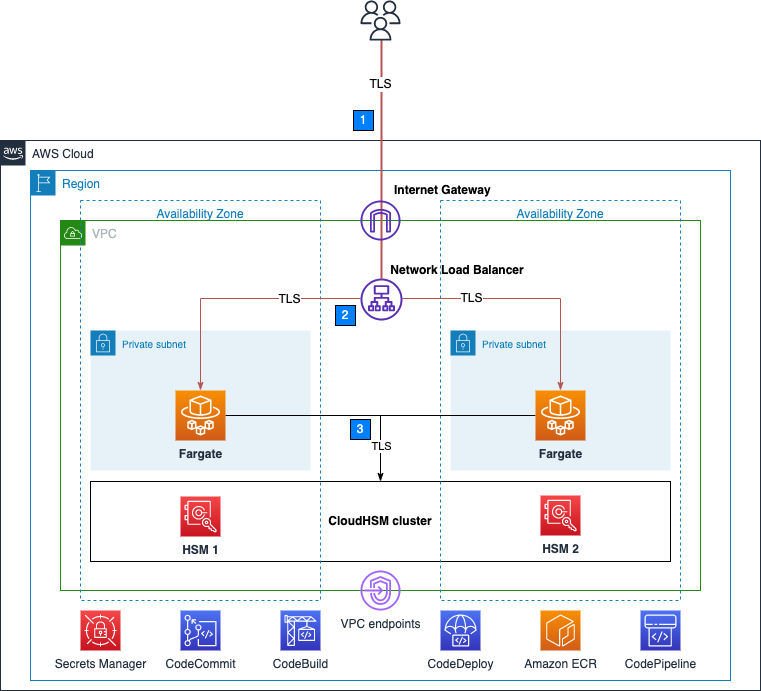


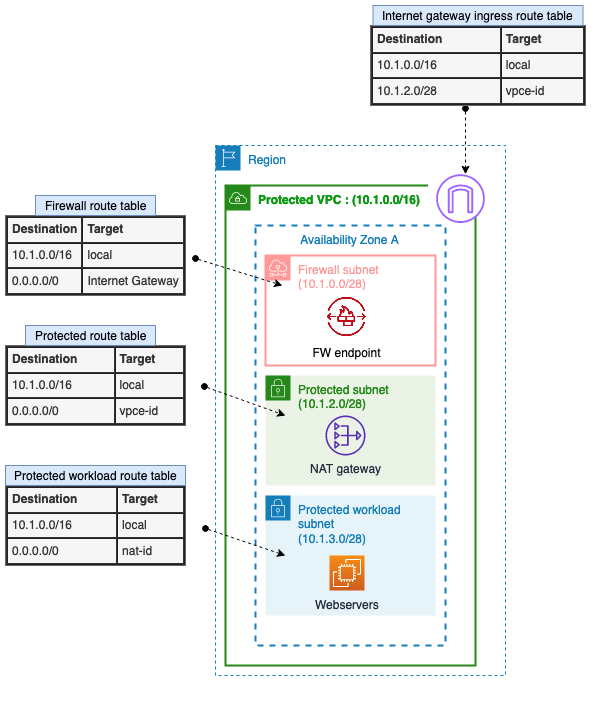


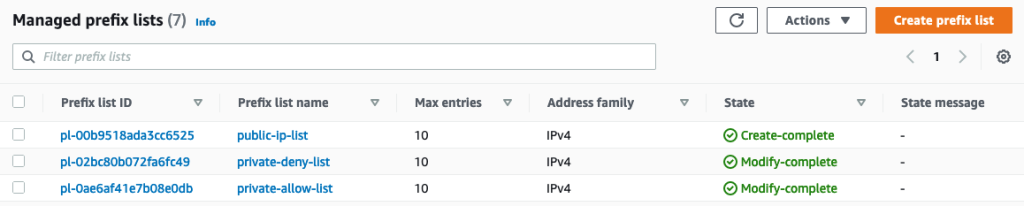




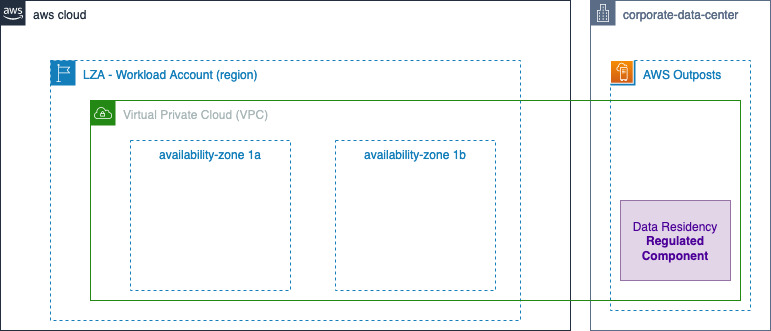

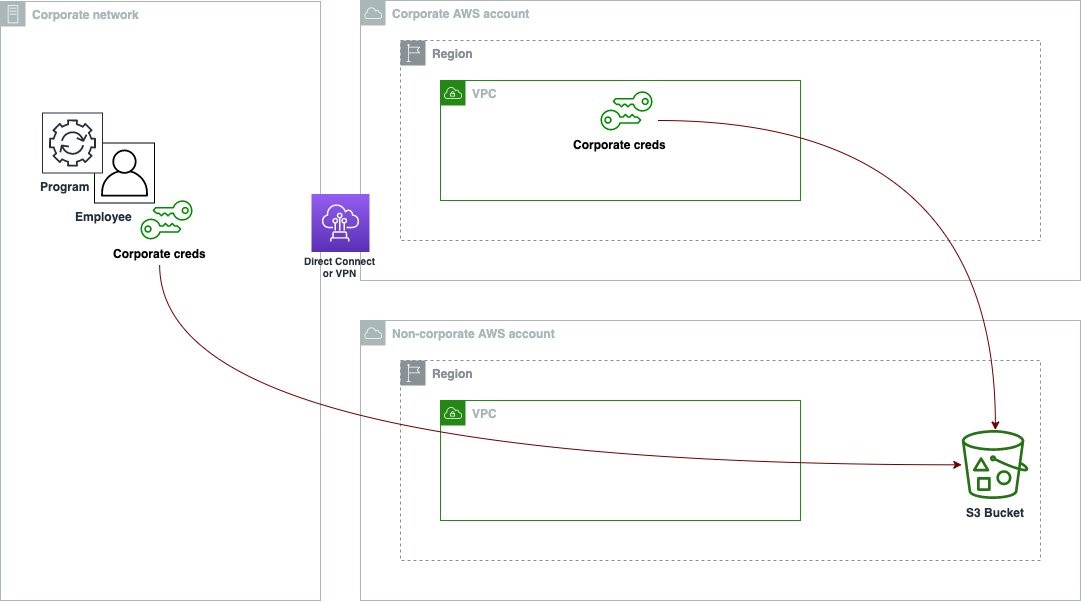

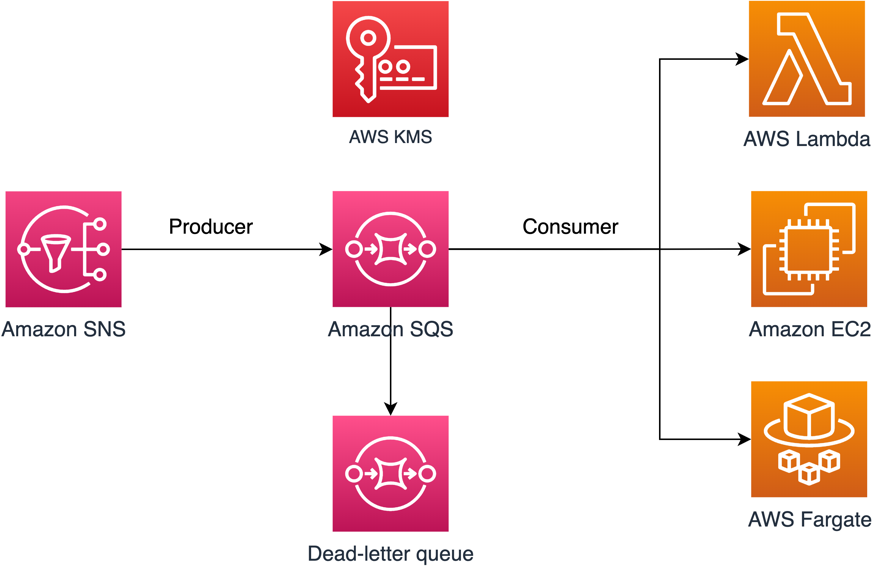


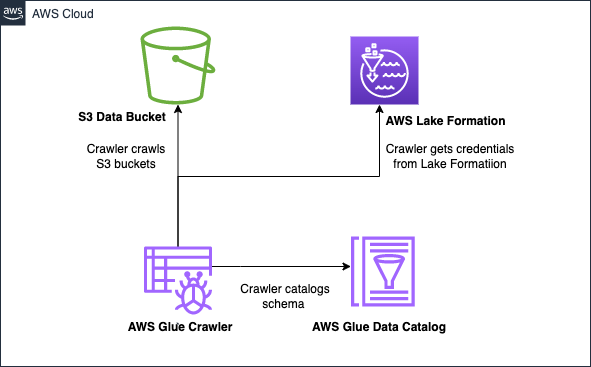


 AWS and Hugging Face collaborate to make generative AI more accessible and cost-efficient – This previous week, we announced an expanded collaboration between AWS and
 AWS Pi Day – Join me on March 14 for the third annual