Tag Archives: Amazon Simple Storage Service (S3)

Introducing PII data identification and handling using AWS Glue DataBrew

Post Syndicated from Harsh Vardhan Singh Gaur original https://aws.amazon.com/blogs/big-data/introducing-pii-data-identification-and-handling-using-aws-glue-databrew/

AWS Glue DataBrew, a visual data preparation tool, can now identify and handle sensitive data by applying advance transformations like redaction, replacement, encryption, and decryption on your personally identifiable information (PII) data. With exponential growth of data, companies are handling huge volumes and a wide variety of data coming into their platform, including PII data. Identifying and protecting sensitive data at scale has become increasingly complex, expensive, and time-consuming. Organizations have to adhere to data privacy, compliance, and regulatory needs such as GDPR and CCPA. They need to identify sensitive data, including PII such as name, SSN, address, email, driver’s license, and more. Even after identification, it’s cumbersome to implement redaction, masking, or encryption of sensitive personal information at scale.

To enable data privacy and protection, DataBrew has launched PII statistics, which identifies PII columns and provide their data statistics when you run a profile job on your dataset. Furthermore, DataBrew has introduced PII data handling transformations, which enable you to apply data masking, encryption, decryption, and other operations on your sensitive data.

In this post, we walk through a solution in which we run a data profile job to identify and suggest potential PII columns present in a dataset. Next, we target PII columns in a DataBrew project and apply various transformations to handle the sensitive columns existing in the dataset. Finally, we run a DataBrew job to apply the transformations on the entire dataset and store the processed, masked, and encrypted data securely in Amazon Simple Storage Service (Amazon S3).

Solution overview

We use a public dataset that is available for download at Synthetic Patient Records with COVID-19. The data hosted within SyntheticMass has been generated by SyntheaTM, an open-source patient population simulation made available by The MITRE Corporation.

Download the zipped file 10k_synthea_covid19_csv.zip for this solution and unzip it locally. The solution uses the dummy data in the file patient.csv to demonstrate data redaction and encryption capability. The file contains 10,000 synthetic patient records in CSV format, including PII columns like driver’s license, birth date, address, SSN, and more.

The following diagram illustrates the architecture for our solution.

The steps in this solution are as follows:

  1. The sensitive data is stored in an S3 bucket. You create a DataBrew dataset by connecting to the data in Amazon S3.
  2. Run a DataBrew profile job to identify the PII columns present in the dataset by enabling PII statistics.
  3. After identification of PII columns, apply transformations to redact or encrypt column values as a part of your recipe.
  4. A DataBrew job runs the recipe steps on the entire data and generates output files with sensitive data redacted or encrypted.
  5. After the output data is written to Amazon S3, we create an external table on top in Amazon Athena. Data consumers can use Athena to query the processed and cleaned data.

Prerequisites

For this walkthrough, you need an AWS account. Use us-east-1 as your AWS Region to implement this solution.

Set up your source data in Amazon S3

Create an S3 bucket called databrew-clean-pii-data-<Your-Account-ID> in us-east-1 with the following prefixes:

  • sensitive_data_input
  • cleaned_data_output
  • profile_job_output

Upload the patient.csv file to the sensitive_data_input prefix.

Create a DataBrew dataset

To create a DataBrew dataset, complete the following steps:

  1. On the DataBrew console, in the navigation pane, choose Datasets.
  2. Choose Connect new dataset.
  3. For Dataset name, enter a name (for this post, Patients).
  4. Under Connect to new dataset, select Amazon S3 as your source.
  5. For Enter your source from S3, enter the S3 path to the patient.csv file. In our case, this is s3://databrew-clean-pii-data-<Account-ID>/ sensitive_data_input/patients.csv.
  6. Scroll to the bottom of the page and choose Create dataset.

Run a data profile job

You’re now ready to create your profile job.

  1. In the navigation pane, choose Datasets.
  2. Select the Patients dataset.
  3. Choose Run data profile and choose Create profile job.
  4. Name the job Patients - Data Profile Job.
  5. We run the data profile on the entire dataset, so for Data sample, select Full dataset.
  6. In the Job output settings section, point to the profile_job_output S3 prefix where the data profile output is stored when the job is complete.
  7. Expand Data profile configurations, and select Enable PII statistics to identify PII columns when running the data profile job.

This option is disabled by default; you must enable it manually before running the data profile job.

  1. For PII categories, select All categories.
  2. Keep the remaining settings at their default.
  3. In the Permissions section, create a new AWS Identity and Access Management (IAM) role that is used by the DataBrew job to run the profile job, and use PII-DataBrew-Role as the role suffix.
  4. Choose Create and run job.

The job runs on the sample data and takes a few minutes to complete.

Now that we’ve run our profile job, we can review data profile insights about our dataset by choosing View data profile. We can also review the results of the profile through the visualizations on the DataBrew console and view the PII widget. This section provides a list of identified PII columns mapped to PII categories with column statistics. Furthermore, it suggests potential PII data that you can review.

Create a DataBrew project

After we identify the PII columns in our dataset, we can focus on handling the sensitive data in our dataset. In this solution, we perform redaction and encryption in our DataBrew project using the Sensitive category of transformations.

To create a DataBrew project for handling our sensitive data, complete the following steps:

  1. On the DataBrew console, choose Projects.
  2. Choose Create project.
  3. For Project name, enter a name (for this post, patients-pii-handling).
  4. For Select a dataset, select My datasets.
  5. Select the Patients dataset.
  6. Under Permissions, for Role name, choose the IAM role that we created previously for our DataBrew profile job AWSGlueDataBrewServiceRole-PII-DataBrew-Role.
  7. Choose Create project.

The dataset takes few minutes to load. When the dataset is loaded, we can start performing redactions. Let us start with the column SSN.

  1. For the SSN column, on the Sensitive menu, choose Redact data.
  2. Under Apply redaction, select Full string value.
  3. We redact all the non-alphanumeric characters and replace them with #.
  4. Choose Preview changes to compare the redacted values.
  5. Choose Apply.

On the Sensitive menu, all the data masking transformations—redact, replace, and hash data—are irreversible. After we finalize our recipe and run the DataBrew job, the job output to Amazon S3 is permanently redacted and we can’t recover it.

  1. Now, let’s apply redaction to multiple columns, assuming the following columns must not be consumed by any downstream users like data analyst, BI engineer, and data scientist:
    1. DRIVERS
    2. PASSPORT
    3. BIRTHPLACE
    4. ADDRESS
    5. LAT
    6. LON

In special cases, when we need to recover our sensitive data, instead of masking, we can encrypt our column values and when needed, decrypt the data to bring it back to its original format. Let’s assume we require a column value to be decrypted by a downstream application; in that case, we can encrypt our sensitive data.

We have two encryption options: deterministic and probabilistic. For use cases when we want to join two datasets on the same encrypted column, we should apply deterministic encryption. It makes sure that the encrypted value of all the distinct values is the same across DataBrew projects as long as we use the same AWS secret key. Additionally, keep in mind that when you apply deterministic encryption on your PII columns, you can only use DataBrew to decrypt those columns.

For our use case, let’s assume we want to perform deterministic encryption on a few of our columns.

  1. On the Sensitive menu, choose Deterministic encryption.
  2. For Source columns, select BIRTHDATE, DEATHDATE, FIRST, and LAST.
  3. For Encryption option, select Deterministic encryption.
  4. For Select secret, choose the databrew!default AWS secret.
  5. Choose Apply.
  6. After you finish applying all your transformations, choose Publish.
  7. Enter a description for the recipe version and choose Publish.

Create a DataBrew job

Now that our recipe is ready, we can create a job to apply the recipe steps to the Patients dataset.

  1. On the DataBrew console, choose Jobs.
  2. Choose Create a job.
  3. For Job name, enter a name (for example, Patient PII Making and Encryption).
  4. Select the Patients dataset and choose patients-pii-handling-recipe as your recipe.
  5. Under Job output settings¸ for File type, choose your final storage format to be Parquet.
  6. For S3 location, enter your S3 output as s3://databrew-clean-pii-data-<Account-ID>/cleaned_data_output/.
  7. For Compression, choose None.
  8. For File output storage, select Replace output files for each job run.
  9. Under Permissions, for Role name¸ choose the same IAM role we used previously.
  10. Choose Create and run job.

Create an Athena table

You can create tables by writing the DDL statement in the Athena query editor. If you’re not familiar with Apache Hive, you should review Creating Tables in Athena to learn how to create an Athena table that references the data residing in Amazon S3.

To create an Athena table, use the query editor and enter the following DDL statement:

CREATE EXTERNAL TABLE patient_masked_encrypted_data (
   `id` string, 
  `birthdate` string, 
  `deathdate` string, 
  `ssn` string, 
  `drivers` string, 
  `passport` string, 
  `prefix` string, 
  `first` string, 
  `last` string, 
  `suffix` string, 
  `maiden` string, 
  `marital` string, 
  `race` string, 
  `ethnicity` string, 
  `gender` string, 
  `birthplace` string, 
  `address` string, 
  `city` string, 
  `state` string, 
  `county` string, 
  `zip` int, 
  `lat` string, 
  `lon` string, 
  `healthcare_expenses` double, 
  `healthcare_coverage` double 
)
STORED AS PARQUET
LOCATION 's3://databrew-clean-pii-data-<Account-ID>/cleaned_data_output/'

Let’s validate the table output in Athena by running a simple SELECT query. The following screenshot shows the output.

We can clearly see the encrypted and redacted column values in our query output.

Cleaning up

To avoid incurring future charges, delete the resources created during this walkthrough.

Conclusion

As demonstrated in this post, you can use DataBrew to help identify, redact, and encrypt PII data. With these new PII transformations, you can streamline and simplify customer data management across industries such as financial services, government, retail, and much more.

Now that you can protect your sensitive data workloads to meet regulatory and compliance best practices, you can use this solution to build de-identified data lakes in AWS. Sensitive data fields remain protected throughout their lifecycle, whereas non-sensitive data fields remain in the clear. This approach can allow analytics or other business functions to operate on data without exposing sensitive data.


About the Authors

Harsh Vardhan Singh Gaur is an AWS Solutions Architect, specializing in Analytics. He has over 5 years of experience working in the field of big data and data science. He is passionate about helping customers adopt best practices and discover insights from their data.

Navnit Shukla is an AWS Specialist Solution Architect, Analytics, and is passionate about helping customers uncover insights from their data. He has been building solutions to help organizations make data-driven decisions.

Field Notes: Building On-Demand Disaster Recovery for IBM DB2 on AWS

Post Syndicated from João Bozelli original https://aws.amazon.com/blogs/architecture/field-notes-building-on-demand-disaster-recovery-for-ibm-db2-on-aws/

With the increased adoption of critical applications running in the cloud, customers often find themselves revisiting traditional strategies that were adopted for on-premises workloads. When it comes to IBM DB2, one of the first decisions to make is to decide what backup and restore method will be used.

In this blog post, we will show you how IT architects, database administrators, and cloud administrators can use AWS services such as Amazon Machine Images (AMIs) and Amazon Simple Storage Service (Amazon S3) to build on-demand disaster recovery. This is useful for organizations who are flexible in their Recovery Time Objective (RTO) to reduce cost by only provisioning the target environment when needed.

Architecture overview

Figure 1. Architecture of AWS services used in this blog post

Figure 1 shows the Amazon Elastic Compute Cloud (Amazon EC2) instance running the DB2 database in the primary Region (São Paulo, in this example) and performing backups to Amazon S3 by a script initiated by AWS Systems Manager. The backups in Amazon S3 are then replicated to the secondary Region (N. Virginia, in this example) by the S3 Cross-Region Replication (CRR) feature of Amazon S3.

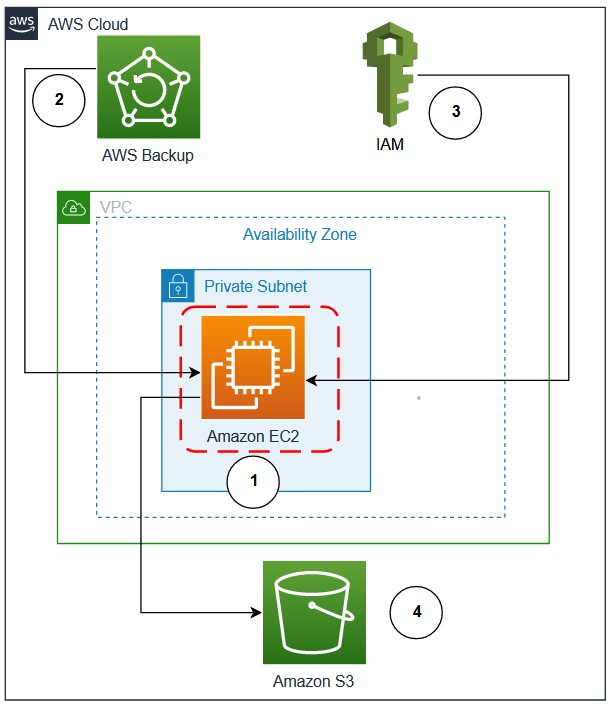
AWS Backup provides automation by performing the AMI copy and in a similar fashion to the database backups, the AMIs are copied to the secondary Region as well. You can further enhance the backup mechanism by activating monitoring through Amazon CloudWatch and using Amazon Simple Notification Service (Amazon SNS) to send out alerts in the event of failures. The architectural considerations will be outlined in detail.

Configuring IBM DB2 native data backup to Amazon S3

Database backups are stored in Amazon S3, which replicates the backups inside a Region by default and can be replicated to another Region using CRR. Since version 11.1, IBM DB2 running on Linux natively supports data backups to Amazon S3. To create this architecture, follow these steps:

  1. Log in to the Linux server and create a PKCS keystore to store the key and create a secret access key that will be used to transfer the data to Amazon S3. The remote storage credentials will be stored in this keystore.
cd /db2/db2<sid>/
mkdir .keystore
gsk8capicmd_64 -keydb -create -db "/db2/db2<sid>/.keystore/db6-s3.p12" -pw "<password>" -type pkcs12 -stash
  1. Configure IBM DB2 to use the keystore with the KEYSTORE_LOCATION and KEYSTORE_TYPE parameters.
db2 "update dbm cfg using keystore_location /db2/db2<sid>/.keystore/db6-s3.p12 keystore_type pkcs12"
  1. Validate that the parameters were successfully updated.
db2 get dbm cfg |grep -i KEYSTORE
 Keystore type                           (KEYSTORE_TYPE) = PKCS12
 Keystore location                   (KEYSTORE_LOCATION) = /db2/db2<sid>/.keystore/db6-s3.p12
  1. Create an S3 bucket in the same Region where your EC2 instance running the IBM DB2 database is located. Ensure that all security best practices are followed for the creation of the bucket. This bucket will store the backup images. You can create different folders to store different objects. For example, you can store the configuration files in a different path, or separate backups from different IBM DB2 instances by folders inside one bucket.

Figure 2. Example bucket for storing backups

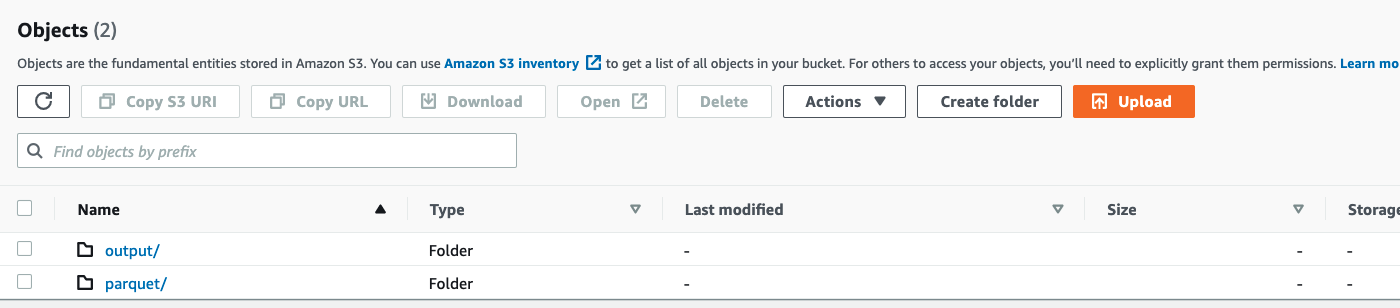
In this example, the primary folder for this database is SBX. The folder data will store the data backups, the folder config will store the configuration parameters, the folder keystore will store the backup of the keystore, and the folder logs will store the database logs.

  1. A user with programmatic access is required, because the only method of authentication available is using an access key (access key ID and secret access key). Create the user with the proper S3 permissions (the best practice is to use the principle of least privilege) and note the access key ID and secret access key. Then, create an IBM DB2 storage access alias using the following syntax:
db2 "catalog storage access alias <alias_name> vendor S3 server <S3 endpoint> user '<access_key>' password '<secret_access_key>' container '<bucket_name>'"
  1. Set the staging path to where the backups will be stored before moving to Amazon S3. This is done by defining the environment variable. Ensure this is set to avoid that the backup is written to an unwanted path.
db2set DB2_OBJECT_STORAGE_LOCAL_STAGING_PATH=/backup/staging/data
  1. To validate if variable was properly set, check that the IBM DB2 variable DB2_OBJECT_STORAGE_LOCAL_STAGING_PATH is set as follows:
db2set |grep -i STAGING

DB2_OBJECT_STORAGE_LOCAL_STAGING_PATH=/backup/staging/data
  1. Initiate the database backup either by the following command or with your backup script.

Note: make sure that the target is DB2REMOTE as follows:

db2 BACKUP DATABASE <instance> TO DB2REMOTE://<alias>//<path>/<additional path> compress without prompting

While the backup is running, you will see data being stored in the staging directory (for this example: /backup/staging/data), and then uploaded to Amazon S3.

The backup script can be integrated with AWS Systems Manager maintenance windows to run on schedule to allow control and visibility. When combined with Amazon SNS, you can send out notifications in case of success, failures, or both.

Set log and DB2 config backup to Amazon S3

There are different options when it comes to storing the database logs into Amazon S3. In this example, we’re using a very simple script initiated by AWS Systems Manager to sync the logs from the staging disk to Amazon S3. This, combined with CRR, increases the durability of the backup by replicating the logs to another Region of your choice. The same backup method for the logs is applied to the IBM DB2 configuration files (parameters and variables) and the keystore. Figure 3 shows the CRR configured on the target bucket, which is then automatically replicating the data to a secondary Region (us-east-1).

Figure 3. Example buckets for IBM DB2 backup and disaster recovery, respectively

Figure 4. Amazon S3 Replication rules configured from sa-east-1 to us-east-1 (São Paulo to N. Virginia)

Figure 5. IBM DB2 logs backed up in São Paulo (sa-east-1) and replicated to N. Virginia (us-east-1)

Amazon S3 Lifecycle policy

For this use case, we have defined a lifecycle policy to maintain the objects (full and log backups) stored as Amazon S3 Standard for 30 days, afterwards they will be moved from Amazon S3 Standard to Amazon S3 Standard-IA. After 30 days, any objects stored as Amazon S3 Standard-IA will be deleted. When used in the context of a database, this allows you to automatically manage the lifecycle of your backups. If you have compliance needs to store specific backups with longer retention times, you can backup to a separate folder (prefix) with a different lifecycle rule.

Figure 6. Amazon S3 Lifecycle policy configure for buckets in São Paulo (sa-east-1) and N. Virginia (us-east-1)

AMI to aid with automation

Up to this point, this blog post has covered how you can manage the backups for a better Recovery Point Objective (RPO). However, let’s consider what happens in case of a disaster or if you have issues with the server running the IBM DB2 database. The Recovery Time Objective (RTO) will be higher because you will have to launch an EC2 instance, prepare the server, install the IBM DB2 database, and restore the full data and log backups.

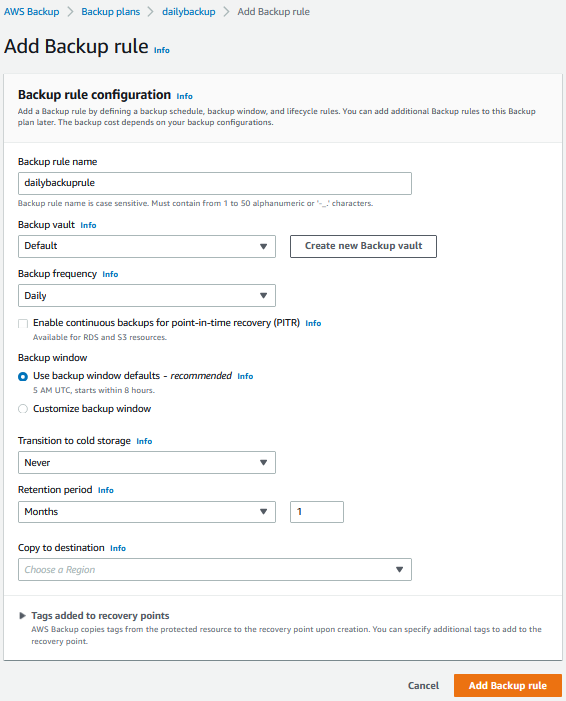
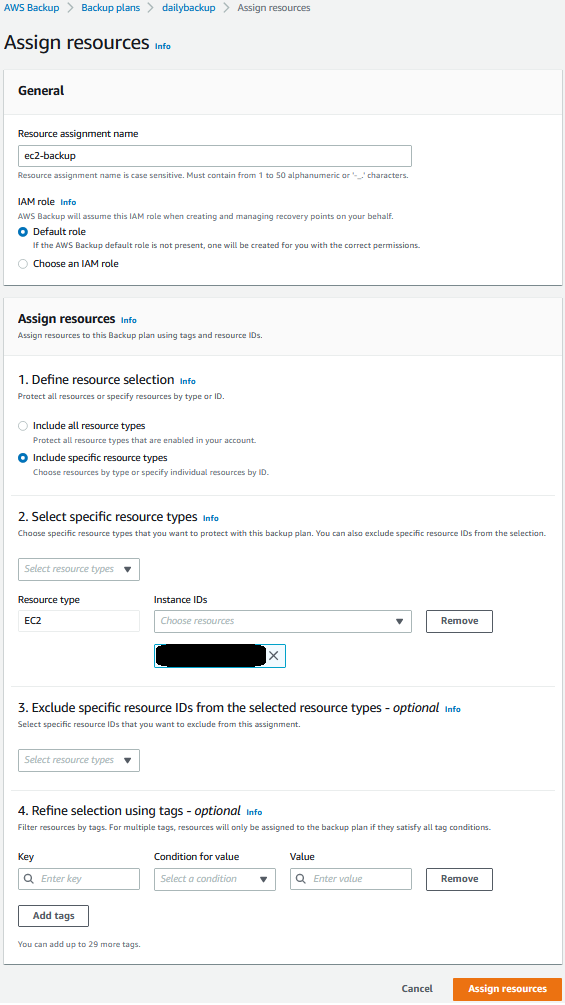
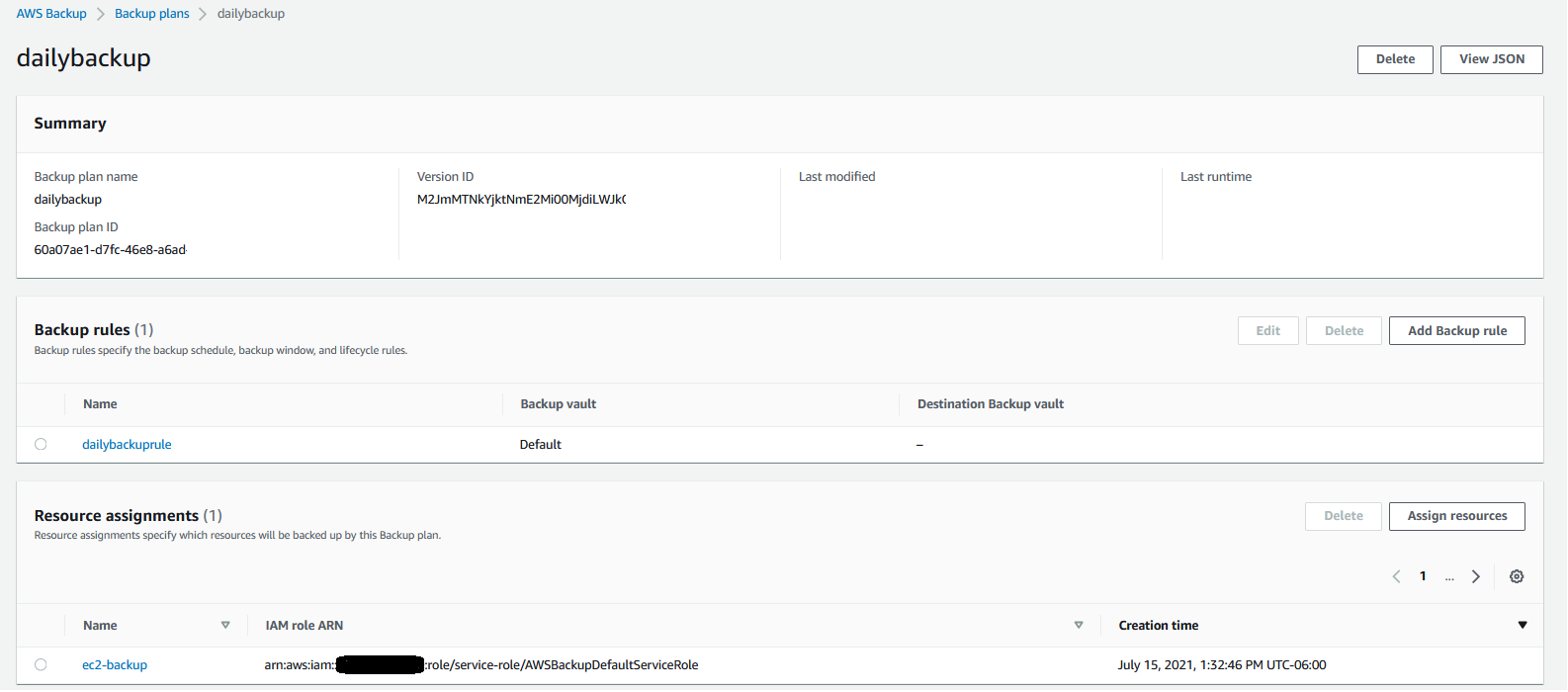
To reduce your RTO, we recommend using automated AMI backups for your EC2 instance. AWS Backup helps you generate automated AMIs based on tags and resource IDs. AWS Backup can ship the AMI backup generated from your instance to another Region, for a multi-Region disaster recovery strategy.

In this example, we have created an AWS Backup plan to run twice a day and to ship a copy of the AMI from São Paulo (sa-east-1) to N. Virginia (sa-east-1).

Figure 7. Automated AMIs copied from São Paulo (sa-east-1) to N. Virginia (us-east-1) by AWS Backup

Performance considerations

It is important to discuss the factors that impact overall backup and restore performance, and ultimately the RTO.

We recommend using VPC endpoints to ensure that the traffic from your EC2 to Amazon S3 does not traverse the internet, and to provide improved throughput for data upload. Another important factor is the type of EBS volumes used for storing the IBM DB2 data files. In this example, to cover a 170 GB database, the disk used was GP2 not striped in Logical Volume Manager (LVM). Because the degree of parallelism (number of tablespaces read in parallel by the IBM DB2 backup process) can increase CPU usage, caution is warranted when running online backups so as not to cause too much overhead on your database server. When considering optimization for EBS volumes, note the maximum throughput and IOPS that can be reached by instance type.

A test was run using AWS Command Line Interface to sync 100 GB of logs (100 files of 1 GB) from Amazon S3 to the newly created instance. It took 16 minutes. The amount of logs will vary depending on the backup schedule implemented. The Amazon S3 costs will vary depending on the lifecycle policies implemented. For further details, refer to Amazon S3 pricing.

Results

In our tests, the backup time for a 170 GB database took 38 minutes, with a restore time of 14 minutes.

The restore time can vary depending on the backup size, the amount of logs to roll forward, and disk type (mentioned previously in the Performance considerations section).

With the results of this test, the RTO was the restore time plus the time taken to launch the new server based off the AMI backup taken.

Table 1. Recovery test
Disk Type DB Size Instance Type (Backup) Parallel Channels (Backup) Backup Time Instance Type (Restore) Parallel Channels (Restore) Restore Time
GP2 170 GB m5.4xlarge 12 38 Minutes m5.4xlarge 12 14 Minutes

Conclusion

To summarize, in this blog post we described how to configure IBM DB2 backups to Amazon S3, to build an on-demand strategy for backup and disaster recovery. By following these architecture design principles, you will continue to develop resilient business continuity. Let us know if you have any comments or questions. We value your feedback!

Field Notes provides hands-on technical guidance from AWS Solutions Architects, consultants, and technical account managers, based on their experiences in the field solving real-world business problems for customers.

Ingesting PI Historian data to AWS Cloud using AWS IoT Greengrass and PI Web Services

Post Syndicated from Piyush Batwal original https://aws.amazon.com/blogs/architecture/ingesting-pi-historian-data-to-aws-cloud-using-aws-iot-greengrass-and-pi-web-services/

In process manufacturing, it’s important to fetch real-time data from data historians to support decisions-based analytics. Most manufacturing use cases require real-time data for early identification and mitigation of manufacturing issues. A limited set of commercial off-the-shelf (COTS) tools integrate with OSIsoft’s PI Historian for real-time data. However, each integration requires months of development effort, can lack full data integrity, and often doesn’t address data loss issues. In addition, these tools may not provide native connectivity to the Amazon Web Services (AWS) Cloud. Leveraging legacy COTS applications can limit your agility, both in initial setup and ongoing updates. This can impact time to value (TTV) for critical analytics.

In this blog post, we’ll illustrate how you can integrate your on-premises PI Historian with AWS services for your real-time manufacturing use cases. We will highlight the key connector features and a common deployment architecture for your multiple manufacturing use cases.

Scope of OSIsoft PI data historian use

OSIsoft’s PI System is a plant process historian. It collects machine data from various sensors and operational technology (OT) systems during the manufacturing process. PI Historian is the most widely used data historian in process industries such as Healthcare & Life Sciences (HCLS), Chemicals, and Food & Beverage. Large HCLS companies use the PI system extensively in their manufacturing plants.

The PI System usually contains years of historical data ranging from terabytes to petabytes. The data from the PI system can be used in preventive maintenance, bioreactor yield improvement, golden batch analysis, and other machine learning (ML) use cases. It can be a powerful tool when paired with AWS compute, storage, and AI/ML services.

Analyzing real-time and historical data can garner many business benefits. For example, your batch yield could improve by optimizing inputs or you could reduce downtime by proactive intervention and maintenance. You could improve overall equipment effectiveness (OEE) by improving productivity and reducing waste. This could give you the ability to conduct key analysis and deliver products to your end customers in a timely manner.

PI integration options

The data from the PI System can be ingested to AWS services in a variety of ways:

PI Connector for AWS IoT Greengrass

The PI Connector was developed by the AWS ProServe team as an extended AWS IoT Greengrass connector. The connector collects real-time and historical data from the PI system using PI Web Services. It publishes the data to various AWS services such as local ML models running at the edge, AWS IoT Core / AWS IoT SiteWise, and Amazon S3.

Connector requirements and design considerations

Specific requirements and design considerations were gathered in collaboration with various customers. These are essential for the most effective integration:

  • The connector should support reliable connectivity to the PI system for fetching real-time and historical data from the PI.
  • The connector should support subscription to various PI data modes like real-time, compressed/recorded, and interpolated, to support various use cases.
  • The initial setup and incremental updates to the PI tag configuration should be seamless without requiring any additional development effort.
  • The connector should support data contextualization in terms of asset/equipment hierarchy and process batch runs.
  • The connector should ensure full data integrity, reliable real-time data access, and support re-usability.
  • The connector should have support for handling data loss prevention scenarios for connectivity loss and/or maintenance/configuration updates.
  • The setup, deployment, and incremental updates should be fully automated.

Deployment architecture for PI Connector

The connector has been developed as part of AWS IoT Greengrass Connectivity Framework and can be deployed remotely on an edge machine. This can be running on-premises or in the AWS Cloud with access to the on-premises PI system. This machine can be run on a virtual machine (VM), a physical server, or a smaller device like a Raspberry Pi.

The connector incorporates a configuration file. You can specify connector functions such as authentication type, data access modes (polling or subscription), batch contextualization and validation on the data, or historical data access timeframe. It integrates with the PI Web APIs for subscription to real-time data for defined PI tags using secure WebSockets (wss). It can also invoke WebAPI calls for polling data with configured interval time.

The connector can be deployed as an AWS IoT Greengrass V1 AWS Lambda function or a Greengrass V2 component.

Figure 1. PI Connector architecture

Figure 1. PI Connector architecture

Connector features and benefits

  • The connector supports subscription to real-time and recorded data to track tag value changes in streaming mode. This is useful in situations where process parameter changes must be closely monitored for decision support, actions, and notifications. The connector supports data subscription for individual PI event tags, PI Asset Framework (AF), and PI Event Frames (EF).
  • The connector supports fetching recorded/compressed or interpolated data based on recorded timestamps or defined intervals, to sample all tags associated with an asset at those intervals.
  • The connector helps define asset hierarchy and batch tags as part of configuration, and contextualizes all asset data with hierarchy and batch context at the event level. This offloads heavy data post-processing for real-time use cases.
  • The connector initiates event processing at the edge and provides configurable options to push data to the Cloud. This occurs only when a valid batch is running and/or when a reported tag data quality attribute is good.
  • The connector ensures availability and data integrity by doing graceful reconnects in case of session closures from the PI side. It fetches, contextualizes, and pushes any missed data due to disconnections, maintenance, or update scenarios.
  • The connector accelerates the TTV for business by providing a reusable no-code, configuration-only PI integration capability.

Summary

The PI Connector developed by AWS Proserve makes your real-time, data ingestion from PI historian into AWS services fast, secure, scalable, and reliable. The connector can be configured and deployed into your edge network quickly.

With this connector, you can ingest data into many AWS services such as Amazon S3, AWS IoT Core, AWS IoT SiteWise, Amazon Timestream, and more. Try the PI Connector for your manufacturing use cases, and realize the full potential of OSI PI Historian data.

Further reading:

How GE Aviation built cloud-native data pipelines at enterprise scale using the AWS platform

Post Syndicated from Alcuin Weidus original https://aws.amazon.com/blogs/big-data/how-ge-aviation-built-cloud-native-data-pipelines-at-enterprise-scale-using-the-aws-platform/

This post was co-written with Alcuin Weidus, Principal Architect from GE Aviation.

GE Aviation, an operating unit of GE, is a world-leading provider of jet and turboprop engines, as well as integrated systems for commercial, military, business, and general aviation aircraft. GE Aviation has a global service network to support these offerings.

From the turbosupercharger to the world’s most powerful commercial jet engine, GE’s history of powering the world’s aircraft features more than 90 years of innovation.

In this post, we share how GE Aviation built cloud-native data pipelines at enterprise scale using the AWS platform.

A focus on the foundation

At GE Aviation, we’ve been invested in the data space for many years. Witnessing the customer value and business insights that could be extracted from data at scale has propelled us forward. We’re always looking for new ways to evolve, grow, and modernize our data and analytics stack. In 2019, this meant moving from a traditional on-premises data footprint (with some specialized AWS use cases) to a fully AWS Cloud-native design. We understood the task was challenging, but we were committed to its success. We saw the tremendous potential in AWS, and were eager to partner closely with a company that has over a decade of cloud experience.

Our goal from the outset was clear: build an enterprise-scale data platform to accelerate and connect the business. Using the best of cloud technology would set us up to deliver on our goal and prioritize performance and reliability in the process. From an early point in the build, we knew that if we wanted to achieve true scale, we had to start with solid foundations. This meant first focusing on our data pipelines and storage layer, which serve as the ingest point for hundreds of source systems. Our team chose Amazon Simple Storage Service (Amazon S3) as our foundational data lake storage platform.

Amazon S3 was the first choice as it provides an optimal foundation for a data lake store delivering virtually unlimited scalability and 11 9s of durability. In addition to its scalable performance, it has ease-of-use features, native encryption, and access control capabilities. Equally important, Amazon S3 integrates with a broad portfolio of AWS services, such as Amazon Athena, the AWS Glue Data Catalog, AWS Glue ETL (extract, transform, and load) Amazon Redshift, Amazon Redshift Spectrum, and many third-party tools, providing a growing ecosystem of data management tools.

How we started

The journey started with an internal hackathon that brought cross-functional team members together. We organized around an initial design and established an architecture to start the build using serverless patterns. A combination of Amazon S3, AWS Glue ETL, and the Data Catalog were central to our solution. These three services in particular aligned to our broader strategy to be serverless wherever possible and build on top of AWS services that were experiencing heavy innovation in the way of new features.

We felt good about our approach and promptly got to work.

Solution overview

Our cloud data platform built on Amazon S3 is fed from a combination of enterprise ELT systems. We have an on-premises system that handles change data capture (CDC) workloads and another that works more in a traditional batch manner.

Our design has the on-premises ELT systems dropping files into an S3 bucket set up to receive raw data for both situations. We made the decision to standardize our processed data layer into Apache Parquet format for our cataloged S3 data lake in preparation for more efficient serverless consumption.

Our enterprise CDC system can already land files natively in Parquet; however, our batch files are limited to CSV, so the landing of CSV files triggers another serverless process to convert these files to Parquet using AWS Glue ETL.

The following diagram illustrates this workflow.

When raw data is present and ready in Apache Parquet format, we have an event-triggered solution that processes the data and loads it to another mirror S3 bucket (this is where our users access and consume the data).

Pipelines are developed to support loading at a table level. We have specific AWS Lambda functions to identify schema errors by comparing each file’s schema against the last successful run. Another function validates that a necessary primary key file is present for any CDC tables.

Data partitioning and CDC updates

When our preprocessing Lambda functions are complete, the files are processed in one of two distinct paths based on the table type. Batch table loads are by far the simpler of the two and are handled via a single Lambda function.

For CDC tables, we use AWS Glue ETL to load and perform the updates against our tables stored in the mirror S3 bucket. The AWS Glue job uses Apache Spark data frames to combine historical data, filter out deleted records, and union with any records inserted. For our process, updates are treated as delete-then-insert. After performing the union, the entire dataset is written out to the mirror S3 bucket in a newly created bucket partition.

The following diagram illustrates this workflow.

We write data into a new partition for each table load, so we can provide read consistency in a way that makes sense to our consuming business partners.

Building the Data Catalog

When each Amazon S3 mirror data load is complete, another separate serverless branch is triggered to handle catalog management.

The branch updates the location property within the catalog for pre-existing tables, indicating each newly added partition. When loading a table for the first time, we trigger a series of purpose-built Lambda functions to create the AWS Glue Data Catalog database (only required when it’s an entirely new source schema), create an AWS Glue crawler, start the crawler, and delete the crawler when it’s complete.

The following diagram illustrates this workflow.

These event-driven design patterns allow us to fully automate the catalog management piece of our architecture, which became a big win for our team because it lowered the operational overhead associated with onboarding new source tables. Every achievement like this mattered because it realized the potential the cloud had to transform how we build and support products across our technology organization.

Final implementation architecture and best practices

The solution evolved several times throughout the development cycle, typically due to learning something new in terms of serverless and cloud-native development, and further working with AWS Solutions Architect and AWS Professional Services teams. Along the way, we’ve discovered many cloud-native best practices and accelerated our serverless data journey to AWS.

The following diagram illustrates our final architecture.

We strategically added Amazon Simple Queue Service (Amazon SQS) between purpose-built Lambda functions to decouple the architecture. Amazon SQS gave our system a level of resiliency and operational observability that otherwise would have been a challenge.

Another best practice arose from using Amazon DynamoDB as a state table to help ensure our entire serverless integration pattern was writing to our mirror bucket with ACID guarantees.

On the topic of operational observability, we use Amazon EventBridge to capture and report on operational metadata like table load status, time of the last load, and row counts.

Bringing it all together

At the time of writing, we’ve had production workloads running through our solution for the better part of 14 months.

Production data is integrated from more than 30 source systems at present and totals several hundred tables. This solution has given us a great starting point for building our cloud data ecosystem. The flexibility and extensibility of AWS’s many services have been key to our success.

Appreciation for the AWS Glue Data Catalog has been an essential element. Without knowing it at the time we started building a data lake, we’ve been embracing a modern data architecture pattern and organizing around our transactionally consistent and cataloged mirror storage layer.

The introduction of a more seamless Apache Hudi experience within AWS has been a big win for our team. We’ve been busy incorporating Hudi into our CDC transaction pipeline and are thrilled with the results. We’re able to spend less time writing code managing the storage of our data, and more time focusing on the reliability of our system. This has been critical in our ability to scale. Our development pipeline has grown beyond 10,000 tables and more than 150 source systems as we approach another major production cutover.

Looking ahead, we’re intrigued by the potential for AWS Lake Formation goverened tables to further accelerate our momentum and management of CDC table loads.

Conclusion

Building our cloud-native integration pipeline has been a journey. What started as an idea and has turned into much more in a brief time. It’s hard to appreciate how far we’ve come when there’s always more to be done. That being said, the entire process has been extraordinary. We built deep and trusted partnerships with AWS, learned more about our internal value statement, and aligned more of our organization to a cloud-centric way of operating.

The ability to build solutions in a serverless manner opens up many doors for our data function and, most importantly, our customers. Speed to delivery and the pace of innovation is directly related to our ability to focus our engineering teams on business-specific problems while trusting a partner like AWS to do the heavy lifting of data center operations like racking, stacking, and powering servers. It also removes the operational burden of managing operating systems and applications with managed services. Finally, it allows us to focus on our customers and business process enablement rather than on IT infrastructure.

The breadth and depth of data and analytics services on AWS make it possible to solve our business problems by using the right resources to run whatever analysis is most appropriate for a specific need. AWS Data and Analytics has deep integrations across all layers of the AWS ecosystem, giving us the tools to analyze data using any approach quickly. We appreciate AWS’s continual innovation on behalf of its customers.


About the Authors

Alcuin Weidus is a Principal Data Architect for GE Aviation. Serverless advocate, perpetual data management student, and cloud native strategist, Alcuin is a data technology leader on a team responsible for accelerating technical outcomes across GE Aviation. Connect him on Linkedin.

Suresh Patnam is a Sr Solutions Architect at AWS; He works with customers to build IT strategy, making digital transformation through the cloud more accessible, focusing on big data, data lakes, and AI/ML. In his spare time, Suresh enjoys playing tennis and spending time with his family. Connect him on LinkedIn.

Scale Up Language Detection with Amazon Comprehend and S3 Batch Operations

Post Syndicated from Ameer Hakme original https://aws.amazon.com/blogs/architecture/scale-up-language-detection-with-amazon-comprehend-and-s3-batch-operations/

Organizations have been collecting text data for years. Text data can help you intelligently address a range of challenges, from customer experience to analytics. These mixed language, unstructured datasets can contain a wealth of information within business documents, emails, and webpages. If you’re able to process and interpret it, this information can provide insight that can help guide your business decisions.

Amazon Comprehend is a natural language processing (NLP) service that extracts insights from text datasets. Amazon Comprehend asynchronous batch operations provides organizations with the ability to detect dominant languages from text documents stored in Amazon Simple Storage Service (S3) buckets. The asynchronous operations support a maximum document size of 1 MB for language detection. They can process up to one million documents per batch, for a total size of 5 GB.

But what if your organization has millions, or even billions of documents stored in an S3 bucket waiting for language detection processing? What if your language detection process requires customization to let you organize your documents based on language? What if you need to create a search index that can help you quickly audit your text document repositories?

In this blog post, we walk through a solution using Amazon S3 Batch Operations to initiate language detection jobs with AWS Lambda and Amazon Comprehend.

Real world language detection solution architecture

In our example, we have tens of millions of text objects stored in a single S3 bucket. These need to be processed to detect the dominant language. To create a language detection job, we must supply the S3 Batch Operations with a manifest file that lists all text objects. We can use an Amazon S3 Inventory report as an input to the manifest file to create S3 bucket object lists.

One of the supported S3 Batch Operations is invoking an AWS Lambda function. The S3 Batch Operations job uses LambdaInvoke to run a Lambda function on every object listed in a manifest. Lambda jobs are subject to overall Lambda concurrency limits for the account and each Lambda invocation will have a defined runtime. Organizations can request a service quota increase if necessary. Lambda functions in a single AWS account and in one Region share the concurrency limit. You can set reserved capacity for Lambda functions to ensure that they can be invoked even when overall capacity has been exhausted.

The Lambda function can be customized to take further actions based on the output received from Amazon Comprehend. The following diagram shows an architecture for language detection with S3 Batch Operations and Amazon Comprehend.

Figure 1. Language detection with S3 Batch Operations and Amazon Comprehend

Figure 1. Language detection with S3 Batch Operations and Amazon Comprehend

Here is the architecture flow, as shown in Figure 1:

  1. S3 Batch Operations will pull the manifest file from the source S3 bucket.
  2. The S3 Batch Operations job will invoke the language detection Lambda function for each object listed in the manifest file. Lambda function code will perform a preliminary scan to check the file size, file extension, or any other requirements before calling Amazon Comprehend API. The Lambda function will then read the text object from S3 and then call the Amazon Comprehend API to detect the dominant language.
  3. The Language Detection API automatically identifies text written in over 100 languages. The API response contains the dominant language with a confidence score supporting the interpretation. An example API response would be: {‘LanguageCode’: ‘fr’, ‘Score’: 0.9888556003570557}. Once the Lambda function receives the API response, Lambda will return a message back to S3 Batch Operations with a result code.
  4. The Lambda function will then publish a message to an Amazon Simple Notification Service (SNS) topic.
  5. An Amazon Simple Queue Service (SQS) queue subscribed to the SNS topic will receive the message with all required information related to each processed text object.
  6. The SQS queue will invoke a Lambda function to process the message.
  7. The Lambda function will move the targeted S3 object to a destination S3 bucket.
  8. S3 Batch Operations will generate a completion report and will store it in an S3 bucket. The completion report will contain additional information for each task, including the object key name and version, status, error codes, and error descriptions.

Leverage SNS fanout pattern for more complex use cases

This blog post describes the basic building blocks for the solution, but it can be extended for more complex use cases, as illustrated in Figure 2. Using an SNS fanout application integration pattern would enable many SQS queues to subscribe to the same SNS topic. These SQS queues would receive identical notifications for the processed text objects, and you could implement downstream services for additional evaluation. For example, you can store text object metadata in an Amazon DynamoDB table. You can further analyze the number of processed text objects, dominant languages, object size, word count, and more.

Your source S3 bucket may have objects being uploaded in real time in addition to the existing batch processes. In this case, you could process these objects in a new batch job, or process them individually during upload by using S3 event triggers and Lambda.

Figure 2. Extending the solution

Figure 2. Extending the solution

Conclusion

You can implement a language detection job in a number of ways. All the Amazon Comprehend single document and synchronous API batch operations can be used for real-time analysis. Asynchronous batch operations can analyze large documents and large collections of documents. However, by using S3 Batch Operations, you can scale language detection batch operations to billions of text objects stored in S3. This solution has the flexibility to add customized functionality. This may be useful for more complex jobs, or when you want to capture different data points from your S3 objects.

For further reading:

Create a serverless event-driven workflow to ingest and process Microsoft data with AWS Glue and Amazon EventBridge

Post Syndicated from Venkata Sistla original https://aws.amazon.com/blogs/big-data/create-a-serverless-event-driven-workflow-to-ingest-and-process-microsoft-data-with-aws-glue-and-amazon-eventbridge/

Microsoft SharePoint is a document management system for storing files, organizing documents, and sharing and editing documents in collaboration with others. Your organization may want to ingest SharePoint data into your data lake, combine the SharePoint data with other data that’s available in the data lake, and use it for reporting and analytics purposes. AWS Glue is a serverless data integration service that makes it easy to discover, prepare, and combine data for analytics, machine learning, and application development. AWS Glue provides all the capabilities needed for data integration so that you can start analyzing your data and putting it to use in minutes instead of months.

Organizations often manage their data on SharePoint in the form of files and lists, and you can use this data for easier discovery, better auditing, and compliance. SharePoint as a data source is not a typical relational database and the data is mostly semi structured, which is why it’s often difficult to join the SharePoint data with other relational data sources. This post shows how to ingest and process SharePoint lists and files with AWS Glue and Amazon EventBridge, which enables you to join other data that is available in your data lake. We use SharePoint REST APIs with a standard open data protocol (OData) syntax. OData advocates a standard way of implementing REST APIs that allows for SQL-like querying capabilities. OData helps you focus on your business logic while building RESTful APIs without having to worry about the various approaches to define request and response headers, query options, and so on.

AWS Glue event-driven workflows

Unlike a traditional relational database, SharePoint data may or may not change frequently, and it’s difficult to predict the frequency at which your SharePoint server generates new data, which makes it difficult to plan and schedule data processing pipelines efficiently. Running data processing frequently can be expensive, whereas scheduling pipelines to run infrequently can deliver cold data. Similarly, triggering pipelines from an external process can increase complexity, cost, and job startup time.

AWS Glue supports event-driven workflows, a capability that lets developers start AWS Glue workflows based on events delivered by EventBridge. The main reason to choose EventBridge in this architecture is because it allows you to process events, update the target tables, and make information available to consume in near-real time. Because frequency of data change in SharePoint is unpredictable, using EventBridge to capture events as they arrive enables you to run the data processing pipeline only when new data is available.

To get started, you simply create a new AWS Glue trigger of type EVENT and place it as the first trigger in your workflow. You can optionally specify a batching condition. Without event batching, the AWS Glue workflow is triggered every time an EventBridge rule matches, which may result in multiple concurrent workflows running. AWS Glue protects you by setting default limits that restrict the number of concurrent runs of a workflow. You can increase the required limits by opening a support case. Event batching allows you to configure the number of events to buffer or the maximum elapsed time before firing the particular trigger. When the batching condition is met, a workflow run is started. For example, you can trigger your workflow when 100 files are uploaded in Amazon Simple Storage Service (Amazon S3) or 5 minutes after the first upload. We recommend configuring event batching to avoid too many concurrent workflows, and optimize resource usage and cost.

To illustrate this solution better, consider the following use case for a wine manufacturing and distribution company that operates across multiple countries. They currently host all their transactional system’s data on a data lake in Amazon S3. They also use SharePoint lists to capture feedback and comments on wine quality and composition from their suppliers and other stakeholders. The supply chain team wants to join their transactional data with the wine quality comments in SharePoint data to improve their wine quality and manage their production issues better. They want to capture those comments from the SharePoint server within an hour and publish that data to a wine quality dashboard in Amazon QuickSight. With an event-driven approach to ingest and process their SharePoint data, the supply chain team can consume the data in less than an hour.

Overview of solution

In this post, we walk through a solution to set up an AWS Glue job to ingest SharePoint lists and files into an S3 bucket and an AWS Glue workflow that listens to S3 PutObject data events captured by AWS CloudTrail. This workflow is configured with an event-based trigger to run when an AWS Glue ingest job adds new files into the S3 bucket. The following diagram illustrates the architecture.

To make it simple to deploy, we captured the entire solution in an AWS CloudFormation template that enables you to automatically ingest SharePoint data into Amazon S3. SharePoint uses ClientID and TenantID credentials for authentication and uses Oauth2 for authorization.

The template helps you perform the following steps:

  1. Create an AWS Glue Python shell job to make the REST API call to the SharePoint server and ingest files or lists into Amazon S3.
  2. Create an AWS Glue workflow with a starting trigger of EVENT type.
  3. Configure CloudTrail to log data events, such as PutObject API calls to CloudTrail.
  4. Create a rule in EventBridge to forward the PutObject API events to AWS Glue when they’re emitted by CloudTrail.
  5. Add an AWS Glue event-driven workflow as a target to the EventBridge rule. The workflow gets triggered when the SharePoint ingest AWS Glue job adds new files to the S3 bucket.

Prerequisites

For this walkthrough, you should have the following prerequisites:

Configure SharePoint server authentication details

Before launching the CloudFormation stack, you need to set up your SharePoint server authentication details, namely, TenantID, Tenant, ClientID, ClientSecret, and the SharePoint URL in AWS Systems Manager Parameter Store of the account you’re deploying in. This makes sure that no authentication details are stored in the code and they’re fetched in real time from Parameter Store when the solution is running.

To create your AWS Systems Manager parameters, complete the following steps:

  1. On the Systems Manager console, under Application Management in the navigation pane, choose Parameter Store.
    systems manager
  2. Choose Create Parameter.
  3. For Name, enter the parameter name /DATALAKE/GlueIngest/SharePoint/tenant.
  4. Leave the type as string.
  5. Enter your SharePoint tenant detail into the value field.
  6. Choose Create parameter.
  7. Repeat these steps to create the following parameters:
    1. /DataLake/GlueIngest/SharePoint/tenant
    2. /DataLake/GlueIngest/SharePoint/tenant_id
    3. /DataLake/GlueIngest/SharePoint/client_id/list
    4. /DataLake/GlueIngest/SharePoint/client_secret/list
    5. /DataLake/GlueIngest/SharePoint/client_id/file
    6. /DataLake/GlueIngest/SharePoint/client_secret/file
    7. /DataLake/GlueIngest/SharePoint/url/list
    8. /DataLake/GlueIngest/SharePoint/url/file

Deploy the solution with AWS CloudFormation

For a quick start of this solution, you can deploy the provided CloudFormation stack. This creates all the required resources in your account.

The CloudFormation template generates the following resources:

  • S3 bucket – Stores data, CloudTrail logs, job scripts, and any temporary files generated during the AWS Glue extract, transform, and load (ETL) job run.
  • CloudTrail trail with S3 data events enabled – Enables EventBridge to receive PutObject API call data in a specific bucket.
  • AWS Glue Job – A Python shell job that fetches the data from the SharePoint server.
  • AWS Glue workflow – A data processing pipeline that is comprised of a crawler, jobs, and triggers. This workflow converts uploaded data files into Apache Parquet format.
  • AWS Glue database – The AWS Glue Data Catalog database that holds the tables created in this walkthrough.
  • AWS Glue table – The Data Catalog table representing the Parquet files being converted by the workflow.
  • AWS Lambda function – The AWS Lambda function is used as an AWS CloudFormation custom resource to copy job scripts from an AWS Glue-managed GitHub repository and an AWS Big Data blog S3 bucket to your S3 bucket.
  • IAM roles and policies – We use the following AWS Identity and Access Management (IAM) roles:
    • LambdaExecutionRole – Runs the Lambda function that has permission to upload the job scripts to the S3 bucket.
    • GlueServiceRole – Runs the AWS Glue job that has permission to download the script, read data from the source, and write data to the destination after conversion.
    • EventBridgeGlueExecutionRole – Has permissions to invoke the NotifyEvent API for an AWS Glue workflow.
    • IngestGlueRole – Runs the AWS Glue job that has permission to ingest data into the S3 bucket.

To launch the CloudFormation stack, complete the following steps:

  1. Sign in to the AWS CloudFormation console.
  2. Choose Launch Stack:
  3. Choose Next.
  4. For pS3BucketName, enter the unique name of your new S3 bucket.
  5. Leave pWorkflowName and pDatabaseName as the default.

cloud formation 1

  1. For pDatasetName, enter the SharePoint list name or file name you want to ingest.
  2. Choose Next.

cloud formation 2

  1. On the next page, choose Next.
  2. Review the details on the final page and select I acknowledge that AWS CloudFormation might create IAM resources.
  3. Choose Create.

It takes a few minutes for the stack creation to complete; you can follow the progress on the Events tab.

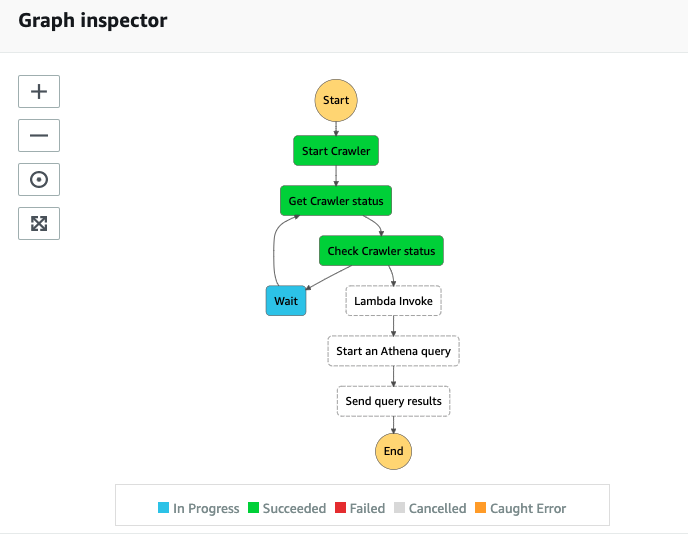
You can run the ingest AWS Glue job either on a schedule or on demand. As the job successfully finishes and ingests data into the raw prefix of the S3 bucket, the AWS Glue workflow runs and transforms the ingested raw CSV files into Parquet files and loads them into the transformed prefix.

Review the EventBridge rule

The CloudFormation template created an EventBridge rule to forward S3 PutObject API events to AWS Glue. Let’s review the configuration of the EventBridge rule:

  1. On the EventBridge console, under Events, choose Rules.
  2. Choose the rule s3_file_upload_trigger_rule-<CloudFormation-stack-name>.
  3. Review the information in the Event pattern section.

event bridge

The event pattern shows that this rule is triggered when an S3 object is uploaded to s3://<bucket_name>/data/SharePoint/tablename_raw/. CloudTrail captures the PutObject API calls made and relays them as events to EventBridge.

  1. In the Targets section, you can verify that this EventBridge rule is configured with an AWS Glue workflow as a target.

event bridge target section

Run the ingest AWS Glue job and verify the AWS Glue workflow is triggered successfully

To test the workflow, we run the ingest-glue-job-SharePoint-file job using the following steps:

  1. On the AWS Glue console, select the ingest-glue-job-SharePoint-file job.

glue job

  1. On the Action menu, choose Run job.

glue job action menu

  1. Choose the History tab and wait until the job succeeds.

glue job history tab

You can now see the CSV files in the raw prefix of your S3 bucket.

csv file s3 location

Now the workflow should be triggered.

  1. On the AWS Glue console, validate that your workflow is in the RUNNING state.

glue workflow running status

  1. Choose the workflow to view the run details.
  2. On the History tab of the workflow, choose the current or most recent workflow run.
  3. Choose View run details.

glue workflow visual

When the workflow run status changes to Completed, let’s check the converted files in your S3 bucket.

  1. Switch to the Amazon S3 console, and navigate to your bucket.

You can see the Parquet files under s3://<bucket_name>/data/SharePoint/tablename_transformed/.

parquet file s3 location

Congratulations! Your workflow ran successfully based on S3 events triggered by uploading files to your bucket. You can verify everything works as expected by running a query against the generated table using Amazon Athena.

Sample wine dataset

Let’s analyze a sample red wine dataset. The following screenshot shows a SharePoint list that contains various readings that relate to the characteristics of the wine and an associated wine category. This is populated by various wine tasters from multiple countries.

redwine dataset

The following screenshot shows a supplier dataset from the data lake with wine categories ordered per supplier.

supplier dataset

We process the red wine dataset using this solution and use Athena to query the red wine data and supplier data where wine quality is greater than or equal to 7.

athena query and results

We can visualize the processed dataset using QuickSight.

Clean up

To avoid incurring unnecessary charges, you can use the AWS CloudFormation console to delete the stack that you deployed. This removes all the resources you created when deploying the solution.

Conclusion

Event-driven architectures provide access to near-real-time information and help you make business decisions on fresh data. In this post, we demonstrated how to ingest and process SharePoint data using AWS serverless services like AWS Glue and EventBridge. We saw how to configure a rule in EventBridge to forward events to AWS Glue. You can use this pattern for your analytical use cases, such as joining SharePoint data with other data in your lake to generate insights, or auditing SharePoint data and compliance requirements.


About the Author

Venkata Sistla is a Big Data & Analytics Consultant on the AWS Professional Services team. He specializes in building data processing capabilities and helping customers remove constraints that prevent them from leveraging their data to develop business insights.

Running a Cost-effective NLP Pipeline on Serverless Infrastructure at Scale

Post Syndicated from Eitan Sela original https://aws.amazon.com/blogs/architecture/running-a-cost-effective-nlp-pipeline-on-serverless-infrastructure-at-scale/

Amenity Analytics develops enterprise natural language processing (NLP) platforms for the finance, insurance, and media industries that extract critical insights from mountains of documents. We provide a scalable way for businesses to get a human-level understanding of information from text.

In this blog post, we will show how Amenity Analytics improved the continuous integration (CI) pipeline speed by 15x. We hope that this example can help other customers achieve high scalability using AWS Step Functions Express.

Amenity Analytics’ models are developed using both a test-driven development (TDD) and a behavior-driven development (BDD) approach. We verify the model accuracy throughout the model lifecycle—from creation to production, and on to maintenance.

One of the actions in the Amenity Analytics model development cycle is backtesting. It is an important part of our CI process. This process consists of two steps running in parallel:

  • Unit tests (TDD): checks that the code performs as expected
  • Backtesting tests (BDD): validates that the precision and recall of our models is similar or better than previous

The backtesting process utilizes hundreds of thousands of annotated examples in each “code build.” To accomplish this, we initially used the AWS Step Functions default workflow. AWS Step Functions is a low-code visual workflow service used to orchestrate AWS services, automate business processes, and build serverless applications. Workflows manage failures, retries, parallelization, service integrations, and observability.

Challenge with the existing Step Functions solution

We found that Step Functions standard workflow has a bucket of 5,000 state transitions with a refill rate of 1,500. Each annotated example has ~10 state transitions. This creates millions of state transitions per code build. Since state transitions are limited and couldn’t be increased to our desired amount, we often faced delays and timeouts. Developers had to coordinate their work with each other, which inevitably slowed down the entire development cycle.

To resolve these challenges, we migrated from Step Functions standard workflows to Step Functions Express workflows, which have no limits on state transitions. In addition, we changed the way each step in the pipeline is initiated, from an async call to a sync API call.

Step Functions Express workflow solution

When a model developer merges their new changes, the CI process starts the backtesting for all existing models.

  • Each model is checked to see if the annotated examples were already uploaded and saved in the Amazon Simple Storage Service (S3) cache. The check is made by a unique key representing the list of items. Once a model is reviewed, the review items will rarely be changed.
  • If the review items haven’t been uploaded yet, it uploads them and initiates an unarchive process. This way the review items can be used in the next phase.
  • When the items are uploaded, an API call is invoked using Amazon API Gateway with the review items keys, see Figure 1.
  • The request is forwarded to an AWS Lambda function. It is responsible for validating the request and sending a job message to an Amazon Simple Queue Service (SQS) queue.
  • The SQS messages are consumed by concurrent Lambda functions, which synchronously invoke a Step Function. The number of Lambda functions are limited to ensure that they don’t exceed their limit in the production environment.
  • When an item is finished in the Step Function, it creates an SQS notification message. This message is inserted into a queue and consumed as a message batch by a Lambda function. The function then sends an AWS IoT message containing all relevant messages for each individual user.
Figure 1. Step Functions Express workflow solution

Figure 1. Step Functions Express workflow solution

Main Step Function Express workflow pipeline

Step Functions Express supports only sync calls. Therefore, we replaced the previous async Amazon Simple Notification Service (SNS) and Amazon SQS, with sync calls to API Gateway.

Figure 2 shows the workflow for a single document in Step Function Express:

  1. Generate a document ID for the current iteration
  2. Perform base NLP analysis by calling another Step Function Express wrapped by an API Gateway
  3. Reformat the response to be the same as all other “logic” steps results
  4. Verify the result by the “Choice” state – if failed go to end, otherwise, continue
  5. Perform the Amenity core NLP analysis in three model invocations: Group, Patterns, and Business Logic (BL)
  6. For each of the model runtime steps:
    • Check if the result is correct
    • If failed, go to end, otherwise continue
  7. Return a formatted result at the end
Figure 2. Workflow for a single document

Figure 2. Workflow for a single document

Base NLP analysis Step Function Express

For our base NLP analysis, we use Spacy. Figure 3 shows how we used it in Step Functions Express:

  1. Confirm if text exists in cache (this means it has been previously analyzed)
  2. If it exists, return the cached result
  3. If it doesn’t exist, split the text to a manageable size (Spacy has text size limitations)
  4. All the texts parts are analyzed in parallel by Spacy
  5. Merge the results into a single, analyzed document and save it to the cache
  6. If there was an exception during the process, it is handled in the “HandleStepFunctionExceptionState”
  7. Send a reference to the analyzed document if successful
  8. Send an error message if there was an exception
Figure 3. Base NLP analysis for a single document

Figure 3. Base NLP analysis for a single document

Results

Our backtesting migration was deployed on August 10, and unit testing migration on September 14. After the first migration, the CI was limited by the unit tests, which took ~25 minutes. When the second migration was deployed, the process time was reduced to ~6 minutes (P95).

Figure 4. Process time reduced from 50 minutes to 6 minutes

Figure 4. Process time reduced from 50 minutes to 6 minutes

Conclusion

By migrating from standard Step Functions to Step Functions Express, Amenity Analytics increased processing speed 15x. A complete pipeline that used to take ~45 minutes with standard Step Functions, now takes ~3 minutes using Step Functions Express. This migration removed the need for users to coordinate workflow processes to create a build. Unit testing (TDD) went from ~25 mins to ~30 seconds. Backtesting (BDD) went from taking more than 1 hour to ~6 minutes.

Switching to Step Functions Express allows us to focus on delivering business value faster. We will continue to explore how AWS services can help us drive more value to our users.

For further reading:

Batch Inference at Scale with Amazon SageMaker

Post Syndicated from Ramesh Jetty original https://aws.amazon.com/blogs/architecture/batch-inference-at-scale-with-amazon-sagemaker/

Running machine learning (ML) inference on large datasets is a challenge faced by many companies. There are several approaches and architecture patterns to help you tackle this problem. But no single solution may deliver the desired results for efficiency and cost effectiveness. In this blog post, we will outline a few factors that can help you arrive at the most optimal approach for your business. We will illustrate a use case and architecture pattern with Amazon SageMaker to perform batch inference at scale.

ML inference can be done in real time on individual records, such as with a REST API endpoint. Inference can also be done in batch mode as a processing job on a large dataset. While both approaches push data through a model, each has its own target goal when running inference at scale.

With real-time inference, the goal is usually to optimize the number of transactions per second that the model can process. With batch inference, the goal is usually tied to time constraints and the service-level agreement (SLA) for the job. Table 1 shows the key attributes of real-time, micro-batch, and batch inference scenarios.

Real Time Micro Batch Batch
Execution Mode
Synchronous Synchronous/Asynchronous Asynchronous
Prediction Latency
Subsecond Seconds to minutes Indefinite
Data Bounds Unbounded/stream Bounded Bounded
Execution Frequency
Variable Variable Variable/fixed
Invocation Mode
Continuous stream/API calls Event-based Event-based/scheduled
Examples Real-time REST API endpoint Data analyst running a SQL UDF Scheduled inference job

Table 1. Key characteristics of real-time, micro-batch, and batch inference scenarios

Key considerations for batch inference jobs

Batch inference tasks are usually good candidates for horizontal scaling. Each worker within a cluster can operate on a different subset of data without the need to exchange information with other workers. AWS offers multiple storage and compute options that enable horizontal scaling. Table 2 shows some key considerations when architecting for batch inference jobs.

  • Model type and ML framework. Models built with frameworks such as XGBoost and SKLearn require smaller compute instances. Those built with deep learning frameworks, such as TensorFlow and PyTorch require larger ones.
  • Complexity of the model. Simple models can run on CPU instances while more complex ensemble models and large-scale deep learning models can benefit from GPU instances.
  • Size of the inference data. While all approaches work on small datasets, larger datasets come with a unique set of challenges. The storage system must provide sufficient throughput and I/O to reliably run the inference workload.
  • Inference frequency and job concurrency. The volume of jobs within a fixed interval of time is an important consideration to address Service Quotas. The frequency and SLA requirements also proportionally impact the number of concurrent jobs. This might create additional pressure on the underlying Service Quotas.
ML Framework Model Complexity
Inference Data Size
Inference Frequency
Job Concurrency
  • Traditional
    • XGBoost
    • SKLearn
  • Deep Learning
    • Tensorflow
    • PyTorch
  • Low (linear models)
  • Medium (complex ensemble models)
  • High (large scale DL models)
  • Small (<1 GB)
  • Medium (<100 GB)
  • Large (<1 TB)
  • Hyperscale (>1 TB)
  • Hourly
  • Daily
  • Weekly
  • Monthly
  • 1
  • <10
  • <100
  • >100

Table 2. Key considerations when architecting for batch inference jobs

Real world Batch Inference use case and architecture

Often customers in certain domains such as advertising and marketing or healthcare must make predictions on hyperscale datasets. This requires deploying an inference pipeline that can complete several thousand inference jobs on extremely large datasets. The individual models used are typically of low complexity from a compute perspective. They could include a combination of various algorithms implemented in scikit-learn, XGBoost, and TensorFlow, for example. Most of the complexity in these use cases stems from large volumes of data and the number of concurrent jobs that must run to meet the service level agreement (SLA).

The batch inference architecture for these requirements typically is composed of three layers:

  • Orchestration layer. Manages the submission, scheduling, tracking, and error handling of individual jobs or multi-step pipelines
  • Storage layer. Stores the data that will be inferenced upon
  • Compute layer. Runs the inference job

There are several AWS services available that can be used for each of these architectural layers. The architecture in Figure 1 illustrates a real world implementation. Amazon SageMaker Processing and training services are used for compute layer and Amazon S3 for the storage layer. Amazon Managed Workflows for Apache Airflow (MWAA) and Amazon DynamoDB are used for the orchestration and job control layer.

Figure 1. Architecture for batch inference at scale with Amazon SageMaker

Figure 1. Architecture for batch inference at scale with Amazon SageMaker

Orchestration and job control layer. Apache Airflow is used to orchestrate the training and inference pipelines with job metadata captured into DynamoDB. At each step of the pipeline, Airflow updates the status of each model run. A custom Airflow sensor polls the status of each pipeline. It advances the pipeline with the successful completion of each step, or resubmits a job in case of failure.

Compute layer. SageMaker processing is used as the compute option for running the inference workload. SageMaker has a purpose-built batch transform feature for running batch inference jobs. However, this feature often requires additional pre and post-processing steps to get the data into the appropriate input and output format. SageMaker Processing offers a general purpose managed compute environment to run a custom batch inference container with a custom script. In the architecture, the processing script takes the input location of the model artifact generated by a SageMaker training job and the location of the inference data, and performs pre and post-processing along with model inference.

Storage layer. Amazon S3 is used to store the large input dataset and the output inference data. The ShardedByS3Key data distribution strategy distributes the files across multiple nodes within a processing cluster. With this option enabled, SageMaker Processing will automatically copy a different subset of input files into each node of the processing job. This way you can horizontally scale batch inference jobs by requesting a higher number of instances when configuring the job.

One caveat of this approach is that while many ML algorithms utilize multiple CPU cores during training, only one core is utilized during inference. This can be rectified by using Python’s native concurrency and parallelism frameworks such concurrent.futures. The following pseudo-code illustrates how you can distribute the inference workload across all instance cores. This assumes the SageMaker Processing job has been configured to copy the input files into the /opt/ml/processing/input directory.

from concurrent.futures import ProcessPoolExecutor, as_completed
from multiprocessing import cpu_count
import os
from glob import glob
import pandas as pd

def inference_fn(model_dir, file_path, output_dir):

model = joblib.load(f"{model_dir}/model.joblib")
data = pd.read_parquet(file_path)
data["prediction"] = model.predict(data)

output_path = f"{output_dir}/{os.path.basename(file_path)}"

data.to_parquet(output_path)

return output_path

input_files = glob("/opt/ml/processing/input/*")
model_dir = "/opt/ml/model"
output_dir = "/opt/ml/output"

with ProcessPoolExecutor(max_workers=cpu_count()) as executor:
futures = [executor.submit(inference_fn, model_dir, file_path, output_dir) for file in input_files]

results =[]
for future in as_completed(futures):
results.append(future.result())

Conclusion

In this blog post, we described ML inference options and use cases. We primarily focused on batch inference and reviewed key challenges faced when performing batch inference at scale. We provided a mental model of some key considerations and best practices to consider as you make various architecture decisions. We illustrated these considerations with a real world use case and an architecture pattern to perform batch inference at scale. This pattern can be extended to other choices of compute, storage, and orchestration services on AWS to build large-scale ML inference solutions.

More information:

Deep learning image vector embeddings at scale using AWS Batch and CDK

Post Syndicated from Filip Saina original https://aws.amazon.com/blogs/devops/deep-learning-image-vector-embeddings-at-scale-using-aws-batch-and-cdk/

Applying various transformations to images at scale is an easily parallelized and scaled task. As a Computer Vision research team at Amazon, we occasionally find that the amount of image data we are dealing with can’t be effectively computed on a single machine, but also isn’t large enough to justify running a large and potentially costly AWS Elastic Map Reduce (EMR) job. This is when we can utilize AWS Batch as our main computing environment, as well as Cloud Development Kit (CDK) to provision the necessary infrastructure in order to solve our task.

In Computer Vision, we often need to represent images in a more concise and uniform way. Working with standard image files would be challenging, as they can vary in resolution or are otherwise too large in terms of dimensionality to be provided directly to our models. For that reason, the common practice for deep learning approaches is to translate high-dimensional information representations, such as images, into vectors that encode most (if not all) information present in them — in other words, to create vector embeddings.

This post will demonstrate how we utilize the AWS Batch platform to solve a common task in many Computer Vision projects — calculating vector embeddings from a set of images so as to allow for scaling.

 Architecture Overview

Diagram explained in post.

Figure 1: High-level architectural diagram explaining the major solution components.

As seen in Figure 1, AWS Batch will pull the docker image containing our code onto provisioned hosts and start the docker containers. Our sample code, referenced in this post, will then read the resources from S3, conduct the vectorization, and write the results as entries in the DynamoDB Table.

In order to run our image vectorization task, we will utilize the following AWS cloud components:

  • Amazon ECR — Elastic Container Registry is a Docker image repository from which our batch instances will pull the job images;
  • S3 — Amazon Simple Storage Service will act as our image source from which our batch jobs will read the image;
  • Amazon DynamoDB — NoSQL database in which we will write the resulting vectors and other metadata;
  • AWS Lambda — Serverless compute environment which will conduct some pre-processing and, ultimately, trigger the batch job execution; and
  • AWS Batch — Scalable computing environment powering our models as embarrassingly parallel tasks running as AWS Batch jobs.

To translate an image to a vector, we can utilize a pre-trained model architecture, such as AlexNet, ResNet, VGG, or more recent ones, like ResNeXt and Vision Transformers. These model architectures are available in most of the popular deep learning frameworks, and they can be further modified and extended depending on our project requirements. For this post, we will utilize a pre-trained ResNet18 model from MxNet. We will output an intermediate layer of the model, which will result in a 512 dimensional representation, or, in other words, a 512 dimensional vector embedding.

Deployment using Cloud Development Kit (CDK)

In recent years, the idea of provisioning cloud infrastructure components using popular programming languages was popularized under the term of infrastructure as code (IaC). Instead of writing a file in the YAML/JSON/XML format, which would define every cloud component we want to provision, we might want to define those components trough a popular programming language.

As part of this post, we will demonstrate how easy it is to provision infrastructure on AWS cloud by using Cloud Development Kit (CDK). The CDK code included in the exercise is written in Python and defines all of the relevant exercise components.

Hands-on exercise

1. Deploying the infrastructure with AWS CDK

For this exercise, we have provided a sample batch job project that is available on Github (link). By using that code, you should have every component required to do this exercise, so make sure that you have the source on your machine. The root of your sample project local copy should contain the following files:

batch_job_cdk - CDK stack code of this batch job project
src_batch_job - source code for performing the image vectorization
src_lambda - source code for the lambda function which will trigger the batch job execution
app.py - entry point for the CDK tool
cdk.json - config file specifying the entry point for CDK
requirements.txt - list of python dependencies for CDK 
README.md  
  1. Make sure you have installed and correctly configured the AWS CLI and AWS CDK in your environment. Refer to the CDK documentation for more information, as well as the CDK getting started guide.
  2. Set the CDK_DEPLOY_ACCOUNT and CDK_DEPLOY_REGION environmental variables, as described in the project README.md.
  3. Go to the sample project root and install the CDK python dependencies by running pip install -r requirements.txt.
  4. Install and configure Docker in your environment.
  5. If you have multiple AWS CLI profiles, utilize the --profile option to specify which profile to use for deployment. Otherwise, simply run cdk deploy and deploy the infrastructure to your AWS account set in step 1.

NOTE: Before deploying, make sure that you are familiar with the restrictions and limitations of the AWS services we are using in this post. For example, if you choose to set an S3 bucket name in the CDK Bucket construct, you must avoid naming conflicts that might cause deployment errors.

The CDK tool will now trigger our docker image build, provision the necessary AWS infrastructure (i.e., S3 Bucket, DynamoDB table, roles and permissions), and, upon completion, upload the docker image to a newly created repository on Amazon Elastic Container Registry (ECR).

2. Upload data to S3

Console explained in post.

Figure 2: S3 console window with uploaded images to the `images` directory.

After CDK has successfully finished deploying, head to the S3 console screen and upload images you want to process to a path in the S3 bucket. For this exercise, we’ve added every image to the `images` directory, as seen in Figure 2.

For larger datasets, utilize the AWS CLI tool to sync your local directory with the S3 bucket. In that case, consider enabling the ‘Transfer acceleration’ option of your S3 bucket for faster data transfers. However, this will incur an additional fee.

3. Trigger batch job execution

Once CDK has completed provisioning our infrastructure and we’ve uploaded the image data we want to process, open the newly created AWS Lambda in the AWS console screen in order to trigger the batch job execution.

To do this, create a test event with the following JSON body:

{
"Paths": [
    "images"
   ]
}

The JSON body that we provide as input to the AWS Lambda function defines a list of paths to directories in the S3 buckets containing images. Having the ability to dynamically provide paths to directories with images in S3, lets us combine multiple data sources into a single AWS Batch job execution. Furthermore, if we decide in the future to put an API Gateway in front of the Lambda, you could pass every parameter of the batch job with a simple HTTP method call.

In this example, we specified just one path to the `images` directory in the S3 bucket, which we populated with images in the previous step.

Console screen explained in post.

Figure 3: AWS Lambda console screen of the function that triggers batch job execution. Modify the batch size by modifying the `image_batch_limit` variable. The value of this variable will depend on your particular use-case, computation type, image sizes, as well as processing time requirements.

The python code will list every path under the images S3 path, batch them into batches of desired size, and finally save the paths to batches as txt files under tmp S3 path. Each path to a txt files in S3 will be passed as an input to a batch jobs.

Select the newly created event, and then trigger the Lambda function execution. The AWS Lambda function will submit the AWS Batch jobs to the provisioned AWS Batch compute environment.

Batch job explained in post.

Figure 4: Screenshot of a running AWS Batch job that creates feature vectors from images and stores them to DynamoDB.

Once the AWS Lambda execution finishes its execution, we can monitor the AWS Batch jobs being processed on the AWS console screen, as seen in Figure 4. Wait until every job has finished successfully.

4. View results in DynamoDB

Image vectorization results.

Figure 5: Image vectorization results stored for each image as a entry in the DynamoDB table.

Once every batch job is successfully finished, go to the DynamoDB AWS cloud console and see the feature vectors stored as strings obtained from the numpy tostring method, as well as other data we stored in the table.

When you are ready to access the vectors in one of your projects, utilize the code snippet provided here:

#!/usr/bin/env python3

import numpy as np
import boto3

def vector_from(item):
    '''
    Parameters
    ----------
    item : DynamoDB response item object
    '''
    vector = np.frombuffer(item['Vector'].value, dtype=item['DataType'])
    assert len(vector) == item['Dimension']
    return vector

def vectors_from_dydb(dynamodb, table_name, image_ids):
    '''
    Parameters
    ----------
    dynamodb : DynamoDB client
    table_name : Name of the DynamoDB table
    image_ids : List of id's to query the DynamoDB table for
    '''

    response = dynamodb.batch_get_item(
        RequestItems={table_name: {'Keys': [{'ImageId': val} for val in image_ids]}},
        ReturnConsumedCapacity='TOTAL'
    )

    query_vectors =  [vector_from(item) for item in response['Responses'][table_name]]
    query_image_ids =  [item['ImageId'] for item in response['Responses'][table_name]]

    return zip(query_vectors, query_image_ids)
    
def process_entry(vector, image_id):
    '''
    NOTE - Add your code here.
    '''
    pass

def main():
    '''
    Reads vectors from the batch job DynamoDB table containing the vectorization results.
    '''
    dynamodb = boto3.resource('dynamodb', region_name='eu-central-1')
    table_name = 'aws-blog-batch-job-image-transform-dynamodb-table'

    image_ids = ['B000KT6OK6', 'B000KTC6X0', 'B000KTC6XK', 'B001B4THHG']

    for vector, image_id in vectors_from_dydb(dynamodb, table_name, image_ids):
        process_entry(vector, image_id)

if __name__ == "__main__":
    main()

This code snippet will utilize the boto3 client to access the results stored in the DynamoDB table. Make sure to update the code variables, as well as to modify this implementation to one that fits your use-case.

5. Tear down the infrastructure using CDK

To finish off the exercise, we will tear down the infrastructure that we have provisioned. Since we are using CDK, this is very simple — go to the project root directory and run:

cdk destroy

After a confirmation prompt, the infrastructure tear-down should be underway. If you want to follow the process in more detail, then go to the CloudFormation console view and monitor the process from there.

NOTE: The S3 Bucket, ECR image, and DynamoDB table resource will not be deleted, since the current CDK code defaults to RETAIN behavior in order to prevent the deletion of data we stored there. Once you are sure that you don’t need them, remove those remaining resources manually or modify the CDK code for desired behavior.

Conclusion

In this post we solved an embarrassingly parallel job of creating vector embeddings from images using AWS batch. We provisioned the infrastructure using Python CDK, uploaded sample images, submitted AWS batch job for execution, read the results from the DynamoDB table, and, finally, destroyed the AWS cloud resources we’ve provisioned at the beginning.

AWS Batch serves as a good compute environment for various jobs. For this one in particular, we can scale the processing to more compute resources with minimal or no modifications to our deep learning models and supporting code. On the other hand, it lets us potentially reduce costs by utilizing smaller compute resources and longer execution times.

The code serves as a good point for beginning to experiment more with AWS batch in a Deep Leaning/Machine Learning setup. You could extend it to utilize EC2 instances with GPUs instead of CPUs, utilize Spot instances instead of on-demand ones, utilize AWS Step Functions to automate process orchestration, utilize Amazon SQS as a mechanism to distribute the workload, as well as move the lambda job submission to another compute resource, or pretty much tailor your project for anything else you might need AWS Batch to do.

And that brings us to the conclusion of this post. Thanks for reading, and feel free to leave a comment below if you have any questions. Also, if you enjoyed reading this post, make sure to share it with your friends and colleagues!

About the author

Filip Saina

Filip is a Software Development Engineer at Amazon working in a Computer Vision team. He works with researchers and engineers across Amazon to develop and deploy Computer Vision algorithms and ML models into production systems. Besides day-to-day coding, his responsibilities also include architecting and implementing distributed systems in AWS cloud for scalable ML applications.

Migrate your Applications to Containers at Scale

Post Syndicated from John O'Donnell original https://aws.amazon.com/blogs/architecture/migrate-your-applications-to-containers-at-scale/

AWS App2Container is a command line tool that you can install on a server to automate the containerization of applications. This simplifies the process of migrating a single server to containers. But if you have a fleet of servers, the process of migrating all of them could be quite time-consuming. In this situation, you can automate the process using App2Container. You’ll then be able to leverage configuration management tools such as Chef, Ansible, or AWS Systems Manager. In this blog, we will illustrate an architecture to scale out App2Container, using AWS Systems Manager.

Why migrate to containers?

Organizations can move to secure, low-touch services with Containers on AWS. A container is a lightweight, standalone collection of software that includes everything needed to run an application. This can include code, runtime, system tools, system libraries, and settings. Containers provide logical isolation and will always run the same, regardless of the host environment.

If you are running a .NET application hosted on Windows Internet Information Server (IIS), when it reaches end of life (EOL) you have two options. Either migrate entire server platforms, or re-host websites on other hosting platforms. Both options require manual effort and are often too complex to implement for legacy workloads. Once workloads have been migrated, you must still perform costly ongoing patching and maintenance.

Modernize with AWS App2Container

Containers can be used for these legacy workloads via AWS App2Container. AWS App2Container is a command line interface (CLI) tool for modernizing .NET and Java applications into containerized applications. App2Container analyzes and builds an inventory of all applications running in virtual machines, on-premises, or in the cloud. App2Container reduces the need to migrate the entire server OS, and moves only the specific workloads needed.

After you select the application you want to containerize, App2Container does the following:

  • Packages the application artifact and identified dependencies into container images
  • Configures the network ports
  • Generates the infrastructure, Amazon Elastic Container Service (ECS) tasks, and Kubernetes pod definitions

App2Container has a specific set of steps and requirements you must follow to create container images:

  1. Create an Amazon Simple Storage Service (S3) bucket to store your artifacts generated from each server.
  2. Create an AWS Identity and Access Management (IAM) user that has access to the Amazon S3 buckets and a designated Amazon Elastic Container Registry (ECR).
  3. Deploy a worker node as an Amazon Elastic Compute Cloud (Amazon EC2) instance. This will include a compatible operating system, which will take the artifacts and convert them into containers.
  4. Install the App2Container agent on each server that you want to migrate.
  5. Run a set of commands on each server for each application that you want to convert into a container.
  6. Run the commands on your worker node to perform the containerization and deployment.

Following, we will introduce a way to automate App2Container to reduce the time needed to deploy and scale this functionality throughout your environment.

Scaling App2Container

AWS App2Container streamlines the process of containerizing applications on a single server. For each server you must install the App2Container agent, initialize it, run an inventory, and run an analysis. But you can save time when containerizing a fleet of machines by automation, using AWS Systems Manager. AWS Systems Manager enables you to create documents with a set of command line steps that can be applied to one or more servers.

App2Container also supports setting up a worker node that can consume the output of the App2Container analysis step. This can be deployed to the new containerized version of the applications. This allows you to follow the security best practice of least privilege. Only the worker node will have permissions to deploy containerized applications. The migrating servers will need permissions to write the analysis output into an S3 bucket.

Separate the App2Container process into two parts to use the worker node.

  • Analysis. This runs on the target server we are migrating. The results are output into S3.
  • Deployment. This runs on the worker node. It pushes the container image to Amazon ECR. It can deploy a running container to either Amazon ECS or Amazon Elastic Kubernetes Service (EKS).
Figure 1. App2Container scaling architecture overview

Figure 1. App2Container scaling architecture overview

Architectural walkthrough

As you can see in Figure 1, we need to set up an Amazon EC2 instance as the worker node, an S3 bucket for the analysis output, and two AWS Systems Manager documents. The first document is run on the target server. It will install App2Container and run the analysis steps. The second document is run on the worker node and handles the deployment of the container image.
The AWS Systems Manager targets one or many hosts, enabling you to run the analysis step in parallel for multiple servers. Results and artifacts such as files or .Net assembly code, are sent to the preconfigured Amazon S3 bucket for processing as shown in Figure 2.

Figure 2. Container migration target servers

Figure 2. Container migration target servers

After the artifacts have been generated, a second document can be run against the worker node. This scans all files in the Amazon S3 bucket, and workloads are automatically containerized. The resulting images are pushed to Amazon ECR, as shown in Figure 3.

Figure 3. Container migration conversion

Figure 3. Container migration conversion

When this process is completed, you can then choose how to deploy these images, using Amazon ECS and/or Amazon EKS. Once the images and deployments are tested and the migration is completed, target servers and migration factory resources can be safely decommissioned.

This architecture demonstrates an automated approach to containerizing .NET web applications. AWS Systems Manager is used for discovery, package creation, and posting to an Amazon S3 bucket. An EC2 instance converts the package into a container so it is ready to use. The final step is to push the converted container to a scalable container repository (Amazon ECR). This way it can easily be integrated into our container platforms (ECS and EKS).

Summary

This solution offers many benefits to migrating legacy .Net based websites directly to containers. This proposed architecture is powered by AWS App2Container and automates the tooling on many targets in a secure manner. It is important to keep in mind that every customer portfolio and application requirements are unique. Therefore, it’s essential to validate and review any migration plans with business and application owners. With the right planning, engagement, and implementation, you should have a smooth and rapid journey to AWS Containers.

If you have any questions, post your thoughts in the comments section.

For further reading:

Choosing between storage mechanisms for ML inferencing with AWS Lambda

Post Syndicated from James Beswick original https://aws.amazon.com/blogs/compute/choosing-between-storage-mechanisms-for-ml-inferencing-with-aws-lambda/

This post is written by Veda Raman, SA Serverless, Casey Gerena, Sr Lab Engineer, Dan Fox, Principal Serverless SA.

For real-time machine learning inferencing, customers often have several machine learning models trained for specific use-cases. For each inference request, the model must be chosen dynamically based on the input parameters.

This blog post walks through the architecture of hosting multiple machine learning models using AWS Lambda as the compute platform. There is a CDK application that allows you to try these different architectures in your own account. Finally, it then discusses the different storage options for hosting the models and the benefits of each.

Overview

The serverless architecture for inferencing uses AWS Lambda and API Gateway. The machine learning models are stored either in Amazon S3 or Amazon EFS. Alternatively, they are part of the Lambda function deployed as a container image and stored in Amazon ECR.

All three approaches package and deploy the machine learning inference code as Lambda function along with the dependencies as a container image. More information on how to deploy Lambda functions as container images can be found here.

Solution architecture

  1. A user sends a request to Amazon API Gateway requesting a machine learning inference.
  2. API Gateway receives the request and triggers Lambda function with the necessary data.
  3. Lambda loads the container image from Amazon ECR. This container image contains the inference code and business logic to run the machine learning model. However, it does not store the machine learning model (unless using the container hosted option, see step 6).
  4. Model storage option: For S3, when the Lambda function is triggered, it downloads the model files from S3 dynamically and performs the inference.
  5. Model storage option: For EFS, when the Lambda function is triggered, it accesses the models via the local mount path set in the Lambda file system configuration and performs the inference.
  6. Model storage option: If using the container hosted option, you must package the model in Amazon ECR with the application code defined for the Lambda function in step 3. The model runs in the same container as the application code. In this case, choosing the model happens at build-time as opposed to runtime.
  7. Lambda returns the inference prediction to API Gateway and then to the user.

The storage option you choose, either Amazon S3, Amazon EFS, or Amazon ECR via Lambda OCI deployment, to host the models influences the inference latency, cost of the infrastructure and DevOps deployment strategies.

Comparing single and multi-model inference architectures

There are two types of ML inferencing architectures, single model and multi-model. In single model architecture, you have a single ML inference model that performs the inference for all incoming requests. The model is stored either in S3, ECR (via OCI deployment with Lambda), or EFS and is then used by a compute service such as Lambda.

The key characteristic of a single model is that each has its own compute. This means that for every Lambda function there is a single model associated with it. It is a one-to-one relationship.

Multi-model inferencing architecture is where there are multiple models to be deployed and the model to perform the inference should be selected dynamically based on the type of request. So you may have four different models for a single application and you want a Lambda function to choose the appropriate model at invocation time. It is a many-to-one relationship.

Regardless of whether you use single or multi-model, the models must be stored in S3, EFS, or ECR via Lambda OCI deployments.

Should I load a model outside the Lambda handler or inside?

It is a general best practice in Lambda to load models and anything else that may take a longer time to process outside of the Lambda handler. For example, loading a third-party package dependency. This is due to cold start invocation times – for more information on performance, read this blog.

However, if you are running a multi-model inference, you may want to load inside the handler so you can load a model dynamically. This means you could potentially store 100 models in EFS and determine which model to load at the time of invocation of the Lambda function.

In these instances, it makes sense to load the model in the Lambda handler. This can increase the processing time of your function, since you are loading the model at the time of request.

Deploying the solution

The example application is open-sourced. It performs NLP question/answer inferencing using the HuggingFace BERT model using the PyTorch framework (expanding upon previous work found here). The inference code and the PyTorch framework are packaged as a container image and then uploaded to ECR and the Lambda service.

The solution has three stacks to deploy:

  • MlEfsStack – Stores the inference models inside of EFS and loads two models inside the Lambda handler, the model is chosen at invocation time.
  • MlS3Stack – Stores the inference model inside of S3 and loads a single model outside of the Lambda handler.
  • MlOciStack – Stores the inference models inside of the OCI container loads two models outside of the Lambda handler, the model is chosen at invocation time.

To deploy the solution, follow along the README file on GitHub.

Testing the solution

To test the solution, you can either send an inference request through API Gateway or invoke the Lambda function through the CLI. To send a request to the API, run the following command in a terminal (be sure to replace with your API endpoint and Region):

curl --location --request POST 'https://asdf.execute-api.us-east-1.amazonaws.com/develop/' --header 'Content-Type: application/json' --data-raw '{"model_type": "nlp1","question": "When was the car invented?","context": "Cars came into global use during the 20th century, and developed economies depend on them. The year 1886 is regarded as the birth year of the modern car when German inventor Karl Benz patented his Benz Patent-Motorwagen. Cars became widely available in the early 20th century. One of the first cars accessible to the masses was the 1908 Model T, an American car manufactured by the Ford Motor Company. Cars were rapidly adopted in the US, where they replaced animal-drawn carriages and carts, but took much longer to be accepted in Western Europe and other parts of the world."}'

General recommendations for model storage

For single model architectures, you should always load the ML model outside of the Lambda handler for increased performance on subsequent invocations after the initial cold start, this is true regardless of the model storage architecture that is chosen.

For multi-model architectures, if possible, load your model outside of the Lambda handler; however, if you have too many models to load in advance then load them inside of the Lambda handler. This means that a model will be loaded at every invocation of Lambda, increasing the duration of the Lambda function.

Recommendations for model hosting on S3

S3 is a good option if you need a simpler, low-cost storage option to store models. S3 is recommended when you cannot predict your application traffic volume for inference.

Additionally, if you must retrain the model, you can upload the retrained model to the S3 bucket without redeploying the Lambda function.

Recommendations for model hosting on EFS

EFS is a good option if you have a latency-sensitive workload for inference or you are already using EFS in your environment for other machine learning related activities (for example, training or data preparation).

With EFS, you must VPC-enable the Lambda function to mount the EFS filesystem, which requires an additional configuration.

For EFS, it’s recommended that you perform throughput testing with both EFS burst mode and provisioned throughput modes. Depending on inference request traffic volume, if the burst mode is not able to provide the desired performance, you must provision throughput for EFS. See the EFS burst throughput documentation for more information.

Recommendations for container hosted models

This is the simplest approach since all the models are available in the container image uploaded to Lambda. This also has the lowest latency since you are not downloading models from external storage.

However, it requires that all the models are packaged into the container image. If you have too many models that cannot fit into the 10 GB of storage space in the container image, then this is not a viable option.

One drawback of this approach is that anytime a model changes, you must re-package the models with the inference Lambda function code.

This approach is recommended if your models can fit in the 10 GB limit for container images and you are not re-training models frequently.

Cleaning up

To clean up resources created by the CDK templates, run “cdk destroy <StackName>”

Conclusion

Using a serverless architecture for real-time inference can scale your application for any volume of traffic while removing the operational burden of managing your own infrastructure.

In this post, we looked at the serverless architecture that can be used to perform real-time machine learning inference. We then discussed single and multi-model architectures and how to load the models in the Lambda function. We then looked at the different storage mechanisms available to host the machine learning models. We compared S3, EFS, and container hosting for storing models and provided our recommendations of when to use each.

For more learning resources on serverless, visit Serverless Land.

How Parametric Built Audit Surveillance using AWS Data Lake Architecture

Post Syndicated from Raghavarao Sodabathina original https://aws.amazon.com/blogs/architecture/how-parametric-built-audit-surveillance-using-aws-data-lake-architecture/

Parametric Portfolio Associates (Parametric), a wholly owned subsidiary of Morgan Stanley, is a registered investment adviser. Parametric provides investment advisory services to individual and institutional investors around the world. Parametric manages over 100,000 client portfolios with assets under management exceeding $400B (as of 9/30/21).

As a registered investment adviser, Parametric is subject to numerous regulatory requirements. The Parametric Compliance team conducts regular reviews on the firm’s portfolio management activities. To accomplish this, the organization needs both active and archived audit data to be readily available.

Parametric’s on-premises data lake solution was based on an MS-SQL server. They used an Apache Hadoop platform for their data storage, data management, and analytics. Significant gaps existed with the on-premises solution, which complicated audit processes. They were spending a large amount of effort on system maintenance, operational management, and software version upgrades. This required expensive consulting services and challenges with keeping the maintenance windows updated. This limited their agility, and also impacted their ability to derive more insights and value from their data. In an environment of rapid growth, adoption of more sophisticated analytics tools and processes has been slower to evolve.

In this blog post, we will show how Parametric implemented their Audit Surveillance Data Lake on AWS with purpose-built fully managed analytics services. With this solution, Parametric was able to respond to various audit requests within hours rather than days or weeks. This resulted in a system with a cost savings of 5x, with no data growth. Additionally, this new system can seamlessly support a 10x data growth.

Audit surveillance platform

The Parametric data management office (DMO) was previously running their data workloads using an on-premises data lake, which ran on the Hortonworks data platform of Apache Hadoop. This platform wasn’t up to date, and Parametric’s hardware was reaching end-of-life. Parametric was faced with a decision to either reinvest in their on-premises infrastructure or modernize their infrastructure using a modern data analytics platform on AWS. After doing a detailed cost/benefit analysis, the DMO calculated a 5x cost savings by using AWS. They decided to move forward and modernize with AWS due to these cost benefits, in addition to elasticity and security features.

The PPA compliance team asked the DMO to provide an enterprise data service to consume data from a data lake. This data was destined for downstream applications and ad-hoc data querying capabilities. It was accessed via standard JDBC tools and user-friendly business intelligence dashboards. The goal was to ensure that seven years of audit data would be readily available.

The DMO team worked with AWS to conceptualize an audit surveillance data platform architecture and help accelerate the implementation. They attended a series of AWS Immersion Days focusing on AWS fundamentals, Data Lakes, Devops, Amazon EMR, and serverless architectures. They later were involved in a four-day AWS Data Lab with AWS SMEs to create a data lake. The first use case in this Lab was creating the Audit Surveillance system on AWS.

Audit surveillance architecture on AWS

The following diagram shows the Audit Surveillance data lake architecture on AWS by using AWS purpose-built analytics services.

Figure 1. Audit Surveillance data lake architecture diagram

Figure 1. Audit Surveillance data lake architecture diagram

Architecture flow

  1. User personas: As first step, the DMO team identified three user personas for the Audit Surveillance system on AWS.
    • Data service compliance users who would like to consume audit surveillance data from the data lake into their respective applications through an enterprise data service.
    • Business users who would like to create business intelligence dashboards using a BI tool to audit data for compliance needs.
    • Complaince IT users who would like to perform ad-hoc queries on the data lake to perform analytics using an interactive query tool.
  2. Data ingestion: Data is ingested into Amazon Simple Storage Service (S3) from different on-premises data sources by using AWS Lake Formation blueprints. AWS Lake Formation provides workflows that define the data source and schedule to import data into the data lake. It is a container for AWS Glue crawlers, jobs, and triggers that are used to orchestrate the process to load and update the data lake.
  3. Data storage: Parametric used Amazon S3 as a data storage to build an Audit Surveillance data lake, as it has unmatched 11 nines of durability and 99.99% availability. The existing Hadoop storage was replaced with Amazon S3. The DMO team created a drop zone (raw), an analytics zone (transformed), and curated (enriched) storage layers for their data lake on AWS.
  4. Data cataloging: AWS Glue Data Catalog was the central catalog used to store and manage metadata for all datasets hosted in the Audit Surveillance data lake. The existing Hadoop metadata store was replaced with AWS Glue Data Catalog. AWS services such as AWS Glue, Amazon EMR, and Amazon Athena, natively integrate with AWS Glue Data Catalog.
  5. Data processing: Amazon EMR and AWS Glue process the raw data and places it into analytics zones (transformed) and curated zones (enriched) S3 buckets. Amazon EMR was used for big data processing and AWS Glue for standard ETL processes. AWS Lambda and AWS Step Functions were used to initiate monitoring and ETL processes.
  6. Data consumption: After Audit Surveillance data was transformed and enriched, the data was consumed by various personas within the firm as follows:
    • AWS Lambda and Amazon API Gateway were used to support consumption for data service compliance users.
    • Amazon QuickSight was used to create business intelligence dashboards for compliance business users.
    • Amazon Athena was used to query transformed and enriched data for compliance IT users.
  7. Security: AWS Key Management Service (KMS) customer managed keys were used for encryption at rest, and TLS for encryption at transition. Access to the encryption keys is controlled using AWS Identity and Access Management (IAM) and is monitored through detailed audit trails in AWS CloudTrail. Amazon CloudWatch was used for monitoring, and thresholds were created to determine when to send alerts.
  8. Governance: AWS IAM roles were attached to compliance users that permitted the administrator to grant access. This was only given to approved users or programs that went through authentication and authorization through AWS SSO. Access is logged and permissions can be granted or denied by the administrator. AWS Lake Formation is used for fine-grained access controls to grant/revoke permissions at the database, table, or column-level access.

Conclusion

The Parametric DMO team successfully replaced their on-premises Audit Surveillance Data Lake. They now have a modern, flexible, highly available, and scalable data platform on AWS, with purpose-built analytics services.

This change resulted in a 5x cost savings, and provides for a 10x data growth. There are now fast responses to internal and external audit requests (hours rather than days or weeks). This migration has given the company access to a wider breadth of AWS analytics services, which offers greater flexibility and options.

Maintaining the on-premises data lake would have required significant investment in both hardware upgrade costs and annual licensing and upgrade vendor consulting fees. Parametric’s decision to migrate their on-premises data lake has yielded proven cost benefits. And it has introduced new functions, service, and capabilities that were previously unavailable to Parametric DMO.

You may also achieve similar efficiencies and increase scalability by migrating on-premises data platforms into AWS. Read more and get started on building Data Lakes on AWS.

Copy large datasets from Google Cloud Storage to Amazon S3 using Amazon EMR

Post Syndicated from Andrew Lee original https://aws.amazon.com/blogs/big-data/copy-large-datasets-from-google-cloud-storage-to-amazon-s3-using-amazon-emr/

Many organizations have data sitting in various data sources in a variety of formats. Even though data is a critical component of decision-making, for many organizations this data is spread across multiple public clouds. Organizations are looking for tools that make it easy and cost-effective to copy large datasets across cloud vendors. With Amazon EMR and the Hadoop file copy tools Apache DistCp and S3DistCp, we can migrate large datasets from Google Cloud Storage (GCS) to Amazon Simple Storage Service (Amazon S3).

Apache DistCp is an open-source tool for Hadoop clusters that you can use to perform data transfers and inter-cluster or intra-cluster file transfers. AWS provides an extension of that tool called S3DistCp, which is optimized to work with Amazon S3. Both these tools use Hadoop MapReduce to parallelize the copy of files and directories in a distributed manner. Data migration between GCS and Amazon S3 is possible by utilizing Hadoop’s native support for S3 object storage and using a Google-provided Hadoop connector for GCS. This post demonstrates how to configure an EMR cluster for DistCp and S3DistCP, goes over the settings and parameters for both tools, performs a copy of a test 9.4 TB dataset, and compares the performance of the copy.

Prerequisites

The following are the prerequisites for configuring the EMR cluster:

  1. Install the AWS Command Line Interface (AWS CLI) on your computer or server. For instructions, see Installing, updating, and uninstalling the AWS CLI.
  2. Create an Amazon Elastic Compute Cloud (Amazon EC2) key pair for SSH access to your EMR nodes. For instructions, see Create a key pair using Amazon EC2.
  3. Create an S3 bucket to store the configuration files, bootstrap shell script, and the GCS connector JAR file. Make sure that you create a bucket in the same Region as where you plan to launch your EMR cluster.
  4. Create a shell script (sh) to copy the GCS connector JAR file and the Google Cloud Platform (GCP) credentials to the EMR cluster’s local storage during the bootstrapping phase. Upload the shell script to your bucket location: s3://<S3 BUCKET>/copygcsjar.sh. The following is an example shell script:
#!/bin/bash
sudo aws s3 cp s3://<S3 BUCKET>/gcs-connector-hadoop3-latest.jar /tmp/gcs-connector-hadoop3-latest.jar
sudo aws s3 cp s3://<S3 BUCKET>/gcs.json /tmp/gcs.json
  1. Download the GCS connector JAR file for Hadoop 3.x (if using a different version, you need to find the JAR file for your version) to allow reading of files from GCS.
  2. Upload the file to s3://<S3 BUCKET>/gcs-connector-hadoop3-latest.jar.
  3. Create GCP credentials for a service account that has access to the source GCS bucket. The credentials should be named json and be in JSON format.
  4. Upload the key to s3://<S3 BUCKET>/gcs.json. The following is a sample key:
{
   "type":"service_account",
   "project_id":"project-id",
   "private_key_id":"key-id",
   "private_key":"-----BEGIN PRIVATE KEY-----\nprivate-key\n-----END PRIVATE KEY-----\n",
   "client_email":"service-account-email",
   "client_id":"client-id",
   "auth_uri":"https://accounts.google.com/o/oauth2/auth",
   "token_uri":"https://accounts.google.com/o/oauth2/token",
   "auth_provider_x509_cert_url":"https://www.googleapis.com/oauth2/v1/certs",
   "client_x509_cert_url":"https://www.googleapis.com/robot/v1/metadata/x509/service-account-email"
}
  1. Create a JSON file named gcsconfiguration.json to enable the GCS connector in Amazon EMR. Make sure the file is in the same directory as where you plan to run your AWS CLI commands. The following is an example configuration file:
[
   {
      "Classification":"core-site",
      "Properties":{
         "fs.AbstractFileSystem.gs.impl":"com.google.cloud.hadoop.fs.gcs.GoogleHadoopFS",
         "google.cloud.auth.service.account.enable":"true",
         "google.cloud.auth.service.account.json.keyfile":"/tmp/gcs.json",
         "fs.gs.status.parallel.enable":"true"
      }
   },
   {
      "Classification":"hadoop-env",
      "Configurations":[
         {
            "Classification":"export",
            "Properties":{
               "HADOOP_USER_CLASSPATH_FIRST":"true",
               "HADOOP_CLASSPATH":"$HADOOP_CLASSPATH:/tmp/gcs-connector-hadoop3-latest.jar"
            }
         }
      ]
   },
   {
      "Classification":"mapred-site",
      "Properties":{
         "mapreduce.application.classpath":"/tmp/gcs-connector-hadoop3-latest.jar"
      }
   }
]

Launch and configure Amazon EMR

For our test dataset, we start with a basic cluster consisting of one primary node and four core nodes for a total of five c5n.xlarge instances. You should iterate on your copy workload by adding more core nodes and check on your copy job timings in order to determine the proper cluster sizing for your dataset.

  1. We use the AWS CLI to launch and configure our EMR cluster (see the following basic create-cluster command):
aws emr create-cluster \
--name "My First EMR Cluster" \
--release-label emr-6.3.0 \
--applications Name=Hadoop \
--ec2-attributes KeyName=myEMRKeyPairName \
--instance-type c5n.xlarge \
--instance-count 5 \
--use-default-roles

  1. Create a custom bootstrap action to be performed at cluster creation to copy the GCS connector JAR file and GCP credentials to the EMR cluster’s local storage. You can add the following parameter to the create-cluster command to configure your custom bootstrap action:
--bootstrap-actions Path="s3://<S3 BUCKET>/copygcsjar.sh"

Refer to Create bootstrap actions to install additional software for more details about this step.

  1. To override the default configurations for your cluster, you need to supply a configuration object. You can add the following parameter to the create-cluster command to specify the configuration object:
--configurations file://gcsconfiguration.json

Refer to Configure applications when you create a cluster for more details on how to supply this object when creating the cluster.

Putting it all together, the following code is an example of a command to launch and configure an EMR cluster that can perform migrations from GCS to Amazon S3:

aws emr create-cluster \
--name "My First EMR Cluster" \
--release-label emr-6.3.0 \
--applications Name=Hadoop \
--ec2-attributes KeyName=myEMRKeyPairName \
--instance-type c5n.xlarge \
--instance-count 5 \
--use-default-roles \
--bootstrap-actions Path="s3:///copygcsjar.sh" \
--configurations file://gcsconfiguration.json

Submit S3DistCp or DistCp as a step to an EMR cluster

You can run the S3DistCp or DistCp tool in several ways.

When the cluster is up and running, you can SSH to the primary node and run the command in a terminal window, as mentioned in this post.

You can also start the job as part of the cluster launch. After the job finishes, the cluster can either continue running or be stopped. You can do this by submitting a step directly via the AWS Management Console when creating a cluster. Provide the following details:

  • Step type – Custom JAR
  • NameS3DistCp Step
  • JAR locationcommand-runner.jar
  • Argumentss3-dist-cp --src=gs://<GCS BUCKET>/ --dest=s3://<S3 BUCKET>/
  • Action of failure – Continue

We can always submit a new step to the existing cluster. The syntax here is slightly different than in previous examples. We separate arguments by commas. In the case of a complex pattern, we shield the whole step option with single quotation marks:

aws emr add-steps \
--cluster-id j-ABC123456789Z \
--steps 'Name=LoadData,Jar=command-runner.jar,ActionOnFailure=CONTINUE,Type=CUSTOM_JAR,Args=s3-dist-cp,--src=gs://<GCS BUCKET>/, --dest=s3://<S3 BUCKET>/'

DistCp settings and parameters

In this section, we optimize the cluster copy throughput by adjusting the number of maps or reducers and other related settings.

Memory settings

We use the following memory settings:

-Dmapreduce.map.memory.mb=1536
-Dyarn.app.mapreduce.am.resource.mb=1536

Both parameters determine the size of the map containers that are used to parallelize the transfer. Setting this value in line with the cluster resources and the number of maps defined is key to ensuring efficient memory usage. You can calculate the number of launched containers by using the following formula:

Total number of launched containers = Total memory of cluster / Map container memory

Dynamic strategy settings

We use the following dynamic strategy settings:

-Ddistcp.dynamic.max.chunks.tolerable=4000
-Ddistcp.dynamic.split.ratio=3 -strategy dynamic

The dynamic strategy settings determine how DistCp splits up the copy task into dynamic chunk files. Each of these chunks is a subset of the source file listing. The map containers then draw from this pool of chunks. If a container finishes early, it can get another unit of work. This makes sure that containers finish the copy job faster and perform more work than slower containers. The two tunable settings are split ratio and max chunks tolerable. The split ratio determines how many chunks are created from the number of maps. The max chunks tolerable setting determines the maximum number of chunks to allow. The setting is determined by the ratio and the number of maps defined:

Number of chunks = Split ratio * Number of maps
Max chunks tolerable must be > Number of chunks

Map settings

We use the following map setting:

-m 640

This determines the number of map containers to launch.

List status settings

We use the following list status setting:

-numListstatusThreads 15

This determines the number of threads to perform the file listing of the source GCS bucket.

Sample command

The following is a sample command when running with 96 core or task nodes in the EMR cluster:

hadoop distcp
-Dmapreduce.map.memory.mb=1536 \
-Dyarn.app.mapreduce.am.resource.mb=1536 \
-Ddistcp.dynamic.max.chunks.tolerable=4000 \
-Ddistcp.dynamic.split.ratio=3 \
-strategy dynamic \
-update \
-m 640 \
-numListstatusThreads 15 \
gs://<GCS BUCKET>/ s3://<S3 BUCKET>/

S3DistCp settings and parameters

When running large copies from GCS using S3DistCP, make sure you have the parameter fs.gs.status.parallel.enable (also shown earlier in the sample Amazon EMR application configuration object) set in core-site.xml. This helps parallelize getFileStatus and listStatus methods to reduce latency associated with file listing. You can also adjust the number of reducers to maximize your cluster utilization. The following is a sample command when running with 24 core or task nodes in the EMR cluster:

s3-dist-cp -Dmapreduce.job.reduces=48 --src=gs://<GCS BUCKET>/--dest=s3://<S3 BUCKET>/

Testing and performance

To test the performance of DistCp with S3DistCp, we used a test dataset of 9.4 TB (157,000 files) stored in a multi-Region GCS bucket. Both the EMR cluster and S3 bucket were located in us-west-2. The number of core nodes that we used in our testing varied from 24–120.

The following are the results of the DistCp test:

  • Workload – 9.4 TB and 157,098 files
  • Instance types – 1x c5n.4xlarge (primary), c5n.xlarge (core)
Nodes Throughput Transfer Time Maps
24 1.5GB/s 100 mins 168
48 2.9GB/s 53 mins 336
96 4.4GB/s 35 mins 640
120 5.4GB/s 29 mins 840

The following are the results of the S3DistCp test:

  • Workload – 9.4 TB and 157,098 files
  • Instance types – 1x c5n.4xlarge (primary), c5n.xlarge (core)
Nodes Throughput Transfer Time Reducers
24 1.9GB/s 82 mins 48
48 3.4GB/s 45 mins 120
96 5.0GB/s 31 mins 240
120 5.8GB/s 27 mins 240

The results show that S3DistCP performed slightly better than DistCP for our test dataset. In terms of node count, we stopped at 120 nodes because we were satisfied with the performance of the copy. Increasing nodes might yield better performance if required for your dataset. You should iterate through your node counts to determine the proper number for your dataset.

Using Spot Instances for task nodes

Amazon EMR supports the capacity-optimized allocation strategy for EC2 Spot Instances for launching Spot Instances from the most available Spot Instance capacity pools by analyzing capacity metrics in real time. You can now specify up to 15 instance types in your EMR task instance fleet configuration. For more information, see Optimizing Amazon EMR for resilience and cost with capacity-optimized Spot Instances.

Clean up

Make sure to delete the cluster when the copy job is complete unless the copy job was a step at the cluster launch and the cluster was set up to stop automatically after the completion of the copy job.

Conclusion

In this post, we showed how you can copy large datasets from GCS to Amazon S3 using an EMR cluster and two Hadoop file copy tools: DistCp and S3DistCp.

We also compared the performance of DistCp with S3DistCp with a test dataset stored in a multi-Region GCS bucket. As a follow-up to this post, we will run the same test on Graviton instances to compare the performance/cost of the latest x86 based instances vs. Graviton 2 instances.

You should conduct your own tests to evaluate both tools and find the best one for your specific dataset. Try copying a dataset using this solution and let us know your experience by submitting a comment or starting a new thread on one of our forums.


About the Authors

Hammad Ausaf is a Sr Solutions Architect in the M&E space. He is a passionate builder and strives to provide the best solutions to AWS customers.

Andrew Lee is a Solutions Architect on the Snap Account, and is based in Los Angeles, CA.

Building a difference checker with Amazon S3 and AWS Lambda

Post Syndicated from James Beswick original https://aws.amazon.com/blogs/compute/building-a-difference-checker-with-amazon-s3-and-aws-lambda/

When saving different versions of files or objects, it can be useful to detect and log the differences between the versions automatically. A difference checker tool can detect changes in JSON files for configuration changes, or log changes in documents made by users.

This blog post shows how to build and deploy a scalable difference checker service using Amazon S3 and AWS Lambda. The example application uses the AWS Serverless Application Model (AWS SAM), enabling you to deploy the application more easily in your own AWS account.

This walkthrough creates resources covered in the AWS Free Tier but usage beyond the Free Tier allowance may incur cost. To set up the example, visit the GitHub repo and follow the instructions in the README.md file.

Overview

By default in S3, when you upload an object with the same name as an existing object, the new object overwrites the existing one. However, when you enable versioning in a S3 bucket, the service stores every version of an object. Versioning provides an effective way to recover objects in the event of accidental deletion or overwriting. It also provides a way to detect changes in objects, since you can compare the latest version to previous versions.

In the example application, the S3 bucket triggers a Lambda function every time an object version is unloaded. The Lambda function compares the latest version with the last version and then writes the differences to Amazon CloudWatch Logs.

Additionally, the application uses a configurable environment variable to determine how many versions of the object to retain. By default, it keeps the latest three versions. The Lambda function deletes versions that are earlier than the configuration allows, providing an effective way to implement object life cycling.

This shows the application flow when multiple versions of an object are uploaded:

Application flow

  1. When v1 is uploaded, there is no previous version to compare against.
  2. When v2 is uploaded, the Lambda function logs the differences compared with v1.
  3. When v3 is uploaded, the Lambda function logs the differences compared with v2.
  4. When v4 is uploaded, the Lambda function logs the differences compared with v3. It then deletes v1 of the object, since it is earlier than the configured setting.

Understanding the AWS SAM template

The application’s AWS SAM template configures the bucket with versioning enabled using the VersioningConfiguration attribute:

  SourceBucket:
    Type: AWS::S3::Bucket
    Properties:
      BucketName: !Ref BucketName
      VersioningConfiguration:
        Status: Enabled      

It defines the Lambda function with an environment variable KEEP_VERSIONS, which determines how many versions of an object to retain:

  S3ProcessorFunction:
    Type: AWS::Serverless::Function 
    Properties:
      CodeUri: src/
      Handler: app.handler
      Runtime: nodejs14.x
      MemorySize: 128
      Environment:
        Variables:
          KEEP_VERSIONS: 3

The template uses an AWS SAM policy template to provide the Lambda function with an S3ReadPolicy to the objects in the bucket. The version handling logic requires s3:ListBucketVersions permission on the bucket and s3:DeleteObjectVersion permission on the objects in the bucket. It’s important to note which permissions apply to the bucket and which apply to the objects within the bucket. The template defines these three permission types in the function’s policy:

      Policies:
        - S3ReadPolicy:
            BucketName: !Ref BucketName      
        - Statement:
          - Sid: VersionsPermission
            Effect: Allow
            Action:
            - s3:ListBucketVersions
            Resource: !Sub "arn:${AWS::Partition}:s3:::${BucketName}" 
        - Statement:
          - Sid: DeletePermission
            Effect: Allow
            Action:
            - s3:DeleteObject
            - s3:DeleteObjectVersion
            Resource: !Sub "arn:${AWS::Partition}:s3:::${BucketName}/*" 

The example application only works for text files but you can use the same logic to process other file types. The event definition ensures that only objects ending in ‘.txt’ invoke the Lambda function:

      Events:
        FileUpload:
          Type: S3
          Properties:
            Bucket: !Ref SourceBucket
            Events: s3:ObjectCreated:*
            Filter: 
              S3Key:
                Rules:
                  - Name: suffix
                    Value: '.txt'     

Processing events from the S3 bucket

S3 sends events to the Lambda function when objects are created. The event contains metadata about the objects but not the contents of the object. It’s good practice to separate the business logic of the function from the Lambda handler, so the generic handler in app.js iterates through the event’s records and calls the custom logic for each record:

const { processS3 } = require('./processS3')

exports.handler = async (event) => {
  console.log (JSON.stringify(event, null, 2))

  await Promise.all(
    event.Records.map(async (record) => {
      try {
        await processS3(record)
      } catch (err) {
        console.error(err)
      }
    })
  )
}

The processS3.js file contains a function that fetches the object versions in the bucket and sorts the event data received. The listObjectVersions method of the S3 API requires the s3:ListBucketVersions permission, as provided in the AWS SAM template:

    // Decode URL-encoded key
    const Key = decodeURIComponent(record.s3.object.key.replace(/\+/g, " "))

    // Get the list of object versions
    const data = await s3.listObjectVersions({
      Bucket: record.s3.bucket.name,
      Prefix: Key
    }).promise()

   // Sort versions by date (ascending by LastModified)
    const versions = data.Versions
    const sortedVersions = versions.sort((a,b) => new Date(a.LastModified) - new Date(b.LastModified))

Finally, the compareS3.js file contains a function that loads the latest two versions of the S3 object and uses the Diff npm library to compare:

const compareS3 = async (oldVersion, newVersion) => {
  try {
    console.log ({oldVersion, newVersion})

    // Get original text from objects 
    const oldObject = await s3.getObject({ Bucket: oldVersion.BucketName, Key: oldVersion.Key }).promise()
    const newObject = await s3.getObject({ Bucket: newVersion.BucketName, Key: newVersion.Key }).promise()

    // Convert buffers to strings
    const oldFile = oldObject.Body.toString()
    const newFile = newObject.Body.toString()

    // Use diff library to compare files (https://www.npmjs.com/package/diff)
    return Diff.diffWords(oldFile, newFile)

  } catch (err) {
    console.error('compareS3: ', err)
  }
}

Life-cycling earlier versions of an S3 object

You can use an S3 Lifecycle configuration to apply rules automatically based on object transition actions. Using this approach, you can expire objects based upon age and the S3 service processes the deletion asynchronously. Lifecyling with rules is entirely managed by S3 and does not require any custom code. This implementation uses a different approach, using code to delete objects based on number of retained versions instead of age.

When versioning is enabled on a bucket, S3 adds a VersionId attribute to an object when it is created. This identifier is a random string instead of a sequential identifier. Listing the versions of an object also returns a LastModified attribute, which can be used to determine the order of the versions. The length of the response array also indicates the number of versions available for an object:

[
  {
    Key: 'test.txt',
    VersionId: 'IX_tyuQrgKpMFfq5YmLOlrtaleRBQRE',
    IsLatest: false,
    LastModified: 2021-08-01T18:48:50.000Z,
  },
  {
    Key: 'test.txt',
    VersionId: 'XNpxNgUYhcZDcI9Q9gXCO9_VRLlx1i.',
    IsLatest: false,
    LastModified: 2021-08-01T18:52:58.000Z,
  },
  {
    Key: 'test.txt',
    VersionId: 'RBk2BUIKcYYt4hNA5hrTVdNit.MDNMZ',
    IsLatest: true,
    LastModified: 2021-08-01T18:53:26.000Z,
  }
]

For convenience, this code adds a sequential version number attribute, determined by sorting the array by date. The deleteS3 function uses the deleteObjects method in the S3 API to delete multiple objects in one action. It builds a params object containing the list of keys for deletion, using the sequential version ID to flag versions for deletion:

const deleteS3 = async (versions) => {

  const params = {
    Bucket: versions[0].BucketName, 
    Delete: {
     Objects: [ ]
    }
  }

  try {
    // Add keys/versions from objects that are process.env.KEEP_VERSIONS behind
    versions.map((version) => {
      if ((versions.length - version.VersionNumber) >= process.env.KEEP_VERSIONS ) {
        console.log(`Delete version ${version.VersionNumber}: versionId = ${version.VersionId}`)
        params.Delete.Objects.push({ 
          Key: version.Key,
          VersionId: version.VersionId
        })
      }
    })

    // Delete versions
    const result = await s3.deleteObjects(params).promise()
    console.log('Delete object result: ', result)

  } catch (err) {
    console.error('deleteS3: ', err)
  }
}

Testing the application

To test this example, upload a sample text file to the S3 bucket by using the AWS Management Console or with the AWS CLI:

aws s3 cp sample.txt s3://myS3bucketname

Modify the test file and then upload again using the same command. This creates a second version in the bucket. Repeat this process multiple times to create more versions of the object. The Lambda function’s log file shows the differences between versions and any deletion activity for earlier versions:

Log activity

You can also test the object locally using the test.js function and supplying a test event. This can be useful for local debugging and testing.

Conclusion

This blog post shows how to create a scalable difference checking tool for objects stored in S3 buckets. The Lambda function is invoked when S3 writes new versions of an object to the bucket. This example also shows how to remove earlier versions of object and define a set number of versions to retain.

I walk through the AWS SAM template for deploying this example application and highlight important S3 API methods in the SDK used in the implementation. I explain how version IDs work in S3 and how to use this in combination with the LastModified date attribute to implement sequential versioning.

To learn more about best practices when using S3 to Lambda, see the Lambda Operator Guide. For more serverless learning resources, visit Serverless Land.

Optimizing your AWS Infrastructure for Sustainability, Part III: Networking

Post Syndicated from Katja Philipp original https://aws.amazon.com/blogs/architecture/optimizing-your-aws-infrastructure-for-sustainability-part-iii-networking/

In Part I: Compute and Part II: Storage of this series, we introduced strategies to optimize the compute and storage layer of your AWS architecture for sustainability.

This blog post focuses on the network layer of your AWS infrastructure and proposes concepts to optimize your network utilization.

Optimizing the networking layer of your AWS infrastructure

When you make your applications available to more customers, the packets that travel across the network will increase. Similarly, the larger the size of data, as well as the more distance a packet has to travel, the more resources are required to transmit it. With growing number of application users, optimizing network traffic can ensure that network resource consumption is not growing linearly.

The recommendations in the following sections will help you use your resources more efficiently for the network layer of your workload.

Reducing the network traveled per request

Reducing the data sent over the network and optimizing the path a packet takes will result in a more efficient data transfer. The following table provides metrics related to some AWS services that can help you find potential network optimization opportunities.

Service Metric/Check Source
Amazon CloudFront Cache hit rate Viewing CloudFront and Lambda@Edge metrics
AWS Trusted Advisor check reference
Amazon Simple Storage Service (Amazon S3) Data transferred in/out of a bucket Metrics and dimensions
AWS Trusted Advisor check reference
Amazon Elastic Compute Cloud (Amazon EC2) NetworkPacketsIn/NetworkPacketsOut List the available CloudWatch metrics for your instances
AWS Trusted Advisor CloudFront Content Delivery Optimization AWS Trusted Advisor check reference

We recommend the following concepts to optimize your network utilization.

Read local, write global

The following strategies allow users to read the data from the source closest to them; thus, fewer requests travel longer distances.

  • If you are operating within a single AWS Region, you should choose a Region that is near the majority of your users. The further your users are away from the Region, the further data needs to travel through the global network.
  • If your users are spread over multiple Regions, set up multiple copies of the data to reside in each Region. Amazon Relational Database Service (Amazon RDS) and Amazon Aurora let you set up cross-Region read replicas. Amazon DynamoDB global tables allow for fast performance and alleviate network load.

Use a content delivery network

Content delivery networks (CDNs) bring your data closer to the end user. When requested, they cache static content from the original server and deliver it to the user. This shortens the distance each packet has to travel.

  • CloudFront optimizes network utilization and delivers traffic over CloudFront’s globally distributed edge network. Figure 1 shows a global user base that accesses an S3 bucket directly versus serving cached data from edge locations.
  • Trusted Advisor includes a check that recommends whether you should use a CDN for your S3 buckets. It analyzes the data transferred out of your S3 bucket and flags the buckets that could benefit from a CloudFront distribution.
Comparison of accessing an S3 bucket directly versus via a CloudFront distribution/edge locations

Figure 1. Comparison of accessing an S3 bucket directly versus via a CloudFront distribution/edge locations

Optimize CloudFront cache hit ratio

CloudFront caches different versions of an object depending upon the request headers (for example, language, date, or user-agent). You can further optimize your CDN distribution’s cache hit ratio (the number of times an object is served from the CDN versus from the origin) with a Trusted Advisor check. It automatically checks for headers that do not affect the object and then recommends a configuration to ignore those headers and not forward the request to the origin.

Use edge-oriented services

Edge computing brings data storage and computation closer to users. By implementing this approach, you can perform data preprocessing or run machine learning algorithms on the edge.

  • Edge-oriented services applied on gateways or directly onto user devices reduce network traffic because data does not need to be sent back to the cloud server.
  • One-time, low-latency tasks are a good fit for edge use cases, like when an autonomous vehicle needs to detect objects nearby. You should generally archive data that needs to be accessed by multiple parties in the cloud, but consider factors such as device hardware and privacy regulations first.
  • CloudFront Functions can run compute on edge locations and Lambda@Edge can generate Regional edge caches. AWS IoT Greengrass provides edge computing for Internet of Things (IoT) devices.

Reducing the size of data transmitted

Serve compressed files

In addition to caching static assets, you can further optimize network utilization by serving compressed files to your users. You can configure CloudFront to automatically compress objects, which results in faster downloads, leading to faster rendering of webpages.

Enhance Amazon EC2 network performance

Network packets consist of data that you are sending (frame) and the processing overhead information. If you use larger packets, you can pass more data in a single packet and decrease processing overhead.

Jumbo frames use the largest permissible packet that can be passed over the connection. Keep in mind that outside a single virtual private cloud (VPC), over virtual private network (VPN) or internet gateway, traffic is limited to a lower frame regardless of using jumbo frames.

Optimize APIs

If your payloads are large, consider reducing their size to reduce network traffic by compressing your messages for your REST API payloads. Use the right endpoint for your use case. Edge-optimized API endpoints are best suited for geographically distributed clients. Regional API endpoints are best suited for when you have a few clients with higher demands, because they can help reduce connection overhead. Caching your API responses will reduce network traffic and enhance responsiveness.

Conclusion

As your organization’s cloud adoption grows, knowing how efficient your resources are is crucial when optimizing your AWS infrastructure for environmental sustainability. Using the fewest number of resources possible and using them to their fullest will have the lowest impact on the environment.

Throughout this three-part blog post series, we introduced you to the following architectural concepts and metrics for the compute, storage, and network layers of your AWS infrastructure.

  • Reducing idle resources and maximizing utilization
  • Shaping demand to existing supply
  • Managing your data’s lifecycle
  • Using different storage tiers
  • Optimizing the path data travels through a network
  • Reducing the size of data transmitted

This is not an exhaustive list. We hope it is a starting point for you to consider the environmental impact of your resources and how you can build your AWS infrastructure to be more efficient and sustainable. Figure 2 shows an overview of how you can monitor related metrics with CloudWatch and Trusted Advisor.

Overview of services that integrate with CloudWatch and Trusted Advisor for monitoring metrics

Figure 2. Overview of services that integrate with CloudWatch and Trusted Advisor for monitoring metrics

Ready to get started? Check out the AWS Sustainability page to find out more about our commitment to sustainability. It provides information about renewable energy usage, case studies on sustainability through the cloud, and more.

Other blog posts in this series

Related information

How Cimpress Built a Self-service, API-driven Data Platform Ingestion Service

Post Syndicated from Ethan Fahy original https://aws.amazon.com/blogs/architecture/how-cimpress-built-a-self-service-api-driven-data-platform-ingestion-service/

Cimpress is a global company that specializes in mass customization, empowering individuals and businesses to design, personalize and customize their own products – such as packaging, signage, masks, and clothing – and to buy those products affordably.

Cimpress is composed of multiple businesses that have the option to use the Cimpress data platform. To provide business autonomy and keep the central data platform team lean and nimble, Cimpress designed their data platform to be scalable, self-service, and API-driven. During a design update to River, the data platform’s data ingestion service, Cimpress engaged AWS to run an AWS Data Lab. In this post, we’ll show how River provides this data ingestion interface across all Cimpress businesses. If your company has a decentralized organizational structure and challenges with a centralized data platform, read on and consider how a self-service, API-driven approach might help.

Evaluating the legacy data ingestion platform and identifying requirements for its replacement

The collaboration process between AWS and Cimpress started with a discussion of pain points with the existing Cimpress data platform’s ingestion service:

  1. Changes were time consuming. The existing data ingestion service was built using Apache Kafka and Apache Spark. When a data stream owner needed new fields or changes in the stream payload schema, it could take weeks working with a data engineer. Spark configuration needed to be manually modified, tested, and then the Spark job had to be deployed to an operational platform.
  2. Scaling was not automated. The existing Spark clusters required large Amazon EC2 instances that were manually scaled. This led to an inefficient use of resources that was driving unnecessary cost.

Assessing these pain points led to the design of an improved data ingestion service that was:

  1. Fully automated and self-service via an API. This would reduce the dependency on engineering support from the central data platform team and decreased the time to production for new data streams.
  2. Serverless with automatic scaling. This would improve performance efficiency and cost optimization while freeing up engineering time.

The rearchitected Cimpress data platform ingestion service

Figure 1. River architecture diagram, depicting the flow of data from data producers through the River data ingestion service into Snowflake.

Figure 1. River architecture diagram, depicting the flow of data from data producers through the River data ingestion service into Snowflake.

The River data ingestion service provides data producers with a self-service mechanism to push their data into Snowflake, the Cimpress data platform’s data warehouse service. As seen in Figure 1, here are the steps involved in that process:

1. Data producers use the River API to create a new River data “stream.” Each Cimpress business is given its own Snowflake account in which they can create logically separated data ingestion “streams.” A River data stream can be configured with multiple data layers, fine-tuned permissions, entity tables, entry de-duplication, data delivery monitoring, and Snowflake data clustering.

2. Data producers get access to a River WebUI. In addition to the River API, end users are also able to access a web-based user interface for simplified configuration, monitoring, and management.

3. Data producers push data to the River API. The River RESTful API uses an Application Load Balancer (ALB) backed by AWS Lambda.

4. Data is processed by Amazon Kinesis Data Firehose.

5. Data is uploaded to Snowflake. Data objects that land on Amazon S3 initiate an event notification to Snowflake’s Snowpipe continuous data ingestion service. This loads the data from S3 into a Snowflake account.

All the AWS services used in the River architecture are serverless with automatic scaling. This means that the Cimpress data platform team can remain lean and agile. Engineering resources to infrastructure management tasks like capacity provisioning and patching are minimized. These AWS services also have pay-as-you-go pricing, so the cost scales predictably with the amount of data ingested.

Conclusions

The Cimpress data platform team redesigned their data ingestion service to be self-service, API-driven, and highly scalable. As usage of the Cimpress data platform has grown, Cimpress businesses operate more autonomously with speed and agility. As of today, the River data ingestion service reliably processes 2–3 billion messages per month across more than 1,000 different data streams. It drives data insights for more than 7,000 active users of the data platform across all of the Cimpress businesses.

Read more on the topics in this post and get started with building a data platform on AWS:

Swiftly Search Metadata with an Amazon S3 Serverless Architecture

Post Syndicated from Jiwan Panjiker original https://aws.amazon.com/blogs/architecture/swiftly-search-metadata-with-an-amazon-s3-serverless-architecture/

As you increase the number of objects in Amazon Simple Storage Service (Amazon S3), you’ll need the ability to search through them and quickly find the information you need.

In this blog post, we offer you a cost-effective solution that uses a serverless architecture to search through your metadata. Using a serverless architecture helps you reduce operational costs because you only pay for what you use.

Our solution is built with Amazon S3 event notifications, AWS Lambda, AWS Glue Catalog, and Amazon Athena. These services allow you to search thousands of objects in an S3 bucket by filenames, object metadata, and object keys. This solution maintains an index in an Apache Parquet file, which optimizes Athena queries to search Amazon S3 metadata. Using this approach makes it straightforward to run queries as needed without the need to ingest data or manage any servers.

Using Athena to search Amazon S3 objects

Amazon S3 stores and retrieves objects for a range of use cases, such as data lakes, websites, cloud-native applications, backups, archive, machine learning, and analytics. When you have an S3 bucket with thousands of files in it, how do you search for and find what you need? The object search box within the Amazon S3 user interface allows you to search by prefix, or you can search using Amazon S3 API’s LIST operation, which only returns 1,000 objects at a time.

A common solution to this issue is to build an external index and search for Amazon S3 objects using the external index. The Indexing Metadata in Amazon Elasticsearch Service Using AWS Lambda and Python and Building and Maintaining an Amazon S3 Metadata Index without Servers blog posts show you how to build this solution with Amazon OpenSearch Service or Amazon DynamoDB.

Our solution stores the external index in Amazon S3 and uses Athena to search the index. Athena makes it straightforward to search Amazon S3 objects without the need to manage servers or introduce another data repository. In the next section, we’ll talk about a few use cases where you can apply this solution.

Metadata search use cases

When your clients upload files to their S3 buckets, you’ll sometimes need to verify the files that were uploaded. You must validate whether you have received all the required information, including metadata such as customer identifier, category, received date, etc. The following examples will make use of this metadata:

  • Searching for a file from a specific date (or) date range
  • Finding all objects uploaded by a given customer identifier
  • Reviewing files for a particular category

The next sections outline how to build a serverless architecture to apply to use cases like these.

Building a serverless file metadata search on AWS

Let’s go through layers that are involved in our serverless architecture solution:

  1. Data ingestion: Set object metadata when objects are uploaded into Amazon S3. This layer uploads objects using the Amazon S3 console, AWS SDK, REST API, and AWS CLI.
  2. Data processing: Integrate Amazon S3 event notifications with Lambda to process S3 events. The AWS Data Wrangler library within Lambda will transform and build the metadata index file.
  3. Data catalog: Use AWS Glue Data Catalog as a central repository to store table definition and add/update business-relevant attributes of the metadata index. AWS Data Wrangler API creates the Apache Parquet files to maintain the AWS Glue Catalog.
  4. Metadata search: Define tables for your metadata and run queries using standard SQL with Athena to get started faster.

Reference architecture

Figure 1 illustrates our approach to implementing serverless file metadata search, which consists of the following steps:

  1. When you create new objects/files in an S3 bucket, the source bucket is configured with Amazon S3 Event Notification events (put, post, copy, etc.). Amazon S3 events provide the metadata information required for further processing and building the metadata index file on the destination bucket.
  2. The S3 event is sent to a Lambda function with necessary permissions on Amazon S3 using a resource-based policy. The Lambda function processes the event with metadata and converts it into an Apache Parquet file, which is then written into a target bucket. The AWS Data Wrangler API transforms and builds the metadata index file. The Lambda layer configures AWS Data Wrangler library for necessary transformations.
  3. AWS Data Wrangler also creates and stores metadata in the AWS Glue Data Catalog. DataFrames are then written into target S3 buckets in Apache Parquet format. The AWS Glue Data Catalog is then updated with necessary metadata. The following example code snippet writes into an example table with columns for year, month, and date for an S3 object.

wr.s3.to_parquet(df=df, path=path, dataset=True, mode="append", partition_cols=["year","month","date"],database="example_database", table="example_table")

  1. With the AWS Glue Data Catalog built, Athena will use AWS Glue crawlers to automatically infer schemas and partitions of the metadata search index. Athena makes it easy to run interactive SQL queries directly into Amazon S3 by using the schema-on-read approach.


Serverless S3 metadata search

Figure 1. Serverless S3 metadata search

Athena charges based on the amount of data scanned for the query. The data being in columnar format and data partitioning will save costs as well as improve performance. Figure 2 provides a sample metadata query result from Athena.

Athena sample metadata query results

Figure 2. Athena sample metadata query results

Conclusion

This blog post shows you how to create a robust metadata index using serverless components. This solution allows you to search files in an S3 bucket by filenames, metadata, and keys.

We showed you how to set up Amazon S3 Event Notifications, Lambda, AWS Glue Catalog, and Athena. You can use this approach to maintain an index in an Apache Parquet file, store it in Amazon S3, and use Athena queries to search S3 metadata.

Our solution requires minimal administration effort. It does not require administration and maintenance of Amazon Elastic Compute Cloud (Amazon EC2) instances, DynamoDB tables, or Amazon OpenSearch Service clusters. Amazon S3 provides scalable storage, high durability, and availability at a low cost. Plus, this solution does not require in-depth knowledge of AWS services. When not in use, it will only incur cost for Amazon S3 and possibly for AWS Glue Data Catalog storage. When needed, this solution will scale out effortlessly.

Ready to get started? Read more and get started on building Amazon S3 Serverless file metadata search:

Avoiding recursive invocation with Amazon S3 and AWS Lambda

Post Syndicated from James Beswick original https://aws.amazon.com/blogs/compute/avoiding-recursive-invocation-with-amazon-s3-and-aws-lambda/

Serverless applications are often composed of services sending events to each other. In one common architectural pattern, Amazon S3 send events for processing with AWS Lambda. This can be used to build serverless microservices that translate documents, import data to Amazon DynamoDB, or process images after uploading.

To avoid recursive invocations between S3 and Lambda, it’s best practice to store the output of a process in a different resource from the source S3 bucket. However, it’s sometimes useful to store processed objects in the same source bucket. In this blog post, I show three different ways you can do this safely and provide other important tips if you use this approach.

The example applications use the AWS Serverless Application Model (AWS SAM), enabling you to deploy the applications more easily to your own AWS account. This walkthrough creates resources covered in the AWS Free Tier but usage beyond the Free Tier allowance may incur cost. To set up the examples, visit the GitHub repo and follow the instructions in the README.md file.

Overview

Infinite loops are not a new challenge for developers. Any programming language that supports looping logic has the capability to generate a program that never exits. However, in serverless applications, services can scale as traffic grows. This makes infinite loops more challenging since they can consume more resources.

In the case of the S3 to Lambda recursive invocation, a Lambda function writes an object to an S3 object. In turn, it invokes the same Lambda function via a put event. The invocation causes a second object to be written to the bucket, which invokes the same Lambda function, and so on:

S3 to Lambda recursion

If you trigger a recursive invocation loop accidentally, you can press the “Throttle” button in the Lambda console to scale the function concurrency down to zero and break the recursion cycle.

The most practical way to avoid this possibility is to use two S3 buckets. By writing an output object to a second bucket, this eliminates the risk of creating additional events from the source bucket. As shown in the first example in the repo, the two-bucket pattern should be the preferred architecture for most S3 object processing workloads:

Two S3 bucket solution

If you need to write the processed object back to the source bucket, here are three alternative architectures to reduce the risk of recursive invocation.

(1) Using a prefix or suffix in the S3 event notification

When configuring event notifications in the S3 bucket, you can additionally filter by object key, using a prefix or suffix. Using a prefix, you can filter for keys beginning with a string, or belonging to a folder, or both. Only those events matching the prefix or suffix trigger an event notification.

For example, a prefix of “my-project/images” filters for keys in the “my-project” folder beginning with the string “images”. Similarly, you can use a suffix to match on keys ending with a string, such as “.jpg” to match JPG images. Prefixes and suffixes do not support wildcards so the strings provided are literal.

The AWS SAM template in this example shows how to define a prefix and suffix in an S3 event notification. Here, the S3 invokes the Lambda function if the key begins with ‘original/’ and ends with ‘.txt’:

  S3ProcessorFunction:
    Type: AWS::Serverless::Function 
    Properties:
      CodeUri: src/
      Handler: app.handler
      Runtime: nodejs14.x
      MemorySize: 128
      Policies:
        - S3CrudPolicy:
            BucketName: !Ref SourceBucketName
      Environment:
        Variables:
          DestinationBucketName: !Ref SourceBucketName              
      Events:
        FileUpload:
          Type: S3
          Properties:
            Bucket: !Ref SourceBucket
            Events: s3:ObjectCreated:*
            Filter: 
              S3Key:
                Rules:
                  - Name: prefix
                    Value: 'original/'                     
                  - Name: suffix
                    Value: '.txt'    

You can then write back to the same bucket providing that the output key does not match the prefix or suffix used in the event notification. In the example, the Lambda function writes the same data to the same bucket but the output key does not include the ‘original/’ prefix.

To test this example with the AWS CLI, upload a sample text file to the S3 bucket:

aws s3 cp sample.txt s3://myS3bucketname

Shortly after, list the objects in the bucket. There is a second object with the same key with no folder name. The first uploaded object invoked the Lambda function due to the matching prefix. The second PutObject action without the prefix did not trigger an event notification and invoke the function.

Using a prefix or suffix

Providing that your application logic can handle different prefixes and suffixes for source and output objects, this provides a way to use the same bucket for processed objects.

(2) Using object metadata to identify the original S3 object

If you need to ensure that the source object and processed object have the same key, configure user-defined metadata to differentiate between the two objects. When you upload S3 objects, you can set custom metadata values in the S3 console, AWS CLI, or AWS SDK.

In this design, the Lambda function checks for the presence of the metadata before processing. The Lambda handler in this example shows how to use the AWS SDK’s headObject method in the S3 API:

const AWS = require('aws-sdk')
AWS.config.region = process.env.AWS_REGION 
const s3 = new AWS.S3()

exports.handler = async (event) => {
  await Promise.all(
    event.Records.map(async (record) => {
      try {
        // Decode URL-encoded key
        const Key = decodeURIComponent(record.s3.object.key.replace(/\+/g, " "))

        const data = await s3.headObject({
          Bucket: record.s3.bucket.name,
          Key
        }).promise()

        if (data.Metadata.original != 'true') {
          console.log('Exiting - this is not the original object.', data)
          return
        }

  // Do work ... /     

      } catch (err) {
        console.error(err)
      }
    })
  )
}

To test this example with the AWS CLI, upload a sample text file to the S3 bucket using the “original” metatag:

aws s3 cp sample.txt s3://myS3bucketname --metadata '{"original":"true"}'

Shortly after, list the objects in the bucket – the original object is overwritten during the Lambda invocation. The second S3 object causes another Lambda invocation but it exits due to the missing metadata.

Uploading objects with metadata

This allows you to use the same bucket and key name for processed objects, but it requires that the application creating the original object can set object metadata. In this approach, the Lambda function is always invoked twice for each uploaded S3 object.

(3) Using an Amazon DynamoDB table to filter duplicate events

If you need the output object to have the same bucket name and key but you cannot set user-defined metadata, use this design:

Using DynamoDB to filter duplicate events

In this example, there are two Lambda functions and a DynamoDB table. The first function writes the key name to the table. A DynamoDB stream triggers the second Lambda function which processes the original object. It writes the object back to the same source bucket. Because the same item is put to the DynamoDB table, this does not trigger a new DynamoDB stream event.

To test this example with the AWS CLI, upload a sample text file to the S3 bucket:

aws s3 cp sample.txt s3://myS3bucketname

Shortly after, list the objects in the bucket. The original object is overwritten during the Lambda invocation. The new S3 object invokes the first Lambda function again but the second function is not triggered. This solution allows you to use the same output key without user-defined metadata. However, it does introduce a DynamoDB table to the architecture.

To automatically manage the table’s content, the example in the repo uses DynamoDB’s Time to Live (TTL) feature. It defines a TimeToLiveSpecification in the AWS::DynamoDB::Table resource:

  ## DynamoDB table
  DDBtable:
    Type: AWS::DynamoDB::Table
    Properties:
      AttributeDefinitions:
      - AttributeName: ID
        AttributeType: S
      KeySchema:
      - AttributeName: ID
        KeyType: HASH
      TimeToLiveSpecification:
        AttributeName: TimeToLive
        Enabled: true        
      BillingMode: PAY_PER_REQUEST 
      StreamSpecification:
        StreamViewType: NEW_IMAGE   

When the first function writes the key name to the DynamoDB table, it also sets a TimeToLive attribute with a value of midnight on the next day:

        // Epoch timestamp set to next midnight
        const TimeToLive = new Date().setHours(24,0,0,0)

        // Create DynamoDB item
        const params = {
          TableName : process.env.DDBtable,
          Item: {
             ID: Key,
             TimeToLive
          }
        }

The DynamoDB service automatically expires items once the TimeToLive value has passed. In this example, if another object with the same key is stored in the S3 bucket before the TTL value, it does not trigger a stream event. This prevents the same object from being processed multiple times.

Comparing the three approaches

Depending upon the needs of your workload, you can choose one of these three approaches for storing processed objects in the same source S3 bucket:


1. Prefix/suffix 2. User-defined metadata 3. DynamoDB table
Output uses the same bucket Y Y Y
Output uses the same key N Y Y
User-defined metadata N Y N
Lambda invocations per object 1 2 2 for an original object. 1 for a processed object.

Monitoring applications for recursive invocation

Whenever you have a Lambda function writing objects back to the same S3 bucket that triggered the event, it’s best practice to limit the scaling in the development and testing phases.

Use reserved concurrency to limit a function’s scaling, for example. Setting the function’s reserved concurrency to a lower limit prevents the function from scaling concurrently beyond that limit. It does not prevent the recursion, but limits the resources consumed as a safety mechanism.

Additionally, you should monitor the Lambda function to make sure the logic works as expected. To do this, use Amazon CloudWatch monitoring and alarming. By setting an alarm on a function’s concurrency metric, you can receive alerts if the concurrency suddenly spikes and take appropriate action.

Conclusion

The S3-to-Lambda integration is a foundational building block of many serverless applications. It’s best practice to store the output of the Lambda function in a different bucket or AWS resource than the source bucket.

In cases where you need to store the processed object in the same bucket, I show three different designs to help minimize the risk of recursive invocations. You can use event notification prefixes and suffixes or object metadata to ensure the Lambda function is not invoked repeatedly. Alternatively, you can also use DynamoDB in cases where the output object has the same key.

To learn more about best practices when using S3 to Lambda, see the Lambda Operator Guide. For more serverless learning resources, visit Serverless Land.

Connect Amazon S3 File Gateway using AWS PrivateLink for Amazon S3

Post Syndicated from Xiaozang Li original https://aws.amazon.com/blogs/architecture/connect-amazon-s3-file-gateway-using-aws-privatelink-for-amazon-s3/

AWS Storage Gateway is a set of services that provides on-premises access to virtually unlimited cloud storage. You can extend your on-premises storage capacity, and move on-premises backups and archives to the cloud. It provides low-latency access to cloud storage by caching frequently accessed data on premises, while storing data securely and durably in the cloud. This simplifies storage management and reduces costs for hybrid cloud storage use.

You may have privacy and security concerns with sending and receiving data across the public internet. In this case, you can use AWS PrivateLink, which provides private connectivity between Amazon Virtual Private Cloud (VPC) and other AWS services.

In this blog post, we will demonstrate how to take advantage of Amazon S3 interface endpoints to connect your on-premises Amazon S3 File Gateway directly to AWS over a private connection. We will also review the steps for implementation using the AWS Management Console.

AWS Storage Gateway on-premises

Storage Gateway offers four different types of gateways to connect on-premises applications with cloud storage.

  • Amazon S3 File Gateway Provides a file interface for applications to seamlessly store files as objects in Amazon S3. These files can be accessed using open standard file protocols.
  • Amazon FSx File Gateway Optimizes on-premises access to Windows file shares on Amazon FSx.
  • Tape Gateway Replaces on-premises physical tapes with virtual tapes in AWS without changing existing backup workflows.
  • Volume Gateway –  Presents cloud-backed iSCSI block storage volumes to your on-premises applications.

We will illustrate the use of Amazon S3 File Gateway in this blog.

VPC endpoints for Amazon S3

AWS PrivateLink provides two types of VPC endpoints that you can use to connect to Amazon S3; Interface endpoints and Gateway endpoints. An interface endpoint is an elastic network interface with a private IP address. It serves as an entry point for traffic destined to a supported AWS service or a VPC endpoint service. A gateway VPC endpoint uses prefix lists as the IP route target in a VPC route table and supports routing traffic privately to Amazon S3 or Amazon DynamoDB. Both these endpoints securely connect to Amazon S3 over the Amazon network, and your network traffic does not traverse the internet.

Solution architecture for PrivateLink connectivity between AWS Storage Gateway and Amazon S3

Previously, AWS Storage Gateway did not support PrivateLink for Amazon S3 and Amazon S3 Access Points. Customers had to build and manage an HTTP proxy infrastructure within their VPC to connect their on-premises applications privately to S3 (see Figure 1). This infrastructure acted as a proxy for all the traffic originating from on-premises gateways to Amazon S3 through Amazon S3 Gateway endpoints. This setup would result in additional configuration and operational overhead. The HTTP proxy could also become a network performance bottleneck.

Figure 1. Connect to Amazon S3 Gateway endpoint using an HTTP proxy

Figure 1. Connect to Amazon S3 Gateway endpoint using an HTTP proxy

AWS Storage Gateway recently added support for AWS PrivateLink for Amazon S3 and Amazon S3 Access Points. Customers can now connect their on-premises Amazon S3 File Gateway directly to Amazon S3 through a private connection. This uses an Amazon S3 interface endpoint and doesn’t require an HTTP proxy. Additionally, customers can use Amazon S3 Access Points instead of bucket names to map file shares. This enables more granular access controls for applications connecting to AWS Storage Gateway file shares (see Figure 2).

Figure 2. AWS Storage Gateway now supports AWS PrivateLink for Amazon S3 endpoints and Amazon S3 Access Points

Figure 2. AWS Storage Gateway now supports AWS PrivateLink for Amazon S3 endpoints and Amazon S3 Access Points

Implement AWS PrivateLink between AWS Storage Gateway and an Amazon S3 endpoint

Let’s look at how to create an Amazon S3 File Gateway file share, which is associated with a Storage Gateway. This file share stores data in an Amazon S3 bucket. It uses AWS PrivateLink for Amazon S3 to transfer data to the S3 endpoint.

  1. Create an Amazon S3 bucket in your preferred Region.
  2. Create and configure an Amazon S3 File Gateway.
  3. Create an Interface endpoint for Amazon S3. Ensure that the S3 interface endpoint is created in the same Region as the S3 bucket.
  4. Customize the File share settings (see Figure 3).
Figure 3. Create file share using VPC endpoints for Amazon S3

Figure 3. Create file share using VPC endpoints for Amazon S3

Best practices:

  • Select the AWS Region where the Amazon S3 bucket is located. This ensures that the VPC endpoint and the storage bucket are in the same Region.
  • When creating the file share with PrivateLink for S3 enabled, you can either select the S3 VPC endpoint ID from the dropdown menu, or manually input the S3 VPC endpoint DNS name.
  • Note that the dropdown list of VPC endpoint IDs only contains the VPCs created by the current AWS account administrator. If you are using a shared VPC in an AWS Organization, you can manually enter the DNS name of the VPC endpoint created in the management account.

Be aware of PrivateLink pricing when using an S3 interface endpoint. The cost for each interface endpoint is based on usage per hour, the number of Availability Zones used, and the volume of data transferred over the endpoint. Additionally, each Amazon S3 VPC interface endpoint can be shared among multiple S3 File Gateways. Each file share associated with the Storage Gateway can be configured with or without PrivateLink. For workloads that do not need the private network connectivity, you can save on interface endpoints costs by creating a file share without PrivateLink.

Verify PrivateLink communication

Once you have set up an S3 File Gateway file share using PrivateLink for S3, you can verify that traffic is flowing over your private connectivity as follows:

1. Enable VPC Flow Log for the VPC hosting the S3 Interface endpoint. This also hosts the Virtual Private Gateway (VGW), which connects to the on-premises environment.

2. From your workstation, connect to your on-premises File Gateway over SMB or NFS protocol and upload a new file (see Figure 4).

Figure 4. Upload a sample file to on-premises Storage Gateway

Figure 4. Upload a sample file to on-premises Storage Gateway

3. Navigate to the S3 bucket associated with the file share.  After a few seconds, you should see that the new file has been successfully uploaded and appears in the S3 bucket (see Figure 5).

Figure 5. Verify that the sample file is uploaded to storage bucket

Figure 5. Verify that the sample file is uploaded to storage bucket

4. On the VPC flow log, look for the generated log events. You’ll see your S3 interface endpoint elastic network interface, your file gateway IP, Amazon S3 private IP, and port number, as shown in Figure 6. This verifies that the file was transferred over the private connection. If you do not see an entry, verify if the VPC Flow Logs have been enabled on the correct VPC and elastic network interface.

Figure 6. VPC Flow Log entry to verify connectivity using Private IPs

Figure 6. VPC Flow Log entry to verify connectivity using Private IPs

Summary

In this blog post, we have demonstrated how to use Amazon S3 File Gateway to transfer files to Amazon S3 buckets over AWS PrivateLink. Use this solution to securely copy your application data and files to cloud storage. This will also provide low latency access to that data from your on-premises applications.

Thanks for reading this blog post. If you have any feedback or questions, please add them in the comments section.

Further Reading:

How NortonLifelock built a serverless architecture for real-time analysis of their VPN usage metrics

Post Syndicated from Madhu Nunna original https://aws.amazon.com/blogs/big-data/how-nortonlifelock-built-a-serverless-architecture-for-real-time-analysis-of-their-vpn-usage-metrics/

This post presents a reference architecture and optimization strategies for building serverless data analytics solutions on AWS using Amazon Kinesis Data Analytics. In addition, this post shows the design approach that the engineering team at NortonLifeLock took to build out an operational analytics platform that processes usage data for their VPN services, consuming petabytes of data across the globe on a daily basis.

NortonLifeLock is a global cybersecurity and internet privacy company that offers services to millions of customers for device security, and identity and online privacy for home and family. NortonLifeLock believes the digital world is only truly empowering when people are confident in their online security. NortonLifeLock has been an AWS customer since 2014.

For any organization, the value of operational data and metrics decreases with time. This lost value can equate to lost revenue and wasted resources. Real-time streaming analytics helps capture this value and provide new insights that can create new business opportunities.

AWS offers a rich set of services that you can use to provide real-time insights and historical trends. These services include managed Hadoop infrastructure services on Amazon EMR as well as serverless options such as Kinesis Data Analytics and AWS Glue.

Amazon EMR also supports multiple programming options for capturing business logic, such as Spark Streaming, Apache Flink, and SQL.

As a customer, it’s important to understand organizational capabilities, project timelines, business requirements, and AWS service best practices in order to define an optimal architecture from performance, cost, security, reliability, and operational excellence perspectives (the five pillars of the AWS Well-Architected Framework).

NortonLifeLock is taking a methodical approach to real-time analytics on AWS while using serverless technology to deliver on key business drivers such as time to market and total cost of ownership. In addition to NortonLifeLock’s implementation, this post provides key lessons learned and best practices for rapid development of real-time analytics workloads.

Business problem

NortonLifeLock offers a VPN product as a freemium service to users. Therefore, they need to enforce usage limits in real time to stop freemium users from using the service when their usage is over the limit. The challenge for NortonLifeLock is to do this in a reliable and affordable fashion.

NortonLifeLock runs its VPN infrastructure in almost all AWS Regions. Migrating to AWS from smaller hosting vendors has greatly improved user experience and VPN edge server performance, including a reduction in connection latency, time to connect and connection errors, faster upload and download speed, and more stability and uptime for VPN edge servers.

VPN usage data is collected by VPN edge servers and uploaded to backend stats servers every minute and persisted in backend databases. The usage information serves multiple purposes:

  • Displaying how much data a device has consumed for the past 30 days.
  • Enforcing usage limits on freemium accounts. When a user exhausts their free quota, that user is unable to connect through VPN until the next free cycle.
  • Analyzing usage data by the internal business intelligence (BI) team based on time, marketing campaigns, and account types, and using this data to predict future growth, ability to retain users, and more.

Design challenge

NortonLifeLock had the following design challenges:

  • The solution must be able to simultaneously satisfy both real-time and batch analysis.
  • The solution must be economical. NortonLifeLock VPN has hundreds of thousands of concurrent users, and if a user’s usage information is persisted as it comes in, it results in tens of thousands of reads and writes per second and tens of thousands of dollars a month in database costs.

Solution overview

NortonLifeLock decided to split storage into two parts by storing usage data in Amazon DynamoDB for real-time access and in Amazon Simple Storage Service (Amazon S3) for analysis, which addresses real-time enforcement and BI needs. Kinesis Data Analytics aggregates and loads data to Amazon S3 and DynamoDB. With Amazon Kinesis Data Streams and AWS Lambda as consumers of Kinesis Data Analytics, the implementation of user and device-level aggregations was simplified.

To keep costs down, user usage data was aggregated by the hour and persisted in DynamoDB. This spread hundreds of thousands of writes over an hour and reduced DynamoDB cost by 30 times.

Although increasing aggregation might not be an option for other problem domains, it’s acceptable in this case because it’s not necessary to be precise to the minute for user usage, and it’s acceptable to calculate and enforce the usage limit every hour.

The following diagram illustrates the high-level architecture. The solution is broken into three logical parts:

  • End-users – Real-time queries from devices to display current usage information (how much data is used daily)
  • Business analysts – Query historical usage information through Amazon Athena to extract business insights
  • Usage limit enforcement – Usage data ingestion and aggregation in real time

The solution has the following workflow:

  1. Usage data is collected by a VPN edge server and sends it to the backend service through Application Load Balancer.
  2. A single usage data record sent by the VPN edge server contains usage data for many users. A stats splitter splits the message into individual usage stats per user and forwards the message to Kinesis Data Streams.
  3. Usage data is consumed by both the legacy stats processor and the new Apache Flink application developed and deployed on Kinesis Data Analytics.
  4. The Apache Flink application carries out the following tasks:
    1. Aggregate device usage data hourly and send the aggregated result to Amazon S3 and the outgoing Kinesis data stream, which is picked up by a Lambda function that persists the usage data in DynamoDB.
    2. Aggregate device usage data daily and send the aggregated result to Amazon S3.
    3. Aggregate account usage data hourly and forward the aggregated results to the outgoing data stream, which is picked up by a Lambda function that checks if account usage is over the limit for that account. If account usage is over the limit, the function forwards the account information to another Lambda function, via Amazon Simple Queue Service (Amazon SQS), to cut off access on that account.

Design journey

NortonLifeLock needed a solution that was capable of real-time streaming and batch analytics. Kinesis Data Analysis fits this requirement because of the following key features:

  • Real-time streaming and batch analytics for data aggregation
  • Fully managed with a pay-as-you-go model
  • Auto scaling

NortonLifeLock needed Kinesis Data Analytics to do the following:

  • Aggregate customer usage data per device hourly and send results to Kinesis Data Streams (ultimately to DynamoDB) and the data lake (Amazon S3)
  • Aggregate customer usage data per account hourly and send results to Kinesis Data Streams (ultimately to DynamoDB and Lambda, which enforces usage limit)
  • Aggregate customer usage data per device daily and send results to the data lake (Amazon S3)

The legacy system processes usage data from an incoming Kinesis data stream, and they plan to use Kinesis Data Analytics to consume and process production data from the same stream. As such, NortonLifeLock started with SQL applications on Kinesis Data Analytics.

First attempt: Kinesis Data Analytics for SQL

Kinesis Data Analytics with SQL provides a high-level SQL-based abstraction for real-time stream processing and analytics. It’s configuration driven and very simple to get started. NortonLifeLock was able to create a prototype from scratch, get to production, and process the production load in less than 2 weeks. The solution met 90% of the requirements, and there were alternates for the remaining 10%.

However, they started to receive “read limit exceeded” alerts from the source data stream, and the legacy application was read throttled. With Amazon Support’s help, they traced the issues to the drastic reversal of the Kinesis Data Analytics MillisBehindLatest metric in Kinesis record processing. This was correlated to the Kinesis Data Analytics auto scaling events and application restarts, as illustrated by the following diagram. The highlighted areas show the correlation between spikes due to autoscaling and reversal of MillisBehindLatest metrics.

Here’s what happened:

  • Kinesis Data Analytics for SQL scaled up KPU due to load automatically, and the Kinesis Data Analytics application was restarted (part of scaling up).
  • Kinesis Data Analytics for SQL supports the at least once delivery model and uses checkpoints to ensure no data loss. But it doesn’t support taking a snapshot and restoring from the snapshot after a restart. For more details, see Delivery Model for Persisting Application Output to an External Destination.
  • When the Kinesis Data Analytics for SQL application was restarted, it needed to reprocess data from the beginning of the aggregation window, resulting in a very large number of duplicate records, which led to a dramatic increase in the Kinesis Data Analytics MillisBehindLatest metric.
  • To catch up with incoming data, Kinesis Data Analytics started re-reading from the Kinesis data stream, which led to over-consumption of read throughput and the legacy application being throttled.

In summary, Kinesis Data Analytics for SQL’s duplicates record processing on restarts, no other means to eliminate duplicates, and limited ability to control auto scaling led to this issue.

Although they found Kinesis Data Analytics for SQL easy to get started, these limitations demanded other alternatives. NortonLifeLock reached out to the Kinesis Data Analytics team and discussed the following options:

  • Option 1 – AWS was planning to release a new service, Kinesis Data Analytics Studio for SQL, Python, and Scala, which addresses these limitations. But this service was still a few months away (this service is now available, launched May 27, 2021).
  • Option 2 – The alternative was to switch to Kinesis Data Analytics for Apache Flink, which also provides the necessary tools to address all their requirements.

Second attempt: Kinesis Data Analytics for Apache Flink

Apache Flink has a comparatively steep learning curve (we used Java for streaming analytics instead of SQL), and it took about 4 weeks to build the same prototype, deploy it to Kinesis Data Analytics, and test the application in production. NortonLifeLock had to overcome a few hurdles, which we document in this section along with the lessons learned.

Challenge 1: Too many writes to outgoing Kinesis data stream

The first thing they noticed was that the write threshold on the outgoing Kinesis data stream was greatly exceeded. Kinesis Data Analytics was attempting to write 10 times the amount of expected data to the data stream, with 95% of data throttled.

After a lengthy investigation, it turned out that having too much parallelism in the Kinesis Data Analytics application led to this issue. They had followed default recommendations and set parallelism to 12 and it scaled up to 16. This means that every hour, 16 separate threads were attempting to write to the destination data stream simultaneously, leading to massive contention and writes throttled. These threads attempted to retry continuously, until all records were written to the data stream. This resulted in 10 times the amount of data processing attempted, even though only one tenth of the writes eventually succeeded.

The solution was to reduce parallelism to 4 and disable auto scaling. In the preceding diagram, the percentage of throttled records dropped to 0 from 95% after they reduced parallelism to 4 in the Kinesis Data Analytics application. This also greatly improved KPU utilization and reduced Kinesis Data Analytics cost from $50 a day to $8 a day.

Challenge 2: Use Kinesis Data Analytics sink aggregation

After tuning parallelism, they still noticed occasional throttling by Kinesis Data Streams because of the number of records being written, not record size. To overcome this, they turned on Kinesis Data Analytics sink aggregation to reduce the number of records being written to the data stream, and the result was dramatic. They were able to reduce the number of writes by 1,000 times.

Challenge 3: Handle Kinesis Data Analytics Flink restarts and the resulting duplicate records

Kinesis Data Analytics applications restart because of auto scaling or recovery from application or task manager crashes. When this happens, Kinesis Data Analytics saves a snapshot before shutdown and automatically reloads the latest snapshot and picks up where the work was left off. Kinesis Data Analytics also saves a checkpoint every minute so no data is lost, guaranteeing exactly-once processing.

However, when the Kinesis Data Analytics application shut down in the middle of sending results to Kinesis Data Streams, it doesn’t guarantee exactly-once data delivery. In fact, Flink only guarantees at least once delivery to Kinesis Data Analytics sink, meaning that Kinesis Data Analytics guarantees to send a record at least once, which leads to duplicate records sent when Kinesis Data Analytics is restarted.

How were duplicate records handled in the outgoing data stream?

Because duplicate records aren’t handled by Kinesis Data Analytics when sinks do not have exactly-once semantics, the downstream application must deal with the duplicate records. The first question you should ask is whether it’s necessary to deal with the duplicate records. Maybe it’s acceptable to tolerate duplicate records in your application? This, however, is not an option for NortonLifeLock, because no user wants to have their available usage taken twice within the same hour. So, logic had to be built in the application to handle duplicate usage records.

To deal with duplicate records, you can employ a strategy in which the application saves an update timestamp along with the user’s latest usage. When a record comes in, the application reads existing daily usage and compares the update timestamp against the current time. If the difference is less than a configured window (50 minutes if the aggregation window is 60 minutes), the application ignores the new record because it’s a duplicate. It’s acceptable for the application to potentially undercount vs. overcount user usage.

How were duplicate records handled in the outgoing S3 bucket?

Kinesis Data Analytics writes temporary files in Amazon S3 before finalizing and removing them. When Kinesis Data Analytics restarts, it attempts to write new S3 files, and potentially leaves behind temporary S3 files because of restart. Because Athena ignores all temporary S3 files, no further is action needed. If your BI tools take temporary S3 files into consideration, you have to configure the Amazon S3 lifecycle policy to clean up temporary S3 files after a certain time.

Conclusion

NortonLifelock has been successfully running a Kinesis Data Analytics application in production since May 2021. It provides several key benefits. VPN users can now keep track of their usage in near-real time. BI analysts can get timely insights that are used for targeted sales and marketing campaigns, and upselling features and services. VPN usage limits are enforced in near-real time, thereby optimizing the network resources. NortonLifelock is saving tens of thousands of dollars each month with this real-time streaming analytics solution. And this telemetry solution is able to keep up with petabytes of data flowing through their global VPN service, which is seeing double-digit monthly growth.

To learn more about Kinesis Data Analytics and getting started with serverless streaming solutions on AWS, please see Developer Guide for Studio, the easiest way to build Apache Flink applications in SQL, Python, Scala in a notebook interface.


About the Authors

Lei Gu has 25 years of software development experience and the architect for three key Norton products, Norton Secure Backup, VPN and Norton Family. He is passionate about cloud transformation and most recently spoke about moving from Cassandra to Amazon DynamoDB at AWS re:Invent 2019. Check out his Linkedin profile at https://www.linkedin.com/in/leigu/.

Madhu Nunna is a Sr. Solutions Architect at AWS, with over 20 years of experience in networks and cloud, with the last two years focused on AWS Cloud. He is passionate about Analytics and AI/ML. Outside of work, he enjoys hiking and reading books on philosophy, economics, history, astronomy and biology.