Tag Archives: Technical How-to

Use Databricks Unity Catalog Open APIs for Spark workloads on Amazon EMR

Post Syndicated from Venkat Viswanathan original https://aws.amazon.com/blogs/big-data/use-databricks-unity-catalog-open-apis-for-spark-workloads-on-amazon-emr/

This post was written with John Spencer, Sreeram Thoom, and Dipankar Kushari from Databricks.

Organizations need seamless access to data across multiple platforms and business units. A common scenario involves one team using Amazon EMR for data processing while needing to access data that another team manages in Databricks Unity Catalog. Traditionally, this would require data duplication or complex manual setups.

Although both Amazon EMR and Databricks Unity Catalog are powerful tools on their own, integrating them effectively is crucial for maintaining strong data governance, security, and operational efficiency. In this post, we demonstrate how to achieve this integration using Amazon EMR Serverless, though the approach works well with other Amazon EMR deployment options and Unity Catalog OSS.

EMR Serverless makes running big data analytics frameworks straightforward by offering a serverless option that automatically provisions and manages the infrastructure required to run big data applications. Teams can run Apache Spark and other workloads without the complexity of cluster management, while providing cost-effective scaling based on actual workload demands and seamless integration with AWS services and security controls.

Databricks Unity Catalog serves as a unified governance solution for data and AI assets, providing centralized access control and auditing capabilities. It enables fine-grained permissions across workspaces and cloud platforms, while supporting comprehensive metadata management and data discovery across the organization, and can complement governance tools like AWS Lake Formation.

To enable Amazon EMR to process data maintained in Unity Catalog, the data team traditionally copies data products across the platforms to a location accessible by Amazon EMR. The practice of data duplication not only leads to increased storage costs, but also severely impacts data quality and makes it challenging to effectively enforce same governance policies across different systems, track data lineage, enforce data retention policies, and maintain consistent access controls across the organization.

Now using Unity Catalog’s Open REST APIs, Amazon EMR customers can read from and write to Databricks Unity Catalog and Unity Catalog OSS tables using Spark, enabling cross-platform interoperability while maintaining governance and access controls across Amazon EMR and Unity Catalog.

Solution overview

In this post, we will provide an overview of EMR Spark workload integration with Databricks Unity Catalog and walk through the end-to-end process of reading from and writing to Databricks Unity Catalog tables using Amazon EMR and Spark. We show you how to configure EMR Serverless to interact with Databricks Unity Catalog, run an interactive Spark workload to access the data, and run an analysis to derive insights.

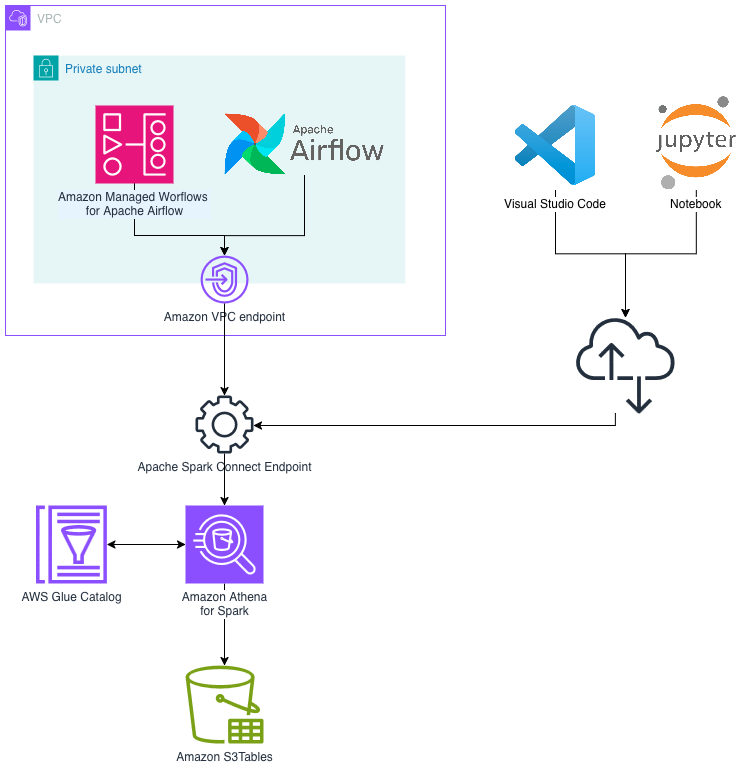
The following diagram illustrates the solution architecture.

Prerequisites

You must have the following prerequisites:

In the following sections, we walk through the process of reading and writing to Unity Catalog with EMR Serverless.

Enable Unity Catalog for external access

Log in to your workspace as a Databricks admin and complete the following steps to configure external access to read Databricks objects:

  1. Enable external data access for your metastore. For instructions, see Enable external data access on the metastore.
  2. Set up a principal that will be configured with Amazon EMR for data access.
  3. Grant the principal the privilege to configure the integration of the EXTERNAL USE SCHEMA privilege on the schema containing the objects. For instructions, see Grant a principal EXTERNAL USE SCHEMA.
  4. For this post, we generate a Databricks personal access token (PAT) for the principal and note it down. For instructions, refer to Authorizing access to Databricks resources and Databricks personal access token authentication.

For a production deployment, store the PAT in AWS Secrets Manager. You can use it in a later step to read and write to Unity Catalog with Amazon EMR.

Configure EMR Spark to access Unity Catalog

In this walkthrough, we run PySpark interactive queries through notebooks using EMR Studio. Complete the following steps:

  1. Open the AWS Management Console with administrator permission.
  2. Create an EMR Studio to run interactive workloads. To create a workspace, you need to specify the S3 bucket created in the prerequisites and the minimum service role for EMR Serverless. For instructions, see Set up an EMR Studio.
  3. For this post, we create two EMR Serverless applications. For instructions, see Creating an EMR Serverless application from the EMR Studio console.
    1. For Iceberg tables, create an EMR Serverless application called dbx-demo-application-iceberg with version 7.8.0 or higher. Make sure to deselect Use AWS Glue Data Catalog as Metastore under Additional Configurations, Metastore configuration. Add the following Spark configuration (see Configure applications). Provide the name of the catalog in Unity Catalog that contains your tables and the URL of the Databricks workspace.
      {
          "runtimeConfiguration": [
              {
                  "classification": "spark-defaults",
                  "properties": {
                      "spark.jars": "/usr/share/aws/iceberg/lib/iceberg-spark3-runtime.jar",
                      "spark.jars.packages": "io.unitycatalog:unitycatalog-spark_2.12:0.2.0",
                      "spark.sql.extensions": "org.apache.iceberg.spark.extensions.IcebergSparkSessionExtensions",
                      "spark.sql.defaultCatalog": "<uc-catalog-name>",
                      "spark.sql.catalog.<uc-catalog-name>": "org.apache.iceberg.spark.SparkCatalog",
                      "spark.sql.catalog.<uc-catalog-name>.uri": "https://<workspace-url>/api/2.1/unity-catalog/iceberg-rest",
                      "spark.sql.catalog.<uc-catalog-name>.type": "rest",
                      "spark.sql.catalog.<uc-catalog-name>.warehouse": "<uc-catalog-name>"
                  }
              }
          ]
      }

    2. For Delta tables, create an EMR Serverless application called dbx-demo-application and version 7.8.0 or higher. Make sure to deselect Use AWS Glue Data Catalog as Metastore under Additional Configurations, Metastore configuration. Add the following Spark configuration (see Configure applications). Provide the name of the catalog in Unity Catalog that contains your tables and the URL of the Databricks workspace.
      {
          "runtimeConfiguration": [
              {
                  "classification": "spark-defaults",
                  "properties": {
                      "spark.jars": "/usr/share/aws/delta/lib/delta-spark.jar,/usr/share/aws/delta/lib/delta- storage.jar",
                      "spark.jars.packages": "io.unitycatalog:unitycatalog-spark_2.12:0.2.0",
                      "spark.sql.extensions": "io.delta.sql.DeltaSparkSessionExtension",
                      "spark.sql.defaultCatalog": "<uc-catalog-name>",
                      "spark.sql.catalog.spark_catalog": "io.unitycatalog.spark.UCSingleCatalog",
                      "spark.sql.catalog.<uc-catalog-name>": "io.unitycatalog.spark.UCSingleCatalog",
                      "spark.sql.catalog.<uc-catalog-name>.uri": "https://<workspace-url>/api/2.1/unity-catalog"
                  }
              }
          ]
      }

  4. To set up your interactive workload with a runtime role, see Run interactive workloads with EMR Serverless through EMR Studio.

Read and write to Unity Catalog with Amazon EMR

Launch the workspace created in the previous step. Download the notebooks create-delta-table and create-iceberg-table and upload them to the EMR Studio workspace.

The create-delta-table.ipynb notebook configures the metastore properties to work with Delta tables. The create-iceberg-table.ipynb notebook configures the metastore properties to work with Iceberg tables.

Add the generated token to the session.

For a production deployment, store the PAT in Secrets Manager.

For Iceberg tables, connect to the EMR Serverless application dbx-demo-application-iceberg with the runtime role created in earlier steps under compute and run the notebook (create-iceberg-table). Select PySpark as the kernel and execute each cell in the notebook by choosing the run icon. Refer to Submit a job run or interactive workload for further details about how to run an interactive notebook.

We use the following code to create an external Iceberg table in the catalog:

CREATE SCHEMA IF NOT EXISTS customerschema;
USE SCHEMA customerschema;
CREATE TABLE IF NOT EXISTS iceberg_customer (id string, name string, country string) USING iceberg; 
insert into iceberg customer values('1','Alice','US');

For Delta tables, connect to the EMR Serverless application dbx-demo-application with the runtime role created in earlier steps and run the notebook (create-delta-table). Select PySpark as the kernel and execute each cell in the notebook by choosing the run icon. Refer to Submit a job run or interactive workload for further details about how to run an interactive notebook.

We use the following code to create an external Delta table in the catalog:

CREATE SCHEMA IF NOT EXISTS customerschema;
USE SCHEMA customerschema;
CREATE TABLE IF NOT EXISTS delta_customer (id int, name string, country string) USING delta LOCATION ‘s3://<bucket_name>/emr-dbx/external/customerschema/delta_customer’;
insert into delta_customer values(1,'Bob','US'); 

Verify in Databricks for both Iceberg and Delta tables

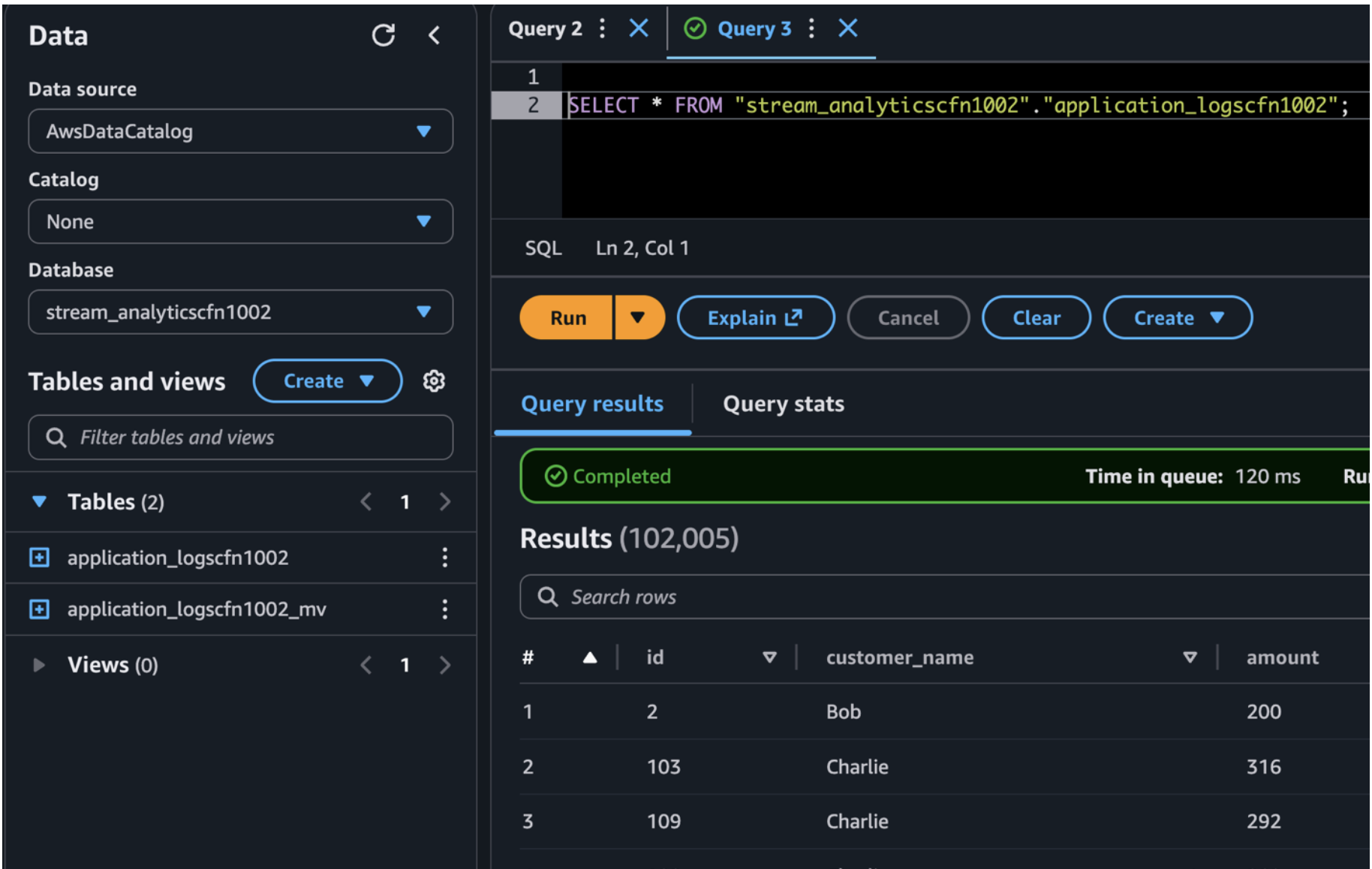
Now you can run queries in Databricks Unity Catalog to show the records inserted into the Iceberg and Delta tables from EMR Serverless:

  1. Log in to your Databricks workspace.
  2. Choose SQL Editor in the navigation pane.
  3. Run queries for both Iceberg and Delta tables.
  4. Verify the results show the same as what you saw in the Jupyter notebook in EMR Studio.

The following screenshot shows an example of querying the Iceberg table.

The following screenshot shows an example of querying the Delta table.

Clean up

Clean up the resources used in this post to avoid additional charges:

  1. Delete the IAM roles for this post.
  2. Delete the EMR applications and EMR Studio setup created for this post.
  3. Delete the resources created in Unity Catalog.
  4. Empty and then delete the S3 bucket.

Summary

In this post, we demonstrated the powerful interoperability between Amazon EMR and Databricks Unity Catalog by walking through how to enable external access to Unity Catalog, configure EMR Spark to connect seamlessly with Unity Catalog, and perform DML and DDL operations on Unity Catalog tables using EMR Serverless.

To learn more about using EMR Serverless, see Getting started with Amazon EMR Serverless. To learn more about using tools like EMR Spark with Unity Catalog, see Unity Catalog integrations.


About the authors

Venkatavaradhan (Venkat) Viswanathan is a Global Partner Solutions Architect at Amazon Web Services. Venkat is a Technology Strategy Leader in Data, AI, ML, generative AI, and Advanced Analytics. Venkat is a Global SME for Databricks and helps AWS customers design, build, secure, and optimize Databricks workloads on AWS.

Srividya Parthasarathy is a Senior Big Data Architect on the AWS Lake Formation team. She works with the product team and customers to build robust features and solutions for their analytical data platform. She enjoys building data mesh solutions and sharing them with the community.

Ramkumar Nottath is a Principal Solutions Architect at AWS focusing on Analytics services. He enjoys working with various customers to help them build scalable, reliable big data and analytics solutions. His interests extend to various technologies such as analytics, data warehousing, streaming, data governance, and machine learning. He loves spending time with his family and friends.

John Spencer is a Product Manager at Databricks, dedicated to making Unity Catalog work seamlessly with customers’ ecosystems of tools and platforms so they can easily access, govern, and use their data.

Sreeram Thoom is a Specialist Solutions Architect at Databricks helping customers design secure, scalable applications on the Data Lakehouse.

Dipankar Kushari is a specialist solutions architect at Databricks helping customer architect and build secured applications on Data Lakehouse.

Amazon OpenSearch Service 101: How many shards do I need

Post Syndicated from Tom Burns original https://aws.amazon.com/blogs/big-data/amazon-opensearch-service-101-how-many-shards-do-i-need/

Customers new to Amazon OpenSearch Service often ask how many shards their indexes need. An index is a collection of shards, and an index’s shard count can affect both indexing and search request efficiency. OpenSearch Service can take in large amounts of data, split it into smaller units called shards, and distribute those shards across a dynamically changing set of instances.

In this post, we provide some practical guidance for determining the ideal shard count for your use case.

Shards overview

A search engine has two jobs: create an index from a set of documents, and search that index to compute the best-matching documents. If your index is small enough, a single partition on a single machine can store that index. For larger document sets, in cases where a single machine isn’t large enough to hold the index, or in cases where a single machine can’t compute your search results effectively, the index can be split into partitions. These partitions are called shards in OpenSearch Service. Each document is routed to a shard that is calculated, by default, by using a hash of that document’s ID.
A shard is both a unit of storage and a unit of computation. OpenSearch Service distributes shards across nodes in your cluster to parallelize index storage and processing. If you add more nodes to an OpenSearch Service domain, it automatically rebalances the shards by moving them between the nodes. The following figure illustrates this process.

Diagram showing how source documents are indexed and partitioned into shards.

As storage, primary shards are distinct from one another. The document set in one shard doesn’t overlap the document set in other shards. This approach makes shards independent for storage.

As computational units, shards are also distinct from one another. Each shard is an instance of an Apache Lucene index that computes results on the documents it holds. Because all the shards comprise the index, they must function together to process each query and update request for that index. To process a query, OpenSearch Service routes the query to a data node for a primary or replica shard. Each node computes its response locally and the shard responses get aggregated for a final response. To process a write request (a document ingestion or an update to an existing document), OpenSearch Service routes the request to the appropriate shards—primary then replica. Because most writes are bulk requests, all shards of an index are typically used.

The two different types of shards

There are two kinds of shards in OpenSearch Service—primary and replica shards. In an OpenSearch index configuration, the primary shard count serves to partition data and the replica count is the number of full copies of the primary shards. For example, if you configure your index with 5 primary shards and 1 replica, you will have a total of 10 shards: 5 primary shards and 5 replica shards.

The primary shard receives writes first. The primary shard passes documents to the replica shards for indexing by default. OpenSearch Service’s O-series instances use segment replication. By default, OpenSearch Service waits for acknowledgment from replica shards before confirming a successful write operation to the client. Primary and replica shards provide redundant data storage, enhancing cluster resilience against node failures. In the following example, the OpenSearch Service domain has three data nodes. There are two indexes, green (darker) and blue (lighter), each of which has three shards. The primary for each shard is outlined in red. Each shard also has a single replica, shown with no outline.

Diagram showing how shards and replica shards are distributed between 3 Opensearch instances.

OpenSearch Service maps shards to nodes based on a number of rules. The most basic rule is that primary and replica shards are never put onto the same node. If a data node fails, OpenSearch Service automatically creates another data node and re-replicates shards from surviving nodes and redistributes them across the cluster. If primary shards fail, replica shards are promoted to primary to prevent data loss and provide continuous indexing and search operations.

So how many shards? Focus on storage first

There are three types of workloads that OpenSearch users typically maintain: search for applications, log analytics, and as a vector database. Search workloads are read-heavy and latency sensitive. They are typically tied to an application to enhance search capability and performance. A common pattern is to index the data in relational databases to give users more filtering capabilities and provide efficient full text search.

Log workloads are write-heavy and receive data continuously from applications and network devices. Typically, that data is put into a changing set of indexes, based on an indexing time period like daily or monthly depending on the use case. Instead of indexing based on time period, you can use rollover policies based on index size or document count to make sure shard sizing best practices are followed.

Vector database workloads use the OpenSearch Service k-Nearest Neighbor (k-NN) plugin to index vectors from an embedding pipeline. This enables semantic search, which measures relevance using the meaning of words rather than exactly matching the words. The embedding model from the pipeline maps multimodal data into a vector with potentially thousands of dimensions. OpenSearch Service searches across vectors to provide search results.

To determine the optimal number of shards for your workload, start with your index storage requirements. Although storage requirements can vary widely, a general guideline is to use 1:1.25 using the source data size to estimate usage. Also, compression algorithms default to performance, but can also be adjusted to reduce size. When it comes to shard sizes, consider the following based on the workload:
  • Search – Divide your total storage requirement by 30 GB.
    • If search latency is high, use a smaller shard size (as low as 10GB), increasing the shard count and parallelism for query processing.
    • Increasing the shard count reduces the amount of work at each shard (they have fewer documents to process), but also increases the amount of networking for distributing the query and gathering the response. To balance these competing concerns, examine your average hit count. If your hit count is high, use smaller shards. If your hit count is low, use larger shards.
  • Logs – Divide the storage requirement for your desired time period by 50 GB.
    • If using an ISM policy with rollover, consider setting the min_size parameter to 50 GB.
    • Increasing the shard count for logs workloads similarly improves parallelism. However, most queries for logs workloads have a small hit count, so query processing is light. Logs workloads work well with larger shard sizes, but shard smaller if your query workload is heavier.
  • Vector – Divide your total storage requirement by 50 GB.
    • Reducing shard size (as low as 10GB) can improve search latency when your vector queries are hybrid with a heavy lexical component. Conversely, increasing shard size (as high as 75GB) can improve latency when your queries are pure vector queries.
    • OpenSearch provides other optimization methods for vector databases, including vector quantization and disk-based search.
    • K-NN queries behave like highly filtered search queries, with low hit counts. Therefore, larger shards tend to work well. Be prepared to shard smaller when your queries are heavier.
Don’t be afraid of using a single shard

If your index contains less than the advised shard size (30 GB for search and 50 GB otherwise), we recommend that you use a single primary shard. Although it’s tempting to add more shards thinking it will improve performance, this approach can actually be counterproductive for smaller datasets because of the added networking. Each shard you add to an index distributes the processing of requests for that index across an additional node. Performance can decrease because there is overhead for distributed operations to split and combine results across nodes when a single node can do it sufficiently.

Set the shard count

When you create an OpenSearch index, you set the primary and replica counts for that index. Because you can’t dynamically change the primary shard count of an existing index, you have to make this important configuration decision before indexing your first document.

You set the shard count using the OpenSearch create index API. For example (provide your OpenSearch Service domain endpoint URL and index name):

curl -XPUT https://<opensearch-domain-endpoint>/<index-name> -H 'Content-Type: application/json' -d \
 '{
    "settings": {
        "index" : {
            "number_of_shards": 3,
            "number_of_replicas": 1
        }
    }
 }'

If you have a single index workload, you only have to do this one time, when you create your index for the first time. If you have a rolling index workload, you create a new index regularly. Use the index template API to automate applying settings to all new indexes whose name matches the template. The following example sets the shard count for any index whose name has the prefix logs (provide your OpenSearch service endpoint domain URL and index template name):

curl -XPUT https://<opensearch-domain-endpoint>/_index_template/<template-name> -H 'Content-Type: application/json' -d \
 '{
   "index_patterns": ["logs*"],
   "template": {
        "settings": {
            "index" : {
                "number_of_shards": 3,
                "number_of_replicas": 1
            }
       }
  }
}'

Conclusion

This post outlined basic shard sizing best practices, but additional factors might influence the ideal index configuration you choose to implement in your OpenSearch Service domain.

For more information about sharding, refer to Optimize OpenSearch index shard sizes or Shard strategy. Both resources can help you better fine-tune your OpenSearch Service domain to optimize its available compute resources.


About the authors

Photo of Tom Burns Tom Burns is a Senior Cloud Support Engineer at AWS and is based in the NYC area. He is a subject matter expert in Amazon OpenSearch Service and engages with customers for critical event troubleshooting and improving the supportability of the service. Outside of work, he enjoys playing with his cats, playing board games with friends, and playing competitive games online.

Photo of Ron MillerRon Miller is a Solutions Architect based out of NYC, supporting transportation and logistics customers. Ron works closely with AWS’s Data & Analytics specialist organization to promote and support OpenSearch. On the weekend, Ron is a shade tree mechanic and trains to complete triathlons.

Post-quantum TLS in Python

Post Syndicated from Will Childs-Klein original https://aws.amazon.com/blogs/security/post-quantum-tls-in-python/

At Amazon Web Services (AWS), security is a top priority. Maintaining data confidentiality is a substantial component of operating environment security for AWS and our customers. Though not yet available, a cryptographically relevant quantum computer (CRQC) could be used to break public key algorithms that are used today to provide data confidentiality. To prepare for a world where CRQCs might exist, the National Institute of Standards and Technology (NIST) initiated a search for new algorithms that are robust against potential CRQCs. In August 2024, after eight years of intense scrutiny by the cryptography community, NIST selected three post-quantum cryptography (PQC) standards, including FIPS 203’s ML-KEM, to supplement and eventually replace classical public key algorithms.

A few recent AWS blog posts have discussed PQC at AWS, particularly post-quantum Transport Layer Security (PQ TLS) using ML-KEM:

In this post, we demonstrate how you can test PQ TLS in Python applications today.

Testing PQ TLS in Python

As described in detail elsewhere, AWS currently deploys PQ TLS in a hybrid configuration where a classical key exchange is used alongside ML-KEM to provide defense-in-depth for data confidentiality. ML-KEM has much larger keys than classical schemes, so hybrid TLS handshakes send and receive more data when establishing a connection. As with other protocol updates, it’s important to test hybrid TLS in your network to validate that security appliances and network devices can handle these connections appropriately. We hope that you find the provided AWS Sample useful for such tests.
To negotiate hybrid TLS, PQ-ready software is required on both ends of the connection: client and server. AWS is currently rolling out hybrid TLS on the server side transparently with no customer configuration required. On the client side, each language SDK’s story for enabling hybrid TLS will be slightly different.

The AWS SDK for Python (Boto3) relies the on the Python interpreter’s ssl module for TLS, which in turn uses the operating system’s cryptography library. For most Linux distributions, this is OpenSSL. OpenSSL recently announced support for hybrid TLS and has enabled it by default in version 3.5. However, OpenSSL 3.5 is not yet the default on most operating system distributions.
To unblock testing, we provide a container definition that installs OpenSSL 3.5 alongside a standard Python distribution, allowing Python applications to perform PQ hybrid TLS connections. The container definition also installs common packages such as boto3 and requests. We provide example Python code for basic interactions with: AWS services (using boto3 and the AWS Command Line Interface (AWS CLI)), arbitrary HTTPS endpoints (using requests), and TLS-secured TCP servers (using Python’s standard library ssl module).
In the following sections, we walk through how to use this container definition to test PQ TLS connections from Python applications to AWS services.

Build the container

You can build this container on your local machine, or you can build it in a cloud environment such as Amazon Elastic Compute Cloud (Amazon EC2) or AWS CloudShell. Note that if you want to exercise the network path between your machine and AWS, you must build and run the container locally. The only prerequisite for building the container is having Docker (or an equivalent container tool) installed. For simplicity, the following steps mostly assume that you’re running these commands in a Linux CloudShell environment.

  1. Clone the sample repo:
    git clone https://github.com/aws-samples/sample-post-quantum-tls-python
  2. Change into the sample’s directory and build the container by executing the following command:
    cd sample-post-quantum-tls-python && docker build . -t pq-tls-python

Run the container

To run the samples described earlier, execute the following:

docker run --rm \
    -e AWS_ACCESS_KEY_ID=$(aws configure get aws_access_key_id) \
    -e AWS_SECRET_ACCESS_KEY=$(aws configure get aws_secret_access_key) \
    -it pq-tls-python \
    test.sh

The preceding command assumes that you have an AWS CLI default profile with permission to call the AWS Secrets Manager ListSecrets API. With this permission, you can make a basic, read-only test call to Secrets Manager PQ-enabled API endpoints that won’t return sensitive or secret values. In CloudShell, you’ll need to set access key and secret key values with aws configure. In Amazon EC2, you can configure an instance profile and remove the access key and secret key environment.

After printing out the name and version of the cryptography library used by Python, test.sh will test hybrid TLS connections used to secure (in order):

  1. TCP sockets using Python’s socket and ssl modules
  2. HTTP requests using the requests library
  3. AWS API requests using boto3 and the AWS CLI

If the tests are successful you should see the following output:

Crypto library: OpenSSL 3.5.0 8 Apr 2025
Testing ssl socket... ok
Testing requests... ok
Testing boto3... ok
Testing AWS CLI... ok

You can inspect, modify, and extend the examples in the tests/ directory as needed for your experiments. Instead of running the provided test.sh script, you can access an interactive shell with the following command.

docker run --rm -it pq-tls-python

Make sure to rebuild the container if you add or modify the files for testing.

Confirm PQ TLS negotiation

To confirm that PQ hybrid TLS is negotiated, inspect the samples’ TLS handshakes to confirm that the PQ hybrid TLS key exchange is performed. To do this, you must capture host network traffic. In CloudShell, you can do this using the following command:

sudo tcpdump -A -i docker0 -w pq_tls.pcap

This will capture TCP traffic to port 443, the standard port for TLS. Modify the command as needed if you’re capturing traffic for a non-standard port. Alternatively, if you’re running the container locally, you can perform the packet capture in Wireshark’s GUI on a local network device, such as docker0 on Linux or en0 on MacOS.

Next, run the test suite in a separate terminal using the Docker run command from Run the container. As before, you should see the success messages in your terminal, and a new file named docker_443.pcap if you’re using tcpdump. You can download this file from CloudShell to view locally in Wireshark. Specifically, look for the key_share extension in client or server Hello handshake messages. If you’re using Wireshark to view the packet capture, you can specify the display filter tls.handshake to only show handshake messages. Your packet capture should look something like Figure 1:

Figure 1: Wireshark view of packet capture

Figure 1: Wireshark view of packet capture

You can see in Figure 1 that X25519MLKEM768 is selected in the server Hello handshake message, showing that PQ hybrid TLS was successfully negotiated.

Conclusion

In this post, you’ve seen how to use a container definition to test PQ hybrid TLS in Python today. The linked AWS Sample shows how to establish PQ hybrid TLS connections for:

  • AWS API requests with boto3 or the AWS CLI
  • General HTTPS requests with requests
  • TLS-secured TCP sockets with Python’s socket and ssl modules

We encourage you to use the AWS Sample to start vetting your networks and Python applications in preparation for upcoming PQ hybrid TLS migrations. AWS is committed to supporting our customers through their migration journeys, and PQ hybrid TLS is no exception.

 
If you have feedback about this post, submit comments in the Comments section below. If you have questions about this post, contact AWS Support.
 

Will Childs-Klein
Will Childs-Klein

Will is a Senior Software Engineer at AWS Cryptography, where he focuses on developing cryptographic libraries, optimizing software performance, and deploying post-quantum cryptography. Previously at AWS, he worked on data storage and transfer services including Storage Gateway, Elastic File System, and DataSync.

Implementing message prioritization with quorum queues on Amazon MQ for RabbitMQ

Post Syndicated from Akhil Melakunta original https://aws.amazon.com/blogs/compute/implementing-message-prioritization-with-quorum-queues-on-amazon-mq-for-rabbitmq/

Quorum queues are now available on Amazon MQ for RabbitMQ from version 3.13. Quorum queues are a replicated First-In, First-Out (FIFO) queue type that uses the Raft consensus algorithm to maintain data consistency. Quorum queues on RabbitMQ version 3.13 lack one key feature compared to classic queues: message prioritization. However, RabbitMQ version 4.0 introduced support for message priority, which behaves differently than classic queue message priorities. Migrating applications from classic queues with message priority to quorum queues on Amazon MQ for RabbitMQ presents challenges for customers. This post describes the different approaches to implementing message prioritization in quorum queues in Amazon MQ for RabbitMQ.

Amazon MQ is a managed message broker service for Apache ActiveMQ and RabbitMQ that simplifies setting up and operating message brokers on AWS.

Why message prioritization matters

Modern messaging systems require handling messages differently, depending on the business priority. Some messages are more time-sensitive or critical than others and prioritizing them can enhance the efficiency and responsiveness of applications. Message prioritization allows certain messages to be processed before others, aligning with business priorities and helping to ensure that high-value or time-critical messages receive the attention they need.

Message prioritization addresses critical business challenges across multiple industries. In insurance companies, it can expedite urgent claim processing by prioritizing high-priority messages over routine policy updates, reducing settlement times. Automotive manufacturers can make sure that critical production line alerts and safety notifications take precedence over standard telemetry data, preventing costly downtime. Energy utilities can prioritize real-time grid stability alerts and outage notifications, enabling faster responses to potential blackouts. By implementing message priority, industries can direct immediate attention to time-sensitive operations while efficiently managing routine processes within existing infrastructure. By using this approach to transform their communication strategies, organizations can respond more quickly and effectively to critical events.

Classic queues compared to quorum queues message prioritization

In this section, explore the fundamental differences between classic queues and quorum queues when it comes to message prioritization capabilities. Examine how each queue type handles message priority, the built-in features available, and key considerations.

Message prioritization with classic queues

In classic queues, RabbitMQ supports message priorities ranging from 1 to 255, with 1 being the lowest priority and 255 being the highest. However, it’s generally recommended to use a smaller range (for example, 1–5) for better performance, because RabbitMQ needs to maintain an internal sub-queue for each priority from 1 up to the maximum value configured for a given queue. A wider priority range adds more CPU and memory cost, which can impact broker performance.

Priority queue behavior in classic queues:

  • Classic queues require x-max-priority argument to define the maximum number of priorities for a given queue
  • A procedure sends a message with a priority property value
  • Consumers don’t need special configuration to handle priorities
  • Messages with higher priority are delivered before messages with lower priority
  • Within the same priority level, messages are delivered in FIFO order
  • Messages without a priority property are treated as if their priority is lowest
  • Messages with a priority that is higher than the queue’s maximum are treated as if they were published with the maximum priority

Example Python code for classic queue implementation with message priority:

#!/usr/bin/env python
import pika
import ssl
# Set up SSL context for secure connection
context = ssl.SSLContext(ssl.PROTOCOL_TLSv1_2)
# Define credentials
credentials = pika.PlainCredentials('username', 'password') # Replace with actual credentials
# Set up connection parameters for Amazon MQ RabbitMQ broker
connection_parameters = pika.ConnectionParameters(
    host='b-example.mq.us-west-2.on.aws', # Replace with actual broker endpoint
    port=5671,
    credentials=credentials,
    ssl_options=pika.SSLOptions(context)
)
# Establish connection and create a channel
connection = pika.BlockingConnection(connection_parameters)
channel = connection.channel()
# Declare a direct exchange
# - direct exchanges route messages based on routing key
channel.exchange_declare(
    exchange='priority_exchange',
    exchange_type='direct',
)
# Declare a priority queue
# - x-max-priority=5 sets maximum priority level (0-5)
# - x-queue-type=classic specifies classic queue implementation
channel.queue_declare(
    queue='classic_priority_queue',
    arguments={
        'x-max-priority': 5,
        'x-queue-type': "classic"
    }
)
# Bind queue to exchange with routing key
# - This connects the queue to the exchange
# - Messages sent to the exchange with matching routing key will be routed to this queue
channel.queue_bind(
    queue='classic_priority_queue',
    exchange='priority_exchange',
    routing_key='priority_queue'
)
# Publish messages with different priorities
# Low priority message (priority=1)
channel.basic_publish(
    exchange='priority_exchange',
    routing_key='priority_queue',
    body='Low priority message',
    properties=pika.BasicProperties(priority=1)
)
print(" [x] Sent 'Low priority message'")
# Medium priority message (priority=2)
channel.basic_publish(
    exchange='priority_exchange',
    routing_key='priority_queue',
    body='Medium priority message',
    properties=pika.BasicProperties(priority=2)
)
print(" [x] Sent 'Medium priority message'")
# High priority message (priority=5)
channel.basic_publish(
    exchange='priority_exchange',
    routing_key='priority_queue',
    body='High priority message',
    properties=pika.BasicProperties(priority=5)
)
print(" [x] Sent 'High priority message'")
# Close the connection
connection.close()

The preceding code demonstrates message prioritization in RabbitMQ using a classic queue with built-in priority handling. The implementation connects to a RabbitMQ broker using the Python Pika library and declares a direct exchange, a classic queue with a maximum priority level of 5. Messages are then published to this single queue with explicitly assigned priority values (1 for low, 2 for medium, and 5 for high priority). When consumers fetch messages from this queue, RabbitMQ will deliver higher priority messages first.

Message prioritization with quorum queues

Unlike classic queues, quorum queues in Rabbit MQ 3.13 don’t support message prioritization natively. However, there are effective patterns that you can implement to achieve message priority with Quorum queues.

Using separate queues for different priorities

A straightforward method is to create multiple quorum queues, each dedicated to different priority levels. For example, you might have a high-priority queue and a low-priority queue. Using RabbitMQ exchange and binding key route messages to the appropriate queues based on their priority, allowing the system to process high-priority messages more promptly, as shown in the following figure.

Example to implement priority handling using separate quorum queues:

#!/usr/bin/env python
import pika
import ssl
# Set up SSL context for secure connection
context = ssl.SSLContext(ssl.PROTOCOL_TLSv1_2)
# Define credentials
credentials = pika.PlainCredentials('username', 'password') #Replace with actual credentials
# Set up connection parameters for Amazon MQ RabbitMQ broker
connection_parameters = pika.ConnectionParameters(
    host='b-example.mq.us-west-2.on.aws',
    port=5671,
    credentials=credentials,
    ssl_options=pika.SSLOptions(context)
)
# Establish connection and create a channel
connection = pika.BlockingConnection(connection_parameters)
channel = connection.channel()
# Declare a direct exchange
# - Direct exchanges route messages based on routing key
channel.exchange_declare(
    exchange='priority_exchange_qq',
    exchange_type='direct'
)
# Create separate quorum queues for different priority levels
# Low priority queue
channel.queue_declare(
    queue='low_priority_queue',
    durable=True,
    arguments={
        'x-queue-type': "quorum" 
    }
)
# Bind the low priority queue to the exchange with a specific routing key
# - This creates a rule that messages sent to 'priority_exchange' with routing_key='low_priority_1'
# - will be routed to the 'low_priority_queue'
channel.queue_bind(
    queue='low_priority_queue',
    exchange='priority_exchange_qq',
    routing_key='low_priority_1'
)
# Medium priority queue
channel.queue_declare(
    queue='medium_priority_queue',
    durable=True,
    arguments={
        'x-queue-type': "quorum" 
    }
)
# Bind the medium priority queue to the exchange with a specific routing key
# - Messages with routing_key='medium_priority_2' will be directed to the 'medium_priority_queue'
channel.queue_bind(
    queue='medium_priority_queue',
    exchange='priority_exchange_qq',
    routing_key='medium_priority_2'
)
# High priority queue
channel.queue_declare(
    queue='high_priority_queue',
    durable=True,
    arguments={
        'x-queue-type': "quorum" 
    }
)
# Bind the high priority queue to the exchange with a specific routing key
# - Messages with routing_key='high_priority_2' will be directed to the 'high_priority_queue'
channel.queue_bind(
    queue='high_priority_queue',
    exchange='priority_exchange_qq',
    routing_key='high_priority_5'
)
# Publish messages to different priority queues
print(" [x] Publishing messages to different priority queues")
# Low priority message
channel.basic_publish(
    exchange='priority_exchange_qq',  
    routing_key='low_priority_1',
    body='Low priority message'
)
print(" [x] Sent 'Low priority message'")
# Medium priority message
channel.basic_publish(
    exchange='priority_exchange_qq', 
    routing_key='medium_priority_2',
    body='Medium priority message'
)
print(" [x] Sent 'Medium priority message'")
# High priority message
channel.basic_publish(
    exchange='priority_exchange_qq', 
    routing_key='high_priority_5',
    body='High priority message'
)
print(" [x] Sent 'High priority message'")
# Close the connection
connection.close()
print(" [x] Connection closed")

The preceding code demonstrates a message prioritization approach in RabbitMQ using separate quorum queues for different priority levels (low, medium, and high). The implementation uses the Python Pika library to connect to a RabbitMQ server, a direct exchange and three separate quorum queues for different priority levels, and publish messages to different routing keys with different priority.

Custom priority logic on consumers

Implement custom logic within your application to handle messages based on their priority. For example, you can use headers or metadata to determine the priority of a message and then use this information to route messages to different queues or handle them in a specific order.

Higher priority queues should use more consumers or consumers with higher resources allocated to process messages more quickly than lower priority queues. Use the basic.qos (prefetch) method in manual acknowledgement mode on your consumers to limit the number of messages that can be out for delivery at any time and allow messages to be prioritized. basic.qos is a value a consumer sets when connecting to a queue. It indicates how many messages the consumer can handle at one time. This method is shown in the following figure.

Note: This solution implements message priority on a best-effort basis. There is a possibility that low and medium priority messages may be processed before high priority messages.

Conclusion

Message prioritization in RabbitMQ brokers on Amazon MQ has different considerations for classic and quorum queues. Using quorum queues requires a thoughtful approach because of the lack of native support for message proritization in RabbitMQ. By employing separate queues and custom logic, you can achieve effective prioritization while maintaining the high availability and consistency that quorum queues offer. Embrace these strategies to optimize your messaging infrastructure, enhance application responsiveness, and make sure that critical messages are processed in a timely manner.

We recommend that you adopt quorum queues as the preferred replicated queue type on RabbitMQ 3.13 brokers. For more details, see Amazon MQ documentation. For more information, see quorum queues.

To learn more, see Amazon MQ for Rabbit MQ.

Building resilient multi-tenant systems with Amazon SQS fair queues

Post Syndicated from Maximilian Schellhorn original https://aws.amazon.com/blogs/compute/building-resilient-multi-tenant-systems-with-amazon-sqs-fair-queues/

Today, AWS introduced Amazon Simple Queue Service (Amazon SQS) fair queues, a new feature that mitigates noisy neighbor impact in multi-tenant systems. With fair queues, your applications become more resilient and easier to operate, reducing operational overhead while improving quality of service for your customers.

In distributed architectures, message queues have become the backbone of resilient system design. They act as buffers between components, allowing services to process work asynchronously and at their own pace. When a sudden traffic spike hits your application, queues prevent cascading failures by buffering work and ensuring that downstream services aren’t overwhelmed. Amazon SQS has long been a go-to solution for developers building scalable applications because it’s a fully managed serverless solution that can seamlessly scale to ingest millions of messages per second.

In this post, you learn how to use Amazon SQS fair queues and understand their inner workings through a practical example.

Overview

Many modern applications follow a multi-tenant architecture, where a single application instance serves multiple tenants. A tenant is any entity that shares resources with others. It could be a customer, client application, or request type. This approach reduces operational costs and simplifies maintenance through efficient resource utilization. One example of such shared resources are queues and their associated consumer capacity.

However, multi-tenant systems face challenges when one tenant becomes a noisy neighbor. This tenant impacts others by overutilizing your system’s resources. With queues, this tenant causes a backlog by sending a large volume of messages or by requiring longer processing time. Regular queues deliver older messages first, which increases message dwell time for all tenants in such scenarios. This makes it difficult to maintain quality of service and forces teams to over-provision resources or build complex custom solutions.

Amazon SQS fair queues help maintain low dwell time for other tenants when there is a noisy neighbor. This happens transparently without requiring changes to your existing message processing logic. You define what constitutes a tenant in your system, and Amazon SQS handles the complex orchestration of mitigating noisy neighbor impact.

How it works

Amazon SQS continually monitors the distribution of messages received but not yet deleted (in-flight) by consumers across all tenants. When the system detects an imbalance:

  1. It identifies the noisy tenant, the one causing the queue to build a backlog.
  2. It automatically adjusts message delivery order to prioritize messages belonging to quiet (non-noisy) tenants.
  3. It maintains overall queue throughput.

Consider the following example that consists of a multi-tenant queue and four different tenants (A, B, C, and D).

In the steady state condition, the queue has no backlog, and in-flight messages are evenly distributed among tenants. All messages are consumed immediately when they land in the queue. The dwell time of messages is low for all tenants. Notice that not all consumer capacity is fully utilized in this steady state. The steady state condition is illustrated in the following diagram.

Figure 1: A multi-tenant queue in steady state condition

Figure 1: A multi-tenant queue in steady state condition

Now consider a noisy tenant scenario in which the number of messages of tenant A increases significantly and creates a backlog in the queue. Consumers are busy processing the messages mostly from tenant A, and messages from other tenants are waiting in the backlog, leading to a higher dwell time for all tenants. This noisy tenant scenario is illustrated in the following screenshot.

Figure 2: A multi-tenant queue with a noisy tenant

Figure 2: A multi-tenant queue with a noisy tenant

When a single tenant starts to occupy a significant portion of consumer resources, Amazon SQS fair queues considers this tenant as a noisy neighbor and prioritizes returning messages belonging to other tenants. This prioritization helps maintain low dwell times for quiet tenants (B, C, D), while the dwell time for tenant A’s messages will be elevated until the queue backlog is consumed—but without impacting other tenants. Fair queues are illustrated in the following diagram.

Figure 3: A multi-tenant queue with fair queues

Figure 3: A multi-tenant queue with fair queues

Amazon SQS doesn’t limit the consumption rate per tenant. Consumers can receive messages from noisy neighbor tenants when there is consumer capacity and the queue has no other messages to return. Like Amazon SQS standard queues, fair queues allow virtually unlimited throughput, and there are no limits on the number of tenants you can have in your queue.

How to use

The following is a quick overview of how to get started with Amazon SQS fair queues in your applications. See the feature documentation for a detailed walkthrough. These are the high-level steps the walkthrough follows:

  1. Enable Amazon SQS fair queues by adding a tenant identifier (MessageGroupId) to your messages
  2. Configure Amazon CloudWatch metrics to monitor Amazon SQS fair queues behavior
  3. You can use the example application to observe the Amazon SQS fair queues behavior with varying message volumes

Enable Amazon SQS fair queues by adding a tenant identifier (MessageGroupId) to your messages

Your message producers can add a tenant identifier by setting a MessageGroupId on an outgoing message:

// Send message with tenant identifier
SendMessageRequest request = new SendMessageRequest()
    .withQueueUrl(queueUrl)
    .withMessageBody(messageBody)
    .withMessageGroupId("tenant-123");  // Tenant identifier
sqs.sendMessage(request);

The new fairness capability will be applied automatically in all Amazon SQS standard queues for messages with the MessageGroupId property. It’s important to mention that it doesn’t require any change in the consumer code. It has no impact on API latency and doesn’t come with any throughput limitations.

Configure Amazon CloudWatch metrics to monitor Amazon SQS fair queues behavior

You can monitor Amazon SQS fair queues with Amazon CloudWatch metrics. The following terms are important in this context:

  • Noisy groups – A noisy message group represents a noisy neighbor tenant of a multi-tenant queue.
  • Quiet groups – Message groups excluding noisy groups.

When you use fair queues, Amazon SQS now emits the following additional metrics:

  • ApproximateNumberOfNoisyGroups
  • ApproximateNumberOfMessagesVisibleInQuietGroups
  • ApproximateNumberOfMessagesNotVisibleInQuietGroups
  • ApproximateNumberOfMessagesDelayedInQuietGroups
  • ApproximateAgeOfOldestMessageInQuietGroups

The new ApproximateNumberOfNoisyGroups metric gives the number of message groups (tenants) that are considered noisy in a fair queue. This metric helps identify the number of potential noisy neighbors in multi-tenant environments by tracking message groups consuming disproportionate resources. Use this metric to set alarms that trigger when the number of noisy groups exceeds your acceptable threshold, indicating potential queue fairness issues.

Amazon SQS already provides several standard queue-level metrics that offer approximate insights into the queue’s state, message processing, and potential bottlenecks. These metrics look at all messages in a queue. With fair queues, there’s a new set of four equivalent metrics, shown in the preceding list, that allow the exclusion of messages from noisy neighbor groups and target only quiet groups (non-noisy tenants). Hence, they all have the InQuietGroups suffix.

To monitor the effect of Amazon SQS fair queues you can compare metrics that have the InQuietGroups suffix with standard queue-level metrics. During traffic surges for a specific tenant, the general queue-level metrics might reveal increasing backlogs or older message ages. However, looking at the quiet groups in isolation, you can identify that most non-noisy message groups or tenants aren’t impacted, and you can estimate the total number of impacted message groups.

The following graph shows how the standard queue backlog metric (ApproximateNumberOfMessagesVisible) increases due to a noisy tenant while the backlog for non-noisy tenants (ApproximateNumberOfMessagesVisibleInQuietGroups) remains low.

Figure 4: Queue backlog for noisy and quiet groups

Figure 4: Queue backlog for noisy and quiet groups

While these new metrics provide a good overview of Amazon SQS fair queues behavior, it can be beneficial to understand which specific tenant is causing the load. Use Amazon CloudWatch Contributor Insights to see metrics about the top-N contributors, the total number of unique contributors, and their usage. This is especially helpful in scenarios where you’re dealing with thousands of tenants that would otherwise lead to high-cardinality data (and cost) when emitting traditional metrics. The following screenshot shows an example of a Contributor Insights dashboard on the AWS console that visualizes the top 10 contributors based on MessageGroupId.

Figure 5: Container Insights ReceivedMessagesPerMessageGroupId dashboard

Figure 5: Container Insights ReceivedMessagesPerMessageGroupId dashboard

Contributor Insights creates these metrics based on data from your application log output. Let your code log the number of messages being processed, and the corresponding MessageGroupId within your application. You can find a full example in the sample application in the next section.

Example application

To make it even more straightforward to get started, we’ve prepared an example application that you can use to observe the Amazon SQS fair queues behavior with varying message volumes. You can find the source code repository, infrastructure as code (IaC), and the instructions to run the sample on the sqs-fair-queues repository on GitHub.

The example application includes a load generator to simulate multi-tenant traffic and provides an Amazon CloudWatch dashboard that displays the most important metrics to visualize fair queue behavior. The following screenshot shows an example of the dashboard.


Figure 6: CloudWatch FairQueuesDashboard

Conclusion

Amazon SQS fair queues automatically mitigates the noisy neighbor impact in multi-tenant queues. Even when one tenant generates high message volumes or requires longer processing times (that is, becomes a noisy neighbor), the feature maintains consistent message dwell times for other tenants. When you add a tenant identifier to your messages, Amazon SQS fair queues will automatically detect and mitigate noisy neighbor impact, providing fair access to the queue for other tenants.

We recommend reviewing the Amazon SQS Developer Guide to get started and exploring the sample applications to test the behavior with varying message volumes.

Optimizing vector search using Amazon S3 Vectors and Amazon OpenSearch Service

Post Syndicated from Sohaib Katariwala original https://aws.amazon.com/blogs/big-data/optimizing-vector-search-using-amazon-s3-vectors-and-amazon-opensearch-service/

NOTE: As of July 15, the Amazon S3 Vectors Integration with Amazon OpenSearch Service is in preview release and is subject to change.

The way we store and search through data is evolving rapidly with the advancement of vector embeddings and similarity search capabilities. Vector search has become essential for modern applications such as generative AI and agentic AI, but managing vector data at scale presents significant challenges. Organizations often struggle with the trade-offs between latency, cost, and accuracy when storing and searching through millions or billions of vector embeddings. Traditional solutions either require substantial infrastructure management or come with prohibitive costs as data volumes grow.

We now have a public preview of two integrations between Amazon Simple Storage Service (Amazon S3) Vectors and Amazon OpenSearch Service that give you more flexibility in how you store and search vector embeddings:

  1. Cost-optimized vector storage: OpenSearch Service managed clusters using service-managed S3 Vectors for cost-optimized vector storage. This integration will support OpenSearch workloads that are willing to trade off higher latency for ultra-low cost and still want to use advanced OpenSearch capabilities (such as hybrid search, advanced filtering, geo filtering, and so on).
  2. One-click export from S3 Vectors: One-click export from an S3 vector index to OpenSearch Serverless collections for high-performance vector search. Customers who build natively on S3 Vectors will benefit from being able to use OpenSearch for faster query performance.

By using these integrations, you can optimize cost, latency, and accuracy by intelligently distributing your vector workloads by keeping infrequent queried vectors in S3 Vectors and using OpenSearch for your most time-sensitive operations that require advanced search capabilities such as hybrid search and aggregations. Further, OpenSearch performance tuning capabilities (that is, quantization, k-nearest neighbor (knn) algorithms, and method-specific parameters) help to improve the performance with little compromise of cost or accuracy.

In this post, we walk through this seamless integration, providing you with flexible options for vector search implementation. You’ll learn how to use the new S3 Vectors engine type in OpenSearch Service managed clusters for cost-optimized vector storage and how to use one-click export from S3 Vectors to OpenSearch Serverless collections for high-performance scenarios requiring sustained queries with latency as low as 10ms. By the end of this post, you’ll understand how to choose and implement the right integration pattern based on your specific requirements for performance, cost, and scale.

Service overview

Amazon S3 Vectors is the first cloud object store with native support to store and query vectors with sub-second search capabilities, requiring no infrastructure management. It combines the simplicity, durability, availability, and cost-effectiveness of Amazon S3 with native vector search functionality, so you can store and query vector embeddings directly in S3. Amazon OpenSearch Service provides two complementary deployment options for vector workloads: Managed Clusters and Serverless Collections. Both harness Amazon OpenSearch’s powerful vector search and retrieval capabilities, though each excels in different scenarios. For OpenSearch users, the integration between S3 Vectors and Amazon OpenSearch Service offers unprecedented flexibility in optimizing your vector search architecture. Whether you need ultra-fast query performance for real-time applications or cost-effective storage for large-scale vector datasets, this integration lets you choose the approach that best fits your specific use case.

Understanding Vector Storage Options

OpenSearch Service provides multiple options for storing and searching vector embeddings, each optimized for different use cases. The Lucene engine, which is OpenSearch’s native search library, implements the Hierarchical Navigable Small World (HNSW) method, offering efficient filtering capabilities and strong integration with OpenSearch’s core functionality. For workloads requiring additional optimization options, the Faiss engine (Facebook AI Similarity Search) provides implementations of both HNSW and IVF (Inverted File Index) methods, along with vector compression capabilities. HNSW creates a hierarchical graph structure of connections between vectors, enabling efficient navigation during search, while IVF organizes vectors into clusters and searches only relevant subsets during query time. With the introduction of the S3 engine type, you now have a cost-effective option that uses Amazon S3’s durability and scalability while maintaining sub-second query performance. With this variety of options, you can choose the most suitable approach based on your specific requirements for performance, cost, and accuracy. For instance, if your application requires sub-50 ms query responses with efficient filtering, Faiss’s HNSW implementation is the best choice. Alternatively, if you need to optimize storage costs while maintaining reasonable performance, the new S3 engine type would be more appropriate.

Solution overview

In this post, we explore two primary integration patterns:

OpenSearch Service managed clusters using service-managed S3 Vectors for cost-optimized vector storage.

For customers already using OpenSearch Service domains who want to optimize costs while maintaining sub-second query performance, the new Amazon S3 engine type offers a compelling solution. OpenSearch Service automatically manages vector storage in Amazon S3, data retrieval, and cache optimization, eliminating operational overhead.

One-click export from an S3 vector index to OpenSearch Serverless collections for high-performance vector search.

For use cases requiring faster query performance, you can migrate your vector data from an S3 vector index to an OpenSearch Serverless collection. This approach is ideal for applications that require real-time response times and gives you the benefits that come with Amazon OpenSearch Serverless, including advanced query capabilities and filters, automatic scaling and high availability, and no administration. The export process automatically handles schema mapping, vector data transfer, index optimization, and connection configuration.

The following illustration shows the two integration patterns between Amazon OpenSearch Service and S3 Vectors.

Prerequisites

Before you begin, make sure you have:

  • An AWS account
  • Access to Amazon S3 and Amazon OpenSearch Service
  • An OpenSearch Service domain (for the first integration pattern)
  • Vector data stored in S3 Vectors (for the second integration pattern)

Integration pattern 1: OpenSearch Service managed cluster using S3 Vectors

To implement this pattern:

  1. Create an OpenSearch Service Domain using OR1 instances on OpenSearch version 2.19.
    1. While creating the OpenSearch Service domain, choose the Enable S3 Vectors as an engine option in the Advanced features section.
  2. Sign in to OpenSearch Dashboards and open Dev tools. Then create your knn index and specify s3vector as the engine.
PUT my-first-s3vector-index
{
  "settings": {
    "index": {
      "knn": true
    }
  },
  "mappings": {
    "properties": {
        "my_vector1": {
          "type": "knn_vector",
          "dimension": 2,
          "space_type": "l2",
          "method": {
            "engine": "s3vector"
          }
        },
        "price": {
          "type": "float"
        }
    }
  }
} 
  1. Index your vectors using the Bulk API:
POST _bulk
{ "index": { "_index": "my-first-s3vector-index", "_id": "1" } }
{ "my_vector1": [2.5, 3.5], "price": 7.1 }
{ "index": { "_index": "my-first-s3vector-index", "_id": "3" } }
{ "my_vector1": [3.5, 4.5], "price": 12.9 }
{ "index": { "_index": "my-first-s3vector-index", "_id": "4" } }
{ "my_vector1": [5.5, 6.5], "price": 1.2 }
{ "index": { "_index": "my-first-s3vector-index", "_id": "5" } }
{ "my_vector1": [4.5, 5.5], "price": 3.7 }
{ "index": { "_index": "my-first-s3vector-index", "_id": "6" } }
{ "my_vector1": [1.5, 2.5], "price": 12.2 }
  1. Run a knn query as usual:
GET my-first-s3vector-index/_search
{
  "size": 2,
  "query": {
    "knn": {
      "my_vector1": {
        "vector": [2.5, 3.5],
        "k": 2
      }
    }
  }
}

The following animation demonstrates steps 2-4 above.

Integration pattern 2: Export S3 vector indexes to OpenSearch Serverless

To implement this pattern:

  1. Navigate to the AWS Management Console for Amazon S3 and select your S3 vector bucket.

  1. Select a vector index that you want to export. Under Advanced search export, select Export to OpenSearch.

Alternatively, you can:

  1. Navigate to the OpenSearch Service console.
  2. Select Integrations from the navigation pane.
  3. Here you will see a new Integration Template to Import S3 vectors to OpenSearch vector engine – preview. Select Import S3 vector index.

  1. You will now be brought to the Amazon OpenSearch Service integration console with the Export S3 vector index to OpenSearch vector engine template pre-selected and pre-populated with your S3 vector index Amazon Resource Name (ARN). Select an existing role that has the necessary permissions or create a new service role.

  1. Scroll down and choose Export to start the steps to create a new OpenSearch Serverless collection and copy data from your S3 vector index into an OpenSearch knn index.

  1. You will now be taken to the Import history page in the OpenSearch Service console. Here you will see the new job that was created to migrate your S3 vector index into the OpenSearch serverless knn index. After the status changes from In Progress to Complete, you can connect to the new OpenSearch serverless collection and query your new OpenSearch knn index.

The following animation demonstrates how to connect to the new OpenSearch serverless collection and query your new OpenSearch knn index using Dev tools.

Cleanup

To avoid ongoing charges:

  1. For Pattern 1:
  1. For Pattern 2:
    • Delete the import task from the Import history section of the OpenSearch Service console. Deleting this task will remove both the OpenSearch vector collection and the OpenSearch Ingestion pipeline that was automatically created by the import task.

Conclusion

The innovative integration between Amazon S3 Vectors and Amazon OpenSearch Service marks a transformative milestone in vector search technology, offering unprecedented flexibility and cost-effectiveness for enterprises. This powerful combination delivers the best of both worlds: The renowned durability and cost efficiency of Amazon S3 merged seamlessly with the advanced AI search capabilities of OpenSearch. Organizations can now confidently scale their vector search solutions to billions of vectors while maintaining control over their latency, cost, and accuracy. Whether your priority is ultra-fast query performance with latency as low as 10ms through OpenSearch Service, or cost-optimized storage with impressive sub-second performance using S3 Vectors or implementing advanced search capabilities in OpenSearch, this integration provides the perfect solution for your specific needs. We encourage you to get started today by trying S3 Vectors engine in your OpenSearch managed clusters and testing the one-click export from S3 vector indexes to OpenSearch Serverless.

For more information, visit:


About the Authors

Sohaib Katariwala is a Senior Specialist Solutions Architect at AWS focused on Amazon OpenSearch Service based out of Chicago, IL. His interests are in all things data and analytics. More specifically he loves to help customers use AI in their data strategy to solve modern day challenges.

Mark Twomey is a Senior Solutions Architect at AWS focused on storage and data management. He enjoys working with customers to put their data in the right place, at the right time, for the right cost. Living in Ireland, Mark enjoys walking in the countryside, watching movies, and reading books.

Sorabh Hamirwasia is a senior software engineer at AWS working on the OpenSearch Project. His primary interest include building cost optimized and performant distributed systems.

Pallavi Priyadarshini is a Senior Engineering Manager at Amazon OpenSearch Service leading the development of high-performing and scalable technologies for search, security, releases, and dashboards.

Bobby Mohammed is a Principal Product Manager at AWS leading the Search, GenAI, and Agentic AI product initiatives. Previously, he worked on products across the full lifecycle of machine learning, including data, analytics, and ML features on SageMaker platform, deep learning training and inference products at Intel.

Streamline DevOps troubleshooting: Integrate CloudWatch investigations with Slack

Post Syndicated from Paige Broderick original https://aws.amazon.com/blogs/devops/streamline-devops-troubleshooting-integrate-cloudwatch-investigations-with-slack/

Infrastructure alerts pose a challenge for DevOps teams, particularly when they occur outside of regular business hours. The complexity isn’t merely in receiving notifications, it lies in rapidly assessing their severity and determining the root cause. This challenge is compounded when upstream service disruptions cascade into multiple downstream alerts, creating a confusion of notifications that mask the true source of the problem. DevOps teams find themselves working backwards through a complex web of interconnected services, unsure whether to start investigating at the application, network, or infrastructure level.

To reduce resolution time and alert root cause analysis, AWS introduced CloudWatch Investigations, a generative AI-powered capability within Amazon CloudWatch. Powered by Amazon Q Developer, a generative AI–powered assistant for software development, CloudWatch investigations analyzes multiple metrics, logs, and deployment events to provide suggestions for remediation and root-cause analyses, reducing alarm resolution time. A key advantage of this feature is the ability to integrate these findings directly into Microsoft Teams and Slack, making sure developers and stakeholders receive immediate alerts when issues arise. This centralized collaboration approach enables teams to work together efficiently, reducing duplicate efforts and facilitating consistent problem-solving across the organization.

In this blog post, we will walk through how to integrate CloudWatch Investigations with Slack channels and demonstrate how to interact with investigations in Slack.

Overview of the solution

CloudWatch Investigations can be started in multiple ways, like from existing Amazon CloudWatch log insights, metrics, or alarms. To demonstrate CloudWatch Investigations functionalities, we will use CloudWatch alarms in a sample web application available in the aws-samples GitHub repository. Steps on how to deploy this web app in your AWS environment, via a CloudFormation template, can be found here. You can learn more about the architecture of the resources deployed in the AWS One Observability workshop. If you choose to deploy the sample web application, you will be responsible for all service charges associated with the CloudFormation template deployment. Alternatively, you can use existing CloudWatch alarms in your environment. Examples of common Amazon CloudWatch alarms include: MemoryUtilization, CPUUtiliziation, 5xxErrors and 4xxError. A full list of available alarms can be found here.

For this blog, we will utilize a pre-configured alarm to monitor when one of the website services, backed by an Application Load Balancer, experiences abnormal response times. When the alarm triggers, CloudWatch Investigations automatically initiates an investigation, analyzing both the current alarm state and 90 days of CloudTrail event history to generate hypotheses and determine potential root causes. The investigation insights are published to a Slack channel via Amazon Q Developer in Chat Applications and Amazon Simple Notification Service (SNS).

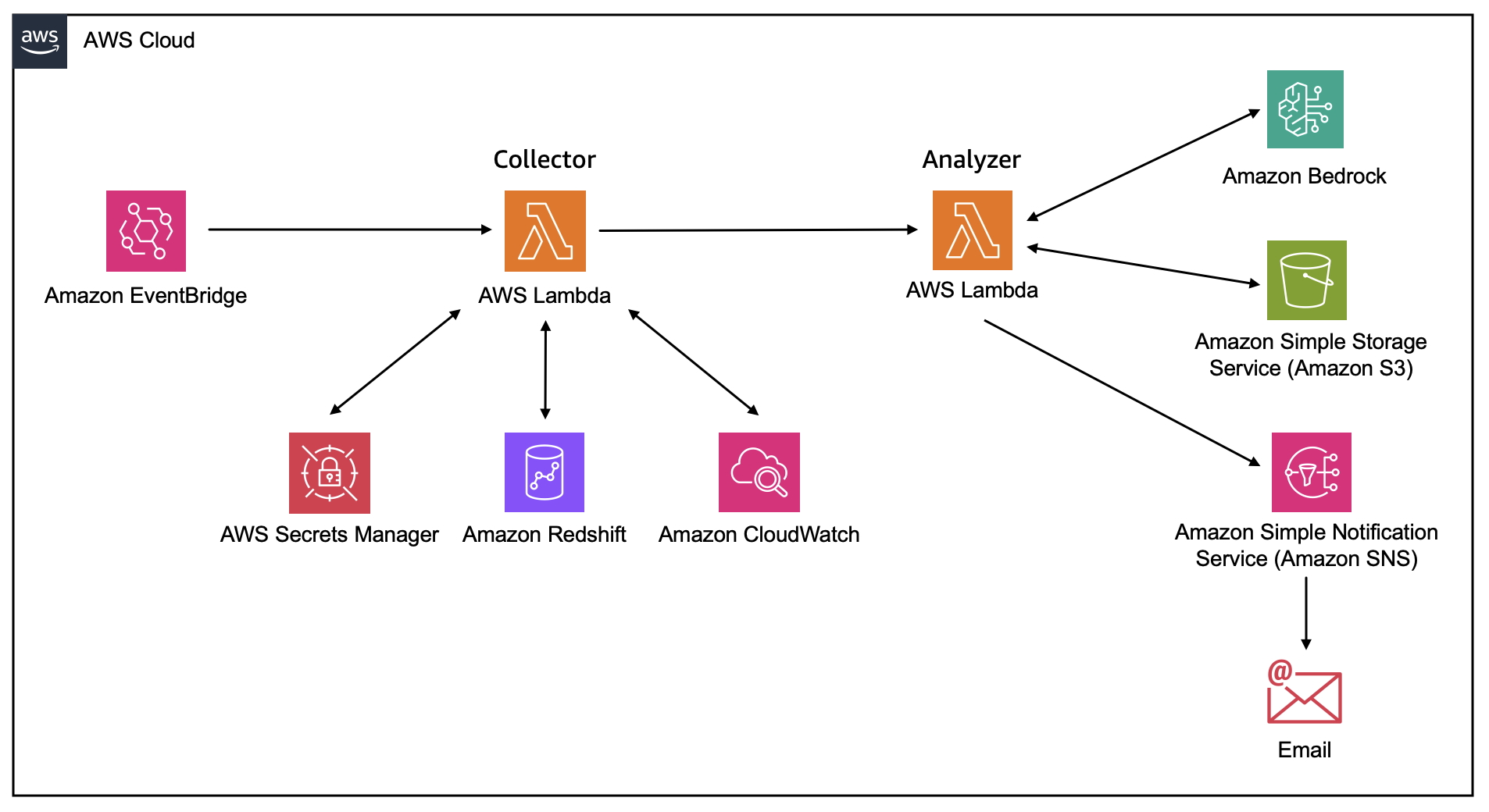
Figure 1. Architecture diagram of the services involved in the investigation integration in Slack

Prerequisites

  1. Launch the Amazon CloudFormation template associated with the One Observability lab outlined in the AWS Samples GitHub.
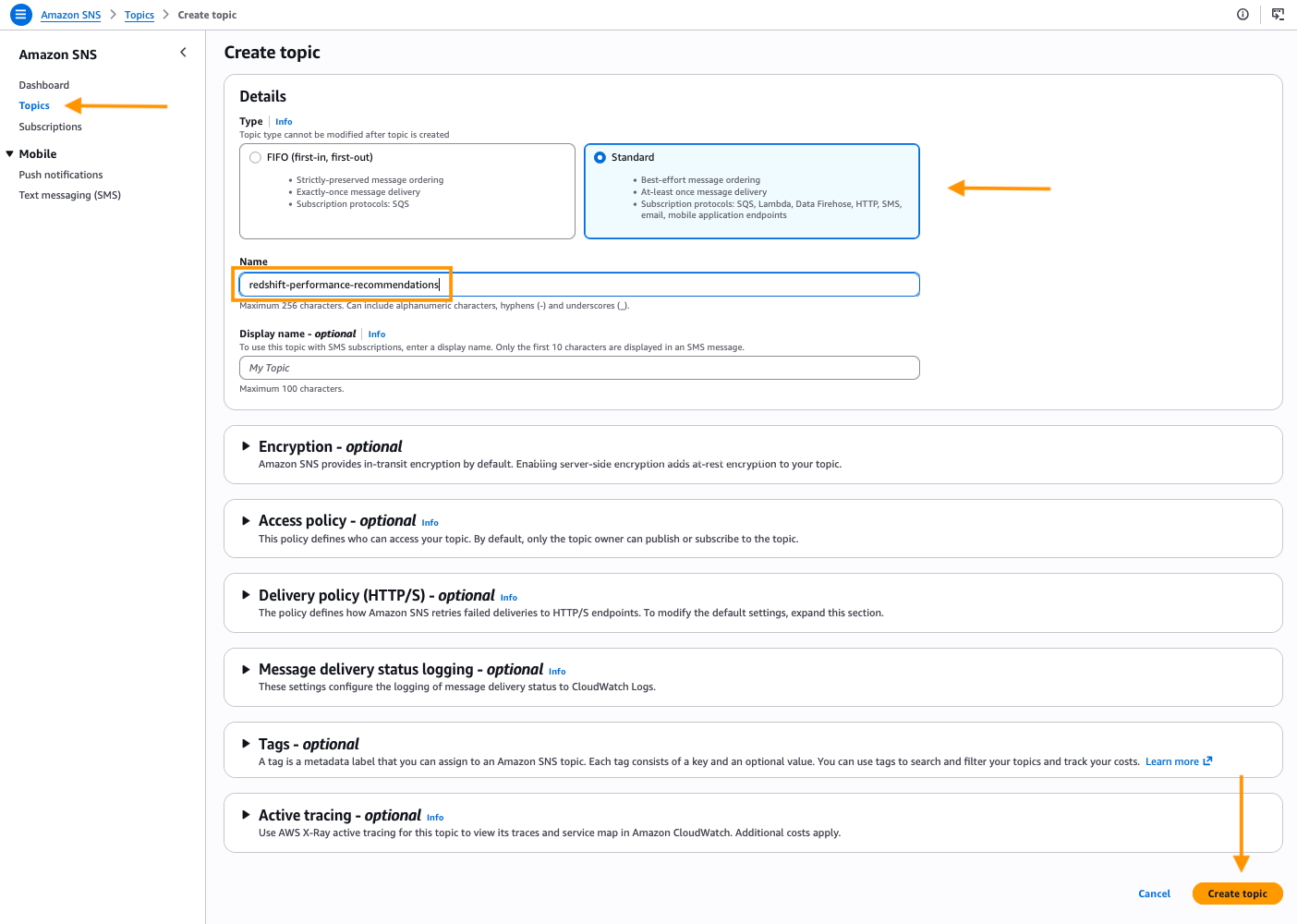
  2. Set up a Standard Amazon SNS topic by following the instructions outlined here. To enable CloudWatch investigations to send notifications to Slack, you must add an access policy to the Amazon SNS topic, an example can be found here.
  3. When the topic configuration is complete, navigate to Amazon Q Developer in Chat Applications (formerly AWS Chatbot) to configure the integration between Amazon Q and Slack by following the instructions outlined here. To allow channel members to interact with the investigation in Slack, add the following permission templates to the Channel role settings: Notification Permissions, Amazon Q Permissions, and Amazon Q Operations assistant permissions. More details on these permissions can be located here.

Setting up CloudWatch Investigations

To get started, navigate to the Amazon CloudWatch console. Choose AI Operations and then Configuration.

Figure 2. Configure for this account button within the AWS Console

Before we can set up an investigation, we need to create an investigation group. This is an organizational structure to manage common properties of the investigation like retention requirements, encryption, access permissions and the SNS topic linked. Click Configure for this account and follow the prompts in the console to set up the investigation group. Detailed explanations for each prompt are located in the documentation here. For this demo, we left the default options for steps 1 and 2 of the prompts. In step 3, please select the existing SNS topic created in the prerequisites section.

Figure 3. Select SNS topic for Q Developer Operational Insights

For the investigation trigger, we will use an existing alarm created by the CloudFormation deployment mentioned at the beginning of this blog. The sample alarm is named:

ApplicationInsights/Services/AWS/ApplicationELB/TargetResponseTime/app/Servic-lista-... 

and it goes into ALARM state when one of the website services, backed by an Application Load Balancer, experiences abnormal response times.

To configure this alarm to automatically start an investigation when it goes into an ALARM state:

  1. In the CloudWatch console, choose Alarms, All alarms
  2. Search for the alarm name and click on it
  3. Choose Actions, Edit
  4. Choose Next once to skip the metrics and conditions section
  5. Choose Add investigation action and then select your investigation group as outlined in figure 4
  6. Choose Skip to Preview and create, then choose Update alarm

Figure 4. Configure alarm to automatically start investigations

Testing the solution

At this point, we are ready to test the solution. To simulate a website traffic overload and trigger the alarm, we are going to use Amazon ECS tasks deployed as part of the sample web application. Open up CloudShell and run the following command:

PETLISTADOPTIONS_CLUSTER=$(aws ecs list-clusters | jq '.clusterArns[]|select(contains("PetList"))' -r)

TRAFFICGENERATOR_SERVICE=$(aws ecs list-services --cluster $PETLISTADOPTIONS_CLUSTER | jq '.serviceArns[]|select(contains("trafficgenerator"))' -r)

aws ecs update-service --cluster $PETLISTADOPTIONS_CLUSTER --service $TRAFFICGENERATOR_SERVICE --desired-count 5

The command will launch 5 instances of the Amazon ECS traffic generator container task. Once the tasks are running (after about 5 minutes), the ALB will become overloaded with requests, forcing the alarm into ALARM state as shown below. You should also see a new investigation created.

Figure 5. CloudWatch Alarm in ALARM state

Interacting with the investigation via Slack

Once the alarm is triggered, an investigation is initiated. Since we associated the investigation with an Amazon SNS topic and subscribed our Slack client to it, we can see a message in our Slack channel from Amazon Q as seen in figure 6.

Figure 6. Slack notification for open investigation

Within Slack, channel members can accept useful hypotheses and discard unhelpful ones by clicking on the Accept or Discard button. They can also add text-based notes of observations or evidence to the investigation by clicking on the Add Note button. Amazon Q will respond to messages within the same thread as the original investigation message. Channel members will be able to track who has accepted or discarded messages, as well as notes made about the investigation. This emphasizes the power of Slack integration, as teams can collaborate on the investigation and track who is actively working on it. It is important to note that CloudWatch Investigations uses Generative AI and may provide suggestions different from those below based on your specific account environment.

Figure 7. Accept or discard investigation suggestions from Slack

When integrated with Slack, CloudWatch Investigations can provide suggestions and root-cause hypotheses. Channel members with appropriate permissions can access metrics, charts, and additional information related to the investigation by clicking the blue header at the top of the investigation message. This link will direct users to the CloudWatch Investigations feed in the AWS console as shown below in figure 8.

Figure 8. CloudWatch Investigations in CloudWatch console.

Integrating CloudWatch Investigations with Slack or Teams channels improves developers’ visibility of arising issues and provides targeted recommendations to reduce alarm resolution time. The Accept and Discard buttons make it straightforward to track who is actively working on an investigation, fostering a culture of collaboration. The best part? The integration is quick to set up, especially with existing alarms.

Clean Up

If you launched the CloudFormation template mentioned at the beginning of this blog, the services will continue to run unless you delete them. To make sure that you are not charged for use of the resources after the demo, please follow the below steps to delete the resources created as part of the steps performed on this blog.

  1. Remove the Amazon Q in Chat Applications Slack integration by clicking on Remove Workspace Integration and policy as explained here.
  2. Delete Amazon SNS topic and subscription as explained here.
  3. Remove the CloudWatch Investigations as explained here.
  4. Delete the images under the Amazon ECR repository named cdk-…-container-assets… as explained here.
  5. Open the CloudShell console or AWS CLI and execute the two commands below:
curl https://raw.githubusercontent.com/aws-samples/one-observability-demo/main/PetAdoptions/cdk/pet_stack/resources/destroy_stack.sh | bash

aws cloudformation delete-stack –stack-name CDKToolkit

After executing the above command, the resources of the demo should be destroyed. Look at the CloudFormation console in case of potential errors.

Conclusion

The new CloudWatch Investigations feature reduces alarm resolution time for development teams by providing actionable insights and recommendations. It is straightforward to connect investigations to a team’s primary form of communication, such as Teams or Slack, to improve notification awareness and interaction. To learn more about the capabilities of CloudWatch Investigations check out the feature announcement and documentation.

Happy investigating!

Implement monitoring for Amazon EKS with managed services

Post Syndicated from Aritra Nag original https://aws.amazon.com/blogs/architecture/implement-monitoring-for-amazon-eks-with-managed-services/

In this post, we show you how to implement comprehensive monitoring for Amazon Elastic Kubernetes Service (Amazon EKS) workloads using AWS managed services. Amazon EKS offers compelling solutions with EKS Auto Mode and AWS Fargate, each designed for different use cases. This solution demonstrates building an EKS platform that combines flexible compute options with enterprise-grade observability using AWS native services and OpenTelemetry.

Modern containerized environments require observability that goes beyond basic CPU and memory metrics. Our approach addresses three critical challenges: reducing compute management complexity, closing observability gaps, and enabling metrics-driven automatic scaling that responds to real application demand rather than infrastructure utilization alone.

Architecture components

Amazon Managed Service for Prometheus is a fully managed Prometheus-compatible service that alleviates the operational overhead of running Prometheus infrastructure while providing automatic scaling to handle billions of metrics, built-in high availability across multiple Availability Zones, 150 days of metrics retention by default, and native integration with Grafana and other visualization tools.

AWS Distro for OpenTelemetry (ADOT) is a secure, enterprise-grade distribution of OpenTelemetry that provides standardized metrics, traces, and logs collection, native AWS service integration, automatic instrumentation for popular frameworks, and efficient data processing and export.

Amazon CloudWatch is a centralized logging and monitoring service offering structured log aggregation and search, custom metrics and alarms, integration with AWS services, and long-term log retention and analysis.

Solution overview

This section outlines the comprehensive monitoring solution architecture and its key components. We explore how the different AWS services work together to provide complete observability for your Amazon EKS workloads.

Our solution addresses key challenges through a comprehensive observability pipeline using Amazon Managed Service for Prometheus, AWS X-Ray, and Amazon CloudWatch; real metrics-based automatic scaling using custom Prometheus metrics instead of basic resource utilization; and cost optimization through strategic virtual private cloud (VPC) endpoints and compute mode selection.

The architecture showcases a Kubernetes environment with two distinct compute modes, each optimized for different use cases. EKS Auto Mode represents AWS’s latest approach to managed Kubernetes compute. It eliminates the need for node management by removing the requirement to configure node groups or instance types. The platform automatically scales compute resources based on your actual workload demands, ensuring you pay only for the resources your applications consume. It comes with integrated services including automatic configuration of VPC CNI, EBS CSI driver, and load balancer integration, making it ideal for general workloads and cost-optimized deployments. The Amazon EKS Auto Mode architecture (shown in the following diagram) provides zero node management with automatic scaling based on workload demands. This mode includes integrated networking, storage, and load balancing capabilities, making it ideal for general workloads and cost-optimized deployments.

Amazon EKS Auto Mode Architecture

AWS Fargate takes a different approach by providing true serverless container execution. With Fargate, you don’t need to manage any Amazon EC2 instances, as each pod runs in its own isolated compute environment. This isolation extends to billing, where costs are tracked at the individual pod level, providing granular control over your expenses. Pods can scale independently without requiring capacity planning, making Fargate particularly well-suited for security-sensitive workloads and applications requiring strict resource isolation.The Amazon EKS Fargate architecture (shown in the following diagram) offers serverless container execution with strong isolation, where each pod runs in its own compute environment. This approach works best for security-sensitive workloads and applications requiring granular cost control.

Amazon EKS Fargate Architecture

The key architectural difference lies in networking and scaling behavior. Auto Mode uses shared node networking with cluster-wide scaling decisions, whereas Fargate provides isolated pod networking with individual pod scaling.

Comprehensive observability pipeline

The following diagram illustrates the workflow of the observability pipeline.

Open Telemetry Collector Agent

The observability architecture implements the three pillars of observability using AWS native services:

  • Metrics collection and storage:
    • Dual collection strategy combining direct Prometheus scraping and OpenTelemetry SDK
    • Local Prometheus server for Horizontal Pod Autoscaler (HPA) metrics and Prometheus Adapter integration
    • Amazon Managed Service for Prometheus for long-term storage and querying
    • Custom metrics exposed through Kubernetes custom metrics API
  • Distributed tracing:
    • OpenTelemetry SDK integration for automatic trace collection
    • AWS Distro for OpenTelemetry (ADOT) collector for data processing
    • AWS X-Ray for trace storage and service map visualization
    • End-to-end transaction monitoring across microservices
  • Centralized logging:
    • OpenTelemetry SDK for structured application logging
    • FluentBit for container log collection
    • CloudWatch Logs with proper retention policies
    • Log correlation with traces and metrics for comprehensive debugging

The below diagram demonstrates a modern cloud-native monitoring solution that collects and analyzes performance data from containerized applications, with data flowing from the Kubernetes workloads through the metrics pipeline to CloudWatch for centralized monitoring and observability.

Amazon EKS Fargate and Auto Mode Telemetry Collection

In the following sections, we walk you through deploying the complete observability stack. We start with the foundational AWS services, then configure the collection agents, and finally instrument your applications.

Prerequisites

Before implementing this solution, you must have the following:

Create the observability stack

The first step to implement the observability stack involves creating the core AWS services that will store and process your observability data using the AWS CDK:

from aws_cdk import (
    Stack,
    aws_logs as logs,
    aws_aps as aps,
    aws_iam as iam,
    RemovalPolicy,
    CfnOutput
)

class ObservabilityStack(Stack):
    def __init__(self, scope: Construct, construct_id: str, **kwargs) -> None:
        super().__init__(scope, construct_id, **kwargs)

       # Create workspace for storing Prometheus metrics
        self.prometheus_workspace = aps.CfnWorkspace(
            self, "AmpWorkspace",
            alias="eks-observability-platform"
        )

        # Create CloudWatch Log Groups for storing Application Logs
        self.app_log_group = logs.LogGroup(
            self, "ApplicationLogGroup",
            log_group_name="/aws/eks/observability/applications",
            removal_policy=RemovalPolicy.DESTROY,
            retention=logs.RetentionDays.ONE_WEEK
        )
        
        # Create Otel Log Group for OpenTelemetry Logs
        self.otel_log_group = logs.LogGroup(
            self, "OtelLogGroup",
            log_group_name="/aws/eks/observability/otel",
            removal_policy=RemovalPolicy.DESTROY,
            retention=logs.RetentionDays.ONE_WEEK
        )

Deploy the infrastructure stack using the following commands:

pip install aws-cdk-lib constructs
cdk deploy ObservabilityStack

Deploy local Prometheus for HPA

This step configures Prometheus for service discovery and remote write to Amazon Managed Service for Prometheus. The local Prometheus instance enables the HPA to access custom metrics:

prometheus_config = {
    "apiVersion": "v1",
    "kind": "ConfigMap",
    "metadata": {
        "name": "prometheus-config",
        "namespace": "monitoring"
    },
    "data": {
        "prometheus.yml": f"""
global:
  scrape_interval: 15s
  evaluation_interval: 15s

remote_write:
  - url: https://aps-workspaces.{region}.amazonaws.com/workspaces/{workspace_id}/api/v1/remote_write
    queue_config:
      max_samples_per_send: 1000
      max_shards: 200
      capacity: 2500
    sigv4:
      region: {region}

scrape_configs:
  - job_name: 'kubernetes-pods'
    kubernetes_sd_configs:
      - role: pod
    relabel_configs:
      - source_labels: [__meta_kubernetes_pod_annotation_prometheus_io_scrape]
        action: keep
        regex: true
      - source_labels: [__meta_kubernetes_pod_annotation_prometheus_io_path]
        action: replace
        target_label: __metrics_path__
        regex: (.+)
      - source_labels: [__address__, __meta_kubernetes_pod_annotation_prometheus_io_port]
        action: replace
        regex: ([^:]+)(?::\d+)?;(\d+)
        replacement: $1:$2
        target_label: __address__
"""
    }
}

Apply the configuration to your cluster:

kubectl apply -f prometheus-config.yaml

Configure the ADOT Collector

Deploy the ADOT Collector with proper AWS service integration. This collector processes telemetry data from your applications and exports it to AWS services:

apiVersion: opentelemetry.io/v1alpha1
kind: OpenTelemetryCollector
metadata:
  name: otel-collector
  namespace: opentelemetry
spec:
  config: |
    receivers:
      otlp:
        protocols:
          grpc:
            endpoint: 0.0.0.0:4317
          http:
            endpoint: 0.0.0.0:4318
      prometheus:
        config:
          scrape_configs:
            - job_name: 'kubernetes-pods'
              kubernetes_sd_configs:
                - role: pod

    processors:
      batch:
        timeout: 1s
        send_batch_size: 1024
      resource:
        attributes:
          - key: ClusterName
            value: ${CLUSTER_NAME}
            action: upsert

    exporters:
      awsxray:
        region: ${AWS_REGION}
      awscloudwatchlogs:
        region: ${AWS_REGION}
        log_group_name: "/aws/eks/observability/otel"
      prometheusremotewrite:
        endpoint: https://aps-workspaces.${AWS_REGION}.amazonaws.com/workspaces/${PROMETHEUS_WORKSPACE_ID}/api/v1/remote_write
        auth:
          authenticator: sigv4auth

    extensions:
      sigv4auth:
        region: ${AWS_REGION}

    service:
      extensions: [sigv4auth]
      pipelines:
        traces:
          receivers: [otlp]
          processors: [resource, batch]
          exporters: [awsxray]
        metrics:
          receivers: [otlp, prometheus]
          processors: [resource, batch]
          exporters: [prometheusremotewrite]
        logs:
          receivers: [otlp]
          processors: [resource, batch]
          exporters: [awscloudwatchlogs]

Deploy the collector:

kubectl apply -f adot-collector.yaml

Instrument your applications

This section shows how to instrument your applications to emit telemetry data. We cover both Python and Java applications.

Instrument a Python Flask application

The following code demonstrates how to add OpenTelemetry instrumentation to a Python Flask application:

from opentelemetry import trace, metrics
from opentelemetry.sdk.trace import TracerProvider
from opentelemetry.sdk.metrics import MeterProvider
from opentelemetry.sdk.resources import Resource
from opentelemetry.exporter.otlp.proto.grpc.trace_exporter import OTLPSpanExporter
from opentelemetry.exporter.otlp.proto.grpc.metric_exporter import OTLPMetricExporter
from opentelemetry.sdk.trace.export import BatchSpanProcessor
from opentelemetry.sdk.metrics.export import PeriodicExportingMetricReader

# Configure OpenTelemetry
resource = Resource.create({
    "service.name": "flask-app",
    "service.version": "1.0.0",
    "deployment.environment": "production"
})

# Setup tracing
trace_provider = TracerProvider(resource=resource)
otlp_trace_exporter = OTLPSpanExporter(endpoint="http://otel-collector.opentelemetry:4317")
trace_provider.add_span_processor(BatchSpanProcessor(otlp_trace_exporter))
trace.set_tracer_provider(trace_provider)
tracer = trace.get_tracer(__name__)

# Setup metrics
metric_provider = MeterProvider(resource=resource)
otlp_metric_exporter = OTLPMetricExporter(endpoint="http://otel-collector.opentelemetry:4317")
metric_provider.add_metric_reader(PeriodicExportingMetricReader(otlp_metric_exporter))
metrics.set_meter_provider(metric_provider)
meter = metrics.get_meter(__name__)

# Create application metrics
request_counter = meter.create_counter(
    name="http_requests_total",
    description="Total HTTP requests",
    unit="1"
)

@app.route('/api/users')
def users():
    with tracer.start_as_current_span("get_users") as span:
        span.set_attribute("endpoint", "api_users")
        # Record metrics
        request_counter.add(1, {"endpoint": "api_users", "status": "success"})
        return jsonify({"users": ["user1", "user2", "user3"]})

Instrument a Java application

For Java applications using Spring Boot, add the following instrumentation:

@RestController
public class ApiController {
    private final Counter httpRequestsTotal;

    public ApiController(MeterRegistry meterRegistry) {
        this.httpRequestsTotal = Counter.builder("http_requests_total")
            .description("Total HTTP requests")
            .register(meterRegistry);
    }

    @GetMapping("/api/users")
    public Map<String, Object> getUsers() {
        httpRequestsTotal.increment();
        Map<String, Object> response = new HashMap<>();
        response.put("users", Arrays.asList("user1", "user2", "user3"));
        return response;
    }
}

Build and deploy your instrumented applications to the EKS cluster with the appropriate annotations for Prometheus scraping.

Configure the Prometheus Adapter for custom metrics

The Prometheus Adapter exposes custom metrics from Prometheus to the Kubernetes custom metrics API, enabling the HPA to use application-specific metrics:

prometheus_adapter_config = """
rules:
- seriesQuery: 'http_requests_total{app="flask-app"}'
  resources:
    overrides:
      kubernetes_namespace: {resource: "namespace"}
      kubernetes_pod_name: {resource: "pod"}
  name:
    as: "flask_app_requests_rate"
  metricsQuery: 'rate(http_requests_total{app="flask-app",<<.LabelMatchers>>}[1m]) * 60'
"""

# Deploy Prometheus Adapter
prometheus_adapter_deployment = {
    "apiVersion": "apps/v1",
    "kind": "Deployment",
    "metadata": {
        "name": "prometheus-adapter",
        "namespace": "monitoring"
    },
    "spec": {
        "replicas": 1,
        "selector": {"matchLabels": {"app": "prometheus-adapter"}},
        "template": {
            "metadata": {"labels": {"app": "prometheus-adapter"}},
            "spec": {
                "containers": [{
                    "name": "prometheus-adapter",
                    "image": "k8s.gcr.io/prometheus-adapter/prometheus-adapter:v0.12.0",
                    "args": [
                        "--prometheus-url=http://prometheus-service.monitoring:9090",
                        "--config=/etc/adapter/config.yaml"
                    ]
                }]
            }
        }
    }
}

Deploy the Prometheus Adapter:

kubectl apply -f prometheus-adapter.yaml

Configure HPAs with custom metrics

Create HPAs that use custom metrics instead of basic resource utilization:

apiVersion: autoscaling/v2
kind: HorizontalPodAutoscaler
metadata:
  name: flask-app-hpa
  namespace: default
spec:
  scaleTargetRef:
    apiVersion: apps/v1
    kind: Deployment
    name: flask-app
  minReplicas: 2
  maxReplicas: 10
  metrics:
  - type: Pods
    pods:
      metric:
        name: flask_app_requests_rate
      target:
        type: AverageValue
        averageValue: "10"
  behavior:
    scaleUp:
      stabilizationWindowSeconds: 60
      policies:
      - type: Percent
        value: 100
        periodSeconds: 15
    scaleDown:
      stabilizationWindowSeconds: 300
      policies:
      - type: Percent
        value: 10
        periodSeconds: 60

Apply the HPA configuration:

kubectl apply -f hpa-custom-metrics.yaml

Monitoring and visualization

After implementing this solution, you can create custom dashboards in Amazon Managed Grafana to monitor the following:

  • Application performance metrics
  • Request rates and latencies
  • Resource utilization
  • Error rates

For dashboard examples and templates, refer to the Amazon Managed Grafana documentation. The following screenshots are examples of some of the dashboards you can build:

  • OpenTelemetry Prometheus Dashboard – This dashboard displays Python application performance with request rate by endpoints, response time percentiles (P50, P95, P99), CPU utilization trends, memory usage patterns, and error rates segmented by HTTP status codes.

Python App OpenTelemetry Prometheus Dashboard

  • Go OpenTelemetry Application Dashboard – This dashboard focuses on Go-specific metrics including HTTP request rate, active concurrent users, goroutine counts, CPU usage, and memory allocation patterns with garbage collection insights.

Go App OpenTelemetry Prometheus Dashboard

  • Java OTEL Sample App Monitoring – This dashboard shows JVM-specific metrics like heap memory utilization, alongside application-level metrics such as requests per second, garbage collection insights, and thread pool utilization.

Java App OpenTelemetry Prometheus Dashboard

The dashboards enable real-time application performance monitoring, infrastructure resource utilization tracking, error rate monitoring and alerting, and automatic scaling visualization and trends.

Best practices and recommendations

Choose Amazon EKS Auto Mode for the following use cases and features:

  • You’re building general-purpose applications that benefit from cost optimization and operational simplicity
  • You’re managing mixed workload types and want to use integrated AWS service features
  • Teams want to avoid the complexity of node management
  • Cost-efficiency and ease of operations are priorities for production workloads

Choose Amazon EKS with Fargate in the following scenarios:

  • Security isolation is paramount for your applications
  • You’re running batch or event-driven workloads that require strong container isolation
  • Your organization requires granular cost attribution at the pod level
  • Compliance mandates dictate complete container isolation from the underlying infrastructure

For your observability strategy, consider the following monitoring approach:

  • Use business metrics for HPA scaling decisions
  • Implement proper metric labeling for filtering and aggregation
  • Monitor both application and infrastructure metrics
  • Set up alerting based on Service Level Indicator (SLI) and Service Level Objective (SLO) definitions

Additionally, implement the following tracing approach:

  • Instrument critical code paths with OpenTelemetry
  • Use consistent trace context propagation
  • Monitor service dependencies through AWS X-Ray service maps
  • Implement proper error handling and trace sampling

Benefits of the solution

Instead of relying on basic CPU and memory metrics, this solution configures the Prometheus Adapter to expose custom metrics to the Kubernetes HPA. The HPA configuration shown in this post enables more intelligent scaling decisions based on actual application load, resulting in better resource efficiency and improved application performance. This approach allows your applications to scale based on business-relevant metrics such as request rate, queue length, or custom application metrics rather than generic infrastructure utilization. This solution offers reduced management overhead through the following features:

  • Fully managed – Amazon Managed Service for Prometheus eliminates infrastructure management
  • Automatic scaling – Built-in high availability and scaling
  • Integrated security – Native IAM integration
  • Cost-effective – Pay only for metrics ingested and stored

You also benefit from enhanced observability:

  • Three pillars – Complete metrics, traces, and logs coverage
  • Real-time monitoring – Custom metrics for intelligent automatic scaling
  • Correlation – Trace IDs link logs, metrics, and traces
  • Business metrics – Scale based on application behavior, not just infrastructure

Troubleshooting

If the ADOT Collector isn’t receiving data, troubleshoot as follows:

  • Verify the collector service is running: $ kubectl get pods -n opentelemetry
  • Check application configuration for correct endpoint URLs
  • Verify IAM roles have proper permissions for AWS services

If the custom metrics aren’t available in the HPA, check the following:

  • Confirm the Prometheus Adapter is deployed and running
  • Verify metrics are being scraped by Prometheus: $ kubectl port-forward svc/prometheus 9090:9090
  • Check the Prometheus Adapter configuration for correct metric queries

Deployment cost considerations

In this section, we provide an estimate of the cost that will incur with the preceding solutions:

  • Amazon Managed Service for Prometheus – $0.90 per million samples ingested + $0.03 per GB-month storage
  • AWS X-Ray – $5.00 per million traces recorded
  • Amazon CloudWatch Logs – $0.50 per GB ingested + $0.03 per GB-month storage
  • Amazon EKS – $73/month control plane + compute costs (Auto Mode/Fargate variable)

For a medium-scale application (5 microservices, 2 million samples/hour, 100,000 traces/day, 10 GB logs/day), the costs are as follows:|

Service Cost
Amazon Managed Prometheus ~$80
AWS X-Ray ~$45
CloudWatch Logs ~$165
EKS Control Plane ~$73
Compute costs ~$200-400
Total ~$563-763/month

Costs are estimates based on US East (N. Virginia) pricing as of 2025 and might vary based on AWS Region, usage patterns, and AWS pricing changes. Consider the following cost optimization methods:

  • Sampling – Implement intelligent sampling for high-cardinality metrics
  • Retention – Set appropriate log retention (7–30 days for debug logs)
  • Monitoring – Use CloudWatch billing alarms to track spending
  • Regional – Deploy in single Region to minimize data transfer costs

Clean up

To avoid ongoing charges, delete the resources created in this walkthrough:

  1. Remove IAM roles and policies created for this solution through the IAM console or AWS CLI.
  2. Delete the AWS CDK stack:
cdk destroy ObservabilityStack

Conclusion

This solution demonstrates how organizations can achieve enterprise-grade Kubernetes deployments that balance flexibility, observability, and cost optimization. By combining Amazon EKS Auto Mode or Fargate with comprehensive AWS native observability services, teams can focus on application development while maintaining deep visibility into system performance. The real metrics-based automatic scaling approach represents a significant improvement over traditional resource-based scaling, enabling more intelligent infrastructure decisions that align with actual application behavior. Combined with the flexible compute options and modular architecture, this platform provides a robust foundation for modern containerized applications at scale. Key takeaways include:

  • Use AWS managed services – Reduce operational overhead with Amazon Managed Service for Prometheus and CloudWatch
  • Implement OpenTelemetry – Standardize observability across all applications
  • Custom metrics for HPA – Scale based on business metrics, not just CPU/memory
  • Structured logging – Enable better debugging and correlation
  • Security first – Implement proper IAM roles and network isolation

Organizations implementing this solution can expect reduced operational complexity, improved cost-efficiency, and enhanced visibility into their containerized applications, enabling faster development cycles and more reliable production deployments.


About the author

Deploying external boot volumes with AWS Outposts

Post Syndicated from Mark Nguyen original https://aws.amazon.com/blogs/compute/deploying-external-boot-volumes-with-aws-outposts/

Building on our previous announcement, AWS Outposts third-party storage integration for data volumes, AWS is expanding its collaboration with third-party storage solutions by introducing support for boot volumes backed by external storage arrays. In this post we show you how to boot Amazon Elastic Compute Cloud (Amazon EC2) instances on Outposts directly from NetApp on-premise enterprise array and Pure Storage FlashArray, providing greater flexibility to align your workload needs for storage.

With this enhancement, you can now:

  • Launch EC2 instances using boot volumes backed by compatible third-party storage arrays
  • Use existing storage management workflows and tools for both boot and data volumes
  • Take advantage of advanced features like storage efficiencies and cloning for cost reduction
  • Migrate compute of existing workloads that rely on external boot volumes to Outposts
  • Employ High Availability (HA) and Disaster Recover (DR) architectures with technologies such as NetApp’s SnapMirror or Pure Storage’s ActiveDR, enabling quick and easy recovery from failures and streamline DR processes.

The boot volume integration is enabled through AWS-provided launch Amazon Machine Images (AMIs) and sample automation scripts. Two methods are supported:

  • Storage Area Network boot (SANboot), which uses Pre-boot eXecution Environment (iPXE) and Internet Small Computer System Interface (iSCSI) to attach an external volume when booting.
  • Outposts localboot, which hydrates a local Non-Volatile Memory Express (NVMe) volume using iSCSI or NVMe-over-TCP, prior to booting.

The added third-party boot volume support further strengthens the commitment of AWS to providing flexible, enterprise-grade storage options for you while maintaining the automation tenants of the AWS experience.

SANboot solution overview

SANboot is a method of booting an EC2 instance from a block volume stored on a remote storage device. iPXE is an open source boot firmware that allows computers to boot from a network location, and when combined with iSCSI, it enables the start up of an operating system (OS) from a remote iSCSI target. In this case, the iSCSI target is a third-party storage system. The EC2 instance boots from the remote block volume as if it were a local disk. Read/write operations within the OS are written directly to the external storage array.

The instance can be shutdown and the data remains persistent on the third-party storage device. iPXE is stateless by design, thus subsequent boots must go through the full SANboot process. Snapshots of the volumes can be performed by the external storage device.

SANboot prerequisites

The following prerequisites are necessary for SANboot:

  1. An Outposts rack or Outposts 2U server. Outposts 1U server is not supported.
  2. An external storage system with IP reachability to the Outposts local network through a local gateway (LGW) or local network interface (LNI).
  3. An Amazon EC2 bootable image stored as a block volume on the external storage system.
    1. The block volume should be configured with an iSCSI IQN
    2. At the time of this post, only Windows 2022 (or newer) and Red Hat Linux 9 are supported operating systems
  4. (optional) Authentication credentials stored in AWS Secrets Manager if authentication is needed.
    1. If Secrets Manager is used, your EC2 instance profile needs the following minimum required permissions:
      {
          "Version": "2012-10-17",
          "Statement": [
              {
                   "Sid": "SecretsManagerPermissions",
                   "Effect": "Allow",
                   "Action": [
                        "secretsmanager:GetSecretValue"
                   ],
                   "Resource": "<secret name>"
              }
          ] 
      }

  5. (optional) Use Outposts SANboot script from AWS Samples downloaded onto your management computer. Your computer must be capable of running Python scripts and connected to both the external storage system and the AWS Region.

SANboot deployment overview

The following diagram shows the workflow when launching an EC2 instance using SANboot.

Figure 1 - SANboot workflow

Figure 1 – SANboot workflow

  1. The Outposts must have network connectivity to the external storage system through the Outposts local network connection. Specifically, the EC2 instances must communicate to the storage system. This should be a high speed connection with low latency (recommended 10Gbps or more, and under 10ms round trip). The Outposts and storage system do not have to be on the same subnet, instead they just need IP reachability.
    1. For Outposts racks, the EC2 instance connects through the LGW.
    2. For Outposts 2U servers, the EC2 instance connects through the LNI.
  2. The boot volume must be an Amazon EC2 bootable image. This includes the appropriate settings and drivers for the respective OS.
  3. Run the SANboot automation script and follow the prompts to enter the relevant parameters for your boot volume. This information is used to populate the Multipurpose Internet Mail Extension (MIME) multipart user data that iPXE uses for its initial configuration. See the following section on SANboot script walkthrough for more information.
  4. (optional) If iSCSI authentication is enabled, the SANboot automation script retrieves the credentials of the iSCSI target stored in Secrets Manager to be later populated to the iPXE script.
  5. The iPXE boot AMI launches its firmware image and executes the iPXE script. This script contains the necessary information to mount the remote iSCSI block volume. This includes the iSCSI intiator settings, the IP address of the iSCSI target, the credentials, the iSCSI port, and the iSCSI IQN. The iPXE boot AMI is a relatively small image that is pulled down from the Region. The time it takes to launch the iPXE image depends on the bandwidth of the Outposts service link connection to the Region.
  6. The iPXE firmware establishes the iSCSI connection to the target and boots the OS from the remote storage device over the local network. If applicable, then more user data information can be passed to the booting OS. The time it takes for the OS to boot depends on the speed of the local area network.

SANboot sample script walkthrough

The following diagram shows the workflow for executing the SANboot sample script.

These are the questions you step through as you run the SANboot automation script

Figure 2 – SANboot automation script walkthrough

Outposts localboot solution overview

Outposts localboot, using iSCSI or NVMe-over-TCP, is a method of booting an EC2 instance using a copy of a boot volume retrieved from a remote storage device. The original source image is not modified and remains unchanged. First, a localboot AMI is launched as a helper instance to facilitate the copying of the boot volume. The localboot instance acts as the iSCSI initiator or NVMe-over-TCP host, and mounts the remote boot volume from the third-party storage system. Then, the block volume is copied to local instance storage on the EC2 instance. The EC2 instance reboots using the local instance storage volume.

Localboot uses instance store volumes, which are ephemeral in nature. The boot volume is deleted when the EC2 instance that it is attached to is terminated or stopped. This is suitable for temporary guest desktop access or read-only workloads. Data volumes from external storage can also be mounted during the localboot process, which can be used to store data persistently.

Localboot prerequisites

The following prerequisites are necessary for localboot:

  1. An Outposts rack or Outposts 2U server.
  2. An external storage system with IP reachability to the Outposts local network through an LGW or LNI.
  3. An Amazon EC2 bootable image stored as a block volume on the external storage system.
    1. The block volume should be configured with an iSCSI IQN or NVMe-over-TCP NQN.
    2. At the time of this post, Red Hat Linux 9 is the only supported operating system.
  4. If using Outposts rack, instance types must have local NVMe drives to support instance store volumes. These include the C/M/R “d” type instances such as c5d, m5d, or r7d.
  5. Boot volumes on third-party storage systems must fit within the instance store of the instance type chosen. For example, an m5d.xlarge has one 150GB NVMe SSD for the instance store. The boot volume must be under 150GB to fit within an m5d.xlarge instance store. If the boot volume is larger, then a larger instance type must be chosen, such as an m5d.2xlarge (which has a 300GB NVMe SSD).
  6. (optional) Authentication credentials are stored in Secrets Manager if authentication is needed.
    1. If Secrets Manager is used, your EC2 instance profile needs the following minimum required permissions:
      {
          "Version": "2012-10-17",
          "Statement": [
              {
                   "Sid": "SecretsManagerPermissions",
                   "Effect": "Allow",
                   "Action": [
                        "secretsmanager:GetSecretValue"
                   ],
                   "Resource": "<secret name>"
              }
          ] 
      }

  7. (optional) Outposts localboot script from AWS Samples downloaded onto your management computer. Your computer must be capable of running Python scripts and connected to both the external storage system and the Region.

Localboot deployment overview

The following diagram shows the workflow when launching an EC2 instance using localboot.

Figure 3 - Localboot workflow

Figure 3 – Localboot workflow

Steps 1 and 2 are the same as SANboot deployment, see instructions above. Starting with step 3 for localboot:

  1. Run the localboot automation script and follow the prompts to enter the relevant parameters for your boot volume. This information is used to populate the MIME multipart user data that the localboot instance uses to mount the external boot volume. Go to the following localboot script walkthrough. The user data contains the necessary information to mount the remote iSCSI or NVMe-over-TCP block volume.
  2. (Optional) The localboot automation script retrieves the credentials of the external storage appliance stored in Secrets Manager.
  3. The localboot AMI is downloaded from the Region and launched. This can take a few minutes depending on the speed of the Outposts service link connection to the Region. When booting, the localboot AMI runs the user data script to attach the boot volume from the third-party storage system.
  4. The mounted boot volume is then copied to the local instance storage of the EC2 instance and configured as the boot partition. The time it takes to copy depends on the speed of your local network. When the copying is completed, the EC2 instance reboots using the newly configured boot partition.
  5. A copy of the boot volume is booted as a new EC2 instance. If applicable, then more user data information (such as mounting a data volume) can be passed to the booting OS.

Outposts localboot sample script walkthrough

The following diagram shows the workflow for running the localboot sample script.

These are the questions you step through as you run the localboot automation script

Figure 4 – Localboot automation script walkthrough

Conclusion

The introduction of third-party boot volume support allows you to continue getting value from your existing investments in external shared storage by connecting these arrays with Amazon EC2 on Outposts. Both the SANboot and localboot methods allow you to integrate your existing storage solutions with AWS Outposts, enabling them to boot EC2 instances directly from NetApp on-premise enterprise storage arrays and Pure Storage FlashArray volumes. This capability not only enhances storage options for EC2 instances running on Outposts but also streamlines workload migration and offers advanced features such as storage efficiencies for boot volumes. Automated configuration scripts and AWS-provided helper AMIs allow you to maintain the seamless and automated experience expected from AWS, while also giving you the flexibility to use your preferred enterprise storage solutions. Combined with the previously announced support for data volumes, this development further demonstrates the commitment of AWS to offering flexible solutions that can integrate into your existing hybrid environments.

To speak to an Outposts expert and learn more, submit this form.

To learn more about how NetApp and Pure Storage solutions work with Outposts, read the NetApp on-premises storage arrays for AWS Outposts blog post and the Pure Storage FlashArray for AWS Outposts blog post.

GitOps continuous delivery with ArgoCD and EKS using natural language

Post Syndicated from Jagdish Komakula original https://aws.amazon.com/blogs/devops/gitops-continuous-delivery-with-argocd-and-eks-using-natural-language/

Introduction

ArgoCD is a leading GitOps tool that empowers teams to manage Kubernetes deployments declaratively, using Git as the single source of truth. Its robust feature set, including automated sync, rollback support, drift detection, advanced deployment strategies, RBAC integration, and multi-cluster support, makes it a go-to solution for Kubernetes application delivery. However, as organizations scale, several pain points and operational challenges become apparent.

Pain Points with Traditional ArgoCD Usage

  • ArgoCD’s UI and CLI are designed for users with extensive technical background. Interacting with YAML manifests, understanding Kubernetes resource relationships, and troubleshooting sync errors require specialized knowledge. This limits access to GitOps workflows for less technical stakeholders and increases reliance on DevOps engineers.
  • Managing ArgoCD across multiple clusters or environments (using hub-spoke, per-cluster, or grouped models) introduces significant operational complexity. Teams must handle multiple ArgoCD instances, maintain consistent configuration, and coordinate deployments, which can become a bottleneck as service footprints grow.
  • ArgoCD excels at syncing and monitoring Kubernetes resources but lacks built-in mechanisms for pre-deployment (e.g., image scanning) or post-deployment (e.g., load testing) tasks. This forces teams to rely on external tools or custom scripts, fragmenting the deployment pipeline and increasing maintenance effort.
  • Promoting applications across environments (Dev → Test → Prod) is not natively streamlined. Teams must manually orchestrate or script these promotions, slowing down urgent fixes and complicating the release process.
  • As organizations adopt multi-cluster strategies, managing ArgoCD’s access, RBAC, and resource visibility across environments becomes cumbersome, often leading to fragmented workflows and potential security gaps.

How ArgoCD MCP Server with Amazon Q CLI addresses these challenges:

  • The integration of the ArgoCD MCP (Model Context Protocol) Server with Amazon Q CLI fundamentally transforms the user experience by introducing natural language interaction for GitOps operations.
  • With MCP, users can manage deployments, monitor application states, and perform sync or rollback operations using plain conversational language rather than technical commands or YAML. For example, a user can simply ask, “What applications are out of sync in production?” or “Sync the api-service application,” and the system executes the appropriate ArgoCD API calls in the background.
  • This democratizes access to GitOps, enabling less technical team members (such as QA, product managers, or support engineers) to safely interact with deployment workflows.
  • Natural language interfaces abstract away the complexity of multi-cluster and multi-environment management. Users can query or act on resources across clusters without memorizing resource names, namespaces, or API endpoints.
  • The MCP server handles authentication, session management, and robust error handling, reducing the need for manual troubleshooting and custom scripting.
  • The integration provides detailed feedback, intelligent endpoint handling, and comprehensive error messages, making it easier to diagnose and resolve issues. Full static type checking and environment-based configuration further enhance reliability and maintainability.
  • By leveraging Amazon Q CLI’s extensibility, users gain access to pre-built integrations and context-aware prompts, accelerating development and deployment workflows.
  • The MCP server enables AI assistants and language models to automate routine tasks, recommend actions, and even debug issues, acting as a virtual DevOps engineer. This can significantly reduce manual effort and speed up incident response.

Traditional ArgoCD vs. ArgoCD MCP Server with Amazon Q CLI

Feature/Challenge Traditional ArgoCD With MCP Server + Amazon Q CLI
User Interface Technical UI/CLI, YAML required Natural language, conversational
Access for Non-Engineers Limited Broad, democratized
Multi-Cluster Management Complex, manual Simplified, abstracted
Pre-Post Deployment Tasks External tools/scripts needed (Still external, but easier to invoke)
Application Promotion Manual or scripted Natural language, easier orchestration
Troubleshooting Technical, error-prone Guided, AI-assisted, detailed feedback
Automation Scripting required AI/agent-driven, proactive

You can perform the following actions using natural language using Amazon Q CLI integration with ArgoCD MCP server.

  • Application Management: List, create, update, and delete ArgoCD applications
  • Sync Operations: Trigger sync operations and monitor their status
  • Resource Tree Visualization: View the hierarchy of resources managed by applications
  • Health Status Monitoring: Check the health of applications and their resources
  • Event Tracking: View events related to applications and resources
  • Log Access: Retrieve logs from application workloads
  • Resource Actions: Execute actions on resources managed by applications

Setting Up Your Environment

Pre-requisites

Following are the pre-requisites for setting up your EKS environment to be managed by ArgoCD using Amazon Q CLI.

  • An AWS account with appropriate permissions
  • AWS CLI v2.13.0 or later
  • Node.js v18.0.0 or later
  • npm v9.0.0 or later
  • Amazon Q CLI v1.0.0 or later (npm install -g @aws/amazon-q-cli)
  • An EKS cluster (v1.27 or later) with ArgoCD v2.8 or later installed

Connecting to your EKS cluster

  1. Use AWS CLI to update your kubeconfig

aws eks update-kubeconfig --name <cluster_name> --region <region> --role-arn <iam_role_arn>

  1. Verify ArgoCD pods are running properly in the argocd namespace

kubectl get pods -n argocd

  1. Access the ArgoCD server UI locally using port forwarding command

kubectl port-forward svc/blueprints-addon-argocd-server -n argocd 8080:443

Create AgroCD API Token

  1. Access the ArgoCD UI at https://localhost:8080
  2. Log in with the admin credentials
  3. Navigate to User Settings > API Tokens
  4. Click “Generate New” to create a token
  5. Create an Amazon Q CLI MCP configuration file at .amazonq/mcp.json and update the ARGOCD_BASE_URL and ARGOCD_API_TOKEN as per your environment setup.

Integrating with Amazon Q CLI

{ 
  "mcpServers": {
    "argocd-mcp-stdio": { 
      "type": "stdio", 
      "command": "npx", 
      "args": [ 
         "argocd-mcp@latest", 
         "stdio" 
      ], 
      "env": { 
        "ARGOCD_BASE_URL": "<ARGOCD_BASE_URL>",
        "ARGOCD_API_TOKEN": "<ARGOCD_API_TOKEN>", 
        "NODE_TLS_REJECT_UNAUTHORIZED": "0" 
      } 
    } 
  }
}

Once configured, you can start using natural language commands with Amazon Q CLI to interact with your ArgoCD applications.

Managing ArgoCD applications using natural language

Listed below are some example prompts to interact with ArgoCD applications in your EKS cluster.

List ArgoCD application

Prompt: “List all ArgoCD applications in my cluster

Amazon Q listing all ArgoCD applications in my clusterAmazon Q will use the ArgoCD MCP server to retrieve and display all applications

Create new ArgoCD application

Prompt: Create new argocd application using App name: game-2048   Repo: https://github.com/aws-ia/terraform-aws-eks-blueprints  Path: patterns/gitops/getting-started-argocd/k8s. Branch: main  Namespace: argocd

Amazon Q creating new argocd application using MCP ServerAmazon Q will create a new application from GitRepo information provided

Viewing deployment status

Prompt: “Show me the resource tree for team-carmen app

Amazon Q showing Resource tree of argocd application
Amazon Q will display the hierarchy of Kubernetes resources managed by the application

Synchronizing applications

Prompt: “Show me the applications that’s out of sync

Amazon Q showing argocd out of sync applicationsAmazon Q will display the out of sync applications

Prompt: “Sync the application

Amazon Q syncing argocd applicationsAmazon Q syncing application

Amazon Q will:

  • Initiate a sync operation for the specified application
  • Monitor the sync progress
  • Report the final status of the sync operation

Healthchecks and monitoring

Prompt:”Check the health of all resources in the team-geordie application

Amazon Q showing health status of all the resources in an applicationAmazon Q showing health status of all the resources in an application

Amazon Q will:

  • Retrieve the health status of all resources
  • Identify any unhealthy components
  • Provide recommendations for addressing issues

Prompt: “Show me the logs for the failing pod in the team-platform application

Amazon Q showing logs for the failing podAmazon Q showing logs of problematic pod

Amazon Q will:

  • Identify problematic pods
  • Retrieve and display relevant logs
  • Highlight potential error messages

Conclusion

The integration of Amazon Q CLI with ArgoCD through the MCP server marks a transformative advancement in Kubernetes management, combining ArgoCD’s GitOps capabilities with Amazon Q’s natural language processing. By transforming complex Kubernetes operations into simple conversational interactions, this solution allows teams to focus on what truly matters – creating value for their business. Rather than spending time memorizing commands or navigating technical complexities, teams can now manage their cloud infrastructure through natural dialogue, making the cloud-native journey more accessible and efficient for everyone.Ready to transform your EKS and ArgoCD experience? It’s highly recommended to try out Amazon Q CLI integration with ArgoCD MCP and discover why DevOps teams are making it an essential part of their toolkit.


About the authors

Jagdish Komakula Picture Jagdish Komakula is a passionate Sr. Delivery Consultant working with AWS Professional Services. With over two decades of experience in Information Technology, he helped numerous enterprise clients successfully navigate their digital transformation journeys and cloud adoption initiatives.
Aditya Ambati Picture Aditya Ambati, Is an experienced DevOps Engineer with 12 plus years of experience in IT. Excellent reputation for resolving problems, improving customer satisfaction, and driving overall operational improvements.
Anand Krishna Varanasi Picture Anand Krishna Varanasi, is a seasoned AWS builder and architect who began his career over 16 years ago. He guides customers with cutting-edge cloud technology migration strategies (the 7 Rs) and modernization. He is very passionate about the role that technology plays in bridging the present with all the possibilities for our future.


Infrastructure as code translation for serverless using AI code assistants

Post Syndicated from Debasis Rath original https://aws.amazon.com/blogs/compute/infrastructure-as-code-translation-for-serverless-using-ai-code-assistants/

Serverless applications commonly use infrastructure as code (IaC) frameworks to define and manage their cloud resources. Teams choose different IaC tools based on their skills, existing tooling, or compliance needs. As applications grow, the need to shift between IaC formats may arise to adopt new features or align with evolving standards. Developers are rapidly adopting AI-powered coding assistants to help with these evolving demands. In this post, we focus on Amazon Q Developer as an example, but the guidance applies broadly to any coding assistant. Amazon Q Developer is an AI-powered assistant that helps developers with code generation, problem-solving, and development tasks within the Amazon Web Services (AWS) ecosystem. Amazon Q Developer command line interface (CLI) allows developers to convert infrastructure definitions between popular IaC frameworks. This post demonstrates how to use Amazon Q CLI to translate a serverless project from a source IaC such as Serverless Framework version 3 to an IaC framework of choice such as the AWS Serverless Application Model (AWS SAM). To make demonstration more accessible, we have chosen a low-complexity project. However, Amazon Q CLI supports bidirectional translation across multiple IaC formats. We walk through how to migrate a reference architecture to show how the process works, as shown in the following figure.

Figure 1. Architecture diagram of example AWS solution to translate

Figure 1. Architecture diagram of example AWS solution to translate

This sample project orchestrates the deployment of a REST API using Amazon API Gateway, acting as an Amazon Simple Storage Service (Amazon S3) proxy for write operations. It includes API-Key setup, basic request validator, AWS Lambda invocation on Amazon S3 events, and enables Amazon CloudWatch Logs and AWS X-Ray tracing for API Gateway and Lambda using the Powertools for Lambda developer toolkit.

Solution overview

Amazon Q Developer is trained on AWS best practices and provides an AI-powered experience through its CLI. It automates IaC translation by reducing manual effort, minimizing errors, and preserving the original intent across frameworks. The translation process follows four steps: assess, translate, test and refine, and deploy. The following figure shows this workflow.

Figure 2. Logical flow for assessment, translation, testing, and deployment

Figure 2. Logical flow for assessment, translation, testing, and deployment

  1. Assess: Analyze existing Serverless Framework projects for compatibility and readiness.
  2. Translate: Convert Serverless Framework configuration into AWS SAM templates using Amazon Q Developer CLI.
  3. Test and refine: Validate and improve translated templates to make sure of functional accuracy and best practices.
  4. Deploy: Package and deploy the finalized AWS SAM templates to AWS environments.

Prerequisites and considerations

The following prerequisites and considerations are necessary to complete this solution.

Define custom rules to guide automation with Amazon Q Developer

Amazon Q Developer uses a rule-based model to automate tasks that is guided by user-defined rules. These rules encode your team’s standards to make sure that the automation is consistent and repeatable. You can create a library of custom rules to enforce best practices when using Amazon Q in your integrated development environment (IDE) or through the CLI. To help you get started, we’ve included a sample rules file that provides a baseline configuration. This file defines the structure of the output, sequence of the automation steps, and best practices to follow during each phase of the project. You can customize these rules to align with your organization’s architectural guidelines, security policies, or compliance needs.

Understand and categorize project complexity

Serverless projects differ in scale and structure, which directly impacts how you assess them. Smaller projects with minimal configuration and a few functions typically present fewer challenges. Larger, more complex projects can include dozens of Lambda functions, shared layers, and integrations across services such as Amazon Simple Queue Service (Amazon SQS), Amazon DynamoDB, or Amazon EventBridge. Start by categorizing the project as low, medium, or high complexity based on factors such as the number of functions, the diversity of event sources, and the presence of shared configurations. Use this categorization to prioritize and scope your assessment efforts. For complex workloads, assess individual components separately to reduce the surface area for troubleshooting and remediation.

Handle framework-specific tooling and plugins

Plugins or dependencies in different IaC frameworks extend core functionality or introduce custom behaviors. AWS SAM supports similar capabilities but in a different way. For example, you may be able to use AWS SAM, but for capabilities not found in AWS SAM, you can use AWS CloudFormation macros or Lambda-backed custom resources. During assessment, identify all active plugins and document their purpose and integration points. Evaluate whether each plugin’s functionality can be replicated using native AWS services or custom resources in AWS SAM. For common patterns—such as packaging optimizations, function warmers, or custom deploy hooks—consider using the CloudFormation macros and custom resources. When plugin functionality cannot be translated directly, annotate it in your assessment report for manual intervention. Clearly mapping each plugin’s role helps maintain parity and reduces surprises during deployment in the new environment.

With all of this you are ready to start the conversion.

Assess with Amazon Q Developer

The animated diagrams included in this post offer step-by-step visuals to explain the Amazon Q behavior throughout the workflow. Remember that you have already set rules for Amazon Q for each phase. Now your prompt to Amazon Q is clear. At this point Amazon Q has enough context to get you crisper and deterministic result. Use the following prompt to start the assessment:

Prompt

Evaluate the readiness of the Serverless Framework v3 project for 
translation to AWS SAM using the provided assessment rules.
Figure 3. Assessment step using Amazon Q Developer

Figure 3. Assessment step using Amazon Q Developer

After the assessment, Amazon Q Developer generates translation recommendations based on AWS best practices. It produces an evaluation_summary.md file with detailed insights, mapping guidance, and technical considerations for converting components to AWS SAM resources. The report serves as the foundation for the next step: automated translation into AWS SAM resources.

Translate using Amazon Q Developer

After completing the assessment, begin the translation using the baseline rules defined in .amazonq/rules/translation_rules.md. These rules guide the conversion and make sure of consistency with the assessment outputs. Amazon Q Developer CLI uses these rules to parse the serverless.yml file, scaffold a new project structure, and generate a complete AWS SAM template. During translation, Amazon Q Developer performs the following actions:

  • Converts each Lambda function into an AWS::Serverless::Function, preserving runtime, handler, memory, timeout, and environment settings.
  • Translates event sources such as HTTP APIs and Amazon SQS into SAM event definitions.
  • Maps AWS Identity and Access Management (IAM) policies and permissions into CloudFormation-compatible resources.
  • Removes development-only settings such as the serverless-offline plugin.

Serverless Framework v3 often uses CloudFormation orchestration and custom resources to deliver certain capabilities. For example, it may use custom resources to provision S3 bucket notifications. Amazon Q detects these patterns during assessment and translates them into explicit, well-structured AWS SAM resources. This makes sure of functional parity in the target IaC.Use the following prompt to begin the translation:

Prompt

Apply the translation rules to migrate this Serverless Framework 
v3 project into an AWS SAM project while maintaining all 
original infrastructure behavior.
Figure 4. Translation using Amazon Q Developer

Figure 4. Translation using Amazon Q Developer

After translation, Amazon Q Developer produces a complete AWS SAM project with test scripts and documentation. The project supports local testing, automated deployment, consistent resource management, and native integration with AWS tools. You also receive a development_summary.md file with a structured project overview and step-by-step testing instructions.

Amazon Q Developer replaces resources created implicitly by Serverless Framework plugins (such as Serverless Lift or custom resources for handling circular dependencies) with explicit CloudFormation definitions. To support custom or unsupported plugins, define the translation logic in .amazonq/rules/development_rules.md. Specify mappings or flag resources for manual review. This maximizes automation while highlighting exceptions early in the workflow.

Test and refine using Amazon Q Developer

Validate the translated AWS SAM application using the local testing rules defined in .amazonq/rules/local_testing_rules.md. These rules guide high-fidelity simulation and verification.

Amazon Q Developer generates test commands that use the AWS SAM CLI to replicate real-world behavior. It uses sam local invoke to test Lambda functions and sam local start-api to simulate HTTP API calls. This makes sure of the translated application behaves as expected when compared to the original Serverless Framework project.

To simulate Amazon S3 events, provision temporary S3 buckets, and instruct Amazon Q Developer to reference them during testing, it enables full end-to-end validation by combining real Amazon S3 interactions with a local function execution.Use the following prompt to begin testing:

Based on the local test rules, test the Lambda function in 
SAM project. Assume S3 bucket name is : <BUCKET_NAME>
Figure 5. Testing and refinement step using Amazon Q Developer

Figure 5. Testing and refinement step using Amazon Q Developer

Use AWS SAM Accelerate with sam sync to run cloud-based integration tests in a lower environment after completing local validation. This complements early testing and helps catch runtime issues before deployment. Combining Amazon Q Developer automation with AWS SAM CLI allows you to speed up feedback cycles and make sure of functional accuracy in the cloud environment.

Deploy

The translated and tested AWS SAM application is ready, thus the final step is deployment. Using AWS SAM CLI, package and deploy the application to an AWS environment where it becomes fully operational. Begin by running the following:sam build

This command prepares the application for deployment by packaging the Lambda function code, resolving dependencies, and creating build artifacts in the .aws-sam directory.Next, deploy the application using the following:

sam deploy --guided

The --guided flag walks you through the initial configuration, such as stack name, AWS Region, and necessary capabilities such as IAM role creation. When it’s complete, CloudFormation provisions all resources defined in the template.yaml, such as Lambda functions, API Gateway endpoints, SQS queues, and IAM policies. Here is how the output looks from the deployment:

Key                 ApiGKeyId
Description         API Gateway Key ID
Value               j5u41XXXXXX

Key                 S3BucketName
Description         Name of the S3 bucket
Value               bb245-sfp-XXXXXXXXXX

Key                 ApiRootUrl
Description         Root URL of the API Gateway
Value               https://XXXXXXXX.execute-api.us-east-1.amazonaws.com/dev/api/{order_object_path+}

Key                 ProcessS3DataFunction
Description         ProcessS3Data Lambda Function ARN
Value               arn:aws:lambda:us-east-1:0123456789012:function:q-generated-stack-ProcessS3DataFunction-
jvXXXXXXXMAT

AWS SAM emphasizes explicit definitions such as resource names and parameters. Therefore, using the AWS SAM guided deployment here helps by presenting change set reviews to verify these changes.Now that you’ve translated and tested your AWS SAM application, verify its parity with the original Serverless Framework stack. Compare CloudFormation outputs—API Gateway endpoints, S3 bucket names, Lambda Amazon Resource Names (ARNs), and queue URLs—and automate integration or A/B tests to confirm functional equivalence. Then, deploy the AWS SAM version using a canary release, monitor performance and user metrics, and shift traffic gradually to minimize risk.

Cleaning up

If you no longer need the AWS resources that you created by running this example, then you can remove them by deleting the CloudFormation stack that you deployed.

To delete the CloudFormation stack, use the sam delete command:

sam delete --stack-name apigw-s3-lambda-sam-stack

Conclusion

In this post you’ve learned how Amazon Q Developer CLI can streamline the translation of IaC by using an example of migrating Serverless Framework to AWS SAM. Using AI-powered conversational interfaces and deep integration with AWS knowledge means that Amazon Q Developer substantially reduces the manual effort and potential errors involved in these translations. Comprehensive assessment, translation, testing, and deployment can be difficult to accelerate, but this can be streamlined with new generative AI tools from AWS.

For more information on Amazon Q, you can check out Amazon Q Developer. For more serverless learning resources, visit Serverless Land. To find more patterns, go directly to the Serverless Patterns Collection.

Introducing Jobs in Amazon SageMaker

Post Syndicated from Chiho Sugimoto original https://aws.amazon.com/blogs/big-data/introducing-jobs-in-amazon-sagemaker/

Processing large volumes of data efficiently is critical for businesses, and so data engineers, data scientists, and business analysts need reliable and scalable ways to run data processing workloads. The next generation of Amazon SageMaker is the center for all your data, analytics, and AI. Amazon SageMaker Unified Studio is a single data and AI development environment where you can find and access all of the data in your organization and act on it using the best tools across any use case.

We’re excited to announce a new data processing job experience for Amazon SageMaker. Jobs are a common concept widely used in existing AWS services such as Amazon EMR and AWS Glue. With this launch, you can now build jobs in SageMaker to process large volumes of data. Jobs can be built using your preferred tool. For example, you can create jobs from extract, transform, and load (ETL) scripts coded in the Unified Studio code editor, code interactively in a Unified Studio Notebooks, or create jobs visually using the Unified Studio Visual ETL editor. After being created, data processing jobs can be set to run on demand, scheduled using the built in scheduler, or orchestrated with SageMaker workflows. You can monitor the status of your data processing jobs and view run history showing status, logs, and performance metrics. When jobs encounter failures, you can use generative AI troubleshooting to automatically analyze errors and receive detailed recommendations to resolve issues quickly. Together, you can use these capabilities to author, manage, operate, and monitor data processing workloads across your organization. The new experience provides an experience that’s consistent with other AWS analytics services such as AWS Glue.

This post demonstrates how the new jobs experience works in SageMaker Unified Studio.

Prerequisites

To get started, you must have the following prerequisites in place:

  • An AWS account
  • A SageMaker Unified Studio domain
  • A SageMaker Unified Studio project with an Data analytics and AI-ML model development project profile

Example use case

A global apparel ecommerce retailer processes thousands of customer reviews daily across multiple marketplaces. They need to transform their raw review data into actionable insights to improve their product offerings and customer experience. Using SageMaker Unified Studio visual ETL editor, we’ll demonstrate how to transform raw review data into structured analytical datasets that enable market-specific performance analysis and product quality monitoring.

Create and run a visual job

In this section, you’ll create a Visual ETL Job that processes the review data from a Parquet file in Amazon Simple Storage Service Amazon S3. The job transforms the data using SQL queries and saves the results back to S3 buckets. Complete the following steps to create a Visual ETL Job:

  1. On the SageMaker Unified Studio console, on the top menu, choose Build.
  2. Under DATA ANALYSIS & INTEGRATION, choose Data processing jobs.
  3. Choose Create Visual ETL Job.

You’ll be directed to the Visual ETL editor, where you can create ETL jobs. You can use this editor to design data transformation pipelines by connecting source nodes, transformation nodes, and target nodes.

  1. On the top left, choose the plus (+) icon in the circle. Under Data sources, select Amazon S3.
  2. Select the Amazon S3 source node and enter the following values:
    1. S3 URI: s3://aws-bigdata-blog/generated_synthetic_reviews/data/product_category=Apparel/
    2. Format: Parquet
  3. Select Update node.
  4. Choose the plus (+) icon in the circle to the right of the Amazon S3 source node. Under Transforms, select SQL query.
  5. Enter the following query statement and select Update node.
SELECT
    marketplace,
    star_rating,
    DATE_FORMAT(review_date, 'yyyy-MM-dd') as review_date,
    COUNT(*) as review_count,
    AVG(CAST(helpful_votes as DOUBLE) / NULLIF(total_votes, 0)) as helpfulness_ratio,
    COUNT(CASE WHEN insight = 'Y' THEN 1 END) as insight_count
FROM {myDataSource}
GROUP BY
    marketplace,
    star_rating,
    DATE_FORMAT(review_date, 'yyyy-MM-dd')
  1. Choose the plus (+) icon to the right of the SQL Query node. Under Data target, select Amazon S3.
  2. Select the Amazon S3 target node and enter the following values:
    1. S3 URI: Choose the Amazon S3 location from the project overview page and add the suffix “/output/rating_analysis/”. For example, s3://<bucket-name>/<domainId>/<projectId>/output/rating_analysis/
    2. Format: Parquet
    3. Compression: Snappy
    4. Partition keys: review_date
    5. Mode: Append
  3. Select Update node.

Next, add another SQL query node connected to the same Amazon S3 data source. This node performs a SQL query transformations and outputs the results to a separate S3 location.

  1. On the top left, choose the plus (+) icon in the circle. Under Transforms, select SQL query, and connect the Amazon S3 source node.
  2. Enter the following query statement and select Update node.
SELECT 
    marketplace,
    product_id,
    product_title,
    COUNT(*) as review_count,
    AVG(star_rating) as avg_rating,
    SUM(helpful_votes) as total_helpful_votes,
    COUNT(DISTINCT customer_id) as unique_reviewers,
    COUNT(CASE WHEN insight = 'Y' THEN 1 END) as insight_count
FROM {myDataSource}
GROUP BY 
    marketplace,
    product_id,
    product_title
  1. Choose the plus (+) icon to the right of the SQL Query node. Under Data target, select Amazon S3.
  2. Select the Amazon S3 target node and enter the following values:
    1. S3 URI: Choose the Amazon S3 location from the project overview page and add suffix “/output/product_analysis/”. For example, s3://<bucket-name>/<domainId>/<projectId>/output/product_analysis/
    2. Format: Parquet
    3. Compression: Snappy
    4. Partition keys: marketplace
    5. Mode: Append
  3. Select Update node.

At this point, your end-to-end visual job should look like the following image. The next step is to save this job to the project and run the job.

  1. On the top right, choose Save to project to save the draft job. You can optionally change the name and add a description.
  2. Choose Save.
  3. On the top right, choose Run.

This will start running your Visual ETL job. You can monitor the list of job runs by selecting View runs in the top middle of the screen.

Create and run a code based job

In addition to creating jobs through the Visual ETL Editor, you can create jobs using a code-based approach by specifying Python script or Notebook files. When you specify a Notebook file, it automatically converts to a Python script to create the job. Here, you’ll create a notebook in JupyterLab within SageMaker Unified Studio, save it to the project repository, and then create a code-based job from that notebook. First, create a Notebook.

  1. On the SageMaker Unified Studio console, on the top menu, choose Build.
  2. Under IDE & APPLICATIONS, select JupyterLab.
  3. Select Python 3 under Notebook.

  1. For the first cell, select Local Python, python, enter following code:
%%configure -n project.spark.compatibility
{
    "number_of_workers": 10,
    "session_type": "etl",
    "glue_version": "5.0",
    "worker_type": "G.1X",
    "idle_timeout": 10,
    "timeout": 1200
}
  1. For the second cell, select PySpark, project.spark.compatibility, enter following code. This performs the same processing as the Visual ETL job you created above. Replace the S3 bucket and folder names for output_path.
import sys
from pyspark.context import SparkContext
from pyspark.sql import SparkSession

sc = SparkContext.getOrCreate()
spark = SparkSession.builder.getOrCreate()

# Create Spark session
sc = SparkContext.getOrCreate()
spark = SparkSession.builder.getOrCreate()

# Configure paths
input_path = "s3://aws-bigdata-blog/generated_synthetic_reviews/data/product_category=Apparel/"
output_path = "s3://<bucket-name>/<domainId>/<projectId>/code-job-output/results"


# Read data from S3
df = spark.read.format("parquet").load(input_path)
df.createOrReplaceTempView("reviews")

# Transform 1: Rating Analysis
rating_analysis = spark.sql("""
    SELECT 
        marketplace,
        star_rating,
        DATE_FORMAT(review_date, 'yyyy-MM-dd') as review_date,
        COUNT(*) as review_count,
        AVG(CAST(helpful_votes as DOUBLE) / NULLIF(total_votes, 0)) as helpfulness_ratio,
        COUNT(CASE WHEN insight = 'Y' THEN 1 END) as insight_count
    FROM reviews
    GROUP BY 
        marketplace,
        star_rating,
        DATE_FORMAT(review_date, 'yyyy-MM-dd')
""")

# Transform 2: Product Analysis
product_analysis = spark.sql("""
    SELECT 
        marketplace,
        product_id,
        product_title,
        COUNT(*) as review_count,
        AVG(star_rating) as avg_rating,
        SUM(helpful_votes) as total_helpful_votes,
        COUNT(DISTINCT customer_id) as unique_reviewers,
        COUNT(CASE WHEN insight = 'Y' THEN 1 END) as insight_count
    FROM reviews
    GROUP BY 
        marketplace,
        product_id,
        product_title
    HAVING 
        COUNT(*) >= 5
""")

# Write results to S3
rating_analysis.write.format("parquet") \
    .option("compression", "snappy") \
    .partitionBy("review_date") \
    .mode("append") \
    .save(f"{output_path}/rating_analysis")

product_analysis.write.format("parquet") \
    .option("compression", "snappy") \
    .partitionBy("marketplace") \
    .mode("append") \
    .save(f"{output_path}/product_analysis")
  1. Choose the File icon to save the notebook file. Enter the name of your notebook.

Save the notebook to the project’s repository.

  1. Choose the Git icon in the left navigation. This opens a panel where you can view the commit history and perform Git operations.
  2. Choose the plus (+) icon next to the files you want to commit.
  3. Enter a brief summary of the commit in the Summary text entry field. Optionally, enter a longer description of the commit in the Description text entry field.
  4. Choose Commit.
  5. Choose the Push committed changes icon to do a git push.

Create the Code-based Job from the Notebook file in the project repository.

  1. On the SageMaker Unified Studio console, on the top menu, choose Build.
  2. Under DATA ANALYSIS & INTEGRATION, choose Data processing jobs.
  3. Choose Create job from files.
  4. Choose Choose project files and choose Browse files.
  5. Select the Notebook file you created and choose Select.

Here, the Python script automatically converted from your notebook file will be displayed. Review the content.

  1.  Choose Next.
  2. For Job name, enter the name of your job.
  3. Choose Submit to create your job.
  4. Choose the job you created.
  5. Choose Run job.

Convert existing Visual ETL flows to jobs

You can convert an existing visual ETL flow to a job by saving your existing Visual ETL flow to the project repository. Use the following steps to create a job from your existing visual ETL flow:

  1. On the SageMaker Unified Studio console, on the top menu, choose Build.
  2. Under DATA ANALYSIS & INTEGRATION, select Visual ETL editor.
  3. Select the existing Visual ETL flow.
  4. On the top right, choose Save to project to save the draft flow. You can optionally change the name and add a description.
  5. Choose Save.

View jobs

You can view the list of jobs in your project on the Data processing jobs page. Jobs can be filtered by mode (Visual ETL or Code).

Monitor job runs

On each job’s detail page, you can view a list of job runs in the Job runs tab. You can filter activities by job run ID, status, start time, and end time. The Job runs list shows basic attributes such as duration, resources consumed, and instance type, along with log group names and various job parameters. You can list, compare, and explore job runs history based on various attributes.

On the individual job run details page, you can view job properties and output logs from the run. When a job fails because of an error, you can see the error message at the top of the page and examine detailed error information in the output logs.

Intelligent troubleshooting with generative AI: When jobs fail, you can take advantage of generative AI troubleshooting to resolve issues quickly. SageMaker Unified Studio’s AI-powered troubleshooting automatically analyzes job metadata, Spark event logs, error stack traces, and runtime metrics to identify root causes and provide actionable solutions. It handles both simple scenarios like missing S3 buckets, and complex performance issues such as out-of-memory exceptions. The analysis explains not just what failed, but why it failed and how to fix it, reducing troubleshooting time from hours or days to minutes.

To start the analysis, choosing Troubleshoot with AI at the top right. The troubleshooting analysis provides Root Cause Analysis identifying the specific issue, Analysis Insights explaining the error context and failure patterns, and Recommendations with step-by-step remediation actions. This expert-level analysis makes complex Spark debugging accessible to all team members, regardless of their Spark expertise.

Clean up

To avoid incurring future charges, delete the resources you created during this walkthrough:

  1. Delete Visual ETL flows in Visual ETL editor.
  2. Delete Data processing jobs, including Visual ETL and Code-based jobs.
  3. Delete Output files in the S3 bucket.

Conclusion

In this post, we explored the new job experience in Amazon SageMaker Unified Studio, which brings a familiar and consistent experience for data processing and data integration tasks. This new capability streamlines your workflows by providing enhanced visibility, cost management, and seamless migration paths from AWS Glue.With the ability to create both visual and code-based jobs, monitor job runs, and set up scheduling, the new jobs experience helps you build and manage data processing and data integration tasks efficiently. Whether you’re a data engineer working on ETL processes or a data scientist preparing datasets for machine learning, the job experience in SageMaker Unified Studio provides the tools you need in a unified environment.Start exploring the new job experience today to simplify your data processing workflows and make the most of your data in Amazon SageMaker Unified Studio.


About the authors

Chiho Sugimoto is a Cloud Support Engineer on the AWS Big Data Support team. She is passionate about helping customers build data lakes using ETL workloads. She loves planetary science and enjoys studying the asteroid Ryugu on weekends.

Noritaka Sekiyama is a Principal Big Data Architect at the AWS Analytics product team. He’s responsible for designing new features in AWS products, building software artifacts, and providing architecture guidance to customers. In his spare time, he enjoys cycling on his road bike.

Matt Su is a Senior Product Manager on the AWS Glue team. He enjoys helping customers uncover insights and make better decisions using their data with AWS Analytics services. In his spare time, he enjoys skiing and gardening.

Orchestrate data processing jobs, querybooks, and notebooks using visual workflow experience in Amazon SageMaker

Post Syndicated from Naohisa Takahashi original https://aws.amazon.com/blogs/big-data/orchestrate-data-processing-jobs-querybooks-and-notebooks-using-visual-workflow-experience-in-amazon-sagemaker/

Automation of data processing and data integration tasks and queries is essential for data engineers and analysts to maintain up-to-date data pipelines and reports. Amazon SageMaker Unified Studio is a single data and AI development environment where you can find and access the data in your organization and act on it using the ideal tools for your use case. SageMaker Unified Studio offers multiple ways to integrate with data through the Visual ETL, Query Editor, and JupyterLab builders. SageMaker is natively integrated with Apache Airflow and Amazon Managed Workflows for Apache Airflow (Amazon MWAA), and is used to automate the workflow orchestration for jobs, querybooks, and notebooks with a Python-based DAG definition.

Today, we are excited to launch a new visual workflows builder in SageMaker Unified Studio. With the new visual workflow experience, you don’t need to code the Python DAGs manually. Instead, you can visually define the orchestration workflow in SageMaker Unified Studio, and the visual definition is automatically converted to a Python DAG definition that is supported in Airflow. This post demonstrates the new visual workflow experience in SageMaker Unified Studio.

Example use case

In this post, a fictional ecommerce company sells many different products, like books, toys, and jewelry. Customers can leave reviews and star ratings for each product so other customers can make informed decisions about what they should buy. We use a sample synthetic review dataset for demonstration purposes, which includes different products and customer reviews.In this example, we demonstrate the new visual workflow experience with a data processing job, SQL querybook, and notebook. We also identify the top 10 customers who have contributed the most helpful votes per category.The following diagram illustrates the solution architecture.

In the following sections, we show how to configure a series of components using data processing jobs, querybooks, and notebooks with SageMaker Unified Studio visual workflows. You can use sample data to extract information from the specific category, update partition metadata, and display query results in the notebook using Python code.

Prerequisites

To get started, you must have the following prerequisites:

  • An AWS account
  • A SageMaker Unified Studio domain. To use the sample data provided in this blog post, your domain should be in us-east-1 region.
  • A SageMaker Unified Studio project with the Data analytics and AI-ML model development project profile
  • A workflow environment

Create a data processing job

The first step is to create a data processing job to run visual transformations to identify top contributing customers per category. Complete the following steps to create a data processing job:

  1. On the top menu, under Build, choose Visual ETL flow.
  2. Choose the plus sign, and under Data sources, choose Amazon S3.
  3. Choose the Amazon S3 source node and enter the following values:
    1. S3 URI: s3://aws-bigdata-blog/generated_synthetic_reviews/data/
    2. Format: Parquet
  4. Choose Update node.
  5. Choose the plus sign, and under Transform, choose Filter.
  6. Choose the Filter node and enter the following values:
    1. Filter Type: Global AND
    2. Key: product_category
    3. Operation: ==
    4. Value: Books
  7. Choose Update node.
  8. Choose the plus sign, and under Data targets, choose Amazon S3.
  9. Choose the S3 node and enter the following values:
    1. S3 URI: Use the Amazon S3 location from the project overview page and add the suffix /data/books_synthetic_reviews/ (for example, /dzd_al0ii4pi2sqv68/awi0lzjswu0yhc/dev/data/books_synthetic_reviews/)
    2. Format: Parquet
    3. Compression: Snappy
    4. Partition keys: marketplace
    5. Mode: Overwrite
    6. Update Catalog: True
    7. Database: Choose your database
    8. Table: books_synthetic_review
    9. Include header: False
  10. Choose Update node.

At this point, you should have an end-to-end visual flow. Now you can publish it.

  1. Choose Save to project to save the draft flow.
  2. Change Job name to filter-books-synthetic-review, then choose Update.

The data processing job has been successfully created.

Create a querybook

Complete the following steps to create a querybook to run a SQL query against the source table to recognize partitions:

  1. Choose the plus sign next to the querybook tab to open new querybook.
  2. Enter the following query and choose Save to project. The query MSCK REPAIR TABLE is prepared for recognizing partitions in the table. We don’t run this querybook yet because the querybook is designed to be triggered by a workflow.

MSCK REPAIR TABLE `books_synthetic_review`;

  1. For Querybook title, enter QueryBook-synthetic-review-<timestamp>, then choose Save changes.

The querybook to recognize new partitions has been successfully created.

Create a notebook

Next, we create notebook to generate output and visualize the results. Complete following steps:

  1. On the top menu, under Build, choose JupyterLab.
  2. Choose File, New, and Notebook to create a new notebook.
  3. Enter the following code snippets into notebook cells and save them (provide your AWS account ID, AWS Region, and S3 bucket):
import sys
!{sys.executable} -m pip install PyAthena
from sagemaker_studio import Project
from pyathena import connect
import pandas as pd

project = Project()
s3_path = f'{project.s3.root}/sys/athena/'
region = project.connection().physical_endpoints[0].aws_region
database = project.connection().catalog().databases[0].name

conn = connect(s3_staging_dir=s3_path, region_name=region)

print("Top 10 most helpful commented customer, Books category")
df = pd.read_sql(f"""
select customer_id, sum(helpful_votes) helpful_votes_sum from {database}.books_synthetic_review group by customer_id order by sum(helpful_votes) desc limit 10;
""", conn)
df
  1. Choose File, Save Notebook.

  1. Rename the file name, and choose Rename and Save.
  2. Choose the Git sidebar and choose the plus sign next to the file name.

  1. Enter the commit message and choose COMMIT.
  2. Choose Push to Remote.

Create a workflow

Complete the following steps to create a workflow:

  1. On the top menu, under Build, choose Workflows.
  2. Choose Create new workflow.

  1. Choose the plus sign, then choose Data processing job.

  1. Choose the Data processing job node, then choose Browse jobs.
  2. Select filter-books-synthetic-review and choose Select.

  1. Choose the plus sign, then choose Querybook.
  2. Choose the Querybook node, then choose Browse files.
  3. Select QueryBook-synthetic-review-<timestamp>.sqlnb and choose Select.
  4. Choose the plus sign, then choose Notebook.
  5. Choose the Notebook node, then choose Browse files.
  6. Select synthetics-review-result.ipynb and choose Select.

At this point, you should have an end-to-end visual workflow. Now you can publish it.

  1. Choose Save to project to save the draft flow.
  2. Change Workflow name to synthetic-review-workflow and choose Save to project.

Run the workflow

To run your workflow, complete following steps:

  1. Choose Run on the workflow details page.

  1. Choose View runs to see the running workflow.

When the run is complete, you can check the notebook task result by choosing the run ID (manual__<timestamp>), then choose the notebook task ID (notebook-task-xxxx).

You can find the IDs of the top 10 customers who have contributed the most helpful votes in the notebook output.

Clean up

To avoid incurring future charges, clean up the resources you created during this walkthrough:

  1. On the workflows page, select your workflow, and under Actions, choose Delete workflow.

  1. On the Visual ETL flows page, select filter-books-synthetics-review, and under Actions, choose Delete flow.
  2. In Query Editor, enter and run the following SQL to drop table:
DROP TABLE `books_synthetic_review`;
  1. In JupyterLab, in the File Browser sidebar, choose (right-click) each notebook (synthetics-review-result.ipynb and QueryBook-synthetic-review-<timestamp>.sqlnb) and choose Delete.
  2. Commit with git and then push to the remote repository.

Conclusion

The new visual workflow editor in SageMaker Unified Studio can help you orchestrate your data integration tasks visually without requiring deep expertise in Airflow. Through the visual interface, data engineers and analysts can focus on their core tasks instead of spending time on manual workflow Python DAG code implementation.Visual workflows offer several advantages, including an intuitive visual interface for workflow design and automatic conversion of visual workflows to Python DAG definitions. The integration with Airflow and Amazon MWAA further enhances the utility, and improved monitoring capabilities provide greater visibility into workflow runs. These features contribute to reduced development time in workflow creation. Visual workflows make workflow automation easy for a variety of use cases, such as data engineers orchestrating complex ETL pipelines or analysts maintaining regular reports.We encourage you to explore visual workflows in SageMaker Unified Studio, and discover how they can streamline your data processing and analytics workflows. For more information about SageMaker Unified Studio and its features, see AWS documentation.


About the authors

Naohisa Takahashi is a Senior Cloud Support Engineer on the AWS Support Engineering team. He supports customers resolve technical issues and launch systems. In his spare time, he plays board games with his friends.

Noritaka Sekiyama is a Principal Big Data Architect with AWS Analytics services. He’s responsible for building software artifacts to help customers. In his spare time, he enjoys cycling on his road bike.

Iris Tian is a UX designer on the Amazon SageMaker Unified Studio team. She designs intuitive, end-to-end experiences that simplify and streamline workflows across data processing and orchestration. In her spare time, she enjoys snowboarding and visiting museums.

Regan Baum is a Senior Software Development Engineer on the Amazon SageMaker Unified Studio team. She designs, implements, and maintains features that enable customers to manage their workflows in SageMaker Unified Studio. Outside of work, she enjoys hiking and running.

Yuhang Huang is a Software Development Manager on the Amazon SageMaker Unified Studio team. He leads the engineering team to design, build, and operate scheduling and orchestration capabilities in SageMaker Unified Studio. In his free time, he enjoys playing tennis.

Gal Heyne is a Senior Technical Product Manager for AWS Analytics services with a strong focus on AI/ML and data engineering. She is passionate about developing a deep understanding of customers’ business needs and collaborating with engineers to design simple-to-use data products.

Modernizing SOAP applications using Amazon API Gateway and AWS Lambda

Post Syndicated from Daniel Abib original https://aws.amazon.com/blogs/compute/modernizing-soap-applications-using-amazon-api-gateway-and-aws-lambda/

This post demonstrates how you can modernize legacy SOAP applications using Amazon API Gateway and AWS Lambda to create bidirectional proxy architectures that enable integration between SOAP and REST systems without disrupting existing business operations.

Many organizations today face the challenge of maintaining critical business systems that were built decades ago. These legacy applications power essential business operations despite relying on outdated technologies and integration patterns. Although complete system replacement would be ideal, practical constraints such as budget limitations, resource availability, technical complexity, and missing documentation often make modernization efforts challenging.

This post first shows proxy architecture patterns to expose a legacy SOAP server over a REST API. It then shows how to integrate a legacy SOAP client with applications using a REST API.

While SOAP and REST APIs share HTTP as their foundation, SOAP has some limitations compared to REST, like limited HTTP methods (GET/POST only) and mandatory XML formatting. REST is more flexible with multiple HTTP methods and diverse payload formats (plain text, binary, HTML, JSON, XML).

Using API Gateway and Lambda to proxy SOAP service

Consider a legacy solution that only supports SOAP. The following diagram shows the architecture for a SOAP proxy server using API Gateway and Lambda.

Figure 1: SOAP Server Proxy for modernized architecture

Figure 1: SOAP Server Proxy for modernized architecture

The proxy exposes the APIs hosted on the SOAP Server (on the right side of the image) over a REST interface. A SOAP service expects the HTTP Content-Type header set to text/xml, and a XML format payload that follows the WSDL specification defined by the server.

In the proposed architecture, the Lambda function is the core transformation engine, handling the bidirectional conversion between JSON and XML formats. Lambda functions can be developed in multiple programming languages such as Python, Node.js, Java, C#, Go, Ruby, and PowerShell, allowing you to use your existing development expertise. The serverless nature of Lambda provides automatic scaling to handle traffic spikes without needing infrastructure management or capacity planning.

API Gateway acts as the intelligent front door, managing all incoming requests and routing them appropriately. It provides enterprise-grade features such as request throttling to protect backend systems from overload, comprehensive authentication and authorization mechanisms, API key management for partner access control, request and response validation, caching capabilities for improved performance, and detailed monitoring and logging. These built-in features remove the need for custom middleware development and provide immediate operational benefits. API Gateway can receive multiple payload format such as XML, JSON, binary data, and plain text. This makes it suitable for diverse integration scenarios.

Using API Gateway and Lambda to support legacy SOAP clients

The previous section focused on exposing SOAP services over REST APIs. Organizations also face the reverse challenge where legacy SOAP client applications must access REST services. The architecture for supporting legacy SOAP clients follows a similar pattern but with reversed data flow. In this case, the legacy SOAP client sends XML-formatted requests to what it believes is a SOAP server. However, behind the scenes API Gateway and Lambda work together to translate these requests into REST API calls.

Figure 2: Legacy SOAP client modernization architecture

Figure 2: Legacy SOAP client modernization architecture

The legacy SOAP client application sends XML SOAP messages to API Gateway. The Lambda function receives these SOAP requests, extracts the relevant data from the XML envelope, and transforms it into JSON format for the modern REST service.

The Lambda function wraps the JSON response from the REST services into the SOAP XML format that the legacy client expects. It recreates the appropriate XML structure, SOAP headers, and ensures that the response conforms to the WSDL specification that the client application was designed to consume.

Example scenario

Let’s suppose our legacy client application needs to send a SOAP request to convert an integer number to its word form. The SOAP envelop to convert the number 1519 to its long form “one thousand, five hundred and nine” looks like this:

<?xml version="1.0" encoding="utf-8"?>
<soap:Envelope xmlns:soap="http://schemas.xmlsoap.org/soap/envelope/">
    <soap:Body> \
        <ConvertNumberToWordsSoapIn>
            <NumberToWordsRequest>1519</NumberToWordsRequest>
        </ConvertNumberToWordsSoapIn>
    </soap:Body>
</soap:Envelope>

The REST conversion service expects a JSON payload the as follownig:

jsonObject = {
	"data" : 1519
}

The following code block shows a sample Lambda function implementation for this. This function converts the SOAP XML envelop to JSON, changes the http header to application/json, and converts response from REST service to SOAP format.

var parseString = require('xml2js').parseString;
const axios = require('axios');

exports.handler = async (event, context) => {
    var valueNumber;
    
    try {
        console.log("Parsing XML string");

        // Parsing the XML to obtain data needed for conversion (number to words)
        parseString(event.body, function (err, result) {
            if (!err) {
                valueNumber = result['soap:Envelope']['soap:Body'][0]
                              ['ConvertNumberToWordsSoapIn'][0]
                              ['NumberToWordsRequest'][0];
            } else { 
                console.log (err);
                throw (err);
            }
        });
        console.log("Creating JSON for calling the service");
        // Creating JSON to call service
        var jsonObject = {
            "data" : valueNumber
        }
        
        console.log("Calling Microservice (NumberToWords)");
        const headers = { 
            'Content-Type': 'Application/json'
        };
        
        console.log ("Parameter for NumberToWords URL:" + 
                    JSON.stringify(process.env.NumberToWordMicroservice));

        // Calling numberToWords REST Server
        var resultNumberToWords = await 
            axios.post(process.env.NumberToWordMicroservice, jsonObject, { headers });
        
        // Creating the response
        console.log("Creating response XML");

        var resp =  create_response (JSON.stringify(resultNumberToWords.data.message));
        console.log("Response in XML: "+ resp);
        
        // Returning the value in XML using text/xml content type
        let response = {'statusCode': 200, headers: {"content-type": "text/xml"}, 
                        'body': JSON.stringify(resp)}
        return response;
        
    } catch (err) {
        console.log ("Error: " + err);
        let response = {'statusCode': 500, 
                        headers: {"content-type": "text/xml"}, 'body': err}
        return response;
    }
};

// Function to create a SOAP XML envelope with the result value
function create_response(numberInWords) {
  return '<?xml version="1.0" encoding="utf-8"?> \
            <soap:Envelope xmlns:soap="http://schemas.xmlsoap.org/soap/envelope/">\
            <soap:Body>\
              <m:ConvertNumberToWordsResponse xmlns:m="http://www.dataaccess.com/webservicesserver/"> \
                  <m:ConvertNumberToWordsResponseResult>' + numberInWords + '</m:ConvertNumberToWordsResponseResult> \
              </m:ConvertNumberToWordsResponse> \
            </soap:Body>\
            </soap:Envelope>';
}

With this approach, you can maintain your existing SOAP client applications without modification, allowing them to consume modern REST services. You can preserve investments in legacy client applications while gradually modernizing the overall system. This architecture is particularly valuable in scenarios where multiple legacy SOAP clients need to access the same modern REST services. This is because a single proxy can serve multiple client applications simultaneously. The serverless nature of the architecture makes sure that it scales automatically based on the number of client requests, providing cost-effective operation regardless of usage patterns.

Alternative approach using API Gateway transformation capabilities

The Lambda-based approach provides maximum flexibility and control. API Gateway also offers built-in transformation capabilities that can handle certain SOAP modernization scenarios without the need for compute resources.

The native API Gateway transformation uses Apache Velocity Template Language mapping templates. It converts the payload directly at the gateway, offering a streamlined solution for specific modernization scenarios.

The VTL approach works by defining mapping templates that handle the conversion process between different payload formats. When modernizing SOAP services, these templates can intercept REST requests with JSON payloads, restructure the data into XML format compatible with your legacy SOAP endpoints, and reverse the process for responses returning to the client.

Figure 3: API Gateway with velocity template language transformation

Figure 3: API Gateway with velocity template language transformation

This gateway-native transformation strategy offers several operational advantages. You benefit from streamlined architecture because the transformation logic resides entirely within the API Gateway service. There are no other infrastructure components to manage or monitor, and the solution avoids the complexity of coordinating between multiple AWS services. Cost efficiency is another key benefit, as there are no compute charges beyond the standard API Gateway pricing.

Consider the previous example of converting a number to its word format. The VTL transformation in API Gateway will look like this:

## Parse the SOAP envelope and extract the number value
#set(\$xmlDoc = \$input.path('\$'))
#set(\$numberToWords = \$xmlDoc.Envelope.Body.ConvertNumberToWordsSoapIn.NumberToWordsRequest)

## Convert to integer if it's a string
#if(\$numberToWords.toString().matches("^\d+\$"))
  #set(\$dataValue = \$numberToWords.toInteger())
#else
  #set(\$dataValue = \$numberToWords)
#end

{
  "data": \$dataValue
}

You should consider VTL transformations when your SOAP services have predictable, stable schemas with relatively direct XML structures. This approach works particularly well for legacy systems that rarely undergo changes and have clear request-response patterns. For more dynamic environments or complex transformation requirements, the Lambda-based solution provides superior flexibility and maintainability.

Security considerations

An important consideration when working with legacy SOAP services is understanding their authentication mechanisms. SOAP protocols often implement authentication through security standards, where authentication credentials and security tokens are embedded directly within the SOAP envelope headers. This includes username tokens, digital signatures, and encryption elements that are part of the XML structure.

When SOAP envelopes contain unencrypted authentication information in the headers, the proxy architecture typically functions without more modifications. This is because the Lambda function can pass through these authentication elements transparently to the backend SOAP service. However, due to the nature of SOAP authentication being tightly integrated with the XML envelope structure, certain scenarios may need custom handling within the Lambda function.

For example, if the SOAP service uses timestamp-based authentication tokens, session management, or needs specific security header modifications, the Lambda function may need customization to properly handle, validate, or refresh these authentication elements during the JSON-to-XML transformation process. Organizations should carefully analyze their SOAP service authentication requirements to determine if more Lambda logic is needed to maintain security compliance.

Moreover, make sure that any SOAP authentication credentials processed by the Lambda function are handled securely and never logged in plain text.

Conclusion

In this post, you learned how cloud-native services can bridge the gap between legacy systems and modern application architectures, allowing you to use your existing investments while adopting contemporary development practices and technologies.

Amazon API Gateway and AWS Lambda enable organizations to create REST services that proxy legacy SOAP servers, allowing modern applications to consume legacy services through JSON payloads while preserving existing SOAP infrastructure. This serverless solution provides cost-effectiveness, automatic scaling, and reduced operational overhead while facilitating company modernization through scalable APIs without abandoning legacy software investments.

This modernization strategy allows you to gradually transition from legacy SOAP services to modern REST APIs without disrupting existing business operations. As your modernization journey progresses, you can extend this pattern to support more SOAP services or implement more sophisticated transformation logic based on your specific business requirements.

For more serverless learning resources, visit Serverless Land.

Geospatial data lakes with Amazon Redshift

Post Syndicated from Jeremy Spell original https://aws.amazon.com/blogs/big-data/geospatial-data-lakes-with-amazon-redshift/

Data lake architectures help organizations offload data from premium storage systems without losing the ability to query and analyze the data. This architecture can be useful for geospatial data, where builders might have terabytes of infrequently accessed data in their databases that they want to cost-effectively maintain. However, this requires for their data lake query engine to support geographic information systems (GIS) data types and functions.

Amazon Redshift supports querying spatial data, including the GEOMETRY and GEOGRAPHY data types and functions that are used in querying GIS systems. Additionally, Amazon Redshift lets you query geospatial data both in your data lakes on Amazon S3 and your Redshift data warehouse, giving you the choice of how you can access your data. Additionally, AWS Lake Formation and support for AWS Identity and Access Management (IAM) in Esri’s ArcGIS Pro gives you a way to securely bridge data between your geospatial data lakes and map visualization tools. You can set up, manage, and secure geospatial data lakes in the cloud with a few clicks.

In this post, we walk through how to set up a geospatial data lake using Lake Formation and query the data with ArcGIS Pro using Amazon Redshift Serverless.

Solution overview

In our example, a county public health department has used Lake Formation to secure their data lake that contains public health information (PHI) data. Epidemiologists within the county want to create a map for the clinics providing vaccination for their communities. The county’s GIS analysts need access to the data lake to create the required maps without being able to access the PHI data.

This solution uses Lake Formation tags to allow column-level access in the database to the public information that includes the clinic names, addresses, zip codes, and longitude/latitude coordinates without allowing access to the PHI data within the same tables. We use Redshift Serverless and Amazon Redshift Spectrum to access this data from ArcGIS Pro, a GIS mapping software from Esri, an AWS Partner.

The following diagram shows the architecture for this solution.

End-to-end architecture showing ArcGIS Pro data integration with AWS analytics services through Redshift connector

The following is a sample schema for this post.

Description Column Name Geoproperty Tag
Patient ID patient_id No
Clinic ID clinic_id Yes
Address of Clinic clinic_address Yes
Clinic Zip Code clinic_zip Yes
Clinic City clinic_city Yes
First Name Patient first_name No
Last Name Patient last_name No
Patient Address patient_address No
Patient Zip Code patient_zip No
Vaccination Type vaccination_type No
Latitude of Clinic clinic_lat Yes
Longitude of Clinic clinic_long Yes

In the following sections, we walk through the steps to set up the solution:

  1. Deploy the solution infrastructure using AWS CloudFormation.
  2. Upload a CSV with sample data to an Amazon Simple Storage Service (Amazon S3) bucket and run an AWS Glue crawler to crawl the data.
  3. Set up Lake Formation permissions.
  4. Configure the Amazon Redshift Query Editor v2.
  5. Set up the schemas in Amazon Redshift.
  6. Create a view in Amazon Redshift.
  7. Create a local database user in ArcGIS Pro.
  8. Connect ArcGIS Pro to the Redshift database.

Prerequisites

You should have the following prerequisites:

Set up the infrastructure with AWS CloudFormation

To create the environment for the demo, complete the following steps:

  1. Log in to the AWS Management Console as an AWS account administrator and a Lake Formation data lake administrator—this account needs to be both an account admin and a data lake admin for the template to complete.
  2. Open the AWS CloudFormation console
  3. Choose Launch Stack.

The CloudFormation template creates the following components:

  • S3 bucketsamp-clinic-db-{ACCOUNT_ID}
  • AWS Glue databasesamp-clinical-glue-db
  • AWS Glue crawler samp-glue-crawler
  • Redshift Serverless workgroupsamp-clinical-rs-wg
  • Redshift Serverless namespacesamp-clinical-rs-ns
  • IAM role for Amazon Redshiftdemo-RedshiftIAMRole-{UNIQUE_ID}
  • IAM role for AWS Gluesamp-clinical-glue-role
  • Lake Formation tag geoproperty

Upload a CSV to the S3 bucket and run the AWS Glue crawler

The next step is to create a data lake in our demo environment and then use an AWS Glue crawler to populate the AWS Glue database and update the schema and metadata in the AWS Glue Data Catalog.

The CloudFormation stack created the S3 bucket we will use as well as the AWS Glue database and crawler. We have provided a fictious test dataset that will represent the patient and clinical information. Download the file and complete the following steps:

  1. On the AWS CloudFormation console, open the stack you just launched.
  2. On the Resources tab, choose the link to the S3 bucket.
  3. Choose Upload and add the CSV file (data-with-geocode.csv), then choose Upload.
  4. On the AWS Glue console, choose Crawlers in the navigation pane.
  5. Select the crawler you created with the CloudFormation stack and choose Run.

The crawler run should only take a minute to complete, and will populate a table named clinic-sample-s3_ACCOUNT_ID with a fictious dataset.

  1. Choose Tables in the navigation pane and open the table the crawler populated.

You will see that the dataset contains fields that contain PHI and personally identifiable information (PII).

AWS Glue table 'clinic-sample_s3' schema definition with patient and clinic fields, input/output formats, and database properties

We now have a database set up and the Data Catalog populated with the schema and metadata we will use for the rest of the demo.

Set up Lake Formation permissions

In this next set of steps, we demonstrate how to secure PHI data to maintain compliance and empower GIS analysts to work effectively. To secure the data lake, we use AWS Lake Formation. In order to properly set up Lake Formation permissions, we need to gather details on how access to the data lake is established.

The Data Catalog provides metadata and schema information that enables services to access data within the data lake. To access the data lake from ArcGIS Pro, we use the ArcGIS Pro Redshift connector, which allows a connection from ArcGIS Pro to Amazon Redshift. Amazon Redshift can access the Data Catalog and provide connectivity to the data lake. The CloudFormation template created a Redshift Serverless instance and namespace and an IAM role that we will use to configure this connection. We still need to set up Lake Formation permissions so that GIS analysts can only access publicly available fields and not those containing PHI or PII. We will assign a Lake Formation tag on the columns containing the publicly available information and assign permissions to the GIS analysts to allow access to columns with this tag.

By default, the Lake Formation configuration allows Super access to IAMAllowedPrinciples; this is to maintain backward compatibility as detailed in Changing the default settings for your data lake. To demonstrate a more secure configuration, we will remove this default configuration.

  1. On the Lake Formation console, choose Administration in the navigation pane.
  2. In the Data Catalog settings section, make sure Use only IAM access control for new databases and Use only IAM access control for new tables in new databases are unchecked.

AWS Data Catalog settings interface showing unchecked IAM-only access control options for new databases and tables

  1. In the navigation pane, under Permissions, choose Data permissions.
  2. Select IAMAllowedPrincipals and choose Revoke.
  3. Choose Tables in the navigation pane.
  4. Open the table clinic-sample-s3_ACCOUNT_ID and choose Edit schema.
  5. Select the fields beginning with clinic_ and choose Edit LF-Tags.
  6. The CloudFormation stack created a Lake Formation tag named geoproperty. Assign geoproperty as the key and true for the value on all the clinic_ fields, then choose Save.

Next, we need to grant the Amazon Redshift IAM role permission to access fields tagged with geoproperty = true.

  1. Choose Data lake permissions, then choose Grant.
  2. For the IAM role, choose demo-RedshiftIAMRole-UNIQUE_ID.
  3. Select geoproperty for the key and true for the value.
  4. Under Database permissions, select Describe, and under Table permissions, select Select and Describe.

Configure the Amazon Redshift Query Editor v2

Next, we need to perform the initial configuration of Amazon Redshift required for database operations. We use an AWS Secrets Manager secret created by the template to make sure password access is managed securely in accordance with AWS best practices.

  1. On the Amazon Redshift console, choose Query editor v2.
  2. When you first start Amazon Redshift, a one-time configuration for the account appears. For this post, leave the options default and choose Configure account.

For more information about these options, refer to Configuring your AWS account.

Redshift query editor configuration interface with AWS KMS encryption settings and optional S3 bucket path input

The query editor will require credentials to connect to the serverless instance; these have been created by the template and stored in Secrets Manager.

  1. Select Other ways to connect, then select AWS Secrets Manager.
  2. For Secret, select (Redshift-admin-credentials).
  3. Choose Save.

Redshift connection interface displaying IAM Identity Center and AWS Secrets Manager authentication methods with credential selector

Set up schemas in Amazon Redshift

An external schema in Amazon Redshift is a feature used to reference schemas that exist in external data sources. For information on creating external schemas, see External schemas in Amazon Redshift Spectrum. We use an external schema to provide access to the data lake in Amazon Redshift. From ArcGIS Pro, we will connect to Amazon Redshift to access the geospatial data.

The IAM role used in the creation of the external schema needs to be associated with the Redshift namespace. This has already been set up by the CloudFormation template, but it’s a good practice to verify that the role is set up correctly before proceeding.

  1. On the Redshift Serverless console, choose Namespace configuration in the navigation pane.
  2. Choose the namespace (sample-rs-namespace).

Amazon Redshift Serverless console displaying namespace configuration with status, workgroup and creation details

On the Security and encryption tab, you should see the IAM role created by CloudFormation. If this role or the namespace isn’t present, verify the stack in AWS CloudFormation before proceeding.

  1. Copy the ARN of the role for use in a later step.

Redshift security configuration panel showing single synchronized IAM role with complete ARN and management options

  1. Choose Query data to return to the query editor.

Amazon Redshift Serverless interface displaying sample-rs-namespace configuration with management and query data controls

  1. In the query editor, enter the following SQL command; be sure to replace the example role ARN with your own. This SQL command will create an external schema that uses the same Redshift role associated with our namespace to attach to the AWS Glue database.
CREATE EXTERNAL SCHEMA samp_clinic_sch_ext FROM DATA CATALOG
database 'sample-glue-database'
IAM_ROLE 'arn:aws:iam::{ACCOUNT_ID}:role/demo-RedshiftIAMRole-{UNIQUE_ID}';
  1. In the query editor, perform a select query on sample-glue-database:
SELECT * FROM "dev"."samp_clinic_sch_ext"."clinic-sample_s3_{ACCOUNT_ID}";

Because the associated role has been granted access to columns tagged with geoproperty = true, only those fields will be returned, as shown in the following screenshot (the data in this example is fictionalized).

Query result displaying 20 medical clinics with details like name, address, and coordinates

  1. Use the following command to create a local schema in Amazon Redshift. The external schema can’t be updated; we will use this local schema to add a geometry field with a Redshift function.
CREATE SCHEMA samp_clinic_sch_local

Create a view in Amazon Redshift

For the data to be viewable from ArcGIS Pro, we will need to create a view. Now that the schemas have been established, we can create the view that can be accessed from ArcGIS Pro.

Amazon Redshift provides many geospatial functions that can be used to create views with fields used by ArcGIS Pro to add points onto a map. We will use one of these functions because the dataset contains latitude and longitude.

Use the following SQL code in the Amazon Redshift Query Editor to create a new view named clinic_location_view. Replace {ACCOUNT_ID} with your own account ID.

CREATE
OR REPLACE VIEW "samp_clinic_sch_local"."clinic_location_view" AS
SELECT
    clinic_id as id,
    clinic_lat as lat,
    clinic_long as long,
    ST_MAKEPOINT(long, lat) as geom
FROM
    “dev”."samp_clinic_sch_ext"."clinic-sample_s3_{ACCOUNT_ID}"
WITH NO SCHEMA BINDING;

The new view that is created under your local schema will have a column named geom containing map-based points that can be used by ArcGIS Pro to add points during map creation. The points in this example are for the clinics providing vaccines. In a real-world scenario, as new clinics are built and their data is added to the data lake, their locations would be added to the map created using this data.

Create a local database user for ArcGIS Pro

For this demo, we use a database user and group to provide access for ArcGIS Pro clients. Enter the following SQL code into the Amazon Redshift Query Editor to create a database user and group:

CREATE USER dbuser with PASSWORD ‘SET_PASSWORD_HERE’;
CREATE GROUP esri_developer_group;
ALTER GROUP esri_developer_group ADD USER dbuser;

After the commands are complete, use the following code to grant permissions to the group:

GRANT USAGE ON SCHEMA samp_clinic_sch_local TO GROUP esri_developer_group;
ALTER DEFAULT PRIVILEGES IN SCHEMA samp_clinic_sch_local GRANT SELECT ON TABLES TO GROUP esri_developer_group;
GRANT SELECT ON ALL TABLES IN SCHEMA samp_clinic_sch_local TO GROUP esri_developer_group;

Connect ArcGIS Pro to the Redshift database

In order to add the database connection to ArcGIS Pro, you need the endpoint for the Redshift Serverless workgroup. You can access the endpoint information on the sample-rs-wg workgroup details page on the Redshift Serverless console. The Redshift namespaces and workgroups are listed by default, as shown in the following screenshot.

Amazon Redshift Serverless namespace and workgroup status dashboard with performance metrics

You can copy the endpoint in the General information section. This endpoint will need to modified; the :5439/dev will need to be removed when configuring the connector in ArcGIS Pro.

Amazon Redshift Serverless workgroup details showing configuration and connection information

  1. Open ArcGIS Pro with the project file you want to add the Redshift connection to.
Make sure the Amazon Redshift ODBC connector has already been installed; this is required in order to make the connection.
  1. On the menu, choose Insert and then Connections, Database, and New Database Connection.
  2. For Database Platform, choose Amazon Redshift.
  3. For Server, insert the endpoint you copied (remove everything following .com from the endpoint).
  4. For Database, choose your database.

Amazon Redshift Serverless connection settings with server, authentication, and database fields

If your ArcGIS Pro client doesn’t have access to the endpoint, you will receive an error during this step. A network path must exist between the ArcGIS Pro client and the Redshift Serverless endpoint. You can set up the network path with Direct Connect, AWS Site-to-Site VPN, or AWS Client VPN. Although it’s not recommended for security reasons, you can also configure Amazon Redshift with a publicly available endpoint. Be sure you consult your security and network teams for best practices and policy guidance before allowing public access to your Redshift Serverless instance.

If a network path exists and you’re having issues connecting, verify the security group rules allow communication inbound from your ArcGIS Pro subnet over the port your Redshift Serverless instance is running on. The default port is 5439, but you can configure a range of ports depending on your environment; see Connecting to Amazon Redshift Serverless for more information.

If connectivity is successful, ArcGIS Pro will add the Amazon Redshift connection under Connection File Name.

  1. Choose OK.
  2. Choose the connection to display the view that was created to include geometry (clinic_location_view).
  3. Choose (right-click) the view and choose Add To Current Map.

ArcGIS Pro will add the points from the view onto the map. The final map displayed has the symbology edited to use red crosses to represent the clinics instead of dots.

Professional GIS interface showing Houston metropolitan vaccination clinics with topographic base map, toolbars, and database connectivity

Clean up

After you have finished the demo, complete the following steps to clean up your resources:

  1. On the Amazon S3 console, open the bucket created by the CloudFormation stack and delete the data-with-geocode.csv file.
  2. On the AWS CloudFormation console, delete the demo stack to remove the resources it created.

Conclusion

In this post, we reviewed how to set up Redshift Serverless to use geospatial data contained within a data lake to enhance maps in ArcGIS Pro. This technique helps builders and GIS analysts use available datasets in data lakes and transform it in Amazon Redshift to further enrich the data before presenting it on a map. We also showed how to secure a data lake using Lake Formation, crawl a geospatial dataset with AWS Glue, and visualize the data in ArcGIS Pro.

For additional best practices for storing geospatial data in Amazon S3 and querying it with Amazon Redshift, see How to partition your geospatial data lake for analysis with Amazon Redshift. We invite you to leave feedback in the comments section.


About the authors

Jeremy Spell is a Cloud Infrastructure Architect working with Amazon Web Services (AWS) Professional Services. He enjoys architecting and building solutions for customers. In his free time Jeremy makes Texas style BBQ, and spends time with his family and church community.

Jeff Demuth is a solutions architect who joined Amazon Web Services (AWS) in 2016. He focuses on the geospatial community and is passionate about geographic information systems (GIS) and technology. Outside of work, Jeff enjoys traveling, building Internet of Things (IoT) applications, and tinkering with the latest gadgets.

Develop and monitor a Spark application using existing data in Amazon S3 with Amazon SageMaker Unified Studio

Post Syndicated from Amit Maindola original https://aws.amazon.com/blogs/big-data/develop-and-monitor-a-spark-application-using-existing-data-in-amazon-s3-with-amazon-sagemaker-unified-studio/

Organizations face significant challenges managing their big data analytics workloads. Data teams struggle with fragmented development environments, complex resource management, inconsistent monitoring, and cumbersome manual scheduling processes. These issues lead to lengthy development cycles, inefficient resource utilization, reactive troubleshooting, and difficult-to-maintain data pipelines.These challenges are especially critical for enterprises processing terabytes of data daily for business intelligence (BI), reporting, and machine learning (ML). Such organizations need unified solutions that streamline their entire analytics workflow.

The next generation of Amazon SageMaker with Amazon EMR in Amazon SageMaker Unified Studio addresses these pain points through an integrated development environment (IDE) where data workers can develop, test, and refine Spark applications in one consistent environment. Amazon EMR Serverless alleviates cluster management overhead by dynamically allocating resources based on workload requirements, and built-in monitoring tools help teams quickly identify performance bottlenecks. Integration with Apache Airflow through Amazon Managed Workflows for Apache Airflow (Amazon MWAA) provides robust scheduling capabilities, and the pay-only-for-resources-used model delivers significant cost savings.

In this post, we demonstrate how to develop and monitor a Spark application using existing data in Amazon Simple Storage Service (Amazon S3) using SageMaker Unified Studio.

Solution overview

This solution uses SageMaker Unified Studio to execute and oversee a Spark application, highlighting its integrated capabilities. We cover the following key steps:

  1. Create an EMR Serverless compute environment for interactive applications using SageMaker Unified Studio.
  2. Create and configure a Spark application.
  3. Use TPC-DS data to build and run the Spark application using a Jupyter notebook in SageMaker Unified Studio.
  4. Monitor application performance and schedule recurring runs with Amazon MWAA integrated.
  5. Analyze results in SageMaker Unified Studio to optimize workflows.

Prerequisites

For this walkthrough, you must have the following prerequisites:

Add EMR Serverless as compute

Complete the following steps to create an EMR Serverless compute environment to build your Spark application:

  1. In SageMaker Unified Studio, open the project you created as a prerequisite and choose Compute.
  2. Choose Data processing, then choose Add compute.
  3. Choose Create new compute resources, then choose Next.

  1. Choose EMR Serverless, then choose Next.

  1. For Compute name, enter a name.
  2. For Release label, choose emr-7.5.0.
  3. For Permission mode, choose Compatibility.
  4. Choose Add compute.

It takes a few minutes to spin up the EMR Serverless application. After it’s created, you can view the compute in SageMaker Unified Studio.

The preceding steps demonstrate how you can set up an Amazon EMR Serverless application in SageMaker Unified Studio to run interactive PySpark workloads. In subsequent steps, we build and monitor Spark applications in an interactive JupyterLab workspace.

Develop, monitor, and debug a Spark application in a Jupyter notebook within SageMaker Unified Studio

In this section, we build a Spark application using the TPC-DS dataset within SageMaker Unified Studio. With Amazon SageMaker Data Processing, you can focus on transforming and analyzing your data without managing compute capacity or open source applications, saving you time and reducing costs. SageMaker Data Processing provides a unified developer experience from Amazon EMR, AWS Glue, Amazon Redshift, Amazon Athena, and Amazon MWAA in a single notebook and query interface. You can automatically provision your capacity on Amazon EMR on Amazon Elastic Compute Cloud (Amazon EC2) or EMR Serverless. Scaling rules manage changes to your compute demand to optimize performance and runtimes. Integration with Amazon MWAA simplifies workflow orchestration by alleviating infrastructure management needs. For this post, we use EMR Serverless to read and query the TPC-DS dataset within a notebook and run it using Amazon MWAA.

Complete the following steps:

  1. Upon completion of the previous steps and prerequisites, navigate to SageMaker Studio and open your project.
  2. Choose Build and then JupyterLab.

The notebook takes about 30 seconds to initialize and connect to the space.

  1. Under Notebook, choose Python 3 (ipykernel).
  2. In the first cell, next to Local Python, choose the dropdown menu and choose PySpark.
  3. Choose the dropdown menu next to Project.Spark and choose EMR-S Compute.
  4. Run the following code to develop your Spark application. This example reads a 3 TB TPC-DS dataset in Parquet format from a publicly accessible S3 bucket:
spark.read.parquet("s3://blogpost-sparkoneks-us-east-1/blog/BLOG_TPCDS-TEST-3T-partitioned/store/").createOrReplaceTempView("store")

After the Spark session starts and execution logs start to populate, you can explore the Spark UI and driver logs to further debug and troubleshoot Spark progra The following screenshot shows an example of the Spark UI. The following screenshot shows an example of the driver logs. The following screenshot shows the Executors tab, which provides access to the driver and executor logs.

  1. Use the following code to read some more TPC-DS datasets. You can create temporary views and use the Spark UI to see the files being read. Refer to the appendix at the end of this for details on using the TPC-DS dataset within your buckets.
spark.read.parquet("s3://blogpost-sparkoneks-us-east-1/blog/BLOG_TPCDS-TEST-3T-partitioned/item/").createOrReplaceTempView("item")
spark.read.parquet("s3://blogpost-sparkoneks-us-east-1/blog/BLOG_TPCDS-TEST-3T-partitioned/store_sales/").createOrReplaceTempView("store_sales")
spark.read.parquet("s3://blogpost-sparkoneks-us-east-1/blog/BLOG_TPCDS-TEST-3T-partitioned/date_dim/").createOrReplaceTempView("date_dim")
spark.read.parquet("s3://blogpost-sparkoneks-us-east-1/blog/BLOG_TPCDS-TEST-3T-partitioned/customer/").createOrReplaceTempView("customer")
spark.read.parquet("s3://blogpost-sparkoneks-us-east-1/blog/BLOG_TPCDS-TEST-3T-partitioned/catalog_sales/").createOrReplaceTempView("catalog_sales")
spark.read.parquet("s3://blogpost-sparkoneks-us-east-1/blog/BLOG_TPCDS-TEST-3T-partitioned/web_sales/").createOrReplaceTempView("web_sales")

In each cell of your notebook, you can expand Spark Job Progress to view the stages of the job submitted to EMR Serverless for a specific cell. You can see the time taken to complete each stage. In addition, if a failure occurs, you can examine the logs, making troubleshooting a seamless experience.

Because the files are partitioned based on date key column, you can observe that Spark runs parallel tasks for reads.

  1. Next, get the count across the date time keys on data that is partitioned based on the time key using the following code:
select count(1), ss_sold_date_sk from store_sales group by ss_sold_date_sk order by ss_sold_date_sk

Monitor jobs in the Spark UI

On the Jobs tab of the Spark UI, you can see a list of complete or actively running jobs, with the following details:

  • The action that triggered the job
  • The time it took (for this example, 41 seconds, but timing will vary)
  • The number of stages (2) and tasks (3,428); these are for reference and specific to this specific example

You can choose the job to view more details, particularly around the stages. Our job has two stages; a new stage is created whenever there is a shuffle. We have one stage for the initial reading of each dataset, and one for the aggregation. In the following example, we run some TPC-DS SQL statements that are used for performance and benchmarks:

 with frequent_ss_items as
 (select substr(i_item_desc,1,30) itemdesc,i_item_sk item_sk,d_date solddate,count(*) cnt
  from store_sales, date_dim, item
  where ss_sold_date_sk = d_date_sk
    and ss_item_sk = i_item_sk
    and d_year in (2000, 2000+1, 2000+2,2000+3)
  group by substr(i_item_desc,1,30),i_item_sk,d_date
  having count(*) >4),
 max_store_sales as
 (select max(csales) tpcds_cmax
  from (select c_customer_sk,sum(ss_quantity*ss_sales_price) csales
        from store_sales, customer, date_dim
        where ss_customer_sk = c_customer_sk
         and ss_sold_date_sk = d_date_sk
         and d_year in (2000, 2000+1, 2000+2,2000+3)
        group by c_customer_sk) x),
 best_ss_customer as
 (select c_customer_sk,sum(ss_quantity*ss_sales_price) ssales
  from store_sales, customer
  where ss_customer_sk = c_customer_sk
  group by c_customer_sk
  having sum(ss_quantity*ss_sales_price) > (95/100.0) *
    (select * from max_store_sales))
 select sum(sales)
 from (select cs_quantity*cs_list_price sales
       from catalog_sales, date_dim
       where d_year = 2000
         and d_moy = 2
         and cs_sold_date_sk = d_date_sk
         and cs_item_sk in (select item_sk from frequent_ss_items)
         and cs_bill_customer_sk in (select c_customer_sk from best_ss_customer)
      union all
      (select ws_quantity*ws_list_price sales
       from web_sales, date_dim
       where d_year = 2000
         and d_moy = 2
         and ws_sold_date_sk = d_date_sk
         and ws_item_sk in (select item_sk from frequent_ss_items)
         and ws_bill_customer_sk in (select c_customer_sk from best_ss_customer))) x

You can monitor your Spark job in SageMaker Unified Studio using two methods. Jupyter notebooks provide basic monitoring, showing real-time job status and execution progress. For more detailed analysis, use the Spark UI. You can examine specific stages, tasks, and execution plans. The Spark UI is particularly useful for troubleshooting performance issues and optimizing queries. You can track estimated stages, running tasks, and task timing details. This comprehensive view helps you understand resource utilization and track job progress in depth.

In this section, we explained how you can EMR Serverless compute in SageMaker Unified Studio to build an interactive Spark application. Through the Spark UI, the interactive application provides fine-grained task-level status, I/O, and shuffle details, as well as links to corresponding logs of the task for this stage directly from your notebook, enabling a seamless troubleshooting experience.

Clean up

To avoid ongoing charges in your AWS account, delete the resources you created during this tutorial:

  1. Delete the connection.
  2. Delete the EMR job.
  3. Delete the EMR output S3 buckets.
  4. Delete the Amazon MWAA resources, such as workflows and environments.

Conclusion

In this post, we demonstrated how the next generation of SageMaker, combined with EMR Serverless, provides a powerful solution for developing, monitoring, and scheduling Spark applications using data in Amazon S3. The integrated experience significantly reduces complexity by offering a unified development environment, automatic resource management, and comprehensive monitoring capabilities through Spark UI, while maintaining cost-efficiency through a pay-as-you-go model. For businesses, this means faster time-to-insight, improved team collaboration, and reduced operational overhead, so data teams can focus on analytics rather than infrastructure management.

To get started, explore the Amazon SageMaker Unified Studio User Guide, set up a project in your AWS environment, and discover how this solution can transform your organization’s data analytics capabilities.

Appendix

In the following sections, we discuss how to run a workload on a schedule and provide details about the TPC-DS dataset for building the Spark application using EMR Serverless.

Run a workload on a schedule

In this section, we deploy a JupyterLab notebook and create a workflow using Amazon MWAA. You can use workflows to orchestrate notebooks, querybooks, and more in your project repositories. With workflows, you can define a collection of tasks organized as a directed acyclic graph (DAG) that can run on a user-defined schedule.Complete the following steps:

  1. In SageMaker Unified Studio, choose Build, and under Orchestration, choose Workflows.

  1. Choose Create Workflow in Editor.

You will be redirected to the JupyterLab notebook with a new DAG called untitled.py created under the /src/workflows/dag folder.

  1. We rename this notebook to tpcds_data_queries.py.
  2. You can reuse the existing template with the following updates:
    1. Update line 17 with the schedule you want your code to run.
    2. Update line 26 with your NOTEBOOK_PATH. This should be in src/<notebook_name>.ipynb. Note the name of the automatically generated dag_id; you can name it based on your requirements.

  1. Choose File and Save notebook.

To test, you can trigger a manual run of your workload.

  1. In SageMaker Unified Studio, choose Build, and under Orchestration, choose Workflows.
  2. Choose your workflow, then choose Run.

You can monitor the success of your job on the Runs tab.

To debug your notebook job by accessing the Spark UI within your Airflow job console, you must use EMR Serverless Airflow Operators to submit your job. The link is available on the Details tab of your query.

This option has the following key limitations: it’s not available for Amazon EMR on EC2, and SageMaker notebook job operators don’t work.

You can configure the operator to generate one-time links to the application UIs and Spark stdout logs by passing enable_application_ui_links=True as a parameter. After the job starts running, these links are available on the Details tab of the relevant task. If enable_application_ui_links=False, then the links will be present but grayed out.

Make sure you have the emr-serverless:GetDashboardForJobRun AWS Identity and Access Management (IAM) permissions to generate the dashboard link.

Open the Airflow UI for your job. The Spark UI and history server dashboard options are visible on the Details tab, as shown in the following screenshot.

The following screenshot shows the Jobs tab of the Spark UI.

Use the TPC-DS dataset to build the Spark application using EMR Serverless

To use the TPC-DS dataset to run the Spark application against a dataset in an S3 bucket, you need to copy the TPC-DS dataset into your S3 bucket:

  1. Create a new S3 bucket in your test account if needed. In the following code, replace $YOUR_S3_BUCKET with your S3 bucket name. We suggest you export YOUR_S3_BUCKET as an environment variable:
<Your bucket name>
  1. Copy the TPC-DS source data as input to your S3 bucket. If it’s not exported as an environment variable, replace $YOUR_S3_BUCKET with your S3 bucket name:
aws s3 sync s3://blogpost-sparkoneks-us-east-1/blog/BLOG_TPCDS-TEST-3T-partitioned/ s3://$YOUR_S3_BUCKET/blog/BLOG_TPCDS-TEST-3T-partitioned/

About the Authors

Amit Maindola is a Senior Data Architect focused on data engineering, analytics, and AI/ML at Amazon Web Services. He helps customers in their digital transformation journey and enables them to build highly scalable, robust, and secure cloud-based analytical solutions on AWS to gain timely insights and make critical business decisions.

Abhilash is a senior specialist solutions architect at Amazon Web Services (AWS), helping public sector customers on their cloud journey with a focus on AWS Data and AI services. Outside of work, Abhilash enjoys learning new technologies, watching movies, and visiting new places.

Orchestrating document processing with AWS AppSync Events and Amazon Bedrock

Post Syndicated from Mehdi Amrane original https://aws.amazon.com/blogs/compute/orchestrating-document-processing-with-aws-appsync-events-and-amazon-bedrock/

Many organizations implement intelligent document processing pipelines in order to extract meaningful insights from an increasing volume of unstructured content (such as insurance claims, loan applications and more). Traditionally, these pipelines require significant engineering efforts, as the implementation often involves using several machine learning (ML) models and orchestrating complex workflows.

As organizations integrate these pipelines to customer facing applications (such as web applications for customers to upload documents such as insurance claims, loan approval documents and more), they set goals to provide insights in real time to increase the end customer experience. These organizations also aim to run and scale these workloads with minimal operational overhead and optimizing on costs. In addition, these organizations require the implementation of common security practices such as identity and access management, to make sure that only authorized and authenticated users are allowed to perform specific actions or access specific resources.

In this post, we show you a solution to simplify the creation of an intelligent document processing pipeline, with a web application for customers to upload their files (documents and images) and derive insights from it (summarization, fields extraction and classification). The solution primarily use serverless technologies, it includes a web socket to receive insights in real time and offers several benefits, such as automatic scaling, built-in high availability, and a pay-per-use billing model to optimize on costs. The solution also includes an authentication layer and an authorization layer to manage identities and permissions.

Solution overview

In this post, we provide an operational overview of the solution, and then describe how to set it up with the following services:

The solution architecture is illustrated in the following diagram:

Step 1: The user authenticates to the web application (hosted in AWS Amplify).
Step 2: Amazon Cognito validates the authentication details. After this, the user is now logged in the web application.
Steps 3aand 3b:

  • Step 3a: The web application (AWS Amplify) subscribes to an AWS AppSync Events web socket.
  • Step 3b: The AWS AppSync Events web socket calls an AWS Lambda authorizer to confirm that the user is authorized to subscribe to the web socket.

Step 4: The user uploads a file (document or image) using the web application.
Step 5: The web application (hosted in AWS Amplify) calls Amazon Cognito (identity pool) to confirm that the user is authorized to upload a file.
Step 6: The file is uploaded in an Amazon S3 bucket.
Steps 7a and 7b: Upon reception of an Amazon S3 upload event (which notifies that the file was uploaded in the Amazon S3 bucket) in the default Amazon Event Bridge bus, an Amazon Event Bridge bus rule triggers the execution of an AWS Step Functions state machine to start the orchestration workflow.
Step 8 (Step to extract fields from a file and classify it):

  • Step 8a: The first AWS Lambda function starts a new Amazon Bedrock Automation job (this job extracts specific fields from the uploaded file and classify it)
  • Step 8b: Once the job is completed, the results are stored in an Amazon S3 bucket.
  • Step 8c and 8d: Upon reception of an Amazon S3 event (which notifies that the results were stored in the Amazon S3 bucket) in the default Amazon Event Bridge, an Amazon Event Bridge bus rule triggers the execution of an AWS Lambda function
  • Step 8e: An AWS Lambda function publishes the results to the web socket.

Steps 9a and 9b: The second AWS Lambda function submits a prompt to an Amazon Bedrock foundation model (Sonnet 3), to request a summarization in streaming of the uploaded file. The AWS Lambda function publishes the streaming data to the web socket.

After Step 8e and Step 9b, the user can now consult the summarization result and extraction insights of the uploaded file in the web application.

Pre-requisites

To follow along and set up this solution, you must have the following:

  • An AWS account
  • A device with access to your AWS account with the following:
    • Python 3.12 installed (including pip)
    • Node.js 20.12.0 installed
  • Enable Model Access to the Claude 3 Sonnet model in Amazon Bedrock


Note: Deploying this solution will incur costs. Review the pricing page of each AWS service used in this post for details on costs. The cost of running this solution will primarily depend on:

  • The number of documents (and the size of each document)
  • The number of active users

Setup Amazon Bedrock Data Automation

In this section, we setup an Amazon Bedrock Data Automation project and an Amazon Bedrock blueprint.

A project contains a list of blueprints, and each blueprint defines the fields to extract from different types of files (such as documents or images). In this post, we define a blueprint for a driving license.

Complete the following steps to create an Amazon Bedrock Data Automation project and a driving license blueprint:

  1. Clone the GitHub repository
    git clone https://github.com/aws-samples/sample-create-idp-with-appsyncevents-and-amazonbedrock.git

  2. Go to the sample-create-idp-with-appsyncevents-and-amazonbedrock folder
    cd sample-create-idp-with-appsyncevents-and-amazonbedrock

  3. Initialize the environment (make the shell script files, from the GitHub repository, ready to be used)
    chmod +x ./init-env.sh && source ./init-env.sh

  4. Run the script setup-bda-project.sh to create an Amazon Bedrock Data Automation project and a sample driving license blueprint:
    ./setup-bda-project.sh

Create the web socket and orchestration backend

In this section, we create the following resources:

  • A user directory for web authentication and authorization, created with an Amazon Cognito user pool. An Amazon Cognito identity pool is also created to validate that users are authorized to upload files via the web application.
  • A web socket using AWS AppSync Events. This allows our web application to receive real time updates for summarization and extraction results. An authorization layer is also created to protect the web socket from unauthorized users. This is implemented with a Lambda authorizer function to validate that incoming requests include valid authorization details.
  • A state machine using AWS Step Functions and AWS Lambda to orchestrate the summarization and extraction operations from the unstructured content
  • Amazon S3 buckets to store files for document processing, and code files for AWS Lambda functions

Complete the following steps to create the web socket and the orchestration backend of the solution, using AWS CloudFormation templates:

  1. Create Amazon S3 buckets used by the solution by running the following script. These buckets will store the files uploaded by users and code files of the AWS Lambda functions used in this solution.
    cd $CURRENT_DIR/s3; ./create-s3-buckets.sh

  2. Create the Amazon Cognito user pool and identity pool by running the create-cognito-userpool.sh script:
    cd $CURRENT_DIR/cognito; ./create-cognito-userpool.sh

  3. Create the AWS AppSync Events web socket by running the following script:
    cd $CURRENT_DIR/appsync/; ./create-appsync-api.sh

  4. Create the AWS Step Functions state machine (including AWS Lambda functions) by running the following scripts:
    cd $CURRENT_DIR/orchestration/; ./create-orchestration.sh

Configure the Amazon Cognito user pool

In this section, we create a user in our Amazon Cognito user pool. This user will log in to our web application.

Run the script create-cognito-testuser.sh to create the user (make sure to provide your email address):

cd $CURRENT_DIR/cognito; ./create-cognito-testuser.sh #your-email-address#

After you create the user, you should receive an email with a temporary password in this format: “Your username is #your-email-address# and temporary password is #temporary-password#.”

Keep note of these login details (email address and temporary password) to use later when testing the web application.

Create the web application

In this section, we build a web application using AWS Amplify and publish it to make it accessible through an endpoint URL.

Complete the following steps to create the web application:

  1. Run the script create-webapp.sh to create the web application with AWS Amplify:
    cd $CURRENT_DIR/amplify/; ./create-webapp.sh

  2. Run the script deploy.sh to deploy the web application
    cd $CURRENT_DIR/amplify/amplify-idp; ./deploy.sh

The web application is now available for testing and a URL should be displayed, as shown in the following screenshot. Take note of the URL to use in the following section.

Test the web application

In this section, we test the web application and upload a file to be processed:

  1. Open the URL of the AWS Amplify application in your web browser.
  2. Enter your login information (your email and the temporary password you received earlier while configuring the user pool in Amazon Cognito) and choose Sign in.
  3. When prompted, enter a new password and choose Change Password.
  4. You should now be able to see a web interface.
  5. Download the sample driving license at this location and upload it via the web application using either your camera or a file in your local device, as illustrated

Once the file is uploaded, you should start receiving responses in the web application. When all the operations are completed, you should see a result equivalent to what is shown in the following screenshot:

Note: If you are planning to use other driving license sample images with other formats, you may have to update the existing Bedrock Data Automation blueprint we created earlier or define a new blueprint in your Bedrock Data Automation project we created earlier for these new images to work. For more information, please review the Bedrock Data Automation documentation.

Clean up

To make sure that no additional cost is incurred, remove the resources provisioned in your account. Make sure you’re in the correct AWS account before deleting the following resources.

Important note: You should exercise caution when performing the preceding steps. Make sure you are deleting the resources in the correct AWS account.

You can either navigate to the AWS CloudFormation console to delete the CloudFormation stacks associated to the resources provisioned or use the cleanup helper script cleanup.sh available at the root of the sample-create-idp-with-appsyncevents-and-amazonbedrock folder:

./cleanup.sh #region#

Conclusion

In this post, we walked through a solution to create a document processing pipeline, with a web application using serverless services. Via the web application, we were able to upload a file and receive responses in real time for different types of operations (summarization, extraction of specific fields and classification). First, we created an Amazon Bedrock Data Automation project (with a driving license blueprint). Then we created a web socket along with an orchestration solution using a state machine (AWS Step Functions and AWS Lambda functions). We also configured a user pool to grant a user access to the web application. Finally, we created the frontend of the web application in AWS Amplify.

To dive deeper into this solution, a self-paced workshop is available in AWS Workshop Studio.

Perform per-project cost allocation in Amazon SageMaker Unified Studio

Post Syndicated from Enrique Salgado Hernández original https://aws.amazon.com/blogs/big-data/perform-per-project-cost-allocation-in-amazon-sagemaker-unified-studio/

Amazon SageMaker Unified Studio is a single data and AI development environment where you can find and access your data and act on it using AWS resources for SQL analytics, data processing, model development, and generative AI application development.

SageMaker Unified Studio is part of the next generation of Amazon SageMaker. SageMaker brings together AWS artificial intelligence and machine learning (AI/ML) and analytics capabilities and delivers an integrated experience for analytics and AI with unified access to data.

With SageMaker Unified Studio, you can create domains and projects, providing a single interface to build, deploy, execute, and monitor end-to-end workflows. This approach helps drive collaboration across teams and facilitates agile development.

SageMaker Unified Studio implements resource tagging when AWS resources are provisioned. You can use these tags to track and allocate costs for the various resources created as part of the domains and projects within SageMaker Unified Studio.

This post demonstrates how to perform cost allocation using these resource tags, so finance analysts and business analysts can implement and follow Financial Operations (FinOps) best practices to control and track cloud infrastructure costs.

Solution overview

The following diagram illustrates how tagging works within SageMaker domains.

High level diagram that illustrates SageMaker Unified Studio entities (domains, projects and environments) are organized and how tags are applied to each of them

Before reviewing the implementation details, let’s explore several key SageMaker concepts: domain, project, project profile, and environment blueprint. For more information, refer to the SageMaker Unified Studio Administrator Guide.

  • Domain – A domain is an organizing entity created by an administrator. Administrators assign users to domains to enable collaboration using similar tools, assets, and resources. A domain can represent a business organization or a business unit containing people who collaborate and share resources. After creating a domain, administrators share the URL with users to access the portal.
  • Projects – Projects exist within each domain. A project provides a boundary where users can collaborate on a business use case. Users can create and share data, computing, and other resources within projects.
  • Project profile – When you create a project, you must select a project profile. A project profile is a template that governs infrastructure for the project, simplifying project creation with preconfigured settings and resources ready for use.
  • Environment blueprints – Environment blueprints are reusable templates for creating environments. They define settings for resource deployment and provide information for provisioning. Each blueprint uses an AWS CloudFormation template to create resources in a repeatable and scalable manner.

For effective cost tracking and allocation, make sure your SageMaker resources have proper tags. You can configure these as cost allocation tags to group and filter across AWS Billing and Cost Management tools (such as AWS Cost Explorer and AWS Data Exports).

As of this writing, SageMaker domains support tagging at the blueprint, domain, project, and environment level. When you create projects or add resources within an existing project, the following tags are automatically added to resources through CloudFormation resource tags, configured for each blueprint stack:

  • AmazonDataZoneBlueprint – Type of blueprint corresponding to this blueprint’s CloudFormation template (for example, Tooling)
  • AmazonDataZoneDomainAmazon DataZone domain associated with this CloudFormation template
  • AmazonDataZoneEnvironment – Amazon DataZone environment ID associated with this CloudFormation template
  • AmazonDataZoneProject – Amazon DataZone project associated with this CloudFormation template

To track costs in SageMaker Unified Studio, you will perform the following steps:

  1. Create a SageMaker domain and project.
  2. Configure cost and billing settings by enabling cost allocation tags.
  3. (Optional) Generate costs for your project.
  4. Track costs using Cost Explorer and Data Exports.

Prerequisites

This post requires the following configurations in your AWS account:

  • AWS IAM Identity Center enabled in your organization management account (preferred) or in the member account where you will use SageMaker Unified Studio. For instructions on enabling IAM Identity Center, refer to Enable IAM Identity Center.
  • Cost Explorer enabled in your organization management account (preferred) or in the member account where you will use SageMaker Unified Studio. For configuration steps, refer to Enabling Cost Explorer.

Either legacy AWS Cost and Usage Reports (AWS CUR) with Amazon Athena integration or Data Exports configured and integrated with Athena for queries. For setup instructions, refer to creating Data Exports.

Create a SageMaker Unified Studio domain and project

Complete the following steps to set up your domain and project:

  1. Create a SageMaker Unified Studio domain using the Quick setup option (recommended for new users) or manual setup.

After domain creation, you will be redirected to the domain overview page.

  1. Choose Open Unified Studio.
  2. On the SageMaker Unified Studio console, choose Create project.
  3. For Project profile, choose SQL analytics, then choose Continue.

SageMaker Unified Studio create project wokflow (configuration page)

  1. Choose Continue to keep the default blueprint parameters.
  2. Review the configuration summary, then choose Create project.

SageMaker Unified Studio create project wokflow (confirmation page)

After the project is created, you will be redirected to the project overview page. Record the project ID and domain ID.

Project details page showing various details such as project id, project name and project IAM role ARN

Cost and billing configuration

As mentioned earlier, to track costs in SageMaker Unified Studio, you must configure cost allocation tags. Refer to Organizing and tracking costs using AWS cost allocation tags for more information about this feature.

Complete the following steps:

  1. On the AWS Billing and Cost Management console, under Cost organization in the navigation pane, choose Cost allocation tags.
  2. Select the following tags and choose Activate:
    1. AmazonDataZoneDomain
    2. AmazonDataZoneProject
    3. AmazonDataZoneEnvironment
    4. AmazonDataZoneBlueprint

The AmazonDataZoneProject and AmazonDataZoneDomain tags correspond to the project and domain ID values you recorded earlier.

AWS cost allocation tags interface showing the AWS tags that are currently configured as cost allocation tags

Cost allocation tags configuration doesn’t apply retroactively. If you want to monitor costs associated with these tags in the AWS Billing and Cost Management tools before the activation date, you must request a cost allocation tag backfill. The backfill operation can take several hours to complete.

Generate costs for the project

This section explains how to generate costs associated with the underlying data backend (Amazon Redshift in this case) to examine them using AWS billing tools. You can skip this section if you’re tracking costs on an active project.

To generate costs, we use the table structure used in the Redshift Immersion Labs. Refer to Create Tables for more details.

To run queries in SageMaker Unified Studio, follow these steps:

  1. In your project, choose New and then Query.

Image that shows the query button within the SageMaker Unified Studio project overview page allowing users to open the query editor tool

  1. Use the Amazon Redshift Serverless compute configured for the project to generate the costs:
    1. Choose the Redshift (Lakehouse) connection.
    2. Choose the dev database.
    3. Choose the project schema.
    4. Choose Choose.

Image that shows the conection selector available in SageMaker Unified Studio. In this case Redshift LakeHouse connection is selected with dev database and project schema selected underneath

  1. Copy and execute the SQL statements provided in the following GitHub repo into the SageMaker Unified Studio query editor to create, load, and validate data on the tables.

View of the Query editor within the SageMaker Unified Studio portal. Image contains two SQL queries (create tables and COPY data operation)

After running these steps, you will have generated some Amazon Redshift costs that will be present for further analysis in AWS Billing and Cost Management tools. However, these tools (Cost Explorer and Data Exports) are refreshed least one time every 24 hours, so you might need to wait up to 24 hours before proceeding to the next section.

Tracking costs in AWS Billing and Cost Management tools

With the cost allocation tags enabled, you can use AWS Billing and Cost Management tools to analyze and track costs, including Cost Explorer and Data Exports. For more information about using these tools, refer to the AWS Billing and Cost Management User Guide.

Check costs in Cost Explorer

You can check your SageMaker Unified Studio costs using Cost Explorer. With this tool, you can view and analyze your costs and usage through an interface with pre-built filters and aggregation capabilities for various metrics. For more information, refer to the Analyzing your costs and usage with AWS Cost Explorer.

To access Cost Explorer, complete the following steps:

  1. On the AWS Management Console, choose your account name in the top right corner and choose Billing Dashboard, or search for “Cost Explorer” in the console search bar.
  2. On the Billing Dashboard, choose Cost Explorer in the navigation pane.
  3. For first-time users, choose Launch Cost Explorer to enable the service.

AWS can take up to 24 hours to prepare your cost data.

  1. To view overall costs per project, configure the following report parameters:
    1. For Date Range, enter your range.
    2. For Granularity, choose Monthly.
    3. For Dimension, choose Tag.
    4. For Tag, enter your tag (AmazonDataZoneProject).

Image that shows how to group by a particular dimension (tag) in cost explorer

The following screenshot shows a sample report.

AWS cost explorer report showing costs by SageMaker Unified Studio project

  1. To view different service costs for a specific project, update the following parameters:
    1. For Dimension, choose Service.Image that shows how to group by a particular dimension (service) in cost explorer
    2. For Tag¸ choose AmazonDataZoneProject and choose the value of the project you want to inspect (in this case, 4z9d694nbsnyqx).

Image that illustrates how to filter by a specific dimension (tag) and value in cost explorer

The results should look similar to the following screenshot.

AWS cost explorer report showing service costs for a particular SageMaker Unified Studio project

Check costs using Data Exports

With Data Exports, you can query your cost and usage in AWS with the maximum flexibility degree compared to other tools such as Cost Explorer. It provides a comprehensive set of measures and dimensions that you can include in the export to create a personalized report. This report is then delivered to Amazon Simple Storage Service (Amazon S3) so you can configure it with Athena, so it can be queried using SQL or business intelligence (BI) tools such as Amazon QuickSight.

This post assumes you have already configured a data export and you have it integrated with Athena (refer to Processing data exports for more information). For instructions on setting up CUR and Athena integration, refer to Creating reports.

Check costs by project

Use the following query to check costs by project:

SELECT product_servicecode,
    product_product_family,
    resource_tags[ 'user_amazon_data_zone_project' ] as user_amazon_data_zone_project,
    round(sum(line_item_unblended_cost), 2) costs,
    line_item_line_item_description 
FROM "data_exports"."data_exportdata"
where resource_tags [ 'user_amazon_data_zone_project' ] != ''
group by product_product_family,
    product_servicecode,
    resource_tags[ 'user_amazon_data_zone_project' ],
    line_item_line_item_description
order by round(sum(line_item_unblended_cost), 2) DESC;

Results will look similar to the following screenshot on the Athena console.

Athena SQL query results when querying cost and usage data from data exports

The preceding query shows your costs grouped by:

  • Project (using tags)
  • Service
  • Product family, which corresponds to the subtype for a given product usage charge (for example, ML Instance for SageMaker, or Managed Storage for Amazon Redshift)

Check costs for individual projects

To check costs for a specific SageMaker Unified Studio project (for example, the sample project 4z9d694nbsnyqx created during this walkthrough), you can use the following query:

SELECT product_servicecode,
    product_product_family,
    resource_tags[ 'user_amazon_data_zone_project' ] as user_amazon_data_zone_project,
    round(sum(line_item_unblended_cost), 2) costs,
    line_item_line_item_description 
FROM "data_exports"."data_exportdata"
where resource_tags [ 'user_amazon_data_zone_project' ] != ''
and resource_tags [ 'user_amazon_data_zone_project' ] = <provide the project id here>
group by product_product_family,
    product_servicecode,
    resource_tags[ 'user_amazon_data_zone_project' ],
    line_item_line_item_description
order by round(sum(line_item_unblended_cost), 2) DESC;

Monitor costs with Data Exports and QuickSight

If you enabled Athena to work with Data Exports, you can also configure QuickSight to query this data source. With QuickSight, you can create interactive dashboards to track SageMaker costs in SageMaker Unified Studio at scale.

Configure access and permissions

To create CUR dashboards in QuickSight, first complete the following steps:

  1. Subscribe to QuickSight and have an author user account. For instructions on subscribing to QuickSight, refer to Signing up for an Amazon QuickSight subscription.
  2. Enable access to Athena and your CUR S3 bucket in the Security & permissions section of the QuickSight administration console. You need QuickSight administrator permissions to access this console.

Image shows QuickSight administration console where administrators can edit the AWS services (Athena in this case) that QuickSight is allowed to access

  1. If you’re using AWS Lake Formation, make sure your QuickSight user is authorized to query the CUR database and table. For more information about granting access in Lake Formation, refer to Granting permissions on Data Catalog resources.

Create a QuickSight dataset

The next step is to create a dataset in QuickSight using a SQL query. For instructions on creating a dataset with SQL, refer to Using SQL to customize data. Use the following SQL expression:

SELECT product_servicecode,
    product_product_family,
    resource_tags[ 'user_amazon_data_zone_environment' ] as user_amazon_data_zone_environment,
    resource_tags[ 'user_amazon_data_zone_project' ] as user_amazon_data_zone_project,
    resource_tags[ 'user_amazon_data_zone_domain' ] as user_amazon_data_zone_domain,
    line_item_unblended_cost,
    line_item_usage_start_date,
    line_item_line_item_description
FROM "data_exports"."data_exportdata"
where resource_tags [ 'user_amazon_data_zone_environment' ] != '' or resource_tags [ 'user_amazon_data_zone_project' ] != ''

Image of QuickSight dataset preparation page. Shows a SQL query that is used to extract data from the data exports previously configured.

The preceding query includes only cost and usage data that’s tagged with either user_amazon_data_zone_environment or user_amazon_data_zone_project to focus on SageMaker associated costs. To include other AWS costs, you must modify these filters.

Create QuickSight dashboards

Using the authoring capabilities of QuickSight, you can create interactive dashboards where business stakeholders can explore and track costs associated with SageMaker Unified Studio projects. You can use these dashboards to review relevant cost metrics at a glance that are derived from the Data Exports dimensions and metrics included in your dataset, as shown in the following screenshot. For more information about adding visuals to analyses, refer to Adding visuals to Amazon QuickSight analyses.

Example of a QuickSight dashboard consuming data exports cost and usage data. Dashboard contains multiple visuals that illustrate SageMaker Unified Studio costs by project and service

The preceding example shows a dashboard built using QuickSight connected to a Data Exports dataset. The dashboard contains the following visuals:

  • KPI visual showing the current monthly costs for SageMaker Unified Studio along with the month over month (MoM) variation and history
  • Autonarrative visual analyzing SageMaker Unified Studio costs (highest) by month
  • Vertical stacked bar chart showing SageMaker Unified Studio costs by month (grouped by project)
  • Donut chart showing SageMaker Unified Studio cost by service
  • Heat map visual correlating costs by project ID and service

Using this approach (QuickSight and Data Exports), you can create highly customizable dashboards to explore and monitor your SageMaker Unified Studio costs. Furthermore, you can create automated reports using the QuickSight reporting feature to send these by email to the relevant stakeholders.

Clean up

Delete the resources you created as part of this post when you’re done with them to avoid monthly charges. This includes SageMaker resources, created Data Export reports and the QuickSight subscription (in case it was created to visualize costs).

  1. Delete SageMaker resources
    1. Log in to the SageMaker domain using an admin role.
    2. Delete the project you created.
    3. Delete the SageMaker domain.
  2. Delete Data Exports reports
    1. On the AWS Billing console, in the navigation pane, choose Cost & Usage Reports.
    2. Select the report you want to delete.
    3. Choose Delete.
    4. Confirm the deletion by choosing Delete report.

For more information about managing Data Exports, refer to Deleting exports.

  1. Unsubscribe from QuickSight
    1. On the QuickSight console, choose your profile name in the top right corner.
    2. Choose Manage QuickSight.
    3. Choose Account settings.
    4. At the bottom of the page, choose Delete your QuickSight account.
    5. Review the information about data deletion.
    6. Enter delete to confirm.
    7. Choose Delete.

IMPORTANT NOTE: Before unsubscribing, make sure you backed up any dashboards or analyses you want to keep. After deletion, you can’t recover your QuickSight assets. For more information about managing your QuickSight subscription, refer to Deleting your Amazon QuickSight subscription and closing the account.

Conclusion

Managing costs on a unified platform like SageMaker can seem challenging because it aggregates many tools and services with different cost models. In this post, we showed how to use AWS Billing and Cost Management tools to aggregate and categorize costs across the various services used within SageMaker. With this approach, you can monitor and track respective service costs, either in aggregate or focusing on a particular project.

Start taking control of your analytics and ML costs today. With AWS Billing and Cost Management tools with SageMaker, you can:

  • Track and monitor your service costs
  • Break down expenses by project or service
  • Implement efficient back charging mechanisms to the different business units or organizations using SageMaker within your organization

For further reading, refer to Analyzing your costs and usage with AWS Cost Explorer and Processing Data Exports (using Athena).


About the authors

Enrique Salgado Hernández is a Senior Specialist Solutions Architect at AWS with more than 10 years of experience working in the cloud. He specializes in designing and implementing large-scale analytics architectures across various industry sectors. He is passionate about working with customers to solve their problems by supporting them during their cloud journey.

Angel Conde Manjon is a Senior EMEA Data & AI PSA, based in Madrid. He previously worked on research related to data analytics and AI in diverse European research projects. In his current role, Angel helps partners develop businesses centered on data and AI.

How Stifel built a modern data platform using AWS Glue and an event-driven domain architecture

Post Syndicated from Amit Maindola original https://aws.amazon.com/blogs/big-data/how-stifel-built-a-modern-data-platform-using-aws-glue-and-an-event-driven-domain-architecture/

Stifel Financial Corp. is an American multinational independent investment bank and financial services company, founded in 1890 and headquartered in downtown St. Louis, Missouri. Stifel offers securities-related financial services in the United States and Europe through several wholly owned subsidiaries. Stifel provides both equity and fixed income research and is the largest provider of US equity research.

In this post, we show you how Stifel implemented a modern data platform using AWS services and open data standards, building an event-driven architecture for domain data products while centralizing the metadata to facilitate discovery and sharing of data products.

Stifel’s modern data platform use case

Stifel envisioned a data platform that delivers accurate, timely, and properly governed data, providing consistency throughout the organization whenever users access the information. This approach showed limitations as the data complexity increased, data volumes grew, and demand for quick, business-driven insights rose. These challenges are encountered by financial institutions worldwide, leading to a reassessment of traditional data management practices. Under the federated governance model, Stifel developed a modern data strategy based on the following objectives:

  • Managing ingestion and metadata
  • Creating source-aligned data products complying with Stifel business streams
  • Integrating source-aligned data products from other domains (Stifel business units)
  • Producing consumer-aligned data products for specific business purposes
  • Publishing data products to a centralized data catalog

Some of the Stifel challenges highlighted in the preceding list required building a data platform that can:

  • Boost agility by democratizing data, thus reducing time to market and enhancing the customer experience
  • Improve data quality and trust in the data
  • Standardize tools and eliminate the shadow information technology (IT) culture to increase scalability, reduce risk, and minimize operational inefficiencies

Following the federated governance model, Stifel has organized its domain structure to provide autonomy to various functional teams while preserving the core values of data mesh. The following diagram depicts a high-level architecture of the data mesh implementation at Stifel.

Each data domain has the flexibility to create data products that can be published to the centralized catalog, while maintaining the autonomy for teams to develop data products that are exclusively accessible to teams within the domain. These products aren’t available to others until they are deemed ready for broader enterprise use. Domains have the freedom to decide which data they want to share. They can either:

  • Make their data products visible to everyone through the central catalog
  • Keep their data products visible only within their own domain

By implementing an event-driven domain architecture, organizations can achieve significant business advantages while positioning themselves for future growth and innovation. Stifel data products refreshes were dependent on data assets with variable cadence. Event-driven architecture enables real-time or near real-time updates by allowing data products to automatically respond to changes in underlying data assets as they occur, rather than relying on fixed batch schedules that might miss critical updates or waste resources on unnecessary refreshes. The key is to carefully plan the implementation and make sure of alignment with business objectives while considering both technical and organizational factors. This architecture style particularly suits organizations that:

  • Need real-time processing capabilities
  • Have complex domain interactions
  • Require high scalability
  • Want to improve business agility
  • Need better system integration
  • Are pursuing digital transformation

The following are some of the key AWS Services that helped Stifel to build their modern data platform.

  • AWS Glue is a serverless data integration service that’s used for data processing to build data assets and data products in the domains. Data is also cataloged in AWS Glue Catalog, making it straightforward to discover and query with supported engines.
  • Amazon EventBridge provides a scalable and flexible serverless event bus that facilitates seamless communication between different domains and services. By using EventBridge, Stifel was able to implement a publish-subscribe model where domain events can be emitted, filtered, and routed to appropriate consumers based on configurable rules. EventBridge supports custom event buses for domain-specific events, enabling clear separation of concerns and improved manageability.
  • AWS Lake Formation helped in providing centralized security, governance, and catalog capabilities while preserving domain autonomy in data product creation and management. With Lake Formation, data domains were able to maintain their independent data products within a federated structure while enforcing consistent access controls, data quality standards, and metadata management across the organization.
  • Apache Hudi on Amazon Simple Storage Service (Amazon S3) offers an optimized way to store data assets and products and promotes interoperability across other services.

Stifel’s solution architecture

The following diagram illustrates the data mesh architecture that Stifel uses to build a domain-driven architecture. In this system, various domains create data products and share them with other domains through a central governance account that uses Lake Formation.

Let’s look at some of the key design components that are being used to enable and implement data mesh and event driven design

Data ingestion framework

The data ingestion framework consists of several processor modules that are built using several AWS services and metadata driven architecture. The following diagram shows the architecture of the raw data ingestion framework.

The framework gets raw data files from both internal Stifel systems and third-party data sources. These files are processed and stored in a raw data ingestion account on Amazon S3 in open table format Apache Hudi. This stored data is then shared with different parts of the organization, called data domains. Each domain can use this shared data to create their own data products.

As a file (in CSV, XML, JSON and custom formats) lands into the landing bucket, an Amazon S3 event notification is created and placed in an Amazon Simple Queue Service (Amazon SQS)queue. The Amazon SQS queue triggers an AWS Lambda function and saves the metadata (such as the name of the file, date and time the file was received, and the file size) to a file audit data store (Amazon Aurora PostgreSQL-Compatible Edition).

An EventBridge time scheduler invokes an AWS Step Functions workflow at pre-determined intervals. The Step Functions workflow orchestrates the batch ingestion from raw to staging layer.

  1. The Step Functions workflow orchestrates a set of Lambda functions to get the list of unprocessed raw files from the audit data store and create batches of raw files to process them in parallel. The Step Functions workflow then triggers parallel AWS Glue jobs that process each batch of raw files.
  2. Each raw file is validated for any data quality checks and the data is saved to staging tables in Hudi format. Any errors encountered are logged into an audit table and a notification is generated for support team. For all successfully processed raw files, the file status is updated to PROCESSED and logged into an audit table.
  3. After the Hudi table is updated, a data refresh event is sent to EventBridge and then passed to the Central Mesh Account. The Central Mesh Account forwards these events to the data domains to notify them that the raw tables are refreshed, allowing the data domains to use this data for creating their own data products.

Event driven data product refresh

The Stifel data lake is based on a data mesh architecture where several data producers share data across data domains. A mechanism is needed to alert consumers who depend on other data producers’ data products when those source data products are refreshed, so that the consumers can update their own data products accordingly. The following diagram describes the technical architecture of event-based data processing. The central governance account acts as the central event bus, which receives all data refresh events from all data producers. The central event bus forwards the events to consumer accounts. The consumer accounts filter the events consumers are interested in from data producers for their data processing needs.

Orchestration design

Stifel designed and implemented an event-based data pipeline orchestration system that triggers data pipelines when specific events occur. This system processes data immediately after receiving all required dependency events, enabling efficient workflow management.

The following diagram describes the logical architecture of the domain data pipeline orchestration framework.

The orchestration framework includes the components described in the following list. The data dependencies and data pipeline state management metadata are hosted in an Aurora PostgreSQL database.

  1. Data refresh processor: Receives data refresh events from central mesh and local data domain and evaluates if the domain data products data dependencies are met
  2. Data product dependency processor: Retrieves metadata for the product, kicks off a corresponding data domain AWS Glue job, and updates metadata with the job information
  3. Data pipeline state change processor: Monitors the domain data jobs and takes actions based on the job’s final status (SUCCEED or FAILED) and then creates incident tickets for failed jobs

Conclusion

Stifel has improved its data management and reduced data silos by adopting a data product approach. This strategy has positioned Stifel to become a data-driven, customer-centric organization. The company combines federated platform practices with AWS and open standards. As a result, Stifel is achieving its decentralization objectives through a scalable data platform. This platform empowers domain teams to make informed decisions, drive innovation, and maintain a competitive edge. Here are the some of the advantages Stifel got from an event-driven domain architecture (EDDA):

  • Business agility: Rapid market response, new business capability integration, scalable domains, quicker feature deployment, and flexible process modification
  • Customer experience: Real-time processing, responsive interactions, personalized services, consistent omnichannel presence, and enhanced service availability
  • Operational efficiency: Reduced system coupling, optimal resource use, scalable systems, lower maintenance overhead, and efficient data processing
  • Cost benefits: Lower development costs, reduced infrastructure expenses, decreased maintenance costs, efficient resource usage, and a better ROI on technology investments

In this post, we demonstrated how Stifel is building a modern data platform by recognizing the critical importance of data in today’s financial landscape. This strategic approach not only enhances operational efficiency but also positions Stifel at the forefront of technological innovation in the financial services industry. To learn more and get started, see the following resources:


About the authors

Amit Maindola is a Senior Data Architect focused on data engineering, analytics, and AI/ML at Amazon Web Services. He helps customers in their digital transformation journey and enables them to build highly scalable, robust, and secure cloud-based analytical solutions on AWS to gain timely insights and make critical business decisions.

Srinivas Kandi is a Senior Architect at Stifel focusing on delivering the next generation of cloud data platform on AWS. Prior to joining Stifel, Srini was a delivery specialist in cloud data analytics at AWS helping several customers in their transformational journey into AWS cloud. In his free time, Srini likes to explore cooking, travel and learn new trends and innovations in AI and cloud computing.

Hossein Johari is a seasoned data and analytics leader with over 25 years of experience architecting enterprise-scale platforms. As Lead and Senior Architect at Stifel Financial Corp. in St. Louis, Missouri, he spearheads initiatives in Data Platforms and Strategic Solutions, driving the design and implementation of innovative frameworks that support enterprise-wide analytics, strategic decision-making, and digital transformation. Known for aligning technical vision with business objectives, he works closely with cross-functional teams to deliver scalable, forward-looking solutions that advance organizational agility and performance.

Ahmad Rawashdeh is a Senior Architect at Stifel Financial. He supports Stifel and its clients in designing, implementing, and building scalable and reliable data architectures on Amazon Web Services (AWS), with a strong focus on data lake strategies, database services, and efficient data ingestion and transformation pipelines.

Lei Meng is a data architect at Stifel. His focus is working in designing and implementing scalable and secure data solutions on the AWS and helping Stifel’s cloud migration from on-premises systems.

Kaltura reduces observability operational costs by 60% with Amazon OpenSearch Service

Post Syndicated from Ido Ziv original https://aws.amazon.com/blogs/big-data/kaltura-reduces-observability-operational-costs-by-60-with-amazon-opensearch-service/

This post is co-written with Ido Ziv from Kaltura.

As organizations grow, managing observability across multiple teams and applications becomes increasingly complex. Logs, metrics, and traces generate vast amounts of data, making it challenging to maintain performance, reliability, and cost-efficiency.

At Kaltura, an AI-infused video-first company serving millions of users across hundreds of applications, observability is mission-critical. Understanding system behavior at scale isn’t just about troubleshooting—it’s about providing seamless experiences for customers and employees alike. But achieving effective observability at this scale comes with challenges: managing spans; correlating logs, traces, and events across distributed systems; and maintaining visibility without overwhelming teams with noise. Balancing granularity, cost, and actionable insights requires constant tuning and thoughtful architecture.

In this post, we share how Kaltura transformed its observability strategy and technological stack by migrating from a software as a service (SaaS) logging solution to Amazon OpenSearch Service—achieving higher log retention, a 60% reduction in cost, and a centralized platform that empowers multiple teams with real-time insights.

Observability challenges at scale

Kaltura ingests over 8TB of logs and traces daily, processing more than 20 billion events across 6 production AWS Regions and over 200 applications—with log spikes reaching up to 6 GB per second. This immense data volume, combined with a highly distributed architecture, created significant challenges in observability. Historically, Kaltura relied on a SaaS-based observability solution that met initial requirements but became increasingly difficult to scale. As the platform evolved, teams generated disparate log formats, applied retention policies that no longer reflected data value, and operated more than 10 organically grown observability sources. The lack of standardization and visibility required extensive manual effort to correlate data, maintain pipelines, and troubleshoot issues – leading to rising operational complexity and fixed costs that didn’t scale efficiently with usage.

Kaltura’s DevOps team recognized the need to reassess their observability solution and began exploring a variety of options, from self-managed platforms to fully managed SaaS offerings. After a comprehensive evaluation, they made the strategic decision to migrate to OpenSearch Service, using its advanced features such as Amazon OpenSearch Ingestion, the Observability plugin, UltraWarm storage, and Index State Management.

Solution overview

Kaltura created a new AWS account that would be a dedicated observability account, where OpenSearch Service was deployed. Logs and traces were collected from different accounts and producers such as microservices on Amazon Elastic Kubernetes Service (Amazon EKS) and services running on Amazon Elastic Compute Cloud (Amazon EC2).

By using AWS services such as AWS Identity and Access Management (IAM), AWS Key Management Service (AWS KMS), and Amazon CloudWatch, Kaltura was able to meet the standards to create a production-grade system while keeping security and reliability in mind. The following figure shows a high-level design of the environment setup.

Ingestion

As seen in the following diagram, logs are shipped using log shippers, also known as collectors. In Kaltura’s case, they used Fluent Bit. A log shipper is a tool designed to collect, process, and transport log data from various sources to a centralized location, such as log analytics platforms, management systems, or an aggregator system. Fluent Bit was used in all sources and also provided light processing abilities. Fluent Bit was deployed as a daemonset in Kubernetes. The application development teams didn’t change their code, because the Fluent Bit pods were reading the stdout of the application pods.

The following code is an example of FluentBit configurations for Amazon EKS:

[INPUT]
   Name                tail
   Path                /var/log/containers/*.log
   Tag                 kube.*
   Skip_Long_Lines     On
   multiline.parser    docker, cri
[FILTER]
   alias               k8s
   # kubernetes filter to parse all logs
   Name                kubernetes
   Match               kube.*
   Kube_Tag_Prefix     kube.var.log.containers.
   Annotations         On
   Labels              Off
   Merge_Log           On
   Keep_Log            Off
   Kube_URL            https://kubernetes.default.svc.cluster.local:443 
[FILTER]
   alias               apps
   Name                rewrite_tag
   Match               kube.*
   Rule                $kubernetes['annotations']['kaltura.com/observability'] ^apps$ 
[OUTPUT]
   Name                http
   Match               apps.*
   Alias               apps
   Host                xxxxx.us-east-1.osis.amazonaws.com
   Port                443
   URI                 /log/apps
   Format              json
   aws_auth            true
   aws_region          us-east-1
   aws_service         osis
   aws_role_arn        arn:aws:iam::xxxxx:role/osis-ingestion-role
   Log_Level           trace
   tls On

Spans and traces were collected directly from the application layer using a seamless integration approach. To facilitate this, Kaltura deployed an OpenTelemetry Collector (OTEL) using the OpenTelemetry Operator for Kubernetes. Additionally, the team developed a custom OTEL code library, which was incorporated into the application code to efficiently capture and log traces and spans, providing comprehensive observability across their system.

Data from Fluent Bit and OpenTelemetry Collector was sent to OpenSearch Ingestion, a fully managed, serverless data collector that delivers real-time log, metric, and trace data to OpenSearch Service domains and Amazon OpenSearch Serverless collections. Each producer sent data to a specific pipeline, one for logs and one for traces, where data was transformed, aggregated, enriched, and normalized before being sent to OpenSearch Service. The trace pipeline used the otel_trace and service_map processors, while using the OpenSearch Ingestion OpenTelemetry trace analytics blueprint.

The following code is an example of the OpenSearch Ingestion pipeline for logs:

version: "2"
entry-pipeline:
 source:
   http:
     path: "/log/apps"

 processor:
   - add_entries:
       entries:
       - key: "log_type"
         value: "default"
       - key: "log_type"
         value: "api"
         add_when: 'contains(/filename, "api.log")'
         overwrite_if_key_exists: true
       - key: "log_type"
         value: "stats"
         add_when: 'contains(/filename, "stats.log")'
         overwrite_if_key_exists: true
       - key: "log_type"
         value: "event"
         add_when: 'contains(/filename, "event.log")'
         overwrite_if_key_exists: true
       - key: "log_type"
         value: "login"
         add_when: 'contains(/filename, "login.log")'
         overwrite_if_key_exists: true

   - grok:
       grok_when: '/log_type == "api"'
       match:
         log: ['^\[%%{DATA:timestamp}] \[%%{DATA:logIp}\] \[%%{DATA:host}\] \[%%{WORD:id}\] %%{WORD:priorityName}\(%%{NUMBER:priority}\): \[memory: %%{DATA:memory} MB, real: %%{DATA:real}MB\] %%{GREEDYDATA:message}']

   - date:
       match:
         - key: timestamp
           patterns: ["dd-MMM-yyyy HH:mm:ss", "dd/MMM/yyyy:HH:mm:ss Z", "EEE MMM dd HH:mm:ss.SSSSSS yyyy"]

       destination: "@timestamp"
       output_format: "yyyy-MM-dd'T'HH:mm:ss"

   - rename_keys:
       entries:
       - from_key: "timestamp"
         to_key: "@timestamp"
         overwrite_if_to_key_exists: false
       - from_key: "date"
         to_key: "@timestamp"
         overwrite_if_to_key_exists: false

   - drop_events:
       drop_when: 'contains(/filename, "simplesamlphp.log")'


 sink:
   - opensearch:
       hosts: ["${opensearch_host}"]
       index: '$${/env}-api-$${/log_type}-app-logs'
       index_type: custom
       action: create
       bulk_size: 20
       aws:
         sts_role_arn: ${sts_role_arn}
         region:  ${region}
       dlq:
         s3:
           bucket: "${bucket}"
           key_path_prefix: 'my-app-dlq-files'
           region: "${region}"
           sts_role_arn: "${sts_role_arn}"

The preceding example shows the use of processors such as grok, date, add_entries, rename_keys, and drop_events:

  • add_entries:
    • Adds a new field log_type based on filename
    • Default: “default”
    • If the filename contains specific substrings (such as api.log or stats.log), it assigns a more specific type
  • grok:
    • Applies Grok parsing to logs of type “api”
    • Extracts fields like timestamp, logIp, host, priorityName, priority, memory, real, and message using a custom pattern
  • date:
    • Parses timestamp strings into a standard datetime format
    • Stores it in a field called @timestamp based on ISO8601 format
    • Handles multiple timestamp patterns
  • rename_keys:
    • timestamp or date are renamed into @timestamp
    • Does not overwrite if @timestamp already exists
  • drop_events:
    • Drops logs where filename contains simplesamlphp.log
    • This is a filtering rule to ignore noisy or irrelevant logs

The following is an example of the input of a log line:

   "log": "[25-Mar-2025 18:23:18] [127.0.0.1] [the-most-awesome-server-in-kaltura] [67e2f496cc321] INFO(6): [memory: 4.51 MB, real: 6MB] [request: 1] [time: 0.0263s / total: 0.0263s]",

After processing, we get the following code:

    "log_type": "api",
    "priorityName": "INFO",
    "memory": "4.51",
    "host": "the-most-awesome-server-in-kaltura",
    "real": "6",
    "priority": "6",
    "message": "[request: 1] [time: 0.0263s / total: 0.0263s]",
    "logIp": "127.0.0.1",
    "id": "67e2f496cc321",
    "@timestamp": "2025-03-25T18:23:18"

Kaltura followed some OpenSearch Ingestion best practices, such as:

  • Including a dead-letter queue (DLQ) in pipeline configuration. This can significantly help troubleshoot pipeline issues.
  • Starting and stopping pipelines to optimize cost-efficiency, when possible.
  • During the proof of concept stage:
    • Installing Data Prepper locally for faster development iterations.
    • Disabling persistent buffering to expedite blue-green deployments.

Achieving operational excellence with efficient log and trace management

Logs and traces play a vital role in identifying operational issues, but they come with unique challenges. First, they represent time series data, which inherently evolves over time. Second, their value typically diminishes as time passes, making efficient management crucial. Third, they are append-only in nature. With OpenSearch, Kaltura faced distinct trade-offs between cost, data retention, and latency. The goal was to make sure valuable data remained accessible to engineering teams with minimal latency, but the solution also needed to be cost-effective. Balancing these factors required thoughtful planning and optimization.

Data was ingested to OpenSearch data streams, which simplifies the process of ingesting append-only time series data. Several Index State Management (ISM) policies were applied to different data streams, which were dependent on log retention requirements. ISM policies handled moving indexes from hot storage to UltraWarm, and eventually deleting the indexes. This allowed a customizable and cost-effective solution, with low latency for querying new data and reasonable latency for querying historical data.

The following example ISM policy makes sure indexes are managed efficiently, rolled over, and moved to different storage tiers based on their age and size, and eventually deleted after 60 days. If an action fails, it is retried with an exponential backoff strategy. In case of failures, notifications are sent to relevant teams to keep them informed.

{
    "id": "retention",
    "policy": {
        "description": "production ISM",
        },
        "default_state": "hot",
        "states": [
            {
                "name": "hot",
                "actions": [
                    {
                        "retry": {
                            "count": 5,
                            "backoff": "exponential",
                            "delay": "1h"
                        },
                        "rollover": {
                            "min_primary_shard_size": "30gb",
                            "copy_alias": false
                        }
                    }
                ],
                "transitions": [
                    {
                        "state_name": "warm",
                        "conditions": {
                            "min_index_age": "2d"
                        }
                    }
                ]
            },
            {
                "name": "warm",
                "actions": [
                    {
                        "retry": {
                            "count": 5,
                            "backoff": "exponential",
                            "delay": "1h"
                        },
                        "warm_migration": {}
                    }
                ],
                "transitions": [
                    {
                        "state_name": "cold",
                        "conditions": {
                            "min_index_age": "14d"
                        }
                    }
                ]
            },
            {
                "name": "cold",
                "actions": [
                    {
                        "retry": {
                            "count": 5,
                            "backoff": "exponential",
                            "delay": "1h"
                        },
                        "cold_migration": {
                            "start_time": null,
                            "end_time": null,
                            "timestamp_field": "@timestamp",
                            "ignore": "none"
                        }
                    }
                ],
                "transitions": [
                    {
                        "state_name": "delete",
                        "conditions": {
                            "min_index_age": "60d"
                        }
                    }
                ]
            },
            {
                "name": "delete",
                "actions": [
                    {
                        "retry": {
                            "count": 3,
                            "backoff": "exponential",
                            "delay": "1m"
                        },
                        "cold_delete": {}
                    }
                ],
                "transitions": []
            }
        ],
        "ism_template": [
            {
                "index_patterns": [
                    "*-logs"
                ],
                "priority": 50,
            }
        ]
    }
}

To create a data stream in OpenSearch, a definition of index template is required, which configures how the data stream and its backing indexes will behave. In the following example, the index template specifies key index settings such as the number of shards, replication, and refresh interval—controlling how data is distributed, replicated, and refreshed across the cluster. It also defines the mappings, which describe the structure of the data—what fields exist, their types, and how they should be indexed. These mappings make sure the data stream knows how to interpret and store incoming log data efficiently. Finally, the template enables the @timestamp field as the time-based field required for a data stream.

{
  "index_patterns": [
    "*my-app-logs"
  ],
  "template": {
    "settings": {
      "index.number_of_shards": "32",
      "index.number_of_replicas": "0",
      "index.refresh_interval": "60s"
    },
    "mappings": {
      "properties": {
        "priorityName": {
          "type": "keyword"
        },
        "log_type": {
          "type": "keyword"
        },
        "@timestamp": {
          "type": "date"
        },
        "memory": {
          "type": "float"
        },
        "host": {
          "type": "keyword"
        },
        "pid": {
          "type": "keyword"
        },
        "real": {
          "type": "float"
        },
        "env": {
          "type": "keyword"
        },
        "message": {
          "type": "text"
        },
        "priority": {
          "type": "integer"
        },
        "logIp": {
          "type": "ip"
        }
      }
    }
  },
  "composed_of": [],
  "priority": "100",
  "_meta": {
    "flow": "simple"
  },
  "data_stream": {
    "timestamp_field": {
      "name": "@timestamp"
    }
  },
  "name": "my-app-logs"
}

Implementing role-based access control and user access

The new observability platform is accessed by many types of users; internal users log in to OpenSearch Dashboards using SAML-based federation with Okta. The following diagram illustrates the user flow.

Each user accesses the dashboards to view observability items relevant to their role. Fine-grained access control (FGAC) is enforced in OpenSearch using built-in IAM role and SAML group mappings to implement role-based access control (RBAC).When users log in to the OpenSearch domain, they are automatically routed to the appropriate tenant based on their assigned role. This setup makes sure developers can create dashboards tailored to debugging within development environments, and support teams can build dashboards focused on identifying and troubleshooting production issues. The SAML integration alleviates the need to manage internal OpenSearch users entirely.

For each role in Kaltura, a corresponding OpenSearch role was created with only the necessary permissions. For instance, support engineers are granted access to the monitoring plugin to create alerts based on logs, whereas QA engineers, who don’t require this functionality, are not granted that access.

The following screenshot shows the role of the DevOps engineers defined with cluster permissions.

These users are routed to their own dedicated DevOps tenant, to which they only have write access. This makes it possible for different users from different roles in Kaltura to create the dashboard items that focus on their priorities and needs. OpenSearch supports backend role mapping; Kaltura mapped the Okta group to the role so when a user logs in from Okta, they automatically get assigned based on their role.

This also works with IAM roles to facilitate automations in the cluster using external services, such as OpenSearch Ingestion pipelines, as can be seen in the following screenshot.

Using observability features and service mapping for enhanced trace and log correlation

After a user is logged in, they can use the Observability plugins, view surrounding events in logs, correlate logs and traces, and use the Trace Analytics plugin. Users can inspect traces and spans, and group traces with latency information using built-in dashboards. Users can also drill down to a specific trace or span and correlate it back to log events. The service_map processor used in OpenSearch Ingestion sends OpenTelemetry data to create a distributed service map for visualization in OpenSearch Dashboards.

Using the combined signals of traces and spans, OpenSearch discovers the application connectivity and maps them to a service map.

After OpenSearch ingests the traces and spans from Otel, they are aggregated to groups according to paths and trends. Durations are also calculated and presented to the user over time.

With a trace ID, it’s possible to filter out all the relevant spans by the service and see how long each took, identifying issues with external services such as MongoDB and Redis.

From the spans, users can discover the relevant logs.

Post-migration enhancements

After the migration, a strong developer community emerged within Kaltura that embraced the new observability solution. As adoption grew, so did requests for new features and enhancements aimed at improving the overall developer experience.

One key improvement was extending log retention. Kaltura achieved this by re-ingesting historical logs from Amazon Simple Storage Service (Amazon S3) using a dedicated OpenSearch Ingestion pipeline with Amazon S3 read permissions. With this enhancement, teams can access and analyze logs from up to a year ago using the same familiar dashboards and filters.

In addition to monitoring EKS clusters and EC2 instances, Kaltura expanded its observability stack by integrating more AWS services. Amazon API Gateway and AWS Lambda were introduced to support log ingestion from external vendors, allowing for seamless correlation with existing data and broader visibility across systems.

Finally, to empower teams and promote autonomy, data stream templates and ISM policies are managed directly by developers within their own repositories. By using infrastructure as code tools like Terraform, developers can define index mappings, alerts, and dashboards as code—versioned in Git and deployed consistently across environments.

Conclusion

Kaltura successfully implemented a smart log retention strategy, extending real time retention from 5 days for all log types to 30 days for critical logs, while maintaining cost-efficiency through the use of UltraWarm nodes. This approach led to a 60% reduction in costs compared to their previous solution. Additionally, Kaltura consolidated their observability platform, streamlining operations by merging 10 separate systems into a unified, all-in-one solution. This consolidation not only improved operational efficiency but also sparked increased engagement from developer teams, driving feature requests, fostering internal design collaborations, and attracting early adopters for new enhancements. If Kaltura’s journey has inspired you and you’re thinking about implementing a similar solution in your organization, consider these steps:


About the authors

Ido Ziv is a DevOps team leader in Kaltura with over 6 years of experience. His hobbies include sailing and Kubernetes (but not at the same time).

Roi Gamliel is a Senior Solutions Architect helping startups build on AWS. He is passionate about the OpenSearch Project, helping customers fine-tune their workloads and maximize results.

Yonatan Dolan is a Principal Analytics Specialist at Amazon Web Services. He is located in Israel and helps customers harness AWS analytical services to use data, gain insights, and derive value.