Tag Archives: AWS CodeBuild

Building end-to-end AWS DevSecOps CI/CD pipeline with open source SCA, SAST and DAST tools

Post Syndicated from Srinivas Manepalli original https://aws.amazon.com/blogs/devops/building-end-to-end-aws-devsecops-ci-cd-pipeline-with-open-source-sca-sast-and-dast-tools/

DevOps is a combination of cultural philosophies, practices, and tools that combine software development with information technology operations. These combined practices enable companies to deliver new application features and improved services to customers at a higher velocity. DevSecOps takes this a step further, integrating security into DevOps. With DevSecOps, you can deliver secure and compliant application changes rapidly while running operations consistently with automation.

Having a complete DevSecOps pipeline is critical to building a successful software factory, which includes continuous integration (CI), continuous delivery and deployment (CD), continuous testing, continuous logging and monitoring, auditing and governance, and operations. Identifying the vulnerabilities during the initial stages of the software development process can significantly help reduce the overall cost of developing application changes, but doing it in an automated fashion can accelerate the delivery of these changes as well.

To identify security vulnerabilities at various stages, organizations can integrate various tools and services (cloud and third-party) into their DevSecOps pipelines. Integrating various tools and aggregating the vulnerability findings can be a challenge to do from scratch. AWS has the services and tools necessary to accelerate this objective and provides the flexibility to build DevSecOps pipelines with easy integrations of AWS cloud native and third-party tools. AWS also provides services to aggregate security findings.

In this post, we provide a DevSecOps pipeline reference architecture on AWS that covers the afore-mentioned practices, including SCA (Software Composite Analysis), SAST (Static Application Security Testing), DAST (Dynamic Application Security Testing), and aggregation of vulnerability findings into a single pane of glass. Additionally, this post addresses the concepts of security of the pipeline and security in the pipeline.

You can deploy this pipeline in either the AWS GovCloud Region (US) or standard AWS Regions. As of this writing, all listed AWS services are available in AWS GovCloud (US) and authorized for FedRAMP High workloads within the Region, with the exception of AWS CodePipeline and AWS Security Hub, which are in the Region and currently under the JAB Review to be authorized shortly for FedRAMP High as well.

Services and tools

In this section, we discuss the various AWS services and third-party tools used in this solution.

CI/CD services

For CI/CD, we use the following AWS services:

  • AWS CodeBuild – A fully managed continuous integration service that compiles source code, runs tests, and produces software packages that are ready to deploy.
  • AWS CodeCommit – A fully managed source control service that hosts secure Git-based repositories.
  • AWS CodeDeploy – A fully managed deployment service that automates software deployments to a variety of compute services such as Amazon Elastic Compute Cloud (Amazon EC2), AWS Fargate, AWS Lambda, and your on-premises servers.
  • AWS CodePipeline – A fully managed continuous delivery service that helps you automate your release pipelines for fast and reliable application and infrastructure updates.
  • AWS Lambda – A service that lets you run code without provisioning or managing servers. You pay only for the compute time you consume.
  • Amazon Simple Notification Service – Amazon SNS is a fully managed messaging service for both application-to-application (A2A) and application-to-person (A2P) communication.
  • Amazon Simple Storage Service – Amazon S3 is storage for the internet. You can use Amazon S3 to store and retrieve any amount of data at any time, from anywhere on the web.
  • AWS Systems Manager Parameter Store – Parameter Store gives you visibility and control of your infrastructure on AWS.

Continuous testing tools

The following are open-source scanning tools that are integrated in the pipeline for the purposes of this post, but you could integrate other tools that meet your specific requirements. You can use the static code review tool Amazon CodeGuru for static analysis, but at the time of this writing, it’s not yet available in GovCloud and currently supports Java and Python (available in preview).

  • OWASP Dependency-Check – A Software Composition Analysis (SCA) tool that attempts to detect publicly disclosed vulnerabilities contained within a project’s dependencies.
  • SonarQube (SAST) – Catches bugs and vulnerabilities in your app, with thousands of automated Static Code Analysis rules.
  • PHPStan (SAST) – Focuses on finding errors in your code without actually running it. It catches whole classes of bugs even before you write tests for the code.
  • OWASP Zap (DAST) – Helps you automatically find security vulnerabilities in your web applications while you’re developing and testing your applications.

Continuous logging and monitoring services

The following are AWS services for continuous logging and monitoring:

Auditing and governance services

The following are AWS auditing and governance services:

  • AWS CloudTrail – Enables governance, compliance, operational auditing, and risk auditing of your AWS account.
  • AWS Identity and Access Management – Enables you to manage access to AWS services and resources securely. With IAM, you can create and manage AWS users and groups, and use permissions to allow and deny their access to AWS resources.
  • AWS Config – Allows you to assess, audit, and evaluate the configurations of your AWS resources.

Operations services

The following are AWS operations services:

  • AWS Security Hub – Gives you a comprehensive view of your security alerts and security posture across your AWS accounts. This post uses Security Hub to aggregate all the vulnerability findings as a single pane of glass.
  • AWS CloudFormation – Gives you an easy way to model a collection of related AWS and third-party resources, provision them quickly and consistently, and manage them throughout their lifecycles, by treating infrastructure as code.
  • AWS Systems Manager Parameter Store – Provides secure, hierarchical storage for configuration data management and secrets management. You can store data such as passwords, database strings, Amazon Machine Image (AMI) IDs, and license codes as parameter values.
  • AWS Elastic Beanstalk – An easy-to-use service for deploying and scaling web applications and services developed with Java, .NET, PHP, Node.js, Python, Ruby, Go, and Docker on familiar servers such as Apache, Nginx, Passenger, and IIS. This post uses Elastic Beanstalk to deploy LAMP stack with WordPress and Amazon Aurora MySQL. Although we use Elastic Beanstalk for this post, you could configure the pipeline to deploy to various other environments on AWS or elsewhere as needed.

Pipeline architecture

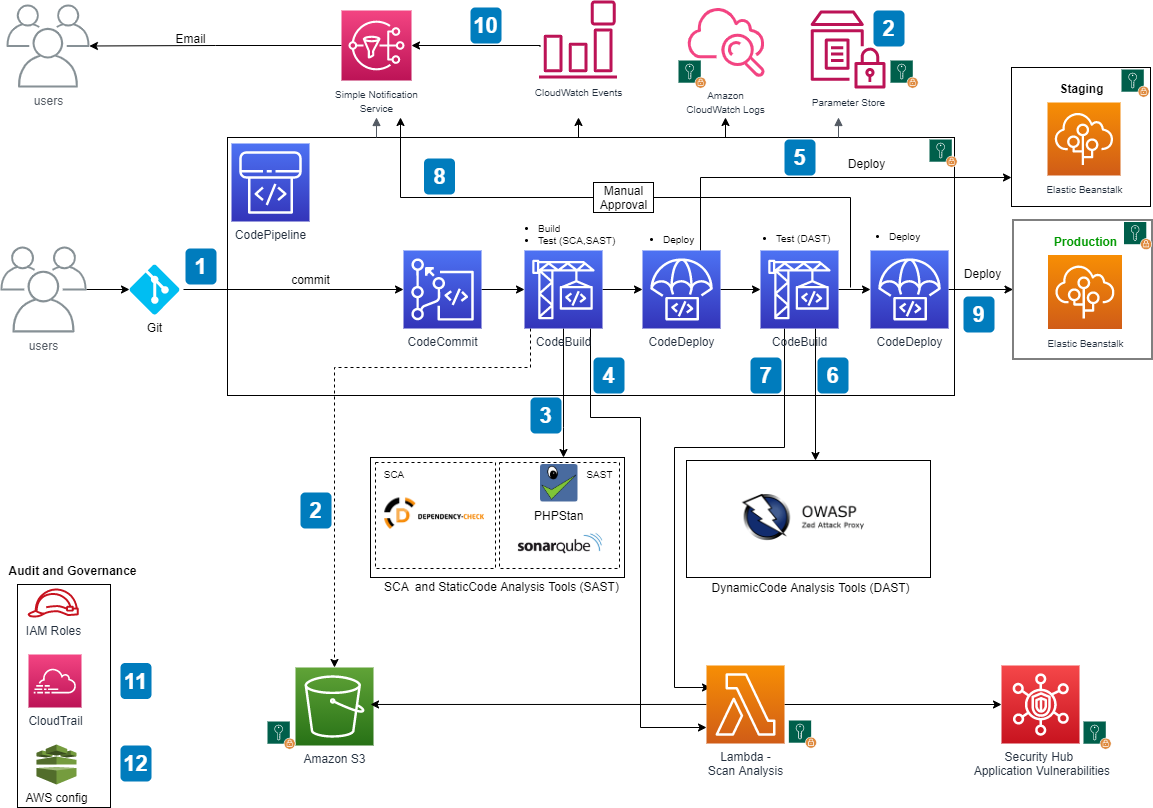
The following diagram shows the architecture of the solution.

AWS DevSecOps CICD pipeline architecture

AWS DevSecOps CICD pipeline architecture


The main steps are as follows:

  1. When a user commits the code to a CodeCommit repository, a CloudWatch event is generated which, triggers CodePipeline.
  2. CodeBuild packages the build and uploads the artifacts to an S3 bucket. CodeBuild retrieves the authentication information (for example, scanning tool tokens) from Parameter Store to initiate the scanning. As a best practice, it is recommended to utilize Artifact repositories like AWS CodeArtifact to store the artifacts, instead of S3. For simplicity of the workshop, we will continue to use S3.
  3. CodeBuild scans the code with an SCA tool (OWASP Dependency-Check) and SAST tool (SonarQube or PHPStan; in the provided CloudFormation template, you can pick one of these tools during the deployment, but CodeBuild is fully enabled for a bring your own tool approach).
  4. If there are any vulnerabilities either from SCA analysis or SAST analysis, CodeBuild invokes the Lambda function. The function parses the results into AWS Security Finding Format (ASFF) and posts it to Security Hub. Security Hub helps aggregate and view all the vulnerability findings in one place as a single pane of glass. The Lambda function also uploads the scanning results to an S3 bucket.
  5. If there are no vulnerabilities, CodeDeploy deploys the code to the staging Elastic Beanstalk environment.
  6. After the deployment succeeds, CodeBuild triggers the DAST scanning with the OWASP ZAP tool (again, this is fully enabled for a bring your own tool approach).
  7. If there are any vulnerabilities, CodeBuild invokes the Lambda function, which parses the results into ASFF and posts it to Security Hub. The function also uploads the scanning results to an S3 bucket (similar to step 4).
  8. If there are no vulnerabilities, the approval stage is triggered, and an email is sent to the approver for action.
  9. After approval, CodeDeploy deploys the code to the production Elastic Beanstalk environment.
  10. During the pipeline run, CloudWatch Events captures the build state changes and sends email notifications to subscribed users through SNS notifications.
  11. CloudTrail tracks the API calls and send notifications on critical events on the pipeline and CodeBuild projects, such as UpdatePipeline, DeletePipeline, CreateProject, and DeleteProject, for auditing purposes.
  12. AWS Config tracks all the configuration changes of AWS services. The following AWS Config rules are added in this pipeline as security best practices:
  13. CODEBUILD_PROJECT_ENVVAR_AWSCRED_CHECK – Checks whether the project contains environment variables AWS_ACCESS_KEY_ID and AWS_SECRET_ACCESS_KEY. The rule is NON_COMPLIANT when the project environment variables contains plaintext credentials.
  14. CLOUD_TRAIL_LOG_FILE_VALIDATION_ENABLED – Checks whether CloudTrail creates a signed digest file with logs. AWS recommends that the file validation be enabled on all trails. The rule is noncompliant if the validation is not enabled.

Security of the pipeline is implemented by using IAM roles and S3 bucket policies to restrict access to pipeline resources. Pipeline data at rest and in transit is protected using encryption and SSL secure transport. We use Parameter Store to store sensitive information such as API tokens and passwords. To be fully compliant with frameworks such as FedRAMP, other things may be required, such as MFA.

Security in the pipeline is implemented by performing the SCA, SAST and DAST security checks. Alternatively, the pipeline can utilize IAST (Interactive Application Security Testing) techniques that would combine SAST and DAST stages.

As a best practice, encryption should be enabled for the code and artifacts, whether at rest or transit.

In the next section, we explain how to deploy and run the pipeline CloudFormation template used for this example. Refer to the provided service links to learn more about each of the services in the pipeline. If utilizing CloudFormation templates to deploy infrastructure using pipelines, we recommend using linting tools like cfn-nag to scan CloudFormation templates for security vulnerabilities.

Prerequisites

Before getting started, make sure you have the following prerequisites:

Deploying the pipeline

To deploy the pipeline, complete the following steps: Download the CloudFormation template and pipeline code from GitHub repo.

  1. Log in to your AWS account if you have not done so already.
  2. On the CloudFormation console, choose Create Stack.
  3. Choose the CloudFormation pipeline template.
  4. Choose Next.
  5. Provide the stack parameters:
    • Under Code, provide code details, such as repository name and the branch to trigger the pipeline.
    • Under SAST, choose the SAST tool (SonarQube or PHPStan) for code analysis, enter the API token and the SAST tool URL. You can skip SonarQube details if using PHPStan as the SAST tool.
    • Under DAST, choose the DAST tool (OWASP Zap) for dynamic testing and enter the API token, DAST tool URL, and the application URL to run the scan.
    • Under Lambda functions, enter the Lambda function S3 bucket name, filename, and the handler name.
    • Under STG Elastic Beanstalk Environment and PRD Elastic Beanstalk Environment, enter the Elastic Beanstalk environment and application details for staging and production to which this pipeline deploys the application code.
    • Under General, enter the email addresses to receive notifications for approvals and pipeline status changes.

CF Deploymenet - Passing parameter values

CloudFormation deployment - Passing parameter values

CloudFormation template deployment

After the pipeline is deployed, confirm the subscription by choosing the provided link in the email to receive the notifications.

The provided CloudFormation template in this post is formatted for AWS GovCloud. If you’re setting this up in a standard Region, you have to adjust the partition name in the CloudFormation template. For example, change ARN values from arn:aws-us-gov to arn:aws.

Running the pipeline

To trigger the pipeline, commit changes to your application repository files. That generates a CloudWatch event and triggers the pipeline. CodeBuild scans the code and if there are any vulnerabilities, it invokes the Lambda function to parse and post the results to Security Hub.

When posting the vulnerability finding information to Security Hub, we need to provide a vulnerability severity level. Based on the provided severity value, Security Hub assigns the label as follows. Adjust the severity levels in your code based on your organization’s requirements.

  • 0 – INFORMATIONAL
  • 1–39 – LOW
  • 40– 69 – MEDIUM
  • 70–89 – HIGH
  • 90–100 – CRITICAL

The following screenshot shows the progression of your pipeline.

CodePipeline stages

CodePipeline stages

SCA and SAST scanning

In our architecture, CodeBuild trigger the SCA and SAST scanning in parallel. In this section, we discuss scanning with OWASP Dependency-Check, SonarQube, and PHPStan. 

Scanning with OWASP Dependency-Check (SCA)

The following is the code snippet from the Lambda function, where the SCA analysis results are parsed and posted to Security Hub. Based on the results, the equivalent Security Hub severity level (normalized_severity) is assigned.

Lambda code snippet for OWASP Dependency-check

Lambda code snippet for OWASP Dependency-check

You can see the results in Security Hub, as in the following screenshot.

SecurityHub report from OWASP Dependency-check scanning

SecurityHub report from OWASP Dependency-check scanning

Scanning with SonarQube (SAST)

The following is the code snippet from the Lambda function, where the SonarQube code analysis results are parsed and posted to Security Hub. Based on SonarQube results, the equivalent Security Hub severity level (normalized_severity) is assigned.

Lambda code snippet for SonarQube

Lambda code snippet for SonarQube

The following screenshot shows the results in Security Hub.

SecurityHub report from SonarQube scanning

SecurityHub report from SonarQube scanning

Scanning with PHPStan (SAST)

The following is the code snippet from the Lambda function, where the PHPStan code analysis results are parsed and posted to Security Hub.

Lambda code snippet for PHPStan

Lambda code snippet for PHPStan

The following screenshot shows the results in Security Hub.

SecurityHub report from PHPStan scanning

SecurityHub report from PHPStan scanning

DAST scanning

In our architecture, CodeBuild triggers DAST scanning and the DAST tool.

If there are no vulnerabilities in the SAST scan, the pipeline proceeds to the manual approval stage and an email is sent to the approver. The approver can review and approve or reject the deployment. If approved, the pipeline moves to next stage and deploys the application to the provided Elastic Beanstalk environment.

Scanning with OWASP Zap

After deployment is successful, CodeBuild initiates the DAST scanning. When scanning is complete, if there are any vulnerabilities, it invokes the Lambda function similar to SAST analysis. The function parses and posts the results to Security Hub. The following is the code snippet of the Lambda function.

Lambda code snippet for OWASP-Zap

Lambda code snippet for OWASP-Zap

The following screenshot shows the results in Security Hub.

SecurityHub report from OWASP-Zap scanning

SecurityHub report from OWASP-Zap scanning

Aggregation of vulnerability findings in Security Hub provides opportunities to automate the remediation. For example, based on the vulnerability finding, you can trigger a Lambda function to take the needed remediation action. This also reduces the burden on operations and security teams because they can now address the vulnerabilities from a single pane of glass instead of logging into multiple tool dashboards.

Conclusion

In this post, I presented a DevSecOps pipeline that includes CI/CD, continuous testing, continuous logging and monitoring, auditing and governance, and operations. I demonstrated how to integrate various open-source scanning tools, such as SonarQube, PHPStan, and OWASP Zap for SAST and DAST analysis. I explained how to aggregate vulnerability findings in Security Hub as a single pane of glass. This post also talked about how to implement security of the pipeline and in the pipeline using AWS cloud native services. Finally, I provided the DevSecOps pipeline as code using AWS CloudFormation. For additional information on AWS DevOps services and to get started, see AWS DevOps and DevOps Blog.


Srinivas Manepalli is a DevSecOps Solutions Architect in the U.S. Fed SI SA team at Amazon Web Services (AWS). He is passionate about helping customers, building and architecting DevSecOps and highly available software systems. Outside of work, he enjoys spending time with family, nature and good food.
How FactSet automates thousands of AWS accounts at scale

Post Syndicated from Amit Borulkar original https://aws.amazon.com/blogs/devops/factset-automation-at-scale/

This post is by FactSet’s Cloud Infrastructure team, Gaurav Jain, Nathan Goodman, Geoff Wang, Daniel Cordes, Sunu Joseph, and AWS Solution Architects Amit Borulkar and Tarik Makota. In their own words, “FactSet creates flexible, open data and software solutions for tens of thousands of investment professionals around the world, which provides instant access to financial data and analytics that investors use to make crucial decisions. At FactSet, we are always working to improve the value that our products provide.”

At FactSet, our operational goal to use the AWS Cloud is to have high developer velocity alongside enterprise governance. Assigning AWS accounts per project enables the agility and isolation boundary needed by each of the project teams to innovate faster. As existing workloads are migrated and new workloads are developed in the cloud, we realized that we were operating close to thousands of AWS accounts. To have a consistent and repeatable experience for diverse project teams, we automated the AWS account creation process, various service control policies (SCP) and AWS Identity and Access Management (IAM) policies and roles associated with the accounts, and enforced policies for ongoing configuration across the accounts. This post covers our automation workflows to enable governance for thousands of AWS accounts.

AWS account creation workflow

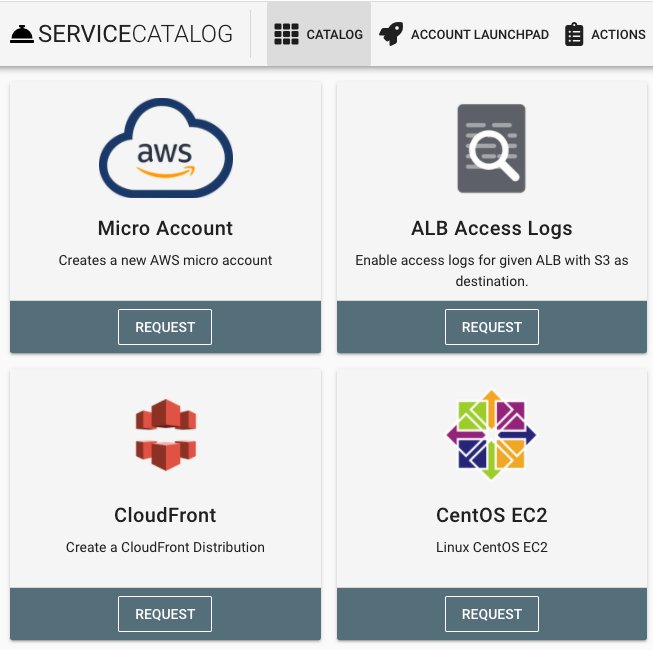
To empower our project teams to operate in the AWS Cloud in an agile manner, we developed a platform that enables AWS account creation with the default configuration customized to meet FactSet’s governance policies. These AWS accounts are provisioned with defaults such as a virtual private cloud (VPC), subnets, routing tables, IAM roles, SCP policies, add-ons for monitoring and load-balancing, and FactSet-specific governance. Developers and project team members can request a micro account for their product via this platform’s website, or do so programmatically using an API or wrap-around custom Terraform modules. The following screenshot shows a portion of the web interface that allows developers to request an AWS account.

FactSet service catalog
Continue reading How FactSet automates thousands of AWS accounts at scale

Automate thousands of mainframe tests on AWS with the Micro Focus Enterprise Suite

Post Syndicated from Kevin Yung original https://aws.amazon.com/blogs/devops/automate-mainframe-tests-on-aws-with-micro-focus/

Micro Focus – AWS Advanced Technology Parnter, they are a global infrastructure software company with 40 years of experience in delivering and supporting enterprise software.

We have seen mainframe customers often encounter scalability constraints, and they can’t support their development and test workforce to the scale required to support business requirements. These constraints can lead to delays, reduce product or feature releases, and make them unable to respond to market requirements. Furthermore, limits in capacity and scale often affect the quality of changes deployed, and are linked to unplanned or unexpected downtime in products or services.

The conventional approach to address these constraints is to scale up, meaning to increase MIPS/MSU capacity of the mainframe hardware available for development and testing. The cost of this approach, however, is excessively high, and to ensure time to market, you may reject this approach at the expense of quality and functionality. If you’re wrestling with these challenges, this post is written specifically for you.

To accompany this post, we developed an AWS prescriptive guidance (APG) pattern for developer instances and CI/CD pipelines: Mainframe Modernization: DevOps on AWS with Micro Focus.

Overview of solution

In the APG, we introduce DevOps automation and AWS CI/CD architecture to support mainframe application development. Our solution enables you to embrace both Test Driven Development (TDD) and Behavior Driven Development (BDD). Mainframe developers and testers can automate the tests in CI/CD pipelines so they’re repeatable and scalable. To speed up automated mainframe application tests, the solution uses team pipelines to run functional and integration tests frequently, and uses systems test pipelines to run comprehensive regression tests on demand. For more information about the pipelines, see Mainframe Modernization: DevOps on AWS with Micro Focus.
In this post, we focus on how to automate and scale mainframe application tests in AWS. We show you how to use AWS services and Micro Focus products to automate mainframe application tests with best practices. The solution can scale your mainframe application CI/CD pipeline to run thousands of tests in AWS within minutes, and you only pay a fraction of your current on-premises cost.

The following diagram illustrates the solution architecture.

Mainframe DevOps On AWS Architecture Overview, on the left is the conventional mainframe development environment, on the left is the CI/CD pipelines for mainframe tests in AWS

Figure: Mainframe DevOps On AWS Architecture Overview


Best practices

Before we get into the details of the solution, let’s recap the following mainframe application testing best practices:

  • Create a “test first” culture by writing tests for mainframe application code changes
  • Automate preparing and running tests in the CI/CD pipelines
  • Provide fast and quality feedback to project management throughout the SDLC
  • Assess and increase test coverage
  • Scale your test’s capacity and speed in line with your project schedule and requirements

Automated smoke test

In this architecture, mainframe developers can automate running functional smoke tests for new changes. This testing phase typically “smokes out” regression of core and critical business functions. You can achieve these tests using tools such as py3270 with x3270 or Robot Framework Mainframe 3270 Library.

The following code shows a feature test written in Behave and test step using py3270:

# home_loan_calculator.feature
Feature: calculate home loan monthly repayment
  the bankdemo application provides a monthly home loan repayment caculator 
  User need to input into transaction of home loan amount, interest rate and how many years of the loan maturity.
  User will be provided an output of home loan monthly repayment amount

  Scenario Outline: As a customer I want to calculate my monthly home loan repayment via a transaction
      Given home loan amount is <amount>, interest rate is <interest rate> and maturity date is <maturity date in months> months 
       When the transaction is submitted to the home loan calculator
       Then it shall show the monthly repayment of <monthly repayment>

    Examples: Homeloan
      | amount  | interest rate | maturity date in months | monthly repayment |
      | 1000000 | 3.29          | 300                     | $4894.31          |


# home_loan_calculator_steps.py
import sys, os
from py3270 import Emulator
from behave import *

@given("home loan amount is {amount}, interest rate is {rate} and maturity date is {maturity_date} months")
def step_impl(context, amount, rate, maturity_date):
    context.home_loan_amount = amount
    context.interest_rate = rate
    context.maturity_date_in_months = maturity_date

@when("the transaction is submitted to the home loan calculator")
def step_impl(context):
    # Setup connection parameters
    tn3270_host = os.getenv('TN3270_HOST')
    tn3270_port = os.getenv('TN3270_PORT')
	# Setup TN3270 connection
    em = Emulator(visible=False, timeout=120)
    em.connect(tn3270_host + ':' + tn3270_port)
    em.wait_for_field()
	# Screen login
    em.fill_field(10, 44, 'b0001', 5)
    em.send_enter()
	# Input screen fields for home loan calculator
    em.wait_for_field()
    em.fill_field(8, 46, context.home_loan_amount, 7)
    em.fill_field(10, 46, context.interest_rate, 7)
    em.fill_field(12, 46, context.maturity_date_in_months, 7)
    em.send_enter()
    em.wait_for_field()    

    # collect monthly replayment output from screen
    context.monthly_repayment = em.string_get(14, 46, 9)
    em.terminate()

@then("it shall show the monthly repayment of {amount}")
def step_impl(context, amount):
    print("expected amount is " + amount.strip() + ", and the result from screen is " + context.monthly_repayment.strip())
assert amount.strip() == context.monthly_repayment.strip()

To run this functional test in Micro Focus Enterprise Test Server (ETS), we use AWS CodeBuild.

We first need to build an Enterprise Test Server Docker image and push it to an Amazon Elastic Container Registry (Amazon ECR) registry. For instructions, see Using Enterprise Test Server with Docker.

Next, we create a CodeBuild project and uses the Enterprise Test Server Docker image in its configuration.

The following is an example AWS CloudFormation code snippet of a CodeBuild project that uses Windows Container and Enterprise Test Server:

  BddTestBankDemoStage:
    Type: AWS::CodeBuild::Project
    Properties:
      Name: !Sub '${AWS::StackName}BddTestBankDemo'
      LogsConfig:
        CloudWatchLogs:
          Status: ENABLED
      Artifacts:
        Type: CODEPIPELINE
        EncryptionDisabled: true
      Environment:
        ComputeType: BUILD_GENERAL1_LARGE
        Image: !Sub "${EnterpriseTestServerDockerImage}:latest"
        ImagePullCredentialsType: SERVICE_ROLE
        Type: WINDOWS_SERVER_2019_CONTAINER
      ServiceRole: !Ref CodeBuildRole
      Source:
        Type: CODEPIPELINE
        BuildSpec: bdd-test-bankdemo-buildspec.yaml

In the CodeBuild project, we need to create a buildspec to orchestrate the commands for preparing the Micro Focus Enterprise Test Server CICS environment and issue the test command. In the buildspec, we define the location for CodeBuild to look for test reports and upload them into the CodeBuild report group. The following buildspec code uses custom scripts DeployES.ps1 and StartAndWait.ps1 to start your CICS region, and runs Python Behave BDD tests:

version: 0.2
phases:
  build:
    commands:
      - |
        # Run Command to start Enterprise Test Server
        CD C:\
        .\DeployES.ps1
        .\StartAndWait.ps1

        py -m pip install behave

        Write-Host "waiting for server to be ready ..."
        do {
          Write-Host "..."
          sleep 3  
        } until(Test-NetConnection 127.0.0.1 -Port 9270 | ? { $_.TcpTestSucceeded } )

        CD C:\tests\features
        MD C:\tests\reports
        $Env:Path += ";c:\wc3270"

        $address=(Get-NetIPAddress -AddressFamily Ipv4 | where { $_.IPAddress -Match "172\.*" })
        $Env:TN3270_HOST = $address.IPAddress
        $Env:TN3270_PORT = "9270"
        
        behave.exe --color --junit --junit-directory C:\tests\reports
reports:
  bankdemo-bdd-test-report:
    files: 
      - '**/*'
    base-directory: "C:\\tests\\reports"

In the smoke test, the team may run both unit tests and functional tests. Ideally, these tests are better to run in parallel to speed up the pipeline. In AWS CodePipeline, we can set up a stage to run multiple steps in parallel. In our example, the pipeline runs both BDD tests and Robot Framework (RPA) tests.

The following CloudFormation code snippet runs two different tests. You use the same RunOrder value to indicate the actions run in parallel.

#...
        - Name: Tests
          Actions:
            - Name: RunBDDTest
              ActionTypeId:
                Category: Build
                Owner: AWS
                Provider: CodeBuild
                Version: 1
              Configuration:
                ProjectName: !Ref BddTestBankDemoStage
                PrimarySource: Config
              InputArtifacts:
                - Name: DemoBin
                - Name: Config
              RunOrder: 1
            - Name: RunRbTest
              ActionTypeId:
                Category: Build
                Owner: AWS
                Provider: CodeBuild
                Version: 1
              Configuration:
                ProjectName : !Ref RpaTestBankDemoStage
                PrimarySource: Config
              InputArtifacts:
                - Name: DemoBin
                - Name: Config
              RunOrder: 1  
#...

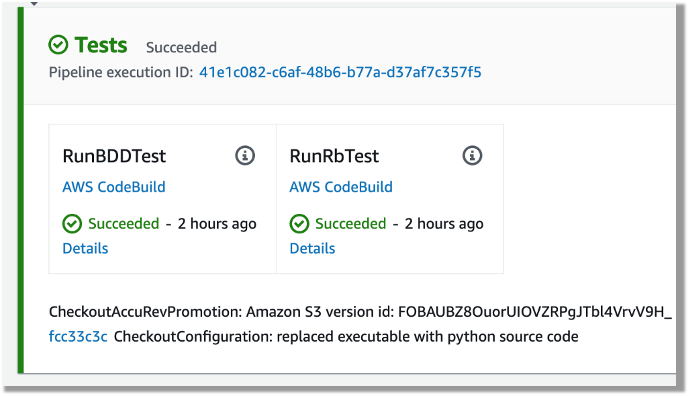
The following screenshot shows the example actions on the CodePipeline console that use the preceding code.

Screenshot of CodePipeine parallel execution tests using a same run order value

Figure – Screenshot of CodePipeine parallel execution tests

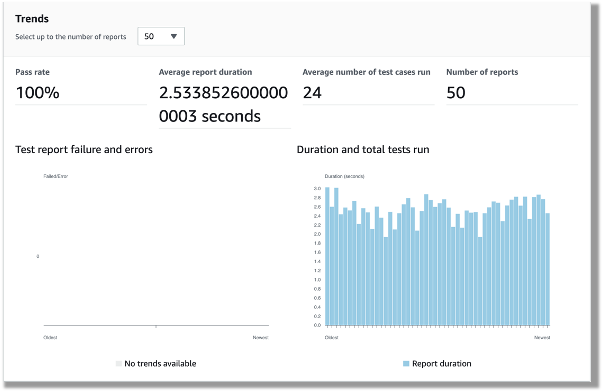
Both DBB and RPA tests produce jUnit format reports, which CodeBuild can ingest and show on the CodeBuild console. This is a great way for project management and business users to track the quality trend of an application. The following screenshot shows the CodeBuild report generated from the BDD tests.

CodeBuild report generated from the BDD tests showing 100% pass rate

Figure – CodeBuild report generated from the BDD tests

Automated regression tests

After you test the changes in the project team pipeline, you can automatically promote them to another stream with other team members’ changes for further testing. The scope of this testing stream is significantly more comprehensive, with a greater number and wider range of tests and higher volume of test data. The changes promoted to this stream by each team member are tested in this environment at the end of each day throughout the life of the project. This provides a high-quality delivery to production, with new code and changes to existing code tested together with hundreds or thousands of tests.

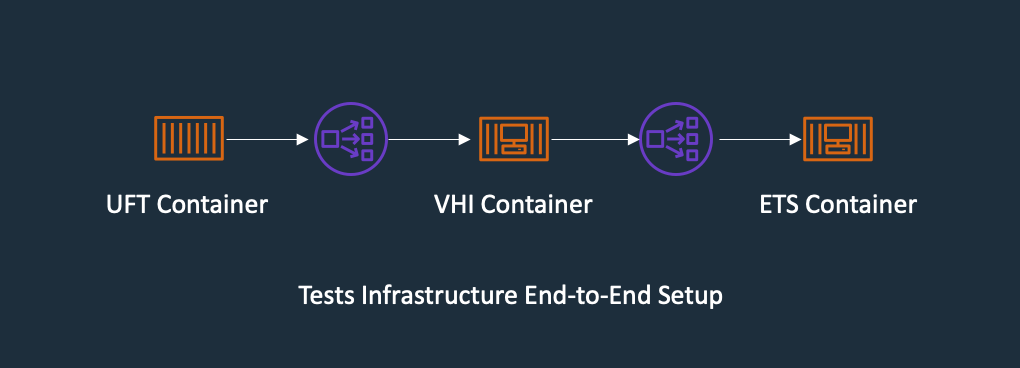
In enterprise architecture, it’s commonplace to see an application client consuming web services APIs exposed from a mainframe CICS application. One approach to do regression tests for mainframe applications is to use Micro Focus Verastream Host Integrator (VHI) to record and capture 3270 data stream processing and encapsulate these 3270 data streams as business functions, which in turn are packaged as web services. When these web services are available, they can be consumed by a test automation product, which in our environment is Micro Focus UFT One. This uses the Verastream server as the orchestration engine that translates the web service requests into 3270 data streams that integrate with the mainframe CICS application. The application is deployed in Micro Focus Enterprise Test Server.

The following diagram shows the end-to-end testing components.

Regression Test the end-to-end testing components using ECS Container for Exterprise Test Server, Verastream Host Integrator and UFT One Container, all integration points are using Elastic Network Load Balancer

Figure – Regression Test Infrastructure end-to-end Setup

To ensure we have the coverage required for large mainframe applications, we sometimes need to run thousands of tests against very large production volumes of test data. We want the tests to run faster and complete as soon as possible so we reduce AWS costs—we only pay for the infrastructure when consuming resources for the life of the test environment when provisioning and running tests.

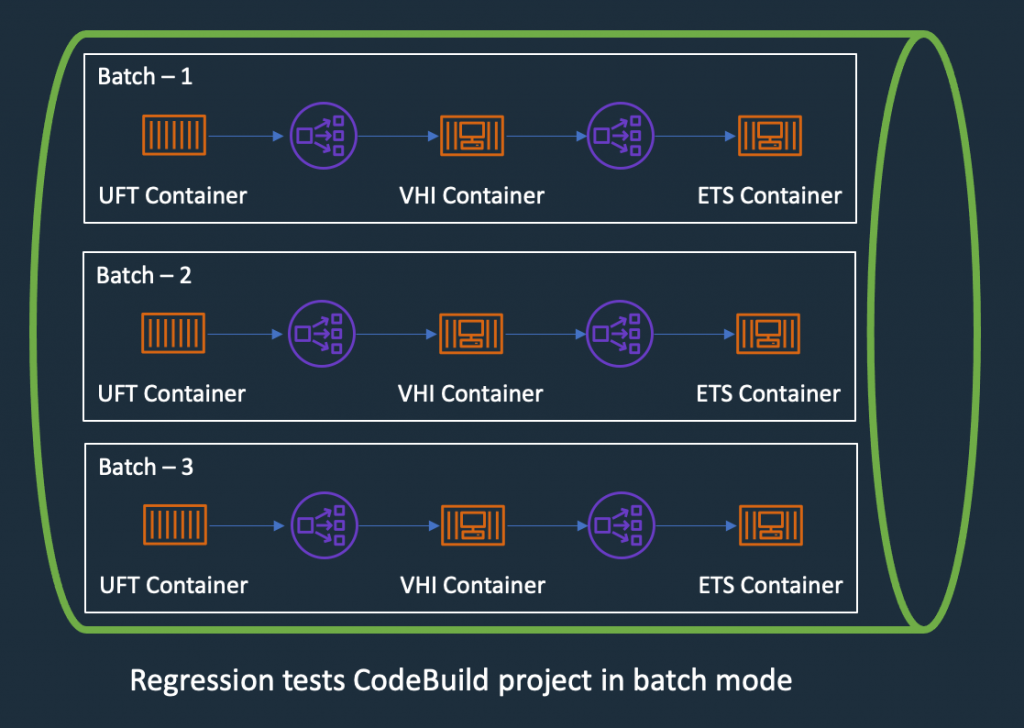
Therefore, the design of the test environment needs to scale out. The batch feature in CodeBuild allows you to run tests in batches and in parallel rather than serially. Furthermore, our solution needs to minimize interference between batches, a failure in one batch doesn’t affect another running in parallel. The following diagram depicts the high-level design, with each batch build running in its own independent infrastructure. Each infrastructure is launched as part of test preparation, and then torn down in the post-test phase.

Regression Tests in CodeBuoild Project setup to use batch mode, three batches running in independent infrastructure with containers

Figure – Regression Tests in CodeBuoild Project setup to use batch mode

Building and deploying regression test components

Following the design of the parallel regression test environment, let’s look at how we build each component and how they are deployed. The followings steps to build our regression tests use a working backward approach, starting from deployment in the Enterprise Test Server:

  1. Create a batch build in CodeBuild.
  2. Deploy to Enterprise Test Server.
  3. Deploy the VHI model.
  4. Deploy UFT One Tests.
  5. Integrate UFT One into CodeBuild and CodePipeline and test the application.

Creating a batch build in CodeBuild

We update two components to enable a batch build. First, in the CodePipeline CloudFormation resource, we set BatchEnabled to be true for the test stage. The UFT One test preparation stage uses the CloudFormation template to create the test infrastructure. The following code is an example of the AWS CloudFormation snippet with batch build enabled:

#...
        - Name: SystemsTest
          Actions:
            - Name: Uft-Tests
              ActionTypeId:
                Category: Build
                Owner: AWS
                Provider: CodeBuild
                Version: 1
              Configuration:
                ProjectName : !Ref UftTestBankDemoProject
                PrimarySource: Config
                BatchEnabled: true
                CombineArtifacts: true
              InputArtifacts:
                - Name: Config
                - Name: DemoSrc
              OutputArtifacts:
                - Name: TestReport                
              RunOrder: 1
#...

Second, in the buildspec configuration of the test stage, we provide a build matrix setting. We use the custom environment variable TEST_BATCH_NUMBER to indicate which set of tests runs in each batch. See the following code:

version: 0.2
batch:
  fast-fail: true
  build-matrix:
    static:
      ignore-failure: false
    dynamic:
      env:
        variables:
          TEST_BATCH_NUMBER:
            - 1
            - 2
            - 3 
phases:
  pre_build:
commands:
#...

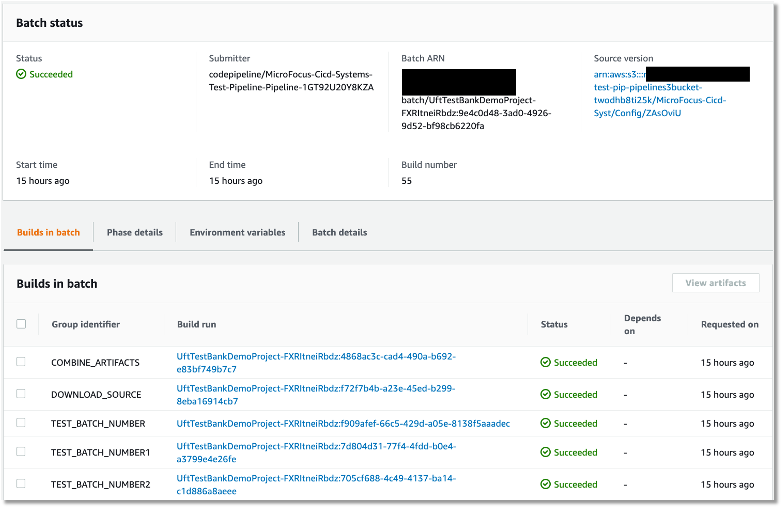
After setting up the batch build, CodeBuild creates multiple batches when the build starts. The following screenshot shows the batches on the CodeBuild console.

Regression tests Codebuild project ran in batch mode, three batches ran in prallel successfully

Figure – Regression tests Codebuild project ran in batch mode

Deploying to Enterprise Test Server

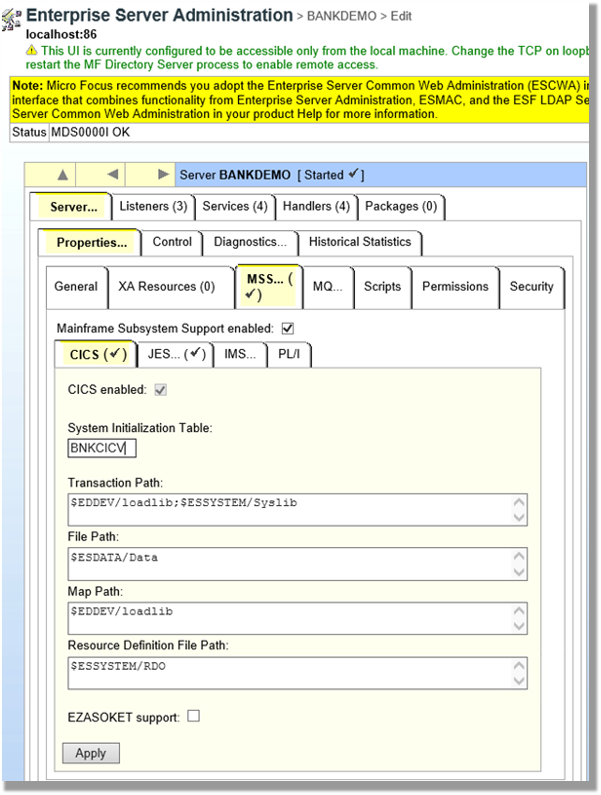
ETS is the transaction engine that processes all the online (and batch) requests that are initiated through external clients, such as 3270 terminals, web services, and websphere MQ. This engine provides support for various mainframe subsystems, such as CICS, IMS TM and JES, as well as code-level support for COBOL and PL/I. The following screenshot shows the Enterprise Test Server administration page.

Enterprise Server Administrator window showing configuration for CICS

Figure – Enterprise Server Administrator window

In this mainframe application testing use case, the regression tests are CICS transactions, initiated from 3270 requests (encapsulated in a web service). For more information about Enterprise Test Server, see the Enterprise Test Server and Micro Focus websites.

In the regression pipeline, after the stage of mainframe artifact compiling, we bake in the artifact into an ETS Docker container and upload the image to an Amazon ECR repository. This way, we have an immutable artifact for all the tests.

During each batch’s test preparation stage, a CloudFormation stack is deployed to create an Amazon ECS service on Windows EC2. The stack uses a Network Load Balancer as an integration point for the VHI’s integration.

The following code is an example of the CloudFormation snippet to create an Amazon ECS service using an Enterprise Test Server Docker image:

#...
  EtsService:
    DependsOn:
    - EtsTaskDefinition
    - EtsContainerSecurityGroup
    - EtsLoadBalancerListener
    Properties:
      Cluster: !Ref 'WindowsEcsClusterArn'
      DesiredCount: 1
      LoadBalancers:
        -
          ContainerName: !Sub "ets-${AWS::StackName}"
          ContainerPort: 9270
          TargetGroupArn: !Ref EtsPort9270TargetGroup
      HealthCheckGracePeriodSeconds: 300          
      TaskDefinition: !Ref 'EtsTaskDefinition'
    Type: "AWS::ECS::Service"

  EtsTaskDefinition:
    Properties:
      ContainerDefinitions:
        -
          Image: !Sub "${AWS::AccountId}.dkr.ecr.us-east-1.amazonaws.com/systems-test/ets:latest"
          LogConfiguration:
            LogDriver: awslogs
            Options:
              awslogs-group: !Ref 'SystemsTestLogGroup'
              awslogs-region: !Ref 'AWS::Region'
              awslogs-stream-prefix: ets
          Name: !Sub "ets-${AWS::StackName}"
          cpu: 4096
          memory: 8192
          PortMappings:
            -
              ContainerPort: 9270
          EntryPoint:
          - "powershell.exe"
          Command: 
          - '-F'
          - .\StartAndWait.ps1
          - 'bankdemo'
          - C:\bankdemo\
          - 'wait'
      Family: systems-test-ets
    Type: "AWS::ECS::TaskDefinition"
#...

Deploying the VHI model

In this architecture, the VHI is a bridge between mainframe and clients.

We use the VHI designer to capture the 3270 data streams and encapsulate the relevant data streams into a business function. We can then deliver this function as a web service that can be consumed by a test management solution, such as Micro Focus UFT One.

The following screenshot shows the setup for getCheckingDetails in VHI. Along with this procedure we can also see other procedures (eg calcCostLoan) defined that get generated as a web service. The properties associated with this procedure are available on this screen to allow for the defining of the mapping of the fields between the associated 3270 screens and exposed web service.

example of VHI designer to capture the 3270 data streams and encapsulate the relevant data streams into a business function getCheckingDetails

Figure – Setup for getCheckingDetails in VHI

The following screenshot shows the editor for this procedure and is initiated by the selection of the Procedure Editor. This screen presents the 3270 screens that are involved in the business function that will be generated as a web service.

VHI designer Procedure Editor shows the procedure

Figure – VHI designer Procedure Editor shows the procedure

After you define the required functional web services in VHI designer, the resultant model is saved and deployed into a VHI Docker image. We use this image and the associated model (from VHI designer) in the pipeline outlined in this post.

For more information about VHI, see the VHI website.

The pipeline contains two steps to deploy a VHI service. First, it installs and sets up the VHI models into a VHI Docker image, and it’s pushed into Amazon ECR. Second, a CloudFormation stack is deployed to create an Amazon ECS Fargate service, which uses the latest built Docker image. In AWS CloudFormation, the VHI ECS task definition defines an environment variable for the ETS Network Load Balancer’s DNS name. Therefore, the VHI can bootstrap and point to an ETS service. In the VHI stack, it uses a Network Load Balancer as an integration point for UFT One test integration.

The following code is an example of a ECS Task Definition CloudFormation snippet that creates a VHI service in Amazon ECS Fargate and integrates it with an ETS server:

#...
  VhiTaskDefinition:
    DependsOn:
    - EtsService
    Type: AWS::ECS::TaskDefinition
    Properties:
      Family: systems-test-vhi
      NetworkMode: awsvpc
      RequiresCompatibilities:
        - FARGATE
      ExecutionRoleArn: !Ref FargateEcsTaskExecutionRoleArn
      Cpu: 2048
      Memory: 4096
      ContainerDefinitions:
        - Cpu: 2048
          Name: !Sub "vhi-${AWS::StackName}"
          Memory: 4096
          Environment:
            - Name: esHostName 
              Value: !GetAtt EtsInternalLoadBalancer.DNSName
            - Name: esPort
              Value: 9270
          Image: !Ref "${AWS::AccountId}.dkr.ecr.us-east-1.amazonaws.com/systems-test/vhi:latest"
          PortMappings:
            - ContainerPort: 9680
          LogConfiguration:
            LogDriver: awslogs
            Options:
              awslogs-group: !Ref 'SystemsTestLogGroup'
              awslogs-region: !Ref 'AWS::Region'
              awslogs-stream-prefix: vhi

#...

Deploying UFT One Tests

UFT One is a test client that uses each of the web services created by the VHI designer to orchestrate running each of the associated business functions. Parameter data is supplied to each function, and validations are configured against the data returned. Multiple test suites are configured with different business functions with the associated data.

The following screenshot shows the test suite API_Bankdemo3, which is used in this regression test process.

the screenshot shows the test suite API_Bankdemo3 in UFT One test setup console, the API setup for getCheckingDetails

Figure – API_Bankdemo3 in UFT One Test Editor Console

For more information, see the UFT One website.

Integrating UFT One and testing the application

The last step is to integrate UFT One into CodeBuild and CodePipeline to test our mainframe application. First, we set up CodeBuild to use a UFT One container. The Docker image is available in Docker Hub. Then we author our buildspec. The buildspec has the following three phrases:

  • Setting up a UFT One license and deploying the test infrastructure
  • Starting the UFT One test suite to run regression tests
  • Tearing down the test infrastructure after tests are complete

The following code is an example of a buildspec snippet in the pre_build stage. The snippet shows the command to activate the UFT One license:

version: 0.2
batch: 
# . . .
phases:
  pre_build:
    commands:
      - |
        # Activate License
        $process = Start-Process -NoNewWindow -RedirectStandardOutput LicenseInstall.log -Wait -File 'C:\Program Files (x86)\Micro Focus\Unified Functional Testing\bin\HP.UFT.LicenseInstall.exe' -ArgumentList @('concurrent', 10600, 1, ${env:AUTOPASS_LICENSE_SERVER})        
        Get-Content -Path LicenseInstall.log
        if (Select-String -Path LicenseInstall.log -Pattern 'The installation was successful.' -Quiet) {
          Write-Host 'Licensed Successfully'
        } else {
          Write-Host 'License Failed'
          exit 1
        }
#...

The following command in the buildspec deploys the test infrastructure using the AWS Command Line Interface (AWS CLI)

aws cloudformation deploy --stack-name $stack_name `
--template-file cicd-pipeline/systems-test-pipeline/systems-test-service.yaml `
--parameter-overrides EcsCluster=$cluster_arn `
--capabilities CAPABILITY_IAM

Because ETS and VHI are both deployed with a load balancer, the build detects when the load balancers become healthy before starting the tests. The following AWS CLI commands detect the load balancer’s target group health:

$vhi_health_state = (aws elbv2 describe-target-health --target-group-arn $vhi_target_group_arn --query 'TargetHealthDescriptions[0].TargetHealth.State' --output text)
$ets_health_state = (aws elbv2 describe-target-health --target-group-arn $ets_target_group_arn --query 'TargetHealthDescriptions[0].TargetHealth.State' --output text)          

When the targets are healthy, the build moves into the build stage, and it uses the UFT One command line to start the tests. See the following code:

$process = Start-Process -Wait  -NoNewWindow -RedirectStandardOutput UFTBatchRunnerCMD.log `
-FilePath "C:\Program Files (x86)\Micro Focus\Unified Functional Testing\bin\UFTBatchRunnerCMD.exe" `
-ArgumentList @("-source", "${env:CODEBUILD_SRC_DIR_DemoSrc}\bankdemo\tests\API_Bankdemo\API_Bankdemo${env:TEST_BATCH_NUMBER}")

The next release of Micro Focus UFT One (November or December 2020) will provide an exit status to indicate a test’s success or failure.

When the tests are complete, the post_build stage tears down the test infrastructure. The following AWS CLI command tears down the CloudFormation stack:


#...
	post_build:
	  finally:
	  	- |
		  Write-Host "Clean up ETS, VHI Stack"
		  #...
		  aws cloudformation delete-stack --stack-name $stack_name
          aws cloudformation wait stack-delete-complete --stack-name $stack_name

At the end of the build, the buildspec is set up to upload UFT One test reports as an artifact into Amazon Simple Storage Service (Amazon S3). The following screenshot is the example of a test report in HTML format generated by UFT One in CodeBuild and CodePipeline.

UFT One HTML report shows regression testresult and test detals

Figure – UFT One HTML report

A new release of Micro Focus UFT One will provide test report formats supported by CodeBuild test report groups.

Conclusion

In this post, we introduced the solution to use Micro Focus Enterprise Suite, Micro Focus UFT One, Micro Focus VHI, AWS developer tools, and Amazon ECS containers to automate provisioning and running mainframe application tests in AWS at scale.

The on-demand model allows you to create the same test capacity infrastructure in minutes at a fraction of your current on-premises mainframe cost. It also significantly increases your testing and delivery capacity to increase quality and reduce production downtime.

A demo of the solution is available in AWS Partner Micro Focus website AWS Mainframe CI/CD Enterprise Solution. If you’re interested in modernizing your mainframe applications, please visit Micro Focus and contact AWS mainframe business development at [email protected].

References

Micro Focus


Peter Woods

Peter Woods

Peter has been with Micro Focus for almost 30 years, in a variety of roles and geographies including Technical Support, Channel Sales, Product Management, Strategic Alliances Management and Pre-Sales, primarily based in Europe but for the last four years in Australia and New Zealand. In his current role as Pre-Sales Manager, Peter is charged with driving and supporting sales activity within the Application Modernization and Connectivity team, based in Melbourne.

Leo Ervin

Leo Ervin

Leo Ervin is a Senior Solutions Architect working with Micro Focus Enterprise Solutions working with the ANZ team. After completing a Mathematics degree Leo started as a PL/1 programming with a local insurance company. The next step in Leo’s career involved consulting work in PL/1 and COBOL before he joined a start-up company as a technical director and partner. This company became the first distributor of Micro Focus software in the ANZ region in 1986. Leo’s involvement with Micro Focus technology has continued from this distributorship through to today with his current focus on cloud strategies for both DevOps and re-platform implementations.

Kevin Yung

Kevin Yung

Kevin is a Senior Modernization Architect in AWS Professional Services Global Mainframe and Midrange Modernization (GM3) team. Kevin currently is focusing on leading and delivering mainframe and midrange applications modernization for large enterprise customers.

Creating multi-architecture Docker images to support Graviton2 using AWS CodeBuild and AWS CodePipeline

Post Syndicated from Tyler Lynch original https://aws.amazon.com/blogs/devops/creating-multi-architecture-docker-images-to-support-graviton2-using-aws-codebuild-and-aws-codepipeline/

This post provides a clear path for customers who are evaluating and adopting Graviton2 instance types for performance improvements and cost-optimization.

Graviton2 processors are custom designed by AWS using 64-bit Arm Neoverse N1 cores. They power the T4g*, M6g*, R6g*, and C6g* Amazon Elastic Compute Cloud (Amazon EC2) instance types and offer up to 40% better price performance over the current generation of x86-based instances in a variety of workloads, such as high-performance computing, application servers, media transcoding, in-memory caching, gaming, and more.

More and more customers want to make the move to Graviton2 to take advantage of these performance optimizations while saving money.

During the transition process, a great benefit AWS provides is the ability to perform native builds for each architecture, instead of attempting to cross-compile on homogenous hardware. This has the benefit of decreasing build time as well as reducing complexity and cost to set up.

To see this benefit in action, we look at how to build a CI/CD pipeline using AWS CodePipeline and AWS CodeBuild that can build multi-architecture Docker images in parallel to aid you in evaluating and migrating to Graviton2.

Solution overview

With CodePipeline and CodeBuild, we can automate the creation of architecture-specific Docker images, which can be pushed to Amazon Elastic Container Registry (Amazon ECR). The following diagram illustrates this architecture.

Solution overview architectural diagram

The steps in this process are as follows:

  1. Create a sample Node.js application and associated Dockerfile.
  2. Create the buildspec files that contain the commands that CodeBuild runs.
  3. Create three CodeBuild projects to automate each of the following steps:
    • CodeBuild for x86 – Creates a x86 Docker image and pushes to Amazon ECR.
    • CodeBuild for arm64 – Creates a Arm64 Docker image and pushes to Amazon ECR.
    • CodeBuild for manifest list – Creates a Docker manifest list, annotates the list, and pushes to Amazon ECR.
  4. Automate the orchestration of these projects with CodePipeline.

Prerequisites

The prerequisites for this solution are as follows:

  • The correct AWS Identity and Access Management (IAM) role permissions for your account allowing for the creation of the CodePipeline pipeline, CodeBuild projects, and Amazon ECR repositories
  • An Amazon ECR repository named multi-arch-test
  • A source control service such as AWS CodeCommit or GitHub that CodeBuild and CodePipeline can interact with
  • The source code repository initialized and cloned locally

Creating a sample Node.js application and associated Dockerfile

For this post, we create a sample “Hello World” application that self-reports the processor architecture. We work in the local folder that is cloned from our source repository as specified in the prerequisites.

  1. In your preferred text editor, add a new file with the following Node.js code:

# Hello World sample app.
const http = require('http');

const port = 3000;

const server = http.createServer((req, res) => {
  res.statusCode = 200;
  res.setHeader('Content-Type', 'text/plain');
  res.end(`Hello World. This processor architecture is ${process.arch}`);
});

server.listen(port, () => {
  console.log(`Server running on processor architecture ${process.arch}`);
});
  1. Save the file in the root of your source repository and name it app.js.
  2. Commit the changes to Git and push the changes to our source repository. See the following code:

git add .
git commit -m "Adding Node.js sample application."
git push

We also need to create a sample Dockerfile that instructs the docker build command how to build the Docker images. We use the default Node.js image tag for version 14.

  1. In a text editor, add a new file with the following code:

# Sample nodejs application
FROM node:14
WORKDIR /usr/src/app
COPY package*.json app.js ./
RUN npm install
EXPOSE 3000
CMD ["node", "app.js"]
  1. Save the file in the root of the source repository and name it Dockerfile. Make sure it is Dockerfile with no extension.
  2. Commit the changes to Git and push the changes to our source repository:

git add .
git commit -m "Adding Dockerfile to host the Node.js sample application."
git push

Creating a build specification file for your application

It’s time to create and add a buildspec file to our source repository. We want to use a single buildspec.yml file for building, tagging, and pushing the Docker images to Amazon ECR for both target native architectures, x86, and Arm64. We use CodeBuild to inject environment variables, some of which need to be changed for each architecture (such as image tag and image architecture).

A buildspec is a collection of build commands and related settings, in YAML format, that CodeBuild uses to run a build. For more information, see Build specification reference for CodeBuild.

The buildspec we add instructs CodeBuild to do the following:

  • install phase – Update the yum package manager
  • pre_build phase – Sign in to Amazon ECR using the IAM role assumed by CodeBuild
  • build phase – Build the Docker image using the Docker CLI and tag the newly created Docker image
  • post_build phase – Push the Docker image to our Amazon ECR repository

We first need to add the buildspec.yml file to our source repository.

  1. In a text editor, add a new file with the following build specification:

version: 0.2
phases:
    install:
        commands:
            - yum update -y
    pre_build:
        commands:
            - echo Logging in to Amazon ECR...
            - $(aws ecr get-login --no-include-email --region $AWS_DEFAULT_REGION)
    build:
        commands:
            - echo Build started on `date`
            - echo Building the Docker image...          
            - docker build -t $IMAGE_REPO_NAME:$IMAGE_TAG .
            - docker tag $IMAGE_REPO_NAME:$IMAGE_TAG $AWS_ACCOUNT_ID.dkr.ecr.$AWS_DEFAULT_REGION.amazonaws.com/$IMAGE_REPO_NAME:$IMAGE_TAG      
    post_build:
        commands:
            - echo Build completed on `date`
            - echo Pushing the Docker image...
            - docker push $AWS_ACCOUNT_ID.dkr.ecr.$AWS_DEFAULT_REGION.amazonaws.com/$IMAGE_REPO_NAME:$IMAGE_TAG
  1. Save the file in the root of the repository and name it buildspec.yml.

Because we specify environment variables in the CodeBuild project, we don’t need to hard code any values in the buildspec file.

  1. Commit the changes to Git and push the changes to our source repository:

git add .
git commit -m "Adding CodeBuild buildspec.yml file."
git push

Creating a build specification file for your manifest list creation

Next we create a buildspec file that instructs CodeBuild to create a Docker manifest list, and associate that manifest list with the Docker images that the buildspec file builds.

A manifest list is a list of image layers that is created by specifying one or more (ideally more than one) image names. You can then use it in the same way as an image name in docker pull and docker run commands, for example. For more information, see manifest create.

As of this writing, manifest creation is an experimental feature of the Docker command line interface (CLI).

Experimental features provide early access to future product functionality. These features are intended only for testing and feedback because they may change between releases without warning or be removed entirely from a future release. Experimental features must not be used in production environments. For more information, Experimental features.

When creating the CodeBuild project for manifest list creation, we specify a buildspec file name override as buildspec-manifest.yml. This buildspec instructs CodeBuild to do the following:

  • install phase – Update the yum package manager
  • pre_build phase – Sign in to Amazon ECR using the IAM role assumed by CodeBuild
  • build phase – Perform three actions:
    • Set environment variable to enable Docker experimental features for the CLI
    • Create the Docker manifest list using the Docker CLI
    • Annotate the manifest list to add the architecture-specific Docker image references
  • post_build phase – Push the Docker image to our Amazon ECR repository and use docker manifest inspect to echo out the contents of the manifest list from Amazon ECR

We first need to add the buildspec-manifest.yml file to our source repository.

  1. In a text editor, add a new file with the following build specification:

version: 0.2
# Based on the Docker documentation, must include the DOCKER_CLI_EXPERIMENTAL environment variable
# https://docs.docker.com/engine/reference/commandline/manifest/    

phases:
    install:
        commands:
            - yum update -y
    pre_build:
        commands:
            - echo Logging in to Amazon ECR...
            - $(aws ecr get-login --no-include-email --region $AWS_DEFAULT_REGION)
    build:
        commands:
            - echo Build started on `date`
            - echo Building the Docker manifest...   
            - export DOCKER_CLI_EXPERIMENTAL=enabled       
            - docker manifest create $AWS_ACCOUNT_ID.dkr.ecr.$AWS_DEFAULT_REGION.amazonaws.com/$IMAGE_REPO_NAME $AWS_ACCOUNT_ID.dkr.ecr.$AWS_DEFAULT_REGION.amazonaws.com/$IMAGE_REPO_NAME:latest-arm64v8 $AWS_ACCOUNT_ID.dkr.ecr.$AWS_DEFAULT_REGION.amazonaws.com/$IMAGE_REPO_NAME:latest-amd64    
            - docker manifest annotate --arch arm64 $AWS_ACCOUNT_ID.dkr.ecr.$AWS_DEFAULT_REGION.amazonaws.com/$IMAGE_REPO_NAME $AWS_ACCOUNT_ID.dkr.ecr.$AWS_DEFAULT_REGION.amazonaws.com/$IMAGE_REPO_NAME:latest-arm64v8
            - docker manifest annotate --arch amd64 $AWS_ACCOUNT_ID.dkr.ecr.$AWS_DEFAULT_REGION.amazonaws.com/$IMAGE_REPO_NAME $AWS_ACCOUNT_ID.dkr.ecr.$AWS_DEFAULT_REGION.amazonaws.com/$IMAGE_REPO_NAME:latest-amd64

    post_build:
        commands:
            - echo Build completed on `date`
            - echo Pushing the Docker image...
            - docker manifest push $AWS_ACCOUNT_ID.dkr.ecr.$AWS_DEFAULT_REGION.amazonaws.com/$IMAGE_REPO_NAME
            - docker manifest inspect $AWS_ACCOUNT_ID.dkr.ecr.$AWS_DEFAULT_REGION.amazonaws.com/$IMAGE_REPO_NAME
  1. Save the file in the root of the repository and name it buildspec-manifest.yml.
  2. Commit the changes to Git and push the changes to our source repository:

git add .
git commit -m "Adding CodeBuild buildspec-manifest.yml file."
git push

Setting up your CodeBuild projects

Now we have created a single buildspec.yml file for building, tagging, and pushing the Docker images to Amazon ECR for both target native architectures: x86 and Arm64. This file is shared by two of the three CodeBuild projects that we create. We use CodeBuild to inject environment variables, some of which need to be changed for each architecture (such as image tag and image architecture). We also want to use the single Docker file, regardless of the architecture. We also need to ensure any third-party libraries are present and compiled correctly for the target architecture.

For more information about third-party libraries and software versions that have been optimized for Arm, see the Getting started with AWS Graviton GitHub repo.

We use the same environment variable names for the CodeBuild projects, but each project has specific values, as detailed in the following table. You need to modify these values to your numeric AWS account ID, the AWS Region where your Amazon ECR registry endpoint is located, and your Amazon ECR repository name. The instructions for adding the environment variables in the CodeBuild projects are in the following sections.

Environment Variable x86 Project values Arm64 Project values manifest Project values
1 AWS_DEFAULT_REGION us-east-1 us-east-1 us-east-1
2 AWS_ACCOUNT_ID 111111111111 111111111111 111111111111
3 IMAGE_REPO_NAME multi-arch-test multi-arch-test multi-arch-test
4 IMAGE_TAG latest-amd64 latest-arm64v8 latest

The image we use in this post uses architecture-specific tags with the term latest. This is for demonstration purposes only; it’s best to tag the images with an explicit version or another meaningful reference.

CodeBuild for x86

We start with creating a new CodeBuild project for x86 on the CodeBuild console.

CodeBuild looks for a file named buildspec.yml by default, unless overridden. For these first two CodeBuild projects, we rely on that default and don’t specify the buildspec name.

  1. On the CodeBuild console, choose Create build project.
  2. For Project name, enter a unique project name for your build project, such as node-x86.
  3. To add tags, add them under Additional Configuration.
  4. Choose a Source provider (for this post, we choose GitHub).
  5. For Environment image, choose Managed image.
  6. Select Amazon Linux 2.
  7. For Runtime(s), choose Standard.
  8. For Image, choose aws/codebuild/amazonlinux2-x86_64-standard:3.0.

This is a x86 build image.

  1. Select Privileged.
  2. For Service role, choose New service role.
  3. Enter a name for the new role (one is created for you), such as CodeBuildServiceRole-nodeproject.

We reuse this same service role for the other CodeBuild projects associated with this project.

  1. Expand Additional configurations and move to the Environment variables
  2. Create the following Environment variables:
Name Value Type
1 AWS_DEFAULT_REGION us-east-1 Plaintext
2 AWS_ACCOUNT_ID 111111111111 Plaintext
3 IMAGE_REPO_NAME multi-arch-test Plaintext
4 IMAGE_TAG latest-amd64 Plaintext
  1. Choose Create build project.

Attaching the IAM policy

Now that we have created the CodeBuild project, we need to adjust the new service role that was just created and attach an IAM policy so that it can interact with the Amazon ECR API.

  1. On the CodeBuild console, choose the node-x86 project
  2. Choose the Build details
  3. Under Service role, choose the link that looks like arn:aws:iam::111111111111:role/service-role/CodeBuildServiceRole-nodeproject.

A new browser tab should open.

  1. Choose Attach policies.
  2. In the Search field, enter AmazonEC2ContainerRegistryPowerUser.
  3. Select AmazonEC2ContainerRegistryPowerUser.
  4. Choose Attach policy.

CodeBuild for arm64

Now we move on to creating a new (second) CodeBuild project for Arm64.

  1. On the CodeBuild console, choose Create build project.
  2. For Project name, enter a unique project name, such as node-arm64.
  3. If you want to add tags, add them under Additional Configuration.
  4. Choose a Source provider (for this post, choose GitHub).
  5. For Environment image, choose Managed image.
  6. Select Amazon Linux 2.
  7. For Runtime(s), choose Standard.
  8. For Image, choose aws/codebuild/amazonlinux2-aarch64-standard:2.0.

This is an Arm build image and is different from the image selected in the previous CodeBuild project.

  1. Select Privileged.
  2. For Service role, choose Existing service role.
  3. Choose CodeBuildServiceRole-nodeproject.
  4. Select Allow AWS CodeBuild to modify this service role so it can be used with this build project.
  5. Expand Additional configurations and move to the Environment variables
  6. Create the following Environment variables:
Name Value Type
1 AWS_DEFAULT_REGION us-east-1 Plaintext
2 AWS_ACCOUNT_ID 111111111111 Plaintext
3 IMAGE_REPO_NAME multi-arch-test Plaintext
4 IMAGE_TAG latest-arm64v8 Plaintext
  1. Choose Create build project.

CodeBuild for manifest list

For the last CodeBuild project, we create a Docker manifest list, associating that manifest list with the Docker images that the preceding projects create, and pushing the manifest list to ECR. This project uses the buildspec-manifest.yml file created earlier.

  1. On the CodeBuild console, choose Create build project.
  2. For Project name, enter a unique project name for your build project, such as node-manifest.
  3. If you want to add tags, add them under Additional Configuration.
  4. Choose a Source provider (for this post, choose GitHub).
  5. For Environment image, choose Managed image.
  6. Select Amazon Linux 2.
  7. For Runtime(s), choose Standard.
  8. For Image, choose aws/codebuild/amazonlinux2-x86_64-standard:3.0.

This is a x86 build image.

  1. Select Privileged.
  2. For Service role, choose Existing service role.
  3. Choose CodeBuildServiceRole-nodeproject.
  4. Select Allow AWS CodeBuild to modify this service role so it can be used with this build project.
  5. Expand Additional configurations and move to the Environment variables
  6. Create the following Environment variables:
Name Value Type
1 AWS_DEFAULT_REGION us-east-1 Plaintext
2 AWS_ACCOUNT_ID 111111111111 Plaintext
3 IMAGE_REPO_NAME multi-arch-test Plaintext
4 IMAGE_TAG latest Plaintext
  1. For Buildspec name – optional, enter buildspec-manifest.yml to override the default.
  2. Choose Create build project.

Setting up CodePipeline

Now we can move on to creating a pipeline to orchestrate the builds and manifest creation.

  1. On the CodePipeline console, choose Create pipeline.
  2. For Pipeline name, enter a unique name for your pipeline, such as node-multi-architecture.
  3. For Service role, choose New service role.
  4. Enter a name for the new role (one is created for you). For this post, we use the generated role name CodePipelineServiceRole-nodeproject.
  5. Select Allow AWS CodePipeline to create a service role so it can be used with this new pipeline.
  6. Choose Next.
  7. Choose a Source provider (for this post, choose GitHub).
  8. If you don’t have any existing Connections to GitHub, select Connect to GitHub and follow the wizard.
  9. Choose your Branch name (for this post, I choose main, but your branch might be different).
  10. For Output artifact format, choose CodePipeline default.
  11. Choose Next.

You should now be on the Add build stage page.

  1. For Build provider, choose AWS CodeBuild.
  2. Verify the Region is your Region of choice (for this post, I use US East (N. Virginia)).
  3. For Project name, choose node-x86.
  4. For Build type, select Single build.
  5. Choose Next.

You should now be on the Add deploy stage page.

  1. Choose Skip deploy stage.

A pop-up appears that reads Your pipeline will not include a deployment stage. Are you sure you want to skip this stage?

  1. Choose Skip.
  2. Choose Create pipeline.

CodePipeline immediately attempts to run a build. You can let it continue without worry if it fails. We are only part of the way done with the setup.

Adding an additional build step

We need to add the additional build step for the Arm CodeBuild project in the Build stage.

  1. On the CodePipeline console, choose node-multi-architecture pipeline
  2. Choose Edit to start editing the pipeline stages.

You should now be on the Editing: node-multi-architecture page.

  1. For the Build stage, choose Edit stage.
  2. Choose + Add action.

Editing node-multi-architecture

  1. For Action name, enter Build-arm64.
  2. For Action provider, choose AWS CodeBuild.
  3. Verify your Region is correct.
  4. For Input artifacts, select SourceArtifact.
  5. For Project name, choose node-arm64.
  6. For Build type, select Single build.
  7. Choose Done.
  8. Choose Save.

A pop-up appears that reads Saving your changes cannot be undone. If the pipeline is running when you save your changes, that execution will not complete.

  1. Choose Save.

Updating the first build action name

This step is optional. The CodePipeline wizard doesn’t allow you to enter your Build action name during creation, but you can update the Build stage’s first build action to have consistent naming.

  1. Choose Edit to start editing the pipeline stages.
  2. Choose the Edit icon.
  3. For Action name, enter Build-x86.
  4. Choose Done.
  5. Choose Save.

A pop-up appears that says Saving your changes cannot be undone. If the pipeline is running when you save your changes, that execution will not complete.

  1. Choose Save.

Adding the project

Now we add the CodeBuild project for manifest creation and publishing.

  1. On the CodePipeline console, choose node-multi-architecture pipeline.
  2. Choose Edit to start editing the pipeline stages.
  3. Choose +Add stage below the Build
  4. Set the Stage name to Manifest
  5. Choose +Add action group.
  6. For Action name, enter Create-manifest.
  7. For Action provider, choose AWS CodeBuild.
  8. Verify your Region is correct.
  9. For Input artifacts, select SourceArtifact.
  10. For Project name, choose node-manifest.
  11. For Build type, select Single build.
  12. Choose Done.
  13. Choose Save.

A pop-up appears that reads Saving your changes cannot be undone. If the pipeline is running when you save your changes, that execution will not complete.

  1. Choose Save.

Testing the pipeline

Now let’s verify everything works as planned.

  1. In the pipeline details page, choose Release change.

This runs the pipeline in stages. The process should take a few minutes to complete. The pipeline should show each stage as Succeeded.

Pipeline visualization

Now we want to inspect the output of the Create-manifest action that runs the CodeBuild project for manifest creation.

  1. Choose Details in the Create-manifest

This opens the CodeBuild pipeline.

  1. Under Build logs, we should see the output from the manifest inspect command we ran as the last step in the buildspec-manifest.yml See the following sample log:

[Container] 2020/10/07 16:47:39 Running command docker manifest inspect $AWS_ACCOUNT_ID.dkr.ecr.$AWS_DEFAULT_REGION.amazonaws.com/$IMAGE_REPO_NAME
{
   "schemaVersion": 2,
   "mediaType": "application/vnd.docker.distribution.manifest.list.v2+json",
   "manifests": [
      {
         "mediaType": "application/vnd.docker.distribution.manifest.v2+json",
         "size": 1369,
         "digest": "sha256:238c2762212ff5d7e0b5474f23d500f2f1a9c851cdd3e7ef0f662efac508cd04",
         "platform": {
            "architecture": "amd64",
            "os": "linux"
         }
      },
      {
         "mediaType": "application/vnd.docker.distribution.manifest.v2+json",
         "size": 1369,
         "digest": "sha256:0cc9e96921d5565bdf13274e0f356a139a31d10e95de9ad3d5774a31b8871b05",
         "platform": {
            "architecture": "arm64",
            "os": "linux"
         }
      }
   ]
}

Cleaning up

To avoid incurring future charges, clean up the resources created as part of this post.

  1. On the CodePipeline console, choose the pipeline node-multi-architecture.
  2. Choose Delete pipeline.
  3. When prompted, enter delete.
  4. Choose Delete.
  5. On the CodeBuild console, choose the Build project node-x86.
  6. Choose Delete build project.
  7. When prompted, enter delete.
  8. Choose Delete.
  9. Repeat the deletion process for Build projects node-arm64 and node-manifest.

Next we delete the Docker images we created and pushed to Amazon ECR. Be careful to not delete a repository that is being used for other images.

  1. On the Amazon ECR console, choose the repository multi-arch-test.

You should see a list of Docker images.

  1. Select latest, latest-arm64v8, and latest-amd64.
  2. Choose Delete.
  3. When prompted, enter delete.
  4. Choose Delete.

Finally, we remove the IAM roles that we created.

  1. On the IAM console, choose Roles.
  2. In the search box, enter CodePipelineServiceRole-nodeproject.
  3. Select the role and choose Delete role.
  4. When prompted, choose Yes, delete.
  5. Repeat these steps for the role CodeBuildServiceRole-nodeproject.

Conclusion

To summarize, we successfully created a pipeline to create multi-architecture Docker images for both x86 and arm64. We referenced them via annotation in a Docker manifest list and stored them in Amazon ECR. The Docker images were based on a single Docker file that uses environment variables as parameters to allow for Docker file reuse.

For more information about these services, see the following:

About the Authors


Tyler Lynch photo

Tyler Lynch
Tyler Lynch is a Sr. Solutions Architect focusing on EdTech at AWS.


Alistair McLean photo

Alistair McLean

Alistair is a Principal Solutions Architect focused on State and Local Government and K12 customers at AWS.


Automating deployments to Raspberry Pi devices using AWS CodePipeline

Post Syndicated from Ahmed ElHaw original https://aws.amazon.com/blogs/devops/automating-deployments-to-raspberry-pi-devices-using-aws-codepipeline/

Managing applications deployments on Raspberry Pi can be cumbersome, especially in headless mode and at scale when placing the devices outdoors and out of reach such as in home automation projects, in the yard (for motion detection) or on the roof (as a humidity and temperature sensor). In these use cases, you have to remotely connect via secure shell to administer the device.

It can be complicated to keep physically connecting when you need a monitor, keyboard, and mouse. Alternatively, you can connect via SSH in your home local network, provided your client workstation is also on the same private network.

In this post, we discuss using Raspberry Pi as a headless server with minimal-to-zero direct interaction by using AWS CodePipeline. We examine two use cases:

  • Managing and automating operational tasks of the Raspberry Pi, running Raspbian OS or any other Linux distribution. For more information about this configuration, see Manage Raspberry Pi devices using AWS Systems Manager.
  • Automating deployments to one or more Raspberry Pi device in headless mode (in which you don’t use a monitor or keyboard to run your device). If you use headless mode but still need to do some wireless setup, you can enable wireless networking and SSH when creating an image.

Solution overview

Our solution uses the following services:

We use CodePipeline to manage continuous integration and deployment to Raspberry Pi running Ubuntu Server 18 for ARM. As of this writing, CodeDeploy agents are supported on Windows OS, Red Hat, and Ubuntu.

For this use case, we use the image ubuntu-18.04.4-preinstalled-server-arm64+raspi3.img.

To close the loop, you edit your code or commit new revisions from your PC or Amazon Elastic Compute Cloud (Amazon EC2) to trigger the pipeline to deploy to Pi. The following diagram illustrates the architecture of our automated pipeline.


Solution Overview architectural diagram

Setting up a Raspberry Pi device

To set up a CodeDeploy agent on a Raspberry Pi device, the device should be running an Ubuntu Server 18 for ARM, which is supported by the Raspberry Pi processor architecture and the CodeDeploy agent, and it should be connected to the internet. You will need a keyboard and a monitor for the initial setup.

Follow these instructions for your initial setup:

  1. Download the Ubuntu image.

Pick the image based on your Raspberry Pi model. For this use case, we use Raspberry Pi 4 with Ubuntu 18.04.4 LTS.

  1. Burn the Ubuntu image to your microSD using a disk imager software (or other reliable tool). For instructions, see Create an Ubuntu Image for a Raspberry Pi on Windows.
  2. Configure WiFi on the Ubuntu server.

After booting from the newly flashed microSD, you can configure the OS.

  1. To enable DHCP, enter the following YAML (or create the yaml file if it doesn’t exist) to /etc/netplan/wireless.yaml:
network:
  version: 2
  wifis:
    wlan0:
      dhcp4: yes
      dhcp6: no
      access-points:
        "<your network ESSID>":
          password: "<your wifi password>"

Replace the variables <your network ESSID> and <your wifi password> with your wireless network SSID and password, respectively.

  1. Run the netplan by entering the following command:
ubuntu@ubuntu:~$ sudo netplan try

Installing CodeDeploy and registering Raspberry Pi as an on-premises instance

When the Raspberry Pi is connected to the internet, you’re ready to install the AWS Command Line Interface (AWS CLI) and the CodeDeploy agent to manage automated deployments through CodeDeploy.

To register an on-premises instance, you must use an AWS Identity and Access Management (IAM) identity to authenticate your requests. You can choose from the following options for the IAM identity and registration method you use:

  • An IAM user ARN. This is best for registering a single on-premises instance.
  • An IAM role to authenticate requests with periodically refreshed temporary credentials generated with the AWS Security Token Service (AWS STS). This is best for registering a large number of on-premises instances.

For this post, we use the first option and create an IAM user and register a single Raspberry Pi. You can use this procedure for a handful of devices. Make sure you limit the privileges of the IAM user to what you need to achieve; a scoped-down IAM policy is given in the documentation instructions. For more information, see Use the register command (IAM user ARN) to register an on-premises instance.

  1. Install the AWS CLI on Raspberry Pi with the following code:
ubuntu@ubuntu:~$ sudo apt install awscli
  1. Configure the AWS CLI and enter your newly created IAM access key, secret access key, and Region (for example, eu-west-1):
ubuntu@ubuntu:~$ sudo aws configure
AWS Access Key ID [None]: <IAM Access Key>
AWS Secret Access Key [None]: <Secret Access Key>
Default region name [None]: <AWS Region>
Default output format [None]: Leave default, press Enter.
  1. Now that the AWS CLI running on the Raspberry Pi has access to CodeDeploy API operations, you can register the device as an on-premises instance:
ubuntu@ubuntu:~$ sudo aws deploy register --instance-name rpi4UbuntuServer --iam-user-arn arn:aws:iam::<AWS_ACCOUNT_ID>:user/Rpi --tags Key=Name,Value=Rpi4 --region eu-west-1
Registering the on-premises instance... DONE
Adding tags to the on-premises instance... DONE

Tags allow you to assign metadata to your AWS resources. Each tag is a simple label consisting of a customer-defined key and an optional value that can make it easier to manage, search for, and filter resources by purpose, owner, environment, or other criteria.

When working with on-premises instances with CodeDeploy, tags are mandatory to select the instances for deployment. For this post, we tag the first device with Key=Name,Value=Rpi4. Generally speaking, it’s good practice to use tags on all applicable resources.

You should see something like the following screenshot on the CodeDeploy console.

CodeDeploy console

Or from the CLI, you should see the following output:

ubuntu@ubuntu:~$ sudo aws deploy list-on-premises-instances
{
    "instanceNames": [
        "rpi4UbuntuServer"
    ]
}
  1. Install the CodeDeploy agent:
ubuntu@ubuntu:~$ sudo aws deploy install --override-config --config-file /etc/codedeploy-agent/conf/codedeploy.onpremises.yml --region eu-west-1

If the preceding command fails due to dependencies, you can get the CodeDeploy package and install it manually:

ubuntu@ubuntu:~$ sudo apt-get install ruby
ubuntu@ubuntu:~$ sudo wget https://aws-codedeploy-us-west-2.s3.amazonaws.com/latest/install
--2020-03-28 18:58:15--  https://aws-codedeploy-us-west-2.s3.amazonaws.com/latest/install
Resolving aws-codedeploy-us-west-2.s3.amazonaws.com (aws-codedeploy-us-west-2.s3.amazonaws.com)... 52.218.249.82
Connecting to aws-codedeploy-us-west-2.s3.amazonaws.com (aws-codedeploy-us-west-2.s3.amazonaws.com)|52.218.249.82|:443... connected.
HTTP request sent, awaiting response... 200 OK
Length: 13819 (13K) []
Saving to: ‘install’
install 100%[====================================================================>]  13.50K  --.-KB/s    in 0.003s 
2020-03-28 18:58:16 (3.81 MB/s) - ‘install’ saved [13819/13819]
ubuntu@ubuntu:~$ sudo chmod +x ./install
ubuntu@ubuntu:~$ sudo ./install auto

 Check the service status with the following code:

ubuntu@ubuntu:~$ sudo service codedeploy-agent status
codedeploy-agent.service - LSB: AWS CodeDeploy Host Agent
   Loaded: loaded (/etc/init.d/codedeploy-agent; generated)
   Active: active (running) since Sat 2020-08-15 14:18:22 +03; 17s ago
     Docs: man:systemd-sysv-generator(8)
    Tasks: 3 (limit: 4441)
   CGroup: /system.slice/codedeploy-agent.service
           └─4243 codedeploy-agent: master 4243

Start the service (if not started automatically):

ubuntu@ubuntu:~$ sudo service codedeploy-agent start

Congratulations! Now that the CodeDeploy agent is installed and the Raspberry Pi is registered as an on-premises instance, CodeDeploy can deploy your application build to the device.

Creating your source stage

You’re now ready to create your source stage.

  1. On the CodeCommit console, under Source, choose Repositories.
  2. Choose Create repository.

For instructions on connecting your repository from your local workstation, see Setup for HTTPS users using Git credentials.

CodeCommit repo

  1. In the root directory of the repository, you should include an AppSpec file for an EC2/On-Premises deployment, where the filename must be yml for a YAML-based file. The file name is case-sensitive.

AppSpec file

The following example code is from the appspec.yml file:

version: 0.0
os: linux
files:
  - source: /
    destination: /home/ubuntu/AQI/
hooks:
  BeforeInstall:
    - location: scripts/testGPIO.sh
      timeout: 60
      runas: root
  AfterInstall:
    - location: scripts/testSensors.sh
      timeout: 300
      runas: root
  ApplicationStart:
    - location: startpublishdht11toshadow.sh
    - location: startpublishnovatoshadow.sh
      timeout: 300
      runas: root

The files section defines the files to copy from the repository to the destination path on the Raspberry Pi.

The hooks section runs one time per deployment to an instance. If an event hook isn’t present, no operation runs for that event. This section is required only if you’re running scripts as part of the deployment. It’s useful to implement some basic testing before and after installation of your application revisions. For more information about hooks, see AppSpec ‘hooks’ section for an EC2/On-Premises deployment.

Creating your deploy stage

To create your deploy stage, complete the following steps:

  1. On the CodeDeploy console, choose Applications.
  2. Create your application and deployment group.
    1. For Deployment type, select In-place.

Deployment group

  1. For Environment configuration, select On-premises instances.
  2. Add the tags you registered the instance with in the previous step (for this post, we add the key-value pair Name=RPI4.

on-premises tags

Creating your pipeline

You’re now ready to create your pipeline.

  1. On the CodePipeline console, choose Pipelines.
  2. Choose Create pipeline.
  3. For Pipeline name, enter a descriptive name.
  4. For Service role¸ select New service role.
  5. For Role name, enter your service role name.
  6. Leave the advanced settings at their default.
  7. Choose Next.


  Pipeline settings

  1. For Source provider, choose AWS CodeCommit
  2. For Repository name, choose the repository you created earlier.
  3. For Branch name, enter your repository branch name.
  4. For Change detection options, select Amazon CloudWatch Events.
  5. Choose Next.

Source stage


As an optional step, you can add a build stage, depending on whether your application is built with an interpreted language like Python or a compiled one like .NET C#. CodeBuild creates a fully managed build server on your behalf that runs the build commands using the buildspec.yml in the source code root directory.


  1. For Deploy provider, choose AWS CodeDeploy.
  2. For Region, choose your Region.
  3. For Application name, choose your application.
  4. For Deployment group, choose your deployment group.
  5. Choose Next.

Deploy stage

  1. Review your settings and create your pipeline.

Cleaning up

If you no longer plan to deploy to your Raspberry PI and want remove the CodeDeploy agent from your device, you can clean up with the following steps.

Uninstalling the agent

Automatically uninstall the CodeDeploy agent and remove the configuration file from an on-premises instance with the following code:

ubuntu@ubuntu:~$ sudo aws deploy uninstall
(Reading database ... 238749 files and directories currently installed.)
Removing codedeploy-agent (1.0-1.1597) ...
Processing triggers for systemd (237-3ubuntu10.39) ...
Processing triggers for ureadahead (0.100.0-21) ...
Uninstalling the AWS CodeDeploy Agent... DONE
Deleting the on-premises instance configuration... DONE

The uninstall command does the following:

  1. Stops the running CodeDeploy agent on the on-premises instance.
  2. Uninstalls the CodeDeploy agent from the on-premises instance.
  3. Removes the configuration file from the on-premises instance. (For Ubuntu Server and RHEL, this is /etc/codedeploy-agent/conf/codedeploy.onpremises.yml. For Windows Server, this is C:\ProgramData\Amazon\CodeDeploy\conf.onpremises.yml.)

De-registering the on-premises instance

This step is only supported using the AWS CLI. To de-register your instance, enter the following code:

ubuntu@ubuntu:~$ sudo aws deploy deregister --instance-name rpi4UbuntuServer --region eu-west-1
Retrieving on-premises instance information... DONE
IamUserArn: arn:aws:iam::XXXXXXXXXXXX:user/Rpi
Tags: Key=Name,Value=Rpi4
Removing tags from the on-premises instance... DONE
Deregistering the on-premises instance... DONE
Deleting the IAM user policies... DONE
Deleting the IAM user access keys... DONE
Deleting the IAM user (Rpi)... DONE

Optionally, delete your application from CodeDeploy, and your repository from CodeCommit and CodePipeline from the respective service consoles.

Conclusion

You’re now ready to automate your deployments to your Raspberry Pi or any on-premises supported operating system. Automated deployments and source code version control frees up more time in developing your applications. Continuous deployment helps with the automation and version tracking of your scripts and applications deployed on the device.

For more information about IoT projects created using a Raspberry Pi, see my Air Pollution demo and Kid Monitor demo.

About the author

Ahmed ElHaw is a Sr. Solutions Architect at Amazon Web Services (AWS) with background in telecom, web development and design, and is passionate about spatial computing and AWS serverless technologies. He enjoys providing technical guidance to customers, helping them architect and build solutions that make the best use of AWS. Outside of work he enjoys spending time with his kids and playing video games.

Building a cross-account CI/CD pipeline for single-tenant SaaS solutions

Post Syndicated from Rafael Ramos original https://aws.amazon.com/blogs/devops/cross-account-ci-cd-pipeline-single-tenant-saas/

With the increasing demand from enterprise customers for a pay-as-you-go consumption model, more and more independent software vendors (ISVs) are shifting their business model towards software as a service (SaaS). Usually this kind of solution is architected using a multi-tenant model. It means that the infrastructure resources and applications are shared across multiple customers, with mechanisms in place to isolate their environments from each other. However, you may not want or can’t afford to share resources for security or compliance reasons, so you need a single-tenant environment.

To achieve this higher level of segregation across the tenants, it’s recommended to isolate the environments on the AWS account level. This strategy brings benefits, such as no network overlapping, no account limits sharing, and simplified usage tracking and billing, but it comes with challenges from an operational standpoint. Whereas multi-tenant solutions require management of a single shared production environment, single-tenant installations consist of dedicated production environments for each customer, without any shared resources across the tenants. When the number of tenants starts to grow, delivering new features at a rapid pace becomes harder to accomplish, because each new version needs to be manually deployed on each tenant environment.

This post describes how to automate this deployment process to deliver software quickly, securely, and less error-prone for each existing tenant. I demonstrate all the steps to build and configure a CI/CD pipeline using AWS CodeCommit, AWS CodePipeline, AWS CodeBuild, and AWS CloudFormation. For each new version, the pipeline automatically deploys the same application version on the multiple tenant AWS accounts.

There are different caveats to build such cross-account CI/CD pipelines on AWS. Because of that, I use AWS Command Line Interface (AWS CLI) to manually go through the process and demonstrate in detail the various configuration aspects you have to handle, such as artifact encryption, cross-account permission granting, and pipeline actions.

Single-tenancy vs. multi-tenancy

One of the first aspects to consider when architecting your SaaS solution is its tenancy model. Each brings their own benefits and architectural challenges. On multi-tenant installations, each customer shares the same set of resources, including databases and applications. With this mode, you can use the servers’ capacity more efficiently, which generally leads to significant cost-saving opportunities. On the other hand, you have to carefully secure your solution to prevent a customer from accessing sensitive data from another. Designing for high availability becomes even more critical on multi-tenant workloads, because more customers are affected in the event of downtime.

Because the environments are by definition isolated from each other, single-tenant solutions are simpler to design when it comes to security, networking isolation, and data segregation. Likewise, you can customize the applications per customer, and have different versions for specific tenants. You also have the advantage of eliminating the noisy-neighbor effect, and can plan the infrastructure for the customer’s scalability requirements. As a drawback, in comparison with multi-tenant, the single-tenant model is operationally more complex because you have more servers and applications to maintain.

Which tenancy model to choose depends ultimately on whether you can meet your customer needs. They might have specific governance requirements, be bound to a certain industry regulation, or have compliance criteria that influences which model they can choose. For more information about modeling your SaaS solutions, see SaaS on AWS.

Solution overview

To demonstrate this solution, I consider a fictitious single-tenant ISV with two customers: Unicorn and Gnome. It uses one central account where the tools reside (Tooling account), and two other accounts, each representing a tenant (Unicorn and Gnome accounts). As depicted in the following architecture diagram, when a developer pushes code changes to CodeCommit, Amazon CloudWatch Events  triggers the CodePipeline CI/CD pipeline, which automatically deploys a new version on each tenant’s AWS account. It ensures that the fictitious ISV doesn’t have the operational burden to manually re-deploy the same version for each end-customers.

Architecture diagram of a CI/CD pipeline for single-tenant SaaS solutions

For illustration purposes, the sample application I use in this post is an AWS Lambda function that returns a simple JSON object when invoked.

Prerequisites

Before getting started, you must have the following prerequisites:

Setting up the Git repository

Your first step is to set up your Git repository.

  1. Create a CodeCommit repository to host the source code.

The CI/CD pipeline is automatically triggered every time new code is pushed to that repository.

  1. Make sure Git is configured to use IAM credentials to access AWS CodeCommit via HTTP by running the following command from the terminal:
git config --global credential.helper '!aws codecommit credential-helper $@'
git config --global credential.UseHttpPath true
  1. Clone the newly created repository locally, and add two files in the root folder: index.js and application.yaml.

The first file is the JavaScript code for the Lambda function that represents the sample application. For our use case, the function returns a JSON response object with statusCode: 200 and the body Hello!\n. See the following code:

exports.handler = async (event) => {
    const response = {
        statusCode: 200,
        body: `Hello!\n`,
    };
    return response;
};

The second file is where the infrastructure is defined using AWS CloudFormation. The sample application consists of a Lambda function, and we use AWS Serverless Application Model (AWS SAM) to simplify the resources creation. See the following code:

AWSTemplateFormatVersion: '2010-09-09'
Transform: 'AWS::Serverless-2016-10-31'
Description: Sample Application.

Parameters:
    S3Bucket:
        Type: String
    S3Key:
        Type: String
    ApplicationName:
        Type: String
        
Resources:
    SampleApplication:
        Type: 'AWS::Serverless::Function'
        Properties:
            FunctionName: !Ref ApplicationName
            Handler: index.handler
            Runtime: nodejs12.x
            CodeUri:
                Bucket: !Ref S3Bucket
                Key: !Ref S3Key
            Description: Hello Lambda.
            MemorySize: 128
            Timeout: 10
  1. Push both files to the remote Git repository.

Creating the artifact store encryption key

By default, CodePipeline uses server-side encryption with an AWS Key Management Service (AWS KMS) managed customer master key (CMK) to encrypt the release artifacts. Because the Unicorn and Gnome accounts need to decrypt those release artifacts, you need to create a customer managed CMK in the Tooling account.

From the terminal, run the following command to create the artifact encryption key:

aws kms create-key --region <YOUR_REGION>

This command returns a JSON object with the key ARN property if run successfully. Its format is similar to arn:aws:kms:<YOUR_REGION>:<TOOLING_ACCOUNT_ID>:key/<KEY_ID>. Record this value to use in the following steps.

The encryption key has been created manually for educational purposes only, but it’s considered a best practice to have it as part of the Infrastructure as Code (IaC) bundle.

Creating an Amazon S3 artifact store and configuring a bucket policy

Our use case uses Amazon Simple Storage Service (Amazon S3) as artifact store. Every release artifact is encrypted and stored as an object in an S3 bucket that lives in the Tooling account.

To create and configure the artifact store, follow these steps in the Tooling account:

  1. From the terminal, create an S3 bucket and give it a unique name:
aws s3api create-bucket \
    --bucket <BUCKET_UNIQUE_NAME> \
    --region <YOUR_REGION> \
    --create-bucket-configuration LocationConstraint=<YOUR_REGION>
  1. Configure the bucket to use the customer managed CMK created in the previous step. This makes sure the objects stored in this bucket are encrypted using that key, replacing <KEY_ARN> with the ARN property from the previous step:
aws s3api put-bucket-encryption \
    --bucket <BUCKET_UNIQUE_NAME> \
    --server-side-encryption-configuration \
        '{
            "Rules": [
                {
                    "ApplyServerSideEncryptionByDefault": {
                        "SSEAlgorithm": "aws:kms",
                        "KMSMasterKeyID": "<KEY_ARN>"
                    }
                }
            ]
        }'
  1. The artifacts stored in the bucket need to be accessed from the Unicorn and Gnome Configure the bucket policies to allow cross-account access:
aws s3api put-bucket-policy \
    --bucket <BUCKET_UNIQUE_NAME> \
    --policy \
        '{
            "Version": "2012-10-17",
            "Statement": [
                {
                    "Action": [
                        "s3:GetBucket*",
                        "s3:List*"
                    ],
                    "Effect": "Allow",
                    "Principal": {
                        "AWS": [
                            "arn:aws:iam::<UNICORN_ACCOUNT_ID>:root",
                            "arn:aws:iam::<GNOME_ACCOUNT_ID>:root"
                        ]
                    },
                    "Resource": [
                        "arn:aws:s3:::<BUCKET_UNIQUE_NAME>"
                    ]
                },
                {
                    "Action": [
                        "s3:GetObject*"
                    ],
                    "Effect": "Allow",
                    "Principal": {
                        "AWS": [
                            "arn:aws:iam::<UNICORN_ACCOUNT_ID>:root",
                            "arn:aws:iam::<GNOME_ACCOUNT_ID>:root"
                        ]
                    },
                    "Resource": [
                        "arn:aws:s3:::<BUCKET_UNIQUE_NAME>/CrossAccountPipeline/*"
                    ]
                }
            ]
        }' 

This S3 bucket has been created manually for educational purposes only, but it’s considered a best practice to have it as part of the IaC bundle.

Creating a cross-account IAM role in each tenant account

Following the security best practice of granting least privilege, each action declared on CodePipeline should have its own IAM role.  For this use case, the pipeline needs to perform changes in the Unicorn and Gnome accounts from the Tooling account, so you need to create a cross-account IAM role in each tenant account.

Repeat the following steps for each tenant account to allow CodePipeline to assume role in those accounts:

  1. Configure a named CLI profile for the tenant account to allow running commands using the correct access keys.
  2. Create an IAM role that can be assumed from another AWS account, replacing <TENANT_PROFILE_NAME> with the profile name you defined in the previous step:
aws iam create-role \
    --role-name CodePipelineCrossAccountRole \
    --profile <TENANT_PROFILE_NAME> \
    --assume-role-policy-document \
        '{
            "Version": "2012-10-17",
            "Statement": [
                {
                    "Effect": "Allow",
                    "Principal": {
                        "AWS": "arn:aws:iam::<TOOLING_ACCOUNT_ID>:root"
                    },
                    "Action": "sts:AssumeRole"
                }
            ]
        }'
  1. Create an IAM policy that grants access to the artifact store S3 bucket and to the artifact encryption key:
aws iam create-policy \
    --policy-name CodePipelineCrossAccountArtifactReadPolicy \
    --profile <TENANT_PROFILE_NAME> \
    --policy-document \
        '{
            "Version": "2012-10-17",
            "Statement": [
                {
                    "Action": [
                        "s3:GetBucket*",
                        "s3:ListBucket"
                    ],
                    "Resource": [
                        "arn:aws:s3:::<BUCKET_UNIQUE_NAME>"
                    ],
                    "Effect": "Allow"
                },
                {
                    "Action": [
                        "s3:GetObject*",
                        "s3:Put*"
                    ],
                    "Resource": [
                        "arn:aws:s3:::<BUCKET_UNIQUE_NAME>/CrossAccountPipeline/*"
                    ],
                    "Effect": "Allow"
                },
                {
                    "Action": [ 
                        "kms:DescribeKey", 
                        "kms:GenerateDataKey*", 
                        "kms:Encrypt", 
                        "kms:ReEncrypt*", 
                        "kms:Decrypt" 
                    ], 
                    "Resource": "<KEY_ARN>",
                    "Effect": "Allow"
                }
            ]
        }'
  1. Attach the CodePipelineCrossAccountArtifactReadPolicy IAM policy to the CodePipelineCrossAccountRole IAM role:
aws iam attach-role-policy \
    --profile <TENANT_PROFILE_NAME> \
    --role-name CodePipelineCrossAccountRole \
    --policy-arn arn:aws:iam::<TENANT_ACCOUNT_ID>:policy/CodePipelineCrossAccountArtifactReadPolicy
  1. Create an IAM policy that allows to pass the IAM role CloudFormationDeploymentRole to CloudFormation and to perform CloudFormation actions on the application Stack:
aws iam create-policy \
    --policy-name CodePipelineCrossAccountCfnPolicy \
    --profile <TENANT_PROFILE_NAME> \
    --policy-document \
        '{
            "Version": "2012-10-17",
            "Statement": [
                {
                    "Action": [
                        "iam:PassRole"
                    ],
                    "Resource": "arn:aws:iam::<TENANT_ACCOUNT_ID>:role/CloudFormationDeploymentRole",
                    "Effect": "Allow"
                },
                {
                    "Action": [
                        "cloudformation:*"
                    ],
                    "Resource": "arn:aws:cloudformation:<YOUR_REGION>:<TENANT_ACCOUNT_ID>:stack/SampleApplication*/*",
                    "Effect": "Allow"
                }
            ]
        }'
  1. Attach the CodePipelineCrossAccountCfnPolicy IAM policy to the CodePipelineCrossAccountRole IAM role:
aws iam attach-role-policy \
    --profile <TENANT_PROFILE_NAME> \
    --role-name CodePipelineCrossAccountRole \
    --policy-arn arn:aws:iam::<TENANT_ACCOUNT_ID>:policy/CodePipelineCrossAccountCfnPolicy

Additional configuration is needed in the Tooling account to allow access, which you complete later on.

Creating a deployment IAM role in each tenant account

After CodePipeline assumes the CodePipelineCrossAccountRole IAM role into the tenant account, it triggers AWS CloudFormation to provision the infrastructure based on the template defined in the application.yaml file. For that, AWS CloudFormation needs to assume an IAM role that grants privileges to create resources into the tenant AWS account.

Repeat the following steps for each tenant account to allow AWS CloudFormation to create resources in those accounts:

  1. Create an IAM role that can be assumed by AWS CloudFormation:
aws iam create-role \
    --role-name CloudFormationDeploymentRole \
    --profile <TENANT_PROFILE_NAME> \
    --assume-role-policy-document \
        '{
            "Version": "2012-10-17",
            "Statement": [
                {
                    "Effect": "Allow",
                    "Principal": {
                        "Service": "cloudformation.amazonaws.com"
                    },
                    "Action": "sts:AssumeRole"
                }
            ]
        }'
  1. Create an IAM policy that grants permissions to create AWS resources:
aws iam create-policy \
    --policy-name CloudFormationDeploymentPolicy \
    --profile <TENANT_PROFILE_NAME> \
    --policy-document \
        '{
            "Version": "2012-10-17",
            "Statement": [
                {
                    "Action": "iam:PassRole",
                    "Resource": "arn:aws:iam::<TENANT_ACCOUNT_ID>:role/*",
                    "Effect": "Allow"
                },
                {
                    "Action": [
                        "iam:GetRole",
                        "iam:CreateRole",
                        "iam:DeleteRole",
                        "iam:AttachRolePolicy",
                        "iam:DetachRolePolicy"
                    ],
                    "Resource": "arn:aws:iam::<TENANT_ACCOUNT_ID>:role/*",
                    "Effect": "Allow"
                },
                {
                    "Action": "lambda:*",
                    "Resource": "*",
                    "Effect": "Allow"
                },
                {
                    "Action": "codedeploy:*",
                    "Resource": "*",
                    "Effect": "Allow"
                },
                {
                    "Action": [
                        "s3:GetObject*",
                        "s3:GetBucket*",
                        "s3:List*"
                    ],
                    "Resource": [
                        "arn:aws:s3:::<BUCKET_UNIQUE_NAME>",
                        "arn:aws:s3:::<BUCKET_UNIQUE_NAME>/*"
                    ],
                    "Effect": "Allow"
                },
                {
                    "Action": [
                        "kms:Decrypt",
                        "kms:DescribeKey"
                    ],
                    "Resource": "<KEY_ARN>",
                    "Effect": "Allow"
                },
                {
                    "Action": [
                        "cloudformation:CreateStack",
                        "cloudformation:DescribeStack*",
                        "cloudformation:GetStackPolicy",
                        "cloudformation:GetTemplate*",
                        "cloudformation:SetStackPolicy",
                        "cloudformation:UpdateStack",
                        "cloudformation:ValidateTemplate"
                    ],
                    "Resource": "arn:aws:cloudformation:<YOUR_REGION>:<TENANT_ACCOUNT_ID>:stack/SampleApplication*/*",
                    "Effect": "Allow"
                },
                {
                    "Action": [
                        "cloudformation:CreateChangeSet"
                    ],
                    "Resource": "arn:aws:cloudformation:<YOUR_REGION>:aws:transform/Serverless-2016-10-31",
                    "Effect": "Allow"
                }
            ]
        }'

The granted permissions in this IAM policy depend on the resources your application needs to be provisioned. Because the application in our use case consists of a simple Lambda function, the IAM policy only needs permissions over Lambda. The other permissions declared are to access and decrypt the Lambda code from the artifact store, use AWS CodeDeploy to deploy the function, and create and attach the Lambda execution role.

  1. Attach the IAM policy to the IAM role:
aws iam attach-role-policy \
    --profile <TENANT_PROFILE_NAME> \
    --role-name CloudFormationDeploymentRole \
    --policy-arn arn:aws:iam::<TENANT_ACCOUNT_ID>:policy/CloudFormationDeploymentPolicy

Configuring an artifact store encryption key

Even though the IAM roles created in the tenant accounts declare permissions to use the CMK encryption key, that’s not enough to have access to the key. To access the key, you must update the CMK key policy.

From the terminal, run the following command to attach the new policy:

aws kms put-key-policy \
    --key-id <KEY_ARN> \
    --policy-name default \
    --region <YOUR_REGION> \
    --policy \
        '{
             "Id": "TenantAccountAccess",
             "Version": "2012-10-17",
             "Statement": [
                {
                    "Sid": "Enable IAM User Permissions",
                    "Effect": "Allow",
                    "Principal": {
                        "AWS": "arn:aws:iam::<TOOLING_ACCOUNT_ID>:root"
                    },
                    "Action": "kms:*",
                    "Resource": "*"
                },
                {
                    "Effect": "Allow",
                    "Principal": {
                        "AWS": [
                            "arn:aws:iam::<GNOME_ACCOUNT_ID>:role/CloudFormationDeploymentRole",
                            "arn:aws:iam::<GNOME_ACCOUNT_ID>:role/CodePipelineCrossAccountRole",
                            "arn:aws:iam::<UNICORN_ACCOUNT_ID>:role/CloudFormationDeploymentRole",
                            "arn:aws:iam::<UNICORN_ACCOUNT_ID>:role/CodePipelineCrossAccountRole"
                        ]
                    },
                    "Action": [
                        "kms:Decrypt",
                        "kms:DescribeKey"
                    ],
                    "Resource": "*"
                }
             ]
         }'

Provisioning the CI/CD pipeline

Each CodePipeline workflow consists of two or more stages, which are composed by a series of parallel or serial actions. For our use case, the pipeline is made up of four stages:

  • Source – Declares CodeCommit as the source control for the application code.
  • Build – Using CodeBuild, it installs the dependencies and builds deployable artifacts. In this use case, the sample application is too simple and this stage is used for illustration purposes.
  • Deploy_Dev – Deploys the sample application on a sandbox environment. At this point, the deployable artifacts generated at the Build stage are used to create a CloudFormation stack and deploy the Lambda function.
  • Deploy_Prod – Similar to Deploy_Dev, at this stage the sample application is deployed on the tenant production environments. For that, it contains two actions (one per tenant) that are run in parallel. CodePipeline uses CodePipelineCrossAccountRole to assume a role on the tenant account, and from there, CloudFormationDeploymentRole is used to effectively deploy the application.

To provision your resources, complete the following steps from the terminal:

  1. Download the CloudFormation pipeline template:
curl -LO https://cross-account-ci-cd-pipeline-single-tenant-saas.s3.amazonaws.com/pipeline.yaml
  1. Deploy the CloudFormation stack using the pipeline template:
aws cloudformation deploy \
    --template-file pipeline.yaml \
    --region <YOUR_REGION> \
    --stack-name <YOUR_PIPELINE_STACK_NAME> \
    --capabilities CAPABILITY_IAM \
    --parameter-overrides \
        ArtifactBucketName=<BUCKET_UNIQUE_NAME> \
        ArtifactEncryptionKeyArn=<KMS_KEY_ARN> \
        UnicornAccountId=<UNICORN_TENANT_ACCOUNT_ID> \
        GnomeAccountId=<GNOME_TENANT_ACCOUNT_ID> \
        SampleApplicationRepositoryName=<YOUR_CODECOMMIT_REPOSITORY_NAME> \
        RepositoryBranch=<YOUR_CODECOMMIT_MAIN_BRANCH>

This is the list of the required parameters to deploy the template:

    • ArtifactBucketName – The name of the S3 bucket where the deployment artifacts are to be stored.
    • ArtifactEncryptionKeyArn – The ARN of the customer managed CMK to be used as artifact encryption key.
    • UnicornAccountId – The AWS account ID for the first tenant (Unicorn) where the application is to be deployed.
    • GnomeAccountId – The AWS account ID for the second tenant (Gnome) where the application is to be deployed.
    • SampleApplicationRepositoryName – The name of the CodeCommit repository where source changes are detected.
    • RepositoryBranch – The name of the CodeCommit branch where source changes are detected. The default value is master in case no value is provided.
  1. Wait for AWS CloudFormation to create the resources.

When stack creation is complete, the pipeline starts automatically.

For each existing tenant, an action is declared within the Deploy_Prod stage. The following code is a snippet of how these actions are configured to deploy the application on a different account:

RoleArn: !Sub arn:aws:iam::${UnicornAccountId}:role/CodePipelineCrossAccountRole
Configuration:
    ActionMode: CREATE_UPDATE
    Capabilities: CAPABILITY_IAM,CAPABILITY_AUTO_EXPAND
    StackName: !Sub SampleApplication-unicorn-stack-${AWS::Region}
    RoleArn: !Sub arn:aws:iam::${UnicornAccountId}:role/CloudFormationDeploymentRole
    TemplatePath: CodeCommitSource::application.yaml
    ParameterOverrides: !Sub | 
        { 
            "ApplicationName": "SampleApplication-Unicorn",
            "S3Bucket": { "Fn::GetArtifactAtt" : [ "ApplicationBuildOutput", "BucketName" ] },
            "S3Key": { "Fn::GetArtifactAtt" : [ "ApplicationBuildOutput", "ObjectKey" ] }
        }

The code declares two IAM roles. The first one is the IAM role assumed by the CodePipeline action to access the tenant AWS account, whereas the second is the IAM role used by AWS CloudFormation to create AWS resources in the tenant AWS account. The ParameterOverrides configuration declares where the release artifact is located. The S3 bucket and key are in the Tooling account and encrypted using the customer managed CMK. That’s why it was necessary to grant access from external accounts using a bucket and KMS policies.

Besides the CI/CD pipeline itself, this CloudFormation template declares IAM roles that are used by the pipeline and its actions. The main IAM role is named CrossAccountPipelineRole, which is used by the CodePipeline service. It contains permissions to assume the action roles. See the following code:

{
    "Action": "sts:AssumeRole",
    "Effect": "Allow",
    "Resource": [
        "arn:aws:iam::<TOOLING_ACCOUNT_ID>:role/<PipelineSourceActionRole>",
        "arn:aws:iam::<TOOLING_ACCOUNT_ID>:role/<PipelineApplicationBuildActionRole>",
        "arn:aws:iam::<TOOLING_ACCOUNT_ID>:role/<PipelineDeployDevActionRole>",
        "arn:aws:iam::<UNICORN_ACCOUNT_ID>:role/CodePipelineCrossAccountRole",
        "arn:aws:iam::<GNOME_ACCOUNT_ID>:role/CodePipelineCrossAccountRole"
    ]
}

When you have more tenant accounts, you must add additional roles to the list.

After CodePipeline runs successfully, test the sample application by invoking the Lambda function on each tenant account:

aws lambda invoke --function-name SampleApplication --profile <TENANT_PROFILE_NAME> --region <YOUR_REGION> out

The output should be:

{
    "StatusCode": 200,
    "ExecutedVersion": "$LATEST"
}

Cleaning up

Follow these steps to delete the components and avoid future incurring charges:

  1. Delete the production application stack from each tenant account:
aws cloudformation delete-stack --profile <TENANT_PROFILE_NAME> --region <YOUR_REGION> --stack-name SampleApplication-<TENANT_NAME>-stack-<YOUR_REGION>
  1. Delete the dev application stack from the Tooling account:
aws cloudformation delete-stack --region <YOUR_REGION> --stack-name SampleApplication-dev-stack-<YOUR_REGION>
  1. Delete the pipeline stack from the Tooling account:
aws cloudformation delete-stack --region <YOUR_REGION> --stack-name <YOUR_PIPELINE_STACK_NAME>
  1. Delete the customer managed CMK from the Tooling account:
aws kms schedule-key-deletion --region <YOUR_REGION> --key-id <KEY_ARN>
  1. Delete the S3 bucket from the Tooling account:
aws s3 rb s3://<BUCKET_UNIQUE_NAME> --force
  1. Optionally, delete the IAM roles and policies you created in the tenant accounts

Conclusion

This post demonstrated what it takes to build a CI/CD pipeline for single-tenant SaaS solutions isolated on the AWS account level. It covered how to grant cross-account access to artifact stores on Amazon S3 and artifact encryption keys on AWS KMS using policies and IAM roles. This approach is less error-prone because it avoids human errors when manually deploying the exact same application for multiple tenants.

For this use case, we performed most of the steps manually to better illustrate all the steps and components involved. For even more automation, consider using the AWS Cloud Development Kit (AWS CDK) and its pipeline construct to create your CI/CD pipeline and have everything as code. Moreover, for production scenarios, consider having integration tests as part of the pipeline.

Rafael Ramos

Rafael Ramos

Rafael is a Solutions Architect at AWS, where he helps ISVs on their journey to the cloud. He spent over 13 years working as a software developer, and is passionate about DevOps and serverless. Outside of work, he enjoys playing tabletop RPG, cooking and running marathons.

Complete CI/CD with AWS CodeCommit, AWS CodeBuild, AWS CodeDeploy, and AWS CodePipeline

Post Syndicated from Nitin Verma original https://aws.amazon.com/blogs/devops/complete-ci-cd-with-aws-codecommit-aws-codebuild-aws-codedeploy-and-aws-codepipeline/

Many organizations have been shifting to DevOps practices, which is the combination of cultural philosophies, practices, and tools that increases your organization’s ability to deliver applications and services at high velocity; for example, evolving and improving products at a faster pace than organizations using traditional software development and infrastructure management processes.

DevOps-Feedback-Flow

An integral part of DevOps is adopting the culture of continuous integration and continuous delivery/deployment (CI/CD), where a commit or change to code passes through various automated stage gates, all the way from building and testing to deploying applications, from development to production environments.

This post uses the AWS suite of CI/CD services to compile, build, and install a version-controlled Java application onto a set of Amazon Elastic Compute Cloud (Amazon EC2) Linux instances via a fully automated and secure pipeline. The goal is to promote a code commit or change to pass through various automated stage gates all the way from development to production environments, across AWS accounts.

AWS services

This solution uses the following AWS services:

  • AWS CodeCommit – A fully-managed source control service that hosts secure Git-based repositories. CodeCommit makes it easy for teams to collaborate on code in a secure and highly scalable ecosystem. This solution uses CodeCommit to create a repository to store the application and deployment codes.
  • AWS CodeBuild – A fully managed continuous integration service that compiles source code, runs tests, and produces software packages that are ready to deploy, on a dynamically created build server. This solution uses CodeBuild to build and test the code, which we deploy later.
  • AWS CodeDeploy – A fully managed deployment service that automates software deployments to a variety of compute services such as Amazon EC2, AWS Fargate, AWS Lambda, and your on-premises servers. This solution uses CodeDeploy to deploy the code or application onto a set of EC2 instances running CodeDeploy agents.
  • AWS CodePipeline – A fully managed continuous delivery service that helps you automate your release pipelines for fast and reliable application and infrastructure updates. This solution uses CodePipeline to create an end-to-end pipeline that fetches the application code from CodeCommit, builds and tests using CodeBuild, and finally deploys using CodeDeploy.
  • AWS CloudWatch Events – An AWS CloudWatch Events rule is created to trigger the CodePipeline on a Git commit to the CodeCommit repository.
  • Amazon Simple Storage Service (Amazon S3) – An object storage service that offers industry-leading scalability, data availability, security, and performance. This solution uses an S3 bucket to store the build and deployment artifacts created during the pipeline run.
  • AWS Key Management Service (AWS KMS) – AWS KMS makes it easy for you to create and manage cryptographic keys and control their use across a wide range of AWS services and in your applications. This solution uses AWS KMS to make sure that the build and deployment artifacts stored on the S3 bucket are encrypted at rest.

Overview of solution

This solution uses two separate AWS accounts: a dev account (111111111111) and a prod account (222222222222) in Region us-east-1.

We use the dev account to deploy and set up the CI/CD pipeline, along with the source code repo. It also builds and tests the code locally and performs a test deploy.

The prod account is any other account where the application is required to be deployed from the pipeline in the dev account.

In summary, the solution has the following workflow:

  • A change or commit to the code in the CodeCommit application repository triggers CodePipeline with the help of a CloudWatch event.
  • The pipeline downloads the code from the CodeCommit repository, initiates the Build and Test action using CodeBuild, and securely saves the built artifact on the S3 bucket.
  • If the preceding step is successful, the pipeline triggers the Deploy in Dev action using CodeDeploy and deploys the app in dev account.
  • If successful, the pipeline triggers the Deploy in Prod action using CodeDeploy and deploys the app in the prod account.

The following diagram illustrates the workflow:

cicd-overall-flow


Failsafe deployments

This example of CodeDeploy uses the IN_PLACE type of deployment. However, to minimize the downtime, CodeDeploy inherently supports multiple deployment strategies. This example makes use of following features: rolling deployments and automatic rollback.

CodeDeploy provides the following three predefined deployment configurations, to minimize the impact during application upgrades:

  • CodeDeployDefault.OneAtATime – Deploys the application revision to only one instance at a time
  • CodeDeployDefault.HalfAtATime – Deploys to up to half of the instances at a time (with fractions rounded down)
  • CodeDeployDefault.AllAtOnce – Attempts to deploy an application revision to as many instances as possible at once

For OneAtATime and HalfAtATime, CodeDeploy monitors and evaluates instance health during the deployment and only proceeds to the next instance or next half if the previous deployment is healthy. For more information, see Working with deployment configurations in CodeDeploy.

You can also configure a deployment group or deployment to automatically roll back when a deployment fails or when a monitoring threshold you specify is met. In this case, the last known good version of an application revision is automatically redeployed after a failure with the new application version.

How CodePipeline in the dev account deploys apps in the prod account

In this post, the deployment pipeline using CodePipeline is set up in the dev account, but it has permissions to deploy the application in the prod account. We create a special cross-account role in the prod account, which has the following:

  • Permission to use fetch artifacts (app) rom Amazon S3 and deploy it locally in the account using CodeDeploy
  • Trust with the dev account where the pipeline runs

CodePipeline in the dev account assumes this cross-account role in the prod account to deploy the app.

Do I need multiple accounts?
If you answer “yes” to any of the following questions you should consider creating more AWS accounts:

  • Does your business require administrative isolation between workloads? Administrative isolation by account is the most straightforward way to grant independent administrative groups different levels of administrative control over AWS resources based on workload, development lifecycle, business unit (BU), or data sensitivity.
  • Does your business require limited visibility and discoverability of workloads? Accounts provide a natural boundary for visibility and discoverability. Workloads cannot be accessed or viewed unless an administrator of the account enables access to users managed in another account.
  • Does your business require isolation to minimize blast radius? Separate accounts help define boundaries and provide natural blast-radius isolation to limit the impact of a critical event such as a security breach, an unavailable AWS Region or Availability Zone, account suspensions, and so on.
  • Does your business require a particular workload to operate within AWS service limits without impacting the limits of another workload? You can use AWS account service limits to impose restrictions on a business unit, development team, or project. For example, if you create an AWS account for a project group, you can limit the number of Amazon Elastic Compute Cloud (Amazon EC2) or high performance computing (HPC) instances that can be launched by the account.
  • Does your business require strong isolation of recovery or auditing data? If regulatory requirements require you to control access and visibility to auditing data, you can isolate the data in an account separate from the one where you run your workloads (for example, by writing AWS CloudTrail logs to a different account).

Prerequisites

For this walkthrough, you should complete the following prerequisites:

  1. Have access to at least two AWS accounts. For this post, the dev and prod accounts are in us-east-1. You can search and replace the Region and account IDs in all the steps and sample AWS Identity and Access Management (IAM) policies in this post.
  2. Ensure you have EC2 Linux instances with the CodeDeploy agent installed in all the accounts or VPCs where the sample Java application is to be installed (dev and prod accounts).
    • To manually create EC2 instances with CodeDeploy agent, refer Create an Amazon EC2 instance for CodeDeploy (AWS CLI or Amazon EC2 console). Keep in mind the following:
      • CodeDeploy uses EC2 instance tags to identify instances to use to deploy the application, so it’s important to set tags appropriately. For this post, we use the tag name Application with the value MyWebApp to identify instances where the sample app is installed.
      • Make sure to use an EC2 instance profile (AWS Service Role for EC2 instance) with permissions to read the S3 bucket containing artifacts built by CodeBuild. Refer to the IAM role cicd_ec2_instance_profile in the table Roles-1 below for the set of permissions required. You must update this role later with the actual KMS key and S3 bucket name created as part of the deployment process.
    • To create EC2 Linux instances via AWS Cloudformation, download and launch the AWS CloudFormation template from the GitHub repo: cicd-ec2-instance-with-codedeploy.json
      • This deploys an EC2 instance with AWS CodeDeploy agent.
      • Inputs required:
        • AMI : Enter name of the Linux AMI in your region. (This template has been tested with latest Amazon Linux 2 AMI)
        • Ec2SshKeyPairName: Name of an existing SSH KeyPair
        • Ec2IamInstanceProfile: Name of an existing EC2 instance profile. Note: Use the permissions in the template cicd_ec2_instance_profile_policy.json to create the policy for this EC2 Instance Profile role. You must update this role later with the actual KMS key and S3 bucket name created as part of the deployment process.
        • Update the EC2 instance Tags per your need.
  3. Ensure required IAM permissions. Have an IAM user with an IAM Group or Role that has the following access levels or permissions:

    AWS Service / Components  Access Level Accounts Comments
    AWS CodeCommit Full (admin) Dev Use AWS managed policy AWSCodeCommitFullAccess.
    AWS CodePipeline Full (admin) Dev Use AWS managed policy AWSCodePipelineFullAccess.
    AWS CodeBuild Full (admin) Dev Use AWS managed policy AWSCodeBuildAdminAccess.
    AWS CodeDeploy Full (admin) All

    Use AWS managed policy

    AWSCodeDeployFullAccess.

    Create S3 bucket and bucket policies Full (admin) Dev IAM policies can be restricted to specific bucket.
    Create KMS key and policies Full (admin) Dev IAM policies can be restricted to specific KMS key.
    AWS CloudFormation Full (admin) Dev

    Use AWS managed policy

    AWSCloudFormationFullAccess.

    Create and pass IAM roles Full (admin) All Ability to create IAM roles and policies can be restricted to specific IAM roles or actions. Also, an admin team with IAM privileges could create all the required roles. Refer to the IAM table Roles-1 below.
    AWS Management Console and AWS CLI As per IAM User permissions All To access suite of Code services.


  4. Create Git credentials for CodeCommit in the pipeline account (dev account). AWS allows you to either use Git credentials or associate SSH public keys with your IAM user. For this post, use Git credentials associated with your IAM user (created in the previous step). For instructions on creating a Git user, see Create Git credentials for HTTPS connections to CodeCommit. Download and save the Git credentials to use later for deploying the application.
  5. Create all AWS IAM roles as per the following tables (Roles-1). Make sure to update the following references in all the given IAM roles and policies:
    • Replace the sample dev account (111111111111) and prod account (222222222222) with actual account IDs
    • Replace the S3 bucket mywebapp-codepipeline-bucket-us-east-1-111111111111 with your preferred bucket name.
    • Replace the KMS key ID key/82215457-e360-47fc-87dc-a04681c91ce1 with your KMS key ID.

Table: Roles-1

Service IAM Role Type Account IAM Role Name (used for this post) IAM Role Policy (required for this post) IAM Role Permissions
AWS CodePipeline Service role Dev (111111111111)

cicd_codepipeline_service_role

Select Another AWS Account and use this account as the account ID to create the role.

Later update the trust as follows:
“Principal”: {“Service”: “codepipeline.amazonaws.com”},

Use the permissions in the template cicd_codepipeline_service_policy.json to create the policy for this role. This CodePipeline service role has appropriate permissions to the following services in a local account:

  • Manage CodeCommit repos
  • Initiate build via CodeBuild
  • Create deployments via CodeDeploy
  • Assume cross-account CodeDeploy role in prod account to deploy the application
AWS CodePipeline IAM role Dev (111111111111)

cicd_codepipeline_trigger_cwe_role

Select Another AWS Account and use this account as the account ID to create the role.

Later update the trust as follows:
“Principal”: {“Service”: “events.amazonaws.com”},

Use the permissions in the template cicd_codepipeline_trigger_cwe_policy.json to create the policy for this role. CodePipeline uses this role to set a CloudWatch event to trigger the pipeline when there is a change or commit made to the code repository.
AWS CodePipeline IAM role Prod (222222222222)

cicd_codepipeline_cross_ac_role

Choose Another AWS Account and use the dev account as the trusted account ID to create the role.

Use the permissions in the template cicd_codepipeline_cross_ac_policy.json to create the policy for this role. This role is created in the prod account and has permissions to use CodeDeploy and fetch from Amazon S3. The role is assumed by CodePipeline from the dev account to deploy the app in the prod account. Make sure to set up trust with the dev account for this IAM role on the Trust relationships tab.
AWS CodeBuild Service role Dev (111111111111)

cicd_codebuild_service_role

Choose CodeBuild as the use case to create the role.

Use the permissions in the template cicd_codebuild_service_policy.json to create the policy for this role. This CodeBuild service role has appropriate permissions to:

  • The S3 bucket to store artefacts
  • Stream logs to CloudWatch Logs
  • Pull code from CodeCommit
  • Get the SSM parameter for CodeBuild
  • Miscellaneous Amazon EC2 permissions
AWS CodeDeploy Service role Dev (111111111111) and Prod (222222222222)

cicd_codedeploy_service_role

Choose CodeDeploy as the use case to create the role.

Use the built-in AWS managed policy AWSCodeDeployRole for this role. This CodeDeploy service role has appropriate permissions to:

  • Miscellaneous Amazon EC2 Auto Scaling
  • Miscellaneous Amazon EC2
  • Publish Amazon SNS topic
  • AWS CloudWatch metrics
  • Elastic Load Balancing
EC2 Instance Service role for EC2 instance profile Dev (111111111111) and Prod (222222222222)

cicd_ec2_instance_profile

Choose EC2 as the use case to create the role.

Use the permissions in the template cicd_ec2_instance_profile_policy.json to create the policy for this role.

This is set as the EC2 instance profile for the EC2 instances where the app is deployed. It has appropriate permissions to fetch artefacts from Amazon S3 and decrypt contents using the KMS key.


You must update this role later with the actual KMS key and S3 bucket name created as part of the deployment process.


Setting up the prod account

To set up the prod account, complete the following steps:

  1. Download and launch the AWS CloudFormation template from the GitHub repo: cicd-codedeploy-prod.json
    • This deploys the CodeDeploy app and deployment group.
    • Make sure that you already have a set of EC2 Linux instances with the CodeDeploy agent installed in all the accounts where the sample Java application is to be installed (dev and prod accounts). If not, refer back to the Prerequisites section.
  2. Update the existing EC2 IAM instance profile (cicd_ec2_instance_profile):
    • Replace the S3 bucket name mywebapp-codepipeline-bucket-us-east-1-111111111111 with your S3 bucket name (the one used for the CodePipelineArtifactS3Bucket variable when you launched the CloudFormation template in the dev account).
    • Replace the KMS key ARN arn:aws:kms:us-east-1:111111111111:key/82215457-e360-47fc-87dc-a04681c91ce1 with your KMS key ARN (the one created as part of the CloudFormation template launch in the dev account).

Setting up the dev account

To set up your dev account, complete the following steps:

  1. Download and launch the CloudFormation template from the GitHub repo: cicd-aws-code-suite-dev.json
    The stack deploys the following services in the dev account:

    • CodeCommit repository
    • CodePipeline
    • CodeBuild environment
    • CodeDeploy app and deployment group
    • CloudWatch event rule
    • KMS key (used to encrypt the S3 bucket)
    • S3 bucket and bucket policy
  2. Use following values as inputs to the CloudFormation template. You should have created all the existing resources and roles beforehand as part of the prerequisites.

    Key Example Value Comments
    CodeCommitWebAppRepo MyWebAppRepo Name of the new CodeCommit repository for your web app.
    CodeCommitMainBranchName master Main branch name on your CodeCommit repository. Default is master (which is pushed to the prod environment).
    CodeBuildProjectName MyCBWebAppProject Name of the new CodeBuild environment.
    CodeBuildServiceRole arn:aws:iam::111111111111:role/cicd_codebuild_service_role ARN of an existing IAM service role to be associated with CodeBuild to build web app code.
    CodeDeployApp MyCDWebApp Name of the new CodeDeploy app to be created for your web app. We assume that the CodeDeploy app name is the same in all accounts where deployment needs to occur (in this case, the prod account).
    CodeDeployGroupDev MyCICD-Deployment-Group-Dev Name of the new CodeDeploy deployment group to be created in the dev account.
    CodeDeployGroupProd MyCICD-Deployment-Group-Prod Name of the existing CodeDeploy deployment group in prod account. Created as part of the prod account setup.

    CodeDeployGroupTagKey


    Application Name of the tag key that CodeDeploy uses to identify the existing EC2 fleet for the deployment group to use.

    CodeDeployGroupTagValue


    MyWebApp Value of the tag that CodeDeploy uses to identify the existing EC2 fleet for the deployment group to use.
    CodeDeployConfigName CodeDeployDefault.OneAtATime

    Desired Code Deploy config name. Valid options are:

    CodeDeployDefault.OneAtATime

    CodeDeployDefault.HalfAtATime

    CodeDeployDefault.AllAtOnce

    For more information, see Deployment configurations on an EC2/on-premises compute platform.

    CodeDeployServiceRole arn:aws:iam::111111111111:role/cicd_codedeploy_service_role

    ARN of an existing IAM service role to be associated with CodeDeploy to deploy web app.


    CodePipelineName MyWebAppPipeline Name of the new CodePipeline to be created for your web app.
    CodePipelineArtifactS3Bucket mywebapp-codepipeline-bucket-us-east-1-111111111111 Name of the new S3 bucket to be created where artifacts for the pipeline are stored for this web app.
    CodePipelineServiceRole arn:aws:iam::111111111111:role/cicd_codepipeline_service_role ARN of an existing IAM service role to be associated with CodePipeline to deploy web app.
    CodePipelineCWEventTriggerRole arn:aws:iam::111111111111:role/cicd_codepipeline_trigger_cwe_role ARN of an existing IAM role used to trigger the pipeline you named earlier upon a code push to the CodeCommit repository.
    CodeDeployRoleXAProd arn:aws:iam::222222222222:role/cicd_codepipeline_cross_ac_role ARN of an existing IAM role in the cross-account for CodePipeline to assume to deploy the app.

    It should take 5–10 minutes for the CloudFormation stack to complete. When the stack is complete, you can see that CodePipeline has built the pipeline (MyWebAppPipeline) with the CodeCommit repository and CodeBuild environment, along with actions for CodeDeploy in local (dev) and cross-account (prod). CodePipeline should be in a failed state because your CodeCommit repository is empty initially.

  3. Update the existing Amazon EC2 IAM instance profile (cicd_ec2_instance_profile):
    • Replace the S3 bucket name mywebapp-codepipeline-bucket-us-east-1-111111111111 with your S3 bucket name (the one used for the CodePipelineArtifactS3Bucket parameter when launching the CloudFormation template in the dev account).
    • Replace the KMS key ARN arn:aws:kms:us-east-1:111111111111:key/82215457-e360-47fc-87dc-a04681c91ce1 with your KMS key ARN (the one created as part of the CloudFormation template launch in the dev account).

Deploying the application

You’re now ready to deploy the application via your desktop or PC.

  1. Assuming you have the required HTTPS Git credentials for CodeCommit as part of the prerequisites, clone the CodeCommit repo that was created earlier as part of the dev account setup. Obtain the name of the CodeCommit repo to clone, from the CodeCommit console. Enter the Git user name and password when prompted. For example:
    $ git clone https://git-codecommit.us-east-1.amazonaws.com/v1/repos/MyWebAppRepo my-web-app-repo
    Cloning into 'my-web-app-repo'...
    Username for 'https://git-codecommit.us-east-1.amazonaws.com/v1/repos/MyWebAppRepo': xxxx
    Password for 'https://[email protected]/v1/repos/MyWebAppRepo': xxxx

  2. Download the MyWebAppRepo.zip file containing a sample Java application, CodeBuild configuration to build the app, and CodeDeploy config file to deploy the app.
  3. Copy and unzip the file into the my-web-app-repo Git repository folder created earlier.
  4. Assuming this is the sample app to be deployed, commit these changes to the Git repo. For example:
    $ cd my-web-app-repo 
    $ git add -A 
    $ git commit -m "initial commit" 
    $ git push

For more information, see Tutorial: Create a simple pipeline (CodeCommit repository).

After you commit the code, the CodePipeline will be triggered and all the stages and your application should be built, tested, and deployed all the way to the production environment!

The following screenshot shows the entire pipeline and its latest run:


Troubleshooting

To troubleshoot any service-related issues, see the following:

Cleaning up

To avoid incurring future charges or to remove any unwanted resources, delete the following:

  • EC2 instance used to deploy the application
  • CloudFormation template to remove all AWS resources created through this post
  •  IAM users or roles

Conclusion

Using this solution, you can easily set up and manage an entire CI/CD pipeline in AWS accounts using the native AWS suite of CI/CD services, where a commit or change to code passes through various automated stage gates all the way from building and testing to deploying applications, from development to production environments.

FAQs

In this section, we answer some frequently asked questions:

  1. Can I expand this deployment to more than two accounts?
    • Yes. You can deploy a pipeline in a tooling account and use dev, non-prod, and prod accounts to deploy code on EC2 instances via CodeDeploy. Changes are required to the templates and policies accordingly.
  2. Can I ensure the application isn’t automatically deployed in the prod account via CodePipeline and needs manual approval?
  3. Can I use a CodeDeploy group with an Auto Scaling group?
    • Yes. Minor changes required to the CodeDeploy group creation process. Refer to the following Solution Variations section for more information.
  4. Can I use this pattern for EC2 Windows instances?

Solution variations

In this section, we provide a few variations to our solution:

Author bio

author-pic

 Nitin Verma

Nitin is currently a Sr. Cloud Architect in the AWS Managed Services(AMS). He has many years of experience with DevOps-related tools and technologies. Speak to your AWS Managed Services representative to deploy this solution in AMS!


Why Deployment Requirements are Important When Making Architectural Choices

Post Syndicated from Yusuf Mayet original https://aws.amazon.com/blogs/architecture/why-deployment-requirements-are-important-when-making-architectural-choices/

Introduction

Too often, architects fall into the trap of thinking the architecture of an application is restricted to just the runtime part of the architecture. By doing this we focus on only a single customer (such as the application’s users and how they interact with the system) and we forget about other important customers like developers and DevOps teams. This means that requirements regarding deployment ease, deployment frequency, and observability are delegated to the back burner during design time and tacked on after the runtime architecture is built. This leads to increased costs and reduced ability to innovate.

In this post, I discuss the importance of key non-functional requirements, and how they can and should influence the target architecture at design time.

Architectural patterns

When building and designing new applications, we usually start by looking at the functional requirements, which will define the functionality and objective of the application. These are all the things that the users of the application expect, such as shopping online, searching for products, and ordering. We also consider aspects such as usability to ensure a great user experience (UX).

We then consider the non-functional requirements, the so-called “ilities,” which typically include requirements regarding scalability, availability, latency, etc. These are constraints around the functional requirements, like response times for placing orders or searching for products, which will define the expected latency of the system.

These requirements—both functional and non-functional together—dictate the architectural pattern we choose to build the application. These patterns include Multi-tierevent-driven architecturemicroservices, and others, and each one has benefits and limitations. For example, a microservices architecture allows for a system where services can be deployed and scaled independently, but this also introduces complexity around service discovery.

Aligning the architecture to technical users’ requirements

Amazon is a customer-obsessed organization, so it’s important for us to first identify who the main customers are at each point so that we can meet their needs. The customers of the functional requirements are the application users, so we need to ensure the application meets their needs. For the most part, we will ensure that the desired product features are supported by the architecture.

But who are the users of the architecture? Not the applications’ users—they don’t care if it’s monolithic or microservices based, as long as they can shop and search for products. The main customers of the architecture are the technical teams: the developers, architects, and operations teams that build and support the application. We need to work backwards from the customers’ needs (in this case the technical team), and make sure that the architecture meets their requirements. We have therefore identified three non-functional requirements that are important to consider when designing an architecture that can equally meet the needs of the technical users:

  1. Deployability: Flow and agility to consistently deploy new features
  2. Observability: feedback about the state of the application
  3. Disposability: throwing away resources and provision new ones quickly

Together these form part of the Developer Experience (DX), which is focused on providing developers with APIs, documentation, and other technologies to make it easy to understand and use. This will ensure that we design for Day 2 operations in mind.

Deployability: Flow

There are many reasons that organizations embark on digital transformation journeys, which usually involve moving to the cloud and adopting DevOps. According to Stephen Orban, GM of AWS Data Exchange, in his book Ahead in the Cloud, faster product development is often a key motivator, meaning the most important non-functional requirement is achieving flow, the speed at which you can consistently deploy new applications, respond to competitors, and test and roll out new features. As well, the architecture needs to be designed upfront to support deployability. If the architectural pattern is a monolithic application, this will hamper the developers’ ability to quickly roll out new features to production. So we need to choose and design the architecture to support easy and automated deployments. Results from years of research prove that leaders use DevOps to achieve high levels of throughput:

Graphic - Using DevOps to achieve high levels of throughput

Decisions on the pace and frequency of deployments will dictate whether to use rolling, blue/green, or canary deployment methodologies. This will then inform the architectural pattern chosen for the application.

Using AWS, in order to achieve flow of deployability, we will use services such as AWS CodePipelineAWS CodeBuildAWS CodeDeploy and AWS CodeStar.

Observability: feedback

Once you have achieved a rapid and repeatable flow of features into production, you need a constant feedback loop of logs and metrics in order to detect and avoid problems. Observability is a property of the architecture that will allow us to better understand the application across the delivery pipeline and into production. This requires that we design the architecture to ensure that health reports are generated to analyze and spot trends. This includes error rates and stats from each stage of the development process, how many commits were made, build duration, and frequency of deployments. This not only allows us to measure code characteristics such as test coverage, but also developer productivity.

On AWS, we can leverage Amazon CloudWatch to gather and search through logs and metrics, AWS X-Ray for tracing, and Amazon QuickSight as an analytics tool to measure CI/CD metrics.

Disposability: automation

In his book, Cloud Strategy: A Decision-based Approach to a Successful Cloud Journey, Gregor Hohpe, Enterprise Strategist at AWS, notes that cloud and automation add a new “-ility”: disposability, which is the ability to set up and dispose of new servers in an automated and pain-free manner. Having immutable, disposable infrastructure greatly enhances your ability to achieve high levels of deployability and flow, especially when used in a CI/CD pipeline, which can create new resources and kill off the old ones.

At AWS, we can achieve disposability with serverless using AWS Lambda, or with containers running on Amazon Elastic Container Service (ECS) or Amazon Elastic Kubernetes Service (EKS), or using AWS Auto Scaling with Amazon Elastic Compute Cloud (EC2).

Three different views of the architecture

Once we have designed an architecture that caters for deployability, observability, and disposability, it exposes three lenses across which we can view the architecture:

3 views of the architecture

  1. Build lens: the focus of this part of the architecture is on achieving deployability, with the objective to give the developers an easy-to-use, automated platform that builds, tests, and pushes their code into the different environments, in a repeatable way. Developers can push code changes more reliably and frequently, and the operations team can see greater stability because environments have standard configurations and rollback procedures are automated
  2. Runtime lens: the focus is on the users of the application and on maximizing their experience by making the application responsive and highly available.
  3. Operate lens: the focus is on achieving observability for the DevOps teams, allowing them to have complete visibility into each part of the architecture.

Summary

When building and designing new applications, the functional requirements (such as UX) are usually the primary drivers for choosing and defining the architecture to support those requirements. In this post I have discussed how DX characteristics like deployability, observability, and disposability are not just operational concerns that get tacked on after the architecture is chosen. Rather, they should be as important as the functional requirements when choosing the architectural pattern. This ensures that the architecture can support the needs of both the developers and users, increasing quality and our ability to innovate.

How Pushly Media used AWS to pivot and quickly spin up a StartUp

Post Syndicated from Eddie Moser original https://aws.amazon.com/blogs/devops/how-pushly-media-used-aws-to-pivot-and-quickly-spin-up-a-startup/

This is a guest post from Pushly. In their own words, “Pushly provides a scalable, easy-to-use platform designed to deliver targeted and timely content via web push notifications across all modern desktop browsers and Android devices.”

Introduction

As a software engineer at Pushly, I’m part of a team of developers responsible for building our SaaS platform.

Our customers are content publishers spanning the news, ecommerce, and food industries, with the primary goal of increasing page views and paid subscriptions, ultimately resulting in increased revenue.

Pushly’s platform is designed to integrate seamlessly into a publisher’s workflow and enables advanced features such as customizable opt-in flow management, behavioral targeting, and real-time reporting and campaign delivery analytics.

As developers, we face various challenges to make all this work seamlessly. That’s why we turned to Amazon Web Services (AWS). In this post, I explain why and how we use AWS to enable the Pushly user experience.

At Pushly, my primary focus areas are developer and platform user experience. On the developer side, I’m responsible for building and maintaining easy-to-use APIs and a web SDK. On the UX side, I’m responsible for building a user-friendly and stable platform interface.

The CI/CD process

We’re a cloud native company and have gone all in with AWS.

AWS CodePipeline lets us automate the software release process and release new features to our users faster. Rapid delivery is key here, and CodePipeline lets us automate our build, test, and release process so we can quickly and easily test each code change and fail fast if needed. CodePipeline is vital to ensuring the quality of our code by running each change through a staging and release process.

One of our use cases is continuous reiteration deployment. We foster an environment where developers can fully function in their own mindset while adhering to our company’s standards and the architecture within AWS.

We deploy code multiple times per day and rely on AWS services to run through all checks and make sure everything is packaged uniformly. We want to fully test in a staging environment before moving to a customer-facing production environment.

The development and staging environments

Our development environment allows developers to securely pull down applications as needed and access the required services in a development AWS account. After an application is tested and is ready for staging, the application is deployed to our staging environment—a smaller reproduction of our production environment—so we can test how the changes work together. This flow allows us to see how the changes run within the entire Pushly ecosystem in a secure environment without pushing to production.

When testing is complete, a pull request is created for stakeholder review and to merge the changes to production branches. We use AWS CodeBuild, CodePipeline, and a suite of in-house tools to ensure that the application has been thoroughly tested to our standards before being deployed to our production AWS account.

Here is a high level diagram of the environment described above:

Diagram showing at a high level the Pushly environment.Ease of development

Ease of development was—and is—key. AWS provides the tools that allow us to quickly iterate and adapt to ever-changing customer needs. The infrastructure as code (IaC) approach of AWS CloudFormation allows us to quickly and simply define our infrastructure in an easily reproducible manner and rapidly create and modify environments at scale. This has given us the confidence to take on new challenges without concern over infrastructure builds impacting the final product or causing delays in development.

The Pushly team

Although Pushly’s developers all have the skill-set to work on both front-end-facing and back-end-facing projects, primary responsibilities are split between front-end and back-end developers. Developers that primarily focus on front-end projects concentrate on public-facing projects and internal management systems. The back-end team focuses on the underlying architecture, delivery systems, and the ecosystem as a whole. Together, we create and maintain a product that allows you to segment and target your audiences, which ensures relevant delivery of your content via web push notifications.

Early on we ran all services entirely off of AWS Lambda. This allowed us to develop new features quickly in an elastic, cost efficient way. As our applications have matured, we’ve identified some services that would benefit from an always on environment and moved them to AWS Elastic Beanstalk. The capability to quickly iterate and move from service to service is a credit to AWS, because it allows us to customize and tailor our services across multiple AWS offerings.

Elastic Beanstalk has been the fastest and simplest way for us to deploy this suite of services on AWS; their blue/green deployments allow us to maintain minimal downtime during deployments. We can easily configure deployment environments with capacity provisioning, load balancing, autoscaling, and application health monitoring.

The business side

We had several business drivers behind choosing AWS: we wanted to make it easier to meet customer demands and continually scale as much as needed without worrying about the impact on development or on our customers.

Using AWS services allowed us to build our platform from inception to our initial beta offering in fewer than 2 months! AWS made it happen with tools for infrastructure deployment on top of the software deployment. Specifically, IaC allowed us to tailor our infrastructure to our specific needs and be confident that it’s always going to work.

On the infrastructure side, we knew that we wanted to have a staging environment that truly mirrored the production environment, rather than managing two entirely disparate systems. We could provide different sets of mappings based on accounts and use the templates across multiple environments. This functionality allows us to use the exact same code we use in our current production environment and easily spin up additional environments in 2 hours.

The need for speed

It took a very short time to get our project up and running, which included rewriting different pieces of the infrastructure in some places and completely starting from scratch in others.

One of the new services that we adopted is AWS CodeArtifact. It lets us have fully customized private artifact stores in the cloud. We can keep our in-house libraries within our current AWS accounts instead of relying on third-party services.

CodeBuild lets us compile source code, run test suites, and produce software packages that are ready to deploy while only having to pay for the runtime we use. With CodeBuild, you don’t need to provision, manage, and scale your own build servers, which saves us time.

The new tools that AWS is releasing are going to even further streamline our processes. We’re interested in the impact that CodeArtifact will have on our ability to share libraries in Pushly and with other business units.

Cost savings is key

What are we saving by choosing AWS? A lot. AWS lets us scale while keeping costs at a minimum. This was, and continues to be, a major determining factor when choosing a cloud provider.

By using Lambda and designing applications with horizontal scale in mind, we have scaled from processing millions of requests per day to hundreds of millions, with very little change to the underlying infrastructure. Due to the nature of our offering, our traffic patterns are unpredictable. Lambda allows us to process these requests elastically and avoid over-provisioning. As a result, we can increase our throughput tenfold at any time, pay for the few minutes of extra compute generated by a sudden burst of traffic, and scale back down in seconds.

In addition to helping us process these requests, AWS has been instrumental in helping us manage an ever-growing data warehouse of clickstream data. With Amazon Kinesis Data Firehose, we automatically convert all incoming events to Parquet and store them in Amazon Simple Storage Service (Amazon S3), which we can query directly using Amazon Athena within minutes of being received. This has once again allowed us to scale our near-real-time data reporting to a degree that would have otherwise required a significant investment of time and resources.

As we look ahead, one thing we’re interested in is Lambda custom stacks, part of AWS’s Lambda-backed custom resources. Amazon supports many languages, so we can run almost every language we need. If we want to switch to a language that AWS doesn’t support by default, they still provide a way for us to customize a solution. All we have to focus on is the code we’re writing!

The importance of speed for us and our customers is one of our highest priorities. Think of a news publisher in the middle of a briefing who wants to get the story out before any of the competition and is relying on Pushly—our confidence in our ability to deliver on this need comes from AWS services enabling our code to perform to its fullest potential.

Another way AWS has met our needs was in the ease of using Amazon ElastiCache, a fully managed in-memory data store and cache service. Although we try to be as horizontal thinking as possible, some services just can’t scale with the immediate elasticity we need to handle a sudden burst of requests. We avoid duplicate lookups for the same resources with ElastiCache. ElastiCache allows us to process requests quicker and protects our infrastructure from being overwhelmed.

In addition to caching, ElastiCache is a great tool for job locking. By locking messages by their ID as soon as they are received, we can use the near-unlimited throughput of Amazon Simple Queue Service (Amazon SQS) in a massively parallel environment without worrying that messages are processed more than once.

The heart of our offering is in the segmentation of subscribers. We allow building complex queries in our dashboard that calculate reach in real time and are available to use immediately after creation. These queries are often never-before-seen and may contain custom properties provided by our clients, operate on complex data types, and include geospatial conditions. No matter the size of the audience, we see consistent sub-second query times when calculating reach. We can provide this to our clients using Amazon Elasticsearch Service (Amazon ES) as the backbone to our subscriber store.

Summary

AWS has countless positives, but one key theme that we continue to see is overall ease of use, which enables us to rapidly iterate. That’s why we rely on so many different AWS services—Amazon API Gateway with Lambda integration, Elastic Beanstalk, Amazon Relational Database Service (Amazon RDS), ElastiCache, and many more.

We feel very secure about our future working with AWS and our continued ability to improve, integrate, and provide a quality service. The AWS team has been extremely supportive. If we run into something that we need to adjust outside of the standard parameters, or that requires help from the AWS specialists, we can reach out and get feedback from subject matter experts quickly. The all-around capabilities of AWS and its teams have helped Pushly get where we are, and we’ll continue to rely on them for the foreseeable future.


Integrating AWS CloudFormation security tests with AWS Security Hub and AWS CodeBuild reports

Post Syndicated from Vesselin Tzvetkov original https://aws.amazon.com/blogs/security/integrating-aws-cloudformation-security-tests-with-aws-security-hub-and-aws-codebuild-reports/

The concept of infrastructure as code, by using pipelines for continuous integration and delivery, is fundamental for the development of cloud infrastructure. Including code quality and vulnerability scans in the pipeline is essential for the security of this infrastructure as code. In one of our previous posts, How to build a CI/CD pipeline for container vulnerability scanning with Trivy and AWS Security Hub, you learned how to scan containers to efficiently identify Common Vulnerabilities and Exposures (CVEs) and work with your developers to address them.

In this post, we’ll continue this topic, and also introduce a method for integrating open source tools that find potentially insecure patterns in your AWS CloudFormation templates with both AWS Security Hub and AWS CodeBuild reports. We’ll be using Stelligent’s open source tool CFN-Nag. We also show you how you can extend the solution to use AWS CloudFormation Guard (currently in preview).

One reason to use this integration is that it gives both security and development teams visibility into potential security risks, and resources that are insecure or non-compliant to your company policy, before they’re deployed.

Solution benefit and deliverables

In this solution, we provide you with a ready-to-use template for performing scanning of your AWS CloudFormation templates by using CFN-Nag. This tool has more than 140 predefined patterns, such as AWS Identity and Access Management (IAM) rules that are too permissive (wildcards), security group rules that are too permissive (wildcards), access logs that aren’t enabled, or encryption that isn’t enabled. You can additionally define your own rules to match your company policy as described in the section later in this post, by using custom profiles and exceptions, and suppressing false positives.

Our solution enables you to do the following:

  • Integrate CFN-Nag in a CodeBuild project, scanning the infrastructure code for more than 140 possible insecure patterns, and classifying them as warnings or a failing test.
  • Learn how to integrate AWS CloudFormation Guard (CFN-Guard). You need to define your scanning rules in this case.
  • Generate CodeBuild reports, so that developers can easily identify failed security tests. In our sample, the build process fails if any critical findings are identified.
  • Import to Security Hub the aggregated finding per code branch, so that security professionals can easily spot vulnerable code in repositories and branches. For every branch, we import one aggregated finding.
  • Store the original scan report in an Amazon Simple Storage Service (Amazon S3) bucket for auditing purposes.

Note: in this solution, the AWS CloudFormation scanning tools won’t scan your application code that is running at AWS Lambda functions, Amazon Elastic Container Service (Amazon ECS), or Amazon Elastic Compute Cloud (Amazon EC2) instances.

Architecture

Figure 1 shows the architecture of the solution. The main steps are as follows:

  1. Your pipeline is triggered when new code is pushed to CodeCommit (which isn’t part of the template) to start a new build.
  2. The build process scans the AWS CloudFormation templates by using the cfn_nag_scan or cfn-guard command as defined by the build job.
  3. A Lambda function is invoked, and the scan report is sent to it.
  4. The scan report is published in an S3 bucket via the Lambda function.
  5. The Lambda function aggregates the findings report per repository and git branch and imports the report to Security Hub. The Lambda function also suppresses any previous findings related to this current repo and branch. The severity of the finding is calculated by the number of findings and a weight coefficient that depends on whether the finding is designated as warning or critical.
  6. Finally, the Lambda function generates the CodeBuild test report in JUnit format and returns it to CodeBuild. This report only includes information about any failed tests.
  7. CodeBuild creates a new test report from the new findings under the SecurityReports test group.
Figure 1: Solution architecture

Figure 1: Solution architecture

Walkthrough

To get started, you need to set up the sample solution that scans one of your repositories by using CFN-Nag or CFN-Guard.

To set up the sample solution

  1. Log in to your AWS account if you haven’t done so already. Choose Launch Stack to launch the AWS CloudFormation console with the prepopulated AWS CloudFormation demo template. Choose Next.

    Select the Launch Stack button to launch the templateAdditionally, you can find the latest code on GitHub.

  2. Fill in the stack parameters as shown in Figure 2:
    • CodeCommitBranch: The name of the branch to be monitored, for example refs/heads/master.
    • CodeCommitUrl: The clone URL of the CodeCommit repo that you want to monitor. It must be in the same Region as the stack being launched.
    • TemplateFolder: The folder in your repo that contains the AWS CloudFormation templates.
    • Weight coefficient for failing: The weight coefficient for a failing violation in the template.
    • Weight coefficient for warning: The weight coefficient for a warning in the template.
    • Security tool: The static analysis tool that is used to analyze the templates (CFN-Nag or CFN-Guard).
    • Fail build: Whether to fail the build when security findings are detected.
    • S3 bucket with sources: This bucket contains all sources, such as the Lambda function and templates. You can keep the default text if you’re not customizing the sources.
    • Prefix for S3 bucket with sources: The prefix for all objects. You can keep the default if you’re not customizing the sources.
Figure 2: AWS CloudFormation stack

Figure 2: AWS CloudFormation stack

View the scan results

After you execute the CodeBuild project, you can view the results in three different ways depending on your preferences: CodeBuild report, Security Hub, or the original CFN-Nag or CFN-Guard report.

CodeBuild report

In the AWS Management Console, go to CodeBuild and choose Report Groups. You can find the report you are interested in under SecurityReports. Both failures and warnings are represented as failed tests and are prefixed with W(Warning) or F(Failure), respectively, as shown in Figure 3. Successful tests aren’t part of the report because they aren’t provided by CFN-Nag reports.

Figure 3: AWS CodeBuild report

Figure 3: AWS CodeBuild report

In the CodeBuild navigation menu, under Report groups, you can see an aggregated view of all scans. There you can see a historical view of the pass rate of your tests, as shown in Figure 4.

Figure 4: AWS CodeBuild Group

Figure 4: AWS CodeBuild Group

Security Hub findings

In the AWS Management Console, go to Security Hub and select the Findings view. The aggregated finding per branch has the title CFN scan repo:name:branch with Company Personal and Product Default. The name and branch are placeholders for the repo and branch name. There is one active finding per repo and branch. All previous reports for this repo and branch are suppressed, so that by default you see only the last ones. If necessary, you can see the previous reports by removing the selection filter in the Security Hub finding console. Figure 5 shows an example of the Security Hub findings.

Figure 5: Security Hub findings

Figure 5: Security Hub findings

Original scan report

Lastly, you can find the original scan report in the S3 bucket aws-sec-build-reports-hash. You can also find a reference to this object in the associated Security Hub finding source URL. The S3 object key is constructed as follows.


cfn-nag-report/repo:source_repository/branch:branch_short/cfn-nag-createdAt.json

where source_repository is the name of the repository, branch_short is the name of the branch, and createdAt is the report date.

The following screen capture shows a sample view of the content.

Figure 6: CFN_NAG report sample

Figure 6: CFN_NAG report sample

Security Hub severity and weight coefficients

The Lambda function aggregates CFN-Nag findings to one Security Hub finding per branch and repo. We consider that in this way you get the best visibility without losing orientation in too many findings if you have a large code base.

The Security Hub finding severity is calculated as follows:

  • CFN-Nag critical findings are weighted (multiplied) by 20 and the warnings by 1.
  • The sum of all CFN-Nag findings multiplied by their weighted coefficient results in the severity of the Security Hub finding.

The severity label or normalized severity (from 0 to 100) (see AWS Security Finding Format (ASFF) for more information) is calculated from the summed severity. We implemented the following convention:

  • If the severity is more than 100 points, the label is set as CRITICAL (100).
  • If the severity is lower than 100, the normalized severity and label are mapped as described in AWS Security Finding Format (ASFF).

Your company might have a different way to calculate the severity. If you want to adjust the weight coefficients, change the stack parameter. If you want to adjust the mapping of the CFN-Nag findings to Security hub severity, then you’ll need to adapt the Lambda’s calculateSeverity Python function.

Using custom profiles and exceptions, and suppressing false positives

You can customize CFN-Nag to use a certain rule set by including the specific list of rules to apply (called a profile) within the repository. Customizing rule sets is useful because developers or applications might have different security considerations or risk profiles in specific applications. Additionally the operator might prefer to exclude rules that are prone to introducing false positives.

To add a custom profile, you can modify the cfn_nag_scan command specified in the CodeBuild buildspec.yml file. Use the –profile-path command argument to point to the file that contains the list of rules to use, as shown in the following code sample.


cfn_nag_scan --fail-on-warnings –profile-path .cfn_nag.profile  --input-path  ${TemplateFolder} -o json > ./report/cfn_nag.out.json

Where .cfn_nag.profile file contains one rule identifier per line:


F2
F3
F5
W11

You can find the full list of available rules using cfn_nag_rules command.

You can also choose instead to use a global deny list of rules, or directly suppress findings per resource by using Metadata tags in each AWS CloudFormation resource. For more information, see the CFN-Nag GitHub repository.

Integrating with AWS CloudFormation Guard

The integration with AWS CloudFormation Guard (CFN-Guard) follows the same architecture pattern as CFN-Nag. The ImportToSecurityHub Lambda function can process both CFN-Nag and CFN-Guard results to import to Security Hub and generate a CodeBuild report.

To deploy the CFN-Guard tool

  1. In the AWS Management Console, go to CloudFormation, and then choose Update the previous stack deployed.
  2. Choose Next, and then change the SecurityTool parameter to cfn-guard.
  3. Continue to navigate through the console and deploy the stack.

This creates a new buildspec.yml file that uses the cfn-guard command line interface (CLI) to scan all AWS CloudFormation templates in the source repository. The scans use an example rule set found in the CFN-Guard repository.

You can choose to generate the rule set for the AWS CloudFormation templates that are required by the scanning engine and add the rule set to your repository as described on the GitHub page for AWS CloudFormation Guard. The rule set must reflect your company security policy. This can be one set for all templates, or dependent on the security profile of the application.

You can use your own rule set by modifying the cfn-guard –rule_path parameter to point to a file from within your repository, as follows.


cfn-guard --rule_set .cfn_guard.ruleset --template  "$template" > ./report/template_report

Troubleshooting

If the build report fails, you can find the CloudBuild run logs in the CodeBuild Build history. The build will fail if critical security findings are detected in the templates.

Additionally, the Lambda function execution logs can be found in the CloudWatch Log group aws/lambda/ImportToSecurityHub.

Summary

In this post, you learned how to scan the AWS CloudFormation templates for resources that are potentially insecure or not compliant to your company policy in a CodeBuild project, import the findings to Security Hub, and generate CodeBuild test reports. Integrating this solution to your pipelines can help multiple teams within your organization detect potential security risks in your infrastructure code before its deployed to your AWS environments. If you would like to extend the solution further and need support, contact AWS professional services or an Amazon Partner Network (APN) Partner. If you have technical questions, please use the AWS Security Hub or AWS CodeBuild forums.

If you have feedback about this post, submit comments in the Comments section below.

Want more AWS Security how-to content, news, and feature announcements? Follow us on Twitter.

Author

Vesselin Tzvetkov

Vesselin is senior security consultant at AWS Professional Services and is passionate about security architecture and engineering innovative solutions. Outside of technology, he likes classical music, philosophy, and sports. He holds a Ph.D. in security from TU-Darmstadt and a M.S. in electrical engineering from Bochum University in Germany.

Author

Joaquin Manuel Rinaudo

Joaquin is a Senior Security Consultant with AWS Professional Services. He is passionate about building solutions that help developers improve their software quality. Prior to AWS, he worked across multiple domains in the security industry, from mobile security to cloud and compliance related topics. In his free time, Joaquin enjoys spending time with family and reading science-fiction novels.

Reducing Docker image build time on AWS CodeBuild using an external cache

Post Syndicated from Camillo Anania original https://aws.amazon.com/blogs/devops/reducing-docker-image-build-time-on-aws-codebuild-using-an-external-cache/

With the proliferation of containerized solutions to simplify creating, deploying, and running applications, coupled with the use of automation CI/CD pipelines that continuously rebuild, test, and deploy such applications when new changes are committed, it’s important that your CI/CD pipelines run as quickly as possible, enabling you to get early feedback and allowing for faster releases.

AWS CodeBuild supports local caching, which makes it possible to persist intermediate build artifacts, like a Docker layer cache, locally on the build host and reuse them in subsequent runs. The CodeBuild local cache is maintained on the host at best effort, so it’s possible several of your build runs don’t hit the cache as frequently as you would like.

A typical Docker image is built from several intermediate layers that are constructed during the initial image build process on a host. These intermediate layers are reused if found valid in any subsequent image rebuild; doing so speeds up the build process considerably because the Docker engine doesn’t need to rebuild the whole image if the layers in the cache are still valid.

This post shows how to implement a simple, effective, and durable external Docker layer cache for CodeBuild to significantly reduce image build runtime.

Solution overview

The following diagram illustrates the high-level architecture of this solution. We describe implementing each stage in more detail in the following paragraphs.

CodeBuildExternalCacheDiagram

In a modern software engineering approach built around CI/CD practices, whenever specific events happen, such as an application code change is merged, you need to rebuild, test, and eventually deploy the application. Assuming the application is containerized with Docker, the build process entails rebuilding one or multiple Docker images. The environment for this rebuild is on CodeBuild, which is a fully managed build service in the cloud. CodeBuild spins up a new environment to accommodate build requests and runs a sequence of actions defined in its build specification.

Because each CodeBuild instance is an independent environment, build artifacts can’t be persisted in the host indefinitely. The native CodeBuild local caching feature allows you to persist a cache for a limited time so that immediate subsequent builds can benefit from it. Native local caching is performed at best effort and can’t be relied on when multiple builds are triggered at different times. This solution describes using an external persistent cache that you can reuse across builds and is valid at any time.

After the first build of a Docker image is complete, the image is tagged and pushed to Amazon Elastic Container Registry (Amazon ECR). In each subsequent build, the image is pulled from Amazon ECR and the Docker build process is forced to use it as cache for its next build iteration of the image. Finally, the newly produced image is pushed back to Amazon ECR.

In the following paragraphs, we explain the solution and walk you through an example implementation. The solution rebuilds the publicly available Amazon Linux 2 Standard 3.0 image, which is an optimized image that you can use with CodeBuild.

Creating a policy and service role

The first step is to create an AWS Identity and Access Management (IAM) policy and service role for CodeBuild with the minimum set of permissions to perform the job.

  1. On the IAM console, choose Policies.
  2. Choose Create policy.
  3. Provide the following policy in JSON format:
    CodeBuild Docker Cache Policy:

    {
        "Version": "2012-10-17",
        "Statement": [
            {
                "Effect": "Allow",
                "Action": [
                    "ecr:GetAuthorizationToken",
                    "ecr:BatchCheckLayerAvailability",
                    "ecr:GetDownloadUrlForLayer",
                    "ecr:GetRepositoryPolicy",
                    "ecr:DescribeRepositories",
                    "ecr:ListImages",
                    "ecr:DescribeImages",
                    "ecr:BatchGetImage",
                    "ecr:ListTagsForResource",
                    "ecr:DescribeImageScanFindings",
                    "ecr:InitiateLayerUpload",
                    "ecr:UploadLayerPart",
                    "ecr:CompleteLayerUpload",
                    "ecr:PutImage"
                ],
                "Resource": "*"
            }
        ]
    }
  4. In the Review policy section, enter a name (for example, CodeBuildDockerCachePolicy).
  5. Choose Create policy.
  6. Choose Roles on the navigation pane.
  7. Choose Create role.
  8. Keep AWS service as the type of role and choose CodeBuild from the list of services.
  9. Choose Next.
  10. Search for and add the policy you created.
  11. Review the role and enter a name (for example, CodeBuildDockerCacheRole).
  12. Choose Create role.

Creating an Amazon ECR repository

In this step, we create an Amazon ECR repository to store the built Docker images.

  1. On the Amazon ECR console, choose Create repository.
  2. Enter a name (for example, amazon_linux_codebuild_image).
  3. Choose Create repository.

Configuring a CodeBuild project

You now configure the CodeBuild project that builds the Docker image and configures its cache to speed up the process.

  1. On the CodeBuild console, choose Create build project.
  2. Enter a name (for example, SampleDockerCacheProject).
  3. For Source provider, choose GitHub.
  4. For Repository, select Public repository.
  5. For Repository URL, enter https://github.com/aws/aws-codebuild-docker-images.
    CodeBuildGitHubSourceConfiguration
  6. In the Environment section, for Environment image, select Managed image.
  7. For Operating system, choose Amazon Linux 2.
  8. For Runtime(s), choose Standard.
  9. For Image, enter aws/codebuild/amazonlinux2-x86_64-standard:3.0.
  10. For Image version, choose Always use the latest image for this runtime version.
  11. For Environment type, choose Linux.
  12. For Privileged, select Enable this flag if you want to build Docker images or want your builds to get elevated privileges.
  13. For Service role, select Existing service role.
  14. For Role ARN, enter the ARN for the service role you created (CodeBuildDockerCachePolicy).
  15. Select Allow AWS CodeBuild to modify this service so it can be used with this build project.
    CodeBuildEnvironmentConfiguration
  16. In the Buildspec section, select Insert build commands.
  17. Choose Switch to editor.
  18. Enter the following build specification (substitute account-ID and region).
    version: 0.2
    
    env:
        variables:
        CONTAINER_REPOSITORY_URL: account-ID.dkr.ecr.region.amazonaws.com/amazon_linux_codebuild_image
        TAG_NAME: latest
    
    phases:
      install:
        runtime-versions:
          docker: 19
    
    pre_build:
      commands:
        - $(aws ecr get-login --no-include-email)
        - docker pull $CONTAINER_REPOSITORY_URL:$TAG_NAME || true
    
    build:
      commands:
        - cd ./al2/x86_64/standard/1.0
        - docker build --cache-from $CONTAINER_REPOSITORY_URL:$TAG_NAME --tag
    $CONTAINER_REPOSITORY_URL:$TAG_NAME .
    
    post_build:
        commands:
          - docker push $CONTAINER_REPOSITORY_URL
  19. Choose Create the project.

The provided build specification instructs CodeBuild to do the following:

  • Use the Docker 19 runtime to run the build. The following process doesn’t work reliably with Docker versions lower than 19.
  • Authenticate with Amazon ECR and pull the image you want to rebuild if it exists (on the first run, this image doesn’t exist).
  • Run the image rebuild, forcing Docker to consider as cache the image pulled at the previous step using the –cache-from parameter.
  • When the image rebuild is complete, push it to Amazon ECR.

Testing the solution

The solution is fully configured, so we can proceed to evaluate its behavior.

For the first run, we record a runtime of approximately 39 minutes. The build doesn’t use any cache and the docker pull in the pre-build stage fails to find the image we indicate, as expected (the || true statement at the end of the command line guarantees that the CodeBuild instance doesn’t stop because the docker pull failed).

The second run pulls the previously built image before starting the rebuild and completes in approximately 6 minutes, most of which is spent downloading the image from Amazon ECR (which is almost 5 GB).

We trigger another run after simulating a change halfway through the Dockerfile (addition of an echo command to the statement at line 291 of the Dockerfile). Docker still reuses the layers in the cache until the point of the changed statement and then rebuilds from scratch the remaining layers described in the Dockerfile. The runtime was approximately 31 minutes; the overhead of downloading the whole image first partially offsets the advantages of using it as cache.

It’s relevant to note the image size in this use case is considerably large; on average, projects deal with smaller images that introduce less overhead. Furthermore, the previous run had the built-in CodeBuild feature to cache Docker layers at best effort disabled; enabling it provides further efficiency because the docker pull specified in the pre-build stage doesn’t have to download the image if the one available locally matches the one on Amazon ECR.

Cleaning up

When you’re finished testing, you should un-provision the following resources to avoid incurring further charges and keep the account clean from unused resources:

  • The amazon_linux_codebuild_image Amazon ECR repository and its images;
  • The SampleDockerCacheProject CodeBuild project;
  • The CodeBuildDockerCachePolicy policy and the CodeBuildDockerCacheRole role.

Conclusion

In this post, we reviewed a simple and effective solution to implement a durable external cache for Docker on CodeBuild. The solution provides significant improvements in the execution time of the Docker build process on CodeBuild and is general enough to accommodate the majority of use cases, including multi-stage builds.

The approach works in synergy with the built-in CodeBuild feature of caching Docker layers at best effort, and we recommend using it for further improvements. Shorter build processes translate to lower compute costs, and overall determine a shorter development lifecycle for features released faster and at a lower cost.

About the Author


Camillo Anania is a Global DevOps Consultant with AWS Professional Services, London, UK.


James Jacob is a Global DevOps Consultant with AWS Professional Services, London, UK.