Tag Archives: AWS Lambda

Introducing an enhanced local IDE experience for AWS Lambda developers

Post Syndicated from Julian Wood original https://aws.amazon.com/blogs/compute/introducing-an-enhanced-local-ide-experience-for-aws-lambda-developers/

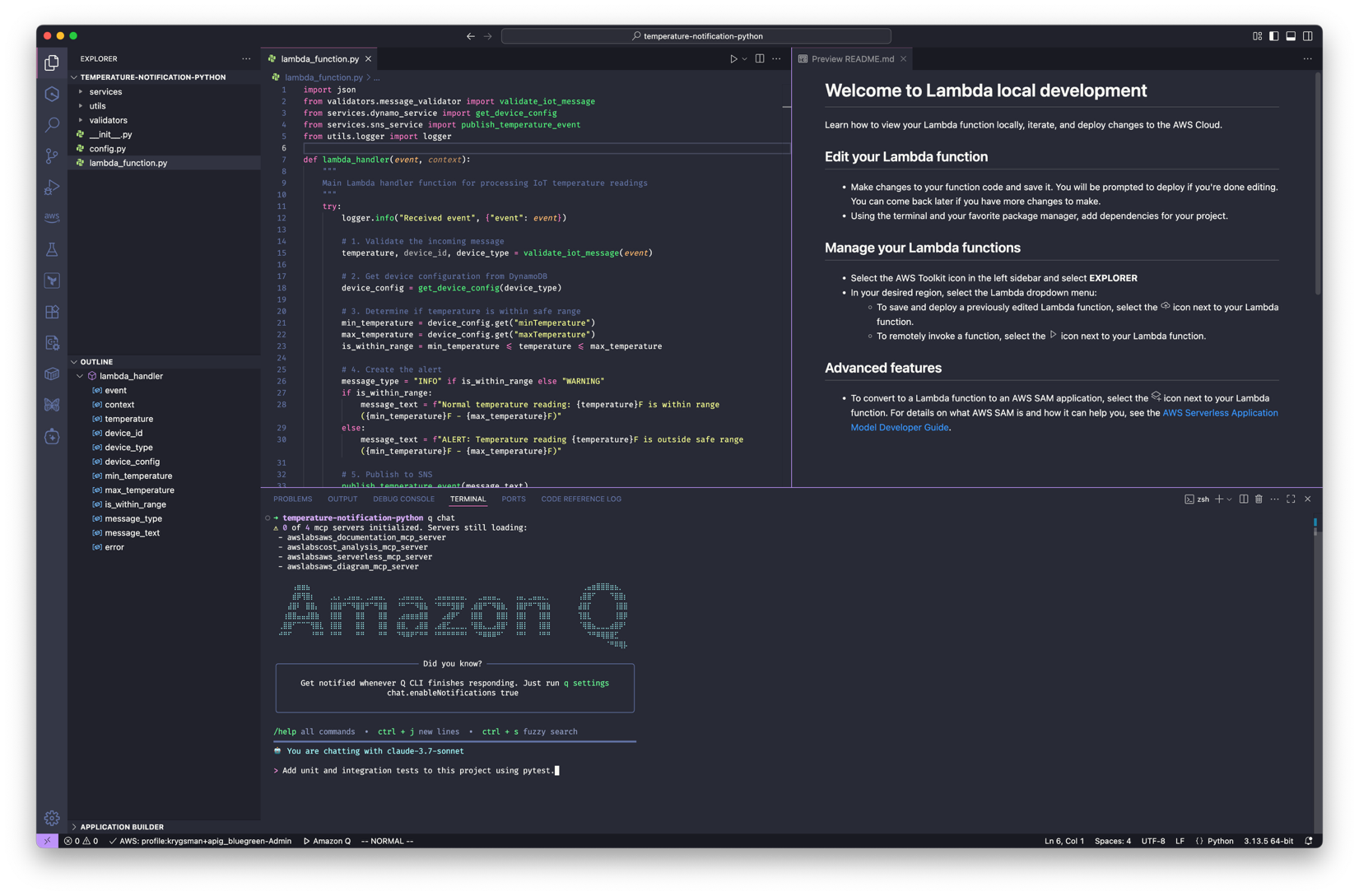
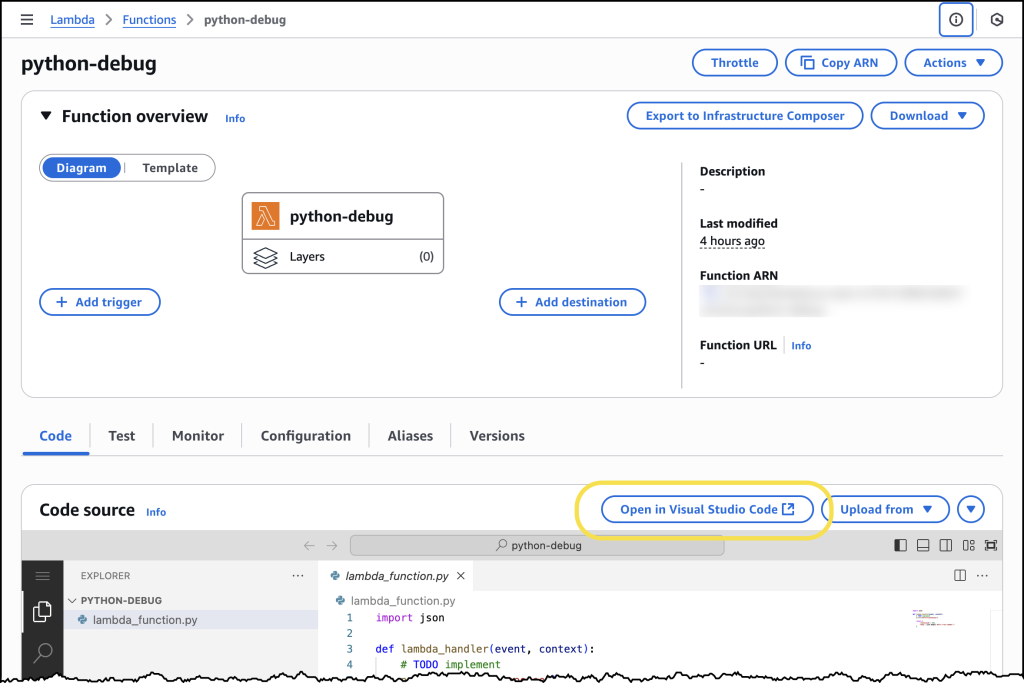
AWS Lambda is introducing an enhanced local IDE experience to simplify Lambda-based application development. The new features help developers to author, build, debug, test, and deploy Lambda applications more efficiently in their local IDE when using Visual Studio Code (VS Code).

Overview

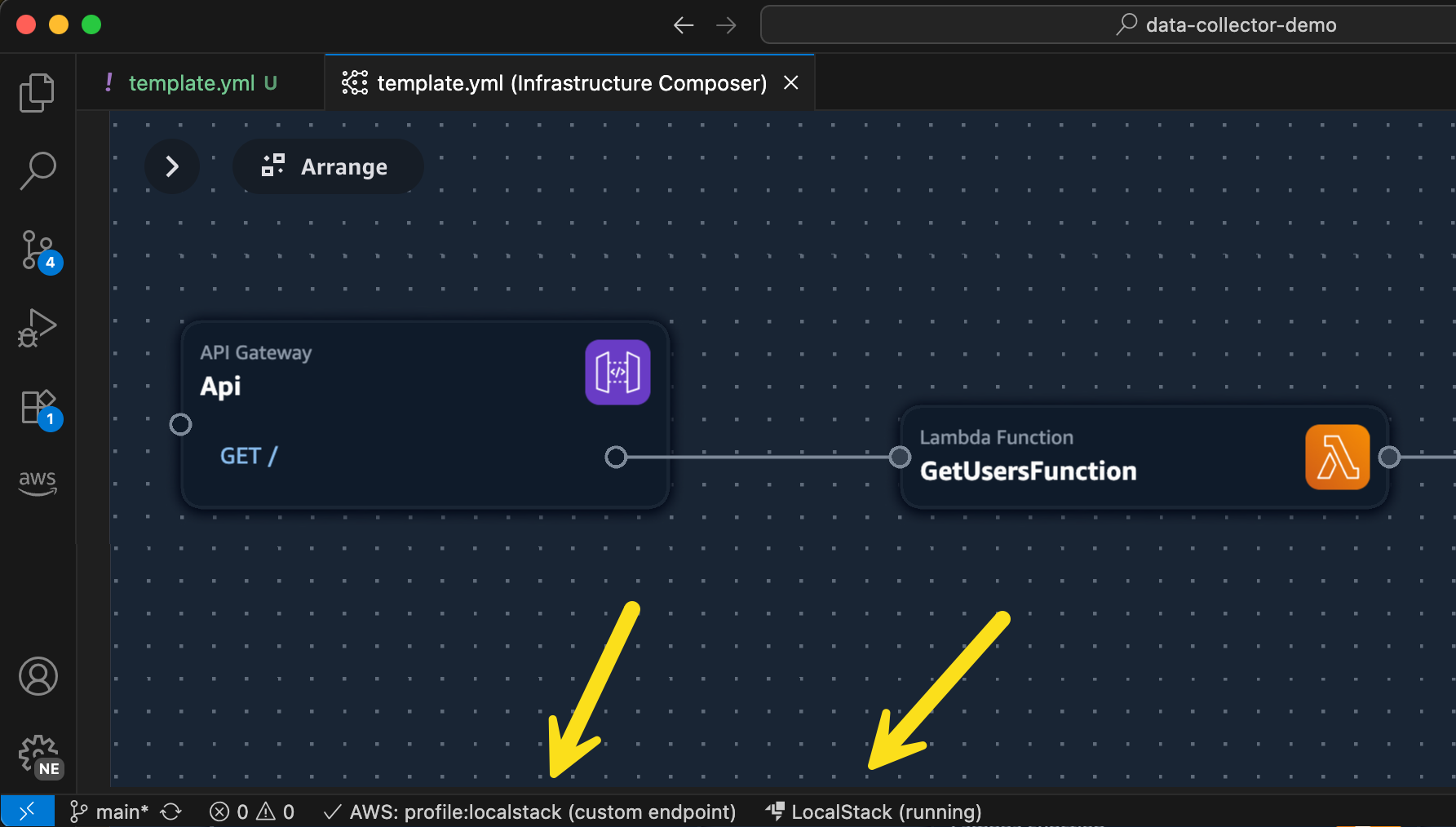
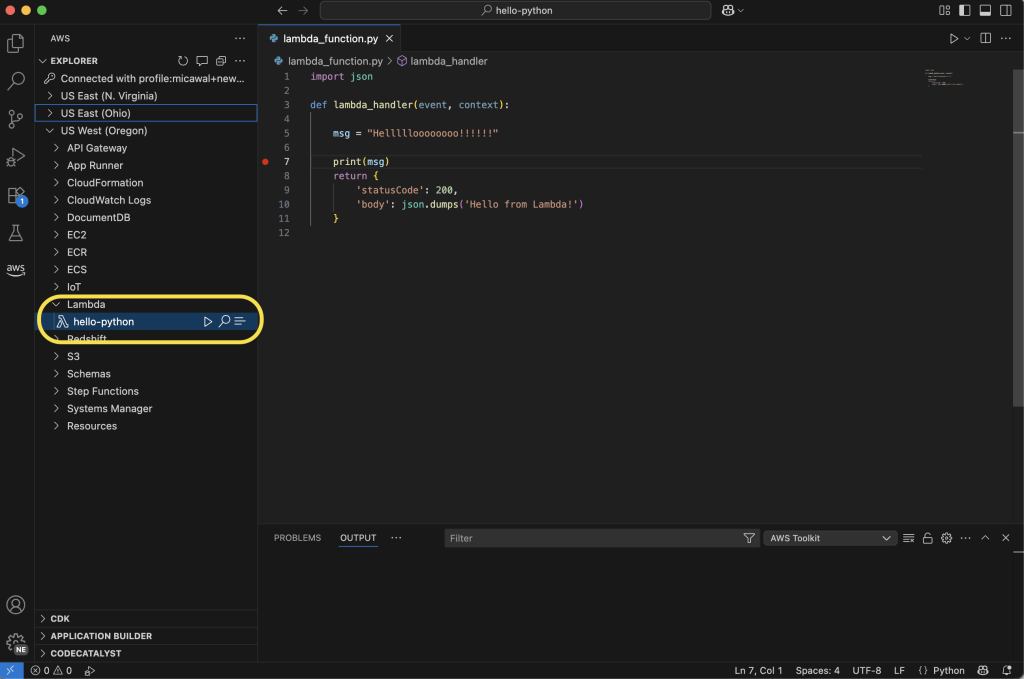
The IDE experience is part of the AWS Toolkit for Visual Studio Code. A new guided walkthrough helps developers set up their local environment and install required tools. The toolkit includes a set of sample applications which show you how to iterate on your code locally and in the cloud. You can configure and save build settings to speed up application builds. Generate a configuration file to set up the debugging environment for VS Code to attach and launch the step-through debugger. Iterate faster by choosing to sync local application changes quickly to the cloud or perform a full application deploy. Test functions locally and in the cloud and create and share test events to speed up local and cloud testing. There are quick action buttons for build, deploy to cloud, and local or remote invoke. The toolkit integrates with AWS Infrastructure Composer, providing a visual application building experience directly from the IDE.

Using the new features

Installing the extension

To use the updated IDE experience, ensure you have the AWS Toolkit minimum version 3.31.0 installed as a VS Code Extension.

The AWS Toolkit now includes an additional section called Application Builder within the AWS extension side-bar. This allows you to view template resources and create, build, debug, and test serverless applications.

Using Application Builder for existing applications

You can open an existing local application template using Open Folder.

Lambda’s enhanced in-console editing experience allows you to download existing function code and an AWS Serverless Application Model (AWS SAM) template. This allows you to start in the console and more easily move to using infrastructure as code, which is a serverless best practice.

Using the guided walkthrough

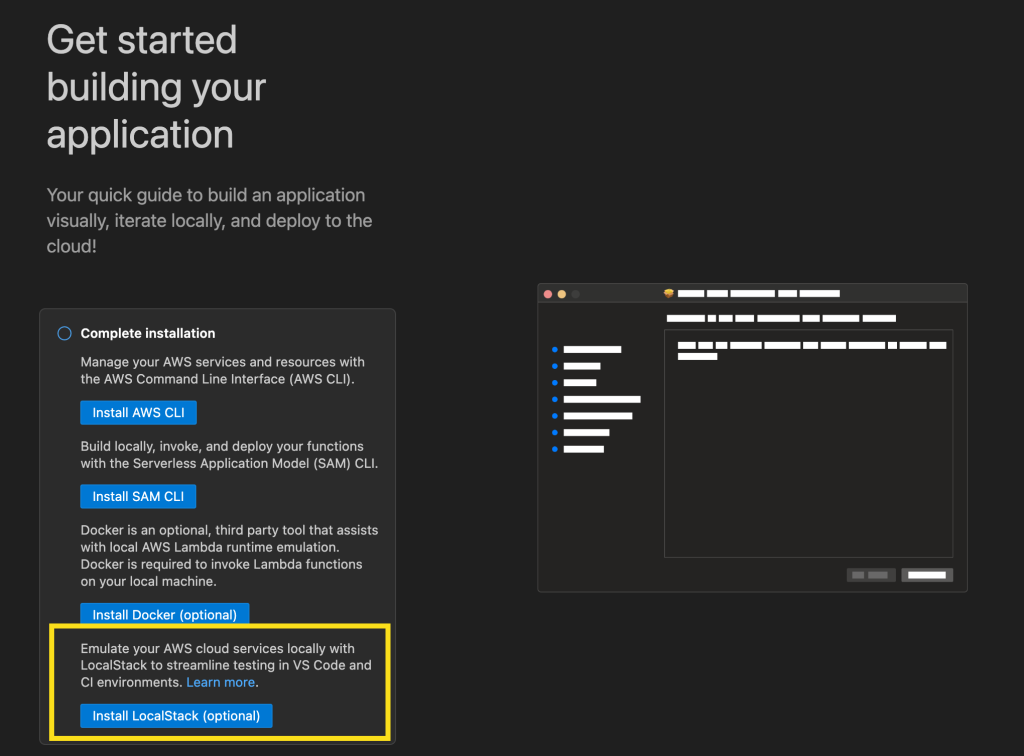
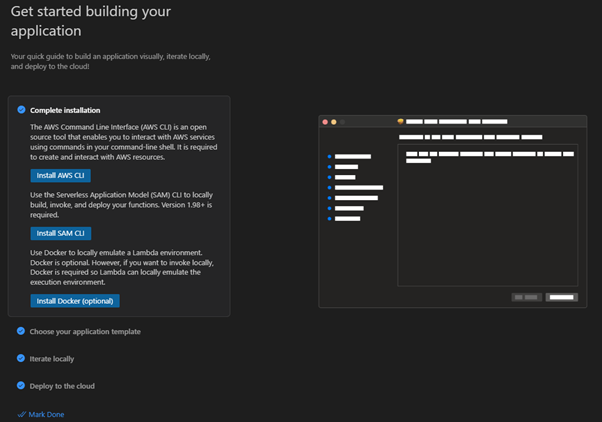
The guided walkthrough helps you install dependencies, select an application template, and explains how to use Application Builder to iterate locally and deploy to the cloud.

  1. Choose Open Walkthrough which opens the walkthrough.
  2. Complete installation takes you through a wizard to install required dependencies and select application templates.
  3. The wizard provides download links to install the three dependencies:

    If you have installed the dependencies, selecting the links recognizes the installations.

  4. Select Choose your application template, which allows you to create example applications in VS Code.
  5. The Iterate locally tile provides guidance on how to use Application Builder to build and invoke the function, and how to view the results.
  6. Deploy to the cloud provides a link to Configure credentials and explains how to deploy your function to the cloud, remote invoke from your IDE, and view the results.

Creating an application from the samples

The following steps show how to create a function locally from an included template. You build the code artifact, locally test and debug, deploy, and remotely invoke and view results and logs, all without leaving your IDE.

  1. Navigate back to Choose your application template.
  2. New template with visual builder allows you to use Infrastructure Composer to create a new application using a visual canvas.
  3. See more application examples provides additional sample applications across a number of managed runtimes.

There are also two specific example applications to explore Lambda functionality.

  • Rest API: Learn how to build a synchronous Lambda function behind an API.
  • File processing.: Learn how to build an asynchronous Amazon S3 file processing application.

Building a synchronous Rest API application

  1. Select Rest API and chose Initialize your project.
  2. Select a language runtime. Select Python for this example.
  3. Open the file explorer, create a folder to download the example application and choose Create Project.
  4. Application Builder downloads the application. This includes the function code hello_world\app.py, with dependencies in requirements.txt, an AWS SAM template, template.yaml file, and an example event trigger, event.json. A README.md file explains the application structure and provides build and deploy instructions.

    The Application Builder section populates with the template resources.

  5. The icons provide shortcuts to view, build, and deploy the application.
  6. You can also use the Command Pallete to initiate the AWS SAM commands.
  7. Selecting the Open Template File icon opens the AWS SAM template in Infrastructure Composer.
  8. View the application resources and select Details to edit the template using the visual canvas.
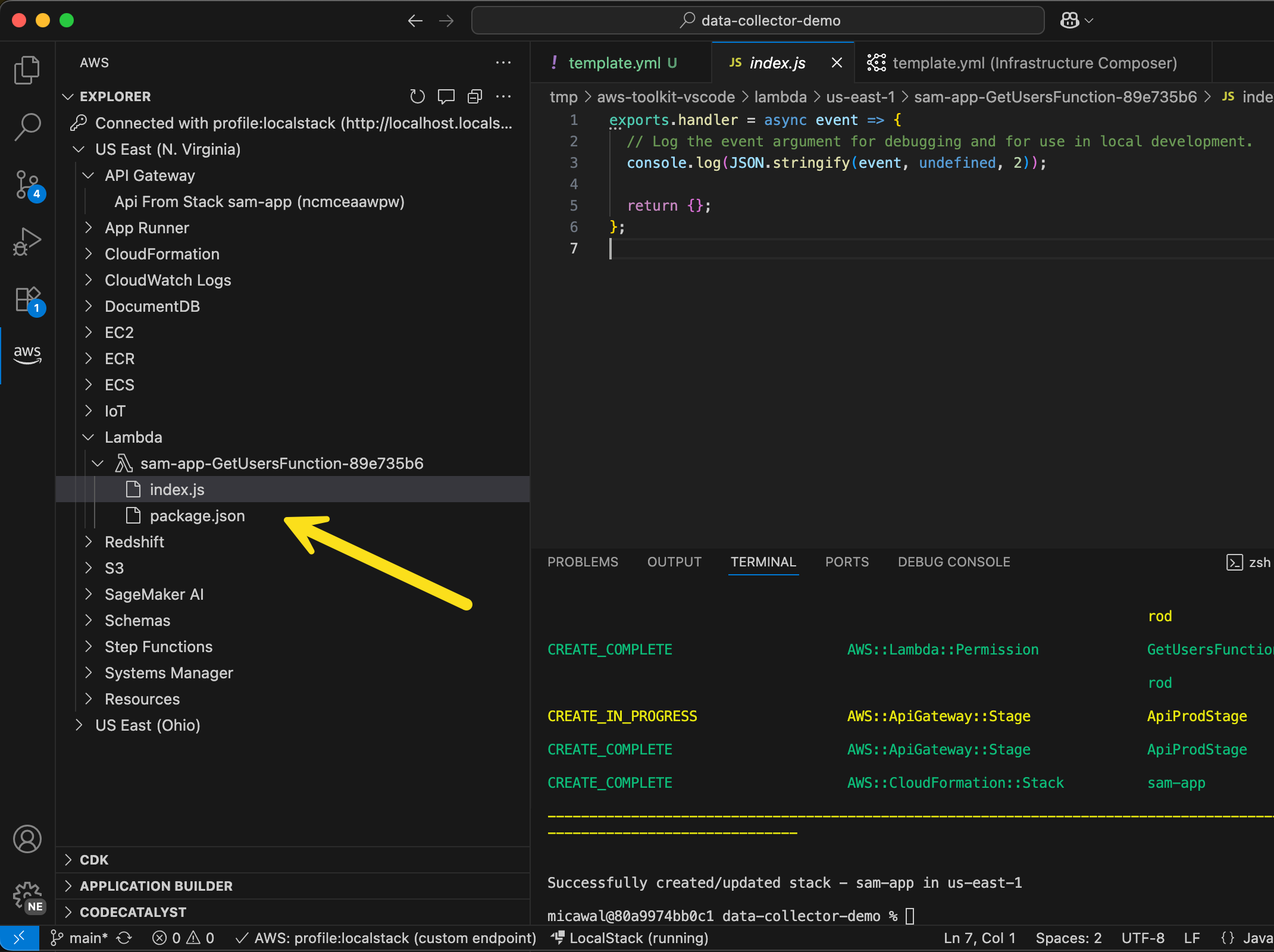
  9. Navigate to the function resource and select Open Function Handler to show the function code.

Building the application

The build step helps you build artifacts from the files in your application project directory.

  1. Select the Build SAM template icon.
  2. Specify build flags allows you to configure AWS SAM builds settings.
  3. Select build settings particular to your configuration. Cached and parallel are useful to speed up future builds. Use container builds your function in a Lambda-like container. This allows you to build applications without having the language runtime and build tools installed locally.
  4. Save parameters adds the default build options in samconfig.toml.
  5. version = 0.1
    [default.build.parameters]
    template_file = "c:\\Code\\lambda-dx\\Rest-API\\template.yaml"
    cached = true
    parallel = true
    use_container = true

    AWS SAM builds the application. It downloads the build container image, installs the dependencies, and copies the function code.

  6. Press any key to close the additional terminal.

Iterate locally: invoke and debug

You can locally invoke and debug your serverless application before uploading it to the cloud. This helps you to test the logic of your function faster. Step-through debugging allows you to identify and fix issues in your application one instruction at a time in your local environment.

Local invoke

  1. In the Application Builder section, navigate to the function and select Local Invoke and Debug Configuration.
  2. Initiating Local Invoke and Debug Configuration

    Initiating Local Invoke and Debug Configuration

  3. This brings up another window which allows you to configure how to invoke the function locally and set up a debug configuration.
  4. Viewing Local Invoke and Debug Configuration Options

    Viewing Local Invoke and Debug Configuration Options

  5. You can create sample event payloads to test your function. Select an event provides a list of common trigger event payloads you can use and customize.
  6. Selecting an example event template

    Selecting an example event template

    This example application has an included sample event.

  7. Select Local file and choose the events\event.json file.
  8. Select the Invoke button.
  9. This builds the application and locally invokes the function within a Lambda emulation environment, using the event input file.

  10. View the function output within the IDE Output pane.
Viewing function output

Viewing function output

Local debugging

You can also debug the function locally using VS Code’s built-in debugger.

  1. Add a breakpoint to the function code.
  2. Adding a breakpoint to the function code

    Adding a breakpoint to the function code

  3. Select the Invoke button again.
  4. This locally invokes the function and attaches a debugger to the Lambda emulation environment.

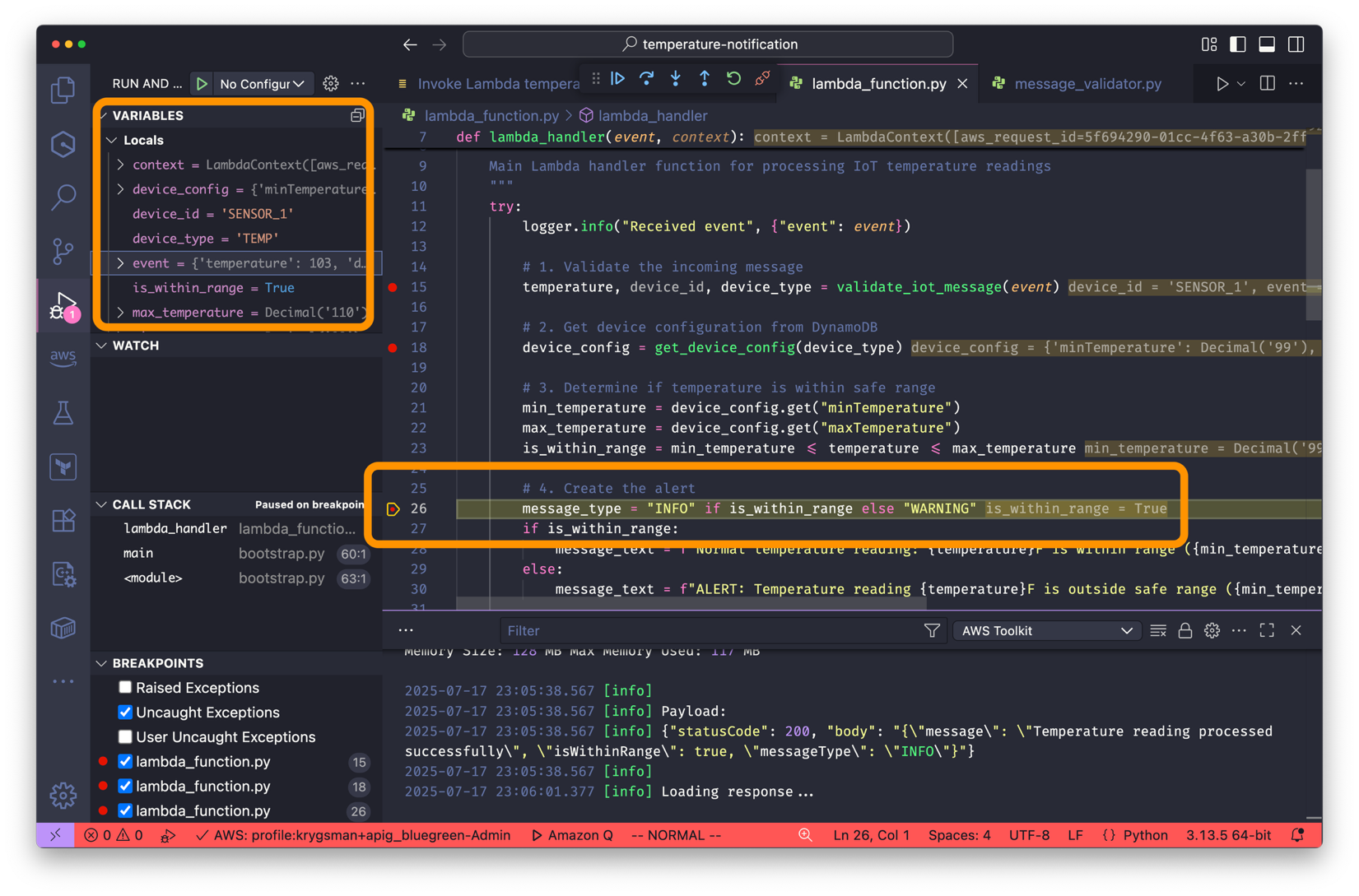
  5. The debugger stops at the breakpoint and you can view the function variables and call stack.
  6. Viewing step through debugging

    Viewing step through debugging

  7. Use the VS Code debugger icons to step through the code.
  8. Using VS Code debugger icons to step through the code.

    Using VS Code debugger icons to step through the code.

  9. In the Local Invoke and Debug Configuration panel. Chose Save Debug Config.
  10. Choose Add Local Invoke and Debug Configuration.
  11. Saving debug configuration

    Saving debug configuration

  12. Enter a debug configuration name which creates a launch.json file and adds the debug configuration.
  13. Naming debug configuration

    Naming debug configuration

    You can create and save multiple debug configurations for different scenarios. See the AWS SAM documentation for more launch.json configuration options.

  14. Once you save the debug configuration, you can use VS Code’s Run and Debug panel and select which debug configuration to run.
Using the Run and Debug panel

Using the Run and Debug panel

Deploying the application

  1. Navigate to the Application Builder section and chose the Deploy SAM Application icon.
  2. Selecting Deploy SAM Application icon

    Selecting Deploy SAM Application icon

    AWS SAM provides two deployment options:

    • Sync uses AWS SAM sync to perform an initial CloudFormation deploy and then allows for quick syncing of your application code, which allows for rapid prototyping. Use this for development environments only, as it doesn’t do a full CloudFormation deploy on code changes.
    • Deploy does a full CloudFormation deploy, which is preferred for non-quick development environments.
    Viewing AWS SAM deployment options

    Viewing AWS SAM deployment options

  3. Select Sync.
  4. Select Specify required parameters and save as defaults.
  5. Specifying SAM sync parameters

    Specifying SAM sync parameters

  6. Select a Region to deploy the stack and enter a stack name. It is good practice to specify that this is a dev stack to avoid confusion when using the Deploy option.
  7. Entering dev stack name

    Entering dev stack name

  8. Select an existing S3 bucket to store the artifacts, or create a new one.
  9. Selecting S3 bucket

    Selecting S3 bucket

  10. Specify the Sync parameters. Ensure you select Watch as this automatically watches for code changes and quickly syncs code changes to the Lambda service
  11. Setting sync parameters

    Setting sync parameters

  12. AWS SAM sync does an initial CloudFormation deploy to build the resources and then waits for code changes.
  13. Make a change to the handler file code and save the file,
  14. Amending code

    Amending code

  15. This performs a quick sync which reduces the time to test in the cloud.
  16. Quickly syncing code

    Quickly syncing code

  17. You can use the Deploy option to deploy a non-quick sync test version, amending the stack name to differentiate it from the dev stack.
Naming test version stack

Naming test version stack

Remote invoke

You can invoke the function in the cloud from your IDE. This allows you to test functionality without having to mock security, external services, or other environment variables.

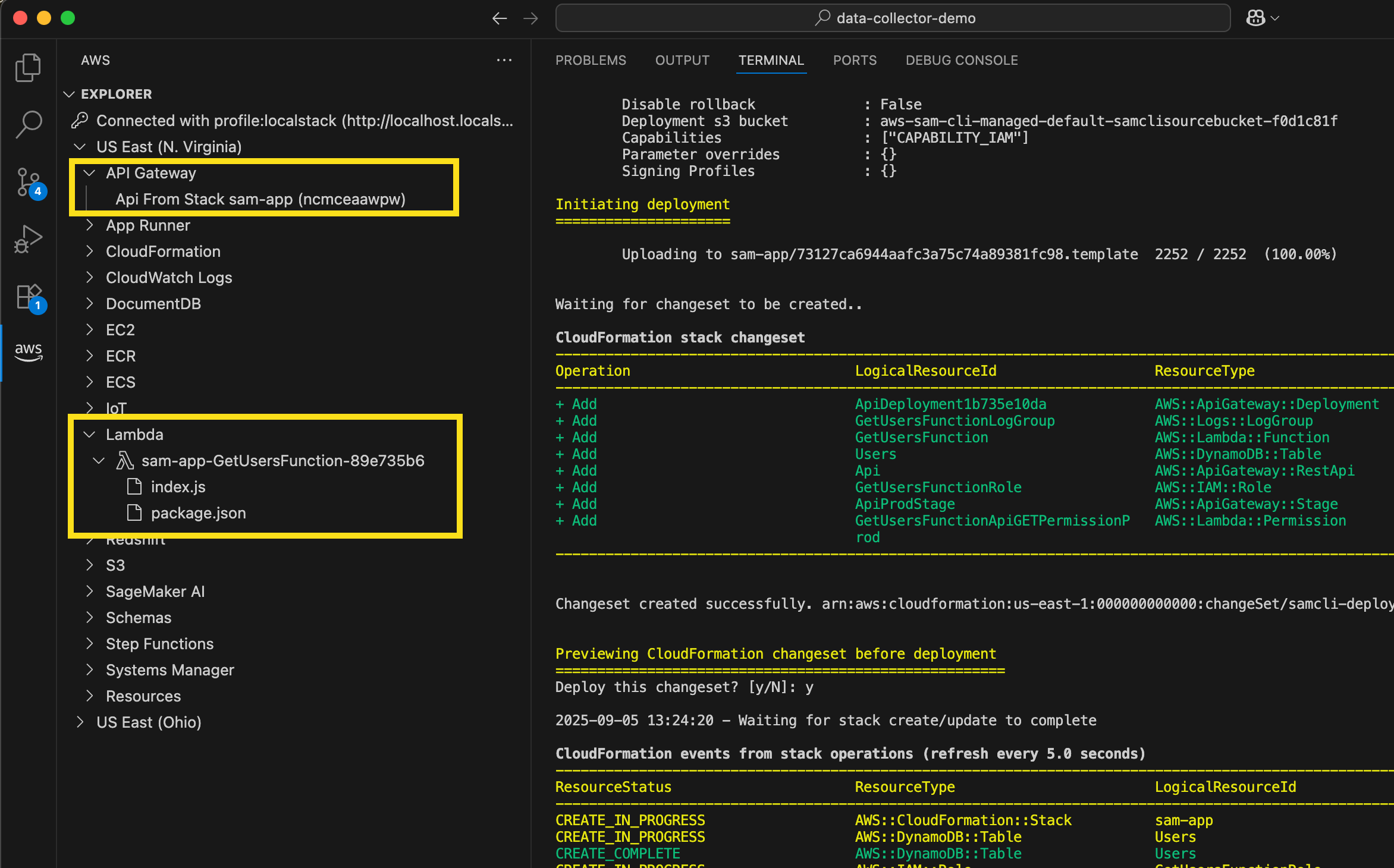
Once the application is deployed, Application Builder detects changes to samconfig.toml and template.yaml, it updates the resources list with the cloud resources.

Viewing cloud resources

Viewing cloud resources

  1. You can browse directly to the CloudFormation stack to view resources.
  2. Browsing to CloudFormation stack

    Browsing to CloudFormation stack

  3. Selecting the function provides quick link functionality, which includes function details and a link directly to the Lambda console for the function.
  4. Viewing function quick link options

    Viewing function quick link options

  5. Select Invoke in cloud.
  6. Select the same local event file for the local invoke.
  7. Selecting local file for remote invoke

    Selecting local file for remote invoke

  8. Choose Remote Invoke.
  9. The function invokes in the cloud using the local test event and displays the remote invoke results in the local IDE Output pane.

    Viewing remote invoke results

    Viewing remote invoke results

  10. Name and save the local event file as a remote event which becomes available in the Lambda console.
Saving remote test event

Saving remote test event

Viewing logs

You can fetch the Amazon CloudWatch Log streams generated by your Lambda function in the IDE.

  1. Select the Search Logs icon.
  2. Selecting Search Logs icon

    Selecting Search Logs icon

  3. You can optionally filter the results.
Optionally filtering log results

Optionally filtering log results

Conclusion

Lambda is introducing an enhanced local IDE experience to simplify the development of Lambda-based applications using the VS Code IDE and AWS Toolkit. This streamlines the code-test-deploy-debug cycle. A guided walkthrough helps set up your local development environment and provides sample applications to explore Lambda functionality. You can then build, debug, test, and deploy Lambda applications using icon shortcuts and the Command Pallette. This allows you to more easily iterate on your Lambda-based applications without switching between multiple interfaces.

For more serverless learning resources, visit Serverless Land.

Modernize your legacy databases with AWS data lakes, Part 2: Build a data lake using AWS DMS data on Apache Iceberg

Post Syndicated from Shaheer Mansoor original https://aws.amazon.com/blogs/big-data/modernize-your-legacy-databases-with-aws-data-lakes-part-2-build-a-data-lake-using-aws-dms-data-on-apache-iceberg/

This is part two of a three-part series where we show how to build a data lake on AWS using a modern data architecture. This post shows how to load data from a legacy database (SQL Server) into a transactional data lake (Apache Iceberg) using AWS Glue. We show how to build data pipelines using AWS Glue jobs, optimize them for both cost and performance, and implement schema evolution to automate manual tasks. To review the first part of the series, where we load SQL Server data into Amazon Simple Storage Service (Amazon S3) using AWS Database Migration Service (AWS DMS), see Modernize your legacy databases with AWS data lakes, Part 1: Migrate SQL Server using AWS DMS.

Solution overview

In this post, we go over the process of building a data lake, providing the rationale behind the different decisions, and share best practices when building such a solution.

The following diagram illustrates the different layers of the data lake.

Overall Architecture

To load data into the data lake, AWS Step Functions can define a workflow, Amazon Simple Queue Service (Amazon SQS) can track the order of incoming files, and AWS Glue jobs and the Data Catalog can be used create the data lake silver layer. AWS DMS produces files and writes these files to the bronze bucket (as we explained in Part 1).

We can turn on Amazon S3 notifications and push the new arriving file names to an SQS first-in-first-out (FIFO) queue. A Step Functions state machine can consume messages from this queue to process the files in the order they arrive.

For processing the files, we need to create two types of AWS Glue jobs:

  • Full load – This job loads the entire table data dump into an Iceberg table. Data types from the source are mapped to an Iceberg data type. After the data is loaded, the job updates the Data Catalog with the table schemas.
  • CDC – This job loads the change data capture (CDC) files into the respective Iceberg tables. The AWS Glue job implements the schema evolution feature of Iceberg to handle schema changes such as addition or deletion of columns.

As in Part 1, the AWS DMS jobs will place the full load and CDC data from the source database (SQL Server) in the raw S3 bucket. Now we process this data using AWS Glue and save it to the silver bucket in Iceberg format. AWS Glue has a plugin for Iceberg; for details, see Using the Iceberg framework in AWS Glue.

Along with moving data from the bronze to the silver bucket, we also create and update the Data Catalog for further processing the data for the gold bucket.

The following diagram illustrates how the full load and CDC jobs are defined inside the Step Functions workflow.

Step Functions for loading data into the lake

In this post, we discuss the AWS Glue jobs for defining the workflow. We recommend using AWS Step Functions Workflow Studio, and setting up Amazon S3 event notifications and an SNS FIFO queue to receive the filename as messages.

Prerequisites

To follow the solution, you need the following prerequisites set up as well as certain access rights and AWS Identity and Access Management (IAM) privileges:

  • An IAM role to run Glue jobs
  • IAM privileges to create AWS DMS resources (this role was created in Part 1 of this series; you can use the same role here)
  • The AWS DMS job from Part 1 working and producing files for the source database on Amazon S3.

Create an AWS Glue connection for the source database

We need to create a connection between AWS Glue and the source SQL Server database so the AWS Glue job can query the source for the latest schema while loading the data files. To create the connection, follow these steps:

  1. On the AWS Glue console, choose Connections in the navigation pane.
  2. Choose Create custom connector.
  3. Give the connection a name and choose JDBC as the connection type.
  4. In the JDBC URL section, enter the following string and replace the name of your source database endpoint and database that was set up in Part 1: jdbc:sqlserver://{Your RDS End Point Name}:1433/{Your Database Name}.
  5. Select Require SSL connection, then choose Create connector.

Clue Connections

Create and configure the full load AWS Glue job

Complete the following steps to create the full load job:

  1. On the AWS Glue console, choose ETL jobs in the navigation pane.
  2. Choose Script editor and select Spark.
  3. Choose Start fresh and select Create script.
  4. Enter a name for the full load job and choose the IAM role (mentioned in the prerequisites) for running the job.
  5. Finish creating the job.
  6. On the Job details tab, expand Advanced properties.
  7. In the Connections section, add the connection you created.
  8. Under Job parameters, pass the following arguments to the job:
    1. target_s3_bucket – The silver S3 bucket name.
    2. source_s3_bucket – The raw S3 bucket name.
    3. secret_id – The ID of the AWS Secrets Manager secret for the source database credentials.
    4. dbname – The source database name.
    5. datalake-formats – This sets the data format to iceberg.

Glue Job Parameters

The full load AWS Glue job starts after the AWS DMS task reaches 100%. The job loops over the files located in the raw S3 bucket and processes them one at time. For each file, the job infers the table name from the file name and gets the source table schema, including column names and primary keys.

If the table has one or more primary keys, the job creates an equivalent Iceberg table. If the job has no primary key, the file is not processed. In our use case, all the tables have primary keys, so we enforce this check. Depending on your data, you might need to handle this scenario differently.

You can use the following code to process the full load files. To start the job, choose Run.

import sys, boto3, json
import boto3
import json
from awsglue.utils import getResolvedOptions
from pyspark.context import SparkContext
from awsglue.context import GlueContext
from awsglue.job import Job
from pyspark.sql import SparkSession

#Get the arguments passed to the script
args = getResolvedOptions(sys.argv, ['JOB_NAME',
                           'target_s3_bucket',
                           'secret_id',
                           'source_s3_bucket'])
dbname = "AdventureWorks"
schema = "HumanResources"

#Initialize parameters
target_s3_bucket = args['target_s3_bucket']
source_s3_bucket = args['source_s3_bucket']
secret_id = args['secret_id']
unprocessed_tables = []
drop_column_list = ['db', 'table_name', 'schema_name', 'Op', 'last_update_time']  # DMS added columns

#Helper Function: Get Credentials from Secrets Manager
def get_db_credentials(secret_id):
    secretsmanager = boto3.client('secretsmanager')
    response = secretsmanager.get_secret_value(SecretId=secret_id)
    secrets = json.loads(response['SecretString'])
    return secrets['host'], int(secrets['port']), secrets['username'], secrets['password']

#Helper Function: Load Iceberg table with Primary key(s)
def load_table(full_load_data_df, dbname, table_name):

    try:
        full_load_data_df = full_load_data_df.drop(*drop_column_list)
        full_load_data_df.createOrReplaceTempView('full_data')

        query = """
        CREATE TABLE IF NOT EXISTS glue_catalog.{0}.{1}
        USING iceberg
        LOCATION "s3://{2}/{0}/{1}"
        AS SELECT * FROM full_data
        """.format(dbname, table_name, target_s3_bucket)
        spark.sql(query)
        
        #Update Table property to accept Schema Changes
        spark.sql("""ALTER TABLE glue_catalog.{0}.{1} SET TBLPROPERTIES (
                      'write.spark.accept-any-schema'='true'
                    )""".format(dbname, table_name))
        
    except Exception as ex:
        print(ex)
        failed_table = {"table_name": table_name, "Reason": ex}
        unprocessed_tables.append(failed_table)
        
def get_table_key(host, port, username, password, dbname):
    
    jdbc_url = "jdbc:sqlserver://{0}:{1};databaseName={2}".format(host, port, dbname)
    
    connectionProperties = {
      "user" : username,
      "password" : password
    }
    
    spark.read.jdbc(url=jdbc_url, table='INFORMATION_SCHEMA.TABLE_CONSTRAINTS', properties=connectionProperties).createOrReplaceTempView("TABLE_CONSTRAINTS")
    spark.read.jdbc(url=jdbc_url, table='INFORMATION_SCHEMA.CONSTRAINT_COLUMN_USAGE', properties=connectionProperties).createOrReplaceTempView("CONSTRAINT_COLUMN_USAGE")
    df_table_pkeys = spark.sql("select c.TABLE_NAME, C.COLUMN_NAME as primary_key FROM TABLE_CONSTRAINTS T JOIN CONSTRAINT_COLUMN_USAGE C ON C.CONSTRAINT_NAME=T.CONSTRAINT_NAME WHERE T.CONSTRAINT_TYPE='PRIMARY KEY'")
    return df_table_pkeys


#Setup Spark configuration for reading and writing Iceberg tables
spark = (
    SparkSession.builder
    .config("spark.sql.extensions", "org.apache.iceberg.spark.extensions.IcebergSparkSessionExtensions")
    .config("spark.sql.catalog.glue_catalog", "org.apache.iceberg.spark.SparkCatalog")
    .config("spark.sql.catalog.glue_catalog.warehouse", "s3://{0}".format(dbname))
    .config("spark.sql.catalog.glue_catalog.catalog-impl", "org.apache.iceberg.aws.glue.GlueCatalog")
    .config("spark.sql.catalog.glue_catalog.io-impl", "org.apache.iceberg.aws.s3.S3FileIO")
    .getOrCreate()
)


#Initialize MSSQL credentials
host, port, username, password = get_db_credentials(secret_id)

#Initialize primary keys for all tables
df_table_pkeys = get_table_key(host, port, username, password, dbname)

#Read Full load csv files from s3
s3 = boto3.client('s3')
full_load_tables = s3.list_objects_v2(Bucket=source_s3_bucket, Prefix="raw/{0}/{1}".format(args['dbname'], args['schema']))

#Loop over files
for item in full_load_tables['Contents']:
    pkey_list = []
    table_name = item["Key"].split("/")[3].lower()
    print("Table name {0}".format(table_name))
    current_table_df = df_table_pkeys.where(df_table_pkeys.TABLE_NAME == table_name)

    # Only Process tables with at least 1 Primary key
    if not current_table_df.isEmpty():
        for i in current_table_df.collect():
            pkey_list.append(i["primary_key"])
    else:
        failed_table = {"table_name": table_name, "Reason": "No primary key"}
        unprocessed_tables.append(failed_table)
        # ToDo Handle these cases

    full_data_path = "s3://{0}/{1}".format(source_s3_bucket, item['Key'])
    full_load_data_df = (spark
                        .read
                        .option("header", True)
                        .option("inferSchema", True)
                        .option("recursiveFileLookup", "true")
                        .csv(full_data_path)
                        )

    primary_key = ",".join(pkey_list)

    if table_name not in unprocessed_tables:
        load_table(full_load_data_df, dbname, table_name)

When the job is complete, it creates the database and tables in the Data Catalog, as shown in the following screenshot.

Data lake silver layer data

Create and configure the CDC AWS Glue job

The CDC AWS Glue job is created similar to the full load job. As with the full load AWS Glue job, you need to use the source database connection and pass the job parameters with one additional parameter, cdc_file, which contains the location of the CDC file to be processed. Because a CDC file can contain data for multiple tables, the job loops over the tables in a file and loads the table metadata from the source table ( RDS column names).

If the CDC operation is DELETE, the job deletes the records from the Iceberg table. If the CDC operation is INSERT or UPDATE, the job merges the data into the Iceberg table.

You can use the following code to process the CDC files. To start the job, choose Run

import sys
import boto3
import json
from awsglue.utils import getResolvedOptions
from pyspark.context import SparkContext
from awsglue.context import GlueContext
from awsglue.job import Job
from pyspark.sql import SparkSession

# Get the arguments passed to the script
args = getResolvedOptions(sys.argv, ['JOB_NAME',
                           'target_s3_bucket',
                           'secret_id',
                           'source_s3_bucket',
                           'cdc_file'])
dbname = "AdventureWorks"
schema = "HumanResources"
target_s3_bucket = args['target_s3_bucket']
source_s3_bucket = args['source_s3_bucket']
secret_id = args['secret_id']
cdc_file = args['cdc_file']
unprocessed_tables = []
drop_column_list = ['db', 'table_name', 'schema_name', 'Op', 'last_update_time']  # DMS added columns
source_s3_cdc_file_key = "raw/AdventureWorks/cdc/" + cdc_file


# Helper Function: Get Credentials from Secrets Manager
def get_db_credentials(secret_id):
    secretsmanager = boto3.client('secretsmanager')
    response = secretsmanager.get_secret_value(SecretId=secret_id)
    secrets = json.loads(response['SecretString'])
    return secrets['host'], int(secrets['port']), secrets['username'], secrets['password']

# Helper Function: Column names from RDS
def get_table_colums(table, host, port, username, password, dbname):

    jdbc_url = "jdbc:sqlserver://{0}:{1};databaseName={2}".format(host, port, dbname)
    
    connectionProperties = {
      "user" : username,
      "password" : password
    }
    
    spark.read.jdbc(url=jdbc_url, table='INFORMATION_SCHEMA.COLUMNS', properties= connectionProperties).createOrReplaceTempView("TABLE_COLUMNS")
    columns = list((row.COLUMN_NAME) for (index, row) in spark.sql("select TABLE_NAME, TABLE_CATALOG, COLUMN_NAME from TABLE_COLUMNS where TABLE_NAME = '{0}' and TABLE_CATALOG = '{1}'".format(table, dbname)).select("COLUMN_NAME").toPandas().iterrows())
    return columns

# Helper Function: Get Colum names and datatypes from RDS
def get_table_colum_datatypes(table, host, port, username, password, dbname):

    jdbc_url = "jdbc:sqlserver://{0}:{1};databaseName={2}".format(host, port, dbname)
    
    connectionProperties = {
      "user" : username,
      "password" : password
    }
    
    spark.read.jdbc(url=jdbc_url, table='INFORMATION_SCHEMA.COLUMNS', properties= connectionProperties).createOrReplaceTempView("TABLE_COLUMNS")
    return spark.sql("select TABLE_NAME, COLUMN_NAME, DATA_TYPE from TABLE_COLUMNS WHERE TABLE_NAME ='{0}'".format(table))

# Helper Function: Setup the primary key condition
def get_iceberg_table_condition(database, tablename):
    
    jdbc_url = "jdbc:sqlserver://{0}:{1};databaseName={2}".format(host, port, database)
    
    connectionProperties = {
      "user" : username,
      "password" : password
    }
    
    spark.read.jdbc(url=jdbc_url, table='INFORMATION_SCHEMA.TABLE_CONSTRAINTS', properties=connectionProperties).createOrReplaceTempView("TABLE_CONSTRAINTS")
    spark.read.jdbc(url=jdbc_url, table='INFORMATION_SCHEMA.CONSTRAINT_COLUMN_USAGE', properties=connectionProperties).createOrReplaceTempView("CONSTRAINT_COLUMN_USAGE")
    
    condition = ''
    
    for key in spark.sql("select C.COLUMN_NAME FROM TABLE_CONSTRAINTS T JOIN CONSTRAINT_COLUMN_USAGE C ON C.CONSTRAINT_NAME=T.CONSTRAINT_NAME WHERE T.CONSTRAINT_TYPE='PRIMARY KEY' AND c.TABLE_NAME = '{0}'".format(table)).collect():
        condition += "target.{0} = source.{0} and".format(key.COLUMN_NAME)
    return condition[:-4]

    
# Read incoming data from Amazon S3
def read_cdc_S3(source_s3_bucket, source_s3_cdc_file_key):
    
    inputDf = (spark
                    .read
                    .option("header", False)
                    .option("inferSchema", True)
                    .option("recursiveFileLookup", "true")
                    .csv("s3://" + source_s3_bucket + "/" + source_s3_cdc_file_key)
                    )
    return inputDf

# Setup Spark configuration for reading and writing Iceberg tables
spark = (
    SparkSession.builder
    .config("spark.sql.extensions", "org.apache.iceberg.spark.extensions.IcebergSparkSessionExtensions")
    .config("spark.sql.catalog.glue_catalog", "org.apache.iceberg.spark.SparkCatalog")
    .config("spark.sql.catalog.glue_catalog.warehouse", "s3://{0}".format(target_s3_bucket))
    .config("spark.sql.catalog.glue_catalog.catalog-impl", "org.apache.iceberg.aws.glue.GlueCatalog")
    .config("spark.sql.catalog.glue_catalog.io-impl", "org.apache.iceberg.aws.s3.S3FileIO")
    .getOrCreate()
)

#Initialize MSSQL credentials
host, port, username, password = get_db_credentials(secret_id)

#Read the cdc file 
cdc_df = read_cdc_S3(source_s3_bucket, source_s3_cdc_file_key)

tables = cdc_df.toPandas()._c1.unique().tolist()

#Loop over tables in the cdc file
for table in tables:
    #Create dataframes for delets and for inserts and updates
    table_df_deletes = cdc_df.where((cdc_df._c1 == table) & (cdc_df._c0 == "D")).drop(cdc_df.columns[0], cdc_df.columns[1], cdc_df.columns[2], cdc_df.columns[3])
    table_df_upserts = cdc_df.where((cdc_df._c1 == table) & ((cdc_df._c0 == "I") | (cdc_df._c0 == "U"))).drop(cdc_df.columns[0], cdc_df.columns[1], cdc_df.columns[2], cdc_df.columns[3])
    
    #Update column names for the dataframes
    columns = get_table_colums(table, host, port, username, password, dbname) 
    selectExpr = [] 

    for column in columns: 
        selectExpr.append(cdc_df.where((cdc_df._c1 == table)).drop(cdc_df.columns[0], cdc_df.columns[1], cdc_df.columns[2], cdc_df.columns[3]).columns[columns.index(column)] + " as " + column)

    table_df_deletes = table_df_deletes.selectExpr(selectExpr) 
    table_df_upserts = table_df_upserts.selectExpr(selectExpr)
    
    #Process Deletes
    if table_df_deletes.count() > 0:
        
        print("Delete Triggered")
        table_df_deletes.createOrReplaceTempView('deleted_rows')
        
        sql_string = """MERGE INTO glue_catalog.{0}.{1} target
                        USING (SELECT * FROM deleted_rows) source
                        ON {2}
                        WHEN MATCHED 
                        THEN DELETE""".format(database, table.lower(), get_iceberg_table_condition(database, table.lower()))
        spark.sql(sql_string)
    
    if table_df_upserts.count() > 0:
        print("Upsert triggered")

        #Upsert Records when there are Schema Changes
        if len(table_df_upserts.columns) != len(columns):

            #Handle column deletes
            if len(table_df_upserts.columns) < len(columns):

                drop_columns = list(set(columns) - set(table_df_upserts.columns))

                for drop_column in drop_columns:
                    sql_string = """
                                    ALTER TABLE glue_catalog.{0}.{1}
                                    DROP COLUMN {2}""".format(dbname.lower(), table.lower(), drop_column)
                    spark.sql(sql_string)

            #Handle column additions
            elif len(table_df_upserts.columns) > len(columns):

                column_datatype_df = get_table_colum_datatypes(table, host, port, username, password, dbname)
                add_columns = list(set(table_df_upserts.columns) - set(columns))

                for add_column in add_columns:

                    #Set Iceberg data type
                    data_type = list((row.DATA_TYPE) for (index, row) in column_datatype_df.filter("COLUMN_NAME='{0}'".format(add_column)).select("DATA_TYPE").toPandas().iterrows())[0]

                    # Convert MSSQL Datatypes to Iceberg supported datatypes
                    if data_type.lower() in ["varchar", "char"]:
                        data_type = "string"

                    if data_type.lower() in ["bigint"]:
                        data_type = "long"

                    if data_type.lower() in ["array"]:
                        data_type = "list"

                    sql_string = """
                                    ALTER TABLE glue_catalog.{0}.{1}
                                    ADD COLUMN {2} {3}""".format(dbname.lower(), table.lower(), add_column, data_type)
                    spark.sql(sql_string)
                    
            #Create statement to update columns
            update_table_column_list = ""
            insert_column_list = ""
            columns = get_table_colums(table, host, port, username, password, dbname)             

            for column in columns:

                update_table_column_list+="""target.{0}=source.{0},""".format(column)
                insert_column_list+="""source.{0},""".format(column)

            table_df_upserts.createOrReplaceTempView('updated_rows')

            sql_string = """MERGE INTO glue_catalog.{0}.{1} target
                            USING (SELECT * FROM updated_rows) source
                            ON {2}
                            WHEN MATCHED 
                            THEN UPDATE SET {3} 
                            WHEN NOT MATCHED THEN INSERT ({4}) VALUES ({5})""".format(dbname.lower(), 
                                                                                      table.lower(), 
                                                                                      get_iceberg_table_condition(dbname.lower(), table.lower()), 
                                                                                      update_table_column_list.rstrip(","), 
                                                                                      ",".join(columns), 
                                                                                      insert_column_list.rstrip(","))

            spark.sql(sql_string)

    
print("CDC job complete")

The Iceberg MERGE INTO syntax can handle cases where a new column is added. For more details on this feature, see the Iceberg MERGE INTO syntax documentation. If the CDC job needs to process many tables in the CDC file, the job can be multi-threaded to process the file in parallel.


Configure EventBridge notifications, SQS queue, and Step Functions state machine

You can use EventBridge notifications to send notifications to EventBridge when certain events occur on S3 buckets, such as when new objects are created and deleted. For this post, we’re interested in the events when new CDC files from AWS DMS arrive in the bronze S3 bucket. You can create event notifications for new objects and insert the file names into an SQS queue. A Lambda function within Step Functions would consume from the queue, extract the file name, start a CDC Glue job, and pass the file name as a parameter to the job.

AWS DMS CDC files contain database insert, update, and delete statements. We need to process these in order, so we use an SQS FIFO queue, which preserves the order of messages in which they arrive. You can also configure Amazon SQS to set a time to live (TTL); this parameter defines how long a message stays in the queue before it expires.

Another important parameter to consider when configuring an SQS queue is the message visibility timeout value. While a message is being processed, it disappears from the queue to make sure that the message isn’t consumed by multiple consumers (AWS Glue jobs in our case). If the message is consumed successfully, it should be deleted from the queue before the visibility timeout. However, if the visibility timeout expires and the message isn’t deleted, the message reappears in the queue. In our solution, this timeout must be greater than the time it takes for the CDC job to process a file.

Lastly, we recommend using Step Functions to define a workflow for handling the full load and CDC files. Step Functions has built-in integrations to other AWS services like Amazon SQS, AWS Glue, and Lambda, which makes it a good candidate for this use case.

The Step Functions state machine starts with checking the status of the AWS DMS task. The AWS DMS tasks can be queried to check the status of the full load, and we check the value of the parameter FullLoadProgressPercent. When this value gets to 100%, we can start processing the full load files. After the AWS Glue job processes the full load files, we start polling the SQS queue to check the size of the queue. If the queue size is greater than 0, this means new CDC files have arrived and we can start the AWS Glue CDC job to process these files. The AWS Glue jobs processes the CDC files and deletes the messages from the queue. When the queue size reaches 0, the AWS Glue job exits and we loop in the Step Functions workflow to check the SQS queue size.

Because the Step Functions state machine is supposed to run indefinitely, it’s good to keep in mind that there will be service limits you need to adhere to. Namely, the maximum runtime, which is 1 year, and maximum run history size, i.e., state transitions or events for a state machine which is 25,000. We recommend adding an additional step at the end to check if either of these conditions are being met to stop the current state machine run and start a new one.

The following diagram illustrates how you can use Step Functions state machine history size to monitor and start a new Step Functions state machine run.

Step Functions Workflow

Configure the pipeline

The pipeline needs to be configured to address cost, performance, and resilience goals. You might want a pipeline that can load fresh data into the data lake and make it available quickly, and you might also want to optimize costs by loading large chunks of data into the data lake. At the same time, you should make the pipeline resilient and be able to recover in case of failures. In this section, we cover the different parameters and recommended settings to achieve these goals.

Step Functions is designed to process incoming AWS DMS CDC files by running AWS Glue jobs. AWS Glue jobs can take a couple of minutes to boot up, and when they’re running, it’s efficient to process large chunks of data. You can configure AWS DMS to write CSV files to Amazon S3 by configuring the following AWS DMS task parameters:

  • CdcMaxBatchInterval – Defines the maximum time limit AWS DMS will wait before writing a batch to Amazon S3
  • CdcMinFileSize – Defines the minimum file size AWS DMS will write to Amazon S3

Whichever condition is met first will invoke the write operation. If you want to prioritize data freshness, you should have a short CdcMaxBatchInterval value (10 seconds) and a small CdcMinFileSize value (1–5 MB). This will result in many small CSV files being written to Amazon S3 and will invoke a lot of AWS Glue jobs to process the data, making the extract, transform, and load (ETL) process faster. If you want to optimize costs, you should have a moderate CdcMaxBatchInterval (minutes) and a large CdcMinFileSize value (100–500 MB). In this scenario, we start a few AWS Glue jobs that will process large chunks of data, making the ETL flow more efficient. In a real-world use case, the required values for these parameters might fall somewhere that’s a good compromise between throughput and cost. You can configure these parameters when creating a target endpoint using the AWS DMS console, or by using the create-endpoint command in the AWS Command Line Interface (AWS CLI).

For the full list of parameters, see Using Amazon S3 as a target for AWS Database Migration Service.

Choosing the right AWS Glue worker types for the full load and CDC jobs is also crucial for performance and cost optimization. The AWS Glue (Spark) workers range from G1X to G8X, which have an increasing number of data processing units (DPUs). Full load files are usually much larger in size compared to CDC files, and therefore it’s more cost- and performance-effective to select a larger worker. For CDC files, it would be more cost-effective to select a smaller worker because files sizes are smaller.

You should design the Step Functions state machine in such a way that if anything fails, the pipeline can be redeployed after repair and resume processing from where it left off. One important parameter here is TTL for the messages in the SQS queue. This parameter defines how long a message stays in the queue before expiring. In case of failures, we want this parameter to be long enough for us to deploy a fix. Amazon SQS has a maximum of 14 days for a message’s TTL. We recommend setting this to a large enough value to minimize messages being expired in case of pipeline failures.

Clean up

Complete the following steps to clean up the resources you created in this post:

  1. Delete the AWS Glue jobs:
    1. On the AWS Glue console, choose ETL jobs in the navigation pane.
    2. Select the full load and CDC jobs and on the Actions menu, choose Delete.
    3. Choose Delete to confirm.
  2. Delete the Iceberg tables:
    1. On the AWS Glue console, under Data Catalog in the navigation pane, choose Databases.
    2. Choose the database in which the Iceberg tables reside.
    3. Select the tables to delete, choose Delete, and confirm the deletion.
  3. Delete the S3 bucket:
    1. On the Amazon S3 console, choose Buckets in the navigation pane.
    2. Choose the silver bucket and empty the files in the bucket.
    3. Delete the bucket.

Conclusion

In this post, we showed how to use AWS Glue jobs to load AWS DMS files into a transactional data lake framework such as Iceberg. In our setup, AWS Glue provided highly scalable and simple-to-maintain ETL jobs. Furthermore, we share a proposed solution using Step Functions to create an ETL pipeline workflow, with Amazon S3 notifications and an SQS queue to capture newly arriving files. We shared how to design this system to be resilient towards failures and to automate one of the most time-consuming tasks in maintaining a data lake: schema evolution.

In Part 3, we will share how to process the data lake to create data marts.


About the Authors

Shaheer Mansoor is a Senior Machine Learning Engineer at AWS, where he specializes in developing cutting-edge machine learning platforms. His expertise lies in creating scalable infrastructure to support advanced AI solutions. His focus areas are MLOps, feature stores, data lakes, model hosting, and generative AI.

Anoop Kumar K M is a Data Architect at AWS with focus in the data and analytics area. He helps customers in building scalable data platforms and in their enterprise data strategy. His areas of interest are data platforms, data analytics, security, file systems and operating systems. Anoop loves to travel and enjoys reading books in the crime fiction and financial domains.

Sreenivas Nettem is a Lead Database Consultant at AWS Professional Services. He has experience working with Microsoft technologies with a specialization in SQL Server. He works closely with customers to help migrate and modernize their databases to AWS.

AWS Weekly Roundup: New code editor in AWS Lambda console, Amazon Q Business analytics, Claude 3.5 upgrades, and more (October 28, 2024)

Post Syndicated from Donnie Prakoso original https://aws.amazon.com/blogs/aws/aws-weekly-roundup-new-code-editor-in-aws-lambda-console-amazon-q-business-analytics-claude-3-5-upgrades-and-more-october-28-2024/

Two weeks ago, I had the wonderful opportunity to host subject matter experts from across Asia Pacific in the global 24 Hours of Amazon Q live stream event. This continuous 24-hour stream offered insights from AWS experts on Amazon Q Developer and Amazon Q Business, featuring use cases, product demos, and Q&A sessions.

The highlight for me was that I learned a lot from them. Since then, I’ve tried to integrate Amazon Q Business into my workflow. If you’re curious about what Amazon Q can do for you, check out the on-demand replay on Twitch.

Last week’s launches
Here’s a recap of AWS launches that caught my attention last week:

AWS Lambda console now features a new code editor based on Code-OSS (VS Code – Open Source) — AWS Lambda introduces a new code editing experience in the AWS console based on the popular Code-OSS, Visual Studio Code Open Source code editor. You can use your preferred coding environment and tools in the Lambda console.

Amazon Bedrock Custom Model Import now generally available — Amazon Bedrock now allows customers to import and use their customized models alongside existing foundation models through a single, unified API. This feature supports leveraging fine-tuned models or developing proprietary models based on popular open-source architectures without managing infrastructure or model lifecycle tasks.

EC2 Image Builder now supports building and testing macOS images — EC2 Image Builder adds support for creating and managing machine images for macOS workloads, in addition to existing Windows and Linux support. It streamlines image management processes and reduces the operational overhead of maintaining macOS images.

Upgraded Claude 3.5 Sonnet from Anthropic (available now), computer use (public beta), and Claude 3.5 Haiku (coming soon) in Amazon Bedrock — Anthropic’s Claude 3.5 model family in Amazon Bedrock receives significant upgrades, including improved intelligence for Claude 3.5 Sonnet and new computer use capabilities in public beta. These enhancements support building more advanced AI applications, automating complex tasks, and leveraging improved reasoning capabilities for various use cases.

Amazon Connect now offers screen sharing — Amazon Connect introduces screen sharing capabilities for agents. This feature is available in multiple regions and can be easily integrated into existing voice and video calling setups. This feature gives you opportunity to personalize and improve customer experiences.

Amazon Aurora launches Global Database writer endpoint — Amazon Aurora now supports a highly available and fully managed Global Database writer endpoint. This feature simplifies routing for applications and eliminates the need for application code changes after initiating cross-region Global Database Switchover or Failover operations.

Gain deeper insights into Amazon Q Business with new analytics and conversation insights — Amazon Q Business now offers an analytics dashboard and integration with Amazon CloudWatch Logs. You now have comprehensive insights into the usage of Amazon Q Business application environments and Amazon Q Apps, facilitating monitoring, analysis, and optimization of usage.

Announcing the new Resiliency widget on myApplications — AWS introduces a new Resiliency widget on myApplications, offering enhanced visibility and control over application resilience. You can start a resilience assessment directly from the myApplications dashboard and gain actionable insights.

From community.aws
Here’s my top 5 personal favorites posts from community.aws:

Upcoming AWS events
Check your calendars and sign up for upcoming AWS and community events:

AWS GenAI Lofts – Gain deep insights, get your questions answered, and learn all you need to know to start building your next innovation at AWS GenAI Lofts: Seoul (October 30–November 6), São Paulo (through November 20), and Paris (through November 25).

AWS Community Days – Join community-led conferences that feature technical discussions, workshops, and hands-on labs. Upcoming AWS Community Days are in: Malta (November 8), Malaysia, Chile (November 9), Indonesia (November 23), Kochi, India (December 14).

AWS re:InventRegistration is now open for the annual tech extravaganza, taking place December 2–6 in Las Vegas. Learn about new product launches, watch demos, and get behind-the-scenes insights during five headline-making keynotes.

You can browse all upcoming in-person and virtual events.

That’s all for this week. Check back next Monday for another Weekly Roundup!

Donnie

This post is part of our Weekly Roundup series. Check back each week for a quick roundup of interesting news and announcements from AWS!

Introducing the new Amazon Q Developer experience in AWS Lambda

Post Syndicated from Brian Beach original https://aws.amazon.com/blogs/devops/introducing-the-new-amazon-q-developer-experience-in-aws-lambda/

AWS Lambda recently announced a new code editor based on Code-OSS. Like the previous version, the new editor includes Amazon Q Developer. Amazon Q Developer is a generative AI-powered assistant for software development that can help you build and debug Lambda functions more quickly. In this post, I provide an overview of Amazon Q Developer’s integration into the new built-in code editor.

Introduction

AWS Lambda first supported Amazon Q Developer in 2022 (previously known as Amazon CodeWhisperer). While Q Developer has added many features since 2022, the experience in the Lambda editor has remained mostly unchanged until recently. For example, the quality and length of recommendations has increased significantly over the past two years. The original blog post announcing support for Q Developer in the Lambda editor (then called CodeWhisperer) used a series of prompts such as “upload a file to an S3 bucket” or “send a notification using SNS” to incrementally build a Lambda function. While that was impressive at the time, Q Developer can now accept much longer and more complex prompts. For example, I asked Q Developer to create an image moderation function with the following comment. This comment will result in about seventy lines of Python code, including whitespace.

This function moderates images uploaded to S3. It is invoked by an S3 event notification when a new image is uploaded. First, it calls Rekognition image moderation. It also uses Rekognition to extract text from the image, and uses Comprehend to check for toxic content. Finally, it sends a message to the SQS queue identified in the env var QUEUE_URL if the image was moderated or if it contained toxic content. The env var MIN_SCORE allows configuration of the confidence score used as the threshold for both moderation and toxicity.

While I can use this comment in both the old and new editor, the experience in the new editor has significantly improved. Note that in the following image of the old editor, I can only see the first eight lines of the suggestion in a popup. I have to scroll to review the remaining 62 lines of code. The old editor experience did not anticipate that Q Developer would someday return 70 lines, or more, in a single response.

Screenshot of the AWS Lambda code editor showing a Python function for image moderation. The code includes comments describing the function's purpose and a popup with initial import statements and AWS service client initializations.

The experience in the new editor is much improved as shown in the following image. I can preview the entire suggestion in-line with my code, up to the size of my screen. This makes it much easier to evaluate the suggestion before deciding to accept or decline it.

Screenshot of the AWS Lambda code editor showing a Python function for image moderation. The code includes comments describing the function's purpose and a popup with initial import statements and AWS service client initializations.

Now that you have seen the new editor in action, let’s discuss how to configure and use it.

Inline completions in Lambda

Q Developer can provide you with code recommendations in real time. As you write code, Q Developer automatically generates suggestions based on your existing code and comments. Before I can use Q Developer in the Lambda console, I must first configure it as described in Using Amazon Q Developer with AWS Lambda. With that done, I am ready to start with a simple example.

While I love Python, I often find myself working with a dictionary object without knowledge of its structure. As a result, I waste time reading the documentation searching for the names of various keys. In Lambda, the event object is passed as a dictionary. In addition, each event type has a different structure. Q Developer can save me countless hours of reading documentation to find the structure of each event.

As an example, imagine that I have created a function that can be triggered by Amazon API Gateway, Application Load Balancer, and AWS AppSync. I need to get the IP address of the client that invoked my function. While this is available in the X-Forwarded-For header, the location and format of the header in the dictionary is subtly different in each event type. Q Developer can save me a trip to the documentation.

In the example below, Q Developer is making the correct suggestion for API Gateway based on the contextual clues in my file. Specifically, the comments on lines one and three. When I hit enter at the end of line three, Q Developer uses the context to recommend the code on line four. Note that it correctly recommends X-Forwarded-For with capitals for an API Gateway event.

Screenshot of the AWS Lambda code editor showing a Python function. Q is suggesting code to extract the x-forwarded-for header.

However, in the next example, the comment on line one now mentions an Application Load Balancer. Note that Q Developer correctly recommends x-forwarded-for in lower-case for an Application Load Balancer event.

Screenshot of the AWS Lambda code editor showing a Python function. Q is suggesting code to extract the x-forwarded-for header.

That trivial example just saved me a trip to the documentation that would have taken three to five minutes. If I can do that a few times every hour, it has a huge impact on my productivity and focus due to less context switching.

While the in-line completion experience is greatly improved in the new editor, Q Developer supports other capabilities in the Lambda console that I do not want to overlook. Let’s take a moment to review chat and troubleshooting, which are unchanged with the release of the new editor.

Chat in the Lambda console

Q Developer supports chat in the Lambda console. I can use this to ask questions rather than reading through the documentation. Returning to my original example, the image moderation function, remember that my function expects two environment variables, QUEUE_URL andMIN_SCORE.Imagine that I do not know how to configure an environment variable in the Lambda console. In the following example, I chat with Q Developer to ask for help.

Screenshot of the AWS Lambda code showing the chat pane. Q is providing instructoins for creating an env var in Lambda.

Note that the response is aware of my position in the console. Q Developer says “It looks like you’re already in the function design.” Q Developer not only saves me a trip to the documentation, but it tailors the suggestion to my current position so I do not have to read unnecessary instructions. I will follow Q Developer’s instructions to configure the two required environment variables as shown below.

Screenshot of the AWS Lambda env var with the two variables created.

You can see how chat is able to help keep me on task and in a state of flow. Next, I will show you how Q Developer can help you troubleshoot issues in the console.

Troubleshooting in the Lambda console

With the environment variables configured, I am ready to test my function. However, when I run a test, I get an error message as shown in the following image. Note the “Diagnose with Amazon Q” button. Q Developer noticed that I am having issues, and is offering to help.

A Lambda error with the “Diagnose with Amazon Q” button shown

If I select the “Diagnose with Amazon Q” button, Q Developer will analyze the error. In the example below, you can see that it has identified that “the Lambda function is unable to access an object in S3.” Of course! I never granted the Lambda function permission to access the Amazon Simple Storage Service (Amazon S3) bucket.

Amazon Q troubleshooting providing Analysis and resolution of the issue.

I could go back to the chat pane I used earlier and ask Q Developer how to add permissions. However, notice that it already provides set-by-step instructions to fix the issue. So, I don’t even need to use the chat. Once I fix the permissions, my function is working as expected. Q Developer has saved me time and made me much more productive.

Cleanup

If you have been following along and deployed a Lambda function, please remember to delete it.

Conclusion

The new AWS Lambda built-in editor experience greatly improves the Q Developer inline suggestion experience for Lamba. This new editor, combined with the existing chat and troubleshooting capabilities can significantly improve your productivity. To learn more read Getting started with Amazon Q Developer and Using Amazon Q Developer with AWS Lambda.

Introducing an enhanced in-console editing experience for AWS Lambda

Post Syndicated from Julian Wood original https://aws.amazon.com/blogs/compute/introducing-an-enhanced-in-console-editing-experience-for-aws-lambda/

AWS Lambda is introducing a new code editing experience in the AWS console based on the popular Code-OSS, Visual Studio Code Open Source code editor. This brings the familiar Visual Studio Code interface and many of the features directly into the Lambda console, allowing developers to use their preferred coding environment and tools in the cloud. The Lambda Code Editor displays larger function package sizes and also integrates with Amazon Q Developer. This is an AI-powered coding assistant that provides real-time suggestions and insights to help you write, understand, and troubleshoot your Lambda functions more efficiently.

Overview

Visual Studio Code is the most popular IDE among developers according to the 2023 Stack Overflow Developer Survey. Integrating Code-OSS into the Lambda Console brings a familiar, accessible, and customizable interface to the in-browser code editing capabilities. This provides a coding experience that is substantially similar to working with function code locally. You can install selected extensions, apply preferred themes and settings, and use your familiar keyboard shortcuts and coding preferences.

The new editing experience is included as part of the standard Lambda service, at no extra cost.

Accessibility

The update also addresses important accessibility needs. With features like high color contrast, keyboard-only navigation, and screen reader support, the Code-OSS integration ensures an inclusive and accessible coding experience for all developers.

Differences from Visual Studio Code IDE

The Lambda console’s Code-OSS integration complements, rather than fully replaces, local development workflows. You can view and edit function code that uses an interpreted language, not compiled languages, which is consistent with the previous Lambda console. The terminal window is also unavailable in Code-OSS.

AWS Toolkit for Visual Studio Code extensions

Deeper integration with the AWS Toolkit for VS Code extension provides access to a subset of AWS specific functionality, including Q Developer. This ensures that the Lambda code editing experience benefits from additional developer tooling enhancements provided through the AWS Toolkit.

Larger package sizes

With Lambda, the total package size for ZIP-based functions, including code and libraries, cannot exceed 50 MB. Previously Lambda imposed a 3MB limit for editing code in the console. Now you are able to view function package sizes up to 50 MB in the console, however, there is still a single file limit of 3 MB. This allows you to view function code even when you have larger dependencies.

Using the new features

Viewing code

To experience the new Lambda Code Editor, log into the AWS Management Console and navigate to the Lambda service. Create a new function or edit an existing one. The new Lambda Code Editor is ready to use, with no additional setup required.

This example shows editing an existing function, viewing the function code in the familiar Code-OSS editor.

Viewing function code in the Lambda Code Editor

Viewing function code in the Lambda Code Editor

Previously, the code was not viewable as the code package size was greater than 3 MB. The update allows you to view larger files. The following image shows a package size of 13.3 MB and the Code-OSS editor allows editing of the function handler.

Viewing larger package size

Viewing larger package size

Environment variables

In the left pane, the environment variables are viewable for the function. Select the pencil icon to edit, add, and remove environment variables.

Viewing and editing environment variables

Viewing and editing environment variables

Creating test events

The new split-screen view allows you to test your function and see your code and test results side-by-side, simplifying test event configuration.

  1. Select Create test event to open the panel.
  2. Creating test event

    Creating test event

    You can create Private test events or Shareable test events for other builders to use with access to the account.

  3. Generate an event using an event template for the Amazon API Gateway HTTP API event trigger that the function uses. Save the test event.
  4. Creating API Gateway test event

    Creating API Gateway test event

    Invoke function

  5. Invoke the function by selecting the Invoke button

The function results appear in the Output panel, consistent with the local VS Code IDE experience.

Function invoke result

Function invoke result

The function logs appear below the output.

Viewing function logs

Viewing function logs

This view allows you to view and edit your code, generate and use test events, and invoke your function, all visible within the familiar Lambda Code Editor interface.

Live Tail Logs

Lambda now natively supports Amazon CloudWatch Logs Live Tail. This is an interactive log streaming and analytics capability, which allows you to view and analyze your Lambda function logs in real time.

  1. Select the Run and Debug icon in the Activity Bar on the left-hand side of the code editor in the Code tab.
  2. Select Open CloudWatch Live Tail. This opens the CloudWatch Logs Live Tail bottom drawer.
  3. Select Start to start a Live Tail session and view your Lambda function logs stream in real time.
  4. Alternatively, navigate to the Test tab and select CloudWatch Logs Live Tail to start a Live Tail session.
CloudWatch Logs Live Tail

CloudWatch Logs Live Tail

Keyboard shortcuts

In the left pane Extensions dialog, you can see the keyboard shortcuts are installed by default.

Viewing installed extensions

Viewing installed extensions

Select the Manage gear icon which shows which aspects are configurable.

Viewing configuration options

Viewing configuration options

The Keyboard shortcuts dialog allows you to view and change the shortcuts.

Amending keyboard shortcuts

Amending keyboard shortcuts

Command Palette

Viewing the Command Palette shows available commands.

Viewing Command Palette

Viewing Command Palette

Configuration settings

The Settings panel allows you to configure the Lambda Code Editor to match your local IDE environment if required.

Viewing Settings panel

Viewing Settings panel

Navigate to Themes | Color Themes to customize the theme, including dark mode.

Lambda Console Editor dark mode

Lambda Console Editor dark mode

Downloading function code and template

It is now easier to download the function code and an AWS Serverless Application Model (AWS SAM) template which represents the Cloudformation resources required to set up the function, policies, and triggers. This allows you to start in the console and more easily move to using infrastructure as code, which is a serverless best practice.

  1. Navigate to the Activity Bar Run and Debug section.
  2. Select Download code and SAM template.
  3. Extract the .zip file and open the folder in your local VS Code IDE.

You can continue to edit the function in your local IDE experience, which is consistent with the Lambda Console Editor.

Local VS Code IDE to continue working on function

Local VS Code IDE to continue working on function

Using your local IDE terminal or AWS Toolkit for VS Code, you can update the existing function. You can also use AWS SAM functionality to build and deploy the template as a Cloudformation stack to the cloud.

Using Amazon Q

The Amazon Q Developer AI assistant integrates directly into the code editor. This reduces the need to consult external documentation or tutorials, streamlining your development workflow.

Amazon Q provides inline suggestions or by using keyboard shortcuts for common actions you take, such as initiating Amazon Q or accepting a recommendation.

This example below adds more functionality to a new Lambda function to download an object from S3 with the help of Amazon Q. Enter a comment explaining the functionality you need.

Asking Amazon Q a question

Asking Amazon Q a question

Select tab to accept the suggestion.

Accepting an Amazon Q suggestion

Accepting an Amazon Q suggestion

You can continue to invoke Q manually to keep adding more code suggestions.

Continue adding functionality with Amazon Q

Continue adding functionality with Amazon Q

Conclusion

Lambda is introducing a new AWS console code editing experience based on the popular Code-OSS, Visual Studio Code Open Source code editor. This brings the familiar VS Code IDE interface and features directly into the Lambda console so you can use your preferred coding environment and tools in the cloud. Invoke your function using a new split-screen view to see your code and test results side-by-side, simplifying test event configuration.

The code editor displays larger function package sizes, makes environment variables more visible, and also integrates with Amazon Q Developer. This provides real-time suggestions and insights to help you write, understand, and troubleshoot your Lambda functions more efficiently.

For more serverless learning resources, visit Serverless Land.

AWS Weekly Roundup: Agentic workflows, Amazon Transcribe, AWS Lambda insights, and more (October 21, 2024)

Post Syndicated from Antje Barth original https://aws.amazon.com/blogs/aws/aws-weekly-roundup-agentic-workflows-amazon-transcribe-aws-lambda-insights-and-more-october-21-2024/

Agentic workflows are quickly becoming a cornerstone of AI innovation, enabling intelligent systems to autonomously handle and refine complex tasks in a way that mirrors human problem-solving. Last week, we launched Serverless Agentic Workflows with Amazon Bedrock, a new short course developed in collaboration with Dr. Andrew Ng and DeepLearning.AI.

Serverless Agentic Workflows with Amazon Bedrock

This hands-on course, taught by my colleague Mike Chambers, teaches how to build serverless agents that can handle complex tasks without the hassle of managing infrastructure. You will learn everything you need to know about integrating tools, automating workflows, and deploying responsible agents with built-in guardrails on Amazon Web Services (AWS) with Amazon Bedrock. The hands-on labs provided with the course let you apply your knowledge directly in an AWS environment, hosted by AWS Partner Vocareum. Find more information and enroll for free on the DeepLearning.AI course page.

Now, let’s turn our attention to other exciting news in the AWS universe from last week.

Last week’s launches
Here are some launches that got my attention:

Amazon Transcribe now supports streaming transcription in 30 additional languagesAmazon Transcribe has expanded its support to include 30 additional languages, bringing the total number of supported languages to 54. This enhancement helps you reach a broader global audience and improves accessibility across various industries, including contact centers, broadcasting, and e-learning. The expanded language support allows for more efficient content moderation, improved agent productivity, and automatic subtitling for live events and meetings.

AWS Lambda console now surfaces key function insights and supports real-time log analytics – The AWS Lambda console now features a built-in Amazon CloudWatch Metrics Insights dashboard and supports CloudWatch Logs Live Tail, providing instant visibility into critical function metrics and real-time log streaming. You can now identify and troubleshoot errors or performance issues for your Lambda functions without leaving the console, as well as view and analyze logs in real time as they become available. You can reduce context switching and accelerate the development and troubleshooting processes for serverless applications. Check out the launch post for more details.

Amazon Bedrock Model Evaluation now supports evaluating custom model import models – You can now evaluate custom models you’ve imported to Amazon Bedrock using the model evaluation feature. This helps you to complete the full cycle of selecting, customizing, and evaluating models before deploying them. To evaluate an imported model, select the custom model from the list of models to evaluate in the model selector tool when creating an evaluation job.

Amazon Q in AWS Supply Chain – You can now use Amazon Q, an interactive AI assistant, to analyze your supply chain data in AWS Supply Chain and get insights to operate your supply chain more efficiently. Amazon Q can answer your supply chain questions by diving into your data. This reduces the time spent searching for information and streamlines finding answers to improve your supply chain operations.

For a full list of AWS announcements, be sure to keep an eye on the What’s New at AWS page.

Other AWS news
Here are some additional news items and posts that you might find interesting:

New Amazon OpenSearch Service YouTube channel – The channel offers bite-sized tutorials, curated content, and organized playlists on topics such as log analytics, semantic search, vector databases, and operational best practices. You can also provide feedback to influence future channel content and the OpenSearch Service roadmap. Check out the launch post for more details and subscribe to the Amazon OpenSearch Service YouTube channel.

Deploying Generative AI Applications with NVIDIA NIM Microservices on Amazon Elastic Kubernetes Service (Amazon EKS) – This post shows you how to use Amazon EKS to orchestrate the deployment of pods containing NVIDIA NIM microservices, to enable quick-to-setup and optimized large-scale large language model (LLM) inference on Amazon EC2 G5 instances. It also demonstrates how to scale (both pod and cluster) by monitoring for custom metrics through Prometheus, and how you can load balance using an Application Load Balancer.

Instant Well-Architected CDK Resources with Solutions Constructs Factories – You can now create well-architected AWS resources such as Amazon Simple Storage Service (Amazon S3) buckets and AWS Step Functions state machines with a single function call using the new AWS Solutions Constructs Factories. These factories handle all the best practices configuration for you while still allowing customization. Try using a Constructs factory the next time you need to deploy one of the supported resources.

Upcoming AWS events
Check your calendars and sign up for these AWS events:

AWS GenAI LoftsAWS GenAI LoftsAWS GenAI Lofts are about more than just the tech, they bring together startups, developers, investors, and industry experts. Whether you’re looking to gain deep insights, or get your questions answered by generative AI pros, our GenAI Lofts have you covered and provide everything you need to start building your next innovation. Join events in London (through October 25), Seoul (October 30–November 6), São Paulo (through November 20), and Paris (through November 25).

AWS Community DaysAWS Community Days – Join community-led conferences that feature technical discussions, workshops, and hands-on labs led by expert AWS users and industry leaders from around the world: Malta (November 8), Chile (November 9), and Kochi, India (December 14).

AWS re:Invent 2024AWS re:InventRegistration is now open for the annual tech extravaganza, taking place December 2–6 in Las Vegas. At re:Invent 2024, you’ll get a front row seat to hear real stories from customers and AWS leaders about navigating pressing topics, such as generative AI. Learn about new product launches, watch demos, and get behind-the-scenes insights during five headline-making keynotes.

You can browse all upcoming in-person and virtual events.

That’s all for this week. Check back next Monday for another Weekly Roundup!

— Antje

This post is part of our Weekly Roundup series. Check back each week for a quick roundup of interesting news and announcements from AWS!

Simplifying Lambda function development using CloudWatch Logs Live Tail and Metrics Insights

Post Syndicated from Chris McPeek original https://aws.amazon.com/blogs/compute/simplifying-lambda-function-development-using-cloudwatch-logs-live-tail-and-metrics-insights/

This post is written by Shridhar Pandey, Senior Product Manager, AWS Lambda

Today, AWS is announcing two new features which make it easier for developers and operators to build and operate serverless applications using AWS Lambda. First, the Lambda console now natively supports Amazon CloudWatch Logs Live Tail which provides you real-time visibility into Lambda function logs, making it easier to develop and troubleshoot Lambda functions. Second, the Lambda console now offers Amazon CloudWatch Metrics Insights dashboard for key Lambda function metrics, enabling you to easily identify and troubleshoot the source of errors or performance issues.

This blog post dives into the new capabilities enabled by these launches, how these capabilities simplify the developer and operator experience for building serverless applications with Lambda, and how you can get started with them.

Native CloudWatch Live Tail logs in Lambda console

Customers building serverless applications using Lambda want visibility into the behavior of their Lambda functions in real time, such as when an error occurs or a code change causes unexpected behavior. For example, developers want to instantly see the result of their code or configuration changes on the behavior of the function, and operators want to quickly troubleshoot any critical issues which would prevent the function from operating smoothly.

To help you monitor and troubleshoot the behavior of your function, the Lambda service automatically captures and sends logs to CloudWatch Logs. However, previously, you had to wait for Lambda function logs to be ingested, processed, and stored by CloudWatch Logs before you could view them. Then, you had to navigate to the CloudWatch console to view, search, and query logs using tools like CloudWatch Logs Insights. This caused frequent context switching between the Lambda and CloudWatch consoles in order to access logs, which introduced friction in the process of rapidly developing and troubleshooting Lambda functions.

The Lambda console now natively supports CloudWatch Logs Live Tail, an interactive log streaming and analytics capability which enables developers and operators to view and analyze their Lambda function logs in real time. This capability provides a built-in, real-time view of function logs as they become available in the Lambda console, as seen in the following image. Developers can now easily start a Live Tail session with one click and view the latest log entries as their function is executing. So, they can now edit the function code, deploy changes, invoke the function, and view the result of their code change in real time, without navigating away from the Lambda console. This streamlines and accelerates the author-test-deploy cycle (also known as the “inner dev loop”) when building serverless applications using Lambda.

New Live Tail view in Lambda console

Figure 1 CloudWatch Logs Live Tail in Lambda console

The Live Tail experience in Lambda console also offers fine-grained log analysis capabilities to filter logs, making it easier for operators and DevOps teams to debug and troubleshoot issues and critical errors in their Lambda functions. For example, while investigating errors in the Lambda function, operators can apply filter patterns to only display log events containing keywords of interest e.g., ERROR, exception, etc. This helps narrow down the search to relevant log events and cut out the noise, reducing the mean time to recovery (MTTR) when troubleshooting Lambda function errors. Thus, Live Tail enables operators to proactively monitor the health of their serverless applications built using Lambda and react faster to resolve errors or unexpected behavior.

Live Tail in action

To use Live Tail capabilities on any CloudWatch log group, you must have logs:StartLiveTail, logs:StopLiveTail, and logs:DescribeLogGroups AWS Identity and Access Management (IAM) permissions for that CloudWatch log group. Alternatively, you can add CloudWatchLogsReadOnlyAccess managed IAM policy (which contains these IAM permissions) to your IAM role. See Overview of managing access permissions to your CloudWatch Logs resources to learn more.

To get started with Live Tail in the Lambda console:

  1. Navigate to the Lambda console at https://console.aws.amazon.com/lambda/
  2. In the Functions page, select the Lambda function for which you want to view Live Tail logs.
  3. In the Code tab, select Run and Debug icon in the Activity Bar on the left-hand side of the code editor. This opens the Run and Debug view.
  4. Select Open CloudWatch Live Tail. This opens the CloudWatch Logs Live Tail bottom drawer.The new Code editor experience in the Lambda console showing how to start a CloudWatch Live Tail sessionFigure 2: Starting Live Tail from code editor in Lambda console
  5. Select Start to start a Live Tail session and view your Lambda function logs stream in real time. Alternatively, visit Test tab and select CloudWatch Logs Live Tail to start a Live Tail session.

Active Live Tail session showing logs for the CloudWatch log group associated with the Lambda function.

Figure 3: Active Live Tail session

The CloudWatch Logs Live Tail bottom drawer features a Filter panel on the left-hand side, which contains useful controls such as CloudWatch log group selection, option to filter logs, and the Start and Stop buttons. You can collapse this panel if you want to utilize the entire width of your screen to view logs (without horizontal scrolling) in the Live Tail session, as shown in the following image.

Active Live Tail session showing collapsed Filter panel.

Figure 4: Active Live Tail session with collapsed Filter Panel

The Filter panel has the CloudWatch log group corresponding to your Lambda function selected by default, but you can select other log groups. You can select up to 5 log groups at a time. You can also stop the Live Tail session at any time by selecting Stop in the Filter panel.

To filter logs based on specific terms or keywords, apply patterns using the “Add filter pattern” option in the Filter panel. The filters field is case sensitive. You can specify keywords, phrases, numeric values, or regular expressions in the filter pattern. See Filter pattern syntax for metric filters, subscription filters, filter log events, and Live Tail to learn more about how to use filter patterns to display only log events of interest. For example, you can filter log events containing specific keywords or phrases (e.g., ERROR, FATAL, exception, etc.) as shown in the following image.

Live Tail session showing multiple log groups selected and filter pattern applied for “ERROR” keyword.

Figure 5: Active Live Tail session with multiple log groups selected and filter patterns applied

The Live Tail session automatically stops after 15 minutes (i.e., 900 seconds) of inactivity or when the Lambda console session times out. However, when you restart the Live Tail session, the previously applied filtering criteria will be retained. This means, you can pick up where you left off with just one click.

You get 1,800 minutes of Live Tail session usage per month for free with the AWS Free Tier, after which you pay $0.01 per minute of usage. See CloudWatch pricing page for Live Tail pricing details.

The Live Tail experience in Lambda console is available in all commercial AWS Regions where AWS Lambda and Amazon CloudWatch Logs are available. See Lambda documentation and this introductory video to learn more about native Live Tail support for Lambda.

CloudWatch Metrics Insights dashboard in Lambda console

In order to effectively operate distributed applications, easily identifying the source of errors or performance issues is critical. For example, when you notice a spike in critical metrics like errors or invocation duration in your Lambda dashboard, you want to quickly find out which Lambda functions are causing these spikes. Previously, you had to navigate to the CloudWatch console and query metrics or create custom dashboards.

Now, the Lambda console features a new built-in CloudWatch Metrics Insights dashboard which provides you instant visibility into critical insights for Lambda functions in your account, such as “most invoked Lambda functions”, “functions with highest number of errors”, and “functions taking the longest to run”. The dashboard leverages CloudWatch Metrics Insights capability to enable you to easily identify functions driving the highest usage, errors, and performance issues. Thus, the Metrics Insights dashboard surfaces key insights right where you need them, reducing friction due to context switching and making it easy for your operator team(s) to identify and fix errors and performance anomalies for your serverless applications built using Lambda.

Metrics Insights dashboard in action

You can easily get started with Metrics Insights dashboard without making any code changes or creating custom dashboards. Simply navigate to the Dashboard page in the Lambda console to start accessing the insights surfaced in the Metrics Insights dashboard. The following image shows the Metric Insights dashboard in the Lambda console.

Dashboard page in Lambda console showing Metrics Insights dashboard.

Figure 6: Lambda Dashboard page with Metrics Insights dashboard

The dashboard shows the top 10 Lambda functions in your AWS account with highest number of invocations, errors, and longest invocation duration. In the example shown in the following image, the Lambda function named 1-LambdaConsoleStack-er4D14B2288-VulWZHExuSFp shows the highest error rate among all functions experiencing errors. This could be a signal to the operator team to prioritize identifying the root cause behind the high error rate for this function.

Metrics Insights dashboard with graphs populated with metrics data for Lambda functions.

Figure 7: Metrics Insights dashboard showing top 10 functions with highest errors, invocations, and concurrent executions

The Metrics Insights dashboard displays data for the most recent 3 hours. You can view and query metrics in the CloudWatch console if you require metrics for longer than 3 hours.

Metrics Insights dashboard in Lambda console is now available in all commercial AWS Regions where AWS Lambda and Amazon CloudWatch are available, including the AWS GovCloud (US) Regions, at no additional cost.

Conclusion

This post introduces and illustrates two new Lambda features — native support for CloudWatch Logs Live Tail and Metrics Insights dashboard in the Lambda console. These features simplify the developer and operator experience for serverless applications built using Lambda. Live Tail enables you to view and analyze Lambda logs in real time, which simplifies and accelerates the author-test-deploy cycle and makes it easy to troubleshoot errors in Lambda functions. On the other hand, Metrics Insights dashboard shows key Lambda metrics like errors, invocations, and duration to reduce the mean time to recover (MTTR) from errors and performance issues for Lambda functions.

For more serverless learning resources, visit Serverless Land.

Automating multi-AZ high availability for WebLogic administration server with DNS: Part 2

Post Syndicated from Robin Geddes original https://aws.amazon.com/blogs/architecture/automating-multi-az-high-availability-for-weblogic-administration-server-with-dns-part-2/

In Part 1 of this series, we used a floating virtual IP (VIP) to achieve hands-off high availability (HA) of WebLogic Admin Server. In Part 2, we’ll achieve an arguably superior solution using Domain Name System (DNS) resolution.

Using a DNS to resolve the address for WebLogic admin server

Let’s look at the reference WebLogic deployment architecture on AWS shown in Figure 1.

Reference WebLogic deployment with multi-AZ admin HA capability

Figure 1. Reference WebLogic deployment with multi-AZ admin HA capability

This solution comes in two parts:

  • Configure the environment to use DNS to locate the admin server.
  • Create a mechanism to automatically update the DNS entry when the admin server is launched.

Environment configuration

A WebLogic domain resides in private subnets of a Virtual Private Cloud (VPC). The admin server resides in one of the private subnets on its own Amazon Elastic Compute Cloud (Amazon EC2) instance. In this scenario, the admin server is bound to the private IP address of the EC2 host associated with a hostname/DNS record (configured in Amazon Route53).

We deploy WebLogic in multi-Availability Zone (multi-AZ) active-active stretch architecture. For this simple example, there is only one WebLogic domain and one admin server. To meet this requirement, we:

  1. create an EC2 launch template for the admin server, and then
  2. associate the launch template to an Amazon EC2 Auto Scaling group named wlsadmin-asg with min, max, and desired capacity of 1. Note we will need the group name later.

The Auto Scaling group detects EC2 and Availability Zone degradation and launches a new instance – in a different AZ if the current one becomes unavailable.

To enable access, we create two route tables: one for the private subnets, and the other for public subnets.

Next, we use the Amazon Route 53 DNS service to abstract the IPv4 address of the WebLogic admin server:

  • Create a private hosted zone in Amazon Route 53; in this example, we use example.com.
  • Create an A record for the admin server; in this example, example.com, pointing to the IP address of the EC2 instance hosting the admin server. Set the TTL to 60 seconds so the managed servers’ DNS records will be propagated before the admin server has finished starting.
  • Note the ID of the hosted zone, it will be required later in two places: to create an IAM role with permissions to update the DNS A record, and as an environment variable for an AWS Lambda function to perform the update.

We then update the WebLogic domain configuration and set the WebLogic Admin server listen address to the DNS name we chose. In this example, we set the line of WebLogic Admin server configuration to <listen-address>wlsadmin.example.com</listen-address> in WebLogic domain configuration file $DOMAIN_HOME/config/config.xml.

Automatically updating the DNS A record upon admin server launch

On-premises, it would often be a cultural anathema to update a DNS record as part of a server’s lifecycle. Operations that cut across team boundaries and responsibilities can be difficult to orchestrate. In the cloud, we have tools and a security model to enable such operations.

There are several approaches for this, and it is important to understand the patterns we prototyped and why they were rejected before we describe our recommended implementation pattern:

  • Rejected Option 1 – Simple: The user data script makes an API call to update the A record (with suitable IAM instance policy). However, a compromised server could update that A record for nefarious means; hence, we reject this option.
  • Rejected Option 2 – Better: The user data script calls a Lambda function to update the A record and include suitable checks to prevent misuse of the A record, such as setting it to a public address. This still requires granting permission for instance to call the lambda function and determining the correct logic to validate the IP address.
  • Accepted Option 3 – Best: We do not grant the EC2 instance any additional permission to update the DNS A Record. We rely on the event lifecycle of the Auto Scaling group as shown in Figure 2.
Triggering the DNS A record update from EventBridge using Lambda

Figure 2. Triggering the DNS A record update from EventBridge using Lambda

  1. When the Auto Scaling group successfully launches a new admin server through a scale-out action, an “EC2 Instance Launch Successful” event is created in Amazon EventBridge.
  2. An EventBridge rule calls an AWS Lambda function, passing the event data as a JSON object.
  3. The Lambda function:
    1. parses the event data to determine the EC2 Instance ID,
    2. obtains the IP address of new server using the Instance ID, then
    3. updates the DNS A Record for the admin server in Hosted Zone we created above with the IP address.
  4. The Lambda function needs permissions to:
    • describe EC2 instances within the account (to get the IP address).
    • update the A-record in (only) the Hosted Zone we created earlier.

Working backwards, first we create the IAM Policy; second, we create the Lambda function (which references the policy); finally, we create the EventBridge rule (which references the Lambda function).

Policy

Create a policy “AllowWeblogicAdminServerUpdateDNS“ with the following JSON. Replace <MY_HOSTED_ZONE_ID> with the ID you recorded earlier.

{
	"Version": "2012-10-17",
	"Statement": [
		{
			"Effect": "Allow",
			"Action": [
				"route53:ChangeResourceRecordSets"
			],
			"Resource": "arn:aws:route53:::hostedzone/<MY_HOSTED_ZONE_ID>",
			"Condition": {
				"ForAllValues:StringLike": {
					"route53:ChangeResourceRecordSetsNormalizedRecordNames": [
						"wlsadmin.example.com"
					]
				},
				"ForAnyValue:StringEquals": {
					"route53:ChangeResourceRecordSetsRecordTypes": "A"
				}
			}
		},
		{
			"Effect": "Allow",
			"Action": [
				"ec2:DescribeInstances"
			],
			"Resource": "*"
		}
	]
}

Lambda function

We create a Lambda function named “wlsAdminARecordUpdater” with the default settings for runtime (Node.js), architecture (x86_64) and permissions.

Add an environment variable named WLSHostedZoneID and value of the Hosted Zone ID created earlier.

A role will have been created for the Lambda function with a name beginning with “wlsAdminARecordUpdater-role-“. Add the policy AllowWeblogicAdminServerUpdateDNS to this role.

Finally, add the following code then save and deploy the Lambda function.

import { EC2Client, DescribeInstancesCommand } from "@aws-sdk/client-ec2"; 
import { Route53Client, ChangeResourceRecordSetsCommand } from "@aws-sdk/client-route-53"; 
				
export const handler = async (event, context, callback) => {
  				  
  const ec2input = {
    "InstanceIds": [
      event.detail.EC2InstanceId 
    ]
  };
				
  const ec2client = new EC2Client({region: event.region});
  const route53Client = new Route53Client({region: event.region});
				  
  const ec2command = new DescribeInstancesCommand(ec2input);
  const ec2data = await ec2client.send(ec2command);
  const ec2privateip = ec2data.Reservations[0].Instances[0].PrivateIpAddress;
				    
  const r53input = {
  "ChangeBatch": {
    "Changes": [
      {
        "Action": "UPSERT",
        "ResourceRecordSet": {
          "Name": "wlsadmin.weblogic.com",
          "ResourceRecords": [
            {
              "Value": ec2privateip
            }
          ],
          "TTL": 60,
          "Type": "A"
        }
      }
    ],
    "Comment": "weblogic admin server"
    },
    "HostedZoneId": process.env.WLSHostedZoneID
  };
 const r53command = new ChangeResourceRecordSetsCommand(r53input);
 
 return await route53Client.send(r53command);
 
};

EventBridge rule

We create an EventBridge rule, “wlsAdminASG-ScaleOut”, enabled on the default event bus.

  • Rule type: “Rule with an event pattern”
  • Event Source: AWS Events or EventBridge partner events
  • Creation Method – Use pattern Form
  • Event Pattern
    • Event Source: AWS Services
    • AWS Service: Auto Scaling
    • Event Type: Instance Launch and Terminate
    • Event Type Specification 1: Specific instance event(s)
    • Event Type Specification 2: wlsadmin-asg
      The event definition should look like the following example, scoped only to the Auto Scaling group wlsadmin-asg we created earlier.

      {
        "source": ["aws.autoscaling"],
        "detail-type": ["EC2 Instance Launch Successful"],
        "detail": {
          "AutoScalingGroupName": ["wlsadmin-asg"]
        }
      }
  • Target 1: AWS Service
    • Select a target: Lambda Service
    • Function: wlsAdminARecordUpdater

Review and create the rule. Note that “EventBridge (CloudWatch Events): wlsAdminASG-ScaleOut” will be added as a trigger to the Lambda function.

If you cycle the Auto Scaling group (set min and desired to 0, let the admin server terminate, then set min and desired to 1), you will observe that after the new server is successfully launched, the value of the DNS A record wlsadmin.example.com matches the IP of the new WebLogic Admin server.

Enabling internet access to the admin server

If we want to enable internet access to the admin server, we need to create an internet-facing Application Load Balancer (ALB) attached to the public subnets. With the route to the admin server, the ALB can forward traffic to it.

  1. Create an IP-based target group that points to the wlsadmin.example.com.
  2. Add a forwarding rule in the ALB to route WebLogic admin traffic to the admin server.

Conclusion

AWS has a successful track record of running Oracle applications, Oracle EBS, PeopleSoft, and mission critical JEE workloads. In this post, we delved into leveraging DNS for the WebLogic admin server location, and using Auto Scaling groups to ensure an available and singular admin server. We showed how to automate the DNS A record update for the admin server. We also covered enabling public access to the admin server. This solution showcases multi-AZ resilience for WebLogic admin server with automated recovery.

AWS Weekly Roundup: What’s App, AWS Lambda, Load Balancers, AWS Console, and more (Oct 14, 2024).

Post Syndicated from Sébastien Stormacq original https://aws.amazon.com/blogs/aws/aws-weekly-roundup-whats-app-aws-lambda-load-balancers-aws-console-and-more-oct-14-2024/

Last week, AWS hosted free half-day conferences in London and Paris. My colleagues and I demonstrated how developers can use generative AI tools to speed up their design, analysis, code writing, debugging, and deployment workflows. These events were held at the GenAI Lofts. These lofts are open until October 25 (London) and November 5 (Paris). They will be packed with events, conferences, workshops, and meetups. If you’re around, be sure to check the agenda (London, Paris).

The AWS team at the NGDE day in London Veliswa live coding on stage at NGDE Day London

Our well-known AWS News blog co-author Veliswa did an amazing demo. She live-coded a Duolingo-like app from scratch, just using suggestions and reviews from Amazon Q Developer.

Now, let’s turn to other exciting news in the AWS universe from last week.

Last week’s launches
Here are some launches that got my attention:

Bring your conversations to WhatsAppAWS has added support for What’sApp to AWS End User Messaging, so developers can reach users on WhatsApp with multimedia and interactive messaging options. This feature integrates with SMS and push notifications already available. Developers can get started quickly using AWS Management Console.

Amazon Redshift data sharing with data lake tables — This offers a secure and convenient way to share live data lake tables across different Amazon Redshift warehouses. Data sharing of data lake tables in AWS Glue Data Catalog provides live access to the data, so you always see the most up-to-date and consistent information as it’s updated in the data lake.

Zonal shift and zonal autoshift for cross zoned Network Load BalancerNetwork Load Balancer (NLB) now supports the Amazon Application Recovery Controller zonal shift and zonal autoshift features on load balancers that are enabled across zones. With Zonal shift, you can quickly shift traffic away from an impaired Availability Zone and recover from events such as bad application deployment and gray failures. Zonal autoshift safely and automatically shifts your traffic away from an Availability Zone when AWS identifies a potential impact to it.

Console to Code to generate infrastructure as a service code — This is by far my favorite launch of the week. Console to Code makes it simple, fast, and cost-effective to move from prototyping in the AWS Management Console to building code for production deployments. You can generate code for their console actions in their preferred format with a single click. The generated code helps you get started and bootstrap your automation pipelines for tasks. Console to Code is powered by Amazon Q Developer.

A new getting started experience for AWS CodePipelineAWS Data Pipeline introduces a simplified and new getting started experience so you can quickly create new pipelines. When you create a new pipeline using the CodePipeline console, you can now select from a list of pipeline templates across build, automation, and deployment use cases. After selecting a pipeline template, you will be prompted to enter values for the action configuration fields in the pipeline definition, and completing the process will render a fully configured pipeline that’s ready to run.

AWS Lambda detects and stops recursive loops between Lambda and Amazon S3 — Lambda recursive loop detection can now automatically detect and stop recursive loops between AWS Lambda and Amazon Simple Storage Service (Amazon S3). Lambda recursive loop detection, which is enabled by default, is a preventative guardrail that automatically detects and stops recursive invocations between Lambda and other supported services, preventing unintended usage and billing from runaway workloads.

Amazon MemoryDB for ValkeyAmazon MemoryDB for Redis is a fully managed, Valkey– and Redis OSS-compatible database service, which provides multi-AZ durability, microsecond read and single-digit millisecond write latency, and high throughput. It is ideal for use cases such as caching, leaderboards, and session stores. With MemoryDB for Valkey, you can benefit from a fully managed experience built on open-source technology while using the security, operational excellence, and reliability that AWS provides. MemoryDB for Valkey also delivers the fastest vector search performance at the highest recall rates among popular vector databases on AWS.

Amazon Polly adds four wew English voices for the generative engine and expands to three RegionsPolly is a managed service that turns text into lifelike speech, so you can create applications that talk and to build speech-enabled products depending on your business needs. The generative engine is the most advanced Amazon Polly text-to-speech (TTS) model. With this launch, we add a variety of new synthetic generative English voices to the Amazon Polly portfolio: an Australian English voice Olivia and three US English voices Joanna, Danielle, and Stephen. These voices have more natural pronunciation and prosody. You can use this high-tier product in various industries and for different purposes such as education, publishing, or marketing.

For a full list of AWS announcements, be sure to keep an eye on the AWS What’s New Feed page.

Upcoming AWS events
Check your calendars and sign up for these AWS events:

AWS Cloud Day Prague — Join us for a free technical conferences in Prague on October 23. I will be there and share with attendees “The Art of Transforming a Foundation Model into a Domain Expert”. Be sure to register today!

Innovate Migrate, Modernize, and Build Whether you are new to the cloud or an experienced user, you will learn something new at AWS Innovate. This is a free online conference. Register for a time and region convenient to North America (October 15), or Europe, Middle East & Africa (October 24).

AWS Community Days Join community-led conferences featuring technical discussions, workshops, and hands-on labs led by expert AWS users and industry leaders from around the world. Don’t miss out on the AWS Community Days happening on October 19 in Vadodara, Spain, and Guatemala.

AWS re:Invent 2024 Registration is now open for the annual tech extravaganza, taking place December 2 – 6 in Las Vegas. Beside recording podcast episodes, I will present three sessions:

  • CMP410 | Accelerate testing cycles of CI/CD pipelines with EC2 Mac instances (with Vishal)
  • DEV301 | The art of transforming foundation models into domain experts (with Gregory)
  • DEV334 | Swift, server-side, serverless

There are just a few seats left for these three sessions, so be sure to book your seat today!

Browse more upcoming AWS led in-person and virtual events and developer-focused events.

That’s all for this week. Check back next Monday for another Weekly Roundup!

— seb

This post is part of our Weekly Roundup series. Check back each week for a quick roundup of interesting news and announcements from AWS!

How CyberArk is streamlining serverless governance by codifying architectural blueprints

Post Syndicated from Anton Aleksandrov original https://aws.amazon.com/blogs/architecture/how-cyberark-is-streamlining-serverless-governance-by-codifying-architectural-blueprints/

This post was co-written with Ran Isenberg, Principal Software Architect at CyberArk and an AWS Serverless Hero.

Serverless architectures enable agility and simplified cloud resource management. Organizations embracing serverless architectures build robust, distributed cloud applications. As organizations grow and the number of development teams increases, maintaining architectural consistency, standardization, and governance across projects becomes crucial.

In this post, you will discover how CyberArk, a leading identity security company, efficiently implements serverless architecture governance, reduces duplicative efforts, and saves months of development time by codifying architectural blueprints. This approach helps to prevent redundant efforts and promotes uniform architectural standards, facilitating the seamless adoption of organizational best practices and governance across diverse teams.

Overview

The risk of duplicative efforts and architectural inconsistencies is particularly pronounced in large organizations, especially for requirements unrelated to specific business domains owned by individual teams. Diverse approaches to Infrastructure-as-Code, CI/CD, observability, and security can lead to inconsistent implementations across teams. Application developers should focus on delivering business value efficiently, rather than navigating the complexities of building and operating distributed architectures while adhering to organizational best practices. To achieve this, you need an approach that empowers developers and provides guardrails to ensure vetted architectural patterns are consistently applied. This solution should enable accelerated delivery without sacrificing agility and innovation.

Some organizations implement internal wiki consolidating architectural guidance. While well-intentioned, relying solely on documentation assumes development teams diligently follow the guidelines, which often requires manual validation and limits scalability. To overcome this limitation, organizations should adopt a scalable approach that codifies, automates, and promotes architectural best practices. This mechanism allows developers to focus on delivering business-domain value and drives standardized operational excellence, governance, and organizational policies adherence.

Introducing serverless blueprints

CyberArk engineering team had over 900 developers. It was looking for ways to ensure they build their serverless services based on vetted architectural and security best practices with fully automated governance controls enforcement. The solution came in the form of codified architecture blueprints and automated tooling.

Serverless architectures are composed using loosely coupled services, integrated based on the application requirements. Application developers use IaC tools such as AWS CDK and HashiCorp Terraform to define their serverless architectures and integration patterns. CyberArk has augmented the IaC with governance tools, such as cdk-nag, AWS Config, and AWS Control Tower. With these complementary tools in place, they’ve built serverless blueprints which include architectural definitions based on organizational best practices, as well as automatically applied governance controls

To illustrate this, consider a simple serverless architecture pattern. In this common pattern, an SQS queue serves as the event source for a Lambda function, which parses incoming messages and updates an Amazon S3 bucket.

A simple serverless architecture with SQS Queue, Lambda function, and S3 Bucket

Figure 1. A simple serverless architecture with SQS Queue, Lambda function, and S3 Bucket

While this pattern seems simple, turning it into an enterprise-ready service requires additional effort. You must consider aspects like resiliency, security, governance, observability, and coding best practices. Let’s examine several examples codified in architectural blueprints at CyberArk.

Error-handling best practices

Your services should be resilient. Retries can help to overcome occasional network hiccups, but you also need to handle scenarios when your function consistently fails to process particular messages (known as poison message) – for example, because of a code bug. This can lead to endless processing loops, data loss, and potential extra charges. To address this, a blueprint can implement a failure handling mechanism with a dead letter queue, alerting, and redrive. This pattern is straightforward to implement and adds extra resiliency to your architecture. It is also generic and does not contain any business domain code. This is a typical example of an architectural pattern that can be codified in a blueprint and reused across development teams.

The simple serverless architecture with added resiliency best practices

Figure 2. The simple serverless architecture with added resiliency best practices

Security best practices

Another example is securing S3 buckets. Organizations must enforce S3 security best practices, such as enabling access logs, blocking public access, and enabling encryption at rest. Codifying these guardrails in architectural blueprints adds an extra layer that allows your developers to comply with organization standards without having to explicitly implement adherence to each best practice and policy on their own.

The simple serverless architecture with added security best practices

Figure 3. The simple serverless architecture with added security best practices

The following code snippet uses AWS CDK to create an S3 bucket with common best practices:

def _create_bucket(self, server_access_logs_bucket: s3.Bucket, is_production_env: bool) -> s3.Bucket:
    # Create an S3 bucket with AWS-managed keys encryption
    bucket = s3.Bucket(
        self,
        constants.BUCKET_NAME,
        versioned=True if is_production_env else False,
        encryption=s3.BucketEncryption.S3_MANAGED,
        block_public_access=s3.BlockPublicAccess.BLOCK_ALL,
        enforce_ssl=True,
        server_access_logs_bucket=server_access_logs_bucket, 
        # redacted
    )

Additional security best practices you can codify in your blueprints include the principle of least privilege access, VPC-attachment, and code signing for sensitive Lambda functions, and using KMS keys for encryption.

Lambda best practices

Your Lambda functions are another example of where blueprints can help. By providing a function blueprint implementing the baseline for capabilities like observability, idempotency, and batch processing out-of-the-box, you enable developers to focus on their business domain code.

Layered view of a Lambda function in CyberArk’s serverless architecture blueprint

Figure 4. Layered view of a Lambda function in CyberArk’s serverless architecture blueprint

CyberArk embeds Powertools for AWS Lambda, a toolkit that implements serverless best practices to increase developer velocity, into their blueprints. The following code snippets embed Powertools for enabling enhanced observability and implementing batch processing.

# CDK code
lambda_function = lambda.Function(
    environment={
        constants.POWERTOOLS_SERVICE_NAME: constants.SERVICE_NAME,
        constants.POWER_TOOLS_LOG_LEVEL: 'INFO',  
    },
    tracing=lambda.Tracing.ACTIVE,
    layers=["powertools-layer"],
    log_format=lambda.LogFormat.JSON.value,
    system_log_level=lambda.SystemLogLevel.INFO.value
    # redacted
)

# Function handler code
processor = BatchProcessor(event_type=EventType.SQS, model=OrderSqsRecord)

@logger.inject_lambda_context
@metrics.log_metrics
@tracer.capture_lambda_handler(capture_response=False)
def lambda_handler(event, context: LambdaContext):
    return process_partial_response(
        event=event,
        record_handler=record_handler,
        processor=processor,
        context=context,
)

Governance controls

Blueprints are not static; they evolve as you adopt new best practices and governance policies. Developers start with a vetted blueprint but can deviate as they evolve their serverless apps. To enable continuous adherence, it is important to use a combination of organizational governance tools, such as AWS Control Tower and Service Control Policies, and architecture blueprints that embed governance controls automatically enforced by CI/CD. This ensures that any architectural modification will be validated for adhering to organizational standards.

AWS defines proactive controls as mechanisms that prevent developers from deploying resources that violate governance policies. Detective controls are mechanisms that detect, log, and alert on resource or configuration changes that violate governance policies.

Applying governance controls at all stages of CI/CD

Figure 5. Applying governance controls at all stages of CI/CD

Depending on the IaC tool, you can leverage different types of governance tools for proactive control enforcement. The following screenshot shows a proactive control violation identified during CI/CD via the cdk-nag framework. You can see cdk-nag throwing an error for the stack deployment due to Lambda execution role being assigned wild-card permissions.

Exception thrown by cdk-nag for using wildcard permissions

Figure 6. Exception thrown by cdk-nag for using wildcard permissions

See the practical guide for implementing serverless governance.

Sample code

Ran Isenberg has open-sourced a sample Lambda Handler Cookbook blueprint illustrating some of the patterns CyberArk has adopted.

Additional serverless architecture patterns you might consider implementing in your blueprints are server-side encryption for an Amazon SNS topic with an encrypted Amazon SQS queue subscribed, auto-adjusting provisioned concurrency for Lambda functions, secure Serverless Aurora Cluster with bastion host, and more.

See more patterns implemented at serverlessland.com and cdkpatterns.com

Conclusion

Translating architectural and security best practices into modular IaC definitions, such as CDK constructs or Terraform modules, is a scalable and reusable technique that allows CyberArk to reduce duplicative efforts and save months of development time. Using IaC tools like AWS CDK or Terraform, augmented with governance tools like cdk-nag or checkov, enabled CyberArk to share implementation best practices and encode governance policies into architectural blueprints. Development teams adopting these blueprints do not need to reinvent the wheel, each trying to solve the same problem on their own. Instead, they leverage the knowledge codified in the blueprint.

Further reading

Designing Serverless Integration Patterns for Large Language Models (LLMs)

Post Syndicated from Chris McPeek original https://aws.amazon.com/blogs/compute/designing-serverless-integration-patterns-for-large-language-models-llms/

This post is written by Josh Hart, Principal Solutions Architect and Thomas Moore, Senior Solutions Architect

This post explores best practice integration patterns for using large language models (LLMs) in serverless applications. These approaches optimize performance, resource utilization, and resilience when incorporating generative AI capabilities into your serverless architecture.

Overview of serverless, LLMs and example use case

Organizations of all shapes and sizes are harnessing LLMs to build generative AI applications to deliver new customer experiences. Serverless technologies such as AWS Lambda, AWS Step Functions and Amazon API Gateway enable you to move from idea to market faster without thinking about servers. The pay-for-use billing model also allows for increased agility at an optimal cost.

The examples in this post leverage Amazon Bedrock, a fully managed service to access foundation models (FMs). The same principles apply to LLMs hosted on other platforms such as Amazon SageMaker. Amazon Bedrock allows developers to consume LLMs via an API without the complexities of infrastructure management. Amazon SageMaker is a fully managed service to build, train and deploy machine learning models.

The example use-case in this post is leveraging LLMs to create compelling marketing content for the launch of a new family SUV. Images of the vehicle were pre-generated using Amazon Titan Image Generator in Amazon Bedrock, which are shown below.

Three different images of a new family SUV generated by Amazon Titan Image Generator.

Example use case images generated using Titan Image Generator

As organizations adopt LLMs to power generative AI applications, serverless architectures offer an attractive approach for rapid development and cost-effective scaling. The following sections explore several serverless integration patterns to build cost-effective, performant, and fault-tolerant generative AI applications.

Direct AWS Lambda call

Architecture diagram showing AWS Lambda invoking Amazon Bedrock using the InvokeModel API call.

Direct call to Amazon Bedrock from AWS Lambda

The simplest serverless integration pattern is directly calling Bedrock in Lambda using the AWS SDK. Below is an example Lambda function using the Python SDK (boto3), calling the Bedrock InvokeModel API.

import json
import boto3
brt = boto3.client(service_name='bedrock-runtime')

def lambda_handler(event, context):
    body = json.dumps({
        "anthropic_version": "bedrock-2023-05-31",
        "max_tokens": 1000,
        "messages": [{
            "role": "user",
            "content": [{
                "type": "text",
                "text":"Create a 500 word car advert given these images and the following specification: \n {}".format(event['spec'])
            },
            {
                "type": "image",
                "source": {
                    "type": "base64",
                    "media_type": "image/jpeg",
                    "data": event['image']
                }
            }]
        }]
    })

    modelId = 'anthropic.claude-3-sonnet-20240229-v1:0'
    accept = 'application/json'
    contentType = 'application/json'
    response = brt.invoke_model(body=body, modelId=modelId, accept=accept, contentType=contentType)
    response_body = json.loads(response.get('body').read())

    return {
        'statusCode': 200,
        'body': response_body["content"][0]["text"]
    }

The above code requires the Lambda function execution role to have the correct AWS Identity and Access Management (IAM) permissions to Amazon Bedrock, specifically the bedrock:InvokeModel action.

The example uses the Anthropic Claude 3 Sonnet LLM and the Anthropic Claude Messages API for the payload. The InvokeModel call is synchronous and will therefore wait for a response from the LLM. Depending on the model and prompt, the call can take several seconds. Ensure your Lambda function timeout is set appropriately. In most cases it will need to be increased from the default of 3 seconds.

The boto3 client has a default timeout of 60 seconds. Depending on the use case, you may need to increase the boto3 client timeout as shown in the sample code below.

from botocore.config import Config
# Set the read timeout to 600 seconds (10 minutes)
config = Config(read_timeout=600)

# Create the Bedrock client with the custom read timeout configuration
boto3_bedrock = boto3.client(service_name='bedrock-runtime', config=config)

When working with LLMs, the generated text is often substantial, leading to increased response times or even timeouts. Amazon Bedrock provides the ability to stream responses using InvokeModelWithResponseStream which allows you to process and consume the generated text in chunks as it becomes available. This enables a faster response to the client and allows at least a partial response even if a timeout occurs.

When using response streaming with Lambda functions you should set the boto3 read_timeout to a lower value than the function execution timeout, meaning you will have the option to return at least some content. In some situations this is preferred to no response at all. For example, you might set your Lambda function timeout to 2 minutes and your boto3 read timeout to 90 seconds. This gives you 30 seconds to take additional action. Depending on the failure scenario, you might take various actions:

  • Transient errors such as rate limiting or service quotas: Consider backing off and retrying the request or load-balancing requests to another region with cross-region inference.
  • Timeout errors when the boto3 read timeout is hit: Decide whether to retry the request with a simplified prompt (or a shorter response length) or return a partial response.

Prompt chaining with AWS Step Functions    

The direct Lambda pattern works well for simple single-prompt inference. Accomplishing complex tasks with LLMs requires a technique called prompt chaining, where tasks are broken down into smaller well-defined subtask prompts and each prompt is fed to the LLM in a defined order.

Prompt chaining inside a single Lambda function can be time consuming, and may exceed the maximum Lambda timeout of 15 minutes in some cases. AWS Step Functions can be used to solve this issue by orchestrating calls to LLMs. Bedrock has an optimized integration for Step Functions which allows you to use Run as Job (.sync). This integration pattern means Step Functions will wait for the InvokeModel request to complete before progressing to the next state. With Step Functions Standard Workflows you only pay for state transitions, which reduces the cost for Lambda idle wait time.

The below example shows prompt chaining with Step Functions using direct integrations only. The example eliminates the need of custom Lambda code.

Workflow diagram for AWS Step Functions showing an example prompt chain to generate different text content for showroom vehicles.

Prompt chaining using AWS Step Functions

  1. The user input (vehicle description) is passed to Amazon Bedrock via the Step Functions optimized integration.
  2. The generated output of the InvokeModel API call is passed via the ResultPath to the next step.
  3. The state machine sets the input of the next step based on the output of the previous step using the Pass state.
  4. The output of each inference request continues to be passed between each step in the workflow.
  5. The last step runs an inference request and the final result is returned as the output of the state machine.

Another advantage to using AWS Step Functions to invoke the LLM is the built-in error handling. Step Functions can be setup to automatically retry on error and allows you to configure a backoff rate and add jitter to help control throttling. No custom coding is required.

View of the different error handling options in AWS Step Functions for a particular action. Including internal, max attempts, backoff rate, max delay and jitter.

Built-in error handling options for an action in an AWS Step Functions workflow

Handling throttling is particularly important when you are approaching the Bedrock service quota limits, such as the number of requests processed per minute for a particular model. Be aware that some limits are hard limits and cannot be adjusted. See the Bedrock service quotas documentation for the latest information.

Parallel prompts with AWS Step Functions

The performance of the application can be improved by breaking down tasks into smaller sub-tasks and running them in parallel. This can dramatically decrease the overall response time, especially for larger models and complex prompts. In the following example, parallel processing reduced the total execution time of the state machine from 30.8 seconds to 19.2 seconds, an improvement of 37.7% when compared to the same steps run in sequence.

The below example uses the Step Functions parallel state to perform Bedrock InvokeModel actions in parallel.

Example workflow showing prompt chaining using the AWS Step Functions parallel state.

Prompt chaining example using parallel state in AWS Step Functions

  1. The user input (vehicle description) is passed to Amazon Bedrock via the Step Functions optimized integration.
  2. The Step Functions parallel state allows branching logic to perform multiple steps in parallel.
  3. Complex inference tasks are run in parallel to reduce end-to-end execution time.
  4. Shorter tasks can be combined to balance branch execution time with longer running tasks.
  5. The generated output is combined and the final response returned.

In addition to the parallel state, the Step Functions map state can be used to run the same action multiple times in parallel with different inputs. For example if you wanted to generate marketing materials for 100 vehicles with data stored in Amazon S3 you could run the above workflow nested in a distributed map state.

Result caching

Generating text using LLMs can be a computationally intensive and a time-consuming process, especially for complex prompts or long content generation. To improve performance and reduce latency, caching should be used where possible by storing and reusing previously generated responses. This concept is explored in detail in Mastering LLM Caching for Next-Generation AI.

Caching can be implemented at different levels within your application architecture, each with its own advantages and trade-offs. Here are some examples:

  1. Caching inside the Lambda execution environment: if your Lambda function receives repeated prompts or inputs, you can store these results inside memory or the /tmp directory of a warmed execution environment.
  2. External caching services: to overcome the limitations of in-memory caching and leverage more robust caching solutions, you can integrate with external services to store previous results like Amazon ElastiCache (for Redis or Memcached) or Amazon DynamoDB.

The example below uses a Step Functions workflow to check for a cached response in DynamoDB before invoking the model. The cache key in this case could be the LLM prompt. This helps to reduce costs whilst improving performance. The example generates custom vehicle descriptions based on a particular persona, for example to focus on safety features and luggage space for a family, or performance specifications for a motorsport enthusiast.

Example AWS Step Functions workflow that uses Amazon DynamoDB to store and retrieve previously generated LLM responses.

Example AWS Step Functions that uses Amazon DynamoDB to cache LLM responses

When implementing caching, it is crucial to consider factors such as cache invalidation strategies, cache size limitations, and data consistency requirements. For example, if your LLM generates dynamic or personalized content, caching may not be suitable, as the responses could be stale or incorrect for different users or contexts.

Conclusion

This post explored integration patterns for consuming LLMs in serverless applications, enabling an efficient and reliable next generation experience for customers. Single-prompt inference can be achieved with AWS Lambda using the AWS SDK.

Responses from LLMs can be large and often leads to manipulating large text responses in memory, especially for Retrieval-Augmented Generation (RAG) use cases. It’s therefore important to select an optimal memory configuration for your function, and the recommended way to do this is using the AWS Lambda Power Tuning.

When more complex prompt chaining is required it’s best practice to explore Step Functions as a way to reduce idle wait time and avoid being limited by the Lambda 15 minute timeout. Step Functions also bring the benefits of an optimized integration for Bedrock, as well as the ability to handle errors and run tasks in parallel.

Remember that model choice is also an important consideration to balance cost, performance and output capabilities. This is discussed further in Choose the best foundational model for your AI applications.

To find more serverless patterns using Amazon Bedrock take a look at Serverless Land.

Enrich your serverless data lake with Amazon Bedrock

Post Syndicated from Dave Horne original https://aws.amazon.com/blogs/big-data/enrich-your-serverless-data-lake-with-amazon-bedrock/

Organizations are collecting and storing vast amounts of structured and unstructured data like reports, whitepapers, and research documents. By consolidating this information, analysts can discover and integrate data from across the organization, creating valuable data products based on a unified dataset. For many organizations, this centralized data store follows a data lake architecture.  Although data lakes provide a centralized repository, making sense of this data and extracting valuable insights can be challenging. End-users often struggle to find relevant information buried within extensive documents housed in data lakes, leading to inefficiencies and missed opportunities.

Surfacing relevant information to end-users in a concise and digestible format is crucial for maximizing the value of data assets. Automatic document summarization, natural language processing (NLP), and data analytics powered by generative AI present innovative solutions to this challenge. By generating concise summaries of large documents, performing sentiment analysis, and identifying patterns and trends, end-users can quickly grasp the essence of the information without the need to sift through vast amounts of raw data, streamlining information consumption and enabling more informed decision-making.

This is where Amazon Bedrock comes into play. Amazon Bedrock is a fully managed service that offers a choice of high-performing foundation models (FMs) from leading AI companies like AI21 Labs, Anthropic, Cohere, Meta, Mistral AI, Stability AI, and Amazon through a single API, along with a broad set of capabilities to build generative AI applications with security, privacy, and responsible AI. This post shows how to integrate Amazon Bedrock with the AWS Serverless Data Analytics Pipeline architecture using Amazon EventBridge, AWS Step Functions, and AWS Lambda to automate a wide range of data enrichment tasks in a cost-effective and scalable manner.

Solution overview

The AWS Serverless Data Analytics Pipeline reference architecture provides a comprehensive, serverless solution for ingesting, processing, and analyzing data. At its core, this architecture features a centralized data lake hosted on Amazon Simple Storage Service (Amazon S3), organized into raw, cleaned, and curated zones. The raw zone stores unmodified data from various ingestion sources, the cleaned zone stores validated and normalized data, and the curated zone contains the final, enriched data products.

Building upon this reference architecture, this solution demonstrates how enterprises can use Amazon Bedrock to enhance their data assets through automated data enrichment. Specifically, it showcases the integration of the powerful FMs available in Amazon Bedrock for generating concise summaries of unstructured documents, enabling end-users to quickly grasp the essence of information without sifting through extensive content.

The enrichment process begins when a document is ingested into the raw zone, invoking an Amazon S3 event that initiates a Step Functions workflow. This serverless workflow orchestrates Lambda functions to extract text from the document based on its file type (text, PDF, Word). A Lambda function then constructs a payload with the document’s content and invokes the Amazon Bedrock Runtime service, using state-of-the-art FMs to generate concise summaries. These summaries, encapsulating key insights, are stored alongside the original content in the curated zone, enriching the organization’s data assets for further analysis, visualization, and informed decision-making. Through this seamless integration of serverless AWS services, enterprises can automate data enrichment, unlocking new possibilities for knowledge extraction from their valuable unstructured data.

The serverless nature of this architecture provides inherent benefits, including automatic scaling, seamless updates and patching, comprehensive monitoring capabilities, and robust security measures, enabling organizations to focus on innovation rather than infrastructure management.

The following diagram illustrates the solution architecture.

Let’s walk through the architecture chronologically for a closer look at each step.

Initiation

The process is initiated when an object is written to the raw zone. In this example, the raw zone is a prefix, but it could also be a bucket. Amazon S3 emits an object created event and matches an EventBridge rule. The event invokes a Step Functions state machine. The state machine runs for each object in parallel, so the architecture scales horizontally.

Workflow

The Step Functions state machine provides a workflow to handle different file types for text summarization.  Files are first preprocessed based on the file extension and corresponding Lambda function.  Next, the files are processed by another Lambda function that summarizes the preprocessed content. If the file type is not supported, the workflow fails with an error. The workflow consists of the following states:

  • CheckFileType – The workflow starts with a Choice state that checks the file extension of the uploaded object. Based on the file extension, it routes the workflow to different paths:
    • If the file extension is .txt, it goes to the IngestTextFile state.
    • If the file extension is .pdf, it goes to the IngestPDFFile state.
    • If the file extension is .docx, it goes to the IngestDocFile state.
    • If the file extension doesn’t match any of these options, it goes to the UnsupportedFileType state and fails with an error.
  • IngestTextFile, IngestPDFFile, and IngestDocFile – These are Task states that invoke their respective Lambda functions to ingest (or process) the file based on its type. After ingesting the file, the job moves to the SummarizeTextFile state.
  • SummarizeTextFile – This is another Task state that invokes a Lambda function to summarize the ingested text file. The function takes the source key (object key) and bucket name as input parameters. This is the final state of the workflow.

You can extend this code sample to account for different types of files, including audio, pictures, and video files, by using services like Amazon Transcribe or Amazon Rekognition.

Preprocessing

Lambda enables you to run code without provisioning or managing servers. This solution contains a Lambda function for each file type. These three functions are part of a larger workflow that processes different types of files (Word documents, PDFs, and text files) uploaded to an S3 bucket. The functions are designed to extract text content from these files, handle any encoding issues, and store the extracted text as new text files in the same S3 bucket with a different prefix. The functions are as follows:

  • Word document processing function:
    • Downloads a Word document (.docx) file from the S3 bucket
    • Uses the python-docx library to extract text content from the Word document by iterating over its paragraphs
    • Stores the extracted text as a new text file (.txt) in the same S3 bucket with a cleaned prefix
  • PDF processing function:
    • Downloads a PDF file from the S3 bucket
    • Uses the PyPDF2 library to extract text content from the PDF by iterating over its pages
    • Stores the extracted text as a new text file (.txt) in the same S3 bucket with a cleaned prefix
  • Text file processing function:
    • Downloads a text file from the S3 bucket
    • Uses the chardet library to detect the encoding of the text file
    • Decodes the text content using the detected encoding (or UTF-8 if encoding can’t be detected)
    • Encodes the decoded text content as UTF-8
    • Stores the UTF-8 encoded text as a new text file (.txt) in the same S3 bucket with a cleaned prefix

All three functions follow a similar pattern:

  1. Download the source file from the S3 bucket.
  2. Process the file to extract or convert the text content.
  3. Store the extracted and converted text as a new text file in the same S3 bucket with a different prefix.
  4. Return a response indicating the success of the operation and the location of the output text file.

Processing

After the content has been extracted to the cleaned prefix, the Step Functions state machine initiates the Summarize_text Lambda function. This function acts as an orchestrator in a workflow designed to generate summaries for text files stored in an S3 bucket. When it’s invoked by a Step Functions event, the function retrieves the source file’s path and bucket location, reads the text content using the Boto3 library, and generates a concise summary using Anthropic Claude 3 on Amazon Bedrock. After obtaining the summary, the function encapsulates the original text, generated summary, model details, and a timestamp into a JSON file, which is uploaded back to the same S3 bucket with a specified prefix, providing organized storage and accessibility for further processing or analysis.

Summarization

Amazon Bedrock provides a straightforward way to build and scale generative AI applications with FMs. The Lambda function sends the content to Amazon Bedrock with directions to summarize it. The Amazon Bedrock Runtime service plays a crucial role in this use case by enabling the Lambda function to integrate with the Anthropic Claude 3 model seamlessly. The function constructs a JSON payload containing the prompt, which includes a predefined prompt stored in an environment variable and the input text content, along with parameters like maximum tokens to sample, temperature, and top-p. This payload is sent to the Amazon Bedrock Runtime service, which invokes the Anthropic Claude 3 model and generates a concise summary of the input text. The generated summary is then received by the Lambda function and incorporated into the final JSON file.

If you use this solution for your own use case, you can customize the following parameters:

  • modelId – The model you want Amazon Bedrock to run. We recommend testing your use case and data with different models. Amazon Bedrock has a lot of models to offer, each with their own strengths. Models also vary by context window, which is how much data you can send with a single prompt.
  • prompt – The prompt that you want Anthropic Claude 3 to complete. Customize the prompt for your use case. You can set the prompt in the initial deployment steps as described in the following section.
  • max_tokens_to_sample – The maximum number of tokens to generate before stopping. This sample is currently set at 300 to manage cost, but you will likely want to increase it.
  • Temperature – The amount of randomness injected into the response.
  • top_p – In nucleus sampling, Anthropic’s Claude 3 computes the cumulative distribution over all the options for each subsequent token in decreasing probability order and cuts it off when it reaches a particular probability specified by top_p.

The best way to determine the best parameters for a specific use case is to prototype and test. Fortunately, this can be a quick process by using the following code example or the Amazon Bedrock console. For more details about models and parameters available, refer to Anthropic Claude Text Completions API.

AWS SAM template

This sample is built and deployed with AWS Serverless Application Model (AWS SAM) to streamline development and deployment. AWS SAM is an open source framework for building serverless applications. It provides shorthand syntax to express functions, APIs, databases, and event source mappings. You define the application you want with just a few lines per resource and model it using YAML. In the following sections, we guide you through the process of a sample deployment using AWS SAM that exemplifies the reference architecture.

Prerequisites

For this walkthrough, you should have the following prerequisites:

Set up the environment

This walkthrough uses AWS CloudShell to deploy the solution. CloudShell is a browser-based shell environment provided by AWS that allows you to interact with and manage your AWS resources directly from the AWS Management Console. It offers a pre-authenticated command line interface with popular tools and utilities pre-installed, such as the AWS Command Line Interface (AWS CLI), Python, Node.js, and git. CloudShell eliminates the need to set up and configure your local development environments or manage SSH keys, because it provides secure access to AWS services and resources through a web browser. You can run scripts, run AWS CLI commands, and manage your cloud infrastructure without leaving the AWS console. CloudShell is free to use and comes with 1 GB of persistent storage for each AWS Region, allowing you to store your scripts and configuration files. This tool is particularly useful for quick administrative tasks, troubleshooting, and exploring AWS services without the need for additional setup or local resources.

Complete the following steps to set up the CloudShell environment:

  1. Open the CloudShell console.

If this is your first time using CloudShell, you may see a “Welcome to AWS CloudShell” page.

  1. Choose the option to open an environment in your Region (the Region listed may vary based on your account’s primary Region).

It may take several minutes for the environment to fully initialize if this is your first time using CloudShell.

The display resembles a CLI suitable for deploying AWS SAM sample code.

Download and deploy the solution

This code sample is available on Serverless Land and GitHub. Deploy it according to the directions in the GitHub README on the CloudShell console:

git clone https://github.com/aws-samples/step-functions-workflows-collection

cd step-functions-workflows-collection/s3-sfn-lambda-bedrock

sam build

sam deploy –-guided

For the guided deployment process, use the default values. Also, enter a stack name. AWS SAM will deploy the sample code.

Run the following code to set up the required prefix structure:

bucket=$(aws s3 ls | grep sam-app | cut -f 3 -d ' ') && for each in raw cleaned curated; do aws s3api put-object --bucket $bucket --key $each/; done

The sample application has now been deployed and you’re ready to begin testing.

Test the solution

In this demo, we can initiate the workflow by uploading documents to the raw prefix. In our example, we use PDF files from the AWS Prescriptive Guidance portal. Download the article Prompt engineering best practices to avoid prompt injection attacks on modern LLMs and upload it to the raw prefix.

EventBridge will monitor for new file additions to the raw S3 bucket, invoking the Step Functions workflow.

You can navigate to the Step Functions console and view the state machine. You can observe the status of the job and when it’s complete.

The Step Functions workflow verifies the file type, subsequently invoking the appropriate Lambda function for processing or raising an error if the file type is unsupported. Upon successful content extraction, a second Lambda function is invoked to summarize the content using Amazon Bedrock.

The workflow employs two distinct functions: the first function extracts content from various file types, and the second function processes the extracted information with the assistance of Amazon Bedrock, receiving data from the initial Lambda function.

Upon completion, the processed data is stored back in the curated S3 bucket in JSON format.

The process creates a JSON file with the original_content and summary fields.  The following screenshot shows an example of the process using the Containers On AWS whitepaper.  Results can vary depending on the large language model (LLM) and prompt strategies selected.

Clean up

To avoid incurring future charges, delete the resources you created. Run sam delete from CloudShell.

Solution benefits

Integrating Amazon Bedrock into the AWS Serverless Data Analytics Pipeline for data enrichment offers numerous benefits that can drive significant value for organizations across various industries:

  • Scalability – This serverless approach inherently scales resources up or down as data volumes and processing requirements fluctuate, providing optimal performance and cost-efficiency. Organizations can handle spikes in demand seamlessly without manual capacity planning or infrastructure provisioning.
  • Cost-effectiveness – With the pay-per-use pricing model of AWS serverless services, organizations only pay for the resources consumed during data enrichment. This avoids upfront costs and ongoing maintenance expenses of traditional deployments, resulting in substantial cost savings.
  • Ease of maintenance – AWS handles the provisioning, scaling, and maintenance of serverless services, reducing operational overhead. Organizations can focus on developing and enhancing data enrichment workflows rather than managing infrastructure.
  • Across industries, this solution unlocks numerous use cases:
  • Research and academia – Summarizing research papers, journals, and publications to accelerate literature reviews and knowledge discovery
  • Legal and compliance – Extracting key information from legal documents, contracts, and regulations to support compliance efforts and risk management
    • Healthcare – Summarizing medical records, studies, and patient reports for better patient care and informed decision-making by healthcare professionals
    • Enterprise knowledge management – Enriching internal documents and repositories with summaries, topic modeling, and sentiment analysis to facilitate information sharing and collaboration
  • Customer experience management – Analyzing customer feedback, reviews, and social media data to identify sentiment, issues, and trends for proactive customer service
  • Marketing and sales – Summarizing customer data, sales reports, and market analysis to uncover insights, trends, and opportunities for optimized campaigns and strategies

With Amazon Bedrock and the AWS Serverless Data Analytics Pipeline, organizations can unlock their data assets’ potential, driving innovation, enhancing decision-making, and delivering exceptional user experiences across industries.

The serverless nature of the solution provides scalability, cost-effectiveness, and reduced operational overhead, empowering organizations to focus on data-driven innovation and value creation.

Conclusion

Organizations are inundated with vast information buried within documents, reports, and complex datasets. Unlocking the value of these assets requires innovative solutions that transform raw data into actionable insights.

This post demonstrated how to use Amazon Bedrock, a service providing access to state-of-the-art LLMs, within the AWS Serverless Data Analytics Pipeline. By integrating Amazon Bedrock, organizations can automate data enrichment tasks like document summarization, named entity recognition, sentiment analysis, and topic modeling. Because the solution utilizes a serverless approach, it handles fluctuating data volumes without manual capacity planning, paying only for resources consumed during enrichment and avoiding upfront infrastructure costs.

This solution empowers organizations to unlock their data assets’ potential across industries like research, legal, healthcare, enterprise knowledge management, customer experience, and marketing. By providing summaries, extracting insights, and enriching with metadata, you efficiency add innovative features that provide differentiated user experiences.

Explore the AWS Serverless Data Analytics Pipeline reference architecture and take advantage of the power of Amazon Bedrock. By embracing serverless computing and advanced NLP, organizations can transform data lakes into valuable sources of actionable insights.


About the Authors

Dave Horne is a Sr. Solutions Architect supporting Federal System Integrators at AWS. He is based in Washington, DC, and has 15 years of experience building, modernizing, and integrating systems for public sector customers. Outside of work, Dave enjoys playing with his kids, hiking, and watching Penn State football!

Robert Kessler is a Solutions Architect at AWS supporting Federal Partners, with a recent focus on generative AI technologies. Previously, he worked in the satellite communications segment supporting operational infrastructure globally. Robert is an enthusiast of boats and sailing (despite not owning a vessel), and enjoys tackling house projects, playing with his kids, and spending time in the great outdoors.

Efficiently processing batched data using parallelization in AWS Lambda

Post Syndicated from Chris Munns original https://aws.amazon.com/blogs/compute/efficiently-processing-batched-data-using-parallelization-in-aws-lambda/

This post is written by Anton Aleksandrov, Principal Solutions Architect, AWS Serverless

Efficient message processing is crucial when handling large data volumes. By employing batching, distribution, and parallelization techniques, you can optimize the utilization of resources allocated to your AWS Lambda function. This post will demonstrate how to implement parallel data processing within the Lambda function handler, maximizing resource utilization and potentially reducing invocation duration and function concurrency requirements.

Overview

AWS Lambda integrates with various event sources, such as Amazon SQSApache Kafka, or Amazon Kinesis, using event-source mappings. When you configure an event-source mapping, Lambda continuously polls the event source and automatically invokes your function to process the retrieved data. Lambda makes more invocations of your function as the number of messages it reads from the event source increases. This can increase the utilized function concurrency and consume the available concurrency in your account. Click the links to learn more about how Lambda consumes messages from SQS queues and Kinesis streams.

To improve the data processing throughput, you can configure event-source mapping batch window and batch size. These settings ensure that your function is invoked only when a sufficient number of messages have accumulated in the event source. For example, if you configure a batch size of 100 messages and a batch window of 10 seconds, Lambda will invoke your function when either 100 messages have accumulated or 10 seconds have elapsed, whichever happens first.

Event source mapping event batching

Event source mapping event batching

By processing messages in batches, rather than individually, you can improve throughput and optimize costs by reducing the number of polling requests to event sources and the number of function invocations. For instance, processing a million messages without batching would require one million function invocations, but configuring a batch size of 100 messages can reduce the number of invocations to 10,000.

Optimizing batch processing within the Lambda execution environment

Each Lambda execution environment processes one event per invocation. With batching enabled, the event object Lambda sends to the function handler contains an array of messages retrieved and batched by the event-source mapping. Once an execution environment starts processing an event object containing a batch of messages, it won’t handle additional invocations until the current one is complete. However, simply iterating over the array of messages and processing them one by one may not fully utilize the allocated compute resources. This can lead to underutilized or idle compute resources, like CPU capacity, and hence longer overall processing times.

Underutilized Lambda environments

Underutilized Lambda environments

Underutilization of compute resources can be generally caused by two things – non-CPU-intensive blocking tasks, such as sending HTTP requests and waiting for responses, and single-threaded processing when you have more than one vCPU core. To address these concerns and maximize resource utilization, you can implement your functions to process data in parallel. This allows more efficient utilization of the allocated compute capacity, reducing invocation duration, time spent idle, and the total concurrency required. In addition, when you allocate more than 1.8GB of memory to your function, it also gets more than one vCPU, which allows threads to land on separate cores for even better performance and true parallel processing.

Improved concurrency in Lambda environment

Improved concurrency in Lambda environment

When processing messages sequentially with a low compute utilization rate, reducing memory allocation may seem intuitive to save costs. This, however, can result in slower performance due to less CPU capacity being allocated. When your function is parallelizing data processing within the execution environment, you’re getting a higher compute utilization rate, and since raising the memory allocation also provides additional CPU capacity, it can lead to better performance. Use the Lambda Power Tuning tool to find the optimal memory configuration, balancing cost with performance.

Understanding the Lambda execution environment lifecycle

After processing an invocation, the Lambda execution environment is “frozen” by the Lambda service. Lambda runtime considers the invocation complete and “freezes” the execution environment when your function handler returns.

When the Lambda service is looking for an execution environment to process a new incoming invocation, it will first try to “thaw” and use any available execution environments that were previously “frozen”. This cycle repeats until the execution environment is eventually shut down.

Lambda worker lifecycle over time

Lambda worker lifecycle over time

Implementing parallel processing within the Lambda execution environment

You can implement parallel processing by running multiple threads in your function handler, but if those threads are still running when the handler returns, then they will be “frozen” together with the execution environment until the next invocation. This can lead to unexpected behavior, where the execution environment is “thawed” to process a new invocation, however, it still has background threads running and processing data from previous invocations. If you do not handle this properly, the behavior can cascade across multiple invocations, leading to delayed or unfinished processing and complicated debugging.

Threads frozen before finishing

Threads frozen before finishing

To address this concern, you need to ensure that the background threads you spawn in the function handler are done processing data before returning from the handler. All threads spawned within a particular invocation must complete within the same invocation in order not to spill over to subsequent invocations. This is illustrated in the following diagram. You can see threads start and end within the same invocation, and only once all threads have finished, the function handler returns.

Threads returning before end of invoke

Threads returning before end of invoke

Sample code

Programming languages offer diverse techniques and terminology for parallel and concurrent processing. Java employs multi-threading and thread pools. Node.js, though single-threaded, provides event loop and promises (for async programming), as well as child processes and worker threads (for actual multi-threading). Python supports both multi-threading (subject to Global Interpreter Lock) and multi-processing. Concurrent routines is another technique gaining attention.

The following sample is provided for illustration purposes only and is based on Node.js promises running concurrently. The sample code uses a language-agnostic term “worker” to denote a unit of parallel processing. Your specific parallelization implementation depends on your choice of runtime language and frameworks. AWS recommends you use battle-tested frameworks like Powertools for AWS Lambda that implement concurrent batch processing when possible. Regardless of the programming language, it is crucial to ensure all background threads/workers/promises/routines/tasks spawned by the function handler are completed within the same invocation before the handler returns.

Sample implementation with Node.js

const NUMBER_OF_WORKERS = 4;

export const handler = async (event) => {
    const workers = []; 
    const messages = event.Records;
    
    // For handling partial batch processing errors
    const batchItemFailures = [];

    for (let i=0; i<NUMBER_OF_WORKERS;i++){
        // No await here! The waiting will happen later
        const worker = spawnWorker(i, messages, batchItemFailures);
        workers.push(worker);
    }
    
    // This line is crucial. This is where the handler
    // waits for all workers to complete their tasks
    const processingResults = await Promise.allSettled(workers);
    console.log('All done!');

    // Return messageIds of all messages that failed 
    // to process in order to retry
    return {batchItemFailures};
};

async function spawnWorker(id, messages, batchItemFailures){
    console.log(`worker.id=${id} spawning`);
    while (messages.length>0){
        const msg = messages.shift();
        console.log(`worker.id=${id} processing message`);
        try {
            // A blocking, but not CPU-intensive operation 
            await processMessage(msg);
        } catch (err){
            // If message processing failed, add it to 
            // the list of batch item failures
            batchItemFailures.push({ itemIdentifier: msg.messageId});
        }
    }
}

See the sample code and AWS Cloud Development Kit (CDK) stack at github.com.

Testing results

The following chart illustrates a Lambda function processing messages using an SQS event-source mapping. After enabling message processing with 4 workers, the invocation duration and concurrent executions dropped to 1/4th of the previous value, while still processing the same number of messages per second. Thanks to parallelization, the new function is faster and requires less concurrency.

Function performance dashboard

Function performance dashboard

Looking at the invocation log, you can see that the function handler has spawned four workers, and all of them were completed before the handler returned the result. You can also see that although the handler received 20 items, with each item taking 200ms to process, the overall duration is only 1000ms. This is because items were processed in parallel (20 items * 200ms / 4 workers = 1000ms total processing time).

START RequestId: (redacted)  Version: $LATEST
2024-06-18T03:18:03.049Z    INFO    Got messages from SQS
2024-06-18T03:18:03.049Z    INFO    messages.length=20
2024-06-18T03:18:03.049Z    INFO    worker.id=0 spawning
2024-06-18T03:18:03.049Z    INFO    worker.id=0 processing message
2024-06-18T03:18:03.049Z    INFO    worker.id=1 spawning
2024-06-18T03:18:03.049Z    INFO    worker.id=1 processing message
2024-06-18T03:18:03.050Z    INFO    worker.id=2 spawning
2024-06-18T03:18:03.050Z    INFO    worker.id=2 processing message
2024-06-18T03:18:03.050Z    INFO    worker.id=3 spawning
2024-06-18T03:18:03.050Z    INFO    worker.id=3 processing message
2024-06-18T03:18:03.250Z    INFO    worker.id=0 processing message
2024-06-18T03:18:03.250Z    INFO    worker.id=1 processing message
(redacted for brevity)
2024-06-18T03:18:03.852Z    INFO    worker.id=1 processing message
2024-06-18T03:18:03.852Z    INFO    worker.id=2 processing message
2024-06-18T03:18:03.852Z    INFO    worker.id=3 processing message
2024-06-18T03:18:04.052Z    INFO    All done!
END RequestId: (redacted)
REPORT RequestId: (redacted) Duration: 1004.48 ms

Considerations

  • The technique and samples described in this post assume unordered message processing. In case you use ordered event sources, such as SQS FIFO Queues, and require preserving message order, you will need to address that in your implementation code. One technique might be creating a separate thread for each messageGroupId.
  • While providing performance and cost benefits, multi-threading and parallel processing is an advanced technique that requires proper error handling. Lambda supports partial batch responses, where you can report back to the event source that specific messages from the batch failed to be processed so they can be retried. You can collect failed message IDs from each thread and return them as your function handler response. This is illustrated in the sample above. See Handling errors for an SQS event source in Lambda and Best Practices for implementing partial batch responses for additional details.

Conclusion

Efficiently processing large volumes of data implies efficient resource utilization. When processing batches of messages from event sources, validate whether your function would benefit from parallel or concurrent processing within the function handler thus increasing the compute capacity utilization rate. With a high compute capacity utilization rate, you can allocate more memory to your function, thus getting more CPU allocated as well, for faster and more efficient processing. Use frameworks like Powertools for AWS Lambda that implement concurrent batch processing when possible, and use the Lambda Power Tuning tool to find the best memory configuration for your functions, balancing performance and cost.

For more serverless learning resources, visit Serverless Land.

AWS Weekly Roundup: S3 Conditional writes, AWS Lambda, JAWS Pankration, and more (August 26, 2024)

Post Syndicated from Veliswa Boya original https://aws.amazon.com/blogs/aws/aws-weekly-roundup-s3-conditional-writes-aws-lambda-jaws-pankration-and-more-august-26-2024/

The AWS User Group Japan (JAWS-UG) hosted JAWS PANKRATION 2024 themed ‘No Border’. This is a 24-hour online event where AWS Heroes, AWS Community Builders, AWS User Group leaders, and others from around the world discuss topics ranging from cultural discussions to technical talks. One of the speakers at this event, Kevin Tuei, an AWS Community Builder based in Kenya, highlighted the importance of building in public and sharing your knowledge with others, a very fitting talk for this kind of event.

Last week’s launches
Here are some launches that got my attention during the previous week.

Amazon S3 now supports conditional writes – We’ve added support for conditional writes in Amazon S3 which check for existence of an object before creating it. With this feature, you can now simplify how distributed applications with multiple clients concurrently update data in parallel across shared datasets. Each client can conditionally write objects, making sure that it does not overwrite any objects already written by another client.

AWS Lambda introduces recursive loop detection APIs – With the recursive loop detection APIs you can now set recursive loop detection configuration on individual AWS Lambda functions. This allows you to turn off recursive loop detection on functions that intentionally use recursive patterns, avoiding disruption of these workloads. Using these APIs, you can avoid disruption to any intentionally recursive workflows as Lambda expands support of recursive loop detection to other AWS services. Configure recursive loop detection for Lambda functions through the Lambda Console, the AWS command line interface (CLI), or Infrastructure as Code tools like AWS CloudFormation, AWS Serverless Application Model (AWS SAM), or AWS Cloud Development Kit (CDK). This new configuration option is supported in AWS SAM CLI version 1.123.0 and CDK v2.153.0.

General availability of Amazon Bedrock batch inference API – You can now use Amazon Bedrock to process prompts in batch to get responses for model evaluation, experimentation, and offline processing. Using the batch API makes it more efficient to run inference with foundation models (FMs). It also allows you to aggregate responses and analyze them in batches. To get started, visit Run batch inference.

Other AWS news
Launched in July 2024, AWS GenAI Lofts is a global tour designed to foster innovation and community in the evolving landscape of generative artificial intelligence (AI) technology. The lofts bring collaborative pop-up spaces to key AI hotspots around the world, offering developers, startups, and AI enthusiasts a platform to learn, build, and connect. The events are ongoing. Find a location near you and be sure to attend soon.

Upcoming AWS events
AWS Summits – These are free online and in-person events that bring the cloud computing community together to connect, collaborate, and learn about AWS. Whether you’re in the Americas, Asia Pacific & Japan, or EMEA region, learn more about future AWS Summit events happening in your area. On a personal note, I look forward to being one of the keynote speakers at the AWS Summit Johannesburg happening this Thursday. Registrations are still open and I look forward to seeing you there if you’ll be attending.

AWS Community Days – Join an AWS Community Day event just like the one I mentioned at the beginning of this post to participate in technical discussions, workshops, and hands-on labs led by expert AWS users and industry leaders from your area. If you’re in New York, there’s an event happening in your area this week.

You can browse all upcoming in-person and virtual events here.

That’s all for this week. Check back next Monday for another Weekly Roundup!

– Veliswa

How Wesfarmers Health implemented upstream event buffering using Amazon SQS FIFO

Post Syndicated from Robbie Cooray original https://aws.amazon.com/blogs/architecture/how-wesfarmers-health-implemented-upstream-event-buffering-using-amazon-sqs-fifo/

Customers of all sizes and industries use Software-as-a-Service (SaaS) applications to host their workloads. Most SaaS solutions take care of maintenance and upgrades of the application for you, and get you up and running in a relatively short timeframe. Why spend time, money, and your precious resources to build and maintain applications when this could be offloaded?

However, working with SaaS solutions can introduce new requirements for integration. This blog post shows you how Wesfarmers Health was able to introduce an upstream architecture using serverless technologies in order to work with integration constraints.

At the end of the post, you will see the final architecture and a sample repository for you to download and adjust for your use case.

Let’s get started!

Consent capture problem

Wesfarmers Health used a SaaS solution to capture consent. When capturing consent for a user, order guarantee and delivery semantics become important. Failure to correctly capture consent choice can lead to downstream systems making non-compliant decisions. This can end up in penalties, financial or otherwise, and might even lead to brand reputation damage.

In Wesfarmers’ case, the integration options did not support a queue with order guarantee nor exactly-once processing. This meant that, with enough load and chance, a user’s preference might be captured incorrectly. Let’s look at two scenarios where this could happen.

In both of these scenarios, the user makes a choice, and quickly changes their mind. These are considered two discreet events:

  1. Event 1 – User confirms “yes.”
  2. Event 2 – User then quickly changes their mind to confirm “no.”

Scenario 1: Incorrect order

In this scenario, two events end up in a queue with no order guarantee. Event 2 might be processed before Event 1, so although the user provided a “no,” the system has now captured a “yes.” This is now considered a non-compliant consent capture.

Animation showing messages processed in the wrong order

Figure 1. Animation showing messages processed in the wrong order

Scenario 2 – events processed multiple times

In this scenario, perhaps due to the load, Event 1 was transmitted twice, once before and once after Event 2, due to at least once processing. In this scenario, the user’s record could be updated three times, first with Event 1 with “yes,” then Event 2 with “no,” then again with retransmitted Event 1 with “yes,” which ultimately ends up with a “yes,” also considered a non-compliant consent capture.

Animation showing messages processed multiple times

Figure 2. Animation showing messages processed multiple times

How did Amazon SQS and Amazon DynamoDB help with order?

With Amazon Amazon Simple Queue Service (Amazon SQS), queues come in two flavors: standard and first-in-first-out (FIFO). Standard queues provide best effort ordering and at-least once processing with high throughput, whereas FIFO delivers order and processes exactly once with relatively low throughput, as shown in Figure 3.

Animation showing FIFO queue processing in the correct order

Figure 3. Animation showing FIFO queue processing in the correct order

In Wesfarmers Health’s scenario with relatively few events per user, it made sense to deploy a FIFO queue to deliver messages in the order they arrived and also have them delivered once for each event (see more details on quotas at Amazon SQS FIFO queue quotas).

Wesfarmers Health also employed the use of message group IDs to parallelize all users using a unique userID. This means that they can guarantee order and exactly-once processing at the user level, while processing all users in parallel, as shown in Figure 4.

Animation showing a FIFO queue partitioned per user, in the correct order per user

Figure 4. Animation showing a FIFO queue partitioned per user, in the correct order per user

The buffer implementation

Wesfarmers Health also opted to buffer messages for the same user in order to minimize race conditions. This was achieved by employing an Amazon DynamoDB table to capture the timestamp of the last message that was processed. For this, Wesfarmers Health designed the DynamoDB table shown in Figure 5.

Example DynamoDB schema with messageGroupId based on user, and TTL

Figure 5. Example DynamoDB schema with messageGroupId based on user, and TTL

The messageGroupId value corresponds to a unique identifier for a user. The time-to-live (TTL) value serves dual functions. First, the TTL is the value of the Unix timestamp for the last time a message from a specific user was processed, plus the desired message buffer interval (for example, 60 seconds). It also serves a secondary function of allowing DynamoDB to remove obsolete entries to minimize table size, thus improving cost for certain DynamoDB operations.

In between the Amazon SQS FIFO queue and the Amazon DynamoDB table sits an AWS Lambda function that listens to all events and transmits to the downstream SaaS solution. The main responsibility of this Lambda function is to check the DynamoDB table for the last processed timestamp for the user before processing the event. If, by chance, a user event for the user was already processed within the buffer interval, then that event is sent back to the queue with a visibility timeout that matches the interval, so that the user events for that user is not processed until the buffer interval is passed.

Amazon DynamoDB table and AWS Lambda function introducing the buffer

Figure 6. Amazon DynamoDB table and AWS Lambda function introducing the buffer

Final architecture

Figure 7 shows the high-level architecture diagram that powers this integration. When users send their consent events, it is sent to the SQS FIFO queue first. The AWS Lambda function determines, based on the timestamp stored in the DynamoDB table, whether to process it or delay the message. Once the outcome is determined, the function passes through the event downstream.

Final architecture diagram

Figure 7. Final architecture diagram

Why serverless services were used

The Wesfarmers Health Digital Innovations team is strategically aligned towards a serverless first approach where appropriate. This team builds, maintains, and owns these solutions end-to-end. Using serverless technologies, the team gets to focus on delivering business outcomes while leaving the undifferentiated heavy lifting of managing infrastructure to AWS.

In this specific scenario, the number of requests for consent is sporadic. With serverless technologies, you pay as you go. This is a great use case for workloads that have requests fluctuate throughout the day, providing the customer a great option to be cost efficient.

The team at Wesfarmers Health has been on the serverless journey for a while, and are quite mature in developing and managing these workloads in a production setting using best practices mentioned above and employing the AWS Well Architected Framework to guide their solutions.

Conclusion

SaaS solutions are a great mechanism to move fast and reduce the undifferentiated heavy lifting of building and maintaining solutions. However, integrations play a crucial part as to how these solutions work with your existing ecosystem.

Using AWS services, you can build these integration patterns that is fit for purpose, for your unique requirements.

AWS Serverless Patterns is a great place to get started to see what other patterns exist for your use case.

Next steps

Check out the repository hosted on AWS Patterns that sets up this architecture. You can review, modify, and extend it for your own use case.

AWS Lambda introduces recursive loop detection APIs

Post Syndicated from Julian Wood original https://aws.amazon.com/blogs/compute/aws-lambda-introduces-recursive-loop-detection-apis/

This post is written by James Ngai, Senior Product Manager, AWS Lambda, and Aneel Murari, Senior Specialist SA, Serverless.

Today, AWS Lambda is announcing new recursive loop detection APIs that allow you to set recursive loop detection configuration on individual Lambda functions. This allows you to turn off recursive loop detection on functions that intentionally use recursive patterns, avoiding disruption of these workloads. You can use these APIs to avoid disruption to any intentionally recursive workflows as Lambda expands support of recursive loop detection to other AWS services.

Overview

AWS Lambda functions are triggered in response to events generated by various AWS services. These Lambda functions may interact with other AWS services by invoking the corresponding service APIs. Typically, the service and resource that generates the triggering event is distinct from the service and resource that the Lambda function calls. However, due to coding errors or configuration issues, there may be situations where these two resources are the same, leading to an infinite or recursive loop. Such misconfigurations can result in runaway workloads, which can incur unplanned usage and charges to your AWS account. For example, a Lambda function processes messages from an Amazon Simple Notification Service (SNS) topic but then puts the resulting notification back to the same SNS topic. This causes an infinite loop.

Lambda provides a built-in preventative guardrail that detects and stops functions running in a recursive or infinite loop between Lambda, Amazon Simple Queue Service (SQS), and SNS. This feature, known as recursive loop detection, is enabled by default for all Lambda functions. This serves as a protective mechanism against unintended usage and unexpected billing from runaway workloads.

Lambda uses an AWS X-Ray trace header primitive called “lineage” to track the number of times a function has been invoked with an event. When your function code sends an event using a supported AWS SDK version, Lambda increments the counter in the lineage header. If your function is then invoked with the same triggering event more than 16 times, Lambda stops the next invocation for that event and emits an Amazon CloudWatch RecursiveInvocationsDropped metric. If the function is invoked synchronously, Lambda returns a RecursiveInvocationException to the caller. For asynchronous invocations, Lambda sends the event to a dead-letter queue or on-failure destination if one is configured.

You do not need to configure active X-Ray tracing for this feature to work. For more information on this feature and an example scenario, please refer to Detecting and stopping recursive loops in AWS Lambda functions.

Although AWS generally discourages this practice due to the possibility of runaway workloads, some customers intentionally employ recursive patterns in their workflows. Previously, customers that run workloads that intentionally use recursive patterns could only opt-out of recursive loop detection on a per-account basis by contacting AWS Support. With these new APIs, customers can selectively opt-out of recursive loop detection on individual functions while maintaining this preventative guardrail for the remaining functions in their account that do not use recursive code.

Today we are introducing two new API actions for recursive loop detection:

  • GetFunctionRecursiveConfig returns details about a function’s recursive loop detection configuration.
  • PutFunctionRecursiveConfig sets the recursive loop detection configuration for a function. By default, recursive loop detection is turned ON for all functions.

How to use the new recursive loop detection APIs

You can configure recursive loop detection for Lambda functions through the Lambda Console, the AWS CLI, or Infrastructure as Code tools like AWS CloudFormation, AWS Serverless Application Model (AWS SAM), or AWS Cloud Development Kit (CDK). This new configuration option is supported in AWS SAM CLI version 1.123.0 and CDK v2.153.0.

If you turn recursive loop detection off for a function, the metric for RecursiveInvocationsDropped is no longer emitted for that function.

Turning off recursive loop detection on your function means that Lambda no longer prevents recursive invocations caused by misconfiguration. This may lead to unexpected usage and billing to your AWS account. You should explore alternate ways of architecting your workload that do not use recursive patterns. AWS recommends you exercise caution when turning off this guardrail feature.

Setting recursive loop detection configuration on a function using the Lambda Console

You can get recursive loop detection configuration in the AWS Lambda console:

  1. In the AWS Lambda Console, navigate to the Functions page. Select the function that uses intentionally recursive patterns.
  2. Select Configuration. You can find recursive loop detection controls under the Concurrency and recursion detection section.
  3. Recursive loop detection controls in the Lambda console

    Recursive loop detection controls in the Lambda console

  4. Recursive loop detection is turned on by default for all functions. You can change the recursive loop detection configuration of a function by choosing Edit.
  5. To turn off recursive loop detection for a function, select Allow recursive loops and select Save.
Setting to allow recursive loops

Setting to allow recursive loops

Setting recursive loop detection configuration using the AWS CLI

You can get the current recursion loop detection configuration of a Lambda function by using the following CLI command:

aws lambda get-function-recursion-config \
--region $AWS_REGION \
--function-name $FUNCTION_NAME

You can update the recursion loop detection configuration for a Lambda function by using the following CLI command:

aws lambda put-function-recursion-config \
--region $AWS_REGION \
--function-name $FUNCTION_NAME \
--recursive-loop Allow|Terminate

Make sure to set appropriate values for AWS_REGION and FUNCTION_NAME in the previous commands. Setting the put-function-recursion-config parameter to Allow turns off the default behavior of detecting recursive loops. Set this value to Terminate to switch back to default behavior.

Setting recursive loop detection configuration using AWS CloudFormation

You can control the recursive loop detection configuration for a Lambda function by setting the RecursiveLoop resource property in CloudFormation. Setting the value of this property to Allow turns off the default behavior of automatically detecting recursive loops. Set this property to Terminate if you want to switch it back to the default behavior. The following CloudFormation snippet shows RecursiveLoop set to Allow.

LambdaFunction:
    Type: AWS::Lambda::Function                                                                                                                                                                                    
    Properties:                                                                                                                                                                                       
      Code:                                                                                                                                                                                          
        S3Bucket:S3_BUCKET                                                                                                                                                                            
        S3Key: S3_KEY      
      Handler: com.example.App::handleRequest                                                                                                                                                        
      MemorySize: 1024
      Role:                                                                                                                                                                                          
        Fn::GetAtt:                                                                                                                                                                                  
        - LambdaFunctionRole                                                                                                                                                                         
        - Arn                                                                                                                                                                               
      Runtime: java17
      RecursiveLoop : Allow                                                                                                                                                                                                                                                                           
      Timeout: 20                                                                                                                                                                        
      TracingConfig:                                                                                                                                                                               
        Mode: Active                                                                                                                                                                                        

Extending recursive loop detection to additional AWS services

Today, recursive loop detection detects and stops loops between Lambda, SQS, and SNS after approximately 16 invocations. Lambda plans to extend support for recursive loop detection to additional AWS services. Using the APIs, you can turn off recursive loop detection for specific functions that use recursive patterns so that they are not impacted when Lambda expands recursive loop detection to additional AWS services in the future.

One way you can identify functions that use recursive patterns is by using the CloudWatch metric RecursiveInvocationsDropped.

  1. Set a CloudWatch alarm on all Lambda functions for the CloudWatch metric RecursiveInvocationsDropped. Configure the alarm to trigger when the metric is greater than a threshold of zero. Refer to CloudWatch documentation to set alarms. You can use the following CLI command to set this alarm:
  2. aws cloudwatch put-metric-alarm --alarm-name lambda-recursive-alarm --metric-name RecursiveInvocationsDropped --namespace AWS/Lambda --statistic Sum --period 60 --threshold 0 --comparison-operator GreaterThanOrEqualToThreshold --evaluation-periods 1 --alarm-actions $arn-of-sns-notification-topic
  3. When Lambda detects recursive invocations, it will emit the RecursiveInvocationsDropped metric, which will trigger the alarm. Note that Lambda will only detect and stop recursive invocations if all the services within the loop support recursive loop detection.
  4. Navigate to the CloudWatch Console and determine which function has emitted the RecursiveInvocationsDropped metric. On the Browse tab, under Metrics, choose to view metrics By Function Name and search for RecursiveInvocationsDropped. This will list all functions that have emitted that metric.
  5. RecursiveInvocationsDropped metric

    RecursiveInvocationsDropped metric

  6. Determine if recursion is the intended pattern for that function. If so, use the recursive loop detection API to turn off recursive loop detection for this function.

Conclusion

Lambda recursive loop detection automatically detects and stops recursive invocations between Lambda and supported services, preventing runaway workloads. In most cases, you should architect your workloads to avoid any recursive loops. In rare and special circumstances, you may want to turn off the default behavior on a case-by-case basis. The recursive loop detection APIs allow you to set recursive loop detection configuration on individual functions.

This feature is available in all AWS Regions where Lambda supports recursive loop detection.

To learn more about these APIs, refer to the AWS Lambda API Reference.

For more serverless learning resources, visit Serverless Land

Build a serverless data quality pipeline using Deequ on AWS Lambda

Post Syndicated from Vivek Mittal original https://aws.amazon.com/blogs/big-data/build-a-serverless-data-quality-pipeline-using-deequ-on-aws-lambda/

Poor data quality can lead to a variety of problems, including pipeline failures, incorrect reporting, and poor business decisions. For example, if data ingested from one of the systems contains a high number of duplicates, it can result in skewed data in the reporting system. To prevent such issues, data quality checks are integrated into data pipelines, which assess the accuracy and reliability of the data. These checks in the data pipelines send alerts if the data quality standards are not met, enabling data engineers and data stewards to take appropriate actions. Example of these checks include counting records, detecting duplicate data, and checking for null values.

To address these issues, Amazon built an open source framework called Deequ, which performs data quality at scale. In 2023, AWS launched AWS Glue Data Quality, which offers a complete solution to measure and monitor data quality. AWS Glue uses the power of Deequ to run data quality checks, identify records that are bad, provide a data quality score, and detect anomalies using machine learning (ML). However, you may have very small datasets and require faster startup times. In such instances, an effective solution is running Deequ on AWS Lambda.

In this post, we show how to run Deequ on Lambda. Using a sample application as reference, we demonstrate how to build a data pipeline to check and improve the quality of data using AWS Step Functions. The pipeline uses PyDeequ, a Python API for Deequ and a library built on top of Apache Spark to perform data quality checks. We show how to implement data quality checks using the PyDeequ library, deploy an example that showcases how to run PyDeequ in Lambda, and discuss the considerations using Lambda for running PyDeequ.

To help you get started, we’ve set up a GitHub repository with a sample application that you can use to practice running and deploying the application.

Since you are reading this post you may also be interested in the following:

Solution overview

In this use case, the data pipeline checks the quality of Airbnb accommodation data, which includes ratings, reviews, and prices, by neighborhood. Your objective is to perform the data quality check of the input file. If the data quality check passes, then you aggregate the price and reviews by neighborhood. If the data quality check fails, then you fail the pipeline and send a notification to the user. The pipeline is built using Step Functions and comprises three primary steps:

  • Data quality check – This step uses a Lambda function to verify the accuracy and reliability of the data. The Lambda function uses PyDeequ, a library for data quality checks. As PyDeequ runs on Spark, the example employs the Spark Runtime for AWS Lambda (SoAL) framework, which makes it straightforward to run a standalone installation of Spark in Lambda. The Lambda function performs data quality checks and stores the results in an Amazon Simple Storage Service (Amazon S3) bucket.
  • Data aggregation – If the data quality check passes, the pipeline moves to the data aggregation step. This step performs some calculations on the data using a Lambda function that uses Polars, a DataFrames library. The aggregated results are stored in Amazon S3 for further processing.
  • Notification – After the data quality check or data aggregation, the pipeline sends a notification to the user using Amazon Simple Notification Service (Amazon SNS). The notification includes a link to the data quality validation results or the aggregated data.

The following diagram illustrates the solution architecture.

Implement quality checks

The following is an example of data from the sample accommodations CSV file.

id name host_name neighbourhood_group neighbourhood room_type price minimum_nights number_of_reviews
7071 BrightRoom with sunny greenview! Bright Pankow Helmholtzplatz Private room 42 2 197
28268 Cozy Berlin Friedrichshain for1/6 p Elena Friedrichshain-Kreuzberg Frankfurter Allee Sued FK Entire home/apt 90 5 30
42742 Spacious 35m2 in Central Apartment Desiree Friedrichshain-Kreuzberg suedliche Luisenstadt Private room 36 1 25
57792 Bungalow mit Garten in Berlin Zehlendorf Jo Steglitz – Zehlendorf Ostpreu√üendamm Entire home/apt 49 2 3
81081 Beautiful Prenzlauer Berg Apt Bernd+Katja 🙂 Pankow Prenzlauer Berg Nord Entire home/apt 66 3 238
114763 In the heart of Berlin! Julia Tempelhof – Schoeneberg Schoeneberg-Sued Entire home/apt 130 3 53
153015 Central Artist Appartement Prenzlauer Berg Marc Pankow Helmholtzplatz Private room 52 3 127

In a semi-structured data format such as CSV, there is no inherent data validation and integrity checks. You need to verify the data against accuracy, completeness, consistency, uniqueness, timeliness, and validity, which are commonly referred as the six data quality dimensions. For instance, if you want to display the name of the host for a particular property on a dashboard, but the host’s name is missing in the CSV file, this would be an issue of incomplete data. Completeness checks can include looking for missing records, missing attributes, or truncated data, among other things.

As part of the GitHub repository sample application, we provide a PyDeequ script that will perform the quality validation checks on the input file.

The following code is an example of performing the completeness check from the validation script:

checkCompleteness = VerificationSuite(spark)
.onData(dataset) \
.isComplete("host_name")

The following is an example of checking for uniqueness of data:

checkCompleteness = VerificationSuite(spark)
.onData(dataset) \
.isUnique ("id")

You can also chain multiple validation checks as follows:

checkResult = VerificationSuite(spark) \
.onData(dataset) \
.isComplete("name") \
.isUnique("id") \
.isComplete("host_name") \
.isComplete("neighbourhood") \
.isComplete("price") \
.isNonNegative("price")) \
.run()

The following is an example of making sure 99% or more of the records in the file include host_name:

checkCompleteness = VerificationSuite(spark)
.onData(dataset) \
.hasCompleteness("host_name", lambda x: x >= 0.99)

Prerequisites

Before you get started, make sure you complete the following prerequisites:

  1. You should have an AWS account.
  2. Install and configure the AWS Command Line Interface (AWS CLI).
  3. Install the AWS SAM CLI.
  4. Install Docker community edition.
  5. You should have Python 3

Run Deequ on Lambda

To deploy the sample application, complete the following steps:

  1. Clone the GitHub repository.
  2. Use the provided AWS CloudFormation template to create the Amazon Elastic Container Registry (Amazon ECR) image that will be used to run Deequ on Lambda.
  3. Use the AWS SAM CLI to build and deploy the rest of the data pipeline to your AWS account.

For detailed deployment steps, refer to the GitHub repository Readme.md.

When you deploy the sample application, you’ll find that the DataQuality function is in a container packaging format. This is because the SoAL library required for this function is larger than the 250 MB limit for zip archive packaging. During the AWS Serverless Application Model (AWS SAM) deployment process, a Step Functions workflow is also created, along with the necessary data required to run the pipeline.

Run the workflow

After the application has been successfully deployed to your AWS account, complete the following steps to run the workflow:

  1. Go to the S3 bucket that was created earlier.

You will notice a new bucket with the prefix as your stack name.

  1. Follow the instructions in the GitHub repository to upload the Spark script to this S3 bucket. This script is used to perform data quality checks.
  2. Subscribe to the SNS topic created to receive success or failure email notifications as explained in the GitHub repository.
  3. Open the Step Functions console and run the workflow prefixed DataQualityUsingLambdaStateMachine with default inputs.
  4. You can test both success and failure scenarios as explained in the instructions in the GitHub repository.

The following figure illustrates the workflow of the Step Functions state machine.

Review the quality check results and metrics

To review the quality check results, you can navigate to the same S3 bucket. Navigate to the OUTPUT/verification-results folder to see the quality check verification results. Open the file name starting with the prefix part. The following table is a snapshot of the file.

check check_level check_status constraint constraint_status
Accomodations Error Success SizeConstraint(Size(None)) Success
Accomodations Error Success CompletenessConstraint(Completeness(name,None)) Success
Accomodations Error Success UniquenessConstraint(Uniqueness(List(id),None)) Success
Accomodations Error Success CompletenessConstraint(Completeness(host_name,None)) Success
Accomodations Error Success CompletenessConstraint(Completeness(neighbourhood,None)) Success
Accomodations Error Success CompletenessConstraint(Completeness(price,None)) Success

Check_status suggests if the quality check was successful or a failure. The Constraint column suggests the different quality checks that were done by the Deequ engine. Constraint_status suggests the success or failure for each of the constraint.

You can also review the quality check metrics generated by Deequ by navigating to the folder OUTPUT/verification-results-metrics. Open the file name starting with the prefix part. The following table is a snapshot of the file.

entity instance name value
Column price is non-negative Compliance 1
Column neighbourhood Completeness 1
Column price Completeness 1
Column id Uniqueness 1
Column host_name Completeness 0.998831356
Column name Completeness 0.997348076

For the columns with a value of 1, all the records of the input file satisfy the specific constraint. For the columns with a value of 0.99, 99% of the records satisfy the specific constraint.

Considerations for running PyDeequ in Lambda

Consider the following when deploying this solution:

  • Running SoAL on Lambda is a single-node deployment, but is not limited to a single core; a node can have multiple cores in Lambda, which allows for distributed data processing. Adding more memory in Lambda proportionally increases the amount of CPU, increasing the overall computational power available. Multiple CPU with single-node deployment and the quick startup time of Lambda results in faster job processing when it comes to Spark jobs. Additionally, the consolidation of cores within a single node enables faster shuffle operations, enhanced communication between cores, and improved I/O performance.
  • For Spark jobs that run longer than 15 minutes or larger files (more than 1 GB) or complex joins that require more memory and compute resource, we recommend AWS Glue Data Quality. SoAL can also be deployed in Amazon ECS.
  • Choosing the right memory setting for Lambda functions can help balance the speed and cost. You can automate the process of selecting different memory allocations and measuring the time taken using Lambda power tuning.
  • Workloads using multi-threading and multi-processing can benefit from Lambda functions powered by an AWS Graviton processor, which offers better price-performance. You can use Lambda power tuning to run with both x86 and ARM architecture and compare results to choose the optimal architecture for your workload.

Clean up

Complete the following steps to clean up the solution resources:

  1. On the Amazon S3 console, empty the contents of your S3 bucket.

Because this S3 bucket was created as part of the AWS SAM deployment, the next step will delete the S3 bucket.

  1. To delete the sample application that you created, use the AWS CLI. Assuming you used your project name for the stack name, you can run the following code:
sam delete --stack-name "<your stack name>"
  1. To delete the ECR image you created using CloudFormation, delete the stack from the AWS CloudFormation console.

For detailed instructions, refer to the GitHub repository Readme.md file.

Conclusion

Data is crucial for modern enterprises, influencing decision-making, demand forecasting, delivery scheduling, and overall business processes. Poor quality data can negatively impact business decisions and efficiency of the organization.

In this post, we demonstrated how to implement data quality checks and incorporate them in the data pipeline. In the process, we discussed how to use the PyDeequ library, how to deploy it in Lambda, and considerations when running it in Lambda.

You can refer to Data quality prescriptive guidance for learning about best practices for implementing data quality checks. Please refer to Spark on AWS Lambda blog to learn about running analytics workloads using AWS Lambda.


About the Authors

Vivek Mittal is a Solution Architect at Amazon Web Services. He is passionate about serverless and machine learning technologies. Vivek takes great joy in assisting customers with building innovative solutions on the AWS cloud platform.

John Cherian is Senior Solutions Architect at Amazon Web Services helps customers with strategy and architecture for building solutions on AWS.

Uma Ramadoss is a Principal Solutions Architect at Amazon Web Services, focused on the Serverless and Integration Services. She is responsible for helping customers design and operate event-driven cloud-native applications using services like Lambda, API Gateway, EventBridge, Step Functions, and SQS. Uma has a hands on experience leading enterprise-scale serverless delivery projects and possesses strong working knowledge of event-driven, micro service and cloud architecture.

Enabling high availability of Amazon EC2 instances on AWS Outposts servers: (Part 2)

Post Syndicated from Macey Neff original https://aws.amazon.com/blogs/compute/enabling-high-availability-of-amazon-ec2-instances-on-aws-outposts-servers-part-2/

This blog post was written by Brianna Rosentrater – Hybrid Edge Specialist SA and Jessica Win – Software Development Engineer

This post is Part 2 of the two-part series ‘Enabling high availability of Amazon EC2 instances on AWS Outposts servers’, providing you with code samples and considerations for implementing custom logic to automate Amazon Elastic Compute Cloud (Amazon EC2) relaunch on AWS Outposts servers. This post focuses on stateful applications where the Amazon EC2 instance store state needs to be maintained at relaunch.

Overview

AWS Outposts servers provide compute and networking services that are ideal for low-latency, local data processing needs for on-premises locations such as retail stores, branch offices, healthcare provider locations, or environments that are space-constrained. Outposts servers use EC2 instance store storage to provide non-durable block-level storage to the instances, and many applications use the instance store to save stateful information that must be retained in a Disaster Recovery (DR) type event. In this post, you will learn how to implement custom logic to provide High Availability (HA) for your applications running on an Outposts server using two or more servers for N+1 fault tolerance. The code provided is meant to help you get started with creating your own custom relaunch logic for workloads that require HA, and can be modified further for your unique workload needs.

Architecture

This solution is scoped to work for two Outposts servers set up as a resilient pair. For three or more servers running in the same data center, each server would need to be mapped to a secondary server for HA. One server can be the relaunch destination for multiple other servers, as long as Amazon EC2 capacity requirements are met. If both the source and destination Outposts servers are unavailable or experience a failure at the same time, then additional user action is required to resolve. In this case, a notification email is sent to the address specified in the notification email parameter that you supplied when executing the init.py script from Part 1 of this series. This lets you know that the attempted relaunch of your EC2 instances failed.

Figure 1: Amazon EC2 auto-relaunch custom logic on Outposts server architecture.

Figure 1: Amazon EC2 auto-relaunch custom logic on Outposts server architecture.

Refer to Part 1 of this series for a detailed breakdown of Steps 1-6 that discusses how the Amazon EC2 relaunch automation works, as shown in the preceding figure. For stateful applications, this logic has been extended to capture the EC2 instance store state. In order to save the state of the instance store, AWS Systems Manager automation is being used to create an Amazon Elastic Block Store (Amazon EBS)-backed Amazon Machine Image (AMI) in the Region of the EC2 instance running on the source Outposts server. Then, this AMI can be relaunched on another Outposts server in the event of a source server hardware or service link failure. The EBS volume associated with the AMI is automatically converted to the instance store root volume when relaunched on another Outposts server.

Prerequisites

The following prerequisites are required to complete the walkthrough:

This post builds on the Amazon EC2 auto-relaunch logic implemented in Part 1 of this series. In Part 1, we covered the implementation for achieving HA for stateless applications. In Part 2, we extend the Part 1 implementation to achieve HA for stateful applications, which must retain EC2 instance store data when instances are relaunched.

Deploying Outposts Servers Linux Instance Backup Solution

For the purpose of this post, a virtual private cloud (VPC) named “Production-Application-A”, and subnets on each of the two Outposts servers being used for this post named “source-outpost-a” and “destination-outpost-b” have been created. The destination-outpost-b subnet is supplied in the launch template being used for this walkthrough. The Amazon EC2 auto-relaunch logic discussed in Part 1 of this series has already been implemented, and the focus here is on the next steps required to extend that auto-relaunch capability to stateful applications.

Following the installation instructions available in the GitHub repository README file, you first open an AWS CloudShell terminal from within the account that has access to your Outposts servers. Next, clone the GitHub repository and cd into the “backup-outposts-servers-linux-instance” directory:

From here you can build the Systems Manager Automation document with its attachments using the make documents command. Your output should look similar to the following after successful execution:
Finally, upload the Systems Manager Automation document you just created to the S3 bucket you created in your Outposts server’s parent region for this purpose. For the purpose of this post, an S3 bucket named “ssm-bucket07082024” was created. Following Step 4 in the GitHub installation instructions, the command looks like the following:

BUCKET_NAME="ssm-bucket07082024"
DOC_NAME="BackupOutpostsServerLinuxInstanceToEBS"
OUTPOST_REGION="us-east-1"
aws s3 cp Output/Attachments/attachment.zip s3://${BUCKET_NAME}
aws ssm create-document --content file://Output/BackupOutpostsServerLinuxInstanceToEBS.json --name ${DOC_NAME} --document-type "Automation" --document-format JSON --attachments Key=S3FileUrl,Values=s3://${BUCKET_NAME}/attachment.zip,Name=attachment.zip --region ${OUTPOST_REGION}

After you have successfully created the Systems Manager Automation document, the output of the command shows the content of your newly created file. After reviewing it, you can exit the terminal and confirm that a new file named “attachments.zip” is in the S3 bucket that you specified.
Now you’re ready to put this automation logic in place. Following the GitHub instructions for usage, navigate to Systems Manager in the account that has access to your Outposts servers, and execute the automation. The default document name is used for the purpose of this post “BackupOutpostsServerLinuxInstanceToEBS”, so that is the document selected. You may have other documents available to you for quick setup, and those can be disregarded for now.

Select the chosen document to execute this automation using the button in the top right-hand corner of the document details page.

After executing the automation, you are asked to configure the runbook for this automation. Leave the default Simple execution option selected:

For the Input parameters section, review the parameter definitions given in the GitHub repository README file. For the purpose of this post, the following is used:

Note that you may need to create a service role for Systems Manager to perform this automation on your behalf. For the purposes of this post, I have done so using the Required IAM Permissions to run this runbook section of the GitHub repository README file. The other settings can be left as default. Finish your set up by selecting Execute at the bottom of this page. It could take up to 30 minutes for all necessary steps to execute. Note that the automation document shows 32 steps, but the number of steps that are executed varies based on the type of Linux AMI that you started with. As long as your automation’s overall status shows as successful, you have completed implementation successfully. Here is a sample output:

You can find the AMI that was produced from this automation in your Amazon EC2 console under the Images section:

The final implementation step is creating a Systems Manager parameter for the AMI you just created. This prevents you from having to manually update the launch template for your application each time a new AMI is created and the AMI ID changes. Since this AMI is essentially a backup of your application and its current instance store state, you should expect the AMI ID to change with each new backup or new AMI that you create for your application, and determine the cadence for creating these AMIs that aligns to your application Recovery Point Objectives (RPO).

To create a Systems Manager parameter for your AMI, first navigate to your Systems Manager console. Under Application Management, select Parameter Store and Create parameter. You can select either the Standard or Advanced tier depending on your needs. The AMI ID I have is ami-038c878d31d9d0bfb and the following is an example of how the parameter details are filled in for this walkthrough:

Now you can modify your application’s launch template that you created in Part 1 of this series, and specify the Systems Manager parameter you just created. To do this, navigate to your Amazon EC2 console, and under Instances select the Launch Templates option. Create a new version of your launch template, select the Browse more AMIs option, and choose the arrow button to the right of the search bar. Select Specify custom value/Systems Manager parameter.

Now enter the name of your parameter in one of the listed formats, and select Save.

You should see your parameter listed in the launch template summary under Software Image (AMI):

Make sure that your launch template is set to the latest version. Your installation is now complete, and in the event of a source Outposts server failure, your application will be automatically relaunched on a new EC2 instance on your destination Outposts server. You will also receive a notification email sent to the address specified in the notification email parameter of the init.py script from Part 1 of this series. This means you can start triaging why your source Outposts server experienced a failure immediately without worrying about getting your application(s) back up and running. This helps make sure that your application(s) are highly available and reduces your Recovery Time Objective (RTO).

Cleaning up

The custom Amazon EC2 relaunch logic is implemented through AWS CloudFormation, so the only clean up required is to delete the CloudFormation stack from your AWS account. Doing so deletes the resources that were deployed through the CloudFormation stack. To remove the Systems Manager automation, un-enroll your EC2 instance from Host Management and delete the Amazon EBS-backed AMI in the Region.

Conclusion

The use of custom logic through AWS tools such as CloudFormation, CloudWatch, Systems Manager, and AWS Lambda enables you to architect for HA for stateful workloads on Outposts server. By implementing the custom logic we walked through in this post, you can automatically relaunch EC2 instances running on a source Outposts server to a secondary destination Outposts server while maintaining your application’s state data. This also reduces the downtime of your application(s) in the event of a hardware or service link failure. The code provided in this post can also be further expanded upon to meet the unique needs of your workload.

Note that while the use of Infrastructure-as-Code (IaC) can improve your application’s availability and be used to standardize deployments across multiple Outposts servers, it is crucial to do regular failure drills to test the custom logic in place to make sure that you understand your application’s expected behavior on relaunch in the event of a failure. To learn more about Outposts servers, please visit the Outposts servers user guide.

Enabling high availability of Amazon EC2 instances on AWS Outposts servers: (Part 1)

Post Syndicated from Macey Neff original https://aws.amazon.com/blogs/compute/enabling-high-availability-of-amazon-ec2-instances-on-aws-outposts-servers-part-1/

This blog post is written by Brianna Rosentrater – Hybrid Edge Specialist SA and Jessica Win – Software Development Engineer.

This post is part 1 of the two-part series ‘Enabling high availability of Amazon EC2 instances on AWS Outposts servers’, providing you with code samples and considerations for implementing custom logic to automate Amazon Elastic Compute Cloud (EC2) relaunch on Outposts servers. This post focuses on guidance for stateless applications, whereas part 2 focuses on stateful applications where the Amazon EC2 instance store state needs to be maintained at relaunch.

Outposts servers provide compute and networking services that are ideal for low-latency, local data processing needs for on-premises locations such as retail stores, branch offices, healthcare provider locations, or environments that are space-constrained. Outposts servers use EC2 instance store storage to provide non-durable block-level storage to the instances running stateless workloads, and while stateless workloads don’t require resilient storage, many application owners still have uptime requirements for these types of workloads. In this post, you will learn how to implement custom logic to provide high availability (HA) for your applications running on Outposts servers using two or more servers for N+1 fault tolerance. The code provided is meant to help you get started, and can be modified further for your unique workload needs.

Overview

In this post, we have provided an init.py script. This script takes your input parameters and creates a custom AWS CloudFormation template that is deployed in the specified account. Users can run “./init.py –-help” or “./init.py -h” to view parameter descriptions. The following input parameters are needed:

Parameter Description
Launch template ID(s) This is used to relaunch your EC2 instances on the destination Outposts server in the event of a source server hardware or service link failure. You can specify multiple Launch Template IDs for multiple applications.
Source Outpost ID This is the Outpost ID of the server actively running your EC2 workload.
Template file This is the base CloudFormation template. The init.py script customizes the AutoRestartTemplate.yaml template based on your inputs. Make sure to execute the init.py in the file directory that contains the AutoRestartTemplate.yaml file.
Stack name This is the name you’d like to give your CloudFormation stack.
Region This should be the same AWS Region to which your Outposts servers are anchored.
Notification email This is the email Amazon Simple Notification Service (SNS) uses to alert you if Amazon CloudWatch detects that your source Outposts server has failed.
Launch template description This is the description of the launch template(s) used to relaunch your EC2 instances on the destination Outposts server in the event of a source server failure.

After collecting the preceding parameters, the

script generates a CloudFormation template. You are asked to review the template and confirm that it meets your expectations. Once you select yes, the CloudFormation template is deployed in your account, and you can view the stack from your AWS Management Console. You also receive a confirmation email sent to the address specified in the notification email parameter, confirming your subscription to the SNS topic. This SNS topic was created by the CloudFormation stack to alert you if your source Outposts server experiences a hardware or service link failure.

The init.py script and AutoRestartTemplate.yaml CloudFormation template provided in this post is intended to be used to implement custom logic that relaunches EC2 instances running on the source Outposts server to a specified destination Outposts server for improved application availability. This logic works by essentially creating a mapping between the source and destination Outpost, and only works between two Outposts servers. This code can be further customized to meet your application requirements, and is meant to help you get started with implementing custom logic for your Outposts server environment. Now that we have covered the init.py parameters, the intended use case, scope, and limitations of the code provided, read on for more information on the architecture for this solution.

Architecture diagram

This solution is scoped to work for two Outposts servers set up as a resilient pair. For more than two servers running in the same data center, each server would need to be mapped to a secondary server for HA. One server can be the relaunch destination for multiple other servers, as long as Amazon EC2 capacity requirements are met. If both the source and destination Outposts servers are unavailable or experience a failure at the same time, then additional user action is required to resolve. In this case, a notification email is sent to the address specified in the notification email parameter letting you know that the attempted relaunch of your EC2 instances failed.

Amazon EC2 auto-relaunch custom logic on AWS Outposts server architecture.

Figure 1: Amazon EC2 auto-relaunch custom logic on AWS Outposts server architecture.

  1. Input environment parameters required for the CloudFormation template AutoRestartTemplate.yaml. After confirming that the customized template looks correct, agree to allow the init.py script to deploy the CloudFormation stack in your desired AWS account.
  2. The CloudFormation stack is created and deployed in your AWS account with two or more Outposts servers. The CloudFormation stack creates the following resources:
    • A CloudWatch alarm to monitor the source Outpost server ConnectedStatus metric;
    • An SNS topic that alerts you if your source Outposts server ConnectedStatus shows as down;
    • An AWS Lambda function that relaunches the source Outposts server EC2 instances on the destination Outposts server according to the launch template you provided.
  1. A CloudWatch alarm monitors the ConnectedStatus metric of the source Outposts server to detect hardware or service link failure.
  2. If the ConnectedStatus metric shows the source Outposts server service link as down, then a Lambda function coordinates relaunching the EC2 instances on the destination Outposts server according to the launch template that you provided.
  3. In the event of a source Outposts server hardware or service link failure and Amazon EC2 relaunch, Amazon SNS sends a notification to the notification email provided in the init.py script as an environment parameter. You will be notified when the CloudWatch alarm is triggered, and when the automation finishes executing with an execution status included.
  4. The EC2 instances described in your launch template are launched on the destination Outposts server automatically, with no manual action needed.

Now that we’ve covered the architecture and workflow for this solution, read on for step-by-step instructions on how to implement this code in your AWS account.

Prerequisites

The following prerequisites are required to complete the walkthrough:

  • Python is used to run the init.py script that dynamically creates a CloudFormation stack in the account specified as an input parameter.
  • Two Outposts servers that can be set up as an active/active or active/passive resilient pair depending on the size of the workload.
  • Create Launch Templates for the applications you want to protect—make sure that an instance type is selected that is available on your destination Outposts server.
  • Make sure that you have the credentials needed to programmatically deploy the CloudFormation stack in your AWS account.
  • If you are setting this up from an Outposts consumer account, you will need to configure CloudWatch cross-account observability between the consumer account and the Outposts owning account to view Outposts metrics.
  • Download the repository ec2-outposts-autorestart.

Deploying the AutoRestart CloudFormation stack

For the purpose of this post, a virtual private cloud (VPC) named “Production-Application-A”, and subnets on each of the two Outposts servers being used for this post named “source-outpost-a” and “destination-outpost-b” have been created. The destination-outpost-b subnet is supplied in the launch template being used for this walkthrough.

  1. Make sure that you are in the directory that contains the init.py and AutoRestartTemplate.yaml files. Next, run the following command to execute the init.py file. Note that you may need to change the file permissions to do this. If so, then run “chmod a+x init.py” to give all users execute permissions for this file: ./init.py --launch-template-id <value> --source-outpost-id <value> --template-file AutoRestartTemplate.yaml --stack-name <value> --region <value> --notification-email <value>
  1. After executing the preceding command, the init.py script asks you for a launch template description. Provide a brief description for the launch template that describes to which application it correlates. After that, the init.py script customizes the AutoRestartTemplate.yaml file using the parameter values you entered, and the content of the file is displayed in the terminal for you to verify before confirming everything looks correct.
  2. After verifying the AutoRestartTemplate.yaml file looks correct, enter ‘y’ to confirm. Then, the script deploys a CloudFormation stack in your AWS account using the AutoRestartTemplate.yaml file as its template. It takes a few moments for the stack to deploy, after which it is visible in your AWS account under your CloudFormation console.
  3. Verify the CloudFormation stack is visible in your AWS account.
  4. You receive an email that looks like the preceding example asking you to confirm your subscription to the SNS topic that was created for your CloudWatch alarm. This alarm monitors your Outposts server ConnectedStatus metric. This is a crucial step, without confirming your SNS topic subscription for this alarm, you won’t be notified in the event that your source Outposts server experiences a hardware or service link failure and this relaunch logic is used. Once you have confirmed your email address, the implementation of this Amazon EC2 Auto-Relaunch logic is now complete, and in the event of a service link or source Outposts server failure, your EC2 instances now automatically relaunch on the destination Outposts server subnet you supplied as a parameter in your launch template. You also receive an email notifying you that your source Outpost went down and a relaunch event occurred.

A service link failure is simulated on the source-outpost-a server for the purpose of this post. Within a minute or so of the CloudWatch alarm being triggered, you receive an email alert from the SNS topic to which you subscribed earlier in the post. The email alert looks like the following image:

After receiving this alert, you can navigate to your EC2 Dashboard and view your running instances. There you should see a new instance being launched. It takes a minute or two to finish initializing before showing that both status checks passed:

Now that your EC2 instance(s) has been relaunched on your healthy destination Outposts server, you can start triaging why your source Outposts server experienced a failure without worrying about getting your application(s) back up and running.

Cleaning up

Because this custom logic is implemented through CloudFormation, the only clean up required is to delete the CloudFormation stack from your AWS account. Doing so deletes all resources that were deployed through the CloudFormation stack.

Conclusion

The use of custom logic through AWS tools such as CloudFormation, CloudWatch, and Lambda enables you to architect for HA for stateless workloads on an Outposts server. By implementing the custom logic we walked through in this post, you can automatically relaunch EC2 instances running on a source Outposts server to a secondary destination Outposts server, reducing the downtime of your applications in the event of a hardware or service link failure. The code provided in this post can also be further expanded upon to meet the unique needs of your workload.

Note that, while the use of Infrastructure-as-Code (IaC) can improve your application’s availability and be used to standardize deployments across multiple Outposts servers, it is crucial to do regular failure drills to test the custom logic in place. This helps make sure that you understand your application’s expected behavior on relaunch in the event of a hardware failure. Check out part 2 of this series to learn more about enabling HA on Outposts servers for stateful workloads.

Tenant portability: Move tenants across tiers in a SaaS application

Post Syndicated from Aman Lal original https://aws.amazon.com/blogs/architecture/tenant-portability-move-tenants-across-tiers-in-a-saas-application/

In today’s fast-paced software as a service (SaaS) landscape, tenant portability is a critical capability for SaaS providers seeking to stay competitive. By enabling seamless movement between tiers, tenant portability allows businesses to adapt to changing needs. However, manual orchestration of portability requests can be a significant bottleneck, hindering scalability and requiring substantial resources. As tenant volumes and portability requests grow, this approach becomes increasingly unsustainable, making it essential to implement a more efficient solution.

This blog post delves into the significance of tenant portability and outlines the essential steps for its implementation, with a focus on seamless integration into the SaaS serverless reference architecture. The following diagram illustrates the tier change process, highlighting the roles of tenants and admins, as well as the impact on new and existing services in the architecture. The subsequent sections will provide a detailed walkthrough of the sequence of events shown in this diagram.

Incorporating tenant portability within a SaaS serverless reference architecture

Figure 1. Incorporating tenant portability within a SaaS serverless reference architecture

Why do we need tenant portability?

  • Flexibility: Tier upgrades or downgrades initiated by the tenant help align with evolving customer demand, preferences, budget, and business strategies. These tier changes generally alter the service contract between the tenant and the SaaS provider.
  • Quality of service: Generally initiated by the SaaS admin in response to a security breach or when the tenant is reaching service limits, these incidents might require tenant migration to maintain service level agreements (SLAs).

High-level portability flow

Tenant portability is generally achieved through a well-orchestrated process that ensures seamless tier transitions. This process comprises of the following steps:

High-level tenant portability flow

Figure 2. High-level tenant portability flow

  1. Port identity stores: Evaluate the need for migrating the tenant’s identity store to the target tier. In scenarios where the existing identity store is incompatible with the target tier, you’ll need to provision a new destination identity store and administrative users.
  2. Update tenant configuration: SaaS applications store tenant configuration details such as tenant identifier and tier that are required for operation.
  3. Resource management: Initiate deployment pipelines to provision resources in the target tier and update infrastructure-tenant mapping tables.
  4. Data migration: Migrate tenant data from the old tier to the newly provisioned target tier infrastructure.
  5. Cutover: Redirect tenant traffic to the new infrastructure, enabling zero-downtime utilization of updated resources.

Consideration walkthrough

We’ll now delve into each step of the portability workflow, highlighting key considerations for a successful implementation.

1. Port identity stores

The key consideration for porting identity is migrating user identities while maintaining a consistent end-user experience, without requiring password resets or changes to user IDs.

Create a new identity store and associated application client that the frontend can use; after that, we’ll need a mechanism to migrate users. In the reference architecture using Amazon Cognito, a silo refers to each tenant having its own user pool, while a pool refers to multiple tenants sharing a user pool through user groups.

To ensure a smooth migration process, it’s important to communicate with users and provide them with options to avoid password resets. One approach is to notify users to log in before a deadline to avoid password resets. Employ just-in-time migration, enabling password retention during login for uninterrupted user experience with existing passwords.

However, this requires waiting for all users to migrate, potentially leading to a prolonged migration window. As a complementary measure, after the deadline, the remaining users can be migrated by using bulk import, which enforces password resets. This ensures a consistent migration within a defined timeframe, albeit inconveniencing some users.

2. Update tenant configuration

SaaS providers rely on metadata stores to maintain all tenant-related configuration. Updates to tenant metadata should be completed carefully during the porting process. When you update the tenant configuration for the new tier, two key aspects must be considered:

  • Retain tenant IDs throughout the porting process to ensure smooth integration of tenant logging, metrics, and cost allocation post-migration, providing a continuous record of events.
  • Establish new API keys and a throttling mechanism tailored to the new tier to accommodate higher usage limits for the tenants.

To handle this, a new tenant portability service can be introduced in the SaaS reference architecture. This service assigns a different AWS API Gateway usage plan to the tenant based on the requested tier change, and orchestrates calls to other downstream services. Subsequently, the existing tenant management service will need an extension to handle tenant metadata updates (tier, user-pool-id, app-client-id) based on the incoming porting request.

3. Resource management

Successful portability hinges on two crucial aspects during infrastructure provisioning:

  • Ensure tenant isolation constructs are respected in the porting process through mechanisms to prevent cross-tenant access. Either role-based access control (RBAC) or attribute-based-access control (ABAC) can be used to ensure this. ABAC isolation is generally easier to manage during porting if the tenant identifier is preserved, as in the previous step.
  • Ensure instrumentation and metric collection are set up correctly in the new tier. Recreate identical metric filters to ensure monitoring visibility for SaaS operations.

To handle infrastructure provisioning and deprovisioning in the reference architecture, extend the tenant provisioning service:

  • Update the tenant-stack mapping table to record migrated tenant stack details.
  • Initiate infrastructure provisioning or destruction pipelines as needed (for example, to run destruction pipelines after the data migration and user cutover steps).

Finally, ensure new resources comply with required compliance standards by applying relevant security configurations and deploying a compliant version of the application.

By addressing these aspects, SaaS providers can ensure a seamless transition while maintaining tenant isolation and operational continuity.

4. Data migration

The data migration strategy is heavily influenced by architectural decisions such as the storage engine and isolation approach. Minimizing user downtime during migration requires a focus on accelerating the migration process, maintaining service availability, and setting up a replication channel for incremental updates. Additionally, it’s crucial to address schema changes made by tenants in a silo model to ensure data integrity and avoid data loss when transitioning to a pool model.

Extending the reference architecture, a new data porting service can be introduced to enable Amazon DynamoDB data migration between different tiers. DynamoDB partition migration can be accomplished through multiple approaches, including AWS Glue, custom scripts, or duplicating DynamoDB tables and bulk-deleting partitions. We recommend a hybrid approach to achieve zero-downtime migration. This solution applies only when the DynamoDB schema remains consistent across tiers. If the schema has changed, a custom solution is required for data migration.

5. Cutover

The cutover phase involves redirecting users to the new infrastructure, disabling continuous data replication, and ensuring that compliance requirements are met. This includes running tests or obtaining audits/certifications, especially when moving to high-sensitivity silos. After a successful cutover, cleanup activities are necessary, including removing temporary infrastructure and deleting historical tenant data from the previous tier. However, before deleting data, ensure that audit trails are preserved and compliant with regulatory requirements, and that data deletion aligns with organizational policies.

Conclusion

In conclusion, portability is a vital feature for multi-tenant SaaS. It allows tenants to move data and configurations between tiers effortlessly and can be incorporated in reference architecture as above. Key considerations include maintaining consistent identities, staying compliant, reducing downtime and automating the process.