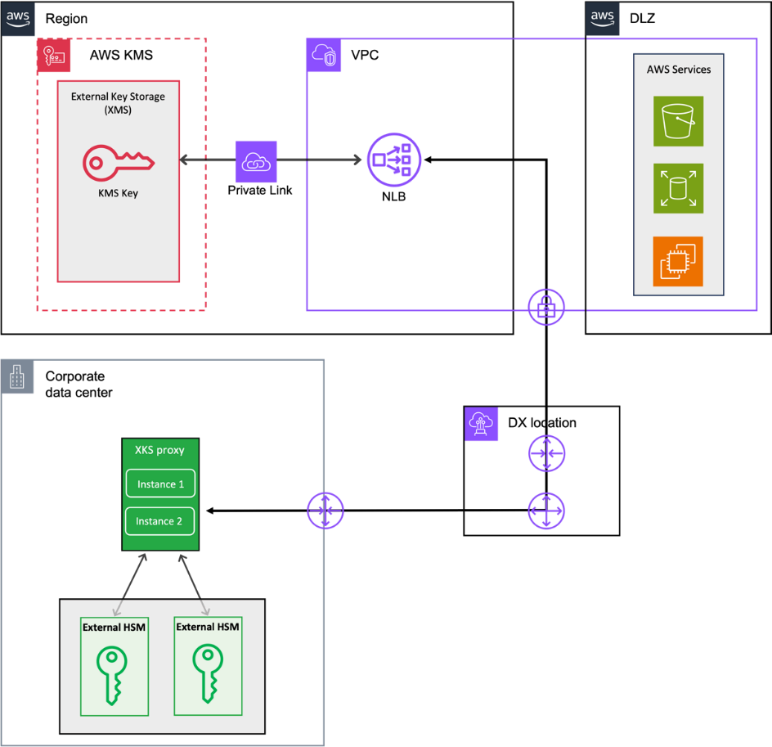
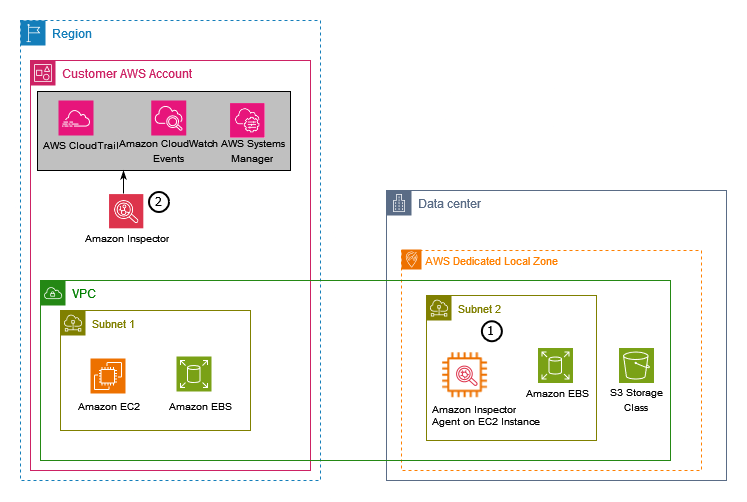
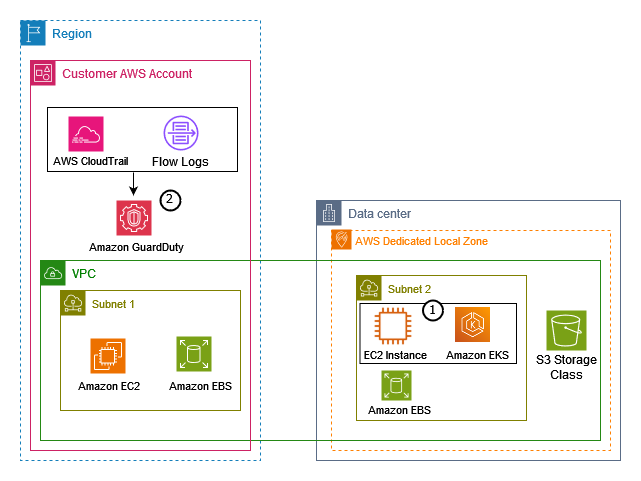
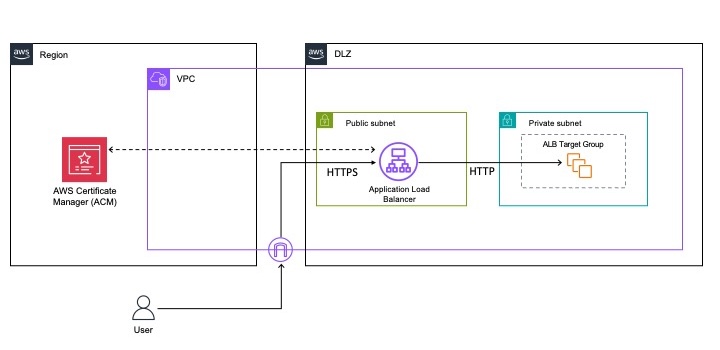
The whitepaper covers the core security principles of Amazon EKS Auto Mode, highlighting its unique approach to managing Kubernetes clusters. This includes how AWS has reimagined node management by building on top of Amazon Elastic Compute Cloud (Amazon EC2) managed instances, which introduces a new way for customers to delegate operational control of EC2 instances to an AWS service.
Designed for cloud architects, security professionals, and Kubernetes practitioners, the whitepaper serves as a comprehensive guide to understanding the security architecture of Amazon EKS Auto Mode. It represents the AWS commitment to providing secure, manageable, and innovative Kubernetes infrastructure solutions that minimize undifferentiated heavy lifting, so that customers can focus more on application development and less on infrastructure management.
If you have feedback about this post, submit comments in the Comments section below. If you have questions about this post, contact AWS Support.
Are you modernizing your legacy batch processing systems? At Vanguard, we faced significant challenges with our legacy mainframe system that limited our ability to deliver modern, personalized customer experiences. Our centralized database architecture created performance bottlenecks and made it difficult to scale services independently for our millions of personal and institutional investors.
In this post, we show you how we modernized our data architecture using Amazon Redshift as our Operational Read-only Data Store (ORDS). You’ll learn how we transitioned to a cloud-native, domain-driven architecture while preserving critical batch processing capabilities. We show you how this solution enabled us to create logically isolated data domains while maintaining cross-domain analytics capabilities—all while adhering to the principles of bounded contexts and distributed data ownership.
Background and challenges
As financial needs continue to evolve, Vanguard is committed to delivering adaptable, top-notch experiences that foster long-lasting customer relationships. This commitment spans from enhancing the personal investor journey to bringing personalized mobile dashboards and connecting institutional clients with advanced advice offerings.
To elevate customer experience and drive digital transformation, Vanguard has embraced domain-driven design principles. This approach focuses on creating autonomous teams, fostering faster innovation, and building data mesh architecture. Central to this transformation is the Personal Investor team’s mainframe modernization effort, transitioning from a legacy system to a cloud-based, distributed data architecture organized around bounded contexts – distinct business domains that manage their own data. As part of this shift, each microservice now manages its own local data store using Amazon Aurora PostgreSQL-Compatible Edition or Amazon DynamoDB. This approach enables domain-level data ownership and operational autonomy.
Vanguard’s existing mainframe system, built on a centralized Db2 database, enables cross-domain data access and integration but also introduces several architectural challenges. Though batch processes can join data across multiple bounded contexts using SQL joins and database operations to integrate information from various sources, this tight coupling creates significant risks and operational issues.
Challenges with the centralized database approach include:
Resource Contention: Processes from one domain can negatively impact other domains due to shared compute resources, leading to performance degradation across the system.
Lack of Domain Isolation: Changes in one bounded context can have unintended ripple effects across other domains, increasing the risk of system-wide failures.
Scalability Constraints: The centralized architecture creates bottlenecks as load increases, making it difficult to scale individual components independently.
High Coupling: Tight integration between domains makes it challenging to modify or upgrade individual components without affecting the entire system.
Limited Fault Tolerance: Issues in one domain can cascade across the entire system due to shared infrastructure and data dependencies.
To address these architectural challenges, we chose to use Amazon Redshift as our Operational Read-only Data Store (ORDS). The Amazon Redshift architecture has compute and storage separation, which enables us to create multi-cluster architectures with a separate endpoint for each domain with independent scaling of compute and storage resources. Our solution leverages the data sharing capabilities of Amazon Redshift to create logically isolated data domains while maintaining the ability to perform cross-domain analytics when needed.
Key benefits of the Amazon Redshift solution include:
Resource Isolation: Each domain can be assigned dedicated Amazon Redshift compute resources, making sure one domain’s workload doesn’t impact others.
Independent Scaling: Domains can scale their compute resources independently based on their specific needs.
Controlled Data Sharing: Amazon Redshift’s data sharing feature enables secure and controlled cross-domain data access without tight coupling, maintaining clear domain boundaries.
Let’s explore the different solutions we evaluated before selecting ORDS with Amazon Redshift as our optimal approach.
Solutions explored
We implemented ORDS as our optimal solution after conducting a comprehensive evaluation of available options. This section outlines our decision-making process and examines the alternatives we considered during our assessment.
Operational Read-only Data Store (ORDS):
In our evaluation, we found that using Amazon Redshift for ORDS provides a powerful solution for handling data across different business areas. It excels at managing large volumes of data from multiple sources, providing fast access to replicated data for batch processes that require cross-bounded context data, and combining information using familiar SQL queries. The solution particularly shines in handling high-volume reads from our data sources.
Advantages:
Works well in a relational database
Excels at real-time access to data from multiple business areas
Improves performance of batch jobs dealing with large data volumes
Stores data in familiar table format, accessible via SQL
Enforces clear data ownership, with each business area responsible for its data
Offers scalable architecture that reduces the risk of single point of failure
Disadvantages:
Requires additional data validation during loading processes to maintain data uniqueness
Needs careful management of primary key constraints since Amazon Redshift optimizes for analytical performance
May require additional monitoring and controls compared to traditional RDBMS systems
Here are the other solutions we evaluated:
Bulk APIs:
We found that Bulk APIs provides an approach for handling large volumes of data.
Advantages:
Near real time access to bulk data through a single request
Autonomous teams have control over access patterns
Efficient batch processing of large datasets with multi-record retrieval
Disadvantages:
Each product team needs to create their own bulk API
If you need data from different areas, you must combine it yourself
The team providing the API must make sure it can handle large amounts of requests
You might need to use multiple APIs to get all the data you want
If you’re getting data in chunks (pagination), you might miss some information if it changes between requests
While Bulk APIs offer powerful capabilities, we found they require substantial team coordination and careful implementation to be effective.
Data Lake:
Our evaluation showed that data lakes can effectively combine information from different parts of our business. They excel at processing large amounts of data at once, providing search capabilities through unified data formats, and managing large volumes of diverse and complex data.
Advantages:
Handles massive data volumes efficiently
Supports multiple data formats and structures
Enables complex analytics and data science workloads
Provides cost-effective storage solutions
Accommodates both structured and unstructured data
Disadvantages:
May not provide real-time, high-speed data access
Requires additional effort with complex data structures, especially those with many interconnected parts
Needs specific strategies to organize data in a simple, flat structure
Demands significant data governance and management
Requires specialized skills for effective implementation
While data lakes excel at big-picture analysis of large datasets, they weren’t optimal for our real-time data needs and complex data relationships.
S3 Export/Exchange:
In our analysis, we found that S3 Export/Exchange provides a method for sharing data between different business areas using file storage. This approach effectively handles large volumes of data and allows straightforward filtering of information using data frames.
Advantages:
Provides simple, cost-effective data storage
Supports high-volume data transfers
Enables straightforward data filtering capabilities
Offers flexible access control
Facilitates cross-region data sharing
Disadvantages:
Not suitable for real-time data needs
Requires extra processing to convert data into usable table format
Demands significant data preparation effort
Lacks immediate data consistency
Needs additional tools for data transformation
While S3 Export/Exchange works well for sharing large datasets between teams, it didn’t meet our requirements for quick, real-time access or immediately usable data formats.
The following table provides a high-level comparison of the different data integration solutions we considered for our modernization efforts. It outlines where each solution is most appropriate to use and when it might not be the best choice:
Solution
Bulk APIs
Data Lake
ORDS
S3 Export/Exchange
When to use
Real-time operational data is needed
Fetching specific data subsets
Processing large amounts of data at once
Many bounded context
Near real-time access across multiple bounded contexts
Large volume batch processing
Few bounded contextsHandling large volumes of data
Point-in-time export is sufficient
When not to use
Many bounded contexts involved
Real-time data access needed
Structured, transactional data processing
Within a single bounded context
Real-time data needs
Many bounded contexts
Table 1: Data Integration Solutions Comparison
Based on our comparison, we found ORDS to be the optimal solution for our needs, particularly when our batch processes require access to data from multiple bounded contexts in real-time. Our implementation efficiently handles large volumes of data, significantly improving the performance of our batch jobs. We chose ORDS because it stores data in a familiar table format, accessible via SQL, making it simple and efficient for our teams to use.
The architecture also aligns with our domain-driven design principles by enforcing clear data ownership, where each bounded context maintains responsibility for its own data management. This approach provides us with both scalability and reliability, reducing the risk of a single point of failure.
Amazon Redshift serves as the backbone of our ORDS implementation, offering several crucial features that support our modernization goals:
Data Sharing
Our solution leveraged the robust data sharing capabilities of Amazon Redshift, available on both Server-based Redshift RA3 instances and Redshift Serverless options. This functionality provided us with instant, secure, and live data access without copies, maintaining transactional consistency across our environment. The flexibility of same account, cross-account, and cross-Region data sharing has been particularly valuable for our distributed architecture.
High Performance
We’ve achieved significant performance improvements through Amazon Redshift’s efficient query processing and data retrieval capabilities. The system effectively handles our complex data needs while maintaining robust performance across various workloads and data volumes.
Multi-Availability Zone Support
Our implementation benefited from Amazon Redshift’s Multi-AZ support, which maintains high availability and reliability for our critical operations. This feature minimizes downtime without requiring extensive setup and significantly reduces our risk of data loss.
Familiar Interface
The relational environment of Amazon Redshift, similar traditional databases like Amazon RDS and IBM Db2, has enabled a smooth transition for our teams. This familiarity has accelerated adoption and improved productivity, as our teams can leverage their existing SQL expertise. By centralizing data from multiple business areas in ORDS using Amazon Redshift, we maintain consistent, efficient, and secure data access across our product teams. This setup is particularly valuable for our batch processing that requires data from various parts of the business, offering us a blend of performance, reliability, and ease of use.
Operational Read-only Data Store (ORDS) using Amazon Redshift
Here’s how our ORDS architecture implements Amazon Redshift data sharing to solve these challenges:
Figure 1: Vanguard’s ORDS Architecture using Amazon Redshift Data Sharing
Amazon Redshift Ingestion Pattern:
We utilized Amazon Redshift’s zero-ETL functionality to integrate data and enable real-time analytics directly on operational data, which helped reduce complexity and maintenance overhead. To complement this capability and to fulfill our comprehensive compliance requirements that necessitate complete transaction replication, we implemented additional data ingestion pipelines.
Our data ingestion strategy for Amazon Redshift employs different AWS services depending on the source. For Amazon Aurora PostgreSQL databases, we use AWS Database Migration Service (AWS DMS) to directly replicate data into Amazon Redshift. For data from Amazon DynamoDB, we leverage Amazon Kinesis to stream the data into Amazon Redshift, where it lands in materialized views. These views are then further processed to generate tables for end-users.
This approach allows us to efficiently ingest data from our operational data stores while meeting both analytical needs and compliance requirements.
Amazon Redshift Data Sharing:
We used the Amazon Redshift’s data sharing feature to effectively decouple our data producers from consumers, allowing each group to operate within their own boundaries while maintaining a unified and simplified governed mechanism for data sharing.
Our implementation followed a clear process: once data is ingested and available in Amazon Redshift table format, we created views for consumers to access the data. We then established data shares and granted access to these views to consumer Amazon Redshift data warehouses for batch processing. In our environment with multiple bounded contexts, we’ve established a collaborative model where consumers work with various producer teams to access data from different data shares, each created per bounded context.
This access remained strictly read-only—when consumers need to update or write new data that falls outside their bounded context, they must use APIs or other designated mechanisms for such operations. This approach has proven effective for our organization, promoting clear data ownership and governance while enabling flexible data access across organizational boundaries. It simplified our data management and made sure each team can operate independently while still sharing data effectively.
Example: VG couple of cross bounded context
Disclaimer: This is provided for reference purposes only and does not represent a real example.
Let’s look at a practical example: our brokerage account statement generation process. This cross-bounded context batch process requires integrating data from multiple sources, accessing hundreds of tables and processing large volumes of data monthly. The challenge was to create an efficient, cost-effective solution that minimizes data replication while maintaining data accessibility.ORDS proved ideal for this use case, as it provides data from multiple bounded contexts without replication, offers near real-time access, and enables straightforward data aggregation using SQL-like queries in Amazon Redshift.
The following diagram shows how we implemented this solution:
Figure 2: Cross-Bounded Context Example for Brokerage Account Statement Generation
We need the following bounded contexts to generate brokerage statements for millions of our clients.
Account:
Details: Includes information about the client’s brokerage accounts, such as account numbers, types, and statuses.
Holdings and Positions: Provides current holdings and positions within the account, detailing the securities owned, their quantities, and current market values.
Balance Information: Contains the balance information of the account, including cash balances, margin balances, and total account value.
Client Profile:
Personal Information: Information about the client, such as their name, date of birth, and social security number.
Contact Information: Includes the client’s email address, physical address, and phone numbers.
Transaction History:
Transaction Records: A comprehensive record of transactions associated with the account, including buys, sales, transfers, and dividends.
Transaction Details: Each transaction record includes details such as transaction date, type, quantity, price, and associated fees.
Historical Data: Historical data of transactions over time, providing a complete view of the account’s activity.
Through this architecture, we efficiently generate accurate and comprehensive brokerage account statements by consolidating data from these bounded contexts, meeting both our clients’ needs and regulatory requirements.
Business Outcome
Our journey with the Operational Read-only Data Store (ORDS) and Amazon Redshift has enhanced our client experience (CX) through improved data management and accessibility. By transitioning from our mainframe system to a cloud-based, domain-driven architecture, we have empowered our autonomous teams and established a resilient batch architecture.
This shift facilitates efficient cross-domain data access, maintains high-quality data consistency, and provides scalability. Our ORDS implementation, supported by Amazon Redshift, offers near-real-time access to large data volumes, guaranteeing high performance, reliability, and cost-effectiveness. This modernization effort aligns with our mission to deliver exceptional, personalized client experiences and sustain long-lasting client relationships.
Call to Action
If you are facing similar challenges with your batch processing systems, we encourage you to explore how an Operational Read-only Data Store (ORDS) can transform your data architecture. Start by assessing your current system’s limitations and identifying opportunities for improvement through domain-driven design and cloud-based solutions. Consider how this approach can help you manage large volumes of data from multiple sources, provide fast access to replicated data for batch processes, and support high-volume reads from various data sources.
Take the next step by conducting a proof of concept (POC) to evaluate ORDS effectiveness in achieving efficient cross-domain data access, improving the performance of batch jobs, and maintaining clear data ownership within your business domains. By implementing this solution, you can enhance your data management capabilities, reduce operational risks, and drive innovation within your organization. Embrace this opportunity to elevate your data architecture and deliver exceptional customer experiences.
Conclusion
Our transition to a cloud-native, domain-driven architecture with ORDS using Amazon Redshift has successfully transformed our batch processing capabilities in AWS cloud. This modernization effort has significantly enhanced the performance, reliability, and scalability of our batch operations while maintaining seamless data access and integration across different business domains.
The strategic adoption of ORDS has harnessed the potential of cross-domain data access in a distributed environment, providing us with a robust solution for real-time data access and efficient batch processing. This transformation has empowered us to better meet the demands of the digital age, delivering superior customer experiences and reinforcing our commitment to innovation in the financial services industry.
Search technology, specifically web search technology, has been around for more than 30 years. You entered a few words in a text box, clicked “Search,” and received a series of links. However, the results were often a mix of related, non-related, and general links. If the results didn’t contain the information you needed, you reformulated your query and submitted it to the search engine again. Some of the breakdowns occurred around language—the text you matched was missing some context that disambiguated your search terms. Other breakdowns were conceptual in nature—you made inferences yourself that led you to new, successful search terms. In all cases, you were the agent that adjusted your search until you received the right information in response. Search engines fail to understand context, so you had to act as translators between your information needs and the rigid keyword system.
With the advent of natural language models like large language models (LLMs) and foundation models (FMs), AI-powered search systems are able to incorporate more of the searcher’s intelligence into the application, relieving you of some of the burden of iterating over search results. On the search side, application designers can choose to employ semantic, hybrid, multimodal, and sparse search. These methods use LLMs and other models to generate a vector representation of a piece of text and a query to provide nearest-neighbor matching. On the application side, application designers are employing AI agents embedded in workflows that can make multiple passes over the search system, rewrite user queries, and rescore results. With these advances, searchers expect intelligent, context-aware results.
As user interactions become more nuanced, many organizations are enhancing their existing search capabilities with intent-based understanding. The emergence of language models that create vector embeddings brings opportunities to further enhance search systems by combining traditional relevancy algorithms with semantic understanding. This hybrid approach allows applications to better interpret user intent, handle natural language variations, and deliver more contextually relevant results. By integrating these complementary capabilities, organizations can build upon their robust search infrastructure to create more intuitive and responsive search experiences that understand the keywords and also the reason behind the query.
This post describes how organizations can enhance their existing search capabilities with vector embeddings using Amazon OpenSearch Service. We discuss why traditional keyword search falls short of modern user expectations, how vector search enables more intelligent and contextual results, and the measurable business impact achieved by organizations like Amazon Prime Video, Juicebox, and Amazon Music. We examine the practical steps for modernizing search infrastructure while maintaining the precision of traditional search systems. This post is the first in a series designed to guide you through implementing modernized search applications, using technologies such as vector search, generative AI, and agentic AI to create more powerful and intuitive search experiences.
Going beyond keyword search
Keyword-based search engines remain essential in today’s digital landscape, providing precise results for product matching and structured queries. Although these traditional systems excel at exact matches and metadata filtering, many organizations are enhancing them with semantic capabilities to better understand user intent and natural language variations. This complementary approach allows search systems to maintain their foundational strengths while adapting to more diverse search patterns and user expectations. In practice, this leads to several business-critical challenges:
Missed opportunities and inefficient discovery – Traditional search approaches tend to oversimplify user intent, grouping diverse search behaviors into broad categories. When Amazon Prime Video users searched for “live soccer,” the search results included documentaries like “This is Football: Season 1”; users were seeing irrelevant results that were keyword matches, but missed the context encoded in “live” as a keyword.
Inability to adapt to changing search behavior – Search behavior is evolving rapidly. Users now employ conversational language, ask full questions, and expect systems to understand context and nuance. Juicebox encountered this challenge with recruiting search engines that relied on simple Boolean or keyword-based searches, and couldn’t capture the nuance and intent behind complex recruiting queries, leading to large volumes of irrelevant results.
Limited personalization and contextual understanding – Search engines can be enhanced with personalization capabilities through additional investment in technology and infrastructure. For example, Amazon Music improved its recommendation system by augmenting traditional search capabilities with personalization features, allowing the service to consider user preferences, listening history, and behavioral patterns when delivering results. This demonstrates how organizations can build upon fundamental search functionality to create more tailored experiences when specific use cases warrant the investment.
Hidden business impact of poor search – Inefficient search also has measurable business impacts. For instance, Juicebox recruiters were spending unnecessary time filtering through irrelevant results, making the process time-consuming and inefficient. Amazon Prime Video discovered that their original search experience, designed for movies and TV shows, wasn’t meeting the needs of sports fans, creating a disconnect between search queries and relevant results.
Importance of building modern search applications
Organizations are at a pivotal moment in enterprise search evolution. User interactions with information are fundamentally changing and analysts predict that the shift from traditional search interactions to AI-powered interfaces will continue to accelerate through 2026, as users increasingly expect more conversational and context-aware experiences. This transformation reflects evolving user expectations for more intuitive, intent-driven search experiences that understand not just what users type, but what they mean.
Real-world implementations demonstrate the tangible value of enhancing existing search. Examples like Amazon Prime Video and Juicebox demonstrate how semantic understanding and augmenting traditional search with vector capabilities can improve performance and increase end-customer satisfaction. The ability to deliver personalized, context-aware search experiences is becoming a key differentiator in today’s digital landscape.
Although organizations recognize these opportunities, many seek guidance on practical implementation. Successful organizations are taking a complementary approach by enhancing their proven search infrastructure with vector capabilities rather than replacing existing systems. Organizations can deliver more sophisticated search experiences that meet both current and future user needs, combining traditional search precision with semantic understand. The path forward isn’t about replacing existing search systems but enhancing them to create more powerful, intuitive search experiences that drive measurable business value.
Transforming business value and user experiences with vector search
Building upon the strong foundation of traditional search systems, businesses are expanding their search functionality to support more conversational interactions and diverse content types. Vector search complements existing search capabilities, helping organizations extend their search experiences into new domains while maintaining the precision and reliability that traditional search provides. This combination of proven search technology with emerging capabilities creates opportunities for more dynamic and interactive user experiences.
If you’re using OpenSearch Service to power your keyword search, you’re already using a scalable, reliable solution. Juicebox’s migration to vector search reduced query latency from 700 milliseconds to 250 milliseconds while surfacing 35% more relevant candidates for complex queries. Despite handling a massive database of 800 million profiles, the system maintained high recall accuracy and delivered aggregation queries across 100 million profiles. Amazon Music’s success story further reinforces the scalability of vector search solutions. Their recommendation system now efficiently manages 1.05 billion vectors, handling peak loads of 7,100 vector queries per second across multiple geographies to power real-time music recommendations for their vast catalog of 100 million songs.
How vector embeddings transform user experience
Consumers increasingly rely on digital platforms and apps to quickly discover healthy and delicious meal options, especially as busy schedules leave little time for meal planning and preparation. For organizations building these applications, the traditional keyword-based search approach often falls short in delivering the most relevant results to their users. This is where vector search, powered by embeddings and semantic understanding, can make a significant difference.
Imagine you’re a developer at an ecommerce company building a food delivery app for your customers. When a user enters a search query like “Quick, healthy dinner with tofu, no dairy,” a traditional keyword-based search would only return recipes that explicitly contain those exact words in the metadata. This approach has several shortcomings:
Missed synonyms – Recipes labeled as “30-minute meals” instead of “quick” would be missed, even though they match the user’s intent.
Lack of semantic understanding – Dishes that are healthy and nutrient-dense, but don’t use the word “healthy” in the metadata, would not be surfaced. The search engine lacks the ability to understand the semantic relationship between “healthy” and nutritional value.
Inability to detect absence of ingredients – Recipes that don’t contain dairy but don’t explicitly state “dairy-free” would also be missed. The search engine can’t infer the absence of an ingredient.
This limitation means organizations miss valuable opportunities to delight their users and keep them engaged. Imagine if your app’s search function could truly understand the user’s intent, by correlating that “quick” refers to meals under 30 minutes, “healthy” relates to nutrient density, and “no dairy” means excluding ingredients like milk, butter, or cheese. This is precisely where vector search powered by embeddings and semantic understanding can transform the user experience.
Conclusion
This post covered key concepts and business benefits of incorporating vector search into your existing applications and infrastructure. We discussed the limitations of traditional keyword-based search and how vector search can significantly improve user experience. Vector search, powered by generative AI, can detect relevant attributes, better infer the presence or absence of specific criteria, and surface results that better align with user intent, whether your users are searching for products, recipes, research, or knowledge.
Modernizing your search capabilities with vector embeddings is a strategic move that can drive engagement, improve satisfaction, and deliver measurable business outcomes. By taking incremental steps to integrate vector search, your organization can future-proof its applications and stay ahead in an ever-evolving digital landscape.
Our next post will dive into Automatic Semantic Enrichment. We discuss how to generate semantic embeddings using Amazon Bedrock, set up vector-based indexes in OpenSearch Service, and combine vector and keyword search for even more relevant results. We provide step-by-step guidance and sample code to help you enhance your OpenSearch Service infrastructure with vector search, so your users can discover and engage with your data in more meaningful ways.
To learn more, refer to Amazon OpenSearch Service as a Vector Database, and visit our Migration Hub if you’re looking for migration and system modernization guidance and resources. For more blog posts about vector databases, refer to the AWS Big Data Blog. The following posts can help you learn more about vector database best practices and OpenSearch Service capabilities:
The enhanced AWS Security Hub (currently in public preview) prioritizes your critical security issues and helps you respond at scale to protect your environment. It detects critical issues by correlating and enriching signals into actionable insights, enabling streamlined response. You can use these capabilities to gain visibility across your cloud environment through centralized management in a unified cloud security solution. During the preview period, these enhanced Security Hub capabilities are available at no additional cost. While the integrated services—Amazon GuardDuty, Amazon Inspector, Amazon Macie, and AWS Security Hub Cloud Security Posture Management (CSPM)—will continue to incur standard charges, new customers can use the trial periods available at no additional cost for each of these underlying security services. By combining these trials with the Security Hub preview, organizations can conduct comprehensive proof of concept (POC) evaluations without significant upfront investment.
In this blog post, we guide you through how to plan and implement a proof of concept (POC) for Security Hub to assess the implementation, functionality, and value of Security Hub in your environment. We walk you through the following steps:
Understand the value of Security Hub
Determine success criteria for the POC
Define Security Hub configuration
Prepare for deployment
Enable Security Hub
Validate deployment
Understand the value of Security Hub
Figure1: AWS Security Hub overview
Figure 1 provides a visualization of how Security Hub unifies signals from multiple AWS security services and capabilities. The signals, which are ingested by Security Hub from multiple AWS security services and capabilities, include:
At its core, Security Hub provides four key capabilities in one unified solution:
Unified security operations: Security Hub delivers a unified security operations experience, bringing your security signals into a single consolidated view and avoiding the need to switch between multiple security tools. This provides comprehensive visibility across your AWS environment, empowering your security teams to efficiently detect, prioritize, and respond to potential security risks.
Intelligent prioritization helps focus on what matters most: AWS Security Hub helps you identify and prioritize critical security risks that might be missed when viewing findings in isolation. Security findings are correlated by analyzing resource relationships and signals from AWS security services and capabilities.
Actionable insights guide security teams on next steps:Gain actionable insights through advanced analytics to transform correlated findings into clear, prioritized insights that highlight the most critical security risks in your environment. You can quickly understand potential impacts, visualize relationships, and identify which security issues pose the greatest risk to critical resources
Streamlined security response and automation capabilities: Security Hub enhances your security operations by enabling streamlined response capabilities. It seamlessly integrates with your existing ticketing systems to help facilitate efficient incident management.
With this integrated approach your security team can:
Investigate critical risks that need immediate attention
Monitor security trends across cloud environment
Automate responses to streamline remediation
Understand the Open Cybersecurity Schema Framework
Security Hub uses the Open Cybersecurity Schema Framework (OCSF) to help standardize security data and analysis and enable better integration between security tools. This standardization helps simplify how security findings are structured and analyzed across your environment. This standardized data model enables seamless integration and data exchange across your security tooling, providing normalized and consistent data formats. When implementing your Security Hub POC, make sure that you’re familiar with the OCSF specifications. The OCSF schema has eight categories to organize event classes, and each of them are aligned with a specific domain or area of focus. Security Hub uses the Findings category and the classes in the following list.
Compliance: describes results of evaluations performed against resources, to check compliance with various industry frameworks or security standards.
Data Security: describes detections or alerts generated by various data security processes such as data loss prevention (DLP), data classification, secrets management, digit rights management (DRM), and data security posture management (DSPM).
Detection: describes detections or alerts generated by security products using correlation engines, detection engines or other methodologies.
Vulnerability: notifications about weakness in an information system, system security procedures, internal controls, or implementation that could be exploited or triggered by a threat source.
Additionally, confirm that any analytics or security information and event management (SIEM) tools you plan to integrate with support the OCSF data format to maximize the value of the consolidated security insights provided by Security Hub.
Determine success criteria
Establishing clear, measurable objectives is fundamental to a successful POC. Begin by defining success metrics that will demonstrate the effectiveness of Security Hub, and whether Security Hub has helped address challenges that you’re facing. Some examples of success criteria include:
Alert consolidation metrics: I use multiple security services and need a solution that I can use to correlate signals from each service to help me prioritize risks in my environment.
o Reduced time spent correlating alerts across different services.
o Fewer duplicate alerts across services.
Response time improvements: I need to visualize potential attack paths that adversaries could use to exploit resources and assess the potential blast radius.
Reduced mean time to detect (MTTD) security incidents.
Reduced mean time to response (MTTR) for critical findings.
Reduced time to identify potentially affected resources in blast radius.
Increased accuracy of attack path analysis.
Number of controls implemented based on attack path insights.
Automation capabilities: I want to automate and reduce the time my team takes to implement response and remediation actions and want to integrate more automated workflows, including a ticketing system.
Increased percentage of security findings automatically routed to correct teams using Jira Cloud or ServiceNow.
Reduced average time from detection to ticket creation.
Risk visibility improvements: I want to collect an inventory of my assets within my environment, understand which resources have security coverage by AWS security services, and identify which are the most critical and have the most risk.
Reduced time to identify critical resources affected by new vulnerabilities, threats, and misconfigurations.
Faster identification and remediation of security coverage gaps across my AWS Organizations.
After establishing your success criteria, it’s essential to evaluate organizational readiness and potential constraints that might impact your POC implementation. Begin by conducting a comprehensive assessment of your current environment: Are the foundational security services (GuardDuty, Amazon Inspector, Security Hub CSPM, and Macie) enabled across your accounts?
Review your administrative capabilities within AWS Organizations to verify that you have the necessary permissions and control over service deployment. Consider your team’s capacity—do you have dedicated people who can focus on implementation and testing? Additionally, verify that the timing aligns with stakeholder availability for proper evaluation and feedback.
Maximize your POC value through service activation
To get the most comprehensive evaluation of the capabilities of Security Hub, carefully plan your service activation timeline to optimize the trial periods available at no additional cost. Here’s how to strategically enable services:
Coordinate the activation of foundational security services to maximize their overlapping trial periods available at no additional cost:
Consider enabling these services simultaneously so that you have at least two weeks of overlapping coverage to evaluate the full correlation and risk prioritization capabilities of Security Hub across each service. Optionally, if you want to conduct a POC with minimal configuration because of limitations, you can enable Security Hub CSPM and Amazon Inspector during the initial POC phase to properly assess the results and data.
Note: Document your activation dates and trial expiration dates carefully. Create calendar reminders for trial end dates and schedule your key POC evaluation milestones to occur while services are active. This will help make sure that you can thoroughly assess the unified security operations capabilities of Security Hub when services are running at full capacity.
If you already have one or more of these underlying services enabled, you can proceed to enable the new Security Hub. To fully use the new Security Hub capabilities, particularly the exposure findings feature, specific service dependencies must be met, both Security Hub CSPM and Amazon Inspector are essential because they provide the foundational data needed for the Security Hub correlation engine and exposure findings features. The combination enables Security Hub to deliver comprehensive risk analysis and prioritization by correlating configuration risks with runtime vulnerabilities. If you have other security services already enabled (such as GuardDuty or Macie), you can maintain these existing services while enabling Security Hub, and it will automatically begin incorporating their findings into its consolidated view, enhancing your overall security posture visualization.
Resources
To maximize the value of your Security Hub POC you can use this GuardDuty findings tester repository hosted in the AWS Labs GitHub account and discussed in the Testing and evaluating GuardDuty detections. This repository contains scripts and guidance that you can use as a POC to generate GuardDuty findings related to real AWS resources. There are multiple tests that can be run independently or together depending on the findings you want to generate.
These findings are correlated with Security Hub CSPM control checks to detect misconfigurations and Inspector for vulnerabilities as shown in Figure 2. The example shows the finding page for a Potential Remote Execution finding: Lambda function has network-exploitable software vulnerabilities with a high likelihood of exploitation. The Potential attack path shows that the Lambda function can be exploited remotely over the network with no user interaction or special privileges.
Note: It’s recommended that you deploy these tests in a non-production account to help make sure that findings generated by these tests can be clearly identified.
Define your Security Hub configuration
After your success criteria have been established, you’re ready to plan your configuration. Some important decisions include:
Determine AWS service integrations: In addition to the core security capabilities of posture management through Security Hub CSPM and vulnerability management through Amazon Inspector, Security Hub integrates signals from other AWS security services such as GuardDuty and Macie.
Define third-party integrations:
For ticketing, Security Hub has native integrations with popular service management systems such as Atlassian’s Jira Service Management Cloud and ServiceNow.
Partners who already support or intend to support the OCSF schema to receive findings from Security Hub include companies such as Arctic Wolf, CrowdStrike, DataBee, Datadog, DTEX Systems, Dynatrace, Fortinet, IBM, Netskope, Orca Security, Palo Alto Neworks, Rapid7, Securonix, SentinelOne, Sophos, Splunk, Sumo Logic, Tines, Trellix, Wiz, and Zscaler.
Service partners such as Accenture, Caylent, Deloitte, IBM, and Optiv can help you adopt Security Hub and the OCSF schema.
Select a delegated administrator: From the AWS Organizations management account, you can set a delegated administrator for your organization. As a best practice, we recommend using the same delegated administrator across security services for consistent governance.
Select accounts in scope: Define accounts you want to have Security Hub enabled for.
Define regions: Determine regional restrictions or considerations.
Prepare for deployment
After you determine your success criteria and your Security Hub configuration, you should have an idea of your stakeholders, desired state, and timeframe. Now, you need to prepare for deployment. In this step, you should complete as much as possible before you deploy Security Hub. The following are some steps to take:
Create a project plan and timeline so that everyone involved understands what success look like and what the scope and timeline is.
Define the relevant stakeholders and consumers of the Security Hub data. Some common stakeholders include security operations center (SOC) analysts, incident responders, security engineers, cloud engineers, and finance.
Define who is responsible, accountable, consulted, and informed during the deployment. Make sure that team members understand their roles.
Make sure that you have access through your AWS Organizations management account to enable Security Hub for your organization and delegate an administrator.
Determine which accounts and AWS Regions you want to enable Security Hub in.
Enable Security Hub
AWS security services integrate with AWS Organizations to help you centrally manage Security Hub.
If you haven’t already done so, enable at least Security Hub CSPM and Amazon Inspector. Also enable any other AWS security services that you want to integrate with Security Hub.
Note: As a best practice, we recommend using the same delegated administrator across security services for consistent governance.
Sign into the delegated administrator with an IAM policy that gives you permission to enable and disable member accounts. With this policy, you will have granular control to decide what Regions you want enabled.
Note: After you enable Security Hub, exposure findings in your environment are created and analyzed immediately. However, it can take up to 6 hours to receive an exposure finding for a resource.
Validate deployment
The final step is to confirm that Security Hub is configured correctly and evaluate the solution against your success criteria.
Validate policy: Verify that you have the correct permissions to manage member accounts and regional restrictions are configured correctly.
Validate integrations: Verify that tickets with ServiceNow or Jira Cloud are working correctly by signing in to the AWS Management Console for Security hub and choosing Inventory in the navigation pane. Select Findings and verify there is a ticket ID in your finding.
Assess success criteria: Determine if you achieved the success criteria that you defined at the beginning of the project.
Clean up
You might want to remove Security Hub if you do not plan to move forward with deploying into production or need to gain approvals before continuing to use Security Hub. To properly clean up your test environment make sure you address each item below:
Before completing the cleanup, document your evaluation results, findings, and recommendations for production implementation.
If you used the GuardDuty findings tester or other testing tools, remove these resources first to stop generating test findings.
If you enabled services specifically for the POC and don’t plan to continue using them, disable them:
Disable third-party integrations (such as Jira Cloud or ServiceNow connections)
Disable Security Hub
Disable Amazon Inspector, GuardDuty, and Macie if they were enabled only for testing
Remove any test resources that were created specifically for the POC such as IAM roles, and policies.
Conclusion
In this post, we showed you how to plan and implement a Security Hub POC. You learned how to do so through phases, including defining success criteria, configuring Security Hub, and validating that Security Hub meets your business needs. Remember to use the trial periods to maximize your testing window without incurring significant costs. Throughout the POC, maintain focus on your predefined success criteria while remaining open to unexpected benefits or challenges that may arise. Maintain open communication with your AWS account team to address any questions or concerns to help you get the most out of your Security Hub POC experience.
With the Amazon EMR 7.10 runtime, Amazon EMR has introduced EMR S3A, an improved implementation of the open source S3A file system connector. This enhanced connector is now automatically set as the default S3 file system connector for Amazon EMR deployment options, including Amazon EMR on EC2, Amazon EMR Serverless, Amazon EMR on Amazon EKS, and Amazon EMR on AWS Outposts, maintaining complete API compatibility with open source Apache Spark.
In the Amazon EMR 7.10 runtime for Apache Spark, the EMR S3A connector exhibits performance comparable to EMRFS for read workloads, as demonstrated by TPC-DS query benchmark. The connector’s most significant performance gains are evident in write operations, with a 7% improvement in static partition overwrites and a 215% improvement for dynamic partition overwrites when compared to EMRFS. In this post, we showcase the enhanced read and write performance advantages of using Amazon EMR 7.10.0 runtime for Apache Spark with EMR S3A as compared to EMRFS and the open source S3A file system connector.
Read workload performance comparison
To evaluate the read performance, we used a test environment based on Amazon EMR runtime version 7.10.0 running Spark 3.5.5 and Hadoop 3.4.1. Our testing infrastructure featured an Amazon Elastic Compute Cloud (Amazon EC2) cluster comprised of nine r5d.4xlarge instances. The primary node has 16 vCPU and 128 GB memory, and the eight core nodes have a total of 128 vCPU and 1024 GB memory.
The performance evaluation was conducted using a comprehensive testing methodology designed to provide accurate and meaningful results. For the source data, we chose the 3 TB scale factor, which contains 17.7 billion records, approximately 924 GB of compressed data partitioned in Parquet file format. The setup instructions and technical details can be found in the GitHub repository. We used Spark’s in-memory data catalog to store metadata for TPC-DS databases and tables.
To produce a fair and accurate comparison between EMR S3A vs. EMRFS and open source S3A implementations, we implemented a three-phase testing approach:
Phase 1: Baseline performance:
Established a baseline using default Amazon EMR configuration with EMR’s S3A connector
Created a reference point for subsequent comparisons
Phase 2: EMRFS analysis:
Maintained the default file system as EMRFS
Preserved other configuration settings
Phase 3: Open source S3A testing:
Modified only the hadoop-aws.jar file by replacing it with the open source Hadoop S3A 3.4.1 version
Maintained identical configurations across other components
This controlled testing environment was crucial for our evaluation for the following reasons:
We could isolate the performance impact specifically to the S3A connector implementation
It removed potential variables that could skew the results
It provided accurate measurements of performance improvements between Amazon’s S3A implementation and the open source alternative
Test execution and results
Throughout the testing process, we maintained consistency in test conditions and configurations, making sure any observed performance differences could be directly attributed to the S3A connector implementation variations. A total of 104 SparkSQL queries were run in 10 iterations sequentially, and an average of each query’s runtime in these 10 iterations was used for comparison. The average of the 10 iterations’ runtime on the Amazon EMR 7.10 runtime for Apache Spark with EMR S3A was 1116.87 seconds, which is 1.08 times faster than open source S3A and comparable with EMRFS. The following figure illustrates the total runtime in seconds.
The following table summarizes the metrics.
Metric
OSS S3A
EMRFS
EMR S3A
Average runtime in seconds
1208.26
1129.64
1116.87
Geometric mean over queries in seconds
7.63
7.09
6.99
Total cost *
$6.53
$6.40
$6.15
*Detailed cost estimates are discussed later in this post.
The following chart demonstrates the per-query performance improvement of EMR S3A relative to open source S3A on the Amazon EMR 7.10 runtime for Apache Spark. The extent of the speedup varies from one query to another, with the fastest up to 1.51 times faster for q3, with Amazon EMR S3A outperforming open source S3A. The horizontal axis arranges the TPC-DS 3TB benchmark queries in descending order based on the performance improvement seen with Amazon EMR, and the vertical axis depicts the magnitude of this speedup as a ratio.
Read cost comparison
Our benchmark outputs the total runtime and geometric mean figures to measure the Spark runtime performance. The cost metric can provide us with additional insights. Cost estimates are computed using the following formulas. They factor in Amazon EC2, Amazon Elastic Block Store (Amazon EBS), and Amazon EMR costs, but don’t include Amazon Simple Storage Service (Amazon S3) GET and PUT costs.
Amazon EC2 cost (include SSD cost) = number of instances * r5d.4xlarge hourly rate * job runtime in hours
r5d.4xlarge hourly rate = $1.152 per hour
Root Amazon EBS cost = number of instances * Amazon EBS per GB-hourly rate * root EBS volume size * job runtime in hours
Amazon EMR cost = number of instances * r5d.4xlarge Amazon EMR cost * job runtime in hours
We conducted benchmark tests to assess the write performance of the Amazon EMR 7.10 runtime for Apache Spark.
Static table/partition overwrite
We evaluated the static table/partition overwrite write performance of the different file system by executing the following INSERT OVERWRITE Spark SQL query. The SELECT * FROM range(...) clause generated data at execution time. This produced approximately 15 GB of data across exactly 100 Parquet files in Amazon S3.
SET rows=4e9; -- 4 Billion
SET partitions=100;
INSERT OVERWRITE DIRECTORY 's3://${bucket}/perf-test/${trial_id}'
USING PARQUET SELECT * FROM range(0, ${rows}, 1, ${partitions});
The test environment was configured as follows:
EMR cluster with emr-7.10.0 release label
Single m5d.2xlarge instance (primary group)
Eight m5d.2xlarge instances (core group)
S3 bucket in the same AWS Region as the EMR cluster
The trial_id property used a UUID generator to avoid conflict between test runs
Results
After running 10 trials for each file system, we captured and summarized query runtimes in the following chart. Whereas EMR S3A averaged only 26.4 seconds, the EMRFS and open source S3A averaged 28.4 seconds and 31.4 seconds—a 1.07 times and 1.19 times improvement, respectively.
Dynamic partition overwrite
We also evaluated the write performance by executing the following INSERT OVERWRITE dynamic partition Spark SQL query, which joins TPC-DS 3TB partitioned Parquet data of the table web_sales and date_dim tables, which inserts approximately 2,100 partitions, where each partition contains one Parquet file with a combined size of approximately 31.2 GB in Amazon S3.
SET spark.sql.sources.partitionOverwriteMode=DYNAMIC;
INSERT OVERWRITE TABLE <TABLE_NAME> PARTITION(wsdt_year,wsdt_month, wsdt_day)
SELECT ws_order_number,ws_quantity,ws_list_price,ws_sales_price,
ws_net_paid_inc_ship_tax,ws_net_profit,dt.d_year as wsdt_year,dt.d_moy
as wsdt_month,dt.d_dom as wsdt_day FROM web_sales, date_dim dt
WHERE ws_sold_date_sk = d_date_sk;
The test environment was configured as follows:
EMR cluster with emr-7.10.0 release label
Single r5d.4xlarge instance (master group)
Five r5d.4xlarge instances (core group)
Approximately 2,100 partitions with one Parquet file each
Combined size of approximately 31.2 GB in Amazon S3
Results
After running 10 trials for each file system, we captured and summarized query runtimes in the following chart. Whereas EMR S3A averaged only 90.9 seconds, the EMRFS and open source S3A averaged 286.4 seconds and 1,438.5 seconds—a 3.15 times and 15.82 times improvement, respectively.
Summary
Amazon EMR consistently enhances its Apache Spark runtime and S3A connector, delivering continuous performance improvements that help big data customers execute analytics workloads more cost-effectively. Beyond performance gains, the strategic shift to S3A introduces critical advantages, including enhanced standardization, improved cross-platform portability, and robust community-driven support—all while maintaining or surpassing the performance benchmarks established by the previous EMRFS implementation.
We recommend that you stay up-to-date with the latest Amazon EMR release to take advantage of the latest performance and feature benefits. Subscribe to the AWS Big Data Blog’s RSS feed to learn more about the Amazon EMR runtime for Apache Spark, configuration best practices, and tuning advice.
Security and governance teams across all environments face a common challenge: translating abstract security and governance requirements into a concrete, integrated control framework. AWS services provide capabilities that organizations can use to implement controls across multiple layers of their architecture—from infrastructure provisioning to runtime monitoring. Many organizations deploy multi-account environments with AWS Control Tower, or Landing Zone Accelerator to implement a foundational baseline of controls and security architecture. Once their environment is provisioned, organizations typically look to add additional detective controls from services such as AWS Security Hub and AWS Config based on security, compliance, and operational requirements. While this sequence is a great start, there are more opportunities during this time to implement layered defense-in-depth coverage to enhance your security posture.
Highly regulated industries such as fintech and financial services are often viewed as the gold standard for governance and security controls. While these sectors have established robust frameworks, there’s consistently room for improvement and valuable lessons for other industries looking to enhance their control environments. However, many organizations struggle to move beyond a basic compliance-focused approach. In our experience working with customers across various sectors, this limited perspective often stems from multiple factors, including:
Immediate compliance pressures
Resource constraints
Limited understanding of control maturity pathways
Focus on detection rather than prevention
A tendency to prioritize technology-agnostic controls over bult-in AWS capabilities, leading to unnecessarily complex implementations
The good news? A more comprehensive approach that uses AWS preventative, proactive, detective, and responsive controls can significantly reduce risk while decreasing operational overhead through automation.
In this post, we outline a practical framework that you can adopt to evolve your security and governance controls strategy. We explore how your organization can mature from a detection-focused security posture to a multi-layered control framework, using real-world examples across the resource lifecycle, including infrastructure-as-code testing and preventative controls such as service control policies (SCPs), resource control policies (RCPs), and declarative policies (DPs).
Drawing from best practices in highly regulated industries while incorporating modern cloud capabilities through services such as AWS Organizations and AWS Control Tower, we provide a structured framework that you can use to elevate your organization’s control environment beyond basic compliance requirements.
Customer challenges in implementing controls
Organizations face several significant challenges when attempting to implement a comprehensive control framework in AWS. Let’s explore the main obstacles:
Resource constraints and expertise gaps
Security teams often find themselves caught between limited resources and expanding responsibilities in the cloud. With constrained budgets and personnel, teams typically gravitate toward quick wins through detective controls, which appear straightforward to implement initially. While this provides immediate visibility, it can leave critical gaps in security posture. Many teams lack comprehensive expertise across all control types, particularly in implementing preventative, proactive, and responsive controls effectively. The pressure to demonstrate immediate security improvements, combined with day-to-day operational demands, frequently results in tactical solutions rather than strategic, layered security approaches.
Analysis paralysis
Deciding which tools to prioritize can be a challenge; the breadth of options and extensive capabilities available across AWS security services and third-party tools can feel overwhelming at times. Security teams struggle to determine the optimal mix of controls for their environment and where to begin implementation. This challenge is compounded by the complexity of mapping technical compliance requirements to cloud-focused capabilities and maintaining visibility into emerging threats as the security landscape evolves. The layers of abstraction created by proliferating security controls can further obscure clear decision-making, leading teams to delay critical security improvements while seeking perfect solutions.
Misunderstanding of defense in depth
Defense in depth as a concept is good, but it can be misunderstood and difficult to achieve, leading to vulnerabilities in the security architecture. A common misconception is that a single strong control, separation of duties in AWS Identity and Access Management (IAM) roles, least permission in IAM policies, and so on, provide sufficient protection. This overlooks the crucial value of implementing controls at multiple points and how different control types can be combined to create a robust security posture. Teams often miss how organizational controls like SCPs can work in harmony with workload-specific controls to achieve greater protection. The role of preventative controls in guiding technical implementations is frequently under appreciated.
Maturity journey challenges
The path to security maturity presents numerous obstacles. Many organizations remain stuck in the early stages, implementing detective controls but never progressing to preventative measures. Security controls are often implemented in isolation, without consideration for the broader security landscape. Organizations struggle to create and follow a clear roadmap for evolving their security posture, and measuring improvement over time proves challenging.
Scale and consistency issues
As AWS environments grow, maintaining consistent governance and security becomes increasingly complex. Organizations face mounting challenges in managing exceptions and special cases across their expanding infrastructure. These interrelated challenges often result in controls implementations that fail to achieve their intended risk reduction goals. You need a structured approach to overcome these obstacles and implement comprehensive security controls, which we explore in the following sections.
Strategic investment in security
While implementing comprehensive controls requires an initial investment in time and resources, the long-term benefits fundamentally transform how organizations operate.
The foundation for this transformation begins with establishing baseline controls through proven starting points such as AWS Control Tower and its customization options. AWS Control Tower provides building blocks for secure multi-account architectures with hundreds of security capabilities and proactive controls already built in. Rather than trying to create baselines from scratch by wrangling vast amounts of account-level or resource-specific controls, you can use these accelerators to rapidly establish a strong security foundation. With these baseline controls in place, this transformation extends beyond security teams to enable the entire organization to operate more efficiently. Development and operations teams can deploy faster with confidence when security guardrails are in place. Security becomes an enabler rather than a bottleneck, so that teams across the organization can innovate while maintaining a strong security posture.
As you mature your organization’s control framework through automation and layered defenses, a security transformation occurs. Security teams shift from constant firefighting to proactive risk management. Automated policy enforcement replaces manual reviews, and the time previously spent on routine tasks can be redirected to strategic initiatives.
Preventative controls establish the foundation of a secure environment by defining the policies, standards, and requirements that guide security implementations. At their core, these controls encompass corporate security policies that outline acceptable resource configurations across the organization. They work in conjunction with compliance requirements and frameworks to help maintain regulatory alignment, while architectural standards and guidelines provide technical direction for implementations. Data classification policies play a crucial role by determining specific security requirements based on data sensitivity.
To illustrate how preventative controls work in practice, consider a common S3 bucket security requirement. A typical preventative control might establish a corporate policy stating All S3 buckets must be private by default, with public access granted only through an approved exception process. This simple but effective policy sets clear expectations and requirements before a technical implementation begins.
Organization level: SCPs blocking public S3 bucket creation.
Resource level:
RCPs enforcing network access controls, such as requiring authenticated access or limiting requests to your organization’s network range.
SCPs to stop malicious overwrites of S3 objects using SSE-C encryption by blocking s3:PutObject requests with customer-provided keys unless explicitly allowed, paired with AWS IAM Roles Anywhere for short-term credential enforcement.
Proactive controls act as an early warning system, identifying and addressing potential security issues before they manifest in your environment. These controls work by validating configurations and changes against established security requirements during the development and deployment phases. Through automated validation and policy enforcement at build and deploy time, proactive controls help prevent misconfigurations from reaching production environments, reducing the operational overhead of fixing security issues after the fact. Think of proactive controls as your first line of defense in maintaining a secure cloud environment. In AWS, these can be implemented at multiple levels:
Amazon S3 Block Public Access settings at the account level.
Policy-as-code checks in continuous integration and delivery (CI/CD) pipelines (such as CFN-Nag, or AWS Config proactive rules).
AWS CloudFormation hooks for pre-deployment validation and policy enforcement.
AWS Config rules in proactive mode to evaluate resources before creation.
At the resource level, you can use:
IAM policies restricting bucket policy modifications
CloudFormation Guard rules
#####################################
##           Gherkin               ##
#####################################
# Rule Identifier:
#    S3_BUCKET_SERVER_SIDE_ENCRYPTION_ENABLED
# Description:
#   Checks if your Amazon S3 bucket either has the Amazon S3 default encryption enabled or that the Amazon S3 bucket policy
#   explicitly denies put-object requests without server side encryption that uses AES-256 or AWS Key Management Service.
# Reports on:
#    AWS::S3::Bucket
# Evaluates:
#    AWS CloudFormation
# Rule Parameters:
#    NA
# Scenarios:
# a) SKIP: when there are no S3 resource present
# b) PASS: when all S3 resources Bucket Encryption ServerSideEncryptionByDefault is set to either "aws:kms" or "AES256"
# c) FAIL: when all S3 resources have Bucket Encryption ServerSideEncryptionByDefault is not set or does not have "aws:kms" or "AES256" configurations
# d) SKIP: when metadata includes the suppression for rule S3_BUCKET_SERVER_SIDE_ENCRYPTION_ENABLED
#
# Select all S3 resources from incoming template (payload)
#
let s3_buckets_server_side_encryption = Resources.*[ Type == 'AWS::S3::Bucket'
  Metadata.cfn_nag.rules_to_suppress not exists or
  Metadata.cfn_nag.rules_to_suppress.*.id != "W41"
  Metadata.guard.SuppressedRules not exists or
  Metadata.guard.SuppressedRules.* != "S3_BUCKET_SERVER_SIDE_ENCRYPTION_ENABLED"
]
rule S3_BUCKET_SERVER_SIDE_ENCRYPTION_ENABLED when %s3_buckets_server_side_encryption !empty {
  %s3_buckets_server_side_encryption.Properties.BucketEncryption exists
  %s3_buckets_server_side_encryption.Properties.BucketEncryption.ServerSideEncryptionConfiguration[*].ServerSideEncryptionByDefault.SSEAlgorithm in ["aws:kms","AES256"]
  <<
    Violation: S3 Bucket must enable server-side encryption.
    Fix: Set the S3 Bucket property BucketEncryption.ServerSideEncryptionConfiguration.ServerSideEncryptionByDefault.SSEAlgorithm to either "aws:kms" or "AES256"
  >>
}
Detective controls provide continuous visibility into your security posture by monitoring for and identifying potential security violations or unauthorized changes within your environment. While preventative controls aim to stop issues before they occur, detective controls help you maintain awareness of your security state and can identify when preventative controls have been bypassed or failed. These controls form a critical layer of defense by enabling rapid identification of security issues and providing the visibility needed for effective incident response and compliance reporting. While many organizations start and stop here, detective controls are only part of the solution:
AWS Config rules monitoring for public buckets
Security Hub findings to flag non-compliant resources
Responsive controls complete the security lifecycle by providing automated and manual mechanisms to address security issues after they’re detected. These controls define and implement the actions taken when security violations are identified, ranging from automated remediation of common misconfigurations to coordinated incident response procedures for complex security events. By establishing clear response patterns and using automation where appropriate, responsive controls help facilitate consistent and timely handling of security issues while reducing the mean time to remediation. Responsive controls address violations when they occur:
The power comes not from implementing these controls in isolation, but from using them together in a coordinated way. This layered approach begins with preventative controls to establish the requirements, followed by proactive controls to block most potential violations at the source. Issues that manage to slip through are caught by detective controls, while responsive controls automatically remediate identified problems. Throughout this process, comprehensive documentation tracks issues, remediation plans, and progress, such as through a plan of action and milestones (POAM), helping to make sure that compliance requirements are met and improvements can be measured over time.
Implementation lifecycles: Ideal compared to reality
You can follow one of two paths when implementing security controls: starting fresh with a comprehensive approach or evolving from an existing detective-focused implementation. Let’s examine both scenarios.
Starting fresh: The ideal approach
When starting from scratch, you have a unique opportunity to build your security and governance following an ideal approach. Your team can take advantage of this clean slate to architect controls and processes methodically, free from legacy constraints. The following steps offer guidance though establishing a strong foundation while maintaining the flexibility you need as your business grows.
Rationalize controls against requirements and risk profile:
Choose appropriate security frameworks (for example, CIS and NIST).
Map compliance, regulatory, legal, and contractual requirements to your base framework.
Define clear security objectives and success criteria for your security and compliance program.
Design a comprehensive control strategy:
Document control requirements across all four types (preventive, proactive, detective, and responsive controls). You can use the framework to decide which controls are best for each type of requirement.
Plan implementation phases and priorities.
Define metrics for measuring effectiveness.
Implement controls in layers:
Start with AWS Control Tower, which gives you foundational controls to mature from. You can add customizations if required.
Think about additional preventative controls that can help establish a stronger security and compliance posture.
Deploy proactive controls to stop violations.
Add detective controls as safeguards.
Implement responsive controls for automated or manual remediation.
Monitor and assess effectiveness
Evaluate control performance against defined metrics.
Identify gaps and areas for improvement.
Adjust controls based on emerging threats and changing requirements.
Implement continuous improvement feedback loop.
Evolution from detective controls: The common path
Most organizations find themselves starting with detective controls and face challenges in maturing from there:
Initial state:
Baseline detective controls through Security Hub and AWS Config
Manual remediation processes
Limited visibility into security posture
Maturation steps:
Analyze findings to identify patterns
Implement automated remediation for common issues
Add preventative and proactive controls based on recurring events
Periodically refine and update policies
Optimization:
Review control effectiveness
Identify gaps in coverage
Implement additional preventative, proactive, detective, and responsive measures
Automate processes where possible
The goal: Comprehensive and layered security controls
The goal of implementing security controls across multiple layers isn’t just about compliance or following best practices—it’s about creating a robust, resilient security posture that can effectively help prevent, detect, and respond to security issues. Let’s explore why this approach is crucial:
Why multiple control layers matter
Security controls shouldn’t exist in isolation. When implementing a security requirement, you should consider:
How can we prevent this issue from occurring?
How will we detect if our preventative controls fail?
What should happen when we detect a violation?
What policies and standards guide these decisions?
Moving beyond detection
While detective controls are important, they signal that a security violation has already occurred. A mature security posture requires:
Strong preventative controls to stop violations before they happen
Detective controls as a safety net if there is drift or a violation
Automated remediation where possible, to reduce exposure time
Clear policies to guide implementation and decisions
Measuring success
You should measure the effectiveness of your control framework through several key performance indicators. Success can be seen in the steady reduction of security findings over time, coupled with decreasing time-to-remediation metrics. The maturity of the framework becomes evident through an increasing percentage of automated remediation activities and a declining number of recurring issues. These improvements manifest in better audit outcomes, providing tangible evidence that the control framework is delivering its intended results.
Practical implementation: From theory to practice
Let’s examine how to implement a comprehensive control framework using a common security requirement: preventing exposure of sensitive data through public S3 buckets. This example demonstrates how different control types work together to create defense in depth. While not every control might be necessary for every situation, each should be carefully considered and evaluated based on various factors including system criticality, data sensitivity, operational overhead, and organizational risk tolerance. The decision to implement or omit specific controls should be deliberate and documented, rather than occurring by default.
The architecture will have layers and components like the following.
Preventative layer:
Service control policies (SCPs) or resource control policies (RCPs)
An effective security and compliance strategy includes all four types of security controls. While preventative controls are a first line of defense to help prevent unauthorized access or unwanted changes to your network, it’s important to make sure that you establish detective and responsive controls so that you know when an event occurs and can take immediate and appropriate action to remediate it. Using proactive controls adds another layer of security because it complements preventative controls, which are generally stricter in nature.
Begin by defining your security objectives, then establish clear policies to meet those objectives:
Define organizational and business objectives:
Identify data protection goals
Determine acceptable risk levels
Align with compliance requirements
Establish clear policies:
For example, document business requirements for external data sharing and access controls in security policies. These requirements will drive technical decisions around AWS storage configurations such as S3 bucket policies and public access settings.
Define permitted use cases for public access.
Establish exception processes.
Set clear ownership and responsibilities.
Deploy preventative guardrails:
Organization level:
SCPs to block public bucket creation at the organization level
Account-level S3 Block Public Access settings to enforce account-level restrictions
Resource level:
IAM policies restricting bucket policy modifications
S3 bucket policy templates with controlled deployment
RCPs to enforce rules on specific resource types across your organization
Deploy proactive guardrails:
Infrastructure as code:
Implement policy-as-code checks in CI/CD pipelines using:
Enable relevant optional AWS Control Tower guardrails
Add detective controls by creating a monitoring framework:
AWS CloudTrail for comprehensive API activity logging and auditing to enable investigation of unauthorized access attempts and configuration changes.
AWS Config rules for bucket configuration. AWS Config rules or AWS Config conformance packs deployed for the entire organization can monitor S3 bucket configurations for compliance.
Security Hub findings for continuous assessment by aggregating findings and flagging non-compliant resources.
Amazon EventBridge rules for policy changes to detect and route S3 bucket policy modifications.
IAM Access Analyzer for external access review.
Regular compliance reporting, which can be automated through AWS Audit Manager.
Implement responsive controls by automating remediation where possible:
Security Hub and Systems Manager integration to automate incident response workflows.
Custom Lambda functions for specific use cases.
Integration with ITSM for human review when needed.
The following table describes control types, what a basic implementation includes, and the services and methods used for advanced implementation.
Control type
Basic implementation
Advanced implementation
Preventative
Documentation, peer reviews
SCPs, RCPs, DPs, IAM policies, and S3 Block Public Access
Detective
Security Hub, AWS Config rules
Security Hub, AWS Config, and CloudWatch alerts
Responsive
Manual remediation
Auto-remediation through AWS Config, Systems Manager, EventBridge, and Lambda
Compliance
One-time checks
CIS/NIST mapping with Security Hub and automation of evidence collection and reporting using AWS Audit Manager
Automation
Limited
Full CI/CD Integration (for example, using CloudFormation or Terraform)
Cost optimization effort
High (manual effort)
Low (automation reduces overhead)
Scaling and management considerations
As your security and governance program matures, scaling these controls across a growing organization requires thoughtful management and automation. This section explores key considerations for effectively managing your security posture at scale, optimizing costs, and maintaining consistency across your AWS environment. Whether you’re expanding across multiple accounts, business units, or AWS Regions, these practices help you balance security requirements with operational efficiency and cost management.
Use AWS services effectively:
Consider deploying AWS Control Tower for consistent account setup and centrally deploying and managing controls at scale across multiple use cases and organizational units.
AWS Organizations can aid hierarchical policy management and the implementation of:
IAM policies for identity-based guardrails and permissions
SCPs for access guardrails
RCPs define permissions based on resource attributes
DPs to help facilitate consistent resource configurations across your organization
Tag policies for consistent resource categorization
Backup policies for data protection standards
AI service opt-out policies for data privacy requirements
Cost allocation tag policies to standardize cost attribution
Data residency policies to enforce regional restrictions
Implement resource governance through policy integration
For example, use Organizations tag policies to enforce a Confidential tag on S3 buckets storing personally identifiable information (PII). Combine this with SCPs that mandate AES-256 encryption for tagged buckets, overriding developer attempts to disable it.
Using backup policies to enforce retention rules (for example, Retention=7 years).
Use DPs to help maintain consistent security configurations across resources, such as enforcing encryption settings on Amazon Elastic Block Store (Amazon EBS) volumes or requiring specific security group rules.
Centralize logging and monitoring
Manage compliance exceptions:
Implement clear exception processes
Document and track approved exceptions
Establish regular periodic reviews of exceptions
Use time-bound approvals with automated expiration
Optimize costs:
Use periodic instead of continuous checking where appropriate
Implement targeted monitoring based on resource criticality
Implementing a comprehensive control framework is a journey, not a destination. Start from your organization’s current position, whether that’s with basic detective controls or a fresh implementation, and focus on progressive improvement rather than attempting to implement everything at once. Success comes from carefully documenting decisions about control implementation, regularly reviewing them, and using automation to reduce operational overhead while improving consistency. Progress can be measured through concrete metrics: reduced findings, faster remediation times, and increased automation.
Remember that the goal extends beyond better security—it’s about transforming security and governance from a reactive operation to a strategic enabler that provides real business value. This transformation manifests through reduced risk from systematic controls, improved operational efficiency through automation, and enhanced visibility and governance. Perhaps most importantly, it frees security teams to focus on strategic initiatives rather than routine operational tasks.
By following this approach, you can build a robust security and governance posture that not only protects your organization’s AWS environment but also supports business innovation and growth. The result is a security program that evolves alongside the business, enabling rather than hindering progress, while maintaining a strong approach that can scale with your organization’s needs.
If you have feedback about this post, submit comments in the Comments section below. If you have questions about this post, contact AWS Support.
This is a guest post by Leeneksh Dubey, Cloud Engineer at Trellix, in partnership with AWS.
Trellix, a global leader in cybersecurity solutions, emerged in 2022 from the merger of McAfee Enterprise and FireEye. Serving over 40,000 enterprise customers worldwide, Trellix delivers the industry’s most comprehensive, open, and native AI-powered security platform. Their solution helps organizations build operational resilience against advanced threats through automated detection, investigation, and response capabilities.
Today security teams face an increasingly complex landscape of cybersecurity threats, while the volume of security and application logs grows exponentially. With limited resources and personnel, teams struggle to investigate all security events, potentially missing emerging threats. Trellix addresses these challenges by unifying security tools across endpoints, networks, cloud, and email into a single, AI-powered platform. By automating threat detection, investigation, and response, it enables security teams to identify and neutralize threats faster while reducing operational complexity.
To address exponential log growth across their multi-tenant, multi-Region infrastructure, Trellix used Amazon OpenSearch Service, Amazon OpenSearch Ingestion, and Amazon Simple Storage Service (Amazon S3) to modernize their log infrastructure. Facing challenges with self-managed Elasticsearch clusters on Amazon Elastic Compute Cloud (Amazon EC2), Trellix’s migration to managed OpenSearch Service significantly optimized their operations. This strategic implementation enabled them to process terabytes of daily security data across multiple AWS Regions while achieving a 35% reduction in storage costs as of Q3 2024. The shift to managed services saved up to 10 hours of infrastructure maintenance time weekly, helping developers focus more on value-added tasks.
In this post, we share how, by adopting these AWS solutions, Trellix enhanced their system’s performance, availability, and scalability while reducing operational overhead.
Solution overview
Trellix’s innovative log management solution, built on AWS services, addresses the challenges of processing large volumes of security data across multiple Regions. This enterprise-grade architecture demonstrates how organizations can effectively manage security logs at scale while optimizing costs. The solution addresses three critical business challenges: efficient management of long-term log storage, scalable distribution of analytics and alerting functions, and optimization of storage costs across their multi-regional infrastructure. The architecture is illustrated in the following diagram, demonstrating how Trellix managed the security logs at scale while optimizing costs.
The Trellix security log management solution on AWS implements a comprehensive data pipeline that seamlessly handles log ingestion, processing, storage, and analysis. In the following sections, we explore the six steps of the workflow in more detail.
Step 1: Load data to Amazon S3
The solution begins with a data ingestion process using the Amazon S3 globally distributed and highly scalable infrastructure. Raw security and application logs are captured from multiple Regional deployments, helping Trellix maintain both data sovereignty and low latency access across various jurisdictions. These logs are then processed by the Trellix internal engine, which enriches them using proprietary security logic. This enriched dataset is subsequently stored back in Amazon S3, establishing a secure, scalable foundation for further security analytics and downstream processing.
Step 2: Amazon SNS notification triggered by S3 Events
After the enriched data is successfully stored in Amazon S3, the system initiates an event-driven automation sequence. Amazon S3 is configured to emit event notifications to an Amazon Simple Notification Service (Amazon SNS) topic whenever new data is uploaded. Amazon SNS acts as a notification hub, efficiently broadcasting these events to subscribed services or endpoints. This approach helps the architecture remain responsive and decoupled, because it allows various consumers to be alerted in real time as new data becomes available in the system.
Step 3: Message queuing in Amazon SQS
As the next step in the workflow, the SNS notifications are routed to Amazon Simple Queue Service (Amazon SQS), which serves as a durable and scalable queuing layer between producers and consumers. This queue acts as a buffer, facilitating reliable and asynchronous delivery of event metadata to downstream processing components. The use of Amazon SQS provides message persistence and fault tolerance, particularly under high-throughput or failure scenarios, allowing OpenSearch Ingestion to process incoming data in a controlled and resilient manner.
Step 4: Automated data processing with OpenSearch Ingestion
OpenSearch Ingestion continuously polls the SQS queue for new messages indicating the availability of data in Amazon S3. Upon receiving these messages, it uses its built-in integration capabilities to fetch the corresponding data directly from Amazon S3. After the data is retrieved, the ingestion pipeline performs the necessary transformations before forwarding it to the OpenSearch Service domain. To facilitate optimal cost-efficiency and performance, Trellix selected OR1 instances types for their OpenSearch deployment. These instances offer a high memory-to-vCPU ratio and are specifically optimized for intensive indexing and search workloads, making them ideal for handling large-scale log analytics operations.
Step 5: Log lifecycle setup using Index State Management
To optimize storage usage and manage data retention, Trellix has implemented Index State Management (ISM) policies within the OpenSearch Service. These policies automate the lifecycle of ingested log data by transitioning it through defined stages based on age and access patterns. Initially, logs reside in the hot tier for up to 24 hours, enabling immediate access for real-time security analysis. As logs age beyond this threshold, they are automatically transitioned to the UltraWarm storage, which offers a more cost-effective storage option while keeping the data queryable. Finally, after the predefined retention period expires, the ISM policy deletes the data from the system. This fully automated lifecycle management approach balances performance, compliance, and cost-efficiency.
Step 6: Comprehensive monitoring and visualization
Using the extensive monitoring capabilities of Amazon CloudWatch, complemented by Trellix’s in-house automations using OpenSearch public APIs for custom monitoring, the solution provides end-to-end visibility through integrated visualization tools. OpenSearch Dashboards provides security teams with powerful log analysis and search capabilities, so they can dive deep into security events and identify potential threats. Additionally, the solution uses Amazon Managed Grafana to create customized dashboards that monitor both the data pipeline health and OpenSearch cluster performance.
This dual visualization approach delivers multiple benefits: real-time security event monitoring and analysis, comprehensive performance metrics across the infrastructure, automated alerting for rapid threat response, custom dashboard views for different security operations needs, and unified visibility across the multiple Regional deployments. The combined power of these tools creates a robust monitoring framework that helps Trellix maintain a strong security posture while facilitating optimal performance across their global infrastructure.This six-step implementation demonstrates how AWS services can be combined to create a scalable, cost-efficient security log management solution that processes terabytes of daily security data while maintaining high performance and operational efficiency.
Key benefits
Trellix’s implementation of OpenSearch Service as their logging solution delivered three significant advantages that transformed their security operations.
Simplified log management architecture
Trellix streamlined their security operations by implementing a cohesive log management architecture that avoids the complexity of managing multiple disparate tools. By using OpenSearch Ingestion, a fully managed serverless data pipeline, Trellix simplified their data pipeline for processing real-time security data. The integration with Managed Grafana provides a unified visualization layer, enabling security teams to focus on threat detection rather than infrastructure management.
Scalability and resilience
The implementation of OpenSearch Service enables Trellix to achieve unprecedented scalability and resilience in their security operations. Trellix’s architecture uses an OpenSearch Ingestion pipeline to provide effortless handling of sudden log volume spikes across multiple Regional deployments. OpenSearch Ingestion enables dynamic scaling with automated resource optimization, facilitating seamless capacity management as data volumes grow. This capability helps Trellix maintain consistent performance even during periods of increased security event logging. The solution also implements a robust Multi-AZ deployment strategy to maintain maximum resilience and continuous service availability. During self-healing testing, the architecture demonstrated impressive recovery times under 9 minutes when a node was rebooted, showcasing its ability to maintain business continuity even in case of node failure. The automated failover capabilities facilitate minimal disruption to security operations, so Trellix can maintain constant vigilance over their customers’ security posture. Lastly, the solution uses automated Amazon S3 backups combined with hourly snapshots for comprehensive point-in-time recovery capabilities. Each Region maintains additional customer data replicas, creating a multi-layered data protection strategy that maintains the integrity and availability of critical security information.
Effortless scalability with optimized cost
Trellix’s exponential growth in security data processing demanded a solution that could scale dynamically while maintaining cost-efficiency. The strategic implementation of Amazon S3 and OpenSearch Service with UltraWarm storage provided the foundation for this scalable architecture. UltraWarm, a fully managed warm storage tier for OpenSearch Service, revolutionized how Trellix manages their extensive security data across multiple Regions. The solution uses UltraWarm’s innovative architecture, which uses Amazon S3 for durable storage while maintaining fast query performance for security analysis. A key advantage of UltraWarm’s Amazon S3 backed architecture is the removal of index replicas, significantly reducing cluster size and associated costs while maintaining data durability.The intelligent log prioritization framework forms the backbone of Trellix’s data management strategy, categorizing incoming data based on security significance. This systematic approach enables efficient routing of P2 and P3 log sources, optimized processing paths for different security priorities, reduced load on primary SIEM infrastructure, and customized handling based on customer requirements. The implementation has proven particularly valuable for security log analytics, where historical data analysis is crucial for threat detection and compliance requirements.The implementation delivered substantial operational and financial benefits for Trellix. By combining priority-based routing and tiered storage management, the organization achieved a 35% reduction in storage and compute costs while maintaining high-performance security operations. The solution enables efficient storage and analysis of extensive historical data, supporting Trellix’s commitment to comprehensive security monitoring while optimizing operational costs. This implementation demonstrates how AWS services can help organizations optimize costs without compromising security capabilities or operational efficiency.
What’s next
The successful implementation of this solution has positioned Trellix to explore additional AWS capabilities and emerging technologies to enhance their security operations:
Integration of AWS ML/AI services to analyze petabytes of security log data
Implementation of ML-based anomaly detection within OpenSearch Service
Using security analytics plugins for advanced threat detection
Custom configurations and pre-built security rules implementation
Summary
Trellix successfully modernized its log management infrastructure through collaboration with AWS, implementing a sophisticated architecture that addresses the challenges of processing terabytes of daily security data across multiple Regions. By using OpenSearch Service with UltraWarm nodes and integrating Amazon S3, the solution delivered significant performance enhancements, including faster log ingestion and streamlined operational management. The architecture’s innovative tiered storage approach, combined with optimized retention policies, resulted in a 35% reduction in storage costs while maintaining compliance requirements.This transformation has positioned Trellix to efficiently handle growing data volumes and evolving security challenges, demonstrating how strategic use of cloud services can simultaneously improve performance, reduce costs, and enhance operational efficiency.
Amazon OpenSearch Ingestion is a powerful data ingestion pipeline that AWS customers use for many different purposes, such as observability, analytics, and zero-ETL search. Many customers today push logs, traces, and metrics from their applications to OpenSearch Ingestion to store and analyze this data.
Today, we are happy to announce that OpenSearch Ingestion pipelines now support cross-account ingestion for push-based sources such as HTTP and OpenTelemetry (OTel). Organizations can now use this feature to effortlessly share data across teams. For example, many organizations have central observability teams—now these teams can create OpenSearch Ingestion pipelines and share them with other teams in their organization. You can also use this feature to ingest data into Amazon OpenSearch Service domains or Amazon OpenSearch Serverless collections in other accounts.
Previously, sharing OpenSearch Ingestion pipelines across accounts required teams to use virtual private cloud (VPC) features to share access. For example, teams could use VPC peering, which is not always feasible, or AWS Transit Gateway. The new cross-account ingestion features in OpenSearch Ingestion can simplify your deployment and reduce cost for sharing pipelines.
Solution overview
Let’s look at how to share a pipeline from a central logging account with two other development accounts (A and B). The central logging account can create an OpenSearch Ingestion pipeline using a push-based source, for example, HTTP. After creating the pipeline, a member of the central logging team can grant access to the other teams. They can use a resource policy that gives permissions to the two other team accounts to create pipeline endpoints. After making this change, the OpenSearch Ingestion pipeline is available for use by the other teams.
The following diagram illustrates this configuration.
In the following sections, we demonstrate how to implement this solution.
Prerequisites
First, the central logging account must have a VPC with two options enabled.
The development accounts that are going to connect to the pipeline also must have VPCs in the same region with the same DNS options enabled.
enableDnsSupport must be set to true
enableDnsHostnames must be set to true
Create resource policy
As the owner of the pipeline, you can create a resource policy that allows the two development accounts to create pipeline endpoints against your pipeline.
The following is an example resource policy for this scenario:
The OpenSearch Ingestion console makes it straightforward to create these policies, as shown in the following screenshot.
Create pipeline endpoint
Now that the central logging account has shared permissions on their pipeline, the development accounts can create pipeline endpoints. A pipeline endpoint is a connection from one VPC to an OpenSearch Ingestion pipeline.
The development accounts are responsible for creating the pipeline endpoints in the VPCs they want to connect from. They create this in the subnets they need and provide a security group. The security group should have an inbound rule allowing access port HTTPS over port 443 from any source that the development accounts need to ingest logs.
Development team A can create a pipeline endpoint using a command similar to the following:
Development team A can also use the OpenSearch Ingestion console to create the pipeline endpoint.
After performing this change, the VPC for development team A will have a pipeline endpoint. This pipeline endpoint now allows for ingesting data into the central logging pipeline. Now, Amazon Elastic Compute Cloud (Amazon EC2) instances, Amazon Elastic Container Service (Amazon ECS) tasks, Kubernetes pods, and other compute running in the VPC can ingest their log data into the pipeline using tools such as FluentBit.
At the same time or at a later time, development team B can create a pipeline endpoint as well. This team will create it for their own VPC.
After this, the pipeline will now have two pipeline endpoints, so both teams can ingest their log data into the central logging VPC.
Clean up
After a pipeline endpoint is created, either account can remove it. The development teams in our scenario can use the DeletePipelineEndpoint API to delete it from their accounts. Additionally, if the central logging account needs to remove a pipeline endpoint from a pipeline, it can use the RevokePipelineEndpointConnections API. Both options are available on the OpenSearch Ingestion console as well.
After the pipeline endpoints are removed, the central logging team can also remove the pipeline if they no longer need it.
Conclusion
The new pipeline endpoint feature for OpenSearch Ingestion simplifies how you can share pipelines for cross-account ingestion. This can help teams use the powerful features of OpenSearch Ingestion and open up new possibilities for teams or organizations using multiple accounts and VPCs. The new pipeline endpoint feature is available today in AWS Regions where OpenSearch Ingestion is available.
To get started with cross-account ingestion in OpenSearch Ingestion, refer to OpenSearch Ingestion documentation or try creating your first cross-account pipeline on the OpenSearch Ingestion console.
Amazon SageMaker Unified Studio is a single data and AI development environment that brings together data preparation, analytics, machine learning (ML), and generative AI development in one place. By unifying these workflows, it saves teams from managing multiple tools and makes it straightforward for data scientists, analysts, and developers to build, train, and deploy ML models and AI applications while collaborating seamlessly.
In SageMaker Unified Studio, a project is a boundary where you can collaborate with other users to work on a business use case. A blueprint defines what AWS tools and services members of a project can use as they work with their data. Blueprints are defined by an administrator and are powered by AWS CloudFormation. Instead of manually piecing together project structures or workflow configurations, teams can rapidly spin up secure, compliant, and consistent analytics and AI environments. This streamlined approach significantly reduces setup time and provides standardized workspaces across the organization. Out of the box, SageMaker Unified Studio comes with several default blueprints.
We recently launched the custom blueprints feature in SageMaker Unified Studio. Organizations can now incorporate their specific dependencies, security controls using their own managed AWS Identity and Access Management (IAM) policies, and best practices, making it straightforward for them to align with internal standards. Because they’re defined through infrastructure as code (IaC), blueprints are straightforward to version control, share across teams, and evolve over time. This speeds up onboarding and keeps projects consistent and governed, no matter how big or distributed your data organization becomes.
For enterprises, this means more time focusing on insights, models, and innovation. The custom blueprints feature is designed to help teams move faster and stay consistent while maintaining their organization’s security controls and best practices. In this post, we show how to get started with custom blueprints in SageMaker Unified Studio.
Solution overview
We provide a CloudFormation template to implement a custom blueprint in SageMaker Unified Studio. The template deploys the following resources in the project environment:
The CloudFormation template uses parameters that are reserved to your SageMaker environment, such as datazoneEnvironmentEnvironmentId, datazoneEnvironmentProjectId, s3BucketArn, and privateSubnets. These parameters are automatically populated by SageMaker when creating the project. The parameters also help in retrieving other environment variables, such as SecurityGroupIds, as shown in the following snippets.
The following code illustrates defining reserved environment parameters:
"Parameters": {
        "datazoneEnvironmentEnvironmentId": {
            "Type": "String",
            "Description": "EnvironmentId for which the resource will be created for."
        },
        "datazoneEnvironmentProjectId": {
            "Type": "String",
            "Description": "DZ projectId for which project the resource will be created for."
        },
        "s3BucketArn": {
            "Type": "String",
            "Description": "Project S3 Bucket ARN"
        },
        "privateSubnets": {
            "Type": "String",
            "Description": "Project Private Subnets"
        }
}
The following code illustrates using reserved environment parameters to import other necessary values:
By default, SageMaker Unified Studio creates a project role and attaches several managed policies to the role. These managed policies are defined in the tooling blueprint. With custom blueprints, you can configure and attach your own IAM policies, in addition to the default policies, to the project role. To do this, include the IAM policies in your CloudFormation template and use the Export feature in the Outputs section, as shown in the following code. SageMaker Unified Studio gathers the policy information and adds it to the project role.
"GlueAccessManagedPolicy": {
            "Description": "ARN of the created managed policy",
            "Value": {
                "Ref": "GlueAccessManagedPolicy"
            },
            "Export": {
                "Name": {
                    "Fn::Sub": "datazone-managed-policy-glue-${glueDbName}-${datazoneEnvironmentEnvironmentId}"
                }
            }
        },
"RedshiftAccessManagedPolicy": {
            "Description": "ARN of the created Redshift managed policy",
            "Value": {
                "Ref": "RedshiftAccessManagedPolicy"
            },
            "Export": {
                "Name": {
                    "Fn::Sub": "datazone-managed-policy-redshift-${redshiftWorkgroupName}-${datazoneEnvironmentEnvironmentId}"
                }
            }
        }
Create custom blueprint
Complete the following steps to create a custom blueprint using the CloudFormation template:
On the Amazon SageMaker console, open the domain where you want to create a custom blueprint.
On the Blueprints tab, choose Create.
Under Name and description, enter a name and optional description.
Under Upload CloudFormation template, select Upload a template file and upload the provided template.
Choose Next. SageMaker will automatically detect the reserved parameters defined in the template, as shown in the following screenshot.
For Editable parameters, edit the Value column if necessary, and specify whether the values can be editable at the time of project creation.
Choose Next. As shown in the following screenshot, the reserved parameters described earlier are not shown on this page.
Select Enable blueprint.
Choose the provisioning role to be used by SageMaker to provision the environment resources.
Choose the domain units authorized to use the blueprint.
Choose Next.
Review the blueprint information and choose Create blueprint.
Create project profile
Complete the following steps to create a custom project profile that includes the custom blueprint created in the previous section:
On the SageMaker console, open your domain.
On the Project profiles tab, choose Create.
Enter the project profile name and optional description.
Select Custom create.
Choose the blueprints to be included in the project profile, including the custom blueprint you created in the previous section.
Choose the account and AWS Region to be used.
Choose the authorized users.
Select Enable project profile on creation.
Choose Create project profile.
Create project
Complete the following steps to create a new project that is based on the custom project profile and custom blueprint created in the previous sections:
In the SageMaker Unified Studio environment, choose Create project.
Enter a project name and optional description.
For Project profile, choose the profile created in the previous section.
Choose Continue.
On the Customize blueprint parameters page, review the parameters, modify as necessary, and choose Continue.
Review your selections and choose Create project.
SageMaker Unified Studio will create the project environments with the resources defined in your custom blueprint.
It will also attach the custom IAM policies defined and add them to the project role, as shown in the following screenshot.
Clean up
To avoid incurring additional costs, complete the following steps:
In this post, we discussed custom blueprints, a new option during administrator setup in SageMaker Unified Studio. We showed how to create new custom blueprints and create custom project profiles that include the newly created custom blueprints. We also demonstrated how to create projects that implement custom blueprints.
Custom blueprints in SageMaker Unified Studio are intended to streamline and standardize data, analytics and AI workflows. By helping organizations create templated environments with preconfigured resources, security controls, and best practices, custom blueprints can reduce setup time while providing consistency and compliance across projects.
Organizations can now enforce their specific security standards and access controls at the project level using the ability to incorporate custom IAM policies directly into these blueprints. This granular control over permissions helps organizations create projects that adhere to corporate security policies right from inception. Custom blueprints can help you scale analytics and AI/ML operations securely, by including tooling designed to version control these templates, share them across teams, and automatically apply custom IAM policies.
To learn more about custom blueprints in SageMaker Unified Studio, refer to Custom blueprints.
Serverless applications often comprise multiple AWS services, such as AWS Lambda, Amazon Simple Queue Service (Amazon SQS), Amazon EventBridge, and Amazon DynamoDB. Although serverless architectures make it easy to build applications that are generally simple to operate and scale, testing them requires extra steps for developers. Recently, AWS brought you the capability to help developers remotely debug Lambda functions to accelerate the development process. Today, we’re excited to announce new capabilities that further simplify the local testing experience for Lambda functions and serverless applications through integration with LocalStack, an AWS Partner, in the AWS Toolkit for Visual Studio Code.
In this post, we will show you how you can enhance your local testing experience for serverless applications with LocalStack using AWS Toolkit.
Challenges with local serverless development
When building serverless applications with infrastructure as code (IaC) tools like the AWS Serverless Application Model (AWS SAM), developers often face challenges during local integration testing of applications that depend on interactions across multiple AWS services. These friction points slow down the critical code-test-debug cycle. Developers might encounter the following common roadblocks:
Cloud-based validation slows iteration – Developers previously needed to deploy AWS SAM templates to the cloud to test changes, introducing delays in feedback loops. AWS research shows that developers spend considerable time on deployment and testing, rather than writing code.
Tool context switching adds friction – Developers routinely shift between integrated development environments (IDEs), command line interfaces (CLIs), and resource emulators like LocalStack, leading to fragmented workflows.
Manual setup increases configuration complexity – Port mapping and code edits for local service integration tests can introduce inconsistencies between local and cloud environments.
Service integration debugging is limited – Troubleshooting Lambda functions in the context of AWS service integrations, such as DynamoDB, Amazon Simple Storage Service (Amazon S3), or Amazon SQS, requires manual configuration, extending the duration of troubleshooting efforts.
These challenges directly impact developer productivity and make local testing of integrated serverless applications complex.
Solution overview
Starting today, AWS helps simplify local serverless development by integrating LocalStack directly into the AWS Toolkit for VS Code. This integration helps developers test and debug serverless applications—defined using IaC tools like AWS SAM—entirely within their IDE. The enhanced local testing experience delivers four major improvements:
Integrated LocalStack experience – Connect to LocalStack directly within VS Code and manage local resources alongside cloud resources through a unified interface.
Emulated service interactions – Test Lambda functions with their interactions with other AWS services like Amazon SQS, DynamoDB, and EventBridge locally.
Simplified debugging – Start debugging sessions with LocalStack emulated environment, with a single click – no manual port configurations or code changes required, streamlining the debugging workflow.
Streamlined workflow – Deploy, test, and debug serverless applications without leaving the IDE, avoiding context switching between tools.
To set up LocalStack in VS Code (either the free version supporting over 30 core services like Lambda, Amazon S3, DynamoDB, Amazon SQS, and Amazon API Gateway, or the Ultimate version with over 110 services and advanced debugging features) you need essential development tools, including Docker, the AWS Command Line Interface (AWS CLI), AWS SAM CLI, and your preferred IDE such as VS Code. This combination enables full local integration testing of AWS services, including Lambda functions, messaging queues, databases, event-driven architectures, and serverless workflows, so you can develop and test your entire AWS application stack locally before deploying to the cloud.
Automated setup process
LocalStack is a cloud service emulator that you can use to run AWS applications locally for testing and development. To enhance your local testing capabilities, you can install the LocalStack VSCode Extension directly from AWS Walkthrough in AWS Toolkit, which offers a streamlined setup process through an intelligent wizard. After installation, the extension automatically detects whether LocalStack is configured on your system and prompts you to run the setup wizard through a notification. The entire process is quick and requires no manual configuration.
LocalStack extension has an integrated authentication wizard, that simplifies the process of connecting your development environment to LocalStack. During setup, the wizard opens a browser-based authentication flow and maintains an active connection until authentication completes. After it’s verified, it securely stores the authentication token in the ~/.localstack/auth.json file, enabling communication between your local environment and LocalStack services.
The wizard also checks if LocalStack AWS CLI profiles exist, and if not found, automatically creates them by updating the ~/.aws/config and ~/.aws/credentials files with LocalStack-specific endpoints and credentials. This seamless integration of AWS profiles enhances the development workflow by allowing developers to easily switch between different AWS environments, including the local LocalStack setup. By leveraging these profiles, developers can effortlessly point their AWS CLI or SDK to the appropriate endpoint, whether it’s a real AWS account or the LocalStack instance running on their machine. This configuration not only ensures a clear separation between local and cloud environments but also minimizes the risk of cross-environment interference. The automatic creation of these profiles streamlines the setup process, reducing manual configuration errors and saving valuable development time. Visual Studio Code (VS Code) provides real-time feedback throughout the setup. The status bar initially displays an error or warning indicator when LocalStack is not configured and then transitions to a normal or connected state once a successful connection is established. After setup completes, you’re ready to deploy, test, and debug serverless applications locally—without additional configuration. These settings persist across VS Code sessions, so the setup process is a one-time task.The following figure illustrates the process to start and verify LocalStack from VS Code.
To learn more, including installation steps, configuration examples, and troubleshooting guidance, visit the LocalStack Docs.
Test a serverless application
To demonstrate the enhanced local testing capabilities, let’s explore a practical serverless pattern: building and testing an event-driven order processing system that integrates Lambda with Amazon SQS, API Gateway, and Amazon Simple Notification Service (Amazon SNS). The application processes orders through an event-driven workflow: orders are submitted through API Gateway to an SQS queue and processed by a Lambda function, and the status is published to Amazon SNS to trigger customer email notifications.
After you set up LocalStack in VS Code, you can test your entire serverless workflow without deploying to the cloud:
Deploy locally – Use the LocalStack AWS profile to deploy your AWS SAM application. The process mirrors cloud deployment but targets local endpoints. You can use the Application builder pane to initiate the deployment to LocalStack environment. The following figure illustrates the process of deploying a sample serverless application.
Debug Lambda function deployed in LocalStack – Set breakpoints in your Lambda function and step through execution using VS Code’s integrated debugger. With the AWS Toolkit extension, you can invoke your Lambda with one click and inspect live interactions across services, all while running against a LocalStack container on your machine. This setup makes it possible to debug your AWS applications in a controlled, local environment that mimics the cloud infrastructure, without the need for deploying actual AWS services.
Validate end-to-end Flows – Test complete workflows from message ingestion through processing and notification, confirming all service integrations work correctly before cloud deployment.
For an in-depth technical demonstration of this LocalStack integration, refer to this youtube video.
Best practices for local Lambda function testing
In this section, we discuss various strategies and best practices for local Lambda function testing.
Optimizing your development workflow
Consider the following strategies to optimize your development workflow:
Start with a strong testing foundation – Use the AWS SAM CLI to perform unit tests that validate the core programmatic and business logic of your Lambda functions. Isolating function behavior early helps identify logic errors before introducing external dependencies.
Establish environment parity early in the development process – Many production issues stem from discrepancies between local and cloud environments. Use consistent service versions, configurations, and data structures across environments to confirm that what works locally behaves the same in production.
Adopt IaC from day one – Whether you choose AWS SAM, AWS CloudFormation, or another IaC framework, defining your application infrastructure as code reduces configuration drift and makes your deployments reproducible across teams and environments.
Apply a progressive testing strategy – Follow a structured testing pyramid that starts with fast, isolated unit tests and builds up to broader integration and system-level validation. This layered approach helps you catch issues earlier—when they’re easier and less expensive to fix—while still providing full application coverage.
A strategic approach to testing
Testing should be an integrated part of your serverless development workflow—not an afterthought. Successful teams implement layered testing strategies that use both local and cloud environments to strike a balance between speed and accuracy:
Begin with unit tests that focus on isolated function logic. Use tools like the AWS SAM CLI, AWS Toolkit for VS Code and LocalStack extensions to run and debug functions locally.
After validation, proceed to local integration testing using LocalStack to confirm how your Lambda functions interact with services such as Amazon SQS, DynamoDB, and Amazon SNS. These tests typically complete within minutes and catch most service integration issues before they reach production.
After local testing, validate your application in the actual AWS environment. Cloud testing helps surface issues not present in local emulation, such as AWS Identity and Access Management (IAM) permission mismatches, Amazon Virtual Private Cloud (Amazon VPC) networking challenges, or service-specific nuances such as Lambda concurrency. For troubleshooting issues in the cloud environment, you can also remotely debug your Lambda functions using AWS Toolkit for VS Code.
Lastly, conduct performance testing in AWS to assess how your application handles real-world traffic. These longer-running tests help validate scaling behavior and system resilience under load.
The result is higher-quality applications delivered faster, with fewer production surprises and more confident deployments.
Security considerations
When using LocalStack for local development, follow these security best practices:
Isolate the local environment – Use Docker networking to restrict LocalStack access and bind services to localhost to prevent external connections.
Use placeholder credentials – Use test credentials (for example, test/test) instead of real AWS credentials.
Protect your data – Use synthetic or anonymized datasets instead of production data and regularly purge local data stores to reduce risk.
When to use local versus cloud testing
Although local testing offers significant advantages, it’s important to understand when to use it versus testing in the cloud. The following table lists the potential use cases for each strategy.
Testing Scenario
Local Testing
Cloud Testing
Reason
Function logic validation
✓
Fast feedback for core business logic
Service integration testing
✓
Quick validation of AWS service interactions
Rapid iteration during development
✓
Immediate feedback without deployment overhead
Cost-sensitive development environments
✓
Minimizes cloud resource costs during development
Offline development scenarios
✓
No internet connectivity required
Performance and scalability testing
✓
Requires actual AWS infrastructure for accurate results
IAM permission validation
✓
LocalStack doesn’t fully replicate IAM behavior
VPC networking scenarios
✓
Network configurations can’t be accurately emulated
Production-like load testing
✓
Real performance metrics only available in AWS
Final validation before deployment
✓
Supports compatibility with actual AWS environment
Conclusion
In this post, we discussed how to streamline local testing for AWS Serverless applications using LocalStack and the AWS Toolkit for VS Code. By running and debugging serverless applications directly in your IDE, you can reduce context switching, test complex integrations locally, and catch issues earlier—without deploying to the cloud.
We also showed how to apply progressive testing strategies that combine local emulation with cloud validation, optimize development costs, and build event-driven workflows with confidence.These enhancements lead to faster test cycles, lower development costs, and higher-quality deployments—all while staying fully in control of your development environment.
Have questions or feedback about this post? Connect with us on the AWS Compute Blog or join the AWS Developer community.
When you’re spinning up your Amazon OpenSearch Service domain, you need to figure out the storage, instance types, and instance count; decide the sharding strategies and whether to use a cluster manager; and enable zone awareness. Generally, we consider storage as a guideline for determining instance count, but not other parameters. In this post, we offer some recommendations based on T-shirt sizing for log analytics workloads.
Log analytics and streaming workload characteristics
When you use OpenSearch Service for your streaming workloads, you send data from one or more sources into OpenSearch Service. OpenSearch Service indexes your data in an index that you define.
Log data naturally follows a time series pattern, and therefore a time-based indexing strategy (daily or weekly indexes) is recommended. For efficient management of log data, you must implement time-based index patterns and set retention periods. You further define time slicing and a retention period for the data to manage its lifecycle in your domain.
For illustration, consider that you have a data source producing a continuous stream of log data, and you’ve configured a daily rolling index and set a retention period of 3 days. As the logs arrive, OpenSearch Service creates an index per day with names like stream1_2025.05.21, stream1_2025.05.22, and so on. The prefix stream1_* is what we call an index pattern, a naming convention that helps group-related indexes.
The following diagram shows three primary shards for each daily index. These shards are deployed across three OpenSearch Service data instances, with one replica for each primary shard. (For simplicity, the diagram doesn’t show that primary and replica shards are always placed on different instances for fault tolerance.)
When OpenSearch Service processes new log entries, they are sent to all relevant primary shards and their replicas in the active index, which in this example is only today’s index due to the daily index configuration.
There are several important characteristics of how OpenSearch Service processes your new entries:
Total shard count – Each index pattern will have a D * P * (1 + R) total shards, where D represents retention in days, P represents primary shards, and R is the number of replicas. These shards are distributed across your data nodes.
Active index – Time slicing means that new log entries are only written to today’s index.
Resource utilization – When sending a _bulk request with log entries, these are distributed across all shards in the active index. In our example with three primary shards and one replica per shard, that’s a total of six shards processing new data simultaneously, requiring 6 vCPUs to efficiently handle a single _bulk request.
Similarly, OpenSearch Service distributes queries across the shards for the indexes involved. If you query this index pattern across all 3 days, you will engage 9 shards, and need 9 vCPUs to process the request.
This will get even more complicated when you add in more data streams and index patterns. For each additional data stream or index pattern, you deploy shards for each of the daily indexes and use vCPUs to process requests in proportion to the shards deployed, as shown in the preceding diagram. When you make concurrent requests to more than one index, each shard for all the indexes involved must process those requests.
Cluster capacity
As the number of index patterns and concurrent requests increases, you can quickly overwhelm the cluster’s resources. OpenSearch Service includes internal queues that buffer requests and mitigate this concurrency demand. You can monitor these queues using the _cat/thread_pool API, which shows queue depths and helps you understand when your cluster is approaching capacity limits.
Another complicating dimension is that the time to process your updates and queries depends on the contents of the updates and queries. As requests come in, the queues are filling at the rate you are sending them. They are draining at a rate that is governed by the available vCPUs, the time they take on each request, and the processing time for that request. You can interleave more requests if those requests clear in a millisecond than if they clear in a second. You can use the _nodes/stats OpenSearch API to monitor average load on your CPUs. For more information about the query phases, refer to A query, or There and Back Again on the OpenSearch blog.
If you see the queue depths increasing, you are moving into a “warning” area, where the cluster is handling load. But if you continue, you can start to exceed the available queues and must scale to add more CPUs. If you start to see load increasing, which is correlated with queue depth increasing, you are also in a “warning” area and should consider scaling.
Recommendations
For sizing a domain, consider the following steps:
Determine the storage required – Total storage = (daily source data in bytes × 1.45) × (number_of_replicas + 1) × number of days retained. This accounts for the additional 45% overhead on daily source data, broken down as follows:
10% for larger index size than source data.
5% for operating system overhead (reserved by Linux for system recovery and disk defragmentation protection).
20% for OpenSearch reserved space per instance (segment merges, logs, and internal operations).
10% for additional storage buffer (minimizes impact of node failure and Availability Zone outages).
Define the shard count – Approximate number of primary shards = storage size required per index / desired shard size. Round up to the nearest multiple of your data node count to maintain even distribution. For more detailed guidance on shard sizing and distribution strategies, refer to “Amazon OpenSearch Service 101: How many shards do I need” For log analytics workloads, consider the following:
Recommended shard size: 30–50 GB
Optimal target: 50 GB per shard
Calculate CPU requirements – Recommended ratio is 1.25 vCPU:1 Shard for lower data volumes. Higher ratios are recommended for larger volumes. Target utilization is 60% average, 80% maximum.
Choose the right instance type – Consider the following based on your nodes:
Data nodes (small to large workloads): M or R family AWS Graviton instances with Amazon Elastic Block Store (Amazon EBS)
Data nodes (very large workloads): I family instances with NVMe SSDs
Let’s look at an example for domain sizing. The initial requirements are as follows:
Daily log volume: 3 TB
Retention period: 3 months (90 days)
Replica count: 1
We make the following instance calculation.
The following table recommends instances, amount of source data, storage needed for 7 days of retention, and active shards based on the preceding guidelines.
T-Shirt Size
Data (Per Day)
Storage Needed (with 7 days Retention)
Active Shards
Data Nodes
Primary Nodes
XSmall
10 GB
175 GB
2 @ 50 GB
3 * r7g.large. search
3 * m7g.large. search
Small
100 GB
1.75 TB
6 @ 50 GB
3 * r7g.xlarge. search
3 * m7g.large. search
Medium
500 GB
8.75 TB
30 @ 50 GB
6 * r7g.2xlarge.search
3 * m7g.large. search
Large
1 TB
17.5 TB
60 @ 50 GB
6 * r7g.4xlarge.search
3 * m7g.large. search
XLarge
10 TB
175 TB
600 @ 50 GB
30 * i4g.8xlarge
3 * m7g.2xlarge.search
XXL
80 TB
1.4 PB
2400 @ 50 GB
87 * I4g.16xlarge
3 * m7g.4xlarge.search
As with all sizing recommendations, these guidelines represent a starting point and are based on assumptions. Your workload will differ, and so your actual needs will differ from these recommendations. Make sure to deploy, monitor, and adjust your configuration as needed.
For T-shirt sizing the workloads, an extra-small use case encompasses 10 GB or less of data per day from a single data stream to a single index pattern. A small use case falls between 10–100 GB per day of data, a medium use case between 100–500 GB of data, and so on. Default instance count per domain is 80 for most of the instance family. Refer to the “Amazon OpenSearch Service quotas “ for details.
Additionally, consider the following best practices:
Isolate the ingestion using an OpenSearch Ingestion pipeline for smaller to large workloads and reduce the operational overhead of managing the ingestion pipelines.
Use reserved instances for long-term cost savings.
Consider using Availability Zone awareness for high availability.
Conclusion
This post provided comprehensive guidelines for sizing your OpenSearch Service domain for log analytic workloads, covering several critical aspects. These recommendations serve as a solid starting point, but each workload has unique characteristics. For optimal performance, consider implementing additional optimizations like data tiering and storage tiers. Evaluate cost-saving options such as reserved instances, and scale your deployment based on actual performance metrics and queue depths.By following these guidelines and actively monitoring your deployment, you can build a well-performing OpenSearch Service domain that meets your log analytics needs while maintaining efficiency and cost-effectiveness.
AWS recently announced that Amazon SageMaker now offers Amazon Simple Storage Service (Amazon S3) based shared storage as the default project file storage option for new Amazon SageMaker Unified Studio projects. This feature addresses the deprecation of AWS CodeCommit while providing teams with a straightforward and consistent way to collaborate on project files across the integrated development tools in SageMaker.
This new Amazon S3 storage option provides the following benefits:
Simplified collaboration – File sharing between project members directly without Git operations
Clear workspace separation – Built-in personal storage separation with Amazon Elastic Block Store (Amazon EBS) volumes
Global availability – Available in AWS Regions where SageMaker is supported
Although Amazon S3 is the default option for file storage, you can also use Git version control for more robust source control capabilities.
In this post, we discuss this new feature and how to get started using Amazon S3 shared storage in SageMaker Unified Studio.
Solution overview
When you create a new SageMaker Unified Studio domain, the service automatically configures Amazon S3 storage as your default project storage option. Each project receives a dedicated shared location in Amazon S3, accessible to project members, following the structure [bucket]/[domain-id]/[project-id]/shared/.
SageMaker tools JupyterLab and Code Editor provide the following to users:
A personal EBS volume for individual work in JupyterLab and Code Editor tools
A mounted shared folder containing the project’s Amazon S3 shared storage
Clear separation between personal and shared spaces
The shared storage is accessible across SageMaker integrated development tools:
JupyterLab and Code Editor show shared files along with personal files
Query Editor filters for relevant SQL notebooks
Visual ETL provides direct access to shared extract, transform, and load (ETL) workflows
Files saved to the shared location are immediately visible and available to project members. Users can continue working with personal files in their EBS volumes in tools like JupyterLab and Code Editor and explicitly move files to shared storage when ready to collaborate.If you want to use Git for collaboration, you can continue to do so by integrating projects with your GitHub version control, GitLab version control, or managed Bitbucket repositories.
Migration and version control options
For teams currently using Amazon CodeCommit, existing projects will remain fully functional. New projects will default to Amazon S3 storage. If you want to have version control for Amazon S3 based projects, you can enable versioning in Amazon S3 directly.
Prerequisites
You will need to complete the following prerequisites before you can follow the instructions in the next section:
To begin using Amazon S3 shared storage, complete the following steps:
Create a new SageMaker Unified Studio domain.
Create a new project (Amazon S3 storage is the default file storage option).
Open the new project and choose JupyterLab from the Build menu.
Save the new notebook you just created.
Rename the file.
After the project is saved, project users can view the saved notebook in the Project files section under the S3 path [bucket]/[domain-id]/[project-id]/shared/.
Enable version control using Git
To enable version control using Git, complete the following steps:
On the SageMaker console, create a new project profile.
Provide the necessary details for your project profile.
In the Project files storage section, the Amazon S3 option is selected by default. To enable version control for the project, you can use existing Git repository connections by selecting Git repository.
Use shared storage in Query Editor
To use the shared storage feature in Query Editor, complete the following steps:
Choose Query Editor from the Build menu.
Compose your query, and on the Actions menu, choose Save to save the query to shared storage.
Navigate back to the Project files section, where you can view the query notebook files under the S3 path [bucket]/[domain-id]/[project-id]/shared/.
Use shared storage in Visual ETL flows
To use the shared storage feature in Visual ETL flows, complete the following steps:
Choose Visual ETL flows from the Build menu.
Develop your ETL workflow and save the code to the project.
Navigate back to the Project files section, where you can view the files under the S3 path [bucket]/[domain-id]/[project-id]/shared/jobs/uploads/<ETL name>.
Clean up
Make sure you remove the SageMaker Unified Studio resources to mitigate any unexpected costs. This involves a few steps:
Delete the projects.
Delete the domain.
Delete the S3 bucket named amazon-datazone-AWSACCOUNTID-AWSREGION-DOMAINID
Conclusion
The launch of Amazon S3 shared storage in SageMaker represents another step in simplifying the analytics and machine learning (ML) development experience for our customers. By reducing the complexity of Git operations while maintaining robust collaboration capabilities, teams can now focus on building and deploying analytics and ML solutions faster. The feature is now available in Regions where SageMaker is available.
For detailed information about this feature, including setup instructions and best practices, refer to Unified storage in Amazon SageMaker Unified Studio. Share your feedback on this feature in the comments section.
In our previous blog post (Part 1 of our key replication series), Automatically replicate your card payment keys across AWS Regions, we explored an event-driven, serverless architecture using AWS PrivateLink to securely replicate card payment keys across AWS Regions. That solution demonstrated how to build a custom replication framework for payment cryptography keys.
Based on customer feedback requesting a more automated, no-code approach, we’re excited to announce an additional option to this capability with Multi-Region keys for AWS Payment Cryptography in Part 2 of our series.
By using this new feature, you can automatically synchronize payment cryptography keys from a primary Region to other Regions that you select, improving resilience and availability of payment applications. You can also choose between account-level replication or key-level replication, giving more flexibility in how to manage payment keys across Regions.
Multi-Region keys: Overview and benefits
The new Multi-Region key replication feature for AWS Payment Cryptography offers you flexible control over your key replication strategy through the following primary capabilities:
Control whether keys are replicated
Select specific Regions for key replication
Manage replication configuration changes
Configure either account-level or key-level replication to meet business needs
Multi-Region keys help deliver several benefits for global payment operations, including:
Improved availability: Access your payment keys even if a Region becomes unavailable
Disaster recovery: Maintain business continuity with replicated keys across Regions
Global operations: Support payment processing across multiple geographic regions
Simplified management: Centralized control with distributed availability
Consistent key IDs: The same key ID across Regions simplifies application development
Configuration options
Payment Cryptography provides two distinct methods for configuring Multi-Region key replication, giving flexibility to implement a strategy that best fits your organization’s needs. You can choose between a broad, account-level approach or a more granular, key-level method.
Account-level
With account-level configuration, AWS automatically replicates exportable symmetric keys created in your Payment Cryptography account from your designated primary Region to other Regions you specify. This simplifies key management in multi-Region deployments, provides consistent key availability in the Regions that you specify, and reduces the operational overhead of key management.
To configure account-level replication using the AWS Command Line Interface (AWS CLI), use the new enable-default-key-replication-regions API to set the Regions where AWS will replicate your keys. To remove Regions from your default replication list, use the disable-default-key-replication-regions API.
Note: Only symmetric keys created after the account-level replication is enabled will be replicated.
Key-level replication
By using key-level replication, you can achieve more granular control by:
Designating specific keys as multi-Region keys
Defining custom replication targets for each multi-Region key
Maintaining Region-specific keys when needed
Note: Within each Region, Payment Cryptography maintains redundancy of your keys across multiple Availability Zones for high availability. Multi-Region key replication extends across geographic boundaries, giving you additional resilience against Regional outages while maintaining control over where your keys are stored.
You can specify replication Regions during key creation using the --replication-regions parameter, using the AWS CLI, with the create-key or import-key APIs. For existing keys, you can use the new add-key-replication-regions and remove-key-replication-regions APIs to manage which regions receive your replicated keys.
Important: When you specify replication Regions during key creation, these settings take precedence over default replication Regions configured at the account level.
How it works
Figure 1 shows the process when you replicate a key in Payment Cryptography.
The key is created in your designated primary Region
Payment Cryptography automatically replicates the key material asynchronously to the specified replica Regions
The replicated keys maintain the same key ID across Regions; only the Region portion of the Amazon Resource Name (ARN) changes
The key in the primary Region is marked with MultiRegionKeyType: PRIMARY
Keys in replica Regions are marked with MultiRegionKeyType: REPLICA and include a reference to the primary Region
When deleting a key, its deletion cascades from the primary to replica Regions
Figure 1: Representation of key replication from us-east-1 to us-west-2
Example: Creating a multi-Region key at key level
The following is an example of creating a card verification key (CVK) in the primary Region (us-east-1) with replication to us-west-2:
When using multi-Region keys, several important aspects should be considered. Multi-Region key replication supports only symmetric keys with the exportable attribute enabled, and asymmetric keys are not supported. For billing purposes, AWS bills per key per Region, which means replicating to three Regions incurs costs for the primary key plus costs for each key in the replica Regions.
Key aliases and tags require separate management in each Region because they are not part of the replication process. While primary keys support modifications and updates, replica keys are read-only copies that support only cryptographic operations. Modifications must be made to the key in the primary Region, and Payment Cryptography automatically propagates these changes to the replica Regions. Monitor the replication status to confirm successful synchronization of these changes.
The deletion process for multi-Region keys follows specific behavior patterns that are important to understand. When a primary key is scheduled for deletion, associated replica keys are deleted immediately. The primary key enters a pending deletion state with a minimum 3-day waiting period, during which the deletion can be canceled. However, if you restore the primary key by canceling its deletion, you will need to re-enable replication to recreate the replica keys in your desired Regions. After the 3-day waiting period expires, the primary key is permanently deleted and becomes unrecoverable. Note that deleting a replica key affects only that specific Region and does not impact the primary key or other replica keys.
Multi-Region key replication operates with eventual consistency. When creating new keys or making changes to existing keys, these updates might not appear immediately across all Regions. Applications should be designed to handle this eventual consistency model and not assume immediate availability of keys or key changes in replica Regions. If your application requires strong consistency, implement polling mechanisms using the GetKey API to verify that changes have been synchronized before proceeding with key operations.
Logging and monitoring
Payment Cryptography logs API activity through AWS CloudTrail, which now includes new events and attributes specific to Multi-Region key replication.
New CloudTrail event
The service logs a new event type called SynchronizeMultiRegionKey, which appears in primary and replica Regions.
Primary Region events:
Two SynchronizeMultiRegionKey events are logged in the primary Region for each replication Region defined:
To start using Multi-Region key replication in Payment Cryptography:
Determine your primary Region.
Determine your replica Regions and if you will use account-level or key-level configuration.
Create new exportable symmetric keys or update existing keys to use the Multi-Region key replication feature.
Update your applications to use the consistent key IDs across Regions.
Conclusion
The new Multi-Region key replication feature in Payment Cryptography enhances our automatic key replication capabilities, providing improved resilience and simplified management for global payment applications. This feature helps make sure your payment cryptography keys are available when and where you need them, with the flexibility to choose between account-level or key-level replication strategies.
Organizations are innovating and growing their cloud presence to deliver better customer experiences and drive business value. To support and protect this growth, organizations can use Amazon GuardDuty, a threat detection service that continuously monitors for malicious activity and unauthorized behavior across your AWS environment. GuardDuty uses artificial intelligence (AI), machine learning (ML), and anomaly detection using both AWS and industry-leading threat intelligence to help protect your AWS accounts, workloads, and data. Building on these foundational capabilities, GuardDuty offers a comprehensive suite of protection plans and the Extended Threat Detection feature.
In this post, we explore how to use these features to provide robust security coverage for your AWS workloads, helping you detect sophisticated threats across your AWS environment.
Understanding GuardDuty protection plans
GuardDuty starts with foundational security monitoring, which analyzes AWS CloudTrail management events, Amazon Virtual Private Cloud (Amazon VPC) Flow Logs, and DNS logs. Building on this foundation, GuardDuty offers several protection plans that extend its threat detection capabilities to additional AWS services and data sources. These protection plans are optional features that analyze data from specific AWS services in your environment to provide enhanced security coverage. GuardDuty offers the flexibility to customize how new accounts inherit protection plans, so you can add coverage for your accounts or select specific accounts based on your security needs. You can enable or disable these protection plans at any time to align with your evolving workload requirements.
Here are the available GuardDuty protection plans and their capabilities:
Detects the potential presence of malware by scanning the Amazon Elastic Block Store (Amazon EBS) volumes associated with your EC2 instances. There is an option to use this feature on-demand.
Monitors AWS Lambda network activity logs, starting with VPC Flow Logs, to detect threats to your Lambda functions. Examples of these potential threats include crypto mining and communicating with malicious servers.
Let’s explore how these protection plans help secure different aspects of your AWS environment.
S3 Protection
S3 Protection extends threat detection capabilities of GuardDuty to your S3 buckets by monitoring object-level API operations. Beyond basic monitoring, it analyzes patterns of behavior to detect sophisticated threats. When a threat actor attempts to exfiltrate data, GuardDuty can detect unusual sequences of API calls, such as ListBucket operations followed by suspicious GetObject requests from unusual locations. It also identifies potential security risks like attempts to disable S3 server access logging or unauthorized changes to bucket policies that could indicate an attempt to make buckets public. For instance, GuardDuty would generate an UnauthorizedAccess finding if it detects these suspicious API calls originating from known malicious IP addresses.
EKS Protection
For containerized workloads, EKS Protection monitors your Amazon EKS clusters’ control plane audit logs for security threats. It’s specifically designed to detect container-based exploits by analyzing Kubernetes audit logs from your EKS clusters. GuardDuty detects scenarios such as containers deployed with suspicious characteristics (like known malicious images), attempted privilege escalation through role binding modifications, and suspicious service account activities that could indicate compromise of your Kubernetes environment. When detecting such activities, GuardDuty would generate a PrivilegeEscalation finding, alerting you to potential unauthorized access attempts within your clusters. For a comprehensive understanding of the tactics, techniques, and procedures (TTPs), see the AWS Threat Technique Catalog.
Runtime Monitoring
Runtime Monitoring provides deeper visibility into potential threats by analyzing runtime behavior in EC2 instances, EKS clusters, and container workloads. This capability detects threats that manifest at the operating system level by monitoring process executions, file system changes, and network connections. GuardDuty can identify defense evasion tactics, execution of suspicious processes, and file access patterns indicating potential malware activity. For example, if a compromised instance attempts to disable security monitoring or creates unusual processes, GuardDuty would generate a Runtime finding indicating potential malicious activity at the OS level.
Malware Protection
Malware Protection offers two distinct capabilities: scanning EBS volumes attached to EC2 instances and scanning objects uploaded to S3 buckets. For EC2 instances, GuardDuty can perform both agentless scan-on-demand and continuous scanning of EBS volumes, detecting both known malware and potentially malicious files using advanced heuristics. For S3, it automatically scans newly uploaded objects, helping protect against malware distribution through your S3 buckets. When malware is detected, GuardDuty generates a Malware finding, specifying whether the threat was found in an EC2 instance or S3 bucket, helping you quickly identify and respond to the threat.
RDS Protection
RDS Protection focuses on database security by analyzing login activity for supported Amazon Aurora databases. It creates behavioral baselines of normal database access patterns and can detect anomalous sign-in attempts that might indicate unauthorized access attempts. This includes detecting unusual sign-in patterns, access from unexpected locations, and potential database compromise attempts. When suspicious database access is detected, GuardDuty generates an RDS finding, alerting you to potential unauthorized access or credential compromise.
Lambda Protection
Lambda Protection monitors your serverless applications by analyzing Lambda function activity through VPC Flow Logs. It can detect threats specific to serverless environments, such as when Lambda functions exhibit signs of compromise through unexpected network connections or potential cryptocurrency mining activity. If a Lambda function attempts to communicate with known malicious IP addresses or shows signs of cryptojacking, GuardDuty will generate a Lambda finding, so you can quickly identify and remediate compromised functions.
Each protection plan adds specialized detection capabilities designed for specific workload types, working together to provide comprehensive threat detection across your AWS environment. By enabling the protection plans relevant to your workloads, you can help make sure that GuardDuty provides targeted security monitoring for your specific use cases
Tailoring GuardDuty protection plans to your workload types
To maximize threat detection coverage, consider enabling all applicable GuardDuty protection plans across your AWS environment. This approach helps provide comprehensive coverage while maintaining cost efficiency, because you’re only charged for active protections on resources that exist in your account. For example, if you don’t use Amazon EKS, you won’t incur charges for EKS Protection even if it’s enabled. This strategy also helps facilitate automatic security coverage if teams deploy new services, without requiring immediate security team intervention. You retain the flexibility to adjust your protection plans at any time as your workload requirements evolve.
Based on AWS security best practices, we offer recommendations for different protection plan combinations aligned with common workload profiles. These recommendations help you understand how different protection plans work together to secure your specific architectures. For Amazon EC2 and Amazon S3 workloads, GuardDuty recommends Foundational, Amazon S3 Protection, and Amazon GuardDuty Malware Protection for Amazon EC2 to detect threats to compute instances, data storage, and AWS Identity and Access Management (IAM) misuse.
Container-heavy environments using Amazon EKS and Amazon ECS benefit from Foundational, Amazon EKS Protection, Amazon GuardDuty Runtime Monitoring, and Amazon GuardDuty Malware Protection for Amazon EC2. These plans work together to monitor container control-plane and runtime for threats and malware.
For serverless-first architectures built on Lambda, GuardDuty suggests Foundational, AWS Lambda Protection, and Amazon S3 Protection (if using Amazon S3 triggers) to identify anomalous function behavior and suspicious traffic patterns.
Data systems using Amazon Aurora or Amazon RDS should consider Foundational, Amazon RDS Protection, Amazon S3 Protection, and Amazon GuardDuty Malware Protection for Amazon S3. This combination helps detect anomalous database sign-ins and potential S3 bucket misuse.
For regulated environments or those implementing zero-trust architectures, enabling all GuardDuty protection plans helps provide comprehensive threat detection coverage that can support your broader security monitoring and compliance program requirements.
For quick reference, here’s what protection plans you should use to actively monitor your different workload types:
Workload profile
Expected security outcomes
Recommended GuardDuty plans
Amazon EC2 and Amazon S3
Detect threats to compute instances, data storage, and IAM misuse
Foundational, Amazon S3 Protection, and Amazon GuardDuty Malware Protection for Amazon EC2
Container-heavy (Amazon EKS, Amazon ECS)
Monitor container control-plane and runtime for threats and malware
Foundational, Amazon EKS Protection, Amazon GuardDuty Runtime Monitoring, and Amazon GuardDuty Malware Protection for Amazon EC2
Serverless-first (AWS Lambda)
Identify anomalous function behavior and suspicious traffic patterns
Foundational, GuardDuty Lambda Protection, GuardDuty S3 Protection (if using Amazon S3 triggers), and GuardDuty Runtime Monitoring for ECS on Fargate
Data system (Amazon Aurora or Amazon RDS)
Detect anomalous database logins and potential S3 bucket misuse
Foundational, Amazon RDS Protection, GuardDuty S3 Protection, and Amazon GuardDuty Malware Protection for Amazon S3
Regulated and Zero-Trust
Comprehensive threat detection to support compliance requirements
All Amazon GuardDuty protection plans
The power of GuardDuty Extended Threat Detection
Building upon these protection plans, GuardDuty offers Extended Threat Detection by default at no additional cost, using AI/ML capabilities to provide improved threat detection for your applications, workloads, and data. This capability correlates security signals to identify active threat sequences, offering a more comprehensive approach to cloud security.
Extended Threat Detection includes a Critical severity level for the most urgent and high-confidence threats based on correlating multiple steps taken by adversaries, such as privilege discovery, API manipulation, persistence activities, and data exfiltration. Integration with the MITRE ATT&CK® framework allows GuardDuty to map observed activities to tactics and techniques, providing context for security teams. To help teams respond quickly, GuardDuty provides specific remediation recommendations based on AWS best practices for each identified threat.
Real-world protection: Extended Threat Detection in action
To understand how GuardDuty protection plans and Extended Threat Detection work together in practice, let’s examine two sophisticated threat scenarios that security teams commonly face: data compromise and container cluster compromise.
Data compromise detection
GuardDuty Extended Threat Detection continuously analyzes and correlates events across multiple protection plans, providing comprehensive visibility when data compromise attempts occur in Amazon S3. For example, in a recent incident, GuardDuty identified a critical severity attack sequence spanning 24 hours. The sequence began with discovery actions through unusual S3 API calls, progressed to defense evasion through CloudTrail modifications, and culminated in potential data exfiltration attempts.
During the discovery phase, S3 Protection detected an IAM role making unusual ListBuckets and GetObject API calls across multiple buckets—a significant deviation from their normal pattern of accessing only specific assigned buckets. Extended Threat Detection then correlated this suspicious activity with subsequent actions from the same IAM role: attempts to disable CloudTrail logging and modify bucket policies (classic signs of defense evasion), followed by the creation of new access keys. This connected sequence of events, all from the same identity, indicated a progressing exploit moving from initial discovery to establishing persistence through credential creation.
Container environment compromise
Protecting containerized environments requires visibility across multiple layers of your Amazon EKS infrastructure. GuardDuty combines signals from EKS control plane (through EKS Protection), container runtime behavior (through Runtime Monitoring), and foundational infrastructure logs to provide comprehensive threat detection for your Kubernetes clusters. For example, EKS Protection detects suspicious activities at the Kubernetes control plane level, such as unusual kubernetes API server authentication attempts or the creation of service accounts with elevated permissions. Runtime Monitoring provides visibility into container behavior, identifying unexpected privileged commands or suspicious file system access. Together with foundational logs, these components provide multi-layer threat detection for your container workloads.
Here’s how these components worked together in detecting an attack sequence: The exploit began when EKS Protection detected unusual Kubernetes API server authentication attempts from a container within the cluster. Runtime Monitoring simultaneously observed commands that deviated from the container’s baseline behavior, such as privilege escalation attempts and unauthorized system calls. As the exploit progressed, GuardDuty detected the creation of a Kubernetes service account with elevated permissions, followed by attempts to mount sensitive host paths to containers.
The scenario then escalated when the compromised Kubernetes Pod established connections to other Pods across namespaces, suggesting lateral movement. GuardDuty Extended Threat Detection correlated these events with the Pod accessing sensitive Kubernetes secrets and AWS credentials stored in Kubernetes ConfigMaps. The final stage revealed the compromised Pod making AWS API calls using stolen credentials, targeting resources outside the cluster’s normal operational scope.
The detection of this multi-stage attack, spanning container exploitation, privilege escalation, and credential theft, demonstrates the power of the correlation capabilities of Extended Threat Detection. Security teams received a single critical finding that mapped the entire exploit sequence to MITRE ATT&CK® tactics, providing clear visibility into the exploit progression and specific remediation steps.
These real-world scenarios illustrate how GuardDuty protection plans work in concert with Extended Threat Detection to provide deep security insights. The combination of targeted protection plans and AI-powered correlation helps security teams identify and respond to sophisticated threats that might otherwise go unnoticed or be difficult to piece together manually.
Conclusion
GuardDuty protection plans, coupled with its built-in Extended Threat Detection feature, offer a powerful suite of managed detections to secure your AWS environment. By tailoring your security strategy to your specific workload types and using AI-powered insights, you can significantly enhance your ability to detect and respond to sophisticated threats. To get started with GuardDuty protection plans and Extended Threat Detection, visit the GuardDuty console. Each protection plan includes a 30-day trial at no additional cost per AWS account and AWS Region, allowing you to evaluate the security coverage for your specific needs. Remember, you can adjust your enabled plans at any time to align with your evolving security requirements and workload changes. By using these capabilities, you can strengthen your organization’s threat detection and response in the face of evolving security risks.
If you have feedback about this post, submit comments in the Comments section below. If you have questions about this post, contact AWS Support.
Developers and machine learning (ML) engineers can now connect directly to Amazon SageMaker Unified Studio from their local Visual Studio Code (VS Code) editor. With this capability, you can maintain your existing development workflows and personalized integrated development environment (IDE) configurations while accessing Amazon Web Services (AWS) analytics and artificial intelligence and machine learning (AI/ML) services in a unified data and AI development environment. This integration provides seamless access from your local development environment to scalable infrastructure for running data processing, SQL analytics, and ML workflows. By connecting your local IDE to SageMaker Unified Studio, you can optimize your data and AI development workflows without disrupting your established development practices.
In this post, we demonstrate how to connect your local VS Code to SageMaker Unified Studio so you can build complete end-to-end data and AI workflows while working in your preferred development environment.
Solution overview
The solution architecture consists of three main components:
Local computer – Your development machine running VS Code with AWS Toolkit for Visual Studio Code and Microsoft Remote SSH installed. You can connect through the Toolkit for Visual Studio Code extension in VS Code by browsing available SageMaker Unified Studio spaces and selecting their target environment.
SageMaker Unified Studio – Part of the next generation of Amazon SageMaker, SageMaker Unified Studio is a single data and AI development where you can find and access your data and act on it using familiar AWS tools for SQL analytics, data processing, model development, and generative AI application development.
AWS Systems Manager – A secure, scalable remote access and management service that enables seamless connectivity between your local VS Code and SageMaker Unified Studio spaces to streamline data and AI development workflows.
The following diagram shows the interaction between your local IDE and SageMaker Unified Studio spaces.
Prerequisites
To try the remote IDE connection, you must have the following prerequisites:
Access to a SageMaker Unified Studio domain with connectivity to the internet. For domains set up in virtual private cloud (VPC)-only mode, your domain should have a route out to the internet through a proxy or a NAT gateway. If your domain is completely isolated from the internet, refer to the documentation for setting up the remote connection. If you don’t have a SageMaker Unified Studio domain, you can create one using the quick setup or manual setup option.
Access to or can create a SageMaker Unified Studio project.
A JupyterLab or Code Editor compute space with a minimum instance type requirement of 8 GB of memory. In this post, we use an ml.t3.large instance. SageMaker Distribution image version 2.8 or later is supported.
You have the latest stable VS Code with Microsoft Remote SSH (version 0.74.0 or later), and AWS Toolkit (version 3.74.0) extension installed on your local machine.
Solution implementation
To enable remote connectivity and connect to the space from VS Code, complete the following steps. To connect to a SageMaker Unified Studio space remotely, the space must have remote access enabled.
Navigate to your JupyterLab or Code Editor space. If it’s running, stop the space and choose Configure space to enable remote access, as shown in the following screenshot.
Turn on Remote access to enable the feature and choose Save and restart, as shown in the following screenshot.
Navigate to AWS Toolkit in your local VS Code installation.
On the SageMaker Unified Studio tab, choose Sign in to get started and provide your SageMaker Unified Studio domain URL, that is, https://<domain-id>.sagemaker.<region>.on.aws.
You will be prompted to be redirected to your web browser to allow access to AWS IDE extensions. Choose Open to open a new web browser tab.
Choose Allow access to connect to the project through VS Code.
You’ll receive a Request approved notification, indicating that you now have permissions to access the domain remotely.
You can now navigate back to your local VS Code to access your project to continue building ETL jobs and data pipelines, training and deploying ML models, or building generative AI applications. To connect to the project for data processing and ML development, follow these steps:
Choose Select a project to view your data and compute resources. All projects in the domain are listed, but you’re only allowed access to projects where you’re a project member.
You can only view one domain and one project at a time. To switch projects or sign out of a domain, choose the ellipsis icon.
You can also view compute and data resources that you created previously.
Connect your JupyterLab or Code Editor space by selecting the connectivity icon, as shown in the following image. Note: If this option does not show as available, then you may have remote access disabled in the space. If the space is in “Stopped” state, hover over the space and choose the connect button. This should enable remote access, start the space and connect to it. If the space is in “Running” state, the space must be restarted with remote access enabled. You can do this by stopping the space and connecting to it as shown below from the toolkit.
Another VS Code window will open that is connected to your SageMaker Unified Studio space using remote SSH.
Navigate to the Explorer to view your space’s notebooks, files, and scripts. From the AWS Toolkit, you can also view your data sources.
Use your custom VS Code setup with SageMaker Unified Studio resources
When you connect VS Code to SageMaker Unified Studio, you keep all your personal shortcuts and customizations. For example, if you use code snippets to quickly insert common analytics and ML code patterns, these continue to work with SageMaker Unified Studio managed infrastructure.
In the following graphic, we demonstrate using analytics workflow shortcuts. The “show-databases” code snippet queries Athena to show available databases, “show-glue-tables” lists tables in AWS Glue Data Catalog, and “query-ecommerce” retrieves data using Spark SQL for analysis.
You can also use shortcuts to automate building and training an ML model on SageMaker AI. In the below graphic, the code snippets show data processing, configuring, and launching a SageMaker AI training job. This approach demonstrates how data practitioners can maintain their familiar development setup while using managed data and AI resources in SageMaker Unified Studio.
Disabling remote access in SageMaker Unified Studio
As an administrator, if you want to disable this feature for your users, you can enforce it by adding the following policy to your project’s IAM role:
SageMaker Unified Studio by default shuts down idle resources such as JupyterLab and Code Editor spaces after 1 hour. If you’ve created a SageMaker Unified Studio domain for the purposes of this post, remember to delete the domain.
Conclusion
Connecting directly to Amazon SageMaker Unified Studio from your local IDE reduces the friction of moving between local development and scalable data and AI infrastructure. By maintaining your personalized IDE configurations, this reduces the need to adapt between different development environments. Whether you’re processing large datasets, training foundation models (FMs), or building generative AI applications, you can now work from your local setup while accessing the capabilities of SageMaker Unified Studio. Get started today by connecting your local IDE to SageMaker Unified Studio to streamline your data processing workflows and accelerate your ML model development.
With the release of Grafana 9.4, Amazon Managed Grafana added support for service accounts, which have become the recommended authentication method for applications interacting with Amazon Managed Grafana, replacing the previous API key system.
While API keys are created with a specific role that determines their level of access, service accounts offer a more flexible and maintainable approach. They support multiple tokens, can be enabled or disabled independently, and aren’t tied to individual users, allowing applications to remain authenticated even if a user is deleted. Permissions can be assigned directly to service accounts using role-based access control, simplifying management of long-lived access for non-human entities like applications or scripts.
In this blog post, we walk through how to migrate from API keys to service account tokens when automating Amazon Managed Grafana resource management. We will also show how to securely store tokens using AWS Secrets Manager and automate token rotation with AWS Lambda. All infrastructure is deployed using Terraform, though the pattern can be adapted to your infrastructure-as-code framework of choice.
What are service accounts and tokens?
A service account is designed to authenticate automated tools and systems with Amazon Managed Grafana and is intended for programmatic access. A service account token is a secure credential issued to a service account and can be used to authenticate requests to the Amazon Managed Grafana HTTP API. Multiple tokens can be associated with a single service account, and tokens can be individually revoked or rotated without affecting other services or requiring changes to user accounts.
In this solution, we show you how to create a service account, reference it in your Terraform stack, and then implement rotation of the token associated with it using Lambda and Secrets Manager as shown in the following diagram:
Architecture diagram illustrating the integration between Terraform, AWS Secrets Manager secret store, and an Amazon Managed Grafana workspace, with secret rotation functionality.
The following are the basic steps to set up the solution.
Set up Amazon Managed Grafana with service accounts.
Update the secret in Secrets Manager with the token value.
Automate resource creation in Amazon Managed Grafana using service account tokens in Terraform.
Create a service account and token in your Amazon Managed Grafana workspace.
An AWS account with permissions to create resources such as Lambda functions, AWS Identity and Access Management (IAM) roles, Secrets Manager secrets, and Amazon Managed Grafana workspaces.
Solution walkthrough
Use the following steps to set up and configure the solution.
This step creates the Amazon Managed Grafana workspace and the Secrets Manager secret. In the next step, you bind the workspace with AWS IAM Identity Center and generate the service account token.
Retrieve service account token from the Amazon Managed Grafana workspace
You must have administrative privileges in your Amazon Managed Grafana workspace to perform this step. This applies whether you’re using IAM Identity Center or an external identity provider for authentication.
To change a user’s role in AWS IAM Identity Center (console)
Open the Amazon Managed Grafana console.
In the navigation pane, choose Workspaces.
Select the workspace you want to manage.
On the AWS IAM Identity Center, choose the Assigned users tab.
Select the row of the user that you want to modify.
For Action, choose the following:
Make admin
Confirm the role change.
Select the workspace URL and sign in using your credentials, you should be able to create a service account under the name grafana-sa (or the name of the variable defined in /variables.tf).
Assign the Editor role to the service account to allow it to create dashboards and folders. Learn more about service account roles in the Assign roles to a service account in Grafana.
After the service account is created, add a service account token to it, again the name should be similar to the one defined in /variables.tf.
Add the token to Secrets Manager and create the rest of the resources
After you complete this step, the access token will be stored in Secrets Manager and will automatically be used in the provider definition during future runs of terraform apply.
Copy the service account token.
Paste it into the plaintext section of the Secrets Manager secret created in the previous section
With the access token stored in Secrets Manager, there is no longer a need to restrict the apply operation to the rotation module using the --target flag. Use the following code to remove the restriction.
To avoid incurring future charges, use the following command to delete unused Amazon Managed Grafana service accounts and Terraform-managed resources run the cli command terraform destroy.
Security notes
To protect the security of your organization, we recommend the following best practices:
Always follow least privilege principles. Grant the minimum permissions needed to the service account (for example, Editor instead of Admin).
In this post, we demonstrated how to migrate from API keys to Amazon Managed Grafana service account tokens using Terraform, with secure storage in AWS Secrets Manager and optional automated token rotation via AWS Lambda.This modern approach improves security, scalability, and auditing in your automation pipelines.
Amazon DataZone and Amazon SageMaker announced a new feature that allows an Amazon DataZone domain to be upgraded to the next generation of SageMaker, making the investment customers put into developing Amazon DataZone transferable to SageMaker. All content created and curated through Amazon DataZone such as assets, metadata forms, glossaries, subscriptions, and so on are available to users through Amazon SageMaker Unified Studio after the upgrade.
As an Amazon DataZone administrator, you can choose which of your domains to upgrade to SageMaker through a user interface driven experience. You can use the upgraded domain to use your existing Amazon DataZone implementation in the new SageMaker environment and expand to new SQL analytics, data processing and AI uses cases. Additionally, after the upgrade, both Amazon DataZone and SageMaker portals remain accessible. This provides administrators flexibility with user rollout of SageMaker while providing business continuity for users operating within Amazon DataZone. By upgrading to SageMaker, users can build on their investment from Amazon DataZone by using the SageMaker unified platform, which serves as a central hub for all data, analytics, and AI needs.
SageMaker delivers an integrated experience for analytics and AI with unified access to all your data. Collaborate and build faster from a unified studio using familiar Amazon Web Services (AWS) tools for model development, generative AI, data processing, and SQL analytics, accelerated by Amazon Q Developer, the most capable generative AI assistant for software development. Access all your data whether it’s stored in data lakes, data warehouses, or third-party or federated data sources, with governance built in to meet enterprise security needs.
What we hear from customers
Customers have successfully used Amazon DataZone, enabling data analysts, data engineers, and machine learning teams to collaborate around a shared data catalog. With generative AI moving to center stage, these organizations now aim to address a wider range of use cases, from interactive notebook exploration to prompt engineering for generative-AI projects. Upgrading their Amazon DataZone domains to SageMaker Unified Studio brings everyone together in one place. Data analysts, data engineers, machine learning (ML) specialists, and AI innovators can create integrated solutions on the same governed data while using the tools that best match their work. For example, one of our customers, HEMA, uses Amazon DataZone as a single solution for cataloging, discovery, sharing, and governance of their enterprise data across business domains. They are moving to SageMaker to enable more machine learning and generative AI use cases.
“The launch of the domain upgrade feature allows us to take the investment from our production Amazon DataZone deployment and utilize it in Amazon SageMaker. Organizationally, we are doing more in the generative AI space and with Amazon SageMaker we can accomplish new use cases that leverage the assets curated through Amazon DataZone. With this feature we also love that both portals remain open at the same time so that we can thoughtfully transition user populations to Amazon SageMaker.”
– Tommaso Paracciani, Head of Data & Cloud Platforms at HEMA.
“We’ve invested a lot in building our data management platform for production and logistics, using Amazon DataZone, to accelerate our digital transformation. Evolving our data management solution to use Amazon SageMaker Unified Studio means Data Analysis, Data Engineering, Machine Learning & Generative AI features can now be done from the same place. With the domain upgrade feature, it allows us to onboard to Amazon SageMaker faster by utilizing the work done from Amazon DataZone“
– Volkswagen AG
Upgrade your Amazon DataZone domain to SageMaker Unified Studio
On your Amazon DataZone domain home page, a banner appears at the top announcing the new domain upgrade feature. Choose Get started on this banner to open the upgrade wizard.
A summary page explains the actions the upgrade wizard will perform and what to expect while it runs. Read the information carefully, then choose Start to begin the upgrade.
Domain execution role – The runtime role the domain assumes for SageMaker operations.
Domain service role – Authorizes the service to create and manage domain resources.
Root domain owner (optional) – Designates the administrators of the upgraded root domain. IAM roles cannot sign in to the SageMaker Unified Studio UI. It is helpful to have a root domain owner who can sign in to the UI to modify authorization policies for the root domain.
After selecting the appropriate roles—and, if applicable, a root owner—choose Upgrade domain to launch the upgrade.
When the upgrade finishes, a confirmation banner appears at the top of the domain detail page with two items:
The Amazon DataZone portal URL
The Manage Amazon DataZone upgrade button. Here you can see the Amazon DataZone URL, information about the upgrade, and an option to roll back the upgrade to Amazon DataZone.
Scroll to the Users section of the SageMaker Unified Studio console. All identities that belonged to your original Amazon DataZone domain—along with the root domain owner you assigned in Step 3—now appear in the new domain automatically. No additional setup is required.
Use the URL provided in Step 4 to open SageMaker Unified Studio, then sign in with your existing credentials. You’ll land on the SageMaker Unified Studio home page, confirming that you’re now working in your upgraded domain.
In the Projects list, choose a project that existed in your original Amazon DataZone domain and that the current user can access. Select its name to open it and confirm that every asset and permission transferred correctly to SageMaker Unified Studio.
Inside the project, you can view two key areas:
Project Environments – Verify that every environment linked to the project has been migrated.
Overview – Confirm the project’s general information, including owner, description, and status.
Checking both sections helps ensure that the project moved to SageMaker Unified Studio as expected.
Conclusion
In this post, we discussed the new capability in Amazon DataZone that allows a domain to be upgraded to the next generation of Amazon SageMaker. The investment customers put into developing Amazon DataZone is now transferable to SageMaker. All content created and curated through Amazon DataZone such as assets, metadata forms, glossaries, subscriptions, and so on are available to users through SageMaker Unified Studio after the upgrade. By upgrading to SageMaker, customers build on their investment from Amazon DataZone by using the SageMaker unified platform.
David Victoria is a Senior Technical Product Manager with Amazon SageMaker at AWS. He focuses on improving administration and governance capabilities needed for customers to support their analytics systems. He is passionate about helping customers realize the most value from their data in a secure, governed manner.
Leonardo David Gomez Virahonda is a Principal Analytics Specialist Solutions Architect at AWS, with a strong focus on data governance. He helps organizations across industries implement effective governance strategies using AWS services like Amazon DataZone, AWS Glue, Lake Formation, and SageMaker Catalog. Leonardo’s work spans metadata management, data lineage, access control, and compliance—empowering customers to make their data secure, discoverable, and ready for analytics and AI. He regularly shares best practices through technical blogs, enablement content, and sessions at AWS events like re:Invent and regional Summits.
Today, we announce the availability of a Security Technical Implementation Guide (STIG) for Amazon Linux 2023 (AL2023), developed through collaboration between Amazon Web Services (AWS) and the Defense Information Systems Agency (DISA). The STIG guidelines are important for U.S Department of Defense (DOD) and Federal customers needing strict security compliance derived from the National Institute of Standards and Technology (NIST) 800-53 and related documents. This new technical implementation guide provides detailed Operating System (OS) security hardening configurations for organizations deploying AL2023 in DOD environments and other agencies requiring DISA STIG alignment. The AL2023 STIG provides customers with access to an OS guide that complies with stringent government security standards. This guide for implementing STIG configurations will streamline security processes for organizations seeking robust cybersecurity controls, whether they are needed to maintain DOD compliance or voluntarily adopting these best security practices to enhance their security posture.
Implementing the AL2023 DISA STIG with AWS
AWS Systems Manager (SSM) and EC2 Image builder offer native solutions for implementing the AL2023 DISA STIG configurations in your environment. For customers with existing AL2023 EC2 workload, they can utilize AWS Systems Manger (SSM) to streamline the STIG implementation. For customers who would like to build STIG compliant AL2023 EC2 instances to use for deployment, they can utilize EC2 Image Builder and automate the application of the AL2023 DISA STIG.
Customers can utilize EC2 Image builder to enhance and streamline their implementation of the AL2023 DISA STIG. This integrated approach significantly reduces the operational overhead traditionally associated with maintaining STIG compliance. Therefore, our customers can focus on their core missions while maintaining the highest security standards. Our customers can use AWS EC2 Image Builder’s existing Linux hardening components, which now support AL2023 Category I, II, and III findings to automatically create STIG-compliant AL2023 EC2 images with minimal manual intervention. This automation significantly reduces the time and effort typically needed for security hardening implementations. The EC2 Image Builder Linux hardening component extends its proven capabilities to AL2023, providing the same streamlined security configuration process available for other Linux distributions. For more information, refer to the Image Builder documentation.
Automating the STIG for Existing Fleets via Systems Manager
For existing AL2023 EC2 instances, you can use AWS-managed SSM command documents to automate the implementation of the STIG configurations. . These command documents can be executed through the SSM console, API, or AWS Command Line Interface (AWS CLI). The key mechanism here is the AWS managed Systems Manager command document, which contains the pre-defined STIG configurations. By leveraging these command documents through Systems Manager execution capabilities, customers can systematically deploy and maintain AL2023 STIG configurations across their fleet of EC2 instances. This generates consistent security baselines that meet government and enterprise requirements. This solution is particularly effective for environments with existing AL2023 EC2 instances as it allows customers to implement STIG controls without rebuilding or redeploying instances. For more information about the command document, refer to Apply STIG settings with Systems Manager in the EC2 User Guide.
The AL2023 STIG represents the continued commitment of Amazon Linux to providing customers with the security tools and guidance they need to succeed in highly regulated environments. Amazon Linux, in collaboration with DISA is providing their customers with access to authoritative, government-validated security configurations that meet the most demanding compliance requirements.
Ready to implement AL2023 STIG in your environment? Explore our comprehensive documentation and begin streamlining your security compliance journey today. To learn more about STIG hardening for your EC2 instances, refer to STIG compliance for your EC2 instance and for STIG settings that are applied to EC2 Linux instances, refer to the STIG settings for EC2 Linux instances. To apply STIG settings to your AL 2023 EC2 instance, download the AL2023 DISA STIG.
When modernizing applications, customers in regulated industries like government, financial, and research face a critical challenge: how to transform their systems while meeting strict digital sovereignty and security compliance requirements. A common misconception tied to this is that data must be moved to an AWS Region to fully use Amazon Web Services (AWS) security services.
In this blog post, we dispel that misconception by addressing how to use the following Region-based AWS security services while keeping your data within AWS Dedicated Local Zones.
AWS CloudTrail maintains governance through monitoring and auditing
Dedicated Local Zones are AWS-managed on-premises infrastructure configured for your exclusive use. They help meet specific regulatory requirements while providing cloud benefits such as elasticity, scalability, and pay-as-you-grow pricing. You can place data in your chosen location and use it with enhanced security and governance features provided by AWS to monitor and control application access while maintaining data isolation, in-country data residency, digital sovereignty, and meeting compliance requirements.
AWS Nitro System
Many organizations with strict compliance and data sovereignty requirements are understandably hesitant about moving confidential workloads to the cloud. Their concerns are legitimate and specific: they need a solution that provides independently verifiable protection and isolation from data access by privileged parties, including cloud provider personnel. These organizations also require assurance that unauthorized data access through the cloud control plane is technically impossible, not just contractually prohibited.
Perhaps most critically, they need side-channel protection to help make sure that sensitive data cannot leak through memory or other means to other hypervisor tenants sharing the same physical infrastructure. Traditional cloud security approaches often rely on operational controls and promises rather than technical impossibility, which doesn’t meet the stringent requirements these organizations face.
The AWS Nitro System, which is the foundation of AWS next generation Amazon Elastic Compute Cloud (Amazon EC2) instances that run in a Dedicated Local Zone and its parent Region, addresses each of these concerns through its architecture. This purpose-built combination of specialized hardware and software creates a secure enclave that shields your data from unauthorized access during processing on EC2 instances.
The EC2 instances that run in your Dedicated Local Zones are based on AWS Nitro System, which is designed to provide robust security for compute workloads. It uses specialized hardware and software components to help protect your data from unauthorized access during processing on Amazon EC2.
The three key components of Nitro System include a purpose-built Nitro cards, the Nitro Security Chip, and a Nitro Hypervisor. Together, these three components are designed to enforce restrictions and provide physical and logical security boundaries so that no one, including AWS employees, can access customer workloads or data running on Amazon EC2 without your explicit authorization.
The Nitro System whitepaper details how the Nitro System, by design, removes the possibility of administrator access to an EC2 instance, the overall passive communications design of the Nitro System, and the Nitro System change management process. The security design of the Nitro System has also been independently validated by the NCC Group in a public report.
AWS Key Management Service
Working with customers, we’ve noticed that one of the most persistent sources of confusion and concern isn’t just about whether their data is encrypted, but about who controls the keys that protect that encryption. Many organizations struggle with a fundamental tension: they want the operational benefits of cloud computing, but they also need to maintain strict control over their encryption keys to meet compliance requirements.
This concern is particularly acute for organizations in regulated industries, which often ask pointed questions like “Where exactly are my encryption keys stored?” and “Who can access my keys?” AWS KMS addresses this by offering multiple approaches to key management, each designed for different security and operational requirements. The service provides centralized control over the lifecycle and permissions of encryption keys, so you can create new keys whenever needed and control key management access separate from key policies
By default, Dedicated Local Zones customers can use the integration with AWS KMS in the parent Region to store and control encryption keys. You can then use these encryption keys to encrypt your data stored locally in Amazon EBS, and Amazon S3 in the Dedicated Local Zones.
If your use cases require an external encryption key store to maintain strict data sovereignty requirements, then the combination of Dedicated Local Zones and an AWS KMS external key store can provide a robust solution.
Using an external key store in Dedicated Local Zones, you can host the external hardware security module (HSM) that stores your encryption keys on-premises or colocated with your other infrastructure. By doing this, you maintain full control over the physical security and management of the HSM, while benefiting from the low-latency access and data processing capabilities of Dedicated Local Zones.
The main components of AWS KMS external key store architecture are:
XKS proxy server: You provision an external key store proxy (XKS proxy) server within your on-premises data center (as shown in Figure 1) or within the Dedicated Local Zones. The role of the XKS proxy is to act as the intermediary between AWS KMS and your on-premises HSM. The XKS proxy must be registered as target of a Network Load Balancer (NLB) in Region, this means that if it’s hosted on your on-premises data center, then NLB Amazon Virtual Private Cloud (Amazon VPC) must have private connectivity to the on-premises network through a site-to-site VPN or AWS Direct Connect connection.
On-premises HSM: You configure your on-premises HSM to securely store the root encryption keys that will be used to protect your data encryption keys.
External key store: You create an external key store resource in AWS KMS, which maps to your on-premises HSM through the XKS proxy.
Figure 1: AWS KMS external key store in a Dedicated Local Zone
AWS KMS sends a request to the XKS proxy, which communicates with your on-premises HSM to generate the root key material.
AWS KMS uses this root key to encrypt the data encryption key before returning it to the requesting service and stores the encrypted data encryption key alongside the encrypted data in Amazon S3 or Amazon EBS.
For future encrypt/decrypt operations, the AWS service uses the previously generated and AWS KMS-encrypted data encryption key, without needing to interact with the on-premises HSM.
Note: The on-premises HSM only participates in the initial root key generation to protect the data encryption key, not in the high-volume encrypt/decrypt operations on the data itself.
This architecture delivers two key benefits:
You maintain complete control of your encryption keys by storing them in your data center, helping you meet security compliance requirements.
Dedicated Local Zones keep your data isolated in your chosen location, providing low latency for your users.
It’s important to note that using an AWS KMS external key store requires you to manage additional operational tasks beyond standard AWS KMS. To maintain continuous access to your encrypted data, you must provide 24/7 availability of your on-premises HSM, monitor XKS proxy infrastructure performance, implement robust security controls, and create backup and recovery procedures.
Because system outages can prevent access to your encrypted data, we recommend that you develop detailed operational runbooks, set up comprehensive monitoring, test your recovery procedures regularly, and maintain redundant systems where possible.
Another common concern we hear from organizations evaluating Dedicated Local Zones is whether they’ll need to compromise on security capabilities to maintain data residency. The reality is that AWS security services running in a Region, such as Amazon Inspector, are specifically designed to provide comprehensive protection while respecting your data location requirements.
Organizations running regulated applications in Dedicated Local Zones require robust protection from zero-day vulnerabilities, prioritized patch remediation, and automated vulnerability management to meet compliance requirements. Amazon Inspector addresses these needs by continuously scanning your workloads to detect software vulnerabilities and unintended network exposure without requiring data movement from your chosen location.
Amazon Inspector helps protect your workloads through two distinct scanning modes: hybrid scanning and agent-based scanning. However, for the context of this blog, let’s consider only agent-based scanning mode.
To securely meet data residency requirements in Dedicated Local Zones, enable agent-based scanning mode on AWS Systems Manager (AWS SSM)-managed instances in your account. It’s the default mode for new accounts offering enhanced security through continuous scanning, immediately responding to new common vulnerabilities and exposures (CVEs) and instance changes. It also enables deep inspection capabilities for eligible instances, providing comprehensive vulnerability assessment.
The reference architecture in Figure 2 shows:
Amazon Inspector agent running on AWS SSM managed instances, keeping your application data within Dedicated Local Zones.
Amazon Inspector evaluates and generates findings for detected vulnerabilities.
Figure 2: Amazon Inspector in Dedicated Local Zones
Amazon GuardDuty
Maintaining data sovereignty with Dedicated Local Zones doesn’t mean sacrificing advanced security capabilities. GuardDuty demonstrates how sophisticated threat detection can operate effectively while honoring strict data residency requirements.
Protecting your AI workloads from ransomware and advanced security threats requires an AI and machine learning (AL/ML)-integrated threat intelligence solution that can detect suspicious activity and respond proactively. GuardDuty uses AI/ML-based threat detection and integrated threat intelligence from AWS and leading third parties to protect your AWS accounts, workloads, and data. It continuously monitors malicious activity, delivers detailed security findings, and you can use the information it provides to respond quickly to threats.
GuardDuty Runtime Monitoring observes and analyzes operating system, networking, and file events to detect potential threats in your AWS workloads. The parent Region receives only threat reports while Dedicated Local Zones retain your data.
The reference architecture in Figure 3 shows how GuardDuty helps protect your data in a Dedicated Local Zones:
GuardDuty monitors EC2 instances while your data stays in Dedicated Local Zones.
GuardDuty analyzes data sources from AWS CloudTrail event logs, management events, and Amazon VPC flow logs that your AWS account captures in the Region.
Figure 3: Amazon GuardDuty in Dedicated Local Zones
AWS Certificate Manager
Organizations frequently express concern about certificate management complexity when deploying applications in Dedicated Local Zones. AWS Certificate Manager (ACM), which operates in the parent Region, addresses these challenges by serving as the primary service that customers use to provision, manage, and deploy certificates for use in both public-facing and private Dedicated Local Zones workloads.
ACM integrates seamlessly with ALBs in Dedicated Local Zones to manage your complete certificate lifecycle, as shown in Figure 4.
Figure 4: ACM in Dedicated Local Zones
Follow these steps to implement TLS certificates in Dedicated Local Zones:
Provision or import certificates through ACM in the parent Region.
Associate your certificates with ALB HTTPS listeners in Dedicated Local Zones to enable secure, low-latency SSL/TLS termination near your users.
ACM renews certificates automatically, avoids manual management tasks, and maintains continuous HTTPS service availability. This integration delivers enterprise-grade security with your data residing locally in Dedicated Local Zones. It also provides enhanced performance and reduced latency through proximity to users.
AWS Shield
Business-critical applications in Dedicated Local Zones need maximum availability and responsiveness. AWS Shield Standard, a managed distributed denial of service (DDoS) protection service that runs at the AWS edge, automatically helps protect your applications by detecting and mitigating network (Layer 3) and transport (Layer 4) DDoS attacks even before they reach your workloads.
AWS CloudTrail
A common concern when deploying workloads in Dedicated Local Zones is whether organizations can maintain the same level of governance and compliance oversight they expect from traditional AWS deployments. CloudTrail demonstrates how comprehensive auditing capabilities can extend seamlessly across distributed infrastructure while respecting data residency requirements.
CloudTrail, running in the parent Region, enables governance, compliance, operational auditing, and risk auditing of your AWS account providing you aggregated and consolidated record of multisource events in a single place. This includes a detailed history of AWS API calls for your account, including API calls made using the AWS Management Console, the AWS SDKs, the command line tools, and higher-level AWS services used by the applications running in your Dedicated Local Zones. Only the logs are stored in the parent Region, while your data remains within the Dedicate Local Zones. AWS CloudTrail helps you to enable operational and risk auditing, governance, and compliance of your AWS accounts.
Conclusion
Dedicated Local Zones provide a robust solution for running regulated workloads for all industries, to meet strict data residency and digital sovereignty. Through integrated security services like AWS Nitro System, AWS KMS External Key Store, ACM, AWS Shield, Amazon GuardDuty, Amazon Inspector, and AWS CloudTrail, your organization can achieve stronger security compliance for their mission-critical applications running in AWS Dedicated Local Zones.
To learn more about implementing these security solutions in your Dedicated Local Zones deployment, contact your AWS account team.
If you have feedback about this post, submit comments in the Comments section below. If you have questions about this post, contact AWS Support.
Organizations face an ever-increasing need to process and analyze data in real time. Traditional batch processing methods no longer suffice in a world where instant insights and immediate responses to market changes are crucial for maintaining competitive advantage. Streaming data has emerged as the cornerstone of modern data architectures, helping businesses capture, process, and act upon data as it’s generated.
As customers move from batch to real-time processing for streaming data, organizations are facing another challenge: scaling data management across the enterprise, because the centralized data platform can become the bottleneck. Data mesh for streaming data has emerged as a solution to address this challenge, building on the following principles:
Distributed domain-driven architecture – Moving away from centralized data teams to domain-specific ownership
Data as a product – Treating data as a first-class product with clear ownership and quality standards
Self-serve data infrastructure – Enabling domains to manage their data independently
Federated data governance – Following global standards and policies while allowing domain autonomy
A streaming mesh applies these principles to real-time data movement and processing. This mesh is a modern architectural approach that enables real-time data movement across decentralized domains. It provides a flexible, scalable framework for continuous data flow while maintaining the data mesh principles of domain ownership and self-service capabilities. A streaming mesh represents a modern approach to data integration and distribution, breaking down traditional silos and helping organizations create more dynamic, responsive data ecosystems.
AWS provides two primary solutions for streaming ingestion and storage: Amazon Managed Streaming for Apache Kafka (Amazon MSK) or Amazon Kinesis Data Streams. These services are key to building a streaming mesh on AWS. In this post, we explore how to build a streaming mesh using Kinesis Data Streams.
Kinesis Data Streams is a serverless streaming data service that makes it straightforward to capture, process, and store data streams at scale. The service can continuously capture gigabytes of data per second from hundreds of thousands of sources, making it ideal for building streaming mesh architectures. Key features include automatic scaling, on-demand provisioning, built-in security controls, and the ability to retain data for up to 365 days for replay purposes.
Benefits of a streaming mesh
A streaming mesh can deliver the following benefits:
Scalability – Organizations can scale from processing thousands to millions of events per second using managed scaling capabilities such as Kinesis Data Streams on-demand, while maintaining transparent operations for both producers and consumers.
Speed and architectural simplification – Streaming mesh enables real-time data flows, alleviating the need for complex orchestration and extract, transform, and load (ETL) processes. Data is streamed directly from source to consumers as it’s produced, simplifying the overall architecture. This approach replaces intricate point-to-point integrations and scheduled batch jobs with a streamlined, real-time data backbone. For example, instead of running nightly batch jobs to synchronize inventory data of physical goods across regions, a streaming mesh allows for instant inventory updates across all systems as sales occur, significantly reducing architectural complexity and latency.
Data synchronization – A streaming mesh captures source system changes one time and enables multiple downstream systems to independently process the same data stream. For instance, a single order processing stream can simultaneously update inventory systems, shipping services, and analytics platforms while maintaining replay capability, minimizing redundant integrations and providing data consistency.
The following personas have distinct responsibilities in the context of a streaming mesh:
Producers – Producers are responsible for generating and emitting data products into the streaming mesh. They have full ownership over the data products they generate and must make sure these data products adhere to predefined data quality and format standards. Additionally, producers are tasked with managing the schema evolution of the streaming data, while also meeting service level agreements for data delivery.
Consumers – Consumers are responsible for consuming and processing data products from the streaming mesh. They rely on the data products provided by producers to support their applications or analytics needs.
Governance – Governance is responsible for maintaining both the operational health and security of the streaming mesh platform. This includes managing scalability to handle changing workloads, enforcing data retention policies, and optimizing resource usage for efficiency. They also oversee security and compliance, enforcing proper access control, data encryption, and adherence to regulatory standards.
The streaming mesh establishes a common platform that enables seamless collaboration between producers, consumers, and governance teams. By clearly defining responsibilities and providing self-service capabilities, it removes traditional integration barriers while maintaining security and compliance. This approach helps organizations break down data silos and achieve more efficient, flexible data utilization across the enterprise.A streaming mesh architecture consists of two key constructs: stream storage and the stream processor. Stream storage serves all three key personas—governance, producers, and consumers—by providing a reliable, scalable, on-demand platform for data retention and distribution.
This combination of storage and flexible processing capabilities supports the diverse needs of multiple personas while maintaining operational simplicity.
Common access patterns for building a streaming mesh
When building a streaming mesh, you should consider data ingestion, governance, access control, storage, schema control, and processing. When implementing the components that make up the streaming mesh, you must properly address the needs of the personas defined in the previous section: producer, consumer, and governance. A key consideration in streaming mesh architectures is the fact that producers and consumers can also exist outside of AWS entirely. In this post, we examine the key scenarios illustrated in the following diagram. Although the diagram has been simplified for clarity, it highlights the most important scenarios in a streaming mesh architecture:
External sharing – This involves producers or consumers outside of AWS
Internal sharing – This involves producers and consumers within AWS, potentially across different AWS accounts or AWS Regions
Building a streaming mesh on a self-managed streaming solution that facilitates internal and external sharing can be challenging because producers and consumers require the appropriate service discovery, network connectivity, security, and access control to be able to interact with the mesh. This can involve implementing complex networking solutions such as VPN connections with authentication and authorization mechanisms to support secure connectivity. In addition, you must consider the access pattern of the consumers when building the streaming mesh.The following are common access patterns:
Shared data access with replay – This pattern allows multiple (standard or enhanced fan-out) consumers to access the same data stream as well as the ability to replay data as needed. For example, a centralized log stream might serve various teams: security operations for threat detection, IT operations for system troubleshooting, or development teams for debugging. Each team can access and replay the same log data for their specific needs.
Messaging filtering based on rules – In this pattern, you must filter the data stream, and consumers are only reading a subset of the data stream. The filtering is based on predefined rules at the column or row level.
Fan-out to subscribers without replay – This pattern is designed for real-time distribution of messages to multiple subscribers with each subscriber or consumer. The messages are delivered under at-most-once semantics and can be dropped or deleted after consumption. The subscribers can’t replay the events. The data is consumed by services such as AWS AppSync or other GraphQL-based APIs using WebSockets.
The following diagram illustrates these access patterns.
Build a streaming mesh using Kinesis Data Streams
When building a streaming mesh that involves internal and external sharing, you can use Kinesis Data Streams. This service offers a built-in API layer that deliver secure and highly available HTTP/S endpoints accessible through the Kinesis API. Producers and consumers can securely write and read from the Kinesis Data Streams endpoints using the AWS SDK, the Amazon Kinesis Producer Library (KPL), or Kinesis Client Library (KCL), alleviating the need for custom REST proxies or additional API infrastructure.
Security is inherently integrated through AWS Identity and Access Management (IAM), supporting fine-grained access control that can be centrally managed. You can also use attribute-based access control (ABAC) with stream tags assigned to Kinesis Data Streams resources for managing access control to the streaming mesh, because ABAC is particularly helpful in complex and scaling environments. Because ABAC is attribute-based, it enables dynamic authorization for data producers and consumers in real time, automatically adapting access permissions as organizational and data requirements evolve. In addition, Kinesis Data Streams provides built-in rate limiting, request throttling, and burst handling capabilities.
In the following sections, we revisit the previously mentioned common access patterns for consumers in the context of a streaming mesh and discuss how to build the patterns using Kinesis Data Streams.
Shared data access with replay
Kinesis Data Stream has built-in support for the shared data access with replay pattern. The following diagram illustrates this access pattern, focusing on same-account, cross-account, and external consumers.
Governance
When you create your data mesh with Kinesis Data Streams, you should create a data stream with the appropriate number of provisioned shards or on-demand mode based on your throughput needs. On-demand mode should be considered for more dynamic workloads. Note that message ordering can only be guaranteed at the shard level.
Configure the data retention period of up to 365 days. The default retention period is 24 hours and can be modified using the Kinesis Data Streams API. This way, the data is retained for the specified retention period and can be replayed by the consumers. Note that there is an additional fee for long-term data retention fee beyond the default 24 hours.
To enhance network security, you can use interface VPC endpoints. They make sure the traffic between your producers and consumers residing in your virtual private cloud (VPC) and your Kinesis data streams remain private and don’t traverse the internet. To provide cross-account access to your Kinesis data stream, you can use resource policies or cross-account IAM roles. Resource-based policies are directly attached to the resource that you want to share access to, such as the Kinesis data stream, and a cross-account IAM role in one AWS account delegates specific permissions, such as read access to the Kinesis data stream, to another AWS account. At the time of writing, Kinesis Data Streams doesn’t support cross-Region access.
You can build producer applications using the AWS SDK or the KPL. Using the KPL can facilitate the writing because it provides built-in functions such as aggregation, retry mechanisms, pre-shard rate limiting, and increased throughput. The KPL can incur an additional processing delay. You should consider integrating Kinesis Data Streams with the AWS Glue Schema Registry to centrally control discover, control, and evolve schemas and make sure produced data is continuously validated by a registered schema.
You must make sure your producers can securely connect to the Kinesis API whether from inside or outside the AWS Cloud. Your producer can potentially live in the same AWS account, across accounts, or outside of AWS entirely. Typically, you want your producers to be as close as possible to the Region where your Kinesis data stream is running to minimize latency. You can enable cross-account access by attaching a resource-based policy to your Kinesis data stream that grants producers in other AWS accounts permission to write data. At the time of writing, the KPL doesn’t support specifying a stream Amazon Resource Name (ARN) when writing to a data stream. You must use the AWS SDK to write to a cross-account data stream (for more details, see Share your data stream with another account). There are also limitations for cross-Region support if you want to produce data to Kinesis Data Streams from Data Firehose in a different Region using the direct integration.
To securely access the Kinesis data stream, producers need valid credentials. Credentials should not be stored directly in the client application. Instead, you should use IAM roles to provide temporary credentials using the AssumeRole API through AWS Security Token Service (AWS STS). For producers outside of AWS, you can also consider AWS IAM Roles Anywhere to obtain temporary credentials in IAM. Importantly, only the minimum permissions that are required to write the stream should be granted. With ABAC support for Kinesis Data Streams, specific API actions can be allowed or denied when the tag on the data stream matches the tag defined in the IAM role principle.
Consumer
You can build consumers using the KCL or AWS SDK. The KCL can simplify reading from Kinesis data streams because it automatically handles complex tasks such as checkpointing and load balancing across multiple consumers. This shared access pattern can be implemented using standard as well as enhanced fan-out consumers. In the standard consumption mode, the read throughput is shared by all consumers reading from the same shard. The maximum throughput for each shard is 2 MBps. Records are delivered to the consumers in a pull model over HTTP using the GetRecords API. Alternatively, with enhanced fan-out, consumers can use the SubscribeToShard API with data pushed over HTTP/2 for lower-latency delivery. For more details, see Develop enhanced fan-out consumers with dedicated throughput.
Both consumption methods allow consumers to specify the shard and sequence number from which to start reading, enabling data replay from different points within the retention period. Kinesis Data Streams recommends to be aware of the shard limit that is shared and use fan-out when possible. KCL 2.0 or later uses enhanced fan-out by default, and you must specifically set the retrieval mode to POLLING to use the standard consumption model. Regarding connectivity and access control, you should closely follow what is already suggested for the producer side.
Messaging filtering based on rules
Although Kinesis Data Streams doesn’t provide built-in filtering capabilities, you can implement this pattern by combining it with Lambda or Managed Service for Apache Flink. For this post, we focus on using Lambda to filter messages.
Governance and producer
Governance and producer personas should follow the best practices already defined for the shared data access with replay pattern, as described in the previous section.
Consumer
You should create a Lambda function that consumes (shared throughput or dedicated throughput) from the stream and create a Lambda event source mapping with your filter criteria. At the time of writing, Lambda supports event source mappings for Amazon DynamoDB, Kinesis Data Streams, Amazon MQ, Managed Streaming for Apache Kafka or self-managed Kafka, and Amazon Simple Queue Service (Amazon SQS). Both the ingested data records and your filter criteria for the data field must be in a valid JSON format for Lambda to properly filter the incoming messages from Kinesis sources.
When using enhanced fan-out, you configure a Kinesis dedicated-throughput consumer to act as the trigger for your Lambda function. Lambda then filters the (aggregated) records and passes only those records that meet your filter criteria.
Fan-out to subscribers without replay
When distributing streaming data to multiple subscribers without the ability to replay, Kinesis Data Streams supports an intermediary pattern that’s particularly effective for web and mobile clients needing real-time updates. This pattern introduces an intermediary service to bridge between Kinesis Data Streams and the subscribers, processing records from the data stream (using a standard or enhanced fan-out consumer model) and delivering the data records to the subscribers in real time. Subscribers don’t directly interact with the Kinesis API.
A common approach uses GraphQL gateways such as AWS AppSync, WebSockets API services like the Amazon API Gateway WebSockets API, or other suitable services that make the data available to the subscribers. The data is distributed to the subscribers through networking connections such as WebSockets.
The following diagram illustrates the access pattern of fan-out to subscribers without replay. The diagram displays the managed AWS services AppSync and API Gateway as intermediary consumer options for illustration purposes.
Governance and producer
Governance and producer personas should follow the best practices already defined for the shared data access with replay pattern.
Consumer
This consumption model operates differently from traditional Kinesis consumption patterns. Subscribers connect through networking connections such as WebSockets to the intermediary service and receive the data records in real time without the ability to set offsets, replay historical data, or control data positioning. The delivery follows at-most-once semantics, where messages might be lost if subscribers disconnect, because consumption is ephemeral without persistence for individual subscribers. The intermediary consumer service must be designed for high performance, low latency, and resilient message distribution. Potential intermediary service implementations range from managed services such as AppSync or API Gateway to custom-built solutions like WebSocket servers or GraphQL subscription services. In addition, this pattern requires an intermediary consumer service such as Lambda that reads the data from the Kinesis data stream and immediately writes it to the intermediary service.
Conclusion
This post highlighted the benefits of a streaming mesh. We demonstrated why Kinesis Data Streams is particularly suited to facilitate a secure and scalable streaming mesh architecture for internal as well as external sharing. The reasons include the service’s built-in API layer, comprehensive security through IAM, flexible networking connection options, and versatile consumption models. The streaming mesh patterns demonstrated—shared data access with replay, message filtering, and fan-out to subscribers—showcase how Kinesis Data Streams effectively supports producers, consumers, and governance teams across internal and external boundaries.
To provide the best experiences, we use technologies like cookies to store and/or access device information. Consenting to these technologies will allow us to process data such as browsing behavior or unique IDs on this site. Not consenting or withdrawing consent, may adversely affect certain features and functions.
Functional
Always active
The technical storage or access is strictly necessary for the legitimate purpose of enabling the use of a specific service explicitly requested by the subscriber or user, or for the sole purpose of carrying out the transmission of a communication over an electronic communications network.
Preferences
The technical storage or access is necessary for the legitimate purpose of storing preferences that are not requested by the subscriber or user.
Statistics
The technical storage or access that is used exclusively for statistical purposes.The technical storage or access that is used exclusively for anonymous statistical purposes. Without a subpoena, voluntary compliance on the part of your Internet Service Provider, or additional records from a third party, information stored or retrieved for this purpose alone cannot usually be used to identify you.
Marketing
The technical storage or access is required to create user profiles to send advertising, or to track the user on a website or across several websites for similar marketing purposes.
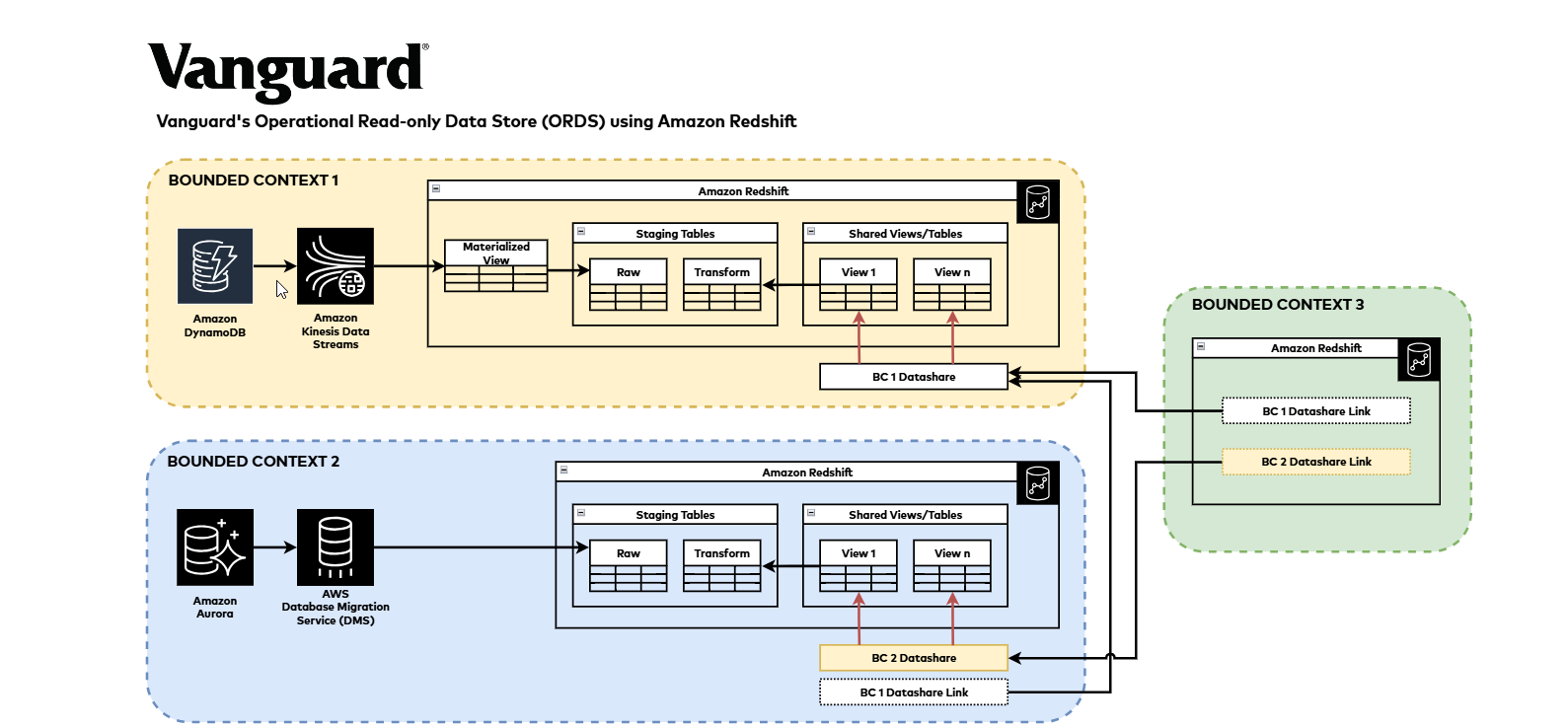
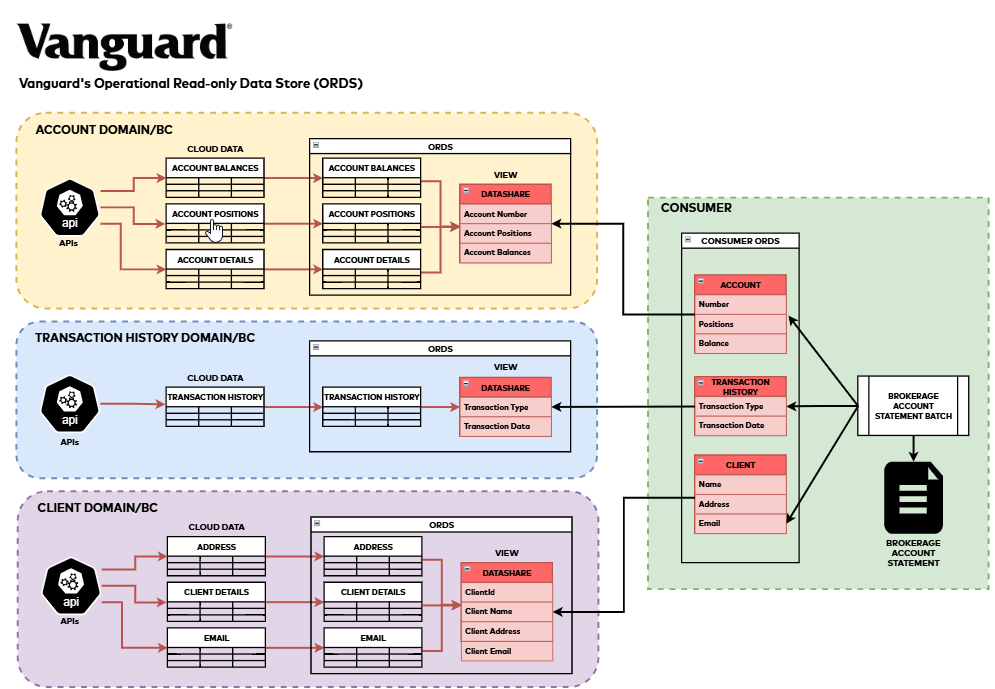
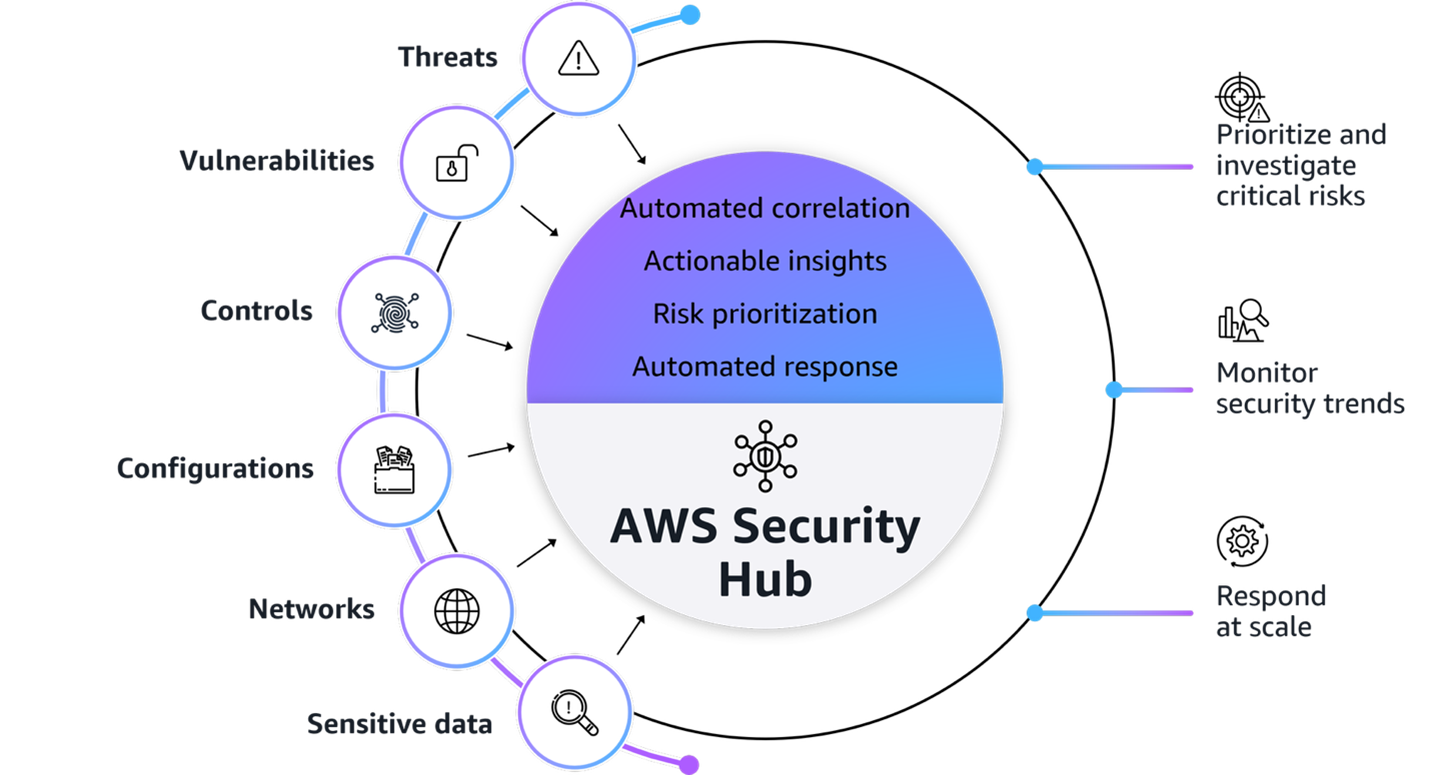
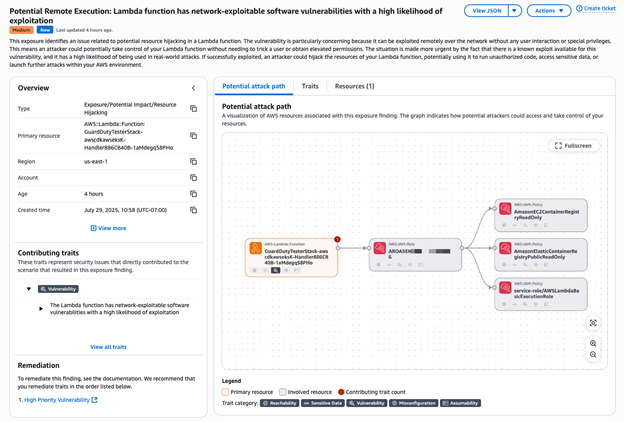
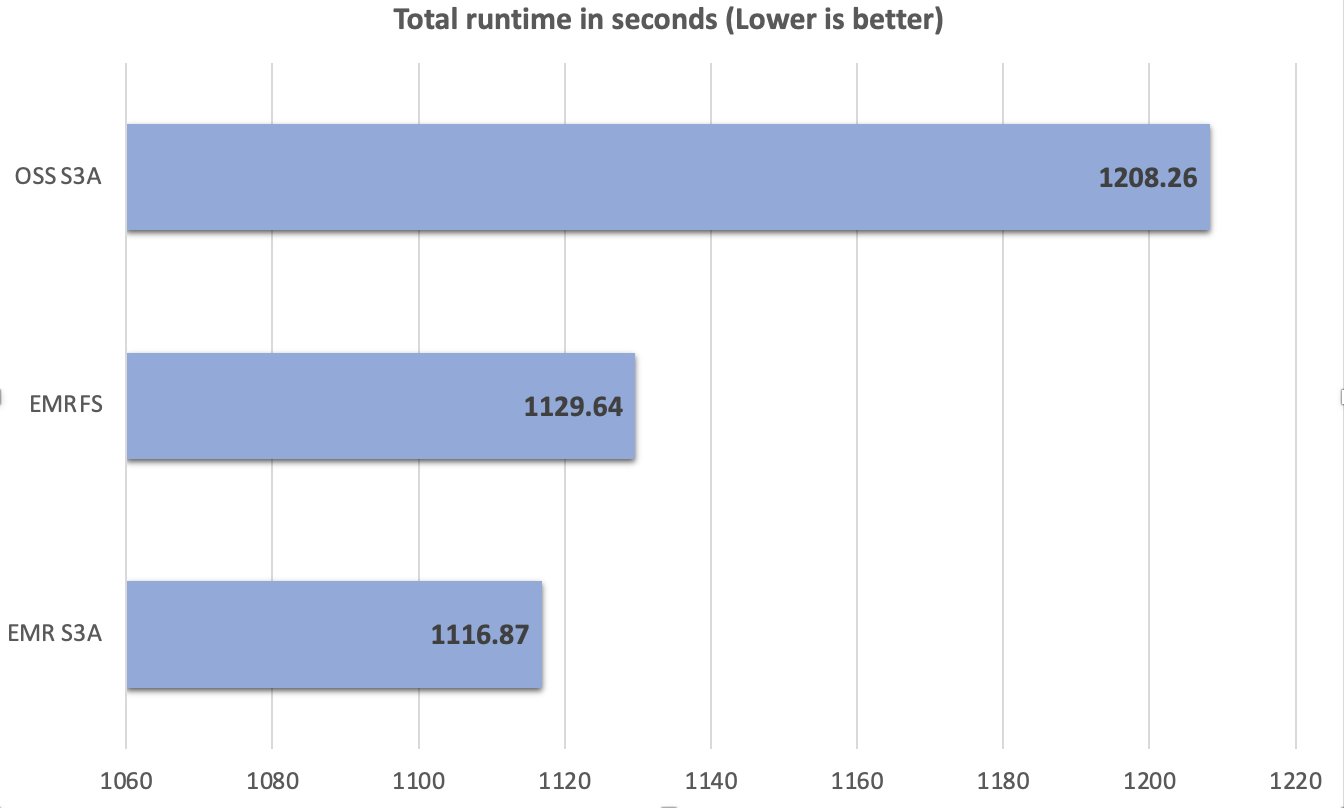
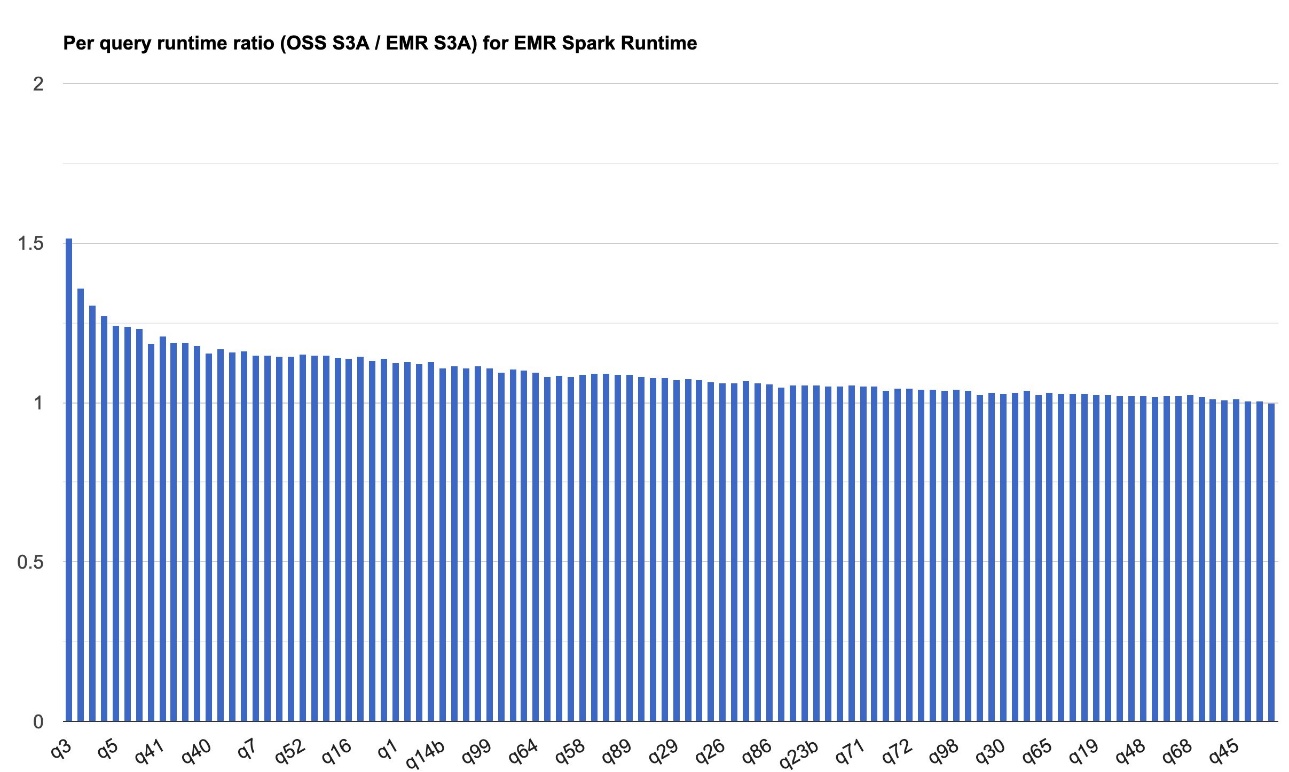
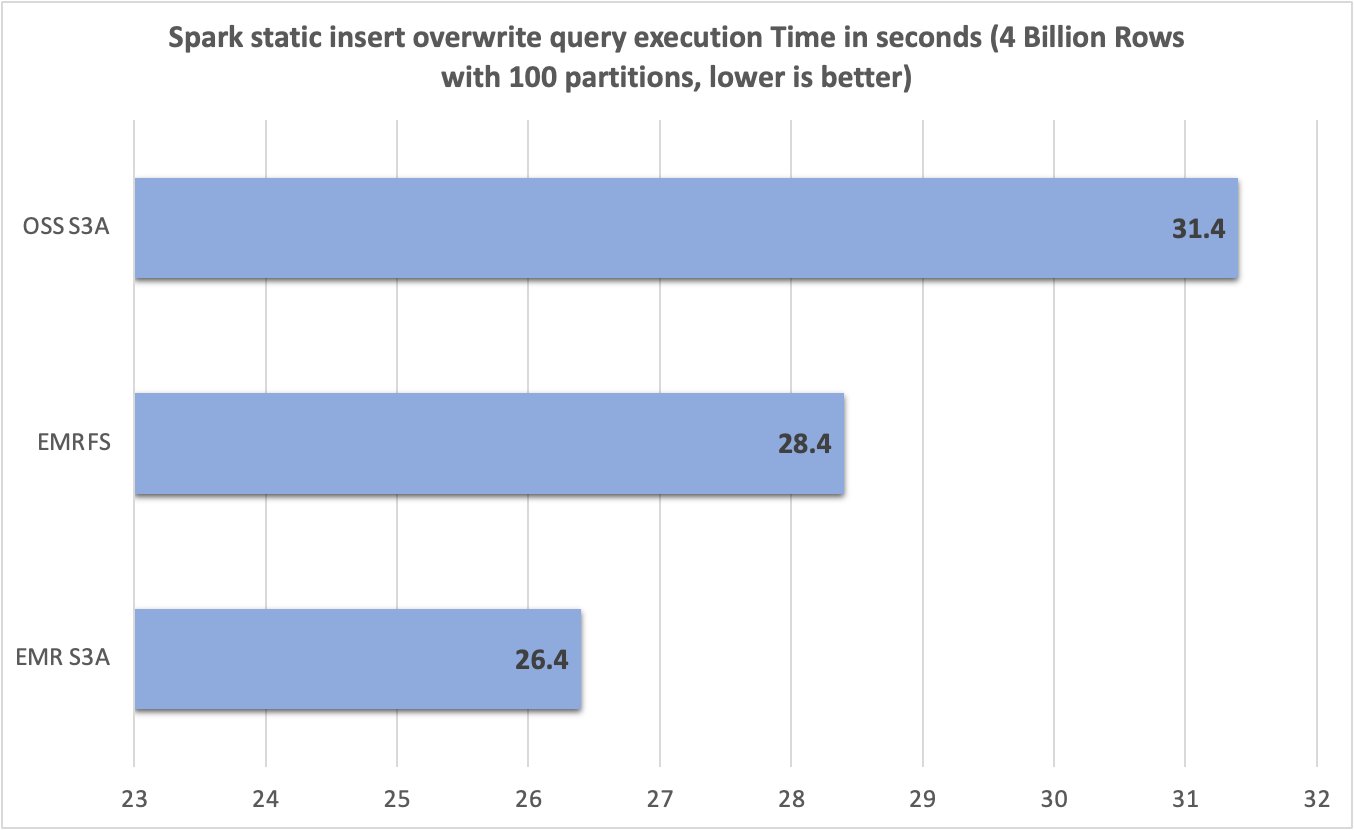
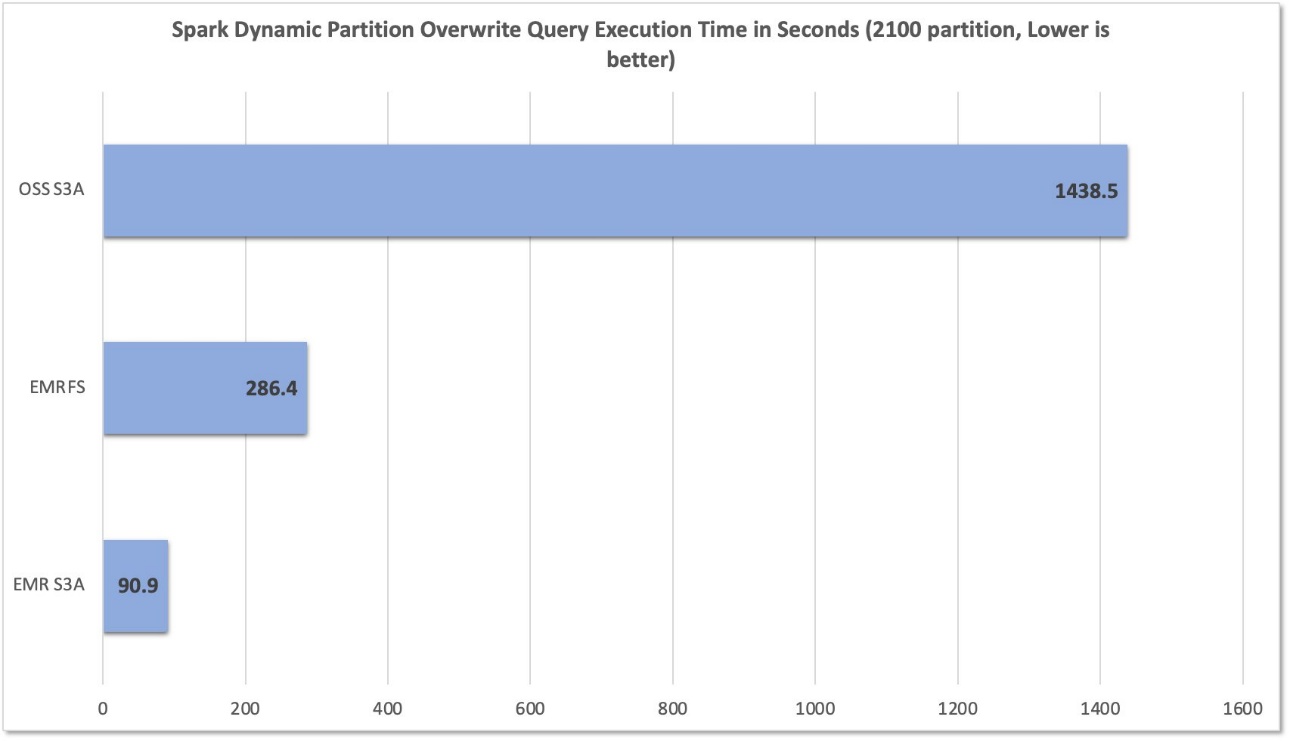
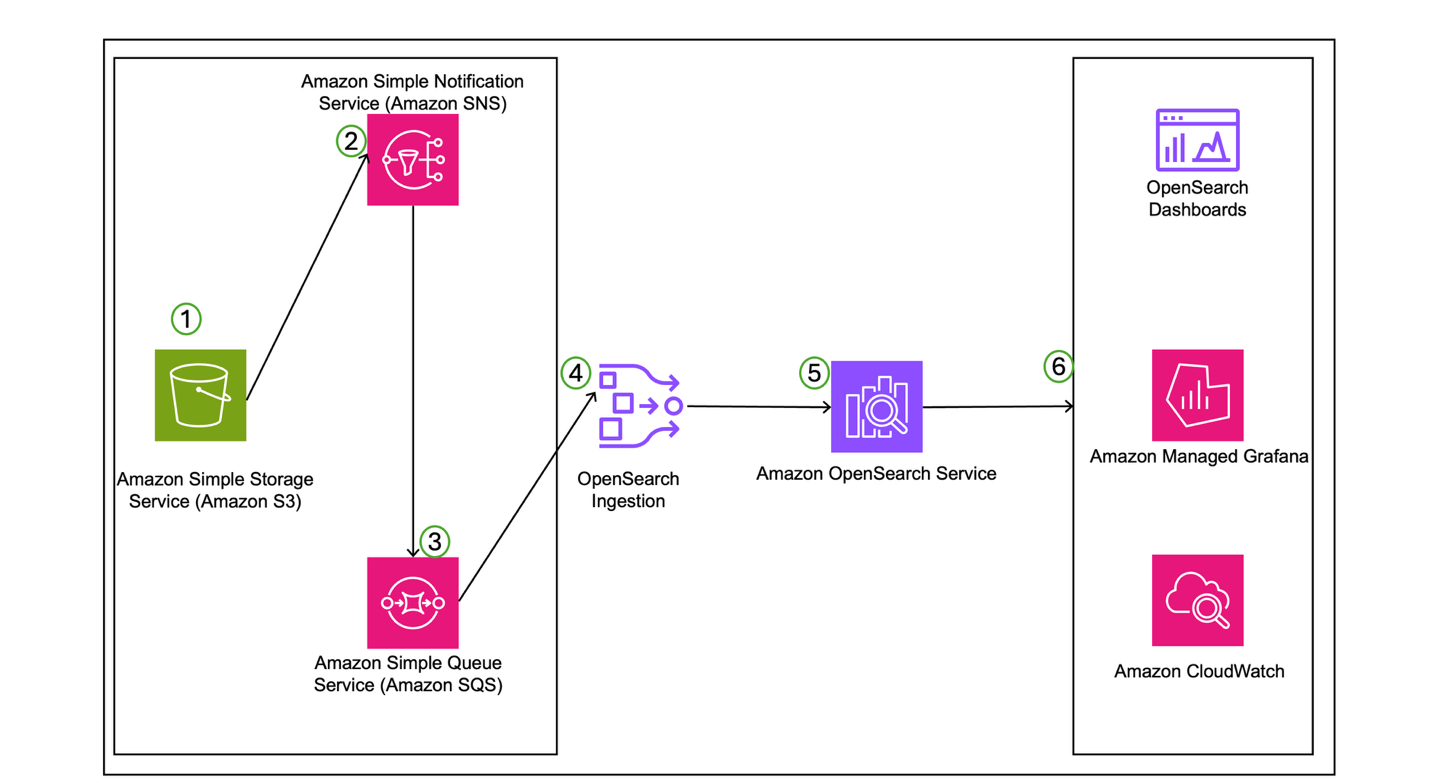
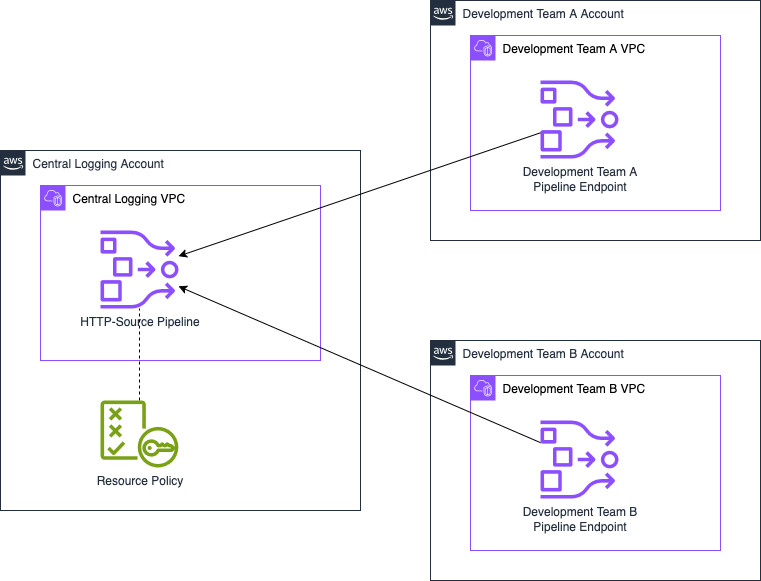
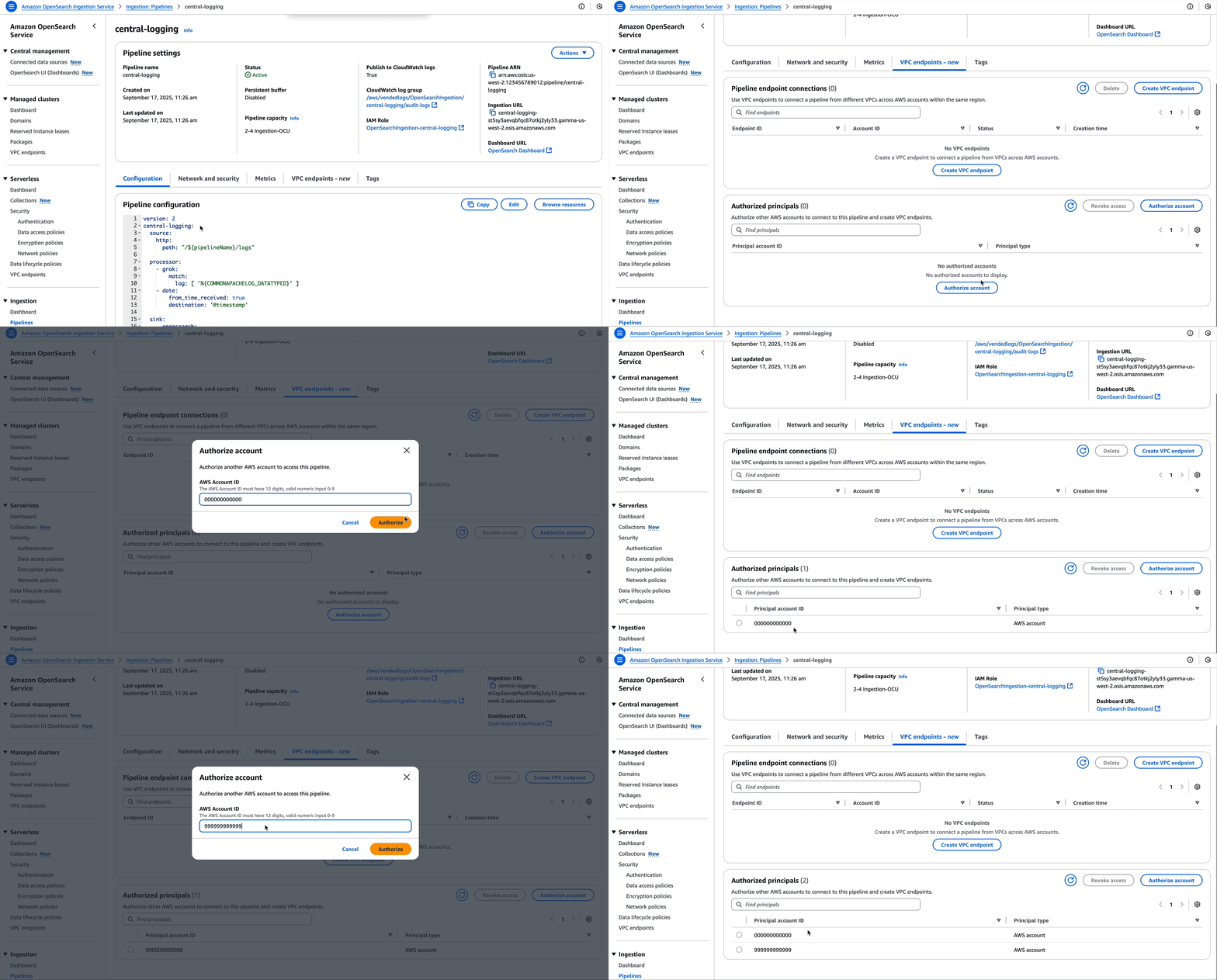
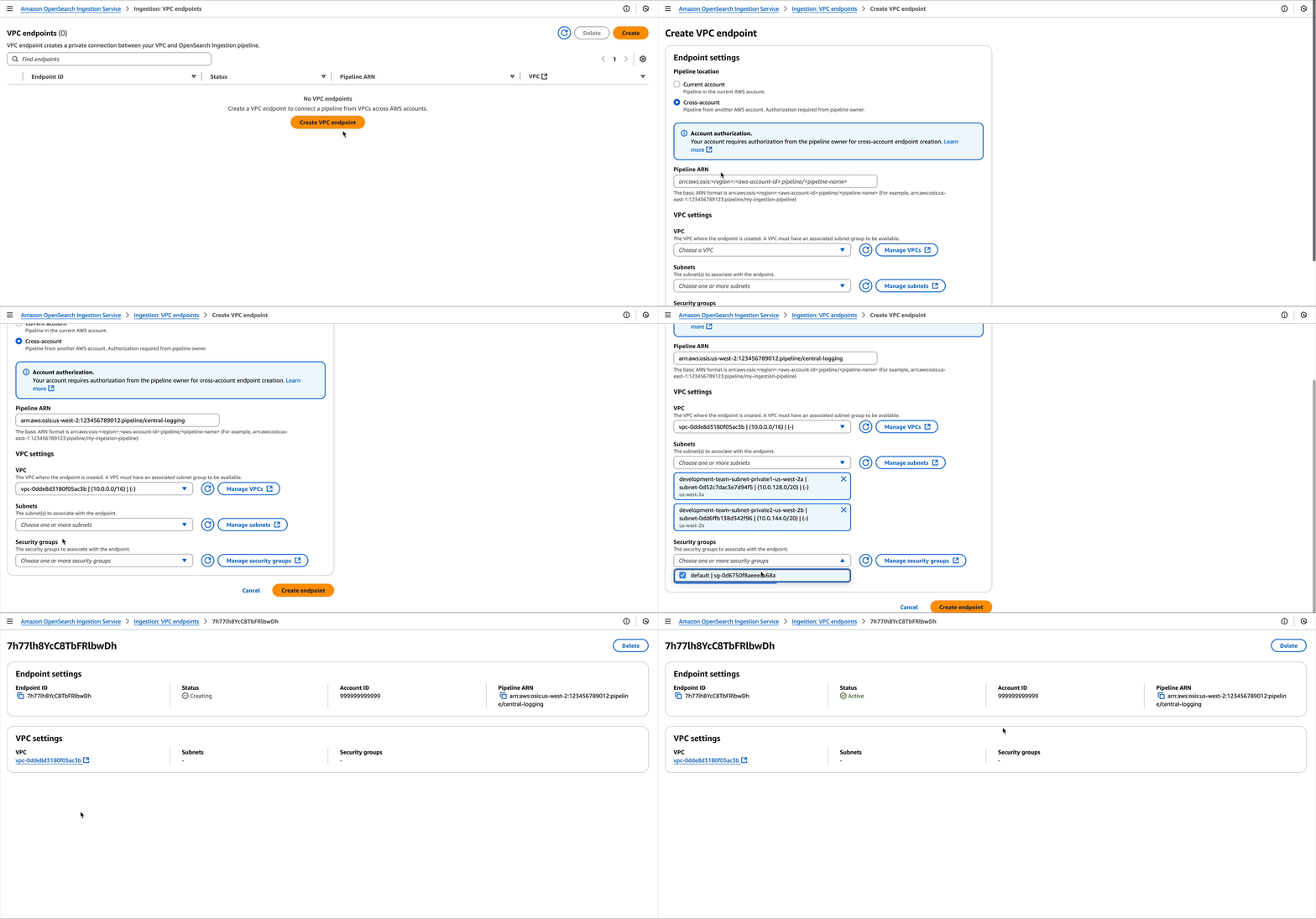
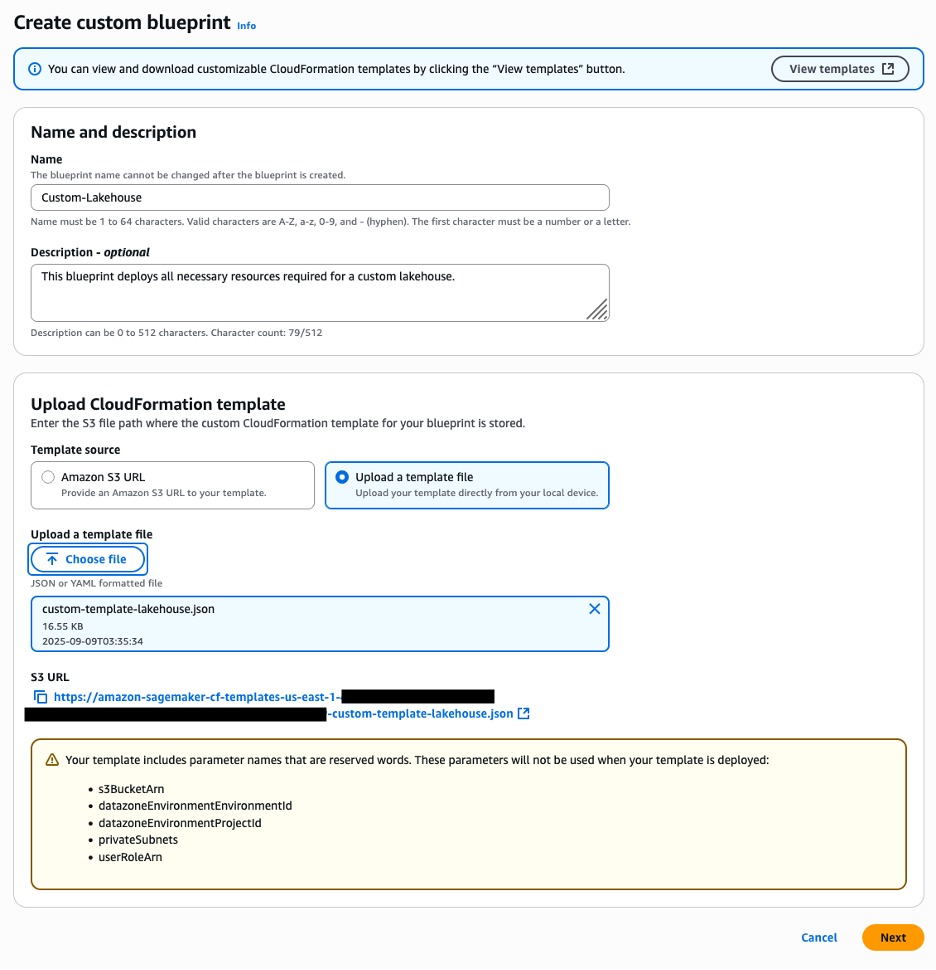
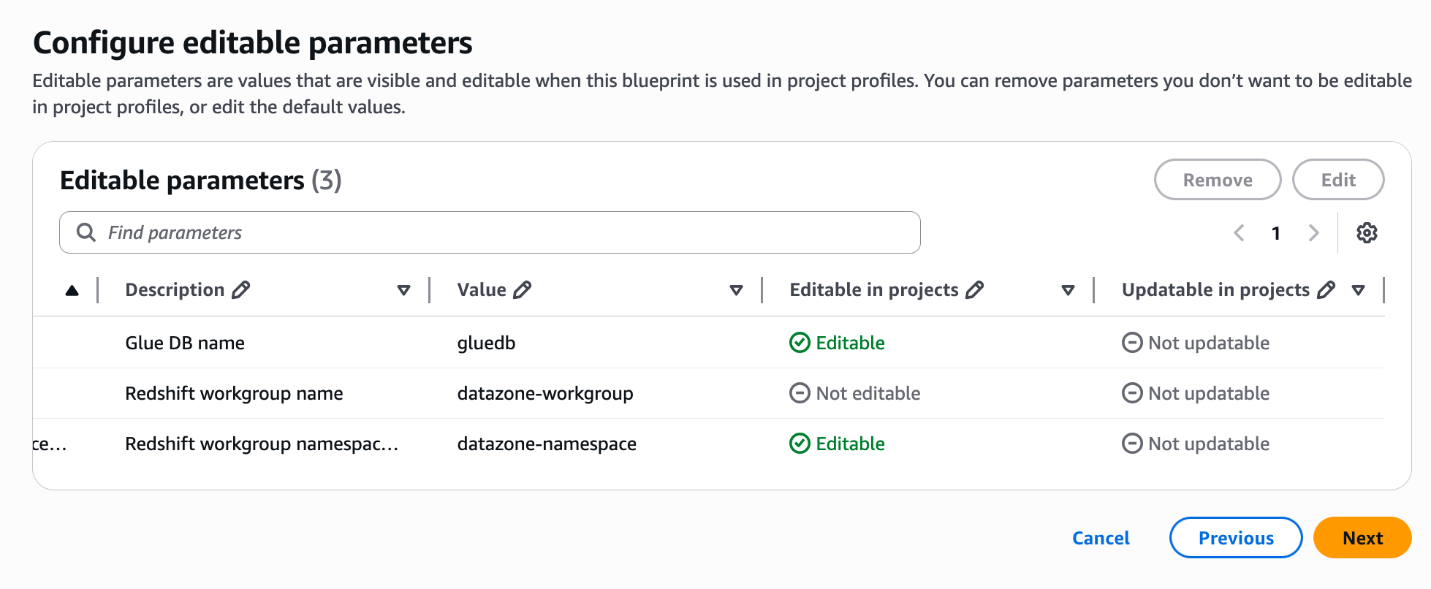
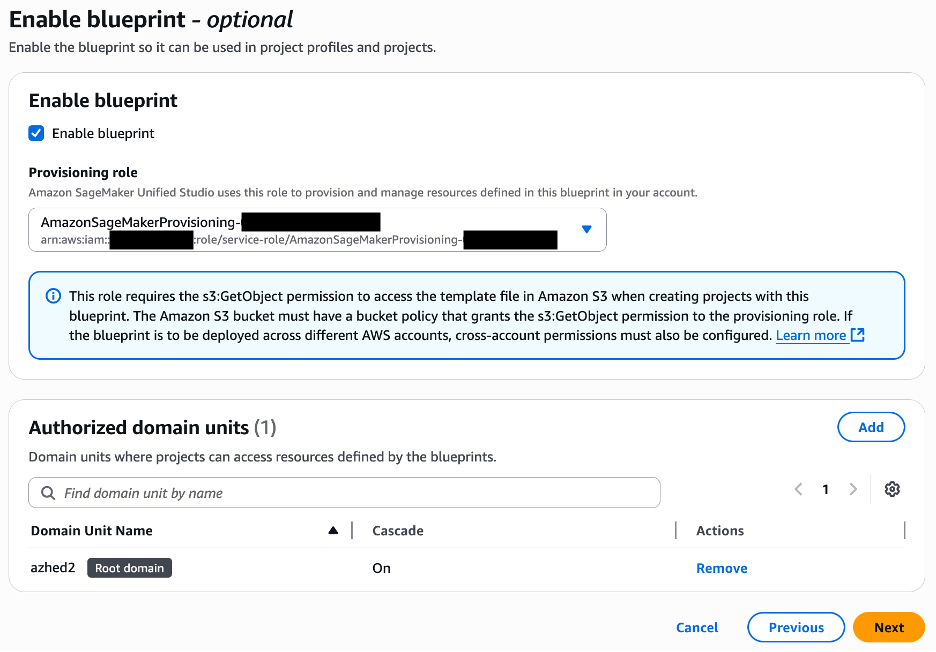
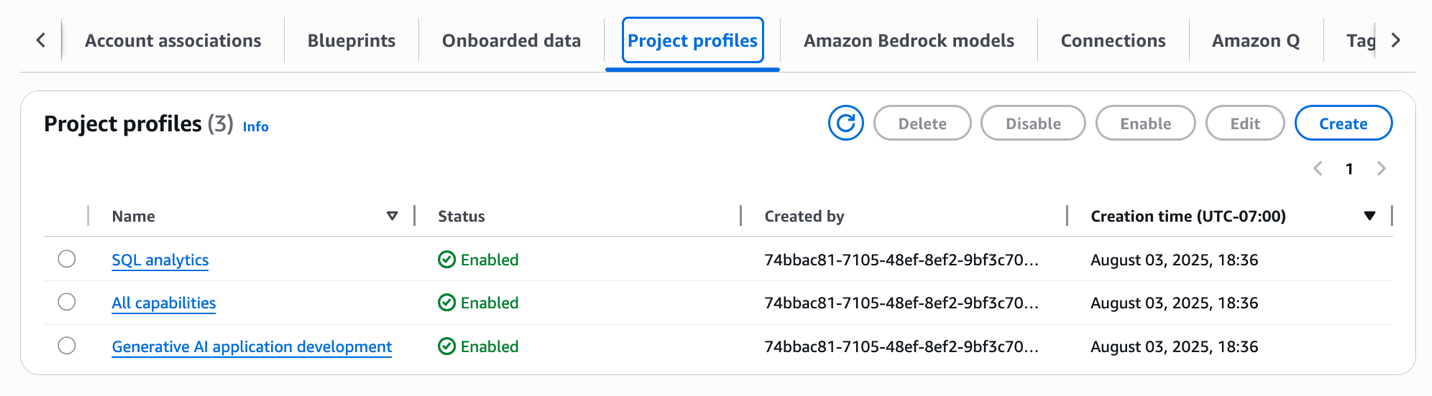
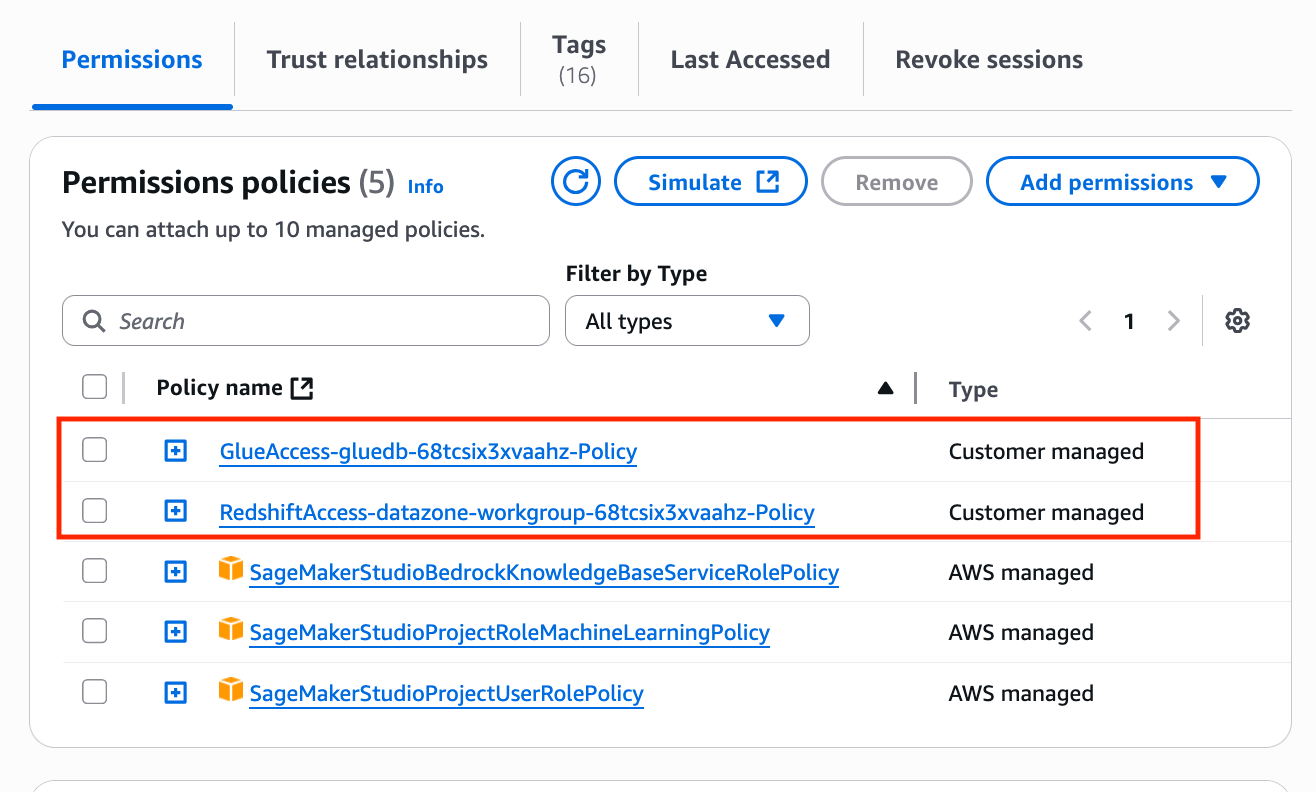
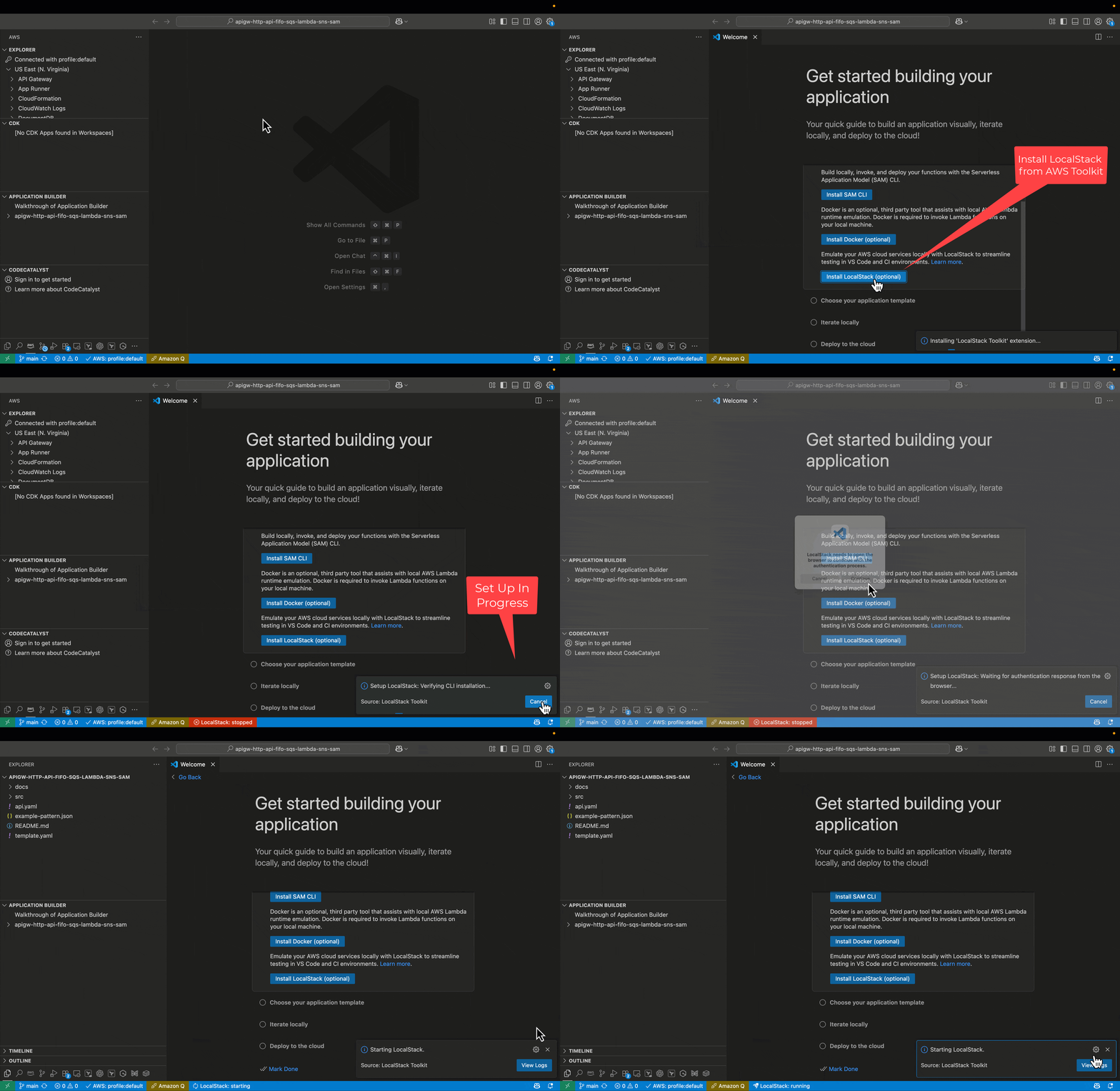
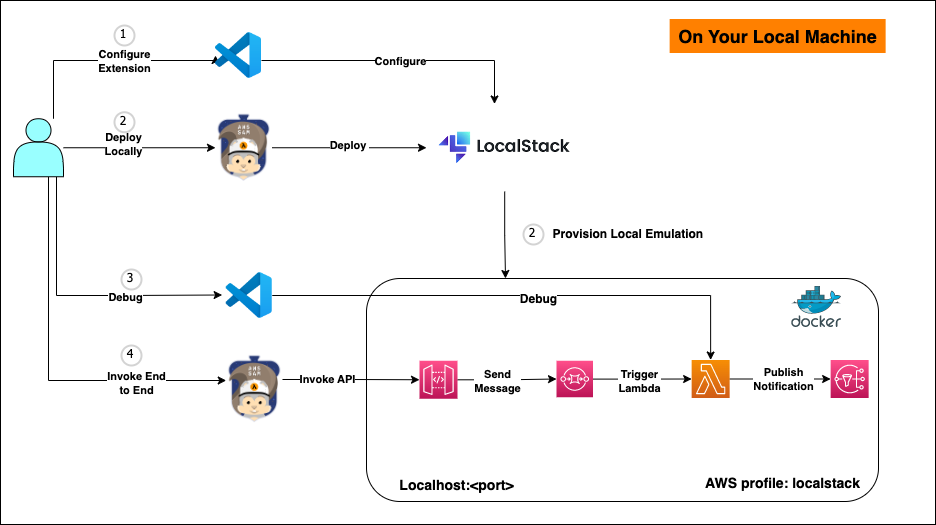

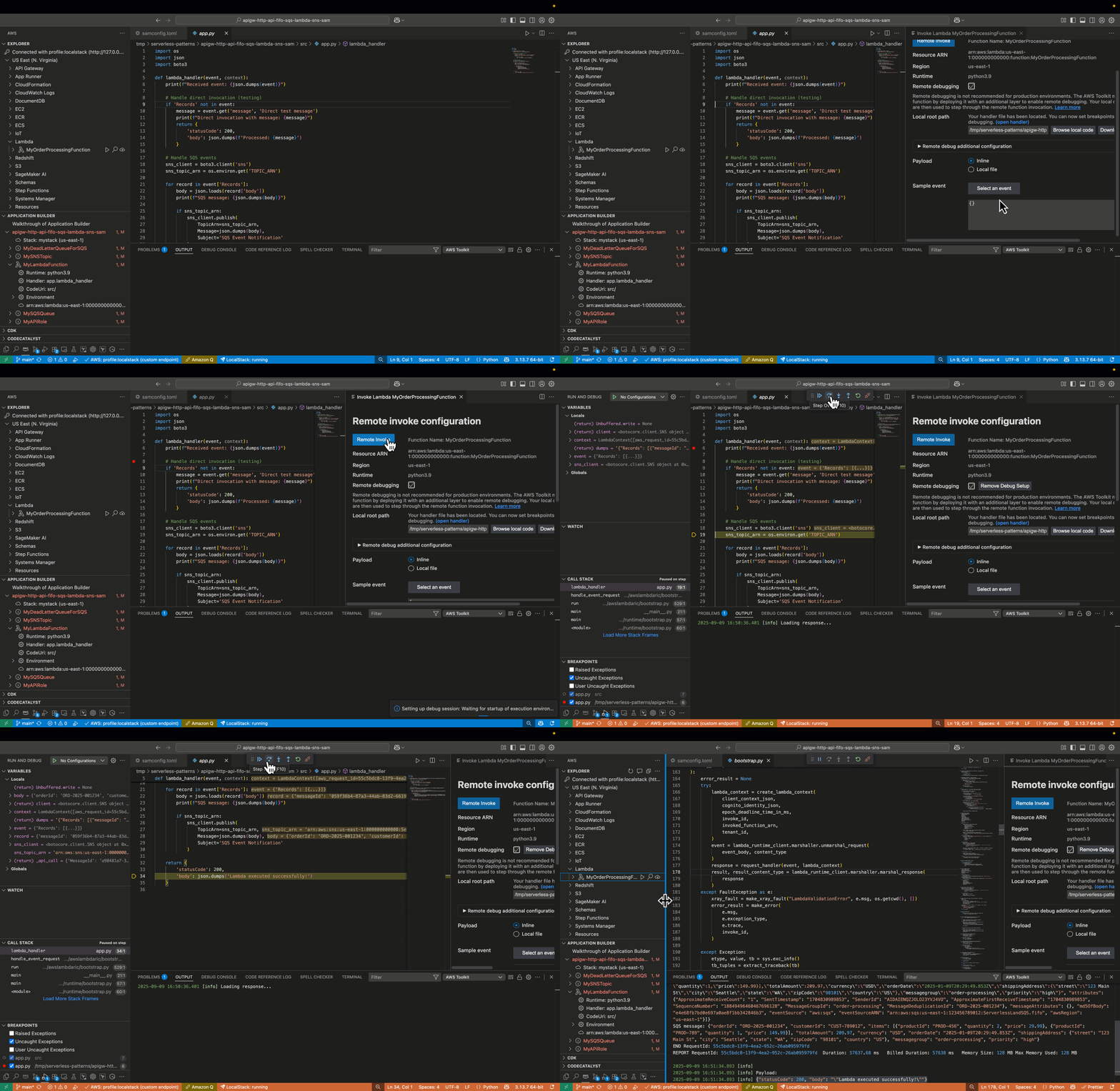
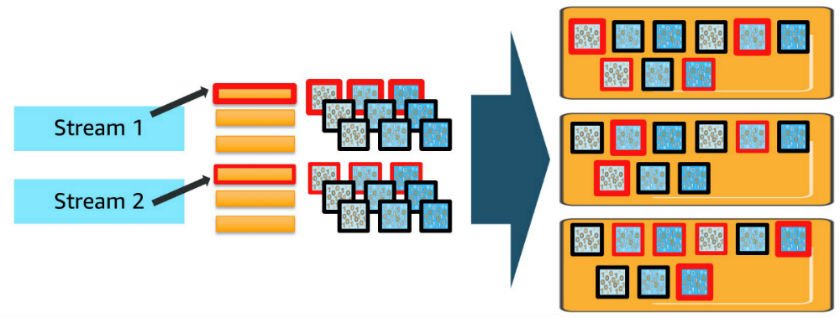

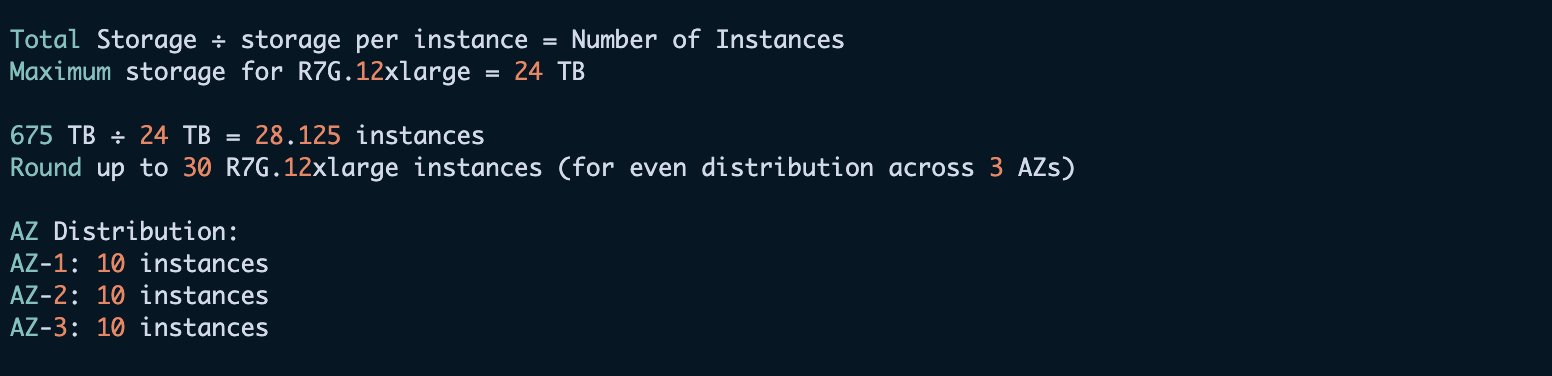
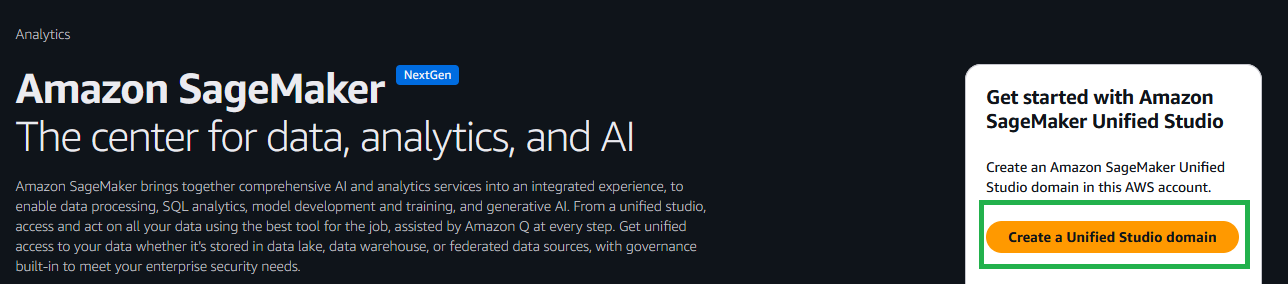
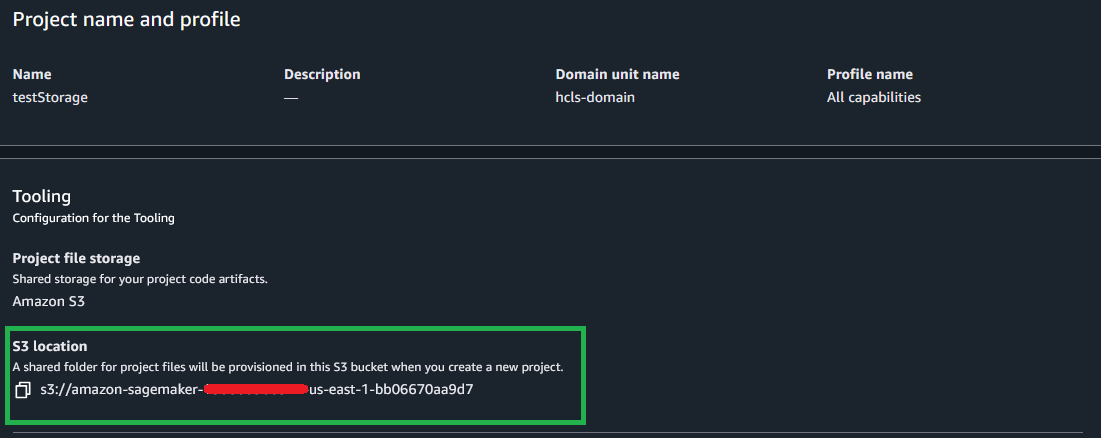
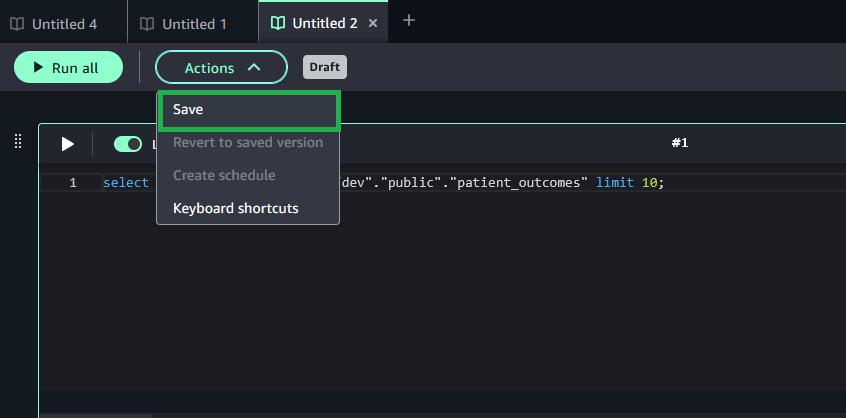
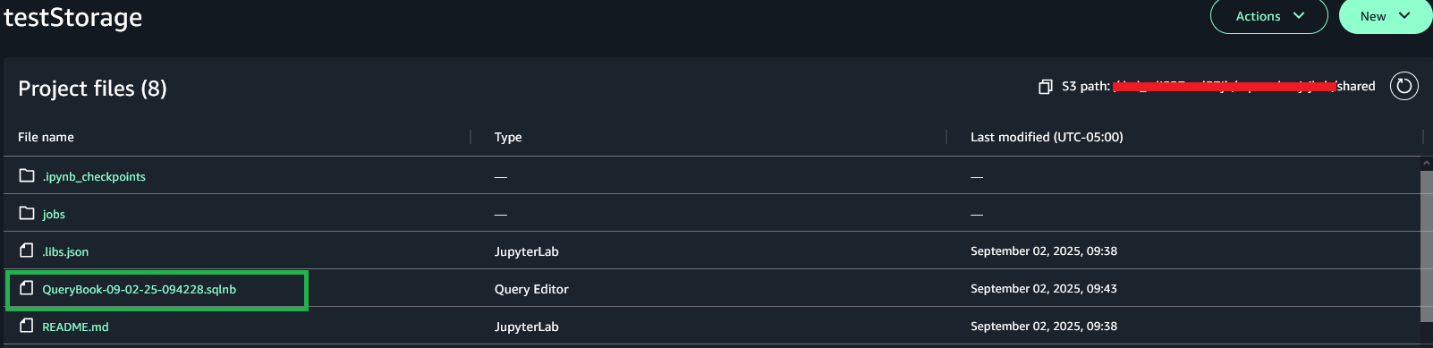
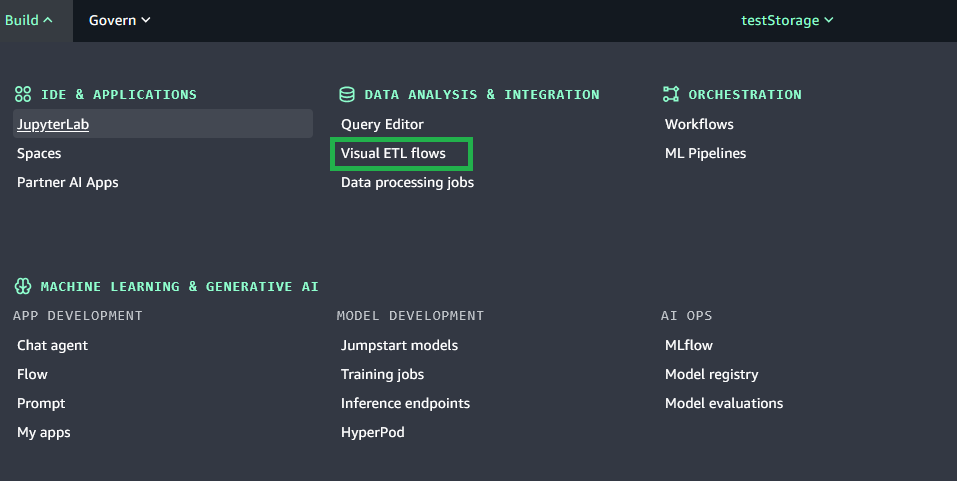


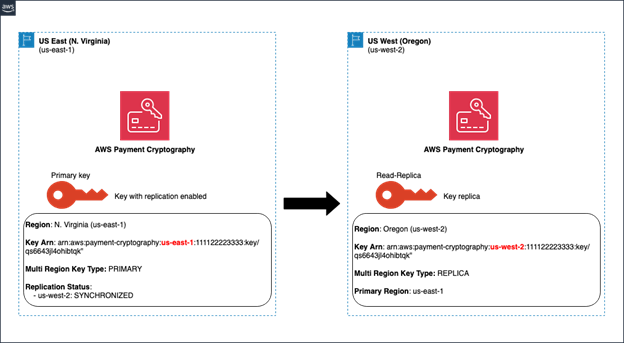
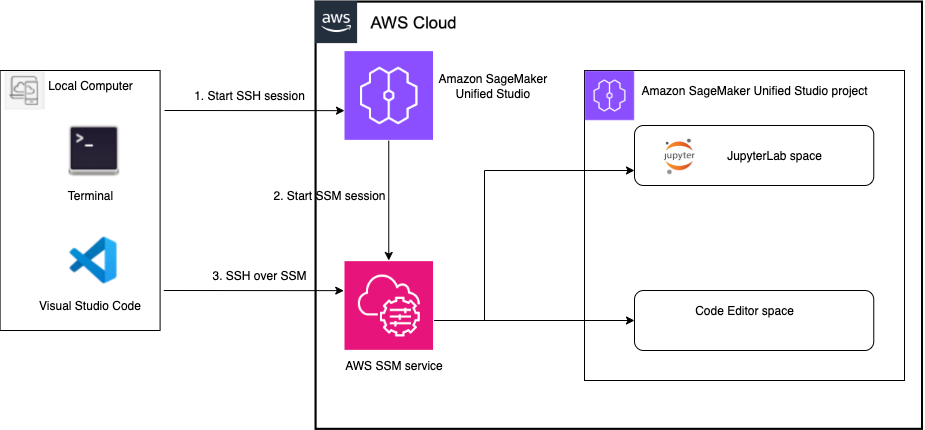

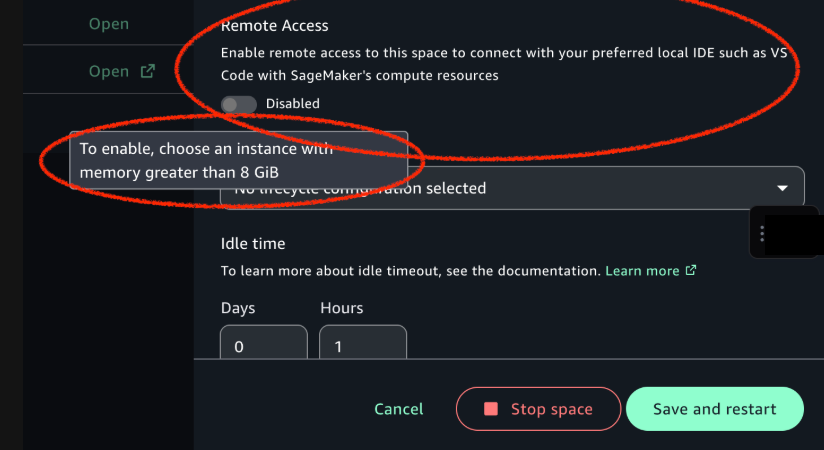
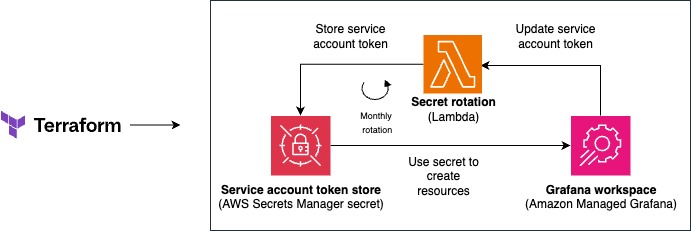
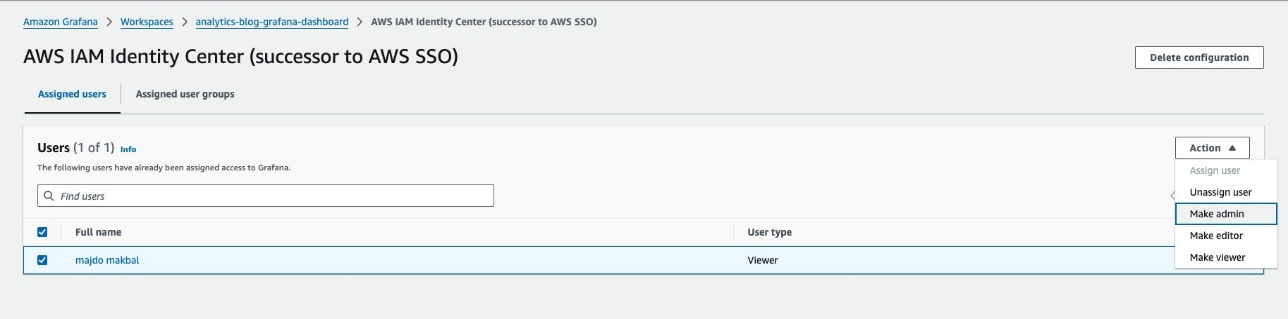
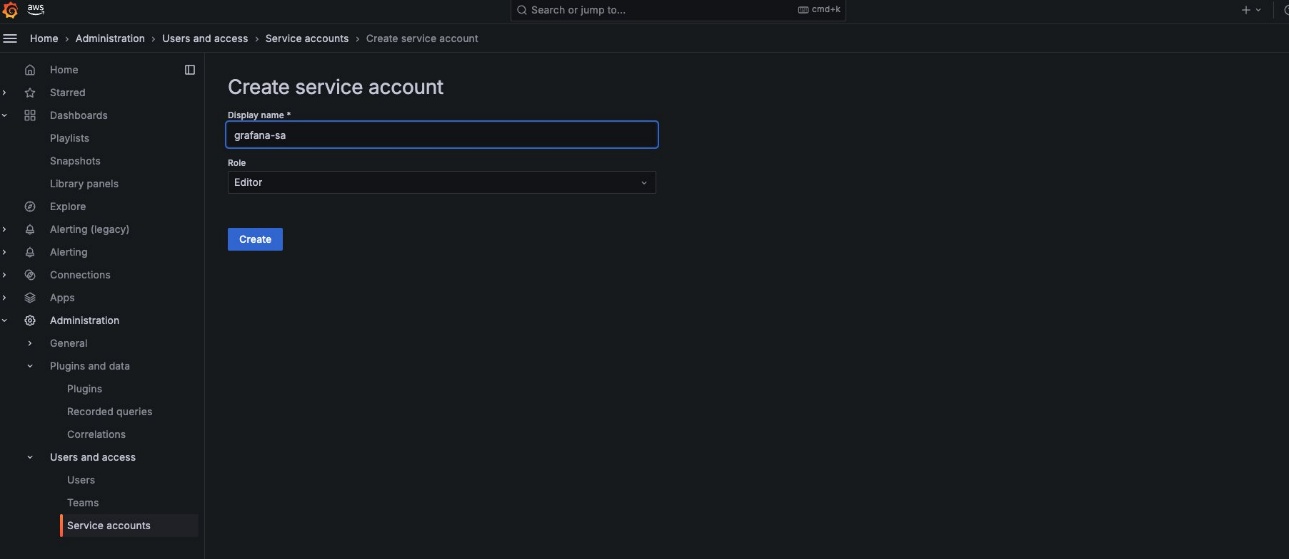
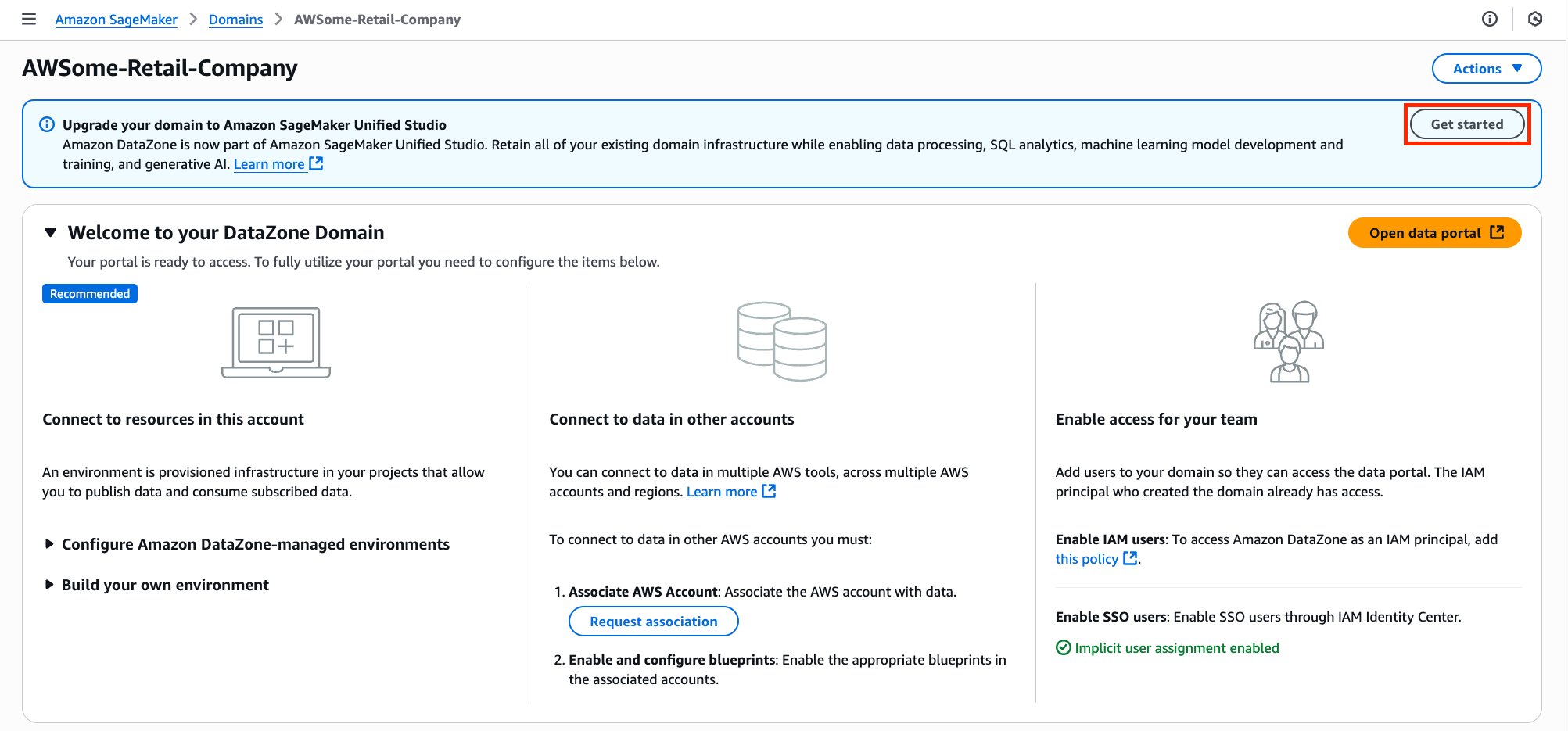
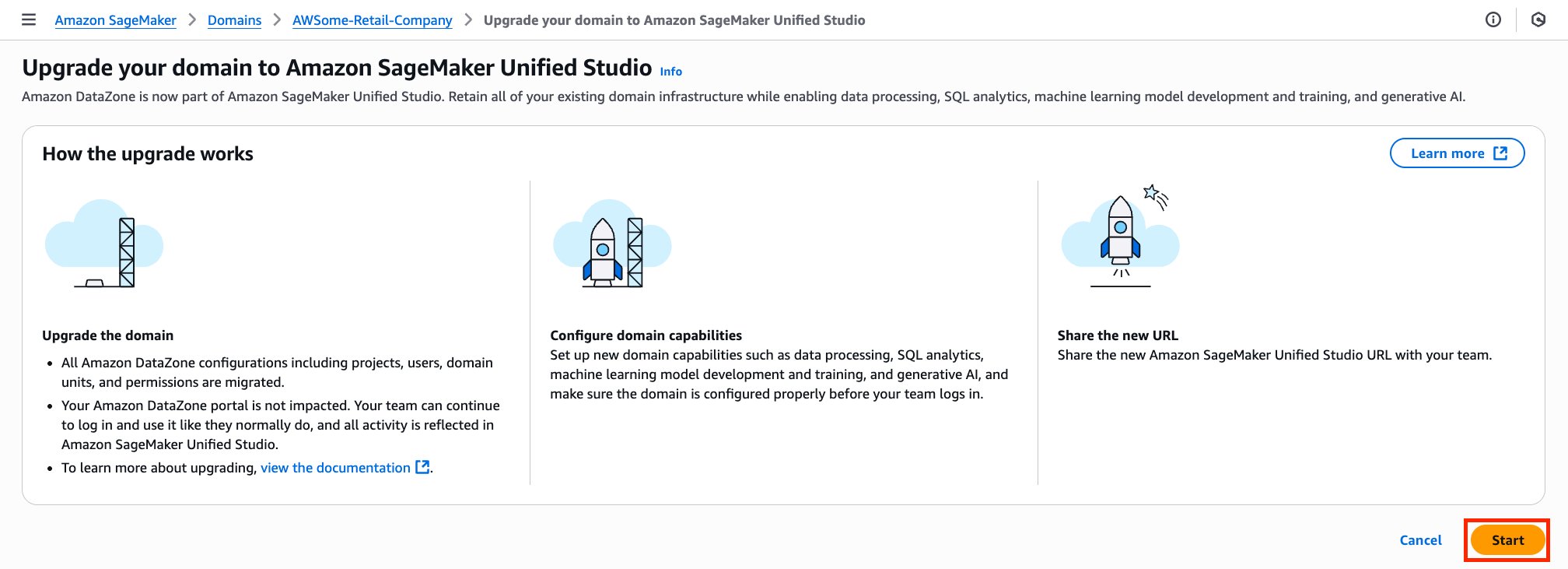
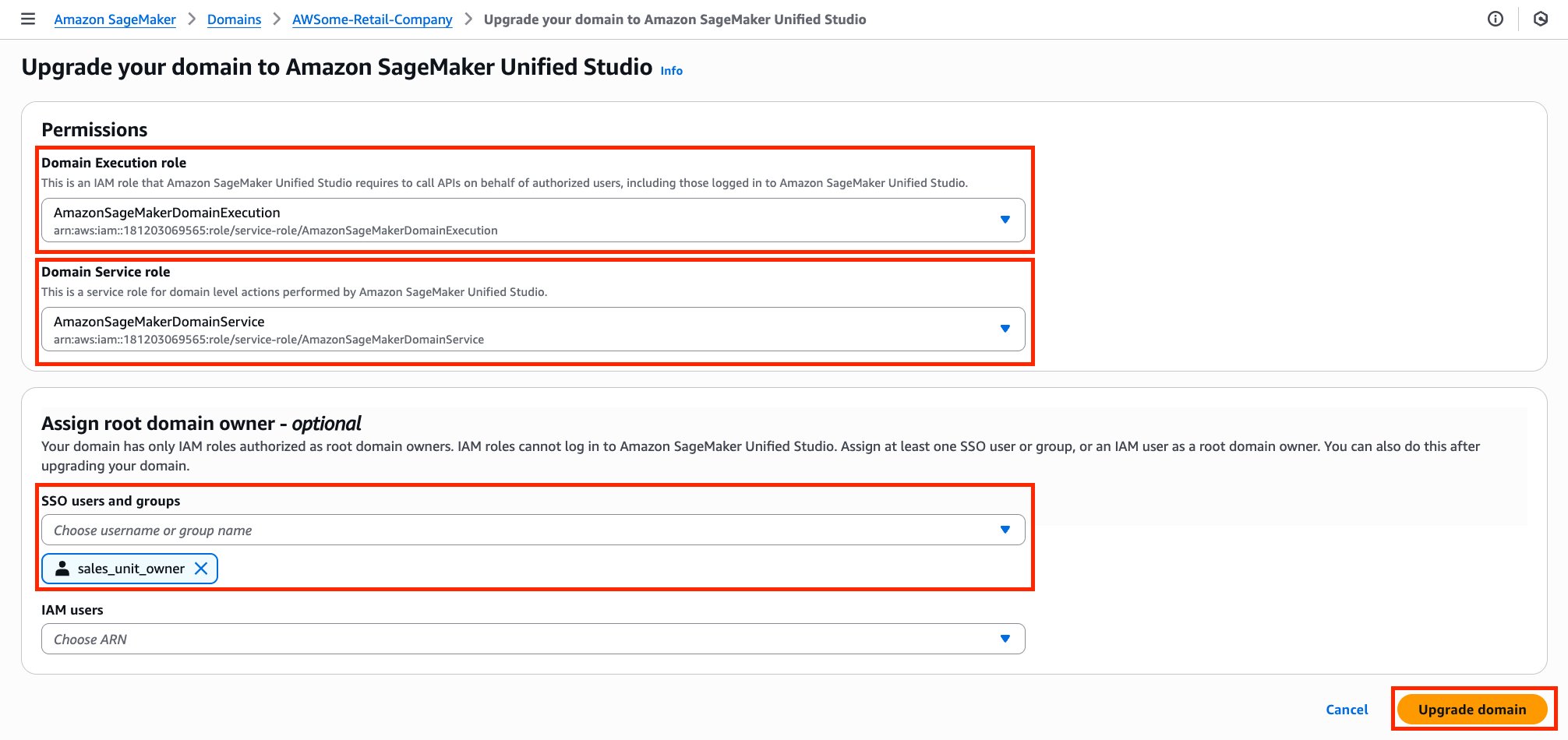
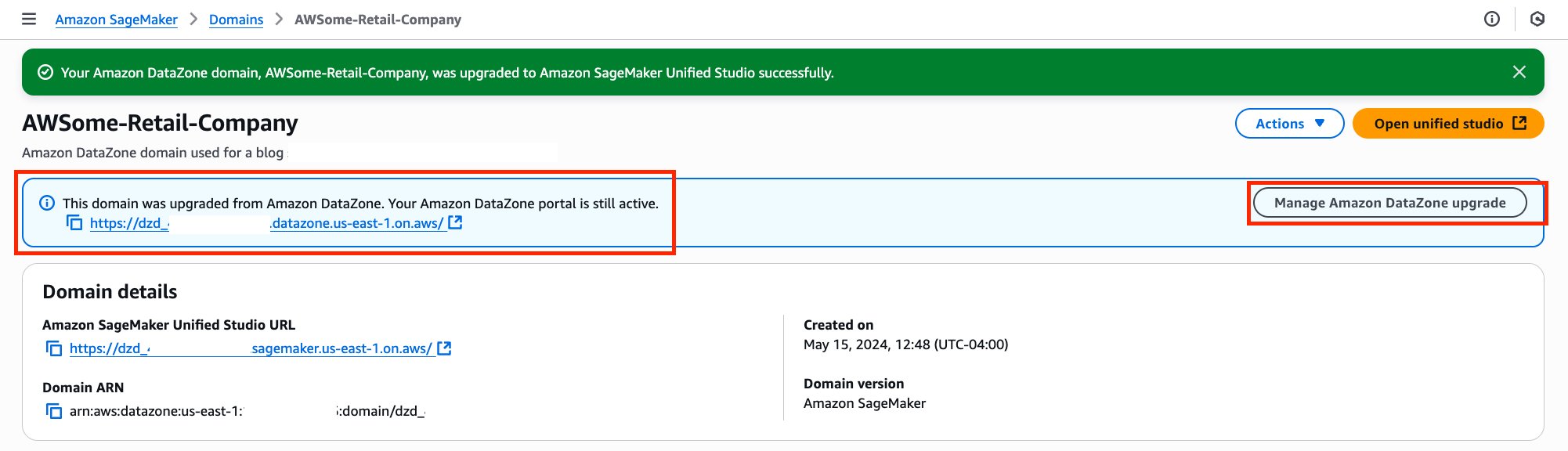
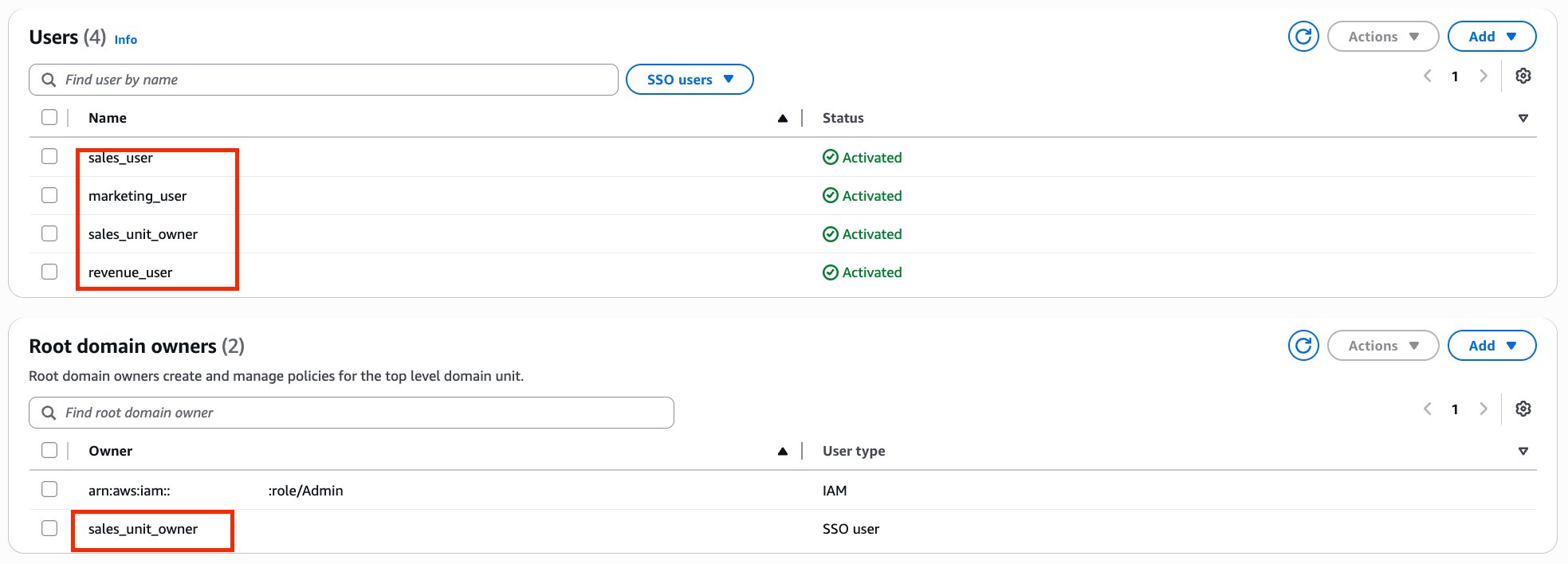
 David Victoria is a Senior Technical Product Manager with Amazon SageMaker at AWS. He focuses on improving administration and governance capabilities needed for customers to support their analytics systems. He is passionate about helping customers realize the most value from their data in a secure, governed manner.
 Leonardo David Gomez Virahonda is a Principal Analytics Specialist Solutions Architect at AWS, with a strong focus on data governance. He helps organizations across industries implement effective governance strategies using AWS services like Amazon DataZone, AWS Glue, Lake Formation, and SageMaker Catalog. Leonardo’s work spans metadata management, data lineage, access control, and compliance—empowering customers to make their data secure, discoverable, and ready for analytics and AI. He regularly shares best practices through technical blogs, enablement content, and sessions at AWS events like re:Invent and regional Summits.