Tag Archives: Intermediate (200)

Chaos Testing with AWS Fault Injection Simulator and AWS CodePipeline

Post Syndicated from Matt Chastain original https://aws.amazon.com/blogs/architecture/chaos-testing-with-aws-fault-injection-simulator-and-aws-codepipeline/

The COVID-19 pandemic has proven to be the largest stress test of our technology infrastructures in generations. A meteoric increase in internet consumption followed, due in large part to working and schooling from home. The chaotic, early months of the pandemic have clearly demonstrated the value of resiliency in production. How can we better prepare our critical systems for these global events in the future? A more modern approach to testing and validating your application architecture is needed. Chaos engineering has emerged as an innovative approach to solving these types of challenges.

This blog shows an architecture pattern for automating chaos testing as part of your continuous integration/continuous delivery (CI/CD) process. By automating the implementation of chaos experiments inside CI/CD pipelines, complex risks and modeled failure scenarios can be tested against application environments with every deployment. Application teams can use the results of these experiments to prioritize improvements in their architecture. These results will give your team the confidence they need to operate in an unpredictable production environment.

AWS Fault Injection Simulator (FIS) is a managed service that enables you to perform fault injection experiments on your AWS workloads. Fault injection is based on the principles of chaos engineering. These experiments stress an application by creating disruptive events so that you can observe how your application responds. You can then use this information to improve the performance and resiliency of your applications. With AWS FIS, you set up and run experiments that help you create the real-world conditions needed to uncover application issues.

AWS CodePipeline is a fully managed continuous delivery service for fast and reliable application and infrastructure updates. You can use AWS CodePipeline to model and automate your software release processes. Automating your build, test, and release process allows you to quickly test each code change. You can ensure the quality of your application or infrastructure code by running each change through your staging and release process.

Continuous chaos testing

Figure 1. High-level architecture pattern for automating chaos engineering

Figure 1. High-level architecture pattern for automating chaos engineering

Create FIS experiments

Begin with creating an FIS experiment template by configuring one or more actions (action set) to run against the target resources of the application architecture. Here we have created an action to stop Amazon EC2 instances in our Amazon Elastic Container Service (ECS) cluster identified by a tag. Target resources can be identified by resource IDs, filters, or tags. We can also set up the action parameters for running the actions before or after the actions/duration. Additionally, you can set up Amazon CloudWatch alarms to stop running one or more fault experiments once a particular threshold or boundary has been reached. In Increase your e-commerce website reliability using chaos engineering and AWS Fault Injection Simulator, Bastien Leblanc shares how to set up CloudWatch metric thresholds as stop conditions for experiments.

Figure 2. AWS FIS experiment template

Figure 2. AWS FIS experiment template

Author AWS Lambda to initiate FIS experiments

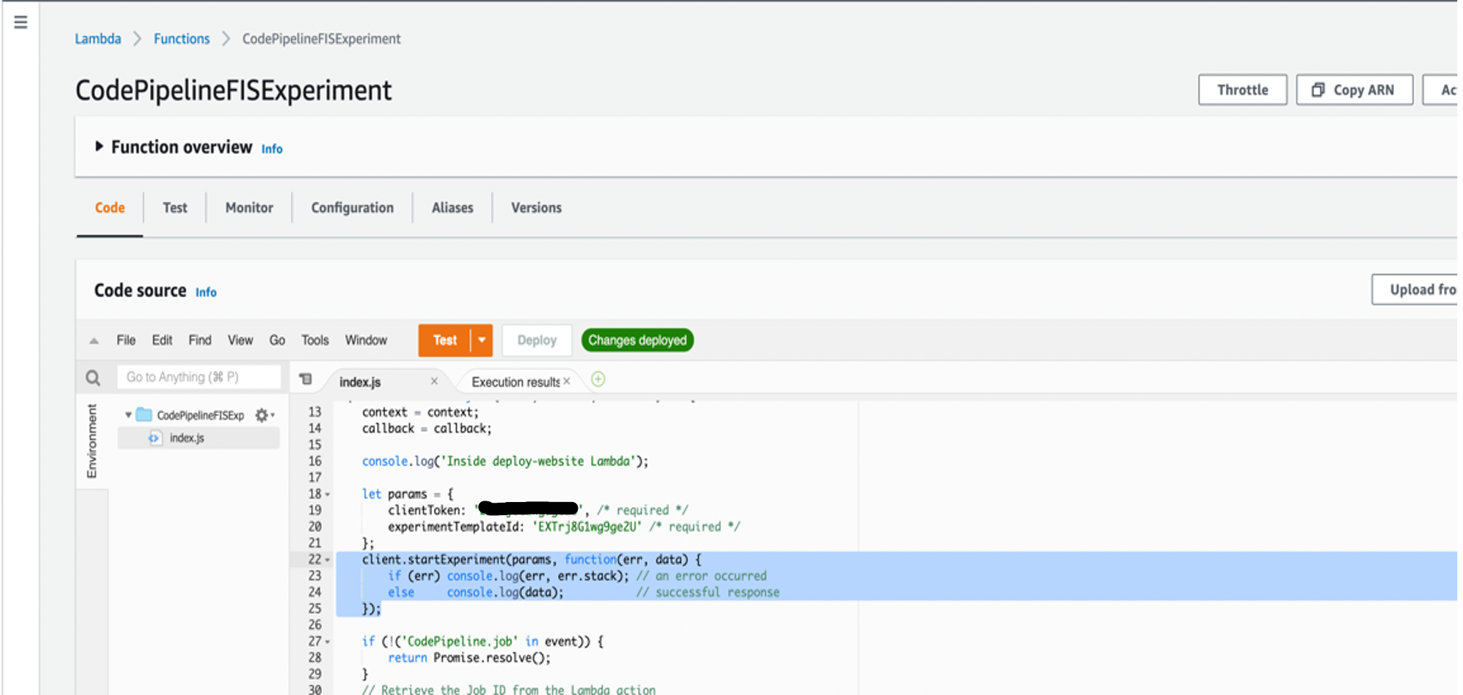
Create/Add a FIS IAM role to the Lambda function in the configuration permissions section. To start a specific FIS experiment, we use the experimentTemplateId parameter in our Lambda code. Refer to the AWS FIS API Reference when writing your Lambda code. When integrating the Lambda function into your pipeline, a new AWS CodePipeline can be created or an existing one can be used. A new pipeline stage is added at the point we initiate our Lambda function (post deployment stage), which launches our FIS experiment.

Figure 3. AWS Lambda function initiating AWS FIS experiment

Figure 3. AWS Lambda function initiating AWS FIS experiment


Figure 4. AWS CodePipeline with AWS FIS experiment stage

Figure 4. AWS CodePipeline with AWS FIS experiment stage

The experimentTemplateId parameter can also be staged as a key/value ‘environment variable’ in your Lambda function configuration. This is useful as it allows you to change your FIS experiment template without having to adjust your function code. You can use the same Lambda function code by dynamically injecting the experimentTemplateId in multiple environments on your way to production.

Verify FIS experiment results on deployed application

By continuously performing fault injection post-deployment in AWS CodePipeline, you learn about complex failure conditions, which you must solve. User experience and availability testing on your application during the runtime of the FIS experiment can be started by a notification rule. In AWS CodePipeline, you can use an Amazon Simple Notification Service (SNS) topic or chatbot integration. CloudWatch Synthetics can be used for those looking to automate experience testing on the candidate application while other FIS experiments are running.

Figure 5. AWS CodePipeline notification rule setting

Figure 5. AWS CodePipeline notification rule setting

Summary

Using AWS CodePipeline to automate chaos engineering experiments on application architecture with AWS FIS is straightforward. Following are some benefits from automating fault injection testing in our CI/CD pipelines:

  • Our team can achieve a higher degree of confidence in meeting the resiliency requirements of our application. We use a more modern approach to testing and automating this experimentation inside our existing CI/CD process with AWS CodePipeline.
  • We know more about the unknown risks to our application. All testing results we receive provide benefit and learning opportunities for our team. We use these results to understand what we do well, where we need to improve, or what we are willing to tolerate based on our application requirements.
  • Continuously evaluating our architectural fitness inside CI/CD allows our team to validate the impact each feature or component iteration has on the resiliency of our application.

However, the sole value of automating chaos testing is not limited to finding, fixing, or documenting the risks that surface in our application. Additional confidence is gained through constantly validating your operational practices, such as alerts and alarms, monitoring, and notifications.

FIS gives you a controlled and repeatable way to reproduce necessary conditions to fine-tune your operational procedures and runbooks. Automating this testing inside a CI/CD pipeline ensures a nearly continuous feedback loop for these operational practices.

CICD on Serverless Applications using AWS CodeArtifact

Post Syndicated from Anand Krishna original https://aws.amazon.com/blogs/devops/cicd-on-serverless-applications-using-aws-codeartifact/

Developing and deploying applications rapidly to users requires a working pipeline that accepts the user code (usually via a Git repository). AWS CodeArtifact was announced in 2020. It’s a secure and scalable artifact management product that easily integrates with other AWS products and services. CodeArtifact allows you to publish, store, and view packages, list package dependencies, and share your application’s packages.

In this post, I will show how we can build a simple DevOps pipeline for a sample JAVA application (JAR file) to be built with Maven.

Solution Overview

We utilize the following AWS services/Tools/Frameworks to set up our continuous integration, continuous deployment (CI/CD) pipeline:

The following diagram illustrates the pipeline architecture and flow:


aws-codeartifact-pipeline


Our pipeline is built on CodePipeline with CodeCommit as the source (CodePipeline Source Stage). This triggers the pipeline via a CloudWatch Events rule. Then the code is fetched from the CodeCommit repository branch (main) and sent to the next pipeline phase. This CodeBuild phase is specifically for compiling, packaging, and publishing the code to CodeArtifact by utilizing a package manager—in this case Maven.

After Maven publishes the code to CodeArtifact, the pipeline asks for a manual approval to be directly approved in the pipeline. It can also optionally trigger an email alert via Amazon Simple Notification Service (Amazon SNS). After approval, the pipeline moves to another CodeBuild phase. This downloads the latest packaged JAR file from a CodeArtifact repository and deploys to the AWS Lambda function.

Clone the Repository

Clone the GitHub repository as follows:

git clone https://github.com/aws-samples/aws-cdk-codeartifact-pipeline-sample.git

Code Deep Dive

After the Git repository is cloned, the directory structure is shown as in the following screenshot :

aws-codeartifact-pipeline-code

Let’s study the files and code to understand how the pipeline is built.

The directory java-events is a sample Java Maven project. Find numerous sample applications on GitHub. For this post, we use the sample application java-events.

To add your own application code, place the pom.xml and settings.xml files in the root directory for the AWS CDK project.

Let’s study the code in the file lib/cdk-pipeline-codeartifact-new-stack.ts of the stack CdkPipelineCodeartifactStack. This is the heart of the AWS CDK code that builds the whole pipeline. The stack does the following:

  • Creates a CodeCommit repository called ca-pipeline-repository.
  • References a CloudFormation template (lib/ca-template.yaml) in the AWS CDK code via the module @aws-cdk/cloudformation-include.
  • Creates a CodeArtifact domain called cdkpipelines-codeartifact.
  • Creates a CodeArtifact repository called cdkpipelines-codeartifact-repository.
  • Creates a CodeBuild project called JarBuild_CodeArtifact. This CodeBuild phase does all of the code compiling, packaging, and publishing to CodeArtifact into a repository called cdkpipelines-codeartifact-repository.
  • Creates a CodeBuild project called JarDeploy_Lambda_Function. This phase fetches the latest artifact from CodeArtifact created in the previous step (cdkpipelines-codeartifact-repository) and deploys to the Lambda function.
  • Finally, creates a pipeline with four phases:
    • Source as CodeCommit (ca-pipeline-repository).
    • CodeBuild project JarBuild_CodeArtifact.
    • A Manual approval Stage.
    • CodeBuild project JarDeploy_Lambda_Function.


CodeArtifact shows the domain-specific and repository-specific connection settings to mention/add in the application’s pom.xml and settings.xml files as below:

aws-codeartifact-repository-connections

Deploy the Pipeline

The AWS CDK code requires the following packages in order to build the CI/CD pipeline:

  • @aws-cdk/core
  • @aws-cdk/aws-codepipeline
  • @aws-cdk/aws-codepipeline-actions
  • @aws-cdk/aws-codecommit
  • @aws-cdk/aws-codebuild
  • @aws-cdk/aws-iam
  • @aws-cdk/cloudformation-include


Install the required AWS CDK packages as below:

npm i @aws-cdk/core @aws-cdk/aws-codepipeline @aws-cdk/aws-codepipeline-actions @aws-cdk/aws-codecommit @aws-cdk/aws-codebuild @aws-cdk/pipelines @aws-cdk/aws-iam @ @aws-cdk/cloudformation-include

Compile the AWS CDK code:

npm run build

Deploy the AWS CDK code:

cdk synth
cdk deploy

After the AWS CDK code is deployed, view the final output on the stack’s detail page on the AWS CloudFormation :

aws-codeartifact-pipeline-cloudformation-stack


How the pipeline works with artifact versions (using SNAPSHOTS)

In this demo, I publish SNAPSHOT to the repository. As per the documentation here and here, a SNAPSHOT refers to the most recent code along a branch. It’s a development version preceding the final release version. Identify a snapshot version of a Maven package by the suffix SNAPSHOT appended to the package version.

The application settings are defined in the pom.xml file. For this post, we define the following:

  • The version to be used, called 1.0-SNAPSHOT.
  • The specific packaging, called jar.
  • The specific project display name, called JavaEvents.
  • The specific group ID, called JavaEvents.

The screenshot below shows the pom.xml settings we utilised in the application:

aws-codeartifact-pipeline-pom-xml


You can’t republish a package asset that already exists with different content, as per the documentation here.

When a Maven snapshot is published, its previous version is preserved in a new version called a build. Each time a Maven snapshot is published, a new build version is created.

When a Maven snapshot is published, its status is set to Published, and the status of the build containing the previous version is set to Unlisted. If you request a snapshot, the version with status Published is returned. This is always the most recent Maven snapshot version.

For example, the image below shows the state when the pipeline is run for the FIRST RUN. The latest version has the status Published and previous builds are marked Unlisted.

aws-codeartifact-repository-package-versions


For all subsequent pipeline runs, multiple Unlisted versions will occur every time the pipeline is run, as all previous versions of a snapshot are maintained in its build versions.

aws-codeartifact-repository-package-versions


Fetching the Latest Code

Retrieve the snapshot from the repository in order to deploy the code to an AWS Lambda Function. I have used AWS CLI to list and fetch the latest asset of package version 1.0-SNAPSHOT.


Listing the latest snapshot

export ListLatestArtifact = `aws codeartifact list-package-version-assets —domain cdkpipelines-codeartifact --domain-owner $Account_Id --repository cdkpipelines-codeartifact-repository --namespace JavaEvents --format maven --package JavaEvents --package-version "1.0-SNAPSHOT"| jq ".assets[].name"|grep jar|sed ’s/“//g’`

NOTE : Please note the dynamic CDK variable $Account_Id which represents AWS Account ID.


Fetching the latest code using Package Version

aws codeartifact get-package-version-asset --domain cdkpipelines-codeartifact --repository cdkpipelines-codeartifact-repository --format maven --package JavaEvents --package-version 1.0-SNAPSHOT --namespace JavaEvents --asset $ListLatestArtifact demooutput

Notice that I’m referring the last code by using variable $ListLatestArtifact. This always fetches the latest code, and demooutput is the outfile of the AWS CLI command where the content (code) is saved.


Testing the Pipeline

Now clone the CodeCommit repository that we created with the following code:

git clone https://git-codecommit.<region>.amazonaws.com/v1/repos/codeartifact-pipeline-repository


Enter the following code to push the code to the CodeCommit repository:

cp -rp cdk-pipeline-codeartifact-new /* ca-pipeline-repository
cd ca-pipeline-repository
git checkout -b main
git add .
git commit -m “testing the pipeline”
git push origin main

Once the code is pushed to Git repository, the pipeline is automatically triggered by Amazon CloudWatch events.

The following screenshots shows the second phase (AWS CodeBuild Phase – JarBuild_CodeArtifact) of the pipeline, wherein the asset is successfully compiled and published to the CodeArtifact repository by Maven:

aws-codeartifact-pipeline-codebuild-jarbuild

aws-codeartifact-pipeline-codebuild-screenshot

aws-codeartifact-pipeline-codebuild-screenshot2


The following screenshots show the last phase (AWS CodeBuild Phase – Deploy-to-Lambda) of the pipeline, wherein the latest asset is successfully pulled and deployed to AWS Lambda Function.

Asset JavaEvents-1.0-20210618.131629-5.jar is the latest snapshot code for the package version 1.0-SNAPSHOT. This is the same asset version code that will be deployed to AWS Lambda Function, as seen in the screenshots below:

aws-codeartifact-pipeline-codebuild-jardeploy

aws-codeartifact-pipeline-codebuild-screenshot-jarbuild

The following screenshot of the pipeline shows a successful run. The code was fetched and deployed to the existing Lambda function (codeartifact-test-function).

aws-codeartifact-pipeline-codepipeline

Cleanup

To clean up, You can either delete the entire stack through the AWS CloudFormation console or use AWS CDK command like below –

cdk destroy

For more information on the AWS CDK commands, please check the here or sample here.

Summary

In this post, I demonstrated how to build a CI/CD pipeline for your serverless application with AWS CodePipeline by utilizing AWS CDK with AWS CodeArtifact. Please check the documentation here for an in-depth explanation regarding other package managers and the getting started guide.

Build a Virtual Waiting Room with Amazon DynamoDB and AWS Lambda at SeatGeek

Post Syndicated from Umesh Kalaspurkar original https://aws.amazon.com/blogs/architecture/build-a-virtual-waiting-room-with-amazon-dynamodb-and-aws-lambda-at-seatgeek/

As retail sales, products, and customers continue to expand online, we’ve seen a trend towards releasing products in limited quantities to larger audiences. Demand of these products can be high, due to limited production capacity, venue capacity limits, or product exclusivity. Providers can then experience spikes in transaction volume, especially when multiple event sales occur simultaneously. This increased traffic and load can negatively impact customer experience and infrastructure.

To enhance the customer experience when releasing tickets to high demand events, SeatGeek has introduced a prioritization and queueing mechanism based on event type, venue, and customer type. For example, Dallas Cowboys’ tickets could have a different priority depending on seat type, or whether it’s a suite or a general admission ticket.

SeatGeek previously used a third-party waiting room solution, but it presented a number of shortcomings:

  • Lack of configuration and customization capabilities
  • More manual process that resulted in limiting the number of concurrent events could be set up
  • Inability to capture custom insights and metrics (for example, how long was the customer waiting in the queue before they dropped?)

Resolving these issues is crucial to improve the customer experience and audience engagement. SeatGeek decided to build a custom solution on AWS, in order to create a more robust system and address these third-party issues.

Virtual Waiting Room overview

Our solution redirects overflow customers waiting to complete their purchase to a separate queue. Personalized content is presented to improve the waiting experience. Public services such as school or voting registration can use this solution for limited spots or time slot management.

Figure 1. User path through a Virtual Waiting Room

Figure 1. User path through a Virtual Waiting Room

During a sale event, all customers begin their purchase journey in the Virtual Waiting Room (see Figure 1). When the sale starts, they will be moved from the Virtual Waiting Room to the ticket selection page. This is referred to as the Protected Zone. Here is where the customer will complete their purchase. The Protected Zone is a group of customized pages that guide the user through the purchasing process.

When the virtual waiting room is enabled, it can operate in three modes: Waiting Room mode, Queueing mode, or a combination of the two.

In Waiting Room mode, any request made to an event ticketing page before the designated start time of sale is routed to a separate screen. This displays the on-sale information and other marketing materials. At the desired time, users are then routed to the event page at a predefined throughput rate. Figure 2 shows a screenshot of the Waiting Room mode:

Figure 2. Waiting Room mode

Figure 2. Waiting Room mode

In Queueing mode, the event can be configured to allow a preset number of concurrent users to access the Protected Zone. Those beyond that preconfigured number wait in a First-In-First-Out (FIFO) queue. Exempt users, such as the event coordinator, can bypass the queue for management and operational visibility.

Figure 3. Queueing mode flow

Figure 3. Queueing mode flow


Figure 4. Queueing mode

Figure 4. Queueing mode

In some cases, the two modes can work together sequentially. This can occur when the Waiting Room mode is used before a sale starts and the Queueing mode takes over to control flow.

Once the customers move to the front of the queue, they are next in line for the Protected Zone. A ticket selection page, shown in Figure 5, must be protected from an overflow of customers, which could result in overselling.

Figure 5. Ticket selection page

Figure 5. Ticket selection page

Virtual Waiting Room implementation

In the following diagram, you can see the AWS services and flow that SeatGeek implemented for the Virtual Waiting Room solution. When a SeatGeek customer requests a protected resource like a concert ticket, a gate keeper application scans to see if the resource has an active waiting room. It also confirms if the configuration rules are satisfied in order to grant the customer access. If the customer isn’t allowed access to the protected resource for whatever reason, then that customer is redirected to the Virtual Waiting Room.

Figure 6. Architecture overview

Figure 6. Architecture overview

SeatGeek built this initial iteration of the gate keeper service on Fastly’s Computer@Edge service to leverage its existing content delivery network (CDN) investment. However, similar functionality could be built using Amazon CloudFront and AWS Lambda@Edge.

The Bouncer, handling the user flow into either the protected zone or the waiting room, consists of 3 components – Amazon API Gateway, AWS Lambda, and a Token Service. The token service is at the heart of the Waiting Room’s core logic. Before a concert event sale goes live at SeatGeek, the number of access tokens generated is equivalent to the number of available tickets. The order of assigning access tokens to customers in the waiting room can be based on FIFO or customer status (VIP customers first). Tokens are allocated when the customer is admitted to the waiting room and expire when tickets are purchased or when the customer exits.

For data storage, SeatGeek uses Amazon DynamoDB to monitor protected resources, tokens, and queues. The key tables are:

  • Protected Zone table: This table contains metadata about available protected zones
  • Counters table: Monitors the number of access tokens issued per minute for a specific protected zone
  • User Connection table: Every time a customer connects to the Amazon API Gateway, a record is created in this table recording their visitor token and connection ID using AWS Lambda
  • Queue table: This is the main table where the visitor token to access token mapping is saved

For analytics, two types of metrics are captured to ensure operational integrity:

  • System metrics: These are built into the AWS runtime infrastructure, and are stored in Amazon CloudWatch. These metrics provide telemetry of each component of the solution: Lambda latency, DynamoDB throttle (read and write), API Gateway connections, and more.
  • Business metrics: These are used to understand previous user behavior to improve infrastructure provisioning and user experiences. SeatGeek uses an AWS Lambda function to capture metrics from data in a DynamoDB stream. It then forwards it to Amazon Timestream for time-based analytics processing. Metrics captured include queue length, waiting time per queue, number of users in the protected zone, and more.

For historical needs, long-lived data can be streamed to tiered data storage options such as Amazon Simple Storage Service (S3). They can then be used later for other purposes, such as auditing and data analysis.

Considerations and enhancements for the Virtual Waiting Room

  • Tokens: We recommend using first-party cookies and token confirmations to track the number of sessions. Use the same token at the same time to stop users from checking out multiple times and cutting in line.
  • DDoS protection: Token and first-party cookies usage must also comply with General Data Protection Regulation (GDPR) and California Consumer Privacy Act (CCPA) guidelines depending on the geographic region. This system is susceptible to DDoS attacks, XSS attacks, and others, like any web-based solution. But these threats can be mitigated by using AWS Shield, a DDoS protection service, and AWS WAF – Web Application Firewall. For more information on DDoS protection, read this security blog post.
  • Marketing: Opportunities to educate the customer about the venue or product(s) while they wait in the Virtual Waiting Room (for example, parking or food options).
  • Alerts: Customers can be alerted via SMS or voice when their turn is up by using Amazon Pinpoint as a marketing communication service.

Conclusion

We have shown how to set up a Virtual Waiting Room for your customers. This can be used to improve the customer experience while they wait to complete their registration or purchase through your website. The solution takes advantage of several AWS services like AWS Lambda, Amazon DynamoDB, and Amazon Timestream.

While this references a retail use case, the waiting room concept can be used whenever throttling access to a specific resource is required. It can be useful during an infrastructure or application outage. You can use it during a load spike, while more resources (EC2 instances) are being launched. To block access to an unreleased feature or product, temporarily place all users in the waiting room and let them in as needed per your own configuration.

Providing a friendly, streamlined, and responsive user experience, even during peak load times, is a valuable way to keep existing customers and gain new ones.

Be mindful that there are costs associated with running these services. To be cost-efficient, see the following pages for details: AWS Lambda, Amazon S3, Amazon DynamoDB, Amazon Timestream.

Improving Retail Forecast Accuracy with Machine Learning

Post Syndicated from Soonam Jose original https://aws.amazon.com/blogs/architecture/improving-retail-forecast-accuracy-with-machine-learning/

The global retail market continues to grow larger and the influx of consumer data increases daily. The rise in volume, variety, and velocity of data poses challenges with demand forecasting and inventory planning. Outdated systems generate inaccurate demand forecasts. This results in multiple challenges for retailers. They are faced with over-stocking and lost sales, and often have to rely on increased levels of safety stock to avoid losing sales.

A recent McKinsey study indicates that AI-based forecasting improves forecasting accuracy by 10–20 percent. This translates to revenue increases of 2–3 percent. An accurate forecasting system can also help determine ideal inventory levels and better predict the impact of sales promotions. It provides a single view of demand across all channels and a better customer experience overall.

In this blog post, we will show you how to build a reliable retail forecasting system. We will use Amazon Forecast, and an AWS-vetted solution called Improving Forecast Accuracy with Machine Learning. This is an AWS Solutions Implementation that automatically produces forecasts and generates visualization dashboards. This solution can be extended to use cases across a variety of industries.

Improving Forecast Accuracy solution architecture

This post will illustrate a retail environment that has an SAP S/4 HANA system for overall enterprise resource planning (ERP). We will show a forecasting solution based on Amazon Forecast to predict demand across product categories. The environment also has a unified platform for customer experience provided by SAP Customer Activity Repository (CAR). Replenishment processes are driven by SAP Forecasting and Replenishment (F&R), and SAP Fiori apps are used to manage forecasts.

The solution is divided into four parts: Data extraction and preparation, Forecasting and monitoring, Data visualization, and Forecast import and utilization in SAP.

Figure 1. Notional architecture for improving forecasting accuracy solution and SAP integration

Figure 1. Notional architecture for improving forecasting accuracy solution and SAP integration

­­Data extraction and preparation

Historical demand data such as sales, web traffic, inventory numbers, and resource demand are extracted from SAP and uploaded to Amazon Simple Storage Service (S3). There are multiple ways to extract data from an SAP system into AWS. As part of this architecture, we will use operational data provisioning (ODP) extraction. ODP acts as a data source for OData services, enabling REST-based integrations with external applications. The ODP-Based Data Extraction via OData document details this approach. The steps involved are:

  1. Create a data source using transaction RSO2, allow Change Data Capture for specific data to be extracted
  2. Create an OData service using transaction SEGW
  3. Create a Data model for ODP extraction, which refers to the defined data source, then register the service
  4. Initiate the service from SAP gateway client
  5. In the AWS Management Console, create an AWS Lambda function to extract data and upload to S3. Check out the sample extractor code using Python, referenced in the blog Building data lakes with SAP on AWS

Related data that can potentially affect demand levels can be uploaded to Amazon S3. These could include seasonal events, promotions, and item price. Additional item metadata, such as product descriptions, color, brand, size may also be uploaded. Amazon Forecast provides built-in related time series data for holidays and weather. These three components together form the forecast inputs.

Forecasting and monitoring

An S3 event notification will be initiated when new datasets are uploaded to the input bucket. This in turn, starts an AWS Step Functions state machine. The state machine combines a series of AWS Lambda functions that build, train, and deploy machine learning models in Amazon Forecast. All AWS Step Functions logs are sent to Amazon CloudWatch. Administrators will be notified with the results of the AWS Step Functions through Amazon Simple Notification Service (SNS).

An AWS Glue job combines raw forecast input data, metadata, predictor backtest exports, and forecast exports. These all go into an aggregated view of forecasts in an S3 bucket. It is then translated to the format expected by the External Forecast import interface. Amazon Athena can be used to query forecast output in S3 using standard SQL queries.

Data visualization

Amazon QuickSight analyses can be created on a per-forecast basis. This provides users with forecast output visualization across hierarchies and categories of forecasted items. It also displays item-level accuracy metrics. Dashboards can be created from these analyses and shared within the organization. Additionally, data scientists and developers can prepare and process data, and evaluate Forecast outputs using an Amazon SageMaker Notebook Instance.

Forecast import and utilization in SAP

Amazon Forecast outputs located in Amazon S3 will be imported into the Unified Demand Forecast (UDF) module within the SAP Customer Activity Repository (CAR). You can read here about how to import external forecasts. An AWS Lambda function will be initiated when aggregated forecasts are uploaded to the S3 bucket. The Lambda function performs a remote function call (RFC) to the SAP system through the official SAP JCo Library. The SAP RFC credentials and connection information may be stored securely inside AWS Secrets Manager and read on demand to establish connectivity.

Once imported, forecast values from the solution can be retrieved by SAP Forecasting and Replenishment (F&R). They will be consumed as an input to replenishment processes, which consist of requirements calculation and­­­­­ requirement quantity optimization. SAP F&R calculates requirements based on the forecast, the current stock, and the open purchase orders. The requirement quantity then may be improved in accordance with optimization settings defined in SAP F&R.

­­­

Additionally, you have the flexibly to adjust the system forecast as required by the demand situation or analyze forecasts via respective SAP Fiori Apps.

Sample use case: AnyCompany Stores, Inc.

To illustrate how beneficial this solution can be for retail organizations, let’s consider AnyCompany Stores, Inc. This is a hypothetical customer and leader in the retailer industry with 985 stores across the United States. They struggle with issues stemming from their existing forecasting implementation. That implementation only understands certain categories and does not factor in the entire product portfolio. Additionally, it is limited to available demand history and does not consider related information that may affect forecasts. AnyCompany Stores is looking to improve their demand forecasting system.

Using Improving Forecast Accuracy with Machine Learning, AnyCompany Stores can easily generate AI-based forecasts at appropriate quantiles to address sensitivities associated with respective product categories. This mitigates inconsistent inventory buys, overstocks, out-of-stocks, and margin erosion. The solution also considers all relevant related data in addition to the historical demand data. This ensures that generated forecasts are accurate for each product category.

The generated forecasts may be used to complement existing forecasting and replenishment processes. With an improved forecasting solution, AnyCompany Stores will be able to meet demand, while holding less inventory and improving customer experience. This also helps ensure that potential demand spikes are accurately captured, so staples will always be in stock. Additionally, the company will not overstock expensive items with short shelf lives that are likely to spoil.

Conclusion

In this post, we explored how to implement an accurate retail forecasting solution using a ready-to-deploy AWS Solution. We use generated forecasts to drive inventory replenishment optimization and improve customer experience. The solution can be extended to inventory, workforce, capacity, and financial planning.

We showcase one of the ways in which Improving Forecast Accuracy with Machine Learning may be extended for a use case in the retail industry. If your organization would like to improve business outcomes with the power of forecasting, explore customizing this solution to fit your unique needs.

Further reading:

Strengthen the security of sensitive data stored in Amazon S3 by using additional AWS services

Post Syndicated from Jerry Mullis original https://aws.amazon.com/blogs/security/strengthen-the-security-of-sensitive-data-stored-in-amazon-s3-by-using-additional-aws-services/

In this post, we describe the AWS services that you can use to both detect and protect your data stored in Amazon Simple Storage Service (Amazon S3). When you analyze security in depth for your Amazon S3 storage, consider doing the following:

Using these additional AWS services along with Amazon S3 can improve your security posture across your accounts.

Audit and restrict Amazon S3 access with IAM Access Analyzer

IAM Access Analyzer allows you to identify unintended access to your resources and data. Users and developers need access to Amazon S3, but it’s important for you to keep users and privileges accurate and up to date.

Amazon S3 can often house sensitive and confidential information. To help secure your data within Amazon S3, you should be using AWS Key Management Service (AWS KMS) with server-side encryption at rest for Amazon S3. It is also important that you secure the S3 buckets so that you only allow access to the developers and users who require that access. Bucket policies and access control lists (ACLs) are the foundation of Amazon S3 security. Your configuration of these policies and lists determines the accessibility of objects within Amazon S3, and it is important to audit them regularly to properly secure and maintain the security of your Amazon S3 bucket.

IAM Access Analyzer can scan all the supported resources within a zone of trust. Access Analyzer then provides you with insight when a bucket policy or ACL allows access to any external entities that are not within your organization or your AWS account’s zone of trust.

To setup and use IAM Access Analyzer, follow the instructions for Enabling Access Analyzer in the AWS IAM User Guide.

The example in Figure 1 shows creating an analyzer with the zone of trust as the current account, but you can also create an analyzer with the organization as the zone of trust.

Figure 1: Creating IAM Access Analyzer and zone of trust

Figure 1: Creating IAM Access Analyzer and zone of trust

After you create your analyzer, IAM Access Analyzer automatically scans the resources in your zone of trust and returns the findings from your Amazon S3 storage environment. The initial scan shown in Figure 2 shows the findings of an unsecured S3 bucket.

Figure 2: Example of unsecured S3 bucket findings

Figure 2: Example of unsecured S3 bucket findings

For each finding, you can decide which action you would like to take. As shown in figure 3, you are given the option to archive (if the finding indicates intended access) or take action to modify bucket permissions (if the finding indicates unintended access).

Figure 3: Displays choice of actions to take

Figure 3: Displays choice of actions to take

After you address the initial findings, Access Analyzer monitors your bucket policies for changes, and notifies you of access issues it finds. Access Analyzer is regional and must be enabled in each AWS Region independently.

Classify and secure sensitive data with Macie

Organizational compliance standards often require the identification and securing of sensitive data. Your organization’s sensitive data might contain personally identifiable information (PII), which includes things such as credit card numbers, birthdates, and addresses.

Macie is a data security and privacy service offered by AWS that uses machine learning and pattern matching to discover the sensitive data stored within Amazon S3. You can define your own custom type of sensitive data category that might be unique to your business or use case. Macie will automatically provide an inventory of S3 buckets and alert you of unprotected sensitive data.

Figure 4 shows a sample result from a Macie scan in which you can see important information regarding Amazon S3 public access, encryption settings, and sharing.

Figure 4: Sample results from a Macie scan

Figure 4: Sample results from a Macie scan

In addition to finding potential sensitive data, Macie also gives you a severity score based on the privacy risk, as shown in the example data in Figure 5.

Figure 5: Example Macie severity scores

Figure 5: Example Macie severity scores

When you use Macie in conjunction with AWS Step Functions, you can also automatically remediate any issues found. You can use this combination to help meet regulations such as General Data Protection Regulation (GDPR) and Health Insurance Portability and Accountability Act (HIPAA). Macie allows you to have constant visibility of sensitive data within your Amazon S3 storage environment.

When you deploy Macie in a multi-account configuration, your usage is rolled up to the master account to provide the total usage for all accounts and a breakdown across the entire organization.

Detect malicious access patterns with GuardDuty

Your customers and users can commit thousands of actions each day on S3 buckets. Discerning access patterns manually can be extremely time consuming as the volume of data increases. GuardDuty uses machine learning, anomaly detection, and integrated threat intelligence to analyze billions of events across multiple accounts and uses data collected in AWS CloudTrail logs for S3 data events as well as S3 access logs, VPC Flow Logs, and DNS logs. GuardDuty can be configured to analyze these logs and notify you of suspicious activity, such as unusual data access patterns, unusual discovery API calls, and more. After you receive a list of findings on these activities, you will be able to make informed decisions to secure your S3 buckets.

Figure 6 shows a sample list of findings returned by GuardDuty which shows the finding type, resource affected, and count of occurrences.

Figure 6: Example GuardDuty list of findings

Figure 6: Example GuardDuty list of findings

You can select one of the results in Figure 6 to see the IP address and details associated from this potential malicious IP caller, as shown in Figure 7.

Figure 7: GuardDuty Malicious IP Caller detailed findings

Figure 7: GuardDuty Malicious IP Caller detailed findings

Monitor and remediate configuration changes with AWS Config

Configuration management is important when securing Amazon S3, to prevent unauthorized users from gaining access. It is important that you monitor the configuration changes of your S3 buckets, whether the changes are intentional or unintentional. AWS Config can track all configuration changes that are made to an S3 bucket. For example, if an S3 bucket had its permissions and configurations unexpectedly changed, using AWS Config allows you to see the changes made, as well as who made them.

With AWS Config, you can set up AWS Config managed rules that serve as a baseline for your S3 bucket. When any bucket has configurations that deviate from this baseline, you can be alerted by Amazon Simple Notification Service (Amazon SNS) of the bucket being noncompliant.

AWS Config can be used in conjunction with a service called AWS Lambda. If an S3 bucket is noncompliant, AWS Config can trigger a preprogrammed Lambda function and then the Lambda function can resolve those issues. This combination can be used to reduce your operational overhead in maintaining compliance within your S3 buckets.

Figure 8 shows a sample of AWS Config managed rules selected for configuration monitoring and gives a brief description of what the rule does.

Figure 8: Sample selections of AWS Managed Rules

Figure 8: Sample selections of AWS Managed Rules

Figure 9 shows a sample result of a non-compliant configuration and resource inventory listing the type of resource affected and the number of occurrences.

Figure 9: Example of AWS Config non-compliant resources

Figure 9: Example of AWS Config non-compliant resources

Conclusion

AWS has many offerings to help you audit and secure your storage environment. In this post, we discussed the particular combination of AWS services that together will help reduce the amount of time and focus your business devotes to security practices. This combination of services will also enable you to automate your responses to any unwanted permission and configuration changes, saving you valuable time and resources to dedicate elsewhere in your organization.

For more information about pricing of the services mentioned in this post, see AWS Free Tier and AWS Pricing. For more information about Amazon S3 security, see Amazon S3 Preventative Security Best Practices in the Amazon S3 User Guide.

If you have feedback about this post, submit comments in the Comments section below.

Want more AWS Security how-to content, news, and feature announcements? Follow us on Twitter.

Author

Jerry Mullis

Jerry is an Associate Solutions Architect at AWS. His interests are in data migration, machine learning, and device automation. Jerry has previous experience in machine learning research and healthcare management. His certifications include AWS Solutions Architect Pro, AWS Developer Associate, AWS Sysops Admin Associate and AWS Certified Cloud Practitioner. In his free time, Jerry enjoys hiking, playing basketball, and spending time with his wife.

Author

Dave Geyer

Dave is an Associate Solutions Architect at AWS. He has a background in data management and organizational design, and is interested in data analytics and infrastructure security. Dave has advised and worked for customers in the commercial and public sectors, providing them with architectural best practices and recommendations. Dave is interested in the aerospace and financial services industries. Outside of work, he is an adrenaline junkie, and is passionate about mountaineering and high altitudes.

Author

Andrew Chen

Andrew is an Associate Solutions Architect with an interest in data analytics, machine learning, and virtualization of infrastructure. Andrew has previous experience in management consulting in which he worked as a technical lead for various cloud migration projects. In his free time, Andrew enjoys fishing, hiking, kayaking, and keeping up with financial markets.

Analyze Fraud Transactions using Amazon Fraud Detector and Amazon Athena

Post Syndicated from Raghavarao Sodabathina original https://aws.amazon.com/blogs/architecture/analyze-fraud-transactions-using-amazon-fraud-detector-and-amazon-athena/

Organizations with online businesses have to be on guard constantly for fraudulent activity, such as fake accounts or payments made with stolen credit cards. One way they try to identify fraudsters is by using fraud detection applications. Some of these applications use machine learning (ML).

A common challenge with ML is the need for a large, labeled dataset to create ML models to detect fraud. You will also need the skill set and infrastructure to build, train, deploy, and scale your ML model.

In this post, I discuss how to perform fraud detection on a batch of many events using Amazon Fraud Detector. Amazon Fraud Detector is a fully managed service that can identify potentially fraudulent online activities. These can be situations such as the creation of fake accounts or online payment fraud. Unlike general-purpose ML packages, Amazon Fraud Detector is designed specifically to detect fraud. You can analyze fraud transaction prediction results by using Amazon Athena and Amazon QuickSight. I will explain how to review fraud using Amazon Fraud Detector and Amazon SageMaker built-in algorithms.

Batch fraud prediction use cases

You can use a batch predictions job in Amazon Fraud Detector to get predictions for a set of events that do not require real-time scoring. You may want to generate fraud predictions for a batch of events. These might be payment fraud, account take over or compromise, and free tier misuse while performing an offline proof-of-concept. You can also use batch predictions to evaluate the risk of events on an hourly, daily, or weekly basis depending upon your business need.

Batch fraud insights using Amazon Fraud Detector

Organizations such as ecommerce companies and credit card companies use ML to detect the fraud. Some of the most common types of fraud include email account compromise (personal or business), new account fraud, and non-payment or non-delivery (which includes compromised card numbers).

Amazon Fraud Detector automates the time-consuming and expensive steps to build, train, and deploy an ML model for fraud detection. Amazon Fraud Detector customizes each model it creates to your dataset, making the accuracy of models higher than current one-size-fits-all ML solutions. And because you pay only for what you use, you can avoid large upfront expenses.

If you want to analyze fraud transactions after the fact, you can perform batch fraud predictions using Amazon Fraud Detector. Then you can store fraud prediction results in an Amazon S3 bucket. Amazon Athena helps you analyze the fraud prediction results. You can create fraud prediction visualization dashboards using Amazon QuickSight.

The following diagram illustrates how to perform fraud predictions for a batch of events and analyze them using Amazon Athena.

Figure 1. Example architecture for analyzing fraud transactions using Amazon Fraud Detector and Amazon Athena

Figure 1. Example architecture for analyzing fraud transactions using Amazon Fraud Detector and Amazon Athena

The architecture flow follows these general steps:

  1. Create and publish a detector. First create and publish a detector using Amazon Fraud Detector. It should contain your fraud prediction model and rules. For additional details, see Get started (console).
  2. Create an input Amazon S3 bucket and upload your CSV file. Prepare a CSV file that contains the events you want to evaluate. Then upload your CSV file into the input S3 bucket. In this file, include a column for each variable in the event type associated with your detector. In addition, include columns for EVENT_ID, ENTITY_ID, EVENT_TIMESTAMP, ENTITY_TYPE. Refer to Amazon Fraud Detector batch input and output files for more details. Read Create a variable for additional information on Amazon Fraud Detector variable data types and formatting.
  3. Create an output Amazon S3 bucket. Create an output Amazon S3 bucket to store your Amazon Fraud Detector prediction results.
  4. Perform a batch prediction. You can use a batch predictions job in Amazon Fraud Detector to get predictions for a set of events that do not require real-time scoring. Read more here about Batch predictions.
  5. Review your prediction results. Review your results in the CSV file that is generated and stored in the Amazon S3 output bucket.
  6. Analyze your fraud prediction results.
    • After creating a Data Catalog by using AWS Glue, you can use Amazon Athena to analyze your fraud prediction results with standard SQL.
    • You can develop user-friendly dashboards to analyze fraud prediction results using Amazon QuickSight by creating new datasets with Amazon Athena as your data source.

Fraud detection using Amazon SageMaker

The Amazon Web Services (AWS) Solutions Implementation, Fraud Detection Using Machine Learning, enables you to run automated transaction processing. This can be on an example dataset or your own dataset. The included ML model detects potentially fraudulent activity and flags that activity for review. The diagram following presents the architecture you can automatically deploy using the solution’s implementation guide and accompanying AWS CloudFormation template.

SageMaker provides several built-in machine learning algorithms that you can use for a variety of problem types. This solution leverages the built-in Random Cut Forest algorithm for unsupervised learning and the built-in XGBoost algorithm for supervised learning. In the SageMaker Developer Guide, you can see how Random Cut Forest and XGBoost algorithms work.

Figure 2. Fraud detection using machine learning architecture on AWS

Figure 2. Fraud detection using machine learning architecture on AWS

This architecture can be segmented into three phases.

  1. Develop a fraud prediction machine learning model. The AWS CloudFormation template deploys an example dataset of credit card transactions contained in an Amazon Simple Storage Service (Amazon S3) bucket. An Amazon SageMaker notebook instance with different ML models will be trained on the dataset.
  2. Perform fraud prediction. The solution also deploys an AWS Lambda function that processes transactions from the example dataset. It invokes the two SageMaker endpoints that assign anomaly scores and classification scores to incoming data points. An Amazon API Gateway REST API initiates predictions using signed HTTP requests. An Amazon Kinesis Data Firehose delivery stream loads the processed transactions into another Amazon S3 bucket for storage. The solution also provides an example of how to invoke the prediction REST API as part of the Amazon SageMaker notebook.
  3. Analyze fraud transactions. Once the transactions have been loaded into Amazon S3, you can use analytics tools and services for visualization, reporting, ad-hoc queries, and more detailed analysis.

By default, the solution is configured to process transactions from the example dataset. To use your own dataset, you must modify the solution. For more information, see Customization.

Conclusion

In this post, we showed you how to analyze fraud transactions using Amazon Fraud Detector and Amazon Athena. You can build fraud insights using Amazon Fraud Detector and Amazon SageMaker built-in algorithms Random Cut Forest and XGBoost. With the information in this post, you can build your own fraud insights models on AWS. You’ll be able to detect fraud faster. Finally, you’ll be able to solve a variety of fraud types. These can be new account fraud, online transaction fraud, and fake reviews, among others.

Read more and get started on building fraud detection models on AWS.

Implement a centralized patching solution across multiple AWS Regions

Post Syndicated from Akash Kumar original https://aws.amazon.com/blogs/security/implement-a-centralized-patching-solution-across-multiple-aws-regions/

In this post, I show you how to implement a centralized patching solution across Amazon Web Services (AWS) Regions by using AWS Systems Manager in your AWS account. This helps you to initiate, track, and manage your patching events across AWS Regions from one centralized place.

Enterprises with large, multi-Region hybrid environments must determine whether they want to centralize patching by using Systems Manager to map all their instances under one Region, or decentralize patching to each Region where instances are deployed. Both approaches have trade-offs in terms of cost and operation overhead. For centralized patching under one Region, you must enable the Systems Manager advanced-instances tier if your running instances count exceeds the registration maximum for on-premises servers or VMs per AWS account per Region. (At the time of this blog post, the maximum count is set to 1,000). This tier is priced at a higher pay-as-you-go rate, but provides additional features on top of the standard-instances tier solution, such as the ability to connect to your hybrid machines by using Systems Manager Session Manager, Microsoft application patching, or other solutions. Using a decentralized patching approach, if you aren’t interested in advanced-tier features and have more instances than the AWS Region registration maximum that is allowed at the standard-tier level, you can distribute your instances across Regions and run it under the standard-tier section which is priced at a lower rate with respect to the advanced tier.

Solution overview

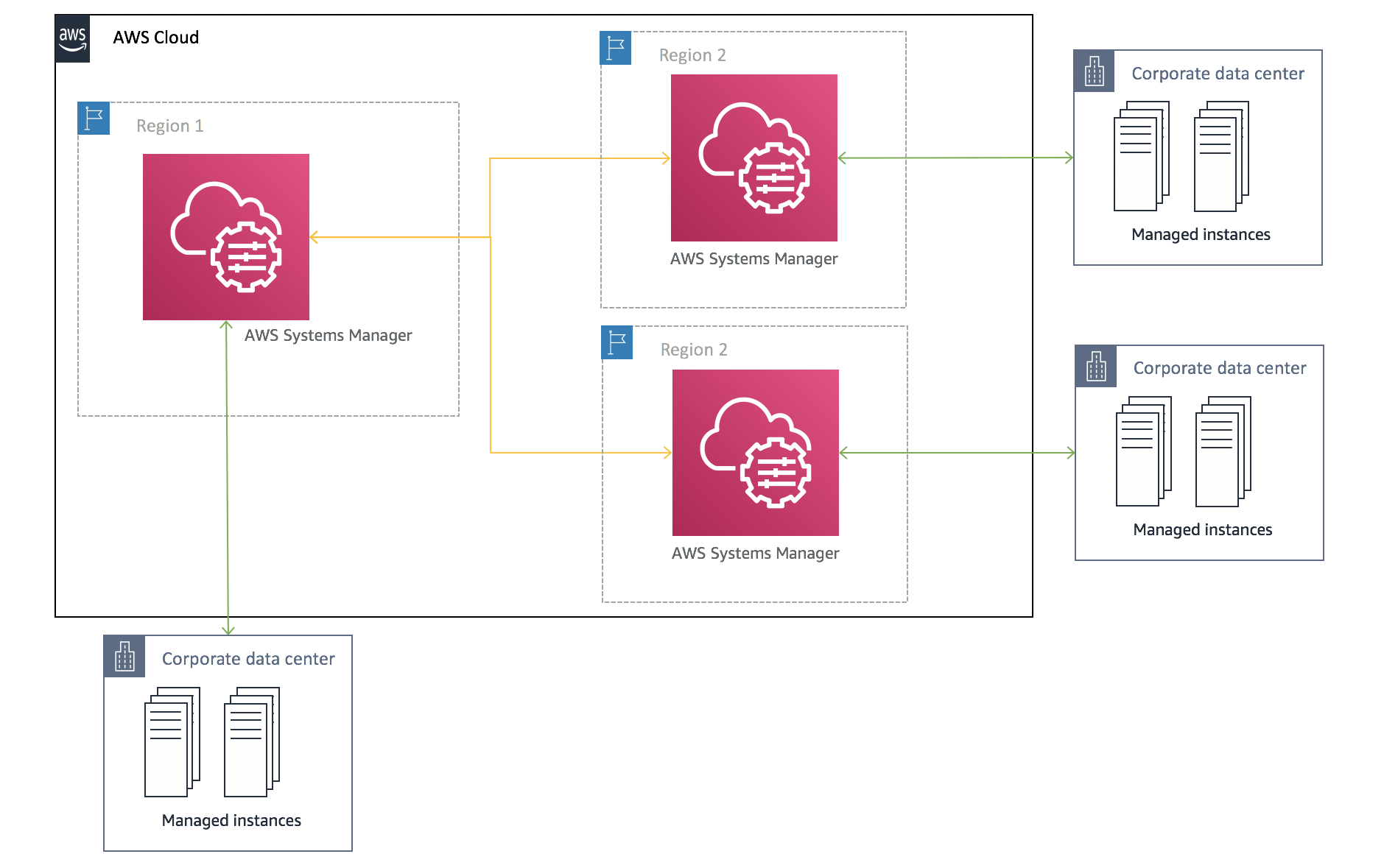
Figure 1 shows the architecture of the centralized patching solution across multiple Regions.

Figure 1: Solution architecture

Figure 1: Solution architecture

The automated solution I provide in this post is focused on scheduling and patching managed instances across AWS Regions. Systems Manager Maintenance Windows initiates a series of steps for automated patching for the instances, regardless of which Regions the instances are in.

Here are the key building blocks for this solution:

AWS Systems Manager Maintenance Windows is a feature you can use to define a schedule for when to perform potentially disruptive actions on your instances, such as patching an operating system, updating drivers, or installing software. Maintenance Windows also makes it possible for you to schedule actions on other AWS resource types, such as Amazon Simple Storage Service (Amazon S3) buckets, Amazon Simple Queue Service (Amazon SQS) queues, AWS Key Management Service (AWS KMS) keys, and others that are out of scope for this blog post.

AWS Lambda automatically runs your code without requiring you to provision or manage infrastructure. It can automatically scale your application by running code in response to each event. Also, you only pay for the compute time you consume, so you’re never paying for over-provisioned infrastructure.

AWS Systems Manager Automation simplifies common maintenance and deployment tasks for Amazon Elastic Compute Cloud (Amazon EC2) instances and other AWS resources, without the need for human action.

An AWS Systems Manager document (SSM document) defines the actions that Systems Manager performs on your managed instances.

Solution details

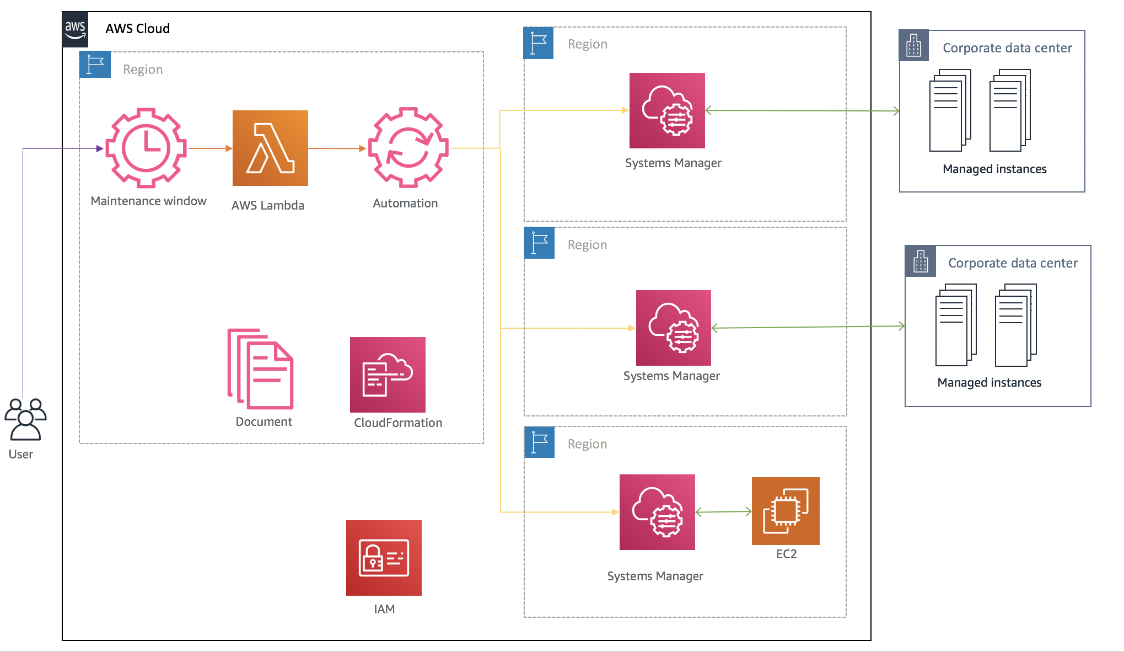
Figure 2 shows the centralized patching solution for a multi-Region hybrid workflow in detail.

Figure 2: Detailed workflow diagram: Centralized patching solution for multi-Region and hybrid instances

Figure 2: Detailed workflow diagram: Centralized patching solution for multi-Region and hybrid instances

You implement the solution as follows:

  1. In a central management Region, configure a maintenance window with a custom Lambda function as a target, with a JSON payload input that defines your target Regions, custom SSM document information, and target resource groups.
  2. Configure the Lambda function that will first filter out the target Regions where there are no instances mapped to resource groups, and then initiate the Systems Manager Automation API for the remaining Regions that have instances mapped to the resource groups.
  3. Configure a Systems Manager Automation API to initiate Run Command in all target Regions according to the custom AWS document.
  4. Configure the AWS custom automation document to call the AWS-RunPatchBaseline document against all instances for patching according to the resource group defined in the input payload JSON.

Solution deployment

To deploy the solution, you perform these steps:

  1. Verify prerequisites in your AWS account
  2. Deploy an AWS CloudFormation template
  3. Create a test patching event

Step 1: Verify prerequisites in your AWS account

The sample solution provided by this blog requires that you set up Systems Manager in your account and resource groups in the target Regions. Before you get started, make sure you’ve completed all of the following steps:

Step 2: Deploy the CloudFormation template

In this next step, you deploy a CloudFormation template to implement the centralized patching solution across Regions in your account. Make sure you deploy the template within the AWS account and Region from which you want to centralize patching coordination.

To deploy the CloudFormation stack

  1. Choose the following Launch Stack button to launch a CloudFormation stack in your account.

    Select the Launch Stack button to launch the template

Note: The stack will launch in the N. Virginia (us-east-1) Region. It takes approximately 15 minutes for the CloudFormation stack to complete. To deploy this solution into other AWS Regions, download the solution’s CloudFormation template and deploy it to the selected Region.


  • In the AWS CloudFormation console, choose the Select Template form, and then choose Next.
  • On the Specify Details page, provide the following input parameters. You can modify the default values to customize the solution for your environment.

    Input parameter Description
    Duration The duration for the maintenance window automation job, in hours. The default is 5.
    OwnerInformation The owner information for the maintenance window. The default is Patch Management Team.
    Schedule The schedule for the owner of the maintenance window, in the form of either a cron or rate expression). The default is cron(0 4 ? * SUN *).
    TimeZone The time zone for the maintenance window automation job. The default is S/EasternU.
    Figure 4: An example of the values entered for the template parameters

    Figure 4: An example of the values entered for the template parameters

  • After you’ve entered values for all of the input parameters, choose Next.
  • On the Options page, keep the defaults, and then choose Next.
  • On the Review page, under Capabilities, select the check box next to I acknowledge that AWS CloudFormation might create IAM resources with custom names, and then choose Create stack.

    Figure 5: CloudFormation capabilities acknowledgement

    Figure 5: CloudFormation capabilities acknowledgement


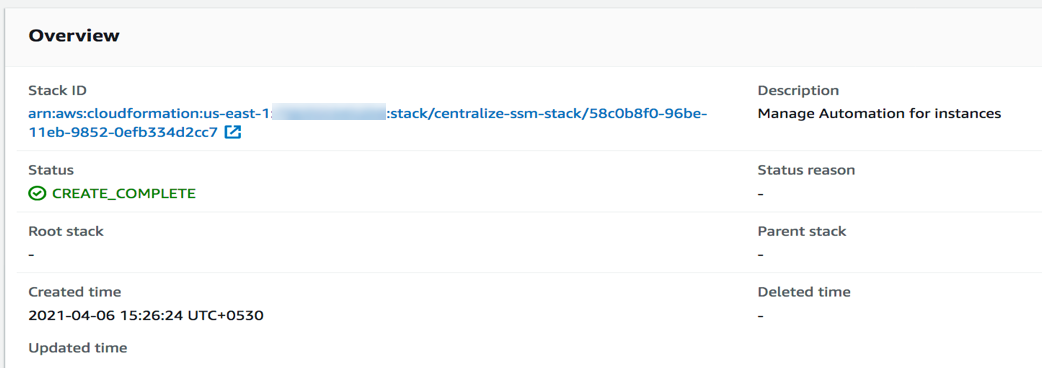
After the Status field for the CloudFormation stack changes to CREATE_COMPLETE, as shown in Figure 6, the solution is implemented and is ready for testing.

Figure 6: Completed deployment of the AWS CloudFormation stack

Figure 6: Completed deployment of the AWS CloudFormation stack

Step 3: Create a test patching event

After the CloudFormation stack has completed deployment, an AWS maintenance window is created. To test the centralized patching solution, you can use this maintenance window to initiate patching across Regions.

(Optional) To create a test patching event, edit the Lambda task as follows. Under the Tasks tab, add the following JSON data as the payload, and update the following parameters with your own data: resource group, AutomationAssumeRole ARN, MaxConcurrency, MaxErrors, Operation (Scan/ Install), and Regions, as needed for the target environment.

{
  "WindowId": "{{WINDOW_ID}}",
  "TaskExecutionId": "{{TASK_EXECUTION_ID}}",
  "Document": {
    "Name": "CustomAutomationDocument",
    "Version": "1",
    "Parameters": {
      "AutomationAssumeRole": [
        "arn:aws:iam::111222333444:role/AWS-SystemsManager-AutomationAdministrationRole"
      ],
      "Operation": [
        "Scan"
      ]
    }
  },
  "TargetParameterName": "InstanceIds",
  "Targets": [
    {
      "Key": "ResourceGroup",
      "Values": [
        "DevGroup"
      ]
    }
  ],
  "MaxConcurrency": "10",
  "MaxErrors": "1",
  "Regions": ["us-east-2","us-east-1"]
}

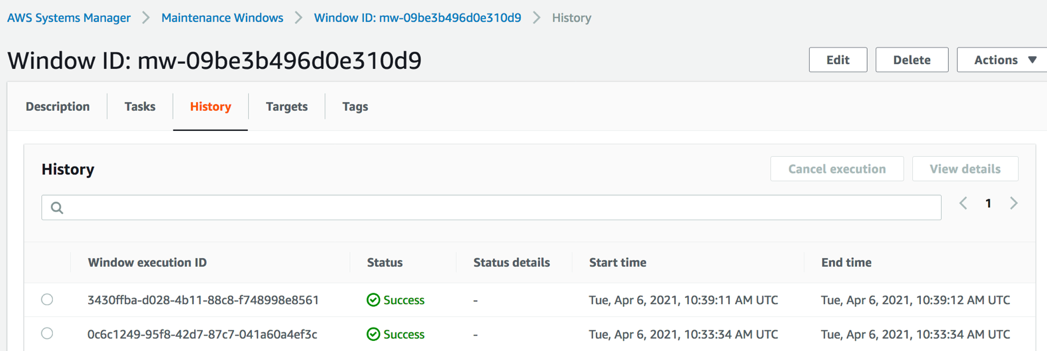
Wait for the next execution time for the maintenance window. On the History tab, you should see status Success to indicate that patching is complete, as shown in Figure 7.

Figure 7: The History tab for the maintenance window, showing successful patching

Figure 7: The History tab for the maintenance window, showing successful patching

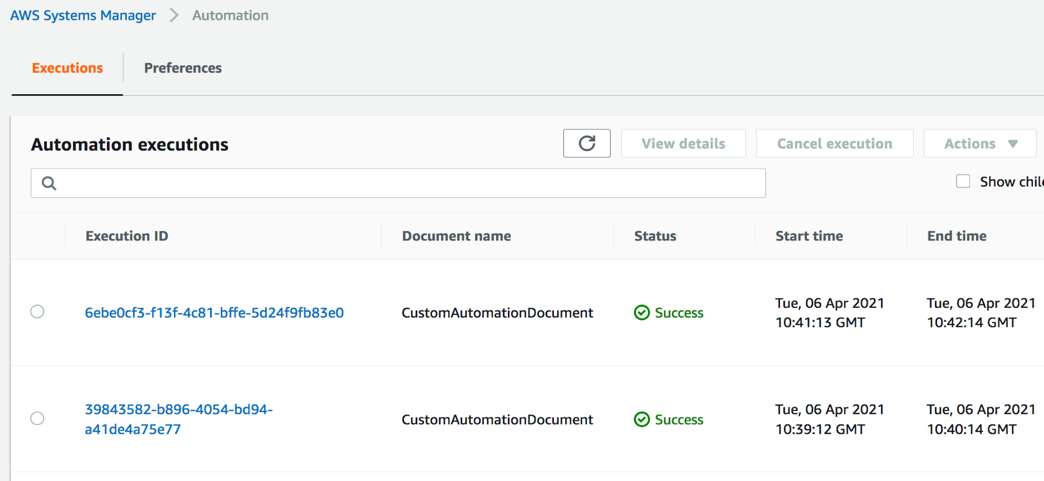
To see more details related to the completed automations, look on the Automation Executions tab, shown in Figure 8.

Figure 8: The Executions tab showing details

Figure 8: The Executions tab showing details

Congratulations! You’ve successfully deployed and tested a centralized patching solution for an AWS multi-Region hybrid environment. In order to fully implement this solution, you’ll need to add the resource groups in all your target Regions and update the payload JSON in Systems Manager Maintenance Windows.

Summary

You’ve learned how to use Systems Manager to centralize patching across multiple AWS Regions and to include on-premises instances in your patching solution. All of the code for this solution is available as part of an CloudFormation template. Feel free to play around with the code; we hope it helps you learn more about automated security remediation. You can adjust the code to better fit your unique environment, or extend the code with additional steps. For example, you could extend it across accounts and also create a custom Systems Manager document to run across Regions.

If you have feedback about this post, submit comments in the Comments section below. If you have questions about using this solution, contact AWS Support.

Want more AWS Security how-to content, news, and feature announcements? Follow us on Twitter.

Author

Akash Kumar

Akash is a Cloud Migration Specialist with AWS Professional Services. He is passionate about re-architecting, designing, and developing modern IT solutions for the cloud.

Using Amazon Macie to Validate S3 Bucket Data Classification

Post Syndicated from Bill Magee original https://aws.amazon.com/blogs/architecture/using-amazon-macie-to-validate-s3-bucket-data-classification/

Securing sensitive information is a high priority for organizations for many reasons. At the same time, organizations are looking for ways to empower development teams to stay agile and innovative. Centralized security teams strive to create systems that align to the needs of the development teams, rather than mandating how those teams must operate.

Security teams who create automation for the discovery of sensitive data have some issues to consider. If development teams are able to self-provision data storage, how does the security team protect that data? If teams have a business need to store sensitive data, they must consider how, where, and with what safeguards that data is stored.

Let’s look at how we can set up Amazon Macie to validate data classifications provided by decentralized software development teams. Macie is a fully managed service that uses machine learning (ML) to discover sensitive data in AWS. If you are not familiar with Macie, read New – Enhanced Amazon Macie Now Available with Substantially Reduced Pricing.

Data classification is part of the security pillar of a Well-Architected application. Following the guidelines provided in the AWS Well-Architected Framework, we can develop a resource-tagging scheme that fits our needs.

Overview of decentralized data validation system

In our example, we have multiple levels of data classification that represent different levels of risk associated with each classification. When a software development team creates a new Amazon Simple Storage Service (S3) bucket, they are responsible for labeling that bucket with a tag. This tag represents the classification of data stored in that bucket. The security team must maintain a system to validate that the data in those buckets meets the classification specified by the development teams.

This separation of roles and responsibilities for development and security teams who work independently requires a validation system that’s decoupled from S3 bucket creation. It should automatically detect new buckets or data in the existing buckets, and validate the data against the assigned classification tags. It should also notify the appropriate development teams of misclassified or unclassified buckets in a timely manner. These notifications can be through standard notification channels, such as email or Slack channel notifications.

Validation and alerts with AWS services

Figure 1. Validation system for Data Classification

Figure 1. Validation system for data classification

We assume that teams are permitted to create S3 buckets and we will use AWS Config to enforce the following required tags: DataClassification and SupportSNSTopic. The DataClassification tag indicates what type of data is allowed in the bucket. The SupportSNSTopic tag indicates an Amazon Simple Notification Service (SNS) topic. If there are issues found with the data in the bucket, a message is published to the topic, and Amazon SNS will deliver an alert. For example, if there is personally identifiable information (PII) data in a bucket that is classified as non-sensitive, the system will alert the owners of the bucket.

Macie is configured to scan all S3 buckets on a scheduled basis. This configuration ensures that any new bucket and data placed in the buckets is analyzed the next time the Macie job runs.

Macie provides several managed data identifiers for discovering and classifying the data. These include bank account numbers, credit card information, authentication credentials, PII, and more. You can also create custom identifiers (or rules) to gather information not covered by the managed identifiers.

Macie integrates with Amazon EventBridge to allow us to capture data classification events and route them to one or more destinations for reporting and alerting needs. In our configuration, the event initiates an AWS Lambda. The Lambda function is used to validate the data classification inferred by Macie against the classification specified in the DataClassification tag using custom business logic. If a data classification violation is found, the Lambda then sends a message to the Amazon SNS topic specified in the SupportSNSTopic tag.

The Lambda function also creates custom metrics and sends those to Amazon CloudWatch. The metrics are organized by engineering team and severity. This allows the security team to create a dashboard of metrics based on the Macie findings. The findings can also be filtered per engineering team and severity to determine which teams need to be contacted to ensure remediation.

Conclusion

This solution provides a centralized security team with the tools it needs. The team can validate the data classification of an Amazon S3 bucket that is self-provisioned by a development team. New Amazon S3 buckets are automatically included in the Macie jobs and alerts. These are only sent out if the data in the bucket does not conform to the classification specified by the development team. The data auditing process is loosely coupled with the Amazon S3 Bucket creation process, enabling self-service capabilities for development teams, while ensuring proper data classification. Your teams can stay agile and innovative, while maintaining a strong security posture.

Learn more about Amazon Macie and Data Classification.

TLS-enabled Kubernetes clusters with ACM Private CA and Amazon EKS

Post Syndicated from Param Sharma original https://aws.amazon.com/blogs/security/tls-enabled-kubernetes-clusters-with-acm-private-ca-and-amazon-eks-2/

In this blog post, we show you how to set up end-to-end encryption on Amazon Elastic Kubernetes Service (Amazon EKS) with AWS Certificate Manager Private Certificate Authority. For this example of end-to-end encryption, traffic originates from your client and terminates at an Ingress controller server running inside a sample app. By following the instructions in this post, you can set up an NGINX ingress controller on Amazon EKS. As part of the example, we show you how to configure an AWS Network Load Balancer (NLB) with HTTPS using certificates issued via ACM Private CA in front of the ingress controller.

AWS Private CA supports an open source plugin for cert-manager that offers a more secure certificate authority solution for Kubernetes containers. cert-manager is a widely-adopted solution for TLS certificate management in Kubernetes. Customers who use cert-manager for application certificate lifecycle management can now use this solution to improve security over the default cert-manager CA, which stores keys in plaintext in server memory. Customers with regulatory requirements for controlling access to and auditing their CA operations can use this solution to improve auditability and support compliance.

Solution components

  • Kubernetes is an open-source system for automating the deployment, scaling, and management of containerized applications.
  • Amazon EKS is a managed service that you can use to run Kubernetes on Amazon Web Services (AWS) without needing to install, operate, and maintain your own Kubernetes control plane or nodes.
  • cert-manager is an add on to Kubernetes to provide TLS certificate management. cert-manager requests certificates, distributes them to Kubernetes containers, and automates certificate renewal. cert-manager ensures certificates are valid and up-to-date, and attempts to renew certificates at an appropriate time before expiry.
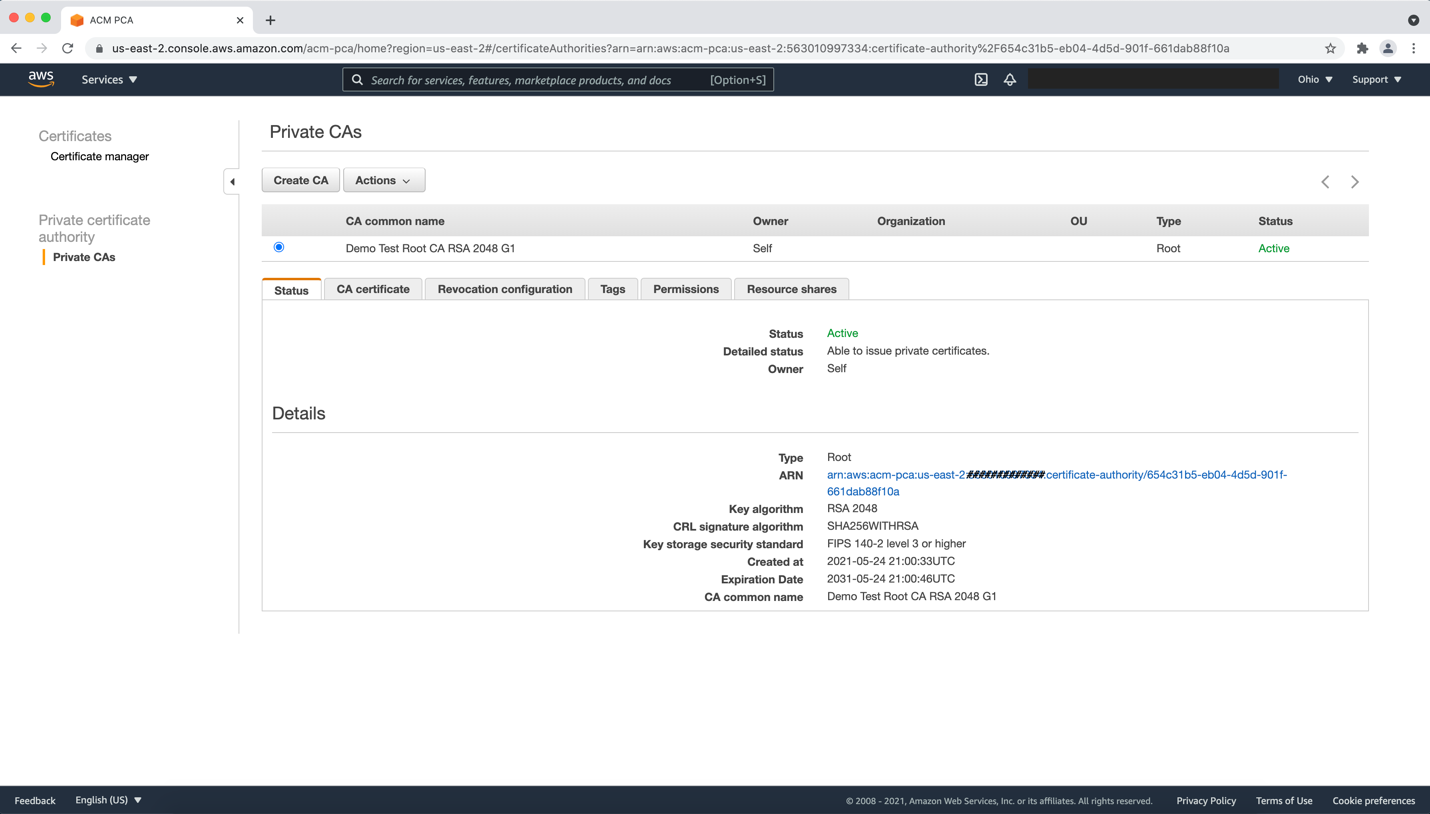
  • ACM Private CA enables the creation of private CA hierarchies, including root and subordinate CAs, without the investment and maintenance costs of operating an on-premises CA. With ACM Private CA, you can issue certificates for authenticating internal users, computers, applications, services, servers, and other devices, and for signing computer code. The private keys for private CAs are stored in AWS managed hardware security modules (HSMs), which are FIPS 140-2 certified, providing a better security profile compared to the default CAs in Kubernetes. Private certificates help identify and secure communication between connected resources on private networks such as servers, mobile and IoT devices, and applications.
  • AWS Private CA Issuer plugin. Kubernetes containers and applications use digital certificates to provide secure authentication and encryption over TLS. With this plugin, cert-manager requests TLS certificates from Private CA. The integration supports certificate automation for TLS in a range of configurations, including at the ingress, on the pod, and mutual TLS between pods. You can use the AWS Private CA Issuer plugin with Amazon Elastic Kubernetes Service, self managed Kubernetes on AWS, and Kubernetes on-premises.
  • The AWS Load Balancer controller manages AWS Elastic Load Balancers for a Kubernetes cluster. The controller provisions the following resources.
    • An AWS Application Load Balancer (ALB) when you create a Kubernetes Ingress.
    • An AWS Network Load Balancer (NLB) when you create a Kubernetes Service of type LoadBalancer.

Different points for terminating TLS in Kubernetes

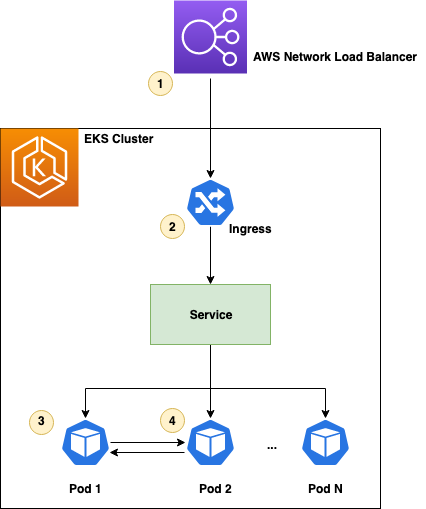
How and where you terminate your TLS connection depends on your use case, security policies, and need to comply with regulatory requirements. This section talks about four different use cases that are regularly used for terminating TLS. The use cases are illustrated in Figure 1 and described in the text that follows.

Figure 1: Terminating TLS at different points

Figure 1: Terminating TLS at different points

  1. At the load balancer: The most common use case for terminating TLS at the load balancer level is to use publicly trusted certificates. This use case is simple to deploy and the certificate is bound to the load balancer itself. For example, you can use ACM to issue a public certificate and bind it with AWS NLB. You can learn more from How do I terminate HTTPS traffic on Amazon EKS workloads with ACM?
  2. At the ingress: If there is no strict requirement for end-to-end encryption, you can offload this processing to the ingress controller or the NLB. This helps you to optimize the performance of your workloads and make them easier to configure and manage. We examine this use case in this blog post.
  3. On the pod: In Kubernetes, a pod is the smallest deployable unit of computing and it encapsulates one or more applications. End-to-end encryption of the traffic from the client all the way to a Kubernetes pod provides a secure communication model where the TLS is terminated at the pod inside the Kubernetes cluster. This could be useful for meeting certain security requirements. You can learn more from the blog post Setting up end-to-end TLS encryption on Amazon EKS with the new AWS Load Balancer Controller.
  4. Mutual TLS between pods: This use case focuses on encryption in transit for data flowing inside Kubernetes cluster. For more details on how this can be achieved with Cert-manager using an Istio service mesh, please see the Securing Istio workloads with mTLS using cert-manager blog post. You can use the AWS Private CA Issuer plugin in conjunction with cert-manager to use ACM Private CA to issue certificates for securing communication between the pods.

In this blog post, we use a scenario where there is a requirement to terminate TLS at the ingress controller level, demonstrating the second example above.

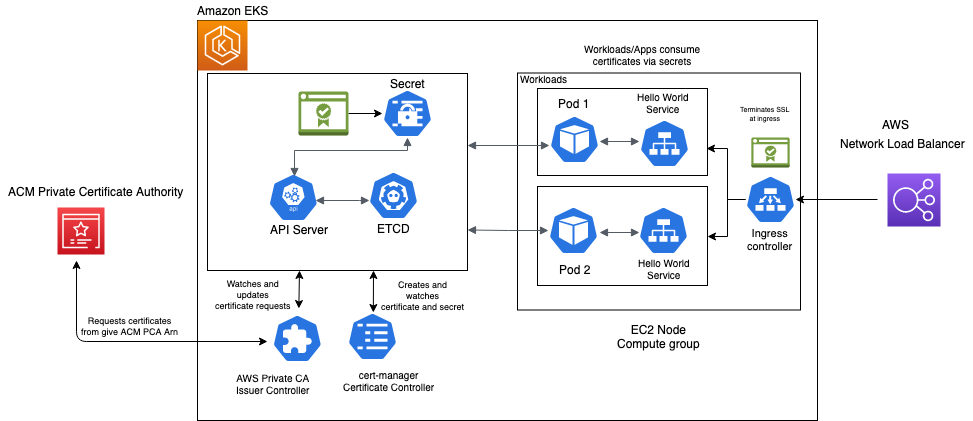
Figure 2 provides an overall picture of the solution described in this blog post. The components and steps illustrated in Figure 2 are described fully in the sections that follow.

Figure 2: Overall solution diagram

Figure 2: Overall solution diagram

Prerequisites

Before you start, you need the following:

Verify that you have the latest versions of these tools installed before you begin.

Provision an Amazon EKS cluster

If you already have a running Amazon EKS cluster, you can skip this step and move on to install NGINX Ingress.

You can use the AWS Management Console or AWS CLI, but this example uses eksctl to provision the cluster. eksctl is a tool that makes it easier to deploy and manage an Amazon EKS cluster.

This example uses the US-EAST-2 Region and the T2 node type. Select the node type and Region that are appropriate for your environment. Cluster provisioning takes approximately 15 minutes.

To provision an Amazon EKS cluster

  1. Run the following eksctl command to create an Amazon EKS cluster in the us-east-2 Region with Kubernetes version 1.19 and two nodes. You can change the Region to the one that best fits your use case.
    eksctl create cluster \
    --name acm-pca-lab \
    --version 1.19 \
    --nodegroup-name acm-pca-nlb-lab-workers \
    --node-type t2.medium \
    --nodes 2 \
    --region us-east-2
    

  2. Once your cluster has been created, verify that your cluster is running correctly by running the following command:
    $ kubectl get pods --all-namespaces
    NAMESPACE     NAME                       READY   STATUS    RESTARTS   AGE
    kube-system   aws-node-t94rp             1/1     Running   0          3m4s
    kube-system   aws-node-w7dm6             1/1     Running   0          3m19s
    kube-system   coredns-56b458df85-6tgjl   1/1     Running   0          10m
    kube-system   coredns-56b458df85-8gp94   1/1     Running   0          10m
    kube-system   kube-proxy-2pjx7           1/1     Running   0          3m19s
    kube-system   kube-proxy-hz8wq           1/1     Running   0          3m4s 
    

You should see output similar to the above, with all pods in a running state.

Install NGINX Ingress

NGINX Ingress is built around the Kubernetes Ingress resource, using a ConfigMap to store the NGINX configuration.

To install NGINX Ingress

  1. Use the following command to install NGINX Ingress:
    kubectl apply -f https://raw.githubusercontent.com/kubernetes/ingress-nginx/controller-v0.46.0/deploy/static/provider/aws/deploy.yaml
    

  2. Run the following command to determine the address that AWS has assigned to your NLB:
    $ kubectl get service -n ingress-nginx
    NAME                                 TYPE           CLUSTER-IP      EXTERNAL-IP                                                                     PORT(S)                      AGE
    ingress-nginx-controller             LoadBalancer   10.100.214.10   a3ebe22e7ca0522d1123456fbc92605c-8ac7f1d49be2fc42.elb.us-east-2.amazonaws.com   80:32598/TCP,443:30624/TCP   14s
    ingress-nginx-controller-admission   ClusterIP      10.100.118.1    <none>                                                                          443/TCP                      14s


  3. It can take up to 5 minutes for the load balancer to be ready. Once the external IP is created, run the following command to verify that traffic is being correctly routed to ingress-nginx:
    curl http://a3ebe22e7ca0522d1123456fbc92605c-8ac7f1d49be2fc42.elb.us-east-2.amazonaws.com
    <html>
    <head><title>404 Not Found</title></head>
    <body>
    <center><h1>404 Not Found</h1></center>
    <hr><center>nginx</center>
    </body>
    </html>
    

Note: Even though, it’s returning an HTTP 404 error code, in this case curl is still reaching the ingress controller and getting the expected HTTP response back.

Configure your DNS records

Once your load balancer is provisioned, the next step is to point the application’s DNS record to the URL of the NLB.

You can use your DNS provider’s console, for example Route53, and set a CNAME record pointing to your NLB. See CNAME record type for more details on how to setup a CNAME record using Route53.

This scenario uses the sample domain rsa-2048.example.com.

rsa-2048.example.com CNAME a3ebe22e7ca0522d1123456fbc92605c-8ac7f1d49be2fc42.elb.us-east-2.amazonaws.com

As you go through the scenario, replace rsa-2048.example.com with your registered domain.

Install cert-manager

cert-manager is a Kubernetes add-on that you can use to automate the management and issuance of TLS certificates from various issuing sources. It runs within your Kubernetes cluster and will ensure that certificates are valid and attempt to renew certificates at an appropriate time before they expire.

You can use the regular installation on Kubernetes guide to install cert-manager on Amazon EKS.

After you’ve deployed cert-manager, you can verify the installation by following these instructions. If all the above steps have completed without error, you’re good to go!

Note: If you’re planning to use Amazon EKS with Kubernetes pods running on AWS Fargate, please follow the cert-manager Fargate instructions to make sure cert-manager installation works as expected. AWS Fargate is a technology that provides on-demand, right-sized compute capacity for containers.

Install aws-privateca-issuer

The AWS PrivateCA Issuer plugin acts as an addon (see external cert configuration) to cert-manager that signs certificate requests using ACM Private CA.

To install aws-privateca-issuer

  1. For installation, use the following helm commands:
    kubectl create namespace aws-pca-issuer
    
    helm repo add awspca https://cert-manager.github.io/aws-privateca-issuer
    helm repo update
    helm install awspca/aws-pca-issuer --generate-name --namespace aws-pca-issuer
    

  2. Verify that the AWS Private CA Issuer is configured correctly by running the following command and ensure that it is in READY state with status as Running:
    $ kubectl get pods --namespace aws-pca-issuer
    NAME                                         READY   STATUS    RESTARTS   AGE
    aws-pca-issuer-1622570742-56474c464b-j6k8s   1/1     Running   0          21s
    

  3. You can check the chart configuration in the default values file.

Create an ACM Private CA

In this scenario, you create a private certificate authority in ACM Private CA with RSA 2048 selected as the key algorithm. You can create a CA using the AWS console, AWS CLI, or AWS CloudFormation.

To create an ACM Private CA

Download the CA certificate using the following command. Replace the <CA_ARN> and <Region> values with the values from the CA you created earlier and save it to a file named cacert.pem:

aws acm-pca get-certificate-authority-certificate --certificate-authority-arn <CA_ARN> -- region <region> --output text > cacert.pem

Once your private CA is active, you can proceed to the next step. You private CA will look similar to the CA in Figure 3.

Figure 3: Sample ACM Private CA

Figure 3: Sample ACM Private CA

Set EKS node permission for ACM Private CA

In order to issue a certificate from ACM Private CA, add the IAM policy from the prerequisites to your EKS NodeInstanceRole. Replace the <CA_ARN> value with the value from the CA you created earlier:

{
    "Version": "2012-10-17",
    "Statement": [
        {
            "Sid": "awspcaissuerpolicy",
            "Effect": "Allow",
            "Action": [
                "acm-pca:GetCertificate",
                "acm-pca:DescribeCertificateAuthority",
                "acm-pca:IssueCertificate"
            ],
            "Resource": "<CA_ARN>"
        }
        
    ]
}

Create an Issuer in Amazon EKS

Now that the ACM Private CA is active, you can begin requesting private certificates which can be used by Kubernetes applications. Use aws-privateca-issuer plugin to create the ClusterIssuer, which will be used with the ACM PCA to issue certificates.

Issuers (and ClusterIssuers) represent a certificate authority from which signed x509 certificates can be obtained, such as ACM Private CA. You need at least one Issuer or ClusterIssuer before you can start requesting certificates in your cluster. There are two custom resources that can be used to create an Issuer inside Kubernetes using the aws-privateca-issuer add-on:

  • AWSPCAIssuer is a regular namespaced issuer that can be used as a reference in your Certificate custom resources.
  • AWSPCAClusterIssuer is specified in exactly the same way, but it doesn’t belong to a single namespace and can be referenced by certificate resources from multiple different namespaces.

To create an Issuer in Amazon EKS

  1. For this scenario, you create an AWSPCAClusterIssuer. Start by creating a file named cluster-issuer.yaml and save the following text in it, replacing <CA_ARN> and <Region> information with your own.
    apiVersion: awspca.cert-manager.io/v1beta1
    kind: AWSPCAClusterIssuer
    metadata:
              name: demo-test-root-ca
    spec:
              arn: <CA_ARN>
              region: <Region>
    

  2. Deploy the AWSPCAClusterIssuer:
    kubectl apply -f cluster-issuer.yaml
    

  3. Verify the installation and make sure that the following command returns a Kubernetes service of kind AWSPCAClusterIssuer:
    $ kubectl get AWSPCAClusterIssuer
    NAME                AGE
    demo-test-root-ca   51s
    

Request the certificate

Now, you can begin requesting certificates which can be used by Kubernetes applications from the provisioned issuer. For more details on how to specify and request Certificate resources, please check Certificate Resources guide.

To request the certificate

  1. As a first step, create a new namespace that contains your application and secret:
    $ kubectl create namespace acm-pca-lab-demo
    namespace/acm-pca-lab-demo created
    

  2. Next, create a basic X509 private certificate for your domain.
    Create a file named rsa-2048.yaml and save the following text in it. Replace rsa-2048.example.com with your domain.
kind: Certificate
apiVersion: cert-manager.io/v1
metadata:
  name: rsa-cert-2048
  namespace: acm-pca-lab-demo
spec:
  commonName: www.rsa-2048.example.com
  dnsNames:
    - www.rsa-2048.example.com
    - rsa-2048.example.com
  duration: 2160h0m0s
  issuerRef:
    group: awspca.cert-manager.io
    kind: AWSPCAClusterIssuer
    name: demo-test-root-ca
  renewBefore: 360h0m0s
  secretName: rsa-example-cert-2048
  usages:
    - server auth
    - client auth
  privateKey:
    algorithm: "RSA"
    size: 2048


  • For a certificate with a key algorithm of RSA 2048, create the resource:
    kubectl apply -f rsa-2048.yaml -n acm-pca-lab-demo
    

  • Verify that the certificate is issued and in READY state by running the following command:
    $ kubectl get certificate -n acm-pca-lab-demo
    NAME            READY   SECRET                  AGE
    rsa-cert-2048   True    rsa-example-cert-2048   12s
    

  • Run the command kubectl describe certificate -n acm-pca—lab-demo to check the progress of your certificate.
  • Once the certificate status shows as issued, you can use the following command to check the issued certificate details:
    kubectl get secret rsa-example-cert-2048 -n acm-pca-lab-demo -o 'go-template={{index .data "tls.crt"}}' | base64 --decode | openssl x509 -noout -text


Deploy a demo application

For the purpose of this scenario, you can create a new service—a simple “hello world” website that uses echoheaders that respond with the HTTP request headers along with some cluster details.

To deploy a demo application

  1. Create a new file named hello-world.yaml with below content:
    apiVersion: v1
    kind: Service
    metadata:
      name: hello-world
      namespace: acm-pca-lab-demo
    spec:
      type: ClusterIP
      ports:
      - port: 80
        targetPort: 8080
      selector:
        app: hello-world
    ---
    apiVersion: apps/v1
    kind: Deployment
    metadata:
      name: hello-world
      namespace: acm-pca-lab-demo
    spec:
      replicas: 3
      selector:
        matchLabels:
          app: hello-world
      template:
        metadata:
          labels:
            app: hello-world
        spec:
          containers:
          - name: echoheaders
            image: k8s.gcr.io/echoserver:1.10
            args:
            - "-text=Hello World"
            imagePullPolicy: IfNotPresent
            resources:
              requests:
                cpu: 100m
                memory: 100Mi
            ports:
            - containerPort: 8080
    

  2. Create the service using the following command:
    $ kubectl apply -f hello-world.yaml
    

Expose and secure your application

Now that you’ve issued a certificate, you can expose your application using a Kubernetes Ingress resource.

To expose and secure your application

  1. Create a new file called example-ingress.yaml and add the following content:
    apiVersion: networking.k8s.io/v1
    kind: Ingress
    metadata:
      name: acm-pca-demo-ingress
      namespace: acm-pca-lab-demo
      annotations:
        kubernetes.io/ingress.class: "nginx"
    spec:
      tls:
      - hosts:
        - www.rsa-2048.example.com
        secretName: rsa-example-cert-2048
      rules:
      - host: www.rsa-2048.example.com
        http:
          paths:
          - path: /
            pathType: Exact
            backend:
              service:
                name: hello-world
                port:
                  number: 80
    

  2. Create a new Ingress resource by running the following command:
    kubectl apply -f example-ingress.yaml 
    

Access your application using TLS

After completing the previous step, you can to access this service from any computer connected to the internet.

To access your application using TLS

  1. Log in to a terminal window on a machine that has access to the internet, and run the following:
    $ curl https://rsa-2048.example.com --cacert cacert.pem 
    

  2. You should see an output similar to the following:
    Hostname: hello-world-d8fbd49c6-9bczb
    
    Pod Information:
    	-no pod information available-
    
    Server values:
    	server_version=nginx: 1.13.3 - lua: 10008
    
    Request Information:
    	client_address=192.162.32.64
    	method=GET
    	real path=/
    	query=
    	request_version=1.1
    	request_scheme=http
    	request_uri=http://rsa-2048.example.com:8080/
    
    Request Headers:
    	accept=*/*
    	host=rsa-2048.example.com
    	user-agent=curl/7.62.0
    	x-forwarded-for=52.94.2.2
    	x-forwarded-host=rsa-2048.example.com
    	x-forwarded-port=443
    	x-forwarded-proto=https
    	x-real-ip=52.94.2.2
    	x-request-id=371b6fc15a45d189430281693cccb76e
    	x-scheme=https
    
    Request Body:
    	-no body in request-…
    

    This response is returned from the service running behind the Kubernetes Ingress controller and demonstrates that a successful TLS handshake happened at port 443 with https protocol.

  3. You can use the following command to verify that the certificate issued earlier is being used for the SSL handshake:
    echo | openssl s_client -showcerts -servername www.rsa-2048.example.com -connect www.rsa-2048.example.com:443 2>/dev/null | openssl x509 -inform pem -noout -text
    

Cleanup

To avoid incurring future charges on your AWS account, perform the following steps to remove the scenario.

Delete the ACM Private CA

You can delete the ACM Private CA by following the instructions in Deleting your private CA.

As an alternative, you can use the following commands to delete the ACM Private CA, replacing the <CA_ARN> and <Region> with your own:

  1. Disable the CA.
    aws acm-pca update-certificate-authority \
    --certificate-authority-arn <CA_ARN>
    --region <Region>
    --status DISABLED
    

  2. Call the Delete Certificate Authority API
    aws acm-pca delete-certificate-authority \
    --certificate-authority-arn <CA_ARN>
    --region <Region>
    --permanent-deletion-time-in-days 7
    

Continue the cleanup

Once the ACM Private CA has been deleted, continue the cleanup by running the following commands.

  1. Delete the services:
    kubectl delete -f hello-world.yaml
    

  2. Delete the Ingress controller:
    kubectl delete -f example-ingress.yaml
    

  3. Delete the IAM NodeInstanceRole, replace role name with your EKS Node instance role created for the demo:
    aws iam delete-role --role-name eksctl-acm-pca-lab-nodegroup-acm-pca-nlb-lab-workers-NodeInstanceProfile-XXXXXXX
    

  4. Delete the Amazon EKS cluster using ekctl command:
    eksctl delete cluster acm-pca-lab --region us-east-2
    

You can also clean up from your Cloudformation console by deleting the stacks named eksctl-acm-pca-lab-nodegroup-acm-pca-nlb-lab-workers and eksctl-acm-pca-lab-cluster.

Conclusion

In this blog post, we showed you how to set up a Kubernetes Ingress controller with a service running in Amazon EKS cluster using AWS Load Balancer Controller with Network Load Balancer and set up HTTPS using private certificates issued by ACM Private CA. If you have questions or want to contribute, join the aws-privateca-issuer add-on project on GitHub.

If you have feedback about this post, submit comments in the Comments section below. If you have questions about this post, start a new thread on the AWS Certificate Manager forum or contact AWS Support.

Want more AWS Security how-to content, news, and feature announcements? Follow us on Twitter.

Author

Param Sharma

Param is a Senior Software Engineer with AWS. She is passionate about PKI, security, and privacy. She works with AWS customers to design, deploy, and manage their PKI infrastructures, helping customers improve their security, risk, and compliance in the cloud. In her spare time, she enjoys traveling, reading, and watching movies.

Author

Arindam Chatterji

Arindam is a Senior Solutions Architect with AWS SMB.

Implement tenant isolation for Amazon S3 and Aurora PostgreSQL by using ABAC

Post Syndicated from Ashutosh Upadhyay original https://aws.amazon.com/blogs/security/implement-tenant-isolation-for-amazon-s3-and-aurora-postgresql-by-using-abac/

In software as a service (SaaS) systems, which are designed to be used by multiple customers, isolating tenant data is a fundamental responsibility for SaaS providers. The practice of isolation of data in a multi-tenant application platform is called tenant isolation. In this post, we describe an approach you can use to achieve tenant isolation in Amazon Simple Storage Service (Amazon S3) and Amazon Aurora PostgreSQL-Compatible Edition databases by implementing attribute-based access control (ABAC). You can also adapt the same approach to achieve tenant isolation in other AWS services.

ABAC in Amazon Web Services (AWS), which uses tags to store attributes, offers advantages over the traditional role-based access control (RBAC) model. You can use fewer permissions policies, update your access control more efficiently as you grow, and last but not least, apply granular permissions for various AWS services. These granular permissions help you to implement an effective and coherent tenant isolation strategy for your customers and clients. Using the ABAC model helps you scale your permissions and simplify the management of granular policies. The ABAC model reduces the time and effort it takes to maintain policies that allow access to only the required resources.

The solution we present here uses the pool model of data partitioning. The pool model helps you avoid the higher costs of duplicated resources for each tenant and the specialized infrastructure code required to set up and maintain those copies.

Solution overview

In a typical customer environment where this solution is implemented, the tenant request for access might land at Amazon API Gateway, together with the tenant identifier, which in turn calls an AWS Lambda function. The Lambda function is envisaged to be operating with a basic Lambda execution role. This Lambda role should also have permissions to assume the tenant roles. As the request progresses, the Lambda function assumes the tenant role and makes the necessary calls to Amazon S3 or to an Aurora PostgreSQL-Compatible database. This solution helps you to achieve tenant isolation for objects stored in Amazon S3 and data elements stored in an Aurora PostgreSQL-Compatible database cluster.

Figure 1 shows the tenant isolation architecture for both Amazon S3 and Amazon Aurora PostgreSQL-Compatible databases.

Figure 1: Tenant isolation architecture diagram

Figure 1: Tenant isolation architecture diagram

As shown in the numbered diagram steps, the workflow for Amazon S3 tenant isolation is as follows:

  1. AWS Lambda sends an AWS Security Token Service (AWS STS) assume role request to AWS Identity and Access Management (IAM).
  2. IAM validates the request and returns the tenant role.
  3. Lambda sends a request to Amazon S3 with the assumed role.
  4. Amazon S3 sends the response back to Lambda.

The diagram also shows the workflow steps for tenant isolation for Aurora PostgreSQL-Compatible databases, as follows:

  1. Lambda sends an STS assume role request to IAM.
  2. IAM validates the request and returns the tenant role.
  3. Lambda sends a request to IAM for database authorization.
  4. IAM validates the request and returns the database password token.
  5. Lambda sends a request to the Aurora PostgreSQL-Compatible database with the database user and password token.
  6. Aurora PostgreSQL-Compatible database returns the response to Lambda.

Prerequisites

For this walkthrough, you should have the following prerequisites:

  1. An AWS account for your workload.
  2. An Amazon S3 bucket.
  3. An Aurora PostgreSQL-Compatible cluster with a database created.

    Note: Make sure to note down the default master database user and password, and make sure that you can connect to the database from your desktop or from another server (for example, from Amazon Elastic Compute Cloud (Amazon EC2) instances).

  4. A security group and inbound rules that are set up to allow an inbound PostgreSQL TCP connection (Port 5432) from Lambda functions. This solution uses regular non-VPC Lambda functions, and therefore the security group of the Aurora PostgreSQL-Compatible database cluster should allow an inbound PostgreSQL TCP connection (Port 5432) from anywhere (0.0.0.0/0).

Make sure that you’ve completed the prerequisites before proceeding with the next steps.

Deploy the solution

The following sections describe how to create the IAM roles, IAM policies, and Lambda functions that are required for the solution. These steps also include guidelines on the changes that you’ll need to make to the prerequisite components Amazon S3 and the Aurora PostgreSQL-Compatible database cluster.

Step 1: Create the IAM policies

In this step, you create two IAM policies with the required permissions for Amazon S3 and the Aurora PostgreSQL database.

To create the IAM policies

  1. Open the AWS Management Console.
  2. Choose IAM, choose Policies, and then choose Create policy.
  3. Use the following JSON policy document to create the policy. Replace the placeholder <111122223333> with the bucket name from your account.
    {
        "Version": "2012-10-17",
        "Statement": [
            {
                "Effect": "Allow",
                "Action": [
                    "s3:Get*",
                    "s3:List*"
                ],
                "Resource": "arn:aws:s3:::sts-ti-demo-<111122223333>/${aws:PrincipalTag/s3_home}/*"
            }
        ]
    }
    

  4. Save the policy with the name sts-ti-demo-s3-access-policy.

    Figure 2: Create the IAM policy for Amazon S3 (sts-ti-demo-s3-access-policy)

    Figure 2: Create the IAM policy for Amazon S3 (sts-ti-demo-s3-access-policy)

  5. Open the AWS Management Console.
  6. Choose IAM, choose Policies, and then choose Create policy.
  7. Use the following JSON policy document to create a second policy. This policy grants an IAM role permission to connect to an Aurora PostgreSQL-Compatible database through a database user that is IAM authenticated. Replace the placeholders with the appropriate Region, account number, and cluster resource ID of the Aurora PostgreSQL-Compatible database cluster, respectively.
{
    "Version": "2012-10-17",
    "Statement": [
        {
            "Effect": "Allow",
            "Action": [
                "rds-db:connect"
            ],
            "Resource": [
                "arn:aws:rds-db:<us-west-2>:<111122223333>:dbuser:<cluster- ZTISAAAABBBBCCCCDDDDEEEEL4>/${aws:PrincipalTag/dbuser}"
            ]
        }
    ]
}
  • Save the policy with the name sts-ti-demo-dbuser-policy.

    Figure 3: Create the IAM policy for Aurora PostgreSQL database (sts-ti-demo-dbuser-policy)

    Figure 3: Create the IAM policy for Aurora PostgreSQL database (sts-ti-demo-dbuser-policy)

Note: Make sure that you use the cluster resource ID for the clustered database. However, if you intend to adapt this solution for your Aurora PostgreSQL-Compatible non-clustered database, you should use the instance resource ID instead.

Step 2: Create the IAM roles

In this step, you create two IAM roles for the two different tenants, and also apply the necessary permissions and tags.

To create the IAM roles

  1. In the IAM console, choose Roles, and then choose Create role.
  2. On the Trusted entities page, choose the EC2 service as the trusted entity.
  3. On the Permissions policies page, select sts-ti-demo-s3-access-policy and sts-ti-demo-dbuser-policy.
  4. On the Tags page, add two tags with the following keys and values.

    Tag key Tag value
    s3_home tenant1_home
    dbuser tenant1_dbuser
  5. On the Review screen, name the role assumeRole-tenant1, and then choose Save.
  6. In the IAM console, choose Roles, and then choose Create role.
  7. On the Trusted entities page, choose the EC2 service as the trusted entity.
  8. On the Permissions policies page, select sts-ti-demo-s3-access-policy and sts-ti-demo-dbuser-policy.
  9. On the Tags page, add two tags with the following keys and values.

    Tag key Tag value
    s3_home tenant2_home
    dbuser tenant2_dbuser
  10. On the Review screen, name the role assumeRole-tenant2, and then choose Save.

Step 3: Create and apply the IAM policies for the tenants

In this step, you create a policy and a role for the Lambda functions. You also create two separate tenant roles, and establish a trust relationship with the role that you created for the Lambda functions.

To create and apply the IAM policies for tenant1

  1. In the IAM console, choose Policies, and then choose Create policy.
  2. Use the following JSON policy document to create the policy. Replace the placeholder <111122223333> with your AWS account number.
    {
        "Version": "2012-10-17",
        "Statement": [
            {
                "Sid": "VisualEditor0",
                "Effect": "Allow",
                "Action": "sts:AssumeRole",
                "Resource": [
                    "arn:aws:iam::<111122223333>:role/assumeRole-tenant1",
                    "arn:aws:iam::<111122223333>:role/assumeRole-tenant2"
                ]
            }
        ]
    }
    

  3. Save the policy with the name sts-ti-demo-assumerole-policy.
  4. In the IAM console, choose Roles, and then choose Create role.
  5. On the Trusted entities page, select the Lambda service as the trusted entity.
  6. On the Permissions policies page, select sts-ti-demo-assumerole-policy and AWSLambdaBasicExecutionRole.
  7. On the review screen, name the role sts-ti-demo-lambda-role, and then choose Save.
  8. In the IAM console, go to Roles, and enter assumeRole-tenant1 in the search box.
  9. Select the assumeRole-tenant1 role and go to the Trust relationship tab.
  10. Choose Edit the trust relationship, and replace the existing value with the following JSON document. Replace the placeholder <111122223333> with your AWS account number, and choose Update trust policy to save the policy.
    {
      "Version": "2012-10-17",
      "Statement": [
        {
          "Effect": "Allow",
          "Principal": {
            "AWS": "arn:aws:iam::<111122223333>:role/sts-ti-demo-lambda-role"
          },
          "Action": "sts:AssumeRole"
        }
      ]
    }
    

To verify that the policies are applied correctly for tenant1

In the IAM console, go to Roles, and enter assumeRole-tenant1 in the search box. Select the assumeRole-tenant1 role and on the Permissions tab, verify that sts-ti-demo-dbuser-policy and sts-ti-demo-s3-access-policy appear in the list of policies, as shown in Figure 4.

Figure 4: The assumeRole-tenant1 Permissions tab

Figure 4: The assumeRole-tenant1 Permissions tab

On the Trust relationships tab, verify that sts-ti-demo-lambda-role appears under Trusted entities, as shown in Figure 5.

Figure 5: The assumeRole-tenant1 Trust relationships tab

Figure 5: The assumeRole-tenant1 Trust relationships tab

On the Tags tab, verify that the following tags appear, as shown in Figure 6.

Tag key Tag value
dbuser tenant1_dbuser
s3_home tenant1_home


Figure 6: The assumeRole-tenant1 Tags tab

Figure 6: The assumeRole-tenant1 Tags tab

To create and apply the IAM policies for tenant2

  1. In the IAM console, go to Roles, and enter assumeRole-tenant2 in the search box.
  2. Select the assumeRole-tenant2 role and go to the Trust relationship tab.
  3. Edit the trust relationship, replacing the existing value with the following JSON document. Replace the placeholder <111122223333> with your AWS account number.
    {
      "Version": "2012-10-17",
      "Statement": [
        {
          "Effect": "Allow",
          "Principal": {
            "AWS": "arn:aws:iam::<111122223333>:role/sts-ti-demo-lambda-role"
          },
          "Action": "sts:AssumeRole"
        }
      ]
    }
    

  4. Choose Update trust policy to save the policy.

To verify that the policies are applied correctly for tenant2

In the IAM console, go to Roles, and enter assumeRole-tenant2 in the search box. Select the assumeRole-tenant2 role and on the Permissions tab, verify that sts-ti-demo-dbuser-policy and sts-ti-demo-s3-access-policy appear in the list of policies, you did for tenant1. On the Trust relationships tab, verify that sts-ti-demo-lambda-role appears under Trusted entities.

On the Tags tab, verify that the following tags appear, as shown in Figure 7.

Tag key Tag value
dbuser tenant2_dbuser
s3_home tenant2_home
Figure 7: The assumeRole-tenant2 Tags tab

Figure 7: The assumeRole-tenant2 Tags tab

Step 4: Set up an Amazon S3 bucket

Next, you’ll set up an S3 bucket that you’ll use as part of this solution. You can either create a new S3 bucket or re-purpose an existing one. The following steps show you how to create two user homes (that is, S3 prefixes, which are also known as folders) in the S3 bucket.

  1. In the AWS Management Console, go to Amazon S3 and select the S3 bucket you want to use.
  2. Create two prefixes (folders) with the names tenant1_home and tenant2_home.
  3. Place two test objects with the names tenant.info-tenant1_home and tenant.info-tenant2_home in the prefixes that you just created, respectively.

Step 5: Set up test objects in Aurora PostgreSQL-Compatible database

In this step, you create a table in Aurora PostgreSQL-Compatible Edition, insert tenant metadata, create a row level security (RLS) policy, create tenant users, and grant permission for testing purposes.

To set up Aurora PostgreSQL-Compatible

  1. Connect to Aurora PostgreSQL-Compatible through a client of your choice, using the master database user and password that you obtained at the time of cluster creation.
  2. Run the following commands to create a table for testing purposes and to insert a couple of testing records.
    CREATE TABLE tenant_metadata (
        tenant_id VARCHAR(30) PRIMARY KEY,
        email     VARCHAR(50) UNIQUE,
        status    VARCHAR(10) CHECK (status IN ('active', 'suspended', 'disabled')),
        tier      VARCHAR(10) CHECK (tier IN ('gold', 'silver', 'bronze')));
    
    INSERT INTO tenant_metadata (tenant_id, email, status, tier) 
    VALUES ('tenant1_dbuser','[email protected]','active','gold');
    INSERT INTO tenant_metadata (tenant_id, email, status, tier) 
    VALUES ('tenant2_dbuser','[email protected]','suspended','silver');
    ALTER TABLE tenant_metadata ENABLE ROW LEVEL SECURITY;
    

  3. Run the following command to query the newly created database table.
    SELECT * FROM tenant_metadata;
    

    Figure 8: The tenant_metadata table content

    Figure 8: The tenant_metadata table content

  4. Run the following command to create the row level security policy.
    CREATE POLICY tenant_isolation_policy ON tenant_metadata
    USING (tenant_id = current_user);
    

  5. Run the following commands to establish two tenant users and grant them the necessary permissions.
    CREATE USER tenant1_dbuser WITH LOGIN;
    CREATE USER tenant2_dbuser WITH LOGIN;
    GRANT rds_iam TO tenant1_dbuser;
    GRANT rds_iam TO tenant2_dbuser;
    
    GRANT select, insert, update, delete ON tenant_metadata to tenant1_dbuser, tenant2_dbuser;
    

  6. Run the following commands to verify the newly created tenant users.
    SELECT usename AS role_name,
      CASE
         WHEN usesuper AND usecreatedb THEN
           CAST('superuser, create database' AS pg_catalog.text)
         WHEN usesuper THEN
            CAST('superuser' AS pg_catalog.text)
         WHEN usecreatedb THEN
            CAST('create database' AS pg_catalog.text)
         ELSE
            CAST('' AS pg_catalog.text)
      END role_attributes
    FROM pg_catalog.pg_user
    WHERE usename LIKE (‘tenant%’)
    ORDER BY role_name desc;
    

    Figure 9: Verify the newly created tenant users output

    Figure 9: Verify the newly created tenant users output

Step 6: Set up the AWS Lambda functions

Next, you’ll create two Lambda functions for Amazon S3 and Aurora PostgreSQL-Compatible. You also need to create a Lambda layer for the Python package PG8000.

To set up the Lambda function for Amazon S3

  1. Navigate to the Lambda console, and choose Create function.
  2. Choose Author from scratch. For Function name, enter sts-ti-demo-s3-lambda.
  3. For Runtime, choose Python 3.7.
  4. Change the default execution role to Use an existing role, and then select sts-ti-demo-lambda-role from the drop-down list.
  5. Keep Advanced settings as the default value, and then choose Create function.
  6. Copy the following Python code into the lambda_function.py file that is created in your Lambda function.
    import json
    import os
    import time 
    
    def lambda_handler(event, context):
        import boto3
        bucket_name     =   os.environ['s3_bucket_name']
    
        try:
            login_tenant_id =   event['login_tenant_id']
            data_tenant_id  =   event['s3_tenant_home']
        except:
            return {
                'statusCode': 400,
                'body': 'Error in reading parameters'
            }
    
        prefix_of_role  =   'assumeRole'
        file_name       =   'tenant.info' + '-' + data_tenant_id
    
        # create an STS client object that represents a live connection to the STS service
        sts_client = boto3.client('sts')
        account_of_role = sts_client.get_caller_identity()['Account']
        role_to_assume  =   'arn:aws:iam::' + account_of_role + ':role/' + prefix_of_role + '-' + login_tenant_id
    
        # Call the assume_role method of the STSConnection object and pass the role
        # ARN and a role session name.
        RoleSessionName = 'AssumeRoleSession' + str(time.time()).split(".")[0] + str(time.time()).split(".")[1]
        try:
            assumed_role_object = sts_client.assume_role(
                RoleArn         = role_to_assume, 
                RoleSessionName = RoleSessionName, 
                DurationSeconds = 900) #15 minutes
    
        except:
            return {
                'statusCode': 400,
                'body': 'Error in assuming the role ' + role_to_assume + ' in account ' + account_of_role
            }
    
        # From the response that contains the assumed role, get the temporary 
        # credentials that can be used to make subsequent API calls
        credentials=assumed_role_object['Credentials']
        
        # Use the temporary credentials that AssumeRole returns to make a connection to Amazon S3  
        s3_resource=boto3.resource(
            's3',
            aws_access_key_id=credentials['AccessKeyId'],
            aws_secret_access_key=credentials['SecretAccessKey'],
            aws_session_token=credentials['SessionToken']
        )
    
        try:
            obj = s3_resource.Object(bucket_name, data_tenant_id + "/" + file_name)
            return {
                'statusCode': 200,
                'body': obj.get()['Body'].read()
            }
        except:
            return {
                'statusCode': 400,
                'body': 'error in reading s3://' + bucket_name + '/' + data_tenant_id + '/' + file_name
            }
    

  7. Under Basic settings, edit Timeout to increase the timeout to 29 seconds.
  8. Edit Environment variables to add a key called s3_bucket_name, with the value set to the name of your S3 bucket.
  9. Configure a new test event with the following JSON document, and save it as testEvent.
    {
      "login_tenant_id": "tenant1",
      "s3_tenant_home": "tenant1_home"
    }
    

  10. Choose Test to test the Lambda function with the newly created test event testEvent. You should see status code 200, and the body of the results should contain the data for tenant1.

    Figure 10: The result of running the sts-ti-demo-s3-lambda function

    Figure 10: The result of running the sts-ti-demo-s3-lambda function

Next, create another Lambda function for Aurora PostgreSQL-Compatible. To do this, you first need to create a new Lambda layer.

To set up the Lambda layer

  1. Use the following commands to create a .zip file for Python package pg8000.

    Note: This example is created by using an Amazon EC2 instance running the Amazon Linux 2 Amazon Machine Image (AMI). If you’re using another version of Linux or don’t have the Python 3 or pip3 packages installed, install them by using the following commands.

    sudo yum update -y 
    sudo yum install python3 
    sudo pip3 install pg8000 -t build/python/lib/python3.8/site-packages/ 
    cd build 
    sudo zip -r pg8000.zip python/
    

  2. Download the pg8000.zip file you just created to your local desktop machine or into an S3 bucket location.
  3. Navigate to the Lambda console, choose Layers, and then choose Create layer.
  4. For Name, enter pgdb, and then upload pg8000.zip from your local desktop machine or from the S3 bucket location.

    Note: For more details, see the AWS documentation for creating and sharing Lambda layers.

  5. For Compatible runtimes, choose python3.6, python3.7, and python3.8, and then choose Create.

To set up the Lambda function with the newly created Lambda layer

  1. In the Lambda console, choose Function, and then choose Create function.
  2. Choose Author from scratch. For Function name, enter sts-ti-demo-pgdb-lambda.
  3. For Runtime, choose Python 3.7.
  4. Change the default execution role to Use an existing role, and then select sts-ti-demo-lambda-role from the drop-down list.
  5. Keep Advanced settings as the default value, and then choose Create function.
  6. Choose Layers, and then choose Add a layer.
  7. Choose Custom layer, select pgdb with Version 1 from the drop-down list, and then choose Add.
  8. Copy the following Python code into the lambda_function.py file that was created in your Lambda function.
    import boto3
    import pg8000
    import os
    import time
    import ssl
    
    connection = None
    assumed_role_object = None
    rds_client = None
    
    def assume_role(event):
        global assumed_role_object
        try:
            RolePrefix  = os.environ.get("RolePrefix")
            LoginTenant = event['login_tenant_id']
        
            # create an STS client object that represents a live connection to the STS service
            sts_client      = boto3.client('sts')
            # Prepare input parameters
            role_to_assume  = 'arn:aws:iam::' + sts_client.get_caller_identity()['Account'] + ':role/' + RolePrefix + '-' + LoginTenant
            RoleSessionName = 'AssumeRoleSession' + str(time.time()).split(".")[0] + str(time.time()).split(".")[1]
        
            # Call the assume_role method of the STSConnection object and pass the role ARN and a role session name.
            assumed_role_object = sts_client.assume_role(
                RoleArn         =   role_to_assume, 
                RoleSessionName =   RoleSessionName,
                DurationSeconds =   900) #15 minutes 
            
            return assumed_role_object['Credentials']
        except Exception as e:
            print({'Role assumption failed!': {'role': role_to_assume, 'Exception': 'Failed due to :{0}'.format(str(e))}})
            return None
    
    def get_connection(event):
        global rds_client
        creds = assume_role(event)
    
        try:
            # create an RDS client using assumed credentials
            rds_client = boto3.client('rds',
                aws_access_key_id       = creds['AccessKeyId'],
                aws_secret_access_key   = creds['SecretAccessKey'],
                aws_session_token       = creds['SessionToken'])
    
            # Read the environment variables and event parameters
            DBEndPoint   = os.environ.get('DBEndPoint')
            DatabaseName = os.environ.get('DatabaseName')
            DBUserName   = event['dbuser']
    
            # Generates an auth token used to connect to a database with IAM credentials.
            pwd = rds_client.generate_db_auth_token(
                DBHostname=DBEndPoint, Port=5432, DBUsername=DBUserName, Region='us-west-2'
            )
    
            ssl_context             = ssl.SSLContext()
            ssl_context.verify_mode = ssl.CERT_REQUIRED
            ssl_context.load_verify_locations('rds-ca-2019-root.pem')
    
            # create a database connection
            conn = pg8000.connect(
                host        =   DBEndPoint,
                user        =   DBUserName,
                database    =   DatabaseName,
                password    =   pwd,
                ssl_context =   ssl_context)
            
            return conn
        except Exception as e:
            print ({'Database connection failed!': {'Exception': "Failed due to :{0}".format(str(e))}})
            return None
    
    def execute_sql(connection, query):
        try:
            cursor = connection.cursor()
            cursor.execute(query)
            columns = [str(desc[0]) for desc in cursor.description]
            results = []
            for res in cursor:
                results.append(dict(zip(columns, res)))
            cursor.close()
            retry = False
            return results    
        except Exception as e:
            print ({'Execute SQL failed!': {'Exception': "Failed due to :{0}".format(str(e))}})
            return None
    
    
    def lambda_handler(event, context):
        global connection
        try:
            connection = get_connection(event)
            if connection is None:
                return {'statusCode': 400, "body": "Error in database connection!"}
    
            response = {'statusCode':200, 'body': {
                'db & user': execute_sql(connection, 'SELECT CURRENT_DATABASE(), CURRENT_USER'), \
                'data from tenant_metadata': execute_sql(connection, 'SELECT * FROM tenant_metadata')}}
            return response
        except Exception as e:
            try:
                connection.close()
            except Exception as e:
                connection = None
            return {'statusCode': 400, 'statusDesc': 'Error!', 'body': 'Unhandled error in Lambda Handler.'}
    

  9. Add a certificate file called rds-ca-2019-root.pem into the Lambda project root by downloading it from https://s3.amazonaws.com/rds-downloads/rds-ca-2019-root.pem.
  10. Under Basic settings, edit Timeout to increase the timeout to 29 seconds.
  11. Edit Environment variables to add the following keys and values.

    Key Value
    DBEndPoint Enter the database cluster endpoint URL
    DatabaseName Enter the database name
    RolePrefix assumeRole
    Figure 11: Example of environment variables display

    Figure 11: Example of environment variables display

  12. Configure a new test event with the following JSON document, and save it as testEvent.
    {
      "login_tenant_id": "tenant1",
      "dbuser": "tenant1_dbuser"
    }
    

  13. Choose Test to test the Lambda function with the newly created test event testEvent. You should see status code 200, and the body of the results should contain the data for tenant1.

    Figure 12: The result of running the sts-ti-demo-pgdb-lambda function

    Figure 12: The result of running the sts-ti-demo-pgdb-lambda function

Step 7: Perform negative testing of tenant isolation

You already performed positive tests of tenant isolation during the Lambda function creation steps. However, it’s also important to perform some negative tests to verify the robustness of the tenant isolation controls.

To perform negative tests of tenant isolation

  1. In the Lambda console, navigate to the sts-ti-demo-s3-lambda function. Update the test event to the following, to mimic a scenario where tenant1 attempts to access other tenants’ objects.
    {
      "login_tenant_id": "tenant1",
      "s3_tenant_home": "tenant2_home"
    }
    

  2. Choose Test to test the Lambda function with the updated test event. You should see status code 400, and the body of the results should contain an error message.

    Figure 13: The results of running the sts-ti-demo-s3-lambda function (negative test)

    Figure 13: The results of running the sts-ti-demo-s3-lambda function (negative test)

  3. Navigate to the sts-ti-demo-pgdb-lambda function and update the test event to the following, to mimic a scenario where tenant1 attempts to access other tenants’ data elements.
    {
      "login_tenant_id": "tenant1",
      "dbuser": "tenant2_dbuser"
    }
    

  4. Choose Test to test the Lambda function with the updated test event. You should see status code 400, and the body of the results should contain an error message.

    Figure 14: The results of running the sts-ti-demo-pgdb-lambda function (negative test)

    Figure 14: The results of running the sts-ti-demo-pgdb-lambda function (negative test)

Cleaning up

To de-clutter your environment, remove the roles, policies, Lambda functions, Lambda layers, Amazon S3 prefixes, database users, and the database table that you created as part of this exercise. You can choose to delete the S3 bucket, as well as the Aurora PostgreSQL-Compatible database cluster that we mentioned in the Prerequisites section, to avoid incurring future charges.

Update the security group of the Aurora PostgreSQL-Compatible database cluster to remove the inbound rule that you added to allow a PostgreSQL TCP connection (Port 5432) from anywhere (0.0.0.0/0).

Conclusion

By taking advantage of attribute-based access control (ABAC) in IAM, you can more efficiently implement tenant isolation in SaaS applications. The solution we presented here helps to achieve tenant isolation in Amazon S3 and Aurora PostgreSQL-Compatible databases by using ABAC with the pool model of data partitioning.

If you run into any issues, you can use Amazon CloudWatch and AWS CloudTrail to troubleshoot. If you have feedback about this post, submit comments in the Comments section below.

To learn more, see these AWS Blog and AWS Support articles:

Want more AWS Security how-to content, news, and feature announcements? Follow us on Twitter.

Author

Ashutosh Upadhyay

Ashutosh works as a Senior Security, Risk, and Compliance Consultant in AWS Professional Services (GFS) and is based in Singapore. Ashutosh started off his career as a developer, and for the past many years has been working in the Security, Risk, and Compliance field. Ashutosh loves to spend his free time learning and playing with new technologies.

Author

Chirantan Saha

Chirantan works as a DevOps Engineer in AWS Professional Services (GFS) and is based in Singapore. Chirantan has 20 years of development and DevOps experience working for large banking, financial services, and insurance organizations. Outside of work, Chirantan enjoys traveling, spending time with family, and helping his children with their science projects.

How to create auto-suppression rules in AWS Security Hub

Post Syndicated from BK Das original https://aws.amazon.com/blogs/security/how-to-create-auto-suppression-rules-in-aws-security-hub/

AWS Security Hub gives you a comprehensive view of your security alerts and security posture across your AWS accounts. With Security Hub, you have a single place that aggregates, organizes, and prioritizes your security alerts, or findings, from multiple AWS services. Security Hub lets you assign workflow statuses to these findings, which are NEW, NOTIFIED, SUPPRESSED, or RESOLVED. These statuses allow you to categorize which findings are open and need your attention.

In this blog post, we show how you can create automated suppression rules for specific types of findings in AWS Security Hub, such as ones that are an accepted risk by design, or have a compensating control. By automatically suppressing these findings that don’t require follow-up action from your security team, you can concentrate on investigating and remediating findings that are not yet resolved.

As an example of a finding that you may want to suppress, suppose that your development environment doesn’t need to have Amazon Virtual Private Cloud (VPC) Flow Logs enabled because it does not contain any sensitive data (that is, it is an accepted risk). However, your production environment must have VPC Flow Logs enabled. You can use this solution to automatically suppress the development environment findings regarding VPC Flow Logs not being enabled. Then, you can focus on responding to and remediating findings regarding the production environment VPC Flow Logs that are not enabled.

This solution uses an Amazon EventBridge rule to evaluate Security Hub findings based on predefined filters. An AWS Lambda function is the target of the rule, and is triggered to perform the suppression. The Lambda function calls the Security Hub BatchUpdateFindings API action to set the finding of interest to the SUPPRESSED status.

Prerequisites

This solution assumes that you have Security Hub and AWS Config enabled in your administrator and member AWS accounts. AWS Config is required to execute the rules that will generate the findings. You will also need to enable the AWS Foundational Security Best Practices standard, because the examples in this post rely on those findings. You should ensure that you have configured your administrator account to aggregate your Security Hub findings from across your AWS accounts.

Solution overview

In Security Hub, the status of an investigation of a finding is tracked using the workflow status attribute. The workflow status for new findings is initially set to NEW. You can change the workflow status of a finding either by selecting it in the AWS Security Hub console, or by automating the change of workflow status by using AWS CLI or Security Hub API. After the owner of the finding’s resource is notified to take action, you can set the workflow status to NOTIFIED. After a finding is remediated, you can set the workflow status to RESOLVED. If the finding is not a concern for your given environment and does not require any action, then you can set the workflow status to SUPPRESSED.

In this solution, we show you how to automatically set the workflow status to SUPPRESSED for expected findings, by using EventBridge event patterns that trigger on Security Hub findings that match your defined criteria. The event pattern can match on fields of the findings such as account number, AWS Region, and Amazon Resource Names (ARNs). The Lambda function triggers on findings that match all defined criteria, and then sets the workflow status to SUPPRESSED for all matched findings using the BatchUpdateFindings Security Hub API action.

Solution architecture


Figure 1: Solution architecture overview

Figure 1: Solution architecture overview

Figure 1 shows the administrator account aggregating the Security Hub findings from the member accounts.

  1. Security Hub generates findings in the member accounts, then forwards the findings to the administrator account to be evaluated.
  2. In the administrator account, Security Hub evaluates every finding (whether generated or forwarded) against EventBridge rules.
  3. If a finding satisfies any of the defined EventBridge rule conditions, EventBridge triggers a Lambda function in the same Region. The EventBridge event bus delivers the finding to the Lambda function.
  4. The Lambda function in the administrator account performs the finding suppression evaluation, and sets the Security Hub workflow status of the finding to SUPPRESSED.

This architecture uses one Lambda function per Region. You can group together multiple suppression rules into the same EventBridge pattern when they apply to the same group of AWS accounts. You can also configure multiple separate EventBridge event patterns when a suppression rule shouldn’t apply to an account.

Implementation

First, we show how to write the EventBridge event pattern. You use the CDK to define the event rule and pattern. The following example code will suppress Security Hub findings that originate in the development accounts for VPC flow logs that aren’t enabled. The solution will filter new findings only.

In the following example, replace <account-id-1> and <account-id-2> with your own information.

event_pattern_obj = events.EventPattern(
            source=["aws.securityhub"],
            detail_type=["Security Hub Findings - Imported"],
            detail= {
                "findings": {
                    "GeneratorId": [
                        "aws-foundational-security-best-practices/v/1.0.0/EC2.6"
                    ],
                    "AwsAccountId": [
                        "<account-id-1>",
                        "<account-id-2>"
                    ],
                    "Workflow": {
                        "Status": [
                            "NEW"
                        ]
                    }
                }
            }
        )

Second, you define the EventBridge rule that will match on the defined pattern.

        vpc_flow_log_dev_account_event_rule = events.Rule(
                    self,
                    'vpc-flow-logs-development-account-eventbridge-rule',
                    description='VPC flow logs in development account finding suppression',
                    rule_name='vpc-flow-logs-development-account-sechub-rule',
                    event_pattern=event_pattern_obj
                    )

Finally, the EventBridge rule triggers the suppression Lambda function.

 vpc_flow_log_dev_account_event_rule.add_target(lambda_targets.LambdaFunction(security_hub_suppression_lambda))

Solution deployment

You can deploy the solution through either the AWS Management Console or the AWS Cloud Development Kit (AWS CDK).

To deploy the solution by using the AWS Management Console

In your security account, launch the template by choosing the following Launch Stack button.
Select the Launch Stack button to launch the template

To deploy the solution by using the AWS CDK

You can find the latest code on GitHub, where you can also contribute to the sample code. The following commands show how to deploy the solution by using the AWS CDK. First, the CDK initializes your environment and uploads the Lambda assets to Amazon Simple Storage Service (Amazon S3). Then, you can deploy the solution to your account. For <account_id>, specify the account number, or comma separated list of account numbers, that you want the suppression rule to apply to.

cdk bootstrap

cdk deploy sechub-finding-suppression --parameters GeneratorIds=<generator_ids> --parameters AccountNumbers=<account_ids>

To test the solution

  1. Create a VPC that does not have flow logs enabled. We have included a test VPC that you can deploy with the following command:
    cdk deploy vpc-test-suppression
    

  2. Verify that the Security Hub finding EC2.6 has been suppressed in the parent account and the target account. You might need to wait a few minutes for the AWS Config recorder to detect the newly created resource and then to manually trigger the following AWS Config rule:
    securityhub-vpc-flow-logs-enabled-* 
    

  3. After verifying the suppression, delete the test VPC you created to test the suppression rule:
    cdk destroy vpc-test-suppression
    

Next steps

You can configure EventBridge rules and patterns to suppress all of your findings that are accepted risk, by design, or that have a compensating control. For example, if you are performing IAM authentication by using Amazon RDS Proxy, you could consider suppressing the control [RDS.10] IAM authentication should be configured for RDS instances. You can also consider creating event patterns that filter based on resource tags, such as filtering VPCs based on tags rather than account numbers for [EC2.6] VPC flow logging should be enabled in all VPCs.

Summary

In this blog post, we showed how you can automatically suppress specific findings by using the Security Hub BatchUpdateFindings API action. We showed you how to configure EventBridge patterns and rules in order to trigger a Lambda function that calls this API action to suppress your expected findings. After you follow the steps in this blog post for automatic Security Hub suppression, your console view in Security Hub will only show findings that are not suppressed.

If you have feedback about this post, submit comments in the Comments section below.

Want more AWS Security how-to content, news, and feature announcements? Follow us on Twitter.

Author

BK Das

BK works as a Senior Security Architect with AWS Professional Services. He love to solve security problems for his customers, and help them feel comfortable within AWS. Outside of work, BK loves to play computer games, and go on long drives.

Author

Josh Joy

Josh is a Senior Security Consultant with the AWS Global Security Practice, a part of our Worldwide Professional Services Organization. Josh helps customers improve their security posture as they migrate their most sensitive workloads to AWS. Josh enjoys diving deep and working backwards in order to help customers achieve positive outcomes.

Author

Moumita Saha

Moumita is a Security Consultant with AWS Professional Services working to help enterprise customers secure their workloads in the cloud. She assists customers in secure cloud migration, designing automated solutions to protect against cyber threats in the cloud. She is passionate about cyber security, data privacy, and new, emerging cloud-security technologies.

Configure SAML single sign-on for Kibana with AD FS on Amazon Elasticsearch Service

Post Syndicated from Sajeev Attiyil Bhaskaran original https://aws.amazon.com/blogs/security/configure-saml-single-sign-on-for-kibana-with-ad-fs-on-amazon-elasticsearch-service/

It’s a common use case for customers to integrate identity providers (IdPs) with Amazon Elasticsearch Service (Amazon ES) to achieve single sign-on (SSO) with Kibana. This integration makes it possible for users to leverage their existing identity credentials and offers administrators a single source of truth for user and permissions management. In this blog post, we’ll discuss how you can configure Security Assertion Markup Language (SAML) authentication for Kibana by using Amazon ES and Microsoft Active Directory Federation Services (AD FS).

Amazon ES now natively supports SSO authentication that uses the SAML protocol. With SAML authentication for Kibana, users can integrate directly with their existing third-party IdPs, such as Okta, Ping Identity, OneLogin, Auth0, AD FS, AWS Single Sign-on, and Azure Active Directory. SAML authentication for Kibana is powered by Open Distro for Elasticsearch, an Apache 2.0-licensed distribution of Elasticsearch, and is available to all Amazon ES customers who have enabled fine-grained access controls.

When you set up SAML authentication with Kibana, you can configure authentication that uses either service provider (SP)-initiated SSO or IdP-initiated SSO. The SP-initiated SSO flow occurs when a user directly accesses any SAML-configured Kibana endpoint, at which time Amazon ES redirects the user to their IdP for authentication, followed by a redirect back to Amazon ES after successful authentication. An IdP-initiated SSO flow typically occurs when a user chooses a link that first initiates the sign-in flow at the IdP, skipping the redirect between Amazon ES and the IdP. This blog post will focus on the SAML SP-initiated SSO flow.

Prerequisites

To complete this walkthrough, you must have the following:

Solution overview

For the solution presented in this post, you use your existing AD FS as an IdP for the user’s authentication. The SAML federation uses a claim-based authentication model in which user attributes (in this case stored in Active Directory) are passed from the IdP (AD FS) to the SP (Kibana).

Let’s walk through how a user would use the SAML protocol to access Amazon ES Kibana (the SP) while using AD FS as the IdP. In Figure 1, the user authentication request comes from an on-premises network, which is connected to Amazon VPC through a VPN connection—in this case, this could also be over AWS Direct Connect. The Amazon ES domain and AD FS are created in the same VPC.

Figure 1: A high-level view of a SAML transaction between Amazon ES and AD FS

Figure 1: A high-level view of a SAML transaction between Amazon ES and AD FS

The initial sign-in flow is as follows:

  1. Open a browser on the on-premises computer and navigate to the Kibana endpoint for your Amazon ES domain in the VPC.
  2. Amazon ES generates a SAML authentication request for the user and redirects it back to the browser.
  3. The browser redirects the SAML authentication request to AD FS.
  4. AD FS parses the SAML request and prompts user to enter credentials.
    1. User enters credentials and AD FS authenticates the user with Active Directory.
    2. After successful authentication, AD FS generates a SAML response and returns the encoded SAML response to the browser. The SAML response contains the destination (the Assertion Consumer Service (ACS) URL), the authentication response issuer (the AD FS entity ID URL), the digital signature, and the claim (which user is authenticated with AD FS, the user’s NameID, the group, the attribute used in SAML assertions, and so on).
  5. The browser sends the SAML response to the Kibana ACS URL, and then Kibana redirects to Amazon ES.
  6. Amazon ES validates the SAML response. If all the validations pass, you are redirected to the Kibana front page. Authorization is performed by Kibana based on the role mapped to the user. The role mapping is performed based on attributes of the SAML assertion being consumed by Kibana and Amazon ES.

Deploy the solution

Now let’s walk through the steps to set up SAML authentication for Kibana single sign-on by using Amazon ES and Microsoft AD FS.

Enable SAML for Amazon Elasticsearch Service

The first step in the configuration setup process is to enable SAML authentication in the Amazon ES domain.

To enable SAML for Amazon ES

  1. Sign in to the Amazon ES console and choose any existing Amazon ES domain that meets the criteria described in the Prerequisites section of this post.
  2. Under Actions, select Modify Authentication.
  3. Select the Enable SAML authentication check box.
    Figure 2: Enable SAML authentication

    Figure 2: Enable SAML authentication

    When you enable SAML, it automatically creates and displays the different URLs that are required to configure SAML support in your IdP.

    Figure 3: URLs for configuring the IdP

    Figure 3: URLs for configuring the IdP

  4. Look under Configure your Identity Provider (IdP), and note down the URL values for Service provider entity ID and SP-initiated SSO URL.

Set up and configure AD FS

During the SAML authentication process, the browser receives the SAML assertion token from AD FS and forwards it to the SP. In order to pass the claims to the Amazon ES domain, AD FS (the claims provider) and the Amazon ES domain (the relying party) have to establish a trust between them. Then you define the rules for what type of claims AD FS needs to send to the Amazon ES domain. The Amazon ES domain authorizes the user with internal security roles or backend roles, according to the claims in the token.

To configure Amazon ES as a relying party in AD FS

  1. Sign in to the AD FS server. In Server Manager, choose Tools, and then choose AD FS Management.
  2. In the AD FS management console, open the context (right-click) menu for Relying Party Trust, and then choose Add Relying Party Trust.

    Figure 4: Set up a relying party trust

    Figure 4: Set up a relying party trust

  3. In the Add Relying Party Trust Wizard, select Claims aware, and then choose Start.

    Figure 5: Create a claims aware application

    Figure 5: Create a claims aware application

  4. On the Select Data Source page, choose Enter data about the relying party manually, and then choose Next.

    Figure 6: Enter data about the relying party manually

    Figure 6: Enter data about the relying party manually

  5. On the Specify Display Name page, type in the display name of your choice for the relying party, and then choose Next. Choose Next again to move past the Configure Certificate screen. (Configuring a token encryption certificate is optional and at the time of writing, Amazon ES doesn’t support SAML token encryption.)

    Figure 7: Provide a display name for the relying party

    Figure 7: Provide a display name for the relying party

  6. On the Configure URL page, do the following steps.
    1. Choose the Enable support for the SAML 2.0 WebSSO protocol check box.
    2. In the URL field, add the SP-initiated SSO URL that you noted when you enabled SAML authentication in Amazon ES earlier.
    3. Choose Next.

      Figure 8: Enable SAML support and provide the SP-initiated SSO URL

      Figure 8: Enable SAML support and provide the SP-initiated SSO URL

  7. On the Configure Identifiers page, do the following:
      1. For Relying party trust identifier, provide the service provider entity ID that you noted when you enabled SAML authentication in Amazon ES.
      2. Choose Add, and then choose Next.


    Figure 9: Provide the service provider entity ID

    Figure 9: Provide the service provider entity ID

  8. On the Choose Access Control Policy page, choose the appropriate access for your domain. Depending on your requirements, choose one of these options:
    • Choose Permit Specific Group to restrict access to one or more groups in your Active Directory domain based on the Active Directory group.
    • Choose Permit Everyone to allow all Active Directory domain users to access Kibana.

    Note: This step only provides access for the users to authenticate into Kibana. You have not yet set up Open Distro security roles and permissions.


    Figure 10: Choose an access control policy

    Figure 10: Choose an access control policy

  9. On the Ready to Add Trust page, choose Next, and then choose Close.

Now you’ve finished adding Amazon ES as a relying party trust.

To configure claim issuance rules for the relying party during the authentication process, AD FS sends user attributes—claims—to the relying party. With claim rules, you define what claims AD FS can send to the Amazon ES domain. In the following procedure, you create two claim rules: one is to send the incoming Windows account name as the Name ID and the other is to send Active Directory groups as roles.

To configure claim issuance rules

  1. On the Relying Party Trusts page, right-click the relying party trust (in this case, AWS_ES_Kibana) and choose Edit Claim Issuance Policy.

    Figure 11: Edit the claim issuance policy

    Figure 11: Edit the claim issuance policy

  2. Configure the claim rule to send the Windows account name as the Name ID, using these steps.
    1. In the Edit Claim Issuance Policy dialog box, choose Add Rule. The Add Transform Claim Rule Wizard opens.
    2. For Rule Type, choose Transform an Incoming Claim, and then choose Next.
    3. On the Configure Rule page, enter the following information:
      • Claim rule name: NameId
      • Incoming claim type: Windows account name
      • Outgoing claim type: Name ID
      • Outgoing name ID format: Unspecified
      • Pass through all claim values: Select this option
    4. Choose Finish.


    Figure 12: Set the claim rule for Name ID

    Figure 12: Set the claim rule for Name ID

  3. Configure Active Directory groups to send as roles, using the following steps.
    1. In the Edit Claim Issuance Policy dialog box, choose Add Rule. The Add Transform Claim Rule Wizard opens.
    2. For Rule Type, choose Send LDAP Attributes as Claims, and then choose Next.
    3. On the Configure Rule page, enter or choose the following settings:
      • Claim rule name: Send-Groups-as-Roles
      • Attribute store: Active Directory
      • LDAP attribute: Token-Groups – Unqualified Names (to select the group name)
      • Outgoing claim type: Roles (the value for Roles should match the Roles Key that you will set in the Configure SAML in the Amazon ES domain step later in this process)
    4. Choose Finish

      Figure 13: Set claim rule for Active Directory groups as Roles

      Figure 13: Set claim rule for Active Directory groups as Roles

The configuration of AD FS is now complete and you can download the SAML metadata file from AD FS. The SAML metadata is in XML format and is needed to configure SAML in the Amazon ES domain. The AD FS metadata file (the IdP metadata) can be accessed from the following link (replace <AD FS FQDN> with the domain name of your AD FS server). Copy the XML and note down the value of entityID from the XML, as shown in Figure 14. You will need this information in the next steps.

https://<AD FS FQDN>/FederationMetadata/2007-06/FederationMetadata.xml


Figure 14: The value of entityID in the XML file

Figure 14: The value of entityID in the XML file

Configure SAML in the Amazon ES domain

Next, you configure SAML settings in the Amazon Elasticsearch Service console. You need to import the IdP metadata, configure the IdP entity ID, configure the backend role, and set up the Roles key.

To configure SAML setting in the Amazon ES domain

    1. Sign in to the Amazon Elasticsearch Service console. On the Actions menu, choose Modify authentication.
    2. Import the IdP metadata, using the following steps.
      1. Choose Import IdP metadata, and then choose Metadata from IdP.
      2. Paste the contents of the FederationMetadata XML file (the IdP metadata) that you copied earlier in the Add or edit metadata field. You can also choose the Import from XML file button if you have the metadata file on the local disk.

        Figure 15: The imported identity provider metadata

        Figure 15: The imported identity provider metadata

    3. Copy and paste the value of entityID from the XML file to the IdP entity ID field, if that field isn’t autofilled.
    4. For SAML manager backend role (the console may refer to this as master backend role), enter the name of the group you created in AD FS as part of the prerequisites for this post. In this walkthrough, we set the name of the group as admins, and therefore the backend role is admins.

Optionally, you can also provide the user name instead of the backend role.

  1. Set up the Roles key, using the following steps.
    1. Under Optional SAML settings, for Roles key, enter Roles. This value must match the value for Outgoing claim type, which you set when you configured claims rules earlier.

      Figure 16: Set the Roles key

      Figure 16: Set the Roles key

    2. Leave the Subject key field empty to use the NameID element of the SAML assertion for the user name. Keep the defaults for everything else, and then choose Submit.

It can take few minutes to update the SAML settings and for the domain to come back to the active state.

Congratulations! You’ve completed all the SP and IdP configurations.

Sign in to Kibana

When the domain comes back to the active state, choose the Kibana URL in the Amazon ES console. You will be redirected to the AD FS sign-in page for authentication. Provide the user name and password for any of the users in the admins group. The example in Figure 17 uses the credentials for the user [email protected], who is a member of the admins group.

Figure 17: The AD FS sign-in screen with user credentials

Figure 17: The AD FS sign-in screen with user credentials

AD FS authenticates the user and redirect the page to Kibana. If the user has at least one role mapped, you go to the Kibana home page, as shown in Figure 18. In this walkthrough, you mapped the AD FS group admins as a backend role to the manager user. Internally, the Open Distro security plugin maps the backend role admins to the security roles all_access and security_manager. Therefore, the Active Directory user in the admins group is authorized with the privileges of the manager user in the domain. For more granular access, you can create different AD FS groups and map the group names (backend roles) to internal security roles by using Role Mappings in Kibana.

Figure 18: The AD FS user user1@example.com is successfully logged in to Kibana

Figure 18: The AD FS user [email protected] is successfully logged in to Kibana

Note: At the time of writing for this blog post, if you specify the <SingleLogoutService /> details in the AD FS metadata XML, when you sign out from Kibana, Kibana will call AD FS directly and try to sign the user out. This doesn’t work currently, because AD FS expects the sign-out request to be signed with a certificate that Amazon ES doesn’t currently support. If you remove <SingleLogoutService /> from the metadata XML file, Amazon ES will use its own internal sign-out mechanism and sign the user out on the Amazon ES side. No calls will be made to AD FS for signing out.

Conclusion

In this post, we covered setting up SAML authentication for Kibana single sign-on by using Amazon ES and Microsoft AD FS. The integration of IdPs with your Amazon ES domain provides a powerful way to control fine-grained access to your Kibana endpoint and integrate with existing identity lifecycle processes for create/update/delete operations, which reduces the operational overhead required to manage users.

If you have feedback about this post, submit comments in the Comments section below. If you have questions about this post, start a new thread on the Amazon Elasticsearch Service forum or contact AWS Support.

Want more AWS Security how-to content, news, and feature announcements? Follow us on Twitter.

Author

Sajeev Attiyil Bhaskaran

Sajeev works closely with AWS customers to provide them architectural and engineering assistance and guidance. He dives deep into big data technologies and streaming solutions and leads onsite and online sessions for customers to design best solutions for their use cases. Outside of work, he enjoys spending time with his wife and daughter.

Author

Jagadeesh Pusapadi

Jagadeesh is a Senior Solutions Architect with AWS working with customers on their strategic initiatives. He helps customers build innovative solutions on the AWS Cloud by providing architectural guidance to achieve desired business outcomes.

ERGO Breaks New Frontiers for Insurance with AI Factory on AWS

Post Syndicated from Piotr Klesta original https://aws.amazon.com/blogs/architecture/ergo-breaks-new-frontiers-for-insurance-with-ai-factory-on-aws/

This post is co-authored with Piotr Klesta, Robert Meisner and Lukasz Luszczynski of ERGO

Artificial intelligence (AI) and related technologies are already finding applications in our homes, cars, industries, and offices. The insurance business is no exception to this. When AI is implemented correctly, it adds a major competitive advantage. It enhances the decision-making process, improves efficiency in operations, and provides hassle-free customer assistance.

At ERGO Group, we realized early on that innovation using AI required more flexibility in data integration than most of our legacy data architectures allowed. Our internal governance, data privacy processes, and IT security requirements posed additional challenges towards integration. We had to resolve these issues in order to use AI at the enterprise level, and allow for sensitive data to be used in a cloud environment.

We aimed for a central system that introduces ‘intelligence’ into other core application systems, and thus into ERGO’s business processes. This platform would support the process of development, training, and testing of complex AI models, in addition to creating more operational efficiency. The goal of the platform is to take the undifferentiated heavy lifting away from our data teams so that they focus on what they do best – harness data insights.

Building ERGO AI Factory to power AI use cases

Our quest for this central system led to the creation of AI Factory built on AWS Cloud. ERGO AI Factory is a compliant platform for running production-ready AI use cases. It also provides a flexible model development and testing environment. Let’s look at some of the capabilities and services we offer to our advanced analytics teams.

Figure 1: AI Factory imperatives

Figure 1: AI Factory imperatives

  • Compliance: Enforcing security measures (for example, authentication, encryption, and least privilege) was one of our top priorities for the platform. We worked closely with the security teams to meet strict domain and geo-specific compliance requirements.
  • Data governance: Data lineage and deep metadata extraction are important because they support proper data governance and auditability. They also allow our users to navigate a complex data landscape. Our data ingestion frameworks include a mixture of third party and AWS services to capture and catalog both technical and business metadata.
  • Data storage and access: AI Factory stores data in Amazon Simple Storage Service (S3) in a secure and compliant manner. Access rights are only granted to individuals working on the corresponding projects. Roles are defined in Active Directory.
  • Automated data pipelines: We sought to provide a flexible and robust data integration solution. An ETL pipeline using Apache Spark, Apache Airflow, and Kubernetes pods is central to our data ingestion. We use this for AI model development and subsequent data preparation for operationalization and model integration.
  • Monitoring and security: AI Factory relies on open-source cloud monitoring solutions like Grafana to detect security threats and anomalies. It does this by collecting service and application logs, tracking metrics, and generating alarms.
  • Feedback loop: We store model inputs/outputs and use BI tools, such as Amazon QuickSight, to track the behavior and performance of productive AI models. It’s important to share such information with our business partners so we can build their trust and confidence with AI.
  • Developer-friendly environment: Creating AI models is possible in a notebook-style or integrated development environment. Because our data teams use a variety of machine learning (ML) frameworks and libraries, we keep our platform extensible and our framework agnostic. We support Python/R, Apache Spark, PyTorch and TensorFlow, and more. All this is bolstered by CI/CD processes that accelerate delivery and reduce errors.
  • Business process integration: AI Factory offers services to integrate ML models into existing business processes. We focus on standardizing processes and close collaboration with business and technical stakeholders. Our overarching goal is to operationalize the AI model in the shortest possible timeframe, while preserving high quality and security standards.

AI Factory architecture

So far, we have looked at the functional building blocks of the AI Factory. Let’s take an architectural view of the platform using a five-step workflow:

Figure 2: AI Factory high-level architecture

Figure 2: AI Factory high-level architecture

  1. Data ingestion environment: We use this environment to ingest data from the prominent on-premises ERGO data sources. We can schedule the batch or Delta transfer data to various cloud destinations using multiple Kubernetes-hosted microservices. Once ingested, data is persisted and cataloged as ERGO’s data lake on Amazon S3. It is prepared for processing by the upstream environments.
  2. Model development environment: This environment is used primarily by data scientists and data engineers. We use Amazon EMR and Amazon SageMaker extensively for data preparation, data wrangling, experimentation with predictive models, and development through rapid iterations.
  3. Model operationalization environment: Trained models with satisfactory KPIs are promoted from the model development to the operationalization environment. This is where we integrate AI models in business processes. The team focuses on launching and optimizing the operation of services and algorithms.
    • Integration with ERGO business processes is achieved using Kubernetes-hosted ‘Model Service.’ This allows us to infuse AI models provided by data scientists in existing business processes.
    • An essential part of model operationalization is to continuously monitor the quality of the deployed ML models using the ‘feedback loop service.’
  4. Model insights environment: This environment is used for displaying information about platform performance, processes, and analytical data. Data scientists use its services to check for unexpected bias or performance drifts that the model could exhibit. Feedback coming from the business through the “feedback loop service’ allows them to identify problems fast and retrain the model.
  5. Shared services: Though shown as the fifth step of the workflow, the shared services environment supports almost every step in the process. It provides common, shared components between different parts of the platform managing CI/CD and orchestration processes within the AI factory. Additional services like platform logging and monitoring, authentication, and metadata management are also delivered from the shared services environment.

A binding theme across the various subplatforms is that all provisioning and deployment activities are automated using Infrastructure as Code (IaC) practices. This reduces the potential for human error, provides architectural flexibility, and greatly speeds up software development and our infrastructure-related operations.

All components of the AI factory are run in the AWS Cloud and can be scaled and adapted as needed. The connection between model development and operationalization happens at well-defined interfaces to prevent unnecessary coupling of components.

Lessons learned

Security first

  • Align with security early and often
  • Understand all the regulatory obligations and document them as critical, non-functional requirements

Modular approach

  • Combine modern data science technology and professional IT with a cross-functional, agile way of working
  • Apply loosely coupled services with an API-first approach

Data governance

  • Tracking technical metadata is important but not sufficient, you need business attributes too
  • Determine data ownership in operational systems to map upstream data governance workflows
  • Establish solutions to data masking as the data moves across sub-platforms
  • Define access rights and permissions boundaries among various personas

FinOps strategy

  • Carefully track platform cost
  • Assign owners responsible for monitoring and cost improvements
  • Provide regular feedback to platform stakeholders on usage patterns and associated expenses

Working with our AWS team

  • Establish cadence for architecture review and new feature updates
  • Plan cloud training and enablement

The future for the AI factory

The creation of the AI Factory was an essential building block of ERGO’s strategy. Now we are ready to embrace the next chapter in our advanced analytics journey.

We plan to focus on important use cases that will deliver the highest business value. We want to make the AI Factory available to ERGO’s international subsidiaries. We are also enhancing and scaling its capabilities. We are creating an ‘analytical content hub’ based on automated text extraction, improving speech to text, and developing translation processes for all unstructured and semistructured data using AWS AI services.

Vertical Integration Strategy Powered by Amazon EventBridge

Post Syndicated from Tiago Oliveira original https://aws.amazon.com/blogs/architecture/vertical-integration-strategy-powered-by-amazon-eventbridge/

Over the past few years, midsize and large enterprises have adopted vertical integration as part of their strategy to optimize operations and profitability. Vertical integration consists of separating different stages of the production line from other related departments, such as marketing and logistics. Enterprises implement such strategy to gain full control of their value chain: from the raw material production to the assembly lines and end consumer.

To achieve operational efficiency, enterprises must keep a level of independence between departments. However, this can lead to unstandardized operations and communication issues. Moreover, with this kind of autonomy for independent and dynamic verticals, the enterprise may lose some measure of visibility and control. As a result, it becomes challenging to generate a basic report from multiple departments. This blog post provides a high-level solution to integrate your different business verticals, using an event-driven architecture on top of Amazon EventBridge.

Event-driven architecture

Event-driven architecture is an architectural pattern to model communication between services while decoupling applications from each other. Applications scale and fail independently, and a central event bus facilitates the communication between the services in the enterprise. Instead of a particular application sending a request directly to another, it produces an event. The central event router captures it and forwards the message to the proper destinations.

For instance, when a customer places a new order on the retail website, the application sends the event to the event bus. Following, the event bus sends the message to the ERP system and the fulfillment center for dispatch. In this scenario, we call the application sending the event, an event publisher, and the applications receiving the event, event consumers.

Because all messages are going through the central event bus, there is clear independence between the applications within the enterprise. Here are some benefits:

  • Application independence occurs even if they belong to the same business workflow
  • You can plug in more event consumers to receive the same event type
  • You can add a data lake to receive all new order events from the retail website
  • You can receive all the events from the payment system and the customer relations department

This ensures you can integrate independent departments, increase overall visibility, and make sense of specific processes happening in the organization using the right tools.

Implementing event-driven architecture with Amazon EventBridge

Each vertical organically generates lifecycle events. Enterprises can use the event-driven architecture paradigm to make the information flow between the departments by asynchronously exchanging events through the event bus. This way, each department can react to events generated by other departments and initiate processes or actions depending on its business needs.

Such an approach creates a dynamic and flexible choreography between the different participants, which is unique to the enterprise. Such choreography can be followed and monitored using analytics and fine-grained event data collected on the data lake. Read Using AWS X-Ray tracing with Amazon EventBridge to learn how to debug and analyze this kind of distributed application.

Figure 1. Architecture diagram depicting enterprise vertical integration with Amazon EventBridge

Figure 1. Architecture diagram depicting enterprise vertical integration with Amazon EventBridge

In Figure 1, Amazon EventBridge works as the central event bus, the core component of this event-driven architecture. Through Amazon EventBridge, each event publisher sends or receives lifecycle events to and from all the other participants. Amazon EventBridge has an advanced routing mechanism using the concept of rules. Each rule defines up to five targets for the event arriving on the bus. Events are selected based on the event pattern. You can set up routing rules to determine where to send your data to build application architectures. These will react in real time to your data sources, with event publisher and consumer decoupled.

In addition to initiating the heavy routing and distribution of events, Amazon EventBridge can also give real-time insights into how the business runs. Using metrics automatically sent to Amazon CloudWatch, it is possible to see which kinds of events are arriving, and at which rate. You can also see how those events are distributed across the registered targets, and any failures that occur during this distribution. Every event can also be archived using the Amazon EventBridge events archiving feature.

Amazon Simple Storage Service (S3) is the backend storage, or data lake, for all the events that have ever transited via the event bus. With Amazon S3, customers have a cost-efficient storage service at any scale, with 11 9’s of durability. To help customers manage and secure their data, S3 provides features such as Amazon S3 Lifecycle to optimize costs. S3 Object Lock allows the write-once-read-many (WORM) model. You can expand this data and transform it into information using S3. Using services like Amazon Athena, Amazon Redshift, and Amazon EMR, those events can be transformed, correlated, and aggregated to generate insights on the business. The Amazon S3 data lake can also be the input to a data warehouse, machine learning models, and real-time analytics. Learn more about how to use Amazon S3 as the data lake storage.

A critical feature of this solution is the initiation of complex queries on top of the data lake. Amazon API Gateway provides one single flexible and elastic API entry point to retrieve data from the data lake. It also can publish events directly to the event bus. For complex queries, Amazon API Gateway can be integrated with an AWS Lambda. It will coordinate the execution of standard SQL queries using Amazon Athena as the query engine. You can read about a fully functional example of such an API called athena-express.

After collecting data from multiple departments, third-party entities, and shop floors, you can use the data to derive business value using cross-organization dashboards. In this way, you can increase visibility over the different entities and make sense of the data from the distributed systems. Even though this design allows you to use your favorite BI tool, we are using Amazon QuickSight for this solution. For example, with QuickSight, you can author your interactive dashboards, which include machine learning-powered insights. Those dashboards can then connect the marketing campaigns data with the sales data. You can measure how effective those campaigns were and forecast the demand on the production lines.

Conclusion

In this blog post, we showed you how to use Amazon EventBridge as an event bus to allow event-driven architectures. This architecture pattern streamlines the adoption of vertical integration. Enterprises can decouple IT systems from each other while retaining visibility into the data they generate. Integrating those systems can happen asynchronously using a choreography approach instead of having an orchestrator as a central component. There are technical challenges to implement this kind of solution, such as maintaining consistency in distributed applications and transactions spanning multiple microservices. Refer to the saga pattern for microservices-based architecture, and how to implement it using AWS Step Functions.

With a data lake in place to collect all the data produced by IT systems, you can create BI dashboards that provide a holistic view of multiple departments. Moreover, it allows organizations to get better insights into their valuable data and explore other use cases, such as machine learning. To support the data lake creation and management, refer to AWS Lake Formation and a series of other blog posts.

To learn more about Amazon EventBridge from a hands-on perspective, refer to this EventBridge workshop.

How to monitor and track failed logins for your AWS Managed Microsoft AD

Post Syndicated from Tekena Orugbani original https://aws.amazon.com/blogs/security/how-to-monitor-and-track-failed-logins-for-your-aws-managed-microsoft-ad/

AWS Directory Service for Microsoft Active Directory provides customers with the ability to review security logs on their AWS Managed Microsoft AD domain controllers by either using a domain management Amazon Elastic Compute Cloud (Amazon EC2) instance or by forwarding domain controller security event logs to Amazon CloudWatch Logs.

You can further improve visibility by monitoring Windows login activities on your AWS Managed Microsoft AD domain-joined EC2 instances, and in this blog post, I show you how. Monitoring and tracking Windows security events on your AWS Managed Microsoft AD domain-joined instances can reveal unexpected activities on your domain-joined EC2 instances so that you can take proactive remediating action.

For example, every time there is an unsuccessful attempt to log in to a domain-joined EC2 instance or on-premises server by using an AWS Managed Microsoft AD user or a local account, an “Audit Failure” Windows security event with ID 4625 is recorded on the EC2 instance itself. The event data includes details of the account name, workstation name, and source network address. Unsuccessful attempts to log in to non–domain-joined EC2 instances and servers are handled the same way. You can track and monitor these events on an ongoing basis across your fleet of Windows EC2 instances by using the solution described here.

Solution overview

Figure 1 shows the workflow for the solution.
 

Figure 1: Solution architecture

Figure 1: Solution architecture

The workflow steps are as follows:

  1. An Amazon CloudWatch agent that is running on the EC2 instances sends the Windows security event logs to Amazon CloudWatch.
  2. CloudWatch filters the logs based on the filter you specify. When the configured threshold is met, CloudWatch posts an alert to an SNS topic.
  3. Amazon Simple Notification Service (Amazon SNS) invokes an AWS Lambda function.
  4. The Lambda function scans through the events and determines which EC2 instance(s) generated the security events at a frequency that satisfies the configured threshold. It discards any other instances listed in the events that don’t meet the specified criteria. The function sends an email to the configured email address with a high-level description of the event logs and the instance(s) that generated them.
  5. Amazon Simple Email Service (Amazon SES) delivers the emails in the specified mailbox.

Note: Although this example uses email notification via Amazon SES to monitor failed logins, there are opportunities to extend the solution. For example, you can integrate with a Security Information and Event Management (SIEM) tool that may potentially be integrated with a ticketing service and/or some automation or incident response process when a set threshold for failed logins is breached.

Prerequisites

Before you deploy the solution, you must complete the following steps:

  1. Create AWS Identity and Access Management (IAM) roles for use with the CloudWatch agent
  2. Sign up for Amazon SES
  3. Verify the sender and recipient email addresses that you’ll use to send and receive email notifications

Deploy the solution

The solution I present here involves four main steps:

  1. Install and configure the CloudWatch agent for your EC2 instances.
  2. Create a metric filter in CloudWatch.
  3. Create a CloudWatch alarm based on the metric filter and add SNS notification.
  4. Create a Lambda function and subscribe the function to the SNS topic.

Step 1: Install and configure the CloudWatch agent for all your EC2 instances

The first step is to create an AWS Systems Manager parameter to contain the JSON configuration for the CloudWatch agent that runs on the EC2 instances. You’ll then use Systems Manager Run Command to install the CloudWatch agent on the instances and to apply the configuration in the Parameter Store to the CloudWatch agent.

To install and configure the CloudWatch agent

  1. Open the AWS Systems Manager console and in the navigation pane, choose Parameter Store to create a new Systems Manager parameter.
  2. Give your parameter a name. In my example, I named my parameter AmazonCloudWatch-Windows.
  3. For Tier, choose Standard. For Type, choose String. For Data type, choose Text.
  4. For the value of the parameter, enter the following JSON configuration and choose Create Parameter.

    Note: This JSON configuration creates a log group in CloudWatch with the name /aws/SecurityAuditLogs. If you would prefer to use another log group name, you can modify the JSON configuration. Also, if you already have a Systems Manager parameter named AmazonCloudWatch-Windows, you can use any other name of your choice.

    { "logs": { "logs_collected": { "windows_events": { "collect_list": [ { "event_format": "xml", "event_levels": [ "VERBOSE", "INFORMATION", "WARNING", "ERROR", "CRITICAL" ], "event_name": "Security", "log_group_name": "/aws/SecurityAuditLogs", "log_stream_name": "{instance_id}" } ] } } }, "metrics": { "metrics_collected": { "statsd": { "metrics_aggregation_interval": 60, "metrics_collection_interval": 10, "service_address": ":8125" } } } }
    

    The Parameter details page should look similar to the following.
     

    Figure 2: Create the System Manager parameter for the CloudWatch agent

    Figure 2: Create the System Manager parameter for the CloudWatch agent

  5. Next, you’ll use Run Command to install and configure the CloudWatch agent. In the navigation pane, choose Run Command.
  6. On the Run a command page, in the search box, enter Document name prefix: Equals: AWS-ConfigureAWSPackage. Press Enter and select the document that appears.
  7. Under Command parameters, for Name, enter AmazonCloudWatchAgent.
     
    Figure 3: Install the CloudWatch agent on the instances

    Figure 3: Install the CloudWatch agent on the instances

  8. Under Targets, specify your EC2 instances based on their tags, or choose them manually, and then choose Run.
  9. To configure the CloudWatch agent, choose Run Command again. On the Run a command screen, enter Document name prefix: Equals: AmazonCloudWatch-ManageAgent. Press Enter and select the document that appears.
  10. Under Command parameters, for Optional Configuration Location, enter the name of the Systems Manager parameter you created earlier. In my example, I used the name AmazonCloudWatch-Windows. Keep the defaults for the other settings.
     
    Figure 4: Configure the CloudWatch agent on the instances

    Figure 4: Configure the CloudWatch agent on the instances

  11. Under Targets, specify your EC2 instances based on their tags, or choose them manually, and then choose Run.

Step 2: Create a metric filter in CloudWatch

After the completion of the tasks in Step 1, your EC2 instances should now be sending logs to a log group in Amazon CloudWatch called /aws/SecurityAuditLogs. The log group should have log streams named after the EC2 instances that are sending the logs to CloudWatch. The next step is to create a metric filter to filter the noise from the logs.

To create a metric filter

  1. Open the CloudWatch console and in the left navigation menu, choose Log Groups.
  2. Select the check box next to the /aws/SecurityAuditLogs log group, choose Actions, and then choose Create metric filter.
  3. On the Define pattern page, enter Audit Failure, keep the defaults for the other settings, and then choose Next.
  4. Enter values for Filter name, Metric namespace, Metric name, and Metric value, and then choose Next to create the metric filter.


Figure 5: Create a CloudWatch metric filter

Figure 5: Create a CloudWatch metric filter

Step 3: Create a CloudWatch alarm based on the metric filter and add SNS notification

In this step, you set a threshold for how many “Audit Failure” events you want to allow within a period of time before triggering an alarm.

To create the CloudWatch alarm and add SNS notification

  1. Open the Amazon Simple Notification Service console and in the left navigation menu, choose Topics.
  2. Choose Create topic, and then choose Standard.
  3. Provide a name for your topic, and then choose Create topic. In my example, I named the topic WindowsSecurityLogsAlarmNotifications.
  4. Open the CloudWatch console, choose Log groups, and select the /aws/SecurityAuditLogs log group.
  5. Choose the Metric filters tab, select the check box next to the WindowsSecurityAuditFailures filter you just created, and choose Create alarm.
  6. On the Specify metric and conditions page, set the parameters as follows:
    1. For Statistic, choose Sample count.
    2. For Period, choose 5 minutes.
    3. For Threshold type, choose Static.
    4. For Define the alarm condition, choose Greater>threshold.
    5. For Define the threshold value, specify the threshold number of failed login attempts that will cause a notification to be sent.

      Note: In my example, I’ve specified to be notified after five failed login attempts. You should determine the appropriate threshold to use, based on your organization’s security policies.


    Figure 6: Create a CloudWatch alarm

    Figure 6: Create a CloudWatch alarm

  7. On the Configure actions page, choose Next.
  8. Choose In alarm, choose Select an existing SNS topic, and then select the SNS topic you created earlier in this procedure.
  9. Specify a name for the alarm, and then choose Create Alarm.

Step 4: Create a Lambda function and subscribe the function to the SNS topic

CloudWatch alarm messages are predefined, can’t be modified, and don’t provide details based on CloudWatch streams. Additionally, a CloudWatch alarm will trigger when a combination of failed login attempts on two or more instances meets the threshold. For instance, in my example, when there are three failed attempts on one instance and two failed attempts on a second instance all within a 5-minute period, a CloudWatch alarm will be triggered.

The purpose of the Lambda function that you’ll create in this step is to validate whether the triggered alarms meet the specified threshold on a per-instance basis before the function sends an email notification to the designated email address. When a CloudWatch alarm is triggered, the function reads through the CloudWatch logs and filters the logs based on CloudWatch log streams that meet the specified threshold for the alarm. If no individual CloudWatch log stream (that is, no individual instance or server) meets the threshold, the function won’t send a notification. The function only sends a notification if it determines that one or more instances have each met the specified threshold. The function also provides more information about the failed login attempts when it does send you an email.

To create the Lambda function and subscribe it to the SNS topic

  1. Open the AWS Lambda console and choose Create function.
  2. Choose Author from scratch, and provide a name for your function. Under Runtime, select Node.js 14.x, and then choose Create function.
  3. Double-click index.js, replace the code with the following code, and then choose Deploy.
    var aws = require('aws-sdk');
    var cwl = new aws.CloudWatchLogs();
    var ses = new aws.SES();
    let alarmThreshold = process.env.ALARM_THRESHOLD;
    
    exports.handler = function(event, context) {
        var message = JSON.parse(event.Records[0].Sns.Message);
        var alarmName = message.AlarmName;
        var oldState = message.OldStateValue;
        var newState = message.NewStateValue;
        var reason = message.NewStateReason;
        var requestParams = {
            metricName: message.Trigger.MetricName,
            metricNamespace: message.Trigger.Namespace
        };
        cwl.describeMetricFilters(requestParams, function(err, data) {
            if(err) console.error('Error is:', err);
            else {
                console.log('Metric Filter data is:', data);
        	    getInstanceIdsAndSendEmail(message, data);
            }
        });
    };
    
    function getInstanceIdsAndSendEmail(message, metricFilterData) {
        var timestamp = Date.parse(message.StateChangeTime);
        var offset = message.Trigger.Period * message.Trigger.EvaluationPeriods * 1000;
        var metricFilter = metricFilterData.metricFilters[0];
        var dictInstances = {};
        var arrayInstances = [];
        var instancesFinalList = [];
        var key;
        var val;
        // Getting the Instance Ids
        var paramsForInstanceId = {
            'logGroupName' : metricFilter.logGroupName,
            'filterPattern' : metricFilter.filterPattern ? metricFilter.filterPattern : "",
             'startTime' : timestamp - offset,
             'endTime' : timestamp
        };
        cwl.filterLogEvents(paramsForInstanceId, function (err, data){
            if (err) {
                console.error('Filtering failure:', err);
            } else {
                var events = data.events;
                for (var i in events) {
                    var InstanceId = JSON.stringify(events[i]['logStreamName']);
                    arrayInstances.push(InstanceId);
                }
                console.log('Array Instance is:', arrayInstances);
                for (var i = 0; i < arrayInstances.length; i++) {
                    var instId = arrayInstances[i];
                    dictInstances[instId] = dictInstances[instId] ? dictInstances[instId] + 1 : 1;
                }
                console.log('Instance(s) and number of audit failure occurrences:', dictInstances);
                for([key, val] of Object.entries(dictInstances)) {
                    if (val > alarmThreshold) {
                        instancesFinalList.push(key.replace(/['"]+/g, ''));
                    }
                }
                console.log('Instance(s) with failure audit that exceed the threshold:', instancesFinalList);
        	    getLogsAndSendEmail(message, metricFilterData, instancesFinalList);
            }
        });
    }
    
    function getLogsAndSendEmail(message, metricFilterData, logStreamNames_Instance) {
        var timestamp = Date.parse(message.StateChangeTime);
        var offset = message.Trigger.Period * message.Trigger.EvaluationPeriods * 1000;
        var metricFilter = metricFilterData.metricFilters[0];
        var dictInstances = {};
        var arrayInstances = [];
        var instancesFinalList = []
    
        // Send Email to the Instances
        var paramsForEmail = {
            'logGroupName' : metricFilter.logGroupName,
            'filterPattern' : metricFilter.filterPattern ? metricFilter.filterPattern : "",
             'startTime' : timestamp - offset,
             'endTime' : timestamp,
             'logStreamNames' : logStreamNames_Instance
        };
        cwl.filterLogEvents(paramsForEmail, function (err, data){
            if (err) {
                console.error('Filtering failure:', err);
            } else {
                console.log("===SENDING EMAIL===");
    			var email = ses.sendEmail(generateEmailContent(data, message), function(err, data){
                    if(err) console.error(err);
                    else {
                        console.log("===EMAIL SENT===");
                        console.log(data);
                    }
                });
            }
        });
    }
    
    function generateEmailContent(data, message) {
        var events = data.events;
        let senderEmail = process.env.SENDER_EMAIL;
        let recipientEmail = process.env.RECIPIENT_EMAIL.split(",");
        console.log('Recipient is: ', recipientEmail);
        console.log('Events are:', events);
        var style = '<style> pre {color: red;} </style>';
        var logData = '<br/>Logs:<br/>' + style;
        for (var i in events) {
            logData += '<pre>Instance:' + JSON.stringify(events[i]['logStreamName'])  + '</pre>';
            logData += '<pre>Message:' + JSON.stringify(events[i]['message']) + '</pre><br/>';
        }
        var date = new Date(message.StateChangeTime);
        var text = 'Alarm Name: ' + '<b>' + message.AlarmName + '</b><br/>' + 
                   'Message: ' + 'There has been an unusually high number of Windows Security Audit Failure events for the instance(s) with details below. Please review the event logs <br/>' +
                   'Account ID: ' + message.AWSAccountId + '<br/>'+
                   'Region: ' + message.Region + '<br/>'+
                   'Alarm Time: ' + date.toString() + '<br/>'+
                   logData;
        var subject = 'Alarm Triggered - ' + message.AlarmName;
        var emailContent = {
            Destination: {
                ToAddresses: recipientEmail
            },
    
            Message: {
                Body: {
                    Html: {
                        Data: text
                    }
                },
                Subject: {
                    Data: subject
                }
            },
            Source: senderEmail
        };
        return emailContent;
    }
    

  4. Choose Add trigger, and in the drop-down list, choose SNS.
  5. Under SNS topic, select the SNS topic you created in Step 3, and then choose Add.
     
    Figure 7: Create the AWS Lambda function

    Figure 7: Create the AWS Lambda function

  6. Choose the Configuration tab, and then choose Environment variables. Choose Edit to add the environment variables for ALARM_THRESHOLD, RECIPIENT_EMAIL, and SENDER_EMAIL, and then choose Save.
     
    Figure 8: The Lambda environment variables

    Figure 8: The Lambda environment variables

Note: The variables’ keys must be set exactly as ALARM_THRESHOLD, RECIPIENT_EMAIL, and SENDER_EMAIL, because otherwise the code will fail. For the recipient, you can specify a single email or multiple email addresses that are separated by commas, as shown in Figure 8, provided that the emails are verified as specified in the Prerequisites section.

Next, create an IAM policy, which you’ll attach to a role that will be assumed by the Lambda function. This policy provides permissions to perform the DescribeMetricFilters, FilterLogEvents, and SendEmail API calls that are necessary for the function to work. It also provides permissions to create a log group and log stream in CloudWatch for the Lambda function, so that you can review the logs if the Lambda function fails to run properly.

To create the IAM policy

  1. Sign in to the IAM console, and in the navigation bar, choose Policies.
  2. In the content pane, choose Create policy, and then choose JSON.
  3. Replace the content with the following script. Make sure to replace the placeholders with the ARN of the Lambda function, the ARNs for log group creation and the ARN of your SES verified email address to use as sender.
    {
        "Version": "2012-10-17",
        "Statement": [
            {
                "Effect": "Allow",
                "Action": "ses:SendEmail",
                "Resource": "<arn-of-verified-ses-email-sender>"
            },
            {
                "Effect": "Allow",
                "Action": [
                    "logs:DescribeMetricFilters"
                ],
                "Resource": "<arn-for-CloudWatch-log-groups>"
            },
            {
                "Effect": "Allow",
                "Action": [
                    "logs:FilterLogEvents"
                ],
                "Resource": "<arn-of-CloudWatch-log-group-created-in-step-1>"
    
            },
            {
                "Effect": "Allow",
                "Action": "logs:CreateLogGroup",
                "Resource": "<arn-for-CloudWatch-log-groups>"
            },
            {
                "Effect": "Allow",
                "Action": [
                    "logs:CreateLogStream",
                    "logs:PutLogEvents"
                ],
                "Resource": [
                    "<arn-of-lambda-function:*>"
                ]
            }
        ]
    }
    

    Here is how it appears in my example. Note that FilterSendSecurityEvents is the name of my Lambda function and /aws/SecurityAuditLogs is the name my log group created in Step 1.
     

    Figure 9: Example policy for the IAM role to be attached to the Lambda function

    Figure 9: Example policy for the IAM role to be attached to the Lambda function

  4. Choose Review policy, specify a name and a description for the policy, and then choose Create policy.

Next, create an IAM role and attach this policy.

To create the IAM role and attach the policy

  1. In the IAM console navigation bar, choose Roles, and then choose Create role.
  2. Under Choose the service that will use this role, choose Lambda, and then choose Next: Permissions.
  3. On the next page, select the policy you just created, and then choose Next: Tags. Add an optional tag, and then choose Next: Review.
  4. Specify a name and description for the role, and then choose Create role.
  5. To attach this role to the Lambda function, go to the AWS Lambda console. Navigate to the Lambda function, and choose Configurations.
  6. Choose Permissions, and then under Execution role, choose Edit.
  7. On the Edit basic settings page, under Existing role, select the role you just created, and then choose Save.

And that’s it! You will now be notified whenever there are “Audit Failure” events that reach the threshold you set on a per-instance basis for your AWS Managed Microsoft AD domain-joined instances. If you installed and configured the CloudWatch agent on non–domain-joined instances in Step 1, then you’ll also get notifications for “Audit Failure” events that are generated by failed login attempts that use local accounts.

Conclusion

In this post, I showed you how you can proactively track and monitor Windows security audit failures across your AWS Managed Microsoft AD domain-joined EC2 instances. This helps provide greater visibility into Windows login activities for administrators, so that they can take action to maintain the security of their server fleet. This solution can also be extended to potentially trigger an automation workflow or incident response process in the event of unexpected events.

Although this blog has specifically targeted AWS Managed Microsoft AD domain-joined instances, the procedure here also applies to standalone EC2 instances or on-premises servers that are configured to send logs to CloudWatch.

If you have feedback about this post, submit comments in the Comments section below. If you have questions about this post, start a new thread on the AWS Directory Service forum or contact AWS Support.

Want more AWS Security how-to content, news, and feature announcements? Follow us on Twitter.

Author

Tekena Orugbani

Tekena is a Cloud Support Engineer at the AWS Cape Town office. He has many years of experience working with Windows Systems, virtualization/cloud technologies, and directory services. When he’s not helping customers make the most of their cloud investments, he enjoys hanging out with his family and watching Premier League football (soccer).

How to integrate third-party IdP using developer authenticated identities

Post Syndicated from Andrew Lee original https://aws.amazon.com/blogs/security/how-to-integrate-third-party-idp-using-developer-authenticated-identities/

Amazon Cognito identity pools enable you to create and manage unique identifiers for your users and provide temporary, limited-privilege credentials to your application to access AWS resources. Currently, there are several out of the box external identity providers (IdPs) to integrate with Amazon Cognito identity pools, including Facebook, Google, and Apple. If your application’s primary users use another social media network such as Snapchat and you would like to make it easier for them to authenticate with your application, you would need to use developer authenticated identities and interface with their third-party IdP. This blog post will describe what is needed from the third-party IdP, how to build a scalable backend for authentication, and how to access AWS services from the client.

As an example, this post will use Snapchat’s Login Kit to integrate with Amazon Cognito. The overall authentication flow for the integration is shown in Figure 1.

Figure 1: Overall authentication flow of integration

Figure 1: Overall authentication flow of integration

Prerequisites

The following are the prerequisites for integrating third-party IdP using developer authenticated identities.

  1. The client SDK to authenticate with third-party IdP. This will handle client authentication and access token retrieval. In the example in this post, we use Snapchat’s Login Kit.
  2. A method to authenticate access tokens that are retrieved from the third-party IdP. For this blog post, I am using an endpoint provided by Snapchat which will retrieve user data by passing in access tokens. A successful query of user data indicates the access token is valid.
  3. Developer authenticated identities (identity pool) configured in Amazon Cognito. You will need to note the identity pool ID and the developer provider name you specify.

Client SDK

Follow the third-party client SDK instructions for implementing authentication in your application. Snapchat’s Login Kit provides an SDK to mount a login button in your app, and to allow you to authenticate against your Snapchat account credentials. After a user clicks on the login button, they will be redirected to Snapchat to login. After successfully logging in, they will be redirected back to your application with an access token. The handleResponseCallback is where you can implement an API call to your developer backend, to pass your access token to retrieve credentials from Amazon Cognito to access AWS services. The following code example mounts a login button on your application, to allow the user to authenticate with Snapchat and retrieve an access token.

var loginButtonIconId = "<HTML div id>";
// Mount Login Button
snap.loginkit.mountButton(loginButtonIconId, {
    clientId: "<Snapchat Client Id>",
    redirectURI: "<Developer backend url>",
    scopeList: [
    "user.display_name",
    "user.bitmoji.avatar",
    "user.external_id",
    ],
    handleResponseCallback: function (token) {
   <IMPLEMENT API CALL TO DEVELOPER BACKEND PASSING SNAPCHAT ACCESS TOKEN>
   }
});

Developer backend

The developer backend is responsible for authenticating access tokens from the third-party IdP and exchanging them for an OpenID Connect token that can be used to access AWS services. For this example, you will use Amazon API Gateway with AWS Lambda with the IAM permissions to call getOpenIdTokenForDeveloperIdentity.

The following is a code example to authenticate access tokens with Snapchat.

let result = await axios({
    method: 'post',
    url: 'https://kit.snapchat.com/v1/me',
    headers: {'Content-Type': 'application/json', 
             'Authorization': 'Bearer ' + body.access_token},
    data: {"query":"{me{displayName bitmoji{avatar} externalId}}"}
});

After successful authentication, next you call getOpenIdTokenForDeveloperIdentity with the identity pool ID and logins map. The logins map has a mapping of the developer provider name to an external ID from the IdP. An OpenID Connect token and the Amazon Cognito identifier (identity ID) will be returned from the call, which can be sent to the application. The identity ID and token can be used to access AWS services. The following is a code example to retrieve AWS credentials after authenticating with Snapchat.

if(result.status == 200) {
    returnbody = JSON.stringify(await cognitoidentity.getOpenIdTokenForDeveloperIdentity({
        IdentityPoolId: '<Identity Pool Id>',
        Logins: {
            '<Developer provider name>': result.data.data.me.externalId,  
        }
    }).promise());
}

Considerations

The following are considerations about Amazon Cognito identity pools that you should keep in mind when building your solution.

  1. The identity ID returned by getOpenIdTokenForDeveloperIdentity is mapped to the external ID provided in the logins map. This mapping is stored in Amazon Cognito. You can then use the identity ID to identify who is calling AWS services, which is especially useful for auditing purposes.
  2. This solution is suitable for multi-regional deployments. All that is required is that you copy the identity pool to another AWS Region. Please note that the identity ID will be different in each Region, but that should not affect functionality.

Conclusion

By using developer authenticated identities, you can integrate your application with Amazon Cognito and a third-party IdP with the proper prerequisites. For more examples of using developer authenticated identities, see Developer Authenticated Identities (Identity Pools) in the Amazon Cognito Developer Guide. If you have feedback about this post, submit comments in the Comments section below or start a new thread on one of our forums.

Want more AWS Security how-to content, news, and feature announcements? Follow us on Twitter.

Author

Andrew Lee

Andrew is a Solutions Architect at AWS. He is passionate about projects that drive collaboration and partnerships between Amazon and Snapchat. A builder at heart, he believes that only through building something can a vision be truly realized.

How Banks Can Use AWS to Meet Compliance

Post Syndicated from Jiwan Panjiker original https://aws.amazon.com/blogs/architecture/how-banks-can-use-aws-to-meet-compliance/

Since the 2008 financial crisis, banking supervisory institutions such as the Basel Committee on Banking Supervision (BCBS) have strengthened regulations. There is now increased oversight over the financial services industry. For banks, making the necessary changes to comply with these rules is a challenging, multi-year effort.

Basel IV, a massive update to existing rules, is due for implementation in January 2023. Basel IV standardizes the approach to calculating credit risk, increases the impact of risk-weighted assets (RWAs) and emphasizes data transparency.

Given the complexity of data, modeling, and numerous assumptions that have to be made, compliance under Basel IV implementation will be challenging. Standardization omits nuances unique to your business, which can drive up costs, but violating guidelines will result in steep penalties.

This post will address these challenges by outlining a mechanism that facilitates a healthy, data-driven dialogue between banks and regulators to better achieve compliance objectives. The reference architecture will focus on enabling fast, iterative releases with the help of serverless AWS services.

There are four key actions to take in order to support this mechanism:

  1. Automate data management
  2. Establish a continuous integration/continuous delivery (CI/CD) pipeline
  3. Enable fast, point-in-time audit replays
  4. Set up proactive monitoring and notifications

Automate data management

Due to frequent merger activity, banks are typically comprised of a web of integrated systems and siloed business units, making it difficult to consolidate data. Under Basel IV guidelines, auditors want banks to provide detailed data in a presentable way.

You can tackle this first challenge by establishing a data pipeline as shown in Figure 1. Take inventory of each data source as it is incorporated into the pipeline. Identify the critical internal and external data sources that will be used to populate the initial landing area. Amazon Simple Storage Service (S3) is a great choice for this.

Figure 1. Data pipeline that cleans, processes, and segments data

Figure 1. Data pipeline that cleans, processes, and segments data

Amazon S3 is a highly available, durable service that is a popular data lake solution. S3 offers WORM storage capabilities like S3 Glacier Vault and S3 Object Lock to protect the integrity of your archived data in accordance with U.S. SEC and FINRA rules.

Basel IV regulations also require banks to use many attributes to develop accurate credit risk models. The attributes can be a mix of datasets such as financial statements, internal balanced scorecards, macro-economic data, and credit ratings. The risk models themselves can also be segmented by portfolio types, industry segments, asset types and much more.

You can split data into different domains and designate data owners with separate S3 buckets. Credit risk model developers, analyst, and data scientists can then use the structure of the S3 buckets to pull together relevant datasets. They can then store the outputs into S3 buckets.

To support fast, automated data retrieval, store object metadata in a highly scalable, and queryable database. You can set up Amazon S3 so that an event can initiate a function to populate Amazon DynamoDB. Developers can use AWS Lambda to write these functions using popular languages like Python.

With AWS Glue, you can automate Extract/Load/Transform (ETL) processes to clean and move data to the different S3 buckets. AWS Glue can also support data operations by automatically cataloging your various data sources.

Taking on a structured approach will simplify data governance and transparency as the business continues to grow and operate.

Establish a CI/CD pipeline

Adopt tools that machine learning teams can use to build a streamlined CI/CD solution as demonstrated in Figure 2.

Figure 2. An end-to-end machine learning development and deployment pipeline

Figure 2. An end-to-end machine learning development and deployment pipeline

Using tightly integrated AWS services, your teams can minimize time spent managing tools and deployment processes, and instead, focus on tuning the models and analyzing the results.

Amazon SageMaker brings together a powerful set of machine learning capabilities on the AWS Cloud. It helps data scientists and engineers build insightful models. Figure 2 depicts the high-level architecture and shows how Amazon SageMaker Pipelines helps teams orchestrate the automation and deployment processes.

The core of the pipeline uses a set of AWS deployment services so that your teams can collaborate and review effectively. With AWS CodeCommit, your teams can set up git-based repository to store and version models for data processing, training, and evaluation. The repository can also store code and configuration files using AWS CloudFormation for deployment. You can use AWS CodePipeline and AWS CodeBuild to create and update a model endpoint based on the approved/reviewed changes.

Any updates detected in the AWS CodeCommit repository initiate a deployment whenever a new model version is added to the Model Registry. Amazon S3 can be used to store generated model artifacts, historical data, and models.

Enable fast, point-in-time audit replays

Figure 3. Containers offer a lightweight, powerful solution to run audits using historical assets

Figure 3. Containers offer a lightweight, powerful solution to run audits using historical assets

One of the main themes of Basel IV is transparency. Figure 3 illustrates a solution to build trust with regulators by allowing them to verify and understand modeling activity.

A lightweight application is hosted in AWS Fargate and enables auditors to re-run Basel credit risk models under specified conditions. With AWS Fargate, you don’t need to manually manage instances or container orchestration. Configure the CPU or memory specifications at the task level and set guidelines around scalability for your service. Your tasks then scale up and down automatically, based on demand, and will optimize cost efficiency and availability.

Figure 3 shows the following:

  1. The application takes inputs such as date, release version, and model type.
  2. It then queries DynamoDB with this information.
  3. The query will return the data necessary to retrieve model artifacts from previous CI/CD deployments and relevant datasets from historical S3 buckets.
  4. Using this information, it can spin up as many containers as needed to run the model.
  5. It then stores the outputs in a separate S3 bucket.
  6. Auditors will have a detailed trace of all the attributes, assumptions, and data that went into the modeling effort. To streamline this process, the app can also compare the outputs of the historical runs to the recent replay and highlight any significant deviations.

Though internal models will be de-emphasized under Basel IV, banks will continue to run internal models as a benchmark against the broader standards. Schedule AWS Fargate tasks to run these models regularly to capitalize on highly performant compute services while minimizing costs.

Set up proactive monitoring and notifications

Figure 4. Scheduled jobs can send out notifications using Amazon SNS when certain thresholds are breached

Figure 4. Scheduled jobs can send out notifications using Amazon SNS when certain thresholds are breached

The last principle is based around establishing an early warning system, enabling banks to take on a more proactive role in maintaining compliance.

With automated monitoring and notifications, banks will be able to respond quickly to potential concerns. For instance, there can be a daily scheduled job that launches containers and runs the models against the latest data. If any thresholds are breached, alerts can be sent out via SMS or email. Operational teams can be subscribed to certain message topics using Amazon Simple Notification Service (SNS). They can then respond before actual compliance issues emerge.

Conclusion

With a Well-Architected approach, AWS helps you control your data, deploy new features, and embrace a serverless approach. This frees you to innovate quickly and address regulatory challenges.

You can iterate with new AWS services and bring machine learning to bear on various streams of data to identify high impact pools of value. You can get a clearer picture of the data to make it easier to identify areas where you can reduce RWAs. Using Amazon S3, you can turn on AWS analytics services such as Amazon QuickSight and Amazon Athena to visualize the data. You’ll be able to fulfill reporting requirements such as those found in regulatory studies like CCAR, DFAST, CECL, and IFRS9.

For more information about establishing a data pipeline, read Lake House Formation Architecture. It is a powerful pattern that combines a few concepts that will help bring your data together cohesively. To set up a robust CI/CD pipeline, explore the AWS Serverless CI/CD Reference Architecture.

Integrate AWS Network Firewall with your ISV Firewall Rulesets

Post Syndicated from Mony Kiem original https://aws.amazon.com/blogs/architecture/integrate-aws-network-firewall-with-your-isv-firewall-rulesets/

You may have requirements to leverage on-premises firewall technology in AWS by using your existing firewall implementation. As you move these workloads to AWS or launch new ones, you may replicate your existing on-premises firewall architecture. In this case, you can run partner appliances such as Palo Alto and Fortinet firewall appliances on Amazon EC2 instances.

Ensure that the firewall and intrusion prevention system (IPS) rules that protect your on-premises data center will also protect your Amazon Virtual Private Cloud (VPC). These rules must be frequently updated to ensure protection against the latest security threats. Many enterprises do not want to manage multiple rulesets across their entire hybrid architecture.

AWS Network Firewall takes the responsibility of this undifferentiated heavy lifting by providing a managed service that runs a fleet of firewall appliances, from patching to security updates. It uses the free and open-source intrusion prevention system (IPS), Suricata, for stateful inspection. Suricata is a network threat detection engine capable of real-time intrusion detection (IDS). It also provides inline intrusion prevention (IPS), network security monitoring (NSM), and offline packet capture processing. Customers can now import their existing IPS rules from their firewall provider software that adheres to the open source Suricata standard. This enables a network security model for your hybrid architecture that minimizes operational overhead while achieving consistent protection.

Overview of AWS services used

The following are AWS services that are used in our solution. These are the fundamental building blocks of a hybrid architecture on AWS.

  • AWS Network Firewall (ANFW): a stateful, managed, network firewall and intrusion detection and prevention service. You can filter network traffic at your VPC using AWS Network Firewall.  AWS Network Firewall pricing is based on the number of firewalls deployed and the amount of traffic inspected. There are no upfront commitments, and you pay only for what you use.
  • AWS Transit Gateway (TGW): a network transit hub that you use to interconnect your virtual private clouds (VPCs) and on-premises networks. Transit Gateway enables customers to connect thousands of VPCs. You can attach all your hybrid connectivity (VPN and Direct Connect connections) to a single Transit Gateway. This enables you to consolidate and control your organization’s entire AWS routing configuration in one place.
  • AWS Direct Connect, AWS Site-to-Site VPN, and Amazon VPC are other core components of this hybrid architecture.

Hybrid architecture with centralized network inspection

The example architecture in Figure 1 depicts the deployment model of a centralized network security architecture. It shows all inbound and outbound traffic flowing through a single VPC for inspection. The centralized inspection architecture incorporates the use of AWS Network Firewall deployed in an inspection VPC. All traffic is routed from other VPCs through AWS Transit Gateway (TGW). The threat intelligence rulesets are managed by a partner integration solution and can be automatically imported into AWS Network Firewall. This will allow you to use the same ruleset that is deployed on-premises. It will reduce inconsistent and manual processes to maintain and update the rules.

Figure 1. Centralized inspection architecture with AWS Network Firewall and imported rules

Figure 1. Centralized inspection architecture with AWS Network Firewall and imported rules

The partner integration with AWS Network Firewall (ANFW) will work for both a centralized and distributed inspection architecture. The AWS Network Firewall service will house the rulesets, and you only need to deploy a Firewall endpoint in the Availability Zone of your VPC. In the centralized architecture deployment, all traffic originating from the attached VPCs is routed to the TGW. On the TGW route table, all traffic is routed to the inspection VPC attachment ID. The route table associated to the subnet where the TGW ENI is created in the inspection VPC will have a default route via the ANFW endpoint and return traffic from the ANFW endpoint is routed back to the TGW. If your VPC Firewall endpoint is being deployed across multiple Availability Zones (AZ), use the TGW appliance mode to allow traffic flow symmetry. This will ensure that return traffic is processed by the same AZ. For further details on how to set up your network routing, reference the Deployment models for AWS Network Firewall blog post.

AWS Network Firewall partner integrations

Figure 1 depicts two partner integrations, which include Trend Micro and FortiNet. View this complete and latest list of partner integrations with AWS Network Firewall.

If you are already a user of Trend Micro for your threat intelligence, you can leverage this deployment model to standardize your hybrid cloud security. Trend Micro enables you to deploy your AWS managed network infrastructure and pair it with a partner-supported threat intelligence. This focuses on detecting and disrupting malware in your environments. You just need to enable the Sharing capability on Trend Micro Cloud One. For further information, see these detailed instructions.

For existing users of Fortinet that are using their managed IPS rulesets, you can automatically deploy updated IPS rule sets to AWS Network Firewall. This will ensure consistent protection across your applications landscape. For more details on this integration, visit the partner page.

Getting started with AWS Firewall

You can get started with this pattern through the following high-level steps with link to detailed instructions along the way.

  1. Determine your current networking architecture and cross reference it with the different deployment models supported by AWS Network Firewall. You can learn more about your different options in the blog Deployment models for AWS Network Firewall. The deployment model will determine how you set up your route tables and where you will deploy your AWS Network Firewall endpoint.
  2. Visit the AWS Network Firewall Partners page to confirm your provider’s integration with ANFW and follow the integration instructions from the partner’s documentation.
  3. Get started with AWS Network Firewall by visiting the Amazon VPC Console to create or import your firewall rules. You can group them into policies and apply them to the VPCs you want to protect per the developer guide.
  4. To start inspecting traffic, deploy your Network Firewall endpoint in your inspection VPC.

Conclusion

You may need to operate a hybrid architecture using the same firewall and IPS rules for both your on-premises and cloud networks. For implementing these rules in the cloud, you can run partner firewall appliances on EC2 instances. This model of operation requires some heavy lifting.

Instead, you can set up AWS Network Firewall quickly, and not worry about deploying and managing any infrastructure. AWS Network Firewall automatically scales with your organizations’ network traffic. AWS provides a flexible rules engine that enables you to define firewall rules to control this traffic. To simplify how organizations determine what rules to define, Fortinet and Trend Micro have made managed rulesets available through AWS Marketplace offerings. These can be deployed to your environment with a few clicks. These partners remove complexity for security teams so they can easily create and maintain rules to take full advantage of the AWS Network Firewall.

Customize requests and responses with AWS WAF

Post Syndicated from Kaustubh Phatak original https://aws.amazon.com/blogs/security/customize-requests-and-responses-with-aws-waf/

In March 2021, AWS introduced support for custom responses and request header insertion with AWS WAF. This blog post will demonstrate how you can use these new features to customize your AWS WAF solution to improve the user experience and security posture of your applications.

HTTP response codes are standard responses sent by a server in response to a client request. When AWS WAF blocks a request, the default response code sent back to the client is HTTP 403 (Forbidden). The HTTP 403 response code is associated with a default error page built by the web server engine. This page is typically generic and not user-friendly. With the Custom Response feature, AWS WAF now allows you to modify the status code from HTTP 403 to HTTP 2xx, 3xx, 4xx, and 5xx, and to return a custom body when the request is blocked by AWS WAF. The custom responses unique to AWS WAF also allow you to differentiate blocked requests generated by AWS WAF or your server.

When inspected HTTP requests are allowed by AWS WAF, the request is passed through to the associated resource. Now you have the ability to insert custom HTTP request headers for each rule inside your web access control list (web ACL) set to allow or count, and you can create additional logic with your application by tagging these requests with the headers.

We will be outlining three different use cases to show how you can use these AWS WAF features.

Use case 1: Custom response code

In this example, you will use the custom response code feature to redirect a viewer request to a different webpage. You use HTTP 3xx response codes to redirect the incoming request, and use the HTTP header Location to specify the website URL for redirection. Figure 1 shows an overview of this workflow.

Figure 1: Overview of using custom response code to redirect the request

Figure 1: Overview of using custom response code to redirect the request

Figure 1 illustrates the following steps:

  1. AWS WAF has a rate-based rule to allow 100 requests every 5 minutes.
  2. A user sends multiple requests and breaches AWS WAF rate-based rules threshold.
  3. AWS WAF blocks any further requests from the user.
  4. The AWS WAF custom response code feature modifies the response code from HTTP 403 to HTTP 302 – Temporary Redirect with a Location header specifying the redirected URL.

Configure the AWS WAF web ACL and rule for custom response code

To create an Application Load Balancer and associate it to AWS WAF

  1. Follow the steps to configure a load balancer and a listener to create an internet-facing load balancer in the N.Virginia AWS Region.
  2. After the load balancer is created, open the AWS WAF console.
  3. In the navigation pane, choose Web ACLs, and then choose Create web ACL in US east (N.Virginia) Region.
  4. For Name, enter the name that you want to use to identify this web ACL.
  5. For Resource type, choose the Application Load Balancer that you created in Step 1 and choose Add.
  6. Choose Next.
  7. Choose Add rules and then choose Add my own rules and rule groups.
  8. For Name, enter the name that you want to use to identify this rule.
  9. For Rule type, choose Rate-based rule.
  10. For Rate limit, enter 100.
  11. Under Actions, keep the default action of Block and enable Custom response.
  12. Enter the response code as 302.
  13. Under Response headers, add a new custom header with Key as Location and Value as example.com
  14. Choose Add rule.
  15. Continue to choose Next to reach the summary page, and then choose Create new web ACL.

After the web ACL is created, you should see the web ACL configuration as shown in Figure 2.

Figure 2: Custom Response - Web ACL configuration

Figure 2: Custom Response – Web ACL configuration

Now, the setup is complete. You have a web ACL with a rate-based rule configured to redirect blocked requests to a different URL. To verify that the setup is working as expected, you can enable and analyze the AWS WAF logs for a test user that is sending more than 100 requests in a period of 5 minutes.

In Figure 3, you can see the custom response code of 302 being sent to the test user instance.

Figure 3: Verifying the AWS WAF logs for custom response

Figure 3: Verifying the AWS WAF logs for custom response

In the example in Figure 3, we tested our configuration by having a user send more than 100 requests from a PC to trigger a block. To verify the Location header, we analyzed the network traffic by using the developer tools of the browser. As you can see in Figure 4, the response includes the custom header Location with the configured redirect URL.

Figure 4: Verifying response in the browser tools for custom response

Figure 4: Verifying response in the browser tools for custom response

Use case 2: Custom error page

In this example, you will use the AWS WAF custom error page to route the request to a different error page, rather than the default web server error pages. As you can see in Figure 5, the workflow is similar to use case 1.

Figure 5: Overview of using custom error page to redirect the request

Figure 5: Overview of using custom error page to redirect the request

Figure 5 shows the following steps:

  1. AWS WAF has a rate-based rule to allow 100 requests every 5 minutes.
  2. A user sends multiple requests and breaches AWS WAF rate-based rules threshold.
  3. AWS WAF blocks any further requests from the user.
  4. AWS WAF custom response code feature modifies the response code to HTTP 307 – Temporary Redirect and responds with a custom error page with the message Too Many Requests.

To configure the AWS WAF web ACL and rule for custom error page

  1. In the AWS WAF console, in the navigation pane, choose Web ACLs, and then choose the web ACL that you created in use case 1.
  2. Click on Rules tab and choose Add rules and then choose Add my own rules and rule groups.
  3. For Name, enter the name that you want to use to identify this rule.
  4. For Rule type, choose Rate-based rule.
  5. For Rate limit, enter 100.
  6. Under Actions, keep the default action of Block and enable Custom response.
  7. For the response code, enter 307.
  8. For Choose how you would like to specify the response body, select Create a custom response body.
  9. A pop-up box will open. Enter a name for the Response body object name.
  10. For Content type, you can select JSON, HTML, or Plain Text. In this example, we select Plain Text.
  11. For Response body, enter any sample text. In this example, we enter This is a sample custom error page. Then choose Save.
  12. Choose Add Rule.
  13. For Set rule priority, move your new rule to the top so that this rule is processed first.

Figure 6 shows a summary of the rate based-rule created for use case 2.

Figure 6: Custom error page - Web ACL configuration

Figure 6: Custom error page – Web ACL configuration

Now, the setup is complete. You have a web ACL with a rate-based rule configured to redirect blocked requests to different URL. To verify the setup is working as expected, you can analyze the AWS WAF logs for a test user that is sending more than 100 requests in a period of 5 minutes. Figure 7 shows the custom response code of 307 being sent to our example test user instance.

Figure 7: Verifying responseCodeSent in the AWS WAF logs

Figure 7: Verifying responseCodeSent in the AWS WAF logs

When you access the load balancer URL from your browser, you should see the custom error page similar to Figure 8.

Figure 8: Verifying response using the browser

Figure 8: Verifying response using the browser

Use case 3: Header insertion for request tagging

This example demonstrates the AWS WAF header insertion capability to route the request based on geolocation. You will use the header country-check to notify the Application Load Balancer to route the request to a different target group, by using the Application Load Balancer advanced routing feature.

Figure 9: Overview of using request header insertion to tag the request to be processed downstream

Figure 9: Overview of using request header insertion to tag the request to be processed downstream

Figure 9 shows the following steps:

  1. User sends request to the Application Load Balancer that is attached with AWS WAF.
  2. AWS WAF applies a geographic location rule that conditionally allows requests from unexpected countries in Count mode.
  3. AWS WAF adds a custom HTTP request header to tag this request.
  4. An Application Load Balancer listener rule is configured to route requests based on this header.
  5. Request tagged by AWS WAF with the custom header is routed to a separate target group.

To add a geographical location rule for request header insertion

  1. In the AWS WAF console, in the navigation pane, choose Web ACLs, and then choose the web ACL that you created in use case 1.
  2. On the Rules tab, choose Add rules and then choose Add my own rules and rule groups.
  3. For Name, enter the name that you want to use to identify this rule.
  4. For Rule type, choose Regular rule.
  5. For If a request, select doesn’t match the statement (NOT).
  6. For Inspect, select Originates from a country in.
  7. In this example, normal traffic originates from United States; so under Country codes, select United States – US.
  8. For IP address to use to determine the country of origin, Choose Source IP Address.
  9. For Action, choose Count. This will allow requests to be logged and tagged while processing other rules that follow.
  10. Expand Custom request, choose Add new custom header. For Key, choose country-check and for Value, choose true.

    Note: custom request headers are prefixed with x-amzn-waf-

  11. Choose Save rule.
  12. Set rule priority, move your new rule to the top to allow this rule to be processed first.
  13. Choose Save.


Figure 10: Header insertion - Web ACL configuration

Figure 10: Header insertion – Web ACL configuration

For this use-case, you set up a geographical location rule to check for requests that originate from countries outside of the normal traffic flow of your application (in this example, the United States). You do not want to block the requests right away, but instead tag the requests triggered by this AWS WAF rule for further validation downstream by the application logic. To route the tagged requests differently, you use ALB advanced request routing feature to route AWS WAF tagged traffic to a different target group.

You can verify the header inserted by the rule by enabling AWS WAF full logs and looking at the requestHeadersInserted log field, as shown in Figure 11.

Figure 11: Verifying the AWS WAF logs for header insertion

Figure 11: Verifying the AWS WAF logs for header insertion

Conclusion

AWS WAF provides the ability to create a custom response for blocked requests by changing the status code and response body. The header insertion capability allows you to tag requests allowed by AWS WAF for your application to perform another action.

In this post, we showed you three basic use-cases to demonstrate how you can create a better user experience by redirecting users to another location instead of responding with a denied page. We showed you how you can create custom AWS WAF rules by tagging the request for your application logic to see it has been inspected, and how you can make a decision around this information.

If you’re new to AWS WAF, see Getting started with AWS WAF.

If you have feedback about this post, submit comments in the Comments section below. If you have questions about this post, start a new thread on the AWS WAF forum or contact AWS Support.

Want more AWS Security how-to content, news, and feature announcements? Follow us on Twitter.

Author

Kaustubh Phatak

Kaustubh is a Solutions Architect at AWS. He’s passionate about helping customers build scalable, secure, and cost-effective applications to achieve business outcomes. Outside work, Kaustubh likes to play cricket and spend time with his wife and kid.

Author

EJ Chen

EJ is an Edge Specialist Solutions Architect at AWS.

Approaches to meeting Australian Government gateway requirements on AWS

Post Syndicated from John Hildebrandt original https://aws.amazon.com/blogs/security/approaches-to-meeting-australian-government-gateway-requirements-on-aws/

Australian Commonwealth Government agencies are subject to specific requirements set by the Protective Security Policy Framework (PSPF) for securing connectivity between systems that are running sensitive workloads, and for accessing less trusted environments, such as the internet. These agencies have often met the requirements by using some form of approved gateway solution that provides network-based security controls.

This post examines the types of controls you need to provide a gateway that can meet Australian Government requirements defined in the Protective Security Policy Framework (PSPF) and the challenges of using traditional deployment models to support cloud-based solutions. PSPF requirements are mandatory for non-corporate Commonwealth entities, and represent better practice for corporate Commonwealth entities, wholly-owned Commonwealth companies, and state and territory agencies. We discuss the ability to deploy gateway-style solutions in the cloud, and show how you can meet the majority of gateway requirements by using standard cloud architectures plus services. We provide guidance on deploying gateway solutions in the AWS Cloud, and highlight services that can support such deployments. Finally, we provide an illustrative AWS web architecture pattern to show how to meet the majority of gateway requirements through Well-Architected use of services.

Australian Government gateway requirements

The Australian Government Protective Security Policy Framework (PSPF) highlights the requirement to use secure internet gateways (SIGs) and references the Australian Information Security Manual (ISM) control framework to guide agencies. The ISM has a chapter on gateways, which includes the following recommendations for gateway architecture and operations:

  • Provide a central control point for traffic in and out of the system.
  • Inspect and filter traffic.
  • Log and monitor traffic and gateway operation to a secure location. Use appropriate security event alerting.
  • Use secure administration practices, including multi-factor authentication (MFA) access control, minimum privilege, separation of roles, and network segregation.
  • Perform appropriate authentication and authorization of users, traffic, and equipment. Use MFA when possible.
  • Use demilitarized zone (DMZ) patterns to limit access to internal networks.
  • Test security controls regularly.
  • Set up firewalls between security domains and public network infrastructure.

Since the PSPF references the ISM, the agency should apply the overall ISM framework to meet ISM requirements such as governance and security patching for the environment. The ISM is a risk-based framework, and the risk posture of the workload and organization should inform how to assess the controls. For example, requirements for authentication of users might be relaxed for a public-facing website.

In traditional on-premises environments, some Australian Government agencies have mandated centrally assessed and managed gateway capabilities in order to drive economies of scale across multiple government agencies. However, the PSPF does provide the option for gateways used only by a single government agency to undertake their own risk-based assessment for the single agency gateway solution.

Other government agencies also have specific requirements to connect with cloud providers. For example, the U.S. Government Office of Management and Budget (OMB) mandates that U.S. government users access the cloud through a specific agency connection.

Connecting to the cloud through on-premises gateways

Given the existence of centrally managed off-cloud gateways, one approach by customers has been to continue to use these off-cloud gateways and then connect to AWS through the on-premises gateway environment by using AWS Direct Connect, as shown in Figure 1.
 

Figure 1: Connecting to the AWS Cloud through an agency gateway and then through AWS Direct Connect

Figure 1: Connecting to the AWS Cloud through an agency gateway and then through AWS Direct Connect

Although this approach does work, and makes use of existing gateway capability, it has a number of downsides:

  • A potential single point of failure: If the on-premises gateway capability is unavailable, the agency can lose connectivity to the cloud-based solution.
  • Bandwidth limitations: The agency is limited by the capacity of the gateway, which might not have been developed with dynamically scalable and bandwidth-intensive cloud-based workloads in mind.
  • Latency issues: The requirement to traverse multiple network hops, in addition to the gateway, will introduce additional latency. This can be particularly problematic with architectures that involve API communications being sent back and forth across the gateway environment.
  • Castle-and-moat thinking: Relying only on the gateway as the security boundary can discourage agencies from using and recognizing the cloud-based security controls that are available.

Some of these challenges are discussed in the context of US Trusted Internet Connection (TIC) programs in this whitepaper.

Moving gateways to the cloud

In response to the limitations discussed in the last section, both customers and AWS Partners have built gateway solutions on AWS to meet gateway requirements while remaining fully within the cloud environment. See this type of solution in Figure 2.
 

Figure 2: Moving the gateway to the AWS Cloud

Figure 2: Moving the gateway to the AWS Cloud

With this approach, you can fully leverage the scalable bandwidth that is available from the AWS environment, and you can also reduce latency issues, particularly when multiple hops to and from the gateway are required. This blog post describes a pilot program in the US that combines AWS services and AWS Marketplace technologies to provide a cloud-based gateway.

You can use AWS Transit Gateway (released after the referenced pilot program) to provide the option to centralize such a gateway capability within an organization. This makes it possible to utilize the gateway across multiple cloud solutions that are running in their own virtual private clouds (VPCs) and accounts. This approach also facilitates the principle of the gateway being the central control point for traffic flowing in and out. For more information on using AWS Transit Gateway with security appliances, see the Appliance VPC topic in the Amazon VPC documentation.

More recently, AWS has released additional services and features that can assist with delivering government gateway requirements.

Elastic Load Balancing Gateway Load Balancer provide the capability to deploy third-party network appliances in a scalable fashion. With this capability, you can leverage existing investment in licensing, use familiar tooling, reuse intellectual property (IP) such as rule sets, and reuse skills, because staff are already trained in configuring and managing the chosen device. You have one gateway for distributing traffic across multiple virtual appliances, while scaling the appliances up and down based on demand. This reduces the potential points of failure in your network and increases availability. Gateway Load Balancer is a straightforward way to use third-party network appliances from industry leaders in the cloud. You benefit from the features of these devices, while Gateway Load Balancer makes them automatically scalable and easier to deploy. You can find an AWS Partner with Gateway Load Balancer expertise on the AWS Marketplace. For more information on combining Transit Gateway and Gateway Load Balancer for a centralized inspection architecture, see this blog post. The post shows centralized architecture for East-West (VPC-to-VPC) and North-South (internet or on-premises bound) traffic inspection, plus processing.

To further simplify this area for customers, AWS has introduced the AWS Network Firewall service. Network Firewall is a managed service that you can use to deploy essential network protections for your VPCs. The service is simple to set up and scales automatically with your network traffic so you don’t have to worry about deploying and managing any infrastructure. You can combine Network Firewall with Transit Gateway to set up centralized inspection architecture models, such as those described in this blog post.

Reviewing a typical web architecture in the cloud

In the last section, you saw that SIG patterns can be created in the cloud. Now we can put that in context with the layered security controls that are implemented in a typical web application deployment. Consider a web application hosted on Amazon Elastic Compute Cloud (Amazon EC2) instances, as shown in Figure 3, within the context of other services that will support the architecture.
 

Figure 3: Security controls in a web application hosted on EC2

Figure 3: Security controls in a web application hosted on EC2

Although this example doesn’t include a traditional SIG-type infrastructure that inspects and controls traffic before it’s sent to the AWS Cloud, the architecture has many of the technical controls that are called for in SIG solutions as a result of using the AWS Well-Architected Framework. We’ll now step through some of these services to highlight the relevant security functionality that each provides.

Network control services

Amazon Virtual Private Cloud (Amazon VPC) is a service you can use to launch AWS resources in a logically isolated virtual network that you define. You have complete control over your virtual networking environment, including selection of your own IP address range, creation of subnets, and configuration of route tables and network gateways. Amazon VPC lets you use multiple layers of security, including security groups and network access control lists (network ACLs), to help control access to Amazon EC2 instances in each subnet. Security groups act as a firewall for associated EC2 instances, controlling both inbound and outbound traffic at the instance level. A network ACL is an optional layer of security for your VPC that acts as a firewall for controlling traffic in and out of one or more subnets. You might set up network ACLs with rules similar to your security groups to add an additional layer of security to your VPC. Read about the specific differences between security groups and network ACLs.

Having this level of control throughout the application architecture has advantages over relying only on a central, border-style gateway pattern, because security groups for each tier of the application architecture can be locked down to only those ports and sources required for that layer. For example, in the architecture shown in Figure 3, only the application load balancer security group would allow web traffic (ports 80, 443) from the internet. The web-tier-layer security group would only accept traffic from the load-balancer layer, and the database-layer security group would only accept traffic from the web tier.

If you need to provide a central point of control with this model, you can use AWS Firewall Manager, which simplifies the administration and maintenance of your VPC security groups across multiple accounts and resources. With Firewall Manager, you can configure and audit your security groups for your organization using a single, central administrator account. Firewall Manager automatically applies rules and protections across your accounts and resources, even as you add new resources. Firewall Manager is particularly useful when you want to protect your entire organization, or if you frequently add new resources that you want to protect via a central administrator account.

To support separation of management plan activities from data plane aspects in workloads, agencies can use multiple elastic network interface patterns on EC2 instances to provide a separate management network path.

Edge protection services

In the example in Figure 3, several services are used to provide edge-based protections in front of the web application. AWS Shield is a managed distributed denial of service (DDoS) protection service that safeguards applications that are running on AWS. AWS Shield provides always-on detection and automatic inline mitigations that minimize application downtime and latency, so there’s no need to engage AWS Support to benefit from DDoS protection. There are two tiers of AWS Shield: Standard and Advanced. When you use Shield Advanced, you can apply protections at both the Amazon CloudFront, Amazon EC2 and application load balancer layers. Shield Advanced also gives you 24/7 access to the AWS DDoS Response Team (DRT).

AWS WAF is a web application firewall that helps protect your web applications or APIs against common web exploits that can affect availability, compromise security, or consume excessive resources. AWS WAF gives you control over how traffic reaches your applications by enabling you to create security rules that block common attack patterns, such as SQL injection or cross-site scripting, and rules that filter out specific traffic patterns that you define. Again, you can apply this protection at both the Amazon CloudFront and application load balancer layers in our illustrated solution. Agencies can also use managed rules for WAF to benefit from rules developed and maintained by AWS Marketplace sellers.

Amazon CloudFront is a fast content delivery network (CDN) service. CloudFront seamlessly integrates with AWS Shield, AWS WAF, and Amazon Route 53 to help protect against multiple types of unauthorized access, including network and application layer DDoS attacks.

Logging and monitoring services

The example application in Figure 3 shows several services that provide logging and monitoring of network traffic, application activity, infrastructure, and AWS API usage.

At the VPC level, the VPC Flow Logs feature provides you with the ability to capture information about the IP traffic going to and from network interfaces in your VPC. Flow log data can be published to Amazon CloudWatch Logs or Amazon Simple Storage Service (Amazon S3). Traffic Mirroring is a feature that you can use in a VPC to capture traffic if needed for inspection. This allows agencies to implement full packet capture on a continuous basis, or in response to a specific event within the application.

Amazon CloudWatch provides a monitoring service with alarms and analytics. In the example application, AWS WAF can also be configured to log activity as described in the AWS WAF Developer Guide.

AWS Config provides a timeline view of the configuration of the environment. You can also define rules to provide alerts and remediation when the environment moves away from the desired configuration.

AWS CloudTrail is a service that you can use to handle governance, compliance, operational auditing, and risk auditing of your AWS account. With CloudTrail, you can log, continuously monitor, and retain account activity that is related to actions across your AWS infrastructure.

Amazon GuardDuty is a threat detection service that continuously monitors for malicious activity and unauthorized behavior to protect your AWS accounts. GuardDuty analyzes tens of billions of events across multiple AWS data sources, such as AWS CloudTrail event logs, Amazon VPC Flow Logs, and DNS logs. This blog post highlights a third-party assessment of GuardDuty that compares its performance to other intrusion detection systems (IDS).

Route 53 Resolver Query Logging lets you log the DNS queries that originate in your VPCs. With query logging turned on, you can see which domain names have been queried, the AWS resources from which the queries originated—including source IP and instance ID—and the responses that were received.

With Route 53 Resolver DNS Firewall, you can filter and regulate outbound DNS traffic for your VPCs. To do this, you create reusable collections of filtering rules in DNS Firewall rule groups, associate the rule groups to your VPC, and then monitor activity in DNS Firewall logs and metrics. Based on the activity, you can adjust the behavior of DNS Firewall accordingly.

Mapping services to control areas

Based on the above description of the use of additional services, we can summarize which services contribute to the control and recommendation areas in the gateway chapter in the Australian ISM framework.

Control and recommendation areas Contributing services
Inspect and filter traffic AWS WAF, VPC Traffic Mirroring
Central control point Infrastructure as code, AWS Firewall Manager
Authentication and authorization (MFA) AWS Identity and Access Management (IAM), solution and application IAM, VPC security groups
Logging and monitoring Amazon CloudWatch, AWS CloudTrail, AWS Config, Amazon VPC (flow logs and mirroring), load balancer logs, Amazon CloudFront logs, Amazon GuardDuty, Route 53 Resolver Query Logging
Secure administration (MFA) IAM, directory federation (if used)
DMZ patterns VPC subnet layout, security groups, network ACLs
Firewalls VPC security groups, network ACLs, AWS WAF, Route 53 Resolver DNS Firewall
Web proxy; site and content filtering and scanning AWS WAF, Firewall Manager

Note that the listed AWS service might not provide all relevant controls in each area, and it is part of the customer’s risk assessment and design to determine what additional controls might need to be implemented.

As you can see, many of the recommended practices and controls from the Australian Government gateway requirements are already encompassed in a typical Well-Architected solution. The implementing agency has the choice of two options: it can continue to place such a solution behind a gateway that runs either within or outside of AWS, leveraging the gateway controls that are inherent in the application architecture as additional layers of defense. Otherwise, the agency can conduct a risk assessment to understand which gateway controls can be supplied by means of the application architecture to reduce the gateway control requirements at any gateway layer in front of the application.

Summary

In this blog post, we’ve discussed the requirements for Australian Government gateways which provide network controls to secure workloads. We’ve outlined the downsides of using traditional on-premises solutions and illustrated how services such as AWS Transit Gateway, Elastic Load Balancing, Gateway Load Balancer, and AWS Network Firewall facilitate moving gateway solutions into the cloud. These are services you can evaluate against your network control requirements. Finally, we reviewed a typical web architecture running in the AWS Cloud with associated services to illustrate how many of the typical gateway controls can be met by using a standard Well-Architected approach.

If you have feedback about this post, submit comments in the Comments section below. If you have questions about this post, start a new thread on one of the AWS Security or Networking forums or contact AWS Support.

Want more AWS Security how-to content, news, and feature announcements? Follow us on Twitter.

Author photo

John Hildebrandt

John is a Principal Solutions Architect in the Australian National Security team at AWS in Canberra, Australia. He is passionate about facilitating cloud adoption for customers to enable innovation. John has been working with government customers at AWS for over 8 years, as the first employee for the ANZ Public Sector team.