This post is written by Madhu Singh (Solutions Architect), and Krupanidhi Jay (Solutions Architect).
Lambda function URLs is a dedicated HTTPs endpoint for a AWS Lambda function. You can configure a function URL to have two methods of authentication: IAM and NONE. IAM authentication means that you are restricting access to the function URL (and in-turn access to invoke the Lambda function) to certain AWS principals (such as roles or users). Authentication type of NONE means that the Lambda function URL has no authentication and is open for anyone to invoke the function.
This blog shows how to use Lambda function URLs with an authentication type of NONE and use custom authorization logic as part of the function code, and to only allow requests that present valid Amazon Cognito credentials when invoking the function. You also learn ways to protect Lambda function URL against common security threats like DDoS using AWS WAF and Amazon CloudFront.
Lambda function URLs provides a simpler way to invoke your function using HTTP calls. However, it is not a replacement for Amazon API Gateway, which provides advanced features like request validation and rate throttling.
Solution overview
There are four core components in the example.
1. A Lambda function with function URLs enabled
At the core of the example is a Lambda function with the function URLs feature enabled with the authentication type of NONE. This function responds with a success message if a valid authorization code is passed during invocation. If not, it responds with a failure message.
2. Amazon Cognito User Pool
Amazon Cognito user pools enable user authentication on websites and mobile apps. You can also enable publicly accessible Login and Sign-Up pages in your applications using Amazon Cognito user pools’ feature called the hosted UI.
In this example, you use a user pool and the associated Hosted UI to enable user login and sign-up on the website used as entry point. This Lambda function validates the authorization code against this Amazon Cognito user pool.
3. CloudFront distribution using AWS WAF
CloudFront is a content delivery network (CDN) service that helps deliver content to end users with low latency, while also improving the security posture for your applications.
AWS WAF is a web application firewall that helps protect your web applications or APIs against common web exploits and bots and AWS Shield is a managed distributed denial of service (DDoS) protection service that safeguards applications running on AWS. AWS WAF inspects the incoming request according to the configured Web Access Control List (web ACL) rules.
Adding CloudFront in front of your Lambda function URL helps to cache content closer to the viewer, and activating AWS WAF and AWS Shield helps in increasing security posture against multiple types of attacks, including network and application layer DDoS attacks.
4. Public website that invokes the Lambda function
The example also creates a public website built on React JS and hosted in AWS Amplify as the entry point for the demo. This website works both in authenticated mode and in guest mode. For authentication, the website uses Amazon Cognito user pools hosted UI.
Solution architecture
This shows the architecture of the example and the information flow for user requests.
In the request flow:
The entry point is the website hosted in AWS Amplify. In the home page, when you choose “sign in”, you are redirected to the Amazon Cognito hosted UI for the user pool.
Upon successful login, Amazon Cognito returns the authorization code, which is stored as a cookie with the name “code”. The user is redirected back to the website, which has an “execute Lambda” button.
When the user choose “execute Lambda”, the value from the “code” cookie is passed in the request body to the CloudFront distribution endpoint.
The AWS WAF web ACL rules are configured to determine whether the request is originating from the US or Canada IP addresses and to determine if the request should be allowed to invoke Lambda function URL origin.
Allowed requests are forwarded to the CloudFront distribution endpoint.
CloudFront is configured to allow CORS headers and has the origin set to the Lambda function URL. The request that CloudFront receives is passed to the function URL.
This invokes the Lambda function associated with the function URL, which validates the token.
The function code does the following in order:
Exchange the authorization code in the request body (passed as the event object to Lambda function) to access_token using Amazon Cognito’s token endpoint (check the documentation for more details).
Amazon Cognito user pool’s attributes like user pool URL, Client ID and Secret are retrieved from AWS Systems Manager Parameter Store (SSM Parameters).
These values are stored in SSM Parameter Store at the time these resources are deployed via AWS CDK (see “how to deploy” section)
The access token is then verified to determine its authenticity.
If valid, the Lambda function returns a message stating user is authenticated as <username> and execution was successful.
If either the authorization code was not present, for example, the user was in “guest mode” on the website, or the code is invalid or expired, the Lambda function returns a message stating that the user is not authorized to execute the function.
The webpage displays the Lambda function return message as an alert.
Getting started
Pre-requisites:
Before deploying the solution, please follow the README from the GitHub repository and take the necessary steps to fulfill the pre-requisites.
Deploy the sample solution
1. From the code directory, download the dependencies:
$ npm install
2. Start the deployment of the AWS resources required for the solution:
$ cdk deploy
Note:
optionally pass in the –profile argument if needed
The deployment can take up to 15 minutes
3. Once the deployment completes, the output looks similar to this:
Open the amplifyAppUrl from the output in your browser. This is the URL for the demo website. If you don’t see the “Welcome to Compute Blog” page, the Amplify app is still building, and the website is not available yet. Retry in a few minutes. This website works either in an authenticated or unauthenticated state.
Test the authenticated flow
To test the authenticated flow, choose “Sign In”.
2. In the sign-in page, choose on sign-up (for the first time) and create a user name and password.
3. To use an existing an user name and password, enter those credentials and choose login.
4. Upon successful sign-in or sign up, you are redirected back to the webpage with “Execute Lambda” button.
5. Choose this button. In a few seconds, an alert pop-up shows the logged in user and that the Lambda execution is successful.
Testing the unauthenticated flow
1. To test the unauthenticated flow, from the Home page, choose “Continue”.
2. Choose “Execute Lambda” and in a few seconds, you see a message that you are not authorized to execute the Lambda function.
Testing the geo-block feature of AWS WAF
1. Access the website from a Region other than US or Canada. If you are physically in the US or Canada, you may use a VPN service to connect to a Region other than US or Canada.
2. Choose the “Execute Lambda” button. In the Network trace of browser, you can see the call to invoke Lambda function was blocked with Forbidden response.
3. To try either the authenticated or unauthenticated flow again, choose “Return to Home Page” to go back to the home page with “Sign In” and “Continue” buttons.
Cleaning up
To delete the resources provisioned, run the cdk destroy command from the AWS CDK CLI.
Conclusion
In this blog, you create a Lambda function with function URLs enabled with NONE as the authentication type. You then implemented a custom authentication mechanism as part of your Lambda function code. You also increased the security of your Lambda function URL by setting it as Origin for the CloudFront distribution and using AWS WAF Geo and IP limiting rules for protection against common web threats, like DDoS.
For more serverless learning resources, visit Serverless Land.
Amazon Web Services (AWS) is pleased to announce renewal of the AWS CyberGRX cyber risk assessment report. This third-party validated report helps customers perform effective cloud supplier due diligence on AWS and enhances their third-party risk management process.
With the increase in adoption of cloud products and services across multiple sectors and industries, AWS has become a critical component of customers’ third-party environments. Regulated customers are held to high standards by regulators and auditors when it comes to exercising effective due diligence on third parties.
Many customers use third-party cyber risk management (TPCRM) services such as CyberGRX to better manage risks from their evolving third-party environments and to drive operational efficiencies. To help with such efforts, AWS has completed the CyberGRX assessment of its security posture. CyberGRX security analysts perform the assessment and validate the results annually.
The CyberGRX assessment applies a dynamic approach to third-party risk assessment. This approach integrates advanced analytics, threat intelligence, and sophisticated risk models with vendors’ responses to provide an in-depth view of how a vendor’s security controls help protect against potential threats.
Vendor profiles are continuously updated as the risk level of cloud service providers changes, or as AWS updates its security posture and controls. This approach eliminates outdated static spreadsheets for third-party risk assessments, in which the risk matrices are not updated in near real time.
In addition, AWS customers can use the CyberGRX Framework Mapper to map AWS assessment controls and responses to well-known industry standards and frameworks, such as National Institute of Standards and Technology (NIST) 800-53, NIST Cybersecurity Framework, International Organization for Standardization (ISO) 27001, Payment Card Industry Data Security Standard (PCI DSS), and U.S. Health Insurance Portability and Assessment Act (HIPAA). This mapping can reduce customers’ third-party supplier due-diligence burden.
Customers can access the AWS CyberGRX report at no additional cost. Customers can request access to the report by completing an access request form, available on the AWS CyberGRX page.
As always, we value your feedback and questions. Reach out to the AWS Compliance team through the Contact Us page. If you have feedback about this post, submit comments in the Comments section below. To learn more about our other compliance and security programs, see AWS Compliance Programs.
Want more AWS Security news? Follow us on Twitter.
In part 1 of this of this two-part series, How to detect security issues in Amazon EKS cluster using Amazon GuardDuty, we walked through a real-world observed security issue in an Amazon Elastic Kubernetes Service (Amazon EKS) cluster and saw how Amazon GuardDuty detected each phase by following MITRE ATT&CK tactics.
In this blog post, we’ll walk you through investigative techniques to use with Amazon Detective, paired with the GuardDuty EKS and malware findings from the security issue. After we have identified impacted resources through our investigation, we’ll provide example remediation tactics and preventative controls to address and help prevent security issues in EKS clusters.
Amazon Detective can help you investigate security issues and related resources in your account. Detective provides EKS coverage that you can enable within your accounts. When this coverage is enabled, Detective can help investigate and remediate potentially unauthorized EKS activity that results from misconfiguration of the control plane nodes or application. Although GuardDuty is not a prerequisite to enable Detective, it is recommended that you enable GuardDuty to enhance the visualization capabilities in Detective with GuardDuty findings.
Prerequisites
You must have the following services enabled in your AWS account to generate and investigate findings associated with EKS security events in a similar manner as outlined in this blog. If you do not have GuardDuty enabled, you can still investigate with Detective, but in a limited capacity.
In the five phases we walked through in part 1, we discussed GuardDuty findings and MITRE ATT&CK tactics that can help you detect and understand each phase of the unauthorized activity, from the initial misconfiguration to the impact on our application when the EKS cluster is used for crypto mining.
The next recommended step is to investigate the EKS cluster and any associated resources. Amazon Detective can help you to investigate whether there was any other related unauthorized activity in the environment. We will walk through Detective capabilities for visualizing and gathering important information to effectively respond to the security issue. If you’re interested in creating detailed incident response playbooks for your security team to follow in your own environment, refer to these sample AWS incident response playbooks.
Depending on your scenario, there are various resources you can use to start your investigation, such as Security Hub findings, GuardDuty findings, related Kubernetes subjects, or an AWS account’s AWS CloudTrail activity. For our walkthrough, we’ll start our investigation from the GuardDuty finding and use the EKS cluster resource to pivot to the Detective console, as shown in Figure 7. Although we initially focus on the EKS cluster, you could start from any entities that are supported in the Detective behavior graph structure in the Amazon Detective User Guide. For example, we could start directly with the Kubernetes subject system:anonymous and find activity associated with the anonymous user.
Figure 7: Example Detective popup from GuardDuty finding for EKS cluster
We’ll now go over the information that you would need to gather from Detective in order to investigate the example security issue.
To investigate EKS cluster findings with Detective
In the GuardDuty console, navigate to an individual finding and hover over Investigate with Detective. Choose one of the specific resources to start. In the image below, we selected the EKS cluster resource to investigate with Detective. You will need to gather some preliminary information about the IAM roles associated with the EKS cluster.
Questions: When was the cluster created? What IAM role created the cluster? What IAM role is assigned to the cluster?
Why it matters: If you are an incident responder, these details can potentially help you identify the owner of the cluster and help you determine what IAM principals are involved.
What next: Start looking into each IAM principal’s activity, as seen in CloudTrail, to investigate whether the IAM entity itself is potentially compromised or what other resources may have been impacted.
Figure 8: Detective summary page for EKS cluster metadata details
Next, on the EKS cluster overview page, you can see the container details associated with the cluster.
Question: What are some of the other container details for the cluster? Does anything look out of the ordinary? Is it using a public image? Is it missing a network policy?
Why it matters: Based on the architecture related to this cluster, you might be able to use this information to determine whether there are unauthorized containers. The contents of unauthorized containers will depend on your organization but typically consist of public images or unauthorized RBAC, pod security policies, or network policy configurations. It’s important to keep in mind that when you look at data in Detective, the scope time is very important. When you pivot from a GuardDuty finding, the scope time will be set to the first time the GuardDuty finding was seen to the last time the finding was seen. The container details reflect the containers that were running during the selected scope time. Changing the scope time might change the containers that are listed in the table shown in Figure 9.
What next: Information found on this page can help to highlight unauthorized resources or configurations that will need to be remediated. You will also need to look at how these resources were initially created and if there are missing guardrails that should have been created during the provisioning of the cluster.
Figure 9: Detective summary page for EKS container metadata details
Finally, you will see associated security findings with this specific EKS cluster, similar to Figure 10, at the bottom of the EKS cluster overview page in Detective.
Question: Are there any other security findings associated with this cluster that I previously was not aware of?
Why it matters: In our example scenario, we walked through the findings that were initially detected and the events that unfolded from those findings. After further investigation, you might see other findings that were not part of the original investigation. This can occur if your security team is only investigating specific findings or severity values. The finding for PrivilegeEscalation:Kubernetes/PrivilegedContainer informs you that a privileged container was launched on your Kubernetes cluster by using an image that has never before been used to launch privileged containers in your cluster. A privileged container has root level access to the host. The other finding, Persistence:Kubernetes/ContainerWithSensitiveMount, informs you that a container was launched with a configuration that included a sensitive host path with write access in the volumeMounts section. This makes the sensitive host path accessible and writable from inside the container. Any finding associated to the suspicious or compromised cluster is valuable because it provides additional insight into what the unauthorized entity was trying to accomplish after the initial detection.
What next: With Detective, you might want to continue your investigation by selecting each of these findings and reviewing all details related to the finding. Depending on the findings, you could bring in additional team members to help investigate further. For this example, we will move on to the next step.
Figure 10: Example Detective summary of security findings associated with the EKS cluster
Shift from the EKS cluster overview section to the Kubernetes API activity section, similar to Figure 11 below. This will give you the opportunity to dig into the API activity associated with this cluster.
Question: What other Kubernetes API activity was attempted from the cluster? Which API calls were successful? Which API calls failed? What was the unauthorized user trying to do?
Why it matters: It’s important to determine which actions were successfully invoked by the unauthorized user so that appropriate remediation actions can be taken. You can look at trends of successful and failed API calls, and can even search by Subject, IP address, or Kubernetes API call.
What next: You might want to look at all cluster role binding from days before the first GuardDuty finding was seen to determine if there was any other suspicious activity you should be investigating regarding the cluster.
Figure 11: Example Detective summary page for Kubernetes API activity on the EKS cluster
Next, you will want to look at the Newly observed Kubernetes API calls section, similar to Figure 12 below.
Question: What are some of the more recent Kubernetes API calls? What are they trying to access right now and are they successful? Do I need to start taking action for other resources outside of EKS?
Why it matters: This data shows Kubernetes subjects who were observed issuing API calls to this cluster for the first time during our scope time. Detective provides you this information by keeping a baseline of the activity associated with supported AWS resources. This can help you more quickly determine whether activity might be suspicious and worth looking into. In our example, we used the search functionality to look at API calls associated with the built-in Kubernetes secrets management. A common way to start your search is to see if an unauthorized user has successfully accessed any secrets, which can help you determine what information you might want to search in the overall API call volume section discussed in step 4.
What next: If the unauthorized user has successfully accessed any secret, those secrets should be marked as compromised, and they should be rotated immediately.
Figure 12: Example Detective summary for newly observed Kubernetes API calls from the EKS cluster
You can also consider the following question when you look at the Newly observed Kubernetes API calls section.
Question: Has the IP address associated with the finding been communicating with any other resources in our environment, and if so, what are the details of that communication?
Why it matters: To answer this question, you can use Detective’s search functionality and the ability to use wild cards to search for IP addresses with the same first three octets. Also note that you can use CIDR notation to search, as well. Based on the results in the example in Figure 13, you can see that there are a number of related IP addresses associated with the environment. With this information, you now can look at the traffic associated with these different IPs and what resources they were communicating with.
Figure 13: Example Detective results page from a query against IP addresses associated with the EKS cluster
You can select one of the IP addresses in the search results to get more information related to it, similar to Figure 14 below.
Question: What was the first time an IP address was observed in the environment? When was the last time it was observed?
Why it matters: You can use this information to start isolating where unauthorized activity is coming from and what actions are being taken. You can also start creating a time series of unauthorized activity and scope.
What next: You can repeat some of the previous investigation steps for each IP address, like looking at the different tabs to review New behavior, Resource interaction, and Kubernetes activity.
Figure 14: Example Detective results page for specific IP address and associated metadata details
In summary, we began our investigation with a GuardDuty finding about an anonymous API request that was successful in using system:anonymous on one of our EKS clusters. We then used Detective to investigate and visualize activity associated with that EKS cluster, such as volume of successful or unsuccessful API requests, where and when those actions were attempted and other security findings associated with the resource. Once we have completed the investigation, we can confirm scope and impact of the security event and start moving towards taking action.
Remediation techniques for Amazon EKS
In this section, we will focus on how to remediate the security issue in our example. Your actions will vary based on your organization and the resources affected. It’s important to note that these actions will impact the EKS cluster and associated workloads, and should accordingly be performed by or coordinated with the cluster operator.
Before you take action on the EKS cluster, you will need to preserve forensic artifacts and evidence for the impacted EKS resources. The order of operations for these actions matters, because you want to get all the data from forensic artifacts in order to determine the overall impact to the resources affected. If you quarantine resources before you capture forensic artifacts, there is a risk that running processes will be interrupted or that the malware attempts to destroy resources that are valuable to a forensics investigation, to cover its tracks.
Now that you have the forensic evidence, you can start to quarantine your EKS resources to restrict unauthorized network communication. The main objective is to prevent the affected EKS pods from communicating with internal resources or exfiltrating data externally.
Attach a security group to the host and remove inbound and outbound rules. Take this action if you believe the underlying host has been compromised.
Depending on existing inbound and outbound rules on the security group, the connections will either be tracked or untracked. Applying an isolation security group will drop untracked connections. For tracked connections, new connections with the host will not be allowed from the isolation security group, but existing tracked connections will not be interrupted.
Important: This action will affect all containers running on the host.
Attach a deny rule for the EKS resources in a network access control list (network ACL). Because network ACLs are stateless firewalls, all connections will be interrupted, whether they are tracked or untracked connections.
Important: This action will affect all subnets using the network ACL and all resources within those subnets.
At this point, the affected EKS resources are quarantined, but the cluster is still configured to allow anonymous, unauthenticated access. You will need to remove all unauthorized permissions that were created or added.
Revoke temporary security credentials that are assigned to the pod or worker node, if necessary. You can also remove the IAM role associated with the EKS resources.
Note: Removing IAM policies or attaching IAM policies to restrict permissions will affect the resources that are using the IAM role.
Redeploy the compromised pod or workload resource.
The actions taken so far primarily target the EKS resource, but based on our Detective investigation, there are other actions you might need to take. Because secrets were involved that could be used outside of the EKS cluster, those secrets will need to be rotated wherever they are referenced. Detective will also suggest additional areas where you can investigate and remediate additional unauthorized activity in your AWS account.
It is important that your team go through game days or run-throughs for investigating and responding to different scenarios in order to make sure the team is prepared. You can run through the EKS security workshop to get your security team more familiar with remediation for EKS.
This section covers several preventative controls that you can use to protect EKS clusters.
How can I prevent external access to the EKS cluster?
To help prevent external access to your EKS clusters, limit the exposure of your API server. You can achieve that in two ways:
Set the API server endpoint access to Private. This will effectively forbid anyone outside of the VPC to send Kubernetes API requests to your EKS cluster.
Set an IP address allow list for the EKS cluster public access endpoint.
How can I prevent giving admin access to the EKS cluster?
To help prevent an EKS cluster user from granting any type of access to anonymous or unauthenticated users, you can set up a ValidatingAdmissionWebhook. This is a special type of Kubernetes admission controller that can be configured in the Kubernetes API. (To learn how to build serverless admission webhooks, see the blog post Building serverless admission webhooks for Kubernetes with AWS SAM.)
The ValidatingAdmissionWebhook will deny a Kubernetes API request that matches all of the following checks:
The request is creating or modifying a ClusterRoleBinding or RoleBinding.
The subjects section contains either of the following:
The user system:anonymous
The group system:unauthenticated
How can I prevent malicious images from being deployed?
Now that you have set controls to prevent external access to the EKS cluster and prevent granting access to anonymous users, you can focus on preventing the deployment of potentially malicious images.
Malicious container images can have different origins, including:
Images stored in public or unauthorized registries
Images replacing the ones that are stored in authorized registries
Authorized images that contain software with existing or newly discovered vulnerabilities
You can address these sources of malicious images by doing the following:
Use admission controllers to verify that images meet your organization’s requirements, including for the image origin. You can also refer to this this blog post to implement a solution with a webhook and admission controllers.
Note: These criteria can vary based on your use case and internal security and compliance standards.
The above controls will help prevent the deployment of a vulnerable, unauthorized, or potentially malicious container image.
How can I prevent lateral movement inside the cluster?
To prevent lateral movement inside the cluster, it is recommended to use network policies, as follows:
Enforce Kubernetes network policies to enforce ingress and egress controls within the cluster. You can implement these policies by following the steps in the Securing your cluster with network policies EKS workshop.
It’s important to note that you could use security groups for the same purpose, but pod security groups should only be used if the cluster is compromised and when you want to control the traffic between a pod and a resource that resides in the VPC, not inter-pod traffic.
In this section, we’ve reviewed different preventative controls that could have helped mitigate our example security incident. With the first preventative control, we could have prevented external actors from connecting to the API server. The second control could have prevented granting access to anonymous users. The third control could have prevented the deployment of an unauthorized or vulnerable container image. Finally, the fourth control could have helped limit the impact of the deployed vulnerable images to only the pods where the images were deployed, making it harder to laterally move to other pods in the cluster.
Conclusion
In this post, we walked you through how to investigate an EKS cluster related security issue with Amazon Detective. We also provided some recommended remediation and preventative controls to put in place for the EKS cluster specific security issues. When pairing GuardDuty’s ability for continuous threat detection and monitoring with Detective’s organization and visualization capabilities, you enable your security team to conduct faster and more effective investigation. By providing the security team the ability quickly view an organized set of data associated with security events within your AWS account, you reduce the overall Mean Time to Respond (MTTR).
Now that you understand the investigative capabilities with Detective, it’s time to try things out! It is important that you provide a mechanism for your security team to practice detection, investigation, and remediation techniques using security incident response simulations. By periodically running simulations, your security team will be prepared to quickly respond to possible security events. You can find more detailed incident response playbooks that can assist you in preparing for events in your environment, see these sample AWS incident response playbooks.
If you have feedback about this post, submit comments in the Comments section below. If you have questions about this post, start a thread on Amazon GuardDuty re:Post.
Want more AWS Security news? Follow us on Twitter.
Security teams use Amazon Macie to discover and protect sensitive data, such as names, payment card data, and AWS credentials, in Amazon Simple Storage Service (Amazon S3). When Macie discovers sensitive data, these teams will want to see examples of the actual sensitive data found. Reviewing a sampling of the discovered data helps them quickly confirm that the object is truly sensitive according to their data protection and privacy policies.
In this post, we walk you through how your data security teams are able to use a new capability in Amazon Macie to retrieve up to 10 examples of sensitive data found in your S3 objects, so that you are able to confirm the nature of the data at a glance. Additionally, we will discuss how you are able to control who is able to use this capability, so that only authorized personnel have permissions to view these examples.
The challenge customers face
After a Macie sensitive data discovery job is run, security teams start their work. The security team will review the Macie findings to investigate the discovered sensitive data and decide what actions to take to protect such data. The findings provide details that include the severity of the finding, information on the affected S3 object, and a summary of the type, location, and amount of sensitive data found. However, Macie findings only contain pointers to data that Macie found in the object. In order to complete their investigation, customers in the past had to do additional work to extract the contents of a sensitive object, such as navigating to a different AWS account where the object is located, downloading and manually searching for keywords in a file editor, or writing and refining SQL queries by using Amazon S3 Select. The investigations are further slowed down when the object type is one that is not easily readable without additional tooling, such as big-data file types like Avro and Parquet. By using the Macie capability to retrieve sensitive data samples, you are able to review the discovered data and make decisions concerning the finding remediation.
Prerequisites
To implement the ability to retrieve and reveal samples of sensitive data, you’ll need the following prerequisites:
Note: The detailed classification results contain a record for each Amazon S3 object that you configure the job to analyze, and include the location of up to 1,000 occurrences of each type of sensitive data that Macie found in an object. Macie uses the location information in the detailed classification results to retrieve the examples of sensitive data. The detailed classification results are stored in an S3 bucket of your choice. In this post, we will refer to this bucket as DOC-EXAMPLE-BUCKET1.
Create an S3 bucket that contains sensitive data in Account B. In this post, we will refer to this bucket as DOC-EXAMPLE-BUCKET2.
(Optional) Add sensitive data to DOC-EXAMPLE-BUCKET2. This post uses a sample dataset that contains fake sensitive data. You are able to download this sample dataset, unarchive the .zip folder, and follow these steps to upload the objects to S3. This is a synthetic dataset generated by AWS that we will use for the examples in this post. All data in this blog post has been artificially created by AWS for demonstration purposes and has not been collected from any individual person. Similarly, such data does not relate back to any individual person, nor is it intended to.
Create and run a sensitive data discovery job from Account A to analyze the contents of DOC-EXAMPLE-BUCKET2.
Configure Macie to retrieve and reveal examples of sensitive data
In this section, we’ll describe how to configure Macie so that you are able to retrieve and view examples of sensitive data from Macie findings.
To configure Macie (console)
In the AWS Management Console, in the Macie delegated administrator account (Account A), follow these steps from the Amazon Macie User Guide.
To configure Macie (AWS CLI)
Confirm that you have Macie enabled.
	$ aws macie2 get-macie-session --query 'status'
	// The expected response is "ENABLED"
Confirm that you have configured the detailed classification results bucket.
$ aws macie2 get-classification-export-configuration
// The expected response is:
{"configuration": {
"s3Destination": {"bucketName": " DOC-EXAMPLE-BUCKET1 ",
"kmsKeyArn": "arn:aws:kms:<YOUR-REGION>:<YOUR-ACCOUNT-ID>:key/<KEY-USED-TO-ENCRYPT-DOC-EXAMPLE-BUCKET1>"}}}
Create a new KMS key to encrypt the retrieved examples of sensitive data. Make sure that the key is created in the same AWS Region where you are operating Macie.
Enable the feature in Macie and configure it to encrypt the data by using REVEAL-KMS-KEY. You do not specify a key policy for your new KMS key in this step. The key policy will be discussed later in the post.
Control access to read sensitive data and protect data displayed in Macie
This new Macie capability uses the AWS Identity and Access Management (IAM) policies, S3 bucket policies, and AWS KMS key policies that you have defined in your accounts. This means that in order to see examples through the Macie console or by invoking the Macie API, the IAM principal needs to have read access to the S3 object and to decrypt the object if it is server-side encrypted. It’s important to note that Macie uses the IAM permissions of the AWS principal to locate, retrieve, and reveal the samples and does not use the Macie service-linked role to perform these tasks.
Using the setup discussed in the previous section, you will walk through how to control access to the ability to retrieve and reveal sensitive data examples. To recap, you created and ran a discovery job from the Amazon Macie delegated administrator account (Account A) to analyze the contents of DOC-EXAMPLE-BUCKET2 in a member account (Account B). You configured Macie to retrieve examples and to encrypt the examples of sensitive data with the REVEAL-KMS-KEY.
The next step is to create and use an IAM role that will be assumed by other users in Account A to retrieve and reveal examples of sensitive data discovered by Macie. In this post, we’ll refer to this role as MACIE-REVEAL-ROLE.
To apply the principle of least privilege and allow only authorized personnel to view the sensitive data samples, grant the following permissions so that Macie users who assume MACIE-REVEAL-ROLE will be able to successfully retrieve and reveal examples of sensitive data:
Step 1 – Update the IAM policy for MACIE-REVEAL-ROLE.
Step 2 – Update the KMS key policy for REVEAL-KMS-KEY.
Step 3 – Update the S3 bucket policy for DOC-EXAMPLE-BUCKET2 and the KMS key policy used for its server-side encryption in Account B.
After you grant these permissions, MACIE-REVEAL-ROLE is succcesfully able to retrieve and reveal examples of sensitive data in DOC-EXAMPLE-BUCKET2, as shown in Figure 1.
Figure 1: Macie runs the discovery job from the delegated administrator account in a member account, and MACIE-REVEAL-ROLE retrieves examples of sensitive data
Step 1: Update the IAM policy
Provide the following required permissions to MACIE-REVEAL-ROLE:
Allow GetObject from DOC-EXAMPLE-BUCKET2 in Account B.
Allow decryption of DOC-EXAMPLE-BUCKET2 if it is server-side encrypted with a customer managed key (SSE-KMS).
Allow GetObject from DOC-EXAMPLE-BUCKET1.
Allow decryption of the Macie discovery results.
Allow the necessary Macie actions to retrieve and reveal sensitive data examples.
To set up the required permissions
Use the following commands to provide the permissions. Make sure to replace the placeholders with your own data.
Next, update the KMS key policy that is used to encrypt sensitive data samples that you retrieve and reveal in your delegated administrator account.
To update the key policy
Allow the MACIE-REVEAL-ROLE access to the KMS key that you created for protecting the retrieved sensitive data, using the following commands. Make sure to replace the placeholders with your own data.
Use the following commands to update the bucket policy of DOC-EXAMPLE-BUCKET2 to allow cross-account access for MACIE-REVEAL-ROLE to get objects from this bucket.
Now that you’ve put in place the necessary permissions, users who assume MACIE-REVEAL-ROLE will be able to conveniently retrieve and reveal sensitive data samples.
To retrieve and reveal sensitive data samples
In the Macie console, in the left navigation pane, choose Findings, and select a specific finding. Under Sensitive Data, choose Review.
Figure 2: The finding details panel
On the Reveal sensitive data page, choose Reveal samples.
Figure 3: The Reveal sensitive data page
Under Sensitive data, you will be able to view up to 10 examples of the sensitive data found by Amazon Macie.
Figure 4: Examples of sensitive data revealed in the Amazon Macie console
You are able to find additional information on setting up the Macie Reveal function in the Amazon Macie User Guide.
Conclusion
In this post, we showed how you are to retrieve and review examples of sensitive data that were found in Amazon S3 using Amazon Macie. This capability will make it easier for your data protection teams to review the sensitive contents found in S3 buckets across the accounts in your AWS environment. With this information, security teams are able to quickly take remediation actions, such as updating the configuration of sensitive buckets, quarantining files with sensitive information, or sending a notification to the owner of the account where the sensitive data resides. In certain cases, you are able to add the examples to an allow list in Macie if you don’t want Macie to report those as sensitive data (for example, corporate addresses or sample data that is used for testing).
The following are links to additional resources that you will be able to use to expand your knowledge of Amazon Macie capabilities and features:
If you have feedback about this post, submit comments in the Comments section below. If you have questions about this post, start a new thread on Amazon Macie re:Post.
Want more AWS Security news? Follow us on Twitter.
Customers have an increasing need to collect, store, and process data within their AWS environments for application modernization, reporting, and predictive analytics. AWS Well-Architected security pillar, general data privacy and compliance regulations require that you appropriately identify and secure sensitive information. Knowing where your data is allows you to implement the appropriate security controls which help support meeting a range of objectives including compliance & data privacy.
With Amazon Macie, you can detect sensitive information stored in your organization’s Amazon Simple Storage Service (Amazon S3) storage. Macie provides sensitive data findings and additional metadata to help you protect your data in Amazon S3.
If you have many accounts with a lot of S3 buckets and data, you might find it complex, expensive, and time consuming to discover sensitive data in each bucket and account, and to evaluate the large number of findings. As your applications continue to scale you want to have confidence that you continue to understand where the data is in your environment.
To help discover sensitive data across your entire S3 storage, you can now use a new feature in Macie—automated sensitive data discovery—to automatically build sensitive data profiles on S3 buckets and uncover the presence of sensitive data. The new feature continually and cost-efficiently samples data across your S3 storage. This reduces the data scanning needed to locate sensitive data so that you can focus your time, effort, and resources on additional investigation and remediation if sensitive data is found. This broad visibility can help you develop scalable, repeatable processes for ongoing and proactive protection of data.
In this blog post, we show you how to set up Macie automated sensitive data discovery in your AWS environment and walk you through the insights that it generates. We also share some common patterns on how you can use the findings to improve your data security posture.
Prerequisites
To get started, you’ll need the following prerequisites:
Activate Amazon Macie in your accounts for the AWS Regions of your choosing. Macie is a regional service, so it scans S3 buckets only in the Regions where it’s turned on.
Set up a delegated Macie administrator account, also referred to as the Macie admin account, for these Regions. A Macie admin account has visibility into the S3 buckets of member accounts. It also allows you to restrict access to automated sensitive data discovery results to the appropriate teams, without providing access into the management account.
To set up the delegated Macie administrator to centrally manage multiple Macie accounts, do one of the following:
Configure a S3 bucket for sensitive data results in the Macie admin account to access the results and allow for long-term storage and retention.
Activate automated sensitive data discovery in the delegated Macie administrator account
In this section, we walk you through how to activate automated sensitive data discovery in Macie.
For new Macie admin accounts, automated sensitive data discovery is turned on by default. For existing Macie accounts, you need to activate automated sensitive data discovery in the existing Macie admin accounts.
To activate automated sensitive data discovery in the existing Macie admin accounts
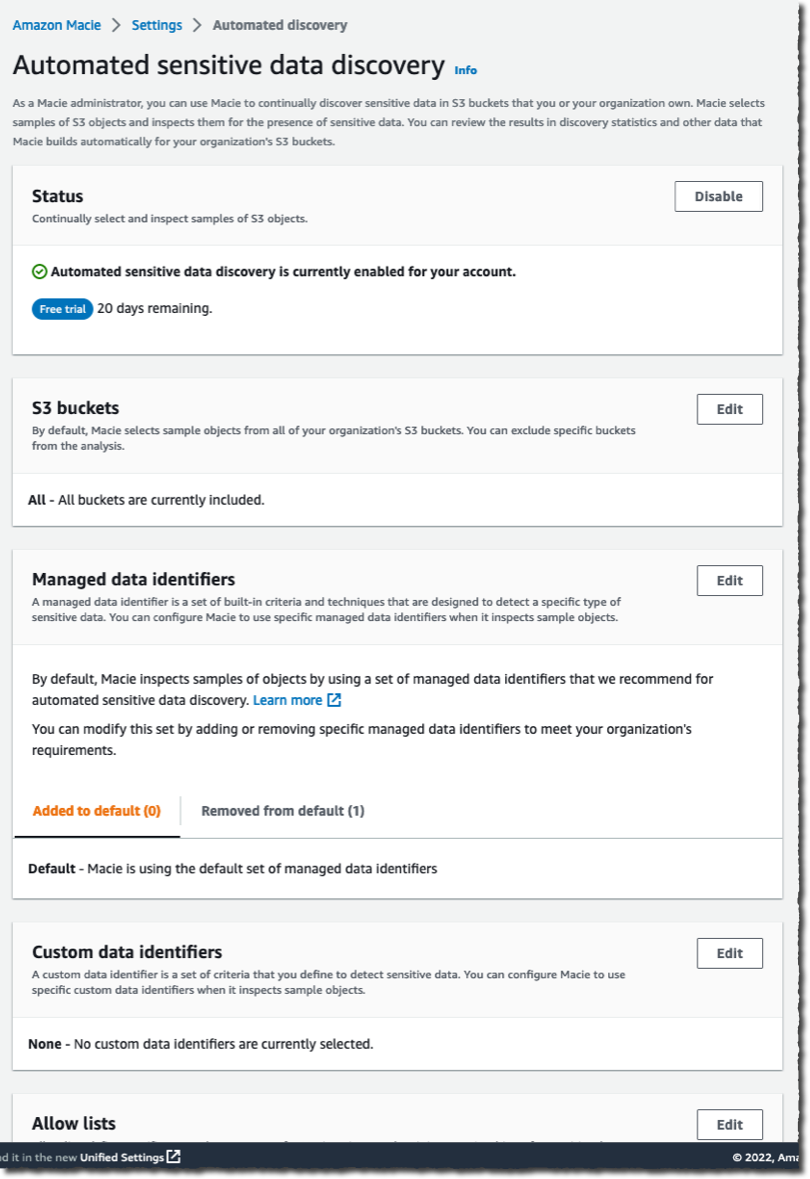
For Status, choose Enable, and then edit the following sections according to your needs:
S3 buckets – By default, Macie selects and inspects samples of objects across all S3 buckets in your organization. For example, you might want to exclude an S3 bucket that stores AWS CloudTrail logs.
Managed data identifiers – You can select managed data identifiers to include or exclude during automated sensitivity data discovery. By default, Macie inspects and samples objects by using a set of managed data identifiers that AWS recommends. This includes most of the managed data identifiers that AWS supports, but excludes some that can potentially cause a high volume of alerts in buckets where you might not expect them. If you know specific data types that could exist within your environment, you can add those managed data identifiers specifically. If you want Macie to exclude detections that aren’t sensitive in your deployment, you can exclude them. For more details, see the Macie administrator user guide.
Custom data identifiers – You can select custom data identifiers to include or exclude during automated sensitive data discovery.
Allow lists – You can select allow lists to define specific text or a text pattern that you want Macie to exclude from automated sensitive data discovery.
Figure 1: Settings page for Macie automated sensitive data discovery
Note: When you make changes to the inclusion or exclusion of managed or custom data identifiers for S3 buckets managed by the Macie admin account, those changes apply only to new S3 objects that are discovered. The changes do not apply to detections for existing S3 objects that were previously scanned with automated sensitive data discovery.
How Macie samples data and assigns scores
Macie automated sensitive data discovery analyzes objects in the S3 buckets in your accounts where Macie is turned on. It organizes objects with similar S3 metadata, such as bucket names, object-key prefixes, file-type extensions, and storage class, into groups that are likely to have similar content. It then selects small, but representative, samples from each identified group of objects and scans them to detect the presence of sensitive data. Macie has a feedback loop that uses the results of previously scanned samples to prioritize the next set of samples to inspect.
This systematic exploration of your S3 storage can help identify the presence of unknown sensitive data for a fraction of the cost of targeted sensitive data discovery jobs. A single sample might not be conclusive, so Macie continues sampling to build a security-relevant, interactive map of your S3 buckets. It automatically detects new buckets in your accounts, and keeps track of the previously scanned objects that get deleted from existing buckets to make sure that your map stays up to date.
Review data sensitivity scoring
When you first activate automated sensitive data discovery, Macie assigns each of your S3 buckets a sensitivity score of 50. Then, Macie begins to continually select and scan a sample of objects in your S3 buckets across each member account. Based on the results, Macie adjusts the sensitivity score for each bucket, assigning new scores that range from 1–99. Macie increases the score if sensitive data is found, and decreases the score if sensitive data isn’t found.
Macie calculates this score based on the amount of data inspected, number of sensitive data types discovered, number of occurrences of each sensitive data type, and the nature of the sensitive data. The score can help you identify potential security risks, but it does not indicate the criticality that a given bucket, and its contents, might have for your organization.
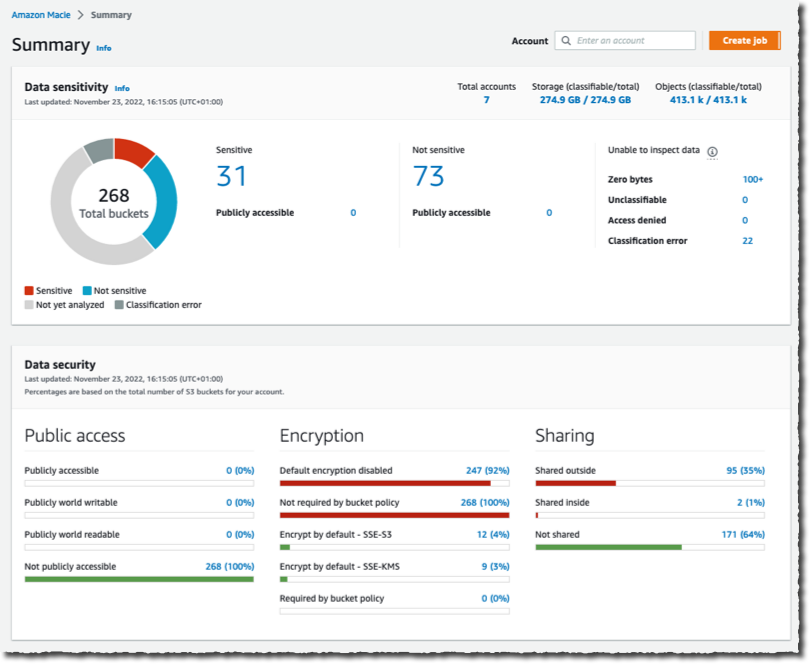
Figure 2 shows an example Summary page for the delegated Macie administrator. This page summarizes the results of automated sensitive data discovery for the delegated administrator account and each member account.
From the Summary page, you can choose statistics, such as Publicly accessible or Sensitive, to investigate. When you choose a statistic, you will be redirected to the S3 buckets page that displays a filtered view based on the selected data.
On the S3 buckets page shown in Figure 3, Macie displays a heat map of consolidated information, grouped by account, on whether a bucket is sensitive, not sensitive, or not analyzed yet. Each square in the heat map represents an S3 bucket. In the figure, account 111122223333 has 79 buckets, including 4 buckets with sensitive data findings, 34 buckets that were scanned with no sensitive data found, and 41 buckets that are pending scanning.
Figure 3: Heat map of automated sensitive data discovery in Macie
For more information about an S3 bucket, select one of the squares in the heat map. This will show you the sensitivity score and other details, such as types of sensitive data, names of sensitive objects, and profiling statistics.
The following table summarizes Macie sensitivity score categories and how to interpret the heat map.
Data sensitivity score
Data sensitivity status
Data sensitivity heat map
-1
Unable to analyze
Macie was unable to analyze a S3 object(s) due to a permission issue.
1-49
Not sensitive
A darker shade of blue, and a lower sensitivity score, indicates that a greater proportion of objects in the bucket were scanned and fewer occurrences of sensitive data were found.
A score closer to 1 indicates that Macie scanned most of the objects in the bucket and did not find occurrences of objects with sensitive data.
A score closer to 49 indicates that Macie scanned a smaller proportion of objects in the bucket and did not find occurrences of objects with sensitive data.
50
Not analyzed
White shading indicates that Macie hasn’t analyzed objects yet.
51-99
Sensitive
A darker shade of red, and a higher sensitivity score, indicates that a greater proportion of objects in the bucket were scanned and more occurrences of sensitive data were found.
A score closer to 99 indicates that Macie scanned a greater proportion of objects in the bucket, and found several occurrences of objects with sensitive data.
A score closer to 51 indicates that Macie scanned a smaller proportion of objects and found some occurrences of objects with sensitive data.
100
Maximum score
A solid shade of red. Macie doesn’t assign this score, but you can manually assign it.
Common use cases for Macie automated sensitive data discovery
In this section, we discuss how you can use automated sensitive data discovery in Macie to implement the following common patterns:
Activate continuous monitoring for broad visibility into the presence of sensitive data in your S3 buckets, including existing buckets where sensitive data was not found before.
Manually identify and prioritize a subset of S3 buckets so that you can conduct a full scan based on the sensitivity score.
Build automation that scans S3 buckets by using the sensitivity score and takes actions, such as sending notifications or performing remediation, so that buckets with sensitive data have proper guardrails.
Continuous monitoring of S3 buckets for sensitive data
The dynamic nature of applications and the speed of innovation increases the type and amount of data generated, stored, and processed over time. While development teams work on developing new features for your applications, security teams help the application teams understand where they should take action to protect data.
Discovering sensitive data is an ongoing activity that requires a continuous search for sensitive data in S3 buckets in each account that the Macie admin accounts manage. Macie continually searches for sensitive data and updates the information found on the Summary and S3 buckets pages in the Macie admin accounts.
To help you gain visibility across your S3 storage at an affordable cost, automated sensitive data discovery establishes a baseline profile of the sensitivity of each bucket, while analyzing only a fraction of S3 data for each account in a given month. After you activate this feature in the Macie admin accounts, Macie starts constructing an S3 bucket baseline within 48 hours.
Macie continues to refine bucket profiles and prioritizes those that it has the least information on. For example, Macie might prioritize buckets that were recently created in the monitored accounts or existing buckets from a member account that recently joined your organization. This provides continual visibility that achieves greater fidelity over time while scanning data at a predictable monthly rate.
Automated discovery uses the results of the automated data inspection to create a profile for each bucket. It also tracks previously scanned objects to make sure that each bucket profile is up to date. This means that if a previously scanned object is removed, Macie updates the profile of the bucket to make sure that you have the most current information.
You can also include or exclude specific managed and custom data identifiers from specific S3 buckets or from each S3 bucket that the Macie admin accounts manages. For example, to make sure that the sensitivity score is as accurate as possible, you can exclude specific data identifiers on select S3 buckets where you expect those identifiers.
Let’s walk through an example of how to exclude specific data identifiers on an S3 bucket. Imagine that your company has an S3 bucket where data scientists store a test dataset of fictitious names and addresses. The appropriate teams have verified that the test dataset isn’t sensitive and can be used to create test data models. You want to exclude name and address detections for this bucket while keeping these detections for the rest of your S3 storage.
To exclude the name and address identifiers, navigate to the specific S3 bucket, choose the identifiers to exclude (in this case, NAME and ADDRESS), and choose Exclude from score, as shown in Figure 4. Macie automatically excludes these identifiers from the sensitivity score for that S3 bucket only, for existing and new objects.
Figure 4: Macie S3 bucket list view with sensitivity scores and detections
Note: When you change the included or excluded managed or custom data identifiers for an S3 bucket, Macie automatically updates existing detections and sensitivity scores. Macie also applies these changes to new S3 objects that it scans with automated sensitive data discovery.
You can prioritize S3 buckets that need additional review by manually assigning them a maximum sensitivity score. When you select Assign maximum score on an S3 bucket, Macie sets the score to 100, regardless of the sensitive data detections that it found through automated sensitive data discovery. Automated sensitive data discovery continues to scan the bucket and create sensitive data detections unless you select Exclude from automated discovery.
You might want to assign maximum scores for S3 buckets that are publicly accessible, shared across multiple internal or external customers, or part of an environment where sensitive data shouldn’t be present. By assigning a maximum score to an S3 bucket, you can help ensure that your security and privacy teams regularly review high-priority buckets. You can decide whether to assign maximum scores based on your organization’s use cases and security policies.
Identify a subset of S3 buckets to conduct a full scan based on the sensitivity score
You can use sensitivity scores to prioritize specific S3 buckets for full Macie scanning jobs. By running full scanning jobs on specific buckets, you can focus your efforts on buckets where sensitive data could have the greatest impact on your organization. Because full scanning occurs on only a subset of your buckets, this strategy can help lower your overall costs for Macie.
To create a Macie job that scans S3 buckets based on the sensitivity score
If you leave the To field blank, Macie returns a list of buckets with a score greater than or equal to the value in the From field.
Note: Sensitivity scores can vary based on the objects analyzed and whether you have the settings configured for Assign maximum score, Automatically discover sensitive data, or both.
After you add the filter, you will see the S3 bucket results for the Sensitivity values that you entered, grouped by account. To view the buckets in list view, choose the list view icon (). To view the buckets in group view, choose the group view icon ().
Note: You can’t create Macie scan jobs from group view. To run Macie scan jobs, switch to list view.
Make sure that you are in list view, select the specific S3 buckets that you want to scan based on the Sensitivity score, and then choose Create Jobs.
Figure 5: List view of sensitivity scores for S3 buckets
Review the S3 buckets that you selected. To exclude specific buckets, choose Remove for each bucket. After you review your selection, choose Next.
Select managed data identifiers, custom data identifiers, allow lists, and general settings according to your needs.
Confirm the Macie job details and choose Submit to start scanning the S3 buckets based on the sensitivity score. When this job is complete, you will receive findings on sensitive data discovered from the job.
When you are considering whether to run a scheduled job or a one-time job, remember that S3 bucket sensitivity scores can change based on new objects, managed or custom identifiers, and allow lists used by Macie automated sensitive data discovery. If you run a scheduled job on buckets that meet certain sensitivity score criteria, the configurations for the job are immutable in order to support data privacy and protection audits or investigations. If a new bucket meets the sensitivity score criteria, you need to create a new scheduled job to include that bucket.
Use automation to scan S3 buckets by sensitivity score and take actions based on findings
You can use the GetResourceProfile API to query specific S3 buckets and return sensitivity profiling information. With the information returned from the API, you can develop custom automation to take specific actions on buckets based on their sensitivity scores. For example, you can use Amazon EventBridge and AWS Lambda functions to create Macie jobs based on the sensitivity scores of the S3 buckets managed by Macie, as shown in the following architecture.
Figure 6: Example architecture for automated jobs based on sensitivity scores
This architecture has the following steps:
An EventBridge rule runs periodically to invoke a Lambda function that invokes the GetResourceProfile API for S3 buckets managed by the Macie admin accounts.
The Lambda function takes the following actions:
Creates a list of S3 buckets with maximum sensitivity scores, or with automated sensitivity profiling scores that exceed a threshold value, and then stores the results in an Amazon DynamoDB table.
Creates a Macie job by using items in the DynamoDB table to conduct a one-time scan with 100% sampling depth of those S3 buckets. Upon job submission, you can add a last-scanned date to the table for tracking purposes, to help avoid the creation of multiple one-time jobs on the same bucket.
The delegated Macie administrator job starts scan jobs for S3 buckets in member accounts.
After you conduct your Macie scans either manually or with automation, you can implement semi- or fully automated response and remediation actions based on the sensitive data findings. The following are examples of automated response and remediation actions that you can take:
In this blog post, we showed you how to turn on Macie automated sensitive data discovery in your AWS environment and how to use the findings to continually manage your data security posture. This new feature can help you prioritize your remediation efforts and identify buckets on which to run full scans for sensitive data discovery. We also shared a design pattern to build automation by using Macie APIs for automated remediation of Macie findings.
If you have feedback about this post, submit comments in the Comments section below. If you have questions about this post, start a new thread on Amazon Macie re:Post.
Want more AWS Security news? Follow us on Twitter.
With the release of Amazon Verified Permissions, developers of custom applications can implement access control logic based on caller and resource information; group membership, hierarchy, and relationship; and session context, such as device posture, location, time, or method of authentication. With Amazon Verified Permissions, you can focus on building simple authorization policies and your applications—instead of, for example, building an authorization engine for your multi-tenant consumer applications.
Amazon Verified Permissions uses the Cedar policy language, which simplifies the implementation, review, and maintenance of large and complex access control strategies.
Amazon Verified Permissions includes schema definitions, policy statement grammar, and automated reasoning that scales across millions of permissions, which enables you to enforce the principles of default deny and of least privilege. These features facilitate the deployment of an in-depth fine-grained authorization model to support your Zero-Trust objectives.
In this blog post, we’ll discuss how you can use Amazon Verified Permissions to create authorization policies that are an improvement over traditional access control models, and we provide some best practices for the use of this feature.
What is fine-grained authorization? Is it a role-based or an attribute-based access control mechanism?
Traditionally, customers deploy access control strategies based on roles or attributes.
Role-based access control (RBAC) is an approach of granting access to resources through group memberships instead of individual users. This approach, although it simplifies the definition of entitlements, can become very complex when you scale out groups’ memberships, hierarchies, and nestings.
Consider a photo sharing application that allows users to upload photos and share those photos with friends. We have a user Alice who uploads their vacation photos to a folder named Austin2022. Alice decides to share these photos with friends.
Alice provides a link to their vacation photos to a friend named Bob. Using the link, Bob is able to view photos in the folder Austin2022, because Bob is in the user group Alice/Friends. That is, Bob has the role of Alice/Friends. If Bob were removed as Alice’s friend, Bob would not be able to view Alice’s photos. This is an example of how role-based access control works.
Attribute-based access control (ABAC) deviates from the static nature of RBAC by introducing access rules based on the characteristics of the following: the requestor identity; the attributes of the resources targeted; or contextual elements such as the request time, where the request originated, or the device used to make the request.
Let’s consider who can delete photos in the example photo sharing application. We want to make sure that only Alice can delete their photos. That is, we make an authorization decision based on the attribute owner of the resource photo.
Fine-grained authorization (FGA) is a model that combines the advantages of both RBAC and ABAC, so that customers can find the right balance between each approach for their individual use case. Understanding the FGA approach is key to writing policy statements in Amazon Verified Permissions.
How does permissions policy statement language work?
To define a policy statement, Amazon Verified Permissions uses a policy language based on the PARC model, as AWS Identity and Access Management (IAM) does for IAM policies. PARC refers to the four objects in the policy language: principal, action, resource, and condition, and these are defined as follows:
The principal is the entity taking the action. Often this will be a human user, but it could also be another service or a device.
The action is the operation being performed, for which permission must be granted. Often the action will map to an API call.
The resource is the target of the call.
The condition limits when or where the principal can make the action on the resource.
Using this language, you can create a policy that allows user Alice (the principal) to call deletePhoto (the action) on VacationPhoto_1.jpg (the resource) when Alice is logged in by using multi-factor authentication (the condition). After the Amazon Verified Permissions policy is authored, you will store it in your Amazon Verified Permissions policy store instance.
Policy statements are divided into two sections:
The policy head, which defines the targets of the policy (principal, action, resource) and whether the policy permits or forbids the action.
The Conditions section, which allows you to place conditions that authorize API actions only when specified criteria are met.
You can use the structure of the policy statements to tell at a glance whether a policy follows an RBAC, an ABAC, or an FGA approach, as shown in the following three examples.
// This style of policy can be used to implement a RBAC approach
permit(
  principal in UserGroup::"Alice/Friends",
  action in [
    Action::"readFile",
    Action::"writeFile"
  ],
  resource in Folder::"Playa del Sol 2021"
);
// This style of policy can be used to implement an ABAC approach
permit(principal, action, resource)
when {
  principal.permitted_access_level >= resource.access_level
};
// This style of policy can be used to implement a hybrid approach
permit(
  principal in UserGroup::"Alice/Friends",
  action in [
    Action::"readFile",
    Action::"writeFile"
  ],
  resource in Folder::"Playa del Sol 2021"
)
when {
  principal.permitted_access_level >= resource.access_level
};
Let’s go back to our example of Alice and Bob. Now, Alice can define a policy that allows their friends to view photos in their folder Austin2022, as follows.
permit(
    principal in UserGroup::"Alice/Friends",
    action == Action::"viewPhoto",
    resource in Folder::"Austin2022"
);
The policy head says to permit the viewPhoto action to be performed on resources in the folder Austin2022 for principals in user group Alice/Friends. There is no condition section for this policy. With the preceding policy, Bob can access the photos in Alice’s Austin2022 album as long as Bob is a member of the group Alice/Friends.
We can go back to the photo deletion workflow for a more complex scenario. To delete photos, you want to ensure that the requestor owns the photo. Additionally, you might require the user to be logged in via multi-factor authentication (MFA). This policy can be written as follows.
The policy head permits a user to call the action deletePhoto on photos. The condition section limits the policy to permit photo deletion only when the resource’s owner attribute is the same as the principal’s name attribute and the context object’s MFA attribute equals true.
Designing well-architected policy statements
In this section, we cover six best practices that help customers scale out efficiently.
Use immutable identifiers to reduce risk of collision
The policy statements in this blog post and in Amazon Verified Permissions documentation intentionally use human-readable values such as Bob for a Principal entity, or Alice/Friends for a Group entity. This is useful when discussing general concepts, but in production systems, customers should utilize unique and immutable values for entities. As an example, what would happen if Alice wants to change their user name?
Instead of creating a user named Alice, you should use an autogenerated and unique identifier such as a Universally Unique Identifier (UUID). Those are generally available from your user directory, JSON Web Token, or file system. That way, you can create a user object with the ID a1b2c3d4-5678-90ab-cdef-EXAMPLE11111 and the name attribute Alice. This would allow you to update Alice’s user name without needing to recreate the user object.
Reduce the number of policies that use entity grouping
Policy statements can only contain a single principal entity and a single resource entity. If you want the same policy to apply to multiple principals or resources, you can group common entities and use an in statement.
In this example, Bob’s user account could be stored as the following object.
The parent relationship defined in Bob’s user account object is what makes Bob a member of the group Alice/Friends.
Now you can define a policy that allows Bob to gain access to Alice’s vacation photos because he is in the group Alice/Friends, as follows.
permit(
    principal in UserGroup::"Alice/Friends",
    action == Action::"viewPhoto",
    resource in Folder::"Austin2022"
);
Use namespaces to remove ambiguity
You can use namespaces to remove ambiguity. Returning to our application, let’s say that you want to give users the ability to delete their photos. But your moderators also need the ability to delete inappropriate photos. How can you distinguish between the user action deletePhoto and the administrator action deletePhoto? Namespaces give you this flexibility.
When creating your entities, you can add namespaces in the EntityType field, as in the following example.
You then use the namespace in your permit policy, as follows.
permit(
  principal,
  action == Admin::Action::"deletePhoto",
  resource == File::"Photo")
when {
  principal.role == Moderator
};
This policy requires a user to have the role Moderator to successfully use the administrator deletePhoto action.
Set permission guardrails with forbid statements
The Amazon Verified Permissions policy engine denies any action that is not explicitly allowed with a permit policy. But you might want to establish permission guardrails to ensure that an action will be never allowed. You can create forbid policies for this purpose.
Returning to our photo sharing application, suppose that you want to ensure that no user can delete a photo unless the user has been authenticated with MFA. You could use the following policy.
This permission guardrail will help prevent the accidental grant of overly permissive deletePhoto permissions.
Simplify statements with unless conditions
When you define complex conditions for a policy statement, you might face situations where a policy needs multiple negative conditions. Amazon Verified Permissions provides an alternative keyword for the conditional expression: unless. For example, you might deny moderators the ability to delete photos unless they have flagged the photo as inappropriate, are authenticated using MFA, and are on the company’s network, in order to simplify policy statements.
Unless behaves the same as when, except that using unless requires all conditions to evaluate as false. With this additional expression, you can create statement that are less complex to review and maintain. The following example shows how you can simplify a condition with multiple parameters by using the unless expression.
// Allow access unless a resource was deleted more than 7 days ago
permit(
  principal in Group::"Alice/Friends",
  action == Action::"readPhoto",
  resource in Folder::"Playa del Sol 2021"
)
when {
  !(resource.status == "deleted"
   && resource.deletion_date < (context.time.now - 604800)) //7 days ago
}
The following example shows how you can simplify the previous policy by using an unless expression.
// Allow access unless a resource was deleted more than 7 days ago
permit(
  principal in Group::"Alice/Friends",
  action == Action::"readPhoto",
  resource in Folder::"Playa del Sol 2021"
)
unless {
  (resource.status == "deleted"
   && resource.deletion_date < (context.time.now - 604800)) //7 days ago
}
Rationalize policies with a template
You might face a situation where you are repeatedly creating the same rule for different contexts. In the following example, we demonstrate a policy that permits Alice to describe the folder Alice’s Org. Then we replicate the same policy for Bob and the folder Bob’s Org.
permit(
    principal == "Alice",
    action == Action::"describeFolder",
    resource == Folder::"Alice's Org"
)
when {
    resource.owner == principal.username
};

permit(
    principal == "Bob",
    action == Action::"describeFolder",
    resource == Folder::"Bob's Org"
)
when {
    resource.owner == principal.username
};
In this case, we recommend that you use a policy template to simplify the evaluation, as in the following example.
permit(
    principal == ?principal,
    action == Action::"describeFolder",
    resource == ?resource
)
when {
    resource.owner == principal.username
};
With a policy template, the statement inherits from a placeholder (in this example, ?principal and ?resource) and will be evaluated dynamically for each policy evaluation request, based on context that the application will provide.
Conclusion: Start authorizing with Amazon Verified Permissions
With Amazon Verified Permissions, you can create permission policies with expressiveness, performance, and readability in mind.
Using the best practices described in this post, you are ready to author policies with Amazon Verified Permissions. When combined with services like Amazon Cognito, Amazon API Gateway, an AWS Lambda authorizer, or AWS AppSync, Amazon Verified Permissions allows you to unlock in-depth and explicit access control logic securely using native AWS services.
Over the next months, AWS will release more resources to support our customers in their implementation of Amazon Verified Permissions. Learn more about Amazon Verified Permissions. Stay tuned and happy building.
If you have feedback about this post, submit comments in the Comments section below. If you have questions about this post, contact AWS Support.
Want more AWS Security news? Follow us on Twitter.
To identify potential security threats and vulnerabilities, customers should enable logging across their various resources and centralize these logs for easy access and use within analytics tools. Some of these data sources include logs from on-premises infrastructure, firewalls, and endpoint security solutions, and when utilizing the cloud, services such as Amazon Route 53, AWS CloudTrail, and Amazon Virtual Private Cloud (Amazon VPC).
The Amazon Simple Storage Service (Amazon S3) and AWS Lake Formation simplify the creation and management of a data lake on AWS. But, some customers’ security teams still struggle to define and implement security domain–specific aspects, such as data normalization, which requires them to analyze each log source’s structure and fields, define schemas and mappings, and pull in data enrichment such as threat intelligence.
Today we are announcing the preview release of Amazon Security Lake, a purpose-built service that automatically centralizes an organization’s security data from cloud and on-premises sources into a purpose-built data lake stored in your account. Amazon Security Lake automates the central management of security data, normalizing from integrated AWS services and third-party services and managing the lifecycle of data with customizable retention and also automates storage tiering.
Here are the key features of Amazon Security Lake:
Data transformation and normalization – Security Lake automatically partitions and converts incoming log data to a storage and query-efficient Apache Parquet and OCSF format, making the data broadly and immediately usable for security analytics without the need for post-processing. Security Lake supports integrations with analytics partners such as IBM, Splunk, Sumo Logic, and more to address a variety of security use cases such as threat detection, investigation, and incident response.
Customizable data access levels – You can configure the level of subscribers consuming data stored in the Security Lake, such as specific data sources for data access to all new objects or directly querying data stored. You can also specify a rollup Region that the Security Lake is available in and multiple AWS accounts across your AWS Organizations. This can help you comply with data residency compliance requirements.
By reducing the operational overhead of security data management, you can make it easier to gather more security signals from across your organization and analyze that data to improve the protection of your data, applications, and workloads.
Configure Your Security Lake for Collection Data To get started with Amazon Security Lake, choose Get started in the AWS console. You can enable log and event sources for all Regions and all accounts.
You can select log and event sources such as CloudTrail logs, VPC flow logs, and Route53 resolver logs into your data lake. Select Regions will contribute their data to your data lake with the Amazon S3-managed encryption that Amazon S3 will create and manage all encryption keys, as well as the specific AWS accounts in your organizations.
Next, you can select rollup and contributing Regions. All aggregated data from contributing Regions reside in the rollup Region. You can create multiple rollup Regions, which can help you comply with data residency compliance requirements. Optionally, you can define the Amazon S3 storage classes and the retention period you want the data to transition from the standard Amazon S3 storage classes used in Security Lake.
After initial configuration, choose Sources in the left pane of the console if you can add or remove log sources in your Regions or account.
You can also collect data from custom sources, such as Bind DNS logs, endpoint telemetry logs, on-premise Netflow logs, and so on. Before adding a custom source, you need to create AWS IAM role to grant permissions for AWS Glue.
To create a custom data source, choose Create custom source in the left menu of Custom sources.
It requires you to enter the IAM role Amazon Resource Names (ARNs) to write data to Security Lake and invoke AWS Glue on your behalf. Then, you can provide details about your custom source.
For efficient data processing and querying, objects from your custom sources should be partitioned by AWS Region, AWS account, year, month, day, and hour with a Parquet-formatted object.
Consume Your Data from Security Lake Now you can create a subscriber, a service that consumes logs and events from Security Lake. To add or see your subscribers, choose Subscribers in the left pane of the console.
The Security Lake supports two types of subscriber data access methods:
Data access (Amazon S3) – Subscribers are notified of new objects for a source as the data is written to your Security Lake S3 bucket. You can choose to notify subscribers of new objects with an Amazon Simple Queue Service (Amazon SQS) queue or through messaging to an HTTPS endpoint provided by the subscriber. This type is useful to ingest selected data in your analytics application—good for use cases that require frequent access to data.
Query access (Lake Formation) – Subscribers can consume data by directly querying AWS Lake Formation tables in your S3 bucket through services like Amazon Athena. This type is useful to provide on-demand query access to data without the need to pre-ingest anything and for use cases that require infrequent access or on large volume sources too expensive to ingest upfront or retain in analytics tools.
When you add a subscriber, you can choose Amazon S3 to create data access for the subscriber. If you select the default method of notification, you can receive the following object notification message in either an HTTPS endpoint or Amazon SQS.
Subscribers with query access can directly query data that is stored in Security Lake by using services like Amazon Athena and other services that can read from AWS Lake Formation. The following are sample queries of CloudTrail data.
SELECT
      time,
      api.service.name,
      api.operation,
      api.response.error,
      api.response.message,
      src_endpoint.ip
    FROM ${athena_db}.${athena_table}
    WHERE eventHour BETWEEN '${query_start_time}' and '${query_end_time}'
      AND api.response.error in (
        'Client.UnauthorizedOperation',
        'Client.InvalidPermission.NotFound',
        'Client.OperationNotPermitted',
        'AccessDenied')
    ORDER BY time desc
    LIMIT 25
Subscribers only have access to source data in the AWS Region that you’ve selected when you create the subscriber. To give a subscriber access to data from multiple Regions, you can set the Region where you create your subscriber as a rollup Region.
Third-Party Integrations For supported third-party integrations, there are a number of sources as well as subscribing services integrated with Amazon Security Lake.
You can also use third-party security, automation, and analytics tools supporting Security Lake, including Datadog, IBM, Rapid7, Securonix, SentinelOne, Splunk, Sumo Logic, and Trellix. There are also service partners such as Accenture, Atos, Deloitte, DXC, Kyndryl, PWC, Rackspace, and Wipro that can work with you and Amazon Security Lake.
Join the Preview The preview release of Amazon Security Lake is now available in the US East (Ohio), US East (N. Virginia), US West (Oregon), Asia Pacific (Sydney), Asia Pacific (Tokyo), Europe (Frankfurt), and Europe (Ireland) Regions.
To learn more, see the Amazon Security Lake page and Amazon Security Lake User Guide. We want to hear more feedback during the preview. Please send feedback in AWS re:Post and through your usual AWS support contacts.
AWS recently announced that AWS Organizations now supports AWS CloudFormation. This feature allows you to create and update AWS accounts, organizational units (OUs), and policies within your organization by using CloudFormation templates. With this latest integration, you can efficiently codify and automate the deployment of your resources in AWS Organizations.
You can now manage your AWS organization resources using infrastructure as code (iaC) and make changes in a central place. This can help reduce the time required to build a new organization, expand or modify the existing organization, replicate your organization infrastructure, or apply and update policies across multiple accounts and OUs. You can also delete organization resources by deleting the stacks.
In this blog post, we will show you how to create various AWS Organizations resources for a multi-account organization by using a CloudFormation template.
How does it work?
A CloudFormation template describes your desired resources and their dependencies so that you can launch and configure them together as a stack. You can use a template to create, update, and delete an entire stack as a single unit instead of managing resources individually.
With CloudFormation support for AWS Organizations, you can now do the following:
Create, delete, or update an organizational unit (OU). An OU is a container for accounts that allows you to organize your accounts to apply policies according to your needs.
Create accounts in your organization, add tags, and attach them to OUs.
Add or remove a tag on an OU.
Create, delete, or update a service control policy (SCP), backup policy, tag policy and artificial intelligence (AI) services opt-out policy.
Add or remove a tag on an SCP, backup policy, tag policy, and AI services opt-out policy.
Attach or detach an SCP, backup policy, tag policy, and AI services opt-out policy to a target (root, OU, or account).
To create AWS Organizations resources using CloudFormation, you will need to use your organization’s management account. As of this writing, the new resource types may only be deployed from the organization’s management account or delegated administration account.
Overview of the new resource types
The following are the three new resource types available for the implementation and management of an account, OU, and organizations policy in CloudFormation:
AWS::Organizations::Account – Creates an account that is automatically a member of the organization whose credentials made the request.
AWS::Organizations::Policy – Creates a policy of a specified type that you can attach to a root, OU, or individual account.
Prerequisites
This blog post assumes that you have AWS Organizations enabled in your management account. You also need the tag policy and service control policy types enabled in your management account. For instructions on how to create an organization, see Create your organization.
You should also review the following important points for creating resources in AWS Organizations:
AWS Organizations supports the creation of a single account at a time. If you include multiple accounts in a single CloudFormation template, you should use the DependsOn attribute so that your accounts are created sequentially.
Before you can create a policy of a given type, you must first enable that policy type in your organization.
The number of levels deep that you can nest OUs depends on the policy types that you have enabled for the root. For SCPs, the limit is five.
To modify the AccountName, Email, and RoleName for the account resource parameters, you must sign in to the AWS Management Console as the AWS account root user.
Since the CloudFormation template in this blog deploys Account and Organization Unit resources, you must deploy it in your organization’s management account.
Use a CloudFormation template with the new AWS Organizations resources
In this section, we will walk you through a sample CloudFormation template that incorporates the newly supported AWS Organizations resources. CloudFormation provisions and configures the resources for you, so that you don’t have to individually create and configure them and determine resource dependencies.
The template will create the following resources and structure.
Three organizational units
Infrastructure – Within the organizational root
Production – Within the Infrastructure OU
Security – Within the organizational root
One account
AccountA – Within the Production child OU
Two service control policies
PreventLeavingOrganization – Attached to the organizational root
PreventCloudTrailDisablement – Attached to the Security OU
Note: The above OU and account layout is only an example for the purpose of this blog post. Please refer to Organizing Your AWS Environment Using Multiple Accounts whitepaper for more information on multi-account strategy best practices & recommendations.
In this section, you will create a stack by using the CloudFormation template that you downloaded.
To create the stack
Create the AWS Organizations resources outlined in the template by creating an IAM role for CloudFormation using the following IAM permissions policy and trust policy.
Sign in to the management account for your organization, navigate to the CloudFormation console, and choose Create stack.
Choose With new resources (standard), upload the template file, and choose Next.
Figure 1: CloudFormation console showing creation of stack
Enter a name for the stack (for example, CloudFormationForAWSOrganizations). For OrganizationRoot, enter your organizations root ID. You can find the root ID in the AWS Organizations console.
Choose Create stack.
On the Configure stack options page, in the Permissions section, choose the IAM role that you granted permissions to previously, as shown in Figure 2. Then choose Next.
Figure 2: Set IAM role permissions for CloudFormation
You will see a screen showing stack creation in progress.
Figure 3: CloudFormation console showing stack creation in progress
When the stack has been created, choose the Resources tab to see the resources created.
Figure 4: CloudFormation console showing stack resources created
Confirm and visualize the resources created by using the console
In this section, you will use the console to confirm and visualize the resources created.
In the left navigation pane, choose AWS accounts to see the OUs and account that were created.
Figure 5: AWS Organizations console showing the organization structure
Confirm the service control policy created and attached to the organization’s root
In this section, you will confirm that the SCP was created and attached to the organization’s root.
Note: When you enable SCPs on an organization, an AWS full access policy is attached by default at each level (root, OU, and account) of your organization. Because you can attach policies to multiple levels of the organization, accounts can inherit multiple policies with an effect of deny. For more details, see inheritance for service control policies.
To confirm the SCP was created and attached to the root
To view the service control policy, choose Root, and then in the section Applied policies, review the list of policies. The PreventLeavingOrganization SCP prevents the use of the LeaveOrganization API so that member accounts can’t remove their accounts from the organization.
Figure 6: AWS Organizations console showing the organization’s root
To confirm that the DoNotDelete tag was attached to the PreventLeavingOrganization SCP, choose the policy name and then choose the Tags tab.
Figure 7: SCP with tags attached to it in Organizations
Confirm the service control policy created and attached to the Security OU
In this section, you will confirm that the PreventCloudTrailDisablement SCP was created and attached to the Security OU, thus preventing users or roles in the accounts in the security OU from disabling an AWS CloudTrail log.
To confirm that the SCP was created and attached to the Security OU
From the left navigation pane, choose AWS accounts, and then choose Security.
On the Security page, choose the Policies tab to see a list of policies.
To review and confirm the contents of the policy, choose PreventCloudTrailDisablement.
Figure 8: SCP attached to the Security OU in Organizations
Confirm the account and tag policy created and attached to the Production OU
In this step, you will confirm that the account and tag policy were created and attached to the Production OU.
To confirm creation of the account and tag policy in the Production OU
On the Production page, choose the Children tab to confirm that the account named AccountA was created.
Figure 9: The Production OU and account A in Organizations
To confirm that the DefineTagKeyCase tag policy was attached to the Production OU, do the following:
From the left navigation pane, choose AWS accounts, and then choose Production.
Choose the Policies tab to see the list of policies.
In the Tag policies section, under Applied policies, choose DefineTagKeyCase to confirm the contents of the policy. This policy defines the tag key and the capitalization that you want accounts in the production OU to standardize on.
Figure 10: SCP and tag policy attached to the Production OU in Organizations
Conclusion
In this blog post, you learned how to create AWS Organizations resources, including organizational units, accounts, service control policies, and tag policies by using CloudFormation. You can use this new feature to model the state of your infrastructure as code and to help deploy your AWS resources in a safe, repeatable manner at scale.
Today, we announce automated data discovery for Amazon Macie. This new capability allows you to gain visibility into where your sensitive data resides on Amazon Simple Storage Service (Amazon S3) at a fraction of the cost of running a full data inspection across all your S3 buckets.
At AWS, security is our first priority. The security of the infrastructure itself, but also the security of your data. We give you access to services to manage identities and access, to protect the network and your applications, to detect suspicious activities, to protect your data, and to report on and monitor your compliance status.
Amazon Macie is a data security service that discovers sensitive data using machine learning and pattern matching and enables visibility and automated protection against data security risks. You use Amazon Macie to protect your data in S3 by scanning for the presence of sensitive data, such as names, addresses, and credit card numbers, and continually monitoring for properly configured preventative controls, such as encryption and access policies. Amazon Macie generates alerts when it detects publicly accessible buckets, unencrypted buckets, or buckets shared with an AWS account outside of your organization. You may also configure Amazon Macie to scan your S3 to run full sensitive data discovery scans on your S3 buckets to provide visibility into where sensitive data resides.
But customers operating at scale told us it is difficult to know where to start. When employees and applications add new buckets and generate petabytes of data on a daily basis, what should be scanned first?
Automated data discovery automates the continual discovery of sensitive data and potential data security risks across your entire set of buckets aggregated at AWS Organizations level.
When you enable automated discovery in the console, Macie starts to evaluate the level of sensitivity of each of your buckets and highlights any data security risks. Automated data discovery introduces intelligent and fully managed data sampling to provide an optimized sample rate that meaningfully reduces the amount of data that needs to be analyzed. This reduces the cost of discovering S3 buckets containing sensitive data compared to the cost of full data inspection.
You can tune automated data discovery to only identify the types of sensitive data that are relevant for your use case by choosing from over 100 managed sensitive data types, such as personally identifiable information (PII) and financial records with specific formats for multiple countries. For example, you can enable detection of Spanish or Swedish driving license numbers and choose to ignore US Social Security numbers, depending on your use cases. When the specific type of data you manage is not on our list, you can create custom data types that may be unique to your business, such as employee or patient identification numbers.
Let’s See It in Action Automated data discovery is on by default for all new Amazon Macie customers, and existing Macie customers can enable it with one click in the AWS Management Console of the Amazon Macie administrator account. There is a 30-day free trial, and you can always opt out at the administrator level.
I can enable or disable the capability from the Automated discovery entry–under Settings–on the left side navigation menu. The Status section reveals the current status.
On the same page, I can configure the list of managed data identifiers. I can turn on or off individual types of data among more than one hundred managed data identifier types. I can also configure new ones. I select Edit on the Managed data identifiers section to include or exclude additional data identifiers.
If I have some buckets with lots of objects and others with a few, Macie won’t spend all its time inspecting one really large bucket at the expense of other smaller ones. Macie also prioritizes buckets that it knows the least about. For example, if it looked at the majority of objects in a small bucket, that bucket will be deprioritized compared to larger buckets where it has seen proportionally fewer objects.
Automated data discovery can provide an interactive data map of sensitive data distribution in S3 buckets within days of the feature being enabled. This data map refreshes daily as it intelligently picks and scans S3 objects in buckets and spreads the scan effort across the entire S3 estate in a given month.
Here is the Summary section of the Amazon Macie page. It looks like my set of buckets is secured. I have no bucket with public access, and 31 of my buckets might contain sensitive data.
When selecting the S3 buckets section of the navigation menu on the left side, I can see a data map of my buckets. The more red the squares are, the more sensitive data are detected in the buckets. The squares in blue represent buckets with no sensitive data detected so far. From there, I can drill down at bucket level to investigate the details.
Pricing and Availability When you are new to Amazon Macie, automated data discovery is enabled by default. When you already use Amazon Macie in your organization, you can enable automatic data discovery with one click in the Management Console of the Amazon Macie administrator account.
There is a 30-day free trial period when you enable automatic data discovery on your AWS account. After the evaluation period, we charge based on the total quantity of S3 objects in your account as well as the bytes scanned for sensitive content. Charges are prorated per day. You can disable this capability at any time. The pricing page has all the details.
When operating a business, you have to find the right balance between speed and control for your cloud operations. On one side, you want to have the ability to quickly provision the cloud resources you need for your applications. At the same time, depending on your industry, you need to maintain compliance with regulatory, security, and operational best practices.
AWS Config provides rules, which you can run in detective mode to evaluate if the configuration settings of your AWS resources are compliant with your desired configuration settings. Today, we are extending AWS Config rules to support proactive mode so that they can be run at any time before provisioning and save time spent to implement custom pre-deployment validations.
When creating standard resource templates, platform teams can run AWS Config rules in proactive mode so that they can be tested to be compliant before being shared across your organization. When implementing a new service or a new functionality, development teams can run rules in proactive mode as part of their continuous integration and continuous delivery (CI/CD) pipeline to identify noncompliant resources.
You can also use AWS CloudFormation Guard in your deployment pipelines to check for compliance proactively and ensure that a consistent set of policies are applied both before and after resources are provisioned.
Let’s see how this works in practice.
Using Proactive Compliance with AWS Config In the AWS Config console, I choose Rules in the navigation pane. In the rules table, I see the new Enabled evaluation mode column that specifies whether the rule is proactive or detective. Let’s set up my first rule.
I choose Add rule, and then I enter rds-storage in the AWS Managed Rules search box to find the rds-storage-encrypted rule. This rule checks whether storage encryption is enabled for your Amazon Relational Database Service (RDS) DB instances and can be added in proactive or detective evaluation mode. I choose Next.
In the Evaluation mode section, I turn on proactive evaluation. Now both the proactive and detective evaluation switches are enabled.
I leave all the other settings to their default values and choose Next. In the next step, I review the configuration and add the rule.
Now, I can use proactive compliance via the AWS Config API (including the AWS Command Line Interface (CLI) and AWS SDKs) or with CloudFormation Guard. In my CI/CD pipeline, I can use the AWS Config API to check the compliance of a resource before creating it. When deploying using AWS CloudFormation, I can set up a CloudFormation hook to proactively check my configuration before the actual deployment happens.
Let’s do an example using the AWS CLI. First, I call the StartProactiveEvaluationResponse API with in input the resource ID (for reference only), the resource type, and its configuration using the CloudFormation schema. For simplicity, in the database configuration, I only use the StorageEncrypted option and set it to true to pass the evaluation. I use an evaluation timeout of 60 seconds, which is more than enough for this rule.
I get back in output the ResourceEvaluationId that I use to check the evaluation status using the GetResourceEvaluationSummary API. In the beginning, the evaluation is IN_PROGRESS. It usually takes a few seconds to get a COMPLIANT or NON_COMPLIANT result.
As expected, the Amazon RDS configuration is compliant to the rds-storage-encrypted rule. If I repeat the previous steps with StorageEncrypted set to false, I get a noncompliant result.
If more than one rule is enabled for a resource type, all applicable rules are run in proactive mode for the resource evaluation. To find out individual rule-level compliance for the resource, I can call the GetComplianceDetailsByResource API:
If, when looking at these details, your desired rule is not invoked, be sure to check that proactive mode is turned on.
Availability and Pricing Proactive compliance will be available in all commercial AWS Regions where AWS Config is offered but it might take a few days to deploy this new capability across all these Regions. I’ll update this post when this deployment is complete. To see which AWS Config rules can be turned into proactive mode, see the Developer Guide.
You are charged based on the number of AWS Config rule evaluations recorded. A rule evaluation is recorded every time a resource is evaluated for compliance against an AWS Config rule. Rule evaluations can be run in detective mode and/or in proactive mode, if available. If you are running a rule in both detective mode and proactive mode, you will be charged for only the evaluations in detective mode. For more information, see AWS Config pricing.
Today, customers in regulated industries face the challenge of defining and enforcing controls needed to meet compliance and security requirements while empowering engineers to make their design choices. In addition to addressing risk, reliability, performance, and resiliency requirements, organizations may also need to comply with frameworks and standards such as PCI DSS and NIST 800-53.
Building controls that account for service relationships and their dependencies is time-consuming and expensive. Sometimes customers restrict engineering access to AWS services and features until their cloud architects identify risks and implement their own controls.
To make that easier, today we are launching comprehensive controls management in AWS Control Tower. You can use it to apply managed preventative, detective, and proactive controls to accounts and organizational units (OUs) by service, control objective, or compliance framework. AWS Control Tower does the mapping between them on your behalf, saving time and effort.
With this new capability, you can now also use AWS Control Tower to turn on AWS Security Hub detective controls across all accounts in an OU. In this way, Security Hub controls are enabled in every AWS Region that AWS Control Tower governs.
Let’s see how this works in practice.
Using AWS Control Tower Comprehensive Controls Management In the AWS Control Tower console, there is a new Controls library section. There, I choose All controls. There are now more than three hundred controls available. For each control, I see which AWS service it is related to, the control objective this control is part of, the implementation (such as AWS Config rule or AWS CloudFormationGuard rule), the behavior (preventive, detective, or proactive), and the frameworks it maps to (such as NIST 800-53 or PCI DSS).
In the Find controls search box, I look for a preventive control called CT.CLOUDFORMATION.PR.1. This control uses a service control policy (SCP) to protect controls that use CloudFormation hooks and is required by the control that I want to turn on next. Then, I choose Enable control.
Then, I select the OU for which I want to enable this control.
Now that I have set up this control, let’s see how controls are presented in the console in categories. I choose Categories in the navigation pane. There, I can browse controls grouped as Frameworks, Services, and Control objectives. By default, the Frameworks tab is selected.
I select a framework (for example, PCI DSS version 3.2.1) to see all the related controls and control objectives. To implement a control, I can select the control from the list and choose Enable control.
I can also manage controls by AWS service. When I select the Services tab, I see a list of AWS services and the related control objectives and controls.
I choose Amazon DynamoDB to see the controls that I can turn on for this service.
I select the Control objectives tab. When I need to assess a control objective, this is where I have access to the list of related controls to turn on.
I choose Encrypt data at rest to see and search through the available controls for that control objective. I can also check which services are covered in this specific case. I type RDS in the search bar to find the controls related to Amazon Relational Database Service (RDS) for this control objective.
I choose CT.RDS.PR.16 – Require an Amazon RDS database cluster to have encryption at rest configured and then Enable control.
I select the OU for which I want to enable the control for, and I proceed. All the AWS accounts in this organization’s OU will have this control enabled in all the Regions that AWS Control Tower governs.
After a few minutes, the AWS Control Tower setup is updated. Now, the accounts in this OU have proactive control CT.RDS.PR.16 turned on. When an account in this OU deploys a CloudFormation stack, any Amazon RDS database cluster has to have encryption at rest configured. Because this control is proactive, it’ll be checked by a CloudFormation hook before the deployment starts. This saves a lot of time compared to a detective control that would find the issue only when the CloudFormation deployment is in progress or has terminated. This also improves my security posture by preventing something that’s not allowed as opposed to reacting to it after the fact.
Availability and Pricing Comprehensive controls management is available in preview today in all AWS Regions where AWS Control Tower is offered. These enhanced control capabilities reduce the time it takes you to vet AWS services from months or weeks to minutes. They help you use AWS by undertaking the heavy burden of defining, mapping, and managing the controls required to meet the most common control objectives and regulations.
There is no additional charge to use these new capabilities during the preview. However, when you set up AWS Control Tower, you will begin to incur costs for AWS services configured to set up your landing zone and mandatory controls. For more information, see AWS Control Tower pricing.
With Amazon Redshift, you can analyze data in the cloud at any scale. Amazon Redshift offers native data protection capabilities to protect your data using automatic and manual snapshots. This works great by itself, but when you’re using other AWS services, you have to configure more than one tool to manage your data protection policies.
To make this easier, I am happy to share that we added support for Amazon Redshift in AWS Backup. AWS Backup allows you to define a central backup policy to manage data protection of your applications and can now also protect your Amazon Redshift clusters. In this way, you have a consistent experience when managing data protection across all supported services. If you have a multi-account setup, the centralized policies in AWS Backup let you define your data protection policies across all your accounts within your AWS Organizations. To help you meet your regulatory compliance needs, AWS Backup now includes Amazon Redshift in its auditor-ready reports. You also have the option to use AWS Backup Vault Lock to have immutable backups and prevent malicious or inadvertent changes.
Let’s see how this works in practice.
Using AWS Backup with Amazon Redshift The first step is to turn on the Redshift resource type for AWS Backup. In the AWS Backup console, I choose Settings in the navigation pane and then, in the Service opt-in section, Configure resources. There, I toggle the Redshift resource type on and choose Confirm.
Now, I can create or update a backup plan to include the backup of all, or some, of my Redshift clusters. In the backup plan, I can define how often these backups should be taken and for how long they should be kept. For example, I can have daily backups with one week of retention, weekly backups with one month of retention, and monthly backups with one year of retention.
I can also create on-demand backups. Let’s see this with more details. I choose Protected resources in the navigation pane and then Create on-demand backup.
I select Redshift in the Resource type dropdown. In the Cluster identifier, I select one of my clusters. For this workload, I need two weeks of retention. Then, I choose Create on-demand backup.
My data warehouse is not huge, so after a few minutes, the backup job has completed.
I now see my Redshift cluster in the list of the resources protected by AWS Backup.
In the Protected resources list, I choose the Redshift cluster to see the list of the available recovery points.
When I choose one of the recovery points, I have the option to restore the full data warehouse or just a table into a new Redshift cluster.
I now have the possibility to edit the cluster and database configuration, including security and networking settings. I just update the cluster identifier, otherwise the restore would fail because it must be unique. Then, I choose Restore backup to start the restore job.
After some time, the restore job has completed, and I see the old and the new clusters in the Amazon Redshift console. Using AWS Backup gives me a simple centralized way to manage data protection for Redshift clusters as well as many other resources in my AWS accounts.
There is no additional cost for using AWS Backup compared to the native snapshot capability of Amazon Redshift. Your overall costs depend on the amount of storage and retention you need. For more information, see AWS Backup pricing.
We’ve always believed that for the cloud to realize its full potential it would be essential that customers have control over their data. Giving customers this sovereignty has been a priority for AWS since the very beginning when we were the only major cloud provider to allow customers to control the location and movement of their data. The importance of this foundation has only grown over the last 16 years as the cloud has become mainstream, and governments and standards bodies continue to develop security, data protection, and privacy regulations.
Today, having control over digital assets, or digital sovereignty, is more important than ever.
As we’ve innovated and expanded to offer the world’s most capable, scalable, and reliable cloud, we’ve continued to prioritize making sure customers are in control and able to meet regulatory requirements anywhere they operate. What this looks like varies greatly across industries and countries. In many places around the world, like in Europe, digital sovereignty policies are evolving rapidly. Customers are facing an incredible amount of complexity, and over the last 18 months, many have told us they are concerned that they will have to choose between the full power of AWS and a feature-limited sovereign cloud solution that could hamper their ability to innovate, transform, and grow. We firmly believe that customers shouldn’t have to make this choice.
This is why today we’re introducing the AWS Digital Sovereignty Pledge—our commitment to offering all AWS customers the most advanced set of sovereignty controls and features available in the cloud.
AWS already offers a range of data protection features, accreditations, and contractual commitments that give customers control over where they locate their data, who can access it, and how it is used. We pledge to expand on these capabilities to allow customers around the world to meet their digital sovereignty requirements without compromising on the capabilities, performance, innovation, and scale of the AWS Cloud. At the same time, we will continue to work to deeply understand the evolving needs and requirements of both customers and regulators, and rapidly adapt and innovate to meet them.
Sovereign-by-design
Our approach to delivering on this pledge is to continue to make the AWS Cloud sovereign-by-design—as it has been from day one. Early in our history, we received a lot of input from customers in industries like financial services and healthcare—customers who are among the most security- and data privacy-conscious organizations in the world—about what data protection features and controls they would need to use the cloud. We developed AWS encryption and key management capabilities, achieved compliance accreditations, and made contractual commitments to satisfy the needs of our customers. As customers’ requirements evolve, we evolve and expand the AWS Cloud. A couple of recent examples include the data residency guardrails we added to AWS Control Tower (a service for governing AWS environments) late last year, which give customers even more control over the physical location of where customer data is stored and processed. In February 2022, we announced AWS services that adhere to the Cloud Infrastructure Service Providers in Europe (CISPE) Data Protection Code of Conduct, giving customers an independent verification and an added level of assurance that our services can be used in compliance with the General Data Protection Regulation (GDPR). These capabilities and assurances are available to all AWS customers.
We pledge to continue to invest in an ambitious roadmap of capabilities for data residency, granular access restriction, encryption, and resilience:
1. Control over the location of your data
Customers have always controlled the location of their data with AWS. For example, currently in Europe, customers have the choice to deploy their data into any of eight existing Regions. We commit to deliver even more services and features to protect our customers’ data. We further commit to expanding on our existing capabilities to provide even more fine-grained data residency controls and transparency. We will also expand data residency controls for operational data, such as identity and billing information.
2. Verifiable control over data access
We have designed and delivered first-of-a-kind innovation to restrict access to customer data. The AWS Nitro System, which is the foundation of AWS computing services, uses specialized hardware and software to protect data from outside access during processing on Amazon Elastic Compute Cloud (Amazon EC2). By providing a strong physical and logical security boundary, Nitro is designed to enforce restrictions so that nobody, including anyone in AWS, can access customer workloads on EC2. We commit to continue to build additional access restrictions that limit all access to customer data unless requested by the customer or a partner they trust.
3. The ability to encrypt everything everywhere
Currently, we give customers features and controls to encrypt data, whether in transit, at rest, or in memory. All AWS services already support encryption, with most also supporting encryption with customer managed keys that are inaccessible to AWS. We commit to continue to innovate and invest in additional controls for sovereignty and encryption features so that our customers can encrypt everything everywhere with encryption keys managed inside or outside the AWS Cloud.
4. Resilience of the cloud
It is not possible to achieve digital sovereignty without resiliency and survivability. Control over workloads and high availability are essential in the case of events like supply chain disruption, network interruption, and natural disaster. Currently, AWS delivers the highest network availability of any cloud provider. Each AWS Region is comprised of multiple Availability Zones (AZs), which are fully isolated infrastructure partitions. To better isolate issues and achieve high availability, customers can partition applications across multiple AZs in the same AWS Region. For customers that are running workloads on premises or in intermittently connected or remote use cases, we offer services that provide specific capabilities for offline data and remote compute and storage. We commit to continue to enhance our range of sovereign and resilient options, allowing customers to sustain operations through disruption or disconnection.
Earning trust through transparency and assurances
At AWS, earning customer trust is the foundation of our business. We understand that protecting customer data is key to achieving this. We also know that trust must continue to be earned through transparency. We are transparent about how our services process and transfer data. We will continue to challenge requests for customer data from law enforcement and government agencies. We provide guidance, compliance evidence, and contractual commitments so that our customers can use AWS services to meet compliance and regulatory requirements. We commit to continuing to provide the transparency and business flexibility needed to meet evolving privacy and sovereignty laws.
Navigating changes as a team
Helping customers protect their data in a world with changing regulations, technology, and risks takes teamwork. We would never expect our customers to go it alone. Our trusted partners play a prominent role in bringing solutions to customers. For example, in Germany, T-Systems (part of Deutsche Telekom) offers Data Protection as a Managed Service on AWS. It provides guidance to ensure data residency controls are properly configured, offering services for the configuration and management of encryption keys and expertise to help guide their customers in addressing their digital sovereignty requirements in the AWS Cloud. We are doubling down with local partners that our customers trust to help address digital sovereignty requirements.
We are committed to helping our customers meet digital sovereignty requirements. We will continue to innovate sovereignty features, controls, and assurances within the global AWS Cloud and deliver them without compromise to the full power of AWS.
If you have feedback about this post, submit comments in the Comments section below. If you have questions about this post, contact AWS Support.
Want more AWS Security news? Follow us on Twitter.
French version
AWS Digital Sovereignty Pledge: le contrôle sans compromis
Nous avons toujours pensé que pour que le cloud révèle son entier potentiel, il était essentiel que les clients aient le contrôle de leurs données. Garantir à nos clients cette souveraineté a été la priorité d’AWS depuis l’origine, lorsque nous étions le seul grand fournisseur de cloud à permettre aux clients de contrôler la localisation et le flux de leurs données. L’importance de cette démarche n’a cessé de croître ces 16 dernières années, à mesure que le cloud s’est démocratisé et que les gouvernements et les organismes de régulation ont développé des réglementations en matière de sécurité, de protection des données et de confidentialité.
Aujourd’hui, le contrôle des ressources numériques, ou souveraineté numérique, est plus important que jamais.
Tout en innovant et en nous développant pour offrir le cloud le plus performant, évolutif et fiable au monde, nous avons continué à ériger comme priorité la garantie que nos clients gardent le contrôle et soient en mesure de répondre aux exigences réglementaires partout où ils opèrent. Ces exigences varient considérablement selon les secteurs et les pays. Dans de nombreuses régions du monde, comme en Europe, les politiques de souveraineté numérique évoluent rapidement. Les clients sont confrontés à une incroyable complexité. Au cours des dix-huit derniers mois, ils nous ont rapporté qu’ils craignaient de devoir choisir entre les vastes possibilités offertes par les services d’AWS et une solution aux fonctionnalités limitées qui pourrait entraver leur capacité à innover, à se transformer et à se développer. Nous sommes convaincus que les clients ne devraient pas avoir à faire un tel choix.
C’est pourquoi nous présentons aujourd’hui l’AWS Digital Sovereignty Pledge – notre engagement à offrir à tous les clients AWS l’ensemble le plus avancé d’outils et de fonctionnalités de contrôle disponibles dans le cloud au service de la souveraineté.
AWS propose déjà une série de fonctionnalités de protection des données, de certifications et d’engagements contractuels qui donnent à nos clients le plein contrôle de la localisation de leurs données, de leur accès et de leur utilisation. Nous nous engageons à développer ces capacités pour permettre à nos clients du monde entier de répondre à leurs exigences en matière de souveraineté numérique, sans faire de compromis sur les capacités, les performances, l’innovation et la portée du cloud AWS. En parallèle, nous continuerons à travailler pour comprendre en profondeur l’évolution des besoins et des exigences des clients et des régulateurs, et nous nous adapterons et innoverons rapidement pour y répondre.
Souverain dès la conception
Pour respecter l’AWS Digital Sovereignty Pledge, notre approche est de continuer à rendre le cloud AWS souverain dès sa conception, comme il l’a été dès le premier jour. Aux débuts de notre histoire, nous recevions de nombreux commentaires de nos clients de secteurs tels que les services financiers et la santé – des clients qui comptent parmi les organisations les plus soucieuses de la sécurité et de la confidentialité des données dans le monde – sur les fonctionnalités et les contrôles de protection des données dont ils auraient besoin pour leur utilisation du cloud. Nous avons développé des compétences en matière de chiffrement et de gestion des données, obtenu des certifications de conformité et pris des engagements contractuels pour répondre aux besoins de nos clients. Nous développons le cloud AWS à mesure que les exigences des clients évoluent. Nous pouvons citer, parmi les exemples récents, les data residency guardrails (les garde-fous de la localisation des données) que nous avons ajoutés en fin d’année dernière à l’AWS Control Tower (un service de gestion des environnements AWS) et qui donnent aux clients davantage de contrôle sur l’emplacement physique de leurs données, où elles sont stockées et traitées. En février 2022, nous avons annoncé de nouveaux services AWS adhérant au Code de Conduite sur la protection des données de l’association CISPE (Cloud Infrastructure Service Providers in Europe (CISPE)). Ils apportent à nos clients une vérification indépendante et un niveau de garantie supplémentaire attestant que nos services peuvent être utilisés conformément au Règlement général sur la protection des données (RGPD). Ces capacités et ces garanties sont disponibles pour tous les clients d’AWS.
Nous nous engageons à poursuivre nos investissements conformément à une ambitieuse feuille de route pour le, , développement de capacités au service de la localisation des données, de la restriction d’accès granulaire (pratique consistant à accorder à des utilisateurs spécifiques différents niveaux d’accès à une ressource particulière), de chiffrement et de résilience :
1. Contrôle de l’emplacement de vos données
AWS a toujours permis à ses clients de contrôler l’emplacement de leurs données. Aujourd’hui en Europe, par exemple, les clients ont le choix de déployer leurs données dans l’une des huit Régions existantes. Nous nous engageons à fournir encore plus de services et de capacités pour protéger les données de nos clients. Nous nous engageons également à développer nos capacités existantes pour fournir des contrôles de localisation des données encore plus précis et transparents. Nous allons également étendre les contrôles de localisation des données pour les données opérationnelles, telles que les informations relatives à l’identité et à la facturation.
2. Contrôle fiable de l’accès aux données
Nous avons conçu et fourni une innovation unique en son genre pour restreindre l’accès aux données clients. Le système AWS Nitro, qui constitue la base des services informatiques d’AWS, utilise du matériel et des logiciels spécialisés pour protéger les données contre tout accès extérieur pendant leur traitement sur les serveurs EC2. En fournissant une solide barrière de sécurité physique et logique, Nitro est conçu pour empêcher, y compris au sein d’AWS, l’accès à ces données sur EC2. Nous nous engageons à continuer à développer des restrictions d’accès supplémentaires qui limitent tout accès aux données de nos clients, sauf indication contraire de la part du client ou de l’un de ses prestataires de confiance.
3. La possibilité de tout chiffrer, partout
Aujourd’hui, nous offrons à nos clients des fonctionnalités et des outils de contrôle pour chiffrer les données, qu’elles soient en transit, au repos ou en mémoire. Tous les services AWS prennent déjà en charge le chiffrement, la plupart permettant également le chiffrement sur des clés gérées par le client et inaccessibles à AWS. Nous nous engageons à continuer d’innover et d’investir dans des outils de contrôle au service de la souveraineté et des fonctionnalités de chiffrement supplémentaires afin que nos clients puissent chiffrer l’ensemble de leurs données partout, avec des clés de chiffrement gérées à l’intérieur ou à l’extérieur du cloud AWS.
4. La résilience du cloud
La souveraineté numérique est impossible sans résilience et sans capacités de continuité d’activité lors de crise majeure. Le contrôle des charges de travail et la haute disponibilité de réseau sont essentiels en cas d’événements comme une rupture de la chaîne d’approvisionnement, une interruption du réseau ou encore une catastrophe naturelle. Actuellement, AWS offre la plus haute disponibilité de réseau de tous les fournisseurs de cloud. Chaque Région AWS est composée de plusieurs zones de disponibilité (AZ), qui sont des portions d’infrastructure totalement isolées. Pour mieux isoler les difficultés et obtenir une haute disponibilité de réseau, les clients peuvent répartir les applications sur plusieurs zones dans la même Région AWS. Pour les clients qui exécutent des charges de travail sur place ou dans des cas d’utilisation à distance ou connectés par intermittence, nous proposons des services qui offrent des capacités spécifiques pour les données hors ligne, le calcul et le stockage à distance. Nous nous engageons à continuer d’améliorer notre gamme d’options souveraines et résilientes, permettant aux clients de maintenir leurs activités en cas de perturbation ou de déconnexion.
Gagner la confiance par la transparence et les garanties
Chez AWS, gagner la confiance de nos clients est le fondement de notre activité. Nous savons que la protection des données de nos clients est essentielle pour y parvenir. Nous savons également que leur confiance s’obtient par la transparence. Nous sommes transparents sur la manière dont nos services traitent et transfèrent leurs données. Nous continuerons à nous contester les demandes de données des clients émanant des autorités judiciaires et des organismes gouvernementaux. Nous fournissons des conseils, des preuves de conformité et des engagements contractuels afin que nos clients puissent utiliser les services AWS pour répondre aux exigences de conformité et de réglementation. Nous nous engageons à continuer à fournir la transparence et la flexibilité commerciale nécessaires pour répondre à l’évolution du cadre réglementaire relatif à la confidentialité et à la souveraineté des données.
Naviguer en équipe dans un monde en perpétuel changement
Aider les clients à protéger leurs données dans un monde où les réglementations, les technologies et les risques évoluent nécessite un travail d’équipe. Nous ne pouvons-nous résoudre à ce que nos clients relèvent seuls ces défis. Nos partenaires de confiance jouent un rôle prépondérant dans l’apport de solutions aux clients. Par exemple, en Allemagne, T-Systems (qui fait partie de Deutsche Telekom) propose la protection des données en tant que service géré sur AWS. L’entreprise fournit des conseils pour s’assurer que les contrôles de localisation des données sont correctement configurés, offrant des services pour la configuration en question, la gestion des clés de chiffrements et une expertise pour aider leurs clients à répondre à leurs exigences de souveraineté numérique dans le cloud AWS. Nous redoublons d’efforts avec les partenaires locaux en qui nos clients ont confiance pour les aider à répondre à ces exigences de souveraineté numérique.
Nous nous engageons à aider nos clients à répondre aux exigences de souveraineté numérique. Nous continuerons d’innover en matière de fonctionnalités, de contrôles et de garanties de souveraineté dans le cloud mondial d’AWS, tout en fournissant sans compromis et sans restriction la pleine puissance d’AWS.
German version
AWS Digital Sovereignty Pledge: Kontrolle ohne Kompromisse
Wir waren immer der Meinung, dass die Cloud ihr volles Potenzial nur dann erschließen kann, wenn Kunden die volle Kontrolle über ihre Daten haben. Diese Datensouveränität des Kunden genießt bei AWS schon seit den Anfängen der Cloud Priorität, als wir der einzige große Anbieter waren, bei dem Kunden sowohl Kontrolle über den Speicherort als auch über die Übertragung ihrer Daten hatten. Die Bedeutung dieser Grundsätze hat über die vergangenen 16 Jahre stetig zugenommen: Die Cloud ist im Mainstream angekommen, sowohl Gesetzgeber als auch Regulatoren entwickeln ihre Vorgaben zu IT-Sicherheit und Datenschutz stetig weiter.
Kontrolle bzw. Souveränität über digitale Ressourcen ist heute wichtiger denn je.
Unsere Innovationen und Entwicklungen haben stets darauf abgezielt, unseren Kunden eine Cloud zur Verfügung zu stellen, die skalierend und zugleich verlässlich global nutzbar ist. Dies beinhaltet auch unseren Kunden die Kontrolle zu gewährleisten die sie benötigen, damit sie alle ihre regulatorischen Anforderungen erfüllen können. Regulatorische Anforderungen sind länder- und sektorspezifisch. Vielerorts – wie auch in Europa – entstehen neue Anforderungen und Regularien zu digitaler Souveränität, die sich rasant entwickeln. Kunden sehen sich einer hohen Anzahl verschiedenster Regelungen ausgesetzt, die eine enorme Komplexität mit sich bringen. Innerhalb der letzten achtzehn Monate haben sich viele unserer Kunden daher mit der Sorge an uns gewandt, vor eine Wahl gestellt zu werden: Entweder die volle Funktionalität und Innovationskraft von AWS zu nutzen, oder auf funktionseingeschränkte „souveräne“ Cloud-Lösungen zurückzugreifen, deren Kapazität für Innovation, Transformation, Sicherheit und Wachstum aber limitiert ist. Wir sind davon überzeugt, dass Kunden nicht vor diese „Wahl“ gestellt werden sollten.
Deswegen stellen wir heute den „AWS Digital Sovereignty Pledge“ vor – unser Versprechen allen AWS Kunden, ohne Kompromisse die fortschrittlichsten Souveränitäts-Kontrollen und Funktionen in der Cloud anzubieten.
AWS bietet schon heute eine breite Palette an Datenschutz-Funktionen, Zertifizierungen und vertraglichen Zusicherungen an, die Kunden Kontrollmechanismen darüber geben, wo ihre Daten gespeichert sind, wer darauf Zugriff erhält und wie sie verwendet werden. Wir werden diese Palette so erweitern, dass Kunden überall auf der Welt, ihre Anforderungen an Digitale Souveränität erfüllen können, ohne auf Funktionsumfang, Leistungsfähigkeit, Innovation und Skalierbarkeit der AWS Cloud verzichten zu müssen. Gleichzeitig werden wir weiterhin daran arbeiten, unser Angebot flexibel und innovativ an die sich weiter wandelnden Bedürfnisse und Anforderungen von Kunden und Regulatoren anzupassen.
Sovereign-by-design
Wir werden den „AWS Digital Sovereignty Pledge“ so umsetzen, wie wir das seit dem ersten Tag machen und die AWS Cloud gemäß unseres „sovereign-by-design“ Ansatz fortentwickeln. Wir haben von Anfang an, durch entsprechende Funktions- und Kontrollmechanismen für spezielle IT-Sicherheits- und Datenschutzanforderungen aus den verschiedensten regulierten Sektoren Lösungen gefunden, die besonders sensiblen Branchen wie beispielsweise dem Finanzsektor oder dem Gesundheitswesen frühzeitig ermöglichten, die Cloud zu nutzen. Auf dieser Basis haben wir die AWS Verschlüsselungs- und Schlüsselmanagement-Funktionen entwickelt, Compliance-Akkreditierungen erhalten und vertragliche Zusicherungen gegeben, welche die Bedürfnisse unserer Kunden bedienen. Dies ist ein stetiger Prozess, um die AWS Cloud auf sich verändernde Kundenanforderungen anzupassen. Ein Beispiel dafür sind die Data Residency Guardrails, um die wir AWS Control Tower Ende letzten Jahres erweitert haben. Sie geben Kunden die volle Kontrolle über die physikalische Verortung ihrer Daten zu Speicherungs- und Verarbeitungszwecken. Dieses Jahr haben wir einen Katalog von AWS Diensten veröffentlicht, die den Cloud Infrastructure Service Providers in Europe (CISPE) erfüllen. Damit verfügen Kunden über eine unabhängige Verifizierung und zusätzliche Versicherung, dass unsere Dienste im Einklang mit der DSGVO verwendet werden können. Diese Instrumente und Nachweise stehen schon heute allen AWS Kunden zur Verfügung.
Wir haben uns ehrgeizige Ziele für unsere Roadmap gesetzt und investieren kontinuierlich in Funktionen für die Verortung von Daten (Datenresidenz), granulare Zugriffsbeschränkungen, Verschlüsselung und Resilienz:
1. Kontrolle über den Ort der Datenspeicherung
Bei AWS hatten Kunden immer schon die Kontrolle über Datenresidenz, also den Ort der Datenspeicherung. Aktuell können Kunden ihre Daten z.B. in 8 bestehenden Regionen innerhalb Europas speichern, von denen 6 innerhalb der Europäischen Union liegen. Wir verpflichten uns dazu, noch mehr Dienste und Funktionen zur Verfügung zustellen, die dem Schutz der Daten unserer Kunden dienen. Ebenso verpflichten wir uns, noch granularere Kontrollen für Datenresidenz und Transparenz auszubauen. Wir werden auch zusätzliche Kontrollen für Daten einführen, die insbesondere die Bereiche Identitäts- und Abrechnungs-Management umfassen.
2. Verifizierbare Kontrolle über Datenzugriffe
Mit dem AWS Nitro System haben wir ein innovatives System entwickelt, welches unberechtigte Zugriffsmöglichkeiten auf Kundendaten verhindert: Das Nitro System ist die Grundlage der AWS Computing Services (EC2). Es verwendet spezialisierte Hardware und Software, um den Schutz von Kundendaten während der Verarbeitung auf EC2 zu gewährleisten. Nitro basiert auf einer starken physikalischen und logischen Sicherheitsabgrenzung und realisiert damit Zugriffsbeschränkungen, die unautorisierte Zugriffe auf Kundendaten auf EC2 unmöglich machen – das gilt auch für AWS als Betreiber. Wir werden darüber hinaus für weitere AWS Services zusätzliche Mechanismen entwickeln, die weiterhin potentielle Zugriffe auf Kundendaten verhindern und nur in Fällen zulassen, die explizit durch Kunden oder Partner ihres Vertrauens genehmigt worden sind.
3. Möglichkeit der Datenverschlüsselung überall und jederzeit
Gegenwärtig können Kunden Funktionen und Kontrollen verwenden, die wir zur Verschlüsselung von Daten während der Übertragung, persistenten Speicherungen oder Verarbeitung in flüchtigem Speicher anbieten. Alle AWS Dienste unterstützen schon heute Datenverschlüsselung, die meisten davon auf Basis der Customer Managed Keys – d.h. Schlüssel, die von Kunden verwaltet werden und für AWS nicht zugänglich sind. Wir werden auch in diesem Bereich weiter investieren und Innovationen vorantreiben. Es wird zusätzliche Kontrollen für Souveränität und Verschlüsselung geben, damit unsere Kunden alles jederzeit und überall verschlüsseln können – und das mit Schlüsseln, die entweder durch AWS oder durch den Kunden selbst bzw. ausgewählte Partner verwaltet werden können.
4. Resilienz der Cloud
Digitale Souveränität lässt sich nicht ohne Ausfallsicherheit und Überlebensfähigkeit herstellen. Die Kontrolle über Workloads und hohe Verfügbarkeit z.B. in Fällen von Lieferkettenstörungen, Netzwerkausfällen und Naturkatastrophen ist essenziell. Aktuell bietet AWS die höchste Netzwerk-Verfügbarkeit unter allen Cloud-Anbietern. Jede AWS Region besteht aus mehreren Availability Zones (AZs), die jeweils vollständig isolierte Partitionen unserer Infrastruktur sind. Um Probleme besser zu isolieren und eine hohe Verfügbarkeit zu erreichen, können Kunden Anwendungen auf mehrere AZs in derselben Region verteilen. Kunden, die Workloads on-premises oder in Szenarien mit sporadischer Netzwerk-Anbindung betreiben, bieten wir Dienste an, welche auf Offline-Daten und Remote Compute und Storage Anwendungsfälle angepasst sind. Wir werden unser Angebot an souveränen und resilienten Optionen ausbauen und fortentwickeln, damit Kunden den Betrieb ihrer Workloads auch bei Trennungs- und Disruptionsszenarien aufrechterhalten können.
Vertrauen durch Transparenz und Zusicherungen
Der Aufbau eines Vertrauensverhältnisses mit unseren Kunden, ist die Grundlage unserer Geschäftsbeziehung bei AWS. Wir wissen, dass der Schutz der Daten unserer Kunden der Schlüssel dazu ist. Wir wissen auch, dass Vertrauen durch fortwährende Transparenz verdient und aufgebaut wird. Wir bieten schon heute transparenten Einblick, wie unsere Dienste Daten verarbeiten und übertragen. Wir werden auch in Zukunft Anfragen nach Kundendaten durch Strafverfolgungsbehörden und Regierungsorganisationen konsequent anfechten. Wir bieten Rat, Compliance-Nachweise und vertragliche Zusicherungen an, damit unsere Kunden AWS Dienste nutzen und gleichzeitig ihre Compliance und regulatorischen Anforderungen erfüllen können. Wir werden auch in Zukunft die Transparenz und Flexibilität an den Tag legen, um auf sich weiterentwickelnde Datenschutz- und Soveränitäts-Regulierungen passende Antworten zu finden.
Den Wandel als Team bewältigen
Regulatorik, Technologie und Risiken sind stetigem Wandel unterworfen: Kunden dabei zu helfen, ihre Daten in diesem Umfeld zu schützen, ist Teamwork. Wir würden nie erwarten, dass unsere Kunden das alleine bewältigen müssen. Unsere Partner genießen hohes Vertrauen und spielen eine wichtige Rolle dabei, Lösungen für Kunden zu entwickeln. Zum Beispiel bietet T-Systems in Deutschland Data Protection as a Managed Service auf AWS an. Das Angebot umfasst Hilfestellungen bei der Konfiguration von Kontrollen zur Datenresidenz, Zusatzdienste im Zusammenhang mit der Schlüsselverwaltung für kryptographische Verfahren und Rat bei der Erfüllung von Anforderungen zu Datensouveränität in der AWS Cloud. Wir werden die Zusammenarbeit mit lokalen Partnern, die besonderes Vertrauen bei unseren gemeinsamen Kunden genießen, intensivieren, um bei der Erfüllung der Digitalen Souveräntitätsanforderungen zu unterstützen.
Wir verpflichten uns dazu unseren Kunden bei der Erfüllung ihre Anforderungen an digitale Souveränität zu helfen. Wir werden weiterhin Souveränitäts-Funktionen, Kontrollen und Zusicherungen für die globale AWS Cloud entwickeln, die das gesamte Leistungsspektrum von AWS erschließen.
Italian version
AWS Digital Sovereignty Pledge: Controllo senza compromessi
Abbiamo sempre creduto che, affinché il cloud possa realizzare in pieno il potenziale, sia essenziale che i clienti abbiano il controllo dei propri dati. Offrire ai clienti questa “sovranità” è sin dall’inizio una priorità per AWS, da quando eravamo l’unico grande cloud provider a consentire ai clienti di controllare la localizzazione e lo spostamento dei propri dati. L’importanza di questo principio è aumentata negli ultimi 16 anni, man mano che il cloud ha iniziato a diffondersi e i governi e gli organismi di standardizzazione hanno continuato a sviluppare normative in materia di sicurezza, protezione dei dati e privacy.
Oggi, avere il controllo sulle risorse digitali, sulla sovranità digitale, è più importante che mai.
Nell’innovare ed espandere l’offerta cloud più completa, scalabile e affidabile al mondo, la nostra priorità è stata assicurarci che i clienti – ovunque operino – abbiano il controllo e siano in grado di soddisfare i requisiti normativi. Il contesto varia notevolmente tra i settori e i paesi. In molti luoghi del mondo, come in Europa, le politiche di sovranità digitale si stanno evolvendo rapidamente. I clienti stanno affrontando un crescente livello di complessità, e negli ultimi diciotto mesi molti di essi ci hanno detto di essere preoccupati di dover scegliere tra usare AWS in tutta la sua potenza e una soluzione cloud sovrana con funzionalità limitate che potrebbe ostacolare la loro capacità di innovazione, trasformazione e crescita. Crediamo fermamente che i clienti non debbano fare questa scelta.
Ecco perché oggi presentiamo l’AWS Digital Sovereignty Pledge, il nostro impegno a offrire a tutti i clienti AWS l’insieme più avanzato di controlli e funzionalità sulla sovranità digitale disponibili nel cloud.
AWS offre già una gamma di funzionalità di protezione dei dati, accreditamenti e impegni contrattuali che consentono ai clienti di controllare la localizzazione, l’accesso e l’utilizzo dei propri dati. Ci impegniamo a espandere queste funzionalità per consentire ai clienti di tutto il mondo di soddisfare i propri requisiti di sovranità digitale senza compromettere le capacità, le prestazioni, l’innovazione e la scalabilità del cloud AWS. Allo stesso tempo, continueremo a lavorare per comprendere a fondo le esigenze e i requisiti in evoluzione sia dei clienti che delle autorità di regolamentazione, adattandoci e innovando rapidamente per soddisfarli.
Sovereign-by-design
Il nostro approccio per mantenere questo impegno è quello di continuare a rendere il cloud AWS “sovereign-by-design”, come è stato sin dal primo giorno. All’inizio della nostra storia, abbiamo ricevuto da clienti in settori come quello finanziario e sanitario – che sono tra le organizzazioni più attente al mondo alla sicurezza e alla privacy dei dati – molti input sulle funzionalità e sui controlli relativi alla protezione dei dati di cui necessitano per utilizzare il cloud. Abbiamo sviluppato le funzionalità di crittografia e gestione delle chiavi di AWS, ottenuto accreditamenti di conformità e preso impegni contrattuali per soddisfare le esigenze dei nostri clienti. Con l’evolversi delle loro esigenze, sviluppiamo ed espandiamo il cloud AWS.
Un paio di esempi recenti includono i data residency guardrail che abbiamo aggiunto a AWS Control Tower (un servizio per la gestione degli ambienti in AWS) alla fine dell’anno scorso, che offrono ai clienti un controllo ancora maggiore sulla posizione fisica in cui i dati dei clienti vengono archiviati ed elaborati. A febbraio 2022 abbiamo annunciato i servizi AWS che aderiscono al Codice di condotta sulla protezione dei dati dei servizi di infrastruttura cloud in Europa (CISPE), offrendo ai clienti una verifica indipendente e un ulteriore livello di garanzia che i nostri servizi possano essere utilizzati in conformità con il Regolamento generale sulla protezione dei dati (GDPR). Queste funzionalità e garanzie sono disponibili per tutti i clienti AWS.
Ci impegniamo a continuare a investire in una roadmap ambiziosa di funzionalità per la residenza dei dati, la restrizione granulare dell’accesso, la crittografia e la resilienza:
1. Controllo della localizzazione dei tuoi dati
I clienti hanno sempre controllato la localizzazione dei propri dati con AWS. Ad esempio, attualmente in Europa i clienti possono scegliere di distribuire i propri dati attraverso una delle otto Region AWS disponibili. Ci impegniamo a fornire ancora più servizi e funzionalità per proteggere i dati dei nostri clienti e ad espandere le nostre capacità esistenti per fornire controlli e trasparenza ancora più dettagliati sulla residenza dei dati. Estenderemo inoltre anche i controlli relativi ai dati operativi, come le informazioni su identità e fatturazione.
2. Controllo verificabile sull’accesso ai dati
Abbiamo progettato e realizzato un’innovazione unica nel suo genere per limitare l’accesso ai dati dei clienti. Il sistema AWS Nitro, che è alla base dei servizi informatici di AWS, utilizza hardware e software specializzati per proteggere i dati dall’accesso esterno durante l’elaborazione su EC2. Fornendo un solido limite di sicurezza fisico e logico, Nitro è progettato per applicare restrizioni in modo che nessuno, nemmeno in AWS, possa accedere ai carichi di lavoro dei clienti su EC2. Ci impegniamo a continuare a creare ulteriori restrizioni di accesso che limitino tutti gli accessi ai dati dei clienti, a meno che non sia richiesto dal cliente o da un partner di loro fiducia.
3. La capacità di criptare tutto e ovunque
Attualmente, offriamo ai clienti funzionalità e controlli per criptare i dati, che siano questi in transito, a riposo o in memoria. Tutti i servizi AWS già supportano la crittografia, e la maggior parte supporta anche la crittografia con chiavi gestite dal cliente, non accessibili per AWS. Ci impegniamo a continuare a innovare e investire in controlli aggiuntivi per la sovranità e le funzionalità di crittografia in modo che i nostri clienti possano criptare tutto e ovunque con chiavi di crittografia gestite all’interno o all’esterno del cloud AWS.
4. Resilienza del cloud
Non è possibile raggiungere la sovranità digitale senza resilienza e affidabilità. Il controllo dei carichi di lavoro e l’elevata disponibilità sono essenziali in caso di eventi come l’interruzione della catena di approvvigionamento, l’interruzione della rete e i disastri naturali. Attualmente AWS offre il più alto livello di disponibilità di rete rispetto a qualsiasi altro cloud provider. Ogni regione AWS è composta da più zone di disponibilità (AZ), che sono partizioni di infrastruttura completamente isolate. Per isolare meglio i problemi e ottenere un’elevata disponibilità, i clienti possono partizionare le applicazioni tra più AZ nella stessa Region AWS. Per i clienti che eseguono carichi di lavoro in locale o in casi d’uso remoti o connessi in modo intermittente, offriamo servizi che forniscono funzionalità specifiche per i dati offline e l’elaborazione e lo storage remoti. Ci impegniamo a continuare a migliorare la nostra gamma di opzioni per la sovranità del dato e la resilienza, consentendo ai clienti di continuare ad operare anche in caso di interruzioni o disconnessioni.
Guadagnare fiducia attraverso trasparenza e garanzie
In AWS, guadagnare la fiducia dei clienti è alla base della nostra attività. Comprendiamo che proteggere i dati dei clienti è fondamentale per raggiungere questo obiettivo, e sappiamo che la fiducia si guadagna anche attraverso la trasparenza. Per questo siamo trasparenti su come i nostri servizi elaborano e spostano i dati. Continueremo ad opporci alle richieste relative ai dati dei clienti provenienti dalle forze dell’ordine e dalle agenzie governative. Forniamo linee guida, prove di conformità e impegni contrattuali in modo che i nostri clienti possano utilizzare i servizi AWS per soddisfare i requisiti normativi e di conformità. Ci impegniamo infine a continuare a fornire la trasparenza e la flessibilità aziendali necessarie a soddisfare l’evoluzione delle leggi sulla privacy e sulla sovranità del dato.
Gestire i cambiamenti come un team
Aiutare i clienti a proteggere i propri dati in un mondo caratterizzato da normative, tecnologie e rischi in evoluzione richiede un lavoro di squadra. Non ci aspetteremmo mai che i nostri clienti lo facessero da soli. I nostri partner di fiducia svolgono un ruolo di primo piano nel fornire soluzioni ai clienti. Ad esempio in Germania, T-Systems (parte di Deutsche Telekom) offre un servizio denominato Data Protection as a Managed Service on AWS. Questo fornisce indicazioni per garantire che i controlli di residenza dei dati siano configurati correttamente, offrendo servizi per la configurazione e la gestione delle chiavi di crittografia, oltre a competenze per aiutare i clienti a soddisfare i requisiti di sovranità digitale nel cloud AWS, per i quali stiamo collaborando con partner locali di cui i nostri clienti si fidano.
Ci impegniamo ad aiutare i nostri clienti a soddisfare i requisiti di sovranità digitale. Continueremo a innovare le funzionalità, i controlli e le garanzie di sovranità del dato all’interno del cloud AWS globale e a fornirli senza compromessi sfruttando tutta la potenza di AWS.
Japanese version
AWS Digital Sovereignty Pledge(AWSのデジタル統制に関するお客様との約束): 妥協のない管理
작성자: Matt Garman, 아마존웹서비스(AWS) 마케팅 및 글로벌 서비스 담당 수석 부사장
아마존웹서비스(AWS)는 클라우드가 지닌 잠재력이 최대로 발휘되기 위해서는 고객이 반드시 자신의 데이터를 제어할 수 있어야 한다고 항상 믿어 왔습니다. AWS는 서비스 초창기부터 고객이 데이터의 위치와 이동을 제어할 수 있도록 허용하는 유일한 주요 클라우드 공급업체였고 지금까지도 고객에게 이러한 권리를 부여하는 것을 최우선 과제로 삼고 있습니다. 클라우드가 주류가 되고 정부 및 표준 제정 기관이 보안, 데이터 보호 및 개인정보보호 규정을 지속적으로 발전시키면서 지난 16년간 이러한 원칙의 중요성은 더욱 커졌습니다.
오늘날 디지털 자산 또는 디지털 주권 제어는 그 어느 때보다 중요합니다.
AWS는 세계에서 가장 우수하고 확장 가능하며 신뢰할 수 있는 클라우드를 제공하기 위한 혁신과 서비스 확대에 주력하면서, 고객이 사업을 운영하는 모든 곳에서 스스로 통제할 수 있을 뿐 아니라 규제 요구 사항을 충족할 수 있어야 한다는 점을 언제나 최우선 순위로 여겨왔습니다. AWS의 이러한 기업 철학은 개별 산업과 국가에 따라 상당히 다른 모습으로 표출됩니다. 유럽을 비롯해 전 세계 많은 지역에서 디지털 주권 정책이 빠르게 진화하고 있습니다. 고객은 엄청난 복잡성에 직면해 있으며, 지난 18개월 동안 많은 고객들은 AWS의 모든 기능을 갖춘 클라우드 서비스와 혁신, 변화, 성장을 저해할 수 있는 제한적 기능의 클라우드 솔루션 중 하나를 선택해야만 할 수도 있다는 우려가 있다고 말하였습니다. 하지만 AWS는 고객이 이러한 선택을 해서는 안 된다는 굳건한 믿음을 가지고 있습니다.
이것이 바로 오늘, 모든 AWS 고객에게 클라우드 기술에서 가장 발전된 형태의 디지털 주권 제어와 기능을 제공하겠다는 약속인, “AWS 디지털 주권 서약”을 소개하는 이유입니다.
AWS는 이미 고객이 데이터 위치, 데이터에 액세스가 가능한 인력 및 데이터 이용 방식을 제어할 수 있는 다양한 데이터 보호 기능, 인증 및 계약상 의무를 제공하고 있습니다. 또한 전 세계 고객이 AWS 클라우드의 기능, 성능, 혁신 및 규모에 영향을 주지 않으면서 디지털 주권 관련 요건을 충족할 수 있도록 기존 데이터 보호 정책을 지속적으로 확대할 것을 약속합니다. 동시에 고객과 규제 기관의 변화하는 요구와 규제 요건을 깊이 이해하고 이를 충족하기 위해 신속하게 적응하고 혁신을 이어나가고자 합니다.
디지털 주권 보호를 위한 원천 설계
이 약속을 이행하기 위한 우리의 접근 방식은 처음부터 그러했듯이 AWS 클라우드를 애초부터 디지털 주권을 강화하는 방식으로 설계하는 것입니다. AWS는 사업 초기부터 금융 서비스 및 의료 업계와 같이 세계 최고 수준의 보안 및 데이터 정보 보호를 요구하는 조직의 고객으로부터 클라우드를 사용하는 데 필요한 데이터 보호 기능 및 제어에 관한 많은 의견을 수렴했습니다. AWS는 고객의 요구 사항을 충족하기 위하여 암호화 및 핵심적 관리 기능을 개발하고, 규정 준수 인증을 획득했으며, 계약상 의무를 제공하였습니다. 고객의 요구 사항이 변화함에 따라 AWS 클라우드도 진화하고 확장해 왔습니다. 최근의 몇 가지 예를 들면, 작년 말 AWS Control Tower(AWS 환경 관리 서비스)에 추가한 데이터 레지던시 가드레일이 있습니다. 이는 고객 데이터가 저장되고 처리되는 물리적 위치에 대한 제어 권한을 고객에게 훨씬 더 많이 부여하는 것을 목표로 합니다. 2022년 2월에는 유럽 클라우드 인프라 서비스(CISPE) 데이터 보호 행동 강령을 준수하는 AWS 서비스를 발표한 바 있습니다. 이것은 유럽연합의 개인정보보호규정(GDPR)에 따라 서비스를 사용할 수 있다는 독립적인 검증과 추가적 보증을 고객에게 제공하는 것입니다. 이러한 기능과 보증은 AWS의 모든 고객에게 적용됩니다.
AWS는 데이터 레지던시, 세분화된 액세스 제한, 암호화 및 복원력 기능의 증대를 위한 야심 찬 로드맵에 다음과 같이 계속 투자할 것을 약속합니다.
1. 데이터 위치에 대한 제어
고객은 항상 AWS를 통해 데이터 위치를 제어해 왔습니다. 예를 들어 현재 유럽에서는 고객이 기존 8개 리전 중 원하는 위치에 데이터를 배치할 수 있습니다. AWS는 고객의 데이터를 보호하기 위한 더 많은 서비스와 기능을 제공할 것을 약속합니다. 또한, 기존 기능을 확장하여 더욱 세분화된 데이터 레지던시 제어 및 투명성을 제공할 것을 약속합니다. 뿐만 아니라, ID 및 결제 정보와 같은 운영 데이터에 대한 데이터 레지던시 제어를 확대할 예정입니다.
2. 데이터 액세스에 대한 검증 가능한 제어
AWS는 고객 데이터에 대한 액세스를 제한하는 최초의 혁신적 설계를 제공했습니다. AWS 컴퓨팅 서비스의 기반인 AWS Nitro System은 특수 하드웨어 및 소프트웨어를 사용하여 EC2에서 처리하는 동안 외부 액세스로부터 데이터를 보호합니다. 강력한 물리적 보안 및 논리적 보안의 경계를 제공하는 Nitro는 AWS의 모든 사용자를 포함하여 누구도 EC2의 고객 워크로드에 액세스할 수 없도록 설계되었습니다. AWS는 고객 또는 고객이 신뢰하는 파트너의 요청이 있는 경우를 제외하고, 고객 데이터에 대한 모든 액세스를 제한하는 추가 액세스 제한을 계속 구축할 것을 약속합니다.
3. 모든 것을 어디서나 암호화하는 능력
현재 AWS는 전송 중인 데이터, 저장된 데이터 또는 메모리에 있는 데이터를 암호화할 수 있는 기능과 제어권을 고객에게 제공합니다. 모든 AWS 서비스는 이미 암호화를 지원하고 있으며, 대부분 AWS에서 액세스할 수 없는 고객 관리형 키를 사용한 암호화도 지원합니다. 또한 고객이 AWS 클라우드 내부 또는 외부에서 관리되는 암호화 키로 어디서든 어떤 것이든 것을 암호화할 수 있도록 디지털 주권 및 암호화 기능에 대한 추가 제어를 지속적으로 혁신하고 투자할 것을 약속합니다.
4. 클라우드의 복원력
복원력과 생존성 없이는 디지털 주권을 달성할 수 없습니다. 공급망 장애, 네트워크 중단 및 자연 재해와 같은 이벤트가 발생할 경우 워크로드 제어 및 고가용성은 매우 중요합니다. 현재 AWS는 모든 클라우드 공급업체 중 가장 높은 네트워크 가용성을 제공합니다. 각 AWS 리전은 완전히 격리된 인프라 파티션인 여러 가용 영역(AZ)으로 구성됩니다. 문제를 보다 효과적으로 격리하고 고가용성을 달성하기 위해 고객은 동일한 AWS 리전의 여러 AZ로 애플리케이션을 분할할 수 있습니다. 온프레미스 또는 간헐적으로 연결되거나 원격 사용 사례에서 워크로드를 실행하는 고객을 위해 오프라인 데이터와 원격 컴퓨팅 및 스토리지에 대한 특정 기능을 지원하는 서비스를 제공합니다. AWS는 고객이 중단되거나 연결이 끊기는 상황에도 운영을 지속할 수 있도록 자주적이고 탄력적인 옵션의 범위를 지속적으로 강화할 것을 약속합니다.
투명성과 보장을 통한 신뢰 확보
고객의 신뢰를 얻는 것이 AWS 비즈니스의 토대입니다. 이를 위해서는 고객 데이터를 보호하는 것이 핵심이라는 점을 잘 알고 있습니다. 투명성을 통해 계속 신뢰를 쌓아야 한다는 점 또한 잘 알고 있습니다. AWS는 서비스가 데이터를 처리하고 전송하는 방식을 투명하게 공개합니다. 법 집행 기관 및 정부 기관의 고객 데이터 제공 요청에 대하여 계속해서 이의를 제기할 것입니다. AWS는 고객이 AWS 서비스를 사용하여 규정 준수 및 규제 요건을 충족할 수 있도록 지침, 규정 준수 증거 및 계약상의 의무 이행을 제공합니다. AWS는 진화하는 개인 정보 보호 및 각 지역의 디지털 주권 규정을 준수하는 데 필요한 투명성과 비즈니스 유연성을 계속 제공할 것을 약속합니다.
팀 차원의 변화 모색
변화하는 규정, 기술 및 위험이 있는 환경에서 고객이 데이터를 보호할 수 있도록 하려면 팀워크가 필요합니다. 고객 혼자서는 절대 할 수 없는 일입니다. 신뢰할 수 있는 AWS의 파트너는 고객이 문제를 해결하는데 중요한 역할을 합니다. 예를 들어, 독일에서는 T-Systems(Deutsche Telekom의 일부)를 통해 AWS의 관리형 서비스로서의 데이터 보호를 제공합니다. 데이터 레지던시 제어가 올바르게 구성되도록 하기 위한 지침을 제공하고, 암호화 키의 구성 및 관리를 위한 서비스를 통해 고객이 AWS 클라우드에서 디지털 주권 요구 사항을 해결하는 데 도움이 되는 전문 지식을 제공합니다. AWS는 고객이 디지털 주권 요구 사항을 해결하는 데 도움이 될 수 있도록 신뢰할 수 있는 현지 파트너와 협력하고 있습니다.
AWS는 고객이 디지털 주권 요구 사항을 충족할 수 있도록 최선의 지원을 다하고있습니다. AWS는 글로벌 AWS 클라우드 내에서 주권 기능, 제어 및 보안을 지속적으로 혁신하고, AWS의 모든 기능에 대한 어떠한 타협 없이 이를 제공할 것입니다.
The CCCS is Canada’s authoritative source of cyber security expert guidance for the Canadian government, industry, and the general public. Public and commercial sector organizations across Canada rely on CCCS’s rigorous Cloud Service Provider (CSP) IT Security (ITS) assessment in their decisions to use cloud services. In addition, CCCS’s ITS assessment process is a mandatory requirement for AWS to provide cloud services to Canadian federal government departments and agencies.
The CCCS Cloud Service Provider Information Technology Security Assessment Process determines if the Government of Canada (GC) ITS requirements for the CCCS Medium cloud security profile (previously referred to as GC’s Protected B/Medium Integrity/Medium Availability [PBMM] profile) are met as described in ITSG-33 (IT security risk management: A lifecycle approach). As of November 2022, 132 AWS services in the Canada (Central) Region have been assessed by the CCCS and meet the requirements for the CCCS Medium cloud security profile. Meeting the CCCS Medium cloud security profile is required to host workloads that are classified up to and including the medium categorization. On a periodic basis, CCCS assesses new or previously unassessed services and reassesses the AWS services that were previously assessed to verify that they continue to meet the GC’s requirements. CCCS prioritizes the assessment of new AWS services based on their availability in Canada, and on customer demand for the AWS services. The full list of AWS services that have been assessed by CCCS is available on our Services in Scope for CCCS Assessment page.
To learn more about the CCCS assessment or our other compliance and security programs, visit AWS Compliance Programs. As always, we value your feedback and questions; you can reach out to the AWS Compliance team through the Contact Us page.
If you have feedback about this post, submit comments in the Comments section below. Want more AWS Security news? Follow us on Twitter.
As described in an earlier blog post, Establishing a data perimeter on AWS, Amazon Web Services (AWS) offers a set of capabilities you can use to implement a data perimeter to help prevent unintended access. One type of unintended access that companies want to prevent is access to corporate data by users who do not belong to the company. A combination of AWS Identity and Access Management (AWS IAM) features and capabilities that can help you achieve this goal in AWS while fostering innovation and agility form the identity perimeter. In this blog post, I will provide an overview of some of the security risks the identity perimeter is designed to address, policy examples, and implementation guidance for establishing the perimeter.
The identity perimeter is a set of coarse-grained preventative controls that help achieve the following objectives:
Only trusted identities can access my resources
Only trusted identities are allowed from my network
Trusted identities encompass IAM principals that belong to your company, which is typically represented by an AWS Organizations organization. In AWS, an IAM principal is a person or application that can make a request for an action or operation on an AWS resource. There are also scenarios when AWS services perform actions on your behalf using identities that do not belong to your organization. You should consider both types of data access patterns when you create a definition of trusted identities that is specific to your company and your use of AWS services. All other identities are considered untrusted and should have no access except by explicit exception.
Security risks addressed by the identity perimeter
The identity perimeter helps address several security risks, including the following.
Unintended data disclosure due to misconfiguration. Some AWS services support resource-based IAM policies that you can use to grant principals (including principals outside of your organization) permissions to perform actions on the resources they are attached to. While this allows developers to configure resource-based policies based on their application requirements, you should ensure that access to untrusted identities is prohibited even if the developers grant broad access to your resources, such as Amazon Simple Storage Service (Amazon S3) buckets. Figure 1 illustrates examples of access patterns you would want to prevent—specifically, principals outside of your organization accessing your S3 bucket from a non-corporate AWS account, your on-premises network, or the internet.
Figure 1: Unintended access to your S3 bucket by identities outside of your organization
Unintended data disclosure through non-corporate credentials. Some AWS services, such as Amazon Elastic Compute Cloud (Amazon EC2) and AWS Lambda, let you run code using the IAM credentials of your choosing. Similar to on-premises environments where developers might have access to physical and virtual servers, there is a risk that the developers can bring personal IAM credentials to a corporate network and attempt to move company data to personal AWS resources. For example, Figure 2 illustrates unintended access patterns where identities outside of your AWS Organizations organization are used to transfer data from your on-premises networks or VPC to an S3 bucket in a non-corporate AWS account.
Figure 2: Unintended access from your networks by identities outside of your organization
Implementing the identity perimeter
Before you can implement the identity perimeter by using preventative controls, you need to have a way to evaluate whether a principal is trusted and do this evaluation effectively in a multi-account AWS environment. IAM policies allow you to control access based on whether the IAM principal belongs to a particular account or an organization, with the following IAM condition keys:
The aws:PrincipalOrgID condition key gives you a succinct way to refer to all IAM principals that belong to a particular organization. There are similar condition keys, such as aws:PrincipalOrgPaths and aws:PrincipalAccount, that allow you to define different granularities of trust.
The aws:PrincipalIsAWSService condition key gives you a way to refer to AWS service principals when those are used to access resources on your behalf. For example, when you create a flow log with an S3 bucket as the destination, VPC Flow Logs uses a service principal, delivery.logs.amazonaws.com, which does not belong to your organization, to publish logs to Amazon S3.
In the context of the identity perimeter, there are two types of IAM policies that can help you ensure that the call to an AWS resource is made by a trusted identity:
Using the IAM condition keys and the policy types just listed, you can now implement the identity perimeter. The following table illustrates the relationship between identity perimeter objectives and the AWS capabilities that you can use to achieve them.
Data perimeter
Control objective
Implemented by using
Primary IAM capability
Identity
Only trusted identities can access my resources.
Resource-based policies
aws:PrincipalOrgID aws:PrincipalIsAWSService
Only trusted identities are allowed from my network.
VPC endpoint policies
Let’s see how you can use these capabilities to mitigate the risk of unintended access to your data.
Only trusted identities can access my resources
Resource-based policies allow you to specify who has access to the resource and what actions they can perform. Resource-based policies also allow you to apply identity perimeter controls to mitigate the risk of unintended data disclosure due to misconfiguration. The following is an example of a resource-based policy for an S3 bucket that limits access to only trusted identities. Make sure to replace <DOC-EXAMPLE-MY-BUCKET> and <MY-ORG-ID> with your information.
The Deny statement in the preceding policy has two condition keys where both conditions must resolve to true to invoke the Deny effect. This means that this policy will deny any S3 action unless it is performed by an IAM principal within your organization (StringNotEqualsIfExists with aws:PrincipalOrgID) or a service principal (BoolIfExists with aws:PrincipalIsAWSService). Note that resource-based policies on AWS resources do not allow access outside of the account by default. Therefore, in order for another account or an AWS service to be able to access your resource directly, you need to explicitly grant access permissions with appropriate Allow statements added to the preceding policy.
Only trusted identities are allowed from my network
When you access AWS services from on-premises networks or VPCs, you can use public service endpoints or connect to supported AWS services by using VPC endpoints. VPC endpoints allow you to apply identity perimeter controls to mitigate the risk of unintended data disclosure through non-corporate credentials. The following is an example of a VPC endpoint policy that allows access to all actions but limits the access to trusted identities only. Replace <MY-ORG-ID> with your information.
As opposed to the resource-based policy example, the preceding policy uses Allow statements to enforce the identity perimeter. This is because VPC endpoint policies do not grant any permissions but define the maximum access allowed through the endpoint. Your developers will be using identity-based or resource-based policies to grant permissions required by their applications. We use two statements in this example policy to invoke the Allow effect in two scenarios: if an action is performed by an IAM principal that belongs to your organization (StringEquals with aws:PrincipalOrgID in the AllowRequestsByOrgsIdentities statement) or if an action is performed by a service principal (Bool with aws:PrincipalIsAWSService in the AllowRequestsByAWSServicePrincipals statement). We do not use IfExists in the end of the condition operators in this case, because we want the condition elements to evaluate to true only if the specified keys exist in the request.
There might be circumstances when you want to grant access to your resources to principals outside of your organization. For example, you might be hosting a dataset in an Amazon S3 bucket that is being accessed by your business partners from their own AWS accounts. In order to support this access pattern, you can use the aws:PrincipalAccount condition key to include third-party account identities as trusted identities in a policy. This is shown in the following resource-based policy example. Replace <DOC-EXAMPLE-MY-BUCKET>, <MY-ORG-ID>, <THIRD-PARTY-ACCOUNT-A>, and <THIRD-PARTY-ACCOUNT-B> with your information.
The preceding policy adds the aws:PrincipalAccount condition key to the StringNotEqualsIfExists operator. You now have a Deny statement with three condition keys where all three conditions must resolve to true to invoke the Deny effect. Therefore, this policy denies any S3 action unless it is performed by an IAM principal that belongs to your organization (StringNotEqualsIfExists with aws:PrincipalOrgID), by an IAM principal that belongs to specified third-party accounts (StringNotEqualsIfExists with aws:PrincipalAccount), or a service principal (BoolIfExists with aws:PrincipalIsAWSService).
There might also be circumstances when you want to grant access from your networks to identities external to your organization. For example, your applications could be uploading or downloading objects to or from a third-party S3 bucket by using third-party generated pre-signed Amazon S3 URLs. The principal that generates the pre-signed URL will belong to the third-party AWS account. Similar to the previously discussed S3 bucket policy, you can extend your identity perimeter to include identities that belong to trusted third-party accounts by using the aws:PrincipalAccount condition key in your VPC endpoint policy.
Additionally, some AWS services make unauthenticated requests to AWS owned resources through your VPC endpoint. An example of such a pattern is Kernel Live Patching on Amazon Linux 2, which allows you to apply security vulnerability and critical bug patches to a running Linux kernel. Amazon EC2 makes an unauthenticated call to Amazon S3 to download packages from Amazon Linux repositories hosted on Amazon EC2 service-owned S3 buckets. To include this access pattern into your identity perimeter definition, you can choose to allow unauthenticated API calls to AWS owned resources in the VPC endpoint policies.
The following example VPC endpoint policy demonstrates how to extend your identity perimeter to include access to Amazon Linux repositories and to Amazon S3 buckets owned by a third-party. Replace <MY-ORG-ID>, <REGION>, <ACTION>, <THIRD-PARTY-ACCOUNT-A>, and <THIRD-PARTY-BUCKET-ARN> with your information.
The preceding example adds two new statements to the VPC endpoint policy. The AllowUnauthenticatedRequestsToAWSResources statement allows the s3:GetObject action on buckets that host Amazon Linux repositories. The AllowRequestsByThirdPartyIdentitiesToThirdPartyResources statement allows actions on resources owned by a third-party entity by principals that belong to the third-party account (StringEquals with aws:PrincipalAccount).
Note that identity perimeter controls do not eliminate the need for additional network protections, such as making sure that your private EC2 instances or databases are not inadvertently exposed to the internet due to overly permissive security groups.
Apart from preventative controls established by the identity perimeter, we also recommend that you configure AWS Identity and Access Management Access Analyzer. IAM Access Analyzer helps you identify unintended access to your resources and data by monitoring policies applied to supported resources. You can review IAM Access Analyzer findings to identify resources that are shared with principals that do not belong to your AWS Organizations organization. You should also consider enabling Amazon GuardDuty to detect misconfigurations or anomalous access to your resources that could lead to unintended disclosure of your data. GuardDuty uses threat intelligence, machine learning, and anomaly detection to analyze data from various sources in your AWS accounts. You can review GuardDuty findings to identify unexpected or potentially malicious activity in your AWS environment, such as an IAM principal with no previous history invoking an S3 API.
IAM policy samples
This AWS git repository contains policy examples that illustrate how to implement identity perimeter controls for a variety of AWS services and actions. The policy samples do not represent a complete list of valid data access patterns and are for reference purposes only. They are intended for you to tailor and extend to suit the needs of your environment. Make sure that you thoroughly test the provided example policies before you implement them in your production environment.
Deploying the identity perimeter at scale
As discussed earlier, you implement the identity perimeter as coarse-grained preventative controls. These controls typically need to be implemented for each VPC by using VPC endpoint policies and on all resources that support resource-based policies. The effectiveness of these controls relies on their ability to scale with the environment and to adapt to its dynamic nature.
The methodology you use to deploy identity perimeter controls will depend on the deployment mechanisms you use to create and manage AWS accounts. For example, you might choose to use AWS Control Tower and the Customizations for AWS Control Tower solution (CfCT) to govern your AWS environment at scale. You can use CfCT or your custom CI/CD pipeline to deploy VPC endpoints and VPC endpoint policies that include your identity perimeter controls.
Because developers will be creating resources such as S3 buckets and AWS KMS keys on a regular basis, you might need to implement automation to enforce identity perimeter controls when those resources are created or their policies are changed. One option is to use custom AWS Config rules. Alternatively, you can choose to enforce resource deployment through AWS Service Catalog or a CI/CD pipeline. With the AWS Service Catalog approach, you can have identity perimeter controls built into the centrally controlled products that are made available to developers to deploy within their accounts. With the CI/CD pipeline approach, the pipeline can have built-in compliance checks that enforce identity perimeter controls during the deployment. If you are deploying resources with your CI/CD pipeline by using AWS CloudFormation, see the blog post Proactively keep resources secure and compliant with AWS CloudFormation Hooks.
Regardless of the deployment tools you select, identity perimeter controls, along with other baseline security controls applicable to your multi-account environment, should be included in your account provisioning process. You should also audit your identity perimeter configurations periodically and upon changes in your organization, which could lead to modifications in your identity perimeter controls (for example, disabling a third-party integration). Keeping your identity perimeter controls up to date will help ensure that they are consistently enforced and help prevent unintended access during the entire account lifecycle.
Conclusion
In this blog post, you learned about the foundational elements that are needed to define and implement the identity perimeter, including sample policies that you can use to start defining guardrails that are applicable to your environment and control objectives.
Following are additional resources that will help you further explore the identity perimeter topic, including a whitepaper and a hands-on-workshop.
If you have any questions, comments, or concerns, contact AWS Support or browse AWS re:Post. If you have feedback about this post, submit comments in the Comments section below.
Want more AWS Security news? Follow us on Twitter.
In the weeks leading up to AWS re:invent 2022, I’ll share conversations I’ve had with some of the humans who work in AWS Security who will be presenting at the conference, and get a sneak peek at their work and sessions. In this profile, I interviewed Sarah Currey, Delivery Practice Manager in World Wide Professional Services (ProServe).
How long have you been at AWS and what do you do in your current role?
I’ve been at AWS since 2019, and I’m a Security Practice Manager who leads a Security Transformation practice dedicated to helping customers build on AWS. I’m responsible for leading enterprise customers through a variety of transformative projects that involve adopting AWS services to help achieve and accelerate secure business outcomes.
In this capacity, I lead a team of awesome security builders, work directly with the security leadership of our customers, and—one of my favorite aspects of the job—collaborate with internal security teams to create enterprise security solutions.
How did you get started in security?
I come from a non-traditional background, but I’ve always had an affinity for security and technology. I started off learning HTML back in 2006 for my Myspace page (blast from the past, I know) and in college, I learned about offensive security by dabbling in penetration testing. I took an Information Systems class my senior year, but otherwise I wasn’t exposed to security as a career option. I’m from Nashville, TN, so the majority of people I knew were in the music or healthcare industries, and I took the healthcare industry path.
I started my career working at a government affairs firm in Washington, D.C. and then moved on to a healthcare practice at a law firm. I researched federal regulations and collaborated closely with staffers on Capitol Hill to educate them about controls to protect personal health information (PHI), and helped them to determine strategies to adhere to security, risk, and compliance frameworks such as HIPAA and (NIST) SP 800-53. Government regulations can lag behind technology, which creates interesting problems to solve. But in 2015, I was assigned to a project that was planned to last 20 years, and I decided I wanted to move into an industry that operated as a faster pace—and there was no better place than tech.
From there, I moved to a startup where I worked as a Project Manager responsible for securely migrating customers’ data to the software as a service (SaaS) environment they used and accelerating internal adoption of the environment. I often worked with software engineers and asked, “why is this breaking?” so they started teaching me about different aspects of the service. I interacted regularly with a female software engineer who inspired me to start teaching myself to code. After two years of self-directed learning, I took the leap and quit my job to do a software engineering bootcamp. After the course, I worked as a software engineer where I transformed my security assurance skills into the ability to automate security. The cloud kept coming up in conversations around migrations, so I was curious and achieved software engineering and AWS certifications, eventually moving to AWS. Here, I work closely with highly regulated customers, such as those in healthcare, to advise them on using AWS to operate securely in the cloud, and work on implementing security controls to help them meet frameworks like NIST and HIPAA, so I’ve come full circle.
How do you explain your job to non-technical friends and family?
The general public isn’t sure how to define the cloud, and that’s no different with my friends and family. I get questions all the time like “what exactly is the cloud?” Since I love storytelling, I use real-world examples to relate it to their profession or hobbies. I might talk about the predictive analytics used by the NFL or, for my friends in healthcare, I talk about securing PHI.
However, my favorite general example is describing the AWS Shared Responsibility Model as a house. Imagine a house—AWS is responsible for security of the house. We’re responsible for the physical security of the house, and we build a fence, we make sure there is a strong foundation and secure infrastructure. The customer is the tenant—they can pay as they go, leave when they need to—and they’re responsible for running the house and managing the items, or data, in the house. So it’s my job to help the customer implement new ideas or technologies in the house to help them live more efficiently and securely. I advise them on how to best lock the doors, where to store their keys, how to keep track of who is coming in and out of the house with access to certain rooms, and how to protect their items in the house from other risks.
And for my friends that love Harry Potter, I just say that I work in the Defense Against the Dark Arts.
What are you currently working on that you’re excited about?
There are a lot of things in different spaces that I’m excited about.
One is that I’m part of a ransomware working group to provide an offering that customers can use to prepare for a ransomware event. Many customers want to know what AWS services and features they can use to help them protect their environments from ransomware, and we take real solutions that we’ve used with customers and scale them out. Something that’s really cool about Professional Services is that we’re on the frontlines with customers, and we get to see the different challenges and how we can relate those back to AWS service teams and implement them in our products. These efforts are exciting because they give customers tangible ways to secure their environments and workloads. I’m also excited because we’re focusing not just on the technology but also on the people and processes, which sometimes get forgotten in the technology space.
I’m a huge fan of cross-functional collaboration, and I love working with all the different security teams that we have within AWS and in our customer security teams. I work closely with the Amazon Managed Services (AMS) security team, and we have some very interesting initiatives with them to help our customers operate more securely in the cloud, but more to come on that.
Another exciting project that’s close to my heart is the Inclusion, Diversity, and Equity (ID&E) workstream for the U.S. It’s really important to me to not only have diversity but also inclusion, and I’m leading a team that is helping to amplify diverse voices. I created an Amplification Flywheel to help our employees understand how they can better amplify diverse voices in different settings, such as meetings or brainstorming sessions. The flywheel helps illustrate a process in which 1) an idea is voiced by an underrepresented individual, 2) an ally then amplifies the idea by repeating it and giving credit to the author, 3) others acknowledge the contribution, 4) this creates a more equitable workplace, and 5) the flywheel continues where individuals feel more comfortable sharing ideas in the future.
Within this workstream, I’m also thrilled about helping underrepresented people who already have experience speaking but who may be having a hard time getting started with speaking engagements at conferences. I do mentorship sessions with them so they can get their foot in the door and amplify their own voice and ideas at conferences.
You’re presenting at re:Invent this year. Can you give us a sneak peek of your session?
I’m partnering with Johnny Ray, who is an AMS Senior Security Engineer, to present a session called SEC203: Revitalize your security with the AWS Security Reference Architecture. We’ll be discussing how the AWS SRA can be used as a holistic guide for deploying the full complement of AWS security services in a multi-account environment. The AWS SRA is a living document that we continuously update to help customers revitalize their security best practices as they grow, scale, and innovate.
What do you hope attendees take away from your session?
Technology is constantly evolving, and the security space is no exception. As organizations adopt AWS services and features, it’s important to understand how AWS security services work together to improve your security posture. Attendees will be able to take away tangible ways to:
Define the target state of your security architecture
Review the capabilities that you’ve already designed and revitalize them with the latest services and features
Bootstrap the implementation of your security architecture
Start a discussion about organizational governance and responsibilities for security
Johnny and I will also provide attendees with a roadmap at the end of the session that gives customers a plan for the first week after the session, one to three months after the session, and six months after the session, so they have different action items to implement within their organization.
You’ve written about the importance of ID&E in the workplace. In your opinion, what’s the most effective way leaders can foster an inclusive work environment?
I’m super passionate about ID&E, because it’s really important and it makes businesses more effective and a better place to work as a whole. My favorite Amazon Leadership Principle is Earn Trust. It doesn’t matter if you Deliver Results or Insist on the Highest Standards if no one is willing to listen to you because you don’t have trust built up. When it comes to building an inclusive work environment, a lot of earning trust comes from the ability to have empathy, vulnerability, and humility—being able to admit when you made a mistake—with your teammates as well as with your customers. I think we have a unique opportunity at AWS to work closely with customers and learn about what they’re doing and their best practices with ID&E, and share our best practices.
We all make mistakes, we’re all learning, and that’s okay, but having the ability to admit when you’ve made a mistake, apologize, and learn from it makes a much better place to work. When it comes to intent versus impact, I love to give the example—going back to storytelling—of walking down the street and accidentally bumping into someone, causing them to drop their coffee. You didn’t intend to hurt them or spill their coffee; your intent was to keep walking down the street. However, the impact that you had was maybe they’re burnt now, maybe their coffee is all down their clothes, and you had a negative impact on them. Now, you want to apologize and maybe look up more while you’re walking and be more observant of your surroundings. I think this is a good example because sometimes when it comes to ID&E, it can become a culture of blame and that’s not what we want to do—we want to call people in instead of calling them out. I think that’s a great way to build an inclusive team.
You can have a diverse workforce, but if you don’t have inclusion and you’re not listening to people who are underrepresented, that’s not going to help. You need to make sure you’re practicing transformative leadership and truly wanting to change how people behave and think when it comes to ID&E. You want to make sure people are more kind to each other, rather than only checking the box on arbitrary diversity goals. It’s important to be authentic and curious about how you learn from others and their experiences, and to respect them and implement that into different ideas and processes. This is important to make a more equitable workplace.
I love learning from different ID&E leaders like Camille Leak, Aiko Bethea, and Brené Brown. They are inspirational to me because they all approach ID&E with vulnerability and tackle the uncomfortable.
What’s the thing you’re most proud of in your career?
I have two different things—one from a technology standpoint and one from a personal impact perspective.
On the technology side, one of the coolest projects I’ve been on is Change Healthcare, which is an independent healthcare technology company that connects payers, providers, and patients across the United States. They have an important job of protecting a lot of PHI and personally identifiable information (PII) for American citizens. Change Healthcare needed to quickly migrate its ClaimsXten claims processing application to the cloud to meet the needs of a large customer, and it sought to move an internal demo and training application environment to the cloud to enable self-service and agility for developers. During this process, they reached out to AWS, and I took the lead role in advising Change Healthcare on security and how they were implementing their different security controls and technical documentation. I led information security meetings on AWS services, because the processes were new to a lot of the employees who were previously working in data centers. Through working with them, I was able to cut down their migration hours by 58% by using security automation and reduce the cost of resources, as well. I oversaw security for 94 migration cutovers where no security events occurred. It was amazing to see that process and build a great relationship with the company. I still meet with Change Healthcare employees for lunch even though I’m no longer on their projects. For this work, I was awarded the “Above and Beyond the Call of Duty” award, which only three Amazonians get a year, so that was an honor.
From a personal impact perspective, it was terrifying to quit my job and completely change careers, and I dealt with a lot of imposter syndrome—which I still have every day, but I work through it. Something impactful that resulted from this move was that it inspired a lot of people in my network from non-technical backgrounds, especially underrepresented individuals, to dive into coding and pursue a career in tech. Since completing my bootcamp, I’ve had more than 100 people reach out to me to ask about my experience, and about 30 of them quit their job to do a bootcamp and are now software engineers in various fields. So, it’s really amazing to see the life-changing impact of mentoring others.
You do a lot of volunteer work. Can you tell us about the work you do and why you’re so passionate about it?
Absolutely! The importance of giving back to the community cannot be understated.
Over the last 13 years, I have fundraised, volunteered, and advocated in building over 40 different homes throughout the country with Habitat for Humanity. One of my most impactful volunteer experiences was in 2013. I volunteered with a nonprofit called Bike & Build, where we cycled across the United States to raise awareness and money for affordable housing efforts. From Charleston, South Carolina to Santa Cruz, California, the team raised over $158,000, volunteered 3,584 hours, and biked 4,256 miles over the course of three months. This was such an incredible experience to meet hundreds of people across the country and help empower them to learn about affordable housing and improve their lives. It also tested me so much emotionally, mentally, and physically that I learned a lot about myself in the process. Additionally, I was selected by Gap, Inc. to participate in an international Habitat build in Antigua, Guatemala in October of 2014.
I’m currently on the Associate Board of Gilda’s Club, which provides free cancer support to anyone in need. Corporate social responsibility is a passion of mine, and so I helped organize AWS Birthday Boxes and Back to School Bags volunteer events with Gilda’s Club of Middle Tennessee. We purchased and assembled birthday and back-to-school boxes for children whose caregiver was experiencing cancer, so their caregiver would have one less thing to worry about and make sure the child feels special during this tough time. During other AWS team offsites, I’ve organized volunteering through Nashville Second Harvest food bank and created 60 shower and winter kits for individuals experiencing homelessness through ShowerUp.
I also mentor young adult women and non-binary individuals with BuiltByGirls to help them navigate potential career paths in STEM, and I recently joined the Cyversity organization, so I’m excited to give back to the security community.
If you had to pick an industry outside of security, what would you want to do?
History is one of my favorite topics, and I’ve always gotten to know people by having an inquisitive mind. I love listening and asking curious questions to learn more about people’s experiences and ideas. Since I’m drawn to the art of storytelling, I would pick a career as a podcast host where I bring on different guests to ask compelling questions and feature different, rarely heard stories throughout history.
If you have feedback about this post, submit comments in the Comments section below. If you have questions about this post, contact AWS Support.
Want more AWS Security news? Follow us on Twitter.
Amazon Elastic Kubernetes Service (Amazon EKS) is a managed service that you can use to run and scale container workloads by using Kubernetes in the AWS Cloud, which can help increase the speed of deployment and portability of modern applications. Amazon EKS provides secure, managed Kubernetes clusters on the AWS control plane by default. Kubernetes configurations such as pod security policies, runtime security, and network policies and configurations are specific for your organization’s use-case and securing them adequately would be a customer’s responsibility within AWS’ shared responsibility model.
Amazon GuardDuty can help you continuously monitor and detect suspicious activity related to AWS resources in your account. GuardDuty for EKS protection is a feature that you can enable within your accounts. When this feature is enabled, GuardDuty can help detect potentially unauthorized EKS activity resulting from misconfiguration of the control plane nodes or application.
In this post, we’ll walk through the events leading up to a real-world security issue that occurred due to EKS cluster misconfiguration, discuss how those misconfigurations could be used by a malicious actor, and how Amazon GuardDuty monitors and identifies suspicious activity throughout the EKS security event. In part 2 of the post, we’ll cover Amazon Detective investigation capabilities, possible remediation techniques, and preventative controls for EKS cluster related security issues.
Prerequisites
You must have AWS GuardDuty enabled in your AWS account in order to monitor and generate findings associated with an EKS cluster related security issue in your environment.
Before jumping into the security issue, it is important to understand how the AWS shared responsibility model applies to the Amazon EKS managed service. AWS is responsible for the EKS managed Kubernetes control plane and the infrastructure to deliver EKS in a secure and reliable manner. You have the ability to configure EKS and how it interacts with other applications and services, where you are responsible for making sure that secure configurations are being used.
The following scenario is based on a real-world observed event, where a malicious actor used Kubernetes compromise tactics and techniques to expose and access an EKS cluster. We use this example to show how you can use AWS security services to identify and investigate each step of this security event. For a security event in your own environment, the order of operations and the investigative and remediation techniques used might be different. The scenario is broken down into the following phases and associated MITRE ATT&CK tactics:
Phase 1 – EKS cluster misconfiguration
Phase 2 (Discovery) – Discovery of vulnerable EKS clusters
Phase 4 (Persistence) – Impact to persist unauthorized access to the cluster
Phase 5 (Impact) – Impact to manipulate resources for unauthorized activity
Phase 1 – EKS cluster misconfiguration
By default, when you provision an EKS cluster, the API cluster endpoint is set to public, meaning that it can be accessed from the internet. Despite being accessible from the internet, the endpoint is still considered secure because it requires all API requests to be authenticated by AWS Identity and Access Management (IAM) and then authorized by Kubernetes role-based access control (RBAC). Also, the entity (user or role) that creates the EKS cluster is automatically granted system:masters permissions, which allows the entity to modify the EKS cluster’s RBAC configuration.
This example scenario starts with a developer who has access to administer EKS clusters in an AWS account. The developer wants to work from their home network and doesn’t want to connect to their enterprise VPN for IAM role federation. They configure an EKS cluster API without setting up the proper authentication and authorization components. Instead, the developer grants explicit access to the system:anonymous user in the cluster’s RBAC configuration. (Alternatively, an unauthorized RBAC configuration could be introduced into your environment after a developer unknowingly installs a malicious helm chart from the internet without reviewing or inspecting it first.)
In Kubernetes anonymous requests, unauthenticated and unrejected HTTP requests are treated as anonymous access and are identified as a system:anonymous user belonging to a system:unauthenticated group. This means that any entity on the internet can access the cluster and make API requests that are permitted by the role. There aren’t many legitimate use cases for this type of activity, because it’s considered a best practice to use RBAC instead. Anonymous requests are primarily used for setting up health endpoints and custom authentication.
By monitoring EKS audit logs, GuardDuty identifies this activity and generates the finding Policy:Kubernetes/AnonymousAccessGranted, as shown in Figure 1. This finding informs you that a user on your Kubernetes cluster successfully created a ClusterRoleBinding or RoleBinding to bind the user system:anonymous to a role. This action enables unauthenticated access to the API operations permitted by the role.
Figure 1: Example GuardDuty finding for Kubernetes anonymous access granted
Phase 2 (Discovery) – Discovery of vulnerable EKS clusters
Port scanning is a method that malicious actors use to determine if resources are publicly exposed, with open ports and known vulnerabilities. As an increasing number of open-source tools allows users to search for endpoints connected to the internet, finding these endpoints has become even easier. Security teams can use these open-source tools to their advantage by proactively scanning for and identifying externally exposed resources in their organization.
This brings us to the discovery phase of our misconfigured EKS cluster. The discovery phase is defined by MITRE as follows: “Discovery consists of techniques an adversary may use to gain knowledge about the system and internal network. These techniques help adversaries observe the environment and orient themselves before deciding how to act.”
By granting system:anonymous access to the EKS cluster in our example, the developer allowed requests from any public unauthenticated source. This can result in external web crawlers probing the cluster API, which can often happen within seconds of the system:anonymous access being granted. GuardDuty identifies this activity and generates the finding Discovery:Kubernetes/SuccessfulAnonymousAccess, as shown in Figure 2. This finding informs you that an API operation to discover resources in a cluster was successfully invoked by the system:anonymous user. Remember, all API calls made by system:anonymous are unauthenticated, in addition to /healthz and /version calls that are always unauthenticated regardless of the user identity, and any entity can make use of this user within the EKS cluster.
In the screenshot, under the Action section in the finding details, you can see that the anonymous user made a get request to “/”. This is a generic request that is not specific to a Kubernetes cluster, which may indicate that the crawler is not specifically targeting Kubernetes clusters. You can further see that the Status code is 200, indicating that the request was successful. If this activity is malicious, then the actor is now aware that there is an exposed resource.
Figure 2: Example GuardDuty finding for Kubernetes successful anonymous access
Next, in this phase, you might start observing more targeted API calls for establishing initial access from unauthorized users. MITRE defines initial access as “techniques that use various entry vectors to gain their initial foothold within a network. Techniques used to gain a foothold include targeted spearphishing and exploiting weaknesses on public-facing web servers. Footholds gained through initial access may allow for continued access, like valid accounts and use of external remote services, or may be limited-use due to changing passwords.”
In our example, the malicious actor has established initial access for the EKS cluster which is evident in the next GuardDuty finding, CredentialAccess:Kubernetes/SuccessfulAnonymousAccess, as shown in Figure 3. This finding informs you that an API call to access credentials or secrets was successfully invoked by the system:anonymous user. The observed API call is commonly associated with the credential access tactic where an adversary is attempting to collect passwords, usernames, and access keys for a Kubernetes cluster.
You can see that in this GuardDuty finding, in the Action section, the Request uri is targeted at a Kubernetes cluster, specifically /api/v1/namespaces/kube-system/secrets. This request seems to be targeting the secrets management capabilities that are built into Kubernetes. You can find more information about this secrets management capability in the Kubernetes documentation.
Figure 3: Example GuardDuty finding for Kubernetes successful credential access from anonymous user
Phase 4 (Persistence) – Impact to persist unauthorized access to the cluster
The next phase of this scenario is likely to be an impact in the EKS cluster to enable persistence by the malicious actor. MITRE defines impact as “techniques that adversaries use to disrupt availability or compromise integrity by manipulating business and operational processes.” Following the MITRE definitions, “Persistence consists of techniques that adversaries use to keep access to systems across restarts, changed credentials, and other interruptions that could cut off their access. Techniques used for persistence include any access, action, or configuration changes that let them maintain their foothold on systems, such as replacing or hijacking legitimate code or adding startup code.”
In the GuardDuty finding Impact:Kubernetes/SuccessfulAnonymousAccess, shown in Figure 4, you can see the Kubernetes user details and Action sections that indicate that a successful Kubernetes API call was made to create a ClusterRoleBinding by the system:anonymous username. This finding informs you that a write API operation to tamper with resources was successfully invoked by the system:anonymous user. The observed API call is commonly associated with the impact stage of an attack, when an adversary is tampering with resources in your cluster. This activity shows that the system:anonymous user has now created their own role to enable persistent access the EKS cluster. If the user is malicious, they can now access the cluster even if access is removed in the RBAC configuration for the system:anonymous user.
Figure 4 Example GuardDuty finding for Kubernetes successful credential change by anonymous user
Phase 5 (Impact) – Impact to manipulate resources for unauthorized activity
The fifth phase of this scenario is where the unauthorized user is likely to focus on impact techniques in order to use the access for malicious purpose. MITRE says of the impact phase: “Techniques used for impact can include destroying or tampering with data. In some cases, business processes can look fine, but may have been altered to benefit the adversaries’ goals. These techniques might be used by adversaries to follow through on their end goal or to provide cover for a confidentiality breach.” Typically, once a malicious actor has access into a system, they will introduce malware to the system to manipulate the compromised resource and possibly also other resources.
With the introduction of GuardDuty Malware Protection, when an Amazon Elastic Compute Cloud (Amazon EC2) or container-related GuardDuty finding that indicates potentially suspicious activity is generated, an agentless scan on the volumes will initiate and detect the presence of malware. Existing GuardDuty customers need to enable Malware Protection, and for new customers this feature is on by default when they enable GuardDuty for the first time. Malware Protection comes with a 30-day free trial for both existing and new GuardDuty customers. You can see a list of findings that initiates a malware scan in the GuardDuty User Guide.
In this example, the malicious actor now uses access to the cluster to perform unauthorized cryptocurrency mining. GuardDuty monitors the DNS requests from the EC2 instances used to host the EKS cluster. This allows GuardDuty to identify a DNS request made to a domain name associated with a cryptocurrency mining pool, and generate the finding CryptoCurrency:EC2/BitcoinTool.B!DNS, as shown in Figure 5.
Figure 5: Example GuardDuty finding for EC2 instance querying bitcoin domain name
Because this is an EC2 related GuardDuty finding and GuardDuty Malware Protection is enabled in the account, GuardDuty then conducts an agentless scan on the volumes of the EC2 instance to detect malware. If the scan results in a successful detection of one or more malicious files, another GuardDuty finding for Execution:EC2/MaliciousFile is generated, as shown in Figure 6.
Figure 6: Example GuardDuty finding for detection of a malicious file on EC2
The first GuardDuty finding detects crypto mining activity, while the proceeding malware protection finding provides context on the malware associated with this activity. This context is very valuable for the incident response process.
Conclusion
In this post, we walked you through each of the five phases where we outlined how an initial misconfiguration could result in a malicious actor gaining control of EKS resources within an AWS account and how GuardDuty is able to continually monitor and detect the progression of the security event. As previously stated, this is just one example where a misconfiguration in an EKS cluster could result in a security event.
Now that you have a good understanding of GuardDuty capabilities to continuously monitor and detect EKS security events, you will need to establish processes and procedures to enable your security team to investigate these events. You can enable Amazon Detective to help accelerate your security team’s mean time to respond (MTTR) by providing an efficient mechanism to analyze, investigate, and identify the root cause of security events. Follow along in part 2 of this series, How to investigate and take action on an Amazon EKS cluster related security issue with Amazon Detective, where we’ll cover techniques you can use with Amazon Detective to identify impacted EKS resources in your AWS account, possible remediation actions to take on the cluster, and preventative controls you can implement.
If you have feedback about this post, submit comments in the Comments section below. If you have questions about this post, start a thread on Amazon GuardDuty re:Post.
Want more AWS Security news? Follow us on Twitter.
ENS is Spain’s National Security Framework. The ENS certification is regulated under the Spanish Royal Decree 3/2010 and is a compulsory requirement for central government customers in Spain. ENS establishes security standards that apply to government agencies and public organizations in Spain, and service providers on which Spanish public services depend. Updating and achieving this certification every year demonstrates our ongoing commitment to meeting the heightened expectations for cloud service providers set forth by the Spanish government.
We are happy to announce the addition of 17 services to the scope of our ENS High certification, for a new total of 166 services in scope. The certification now covers 25 Regions. Some of the additional security services in scope for ENS High include the following:
AWS CloudShell – a browser-based shell that makes it simpler to securely manage, explore, and interact with your AWS resources. With CloudShell, you can quickly run scripts with the AWS Command Line Interface (AWS CLI), experiment with AWS service APIs by using the AWS SDKs, or use a range of other tools for productivity.
AWS Cloud9 – a cloud-based integrated development environment (IDE) that you can use to write, run, and debug your code with just a browser. It includes a code editor, debugger, and terminal.
Amazon DevOps Guru – a service that uses machine learning to detect abnormal operating patterns so that you can identify operational issues before they impact your customers.
Amazon HealthLake – a HIPAA-eligible service that offers healthcare and life sciences companies a complete view of individual or patient population health data for query and analytics at scale.
AWS IoT SiteWise – a managed service that simplifies collecting, organizing, and analyzing industrial equipment data.
AWS achievement of the ENS High certification is verified by BDO Auditores S.L.P., which conducted an independent audit and confirmed that AWS continues to adhere to the confidentiality, integrity, and availability standards at its highest level.
As always, we are committed to bringing new services into the scope of our ENS High program based on your architectural and regulatory needs. If you have questions about the ENS program, reach out to your AWS account team or contact AWS Compliance.
If you have feedback about this post, submit comments in the Comments section below.
Want more AWS Security how-to content, news, and feature announcements? Follow us on Twitter.
As Amazon Web Services (AWS) Security Solutions Architects, we get to talk to customers of all sizes and industries about how they want to improve their security posture and get visibility into their AWS resources. This blog post identifies the top three most commonly used Security Hub usage patterns and describes how you can use these to improve your strategy for identifying and managing findings.
Customers have told us they want to provide security and compliance visibility to the application owners in an AWS account or to the teams that use the account; others want a single-pane-of-glass view for their security teams; and other customers want to centralize everything into a security information and event management (SIEM) system, most often due to being in a hybrid scenario.
Security Hub findings are normalized into the AWS Security Findings Format (ASFF) so that users can review them in a standardized format. This reduces the need for time-consuming data conversion efforts and allows for flexible and consistent filtering of findings based on the attributes provided in the finding, as well as the use of customizable responsive actions. Partners who have integrations with Security Hub also send their findings to AWS using the ASFF to allow for consistent attribute definition and enforced criticality ratings, meaning that findings in Security Hub have a measurable rating. This helps to simplify the complexity of managing multiple findings from different providers.
Overview of the usage patterns
In this section, we outline the objectives for each usage pattern, list the typical stakeholders we have seen these patterns support, and discuss the value of deploying each one.
Usage pattern 1: Dashboard for application owners
Use Security Hub to provide visibility to application workload owners regarding the security and compliance posture of their AWS resources.
The application owner is often responsible for the security and compliance posture of the resources they have deployed in AWS. In our experience however, it is common for large enterprises to have a separate team responsible for defining security-related privileges and to not grant application owners the ability to modify configuration settings on the AWS account that is designated as the centralized Security Hub administration account. We’ll walk through how you can enable read-only access for application owners to use Security Hub to see the overall security posture of their AWS resources.
Stakeholders: Developers and cloud teams that are responsible for the security posture of their AWS resources. These individuals are often required to resolve security events and non-compliance findings that are captured with Security Hub.
Value adds for customers: Some organizations we have worked with put the onus on workload owners to own their security findings, because they have a better understanding of the nuances of the engineering, the business needs, and the overall risk that the security findings represent. This usage pattern gives the applications owners clear visibility into the security and compliance status of their workloads in the AWS accounts so that they can define appropriate mitigation actions with consideration to their business needs and risk.
Usage pattern 2: A single pane of glass for security professionals
Use Security Hub as a single pane of glass to view, triage, and take action on AWS security and compliance findings across accounts and AWS Regions.
Security Hub generates findings by running continuous, automated security checks based on supported industry standards. Additionally, Security Hub integrates with other AWS services to collect and correlate findings and uses over 60 partner integrations to simplify and prioritize findings. With these features, security professionals can use Security Hub to manage findings across their AWS landscape.
Stakeholders: Security operations, incident responders, and threat hunters who are responsible for monitoring compliance, as well as security events.
Value adds for customers: This pattern benefits customers who don’t have a SIEM but who are looking for a centralized model of security operations. By using Security Hub and aggregating findings across Regions into a single Security Hub dashboard, they get oversight of their AWS resources without the cost and complexity of managing a SIEM.
Usage pattern 3: Centralized routing to a SIEM solution
Use AWS Security Hub as a single aggregation point for security and compliance findings across AWS accounts and Regions, and route those findings in a normalized format to a centralized SIEM or log management tool.
Customers who have an existing SIEM capability and complex environments typically deploy this usage pattern. By using Security Hub, these customers gather security and compliance-related findings across the workloads in all their accounts, ingest those into their SIEM, and investigate findings or take response and remediation actions directly within their SIEM console. This mechanism also enables customers to define use cases for threat detection and analysis in a single environment, providing a holistic view of their risk.
Stakeholders: Security operations teams, incident responders, and threat hunters. This pattern supports a centralized model of security operations, where the responsibilities for monitoring and identifying both non-compliance with defined practice, as well as security events, fall within single teams within the organization.
Value adds for customers: When Security Hub aggregates the findings from workloads across accounts and Regions in a single place, those finding are normalized by using the ASFF. This means that findings are already normalized under a single format when they are sent to the SIEM. This enables faster analytics, use case definition, and dashboarding because analysts don’t have to create multi-tiered use cases for different finding structures across vendors and services.
The ASFF also enables streamlined response through security orchestration, automation, response (SOAR) tools or AWS native orchestration tools such as AWS EventBridge. With the ASFF, you can effortlessly parse and filter events based on an attribute and customize automation.
Overall, this usage pattern helps to improve the typical key performance indicators (KPIs) the SecOps function is measured against, such as Mean Time to Detect (MTTD) or Mean Time to Respond (MTTR) in the AWS environment.
Setting up each usage pattern
In this section, we’ll go over the steps for setting up each usage pattern
Usage pattern 1: Dashboard for application owners
Use the following steps to set up a Security Hub dashboard for an account owner, where the owner can view and take action on security findings.
Assign the AWS managed permission policy AWSSecurityHubReadOnlyAccess to the principal who will be assuming the role. Figure 1 shows an image of the permission statement.
Figure 1: Assign permissions
(Optional) Create custom insights in Security Hub. Using custom insights can provide a view of areas of interest for an application owner; however, creating a new insights view is not allowed unless the following additional set of permissions are granted to the application owner role or user.
Pattern 1 walkthrough: View the application owner’s security findings
After the read-only IAM policy has been created and applied, the application owner can access Security Hub to view the dashboard, which provides the application owner with a view of the overall security posture of their AWS resources. In this section, we’ll walk through the steps that the application owner can take to quickly view and assess the compliance and security of their AWS resources.
To view the application owner’s dashboard in Security Hub
Sign into the AWS Management Console and navigate to the AWS Security Hub service page. You will be presented with a summary of the findings. Then, depending on the security standards that are enabled, you will be presented with a view similar to the one shown in Figure 2.
Figure 2: Summary of aggregated Security Hub standard score
Security Hub generates its own findings by running automated and continuous checks against the rules in a set of supported security standards. On the Summary page, the Security standards card displays the security scores for each enabled standard. It also displays a consolidated security score that represents the proportion of passed controls to enabled controls across the enabled standards.
Choose the hyperlink of a security standard to get an additional summarized view, as shown in Figure 3.
Figure 3: Security Hubs standards summarized view
As you choose the hyperlinks for the specific findings, you will get additional details, along with recommended remediation instructions to take.
Figure 4: Example of finding details view
In the left menu of the Security Hub console, choose Findings to see the findings ranked according to severity. Choose the link text of the finding title to drill into the details and view additional information on possible remediation actions.
Figure 5: Findings example
In the left menu of the Security Hub console, choose Insights. You will be presented with a collection of related findings. Security Hub provides several managed insights to get you started with assessing your security posture. As shown in Figure 6, you can quickly see if your Amazon Simple Storage Service (Amazon S3) buckets have public write or read permissions. This is just one example of managed insights that help you quickly identify risks.
Figure 6: Insights view
You can create custom insights to track issues and resources that are specific to your environment. Note that creating custom insights requires IAM permissions, as described earlier in the Prerequisites for Pattern 1 section. Use the following steps to create a custom insight for compliance status.
To create a custom insight, use the Group By filter and select how you want your insights to be grouped together:
In the left menu of the Security Hub console, choose Insights, and then choose Create insight in the upper right corner.
By default, there will be filters included in the filter bar. Put the cursor in the filter bar, choose Group By, choose Compliance Status, and then choose Apply.
Figure 7: Creating a custom insight
For Insight name, enter a relevant name for your insight, and then choose Create insight. Your custom insight will be created.
In this scenario, you learned how application owners can quickly assess the resources in an AWS account and get details about security risks and recommended remediation steps. For a more hands-on walkthrough that covers how to use Security Hub, consider spending 2–3 hours going through this AWS Security Hub workshop.
Usage pattern 2: A single pane of glass for security professionals
To use Security Hub as a centralized source of security insight, we recommend that you choose to accept security data from the available integrated AWS services and third-party products that generate findings. Check the lists of available integrations often, because AWS continues to release new services that integrate with Security Hub. Figure 8 shows the Integrations page in Security Hub, where you can find information on how to accept findings from the many integrations that are available.
Figure 8: Security Hub integrations page
Solution architecture and workflow for pattern 2
As Figure 9 shows, you can visualize Security Hub as the centralized security dashboard. Here, Security Hub can act as both the consumer and issuer of findings. Additionally, if you have security findings you want sent to Security Hub that aren’t provided by a AWS Partner or AWS service, you can create a custom provider to provide the central visibility you need.
Figure 9: Security Hub findings flow
Because Security Hub is integrated with many AWS services and partner solutions, customers get improved security visibility across their AWS landscape. With the integration of Amazon Detective, it’s convenient for security analysts to use Security Hub as the centralized incident triage starting point. Amazon Detective is a security incident response service that can be used to analyze, investigate, and quickly identify the root cause of potential security issues or suspicious activities by collecting log data from AWS resources. To learn how to get started with Amazon Detective, we recommend watching this video.
Programmatically remediate high-volume workflows
Security teams increasingly rely on monitoring and automation to scale and keep up with the demands of their business. Using Security Hub, customers can configure automatic responses to findings based upon preconfigured rules. Security Hub gives you the option to create your own automated response and remediation solution or use the AWS provided solution, Security Hub Automated Response and Remediation (SHARR). SHARR is an extensible solution that provides predefined response and remediation actions (playbooks) based on industry compliance standards and best practices for security threats. For step-by-step instructions for setting up SHARR, refer to this blog post.
Routing to alerting and ticketing systems
For incidents you cannot or do not want to automatically remediate, either because the incident happened in an account with a production workload or some change control process must be followed, routing to an incident management environment may be necessary. The primary goal of incident response is reducing the time to resolution for critical incidents. Customers who use alerting or incident management systems can integrate Security Hub to streamline the time it takes to resolve incidents. ServiceNow ITSM, Slack and PagerDuty are examples of products that integrate with Security Hub. This allows for workflow processing, escalations, and notifications as required.
Additionally, Incident Manager, a capability of AWS Systems Manager, also provides response plans, an escalation path, runbook automation, and active collaboration to recover from incidents. By using runbooks, customers can set up and run automation to recover from incidents. This blog post walks through setting up runbooks.
Usage pattern 3: Centralized routing to a SIEM solution
Here, we will describe how to use Splunk as an AWS Partner SIEM solution. However, note that there are many other SIEM partners available in the marketplace; the instructions to route findings to those partners’ platforms will be available in their documentation.
Solution architecture and workflow for pattern 3
Figure 10: Security Hub findings ingestion to Splunk
Figure 10 shows the use of a Security Hub delegated administrator that aggregates findings across multiple accounts and Regions, as well as other AWS services such as GuardDuty, Amazon Macie, and Inspector. These findings are then sent to Splunk through a combination of Amazon EventBridge, AWS Lambda, and Amazon Kinesis Data Firehose.
Prerequisites for pattern 3
This solution has the following prerequisites:
Enable Security Hub in your accounts, with one account defined as the delegated admin for other accounts within AWS Organizations, and enable cross-Region aggregation.
Generate and deploy a CloudFormation template from Splunk’s automation, provided by Project Trumpet.
Enable cross-Region replication. This action can only be performed from within the delegated administrator account, or from within a standalone account that is not controlled by a delegated administrator. The aggregation Region must be a Region that is enabled by default.
Pattern 3 walkthrough: Set up centralized routing to a SIEM
To get started, first designate a Security Hub delegated administrator and configure cross-Region replication. Then you can configure integration with Splunk.
To designate a delegated administrator and configure cross-Region replication
Perform these steps to configure cross-Region replication:
Sign in to the account to which you delegated Security Hub administration, and in the console, navigate to the Security Hub dashboard in your desired aggregation Region. You must have the correct permissions to access Security Hub and make this change.
Choose Settings, choose Regions, and then choose Configure finding aggregation.
Select the radio button that displays the Region you are currently in, and then choose Save.
You will then be presented with all available Regions in which you can aggregate findings. Select the Regions you want to be part of the aggregation. You also have the option to automatically link future Regions that Security Hub becomes enabled in.
Choose Save.
You have now enabled multi-Region aggregation. Navigate back to the dashboard, where findings will start to be replicated into a single view. The time it takes to replicate the findings from the Regions will vary. We recommend waiting 24 hours for the findings to be replicated into your aggregation Region.
To configure integration with Splunk
Note: These actions require that you have appropriate permissions to deploy a CloudFormation template.
Navigate to https://splunktrumpet.github.io/ and enter your HEC details: the endpoint URL and HEC token. Leave Automatically generate the required HTTP Event Collector tokens on your Splunk environment unselected.
Under AWS data source configuration, select only AWS CloudWatch Events, with the Security Hub findings – Imported filter applied.
Download the CloudFormation template to your local machine.
Sign in to the AWS Management Console in the account and Region where your Security Hub delegated administrator and Region aggregation are configured.
Navigate to the CloudFormation console and choose Create stack.
Choose Template is ready, and then choose Upload a template file. Upload the CloudFormation template you previously downloaded from the Splunk Trumpet page.
In the CloudFormation console, on the Specify Details page, enter a name for the stack. Keep all the default settings, and then choose Next.
Keep all the default settings for the stack options, and then choose Next to review.
On the review page, scroll to the bottom of the page. Select the check box under the Capabilities section, next to the acknowledgment that AWS CloudFormation might create IAM resources with custom names.
The CloudFormation template will take approximately 15–20 minutes to complete.
Test the solution for pattern 3
If you have GuardDuty enabled in your account, you can generate sample findings. Security Hub will ingest these findings and invoke the EventBridge rule to push them into Splunk. Alternatively, you can wait for findings to be generated from the periodic checks that are performed by Security Hub. Figure 11 shows an example of findings displayed in the Security Hub dashboard in Splunk.
Figure 11: Example of the Security Hub dashboard in Splunk
Conclusion
AWS Security Hub provides multiple ways you can use to quickly assess and prioritize your security alerts and security posture. In this post, you learned about three different usage patterns that we have seen our customers implement to take advantage of the benefits and integrations offered by Security Hub. Note that these usage patterns are not mutually exclusive, but can be used together as needed.
To extend these solutions further, you can enrich Security Hub metadata with additional context by using tags, as described in this post. Configure Security Hub to ingest findings from a variety of AWS Partners to provide additional visibility and context to the overall status of your security posture. To start your 30-day free trial of Security Hub, visit AWS Security Hub.
If you have feedback about this blog post, submit comments in the Comments section below. If you have questions about this blog post, please start a new thread on the Security Hub forum or contact AWS Support.
Want more AWS Security news? Follow us on Twitter.
Cybersecurity teams are often made up of different functions. Typically, these can include Governance, Risk & Compliance (GRC), Security Architecture, Assurance, and Security Operations, to name a few. Each function has its own specific tasks, but works towards a common goal—to partner with the rest of the business and help teams ship and run workloads securely.
In this blog post, I’ll focus on the role of the security operations (SecOps) function, and in particular, the considerations that you should look at when choosing the most suitable operating model for your enterprise and environment. This becomes particularly important when your organization starts to adapt and operate more workloads in the cloud.
Operational teams that manage business processes are the backbone of organizations—they pave the way for efficient running of a business and provide a solid understanding of which day-to-day processes are effective. Typically, these processes are defined within standard operating procedures (SOPs), also known as runbooks or playbooks, and business functions are centralized around them—think Human Resources, Accounting, IT, and so on. This is also true for cybersecurity and SecOps, which typically has operational oversight of security for the entire organization.
Teams adopt an operating model that inherently leans toward a delegated ownership of security when scaling and developing workloads in the cloud. The emergence of this type of delegation might cause you to re-evaluate your currently supported model, and when you do this, it’s important to understand what outcome you are trying to get to. You want to be able to quickly respond to and resolve security issues. You want to help application teams own their own security decisions. You also want to have centralized visibility of the security posture of your organization. This last objective is key to being able to identify where there are opportunities for improvement in tooling or processes that can improve the operation of multiple teams.
Three ways of designing the operating model for SecOps are as follows:
Centralized – A more traditional model where SecOps is responsible for identifying and remediating security events across the business. This can also include reviewing general security posture findings for the business, such as patching and security configuration issues.
Decentralized – Responsibility for responding to and remediating security events across the business has been delegated to the application owners and individual business units, and there is no central operations function. Typically, there will still be an overarching security governance function that takes more of a policy or principles view.
Hybrid – A mix of both approaches, where SecOps still has a level of responsibility and ownership for identifying and orchestrating the response to security events, while the responsibility for remediation is owned by the application owners and individual business units.
As you can see from these descriptions, the main distinction between the different models is in the team that is responsible for remediation and response. I’ll discuss the benefits and considerations of each model throughout this blog post.
The strategies and operating models that I talk about throughout this blog post will focus on the role of SecOps and organizations that operate in the cloud. It’s worth noting that these operating models don’t apply to any particular technology or cloud provider. Each model has its own benefits and challenges to consider; overall, you should aim to adopt an operating model that gets to the best business outcome, while managing risk and providing a path for continuous improvement.
Background: the centralized model
As you might expect, the most familiar and well-understood operating model for SecOps is a centralized one. Traditionally, SecOps has developed gradually from internal security staff who have a very good understanding of the mostly static on-premises infrastructure and corporate assets, such as employee laptops, servers, and databases.
Centralizing in this way provides organizations with a familiar operating model and structure. Over time, operating in this model across an industry has allowed teams to develop reliable SOPs for common security events. Analysts who deal with these incidents have a good understanding of the infrastructure, the environment, and the steps that are needed to resolve incidents. Every incident gives opportunities to update the SOPs and to share this knowledge and the lessons learned with the wider industry. This continuous feedback cycle has provided benefits to SecOps teams for many years.
When security issues occur, understanding the division of responsibility between the various teams in this model is extremely important for quick resolution and remediation. The Responsibility Assignment Matrix, also known as the RACI model, has defined roles—Responsible, Accountable, Consulted, and Informed. Utilizing a model like this will help align each employee, department, and business unit so that they are aware of their role and contact points when incidents do occur, and can use defined playbooks to quickly act upon incidents.
The pressure can be high during a security event, and incidents that involve production systems carry additional weight. Typically, in a centralized model, security events flow into a central queue that a security analyst will monitor. A common approach is the Security Operations Center (SOC), where events from multiple sources are displayed on screens and also trigger activity in the queue. Security incidents are acted upon by an experienced team that is well versed in SOPs and understands the importance of time sensitivity when dealing with such incidents. Additionally, a centralized SecOps team usually operates in a 24/7 model, which might be achieved by having teams in multiple time zones or with help from an MSSP (Managed Security Service Provider). Whichever strategy is followed, having experienced security analysts deal with security incidents is a great benefit, because experience helps to ensure efficient and thorough remediation of issues.
So, with context and background set—how does a centralized SOC look and feel when it operates in the cloud, and what are its challenges?
Centralized SOC in the cloud: the advantages
Cloud providers offer many solutions and capabilities for SOCs that operate in a centralized model. For example, you can monitor your organization’s cloud security posture as a whole, which allows for key performance indicator (KPI) benchmarking, both internally and industry wide. This can then help your organization target security initiatives, training, and awareness on lower-scoring areas.
Security orchestration, automation, and response (SOAR) is a phrase commonly used across the security industry, and the cloud unlocks this capability. Combining both native and third-party security services and solutions with automation facilitates quick resolution of security incidents. The use of SOAR means that only incidents that need human intervention are actually reviewed by the analysts. After investigation, if automation can be introduced on that alert, it’s quickly applied. Having a central place for automating alerts helps the organization to have a consistent and structured approach to the response for security events and gives analysts more time to focus on activities like threat hunting.
Additionally, such threat-hunting operations require a central security data lake or similar technology. As a result, the SecOps team helps to drive the centralization of data across the business, which is a traditional cybersecurity function.
Centralized SOC in the cloud: organizational considerations
Some KPIs that a traditional SOC would typically use are time to detect (TTD), time to acknowledge (TTA), and time to resolve (TTR). These have been good metrics that SecOps managers can use to understand and benchmark how well the SecOps team is performing, both internally and against industry benchmarks. As your organization starts to take advantage of the breadth and depth available within the cloud, how does this change the KPIs that you need to track? As stated earlier, the cloud makes it easier to track KPIs through increased visibility of your cloud footprint—although you should evaluate traditional KPIs to understand whether they still make sense to use. Some additional KPIs that should be considered are metrics that show increasing automation, reduction in human access, and the overall improvement in security posture.
Organizations should consider scaling factors for operational processes and capability in the centralized SOC model. Once benefits from adopting the cloud have been realized, organizations typically expand and scale up their cloud footprint aggressively. For a centralized SecOps team, this could cause a challenging battle between the wider business, which wants to expand, and the SOC, which needs the ability to fully understand and respond to issues in the environment. For example, most organizations will put together small proof of concepts (POCs) to showcase new architectures and their benefits, and these POCs may become available as blueprints for the wider organization to consume. When new blueprints are implemented, the centralized SecOps team should implement and rely on its automation capabilities to verify that the correct alerting, monitoring, and operational processes are in place.
Decentralization: all ownership with the application teams
Moving or designing workloads in the cloud provides organizations with many benefits, such as increased speed and agility, built-in native security, and the ability to launch globally in minutes. When looking at the decentralized model, business units should incorporate practices into their development pipelines to benefit from the security capabilities of the cloud. This is sometimes referred to as a shift left or DevSecOps approach—essentially building security best practices into every part of the development process, and as early as possible.
Placing the ownership of the SecOps function on the business units and application owners can provide some benefits. One immediate benefit is that the teams that create applications and architectures have first-hand knowledge and contextual awareness of their products. This knowledge is critical when security events occur, because understanding the expected behavior and information flows of workloads helps with quick remediation and resolution of issues. Having teams work on security incidents in the ways that best fit their operational processes can also increase speed of remediation.
Decentralization: organizational considerations
When considering the decentralized approach, there are some organizational considerations that you should be aware of:
Dedicated security analysts within a central SecOps function deal with security incidents day in and day out; they study the industry, have a keen eye on upcoming threats, and are also well versed in high-pressure situations. By decentralizing, you might lose the consistent, level-headed experience they offer during a security incident. Embedding security champions who have industry experience into each business unit can help ensure that security is considered throughout the development lifecycle and that incidents are resolved as quickly as possible.
Contextual information and root cause analysis from past incidents are vital data points. Having a centralized SecOps team makes it much simpler to get a broad view of the security issues affecting the whole organization, which improves the ability to take a signal from one business unit and apply that to other parts of the organization to understand if they are also vulnerable, and to help protect the organization in the future.
Decentralizing the SecOps responsibility completely can cause you to lose these benefits. As mentioned earlier, effective communication and an environment to share data is key to verifying that lessons learned are shared across business units—one way of achieving this effective knowledge sharing could be to set up a Cloud Center of Excellence (CCoE). The CCoE helps with broad information sharing, but the minimization of team hand-offs provided by a centralized SecOps function is a strong organizational mechanism to drive consistency.
Traditionally, in the centralized model, the SOC has 24/7 coverage of applications and critical business functions, which can require a large security staff. The need for 24/7 operations still exists in a decentralized model, and having to provide that capability in each application team or business unit can increase costs while making it more difficult to share information. In a decentralized model, having greater levels of automation across organizational processes can help reduce the number of humans needed for 24/7 coverage.
Blending the models: the hybrid approach
Most organizations end up using a hybrid operating model in one way or another. This model combines the benefits of the centralized and decentralized models, with clear responsibility and division of ownership between the business units and the central SecOps function.
This best-of-both-worlds scenario can be summarized by the statement “global monitoring, local response.” This means that the SecOps team and wider cybersecurity function guides the entire organization with security best practices and guardrails while also maintaining visibility for reporting, compliance, and understanding the security posture of the organization as a whole. Meanwhile, local business units have the tools, knowledge, and expertise available to confidently own remediation of security events for their applications.
In this hybrid model, you split delegation of ownership into two parts. First, the operational capability for security is centrally owned. This centrally owned capability builds upon the partnership between the application teams and the security organization, via the CCoE. This gives the benefits of consistency, tooling expertise, and lessons learned from past security incidents. Second, the resolution of day-to-day security events and security posture findings is delegated to the business units. This empowers the people closest to the business problem to own service improvement in ways that best suit that team’s way of working, whether that’s through ChatOps and automation, or through the tools available in the cloud. Examples of the types of events you might want to delegate for resolution are items such as patching, configuration issues, and workload-specific security events. It’s important to provide these teams with a well-defined escalation route to the central security organization for issues that require specialist security knowledge, such as forensics or other investigations.
A RACI is particularly important when you operate in this hybrid model. Making sure that there is a clear set of responsibilities between the business units and the SecOps team is crucial to avoid confusion when security incidents occur.
Conclusion
The cloud has the ability to unlock new capabilities for your organization. Increased security, speed, and agility and are just some of the benefits you can gain when you move workloads to the cloud. The traditional centralized SecOps model offers a consistent approach to security detection and response for your organization. Decentralization of the response provides application teams with direct exposure to the consequences of their design decisions, which can speed up improvement. The hybrid model, where application teams are responsible for the resolution of issues, can improve the time to fix issues while freeing up SecOps to continue their works. The hybrid operating model compliments the capabilities of the cloud, and enables application owners and business units to work in ways that best suit them while maintaining a high bar for security across the organization.
Whichever operating model and strategy you decide to embark on, it’s important to remember the core principles that you should aim for:
Enable effective risk management across the business
Drive security awareness and embed security champions where possible
When you scale, maintain organization-wide visibility of security events
Help application owners and business units to work in ways that work best for them
Work with application owners and business units to understand the cyber landscape
The cloud offers many benefits for your organization, and your security organization is there to help teams ship and operate securely. This confidence will lead to realized productivity and continued innovation—which is good for both internal teams and your customers.
If you have feedback about this post, submit comments in the Comments section below. If you have questions about this post, contact AWS Support.
Want more AWS Security news? Follow us on Twitter.
The collective thoughts of the interwebz
Manage Consent
To provide the best experiences, we use technologies like cookies to store and/or access device information. Consenting to these technologies will allow us to process data such as browsing behavior or unique IDs on this site. Not consenting or withdrawing consent, may adversely affect certain features and functions.
Functional
Always active
The technical storage or access is strictly necessary for the legitimate purpose of enabling the use of a specific service explicitly requested by the subscriber or user, or for the sole purpose of carrying out the transmission of a communication over an electronic communications network.
Preferences
The technical storage or access is necessary for the legitimate purpose of storing preferences that are not requested by the subscriber or user.
Statistics
The technical storage or access that is used exclusively for statistical purposes.The technical storage or access that is used exclusively for anonymous statistical purposes. Without a subpoena, voluntary compliance on the part of your Internet Service Provider, or additional records from a third party, information stored or retrieved for this purpose alone cannot usually be used to identify you.
Marketing
The technical storage or access is required to create user profiles to send advertising, or to track the user on a website or across several websites for similar marketing purposes.


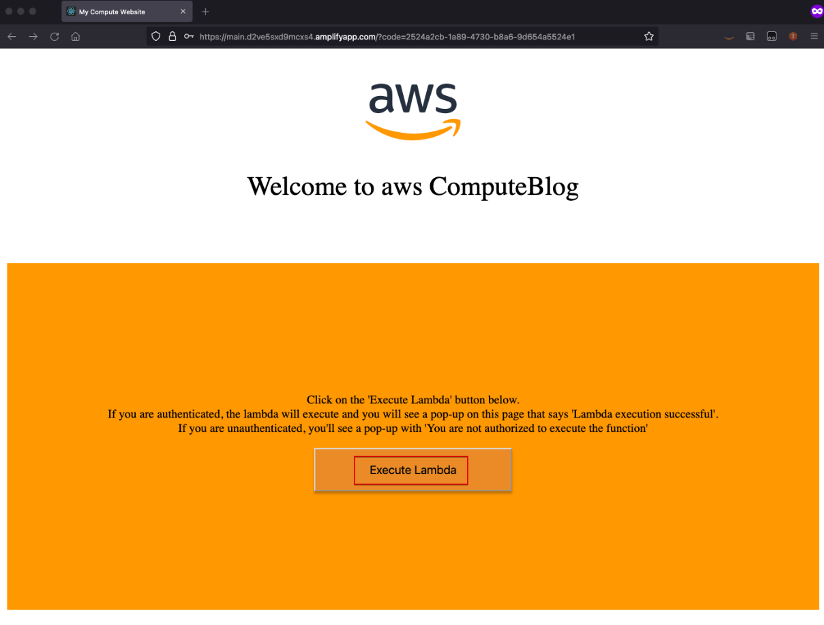
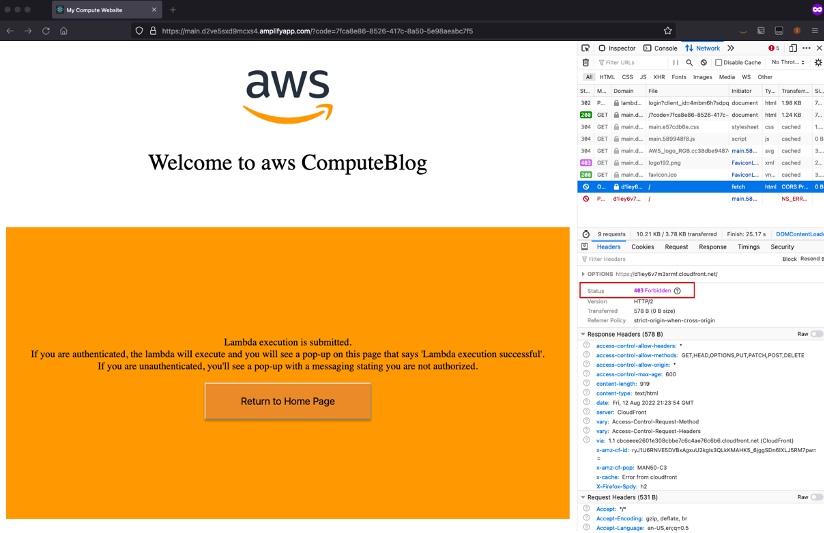


 ). To view the buckets in group view, choose the group view icon (
 ).
).