How do you handle unpredictable workload patterns that spike during promotional events or seasonal peaks? Multi-modal autoscaling with Amazon EC2 Auto Scaling combines infrastructure metrics like CPU with application-level signals, so a group scales on the demand its users create and not only on how busy the servers look. Those signals track the load that drives your business outcomes, such as sales or sign-ups.
CPU-based autoscaling works well for many workloads, but some demand does not register as CPU right away. Adding signals such as request counts and application metrics lets a group respond to the load its users create. By publishing Amazon CloudWatch custom metrics and application-driven triggers, you give Auto Scaling more information to act on.
In our testing, a group that scaled only on CPU rejected about 7,000 checkout sessions during a demand spike, and a stronger baseline that added Application Load Balancer request count still rejected about 6,900. A group that added an application metric rejected none, and it held p99 latency to about 0.43 seconds against 2.25 seconds for the CPU-only group. Predictive scaling can add a forecasting layer for cyclical demand, but it needs days of history to be useful, so we treat it as a complement. In this post, we show you how to implement multi-modal autoscaling on EC2 Auto Scaling, with code samples and results from a controlled test.
Prerequisites
To follow along, you need access to the following AWS services with appropriate permissions:
EC2 Auto Scaling, for scaling policies and group management.
The default target tracking policy in EC2 Auto Scaling uses average CPU utilization, a practical starting point because CPU usage is a universal characteristic of compute workloads. Adding complementary signals, such as application-level metrics or predictive forecasting, gives Auto Scaling more information to make timely capacity decisions.
In distributed architectures, different components can have distinct scaling characteristics. An API gateway might correlate well with request rate, while a background processor scales better on queue depth. With multi-modal scaling, you can match each component’s policy to its actual workload pattern. For containerized workloads, consider event-driven autoscaling with KEDA on Amazon Elastic Kubernetes Service (Amazon EKS).
Multi-modal autoscaling architecture
Multi-modal autoscaling combines three approaches to capacity management. Reactive scaling responds to current CloudWatch metrics, such as CPU utilization, memory, network throughput, response times, and custom application indicators. Application-metric scaling brings workload-specific signals into the decision, using custom CloudWatch metrics like active user sessions, queue depth, or transaction volume. These application metrics are often the closest measurable proxy for business activity such as orders or sign-ups. Predictive scaling uses machine learning in EC2 Auto Scaling to forecast capacity needs from historical patterns, so infrastructure scales before demand increases.
With application-metric scaling, applications can scale on signals that infrastructure metrics miss. An ecommerce platform might scale on active checkout sessions, while a streaming service scales on concurrent stream counts. In the test later in this post, we use active checkout sessions as the custom metric.
Implementing multi-modal autoscaling
This section builds the configuration in layers. Start with CPU target tracking as a baseline that every group keeps, then add a custom application metric that reflects real user load. The test later in this post compares these signals against a request-count baseline. Predictive scaling is an optional forecasting layer described at the end.
Step 1: CPU target tracking
Start with the foundation that most workloads already use: a target tracking policy on average CPU utilization. Target tracking is a managed policy that adjusts capacity to keep a metric at or near a target value. It supports predefined metrics, including CPU utilization and request count per target, and custom CloudWatch metrics. When multiple target tracking policies are active, Auto Scaling coordinates them: it scales out if any policy requires it, but scales in only when all policies agree, which helps prevent oscillation.
Our test also included a second infrastructure baseline, a target tracking policy on the load balancer’s request count per target. It uses the same structure with a predefined metric:
Step scaling is another option for spike handling. With step scaling, you can define different capacity increments for different alarm thresholds. It keeps evaluating the alarm during scaling activities, which can make it react faster than target tracking’s default evaluation window. Step scaling policies do not coordinate with each other.
Step 2: Add a custom application metric
Next, add a second target tracking policy on a custom CloudWatch metric that reflects application load. In our test, instances publish an active checkout sessions metric at a 10-second resolution. To act on that resolution, set a Period of 10 seconds on the policy. Without it, the policy waits for three 1-minute datapoints like any other and the high-resolution metric only adds publishing cost. With it, a scale-out can begin in about 30 seconds. The policy includes the Auto Scaling group dimension so it tracks the metric for the right group. We set the target to 100 active sessions per instance, about 75 percent of the measured per-instance capacity of 135. This leaves headroom to absorb a spike while new instances boot.
Predictive scaling is an optional forecasting layer. It uses machine learning in EC2 Auto Scaling to analyze historical load and scale ahead of recurring, cyclical demand, using customized metric specifications in ForecastAndScale mode. You need to provide several days of history for it to forecast well, so it complements reactive signals rather than replacing them. Start in ForecastOnly mode to watch the forecast before it drives any scaling.
Monitoring
Use CloudWatch dashboards to track how each policy contributes to scaling decisions, and set alarms on the metrics that matter for your workload, such as per-instance load or latency. Enable detailed monitoring on the launch template, with Monitoring set to true, so that the system publishes CPU metrics every minute. Without it, you cannot complete the CPU policy’s scale-in evaluation and your group will stop scaling in. Watching the policies side by side is what surfaced this scale-in behavior.
Performance results
We compared three Auto Scaling groups under an identical load profile in a single 75-minute test in the us-east-1 Region. Each group used c8g.large instances with a minimum of 6 and a maximum of 40 instances, and every group carried the same CPU target tracking policy at 70 percent as a fallback:
ASG A: CPU target tracking only. This is the single-signal infrastructure baseline.
ASG B: CPU target tracking plus an Application Load Balancer request-count policy. Request rate is a stronger infrastructure baseline than CPU alone.
ASG C: CPU target tracking plus the custom checkout-sessions metric at 10-second resolution, published with a Period of 10 seconds.
All the groups received the same load at the same time. During the shared ramp, arrival rate rose and every group scaled correctly, which makes the comparison fair. CPU crossed 70 percent on the CPU group, request count crossed its target of 300 on the request-count group, and all three converged to a similar size.
Ramp phase (arrivals 30% → 85%)
A: CPU only
B: A + ALB requests
C: A + app sessions
Instances (start → peak)
6 → 9
6 → 10
6 → 10
CPU
73.6%
74.0%
69.0%
Requests per target (target 300)
319
323
297
Then arrival rate was held flat while the number of concurrent checkout sessions kept rising, a shape that infrastructure signals cannot see. The next table reports that divergence phase, measured directly from CloudWatch and the load balancer.
Measured metric (divergence)
A: CPU only
B: A + ALB requests
C: A + app sessions
Instances (start → end)
11 → 11
11 → 11
11 → 22
Rejected checkouts
7,064
6,886
0
CPU (start → end)
67.2% → 45.1%
66.5% → 45.5%
66.2% → 36.8%
Peak sessions per instance
135
135
116
Requests per target
285 → 279
282 → 279
277 → 154
The difference is what each group could see. Arrival rate was held flat while the number of concurrent sessions rose, so CPU and request count stayed in range while the application saturated. The CPU-only and request-count groups held at 11 instances and rejected 7,064 and 6,886 checkouts. Their CPU even fell, from about 67 percent to about 45 percent, because a rejected request never reaches the work it would have done, so a policy targeting 70 percent saw spare capacity at the moment the application was failing users. The application-metric group read the rising sessions directly and scaled from 11 to 22 instances, rejecting none.
Effect on latency and errors
We measured latency and rejected checkouts on the load balancer during the test. At rest, all groups were identical. The gap opened only in the divergence phase, when concurrency rose without a matching change in arrival rate. Session slots are the scarce resource here, so sessions per instance is the causal driver of latency. The application group scales on sessions and we report latency as the outcome, rather than scaling on latency directly, which is not recommended for target tracking. The latency figures come from the load balancer’s TargetResponseTime at the end of the divergence phase. A client-side number measured over the internet would reflect network round-trip rather than the service.
Measured metric
A: CPU only
B: A + ALB requests
C: A + app sessions
TargetResponseTime (average), end of divergence
1.122 s
1.120 s
0.284 s
TargetResponseTime (p99), end of divergence
2.254 s
2.235 s
0.431 s
TargetResponseTime (average) at warm-up
0.283 s
0.283 s
0.284 s
Rejected checkouts, drain phase
4,115
3,631
0
The application-metric group, ASG C, kept per-instance load near its target and rejected no checkouts. Its average latency at the end of the divergence phase was 0.284 seconds against 1.122 for the CPU-only group, and its p99 was 0.431 seconds against 2.254. The request-count group, ASG B, tracked its own signal within range the whole time, which is exactly why it could not react: request rate was flat while concurrency climbed.
Once every group has enough capacity, they perform the same. The value of the application signal is in the transition, the gap between when demand arrives and when the fleet is ready, which the infrastructure signals here never detected.
Handling known high-traffic events
For planned events like flash sales, scheduled scaling can pre-scale capacity ahead of time. Multi-modal scaling complements scheduled scaling by handling unplanned spikes and organic traffic that does not follow a fixed schedule.
Understanding cost implications
Running the application signal requires more instances. During the spike it held about 22 instances, against 11 on the infrastructure-only groups. That extra capacity is what kept sessions per instance near the target and stopped the group from turning checkouts away. For your own workload, the question is whether a spike’s worth of extra instances costs less than the checkouts you would otherwise reject.
Conclusion
Multi-modal autoscaling combines infrastructure metrics with application-level signals so a group scales on the demand its users create, not only on how busy its servers look. In our test, a group that scaled only on CPU rejected about 7,000 checkout sessions during a demand spike, and a stronger baseline that added load balancer request count still rejected about 6,900. A group that added a custom application metric rejected none, and held p99 latency near 0.43 seconds against 2.25 seconds for the CPU-only group. Its CPU even fell while the infrastructure groups were failing requests, which shows why an infrastructure signal alone can miss the demand that matters.
Start with CPU target tracking as a fallback. Add a signal that reflects the load your users create, and pick the one that tracks closest to a business outcome like orders or active users. Set a Period on a high-resolution custom metric so the policy can act on it, and enable detailed monitoring so scale-in works. Predictive scaling is worth adding for demand you can forecast, once the group has days of history to learn from.
AWS customers with data residency, low latency, or local data processing requirements can use AWS Hybrid Cloud services to run their workloads either on-premises or within their regulatory boundary. Many of these workloads might be critical to their business, with minimal thresholds for downtime.
This post provides practical design guidance for building highly available architectures that span either two AWS Outposts racks or an Outpost rack and an AWS Local Zone, which are physically designed without single points of failure. By distributing workloads across two geographically and logically independent edge locations, you can achieve high availability while still benefiting from the low-latency, data-residency, and on-premises integration advantages that edge infrastructure provides. To maintain high availability, we recommend that you put a disaster recovery (DR) plan in place and conduct regular DR drills with your applications.
The architectures presented here cover a range of approaches to failure detection and site switching. Each approach offers a different balance between Recovery Time Objective (RTO) and Recovery Point Objective (RPO), operational complexity, and cost. By understanding these trade-offs, you can select the architecture that best aligns to your RPO/RTO targets, data protection and residency requirements, and budget. This helps you achieve the resilience your business requires without over-engineering or over-spending.
Overview
Outposts and Local Zones function as extensions of a single Availability Zone (AZ) within the AWS Region they’re anchored to. For high availability when planning for failover between the two platforms, anchor each to a different parent Region or, at minimum, a different AZ within the same Region. This geographic separation supports the low RPO and RTO targets required for mission-critical workloads. The architectures in this post follow these principles:
Shared responsibility: AWS manages the Outposts and Local Zone infrastructure. You provide resilient power, cooling, and network connectivity for Outpost sites, and implement application-level failover logic.
Independent failure domains: Treat each site as an independent failure domain. Anchoring each to a different parent AZ (or Region) ensures a failure in one AZ doesn’t affect both sites.
Resilient network connectivity: Local Zones connect to their parent Region through the AWS Global Network, designed for maximum resilience. Outpost racks include redundant Outpost Networking Devices (ONDs) with eBGP peering for multipath load balancing and failover.
Capacity planning for N+1: Provision additional capacity beyond your expected workload so surviving instances can absorb the load during host failures without degradation.
Building blocks of a disaster recovery strategy
A key design consideration is how quickly the architecture can detect a site failure and redirect traffic, and what layers of your workload need protection. Your RPO and RTO needs govern this requirement. This post covers three approaches to disaster recovery at different layers of your application, each offering a different balance between time-to-recovery and operational complexity:
Active/passive DNS-based failover with Amazon Route 53 health checks.
Active/active architecture using physical or virtual load balancers deployed at each site.
Depending on your workload, you can implement a combination of these strategies to support the various layers of compute and storage of your application.
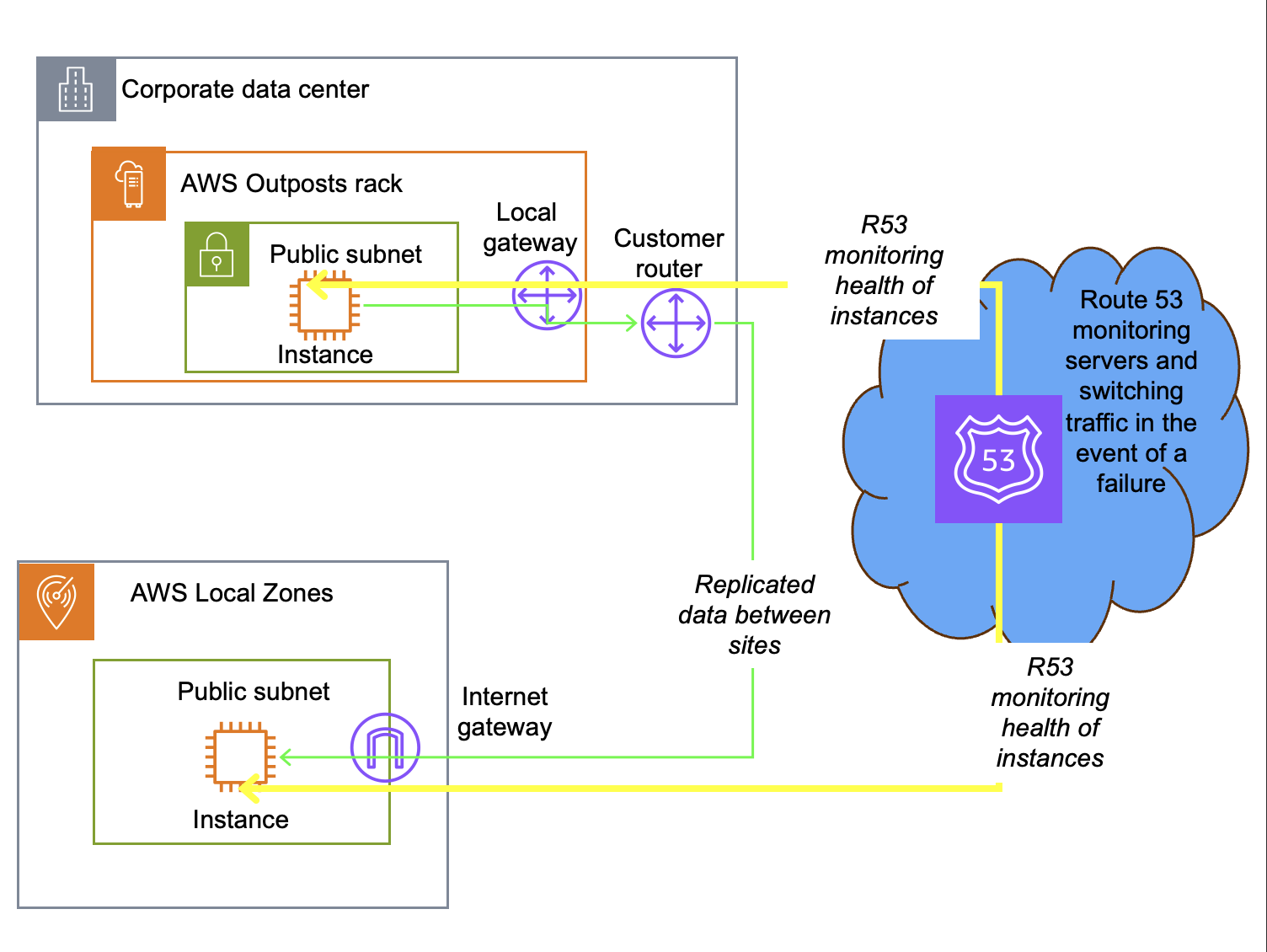
Active/passive DNS-based failover with Amazon Route 53 health checks
If your workload consists of on-premises web servers accessible from the internet or internal network, you can use a DNS-based failover approach to reroute traffic to a healthy web server in the event of a hardware failure or site outage. Although this method supports any DNS service, the following architecture example uses Amazon Route 53.
DNS-based failover supports two primary approaches. The first is health check routing, where DNS resolves requests to the IP address of a known good service endpoint. The second is multi-value routing, where the DNS service returns multiple IP addresses. Clients attempt connection to the first address and automatically fail over to subsequent addresses if the connection times out. Route 53 health checks continuously monitor endpoint availability. When a site becomes unreachable, Route 53 automatically updates DNS responses to route traffic to the surviving site. This approach is globally available and works across both Outposts and Local Zones.
When a specific application server fails and Route 53 determines it is unreachable, it is dynamically removed from future DNS responses. DNS systems typically have a Time to Live (TTL) of 300 seconds or longer, during which the DNS resolution is cached locally in the client. During this window, the client uses the cached IP address. New requests are automatically directed to active servers. The total recovery time is governed by the combination of the DNS TTL and health check timeout settings, typically resulting in a recovery time of 5 minutes or the TTL setting.
This design pattern works between Outposts, between an Outpost and a third-party provider, between an Outpost and a Local Zone, or between Local Zones. Route 53 can also distribute traffic across these sites, supporting blue/green deployments where you gradually shift traffic from one environment to another.
For AWS Outposts, you can configure Route 53 to monitor an endpoint in the Region. If the Outpost service link disconnects for more than 5 minutes, DNS failover routes traffic to the secondary site. The Outpost and Local Zone can be anchored to the same or different Regions for added resiliency.
Active/active architecture using physical or virtual load balancers
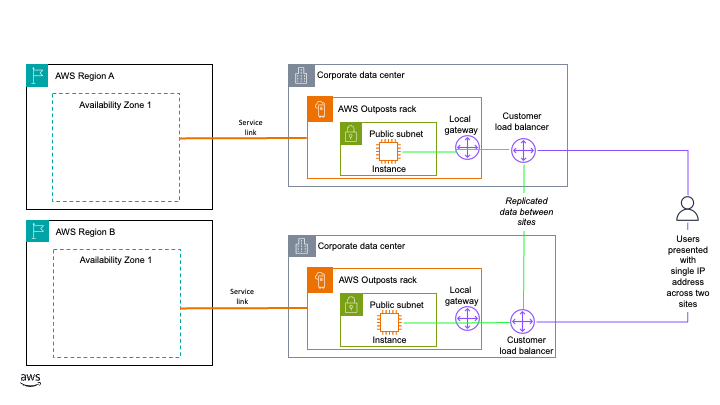
For Outposts-to-Outposts high availability when your workload must remain on-premises, an alternative to DNS-based failover is an active/active architecture using physical or virtual load balancers deployed at each site. Outposts racks support Application Load Balancer (ALB) as well as third-party L4 and L7 virtual or physical load balancers. Like the DNS-based architecture pattern, you can use this strategy to support workloads that consist of on-premises web servers with low latency, data residency, or continued operations requirements.
In this model, both Outposts can simultaneously serve application traffic, with load balancers continuously monitoring the health of instances. When a failure is detected, the load balancer automatically shifts all traffic to the available Outpost without manual intervention or DNS propagation delays. Typically, the load balancers present a single IP address to service consumers and switch traffic when an endpoint is unavailable. Some load balancers can monitor load and switch traffic based on utilization to maintain response time. This design pattern is specific to Outposts, which support third-party devices connected on premises. It does not work with Local Zones, which are hosted in AWS datacenters.
Figure 2: Active/active architecture using physical or virtual load balancers
When you deploy this architecture, make sure the load balancer tier itself does not become a single point of failure. Deploy redundant load balancer instances at each Outpost, with failover between them, so the traffic management layer stays available even if one load balancer instance fails. We also recommend that you configure session persistence and connection draining on your load balancers to minimize disruption to in-flight requests during failover. With this approach, load balancer instances route traffic to your Outpost instances over the local gateway of each Outpost. Traffic continues to be balanced between instances on each Outpost even if one of the Outposts loses its service link connection. You can anchor the Outposts to the same or different Availability Zones or Regions for added resiliency. This approach does require 2N infrastructure and an external load balancer, making it the most resource-intensive to implement.
Some load balancers also support multiple endpoint monitoring. The load balancer monitors both the regional instance and the local application. If the service link fails, based on the administrator’s policy, it can drain connections and route traffic to the other Outpost. This keeps service status and logging fully available on the connected Local Zone or Outpost.
Hybrid database recovery using native database engine replication
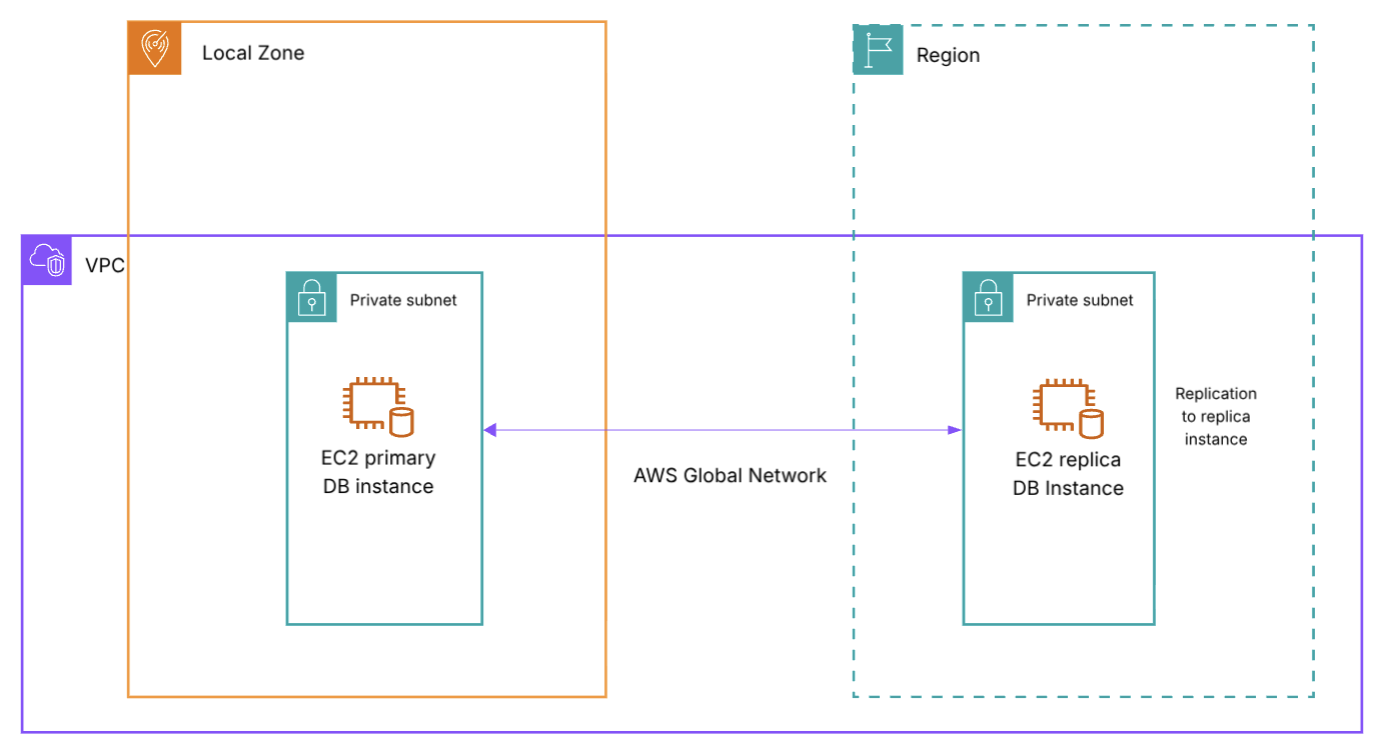
If you have two or more logical Outpost racks, you can deploy Amazon RDS on AWS Outposts with Multi-AZ high availability. However, depending on your workload criticality, number of sites, and site locations, a more cost-effective disaster recovery option using one Outpost, one Local Zone, or both might be appropriate. For applications that require a database, you can use your chosen database engine’s native replication features or third-party tooling to create hybrid database architectures across an Outpost and a Local Zone, an Outpost and the Region, or a Local Zone and the Region. If using the Region for failover, this can be the same Region your Outpost or Local Zone is anchored to, or a different Region of your choosing. Limitations based on your chosen database engine and licensing terms apply. In this post, all architecture patterns use a PostgreSQL database. The following three hybrid database strategies expand on the hybrid database with Amazon RDS and AWS Outposts architecture to show how this design pattern supports disaster recovery across Outposts, Local Zones, and AWS Regions.
These architectures use a bring-your-own-license (BYOL) model. The replica instance used for high availability and disaster recovery (HA/DR) is customer-managed, running on Amazon Elastic Compute Cloud (Amazon EC2) and Amazon Elastic Block Store (Amazon EBS). The primary database instance can also be customer-managed, or it can be an RDS-managed database instance so you can use a managed service as your primary operating model. Promoting a replica to primary after a failure is a manual process, but you can automate it with infrastructure as code. Promotion requires updating your DNS entry for the database instance.
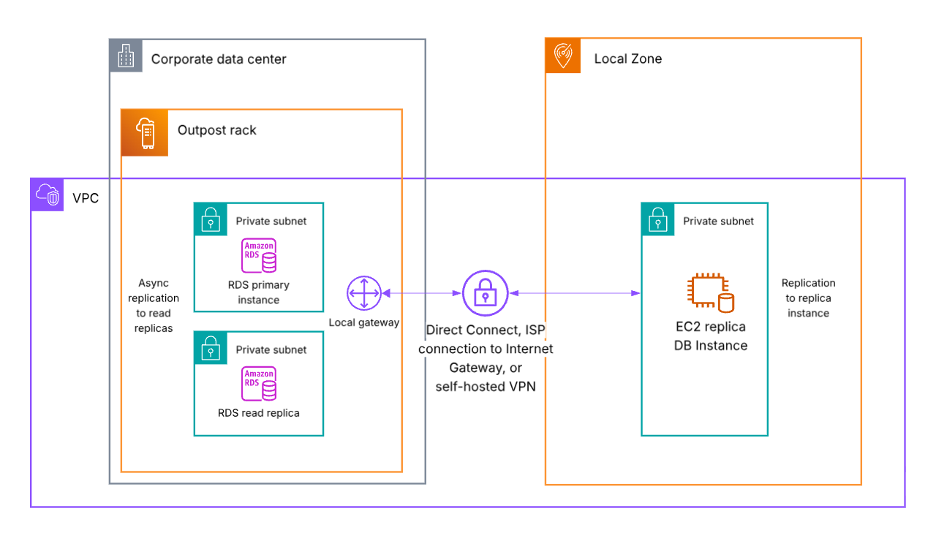
Figure 3: Database failover from an Outpost rack to a Local Zone
In the preceding diagram (Figure 3), the Outpost and the Local Zone can be in the same or different Regions for added resiliency.
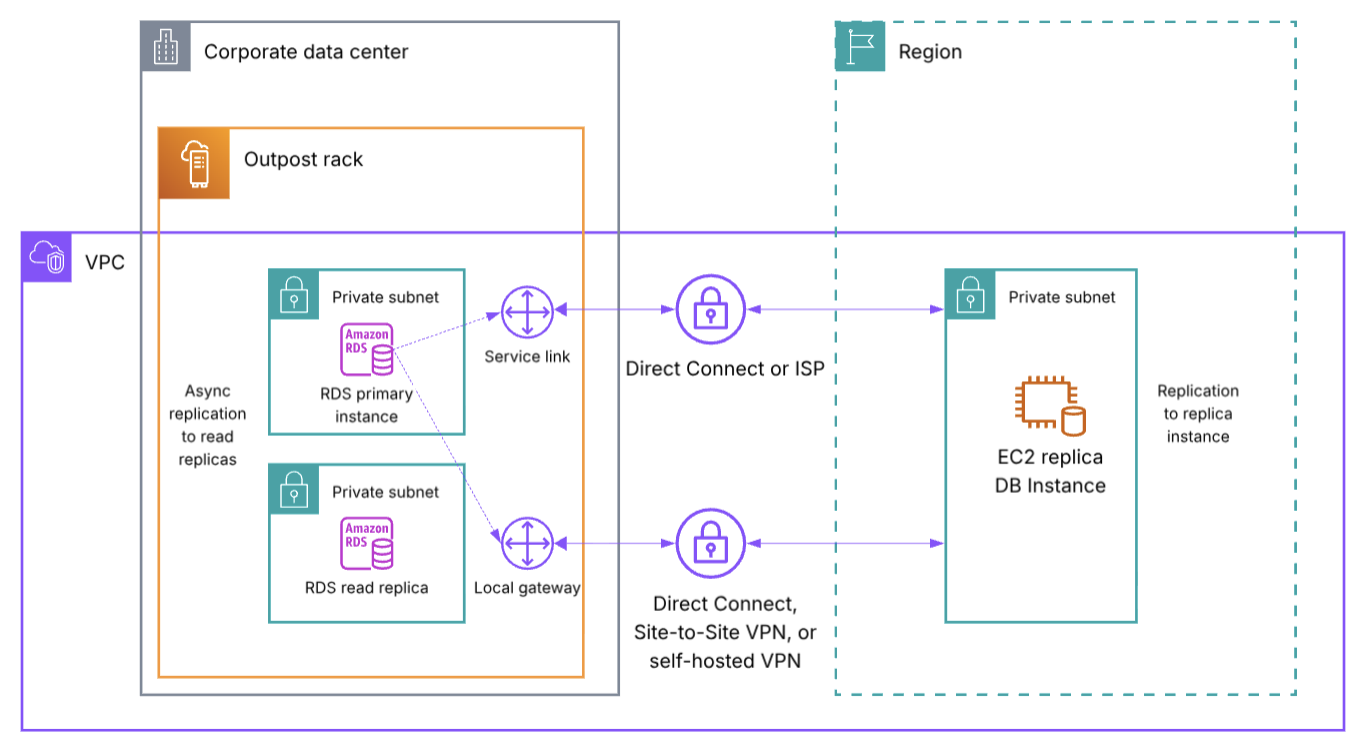
In the following diagram (Figure 4), replication traffic can use either the service link or the local gateway of the Outpost as its network path. Replication continues through the local gateway even if the service link fails. If using the service link, the EC2 replica database instance must be in the Outpost anchor Region. If using the local gateway, the EC2 replica database instance can be in the same Region as or a different Region from the Outpost anchor Region for added resiliency. You need to configure a Virtual Private Gateway, Transit Gateway, or Internet Gateway in the Region to receive the replication traffic from the Outpost.
Figure 4: Database failover from an Outpost rack to an AWS Region
In the following diagram (Figure 5), both the primary database instance and the replica are self-hosted on EC2 and EBS. Check your specific Local Zone location for currently supported services to see if the primary database instance can use RDS. The Region used for the EC2 replica DB instance can be the same Region the Local Zone is a part of, or a different Region for added resiliency. If using a different Region, additional networking such as an Internet Gateway is required.
Figure 5: Database failover from a Local Zone to an AWS Region
In all three architectures, you need to update your DNS records and routing to complete failover to the secondary location. If your workload requires data residency, consider whether you can use an AWS Region as a failover destination.
Disaster recovery overview
The strategies discussed in this post support different RTO/RPO objectives. Recovery time depends on the amount of effort to redeploy or reroute to an alternate environment, and whether this process is manual or automated. Recovery point depends on whether the workload has persistent data that needs to be replicated, whether that replication happens synchronously or asynchronously, and whether you use a backup and restore approach. The following table is a high-level overview of the RTO/RPO you can expect for each approach based on these factors:
Architecture
RTO
RPO
Active/passive DNS-based failover
Total failover time = DNS TTL + (health check interval x failure threshold)
Equal to replication schedule, or backup interval
Active/active with load balancers
Seconds, traffic is already being routed to both environments
Seconds, data is already being synchronously replicated between sites
Hybrid database (same anchor Region)
Minutes, time needed to reroute to replica instance
Equal to replication schedule, faster replication window expected for data traveling less distance
Hybrid database (different anchor Region)
<1 hour, time needed to reroute to replica instance
Equal to replication schedule, longer replication window expected for data traveling a greater distance
Table 1: RTO/RPO disaster recovery overview for each architecture
For the active/passive DNS-based failover architecture, DNS TTL, Route 53 health check interval, and failure threshold are all settings you configure to your preferences. The default Route 53 health check interval is 30 seconds, but can be set as low as 10 seconds. The default Route 53 failure threshold is 3 failed checks, but can be set to any number between 1 to 10. Generally, active/active architectures provide the lowest RTO/RPO for your workloads, whereas active/passive architectures incur some downtime during a disaster when rerouting user traffic to your passive standby environment. Review your workload RTO/RPO objectives to determine which approach is right for you. You might require different strategies for different tiers of workload based on your threshold for downtime at each tier.
Considerations
When choosing a disaster recovery strategy, consider:
Latency impact based on the location of your failover site and where your application users are.
Resilient network connectivity between your primary and secondary failover locations, or between your on-premises site and the AWS Region. Architecture-specific guidance is included in each section.
If your workload requires data residency, evaluate if a particular disaster recovery approach can be used.
Promoting a replica (either RDS-managed or customer-managed) is a manual process that you can automate with infrastructure as code, and it requires updating your DNS entry for the database instance.
Database replicas might support synchronous or asynchronous replication depending on the database engine. Consider your RPO objectives when evaluating the hybrid database architectures.
Limitations based on your chosen database engine and licensing terms apply. Consult your licensing terms and conduct failover drills to test these architecture patterns with your workloads before implementing into production.
Conclusion
This post showed different architecture patterns for disaster recovery using both Outposts and Local Zones. See Building highly resilient applications with on-premises interdependencies using AWS Local Zones for additional guidance. Reach out to your AWS account team to learn more about the hybrid edge architectures discussed in this post. To discuss Outposts with an expert on any of these topics, submit the AWS Outposts contact form. To begin using Local Zones, enable a Local Zone from your account and start experimenting.
Customers in many industries and geographic locations have specific data sovereignty and residency objectives. AWS Local Zones and AWS Outposts are fully managed infrastructure solutions for customers that need to keep data within specific geographic boundaries and also want the scalability and innovation of cloud services. The challenge lies not only in where data resides, but in how to architect, secure, and audit these deployments effectively. Whether you’re architecting a new solution or migrating existing regulated workloads to AWS hybrid edge infrastructure, this post provides an overview of key technologies to help you build auditable and secure architectures that support your organization’s data residency objectives.
Solution framework
Building a solution for data residency deployments on AWS hybrid infrastructure requires a thoughtful, layered approach. Rather than a prescriptive solution, this post presents a flexible framework that you can adapt to your specific operational requirements.
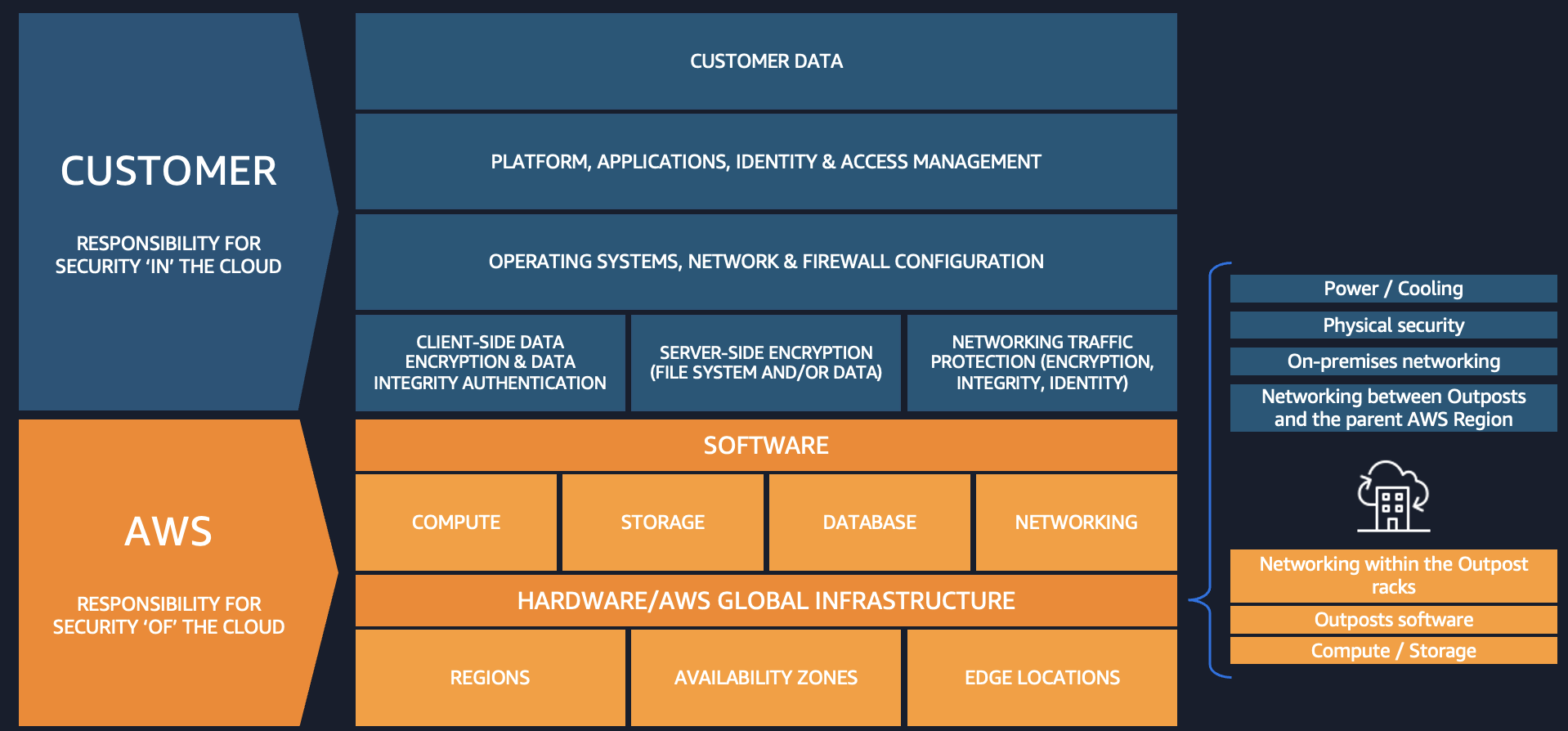
The AWS Shared Responsibility Model clearly delineates where the responsibilities of AWS end and yours begin. This model provides a critical separation: AWS controls the management infrastructure, while your data remains inaccessible to AWS operators, as enforced by the hardware-based isolation of the Nitro System. There is no operator access to the instances, applications, or data. This architectural separation provides the foundation for implementing stringent data residency controls.
To build upon this foundation, you can implement security best practices by following the guidance in the AWS Well-Architected security pillar, which helps you strengthen application-level protections and data security controls. For deeper guidance, see the Data Residency with Hybrid Cloud Services Lens, which covers considerations for operations, security, cost, performance, and reliability for regulated workloads.
When implementing data residency controls, you might need auditable evidence of traffic patterns for your internal governance processes. By using third-party monitoring tools combined with port mirroring capabilities, you can generate reports that show all traffic between your applications and databases remains within your Outpost environment. This visibility provides auditable evidence that traffic remains within your designated boundaries. You can also use AWS Artifact to access audit reports for your hybrid infrastructure.
Governance tools form the final layer of this regulatory framework, establishing guardrails around your deployment. These tools continuously monitor and enforce configuration policies, verifying that your environment stays aligned with your security and governance policies, operates within required parameters, and alerts you proactively when issues arise. This shift from reactive to proactive management helps you maintain consistent governance of your environment at scale.
Together, these layered technologies create a framework for deploying regulated workloads designed to support your data residency objectives while benefiting from the innovation and scalability of AWS services.
Shared responsibility model
When extending workloads to Local Zones and Outposts, the shared responsibility model adapts to these hybrid cloud environments while maintaining the same core principles. AWS continues to manage the underlying infrastructure and services, while you retain control over your data, applications, and configurations. This supports consistent security postures whether workloads run in AWS Regions, Local Zones, or on Outposts infrastructure. You deploy Outposts in a data center or colocation facility of your choice. Under the shared responsibility model, you are responsible for meeting site requirements for power, cooling, on-premises networking, and the Outpost service link connection to the Region. All traffic between the Outpost and the parent Region traverses an encrypted set of VPN connections over the service link, protecting communications in transit without requiring additional configuration. AWS continues to be responsible for maintaining the Outposts hardware as a managed service.
This partnership approach to security means you can build auditable solutions with data residency controls without compromising on the innovation and scalability that AWS provides.
Figure 1: The AWS Shared Responsibility Model in a hybrid edge deployment
AWS Nitro System
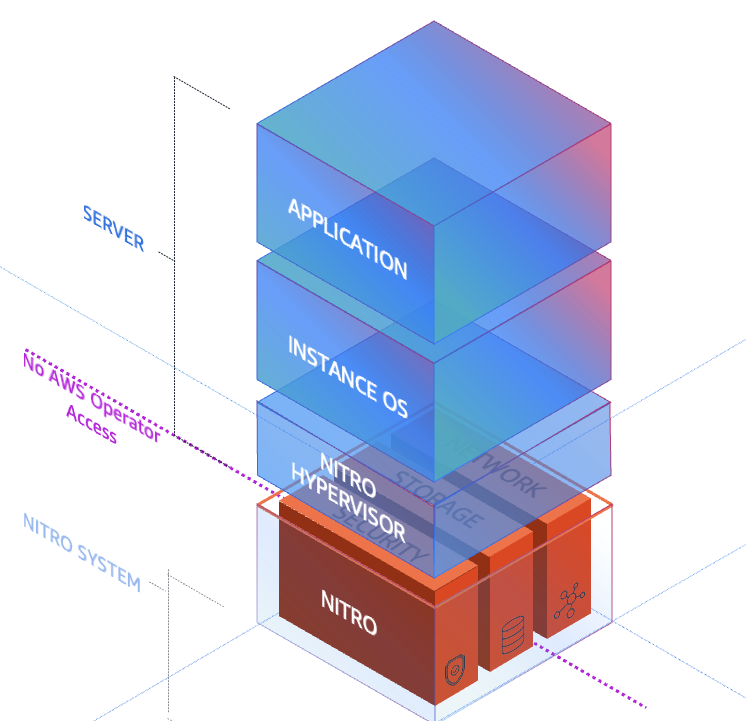
The AWS Nitro System is the virtualization platform that powers Amazon Elastic Compute Cloud (Amazon EC2) instances. It uses dedicated hardware and software to offload virtualization functions from the server CPU and delivers near-bare-metal performance. Both Outposts and Local Zones also use the Nitro System. By design, the Nitro System has no operator access. There is no way for AWS or any entity to log into the EC2 Nitro hosts, access compute resources, or reach encrypted customer data remotely. The following diagram shows the purpose-built hardware components of the Nitro System.
Figure 2: The AWS Nitro System hardware and software stack
The Nitro System combines purpose-built hardware consisting of the following key security components:
The Nitro Card – provides I/O interfaces used for Amazon Virtual Private Cloud (Amazon VPC) network virtualization, Amazon Elastic Block Store (Amazon EBS), and instance storage, freeing up host CPU resources. Nitro Cards are logically isolated from the system main board that runs customer workloads and can be live-updated, reducing the need for maintenance windows and workload disruption.
The Nitro Security Chip – provides the link between the Nitro Controller (used for orchestration) and the system main board. It intercepts and controls all firmware updates, preventing the main CPUs from being used to modify system firmware. This is particularly important when running bare metal EC2 instances. This chip is also used for boot control to validate system firmware integrity.
The Nitro Hypervisor – designed to receive EC2 instance management commands sent by the Nitro Controller, provide compute virtualization and logical instance isolation, and assign SR-IOV virtual functions as needed. It includes no general-purpose operating system features, only the features absolutely necessary for its function, and works with other purpose-built Nitro components to maintain its small size and bare-metal-like performance. This simple design reduces the risk for remote networking attacks and driver-based privilege escalations.
The Nitro Security Key (Outposts only) – a removable device that stores the external key required to decrypt all data at rest on your Outpost. At the end of your Outposts commitment, after migrating your data off the Outpost, you can destroy this key to cryptographically shred any remaining data on the Outpost.
These components work together to provide a layered security approach that doesn’t compromise performance. By designing each component to have a specific function decoupled from the main system board, the Nitro System provides non-disruptive firmware updates and reduces classes of security issues often found in other hypervisor systems.
AWS Organizations Service Control Policies
AWS Organizations Service Control Policies (SCPs) are a governance tool that helps you enforce data residency requirements by controlling where resources can be created and where data can be stored or processed. SCPs function as permission guardrails that define the maximum available permissions for IAM users and roles across your organization’s accounts. By implementing deny guardrails through SCPs, you can prevent resource provisioning in unwanted locations by restricting access to AWS APIs at the infrastructure level.
When deploying regulated workloads on Local Zones and Outposts, SCPs work in conjunction with AWS Control Tower landing zones to create custom guardrails that control data movement, processing, and storage. These policies can be designed with either preventative rules (blocking actions before they occur) or detective rules (identifying compliance violations after the fact). SCPs can restrict data transfer, saving, or snapshot creation outside a specified AWS location, and they can isolate workloads to a specific location. You can apply SCPs across accounts and organizational units (OUs) within your organization. For more information, see Best practices for managing data residency in AWS Local Zones using landing zone controls and Architecting for data residency with AWS Outposts rack and landing zone guardrails.
Here’s an example SCP that restricts EC2 instance launches and network interface creation to only specified AWS Local Zone subnets:
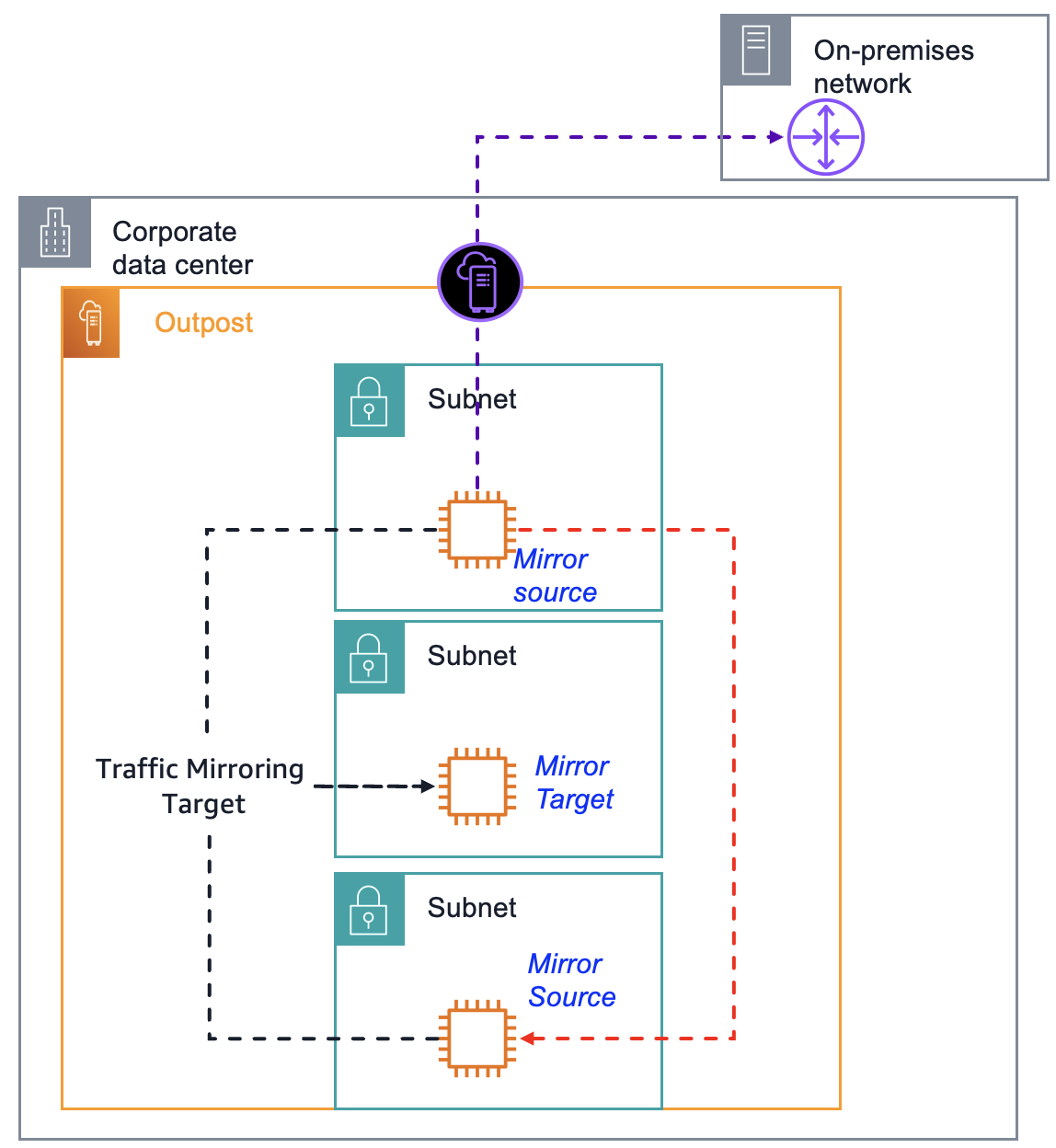
After you implement the security and governance best practices described in the preceding sections, you can demonstrate that traffic remains within your designated boundaries by using Amazon VPC Traffic Mirroring (also called port mirroring outside of AWS). This mirrors traffic between your application servers and databases. You can use a mirror target report to show that the traffic does not transit the AWS Region. For step-by-step instructions, see Get started using Traffic Mirroring to monitor network traffic. The key configuration steps include the following:
Configure security groups – Allow inbound UDP port 4789 only from the security group of the source instances being mirrored, or from specific private CIDR ranges within the VPC. Do not open this port to 0.0.0.0/0.
Create a traffic mirror target – Use the elastic network interface (ENI) of your monitoring instance.
Create a traffic mirror filter – Define which traffic to capture, either all traffic or specific traffic.
Create mirror sessions – Create one for each source instance you want to monitor. Lower session numbers are evaluated first when multiple sessions exist.
Capture traffic – Use tcpdump on the target instance to analyze mirrored packets.
Figure 3: Amazon VPC Traffic Mirroring architecture on an Outpost
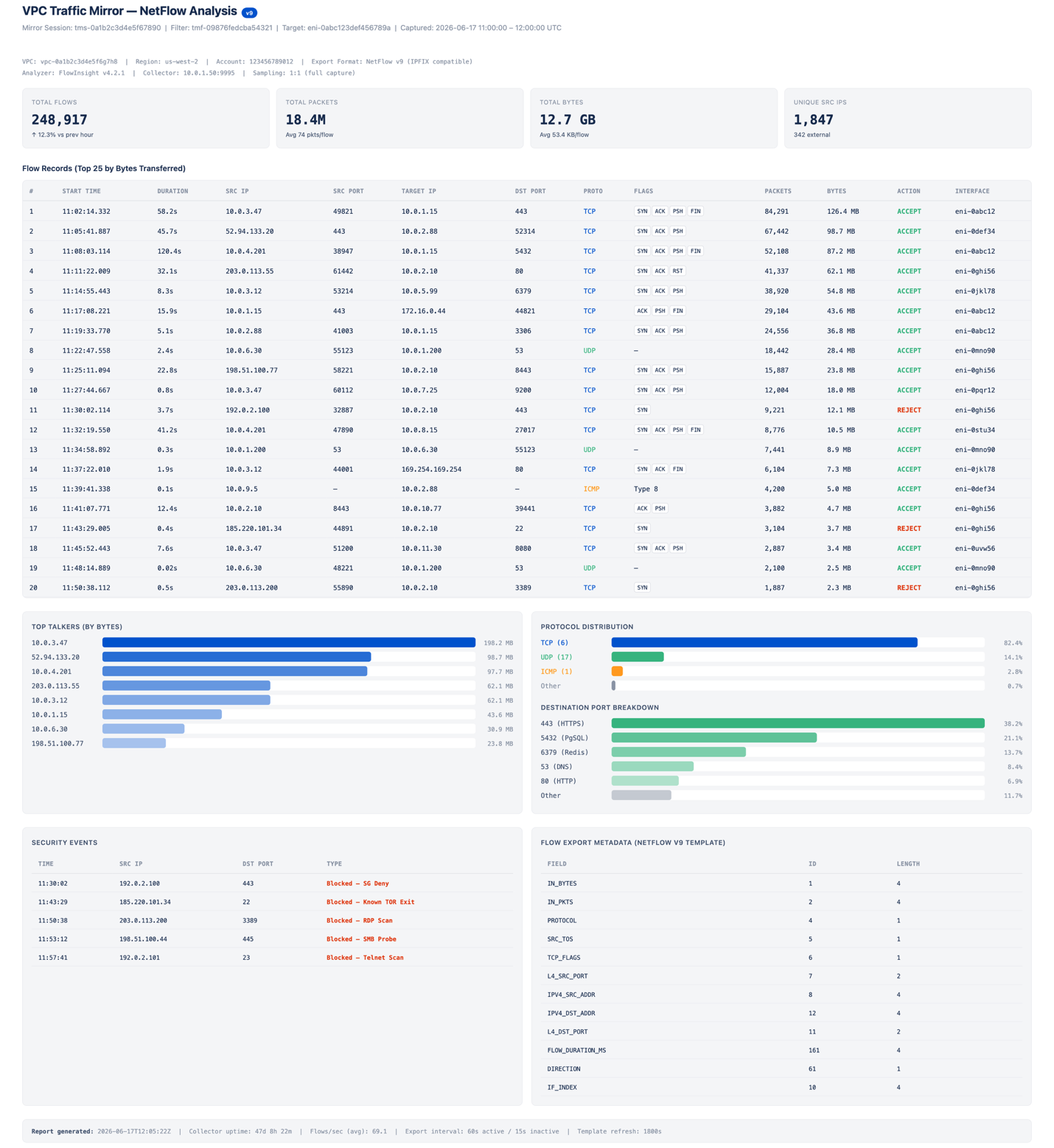
All instances must be in the same VPC, or connected through VPC peering or an AWS Transit Gateway. Traffic Mirroring encapsulates the mirrored traffic using VXLAN on UDP port 4789. Traffic Mirroring might impact network performance on source instances, so test in a development environment before deploying to production. The following image shows a sample traffic mirroring report that uses NetFlow Analyzer. For this post, all network traffic shown is simulated.
Figure 4: Sample traffic mirroring report in NetFlow Analyzer
Clean up
If you tested the VPC Traffic Mirroring architecture described in the preceding section, terminate any unnecessary resources to avoid ongoing costs. Remove the resources in the following order to avoid dependency errors:
Delete the traffic mirror sessions – In the Amazon VPC console, navigate to Traffic Mirroring, Mirror Sessions. Select each mirror session you created and choose Actions, Delete. Repeat for all sessions associated with your source instances.
Delete the traffic mirror filter – Navigate to Traffic Mirroring, Mirror Filters. Select the filter you created and choose Actions, Delete. You must delete all associated mirror sessions before you can delete the filter.
Delete the traffic mirror target – Navigate to Traffic Mirroring, Mirror Targets. Select the target pointing to the ENI of your monitoring instance and choose Actions, Delete.
Revoke security group rules – Navigate to Security Groups and select the security group attached to your monitoring instance. Remove the inbound rule that allows UDP port 4789 from the security group or CIDR range of the source instances.
Terminate the monitoring instance (optional) – If you launched a dedicated EC2 instance solely for traffic capture and analysis, navigate to the EC2 console and terminate the instance. This also releases the associated ENI used as the mirror target.
Delete any stored packet captures (optional) – If you saved tcpdump output to Amazon Simple Storage Service (Amazon S3) or local storage on the instance, delete those files if they are no longer needed for audit reporting.
You can verify that all Traffic Mirroring resources have been removed by running the following AWS Command Line Interface (AWS CLI) commands:
Each command should return an empty list, confirming that no mirroring resources remain active in your account.
Conclusion
In this post, we covered how the AWS Nitro System, AWS Organizations SCPs with an AWS Control Tower landing zone, and VPC Traffic Mirroring provide capabilities for governing workloads with data residency requirements. Apply the SCP example in this post to test restricting instance launches and network interface creation to specific subnets. To learn more about Outposts for hybrid deployments, review the Getting started with AWS Outposts guide and submit the AWS Outposts contact form. To get started with Local Zones, review the Getting started with AWS Local Zones guide, opt in to a Local Zone, and begin trying some of the architecture patterns described in this post.
The AWS European Sovereign Cloud is a new, independent cloud for Europe, physically and logically separate from existing AWS Regions and operated within the European Union (EU). It provides the same services, features, and APIs as AWS commercial Regions, but runs as a distinct AWS partition (aws-eusc), with its own control plane, AWS Identity and Access Management (IAM), billing, console, and service endpoints. Understanding the partition boundary is the key that unlocks correct answers to questions about billing roll-ups, single sign-on (SSO), cross-account roles, AWS Direct Connect, and image distribution. In this post, we show you how to architect a secure, scalable landing zone in the AWS European Sovereign Cloud. We cover account structure and governance, identity managed as infrastructure as code (IaC), centralized logging to a security and event management (SIEM) tool, data protection, network and perimeter design, secure continuous integration and delivery (CI/CD) and artifact distribution, and incident response. Throughout, we map the design to the AWS Security Reference Architecture (AWS SRA) and the AWS Well-Architected Framework, and we call out which behaviors are platform boundaries of a sovereign partition and which are configuration choices you can adapt.
If you are evaluating compliance readiness alongside your landing zone build-out, see the companion post Landing Zone Accelerator Independent Assessment Report for C5:2020 now available on AWS Artifact. This post covers how to align with C5:2020 criteria and provides an independent assessment report and compliance workbook, resources that complement the architectural patterns described here.
The foundational concept: EUSC is a partition
AWS groups Regions into partitions. Every Region is in exactly one partition, and each partition has one or more Regions. Partitions have independent instances of AWS Identity and Access Management (IAM) and provide a hard boundary between Regions in different partitions. AWS commercial Regions are in the aws partition, Regions in China are in the aws-cn partition, and AWS GovCloud Regions are in the aws-us-gov partition. The AWS European Sovereign Cloud is the aws-eusc partition, with its first Region in Brandenburg, Germany (eusc-de-east-1).
Some AWS services provide cross-Region functionality, such as Amazon S3 Cross-Region Replication or AWS Transit Gateway Inter-Region peering. These capabilities work only between Regions in the same partition. You can’t use IAM credentials from one partition to interact with resources in a different partition. There are practical differences that impact your architecture, shown in the following table:
Dimension
Commercial AWS (aws)
AWS European Sovereign Cloud (aws-eusc)
ARN prefix
arn:aws:
arn:aws-eusc:
Console or endpoint domain
amazonaws.com
amazonaws.eu
AWS Organizations
One organization in the partition
A separate, independent organization
AWS IAM Identity Center
Instance in the partition
A separate instance in the partition
Billing
Consolidated in the partition’s payer
A separate payer and billing system (EUR currency)
Cross-partition features and services such as: sts:AssumeRole, VPC peering, Transit Gateway, AWS RAM, Amazon S3 replication
Cross-Region features and functionality
Not available across the aws and aws-eusc boundary
Every AWS Region is sovereign by design: if you find yourself architecting across Regions, note that this partition boundary means that the centralization—one organization, one logging account, one identity source, one billing roll-up—is achievable within each partition. In the EUSC you operate an independent landing zone in aws-eusc that mirrors your commercial operating model. Where you need to bridge the two clouds (for example, a standard application CI/CD system in an AWS commercial Region deploying into EUSC), you integrate at the network or API layer with separate credentials for each partition, not with cross-partition trust. With these partition fundamentals in mind, the remainder of this post walks you through the considerations to build a production-ready landing zone in the EUSC. Each section addresses a critical layer of the architecture, starting with how to write partition-aware infrastructure code that works across both aws and aws-eusc, then moving into the organizational and governance controls that underpin everything else.
Cross-partition IaC
These Terraform and AWS CloudFormation IaC snippets demonstrate partition-aware Amazon Resource Name (ARN) construction—a pattern that helps ensure your infrastructure code works unchanged across AWS partitions (such as standard aws, GovCloud aws-us-gov, or European Sovereign Cloud aws-eusc).
In the case of using the same Terraform script from a commercial Region, ensure that arn:aws isn’t hard coded. This Terraform script derives the partition at deploy time so the same modules work in both AWS commercial Regions and the EUSC.
# Terraform: partition-aware ARNs (works unchanged in aws and aws-eusc)data "aws_partition""current" {}
data "aws_partition" "current" {}
data "aws_region" "current" {}
data "aws_caller_identity" "current" {}
data "aws_organizations_organization" "current" {}

locals {
partition = data.aws_partition.current.partition# "aws" or "aws-eusc"
account_id = data.aws_caller_identity.current.account_id
org_id= data.aws_organizations_organization.current.id
ecs_task_execution_policy_arn = "arn:${local.partition}:iam::aws:policy/service-role/AmazonECSTaskExecutionRolePolicy"
central_logs_bucket_arn= "arn:${local.partition}:s3:::${local.org_id}-central-logs"
}

resource "aws_iam_role" "amazon_ecs_role" {
  name = "AmazonECSrole"
  assume_role_policy = jsonencode({
    Version = "2012-10-17"
    Statement = [
      {
        Action = "sts:AssumeRole"
        Effect = "Allow"
        Sid= ""
        Principal = {
          # IAM service principals are "amazonaws.com" across all partitions,
          # this stays literal (do NOT use ${AWS::URLSuffix} here).
          Service = "ecs-tasks.amazonaws.com"
        }
      },
    ]
  })
}

resource "aws_iam_role_policy_attachment" "amazon_ecs_role_attach" {
  role= "AmazonECSrole"
  # Use ${local.partition } rather than hardcoding "aws" in the ARN.
  policy_arn = "arn:${local.partition}:iam::aws:policy/service-role/AmazonECSTaskExecutionRolePolicy"
}
# CloudFormation: use the AWS::Partition pseudo parameter, never a literal "aws"

AWSTemplateFormatVersion: "2010-09-09"

Description: >-
Creates an ECS task execution role. Demonstrates using the
${AWS::Partition} pseudo parameter in ARNs instead of hardcoding "aws",
so the template works across partitions (aws, aws-cn, aws-us-gov, aws-eusc).

Resources:
  ExecRole:
    Type: AWS::IAM::Role
    Properties:
      RoleName: AmazonECSroleCF
      AssumeRolePolicyDocument:
        Version: "2012-10-17"
        Statement:
          - Effect: Allow
            Principal:
              Service:
                # IAM service principals are "amazonaws.com" across all partitions,
                # so this stays literal (do NOT use ${AWS::URLSuffix} here).
                - "ecs-tasks.amazonaws.com"
            Action: "sts:AssumeRole"
      ManagedPolicyArns:
        # Use ${AWS::Partition} rather than hardcoding "aws" in the ARN.
        - !Sub "arn:${AWS::Partition}:iam::aws:policy/service-role/AmazonECSTaskExecutionRolePolicy"

Outputs:
  ExecRoleArn:
    Description: ARN of the created ECS task execution role
    Value: !GetAtt ExecRole.Arn
Account structure and governance
AWS Control Tower offers a straightforward way to set up and govern an AWS multi-account environment, following prescriptive best practices. AWS Control Tower orchestrates the capabilities of several other AWS services, including AWS Organizations, AWS Service Catalog, and AWS IAM Identity Center, to build a landing zone in less than an hour. Resources are set up and managed on your behalf.
We recommend following the AWS Security Reference Architecture (AWS SRA) multi-account model structure for a EUSC deployment. Use the management account only for governance, deploy universal security guardrails through service control policies (SCPs), resource control policies (RCPs), and service deployments (such as AWS CloudTrail) that will affect all member accounts in the organization.
Region-deny SCPs are commonly applied in commercial Regions, but aren’t required (at this time) in the EUSC because of the physically and logically separated nature of its design.
Other possible SCPs for the management OU:
Service-level guardrails – Restrict which AWS services can be used, based on your compliance posture.
Network perimeter controls – Enforce virtual private cloud (VPC) endpoints, deny public access patterns, and restrict egress.
Encryption and key management – Require AWS Key Management Service (AWS KMS) managed keys for all data-at-rest services and enforce key policies aligned with your sovereignty requirements.
Note: As additional EUSC Regions or Local Zones become available, the partition boundary continues to enforce isolation from non-EUSC Regions. If you need to restrict usage to a subset of EUSC Regions (for example, only eusc-de-east-1 but not a future eusc-de-west-1), a Region-deny SCP would become relevant at that point.
Identity: IAM Identity Center as IaC, no direct payer access
IAM Identity Center is available in the AWS European Sovereign Cloud as an independent instance within the partition. You can connect it to your external identity provider (IdP)—Microsoft Entra ID, Okta, and so on—using SAML/SCIM, exactly as in AWS commercial Regions. If you already use Identity Center to federate in the commercial partition, you can point a second Identity Center integration at the same corporate IdP, so users keep one set of credentials. You manage permission sets, groups, and account assignments separately for each partition.
Manage permission sets and assignments as code
The following Terraform defines a permission set with both an AWS managed policy and an inline least-privilege policy, then assigns a group to a target account. Reproduce the aws_ssoadmin_account_assignment for each account or organizational unit (OU) mapping.
Because group membership comes from your IdP over SCIM, the IdP handles joiner, mover, and leaver, and access in EUSC updates automatically. No one receives direct access to the management account; all human access flows through IAM Identity Center permission sets assigned to non-management accounts.
data "aws_ssoadmin_instances" "this" {}
data "aws_partition" "current" {}

# Workload account the group is assigned to.
variable "analytics_workload_account_id" {
  type        = string
  description = "Account ID of the workload account to assign the permission set to"
}

locals {
  sso_instance_arn  = tolist(data.aws_ssoadmin_instances.this.arns)[0]
  identity_store_id = tolist(data.aws_ssoadmin_instances.this.identity_store_ids)[0]
}

resource "aws_ssoadmin_permission_set" "analytics_operator" {
  name             = "AnalyticsOperator"
  description      = "Operate analytics workloads; no IAM or billing"
  instance_arn     = local.sso_instance_arn
  session_duration = "PT4H"
}

# Attach an AWS managed policy
resource "aws_ssoadmin_managed_policy_attachment" "analytics_ro" {
  instance_arn       = local.sso_instance_arn
  permission_set_arn = aws_ssoadmin_permission_set.analytics_operator.arn
  managed_policy_arn = "arn:${data.aws_partition.current.partition}:iam::aws:policy/ReadOnlyAccess"
}

# Add a least-privilege inline policy (note the partition-aware ARNs)
resource "aws_ssoadmin_permission_set_inline_policy" "analytics_inline" {
  instance_arn       = local.sso_instance_arn
  permission_set_arn = aws_ssoadmin_permission_set.analytics_operator.arn
  inline_policy = jsonencode({
    Version = "2012-10-17"
    Statement = [{
      Sid      = "OperateAnalyticsData"
      Effect   = "Allow"
      Action   = ["s3:GetObject", "s3:PutObject", "s3:ListBucket"]
      Resource = [
        "arn:${data.aws_partition.current.partition}:s3:::analytics-*",
        "arn:${data.aws_partition.current.partition}:s3:::analytics-*/*"
      ]
      Condition = { StringEquals = { "aws:RequestedRegion" = "eusc-de-east-1" } }
    }]
  })
}

# Group for analytics operators.
# In production this is typically synced from your IdP via SCIM; here we
# manage it directly so the config is self-contained.
resource "aws_identitystore_group" "analytics" {
  identity_store_id = local.identity_store_id
  display_name      = "analytics-operators"
  description       = "Analytics operators"
}

# Assign the group to a workload account with the permission set
resource "aws_ssoadmin_account_assignment" "analytics_to_workload" {
  instance_arn       = local.sso_instance_arn
  permission_set_arn = aws_ssoadmin_permission_set.analytics_operator.arn
  principal_id       = aws_identitystore_group.analytics.group_id
  principal_type     = "GROUP"
  target_id          = var.analytics_workload_account_id
  target_type        = "AWS_ACCOUNT"
}
Cross-account roles for governance, logging, and tooling
Cross-account roles within the EUSC partition work normally; this is how the logging and security-tooling accounts collect from workload accounts. Scope each trust policy to a specific principal and harden it with an external ID (for third-party tooling) and partition-aware ARNs.
A role in the aws partition can’t assume a role in aws-eusc (or the reverse).
Logging and monitoring: centralized in EUSC, exported to your SIEM
A sovereign logging architecture requires three things:
A single, immutable store for all audit and operational logs
A central security account that runs detective controls and correlates findings
A reliable, in-partition path that feeds everything into your SIEM without data ever leaving the boundary.
In the subsections that follow, we walk through each layer: Centralized log collection in the Log Archive account, Amazon GuardDuty and AWS Security Hub administration through the Security Tooling account, and the pull-based SIEM integration pattern that keeps telemetry inside the EUSC partition.
Centralize logs in the Log Archive account
The Log Archive account holds the organization trail and a central log bucket as part of the landing zone. In the commercial AWS partition, global services like IAM route their CloudTrail events to us-east-1. In the EUSC, global services events are logged within the EUSC partition because the control plane is independent and located entirely within the EU.
Organization level detective services
GuardDuty and Security Hub are available in EUSC, but organization-wide auto-enable and some newer features might differ from commercial AWS features at any given time. Design the Security Tooling account as the delegated administrator where supported. If org-level auto-enable isn’t yet available, enable per-account through your IaC (AWS CloudFormation StackSets) so coverage is complete and code-managed. Treat the EUSC service and feature list as the source of truth and gate optional features behind a partition flag.
Network security and perimeter, including AWS Direct Connect
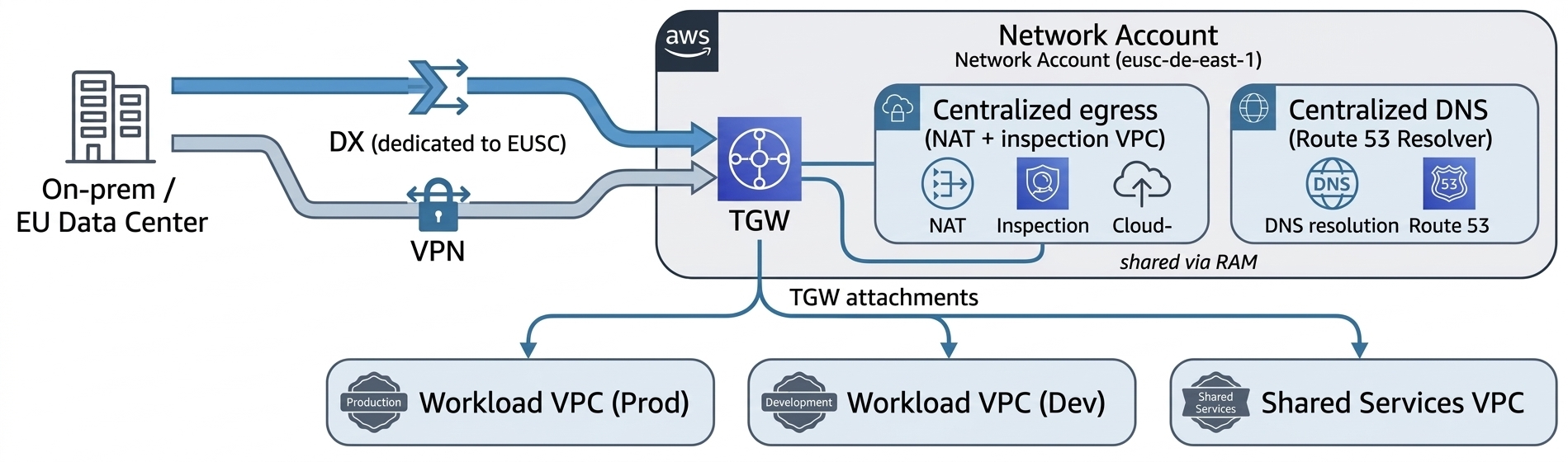
The AWS European Sovereign Cloud has its own sovereign AWS Direct Connect points of presence (PoPs), with dedicated networking infrastructure and connectivity from European providers, providing customers an autonomous network path into the partition. You terminate Direct Connect in a dedicated Network account and share connectivity to workload VPCs using Transit Gateway (with AWS RAM). A Direct Connect connection or Direct Connect gateway in the commercial partition can’t be extended into aws-eusc. To reach EUSC VPCs, you provision a separate Direct Connect connection that lands in the EUSC partition’s Network account. If your on-premises network already backhauls to AWS commercial Regions, you connect that network to EUSC with its own virtual interface or connection, or a site-to-site VPN. You don’t bridge the two AWS partitions through a shared Direct Connect gateway.
The following figure shows the recommended perimeter design in EUSC.
Figure 1: Recommended perimeter design in EUSC
The perimeter design includes:
Centralized egress and inspection – Route workload egress through an inspection VPC in the Network account (gateway load balancer with your firewall of choice, or AWS Network Firewall. Keep workload VPCs private with no internet gateway.
Private service access – Use VPC interface endpoints (VPCe) for AWS service calls so traffic stays on the AWS network within the partition. VPCe doesn’t cross partitions; expose any commercial-partition service to EUSC consumers over DX/VPN and an in-EUSC load balancer.
DNS – EUSC has its own Amazon Route 53. For names that must resolve across clouds, use subdomain delegation or Resolver forwarding rules over your DX or VPN link rather than expecting hosted zones to be visible across partitions.
Segmentation as code – Express segmentation with security groups referencing prefix lists and keep the EUSC IP ranges current from the partition’s published ip-ranges file in your firewall automation.
Data protection
AWS Key Management Service (AWS KMS) is available in EUSC; use customer managed keys for all sensitive data stores and enforce their use with SCPs and key policies. Where your residency or operational-autonomy requirements call for it, evaluate AWS KMS external and imported key material options available in the partition.
For workloads where regulation mandates that key material never resides within the cloud provider’s infrastructure, configure an AWS KMS External Key Store (XKS) in the EUSC Region. The XKS proxy connects AWS KMS to your EU-based hardware security module (HSM) (on-premises or hosted with an EU trust service provider); all encrypt and decrypt operations are performed by your external key manager. Note the trade-offs: increased latency, reduced availability SLA, and added operational burden. Reserve XKS for the subset of data where regulatory or contractual obligations explicitly require it.
The EUSC Region has achieved SOC 2, BSI C5 Type 1 attestation, and seven ISO certifications, including ISO 27001, 27017, 27018, and 27701. Reference these in your data protection evidence packages when demonstrating encryption-at-rest and key management controls to EU regulators.
Secure CI/CD and distributing images across the partition boundary
Container images – Build (or re-tag and re-sign) images and push to an Amazon ECR registry inside EUSC. ECR cross-Region replication works within the partition (useful as EUSC adds Regions or Local Zones), but the initial crossing from commercial is an explicit pipeline push using EUSC credentials. Sign images with a sovereign signing key and verify at deploy time.
AMIs and images – Rebuild golden images in EUSC with EC2 Image Builder (run the pipeline natively in EUSC), or import virtual machine (VM) images using Amazon S3 in EUSC and aws ec2 import-image. There is no direct cross-partition AMI copy.
Binaries and artifacts – Stage in an artifact bucket in the EUSC Shared Services account. Move packages across the boundary with aws s3 sync or AWS DataSync over your DX or VPN, or using controlled export, then distribute within the partition using in-partition S3 replication to other EUSC Regions or Local Zones as they come online.
# Push a container image to ECR inside EUSC (note the .eu endpoint).
# Credentials/profile must be for the aws-eusc partition.
aws ecr get-login-password --region eusc-de-east-1 --profile eusc-shared-services \
  | docker login --username AWS --password-stdin \
    111122223333.dkr.ecr.eusc-de-east-1.amazonaws.eu

docker tag company/runtime:7.x \
  111122223333.dkr.ecr.eusc-de-east-1.amazonaws.eu/company/runtime:7.x
docker push \
  111122223333.dkr.ecr.eusc-de-east-1.amazonaws.eu/company/runtime:7.x
Remember that endpoints and ARNs use amazonaws.eu in the EUSC partition. IAM service principals always use amazonaws.com regardless of partition.
Replicating deployment code and pipelines
Run a native deployment plane in EUSC (AWS CodePipeline, AWS CodeBuild, AWS CodeDeploy, or your existing tool deployed in-partition) in the Shared Services account, with cross-account deploy roles into workload accounts. If a commercial-partition continuous-integration system must deploy into EUSC, give it separate credentials for each partition; the clean pattern is OIDC federation with two trust configurations, one for each partition, because no cross-partition role assumption exists.
// Deploy role in an EUSC workload account, trusted by the EUSC Shared Services pipeline role
{
  "Version": "2012-10-17",
  "Statement": [{
    "Effect": "Allow",
    "Principal": { "AWS": "arn:aws-eusc:iam::<SHARED_SERVICES_ACCT>:role/PipelineDeployRole" },
    "Action": "sts:AssumeRole",
    "Condition": { "StringEquals": { "sts:ExternalId": "EUSC-deploy" } }
  }]
}
For account vending and landing-zone-as-code, use Account Factory for Terraform (AFT) deployed in EUSC. AFT pipelines create accounts through AWS Control Tower, apply baseline guardrails, bootstrap the preceding partition-aware modules, and register OUs, giving you the accounts and account groups as code. Keep Terraform state for each partition in an in-EUSC Amazon S3 backend with an Amazon DynamoDB lock table; don’t share state across partitions.
The Landing Zone Accelerator on AWS (LZA) solution is an alternative deployment method that provisions a baseline security architecture and includes customizations for each partition, with consideration for service availability. A customized configuration baseline for European Sovereign Cloud was recently released and is accompanied by the LZA Compliance Workbook, which maps regional European security standards and international frameworks to over 200 security settings deployed by LZA.
Supported compared to by-design boundaries: A quick reference
Capability
Status in EUSC
What to do
AWS Control Tower account vending, controls
Supported in-partition
Govern the EUSC Region; drive vending with AFT; re-register OUs after Region changes
AWS Control Tower–managed or self-managed IAM Identity Center
Configuration choice
Choose self-managed to own permission sets as code
Permission set creation and assignment as IaC
Supported
Manage with SCIM groups from your IdP
Identity Center single home and delegated admin for each partition
By-design behavior
Administer from one Region; non-issue in single-Region EUSC
Roll up within the EUSC organization, not across partitions. Enable consolidated billing in the EUSC management account and deliver AWS Data Exports (Cost and Usage Report 2.0) to an S3 bucket in a dedicated finance or governance account in the Security or Infrastructure OU.
Set permissions so workload teams can query the curated data in that account; no one should be able to access the management or payer account directly. You can’t replicate billing data into the commercial partition; the EUSC has a separate payer (billed in EUR through the EU contracting entity).
Conclusion
Architecting in the AWS European Sovereign Cloud is, in most respects, architecting a second well-run AWS landing zone with one organizing principle that resolves nearly every design question: it’s an independent partition. Centralization of governance, identity, logging, and billing is fully achievable, but within the EUSC partition. The boundaries you encounter between commercial AWS and EUSC—no cross-partition roles, peering, replication, or billing roll-up—are the sovereignty guarantees doing their job.
Build the foundation as code. Use an AWS Control Tower landing zone driven by AFT, IAM Identity Center permission sets and assignments in Terraform federated to your corporate IdP, an immutable central log store, customer managed encryption keys constrained to the sovereign Region, and a Network account terminating a dedicated Direct Connect. Add a CI/CD plane that pushes images and artifacts into the partition with per-partition credentials. Keep every ARN partition-aware and every optional service behind a feature flag, and the same modules will serve both clouds.
To accelerate your build with additional enablement from AWS, explore the LZA Universal Configuration for European Sovereign Cloud on GitHub, which packages many of the patterns described in this post into a ready-to-deploy baseline. To complement your deployment with compliance readiness, the LZA Independent Assessment Report for C5:2020 evaluates how LZA’s security baseline maps to C5:2020 technical requirements, and you can download the report and the LZA Compliance Workbook from AWS Artifact.
Many organizations operate in hybrid data environments where critical assets live in Snowflake while analytics workloads run on AWS, which can create governance gaps, discovery friction, and duplicated efforts when the two aren’t connected.
With Amazon SageMaker Unified Studio, you can govern data across Snowflake and AWS through its integrated catalog and AWS Glue Data Quality, a capability of AWS Glue. You connect directly to Snowflake tables without moving data, apply quality rules using AWS Glue Visual ETL, and publish validated assets to Amazon SageMaker Catalog, maintaining consistent governance across your entire distributed data estate.
Without this integration, cataloging Snowflake data requires building extraction pipelines, often taking days. With SageMaker Unified Studio connected to Snowflake, you can query, catalog, and validate the quality of federated data in 5–15 minutes. No data replication or custom ETL code required.
In this post, we show you how to connect Snowflake to Amazon SageMaker Unified Studio, register data assets in Amazon SageMaker Catalog, configure data quality validation using AWS Glue Visual ETL, and publish assets for unified collaboration. By following these steps, you enrich federated assets with data quality scores so that consumers across your organization can discover and trust the data, all while keeping it in Snowflake.
Solution overview
This solution integrates Snowflake with Amazon SageMaker Unified Studio for centralized data cataloging and quality validation.
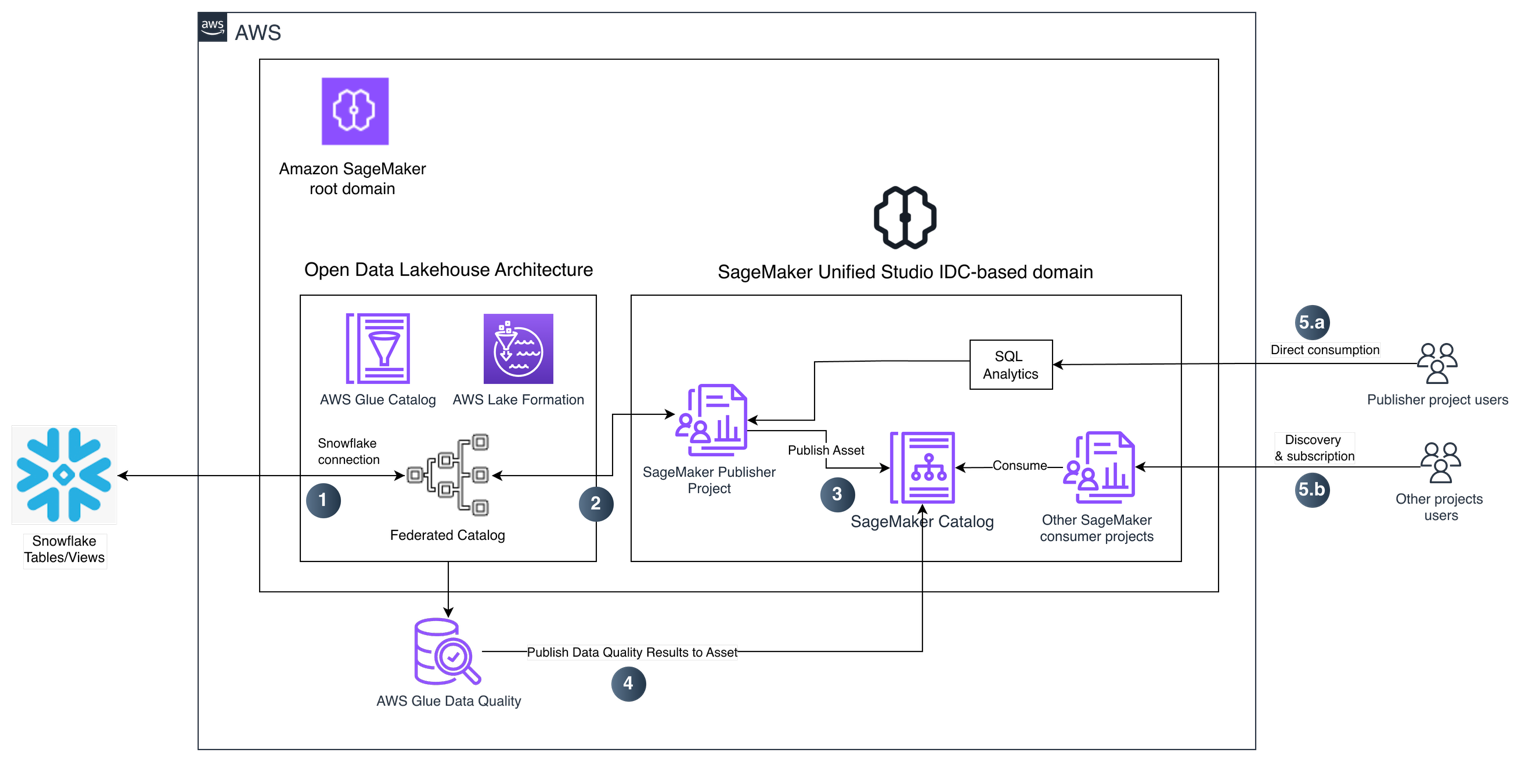
The architecture uses an AWS Glue connection to federate the Snowflake catalog into Amazon SageMaker Unified Studio. Tables become available in the project catalog without complex storage configurations. You can query data directly using SQL analytics, publish datasets to Amazon SageMaker Catalog for organization-wide discovery, and apply data quality rules through AWS Glue Visual ETL pipelines.
The workflow consists of the following steps:
Figure 1: Architecture for federating Snowflake into SageMaker Unified Studio and validating data quality
Snowflake connection creation on Amazon SageMaker Unified Studio — Amazon SageMaker Unified Studio uses an AWS Glue connection to federate Snowflake tables and views into its open data lakehouse architecture. The federated catalog entry is registered in AWS Glue Data Catalog and governed by AWS Lake Formation for centralized access control, without moving data out of Snowflake.
Federate Snowflake tables into the Amazon SageMaker publisher project — The Amazon SageMaker publisher project discovers the federated Snowflake tables through the AWS Glue Data Catalog integration.
Publish the dataset to Amazon SageMaker Catalog — The publisher project publishes the dataset as a governed asset to the Amazon SageMaker Catalog, making it discoverable for data consumers across the organization.
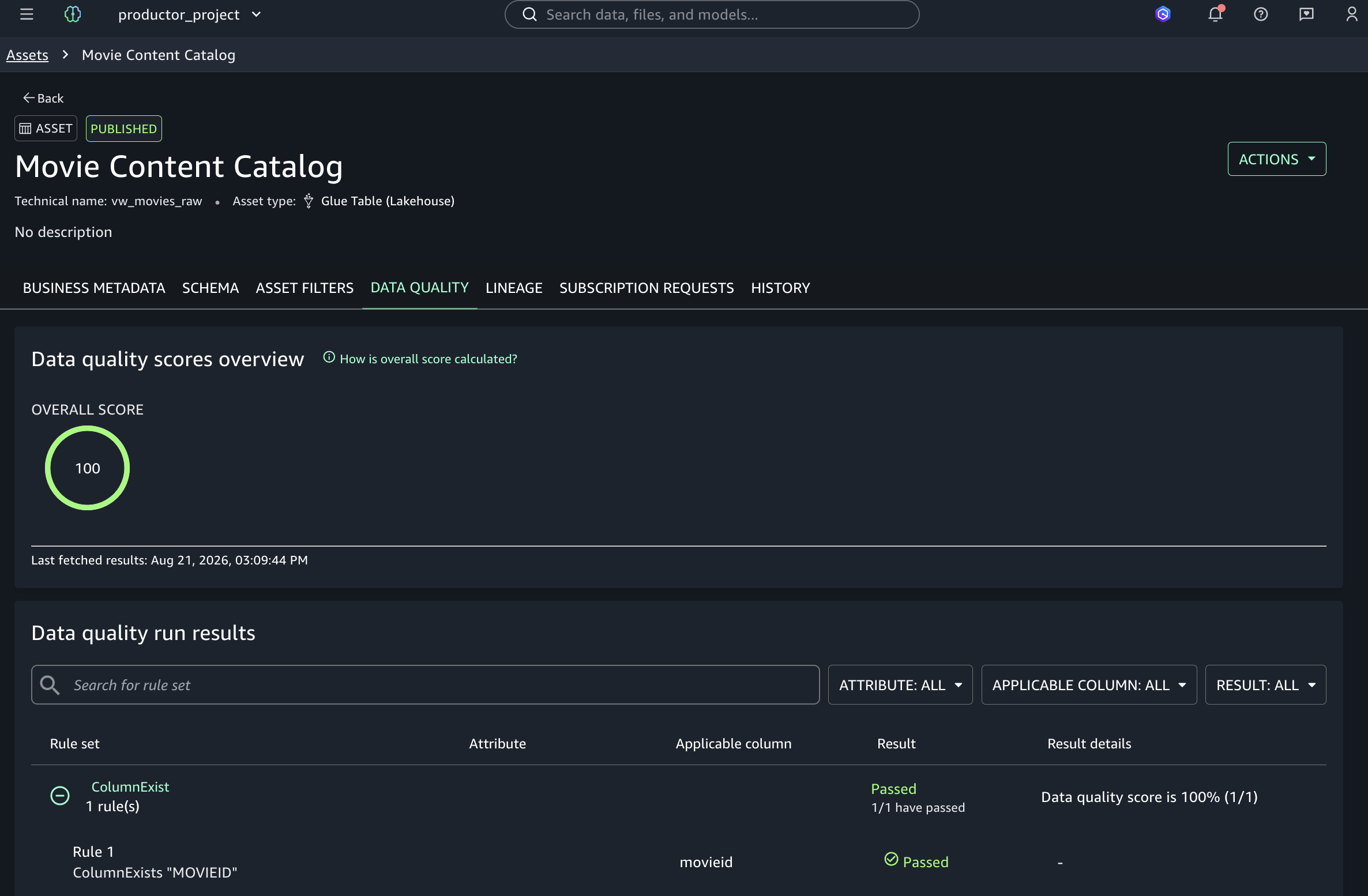
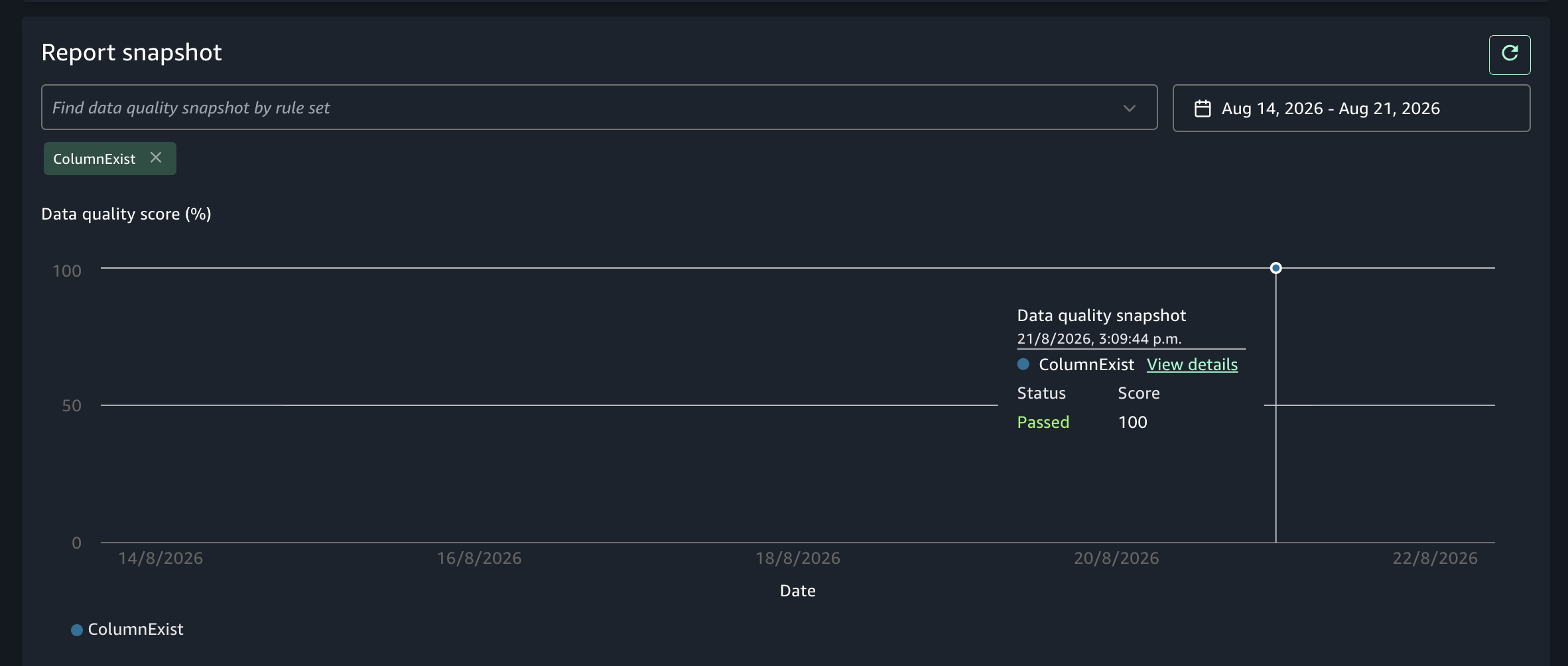
Validate data quality — AWS Glue Data Quality runs validation rules against the federated Snowflake data and publishes the data quality results directly to the corresponding asset in Amazon SageMaker Catalog.
Consume data — Users access Snowflake data through two paths:
Publisher project users — Query data with SQL Analytics — Users in the publisher project can query the Snowflake data directly using Amazon SageMaker Unified Studio SQL Analytics for interactive exploration and analysis, without copying or moving data.
Consumer project users — Discovery and subscription through SageMaker Catalog — Other Amazon SageMaker consumer projects discover the published asset in the Amazon SageMaker Catalog, subscribe to it, and consume the data for their analytics and machine learning workloads.
Prerequisites
To follow along, you need:
An active Snowflake account with administrator access.
Tables or views created within a schema inside a Snowflake database.
Appropriate AWS Identity and Access Management (IAM) permissions configured (Amazon SageMaker Catalog is built on Amazon DataZone, so the IAM actions use the datazone: prefix.)
Your AWS Glue job execution role requires specific permissions to interact with Amazon SageMaker Catalog.
Required IAM policies for the AWS Glue job role
1. Amazon SageMaker Catalog search and listing permissions: Attach a policy that allows the AWS Glue job to search and list assets in Amazon SageMaker Catalog.
Configure the AWS Glue job role as an Amazon SageMaker domain user
Configure the IAM role used by your AWS Glue job as a domain user. In the Amazon SageMaker console, navigate to your domain, choose Access management, and add the AWS Glue job execution IAM role as a domain user.
Project-level permissions
Add the AWS Glue job execution role as a project member with Owner permissions. Navigate to your project, go to Project settings > Members, and add the role.
Querying Snowflake datasets from Amazon SageMaker Unified Studio
The following sections walk you through connecting Snowflake to Amazon SageMaker Unified Studio and running data quality validation with results displayed in Amazon SageMaker Catalog.
Identifying information in Snowflake
First, gather your Snowflake connection details. You need a Snowflake account with tables or views created at the schema level within a database.
To obtain Snowflake connection information:
Navigate to your Snowflake environment and sign in with administrator credentials.
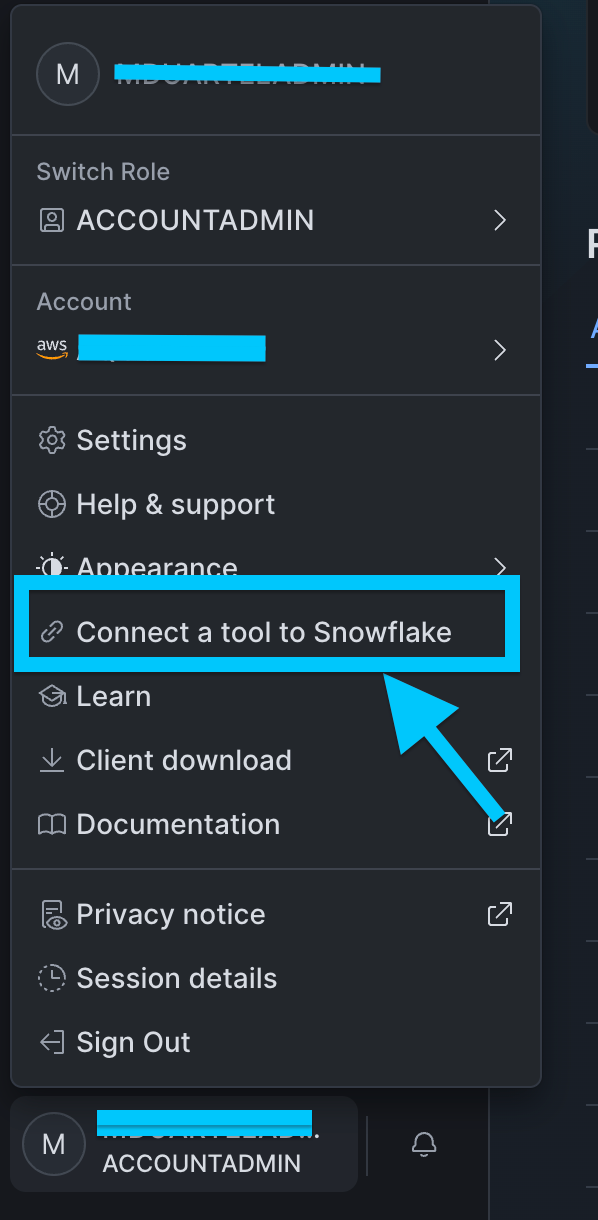
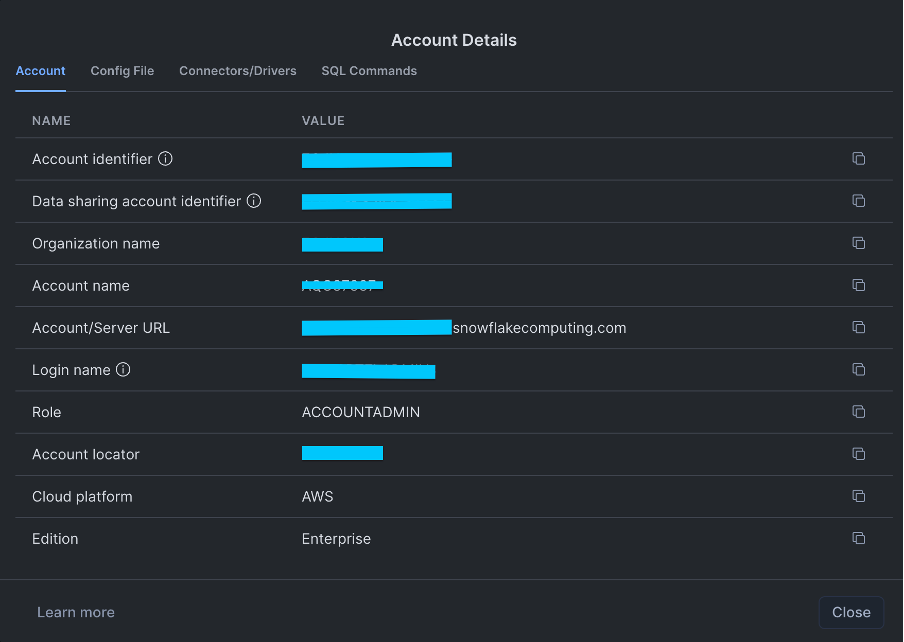
Choose your user account and choose Connect a tool to Snowflake.
Note the Account/Server URL displayed on the screen.
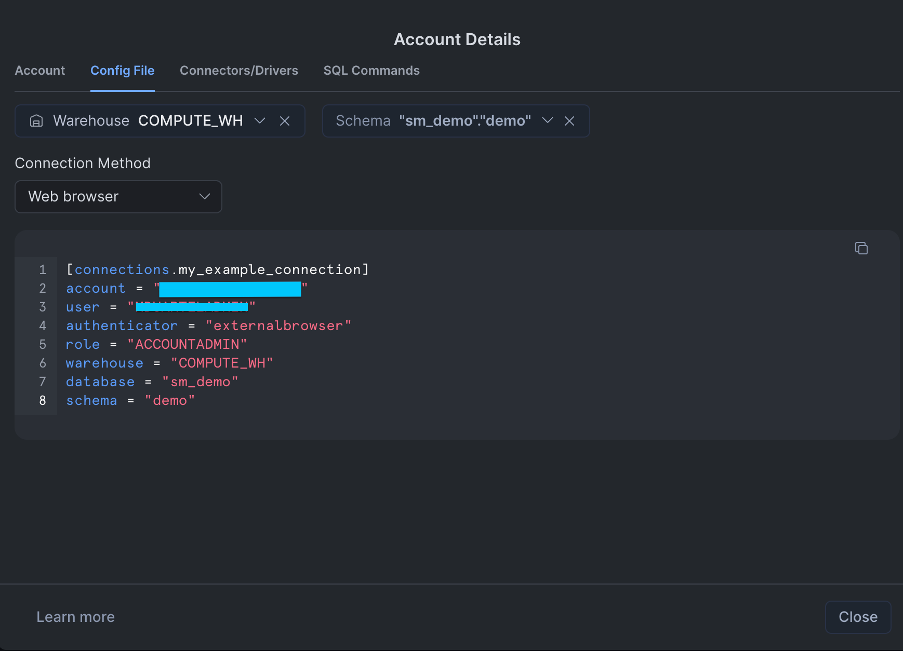
Choose the Config File tab, select values for Warehouse, Database, and Schema, and copy these values for use in the next section.
Creating the connection in Amazon SageMaker Unified Studio
The Add Connection feature stores Snowflake connectivity details including credentials, server, and database information. Amazon SageMaker Unified Studio uses this connection to federate the Snowflake catalog through AWS Glue, so you can query data within minutes of setup.
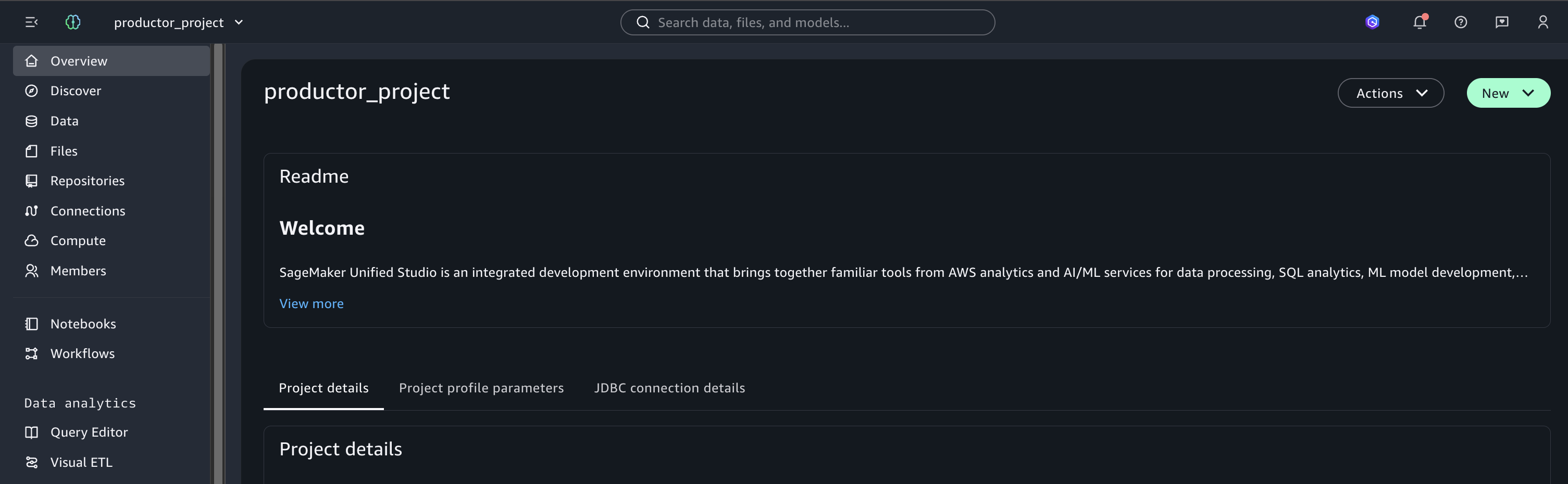
You need an Amazon SageMaker Unified Studio domain and a project, which acts as a data producer project.
To create the Snowflake connection:
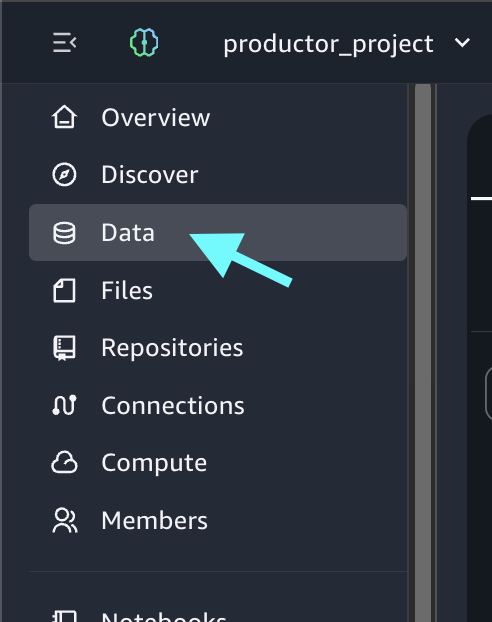
In your Amazon SageMaker Unified Studio project, go to Overview.
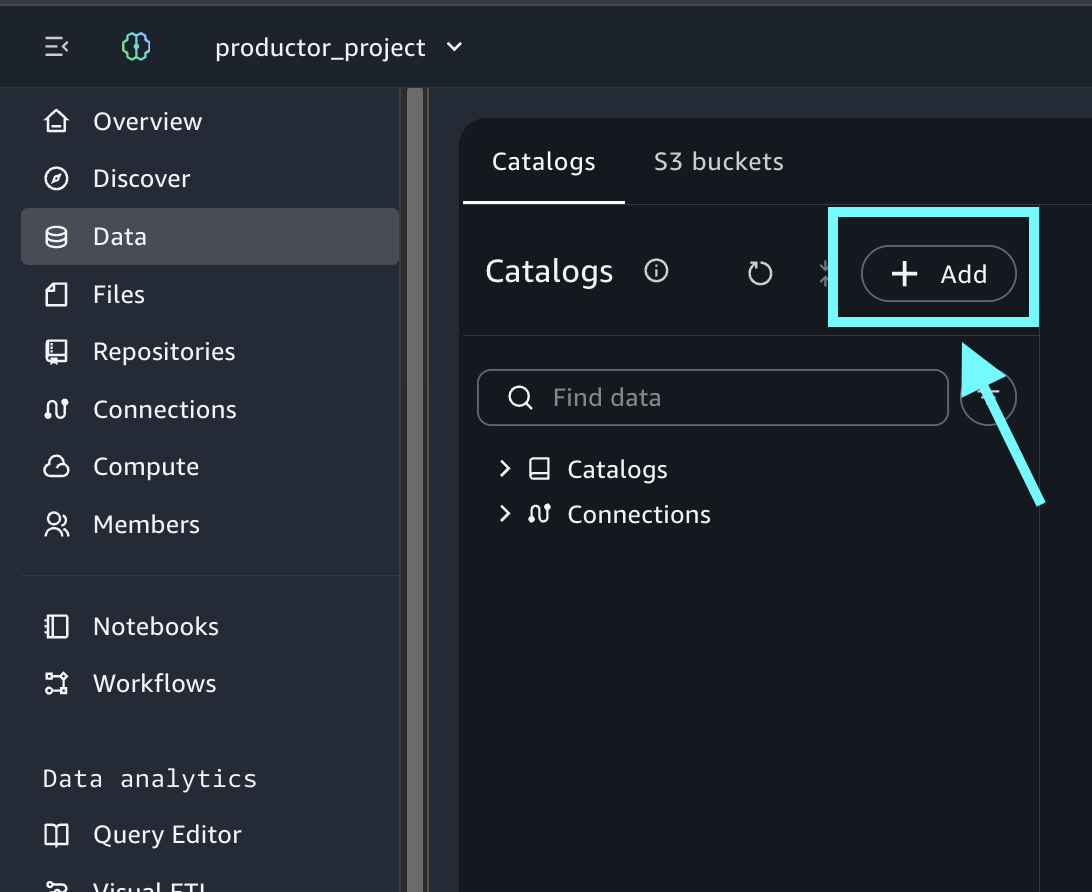
Choose Data.
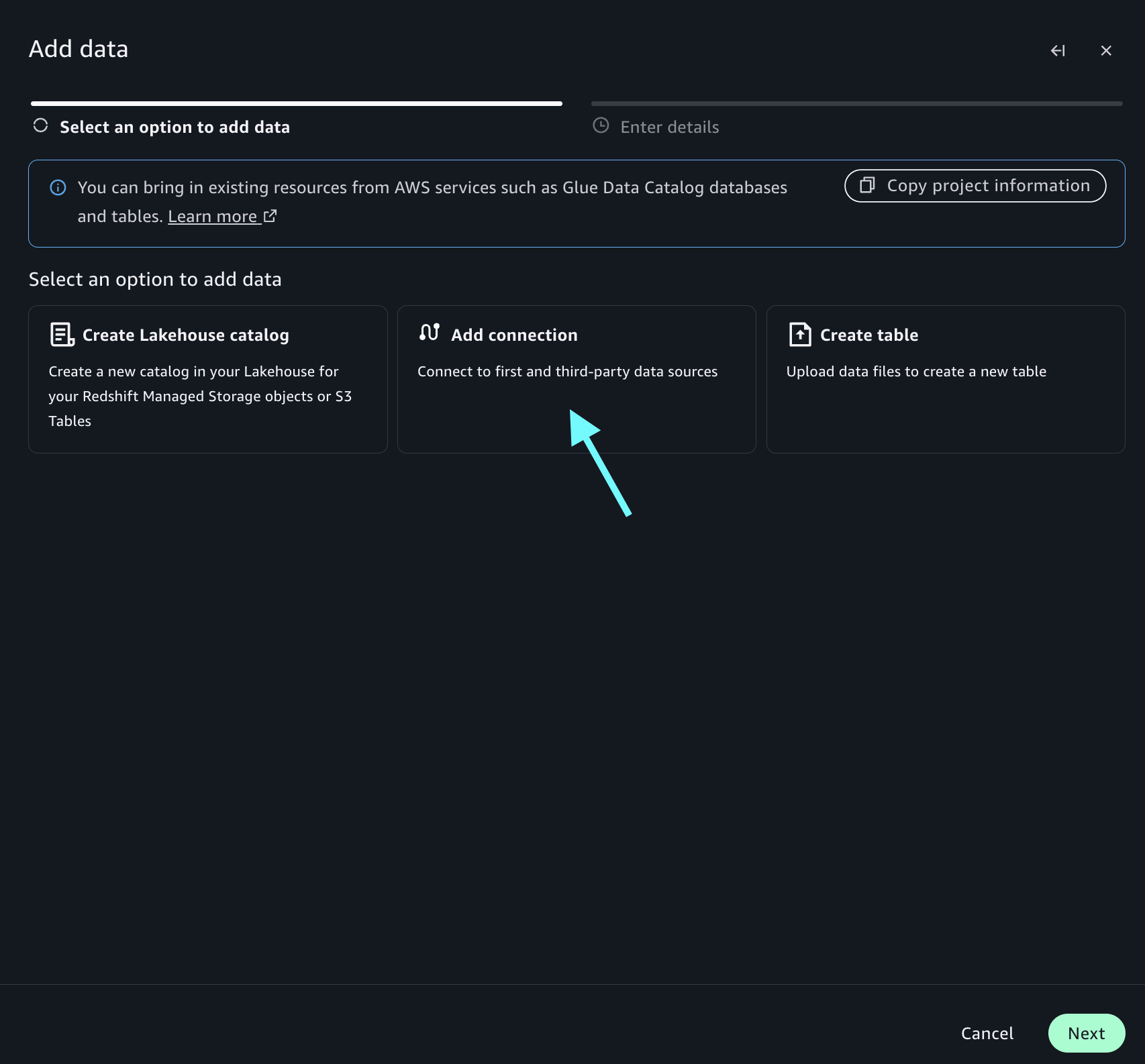
Choose + Add, then choose Add Connection.
Choose Next.
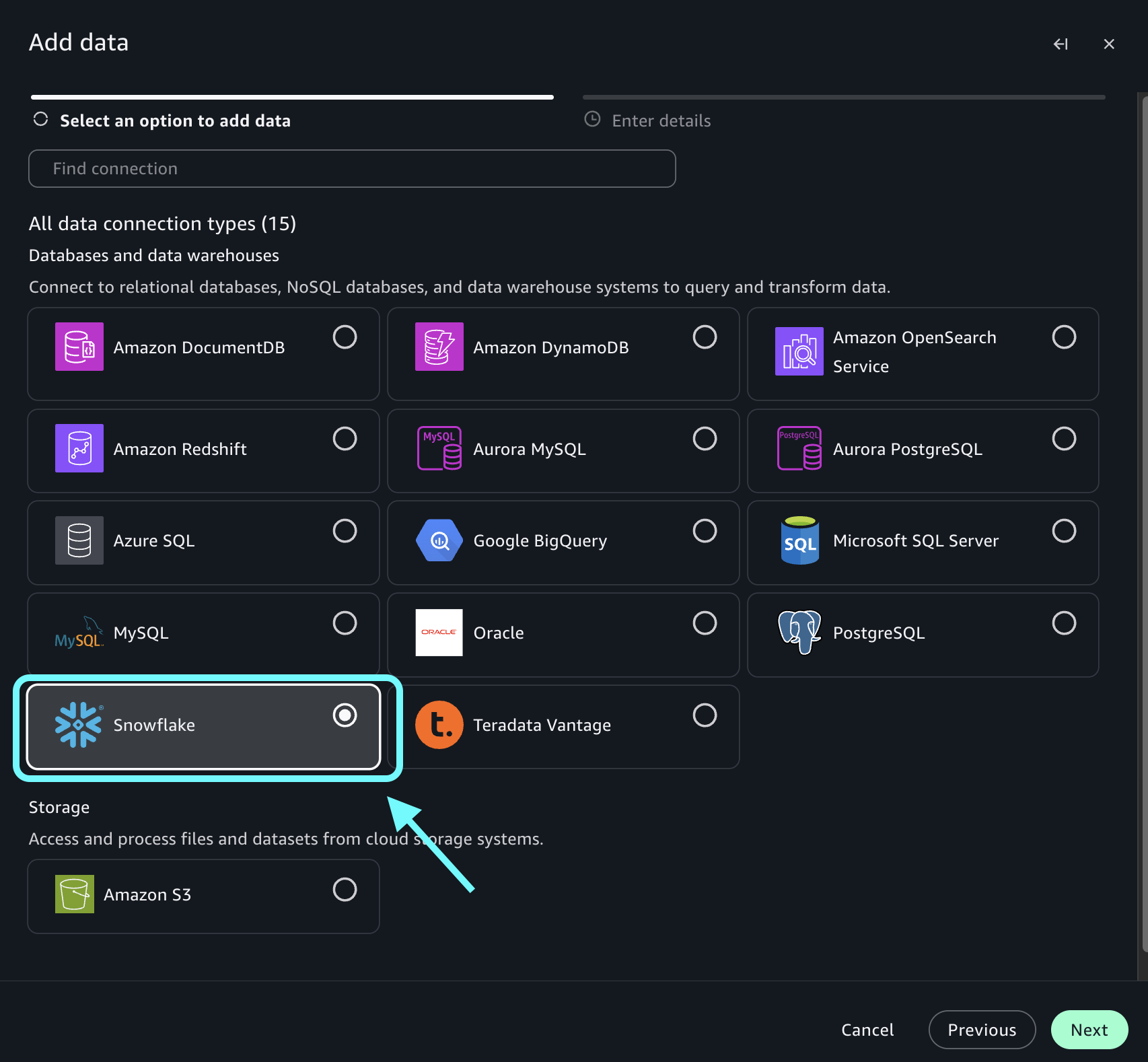
Select Snowflake and choose Next.
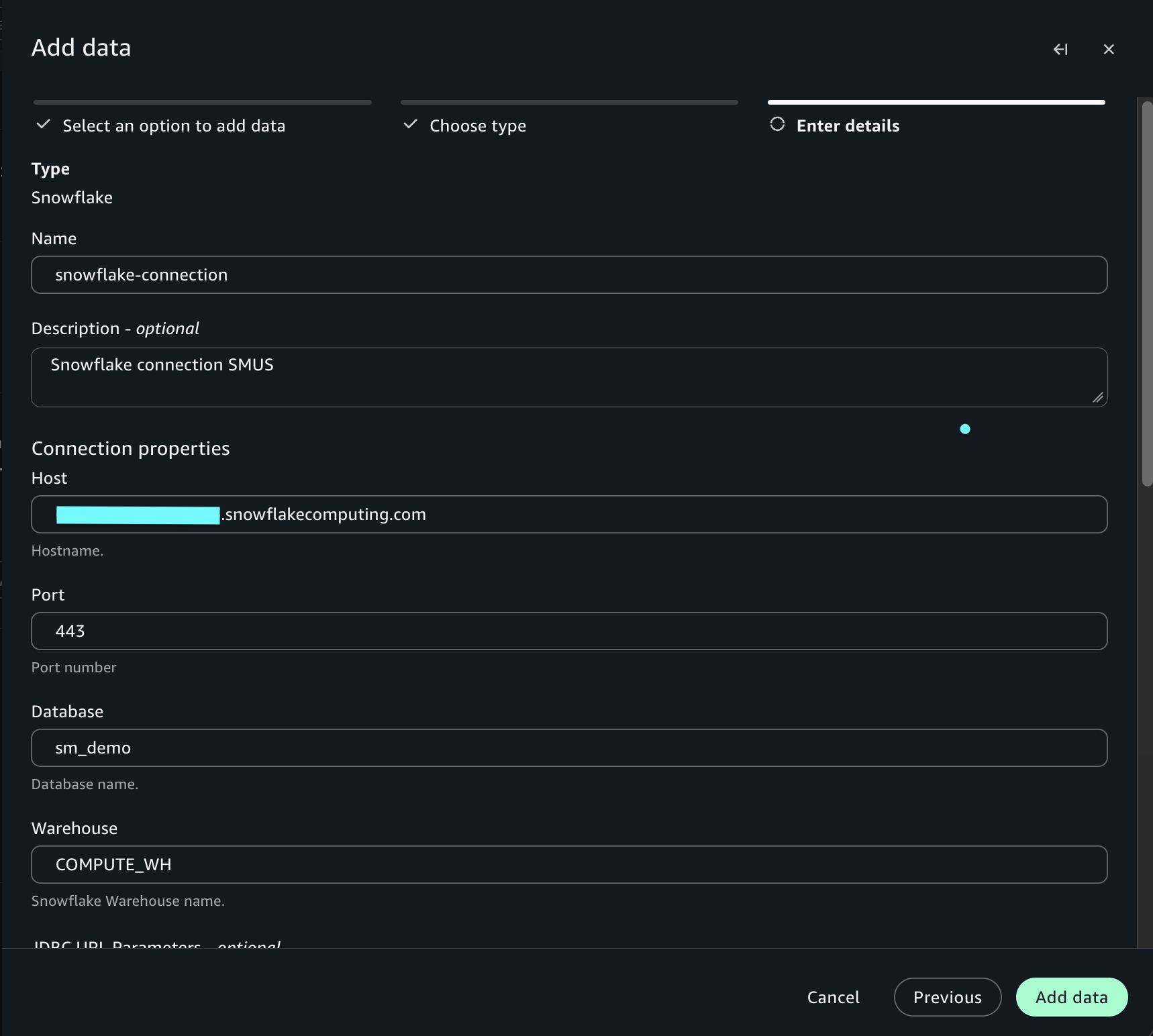
Complete the connection details:
Name:snowflake-connection.
Description (Optional): Enter a description for your connection.
Host: Your Snowflake account URL (for example, XXXXXXXXX-XXX000000.snowflakecomputing.com).
Port: 443.
Database: Your database name (for example, sm_demo).
Warehouse: Your warehouse name (for example, COMPUTE_WH).
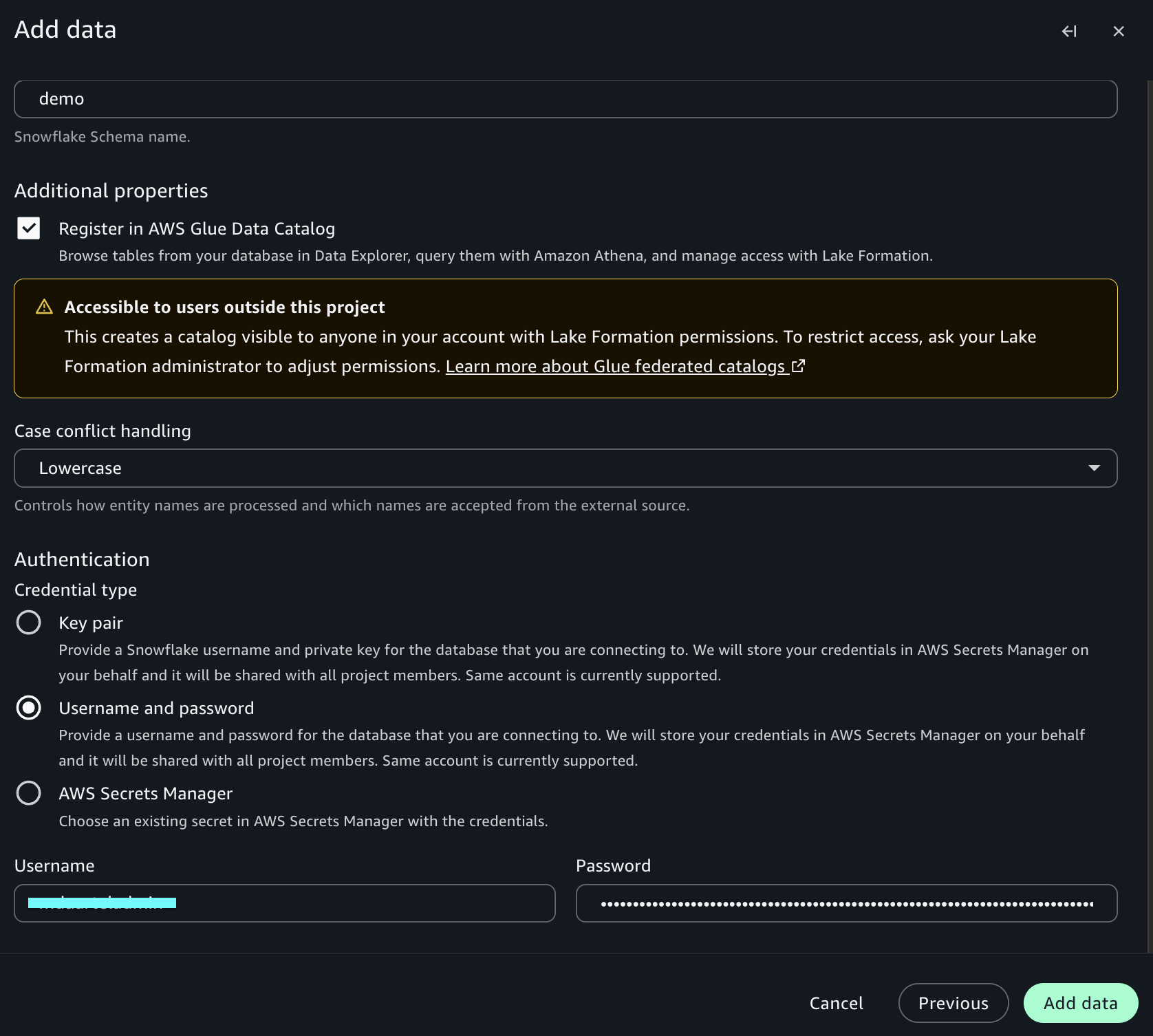
Schema: Your schema name (for example, demo).
Additional Properties:
Register in AWS Glue Data Catalog: Turn on checkbox.
Case conflict handling: Select the option based on Snowflake naming syntax.
Authentication:
Username: Your Snowflake username.
Password: Your Snowflake password.
Choose Add Data.
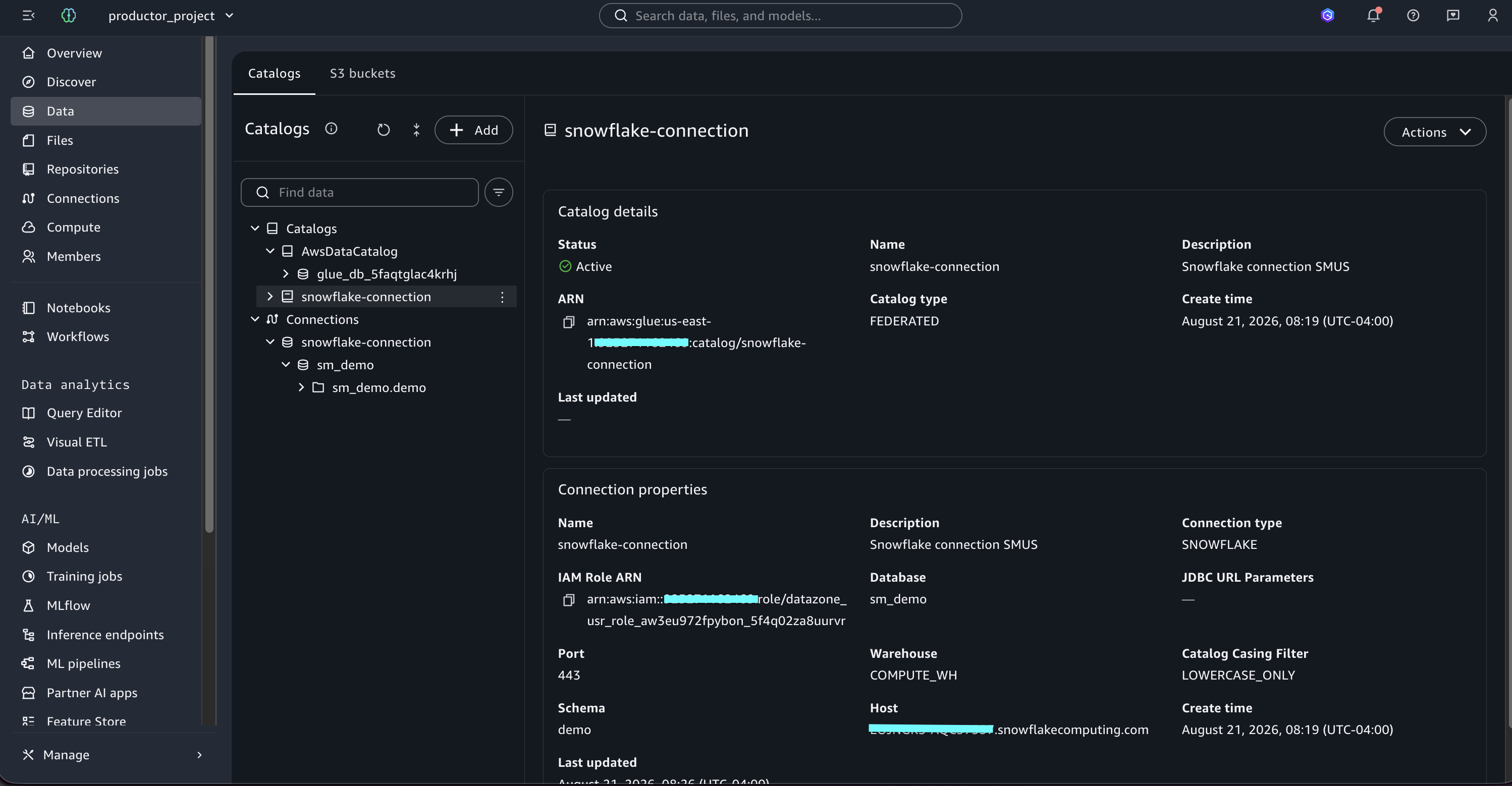
After creating the connection, wait a few minutes for the federated connection to be established. Search within Amazon SageMaker Unified Studio for the database and created objects.
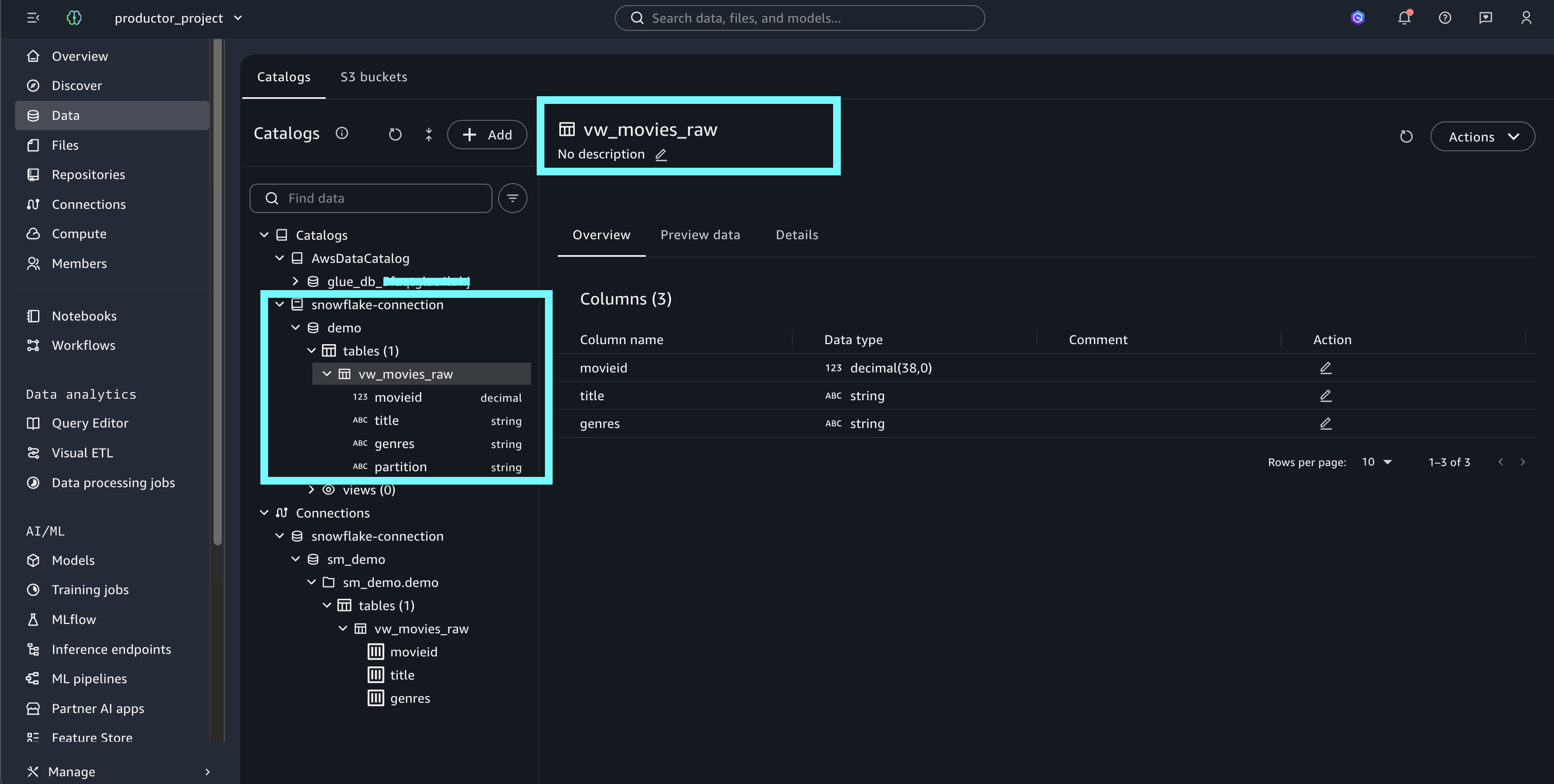
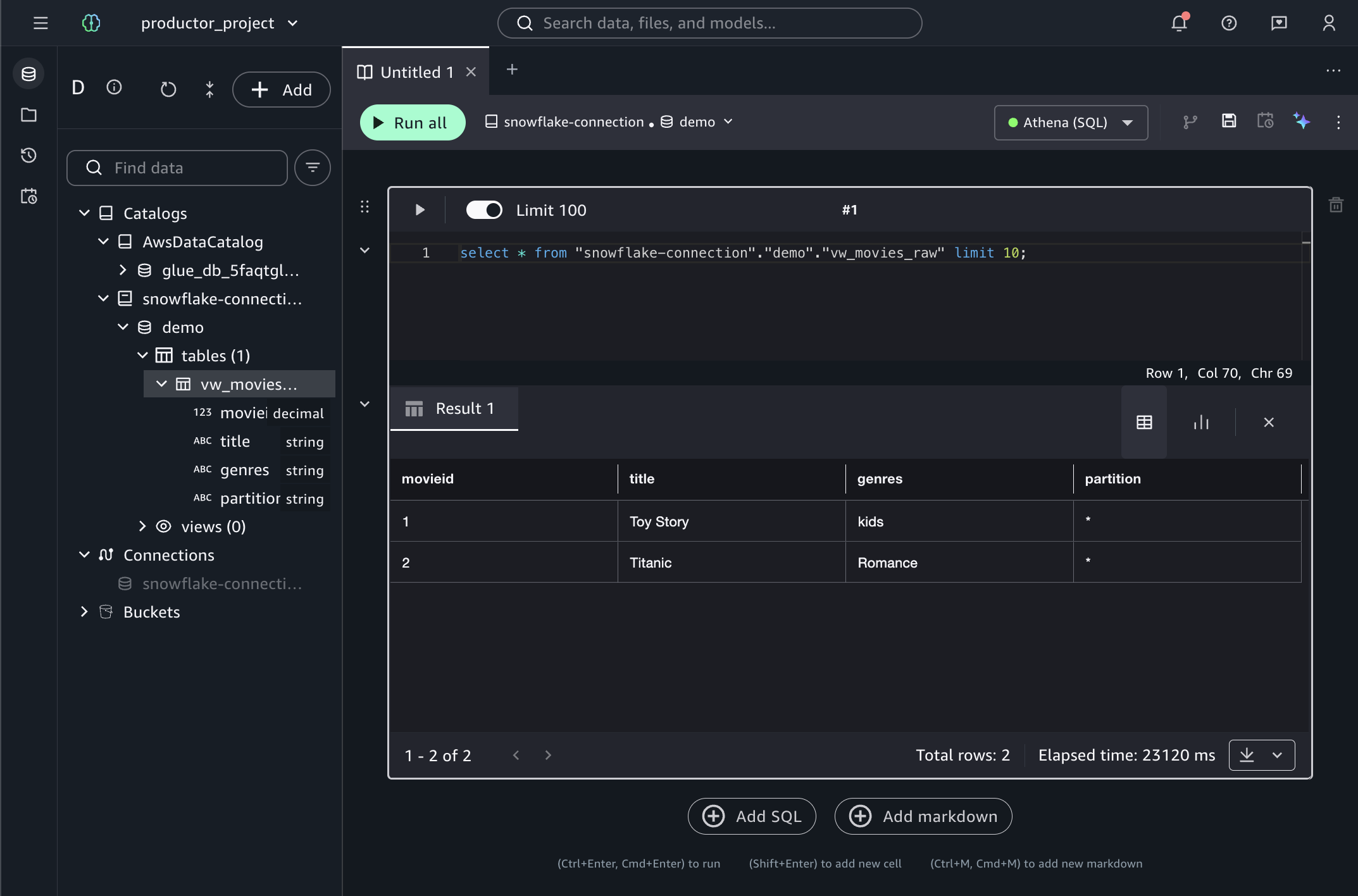
With the Snowflake connection established and the federated tables registered in AWS Glue Catalog, you’re now ready to query Snowflake data directly from Amazon SageMaker Unified Studio, without moving or replicating any data.
How federated queries work
When you run a query in the Amazon SageMaker Unified Studio query editor against a federated Snowflake table, Amazon Athena runs the request. Athena is the underlying query engine integrated into Amazon SageMaker Unified Studio. Athena reads the table definition from AWS Glue Catalog, connects to Snowflake through the established connection, and pushes the query down for execution. Athena returns results directly to the query editor while Snowflake processes the data in place, and only the query results travel across the connection. Amazon SageMaker Unified Studio doesn’t copy data to S3 or any intermediate storage.
After you’ve validated that queries return the expected results, the next step is to publish this dataset to Amazon SageMaker Catalog, making it discoverable and shareable across your organization.
Publishing Snowflake datasets to the SageMaker Catalog
Now that your Snowflake connection is configured, you can publish your datasets to the Amazon SageMaker Catalog, making them discoverable and shareable across your organization.
Creating data assets in SageMaker Catalog
Data assets in Amazon SageMaker Catalog are the cataloged representation of your data resources. They help teams discover, govern, and share data across your organization.
In this section, you create a data asset associated with a Snowflake table. This process transforms a technical Snowflake table into a cataloged resource enriched with business metadata.
To create a data source:
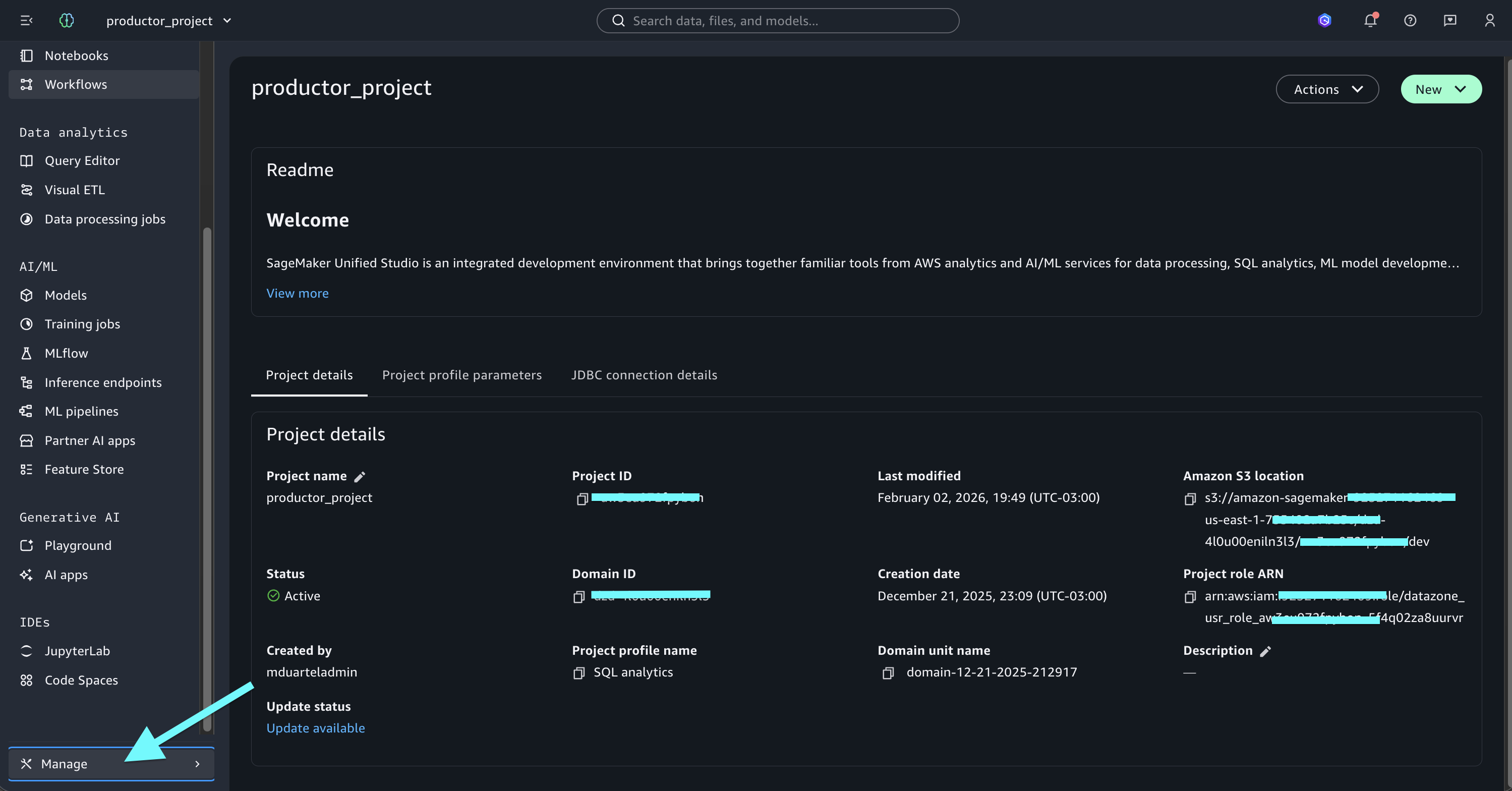
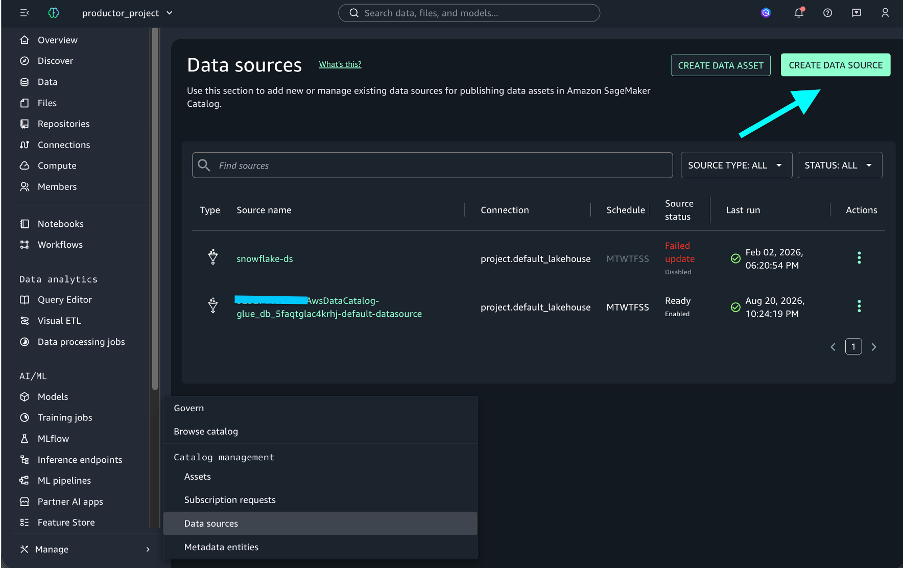
In your Amazon SageMaker Unified Studio project, go to Manage.
Choose Data Sources.
Choose Create Data Source.
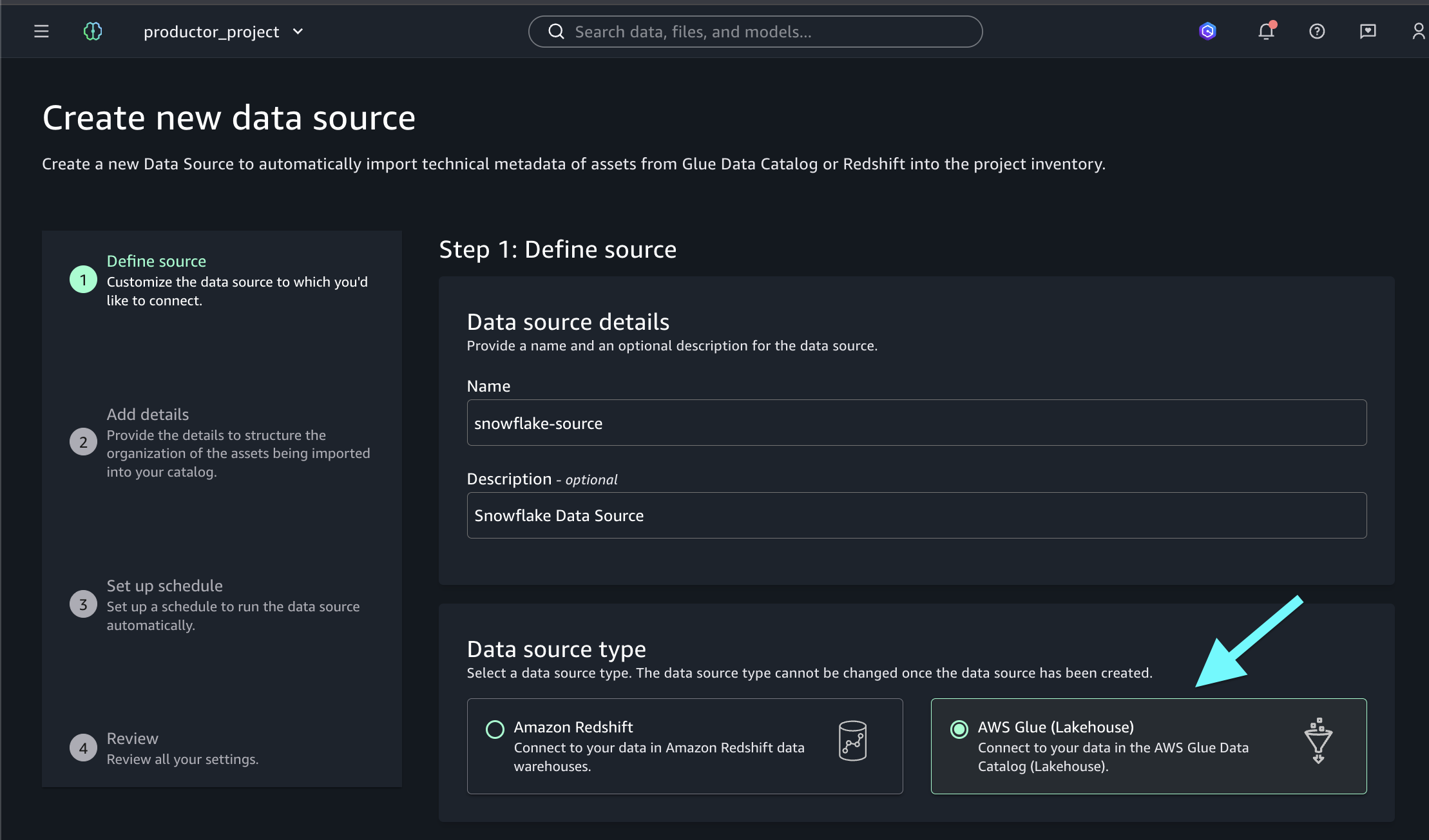
Select the AWS Glue option.
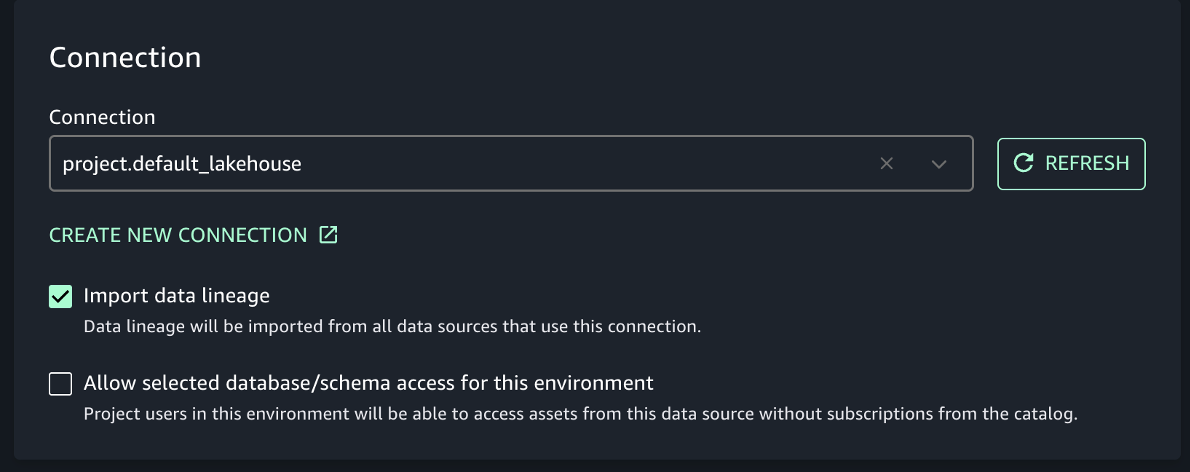
Turn on the Import data lineage checkbox and select the connection: project.default_lakehouse.
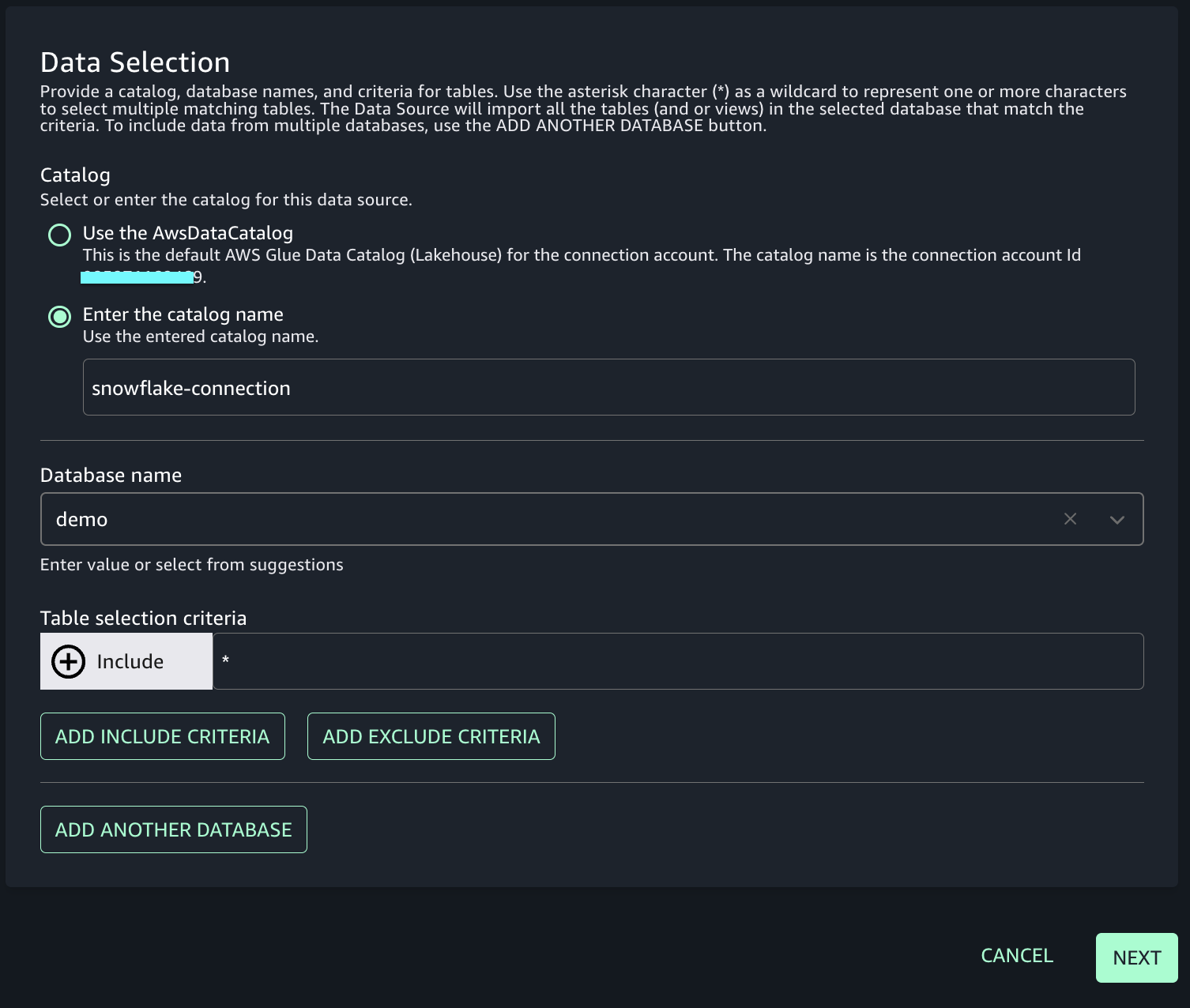
Complete the form and choose Next:
Catalog: Select Enter the catalog name and enter snowflake-connection.
Database name: Enter your database name (for example, movies).
Table selection criteria: Enter * for all tables in the database, or enter a specific table name.
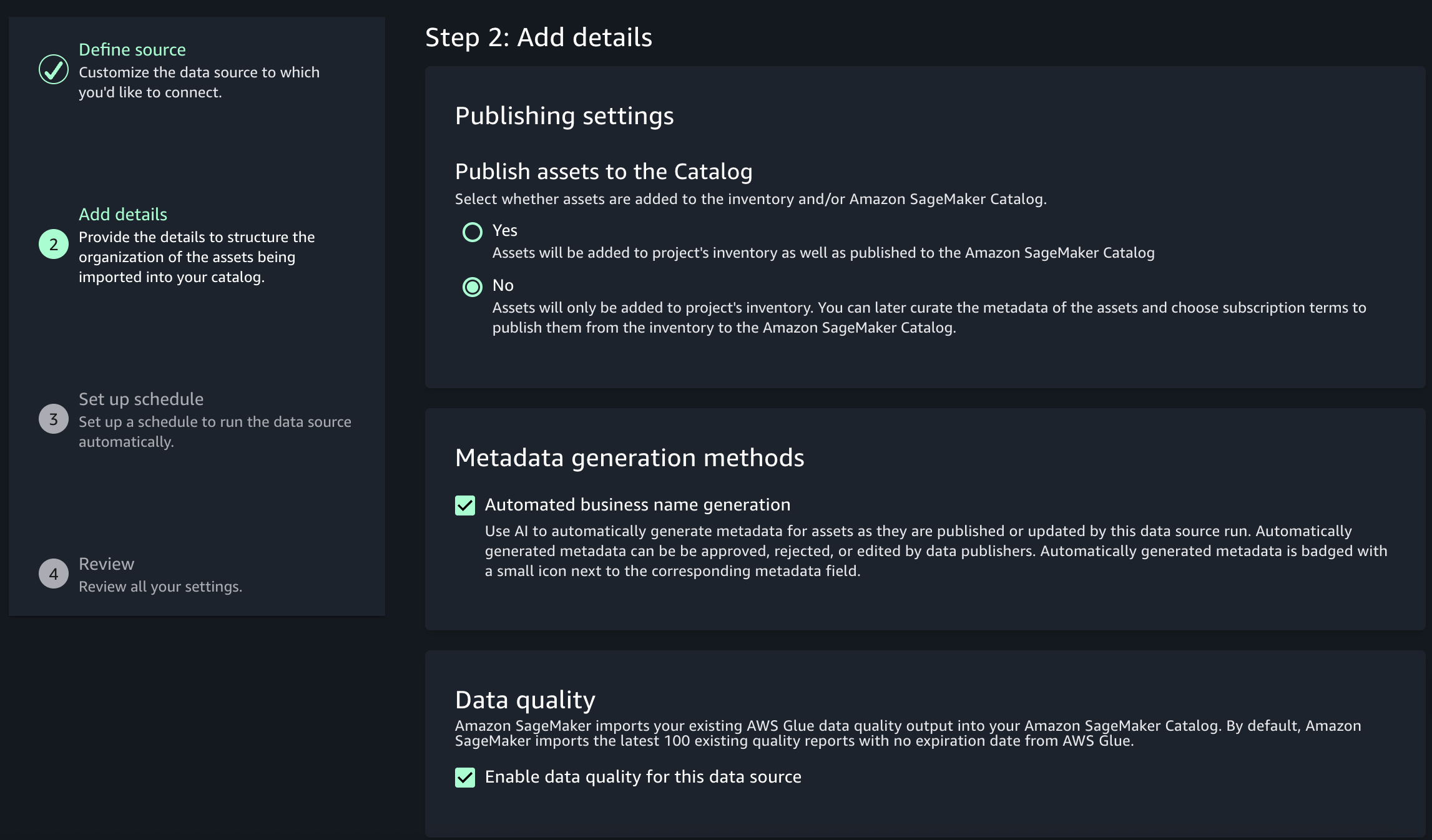
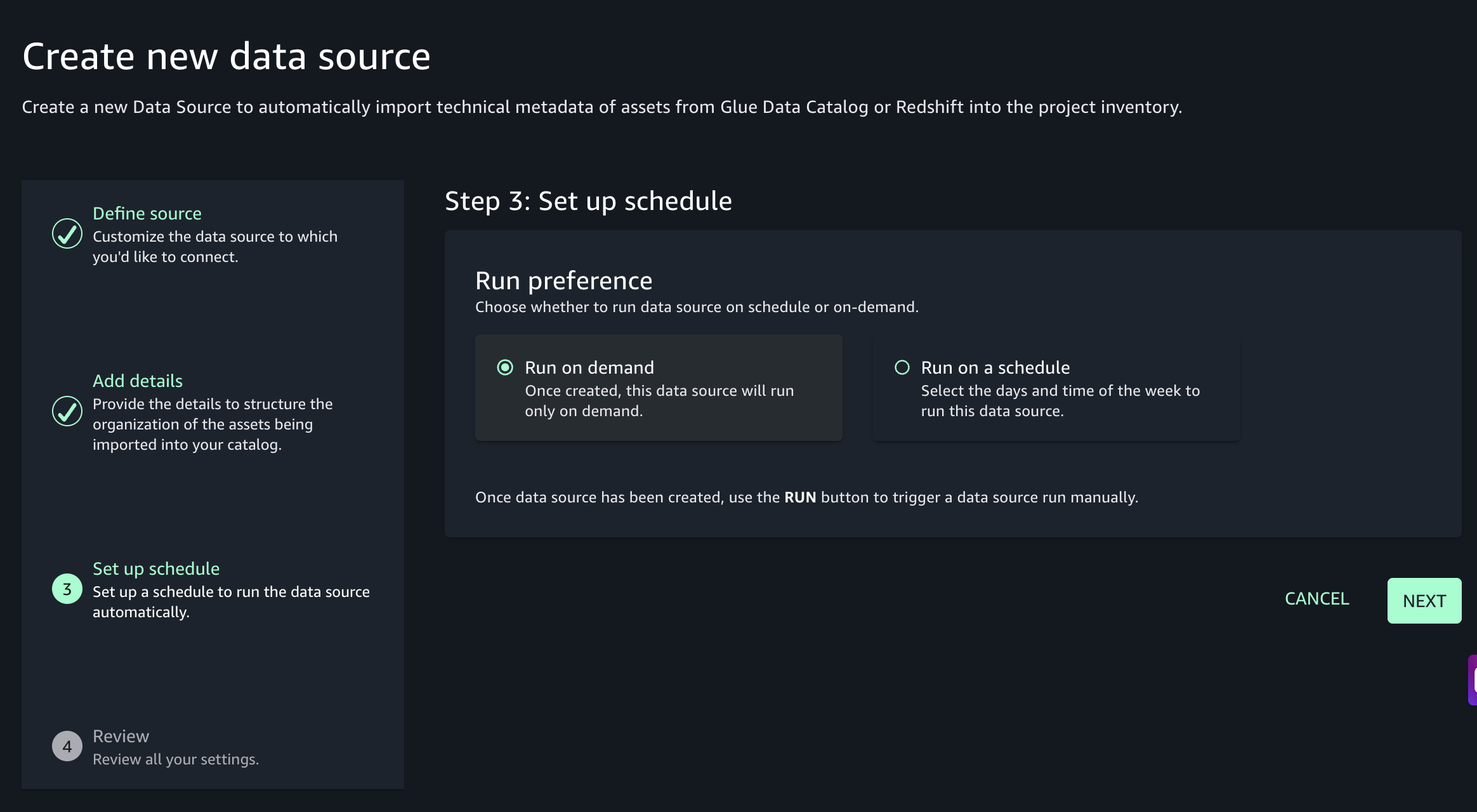
Keep the default options and choose Next until you reach the summary screen.
Review your settings and choose Create.
To extract metadata and publish assets:
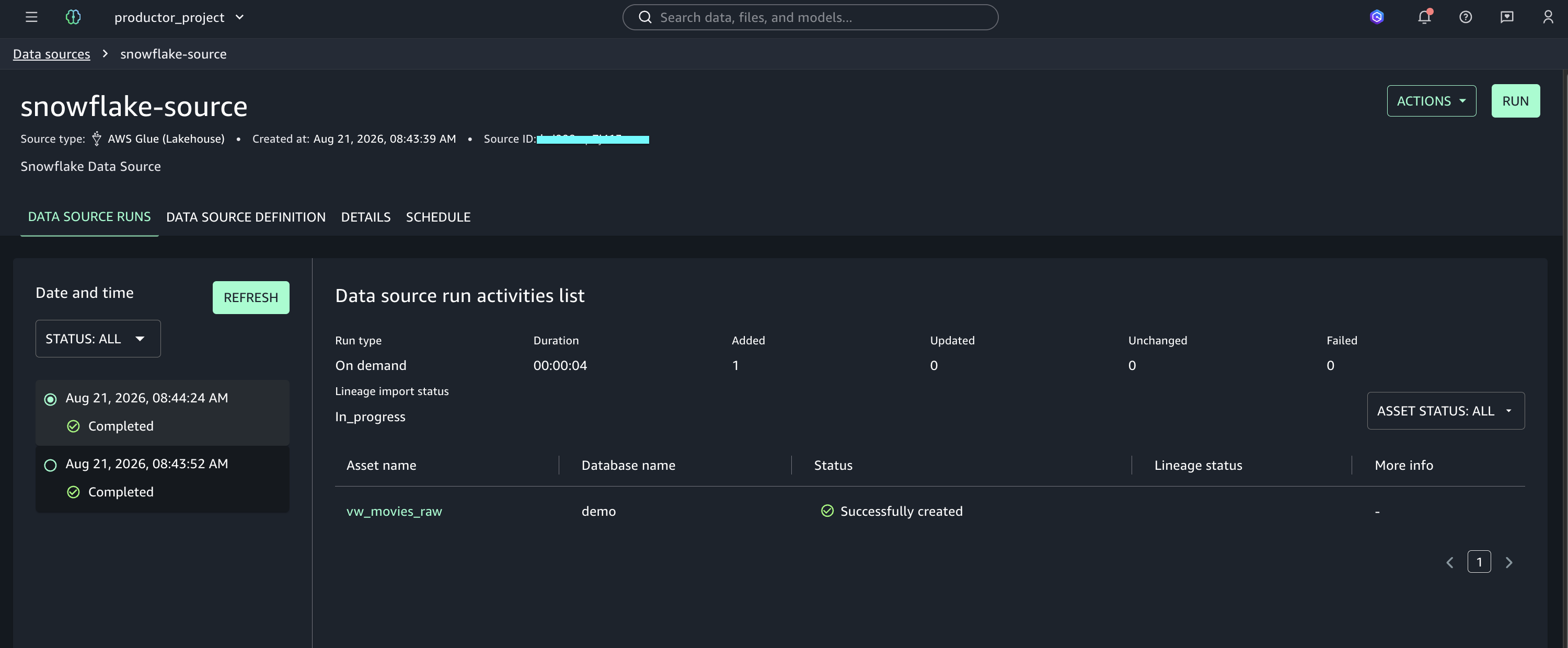
Choose Run to start extracting metadata from AWS Glue Data Catalog.
Wait for the run to complete.
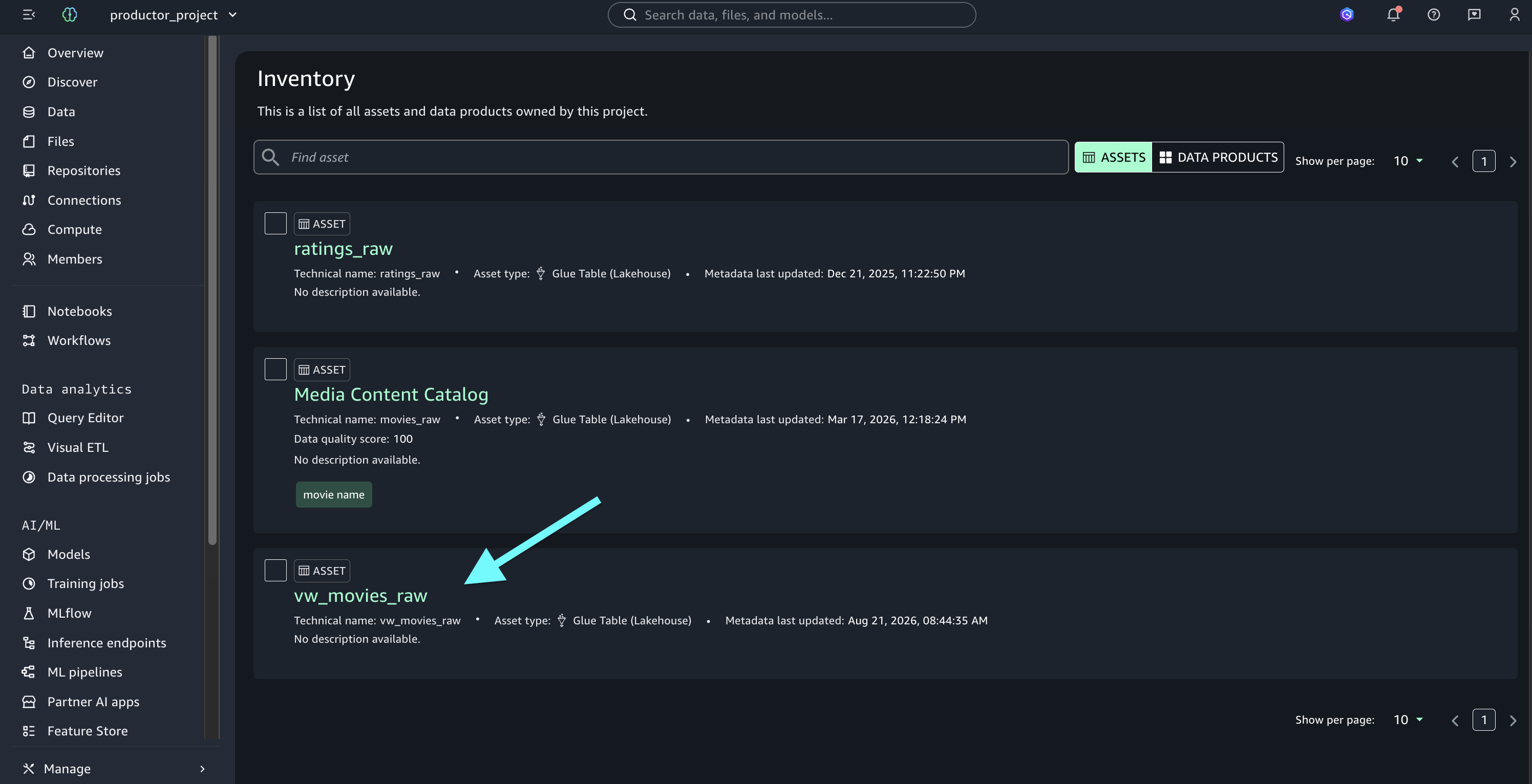
Go to Assets to view the Asset Inventory.
The following screenshot shows the asset inventory after the data source run completes.
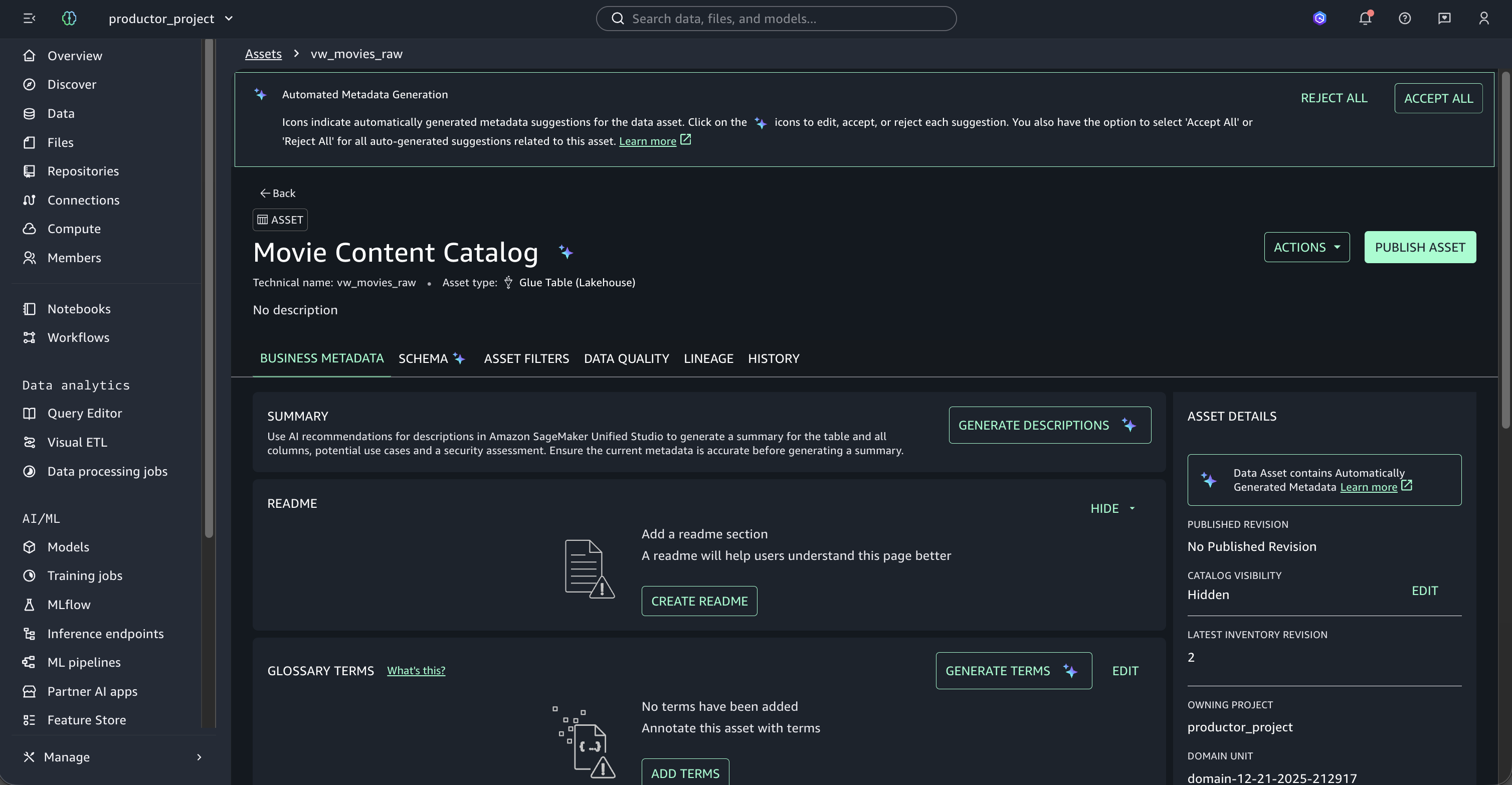
Choose an asset to view its details.
At this point, you can enrich the business context by choosing Generate Descriptions. Amazon SageMaker Catalog analyzes the asset’s technical structure and generate:
Business descriptions in natural language for the asset.
Contextual definitions for each field/column.
Suggested glossary terms that could be applied.
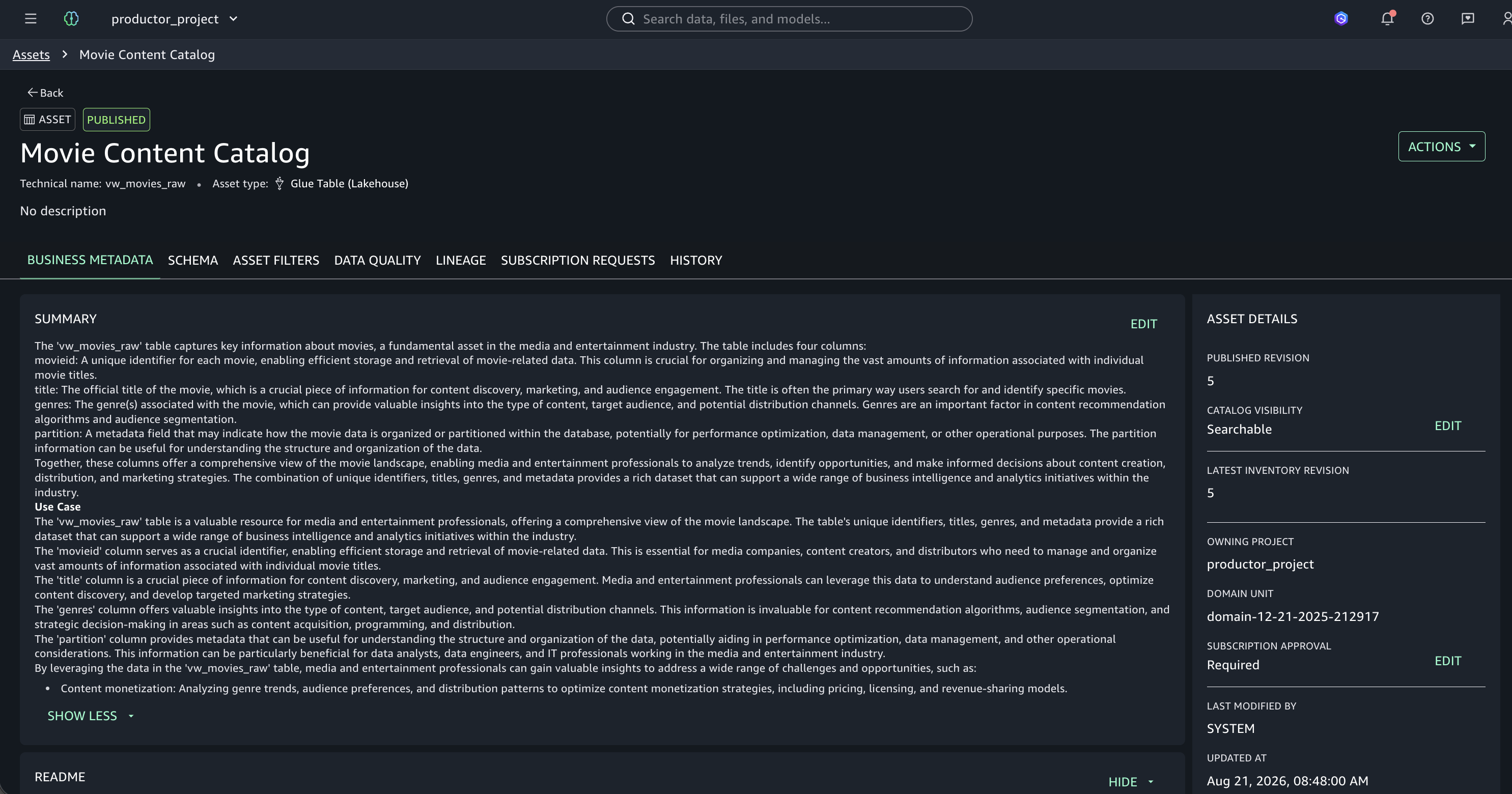
After your asset has been enriched with the necessary business metadata, you can publish it to the Amazon SageMaker Catalog by choosing Publish Asset.
The Snowflake enriched asset is now available to data consumers across your organization. Other users can discover it, subscribe to it, and consume it without data replication.
Implementing data quality rules with AWS Glue Data Quality
This section explains how to apply data quality validations to Snowflake data using AWS Glue Data Quality and visualize results in Amazon SageMaker Catalog.
Setting up the custom transform
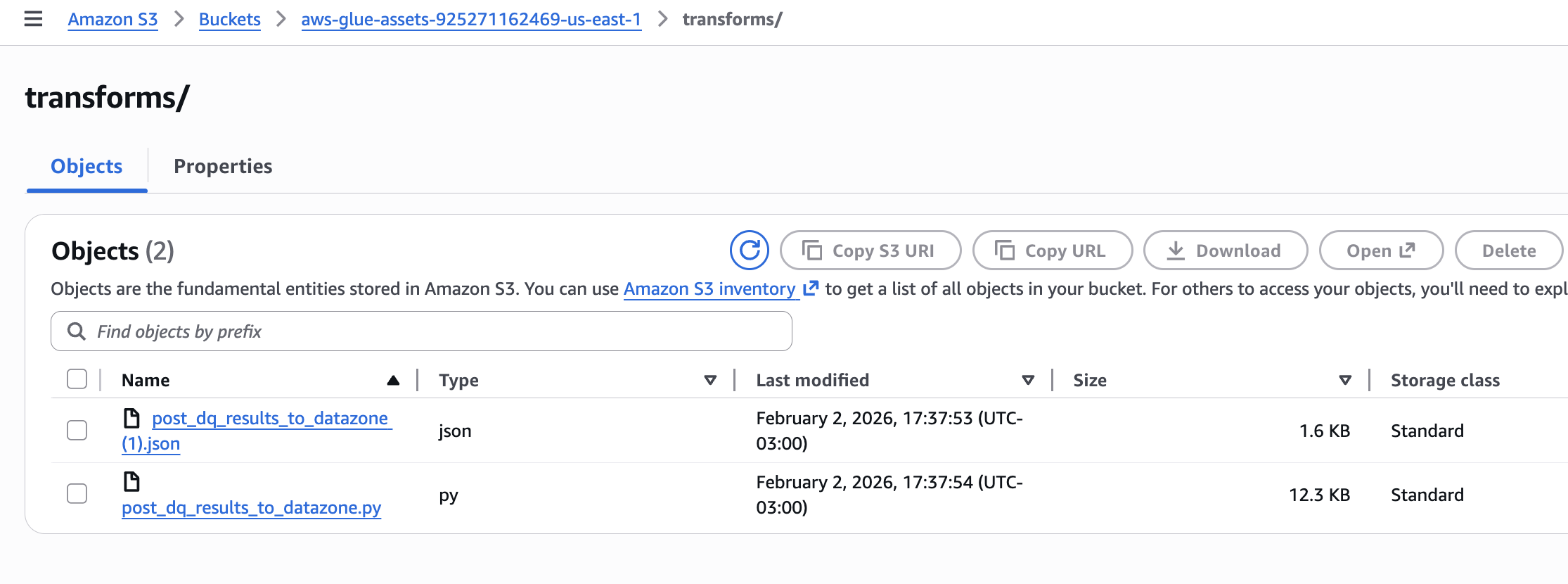
Upload two files to an Amazon S3 bucket in the same AWS account where you run AWS Glue:
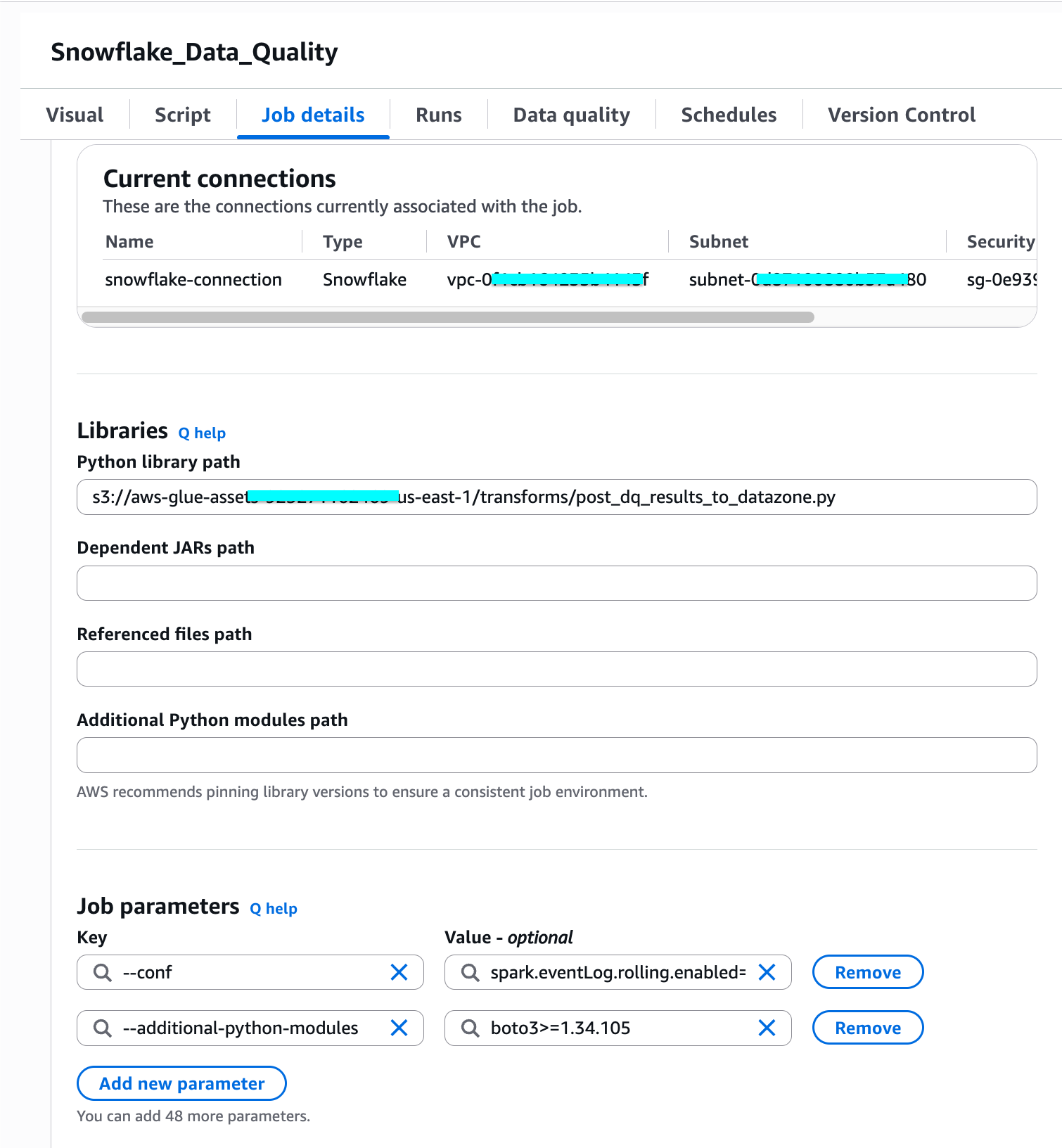
post_dq_results_to_datazone.py – Contains the transform logic that reads data quality rule outcomes and posts them to SageMaker Catalog.
Copy both files to your AWS Glue assets S3 bucket in the transforms folder (s3://aws-glue-assets-<account-id>-<region>/transforms). AWS Glue Studio reads all JSON files from this folder to register custom visual transforms.
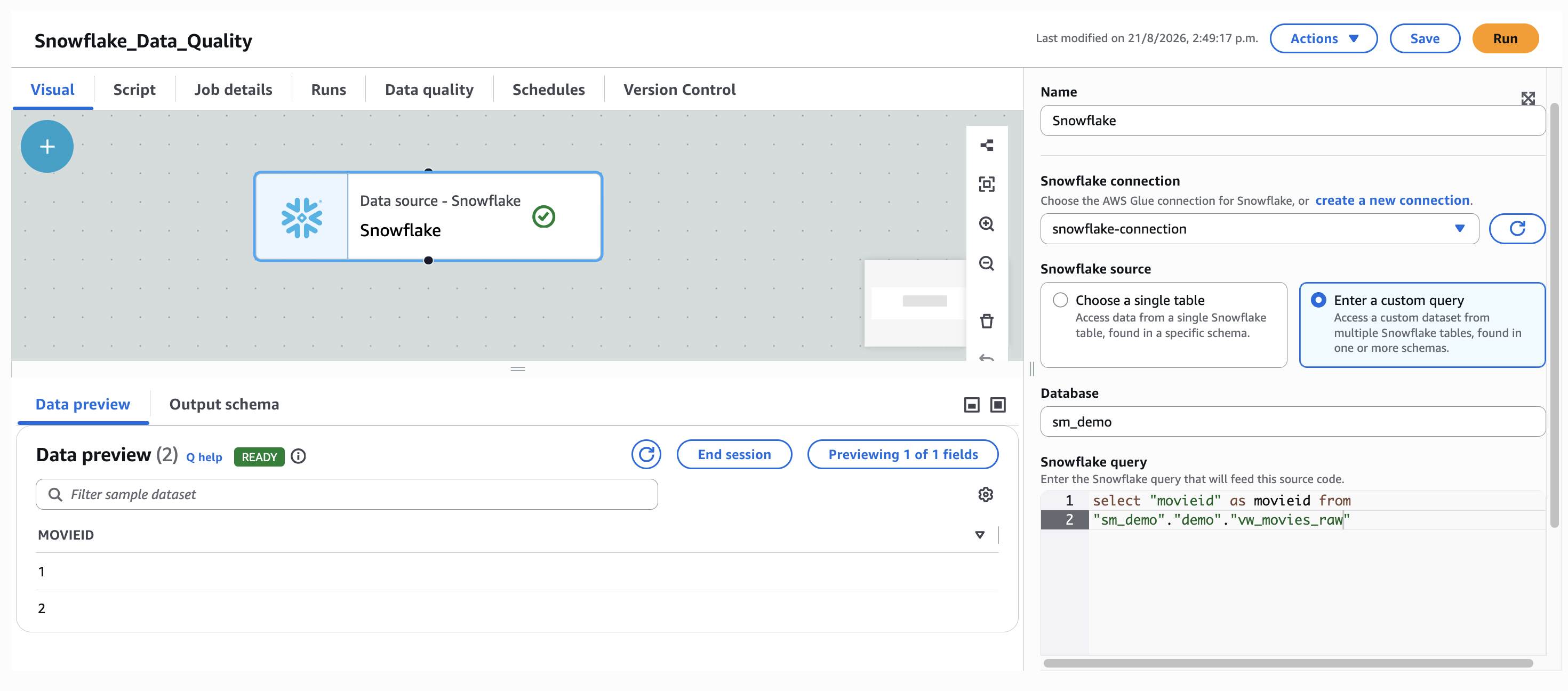
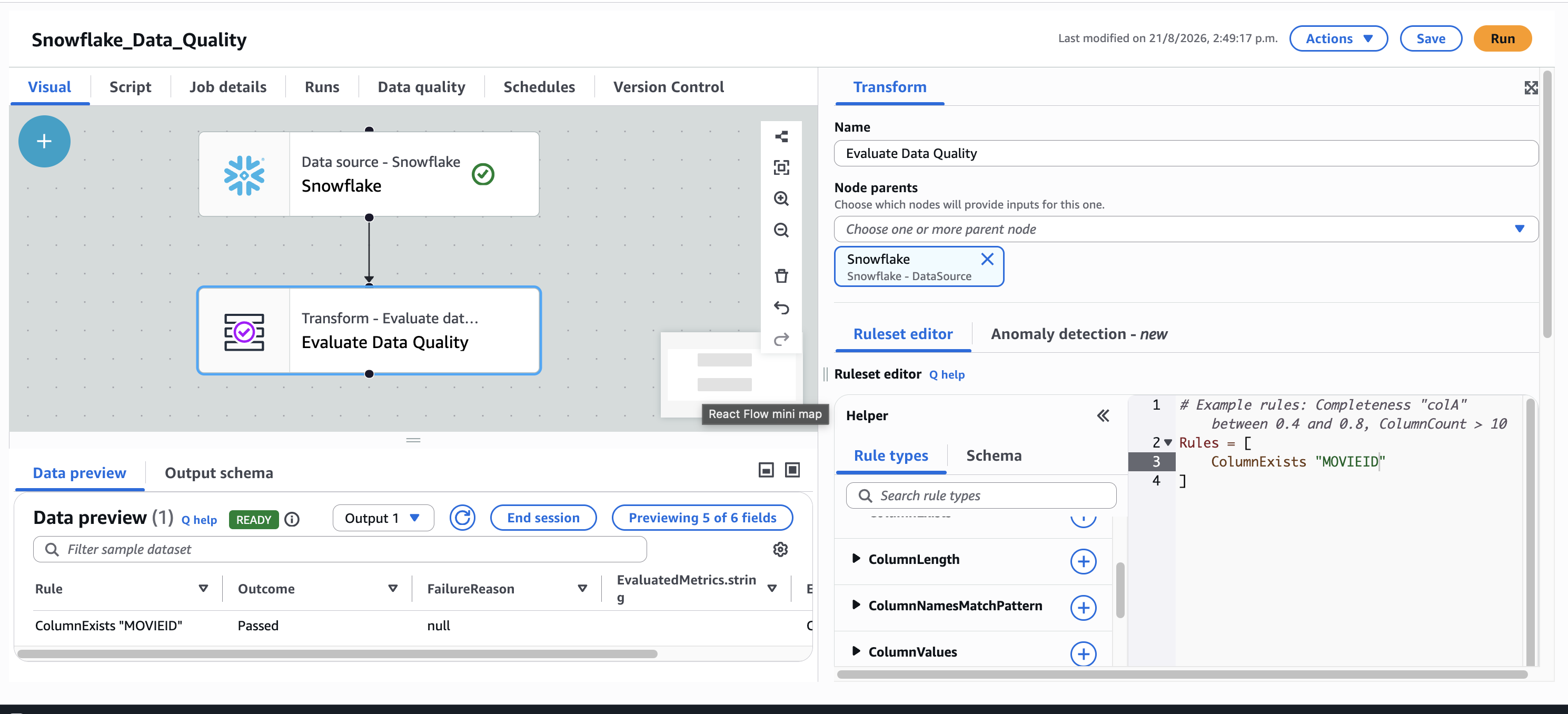
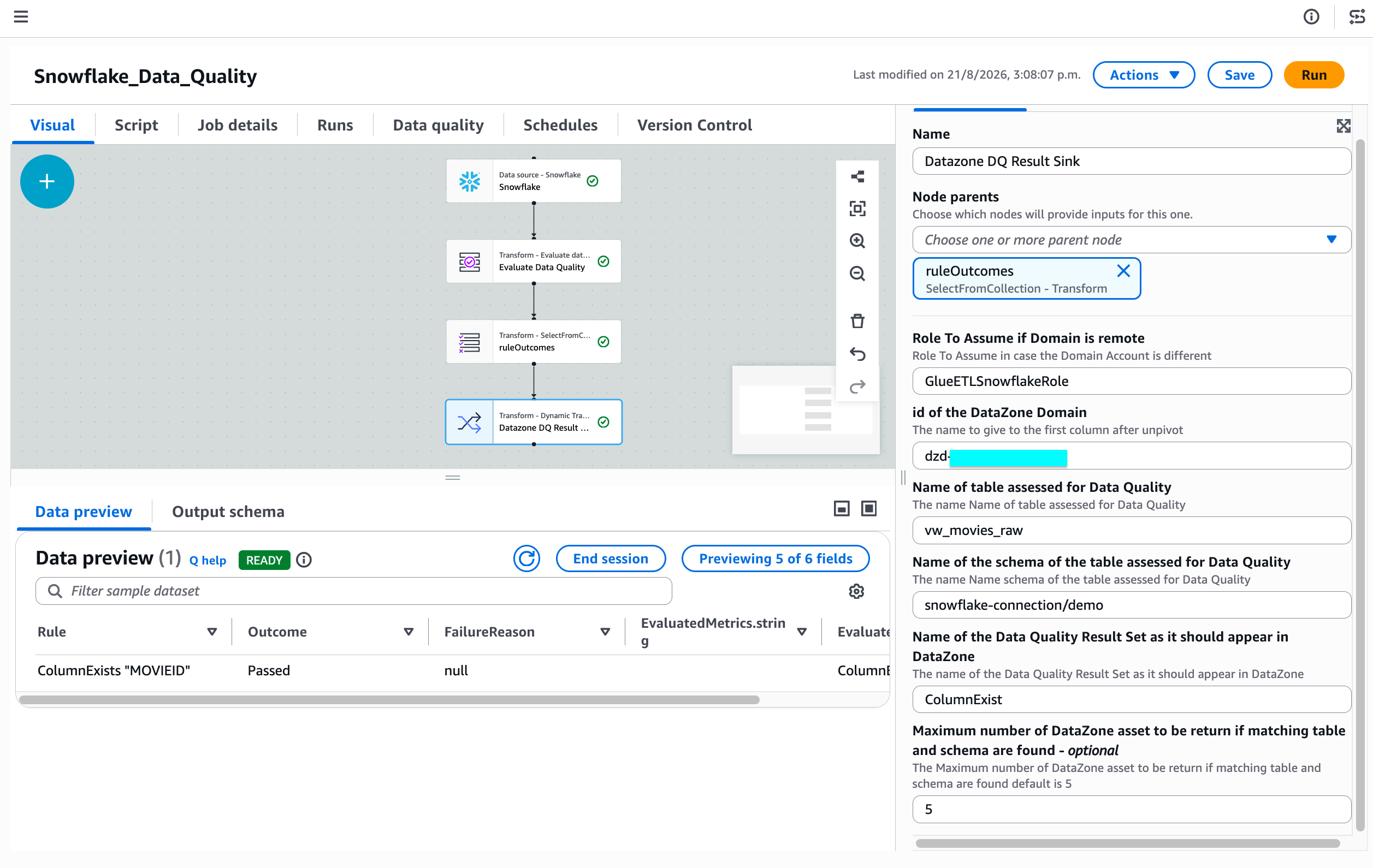
In the following sections, we walk you through the steps of building an ETL pipeline for data quality validation using AWS Glue Studio.
Creating the AWS Glue Visual ETL job
AWS Glue for Spark provides built-in support for reading from Snowflake data sources.
To create a new visual ETL job:
Open the AWS Glue console at https://console.aws.amazon.com/glue/. Choose ETL jobs, then Visual ETL.
AWS Glue console showing ETL jobs and the Visual ETL option
Establishing the Snowflake connection
To add a Snowflake source:
In the job pane, choose Snowflake as your source. For Snowflake connection, select the connection that you created earlier. Specify the relevant schema and table for data quality checks.
The visual editor displays the Data source properties panel where you select your connection, database, and enter a custom query targeting your Snowflake table.
Applying data quality rules
After establishing the Snowflake connection, configure the data quality evaluation step using the Data Quality Definition Language (DQDL).
To add data quality validation:
Choose Transform and choose Evaluate Data Quality.
Define domain-specific data quality rules using DQDL. For more information, see the AWS DQDL documentation.
Choose to output the data quality results. Optionally, store outcomes in Amazon S3 or publish to Amazon CloudWatch with alert notifications.
The preview of the data quality results from the ruleOutcomes node shows the outcomes of each rule.
Post the data quality results to Amazon SageMaker Catalog
To configure the custom transform:
Add the Datazone DQ Result Sink transform to your job.
Connect the ruleOutcomes node output to this transform.
Complete the parameters:
Role to assume (Optional): Only needed for associated accounts.
Domain ID: Your Amazon SageMaker Unified Studio domain ID (found in the Amazon SageMaker Unified Studio portal).
Table name and Schema name: Same values used when creating the Snowflake source transform.
Data quality ruleset name: The name you want to give to the ruleset in Amazon SageMaker Catalog.
Max results: Maximum number of assets to return in case of multiple matches.
The following image shows the complete job graph with the Datazone DQ Result Sink transform configured.
The visual editor displays four nodes connected sequentially: the Snowflake data source, the Evaluate Data Quality transform, the ruleOutcomes SelectFromCollection transform, and the Datazone DQ Result Sink transform.
To configure job parameters:
Choose Job details.
In Job parameters, add the following key-value pair:
--additional-python-modules
boto3>=1.34.105
Save and run the job.
Visualizing data quality results in the SageMaker Catalog
After the AWS Glue ETL job completes, you can view the data quality information directly in Amazon SageMaker Catalog. This is the key outcome of running data quality on a federated source: the asset gains quality scores and metadata without ever leaving Snowflake. This makes it trustworthy and ready for other teams across your organization to use. Data consumers can now discover this asset in Amazon SageMaker Catalog and evaluate its quality before subscribing, without needing direct access to Snowflake or running their own validation.
To view data quality results:
Open the Amazon SageMaker Unified Studio console.
Navigate to your project.
Go to Assets.
Choose the Snowflake data asset.
View the data quality information displayed on the asset page.
The following image shows the asset page in AmazonSageMaker Catalog with the data quality score populated.
The Data Quality tab shows an overall score of 100 and lists the rule set movies with a Passed result (1/1). This confirms that the data quality checks from AWS Glue posted successfully to Amazon SageMaker Catalog.
Clean up
To avoid ongoing charges, remove the resources you created during this walkthrough:
Delete the AWS Glue ETL job — Open the AWS Glue console, choose ETL jobs, select your job, and then choose Delete.
Remove the AWS Glue connection — In the AWS Glue console, go to Connections, select the Snowflake connection, and then choose Delete.
Delete the data source in SageMaker Catalog — In your Amazon SageMaker Unified Studio project, go to Data Sources, select the data source you created, and then choose Delete.
Remove S3 assets — Delete the custom transform files from your s3://aws-glue-assets-<account-id>-<region>/transforms/ bucket.
Remove IAM policies — Detach and delete the IAM policies you attached to the AWS Glue job execution role. Remove the role as a domain user and project member.
Conclusion
In this post, we showed you how to connect Snowflake to Amazon SageMaker Unified Studio for centralized data cataloging and quality validation. This approach maintains consistent governance without replicating data. Key benefits include:
Query without data movement: Access Snowflake data directly from Amazon SageMaker Unified Studio through federated queries, using the interoperable data architecture of AWS and eliminating time-consuming data replication.
Centralized governance: Maintain a single source of truth for data discovery, quality metrics, and governance policies across your distributed data estate.
Automated quality validation: Apply consistent data quality rules using AWS Glue Data Quality and visualize results directly in Amazon SageMaker Catalog.
Unified collaboration: Support data discovery and sharing across your organization through the publishing capabilities of Amazon SageMaker Catalog.
AWS Security Token Service (AWS STS) has simplified session token size limits, giving you more room for your session policies and session tags. STS has replaced the packed policy size and the overall session token size limits with a single token size limit of 4,096 bytes. STS now reports session token size in API responses, Amazon CloudWatch metrics, and AWS CloudTrail events. By using STS, you can also generate session tokens of different sizes, so you can find the maximum token size that your infrastructure can support.
The 4,096-byte limit is the current maximum, not a permanent ceiling. AWS might increase the limit as new capabilities are added that require session tokens to carry more information.
In this post, you learn what has changed, what this change means for you, and what to do next.
What has changed
AWS STS session-vending APIs, such as AssumeRole, AssumeRoleWithSAML, AssumeRoleWithWebIdentity, GetSessionToken, and GetFederationToken, return temporary security credentials: an access key ID, a secret access key, and a session token. This change governs the session token, the opaque string that STS creates from the session policies and tags you pass plus the context that AWS adds.
Three things have changed.
A single limit: Previously, STS enforced two size limits on the session token. It serialized and compressed your session policies and tags into a form called the packed policy, which had its own limit. The assembled token, which included the packed policy, had a separate overall limit. A request could fail against either limit, and both failures returned the same PackedPolicyTooLargeException, so you couldn’t tell which one you exceeded. STS now enforces a single limit: the assembled session token must fit within 4,096 bytes. The separate packed policy limit, which made failures hard to predict, has been removed. When a token exceeds the assembled session token limit, STS returns PackedPolicyTooLargeException. STS continues to use the same exception, so existing error-handling code works without an SDK update.
Session token size is now reported. Every successful response from an STS session-vending API includes SessionTokenSize (which reports the session token size in bytes) and SessionTokenUtilization (which reports the percentage of the 4,096-byte limit consumed). STS also returns PackedPolicySize in every successful response for backward compatibility. PackedPolicySize now reports the same value as SessionTokenUtilization, enabling applications that use older AWS SDK versions to monitor utilization through this field. These response fields are also recorded in CloudTrail events. In CloudWatch, SessionTokenSize and SessionTokenMaxSize (the enforced limit) are published in the AWS/STS namespace.
Testing is more straightforward:MinimumSessionTokenSize is a new optional parameter on the STS session-vending APIs. You can use it to increase a session token to at least the size you specify, up to 4,096 bytes. Use the parameter to find the maximum token size your infrastructure can handle.
Behavior
Previously
Now
Limits enforced
Two: Packed policy size and assembled token size
One: Assembled session token size (4096 bytes)
Error on failure
PackedPolicyTooLargeException: The error message didn’t identify which of the two limits was exceeded.
PackedPolicyTooLargeException: The updated message reports your session token size and the maximum allowed size, both in bytes.
Session token size visibility
Not reported
API Response and AWS CloudTrail:
SessionTokenSize, SessionTokenUtilization, and PackedPolicySize. PackedPolicySize reports the same percentage as SessionTokenUtilization for backward compatibility.
Amazon CloudWatch:
SessionTokenSize and SessionTokenMaxSize
Infrastructure testing
No mechanism
MinimumSessionTokenSize: Parameter on sesssion-vending APIs
What this change means for you?
How this affects you depends on your situation. The following scenarios cover the most common cases.
If you have never hit a token size error: You’re unlikely to notice a change. Your tokens stay their current size and gain headroom. Over time they could become larger than your systems have handled before. We recommend you use MinimumSessionTokenSize to find the maximum token size your systems can handle. See the What to do next section for more details.
If you’ve hit PackedPolicyTooLargeException before: Some requests that previously failed now succeed under the single limit. Review any workarounds you put in place specifically to avoid token size errors and decide whether you still need them. General best practices still apply: consistent tag casing and reused tag values compress more efficiently, and concise session policies keep the assembled token smaller. No code change is required for error handling. AWS STS still returns PackedPolicyTooLargeException when the assembled session token exceeds the limit, the same exception STS returned before this change.
If your systems enforce their own size limits on credentials: If your application uses an AWS SDK to obtain temporary credentials and make AWS API calls, the SDK handles the session token internally, so token size doesn’t affect your code. Focus instead on systems that store or forward session tokens, such as load balancers, proxies, caches, and databases. These systems might have size limits that smaller tokens didn’t reach. For example, a database column defined as varchar(2048) can’t hold a 4,096-byte token. Review where you persist or pass session tokens, and identify the maximum token size each system supports. The next section shows how to test this.
What to do next
We recommend the following three steps to prepare your systems for this change.
Validate the maximum token size your systems can handle. Use MinimumSessionTokenSize to find the maximum session token size each system in your infrastructure can handle. Knowing these limits helps you identify systems that might reject or truncate larger tokens. The 4,096-byte limit reflects today’s needs, not a permanent ceiling. It might grow as AWS introduces new capabilities such as additional context keys for new services, richer audit metadata, and larger cryptographic signatures as the industry transitions to post-quantum algorithms. Avoid hard-coding the current maximum into your systems and revisit any fixed size assumptions if the limit changes.
Tip: AWS STS serializes and compresses your session policies and tags when assembling the token. Compression results vary based on the actual content, not just its length. Two sets of tags with identical character counts can produce different token sizes. This is why MinimumSessionTokenSize is a more reliable way to test your infrastructure than estimating from input length.
Start at 4,096 bytes to test against the largest possible token. If a system truncates or rejects it, lower the value to find the size your infrastructure supports, then raise that limit where you can. MinimumSessionTokenSize is available in the latest AWS SDK, AWS Command Line Interface (AWS CLI), and Tools for PowerShell versions. See the STS API Reference for details. If your AWS SDK or AWS CLI predates the parameter, update it to use this feature.
Monitor your session token size (recommended). If your infrastructure has size constraints, you can use monitoring to see tokens that are approaching your limit and act before a request fails. AWS STS reports size through three channels, each suited to a different need.
In the API response: Reading SessionTokenUtilization and SessionTokenSize from the response requires the latest AWS SDK version. You can also monitor token size through CloudWatch and CloudTrail without updating your SDK.
In CloudWatch: STS publishes SessionTokenSize and SessionTokenMaxSize in the AWS/STS namespace. Use them to build dashboards and set alarms. Set your alarm against the size limit you found during testing, not the 4,096-byte maximum. The maximum is the same for every account, so your own infrastructure limit is the one that matters.
The following figure shows the SessionTokenMaxSize and SessionTokenSize metrics graphed in the CloudWatch console.
Figure 1: SessionTokenMaxSize and SessionTokenSizemetrics in the CloudWatch console
In CloudTrail: Each STS session-vending event records SessionTokenUtilization and SessionTokenSize for successful calls.
Use appropriate fields for monitoring session token utilization. AWS STS still returns PackedPolicySize in session-vending API responses and CloudTrail records for backward compatibility. The field now reports the same value as SessionTokenUtilization: the percentage of the 4,096-byte session token size limit consumed by the token. As a result, PackedPolicySize values might appear lower even when your token content has not changed.
If your SDK exposes SessionTokenUtilization, use that field because its name reflects the value’s current meaning. If an earlier SDK does not expose SessionTokenUtilization, use PackedPolicySize to monitor the same utilization percentage without updating the SDK. We recommend you monitor SessionTokenSize for the token size in bytes.
Conclusion
You now have more room for session tags, tag values, and session policies in your AWS sessions. AWS STS enforces a single 4,096-byte session token limit, returns a clearer error message when a token exceeds it, and reports token size so you can track growth proactively. Validate your token-handling systems with MinimumSessionTokenSize, and watch SessionTokenUtilization and SessionTokenSize for ongoing visibility.
Your consumer identity and access management (CIAM) system is the foundation of your customer experience. It’s how users sign in, access services, and engage with your applications. As your business scales across geographies, ensuring authentication is always available becomes a core architectural requirement. However, building multi-Region authentication has traditionally required complex custom replication solutions that synchronize user data, manage consistency, and handle failover, all adding significant operational overhead. Amazon Cognito simplifies this with multi-Region replication (MRR), which automatically replicates user pools across AWS Regions with near-real-time synchronization, built-in failover, and seamless sign-in, while keeping operational complexity and costs optimized.
In this post, we show you how to prepare your user pool for MRR, provide architectural decisions and reference architectures for business to consumer (B2C), business to business (B2B), and machine to machine (M2M) use cases, and practical guidance on implementing failover strategies.
Amazon Cognito MRR at a glance
Amazon Cognito MRR creates a replica user pool in another AWS Region (a replica Region) that shares the same user pool ID as your primary user pool. The primary user pool (the user pool in your primary Region) remains authoritative, and its configurations (app client IDs, client secrets), user data (attributes, hashed credentials, group memberships), and external identity provider (IdP) settings are replicated to the replica with eventual consistency.
The user pool in the replica Region (replica user pool) supports user authentication operations (such as sign-in, token generation and revocation) and read-only operations towards user pool configurations and user attributes (such as list users and groups and describe user pool configurations). Write operations against user pool configurations and updating user attributes aren’t enabled in the replica user pool and can only be made in the primary user pool. Amazon Cognito returns an Action temporarily unavailable error when using managed login, or an OperationNotEnabledException when using an AWS SDK for those operations. See Supported API operations in secondary Regions for a list of API operations supported in replica Regions.
JSON web tokens (JWTs) and active sessions are interoperable between Regions; for example, a refresh token issued by the primary Region is accepted in the replica Region to retrieve new ID and access tokens.
While this post primarily focuses on MRR architecture patterns and considerations, you can visit the following posts to learn more about MRR basics and the next-generation infrastructure behind it:
You only need to set up one replica multi-Region key for your customer managed key because Amazon Cognito MRR supports only one additional replica Region.
You own the administration of the customer managed key, including key policies, rotation, and deletion. You can also consider a key rotation strategy before enabling MRR or enable automatic key rotation.
Follow least-privilege principles in KMS key policy and scope the KMS key to your user pool only. You can do so by applying a condition statement: kms:EncryptionContext:aws:cognito-idp:<userpool-arn>. See the data encryption section in the Amazon Cognito developer guide for a full example key policy.
Choose a multi-Region OIDC issuer
In each ID and access tokens, Amazon Cognito includes a default Issuer claim in the JWT payload, referred as iss, to represent the identity provider that issued the token. The OpenID Connect (OIDC) specification dictates that the iss format must be a URL that uses https scheme and publishes a JSON metadata document about the identity provider available at the <iss>/.well-known/openid-configuration path. The metadata document must also include the JSON Web Key (JWK) document in the <iss>/.well-known/jwks.json path, which contains the signing keys to validate the token signatures for its integrity.
The original issuer type follows the format as https://cognito-idp.<region>.amazonaws.com/<userpool_id>. However, this issuer URL format and the OIDC well-known metadata are regional resources. As part of the MRR capability, Cognito introduces a new multi-Region OIDC issuer type, the updated issuer, and follows the format as https://issuer-cognito-idp.<region>.amazonaws.com/<userpool_id>. This new updated issuer type replaces the original single Region type and maintains availability of the issuer endpoint regardless of the state of primary or replica Region.
Based on the issuer URL format you select, your OpenID Connect discovery endpoint is hosted at <iss>/.well-known/openid-configuration and your JSON Web Key Set (JWKS) endpoint at <iss>/.well-known/jwks.json. Both original type and updated type are supported with the Amazon Cognito MRR capability. You can change the issuer type at any stage in your MRR journey, and the newly issued tokens, including those generated by refresh tokens, will reflect the most current issuer type configurations.
We recommend adopting the updated issuer type. With the updated issuer type, the OpenID Connect discovery document and JWKS endpoint remain consistent and available regardless of which Region is servicing requests. This means your applications can always fetch signing keys for token verification, even during a regional impairment.
To adopt the updated issuer type, update your applications and downstream dependencies to validate against the new updatediss value. If you use the aws-jwt-verify library, update to v5.2.1 or later that supports updatedissuer type. Plan this as a coordinated deployment; existing ID and access tokens with the original issuer type remain valid and accepted by Amazon Cognito endpoints until they expire. When using an existing refresh token to exchange for a new set of ID and access tokens, new tokens always carry the current issuer format configuration at the time of token refresh operation, providing interoperability across two issuer formats.
If you can’t immediately adopt the multi-Region issuer—for example, because downstream services or third-party integrations validate the iss claim against a hard-coded original format pattern—you can enable MRR while continuing to use the originalissuer type. However, in this configuration the OIDC discovery endpoint and JWKS endpoint are tied to a single Region and might be unavailable during a regional impairment. Your multi-Region application might not be able to fetch public keys dynamically and validate token signatures. To mitigate this, it’s a good practice to implement a JWKS caching strategy in your token verification layer. Cache the signing keys locally (respecting the Cache-Control headers) so your applications can continue to validate tokens using cached keys when the JWKS endpoint is unreachable. This approach lets you benefit from MRR for user authentication while maintaining token verification continuity until you’re ready to complete the issuer migration. To learn more about the original and updated issuer types, see the Amazon Cognito user pools as an OIDC issuer section of the developer guide.
Configure regional service dependencies
Amazon Cognito user pools support several integrations with AWS services for extended customization functionalities. Those AWS services are regional services and must be configured independently in the replica Region, including:
AWS Lambda – Lambda triggers (for example, pre-authentication, pre-token generation, and others) are invoked in different authentication stages and should be deployed in the replica Region and attached to the replica user pool to match customized behaviors in the primary user pool. When deploying Lambda triggers, you can adopt the same logic for both primary and replica user pools and access to downstream resources or set up a different logic to characterize different behaviors when requests are served in the replica Region.
AWS WAF – WAF web access control lists (web ACLs) are associated to protect the user pool from unwanted requests. When accepting traffic to the replica user pool, create matching WAF web ACLs in the replica Region.
Amazon Simple Notification Service (Amazon SNS) – If you send text messages (for example, SMS-based multi-factor authentication (MFA), passwordless authentication, or SMS notifications), configure Amazon SNS in the replica Region. SNS requires additional set up (origination identities, spending limits) in each Region, and sender ID registration time depends on several factors.
Amazon Simple Email Service (Amazon SES) – If you use Amazon SES for email delivery, verify sending domains and email addresses in the replica Region and configure your replica user pool accordingly.
Amazon CloudWatch – If you export user activity logs from Amazon Cognito to a CloudWatch log group, or monitor service quotas in CloudWatch, configure alarms and analytics accordingly.
Use infrastructure-as-code tools like AWS CloudFormation or AWS Cloud Development Kit (AWS CDK) to maintain consistent configurations and deployments across Regions and environments. You should also monitor for any configuration drifts between assets.
Consider automatic domain failover
For authentication use cases that rely on managed login and OAuth 2.0 endpoints—including federated authentication and M2M authorization—Amazon Cognito supports automatic failover to the replica Region with an Amazon Route 53health check. Cognito uses the health status of Route 53 health check to control whether traffic routes to the primary or replica user pool. The health check can be set up to monitor the health of an endpoint, a CloudWatch alarm, or a calculated number of other health checks, so you determine what triggers a healthy or unhealthy state and can adjust traffic routing as needed.
Both the Amazon Cognito prefix domain (for example, auth.us-east-1.amazoncognito.com) and custom domain (for example, auth.example.com) support automatic domain failover. Your domain serves as the single entry point for the user pool OAuth 2.0 endpoints and directs traffic to the managed login pages. Cognito automatically fails over domain traffic to the replica Region when a Route 53 health check becomes unhealthy and fails back to the primary Region when the check is healthy. You don’t need to create another prefix domain in the replica user pool for failover use cases.
With the automatic failover capability, you can use a single domain to serve external IdP configurations, including redirect URIs and SAML assertion consumer URLs. For example, use https://auth.example.com/saml2/logout to send SAML 2.0 sign-out responses. Because the domain can serve traffic to both the primary and replica Regions and remains unchanged across Regions, your external IdP configurations stay consistent across Regions, and existing federated users continue to authenticate without disruption. This means that you can enable MRR without having to contact external IdP admins to update configurations; all existing configurations will continue to work.
For SDK-based authentication use cases without managed login, a custom domain isn’t strictly required. We recommend configuring a custom endpoint for SDK requests to simplify failover orchestration, so you don’t have to modify the Region parameter in the SDK configuration. Behind your custom endpoint, you can use the same Route 53 health check or a custom load balancing strategy to proxy API requests to primary or replica Region endpoints. You might also consider load balancing user authentication traffic, by referring to an X-Amz-Target HTTP header (for example, X-Amz-Target: AWSCognitoIdentityProviderService.InitiateAuth), to both the primary and replica Regions, while keeping user sign-up operations in the primary Region. If you use both managed login and SDK authentication in the same user pool, you can consider using the custom domain as the custom endpoint of the SDK for a streamlined operation, where Route 53 health check initiates failover and failback between the primary and replica Regions.
Plan for TOTP MFA alternatives
Time-Based One-Time Password (TOTP) MFA isn’t supported in replica user pools. Users configured to use TOTP MFA must authenticate through the primary Region. If your application relies on TOTP as a second factor, this limitation requires careful planning because you want to enable an alternative MFA for your users, such as SMS OTP, email OTP, or passkey.
Review quotas
When you activate a replica user pool, you gain a separate set of default quotas in the replica Region. Previously reserved higher quotas for your user pool in the primary Region aren’t carried over to the replica Region.
Data sovereignty
When selecting a replica Region for your user pool, consider your organization’s data sovereignty and residency requirements, as user identity data will be replicated to and stored in that Region. For guidance on navigating compliance, continuity, and control obligations that may influence your Region selection, see Practical digital sovereignty: Navigating the pillars of compliance, continuity, and control.
Reference architectures
In this section, we show you reference architectures for common authentication patterns using the Amazon Cognito MRR capability. Each architecture demonstrates how Cognito MRR works with different authentication use cases.
Managed login and federation
Amazon Cognito managed login provides a fully managed authentication UI that handles sign-in, sign-up, and federation flows. With MRR, managed login endpoints are served from the healthy user pool based on your Route 53 health check configuration. Managed login also includes OAuth 2.0 endpoints and can be used with local Cognito accounts and federated users. Figure 1 depicts a reference architecture for using managed login to authenticate Cognito users.
Figure 1: Cognito MRR reference architecture for managed login and federation use cases
When using Amazon Cognito with managed login, the process flow is:
The user visits the application and is redirected to the managed login to begin the authentication flow.
Managed login uses the Route 53 health check to control traffic routing.
If the health check returns a healthy status, all traffic to the managed login flows to the primary Region user pool for user authentication.
For a federated user, the primary Region user pool redirects the user to a federated IdP or social IdP for authentication. After successful authentication, Amazon Cognito creates or updates user attributes depending on whether it’s a new user signing in for first time or an existing user.
If the health check returns an unhealthy status, all traffic to the managed login flows to the replica Region user pool. Cognito users will authenticate against the replica user pool.
The replica Region user pool endpoint redirects federated users to external IdPs. However, any user creation or attribute update against replica user pool will fail until the health check returns healthy and traffic routes back to the primary Region.
M2M architecture
In an M2M architecture, services authenticate using the OAuth 2.0 client credentials grant. This flow doesn’t involve users; instead, backend services exchange client credentials for access tokens.
Figure 2: Cognito MRR reference architecture for machine-to-machine use case
The authentication flow is:
Application clients send a POST request to the Amazon Cognito /token endpoint with client credentials.
Managed login uses the Route 53 health check to determine whether traffic should flow to the primary or replica user pool.
If the health check returns a healthy status, traffic to the /token endpoint will flow to the primary Region user pool.
If the health check returns an unhealthy status, traffic to the /token endpoint will flow to the replica Region user pool. After the health check returns to a healthy status, traffic will return to routing to the primary user pool.
SDK-based architecture
For applications that use AWS SDK or Amazon Cognito APIs directly (rather than through managed login), the authentication flow is embedded in your application code. This gives you more control over the user experience but requires additional considerations for failover.
Figure 3: Cognito MRR reference architecture for SDK use cases
The process shown in Figure 3 is:
The user visits the application and signs in through a custom UI (using APIs or SDKs).
(Optional) An Amazon Route 53 health check is configured to perform a health check against regional proxy endpoints and determine traffic routing. You can also use a custom health check or your DNS resolver to make traffic routing determinations.
If the health check returns a healthy status, all traffic to the proxy endpoints will flow to the primary Region proxy for user authentication. You can also choose to load balance user authentication traffic across both the primary and backup Regions.
The primary Region Amazon API Gateway proxy forwards user requests to the Amazon Cognito regional endpoint.
If the health check returns an unhealthy status, all traffic will flow to the replica Region proxy.
The replica Region API Gateway proxy begins forwarding user requests to the Amazon Cognito regional endpoint until the health check returns to healthy status.
In an SDK-based architecture, Amazon Cognito regional endpoints can also be called directly. You can also set up custom routing to use replica Region endpoints to load balance user authentication requests by routing read-only requests to both the primary and replica Region endpoints while keeping write requests in the primary Region.
Failover strategies
Now that you’ve set up multi-Region replication with Amazon Cognito, the next step is to test and monitor your multi-Region configuration. In this section, we walk through strategies for monitoring your endpoints, determining when to trigger failover, and testing your failover readiness.
Monitor with Route 53 health checks
Failover for Managed Login and all OAuth 2.0 flows is driven by Amazon Route 53 health checks associated with your Amazon Cognito prefix or custom domain. You’re responsible for what determines the state of this health check. The health check isn’t tied to your DNS CNAME record but is the signal that tells Amazon Cognito whether to route traffic to the primary or replica Region for all managed login endpoints. When the health check fails, Amazon Cognito routes traffic to the replica user pool. When the health check recovers, traffic is restored to the primary user pool.
A practical approach to get started to build a health check:
Create a synthetic canary – Use Amazon CloudWatch Synthetics to run a canary that periodically exercises an actual authentication flow against your primary Region. For example, the canary can perform a client credentials token request against your Amazon Cognito domain’s /oauth2/token endpoint or execute a full AdminInitiateAuth API call with test credentials. This validates that the end-to-end authentication path is functional, not just that an endpoint is responding.
Tie the canary to a CloudWatch alarm – Configure a CloudWatch alarm on the canary’s SuccessPercentCloudWatch metric. Set a threshold that accounts for transient errors (for example, alarm when success drops below 90% for three consecutive evaluation periods).
Connect the alarm to your Route 53 health check (optional) – Create a Route 53 health check that monitors the CloudWatch alarm. When the alarm enters the ALARM state, the health check fails, and Amazon Cognito routes traffic to the replica user pool. If you prefer to rely on human intervention, skip this step and instead configure the CloudWatch alarm alert your operations team to manually invert the health check.
After you have your health check, associate it with your Amazon Cognito domain using the UpdateUserPoolDomain API or the Amazon Cognito console.
Authentication-only compared to full-stack failover
Before implementing failover, consider how your authentication layer relates to the rest of your application stack. There are two common patterns:
Authentication-only failover – Your application remains in a single Region, but authentication traffic fails over to the Amazon Cognito replica if only the primary Region’s authentication service is impaired. This works when your application can continue operating with tokens already issued (for example, cached JWTs, active sessions) and when downstream APIs don’t depend on the same Region as your user pool. Consider this option when the rest of your stack has its own availability model.
Full-stack failover – Your entire application—compute, data stores, APIs, and authentication—fails over to a replica Region. In this model, Amazon Cognito MRR is one component of a broader multi-Region architecture where authentication flows have tight dependencies on regional resources (such as Lambda triggers calling regional Amazon DynamoDB tables, or post-authentication logic writing to a regional event bus) that must be co-located with the user pool.
Use Amazon Application Recovery Controller (ARC) to coordinate failover across all components with a single action. ARC provides three capabilities that are particularly relevant for multi-Region authentication architectures:
Routing controls – Extremely reliable data plane controls that let you shift DNS traffic across Regions, with safety rules that prevent partial or unintended failovers (for example, preventing you from failing over authentication without also failing over the dependent API layer).
Readiness checks – Continuous monitoring of resource quotas, capacity, and network routing policies in your secondary Region, so you have confidence that the replica environment—including your Amazon Cognito replica user pool and its regional dependencies—can handle production traffic before you failover.
Region switch – Centralized, automated, and observable multi-Region recovery orchestration across multiple AWS accounts and resources, so you can execute a coordinated failover of your Cognito user pool alongside databases, compute, and APIs in a single recovery plan.
ARC is particularly valuable when your Amazon Cognito Lambda triggers, WAF rules, SNS and SES configurations, and downstream services all need to switch Regions in lockstep. Rather than managing failover for each component independently, you can use ARC to define a single recovery group that treats your authentication stack and application stack as one unit. To learn more about the capabilities and use cases of ARC, see Introducing Amazon Route 53 Application Recovery Controller.
The right choice depends on your recovery scope. Map the dependencies in your authentication flow: if your Lambda triggers call regional DynamoDB tables or your post-authentication logic writes to a regional event bus, those tight couplings point to full-stack failover. If your application validates tokens independently and doesn’t make real-time calls back to Amazon Cognito after token issuance, authentication-only failover keeps both your blast radius and operational overhead smaller.
Determine when to failover
Triggering failover too aggressively risks unnecessary disruptions; too conservatively risks a drop in desired availability. Here are the factors to balance:
Monitor authentication flow health – Validate that critical flows are functioning, including managed login endpoint availability and token endpoint responses.
Use composite health checks – Combine multiple signals. For example, require both the managed login and token endpoints to be healthy.
Set appropriate thresholds – Configure failure thresholds (for example, three consecutive failures) to distinguish transient errors from genuine impairments.
Consider downstream dependencies – Factor in Lambda triggers, external IdPs, and other regional services.
Client side retry logic – For SDK-based single-page application (SPA) architectures, consider implementing client-side retry logic with Region failover. When the primary Region is unavailable, your application should detect the failure and redirect authentication of API calls to the replica Region’s Amazon Cognito endpoint.
Understanding and determining the recovery time objective (RTO) and recovery point objective (RPO) should also be the key factor in determining when and why to failover. See the Establishing RPO and RTO Targets for Cloud Applications blog post to learn more.
Test failover readiness
If using Route 53 health check, start by manually inverting your Route 53 health check during a maintenance window. In the Route 53 console, enable Invert health check status to force the health check into a failed state; this triggers failover to the replica Region without requiring any infrastructure changes. While traffic is routing to the replica Region, validate that your critical authentication flows (sign-in, token refresh, federation) work correctly, then disable the inversion to restore traffic to the primary. This test confirms your end-to-end failover path is functional.
When you’re confident in the basic failover path, graduate to more realistic failure simulations with AWS Fault Injection Service (FIS). Create FIS experiment templates that disrupt your primary Region’s Amazon Cognito dependencies; for example, block network access to a dependent resource or inject latency into downstream API calls. Use FIS stop conditions (guardrails) to automatically halt experiments if unexpected impacts are detected. These experiments validate not just that failover triggers correctly, but that your replica Region handles real authentication load under degraded conditions.
We recommend conducting failover tests on a predefined and regular cadence and after any significant changes to your authentication architecture. Document your runbooks and make sure your operations team is familiar with both the failover and recovery procedures.
Conclusion
In this post, we built on the foundational knowledge of the Amazon Cognito MRR capability and showed you how to architect resilient authentication for real-world use cases:
The principle of least privilege is straightforward to articulate but challenging to maintain at scale. When teams first deploy applications to AWS, they often grant broader permissions than strictly necessary; it’s faster to get things working, and the plan is always to tighten permissions later. But later rarely comes. Permissions accumulate, AWS Identity and Access Management (IAM) principals that once needed broad access for initial deployment retain those permissions long after they’re necessary, and some principals stop being used entirely. Even small teams face this challenge—permission reviews aren’t a one-time task but an ongoing operational burden that demands automation.
AWS IAM Access Analyzer addresses detection and recommendation. It identifies unused permissions across IAM roles and users: actions that haven’t been exercised, services that haven’t been accessed, and principals that aren’t being assumed at all. For each finding, it generates a recommended policy with the excess permissions removed. Security teams can see exactly what to fix, but manual remediation doesn’t persist. A security engineer can right-size a role today, but if that role is defined in an AWS CloudFormation template or AWS Cloud Development Kit (AWS CDK) stack, the next deployment restores the original permissions. The fix must live where the role is defined, and not every role starts in the same place. Some are managed through infrastructure-as-code (IaC), where remediation means updating source code and deploying through a pipeline. Others were created manually through the AWS Management Console and have no code representation. And some principals aren’t being used at all and need a controlled decommission path. Each scenario requires a different remediation strategy.
This post walks through an automated remediation workflow that bridges the gap between detection and action. Instead of findings accumulating in a dashboard waiting for someone to investigate, the automation classifies each role by how it was created and produces a ready-to-review remediation artifact: a pull request with production-ready CDK code and a plain-English explanation for IaC-managed roles, an issue with the recommended policy and step-by-step IaC migration guidance for manually created roles, or a soft-disable issue with a monitored decommission plan for unused principals. Each output flows through your existing code review and issue tracking processes—the same workflows your teams already follow. By the end of this post, you’ll have a pattern that converts IAM Access Analyzer findings into tested, deployable code changes rather than a growing backlog of security tickets.
Understanding the problem
Unused IAM permissions increase the attack surface. Removing unused permissions limits the actions available to any compromised credentials, reducing potential impact. Roles that aren’t being assumed represent unused resources; removing them simplifies your IAM inventory and reduces potential access paths that aren’t actively monitored.
The challenge isn’t knowing what to fix. As we said earlier, Access Analyzer provides both the findings and the recommended policies. The challenge is acting on that knowledge consistently across your environment. Each finding requires context:
What the role does
Who created the role
Determining if the permission is unused or used infrequently
If the role is managed in a CloudFormation stack, or was created through the console
Multiply this by hundreds of roles and security teams face a backlog that grows faster than they can address it.
Manual remediation compounds the problem. A security engineer can right-size a role directly in the console, but that fix is fragile. If the role is defined in an IaC template, the next deployment restores the original permissions. If it was created manually, there’s no record of what changed or why, and no easy way to revert if the change causes issues.
This is where IaC changes the equation. When roles are defined in code, remediation means updating that code. Changes flow through pull requests, are reviewed by the team that owns the role, and deploy consistently across environments. The fix becomes permanent, not a point-in-time correction that drifts back on the next deployment. And because every change is tracked in version control, teams can confidently remove permissions knowing they can revert if something breaks. That safety net matters; it’s often the difference between a team acting on a finding and leaving it in the backlog.
Solution overview
The solution automates remediation by connecting four capabilities: IAM Access Analyzer for detection and policy recommendations, CloudTrail for role attribution, Amazon Bedrock for CDK code generation and plain-English explanations, and your existing continuous integration and delivery (CI/CD) pipeline for remediation execution. The workflow operates on a core principle: every IAM role has an origin, and that origin determines the remediation path.
Figure 1 shows the solution architecture: Amazon EventBridge triggers an AWS Lambda orchestrator on a daily schedule. The Lambda orchestrator integrates with IAM Access Analyzer, CloudTrail, Amazon Bedrock, and Amazon CloudWatch. Each finding is routed to one of three remediation paths: a pull request for IaC-managed roles, an issue for manually created roles, and a soft-disable issue for unused roles.
Figure 1: The daily remediation workflow; from scheduled trigger to the three role-based remediation paths
On each scheduled run, the automation retrieves active findings from IAM Access Analyzer and queries CloudTrail to determine how each role was created. Roles created through CloudFormation or AWS CDK have a traceable origin: the service principal, stack name, and originating repository. Roles created manually through the console have a different origin: the IAM user who created them and the timestamp. This distinction drives the remediation strategy.
For IaC-managed roles, the automation retrieves the IAM Access Analyzer-recommended policy and uses Amazon Bedrock to wrap it in production-ready CDK code that includes the role definition and policy statements and imports what your CI/CD pipeline needs to deploy the update. It then creates a pull request in the originating repository. The pull request (PR) includes the updated CDK code, a policy diff showing exactly which permissions are being removed, and a plain-English explanation of the changes, for example, “This change removes write access to S3, keeping only read and list permissions.” Your existing code review process evaluates the change, and after being merged, the fix deploys consistently across environments.
For manually created roles, the automation creates an issue that includes the IAM Access Analyzer-recommended policy with unused permissions removed, a diff highlighting the changes, and an Amazon Bedrock-generated explanation of what the permission changes accomplish. The issue also provides guidance on importing the role into your IaC codebase. This gives teams an immediate remediation path while encouraging long-term governance through IaC adoption.
For roles that aren’t being assumed at all, the automation takes a more cautious approach. Instead of taking direct action, it creates an issue recommending a soft-disable workflow: attach a deny-all policy to the role, monitor for 30 days to confirm no workload depends on it, then delete. The issue provides the steps and context, the team executes the decommission through their preferred process, whether that’s a console change, an AWS Command Line Interface (AWS CLI) script, or a PR removing the role from the IaC. This controlled decommission path reduces the risk of removing a role that’s used infrequently or seasonally.
The solution supports both single-account and organization-wide deployment. In single-account mode, it uses an ACCOUNT_UNUSED_ACCESS analyzer to process findings for one account. In organization mode, it uses an ORGANIZATION_UNUSED_ACCESS analyzer deployed in a delegated administrator account, which generates findings across all member accounts from a single vantage point. The Lambda function automatically detects which analyzer type is available and extracts the account ID from each finding’s resource Amazon Resource Name (ARN), so role attribution and remediation routing work the same way regardless of scope.
This three-path strategy acknowledges operational reality. Not all roles start in IaC, not all unused roles are safe to delete immediately, and forcing immediate migration isn’t always practical. The solution provides a clear path forward for each scenario: remediate IaC roles through code, give teams actionable recommendations for manually created roles, and safely decommission what’s no longer needed. Over time, your infrastructure becomes increasingly code-driven, and remediation becomes a routine part of your CI/CD process rather than a manual security task.
Technical details
Consider a company—call them AnyCompany—running 200 IAM roles across three AWS accounts. Some roles were created through AWS CDK stacks during initial deployment. Others were created manually through the console by engineers who needed quick access during incident response or prototyping. A handful haven’t been assumed in over 6 months. AnyCompany’s security team wants to act on their IAM Access Analyzer findings, but each role requires different handling. The solution’s architecture addresses this by routing each finding through a classification and remediation pipeline.
Figure 2 shows how each IAM Access Analyzer finding is processed:
The finding is first checked against exclusions and excluded findings are skipped.
Remaining findings are split by type: UnusedPermission findings retrieve a recommended policy from IAM Access Analyzer and then query CloudTrail for role origin, while UnusedIAMRole findings follow the unused role path.
By origin, IaC-managed roles generate AWS CDK code using Amazon Bedrock and create a pull request.
Manually created or unknown-origin roles create an issue with the recommended policy and IaC migration guidance.
Unused roles create a soft-disable issue to deny-all, monitor for 30 days, then delete.
All paths publish CloudWatch metrics.
Figure 2: Detailed component interactions—the orchestrator’s five steps, its four service integrations, and the three remediation paths
The rest of this section walks through each component using AnyCompany’s roles as examples.
Exclusion filtering
Before processing any finding, the Lambda function loads an exclusion configuration and checks whether the role should be skipped. This prevents the automation from creating remediation items for roles that legitimately need broad permissions.
AnyCompany excludes their break-glass role (used only during incidents), any service-linked roles, and roles tagged CriticalService. The min_unused_days threshold prevents false positives from seasonal workloads; a role that ran a quarterly batch job 25 days ago won’t generate a finding.
Detection and analysis
IAM Access Analyzer generates two types of findings relevant to this solution. UnusedPermission findings identify roles with permissions that haven’t been exercised within the analysis period. UnusedIAMRole findings identify roles that haven’t been assumed at all. The Lambda function queries both finding types separately because they follow different remediation paths.
The Lambda function auto-detects the analyzer type at startup. When ANALYZER_SCOPE is set to organization, it checks for an ORGANIZATION_UNUSED_ACCESS analyzer first and falls back to ACCOUNT_UNUSED_ACCESS if none exists. If multiple analyzers of the same type exist in the account, the Lambda function selects the first active analyzer returned by the API. To target a specific analyzer, set the ANALYZER_ARN environment variable explicitly. With an organization-level analyzer, findings include roles from all member accounts. The Lambda function extracts the account ID from each finding’s resource ARN (for example, account 111122223333 from arn:aws:iam::111122223333:role/MyRole) and carries that context through the entire pipeline: attribution, remediation, and issue or PR creation all include the originating account.
For UnusedPermission findings, the Lambda function calls GenerateFindingRecommendation to initiate policy generation, then retrieves the IAM Access Analyzer-recommended policy through the GetFindingRecommendation API. This is a key integration point: IAM Access Analyzer provides the right-sized policy with unused permissions removed, so the automation doesn’t need to generate policies itself.
Here’s what a typical finding looks like for one of AnyCompany’s application roles:
The OrderProcessorRole has write and delete permissions for Amazon Simple Storage Service (Amazon S3) and Amazon DynamoDB, but only uses read operations. The IAM Access Analyzer recommendation removes the four unused actions while preserving the three active ones.
For UnusedIAMRole findings, no recommendation is needed: the role isn’t being assumed at all, so the remediation is to disable or delete it. The Lambda function caps the number of unused role issues per run (configurable using MAX_UNUSED_ROLE_ISSUES, default 10) to avoid overwhelming teams with a flood of issues on the first execution.
Role attribution using CloudTrail
For each finding, the Lambda function queries CloudTrail to determine how the role was created. The CreateRole event contains the information needed to classify the role’s origin.
An IaC-created role looks like this in CloudTrail:
The cloudformation.amazonaws.com service principal and user agent tell the automation this role was created through a CloudFormation or AWS CDK deployment. The Lambda function then looks up the role’s tags to find the originating repository (stored in a Repository tag set during deployment).
Here, the IAMUser type and console.amazonaws.com user agent indicate someone created this role through the console. Roles created through the AWS CLI show a similar pattern: the IAMUser type with a user agent like aws-cli/2.x.x. The automation classifies both console and AWS CLI-created roles as manually created, because neither has an IaC origin that can be updated programmatically. The automation captures the username and timestamp for the remediation issue.
Cross-account role attribution
When the Lambda function processes findings from an organization-level analyzer, the role might live in a different account than the one running the function. The automation handles this by assuming a cross-account role (configurable using CROSS_ACCOUNT_ROLE_NAME, defaulting to OrganizationAccountAccessRole) in the member account, then querying that account’s CloudTrail and IAM APIs for the CreateRole event. If the cross-account assume fails—because the role doesn’t exist in that account or permissions aren’t configured—the automation falls back gracefully, classifying the role as unknown origin and creating an issue with the account ID and available context. This approach helps the automation produce an actionable output for findings even when attribution is incomplete.
Policy recommendations and AWS CDK code generation
For IaC-managed roles with UnusedPermission findings, the Lambda function retrieves the IAM Access Analyzer-recommended policy and sends it to Amazon Bedrock to generate production-ready AWS CDK code. This is an important distinction: IAM Access Analyzer decides what the policy should be, and Amazon Bedrock wraps that policy in the AWS CDK constructs, imports, and resource definitions that the CI/CD pipeline needs to deploy the update.
The prompt instructs Amazon Bedrock to convert the recommended policy to AWS CDK code exactly as provided, with no modifications:
Generate Python CDK code that creates/updates the role with the
RECOMMENDED policy exactly as provided. Include proper imports
(aws_cdk, aws_iam), use CDK best practices (PolicyStatement,
proper resource ARNs), and add tags: ManagedBy=CDK,
RemediatedBy=AccessAnalyzer.
IAM Access Analyzer generates recommendations for both inline policies and customer managed policies. When a managed policy has partially unused permissions, the recommendation contains the full right-sized policy. The automation wraps this in AWS CDK code as an iam.ManagedPolicy construct. Note that if a managed policy is shared across multiple roles, the recommendation applies to the specific role’s usage pattern. In this case, the automation generates an issue for manual review rather than a PR, because modifying a shared policy could affect other roles.
The generated code goes through a validation step before inclusion in any PR. The Lambda function compiles the Python code to check for syntax errors and verifies that required AWS CDK patterns (iam, PolicyStatement) are present. If validation fails, the finding is logged as an error rather than creating a broken PR.
The solution doesn’t currently invoke the IAM Access Analyzer ValidatePolicy API to check the generated policy for errors or overly permissive statements. However, this is a natural extension point. Teams can add a validation step that calls ValidatePolicy on the Amazon Bedrock-generated policy before including it in a PR, detecting issues like missing resource constraints or invalid action names.
Amazon Bedrock also generates a plain-English explanation of the policy changes. For AnyCompany’s OrderProcessorRole, the explanation might read:
“The role currently has full S3 write access and DynamoDB delete permissions, but only uses read operations. Removing s3:PutObject, s3:DeleteObject, s3:PutBucketPolicy, and dynamodb:DeleteItem reduces the scope of impact if credentials are compromised, while preserving the s3:GetObject, s3:ListBucket, and dynamodb:Query permissions the application needs.”
The solution uses the Anthropic Claude Sonnet model on Amazon Bedrock for CDK code generation (where accuracy matters) and Claude Haiku on Amazon Bedrock for explanations (where speed and cost efficiency matter more).
Three-path remediation
The Lambda function evaluates each finding’s origin and routes it to one of three remediation paths.
Path 1: IaC-managed roles (pull request) – For AnyCompany’s OrderProcessorRole, the automation creates a PR in the originating repository. The PR includes:
The Amazon Bedrock-generated AWS CDK code implementing the IAM Access Analyzer-recommended policy
A policy diff showing exactly which permissions are being removed
The plain-English explanation of what the changes accomplish
Labels (security, iam-remediation, automated) for filtering and tracking
The team that owns the role reviews the PR through their normal code review process. Once merged, the fix deploys consistently across environments through the existing CI/CD pipeline.
Path 2: Manually-created roles (issue) – For AnyCompany’s IncidentResponseRole, the automation creates an issue that includes the Access Analyzer-recommended policy with unused permissions removed, a diff highlighting the changes, an Amazon Bedrock-generated explanation, and step-by-step guidance on importing the role into IaC. This gives the team an immediate remediation path (apply the recommended policy) while encouraging long-term governance through IaC adoption.
Path 3: Unused roles (soft-disable issue) – For roles that haven’t been assumed at all, the automation creates an issue recommending a three-stage decommission workflow: attach a deny-all policy to the role, monitor for 30 days to confirm no workload depends on it, then delete. This controlled approach reduces the risk of removing a role that’s used infrequently or seasonally – if something breaks during the monitoring period, removing the deny-all policy restores access immediately.
Dry-run mode
Before creating real PRs and issues, you can run the automation in dry-run mode by setting “dry_run": true in the CI/CD configuration or setting the CI_CD_PLATFORM environment variable to dryrun. In this mode, the Lambda function processes findings, classifies roles, and generates remediation data, but logs what it would create instead of making actual API calls to your repository platform. You can use the log to validate the automation’s behavior, review the classification accuracy, and tune exclusions before going live.
Operational metrics
The Lambda function publishes CloudWatch metrics after each run:
findings_processed
Total UnusedPermission findings evaluated
iac_roles_found
Roles classified as IaC-managed
manual_roles_found
Roles classified as manually created
unused_roles_found
Roles with no assume activity (UnusedIAMRole findings)
prs_created
Pull requests created for IaC roles
issues_created
Issues created (manual roles and unused roles)
errors
Processing errors (failed classifications, API failures)
These metrics feed into dashboards and alarms. AnyCompany sets an alarm on errors > 5 to catch API throttling or configuration issues, and tracks prs_created + issues_created over time to measure remediation velocity.
Implementation
The solution ships as two AWS CDK stacks and deploys in minutes. The accompanying GitHub repository contains the complete source code, AWS CDK stacks, configuration templates, and step-by-step deployment instructions.
At a high level, deployment involves:
Prerequisites: An AWS account with an ACCOUNT_UNUSED_ACCESS or ORGANIZATION_UNUSED_ACCESS analyzer enabled, Python 3.11 or later, AWS CDK v2, a CI/CD platform API token stored in AWS Secrets Manager, and Amazon Bedrock model access for the Anthropic Claude models you plan to use. The model IDs are configurable environment variables (BEDROCK_CODEGEN_MODEL and BEDROCK_EXPLANATION_MODEL); Amazon Bedrock retires older foundation models over time, so if the shipped defaults stop working, set these variables to current models you have enabled and redeploy. The repository README documents this.
Configuration: Two files in the config/ directory control behavior. exclusions.json defines which roles and permissions to skip (break-glass roles, service-linked roles, tagged exceptions), and ci_cd_config.json configures your repository platform integration (GitLab or GitHub), labels, and throttling limits.
Deploy: Run cdk deploy --all to create the Lambda function, EventBridge schedule, IAM roles, and CloudWatch alarms.
Validate in dry-run mode: Start with “dry_run": true to see how the automation classifies your roles without creating real PRs or issues. Review the CloudWatch logs to confirm attribution accuracy and tune exclusions.
Go live: Set “dry_run": false and redeploy. The Lambda function runs on schedule (daily by default) and begins creating PRs and issues.
The repository README covers each step in detail, including organization-wide deployment, cross-account configuration, and platform-specific setup for GitLab and GitHub.
Operational considerations
Deploying the automation is only the starting point. Running it in production means making decisions about how roles are retired, how the volume of findings is managed at scale, which roles warrant human review before any change is proposed, and how you measure the automation’s impact over time. The following practices keep remediation sustainable as your IAM footprint grows, so the automation reduces operational burden rather than adding to it.
Unused role lifecycle
Unused roles follow a three-stage decommission workflow. When the automation identifies a role that hasn’t been assumed within the analysis period, it creates an issue with the recommended decommission steps; the automation doesn’t modify the role directly. The team then follows the soft-disable approach:
Attach a deny-all inline policy to the role. This blocks all actions without deleting the role or its existing policies.
Monitor for 30 days. If a workload depends on the role (seasonal jobs, infrequent batch processes), the deny-all policy surfaces the dependency quickly. Removing the deny-all policy restores full access immediately; no need to recreate the role or reattach policies.
Delete the role after the monitoring period confirms no impact.
This approach is deliberately conservative. Deleting a role is irreversible; you lose the trust policy, attached policies, and any resource-based policies that reference it. The soft-disable step gives teams a safety net while still making progress on reducing their unused role inventory.
Scaling and throttling
On AnyCompany’s first run, the automation found 47 unused permission findings and 4 unused roles. That’s manageable. But organizations with hundreds of accounts and thousands of roles might see significantly more findings on initial deployment.
This is especially true with an organization-level analyzer. A single-account deployment might surface dozens of findings; an organization-level analyzer across multiple accounts could surface hundreds or thousands on the first run. The throttling controls become critical at this scale.
Two throttling controls prevent the automation from overwhelming teams:
max_findings_per_run (default 50): Caps the total UnusedPermission findings processed per Lambda function execution. Remaining findings are picked up on the next scheduled run.
MAX_UNUSED_ROLE_ISSUES (default 10): Caps unused role issues per run. This is especially important during initial deployment when you might have a large backlog of roles that haven’t been assumed in months.
Start with conservative limits and increase them as your team builds confidence in the review process. A team that can review 10 PRs per week shouldn’t receive 50 on Monday morning.
Approval workflows for sensitive roles
Not every role should receive automated PRs. Roles with administrative permissions or access to sensitive data might warrant manual review before any remediation is created. The exclusion configuration supports this through the approval_required_for_tags field:
Roles matching these tags generate issues for manual review instead of automated PRs, regardless of whether they’re IaC-managed. This gives security teams a checkpoint for high-risk roles while still automating remediation for standard application roles.
Monitoring and alerting
The metrics published after each Lambda function run (covered in the Technical details section) feed into CloudWatch dashboards and alarms. A few patterns worth setting up:
Alert on errors > 5 per run to catch API throttling, expired CI/CD tokens, or Amazon Bedrock availability issues.
Trackprs_created + issues_created over time. A healthy trend shows this number decreasing as your environment converges toward least privilege.
Monitorunused_roles_found as a leading indicator. A sudden increase might signal a team spinning up roles for a project and not cleaning up afterward.
Compareiac_roles_found to manual_roles_found over time. As teams adopt IaC, the ratio should shift toward IaC-managed roles, which means more automated remediation and less manual work.
Cost
The solution uses Lambda (minimal cost at daily execution), CloudTrail (typically already enabled), IAM Access Analyzer (charges per IAM role or user analyzed per month for the unused access analyzer), and Amazon Bedrock (pay-per-token for AWS CDK code generation and explanations). For most organizations the ongoing cost is low, and Amazon Bedrock token usage is the largest variable, scaling with the number of findings processed per day and the complexity of each policy. Review the pricing pages for each service for current rates.
For organization-level deployments, the IAM Access Analyzer cost scales with the number of IAM roles analyzed across all member accounts. The ORGANIZATION_UNUSED_ACCESS analyzer charges per role per month across the organization, so an organization with 500 roles across 20 accounts will see higher analyzer costs than a single account with 50 roles. Review the IAM Access Analyzer pricing page for current rates.
Cleanup
To remove the solution, run cdk destroy --all from the infrastructure/ directory. This removes the Lambda function, EventBridge rule, CloudWatch alarms, and IAM roles created by the stacks.
If you stored a CI/CD platform API token in Secrets Manager as part of deployment, delete it with aws secretsmanager delete-secret --secret-id <your-secret-name> --recovery-window-in-days 7. The 7-day recovery window lets you restore the secret if the deletion was accidental. After 7 days, the secret is permanently deleted and can’t be recovered. To delete immediately without a recovery window, add --force-delete-without-recovery.
Lambda automatically creates a CloudWatch Logs log group at /aws/lambda/<function-name> that persists after cdk destroy --all and continues to incur log storage charges. To remove it, run aws logs delete-log-group --log-group-name /aws/lambda/<function-name>. WARNING: This permanently deletes all execution logs.
The IAM Access Analyzer isn’t created by the AWS CDK stacks. WARNING: Deleting the analyzer permanently removes all findings, analysis history, and unused permission data. Export any findings you need to retain before deletion. After exporting, run aws accessanalyzer delete-analyzer --analyzer-name <your-analyzer-name> to delete it. The ACCOUNT_UNUSED_ACCESS and ORGANIZATION_UNUSED_ACCESS analyzer types incur charges based on the number of IAM roles and users analyzed per month.
If you deployed in organization mode and created cross-account roles (default name: OrganizationAccountAccessRole) in member accounts solely for this solution, remove them from those accounts.
Any PRs or issues already created in your CI/CD platform remain after stack deletion; they’re artifacts in your repository, not AWS resources. See the repository README for detailed cleanup instructions.,
Conclusion
Automating IAM permission remediation turns least privilege from a periodic compliance exercise into an operational practice. By connecting IAM Access Analyzer findings and recommendations to your CI/CD pipeline, remediation shifts from manual security tasks to code review processes that your teams already follow.
The three-path strategy acknowledges how infrastructure evolves. IaC-managed roles receive pull requests with production-ready AWS CDK code and plain-English explanations. Manually created roles receive actionable issues with recommended policies and IaC migration guidance. Unused roles are put on a controlled decommission path that protects against accidental disruption. Over time, the manual role count decreases as teams adopt IaC, and remediation becomes a routine part of your deployment pipeline.
Start with a pilot. Choose 10–20 non-production roles, deploy in dry-run mode, and review the classification results. Tune your exclusions, confirm the CloudTrail attribution is accurate for your environment, and then enable live remediation. Expand to production roles after your team is comfortable with the review cadence.
When you’re ready to scale beyond a single account, switch to an organization-level analyzer and the same Lambda function will process findings across all member accounts with no architectural changes required, only a configuration toggle.
The complete source code, AWS CDK stacks, and configuration templates are available in the accompanying GitHub repository.
If you have feedback about this post, submit comments in the Comments section below.
For an airline operations team, a single flight cancellation sets off a chain reaction. Hundreds of passengers need new itineraries within minutes, and no two cases are alike. They have different loyalty tiers, sit on different fare rules, and have downstream connections that may not wait. Passengers have varying cabin and seat preferences and might fall under different regulatory entitlements depending on where they booked and where they are flying.
Most airlines handle this with a layered system: rule-based automation covers the simple, one-hop rebooks, and everything else flows to a manual queue staffed by service agents. That works when disruptions are isolated. When they are not, the queue overwhelms, waiting times spike, and passengers booked alternatives themselves that create downstream knock-on disruptions.
This is exactly where AI agents become compelling. An agent can reason across seat availability, fare rules, loyalty entitlements, and connection timing the way an experienced desk agent would, but at machine speed and across hundreds of cases in parallel. Multi-agent collaboration typically lets a supervisor agent route work to collaborator sub-agents, with the model itself deciding which sub-agent runs and in what order. But an unconstrained agent might optimize for the passenger’s preference while ignoring a codeshare restriction, rebook onto a flight that meets minimum connection time on paper but not at that specific airport, or calculate compensation under the wrong regulatory regime because it misread the ticket’s point of sale.
Orchestrating specialized Amazon Bedrock AgentCore agents with AWS Step Functions gives you the reasoning power of generative AI with the guardrails of deterministic validation. Step Functions adds native fan-out across thousands of passengers, a callback pattern that pauses a case for human review at zero compute cost, and a durable execution history that serves as your audit trail. The principle is that agents propose, and deterministic code validates. The pattern is demonstrated here for airline rebooking, but it applies anywhere automated decisions can have real financial or regulatory consequences.
Solution overview
The design is a Step Functions state machine where deterministic steps that map to the business processes wrap each agent’s non-deterministic behavior. The following diagram shows the end-to-end flow. At a high level, the workflow proceeds through these stages:
The workflow starts when a flight-cancellation event arrives, for example through an Amazon EventBridge integration.
An enrichment step pulls additional data such as the passenger manifest, current bookings, loyalty status, and stored preferences.
The workflow fans out to run agents in parallel for each affected passenger.
Two agents then run for each passenger: a find-alternatives agent proposes the top three rebooking options, and a compensation agent determines entitlement based on route, delay duration, and cause.
A deterministic validation step runs after each agent, confirming flights are actually bookable and entitlement rules are followed before either result is used.
The workflow checks whether the case can be auto-confirmed, or needs human review.
Bookings are confirmed, compensation issues, and confirmations are sent. Unresolved cases go to human agents.
The key principle: no agent Task state writes to the reservation system or issues a payment. Only deterministic Task states do that, and only after a deterministic validation step has passed.
Integrating AgentCore harness with Step Functions
AgentCore harness is a managed agent loop. You specify a model, system prompt, and tools, and the harness runs the reasoning cycle (model calls, tool execution, memory management, and response generation) end-to-end in a single API call. It handles the intra-agent orchestration so that Step Functions can focus on inter-agent orchestration: fan-out, sequencing, validation gates, and exception routing. Step Functions provides a native optimized integration for AgentCore harness, which calls InvokeHarness against a target HarnessArn. The optimized integration gives you an extended per-Task timeout of 15 minutes (900 seconds), so agents have enough time to reason through complex proposals. The trade-off is that the agent call is request-response only. There is no .sync and no .waitForTaskToken on the agent step, and only the final assistant message is returned to the state machine.
The following Amazon States Language snippet shows the optimized harness invocation inside a Distributed Map. For the full definition, see the sample on Serverless Land.
Note: the service name is spelled bedrockagentcore (no hyphen) in the Step Functions resource string, but bedrock-agentcore (with a hyphen) in the AgentCore ARN.
MaxConcurrency is set to 1000 to bound fan-out and protect downstream booking and inventory systems. If you omit it or set it to 0, you get the default behavior, which runs up to 10,000 parallel child executions. The agent Task flows directly into a deterministic validation Task.
How it differs from managed multi-agent collaboration
Multi-agent collaboration typically means that a supervisor agent decides which sub-agent runs and which tools it calls. Step Functions moves those decisions out of the agent layer entirely.
This design puts orchestration, fan-out, validation, routing, retries, and the audit trail into Step Functions instead. Routing is a deterministic state you define and can test in isolation, not a model classification you hope will be consistent. You get a per-state execution history (every transition recorded with input and output), whereas agent-layer traces require opt-in and provide reasoning rationale rather than a durable, always-on event log.
Design walkthrough of the reference app
The following image shows the Step Functions state machine implemented by the sample application.
Figure 1: The Step Functions state machine for the airline rebooking workflow
Stage 1, Trigger. An Amazon EventBridge rule starts the workflow on a flight-cancellation event.
Stage 2, Enrich. A deterministic Task pulls the passenger manifest, bookings, loyalty status, and preferences into the execution state.
Stage 3, Map fan-out. A Distributed Map iterates affected passengers in parallel. The choice of Map type matters at scale. An inline Map runs up to 40 concurrent iterations, which is the documented threshold for choosing Distributed mode. A Distributed Map runs up to 10,000 parallel child executions by default, the right tool when a hub event affects thousands of passengers.
Stage 4, Agent 1 find alternatives. An AgentCore Task proposes the top three options, reasoning over the passenger’s preferences and constraints.
Stage 5, Deterministic validation of the rebooking proposal. An AWS Lambda Task confirms each proposed flight is bookable by checking live availability, fare rules, and route validity, and it rejects hallucinated options. An agent might confidently propose a flight that does not exist. This stage is where that proposal is caught before it can become a ticket.
Stage 6a, Agent 2 draft compensation. A second AgentCore Task drafts personalized, customer-facing notification text only. It does not compute entitlement and it does not move money.
Stage 6b, Deterministic entitlement check. A Lambda Task computes and validates the entitlement against rule tables before any compensation issues. Consumer-protection frameworks such as EU Regulation 261/2004 (EU261) and US Department of Transportation refund rules are referenced here illustratively, to show why deterministic, auditable computation matters. The specific bands, triggers, and amounts are configuration you own and validate against current legal guidance, not something an agent should infer.
Stage 7, Choice routing and human-in-the-loop. A Choice state auto-confirms rebookings for some passengers and routes the rest to a human. For the cases that need review, the workflow waits on a separate .waitForTaskToken Task, backed by Lambda, Amazon Simple Notification Service (Amazon SNS), or Amazon Simple Queue Service (Amazon SQS), with a 4-hour timeout. The wait happens on this separate callback Task, never on the agent step.
{
  "Comment": "Illustrative - route and wait on a human, not on the agent",
  "RouteDecision": {
    "Type": "Choice",
    "Choices": [
      {
        "Variable": "$.passenger.autoConfirmEligible",
        "BooleanEquals": true,
        "Next": "ExecuteBooking"
      }
    ],
    "Default": "AwaitHumanApproval"
  },
  "AwaitHumanApproval": {
    "Type": "Task",
    "Resource": "arn:aws:states:::sqs:sendMessage.waitForTaskToken",
    "Parameters": {
      "QueueUrl": "https://sqs.us-east-1.amazonaws.com/123456789012/approvals",
      "MessageBody": {
        "taskToken.$": "$$.Task.Token",
        "passengerId.$": "$.passenger.id",
        "options.$": "$.proposal.validatedOptions"
      }
    },
    "TimeoutSeconds": 14400,
    "Next": "ExecuteBooking"
  }
}
Stage 8, Execute. Deterministic Task states confirm the booking, issue compensation, and send confirmation. Each execution Task derives an idempotency token from the passenger ID combined with the decision ID (the child execution name, or a hash of the validated option set) and passes it to the booking and payment APIs, so a retry or redrive is a no-op instead of a duplicate booking or a second payment.
Stage 9, Aggregate and exception routing. The workflow summarizes outcomes and routes any unresolved cases to human agents.
The validation step itself is ordinary deterministic code. A simplified rebooking validator in Python looks like the following.
# Illustrative - reject any option the agent proposed that is not bookable
def handler(event, context):
    passenger = event["passenger"]
    proposed = event["proposal"]["options"]

    validated = []
    for option in proposed:
        flight = lookup_flight(option["flightId"])
        if flight is None:
            continue  # hallucinated or stale flight, reject
        if flight["seatsAvailable"] < 1:
            continue  # no inventory, reject
        if not fare_rules_allow(passenger["fareClass"], flight):
            continue  # fare rule violation, reject
        if not route_is_valid(passenger["origin"], passenger["destination"], flight):
            continue  # invalid route, reject
        validated.append(option)

    return {
        "passengerId": passenger["id"],
        "validatedOptions": validated,
        "autoConfirmEligible": passenger["loyaltyTier"] == "top" and len(validated) > 0,
    }
Best practices and guardrails
Reject hallucinations through validations. No agent proposal is applied without a deterministic validation step passing first. This minimizes the impact of hallucinations, prompt injections, or bugs on your workflow.
Keep a complete audit trail. Step Functions execution history records every state transition, input, and output, and pairing that with durable persistence gives you a per-decision record. You can show exactly which proposal was made, which validation passed or failed, and who approved the exception.
Surface only true exceptions to humans. Humans handle only what validation or the agent cannot resolve. Auto-confirmation handles the clear cases, and people spend their attention on the genuinely ambiguous ones.
Hold executions open cheaply. The .waitForTaskToken callback holds the execution open with no compute charges while the execution is paused. For example, you can cost-efficiently park thousands of pending approvals overnight. Refer to the AWS Step Functions pricing page for current details.
Make execution idempotent. Guard reservation execution and compensation issuance against retries and double-sends, as shown in Stage 8. Derive the idempotency token from the passenger ID and decision ID, and pass it to your booking and payment APIs so that a replay is a no-op.
Respect cost and timeouts. Keep each per-agent Task timeout within the 15-minute quota, bound your Map concurrency to protect downstream systems, and track the token usage returned in the agent response so you can attribute and forecast cost.
Handle errors deliberately. Apply Retry and Catch on the agent Tasks for conditions such as BedrockAgentCore.ThrottlingException and BedrockAgentCore.ResourceNotFoundException, and on the Lambda validation Tasks for their own failure modes. A Catch on an agent Task can route a stuck passenger straight to the human queue rather than failing the whole child execution.
Confirm availability and Region support. Check the current availability status and supported AWS Regions for AgentCore and the Step Functions integration at the AWS Capabilities by Region on Builder Center.
Conclusion
A flight-cancellation event is a challenging test of automated decision-making, because the output can have immediate financial impact. The way to use AI agents safely in that setting is to let them do what they are good at, proposing options and drafting language, while never letting a proposal become an action until deterministic code has approved it. In this design, orchestration, fan-out, validation, routing, and retries are implemented in Step Functions rather than inside an agent’s reasoning. Agents do not make changes directly, and their output is only applied after deterministic validation. You get a per-decision record for review, and you hold exceptions open on a callback that adds no compute or storage cost while it waits.
Consider a real-time transcription service processing 500 concurrent meetings. Each worker processing these meetings requires a dedicated outbound WebSocket connection to an upstream streaming source. When a single worker fails, it drops 100+ connections, causing 2 to 3 minutes of data loss per connection until operators manually restart services.
Building real-time streaming workers that maintain hundreds of persistent WebSocket connections presents a coordination challenge: when a worker stops unexpectedly, its connections become unmanaged and data stops flowing. Exactly one worker must own each connection, yet workers fail, redeploy, and scale independently. Without a mechanism to track ownership and automatically transfer connections that healthy workers can claim, operators must intervene manually for every failure.
This pattern reduces manual intervention during failures, reduces connection recovery time from minutes to seconds, and helps minimize downtime during deployments without requiring external coordination services.
In this post, you learn how to build a WebSocket fleet management system on Amazon Elastic Container Service (Amazon ECS) and AWS Fargate. Amazon DynamoDB is the primary service that manages distributed lease ownership, coordination, and failover in this solution. For the compute layer, this post uses Amazon ECS on AWS Fargate to run the worker fleet. However, you can adapt this pattern to any compute layer of your choice, such as Amazon Elastic Kubernetes Service (Amazon EKS) or Amazon Elastic Compute Cloud (Amazon EC2) with Auto Scaling groups, without changing the core lease logic. You learn how to implement lease-based ownership with conditional writes, automatic failover through orphan reconciliation, and low downtime deployments through graceful shutdown.
The challenge: managing long-lived WebSocket connections
WebSocket connections are fundamentally different from HTTP requests. An HTTP request arrives, gets processed, and returns a response. The server holds no state between requests. A WebSocket connection, by contrast, is a persistent bidirectional channel. The worker must maintain an open TCP connection, process messages the upstream source sends, and respond to keep-alive pings from the upstream source.
This statefulness introduces several operational challenges:
Worker failures. When a worker process stops unexpectedly or its container terminates, the worker drops its WebSocket connections. The upstream source might buffer data briefly, but without a mechanism to detect the failure and reassign the connection to a healthy worker, the system loses data.
Rolling deployments. ECS rolling deployments terminate old tasks and start new ones. Each terminated task drops its connections. Without coordination, there’s a window where connections have no owner.
Horizontal scaling. Adding workers is straightforward. New tasks start and pick up work. Removing workers is harder. You need to drain connections from departing workers and verify other workers take over before the task exits.
Double-claiming. If two workers both believe they own the same connection, they both attempt to connect to the same upstream source. This can cause duplicate data processing, protocol errors, or connection rejection by the upstream service.
Because the workers are WebSocket clients that initiate outbound connections to upstream sources, you need a coordination mechanism that operates at the application layer rather than the network layer.
Solution overview
The architecture uses six AWS services to coordinate a fleet of WebSocket workers:
Figure 1: WebSocket fleet management architecture
Amazon API Gateway: You use this to receive START and STOP events from external systems through a REST API. A START event signals that a new streaming session (for example, a meeting or live feed) has begun and requires a dedicated WebSocket connection. A STOP event signals that the streaming session has ended and the connection should be released.
AWS Lambda (event router): You use this to write connection state to Amazon DynamoDB and enqueue a notification to Amazon Simple Queue Service (Amazon SQS).
Amazon DynamoDB: You use this to store connection state and lease ownership. Conditional writes (atomic operations that succeed only if specified conditions are met) can provide distributed locking capabilities without external coordination services.
Amazon SQS: You use this to distribute work notifications to workers for fast pickup of new connections.
Amazon ECS on AWS Fargate: You use this to run the worker fleet. Each worker polls Amazon SQS, manages WebSocket connections, and renews leases through heartbeats.
Amazon CloudWatch: You use this to collect custom metrics (active connection count) that drive ECS automatic scaling.
The key insight is that DynamoDB conditional writes act as a distributed lock without requiring a separate coordination service. Each connection has a lease: a time-bounded ownership claim. Workers must continuously renew their lease. If a worker stops unexpectedly, the lease expires and another worker takes over.
Why not SQS alone or an existing lock client?
SQS plays an important role in this architecture as a fast notification channel, but it cannot serve as the sole coordination mechanism. SQS is designed for task execution, delivering a unit of work to one consumer. WebSocket connection ownership is not a one-time task. It is a continuous state that must be maintained and renewed for the lifetime of the connection. SQS has no mechanism to track who currently owns a connection, query for connections with no active owner, or represent the domain state (desired_state, ws_url, last_seq) needed to manage a connection. DynamoDB provides all these capabilities through persistent items, conditional writes, and secondary indexes.
The amazon-dynamodb-lock-client library published by AWS implements similar distributed locking primitives on DynamoDB. However, it is designed for Java environments and does not integrate domain-specific connection state into the lock record. This solution is implemented in async Python to match the worker architecture, combines lock ownership and connection metadata in a single DynamoDB item to reduce read operations, and uses a GSI to enable fleet-wide reconciliation queries that a general-purpose lock client does not provide.
The lease pattern
A lease is a row in DynamoDB that tracks who owns a connection and when that ownership expires. The table uses the following schema:
Attribute
Type
Description
Pk
String (Partition Key)
Connection ID, for example, CONN#meeting-123
desired_state
String
STARTED or STOPPED
ws_url
String
Upstream WebSocket URL to connect to
lease_owner
String
Worker ID that currently owns this connection
lease_expires_at_ms
Number
Epoch milliseconds when the lease expires
last_seq
Number
Last processed sequence number (for resumption)
A global secondary index (GSI), a secondary lookup structure that you can use to query on non-primary-key attributes, on desired_state (partition key) and lease_expires_at_ms (sort key) allows efficient queries for unmanaged connections: those with desired_state = STARTED and an expired lease.
A note on clock accuracy
The lease expiration mechanism relies on epoch millisecond timestamps generated by worker processes using their local system clocks. DynamoDB evaluates lease expiration conditions against the now value supplied by the calling worker, not against a DynamoDB server-side clock. This means all workers must have reasonably synchronized clocks for the lease pattern to behave correctly.
AWS Fargate tasks running in the same AWS region receive clock synchronization through the Amazon Time Sync Service, which keeps clock skew between tasks to within a few milliseconds. This is well within the safety margin provided by the default 20-second lease duration and 5-second heartbeat interval. If you deploy this pattern on compute infrastructure outside of AWS Fargate, verify that NTP synchronization is configured and monitor for clock drift. For environments where clock accuracy cannot be guaranteed, increase the lease duration by the maximum expected clock skew to prevent false lease expirations.
The lease lifecycle has four states. Figure 2 shows the lease state machine.
Figure 2: Lease lifecycle
Acquire
A worker claims a connection by writing its worker ID (lease_owner) and a future expiration timestamp (lease_expires_at_ms) to the DynamoDB lease record. The conditional expression ensures that only one worker can succeed: it checks that either no lease exists yet (attribute_not_exists) or the existing lease has already expired (lease_expires_at_ms < :now). If two workers attempt to acquire the same connection simultaneously, DynamoDB evaluates this condition atomically and only one worker succeeds. The other receives a ConditionalCheckFailedException and gracefully backs off.
The following code example is from the worker application (worker.py), which initializes the Amazon DynamoDB table client, worker ID, and configuration at startup. The complete implementation is available in the GitHub repository.
The ConditionExpression is the critical piece: it succeeds when the lease does not exist yet (attribute_not_exists) or has already expired (lease_expires_at_ms < :now).
Renew
The owning worker renews its lease every few seconds (the heartbeat). The conditional expression verifies the worker still owns the lease:
If renewal returns False, the worker knows it has lost ownership (perhaps another worker acquired the expired lease) and exits cleanly.
Release
During graceful shutdown, the worker explicitly releases its leases so other workers can acquire them immediately rather than waiting for expiration:
async def release_lease(pk: str):
    """Release lease on connection."""
    try:
        table.update_item(
            Key={"pk": pk},
            UpdateExpression=(
                "SET lease_owner = :empty, "
                "lease_expires_at_ms = :zero"
            ),
            ConditionExpression="lease_owner = :w",
            ExpressionAttributeValues={
                ":w": WORKER_ID,
                ":empty": "",
                ":zero": 0,
            },
        )
    except ClientError:
        pass  # Already released or taken by another worker
Expired
When a worker stops unexpectedly, because of a container crash, network partition, or process failure, it can no longer renew its lease. Unlike graceful shutdown, the worker has no opportunity to explicitly release ownership. The lease remains in DynamoDB with the crashed worker’s lease_owner value, but the lease_expires_at_ms timestamp passes without renewal.
This expired lease represents a connection with no active owner: desired_state remains STARTED (the connection should be active) but no healthy worker is managing it. The connection is now an orphan.
The reconciliation loop detects this condition by querying the GSI for records where desired_state = STARTED and lease_expires_at_ms < now. Any healthy worker that finds such a record can attempt to acquire it using the same conditional write used during initial acquisition. Because lease_expires_at_ms < :now is one of the valid conditions for acquisition, the expired lease is treated identically to an unclaimed one.
The Expired state is transient: it exists between the moment a lease stops being renewed and the moment the reconciliation loop runs and a new worker successfully acquires it. The maximum time a connection spends in the Expired state is bounded by the reconciliation interval (default: 60 seconds).
Technical implementation
The following sections walk through each component of the system, starting with how events enter the pipeline and ending with how the fleet scales.
Event ingestion
When an external system needs to start or stop a streaming connection, it sends an event to the Lambda event router through API Gateway. The Lambda function writes the connection state to DynamoDB and enqueues a notification to SQS:
DynamoDB is the source of truth for connection state. Amazon SQS serves as a fast notification channel. When a START event arrives, the SQS message immediately notifies available workers that they can claim a new connection, so workers do not need to wait for the next reconciliation cycle (default: 60 seconds) to discover and acquire the new connection. Without SQS, new connections would only be picked up when the reconciliation loop queries the GSI for unmanaged connections on its next scheduled run.
Worker polling
Each ECS Fargate worker runs a continuous SQS polling loop to pick up new connection notifications. The loop follows four steps before starting a new WebSocket connection:
1. Capacity check
Before accepting any new work, the worker checks whether it has reached its maximum connection limit (MAX_CONNECTIONS). If the worker is at capacity, it pauses for 5 seconds and skips the current polling cycle. This prevents a single worker from being overwhelmed while other workers in the fleet remain underutilized.
2. Deduplication
If the worker already manages the connection referenced in the SQS message (tracked in its local connections dictionary), it deletes the message and moves on. This handles cases where the same connection generates multiple SQS notifications, for example during retries or redeliveries.
3. Lease acquisition before WebSocket start
The SQS message is a hint, not a guarantee of ownership. Before starting a WebSocket connection, the worker must successfully acquire the DynamoDB lease using try_acquire_lease. If another worker has already claimed the connection, try_acquire_lease returns None and this worker skips it. This ensures exactly one worker owns each connection at any time.
4. Task creation
If the lease is acquired and desired_state is STARTED, the worker creates an async task to manage the WebSocket connection. The SQS message is then deleted regardless of whether the lease was acquired, preventing repeated reprocessing of the same notification.
The following code shows the full polling loop implementation:
async def poll_sqs():
    while not shutdown_event.is_set():
        if len(connections) >= MAX_CONNECTIONS:
            await asyncio.sleep(5)
            continue

        resp = await asyncio.to_thread(
            sqs.receive_message,
            QueueUrl=QUEUE_URL,
            MaxNumberOfMessages=1,
            WaitTimeSeconds=10,
            VisibilityTimeout=30,
        )

        for msg in resp.get("Messages", []):
            body = json.loads(msg["Body"])
            pk = body["pk"]

            if pk in connections:
                sqs.delete_message(
                    QueueUrl=QUEUE_URL,
                    ReceiptHandle=msg["ReceiptHandle"]
                )
                continue

            conn_data = await try_acquire_lease(pk)
            if conn_data and conn_data.get("desired_state") == "STARTED":
                asyncio.create_task(
                    manage_websocket(
                        pk, conn_data["ws_url"],
                        conn_data.get("last_seq", 0)
                    )
                )
            sqs.delete_message(
                QueueUrl=QUEUE_URL,
                ReceiptHandle=msg["ReceiptHandle"]
            )
Connection management
Once a worker acquires a lease, it opens a WebSocket connection to the upstream source and runs three concurrent async tasks for the lifetime of that connection. These three tasks work together to keep the connection alive, process incoming data, and detect when the connection should stop.
1. Heartbeat loop
The heartbeat loop calls renew_lease every HEARTBEAT_EVERY seconds. If renewal fails, meaning another worker has taken ownership or the lease record has changed, the loop exits immediately. This is the mechanism by which a worker detects that it has lost ownership of a connection mid-flight.
2. Receive loop
The receive loop processes every incoming message from the upstream WebSocket source. Each message is written to a separate DynamoDB messages table with the connection ID, a timestamp, the message data, and the worker ID. The loop runs continuously until the WebSocket connection closes or an error occurs.
3. Desired state checker
Every 10 seconds, the desired state checker reads the connection record from DynamoDB. If desired_state has been set to STOPPED, meaning an external system sent a STOP event through the API, the loop exits, signaling that this connection should be closed even though the WebSocket itself is still open.
How the three tasks interact
All three tasks run concurrently using asyncio.gather. When any one of the three tasks returns or raises an exception, asyncio.gather completes and execution moves to the finally block. This means a single trigger, lease loss, WebSocket closure, or a STOP event, is sufficient to cleanly end the connection regardless of the state of the other two tasks.
Cleanup
The finally block always runs, regardless of how the connection ended. It releases the DynamoDB lease so other workers can acquire the connection immediately and removes the connection from the worker’s local tracking dictionary.
The following code shows the full connection management implementation:
async def manage_websocket(pk: str, ws_url: str, last_seq: int):
    connections[pk] = {"pk": pk, "ws_url": ws_url, "ws": None}

    try:
        async with websockets.connect(ws_url) as ws:
            connections[pk]["ws"] = ws

            async def heartbeat_loop():
                while not shutdown_event.is_set():
                    await asyncio.sleep(HEARTBEAT_EVERY)
                    if not await renew_lease(pk):
                        print(f"[{pk}] Lost lease, closing")
                        return

            async def receive_loop():
                async for msg in ws:
                    data = json.loads(msg)
                    messages_table.put_item(Item={
                        "pk": pk,
                        "sk": str(now_ms()),
                        "message_data": data.get("data", str(data)),
                        "timestamp_ms": now_ms(),
                        "worker_id": WORKER_ID,
                    })

            async def check_desired_state():
                while not shutdown_event.is_set():
                    await asyncio.sleep(10)
                    resp = table.get_item(Key={"pk": pk})
                    if resp.get("Item", {}).get("desired_state") == "STOPPED":
                        return

            await asyncio.gather(
                heartbeat_loop(),
                receive_loop(),
                check_desired_state()
            )

    except Exception as e:
        print(f"[{pk}] WebSocket error: {e}")
    finally:
        await release_lease(pk)
        connections.pop(pk, None)
Production note: The code samples use print() for clarity. In production, replace these with structured logging (the Python logging module or Amazon CloudWatch Logs) and emit CloudWatch metrics for lease acquisition failures and reconnection events to support operational alerting.
Scaling note: The per-connection check_desired_state() loop shown here works for small fleets. At scale, replace individual GetItem calls with a single centralized loop that uses BatchGetItem to check the state of all active connections in one call, reducing DynamoDB reads from N calls every 10 seconds to 1 batched call.
Orphan reconciliation
The reconciliation loop is the safety net of the system. It runs on every worker periodically, independent of the SQS polling loop. Its sole purpose is to find connections that should be active but have no current owner, and reacquire them.
The loop queries the GSI for all records where desired_state = STARTED and lease_expires_at_ms is less than the current time. These are connections that an external system has requested as active, but whose lease has either never been claimed or has expired without renewal, indicating the previous owner is no longer running.
For each orphaned connection found, the worker calls try_acquire_lease. Because try_acquire_lease uses a DynamoDB conditional write, multiple workers can safely run reconciliation concurrently without risk of double-claiming. Exactly one worker succeeds for each connection. The others receive a ConditionalCheckFailedException and move on.
The reconciliation interval (default: 60 seconds) determines the maximum recovery time for unexpected worker terminations. A worker that crashes without running its graceful shutdown handler leaves its leases to expire naturally after LEASE_SECONDS (default: 20 seconds). The reconciliation loop then picks up those connections within the next 60-second cycle, giving a worst-case recovery time of approximately 80 seconds (20 seconds lease expiry plus up to 60 seconds reconciliation interval).
The following code shows the full implementation:
async def reconcile_orphaned_connections():
    while not shutdown_event.is_set():
        await asyncio.sleep(RECONCILE_EVERY)

        if len(connections) >= MAX_CONNECTIONS:
            continue

        resp = table.query(
            IndexName=GSI_NAME,
            KeyConditionExpression=(
                "desired_state = :state "
                "AND lease_expires_at_ms < :now"
            ),
            ExpressionAttributeValues={
                ":state": "STARTED",
                ":now": now_ms()
            },
            Limit=RECONCILE_PAGE_SIZE,
        )

        for item in resp.get("Items", []):
            pk = item["pk"]
            if pk not in connections and len(connections) < MAX_CONNECTIONS:
                conn_data = await try_acquire_lease(pk)
                if conn_data:
                    asyncio.create_task(
                        manage_websocket(
                            pk, conn_data["ws_url"],
                            conn_data.get("last_seq", 0)
                        )
                    )
Figure 3: Automatic failover through orphan reconciliation
Graceful shutdown
When ECS sends a SIGTERM signal during a rolling deployment or scale-in event, the worker has a limited window to clean up before the container is forcibly terminated. Rather than dropping connections abruptly and waiting for leases to expire naturally, the worker performs a coordinated shutdown in three steps.
Step 1: Signal propagation
The signal_handler function sets a shared shutdown_event when SIGTERM is received. This event is checked by every running loop across all active connections. The heartbeat loop, the desired state checker, and the reconciliation loop all exit their while not shutdown_event.is_set() loops as soon as the event is set. No additional per-connection shutdown logic is needed. The shared event propagates the shutdown signal automatically to all concurrent tasks.
Step 2: Parallel cleanup
Rather than closing connections and releasing leases sequentially, which would take longer as the number of active connections grows, the worker closes all WebSocket connections and releases all leases concurrently using asyncio.gather. For a worker managing hundreds of connections, this keeps the total shutdown time roughly constant regardless of connection count.
Step 3: Immediate lease release
During graceful shutdown, the worker sets lease_expires_at_ms = 0 for each released connection. A value of 0 means the lease appears already expired to any worker running a reconciliation query. Other workers in the fleet pick up the released connections on their next reconciliation cycle rather than waiting for the original lease duration (default: 20 seconds) to elapse naturally.
Contrast with unexpected termination
Graceful shutdown is the fast path. When a worker exits cleanly through SIGTERM, connections are available for reacquisition within one reconciliation cycle. When a worker crashes unexpectedly without running the shutdown handler, leases expire naturally after LEASE_SECONDS (default: 20 seconds) and are then picked up by the reconciliation loop. Both paths converge on the same outcome, another worker acquires the connection, but graceful shutdown is significantly faster.
The following code shows the full graceful shutdown implementation:
shutdown_event = asyncio.Event()

def signal_handler(signum, frame):
    shutdown_event.set()

async def graceful_shutdown():
    await shutdown_event.wait()
    tasks = []
    for pk, conn in list(connections.items()):
        if conn.get("ws"):
            tasks.append(conn["ws"].close())
        tasks.append(release_lease(pk))
    await asyncio.gather(*tasks, return_exceptions=True)
Setting shutdown_event causes the heartbeat loops and state checkers to exit their while not shutdown_event.is_set() loops. The graceful_shutdown function then closes the active WebSocket connections and releases its leases in parallel. Released leases have lease_expires_at_ms = 0, which means the reconciliation loop on other workers picks them up on its next cycle rather than waiting for the original lease to expire.
Scaling the fleet
Each worker publishes a custom CloudWatch metric with its active connection count:
An AWS Application Auto Scaling target tracking policy scales the fleet based on the average ActiveConnections metric across all workers. When the average exceeds the target (for example, 700 connections per task), ECS launches additional tasks. New tasks start their SQS polling and reconciliation loops, picking up new connections and rebalancing the fleet.
Figure 4: Automatic scaling based on active connection count
Scale-in is safe because of the lease pattern. When ECS terminates a task, the worker receives SIGTERM, releases its leases, and other workers acquire the freed connections through reconciliation.
Configuration
Value
Rationale
Lease duration
20 seconds
Long enough to survive brief network hiccups, short enough for fast failover
Heartbeat interval
5 seconds
Renew well before expiration (4x safety margin)
Reconciliation interval
60 seconds
Balance between recovery speed and DynamoDB read cost
Max connections per task
700
Based on memory and CPU profiling per connection
Scale-out cool down
2 minutes
Prevent thrashing during traffic spikes
Scale-in cool down
15 minutes
Allow connections to stabilize before removing capacity
Tuning guidance. These values represent a starting point. Adjust based on your requirements:
Lease duration: Start with 20s. Reduce for faster failover, increase if network hiccups cause false expirations.
Heartbeat interval: Keep below lease duration. A 4:1 ratio (lease:heartbeat) gives 4 renewal attempts before expiry.
Reconciliation interval: Start with 60s. Reduce for faster recovery from unexpected terminations, increase to lower DynamoDB read cost.
Max connections per task: Start with 100 and increase while monitoring memory and CPU utilization in CloudWatch Container Insights. Each WebSocket connection typically consumes 2-5 MB of memory depending on message throughput.
DynamoDB cost considerations
The dominant cost driver in this architecture is heartbeat writes. Each active connection generates one update_item call per heartbeat interval, consuming 1 WCU. At the default 5-second heartbeat interval:
Active connections
WCUs/second
Approx. monthly cost (on demand)
Approx. monthly cost (provisioned)
100
20
~$65
~$10
500
100
~$325
~$47
2,000
400
~$1,300
~$190
For production deployments at sustained high connection counts, use provisioned capacity with Auto Scaling rather than on-demand pricing. Heartbeat writes are predictable and consistent, which makes them well-suited to provisioned throughput. Configure Auto Scaling on your provisioned capacity to track connection count changes as the fleet scales.
To reduce cost, consider the following adjustments:
Increase the heartbeat interval. Doubling the heartbeat interval from 5 seconds to 10 seconds halves WCU consumption. Maintain the 4:1 lease-to-heartbeat ratio by also doubling the lease duration. This increases the failover window proportionally.
Increase the reconciliation interval. Increasing from 60 seconds to 120 seconds halves RCU consumption from reconciliation queries. This slows recovery from unexpected terminations.
Use BatchGetItem for desired state checks. Replace the per-connection get_item calls in the check_desired_state loop with a single BatchGetItem call covering all active connections. This reduces RCU consumption from N reads per cycle to 1 batched read per cycle.
GSI queries during reconciliation use eventually consistent reads by default, which halves the RCU cost compared to strongly consistent reads. Monitor your GSI read consumption in the DynamoDB console and adjust the reconciliation page size and interval to stay within your cost targets.
Conclusion
Managing long-lived WebSocket connections at scale requires explicit ownership tracking, automatic failover, and coordination across a fleet of workers. This post showed you a pattern that addresses these challenges using DynamoDB conditional writes as a distributed lease mechanism.
Key takeaways:
You can use DynamoDB conditional writes for atomic distributed coordination without external lock services. The ConditionExpression on update_item helps confirm one worker owns each connection at a time.
The heartbeat and reconciliation pattern handles the full failure spectrum. Lease expiration detects unexpected worker terminations. Graceful shutdown handles rolling deployments. New workers acquire leases and departing workers release them, making scaling safe.
This pattern applies to systems that manage long-lived WebSocket connections at scale: real-time transcription, IoT data ingestion, financial feed processing, or live event streaming.
Getting started
The complete implementation, including the worker application, Lambda event router, and Terraform templates for the DynamoDB table, SQS queue, and ECS cluster, is available in the GitHub repository. Follow the instructions in the repository README to deploy the infrastructure and validate the lease lifecycle with a small set of test connections.
For further enhancements, add distributed tracing with AWS X-Ray for end-to-end visibility across workers, and implement reconnection logic with upstream replay or offset-based resumption to handle data gaps between worker failure and recovery.
If you run search on Amazon CloudSearch, now is the time to plan your migration to Amazon OpenSearch Serverless. Modern search has moved on to capabilities beyond what CloudSearch provides: semantic and hybrid search, Retrieval Augmented Generation (RAG), and agentic search. OpenSearch Serverless gives you all of these with automatic scaling on a pay-for-what-you-use basis. You don’t need to choose or maintain infrastructure. OpenSearch Serverless maintains the hands-off, operational simplicity of CloudSearch.
This post shows you how to migrate your CloudSearch domain to an Amazon OpenSearch Serverless collection. We walk you through assessing your CloudSearch configuration, creating an OpenSearch Serverless collection with explicit index mappings, converting your documents and queries, configuring security policies, loading your data with Amazon OpenSearch Ingestion, and validating the migration before cutting over.
Key differences to note
Independent scaling – OpenSearch Serverless scales indexing and search compute independently and can scale compute to zero when a collection is idle (you still pay for storage). For the cost structure, see Managing capacity limits for Amazon OpenSearch Serverless.
Layered security model – OpenSearch Serverless applies encryption, network, and data access policies at separate layers. For the security model, see Security in Amazon OpenSearch Serverless.
Prerequisites
To follow along with this post, you need the following:
An AWS account.
An existing Amazon CloudSearch domain with indexed data.
Source data available in a durable store such as Amazon Simple Storage Service (Amazon S3) or Amazon DynamoDB (CloudSearch doesn’t provide a built-in export or backup feature, so your original source data is required to re-ingest into OpenSearch).
AWS Identity and Access Management (IAM) permissions to create and manage Amazon OpenSearch Serverless collections, encryption policies, network policies, and data access policies.
An Amazon OpenSearch Ingestion pipeline (or alternative ingestion method) for loading data.
Plan the migration
Planning is where you decide what success means: minimal downtime, no data loss, current functionality preserved, and custom configurations carried over. You don’t need to plan for infrastructure because OpenSearch Serverless provisions and scales compute for you. Your main planning task is to assess your current CloudSearch configuration so you can reproduce its behavior on the target.
Document your existing setup from the Amazon CloudSearch console. Record the current instance type, the partition count, and the replication count. Capture the total document count and overall data size, and record every field definition, including field types and the search, facet, and sort settings for each field. Note any analyzers, synonyms, stopwords, or custom rank expressions. Note whether you use the 2011 or the 2013 CloudSearch API version, because the 2013 API added faceting and filtering features that change how you model the target.
The migration involves four main concerns: your source data format, your queries, your field definitions, and your access policies. Before you plan the details, it helps to see the whole migration at once. The following diagram maps the migration across four phases: your source CloudSearch environment, the migration pipeline that converts and moves your data, the OpenSearch Serverless target, and cutover and operations.
Figure 1: The migration workflow across four phases
In the source environment, you assess your CloudSearch configuration and back up your source data (Amazon S3, Amazon DynamoDB, or another store). Note the Source Data Format (SDF), the URL-based query syntax, and the IAM access policies you need to carry over. In the migration pipeline, you map field types, convert the data format from CloudSearch JSON to OpenSearch-compatible JSON, convert your queries to the OpenSearch query domain-specific language (DSL), configure security, bulk-ingest the data, and validate the result. The OpenSearch Serverless target holds the collection, index mappings, ingested documents, and the encryption, network, and data access policies, and it scales with your workload on a pay-per-use basis. In cutover and operations, you update your application to the new endpoint and clients, monitor with Amazon CloudWatch, and decommission CloudSearch once no traffic remains.
Model your data in OpenSearch Service
OpenSearch Service uses index mappings to define the fields and data types in an index. Because you know your CloudSearch schema, define the target mapping explicitly when you create the index. Create the index and set its mapping in a single request, and set dynamic to strict so OpenSearch rejects any document that contains a field you did not define. Strict mapping catches schema drift at ingest time, avoiding the default OpenSearch behavior of creating new mappings for undefined fields.
The following table maps CloudSearch field types to their OpenSearch Service equivalents.
CloudSearch
OpenSearch Service equivalent
Notes
text
text
Text is tokenized. Stemming, synonyms, and stopwords apply. Good for matching user terms.
literal
keyword
Not tokenized. Good for exact-match search.
int
integer
Use for ranking, faceting, and narrowing.
double
float or double
.
date
date
.
boolean
boolean
.
latlon
geo_point
.
text-array
text
OpenSearch handles arrays natively, so map to the base text type.
literal-array
keyword
OpenSearch handles arrays natively, so map to the base keyword type.
multi-value
nested or object
.
long
long
.
binary
binary
.
Two mapping details deserve attention. First, pick the smallest numeric type that fits your data rather than copying the widths CloudSearch uses. CloudSearch stores integers as 64-bit values, but few datasets hold numbers that large. A long or a double consumes more disk than an integer, a short, or a float with no benefit when the values are small. Evaluate the actual range of each field and choose the narrowest type that holds it. Reserve long for values that genuinely exceed the roughly 2.1 billion ceiling of integer, and use float instead of double unless you need double precision. Smaller types shrink your index and speed up queries.
Second, if you sort or aggregate on a text field, add a keyword sub-field. The preceding example mapping has a keyword subfield for the title field. You access the field using dot notation: title.keyword. OpenSearch doesn’t sort or aggregate analyzed text fields by default.
As noted earlier, if you run several CloudSearch domains, model each one as a separate index within a single OpenSearch Serverless collection to consolidate them.
Move your data
Migrating to OpenSearch Service is a re-ingestion: you convert your source documents and index them into the collection you created. CloudSearch doesn’t provide a built-in backup or snapshot feature. It relies on the documents you send through the indexing process, so before you migrate, make sure your source data is available in a durable store such as Amazon S3, Amazon DynamoDB, or another database.
The conversion is a format translation. CloudSearch accepts data in SDF as JSON or XML, where a document batch is a collection of add and delete operations. The JSON that CloudSearch uses differs from the JSON that OpenSearch Service expects, so you must transform each source document into an OpenSearch document whose fields match the index mapping you defined earlier. Handle the same details the mapping calls out: emit each numeric value so it fits the narrow type you chose for its field rather than a wide long or double, format dates to match your date mapping, and drop or rename any field that your strict mapping doesn’t define.
Figure 2: CloudSearch batch format (left) compared to OpenSearch batch format (right)
You can write a small conversion script. Have the script write its output to an Amazon S3 bucket so the converted documents live in a durable store you can re-ingest from as many times as you need.
With your converted documents in Amazon S3, use Amazon OpenSearch Ingestion to load them. Amazon OpenSearch Ingestion is a feature of Amazon OpenSearch Service that you can use to ingest, filter, transform, enrich, and route data to an Amazon OpenSearch Service domain or an OpenSearch Serverless collection. Configure an OpenSearch Ingestion pipeline with an Amazon S3 source (you can use an OpenSearch Ingestion blueprint to get started) that reads your converted documents. Let its built-in processors apply any final transformation before the pipeline writes to your collection. A managed pipeline reading from Amazon S3 gives you a repeatable, restartable load without operating ingestion infrastructure, which makes it the recommended path for most migrations.
If you prefer to load data directly, OpenSearch Service exposes a REST API, so you can index documents with a standard client such as curl or with the OpenSearch client libraries for many languages. Direct indexing is convenient for a small dataset or a quick test, but an Amazon S3 source with OpenSearch Ingestion is the better choice for a production migration.
Convert your queries
CloudSearch uses a URL-based query format. You pass a query parameter in the URL and submit either a simple string search or a JSON-formatted query. OpenSearch Service uses a REST API and the OpenSearch query DSL in the request body, which gives you compound queries, function scoring, and richer relevance control. You can use generative AI coding assistants to help with this translation. Provide your CloudSearch query patterns, and the model generates the equivalent OpenSearch query DSL, which you then validate against your test cases.
Query syntax changes
CloudSearch appends parameters such as sort to the query URL, while OpenSearch expresses sorting, filtering, and boosting as explicit elements of the request body. For example, a title search for “shakespeare” in CloudSearch looks like the following.
To keep result sets consistent after migration, set the default operator to AND in OpenSearch to match the default query behavior of CloudSearch. The following table shows common CloudSearch query patterns and their OpenSearch Service equivalents, using a sample IMDB movies dataset.
Boosting is useful when you want certain fields or terms to carry more weight in relevance scoring. A higher boost value means the term contributes more to the score. OpenSearch also supports sorting by _score (relevance), which is the default when you specify no sort. For the full query language, see the OpenSearch query DSL documentation.
Configure security
CloudSearch uses AWS Identity and Access Management policies to control access to its configuration and domain service APIs. You attach user-based policies to an IAM role, user, or group, and the document, search, and suggest actions in those policies control access to the CloudSearch APIs.
OpenSearch Serverless applies security through policies at several layers.
Collections: Encrypted at rest by default, using either an AWS owned key or a customer managed key defined in an encryption policy.
Network policies: Define whether a collection is reachable privately through a virtual private cloud (VPC) endpoint or over the internet.
Data access policies: Control which IAM principals and Security Assertion Markup Language (SAML) identities can create indexes and read or write data in the collection.
Amazon OpenSearch Service provisioned domains also offer fine-grained access control, with role-based access control and security at the index, document, and field level. For OpenSearch Serverless, data access policies provide collection-level and index-level permissions, controlling which IAM principals and SAML identities can create, read, or write data within a collection.
Validate the migration
Validation confirms that the migration is complete and correct before you send production traffic to OpenSearch Serverless. Work through five kinds of validation.
Documents: Check your document count. Your OpenSearch Serverless indexes should have the same count as your CloudSearch indexes.
Queries: Translate your most important queries and run them manually against your collection. Spot check the output for the presence of important results.
Ranking: Check the order of results, especially for queries with custom rank functions or field weighting. Results might not match exactly, so look for anything that’s incorrect.
Latency: Ideally you should tee your production traffic to your Serverless collection to get real latency metrics. Worst case, generate at least 100,000 synthetic queries across all your query types and run them. Monitor OpenSearch Compute Unit (OCU) consumption with Amazon CloudWatch to understand your cost profile.
To validate search functionality, run the same query against both systems and compare the results. Reuse the query pairs from the conversion step so you exercise the syntax differences directly. For example, to check a numeric range against the sample IMDB movies dataset, run the following query in CloudSearch.
https://my-cloudsearch-domain.us-east-1.cloudsearch.amazonaws.com/2013-01-01/search?q=rating: [7 TO 9]&size=10
Run the equivalent query DSL against your OpenSearch Serverless collection.
Confirm that both queries return the same set of movies. Then repeat the comparison for a query that exercises relevance, such as the boosted query from the conversion step, and confirm the top results appear in the same order.
When validation passes, update your application to use the OpenSearch Serverless endpoint and the query DSL, and switch from the CloudSearch SDK to the OpenSearch client libraries. After cutover, confirm that no application still points to a CloudSearch endpoint, retain your source data backups in Amazon S3 for rollback, and then delete the CloudSearch domain.
Operating OpenSearch Serverless in production is lighter than operating a domain, because OpenSearch Serverless scales compute for you and you do not tune shards, instance types, or capacity. Your focus shifts to cost and search quality. Monitor OCU consumption and search latency with Amazon CloudWatch, and set alarms on the thresholds that matter to you. Review OCU usage patterns to understand cost and find optimization opportunities, and set capacity limits on the collection to cap the maximum OCUs it can consume. For guidance, see Managing capacity limits for Amazon OpenSearch Serverless and Monitoring Amazon OpenSearch Serverless.
Cost considerations
With OpenSearch Serverless, you pay only for the compute and storage your workload consumes, and OpenSearch Serverless charges for compute and storage separately. OpenSearch Serverless scales indexing compute and search compute independently, so a write-heavy or a read-heavy workload scales only the dimension it needs, and compute can scale to zero when a collection is idle, in which case you pay only for storage. To share hardware across workloads, place collections in a collection group so they draw from the same compute rather than each provisioning its own. For pricing and unit details, see Amazon OpenSearch Service pricing.
Clean up
Because you’re migrating to OpenSearch Serverless, the resources that you’ve created will likely become your production resources. If not, delete any OpenSearch Serverless collections and S3 buckets you created to avoid incurring ongoing cost.
Conclusion
In this post, you saw how Amazon CloudSearch and Amazon OpenSearch Serverless compare, and how the concepts you rely on in CloudSearch (field types, query syntax, autoscaling, and access control) translate into OpenSearch Service. You assess your CloudSearch configuration, model your data with explicit OpenSearch mappings, move your converted documents into the collection with OpenSearch Ingestion, convert your URL-based queries into the OpenSearch query DSL, configure security, and validate before cutover. OpenSearch Serverless gives you the hands-off operational model you have with CloudSearch, and adds richer query capabilities, granular data access policies, and automatic scaling. To get started, create an OpenSearch Serverless collection on the AWS Management Console and follow the steps in this post.
In this post, you learn how to reduce Apache Spark query execution time with Apache Iceberg materialized views without changing a single SQL query.
Organizations running analytical workloads on their data lakes often hit a common wall: queries that are slow and costly, yet difficult to rewrite by hand. Multi-table joins, heavy aggregations, and window functions over large fact tables all drive up execution times, but the SQL behind them often can’t be changed. It might come from business intelligence (BI) dashboards, packaged independent software vendor (ISV) applications, or legacy reports, where editing the source introduces regression risk that outweighs the performance gain.
Starting with Amazon EMR 7.12.0 and AWS Glue 5.1, you can accelerate these queries without rewriting them. Automatic query rewrite analyzes the logical plan of each incoming query and compares it against a metadata cache of available MVs. When the optimizer finds a materialized view (MV) that satisfies all or part of a query, it rewrites the plan to read from that MV instead of the base tables. Matches can be structural (aggregations and joins) or exact (more complex patterns like window functions). If no MV matches, the original query runs unchanged with no impact on correctness.
If you have previously tried to speed up slow analytical queries, you might have considered one of the following alternatives. Here is how automatic query rewrite compares:
Give a high-level overview of how automatic query rewrite works in Apache Spark.
Walk through a concrete example, showing how the same query can benefit from MVs at different levels of coverage.
Discuss the trade-offs so you can choose the right MV shape for your workload.
Prerequisites
To use automatic query rewrite with Iceberg materialized views, you need:
Amazon EMR release 7.12.0 or later, or AWS Glue 5.1 or later.
Source tables in Apache Iceberg or Parquet format, registered in the AWS Glue Data Catalog, in the same AWS Region and account as the materialized view. Parquet source tables are supported for automatic query rewrite starting with Amazon EMR 7.14.0 and AWS Glue 8.1.
An Amazon Simple Storage Service (Amazon S3) Tables (a capability of Amazon S3) bucket, or an S3 general purpose bucket, for the materialized view data.
Permissions for the definer role. You can use AWS Identity and Access Management (IAM) policies or AWS Lake Formation.
Automatic query rewrite turned on in your Spark session: --conf spark.sql.optimizer.answerQueriesWithMVs.enabled=true.
For Parquet source tables, set spark.sql.materializedView.v1SourceTables.enabled=true and spark.sql.materializedView.v1ETagVersioning.enabled=true.
Here is how MVs and automatic query rewrite work together:
You define a SQL query with aggregations, joins, or filters across your supported source tables.
AWS Glue Data Catalog stores the precomputed results as an Apache Iceberg table in your Amazon S3 bucket. You can store it in a general purpose S3 bucket or in Amazon S3 Tables. Any Apache Iceberg-compatible query engine can read the materialized view, including Amazon Athena, Amazon EMR, AWS Glue, Amazon Redshift, and Iceberg-compatible third-party query engines. Automatic query rewrite is available on the AWS optimized Spark runtime in Amazon Athena, Amazon EMR, and AWS Glue. Other engines can query the materialized view directly, but they don’t rewrite queries to use it automatically.
Automatic refresh keeps the MV current on a schedule that you define, for example SCHEDULE REFRESH EVERY 1 DAY. You set it at creation time or later with ALTER MATERIALIZED VIEW ... ADD SCHEDULE REFRESH. At that scheduled time, the refresh process checks the current Apache Iceberg snapshot ID or Parquet file ETags and refreshes the MV when it detects source-table changes.
Automatic query rewrite redirects matching queries to the MV at query optimization time. Automatic query rewrite in Apache Spark uses two matching strategies:
Structural rewrite (adapted from Amazon Redshift) handles an MV defined as a single SELECT-FROM-WHERE-GROUP-BY block over INNER joins. The optimizer can roll up an MV’s aggregates to a coarser grain and pull extra query predicates up onto the MV scan.
Exact-match rewrite handles MVs defined as other shapes, such as window functions and outer joins, by matching a canonicalized form of the MV body against subtrees of the query plan.
When the optimizer evaluates a query, it consults a metadata cache of MVs from the configured catalogs and chooses the best match. It also checks MV staleness during optimization. It skips stale MVs, so rewrite won’t return stale results. If no MV matches, the original query runs unchanged.
Note that automatic query rewrite is opt-in: set spark.sql.optimizer.answerQueriesWithMVs.enabled=true when creating the Apache Spark session.
Example: One query with three potential MVs
An MV doesn’t need to cover an entire query to help it. Automatic query rewrite in Apache Spark operates on subtrees: when an MV matches a portion of your query plan, the rewriter substitutes that subtree and lets the rest of the query run on the rewrite output unchanged. The same query can therefore be served by many possible MV designs, each making a different trade-off between per-query speedup, storage cost, and reuse across other queries.
To make this concrete, consider a typical analytics query: “Top 100 preferred US customers by total store spending.” It joins fact and dimension tables, applies two selective filters on the customer dimension, aggregates per customer, ranks the result with a window function, and keeps only the top 100:
SELECT c_customer_id, total_revenue, num_transactions, avg_purchase, revenue_rank
FROM (
    SELECT cust.c_customer_id,
        SUM(sales.ss_quantity * sales.ss_sales_price) AS total_revenue,
        COUNT(*) AS num_transactions,
        AVG(sales.ss_quantity * sales.ss_sales_price) AS avg_purchase,
        RANK() OVER (ORDER BY SUM(sales.ss_quantity * sales.ss_sales_price) DESC) AS revenue_rank
    FROM base_catalog.base_db.store_sales sales
    INNER JOIN base_catalog.base_db.customer cust
        ON sales.ss_customer_sk = cust.c_customer_sk
    WHERE cust.c_birth_country = 'UNITED STATES'
        AND cust.c_preferred_cust_flag = 'Y'
    GROUP BY cust.c_customer_id
) ranked
WHERE revenue_rank <= 100
ORDER BY revenue_rank;
Query 1: The original query. Top 100 preferred US customers by total store spending, before any materialized view.
Three MV designs cover progressively more of this query, from a single-table pre-aggregate to the full query body itself:
Tier 1: Pre-aggregate store_sales only, no join, no filter. This tier is a single-table aggregate of store_sales at customer-surrogate-key grain. The query still must join the customer table, apply both filters, re-aggregate at c_customer_id grain, and run the window function.
CREATE MATERIALIZED VIEW mv_catalog.mv_db.customer_tier_1 AS
SELECT ss_customer_sk,
    SUM(ss_quantity * ss_sales_price) AS sum_revenue,
    COUNT(ss_quantity * ss_sales_price) AS count_revenue,
    COUNT(*) AS num
FROM base_catalog.base_db.store_sales
GROUP BY ss_customer_sk;
Tier 1 MV: Single-table pre-aggregate of store_sales by customer surrogate key (no join, no filter).
The following plans compare the original query plan to the rewritten plan:
Window, filter, Sort
+- Aggregate by c_customer_id
:  total_revenue = SUM(ss_quantity * ss_sales_price)
:  num_transactions = COUNT(*)
:  avg_purchase = AVG(ss_quantity * ss_sales_price)
+- Project
   +- Join Inner ON ss_customer_sk = c_customer_sk
      :- BatchScan store_sales <- reads the large store_sales table
      +- Filter c_birth_country='UNITED STATES' AND c_preferred_cust_flag='Y'
         +- BatchScan customer
Plan 1: Original plan. Scans the large store_sales table.
Window, filter, Sort
+- Aggregate by c_customer_id <- rolls up pre-aggregated sums
:  total_revenue = SUM(sum_revenue) <- sum of sum_revenue
:  num_transactions = SUM(num) <- sum of num
:  avg_purchase = SUM(sum_revenue) / SUM(count_revenue) <- sum of sum_revenue / sum of count_revenue
+- Project
   +- Join Inner ON ss_customer_sk = c_customer_sk
      :- BatchScan customer_tier_1 <- reads pre-aggregated MV
      +- Filter c_birth_country='UNITED STATES' AND c_preferred_cust_flag='Y'
         +- BatchScan customer
Plan 2: Rewritten plan (Tier 1). Reads the pre-aggregated customer_tier_1 MV.
Tier 2: Pre-join store_sales x customer, pre-apply one filter (c_preferred_cust_flag = ‘Y’). The middle tier pre-joins both tables and bakes in the preferred-customer filter. The query still must apply the country filter as a residual on the MV scan and run the RANK() window.
CREATE MATERIALIZED VIEW mv_catalog.mv_db.customer_tier_2 AS
SELECT cust.c_customer_id, cust.c_birth_country,
    SUM(sales.ss_quantity * sales.ss_sales_price) AS sum_revenue,
    COUNT(sales.ss_quantity * sales.ss_sales_price) AS count_revenue,
    COUNT(*) AS num
FROM base_catalog.base_db.store_sales sales
INNER JOIN base_catalog.base_db.customer cust
    ON sales.ss_customer_sk = cust.c_customer_sk
WHERE cust.c_preferred_cust_flag = 'Y'
GROUP BY cust.c_customer_id, cust.c_birth_country;
Tier 2 MV: Pre-joins store_sales and customer, with the preferred-customer filter applied.
Rewritten query plan:
Window, filter, Sort
+- Aggregate by c_customer_id <- rolls up pre-aggregated sums
:  total_revenue = SUM(sum_revenue) <- sum of sum_revenue
:  num_transactions = SUM(num) <- sum of num
:  avg_purchase = SUM(sum_revenue) / SUM(count_revenue) <- reads pre-aggregated MV
+- Filter c_birth_country='UNITED STATES' [residual filter on MV scan]
   +- BatchScan customer_tier_2 <- reads pre-aggregated MV
Plan 3: Rewritten plan (Tier 2). Country filter applied as a residual on the MV scan.
Tier 3: Match the entire query, including the window function and top N filter. This is the most specific tier. The MV body is the target query verbatim (minus the top-level ORDER BY, which is meaningless for a stored set). The MV stores the top-ranked rows the query asks for (rank ≤ 100).
CREATE MATERIALIZED VIEW mv_catalog.mv_db.customer_tier_3 AS
SELECT c_customer_id, total_revenue, num_transactions, avg_purchase, revenue_rank
FROM (
    SELECT cust.c_customer_id,
        SUM(sales.ss_quantity * sales.ss_sales_price) AS total_revenue,
        COUNT(*) AS num_transactions,
        AVG(sales.ss_quantity * sales.ss_sales_price) AS avg_purchase,
        RANK() OVER (ORDER BY SUM(sales.ss_quantity * sales.ss_sales_price) DESC) AS revenue_rank
    FROM base_catalog.base_db.store_sales sales
    INNER JOIN base_catalog.base_db.customer cust
        ON sales.ss_customer_sk = cust.c_customer_sk
    WHERE cust.c_birth_country = 'UNITED STATES'
        AND cust.c_preferred_cust_flag = 'Y'
    GROUP BY cust.c_customer_id
) ranked
WHERE revenue_rank <= 100;
Tier 3 MV: Stores the exact ranked output of the query (exact-match path).
This tier exercises the exact-match rewrite path: the rewriter canonicalizes the MV body and matches it against the query’s logical plan.
Plan 4: Rewritten plan (Tier 3). Reads around 100 stored rows.
The trade-off
The three tiers trade per-query speedup against reuse and storage. In our testing on TPC-DS 3 TB, we observed the following:
MV design
Pre-computed
Reuse
Per-query speedup
MV size
Baseline (no MV)
nothing
n/a
1x
n/a
Tier 1: store_sales agg by customer surrogate key
aggregate of all sales per customer
broadest: any per-customer aggregation
~5x faster
0.07% of store_sales for TPC-DS 3 TB
Tier 2: store_sales x customer agg, one filter pre-applied
join + aggregate, preferred customers only
medium: any country filter, preferred customers
~10x faster
0.04% of store_sales for TPC-DS 3 TB
Tier 3: entire query body verbatim (exact-match)
exact ranked output of this query
narrowest: only this exact query shape
20x+ faster
negligible (only 100 rows)
Performance measured on TPC-DS 3 TB. Speedup is the ratio of baseline execution time to MV-accelerated execution time. Results might vary based on data characteristics, cluster size, and query complexity.
In addition, MVs incur additional cost. Each one runs a query against your source tables once and stores the result. The more pre-computation it does (joining more tables, applying more filters), the more time it takes.
The following chart plots per-query speedup and creation time for the three tiers in our testing on TPC-DS 3 TB. Per-query speedup rises steadily, from about 5x at Tier 1 to over 20x at Tier 3. Creation time doesn’t follow the same pattern: it peaks at Tier 2. Tier 2 pre-joins and aggregates all preferred customers across every country, so it materializes the most data work. Tier 3 applies both filters, so it processes far fewer rows and costs less to create.
Figure 1: Per-query speedup and creation time across the three materialized view tiers, measured on TPC-DS 3 TB
Start by identifying one expensive query that runs repeatedly with stable filters. It is likely a good candidate for an exact-match MV.
Validating automatic query rewrite
To confirm that your query benefited from automatic rewrite:
Query plan inspection: Check the query’s optimized logical plan or physical plan for a leaf scan node referencing the MV (for example, BatchScan mv_catalog.mv_db.your_mv_name). If the MV appears as a scan source, rewrite succeeded.
Log confirmation (Amazon EMR 7.14.0+): Look for INFO-level log entries such as AQMV outcome: rewritten=true, mvs=[mv_name], duration=12ms.
No-rewrite diagnostics (Amazon EMR 7.14.0+): If rewrite didn’t occur, check the MVRewriteMetricsEvent in the Apache Spark Event Log for the specific reason the optimizer skipped the MV.
If you have set spark.sql.optimizer.answerQueriesWithMVs.enabled=true but your query still runs against the base tables, check the following common causes:
Write commands block rewrite by default. INSERT and MERGE statements don’t trigger rewrite. Set spark.sql.optimizer.answerQueriesWithMVs.commandBlockingEnabled=false to turn on rewrite within write command subqueries.
The MV is stale. Rewrite skips the MV when one or more source tables have changed since its last refresh. Wait for the next scheduled refresh, or force an immediate refresh with REFRESH MATERIALIZED VIEW <mv_name>.
Heuristic candidate filtering. The optimizer uses heuristic checks to narrow the set of MV candidates before attempting a full match. In some cases, an MV that could benefit the query might be filtered out early by these heuristics.
Spark version mismatch (Amazon EMR 7.13.0+). Automatic query rewrite skips MVs whose stored IMV_sparkVersion does not match the cluster’s current Apache Spark version. To bypass this check, set spark.sql.materializedView.sparkVersionCompatibilityCheck.enabled=false.
MV metadata cache not loaded. The metadata cache loads lazily during optimization of the first rewritable query in a Spark session. If your critical query fires before the cache is warm, the MV will not be available. Run a small warm-up query (for example, SELECT 1 FROM <some_iceberg_table>) at session start to pay this cost off the critical path.
MV metadata cache memory limit reached. If the cache was disabled or stopped loading MVs because of reaching its memory limit, increase spark.driver.memory.
Too many tables in configured catalogs. If there are many tables or MVs in the configured catalogs, the cache might not finish loading before your query starts. Place MVs in a dedicated catalog, add it to spark.sql.materializedViews.additionalCatalogs, and set spark.sql.materializedViews.scanCurrentCatalog=false to skip scanning the current catalog.
Parquet base tables have additional limitations and configuration requirements. For automatic query rewrite with Parquet base tables, set spark.sql.materializedView.v1SourceTables.enabled=true and spark.sql.materializedView.v1ETagVersioning.enabled=true. Without ETag versioning, Spark can’t determine a usable source-table version and skips the MV. Partitioned Parquet base tables are also subject to additional validation limits.
Performance considerations
Turning on automatic query rewrite has overhead: it introduces trade-offs that might affect some queries negatively:
Optimization overhead. Enabling rewrite adds processing time during query optimization as the optimizer evaluates MV candidates against the query plan. This overhead applies to every query in the session, including those that ultimately don’t match any MV.
Reduced task parallelism. Reading from an MV instead of the original base table might produce fewer tasks or introduce data skew, depending on the MV’s data layout. This reduces parallelism compared to a direct scan of the larger, more evenly distributed source table.
Conclusion
In this post, we showed how automatic query rewrite can accelerate your existing Apache Spark workloads. It uses Apache Iceberg materialized views in the AWS Glue Data Catalog, without changing a single line of SQL. By storing precomputed results as managed Apache Iceberg tables, the AWS Glue Data Catalog lets the Apache Spark optimizer transparently substitute matching query plans. You get the performance benefit of pre-aggregation without the application-level rewiring. BI dashboards, ISV-generated reports, and legacy pipelines all benefit the moment a matching MV exists.
We walked through three MV designs for the same analytical query, each striking a different balance between per-query speedup, storage footprint, and reuse across your workload. As the trade-off table shows, our testing found that a narrow, exact-match MV delivered 20x+ acceleration for a single query shape. A broader pre-aggregate served an entire family of queries at a more modest ~5x gain. The right choice depends on how many queries share the same join-and-aggregate pattern and how frequently your source data changes.
To get started:
Launch an Amazon EMR 7.12.0+ cluster or an AWS Glue 5.1+ job.
Create an MV over your most expensive repeating query using CREATE MATERIALIZED VIEW in the AWS Glue Data Catalog.
Turn on automatic query rewrite by setting spark.sql.optimizer.answerQueriesWithMVs.enabled=true in your Spark session configuration.
Verify the rewrite by inspecting the optimized query plan for an MV scan node, or by checking INFO-level logs on Amazon EMR 7.14.0+.
Queries with multi-table joins, heavy aggregations, or window functions over large fact tables are strong initial candidates. Start with one high-cost, frequently executed query. Validate the speedup, then expand to broader MVs as you identify shared patterns across your workload.
Special thanks to everyone who contributed to the automatic query rewrite feature and this blog: Andre Hernich, Leon Lin, Yiyang Chen, Geeta Krishna Panda, Ashok Chintalapati, Muhammad Malik, Rishabh Bhatia, and Giovanni Fumarola.
When your application can no longer send or receive messages through an Amazon Simple Queue Service (Amazon SQS) queue, downstream processing can stall. The cause might be a misconfigured Identity and Access Management (IAM) policy, a network partition, a bad deployment, or a transient service event. Your application sees much the same thing regardless: SQS operations start failing. How your services handle those failures (failing fast on what won’t succeed, opening circuit breakers, buffering on the producer side) can be the difference between a brief disruption and a cascading outage.
If you’ve never tested those mechanisms under failure, you’re relying on assumptions. With AWS Fault Injection Service (AWS FIS), you can find out first. The goal isn’t to verify that SQS works, it’s to learn what your application does when SQS operations fail, and whether you’d notice. A resilience experiment tests your recovery mechanisms and your observability at once.
In this post, you’ll learn how to:
Structure a resilience experiment with a clear, measurable hypothesis and success criteria.
Interpret Amazon CloudWatch metrics to determine whether your resilience mechanisms are working, distinguishing producer-side from consumer-side behavior.
Identify and fix gaps in your application’s failure handling.
Solution overview
In this experiment, you block your application’s access to SQS with a scoped deny resource policy, then restore access and observe recovery. The policy you apply rejects the data-plane operations your application depends on (sending, receiving, deleting, and changing message visibility, plus purging) while leaving queue management untouched. Disruption duration increases across four phases to surface different classes of failure. To learn more, see Control planes and data planes.
Important: Don’t deny sqs:*. In IAM policy evaluation, an explicit Deny overrides every Allow, including the automation’s own permission to remove the policy later. A deny covering sqs:SetQueueAttributes, sqs:AddPermission, and sqs:RemovePermission can lock the queue so that even the role that applied it can’t clean it up. Scope the deny to data-plane actions only. See Configuring the experiment for the safe policy shape, SQS troubleshooting: access denied, and this re:Post article on deny-policy lockout.
You can find the fault-injection code (the SSM Automation document, the FIS experiment template, and example IAM policies for both roles) in the FIS template library on GitHub.
Progressive experiment phases
Short disruptions can reveal whether your failure-handling mechanisms activate. Longer ones can expose systemic issues that might only appear under sustained failure.
Note: This experiment tests your application’s resilience patterns, not SQS itself. The scoped deny simulates what your application would experience during a network partition, a permission change, or another access disruption.
You can watch two distinct failure surfaces at once:
Producer side: The component that calls SendMessage. When sends are denied, you’re testing how the producer handles failed enqueues: does it fail fast, open a circuit breaker, buffer locally, or drop messages?
Consumer side: The component that calls ReceiveMessage and DeleteMessage. When receives are denied, you’re testing backlog growth during the outage and, on recovery, redelivery and whether a consumer working through the accumulated backlog keeps up or starts pushing messages toward the DLQ.
To isolate a consumer outage instead, where a bad deployment or scaling issue stops your consumers while producers keep sending, deny only sqs:ReceiveMessage and sqs:DeleteMessage. This can be done by editing the SSM Automation document.
Producer service sends to an SQS queue, a consumer service reads from it, a dead-letter queue attaches to the source queue, and CloudWatch collects metrics
Architecture diagram: producer service → SQS queue → consumer service, with a dead letter queue attached to the source queue and CloudWatch collecting metrics from the producer, the consumer, and both queues.
A note on the example workload. The behaviors here (circuit breakers, local buffering, thread pools) assume long-running producer and consumer services rather than short-lived Lambda invocations.
Define your hypothesis
Start with one question: can you reason about what your system should do when SQS access disappears? That question, not whether this is your first experiment, determines what kind of hypothesis you write.
If you can, state the expectation and the metrics you’ll judge it by: When our application loses access to SQS for [duration], we expect [specific, observable behavior]. Our system will [recovery expectation] within [time] of access being restored, as measured by [metric(s)].
A team with resilience patterns already in place might write: When our order processing application loses access to SQS for 5 minutes, we expect the producer to open its circuit breaker within 30 seconds, fail fast, and buffer messages in local durable storage rather than dropping them. On recovery it will replay the buffer and return to normal processing rates within 2 minutes, as measured by NumberOfMessagesSent returning to baseline and ApproximateNumberOfMessagesVisible draining to near zero within 15 minutes.
If this is your first test or this failure mode has never been exercised, that isn’t a prerequisite. You don’t necessarily need to read the code and settings first, though a basic understanding of the implementation and its normal load helps you set guardrails that bound the test’s impact. Frame the hypothesis as discovery, stating what you’ll observe instead of what you predict:
Our order processing application has never been tested under SQS access loss. We’ll block access for 2 minutes and observe how the producer handles failed sends and whether the consumer recovers unaided, as measured by NumberOfMessagesSent, ApproximateNumberOfMessagesVisible, ApproximateAgeOfOldestMessage, and application error rates.
Either way, write it down before you proceed. The gaps between what you wrote and what happens are where your system needs work.
Prerequisites
The GitHub repo ships working examples. The following bullets note which file to start from. You’ll need:
An instrumented producer and consumer: the application under test. This is the one prerequisite with no example in the repo. The library ships the fault injection, not the workload. The observation tables in this post assume your application emits circuit-breaker state, failed-send and dropped-message counters, fallback-store writes, and duplicate-processing metrics. Without that instrumentation you’ll watch the queue metrics move and learn little about your application.
An IAM role for AWS FIS, trusted by fis.amazonaws.com and able to run the SSM Automation document (ssm:StartAutomationExecution and related, plus iam:PassRole). The repo provides both pieces: sqs-queue-impairment-tag-based-fis-role-iam-policy.json for the permissions and fis-iam-trust-relationship.json for the trust policy. Add the Amazon CloudWatch Logs permissions only if you enable experiment logging. See Logging for AWS FIS.
An IAM role for the SSM Automation document, able to read and modify the target queues’ policies (sqs:GetQueueAttributes, sqs:SetQueueAttributes, sqs:ListQueues, sqs:ListQueueTags). Start from sqs-queue-impairment-tag-based-ssm-automation-role-iam-policy.json and ssm-iam-trust-relationship.json in the repo. The example policy conditions the write on aws:ResourceTag/FIS-Ready, which helps prevent the automation from touching untagged queues. Keep that condition.
SQS queues tagged FIS-Ready: True. This scopes which queues the automation targets. Tag only non-production queues or use planned test windows.
A CloudWatch dashboard and alarms combining those application metrics with the queue metrics across the producer, consumer, and queue (see Monitoring strategy). The repo’s README includes an example put-metric-alarm command for a customer-impact alarm you can adapt as your stop condition.
A documented rollback plan in case the automation can’t remove the deny policy (if a deny ever locks out queue management, see the re:Post article on deny-policy lockout).
Important: Run these experiments in a non-production environment first. In production, confirm you have change management approvals.
Configuring the experiment
AWS Systems Manager Automation applies and removes the deny policy; AWS FIS orchestrates the sequence.
Systems Manager Automation document
The SSM Automation document follows four steps:
getTargetQueues: finds SQS queues tagged with FIS-Ready: True. It calls ListQueues once, which returns at most 1,000 queue URLs, so in an account with more queues than that, add pagination or a QueueNamePrefix filter before you rely on it to find every tagged queue.
applyDenyAllPolicyToQueues: adds a scoped deny statement to each queue’s resource policy. Deny only the data-plane actions your application uses, never the management actions, so the automation can remove its own statement during cleanup. If you adapt the automation, consider adding a validation step that refuses to apply any deny covering management actions. A lockout would then require changing both the policy and the validation.
Tip: You can make the deny self-expiring by adding a DateLessThan condition on aws:CurrentTime to the statement, so the deny stops applying at a set time even if the cleanup step never runs. See IAM condition operators for date and time.
waitForDuration: sleeps for the specified impairment duration (ISO 8601 format, for example PT2M).
removeDenyAllPolicyFromQueues: removes the FISTemporaryDeny statement, restoring normal access. The document routes onFailure and onCancel to this step so that an aborted run attempts to clean up, and the step raises if it can’t restore a policy rather than reporting success.
Choose your blast radius with Principal."Principal": "*" denies the data plane to every caller: the application under test, but also any admin, canary, or other consumer of that queue. That faithfully simulates a service partition, but on a shared queue it impairs more than your app. To impair only the application, the more common “my app lost access” case, scope the deny to its IAM role:
A role arn matches all sessions of that role, catching the app’s calls without applying the deny to other callers. On a shared queue, a principal-scoped deny also changes what you measure: queue-level metrics blend impaired and healthy traffic, so lean on your application’s client-side metrics and read recovery as a return to pre-event levels rather than to zero and back. Set the automation’s optional targetPrincipalArn parameter to scope the deny to one principal, or leave it empty to deny all. The rest of this post assumes the full-queue deny ("Principal": "*").
FIS experiment template
The FIS template chains the four impairment phases with recovery periods between each, calling the SSM Automation document with an increasing duration; startAfter fields enforce sequential execution. The escalation is the point. You watch cause and effect at increasing severity:
Phase
Duration
What this duration tends to surface
Impair 1
2 minutes
Fail-fast behavior and circuit-breaker activation
Recover
3 minutes
Buffered messages replay. Metrics return to baseline
Impair 2
5 minutes
Backlog accumulation as the queue fills undrained
Recover
3 minutes
Backlog burndown
Impair 3
7 minutes
Thread-pool and memory pressure from sustained failure
Recover
2 minutes
Recovery under a larger backlog. Whether the consumer keeps up
Impair 4
15 minutes
Systemic limits under prolonged loss of access
The FIS experiment template with four impairment actions of 2, 5, 7, and 15 minutes chained by recovery waits
Figure: The FIS experiment template: four impairment actions (2, 5, 7, and 15 minutes) chained with recovery waits between them.
Stop conditions. A stop condition halts the experiment automatically if a specified CloudWatch alarm fires, an essential control for an escalating experiment. A triggered stop condition also unwinds what it can: FIS cancels the run, and the automation’s onCancel step removes the deny, restoring access. That rollback is a property of this experiment’s design, not of stop conditions in general: an action like EC2 instance termination does not support rollback, so check each action’s rollback behavior before relying on a stop condition to help limit damage. The library template ships with "stopConditions": [{"source":"none"}], because the right alarm depends on health signals the template can’t assume.
Metric choice matters: alarming on a queue metric like ApproximateAgeOfOldestMessage or NumberOfMessagesSent would be incorrect, as those are supposed to move during impairment. So, the alarm would trip in the first 2-minute phase and abort the run before the longer phases surface anything interesting. You’d be alarming on the effect you’re injecting.
Instead, tie the stop condition to a signal that should stay healthy if your resilience mechanisms are working. This would reflect real customer impact. If that signal degrades more than you’ll tolerate (error rates that don’t recover within the 2 minutes your hypothesis allows), your resilience has already failed and continuing risks further customer impact. Some metrics to consider alarming on:
An application error rate or transaction-success metric (a custom CloudWatch metric your app emits, for example failed orders per minute), the most direct measure of customer impact and independent of the SQS metrics you’re perturbing.
Load balancer 5xx count or target response time (for example HTTPCode_Target_5XX_Count on an Application Load Balancer), a good proxy when you don’t yet emit a business metric.
DLQ depth: ApproximateNumberOfMessagesVisible on the dead-letter queue crossing a threshold, which signals messages are failing permanently rather than only backing up recoverably.
Deriving the threshold from your hypothesis. The preceding hypothesis expects recovery within 2 minutes of access being restored. That number is also your alarm. If failed orders per minute is your customer-impact metric and its baseline is near zero, set the alarm to failed orders per minute > 10 for 2 consecutive 1-minute periods: long enough that a spike while the circuit breaker opens shouldn’t abort the run, short enough that failing to recover inside your hypothesis window stops it. Design the alarm for how the metric behaves during failure rather than for the test: when the circuit breaker opens, a low-volume custom metric might stop emitting data points entirely. Tighten it as you approach production.
AWS FIS experiment in Stopped state after the customer-impact alarm breached and halted the run
Figure: When the customer-impact alarm breached, AWS FIS halted the experiment automatically (State: Stopped)
Running the experiment
To start the experiment with AWS FIS you can use the console or the AWS CLI:
During each phase, SQS operations return AccessDenied errors. Note what that does and doesn’t exercise: a 403 is non-retryable, so this experiment validates that your code recognizes it and stops, not your backoff path. To exercise retries and backoff, inject a retryable fault such as throttling or timeouts. The producer and the consumer fail differently, so watch them separately.
SQS queue access policy showing the scoped FISTemporaryDeny statement blocking SendMessage and ReceiveMessage
Figure: During impairment, the queue’s access policy carries the scoped FISTemporaryDeny statement; SendMessage and ReceiveMessage return AccessDenied while management actions still work.
Producer side (the component calling SendMessage):
Stage
Healthy response
Unhealthy response
Signal to watch
First failed SendMessage
Recognizes AccessDenied and fails fast
Crashes, hangs, or blocks the calling thread
NumberOfMessagesSent drops to ~0. Producer error rate rises
After 3 to 5 consecutive failures
Circuit breaker opens. Sheds or buffers load
Continues retrying indefinitely
Circuit-breaker state metric. Producer CPU / threads / connections
Send gives up (non-retryable error, or retry budget exhausted)
Fails fast and persists the payload to durable fallback storage, or alerts, does not silently drop
Don’t expect the DLQ to fill during impairment. Redrive is driven by maxReceiveCount: a message moves to the DLQ only after a consumer has received it that many times without deleting it. With ReceiveMessage denied, nothing is delivered, the receive count doesn’t increment, and nothing redrives. The DLQ depends on the very call that’s blocked, so it’s something to watch for during recovery, not during the outage.
Key CloudWatch metrics, and how to read them:
NumberOfMessagesSent: drops to zero when the deny policy takes effect and producers can no longer enqueue.
NumberOfMessagesSent dropping to zero during each impairment window and spiking on recovery, ending at the stop-condition halt
Figure: NumberOfMessagesSent drops to zero during every impairment window (red) and spikes on recovery (green) as buffered messages replay. The final phase ends at the stop-condition halt (orange).
ApproximateNumberOfMessagesVisible: the current backlog of messages available for retrieval. During impairment this often stops changing, a signal that tells you something is wrong precisely because it goes flat (nothing is being sent or drained).
ApproximateAgeOfOldestMessage: increases as unprocessed messages age, but only if the queue already held a message when the deny took effect. On an empty queue it won’t climb, which is why you read it alongside the visible-message count.
ApproximateAgeOfOldestMessage climbing while the visible backlog stays undrained during the 15-minute phase, then both collapsing on recovery
Figure: Consumer-side impact: ApproximateAgeOfOldestMessage climbs while the visible backlog sits undrained during the 15-minute phase, then both collapse the moment access is restored.
Application error rate: spikes initially, then stabilizes if circuit breakers engage.
Producer circuit breaker opening within seconds of each impairment and closing on recovery as a square wave
Figure: The producer’s circuit breaker opens (1) within seconds of each impairment and closes (0) on recovery, a clean square wave that lags each fault window slightly because it opens only after a few sustained failures.
Count-based metrics (NumberOfMessagesSent/Received/Deleted) reflect system-level activity and can include retries and duplicates, so treat them as trend indicators rather than exact unique-message counts.
What to observe during recovery
When the deny policy is removed, the producer and consumer recover on different timelines.
Producer side:
What to observe
Healthy response
Unhealthy response
Send resumes
NumberOfMessagesSent climbs back to baseline. Circuit breaker half-opens, then closes within ~30 seconds
Circuit breaker stays open (stale failure state). Manual restart needed
Buffered / fallback payloads
Replayed from durable fallback storage and re-sent idempotently
Lost permanently (if silently dropped during impairment)
Producer buffering to durable fallback storage during impairment and replaying the buffer on recovery
Figure: The producer buffers to durable fallback storage during impairment (no dropped messages) and replays the buffer on recovery: send success, buffered writes, and replays over the run.
Drain stalls: the rate spikes, then drops to zero and stays there (consumer overwhelmed or stuck)
DLQ contents
Genuinely-poison messages redriven and reprocessed in controlled batches within the DLQ retention period
Reprocessed all at once (overwhelming downstream), or left to age out of the DLQ and be deleted
Recovery is when the DLQ can move. A consumer overwhelmed by the accumulated backlog can re-fail messages and push some to the DLQ. If healthy messages land there, your maxReceiveCount is too low or your consumer isn’t keeping up.
Analyzing results
After the experiment completes, compare what happened against your hypothesis. Focus on these questions:
Did your circuit breakers activate? Measure from the first AccessDenied to when your application stopped attempting SQS operations. Over your target (typically 30 seconds) means your detection threshold is too high.
Did your system preserve messages? Reconcile attempted sends against messages processed after recovery, plus the DLQ and producer-side fallback storage. If the numbers don’t add up you have message loss, and the gap tells you which side lost them.
Are the recovered messages still worth processing? Preservation and relevance are different questions. After a long outage, some buffered sends and backlogged messages represent requests the client has already given up on, and processing them spends recovery capacity acting on stale intent. Compare each message’s timestamp to the current time as you consume it, and drop or sideline anything no longer actionable, deliberately rather than by letting it age out. See REL05-BP04: Fail fast and limit queues.
How did recovery behave? Look at ApproximateNumberOfMessagesVisible after each recovery period. A healthy system drains steadily. If the drain stalls (the rate spikes, then drops to zero and stays there), your consumer is overwhelmed or stuck.
Did longer disruptions reveal new failure modes? Compare the 2-minute phase against the 15-minute one. What tends to surface only under sustained failure:
Thread pool exhaustion from accumulated retry threads.
Memory pressure from buffered messages.
Connection pool starvation.
DLQ messages aging out: messages that sit in the DLQ longer than its retention period are deleted (see Best practices).
Results that match your hypothesis are evidence your resilience mechanisms work. Results that don’t are your work list.
Best practices
The sections below cover the resilience patterns that turn the gaps this experiment surfaces into fixes: retry logic, circuit breakers, dead-letter queues, and monitoring.
Retry logic with exponential backoff
Don’t retry everything. Retry only errors that might succeed on a repeat, such as throttling, timeouts, and transient 5xxs, and fail fast on non-retryable ones like the AccessDenied (403) this experiment injects. For the errors worth retrying, use exponential backoff with jitter: each failure increases the wait exponentially (1s, 2s, 4s, 8s, and so on) with a random offset that prevents producers who failed together from retrying together and spiking a recovering dependency.
A circuit breaker stops attempting operations after a threshold of consecutive failures, then lets a single test call through after a recovery timeout. That saves resources on calls that are likely to fail and gives the dependency room to recover. Choose the open-state behavior deliberately: shedding or buffering load is safer than silently switching to an alternate path, because fallback paths are exercised only during failures and tend to fail with them. See Using load shedding to avoid overload and Avoiding fallback in distributed systems.
Dead letter queues
Configure a DLQ for every queue. It’s a consumer-side safety net for poison messages, not a producer overflow buffer. Set maxReceiveCount to the number of processing attempts that make sense for your workload (typically 3 to 5). Because redelivery is what feeds a DLQ, every consumer must tolerate seeing a message twice. See Making retries safe with idempotent APIs. For what a large post-recovery backlog can do, see Avoiding insurmountable queue backlogs.
A DLQ has no depth limit. The constraint is the retention period, after which SQS deletes the message (default 4 days, maximum 14). Set the DLQ’s retention longer than the source queue’s to provide more investigation time before messages are deleted. For standard queues, note that the retention clock runs from the original enqueue time and does not reset on the move to the DLQ, so time in the source queue counts against it. (FIFO queues do reset it.) After the experiment, confirm messages were preserved rather than aged out.
Queue-level metrics:NumberOfMessagesSent, NumberOfMessagesReceived, NumberOfMessagesDeleted, ApproximateNumberOfMessagesVisible, ApproximateNumberOfMessagesNotVisible, and ApproximateAgeOfOldestMessage, read as described in what to observe during impairment.
Application-level metrics:
Error rates by type (distinguish AccessDenied from other failures), tagged by producer vs. consumer.
Circuit breaker state changes (open / closed / half-open transitions).
DLQ message count.
End-to-end message processing latency.
Alarm on ApproximateAgeOfOldestMessage exceeding your SLA threshold as a production alert, but not as an experiment stop condition, since the metric is supposed to rise during impairment. Use a customer-impact signal there instead (see Stop conditions).
Clean up your environment
Verify the deny policy is gone. Check each queue’s access policy on the console or run aws sqs get-queue-attributes --queue-url <URL> --attribute-names Policy. If FISTemporaryDeny is still there, retrieve the policy, delete the statement, and reapply with aws sqs set-queue-attributes.
Process messages that landed in your DLQs during the experiment.
Review CloudWatch metrics to confirm your queues have returned to normal operation.
Document your findings: What matched your hypothesis, what didn’t, and what you’re fixing.
Expand your resilience testing
Once the basics hold, extend the experiment:
Partial failure: Impair only a subset of your queues to test whether your application handles mixed healthy/unhealthy dependencies.
Note: Don’t run two impairment experiments against the same queue concurrently. The automation reads the policy, modifies it, and writes it back. Concurrent runs can overwrite each other and leave a stale deny behind. Target distinct queues, or run them in sequence.
Consumer-side only: Block only ReceiveMessage and DeleteMessage while allowing SendMessage, to simulate a consumer outage while producers keep filling the queue (the most common real-world scenario).
Combine with other failures: Run the SQS experiment alongside EC2 instance termination or network latency injection to test compound failure scenarios.
Explore AWS Resilience Hub: Use AWS Resilience Hub to assess your application’s resilience posture and get recommendations for improvement.
Using FIS scenarios
A scenario is an AWS-authored template bundling the actions, targets, and duration for a recognizable event, so you start from a reviewed definition instead of assembling actions yourself. While AWS provides multiple scenarios in the library, here are two that are a good place to start.
AZ Availability: Power Interruption induces the symptoms of losing power in one Availability Zone: zonal EC2, ECS, and EKS compute stops, new launches in that AZ fail, and subnet connectivity is lost. It’s the sharper test of the queue-based decoupling this post exercises, because producers and consumers lose capacity while the queue itself is not targeted. You learn whether surviving consumers absorb the backlog, whether Auto Scaling replaces capacity in the remaining AZs rather than retrying in the impaired one, and whether the backlog drains inside your hypothesis window. It defaults to 30 minutes of impairment plus 30 of recovery, twice this post’s longest phase.
AZ: Application Slowdown introduces additional latency between resources within a single Availability Zone (AZ). This latency creates many of the symptoms of an application slowdown, a partial disruption, sometimes known as a gray failure. It adds latency to network flows between target resources. Network flows represent the traffic between computing resources: the data packets carrying requests, responses, and other communications between your servers, containers, and services. The scenario can help to validate observability setups, tune alarm thresholds, discover application sensitivity to slowdowns, and practice critical operational decisions like AZ evacuation.
Scenarios carry the same obligations: write the hypothesis first and set the stop condition on a customer-impact metric rather than one the scenario is designed to move. Your derived threshold works unchanged. Copy a scenario into your own template to narrow the targets or change the duration. See Working with the AWS FIS scenario library.
Conclusion
In this post, you learned how to discover what your application does when SQS operations fail, and whether you’d notice. Every gap between your hypothesis and the results is an opportunity to improve your system’s resilience and its observability.
Start with the 2-minute phase in a non-production environment. Fix what breaks. Then run the full sequence and keep running it as the application evolves. Each phase of growth brings failure modes you might only find under load.
In October 2025, Athenahealth, a major North American Electronic Health Record (EHR) provider, discovered a gap. An AWS regional service event in us-east-1 made their single-Region HashiCorp Terraform Enterprise (TFE) deployment inaccessible to their developers. This post shares the architecture, the AWS Fault Injection Service (AWS FIS) validation approach, HashiCorp best practices, and lessons learned from the collaboration between AWS and HashiCorp. Together, these help increase resiliency and verify that the customer’s critical workloads remain active during regional service events.
Currently, Terraform Enterprise (TFE) deployments are only supported within a single AWS Region. This means that, for TFE customers without a well-tested DR plan, a regional service event can block your engineering teams from deploying, modifying, or recovering infrastructure. A multi-Region disaster recovery (DR) strategy addresses this risk. The architecture in this post is a customer-operated DR pattern: HashiCorp supports TFE within a single Region and the HVD module targets single-Region deployments, so the multi-Region failover described here is designed, operated, and tested by the customer rather than provided as a supported product configuration. That strategy only works if you validate your regional failover workflow before you need it. Reacting during an event that impairs your primary Region costs developer productivity and business continuity. AWS FIS exposes hidden dependencies and configuration issues by injecting real failures into your AWS environment.
The following sections walk you through how to design three-phase AWS FIS experiments for TFE, expose hidden dependencies in failover automation, and validate both failover and failback for a multi-Region TFE deployment. You can help prevent extended downtime that impacts your infrastructure deployment capabilities and achieve 12-14 minute recovery times.
Prerequisites
To follow the validation approach in this post, you should have the following:
(Optional) A non-production TFE environment to run the sample Terraform code from the GitHub repository.
Starting architecture
If you’re running TFE in a single Region within AWS, this section describes the starting point. Athenahealth’s deployment used HashiCorp’s Terraform Enterprise Validated Design (HVD) module with the following components:
Amazon Aurora PostgreSQL-Compatible Edition for application state.
Amazon Simple Storage Service (Amazon S3) for Terraform workspace state files.
Athenahealth hosted these components in the us-east-1 Region. The deployment provided Availability Zone-level resilience but lacked regional failover capabilities. The October 2025 event highlighted what was missing: no cross-Region database replication, no secondary Region compute capacity, no Terraform state file backup outside us-east-1, and DNS pointing exclusively to the primary Region.
Following the October 2025 event, Athenahealth engaged both their AWS and HashiCorp account teams for guidance on protecting not only TFE, but other critical workloads as well. The three organizations worked as a single team to design and implement a multi-Region DR strategy for the TFE environment. By combining the AWS Well-Architected Framework guidance regarding operational excellence and reliability, along with HashiCorp’s best practices regarding DR strategies using Terraform, the team came up with the multi-Region architecture (Figure 1) that would replace the customer’s current single-Region deployment.
Multi-Region DR solution
With an active-passive multi-Region design across us-east-1 (primary) and us-west-2 (DR), Athenahealth achieved a 12-14 minute Recovery Time Objective (RTO) and less than 1 minute Recovery Point Objective (RPO). In the AWS disaster recovery taxonomy, this is a pilot light strategy: data replicates continuously to the DR Region while compute stays at zero. A warm standby variant (DR minimum capacity of 1) trades higher cost for faster RTO. This section covers the architecture components that make this possible and the four-step failover process you can follow during a regional service event.
Figure 1: Multi-Region active-passive DR architecture for Terraform Enterprise on AWS. Note the bidirectional S3 replication arrows between Regions and the Amazon Route 53 health check that determines the active Region.
The example Terraform code used to configure and manage the core architecture components, along with the failover process can be found in this sample GitHub repository. You can use this code to test a similar pattern for your TFE workload.
Core architecture components
You can route traffic to the active Region with Amazon Route 53 DNS alias records pointing to an Elastic Load Balancing (ELB) Network Load Balancer. Alias records for ELB targets use a 60-second time-to-live (TTL), which limits how long DNS resolvers cache the record. Clients begin resolving to the DR Region within about a minute of failover rather than waiting for longer cached entries to expire.
In each Region, an Amazon Virtual Private Cloud (Amazon VPC) spans three Availability Zones, and Amazon EC2 Auto Scaling groups manage the TFE instances. To help minimize cost, Athenahealth scaled DR Region compute to zero during normal operations by setting the Auto Scaling group minimum capacity to 0.
For cross-Region database replication, Athenahealth uses Aurora PostgreSQL-Compatible global databases, which provide sub-second replication lag and managed failover. The primary cluster runs one writer and two readers across three Availability Zones. The secondary cluster maintains an inactive writer that’s ready for promotion.
You can replicate Terraform workspace state files bidirectionally between primary and DR Amazon S3 buckets with S3 cross-Region replication. This design supports failback without data resynchronization.
AWS Secrets Manager and AWS Key Management Service (AWS KMS) provide cross-Region credential and encryption key management. Two TFE-specific dependencies deserve attention when you design for multi-Region. First, the TFE encryption password protects the internal Vault unseal key and root token. DR instances configured with a different value cannot start or decrypt existing data, so verify that this secret is replicated to your DR Region and referenced by your DR launch configuration. Second, if you run TFE in Active/Active mode, external Redis holds the job queue and cache. Account for a Redis equivalent in the DR Region and decide what in-flight job loss is acceptable at failover. Amazon CloudWatch alarms in each Region monitor the TFE instances, Auto Scaling groups, and Aurora clusters in that Region. Detection of a primary Region impairment does not depend on the primary Region itself: the Amazon Route 53 health check shown in Figure 1 probes the TFE endpoint from a globally distributed checker fleet, and alerts publish through Amazon Simple Notification Service (Amazon SNS) topics in both Regions.
Failover process
The architecture uses a four-step failover sequence:
1. Activate DR Auto Scaling group (2-5 minutes). Scale from 0 to 1 instance and validate health checks. TFE exposes a health check endpoint (/_health_check) that returns a 200 OK response when the application is running. The Network Load Balancer target group and the Route 53 health check probe this endpoint to determine instance health.
2. Promote Aurora PostgreSQL-Compatible global database (~1 minute). Promote the DR writer. Complete this step before DNS failover shifts traffic to the DR Region, to help prevent both Regions from accepting writes simultaneously (known as a split-brain scenario in distributed databases).
3. Confirm Amazon Route 53 DNS failover (~60 seconds). The pre-configured Route 53 failover routing policy detects the unhealthy primary endpoint and routes traffic to the DR Region’s Network Load Balancer. This happens in the Route 53 data plane, with no record modifications at failover time.
[Important: Your failover process should not depend on control plane API calls during an event. Modifying Route 53 records to perform failover is a documented anti-pattern because the Route 53 control plane operates from a single Region. Athenahealth avoided this dependency with pre-configured health check-based failover routing. For manually initiated Region switches through a highly available data plane, consider Amazon Application Recovery Controller (ARC) Region switch, which Athenahealth plans to evaluate in a future phase.]
4. Scale out for production load (5-10 minutes). Increase Auto Scaling group capacity while monitoring Amazon CloudWatch.
Note: Run failover scripts from outside the primary Region—for example, from the DR Region, a separate management Region, or a CI/CD system that is not dependent on the primary Region. If your failover automation runs in the primary Region, it might be unreachable during the event you are trying to recover from.
The ordering between Aurora promotion and traffic shift is enforced procedurally rather than by an automated control. The DR Auto Scaling group runs at zero capacity during normal operations, so the DR endpoint cannot pass health checks until an operator executes the runbook, and the runbook sequences promotion ahead of scaling for traffic. For an orchestrated Region switch with explicit sequencing controls, consider Amazon Application Recovery Controller Region switch, which Athenahealth plans to evaluate in a future phase.
Total failover execution time: 12-14 minutes, meeting the established RTO.
Validating with AWS Fault Injection Service
With the multi-Region architecture now in place, we still needed to confirm it would work under real failure conditions. This is where AWS FIS was introduced into the DR workflow. AWS FIS injects controlled failures into your AWS environment that can be used to measure actual recovery times and catch configuration issues before an actual disruption. The following three phases show how Athenahealth validated their architecture, and you can apply the same approach to your TFE deployment as well.
Progressive experiment approach
Rather than testing full regional failover immediately, the team validated resilience in three progressive phases starting with individual compute failures, then database failover, and finally simulated S3 connectivity loss. Each phase built confidence in a specific layer of the architecture before combining them, and each surfaced issues that manual review had missed.
Phase A: Amazon EC2 and Auto Scaling group failure injection
Athenahealth hypothesized that if TFE instances were stopped or Amazon EC2 capacity became unavailable, the Auto Scaling group would launch replacement instances within five minutes without manual intervention. To test this, they ran the following AWS FIS actions: aws:ec2:stop-instances, aws:ec2:asg-insufficient-instance-capacity-error, and Auto Scaling group suspend and resume operations. You can use these same actions to validate your own Auto Scaling group recovery behavior.
The results confirmed the hypothesis. The Auto Scaling group detected failed instances and launched replacements within 2-3 minutes. Network Load Balancer health checks removed failed instances from rotation within 30 seconds.
These experiments also revealed an outdated Amazon Machine Image (AMI) reference in the DR Region’s Auto Scaling group launch template. Athenahealth builds custom AMIs and copies them to the DR Region, but the DR launch template still referenced an older version. This configuration drift only surfaced when AWS FIS forced the Auto Scaling group to launch new instances. If you’re running similar experiments, check the launch template AMI references in both Regions as part of your validation.
Figure 2. FIS experiments list showing experiment EXP5vVgVbYvM7G7CFk in Running state, created July 27, 2026 at 12:29:20 IST.
Athenahealth hypothesized that if the Aurora PostgreSQL-Compatible global database cluster failed over, TFE would resume writes within one minute without manual intervention. To test this, they ran the aws:rds:failover-db-cluster AWS FIS action. The results confirmed the hypothesis for the database layer. Aurora promoted the secondary cluster’s writer in 58 seconds. During the promotion, TFE experienced approximately 15 seconds of write unavailability.
The Amazon Relational Database Service (Amazon RDS) Global Endpoint automatically redirected connections to the new writer. Athenahealth also discovered that the application layer did not meet the hypothesis. TFE connection pooling settings caused extended reconnection delays.
They reduced the connection pool timeout from 60 seconds to 10 seconds, which improved recovery time significantly. If you’re running TFE with Aurora PostgreSQL-Compatible, review your connection pool settings as part of your AWS FIS validation.
Note that this experiment exercised the coordinated failover path of Aurora, which requires the primary Region to be reachable to synchronize before promotion. During an actual event impairing the primary Region, you would instead use Aurora Global Database managed failover (the failover-global-cluster command with the --allow-data-loss option) or a manual detach-and-promote. These paths do not wait for replication to synchronize, so promotion timing differs and the RPO is bounded by the replication lag at the time of the event rather than zero. Treat the 58-second promotion and sub-second lag measured here as coordinated-path results, and plan unplanned-path expectations using the Aurora Global Database disaster recovery documentation.
Phase C: Amazon S3 connectivity disruption
Athenahealth hypothesized that if TFE lost connectivity to Amazon S3 in the primary Region, the DR Region bucket would hold current replicated state files without data loss. Testing this required a workaround, because AWS FIS doesn’t provide a direct action to disrupt Amazon S3 access. You can use the aws:network:disrupt-connectivity action instead to inject network ACL rules that block S3 traffic at the subnet level.
The aws:network:disrupt-connectivity action targets subnets, not S3 buckets directly. AWS FIS injects network ACL rules on compute private subnets, which blocks egress traffic to S3 service endpoints and simulates Regional S3 disruption for TFE instances in those subnets.
This experiment validates the S3 consumer, meaning TFE losing access to S3. It does not disrupt S3 cross-Region replication, because service-side replication between buckets does not traverse your subnet network ACLs. To test delayed or paused replication between Regions, use the Cross-Region: Connectivity scenario described in Next steps. Note that this approach assumes your TFE instances reach S3 over an in-VPC path, such as a gateway VPC endpoint, so the injected network ACL rules sit on the egress path to S3.
To configure this AWS FIS experiment, use the following template. Replace <your-tfe-compute-private-subnet-prefix> with your actual subnet name prefix, which you can find in the Amazon VPC console under Subnets.
The results confirmed the hypothesis for data durability. TFE detected S3 connectivity loss within 5 seconds. The DR Region S3 bucket contained replicated state files with less than 30 seconds of replication lag, and bidirectional replication prevented state file loss. The experiment also exposed a failure mode Athenahealth had not anticipated: the state file dependency issue detailed in the following section.
Combined experiment: primary Region impairment
After validating each layer individually, the team combined the faults into a single AWS FIS experiment template (shown in Figures 2-7). The experiment suspends the primary Region Auto Scaling group, stops the TFE instances, holds the faults in place during a wait window while the team executed the four-step failover runbook, and then resumes the Auto Scaling group. This end-to-end run validated the complete failover process under simultaneous compute impairment. The combined run surfaced no new failure modes beyond those found in the individual phases, which was itself the confirmation the team wanted.
Measuring recovery times
Across the three AWS FIS experiment phases, Amazon CloudWatch measured the following recovery times:
Amazon EC2 failure recovery: 2-3 minutes (automated Auto Scaling group replacement)
Aurora replication lag: less than 1 second (99th percentile)
S3 replication lag: less than 30 seconds (99th percentile)
Data loss during failover: 0 bytes (across each experiment)
[Note: These measurements reflect controlled testing conditions. Aurora Global Database and S3 cross-Region replication are both asynchronous. During an actual event, writes committed within the replication lag window (sub-second for Aurora, up to 30 seconds for S3) may not yet be available in the DR Region. Plan for near-zero rather than zero data loss when setting RPO expectations.]
Failback RTO: approximately 20 minutes (including approximately 5 minutes for Aurora PostgreSQL-Compatible global database re-establishment)
The 12-14 minutes measure failover execution time, from the operator triggering the runbook to full recovery. End-to-end recovery from event onset also includes detection time and the decision to fail over, so plan for a larger overall RTO.
Lesson learned: the state file dependency pitfall
Athenahealth first identified this risk during production failover and failback testing: their automation scripts depended on Terraform S3 state file outputs from both Regions. Subsequent AWS FIS experiments (Phase C) confirmed the severity. When S3 access is lost, those scripts fail entirely.
How the dependency breaks failover
Athenahealth’s failover and failback scripts automate the four-step process described earlier: scaling the Auto Scaling group in the target Region, promoting the Aurora global database writer, and verifying application health. An operator triggers them as part of the manual failover runbook, and they run from outside the primary Region. In their original form, the scripts retrieved infrastructure identifiers such as the Amazon RDS global cluster ID and Auto Scaling group name from state files stored in Amazon S3:
# Failover script excerpt (problematic approach)
# Retrieve RDS Global Cluster ID from primary Region state file
RDS_GLOBAL_CLUSTER_ID=$(terraform output \
    -state=s3://<primary-region-bucket>/terraform.tfstate \
    rds_global_cluster_id)

# Retrieve DR Auto Scaling group name from primary Region state file
DR_ASG_NAME=$(terraform output \
    -state=s3://<primary-region-bucket>/terraform.tfstate \
    dr_asg_name)

# Run Aurora failover
aws rds failover-global-cluster \
    --global-cluster-identifier $RDS_GLOBAL_CLUSTER_ID \
    --region us-west-2
For an unplanned Regional impairment, add the --allow-data-loss option to this command to perform a managed failover instead of a switchover, because a switchover requires the primary Region to be healthy.
During a Regional service impairment, the primary Region’s S3 state file may be unreachable. The same applies in reverse during failback. The failover script tries to read the state file, S3 times out, and the script stops. This creates a circular dependency: you can’t run the failover without access to the infrastructure you’re trying to recover from.
How to remove the dependency
The underlying principle is to remove every recovery dependency on the Region you are recovering from. Failover automation must not read configuration from the control plane or data plane of the impaired Region. Athenahealth implemented this principle by hardcoding infrastructure identifiers directly in their failover scripts. You can obtain these values from your Terraform outputs during normal operations:
# Failover script excerpt (resilient approach)
# Infrastructure identifiers hardcoded, not from dynamic lookups
RDS_GLOBAL_CLUSTER_ID="<your-tfe-global-cluster>"
DR_ASG_NAME="<your-tfe-dr-asg-us-west-2>"
ROUTE53_HOSTED_ZONE_ID="<your-hosted-zone-id>"

# Run Aurora failover with no state file dependency
aws rds failover-global-cluster \
    --global-cluster-identifier $RDS_GLOBAL_CLUSTER_ID \
    --region us-west-2
The trade-off is maintenance: hardcoded values require manual updates when infrastructure changes. Athenahealth addressed this with a CI/CD pipeline that compares hardcoded values against Terraform outputs and alerts on drift.
Hardcoding is one implementation of the principle. A Region-independent configuration source outside the primary Region achieves the same resilience with less drift risk, such as an AWS Systems Manager Parameter Store parameter replicated across Regions, an Amazon DynamoDB global table, or values committed to the repository that holds your failover scripts.
Testing failback
The state file dependency affected both failover and failback. Athenahealth validated failback by running full failover to DR, operating there for 30 minutes, then returning to primary. Bidirectional S3 replication prevented state file loss.
Collaboration model
If you’re planning a multi-Region DR project for TFE, consider a cross-functional approach. Athenahealth’s five-month engagement combined AWS resilience and AWS FIS expertise, HashiCorp TFE architecture knowledge, Terraform DR best practices, and HVD modules. This combination helped the customer reach production-validated DR faster than working independently. You can engage AWS Support or AWS Professional Services for similar guidance.
Conclusion
You can maintain infrastructure deployment capabilities during events that impact a single Region with a validated multi-Region DR architecture for TFE. This architecture achieved a validated RTO of 12-14 minutes and an RPO of less than 1 minute.
Multi-Region DR is not the right choice for every TFE deployment. Athenahealth chose this approach because TFE manages infrastructure for critical healthcare workloads. The October 2025 event showed that losing the ability to deploy during a regional event was a risk the business could not accept. Costs vary based on your configuration, but Athenahealth observed costs approximately 30-40% higher than their single-Region deployment, primarily from Aurora PostgreSQL-Compatible global database replication and S3 cross-Region replication. Weigh this cost against your own RTO and RPO requirements. For less critical workloads, a single-Region deployment with regular backups and a tested restore process may meet your needs.
Key takeaways
Give your infrastructure as code (IaC) tools the same resilience as production workloads. When your TFE deployment becomes unavailable during a Regional service event, you can’t deploy fixes or recover infrastructure.
Validate DR with controlled failure injection. AWS FIS experiments simulating real S3 connectivity loss exposed the state file circular dependency, a failure mode that only surfaces under actual disruption conditions.
Remove recovery dependencies on the Region you are recovering from. Dynamic lookups from state files tie failover to the infrastructure being recovered. Hardcoded identifiers or a Region-independent configuration source both work. Use drift detection to keep values current.
Test failback, not only failover. Without failback validation, you risk getting stuck in the DR Region or causing data loss when returning to primary.
Use subnet-level network disruption to simulate S3 connectivity disruption. The aws:network:disrupt-connectivity action targeting compute subnets simulates Regional S3 connectivity loss, which is the recommended approach because AWS FIS doesn’t offer a direct S3 disruption action.
Next steps
You can implement this solution in your environment with the following steps:
1. Run Phase A AWS FIS experiments on non-production TFE instances to validate Auto Scaling group recovery.
3. Establish your RTO and RPO targets before designing your Aurora replication strategy.
4. Create your first AWS FIS experiment to validate your DR architecture.
After you validate these three phases, extend your testing with additional AWS FIS scenarios. The AZ Availability: Power Interruption scenario validates recovery from the loss of an Availability Zone. The Cross-Region: Connectivity scenario simulates disrupted network connectivity between Regions, including paused S3 replication, which would delay state file replication to your DR Region.
If you need help designing or validating a multi-Region DR strategy, contact AWS Support or AWS Professional Services.
Cleanup
If you deploy this architecture for testing, delete the following resources in both Regions to avoid ongoing charges:
Aurora PostgreSQL-Compatible global database clusters.
Amazon S3 buckets with cross-Region replication.
Amazon EC2 instances in the DR Region Auto Scaling group.
If you used the sample GitHub repo to set up a test multi-Region TFE environment, verify that you also run terraform destroy to avoid any additional charges.
Resources:
AWS Fault Injection Service documentation.
Amazon Aurora PostgreSQL-Compatible global databases.
Data teams commonly build the extract, transform, and load (ETL) pipelines that turn raw order events into analyst-ready aggregates as a bronze, silver, and gold sequence, the medallion architecture. Bronze holds raw ingested records, silver holds cleaned and validated data, and gold holds the business-level aggregates that analysts query. Today you build this on AWS Glue with an orchestrator such as Amazon Managed Workflows for Apache Airflow (Amazon MWAA) or AWS Step Functions coordinating the stages. Many teams run production pipelines exactly this way. As a pipeline grows, the coordination work grows with it: you wire job dependencies, manage intermediate checkpoints, and add retry logic stage by stage.
AWS Glue 6.0, powered by Apache Spark 4.1, introduces Spark Declarative Pipelines (SDP), which simplifies this further. Instead of orchestrating jobs by hand, you declare what each dataset should contain and let the declarative framework resolve dependencies, manage checkpoints, and orchestrate execution order automatically. The result runs as a single declarative job, with no manual directed acyclic graph (DAG) wiring or imperative orchestration code.
In this post, you build a single AWS Glue 6.0 job that turns raw order records into validated, aggregated, analytics-ready tables through the bronze, silver, and gold sequence. You do this without writing any orchestration logic. This walkthrough uses the AWS Command Line Interface (AWS CLI), and the same operations are available through the AWS SDKs.
Solution overview
You build a single AWS Glue 6.0 job that reads raw order records from a CSV file in Amazon Simple Storage Service (Amazon S3). The job flows them through three declared datasets. These are a bronze materialized view (ingest as-is), a silver materialized view (type, validate, and classify), and a gold SQL materialized view (aggregate by region). With AWS Glue Data Catalog integration turned on, all three land as Data Catalog tables, queryable with standard SQL tooling such as Amazon Athena. SDP resolves the dependency order from the dataset references in your code, so you never orchestrate the steps yourself.
Two ways to build the pipeline
Before you build the pipeline, let’s understand this new way of writing ETL pipelines with a quick comparison of the imperative and declarative approaches.
With the imperative approach, you need three AWS Glue jobs, plus an orchestrator to handle sequencing and error handling. A typical pipeline therefore has two layers: an orchestration layer and the ETL processing layer. The following diagram shows this two-layer imperative pipeline.
Figure 1: The two-layer imperative pipeline, with three AWS Glue jobs coordinated by an orchestrator.
Compared to that, the declarative approach runs as a single ETL job with SDP. The following diagram mirrors the previous one, but here it is a single AWS Glue ETL job instead of three jobs plus an orchestrator.
Figure 2: The declarative pipeline, a single AWS Glue job running the bronze, silver, and gold layers with SDP.
The declarative approach reduces more than the number of jobs. It removes the boilerplate that surrounds them. An orchestrator such as Amazon MWAA or AWS Step Functions already handles retries and parallelism, but only at the granularity of a whole job. To get finer control, teams often split a pipeline into several jobs and then hand-wire the dependencies between them. With SDP, you no longer hand-wire a DAG, manage per-stage checkpoints, or split the pipeline into separate jobs for retries and parallelism. SDP derives the dependency graph from your table references and coordinates execution at the level of individual tables. You can still invoke an SDP job from an orchestrator when a broader workflow calls for it, but the pipeline’s internal coordination is no longer code you write and maintain.
SDP separates the what from the how: you declare datasets (the outputs you want), and SDP builds the flows that produce them and runs them as one pipeline, resolving dependencies and execution order automatically.
You declare these abstractions through Python decorators. This post covers three of them, @dp.table, @dp.materialized_view, and @dp.temporary_view, each with its own purpose:
@dp.table defines a streaming table, which processes new data incrementally on each run. Typical use cases are raw event ingestion and change data capture (CDC) feeds.
@dp.materialized_view defines a materialized view for batch use cases. Today, this dataset type fully recomputes on each run. Common uses include parsing, aggregations, and machine learning (ML) feature engineering.
@dp.temporary_view is for temporary computations and aggregations. It’s pipeline-scoped and isn’t persisted outside the pipeline. Use it for enrichment lookups and subqueries.
Streaming tables append only new arrivals. Materialized views fully recompute. This post uses @dp.materialized_view for all three layers to keep the walkthrough focused. In production, you would typically use @dp.table for the bronze layer to process only new files as they arrive rather than re-reading the full source each run.
Running and refreshing the pipeline
When you rerun a pipeline, you don’t always want the same work to happen. Sometimes you only want to confirm the pipeline is well-formed before spending compute. Other times you want to run it but recompute only the datasets that changed rather than the entire graph. SDP handles both cases through two independent controls, and it helps to keep them separate:
Execution mode (the spark.glue.sdp.jobMode key) answers run or only validate?
Refresh scope (the spark.glue.sdp.runMode key) answers given that I’m running, what do I recompute?
Execution mode.VALIDATE runs the pipeline in dry-run mode: SDP checks the YAML syntax, dependency resolution, and SQL and Python compilation without writing any data. Use it to verify your pipeline is well-formed before committing compute. RUN (the default) executes the pipeline normally, resolving the dependency graph and materializing datasets.
Refresh scope. By default, a RUN recomputes every materialized view. You can narrow or widen that with spark.glue.sdp.runMode:
--refresh <datasets> updates only the named datasets (comma-separated, no spaces).
--full-refresh <datasets> resets and recomputes only the named datasets (for streaming tables, this also clears their checkpoints).
--full-refresh-all resets and recomputes every dataset in the pipeline.
# Selective refresh of named datasets
aws glue start-job-run \
  --job-name "${JOB_NAME}" \
  --arguments '{"--conf":"spark.glue.sdp.jobMode=RUN --conf spark.glue.sdp.runMode=--refresh silver_orders,gold_sales_summary"}' \
  --region "${AWS_REGION}"

# Full reset and recompute of the entire pipeline
aws glue start-job-run \
  --job-name "${JOB_NAME}" \
  --arguments '{"--conf":"spark.glue.sdp.jobMode=RUN --conf spark.glue.sdp.runMode=--full-refresh-all"}' \
  --region "${AWS_REGION}"
Selective refresh is useful during development, so you can iterate on a single layer without reprocessing the entire graph. Note that --refresh and --full-refresh each take an explicit list of datasets. To reset the whole pipeline, use --full-refresh-all. Because materialized views hold no incremental state, resetting a materialized view and refreshing it both fully recompute it. The reset-versus-refresh distinction matters for streaming tables, where a refresh processes only new data and a reset clears the checkpoint and reprocesses from scratch.
The multiple values are passed as a single --conf argument string ("spark.glue.sdp.jobMode=RUN --conf spark.glue.sdp.runMode=..."). This is the serialization the AWS Glue SDP mode expects for the run.
Materialized views: Batch transforms with automatic dependency resolution
Materialized views recompute their full result set on each run. SDP infers dependencies from table references: in this pipeline, silver_orders references bronze_orders, so SDP runs bronze first, as shown in the following diagram.
Figure 3: SDP infers the dependency order from table references and runs bronze before silver.
The core pattern is a decorated function that returns a DataFrame:
The silver layer references bronze_orders through spark.table("bronze_orders"), with no explicit dependency declaration. SDP builds the DAG by analyzing table references in your code and runs bronze first automatically.
Bronze reads every column as a string by design: the bronze layer preserves raw source data without coercion. Type casting, validation, and filtering happen in the silver layer.
SQL and Python coexistence
SDP supports both Python and SQL definitions in the same pipeline project. A SQL materialized view can reference a Python-defined table directly, for example the gold layer aggregating the silver table:
CREATE MATERIALIZED VIEW gold_sales_summary
COMMENT 'Completed-order metrics by region'
AS
SELECT
  region,
  COUNT(*) AS order_count,
  CAST(ROUND(SUM(amount), 2) AS DECIMAL(10, 2)) AS total_sales,
  CAST(ROUND(AVG(amount), 2) AS DECIMAL(10, 2)) AS average_order_value
FROM silver_orders
GROUP BY region;
In this post, Python files define ingestion and validation logic, and SQL files define reporting views and aggregations. SDP discovers both through the libraries glob pattern in the pipeline specification and resolves the cross-language dependencies automatically. The complete source for all three layers follows in the step-by-step walkthrough.
Build the pipeline: Step by step
The rest of this post is a hands-on walkthrough. You build a single AWS Glue 6.0 job that reads orders.csv and processes it through the bronze, silver, and gold layers. The steps are:
Prerequisites: AWS account, AWS Identity and Access Management (IAM) role, and S3 bucket.
Set up sample data: create orders.csv and upload it to Amazon S3.
Build the pipeline files (the spark-pipeline.yml specification plus the three transformation files).
Package the pipeline into a zip and upload it to Amazon S3.
Create the database: a Data Catalog database with an S3 location.
Configure the job: create the AWS Glue 6.0 job with the SDP flag.
Validate: run in dry-run mode to verify the graph.
Run the pipeline to materialize all datasets.
Query results: inspect the tables with Amazon Athena.
Clean up: delete the resources you created.
Step 1 – Prerequisites
To follow along, you need:
An AWS account with access to AWS Glue 6.0.
A dedicated IAM role trusted by glue.amazonaws.com (set up in the following section).
A private, encrypted Amazon S3 bucket with Block Public Access enabled.
The AWS CLI configured with credentials for a non-production account.
IAM role for the pipeline
Create a role that AWS Glue can assume, with the following trust policy:
Attach the AWS managed policy AWSGlueServiceRole, which grants the AWS Glue Data Catalog and Amazon CloudWatch Logs access the job needs. Then add an inline policy that scopes Amazon S3 access to your bucket, covering the input data, the pipeline zip, the pipeline storage (state) path, and the warehouse location:
Set the following variables, replacing the example values (us-east-1, amzn-s3-demo-bucket, the account ID 111122223333, and the role name) with your own:
Upload the file to the input/ location under your project prefix, which is where the bronze layer reads it (the ORDERS_PATH in 01_bronze.py, shown in Step 3). Use the variables you exported in Step 1:
The file includes one invalid order (O-1003, a negative amount), which the silver layer filters out to demonstrate the validation step. The AMER and EMEA regions each have two completed orders, so the gold layer’s order_count and average_order_value are meaningful aggregations rather than single-row passthroughs.
Step 3 – Build the pipeline files
The pipeline project uses the structure introduced earlier: a transformations/ folder holding the three layer definitions (01_bronze.py, 02_silver.py, 03_gold.sql), plus the spark-pipeline.yml specification. The following screenshot shows this layout in a code editor.
Figure 4: The pipeline project layout in a code editor.
The complete contents of each file follow.
3a. spark-pipeline.yml
The specification names the pipeline, points to the Data Catalog database, configures state storage, and discovers transformation files. As with the transformation files, it uses the __DATABASE__, __BUCKET__, and __PREFIX__ tokens, which you substitute at packaging time in Step 4:
Bronze preserves the raw source as strings. No coercion, no filtering:
"""Bronze layer: preserve source order records as strings."""
from pyspark import pipelines as dp
from pyspark.sql import DataFrame, SparkSession
from pyspark.sql.types import StringType, StructField, StructType

spark = SparkSession.active()

ORDERS_PATH = "s3://__BUCKET__/__PREFIX__/input/orders.csv"

ORDERS_SCHEMA = StructType([
    StructField("order_id", StringType(), True),
    StructField("customer_id", StringType(), True),
    StructField("region", StringType(), True),
    StructField("amount", StringType(), True),
    StructField("status", StringType(), True),
    StructField("order_ts", StringType(), True),
])


@dp.materialized_view(comment="Raw orders loaded from CSV")
def bronze_orders() -> DataFrame:
    return (
        spark.read
        .schema(ORDERS_SCHEMA)
        .option("header", "true")
        .csv(ORDERS_PATH)
    )
The path uses the tokens __BUCKET__ and __PREFIX__ rather than hardcoded values. AWS Glue reads these files from the packaged zip at runtime, so shell variables like ${BUCKET} are not expanded inside them. You substitute the tokens with your real values when you package the project in Step 4, which keeps every file consistent with the variables you exported in Step 1.
3c. transformations/02_silver.py
Silver casts types, filters to complete orders with positive amounts, and derives an amount_band classification:
Silver reads bronze with spark.table("bronze_orders"), so SDP infers the dependency and runs bronze first. Two details matter here:
The to_timestamp call passes an explicit format, "yyyy-MM-dd'T'HH:mm:ss'Z'". The source timestamps are ISO 8601 with a Z suffix. Giving the format treats Z as a literal and produces the same wall-clock value regardless of the job’s session time zone, which keeps the result deterministic.
The transformation runs in two projections: the first casts and filters, and the second derives amount_band from the already-typed amount column. Deriving columns with .select(...) rather than a separate .withColumn(...) step keeps SDP’s reference to bronze_orders resolvable as a pipeline dependency. This way, SDP consistently orders the bronze layer before the silver layer. The order matters here too. Spark 4.1 enables ANSI mode by default, so comparing the raw string amount against a number would fail. amount_band therefore reads the already-cast amount.
3d. transformations/03_gold.sql
The gold layer aggregates order metrics by region using SQL:
CREATE MATERIALIZED VIEW gold_sales_summary
COMMENT 'Completed-order metrics by region'
AS
SELECT
  region,
  COUNT(*) AS order_count,
  CAST(ROUND(SUM(amount), 2) AS DECIMAL(10, 2)) AS total_sales,
  CAST(ROUND(AVG(amount), 2) AS DECIMAL(10, 2)) AS average_order_value
FROM silver_orders
GROUP BY region;
Step 4 – Package the project
Substitute the __BUCKET__, __PREFIX__, and __DATABASE__ tokens with the values you exported in Step 1. Then package spark-pipeline.yml and the transformations/ folder into a zip with both at the zip root. Because AWS Glue reads these files from the zip at runtime, the substitution has to happen now, at packaging time, not through shell variables at run time:
# Render the tokens into a build/ copy, leaving your source files untouched
rm -rf build/package && mkdir -p build/package/transformations

sed -e "s|__BUCKET__|${BUCKET}|g" \
    -e "s|__PREFIX__|${PREFIX}|g" \
    -e "s|__DATABASE__|${DATABASE}|g" \
    spark-pipeline.yml > build/package/spark-pipeline.yml

sed -e "s|__BUCKET__|${BUCKET}|g" \
    -e "s|__PREFIX__|${PREFIX}|g" \
    transformations/01_bronze.py > build/package/transformations/01_bronze.py
cp transformations/02_silver.py transformations/03_gold.sql build/package/transformations/

# Zip with the spec and transformations at the zip root
(cd build/package && zip -r -q ../simple-sdp-demo.zip spark-pipeline.yml transformations)

# Upload
aws s3 cp build/simple-sdp-demo.zip "s3://${BUCKET}/${PREFIX}/pipeline/simple-sdp-demo.zip" --region "${AWS_REGION}"
Only spark-pipeline.yml and 01_bronze.py carry tokens, so the other files are copied as-is. The uploaded object is named simple-sdp-demo.zip, which is the same name the job references in Step 6.
Step 5 – Create the database
The database named in spark-pipeline.yml must already exist in the AWS Glue Data Catalog, with an S3 location URI, before the pipeline runs. SDP does not create it automatically:
Uses the AWS Glue Data Catalog as the Spark Hive metastore, so the pipeline’s output tables register in the catalog
ScriptLocation
Points to the pipeline zip, not a .py file
Table 2: Key arguments for the create-job command.
The create-job command sets ScriptLocation to the pipeline zip. You can also point it to an Amazon S3 prefix: upload the unzipped spark-pipeline.yml and transformations/ to a prefix and set ScriptLocation to that prefix (with a trailing /). No other change is needed, and the --enable-spark-declarative-pipeline flag stays the same. The zip keeps the upload to a single object.
Step 7 – Validate (dry run)
Run the job in validation mode first to verify the dependency graph without materializing data:
Validation analyzes the project structure, dependency graph, and SQL and Python compilation without creating tables, executing transforms, or writing data. Confirm that the database has no tables after validation completes.
On AWS Glue, validation runs as a job (jobMode=VALIDATE), so you create the job in Step 6 and then validate it here. If you develop locally with the open source spark-pipelines CLI, you can run its dry-run against the project before packaging and uploading.
After the run, the AWS Glue console shows the three output tables in the simple_sdp_demo_db database. The database’s Location is the warehouse path you configured, s3://amzn-s3-demo-bucket/simple-sdp-demo/warehouse/, and each table stores its data under that prefix. The following screenshot shows the database properties and the three tables (bronze_orders, silver_orders, and gold_sales_summary), each registered in the AWS Glue Data Catalog.
Figure 5: The three output tables in the AWS Glue Data Catalog.
Step 9 – Query results
Query the tables with Amazon Athena. If this is your first time using Athena in this Region, set an Amazon S3 query-results location for your workgroup first (Athena console, Settings). Also make sure your identity can read the simple_sdp_demo_db tables in the Data Catalog and the underlying S3 data.
-- Bronze preserves all 6 source rows
SELECT * FROM simple_sdp_demo_db.bronze_orders ORDER BY order_id;

-- Silver retains the 5 complete orders with positive amounts
SELECT * FROM simple_sdp_demo_db.silver_orders ORDER BY order_id;

-- Gold aggregates by region
SELECT * FROM simple_sdp_demo_db.gold_sales_summary ORDER BY region;
Expected gold result:
region
order_count
total_sales
average_order_value
AMER
2
1000.00
500.00
APAC
1
320.25
320.25
EMEA
2
210.50
105.25
Table 3: Gold layer aggregation results by region.
Running the query in the Amazon Athena console returns the aggregated result. The following screenshot shows the gold query and its three result rows (AMER, APAC, and EMEA), matching the values in the preceding table.
Figure 6: The gold table results in the Amazon Athena console.
Cost considerations
AWS Glue 6.0 bills ETL jobs by the data processing unit (DPU)-hour, per second, with a 1-minute minimum per run. AWS Glue 6.0 is also priced 30 percent lower per DPU-hour than AWS Glue 5.1, with no change to your workload, so the same job costs less to run on 6.0. This walkthrough runs on 2 G.1X workers (2 DPUs), reads a 6-row CSV, and completes each run in about 2 minutes. It produces three tables in one AWS Glue Data Catalog database.
To estimate the cost of a run, multiply the 2 DPUs by the run time in hours by your Region’s AWS Glue 6.0 DPU-hour rate. You can find that rate on the AWS Glue pricing page, and rates differ by AWS Region. The Amazon S3 objects created are the 6-row CSV, the pipeline zip, and the three tables’ data. To stop further charges, delete the resources when you finish, as shown in the next step.
Step 10 – Clean up
To avoid ongoing charges, delete the resources you created:
# Delete the AWS Glue job
aws glue delete-job --job-name "${JOB_NAME}" --region "${AWS_REGION}"

# Delete the Data Catalog database and its table metadata
aws glue delete-database --name "${DATABASE}" --region "${AWS_REGION}"

# Remove the S3 objects
aws s3 rm "s3://${BUCKET}/${PREFIX}/" --recursive --region "${AWS_REGION}"
What’s next
You now have a single pipeline that turns raw order records into validated, aggregated analytics tables, without writing orchestration logic. From here you can:
Extend: Add transformation stages (additional @dp.materialized_view functions) and connect them by referencing upstream tables. The pipeline picks up the new dependency automatically.
Scale: This walkthrough uses materialized views throughout, so every layer fully recomputes on each run (materialized views don’t support incremental refresh). To process only new data as it arrives, convert the bronze layer to a streaming table, which maintains state across runs with checkpoints. For that cross-run state to persist, a streaming table’s data and checkpoint state must not be stored locally. Hive or AWS Glue managed tables require the database’s LocationUri to point to an Amazon S3 path, while Apache Iceberg tables manage their table metadata themselves.
Govern: Protect the Data Catalog tables SDP produces with AWS Lake Formation fine-grained access control. It enforces table-, row-, column-, and cell-level permissions on read queries in AWS Glue Spark jobs (Glue 5.0 and later, for Hive and Iceberg tables). Because this enforcement covers batch reads, it applies to SDP’s materialized views but not to streaming tables, which read through Spark Structured Streaming.
Automate: Store the pipeline project in source control. Have your continuous integration and continuous delivery (CI/CD) pipeline package and upload it to Amazon S3 so each job run maps to a known build. Version the zip by object key, or upload the unzipped project to an S3 prefix and turn on Amazon S3 bucket versioning.
Monitor: Use Amazon CloudWatch metrics and AWS Glue job run insights for pipeline observability, latency tracking, and failure alerting.
Conclusion
In this post, you used Spark Declarative Pipelines, the declarative alternative to explicitly orchestrated ETL, now available in AWS Glue 6.0. Two decorated Python functions and one SQL file define the bronze, silver, and gold datasets, and SDP resolves the dependencies and manages execution order for you.
With SDP, you declare what each dataset should contain and the declarative framework handles ordering and execution. A three-layer pipeline that would otherwise need separate transform and orchestration logic runs as one job that you can ship and maintain.
Enterprise data today is scattered across specialized systems, each with its own tools and expertise. Querying a database requires SQL. Accessing batch data on Amazon Simple Storage Service (Amazon S3) requires compute engines such as Amazon Athena and Trino. Consuming real-time streams from Amazon Kinesis requires streaming expertise. Each software as a service (SaaS) application has its own API, authentication model, and query language. Today, only data engineers can navigate this landscape, and business users file tickets, wait for reports, or rely on dashboards that answer yesterday’s questions. When a leader needs a one-time answer spanning multiple systems, they’re back in the ticket queue.
Consider a streaming media company: customer profiles, content catalogs, and ad campaign performance are stored as batch data on Amazon S3. Viewership telemetry such as device type, stream quality, watch duration, and buffering events flows in real time through Amazon Kinesis. Subscriber management and support tickets live in a relational customer relationship management (CRM) database. Leaders routinely ask questions like:
Which titles drove the most subscriber growth last quarter?
How does marketing spend correlate with viewing completion rates?
Is churn spiking among users who haven’t engaged with new content?
Answering these questions faces two challenges:
The data silo problem. The data lives in multiple places with batch stores on S3, real-time streams in Kinesis, and an online transaction processing (OLTP) database, each with its own access patterns, query language, and authentication model. Organizations traditionally solve this by building data lakes or adopting a data mesh, but both require significant data engineering investment and ongoing maintenance.
The access gap. The expertise to navigate the enterprise systems is concentrated in the hands of few data engineers, creating a bottleneck that no dashboard or business intelligence (BI) tool fully resolves. Every new one-time requirement means more engineering work, and it’s not self-service.
A fundamentally different approach is emerging: instead of moving all data to one place or building bespoke integrations for each source, let AI agents talk directly to the systems where data lives. Model Context Protocol (MCP) makes this possible, an open protocol that standardizes how AI applications connect to external data sources and tools. MCP servers wrap diverse systems behind a uniform interface for tool discovery, invocation, and response handling. Any user can ask a question in natural language and the agent reaches the right data without knowing which system holds it, what API to use, or what query language is required.
In this post, we propose reference architectures for accessing data stored in different systems and datastores using MCP and Amazon Bedrock AgentCore. The patterns apply to enterprises with mixed data sources, but we ground the narrative in our streaming media company example described earlier to make the problem concrete.
Solution overview
Our solution is a federated data foundation for a streaming media company. It supports real-time and batch analytics using MCP servers and Amazon Bedrock AgentCore, and it makes analytics accessible across the organization. The following reference architecture shows the complete picture from data ingestion through governance and compute layers to the generative AI layer where agents orchestrate across MCP servers. The demo uses synthetic data: batch datasets are generated with Python scripts, and streaming telemetry is produced by AWS Lambda. The complete source code is available in the accompanying GitHub repository, so you can deploy and try it yourself.
Figure 1: Reference architecture for federated data access across batch, streaming, and relational sources
Walkthrough
This section covers the prerequisites and then walks through how a user request flows end to end through the reference architecture.
User request: A user submits a natural-language question through a React application served by Amazon CloudFront with static assets on Amazon S3.
Authentication: Amazon Cognito authenticates the user and issues an identity token that travels with the request to the agent layer.
Agent orchestration: The request reaches a Strands agent running on AgentCore runtime, a capability of Amazon Bedrock AgentCore. The agent reasons over the question and determines which data sources to query.
Gateway routing: Amazon Bedrock AgentCore Gateway, a capability of Amazon Bedrock AgentCore, aggregates all three MCP servers behind a single endpoint, handling tool discovery, authentication, and routing.
MCP server execution: The agent routes the query to the appropriate MCP server(s), each running on Amazon Bedrock AgentCore runtime behind Amazon Bedrock AgentCore Gateway. The Data Processing MCP server queries AWS Glue Data Catalog and Amazon Athena for batch and streaming data on S3, the Amazon Aurora MCP server translates tool calls into SQL against the Amazon Aurora MySQL CRM database, and the AWS Documentation MCP server provides AWS service context.
Data sources: The architecture deliberately spans multiple storage systems to reflect how enterprise data is typically fragmented across teams and technologies. Batch data (customer profiles, content titles, and ad campaigns) is generated by AWS Lambda on an Amazon EventBridge schedule and lands as Parquet files on Amazon S3. Streaming viewership telemetry (what users watch, when they pause, where they drop off) flows through Amazon Kinesis Data Streams and Amazon Data Firehose to S3. CRM records (subscriber plans, support tickets, account status) live in an Amazon Aurora MySQL database. AWS Glue Data Catalog registers the S3-based sources under a unified metadata layer, and AWS Lake Formation enforces fine-grained access policies across the catalog. This mix of batch, streaming, and relational sources is what makes federated access essential. No single query engine can reach all datasets natively.
Response: Results flow back through Amazon Bedrock AgentCore Gateway to the agent, which composes a natural-language answer and delivers it to the user through the front end.
For deploying our reference architecture, follow the instructions in the code repository.
Design patterns for federated data access
Within our architecture, we propose three design patterns for federated data access, each on a spectrum between centralized governance and direct access flexibility.
Pattern 1: Catalog-first access
AWS Glue Data Catalog registers all S3 sources under a unified metadata layer: schemas, business context, data quality metrics, and lineage. The AWS Data Processing MCP server, hosted on Amazon Bedrock AgentCore runtime, wraps AWS Glue Catalog metadata and Amazon Athena query capabilities behind standard MCP tool calls. So when a user asks “Which ad campaigns drove the most subscriber activations last quarter?”, the agent discovers tables through catalog tools and resolves business terms from column metadata. It then executes the join through Athena without ever calling a Glue API directly.
The following diagram traces how a single user request flows through the federated data access architecture: from the agent, through the MCP server, and down to the data in Amazon S3.
Figure 2: Request flow for the catalog-first access pattern
Internally, our agent built using Strands Agent framework has three components: a system prompt, a large language model (LLM), and a set of MCP tools. We use Claude Haiku 4.5 powered by Amazon Bedrock as the foundation LLM with tools discovered through the Amazon Bedrock AgentCore Gateway. The system prompt teaches the agent how to use those tools not by listing every column in every table, but by providing intent-based routing rules and a mandatory schema discovery workflow. Here’s an extract from the system prompt:
TOOL DISCOVERY & ROUTING:

You access tools via the MCP Gateway. Use x_amz_bedrock_agentcore_search
to find the right tool by keyword when unsure.

Routing by intent:
- Telemetry/streaming/viewing data → Glue catalog tools, then Athena query tools
- CRM/support tickets/ratings → MySQL tools (run_query, get_table_schema)
- AWS service questions → documentation search tools

SCHEMA DISCOVERY (MANDATORY before writing SQL):

Before writing any Athena query, retrieve the table schema:
→ Use manage_aws_glue_tables with operation='get-table',
database_name='acme_telemetry', table_name='<table>'

This returns all columns, data types, partition keys, and storage details.
To see this in action, consider what happens when a user asks “How many streaming events in February 2026 by event type?”:
The agent’s routing rules match “streaming events” to the AWS Glue Catalog and Athena query path. If unsure which tool to use, the Gateway’s semantic search discovers tools by keyword rather than requiring exact names.
The agent calls manage_aws_glue_tables exposed by the Data Processing MCP server to retrieve the full schema: column names and types, partition keys (year, month, day, hour), and storage format.
With the schema in hand, the agent writes Presto/Trino SQL with partition filters (WHERE year='2026' AND month='02').
The agent executes the query, retrieves results, and composes a natural-language answer. The user never sees SQL, Glue APIs, or partition strategies.
This discover-then-query workflow is what makes the pattern self-service. The Amazon Bedrock AgentCore Gateway provides unified tool discovery as new MCP servers appear without updating routing logic. The AWS Glue Data Catalog provides a live metadata layer for new tables and columns to appear immediately.
This pattern isn’t unique to AWS. Other platforms adopt the same model. For example, Databricks offers managed MCP servers for Unity Catalog, letting agents discover and query governed datasets, AI models, and functions registered in Unity Catalog. The common trade-off across all of them: all data must be cataloged before agents can access it, which can bottleneck rapidly changing environments.
Figure 3: Catalog-first access with AWS Glue Data Catalog and Amazon Athena
Pattern 2: Direct source access
Agents access source systems directly through dedicated MCP servers (no intermediate catalog). The Aurora MCP server, hosted on Amazon Bedrock AgentCore runtime, queries the Amazon Aurora CRM database directly. Therefore, a question like “How many open support tickets from premium subscribers?” routes to the MCP server, which translates the tool call into SQL against Aurora. The agent never constructs a database connection or manages credentials. The MCP server handles authentication through AWS Secrets Manager and exposes only two tools: run_query for SQL execution and get_table_schema for schema inspection.
Figure 4: Direct source access to the Amazon Aurora CRM database
Internally, the same agent architecture as Pattern 1 applies: a system prompt, an LLM, and a set of MCP tools. We use Claude Haiku 4.5 powered by Amazon Bedrock as the foundation LLM with tools discovered through the Amazon Bedrock AgentCore Gateway. There’s no catalog layer to query first. The system prompt provides lightweight schema hints: table names and key enum values needed for WHERE clauses so the agent can route correctly and write valid filters without a round trip:
MYSQL CRM DATA (Aurora MySQL via RDS Data API):

Database: acme_crm

Tables:
- support_tickets: status (open|in_progress|resolved|closed),
  priority (low|medium|high|critical),
  category (billing|technical|content|account)
- content_ratings: rating (1-5), review_text

Use get_table_schema to verify full column details before complex queries.
Use run_query(sql='SELECT...') to execute. Default to read-only SELECT.
Use standard MySQL syntax (not Presto/Trino).
For straightforward queries, the agent writes SQL directly from these hints. For complex queries such as multi-table joins or unfamiliar columns, the agent calls get_table_schema first to verify the full schema, mirroring the discover-then-query discipline from Pattern 1 but against the source database rather than a catalog. To see this in action, consider “Show me open critical support tickets by category”:
The agent’s routing rules match “support tickets” to the MySQL CRM path and call run_query with a SELECT against support_tickets filtered by status='open' and priority='critical'.
The Aurora MCP server translates this into a query against Amazon Aurora through the RDS Data API.
Results return through the AgentCore Gateway and the agent composes a formatted answer with ticket counts, categories, and so on.
The direct access pattern trades catalog governance for simplicity. There’s no metadata registration step. The MCP server queries the database as-is, which means schema changes in Aurora are immediately visible. This makes it ideal for operational databases where the schema is stable and well-understood, and where the overhead of cataloging every table would slow down access without adding value.
Earlier this year, the AWS MCP Server became generally available. It’s part of the Agent Toolkit for AWS, a suite of tooling that includes the MCP Server, skills, and plugins that help coding agents build more effectively and efficiently on AWS. Rather than exposing a fixed set of per-service tools, the server provides generic AWS API access: aws___run_script executes Python in a sandboxed environment with credentialed access to the AWS APIs, authenticated with SigV4 and authorized by your existing AWS Identity and Access Management (IAM) policies. Because that reaches most of AWS APIs, you can connect your agents to relational data in Aurora through the RDS Data API or to real-time streaming data in Kinesis Data Streams, using boto3 calls such as GetShardIterator and GetRecords.
Pattern 3: Hybrid access
In practice, most organizations won’t pick only one pattern because the data landscape is too diverse. That’s exactly the case for our streaming media company: batch and streaming data on S3 benefits from catalog-first governance (Pattern 1), while the Aurora CRM database is better served by direct access (Pattern 2). Our reference architecture combines both patterns under a single orchestrator agent. Governed sources route through the catalog. Operational sources are accessed directly and both paths coexist behind the same agent. The key insight: both paths use the same protocol. Amazon Bedrock AgentCore runtime hosts the MCP servers, and AgentCore Gateway handles tool discovery, authentication, and routing. Organizations can start with whichever pattern fits their current data maturity and grow into unified access as they onboard more sources.
Validate the deployment
Access the CloudFront URL from the stack outputs, log in with your test user credentials, and try these queries:
Query 1 – Customer analytics with visualization:
“Build a chart on customer breakup by subscription type?”
The agent queries the customers table in Athena and generates bar and pie charts showing the distribution across subscription tiers.
Figure 5: Customer distribution across subscription tiers
Query 2 – CRM operational breakdown:
“Show me the breakdown of support tickets by category and priority.”
This routes entirely to the MySQL MCP server, querying the Aurora CRM database for ticket distribution without touching S3 or Athena.
Figure 6: Support ticket breakdown by category and priority
Query 3 – Federated cross-source query:
“What are the top five highest-rated titles and how many streaming hours do they have?”
This requires the agent to query content_ratings from Aurora for ratings, then correlate with streaming_events and titles in Athena.
Figure 7: Top five highest-rated titles and their streaming hours
Things to consider
Consider these additional factors when you deploy the preceding architecture patterns to production:
Application security: Our architecture patterns use Amazon Cognito for identity access and control. However, you should carefully review the identity used by the agent to interact with backend systems.
Data lineage and access control: Consider using AWS Lake Formation for data governance, authentication, and authorization of data assets in the agentic AI application.
Semantic layer for agents: Agentic response quality can be improved by providing agents with the right business context and building an independent semantic layer. AWS has recently announced support for business context and semantic search. This can help the agent discover and understand data by semantic meaning, improve response quality and avoid hallucination, and many other issues.
Clean up
To avoid ongoing charges, destroy both AWS Cloud Development Kit (AWS CDK) stacks (agent stack first, then data stack) and remove any orphaned resources such as Kinesis streams and Amazon CloudWatch log groups. For detailed clean-up instructions, visit the repository’s README.
Conclusion
Enterprise data stays locked behind silos and an access gap. Every one-time question routes through a handful of data engineers while the insight goes stale. MCP flips the model. Instead of centralizing data or wiring bespoke integrations, you deploy MCP servers that wrap each source behind a standardized protocol and let AI agents query them on behalf of the user. Whether you choose catalog-first access, direct access, or both unified behind a single agent, the agent navigates the complexity so the user doesn’t have to. Adding a new data source means deploying a new MCP server, not redesigning the pipeline.
Open questions remain, for example, data lineage across agent-composed outputs, identity and authorization when agents are the primary data consumers, and audit trails that capture not only what an agent accessed but why. This landscape is growing fast: AWS Labs MCP Servers, AWS MCP documentation, and the MCP Gateway Registry.
Deploy the reference architecture, experiment with the patterns, and contribute back what you learn.
Acknowledgements
We would like to thank Yadgiri Pottabathini for his effort in testing the repository.
Network connectivity patterns for private access to Amazon OpenSearch Serverless used to require considerable setup. You had to create virtual private cloud (VPC) endpoints in every consumer VPC and configure Amazon Route 53 Profiles for cross-account DNS. You also had to maintain custom private hosted zones with CNAME records and deploy resolver inbound endpoints for on-premises connectivity. The next generation of OpenSearch Serverless changes this. It uses standard AWS PrivateLink interface endpoints with native private DNS support. Connectivity patterns that previously required multi-step DNS orchestration now work with the same endpoint mechanics you already use for other AWS services.
Collections use resource-based endpoints on the on.aws domain in two formats. The per-collection endpoint (<collectionId>.aoss.<region>.on.aws) reaches a single collection, and the hostname itself identifies which collection you want, so no additional routing information is needed. The per-account Regional endpoint (<accountId>.aoss.<region>.on.aws) reaches any collection in your account through one hostname. Because the hostname alone does not identify a specific collection, you add the x-amz-aoss-collection-name header (or x-amz-aoss-collection-id) to each request to name the target collection. The AWS SDKs include this header automatically when they sign the request with Signature Version 4 (SigV4).
Both formats use standard AWS PrivateLink. You create the VPC endpoint from the Amazon Virtual Private Cloud (Amazon VPC) console or the Amazon Elastic Compute Cloud (Amazon EC2)CreateVpcEndpoint API, using the service name com.amazonaws.<region>.aoss-data. It is the same interface endpoint you create for any other AWS service.
In this post, each pattern shows the architecture, the DNS resolution flow, and the data traffic path. Patterns 1 through 8 operate within a single Region across one or more accounts, labeled Region A in the diagrams, so the repeated Region A boxes in a cross-account pattern are the same Region. Only Pattern 9 spans Regions, shown as Region A and Region B.
These patterns apply to the collection (data) endpoint only. When you create a collection, you also receive an OpenSearch UI endpoint. That endpoint uses a separate PrivateLink mechanism today, with its own VPC endpoint and access policy, and is on a path to move to the standard PrivateLink model. OpenSearch UI connectivity is out of scope for this post.
When you create a standard VPC endpoint for com.amazonaws.<region>.aoss-data with private DNS enabled, AWS creates a private hosted zone for *.aoss.<region>.on.aws and associates it with your VPC. This zone maps collection hostnames to the endpoint’s private elastic network interface (ENI) IP addresses. Your compute’s DNS query reaches the VPC’s Amazon Route 53 Resolver at VPC+2, which resolves the hostname to ENI IPs.
One endpoint serves every collection hostname in the Region. The following AWS CLI command creates that interface endpoint, and the --private-dns-enabled flag turns on the private DNS resolution described here.
OpenSearch Serverless has no per-collection Dashboards endpoint. Use OpenSearch UI applications to explore and visualize collection data.
The diagrams in the following patterns use an Amazon EC2 instance to represent the compute client. Any compute in the VPC reaches a collection the same way, including EC2 instances, AWS Lambda functions attached to the VPC, and containers on Amazon Elastic Container Service (Amazon ECS) or Amazon Elastic Kubernetes Service (Amazon EKS). The connectivity, DNS resolution, and access policies are the same regardless of the compute type.
Pattern 1: Private access from a single VPC
Compute in a VPC needs private access to collections in the same account. The following diagram shows the architecture for private access from a single VPC.
Figure 1: Private access from a single VPC
Create a standard VPC endpoint in the VPC where your compute runs, then reference its ID in the collection’s network policy.
For the DNS resolution flow, (1) compute queries <collectionId>.aoss.<region>.on.aws, and the VPC Route 53 Resolver at VPC+2 returns the endpoint ENI IP addresses because private DNS is enabled on the endpoint.
For the data traffic path, (2) compute connects to the ENI, and (3) PrivateLink forwards the request to the service, which routes to the collection by hostname.
Pattern 2: Multiple VPCs in the same account
Several VPCs, split by environment, tier, or team, need private access to the same collections. The following diagram shows how each VPC uses its own endpoint to reach the same collections.
Figure 2: Multiple VPCs in the same account
Each VPC needs exactly one aoss-data endpoint with private DNS enabled, and that single endpoint already reaches every collection in the Region. DNS resolves independently within each VPC, so there is no cross-VPC DNS dependency. Adding a new VPC takes two steps. Create the endpoint, then add its endpoint ID to the collection’s network policy. Do not create a second aoss-data endpoint with private DNS enabled in the same VPC. Both endpoints share the same private hosted zone, which causes a conflict and the creation fails.
For the DNS resolution flow, (1) compute in each VPC queries the collection hostname, and that VPC’s Route 53 Resolver at VPC+2 returns the endpoint ENI IP addresses because private DNS is enabled on the endpoint.
For the data traffic path, (2) compute connects to its local ENI, and (3) PrivateLink forwards the request to the service, which routes to the collection by hostname.
Pattern 3: On-premises access from a single account
Figure 3: On-premises access from a single account
On-premises DNS servers sit outside the VPC and cannot resolve PrivateLink private DNS names directly. Place an Amazon Route 53 Resolver inbound endpoint in the VPC that holds the aoss-data VPC endpoint. On-premises DNS forwards queries for aoss.<region>.on.aws to that inbound endpoint. The inbound endpoint resolves them against the private hosted zone. The inbound endpoint’s security group must allow TCP/UDP port 53 from your on-premises resolver ranges.
For the DNS resolution flow, (1) the client queries the on-premises resolver. (2) The on-premises conditional forwarder for *.aoss.<region>.on.aws sends the query over Direct Connect or VPN, through Transit Gateway or Cloud WAN, to the inbound endpoint. The inbound endpoint uses the VPC Route 53 Resolver to return the endpoint’s private ENI IPs.
For the data traffic path, (3) the client sends an HTTPS request with the Transport Layer Security (TLS) Server Name Indication (SNI) header set to the collection hostname, over Direct Connect or VPN through Transit Gateway or Cloud WAN. (4) Traffic crosses the VPC’s attachment ENI, (5) reaches the VPC endpoint ENIs, and (6) PrivateLink forwards the request to the service.
Pattern 4: Cross-account access with an endpoint in each consumer VPC
A central account hosts collections, and compute in spoke accounts needs private access. Many enterprises start here. The following diagram shows the cross-account endpoint architecture.
Figure 4: Cross-account access with an endpoint in each consumer VPC
Each spoke creates its own endpoint. The collection owner’s network policy references the spoke’s endpoint ID. The data access policy grants the spoke’s IAM role. PrivateLink carries the traffic end to end, with no Transit Gateway and no peering.
The endpoint lives in the spoke account, not the collection account. The spoke team creates a standard interface VPC endpoint in the spoke VPC for the service name com.amazonaws.<region>.aoss-data with private DNS enabled. The collection owner does not create this endpoint. After the endpoint is ready the spoke shares its endpoint ID with the collection owner, who adds that ID to the collection network policy under SourceVPCEs. A network policy accepts endpoint IDs from accounts across your organization. Each spoke creates its own endpoint and shares the ID rather than peering VPCs or routing through another account’s endpoint.
Network access and data access stay separate. The network policy authorizes the endpoint, and the data access policy authorizes the identity. A serverless data access policy grants principals from the collection’s own account. For a spoke in another account, you create an IAM role in the collection account and grant that role in the data access policy. The spoke role then assumes it to sign requests.
The following network access policy lists the two spoke endpoint IDs under SourceVPCEs and sets AllowFromPublic to false, so only those endpoints reach the collection and the policy denies public access.
For the DNS resolution flow, (1) spoke compute queries the VPC Route 53 Resolver at VPC+2, which returns the local endpoint ENI IPs because private DNS is enabled on the endpoint.
For the data traffic path, (2) compute connects to the local ENI. (3) PrivateLink forwards the request to the service, which checks the network policy for the endpoint ID and the data access policy for the IAM role before routing. Adding a spoke takes one API call and two policy edits.
Pattern 5: Centralized shared endpoint with Amazon Route 53 Profiles over Transit Gateway
You want fewer PrivateLink endpoints, so you run one shared endpoint in a networking VPC and reach it from spoke accounts over Transit Gateway or AWS Cloud WAN, with no endpoint in each spoke. The following diagram shows this centralized architecture.
Figure 5: Centralized shared endpoint with Amazon Route 53 Profiles over Transit Gateway
Pattern 5 consolidates access through a single shared endpoint in a central networking VPC rather than creating one per spoke. Because spoke VPCs have no local endpoint, they cannot resolve *.aoss.<region>.on.aws on their own. You share the endpoint’s private DNS with spoke VPCs using Amazon Route 53 Profiles, shared through AWS Resource Access Manager (AWS RAM). This is the one pattern where you still manage DNS propagation.
For the DNS resolution flow, (1) the spoke resolves the hostname through the shared Route 53 Profile, which returns the networking-VPC endpoint ENI IPs.
For the data traffic path, (2) traffic leaves the compute through the spoke VPC’s attachment ENI, (3) crosses Transit Gateway or Cloud WAN into the networking VPC’s attachment ENI, (4) reaches the shared endpoint ENIs, and (5) PrivateLink forwards the request to the service.
Pattern 6: Cross-account centralized networking with on-premises
A central account hosts collections. A separate networking account owns Direct Connect or VPN and Route 53. On-premises clients reach the collections through the networking account. The following diagram shows this architecture.
Figure 6: Cross-account centralized networking with on-premises
The networking account runs the standard VPC endpoint and a Route 53 Resolver inbound endpoint. The collection owner’s network policy references the networking account’s endpoint ID.
For the DNS resolution flow, (1) the on-premises client queries its resolver. (2) The on-premises conditional forwarder sends the query over Direct Connect or VPN, through Transit Gateway or Cloud WAN, to the inbound endpoint. The inbound endpoint uses the VPC Route 53 Resolver to return the endpoint’s private ENI IPs.
For the data traffic path, (3) the client sends HTTPS over Direct Connect or VPN, through Transit Gateway or Cloud WAN. (4) Traffic crosses the networking VPC’s attachment ENI, (5) reaches the networking-VPC endpoint ENIs, and (6) PrivateLink forwards the request to the service in the central account. The two teams coordinate through one artifact, the endpoint ID.
Pattern 7: Distributed multi-business-unit with spoke-account access
Spoke accounts such as analytics or application teams need collections spread across several business unit accounts, and each unit manages its own collections. The following diagram shows the distributed multi-business-unit architecture.
Figure 7: Distributed multi-business-unit with spoke-account access
Each spoke creates one standard endpoint, which resolves every collection hostname in the Region. Each business unit’s network policy lists the spoke endpoint IDs. Access control decides which collections a spoke reaches. DNS does not.
For the DNS resolution flow, (1) spoke compute queries the VPC Route 53 Resolver at VPC+2, which returns the endpoint ENI IPs because private DNS is enabled on the endpoint.
For the data traffic path, (2) compute connects to the local ENI, and (3) PrivateLink forwards the request to the service, which routes to the correct business unit collection by hostname.
Action
Required change
New collection in any BU
No networking change is needed because in the network policy collection/* wildcard, already covers any new collection
New spoke account
Spoke creates an endpoint, and BUs add its ID to their policies
Remove spoke access
BUs remove the endpoint ID and the IAM principal
Pattern 8: Distributed multi-business-unit with on-premises access
Several business units own collections in separate accounts. On-premises clients reach collections across all of those accounts through a central networking account. The following diagram shows this architecture.
Figure 8: Distributed multi-business-unit with on-premises access
The networking account runs one standard endpoint that resolves *.aoss.<region>.on.aws hostnames, regardless of which account owns the collection. Each business unit’s network policy includes the networking endpoint ID.
For the DNS resolution flow, (1) the on-premises client queries its resolver. (2) The on-premises conditional forwarder for *.aoss.<region>.on.aws sends the query over Direct Connect or VPN, through Transit Gateway or Cloud WAN, to the networking VPC’s inbound endpoint. The inbound endpoint uses the VPC Route 53 Resolver to return the shared endpoint’s private ENI IPs.
For the data traffic path, (3) the client sends HTTPS over Direct Connect or VPN, through Transit Gateway or Cloud WAN. (4) Traffic crosses the networking VPC’s attachment ENI, (5) the request arrives at the shared endpoint ENIs, and (6) the service routes to business unit 1 or business unit 2 by hostname, as long as that business unit’s policy lists the networking endpoint ID. Adding a collection in any business unit needs no networking change if the network policy uses a collection/* wildcard, since the wildcard already covers it.
Pattern 9: Cross-Region access strategies
Consumers in Region B need data that lives in collections in Region A. The following diagram shows cross-Region access strategies.
Figure 9: Cross-Region access strategies
Collections are Regional. No built-in cross-Region endpoint or replication exists. Deploy independent collections in each Region, each with its own endpoint and policies, then synchronize data with one of these approaches.
Dual-write. The application writes to both Regions at ingestion time.
Amazon OpenSearch Ingestion pipeline. A pipeline replicates index operations to the secondary Region with near real-time lag. The pipeline creates its own PrivateLink endpoint to the destination collection. It adds the endpoint to that collection’s network policy automatically. You only need to name the network policy and grant the pipeline role.
Amazon Simple Storage Service (Amazon S3) Cross-Region Replication with re-ingestion. Cross-Region Replication copies objects, and an OpenSearch Ingestion pipeline loads them into the local collection. Lag runs in minutes, at the lowest cost of these approaches.
For the DNS resolution flow, DNS resolves locally in each Region, the same as Pattern 1. Each collection hostname carries its Region, so a hostname in Region A resolves through Region A’s own endpoint and a hostname in Region B resolves through Region B’s own endpoint, with no cross-Region DNS.
For the data traffic path, (1) compute in each Region uses that Region’s own endpoint to reach its local collection. Writes land in the primary Region and the sync approach you choose replicates them to the secondary Region, where local readers query the replica. The replicate arrow shows that cross-Region movement, such as an OpenSearch Ingestion pipeline that writes into the secondary-Region collection.
Scale-to-zero changes the economics. An idle secondary-Region collection costs only storage until requests arrive.
Summary
Pattern
Components
1. Same VPC
Standard endpoint and network policy
2. Multiple VPCs
Endpoint per VPC and a policy listing all IDs
3. On-premises
Endpoint, Route 53 inbound endpoint, on-premises forwarder, and Transit Gateway or Cloud WAN
4. Cross-account
Endpoint per consumer, network policy, and data policy
5. Centralized shared endpoint
Shared endpoint, Route 53 Profiles through RAM, and Transit Gateway or Cloud WAN
6. Central networking with on-premises
Networking endpoint, Route 53 inbound, forwarder, Transit Gateway or Cloud WAN, and policies
7. Multi-BU with spoke access
Endpoint per spoke, and each BU policy lists spoke IDs
8. Multi-BU with on-premises
One networking endpoint reached through Transit Gateway or Cloud WAN, and each BU policy lists its ID
9. Cross-Region
Independent collections per Region and a data-sync approach
Across each private pattern, the VPC endpoint resolves all *.aoss.<region>.on.aws hostnames through standard PrivateLink private DNS. Network policies control which endpoints reach a collection, and data access policies control which principals operate on the data. Only Pattern 5 asks you to manage DNS.
Cost considerations
The connectivity pattern you choose drives recurring cost, so match it to your scale instead of adding infrastructure you do not need. The two charges that come up most often, a Route 53 Resolver inbound endpoint and Route 53 Profiles, are both optional for access that stays inside AWS.
A Route 53 Resolver inbound endpoint is needed only for the on-premises patterns (3, 6, and 8), where an on-premises resolver forwards queries into the VPC. Traffic that stays inside AWS never uses it. Route 53 Profiles apply only when a VPC has no endpoint of its own, as in Pattern 5, where the profile carries the shared endpoint’s private DNS to the spoke. When each VPC runs its own interface endpoint, DNS resolves locally through the VPC Route 53 Resolver at no extra charge, so neither the inbound endpoint nor a profile is required.
For most multi-account and multi-Region deployments, an interface endpoint in each consumer VPC (Pattern 4) is the least complex and often the least expensive option. You pay for the interface endpoints you already need for private access, and local DNS resolution adds nothing. Because collections are Regional and each Region resolves on its own, this scales across Regions with no cross-Region DNS.
Centralizing on one shared endpoint (Pattern 5) lowers the number of interface endpoints. However, it adds Transit Gateway or Cloud WAN data processing charges and the cost of sharing DNS. You share that DNS either through Route 53 Profiles or through a private hosted zone that you associate across accounts and maintain yourself. A smaller endpoint count is not automatically cheaper because transit data processing can exceed the savings. Compare both designs against your own traffic before you decide.
OpenSearch Serverless uses standard AWS PrivateLink for private connectivity. You create a VPC endpoint, enable private DNS, and reference the endpoint ID in your network policy. The model scales from single-VPC access to multi-account and multi-business-unit designs, and only Pattern 5 adds DNS infrastructure, where you share the endpoint’s private DNS with Route 53 Profiles. The per-account regional endpoint goes further and serves any collection in an account through one hostname and connection pool. To get started, create your first collection in the OpenSearch Serverless console, or explore the OpenSearch Serverless documentation for detailed API references and tutorials.
Continuous improvement depends on experimentation. Teams know that the fastest path to better outcomes is to test changes against real user behavior, measure results, and iterate. In practice, sustaining that cycle is slow and costly because the overhead compounds with each attempt.
Three barriers slow teams down:
1. Planning cost — Turning a proposed change into a testable experiment requires defining a feature flag strategy, coordinating implementation, and wiring everything together before any user sees new behavior.
2. Measurement disconnected from action — Once live, teams must configure metrics, define success criteria, monitor, and interpret results. When metrics regress, remediation traditionally depends on a human merging a fix or rolling back a deployment.
3. Stalled iteration — Without a record of which change caused which outcome, the next hypothesis is a guess, so iteration often does not happen and the goal stalls.
This post introduces a reference solution that closes the gap between defining a goal and reaching it. A team states an improvement goal (for example, increase add-to-cart rate by 10%), and agents plan the experiment, implement the change, deploy it behind a feature flag, measure its impact, and iterate on the result, all within defined safety boundaries. The solution connects Kiro for code generation, AWS DevOps Agent for orchestration and release readiness review, and LaunchDarkly for feature flag governance, experiments, and Guarded Releases for safe, metric-driven rollouts with automatic rollback. The architecture described here is a reference implementation you can build today. A more turnkey experience is planned for the future.
Pre-requisites
Step 1. Enable AWS DevOps Agent and Create an Agent Space. AWS DevOps Agent is available in the AWS regions listed here. Follow these steps to create your AWS DevOps Agent and create an Agent Space.
Step 3. Enable the LaunchDarkly MCP Server in the Agent Space. AWS DevOps Agent connects to LaunchDarkly’s hosted MCP server as a client, giving it the ability to query flag state, read targeting rules, and list flags by project or environment.
Step 4 — Register the LaunchDarkly MCP server (account-level). MCP servers are registered at the AWS account level and shared among all Agent Spaces in that account.
Sign in to the AWS DevOps Agent console.
Navigate to the Capability Providers page (side navigation).
Find MCP Server under the Available providers section and choose Register.
Description: LaunchDarkly feature flag management MCP server
Enable Dynamic Client Registration: Select this checkbox to allow DevOps Agent to automatically register with LaunchDarkly’s authorization server
Step 4a — Configure the authorization flow
LaunchDarkly’s hosted MCP server uses OAuth for authentication:
Select OAuth 3LO (Three-Legged OAuth).
Choose Next.
Complete the OAuth authorization — you will be redirected to LaunchDarkly’s consent page to authorize the connection.
Choose Next.
Tip: Refer to the LaunchDarkly MCP server documentation for specific OAuth scope and credential details.
Step 4b — Review and submit
Review the MCP server configuration details.
Choose Submit.
AWS DevOps Agent validates the connection to LaunchDarkly’s MCP server.
On successful validation, the MCP server is registered at the account level.
Step 5 — Add the MCP server to your Agent Space
After the account-level registration, connect it to your specific Agent Space:
In the AWS DevOps Agent console, select your Agent Space (created in Section 1).
Go to the Capabilities tab.
In the MCP Servers section, choose Add.
Select the LaunchDarkly MCP server you just registered.
Configure tool access:
Allow all tools — makes all LaunchDarkly MCP tools available to the agent
Select specific tools — allowlist only the tools you need (recommended for production)
Choose Add.
Step 5 — Validate the connection. Run a test query to confirm the integration is working. In the DevOps Agent console, start a new investigation or chat session and ask: “List the feature flags in the <your-project-key> project in the production environment.” If the agent returns flag data from LaunchDarkly, the connection is active.
Solution overview
The automated experimentation lifecycle operates as a closed loop. A team states an improvement goal, and the system moves through a continuous cycle: decide what to try next, implement the change behind a feature flag, validate and deploy it, run an experiment to measure impact, roll it out safely, and feed the outcome back into the next iteration. The loop continues until the goal is met or the team decides to stop.
End-to-end Plan-Prove-Iterate workflow showing how AWS DevOps Agent orchestrates hypothesis generation, feature-flagged implementation, experimentation, guarded rollout, and outcome recording in a continuous improvement loop.
Each component has a distinct responsibility. AWS DevOps Agent orchestrates the cycle: it runs on a schedule as a Custom Agent which is a user-defined agent with its own instructions, skills, and connected tools that executes autonomously without pausing for input unless something fails. AWS DevOps Agent supports Custom Agents as a way to encode a specific workflow, including its decision logic, safety constraints, and cadence, into an agent that runs end-to-end on its own. In this solution, the Custom Agent reviews goals, generates hypotheses informed by prior outcomes, coordinates implementation and validation, and drives iteration across multiple experiment cycles.”. Kiro CLI runs in headless mode inside the Experiment MCP Server container on Amazon Bedrock AgentCore, implementing code changes behind LaunchDarkly feature flags and opening pull requests without a human operating an IDE.
LaunchDarkly hosts feature flags, experiments, and Guarded Releases, monitors metrics in real time, and reverts flag state when a threshold is breached. It also exposes a hosted MCP server with tools the agent calls directly. The Experiment MCP Server (custom, built for this solution) exposes the remaining operations over MCP: code implementation through Kiro, PR merge, and deployment triggering.
The agent acts as an MCP client connected to these two servers. LaunchDarkly’s hosted MCP server provides flag management, experiment lifecycle, Guarded Release, and observability tools. The Experiment MCP Server provides code implementation, PR merging, and deployment tools. This design separates decision-making from execution: the agent decides what to do, the MCP servers handle how.
Plan / Prove / Iterate
The lifecycle operates in three phases.
Plan — The agent decides the next action for a goal, generates a hypothesis informed by prior outcomes when iterating, and creates a feature flag in LaunchDarkly. It then invokes Kiro CLI to implement the change behind the flag and open a pull request. AWS DevOps Agent validates the change through release readiness review. After a green review, the PR is merged and a GitHub Actions workflow deploys the application through AWS Amplify.
Prove — Two sequential phases run after deployment. First, a 50/50 experiment splits 10% of traffic on a business KPI (for example, add-to-cart rate) until statistical significance selects a winning variation. Then a Guarded Release ramps the winning variation from 20% to 30% to 40% and eventually to 100% while LaunchDarkly monitors operational guardrails (error rate, page-load-time-p95). If a guardrail threshold is breached, LaunchDarkly reverts the flag state automatically, requiring no redeployment. The experiment measures value (does the change improve the goal metric?); the Guarded Release measures safety (does the change hold up at scale?).
Iterate — After a rollout concludes, the agent queries LaunchDarkly’s Change History API to associate specific flag modifications with outcomes. The recorded outcome informs the next hypothesis, and the cycle repeats until the goal is met or the agent recommends waiting.
Extending the agent with a custom MCP server
AWS DevOps Agent reads code, reviews changes, and decides what to do next. It does not take action on its own. To move from decision to execution, you connect it to MCP servers that expose operations as tools.
LaunchDarkly’s hosted MCP server covers flags, experiments, and Guarded Releases. We needed operations it doesn’t cover — writing code, merging PRs, and deploying — so we built the Experiment MCP Server. It runs on Amazon Bedrock AgentCore and exposes five tools: create_task and get_task_status (invoke Kiro CLI to implement changes and open a PR), merge_pr, trigger_deployment, and get_deployment_status.
These are mutation operations. When the agent calls create_task, Kiro writes real code. When it calls merge_pr, that code lands in main. You are responsible for this server — what it exposes, which repos it can touch, which branches it can merge to. We scoped ours to one repository, one branch, and one Amplify application. Those constraints live in the MCP server’s code, not the agent’s prompt, because API-level scoping cannot be misinterpreted.
The Experiment MCP Server [CG1] is a Python application built on FastMCP, packaged as a container and deployed to Amazon Bedrock AgentCore over stateless HTTP so the platform can restart or replace the container without breaking in-flight requests. At startup, the container pulls credentials from AWS Secrets Manager, clones the target repository, and makes Kiro CLI available as a local binary. This single-container design keeps everything colocated: when the agent calls create_task, the server spawns Kiro CLI as a headless subprocess with direct filesystem access to the cloned repo rather than making a network call to a separate code-generation service. Kiro CLI receives a structured prompt containing the task description, the LaunchDarkly flag key, and the variation details, then writes the change, commits to a new branch, and pushes. The server opens a pull request through the GitHub API and returns the task ID immediately without waiting for Kiro to finish. The caller polls get_task_status, which long-polls against an S3-backed state store so task progress survives container restarts. Deployment tracking follows a similar pattern: trigger_deployment dispatches a GitHub Actions workflow and returns the real GitHub run ID, and get_deployment_status reads live status directly from GitHub, so there is nothing to lose if the container cycles between calls. The overall design principle is that the MCP server coordinates work and delegates persistence to external systems (S3 for task state, GitHub for deployment state, Secrets Manager for credentials) rather than holding anything in memory that a restart would erase.
How the agent works
The agent runs on a schedule. Each run, it evaluates the current state of each goal and picks one of three actions: create a new experiment (no active rollout exists), iterate on a prior result (a rollout completed and the goal is not yet met), or wait (an experiment or rollout is still in progress).
The entry point for the system is an outcome, not a task list. The team picks a business metric from the available set — add-to-cart rate, checkout conversion, bounce rate, or page-load-time-p95 — and sets a target improvement, for example “increase add-to-cart rate by 10%.” Error rate is reserved as a safety guardrail during the Guarded Release phase and cannot be chosen as the primary success metric, because the system needs an independent operational signal to decide whether a winning variation is safe to scale. Beyond the metric and the target, all other inputs are optional. The agent infers the current baseline, the areas of the application in scope for changes, and any constraints from the codebase and production data. If those assumptions are off, the team corrects them before any code is written. The team states where they want to end up, and the agent works backward from there.
Demo Store product listing page used as the test surface for the add-to-cart experimentation cycles. Product cards currently show the control layout (no inline Add to Cart button).
For new goals, the agent explores the target repository and proposes a code change likely to move the metric. For iterations, it reads prior outcomes and adjusts its approach based on what worked and what did not. Before any code change, the agent creates a feature flag in LaunchDarkly (boolean, OFF by default, named with a convention like exp-add-to-cart-*) so every change ships behind a flag from the start.
Implementation runs through Kiro CLI in headless mode. The agent calls create_task, Kiro clones the repository, writes the change behind the feature flag, and opens a pull request.
Merged GitHub PR implementing the feature-flagged inline Add to Cart button on the product listing page, controlled by the atc-on-listing LaunchDarkly flag.
AWS DevOps Agent then runs a release readiness review on the PR. If the review fails, the agent retries up to three times before stopping to ask for help. After a green review, the PR is merged and a GitHub Actions workflow deploys through AWS Amplify.
AWS DevOps Agent Release Readiness Review for the Add to Cart Urgency Boost experiment. The automated review found zero critical issues and recommended standard deployment with a guarded rollout.
Proving the change
Once deployed, the flag is toggled on and the experiment begins. The agent creates a 50/50 experiment across 10% of traffic, splitting on the goal’s business KPI. In production, experiment data comes from real users interacting with your application, with metrics emitted through OpenTelemetry to LaunchDarkly. For this reference implementation, we built a synthetic traffic generator that simulates user sessions across both treatment and control variations, producing the conversion events and operational metrics that drive experiment decisions. It runs alongside the demo application and generates enough volume to reach statistical significance within minutes rather than days. The synthetic traffic generator is a demo convenience, not a production requirement. Any application that emits the right events to LaunchDarkly will work with this architecture.
The agent checks for results on each Custom Agent execution until statistical significance is reached. In an interactive chat session, you prompt the agent to check when you are ready. If the treatment wins, the agent proceeds to the Guarded Release. If it loses, the agent archives the flag and records the outcome for the next iteration.
LaunchDarkly experiment summary for the inline Add to Cart listing CTA test. Treatment won decisively with 98.7% relative lift in add-to-cart conversion and 100% probability to beat control.
The Guarded Release ramps the winning variation from 20% to 30% to 40% while LaunchDarkly [1] applies sequential testing to the operational guardrail metric, halting the rollout as soon as the data shows a statistically significant regression against the original variation.. If a guardrail threshold is breached at any stage, LaunchDarkly reverts flag state at runtime without a redeployment. Guarded Releases and automatic rollback serve as the runtime safety net: if something goes wrong after deployment, the system reverts flag state without waiting for a human to intervene.
To validate the safety net in the reference implementation, we triggered a simulated error-rate spike during the ramp. LaunchDarkly detected the regression within the monitoring window, halted the rollout, and reverted the flag to its pre-rollout state automatically. No human intervened, no redeployment ran, and the application returned to the control behavior within seconds. The screenshot below shows the Guarded Release dashboard after the rollback.
LaunchDarkly Guarded Release auto-rollback event. The system detected an error rate regression during the ramp phase and automatically rolled traffic back to the control variation.
After recording the rollback and feeding the outcome into the next iteration, the agent adjusted its approach and proposed a revised implementation that avoided the latency regression. The second attempt followed the same pipeline: hypothesis, feature flag, implementation, review, deployment, experiment, and Guarded Release. This time, monitoring completed with no regressions detected. LaunchDarkly rolled the winning variation forward to full traffic, with add-to-cart conversion lifting from 20.1% to 37.9% across the treatment population, confirming the experiment result held at scale.
LaunchDarkly Guarded Release monitoring completion. The Add to Cart metric showed a 17.7 percentage point lift with no regressions, so the system graduated the treatment to 100% of traffic.
After each cycle, the agent generates a report documenting the hypothesis, experiment results, rollout outcome, and a recommendation for the next iteration. This report feeds into the next decision, so no context is lost between cycles.
Experimentation cycle summary showing three hypothesis-test iterations. Only Cycle C (inline Add to Cart on listing page) reached statistical significance and was promoted to production. The two cosmetic experiments (button color and placement) were inconclusive.
Safety boundaries
The system operates within defined constraints. The agent validates every change through release readiness review before merge. It creates a feature flag before writing any code, so every change can be toggled off without a redeployment. Guarded Releases enforce operational guardrails at runtime with automatic rollback. The agent retries failed validations up to three times, then stops and asks for help rather than proceeding. All credentials are stored in AWS Secrets Manager and referenced by name only, never exposed in agent logs or tool calls.
Getting started
To implement this workflow, you need AWS DevOps Agent enabled in your AWS account, a LaunchDarkly account (start with a free 30-day AWS trial), and a target application and repository. The reference uses a Next.js app deployed through AWS Amplify. Experiments are available on every LaunchDarkly plan, including the free Developer plan. Guarded Releases, which automate progressive rollouts with automatic rollback, require a LaunchDarkly Enterprise plan with the Guardian add-on. Without Guarded Releases, the workflow still runs experiments and reports results. You manage the rollout manually instead. If your plan does not include Guarded Releases, update the agent skill definition below to remove the Guarded Release actions.
Setup requires three steps. First, add the LaunchDarkly remote MCP server to your AWS DevOps Agent space. Second, deploy the Experiment MCP Server container to an AgentCore runtime, storing API keys and tokens in AWS Secrets Manager. Third, create your custom agent with the orchestration skill. Use the experimentation skill in AWS DevOps Agent to guide you through defining goals, connecting the MCP servers, and writing the orchestration instructions. The full orchestration skill is included below.
---
name: "experiment-orchestration"
description: "Orchestrates automated experimentation lifecycle using LaunchDarkly Guarded Rollouts, an AI coding agent for implementation, and GitHub Actions for deployment."
---

# Automated Experimentation

Use this skill when you have a goal you want to move through experimentation (e.g., "increase checkout conversion by 15%", "decrease page load time by 20%").

**Core principle: experiment first, then guarded rollout.** Always prove a change on a small, fixed slice of traffic via an A/B experiment before ramping it up through a guarded rollout. Never start a guarded rollout blind — it exists only to scale a change the experiment has already shown to work.

**Execution mode:** once the goal is confirmed (Step 1), run Steps 2–8 end-to-end. Async operations (code implementation, release review, deployment, experiment monitoring, rollout monitoring) should be checked periodically, not tight-polled — see the waiting note in each step. Only stop and ask the user something if a step fails unrecoverably (repeated failed release reviews, deployment failure, or an inconclusive/losing experiment result).

**The final report (Step 8) is mandatory, not optional.** The moment an experiment or rollout reaches a terminal outcome — winner, loser, inconclusive, or rollback — produce the full report in the same turn you announce the outcome. Don't let a casual "it worked! ????" substitute for the structured report.

## Step 1: Goal Clarification

Before doing anything, get answers to:

1. **What metric measures success?** *(Required)* e.g. conversion rate, page load time, bounce rate. Reserve your error-rate metric as a safety guardrail — never use it as the primary success metric.
2. **What's the target improvement?** *(Required)* e.g. 15% increase, 200ms decrease.
3. **What's the current baseline?** *(Optional — infer from production metrics if not given)*
4. **What parts of the app are in scope?** *(Optional — infer from the codebase if not given)*
5. **Any constraints?** *(Optional)* e.g. no changes to the payment flow.

Questions 1–2 are required before proceeding; infer 3–5 where possible and confirm your assumptions with the user before implementing.

## Step 2: Hypothesis Generation

Explore the target repository/codebase to find a plausible change:

1. Search and read the relevant code paths.
2. Think through what UI/UX or logic change could plausibly move the chosen metric.
3. Check whether this hypothesis (or something close to it) has already been tried and failed — look at flag history or archived flags with similar naming. Avoid repeating a known failure.
4. Present the hypothesis to the user before proceeding, along with your reasoning and any inferred assumptions from Step 1.

**Before finalizing a flag key, check for collisions:** look up any candidate flag key first.
- Already fully shipped (100% one variation, no split) → already decided, pick a different hypothesis.
- Actively running an experiment → mid-flight, don't compete with it, pick a different hypothesis.
- Doesn't exist → safe to create.

## Step 3: Implementation

1. Create a boolean feature flag, OFF by default in all environments. Name it with a clear pattern like `exp-<metric>-<short-description>` (e.g. `exp-checkout-conversion-cta-color`), lowercase with hyphens, ~50 chars max.
2. Hand off implementation to your coding agent/tool of choice, with clear instructions to gate the change behind the exact flag key from step 1.
3. This step is asynchronous — check status periodically rather than looping tightly on it.
4. Once implementation completes, move to Step 4 with the resulting branch/PR. If it fails, report the error and stop.

## Step 4: Release Readiness

Run your standard release/risk review on the PR before merging.

- If it passes: merge the PR.
- If it fails: feed the review's specific feedback back into implementation and retry. Cap retries at a small fixed number (e.g. 3 attempts total) — if it still hasn't passed, stop and report the last failure to the user rather than retrying indefinitely.

*(If your environment genuinely has no review capability available — e.g., a fully unattended automation context — you can skip straight to merge, but treat that as a deliberate, narrow exception you call out explicitly, not a default. Skipping review removes your only gate against shipping broken code.)*

## Step 5: Deployment

Deployment typically won't fire automatically on merge if your workflow is manually-triggered (`workflow_dispatch`-only) — you'll need to trigger it explicitly.

1. Trigger the deploy workflow on the merge target branch. Treat "already an in-progress deployment for this ref" as expected de-duplication, not an error — don't re-trigger.
2. Poll for status, but let your polling tool's own internal long-poll do the waiting rather than looping tightly yourself.
3. Watch for a "stale" status specifically: if a deployment reports "running" for far longer than normal, cross-check the actual CI run history by commit SHA/timing before assuming it's still in progress — a background poll process may have died without updating the record.
4. **Trigger a deployment at most once per attempt.** If you're unsure whether a previous trigger succeeded, check status first — never re-trigger just because you're unsure.
5. On timeout: stop, check the CI run directly, report the situation, ask how to proceed.
6. On explicit failure: stop and report — do not proceed to the experiment.
7. On success: proceed immediately to Step 6.

## Step 6: Experiment Phase (fixed 10%)

Prove the change on a small, fixed slice of traffic. Do **not** start a guarded rollout here — that's Step 7, and only after this proves out.

1. Turn the flag ON.
2. Configure a fixed 50/50 split across 10% of traffic (a flat allocation, not a staged ramp) on your chosen randomization unit (typically "user"). The remaining 90% of traffic is excluded from the experiment entirely.
3. Create an experiment with:
   - Exactly one primary metric: the success metric from Step 1.
   - Guardrail metric(s): always include your error-rate metric; add a performance metric (e.g. p95 page load time) too if this is a performance-focused change.
   - Treatments: control (off) at 50%, treatment (on) at 50%, allocated to 10% of total traffic.
4. Start the experiment/data collection.
5. Move to Step 7 to monitor toward a decision.

## Step 7: Monitoring & Outcome

Check status periodically — don't tight-loop. In an interactive session, check once and report progress, then pick back up later. In an unattended/scheduled context, check once per invocation and persist your progress somewhere durable between runs.

**Phase 1 — Prove the experiment at 10% (gate before any rollout):**

Watch for statistical significance on the primary metric:

- **Significant + positive lift** → experiment proven. Stop the experiment iteration and move to Phase 2.
- **Significant + negative lift** → declare a loser, archive the flag, skip Phase 2, go straight to the Step 8 report.
- **No significance after a reasonable ceiling (e.g. 30 minutes)** → report "inconclusive, need more traffic" and stop; don't proceed to Phase 2.

Never declare a winner off a single data point or before your stats engine confirms significance.

**Phase 2 — Guarded rollout ramp (only after Phase 1 proves the change):**

Start a guarded rollout with:
- The winning ("on") variation as the test, the original as control.
- Same randomization unit as the experiment.
- **Exactly 3 monitored stages, capped well below 100%** — e.g. 20% → 30% → 40%, ~60 minutes monitoring each. Don't add a stage at or above 100%; Guarded-rollout implementations reject stages above 50% audience allocation, and the rollout auto-promotes to 100% itself once the final monitored stage completes cleanly — no explicit 100% stage needed.
- The same primary + guardrail metrics as the experiment, each configured to notify and auto-rollback on regression.

Track stage progression. If the rollout rolls back or stops at any point, treat it as a regression: declare failed, clean up the flag (deprecate/archive it), and go to the Step 8 report.

Once the final stage completes cleanly and auto-promotes to 100%, declare a winner and go to the Step 8 report.

**Retrying after a rollback:** a rollback isn't always caused by your monitored metrics genuinely regressing — it can also be triggered by an unrelated application error surfacing mid-ramp. Before blindly restarting after the user says they've fixed something:
1. Confirm the flag's current state (should be back to 100% control, nothing stuck mid-rollout).
2. Check the change history timing between "advanced to next stage" and "reverted." A rollback within seconds of advancing is inconsistent with a full metric-window regression and points to an external cause instead.
3. If the flag is cleanly reverted and the external cause is confirmed fixed, it's safe to restart the guarded rollout from scratch with the same parameters.
4. Don't silently retry without this check, and don't refuse to retry just because a prior attempt rolled back — a genuinely fixed external cause is a legitimate reason to retry. A metric-driven loser is not — don't retry that.

**On any terminal outcome, immediately produce the Step 8 report in the same turn** — a one-line "it worked!" note is fine as a lead-in, but the structured report must follow, not wait for a follow-up request.

## Step 8: Report

Runs automatically the instant Step 7 reaches a terminal outcome (winner + auto-promoted to 100%; loser; inconclusive; or rollback/failure). Use this exact structure:

```
## Experiment Report: [Goal Description]

**Date:** [YYYY-MM-DD]
**Goal:** [metric] [direction] by [target]%
**Status:** [achieved / in progress / stalled]

### Hypothesis
[What we tried and why]

### Implementation
- Flag: [flag_key]
- Files modified: [list]
- Branch: [branch name]

### Release Readiness
- [reviewed, passed after N attempt(s) / skipped, per your environment's process]

### Experiment Phase (10% fixed split)
- Status: [proven / loser / inconclusive]
- Duration: [time]
- Metric change: [before] → [after] ([+/-]%)
- Statistical significance: [value, confidence interval]

### Guarded Rollout Phase (if reached)
- Status: [completed / rolled_back / not started]
- Duration: [time]
- Stages reached: [N of 3 monitored stages]
- If rolled back and retried: [root cause, outcome of retry]

### Safety Metrics
- error-rate: [baseline] → [final] ([no regression / regression detected])
- [other guardrails]: [baseline] → [final] ([status])

### Next Steps
[What to do next based on the outcome]
```

## Safety Rules (the non-negotiables)

- Always present the hypothesis before implementing.
- Always run a release/risk review before merging, unless your environment has a deliberate, explicitly-called-out exception.
- **Always prove a change via a fixed small-percentage experiment before starting any guarded rollout** — never ramp blind.
- Always include an error-rate (or equivalent "don't break prod") metric as a guardrail, separate from your success metric.
- Add a performance guardrail (e.g. p95 latency) for performance-focused changes.
- Every rollout metric should be configured to both notify AND auto-rollback on regression — don't rely on notification alone.
- **Cap guarded rollout stages well below 100%** (most platforms reject stages ≥50% audience allocation) and let the platform auto-promote to 100% after the final stage — don't try to add an explicit 100% stage.
- Distinguish a metric-driven rollback (don't retry) from an external-cause rollback (safe to retry once fixed) before restarting a rolled-back rollout.
- The final report is automatic and mandatory on every terminal outcome — never defer it to a follow-up ask.
Conclusion
This post described how AWS DevOps Agent, Kiro CLI, and LaunchDarkly connect into a closed-loop system that turns an improvement goal into a series of measured, safe experiments. The agent runs autonomously on a schedule: it generates hypotheses informed by prior outcomes, creates feature flags before any code change, invokes Kiro CLI in headless mode to implement changes behind those flags, validates through release readiness review, deploys through GitHub Actions and AWS Amplify, and hands off to LaunchDarkly for experiment measurement and guarded rollout. If a guardrail is breached at any point during the rollout, LaunchDarkly reverts flag state at runtime without a redeployment. After each cycle, the agent records what happened and feeds it into the next decision.
This directly addresses the three barriers that slow experimentation:
● Planning cost is reduced because the agent handles hypothesis generation, flag creation, implementation coordination, and validation. The team defines the goal; the system handles the wiring.
● Measurement disconnected from action is addressed because LaunchDarkly monitors metrics in real time and reverts flag state automatically when a guardrail is breached, requiring no redeployment and no waiting for a human to notice.
● Stalled iteration is solved because every outcome is recorded and fed into the next hypothesis automatically. The system does not forget what it learned, and it does not stall between iterations.
The architecture is available to implement today as a reference. The orchestration skill included in this post encodes the full 8-step workflow: goal clarification, hypothesis generation, implementation, release readiness, deployment, experiment, monitoring, guarded rollout, and reporting. Teams define their improvement goal, connect the LaunchDarkly MCP server and the Experiment MCP Server to a DevOps Agent custom agent, and let the system iterate toward the target within the safety boundaries they configure. A more turnkey experience is planned for the future.
Organizations running analytics on Amazon Simple Storage Service (Amazon S3) data lakes often struggle with the operational overhead of managing Apache Iceberg tables, including compaction, snapshot expiration, and metadata tracking, while still needing fast, interactive SQL access across large volumes of data. Amazon S3 Tables, a capability of Amazon S3, addresses this by providing a purpose-built storage layer with native Apache Iceberg support and automated table maintenance. When you query S3 Tables from Amazon EMR using Trino and the Iceberg REST endpoint, you get a fully managed, open-standards-based analytics stack without the undifferentiated heavy lifting of table upkeep.
When paired with Amazon EMR running Trino, organizations gain access to a high-performance distributed SQL query engine capable of processing large-scale datasets. Trino’s ability to query data across multiple sources, combined with the automated optimization features of S3 Tables, creates a flexible analytics platform. The integration uses Apache Iceberg’s REST catalog specification, providing a standardized interface that supports compatibility across different compute engines while maintaining full control over query execution and data processing logic.
This architectural pattern is particularly valuable for organizations seeking to modernize their data platforms without vendor lock-in, as it relies on open standards and formats. The solution delivers high-throughput query performance with distributed SQL execution while significantly reducing the operational burden of managing table metadata, compaction, and snapshot lifecycle management. In this post, we show you how to create and query Amazon S3 Tables using Trino on Amazon EMR through the Apache Iceberg REST catalog endpoint.
Solution overview
This implementation demonstrates a complete integration between the Trino distribution on Amazon EMR and Amazon S3 Tables through the Apache Iceberg REST catalog endpoint. The architecture uses several key AWS services working in concert:
Amazon EMR serves as the managed compute layer, providing a scalable Hadoop framework that hosts the Trino query engine. Amazon EMR handles cluster provisioning, configuration management, and automatic scaling, allowing teams to focus on analytics rather than infrastructure management.
Apache Trino acts as the distributed SQL query engine, offering ANSI SQL compatibility and the ability to process queries across massive datasets with low latency for interactive workloads. Its connector architecture supports integration with various data sources, including the Iceberg REST catalog.
Amazon S3 Tables provides the storage and catalog layer, managing Apache Iceberg tables with built-in optimization. The service automatically handles compaction, snapshot expiration, and metadata management, reducing operational overhead while maintaining query performance. S3 Tables exposes a REST API endpoint that conforms to the Apache Iceberg REST catalog specification, which provides standardized integration with any Iceberg-compatible engine.
Apache Iceberg REST endpoint serves as the communication protocol between Trino and S3 Tables. This RESTful interface handles catalog operations including namespace management, table creation, metadata retrieval, and transaction coordination. The endpoint supports AWS Signature Version 4 authentication for secure access to table resources.
The data flow follows this pattern: Users submit SQL queries through the Trino CLI or JDBC interface. Trino’s Iceberg connector communicates with the S3 Tables REST endpoint to retrieve table metadata and plan query execution. The query engine then reads data directly from S3 using optimized file formats (Parquet, ORC) while using Iceberg’s metadata layer for partition pruning and predicate pushdown. Write operations follow a similar path, with Trino coordinating with S3 Tables to commit new data files and update table metadata atomically.
This architecture delivers several key benefits: separation of compute and storage for independent scaling, automated table maintenance reducing operational costs, open-source format compatibility preventing vendor lock-in, and fine-grained access control through AWS Identity and Access Management (IAM) and AWS Lake Formation integration.
Figure 1: Solution architecture for querying Amazon S3 Tables from Trino on Amazon EMR
Prerequisites
Before getting started, make sure that you have the following:
An active AWS account with billing enabled.
An AWS Identity and Access Management (IAM) user with specific permissions to create and manage resources, such as a virtual private cloud (VPC), subnet, security group, IAM roles, Amazon EMR, Interface VPC endpoints, S3 Tables bucket and S3 buckets.
Sufficient VPC capacity in your chosen AWS Region.
For this post, we create the solution resources in the US East (N. Virginia) Region (us-east-1) using AWS CloudFormation templates. In the following sections, we show you how to configure your resources and implement the solution.
Note: Querying Amazon S3 Tables through Trino on Amazon EMR requires Trino version 475 or later, available in Amazon EMR 7.11 and later.
Part A: Configure Amazon S3 Tables integration with Trino on Amazon EMR using AWS CloudFormation
In this post, you use the CloudFormation template emr-trino-s3tables.yaml.
This template deploys the following resources: a VPC with one private subnet, an S3 Tables interface VPC endpoint for private access, and an Amazon EMR cluster running Trino integrated with Amazon S3 Tables through the Apache Iceberg REST catalog endpoint.
It also creates an S3 Tables bucket, a general-purpose S3 bucket, IAM roles, and security groups.
At deploy time, it dynamically generates the Trino catalog configuration and bootstrap script.
To create the solution resources, complete the following steps:
Launch the stack emr-trino-s3tables.yaml using the CloudFormation template.
Provide the parameter values as listed in the following table.
Parameters
Description
Sample value
Stack Name
Name of CloudFormation stack
emr-s3tables-trino
VPC CIDR block
IP range (CIDR notation) for this VPC.
10.0.0.0/16
Private Subnet CIDR block
IP range (CIDR notation) for the private subnet in the second Availability Zone.
10.0.1.0/24
Resource name Prefix
Short prefix applied to every resource name
emr-s3tables
S3 Tables bucket name
Name of S3 table Bucket
trinoemrs3tablebuck
EMR release
Release version of Amazon EMR
EMR 7.12
The stack creation process can take approximately 15 minutes to complete. You can check the Outputs tab for the stack after the stack is created, as shown in the following screenshot.
Figure 3: CloudFormation stack outputs
Figure 3: CloudFormation stack outputs
Understanding the deployment
The CloudFormation template performs several key tasks:
Infrastructure provisioning: Sets up the Amazon EMR cluster with Trino, VPC, subnet, security group, and S3 table bucket.
Integration configuration: Sets up the Iceberg REST connector for S3 Tables.
Part B: Connecting Trino to Amazon S3 Tables with Iceberg REST endpoint
The CloudFormation template automatically configures the S3 Tables catalog in Trino on Amazon EMR. In the next section, we examine the configuration that drives this integration.
1. Catalog configuration details
A catalog in Trino on Amazon EMR is the configuration that grants access to a specific data source. Each Trino on Amazon EMR cluster can have multiple catalogs configured, allowing access to different data sources simultaneously.
As part of this setup, the CloudFormation template creates a catalog properties file at /etc/trino/conf/catalog/s3tables_irc.properties with the following configuration:
The following table lists the key properties in the catalog configuration on Trino:
Property name
Description
iceberg.rest-catalog.uri
REST server API endpoint URI (necessary).
iceberg.rest-catalog.warehouse
Warehouse ID or location for the catalog (necessary). For S3 Tables, this is the ARN for the S3 table bucket as shown in the preceding properties example.
iceberg.rest-catalog.sigv4-enabled
Must be set to ‘true’ (necessary)
iceberg.rest-catalog.signing-name
Must be set to ‘s3tables’ (necessary)
iceberg.rest-catalog.view-endpoints-enabled
Must be set to ‘false’ (necessary)
fs.hadoop.enabled
Must be set to ‘false’
fs.native-s3.enabled
Must be set to ‘true’
s3.iam-role
Amazon Resource Name (ARN) of the IAM role with permissions to S3 Tables. In this post, we use the same role, which is the service role for Amazon EMR.
s3.region
AWS Region, for example us-east-1
This configuration establishes a connection between Trino and the S3 Tables REST endpoint. You can have multiple catalogs registered, one per S3 table bucket, which is determined by the iceberg.rest-catalog.warehouse property.
3. Configure Amazon EMR service IAM role trust relationships
The Amazon EMR service role requires proper trust relationships to function correctly. Navigate to the IAM console and configure the trust policy for your Amazon EMR service role:
This trust policy establishes two critical relationships:
The Amazon EMR service can assume the role to manage cluster operations.
The EC2 instance profile can assume the role to access S3 Tables with elevated permissions.
4. Working with S3 Tables in Trino on Amazon EMR
Now that you have Trino on Amazon EMR set up and configured to work with S3 Tables, you can explore how to work with this integration.
4.1. Connecting to Trino on Amazon EMR
Navigate to Amazon EMR and select Connect to the primary node using AWS Systems Manager Session Manager for passwordless SSH.
Figure 4: Connecting to the primary node with Session Manager
When you’re connected, you can use the Trino CLI with your S3 Tables catalog:
sudo su - hadoop
trino-cli --catalog s3tables_irc
This connects you to the Trino on Amazon EMR using the S3 Tables integration you configured.
Figure 5: Trino CLI connected to the S3 Tables catalog
4.2. Examples: Creating and querying tables
In this section you run through some example queries to demonstrate the functionality.
4.2.1 Creating a namespace
First, you create a namespace (schema) in S3 Tables. A namespace in S3 Tables is a logical container or organizational unit that helps group related tables and objects together.
CREATE SCHEMA blog_namespace;
USE blog_namespace;
4.2.2 Creating a table
Create a table with various data types. You don’t need to specify the table type as Iceberg explicitly because you’re connecting to the Iceberg catalog. You can use all standard Iceberg capabilities, such as partitioning and sorting. Furthermore, some of the important Iceberg table properties that support table maintenance operations are configured with default values. You also have the option to edit the configurations using S3 Tables maintenance APIs.
CREATE TABLE IF NOT EXISTS customers (
customer_sk INT,
customer_id VARCHAR,
salutation VARCHAR,
first_name VARCHAR,
last_name VARCHAR,
preferred_cust_flag VARCHAR,
birth_day INT,
birth_month INT,
birth_year INT,
birth_country VARCHAR,
login VARCHAR
) WITH (
format = 'PARQUET',
sorted_by = ARRAY['customer_id']
);
Table property explanation:
format = 'PARQUET': Specifies Parquet as the file format for optimal compression and query performance.
sorted_by = ARRAY['customer_id']: Defines sort order within data files, improving query performance for customer_id filters.
Verify the table creation:
SHOW TABLES;
You should see customers in the output, confirming the table exists in the S3 Tables catalog.
4.2.3 Inserting data
You can insert some sample data into your table. You can also use an existing table in any of the catalogs configured in Trino on Amazon EMR to read data and write into the S3 table with an INSERT INTO ... SELECT statement.
This INSERT operation demonstrates Trino’s ability to write data to S3 Tables. Behind the scenes, Trino:
Writes data files in Parquet format to S3.
Communicates with the S3 Tables REST endpoint to register the new files.
Atomically commits the transaction, updating table metadata.
4.2.4 Querying data
Execute a SELECT query to retrieve and verify the inserted data:
SELECT * FROM customers LIMIT 10;
The query should return all eight customer records with proper formatting. You can also execute more complex analytical queries:
-- Count customers by country
SELECT birth_country, COUNT(*) as customer_count
FROM customers
GROUP BY birth_country
ORDER BY customer_count DESC;

-- Find customers born after 1990
SELECT first_name, last_name, birth_year
FROM customers
WHERE birth_year > 1990
ORDER BY birth_year;
These queries demonstrate Trino’s SQL capabilities and the integration with S3 Tables for both read and write operations.
4.3 Explore advanced features
S3 Tables with Iceberg provides several features for data management:
4.3.1 Time travel queries
Step 1: Check available snapshots.
-- Query table as of a specific timestamp. Check available snapshots
SELECT * FROM "customers$snapshots";
Step 2: Query the table as of a specific snapshot.
SELECT * FROM customers FOR VERSION AS OF <snapshot_id_from_step1>;
4.3.2 Schema evolution
-- Add a new column
ALTER TABLE customers ADD COLUMN email VARCHAR;

-- Rename a column
ALTER TABLE customers RENAME COLUMN login TO username;
Cleaning up
To clean up the resources, navigate to CloudFormation and delete the stack that you created.
Conclusion
This solution demonstrates an integration between Amazon EMR Trino and Amazon S3 Tables using the Apache Iceberg REST catalog specification. In this post, we showed you how to create and query S3 Tables from Trino on Amazon EMR. The architecture delivers several advantages for modern data platforms:
Operational simplicity: S3 Tables eliminates the complexity of managing Iceberg table metadata, compaction schedules, and snapshot lifecycle policies. The service handles these operations automatically, allowing data teams to focus on analytics rather than infrastructure maintenance.
Performance at scale: The architecture is designed for large-scale workloads. Trino distributes query execution across the cluster while Iceberg’s metadata layer helps the engine locate only the relevant data files. Features like partition pruning, predicate pushdown, and columnar file formats can help improve performance for both interactive and batch workloads.
Cost efficiency: This architecture separates compute and storage, so you can scale each independently based on workload requirements. S3 Tables automatically compacts small files to help reduce storage overhead, and Amazon EMR clusters can scale dynamically so you pay for compute only when needed.
Open standards and portability: By using Apache Iceberg’s open table format and REST catalog specification, this solution avoids vendor lock-in. Other Iceberg-compatible engines can access tables created in S3 Tables including Apache Spark, Apache Flink, and Dremio, providing flexibility in tool selection.
Fine-grained access control: Integration with IAM and resource-based policies provides access control at the table bucket, namespace, and table level. For fine-grained access at the column and row level, you can integrate with AWS Lake Formation. AWS Signature Version 4 authentication supports secure communication between Trino and S3 Tables.
ACID transactions: Iceberg’s transaction model guarantees atomicity, consistency, isolation, and durability for all table operations. This supports reliable concurrent reads and writes, making the platform suitable for production workloads requiring data consistency.
This architectural pattern is particularly well-suited for organizations building modern data lakehouses, migrating from traditional data warehouses, or consolidating multiple analytics platforms. The combination of the managed compute of Amazon EMR, Trino’s versatile query engine, and the automated table management of S3 Tables creates a strong foundation for data-driven decision making.
To learn more about the services and features discussed in this post, see the following resources:
AWS uses Planned Lifecycle Events (PLEs) for AWS Health to signal that a managed service version is approaching end of standard support. Several AWS services such as Amazon Elastic Kubernetes Service (Amazon EKS), Amazon Relational Database Service (Amazon RDS), Amazon OpenSearch Service, and Amazon ElastiCache publish these events through AWS Health when a running resource needs to move to a newer version before a published deadline. For the team receiving that alert, the work that follows is remarkably similar regardless of which service triggered it. Engineers must identify every affected resource across accounts and AWS Regions, determine the correct target version, and assess compatibility constraints for dependencies and consumers. They then update infrastructure-as-code (IaC) definitions to reflect the new versions, validate that no breaking changes are introduced, and deploy within the deadline. When multiple services reach end-of-support on overlapping timelines, each with dozens of affected resources, this per-service effort compounds into a sustained operational burden for engineering and operations teams.
AWS DevOps Agent is a frontier agent that resolves and proactively helps prevent incidents, continuously improving reliability and performance of applications on AWS and hybrid environments. AWS DevOps Agent helps review software changes for production risks while investigating incidents and identifying operational improvements as an experienced DevOps engineer.
AWS DevOps Agent and Kiro are transforming how organizations manage version upgrades across AWS managed services and turn these into a governed, event-driven workflow. The AWS DevOps Agent automates the investigation: it discovers impacted resources, analyzes upgrade paths, and produces a structured change specification. Kiro provides the agentic development environment to apply those changes, validate safety constraints, and open a pull request (PR) for human review. The engineer’s role shifts from executing the upgrade to reviewing a PR that has already been investigated, coded, and validated. The engineers can even write the upgrade logic as a custom AWS DevOps Agent skill, and the framework handles orchestration, validation, and delivery.
This post and the sample code demonstrates the approach with an end-to-end Amazon EKS upgrade example. The underlying pattern of event detection, agent-driven investigation, automated code changes, and a failure retry loop applies to other AWS managed services that publish AWS Health PLEs.
In this post, you will learn how to:
Automate planned lifecycle upgrade events detection using AWS Health and Amazon EventBridge
Use AWS DevOps Agent to investigate the upgrade path and produce a structured change spec.
Run Kiro CLI (headless mode) in a continuous integration and continuous delivery (CI/CD) pipeline to apply code changes, validate safety constraints, and open a pull request.
Close the loop with automatic upgrade deployment failure detection where a failed deployment triggers root-cause analysis, mitigation planning, operator notification, and a code fix pull request without human initiation.
Solution overview
The following diagram shows the end-to-end flow, from the initial AWS Health event through to the pull request and the pipeline upgrade loop.
Figure 1: Architecture diagram of the automated upgrade pipeline
There are five main phases in this flow. Let’s walk through each phase.
Phase 1: Detection
a. The pipeline starts when AWS Health publishes an AWS_EKS_PLANNED_LIFECYCLE_EVENT to the default Amazon EventBridge bus with the following event details:
service: EKS
eventTypeCategory: scheduledChange
eventTypeCode: AWS_EKS_PLANNED_LIFECYCLE_EVENT
affectedEntities: <array of cluster ARNs with status: PENDING>
eventRegion: <region of the affected cluster>
b. An Amazon EventBridge rule named eks-health-planned-lifecycle matches this event and invokes the AWS Lambda function devops-agent-health-event.
c. The Lambda function extracts the relevant information (cluster name and region), builds a webhook payload with eventType: incident and priority: HIGH, and POSTs to AWS DevOps Agent webhook endpoint, instructing the agent to follow the eks-upgrade-planning skill for the specific cluster and region. The Lambda function does not validate those values, so a failed extraction can leave the investigation running against placeholder data.
Phase 2: Investigation
a. AWS DevOps Agent uses the eks-upgrade-planning skill to discover cluster topology, validate the version increment, check addon compatibility, scan for deprecated APIs, and determine upgrade sequence.
b. The agent outputs a structured AWS Cloud Development Kit (AWS CDK) Change Spec containing target version strings for every component, a rollback readiness assessment (confirming the 7-day rollback window will be available post-upgrade), a feasibility assessment (READY, BLOCKED, or NEEDS_REMEDIATION), and a risk rating.
c. When AWS DevOps Agent completes its investigation, it emits an Investigation Completed event to Amazon EventBridge with the following event details:
a. A second Amazon EventBridge rule devops-agent-investigation-events matches this event, filtered by agent_space_id so that only events from the specific agent space trigger the pipeline.
b. The rule invokes the Trigger Upgrade Lambda function (devops-agent-trigger-upgrade). This Lambda function fetches the investigation’s journal records through ListJournalRecords and scans the output for content markers to determine the next action. Markers are checked in a fixed priority order so that a failure investigation quoting upstream CLUSTER_VERSION context cannot accidentally re-trigger an upgrade workflow. When either a CDK Change Spec heading or a resolved CLUSTER_VERSION line is present, the Lambda function treats the investigation as having produced an actionable upgrade plan. It retrieves the GitHub Personal Access Token (PAT) from AWS Secrets Manager, builds the investigation metadata into a summary JSON, and dispatches the eks-upgrade.ymlGitHub Actions workflow through the GitHub API. The dispatched payload is a compact summary record (~3.8 KB) containing the CDK Change Spec, not the full investigation transcript, which exceeds GitHub’s workflow dispatch size limit.
c. Before the workflow lets a coding agent near the code, it validates what the investigation produced. An extraction step scans the received payload for fenced code blocks containing CLUSTER_VERSION. Each candidate block is held to a strict format contract:
No leftover placeholder markers.
A Kubernetes version matching X.Y.
A kubectl layer package matching @aws-cdk/lambda-layer-kubectl-vNN.
Every addon version matching vX.Y.Z-eksbuild.N unless explicitly marked NOT_INSTALLED.
The workflow also enforces the agent’s own feasibility verdict. If the investigation concluded BLOCKED or NEEDS_REMEDIATION, the run stops and the coding agent is not invoked. When validation passes, the single deduplicated spec block is written to a temporary file for the coding step. The workflow stops with an error if no spec block is found, no block passes validation, or multiple conflicting specs are present. The pipeline fails closed rather than handing an ambiguous instruction to a coding agent.
d. GitHub Actions then installs Kiro CLI, gated on a minimum tested version, with anything newer allowed through but flagged as untested. The installer is downloaded and executed as two discrete steps rather than piped from curl, and Kiro is then invoked in headless mode:
kiro-cli chat --no-interactive --trust-tools=read,write,glob,grep \
"Read kiro-cdk-instructions.md for context on the CDK patterns. Then read /tmp/cdk-change-spec.txt — it contains the validated CDK Change Spec extracted from the DevOps Agent investigation. Apply those values exactly. Modify lib/iteration3-stack.ts ONLY. Do NOT derive or guess version numbers — use only the values from the spec file. Make only the file edits — do not run any build or shell commands, and do not commit."
e. Two things are worth noting about this invocation. Kiro is trusted with file tools only (read, write, glob, grep) with no shell or command execution, so the scope of the agent step is limited to file edits in the checked-out working tree. And it is told explicitly not to derive version numbers: every value comes from the validated spec file, so a model that misreads the investigation cannot substitute a version of its own. Kiro reads kiro-cdk-instructions.md, a standalone reference that prescribes the CDK modification procedure for EKS upgrades, then modifies lib/iteration3-stack.ts and nothing else. The kubectl layer dependency is handled separately, by npm, in a later step. Neither the AWS DevOps Agent nor Kiro can query a package registry, so neither can know which versions of that layer actually exist. The spec carries only the package name and npm resolves the version. It is the pipeline’s own principle applied to itself: identify what the model cannot know, and move it out of the model’s reach rather than letting it guess.
f. Two independent gates run after Kiro exits. The first diffs the working tree against a single-file allowlist and fails the run if anything other than lib/iteration3-stack.ts was touched. That diff is a containment check on the agent’s write access and only after that audit passes, a separate step updates the kubectl layer dependency in package.json. The second gate runs the full build and CDK synthesis pipeline, so a change that does not compile or synthesize does not create a pull request.
Phase 4: Review and deploy
a. After Kiro exits, the workflow opens a GitHub Pull Request (PR) on a branch named upgrade/eks-automated-<run_id>. Kiro’s role ends at file edits. It does not interact with Git or GitHub. The PR body includes a rollback window advisory documenting the 7-day reversal deadline, a reviewer checklist, and a machine-readable investigation-context block containing the agent space ID and task ID. The post-merge deploy workflow parses that block to tag the AWS CloudFormation stack, so a future upgrade failure carries a record of which investigation produced the deployed plan. The tag is informational only and the failure investigation is not linked to the upgrade investigation, keeping the two workstreams independent.
b. The automated pipeline pauses at the pull request. The Site Reliability Engineering (SRE) team reviews the changes using their existing approval process.
c. After merge, the team deploys using their standard CI/CD pipeline. The investigation-context tags on the stack enable traceability back to the originating event if issues arise.
Phase 5: Failure detection and automated mitigation
The pipeline includes a closed-loop failure path. If a deployed upgrade fails, the system automatically investigates the root cause, generates a mitigation plan, notifies the SRE team, and opens a code fix pull request, all without human initiation. The pipeline attempts this automated recovery once. If the failure investigation itself does not produce actionable results, the pipeline stops and we recommend manually reviewing the cluster upgrade failure through the AWS DevOps Agent console or standard operational runbooks.
With EKS version rollbacks now available, the eks-failure-root-cause skill evaluates whether a rollback is the faster recovery before recommending a code fix. In case a deployment failure occurs within the 7-day rollback window, the root-cause investigation first evaluates whether a version rollback would resolve the issue faster than a code fix. When rollback readiness checks pass and the root cause is version-related (not a code or configuration error), the skill directs the agent to recommend version rollback (aws eks update-cluster-version --kubernetes-version <previous-version>) as the primary recovery action, with the code fix PR as a follow-up hardening measure. If rollback is not viable (outside the window, node skew, forward-only addon changes), the pipeline continues to the existing code fix workflow.
The following diagram shows the failure path from CloudFormation rollback through to the code fix pull request and operator notification.
Figure 2: Architecture diagram of the failure mitigation loop
a. When cdk deploy fails after merge, CloudFormation emits a stack status change event (such as ROLLBACK_FAILED, ROLLBACK_COMPLETE, UPDATE_ROLLBACK_FAILED, or UPDATE_ROLLBACK_COMPLETE) to Amazon EventBridge. An Amazon EventBridge rule (eks-cfn-stack-failure) matches one of these terminal rollback statuses and invokes the Failure Lambda function.
One point deserves emphasis before a responder acts on this event: a CloudFormation stack rollback does not revert an EKS control plane version. Reverting the template to one that specifies a lower Kubernetes version is not a cluster version rollback. That has to be initiated explicitly through the UpdateClusterVersion API, the AWS CLI, or the console. If CloudFormation had already updated the control plane before failing on a later resource, the stack can report a completed rollback while the cluster remains on the new version. Confirm the cluster’s actual Kubernetes version rather than inferring it from the stack status.
b. The Failure Lambda function opens a new investigation on the same agent space (eks-upgrade-poc) used for upgrade planning. The prompt instructs the agent to analyze the failure and produce a root-cause assessment. Using the scoping controls for agent sessions, a single agent space can handle both investigation types safely:
Global Instructions (applied to all agent types) enforce hard rules: “never reference findings from an upgrade-planning investigation when performing failure root-cause analysis” and vice versa. These always-on rules are the primary isolation boundary.
A triage skill (eks-investigation-triage-rules, scoped to Incident Triage) adds explicit “never link” rules that prevent the agent from correlating failure investigations with upgrade investigations, even when they involve the same cluster.
Scoped RCA skills activate based on incident context: eks-upgrade-planning triggers for Health events, eks-failure-root-cause triggers for CloudFormation rollbacks. The agent selects the correct skill automatically.
c. When the root-cause investigation completes, it emits the Investigation Completed event to Amazon EventBridge. The same Trigger Lambda function that handles upgrade completions picks up this event (filtered by agent_space_id).
d. The Trigger Lambda function (devops-agent-trigger-upgrade) fetches the investigation’s journal records through ListJournalRecords and scans for content markers. If a Root Cause heading is present in the content markers but no Mitigation Plan heading exists, the Lambda function knows the root-cause phase is complete but mitigation hasn’t run yet. It programmatically activates the Mitigation Agent by calling UpdateBacklogTask with status PENDING_START, instructing AWS DevOps Agent to generate a recovery plan based on the root-cause findings. It then schedules a one-time check by using Amazon EventBridge Scheduler, set for five minutes later, to poll for mitigation completion. The Mitigation Agent does not reliably emit a second completion event. If mitigation is still running when the check fires, the Lambda function reschedules at three-minute intervals. If the execution has finished but its journal records are not yet fully written, it retries at one-minute intervals until they appear. Polling is capped at thirty attempts so a stuck mitigation cannot loop indefinitely. If the mitigation execution ends in a terminal failure status (FAILED, CANCELED, or TIMED_OUT), the Lambda function publishes an Amazon Simple Notification Service (Amazon SNS) alert and stops polling rather than retrying indefinitely. Because a native Investigation Completed event and a scheduled poll can both reach the Trigger Lambda function for the same task, dispatches are guarded by a lock built on deterministic Amazon EventBridge Scheduler schedule names, so the same recovery is not dispatched twice.
e. The Mitigation Agent produces up to two outputs depending on what the failure requires: an execution plan with immediate recovery steps if manual intervention is needed, and an agent-ready specification with CDK code changes if an infrastructure fix can prevent recurrence. Either output may be omitted if the mitigation does not call for it.
f. When the scheduled poll detects the mitigation output, the Trigger Lambda function delivers both results:
Operator notification: The SRE team receives an SNS notification with the immediate recovery steps so they can recover the cluster without waiting for a code review.
Code fix pull request: If the mitigation includes a CDK change spec, a GitHub Actions workflow runs Kiro CLI to implement the agent-ready specification and opens a pull request for human review. When the root cause lies outside the CDK stack, such as an application-level API deprecation or a custom admission webhook, the pipeline delivers the execution plan with manual remediation steps only and does not generate a PR.
The responder acts on the urgent manual steps immediately while the automated code fix goes through the normal review process.
Why a closed loop matters
Even with thorough investigation and validation, real-world upgrades can fail because of conditions the agent couldn’t observe pre-deployment: workload-specific API deprecations, custom admission webhooks that reject updated resources, or transient control plane issues during the upgrade window. A pipeline that only handles the happy path leaves the team scrambling manually when things go wrong. The closed loop is designed to apply the same agent-driven rigor to failure recovery.
Keeping skills current: Daily skill review
AWS services evolve continuously, new EKS versions ship, addon defaults change, and API deprecation timelines shift. A skill written today may contain outdated version constraints or miss a new upgrade path within weeks. The pipeline includes an automated daily review that keeps the agent’s skills current without manual monitoring.
An Amazon EventBridge rule triggers a Skill Review Lambda function daily. The Lambda function fetches all four skill files (eks-upgrade-planning, eks-failure-root-cause, eks-investigation-triage-rules, and eks-skill-review itself) from the GitHub repository’s main branch and posts them, embedded in the incident description, to the agent space as a new signed-webhook investigation. The agent runs a dedicated review skill (eks-skill-review) that verifies each claim in the embedded content against authoritative AWS sources. It queries AWS APIs for current EKS version availability, addon defaults, and deprecation schedules, then compares what it finds against the embedded skill content.
When the review identifies gaps, outdated constraints, or missing upgrade paths, the Trigger Lambda function dispatches a skill-update.yml GitHub Actions workflow. Kiro CLI applies the recommended edits to the skill files and opens a pull request. The team receives an SNS notification on the eks-skill-update-notifications topic, reviews the PR, and after merging, re-uploads the updated skill zips to the agent space. If no changes are needed, the pipeline logs the result and exits silently. A third path guards against silent failure: if the agent’s output carries the spec heading but no parse-able spec can be isolated from it, the Lambda function dispatches the workflow with the full findings so the run fails visibly rather than reporting a false no-change result.
This self-maintenance loop means the pipeline’s knowledge stays aligned with EKS capabilities, including changes like the recently announced version rollback feature, without requiring the team to manually track service announcements and update skills.
Two caveats apply. First, skill-based triage routing relies on model judgment and can vary between runs on identical input. Treat the daily review as a best-effort maintenance loop, not a guaranteed daily gate. Second, while the review inspects its own skill file, edits to the review procedure still require the same human merge-and-re-upload cycle as any other skill change.
Safety constraints: What the pipeline enforces and why
Amazon EKS upgrades carry risks that make automated safety checks essential. The pipeline enforces constraints at every stage, from the agent’s investigation through to the final CDK diff validation.
Only one minor version at a time. EKS does not support skipping Kubernetes versions. For example, you can move from 1.30 to 1.31, but not from 1.30 to 1.32. The agent validates this in Step 2 of its investigation and stops with an error if a version skip is detected. This constraint means that clusters that are multiple versions behind require sequential upgrades, each with its own investigation and validation cycle.
Control plane upgrades are reversible for 7 days. EKS supports Kubernetes version rollbacks, so you can revert a control plane upgrade to the previous minor version within seven days. EKS evaluates rollback readiness through cluster insights under the ROLLBACK_READINESS category, checking API usage compatibility, cluster health, kubelet and kube-proxy version skew, and EKS-managed add-on compatibility. Insights with ERROR or UNKNOWN status block the rollback until resolved, so rollback can be unavailable even within the 7-day window if readiness checks fail. After the window closes, rollback is no longer offered regardless of cluster state. Rolling back from a version under standard support into one under extended support resumes extended support charges. The upgrade-planning skill checks rollback readiness during its investigation and documents the window in the PR body, so reviewers know their safety net and its constraints.
Rollback is not always viable. Even within the 7-day window, rollback may be unavailable or inappropriate when:
Resources were created during the 7-day window using APIs or fields that exist only in the newer version, which must be removed before rolling back.
Add-on versions are not rolled back automatically, and a downgrade can fail if the current configuration settings are incompatible with the target add-on version. Rollback readiness insights evaluate only EKS managed add-ons.
Nodes were already upgraded and now have version skew. Managed node groups must be rolled back before the control plane, the inverse of the upgrade sequence.
Workloads have adopted features available only in the newer Kubernetes version.
The cluster uses AWS Fargate worker nodes. Fargate pods running the current version must be deleted before rollback, or the kubelet version skew check bypassed with --force.
The cluster was automatically upgraded at the end of extended support (rollback unavailable), or at the end of standard support (rollback requires changing the cluster’s upgrade policy to EXTENDED first)
The cluster was created at its current Kubernetes version rather than upgraded into it, so there is no prior version to return to.
Rollback supports only N to N-1. You cannot roll back across multiple minor versions.
The agent’s risk assessment flags the conditions the pipeline actually encodes (deprecated API usage, add-on version incompatibility, and node version skew) and records them in the PR body alongside its ROLLBACK_AVAILABLE verdict. The remaining conditions above are documented AWS behavior that reviewers should confirm manually. The pipeline does not check them. Note too that the --force flag bypasses insight checks only. It does not bypass the prerequisite validations (the 7-day window, the created-at-version check, or the single-minor-version rule) and it cannot override an incompatible Amazon EKS feature enabled at the current version.
vpc-cni must be updated before node groups. New Amazon Machine Images expect the updated CNI plugin, so the Amazon Virtual Private Cloud (Amazon VPC) CNI add-on upgrade must precede any node group update. If the add-on has not been updated first, pods on the new nodes lose networking. The CDK stack declares this ordering explicitly: the managed node group carries a CloudFormation DependsOn the Amazon VPC CNI add-on, so an update cannot reach the node group before the add-on has been updated. The sequence is also declared non-negotiable in the upgrade-planning skill and the Global Instructions, and the agent reproduces the required order in its investigation output and the PR body. The remaining add-on order (kube-proxy, then Coredns) is documented operational sequence rather than a synthesized dependency.
A Replace means cluster destruction. A Replace action deletes the resource and recreates it. For an Amazon EKS cluster, that means the control plane, all workloads, and all state are destroyed and rebuilt from scratch, which makes the cdk diff the single most important thing a reviewer looks at. The pipeline reduces the chance of a destructive change reaching that review through layered gates rather than a single check:
Version values are taken verbatim from the validated spec file rather than derived by the model.
Kiro CLI is restricted to file tools only (read, write, glob, grep) and cannot run shell commands.
A file-change allowlist fails the run if anything other than lib/iteration3-stack.ts was modified.
A separate step updates the kubectl layer dependency, and a final validation step runs the build and CDK synthesis so that only changes that compile and synthesize successfully can reach a pull request.
The PR body’s reviewer checklist then requires a cdk diff showing Modify and not Replace, alongside version-correctness and add-on compatibility checks. That is a human gate, not an automated one, and it is the final defense before the separately triggered deploy workflow runs after merge.
These constraints are enforced at multiple points: during the agent’s investigation, during Kiro’s code modification and validation, and again at the human review gate on the pull request. Redundant checks at the earlier stages reduce the risk of a single point of failure allowing a destructive change through.
With the safety model clear, here’s what you need before deploying.
Getting started
Follow these steps to deploy the whole solution into your own account, from the Amazon EKS cluster through to the agent space, skills, and event routing.
Important: This solution deploys billable AWS resources including an Amazon EKS cluster, AWS Lambda functions, Amazon EventBridge rules, AWS Identity and Access Management (IAM) roles, and AWS Secrets Manager secrets. You will incur charges while these resources are running. We recommend deploying in a development account and following the Clean up section after completing the walkthrough to avoid ongoing charges.
Prerequisites
To deploy this pipeline in your own environment, you need the following:
AWS account and tooling
An AWS account in a region where AWS DevOps Agent is available, with AWS CDK bootstrapped and AWS Command Line Interface (AWS CLI) v2 configured.
Permissions to create Amazon EKS clusters, AWS Identity and Access Management (IAM) roles, Lambda functions, Amazon EventBridge rules, and Secrets Manager secrets. The walkthrough uses administrative credentials for brevity. Scope them down for anything beyond a sandbox account.
A GitHub fine-grained Personal Access Token (PAT) granting Read and write on Actions, Contents, and Pull requests for your fork, which you will store on AWS Secrets Manager.
For the optional post-merge deploy workflow only: an IAM role that trusts GitHub’s OpenID Connect (OIDC) provider, with its ARN stored as the AWS_DEPLOY_ROLE_ARN repository secret. The sample does not create this role, and the upgrade pipeline through pull request creation works without it.
Kiro
A Kiro CLI API key, which requires a Kiro Pro, Pro+, or Power subscription.
Step 1: Clone the repository
git clone https://github.com/aws-samples/sample-automate-planned-lifecycle-upgrades-with-aws-devops-agent-and-kiro.git
cd sample-automate-planned-lifecycle-upgrades-with-aws-devops-agent-and-kiro
Step 2: Run the bootstrap script to provision the Amazon EKS cluster, AWS DevOps Agent space, Lambda functions, and Amazon EventBridge rules:
./bootstrap.sh
Step 3: Follow the README to configure the webhook credentials, GitHub PAT, and Kiro API key.
Step 4: Upload the AWS DevOps Agent skills and configure agent instructions
Operations teams use AWS DevOps Agent Space web apps for daily incident response activities. This standalone application provides an interface where SREs can launch investigations, interact with the agent through natural language chat, view application topologies, and review incident prevention recommendations.
Access the AWS DevOps Agent space web app
In the AWS DevOps Agent console, select your agent space (eks-upgrade-poc).
Select Launch web app from the top right, choosing IAM or AWS IAM Identity Center option based on your setup. This opens the dedicated web app that the operations teams use to conduct investigations and review recommendations within that space.
The single agent space uses Global Instructions, agent-type-scoped instructions, and four skills to route investigations correctly and enforce isolation between upgrade and failure paths.
Configure Global Instructions
In the AWS DevOps Agent web app navigate to Knowledge > Instructions > All agents
Paste the contents of instructions/global-instructions.md from the repository and select Save.
The Instructions page groups global instructions with the agent-type-scoped instructions, as the following screenshot shows.
Figure 3: The Instructions page showing Global Instructions and agent-type-scoped instructions
Configure Incident Mitigation instructions
In the same agent space, navigate to Knowledge > Instructions > Incident Mitigation
Paste the contents of instructions/mitigation-agent-instructions.md from the repository and select Save.
Upload the agent skills
Zip the skill folder from the repository:
cd skills
zip -r eks-upgrade-planning.zip eks-upgrade-planning
zip -r eks-failure-root-cause.zip eks-failure-root-cause
zip -r eks-investigation-triage-rules.zip eks-investigation-triage-rules
zip -r eks-skill-review.zip eks-skill-review
In the AWS DevOps Agent web app, navigate to Settings > Skills > Custom Skills and select Add Skill.
The Skills page separates the custom skills you upload from AWS managed skills, as the following screenshot shows.
Figure 4: The Skills Management page with the Custom Skills and Managed Skills tabs
Select Upload Skill from the pop-up.
For each skill, upload the zip file.
Under agent type scope, select the agent type listed in the following table and choose Upload.
Note: Each skill must be scoped to the correct agent type so the agent activates it in the right context.
Skill
Scope
Purpose
eks-upgrade-planning
Incident RCA
7-step EKS upgrade investigation producing a CDK Change Spec
eks-failure-root-cause
Incident RCA
Root-cause analysis for CloudFormation rollback failures
eks-investigation-triage-rules
Incident Triage
Prevents linking between upgrade and failure investigations
eks-skill-review
Incident RCA
Daily review of skills for gaps and outdated information
The Upload Skill dialog takes the zip file and the agent type scope together, as the following screenshot shows.
Figure 5: The Upload Skill dialog for choosing a skill zip file and agent type scope
Step 5: Subscribe to SNS topics
Subscribe your on-call email to both SNS topics the stack creates: eks-upgrade-failure-mitigation (mitigation plans and pipeline failure alerts) and eks-skill-update-notifications (daily skill review findings).
Step 6: Test the pipeline end-to-end
The README includes a step-by-step walkthrough, end-to-end test instructions, and optional configuration for the failure mitigation SNS notifications.
Clean up
To avoid ongoing charges, delete the resources deployed during this walkthrough. The repository includes a cleanup script that removes everything in reverse order.
Run the cleanup script:
./cleanup.sh
The script deletes the CloudFormation stack (agent space, Lambda functions, Amazon EventBridge rules, Secrets Manager secrets) and the CDK stack (EKS cluster, node group, VPC). See the repository README for pre-cleanup steps and details on resources that require manual removal.
Security best practices
Security and compliance is a shared responsibility between AWS and the customer, as outlined in the Shared Responsibility Model. We encourage you to review this model for a comprehensive understanding of the respective responsibilities.
In this solution, we implemented the following security measures:
Secrets management. Webhook HMAC credentials and the GitHub PAT are stored on AWS Secrets Manager and are not hard-coded or passed as environment variables. Lambda functions retrieve secrets at invocation time using least-privilege IAM policies scoped to only the specific secret ARNs they require.
Least-privilege IAM. Each Lambda function operates with a dedicated IAM role granting only the minimal permissions required for its specific function. The Health Lambda function can only read webhook credentials and invoke the AWS DevOps Agent webhook. The Trigger Lambda function can only read journal records, update backlog tasks, create and delete the Amazon EventBridge Scheduler schedules it uses for mitigation polling, dispatch GitHub workflows, and publish to the two designated SNS topics (eks-upgrade-failure-mitigation for operator notifications and eks-skill-update-notifications for daily skill review alerts).
Webhook authentication. Communications between Lambda functions and the AWS DevOps Agent webhook use HMAC-SHA256 signed payloads. The agent validates the signature on every request, rejecting payloads with an invalid or missing signature.
GitHub token scoping. The GitHub Personal Access Token uses fine-grained permissions scoped to a single repository with only the Actions, Contents, and Pull Requests permissions required for workflow dispatch and PR creation.
No long-lived credentials in CI/CD. The post-merge deploy workflow (eks-deploy.yml) uses GitHub Actions OIDC federation to assume a short-lived IAM role, removing long-lived access keys from the GitHub environment.
Encryption. All data at rest in Amazon Simple Storage Service (Amazon S3) (CloudFormation template uploads, CDK assets) is encrypted using server-side encryption. Secrets Manager secrets are encrypted with a customer-managed AWS Key Management Service (AWS KMS) key created by the template. All API communications use TLS encryption in transit.
Constrained agent tooling. Kiro CLI runs with file tools only (read, write, glob, grep), with no shell or command execution, so the scope of the agent step is limited to file edits in the checked-out working tree. After Kiro exits, a separate workflow step diffs the working tree against a single-file allowlist (lib/iteration3-stack.ts) and fails the run if any other file was modified. The mitigation path’s workflow uses a wider three-file allowlist (adding package.json and package-lock.json), since a code fix can legitimately require other dependency changes. The agent cannot execute commands, alter workflow definitions, or touch IAM policies or the CloudFormation template.
Pinned, verified CI tooling. Kiro CLI is pinned to a minimum tested version. The workflow fails on anything older and warns on anything newer, so an untested release cannot be silently adopted. The installer is downloaded and executed as two discrete steps rather than piped directly from curl to a shell.
We recommend applying these additional security practices:
Enable AWS CloudTrail logging for the devops-agent API calls to maintain an audit trail of agent interactions.
Restrict the Amazon EventBridge rules to accept events only from expected sources and account IDs.
Rotate the GitHub PAT and webhook HMAC secret on a regular cadence.
Two recently released AWS DevOps Agent capabilities could further strengthen this pipeline, though they are not included in our solution:
Release management: AWS DevOps Agent can automatically review code changes for standards adherence, cross-repository dependency risks, and access-control correctness before deployment. In the context of this pipeline, Release management could evaluate the Kiro-generated CDK pull request against your organization’s policies and flag cross-service breaking changes that CDK diff alone would miss. It can also generate and execute change-specific tests against a running environment, catching integration failures before merge. For more information, see Release management.
Improvements (proactive incident prevention): AWS DevOps Agent analyzes patterns across your incident investigations and delivers prioritized recommendations to help prevent recurring failures. For the EKS upgrade pipeline, this means the agent can identify systemic patterns across multiple failed upgrades, such as a recurring addon incompatibility or a misconfigured node group setting, and generate agent-ready specifications to address the root cause proactively. Recommendations are categorized across observability, infrastructure, governance, and code optimization, and can be handed directly to a coding agent for implementation. Access this capability through the Improvements page in the AWS DevOps Agent web app. For more information, see Proactive incident prevention.
Conclusion
This pipeline shifts end-of-support upgrades from a reactive, manual process to a proactive, event-driven workflow. The investigation, code changes, and validation that an engineer previously performed per cluster now arrive as a reviewed pull request, with no human intervention until the approval step. When AWS Health detects an approaching end-of-support milestone, the system investigates, codes, validates, and delivers a pull request. This reduces mean time to remediation from days to minutes and frees engineers to focus on architecture decisions rather than repetitive upgrade mechanics.
The pipeline’s separation of investigation from delivery means that onboarding a new AWS managed service, such as Amazon RDS engine versions, Amazon ElastiCache engine upgrades, or Lambda runtime deprecations, requires only a new investigation skill. The event routing, code modification, validation, and PR infrastructure remains unchanged.
To get started, clone the repository and run bootstrap.sh, which deploys the CDK stack first (VPC, EKS cluster, managed addons, and the AWS Load Balancer Controller) and then the devops-agent-space.yaml CloudFormation template that creates the agent space, IAM roles, Amazon EventBridge rules, Lambda functions, and Secrets Manager secrets. Configure your webhook credentials and GitHub PAT on AWS Secrets Manager, point the GitHub Actions workflow at your CDK repository, and the pipeline is live. The next Planned Lifecycle Event that fires for your Amazon EKS clusters will produce a validated, reviewable pull request with no human intervention required until the review step.
Next steps
Whether you are exploring, prototyping, or ready to deploy, here is where to go next:
Just evaluating?Read the event workflow walkthrough, which traces every event, Lambda function invocation, and decision point traced end to end, with nothing to deploy. Pair it with the upgrade-planning skill to see the investigation logic that produces the CDK Change Spec.
Ready to run it?Clone the repository and follow the deployment guide in a development account. Roughly 25 minutes for bootstrap.sh, plus 10–15 minutes of configuration, and the synthetic health event in the README produces your first agent-generated pull request. Run cleanup.sh when you are finished to stop the charges.
Ready to adapt it? The investigation logic lives entirely in skills/eks-upgrade-planning/SKILL.md. The routing, validation, and PR machinery is service-agnostic. Onboarding another service that publishes lifecycle events means a new skill and a matching Amazon EventBridge pattern, not a new pipeline. Start with that skill’s output contract, since it is what the validation gate enforces.
To provide the best experiences, we use technologies like cookies to store and/or access device information. Consenting to these technologies will allow us to process data such as browsing behavior or unique IDs on this site. Not consenting or withdrawing consent, may adversely affect certain features and functions.
Functional
Always active
The technical storage or access is strictly necessary for the legitimate purpose of enabling the use of a specific service explicitly requested by the subscriber or user, or for the sole purpose of carrying out the transmission of a communication over an electronic communications network.
Preferences
The technical storage or access is necessary for the legitimate purpose of storing preferences that are not requested by the subscriber or user.
Statistics
The technical storage or access that is used exclusively for statistical purposes.The technical storage or access that is used exclusively for anonymous statistical purposes. Without a subpoena, voluntary compliance on the part of your Internet Service Provider, or additional records from a third party, information stored or retrieved for this purpose alone cannot usually be used to identify you.
Marketing
The technical storage or access is required to create user profiles to send advertising, or to track the user on a website or across several websites for similar marketing purposes.