Tag Archives: Advanced (300)

Use Karpenter to speed up Amazon EMR on EKS autoscaling

Post Syndicated from Changbin Gong original https://aws.amazon.com/blogs/big-data/use-karpenter-to-speed-up-amazon-emr-on-eks-autoscaling/

Amazon EMR on Amazon EKS is a deployment option for Amazon EMR that allows organizations to run Apache Spark on Amazon Elastic Kubernetes Service (Amazon EKS). With EMR on EKS, the Spark jobs run on the Amazon EMR runtime for Apache Spark. This increases the performance of your Spark jobs so that they run faster and cost less than open source Apache Spark. Also, you can run Amazon EMR-based Apache Spark applications with other types of applications on the same EKS cluster to improve resource utilization and simplify infrastructure management.

Karpenter was introduced at AWS re:Invent 2021 to provide a dynamic, high performance, open-source cluster auto scaling solution for Kubernetes. It automatically provisions new nodes in response to unschedulable pods. It observes the aggregate resource requests of unscheduled pods and makes decisions to launch new nodes and terminate stop them to reduce scheduling latencies as well as infrastructure costs.

To configure Karpenter, you create provisioners that define how Karpenter manages the pods that are pending and expires nodes. Although most use cases are addressed with a single provisioner, multiple provisioners are useful in multi-tenant use cases such as isolating nodes for billing, using different node constraints (such as no GPUs for a team), or using different deprovisioning settings. Karpenter launches nodes with minimal compute resources to fit un-schedulable pods for efficient binpacking. It works in tandem with the Kubernetes scheduler to bind un-schedulable pods to the new nodes that are provisioned. The following diagram illustrates how it works.

This post shows how to integrate Karpenter into your EMR on EKS architecture to achieve faster and capacity-aware auto scaling capabilities to speed up your big data and machine learning (ML) workloads while reducing costs. We run the same workload using both Cluster Autoscaler and Karpenter, to see some of the improvements we discuss in the next section.

Improvements compared to Cluster Autoscaler

Like Karpenter, Kubernetes Cluster Autoscaler (CAS) is designed to add nodes when requests come in to run pods that can’t be met by current capacity. Cluster Autoscaler is part of the Kubernetes project, with implementations by major Kubernetes cloud providers. By taking a fresh look at provisioning, Karpenter offers the following improvements:

  • No node group management overhead – Because you have different resource requirements for different Spark workloads along with other workloads in your EKS cluster, you need to create separate node groups that can meet your requirements, like instance sizes, Availability Zones, and purchase options. This can quickly grow to tens and hundreds of node groups, which adds additional management overhead. Karpenter manages each instance directly, without the use of additional orchestration mechanisms like node groups, taking a group-less approach by calling the EC2 Fleet API directly to provision nodes. This allows Karpenter to use diverse instance types, Availability Zones, and purchase options by simply creating a single provisioner, as shown in the following figure.
  • Quick retries – If the Amazon Elastic Compute Cloud (Amazon EC2) capacity isn’t available, Karpenter can retry in milliseconds instead of minutes. This is can be a really useful if you’re using EC2 Spot Instances and you’re unable to get capacity to specific instance types.
  • Designed to handle full flexibility of the cloud – Karpenter has the ability to efficiently address the full range of instance types available through AWS. Cluster Autoscaler wasn’t originally built with the flexibility to handle hundreds of instance types, Availability Zones, and purchase options. We recommend being as flexible as you can be to enable Karpenter get the just-in-time capacity you need.
  • Improves the overall node utilization by binpacking – Karpenter batches pending pods and then binpacks them based on CPU, memory, and GPUs required, taking into account node overhead (for example, daemon set resources required). After the pods are binpacked on the most efficient instance type, Karpenter takes other instance types that are similar or larger than the most efficient packing, and passes the instance type options to an API called EC2 Fleet, following some of the best practices of instance diversification to improve the chances of getting the request capacity.

Best practices using Karpenter with EMR on EKS

For general best practices with Karpenter, refer to Karpenter Best Practices. The following are additional things to consider with EMR on EKS:

  • Avoid inter-AZ data transfer cost by either configuring the Karpenter provisioner to launch in a single Availability Zone or use node selector or affinity and anti-affinity to schedule the driver and the executors of the same job to a single Availability Zone. See the following code:
    nodeSelector:
      topology.kubernetes.io/zone: us-east-1a

  • Cost optimize Spark workloads using EC2 Spot Instances for executors and On-Demand Instances for the driver by using the node selector with the label karpenter.sh/capacity-type in the pod templates. We recommend using pod templates to specify driver pods to run on On-Demand Instances and executor pods to run on Spot Instances. This allows you to consolidate provisioner specs because you don’t need two specs per job type. It also follows the best practice of using customization defined on workload types and to keep provisioner specs to support a broader number of use cases.
  • When using EC2 Spot Instances, maximize the instance diversification in the provisioner configuration to adhere to the best practices. To select suitable instance types, you can use the ec2-instance-selector, a CLI tool and go library that recommends instance types based on resource criteria like vCPUs and memory.

Solution overview

This post provides an example of how to set up both Cluster Autoscaler and Karpenter in an EKS cluster and compare the auto scaling improvements by running a sample EMR on EKS workload.

The following diagram illustrates the architecture of this solution.

We use the Transaction Processing Performance Council-Decision Support (TPC-DS), a decision support benchmark to sequentially run three Spark SQL queries (q70-v2.4, q82-v2.4, q64-v2.4) with a fixed number of 50 executors, against 17.7 billion records, approximately 924 GB compressed data in Parquet file format. For more details on TPC-DS, refer to the eks-spark-benchmark GitHub repo.

We submit the same job with different Spark driver and executor specs to mimic different jobs solely to observe the auto scaling behavior and binpacking. We recommend you right-size your Spark executors based on the workload characteristics for production workloads.

The following code is an example Spark configuration that results in pod spec requests of 4 vCPU and 15 GB:

--conf spark.executor.instances=50 --conf spark.driver.cores=4 --conf spark.driver.memory=10g --conf spark.driver.memoryOverhead=5g --conf spark.executor.cores=4 --conf spark.executor.memory=10g  --conf spark.executor.memoryOverhead=5g

We use pod templates to schedule Spark drivers on On-Demand Instances and executors on EC2 Spot Instances (which can save up to 90% over On-Demand Instance prices). Spark’s inherent resiliency has the driver launch new executors to replace the ones that fail due to Spot interruptions. See the following code:

apiVersion: v1
kind: Pod
spec:
  nodeSelector:
    karpenter.sh/capacity-type: spot
  containers:
  - name: spark-kubernetes-executor


apiVersion: v1
kind: Pod
spec:
  nodeSelector:
    karpenter.sh/capacity-type: on-demand
  containers:
  - name: spark-kubernetes-driver

Prerequisites

We use an AWS Cloud9 IDE to run all the instructions throughout this post.

To create your IDE, run the following commands in AWS CloudShell. The default Region is us-east-1, but you can change it if needed.

# clone the repo
git clone https://github.com/black-mirror-1/karpenter-for-emr-on-eks.git
cd karpenter-for-emr-on-eks
./setup/create-cloud9-ide.sh

Navigate to the AWS Cloud9 IDE using the URL from the output of the script.

Install tools on the AWS Cloud9 IDE

Install the following tools required on the AWS Cloud9 environment by the running a script:

Run the following instructions in your AWS Cloud9 environment and not CloudShell.

  1. Clone the GitHub repository:
    cd ~/environment
    git clone https://github.com/black-mirror-1/karpenter-for-emr-on-eks.git
    cd ~/environment/karpenter-for-emr-on-eks

  2. Set up the required environment variables. Feel free to adjust the following code according to your needs:
    # Install envsubst (from GNU gettext utilities) and bash-completion
    sudo yum -y install jq gettext bash-completion moreutils
    
    # Setup env variables required
    export EKSCLUSTER_NAME=aws-blog
    export EKS_VERSION="1.23"
    # get the link to the same version as EKS from here https://docs.aws.amazon.com/eks/latest/userguide/install-kubectl.html
    export KUBECTL_URL="https://s3.us-west-2.amazonaws.com/amazon-eks/1.23.7/2022-06-29/bin/linux/amd64/kubectl"
    export HELM_VERSION="v3.9.4"
    export KARPENTER_VERSION="v0.18.1"
    # get the most recent matching version of the Cluster Autoscaler from here https://github.com/kubernetes/autoscaler/releases
    export CAS_VERSION="v1.23.1"

  3. Install the AWS Cloud9 CLI tools:
    cd ~/environment/karpenter-for-emr-on-eks
    ./setup/c9-install-tools.sh

Provision the infrastructure

We set up the following resources using the provision infrastructure script:

  1. Create the EMR on EKS and Karpenter infrastructure:
    cd ~/environment/karpenter-for-emr-on-eks
    ./setup/create-eks-emr-infra.sh

  2. Validate the setup:
    # Should have results that are running
    kubectl get nodes
    kubectl get pods -n karpenter
    kubectl get po -n kube-system -l app.kubernetes.io/instance=cluster-autoscaler
    kubectl get po -n prometheus

Understanding Karpenter configurations

Because the sample workload has driver and executor specs that are of different sizes, we have identified the instances from c5, c5a, c5d, c5ad, c6a, m4, m5, m5a, m5d, m5ad, and m6a families of sizes 2xlarge, 4xlarge, 8xlarge, and 9xlarge for our workload using the amazon-ec2-instance-selector CLI. With CAS, we need to create a total of 12 node groups, as shown in eksctl-config.yaml, but can define the same constraints in Karpenter with a single provisioner, as shown in the following code:

apiVersion: karpenter.sh/v1alpha5
kind: Provisioner
metadata:
  name: default
spec:
  provider:
    launchTemplate: {EKSCLUSTER_NAME}-karpenter-launchtemplate
    subnetSelector:
      karpenter.sh/discovery: {EKSCLUSTER_NAME}
  labels:
    app: kspark
  requirements:
    - key: "karpenter.sh/capacity-type"
      operator: In
      values: ["on-demand","spot"]
    - key: "kubernetes.io/arch" 
      operator: In
      values: ["amd64"]
    - key: karpenter.k8s.aws/instance-family
      operator: In
      values: [c5, c5a, c5d, c5ad, m5, c6a]
    - key: karpenter.k8s.aws/instance-size
      operator: In
      values: [2xlarge, 4xlarge, 8xlarge, 9xlarge]
    - key: "topology.kubernetes.io/zone"
      operator: In
      values: ["{AWS_REGION}a"]

  limits:
    resources:
      cpu: "2000"

  ttlSecondsAfterEmpty: 30

We have set up both auto scalers to scale down nodes that are empty for 30 seconds using ttlSecondsAfterEmpty in Karpenter and --scale-down-unneeded-time in CAS.

Karpenter by design will try to achieve the most efficient packing of the pods on a node based on CPU, memory, and GPUs required.

Run a sample workload

To run a sample workload, complete the following steps:

  1. Lets review the AWS Command Line Interface (AWS CLI) command to submit a sample job:
    aws emr-containers start-job-run \
      --virtual-cluster-id $VIRTUAL_CLUSTER_ID \
      --name karpenter-benchmark-${CORES}vcpu-${MEMORY}gb  \
      --execution-role-arn $EMR_ROLE_ARN \
      --release-label emr-6.5.0-latest \
      --job-driver '{
      "sparkSubmitJobDriver": {
          "entryPoint": "local:///usr/lib/spark/examples/jars/eks-spark-benchmark-assembly-1.0.jar",
          "entryPointArguments":["s3://blogpost-sparkoneks-us-east-1/blog/BLOG_TPCDS-TEST-3T-partitioned","s3://'$S3BUCKET'/EMRONEKS_TPCDS-TEST-3T-RESULT-KA","/opt/tpcds-kit/tools","parquet","3000","1","false","q70-v2.4,q82-v2.4,q64-v2.4","true"],
          "sparkSubmitParameters": "--class com.amazonaws.eks.tpcds.BenchmarkSQL --conf spark.executor.instances=50 --conf spark.driver.cores='$CORES' --conf spark.driver.memory='$EXEC_MEMORY'g --conf spark.executor.cores='$CORES' --conf spark.executor.memory='$EXEC_MEMORY'g"}}' \
      --configuration-overrides '{
        "applicationConfiguration": [
          {
            "classification": "spark-defaults", 
            "properties": {
              "spark.kubernetes.node.selector.app": "kspark",
              "spark.kubernetes.node.selector.topology.kubernetes.io/zone": "'${AWS_REGION}'a",
    
              "spark.kubernetes.container.image":  "'$ECR_URL'/eks-spark-benchmark:emr6.5",
              "spark.kubernetes.driver.podTemplateFile": "s3://'$S3BUCKET'/pod-template/karpenter-driver-pod-template.yaml",
              "spark.kubernetes.executor.podTemplateFile": "s3://'$S3BUCKET'/pod-template/karpenter-executor-pod-template.yaml",
              "spark.network.timeout": "2000s",
              "spark.executor.heartbeatInterval": "300s",
              "spark.kubernetes.executor.limit.cores": "'$CORES'",
              "spark.executor.memoryOverhead": "'$MEMORY_OVERHEAD'G",
              "spark.driver.memoryOverhead": "'$MEMORY_OVERHEAD'G",
              "spark.kubernetes.executor.podNamePrefix": "karpenter-'$CORES'vcpu-'$MEMORY'gb",
              "spark.executor.defaultJavaOptions": "-verbose:gc -XX:+UseG1GC",
              "spark.driver.defaultJavaOptions": "-verbose:gc -XX:+UseG1GC",
    
              "spark.ui.prometheus.enabled":"true",
              "spark.executor.processTreeMetrics.enabled":"true",
              "spark.kubernetes.driver.annotation.prometheus.io/scrape":"true",
              "spark.kubernetes.driver.annotation.prometheus.io/path":"/metrics/executors/prometheus/",
              "spark.kubernetes.driver.annotation.prometheus.io/port":"4040",
              "spark.kubernetes.driver.service.annotation.prometheus.io/scrape":"true",
              "spark.kubernetes.driver.service.annotation.prometheus.io/path":"/metrics/driver/prometheus/",
              "spark.kubernetes.driver.service.annotation.prometheus.io/port":"4040",
              "spark.metrics.conf.*.sink.prometheusServlet.class":"org.apache.spark.metrics.sink.PrometheusServlet",
              "spark.metrics.conf.*.sink.prometheusServlet.path":"/metrics/driver/prometheus/",
              "spark.metrics.conf.master.sink.prometheusServlet.path":"/metrics/master/prometheus/",
              "spark.metrics.conf.applications.sink.prometheusServlet.path":"/metrics/applications/prometheus/"
             }}
        ]}'

  2. Submit four jobs with different driver and executor vCPUs and memory sizes on Karpenter:
    # the arguments are vcpus and memory
    export EMRCLUSTER_NAME=${EKSCLUSTER_NAME}-emr
    ./sample-workloads/emr6.5-tpcds-karpenter.sh 4 7
    ./sample-workloads/emr6.5-tpcds-karpenter.sh 8 15
    ./sample-workloads/emr6.5-tpcds-karpenter.sh 4 15
    ./sample-workloads/emr6.5-tpcds-karpenter.sh 8 31 

  3. To monitor the pods’s autoscaling status in real time, open a new terminal in Cloud9 IDE and run the following command (nothing is returned at the start):
    watch -n1 "kubectl get pod -n emr-karpenter"

  4. Observe the EC2 instance and node auto scaling status in a second terminal tab by running the following command (by design, Karpenter schedules in Availability Zone a):
    watch -n1 "kubectl get node --label-columns=node.kubernetes.io/instance-type,karpenter.sh/capacity-type,topology.kubernetes.io/zone,app -l app=kspark"

Compare with Cluster Autoscaler (Optional)

We have set up Cluster Autoscaler during the infrastructure setup step with the following configuration:

  • Launch EC2 nodes in Availability Zone b
  • Contain 12 node groups (6 each for On-Demand and Spot)
  • Scale down unneeded nodes after 30 seconds with --scale-down-unneeded-time
  • Use the least-waste expander on CAS, which can select the node group that will have the least idle CPU for binpacking efficiency
  1. Submit four jobs with different driver and executor vCPUs and memory sizes on CAS:
    # the arguments are vcpus and memory
    ./sample-workloads/emr6.5-tpcds-ca.sh 4 7
    ./sample-workloads/emr6.5-tpcds-ca.sh 8 15
    ./sample-workloads/emr6.5-tpcds-ca.sh 4 15
    ./sample-workloads/emr6.5-tpcds-ca.sh 8 31

  2. To monitor the pods’s autoscaling status in real time, open a new terminal in Cloud9 IDE and run the following command (nothing is returned at the start):
    watch -n1 "kubectl get pod -n emr-ca"

  3. Observe the EC2 instance and node auto scaling status in a second terminal tab by running the following command (by design, CAS schedules in Availability Zone b):
    watch -n1 "kubectl get node --label-columns=node.kubernetes.io/instance-type,eks.amazonaws.com/capacityType,topology.kubernetes.io/zone,app -l app=caspark"

Observations

The time from pod creation to being scheduled on average is less with Karpenter than CAS, as shown in the following figure; you can see a noticeable difference when you run large scale workloads.

As shown in the following figures, as the jobs were completed, Karpenter was able to scale down the nodes that aren’t needed within seconds. In contrast, CAS takes minutes, because it sends a signal to the node groups, adding additional latency. This in turn helps reduce overall costs by reducing the number of seconds unneeded EC2 instances are running.

Clean up

To clean up your environment, delete all the resources created in reverse order by running the cleanup script:

export EKSCLUSTER_NAME=aws-blog
cd ~/environment/karpenter-for-emr-on-eks
./setup/cleanup.sh

Conclusion

In this post, we showed you how to use Karpenter to simplify EKS node provisioning, and speed up auto scaling of EMR on EKS workloads. We encourage you to try Karpenter and provide any feedback by creating a GitHub issue.

Further reading


About the Authors

Changbin Gong is a Principal Solutions Architect at Amazon Web Services. He engages with customers to create innovative solutions that address customer business problems and accelerate the adoption of AWS services. In his spare time, Changbin enjoys reading, running, and traveling.

Sandeep Palavalasa is a Sr. Specialist Containers SA at Amazon Web Services. He is a software technology leader with over 12 years of experience in building large-scale, distributed software systems. His professional career started with a focus on monitoring and observability and he has a strong cloud architecture background. He likes working on distributed systems and is excited to talk about microservice architecture design. His current interests are in the areas of container services and serverless technologies.

Use an event-driven architecture to build a data mesh on AWS

Post Syndicated from Jan Michael Go Tan original https://aws.amazon.com/blogs/big-data/use-an-event-driven-architecture-to-build-a-data-mesh-on-aws/

In this post, we take the data mesh design discussed in Design a data mesh architecture using AWS Lake Formation and AWS Glue, and demonstrate how to initialize data domain accounts to enable managed sharing; we also go through how we can use an event-driven approach to automate processes between the central governance account and data domain accounts (producers and consumers). We build a data mesh pattern from scratch as Infrastructure as Code (IaC) using AWS CDK and use an open-source self-service data platform UI to share and discover data between business units.

The key advantage of this approach is being able to add actions in response to data mesh events such as permission management, tag propagation, search index management, and to automate different processes.

Before we dive into it, let’s look at AWS Analytics Reference Architecture, an open-source library that we use to build our solution.

AWS Analytics Reference Architecture

AWS Analytics Reference Architecture (ARA) is a set of analytics solutions put together as end-to-end examples. It regroups AWS best practices for designing, implementing, and operating analytics platforms through different purpose-built patterns, handling common requirements, and solving customers’ challenges.

ARA exposes reusable core components in an AWS CDK library, currently available in Typescript and Python. This library contains AWS CDK constructs (L3) that can be used to quickly provision analytics solutions in demos, prototypes, proofs of concept, and end-to-end reference architectures.

The following table lists data mesh specific constructs in the AWS Analytics Reference Architecture library.

Construct Name Purpose
CentralGovernance Creates an Amazon EventBridge event bus for central governance account that is used to communicate with data domain accounts (producer/consumer). Creates workflows to automate data product registration and sharing.
DataDomain Creates an Amazon EventBridge event bus for data domain account (producer/consumer) to communicate with central governance account. It creates data lake storage (Amazon S3), and workflow to automate data product registration. It also creates a workflow to populate AWS Glue Catalog metadata for newly registered data product.

You can find AWS CDK constructs for the AWS Analytics Reference Architecture on Construct Hub.

In addition to ARA constructs, we also use an open-source Self-service data platform (User Interface). It is built using AWS Amplify, Amazon DynamoDB, AWS Step Functions, AWS Lambda, Amazon API Gateway, Amazon EventBridge, Amazon Cognito, and Amazon OpenSearch. The frontend is built with React. Through the self-service data platform you can: 1) manage data domains and data products, and 2) discover and request access to data products.

Central Governance and data sharing

For the governance of our data mesh, we will use AWS Lake Formation. AWS Lake Formation is a fully managed service that simplifies data lake setup, supports centralized security management, and provides transactional access on top of your data lake. Moreover, it enables data sharing across accounts and organizations. This centralized approach has a number of key benefits, such as: centralized audit; centralized permission management; and centralized data discovery. More importantly, this allows organizations to gain the benefits of centralized governance while taking advantage of the inherent scaling characteristics of decentralized data product management.

There are two ways to share data resources in Lake Formation: 1) Named Based Access Control (NRAC), and 2) Tag-Based Access Control (LF-TBAC). NRAC uses AWS Resource Access Manager (AWS RAM) to share data resources across accounts. Those are consumed via resource links that are based on created resource shares. Tag-Based Access Control (LF-TBAC) is another approach to share data resources in AWS Lake Formation, that defines permissions based on attributes. These attributes are called LF-tags. You can read this blog to learn about LF-TBAC in the context of data mesh.

The following diagram shows how NRAC and LF-TBAC data sharing works. In this example, data domain is registered as a node on mesh and therefore we create two databases in the central governance account. NRAC database is shared with data domain via AWS RAM. Access to data products that we register in this database will be handled through NRAC. LF-TBAC database is tagged with data domain N line of business (LOB) LF-tag: <LOB:N>. LOB tag is automatically shared with data domain N account and therefore database is available in that account. Access to Data Products in this database will be handled through LF-TBAC.

BDB-2279-ram-tag-share

In our solution we will demonstrate both NRAC and LF-TBAC approaches. With the NRAC approach, we will build up an event-based workflow that would automatically accept RAM share in the data domain accounts and automate the creation of the necessary metadata objects (eg. local database, resource links, etc). While with the LF-TBAC approach, we rely on permissions associated with the shared LF-Tags to allow producer data domains to manage their data products, and consumer data domains read access to the relevant data products associated with the LF-Tags that they requested access to.

We use CentralGovernance construct from ARA library to build a central governance account. It creates an EventBridge event bus to enable communication with data domain accounts that register as nodes on mesh. For each registered data domain, specific event bus rules are created that route events towards that account. Central governance account has a central metadata catalog that allows for data to be stored in different data domains, as opposed to a single central lake. For each registered data domain, we create two separate databases in central governance catalog to demonstrate both NRAC and LF-TBAC data sharing. CentralGovernance construct creates workflows for data product registration and data product sharing. We also deploy a self-service data platform UI  to enable good user experience to manage data domains, data products, and to simplify data discovery and sharing.

BDB-2279-central-gov

A data domain: producer and consumer

We use DataDomain construct from ARA library to build a data domain account that can be either producer, consumer, or both. Producers manage the lifecycle of their respective data products in their own AWS accounts. Typically, this data is stored in Amazon Simple Storage Service (Amazon S3). DataDomain construct creates a data lake storage with cross-account bucket policy that enables central governance account to access the data. Data is encrypted using AWS KMS, and central governance account has a permission to use the key. Config secret in AWS Secrets Manager contains all the necessary information to register data domain as a node on mesh in central governance. It includes: 1) data domain name, 2) S3 location that holds data products, and 3) encryption key ARN. DataDomain construct also creates data domain and crawler workflows to automate data product registration.

BDB-2279-data-domain

Creating an event-driven data mesh

Data mesh architectures typically require some level of communication and trust policy management to maintain least privileges of the relevant principals between the different accounts (for example, central governance to producer, central governance to consumer). We use event-driven approach via EventBridge to securely forward events from one event bus to event bus in another account while maintaining the least privilege access. When we register data domain to central governance account through the self-service data platform UI, we establish bi-directional communication between the accounts via EventBridge. Domain registration process also creates database in the central governance catalog to hold data products for that particular domain. Registered data domain is now a node on mesh and we can register new data products.

The following diagram shows data product registration process:

BDB-2279-register-dd-small

  1. Starts Register Data Product workflow that creates an empty table (the schema is managed by the producers in their respective producer account). This workflow also grants a cross-account permission to the producer account that allows producer to manage the schema of the table.
  2. When complete, this emits an event into the central event bus.
  3. The central event bus contains a rule that forwards the event to the producer’s event bus. This rule was created during the data domain registration process.
  4. When the producer’s event bus receives the event, it triggers the Data Domain workflow, which creates resource-links and grants permissions.
  5. Still in the producer account, Crawler workflow gets triggered when the Data Domain workflow state changes to Successful. This creates the crawler, runs it, waits and checks if the crawler is done, and deletes the crawler when it’s complete. This workflow is responsible for populating tables’ schemas.

Now other data domains can find newly registered data products using the self-service data platform UI and request access. The sharing process works in the same way as product registration by sending events from the central governance account to consumer data domain, and triggering specific workflows.

Solution Overview

The following high-level solution diagram shows how everything fits together and how event-driven architecture enables multiple accounts to form a data mesh. You can follow the workshop that we released to deploy the solution that we covered in this blog post. You can deploy multiple data domains and test both data registration and data sharing. You can also use self-service data platform UI to search through data products and request access using both LF-TBAC and NRAC approaches.

BDB-2279-arch-diagram

Conclusion

Implementing a data mesh on top of an event-driven architecture provides both flexibility and extensibility. A data mesh by itself has several moving parts to support various functionalities, such as onboarding, search, access management and sharing, and more. With an event-driven architecture, we can implement these functionalities in smaller components to make them easier to test, operate, and maintain. Future requirements and applications can use the event stream to provide their own functionality, making the entire mesh much more valuable to your organization.

To learn more how to design and build applications based on event-driven architecture, see the AWS Event-Driven Architecture page. To dive deeper into data mesh concepts, see the Design a Data Mesh Architecture using AWS Lake Formation and AWS Glue blog.

If you’d like our team to run data mesh workshop with you, please reach out to your AWS team.


About the authors


Jan Michael Go Tan is a Principal Solutions Architect for Amazon Web Services. He helps customers design scalable and innovative solutions with the AWS Cloud.

Dzenan Softic is a Senior Solutions Architect at AWS. He works with startups to help them define and execute their ideas. His main focus is in data engineering and infrastructure.

David Greenshtein is a Specialist Solutions Architect for Analytics at AWS with a passion for ETL and automation. He works with AWS customers to design and build analytics solutions enabling business to make data-driven decisions. In his free time, he likes jogging and riding bikes with his son.
Vincent Gromakowski is an Analytics Specialist Solutions Architect at AWS where he enjoys solving customers’ analytics, NoSQL, and streaming challenges. He has a strong expertise on distributed data processing engines and resource orchestration platform.

Simplifying Amazon EC2 instance type flexibility with new attribute-based instance type selection features

Post Syndicated from Sheila Busser original https://aws.amazon.com/blogs/compute/simplifying-amazon-ec2-instance-type-flexibility-with-new-attribute-based-instance-type-selection-features/

This blog is written by Rajesh Kesaraju, Sr. Solution Architect, EC2-Flexible Compute and Peter Manastyrny, Sr. Product Manager, EC2.

Today AWS is adding two new attributes for the attribute-based instance type selection (ABS) feature to make it even easier to create and manage instance type flexible configurations on Amazon EC2. The new network bandwidth attribute allows customers to request instances based on the network requirements of their workload. The new allowed instance types attribute is useful for workloads that have some instance type flexibility but still need more granular control over which instance types to run on.

The two new attributes are supported in EC2 Auto Scaling Groups (ASG), EC2 Fleet, Spot Fleet, and Spot Placement Score.

Before exploring the new attributes in detail, let us review the core ABS capability.

ABS refresher

ABS lets you express your instance type requirements as a set of attributes, such as vCPU, memory, and storage when provisioning EC2 instances with ASG, EC2 Fleet, or Spot Fleet. Your requirements are translated by ABS to all matching EC2 instance types, simplifying the creation and maintenance of instance type flexible configurations. ABS identifies the instance types based on attributes that you set in ASG, EC2 Fleet, or Spot Fleet configurations. When Amazon EC2 releases new instance types, ABS will automatically consider them for provisioning if they match the selected attributes, removing the need to update configurations to include new instance types.

ABS helps you to shift from an infrastructure-first to an application-first paradigm. ABS is ideal for workloads that need generic compute resources and do not necessarily require the hardware differentiation that the Amazon EC2 instance type portfolio delivers. By defining a set of compute attributes instead of specific instance types, you allow ABS to always consider the broadest and newest set of instance types that qualify for your workload. When you use EC2 Spot Instances to optimize your costs and save up to 90% compared to On-Demand prices, instance type diversification is the key to access the highest amount of Spot capacity. ABS provides an easy way to configure and maintain instance type flexible configurations to run fault-tolerant workloads on Spot Instances.

We recommend ABS as the default compute provisioning method for instance type flexible workloads including containerized apps, microservices, web applications, big data, and CI/CD.

Now, let us dive deep on the two new attributes: network bandwidth and allowed instance types.

How network bandwidth attribute for ABS works

Network bandwidth attribute allows customers with network-sensitive workloads to specify their network bandwidth requirements for compute infrastructure. Some of the workloads that depend on network bandwidth include video streaming, networking appliances (e.g., firewalls), and data processing workloads that require faster inter-node communication and high-volume data handling.

The network bandwidth attribute uses the same min/max format as other ABS attributes (e.g., vCPU count or memory) that assume a numeric value or range (e.g., min: ‘10’ or min: ‘15’; max: ‘40’). Note that setting the minimum network bandwidth does not guarantee that your instance will achieve that network bandwidth. ABS will identify instance types that support the specified minimum bandwidth, but the actual bandwidth of your instance might go below the specified minimum at times.

Two important things to remember when using the network bandwidth attribute are:

  • ABS will only take burst bandwidth values into account when evaluating maximum values. When evaluating minimum values, only the baseline bandwidth will be considered.
    • For example, if you specify the minimum bandwidth as 10 Gbps, instances that have burst bandwidth of “up to 10 Gbps” will not be considered, as their baseline bandwidth is lower than the minimum requested value (e.g., m5.4xlarge is burstable up to 10 Gbps with a baseline bandwidth of 5 Gbps).
    • Alternatively, c5n.2xlarge, which is burstable up to 25 Gbps with a baseline bandwidth of 10 Gbps will be considered because its baseline bandwidth meets the minimum requested value.
  • Our recommendation is to only set a value for maximum network bandwidth if you have specific requirements to restrict instances with higher bandwidth. That would help to ensure that ABS considers the broadest possible set of instance types to choose from.

Using the network bandwidth attribute in ASG

In this example, let us look at a high-performance computing (HPC) workload or similar network bandwidth sensitive workload that requires a high volume of inter-node communications. We use ABS to select instances that have at minimum 10 Gpbs of network bandwidth and at least 32 vCPUs and 64 GiB of memory.

To get started, you can create or update an ASG or EC2 Fleet set up with ABS configuration and specify the network bandwidth attribute.

The following example shows an ABS configuration with network bandwidth attribute set to a minimum of 10 Gbps. In this example, we do not set a maximum limit for network bandwidth. This is done to remain flexible and avoid restricting available instance type choices that meet our minimum network bandwidth requirement.

Create the following configuration file and name it: my_asg_network_bandwidth_configuration.json

{
    "AutoScalingGroupName": "network-bandwidth-based-instances-asg",
    "DesiredCapacityType": "units",
    "MixedInstancesPolicy": {
        "LaunchTemplate": {
            "LaunchTemplateSpecification": {
                "LaunchTemplateName": "LaunchTemplate-x86",
                "Version": "$Latest"
            },
            "Overrides": [
                {
                "InstanceRequirements": {
                    "VCpuCount": {"Min": 32},
                    "MemoryMiB": {"Min": 65536},
                    "NetworkBandwidthGbps": {"Min": 10} }
                 }
            ]
        },
        "InstancesDistribution": {
            "OnDemandPercentageAboveBaseCapacity": 30,
            "SpotAllocationStrategy": "capacity-optimized"
        }
    },
    "MinSize": 1,
    "MaxSize": 10,
    "DesiredCapacity":10,
    "VPCZoneIdentifier": "subnet-f76e208a, subnet-f76e208b, subnet-f76e208c"
}

Next, let us create an ASG using the following command:

my_asg_network_bandwidth_configuration.json file

aws autoscaling create-auto-scaling-group --cli-input-json file://my_asg_network_bandwidth_configuration.json

As a result, you have created an ASG that may include instance types m5.8xlarge, m5.12xlarge, m5.16xlarge, m5n.8xlarge, and c5.9xlarge, among others. The actual selection at the time of the request is made by capacity optimized Spot allocation strategy. If EC2 releases an instance type in the future that would satisfy the attributes provided in the request, that instance will also be automatically considered for provisioning.

Considered Instances (not an exhaustive list)


Instance Type        Network Bandwidth
m5.8xlarge             “10 Gbps”

m5.12xlarge           “12 Gbps”

m5.16xlarge           “20 Gbps”

m5n.8xlarge          “25 Gbps”

c5.9xlarge               “10 Gbps”

c5.12xlarge             “12 Gbps”

c5.18xlarge             “25 Gbps”

c5n.9xlarge            “50 Gbps”

c5n.18xlarge          “100 Gbps”

Now let us focus our attention on another new attribute – allowed instance types.

How allowed instance types attribute works in ABS

As discussed earlier, ABS lets us provision compute infrastructure based on our application requirements instead of selecting specific EC2 instance types. Although this infrastructure agnostic approach is suitable for many workloads, some workloads, while having some instance type flexibility, still need to limit the selection to specific instance families, and/or generations due to reasons like licensing or compliance requirements, application performance benchmarking, and others. Furthermore, customers have asked us to provide the ability to restrict the auto-consideration of newly released instances types in their ABS configurations to meet their specific hardware qualification requirements before considering them for their workload. To provide this functionality, we added a new allowed instance types attribute to ABS.

The allowed instance types attribute allows ABS customers to narrow down the list of instance types that ABS considers for selection to a specific list of instances, families, or generations. It takes a comma separated list of specific instance types, instance families, and wildcard (*) patterns. Please note, that it does not use the full regular expression syntax.

For example, consider container-based web application that can only run on any 5th generation instances from compute optimized (c), general purpose (m), or memory optimized (r) families. It can be specified as “AllowedInstanceTypes”: [“c5*”, “m5*”,”r5*”].

Another example could be to limit the ABS selection to only memory-optimized instances for big data Spark workloads. It can be specified as “AllowedInstanceTypes”: [“r6*”, “r5*”, “r4*”].

Note that you cannot use both the existing exclude instance types and the new allowed instance types attributes together, because it would lead to a validation error.

Using allowed instance types attribute in ASG

Let us look at the InstanceRequirements section of an ASG configuration file for a sample web application. The AllowedInstanceTypes attribute is configured as [“c5.*”, “m5.*”,”c4.*”, “m4.*”] which means that ABS will limit the instance type consideration set to any instance from 4th and 5th generation of c or m families. Additional attributes are defined to a minimum of 4 vCPUs and 16 GiB RAM and allow both Intel and AMD processors.

Create the following configuration file and name it: my_asg_allow_instance_types_configuration.json

{
    "AutoScalingGroupName": "allow-instance-types-based-instances-asg",
    "DesiredCapacityType": "units",
    "MixedInstancesPolicy": {
        "LaunchTemplate": {
            "LaunchTemplateSpecification": {
                "LaunchTemplateName": "LaunchTemplate-x86",
                "Version": "$Latest"
            },
            "Overrides": [
                {
                "InstanceRequirements": {
                    "VCpuCount": {"Min": 4},
                    "MemoryMiB": {"Min": 16384},
                    "CpuManufacturers": ["intel","amd"],
                    "AllowedInstanceTypes": ["c5.*", "m5.*","c4.*", "m4.*"] }
            }
            ]
        },
        "InstancesDistribution": {
            "OnDemandPercentageAboveBaseCapacity": 30,
            "SpotAllocationStrategy": "capacity-optimized"
        }
    },
    "MinSize": 1,
    "MaxSize": 10,
    "DesiredCapacity":10,
    "VPCZoneIdentifier": "subnet-f76e208a, subnet-f76e208b, subnet-f76e208c"
}

As a result, you have created an ASG that may include instance types like m5.xlarge, m5.2xlarge, c5.xlarge, and c5.2xlarge, among others. The actual selection at the time of the request is made by capacity optimized Spot allocation strategy. Please note that if EC2 will in the future release a new instance type which will satisfy the other attributes provided in the request, but will not be a member of 4th or 5th generation of m or c families specified in the allowed instance types attribute, the instance type will not be considered for provisioning.

Selected Instances (not an exhaustive list)

m5.xlarge

m5.2xlarge

m5.4xlarge

c5.xlarge

c5.2xlarge

m4.xlarge

m4.2xlarge

m4.4xlarge

c4.xlarge

c4.2xlarge

As you can see, ABS considers a broad set of instance types for provisioning, however they all meet the compute attributes that are required for your workload.

Cleanup

To delete both ASGs and terminate all the instances, execute the following commands:

aws autoscaling delete-auto-scaling-group --auto-scaling-group-name network-bandwidth-based-instances-asg --force-delete

aws autoscaling delete-auto-scaling-group --auto-scaling-group-name allow-instance-types-based-instances-asg --force-delete

Conclusion

In this post, we explored the two new ABS attributes – network bandwidth and allowed instance types. Customers can use these attributes to select instances based on network bandwidth and to limit the set of instances that ABS selects from. The two new attributes, as well as the existing set of ABS attributes enable you to save time on creating and maintaining instance type flexible configurations and make it even easier to express the compute requirements of your workload.

ABS represents the paradigm shift in the way that our customers interact with compute, making it easier than ever to request diversified compute resources at scale. We recommend ABS as a tool to help you identify and access the largest amount of EC2 compute capacity for your instance type flexible workloads.

Publish Amazon DevOps Guru Insights to Slack Channel

Post Syndicated from Chetan Makvana original https://aws.amazon.com/blogs/devops/publish-amazon-devops-guru-insights-to-slack-channel/

Customers using Amazon DevOps Guru often wants to publish operational insights to chat collaboration platforms, such as Slack and Amazon Chime. Amazon DevOps Guru offers a fully managed AIOps platform service that enables developers and operators to improve application availability and resolve operational issues faster. It minimizes manual effort by leveraging machine learning (ML) powered recommendations. DevOps Guru automatically detects operational insights, predicts impending resource exhaustion, details likely cause, and recommends remediation actions. For customers running critical applications, having access to these operational insights and real-time alerts are key aspects to improve their overall incident remediation processes and maintain operational excellence. Customers use chat collaboration platforms to monitor operational insights and respond to events, which reduces context switching between applications and provides opportunities to respond faster.

This post walks you through how to integrate DevOps Guru with Slack channel to receive notifications for new operational insights detected by DevOps Guru. It doesn’t talk about enabling Amazon DevOps Guru and generating operational insights. You can refer to Gaining operational insights with AIOps using Amazon DevOps Guru to know more about this.

Solution overview

Amazon DevOps Guru integrates with Amazon EventBridge to notify you of events relating to insights and corresponding insight updates. To receive operational insight notifications in Slack channels, you configure routing rules to determine where to send notifications and use pre-defined DevOps Guru patterns to only send notifications or trigger actions that match that pattern. You can select any of the following pre-defined patterns to filter events to trigger actions in a supported AWS resource. For this post, we will send events only for “New Insights Open”.

  • DevOps Guru New Insight Open
  • DevOps Guru New Anomaly Association
  • DevOps Guru Insight Severity Upgraded
  • DevOps Guru New Recommendation Created
  • DevOps Guru Insight Closed

When EventBridge receives an event from DevOps Guru, the event rule fires and the event notification is sent to Slack channel by using AWS Lambda or AWS Chatbot. Chatbot is easier to configure and deploy. However, if you want more customization, we have also written a Lambda function that allows additional formatting options.

Amazon EventBridge receives an event from Amazon DevOps Guru, and fires event rule. A rule matches incoming events and sends them to AWS Lambda or AWS Chatbot. With AWS Lambda, you write code to customize the message and send formatted message to the Slack channel. To receive event notifications in chat channels, you configure an SNS topic as a target in the Amazon EventBridge rule and then associate the topic with a chat channel in the AWS Chatbot console. AWS Chatbot then sends event to the configured Slack channel.

Figure 1: Amazon EventBridge Integration with Slack using AWS Lambda or AWS Chatbot

The goal of this tutorial is to show a technical walkthrough of integration of DevOps Guru with Slack using the following options:

  1. Publish using AWS Lambda
  2. Publish using AWS Chatbot

Prerequisites

For this walkthrough, you should have the following prerequisites:

Publish using AWS Lambda

In this tutorial, you will perform the following steps:

  • Create a Slack Webhook URL
  • Launch SAM template to deploy the solution
  • Test the solution

Create a Slack Webhook URL

This step configures Slack workflow and creates a Webhook URL used for API call. You will need to have access to add a new channel and app to your Slack Workspace.

  1. Create a new channel for events (i.e. devopsguru_events).
  2. Within Slack, click on your workspace name drop-down arrow in the upper left.
  3. Choose Tools > Workflow Builder.
  4. Click Create in the upper right-hand corner of the Workflow Builder and give your workflow a name.
  5. Click Next.
  6. Click Select next to Webhook.
  7. Click Add variable and add the following variables one at a time in the Key section. All data types will be text.
    • text
    • account
    • region
    • startTime
    • insightType
    • severity
    • description
    • insightUrl
    • numOfAnomalies
  1. When done, you should have 9 variables, double check them as they are case sensitive and will be referenced.
  2. Click Add Step.
  3. On the Add a workflow step window, click Add next to send a message.
  4. Under Send this message to select the channel you created in earlier step.
  5. In Message text, create the following.
Final message is with placeholder as corresponding variables created in Step #7

Figure 2: Message text configuration in Slack

  1. Click Save.
  2. Click Publish.
  3. For the deployment, we will need the Webhook URL. Copy it in the notepad.

Launch SAM template to deploy the solution

In this step, you will launch the SAM template. This template deploys an AWS Lambda function that is triggered by an Amazon EventBridge rule when Amazon DevOps Guru notifies event relating to “DevOps Guru New Insight Open”. It also deploys AWS Secret Manager, Amazon EventBridge Rule and required permission to invoke this specific function. The AWS Lambda function retrieves the Slack Webhook URL from AWS Secret Manager and posts a message to Slack using webhook API call.

  1. Create a new directory, navigate to that directory in a terminal and clone the GitHub repository using the below command.
  1. Change directory to the directory where you cloned the GitHub repository.
cd devops-guru-integration-with-slack
  1. From the command line, use AWS SAM to build the serverless application with its dependencies.
sam build
  1. From the command line, use AWS SAM to deploy the AWS resources for the pattern as specified in the template.yml file.
sam deploy --guided
  1. During the prompts.
    • enter a stack name.
    • enter the desired AWS Region.
    • enter the Secret name to store Slack Channel Webhook URL.
    • enter the Slack Channel Webhook URL that you copied in an earlier step.
    • allow SAM CLI to create IAM roles with the required permissions.

Once you have run sam deploy --guided mode once and saved arguments to a configuration file (samconfig.toml), you can use sam deploy in future to use these defaults.

Test the solution

  1. Follow this blog to enable DevOps Guru and generate operational insights.
  2. When DevOps Guru detects a new insight, it generates events in EventBridge. EventBridge then triggers Lambda that sends it to a Slack channel as below.
Slack channel shows message with details like Account, Region, Start Time, Insight Type, Severity, Description, Insight URL and Number of anomalies found.

Figure 3. Message published to Slack

Cleaning up

To avoid incurring future charges, delete the resources.

  1. Delete resources deployed from this blog.
  2. From the command line, use AWS SAM to delete the serverless application with its dependencies.
sam delete

Publish using AWS Chatbot

In this tutorial, you will perform the following steps:

  • Configure Amazon Simple Notification Service (SNS) and Amazon EventBridge using the AWS Command Line Interface (CLI)
  • Configure AWS Chatbot to a Slack workspace
  • Test the solution

Configure Amazon SNS and Amazon Eventbridge

We will now configure and deploy an SNS topic and an Eventbridge rule. This EventBridge rule will be triggered by DevOps Guru when “DevOps Guru New Insight Open” events are generated. The event will then be sent to the SNS topic which we will configure as a target for the Eventbridge rule.

  1. Using CLI, create an SNS topic running the following command in the CLI. Alternatively, you can configure and create an SNS topic in the AWS management console.
aws sns create-topic --name devops-guru-insights-chatbot-topic
  1. Save the SNS topic ARN that is generated in the CLI for a later step in this walkthrough.
  2. Now we will create the Eventbridge rule. Run the following command to create the Eventbridge rule. Alternatively, you can configure and create the rule in the AWS management console.
aws events put-rule --name "devops-guru-insights-chatbot-rule" -
-event-pattern "{\"source\":[\"aws.devops-guru\"],\"detail-type\":[\"DevOps
 Guru New Insight Open\"]}"
  1. We now want to add targets to the rule we just created. Use the ARN of the SNS topic we created in step one.
aws events put-targets --rule devops-guru-insights-chatbot-rule --targets "Id"="1","Arn"=""
  1. We now have created an SNS topic, and an Eventbridge rule to send “DevOps Guru New Insight Open” events to that SNS topic.

Create and Add AWS Chatbot to a Slack workspace

In this step, we will configure AWS Chatbot and our Slack channel to receive the SNS Notifications we configured in the previous step.

  1. Sign into the AWS management console and open AWS Chatbot at https://console.aws.amazon.com/Chatbot/.
  2. Under Configure a chat client, select Slack from the dropdown and click Configure Client.
  3. You will then need to give AWS Chatbot permission to access your workspace, click Allow.
AWS Chatbot is requesting permission to access the Slack workspace

Figure 4.  AWS Chatbot requesting permission

  1. Once configured, you’ll be redirected to the AWS management console. You’ll now want to click Configure new channel.
  2. Use the follow configurations for the setup of the Slack channel.
    • Configuration Name: aws-chatbot-devops-guru
    • Channel Type: Public or Private
      • If adding Chatbot to a private channel, you will need the Channel ID. One way you can get this is by going to your slack channel and copying the link, the last set of unique characters will be your Channel ID.
    • Channel Role: Create an IAM role using a template
    • Role name: awschatbot-devops-guru-role
    • Policy templates: Notification permissions
    • Guardrail Policies: AWS-Chatbot-NotificationsOnly-Policy-5f5dfd95-d198-49b0-8594-68d08aba8ba1
    • SNS Topics:
      • Region: us-east-1 (Select the region you created the SNS topic in)
      • Topics: devops-guru-insights-chatbot-topic
  1.  Click Configure.
  2.  You should now have your slack channel configured for AWS Chatbot.
  3. Finally, we just need to invite AWS Chatbot to our slack channel.
    • Type /invite in your slack channel and it will show different options.
    • Select Add apps to this channel and invite AWS Chatbot to the channel.
  1. Now your solution is fully integrated and ready for testing.

Test the solution

  1. Follow this blog to enable DevOps Guru and generate operational insights.
  2. When DevOps Guru detects a new insight, it generates events in EventBridge, it will send those events to SNS. AWS Chatbot receives the notification from SNS and publishes the notification to your slack channel.
Slack channel shows message with “DevOps Guru New Insight Open”

Figure 5. Message published to Slack

Cleaning up

To avoid incurring future charges, delete the resources.

  1. Delete resources deployed from this blog.
  2. When ready, delete the EventBridge rule, SNS topic, and channel configuration on Chatbot.

Conclusion

In this post, you learned how Amazon DevOps Guru integrates with Amazon EventBridge and publishes insights into Slack channel using AWS Lambda or AWS Chatbot. “Publish using AWS Lambda” option gives more flexibility to customize the message that you want to publish to Slack channel. Using “Publish using AWS Chabot”, you can add AWS Chatbot to your Slack channel in just a few clicks. However, the message is not customizable, unlike the first option. DevOps users can now monitor all reactive and proactive insights into Slack channels. This post talked about publishing new DevOps Guru insight to Slack. However, you can expand it to publish other events like new recommendations created, new anomaly associated, insight severity upgraded or insight closed.

About the authors:

Chetan Makvana

Chetan Makvana is a senior solutions architect working with global systems integrators at AWS. He works with AWS partners and customers to provide them with architectural guidance for building scalable architecture and execute strategies to drive adoption of AWS services. He is a technology enthusiast and a builder with a core area of interest on serverless and DevOps. Outside of work, he enjoys binge-watching, traveling and music.

Brendan Jenkins

Brendan Jenkins is a solutions architect working with new AWS customers coming to the cloud providing them with technical guidance and helping achieve their business goals. He has an area of interest around DevOps and Machine Learning technology. He enjoys building solutions for customers whenever he can in his spare time.

Field-level security in Amazon OpenSearch Service

Post Syndicated from Satyanarayana Adimula original https://aws.amazon.com/blogs/big-data/field-level-security-in-amazon-opensearch-service/

Amazon OpenSearch Service is fully open-source search and analytics engine that securely unlocks real-time search, monitoring, and analysis of business and operational data for use cases like application monitoring, log analytics, observability, and website search.

But what if you have personal identifiable information (PII) data in your log data? How do you control and audit access to that data? For example, what if you need to exclude fields from log search results or anonymize them? Fine-grained access control can manage access to your data depending on the use case—to return results from only one index, hide certain fields in your documents, or exclude certain documents altogether.

Let’s say you have users that work on the logistics of online orders placed on Sunday. The users must not have the access to a customer’s PII data and must be restricted from seeing the customer’s email. Additionally, the customer’s full name and first name must be anonymized. The post demonstrates implementing this field-level security with OpenSearch Service security controls.

Solution overview

The solution has the following steps to provision OpenSearch Service with Amazon Cognito federation within Amazon Virtual Private Cloud (Amazon VPC), use a proxy server to sign in to OpenSearch Dashboards, and demonstrate the field-level security:

  1. Create an OpenSearch Service domain with VPC access and fine-grained access enabled.
  2. Access OpenSearch Service from outside the VPC and load the sample data.
  3. Create an OpenSearch Service role for field-level security and map it to a backend role.

OpenSearch Service security has three main layers:

  • Network – Determines whether a request can reach an OpenSearch Service domain. Placing an OpenSearch Service domain within a VPC enables secure communication between OpenSearch Service and other services within the VPC without the need for an internet gateway, NAT device, or VPN connection. The associated security groups must permit clients to reach the OpenSearch Service endpoint.
  • Domain access policy – After a request reaches a domain endpoint, the domain access policy allows or denies the request access to a given URI at the edge of the domain. The domain access policy specifies which actions a principal can perform on the domain’s sub-resources, which include OpenSearch Service indexes and APIs. If a domain access policy contains AWS Identity and Access Management (IAM) users or roles, clients must send signed requests using AWS Signature Version 4.
  • Fine-grained access control – After the domain access policy allows a request to reach a domain endpoint, fine-grained access control evaluates the user credentials and either authenticates the user or denies the request. If fine-grained access control authenticates the user, the request is handled based on the OpenSearch Service roles mapped to the user. Additional security levels include:
    • Cluster-level security – To make broad requests such as _mget, _msearch, and _bulk, monitor health, take snapshots, and more. For details, see Cluster permissions.
    • Index-level security – To create new indexes, search indexes, read and write documents, delete documents, manage aliases, and more. For details, see Index permissions.
    • Document-level security – To restrict the documents in an index that a user can see. For details, see Document-level security.
    • Field-level security – To control the document fields a user can see. When creating a role, add a list of fields to either include or exclude. If you include fields, any users you map to that role can see only those fields. If you exclude fields, they can see all fields except the excluded ones. Field-level security affects the number of fields included in hits when you search. For details, see Field-level security.
    • Field masking – To anonymize the data in a field. If you apply the standard masking to a field, OpenSearch Service uses a secure, random hash that can cause inaccurate aggregation results. To perform aggregations on masked fields, use pattern-based masking instead. For details, see Field masking.

The following figure illustrates these layers.

Prerequisites

For this walkthrough, you should have the following prerequisites:

  • An AWS account
  • An Amazon Cognito user pool and identity pool

Create an OpenSearch Service domain with VPC access

You first create an OpenSearch Service domain with VPC access, enabling fine-grained access control and choosing the IAM ARN as the master user.

When you use IAM for the master user, all requests to the cluster must be signed using AWS Signature Version 4. For sample code, see Signing HTTP requests to Amazon OpenSearch Service. IAM is recommended if you want to use the same users on multiple clusters, to use Amazon Cognito to access OpenSearch Dashboards, or if you have OpenSearch Service clients that support Signature Version 4 signing.

Fine-grained access control requires HTTPS, node-to-node encryption, and encryption at rest. Node-to-node encryption enables TLS 1.2 encryption for all communications within the VPC. If you send data to OpenSearch Service over HTTPS, node-to-node encryption helps ensure that your data remains encrypted as OpenSearch Service distributes (and redistributes) it throughout the cluster.

Add a domain access policy to allow the specified IAM ARNs to the URI at the edge of the domain.

Set up Amazon Cognito to federate into OpenSearch Service

You can authenticate and protect your OpenSearch Service default installation of OpenSearch Dashboards using Amazon Cognito. If you don’t configure Amazon Cognito authentication, you can still protect Dashboards using an IP-based access policy and a proxy server, HTTP basic authentication, or SAML. For more details, see Amazon Cognito authentication for OpenSearch Dashboards.

Create a user called masteruser in the Amazon Cognito user pool that was configured for the OpenSearch Service domain and associate the user with the IAM role Cognito_<Cognito User Pool>Auth_Role, which is a master user in OpenSearch Service. Create another user called ecomuser1 and associate it with a different IAM role, for example OpenSearchFineGrainedAccessRole. Note that ecomuser1 doesn’t have any access by default.

If you want to configure SAML authentication, see SAML authentication for OpenSearch Dashboards.

Access OpenSearch Service from outside the VPC

When you place your OpenSearch Service domain within a VPC, your computer must be able to connect to the VPC. This connection can be VPN, transit gateway, managed network, or proxy server.

Fine-grained access control has an OpenSearch Dashboards plugin that simplifies management tasks. You can use Dashboards to manage users, roles, mappings, action groups, and tenants. The Dashboards sign-in page and underlying authentication method differs depending on how you manage users and configured your domain.

Load sample data into OpenSearch

Sign in as masteruser to access OpenSearch Dashboards and load the sample data for ecommerce orders, flight data, and web logs.

Create an OpenSearch Service role and user mapping

OpenSearch Service roles are the core ways of controlling access to your cluster. Roles contain any combination of cluster-wide permissions, index-specific permissions, document-level and field-level security, and tenants.

You can create new roles for fine-grained access control and map roles to users using OpenSearch Dashboards or the _plugins/_security operation in the REST API. For more information, see Create roles and Map users to roles. Fine-grained access control also includes a number of predefined roles.

Backend roles offer another way of mapping OpenSearch Service roles to users. Rather than mapping the same role to dozens of different users, you can map the role to a single backend role, and then make sure that all users have that backend role. Note that the master user ARN is mapped to the all_access and security_manager roles by default to give the user full access to the data.

Create an OpenSearch Service role for field-level security

For our use case, an ecommerce company has requirements for certain users to see the online orders placed on Sunday. The users need to look at the order fulfilment logistics for only those orders. They don’t need to see customer’s email. They also don’t have to know the actual first name and last name of the customer; the customer’s first name and last name must be anonymized when displayed to the user.

Create a role in OpenSearch Service with the following steps:

  1. Log in to OpenSearch Dashboards as masteruser.
  2. Choose Security, Roles, and Create role.
  3. Name the role Orders-placed-on-Sunday.
  4. For Index permissions, specify opensearch_dashboards_sample_data_ecommerce.
  5. For the action group, choose read.
  6. For Document-level security, specify the following query:
    {
      "match": {
        "day_of_week" : "Sunday"
      }
    }

  7. For Field-level security, choose Exclude and specify email.
  8. For Anonymization, specify customer_first_name and customer_full_name.
  9. Choose Create.

You can see the following permissions to the role Orders-placed-on-Sunday.

Choose View expression to see the document-level security.

Map the OpenSearch Service role to the backend role of the Amazon Cognito group

To perform user mapping, complete the following steps:

  1. Go to the OpenSearch Service role Orders-placed-on-Sunday.
  2. Choose Mapped users, Manage mapping.
  3. For Backend roles, enter arn:aws:iam::<account-id>:role/OpenSearchFineGrainedAccessRole.
  4. Choose Map.
  5. Return to the list of roles and choose the predefined role opensearch_dashboards_user, which includes the permissions a user needs to work with index patterns, visualizations, dashboards, and tenants.
  6. Map the opensearch_dashboards_user role to arn:aws:iam::<account-id>:role/OpenSearchFineGrainedAccessRole.

Test the solution

To test your fine-grained access control, complete the following steps:

  1. Log in to the OpenSearch Dashboards URL as ecomuser1.
  2. Go to OpenSearch Plugins and choose Query Workbench.
  3. Run the following SQL queries in OpenSearch Workbench to verify the fine-grained access applied to ecomuser1 as compared to the same queries run by masteruser.
SQL Results when signed-in as masteruser
SHOW tables LIKE %sample%; opensearch_dashboards_sample_data_ecommerce
opensearch_dashboards_sample_data_flights
opensearch_dashboards_sample_data_logs
SELECT COUNT(*) FROM opensearch_dashboards_sample_data_flights ; 13059
SELECT day_of_week, count(*) AS total_records FROM opensearch_dashboards_sample_data_ecommerce GROUP BY day_of_week_i,day_of_week ORDER BY day_of_week_i;
day_of_week total_records
Monday 579
Tuesday 609
Wednesday 592
Thursday 775
Friday 770
Saturday 736
Sunday 614
SELECT customer_last_name AS last_name, customer_full_name AS full_name, email FROM opensearch_dashboards_sample_data_ecommerce WHERE day_of_week = ‘Sunday’ AND order_id = ‘582936’;
last_name full_name email
Miller Gwen Miller [email protected]

..

SQL Results when signed-in as ecomuser1 Observations
SHOW tables LIKE %sample%; no permissions for [indices:admin/get] and User [name=Cognito/<cognito pool-id>/ecomuser1, backend_roles=[arn:aws:iam::<account-id>:role/OpenSearchFineGrainedAccessRole] ecomuser1 can’t list tables.
SELECT COUNT(*) FROM opensearch_dashboards_sample_data_flights ; no permissions for [indices:data/read/search] and User [name=Cognito/<cognito pool-id>/ecomuser1, backend_roles=[arn:aws:iam::<account-id>:role/OpenSearchFineGrainedAccessRole] ecomuser1 can’t see flights data.
SELECT day_of_week, count(*) AS total_records  FROM opensearch_dashboards_sample_data_ecommerce GROUP BY day_of_week_i,day_of_week ORDER BY day_of_week_i;
day_of_week total_records
Sunday 614
ecomuser1 can see ecommerce orders placed on Sunday only.
SELECT customer_last_name AS last_name, customer_full_name AS full_name, email FROM opensearch_dashboards_sample_data_ecommerce WHERE day_of_week = ‘Sunday’ AND order_id = ‘582936’;
last_name full_name email
Miller f1493b0f9039531ed02c9b1b7855707116beca01c6c0d42cf7398b8d880d555f .
For ecomuser1, customer’s email is excluded and customer_full_name is anonymized.

From these results, you can see OpenSearch Service field-level access controls were applied to ecomuser1, restricting the user from seeing the customer’s email. Additionally, the customer’s full name and first name were anonymized when displayed to the user.

Conclusion

When OpenSearch Service fine-grained access control authenticates a user, the request is handled based on the OpenSearch Service roles mapped to the user. This post demonstrated fine-grained access control restricting a user from seeing a customer’s PII data, as per the business requirements.

Role-based fine-grained access control enables you to control access to your data on OpenSearch Service at the index level, document level, and field level. When your logs or applications data has sensitive data, the field-level security permissions can help you provision the right level of access for your users.


About the author

Satya Adimula is a Senior Data Architect at AWS based in Boston. With extensive experience in data and analytics, Satya helps organizations derive their business insights from the data at scale.

How to control non-HTTP and non-HTTPS traffic to a DNS domain with AWS Network Firewall and AWS Lambda

Post Syndicated from Tyler Applebaum original https://aws.amazon.com/blogs/security/how-to-control-non-http-and-non-https-traffic-to-a-dns-domain-with-aws-network-firewall-and-aws-lambda/

Security and network administrators can control outbound access from a virtual private cloud (VPC) to specific destinations by using a service like AWS Network Firewall. You can use stateful rule groups to control outbound access to domains for HTTP and HTTPS by default in Network Firewall. In this post, we’ll walk you through how to accomplish this access control for non-HTTP and non-HTTPS traffic, such as SSH (Secure Shell). This solution is extensible to other protocols with static port assignments.

In the example scenario in this post, the network administrator needs to permit outbound SSH access on port 22/tcp to a third-party domain, example.org, from a group of Amazon Elastic Compute Cloud (Amazon EC2) instances that sits inside of a protected VPC that restricts outbound SSH traffic with Network Firewall. Non-HTTP traffic can’t currently be controlled with a domain rule in Network Firewall.

This solution allows administrators to control outbound access to a given domain in a granular way, by resolving the domain name inside of an AWS Lambda function, and updating a Network Firewall rule variable with the results of the DNS query. This solution further restricts specific non-HTTP and non-HTTPS traffic to those allowed domains to only what is explicitly specified by the administrator.

Solution overview

Figure 1 provides an overview of the solution and the resulting traffic flow.

Figure 1: Overview of the solution and the resulting traffic flow

Figure 1: Overview of the solution and the resulting traffic flow

The solution workflow is as follows:

  1. An Amazon EventBridge rule invokes the Lambda function every 10 minutes. You can modify this frequency to meet your needs. You should consider the time-to-live (TTL) record of the DNS record that you are configuring when choosing this interval.
  2. The Lambda function performs the DNS lookup for the provided domain, and updates a variable in an existing Network Firewall rule group. The rule group changes take a few seconds to fully apply to the nodes in your Network Firewall deployment.
  3. The newly created Network Firewall rule group is associated with the Network Firewall policy to control traffic.
  4. Traffic from the instances in your VPC flows through the Network Firewall endpoint, and if allowed, is routed through an internet gateway to the target server.

Prerequisites

This solution has the following prerequisites:

  1. An AWS account. If you don’t have an AWS account, create and activate one.
  2. An existing VPC with default routing to an internet gateway through a network firewall that has a firewall policy attached to it. The example rule included in the solution’s AWS CloudFormation template expects the firewall policy to use the default action order for stateful rule groups. If you don’t have an existing network firewall associated with your VPC, see the AWS Network Firewall Developer Guide to get started. For a walkthrough of the Network Firewall configuration and rules engine, see the blog post Hands-on walkthrough of the AWS Network Firewall flexible rules engine – Part 1.
  3. A DNS domain that you provide, which allows traffic for the protocol and port (or ports) that you plan to allow traffic to. This DNS domain needs to resolve to an IPv4 address or set of addresses; IPv6 is not supported, at this point.

Deploy the solution

We’ve provided a CloudFormation template to deploy this solution, which is located in the GitHub repository that accompanies this blog post.

To deploy the solution

  1. Download the CloudFormation template from our GitHub repository.
  2. Sign in to your AWS account and select the AWS Region where your Network Firewall is deployed.
  3. Navigate to the CloudFormation service.
  4. Choose Stacks > Create Stack > With new resources (standard).
  5. In the Specify template section, choose Upload a template file.
  6. Choose Choose file, navigate to where you saved the CloudFormation template, and upload it. Then choose Next.
  7. Specify a stack name for your CloudFormation stack.
  8. In the Parameters section, for the Domain parameter, specify the name of the domain to which you will control access. The default value is set to example.org; however, note that the actual example.org doesn’t allow SSH traffic.
  9. The remaining parameters have defaults to allow outbound SSH traffic to the specified domain. Adjust the LambdaJobFrequency variable so that it corresponds with the TTL of the DNS record that it will resolve. This allows the Lambda function to keep the IP address of the DNS record up to date, in the event that it changes. After you’ve configured the parameters, choose Next.
    Figure 2: CloudFormation stack parameters

    Figure 2: CloudFormation stack parameters

  10. On the Configure stack options page, specify any further options needed or keep the default options, and then choose Next.
  11. On the Review page, review the stack and parameters and select the check box to acknowledge that this template will create IAM resources. Choose Create Stack.
  12. Check the stack creation status. Upon successful completion, the status shows CREATE_COMPLETE.
    Figure 3: The successful creation of the CloudFormation stack

    Figure 3: The successful creation of the CloudFormation stack

Test the solution

Before you test the newly created rule, make sure that the Lambda function has been invoked at least once from the EventBridge rule.

To verify the Lambda function results

  1. In the AWS Management Console, navigate to the Lambda function Network-Firewall-Resolver-Function, and on the Monitor tab, choose View logs in CloudWatch.
    Figure 4: Navigating to view logs in CloudWatch

    Figure 4: Navigating to view logs in CloudWatch

  2. Select the most recent log stream.
  3. Verify that that a log line contains the entry StatefulRuleGroup updated successfully.
    Figure 5: Examining the CloudWatch logs to verify that the Lambda function ran successfully

    Figure 5: Examining the CloudWatch logs to verify that the Lambda function ran successfully

  4. Associate the stateful rule group that was created by the stack, Lambda-Managed-Stateful-Rule with the existing Network Firewall policy that is attached to your VPC. To do this:
    1. Navigate to VPC > Network Firewall > Firewall Policies and select your existing firewall policy.
    2. In the Stateful rule groups section, for Actions, choose Add unmanaged stateful rule groups.
  5. Select the check box for Lambda-Managed-Stateful-Rule, and then choose Add stateful rule group.
  6. When the newly provisioned Lambda function runs successfully, it will resolve the IPv4 address for the domain (example.org) and associate the address with the stateful rule variable IP_NET. To validate that this has happened, do the following:
    1. Navigate to VPC > Network Firewall > Network Firewall rule groups.
    2. Choose the Lambda-Managed-Stateful-Rule rule group.
    3. Navigate to the rule variable section, and choose IP_NET. If the Lambda function successfully resolved the provided domain name, the variable will contain the IPv4 addresses for the domain you provided, as shown in Figure 6.
      Figure 6: Validating the rule variable details

      Figure 6: Validating the rule variable details

  7. Test the rule by attempting to connect to the domain that you specified in the CloudFormation template. Use an EC2 instance within the VPC that the network firewall rule is associated with, and attempt to establish an SSH connection to the domain that you specified. As shown by the SSH key negotiation in Figure 7, traffic is allowed through the network firewall, as intended.
    Figure 7: SSH connectivity to the domain was successful

    Figure 7: SSH connectivity to the domain was successful

    You can also configure the rule to drop the SSH connection, rather than permit it. To do this:

    1. Navigate to VPC > Network Firewall > Network Firewall rule groups.
    2. Choose the Lambda-Managed-Stateful-Rule rule group. In the Rules section, choose Edit Rules.
    3. Modify the rule to take the Drop action, and save the rule group.

    As shown by the lack of response from the host in Figure 8, the SSH connection cannot be established anymore.

    Figure 8: An SSH connection cannot be established, due to the connection timing out

    Figure 8: An SSH connection cannot be established, due to the connection timing out

Cleanup

Follow the steps in this section to remove the resources created by this solution.

To remove the resources

  1. Sign in to your AWS account where you deployed the CloudFormation stack and navigate to the Network Firewall console.
  2. In the Stateful rule groups section, select the check box for Lambda-Managed-Stateful-Rule. For Actions, choose Disassociate from policy.
    Figure 9: Disassociating the stateful rule from the existing policy

    Figure 9: Disassociating the stateful rule from the existing policy

  3. Navigate to the CloudFormation console, select the stack that you created, and then choose Delete. Upon successful deletion, the resources created by the stack will be deleted.

Conclusion

In this post, we’ve demonstrated how security and network administrators have the ability to permit or restrict non-HTTP and non-HTTPS traffic to a given domain by using Network Firewall. With this solution, administrators can enforce granular port- and protocol-level control to third-party domains. To learn more about rule group configuration in AWS Network Firewall, see Managing your own rule groups in the Developer Guide.

 
If you have feedback about this post, submit comments in the Comments section below. If you have questions about this post, contact AWS Support. You can also start a new thread on AWS Network Firewall re:Post to get answers from the community.

Want more AWS Security news? Follow us on Twitter.

Tyler Applebaum

Tyler Applebaum

Tyler is a Sr. Solutions Architect in the Charlotte, NC area helping customers migrate to AWS and modernize their applications. He has previous experience as a network engineer working in healthcare and finance.

Bhavin Lakhani

Bhavin is a Technical Account Manager in the US West, Northern California, helping customers with their AWS Enterprise Support, Operational, and Architectural needs. He has cloud infrastructure and database platform leadership experience in his previous roles. He loves soccer and is an ardent “Arsenal” fan.

Microservice observability with Amazon OpenSearch Service part 1: Trace and log correlation

Post Syndicated from Subham Rakshit original https://aws.amazon.com/blogs/big-data/part-1-microservice-observability-with-amazon-opensearch-service-trace-and-log-correlation/

Modern enterprises are increasingly adopting microservice architectures and moving away from monolithic structures. Although microservices provide agility in development and scalability, and encourage use of polyglot systems, they also add complexity. Troubleshooting distributed services is hard because the application behavioral data is distributed across multiple machines. Therefore, in order to have deep insights to troubleshoot distributed applications, operational teams need to collect application behavioral data in one place to scan through them.

Although setting up monitoring systems focuses on analyzing only log data can help you understand what went wrong and notify about any anomalies, it fails to provide insight into why something went wrong and exactly where in the application code it went wrong. Fixing issues in a complex network of systems is like finding a needle in a haystack. Observability based on Open Standards defined by OpenTelemetry addresses the problem by providing support to handle logs, traces, and metrics within a single implementation.

In this series, we cover the setup and troubleshooting of a distributed microservice application using logs and traces. Logs are immutable, timestamped, discreet events happening over a period of time, whereas traces are a series of related events that capture the end-to-end request flow in a distributed system. We look into how to collect a large volume of logs and traces in Amazon OpenSearch Service and correlate these logs and traces to find the actual issue and where the issue was generated.

Any investigation of issues in enterprise applications needs to be logged in an incident report, so that operational and development teams can collaborate to roll out a fix. When any investigation is carried out, it’s important to write a narrative about the issue so that it can be used in discussion later. We look into how to use the latest notebook feature in OpenSearch Service to create the incident report.

In this post, we discuss the architecture and application troubleshooting steps.

Solution overview

The following diagram illustrates the observability solution architecture to capture logs and traces.

The solution components are as follows:

  • Amazon OpenSearch Service is a managed AWS service that makes it easy to deploy, operate, and scale OpenSearch clusters in the AWS Cloud. OpenSearch Service supports OpenSearch and legacy Elasticsearch open-source software (up to 7.10, the final open-source version of the software).
  • FluentBit is an open-source processor and forwarder that collects, enriches, and sends metrics and logs to various destinations.
  • AWS Distro for OpenTelemetry is a secure, production-ready, AWS-supported distribution of the OpenTelemetry project. With AWS Distro for OpenTelemetry, you can instrument your applications just once to send correlated metrics and traces to multiple AWS and Partner monitoring solutions, including OpenSearch Service.
  • Data Prepper is an open-source utility service with the ability to filter, enrich, transform, normalize, and aggregate data to enable an end-to-end analysis lifecycle, from gathering raw logs to facilitating sophisticated and actionable interactive ad hoc analyses on the data.
  • We use a sample observability shop web application built as a microservice to demonstrate the capabilities of the solution components.
  • Amazon Elastic Kubernetes Service (Amazon EKS) is a managed service that you can use to run Kubernetes on AWS without needing to install, operate, and maintain your own Kubernetes control plane or nodes. Kubernetes is an open-source system for automating the deployment, scaling, and management of the container.

In this solution, we have a sample o11y (Observability) Shop web application written in Python and Java, and deployed in an EKS cluster. The web application is composed of various services. When some operations are done from the front end, the request travels through multiple services on the backend. The application services are running as separate containers, while AWS Distro for OpenTelemetry, FluentBit, and Data Prepper are running as sidecar containers.

FluentBit is used for collecting log data from application containers, and then sends logs to Data Prepper. For collecting traces, first the application services are instrumented using the OpenTelemetry SDK. Then, with AWS Distro for OpenTelemetry collector, trace information is collected and sent to Data Prepper. Data Prepper forwards the logs and traces data to OpenSearch Service.

We recommend deploying the OpenSearch Service domain within a VPC, so a reverse proxy is needed to be able to log in to OpenSearch Dashboards.

Prerequisite

You need an AWS account with necessary permissions to deploy the solution.

Set up the environment

We use AWS CloudFormation to provision the components of our architecture. Complete the following steps:

  1. Launch the CloudFormation stack in the us-east-1 Region:
  2. You may keep the stack name default to AOS-Observability.
  3. You may change the OpenSearchMasterUserName parameter used for OpenSearch Service login while keeping other parameter values to default. The stack provisions a VPC, subnets, security groups, route tables, an AWS Cloud9 instance, and an OpenSearch Service domain, along with a Nginx reverse proxy. It also configures AWS Identity and Access Management (IAM) roles. The stack will also generate a new random password for OpenSearch Service domain which can be seen in the CloudFormation Outputs tab under AOSDomainPassword.
  4. On the stack’s Outputs tab, choose the link for the AWS Cloud9 IDE.
  5. Run the following code to install the required packages, configure the environment variables and provision the EKS cluster:
    curl -sSL https://raw.githubusercontent.com/aws-samples/observability-with-amazon-opensearch-blog/main/scripts/eks-setup.sh | bash -s <<CloudFormation Stack Name>>

    After the resources are deployed, it prints the hostname for the o11y Shop web application.

  6. Copy the hostname and enter it in the browser.

This opens the o11y Shop microservice application, as shown in the following screenshot.

Access the OpenSearch Dashboards

To access the OpenSearch Dashboards, complete the following steps:

  1. Choose the link for AOSDashboardsPublicIP from the CloudFormation stack outputs. Because the OpenSearch Service domain is deployed inside the VPC, we use an Nginx reverse proxy to forward the traffic to the OpenSearch Service domain. Because the OpenSearch Dashboards URL is signed using a self-signed certificate, you need to bypass the security exception. In production, a valid certificate is recommended for secure access.
  2. Assuming you’re using Google Chrome, while you are on this page, enter thisisunsafe.Google Chrome redirects you to the OpenSearch Service login page.
  3. Log in with the OpenSearch Service login details (found in the CloudFormation stack output: AOSDomainUserName and AOSDomainPassword).You’re presented with a dialog requesting you to add data for exploration.
  4. Select Explore on my own.
  5. When asked to select a tenant, leave the default options and choose Confirm.
  6. Open the Hamburger menu to explore the plugins within OpenSearch Dashboards.

This is the OpenSearch Dashboards user interface. We use it in the next steps to analyze, explore, fix, and find the root cause of the issue.

Logs and traces generation

Click around the o11y Shop application to simulate user actions. This will generate logs and some traces for the associated microservices stored in OpenSearch Service. You can do the process multiple times to generate more sample logs and traces data.

Create an index pattern

An index pattern selects the data to use and allows you to define properties of the fields. An index pattern can point to one or more indexes, data streams, or index aliases.

You need to create an index pattern to query the data through OpenSearch Dashboards.

  1. On OpenSearch Dashboards, choose Stack Management.
  2. Choose Index Patterns
  3. Choose Create index pattern.
  4. For Index pattern name, enter sample_app_logs. OpenSearch Dashboards also supports wildcards.
  5. Choose Next step.
  6. For Time field, choose time.
  7. Choose Create index pattern.
  8. Repeat these steps to create the index pattern otel-v1-apm-span* with event.time as the time field for discovering traces.

Search logs

Choose the menu icon and look for the Discover section in OpenSearch Dashboards. The Discover panel allows you to view and query logs. Check the log activity happening in the microservice application.

If you can’t see any data, increase the time range to something large (like the last hour). Alternatively, you can play around the o11y Shop application to generate recent logs and traces data.

Instrument applications to generate traces

Applications need to be instrumented to generate and send trace data downstream. There are two types of instrumentation:

  • Automatic – In automatic instrumentation, no application code change is required. It uses an agent that can capture trace data from the running application. It requires usage of the language-specific API and SDK, which takes the configuration provided through the code or environment and provides good coverage of endpoints and operations. It automatically determines the span start and end.
  • Manual – In manual instrumentation, developers need to add trace capture code to the application. This provides customization in terms of capturing traces for a custom code block, naming various components in OpenTelemetry like traces and spans, adding attributes and events, and handling specific exceptions within the code.

In our application code, we use manual instrumentation. Refer to Manual Instrumentation to collect traces in the GitHub repository to understand the steps.

Explore trace analytics

OpenSearch Service version 1.3 has a new module to support observability.

  1. Choose the menu icon and look for the Observability section under OpenSearch Plugins.
  2. Choose Trace analytics to examine some of the traces generated by the backend service. If you fail to see sufficient data, increase the time range. Alternatively, choose all the buttons on the sample app webpage for each application service to generate sufficient trace data to debug. You can choose each option multiple times. The following screenshot shows a summarized view of the traces captured.

    The dashboard view groups traces together by trace group name and provides information about average latency, error rate, and trends associated with a particular operation. Latency variance indicates if the latency of a request falls below the 95 percentile or above. If there are multiple trace groups, you can reduce the view by adding filters on various parameters.
  3. Add a filter on the trace group client_checkout.

    The following screenshot shows our filtered results.

    The dashboard also features a map of all the connected services. The Service map helps provide a high-level view on what’s going on in the services based on the color-coding grouped by Latency, Error rate, and Throughput. This helps you identify problems by service.
  4. Choose Error rate to explore the error rate of the connected services.Based on the color-coding in the following diagram, it’s evident that the payment service is throwing errors, whereas other services are working fine without any errors.
  5. Switch to the Latency view, which shows the relative latency in milliseconds with different colors.
    This is useful for troubleshooting bottlenecks in microservices.

    The Trace analytics dashboard also shows distribution of traces over time and trace error rate over time.
  6. To discover the list of traces, under Trace analytics in the navigation pane, choose Traces.
  7. To find the list of services, count of traces per service, and other service-level statistics, choose Services in the navigation pane.

Search traces

Now we want to drill down and learn more about how to troubleshoot errors.

  1. Go back to the Trace analytics dashboard.
  2. Choose Error Rate Service Map and choose the payment service on the graph.The payment service is in dark red. This also sets the payment service filter on the dashboard, and you can see the trace group in the upper pane.
  3. Choose the Traces link of the client_checkout trace group.

    You’re redirected to the Traces page. The list of traces for the client_checkout trace group can be found here.
  4. To view details of the traces, choose Trace IDs.You can see a pie chart showing how much time the trace has spent in each service. The trace is composed of multiple spans, which is defined as a timed operation that represents a piece of workflow in the distributed system. On the right, you can also see time spent in each span, and which have an error.
  5. Copy the trace ID in the client-checkout group.

Log and trace correlation

Although the log and trace data provides valuable information individually, the actual advantage is when we can relate trace data to log data to capture more details about what went wrong. There are three ways we can correlate traces to logs:

  • Runtime – Logs, traces, and metrics can record the moment of time or the range of time the run took place.
  • Run context – This is also known as the request context. It’s standard practice to record the run context (trace and span IDs as well as user-defined context) in the spans. OpenTelemetry extends this practice to logs where possible by including the TraceID and SpanID in the log records. This allows us to directly correlate logs and traces that correspond to the same run context. It also allows us to correlate logs from different components of a distributed system that participated in the particular request.
  • Origin of the telemetry – This is also known as the resource context. OpenTelemetry traces and metrics contain information about the resource they come from. We extend this practice to logs by including the resource in the log records.

These three correlation methods can be the foundation of powerful navigational, filtering, querying, and analytical capabilities. OpenTelemetry aims to record and collect logs in a manner that enables such correlations.

  1. Use the copied traceId from the previous section and search for corresponding logs on the Event analytics page.
    We use the following PPL query:

    source = sample_app_logs | where traceId = “<<trace_id>>

    Make sure to increase the time range to at least the last hour.

  2. Choose Update to find the corresponding log data for the trace ID.
  3. Choose the expand icon to find more details.This shows you the details of the log including the traceId. This log shows that the payment checkout operation failed. This correlation allowed us to find key information in the log that allows us to go to the application and debug the code.
  4. Choose the Traces tab to see the corresponding trace data linked with the log data.
  5. Choose View surrounding events to discover other events happening at the same time.

This information can be valuable when you want to understand what’s going on in the whole application, particularly how other services are impacted during that time.

Cleanup

This section provides the necessary information for deleting various resources created as part of this post.

It is recommended to perform the below steps after going through the next post of the series.

  1. Execute the following command on the Cloud9 terminal to remove Elastic Kubernetes Service Cluster and its resources.
    eksctl delete cluster --name=observability-cluster

  2. Execute the script to delete the Amazon Elastic Container Registry repositories.
    cd observability-with-amazon-opensearch-blog/scripts
    bash 03-delete-ecr-repo.sh

  3. Delete the CloudFormation stacks in sequence - eksDeploy, AOS-Observability.

Summary

In this post, we deployed an Observability (o11y) Shop microservice application with various services and captured logs and traces from the application. We used FluentBit to capture logs, AWS Distro for Open Telemetry to capture traces, and Data Prepper to collect these logs and traces and send it to OpenSearch Service. We showed how to use the Trace analytics page to look into the captured traces, details about those traces, and service maps to find potential issues. To correlate log and trace data, we demonstrated how to use the Event analytics page to write a simple PPL query to find corresponding log data. The implementation code can be found in the GitHub repository for reference.

The next post in our series covers the use of PPL to create an operational panel to monitor our microservices along with an incident report using notebooks.


About the Author

Subham Rakshit is a Streaming Specialist Solutions Architect for Analytics at AWS based in the UK. He works with customers to design and build search and streaming data platforms that help them achieve their business objective. Outside of work, he enjoys spending time solving jigsaw puzzles with his daughter.

Marvin Gersho is a Senior Solutions Architect at AWS based in New York City. He works with a wide range of startup customers. He previously worked for many years in engineering leadership and hands-on application development, and now focuses on helping customers architect secure and scalable workloads on AWS with a minimum of operational overhead. In his free time, Marvin enjoys cycling and strategy board games.

Rafael Gumiero is a Senior Analytics Specialist Solutions Architect at AWS. An open-source and distributed systems enthusiast, he provides guidance to customers who develop their solutions with AWS Analytics services, helping them optimize the value of their solutions.

Simplify data analysis and collaboration with SQL Notebooks in Amazon Redshift Query Editor V2.0

Post Syndicated from Ranjan Burman original https://aws.amazon.com/blogs/big-data/simplify-data-analysis-and-collaboration-with-sql-notebooks-in-amazon-redshift-query-editor-v2-0/

Amazon Redshift Query Editor V2.0 is a web-based analyst workbench that you can use to author and run queries on your Amazon Redshift data warehouse. You can visualize query results with charts, and explore, share, and collaborate on data with your teams in SQL through a common interface.

With SQL Notebooks, Amazon Redshift Query Editor V2.0 simplifies organizing, documenting, and sharing of data analysis with SQL queries. The notebook interface enables users such as data analysts, data scientists, and data engineers to author SQL code more easily, organizing multiple SQL queries and annotations on a single document. You can also collaborate with your team members by sharing notebooks. With SQL Notebooks, you can visualize the query results using charts. SQL Notebooks support provides an alternative way to embed all queries required for a complete data analysis in a single document using SQL cells. Query Editor V2.0 simplifies development of SQL notebooks with query versioning and export/import features. You can use the built-in version history feature to track changes in your SQL and markdown cells. With the export/import feature, you can easily move your notebooks from development to production accounts or share with team members cross-Region and cross-account.

In this post, we demonstrate how to use SQL Notebooks using Query Editor V2.0 and walk you through some of the new features.

Use cases for SQL Notebooks

Customers want to use SQL notebooks when they want reusable SQL code with multiple SQL statements and annotations or documentations. For example:

  • A data analyst might have several SQL queries to analyze data that create temporary tables, and runs multiple SQL queries in sequence to derive insights. They might also perform visual analysis of the results.
  • A data scientist might create a notebook that creates some training data, creates a model, tests the model, and runs sample predictions.
  • A data engineer might have a script to create schema and tables, load sample data, and run test queries.

Solution overview

For this post, we use the Global Database of Events, Language, and Tone (GDELT) dataset, which monitors news across the world, and the data is stored for every second of every day. This information is freely available as part of the Registry of Open Data on AWS.

For our use case, a data scientist wants to perform unsupervised learning with Amazon Redshift ML by creating a machine learning (ML) model, and then generate insights from the dataset, create multiple versions of the notebook, visualize using charts, and share the notebook with other team members.

Prerequisites

To use the SQL Notebooks feature, you must add a policy for SQL Notebooks to a principal—an AWS Identity and Access Management (IAM) user or role—that already has one of the Query Editor V2.0 managed policies. For more information, see Accessing the query editor V2.0.

Import the sample notebook

To import the sample SQL notebook in Query Editor V2.0, complete the following steps:

  1. Download the sample SQL notebook.
  2. On the Amazon Redshift console, choose Query Editor V2 in the navigation pane. Query Editor V2.0 opens in a new browser tab.
  3. To connect to a database, choose the cluster or workgroup name.
  4. If prompted, enter your connection parameters.  For more information about different authentication methods, refer to Connecting to an Amazon Redshift database.
  5. When you’re connected to the database, choose Notebooks in the navigation pane.
  6. Choose Import to use the SQL notebook downloaded in the first step.
    After the notebook is imported successfully, it will be available under My notebooks.
  7. To open the notebook, right-click on the notebook and choose Open notebook, or double-click on the notebook.

Perform data analysis

Let’s explore how you can run different queries from the SQL notebook cells for your data analysis.

  1. Let’s start by creating the table.
  2. Next, we load data into the table using COPY command. Before running the COPY command in the notebook, you need to have a default IAM role attached to your Amazon Redshift cluster, or replace the default keyword with the IAM role ARN attached to the Amazon Redshift cluster:
    COPY gdelt_data FROM 's3://gdelt-open-data/events/1979.csv'
    region 'us-east-1' iam_role 'arn:aws:iam::<account-id>:role/<role-name>' csv delimiter '\t';

    For more information, refer to Creating an IAM role as default in Amazon Redshift.

    Before we create the ML model, let’s examine the training data.

  3. Before you run the cell to create the ML model, replace the <your-amazon-s3-bucket-name> with the S3 bucket of your account to store intermediate results.
  4. Create the ML model.
  5. To check the status of the model, run the notebook cell Show status of the model.  The model is ready when the Model State key value is READY.
  6. Let’s identify the clusters associated with each GlobalEventId.
  7. Let’s get insights into the data points assigned to one of the clusters.

In the preceding screenshot, we can observe the data points assigned to the clusters. We see clusters of events corresponding to interactions between the US and China (probably due to the establishment of diplomatic relations), between the US and RUS (probably corresponding to the SALT II Treaty), and those involving Iran (probably corresponding to the Iranian Revolution).

To add text and format the appearance to provide context and additional information for your data analysis tasks, you can add a markdown cell. For example, in our sample notebook, we have provided a description about the query in the markdown cells to make it simpler to understand. For more information on markdown cells, refer to Markdown Cells.

To run all the queries in the SQL notebook at once, choose Run all.

Add new SQL and markdown cells

To add new SQL queries or markdown cells, complete the following steps:

  1. After you open the SQL notebook, hover over the cell and choose Insert SQL to add a SQL cell or Insert markdown to add a markdown cell.
  2. The new cell is added before the cell you selected.
  3. You can also move the new cell after a specific cell by choosing the up or down icon.

Visualize notebook results using charts

Now that you can run the SQL notebook cell and get the results, you can display a graphic visualization of the results by using the chart option in Query Editor V2.0.

Let’s run the following query to get more insights into the data points assigned to one of the cluster’s results and visualize using charts.

To visualize the query results, configure a chart on the Results tab. Choose actor2name for the X-axis and totalarticles for the Y-axis dropdown. By default, the graph type is a bar chart.

Charts can be plotted in every cell, and each cell can have multiple result tables, but only one of them can have a chart. For more information about working with charts in Query Editor V2.0, refer to Visualizing query results.

Versioning in SQL Notebooks

Version control enables easier collaboration with your peers and reduces the risks of any mistakes. You can create multiple versions of the same SQL notebook by using the Save version option in Query Editor V2.0.

  1. In the navigation pane, choose Notebooks.
  2. Choose the SQL notebook that you want to open.
  3. Choose the options menu (three dots) and choose Save version.

    SQL Notebooks creates the new version and displays a message that the version has been created successfully.

    Now we can view the version history of the notebook.
  4. Choose the SQL notebook for which you created the version (right-click) and choose Version history.

    You can see a list of all the versions of the SQL notebook.
  5. To revert to a specific version of the notebook, choose the version you want and choose Revert to version.
  6. To create a new notebook from a version, choose the version you want and choose Create a new notebook from the version.

Duplicate the SQL notebook

While working with your peers, you might need to share your notebook, but you also need to continue making changes in your notebook. To avoid any impact with the shared version, you can duplicate the notebook and keep working on your changes in the duplicate copy of the notebook.

  1. In the navigation pane, choose Notebooks.
  2. Open the SQL notebook.
  3. Choose the options menu (three dots) and choose Duplicate.
  4. Provide the duplicate notebook name.
  5. Choose Duplicate.

Share notebooks

You often need to collaborate with other teams, for example to share the queries for integration testing, deploy the queries from dev to the production account, and more. You can achieve this by sharing the notebook with your team.

A team is defined for a set of users who collaborate and share Query Editor V2.0 resources. An administrator can create a team by adding a tag to an IAM role.

Before you start sharing your notebook with your team, make sure that you have the principal tag sqlworkbench-team set to the same value as the rest of your team members in your account. For example, an administrator might set the value to accounting-team for everyone in the accounting department. To create a team and tag, refer to Permissions required to use the query editor v2.0.

To share a SQL notebook with a team in the same account, complete the following steps:

  1. Open the SQL notebook you want to share.
  2. Choose the options menu (three dots) and choose Share with my team.Notebooks that are shared to the team can be seen in the notebooks panel’s Shared to my team tab, and the notebooks that are shared by the user can be seen in Shared by me tab.You can also use the export/import feature for other use cases. For example, developers can deploy notebooks from lower environments to production, or customers can provide a SAAS solution sharing notebook with their end-users in different accounts or Regions. Complete the following steps to export and import SQL notebooks:
  3. Open the SQL notebook you want to share.
  4. Choose the options menu (three dots) and choose Export. SQL Notebooks saves the notebook in your local desktop as a .ipynb file.
  5. Import the notebook into another account or Region.

Run parameterized queries in a SQL notebook

Database users often need to pass parameters to the queries with different values at runtime. You can achieve this in SQL Notebooks by using parameterized queries. It can be defined in the query as ${parameter_name}, and when the query is run, it prompts to set a value for the parameter.

Let’s look at the following example, in which we pass the events_cluster parameter.

  1. Insert a SQL cell in the SQL notebook and add the following SQL query:
    select news_monitoring_cluster ( AvgTone, EventCode, NumArticles, Actor1Geo_Lat, Actor1Geo_Long, Actor2Geo_Lat, Actor2Geo_Long ) as events_cluster, eventcode, actor1name, actor2name, sum(numarticles) as totalarticles
    from gdelt_data
    where events_cluster = ${events_cluster}
    and actor1name <> ' 'and actor2name <> ' '
    group by 1,2,3,4
    order by 5 desc

  2. When prompted, input the value of the parameter events_cluster, (for this post, we set the value as 4).
  3. Choose Run now to run the query.

The following screenshot shows the query results with the events_cluster parameter value set to 4.

Conclusion

In this post, we introduced SQL Notebooks using the Amazon Redshift Query Editor V2.0. We used a sample notebook to demonstrate how it simplifies data analysis tasks for a data scientist and how you can collaborate using notebooks with your team.


About the Authors

Ranjan Burman is an Analytics Specialist Solutions Architect at AWS. He specializes in Amazon Redshift and helps customers build scalable analytical solutions. He has more than 15 years of experience in different database and data warehousing technologies. He is passionate about automating and solving customer problems with the use of cloud solutions.

Erol Murtezaoglu, a Technical Product Manager at AWS, is an inquisitive and enthusiastic thinker with a drive for self-improvement and learning. He has a strong and proven technical background in software development and architecture, balanced with a drive to deliver commercially successful products. Erol highly values the process of understanding customer needs and problems in order to deliver solutions that exceed expectations.

Cansu Aksu is a Frontend Engineer at AWS. She has several years of experience in building user interfaces that simplify complex actions and contribute to a seamless customer experience. In her career in AWS, she has worked on different aspects of web application development, including front end, backend, and application security.

Andrei Marchenko is a Full Stack Software Development Engineer at AWS. He works to bring notebooks to life on all fronts—from the initial requirements to code deployment, from the database design to the end-user experience. He uses a holistic approach to deliver the best experience to customers.

Debu-PandaDebu Panda is a Senior Manager, Product Management at AWS. He is an industry leader in analytics, application platform, and database technologies, and has more than 25 years of experience in the IT world. Debu has published numerous articles on analytics, enterprise Java, and databases and has presented at multiple conferences such as re:Invent, Oracle Open World, and Java One. He is lead author of the EJB 3 in Action (Manning Publications 2007, 2014) and Middleware Management (Packt, 2009)

Use MSK Connect for managed MirrorMaker 2 deployment with IAM authentication

Post Syndicated from Tanner Pratt original https://aws.amazon.com/blogs/big-data/use-msk-connect-for-managed-mirrormaker-2-deployment-with-iam-authentication/

In this post, we show how to use MSK Connect for MirrorMaker 2 deployment with AWS Identity and Access Management (IAM) authentication. We create an MSK Connect custom plugin and IAM role, and then replicate the data between two existing Amazon Managed Streaming for Apache Kafka (Amazon MSK) clusters. The goal is to have replication successfully running between two MSK clusters that are using IAM as an authentication mechanism. It’s important to note that although we’re using IAM authentication in this solution, this can be accomplished using no authentication for the MSK authentication mechanism.

Solution overview

This solution can help Amazon MSK users run MirrorMaker 2 on MSK Connect, which eases the administrative and operational burden because the service handles the underlying resources, enabling you to focus on the connectors and data to ensure correctness. The following diagram illustrates the solution architecture.

Apache Kafka is an open-source platform for streaming data. You can use it to build building various workloads like IoT connectivity, data analytic pipelines, or event-based architectures.

Kafka Connect is a component of Apache Kafka that provides a framework to stream data between systems like databases, object stores, and even other Kafka clusters, into and out of Kafka. Connectors are the executable applications that you can deploy on top of the Kafka Connect framework to stream data into or out of Kafka.

MirrorMaker is the cross-cluster data mirroring mechanism that Apache Kafka provides to replicate data between two clusters. You can deploy this mirroring process as a connector in the Kafka Connect framework to improve the scalability, monitoring, and availability of the mirroring application. Replication between two clusters is a common scenario when needing to improve data availability, migrate to a new cluster, aggregate data from edge clusters into a central cluster, copy data between Regions, and more. In KIP-382, MirrorMaker 2 (MM2) is documented with all the available configurations, design patterns, and deployment options available to users. It’s worthwhile to familiarize yourself with the configurations because there are many options that can impact your unique needs.

MSK Connect is a managed Kafka Connect service that allows you to deploy Kafka connectors into your environment with seamless integrations with AWS services like IAM, Amazon MSK, and Amazon CloudWatch.

In the following sections, we walk you through the steps to configure this solution:

  1. Create an IAM policy and role.
  2. Upload your data.
  3. Create a custom plugin.
  4. Create and deploy connectors.

Create an IAM policy and role for authentication

IAM helps users securely control access to AWS resources. In this step, we create an IAM policy and role that has two critical permissions:

A common mistake made when creating an IAM role and policy needed for common Kafka tasks (publishing to a topic, listing topics) is to assume that the AWS managed policy AmazonMSKFullAccess (arn:aws:iam::aws:policy/AmazonMSKFullAccess) will suffice for permissions.

The following is an example of a policy with both full Kafka and Amazon MSK access:

{
    "Version": "2012-10-17",
    "Statement": [
        {
            "Effect": "Allow",
            "Action": [
                "kafka-cluster:*",
                "kafka:*",
            ],
            "Resource": [
                "*"
            ]
        }
    ]
}

This policy supports the creation of the cluster within the AWS account infrastructure and grants access to the components that make up the cluster anatomy like Amazon Elastic Compute Cloud (Amazon EC2), Amazon Virtual Private Cloud (Amazon VPC), logs, and kafka:*. There is no managed policy for a Kafka administrator to have full access on the cluster itself.

After you create the KafkaAdminFullAccess policy, create a role and attach the policy to it. You need two entries on the role’s Trust relationships tab:

  • The first statement allows Kafka Connect to assume this role and connect to the cluster.
  • The second statement follows the pattern arn:aws:sts::(YOUR ACCOUNT NUMBER):assumed-role/(YOUR ROLE NAME)/(YOUR ACCOUNT NUMBER). Your account number should be the same account number where MSK Connect and the role are being created in. This role is the role you’re editing the trust entity on. In the following example code, I’m editing a role called MSKConnectExample in my account. This is so that when MSK Connect assumes the role, the assumed user can assume the role again to publish and consume records on the target cluster.

In the following example trust policy, provide your own account number and role name:

{
	"Version": "2012-10-17",
	"Statement": [
		{
			"Effect": "Allow",
			"Principal": {
				"Service": "kafkaconnect.amazonaws.com"
			},
			"Action": "sts:AssumeRole"
		},
		{
			"Effect": "Allow",
			"Principal": {
				"AWS": "arn:aws:sts::123456789101:assumed-role/MSKConnectExampleRole/123456789101"
			},
			"Action": "sts:AssumeRole"
		}
	]
}

Now we’re ready to deploy MirrorMaker 2.

Upload data

MSK Connect custom plugins accept a file or folder with a .jar or .zip ending. For this step, create a dummy folder or file and compress it. Then upload the .zip object to your Amazon Simple Storage Service (Amazon S3) bucket:

mkdir mm2 
zip mm2.zip mm2 
aws s3 cp mm2.zip s3://mytestbucket/

Because Kafka and subsequently Kafka Connect have MirrorMaker libraries built in, you don’t need to add additional JAR files for this functionality. MSK Connect has a prerequisite that a custom plugin needs to be present at connector creation, so we have to create an empty one just for reference. It doesn’t matter what the contents of the file are or what the folder contains, as long as there is an object in Amazon S3 that is accessible to MSK Connect, so MSK Connect has access to MM2 classes.

Create a custom plugin

On the Amazon MSK console, follow the steps to create a custom plugin from the .zip file. Enter the object’s Amazon S3 URI and for this post, and name the plugin Mirror-Maker-2.

custom plugin console

Create and deploy connectors

You need to deploy three connectors for a successful mirroring operation:

  • MirrorSourceConnector
  • MirrorHeartbeatConnector
  • MirrorCheckpointConnector

Complete the following steps for each connector:

  1. On the Amazon MSK console, choose Create connector.
  2. For Connector name, enter the name of your first connector.
    connector properties name
  3. Select the target MSK cluster that the data is mirrored to as a destination.
  4. Choose IAM as the authentication mechanism.
    select cluster
  5. Pass the config into the connector.
    connector config

Connector config files are JSON-formatted config maps for the Kafka Connect framework to use in passing configurations to the executable JAR. When using the MSK Connect console, we must convert the config file from a JSON config file to single-lined key=value (with no spaces) file.

You need to change some values within the configs for deployment, namely bootstrap.server, sasl.jaas.config and tasks.max. Note the placeholders in the following code for all three configs.

The following code is for MirrorHeartBeatConnector:

connector.class=org.apache.kafka.connect.mirror.MirrorHeartbeatConnector
source.cluster.alias=source
target.cluster.alias=target
clusters=source,target
source.cluster.bootstrap.servers=(SOURCE BOOTSTRAP SERVERS)
target.cluster.security.protocol=SASL_SSL
target.cluster.producer.security.protocol=SASL_SSL
target.cluster.consumer.security.protocol=SASL_SSL
target.cluster.sasl.mechanism=AWS_MSK_IAM
target.cluster.producer.sasl.mechanism=AWS_MSK_IAM
target.cluster.consumer.sasl.mechanism=AWS_MSK_IAM
target.cluster.sasl.jaas.config=software.amazon.msk.auth.iam.IAMLoginModule required awsRoleArn="arn:aws:iam::(Your Account Number):role/(Your IAM role):role/mck-role" awsDebugCreds=true;
target.cluster.producer.sasl.jaas.config=software.amazon.msk.auth.iam.IAMLoginModule required awsRoleArn="arn:aws:iam::(Your Account Number):role/(Your IAM role)" awsDebugCreds=true;
target.cluster.consumer.sasl.jaas.config=software.amazon.msk.auth.iam.IAMLoginModule required awsRoleArn="arn:aws:iam::(Your Account Number):role/(Your IAM role)" awsDebugCreds=true;
target.cluster.sasl.client.callback.handler.class=software.amazon.msk.auth.iam.IAMClientCallbackHandler
target.cluster.producer.sasl.client.callback.handler.class=software.amazon.msk.auth.iam.IAMClientCallbackHandler
target.cluster.consumer.sasl.client.callback.handler.class=software.amazon.msk.auth.iam.IAMClientCallbackHandler
source.cluster.security.protocol=SASL_SSL
source.cluster.producer.security.protocol=SASL_SSL
source.cluster.consumer.security.protocol=SASL_SSL
source.cluster.sasl.mechanism=AWS_MSK_IAM
source.cluster.producer.sasl.mechanism=AWS_MSK_IAM
source.cluster.consumer.sasl.mechanism=AWS_MSK_IAM
source.cluster.sasl.jaas.config=software.amazon.msk.auth.iam.IAMLoginModule required awsRoleArn="arn:aws:iam::(Your Account Number):role/(Your IAM role)" awsDebugCreds=true;
source.cluster.producer.sasl.jaas.config=software.amazon.msk.auth.iam.IAMLoginModule required awsRoleArn="arn:aws:iam::(Your Account Number):role/(Your IAM role)" awsDebugCreds=true;
source.cluster.consumer.sasl.jaas.config=software.amazon.msk.auth.iam.IAMLoginModule required awsRoleArn="arn:aws:iam::(Your Account Number):role/(Your IAM role)" awsDebugCreds=true;
source.cluster.sasl.client.callback.handler.class=software.amazon.msk.auth.iam.IAMClientCallbackHandler
source.cluster.producer.sasl.client.callback.handler.class=software.amazon.msk.auth.iam.IAMClientCallbackHandler
source.cluster.consumer.sasl.client.callback.handler.class=software.amazon.msk.auth.iam.IAMClientCallbackHandler
topics=.*
topics.exclude=.*[-.]internal, .*.replica, __.*, .*-config, .*-status, .*-offset
groups.exclude=console-consumer-.*, connect-.*, __.*
refresh.groups.enabled=true
refresh.groups.interval.seconds=60
emit.checkpoints.enabled=true
consumer.auto.offset.reset=earliest
producer.linger.ms=500
producer.retry.backoff.ms=1000
producer.max.block.ms=10000
replication.factor=3
tasks.max=1
key.converter=org.apache.kafka.connect.converters.ByteArrayConverter
value.converter=org.apache.kafka.connect.converters.ByteArrayConverter

The following code is for MirrorCheckpointConnector:

connector.class=org.apache.kafka.connect.mirror.MirrorCheckpointConnector
source.cluster.alias=source
target.cluster.alias=target
clusters=source,target
source.cluster.bootstrap.servers=(Source Bootstrap Servers)
target.cluster.bootstrap.servers=(Target Bootstrap Servers)
target.cluster.security.protocol=SASL_SSL
target.cluster.producer.security.protocol=SASL_SSL
target.cluster.consumer.security.protocol=SASL_SSL
target.cluster.sasl.mechanism=AWS_MSK_IAM
target.cluster.producer.sasl.mechanism=AWS_MSK_IAM
target.cluster.consumer.sasl.mechanism=AWS_MSK_IAM
target.cluster.sasl.jaas.config=software.amazon.msk.auth.iam.IAMLoginModule required awsRoleArn="arn:aws:iam::(Your Account Number):role/(Your IAM role)" awsDebugCreds=true;
target.cluster.producer.sasl.jaas.config=software.amazon.msk.auth.iam.IAMLoginModule required awsRoleArn="arn:aws:iam::(Your Account Number):role/(Your IAM role)" awsDebugCreds=true;
target.cluster.consumer.sasl.jaas.config=software.amazon.msk.auth.iam.IAMLoginModule required awsRoleArn="arn:aws:iam::(Your Account Number):role/(Your IAM role)" awsDebugCreds=true;
target.cluster.sasl.client.callback.handler.class=software.amazon.msk.auth.iam.IAMClientCallbackHandler
target.cluster.producer.sasl.client.callback.handler.class=software.amazon.msk.auth.iam.IAMClientCallbackHandler
target.cluster.consumer.sasl.client.callback.handler.class=software.amazon.msk.auth.iam.IAMClientCallbackHandler
source.cluster.security.protocol=SASL_SSL
source.cluster.producer.security.protocol=SASL_SSL
source.cluster.consumer.security.protocol=SASL_SSL
source.cluster.sasl.mechanism=AWS_MSK_IAM
source.cluster.producer.sasl.mechanism=AWS_MSK_IAM
source.cluster.consumer.sasl.mechanism=AWS_MSK_IAM
source.cluster.sasl.jaas.config=software.amazon.msk.auth.iam.IAMLoginModule required awsRoleArn="arn:aws:iam::(Your Account Number):role/(Your IAM role)" awsDebugCreds=true;
source.cluster.producer.sasl.jaas.config=software.amazon.msk.auth.iam.IAMLoginModule required awsRoleArn="arn:aws:iam::(Your Account Number):role/(Your IAM role)" awsDebugCreds=true;
source.cluster.consumer.sasl.jaas.config=software.amazon.msk.auth.iam.IAMLoginModule required awsRoleArn="arn:aws:iam::(Your Account Number):role/(Your IAM role)" awsDebugCreds=true;
source.cluster.sasl.client.callback.handler.class=software.amazon.msk.auth.iam.IAMClientCallbackHandler
source.cluster.producer.sasl.client.callback.handler.class=software.amazon.msk.auth.iam.IAMClientCallbackHandler
source.cluster.consumer.sasl.client.callback.handler.class=software.amazon.msk.auth.iam.IAMClientCallbackHandler
topics=.*
topics.exclude=.*[-.]internal, .*.replica, __.*, .*-config, .*-status, .*-offset
groups.exclude=console-consumer-.*, connect-.*, __.*
refresh.groups.enabled=true
refresh.groups.interval.seconds=60
emit.checkpoints.enabled=true
consumer.auto.offset.reset=earliest
producer.linger.ms=500
producer.retry.backoff.ms=1000
producer.max.block.ms=10000
replication.factor=3
tasks.max=1
key.converter=org.apache.kafka.connect.converters.ByteArrayConverter
value.converter=org.apache.kafka.connect.converters.ByteArrayConverter
sync.group.offsets.interval.seconds=5

The following code is for MirrorSourceConnector:

connector.class=org.apache.kafka.connect.mirror.MirrorSourceConnector
# See note below about the recommendations
tasks.max=(NUMBER OF TASKS)
clusters=source,target
source.cluster.alias=source
target.cluster.alias=target
source.cluster.bootstrap.servers=(SOURCE BOOTSTRAP-SERVER)
source.cluster.producer.sasl.client.callback.handler.class=software.amazon.msk.auth.iam.IAMClientCallbackHandler
source.cluster.producer.security.protocol=SASL_SSL
source.cluster.producer.sasl.mechanism=AWS_MSK_IAM
source.cluster.producer.sasl.jaas.config=software.amazon.msk.auth.iam.IAMLoginModule required awsRoleArn="arn:aws:iam:: (Your Account Number):role/(Your IAM role)" awsDebugCreds=true;
source.cluster.consumer.sasl.client.callback.handler.class=software.amazon.msk.auth.iam.IAMClientCallbackHandler
source.cluster.consumer.sasl.jaas.config=software.amazon.msk.auth.iam.IAMLoginModule required awsRoleArn="arn:aws:iam:: (Your Account Number):role/(Your IAM role)" awsDebugCreds=true;
source.cluster.consumer.security.protocol=SASL_SSL
source.cluster.consumer.sasl.mechanism=AWS_MSK_IAM
source.cluster.sasl.jaas.config=software.amazon.msk.auth.iam.IAMLoginModule required awsRoleArn="arn:aws:iam:: (Your Account Number):role/(Your IAM role)" awsDebugCreds=true;
source.cluster.sasl.mechanism=AWS_MSK_IAM
source.cluster.security.protocol=SASL_SSL
source.cluster.sasl.client.callback.handler.class=software.amazon.msk.auth.iam.IAMClientCallbackHandler
target.cluster.bootstrap.servers=(TARGET BOOTSTRAP-SERVER)
target.cluster.security.protocol=SASL_SSL
target.cluster.sasl.jaas.config=software.amazon.msk.auth.iam.IAMLoginModule required awsRoleArn="arn:aws:iam:: (Your Account Number):role/(Your IAM role)" awsDebugCreds=true;
target.cluster.producer.sasl.mechanism=AWS_MSK_IAM
target.cluster.producer.security.protocol=SASL_SSL
target.cluster.producer.sasl.jaas.config=software.amazon.msk.auth.iam.IAMLoginModule required awsRoleArn="arn:aws:iam:: (Your Account Number):role/(Your IAM role)" awsDebugCreds=true;
target.cluster.producer.sasl.client.callback.handler.class=software.amazon.msk.auth.iam.IAMClientCallbackHandler
target.cluster.consumer.security.protocol=SASL_SSL
target.cluster.consumer.sasl.mechanism=AWS_MSK_IAM
target.cluster.consumer.sasl.client.callback.handler.class=software.amazon.msk.auth.iam.IAMClientCallbackHandler
target.cluster.consumer.sasl.jaas.config=software.amazon.msk.auth.iam.IAMLoginModule required awsRoleArn="arn:aws:iam:: (Your Account Number):role/(Your IAM role)" awsDebugCreds=true;
target.cluster.sasl.mechanism=AWS_MSK_IAM
target.cluster.sasl.client.callback.handler.class=software.amazon.msk.auth.iam.IAMClientCallbackHandler
refresh.groups.enabled=true
refresh.groups.interval.seconds=60
refresh.topics.interval.seconds=60
topics.exclude=.*[-.]internal,.*.replica,__.*,.*-config,.*-status,.*-offset
emit.checkpoints.enabled=true
topics=.*
value.converter=org.apache.kafka.connect.converters.ByteArrayConverter
key.converter=org.apache.kafka.connect.converters.ByteArrayConverter
producer.max.block.ms=10000
producer.linger.ms=500
producer.retry.backoff.ms=1000
sync.topic.configs.enabled=true
sync.topic.configs.interval.seconds=60
refresh.topics.enabled=true
groups.exclude=console-consumer-.*,connect-.*,__.*
consumer.auto.offset.reset=earliest
replication.factor=3

A general guideline for the number of tasks for a MirrorSourceConnector is one task per up to 10 partitions to be mirrored. For example, if a Kafka cluster has 15 topics with 12 partitions each for a total partition count of 180 partitions, we deploy at least 18 tasks for mirroring the workload.

Exceeding the recommended number of tasks for the source connector may lead to offsets that aren’t translated (negative consumer group offsets). For more information about this issue and its workarounds, refer to MM2 may not sync partition offsets correctly.

  1. For the heartbeat and checkpoint connectors, use provisioned scale with one worker, because there is only one task running for each of them.
  2. For the source connector, we set the maximum number of workers to the value decided for the tasks.max property.
    Note that we use the defaults of the auto scaling threshold settings for now.
    worker properties
  3. Although it’s possible to pass custom worker configurations, let’s leave the default option selected.
    worker config
  4. In the Access permissions section, we use the IAM role that we created earlier that has a trust relationship with kafkaconnect.amazonaws.com and kafka-cluster:* permissions. Warning signs display above and below the drop-down menu. These are to remind you that IAM roles and attached policies is a common reason why connectors fail. If you never get any log output upon connector creation, that is a good indicator of an improperly configured IAM role or policy permission problem.
    connect iam role
    On the bottom of this page is a warning box telling us not to use the aptly named AWSServiceRoleForKafkaConnect role. This is an AWS managed service role that MSK Connect needs to perform critical, behind-the-scenes functions upon connector creation. For more information, refer to Using Service-Linked Roles for MSK Connect.
  5. Choose Next.
    Depending on the authorization mechanism chosen when aligning the connector with a specific cluster (we chose IAM), the options in the Security section are preset and unchangeable. If no authentication was chosen and your cluster allows plaintext communication, that option is available under Encryption – in transit.
  6. Choose Next to move to the next page.
    access and encryption
  7. Choose your preferred logging destination for MSK Connect logs. For this post, I select Deliver to Amazon CloudWatch Logs and choose the log group ARN for my MSK Connect logs.
  8. Choose Next.
    logs properties
  9. Review your connector settings and choose Create connector.

A message appears indicating either a successful start to the creation process or immediate failure. You can now navigate to the Log groups page on the CloudWatch console and wait for the log stream to appear.

The CloudWatch logs indicate when connectors are successful or have failed faster than on the Amazon MSK console. You can see a log stream in your chosen log group get created within a few minutes after you create your connector. If your log stream never appears, this is an indicator that there was a misconfiguration in your connector config or IAM role and it won’t work.

cloudwatch

Verify that the connector launched successfully

In this section, we walk through two confirmation steps to determine a successful launch.

Check the log stream

Open the log stream that your connector is writing to. In the log, you can check if the connector has successfully launched and is publishing data to the cluster. In the following screenshot, we can confirm data is being published.

cloudwatch logs

Mirror data

The second step is to create a producer to send data to the source cluster. We use the console producer and consumer that Kafka ships with. You can follow Step 1 from the Apache Kafka quickstart.

  1. On a client machine that can access Amazon MSK, download Kafka from https://kafka.apache.org/downloads and extract it:
    tar -xzf kafka_2.13-3.1.0.tgz
    cd kafka_2.13-3.1.0

  2. Download the latest stable JAR for IAM authentication from the repository. As of this writing, it is 1.1.3:
    cd libs/
    wget https://github.com/aws/aws-msk-iam-auth/releases/download/v1.1.3/aws-msk-iam-auth-1.1.3-all.jar

  3. Next, we need to create our client.properties file that defines our connection properties for the clients. For instructions, refer to Configure clients for IAM access control. Copy the following example of the client.properties file:
    security.protocol=SASL_SSL
    sasl.mechanism=AWS_MSK_IAM
    sasl.jaas.config=software.amazon.msk.auth.iam.IAMLoginModule required;
    sasl.client.callback.handler.class=software.amazon.msk.auth.iam.IAMClientCallbackHandler

    You can place this properties file anywhere on your machine. For ease of use and simple referencing, I place mine inside kafka_2.13-3.1.0/bin.
    After we create the client.properties file and place the JAR in the libs directory, we’re ready to create the topic for our replication test.

  4. From the bin folder, run the kafka-topics.sh script:
    ./kafka-topics.sh --bootstrap-server $bss --create --topic MirrorMakerTest --replication-factor 2 --partitions 1 --command-config client.properties

    The details of the command are as follows:
    –bootstrap-server – Your bootstrap server of the source cluster.
    –topic – The topic name you want to create.
    –create – The action for the script to perform.
    –replication-factor – The replication factor for the topic.
    –partitions – Total number of partitions to create for the topic.
    –command-config – Additional configurations needed for successful running. Here is where we pass in the client.properties file we created in the previous step.

  5. We can list all the topics to see that it was successfully created:
    ./kafka-topics.sh --bootstrap-server $bss --list --command-config client.properties

    When defining bootstrap servers, it’s recommended to use one broker from each Availability Zone. For example:

    export bss=broker1:9098,broker2:9098,broker3:9098

    Similar to the create topic command, the preceding step simply calls list to show all topics available on the cluster. We can run this same command on our target cluster to see if MirrorMaker has replicated the topic.
    With our topic created, let’s start the consumer. This consumer is consuming from the target cluster. When the topic is mirrored with the default replication policy, it will have a source. prefixed to it.

  6. For our topic, we consume from source.MirrorMakerTest as shown in the following code:
    ./kafka-console-consumer.sh --bootstrap-server $targetcluster --topic source.MirrorMakerTest --consumer.config client.properties

    The details of the code are as follows:
    –bootstrap-server – Your target MSK bootstrap servers
    –topic – The mirrored topic
    –consumer.config – Where we pass in our client.properties file again to instruct the client how to authenticate to the MSK cluster
    After this step is successful, it leaves a consumer running all the time on the console until we either close the client connection or close our terminal session. You won’t see any messages flowing yet because we haven’t started producing to the source topic on the source cluster.

  7. Open a new terminal window, leaving the consumer open, and start the producer:
    ./kafka-console-producer.sh --bootstrap-server $bss --topic MirrorMakerTest --producer.config client.properties

    The details of the code are as follows:
    –bootstrap-server – The source MSK bootstrap servers
    –topic – The topic we’re producing to
    –producer.config – The client.properties file indicating which IAM authentication properties to use

    After this is successful, the console returns >, which indicates that it’s ready to produce what we type. Let’s produce some messages, as shown in the following screenshot. After each message, press Enter to have the client produce to the topic.

    producer input

    Switching back to the consumer’s terminal window, you should see the same messages being replicated and now showing on your console’s output.

    consumer output

Clean up

We can close the client connections now by pressing Ctrl+C to close the connections or by simply closing the terminal windows.

We can delete the topics on both clusters by running the following code:

./kafka-topics.sh --bootstrap-server $bss --delete --topic MirrorMakerTest --command-config client.properties

Delete the source cluster topic first, then the target cluster topic.

Finally, we can delete the three connectors via the Amazon MSK console by selecting them from the list of connectors and choosing Delete.

Conclusion

In this post, we showed how to use MSK Connect for MM2 deployment with IAM authentication. We successfully deployed the Amazon MSK custom plugin, and created the MM2 connector along with the accompanying IAM role. Then we deployed the MM2 connector onto our MSK Connect instances and watched as data was replicated successfully between two MSK clusters.

Using MSK Connect to deploy MM2 eases the administrative and operational burden of Kafka Connect and MM2, because the service handles the underlying resources, enabling you to focus on the connectors and data. The solution removes the need to have a dedicated infrastructure of a Kafka Connect cluster hosted on Amazon services like Amazon Elastic Compute Cloud (Amazon EC2), AWS Fargate, or Amazon EKS. The solution also automatically scales the resources for you (if configured to do so), which eliminates the need for the administers to check if the resources are scaling to meet demand. Additionally, using the Amazon managed service MSK Connect allows for easier compliance and security adherence for Kafka teams.

If you have any feedback or questions, please leave a comment.


About the Authors

tannerTanner Pratt is a Practice Manager at Amazon Web Services. Tanner is leading a team of consultants focusing on Amazon streaming services like Managed Streaming for Apache Kafka, Kinesis Data Streams/Firehose and Kinesis Data Analytics.

edberezEd Berezitsky is a Senior Data Architect at Amazon Web Services.Ed helps customers design and implement solutions using streaming technologies, and specializes on Amazon MSK and Apache Kafka.

Simplify semi-structured nested JSON data analysis with AWS Glue DataBrew and Amazon QuickSight

Post Syndicated from Sriharsh Adari original https://aws.amazon.com/blogs/big-data/simplify-semi-structured-nested-json-data-analysis-with-aws-glue-databrew-and-amazon-quicksight/

As the industry grows with more data volume, big data analytics is becoming a common requirement in data analytics and machine learning (ML) use cases. Data comes from many different sources in structured, semi-structured, and unstructured formats. For semi-structured data, one of the most common lightweight file formats is JSON. However, due to the complex nature of data, JSON often includes nested key-value structures. Analysts may want a simpler graphical user interface to conduct data analysis and profiling.

To support these requirements, AWS Glue DataBrew offers an easy visual data preparation tool with over 350 pre-built transformations. You can use DataBrew to analyze complex nested JSON files that would otherwise require days or weeks writing hand-coded transformations. You can then use Amazon QuickSight for data analysis and visualization.

In this post, we demonstrate how to configure DataBrew to work with nested JSON objects and use QuickSight for data visualization.

Solution overview

To implement our solution, we create a DataBrew project and DataBrew job for unnesting data. We profile the unested data in DataBrew and analyze data in QuickSight. The following diagram illustrates the architecture of this solution.

Prerequisites

Before you get started, make sure you have the following prerequisites:

Prepare the data

To illustrate the DataBrew functionality to support data analysis for nested JSON files, we use a publicly available sample customer order details nested JSON dataset.

Complete the following steps to prepare your data:

  1. Sign in to the AWS Management Console.
  2. Browse to the publicly available datasets on the Amazon S3 console.
  3. Select the first dataset (customer_1.json) and choose Download to save the files on your local machine.
  4. Repeat this step to download all three JSON files.

    You can view the sample data from your local machine using any text editor, as shown in the following screenshot.
  5. Create input and output S3 buckets with subfolders nestedjson and outputjson to capture data.
  6. Choose Upload and upload the three JSON files to the nestedjson folder.

Create a DataBrew project

To create your Amazon S3 connection, complete the following steps:

  1. On the DataBrew console, choose Projects in the navigation pane.
  2. Choose Create project.
  3. For Project name, enter Glue-DataBew-NestedJSON-Blog.
  4. Select New dataset.
  5. For Dataset name, enter Glue-DataBew-NestedJSON-Dataset.
  6. For Enter your source from S3, enter the path to the nestedjson folder.
  7. Choose Select the entire folder to select all the files.
  8. Under Additional configurations, select JSON as the file type, then select JSON document.
  9. In the Permissions section, choose Choose existing IAM role if you have one available, or choose Create new IAM role.
  10. Choose Create project.
  11. Skip the preview steps and wait for the project to be ready.
    As shown in the following screenshot, the three JSON files were uploaded to the S3 bucket, so three rows of customer order details are loaded.
    The orders column contains nested files. We can use DataBrew to unnest or nest transform to flatten the columns and rows.
  12. Choose the menu icon (three dots) and choose Nest-unnest.
  13. Depending on the nesting, either choose Unnest to columns or Unnest to rows. In this blog post, we choose Unnest to columns to flatten example JSON file.

    Repeat this step until you get a flattened json for all the nested json data and this will create the AWS Glue Databrew recipe as shown below.
  14. Choose Apply.

    DataBrew automatically creates the required recipe steps with updated column values.
  15. Choose Create job.
  16. For Job name, enter Glue-DataBew-NestedJSON-job.
  17. For S3 location, enter the path to the outputjson folder.
  18. In the Permissions section, for Role name, choose the role you created earlier.
  19. Choose Create and run job.

On the Jobs page, you can choose the job to view its run history, details, and data lineage.

Profile the metadata with DataBrew

After you have a flattened file in the S3 output bucket, you can use DataBrew to carry out the data analysis and profiling for the flattened file. Complete the following steps:

  1. On the Datasets page, choose Connect new datasets.
  2. Provide your dataset details and choose Create dataset.
  3. Choose the newly added data source, then choose the Data profile overview tab.
  4. Enter the name of the job and the S3 path to save the output.
  5. Choose Create and run job.

The job takes around two minutes to complete and display all the updated information. You can explore the data further on the Data profile overview and Column statistics tabs.

Visualize the data in QuickSight

After you have the output file generated by DataBrew in the S3 output bucket, you can use QuickSight to query the JSON data. QuickSight is a scalable, serverless, embeddable, ML-powered business intelligence (BI) service built for the cloud. QuickSight lets you easily create and publish interactive BI dashboards that include ML-powered insights. QuickSight dashboards can be accessed from any device, and seamlessly embedded into your applications, portals, and websites.

Launch QuickSight

On the console, enter quicksight into the search bar and choose QuickSight.

You’re presented with the QuickSight welcome page. If you haven’t signed up for QuickSight, you may have to complete the signup wizard. For more information, refer to Signing up for an Amazon QuickSight subscription.

After you have signed up, QuickSight presents a “Welcome wizard.” You can view the short tutorial, or you can close it.

Grant Amazon S3 access

To grant Amazon S3 access, complete the following steps:

  1. On the QuickSight console, choose your user name, choose Manage QuickSight, then choose Security & permissions.
  2. Choose Add or remove.
  3. Locate Amazon S3 in the list. Choose one of the following:
    1. If the check box is clear, select Amazon S3.
    2. If the check box is already selected, choose Details, then choose Select S3 buckets.
  4. Choose the buckets that you want to access from QuickSight, then choose Select.
  5. Choose Update.
  6. If you changed your Region during the first step of this process, change it back to the Region that you want to use.

Create a dataset

Now that you have QuickSight up and running, you can create your dataset. Complete the following steps:

  1. On the QuickSight console, choose Datasets in the navigation pane.
  2. Choose New dataset.

    QuickSight supports several data sources. For a complete list, refer to Supported data sources.
  3. For your data source, choose S3.

    The S3 import requires a data source name and a manifest file.
  4. On your machine, use a text editor to create a manifest file called BlogGlueDataBrew.manifest using the following structure (provide the name of the your output bucket):
    {
        "fileLocations": [
            {
                "URIPrefixes": [
                "https://s3.amazonaws.com/ s3://<output bucket>/outputjson/"
                ]
            }
        ],
        "globalUploadSettings": {
            "format": "CSV",
            "delimiter": ","
        }
    }

    The manifest file points to the folder that you created earlier as part of your DataBrew project. For more information, refer to Supported formats for Amazon S3 manifest files.

  5. Select Upload and navigate to the manifest file to upload it.
  6. Choose Connect to upload data into SPICE, which is an in-memory database built into QuickSight to achieve fast performance.
  7. Choose Visualize.

You can now create visuals by adding different fields.

To learn more about authoring dashboards in QuickSight, check out the QuickSight Author Workshop.

Clean up

Complete the following steps to avoid incurring future charges:

  1. On the DataBrew console, choose Projects in the navigation pane.
  2. Select the project you created and on the Actions menu, choose Delete.
  3. Choose Jobs in the navigation pane.
  4. Select the job you created and on the Actions menu, choose Delete.
  5. Choose Recipes in the navigation pane.
  6. Select the recipe you created and on the Actions menu, choose Delete.
  7. On the QuickSight dashboard, choose your user name on the application bar, then choose Manage QuickSight.
  8. Choose Account settings, then choose Delete account.
  9. Choose Delete account.
  10. Enter confirm and choose Delete account.

Conclusion

This post walked you through the steps to configure DataBrew to work with nested JSON objects and use QuickSight for data visualization. We used Glue DataBrew to unnest our JSON file and profile the data, and then used QuickSight to create dashboards and visualizations for further analysis.

You can use this solution for your own use cases when you need to unnest complex semi-structured JSON files without writing code. If you have comments or feedback, please leave them in the comments section.


About the authors

Sriharsh Adari is a Senior Solutions Architect at Amazon Web Services (AWS), where he helps customers work backwards from business outcomes to develop innovative solutions on AWS. Over the years, he has helped multiple customers on data platform transformations across industry verticals. His core area of expertise include Technology Strategy, Data Analytics, and Data Science. In his spare time, he enjoys playing sports, binge-watching TV shows, and playing Tabla.

Rahul Sonawane is a Principal Analytics Solutions Architect at AWS with AI/ML and Analytics as his area of specialty.

Amogh Gaikwad is a Solutions Developer at Amazon Web Services. He helps global customers build and deploy AI/ML solutions. His work is mainly focused on computer vision, and NLP uses-cases and helping customers optimize their AI/ML workloads for sustainability. Amogh has received his master’s in Computer Science specializing in Machine Learning.

Automate Amazon Redshift Serverless data warehouse management using AWS CloudFormation and the AWS CLI

Post Syndicated from Ranjan Burman original https://aws.amazon.com/blogs/big-data/automate-amazon-redshift-serverless-data-warehouse-management-using-aws-cloudformation-and-the-aws-cli/

Amazon Redshift Serverless makes it simple to run and scale analytics without having to manage the instance type, instance size, lifecycle management, pausing, resuming, and so on. It automatically provisions and intelligently scales data warehouse compute capacity to deliver fast performance for even the most demanding and unpredictable workloads, and you pay only for what you use. Just load your data and start querying right away in the Amazon Redshift Query Editor or in your favorite business intelligence (BI) tool and continue to enjoy the best price performance and familiar SQL features in an easy-to-use, zero administration environment.

Redshift Serverless separates compute and storage and introduces two abstractions:

  • Workgroup – A workgroup is a collection of compute resources. It groups together compute resources like RPUs, VPC subnet groups, and security groups.
  • Namespace – A namespace is a collection of database objects and users. It groups together data objects, such as databases, schemas, tables, users, or AWS Key Management Service (AWS KMS) keys for encrypting data.

Some organizations want to automate the creation of workgroups and namespaces for automated infrastructure management and consistent configuration across environments, and provide end-to-end self-service capabilities. You can automate the workgroup and namespace management operations using the Redshift Serverless API, the AWS Command Line Interface (AWS CLI), or AWS CloudFormation, which we demonstrate in this post.

Solution overview

In the following sections, we discuss the automation approaches for various tasks involved in Redshift Serverless data warehouse management using AWS CloudFormation (for more information, see RedshiftServerless resource type reference) and the AWS CLI (see redshift-serverless).

The following are some of the key use cases and appropriate automation approaches to use with AWS CloudFormation:

  • Enable end-to-end self-service from infrastructure setup to querying
  • Automate data consumer onboarding for data provisioned through AWS Data Exchange
  • Accelerate workload isolation by creating endpoints
  • Create a new data warehouse with consistent configuration across environments

The following are some of the main use cases and approaches for the AWS CLI:

  • Automate maintenance operations:
    • Backup and limits
    • Modify RPU configurations
    • Manage limits
  • Automate migration from provisioned to serverless

Prerequisites

To run the operations described in this post, make sure that this user or role has AWS Identity Access and Management (IAM) arn:aws:iam::aws:policy/AWSCloudFormationFullAccess, and either the administrator permission arn:aws:iam::aws:policy/AdministratorAccess or the full Amazon Redshift permission arn:aws:iam::aws:policy/AmazonRedshiftFullAccess policy attached. Refer to Security and connections in Amazon Redshift Serverless for further details.

You should have at least three subnets, and they must span across three Availability Zones.It is not enough if just 3 subnets created in same availability zone. To create a new VPC and subnets, use the following CloudFormation template to deploy in your AWS account.

Create a Redshift Serverless namespace and workgroup using AWS CloudFormation

AWS CloudFormation helps you model and set up your AWS resources so that you can spend less time on infrastructure setup and more time focusing on your applications that run in AWS. You create a template that describes all the AWS resources that you want, and AWS CloudFormation takes care of provisioning and configuring those resources based on the given input parameters.

To create the namespace and workgroup for a Redshift Serverless data warehouse using AWS CloudFormation, complete the following steps:

  1. Choose Launch Stack to launch AWS CloudFormation in your AWS account with a template:
  2. For Stack name, enter a meaningful name for the stack, for example, rsserverless.
  3. Enter the parameters detailed in the following table.
Parameters Default Allowed Values Description
Namespace . N/A The name of the namespace of your choice to be created.
Database Name dev N/A The name of the first database in the Redshift Serverless environment.
Admin User Name admin N/A The administrator’s user name for the Redshift Serverless namespace being create.
Admin User Password . N/A The password associated with the admin user.
Associate IAM Role . Comma-delimited list of ARNs of IAM roles Associate an IAM role to your Redshift Serverless namespace (optional).
Log Export List userlog, connectionlog, useractivitylog userlog, connectionlog, useractivitylog Provide comma-separated values from the list. For example, userlog, connectionlog, useractivitylog. If left blank, LogExport is turned off.
Workgroup . N/A The workgroup name of your choice to be created.
Base RPU 128 Minimum value of 32 and maximum value of 512 The base RPU for the Redshift Serverless workgroup.
Publicly accessible false true, false Indicates if the Redshift Serverless instance is publicly accessible.
Subnet Ids . N/A You must have at least three subnets, and they must span across three Availability Zones.
Security Group Id . N/A The list of security group IDs in your VPC.
Enhanced VPC Routing false true, false The value that specifies whether to enable enhanced VPC routing, which forces Redshift Serverless to route traffic through your VPC.
  1. Pass the parameters provided to the AWS::RedshiftServerless::Namespace and AWS::RedshiftServerless::Workgroup resource types:
    Resources:
      RedshiftServerlessNamespace:
        Type: 'AWS::RedshiftServerless::Namespace'
        Properties:
          AdminUsername:
            Ref: AdminUsername
          AdminUserPassword:
            Ref: AdminUserPassword
          DbName:
            Ref: DatabaseName
          NamespaceName:
            Ref: NamespaceName
          IamRoles:
            Ref: IAMRole
          LogExports:
            Ref: LogExportsList        
      RedshiftServerlessWorkgroup:
        Type: 'AWS::RedshiftServerless::Workgroup'
        Properties:
          WorkgroupName:
            Ref: WorkgroupName
          NamespaceName:
            Ref: NamespaceName
          BaseCapacity:
            Ref: BaseRPU
          PubliclyAccessible:
            Ref: PubliclyAccessible
          SubnetIds:
            Ref: SubnetId
          SecurityGroupIds:
            Ref: SecurityGroupIds
          EnhancedVpcRouting:
            Ref: EnhancedVpcRouting        
        DependsOn:
          - RedshiftServerlessNamespace

Perform namespace and workgroup management operations using the AWS CLI

The AWS CLI is a unified tool to manage your AWS services. With just one tool to download and configure, you can control multiple AWS services from the command line and automate them through scripts.

To run the Redshift Serverless CLI commands, you need to install the latest version of AWS CLI. For instructions, refer to Installing or updating the latest version of the AWS CLI.

Now you’re ready to complete the following steps:

Use the following command to create a new namespace:

aws redshift-serverless create-namespace \
    --admin-user-password '<password>' \
    --admin-username cfn-blog-admin \
    --db-name cfn-blog-db \
    --namespace-name 'cfn-blog-ns'

The following screenshot shows an example output.

create-namespace

Use the following command to create a new workgroup mapped to the namespace you just created:

aws redshift-serverless create-workgroup \
    --base-capacity 128 \
    --namespace-name 'cfn-blog-ns' \
    --no-publicly-accessible \
    --security-group-ids "sg-0269bd680e0911ce7" \
    --subnet-ids "subnet-078eedbdd99398568" "subnet-05defe25a59c0e4c2" "subnet-0f378d07e02da3e48"\
    --workgroup-name 'cfn-blog-wg'

The following is an example output.

create workgroup

To allow instances and devices outside the VPC to connect to the workgroup, use the publicly-accessible option in the create-workgroup CLI command.

To verify the workgroup has been created and is in AVAILABLE status, use the following command:

aws redshift-serverless get-workgroup \
--workgroup-name 'cfn-blog-wg' \
--output text \
--query 'workgroup.status'

The following screenshot shows our output.

Regardless of whether your snapshot was made from a provisioned cluster or serverless workgroup, it can be restored into a new serverless workgroup. Restoring a snapshot replaces the namespace and workgroup with the contents of the snapshot.

Use the following command to restore from a snapshot:

aws redshift-serverless restore-from-snapshot \
--namespace-name 'cfn-blog-ns' \
--snapshot-arn arn:aws:redshift:us-east-1:<account-id>:snapshot:<cluster-identifier>/<snapshot-identifier> \
--workgroup-name 'cfn-blog-wg'

The following is an example output.

To check the workgroup status, run the following command:

aws redshift-serverless get-workgroup \
--workgroup-name 'cfn-blog-wg' \
--output text \
--query 'workgroup.status'

To create a snapshot from an existing namespace, run the following command:

aws redshift-serverless create-snapshot \
--namespace-name cfn-blog-ns \
--snapshot-name cfn-blog-snapshot-from-ns \
--retention-period 7

The following is an example output.

Redshift Serverless creates recovery points of your namespace that are available for 24 hours. To keep your recovery point longer than 24 hours, convert it to a snapshot.

To find the recovery points associated to your namespace, run the following command:

aws redshift-serverless list-recovery-points \
--namespace-name cfn-blog-ns \
--no-paginate

The following an example output with the list of all the recovery points.

list recovery points

Let’s take the latest recoveryPointId from the list and convert to snapshot.

To create a snapshot from a recovery point, run the following command:

aws redshift-serverless convert-recovery-point-to-snapshot \
--recovery-point-id f9eaf9ac-a98d-4809-9eee-869ef03e98b4 \
--retention-period 7 \
--snapshot-name cfn-blog-snapshot-from-rp

The following is an example output.

convert-recovery-point

In addition to restoring a snapshot to a serverless namespace, you can also restore from a recovery point.

  1. First, you need to find the recovery point identifier using the list-recovery-points command.
  2. Then use the following command to restore from a recovery point:
aws redshift-serverless restore-from-recovery-point \
--namespace-name cfn-blog-ns \
--recovery-point-id 15c55fb4-d973-4d8a-a8fe-4741e7911137 \
--workgroup-name cfn-blog-wg

The following is an example output.

restore from recovery point

The base RPU determines the starting capacity for your serverless environment.

Use the following command to modify the base RPU based on your workload requirements:

aws redshift-serverless update-workgroup \
--base-capacity 256 \
--workgroup-name 'cfn-blog-wg'

The following is an example output.

Run the following command to verify the workgroup base RPU capacity has been modified to 256:

aws redshift-serverless get-workgroup \
--workgroup-name 'cfn-blog-wg' \
--output text \
--query 'workgroup.baseCapacity'


To keep costs predictable for Redshift Serverless, you can set the maximum RPU hours used per day, per week, or per month. In addition, you can take action when the limit is reached. Actions include: write a log entry to a system table, receive an alert, or turn off user queries.

Use the following command to first get the workgroup ARN:

aws redshift-serverless get-workgroup --workgroup-name 'cfn-blog-wg' \
--output text \
--query 'workgroup.workgroupArn'

The following screenshot shows our output.

Use the workgroupArn output from the preceding command with the following command to set the daily RPU usage limit and set the action behavior to log:

aws redshift-serverless create-usage-limit \
--amount 256 \
--breach-action log \
--period daily \
--resource-arn arn:aws:redshift-serverless:us-east-1:<aws-account-id>:workgroup/1dcdd402-8aeb-432e-8833-b1f78a112a93 \
--usage-type serverless-compute

The following is an example output.

Conclusion

You have now learned how to automate management operations on Redshift Serverless namespaces and workgroups using AWS CloudFormation and the AWS CLI. To automate creation and management of Amazon Redshift provisioned clusters, refer to Automate Amazon Redshift Cluster management operations using AWS CloudFormation.


About the Authors

Ranjan Burman is a Analytics Specialist Solutions Architect at AWS. He specializes in Amazon Redshift and helps customers build scalable analytical solutions. He has more than 15 years of experience in different database and data warehousing technologies. He is passionate about automating and solving customer problems with the use of cloud solutions.

Satesh Sonti is a Sr. Analytics Specialist Solutions Architect based out of Atlanta, specialized in building enterprise data platforms, data warehousing, and analytics solutions. He has over 16 years of experience in building data assets and leading complex data platform programs for banking and insurance clients across the globe.

Urvish Shah is a Senior Database Engineer at Amazon Redshift. He has more than a decade of experience working on databases, data warehousing and in analytics space. Outside of work, he enjoys cooking, travelling and spending time with his daughter.

Ingest VPC flow logs into Splunk using Amazon Kinesis Data Firehose

Post Syndicated from Ranjit Kalidasan original https://aws.amazon.com/blogs/big-data/ingest-vpc-flow-logs-into-splunk-using-amazon-kinesis-data-firehose/

In September 2017, during the annual Splunk.conf, Splunk and AWS jointly announced Amazon Kinesis Data Firehose integration to support Splunk Enterprise and Splunk Cloud as a delivery destination. This native integration between Splunk Enterprise, Splunk Cloud, and Kinesis Data Firehose is designed to make AWS data ingestion setup seamless, while offering a secure and fault-tolerant delivery mechanism. We want to enable you to monitor and analyze machine data from any source and use it to deliver operational intelligence and optimize IT, security, and business performance.

With Kinesis Data Firehose, you can use a fully managed, reliable, and scalable data streaming solution to Splunk. In September 2022, AWS announced a new Amazon Virtual Private Cloud (Amazon VPC) feature that enables you to create VPC flow logs to send the flow log data directly into Kinesis Data Firehose as a destination. Previously, you could send VPC flow logs to either Amazon CloudWatch Logs or Amazon Simple Storage Service (Amazon S3) before it was ingested by other AWS or Partner tools. In this post, we show you how to use this feature to set up VPC flow logs for ingesting into Splunk using Kinesis Data Firehose.

Overview of solution

We deploy the following architecture to ingest data into Splunk.

We create a VPC flow log in an existing VPC to send the flow log data to a Kinesis Data Firehose delivery stream. This delivery stream has an AWS Lambda function enabled for data transformation and has destination settings to point to the Splunk endpoint along with an HTTP Event Collector (HEC) token.

Prerequisites

Before you begin, ensure that you have the following prerequisites:

  • AWS account – If you don’t have an AWS account, you can create one. For more information, see Setting Up for Amazon Kinesis Data Firehose.
  • Splunk AWS Add-on – Ensure you install the Splunk AWS Add-on app from Splunkbase in your Splunk deployment. This app provides the required source types and event types mapping to AWS machine data.
  • HEC token – In your Splunk deployment, set up an HEC token with the source type aws:cloudwatchlogs:vpcflow.

Create the transformation Lambda function

Integrating VPC flow logs with Kinesis Data Firehose requires a Lambda function to transform the flow log records. The data that VPC flow logs sends to the delivery stream is encoded as JSON records. However, Splunk expects this as raw flow log data. Therefore, when you create the delivery stream, you enable data transformation and configure a Lambda function to transform the flow log data to raw format. Kinesis Data Firehose then sends the data in raw format to Splunk.

You can deploy this transformation Lambda function as a serverless application from the Lambda serverless app repository on the Lambda console. The name of this application is splunk-firehose-flowlogs-processor.

After it’s deployed, you can see a Lambda function and an AWS Identity and Access Management (IAM) role getting deployed on the console. Note the physical ID of the Lambda function; you use this when you create the Firehose delivery stream in the next step.

Create a Kinesis Data Firehose delivery stream

In this step, you create a Kinesis Data Firehose delivery stream to receive the VPC flow log data and deliver that data to Splunk.

  1. On the Kinesis Data Firehose console, create a new delivery stream.
  2. For Source, choose Direct PUT.
  3. For Destination, choose Splunk.
  4. For Delivery stream name, enter a name (for example, VPCtoSplunkStream).
  5. In the Transform records section, for Data transformation, select Enabled.
  6. For AWS Lambda function, choose Browse.
  7. Select the function you created earlier by looking for the physical ID.
  8. Choose Choose.
  9. In the Destination settings section, for Splunk cluster endpoint, enter your endpoint.If you’re using a Splunk Cloud endpoint, refer to Configure Amazon Kinesis Firehose to send data to the Splunk platform for different Splunk cluster endpoint values.
  10. For Splunk endpoint type, select Raw endpoint.
  11. For Authentication token, enter the value of your Splunk HEC that you created as a prerequisite.
  12. In the Backup settings section, for Source record backup in Amazon S3, select Failed events only so you only save the data that fails to be ingested into Splunk.
  13. For S3 backup bucket, enter the path to an S3 bucket.
  14. Complete creating your delivery stream.

The creation process may take a few minutes to complete.

Create a VPC flow log

In this final step, you create a VPC flow log with Kinesis Data Firehose as destination type.

  1. On the Amazon VPC console, choose Your VPCs.
  2. Select the VPC for which to create the flow log.
  3. On the Actions menu, choose Create flow log.
  4. Provide the required settings for Filter:
    1. If you want to filter the flow logs, select Accept traffic or Reject traffic.
    2. Select All if you need all the information sent to Splunk.
  5. For Maximum aggregation interval, select a suitable interval for your use case.Select the minimum setting of 1 minute interval if you need the flow log data to be available for near-real-time analysis in Splunk.
  6. For Destination, select Send to Kinesis Firehose in the same account if the delivery stream is set up on the same account where you create the VPC flow logs.If you want to send the data to a different account, refer to Publish flow logs to Kinesis Data Firehose.
  7. For Log record format, if you leave it at AWS default format, the flow logs are sent as version 2 format. Alternatively, you can specify which fields you need to be captured and sent to Splunk.For more information on log format and available fields, refer to Flow log records.
  8. Review all the parameters and create the flow log.Within a few minutes, you should be able to see the data in Splunk.
  9. Open your Splunk console and navigate to the Search tab of the Search & Reporting app.
  10. Run the following SPL query to look at sample VPC flow log records:
    index=<index name> sourcetype="aws:cloudwatchlogs:vpcflow"

Clean up

To avoid incurring future charges, delete the resources you created in the following order:

  1. Delete the VPC flow log.
  2. Delete the Kinesis Data Firehose delivery stream.
  3. Delete the serverless application to delete the transformation Lambda function.
  4. If you created a new VPC and new resources in the VPC, then delete the resources and VPC.

Conclusion

You can use VPC flow log data in multiple Splunk solutions, like the Splunk App for AWS Security Dashboards for traffic analysis or Splunk Security Essentials, which uses the data to provide deeper insights into the security posture of your AWS environment. Using Kinesis Data Firehose to send VPC flow log data into Splunk provides many benefits. This managed service can automatically scale to meet the data demand and provide near-real-time data analysis. Try out this new quick and hassle-free way of sending your VPC flow logs to Splunk Enterprise or Splunk Cloud Platform using Kinesis Data Firehose.

You can deploy this solution today on your AWS account by following the Kinesis Data Firehose Immersion Day Lab for Splunk


About the authors

Ranjit Kalidasan is a Senior Solutions Architect with Amazon Web Services based in Boston, Massachusetts. He is Partner Solutions Architect helping security ISV partners to co-build and co-market solutions with AWS. He brings over 20 years of experience in Information technology helping global customers implement complex solutions for Security & Analytics. You can connect with Ranjit in Linkedin.

Introducing runtime roles for Amazon EMR steps: Use IAM roles and AWS Lake Formation for access control with Amazon EMR

Post Syndicated from Stefano Sandona original https://aws.amazon.com/blogs/big-data/introducing-runtime-roles-for-amazon-emr-steps-use-iam-roles-and-aws-lake-formation-for-access-control-with-amazon-emr/

You can use the Amazon EMR Steps API to submit Apache Hive, Apache Spark, and others types of applications to an EMR cluster. You can invoke the Steps API using Apache Airflow, AWS Steps Functions, the AWS Command Line Interface (AWS CLI), all the AWS SDKs, and the AWS Management Console. Jobs submitted with the Steps API use the Amazon Elastic Compute Cloud (Amazon EC2) instance profile to access AWS resources such as Amazon Simple Storage Service (Amazon S3) buckets, AWS Glue tables, and Amazon DynamoDB tables from the cluster.

Previously, if a step needed access to a specific S3 bucket and another step needed access to a specific DynamoDB table, the AWS Identity and Access Management (IAM) policy attached to the instance profile had to allow access to both the S3 bucket and the DynamoDB table. This meant that the IAM policies you assigned to the instance profile had to contain a union of all the permissions for every step that ran on an EMR cluster.

We’re happy to introduce runtime roles for EMR steps. A runtime role is an IAM role that you associate with an EMR step, and jobs use this role to access AWS resources. With runtime roles for EMR steps, you can now specify different IAM roles for the Spark and the Hive jobs, thereby scoping down access at a job level. This allows you to simplify access controls on a single EMR cluster that is shared between multiple tenants, wherein each tenant can be easily isolated using IAM roles.

The ability to specify an IAM role with a job is also available on Amazon EMR on EKS and Amazon EMR Serverless. You can also use AWS Lake Formation to apply table- and column-level permission for Apache Hive and Apache Spark jobs that are submitted with EMR steps. For more information, refer to Configure runtime roles for Amazon EMR steps.

In this post, we dive deeper into runtime roles for EMR steps, helping you understand how the various pieces work together, and how each step is isolated on an EMR cluster.

Solution overview

In this post, we walk through the following:

  1. Create an EMR cluster enabled to use the new role-based access control with EMR steps.
  2. Create two IAM roles with different permissions in terms of the Amazon S3 data and Lake Formation tables they can access.
  3. Allow the IAM principal submitting the EMR steps to use these two IAM roles.
  4. See how EMR steps running with the same code and trying to access the same data have different permissions based on the runtime role specified at submission time.
  5. See how to monitor and control actions using source identity propagation.

Set up EMR cluster security configuration

Amazon EMR security configurations simplify applying consistent security, authorization, and authentication options across your clusters. You can create a security configuration on the Amazon EMR console or via the AWS CLI or AWS SDK. When you attach a security configuration to a cluster, Amazon EMR applies the settings in the security configuration to the cluster. You can attach a security configuration to multiple clusters at creation time, but can’t apply them to a running cluster.

To enable runtime roles for EMR steps, we have to create a security configuration as shown in the following code and enable the runtime roles property (configured via EnableApplicationScopedIAMRole). In addition to the runtime roles, we’re enabling propagation of the source identity (configured via PropagateSourceIdentity) and support for Lake Formation (configured via LakeFormationConfiguration). The source identity is a mechanism to monitor and control actions taken with assumed roles. Enabling Propagate source identity allows you to audit actions performed using the runtime role. Lake Formation is an AWS service to securely manage a data lake, which includes defining and enforcing central access control policies for your data lake.

Create a file called step-runtime-roles-sec-cfg.json with the following content:

{
    "AuthorizationConfiguration": {
        "IAMConfiguration": {
            "EnableApplicationScopedIAMRole": true,
            "ApplicationScopedIAMRoleConfiguration": 
                {
                    "PropagateSourceIdentity": true
                }
        },
        "LakeFormationConfiguration": {
            "AuthorizedSessionTagValue": "Amazon EMR"
        }
    }
}

Create the Amazon EMR security configuration:

aws emr create-security-configuration \
--name 'iamconfig-with-iam-lf' \
--security-configuration file://step-runtime-roles-sec-cfg.json

You can also do the same via the Amazon console:

  1. On the Amazon EMR console, choose Security configurations in the navigation pane.
  2. Choose Create.
  3. Choose Create.
  4. For Security configuration name, enter a name.
  5. For Security configuration setup options, select Choose custom settings.
  6. For IAM role for applications, select Runtime role.
  7. Select Propagate source identity to audit actions performed using the runtime role.
  8. For Fine-grained access control, select AWS Lake Formation.
  9. Complete the security configuration.

The security configuration appears in your security configuration list. You can also see that the authorization mechanism listed here is the runtime role instead of the instance profile.

Launch the cluster

Now we launch an EMR cluster and specify the security configuration we created. For more information, refer to Specify a security configuration for a cluster.

The following code provides the AWS CLI command for launching an EMR cluster with the appropriate security configuration. Note that this cluster is launched on the default VPC and public subnet with the default IAM roles. In addition, the cluster is launched with one primary and one core instance of the specified instance type. For more details on how to customize the launch parameters, refer to create-cluster.

If the default EMR roles EMR_EC2_DefaultRole and EMR_DefaultRole don’t exist in IAM in your account (this is the first time you’re launching an EMR cluster with those), before launching the cluster, use the following command to create them:

aws emr create-default-roles

Create the cluster with the following code:

#Change with your Key Pair
KEYPAIR=<MY_KEYPAIR>
INSTANCE_TYPE="r4.4xlarge"
#Change with your Security Configuration Name
SECURITY_CONFIG="iamconfig-with-iam-lf"
#Change with your S3 log URI
LOG_URI="s3://mybucket/logs/"

aws emr create-cluster \
--name "iam-passthrough-cluster" \
--release-label emr-6.7.0 \
--use-default-roles \
--security-configuration $SECURITY_CONFIG \
--ec2-attributes KeyName=$KEYPAIR \
--instance-groups InstanceGroupType=MASTER,InstanceCount=1,InstanceType=$INSTANCE_TYPE  InstanceGroupType=CORE,InstanceCount=1,InstanceType=$INSTANCE_TYPE \
--applications Name=Spark Name=Hadoop Name=Hive \
--log-uri $LOG_URI

When the cluster is fully provisioned (Waiting state), let’s try to run a step on it with runtime roles for EMR steps enabled:

#Change with your EMR cluster ID
CLUSTER_ID=j-XXXXXXXXXXXXX
aws emr add-steps \
--cluster-id $CLUSTER_ID \
--steps '[{
            "Type": "CUSTOM_JAR",
            "ActionOnFailure": "CONTINUE",
            "Jar": "command-runner.jar",
            "Name": "Spark Example",
            "Args": [
              "spark-submit",
              "--class",
              "org.apache.spark.examples.SparkPi",
              "/usr/lib/spark/examples/jars/spark-examples.jar",
              "5"
            ]
        }]'

After launching the command, we receive the following as output:

An error occurred (ValidationException) when calling the AddJobFlowSteps operation: Runtime roles are required for this cluster. Please specify the role using the ExecutionRoleArn parameter.

The step failed, asking us to provide a runtime role. In the next section, we set up two IAM roles with different permissions and use them as the runtime roles for EMR steps.

Set up IAM roles as runtime roles

Any IAM role that you want to use as a runtime role for EMR steps must have a trust policy that allows the EMR cluster’s EC2 instance profile to assume it. In our setup, we’re using the default IAM role EMR_EC2_DefaultRole as the instance profile role. In addition, we create two IAM roles called test-emr-demo1 and test-emr-demo2 that we use as runtime roles for EMR steps.

The following code is the trust policy for both of the IAM roles, which lets the EMR cluster’s EC2 instance profile role, EMR_EC2_DefaultRole, assume these roles and set the source identity and LakeFormationAuthorizedCaller tag on the role sessions. The TagSession permission is needed so that Amazon EMR can authorize to Lake Formation. The SetSourceIdentity statement is needed for the propagate source identity feature.

Create a file called trust-policy.json with the following content (replace 123456789012 with your AWS account ID):

{
    "Version": "2012-10-17",
    "Statement": [
        {
            "Effect": "Allow",
            "Principal": {
                "AWS": "arn:aws:iam::123456789012:role/EMR_EC2_DefaultRole"
            },
            "Action": "sts:AssumeRole"
        },
        {
            "Effect": "Allow",
            "Principal": {
                "AWS": "arn:aws:iam::123456789012:role/EMR_EC2_DefaultRole"
            },
            "Action": "sts:SetSourceIdentity"
        },
        {
            "Effect": "Allow",
            "Principal": {
                "AWS": "arn:aws:iam::123456789012:role/EMR_EC2_DefaultRole"
            },
            "Action": "sts:TagSession",
            "Condition": {
                "StringEquals": {
                    "aws:RequestTag/LakeFormationAuthorizedCaller": "Amazon EMR"
                }
            }
        }
    ]
}

Use that policy to create the two IAM roles, test-emr-demo1 and test-emr-demo2:

aws iam create-role \
--role-name test-emr-demo1 \
--assume-role-policy-document file://trust-policy.json

aws iam create-role \
--role-name test-emr-demo2 \
--assume-role-policy-document file://trust-policy.json

Set up permissions for the principal submitting the EMR steps with runtime roles

The IAM principal submitting the EMR steps needs to have permissions to invoke the AddJobFlowSteps API. In addition, you can use the Condition key elasticmapreduce:ExecutionRoleArn to control access to specific IAM roles. For example, the following policy allows the IAM principal to only use IAM roles test-emr-demo1 and test-emr-demo2 as the runtime roles for EMR steps.

  1. Create the job-submitter-policy.json file with the following content (replace 123456789012 with your AWS account ID):
    {
        "Version": "2012-10-17",
        "Statement": [
            {
                "Sid": "AddStepsWithSpecificExecRoleArn",
                "Effect": "Allow",
                "Action": [
                    "elasticmapreduce:AddJobFlowSteps"
                ],
                "Resource": "*",
                "Condition": {
                    "StringEquals": {
                        "elasticmapreduce:ExecutionRoleArn": [
                            "arn:aws:iam::123456789012:role/test-emr-demo1",
                            "arn:aws:iam::123456789012:role/test-emr-demo2"
                        ]
                    }
                }
            },
            {
                "Sid": "EMRDescribeCluster",
                "Effect": "Allow",
                "Action": [
                    "elasticmapreduce:DescribeCluster"
                ],
                "Resource": "*"
            }
        ]
    }

  2. Create the IAM policy with the following code:
    aws iam create-policy \
    --policy-name emr-runtime-roles-submitter-policy \
    --policy-document file://job-submitter-policy.json

  3. Assign this policy to the IAM principal (IAM user or IAM role) you’re going to use to submit the EMR steps (replace 123456789012 with your AWS account ID and replace john with the IAM user you use to submit your EMR steps):
    aws iam attach-user-policy \
    --user-name john \
    --policy-arn "arn:aws:iam::123456789012:policy/emr-runtime-roles-submitter-policy"

IAM user john can now submit steps using arn:aws:iam::123456789012:role/test-emr-demo1 and arn:aws:iam::123456789012:role/test-emr-demo2 as the step runtime roles.

Use runtime roles with EMR steps

We now prepare our setup to show runtime roles for EMR steps in action.

Set up Amazon S3

To prepare your Amazon S3 data, complete the following steps:

  1. Create a CSV file called test.csv with the following content:
    1,a,1a
    2,b,2b

  2. Upload the file to Amazon S3 in three different locations:
    #Change this with your bucket name
    BUCKET_NAME="emr-steps-roles-new-us-east-1"
    
    aws s3 cp test.csv s3://${BUCKET_NAME}/demo1/
    aws s3 cp test.csv s3://${BUCKET_NAME}/demo2/
    aws s3 cp test.csv s3://${BUCKET_NAME}/nondemo/

    For our initial test, we use a PySpark application called test.py with the following contents:

    from pyspark.sql import SparkSession
    spark = SparkSession.builder.appName("my app").enableHiveSupport().getOrCreate()
    
    #Change this with your bucket name
    BUCKET_NAME="emr-steps-roles-new-us-east-1"
    
    try:
      spark.read.csv("s3://" + BUCKET_NAME + "/demo1/test.csv").show()
      print("Accessed demo1")
    except:
      print("Could not access demo1")
    
    try:
      spark.read.csv("s3://" + BUCKET_NAME + "/demo2/test.csv").show()
      print("Accessed demo2")
    except:
      print("Could not access demo2")
    
    try:
      spark.read.csv("s3://" + BUCKET_NAME + "/nondemo/test.csv").show()
      print("Accessed nondemo")
    except:
      print("Could not access nondemo")
    spark.stop()

    In the script, we’re trying to access the CSV file present under three different prefixes in the test bucket.

  3. Upload the Spark application inside the same S3 bucket where we placed the test.csv file but in a different location:
    #Change this with your bucket name
    BUCKET_NAME="emr-steps-roles-new-us-east-1"
    aws s3 cp test.py s3://${BUCKET_NAME}/scripts/

Set up runtime role permissions

To show how runtime roles for EMR steps works, we assign to the roles we created different IAM permissions to access Amazon S3. The following table summarizes the grants we provide to each role (emr-steps-roles-new-us-east-1 is the bucket you configured in the previous section).

S3 locations \ IAM Roles test-emr-demo1 test-emr-demo2
s3://emr-steps-roles-new-us-east-1/* No Access No Access
s3://emr-steps-roles-new-us-east-1/demo1/* Full Access No Access
s3://emr-steps-roles-new-us-east-1/demo2/* No Access Full Access
s3://emr-steps-roles-new-us-east-1/scripts/* Read Access Read Access
  1. Create the file demo1-policy.json with the following content (substitute emr-steps-roles-new-us-east-1 with your bucket name):
    {
        "Version": "2012-10-17",
        "Statement": [
            {
                "Effect": "Allow",
                "Action": [
                    "s3:*"
                ],
                "Resource": [
                    "arn:aws:s3:::emr-steps-roles-new-us-east-1/demo1",
                    "arn:aws:s3:::emr-steps-roles-new-us-east-1/demo1/*"
                ]                    
            },
            {
                "Effect": "Allow",
                "Action": [
                    "s3:Get*"
                ],
                "Resource": [
                    "arn:aws:s3:::emr-steps-roles-new-us-east-1/scripts",
                    "arn:aws:s3:::emr-steps-roles-new-us-east-1/scripts/*"
                ]                    
            }
        ]
    }

  2. Create the file demo2-policy.json with the following content (substitute emr-steps-roles-new-us-east-1 with your bucket name):
    {
        "Version": "2012-10-17",
        "Statement": [
            {
                "Effect": "Allow",
                "Action": [
                    "s3:*"
                ],
                "Resource": [
                    "arn:aws:s3:::emr-steps-roles-new-us-east-1/demo2",
                    "arn:aws:s3:::emr-steps-roles-new-us-east-1/demo2/*"
                ]                    
            },
            {
                "Effect": "Allow",
                "Action": [
                    "s3:Get*"
                ],
                "Resource": [
                    "arn:aws:s3:::emr-steps-roles-new-us-east-1/scripts",
                    "arn:aws:s3:::emr-steps-roles-new-us-east-1/scripts/*"
                ]                    
            }
        ]
    }

  3. Create our IAM policies:
    aws iam create-policy \
    --policy-name test-emr-demo1-policy \
    --policy-document file://demo1-policy.json
    
    aws iam create-policy \
    --policy-name test-emr-demo2-policy \
    --policy-document file://demo2-policy.json

  4. Assign to each role the related policy (replace 123456789012 with your AWS account ID):
    aws iam attach-role-policy \
    --role-name test-emr-demo1 \
    --policy-arn "arn:aws:iam::123456789012:policy/test-emr-demo1-policy"
    
    aws iam attach-role-policy \
    --role-name test-emr-demo2 \
    --policy-arn "arn:aws:iam::123456789012:policy/test-emr-demo2-policy"

    To use runtime roles with Amazon EMR steps, we need to add the following policy to our EMR cluster’s EC2 instance profile (in this example EMR_EC2_DefaultRole). With this policy, the underlying EC2 instances for the EMR cluster can assume the runtime role and apply a tag to that runtime role.

  5. Create the file runtime-roles-policy.json with the following content (replace 123456789012 with your AWS account ID):
    {
        "Version": "2012-10-17",
        "Statement": [{
                "Sid": "AllowRuntimeRoleUsage",
                "Effect": "Allow",
                "Action": [
                    "sts:AssumeRole",
                    "sts:TagSession",
                    "sts:SetSourceIdentity"
                ],
                "Resource": [
                    "arn:aws:iam::123456789012:role/test-emr-demo1",
                    "arn:aws:iam::123456789012:role/test-emr-demo2"
                ]
            }
        ]
    }

  6. Create the IAM policy:
    aws iam create-policy \
    --policy-name emr-runtime-roles-policy \
    --policy-document file://runtime-roles-policy.json

  7. Assign the created policy to the EMR cluster’s EC2 instance profile, in this example EMR_EC2_DefaultRole:
    aws iam attach-role-policy \
    --role-name EMR_EC2_DefaultRole \
    --policy-arn "arn:aws:iam::123456789012:policy/emr-runtime-roles-policy"

Test permissions with runtime roles

We’re now ready to perform our first test. We run the test.py script, previously uploaded to Amazon S3, two times as Spark steps: first using the test-emr-demo1 role and then using the test-emr-demo2 role as the runtime roles.

To run an EMR step specifying a runtime role, you need the latest version of the AWS CLI. For more details about updating the AWS CLI, refer to Installing or updating the latest version of the AWS CLI.

Let’s submit a step specifying test-emr-demo1 as the runtime role:

#Change with your EMR cluster ID
CLUSTER_ID=j-XXXXXXXXXXXXX
#Change with your AWS Account ID
ACCOUNT_ID=123456789012
#Change with your Bucket name
BUCKET_NAME=emr-steps-roles-new-us-east-1

aws emr add-steps \
--cluster-id $CLUSTER_ID \
--steps '[{
            "Type": "CUSTOM_JAR",
            "ActionOnFailure": "CONTINUE",
            "Jar": "command-runner.jar",
            "Name": "Spark Example",
            "Args": [
              "spark-submit",
              "s3://'"${BUCKET_NAME}"'/scripts/test.py"
            ]
        }]' \
--execution-role-arn arn:aws:iam::${ACCOUNT_ID}:role/test-emr-demo1

This command returns an EMR step ID. To check our step output logs, we can proceed two different ways:

  • From the Amazon EMR console – On the Steps tab, choose the View logs link related to the specific step ID and select stdout.
  • From Amazon S3 – While launching our cluster, we configured an S3 location for logging. We can find our step logs under $(LOG_URI)/steps/<stepID>/stdout.gz.

The logs could take a couple of minutes to populate after the step is marked as Completed.

The following is the output of the EMR step with test-emr-demo1 as the runtime role:

+---+---+---+
|_c0|_c1|_c2|
+---+---+---+
|  1|  a| 1a|
|  2|  b| 2b|
+---+---+---+

Accessed demo1
Could not access demo2
Could not access nondemo

As we can see, only the demo1 folder was accessible by our application.

Diving deeper into the step stderr logs, we can see that the related YARN application application_1656350436159_0017 was launched with the user 6GC64F33KUW4Q2JY6LKR7UAHWETKKXYL. We can confirm this by connecting to the EMR primary instance using SSH and using the YARN CLI:

[hadoop@ip-172-31-63-203]$ yarn application -status application_1656350436159_0017
...
Application-Id : application_1656350436159_0017
Application-Name : my app
Application-Type : SPARK
User : 6GC64F33KUW4Q2JY6LKR7UAHWETKKXYL
Queue : default
Application Priority : 0
...

Please note that in your case, the YARN application ID and the user will be different.

Now we submit the same script again as a new EMR step, but this time with the role test-emr-demo2 as the runtime role:

#Change with your EMR cluster ID
CLUSTER_ID=j-XXXXXXXXXXXXX
#Change with your AWS Account ID
ACCOUNT_ID=123456789012
#Change with your Bucket name
BUCKET_NAME=emr-steps-roles-new-us-east-1

aws emr add-steps \
--cluster-id $CLUSTER_ID \
--steps '[{
            "Type": "CUSTOM_JAR",
            "ActionOnFailure": "CONTINUE",
            "Jar": "command-runner.jar",
            "Name": "Spark Example",
            "Args": [
              "spark-submit",
              "s3://'"${BUCKET_NAME}"'/scripts/test.py"
            ]
        }]' \
--execution-role-arn arn:aws:iam::${ACCOUNT_ID}:role/test-emr-demo2

The following is the output of the EMR step with test-emr-demo2 as the runtime role:

Could not access demo1
+---+---+---+
|_c0|_c1|_c2|
+---+---+---+
|  1|  a| 1a|
|  2|  b| 2b|
+---+---+---+

Accessed demo2
Could not access nondemo

As we can see, only the demo2 folder was accessible by our application.

Diving deeper into the step stderr logs, we can see that the related YARN application application_1656350436159_0018 was launched with a different user 7T2ORHE6Z4Q7PHLN725C2CVWILZWYOLE. We can confirm this by using the YARN CLI:

[hadoop@ip-172-31-63-203]$ yarn application -status application_1656350436159_0018
...
Application-Id : application_1656350436159_0018
Application-Name : my app
Application-Type : SPARK
User : 7T2ORHE6Z4Q7PHLN725C2CVWILZWYOLE
Queue : default
Application Priority : 0
...

Each step was able to only access the CSV file that was allowed by the runtime role, so the first step was able to only access s3://emr-steps-roles-new-us-east-1/demo1/test.csv and the second step was only able to access s3://emr-steps-roles-new-us-east-1/demo2/test.csv. In addition, we observed that Amazon EMR created a unique user for the steps, and used the user to run the jobs. Please note that both roles need at least read access to the S3 location where the step scripts are located (for example, s3://emr-steps-roles-demo-bucket/scripts/test.py).

Now that we have seen how runtime roles for EMR steps work, let’s look at how we can use Lake Formation to apply fine-grained access controls with EMR steps.

Use Lake Formation-based access control with EMR steps

You can use Lake Formation to apply table- and column-level permissions with Apache Spark and Apache Hive jobs submitted as EMR steps. First, the data lake admin in Lake Formation needs to register Amazon EMR as the AuthorizedSessionTagValue to enforce Lake Formation permissions on EMR. Lake Formation uses this session tag to authorize callers and provide access to the data lake. The Amazon EMR value is referenced inside the step-runtime-roles-sec-cfg.json file we used earlier when we created the EMR security configuration, and inside the trust-policy.json file we used to create the two runtime roles test-emr-demo1 and test-emr-demo2.

We can do so on the Lake Formation console in the External data filtering section (replace 123456789012 with your AWS account ID).

On the IAM runtime roles’ trust policy, we already have the sts:TagSession permission with the condition “aws:RequestTag/LakeFormationAuthorizedCaller": "Amazon EMR". So we’re ready to proceed.

To demonstrate how Lake Formation works with EMR steps, we create one database named entities with two tables named users and products, and we assign in Lake Formation the grants summarized in the following table.

IAM Roles \ Tables entities
(DB)
users
(Table)
products
(Table)
test-emr-demo1 Full Read Access No Access
test-emr-demo2 Read Access on Columns: uid, state Full Read Access

Prepare Amazon S3 files

We first prepare our Amazon S3 files.

  1. Create the users.csv file with the following content:
    00005678,john,pike,england,london,Hidden Road 78
    00009039,paolo,rossi,italy,milan,Via degli Alberi 56A
    00009057,july,finn,germany,berlin,Green Road 90

  2. Create the products.csv file with the following content:
    P0000789,Bike2000,Sport
    P0000567,CoverToCover,Smartphone
    P0005677,Whiteboard X786,Home

  3. Upload these files to Amazon S3 in two different locations:
    #Change this with your bucket name
    BUCKET_NAME="emr-steps-roles-new-us-east-1"
    
    aws s3 cp users.csv s3://${BUCKET_NAME}/entities-database/users/
    aws s3 cp products.csv s3://${BUCKET_NAME}/entities-database/products/

Prepare the database and tables

We can create our entities database by using the AWS Glue APIs.

  1. Create the entities-db.json file with the following content (substitute emr-steps-roles-new-us-east-1 with your bucket name):
    {
        "DatabaseInput": {
            "Name": "entities",
            "LocationUri": "s3://emr-steps-roles-new-us-east-1/entities-database/",
            "CreateTableDefaultPermissions": []
        }
    }

  2. With a Lake Formation admin user, run the following command to create our database:
    aws glue create-database \
    --cli-input-json file://entities-db.json

    We also use the AWS Glue APIs to create the tables users and products.

  3. Create the users-table.json file with the following content (substitute emr-steps-roles-new-us-east-1 with your bucket name):
    {
        "TableInput": {
            "Name": "users",
            "StorageDescriptor": {
                "Columns": [{
                        "Name": "uid",
                        "Type": "string"
                    },
                    {
                        "Name": "name",
                        "Type": "string"
                    },
                    {
                        "Name": "surname",
                        "Type": "string"
                    },
                    {
                        "Name": "state",
                        "Type": "string"
                    },
                    {
                        "Name": "city",
                        "Type": "string"
                    },
                    {
                        "Name": "address",
                        "Type": "string"
                    }
                ],
                "Location": "s3://emr-steps-roles-new-us-east-1/entities-database/users/",
                "InputFormat": "org.apache.hadoop.mapred.TextInputFormat",
                "OutputFormat": "org.apache.hadoop.hive.ql.io.HiveIgnoreKeyTextOutputFormat",
                "Compressed": false,
                "SerdeInfo": {
                    "SerializationLibrary": "org.apache.hadoop.hive.serde2.lazy.LazySimpleSerDe",
                    "Parameters": {
                        "field.delim": ",",
                        "serialization.format": ","
                    }
                }
            },
            "TableType": "EXTERNAL_TABLE",
            "Parameters": {
                "EXTERNAL": "TRUE"
            }
        }
    }

  4. Create the products-table.json file with the following content (substitute emr-steps-roles-new-us-east-1 with your bucket name):
    {
        "TableInput": {
            "Name": "products",
            "StorageDescriptor": {
                "Columns": [{
                        "Name": "product_id",
                        "Type": "string"
                    },
                    {
                        "Name": "name",
                        "Type": "string"
                    },
                    {
                        "Name": "category",
                        "Type": "string"
                    }
                ],
                "Location": "s3://emr-steps-roles-new-us-east-1/entities-database/products/",
                "InputFormat": "org.apache.hadoop.mapred.TextInputFormat",
                "OutputFormat": "org.apache.hadoop.hive.ql.io.HiveIgnoreKeyTextOutputFormat",
                "Compressed": false,
                "SerdeInfo": {
                    "SerializationLibrary": "org.apache.hadoop.hive.serde2.lazy.LazySimpleSerDe",
                    "Parameters": {
                        "field.delim": ",",
                        "serialization.format": ","
                    }
                }
            },
            "TableType": "EXTERNAL_TABLE",
            "Parameters": {
                "EXTERNAL": "TRUE"
            }
        }
    }

  5. With a Lake Formation admin user, create our tables with the following commands:
    aws glue create-table \
        --database-name entities \
        --cli-input-json file://users-table.json
        
    aws glue create-table \
        --database-name entities \
        --cli-input-json file://products-table.json

Set up the Lake Formation data lake locations

To access our tables data in Amazon S3, Lake Formation needs read/write access to them. To achieve that, we have to register Amazon S3 locations where our data resides and specify for them which IAM role to obtain credentials from.

Let’s create our IAM role for the data access.

  1. Create a file called trust-policy-data-access-role.json with the following content:
    {
        "Version": "2012-10-17",
        "Statement": [
            {
                "Sid": "",
                "Effect": "Allow",
                "Principal": {
                    "Service": "lakeformation.amazonaws.com"
                },
                "Action": "sts:AssumeRole"
            }
        ]
    }

  2. Use the policy to create the IAM role emr-demo-lf-data-access-role:
    aws iam create-role \
    --role-name emr-demo-lf-data-access-role \
    --assume-role-policy-document file://trust-policy-data-access-role.json

  3. Create the file data-access-role-policy.json with the following content (substitute emr-steps-roles-new-us-east-1 with your bucket name):
    {
        "Version": "2012-10-17",
        "Statement": [
            {
                "Effect": "Allow",
                "Action": [
                    "s3:*"
                ],
                "Resource": [
                    "arn:aws:s3:::emr-steps-roles-new-us-east-1/entities-database",
                    "arn:aws:s3:::emr-steps-roles-new-us-east-1/entities-database/*"
                ]
            },
            {
                "Effect": "Allow",
                "Action": [
                    "s3:ListBucket"
                ],
                "Resource": [
                    "arn:aws:s3:::emr-steps-roles-new-us-east-1"
                ]
            }
        ]
    }

  4. Create our IAM policy:
    aws iam create-policy \
    --policy-name data-access-role-policy \
    --policy-document file://data-access-role-policy.json

  5. Assign to our emr-demo-lf-data-access-role the created policy (replace 123456789012 with your AWS account ID):
    aws iam attach-role-policy \
    --role-name emr-demo-lf-data-access-role \
    --policy-arn "arn:aws:iam::123456789012:policy/data-access-role-policy"

    We can now register our data location in Lake Formation.

  6. On the Lake Formation console, choose Data lake locations in the navigation pane.
  7. Here we can register our S3 location containing data for our two tables and choose the created emr-demo-lf-data-access-role IAM role, which has read/write access to that location.

For more details about adding an Amazon S3 location to your data lake and configuring your IAM data access roles, refer to Adding an Amazon S3 location to your data lake.

Enforce Lake Formation permissions

To be sure we’re using Lake Formation permissions, we should confirm that we don’t have any grants set up for the principal IAMAllowedPrincipals. The IAMAllowedPrincipals group includes any IAM users and roles that are allowed access to your Data Catalog resources by your IAM policies, and it’s used to maintain backward compatibility with AWS Glue.

To confirm Lake Formations permissions are enforced, navigate to the Lake Formation console and choose Data lake permissions in the navigation pane. Filter permissions by “Database”:“entities” and remove all the permissions given to the principal IAMAllowedPrincipals.

For more details on IAMAllowedPrincipals and backward compatibility with AWS Glue, refer to Changing the default security settings for your data lake.

Configure AWS Glue and Lake Formation grants for IAM runtime roles

To allow our IAM runtime roles to properly interact with Lake Formation, we should provide them the lakeformation:GetDataAccess and glue:Get* grants.

Lake Formation permissions control access to Data Catalog resources, Amazon S3 locations, and the underlying data at those locations. IAM permissions control access to the Lake Formation and AWS Glue APIs and resources. Therefore, although you might have the Lake Formation permission to access a table in the Data Catalog (SELECT), your operation fails if you don’t have the IAM permission on the glue:Get* API.

For more details about Lake Formation access control, refer to Lake Formation access control overview.

  1. Create the emr-runtime-roles-lake-formation-policy.json file with the following content:
    {
        "Version": "2012-10-17",
        "Statement": {
            "Sid": "LakeFormationManagedAccess",
            "Effect": "Allow",
            "Action": [
                "lakeformation:GetDataAccess",
                "glue:Get*",
                "glue:Create*",
                "glue:Update*"
            ],
            "Resource": "*"
        }
    }

  2. Create the related IAM policy:
    aws iam create-policy \
    --policy-name emr-runtime-roles-lake-formation-policy \
    --policy-document file://emr-runtime-roles-lake-formation-policy.json

  3. Assign this policy to both IAM runtime roles (replace 123456789012 with your AWS account ID):
    aws iam attach-role-policy \
    --role-name test-emr-demo1 \
    --policy-arn "arn:aws:iam::123456789012:policy/emr-runtime-roles-lake-formation-policy"
    
    aws iam attach-role-policy \
    --role-name test-emr-demo2 \
    --policy-arn "arn:aws:iam::123456789012:policy/emr-runtime-roles-lake-formation-policy"

Set up Lake Formation permissions

We now set up the permission in Lake Formation for the two runtime roles.

  1. Create the file users-grants-test-emr-demo1.json with the following content to grant SELECT access to all columns in the entities.users table to test-emr-demo1:
    {
        "Principal": {
            "DataLakePrincipalIdentifier": "arn:aws:iam::123456789012:role/test-emr-demo1"
        },
        "Resource": {
            "Table": {
                "DatabaseName": "entities",
                "Name": "users"
            }
        },
        "Permissions": [
            "SELECT"
        ]
    }

  2. Create the file users-grants-test-emr-demo2.json with the following content to grant SELECT access to the uid and state columns in the entities.users table to test-emr-demo2:
    {
        "Principal": {
            "DataLakePrincipalIdentifier": "arn:aws:iam::123456789012:role/test-emr-demo2"
        },
        "Resource": {
            "TableWithColumns": {
                "DatabaseName": "entities",
                "Name": "users",
                "ColumnNames": ["uid", "state"]
            }
        },
        "Permissions": [
            "SELECT"
        ]
    }

  3. Create the file products-grants-test-emr-demo2.json with the following content to grant SELECT access to all columns in the entities.products table to test-emr-demo2:
    {
        "Principal": {
            "DataLakePrincipalIdentifier": "arn:aws:iam::123456789012:role/test-emr-demo2"
        },
        "Resource": {
            "Table": {
                "DatabaseName": "entities",
                "Name": "products"
            }
        },
        "Permissions": [
            "SELECT"
        ]
    }

  4. Let’s set up our permissions in Lake Formation:
    aws lakeformation grant-permissions \
    --cli-input-json file://users-grants-test-emr-demo1.json
    
    aws lakeformation grant-permissions \
    --cli-input-json file://users-grants-test-emr-demo2.json
    
    aws lakeformation grant-permissions \
    --cli-input-json file://products-grants-test-emr-demo2.json

  5. Check the permissions we defined on the Lake Formation console on the Data lake permissions page by filtering by “Database”:“entities”.

Test Lake Formation permissions with runtime roles

For our test, we use a PySpark application called test-lake-formation.py with the following content:


from pyspark.sql import SparkSession
 
spark = SparkSession.builder.appName("Pyspark - TEST IAM RBAC with LF").enableHiveSupport().getOrCreate()

try:
    print("== select * from entities.users limit 3 ==\n")
    spark.sql("select * from entities.users limit 3").show()
except Exception as e:
    print(e)

try:
    print("== select * from entities.products limit 3 ==\n")
    spark.sql("select * from entities.products limit 3").show()
except Exception as e:
    print(e)

spark.stop()

In the script, we’re trying to access the tables users and products. Let’s upload our Spark application in the same S3 bucket that we used earlier:

#Change this with your bucket name
BUCKET_NAME="emr-steps-roles-new-us-east-1"

aws s3 cp test-lake-formation.py s3://${BUCKET_NAME}/scripts/

We’re now ready to perform our test. We run the test-lake-formation.py script first using the test-emr-demo1 role and then using the test-emr-demo2 role as the runtime roles.

Let’s submit a step specifying test-emr-demo1 as the runtime role:

#Change with your EMR cluster ID
CLUSTER_ID=j-XXXXXXXXXXXXX
#Change with your AWS Account ID
ACCOUNT_ID=123456789012
#Change with your Bucket name
BUCKET_NAME=emr-steps-roles-new-us-east-1

aws emr add-steps \
--cluster-id $CLUSTER_ID \
--steps '[{
            "Type": "CUSTOM_JAR",
            "ActionOnFailure": "CONTINUE",
            "Jar": "command-runner.jar",
            "Name": "Spark Lake Formation Example",
            "Args": [
              "spark-submit",
              "s3://'"${BUCKET_NAME}"'/scripts/test-lake-formation.py"
            ]
        }]' \
--execution-role-arn arn:aws:iam::${ACCOUNT_ID}:role/test-emr-demo1

The following is the output of the EMR step with test-emr-demo1 as the runtime role:

== select * from entities.users limit 3 ==

+--------+-----+-------+-------+------+--------------------+
|     uid| name|surname|  state|  city|             address|
+--------+-----+-------+-------+------+--------------------+
|00005678| john|   pike|england|london|      Hidden Road 78|
|00009039|paolo|  rossi|  italy| milan|Via degli Alberi 56A|
|00009057| july|   finn|germany|berlin|       Green Road 90|
+--------+-----+-------+-------+------+--------------------+

== select * from entities.products limit 3 ==

Insufficient Lake Formation permission(s) on products (...)

As we can see, our application was only able to access the users table.

Submit the same script again as a new EMR step, but this time with the role test-emr-demo2 as the runtime role:

#Change with your EMR cluster ID
CLUSTER_ID=j-XXXXXXXXXXXXX
#Change with your AWS Account ID
ACCOUNT_ID=123456789012
#Change with your Bucket name
BUCKET_NAME=emr-steps-roles-new-us-east-1

aws emr add-steps \
--cluster-id $CLUSTER_ID \
--steps '[{
            "Type": "CUSTOM_JAR",
            "ActionOnFailure": "CONTINUE",
            "Jar": "command-runner.jar",
            "Name": "Spark Lake Formation Example",
            "Args": [
              "spark-submit",
              "s3://'"${BUCKET_NAME}"'/scripts/test-lake-formation.py"
            ]
        }]' \
--execution-role-arn arn:aws:iam::${ACCOUNT_ID}:role/test-emr-demo2

The following is the output of the EMR step with test-emr-demo2 as the runtime role:

== select * from entities.users limit 3 ==

+--------+-------+
|     uid|  state|
+--------+-------+
|00005678|england|
|00009039|  italy|
|00009057|germany|
+--------+-------+

== select * from entities.products limit 3 ==

+----------+---------------+----------+
|product_id|           name|  category|
+----------+---------------+----------+
|  P0000789|       Bike2000|     Sport|
|  P0000567|   CoverToCover|Smartphone|
|  P0005677|Whiteboard X786|      Home|
+----------+---------------+----------+

As we can see, our application was able to access a subset of columns for the users table and all the columns for the products table.

We can conclude that the permissions while accessing the Data Catalog are being enforced based on the runtime role used with the EMR step.

Audit using the source identity

The source identity is a mechanism to monitor and control actions taken with assumed roles. The Propagate source identity feature similarly allows you to monitor and control actions taken using runtime roles by the jobs submitted with EMR steps.

We already configured EMR_EC2_defaultRole with "sts:SetSourceIdentity" on our two runtime roles. Also, both runtime roles let EMR_EC2_DefaultRole to SetSourceIdentity in their trust policy. So we’re ready to proceed.

We now see the Propagate source identity feature in action with a simple example.

Configure the IAM role that is assumed to submit the EMR steps

We configure the IAM role job-submitter-1, which is assumed specifying the source identity and which is used to submit the EMR steps. In this example, we allow the IAM user paul to assume this role and set the source identity. Please note you can use any IAM principal here.

  1. Create a file called trust-policy-2.json with the following content (replace 123456789012 with your AWS account ID):
    {
        "Version": "2012-10-17",
        "Statement": [
            {
                "Effect": "Allow",
                "Principal": {
                    "AWS": "arn:aws:iam::123456789012:user/paul"
                },
                "Action": "sts:AssumeRole"
            },
            {
                "Effect": "Allow",
                "Principal": {
                    "AWS": "arn:aws:iam::123456789012:user/paul"
                },
                "Action": "sts:SetSourceIdentity"
            }
        ]
    }

  2. Use it as the trust policy to create the IAM role job-submitter-1:
    aws iam create-role \
    --role-name job-submitter-1 \
    --assume-role-policy-document file://trust-policy-2.json

    We use now the same emr-runtime-roles-submitter-policy policy we defined before to allow the role to submit EMR steps using the test-emr-demo1 and test-emr-demo2 runtime roles.

  3. Assign this policy to the IAM role job-submitter-1 (replace 123456789012 with your AWS account ID):
    aws iam attach-role-policy \
    --role-name job-submitter-1 \
    --policy-arn "arn:aws:iam::123456789012:policy/emr-runtime-roles-submitter-policy"

Test the source identity with AWS CloudTrail

To show how propagation of source identity works with Amazon EMR, we generate a role session with the source identity test-ad-user.

With the IAM user paul (or with the IAM principal you configured), we first perform the impersonation (replace 123456789012 with your AWS account ID):

aws sts assume-role \
--role-arn arn:aws:iam::123456789012:role/job-submitter-1 \
--role-session-name demotest \
--source-identity test-ad-user

The following code is the output received:

{
"Credentials": {
    "SecretAccessKey": "<SECRET_ACCESS_KEY>",
    "SessionToken": "<SESSION_TOKEN>",
    "Expiration": "<EXPIRATION_TIME>",
    "AccessKeyId": "<ACCESS_KEY_ID>"
},
"AssumedRoleUser": {
    "AssumedRoleId": "AROAUVT2HQ3......:demotest",
    "Arn": "arn:aws:sts::123456789012:assumed-role/test-emr-role/demotest"
},
"SourceIdentity": "test-ad-user"
}

We use the temporary AWS security credentials of the role session, to submit an EMR step along with the runtime role test-emr-demo1:

export AWS_ACCESS_KEY_ID="<ACCESS_KEY_ID>"
export AWS_SECRET_ACCESS_KEY="<SECRET_ACCESS_KEY>"
export AWS_SESSION_TOKEN="<SESSION_TOKEN>" 

#Change with your EMR cluster ID
CLUSTER_ID=j-XXXXXXXXXXXXX
#Change with your AWS Account ID
ACCOUNT_ID=123456789012
#Change with your Bucket name
BUCKET_NAME=emr-steps-roles-new-us-east-1

aws emr add-steps \
--cluster-id $CLUSTER_ID \
--steps '[{
            "Type": "CUSTOM_JAR",
            "ActionOnFailure": "CONTINUE",
            "Jar": "command-runner.jar",
            "Name": "Spark Lake Formation Example",
            "Args": [
              "spark-submit",
              "s3://'"${BUCKET_NAME}"'/scripts/test-lake-formation.py"
            ]
        }]' \
--execution-role-arn arn:aws:iam::${ACCOUNT_ID}:role/test-emr-demo1

In a few minutes, we can see events appearing in the AWS CloudTrail log file. We can see all the AWS APIs that the jobs invoked using the runtime role. In the following snippet, we can see that the step performed the sts:AssumeRole and lakeformation:GetDataAccess actions. It’s worth noting how the source identity test-ad-user has been preserved in the events.

Clean up

You can now delete the EMR cluster you created.

  1. On the Amazon EMR console, choose Clusters in the navigation pane.
  2. Select the cluster iam-passthrough-cluster, then choose Terminate.
  3. Choose Terminate again to confirm.

Alternatively, you can delete the cluster by using the Amazon EMR CLI with the following command (replace the EMR cluster ID with the one returned by the previously run aws emr create-cluster command):

aws emr terminate-clusters --cluster-ids j-3KVXXXXXXX7UG

Conclusion

In this post, we discussed how you can control data access on Amazon EMR on EC2 clusters by using runtime roles with EMR steps. We discussed how the feature works, how you can use Lake Formation to apply fine-grained access controls, and how to monitor and control actions using a source identity. To learn more about this feature, refer to Configure runtime roles for Amazon EMR steps.


About the authors

Stefano Sandona is an Analytics Specialist Solution Architect with AWS. He loves data, distributed systems and security. He helps customers around the world architecting their data platforms. He has a strong focus on Amazon EMR and all the security aspects around it.

Sharad Kala is a senior engineer at AWS working with the EMR team. He focuses on the security aspects of the applications running on EMR. He has a keen interest in working and learning about distributed systems.

Get started with Apache Hudi using AWS Glue by implementing key design concepts – Part 1

Post Syndicated from Amit Maindola original https://aws.amazon.com/blogs/big-data/part-1-get-started-with-apache-hudi-using-aws-glue-by-implementing-key-design-concepts/

Many organizations build data lakes on Amazon Simple Storage Service (Amazon S3) using a modern architecture for a scalable and cost-effective solution. Open-source storage formats like Parquet and Avro are commonly used, and data is stored in these formats as immutable files. As the data lake is expanded to additional use cases, there are still some use cases that are very difficult with data lakes, such as CDC (change data capture), time travel (querying point-in-time data), privacy regulation requiring deletion of data, concurrent writes, and consistency regarding handling small file problems.

Apache Hudi is an open-source transactional data lake framework that greatly simplifies incremental data processing and streaming data ingestion. However, organizations new to data lakes may struggle to adopt Apache Hudi due to unfamiliarity with the technology and lack of internal expertise.

In this post, we show how to get started with Apache Hudi, focusing on the Hudi CoW (Copy on Write) table type on AWS using AWS Glue, and implementing key design concepts for different use cases. We expect readers to have a basic understanding of data lakes, AWS Glue, and Amazon S3. We walk you through common batch data ingestion use cases with actual test results using a TPC-DS dataset to show how the design decisions can influence the outcome.

Apache Hudi key concepts

Before diving deep into the design concepts, let’s review the key concepts of Apache Hudi, which is important to understand before you make design decisions.

Hudi table and query types

Hudi supports two table types: Copy on Write (CoW) and Merge on Read (MoR). You have to choose the table type in advance, which influences the performance of read and write operations.

The difference in performance depends on the volume of data, operations, file size, and other factors. For more information, refer to Table & Query Types.

When you use the CoW table type, committed data is implicitly compacted, meaning it’s updated to columnar file format during write operation. With the MoR table type, data isn’t compacted with every commit. As a result, for the MoR table type, compacted data lives in columnar storage (Parquet) and deltas are stored in a log (Avro) raw format until compaction merges changes the data to columnar file format. Hudi supports snapshot, incremental, and read-optimized queries for Hudi tables, and the output of the result depends on the query type.

Indexing

Indexing is another key concept for the design. Hudi provides efficient upserts and deletes with fast indexing for both CoW and MoR tables. For CoW tables, indexing enables fast upsert and delete operations by avoiding the need to join against the entire dataset to determine which files to rewrite. For MoR, this design allows Hudi to bound the amount of records any given base file needs to be merged against. Specifically, a given base file needs to be merged only against updates for records that are part of that base file. In contrast, designs without an indexing component could end up having to merge all the base files against all incoming update and delete records.

Solution overview

The following diagram describes the high-level architecture for our solution. We ingest the TPC-DS (store_sales) dataset from the source S3 bucket in CSV format and write it to the target S3 bucket using AWS Glue in Hudi format. We can query the Hudi tables on Amazon S3 using Amazon Athena and AWS Glue Studio Notebooks.

The following diagram illustrates the relationships between our tables.

For our post, we use the following tables from the TPC-DS dataset: one fact table, store_sales, and the dimension tables store, item, and date_dim. The following table summarizes the table row counts.

Table Approximate Row Counts
store_sales 2.8 billion
store 1,000
item 300,000
date_dim 73,000

Set up the environment

After you sign in to your test AWS account, launch the provided AWS CloudFormation template by choosing Launch Stack:

Launch Button

This template configures the following resources:

  • AWS Glue jobs hudi_bulk_insert, hudi_upsert_cow, and hudi_bulk_insert_dim. We use these jobs for the use cases covered in this post.
  • An S3 bucket to store the output of the AWS Glue job runs.
  • AWS Identity and Access Management (IAM) roles and policies with appropriate permissions.

Before you run the AWS Glue jobs, you need to subscribe to the AWS Glue Apache Hudi Connector (latest version: 0.10.1). The connector is available on AWS Marketplace. Follow the connector installation and activation process from the AWS Marketplace link, or refer to Process Apache Hudi, Delta Lake, Apache Iceberg datasets at scale, part 1: AWS Glue Studio Notebook to set it up.

After you create the Hudi connection, add the connector name to all the AWS Glue scripts under Advanced properties.

Bulk insert job

To run the bulk insert job, choose the job hudi_bulk_insert on the AWS Glue console.

The job parameters as shown in the following screenshot are added as part of the CloudFormation stack setup. You can use different values to create CoW partitioned tables with different bulk insert options.

The parameters are as follows:

  • HUDI_DB_NAME – The database in the AWS Glue Data Catalog where the catalog table is created.
  • HUDI_INIT_SORT_OPTION – The options for bulk_insert include GLOBAL_SORT, which is the default. Other options include NONE and PARTITION_SORT.
  • HUDI_TABLE_NAME – The table name prefix that you want to use to identify the table created. In the code, we append the sort option to the name you specify in this parameter.
  • OUTPUT_BUCKET – The S3 bucket created through the CloudFormation stack where the Hudi table datasets are written. The bucket name format is <account number><bucket name>. The bucket name is the one given while creating the CloudFormation stack.
  • CATEGORY_ID – The default for this parameter is ALL, which processes categories of test data in a single AWS Glue job. To test the parallel on the same table, change the parameter value to one of categories from 3, 5, or 8 for the dataset that we use for each parallel AWS Glue job.

Upsert job for the CoW table

To run the upsert job, choose the job hudi_upsert_cow on the AWS Glue console.

The following job parameters are added as part of the CloudFormation stack setup. You can run upsert and delete operations on CoW partitioned tables with different bulk insert options based on the values provided for these parameters.

  • OUTPUT-BUCKET – The same value as the previous job parameter.
  • HUDI_TABLE_NAME – The name of the table created in your AWS Glue Data Catalog.
  • HUDI_DB_NAME – The same value as the previous job parameter. The default value is Default.

Bulk insert job for the Dimension tables

To test the queries on the CoW tables, the fact table that is created using the bulk insert operation needs supplemental dimensional tables. This AWS Glue job has to be run before you can test the TPC queries provided later in this post. To run this job, choose hudi_bulk_insert_dim on the AWS Glue console and use the parameters shown in the following screenshot.

The parameters are as follows:

  • OUTPUT-BUCKET – The same value as the previous job parameter.
  • HUDI_INIT_SORT_OPTION – The options for bulk_insert include GLOBAL_SORT, which is the default. Other available options are NONE and PARTITION_SORT.
  • HUDI_DB_NAME – The Hudi database name. Default is the default value.

Hudi design considerations

In this section, we walk you through a few use cases to demonstrate the difference in the outcome for different settings and operations.

Data migration use case

In Apache Hudi, you ingest the data into CoW or MoR tables types using either insert, upsert, or bulk insert operations. Data migration initiatives often involve one-time initial loads into the target datastore, and we recommend using the bulk insert operation for initial loads.

The bulk insert option provides the same semantics as insert, while implementing a sort-based data writing algorithm, which can scale very well for several hundred TBs of initial load. However, this just does a best-effort job at sizing files vs. guaranteeing file sizes like inserts and upserts do. Also, the primary keys aren’t sorted during the insert, therefore it’s not advised to use insert during the initial data load. By default, a Bloom index is created for the table, which enables faster lookups for upsert and delete operations.

Bulk insert has the following three sort options, which have different outcomes.

  • GLOAL_SORT – Sorts the record key for the entire dataset before writing.
  • PARTITION_SORT – Applies only to partitioned tables. In this option, the record key is sorted within each partition, and the insert time is faster than the default sort.
  • NONE – Doesn’t sort data before writing.

For testing the bulk insert with the three sort options, we use the following AWS Glue job configuration, which is part of the script hudi_bulk_insert:

  • AWS Glue version: 3.0
  • AWS Glue worker type: G1.X
  • Number of AWS Glue workers: 200
  • Input file: TPC-DS/2.13/1TB/store_sales
  • Input file format: CSV (TPC-DS)
  • Number of input files: 1,431
  • Number of rows in the input dataset: Approximately 2.8 billion

The following charts illustrate the behavior of the bulk insert operations with GLOBAL_SORT, PARTITION_SORT, and NONE as sort options for a CoW table. The statistics in the charts are created by using an average of 10 bulk insert operation runs for each sort option.

Because bulk insert does a best-effort job to pack the data in files, you see a different number of files created with different sort options.

We can observe the following:

  • Bulk insert with GLOBAL_SORT has the least number of files, because Hudi tried to create the optimal sized files. However, it takes the most time.
  • Bulk insert with NONE as the sort option has the fastest write time, but resulted in a greater number of files.
  • Bulk insert with PARTITION_SORT also has a faster write time compared to GLOBAL SORT, but also results in a greater number of files.

Based on these results, although GLOBAL_SORT takes more time to ingest the data, it creates a smaller number of files, which has better upsert and read performance.

The following diagrams illustrate the Spark run plans for the bulk_insert operation using various sort options.

The first shows the Spark run plan for bulk_insert when the sort option is PARTITION_SORT.

The next is the Spark run plan for bulk_insert when the sort option is NONE.

The last is the Spark run plan for bulk_insert when the sort option is GLOBAL_SORT.

The Spark run plan for bulk_insert with GLOBAL_SORT involves shuffling of data to create optimal sized files. For the other two sort options, data shuffling isn’t involved. As a result, bulk_insert with GLOBAL_SORT takes more time compared to the other sort options.

To test the bulk insert with various bulk insert sort data options on a partitioned table, modify the Hudi AWS Glue job (hudi_bulk_insert) parameter --HUDI_INIT_SORT_OPTION.

We change the parameter --HUDI_INIT_SORT_OPTION to PARTITION_SORT or NONE to test the bulk insert with different data sort options. You need to run the job hudi_bulk_insert_dim, which loads the rest of the tables needed to test the SQL queries.

Now, look at the query performance difference between these three options. For query runtime, we ran two TPC-DS queries (q52.sql and q53.sql, as shown in the following query snippets) using interactive session with AWS Glue Studio Notebook with the following notebook configuration to compare the results.

  • AWS Glue version: 3.0
  • AWS Glue worker type: G1.X
  • Number of AWS Glue workers: 50

Before executing the following queries, replace the table names in the queries with the tables you generate in your account.
q52

SELECT
  dt.d_year,
  item.i_brand_id brand_id,
  item.i_brand brand,
  sum(ss_ext_sales_price) ext_price
FROM date_dim dt, store_sales, item
WHERE dt.d_date_sk = store_sales.ss_sold_date_sk
  AND store_sales.ss_item_sk = item.i_item_sk
  AND item.i_manager_id = 1
  AND dt.d_moy = 11
  AND dt.d_year = 2000
GROUP BY dt.d_year, item.i_brand, item.i_brand_id
ORDER BY dt.d_year, ext_price DESC, brand_id
LIMIT 100
SELECT *
FROM
  (SELECT
    i_manufact_id,
    sum(ss_sales_price) sum_sales,
    avg(sum(ss_sales_price))
    OVER (PARTITION BY i_manufact_id) avg_quarterly_sales
  FROM item, store_sales, date_dim, store
  WHERE ss_item_sk = i_item_sk AND
    ss_sold_date_sk = d_date_sk AND
    ss_store_sk = s_store_sk AND
    d_month_seq IN (1200, 1200 + 1, 1200 + 2, 1200 + 3, 1200 + 4, 1200 + 5, 1200 + 6,
                          1200 + 7, 1200 + 8, 1200 + 9, 1200 + 10, 1200 + 11) AND
    ((i_category IN ('Books', 'Children', 'Electronics') AND

As you can see in the following chart, the performance of the GLOBAL_SORT table outperforms NONE and PARTITION_SORT due to a smaller number of files created in the bulk insert operation.

Ongoing replication use case

For ongoing replication, updates and deletes usually come from transactional databases. As you saw in the previous section, the bulk operation with GLOBAL_SORT took the most time and the operation with NONE took the least time. When you anticipate a higher volume of updates and deletes on an ongoing basis, the sort option is critical for your write performance.

To illustrate the ongoing replication using Apache Hudi upsert and delete operations, we tested using the following configuration:

  • AWS Glue version: 3.0
  • AWS Glue worker type: G1.X
  • Number of AWS Glue workers: 100

To test the upsert and delete operations, we use the store_sales CoW table, which was created using the bulk insert operation in the previous section with all three sort options. We make the following changes:

  • Insert data into a new partition (month 1 and year 2004) using the existing data from month 1 of year 2002 with a new primary key; total of 32,164,890 records
  • Update the ss_list_price column by $1 for the existing partition (month 1 and year 2003); total of 5,997,571 records
  • Delete month 5 data for year 2001; total of 26,997,957 records

The following chart illustrates the runtimes for the upsert operation for the CoW table with different sort options used during the bulk insert.

As you can see from the test run, the runtime of the upsert is higher for NONE and PARTITION_SORT CoW tables. The Bloom index, which is created by default during the bulk insert operation, enables faster lookup for upsert and delete operations.

To test the upsert and delete operations on a CoW table for tables with different data sort options, modify the AWS Glue job (hudi_upsert_cow) parameter HUDI_TABLE_NAME to the desired table, as shown in the following screenshot.

For workloads where updates are performed on the most recent partitions, a Bloom index works fine. For workloads where the update volume is less but the updates are spread across partitions, a simple index is more efficient. You can specify the index type while creating the Hudi table by using the parameter hoodie.index.type. Both the Bloom index and simple index enforce uniqueness of table keys within a partition. If you need uniqueness of keys for the entire table, you must create a global Bloom index or global simple index based on the update workloads.

Multi-tenant partitioned design use case

In this section, we cover Hudi optimistic concurrency using a multi-tenant table design, where each tenant data is stored in a separate table partition. In a real-world scenario, you may encounter a business need to process different tenant data simultaneously, such as a strict SLA to make the data available for downstream consumption as quickly as possible. Without Hudi optimistic concurrency, you can’t have concurrent writes to the same Hudi table. In such a scenario, you can speed up the data writes using Hudi optimistic concurrency when each job operates on a different table dataset. In our multi-tenant table design using Hudi optimistic concurrency, you can run concurrent jobs, where each job writes data to a separate table partition.

For AWS Glue, you can implement Hudi optimistic concurrency using an Amazon DynamoDB lock provider, which was introduced with Apache Hudi 0.10.0. The initial bulk insert script has all the configurations needed to allow multiple writes. The role being used for AWS Glue needs to have DynamoDB permissions added to make it work. For more information about concurrency control and alternatives for lock providers, refer to Concurrency Control.

To simulate concurrent writes, we presume your tenant is based on the category field from the TPC DC test dataset and accordingly partitioned based on the category id field (i_category_id). Let’s modify the script hudi_bulk_insert to run an initial load for different categories. You need to configure your AWS Glue job to run concurrently based on the Maximum concurrency parameter, located under the advanced properties. We describe the Hudi configuration parameters that are needed in the appendix at the end of this post.

The TPC-DS dataset includes data from years 1998–2003. We use i_catagory_id as the tenant ID. The following screenshot shows the distribution of data for multiple tenants (i_category_id). In our testing, we load the data for i_category_id values 3, 5, and 8.

The AWS Glue job hudi_bulk_insert is designed to insert data into specific partitions based on the parameter CATEGORY_ID. If bulk insert job for dimension tables is not run before you need to run the job hudi_bulk_insert_dim, which loads the rest of the tables needed to test the SQL queries.

Now we run three concurrent jobs, each with respective values 3, 5, and 8 to simulate concurrent writes for multiple tenants. The following screenshot illustrates the AWS Glue job parameter to modify for CATEGORY_ID.

We used the following AWS Glue job configuration for each of the three parallel AWS Glue jobs:

  • AWS Glue version: 3.0
  • AWS Glue worker type: G1.X
  • Number of AWS Glue workers: 100
  • Input file: TPC-DS/2.13/1TB/store_sales
  • Input file format: CSV (TPC-DS)

The following screenshot shows all three concurrent jobs started around the same time for three categories, which loaded 867 million rows (50.1 GB of data) into the store_sales table. We used the GLOBAL_SORT option for all three concurrent AWS Glue jobs.

The following screenshot shows the data from the Hudi table where all three concurrent writers inserted data into different partitions, which is illustrated by different colors. All the AWS Glue jobs were run in US Central Time zone (UTC -5). The _hoodie_commit_time is in UTC.

The first two results highlighted in blue corresponds to the AWS Glue job CATEGORY_ID = 3, which had the start time of 09/27/2022 21:23:39 US CST (09/28/2022 02:23:39 UTC).

The next two results highlighted in green correspond to the AWS Glue job CATEGORY_ID = 8, which had the start time of 09/27/2022 21:23:50 US CST (09/28/2022 02:23:50 UTC).

The last two results highlighted in green correspond to the AWS Glue job CATEGORY_ID = 5, which had the start time of 09/27/2022 21:23:44 US CST (09/28/2022 02:23:44 UTC).

The sample data from the Hudi table has _hoodie_commit_time values corresponding to the AWS Glue job run times.

As you can see, we were able to load data into multiple partitions of the same Hudi table concurrently using Hudi optimistic concurrency.

Key findings

As the results show, bulk_insert with GLOBAL_SORT scales well for loading TBs of data in the initial load process. This option is recommended for use cases that require frequent changes after a large migration. Also, when query performance is critical in your use case, we recommend the GLOBAL_SORT option because of the smaller number of files being created with this option.

PARTITION_SORT has better performance for data load compared to GLOBAL_SORT, but it generates a significantly larger number of files, which negatively impacts query performance. You can use this option when the query involves a lot of joins between partitioned tables on record key columns.

The NONE option doesn’t sort the data, but it’s useful when you need the fastest initial load time and requires minimal updates, with the added capability of supporting record changes.

Clean up

When you’re done with this exercise, complete the following steps to delete your resources and stop incurring costs:

  1. On the Amazon S3 console, empty the buckets created by the CloudFormation stack.
  2. On the CloudFormation console, select your stack and choose Delete.

This cleans up all the resources created by the stack.

Conclusion

In this post, we covered some of the Hudi concepts that are important for design decisions. We used AWS Glue and the TPC-DS dataset to collect the results of different use cases for comparison. You can learn from the use cases covered in this post to make the key design decisions, particularly when you’re at the early stage of Apache Hudi adoption. You can go through the steps in this post to start a proof of concept using AWS Glue and Apache Hudi.

References

Appendix

The following table summarizes the Hudi configuration parameters that are needed.

Configuration Value Description Required
hoodie.write.
concurrency.mode
optimistic_concurrency_control Property to turn on optimistic concurrency control. Yes
hoodie.cleaner.
policy.failed.writes
LAZY Property to turn on optimistic concurrency control. Yes
hoodie.write.
lock.provider
org.apache.
hudi.client.
transaction.lock.
DynamoDBBasedLockProvider
Lock provider implementation to use. Yes
hoodie.write.
lock.dynamodb.table
<String> The DynamoDB table name to use for acquiring locks. If the table doesn’t exist, it will be created. You can use the same table across all your Hudi jobs operating on the same or different tables. Yes
hoodie.write.
lock.dynamodb.partition_key
<String> The string value to be used for the locks table partition key attribute. It must be a string that uniquely identifies a Hudi table, such as the Hudi table name. Yes: ‘tablename’
hoodie.write.
lock.dynamodb.region
<String> The AWS Region in which the DynamoDB locks table exists, or must be created. Yes:
Default: us-east-1
hoodie.write.
lock.dynamodb.billing_mode
<String> The DynamoDB billing mode to be used for the locks table while creating. If the table already exists, then this doesn’t have an effect. Yes: Default
PAY_PER_REQUEST
hoodie.write.
lock.dynamodb.endpoint_url
<String> The DynamoDB URL for the Region where you’re creating the table. Yes: dynamodb.us-east-1.amazonaws.com
hoodie.write.
lock.dynamodb.read_capacity
<Integer> The DynamoDB read capacity to be used for the locks table while creating. If the table already exists, then this doesn’t have an effect. No: Default 20
hoodie.write.
lock.dynamodb.
write_capacity
<Integer> The DynamoDB write capacity to be used for the locks table while creating. If the table already exists, then this doesn’t have an effect. No: Default 10

About the Authors

About the author Amit MaindolaAmit Maindola is a Data Architect focused on big data and analytics at Amazon Web Services. He helps customers in their digital transformation journey and enables them to build highly scalable, robust, and secure cloud-based analytical solutions on AWS to gain timely insights and make critical business decisions.

About the author Srinivas KandiSrinivas Kandi is a Data Architect with focus on data lake and analytics at Amazon Web Services. He helps customers to deploy data analytics solutions in AWS to enable them with prescriptive and predictive analytics.

About the author Amit MaindolaMitesh Patel is a Principal Solutions Architect at AWS. His main area of depth is application and data modernization. He helps customers to build scalable, secure and cost effective solutions in AWS.

Code versioning using AWS Glue Studio and GitHub

Post Syndicated from Leonardo Gomez original https://aws.amazon.com/blogs/big-data/code-versioning-using-aws-glue-studio-and-github/

AWS Glue now offers integration with Git, an open-source version control system widely used across the developer community. Thanks to this integration, you can incorporate your existing DevOps practices on AWS Glue jobs. AWS Glue is a serverless data integration service that helps you create jobs based on Apache Spark or Python to perform extract, transform, and load (ETL) tasks on datasets of almost any size.

Git integration in AWS Glue works for all AWS Glue job types, both visual and code-based. It offers built-in integration with both GitHub and AWS CodeCommit, and makes it easier to use automation tools like Jenkins and AWS CodeDeploy to deploy AWS Glue jobs. AWS Glue Studio’s visual editor now also supports parameterizing data sources and targets for transparent deployments between environments.

Overview of solution

To demonstrate how to integrate AWS Glue Studio with a code hosting platform for version control and collaboration, we use the Toronto parking tickets dataset, specifically the data about parking tickets issued in the city of Toronto in 2019. The goal is to create a job to filter parking tickets based on a specific category and push the code to a GitHub repo for version control. After the job is uploaded on the repository, we make some changes to the code and pull the changes back to the AWS Glue job.

Prerequisites

For this walkthrough, you should have the following prerequisites:

If the AWS account you use to follow this post uses AWS Lake Formation to manage permissions on the AWS Glue Data Catalog, make sure that you log in as a user with access to create databases and tables. For more information, refer to Implicit Lake Formation permissions.

Launch your CloudFormation stack

To create your resources for this use case, complete the following steps:

  1. Launch your CloudFormation stack in us-east-1:
  2. Under Parameters, for paramBucketName, enter a name for your S3 bucket (include your account number).
  3. Select I acknowledge that AWS CloudFormation might create IAM resources with custom names.
  4. Choose Create stack.
  5. Wait until the creation of the stack is complete, as shown on the AWS CloudFormation console.

Launching this stack creates AWS resources. You need the following resources from the Outputs tab for the next steps:

  • CFNGlueRole – The IAM role to run AWS Glue jobs
  • S3Bucket – The name of the S3 bucket to store solution-related files
  • CFNDatabaseBlog – The AWS Glue database to store the table related to this post
  • CFNTableTickets – The AWS Glue table to use as part of the sample job

Configure the GitHub repository

We use GitHub as the source control system for this post. In order to use it, you need a GitHub account. After the account is created, you need to create following components:

  • GitHub repository – Create a repository and name it glue-ver-log. For instructions, refer to Create a repo.
  • Branch – Create a branch and name it develop. For instructions, refer to Managing branches.
  • Personal access token – For instructions, refer to Creating a personal access token. Make sure to keep the personal access token handy because you use it in later steps.

Create an AWS Glue Studio job

Now that the infrastructure is set up, let’s author an AWS Glue job in our account. Complete the following steps:

  1. On the AWS Glue console, choose Jobs in the navigation pane.
  2. Select Visual job with blank canvas and choose Create.
  3. Enter a name for the job using the title editor. For example, aws-glue-git-demo-job.
  4. On the Visual tab, choose Source and then choose AWS Glue Data Catalog

  5. For Database, choose torontoparking and for Table, choose tickets.
  6. Choose Transform and then Filter.
  7. Add a filter by infraction_description and set the value to PARK ON PRIVATE PROPERTY.
  8. Choose Target and then choose Amazon S3.
  9. For Format, choose Parquet.
  10. For S3 Target Location, enter s3://glue-version-blog-YOUR ACOUNT NUMBER/output/.
  11. For Data Catalog update options, select Do not update the Data Catalog.
  12. Go to the Script tab to verify that a script has been generated.
  13. Go to the Job Details tab to make sure that the role GlueBlogRole is selected and leave everything else with the default values.

    Because the catalog table names in the production and development environment may be different, AWS Glue Studio now allows you to parameterize visual jobs. To do so, perform the following steps:
  14. On the Job details tab, scroll to the Job parameters section under Advanced properties.
  15. Create the --source.database.name parameter and set the value to torontoparking.
  16. Create the --souce.table.name parameter and set the value to tickets.
  17. Go to the Visual tab and choose the AWS Glue Data Catalog node.Notice that under each of the database and table selection options is a new expandable section called Use runtime parameters.
  18. The run time parameters are auto populated with the parameters previously created. Clicking on the Apply button will apply the default values for these parameters.
  19. Go to the Script tab to review the script.AWS Glue Studio code generation automatically picks up the parameters to resolve and then makes the appropriate references in the script so that the parameters can be used.
    Now the job is ready to be pushed into the develop branch of our version control system.
  20. On the Version Control tab, for Version control system, choose Github.
  21. For Personal access token, enter your GitHub token.
  22. For Repository owner, enter the owner of your GitHub account.
  23. In the Repository configuration section, for Repository, choose glue-ver-blog.
  24. For Branch, choose develop.
  25. For Folder, leave it blank.
  26. Choose Save to save the job.

Push to the repository

Now the job can be pushed to the remote repository.

  1. On the Actions menu, choose Push to repository.
  2. Choose Confirm to confirm the operation.

    After the operation succeeds, the page reloads to reflect the latest information from the version control system. A notification shows the latest available commit and links you to the commit on GitHub.
  3. Choose the commit link to go to the repository on GitHub.

You have successfully created your first commit to GitHub from AWS Glue Studio!

Pull from the repository

Now that we have committed the AWS Glue job to GitHub, it’s time to see how we can pull changes using AWS Glue Studio. For this demo, we make a small modification in our example job using the GitHub UI and then pull the changes using AWS Glue Studio.

  1. On GitHub, choose the develop branch.
  2. Choose the aws-glue-git-demo-job folder.
  3. Choose the aws-glue-git-demo-job.json file.
  4. Choose the edit icon.
  5. Set the MaxRetries parameter to 1.
  6. Choose Commit changes.
  7. Return to the AWS Glue console and on the Actions menu, choose Pull from repository.
  8. Choose Confirm.

Notice that the commit ID has changed.

On the Job details tab, you can see that the value for Number of retries is 1.

Clean up

To avoid incurring future charges, and to clean up unused roles and policies, delete the resources you created: the datasets, CloudFormation stack, S3 bucket, AWS Glue job, AWS Glue database, and AWS Glue table.

Conclusion

This post showed how to integrate AWS Glue with GitHub, but this is only the beginning—now you can use the most popular functionalities offered by Git.

To learn more and get started using the AWS Glue Studio Git integration, refer to Configuring Git integration in AWS Glue.


About the authors

Leonardo Gómez is a Senior Analytics Specialist Solutions Architect at AWS. Based in Toronto, Canada, he has over a decade of experience in data management, helping customers around the globe address their business and technical needs.

Daiyan Alamgir is a Principal Frontend Engineer on AWS Glue based in New York. He leads the AWS Glue UI team and is focused on building interactive web-based applications for data analysts and engineers to address their data integration use cases.

Split your monolithic Apache Kafka clusters using Amazon MSK Serverless

Post Syndicated from Ali Alemi original https://aws.amazon.com/blogs/big-data/split-your-monolithic-apache-kafka-clusters-using-amazon-msk-serverless/

Today, many companies are building real-time applications to improve their customer experience and get immediate insights from their data before it loses its value. As the result, companies have been facing increasing demand to provide data streaming services such as Apache Kafka for developers. To meet this demand, companies typically start with a small- or medium-sized, centralized Apache Kafka cluster to build a global streaming service. Over time, they scale the capacity of the cluster to match the demand for streaming. They choose to keep a monolithic cluster to simplify staffing and training by bringing all technical expertise in a single place. This approach also has cost benefits because it reduces the technical debt, overall operational costs, and complexity. In a monolithic cluster, the extra capacity is shared among all applications, therefore it usually reduces the overall streaming infrastructure cost.

In this post, I explain a few challenges with a centralized approach, and introduce two strategies for implementing a decentralized approach, using Amazon MSK Serverless. A decentralized strategy enables you to provision multiple Apache Kafka clusters instead of a monolithic one. I discuss how this strategy helps you optimize clusters per your application’s security, storage, and performance needs. I also discuss the benefits of a decentralized model and how to migrate from a monolithic cluster to a multi-cluster deployment model.

MSK Serverless can reduce the overhead and cost of managing Apache Kafka clusters. It automatically provisions and scales compute and storage resources for Apache Kafka clusters and automatically manages cluster capacity. It monitors how the partitions are distributed across the backend nodes and reassigns the partitions automatically when necessary. It integrates with other AWS services such as Amazon CloudWatch, where you can monitor the health of the cluster. The choice of MSK Serverless in this post is deliberate, even though the concepts can be applied to the Amazon MSK provisioned offering as well.

Overview of solution

Apache Kafka is an open-source, high-performance, fault-tolerant, and scalable platform for building real-time streaming data pipelines and applications. Apache Kafka simplifies producing and consuming streaming data by decoupling producers from the consumers. Producers simply interact with a single data store (Apache Kafka) to send their data. Consumers read the continuously flowing data, independent from the architecture or the programming language of the producers.

Apache Kafka is a popular choice for many use cases, such as:

  • Real-time web and log analytics
  • Transaction and event sourcing
  • Messaging
  • Decoupling microservices
  • Streaming ETL (extract, transform, and load)
  • Metrics and log aggregation

Challenges with a monolithic Apache Kafka cluster

Monolithic Apache Kafka saves companies from having to install and maintain multiple clusters in their data centers. However, this approach comes with common disadvantages:

  • The entire streaming capacity is consolidated in one place, making capacity planning difficult and complicated. You typically need more time to plan and reconfigure the cluster. For example, when preparing for sales or large campaign events, it’s hard to predict and calculate an aggregation of needed capacity across all applications. This can also inhibit the growth of your company because reconfiguring a large cluster for a new workload often takes longer than a small cluster.
  • Organizational conflicts may occur regarding the ownership and maintenance of the Apache Kafka cluster, because a monolithic cluster is a shared resource.
  • The Apache Kafka cluster becomes a single point of failure. Any downtime means the outage of all related applications.
  • If you choose to increase Apache Kafka’s resiliency with a multi-datacenter deployment, then you typically must have a cluster with the same size (as large) in the other data center, which is expensive.
  • Maintenance and operation activities, such as version upgrades or installing OS patches, take significantly longer for larger clusters due to the distributed nature of Apache Kafka architecture.
  • A faulty application can impact the reliability of the whole cluster and other applications.
  • Version upgrades have to wait until all applications are tested with the new Apache Kafka version. This limits any application from experimenting with Apache Kafka features quickly.
  • This model makes it difficult to attribute the cost of running the cluster to the applications for chargeback purposes.

The following diagram shows a monolithic Apache Kafka architecture.

diagram shows a monolithic Apache Kafka architecture.

Decentralized model

A decentralized Apache Kafka deployment model involves provisioning, configuring, and maintaining multiple clusters. This strategy generally isn’t preferred because managing multiple clusters requires heavy investments in operational excellence, advanced monitoring, infrastructure as code, security, and hardware procurement in on-premises environments.

However, provisioning decentralized Apache Kafka clusters using MSK Serverless doesn’t require those investments. It can scale the capacity and storage up and down instantly based on the application requirement, adding new workloads or scaling operations without the need for complex capacity planning. It also provides a throughput-based pricing model, and you pay for the storage and throughput that your applications use. Moreover, with MSK Serverless, you no longer need to perform standard maintenance tasks such as Apache Kafka version upgrade, partition reassignments, or OS patching.

With MSK Serverless, you benefit from a decentralized deployment without the operational burden that usually comes with a self-managed Apache Kafka deployment. In this strategy, the DevOps managers don’t have to spend time provisioning, configuring, monitoring, and operating multiple clusters. Instead, they invest more in building more operational tools to onboard more real-time applications.

In the remainder of this post, I discuss different strategies for implementing a decentralized model. Furthermore, I highlight the benefits and challenges of each strategy so you can decide what works best for your organization.

Write clusters and read clusters

In this strategy, write clusters are responsible for ingesting data from the producers. You can add new workloads by creating new topics or creating new MSK Serverless clusters. If you need to scale the size of current workloads, you simply increase the number of partitions of your topics if the ordering isn’t important. MSK Serverless manages the capacity instantly as per the new configuration.

Each MSK Serverless cluster provides up to 200 MBps of write throughput and 400 MBps of read throughput. It also allocates up to 5 MBps of write throughput and 10 MBps of read throughput per partition.

Data consumers within any organization can usually be divided to two main categories:

  • Time-sensitive workloads, which need data with very low latency (such as millisecond or subsecond) and can only tolerate a very short Recovery Time Objective (RTO)
  • Time-insensitive workloads, which can tolerate higher latency (sub-10 seconds to minute-level latency) and longer RTO

Each of these categories also can be further divided into subcategories based on certain conditions, such as data classification, regulatory compliance, or service level agreements (SLAs). Read clusters can be set up according to your business or technical requirements, or even organizational boundaries, which can be used by the specific group of consumers. Finally, the consumers are configured to run against the associated read cluster.

To connect the write clusters to read clusters, a data replication pipeline is necessary. You can build a data replication pipeline many ways. Because MSK Serverless supports the standard Apache Kafka APIs, you can use the standard Apache Kafka tools such as MirrorMaker 2 to set up replications between Apache Kafka clusters.

The following diagram shows the architecture for this strategy.

diagram shows the architecture for this strategy.

This approach has the following benefits:

  • Producers are isolated from the consumers; therefore, your write throughput can scale independently from your read throughput. For example, if you have reached your max read throughput with existing clusters and need to add a new consumer group, you can simply provision a new MSK Serverless cluster and set up replication between the write cluster and the new read cluster.
  • It helps enforce security and regulatory compliance. You can build streaming jobs that can mask or remove the sensitive fields of data events, such as personally identifiable information (PII), while replicating the data.
  • Different clusters can be configured differently in terms of retention. For example, read clusters can be configured with different maximum retention periods, to save on storage cost depending on their requirements.
  • You can prioritize your response time for outages for certain clusters over the others.
  • For implementing increased resiliency, you can have fewer clusters in the backup Region by only replicating the data from the write clusters. Other clusters such as read clusters can be provisioned when the workload failover is invoked. In this model, with the MSK Serverless pricing model, you pay additionally for what you use (lighter replica) in the backup Region.

There are a few important notes to keep in mind when choosing this strategy:

  • It requires setting up multiple replications between clusters, which comes with additional operational and maintenance complexity.
  • Replication tools such as MirrorMaker 2 only support at-least-once processing semantics. This means that during failures and restarts, data events can be duplicated. If you have consumers that can’t tolerate data duplication, I suggest building data pipelines that support the exactly-once processing semantic for replicating the data, such as Apache Flink, instead of using MirrorMaker 2.
  • Because consumers don’t consume data directly from the write clusters, the latency is increased between the writers and the readers.
  • In this strategy, even though there are multiple Apache Kafka clusters, ownership and control still reside with one team, and the resources are in a single AWS account.

Segregating clusters

For some companies, providing access to Apache Kafka through a central data platform can create scaling, ownership, and accountability challenges. Infrastructure teams may not understand the specific business needs of an application, such as data freshness or latency requirements, security, data schemas, or a specific method needed for data ingestion.

You can often reduce these challenges by giving ownership and autonomy to the team who owns the application. You allow them to build and manage their application and needed infrastructure, rather than only being able to use a common central platform. For instance, development teams are responsible for provisioning, configuring, maintaining, and operating their own Apache Kafka clusters. They’re the domain experts of their application requirements, and they can manage their cluster according to their application needs. This reduces overall friction and puts application teams accountable to their advertised SLAs.

As mentioned before, MSK Serverless minimizes the operation and maintenance work associated with Apache Kafka clusters. This enables the autonomous application teams to manage their clusters according to industry best practices, without needing to be an expert in running highly available Apache Kafka clusters on AWS. If the MSK Serverless cluster is provisioned within their AWS account, they also own all the costs associated with operating their applications and the data streaming services.

The following diagram shows the architecture for this strategy.

diagram shows the architecture for this strategy.

This approach has the following benefits:

  • MSK Serverless clusters are managed by different teams; therefore, the overall management work is minimized.
  • Applications are isolated from each other. A faulty application or downtime of a cluster doesn’t impact other applications.
  • Consumers read data directly with low latency from the same cluster where the data is written.
  • Each MSK Serverless cluster scales differently per its write and read throughput.
  • Simple cost attribution means that application teams own their infrastructure and its cost.
  • Total ownership of the streaming infrastructure allows developers to adopt streaming faster and deliver more functionalities. It may also help shorten their response time to failures and outages.

Compared to the previous strategy, this approach has the following disadvantages:

  • It’s difficult to enforce a unified security or regulatory compliance across many teams.
  • Duplicate copies of the same data may be ingested in multiple clusters. This increases the overall cost.
  • To increase resiliency, each team individually needs to set up replications between MSK Serverless clusters.

Moving from a centralized to decentralized strategy

MSK Serverless provides AWS Command Line Interface (AWS CLI) tools and support for AWS CloudFormation templates for provisioning clusters in minutes. You can implement any of the strategies that I mentioned earlier via the methods AWS provides, and migrate your producers and consumers when the new clusters are ready.

The following steps provide further guidance on implementation of these strategies:

  1. Begin by focusing on the current issues with the monolithic Apache Kafka. Next, compare the challenges with the benefits and disadvantages, as listed under each strategy. This helps you decide which strategy serves your company the best.
  2. Identify and document each application’s performance, resiliency, SLA, and ownership requirements separately.
  3. Attempt grouping applications that have similar requirements. For example, you may find a few applications that run batch analytics; therefore, they’re not sensitive to data freshness and also don’t need access to sensitive (or PII) data. If you decide segregating clusters is the right strategy for your company, you may choose to group applications by the team who owns them.
  4. Compare each group of applications’ storage and streaming throughput requirements against the MSK Serverless quotas. This helps you determine whether one MSK Serverless cluster can provide the needed aggregated streaming capacity. Otherwise, further divide larger groups to smaller ones.
  5. Create MSK Serverless clusters per each group you identified earlier via the AWS Management Console, AWS CLI, or CloudFormation templates.
  6. Identify the topics that correspond to each new MSK Serverless cluster.
  7. Choose the best migration pattern to Amazon MSK according to the replication requirements. For example, when you don’t need data transformation, and duplicate data events can be tolerated by applications, you can use Apache Kafka migration tools such as MirrorMaker 2.0.
  8. After you have verified the data is replicating correctly to the new clusters, first restart the consumers against the new cluster. This ensures no data will be lost as the result of the migration.
  9. After the consumers resume processing data, restart the producers against the new cluster, and shut down the replication pipeline you created earlier.

As of this writing, MSK Serverless only supports AWS Identity and Access Management (IAM) for authentication and access control. For more information, refer to Securing Apache Kafka is easy and familiar with IAM Access Control for Amazon MSK. If your applications use other methods supported by Apache Kafka, you need to modify your application code to use IAM Access Control instead or use the Amazon MSK provisioned offering.

Summary

MSK Serverless eliminates operational overhead, including the provisioning, configuration, and maintenance of highly available Apache Kafka. In this post, I showed how splitting Apache Kafka clusters helps improve the security, performance, scalability, and reliability of your overall data streaming services and applications. I also described two main strategies for splitting a monolithic Apache Kafka cluster using MSK Serverless. If you’re using Amazon MSK provisioned offering, these strategies are still relevant when considering moving from a centralized to a decentralized model. You can decide the right strategy depending on your company’s specific needs.

For further reading on Amazon MSK, visit the official product page.


About the Author

About the author Ali AlemiAli Alemi is a Streaming Specialist Solutions Architect at AWS. Ali advises AWS customers with architectural best practices and helps them design real-time analytics data systems that are reliable, secure, efficient, and cost-effective. He works backward from customers’ use cases and designs data solutions to solve their business problems. Prior to joining AWS, Ali supported several public sector customers and AWS consulting partners in their application modernization journey and migration to the cloud.

Use IAM Access Analyzer policy generation to grant fine-grained permissions for your AWS CloudFormation service roles

Post Syndicated from Joel Knight original https://aws.amazon.com/blogs/security/use-iam-access-analyzer-policy-generation-to-grant-fine-grained-permissions-for-your-aws-cloudformation-service-roles/

AWS Identity and Access Management (IAM) Access Analyzer provides tools to simplify permissions management by making it simpler for you to set, verify, and refine permissions. One such tool is IAM Access Analyzer policy generation, which creates fine-grained policies based on your AWS CloudTrail access activity—for example, the actions you use with Amazon Elastic Compute Cloud (Amazon EC2), AWS Lambda, and Amazon Simple Storage Service (Amazon S3). AWS has expanded policy generation capabilities to support the identification of actions used from over 140 services. New additions include services such as AWS CloudFormation, Amazon DynamoDB, and Amazon Simple Queue Service (Amazon SQS). When you request a policy, IAM Access Analyzer generates a policy by analyzing your CloudTrail logs to identify actions used from this group of over 140 services. The generated policy makes it efficient to grant only the required permissions for your workloads. For other services, Access Analyzer helps you by identifying the services used and guides you to add the necessary actions.

In this post, we will show how you can use Access Analyzer to generate an IAM permissions policy that restricts CloudFormation permissions to only those actions that are necessary to deploy a given template, in order to follow the principle of least privilege.

Permissions for AWS CloudFormation

AWS CloudFormation lets you create a collection of related AWS and third-party resources and provision them in a consistent and repeatable fashion. A common access management pattern is to grant developers permission to use CloudFormation to provision resources in the production environment and limit their ability to do so directly. This directs developers to make infrastructure changes in production through CloudFormation, using infrastructure-as-code patterns to manage the changes.

CloudFormation can create, update, and delete resources on the developer’s behalf by assuming an IAM role that has sufficient permissions. Cloud administrators often grant this IAM role broad permissions–in excess of what’s necessary to just create, update, and delete the resources from the developer’s template–because it’s not clear what the minimum permissions are for the template. As a result, the developer could use CloudFormation to create or modify resources outside of what’s required for their workload.

The best practice for CloudFormation is to acquire permissions by using the credentials from an IAM role you pass to CloudFormation. When you attach a least-privilege permissions policy to the role, the actions CloudFormation is allowed to perform can be scoped to only those that are necessary to manage the resources in the template. In this way, you can avoid anti-patterns such as assigning the AdministratorAccess or PowerUserAccess policies—both of which grant excessive permissions—to the role.

The following section will describe how to set up your account and grant these permissions.

Prepare your development account

Within your development account, you will configure the same method for deploying infrastructure as you use in production: passing a role to CloudFormation when you launch a stack. First, you will verify that you have the necessary permissions, and then you will create the role and the role’s permissions policy.

Get permissions to use CloudFormation and IAM Access Analyzer

You will need the following minimal permissions in your development account:

  • Permission to use CloudFormation, in particular to create, update, and delete stacks
  • Permission to pass an IAM role to CloudFormation
  • Permission to create IAM roles and policies
  • Permission to use Access Analyzer, specifically the GetGeneratedPolicy, ListPolicyGenerations, and StartPolicyGeneration actions

The following IAM permissions policy can be used to grant your identity these permissions.

{
    "Version": "2012-10-17",
    "Statement": [
        {
            "Sid": "DeveloperPermissions”,
            "Effect": "Allow",
            "Action": [
                "access-analyzer:GetGeneratedPolicy",
                "access-analyzer:ListPolicyGenerations",
                "access-analyzer:StartPolicyGeneration",
                "cloudformation:*",
                "iam:AttachRolePolicy",
                "iam:CreatePolicy",
                "iam:CreatePolicyVersion",
                "iam:CreateRole",
                "iam:DeletePolicyVersion",
                "iam:DeleteRolePolicy",
                "iam:DetachRolePolicy",
                "iam:GetPolicy",
                "iam:GetPolicyVersion",
                "iam:GetRole",
                "iam:GetRolePolicy",
                "iam:ListPolicies",
                "iam:ListPolicyTags",
                "iam:ListPolicyVersions",
                "iam:ListRolePolicies",
                "iam:ListRoleTags",
                "iam:ListRoles",
                "iam:PutRolePolicy",
                "iam:UpdateAssumeRolePolicy"
            ],
            "Resource": "*"
        },
        {
            "Sid": "AllowPassCloudFormationRole”,
            "Effect": "Allow",
            "Action": [
                "iam:PassRole"
            ]
            "Resource": "*",
            "Condition": {
                "StringEquals": {
                    "iam:PassedToService": "cloudformation.amazonaws.com"
                }
            }
        }
    ]
}

Note: If your identity already has these permissions through existing permissions policies, there is no need to apply the preceding policy to your identity.

Create a role for CloudFormation

Creating a service role for CloudFormation in the development account makes it less challenging to generate the least-privilege policy, because it becomes simpler to identify the actions CloudFormation is taking as it creates and deletes resources defined in the template. By identifying the actions CloudFormation has taken, you can create a permissions policy to match.

To create an IAM role in your development account for CloudFormation

  1. Open the IAM console and choose Roles, then choose Create role.
  2. For the trusted entity, choose AWS service. From the list of services, choose CloudFormation.
  3. Choose Next: Permissions.
  4. Select one or more permissions policies that align with the types of resources your stack will create. For example, if your stack creates a Lambda function and an IAM role, choose the AWSLambda_FullAccess and IAMFullAccess policies.

    Note: Because you have not yet created the least-privilege permissions policy, the role is granted broader permissions than required. You will use this role to launch your stack and evaluate the resulting actions that CloudFormation takes, in order to build a lower-privilege policy.

  5. Choose Next: Tags to proceed.
  6. Enter one or more optional tags, and then choose Next: Review.
  7. Enter a name for the role, such as CloudFormationDevExecRole.
  8. Choose Create role.

Create and destroy the stack

To have CloudFormation exercise the actions required by the stack, you will need to create and destroy the stack.

To create and destroy the stack

  1. Navigate to CloudFormation in the console, expand the menu in the left-hand pane, and choose Stacks.
  2. On the Stacks page, choose Create Stack, and then choose With new resources.
  3. Choose Template is ready, choose Upload a template file, and then select the file for your template. Choose Next.
  4. Enter a Stack name, and then choose Next.
  5. For IAM execution role name, select the name of the role you created in the previous section (CloudFormationDevExecRole). Choose Next.
  6. Review the stack configuration. If present, select the check box(es) in the Capabilities section, and then choose Create stack.
  7. Wait for the stack to reach the CREATE_COMPLETE state before continuing.
  8. From the list of stacks, select the stack you just created, choose Delete, and then choose Delete stack.
  9. Wait until the stack reaches the DELETE_COMPLETE state (at which time it will also disappear from the list of active stacks).

Note: It’s recommended that you also modify the CloudFormation template and update the stack to initiate updates to the deployed resources. This will allow Access Analyzer to capture actions that update the stack’s resources, in addition to create and delete actions. You should also review the API documentation for the resources that are being used in your stack and identify any additional actions that may be required.

Now that the development environment is ready, you can create the least-privilege permissions policy for the CloudFormation role.

Use Access Analyzer to generate a fine-grained identity policy

Access Analyzer reviews the access history in AWS CloudTrail to identify the actions an IAM role has used. Because CloudTrail delivers logs within an average of about 15 minutes of an API call, you should wait at least that long after you delete the stack before you attempt to generate the policy, in order to properly capture all of the actions.

Note: CloudTrail must be enabled in your AWS account in order for policy generation to work. To learn how create a CloudTrail trail, see Creating a trail for your AWS account in the AWS CloudTrail User Guide.

To generate a permissions policy by using Access Analyzer

  1. Open the IAM console and choose Roles. In the search box, enter CloudFormationDevExecRole and select the role name in the list.
  2. On the Permissions tab, scroll down and choose Generate policy based on CloudTrail events to expand this section. Choose Generate policy.
  3. Select the time period of the CloudTrail logs you want analyzed.
  4. Select the AWS Region where you created and deleted the stack, and then select the CloudTrail trail name in the drop-down list.
  5. If this is your first time generating a policy, choose Create and use a new service role to have an IAM role automatically created for you. You can view the permissions policy the role will receive by choosing View permission details. Otherwise, choose Use an existing service role and select a role in the drop-down list.

    The policy generation options are shown in Figure 1.

    Figure 1: Policy generation options

    Figure 1: Policy generation options

  6. Choose Generate policy.

You will be redirected back to the page that shows the CloudFormationDevExecRole role. The Status in the Generate policy based on CloudTrail events section will show In progress. Wait for the policy to be generated, at which time the status will change to Success.

Review the generated policy

You must review and save the generated policy before it can be applied to the role.

To review the generated policy

  1. While you are still viewing the CloudFormationDevExecRole role in the IAM console, under Generate policy based on CloudTrail events, choose View generated policy.
  2. The Generated policy page will open. The Actions included in the generated policy section will show a list of services and one or more actions that were found in the CloudTrail log. Review the list for omissions. Refer to the IAM documentation for a list of AWS services for which an action-level policy can be generated. An example list of services and actions for a CloudFormation template that creates a Lambda function is shown in Figure 2.
    Figure 2: Actions included in the generated policy

    Figure 2: Actions included in the generated policy

  3. Use the drop-down menus in the Add actions for services used section to add any necessary additional actions to the policy for the services that were identified by using CloudTrail. This might be needed if an action isn’t recorded in CloudTrail or if action-level information isn’t supported for a service.

    Note: The iam:PassRole action will not show up in CloudTrail and should be added manually if your CloudFormation template assigns an IAM role to a service (for example, when creating a Lambda function). A good rule of thumb is: If you see iam:CreateRole in the actions, you likely need to also allow iam:PassRole. An example of this is shown in Figure 3.

    Figure 3: Adding PassRole as an IAM action

    Figure 3: Adding PassRole as an IAM action

  4. When you’ve finished adding additional actions, choose Next.

Generated policies contain placeholders that need to be filled in with resource names, AWS Region names, and other variable data. The actual values for these placeholders should be determined based on the content of your CloudFormation template and the Region or Regions you plan to deploy the template to.

To replace placeholders with real values

  • In the generated policy, identify each of the Resource properties that use placeholders in the value, such as ${RoleNameWithPath} or ${Region}. Use your knowledge of the resources that your CloudFormation template creates to properly fill these in with real values.
    • ${RoleNameWithPath} is an example of a placeholder that reflects the name of a resource from your CloudFormation template. Replace the placeholder with the actual name of the resource.
    • ${Region} is an example of a placeholder that reflects where the resource is being deployed, which in this case is the AWS Region. Replace this with either the Region name (for example, us-east-1), or a wildcard character (*), depending on whether you want to restrict the policy to a specific Region or to all Regions, respectively.

For example, a statement from the policy generated earlier is shown following.

{
    "Effect": "Allow",
    "Action": [
        "lambda:CreateFunction",
        "lambda:DeleteFunction",
        "lambda:GetFunction",
        "lambda:GetFunctionCodeSigningConfig"
    ],
    "Resource": "arn:aws:lambda:${Region}:${Account}:function:${FunctionName}"
},

After substituting real values for the placeholders in Resource, it looks like the following.

{
    "Effect": "Allow",
    "Action": [
        "lambda:CreateFunction",
        "lambda:DeleteFunction",
        "lambda:GetFunction",
        "lambda:GetFunctionCodeSigningConfig"
    ],
    "Resource": "arn:aws:lambda:*:123456789012:function:MyLambdaFunction"
},

This statement allows the Lambda actions to be performed on a function named MyLambdaFunction in AWS account 123456789012 in any Region (*). Substitute the correct values for Region, Account, and FunctionName in your policy.

The IAM policy editor window will automatically identify security or other issues in the generated policy. Review and remediate the issues identified in the Security, Errors, Warnings, and Suggestions tabs across the bottom of the window.

To review and remediate policy issues

  1. Use the Errors tab at the bottom of the IAM policy editor window (powered by IAM Access Analyzer policy validation) to help identify any placeholders that still need to be replaced. Access Analyzer policy validation reviews the policy and provides findings that include security warnings, errors, general warnings, and suggestions for your policy. To find more information about the different checks, see Access Analyzer policy validation. An example of policy errors caused by placeholders still being present in the policy is shown in Figure 4.
    Figure 4: Errors identified in the generated policy

    Figure 4: Errors identified in the generated policy

  2. Use the Security tab at the bottom of the editor window to review any security warnings, such as passing a wildcard (*) resource with the iam:PassRole permission. Choose the Learn more link beside each warning for information about remediation. An example of a security warning related to PassRole is shown in Figure 5.
    Figure 5: Security warnings identified in the generated policy

    Figure 5: Security warnings identified in the generated policy

Remediate the PassRole With Star In Resource warning by modifying Resource in the iam:PassRole statement to list the Amazon Resource Name (ARN) of any roles that CloudFormation needs to pass to other services. Additionally, add a condition to restrict which service the role can be passed to. For example, to allow passing a role named MyLambdaRole to the Lambda service, the statement would look like the following.

        {
            "Effect": "Allow",
            "Action": [
                "iam:PassRole"
            ],
            "Resource": [
                "arn:aws:iam::123456789012:role/MyLambdaRole"
            ],
            "Condition": {
                "StringEquals": {
                    "iam:PassedToService": [
                        "lambda.amazonaws.com"
                    ]
                }
            }
        }

The generated policy can now be saved as an IAM policy.

To save the generated policy

  1. In the IAM policy editor window, choose Next.
  2. Enter a name for the policy and an optional description.
  3. Review the Summary section with the list of permissions in the policy.
  4. Enter optional tags in the Tags section.
  5. Choose Create and attach policy.

Test this policy by replacing the existing role policy with this newly generated policy. Then create and destroy the stack again so that the necessary permissions are granted. If the stack fails during creation or deletion, follow the steps to generate the policy again and make sure that the correct values are being used for any iam:PassRole statements.

Deploy the CloudFormation role and policy

Now that you have the least-privilege policy created, you can give this policy to the cloud administrator so that they can deploy the policy and CloudFormation service role into production.

To create a CloudFormation template that the cloud administrator can use

  1. Open the IAM console, choose Policies, and then use the search box to search for the policy you created. Select the policy name in the list.
  2. On the Permissions tab, make sure that the {}JSON button is activated. Select the policy document by highlighting from line 1 all the way to the last line in the policy, as shown in Figure 6.
    Figure 6: Highlighting the generated policy

    Figure 6: Highlighting the generated policy

  3. With the policy still highlighted, use your keyboard to copy the policy into the clipboard (Ctrl-C on Linux or Windows, Option-C on macOS).
  4. Paste the permissions policy JSON object into the following CloudFormation template, replacing the <POLICY-JSON-GOES-HERE> marker. Be sure to indent the left-most curly braces of the JSON object so that they are to the right of the PolicyDocument keyword.
    AWSTemplateFormatVersion: '2010-09-09'
    
    Parameters:
      PolicyName:
        Type: String
        Description: The name of the IAM policy that will be created
    
      RoleName:
        Type: String
        Description: The name of the IAM role that will be created
    
    Resources:
      CfnPolicy:
        Type: AWS::IAM::ManagedPolicy
        Properties:
          ManagedPolicyName: !Ref PolicyName
          Path: /
          PolicyDocument: >
            <POLICY-JSON-GOES-HERE>
    
      CfnRole:
        Type: AWS::IAM::Role
        Properties:
          RoleName: !Ref RoleName
          AssumeRolePolicyDocument:
            Version: '2012-10-17'
            Statement:
              - Action:
                - sts:AssumeRole
                Effect: Allow
                Principal:
                  Service:
                    - cloudformation.amazonaws.com
          ManagedPolicyArns:
            - !Ref CfnPolicy
          Path: /

    For example, after pasting the policy, the CfnPolicy resource in the template will look like the following.

    CfnPolicy:
        Type: AWS::IAM::ManagedPolicy
        Properties:
          ManagedPolicyName: !Ref PolicyName
          Path: /
          PolicyDocument: >
            {
                "Version": "2012-10-17",
                "Statement": [
                    {
                        "Effect": "Allow",
                        "Action": "ec2:DescribeNetworkInterfaces",
                        "Resource": [
                            "*"
                        ]
                    },
                    {
                        "Effect": "Allow",
                        "Action": [
                            "iam:AttachRolePolicy",
                            "iam:CreateRole",
                            "iam:DeleteRole",
                            "iam:DetachRolePolicy",
                            "iam:GetRole"
                        ],
                        "Resource": [
                            "arn:aws:iam::123456789012:role/MyLambdaRole"
                        ]
                    },
                    {
                        "Effect": "Allow",
                        "Action": [
                            "lambda:CreateFunction",
                            "lambda:DeleteFunction",
                            "lambda:GetFunction",
                            "lambda:GetFunctionCodeSigningConfig"
                        ],
                        "Resource": [
                            "arn:aws:lambda:*:123456789012:function:MyLambdaFunction"
                        ]
                    },
                    {
                        "Effect": "Allow",
                        "Action": [
                            "iam:PassRole"
                        ],
                        "Resource": [
                            "arn:aws:iam::123456789012:role/MyLambdaRole"
                        ],
                        "Condition": {
                            "StringEquals": {
                                "iam:PassedToService": [
                                    "lambda.amazonaws.com"
                                ]
                            }
                        }
                    }
                ]
            }

  5. Save the CloudFormation template and share it with the cloud administrator. They can use this template to create an IAM role and permissions policy that CloudFormation can use to deploy resources in the production account.

Note: Verify that in addition to having the necessary permissions to work with CloudFormation, your production identity also has permission to perform the iam:PassRole action with CloudFormation for the role that the preceding template creates.

As you continue to develop your stack, you will need to repeat the steps in the Use Access Analyzer to create a permissions policy and Deploy the CloudFormation role and policy sections of this post in order to make sure that the permissions policy remains up-to-date with the permissions required to deploy your stack.

Considerations

If your CloudFormation template uses custom resources that are backed by AWS Lambda, you should also run Access Analyzer on the IAM role that is created for the Lambda function in order to build an appropriate permissions policy for that role.

To generate a permissions policy for a Lambda service role

  1. Launch the stack in your development AWS account to create the Lamba function’s role.
  2. Make a note of the name of the role that was created.
  3. Destroy the stack in your development AWS account.
  4. Follow the instructions from the Use Access Analyzer to generate a fine-grained identity policy and Review the generated policy sections of this post to create the least-privilege policy for the role, substituting the Lambda function’s role name for CloudFormationDevExecRole.
  5. Build the resulting least-privilege policy into the CloudFormation template as the Lambda function’s permission policy.

Conclusion

IAM Access Analyzer helps generate fine-grained identity policies that you can use to grant CloudFormation the permissions it needs to create, update, and delete resources in your stack. By granting CloudFormation only the necessary permissions, you can incorporate the principle of least privilege, developers can deploy their stacks in production using reduced permissions, and cloud administrators can create guardrails for developers in production settings.

For additional information on applying the principle of least privilege to AWS CloudFormation, see How to implement the principle of least privilege with CloudFormation StackSets.

If you have feedback about this blog post, submit comments in the Comments section below. You can also start a new thread on AWS Identity and Access Management re:Post to get answers from the community.

Want more AWS Security news? Follow us on Twitter.

Author

Joel Knight

Joel is a Senior Consultant, Infrastructure Architecture, with AWS and is based in Calgary, Canada. When not wrangling infrastructure-as-code templates, Joel likes to spend time with his family and dabble in home automation.

Mathangi Ramesh

Mathangi Ramesh

Mathangi is the product manager for AWS Identity and Access Management. She enjoys talking to customers and working with data to solve problems. Outside of work, Mathangi is a fitness enthusiast and a Bharatanatyam dancer. She holds an MBA degree from Carnegie Mellon University.

Common streaming data enrichment patterns in Amazon Kinesis Data Analytics for Apache Flink

Post Syndicated from Ali Alemi original https://aws.amazon.com/blogs/big-data/common-streaming-data-enrichment-patterns-in-amazon-kinesis-data-analytics-for-apache-flink/

Stream data processing allows you to act on data in real time. Real-time data analytics can help you have on-time and optimized responses while improving overall customer experience.

Apache Flink is a distributed computation framework that allows for stateful real-time data processing. It provides a single set of APIs for building batch and streaming jobs, making it easy for developers to work with bounded and unbounded data. Apache Flink provides different levels of abstraction to cover a variety of event processing use cases.

Amazon Kinesis Data Analytics is an AWS service that provides a serverless infrastructure for running Apache Flink applications. This makes it easy for developers to build highly available, fault tolerant, and scalable Apache Flink applications without needing to become an expert in building, configuring, and maintaining Apache Flink clusters on AWS.

Data streaming workloads often require data in the stream to be enriched via external sources (such as databases or other data streams). For example, assume you are receiving coordinates data from a GPS device and need to understand how these coordinates map with physical geographic locations; you need to enrich it with geolocation data. You can use several approaches to enrich your real-time data in Kinesis Data Analytics depending on your use case and Apache Flink abstraction level. Each method has different effects on the throughput, network traffic, and CPU (or memory) utilization. In this post, we cover these approaches and discuss their benefits and drawbacks.

Data enrichment patterns

Data enrichment is a process that appends additional context and enhances the collected data. The additional data often is collected from a variety of sources. The format and the frequency of the data updates could range from once in a month to many times in a second. The following table shows a few examples of different sources, formats, and update frequency.

Data Format Update Frequency
IP address ranges by country CSV Once a month
Company organization chart JSON Twice a year
Machine names by ID CSV Once a day
Employee information Table (Relational database) A few times a day
Customer information Table (Non-relational database) A few times an hour
Customer orders Table (Relational database) Many times a second

Based on the use case, your data enrichment application may have different requirements in terms of latency, throughput, or other factors. The remainder of the post dives deeper into different patterns of data enrichment in Kinesis Data Analytics, which are listed in the following table with their key characteristics. You can choose the best pattern based on the trade-off of these characteristics.

Enrichment Pattern Latency Throughput Accuracy if Reference Data Changes Memory Utilization Complexity
Pre-load reference data in Apache Flink Task Manager memory Low High Low High Low
Partitioned pre-loading of reference data in Apache Flink state Low High Low Low Low
Periodic Partitioned pre-loading of reference data in Apache Flink state Low High Medium Low Medium
Per-record asynchronous lookup with unordered map Medium Medium High Low Low
Per-record asynchronous lookup from an external cache system Low or Medium (Depending on Cache storage and implementation) Medium High Low Medium
Enriching streams using the Table API Low High High Low – Medium (depending on the selected join operator) Low

Enrich streaming data by pre-loading the reference data

When the reference data is small in size and static in nature (for example, country data including country code and country name), it’s recommended to enrich your streaming data by pre-loading the reference data, which you can do in several ways.

To see the code implementation for pre-loading reference data in various ways, refer to the GitHub repo. Follow the instructions in the GitHub repository to run the code and understand the data model.

Pre-loading of reference data in Apache Flink Task Manager memory

The simplest and also fastest enrichment method is to load the enrichment data into each of the Apache Flink task managers’ on-heap memory. To implement this method, you create a new class by extending the RichFlatMapFunction abstract class. You define a global static variable in your class definition. The variable could be of any type, the only limitation is that it should extend java.io.Serializable—for example, java.util.HashMap. Within the open() method, you define a logic that loads the static data into your defined variable. The open() method is always called first, during the initialization of each task in Apache Flink’s task managers, which makes sure the whole reference data is loaded before the processing begins. You implement your processing logic by overriding the processElement() method. You implement your processing logic and access the reference data by its key from the defined global variable.

The following architecture diagram shows the full reference data load in each task slot of the task manager.

diagram shows the full reference data load in each task slot of the task manager.

This method has the following benefits:

  • Easy to implement
  • Low latency
  • Can support high throughput

However, it has the following disadvantages:

  • If the reference data is large in size, the Apache Flink task manager may run out of memory.
  • Reference data can become stale over a period of time.
  • Multiple copies of the same reference data are loaded in each task slot of the task manager.
  • Reference data should be small to fit in the memory allocated to a single task slot. In Kinesis Data Analytics, each Kinesis Processing Unit (KPU) has 4 GB of memory, out of which 3 GB can be used for heap memory. If ParallelismPerKPU in Kinesis Data Analytics is set to 1, one task slot runs in each task manager, and the task slot can use the whole 3 GB of heap memory. If ParallelismPerKPU is set to a value greater than 1, the 3 GB of heap memory is distributed across multiple task slots in the task manager. If you’re deploying Apache Flink in Amazon EMR or in a self-managed mode, you can tune taskmanager.memory.task.heap.size to increase the heap memory of a task manager.

Partitioned pre-loading of reference data in Apache Flink State

In this approach, the reference data is loaded and kept in the Apache Flink state store at the start of the Apache Flink application. To optimize the memory utilization, first the main data stream is divided by a specified field via the keyBy() operator across all task slots. Furthermore, only the portion of the reference data that corresponds to each task slot is loaded in the state store.

This is achieved in Apache Flink by creating the class PartitionPreLoadEnrichmentData, extending the RichFlatMapFunction abstract class. Within the open method, you override the ValueStateDescriptor method to create a state handle. In the referenced example, the descriptor is named locationRefData, the state key type is String, and the value type is Location. In this code, we use ValueState compared to MapState because we only hold the location reference data for a particular key. For example, when we query Amazon S3 to get the location reference data, we query for the specific role and get a particular location as a value.

In Apache Flink, ValueState is used to hold a specific value for a key, whereas MapState is used to hold a combination of key-value pairs.

This technique is useful when you have a large static dataset that is difficult to fit in memory as a whole for each partition.

The following architecture diagram shows the load of reference data for the specific key for each partition of the stream.

diagram shows the load of reference data for the specific key for each partition of the stream.

For example, our reference data in the sample GitHub code has roles which are mapped to each building. Because the stream is partitioned by roles, only the specific building information per role is required to be loaded for each partition as the reference data.

This method has the following benefits:

  • Low latency.
  • Can support high throughput.
  • Reference data for specific partition is loaded in the keyed state.
  • In Kinesis Data Analytics, the default state store configured is RocksDB. RocksDB can utilize a significant portion of 1 GB of managed memory and 50 GB of disk space provided by each KPU. This provides enough room for the reference data to grow.

However, it has the following disadvantages:

  • Reference data can become stale over a period of time

Periodic partitioned pre-loading of reference data in Apache Flink State

This approach is a fine-tune of the previous technique, where each partitioned reference data is reloaded on a periodic basis to refresh the reference data. This is useful if your reference data changes occasionally.

The following architecture diagram shows the periodic load of reference data for the specific key for each partition of the stream.

diagram shows the periodic load of reference data for the specific key for each partition of the stream.

In this approach, the class PeriodicPerPartitionLoadEnrichmentData is created, extending the KeyedProcessFunction class. Similar to the previous pattern, in the context of the GitHub example, ValueState is recommended here because each partition only loads a single value for the key. In the same way as mentioned earlier, in the open method, you define the ValueStateDescriptor to handle the value state and define a runtime context to access the state.

Within the processElement method, load the value state and attach the reference data (in the referenced GitHub example, buildingNo to the customer data). Also register a timer service to be invoked when the processing time passes the given time. In the sample code, the timer service is scheduled to be invoked periodically (for example, every 60 seconds). In the onTimer method, update the state by making a call to reload the reference data for the specific role.

This method has the following benefits:

  • Low latency.
  • Can support high throughput.
  • Reference data for specific partitions is loaded in the keyed state.
  • Reference data is refreshed periodically.
  • In Kinesis Data Analytics, the default state store configured is RocksDB. Also, 50 GB of disk space provided by each KPU. This provides enough room for the reference data to grow.

However, it has the following disadvantages:

  • If the reference data changes frequently, the application still has stale data depending on how frequently the state is reloaded
  • The application can face load spikes during reload of reference data

Enrich streaming data using per-record lookup

Although pre-loading of reference data provides low latency and high throughput, it may not be suitable for certain types of workloads, such as the following:

  • Reference data updates with high frequency
  • Apache Flink needs to make an external call to compute the business logic
  • Accuracy of the output is important and the application shouldn’t use stale data

Normally, for these types of use cases, developers trade-off high throughput and low latency for data accuracy. In this section, you learn about a few of common implementations for per-record data enrichment and their benefits and disadvantages.

Per-record asynchronous lookup with unordered map

In a synchronous per-record lookup implementation, the Apache Flink application has to wait until it receives the response after sending every request. This causes the processor to stay idle for a significant period of processing time. Instead, the application can send a request for other elements in the stream while it waits for the response for the first element. This way, the wait time is amortized across multiple requests and therefore it increases the process throughput. Apache Flink provides asynchronous I/O for external data access. While using this pattern, you have to decide between unorderedWait (where it emits the result to the next operator as soon as the response is received, disregarding the order of the element on the stream) and orderedWait (where it waits until all inflight I/O operations complete, then sends the results to the next operator in the same order as original elements were placed on the stream). Usually, when downstream consumers disregard the order of the elements in the stream, unorderedWait provides better throughput and less idle time. Visit Enrich your data stream asynchronously using Kinesis Data Analytics for Apache Flink to learn more about this pattern.

The following architecture diagram shows how an Apache Flink application on Kinesis Data Analytics does asynchronous calls to an external database engine (for example Amazon DynamoDB) for every event in the main stream.

diagram shows how an Apache Flink application on Kinesis Data Analytics does asynchronous calls to an external database engine (for example Amazon DynamoDB) for every event in the main stream.

This method has the following benefits:

  • Still reasonably simple and easy to implement
  • Reads the most up-to-date reference data

However, it has the following disadvantages:

  • It generates a heavy read load for the external system (for example, a database engine or an external API) that hosts the reference data
  • Overall, it might not be suitable for systems that require high throughput with low latency

Per-record asynchronous lookup from an external cache system

A way to enhance the previous pattern is to use a cache system to enhance the read time for every lookup I/O call. You can use Amazon ElastiCache for caching, which accelerates application and database performance, or as a primary data store for use cases that don’t require durability like session stores, gaming leaderboards, streaming, and analytics. ElastiCache is compatible with Redis and Memcached.

For this pattern to work, you must implement a caching pattern for populating data in the cache storage. You can choose between a proactive or reactive approach depending your application objectives and latency requirements. For more information, refer to Caching patterns.

The following architecture diagram shows how an Apache Flink application calls to read the reference data from an external cache storage (for example, Amazon ElastiCache for Redis). Data changes must be replicated from the main database (for example, Amazon Aurora) to the cache storage by implementing one of the caching patterns.

diagram shows how an Apache Flink application calls to read the reference data from an external cache storage (for example, Amazon ElastiCache for Redis). Data changes must be replicated from the main database (for example, Amazon Aurora) to the cache storage by implementing one of the caching patterns.

Implementation for this data enrichment pattern is similar to the per-record asynchronous lookup pattern; the only difference is that the Apache Flink application makes a connection to the cache storage, instead of connecting to the primary database.

This method has the following benefits:

  • Better throughput because caching can accelerate application and database performance
  • Protects the primary data source from the read traffic created by the stream processing application
  • Can provide lower read latency for every lookup call
  • Overall, might not be suitable for medium to high throughput systems that want to improve data freshness

However, it has the following disadvantages:

  • Additional complexity of implementing a cache pattern for populating and syncing the data between the primary database and the cache storage
  • There is a chance for the Apache Flink stream processing application to read stale reference data depending on what caching pattern is implemented
  • Depending on the chosen cache pattern (proactive or reactive), the response time for each enrichment I/O may differ, therefore the overall processing time of the stream could be unpredictable

Alternatively, you can avoid these complexities by using the Apache Flink JDBC connector for Flink SQL APIs. We discuss enrichment stream data via Flink SQL APIs in more detail later in this post.

Enrich stream data via another stream

In this pattern, the data in the main stream is enriched with the reference data in another data stream. This pattern is good for use cases in which the reference data is updated frequently and it’s possible to perform change data capture (CDC) and publish the events to a data streaming service such as Apache Kafka or Amazon Kinesis Data Streams. This pattern is useful in the following use cases, for example:

  • Customer purchase orders are published to a Kinesis data stream, and then join with customer billing information in a DynamoDB stream
  • Data events captured from IoT devices should enrich with reference data in a table in Amazon Relational Database Service (Amazon RDS)
  • Network log events should enrich with the machine name on the source (and the destination) IP addresses

The following architecture diagram shows how an Apache Flink application on Kinesis Data Analytics joins data in the main stream with the CDC data in a DynamoDB stream.

diagram shows how an Apache Flink application on Kinesis Data Analytics joins data in the main stream with the CDC data in a DynamoDB stream.

To enrich streaming data from another stream, we use a common stream to stream join patterns, which we explain in the following sections.

Enrich streams using the Table API

Apache Flink Table APIs provide higher abstraction for working with data events. With Table APIs, you can define your data stream as a table and attach the data schema to it.

In this pattern, you define tables for each data stream and then join those tables to achieve the data enrichment goals. Apache Flink Table APIs support different types of join conditions, like inner join and outer join. However, you want to avoid those if you’re dealing with unbounded streams because those are resource intensive. To limit the resource utilization and run joins effectively, you should use either interval or temporal joins. An interval join requires one equi-join predicate and a join condition that bounds the time on both sides. To better understand how to implement an interval join, refer to Get started with Apache Flink SQL APIs in Kinesis Data Analytics Studio.

Compared to interval joins, temporal table joins don’t work with a time period within which different versions of a record are kept. Records from the main stream are always joined with the corresponding version of the reference data at the time specified by the watermark. Therefore, fewer versions of the reference data remain in the state.

Note that the reference data may or may not have a time element associated with it. If it doesn’t, you may need to add a processing time element for the join with the time-based stream.

In the following example code snippet, the update_time column is added to the currency_rates reference table from the change data capture metadata such as Debezium. Furthermore, it’s used to define a watermark strategy for the table.

CREATE TABLE currency_rates (
    currency STRING,
    conversion_rate DECIMAL(32, 2),
    update_time TIMESTAMP(3) METADATA FROM `values.source.timestamp` VIRTUAL,
        WATERMARK FOR update_time AS update_time,
    PRIMARY KEY(currency) NOT ENFORCED
) WITH (
   'connector' = 'kafka',
   'value.format' = 'debezium-json',
   /* ... */
);

This method has the following benefits:
  • Easy to implement
  • Low latency
  • Can support high throughput when reference data is a data stream

SQL APIs provide higher abstractions over how the data is processed. For more complex logic around how the join operator should process, we recommend you always start with SQL APIs first and use DataStream APIs if you really need to.

Conclusion

In this post, we demonstrated different data enrichment patterns in Kinesis Data Analytics. You can use these patterns and find the one that addresses your needs and quickly develop a stream processing application.

For further reading on Kinesis Data Analytics, visit the official product page.


About the Authors

About the author Ali AlemiAli Alemi is a Streaming Specialist Solutions Architect at AWS. Ali advises AWS customers with architectural best practices and helps them design real-time analytics data systems that are reliable, secure, efficient, and cost-effective. He works backward from customers’ use cases and designs data solutions to solve their business problems. Prior to joining AWS, Ali supported several public sector customers and AWS consulting partners in their application modernization journey and migration to the cloud.

About the author Subham RakshitSubham Rakshit is a Streaming Specialist Solutions Architect for Analytics at AWS based in the UK. He works with customers to design and build search and streaming data platforms that help them achieve their business objective. Outside of work, he enjoys spending time solving jigsaw puzzles with his daughter.

About the author Dr. Sam MokhtariDr. Sam Mokhtari is a Senior Solutions Architect in AWS. His main area of depth is data and analytics, and he has published more than 30 influential articles in this field. He is also a respected data and analytics advisor who led several large-scale implementation projects across different industries, including energy, health, telecom, and transport.

Build, Test and Deploy ETL solutions using AWS Glue and AWS CDK based CI/CD pipelines

Post Syndicated from Puneet Babbar original https://aws.amazon.com/blogs/big-data/build-test-and-deploy-etl-solutions-using-aws-glue-and-aws-cdk-based-ci-cd-pipelines/

AWS Glue is a serverless data integration service that makes it easy to discover, prepare, and combine data for analytics, machine learning (ML), and application development. It’s serverless, so there’s no infrastructure to set up or manage.

This post provides a step-by-step guide to build a continuous integration and continuous delivery (CI/CD) pipeline using AWS CodeCommit, AWS CodeBuild, and AWS CodePipeline to define, test, provision, and manage changes of AWS Glue based data pipelines using the AWS Cloud Development Kit (AWS CDK).

The AWS CDK is an open-source software development framework for defining cloud infrastructure as code using familiar programming languages and provisioning it through AWS CloudFormation. It provides you with high-level components called constructs that preconfigure cloud resources with proven defaults, cutting down boilerplate code and allowing for faster development in a safe, repeatable manner.

Solution overview

The solution constructs a CI/CD pipeline with multiple stages. The CI/CD pipeline constructs a data pipeline using COVID-19 Harmonized Data managed by Talend / Stitch. The data pipeline crawls the datasets provided by neherlab from the public Amazon Simple Storage Service (Amazon S3) bucket, exposes the public datasets in the AWS Glue Data Catalog so they’re available for SQL queries using Amazon Athena, performs ETL (extract, transform, and load) transformations to denormalize the datasets to a table, and makes the denormalized table available in the Data Catalog.

The solution is designed as follows:

  • A data engineer deploys the initial solution. The solution creates two stacks:
    • cdk-covid19-glue-stack-pipeline – This stack creates the CI/CD infrastructure as shown in the architectural diagram (labeled Tool Chain).
    • cdk-covid19-glue-stack – The cdk-covid19-glue-stack-pipeline stack deploys the cdk-covid19-glue-stack stack to create the AWS Glue based data pipeline as shown in the diagram (labeled ETL).
  • The data engineer makes changes on cdk-covid19-glue-stack (when a change in the ETL application is required).
  • The data engineer pushes the change to a CodeCommit repository (generated in the cdk-covid19-glue-stack-pipeline stack).
  • The pipeline is automatically triggered by the push, and deploys and updates all the resources in the cdk-covid19-glue-stack stack.

At the time of publishing of this post, the AWS CDK has two versions of the AWS Glue module: @aws-cdk/aws-glue and @aws-cdk/aws-glue-alpha, containing L1 constructs and L2 constructs, respectively. At this time, the @aws-cdk/aws-glue-alpha module is still in an experimental stage. We use the stable @aws-cdk/aws-glue module for the purpose of this post.

The following diagram shows all the components in the solution.

BDB-2467-architecture-diagram

Figure 1 – Architecture diagram

The data pipeline consists of an AWS Glue workflow, triggers, jobs, and crawlers. The AWS Glue job uses an AWS Identity and Access Management (IAM) role with appropriate permissions to read and write data to an S3 bucket. AWS Glue crawlers crawl the data available in the S3 bucket, update the AWS Glue Data Catalog with the metadata, and create tables. You can run SQL queries on these tables using Athena. For ease of identification, we followed the naming convention for triggers to start with t_*, crawlers with c_*, and jobs with j_*. A CI/CD pipeline based on CodeCommit, CodeBuild, and CodePipeline builds, tests and deploys the solution. The complete infrastructure is created using the AWS CDK.

The following table lists the tables created by this solution that you can query using Athena.

Table Name Description Dataset Location Access Location
neherlab_case_counts Total number of cases s3://covid19-harmonized-dataset/covid19tos3/neherlab_case_counts/ Read Public
neherlab_country_codes Country code s3://covid19-harmonized-dataset/covid19tos3/neherlab_country_codes/ Read Public
neherlab_icu_capacity Intensive Care Unit (ICU) capacity s3://covid19-harmonized-dataset/covid19tos3/neherlab_icu_capacity/ Read Public
neherlab_population Population s3://covid19-harmonized-dataset/covid19tos3/neherlab_population/ Read Public
neherla_denormalized Denormalized table that combines all the preceding tables into one table s3://<your-S3-bucket-name>/neherlab_denormalized Read/Write Reader’s AWS account

Anatomy of the AWS CDK application

In this section, we visit key concepts and anatomy of the AWS CDK application, review the important sections of the code, and discuss how the AWS CDK reduces complexity of the solution as compared to AWS CloudFormation.

An AWS CDK app defines one or more stacks. Stacks (equivalent to CloudFormation stacks) contain constructs, each of which defines one or more concrete AWS resources. Each stack in the AWS CDK app is associated with an environment. An environment is the target AWS account ID and Region into which the stack is intended to be deployed.

In the AWS CDK, the top-most object is the AWS CDK app, which contains multiple stacks vs. the top-level stack in AWS CloudFormation. Given this difference, you can define all the stacks required for the application in the AWS CDK app. In AWS Glue based ETL projects, developers need to define multiple data pipelines by subject area or business logic. In AWS CloudFormation, we can achieve this by writing multiple CloudFormation stacks and often deploy them independently. In some cases, developers write nested stacks, which over time becomes very large and complicated to maintain. In the AWS CDK, all stacks are deployed from the AWS CDK app, increasing modularity of the code and allowing developers to identify all the data pipelines associated with an application easily.

Our AWS CDK application consists of four main files:

  • app.py – This is the AWS CDK app and the entry point for the AWS CDK application
  • pipeline.py – The pipeline.py stack, invoked by app.py, creates the CI/CD pipeline
  • etl/infrastructure.py – The etl/infrastructure.py stack, invoked by pipeline.py, creates the AWS Glue based data pipeline
  • default-config.yaml – The configuration file contains the AWS account ID and Region.

The AWS CDK application reads the configuration from the default-config.yaml file, sets the environment information (AWS account ID and Region), and invokes the PipelineCDKStack class in pipeline.py. Let’s break down the preceding line and discuss the benefits of this design.

For every application, we want to deploy in pre-production environments and a production environment. The application in all the environments will have different configurations, such as the size of the deployed resources. In the AWS CDK, every stack has a property called env, which defines the stack’s target environment. This property receives the AWS account ID and Region for the given stack.

Lines 26–34 in app.py show the aforementioned details:

# Initiating the CodePipeline stack
PipelineCDKStack(
app,
"PipelineCDKStack",
config=config,
env=env,
stack_name=config["codepipeline"]["pipelineStackName"]
)

The env=env line sets the target AWS account ID and Region for PipelieCDKStack. This design allows an AWS CDK app to be deployed in multiple environments at once and increases the parity of the application in all environment. For our example, if we want to deploy PipelineCDKStack in multiple environments, such as development, test, and production, we simply call the PipelineCDKStack stack after populating the env variable appropriately with the target AWS account ID and Region. This was more difficult in AWS CloudFormation, where developers usually needed to deploy the stack for each environment individually. The AWS CDK also provides features to pass the stage at the command line. We look into this option and usage in the later section.

Coming back to the AWS CDK application, the PipelineCDKStack class in pipeline.py uses the aws_cdk.pipeline construct library to create continuous delivery of AWS CDK applications. The AWS CDK provides multiple opinionated construct libraries like aws_cdk.pipeline to reduce boilerplate code from an application. The pipeline.py file creates the CodeCommit repository, populates the repository with the sample code, and creates a pipeline with the necessary AWS CDK stages for CodePipeline to run the CdkGlueBlogStack class from the etl/infrastructure.py file.

Line 99 in pipeline.py invokes the CdkGlueBlogStack class.

The CdkGlueBlogStack class in etl/infrastructure.py creates the crawlers, jobs, database, triggers, and workflow to provision the AWS Glue based data pipeline.

Refer to line 539 for creating a crawler using the CfnCrawler construct, line 564 for creating jobs using the CfnJob construct, and line 168 for creating the workflow using the CfnWorkflow construct. We use the CfnTrigger construct to stitch together multiple triggers to create the workflow. The AWS CDK L1 constructs expose all the available AWS CloudFormation resources and entities using methods from popular programing languages. This allows developers to use popular programing languages to provision resources instead of working with JSON or YAML files in AWS CloudFormation.

Refer to etl/infrastructure.py for additional details.

Walkthrough of the CI/CD pipeline

In this section, we walk through the various stages of the CI/CD pipeline. Refer to CDK Pipelines: Continuous delivery for AWS CDK applications for additional information.

  • Source – This stage fetches the source of the AWS CDK app from the CodeCommit repo and triggers the pipeline every time a new commit is made.
  • Build – This stage compiles the code (if necessary), runs the tests, and performs a cdk synth. The output of the step is a cloud assembly, which is used to perform all the actions in the rest of the pipeline. The pytest is run using the amazon/aws-glue-libs:glue_libs_3.0.0_image_01 Docker image. This image comes with all the required libraries to run tests for AWS Glue version 3.0 jobs using a Docker container. Refer to Develop and test AWS Glue version 3.0 jobs locally using a Docker container for additional information.
  • UpdatePipeline – This stage modifies the pipeline if necessary. For example, if the code is updated to add a new deployment stage to the pipeline or add a new asset to your application, the pipeline is automatically updated to reflect the changes.
  • Assets – This stage prepares and publishes all AWS CDK assets of the app to Amazon S3 and all Docker images to Amazon Elastic Container Registry (Amazon ECR). When the AWS CDK deploys an app that references assets (either directly by the app code or through a library), the AWS CDK CLI first prepares and publishes the assets to Amazon S3 using a CodeBuild job. This AWS Glue solution creates four assets.
  • CDKGlueStage – This stage deploys the assets to the AWS account. In this case, the pipeline deploys the AWS CDK template etl/infrastructure.py to create all the AWS Glue artifacts.

Code

The code can be found at AWS Samples on GitHub.

Prerequisites

This post assumes you have the following:

Deploy the solution

To deploy the solution, complete the following steps:

  • Download the source code from the AWS Samples GitHub repository to the client machine:
$ git clone [email protected]:aws-samples/aws-glue-cdk-cicd.git
  • Create the virtual environment:
$ cd aws-glue-cdk-cicd 
$ python3 -m venv .venv

This step creates a Python virtual environment specific to the project on the client machine. We use a virtual environment in order to isolate the Python environment for this project and not install software globally.

  • Activate the virtual environment according to your OS:
    • On MacOS and Linux, use the following code:
$ source .venv/bin/activate
    • On a Windows platform, use the following code:
% .venv\Scripts\activate.bat

After this step, the subsequent steps run within the bounds of the virtual environment on the client machine and interact with the AWS account as needed.

  • Install the required dependencies described in requirements.txt to the virtual environment:
$ pip install -r requirements.txt
  • Bootstrap the AWS CDK app:
cdk bootstrap

This step populates a given environment (AWS account ID and Region) with resources required by the AWS CDK to perform deployments into the environment. Refer to Bootstrapping for additional information. At this step, you can see the CloudFormation stack CDKToolkit on the AWS CloudFormation console.

  • Synthesize the CloudFormation template for the specified stacks:
$ cdk synth # optional if not default (-c stage=default)

You can verify the CloudFormation templates to identify the resources to be deployed in the next step.

  • Deploy the AWS resources (CI/CD pipeline and AWS Glue based data pipeline):
$ cdk deploy # optional if not default (-c stage=default)

At this step, you can see CloudFormation stacks cdk-covid19-glue-stack-pipeline and cdk-covid19-glue-stack on the AWS CloudFormation console. The cdk-covid19-glue-stack-pipeline stack gets deployed first, which in turn deploys cdk-covid19-glue-stack to create the AWS Glue pipeline.

Verify the solution

When all the previous steps are complete, you can check for the created artifacts.

CloudFormation stacks

You can confirm the existence of the stacks on the AWS CloudFormation console. As shown in the following screenshot, the CloudFormation stacks have been created and deployed by cdk bootstrap and cdk deploy.

BDB-2467-cloudformation-stacks

Figure 2 – AWS CloudFormation stacks

CodePipeline pipeline

On the CodePipeline console, check for the cdk-covid19-glue pipeline.

BDB-2467-code-pipeline-summary

Figure 3 – AWS CodePipeline summary view

You can open the pipeline for a detailed view.

BDB-2467-code-pipeline-detailed

Figure 4 – AWS CodePipeline detailed view

AWS Glue workflow

To validate the AWS Glue workflow and its components, complete the following steps:

  • On the AWS Glue console, choose Workflows in the navigation pane.
  • Confirm the presence of the Covid_19 workflow.
BDB-2467-glue-workflow-summary

Figure 5 – AWS Glue Workflow summary view

You can select the workflow for a detailed view.

BDB-2467-glue-workflow-detailed

Figure 6 – AWS Glue Workflow detailed view

  • Choose Triggers in the navigation pane and check for the presence of seven t-* triggers.
BDB-2467-glue-triggers

Figure 7 – AWS Glue Triggers

  • Choose Jobs in the navigation pane and check for the presence of three j_* jobs.
BDB-2467-glue-jobs

Figure 8 – AWS Glue Jobs

The jobs perform the following tasks:

    • etlScripts/j_emit_start_event.py – A Python job that starts the workflow and creates the event
    • etlScripts/j_neherlab_denorm.py – A Spark ETL job to transform the data and create a denormalized view by combining all the base data together in Parquet format
    • etlScripts/j_emit_ended_event.py – A Python job that ends the workflow and creates the specific event
  • Choose Crawlers in the navigation pane and check for the presence of five neherlab-* crawlers.
BDB-2467-glue-crawlers

Figure 9 – AWS Glue Crawlers

Execute the solution

  • The solution creates a scheduled AWS Glue workflow which runs at 10:00 AM UTC on day 1 of every month. A scheduled workflow can also be triggered on-demand. For the purpose of this post, we will execute the workflow on-demand using the following command from the AWS CLI. If the workflow is successfully started, the command returns the run ID. For instructions on how to run and monitor a workflow in Amazon Glue, refer to Running and monitoring a workflow in Amazon Glue.
aws glue start-workflow-run --name Covid_19
  • You can verify the status of a workflow run by execution the following command from the AWS CLI. Please use the run ID returned from the above command. A successfully executed Covid_19 workflow should return a value of 7 for SucceededActions  and 0 for FailedActions.
aws glue get-workflow-run --name Covid_19 --run-id <run_ID>
  • A sample output of the above command is provided below.
{
"Run": {
"Name": "Covid_19",
"WorkflowRunId": "wr_c8855e82ab42b2455b0e00cf3f12c81f957447abd55a573c087e717f54a4e8be",
"WorkflowRunProperties": {},
"StartedOn": "2022-09-20T22:13:40.500000-04:00",
"CompletedOn": "2022-09-20T22:21:39.545000-04:00",
"Status": "COMPLETED",
"Statistics": {
"TotalActions": 7,
"TimeoutActions": 0,
"FailedActions": 0,
"StoppedActions": 0,
"SucceededActions": 7,
"RunningActions": 0
}
}
}
  • (Optional) To verify the status of the workflow run using AWS Glue console, choose Workflows in the navigation pane, select the Covid_19 workflow, click on the History tab, select the latest row and click on View run details. A successfully completed workflow is marked in green check marks. Please refer to the Legend section in the below screenshot for additional statuses.

    BDB-2467-glue-workflow-success

    Figure 10 – AWS Glue Workflow successful run

Check the output

  • When the workflow is complete, navigate to the Athena console to check the successful creation and population of neherlab_denormalized table. You can run SQL queries against all 5 tables to check the data. A sample SQL query is provided below.
SELECT "country", "location", "date", "cases", "deaths", "ecdc-countries",
        "acute_care", "acute_care_per_100K", "critical_care", "critical_care_per_100K" 
FROM "AwsDataCatalog"."covid19db"."neherlab_denormalized"
limit 10;
BDB-2467-athena

Figure 10 – Amazon Athena

Clean up

To clean up the resources created in this post, delete the AWS CloudFormation stacks in the following order:

  • cdk-covid19-glue-stack
  • cdk-covid19-glue-stack-pipeline
  • CDKToolkit

Then delete all associated S3 buckets:

  • cdk-covid19-glue-stack-p-pipelineartifactsbucketa-*
  • cdk-*-assets-<AWS_ACCOUNT_ID>-<AWS_REGION>
  • covid19-glue-config-<AWS_ACCOUNT_ID>-<AWS_REGION>
  • neherlab-denormalized-dataset-<AWS_ACCOUNT_ID>-<AWS_REGION>

Conclusion

In this post, we demonstrated a step-by-step guide to define, test, provision, and manage changes to an AWS Glue based ETL solution using the AWS CDK. We used an AWS Glue example, which has all the components to build a complex ETL solution, and demonstrated how to integrate individual AWS Glue components into a frictionless CI/CD pipeline. We encourage you to use this post and associated code as the starting point to build your own CI/CD pipelines for AWS Glue based ETL solutions.


About the authors

Puneet Babbar is a Data Architect at AWS, specialized in big data and AI/ML. He is passionate about building products, in particular products that help customers get more out of their data. During his spare time, he loves to spend time with his family and engage in outdoor activities including hiking, running, and skating. Connect with him on LinkedIn.

Suvojit Dasgupta is a Sr. Lakehouse Architect at Amazon Web Services. He works with customers to design and build data solutions on AWS.

Justin Kuskowski is a Principal DevOps Consultant at Amazon Web Services. He works directly with AWS customers to provide guidance and technical assistance around improving their value stream, which ultimately reduces product time to market and leads to a better customer experience. Outside of work, Justin enjoys traveling the country to watch his two kids play soccer and spending time with his family and friends wake surfing on the lakes in Michigan.

Ensure availability of your data using cross-cluster replication with Amazon OpenSearch Service

Post Syndicated from Prashant Agrawal original https://aws.amazon.com/blogs/big-data/ensure-availability-of-your-data-using-cross-cluster-replication-with-amazon-opensearch-service/

Amazon OpenSearch Service is a fully managed service that you can use to deploy and operate OpenSearch and legacy Elasticsearch clusters, cost-effectively, at scale in the AWS Cloud. The service makes it easy for you to perform interactive log analytics, real-time application monitoring, website search, and more by offering the latest versions of OpenSearch, suppor300t for 19 versions of Elasticsearch (1.5 to 7.10 versions), and visualization capabilities powered by OpenSearch Dashboards and Kibana (1.5 to 7.10 versions).

OpenSearch Service announced the support of cross-cluster replication on October 5, 2021. With cross-cluster replication for OpenSearch Service, you can replicate indices at low latency from one domain to another in the same or different AWS Regions without needing additional technologies. Cross-cluster replication provides sequential consistency while continuously copying data from the leader index to the follower index. Sequential consistency ensures the leader and the follower return the same result set after operations are applied on the indices in the same order. Cross-cluster replication is designed to minimize delivery lag between the leader and the follower index. Typical delivery times are less than a minute. You can continuously monitor the replication status via APIs. Additionally, if you have indices that follow an index pattern, you can create automatic follow rules and they will be automatically replicated.
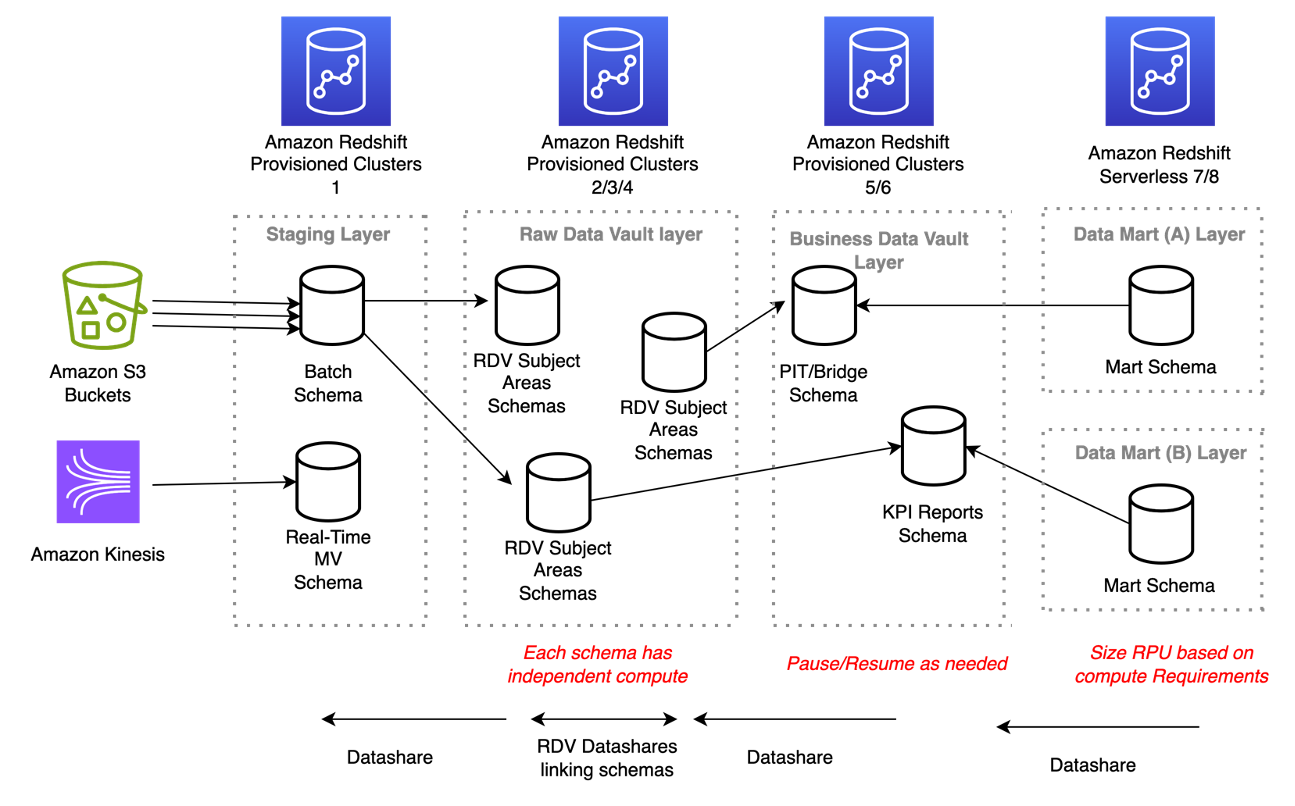

In this post, we show you how to use these features to ensure availability of your data using cross-cluster replication with OpenSearch Service.

Benefits of cross-cluster replication

Cross-cluster replication is helpful for use cases regarding data proximity, disaster recovery, and multi-cluster patterns.

Data proximity helps reduce latency and response time by bringing the data closer to your user or application server. For example, you can replicate data from one Region, us-west-2 (leader), to multiple Regions across the globe acting as followers, eu-west-1, ap-south-1, ca-central-1, and so on, where the follower can poll the leader to sync new or updated data in the leader. In the following diagram, data is replicated from one production cluster in us-west-2 to multiple locally available clusters near the user or application.

In the case of disaster recovery, you can have one or more follower clusters in the same Region or different Regions, and as long as you have one active cluster, you can serve read requests to the users. In the following diagram, data is replicated from one production cluster to two different disaster recovery clusters.

As of today, cross-cluster replication supports active/active read and active/passive write, as shown in the following diagram.

With this implementation, you can solve the problem of read if your leader goes down, but what about write? As of this writing, cross-cluster replication doesn’t support any kind of failover mechanism to make your follower the leader. In this scenario, you might need to do some extra housekeeping to make your follower domain become the leader and start accepting write requests. This post shows the steps to set up cross-cluster replication and minimize downtime by advancing your follower to be leader.

Set up cross-cluster replication

To set up cross-cluster replication, complete the following steps:

  1. Create two clusters across two Regions, for example leader-east (leader) and follower-west (follower).
    Cross-cluster replication works on a pull model, where the user creates an outbound connection at the follower domain, and the follower keeps polling the leader to sync with new or updated documents for an index.
  2. Go to the follower domain (follower-west) and create a request for an outbound connection. Specify the alias for this connection as follower-west.
  3. Go to the leader domain, locate the inbound connection, and approve the incoming connection from follower-west.
  4. Edit the security configuration and add the following access policy to allow ESCrossClusterGet in the leader domain, which is leader-east:
    {
          "Effect": "Allow",
          "Principal": {
            "AWS": "*"
          },
          "Action": "es:ESCrossClusterGet",
          "Resource": "arn:aws:es:us-east-2:xxx-accountidxx:domain/leader-east"
    }

  5. Create a leader index (on the leader domain), or ignore this step if you already have an index to replicate:
    PUT catalog

  6. Navigate to OpenSearch Dashboards for the follower-west domain.
  7. On the Dev Tools tab, run the following command (or use curl to connect directly):
    PUT _plugins/_replication/catalog-rep/_start
        {
           "leader_alias": "ccr-for-west",
           "leader_index": "catalog",
            "use_roles":{
              "leader_cluster_role": "cross_cluster_replication_leader_full_access",
              "follower_cluster_role": "cross_cluster_replication_follower_full_access"
           }
        }

  8. Confirm the replication:
    GET _plugins/_replication/catalog-rep/_status

  9. Index some documents in the leader index; the following command indexes documents to the catalog index with id:1:
    POST catalog/_doc
    {
      "id": "1"
    }

  10. Now go to follower domain and confirm the documents are replicated by running the following search query:
    Request:
    GET catalog/_search
    
    Response:
    {
    ...
       "hits" : [
          {
            "_index" : "catalog",
            "_type" : "_doc",
            "_id" : "hg3YsYIBcxKtCcyhNyp4",
            "_score" : 1.0,
            "_source" : {
              "id" : "1"
            }
          }
        ]
      }
    }

Pause and stop the replication

When your replication is running, you can use these steps to pause and stop the replication.

You can use the following API to pause the replication, for example, while you debug an issue or load on the leader. Make sure to add an empty body with the request.

POST _plugins/_replication/catalog-rep/_pause
    {}

If you pause the replication, you must resume it within 12 hours. If you fail to resume it within 12 hours, you must stop replication, delete the follower index, and restart replication of the leader.

Stopping the replication makes the follower index unfollow the leader and become a standard index. Use the following code to stop replication:

POST _plugins/_replication/catalog-rep/_stop
    {}    

Note that you can’t restart replication to this index after you stop it.

Auto-follow

You can define a set of replication rules against a single leader domain that automatically replicates indexes that match a specified pattern.

When an index on the leader domain matches one of the patterns (for example, logstash-*), a matching follower index is created on the follower domain. The following code is an example replication rule for auto-follow:

POST _plugins/_replication/_autofollow
    {
      "leader_alias" : "follower-west",
       "name": "rule-name",
       "pattern": "logstash-*",
      "use_roles":{
          "leader_cluster_role": "cross_cluster_replication_leader_full_access",
          "follower_cluster_role": "cross_cluster_replication_follower_full_access"
       }
    }

Delete the replication rule to stop replicating new indexes that match the pattern:

DELETE _plugins/_replication/_autofollow
    {
       "leader_alias" : "follower-west",
       "name": "rule-name"
    } 

Monitor cross-cluster replication metrics

OpenSearch Service provides metrics to monitor cross-cluster replication that can help you know the status of the replication along with its performance. For example, ReplicationRate can help you understand the average rate of replication operations per second, and ReplicationNumSyncingIndices can help you know the number of indexes with the replication status SYNCING. For more details about all the metrics provided by OpenSearch Service for cross-cluster replication, refer to Cross-cluster replication metrics.

Recovering from failure

At this point, we have two OpenSearch Service domains running in two different Regions. Let’s consider a scenario in which some disastrous event happens in the Region with your leader domain and the leader goes down. At this point, you can still serve read traffic from the follower domain, but no additional updates are applied because the follower can’t read from the leader. In this scenario, you can use the following steps to advance your follower to be leader:

  1. Go to your follower domain and stop replication:
    POST _plugins/_replication/catalog-rep/_stop
    {}

    After replication stops on the follower domain, your follower index acts as a normal index.

  2. At this point, you can start sending write traffic to the follower.

This way, you can advance your follower domain to become leader and route your write traffic to the follower, which helps avoid the data loss for new sets of changes and updates.

Keep in mind that there is a small lag (less than a minute) between the leader-follower sync. Additionally, there could be small amount of data loss in the follower domain that was indexed to the leader and not synced to the follower (especially when the leader went down and the follower didn’t have a chance to poll the changes and updates). For this scenario, you should have a mechanism in your ingest pipeline to replay the data to the follower when your leader goes down.

Now, what if the leader comes back online after a certain period of time. At this time, you can’t start the replication again from your follower to sync the delta to the leader. Even if you try to set up the replication from follower to leader, it will fail with an error. After you have used an index for a leader-follower connection, you can’t use same index again to create a new replication. So, what do you do now?

In this scenario, you can use the following steps to set up a leader-follower connection in the opposite direction:

  1. Delete the index from the old leader.
  2. Set up cross-Region replication in the opposite direction with your new leader (follower-west) and new follower (leader-east).
  3. Start the replication on the new follower (which was your old leader) and sync the data.

This runs the sync for all data again for that index, and may take time depending upon the size of the index because it will bootstrap the index and start the replication from scratch. Additionally, you will incur standard AWS data transfer costs for the data transferred with this replication. This way, you can advance your follower (follower-west) to be leader and make your leader (leader-east) the new follower.

Conclusion

In this post, we showed you how you can use cross-cluster replication to sync data between leader and follower indices. We also demonstrated how you can advance your follower to become leader in case your leader goes down. This can help you serve traffic in the event of any disaster scenarios.

If you have feedback about this post, submit your comments in the comments section. If you have questions about this post, start a new thread on the Amazon OpenSearch Service forum or contact AWS Support.


About the Author

Prashant Agrawal is a Search Specialist Solutions Architect with OpenSearch Service. He works closely with customers to help them migrate their workloads to the cloud and helps existing customers fine-tune their clusters to achieve better performance and save on cost. Before joining AWS, he helped various customers use OpenSearch and Elasticsearch for their search and log analytics use cases. When not working, you can find him traveling and exploring new places. In short, he likes doing Eat → Travel → Repeat.