AWS Summit season is in full swing around the world, with last week’s events in Bengaluru, Berlin, and Seoul, where my blog colleague Channy delivered one of the keynotes.
Last week’s launches Here are some launches that got my attention:
Amazon S3 will no longer charge for several HTTP error codes – A customer reported how he was charged for Amazon S3 API requests he didn’t initiate and which resulted in AccessDenied errors. The Amazon Simple Storage Service (Amazon S3) service team updated the service to not charge such API requests anymore. As always when talking about pricing, the exact wording is important, so please read the What’s New post for the details.
Introducing Amazon EC2 C7i-flex instances – These instances delivers up to 19 percent better price performance compared to C6i instances. Using C7i-flex instances is the easiest way for you to get price performance benefits for a majority of compute-intensive workloads. The new instances are powered by the 4th generation Intel Xeon Scalable custom processors (Sapphire Rapids) that are available only on AWS and offer 5 percent lower prices compared to C7i.
Application Load Balancer launches IPv6 only support for internet clients – Application Load Balancer now allows customers to provision load balancers without IPv4s for clients that can connect using just IPv6s. To connect, clients can resolve AAAA DNS records that are assigned to Application Load Balancer. The Application Load Balancer is still dual stack for communication between the load balancer and targets. With this new capability, you have the flexibility to use both IPv4s or IPv6s for your application targets while avoiding IPv4 charges for clients that don’t require it.
Amazon VPC Lattice now supports TLS Passthrough – We announced the general availability of TLS passthrough for Amazon VPC Lattice, which allows customers to enable end-to-end authentication and encryption using their existing TLS or mTLS implementations. Prior to this launch, VPC Lattice supported HTTP and HTTPS listener protocols only, which terminates TLS and performs request-level routing and load balancing based on information in HTTP headers.
Amazon DocumentDB zero-ETL integration with Amazon OpenSearch Service – This new integration provides you with advanced search capabilities, such as fuzzy search, cross-collection search and multilingual search, on your Amazon DocumentDB (with MongoDB compatibility) documents using the OpenSearch API. With a few clicks in the AWS Management Console, you can now synchronize your data from Amazon DocumentDB to Amazon OpenSearch Service, eliminating the need to write any custom code to extract, transform, and load the data.
Amazon EventBridge now supports customer managed keys (CMK) for event buses – This capability allows you to encrypt your events using your own keys instead of an AWS owned key (which is used by default). With support for CMK, you now have more fine-grained security control over your events, satisfying your company’s security requirements and governance policies.
Other AWS news Here are some additional news items, open source projects, and Twitch shows that you might find interesting:
The Four Pillars of Managing Email Reputation – Dustin Taylor is the manager of anti-abuse and email deliverability for Amazon Simple Email Service (SES). He wrote a remarkable post exploring Amazon SES approach to managing domain and IP reputation. Maintaining a high reputation ensures optimal recipient inboxing. His post outlines how Amazon SES protects its network reputation to help you deliver high-quality email consistently. A worthy read, even if you’re not sending email at scale. I learned a lot.
Build On Generative AI – Season 3 of your favorite weekly Twitch show about all things generative artificial intelligence (AI) is in full swing! Streaming every Monday, 9:00 AM US PT, my colleagues Tiffany and Darko discuss different aspects of generative AI and invite guest speakers to demo their work.
AWS open source news and updates – My colleague Ricardo writes this weekly open source newsletter, in which he highlights new open source projects, tools, and demos from the AWS Community.
Upcoming AWS events
AWS Summits – Join free online and in-person events that bring the cloud computing community together to connect, collaborate, and learn about AWS. Register in your nearest city: Hong Kong (May 22), Milan (May 23), Stockholm (June 4), and Madrid (June 5).
AWS re:Inforce – Explore 2.5 days of immersive cloud security learning in the age of generative AI at AWS re:Inforce, June 10–12 in Pennsylvania.
AWS Community Days – Join community-led conferences that feature technical discussions, workshops, and hands-on labs led by expert AWS users and industry leaders from around the world: Midwest | Columbus (June 13), Sri Lanka (June 27), Cameroon (July 13), Nigeria (August 24), and New York (August 28).
ComfyUI is an open-source node-based workflow solution for Stable Diffusion. It offers the following advantages:
Significant performance optimization for SDXL model inference
High customizability, allowing users granular control
Portable workflows that can be shared easily
Developer-friendly
Due to these advantages, ComfyUI is increasingly being used by artistic creators. In this post, we will introduce how to deploy ComfyUI on AWS elastically and efficiently.
Overview of solution
The solution is characterized by the following features:
Dynamic scaling with Karpenter: Leveraging the capabilities of Karpenter, we customize node scaling strategies to meet business needs.
Cost savings with Amazon Spot Instances: We use Amazon Spot Instances to reduce the costs of GPU instances.
Optimized use of GPU instance store: By fully utilizing the instance store of GPU instances, we maximize performance for model loading and switching while minimizing the costs associated with model storage and transfer.
Direct image writing with Amazon Simple Storage Service (Amazon S3) CSI driver: Images generated are directly written to Amazon S3 using the S3 CSI driver, reducing storage costs.
Accelerated dynamic requests with Amazon CloudFront: To facilitate the use of the platform by art studios across different regions, we use Amazon CloudFront for faster dynamic request processing.
Serverless event-initiated model synchronization: When models are uploaded to or deleted from Amazon S3, serverless event initiations activate, syncing the model directory data across worker nodes.
Walkthrough
The solution’s architecture is structured into two distinct phases: the deployment phase and the user interaction phase.
Figure 1. Architecture for deploying stable diffusion on ComfyUI
Deployment phase
Model storage in Amazon S3: ComfyUI’s models are stored in Amazon S3 for models, following the same directory structure as the native ComfyUI/models directory.
GPU node initialization in Amazon EKS cluster: When GPU nodes in the EKS cluster are initiated, they format the local instance store and synchronize the models from Amazon S3 to the local instance store using user data scripts.
Running ComfyUI pods in EKS: Pods operating ComfyUI effectively link the instance store directory on the node to the pod’s internal models directory, facilitating seamless model access and loading.
Model sync with AWS Lambda: When models are uploaded to or deleted from Amazon S3, an AWS Lambda function synchronizes the models from S3 to the local instance store on all GPU nodes by using SSM commands.
Output mapping to Amazon S3: Pods running ComfyUI map the ComfyUI/output directory to S3 for outputs with Persistent Volume Claim (PVC) methods.
User interaction phase
Request routing: When a user request reaches the Amazon EKS pod through CloudFront t0 ALB, the pod first loads the model from the instance store.
Post-inference image storage: After inference, the pod stores the image in the ComfyUI/output directory, which is directly written to Amazon S3 using the S3 CSI driver.
Performance advantages of instance store: Thanks to the performance benefits of the instance store, the time taken for initial model loading and model switching is significantly reduced.
You can find the deployment code and detailed instructions in our GitHub samples library.
Image Generation
Once deployed, you can access and use the ComfyUI frontend directly through a browser by visiting the domain name of CloudFront or the domain name of Kubernetes Ingress.
Figure 2. Accessing ComfyUI through a browser
You can also interact with ComfyUI by saving its workflow as an API-callable JSON file.
Figure 3. Accessing ComfyUI through an API
Deployment Instructions
Prerequisites
This solution assumes that you have already installed, deployed, and are familiar with the following tools:
Run the following command: cd ~/comfyui-on-eks && cdk deploy Comfyui-Cluster
CloudFormation will create a stack named Comfyui-Cluster to deploy all the resources required for the EKS cluster. This process typically takes around 20 to 30 minutes to complete.
Upon successful deployment, the CDK outputs will present a ConfigCommand. This command is used to update the configuration, enabling access to the EKS cluster via kubectl.
Figure 4. ConfigCommand output screenshot
Execute the ConfigCommand to authorize kubectl to access the EKS cluster.
To verify that kubectl has been granted access to the EKS cluster, execute the following command: kubectl get svc
The deployment of the EKS cluster is complete. Note that EKS Blueprints has output KarpenterInstanceNodeRole, which is the role for the nodes managed by Karpenter. Record this role; it will be configured later.
Deploy an Amazon S3 bucket for storing models and set up AWS Lambda for dynamic model synchronization
Run the following command: cd ~/comfyui-on-eks && cdk deploy LambdaModelsSync
The LambdaModelsSync stack primarily creates the following resources:
S3 bucket: The S3 bucket is named following the format comfyui-models-{account_id}-{region}; it’s used to store ComfyUI models.
Lambda function, along with its associated role and event source: The Lambda function, named comfy-models-sync, is designed to initiate the synchronization of models from the S3 bucket to local storage on GPU instances whenever models are uploaded to or deleted from S3.
Once the S3 for models and Lambda function are deployed, the S3 bucket will initially be empty. Execute the following command to initialize the S3 bucket and download the SDXL model for testing purposes.
region="us-west-2" # Modify the region to your current region.
cd ~/comfyui-on-eks/test/ && bash init_s3_for_models.sh $region
There’s no need to wait for the model to finish downloading and uploading to S3. You can proceed with the following steps once you ensure the model is uploaded to S3 before starting the GPU nodes.
Deploy S3 bucket for storing images generated by ComfyUI.
Run the following command: cd ~/comfyui-on-eks && cdk deploy S3OutputsStorage
The S3OutputsStorage stack creates an S3 bucket, named following the pattern comfyui-outputs-{account_id}-{region}, which is used to store images generated by ComfyUI.
Deploy ComfyUI workload
The ComfyUI workload is deployed through Kubernetes.
Build and push ComfyUI Docker image
Run the following command, create an ECR repo for ComfyUI image: cd ~/comfyui-on-eks && cdk deploy ComfyuiEcrRepo
Run the build_and_push.sh script on a machine where Docker has been successfully installed:
region="us-west-2" # Modify the region to your current region.
cd ~/comfyui-on-eks/comfyui_image/ && bash build_and_push.sh $region
Note:
The Dockerfile uses a combination of git clone and git checkout to pin a specific version of ComfyUI. Modify this as needed.
The Dockerfile does not install customer nodes, these can be added as needed using the RUN command.
You only need to rebuild the image and replace it with the new version to update ComfyUI.
Deploy Karpenter for managing GPU instance scaling
Get the KarpenterInstanceNodeRole in previous section, run the following command to deploy Karpenter Provisioner:
KarpenterInstanceNodeRole="Comfyui-Cluster-ComfyuiClusterkarpenternoderole" # Modify the role to your own.
sed -i "s/role: KarpenterInstanceNodeRole.*/role: $KarpenterInstanceNodeRole/g" comfyui-on-eks/manifests/Karpenter/karpenter_v1beta1.yaml
kubectl apply -f comfyui-on-eks/manifests/Karpenter/karpenter_v1beta1.yaml
The KarpenterInstanceNodeRole acquired in previous section needs an additional S3 access permission to allow GPU nodes to sync files from S3. Run the following command:
KarpenterInstanceNodeRole="Comfyui-Cluster-ComfyuiClusterkarpenternoderole" # Modify the role to your own.
aws iam attach-role-policy --policy-arn arn:aws:iam::aws:policy/AmazonS3FullAccess --role-name $KarpenterInstanceNodeRole
Deploy S3 PV and PVC to store generated images
Execute the following command to deploy the PV and PVC for S3 CSI:
region="us-west-2" # Modify the region to your current region.
account=$(aws sts get-caller-identity --query Account --output text)
sed -i "s/region .*/region $region/g" comfyui-on-eks/manifests/PersistentVolume/sd-outputs-s3.yaml
sed -i "s/bucketName: .*/bucketName: comfyui-outputs-$account-$region/g" comfyui-on-eks/manifests/PersistentVolume/sd-outputs-s3.yaml
kubectl apply -f comfyui-on-eks/manifests/PersistentVolume/sd-outputs-s3.yaml
Execute the following command to create a role and service account for the S3 CSI driver, enabling it to read and write to S3:
region="us-west-2" # Modify the region to your current region.
account=$(aws sts get-caller-identity --query Account --output text)
ROLE_NAME=EKS-S3-CSI-DriverRole-$account-$region
POLICY_ARN=arn:aws:iam::aws:policy/AmazonS3FullAccess
eksctl create iamserviceaccount \
    --name s3-csi-driver-sa \
    --namespace kube-system \
    --cluster Comfyui-Cluster \
    --attach-policy-arn $POLICY_ARN \
    --approve \
    --role-name $ROLE_NAME \
    --region $region
Run the following command to install aws-mountpoint-s3-csi-driver Addon:
region="us-west-2" # Modify the region to your current region.
account=$(aws sts get-caller-identity --query Account --output text)
eksctl create addon --name aws-mountpoint-s3-csi-driver --version v1.0.0-eksbuild.1 --cluster Comfyui-Cluster --service-account-role-arn "arn:aws:iam::${account}:role/EKS-S3-CSI-DriverRole-${account}-${region}" --force
Deploy ComfyUI deployment and service
Run the following command to replace docker image:
region="us-west-2" # Modify the region to your current region.
account=$(aws sts get-caller-identity --query Account --output text)
sed -i "s/image: .*/image: ${account}.dkr.ecr.${region}.amazonaws.com\/comfyui-images:latest/g" comfyui-on-eks/manifests/ComfyUI/comfyui_deployment.yaml
Run the following command to deploy ComfyUI Deployment and Service: kubectl apply -f comfyui-on-eks/manifests/ComfyUI
Test ComfyUI on EKS
API Test
To test with an API, run the following command in the comfyui-on-eks/test directory:
ingress_address=$(kubectl get ingress|grep comfyui-ingress|awk '{print $4}')
sed -i "s/SERVER_ADDRESS = .*/SERVER_ADDRESS = \"${ingress_address}\"/g" invoke_comfyui_api.py
sed -i "s/HTTPS = .*/HTTPS = False/g" invoke_comfyui_api.py
sed -i "s/SHOW_IMAGES = .*/SHOW_IMAGES = False/g" invoke_comfyui_api.py
./invoke_comfyui_api.py
Test with browser
Run the following command to get the K8S ingress address: kubectl get ingress
Access the ingress address through a web browser.
The deployment and testing of ComfyUI on EKS is now complete. Next we will connect the EKS cluster to CloudFront for edge acceleration.
Deploy CloudFront for edge acceleration (Optional)
Execute the following command in the comfyui-on-eks directory to connect the Kubernetes ingress to CloudFront:
cdk deploy CloudFrontEntry
After deployment completes, outputs will be printed, including the CloudFront URL CloudFrontEntry.cloudFrontEntryUrl. Refer to previous section for testing via the API or browser.
Cleaning up
Run the following command to delete all Kubernetes resources:
This article introduces a solution for deploying ComfyUI on EKS. By combining instance store and S3, it maximizes model loading and switching performance while reducing storage costs. It also automatically syncs models in a serverless way, leverages spot instances to lower GPU instance costs, and accelerates globally via CloudFront to meet the needs of geographically distributed art studios. The entire solution manages underlying infrastructure as code to minimize operational overhead.
An AWS Elastic IP (EIP) address is a static, public, and unique IPv4 address. Allocated exclusively to your AWS account, the EIP remains under your control until you decide to release it. It can be allocated to your Amazon Elastic Compute Cloud (Amazon EC2) instance or other AWS resources such as load balancers.
EIP addresses are designed for dynamic cloud computing because they can be re-mapped to another instance to mask any disruptions. These EIPs are also used for applications that must make external requests to services that require a consistent address for allow listed inbound connections. As your application usage varies, these EIPs might see sporadic use over weeks or even months, leading to potential accumulation of unused EIPs that may inadvertently inflate your AWS expenditure.
In this post, we show you how to analyze EIP usage history using AWS CloudTrail and Amazon Athena to have a better insight of your EIP usage pattern in your AWS account. You can use this solution regularly as part of your cost-optimization efforts to safely remove unused EIPs to reduce your costs.
Solution overview
This solution uses activity logs from CloudTrail and the power of Athena to conduct a comprehensive analysis of historical EIP attachment activity within your AWS account. CloudTrail, a critical AWS service, meticulously logs API activity within an AWS account.
Athena is an interactive query service that simplifies data analysis in Amazon Simple Storage Service (Amazon S3) using standard SQL. It is a serverless service, eliminating the need for infrastructure management and costing you only for the queries you run.
By extracting detailed information from CloudTrail and querying it using Athena, this solution streamlines the process of data collection, analysis, and reporting of EIP usage within an AWS account.
To gather EIP usage reporting, this solution compares snapshots of the current EIPs, focusing on their most recent attachment within a customizable 3-month period. It then determines the frequency of EIP attachments to resources. An attachment count greater than zero suggests that the EIPs are actively in use. In contrast, an attachment count of zero indicates that these EIPs are idle and can be released, aiding in identifying potential areas for cost reduction.
In the following sections, we show you how to deploy the solution using AWS CloudFormation and then run an analysis.
Prerequisites
Complete the following prerequisite steps:
If your account doesn’t have CloudTrail enabled, create a trail, then capture the S3 bucket name to use later in the implementation steps.
Download the CloudFormation template from the repository. You need this template.yaml file for the implementation steps.
Deploy the solution
In this section, you use AWS CloudFormation to create the required resources. AWS CloudFormation is a service that helps you model and set up your AWS resources so that you can spend less time managing those resources and more time focusing on your applications that run in AWS.
The CloudFormation template creates Athena views and a table to search past AssociateAddress events in CloudTrail, an AWS Lambda function to collect snapshots of existing EIPs, and an S3 bucket to store the analysis results.
Complete the following steps:
On the AWS CloudFormation console, choose on Create stack and choose With new resources (standard).
In the Specify Template section, choose an existing template and upload the template.yaml file downloaded from the prerequisites.
In the Specify stack details section, enter your preferred stack name and the existing CloudTrail S3 location, and maintain the default settings for the other parameters.
At the bottom of the Review and create page, select the acknowledgement check box, then choose Submit.
Wait for the stack to be created. It should take a few minutes to complete. You can open the AWS CloudFormation console to view the stack creation process.
Run an analysis
You have configured the solution to run your EIP attachments analysis. Complete the following steps to analyze your EIP attachment history. If you’re using Athena for the first time in your account, you need to set up a query result location in Amazon S3.
On the Athena console, navigate to the query editor.
For Database, choose default.
Enter the following query and choose Run query:
select
eip.publicip,
eip.allocationid,
eip.region,
eip.accountid,
eip.associationid,
eip.PublicIpv4Pool,
max(associate_ip_event.eventtime) as latest_attachment,
count(associate_ip_event.associationid) as attachmentCount
from eip LEFT JOIN associate_ip_event on associate_ip_event.allocationid = eip.allocationid
group by 1,2,3,4,5,6
All the required tables are created under the default database.
You can now run a query on the CloudTrail logs to look back in time for the EIP attachment. This query provides you with better insight to safely release idle EIPs in order to reduce costs by displaying how frequently each specific EIP was previously attached to any resources.
This report will provide the following information:
Public IP
Allocation ID (the ID that AWS assigns to represent the allocation of the EIP address for use with instances in a VPC)
Region
Account ID
latest_attachment date (the last time EIP was attached to a resource)
attachmentCount (number of attachments)
The association ID for the address (if this field is empty, the EIP is idle and not attached to any resources)
The following screenshot shows the query results.
Clean up
To optimize cost, clean up the resources you deployed for this post by completing the following steps:
Delete the contents in your S3 buckets (eip-analyzer-eipsnapshot-* and eip-analyzer-athenaresulteipanalyzer-*).
This post demonstrated how you can analyze Elastic IP usage history to have a better insight of EIP attachment patterns using Athena and CloudTrail. Check out the GitHub repo to regularly run this analysis as part of your cost-optimization strategy to identify and release inactive EIPs to reduce costs.
You can also use Athena to analyze logs from other AWS services; for more information, see Querying AWS service logs.
Additionally, you can analyze activity logs with AWS CloudTrail Lake and Amazon Athena. AWS CloudTrail Lake is a managed data lake that enables organizations to aggregate, immutably store, and query events recorded by CloudTrail for auditing, security investigation, and operational troubleshooting. AWS CloudTrail Lake supports the collection of events from multiple AWS regions and AWS accounts. For CloudTrail Lake, you pay for data ingestion, retention, and analysis. Refer to AWS CloudTrail Lake pricing page for pricing details.
About the Author
Aidin Khosrowshahi is a Senior Technical Account Manager with Amazon Web Services based out of San Francisco. He focuses on reliability, optimization, and improving operational mechanisms with his customers.
Many customers need to automate email notifications to a broad and diverse set of email recipients, sometimes from a sensor network with a variety of monitoring capabilities. Many sensor monitoring software products include an SMTP client to achieve this goal. However, managing email server infrastructure requires specialty expertise and operating an email server comes with additional cost and inherent risk of breach, spam, and storage management. Organizations also need to manage distribution of attachments, which could be large and potentially contain exploits or viruses. For IoT use cases, diagnostic data relevance quickly expires, necessitating retention policies to regularly delete content.
Solution Overview
This solution uses the Amazon Simple Email Service (SES) SMTP interface to receive SMTP client messages, and processes the message to replace an attachment with a pre-signed URL in the resulting email to its intended recipients. Attachments are stored separately in an Amazon Simple Storage Service (S3) bucket with a lifecycle policy implemented. This reduces the storage requirements of recipient email server receiving notification emails. Additionally, this solution leverages built-in anti-spam and security scanning capabilities to deal with spam and potentially malicious attachments while at the same time providing the mechanism by which pre-signed attachment links can be revoked should the emails be distributed to unintended recipients.
The solution uses:
Amazon SES SMTP interface to receive incoming emails.
Amazon SES receipt rule on a (sub)domain controlled by administrators, to store raw incoming emails in an Amazon S3 bucket.
AWS Lambda function, triggered on S3 ObjectCreated event, to process raw emails, extract attachments, replace each with pre-signed URL with configurable expiry, and send the processed emails to intended recipients.
Solution Flow Details:
SMTP client transmits email content to an email address in a (sub) domain with MX record set to Amazon SES service’s regional endpoint.
Amazon SES SMTP interface receives an email and forwards it to SES Receipt Rule(s) for processing.
A matching Amazon SES Receipt Rule saves incoming email into an Amazon S3 Bucket.
Amazon S3 Bucket emits an S3 ObjectCreated Event, and places the event onto the Amazon Simple Queue Services (SQS) queue.
The AWS Lambda service polls the inbound messages’ SQS queue and feeds events to the Lambda function.
The Lambda function, retrieves email files from the S3 bucket, parses the email sender/subject/body, saves attachments to a separate attachment S3 bucket (7), and replaces attachments with pre-signed URLs in the email body. The Lambda function then extracts intended recipient addresses from the email body. If the body contains properly formatted recipients list, email is then sent using SES API (9), otherwise a notice is posted to a fallback Amazon Simple Notification Service (SNS) Topic (8).
The Lambda function saves extracted attachments, if any, into an attachments bucket.
Malformed email notifications are posted to a fallback Amazon SNS Topic.
The Lambda function invokes Amazon SES API to send the processed email to all intended recipient addresses.
If the Lambda function is unable to process email successfully, the inbound message is placed on to the SQS dead-letter queue (DLQ) queue for later intervention by the operator.
SES delivers an email to each recipients’ mail server.
Intended recipients download emails from their corporate mail servers and retrieve attachments from the S3 pre-signed URL(s) embedded in the email body.
An alarm is triggered and a notification is published to Amazon SNS Alarms Topic whenever:
More than 50 failed messages are in the DLQ.
Oldest message on incoming SQS queue is older than 3 minutes – unable to keep up with inbound messages (flooding).
The incoming SQS queue contains over 180 messages (configurable) over 5 minutes old.
Setting up Amazon SES
For this solution you will need an email account where you can receive emails. You’ll also need a (sub)domain for which you control the mail exchanger (MX) record. You can obtain your (sub)domain either from Amazon Route53 or another domain hosting provider.
Verify the sender email address
You’ll need to follow the instructions to Verify an email address for all identities that you use as “From”, “Source”, ” Sender”, or “Return-Path” addresses. You’ll also need to follow these instructions for any identities you wish to send emails to during initial testing while your SES account is in the “Sandbox” (see next “Moving out of the SES Sandbox” section).
Moving out of the SES Sandbox
Amazon SES accounts are “in the Sandbox” by default, limiting email sending only to verified identities. AWS does this to prevent fraud and abuse as well as protecting your reputation as an email sender. When your account leaves the Sandbox, SES can send email to any recipient, regardless of whether the recipient’s address or domain is verified by SES. However, you still have to verify all identities that you use as “From”, “Source”, “Sender”, or “Return-Path” addresses. Follow the Moving out of the SES Sandbox instructions in the SES Developer Guide. Approval is usually within 24 hours.
Set up the SES SMTP interface
Follow the workshop lab instructions to set up email sending from your SMTP client using the SES SMTP interface. Once you’ve completed this step, your SMTP client can open authenticated sessions with the SES SMTP interface and send emails. The workshop will guide you through the following steps:
Create SMTP credentials for your SES account.
IMPORTANT: Never share SMTP credentials with unauthorized individuals. Anyone with these credentials can send as many SMTP requests and in whatever format/content they choose. This may result in end-users receiving emails with malicious content, administrative/operations overload, and unbounded AWS charges.
Test your connection to ensure you can send emails.
Authenticate using the SMTP credentials generated in step 1 and then send a test email from an SMTP client.
Verify your email domain and bounce notifications with Amazon SES
In order to replace email attachments with a pre-signed URL and other application logic, you’ll need to set up SES to receive emails on a domain or subdomain you control.
The solution is implemented using AWS CDK with Python. First clone the solution repository to your local machine or Cloud9 development environment. Then deploy the solution by entering the following commands into your terminal:
The RecipientEmail CDK context parameter in the cdk deploy command above can be any email address in the domain you verified as part of the Verify the domain step. In other words, if the verified domain is acme-corp.com, then the emails can be [email protected], [email protected], etc.
The ConfigurationSetName CDK context can be obtained by navigating to Identities in Amazon SES console, selecting the verified domain (same as above), switching to “Configuration set” tab and selecting name of the “Default configuration set”
After deploying the solution, please, navigate to Amazon SES Email receiving in AWS console, edit the rule set and set it to Active.
Testing the solution end-to-end
Create a small file and generate a base64 encoding so that you can attach it to an SMTP message:
and feed in the commands (replacing the brackets [] and everything between them) to send the SMTP message with the attachment you created.
EHLO amazonses.com
AUTH LOGIN
[base64 encoded SMTP user name]
[base64 encoded SMTP password]
MAIL FROM:[VERIFIED EMAIL IN SES]
RCPT TO:[VERIFIED EMAIL WITH SES RECEIPT RULE]
DATA
Subject: Demo from openssl
MIME-Version: 1.0
Content-Type: multipart/mixed;
 boundary="XXXXboundary text"

This is a multipart message in MIME format.

--XXXXboundary text
Content-Type: text/plain

Line1:This is a Test email sent to coded list of email addresses using the Amazon SES SMTP interface from openssl SMTP client.
Line2:Email_Rxers_Code:[ANYUSER1@DOMAIN_A,ANYUSER2@DOMAIN_B,ANYUSERX@DOMAIN_Y]:Email_Rxers_Code:
Line3:Last line.

--XXXXboundary text
Content-Type: text/plain;
Content-Transfer-Encoding: Base64
Content-Disposition: attachment; filename="demo64.txt"
Y29udGVudAo=
--XXXXboundary text
.
QUIT
Note: For base64 SMTP username and password above, use values obtained in Set up the SES SMTP interface, step 1. So for example, if the username is AKZB3LJAF5TQQRRPQZO1, then you can obtain base64 encoded value using following command:
This makes base64 encoded value QUtaQjNMSkFGNVRRUVJSUFFaTzE= Repeat same process for SMTP username and password values in the example above.
The openssl command should result in successful SMTP authentication and send. You should receive an email that looks like this:
Optimizing Security of the Solution
Do not share DNS credentials. Unauthorized access can lead to domain control, potential denial of service, and AWS charges. Restrict access to authorized personnel only.
Do not set the SENDER_EMAIL environment variable to the email address associated with the receipt rule. This address is a closely guarded secret, known only to administrators, and should be changed frequently.
Review access to your code repository regularly to ensure there are no unauthorized changes to your code base.
Utilize Permissions Boundaries to restrict the actions permitted by an IAM user or role.
Cleanup
To cleanup, start by navigating to Amazon SES Email receiving in AWS console, and setting the rule set to Inactive.
Once completed, delete the stack:
cdk destroy
Cleanup AWS SES Access Credentials
In Amazon SES Console, select Manage existing SMTP credentials, select the username for which credentials were created in Set up the SES SMTP interface above, navigate to the Security credentials tab and in the Access keys section, select Action -> Delete to delete AWS SES access credentials.
Troubleshooting
If you are not receiving the email or email is not being sent correctly there are a number of common causes of these errors:
HTTP Error 554 Message rejected email address is not verified. The following identities failed the check in region :
This means that you have attempted to send an email from address that has not been verified.
Please, ensure that the “MAIL FROM:[VERIFIED EMAIL IN SES]” email address sent via openssl matches the SenderEmail=<verified sender email> email address used in cdk deploy.
Also make sure this email address was used in Verify the sender email address step.
Email is not being delivered/forwarded
The incoming S3 bucket under the incoming prefix, contains file called AMAZON_SES_SETUP_NOTIFICATION. This means that MX record of the domain setup is missing. Please, validate that the MX record (step 2) of Verify your email domain with Amazon SES to receive emails section is fully configured.
Please ensure after deploying the Amazon SES solution, the created rule set was made active by navigating to Amazon SES Email receiving in AWS console, and set it to Active.
This may mean that the destination email address has bounced. Please, navigate to Amazon SES Suppression list in AWS console ensure that recipient’s email is not in the suppression list. If it is listed, you can see the reason in the “Suppression reason” column. There you may either manually remove from the suppression list or if the recipient email is not valid, consider using a different recipient email address.
AWS Legal Disclaimer: Sample code, software libraries, command line tools, proofs of concept, templates, or other related technology are provided as AWS Content or Third-Party Content under the AWS Customer Agreement, or the relevant written agreement between you and AWS (whichever applies). You should not use this AWS Content or Third-Party Content in your production accounts, or on production or other critical data. You are responsible for testing, securing, and optimizing the AWS Content or Third-Party Content, such as sample code, as appropriate for production grade use based on your specific quality control practices and standards. Deploying AWS Content or Third-Party Content may incur AWS charges for creating or using AWS chargeable resources, such as running Amazon EC2 instances or using Amazon S3 storage.
About the Authors
Tarek Soliman
Tarek is a Senior Solutions Architect at AWS. His background is in Software Engineering with a focus on distributed systems. He is passionate about diving into customer problems and solving them. He also enjoys building things using software, woodworking, and hobby electronics.
Dave Spencer
Dave is a Senior Solutions Architect at AWS. His background is in cloud solutions architecture, Infrastructure as Code (Iac), systems engineering, and embedded systems programming. Dave’s passion is developing partnerships with Department of Defense customers to maximize technology investments and realize their strategic vision.
Ayman Ishimwe
Ayman is a Solutions Architect at AWS based in Seattle, Washington. He holds a Master’s degree in Software Engineering and IT from Oakland University. With prior experience in software development, specifically in building microservices for distributed web applications, he is passionate about helping customers build robust and scalable solutions on AWS cloud services following best practices.
Dmytro Protsiv
Dmytro is a Cloud Applications Architect for with Amazon Web Services. He is passionate about helping customers to solve their business challenges around application modernization.
Stacy Conant
Stacy is a Solutions Architect working with DoD and US Navy customers. She enjoys helping customers understand how to harness big data and working on data analytics solutions. On the weekends, you can find Stacy crocheting, reading Harry Potter (again), playing with her dogs and cooking with her husband.
This is post is co-written with Andries Engelbrecht and Scott Teal from Snowflake.
Businesses are constantly evolving, and data leaders are challenged every day to meet new requirements. For many enterprises and large organizations, it is not feasible to have one processing engine or tool to deal with the various business requirements. They understand that a one-size-fits-all approach no longer works, and recognize the value in adopting scalable, flexible tools and open data formats to support interoperability in a modern data architecture to accelerate the delivery of new solutions.
Customers are using AWS and Snowflake to develop purpose-built data architectures that provide the performance required for modern analytics and artificial intelligence (AI) use cases. Implementing these solutions requires data sharing between purpose-built data stores. This is why Snowflake and AWS are delivering enhanced support for Apache Iceberg to enable and facilitate data interoperability between data services.
Apache Iceberg is an open-source table format that provides reliability, simplicity, and high performance for large datasets with transactional integrity between various processing engines. In this post, we discuss the following:
Advantages of Iceberg tables for data lakes
Two architectural patterns for sharing Iceberg tables between AWS and Snowflake:
Manage your Iceberg tables with AWS Glue Data Catalog
Manage your Iceberg tables with Snowflake
The process of converting existing data lakes tables to Iceberg tables without copying the data
Now that you have a high-level understanding of the topics, let’s dive into each of them in detail.
Advantages of Apache Iceberg
Apache Iceberg is a distributed, community-driven, Apache 2.0-licensed, 100% open-source data table format that helps simplify data processing on large datasets stored in data lakes. Data engineers use Apache Iceberg because it’s fast, efficient, and reliable at any scale and keeps records of how datasets change over time. Apache Iceberg offers integrations with popular data processing frameworks such as Apache Spark, Apache Flink, Apache Hive, Presto, and more.
Iceberg tables maintain metadata to abstract large collections of files, providing data management features including time travel, rollback, data compaction, and full schema evolution, reducing management overhead. Originally developed at Netflix before being open sourced to the Apache Software Foundation, Apache Iceberg was a blank-slate design to solve common data lake challenges like user experience, reliability, and performance, and is now supported by a robust community of developers focused on continually improving and adding new features to the project, serving real user needs and providing them with optionality.
Transactional data lakes built on AWS and Snowflake
Snowflake provides various integrations for Iceberg tables with multiple storage options, including Amazon S3, and multiple catalog options, including AWS Glue Data Catalog and Snowflake. AWS provides integrations for various AWS services with Iceberg tables as well, including AWS Glue Data Catalog for tracking table metadata. Combining Snowflake and AWS gives you multiple options to build out a transactional data lake for analytical and other use cases such as data sharing and collaboration. By adding a metadata layer to data lakes, you get a better user experience, simplified management, and improved performance and reliability on very large datasets.
Manage your Iceberg table with AWS Glue
You can use AWS Glue to ingest, catalog, transform, and manage the data on Amazon Simple Storage Service (Amazon S3). AWS Glue is a serverless data integration service that allows you to visually create, run, and monitor extract, transform, and load (ETL) pipelines to load data into your data lakes in Iceberg format. With AWS Glue, you can discover and connect to more than 70 diverse data sources and manage your data in a centralized data catalog. Snowflake integrates with AWS Glue Data Catalog to access the Iceberg table catalog and the files on Amazon S3 for analytical queries. This greatly improves performance and compute cost in comparison to external tables on Snowflake, because the additional metadata improves pruning in query plans.
You can use this same integration to take advantage of the data sharing and collaboration capabilities in Snowflake. This can be very powerful if you have data in Amazon S3 and need to enable Snowflake data sharing with other business units, partners, suppliers, or customers.
The following architecture diagram provides a high-level overview of this pattern.
The workflow includes the following steps:
AWS Glue extracts data from applications, databases, and streaming sources. AWS Glue then transforms it and loads it into the data lake in Amazon S3 in Iceberg table format, while inserting and updating the metadata about the Iceberg table in AWS Glue Data Catalog.
The AWS Glue crawler generates and updates Iceberg table metadata and stores it in AWS Glue Data Catalog for existing Iceberg tables on an S3 data lake.
Snowflake integrates with AWS Glue Data Catalog to retrieve the snapshot location.
In the event of a query, Snowflake uses the snapshot location from AWS Glue Data Catalog to read Iceberg table data in Amazon S3.
A second pattern also provides interoperability across AWS and Snowflake, but implements data engineering pipelines for ingestion and transformation to Snowflake. In this pattern, data is loaded to Iceberg tables by Snowflake through integrations with AWS services like AWS Glue or through other sources like Snowpipe. Snowflake then writes data directly to Amazon S3 in Iceberg format for downstream access by Snowflake and various AWS services, and Snowflake manages the Iceberg catalog that tracks snapshot locations across tables for AWS services to access.
Like the previous pattern, you can use Snowflake-managed Iceberg tables with Snowflake data sharing, but you can also use S3 to share datasets in cases where one party does not have access to Snowflake.
The following architecture diagram provides an overview of this pattern with Snowflake-managed Iceberg tables.
Snowflake writes Iceberg tables to Amazon S3 and updates metadata automatically with every transaction.
Iceberg tables in Amazon S3 are queried by Snowflake for analytical and ML workloads using services like QuickSight and SageMaker.
Apache Spark services on AWS can access snapshot locations from Snowflake via a Snowflake Iceberg Catalog SDK and directly scan the Iceberg table files in Amazon S3.
Comparing solutions
These two patterns highlight options available to data personas today to maximize their data interoperability between Snowflake and AWS using Apache Iceberg. But which pattern is ideal for your use case? If you’re already using AWS Glue Data Catalog and only require Snowflake for read queries, then the first pattern can integrate Snowflake with AWS Glue and Amazon S3 to query Iceberg tables. If you’re not already using AWS Glue Data Catalog and require Snowflake to perform reads and writes, then the second pattern is likely a good solution that allows for storing and accessing data from AWS.
Considering that reads and writes will probably operate on a per-table basis rather than the entire data architecture, it is advisable to use a combination of both patterns.
Migrate existing data lakes to a transactional data lake using Apache Iceberg
You can convert existing Parquet, ORC, and Avro-based data lake tables on Amazon S3 to Iceberg format to reap the benefits of transactional integrity while improving performance and user experience. There are several Iceberg table migration options (SNAPSHOT, MIGRATE, and ADD_FILES) for migrating existing data lake tables in-place to Iceberg format, which is preferable to rewriting all of the underlying data files—a costly and time-consuming effort with large datasets. In this section, we focus on ADD_FILES, because it’s useful for custom migrations.
This option requires that you pause data pipelines while converting the files to Iceberg tables, which is a straightforward process in AWS Glue because the destination just needs to be changed to an Iceberg table.
Conclusion
In this post, you saw the two architecture patterns for implementing Apache Iceberg in a data lake for better interoperability across AWS and Snowflake. We also provided guidance on migrating existing data lake tables to Iceberg format.
Andries Engelbrecht is a Principal Partner Solutions Architect at Snowflake and works with strategic partners. He is actively engaged with strategic partners like AWS supporting product and service integrations as well as the development of joint solutions with partners. Andries has over 20 years of experience in the field of data and analytics.
Deenbandhu Prasad is a Senior Analytics Specialist at AWS, specializing in big data services. He is passionate about helping customers build modern data architectures on the AWS Cloud. He has helped customers of all sizes implement data management, data warehouse, and data lake solutions.
Brian Dolan joined Amazon as a Military Relations Manager in 2012 after his first career as a Naval Aviator. In 2014, Brian joined Amazon Web Services, where he helped Canadian customers from startups to enterprises explore the AWS Cloud. Most recently, Brian was a member of the Non-Relational Business Development team as a Go-To-Market Specialist for Amazon DynamoDB and Amazon Keyspaces before joining the Analytics Worldwide Specialist Organization in 2022 as a Go-To-Market Specialist for AWS Glue.
Nidhi Gupta is a Sr. Partner Solution Architect at AWS. She spends her days working with customers and partners, solving architectural challenges. She is passionate about data integration and orchestration, serverless and big data processing, and machine learning. Nidhi has extensive experience leading the architecture design and production release and deployments for data workloads.
Scott Teal is a Product Marketing Lead at Snowflake and focuses on data lakes, storage, and governance.
Enterprise document management systems (EDMS) manage the lifecycle and distribution of documents. They often rely on keyword-based search functionality. However, it increasingly becomes hard to discover documents as such repositories grow to tens of thousands of items.
In this blog, we discuss how Amazon Web Services (AWS) built an intelligent search bot on top of the document repository of a global life sciences company. Before this enhancement, the native repository search function relied solely on keywords and document names, leading to a trial-and-error process. Now, scientists can effortlessly query the repository using natural language to locate the right document in a few seconds—even through voice commands while working with lab equipment.
Use case
In life sciences, documentation is critical for regulatory compliance with GxP. Scientists in life sciences use EDMS on a daily basis to retrieve standard operating procedures (SOPs). SOPs contain task-level instructions (for example, how to monitor lab equipment or use utilities such as steam generators and chilled water circulation pumps).
EDMS search capability is often limited to file names and metadata. In our use case, file names were numerical and metadata was typically a single-sentence description plus keywords.
Scientists wanted to query for a particular context and type of task they’re about to perform. However, this data was not extracted from document content and thus not readily available for search purposes. Scientists also wanted to be able to search by using a voice interface (for example, when they operate on lab equipment).
To address this, we designed a conversational bot interface. This bot locates the most relevant SOP based on pre-generated document extracts and returns a hyperlink to the most suitable document, as shown in Figure 1.
Figure 1. Example of document search prompt and chatbot response
Overview of the intelligent search bot solution
Our solution requirements for intelligent search were:
Semantic search index and ranking based on full text
Search capability through voice and text
Out-of-the-box integration with web applications and mobile devices
The advantage of using an Amazon Kendra index is its out-of-the-box semantic search and ranking capability based on document content. We use AWS Lambda to take care of Amazon S3 path mappings, and document attribute formatting for replicated documents, in order to make them retrievable by Amazon Kendra.
Figure 2. Intelligent search bot for enterprise document management systems
Benefits of integrating intelligent search bot with your EDMS
The benefits of extending EDMS with intelligent search bot include:
Improved usability by adding text- and speech-based channels to match user situations (for example, scientists operating on lab equipment)
Native, out-of-the-box integration with third-party systems (for example, Adobe Experience Manager, Alfresco, HubSpot, Marketo, Salesforce)
Implementation timeboxed in a two-week agile sprint and requires no data science skills
Extensibility to large language models
The Amazon Kendra Retrieve API allows the extension to a document retrieval chain pattern using a large language model (LLM) from Amazon Bedrock or Amazon SageMaker Jumpstart. With this pattern, Amazon Kendra generated document summaries can be passed to the LLM for correlation, as shown in Figure 3. Consult the LangChain documentation to learn how to configure retrieval chains.
Figure 3. Extending the document search bot to large language model
In our use case, the effort for such extension went beyond the incremental optimizations and limited migration timeframe. Also, preference for a chain pattern should be given to complex correlations across documents.
This wasn’t the case here, as documents were functionally disjunct (for example, by device type, geographical site, and process task). Therefore, document retrieval with the Amazon Kendra API was sufficient and we deferred the extra effort associated with custom-built LLM prompt layers.
Implementation considerations
We started the EDMS migration to AWS by replicating the data repository to Amazon S3 by using AWS DataSync. We stored every document and corresponding metadata files as separate Amazon S3 objects.
For the Amazon Kendra index mappings to initialize properly:
The EDMS system did not adhere to this when generating metadata files so we offloaded the transformation to a Lambda function. The function fixed metadata attributes such as, changing version type (_version) from numeric to string and date (_created_at) from string to ISO8601. It also changed metadata names/Amazon S3 paths by enacting new objects (PutObject API) and deleting the original objects (DeleteObject API).
We configured Lambda invocation on Amazon S3 PutObject operations using Amazon S3 event notifications. We set the sync run schedule for the Amazon Kendra index to run on demand.
Alternatively, you can run it on a predefined schedule or as part of each Lambda invocation (using the update_index boto3 operation). Finally, we monitor for sync run fails associated with the Amazon Kendra index using Amazon CloudWatch.
Conclusion
This blog showed how you can enhance the keyword-based search of your EDMS. We embedded document search queries behind a chatbot to simplify user interaction.
You can build this solution quickly, with no machine learning skills, as part of your EDMS cloud migration. In more advanced use cases, including complete refactoring, consider extending this solution to use a large language model from Amazon Bedrock or Amazon SageMaker Jumpstart.
Storage, storage, storage! Last week, we celebrated 18 years of innovation on Amazon Simple Storage Service (Amazon S3) at AWS Pi Day 2024. Amazon S3 mascot Buckets joined the celebrations and had a ton of fun! The 4-hour live stream was packed with puns, pie recipes powered by PartyRock, demos, code, and discussions about generative AI and Amazon S3.
AWS Pi Day 2024 — Twitch live stream on March 14, 2024
Up to 40 percent faster stack creation with AWS CloudFormation — AWS CloudFormation now creates stacks up to 40 percent faster and has a new event called CONFIGURATION_COMPLETE. With this event, CloudFormation begins parallel creation of dependent resources within a stack, speeding up the whole process. The new event also gives users more control to shortcut their stack creation process in scenarios where a resource consistency check is unnecessary. To learn more, read this AWS DevOps Blog post.
Amazon SageMaker Canvas extends its model registry integration — SageMaker Canvas has extended its model registry integration to include time series forecasting models and models fine-tuned through SageMaker JumpStart. Users can now register these models to the SageMaker Model Registry with just a click. This enhancement expands the model registry integration to all problem types supported in Canvas, such as regression/classification tabular models and CV/NLP models. It streamlines the deployment of machine learning (ML) models to production environments. Check the Developer Guide for more information.
Amazon S3 Connector for PyTorch — The Amazon S3 Connector for PyTorch now lets PyTorch Lightning users save model checkpoints directly to Amazon S3. Saving PyTorch Lightning model checkpoints is up to 40 percent faster with the Amazon S3 Connector for PyTorch than writing to Amazon Elastic Compute Cloud (Amazon EC2) instance storage. You can now also save, load, and delete checkpoints directly from PyTorch Lightning training jobs to Amazon S3. Check out the open source project on GitHub.
AWS open source news and updates — My colleague Ricardo writes this weekly open source newsletter in which he highlights new open source projects, tools, and demos from the AWS Community.
Upcoming AWS events Check your calendars and sign up for these AWS events:
AWS at NVIDIA GTC 2024 — The NVIDIA GTC 2024 developer conference is taking place this week (March 18–21) in San Jose, CA. If you’re around, visit AWS at booth #708 to explore generative AI demos and get inspired by AWS, AWS Partners, and customer experts on the latest offerings in generative AI, robotics, and advanced computing at the in-booth theatre. Check out the AWS sessions and request 1:1 meetings.
AWS Summits — It’s AWS Summit season again! The first one is Paris (April 3), followed by Amsterdam (April 9), Sydney (April 10–11), London (April 24), Berlin (May 15–16), and Seoul (May 16–17). AWS Summits are a series of free online and in-person events that bring the cloud computing community together to connect, collaborate, and learn about AWS.
AWS re:Inforce — Join us for AWS re:Inforce (June 10–12) in Philadelphia, PA. AWS re:Inforce is a learning conference focused on AWS security solutions, cloud security, compliance, and identity. Connect with the AWS teams that build the security tools and meet AWS customers to learn about their security journeys.
Because Amazon S3 stores more than 350 trillion objects and exabytes of data for virtually any use case and averages over 100 million requests per second, it may be the starting point of your generative AI journey. But no matter how much data you have or where you have it stored, what counts the most is its quality. Higher quality data improves the accuracy and reliability of model response. In a recent survey of chief data officers (CDOs), almost half (46 percent) of CDOs view data quality as one of their top challenges to implementing generative AI.
This year, with AWS Pi Day, we’ll spend Amazon S3’s birthday looking at how AWS Storage, from data lakes to high performance storage, has transformed data strategy to becom the starting point for your generative AI projects.
This live online event starts at 1 PM PT today (March 14, 2024), right after the conclusion of AWS Innovate: Generative AI + Data edition. It will be live on the AWS OnAir channel on Twitch and will feature 4 hours of fresh educational content from AWS experts. Not only will you learn how to use your data and existing data architecture to build and audit your customized generative AI applications, but you’ll also learn about the latest AWS storage innovations. As usual, the show will be packed with hands-on demos, letting you see how you can get started using these technologies right away.
Data for generative AI Data is growing at an incredible rate, powered by consumer activity, business analytics, IoT sensors, call center records, geospatial data, media content, and other drivers. That data growth is driving a flywheel for generative AI. Foundation models (FMs) are trained on massive datasets, often from sources like Common Crawl, which is an open repository of data that contains petabytes of web page data from the internet. Organizations use smaller private datasets for additional customization of FM responses. These customized models will, in turn, drive more generative AI applications, which create even more data for the data flywheel through customer interactions.
There are three data initiatives you can start today regardless of your industry, use case, or geography.
First, use your existing data to differentiate your AI systems. Most organizations sit on a lot of data. You can use this data to customize and personalize foundation models to suit them to your specific needs. Some personalization techniques require structured data, and some do not. Some others require labeled data or raw data. Amazon Bedrock and Amazon SageMaker offer you multiple solutions to fine-tune or pre-train a wide choice of existing foundation models. You can also choose to deploy Amazon Q, your business expert, for your customers or collaborators and point it to one or more of the 43 data sources it supports out of the box.
But you don’t want to create a new data infrastructure to help you grow your AI usage. Generative AI consumes your organization’s data just like existing applications.
You can also reuse or extend data pipelines that are already in place today. Many of you use AWS streaming technologies such as Amazon Managed Streaming for Apache Kafka (Amazon MSK), Amazon Managed Service for Apache Flink, and Amazon Kinesis to do real-time data preparation in traditional machine learning (ML) and AI. You can extend these workflows to capture changes to your data and make them available to large language models (LLMs) in near real-time by updating the vector databases, make these changes available in the knowledge base with MSK’s native streaming ingestion to Amazon OpenSearch Service, or update your fine-tuning datasets with integrated data streaming in Amazon S3 through Amazon Kinesis Data Firehose.
When talking about LLM training, speed matters. Your data pipeline must be able to feed data to the many nodes in your training cluster. To meet their performance requirements, our customers who have their data lake on Amazon S3 either use an object storage class like Amazon S3 Express One Zone, or a file storage service like Amazon FSx for Lustre. FSx for Lustre provides deep integration and enables you to accelerate object data processing through a familiar, high performance, file interface.
The good news is that if your data infrastructure is built using AWS services, you are already most of the way towards extending your data for generative AI.
Third, you must become your own best auditor. Every data organization needs to prepare for the regulations, compliance, and content moderation that will come for generative AI. You should know what datasets are used in training and customization, as well as how the model made decisions. In a rapidly moving space like generative AI, you need to anticipate the future. You should do it now and do it in a way that is fully automated while you scale your AI system.
Your data architecture uses different AWS services for auditing, such as AWS CloudTrail, Amazon DataZone, Amazon CloudWatch, and OpenSearch to govern and monitor data usage. This can be easily extended to your AI systems. If you are using AWS managed services for generative AI, you have the capabilities for data transparency built in. We launched our generative AI capabilities with CloudTrail support because we know how critical it is for enterprise customers to have an audit trail for their AI systems. Any time you create a data source in Amazon Q, it’s logged in CloudTrail. You can also use a CloudTrail event to list the API calls made by Amazon CodeWhisperer. Amazon Bedrock has over 80 CloudTrail events that you can use to audit how you use foundation models.
New capabilities just launched Pi Day is also the occasion to celebrate innovation in AWS storage and data services. Here is a selection of the new capabilities that we’ve just announced:
What to expect during the live stream We will address some of these new capabilities during the 4-hour live show today. My colleague Darko will host a number of AWS experts for hands-on demonstrations so you can discover how to put your data to work for your generative AI projects. Here is the schedule of the day. All times are expressed in Pacific Time (PT) time zone (GMT-8):
Extend your existing data architecture to generative AI (1 PM – 2 PM). If you run analytics on top of AWS data lakes, you’re most of your way there to your data strategy for generative AI.
Accelerate the data path to compute for generative AI (2 PM – 3 PM). Speed matters for compute data path for model training and inference. Check out the different ways we make it happen.
Customize with RAG and fine-tuning (3 PM – 4 PM). Discover the latest techniques to customize base foundation models.
Be your own best auditor for GenAI (4 PM – 5 PM). Use existing AWS services to help meet your compliance objectives.
Organizations often need to manage a high volume of data that is growing at an extraordinary rate. At the same time, they need to optimize operational costs to unlock the value of this data for timely insights and do so with a consistent performance.
With this massive data growth, data proliferation across your data stores, data warehouse, and data lakes can become equally challenging. With a modern data architecture on AWS, you can rapidly build scalable data lakes; use a broad and deep collection of purpose-built data services; ensure compliance via unified data access, security, and governance; scale your systems at a low cost without compromising performance; and share data across organizational boundaries with ease, allowing you to make decisions with speed and agility at scale.
You can take all your data from various silos, aggregate that data in your data lake, and perform analytics and machine learning (ML) directly on top of that data. You can also store other data in purpose-built data stores to analyze and get fast insights from both structured and unstructured data. This data movement can be inside-out, outside-in, around the perimeter or sharing across.
For example, application logs and traces from web applications can be collected directly in a data lake, and a portion of that data can be moved out to a log analytics store like Amazon OpenSearch Service for daily analysis. We think of this concept as inside-out data movement. The analyzed and aggregated data stored in Amazon OpenSearch Service can again be moved to the data lake to run ML algorithms for downstream consumption from applications. We refer to this concept as outside-in data movement.
Let’s look at an example use case. Example Corp. is a leading Fortune 500 company that specializes in social content. They have hundreds of applications generating data and traces at approximately 500 TB per day and have the following criteria:
Have logs available for fast analytics for 2 days
Beyond 2 days, have data available in a storage tier that can be made available for analytics with a reasonable SLA
Retain the data beyond 1 week in cold storage for 30 days (for purposes of compliance, auditing, and others)
In the following sections, we discuss three possible solutions to address similar use cases:
Tiered storage in Amazon OpenSearch Service and data lifecycle management
Amazon OpenSearch Service direct queries with Amazon Simple Storage Service (Amazon S3)
Solution 1: Tiered storage in OpenSearch Service and data lifecycle management
OpenSearch Service supports three integrated storage tiers: hot, UltraWarm, and cold storage. Based on your data retention, query latency, and budgeting requirements, you can choose the best strategy to balance cost and performance. You can also migrate data between different storage tiers.
Hot storage is used for indexing and updating, and provides the fastest access to data. Hot storage takes the form of an instance store or Amazon Elastic Block Store (Amazon EBS) volumes attached to each node.
UltraWarm offers significantly lower costs per GiB for read-only data that you query less frequently and doesn’t need the same performance as hot storage. UltraWarm nodes use Amazon S3 with related caching solutions to improve performance.
Cold storage is optimized to store infrequently accessed or historical data. When you use cold storage, you detach your indexes from the UltraWarm tier, making them inaccessible. You can reattach these indexes in a few seconds when you need to query that data.
The workflow for this solution consists of the following steps:
Incoming data generated by the applications is streamed to an S3 data lake.
Data is ingested into Amazon OpenSearch using S3-SQS near-real-time ingestion through notifications set up on the S3 buckets.
After 2 days, hot data is migrated to UltraWarm storage to support read queries.
After 5 days in UltraWarm, the data is migrated to cold storage for 21 days and detached from any compute. The data can be reattached to UltraWarm when needed. Data is deleted from cold storage after 21 days.
Daily indexes are maintained for easy rollover. An Index State Management (ISM) policy automates the rollover or deletion of indexes that are older than 2 days.
The following is a sample ISM policy that rolls over data into the UltraWarm tier after 2 days, moves it to cold storage after 5 days, and deletes it from cold storage after 21 days:
UltraWarm uses sophisticated caching techniques to enable querying for infrequently accessed data. Although the data access is infrequent, the compute for UltraWarm nodes needs to be running all the time to make this access possible.
When operating at PB scale, to reduce the area of effect of any errors, we recommend decomposing the implementation into multiple OpenSearch Service domains when using tiered storage.
The next two patterns remove the need to have long-running compute and describe on-demand techniques where the data is either brought when needed or queried directly where it resides.
Solution 2: On-demand ingestion of logs data through OpenSearch Ingestion
OpenSearch Ingestion is a fully managed data collector that delivers real-time log and trace data to OpenSearch Service domains. OpenSearch Ingestion is powered by the open source data collector Data Prepper. Data Prepper is part of the open source OpenSearch project.
With OpenSearch Ingestion, you can filter, enrich, transform, and deliver your data for downstream analysis and visualization. You configure your data producers to send data to OpenSearch Ingestion. It automatically delivers the data to the domain or collection that you specify. You can also configure OpenSearch Ingestion to transform your data before delivering it. OpenSearch Ingestion is serverless, so you don’t need to worry about scaling your infrastructure, operating your ingestion fleet, and patching or updating the software.
There are two ways that you can use Amazon S3 as a source to process data with OpenSearch Ingestion. The first option is S3-SQS processing. You can use S3-SQS processing when you require near-real-time scanning of files after they are written to S3. It requires an Amazon Simple Queue Service (Amazon S3) queue that receives S3 Event Notifications. You can configure S3 buckets to raise an event any time an object is stored or modified within the bucket to be processed.
Alternatively, you can use a one-time or recurring scheduled scan to batch process data in an S3 bucket. To set up a scheduled scan, configure your pipeline with a schedule at the scan level that applies to all your S3 buckets, or at the bucket level. You can configure scheduled scans with either a one-time scan or a recurring scan for batch processing.
For a comprehensive overview of OpenSearch Ingestion, see Amazon OpenSearch Ingestion. For more information about the Data Prepper open source project, visit Data Prepper.
Solution overview
We present an architecture pattern with the following key components:
Application logs are streamed into to the data lake, which helps feed hot data into OpenSearch Service in near-real time using OpenSearch Ingestion S3-SQS processing.
ISM policies within OpenSearch Service handle index rollovers or deletions. ISM policies let you automate these periodic, administrative operations by triggering them based on changes in the index age, index size, or number of documents. For example, you can define a policy that moves your index into a read-only state after 2 days and then deletes it after a set period of 3 days.
Cold data is available in the S3 data lake to be consumed on demand into OpenSearch Service using OpenSearch Ingestion scheduled scans.
The following diagram illustrates the solution architecture.
The workflow includes the following steps:
Incoming data generated by the applications is streamed to the S3 data lake.
For the current day, data is ingested into OpenSearch Service using S3-SQS near-real-time ingestion through notifications set up in the S3 buckets.
Daily indexes are maintained for easy rollover. An ISM policy automates the rollover or deletion of indexes that are older than 2 days.
If a request is made for analysis of data beyond 2 days and the data is not in the UltraWarm tier, data will be ingested using the one-time scan feature of Amazon S3 between the specific time window.
For example, if the present day is January 10, 2024, and you need data from January 6, 2024 at a specific interval for analysis, you can create an OpenSearch Ingestion pipeline with an Amazon S3 scan in your YAML configuration, with the start_time and end_time to specify when you want the objects in the bucket to be scanned:
Data in Amazon S3 can be compressed, which reduces your overall data footprint and results in significant cost savings. For example, if you are generating 15 PB of raw JSON application logs per month, you can use a compression mechanism like GZIP, which can reduce the size to approximately 1PB or less, resulting in significant cost savings.
Stop the pipeline when possible
OpenSearch Ingestion scales automatically between the minimum and maximum OCUs set for the pipeline. After the pipeline has completed the Amazon S3 scan for the specified duration mentioned in the pipeline configuration, the pipeline continues to run for continuous monitoring at the minimum OCUs.
For on-demand ingestion for past time durations where you don’t expect new objects to be created, consider using supported pipeline metrics such as recordsOut.count to create Amazon CloudWatch alarms that can stop the pipeline. For a list of supported metrics, refer to Monitoring pipeline metrics.
CloudWatch alarms perform an action when a CloudWatch metric exceeds a specified value for some amount of time. For example, you might want to monitor recordsOut.count to be 0 for longer than 5 minutes to initiate a request to stop the pipeline through the AWS Command Line Interface (AWS CLI) or API.
Solution 3: OpenSearch Service direct queries with Amazon S3
OpenSearch Service direct queries with Amazon S3 (preview) is a new way to query operational logs in Amazon S3 and S3 data lakes without needing to switch between services. You can now analyze infrequently queried data in cloud object stores and simultaneously use the operational analytics and visualization capabilities of OpenSearch Service.
OpenSearch Service direct queries with Amazon S3 provides zero-ETL integration to reduce the operational complexity of duplicating data or managing multiple analytics tools by enabling you to directly query your operational data, reducing costs and time to action. This zero-ETL integration is configurable within OpenSearch Service, where you can take advantage of various log type templates, including predefined dashboards, and configure data accelerations tailored to that log type. Templates include VPC Flow Logs, Elastic Load Balancing logs, and NGINX logs, and accelerations include skipping indexes, materialized views, and covered indexes.
With OpenSearch Service direct queries with Amazon S3, you can perform complex queries that are critical to security forensics and threat analysis and correlate data across multiple data sources, which aids teams in investigating service downtime and security events. After you create an integration, you can start querying your data directly from OpenSearch Dashboards or the OpenSearch API. You can audit connections to ensure that they are set up in a scalable, cost-efficient, and secure way.
Direct queries from OpenSearch Service to Amazon S3 use Spark tables within the AWS Glue Data Catalog. After the table is cataloged in your AWS Glue metadata catalog, you can run queries directly on your data in your S3 data lake through OpenSearch Dashboards.
Solution overview
The following diagram illustrates the solution architecture.
This solution consists of the following key components:
The hot data for the current day is stream processed into OpenSearch Service domains through the event-driven architecture pattern using the OpenSearch Ingestion S3-SQS processing feature
The hot data lifecycle is managed through ISM policies attached to daily indexes
The cold data resides in your Amazon S3 bucket, and is partitioned and cataloged
The following screenshot shows a sample http_logs table that is cataloged in the AWS Glue metadata catalog. For detailed steps, refer to Data Catalog and crawlers in AWS Glue.
Before you create a data source, you should have an OpenSearch Service domain with version 2.11 or later and a target S3 table in the AWS Glue Data Catalog with the appropriate AWS Identity and Access Management (IAM) permissions. IAM will need access to the desired S3 buckets and have read and write access to the AWS Glue Data Catalog. The following is a sample role and trust policy with appropriate permissions to access the AWS Glue Data Catalog through OpenSearch Service:
To create a new data source on the OpenSearch Service console, provide the name of your new data source, specify the data source type as Amazon S3 with the AWS Glue Data Catalog, and choose the IAM role for your data source.
After you create a data source, you can go to the OpenSearch dashboard of the domain, which you use to configure access control, define tables, set up log type-based dashboards for popular log types, and query your data.
After you set up your tables, you can query your data in your S3 data lake through OpenSearch Dashboards. You can run a sample SQL query for the http_logs table you created in the AWS Glue Data Catalog tables, as shown in the following screenshot.
Best practices
Ingest only the data you need
Work backward from your business needs and establish the right datasets you’ll need. Evaluate if you can avoid ingesting noisy data and ingest only curated, sampled, or aggregated data. Using these cleaned and curated datasets will help you optimize the compute and storage resources needed to ingest this data.
Reduce the size of data before ingestion
When you design your data ingestion pipelines, use strategies such as compression, filtering, and aggregation to reduce the size of the ingested data. This will permit smaller data sizes to be transferred over the network and stored in your data layer.
Conclusion
In this post, we discussed solutions that enable petabyte-scale log analytics using OpenSearch Service in a modern data architecture. You learned how to create a serverless ingestion pipeline to deliver logs to an OpenSearch Service domain, manage indexes through ISM policies, configure IAM permissions to start using OpenSearch Ingestion, and create the pipeline configuration for data in your data lake. You also learned how to set up and use the OpenSearch Service direct queries with Amazon S3 feature (preview) to query data from your data lake.
To choose the right architecture pattern for your workloads when using OpenSearch Service at scale, consider the performance, latency, cost and data volume growth over time in order to make the right decision.
Use Tiered storage architecture with Index State Management policies when you need fast access to your hot data and want to balance the cost and performance with UltraWarm nodes for read-only data.
Use On Demand Ingestion of your data into OpenSearch Service when you can tolerate ingestion latencies to query your data not retained in your hot nodes. You can achieve significant cost savings when using compressed data in Amazon S3 and ingesting data on demand into OpenSearch Service.
Use Direct query with S3 feature when you want to directly analyze your operational logs in Amazon S3 with the rich analytics and visualization features of OpenSearch Service.
As a next step, refer to the Amazon OpenSearch Developer Guide to explore logs and metric pipelines that you can use to build a scalable observability solution for your enterprise applications.
About the Authors
Jagadish Kumar (Jag) is a Senior Specialist Solutions Architect at AWS focused on Amazon OpenSearch Service. He is deeply passionate about Data Architecture and helps customers build analytics solutions at scale on AWS.
Muthu Pitchaimani is a Senior Specialist Solutions Architect with Amazon OpenSearch Service. He builds large-scale search applications and solutions. Muthu is interested in the topics of networking and security, and is based out of Austin, Texas.
Sam Selvan is a Principal Specialist Solution Architect with Amazon OpenSearch Service.
As enterprises collect increasing amounts of data from various sources, the structure and organization of that data often need to change over time to meet evolving analytical needs. However, altering schema and table partitions in traditional data lakes can be a disruptive and time-consuming task, requiring renaming or recreating entire tables and reprocessing large datasets. This hampers agility and time to insight.
Schema evolution enables adding, deleting, renaming, or modifying columns without needing to rewrite existing data. This is critical for fast-moving enterprises to augment data structures to support new use cases. For example, an ecommerce company may add new customer demographic attributes or order status flags to enrich analytics. Apache Iceberg manages these schema changes in a backward-compatible way through its innovative metadata table evolution architecture.
Similarly, partition evolution allows seamless adding, dropping, or splitting partitions. For instance, an ecommerce marketplace may initially partition order data by day. As orders accumulate, and querying by day becomes inefficient, they may split to day and customer ID partitions. Table partitioning organizes big datasets most efficiently for query performance. Iceberg gives enterprises the flexibility to incrementally adjust partitions rather than requiring tedious rebuild procedures. New partitions can be added in a fully compatible way without downtime or having to rewrite existing data files.
This post demonstrates how you can harness Iceberg, Amazon Simple Storage Service (Amazon S3), AWS Glue, AWS Lake Formation, and AWS Identity and Access Management (IAM) to implement a transactional data lake supporting seamless evolution. By allowing for painless schema and partition adjustments as data insights evolve, you can benefit from the future-proof flexibility needed for business success.
Overview of solution
For our example use case, a fictional large ecommerce company processes thousands of orders each day. When orders are received, updated, cancelled, shipped, delivered, or returned, the changes are made in their on-premises system, and those changes need to be replicated to an S3 data lake so that data analysts can run queries through Amazon Athena. The changes can contain schema updates as well. Due to the security requirements of different organizations, they need to manage fine-grained access control for the analysts through Lake Formation.
The following diagram illustrates the solution architecture.
The solution workflow includes the following key steps:
Ingest data from on premises into a Dropzone location using a data ingestion pipeline.
Merge the data from the Dropzone location into Iceberg using AWS Glue.
Query the data using Athena.
Prerequisites
For this walkthrough, you should have the following prerequisites:
To create your infrastructure with an AWS CloudFormation template, complete the following steps:
Log in as an administrator to your AWS account.
Open the AWS CloudFormation console.
Choose Launch Stack:
For Stack name, enter a name (for this post, icebergdemo1).
Choose Next.
Provide information for the following parameters:
DatalakeUserName
DatalakeUserPassword
DatabaseName
TableName
DatabaseLFTagKey
DatabaseLFTagValue
TableLFTagKey
TableLFTagValue
Choose Next.
Choose Next again.
In the Review section, review the values you entered.
Select I acknowledge that AWS CloudFormation might create IAM resources with custom names and choose Submit.
In a few minutes, the stack status will change to CREATE_COMPLETE.
You can go to the Outputs tab of the stack to see all the resources it has provisioned. The resources are prefixed with the stack name you provided (for this post, icebergdemo1).
Create an Iceberg table using Lambda and grant access using Lake Formation
To create an Iceberg table and grant access on it, complete the following steps:
Navigate to the Resources tab of the CloudFormation stack icebergdemo1 and search for logical ID named LambdaFunctionIceberg.
Choose the hyperlink of the associated physical ID.
You’re redirected to the Lambda function icebergdemo1-Lambda-Create-Iceberg-and-Grant-access.
On the Configuration tab, choose Environment variables in the left pane.
On the Code tab, you can inspect the function code.
The function uses the AWS SDK for Python (Boto3) APIs to provision the resources. It assumes the provisioned data lake admin role to perform the following tasks:
Grant DATA_LOCATION_ACCESS access to the data lake admin role on the registered data lake location
Grant DESCRIBE and SELECT on the Iceberg table LF-Tags for the data lake IAM user
Grant ALL, DESCRIBE, SELECT, INSERT, DELETE, and ALTER access on the Iceberg table LF-Tags to the AWS Glue ETL IAM role
On the Test tab, choose Test to run the function.
When the function is complete, you will see the message “Executing function: succeeded.”
Lake Formation helps you centrally manage, secure, and globally share data for analytics and machine learning. With Lake Formation, you can manage fine-grained access control for your data lake data on Amazon S3 and its metadata in the Data Catalog.
To add an Amazon S3 location as Iceberg storage in your data lake, register the location with Lake Formation. You can then use Lake Formation permissions for fine-grained access control to the Data Catalog objects that point to this location, and to the underlying data in the location.
The CloudFormation stack registered the data lake location.
Data location permissions in Lake Formation enable principals to create and alter Data Catalog resources that point to the designated registered Amazon S3 locations. Data location permissions work in addition to Lake Formation data permissions to secure information in your data lake.
Lake Formation tag-based access control (LF-TBAC) is an authorization strategy that defines permissions based on attributes. In Lake Formation, these attributes are called LF-Tags. You can attach LF-Tags to Data Catalog resources, Lake Formation principals, and table columns. You can assign and revoke permissions on Lake Formation resources using these LF-Tags. Lake Formation allows operations on those resources when the principal’s tag matches the resource tag.
Verify the Iceberg table from the Lake Formation console
To verify the Iceberg table, complete the following steps:
On the Lake Formation console, choose Databases in the navigation pane.
Open the details page for icebergdb1.
You can see the associated database LF-Tags.
Choose Tables in the navigation pane.
Open the details page for ecomorders.
In the Table details section, you can observe the following:
Table format shows as Apache Iceberg
Table management shows as Managed by Data Catalog
Location lists the data lake location of the Iceberg table
In the LF-Tags section, you can see the associated table LF-Tags. In the Table details section, expand Advanced table properties to view the following:
metadata_location points to the location of the Iceberg table’s metadata file
table_type shows as ICEBERG
On the Schema tab, you can view the columns defined on the Iceberg table.
Integrate Iceberg with the AWS Glue Data Catalog and Amazon S3
Iceberg tracks individual data files in a table instead of directories. When there is an explicit commit on the table, Iceberg creates data files and adds them to the table. Iceberg maintains the table state in metadata files. Any change in table state creates a new metadata file that atomically replaces the older metadata. Metadata files track the table schema, partitioning configuration, and other properties.
Iceberg requires file systems that support the operations to be compatible with object stores like Amazon S3.
Iceberg creates snapshots for the table contents. Each snapshot is a complete set of data files in the table at a point in time. Data files in snapshots are stored in one or more manifest files that contain a row for each data file in the table, its partition data, and its metrics.
The following diagram illustrates this hierarchy.
When you create an Iceberg table, it creates the metadata folder first and a metadata file in the metadata folder. The data folder is created when you load data into the Iceberg table.
Contents of the Iceberg metadata file
The Iceberg metadata file contains a lot of information, including the following:
format-version –Version of the Iceberg table
Location – Amazon S3 location of the table
Schemas – Name and data type of all columns on the table
partition-specs – Partitioned columns
sort-orders – Sort order of columns
properties – Table properties
current-snapshot-id – Current snapshot
refs – Table references
snapshots – List of snapshots, each containing the following information:
sequence-number – Sequence number of snapshots in chronological order (the highest number represents the current snapshot, 1 for the first snapshot)
snapshot-id – Snapshot ID
timestamp-ms – Timestamp when the snapshot was committed
summary – Summary of changes committed
manifest-list – List of manifests; this file name starts with snap-< snapshot-id >
schema-id – Sequence number of the schema in chronological order (the highest number represents the current schema)
snapshot-log – List of snapshots in chronological order
metadata-log – List of metadata files in chronological order
The metadata file has all the historical changes to the table’s data and schema. Reviewing the contents on the metafile file directly can be a time-consuming task. Fortunately, you can query the Iceberg metadata using Athena.
Iceberg framework in AWS Glue
AWS Glue 4.0 supports Iceberg tables registered with Lake Formation. In the AWS Glue ETL jobs, you need the following code to enable the Iceberg framework:
from awsglue.context import GlueContext
from pyspark.context import SparkContext
from pyspark.conf import SparkConf
aws_account_id = boto3.client('sts').get_caller_identity().get('Account')

args = getResolvedOptions(sys.argv, ['JOB_NAME','warehouse_path']

# Set up configuration for AWS Glue to work with Apache Iceberg
conf = SparkConf()
conf.set("spark.sql.extensions", "org.apache.iceberg.spark.extensions.IcebergSparkSessionExtensions")
conf.set("spark.sql.catalog.glue_catalog", "org.apache.iceberg.spark.SparkCatalog")
conf.set("spark.sql.catalog.glue_catalog.warehouse", args['warehouse_path'])
conf.set("spark.sql.catalog.glue_catalog.catalog-impl", "org.apache.iceberg.aws.glue.GlueCatalog")
conf.set("spark.sql.catalog.glue_catalog.io-impl", "org.apache.iceberg.aws.s3.S3FileIO")
conf.set("spark.sql.catalog.glue_catalog.glue.lakeformation-enabled", "true")
conf.set("spark.sql.catalog.glue_catalog.glue.id", aws_account_id)

sc = SparkContext(conf=conf)
glueContext = GlueContext(sc)
spark = glueContext.spark_session
For read/write access to underlying data, in addition to Lake Formation permissions, the AWS Glue IAM role to run the AWS Glue ETL jobs was granted lakeformation: GetDataAccess IAM permission. With this permission, Lake Formation grants the request for temporary credentials to access the data.
The CloudFormation stack provisioned the four AWS Glue ETL jobs for you. The name of each job starts with your stack name (icebergdemo1). Complete the following steps to view the jobs:
Log in as an administrator to your AWS account.
On the AWS Glue console, choose ETL jobs in the navigation pane.
Search for jobs with icebergdemo1 in the name.
Merge data from Dropzone into the Iceberg table
For our use case, the company ingests their ecommerce orders data daily from their on-premises location into an Amazon S3 Dropzone location. The CloudFormation stack loaded three files with sample orders for 3 days, as shown in the following figures. You see the data in the Dropzone location s3://icebergdemo1-s3bucketdropzone-kunftrcblhsk/data.
The AWS Glue ETL job icebergdemo1-GlueETL1-merge will run daily to merge the data into the Iceberg table. It has the following logic to add or update the data on Iceberg:
If the table has a matching order, update the status and shipping_id:
stmt_merge = f"""
    MERGE INTO glue_catalog.{database_name}.{table_name} AS t
    USING input_table AS s
    ON t.ordernum= s.ordernum
    WHEN MATCHED
            THEN UPDATE SET
                t.status = s.status,
                t.shipping_id = s.shipping_id
    WHEN NOT MATCHED THEN INSERT *
    """
spark.sql(stmt_merge)
Complete the following steps to run the AWS Glue merge job:
On the AWS Glue console, choose ETL jobs in the navigation pane.
Select the ETL job icebergdemo1-GlueETL1-merge.
On the Actions dropdown menu, choose Run with parameters.
On the Run parameters page, go to Job parameters.
For the --dropzone_path parameter, provide the S3 location of the input data (icebergdemo1-s3bucketdropzone-kunftrcblhsk/data/merge1).
Run the job to add all the orders: 1001, 1002, 1003, and 1004.
For the --dropzone_path parameter, change the S3 location to icebergdemo1-s3bucketdropzone-kunftrcblhsk/data/merge2.
Run the job again to add orders 2001 and 2002, and update orders 1001, 1002, and 1003.
For the --dropzone_path parameter, change the S3 location to icebergdemo1-s3bucketdropzone-kunftrcblhsk/data/merge3.
Run the job again to add order 3001 and update orders 1001, 1003, 2001, and 2002.
Go to the data folder of table to see the data files written by Iceberg when you merged the data into the table using the Glue ETL job icebergdemo1-GlueETL1-merge.
Query Iceberg using Athena
The CloudFormation stack created the IAM user iceberguser1, which has read access on the Iceberg table using LF-Tags. To query Iceberg using Athena via this user, complete the following steps:
On the Athena console, choose Workgroups in the navigation pane.
Locate the workgroup that CloudFormation provisioned (icebergdemo1-workgroup)
Verify Athena engine version 3.
The Athena engine version 3 supports Iceberg file formats, including Parquet, ORC, and Avro.
Go to the Athena query editor.
Choose the workgroup icebergdemo1-workgroup on the dropdown menu.
For Database, choose icebergdb1. You will see the table ecomorders.
Run the following query to see the data in the Iceberg table:
SELECT * FROM "icebergdb1"."ecomorders" ORDER BY ordernum ;
Run the following query to see table’s current partitions:
DESCRIBE icebergdb1.ecomorders ;
Partition-spec describes how table is partitioned. In this example, there are no partitioned fields because you didn’t define any partitions on the table.
Iceberg partition evolution
You may need to change your partition structure; for example, due to trend changes of common query patterns in downstream analytics. A change of partition structure for traditional tables is a significant operation that requires an entire data copy.
Iceberg makes this straightforward. When you change the partition structure on Iceberg, it doesn’t require you to rewrite the data files. The old data written with earlier partitions remains unchanged. New data is written using the new specifications in a new layout. Metadata for each of the partition versions is kept separately.
Let’s add the partition field category to the Iceberg table using the AWS Glue ETL job icebergdemo1-GlueETL2-partition-evolution:
ALTER TABLE glue_catalog.icebergdb1.ecomorders
    ADD PARTITION FIELD category ;
On the AWS Glue console, run the ETL job icebergdemo1-GlueETL2-partition-evolution. When the job is complete, you can query partitions using Athena.
DESCRIBE icebergdb1.ecomorders ;
SELECT * FROM "icebergdb1"."ecomorders$partitions";
You can see the partition field category, but the partition values are null. There are no new data files in the data folder, because partition evolution is a metadata operation and doesn’t rewrite data files. When you add or update data, you will see the corresponding partition values populated.
Iceberg schema evolution
Iceberg supports in-place table evolution. You can evolve a table schema just like SQL. Iceberg schema updates are metadata changes, so no data files need to be rewritten to perform the schema evolution.
To explore the Iceberg schema evolution, run the ETL job icebergdemo1-GlueETL3-schema-evolution via the AWS Glue console. The job runs the following SparkSQL statements:
ALTER TABLE glue_catalog.icebergdb1.ecomorders
    ADD COLUMNS (shipping_carrier string) ;

ALTER TABLE glue_catalog.icebergdb1.ecomorders
    RENAME COLUMN shipping_id TO tracking_number ;

ALTER TABLE glue_catalog.icebergdb1.ecomorders
    ALTER COLUMN ordernum TYPE bigint ;
In the Athena query editor, run the following query:
SELECT * FROM "icebergdb1"."ecomorders" ORDER BY ordernum asc ;
You can verify the schema changes to the Iceberg table:
A new column has been added called shipping_carrier
The column shipping_id has been renamed to tracking_number
The data type of the column ordernum has changed from int to bigint
DESCRIBE icebergdb1.ecomorders;
Positional update
The data in tracking_number contains the shipping carrier concatenated with the tracking number. Let’s assume that we want to split this data in order to keep the shipping carrier in the shipping_carrier field and the tracking number in the tracking_number field.
On the AWS Glue console, run the ETL job icebergdemo1-GlueETL4-update-table. The job runs the following SparkSQL statement to update the table:
UPDATE glue_catalog.icebergdb1.ecomorders
SET shipping_carrier = substring(tracking_number,1,3),
    tracking_number = substring(tracking_number,4,50)
WHERE tracking_number != '' ;
Query the Iceberg table to verify the updated data on tracking_number and shipping_carrier.
SELECT * FROM "icebergdb1"."ecomorders" ORDER BY ordernum ;
Now that the data has been updated on the table, you should see the partition values populated for category:
SELECT * FROM "icebergdb1"."ecomorders$partitions"
ORDER BY partition;
Clean up
To avoid incurring future charges, clean up the resources you created:
On the Lambda console, open the details page for the function icebergdemo1-Lambda-Create-Iceberg-and-Grant-access.
In the Environment variables section, choose the key Task_To_Perform and update the value to CLEANUP.
Run the function, which drops the database, table, and their associated LF-Tags.
On the AWS CloudFormation console, delete the stack icebergdemo1.
Conclusion
In this post, you created an Iceberg table using the AWS Glue API and used Lake Formation to control access on the Iceberg table in a transactional data lake. With AWS Glue ETL jobs, you merged data into the Iceberg table, and performed schema evolution and partition evolution without rewriting or recreating the Iceberg table. With Athena, you queried the Iceberg data and metadata.
Based on the concepts and demonstrations from this post, you can now build a transactional data lake in an enterprise using Iceberg, AWS Glue, Lake Formation, and Amazon S3.
About the Author
Satya Adimula is a Senior Data Architect at AWS based in Boston. With over two decades of experience in data and analytics, Satya helps organizations derive business insights from their data at scale.
Today customers want to reduce manual operations for deploying and maintaining their infrastructure. The recommended method to deploy and manage infrastructure on AWS is to follow Infrastructure-As-Code (IaC) model using tools like AWS CloudFormation, AWS Cloud Development Kit (AWS CDK) or Terraform.
One of the critical components in terraform is managing the state file which keeps track of your configuration and resources. When you run terraform in an AWS CI/CD pipeline the state file has to be stored in a secured, common path to which the pipeline has access to. You need a mechanism to lock it when multiple developers in the team want to access it at the same time.
In this blog post, we will explain how to manage terraform state files in AWS, best practices on configuring them in AWS and an example of how you can manage it efficiently in your Continuous Integration pipeline in AWS when used with AWS Developer Tools such as AWS CodeCommit and AWS CodeBuild. This blog post assumes you have a basic knowledge of terraform, AWS Developer Tools and AWS CI/CD pipeline. Let’s dive in!
Challenges with handling state files
By default, the state file is stored locally where terraform runs, which is not a problem if you are a single developer working on the deployment. However if not, it is not ideal to store state files locally as you may run into following problems:
When working in teams or collaborative environments, multiple people need access to the state file
Data in the state file is stored in plain text which may contain secrets or sensitive information
Local files can get lost, corrupted, or deleted
Best practices for handling state files
The recommended practice for managing state files is to use terraform’s built-in support for remote backends. These are:
Remote backend on Amazon Simple Storage Service (Amazon S3): You can configure terraform to store state files in an Amazon S3 bucket which provides a durable and scalable storage solution. Storing on Amazon S3 also enables collaboration that allows you to share state file with others.
Remote backend on Amazon S3 with Amazon DynamoDB: In addition to using an Amazon S3 bucket for managing the files, you can use an Amazon DynamoDB table to lock the state file. This will allow only one person to modify a particular state file at any given time. It will help to avoid conflicts and enable safe concurrent access to the state file.
There are other options available as well such as remote backend on terraform cloud and third party backends. Ultimately, the best method for managing terraform state files on AWS will depend on your specific requirements.
When deploying terraform on AWS, the preferred choice of managing state is using Amazon S3 with Amazon DynamoDB.
AWS configurations for managing state files
Create an Amazon S3 bucket using terraform. Implement security measures for Amazon S3 bucket by creating an AWS Identity and Access Management (AWS IAM) policy or Amazon S3 Bucket Policy. Thus you can restrict access, configure object versioning for data protection and recovery, and enable AES256 encryption with SSE-KMS for encryption control.
Next create an Amazon DynamoDB table using terraform with Primary key set to LockID. You can also set any additional configuration options such as read/write capacity units. Once the table is created, you will configure the terraform backend to use it for state locking by specifying the table name in the terraform block of your configuration.
For a single AWS account with multiple environments and projects, you can use a single Amazon S3 bucket. If you have multiple applications in multiple environments across multiple AWS accounts, you can create one Amazon S3 bucket for each account. In that Amazon S3 bucket, you can create appropriate folders for each environment, storing project state files with specific prefixes.
Now that you know how to handle terraform state files on AWS, let’s look at an example of how you can configure them in a Continuous Integration pipeline in AWS.
Architecture
Figure 1: Example architecture on how to use terraform in an AWS CI pipeline
This diagram outlines the workflow implemented in this blog:
The AWS CodeCommit repository contains the application code
The AWS CodeBuild job contains the buildspec files and references the source code in AWS CodeCommit
The AWS Lambda function contains the application code created after running terraform apply
Amazon S3 contains the state file created after running terraform apply. Amazon DynamoDB locks the state file present in Amazon S3
Implementation
Pre-requisites
Before you begin, you must complete the following prerequisites:
Install the latest version of AWS Command Line Interface (AWS CLI)
After cloning, you could see the following folder structure:
Figure 2: AWS CodeCommit repository structure
Let’s break down the terraform code into 2 parts – one for preparing the infrastructure and another for preparing the application.
Preparing the Infrastructure
The main.tf file is the core component that does below:
It creates an Amazon S3 bucket to store the state file. We configure bucket ACL, bucket versioning and encryption so that the state file is secure.
It creates an Amazon DynamoDB table which will be used to lock the state file.
It creates two AWS CodeBuild projects, one for ‘terraform plan’ and another for ‘terraform apply’.
Note – It also has the code block (commented out by default) to create AWS Lambda which you will use at a later stage.
AWS CodeBuild projects should be able to access Amazon S3, Amazon DynamoDB, AWS CodeCommit and AWS Lambda. So, the AWS IAM role with appropriate permissions required to access these resources are created via iam.tf file.
Next you will find two buildspec files named buildspec-plan.yaml and buildspec-apply.yaml that will execute terraform commands – terraform plan and terraform apply respectively.
Modify AWS region in the provider.tf file.
Update Amazon S3 bucket name, Amazon DynamoDB table name, AWS CodeBuild compute types, AWS Lambda role and policy names to required values using variable.tf file. You can also use this file to easily customize parameters for different environments.
With this, the infrastructure setup is complete.
You can use your local terminal and execute below commands in the same order to deploy the above-mentioned resources in your AWS account.
terraform init
terraform validate
terraform plan
terraform apply
Once the apply is successful and all the above resources have been successfully deployed in your AWS account, proceed with deploying your application.
Preparing the Application
In the cloned repository, use the backend.tf file to create your own Amazon S3 backend to store the state file. By default, it will have below values. You can override them with your required values.
bucket = "tfbackend-bucket"
key    = "terraform.tfstate"
region = "eu-central-1"
The repository has sample python code stored in main.py that returns a simple message when invoked.
In the main.tf file, you can find the below block of code to create and deploy the Lambda function that uses the main.py code (uncomment these code blocks).
Now you can deploy the application using AWS CodeBuild instead of running terraform commands locally which is the whole point and advantage of using AWS CodeBuild.
Run the two AWS CodeBuild projects to execute terraform plan and terraform apply again.
Once successful, you can verify your deployment by testing the code in AWS Lambda. To test a lambda function (console):
Open AWS Lambda console and select your function “tf-codebuild”
In the navigation pane, in Code section, click Test to create a test event
Provide your required name, for example “test-lambda”
Accept default values and click Save
Click Test again to trigger your test event “test-lambda”
It should return the sample message you provided in your main.py file. In the default case, it will display “Hello from AWS Lambda !” message as shown below.
Figure 3: Sample Amazon Lambda function response
To verify your state file, go to Amazon S3 console and select the backend bucket created (tfbackend-bucket). It will contain your state file.
Figure 4: Amazon S3 bucket with terraform state file
Open Amazon DynamoDB console and check your table tfstate-lock and it will have an entry with LockID.
Figure 5: Amazon DynamoDB table with LockID
Thus, you have securely stored and locked your terraform state file using terraform backend in a Continuous Integration pipeline.
Cleanup
To delete all the resources created as part of the repository, run the below command from your terminal.
terraform destroy
Conclusion
In this blog post, we explored the fundamentals of terraform state files, discussed best practices for their secure storage within AWS environments and also mechanisms for locking these files to prevent unauthorized team access. And finally, we showed you an example of how efficiently you can manage them in a Continuous Integration pipeline in AWS.
In the dynamic world of cloud computing, ensuring the resilience and availability of critical applications is paramount. Disaster recovery (DR) is the process by which an organization anticipates and addresses technology-related disasters. For organizations implementing critical workload orchestration using Amazon Managed Workflows for Apache Airflow (Amazon MWAA), it is crucial to have a DR plan in place to ensure business continuity.
In this series, we explore the need for Amazon MWAA disaster recovery and prescribe solutions that will sustain Amazon MWAA environments against unintended disruptions. This lets you to define, avoid, and handle disruption risks as part of your business continuity plan. This post focuses on designing the overall DR architecture. A future post in this series will focus on implementing the individual components using AWS services.
The need for Amazon MWAA disaster recovery
Amazon MWAA, a fully managed service for Apache Airflow, brings immense value to organizations by automating workflow orchestration for extract, transform, and load (ETL), DevOps, and machine learning (ML) workloads. Amazon MWAA has a distributed architecture with multiple components such as scheduler, worker, web server, queue, and database. This makes it difficult to implement a comprehensive DR strategy.
An active Amazon MWAA environment continuously parses Airflow Directed Acyclic Graphs (DAGs), reading them from a configured Amazon Simple Storage Service (Amazon S3) bucket. DAG source unavailability due to network unreachability, unintended corruption, or deletes leads to extended downtime and service disruption.
Within Airflow, the metadata database is a core component storing configuration variables, roles, permissions, and DAG run histories. A healthy metadata database is therefore critical for your Airflow environment. As with any core Airflow component, having a backup and disaster recovery plan in place for the metadata database is essential.
Amazon MWAA deploys Airflow components to multiple Availability Zones within your VPC in your preferred AWS Region. This provides fault tolerance and automatic recovery against a single Availability Zone failure. For mission-critical workloads, being resilient to the impairments of a unitary Region through multi-Region deployments is additionally important to ensure high availability and business continuity.
Balancing between costs to maintain redundant infrastructures, complexity, and recovery time is essential for Amazon MWAA environments. Organizations aim for cost-effective solutions that minimize their Recovery Time Objective (RTO) and Recovery Point Objective (RPO) to meet their service level agreements, be economically viable, and meet their customers’ demands.
Detect disasters in the primary environment: Proactive monitoring through metrics and alarms
Prompt detection of disasters in the primary environment is crucial for timely disaster recovery. Monitoring the Amazon CloudWatchSchedulerHeartbeat metric provides insights into Airflow health of an active Amazon MWAA environment. You can add other health check metrics to the evaluation criteria, such as checking the availability of upstream or downstream systems and network reachability. Combined with CloudWatch alarms, you can send notifications when these thresholds over a number of time periods are not met. You can add alarms to dashboards to monitor and receive alerts about your AWS resources and applications across multiple Regions.
AWS publishes our most up-to-the-minute information on service availability on the Service Health Dashboard. You can check at any time to get current status information, or subscribe to an RSS feed to be notified of interruptions to each individual service in your operating Region. The AWS Health Dashboard provides information about AWS Health events that can affect your account.
By combining metric monitoring, available dashboards, and automatic alarming, you can promptly detect unavailability of your primary environment, enabling proactive measures to transition to your DR plan. It is critical to factor in incident detection, notification, escalation, discovery, and declaration into your DR planning and implementation to provide realistic and achievable objectives that provide business value.
In the following sections, we discuss two Amazon MWAA DR strategy solutions and their architecture.
DR strategy solution 1: Backup and restore
The backup and restore strategy involves generating Airflow component backups in the same or different Region as your primary Amazon MWAA environment. To ensure continuity, you can asynchronously replicate these to your DR Region, with minimal performance impact on your primary Amazon MWAA environment. In the event of a rare primary Regional impairment or service disruption, this strategy will create a new Amazon MWAA environment and recover historical data to it from existing backups. However, it’s important to note that during the recovery process, there will be a period where no Airflow environments are operational to process workflows until the new environment is fully provisioned and marked as available.
This strategy provides a low-cost and low-complexity solution that is also suitable for mitigating against data loss or corruption within your primary Region. The amount of data being backed up and the time to create a new Amazon MWAA environment (typically 20–30 minutes) affects how quickly restoration can happen. To enable infrastructure to be redeployed quickly without errors, deploy using infrastructure as code (IaC). Without IaC, it may be complex to restore an analogous DR environment, which will lead to increased recovery times and possibly exceed your RTO.
Let’s explore the setup required when your primary Amazon MWAA environment is actively running, as shown in the following figure.
The solution comprises three key components. The first component is the primary environment, where the Airflow workflows are initially deployed and actively running. The second component is the disaster monitoring component, comprised of CloudWatch and a combination of an AWS Step Functions state machine and a AWS Lambda function. The third component is for creating and storing backups of all configurations and metadata that is required to restore. This can be in the same Region as your primary or replicated to your DR Region using S3 Cross-Region Replication (CRR). For CRR, you also pay for inter-Region data transfer out from Amazon S3 to each destination Region.
The first three steps in the workflow are as follows:
As part of your backup creation process, Airflow metadata is replicated to an S3 bucket using an export DAG utility, run periodically based on your RPO interval.
Your existing primary Amazon MWAA environment automatically emits the status of its scheduler’s health to the CloudWatch SchedulerHeartbeat metric.
A multi-step Step Functions state machine is triggered from a periodic Amazon EventBridgeschedule to monitor the scheduler’s health status. As the primary step of the state machine, a Lambda function evaluates the status of the SchedulerHeartbeat metric. If the metric is deemed healthy, no action is taken.
The following figure illustrates the additional steps in the solution workflow.
When the heartbeat count deviates from the normal count for a period of time, a series of actions are initiated to recover to a new Amazon MWAA environment in the DR Region. These actions include starting creation of a new Amazon MWAA environment, replicating the primary environment configurations, and then waiting for the new environment to become available.
When the environment is available, an import DAG utility is run to restore the metadata contents from the backups. Any DAG runs that were interrupted during the impairment of the primary environment need to be manually rerun to maintain service level agreements. Future DAG runs are queued to run as per their next configured schedule.
DR strategy solution 2: Active-passive environments with periodic data synchronization
The active-passive environments with periodic data synchronization strategy focuses on maintaining recurrent data synchronization between an active primary and a passive Amazon MWAA DR environment. By periodically updating and synchronizing DAG stores and metadata databases, this strategy ensures that the DR environment remains current or nearly current with the primary. The DR Region can be the same or a different Region than your primary Amazon MWAA environment. In the event of a disaster, backups are available to revert to a previous known good state to minimize data loss or corruption.
This strategy provides low RTO and RPO with frequent synchronization, allowing quick recovery with minimal data loss. The infrastructure costs and code deployments are compounded to maintain both the primary and DR Amazon MWAA environments. Your DR environment is available immediately to run DAGs on.
The following figure illustrates the setup required when your primary Amazon MWAA environment is actively running.
The solution comprises four key components. Similar to the backup and restore solution, the first component is the primary environment, where the workflow is initially deployed and is actively running. The second component is the disaster monitoring component, consisting of CloudWatch and a combination of a Step Functions state machine and Lambda function. The third component creates and stores backups for all configurations and metadata required for the database synchronization. This can be in the same Region as your primary or replicated to your DR Region using Amazon S3 Cross-Region Replication. As mentioned earlier, for CRR, you also pay for inter-Region data transfer out from Amazon S3 to each destination Region. The last component is a passive Amazon MWAA environment that has the same Airflow code and environment configurations as the primary. The DAGs are deployed in the DR environment using the same continuous integration and continuous delivery (CI/CD) pipeline as the primary. Unlike the primary, DAGs are kept in a paused state to not cause duplicate runs.
The first steps of the workflow are similar to the backup and restore strategy:
As part of your backup creation process, Airflow metadata is replicated to an S3 bucket using an export DAG utility, run periodically based on your RPO interval.
Your existing primary Amazon MWAA environment automatically emits the status of its scheduler’s health to CloudWatch SchedulerHeartbeat metric.
A multi-step Step Functions state machine is triggered from a periodic Amazon EventBridge schedule to monitor scheduler health status. As the primary step of the state machine, a Lambda function evaluates the status of the SchedulerHeartbeat metric. If the metric is deemed healthy, no action is taken.
The following figure illustrates the final steps of the workflow.
When the heartbeat count deviates from the normal count for a period of time, DR actions are initiated.
As a first step, a Lambda function triggers an import DAG utility to restore the metadata contents from the backups to the passive Amazon MWAA DR environment. When the imports are complete, the same DAG can un-pause the other Airflow DAGs, making them active for future runs. Any DAG runs that were interrupted during the impairment of the primary environment need to be manually rerun to maintain service level agreements. Future DAG runs are queued to run as per their next configured schedule.
Best practices to improve resiliency of Amazon MWAA
To enhance the resiliency of your Amazon MWAA environment and ensure smooth disaster recovery, consider implementing the following best practices:
Robust backup and restore mechanisms – Implementing comprehensive backup and restore mechanisms for Amazon MWAA data is essential. Regularly deleting existing metadata based on your organization’s retention policies reduces backup times and makes your Amazon MWAA environment more performant.
Automation using IaC – Using automation and orchestration tools such as AWS CloudFormation, the AWS Cloud Development Kit (AWS CDK), or Terraform can streamline the deployment and configuration management of Amazon MWAA environments. This ensures consistency, reproducibility, and faster recovery during DR scenarios.
Idempotent DAGs and tasks – In Airflow, a DAG is considered idempotent if rerunning the same DAG with the same inputs multiple times has the same effect as running it only once. Designing idempotent DAGs and keeping tasks atomic decreases recovery time from failures when you have to manually rerun an interrupted DAG in your recovered environment.
Regular testing and validation – A robust Amazon MWAA DR strategy should include regular testing and validation exercises. By simulating disaster scenarios, you can identify any gaps in your DR plans, fine-tune processes, and ensure your Amazon MWAA environments are fully recoverable.
Conclusion
In this post, we explored the challenges for Amazon MWAA disaster recovery and discussed best practices to improve resiliency. We examined two DR strategy solutions: backup and restore and active-passive environments with periodic data synchronization. By implementing these solutions and following best practices, you can protect your Amazon MWAA environments, minimize downtime, and mitigate the impact of disasters. Regular testing, validation, and adaptation to evolving requirements are crucial for an effective Amazon MWAA DR strategy. By continuously evaluating and refining your disaster recovery plans, you can ensure the resilience and uninterrupted operation of your Amazon MWAA environments, even in the face of unforeseen events.
Parnab Basak is a Senior Solutions Architect and a Serverless Specialist at AWS. He specializes in creating new solutions that are cloud native using modern software development practices like serverless, DevOps, and analytics. Parnab works closely in the analytics and integration services space helping customers adopt AWS services for their workflow orchestration needs.
Chandan Rupakheti is a Solutions Architect and a Serverless Specialist at AWS. He is a passionate technical leader, researcher, and mentor with a knack for building innovative solutions in the cloud and bringing stakeholders together in their cloud journey. Outside his professional life, he loves spending time with his family and friends besides listening and playing music.
Vinod Jayendra is a Enterprise Support Lead in ISV accounts at Amazon Web Services, where he helps customers in solving their architectural, operational, and cost optimization challenges. With a particular focus on Serverless technologies, he draws from his extensive background in application development to deliver top-tier solutions. Beyond work, he finds joy in quality family time, embarking on biking adventures, and coaching youth sports team.
Rupesh Tiwari is a Senior Solutions Architect at AWS in New York City, with a focus on Financial Services. He has over 18 years of IT experience in the finance, insurance, and education domains, and specializes in architecting large-scale applications and cloud-native big data workloads. In his spare time, Rupesh enjoys singing karaoke, watching comedy TV series, and creating joyful moments with his family.
In our increasingly digital world, affordable access to high-speed broadband is a necessity to fully participate in our society, yet there are still millions of American households without internet access. HR&A Advisors—a multi-disciplinary consultancy with extensive work in the broadband and digital equity space is helping its state, county, and municipal clients deliver affordable internet access by analyzing locally specific digital inclusion needs and building tailored digital equity plans.
The first step in this process is mapping the digital divide. Which households don’t have access to the internet at home? Where do they live? What are their specific needs?
Public data sources aren’t sufficient for building a true understanding of digital inclusion needs. To fill in the gaps in existing data, HR&A creates digital equity surveys to build a more complete picture before developing digital equity plans. HR&A has used Amazon Redshift Serverless and CARTO to process survey findings more efficiently and create custom interactive dashboards to facilitate understanding of the results. HR&A’s collaboration with Amazon Redshift and CARTO has resulted in a 75% reduction in overall deployment and dashboard management time and helped the team achieve the following technical goals:
Load survey results (CSV files) and geometry data (shape files) in a data warehouse
Perform geo-spatial transformations using extract, transform, and load (ELT) jobs to join geometry data with survey results within the data warehouse to allow for visualization of survey results on a map
Integrate with a business intelligence (BI) tool for advanced geo-spatial functions, visualizations, and mapping dashboards
Scale data warehouse capacity up or down to address workloads of varying complexity in a cost-efficient manner
In this post, we unpack how HR&A uses Amazon Redshift spatial analytics and CARTO for cost-effective geo-spatial measurement of digital inclusion and internet access across multiple US states.
Before we get to the architecture details, here is what HR&A and its client, Colorado’s Office of the Future of Work, has to say about the solution.
“Working with the team at HR&A Advisors, Colorado’s Digital Equity Team created a custom dashboard that allowed us to very effectively evaluate our reach while surveying historically marginalized populations across Colorado. This dynamic tool, powered by AWS and CARTO, provided robust visualizations of which regions and populations were interacting with our survey, enabling us to zoom in quickly and address gaps in coverage. Ensuring we were able to seek out data from those who are most impacted by the digital divide in Colorado has been vital to addressing digital inequities in our state.”
— Melanie Colletti, Digital Equity Manager at Colorado’s Office of the Future of Work
“AWS allows us to securely house all of our survey data in one place, quickly scrub and analyze it on Amazon Redshift, and mirror the results through integration with data visualization tools such as CARTO without the data ever leaving AWS. This frees up our local computer space, greatly automates the survey cleaning and analysis step, and allows our clients to easily access the data results. Following the proof of concept and development of first prototype, almost all of our state clients showed interest in using the same solution for their states.”
— Harman Singh Dhodi, Analyst at HR&A Advisors, Inc.
Storing and analyzing large survey datasets
HR&A used Redshift Serverless to store large amounts of digital inclusion data in one place and quickly transform and analyze it using CARTO’s analytical toolkit to extend the spatial capabilities of Amazon Redshift and integrate with CARTO’s data visualization tools—all without the data ever leaving the AWS environment. This cut down significantly on analytical turnaround times.
The CARTO Analytics Toolbox for Redshift is composed of a set of user-defined functions and procedures organized in a set of modules based on the functionality they offer.
The following figure shows the solution and workflow steps developed during the proof of concept with a virtual private cloud (VPC) on Amazon Redshift.
Figure 1: Workflow illustrating data ingesting, transformation, and visualization using Redshift and CARTO.
In the following sections, we discuss each phase in the workflow in more detail.
Data ingestion
HR&A receives survey data as wide CSV files with hundreds of columns in each file and related spatial data in hexadecimal Extended Well-Known Binary (EWKB) in the form of shape files. These files are stored in Amazon Simple Storage Service (Amazon S3).
The Redshift COPY command is used to ingest the spatial data from shape files into the native GEOMETRY data type supported in Amazon Redshift. A combination of Amazon Redshift Spectrum and COPY commands are used to ingest the survey data stored as CSV files. For the files with unknown structures, AWS Gluecrawlers are used to extract metadata and create table definitions in the Data Catalog. These table definitions are used as the metadata repository for external tables in Amazon Redshift.
For files with known structures, a Redshift stored procedure is used, which takes the file location and table name as parameters and runs a COPY command to load the raw data into corresponding Redshift tables.
Data transformation
Multiple stored procedures are used to split the raw table data and load it into corresponding target tables while applying the user-defined transformations.
These transformation rules include transformation of GEOMETRY data using native Redshift geo-spatial functions, like ST_Area and ST_length, and CARTO’s advanced spatial functions, which are readily available in Amazon Redshift as part of the CARTO Analytics Toolbox for Redshift installation. Furthermore, all the data ingestion and transformation steps are automated using an AWS Lambda function to run the Redshift query when any dataset in Amazon S3 gets updated.
Data visualization
The HR&A team used CARTO’s Redshift connector to connect to the Redshift Serverless endpoint and built dashboards using CARTO’s SQL interface and widgets to assist mapping while performing dynamic calculations of the map data as per client needs.
The following are sample screenshots of the dashboards that show survey responses by zip code. The counties that are in lighter shades represent limited survey responses and need to be included in the targeted data collection strategy.
The first image shows the dashboard without any active filters. The second image shows filtered map and chats by respondents who took the survey in Spanish. The user can select and toggle between features by clicking on the respective category in any of the bar charts.
The result: A new standard for automatically updating digital inclusion dashboards
After developing the first interactive dashboard prototype with this methodology, five of HR&A’s state clients (CA, TX, NV, CO, and MA) showed interest in the solution. HR&A was able to implement it for each of them within 2 months—an incredibly quick turnaround for a custom, interactive digital inclusion dashboard.
HR&A also realized about a 75% reduction in overall deployment and dashboard management time, which meant the consulting team could redirect their focus from manually analyzing data to helping clients interpret and strategically plan around the results. Finally, the dashboard’s user-friendly interface made survey data more accessible to a wider range of stakeholders. This helped build a shared understanding when assessing gaps in each state’s digital inclusion landscape and allowed for a targeted data collection strategy from areas with limited survey responses, thereby supporting more productive collaboration overall.
Conclusion
In this post, we showed how HR&A was able to analyze geo-spatial data in large volumes using Amazon Redshift Serverless and CARTO.
With HR&A’s successful implementation, it’s evident that Redshift Serverless, with its flexibility and scalability, can be used as a catalyst for positive social change. As HR&A continues to pave the way for digital equity, their story stands as a testament to how AWS services and its partners can be used in addressing real-world challenges.
We encourage you to explore Redshift Serverless with CARTO for analyzing spatial data and let us know your experience in the comments.
About the authors
Harman Singh Dhodi is an Analyst at HR&A Advisors, Harman combines his passion for data analytics with sustainable infrastructure practices, social inclusion, economic viability, climate resiliency, and building stakeholder capacity. Harman’s work often focuses on translating complex datasets into visual stories and accessible tools that help empower communities to understand the challenges they’re facing and create solutions for a brighter future.
Kiran Kumar Tati is an Analytics Specialist Solutions Architect based out of Omaha, NE. He specializes in building end-to-end analytic solutions. He has more than 13 years of experience with designing and implementing large scale Big Data and Analytics solutions. In his spare time, he enjoys playing cricket and watching sports.
Sapna Maheshwari is a Sr. Solutions Architect at Amazon Web Services. She helps customers architect data analytics solutions at scale on AWS. Outside of work she enjoys traveling and trying new cuisines.
Washim Nawaz is an Analytics Specialist Solutions Architect at AWS. He has worked on building and tuning data warehouse and data lake solutions for over 15 years. He is passionate about helping customers modernize their data platforms with efficient, performant, and scalable analytic solutions. Outside of work, he enjoys watching games and traveling.
In this post, we explore how to use the AWS Glue native connector for Teradata Vantage to streamline data integrations and unlock the full potential of your data.
Businesses often rely on Amazon Simple Storage Service (Amazon S3) for storing large amounts of data from various data sources in a cost-effective and secure manner. For those using Teradata for data analysis, integrations through the AWS Glue native connector for Teradata Vantage unlock new possibilities. AWS Glue enhances the flexibility and efficiency of data management, allowing companies to seamlessly integrate their data, regardless of its location, with Teradata’s analytical capabilities. This new connector eliminates technical hurdles related to configuration, security, and management, enabling companies to effortlessly export or import their datasets into Teradata Vantage. As a result, businesses can focus more on extracting meaningful insights from their data, rather than dealing with the intricacies of data integration.
AWS Glue is a serverless data integration service that makes it straightforward for analytics users to discover, prepare, move, and integrate data from multiple sources for analytics, machine learning (ML), and application development. With AWS Glue, you can discover and connect to more than 100 diverse data sources and manage your data in a centralized data catalog. You can visually create, run, and monitor extract, transform, and load (ETL) pipelines to load data into your data lakes.
Teradata Corporation is a leading connected multi-cloud data platform for enterprise analytics, focused on helping companies use all their data across an enterprise, at scale. As an AWS Data & Analytics Competency partner, Teradata offers a complete cloud analytics and data platform, including for Machine Learning.
Introducing the AWS Glue native connector for Teradata Vantage
AWS Glue provides support for Teradata, accessible through both AWS Glue Studio and AWS Glue ETL scripts. With AWS Glue Studio, you benefit from a visual interface that simplifies the process of connecting to Teradata and authoring, running, and monitoring AWS Glue ETL jobs. For data developers, this support extends to AWS Glue ETL scripts, where you can use Python or Scala to create and manage more specific data integration and transformation tasks.
The AWS Glue native connector for Teradata Vantage allows you to efficiently read and write data from Teradata without the need to install or manage any connector libraries. You can add Teradata as both the source and target within AWS Glue Studio’s no-code, drag-and-drop visual interface or use the connector directly in an AWS Glue ETL script job.
Solution overview
In this example, you use AWS Glue Studio to enrich and upload data stored on Amazon S3 to Teradata Vantage. You start by joining the Event and Venue files from the TICKIT dataset. Next, you filter the results to a single geographic region. Finally, you upload the refined data to Teradata Vantage.
The TICKIT dataset tracks sales activity for the fictional TICKIT website, where users buy and sell tickets online for sporting events, shows, and concerts. In this dataset, analysts can identify ticket movement over time, success rates for sellers, and best-selling events, venues, and seasons.
For this example, you use AWS Glue Studio to develop a visual ETL pipeline. This pipeline will read data from Amazon S3, perform transformations, and then load the transformed data into Teradata. The following diagram illustrates this architecture.
By the end of this post, your visual ETL job will resemble the following screenshot.
Prerequisites
For this example, you should have access to an existing Teradata database endpoint with network reachability from AWS and permissions to create tables and load and query data.
AWS Glue needs network access to Teradata to read or write data. How this is configured depends on where your Teradata is deployed and the specific network configuration. For Teradata deployed on AWS, you might need to configure VPC peering or AWS PrivateLink, security groups, and network access control lists (NACLs) to allow AWS Glue to communicate with Teradata overt TCP. If Teradata is outside AWS, networking services such as AWS Site-to-Site VPN or AWS Direct Connect may be required. Public internet access is not recommended due to security risks. If you choose public access, it’s safer to run the AWS Glue job in a VPC behind a NAT gateway. This approach enables you to allow list only one IP address for incoming traffic on your network firewall. For more information, refer to Infrastructure security in AWS Glue.
Set up Amazon S3
Every object in Amazon S3 is stored in a bucket. Before you can store data in Amazon S3, you must create an S3 bucket to store the results. Complete the following steps:
On the Amazon S3 console, choose Buckets in the navigation pane.
Choose Create bucket.
For Name, enter a globally unique name for your bucket; for example, tickit8530923.
You must create and store your Teradata credentials in an AWS Secrets Manager secret and then associate that secret with a Teradata AWS Glue connection. We discuss these two steps in more detail later in this post.
Create an IAM role for the AWS Glue ETL job
When you create the AWS Glue ETL job, you specify an AWS Identity and Access Management (IAM) role for the job to use. The role must grant access to all resources used by the job, including Amazon S3 (for any sources, targets, scripts, driver files, and temporary directories) and Secrets Manager. For instructions, see Configure an IAM role for your ETL job.
Create table in Teradata
Using your preferred database tool, log in to Teradata. Run the following code to create the table in Teradata where you will load your data:
An AWS Glue connection is a Data Catalog object that stores login credentials, URI strings, and more. The Teradata connector requires Secrets Manager for storing the Teradata user name and password that you use to connect to Teradata.
To store the Teradata user name and password in Secrets Manager, complete the following steps:
On the Secrets Manager console, choose Secrets in the navigation pane.
Choose Store a new secret.
Select Other type of secret.
Enter the key/value USER and teradata_user, then choose Add row.
Enter the key/value PASSWORD and teradata_user_password, then choose Next.
For Secret name, enter a descriptive name, then choose Next.
Choose Next to move to the review step, then choose Store.
Create the Teradata connection in AWS Glue
Now you’re ready to create an AWS Glue connection to Teradata. Complete the following steps:
On the AWS Glue console, choose Connections under Data Catalog in the navigation pane.
Choose Create connection.
For Name, enter a name (for example, teradata_connection).
For Connection type¸ choose Teradata.
For Teradata URL, enter jdbc:teradata://url_of_teradata/database=name_of_your_database.
For AWS Secret, choose the secret with your Teradata credentials that you created earlier.
Create an AWS Glue visual ETL job to transform and load data to Teradata
Complete the following steps to create your AWS Glue ETL job:
On the AWS Glue console, under ETL Jobs in the navigation pane, choose Visual ETL.
Choose Visual ETL.
Choose the pencil icon to enter a name for your job.
We add venue_pipe.txt as our first dataset.
Choose Add nodes and choose Amazon S3 on the Sources tab.
Enter the following data source properties:
For Name, enter Venue.
For S3 source type, select S3 location.
For S3 URL, enter the S3 path to venue_pipe.txt.
For Data format, choose CSV.
For Delimiter, choose Pipe.
Deselect First line of source file contains column headers.
Now we add allevents_pipe.txt as our second dataset.
Choose Add nodes and choose Amazon S3 on the Sources tab.
Enter the following data source properties:
For Name, enter Event.
For S3 source type, select S3 location.
For S3 URL, enter the S3 path to allevents_pipe.txt.
For Data format, choose CSV.
For Delimiter, choose Pipe.
Deselect First line of source file contains column headers.
Next, we rename the columns of the Venue dataset.
Choose Add nodes and choose Change Schema on the Transforms tab.
Enter the following transform properties:
For Name, enter Rename Venue data.
For Node parents, choose Venue.
In the Change Schema section, map the source keys to the target keys:
col0: venueid
col1: venuename
col2: venuecity
col3: venuestate
col4: venueseats
Now we filter the Venue dataset to a specific geographic region.
Choose Add nodes and choose Filter on the Transforms tab.
Enter the following transform properties:
For Name, enter Location Filter.
For Node parents, choose Venue.
For Filter condition, choose venuestate for Key, choose matches for Operation, and enter DC for Value.
Now we rename the columns in the Event dataset.
Choose Add nodes and choose Change Schema on the Transforms tab.
Enter the following transform properties:
For Name, enter Rename Event data.
For Node parents, choose Event.
In the Change Schema section, map the source keys to the target keys:
col0: eventid
col1: e_venueid
col2: catid
col3: dateid
col4: eventname
col5: starttime
Next, we join the Venue and Event datasets.
Choose Add nodes and choose Join on the Transforms tab.
Enter the following transform properties:
For Name, enter Join.
For Node parents, choose Location Filter and Rename Event data.
For Join type¸ choose Inner join.
For Join conditions, choose venueid for Location Filter and e_venueid for Rename Event data.
Now we drop the duplicate column.
Choose Add nodes and choose Change Schema on the Transforms tab.
Enter the following transform properties:
For Name, enter Drop column.
For Node parents, choose Join.
In the Change Schema section, select Drop for e_venueid .
Next, we load the data into the Teradata table.
Choose Add nodes and choose Teradata on the Targets tab.
Enter the following data sink properties:
For Name, enter Teradata.
For Node parents, choose Drop column.
For Teradata connection, choose teradata_connection.
For Table name, enter schema.tablename of the table you created in Teradata.
Lastly, we run the job and load the data into Teradata.
Choose Save, then choose Run.
A banner will display that the job has started.
Choose Runs, which displays the status of the job.
The run status will change to Succeeded when the job is complete.
Connect to your Teradata and then query the table the data was loaded to it.
The filtered and joined data from the two datasets will be in the table.
Clean up
To avoid incurring additional charges caused by resources created as part of this post, make sure you delete the items you created in the AWS account for this post:
The Secrets Manager key created for the Teradata credentials
The AWS Glue native connector for Teradata Vantage
The data loaded in the S3 bucket
The AWS Glue Visual ETL job
Conclusion
In this post, you created a connection to Teradata using AWS Glue and then created an AWS Glue job to transform and load data into Teradata. The AWS Glue native connector for Teradata Vantage empowers your data analytics journey by providing a seamless and efficient pathway for integrating your data with Teradata. This new capability in AWS Glue not only simplifies your data integration workflows but also opens up new avenues for advanced analytics, business intelligence, and machine learning innovations.
With the AWS Teradata Connector, you have the best tool at your disposal for simplifying data integration tasks. Whether you’re looking to load Amazon S3 data into Teradata for analytics, reporting, or business insights, this new connector streamlines the process, making it more accessible and cost-effective.
Kamen Sharlandjiev is a Sr. Big Data and ETL Solutions Architect and AWS Glue expert. He’s on a mission to make life easier for customers who are facing complex data integration challenges. His secret weapon? Fully managed, low-code AWS services that can get the job done with minimal effort and no coding. Follow Kamen on LinkedIn to keep up to date with the latest AWS Glue news!
Sean Bjurstrom is a Technical Account Manager in ISV accounts at Amazon Web Services, where he specializes in analytics technologies and draws on his background in consulting to support customers on their analytics and cloud journeys. Sean is passionate about helping businesses harness the power of data to drive innovation and growth. Outside of work, he enjoys running and has participated in several marathons.
Vinod Jayendra is an Enterprise Support Lead in ISV accounts at Amazon Web Services, where he helps customers solve their architectural, operational, and cost-optimization challenges. With a particular focus on serverless technologies, he draws from his extensive background in application development to help customers build top-tier solutions. Beyond work, he finds joy in quality family time, embarking on biking adventures, and coaching youth sports teams.
Doug Mbaya is a Senior Partner Solution architect with a focus in analytics and machine learning. Doug works closely with AWS partners and helps them integrate their solutions with AWS analytics and machine learning solutions in the cloud.
Today we are announcing a preview of Amazon OpenSearch Service zero-ETL integration with Amazon S3, a new way to query operational logs in Amazon S3 and S3-based data lakes without needing to switch between services. You can now analyze infrequently queried data in cloud object stores and simultaneously use the operational analytics and visualization capabilities of OpenSearch Service.
Amazon OpenSearch Service direct queries with Amazon S3 provides a zero-ETL integration to reduce the operational complexity of duplicating data or managing multiple analytics tools by enabling customers to directly query their operational data, reducing costs and time to action. This zero-ETL integration will be configurable within OpenSearch Service, where you can take advantage of various log type templates, including predefined dashboards, and configure data accelerations tailored to that log type. Templates include VPC Flow Logs, Elastic Load Balancing logs, and NGINX logs, and accelerations include skipping indexes, materialized views, and covered indexes.
With direct queries with Amazon S3, you can perform complex queries critical to security forensic and threat analysis that correlate data across multiple data sources, which aids teams in investigating service downtime and security events. After creating an integration, you can start querying their data directly from the OpenSearch Dashboards or OpenSearch API. You can easily audit connections to ensure that they are set up in a scalable, cost-efficient, and secure way.
Getting started with direct queries with Amazon S3 You can easily get started by creating a new Amazon S3 direct query data source for OpenSearch Service through the AWS Management Console or the API. Each new data source uses AWS Glue Data Catalog to manage tables that represent S3 buckets. Once you create a data source, you can configure Amazon S3 tables and data indexing and query data in OpenSearch Dashboards.
1. Create a data source in OpenSearch Service Before you create a data source, you should have an OpenSearch Service domain with version 2.11 or later and a target Amazon S3 table in AWS Glue Data Catalog with the appropriate IAM permissions. IAM will need access to the desired S3 bucket(s) and read and write access to AWS Glue Data Catalog. To learn more about IAM prerequisites, see Creating a data source in the AWS documentation.
Go to the OpenSearch Service console and choose the domain you want to set up a new data source for. In the domain details page, choose the Connections tab below the general information and see the Direct Query section.
To create a new data source, choose Create, input the name of your new data source, select the data source type as Amazon S3 with AWS Glue Data Catalog, and choose the IAM role for your data source.
Once you create a data source, you can go to the OpenSearch Dashboards of the domain, which you use to configure access control, define tables, set up log type–based dashboards for popular log types, and query your data.
2. Configuring your data source in OpenSearch Dashboards To configure data source in OpenSearch Dashboards, choose Configure in the console and go to OpenSearch Dashboards. In the left-hand navigation of OpenSearch Dashboards, under Management, choose Data sources. Under Manage data sources, choose the name of the data source you created in the console.
Direct queries from OpenSearch Service to Amazon S3 use Spark tables within AWS Glue Data Catalog. To create a new table you want to direct query, go to the Query Workbench in the Open Search Plugins menu.
Now run as in the following SQL statement to create http_logs table and run MSCK REPAIR TABLE mys3.default.http_logs command to update the metadata in the catalog
CREATE EXTERNAL TABLE IF NOT EXISTS mys3.default.http_logs (
   `@timestamp` TIMESTAMP,
    clientip STRING,
    request STRING,
    status INT,
    size INT,
    year INT,
    month INT,
    day INT)
USING json PARTITIONED BY(year, month, day) OPTIONS (path 's3://mys3/data/http_log/http_logs_partitioned_json_bz2/', compression 'bzip2')
To ensure a fast experience with your data in Amazon S3, you can set up any of three different types of accelerations to index data into OpenSearch Service, such as skipping indexes, materialized views, and covering indexes. To create OpenSearch indexes from external data connections for better performance, choose the Accelerate Table.
Skipping indexes allow you to index only the metadata of the data stored in Amazon S3. Skipping indexes help quickly identify data stored by narrowing down a specific location of where the data is stored.
Materialized views enable you to use complex queries such as aggregations, which can be used for querying or powering dashboard visualizations. Materialized views ingest data into OpenSearch Service for anomaly detection or geospatial capabilities.
Covering indexes will ingest all the data from the specified table column. Covering indexes are the most performant of the three indexing types.
3. Query your data source in OpenSearch Dashboards After you set up your tables, you can query your data using Discover. You can run a sample SQL query for the http_logs table you created in AWS Glue Data Catalog tables.
To learn more, see Working with Amazon OpenSearch Service direct queries with Amazon S3 in the AWS documentation.
Join the preview Amazon OpenSearch Service zero-ETL integration with Amazon S3 is now previewed in the AWS US East (Ohio), US East (N. Virginia), US West (Oregon), Asia Pacific (Tokyo), Europe (Frankfurt), and Europe (Ireland) Regions.
OpenSearch Service separately charges for only the compute needed as OpenSearch Compute Units to query your external data as well as maintain indexes in OpenSearch Service. For more information, see Amazon OpenSearch Service Pricing.
The new Amazon S3 Express One Zone storage class is designed to deliver up to 10x better performance than the S3 Standard storage class while handling hundreds of thousands of requests per second with consistent single-digit millisecond latency, making it a great fit for your most frequently accessed data and your most demanding applications. Objects are stored and replicated on purpose built hardware within a single AWS Availability Zone, allowing you to co-locate storage and compute (Amazon EC2, Amazon ECS, and Amazon EKS) resources to further reduce latency.
Amazon S3 Express One Zone With very low latency between compute and storage, the Amazon S3 Express One Zone storage class can help to deliver a significant reduction in runtime for data-intensive applications, especially those that use hundreds or thousands of parallel compute nodes to process large amounts of data for AI/ML training, financial modeling, media processing, real-time ad placement, high performance computing, and so forth. These applications typically keep the data around for a relatively short period of time, but access it very frequently during that time.
This new storage class can handle objects of any size, but is especially awesome for smaller objects. This is because for smaller objects the time to first byte is very close to the time for last byte. In all storage systems, larger objects take longer to stream because there is more data to download during the transfer, and therefore the storage latency has less impact on the total time to read the object. As a result, smaller objects receive an outsized benefit from lower storage latency compared to large objects. Because of S3 Express One Zone’s consistent very low latency, small objects can be read up to 10x faster compared to S3 Standard.
The extremely low latency provided by Amazon S3 Express One Zone, combined with request costs that are 50% lower than for the S3 Standard storage class, means that your Spot and On-Demand compute resources are used more efficiently and can be shut down earlier, leading to an overall reduction in processing costs.
In order to reduce latency and to make this storage class as efficient & scalable as possible, we are introducing a new bucket type, a new authentication model, and a bucket naming convention:
New bucket type – The new directory buckets are specific to this storage class, and support hundreds of thousands of requests per second. They have a hierarchical namespace and store object key names in a directory-like manner. The path delimiter must be “/“, and any prefixes that you supply to ListObjectsV2 must end with a delimiter. Also, list operations return results without first sorting them, so you cannot do a “start after” retrieval.
New authentication model – The new CreateSession function returns a session token that grants access to a specific bucket for five minutes. You must include this token in the requests that you make to other S3 API functions that operate on the bucket or the objects in it, with the exception of CopyObject, which requires IAM credentials. The newest versions of the AWS SDKs handle session creation automatically.
Bucket naming – Directory bucket names must be unique within their AWS Region, and must specify an Availability Zone ID in a specially formed suffix. If my base bucket name is jbarr and it exists in Availability Zone use1-az5 (Availability Zone 5 in the US East (N. Virginia) Region) the name that I supply to CreateBucket would be jbarr--use1-az5--x-s3. Although the bucket exists within a specific Availability Zone, it is accessible from the other zones in the region, and there are no data transfer charges for requests from compute resources in one Availability Zone to directory buckets in another one in the same region.
Amazon S3 Express One Zone in action Let’s put this new storage class to use. I will focus on the command line, but AWS Management Console and API access are also available.
My EC2 instance is running in my us-east-1f Availability Zone. I use jq to map this value to an Availability Zone Id:
The Management Console for S3 shows General purpose buckets and Directory buckets on separate tabs:
I can import the contents of an existing bucket (or a prefixed subset of the contents) into a directory bucket using the Import button, as seen above. I select a source bucket, click Import, and enter the parameters that will be used to generate an inventory of the source bucket and to create and an S3 Batch Operations job.
The job is created and begins to execute:
Things to know Here are some important things to know about this new S3 storage class:
Regions – Amazon S3 Express One Zone is available in the US East (N. Virginia), US West (Oregon), Asia Pacific (Tokyo), and Europe (Stockholm) Regions, with plans to expand to others over time.
Pricing – Pricing, like the other S3 storage classes, is on a pay-as-you-go basis. You pay $0.16/GB/month in the US East (N. Virginia) Region, with a one-hour minimum billing time for each object, and additional charges for certain request types. You pay an additional per-GB fee for the portion of any request that exceeds 512 KB. For more information, see the Amazon S3 Pricing page.
Durability – In the unlikely case of the loss or damage to all or part of an AWS Availability Zone, data in a One Zone storage class may be lost. For example, events like fire and water damage could result in data loss. Apart from these types of events, our One Zone storage classes use similar engineering designs as our Regional storage classes to protect objects from independent disk, host, and rack-level failures, and each are designed to deliver 99.999999999% data durability.
SLA – Amazon S3 Express One Zone is designed to deliver 99.95% availability with an availability SLA of 99.9%; for information see the Amazon S3 Service Level Agreement page.
This new storage class is available now and you can start using it today!
Amazon EMR is pleased to announce integration with Amazon Simple Storage Service (Amazon S3) Access Grants that simplifies Amazon S3 permission management and allows you to enforce granular access at scale. With this integration, you can scale job-based Amazon S3 access for Apache Spark jobs across all Amazon EMR deployment options and enforce granular Amazon S3 access for better security posture.
In this post, we’ll walk through a few different scenarios of how to use Amazon S3 Access Grants. Before we get started on walking through the Amazon EMR and Amazon S3 Access Grants integration, we’ll set up and configure S3 Access Grants. Then, we’ll use the AWS CloudFormation template below to create an Amazon EMR on Amazon Elastic Compute Cloud (Amazon EC2) Cluster, an EMR Serverless application and two different job roles.
After the setup, we’ll run a few scenarios of how you can use Amazon EMR with S3 Access Grants. First, we’ll run a batch job on EMR on Amazon EC2 to import CSV data and convert to Parquet. Second, we’ll use Amazon EMR Studio with an interactive EMR Serverless application to analyze the data. Finally, we’ll show how to set up cross-account access for Amazon S3 Access Grants. Many customers use different accounts across their organization and even outside their organization to share data. Amazon S3 Access Grants make it easy to grant cross-account access to your data even when filtering by different prefixes.
Before you launch the AWS CloudFormation stack, ensure you have the following:
An AWS account that provides access to AWS services
The latest version of the AWS Command Line Interface (AWS CLI)
An AWS Identity and Access Management (AWS IAM) user with an access key and secret key to configure the AWS CLI, and permissions to create an IAM role, IAM policies, and stacks in AWS CloudFormation
A second AWS account if you wish to test the cross-account functionality
Walkthrough
Create resources with AWS CloudFormation
In order to use Amazon S3 Access Grants, you’ll need a cluster with Amazon EMR 6.15.0 or later. For more information, see the documentation for using Amazon S3 Access Grants with an Amazon EMR cluster, an Amazon EMR on EKS cluster, and an Amazon EMR Serverless application. For the purpose of this post, we’ll assume that you have two different types of data access users in your organization—analytics engineers with read and write access to the data in the bucket and business analysts with read-only access. We’ll utilize two different AWS IAM roles, but you can also connect your own identity provider directly to IAM Identity Center if you like.
Here’s the architecture for this first portion. The AWS CloudFormation stack creates the following AWS resources:
A Virtual Private Cloud (VPC) stack with private and public subnets to use with EMR Studio, route tables, and Network Address Translation (NAT) gateway.
An Amazon S3 bucket for EMR artifacts like log files, Spark code, and Jupyter notebooks.
An Amazon S3 bucket with sample data to use with S3 Access Grants.
An Amazon EMR cluster configured to use runtime roles and S3 Access Grants.
An Amazon EMR Serverless application configured to use S3 Access Grants.
An Amazon EMR Studio where users can login and create workspace notebooks with the EMR Serverless application.
Two AWS IAM roles we’ll use for our EMR job runs: one for Amazon EC2 with write access and another for Serverless with read access.
One AWS IAM role that will be used by S3 Access Grants to access bucket data (i.e., the Role to use when registering a location with S3 Access Grants. S3 Access Grants use this role to create temporary credentials).
To get started, complete the following steps:
Choose Launch Stack:
Accept the defaults and select I acknowledge that this template may create IAM resources.
The AWS CloudFormation stack takes approximately 10–15 minutes to complete. Once the stack is finished, go to the outputs tab where you will find information necessary for the following steps.
Create Amazon S3 Access Grants resources
First, we’re going to create an Amazon S3 Access Grants resources in our account. We create an S3 Access Grants instance, an S3 Access Grants location that refers to our data bucket created by the AWS CloudFormation stack that is only accessible by our data bucket AWS IAM role, and grant different levels of access to our reader and writer roles.
To create the necessary S3 Access Grants resources, use the following AWS CLI commands as an administrative user and replace any of the fields between the arrows with the output from your CloudFormation stack.
Next, we create a new S3 Access Grants location. What is a Location? Amazon S3 Access Grants works by vending AWS IAM credentials with access scoped to a particular S3 prefix. An S3 Access Grants location will be associated with an AWS IAM Role from which these temporary sessions will be created.
In our case, we’re going to scope the AWS IAM Role to the bucket created with our AWS CloudFormation stack and give access to the data bucket role created by the stack. Go to the outputs tab to find the values to replace with the following code snippet:
Note the AccessGrantsLocationId value in the response. We’ll need that for the next steps where we’ll walk through creating the necessary S3 Access Grants to limit read and write access to your bucket.
For the read/write user, use s3-control create-access-grant to allow READWRITE access to the “output/*” prefix:
Demo Scenario 1: Amazon EMR on EC2 Spark Job to generate Parquet data
Now that we’ve got our Amazon EMR environments set up and granted access to our roles via S3 Access Grants, it’s important to note that the two AWS IAM roles for our EMR cluster and EMR Serverless application have an IAM policy that only allow access to our EMR artifacts bucket. They have no IAM access to our S3 data bucket and instead use S3 Access Grants to fetch short-lived credentials scoped to the bucket and prefix. Specifically, the roles are granted s3:GetDataAccess and s3:GetDataAccessGrantsInstanceForPrefix permissions to request access via the specific S3 Access Grants instance created in our region. This allows you to easily manage your S3 access in one place in a highly scoped and granular fashion that enhances your security posture. By combining S3 Access Grants with job roles on EMR on Amazon Elastic Kubernetes Service (Amazon EKS) and EMR Serverless as well as runtime roles for Amazon EMR steps beginning with EMR 6.7.0, you can easily manage access control for individual jobs or queries. S3 Access Grants are available on EMR 6.15.0 and later. Let’s first run a Spark job on EMR on EC2 as our analytics engineer to convert some sample data into Parquet.
For this, use the sample code provided in converter.py. Download the file and copy it to the EMR_ARTIFACTS_BUCKET created by the AWS CloudFormation stack. We’ll submit our job with the ReadWrite AWS IAM role. Note that for the EMR cluster, we configured S3 Access Grants to fall back to the IAM role if access is not provided by S3 Access Grants. The DATA_WRITER_ROLE has read access to the EMR artifacts bucket through an IAM policy so it can read our script. As before, replace all the values with the <> symbols from the Outputs tab of your CloudFormation stack.
Once the job finishes, we should see some Parquet data in s3://<DATA_BUCKET>/output/weather-data/. You can see the status of the job in the Steps tab of the EMR console.
Demo Scenario 2: EMR Studio with an interactive EMR Serverless application to analyze data
Now let’s go ahead and login to EMR Studio and connect to your EMR Serverless application with the ReadOnly runtime role to analyze the data from scenario 1. First we need to enable the interactive endpoint on your Serverless application.
Select the EMRStudioURL in the Outputs tab of your AWS CloudFormation stack.
Select Applications under the Serverless section on the left-hand side.
Select the EMRBlog application, then the Action dropdown, and Configure.
Expand the Interactive endpoint section and make sure that Enable interactive endpoint is checked.
Scroll down and click Configure application to save your changes.
Back on the Applications page, select EMRBlog application, then the Start application button.
Next, create a new workspace in our Studio.
Choose Workspaces on the left-hand side, then the Create workspace button.
Enter a Workspace name, leave the remaining defaults, and choose Create Workspace.
After creating the workspace, it should launch in a new tab in a few seconds.
Now connect your Workspace to your EMR Serverless application.
Select the EMR Compute button on the left-hand side as shown in the following code.
Choose EMR Serverless as the compute type.
Choose the EMRBlog application and the runtime role that starts with EMRBlog.
Choose Attach. The window will refresh and you can open a new PySpark notebook and follow along below. To execute the code yourself, download the AccessGrantsReadOnly.ipynb notebook and upload it into your workspace using the Upload Files button in the file browser.
While you can also grant similar access via AWS IAM policies, Amazon S3 Access Grants can be useful for situations where your organization has outgrown managing access via IAM, wants to map S3 Access Grants to IAM Identity Center principals or roles, or has previously used EMR File System (EMRFS) Role Mappings. S3 Access Grants credentials are also temporary providing more secure access to your data. In addition, as shown below, cross-account access also benefits from the simplicity of S3 Access Grants.
Demo Scenario 3 – Cross-account access
One of the other more common access patterns is accessing data across accounts. This pattern has become increasingly common with the emergence of data mesh, where data producers and consumers are decentralized across different AWS accounts.
Previously, cross-account access required setting up complex cross-account assume role actions and custom credentials providers when configuring your Spark job. With S3 Access Grants, we only need to do the following:
Create an Amazon EMR job role and cluster in a second data consumer account
The data producer account grants access to the data consumer account with a new instance resource policy
The data producer account creates an access grant for the data consumer job role
And that’s it! If you have a second account handy, go ahead and deploy this AWS CloudFormation stack in the data consumer account, to create a new EMR Serverless application and job role. If not, just follow along below. The AWS CloudFormation stack should finish creating in under a minute. Next, let’s go ahead and grant our data consumer access to the S3 Access Grants instance in our data producer account.
Replace <DATA_PRODUCER_ACCOUNT_ID> and <DATA_CONSUMER_ACCOUNT_ID> with the relevant 12-digit AWS account IDs.
You may also need to change the region in the command and policy.
Now that we’ve done that, we can read data in the data consumer account from the bucket in the data producer account. We’ll just run a simple COUNT(*) again. Replace the <APPLICATION_ID>, <DATA_CONSUMER_JOB_ROLE>, and <DATA_CONSUMER_LOG_BUCKET> with the values from the Outputs tab on the AWS CloudFormation stack created in your second account.
And replace <DATA_PRODUCER_BUCKET> with the bucket from your first account.
Wait for the job to reach a completed state, and then fetch the stdout log from your bucket, replacing the <APPLICATION_ID>, <JOB_RUN_ID> from the job above, and <DATA_CONSUMER_LOG_BUCKET>.
If you are on a unix-based machine and have gunzip installed, then you can use the following command as your administrative user.
Note that this command only uses AWS IAM Role Policies, not Amazon S3 Access Grants.
aws s3 ls s3:// <DATA_CONSUMER_LOG_BUCKET>/logs/applications/<APPLICATION_ID>/jobs/<JOB_RUN_ID>/SPARK_DRIVER/stdout.gz - | gunzip
Otherwise, you can use the get-dashboard-for-job-run command and open the resulting URL in your browser to view the Driver stdout logs in the Executors tab of the Spark UI.
In order to avoid incurring future costs for examples resources in your AWS accounts, be sure to take the following steps:
You must manually delete the Amazon EMR Studio workspace created in the first part of the post
Empty the Amazon S3 buckets created by the AWS CloudFormation stacks
Make sure you delete the Amazon S3 Access Grants, resource policies, and S3 Access Grants location created in the steps above using the delete-access-grant, delete-access-grants-instance-resource-policy, delete-access-grants-location, and delete-access-grants-instance commands.
Delete the AWS CloudFormation Stacks created in each account
Comparison to AWS IAM Role Mapping
In 2018, EMR introduced EMRFS role mapping as a way to provide storage-level authorization by configuring EMRFS with multiple IAM roles. While effective, role mapping required managing users or groups locally on your EMR cluster in addition to maintaining the mappings between those identities and their corresponding IAM roles. In combination with runtime roles on EMR on EC2 and job roles for EMR on EKS and EMR Serverless, it is now easier to grant access to your data on S3 directly to the relevant principal on a per-job basis.
Conclusion
In this post, we showed you how to set up and use Amazon S3 Access Grants with Amazon EMR in order to easily manage data access for your Amazon EMR workloads. With S3 Access Grants and EMR, you can easily configure access to data on S3 for IAM identities or using your corporate directory in IAM Identity Center as your identity source. S3 Access Grants is supported across EMR on EC2, EMR on EKS, and EMR Serverless starting in EMR release 6.15.0.
Damon Cortesi is a Principal Developer Advocate with Amazon Web Services. He builds tools and content to help make the lives of data engineers easier. When not hard at work, he still builds data pipelines and splits logs in his spare time.
Designing a system to be either stateful or stateless is an important choice with tradeoffs regarding its performance and scalability. In a stateful system, data from one session is carried over to the next. A stateless system doesn’t preserve data between sessions and depends on external entities such as databases or cache to manage state.
Stateful and stateless architectures are both widely adopted.
Stateful applications are typically simple to deploy. Stateful applications save client session data on the server, allowing for faster processing and improved performance. Stateful applications excel in predictable workloads and offer consistent user experiences.
Stateless architectures typically align with the demands of dynamic workload and changing business requirements. Stateless application design can increase flexibility with horizontal scaling and dynamic deployment. This flexibility helps applications handle sudden spikes in traffic, maintain resilience to failures, and optimize cost.
Figure 1 provides a conceptual comparison of stateful and stateless architectures.
Figure 1. Conceptual diagram for stateful vs stateless architectures
For example, an eCommerce application accessible from web and mobile devices manages several aspects of the customer transaction life cycle. This lifecycle starts with account creation, then moves to placing items in the shopping cart, and proceeds through checkout. Session and user profile data provide session persistence and cart management, which retain the cart’s contents and render the latest updated cart from any device. A stateless architecture is preferable for this application because it decouples user data and offloads the session data. This provides the flexibility to scale each component independently to meet varying workloads and optimize resource utilization.
In this blog, we outline the process and benefits of converting from a stateful to stateless architecture.
Solution overview
This section walks you through the steps for converting stateful to stateless architecture:
Identifying and understanding the stateful requirements
Decoupling user profile data
Offloading session data
Scaling each component dynamically
Designing a stateless architecture
Step 1: Identifying and understanding the stateful components
Transforming a stateful architecture to a stateless architecture starts with reviewing the overall architecture and source code of the application, and then analyzing dataflow and dependencies.
Review the architecture and source code
It’s important to understand how your application accesses and shares data. Pay attention to components that persist state data and retain state information. Examples include user credentials, user profiles, session tokens, and data specific to sessions (such as shopping carts). Identifying how this data is handled serves as the foundation for planning the conversion to a stateless architecture.
Analyze dataflow and dependencies
Analyze and understand the components that maintain state within the architecture. This helps you assess the potential impact of transitioning to a stateless design.
You can use the following questionnaire to assess the components. Customize the questions according to your application.
What data is specific to a user or session?
How is user data stored and managed?
How is the session data accessed and updated?
Which components rely on the user and session data?
Are there any shared or centralized data stores?
How does the state affect scalability and tolerance?
Can the stateful components be decoupled or made stateless?
Step 2: Decoupling user profile data
Decoupling user data involves separating and managing user data from the core application logic. Delegate responsibilities for user management and secrets, such as application programming interface (API) keys and database credentials, to a separate service that can be resilient and scale independently. For example, you can use:
AWS Secrets Manager to decouple user data by storing secrets in a secure, centralized location. This means that the application code doesn’t need to store secrets, which makes it more secure.
Amazon S3 to store large, unstructured data, such as images and documents. Your application can retrieve this data when required, eliminating the need to store it in memory.
Amazon DynamoDB to store information such as user profiles. Your application can query this data in near-real time.
Step 3: Offloading session data
Offloading session data refers to the practice of storing and managing session related data external to the stateful components of an application. This involves separating the state from business logic. You can offload session data to a database, cache, or external files.
Factors to consider when offloading session data include:
Stateless architecture gives the flexibility to scale each component independently, allowing the application to meet varying workloads and optimize resource utilization. While planning for scaling, consider using:
AWS Autoscaling, which supports automatic scaling of resources based on predefined policies and metrics.
AWS Load Balancer, which supports dynamic scaling by automatically adding or removing instances based on the configured scaling policies and health checks.
After you identify which state and user data need to be persisted, and your storage solution of choice, you can begin designing the stateless architecture. This involves:
Understanding how the application interacts with the storage solution.
Planning how session creation, retrieval, and expiration logic work with the overall session management.
Refactoring application logic to remove references to the state information that’s stored on the server.
Rearchitecting the application into smaller, independent services, as described in steps 2, 3, and 4.
Performing thorough testing to ensure that all functionalities produce the desired results after the conversion.
The following figure is an example of a stateless architecture on AWS. This architecture separates the user interface, application logic, and data storage into distinct layers, allowing for scalability, modularity, and flexibility in designing and deploying applications. The tiers interact through well-defined interfaces and APIs, ensuring that each component focuses on its specific responsibilities.
Figure 2. Example of a stateless architecture
Benefits
Benefits of adopting a stateless architecture include:
Scalability: Stateless components don’t maintain a local state. Typically, you can easily replicate and distribute them to handle increasing workloads. This supports horizontal scaling, making it possible to add or remove capacity based on fluctuating traffic and demand.
Reliability and fault tolerance: Stateless architectures are inherently resilient to failures. If a stateless component fails, it can be replaced or restarted without affecting the overall system. Because stateless applications don’t have a shared state, failures in one component don’t impact other components. This helps ensure continuity of user sessions, minimizes disruptions, and improves fault tolerance and overall system reliability.
Cost-effectiveness: By leveraging on-demand scaling capabilities, your application can dynamically adjust resources based on actual demand, avoiding overprovisioning of infrastructure. Stateless architectures lend themselves to serverless computing models, paying for the actual run time and resulting in cost savings.
Performance: Externalizing session data by using services optimized for high-speed access, such as in-memory caches, can reduce the latency compared to maintaining session data internally.
Flexibility and extensibility: Stateless architectures provide flexibility and agility in application development. Offloaded session data provides more flexibility to adopt different technologies and services within the architecture. Applications can easily integrate with other AWS services for enhanced functionality, such as analytics, near real-time notifications, or personalization.
Conclusion
Converting stateful applications to stateless applications requires careful planning, design, and implementation. Your choice of architecture depends on your application’s specific needs. If an application is simple to develop and debug, then a stateful architecture might be a good choice. However, if an application needs to be scalable and fault tolerant, then a stateless architecture might be a better choice. It’s important to understand the current application thoroughly before embarking on a refactoring journey.
Today, we’re making available a new capability of AWS GlueData Catalog to allow automatic compaction of transactional tables in the Apache Iceberg format. This allows you to keep your transactional data lake tables always performant.
Data lakes were initially designed primarily for storing vast amounts of raw, unstructured, or semi structured data at a low cost, and they were commonly associated with big data and analytics use cases. Over time, the number of possible use cases for data lakes has evolved as organizations have recognized the potential to use data lakes for more than just reporting, requiring the inclusion of transactional capabilities to ensure data consistency.
Data lakes also play a pivotal role in data quality, governance, and compliance, particularly as data lakes store increasing volumes of critical business data, which often requires updates or deletion. Data-driven organizations also need to keep their back end analytics systems in near real-time sync with customer applications. This scenario requires transactional capabilities on your data lake to support concurrent writes and reads without data integrity compromise. Finally, data lakes now serve as integration points, necessitating transactions for safe and reliable data movement between various sources.
To support transactional semantics on data lake tables, organizations adopted an open table format (OTF), such as Apache Iceberg. Adopting OTF formats comes with its own set of challenges: transforming existing data lake tables from Parquet or Avro formats to an OTF format, managing a large number of small files as each transaction generates a new file on Amazon Simple Storage Service (Amazon S3), or managing object and meta-data versioning at scale, just to name a few. Organizations are typically building and managing their own data pipelines to address these challenges, leading to additional undifferentiated work on infrastructure. You need to write code, deploy Spark clusters to run your code, scale the cluster, manage errors, and so on.
When talking with our customers, we learned that the most challenging aspect is the compaction of individual small files produced by each transactional write on tables into a few large files. Large files are faster to read and scan, making your analytics jobs and queries faster to execute. Compaction optimizes the table storage with larger-sized files. It changes the storage for the table from a large number of small files to a small number of larger files. It reduces metadata overhead, lowers network round trips to S3, and improves performance. When you use engines that charge for the compute, the performance improvement is also beneficial to the cost of usage as the queries require less compute capacity to run.
But building custom pipelines to compact and optimize Iceberg tables is time-consuming and expensive. You have to manage the planning, provision infrastructure, and schedule and monitor the compaction jobs. This is why we launch automatic compaction today.
Let’s see how it works To show you how to enable and monitor automatic compaction on Iceberg tables, I start from the AWS Lake Formation page or the AWS Glue page of the AWS Management Console. I have an existing database with tables in the Iceberg format. I execute transactions on this table over the course of a couple of days, and the table starts to fragment into small files on the underlying S3 bucket.
I select the table on which I want to enable compaction, and then I select Enable compaction.
An IAM role is required to pass permissions to the Lake Formation service to access my AWS Glue tables, S3 buckets, and CloudWatch log streams. Either I choose to create a new IAM role, or I select an existing one. Your existing role must have lakeformation:GetDataAccess and glue:UpdateTable permissions on the table. The role also needs logs:CreateLogGroup, logs:CreateLogStream, logs:PutLogEvents, to “arn:aws:logs:*:your_account_id:log-group:/aws-lakeformation-acceleration/compaction/logs:*“. The role trusted permission service name must be set to glue.amazonaws.com.
Then, I select Turn on compaction. Et voilà! Compaction is automatic; there is nothing to manage on your side.
The service starts to measure the table’s rate of change. As Iceberg tables can have multiple partitions, the service calculates this change rate for each partition and schedules managed jobs to compact the partitions where this rate of change breaches a threshold value.
When the table accumulates a high number of changes, you will be able to view the Compaction history under the Optimization tab in the console.
You can also monitor the whole process either by observing the number of files on your S3 bucket (use the NumberOfObjects metric) or one of the two new Lake Formation metrics: numberOfBytesCompacted or numberOfFilesCompacted.
In addition to the AWS console, there are six new APIs that expose this new capability:CreateTableOptimizer, BatchGetTableOptimizer , UpdateTableOptimizer, DeleteTableOptimizer, GetTableOptimizer, and ListTableOptimizerRuns. These APIs are available in the AWS SDKs and AWS Command Line Interface (AWS CLI). As usual, don’t forget to update the SDK or the CLI to their latest versions to get access to these new APIs.
Things to know As we launched this new capability today, there are a couple of additional points I’d like to share with you:
Compaction will not merge delete files. Tables with deleted data will be compacted, but data files that have delete files associated with them will be skipped.
S3 buckets configured for exclusive access from a VPC through VPC endpoints are not supported.
Apache Iceberg tables using Apache Parquet to store the data can be compacted.
Availability This new capability is available starting today in all AWS Regions where AWS Glue Data Catalog is available.
The pricing metric is the data processing unit (DPU), a relative measure of processing power that consists of 4 vCPUs of compute capacity and 16 GB of memory. There is a charge per DPU/hours metered by second, with a minimum of one minute.
Now it’s time to decommission your existing compaction data pipeline and switch to this new, entirely managed capability today.
November 14, 2023: We’ve updated this post to use IAM Identity Center and follow updated IAM best practices.
In this post, we discuss the concept of folders in Amazon Simple Storage Service (Amazon S3) and how to use policies to restrict access to these folders. The idea is that by properly managing permissions, you can allow federated users to have full access to their respective folders and no access to the rest of the folders.
Overview
Imagine you have a team of developers named Adele, Bob, and David. Each of them has a dedicated folder in a shared S3 bucket, and they should only have access to their respective folders. These users are authenticated through AWS IAM Identity Center (successor to AWS Single Sign-On).
In this post, you’ll focus on David. You’ll walk through the process of setting up these permissions for David using IAM Identity Center and Amazon S3. Before you get started, let’s first discuss what is meant by folders in Amazon S3, because it’s not as straightforward as it might seem. To learn how to create a policy with folder-level permissions, you’ll walk through a scenario similar to what many people have done on existing files shares, where every IAM Identity Center user has access to only their own home folder. With folder-level permissions, you can granularly control who has access to which objects in a specific bucket.
You’ll be shown a policy that grants IAM Identity Center users access to the same Amazon S3 bucket so that they can use the AWS Management Console to store their information. The policy allows users in the company to upload or download files from their department’s folder, but not to access any other department’s folder in the bucket.
After the policy is explained, you’ll see how to create an individual policy for each IAM Identity Center user.
Throughout the rest of this post, you will use a policy, which will be associated with an IAM Identity Center user named David. Also, you must have already created an S3 bucket.
Note: S3 buckets have a global namespace and you must change the bucket name to a unique name.
For this blog post, you will need an S3 bucket with the following structure (the example bucket name for the rest of the blog is “my-new-company-123456789”):
Figure 1: Screenshot of the root of the my-new-company-123456789 bucket
Your S3 bucket structure should have two folders, home and confidential, with a file root-file.txt in the main bucket directory. Inside confidential you will have no items or folders. Inside home there should be three sub-folders: Adele, Bob, and David.
Figure 2: Screenshot of the home/ directory of the my-new-company-123456789 bucket
A brief lesson about Amazon S3 objects
Before explaining the policy, it’s important to review how Amazon S3 objects are named. This brief description isn’t comprehensive, but will help you understand how the policy works. If you already know about Amazon S3 objects and prefixes, skip ahead to Creating David in Identity Center.
Amazon S3 stores data in a flat structure; you create a bucket, and the bucket stores objects. S3 doesn’t have a hierarchy of sub-buckets or folders; however, tools like the console can emulate a folder hierarchy to present folders in a bucket by using the names of objects (also known as keys). When you create a folder in S3, S3 creates a 0-byte object with a key that references the folder name that you provided. For example, if you create a folder named photos in your bucket, the S3 console creates a 0-byte object with the key photos/. The console creates this object to support the idea of folders. The S3 console treats all objects that have a forward slash (/) character as the last (trailing) character in the key name as a folder (for example, examplekeyname/)
To give you an example, for an object that’s named home/common/shared.txt, the console will show the shared.txt file in the common folder in the home folder. The names of these folders (such as home/ or home/common/) are called prefixes, and prefixes like these are what you use to specify David’s department folder in his policy. By the way, the slash (/) in a prefix like home/ isn’t a reserved character — you could name an object (using the Amazon S3 API) with prefixes such as home:common:shared.txt or home-common-shared.txt. However, the convention is to use a slash as the delimiter, and the Amazon S3 console (but not S3 itself) treats the slash as a special character for showing objects in folders. For more information on organizing objects in the S3 console using folders, see Organizing objects in the Amazon S3 console by using folders.
Creating David in Identity Center
IAM Identity Center helps you securely create or connect your workforce identities and manage their access centrally across AWS accounts and applications. Identity Center is the recommended approach for workforce authentication and authorization on AWS for organizations of any size and type. Using Identity Center, you can create and manage user identities in AWS, or connect your existing identity source, including Microsoft Active Directory, Okta, Ping Identity, JumpCloud, Google Workspace, and Azure Active Directory (Azure AD). For further reading on IAM Identity Center, see the Identity Center getting started page.
Begin by setting up David as an IAM Identity Center user. To start, open the AWS Management Console and go to IAM Identity Center and create a user.
Note: The following steps are for Identity Center without System for Cross-domain Identity Management (SCIM) turned on, the add user option won’t be available if SCIM is turned on.
From the left pane of the Identity Center console, select Users, and then choose Add user.
Figure 3: Screenshot of IAM Identity Center Users page.
Enter David as the Username, enter an email address that you have access to as you will need this later to confirm your user, and then enter a First name, Last name, and Display name.
Leave the rest as default and choose Add user.
Select Users from the left navigation pane and verify you’ve created the user David.
Figure 4: Screenshot of adding users to group in Identity Center.
Now that you’re verified the user David has been created, use the left pane to navigate to Permission sets, then choose Create permission set.
Figure 5: Screenshot of permission sets in Identity Center.
Select Custom permission set as your Permission set type, then choose Next.
Figure 6: Screenshot of permission set types in Identity Center.
David’s policy
This is David’s complete policy, which will be associated with an IAM Identity Center federated user named David by using the console. This policy grants David full console access to only his folder (/home/David) and no one else’s. While you could grant each user access to their own bucket, keep in mind that an AWS account can have up to 100 buckets by default. By creating home folders and granting the appropriate permissions, you can instead allow thousands of users to share a single bucket.
Now, copy and paste the preceding IAM Policy into the inline policy editor. In this case, you use the JSON editor. For information on creating policies, see Creating IAM policies.
Figure 7: Screenshot of the inline policy inside the permissions set in Identity Center.
Give your permission set a name and a description, then leave the rest at the default settings and choose Next.
Verify that you modify the policies to have the bucket name you created earlier.
After your permission set has been created, navigate to AWS accounts on the left navigation pane, then select Assign users or groups.
Figure 8: Screenshot of the AWS accounts in Identity Center.
Select the user David and choose Next.
Figure 9: Screenshot of the AWS accounts in Identity Center.
Select the permission set you created earlier, choose Next, leave the rest at the default settings and choose Submit.
Figure 10: Screenshot of the permission sets in Identity Center.
You’ve now created and attached the permissions required for David to view his S3 bucket folder, but not to view the objects in other users’ folders. You can verify this by signing in as David through the AWS access portal.
Figure 11: Screenshot of the settings summary in Identity Center.
Navigate to the dashboard in IAM Identity Center and go to the Settings summary, then choose the AWS access portal URL.
Figure 12: Screenshot of David signing into the console via the Identity Center dashboard URL.
Sign in as the user David with the one-time password you received earlier when creating David.
Figure 13: Second screenshot of David signing into the console through the Identity Center dashboard URL.
Open the Amazon S3 console.
Search for the bucket you created earlier.
Figure 14: Screenshot of my-new-company-123456789 bucket in the AWS console.
Navigate to David’s folder and verify that you have read and write access to the folder. If you navigate to other users’ folders, you’ll find that you don’t have access to the objects inside their folders.
David’s policy consists of four blocks; let’s look at each individually.
Before you begin identifying the specific folders David can have access to, you must give him two permissions that are required for Amazon S3 console access: ListAllMyBuckets and GetBucketLocation.
The ListAllMyBuckets action grants David permission to list all the buckets in the AWS account, which is required for navigating to buckets in the Amazon S3 console (and as an aside, you currently can’t selectively filter out certain buckets, so users must have permission to list all buckets for console access). The console also does a GetBucketLocation call when users initially navigate to the Amazon S3 console, which is why David also requires permission for that action. Without these two actions, David will get an access denied error in the console.
Block 2: Allow listing objects in root and home folders
Although David should have access to only his home folder, he requires additional permissions so that he can navigate to his folder in the Amazon S3 console. David needs permission to list objects at the root level of the my-new-company-123456789 bucket and to the home/ folder. The following policy grants these permissions to David:
Without the ListBucket permission, David can’t navigate to his folder because he won’t have permissions to view the contents of the root and home folders. When David tries to use the console to view the contents of the my-new-company-123456789 bucket, the console will return an access denied error. Although this policy grants David permission to list all objects in the root and home folders, he won’t be able to view the contents of any files or folders except his own (you specify these permissions in the next block).
This block includes conditions, which let you limit under what conditions a request to AWS is valid. In this case, David can list objects in the my-new-company-123456789 bucket only when he requests objects without a prefix (objects at the root level) and objects with the home/ prefix (objects in the home folder). If David tries to navigate to other folders, such as confidential/, David is denied access. Additionally, David needs permissions to list prefix home/David to be able to use the search functionality of the console instead of scrolling down the list of users’ folders.
To set these root and home folder permissions, I used two conditions: s3:prefix and s3:delimiter. The s3:prefix condition specifies the folders that David has ListBucket permissions for. For example, David can list the following files and folders in the my-new-company-123456789 bucket:
But David cannot list files or subfolders in the confidential/, home/Adele, or home/Bob folders.
Although the s3:delimiter condition isn’t required for console access, it’s still a good practice to include it in case David makes requests by using the API. As previously noted, the delimiter is a character—such as a slash (/)—that identifies the folder that an object is in. The delimiter is useful when you want to list objects as if they were in a file system. For example, let’s assume the my-new-company-123456789 bucket stored thousands of objects. If David includes the delimiter in his requests, he can limit the number of returned objects to just the names of files and subfolders in the folder he specified. Without the delimiter, in addition to every file in the folder he specified, David would get a list of all files in any subfolders.
Block 3: Allow listing objects in David’s folder
In addition to the root and home folders, David requires access to all objects in the home/David/ folder and any subfolders that he might create. Here’s a policy that allows this:
In the condition above, you use a StringLike expression in combination with the asterisk (*) to represent an object in David’s folder, where the asterisk acts as a wildcard. That way, David can list files and folders in his folder (home/David/). You couldn’t include this condition in the previous block (AllowRootAndHomeListingOfCompanyBucket) because it used the StringEquals expression, which would interpret the asterisk (*) as an asterisk, not as a wildcard.
In the next section, the AllowAllS3ActionsInUserFolder block, you’ll see that the Resource element specifies my-new-company/home/David/*, which looks like the condition that I specified in this section. You might think that you can similarly use the Resource element to specify David’s folder in this block. However, the ListBucket action is a bucket-level operation, meaning the Resource element for the ListBucket action applies only to bucket names and doesn’t take folder names into account. So, to limit actions at the object level (files and folders), you must use conditions.
Block 4: Allow all Amazon S3 actions in David’s folder
Finally, you specify David’s actions (such as read, write, and delete permissions) and limit them to just his home folder, as shown in the following policy:
For the Action element, you specified s3:*, which means David has permission to do all Amazon S3 actions. In the Resource element, you specified David’s folder with an asterisk (*) (a wildcard) so that David can perform actions on the folder and inside the folder. For example, David has permission to change his folder’s storage class. David also has permission to upload files, delete files, and create subfolders in his folder (perform actions in the folder).
An easier way to manage policies with policy variables
In David’s folder-level policy you specified David’s home folder. If you wanted a similar policy for users like Bob and Adele, you’d have to create separate policies that specify their home folders. Instead of creating individual policies for each IAM Identity Center user, you can use policy variables and create a single policy that applies to multiple users (a group policy). Policy variables act as placeholders. When you make a request to a service in AWS, the placeholder is replaced by a value from the request when the policy is evaluated.
For example, you can use the previous policy and replace David’s user name with a variable that uses the requester’s user name through attributes and PrincipalTag as shown in the following policy (copy this policy to use in the procedure that follows):
To implement this policy with variables, begin by opening the IAM Identity Center console using the main AWS admin account (ensuring you’re not signed in as David).
Select Settings on the left-hand side, then select the Attributes for access control tab.
Figure 15: Screenshot of Settings inside Identity Center.
Create a new attribute for access control, entering userName as the Key and ${path:userName} as the Value, then choose Save changes. This will add a session tag to your Identity Center user and allow you to use that tag in an IAM policy.
Figure 16: Screenshot of managing attributes inside Identity Center settings.
To edit David’s permissions, go back to the IAM Identity Center console and select Permission sets.
Figure 17: Screenshot of permission sets inside Identity Center with Davids-Permissions selected.
Select David’s permission set that you created previously.
Select Inline policy and then choose Edit to update David’s policy by replacing it with the modified policy that you copied at the beginning of this section, which will resolve to David’s username.
Figure 18: Screenshot of David’s policy inside his permission set inside Identity Center.
You can validate that this is set up correctly by signing in to David’s user through the Identity Center dashboard as you did before and verifying you have access to the David folder and not the Bob or Adele folder.
Figure 19: Screenshot of David’s S3 folder with access to a .jpg file inside.
Whenever a user makes a request to AWS, the variable is replaced by the user name of whoever made the request. For example, when David makes a request, ${aws:PrincipalTag/userName} resolves to David; when Adele makes the request, ${aws:PrincipalTag/userName} resolves to Adele.
It’s important to note that, if this is the route you use to grant access, you must control and limit who can set this username tag on an IAM principal. Anyone who can set this tag can effectively read/write to any of these bucket prefixes. It’s important that you limit access and protect the bucket prefixes and who can set the tags. For more information, see What is ABAC for AWS, and the Attribute-based access control User Guide.
Conclusion
By using Amazon S3 folders, you can follow the principle of least privilege and verify that the right users have access to what they need, and only to what they need.
See the following example policy that only allows API access to the buckets, and only allows for adding, deleting, restoring, and listing objects inside the folders:
If you have feedback about this post, submit comments in the Comments section below. If you have questions about this post, contact AWS Support.
Want more AWS Security news? Follow us on Twitter.
The collective thoughts of the interwebz
Manage Consent
To provide the best experiences, we use technologies like cookies to store and/or access device information. Consenting to these technologies will allow us to process data such as browsing behavior or unique IDs on this site. Not consenting or withdrawing consent, may adversely affect certain features and functions.
Functional
Always active
The technical storage or access is strictly necessary for the legitimate purpose of enabling the use of a specific service explicitly requested by the subscriber or user, or for the sole purpose of carrying out the transmission of a communication over an electronic communications network.
Preferences
The technical storage or access is necessary for the legitimate purpose of storing preferences that are not requested by the subscriber or user.
Statistics
The technical storage or access that is used exclusively for statistical purposes.The technical storage or access that is used exclusively for anonymous statistical purposes. Without a subpoena, voluntary compliance on the part of your Internet Service Provider, or additional records from a third party, information stored or retrieved for this purpose alone cannot usually be used to identify you.
Marketing
The technical storage or access is required to create user profiles to send advertising, or to track the user on a website or across several websites for similar marketing purposes.

 Build On Generative AI – Season 3 of your favorite weekly Twitch show about all things generative artificial intelligence (AI) is in full swing! Streaming every Monday, 9:00 AM US PT, my colleagues Tiffany and Darko discuss different aspects of generative AI and invite guest speakers to demo their work.


 Andries Engelbrecht is a Principal Partner Solutions Architect at Snowflake and works with strategic partners. He is actively engaged with strategic partners like AWS supporting product and service integrations as well as the development of joint solutions with partners. Andries has over 20 years of experience in the field of data and analytics.
 Deenbandhu Prasad is a Senior Analytics Specialist at AWS, specializing in big data services. He is passionate about helping customers build modern data architectures on the AWS Cloud. He has helped customers of all sizes implement data management, data warehouse, and data lake solutions.
 Brian Dolan joined Amazon as a Military Relations Manager in 2012 after his first career as a Naval Aviator. In 2014, Brian joined Amazon Web Services, where he helped Canadian customers from startups to enterprises explore the AWS Cloud. Most recently, Brian was a member of the Non-Relational Business Development team as a Go-To-Market Specialist for Amazon DynamoDB and Amazon Keyspaces before joining the Analytics Worldwide Specialist Organization in 2022 as a Go-To-Market Specialist for AWS Glue.
 Nidhi Gupta is a Sr. Partner Solution Architect at AWS. She spends her days working with customers and partners, solving architectural challenges. She is passionate about data integration and orchestration, serverless and big data processing, and machine learning. Nidhi has extensive experience leading the architecture design and production release and deployments for data workloads.
 Scott Teal is a Product Marketing Lead at Snowflake and focuses on data lakes, storage, and governance.


 Satya Adimula is a Senior Data Architect at AWS based in Boston. With over two decades of experience in data and analytics, Satya helps organizations derive business insights from their data at scale.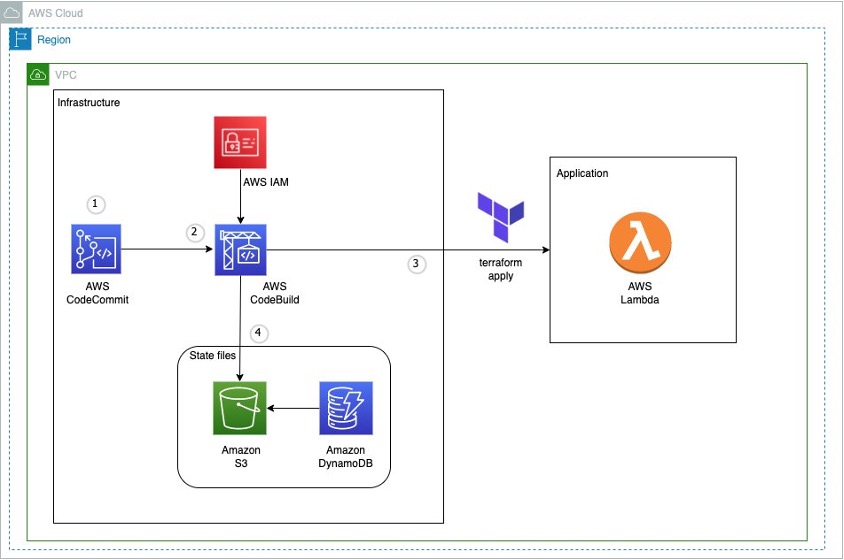
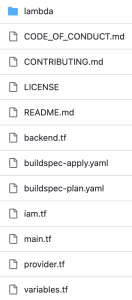
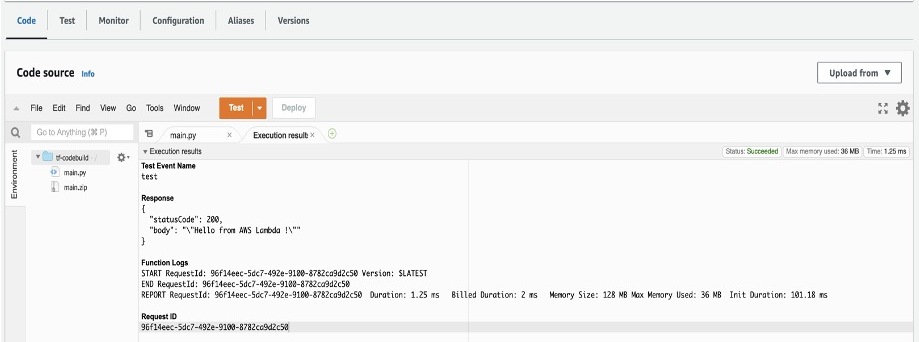
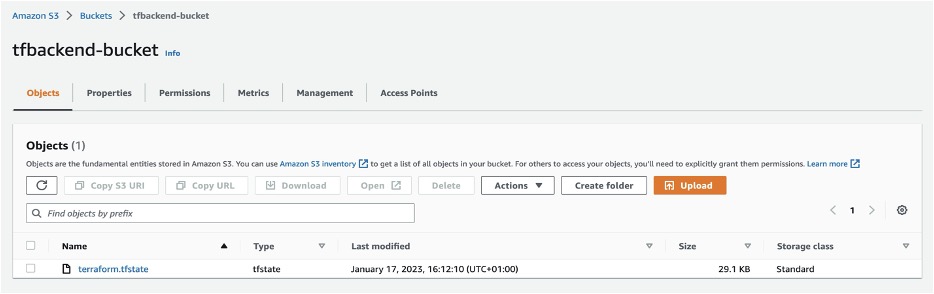
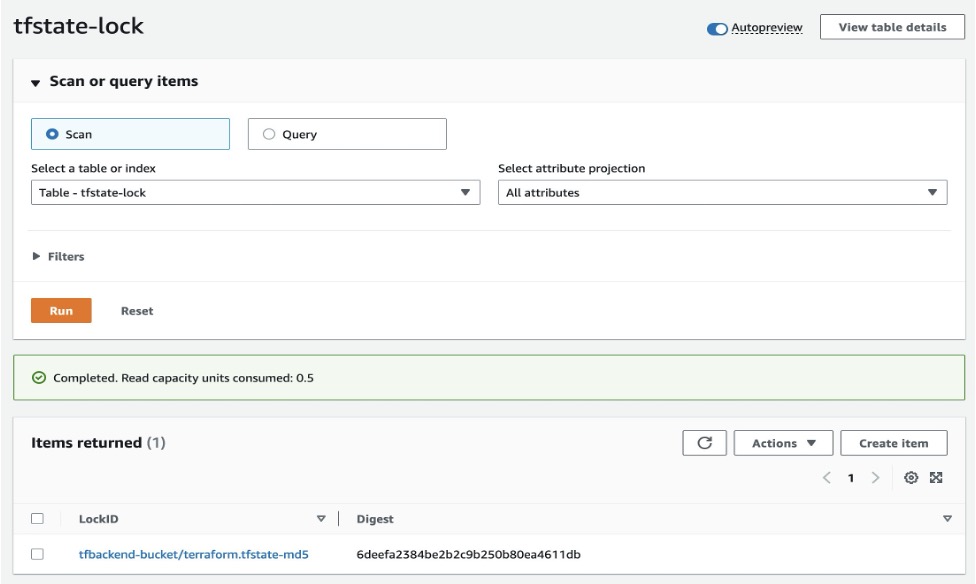


 Parnab Basak is a Senior Solutions Architect and a Serverless Specialist at AWS. He specializes in creating new solutions that are cloud native using modern software development practices like serverless, DevOps, and analytics. Parnab works closely in the analytics and integration services space helping customers adopt AWS services for their workflow orchestration needs.
 Chandan Rupakheti is a Solutions Architect and a Serverless Specialist at AWS. He is a passionate technical leader, researcher, and mentor with a knack for building innovative solutions in the cloud and bringing stakeholders together in their cloud journey. Outside his professional life, he loves spending time with his family and friends besides listening and playing music.
 Vinod Jayendra is a Enterprise Support Lead in ISV accounts at Amazon Web Services, where he helps customers in solving their architectural, operational, and cost optimization challenges. With a particular focus on Serverless technologies, he draws from his extensive background in application development to deliver top-tier solutions. Beyond work, he finds joy in quality family time, embarking on biking adventures, and coaching youth sports team.
 Rupesh Tiwari is a Senior Solutions Architect at AWS in New York City, with a focus on Financial Services. He has over 18 years of IT experience in the finance, insurance, and education domains, and specializes in architecting large-scale applications and cloud-native big data workloads. In his spare time, Rupesh enjoys singing karaoke, watching comedy TV series, and creating joyful moments with his family.


 Harman Singh Dhodi is an Analyst at HR&A Advisors, Harman combines his passion for data analytics with sustainable infrastructure practices, social inclusion, economic viability, climate resiliency, and building stakeholder capacity. Harman’s work often focuses on translating complex datasets into visual stories and accessible tools that help empower communities to understand the challenges they’re facing and create solutions for a brighter future.
 Kiran Kumar Tati is an Analytics Specialist Solutions Architect based out of Omaha, NE. He specializes in building end-to-end analytic solutions. He has more than 13 years of experience with designing and implementing large scale Big Data and Analytics solutions. In his spare time, he enjoys playing cricket and watching sports.
 Sapna Maheshwari is a Sr. Solutions Architect at Amazon Web Services. She helps customers architect data analytics solutions at scale on AWS. Outside of work she enjoys traveling and trying new cuisines.
 Washim Nawaz is an Analytics Specialist Solutions Architect at AWS. He has worked on building and tuning data warehouse and data lake solutions for over 15 years. He is passionate about helping customers modernize their data platforms with efficient, performant, and scalable analytic solutions. Outside of work, he enjoys watching games and traveling.


 Kamen Sharlandjiev is a Sr. Big Data and ETL Solutions Architect and AWS Glue expert. He’s on a mission to make life easier for customers who are facing complex data integration challenges. His secret weapon? Fully managed, low-code AWS services that can get the job done with minimal effort and no coding. Follow Kamen on LinkedIn to keep up to date with the latest AWS Glue news!
 Sean Bjurstrom is a Technical Account Manager in ISV accounts at Amazon Web Services, where he specializes in analytics technologies and draws on his background in consulting to support customers on their analytics and cloud journeys. Sean is passionate about helping businesses harness the power of data to drive innovation and growth. Outside of work, he enjoys running and has participated in several marathons.
 Vinod Jayendra is an Enterprise Support Lead in ISV accounts at Amazon Web Services, where he helps customers solve their architectural, operational, and cost-optimization challenges. With a particular focus on serverless technologies, he draws from his extensive background in application development to help customers build top-tier solutions. Beyond work, he finds joy in quality family time, embarking on biking adventures, and coaching youth sports teams.
 Doug Mbaya is a Senior Partner Solution architect with a focus in analytics and machine learning. Doug works closely with AWS partners and helps them integrate their solutions with AWS analytics and machine learning solutions in the cloud.


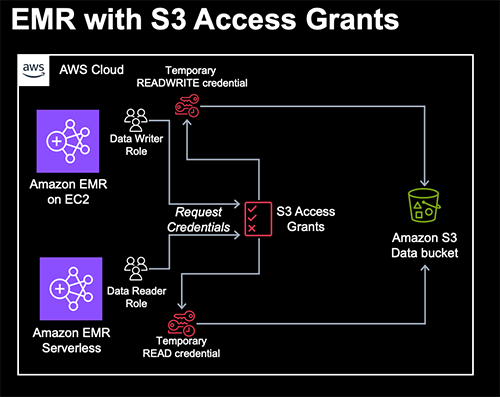


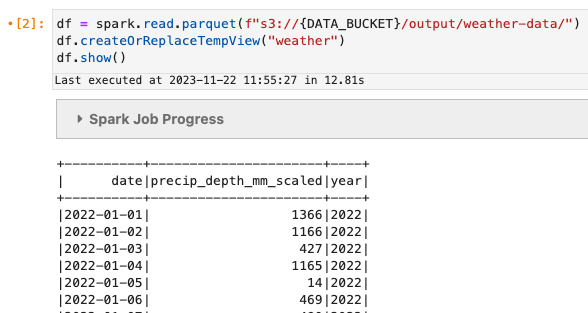
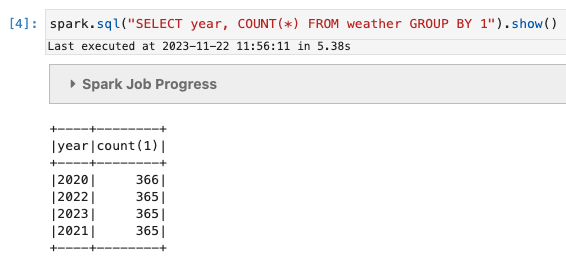

 Damon Cortesi is a Principal Developer Advocate with Amazon Web Services. He builds tools and content to help make the lives of data engineers easier. When not hard at work, he still builds data pipelines and splits logs in his spare time.