Tag Archives: Technical How-to

Field Notes: Clear Unused AWS SSO Mappings Automatically During AWS Control Tower Upgrades

Post Syndicated from Gaurav Gupta original https://aws.amazon.com/blogs/architecture/field-notes-clear-unused-aws-sso-mappings-automatically-during-aws-control-tower-upgrades/

Increasingly organizations are using AWS Control Tower to manage their multiple accounts as well as an external third-party identity source for their federation needs. Cloud architects who use these external identity sources, needed an automated way to clear the unused maps created by AWS Control Tower landing zone as part of the launch, or during update and repair operations. Though the AWS SSO mappings are inaccessible once the external identity source is configured, customers prefer to clear any unused mappings in the directory.

You can remove the permissions sets and mappings that AWS Control Tower deployment creates in AWS SSO. However, when the landing zone is updated or repaired, the default permission sets and mappings are recreated in AWS SSO. In this blog post, we show you how to use AWS Control Tower Lifecycle events to automatically remove these permission sets and mappings when AWS Control Tower is upgraded or repaired. An AWS Lambda function runs on every upgrade and automatically removes the permission sets and mappings.

Overview of solution

Using this CloudFormation template, you can deploy the solution that automatically removes the AWS SSO permission sets and mappings when you upgrade your AWS Control Tower environment. We use AWS CloudFormation, AWS Lambda, AWS SSO and Amazon CloudWatch services to implement this solution.

Figure 1 - Architecture showing how AWS services are used to automatically remove the AWS SSO permission sets and mappings when you upgrade your AWS Control Tower environment

Figure 1 – Architecture showing how AWS services are used to automatically remove the AWS SSO permission sets and mappings when you upgrade your AWS Control Tower environment

To clear the AWS SSO entities and leave the service enabled with no active mappings, we recommend the following steps. This is mainly for those who do not want to use the default AWS SSO deployed by AWS Control Tower.

  • Log in to the AWS Control Tower Management Account and make sure you are in the AWS Control Tower Home Region.
  • Launch AWS CloudFormation stack, which creates:
    • An AWS Lambda function that:
      • Checks/Delete(s) the permission sets mappings created by AWS Control Tower, and
      • Deletes the permission sets created by AWS Control Tower.
  • An AWS IAM role that is assigned to the preceding AWS Lambda Function with minimum required permissions.
  • An Amazon CloudWatch Event Rule that is invoked upon UpdateLandingZone API and triggers the ClearMappingsLambda Lambda function

Prerequisites

For this walkthrough, you should have the following prerequisites:

  • Administrator access to AWS Control Tower management account

Walkthrough

  1. Log in to the AWS account where AWS Control Tower is deployed.
  2. Make sure you are in the home Region of AWS Control Tower.
  3. Deploy the provided CloudFormation template.
    • Download the CloudFormation template.
    • Select AWS CloudFormation service in the AWS Console
    • Select Create Stack and select With new resources (standard)
    • Upload the template file downloaded in Step 1
    • Enter the stack name and choose Next
    • Use the default values in the next page and choose Next
    • Choose Create Stack

By default, in your AWS Control Tower Landing Zone you will see the permission sets and mappings in your AWS SSO service page as shown in the following screenshots:

Figure 2 – Permission sets created by AWS Control Tower

Figure 3 – Account to Permission set mapping created by AWS Control Tower

Now, you can update the AWS Control Tower Landing Zone which will invoke the Lambda function deployed using the CloudFormation template.

Steps to update/repair Control Tower:

  1. Log in to the AWS account where AWS Control Tower is deployed.
  2. Select Landing zone settings from the left-hand pane of the Control Tower dashboard
  3. Select the latest version as seen in the screenshot below.
  4. Select Repair or Update, whichever option is available.
  5. Select Update Landing Zone.

Figure 4 – Updating AWS Control Tower Landing zone

Once the update is complete, you can go to AWS SSO service page and check that the permission sets and the mappings have been removed as shown in the following screenshots:

Figure 5 -Permission sets cleared automatically after Landing zone update

Figure 6 -Mappings cleared after Landing zone update

Cleaning up

If you are only testing this solution, make sure to delete the CloudFormation template, which will remove the relevant resources to stop incurring charges.

Conclusion

In this post, we provided a solution to clear AWS SSO Permission Sets and Mappings when you upgrade your AWS Control Tower Landing Zone. Remember, AWS SSO permission sets are added every time you upgrade AWS Control Tower Landing Zone. With this this solution you don’t have to manage any settings since the AWS Lambda function runs on every upgrade and removes the permission sets and mappings.

Give it a try and let us know your thoughts in the comments!

Field Notes provides hands-on technical guidance from AWS Solutions Architects, consultants, and technical account managers, based on their experiences in the field solving real-world business problems for customers.

Create a serverless event-driven workflow to ingest and process Microsoft data with AWS Glue and Amazon EventBridge

Post Syndicated from Venkata Sistla original https://aws.amazon.com/blogs/big-data/create-a-serverless-event-driven-workflow-to-ingest-and-process-microsoft-data-with-aws-glue-and-amazon-eventbridge/

Microsoft SharePoint is a document management system for storing files, organizing documents, and sharing and editing documents in collaboration with others. Your organization may want to ingest SharePoint data into your data lake, combine the SharePoint data with other data that’s available in the data lake, and use it for reporting and analytics purposes. AWS Glue is a serverless data integration service that makes it easy to discover, prepare, and combine data for analytics, machine learning, and application development. AWS Glue provides all the capabilities needed for data integration so that you can start analyzing your data and putting it to use in minutes instead of months.

Organizations often manage their data on SharePoint in the form of files and lists, and you can use this data for easier discovery, better auditing, and compliance. SharePoint as a data source is not a typical relational database and the data is mostly semi structured, which is why it’s often difficult to join the SharePoint data with other relational data sources. This post shows how to ingest and process SharePoint lists and files with AWS Glue and Amazon EventBridge, which enables you to join other data that is available in your data lake. We use SharePoint REST APIs with a standard open data protocol (OData) syntax. OData advocates a standard way of implementing REST APIs that allows for SQL-like querying capabilities. OData helps you focus on your business logic while building RESTful APIs without having to worry about the various approaches to define request and response headers, query options, and so on.

AWS Glue event-driven workflows

Unlike a traditional relational database, SharePoint data may or may not change frequently, and it’s difficult to predict the frequency at which your SharePoint server generates new data, which makes it difficult to plan and schedule data processing pipelines efficiently. Running data processing frequently can be expensive, whereas scheduling pipelines to run infrequently can deliver cold data. Similarly, triggering pipelines from an external process can increase complexity, cost, and job startup time.

AWS Glue supports event-driven workflows, a capability that lets developers start AWS Glue workflows based on events delivered by EventBridge. The main reason to choose EventBridge in this architecture is because it allows you to process events, update the target tables, and make information available to consume in near-real time. Because frequency of data change in SharePoint is unpredictable, using EventBridge to capture events as they arrive enables you to run the data processing pipeline only when new data is available.

To get started, you simply create a new AWS Glue trigger of type EVENT and place it as the first trigger in your workflow. You can optionally specify a batching condition. Without event batching, the AWS Glue workflow is triggered every time an EventBridge rule matches, which may result in multiple concurrent workflows running. AWS Glue protects you by setting default limits that restrict the number of concurrent runs of a workflow. You can increase the required limits by opening a support case. Event batching allows you to configure the number of events to buffer or the maximum elapsed time before firing the particular trigger. When the batching condition is met, a workflow run is started. For example, you can trigger your workflow when 100 files are uploaded in Amazon Simple Storage Service (Amazon S3) or 5 minutes after the first upload. We recommend configuring event batching to avoid too many concurrent workflows, and optimize resource usage and cost.

To illustrate this solution better, consider the following use case for a wine manufacturing and distribution company that operates across multiple countries. They currently host all their transactional system’s data on a data lake in Amazon S3. They also use SharePoint lists to capture feedback and comments on wine quality and composition from their suppliers and other stakeholders. The supply chain team wants to join their transactional data with the wine quality comments in SharePoint data to improve their wine quality and manage their production issues better. They want to capture those comments from the SharePoint server within an hour and publish that data to a wine quality dashboard in Amazon QuickSight. With an event-driven approach to ingest and process their SharePoint data, the supply chain team can consume the data in less than an hour.

Overview of solution

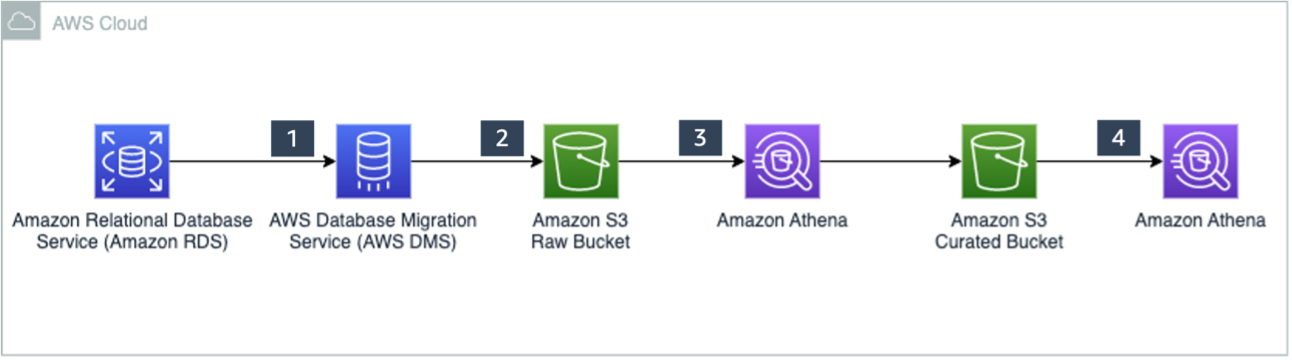
In this post, we walk through a solution to set up an AWS Glue job to ingest SharePoint lists and files into an S3 bucket and an AWS Glue workflow that listens to S3 PutObject data events captured by AWS CloudTrail. This workflow is configured with an event-based trigger to run when an AWS Glue ingest job adds new files into the S3 bucket. The following diagram illustrates the architecture.

To make it simple to deploy, we captured the entire solution in an AWS CloudFormation template that enables you to automatically ingest SharePoint data into Amazon S3. SharePoint uses ClientID and TenantID credentials for authentication and uses Oauth2 for authorization.

The template helps you perform the following steps:

  1. Create an AWS Glue Python shell job to make the REST API call to the SharePoint server and ingest files or lists into Amazon S3.
  2. Create an AWS Glue workflow with a starting trigger of EVENT type.
  3. Configure CloudTrail to log data events, such as PutObject API calls to CloudTrail.
  4. Create a rule in EventBridge to forward the PutObject API events to AWS Glue when they’re emitted by CloudTrail.
  5. Add an AWS Glue event-driven workflow as a target to the EventBridge rule. The workflow gets triggered when the SharePoint ingest AWS Glue job adds new files to the S3 bucket.

Prerequisites

For this walkthrough, you should have the following prerequisites:

Configure SharePoint server authentication details

Before launching the CloudFormation stack, you need to set up your SharePoint server authentication details, namely, TenantID, Tenant, ClientID, ClientSecret, and the SharePoint URL in AWS Systems Manager Parameter Store of the account you’re deploying in. This makes sure that no authentication details are stored in the code and they’re fetched in real time from Parameter Store when the solution is running.

To create your AWS Systems Manager parameters, complete the following steps:

  1. On the Systems Manager console, under Application Management in the navigation pane, choose Parameter Store.
    systems manager
  2. Choose Create Parameter.
  3. For Name, enter the parameter name /DATALAKE/GlueIngest/SharePoint/tenant.
  4. Leave the type as string.
  5. Enter your SharePoint tenant detail into the value field.
  6. Choose Create parameter.
  7. Repeat these steps to create the following parameters:
    1. /DataLake/GlueIngest/SharePoint/tenant
    2. /DataLake/GlueIngest/SharePoint/tenant_id
    3. /DataLake/GlueIngest/SharePoint/client_id/list
    4. /DataLake/GlueIngest/SharePoint/client_secret/list
    5. /DataLake/GlueIngest/SharePoint/client_id/file
    6. /DataLake/GlueIngest/SharePoint/client_secret/file
    7. /DataLake/GlueIngest/SharePoint/url/list
    8. /DataLake/GlueIngest/SharePoint/url/file

Deploy the solution with AWS CloudFormation

For a quick start of this solution, you can deploy the provided CloudFormation stack. This creates all the required resources in your account.

The CloudFormation template generates the following resources:

  • S3 bucket – Stores data, CloudTrail logs, job scripts, and any temporary files generated during the AWS Glue extract, transform, and load (ETL) job run.
  • CloudTrail trail with S3 data events enabled – Enables EventBridge to receive PutObject API call data in a specific bucket.
  • AWS Glue Job – A Python shell job that fetches the data from the SharePoint server.
  • AWS Glue workflow – A data processing pipeline that is comprised of a crawler, jobs, and triggers. This workflow converts uploaded data files into Apache Parquet format.
  • AWS Glue database – The AWS Glue Data Catalog database that holds the tables created in this walkthrough.
  • AWS Glue table – The Data Catalog table representing the Parquet files being converted by the workflow.
  • AWS Lambda function – The AWS Lambda function is used as an AWS CloudFormation custom resource to copy job scripts from an AWS Glue-managed GitHub repository and an AWS Big Data blog S3 bucket to your S3 bucket.
  • IAM roles and policies – We use the following AWS Identity and Access Management (IAM) roles:
    • LambdaExecutionRole – Runs the Lambda function that has permission to upload the job scripts to the S3 bucket.
    • GlueServiceRole – Runs the AWS Glue job that has permission to download the script, read data from the source, and write data to the destination after conversion.
    • EventBridgeGlueExecutionRole – Has permissions to invoke the NotifyEvent API for an AWS Glue workflow.
    • IngestGlueRole – Runs the AWS Glue job that has permission to ingest data into the S3 bucket.

To launch the CloudFormation stack, complete the following steps:

  1. Sign in to the AWS CloudFormation console.
  2. Choose Launch Stack:
  3. Choose Next.
  4. For pS3BucketName, enter the unique name of your new S3 bucket.
  5. Leave pWorkflowName and pDatabaseName as the default.

cloud formation 1

  1. For pDatasetName, enter the SharePoint list name or file name you want to ingest.
  2. Choose Next.

cloud formation 2

  1. On the next page, choose Next.
  2. Review the details on the final page and select I acknowledge that AWS CloudFormation might create IAM resources.
  3. Choose Create.

It takes a few minutes for the stack creation to complete; you can follow the progress on the Events tab.

You can run the ingest AWS Glue job either on a schedule or on demand. As the job successfully finishes and ingests data into the raw prefix of the S3 bucket, the AWS Glue workflow runs and transforms the ingested raw CSV files into Parquet files and loads them into the transformed prefix.

Review the EventBridge rule

The CloudFormation template created an EventBridge rule to forward S3 PutObject API events to AWS Glue. Let’s review the configuration of the EventBridge rule:

  1. On the EventBridge console, under Events, choose Rules.
  2. Choose the rule s3_file_upload_trigger_rule-<CloudFormation-stack-name>.
  3. Review the information in the Event pattern section.

event bridge

The event pattern shows that this rule is triggered when an S3 object is uploaded to s3://<bucket_name>/data/SharePoint/tablename_raw/. CloudTrail captures the PutObject API calls made and relays them as events to EventBridge.

  1. In the Targets section, you can verify that this EventBridge rule is configured with an AWS Glue workflow as a target.

event bridge target section

Run the ingest AWS Glue job and verify the AWS Glue workflow is triggered successfully

To test the workflow, we run the ingest-glue-job-SharePoint-file job using the following steps:

  1. On the AWS Glue console, select the ingest-glue-job-SharePoint-file job.

glue job

  1. On the Action menu, choose Run job.

glue job action menu

  1. Choose the History tab and wait until the job succeeds.

glue job history tab

You can now see the CSV files in the raw prefix of your S3 bucket.

csv file s3 location

Now the workflow should be triggered.

  1. On the AWS Glue console, validate that your workflow is in the RUNNING state.

glue workflow running status

  1. Choose the workflow to view the run details.
  2. On the History tab of the workflow, choose the current or most recent workflow run.
  3. Choose View run details.

glue workflow visual

When the workflow run status changes to Completed, let’s check the converted files in your S3 bucket.

  1. Switch to the Amazon S3 console, and navigate to your bucket.

You can see the Parquet files under s3://<bucket_name>/data/SharePoint/tablename_transformed/.

parquet file s3 location

Congratulations! Your workflow ran successfully based on S3 events triggered by uploading files to your bucket. You can verify everything works as expected by running a query against the generated table using Amazon Athena.

Sample wine dataset

Let’s analyze a sample red wine dataset. The following screenshot shows a SharePoint list that contains various readings that relate to the characteristics of the wine and an associated wine category. This is populated by various wine tasters from multiple countries.

redwine dataset

The following screenshot shows a supplier dataset from the data lake with wine categories ordered per supplier.

supplier dataset

We process the red wine dataset using this solution and use Athena to query the red wine data and supplier data where wine quality is greater than or equal to 7.

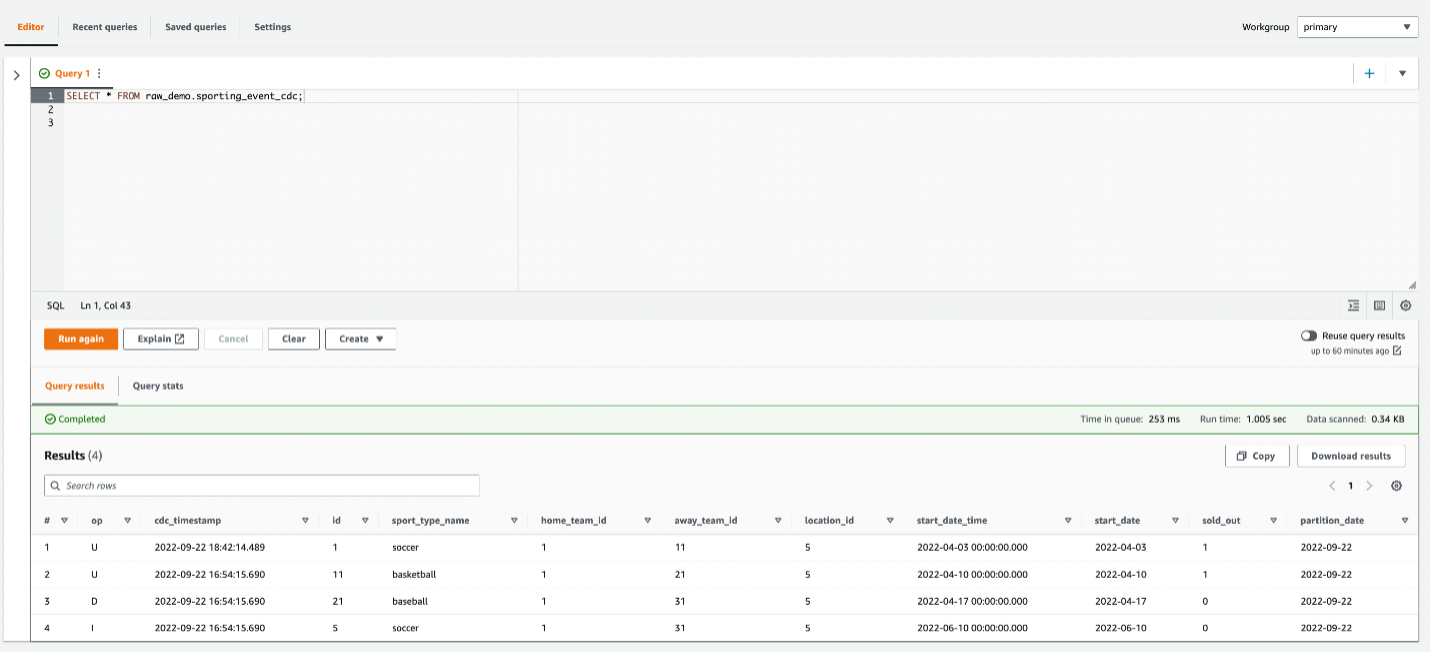
athena query and results

We can visualize the processed dataset using QuickSight.

Clean up

To avoid incurring unnecessary charges, you can use the AWS CloudFormation console to delete the stack that you deployed. This removes all the resources you created when deploying the solution.

Conclusion

Event-driven architectures provide access to near-real-time information and help you make business decisions on fresh data. In this post, we demonstrated how to ingest and process SharePoint data using AWS serverless services like AWS Glue and EventBridge. We saw how to configure a rule in EventBridge to forward events to AWS Glue. You can use this pattern for your analytical use cases, such as joining SharePoint data with other data in your lake to generate insights, or auditing SharePoint data and compliance requirements.


About the Author

Venkata Sistla is a Big Data & Analytics Consultant on the AWS Professional Services team. He specializes in building data processing capabilities and helping customers remove constraints that prevent them from leveraging their data to develop business insights.

Implementing Auto Scaling for EC2 Mac Instances

Post Syndicated from Rick Armstrong original https://aws.amazon.com/blogs/compute/implementing-autoscaling-for-ec2-mac-instances/

This post is written by: Josh Bonello, Senior DevOps Architect, AWS Professional Services; Wes Fabella, Senior DevOps Architect, AWS Professional Services

Amazon Elastic Compute Cloud (Amazon EC2) is a web service that provides secure, resizable compute capacity in the cloud. The introduction of Amazon EC2 Mac now enables macOS based workloads to run in the AWS Cloud. These EC2 instances require Dedicated Hosts usage. EC2 integrates natively with Amazon CloudWatch to provide monitoring and observability capabilities.

In order to best leverage EC2 for dynamic workloads, it is a best practice to use Auto Scaling whenever possible. This will allow your workload to scale to demand, while keeping a minimal footprint during low activity periods. With Auto Scaling, you don’t have to worry about provisioning more servers to handle peak traffic or paying for more than you need.

This post will discuss how to create an Auto Scaling Group for the mac1.metal instance type. We will produce an Auto Scaling Group, a Launch Template, a Host Resource Group, and a License Configuration. These resources will work together to produce the now expected behavior of standard instance types with Auto Scaling. At AWS Professional Services, we have implemented this architecture to allow the dynamic sizing of a compute fleet utilizing the mac1.metal instance type for a large customer. Depending on what should invoke the scaling mechanisms, this architecture can be easily adapted to integrate with other AWS services, such as Elastic Load Balancers (ELB). We will provide Terraform templates as part of the walkthrough. Please take special note of the costs associated with running three mac1.metal Dedicated Hosts for 24 hours.

How it works

First, we will begin in AWS License Manager and create a License Configuration. This License Configuration will be associated with an Amazon Machine Image (AMI), and can be associated with multiple AMIs. We will utilize this License Configuration as a parameter when we create a Host Resource Group. As part of defining the Launch Template, we will be referencing our Host Resource Group. Then, we will create an Auto Scaling Group based on the Launch Template.

Example flow of License Manager, AWS Auto Scaling, and EC2 Instances and their relationship to each other.

The License Configuration will control the software licensing parameters. Normally, License Configurations are used for software licensing controls. In our case, it is only a required element for a Host Resource Group, and it handles nothing significant in our solution.

The Host Resource Group will be responsible for allocating and deallocating the Dedicated Hosts for the Mac1 instance family. An available Dedicated Host is required to launch a mac1.metal EC2 instance.

The Launch Template will govern many aspects to our EC2 Instances, including AWS Identity and Access Management (IAM) Instance Profile, Security Groups, and Subnets. These will be similar to typical Auto Scaling Group expectations. Note that, in our solution, we will use Tenancy Host Resource Group as our compute source.

Finally, we will create an Auto Scaling Group based on our Launch Template. The Auto Scaling Group will be the controller to signal when to create new EC2 Instances, create new Dedicated Hosts, and similarly terminate EC2 Instances. Unutilized Dedicated Hosts will be tracked and terminated by the Host Resource Group.

Limits

Some limits exist for this solution. To deploy this solution, a Service Quota Increase must be submitted for mac1.metal Dedicated Hosts, as the default quota is 0. Deploying the solution without this increase will result in failures when provisioning the Dedicated Hosts for the mac1.metal instances.

While testing scale-in operations of the auto scaling group, you might find that Dedicated Hosts are in “Pending” state. Mac1 documentation says “When you stop or terminate a Mac instance, Amazon EC2 performs a scrubbing workflow on the underlying Dedicated Host to erase the internal SSD, to clear the persistent NVRAM variables. If the bridgeOS software does not need to be updated, the scrubbing workflow takes up to 50 minutes to complete. If the bridgeOS software needs to be updated, the scrubbing workflow can take up to 3 hours to complete.” The Dedicated Host cannot be reused for a new scale-out operation until this scrubbing is complete. If you attempt a scale-in and a scale-out operation during testing, you might find more Dedicated Hosts than EC2 instances for your ASG as a result.

Auto Scaling Group features like dynamic scaling, health checking, and instance refresh can also cause similar side effects as a result of terminating the EC2 instances. These side effects will subside after 24 hours when a mac1 dedicate host can be released.

Building the solution

This walkthrough will utilize a Terraform template to automate the infrastructure deployment required for this solution. The following prerequisites should be met prior to proceeding with this walkthrough:

Before proceeding, note that the AWS resources created as part of the walkthrough have costs associated with them. Delete any AWS resources created by the walkthrough that you do not intend to use. Take special note that at the time of writing, mac1.metal Dedicated Hosts require a 24 minimum allocation time to align with Apple macOS EULA, and that mac1.metal EC2 instances are not charged separately, only the underlying Dedicated Hosts are.

Step 1: Deploy Dedicated Hosts infrastructure

First, we will do one-time setup for AWS License Manager to have the required IAM Permissions through the AWS Management Console. If you have already used License Manager, this has already been done for you. Click on “create customer managed license”, check the box, and then click on “Grant Permissions.”

AWS License Manager IAM Permissions Grant

To deploy the infrastructure, we will utilize a Terraform template to automate every component setup. The code is available at https://github.com/aws-samples/amazon-autoscaling-mac1metal-ec2-with-terraform. First, initialize your Terraform host. For this solution, utilize a local machine. For this walkthrough, we will assume the use of the us-west-2 (Oregon) AWS Region and the following links to help check resources will account for this.

terraform -chdir=terraform-aws-dedicated-hosts init

Initializing Terraform host and showing an example of expected output.

Then, we will plan our Terraform deployment and verify what we will be building before deployment.

terraform -chdir=terraform-aws-dedicated-hosts plan

In our case, we will expect a CloudFormation Stack and a Host Resource Group.

Planning Terraform template and showing an example of expected output.

Then, apply our Terraform deployment and verify via the AWS Management Console.

terraform -chdir=terraform-aws-dedicated-hosts apply -auto-approve

Applying Terraform template and showing an example of expected output.

Check that the License Configuration has been made in License Manager with a name similar to MyRequiredLicense.

Example of License Manager License after Terraform Template is applied.

Check that the Host Resource Group has been made in the AWS Management Console. Ensure that the name is similar to mac1-host-resource-group-famous-anchovy.

Example of Cloudformation Stack that is created, with License Manager Host Resource Group name pictured.

Note the host resource group name in the HostResourceGroup “Physical ID” value for the next step.

Step 2: Deploy mac1.metal Auto Scaling Group

We will be taking similar steps as in Step 1 with a new component set.

Initialize your Terraform State:

terraform -chdir=terraform-aws-ec2-mac init

Then, update the following values in terraform-aws-ec2-mac/my.tfvars:

vpc_id : Check the ID of a VPC in the account where you are deploying. You will always have a “default” VPC.

subnet_ids : Check the ID of one or many subnets in your VPC.

hint: use https://us-west-2.console.aws.amazon.com/vpc/home?region=us-west-2#subnets

security_group_ids : Check the ID of a Security Group in the account where you are deploying. You will always have a “default” SG.

host_resource_group_cfn_stack_name : Use the Host Resource Group Name value from the previous step.

Then, plan your deployment using the following:

terraform -chdir=terraform-aws-ec2-mac plan -var-file="my.tfvars"

Once we’re ready to deploy, utilize Terraform to apply the following:

terraform -chdir=terraform-aws-ec2-mac apply -var-file="my.tfvars" -auto-approve

Note, this will take three to five minutes to complete.

Step 3: Verify Deployment

Check our Auto Scaling Group in the AWS Management Console for a group named something like “ec2-native-xxxx”. Verify all attributes that we care about, including the underlying EC2.

Example of Autoscaling Group listing the EC2 Instances with mac1.metal instance type showing InService after Terraform Template is applied.

Check our Elastic Load Balancer in the AWS Management Console with a Tag key “Name” and the value of your Auto Scaling Group.

Check for the existence of our Dedicated Hosts in the AWS Management Console.

Step 4: Test Scaling Features

Now we have the entire infrastructure in place for an Auto Scaling Group to conduct normal activity. We will test with a scale-out behavior, then a scale-in behavior. We will force operations by updating the desired count of the Auto Scaling Group.

For scaling out, update the my.tfvars variable number_of_instances to three from two, and then apply our terraform template. We will expect to see one more EC2 instance for a total of three instances, with three Dedicated Hosts.

terraform -chdir=terraform-aws-ec2-mac apply -var-file="my.tfvars" -auto-approve

Then, take the steps in Step 3: Verify Deployment in order to check for expected behavior.

For scaling in, update the my.tfvars variable number_of_instances to one from three, and then apply our terraform template. We will expect your Auto Scaling Group to reduce to one active EC2 instance and have three Dedicated Hosts remaining until they are capable of being released 24 hours later.

terraform -chdir=terraform-aws-ec2-mac apply -var-file="my.tfvars" -auto-approve

Then, take the steps in Step 3: Verify Deployment in order to check for expected behavior.

Cleaning up

Complete the following steps in order to cleanup resources created by this exercise:

terraform -chdir=terraform-aws-ec2-mac destroy -var-file="my.tfvars" -auto-approve

This will take 10 to 12 minutes. Then, wait 24 hours for the Dedicated Hosts to be capable of being released, and then destroy the next template. We recommend putting a reminder on your calendar to make sure that you don’t forget this step.

terraform -chdir=terraform-aws-dedicated-hosts destroy -auto-approve

Conclusion

In this post, we created an Auto Scaling Group using mac1.metal instance types. Scaling mechanisms will work as expected with standard EC2 instance types, and the management of Dedicated Hosts is automated. This enables the management of macOS based application workloads to be automated based on the Well Architected patterns. Furthermore, this automation allows for rapid reactions to surges of demand and reclamation of unused compute once the demand is cleared. Now you can augment this system to integrate with other AWS services, such as Elastic Load Balancing, Amazon Simple Cloud Storage (Amazon S3), Amazon Relational Database Service (Amazon RDS), and more.

Review the information available regarding CloudWatch custom metrics to discover possibilities for adding new ways for scaling your system. Now we would be eager to know what AWS solution you’re going to build with the content described by this blog post! To get started with EC2 Mac instances, please visit the product page.

Field Notes: Extending the Baseline in AWS Control Tower to Accelerate the Transition from AWS Landing Zone

Post Syndicated from MinWoo Lee original https://aws.amazon.com/blogs/architecture/field-notes-extending-the-baseline-in-aws-control-tower-to-accelerate-the-transition-from-aws-landing-zone/

Customers who adopt and operate the AWS Landing Zone solution as a scalable multi-account environment are starting to migrate to the AWS Control Tower service. They are doing so to enjoy the added benefits of managed services such as stability, feature enhancement, and operational efficiency. Customers who fully use the baseline for governance control provided by AWS Landing Zone for their member accounts may want to apply the baseline of the same feature without omission even when transitioning to AWS Control Tower. To baseline an account is to set up common blueprints and guardrails required for an organization to enable governance at the start of the account.

As shown in Table 1, AWS Control Tower provides most of the features that are mapped with the baseline of the AWS Landing Zone solution through the baseline stacks, guardrails, and account factory, but some features are unique to AWS Landing Zone.

Table 1. AWS Landing Zone and
AWS Control Tower Baseline mapping
AWS Landing Zone baseline stack AWS Control Tower baseline stack
AWS-Landing-Zone-Baseline-EnableCloudTrail AWSControlTowerBP-BASELINE-CLOUDTRAIL
AWS-Landing-Zone-Baseline-SecurityRoles AWSControlTowerBP-BASELINE-ROLES
AWS-Landing-Zone-Baseline-EnableConfig AWSControlTowerBP-BASELINE-CLOUDWATCH
AWSControlTowerBP-BASELINE-CONFIG
AWSControlTowerBP-BASELINE-SERVICE-ROLES
AWS-Landing-Zone-Baseline-ConfigRole AWSControlTowerBP-BASELINE-SERVICE-ROLES
AWS-Landing-Zone-Baseline-EnableConfigRule Guardrails – Enable guardrail on OU
(AWSControlTowerGuardrailAWS-GR-xxxxx)
AWS-Landing-Zone-Baseline-EnableConfigRulesGlobal Guardrails – Enable guardrail on OU
(AWSControlTowerGuardrailAWS-GR-xxxxx)
AWS-Landing-Zone-Baseline-PrimaryVPC Account Factory – Network Configuration
AWS-Landing-Zone-Baseline-IamPasswordPolicy
AWS-Landing-Zone-Baseline-EnableNotifications

The baselines uniquely provided by AWS Landing Zone are as follows:

  • AWS-Landing-Zone-Baseline-IamPasswordPolicy
    • AWS Lambda to configure AWS Identity and Access Management (IAM) custom password policy (such as minimum password length, password expires period, password complexity, and password history in member accounts).
  • AWS-Landing-Zone-Baseline-EnableNotifications
    • Amazon CloudWatch alarms deliver CloudTrail application programming interface (API) activity such as Security Group changes, Network ACL changes, and Amazon Elastic Compute Cloud (Amazon EC2) instance type changes to the security administrator.

AWS provides the AWS Control Tower lifecycle events and Customizations for AWS Control Tower as a way to add features that are not included by default in AWS Control Tower. Customizations for AWS Control Tower is an AWS solution that allows you to easily add customizations using AWS CloudFormation templates and service control polices.

This blog post explains how to modify and deploy the code to apply AWS Landing Zone specific baselines such as IamPasswordPolicy and EnableNotifications into AWS Control Tower using Customizations for the AWS Control Tower.

Overview of solution

Adhering to the package folder structure of Customizations for AWS Control Tower, modify the AWS Landing Zone IamPasswordPolicy, EnableNotifications template, parameter file, and manifest file to match the AWS Control Tower deployment environment.

When the modified package is uploaded to the source repository, contents of the package are validated and built by launching AWS CodePipeline. The AWS Landing Zone specific baseline is deployed in member accounts through AWS CloudFormation StackSets in the AWS Control Tower management account.

When a new or existing account is enrolled in AWS Control Tower, the same AWS Landing Zone specific baseline is automatically applied to that account by the lifecycle event (CreateManagedAccount status is SUCCEEDED).

Figure 1 shows how the default baseline of AWS Control Tower and the specific baseline of AWS Landing Zone are applied to member accounts.

Figure 1. Default and custom baseline deployment in AWS Control Tower

Figure 1. Default and custom baseline deployment in AWS Control Tower

Walkthrough

This solution follows these steps:

  1. Download and extract the latest version of the AWS Landing Zone Configuration source package. The package contains several functional components including baseline of IamPasswordPolicy, EnableNotifications for applying to accounts in AWS Landing Zone environment. If you are transitioning from AWS Landing Zone to AWS Control Tower, you may use the AWS Landing Zone configuration source package that exists in your management account.
  2. Download and extract the configuration source package of your Customizations for AWS Control Tower.
  3. Create templates and parameters folder structure for customizing configuration package source of Customizations for AWS Control Tower.
  4.  Copy the template and parameter files of the IamPasswordPolicy baseline from the AWS Landing Zone configuration source to the Customizations for AWS Control Tower configuration source.
    1. Open the parameter file (JSON), and modify the parameter value to match your organization’s password policy.
  1. Copy the template and parameter files of the EnableNotifications baseline from the AWS Landing Zone configuration source to the Customizations for AWS Control Tower configuration source.
    1. Open the parameter file (JSON), and change the LogGroupName parameter value to the CloudWatch log group name of your AWS Control Tower environment. Select whether or not to use each alarm in the parameter value.
    2. Open the template file (YAML), and modify the AlarmActions properties of all CloudWatch alarms to refer to the security topic of the Amazon Simple Notification Service (Amazon SNS) that exists in your AWS Control Tower environment.
  1. Open the manifest (YAML) file in the configuration source of Customizations for AWS Control Tower, and update with the modified IamPasswordPolicy and EnableNotifications parameter, template file path, and organizational unit to be applied.
    1. If you have customizations which have already been deployed and operated through Customizations for AWS Control Tower, do not remove existing contents, and consecutively add customized resource in resources section.
  1. Compress the completed source package, and upload it to the source repository of Customizations for AWS Control Tower.
  2. Check the results for applying this solution in AWS Control Tower.
    1. In the management account, wait for all AWS CodePipeline steps in Customizations for AWS Control Tower to be completed.
    2. In the management account, check that the CloudFormation IamPasswordPolicy and EnableNotifications StackSet is deployed.
    3. In a member account, check that the custom password policy is configured in Account Settings of IAM.
    4. In a member account, check that alarms are created in All Alarms of CloudWatch.

Prerequisites

For this walkthrough, you should have the following prerequisites:

  • AWS Control Tower deployment.
  • An AWS Control Tower member account.
  • Customizations for AWS Control Tower solution deployment.
  • IAM user and roles, and permission to allow use of ‘CustomControlTowerKMSKey’ in AWS Key Management Service Key Policy to access Amazon Simple Storage Service (Amazon S3) as the configuration source.
    • This is not required in case of using CodeCommit as source repository, but it assumes that Amazon S3 is used for this solution.
  • If the IamPasswordPolicy and EnableNotifications baseline for the AWS Landing Zone service has been deployed in the AWS Control Tower environment, it is necessary to delete stack instances and StackSet associated with the following CloudFormation StackSets:
    • AWS-Landing-Zone-Baseline-IamPasswordPolicy
    • AWS-Landing-Zone-Baseline-EnableNotifications
  • An IAM or AWS Single Sign-On (AWS SSO) account with the following settings:
    • Permission with AdministratorAccess
    • Access type with Programmatic access and AWS Management Console access
  • AWS Command Line Interface (AWS CLI) and Linux Zip package installation in work environment.
  • An IAM or AWS SSO user for member account (optional).

Prepare the work environment

Download the AWS Landing Zone configuration package and Customizations for AWS Control Tower configuration package, and create a folder structure.

  1. Open your terminal AWS Command Line Interface (AWS CLI).

Note: Confirm that AWS Config and credentials for the AWS Command Line Interface (AWS CLI) are properly set as access method (IAM or AWS SSO user) you are using in management account.

  1. Change to home directory and download the aws-landing-zone-configuration.zip file.
cd ~
wget https://s3.amazonaws.com/solutions-reference/aws-landing-zone/latest/aws-landing-zone-configuration.zip
  1.  Extract AWS Landing Zone configuration file to new directory (Named alz).
unzip aws-landing-zone-configuration.zip -d ~/alz
  1. Download _custom-control-tower-configuration.zip file in Customizations for AWS Control Tower configuration’s S3 bucket. Use your AWS Account Id and home Region in S3 bucket name.

Note: If you have already used the Customizations for AWS Control Tower configuration package, or have the Auto Build parameter set to true, use custom-control-tower-configuration.zip instead of _custom-control-tower-configuration.zip.

aws s3 cp s3://custom-control-tower-configuration-<AWS Account Id >-<AWS Region>/_custom-control-tower-configuration.zip ~/

Figure 2. Downloading source package of Customizations for AWS Control Tower

  1. Extract Customizations for AWS Control Tower configuration file to new directory (Named cfct).
unzip _custom-control-tower-configuration.zip -d ~/cfct
  1. Create templates and parameters directory under Customizations for AWS Control Tower configuration directory.
cd ~/cfct
mkdir templates parameters

Now you will see directories and files under Customizations for AWS Control Tower configuration directory.

Note: example-configuration is just an example, and will not be used in this blog post.

 Figure 3. Directory structure of Customizations for AWS Control Tower

Figure 3. Directory structure of Customizations for AWS Control Tower

Customize to include AWS Landing Zone specific baseline

Start customization work by integrating the AWS Landing Zone IamPasswordPolicy and EnableNotifications baseline related files into the structure of Customizations for AWS Control Tower configuration package.

  1. Copy the IamPasswordPolicy baseline template and parameter file into the Customizations for AWS Control Tower configuration directory.
cp ~/alz/templates/aws_baseline/aws-landing-zone-iam-password-policy.template ~/cfct/templates/
cp ~/alz/parameters/aws_baseline/aws-landing-zone-iam-password-policy.json ~/cfct/parameters/
  1. Open the copied aws-landing-zone-iam-password-policy.json, then adjust it to be compliant with your optional password policy requirement.
  2. Copy the EnableNotifications baseline template and parameter file into the Customizations for AWS Control Tower configuration directory.
cp ~/alz/templates/aws_baseline/aws-landing-zone-notifications.template ~/cfct/templates/
cp ~/alz/parameters/aws_baseline/aws-landing-zone-notifications.json ~/cfct/parameters/
  1. Open the copied aws-landing-zone-notifications.template.

Remove the following four lines from the SNSNotificationTopic parameter:

SNSNotificationTopic:
    Type: AWS::SSM::Parameter::Value<String>
    Default: /org/member/local_sns_arn
    Description: "Local Admin SNS Topic for Landing Zone"

Modify AlarmActions under Properties for each of 11 CloudWatch alarms as follows:

AlarmActions:
      - !Sub 'arn:aws:sns:${AWS::Region}:${AWS::AccountId}:aws-controltower-SecurityNotifications'
  1. Open aws-landing-zone-notifications.json.

Remove the following five lines from the SNSNotificationTopic parameter key, and parameter value at the bottom of file. Make sure to remove the including comma preceding the JSON syntax.

  ,
  {
    "ParameterKey": "SNSNotificationTopic",
    "ParameterValue": "/org/member/local_sns_arn"
  }

     Modify the parameter value of LogGroupName parameter key as follows:

{
"ParameterKey": "LogGroupName",
"ParameterValue": "aws-controltower/CloudTrailLogs"
},

6. Open the manifest.yaml under root of the Customizations for AWS Control Tower configuration directory, then modify it to include IamPasswordPolicy and EnableNotifications baseline. If there are customizations that  have been previously used in the manifest file of Customizations for AWS Control Tower, add them at the end.

7. Properly adjust region, resource_file, parameter_file, and organizational_units for your AWS Control Tower environment.

Note: Choose the proper organizational units because Customizations for AWS Control Tower will try to deploy customization resources to all AWS accounts within operational units defined in organizational_units property. If you want to select specific accounts, consider using accounts property instead of organizational_units property.

Review the following sample manifest file:

---
#Default region for deploying Custom Control Tower: Code Pipeline, Step functions, Lambda, SSM parameters, and StackSets
region: ap-northeast-2
version: 2021-03-15

# Control Tower Custom Resources (Service Control Policies or CloudFormation)
resources:
  - name: IamPasswordPolicy
    resource_file: templates/aws-landing-zone-iam-password-policy.template
    parameter_file: parameters/aws-landing-zone-iam-password-policy.json
    deploy_method: stack_set
    deployment_targets:
      organizational_units:
        - Security
        - Infrastructure
        - app-services
        - app-reports

  - name: EnableNotifications
    resource_file: templates/aws-landing-zone-notifications.template
    parameter_file: parameters/aws-landing-zone-notifications.json
    deploy_method: stack_set
    deployment_targets:
      organizational_units:
        - Security
        - Infrastructure
        - app-services
        - app-reports
  1. Compress all files within the root of the Customizations for AWS Control Tower configuration directory into the custom-control-tower-configuration.zip file.
cd ~/cfct/
zip -r custom-control-tower-configuration.zip ./
  1. Upload the custom-control-tower-configuration.zip file into the Customizations for AWS Control Tower configuration S3 bucket. Use your AWS Account Id and Home Region in the S3 bucket name.
aws s3 cp ~/cfct/custom-control-tower-configuration.zip s3://custom-control-tower-configuration-<AWS Account Id>-<AWS Region>/

Figure 4. Uploading source package of Customizations for AWS Control Tower

Verify solution

Now, you can verify the results for applying this solution.

  1. Log in to your AWS Control Tower management account.
  2.  Navigate to AWS CodePipeline service, then select Custom-Control-Tower-CodePipeline.
  3. Wait for all pipeline stages to complete.
  4. Go to AWS CloudFormation, then choose StackSets.
  5.  Search with the keyword custom. This will result in two custom StackSets.

Figure 5. Custom StackSet of Customizations for AWS Control Tower

  1. Log in to your AWS Control Tower member account.

Note: You need an IAM or AWS SSO user, or simply switch the role to AWSControlTowerExecution in the member account.

  1. Go to IAM, then choose Account settings. You will see a configured custom password policy.
Figure 6. IAM custom password policy of member account

Figure 6. IAM custom password policy of member account

  1. Go to Amazon CloudWatch, then choose All alarms. You will see 11 configured alarms.

Figure 7. Amazon CloudWatch alarms of member account

Cleaning up

Resources deployed to member accounts by this solution can be removed through the CloudFormation Stack function in the management account.

Run Delete stack from StackSet, followed by Delete StackSet, for the following two StackSets.

  • CustomControlTower-IamPasswordPolicy
  • CustomControlTower-EnableNotifications

Conclusion

In this blog post, you learned how to extend the baseline in AWS Control Tower to include the baseline specific to AWS Landing Zone. The principal idea is to use Customizations for AWS Control Tower, and additionally add guardrails, such as AWS Config rule and service control policy, which are not included by default in AWS Control Tower. This helps the transition of AWS Landing Zone to the AWS Control Tower, and enhances the governance control capability of the enterprise.

Related reading: Seamless Transition from an AWS Landing Zone to AWS Control Tower

Field Notes provides hands-on technical guidance from AWS Solutions Architects, consultants, and technical account managers, based on their experiences in the field solving real-world business problems for customers.

Deep Dive on Amazon EC2 VT1 Instances

Post Syndicated from Rick Armstrong original https://aws.amazon.com/blogs/compute/deep-dive-on-amazon-ec2-vt1-instances/

This post is written by:  Amr Ragab, Senior Solutions Architect; Bryan Samis, Principal Elemental SSA; Leif Reinert, Senior Product Manager

Introduction

We at AWS are excited to announce that new Amazon Elastic Compute Cloud (Amazon EC2) VT1 instances are now generally available in the US-East (N. Virginia), US-West (Oregon), Europe (Ireland), and Asia Pacific (Tokyo) Regions. This instance family provides dedicated video transcoding hardware in Amazon EC2 and offers up to 30% lower cost per stream as compared to G4dn GPU based instances or 60% lower cost per stream as compared to C5 CPU based instances. These instances are powered by Xilinx Alveo U30 media accelerators with up to eight U30 media accelerators per instance in the vt1.24xlarge. Each U30 accelerator comes with two XCU30 Zynq UltraScale+ SoCs, totaling 16 addressable devices in the vt1.24xlarge instance with H.264/H.265 Video Codec Units (VCU) cores.

Each U30 accelerator card comes with two XCU30 Zynq UltraScale+ SoCs

Currently, the VT1 family consists of three sizes, as summarized in the following:

Instance Type vCPUs RAM U30 accelerator cards Addressable XCU30 SoCs 
vt1.3xlarge 12 24 1 2
vt1.6xlarge 24 48 2 8
vt1.24xlarge 96 182 8 16

Each addressable XCU30 SoC device supports:

  • Codec: MPEG4 Part 10 H.264, MPEG-H Part 2 HEVC H.265
  • Resolutions: 128×128 to 3840×2160
  • Flexible rate control: Constant Bitrate (CBR), Variable Bitrate(VBR), and Constant Quantization Parameter(QP)
  • Frame Scan Types: Progressive H.264/H.265
  • Input Color Space: YCbCr 4:2:0, 8-bit per color channel.

The following table outlines the number of transcoding streams per addressable device and instance type:

Transcoding Each XCU30 SoC vt1.3xlarge vt1.6xlarge vt1.24xlarge
3840x2160p60 1 2 4 16
3840x2160p30 2 4 8 32
1920x1080p60 4 8 16 64
1920x1080p30 8 16 32 128
1280x720p30 16 32 64 256
960x540p30 24 48 92 384

Each XCU30 SoC can support the following stream densities: 1x 4kp60, 2x 4kp30, 4x 1080p60, 8x 1080p30, 16x 720p30

Customers with applications such as live broadcast, video conferencing and just-in-time transcoding can now benefit from a dedicated instance family devoted to video encoding and decoding with rescaling optimizations at the lowest cost per stream. This dedicated instance family lets customers run batch, real-time, and faster than real-time transcoding workloads.

Deployment and Quick Start

To get started, you launch a VT1 instance with prebuilt VT1 Amazon Machine Images (AMIs), available on the AWS Marketplace. However, if you have AMI hardening requirements or other requirements that require you to install the Xilinx software stack, you can reference the Xilinx Video SDK documentation for VT1.

The software stack utilizes a driver suite that is a combination of the driver stack as well as management and client tools. The following terminology will be used in this instance family:

  • XRT – Xilinx Runtime Library
  • XRM – Xilinx Runtime Management Library
  • XCDR – Xilinx Video Transcoding SDK
  • XMA – Xilinx Media Accelerator API and Samples
  • XOCL – Xilinx driver (xocl)

To run workloads directly on Amazon EC2 instances, you must load both the XRT and XRM stack. These are conveniently provided by loading the XCDR environment. To load the devices, run the following:

source /opt/xilinx/xcdr/setup.sh

With the output:

-----Source Xilinx U30 setup files-----
XILINX_XRT        : /opt/xilinx/xrt
PATH              : /opt/xilinx/xrt/bin:/usr/local/sbin:/sbin:/bin:/usr/sbin:/usr/bin:/root/bin
LD_LIBRARY_PATH   : /opt/xilinx/xrt/lib:
PYTHONPATH        : /opt/xilinx/xrt/python:
XILINX_XRM      : /opt/xilinx/xrm
PATH            : /opt/xilinx/xrm/bin:/opt/xilinx/xrt/bin:/usr/local/sbin:/sbin:/bin:/usr/sbin:/usr/bin:/root/bin
LD_LIBRARY_PATH : /opt/xilinx/xrm/lib:/opt/xilinx/xrt/lib:
Number of U30 devices found : 16  

Running Containerized Workloads on Amazon ECS and Amazon EKS

To help build AMIs for Amazon Linux2, Ubuntu 18/20, Amazon ECS and Amazon Elastic Kubernetes Service (Amazon EKS), we have provided a Github project in order to simplify the build process utilizing Packer:

https://github.com/aws-samples/aws-vt-baseami-pipeline

At the time of writing, Xilinx does not have an officially supported container runtime. However, it is possible to pass the specific devices in the docker run ... stanza, and in order to set this environment download this specific script. The following example is the output for vt1.24xlarge:

[ec2-user@ip-10-0-254-236 ~]$ source xilinx_aws_docker_setup.sh
XILINX_XRT : /opt/xilinx/xrt
PATH : /opt/xilinx/xrt/bin:/usr/local/bin:/usr/bin:/usr/local/sbin:/usr/sbin:/home/ec2-user/.local/bin:/home/ec2-user/bin
LD_LIBRARY_PATH  : /opt/xilinx/xrt/lib:
PYTHONPATH : /opt/xilinx/xrt/python:
XILINX_AWS_DOCKER_DEVICES : --device=/dev/dri/renderD128:/dev/dri/renderD128
--device=/dev/dri/renderD129:/dev/dri/renderD129
--device=/dev/dri/renderD130:/dev/dri/renderD130
--device=/dev/dri/renderD131:/dev/dri/renderD131
--device=/dev/dri/renderD132:/dev/dri/renderD132
--device=/dev/dri/renderD133:/dev/dri/renderD133
--device=/dev/dri/renderD134:/dev/dri/renderD134
--device=/dev/dri/renderD135:/dev/dri/renderD135
--device=/dev/dri/renderD136:/dev/dri/renderD136
--device=/dev/dri/renderD137:/dev/dri/renderD137
--device=/dev/dri/renderD138:/dev/dri/renderD138
--device=/dev/dri/renderD139:/dev/dri/renderD139
--device=/dev/dri/renderD140:/dev/dri/renderD140
--device=/dev/dri/renderD141:/dev/dri/renderD141
--device=/dev/dri/renderD142:/dev/dri/renderD142
--device=/dev/dri/renderD143:/dev/dri/renderD143
--mount type=bind,source=/sys/bus/pci/devices/0000:00:1d.0,target=/sys/bus/pci/devices/0000:00:1d.0 --mount type=bind,source=/sys/bus/pci/devices/0000:00:1e.0,target=/sys/bus/pci/devices/0000:00:1e.0

Once the devices have been enumerated, start the workload by running:

docker run -it $XILINX_AWS_DOCKER_DEVICES <image:tag>

Amazon EKS Setup

To launch an EKS cluster with VT1 instances, create the AMI from the scripts provided in the repo earlier.

https://github.com/aws-samples/aws-vt-baseami-pipeline

Once the AMI is created, launch an EKS cluster:

eksctl create cluster --region us-east-1 --without-nodegroup --version 1.19 \
       --zones us-east-1c,us-east-1d

Once the cluster is created, substitute the values for the cluster name, subnets, and AMI IDs in the following template.

apiVersion: eksctl.io/v1alpha5
kind: ClusterConfig

metadata:
  name: <cluster-name>
  region: us-east-1

vpc:
  id: vpc-285eb355
  subnets:
    public:
      endpoint-one:
        id: subnet-5163b237
      endpoint-two:
        id: subnet-baff22e5

managedNodeGroups:
  - name: vt1-ng-1d
    instanceType: vt1.3xlarge
    volumeSize: 200
    instancePrefix: vt1-ng-1d-worker
    ami: <ami-id>
    iam:
      withAddonPolicies:
        imageBuilder: true
        autoScaler: true
        ebs: true
        fsx: true
        cloudWatch: true
    ssh:
      allow: true
      publicKeyName: amrragab-aws
    subnets:
    - endpoint-one
    minSize: 1
    desiredCapacity: 1
    maxSize: 4
    overrideBootstrapCommand: |
      #!/bin/bash
      /etc/eks/bootstrap.sh <cluster-name>

Save this file, and then deploy the nodegroup.

eksctl create nodegroup -f vt1-managed-ng.yaml

Once deployed, apply the FPGA U30 device plugin. The daemonset container is available on the Amazon Elastic Container Registry (ECR) public gallery. You can also access the daemonset deployment file.

kubectl apply -f xilinx-device-plugin.yml

Confirm that the Xilinx U30 device(s) are seen by K8s API server and can be allocatable in your job.

Capacity:
  attachable-volumes-aws-ebs:                  39
  cpu:                                         12
  ephemeral-storage:                           209702892Ki
  hugepages-1Gi:                               0
  hugepages-2Mi:                               0
  memory:                                      23079768Ki
  pods:                                        15
  xilinx.com/fpga-xilinx_u30_gen3x4_base_1-0:  1
Allocatable:
  attachable-volumes-aws-ebs:                  39
  cpu:                                         11900m
  ephemeral-storage:                           192188443124
  hugepages-1Gi:                               0
  hugepages-2Mi:                               0
  memory:                                      22547288Ki
  pods:                                        15
  xilinx.com/fpga-xilinx_u30_gen3x4_base_1-0:  1

Video Quality Analysis

The video quality produced by the U30 is roughly equivalent to the “faster” profile in the x264 and x265 codecs, or the “p4” preset using the nvenc codec on G4dn. For example, in the following test we encoded the same UHD (4K) video at multiple bitrates into H264, and then compared Video Multimethod Assessment Fusion (VMAF) scores:

Plotting VMAF and bitrate we see comparable quality across x264 faster, h264_nvenc p4 and u30

Stream Density and Encoding Performance

To illustrate the VT1 instance family stream density and encoding performance, let’s look at the smallest instance, the vt1.3xlarge, which can encode up to eight simultaneous 1080p60 streams into H.264. We chose a set of similar instances at a close price point, and then compared how many 1080p60 H264 streams they could encode simultaneously to an equivalent quality:

Column 1 Column 2 Column 3 Column 4 Column 5
Instance Codec us-east-1 Hourly Price* 1080p60 Streams / Instance Hourly Cost / Stream
c5.4xlarge x264 $0.680 2 $0.340
c6g.4xlarge x264 $0.544 2 $0.272
c5a.4xlarge x264 $0.616 3 $0.205
g4dn.xlarge nvenc $0.526 4 $0.132
vt1.3xlarge xma $0.650 8 $0.081

* Prices accurate as of the publishing date of this article.

As you can see, the vt1.3xlarge instance can encode four times as many streams as the c5.4xlarge, and at a lower hourly cost. It can also encode two times the number of streams as a g4dn.xlarge instance. Thus, yielding in this example a cost per stream reduction of up to 76% over c5.4xlarge, and up to 39% compared to g4dn.xlarge.

Faster than Real-time Transcoding

In addition to encoding multiple live streams in parallel, VT1 instances can also be utilized to encode file-based content at faster-than-real-time performance. This can be done by over-provisioning resources on a single XCU30 device so that more resources are dedicated to transcoding than are necessary to maintain real-time.

For example, running the following command (specifying -cores 4) will utilize all resources on a single XCU30 device, and yield an encode speed of approximately 177 FPS, or 2.95 times faster than real-time for a 60 FPS source:

$ ffmpeg -c:v mpsoc_vcu_h264 -i input_1920x1080p60_H264_8Mbps_AAC_Stereo.mp4 -f mp4 -b:v 5M -c:v mpsoc_vcu_h264 -cores 4 -slices 4 -y /tmp/out.mp4
frame=43092 fps=177 q=-0.0 Lsize= 402721kB time=00:11:58.92 bitrate=4588.9kbits/s speed=2.95x

To maximize FPS further, utilize the “split and stitch” operation to break the input file into segments, and then transcode those in parallel across multiple XCU30 chips or even multiple U30 cards in an instance. Then, recombine the file at the output. For more information, see the Xilinx Video SDK documentation on Faster than Real-time transcoding.

Using the provided example script on the same 12-minute source file as the preceding example on a vt1.3xlarge, we can utilize both addressable devices on the U30 card at once in order to yield an effective encode speed of 512 fps, or 8.5 times faster than real-time.

$ python3 13_ffmpeg_transcode_only_split_stitch.py -s input_1920x1080p60_H264_8Mbps_AAC_Stereo.mp4 -d /tmp/out.mp4 -i h264 -o h264 -b 5.0

There are 1 cards, 2 chips in the system
...
Time from start to completion : 84 seconds (1 minute and 24 seconds)
This clip was processed 8.5 times faster than realtime

This clip was effectively processed at 512.34 FPS

Conclusion

We are excited to launch VT1, our first EC2 instance with dedicated hardware acceleration for video transcoding, which provides up to 30% lower cost per stream as compared to G4dn or 60% lower cost per stream as compared to G5. With up to eight Xilinx Alveo U30 media accelerators, you can parallelize up to 16 4K UHD streams, for batch, real-time, and faster than real-time transcoding. If you have any questions, reach out to your account team. Now, go power up your video transcoding workloads with Amazon EC2 VT1 instances.

Building ARM64 applications on AWS Graviton2 using the AWS CDK and Self-Hosted Runners for GitHub Actions

Post Syndicated from Rick Armstrong original https://aws.amazon.com/blogs/compute/building-arm64-applications-on-aws-graviton2-using-the-aws-cdk-and-self-hosted-runners-for-github-actions/

This post is written by Frank Dallezotte, Sr. Technical Account Manager, and Maxwell Moon, Sr. Solutions Architect

AWS Graviton2 processors are custom built by AWS using the 64-bit Arm Neoverse cores to deliver great price performance for workloads running in Amazon Elastic Compute Cloud (Amazon EC2). These instances are powered by 64 physical core AWS Graviton2 processors utilizing 64-bit Arm Neoverse N1 cores and custom silicon designed by AWS, built using advanced 7-nanometer manufacturing technology.

Customers are migrating their applications to AWS Graviton2 based instance families in order to take advantage of up to 40% better price performance over comparable current generation x86-based instances for a broad spectrum of workloads. This migration includes updating continuous integration and continuous deployment (CI/CD) pipelines in order to build applications for ARM64.

One option for running CI/CD workflows is GitHub Actions, a GitHub product that lets you automate tasks within your software development lifecycle. Customers utilizing GitHub Actions today can host their own runners and customize the environment used to run jobs in GitHub Actions workflows, allowing you to build ARM64 applications. GitHub recommends that you only use self-hosted runners with private repositories.

This post will teach you to set up an AWS Graviton2 instance as a self-hosted runner for GitHub Actions. We will verify the runner is added to the default runner group for a GitHub Organization, which can only be used by private repositories by default. Then, we’ll walk through setting up a continuous integration workflow in GitHub Actions that runs on the self-hosted Graviton2 runner and hosted x86 runners.

Overview

This post will cover the following:

  • Network configurations for deploying a self-hosted runner on EC2.
  • Generating a GitHub token for a GitHub organization, and then storing the token and organization URL in AWS Systems Manager Parameter Store.
  • Configuring a self-hosted GitHub runner on EC2.
  • Deploying the network and EC2 resources by using the AWS Cloud Development Kit (AWS CDK).
  • Adding Graviton2 self-hosted runners to a workflow for GitHub Actions to an example Python application.
  • Running the workflow.

Prerequisites

  1. An AWS account with permissions to create the necessary resources.
  2. A GitHub account: This post assumes that you have the required permissions as a GitHub organization admin to configure your GitHub organization, as well as create workflows.
  3. Familiarity with the AWS Command Line Interface (AWS CLI).
  4. Access to AWS CloudShell.
  5. Access to an AWS account with administrator or PowerUser (or equivalent) AWS Identity and Access Management (IAM) role policies attached.
  6. Account capacity for two Elastic IPs for the NAT gateways.
  7. An IPv4 CIDR block for a new Virtual Private Cloud (VPC) that is created as part of the AWS CDK stack.

Security

We’ll be adding the self-hosted runner at the GitHub organization level. This makes the runner available for use by the private repositories belonging to the GitHub organization. When new runners are created for an organization, they are automatically assigned to the default self-hosted runner group, which, by default, cannot be utilized by public repositories.

You can verify that your self-hosted runner group is only available to private repositories by navigating to the Actions section of your GitHub Organization’s settings. Select the “Runner Groups” submenu then the Default runner group and confirm that “Allow public repositories” is not checked.

GitHub recommends only utilizing self-hosted runners with private repositories. Allowing self-hosted runners on public repositories and allowing workflows on public forks introduces a significant security risk. More information about the risks can be found in self-hosted runner security with public repositories.

In this post, we verified that for the default runner group, allowing public repositories is not enabled.

AWS CDK

To model and deploy our architecture, we use the AWS CDK. The AWS CDK lets us design components for a self-hosted runner that are customizable and shareable in several popular programming languages.

Our AWS CDK application is defined by two stacks (VPC and EC2) that we’ll use to create the networking resources and our self-hosted runner on EC2.

Network Configuration

This section will walk through the networking resources that the CDK stack will create in order to support this architecture. We are deploying our self-hosted runner in a private subnet. A NAT gateway in a public subnet lets the runner make requests to GitHub, but not direct access to the instance from the internet.

  • Virtual Private Cloud – Defines a VPC across two Availability Zones with an IPv4 CIDR block that you set.
  • Public Subnet – A NAT Gateway will be created in each public subnet for outbound traffic through the VPC’s internet gateway.
  • Private Subnet – Contains the EC2 instance for the self-hosted runner that routes internet bound traffic through a NAT gateway in the public subnet.

AWS architecture diagram for self-hosted runner.

Configuring the GitHub Runner on EC2

To successfully provision the instance, we must  supply the GitHub organization URL and token. To accomplish this, we’ll create two AWS Systems Manager Parameter Store values (gh-url and gh-token), which will be accessed via the EC2 instance user data script when the CDK application deploys the EC2 stack. The EC2 instance will only be accessible through AWS Systems Manager Session Manager.

Get a Token From GitHub

The following steps are based on these instructions for adding self-hosted runners – GitHub Docs.

  1. Navigate to the private GitHub organization where you’d like to configure a custom GitHub Action Runner.
  2. Under your repository name, organization, or enterprise, click Settings.
  3. In the left sidebar, click Actions, then click Runners.
  4. Under “Runners”, click Add runner.
  5. Copy the token value under the “Configure” section.

NOTE: this is an automatically generated time-limited token for authenticating the request.

Create the AWS Systems Manager Parameter Store Values

Next, launch an AWS CloudShell environment, and then create the following AWS Systems Manager Parameter Store values in the AWS account where you’ll be deploying the AWS CDK stack.

The names gh-url and gh-token, and types String and SecureString, respectively, are required for this integration:

#!/bin/bash
aws ssm put-parameter --name gh-token --type SecureString --value ABCDEFGHIJKLMNOPQRSTUVWXYZABC
aws ssm put-parameter --name gh-url --type String --value https://github.com/your-url

Self-Hosted Runner Configuration

The EC2 instance user data script will install all required packages, and it will register the GitHub Runner application using the gh-url and gh-token parameters from the AWS Systems Manager Parameter Store. These parameters are stored as variables (TOKEN and REPO) in order to configure the runner.

This script runs automatically when the EC2 instance is launched, and it is included in the GitHub repository. We’ll utilize Amazon Linux 2 for the operating system on the runner instance.

#!/bin/bash
yum update -y
# Download and build a recent version of International Components for Unicode.
# https://github.com/actions/runner/issues/629
# https://github.com/dotnet/core/blob/main/Documentation/linux-prereqs.md
# Install jq for parsing parameter store
yum install -y libicu60 jq
# Get the latest runner version
VERSION_FULL=$(curl -s https://api.github.com/repos/actions/runner/releases/latest | jq -r .tag_name)
RUNNER_VERSION="${VERSION_FULL:1}"


# Create a folder
mkdir /home/ec2-user/actions-runner && cd /home/ec2-user/actions-runner || exit
# Download the latest runner package
curl -o actions-runner-linux-arm64-${RUNNER_VERSION}.tar.gz -L https://GitHub.com/actions/runner/releases/download/v${RUNNER_VERSION}/actions-runner-linux-arm64-${RUNNER_VERSION}.tar.gz
# Extract the installer
tar xzf ./actions-runner-linux-arm64-${RUNNER_VERSION}.tar.gz
chown -R ec2-user /home/ec2-user/actions-runner
REGION=$(curl -s http://169.254.169.254/latest/meta-data/placement/region)
INSTANCE_ID=$(curl -s http://169.254.169.254/latest/meta-data/instance-id)
TOKEN=$(aws ssm get-parameter --region "${REGION}" --name gh-token --with-decryption | jq -r '.Parameter.Value')
REPO=$(aws ssm get-parameter --region "${REGION}" --name gh-url | jq -r '.Parameter.Value')
sudo -i -u ec2-user bash << EOF
/home/ec2-user/actions-runner/config.sh --url "${REPO}" --token "${TOKEN}" --name gh-g2-runner-"${INSTANCE_ID}" --work /home/ec2-user/actions-runner --unattended
EOF
./svc.sh install
./svc.sh start

Deploying the Network Resources and Self-Hosted Runner

In this section, we’ll deploy the network resources and EC2 instance for the self-hosted GitHub runner using the AWS CDK.

From the same CloudShell environment, run the following commands in order to deploy the AWS CDK application:

#!/bin/bash
sudo npm install aws-cdk -g
git clone https://github.com/aws-samples/cdk-graviton2-gh-sh-runner.git
cd cdk-graviton2-gh-sh-runner
python3 -m venv .venv
source .venv/bin/activate
python -m pip install -r requirements.txt
export VPC_CIDR="192.168.0.0/24" # Set your CIDR here.
export AWS_ACCOUNT=`aws sts get-caller-identity | jq -r '.Account'`
cdk bootstrap aws://$AWS_ACCOUNT/$AWS_REGION
cdk deploy --all
# Note: Before the EC2 stack deploys you will be prompted for approval
# The message states 'This deployment will make potentially sensitive changes according to your current security approval level (--require-approval broadening).' and prompts for y/n

These steps will deploy an EC2 instance self-hosted runner that is added to your GitHub organization (as previously specified by the gh-url parameter). Confirm the self-hosted runner has been successfully added to your organization by navigating to the Settings tab for your GitHub organization, selecting the Actions options from the left-hand panel, and then selecting Runners.

Default runner group including an ARM64 self-hosted runner.

Extending a Workflow to use the self-hosted Runner

This section will walk through setting up a GitHub Actions workflow to extend a test pipeline for an example application. We’ll define a workflow that runs a series of static code checks and unit tests on both x86 and ARM.

Our example application is an online bookstore where users can find books, add them to their cart, and create orders. The application is written in Python using the Flask framework, and it uses Amazon DynamoDB for data storage.

Actions expect the workflow to be defined in the folder .github/workflows and the extension of either .yaml or .yml. We’ll create the directory, as well as an empty file inside the directory called main.yml.

#!/bin/bash
mkdir -p .github/workflows
touch .github/workflows/main.yml

First, we must define when our workflow will run. We’ll define the workflow to run when pull requests are created, synchronized (new commits are pushed), or re-opened, and then on push to the main branch.

# main.yml
on:
  pull_request:
    types: [opened, synchronize, reopened]
  push:
    branches:
      - main

Next, define the workflow by adding jobs. Each job can have one or more steps to run. A step defines a command, set up task, or action that will be run. You can also create custom Actions with user-defined steps and repeatable modules.

Next, we’ll define a single job test to include every step of our workflow, as well as a strategy for the job to run the workflow on both x86 and the Graviton2 self-hosted runner. We’ll specify both ubuntu-latest, a hosted runner, and self-hosted for our Graviton2 runner. This lets our workflow run in parallel on two different CPUs, and it is not disruptive of existing processes.

# main.yml
jobs:
  test:
    runs-on: ${{ matrix.os }}
    strategy:
      fail-fast: false
      matrix:
        os: [ubuntu-latest, self-hosted]

Now we can add steps that each runner will run. We’ll be using custom Actions that we create for each step, as well as the pre-built action checkout for pulling down the latest changes to each runner.

GitHub Actions expects all custom actions to be defined in .github/actions/<name of action>/action.yml. We’ll define four custom Actions – check_system_deps, check_and_install_app_deps, run_static_checks, and run_unit_tests.

#!/bin/bash
for action in check_system_deps check_and_install_app_deps run_static_checks run_unit_tests; do \
    mkdir -p .github/actions/${action} && \
    touch .github/actions/${action}/action.yml; \
    done

We define an Action with a series of steps to ensure that the runner is prepared to run our tests and checks:

  1. Check that Python3 is installed
  2. Check that pipenv is installed

Our using statement specifies “composite” to run all steps as a single action.

# .github/actions/check_system_deps/action.yml
name: "Check System Deps"
description: "Check for Python 3.x, list version, Install pipenv if it is not installed"
runs:
  using: "composite"
  steps:
    - name: Check For Python3.x
      run: |
        which python3
        VERSION=$(python3 --version | cut -d ' ' -f 2)
        VERSION_PATCH=$(echo ${VERSION} | cut -d '.' -f 2)
        [ $VERSION_PATCH -ge 8 ]
      shell: bash
    - name: Install Pipenv
      run: python3 -m pip install pipenv --user
      shell: bash

Now that we have the correct version of Python and a package manager installed, we’ll create an action to install our application dependencies:

# .github/actions/check_and_install_app_deps/action.yml
name: "Install deps"
description: "Install application dependencies"
runs:
  using: "composite"
  steps:
    - name: Install deps
      run: python3 -m pipenv install --dev
      shell: bash

Next, we’ll create an action to run all of our static checks. For our example application, we want to perform the following checks:

  1. Check for security vulnerabilities using Bandit
  2. Check the cyclomatic complexity using McCabe
  3. Check for code that has no references using Vulture
  4. Perform a static type check using MyPy
  5. Check for open CVEs in dependencies using Safety
# .github/actions/run_static_checks/action.yml
name: "Run Static Checks"
description: "Run static checks for the python app"
runs:
  using: "composite"
  steps:
    - name: Check common sense security issues
      run: python3 -m pipenv run bandit -r graviton2_gh_runner_flask_app/
      shell: bash
    - name: Check Cyclomatic Complexity
      run: python3 -m pipenv run flake8 --max-complexity 10 graviton2_gh_runner_flask_app
      shell: bash
    - name: Check for dead code
      run: python3 -m pipenv run vulture graviton2_gh_runner_flask_app --min-confidence 100
      shell: bash
    - name: Check static types
      run: python3 -m pipenv run mypy graviton2_gh_runner_flask_app
      shell: bash
    - name: Check for CVEs
      run: python3 -m pipenv check
      shell: bash

We’ll create an action to run the unit tests using PyTest.

# .github/actions/run_unit_tests/action.yml
name: "Run Unit Tests"
description: "Run unit tests for python app"
runs:
  using: "composite"
  steps:
    - name: Run PyTest
      run: python3 -m pipenv run pytest -sv tests
      shell: bash

Finally, we’ll bring all of these actions into our steps in main.yml in order to define every step that will be run on each runner any time that our workflow is run.

# main.yml
steps:
   - name: Checkout Code
     uses: actions/checkout@v2
   - name: Check System Deps
     uses: ./.github/actions/check_system_deps
   - name: Install deps
     uses: ./.github/actions/check_and_install_app_deps
   - name: Run Static Checks
     uses: ./.github/actions/run_static_checks
   - name: Run PyTest
     uses: ./.github/actions/run_unit_tests

Save the file.

Running the Workflow

The workflow will run on the runners when you commit and push your changes. To demonstrate, we’ll create a PR to update the README of our example app in order to kick off the workflow.

After the change is pushed, see the status of your workflow by navigating to your repository in the browser. Select the Actions tab. Select your workflow run from the list of All Workflows. This opens the Summary page for the workflow run.

Successful run of jobs on hosted Ubuntu and self-hosted ARM64 runners.

As each step defined in the workflow job runs, view their details by clicking the job name on the left-hand panel or on the graph representation. The following images are screenshots of the jobs, and example outputs of each step. First, we have check_system_deps.

Successful run of a custom action checking for required system dependencies.

We’ve excluded a screenshot of check_and_install_app_deps that shows the output of pipenv install. Next, we can see that our change passes for our run_static_checks Action (first), and unit tests for our run_unit_tests Action (second).

Successful run of a custom action checking for required system dependencies.

Successful run of a custom action running unit tests with PyTest.

Finally, our workflow completes successfully!

Successful run of jobs on hosted and self-hosted runners.

Clean up

To delete the AWS CDK stacks, launch CloudShell and enter the following commands:

#!/bin/bash
cd cdk-graviton2-gh-sh-runner
source .venv/bin/activate
# Re-set the environment variables again if required
# export VPC_CIDR="192.168.0.0/24" # Set your CIDR here.
cdk destroy --all

Conclusion

This post covered the configuring of a self-hosted GitHub Runner on an EC2 instance with a Graviton2 processor, the required network resources, and a workflow that will run on the Runner on each repository push or pull request for the example application. The Runner is configured at the Organization level, which by default only allows access by private repositories. Lastly, we showed an example run of the workflow after creating a pull request for our example app.

Self-hosted runners on Graviton2 for GitHub Actions lets you add ARM64 to your CICD workflows, accelerating migrations to take advantage of the price and performance of Graviton2. In this blog we’ve utilized a strategy to create a build matrix to run jobs on hosted and self-hosted runners.

We could further extend this workflow by automating deployment with AWS CodeDeploy or sending a build status notification to Slack. To reduce the cost of idle resources during periods without builds, you can set up an Amazon CloudWatch Event to schedule a stop and start of the instance during business hours.

Github Actions also supports ephemeral self-hosted runners, which automatically unregister runners from the service. Ephemeral runners are a good choice for self-managed environments where you need each job to run on a clean image.

For more examples of how to create development environments using AWS Graviton2 and AWS CDK, reference Building an ARM64 Rust development environment using AWS Graviton2 and AWS CDK.

Field Notes: Analyze Cross-Account AWS KMS Call Usage with AWS CloudTrail and Amazon Athena

Post Syndicated from Abhijit Rajeshirke original https://aws.amazon.com/blogs/architecture/field-notes-analyze-cross-account-aws-kms-call-usage-with-aws-cloudtrail-and-amazon-athena/

Businesses are expanding their footprint on Amazon Web Services (AWS) and are adopting a multi-account strategy to help isolate and manage business applications and data. In the multi-account strategy, it is common to have business applications deployed in one account accessing an Amazon Simple Storage Service (Amazon S3) encrypted bucket from another AWS account.

When an application in an AWS account uses a AWS Key Management Service (AWS KMS) key owned by a different account, it’s known as a cross-account call. For cross-account requests, AWS KMS throttles the account that makes the requests, not the account that owns the AWS KMS key. These requests count toward the request quota of the caller account. Sometimes it’s essential to identify or track cross-account AWS KMS API usage. In this blog, you will learn about use cases to track these requests and steps to identify cross-account AWS KMS calls.

To understand the problem better, consider a scenario where you have multiple AWS accounts set up in a hub and spoke configuration as shown in the following diagram.  Each account is administered by a different administrator. Amazon S3 data lake is located in the centralized hub account. The data lake bucket is encrypted using server-side encryption with AWS KMS (SSE-KMS) with customer-managed keys. Multiple spoke accounts access datasets from this data lake bucket. When a spoke account uploads or downloads objects from the data lake, Amazon S3 makes a GenerateDataKey (for uploads) or Decrypt (for downloads) API request to AWS KMS on behalf of the spoke account. These API requests get applied toward AWS KMS quota of the spoke account.

In the following diagram (figure 1), spoke accounts B, C, and D are uploading/downloading files from the encrypted data lake located in hub account A. Related AWS KMS API quotas will get applied to spoke accounts even though encryption/decryption is happening at the data lake S3 bucket. For example, the centralized Amazon S3 data lake is located in hub account A with an account ID 111111111111. Amazon S3 data lake bucket is encrypted using AWS KMS key ARN ending in 3aa3c82a2174.

Spoke account B with account ID 222222222222 is downloading 1,811 files and uploading 749 files from the centralized data lake. A total of 2,560 AWS KMS API calls will be counted against the request quota for account B.

Spoke account C with account ID 33333333333 is downloading 997 files and uploading 271 files from centralized data lake. A total of 1,268 AWS KMS API calls will be counted against the request quota for account C.

Spoke account D with account ID 444444444444 is downloading 638 files and uploading 306 files from centralized data lake from centralized data lake. The total 944 AWS KMS API quotas will get applied to account D.

Spoke and hub accounts are owned by separate business units and owned by different account administrators.

Note: when you configure your bucket to use an S3 Bucket Key for SSE-KMS, you may not see separate Decrypt or GenerateDataKey for each file upload or download.

Figure 1: Architecture outlining the hub and spoke accounts

Figure 1: Architecture outlining the hub and spoke accounts

This architecture design works for the following three use cases.

Use case #1:

A spoke account administrator wants to track the individual AWS KMS key-wise encryption/decryption costs using AWS Cost Explorer and cost allocation tags. Tracking costs this way works well for the AWS KMS API calls made within the same spoke account and related costs will be displayed under appropriate cost allocation tags. However, for the cross account AWS KMS API calls, cost allocation tags will not be visible outside of the hub account and will be displayed under cost allocation tag “None.” Analyzing cross-account AWS KMS API calls will help administrator determine approximate percentage usage by each cross account KMS key.

Use case # 2:

The spoke account has multiple applications, and each application has a unique AWS Identity and Access Management (IAM) principal. The spoke account administrator would like to track encryption/decryption usage. Identifying IAM principal-wise cross account calls will help the administrator determine approximate percent usage by each IAM principal /each application.

Use case # 3:

The spoke account administrator wants to understand how much AWS KMS quota is used for the cross-account specific KMS keys.

Solution Overview

Let’s discuss how we can track cross-account AWS KMS calls using AWS CloudTrail and Amazon Athena. For this solution, we will reuse your existing CloudTrail or create new CloudTrail in a Region where the hub account Amazon S3 data lake is located. As shown in the following diagram, we will use Athena to query the CloudTrail data to identify cross account AWS KMS calls used for S3 encryption/decryption.

Figure 2- Spoke and hub architecture

Figure 2: Architecture outlining the CloudTrail and Athena Solution

Prerequisites

For this walkthrough, you should have the following prerequisites:

  • AWS accounts (one for hub and at least one for spoke)
  • AWS KMS (SSE-KMS) with customer managed keys encrypted S3 bucket

Walkthrough

Step 1: Activate AWS CloudTrail for the hub account

CloudTrail is a service that enables governance, compliance, operational auditing, and risk auditing of your AWS account. With CloudTrail, you can log, continuously monitor, and retain account activity across your AWS accounts. If you have already activated CloudTrail, you can reuse the same. If you haven’t, you can activate it using the steps in this tutorial. For the proposed solution, you must enable CloudTrail for management events only. You don’t require CloudTrail for data events or insight events. Also, be aware that you need only single CloudTrail and creating duplicate cloud trails can increase the service cost.

Note:  you can analyze the data in Athena only when the CloudTrail data is available. Any access requests made prior to enabling CloudTrail cannot be analyzed. It takes up to 15 minutes for events to get to CloudTrail, and up to 5 minutes for CloudTrail to write to S3.

Step 2: Create Amazon Athena table to query the CloudTrail data

Amazon Athena is an interactive query service that analyzes data in Amazon S3 using standard SQL. Athena is serverless, so there is no infrastructure to manage, and you pay only for the queries that you run. Create an Athena table in any database or default database in a Region where your hub account S3 data lake bucket resides.

If you are using Athena for the first time, follow these steps to create a database. Once the database is created you need to create Athena table. Follow these steps to create a table:

  1. Open the Athena built-in query editor,
  2. copy the following query,
  3. modify as suggested,
  4. run the query.

In the LOCATION and storage.location.template clauses, replace the bucket with CloudTrail bucket. Replace accountId with hub account’s ID and replace awsRegion with region where data lake S3 bucket is located. For projection.timestamp.range, replace 2020/01/01 with the start date you want to use.

After successful initiation of the query, you will see the CloudTrail_logs table created in Athena.

CREATE EXTERNAL TABLE cloudtrail_logs_region(

    eventVersion STRING,

    userIdentity STRUCT<

        type: STRING,

        principalId: STRING,

        arn: STRING,

        accountId: STRING,

        invokedBy: STRING,

        accessKeyId: STRING,

        userName: STRING,

        sessionContext: STRUCT<

            attributes: STRUCT<

                mfaAuthenticated: STRING,

                creationDate: STRING>,

            sessionIssuer: STRUCT<

                type: STRING,

                principalId: STRING,

                arn: STRING,

                accountId: STRING,

                userName: STRING>>>,

    eventTime STRING,

    eventSource STRING,

    eventName STRING,

    awsRegion STRING,

    sourceIpAddress STRING,

    userAgent STRING,

    errorCode STRING,

    errorMessage STRING,

    requestParameters STRING,

    responseElements STRING,

    additionalEventData STRING,

    requestId STRING,

    eventId STRING,

    readOnly STRING,

    resources ARRAY<STRUCT<

        arn: STRING,

        accountId: STRING,

        type: STRING>>,

    eventType STRING,

    apiVersion STRING,

    recipientAccountId STRING,

    serviceEventDetails STRING,

    sharedEventID STRING,

    vpcEndpointId STRING

  )

PARTITIONED BY (

   `timestamp` string)

ROW FORMAT SERDE 'com.amazon.emr.hive.serde.CloudTrailSerde'

STORED AS INPUTFORMAT 'com.amazon.emr.cloudtrail.CloudTrailInputFormat'

OUTPUTFORMAT 'org.apache.hadoop.hive.ql.io.HiveIgnoreKeyTextOutputFormat'

LOCATION

  's3://bucket/AWSLogs/account-id/CloudTrail/aws-region'

TBLPROPERTIES (

  'projection.enabled'='true',

  'projection.timestamp.format'='yyyy/MM/dd',

  'projection.timestamp.interval'='1',

  'projection.timestamp.interval.unit'='DAYS',

  'projection.timestamp.range'='2020/01/01,NOW',

  'projection.timestamp.type'='date',

  'storage.location.template'='s3://bucket/AWSLogs/account-id/CloudTrail/aws-region/${timestamp}')

Athena screenshot

Step 3: Identify cross account Amazon S3 encryption/decryption calls

Once the Athena table is created, you can run the following query to find out cross-account AWS KMS calls made for S3 encryption /decryption.

Query:

SELECT useridentity.accountid as requestor_account_id,

              resources[1].accountid as owner_account_id,

              resources[1].arn as key_arn,       

          count(resources) as count

  FROM CloudTrail_logs_us_east_2

  WHERE eventsource='kms.amazonaws.com'

          AND timestamp between '2021/04/01' and '2021/08/30'

          AND eventname in ('Decrypt','Encrypt','GenerateDataKey')

          AND useridentity.accountid!= resources[1].accountid

    AND json_extract(json_extract(requestparameters , '$.encryptionContext'),'$.aws:s3:arn') is not null

  GROUP BY  useridentity.accountid,resources[1].accountid,resources[1].arn

  ORDER BY  key_arn,count desc

Result:

Result displays the cross account AWS KMS calls made for S3 encryption /decryption i.e. where caller account is not the key owner account for time period between April 1, 2021 and August 30, 2021.

Athena screenshot 2

The preceding example shows cross-account AWS KMS API calls generated by downloading /uploading files from centralized Amazon S3 data lake located in account A (111111111111) from spoke accounts B (222222222222), C (333333333333), and D (444444444444).

These AWS KMS quotas will get applied to caller (spoke) accounts even though key owner is hub account.

For example:

  • 2,560 AWS KMS API call quotas will be applied to account B.
  • 1,644 AWS KMS API call quotas will be applied to account C.
  • 944 AWS KMS API call quotas will be applied to account D.

Step 4: Identify IAM principal-wise cross account Amazon S3 encryption/decryption calls.

To identify IAM principal-wise cross account Amazon S3 encryption /decryption calls, you can run following query.

Query:

SELECT useridentity.accountid as requestor_account_id,
useridentity.principalid as requestor_principal,
resources[1].accountid as owner_account_id,
resources[1].arn as key_arn,
count(resources) as count
FROM CloudTrail_logs_us_east_2
WHERE eventsource='kms.amazonaws.com'
AND timestamp between '2021/04/01' and '2021/08/30'
AND eventname in ('Decrypt','Encrypt','GenerateDataKey')
AND useridentity.accountid!= resources[1].accountid
AND json_extract(json_extract(requestparameters , '$.encryptionContext'),'$.aws:s3:arn') is not null
GROUP BY useridentity.accountid,useridentity.principalid,resources[1].accountid,resources[1].arn
ORDER BY requestor_account_id,count desc

Result:

Athena screenshot 3

The preceding result shows  AWS Identity and Access Management (IAM) principal-wise cross-account AWS KMS API calls made between hub and spoke accounts. For example, Account B (22222222222) has two applications configured with IAM principals ids ending with 4C5VIMGI2, 4YFPRTQMP are accessing the centralized S3 bucket located in hub account A (111111111111).

For the time period between ‘2021/04/01’ and ‘2021/08/30’, the application configured with IAM principal ending in 4C5VIMGI2 made 1622 cross-account AWS KMS API calls. During this same time period, the application configured with IAM principal 4YFPRTQMP made 936 cross-account AWS KMS API calls.

We can further filter the results to see only KMS key ARN ending with 3aa3c82a2174 to get application- wise % of AWS KMS API calls made to the Amazon S3 centralized data lake from all the spoke accounts.

account ID table

Note:  we assume that each application is configured with a unique IAM principal.

Step 5: Identify cross account Amazon S3 encryption/decryption calls by events.

Query:

SELECT useridentity.accountid as requestor_account_id,

              resources[1].accountid as owner_account_id,

              resources[1].arn as key_arn,

              eventname as eventname,

          count(resources) as count

  FROM CloudTrail_logs_us_east_2

  WHERE eventsource='kms.amazonaws.com'

          AND timestamp between '2021/04/01' and '2021/08/30'

          AND useridentity.accountid!= resources[1].accountid

        AND json_extract(json_extract(requestparameters , '$.encryptionContext'),'$.aws:s3:arn') is not null

  GROUP BY useridentity.accountid, resources [1].accountid,resources[1].arn,eventname

  ORDER BY requestor_account_id,count desc

Result:

Athena screenshot 4

Amazon S3 makes decrypt API requests when you download the files and GenerateDataKey API request when you upload the file to encrypted S3 bucket. The result shows that:

  • Spoke account B (22222222222) made 1811 decrypt API requests to download 1811 files and 749 GenerateDataKey API requests to uploaded 749 files.
  • Spoke account C (33333333333) made 1373 decrypt API requests to download 1373 files and 271 GenerateDataKey API requests to uploaded 271 files.
  • Spoke account D (444444444444) made 638 decrypt API requests to download 638 files and 306 GenerateDataKey API requests to uploaded 306 files.

Note: When you configure your bucket to use an S3BucketKey for SSE-KMS, you may not have a separate Decrypt or GenerateDataKey for each file upload or download.

Step 6: Identify all the AWS KMS Calls.

To analyze the hub account for all the AWS KMS API calls made, run following query.

Query:

SELECT useridentity.accountid as requestor_account_id,

              resources[1].accountid as owner_account_id,

              resources[1].arn as key_arn,

          count(resources) as count

  FROM CloudTrail_logs_us_east_2

  WHERE eventsource='kms.amazonaws.com'

          AND timestamp between '2021/04/01' and '2021/08/30'

  GROUP BY useridentity.accountid, resources [1].accountid,resources[1].arn

  ORDER BY requestor_account_id,count desc

Result:

Athena screenshot 5

Results show all the AWS KMS API calls made in the hub account both within the account and across accounts. From this result, we can analyze that for centralized S3 data lake (KMS key ARN ending with 3aa3c82a2174), the majority of the calls are cross account AWS KMS API call and only 303 calls are made within account. You can do further analysis by refining the Amazon Athena queries based on your needs.

Cleaning up

To avoid incurring future charges, delete the resources that are no longer required.

Step 1: Delete the CloudTrail created in hub account

If you have created CloudTrail specifically for this solution, you can delete the CloudTrail by following the instructions in this user guide.

Step 2: Drop the Amazon Athena table

Log in to the Amazon Athena console and run the following drop table query:

Drop table < CloudTrail_logs_aws_region_1>

Conclusion

Tracking use of the cross-account AWS KMS APIs can be challenging in a multi-account scenario. In this blog, we learned how to use AWS CloudTrail and Amazon Athena to analyze AWS KMS API usage. In a hub and spoke account model, cross-account AWS KMS API quotas are applied to the spoke account when the spoke account accesses SSE-KMS encrypted S3 bucket in the hub account. You learned to analyze cross-account AWS KMS API quotas using AWS CloudTrail and Amazon Athena.  Finally, we learned how we can identify all the AWS KMS API call within account for period of time and analyze AWS KMS API traffic within account and across account. You can repeat the process and aggregate the data across Regions.

Additional Reading:

Manage your AWS KMS API request rates using Service Quotas and Amazon CloudWatch

Why did my CloudTrail cost and usage increase unexpectedly?

User Guide: Managing CloudTrail Costs

Field Notes: Understanding Carrier Codes, Message Structure, and Interaction Analytics with Amazon Pinpoint

Post Syndicated from Edward Schaefer original https://aws.amazon.com/blogs/architecture/field-notes-understanding-carrier-codes-message-structure-and-interaction-analytics-with-amazon-pinpoint/

IT developers are frequently looking for an analytics system that tracks app user behavior and engagement with various marketing campaigns. It can be challenging to differentiate between use cases and advantages of utilizing Long Codes, Short Codes and Toll-Free numbers to feed into interaction analytics. With Amazon Pinpoint, developers can learn how each user prefers to engage and can personalize their end-user’s experience to increase engagement.

In this blog post, we’ll evaluate the differences between Long Codes, Short Codes and Toll-Free and we’ll also discuss messaging templates and creating journeys to customize events handling in Amazon Pinpoint.

Typical use cases of Amazon Pinpoint include:

  • Sending timely and targeted message to your customers promoting your products and services with basic templates or highly-personalized messages.
  • Event-based campaigns can be used to send a message when a customer creates a new account or when they add an item to their cart but don’t purchase it. These communications are transactional in nature and can be sent on customer activities within your application.
  • You can create customer outreach with millions in user communities and use built-in analytics to observe your campaign performance.

SMS messaging forms one of the most critical communication channels with customers. Both one way and two-way messaging are supported by Amazon Pinpoint when you enable the SMS channel in your project.

Architecture overview

The following diagram illustrates a typical architecture for how Pinpoint integrates with various AWS services.

Architecture outlining how Pinpoint intrgatios with various AWS services.

Long codes, short codes, and toll-free numbers

Dedicated long codes and 10DLC

A dedicated long code, also referred to as a long virtual number or LVN, is a standard phone number that contains up to 12 digits, depending on the country that it’s based in. You cannot request a long code for A2P messaging within the United States. Instead, you’ll need to request a 10DLC.

Typically used for customer service-related communications, long codes also allow businesses to establish consistent experiences. This is done by using the same number to send both SMS text messages as well as voice messages to customers.

In the United States, 10-digit long code (10DLC) numbers are designed specifically for high-volume Application-to-Person (A2P) messaging. Before purchasing a 10DLC, you must first register your company and create a campaign using the Amazon Pinpoint console. Since Jun 1, 2021, United States mobile carriers require 10DLC for A2P messages.

Common use cases: Customer service, appointment reminders, two-way communications, fraud, or emergency notifications (10DLC), promotional messaging (10DLC).

Advantages:

  • Customer Trust and Brand recognition: 10DLC and dedicated long codes are registered and dedicated to individual companies and campaigns. This means that if you send multiple messages to a recipient each message will appear to come from the same number.
  • SMS and Voice capable: Businesses can use the same long code numbers for both SMS and voice communications to provide consistent contact experiences to their customers.
  • High reliability and delivery rate (10DLC): 10DLC has been adopted by United States wireless carriers specifically for business messaging. By requiring a registration and pre-vetting process, wireless carriers can support higher message volumes and better deliverability while protecting consumers from potential abuse.
  • Low costs: 10DLC and dedicated long code numbers cost less than dedicate short codes.
  • Fast provisioning: Dedicated long codes are typically provisioned within 24-hours. 10DLC numbers are provisioned in about 1 week. These timelines are much shorter than the 10+ weeks needed for short code provisioning.

Disadvantages:

  • Carrier specific limits (10DLC): United States mobile carriers have announced varying throughput and volume limits depending on the tier assigned to your company. This can make planning more difficult. See 10DLC capabilities for an outline of carrier-specific limits.
  • Limited Throughput (Long Codes): Mobile carriers limit the throughput rate of dedicated long codes to 1 message part per second (MPS) in Canada and 10 MPS in all other countries and regions. This creates a bottleneck when messaging thousands of recipients.
  • Transactional messaging only (Long Codes): Mobile carriers prohibit the use of long codes for promotional or marketing messages. Violations could cause carriers to block messages, impose fines, or shut down service.
  • Difficult to remember: Compared to 5-digit to 6-digit short codes, 10-digit numbers are more difficult for customers to remember and to enter into their devices.

Toll-free numbers

Similar to dedicated long codes, toll-free numbers are 10-digit phone numbers beginning with one of the following area codes: 800, 888, 877, 866, 855, 844, or 833. Toll-free numbers are primarily used for transactional messages but they can be used promotional messaging if recipients opt-in to receiving messages and the opt-out rate is low.

Common use cases: Customer service, appointment reminders, two-way communications, fraud or emergency notifications.

Advantages:

  • SMS and Voice capable: Businesses can use the same toll-free numbers for both SMS and voice communications to provide consistent contact experiences to their customers.
  • Low costs: Like 10DLC and dedicated long code numbers, toll-free numbers cost significantly less than dedicate short codes.
  • Fast Provisioning: Typically, toll-free numbers are available immediately after request submission.

Disadvantages:

  • Supported in United States Only: Currently Amazon Pinpoint only supports SMS-enabled toll-free numbers in the United States. A toll-free number cannot be used to send messages outside of the US.
  • Limited Throughput: Mobile carriers limit the throughput rate of toll-free numbers to 3 MPS.

Dedicated short codes

Dedicated short codes are 3-digit to 8-digit numbers are commonly used for high-throughput application-to-person (A2P) messaging workloads. Mobile carriers review and approve all new short code requests before making them active. This vetting process allows messages sent using short codes to bypass carrier filters.

Common use-cases: Promotional messaging, emergency alert systems, mass communications, contest and voting submissions, and two-factor authentication.

Advantages:

  • High-throughput and high-volume messaging: Short codes are designed to be used for high volume messaging campaigns. The vetting and approval process required before activating short codes allows carriers to provide increased MPS throughput and daily message volume quotas while still protecting consumers from abuse.
  • High reliability and delivery rate: Due to the lengthy approval and audit process required to acquire a dedicated short code, short codes are not subject to carrier filtering resulting in reliable message delivery.
  • Easy to remember: Short codes are commonly 5–6 digits in length. This short length allows users to easily recognize and remember codes, increasing campaign effectiveness.

Disadvantages:

  • Lengthy Provisioning Time: It can take 8–12 weeks for short codes to become active on all carrier networks.
  • High Cost: Short code numbers have high one-time setup and monthly fees compared to other originating identities.  For example, in the United States, there’s a $650 one-time setup fee plus an additional recurring charge of $995.00 per month for each short code.
  • Strict rules and regulations: Short codes are governed by different regulatory bodies depending on the country and region. For example, in the United States short codes are regulated by the Federal Communications Commission (FCC), Federal Trade Commission (FTC), and Cellular Telecommunications Industry Association (CTIA). Review Best Practices to learn about the key SMS messaging laws around the world.


Number type Number format Channel support Two-way capable Requires registration Estimated Provisioning time SMS throughput (message segments per-second)² Pricing³
1 Long Code/10DLC 10DLC:
10 digits
Long Codes: up to 12 digits
SMS
Voice
Yes* Yes 1 week United States (US): Varies¹
Canada (CA): 1 MPS
All other countries and regions: 10 MPS
$1/mo + registration
2 Short code 3–8 digits SMS Yes* Yes United States (US): 12 weeks
Canada (CA):
16 weeks
All other countries and regions: Varies
United States (US) 100 MPS
Canada (CA): 100 MPS
All other countries and regions: Varies by country
United States (US): $650 setup + $995/mo
Canada (CA): $3,000 setup + $995/mo
All other countries and regions: Varies
3 Toll-free 10 digits SMS
Voice
Yes* No Available immediately United States (US): 3 MPS
Canada (CA): N/A
All other countries and regions: N/A
$2/mo

¹ https://docs.aws.amazon.com/pinpoint/latest/userguide/settings-10dlc.html
² https://docs.aws.amazon.com/pinpoint/latest/userguide/channels-sms-limitations-characters.html
³ https://aws.amazon.com/pinpoint/pricing/#Numbers

*visit Supported countries and regions (SMS channel) to check the SMS capabilities in your recipients’ countries.

Message templates

When you start using Amazon Pinpoint, you’ll want to think about your message templates.  These templates are the context of your messages and can be used for any of the four supported messaging channels–SMS, Voice, Push Notifications, and Voice.

When creating your templates, you can use custom attributes that you imported when building your segment.  We won’t be going into building your segments as that’s covered in Building segments.

We’ll outline how to create a template for SMS messages as that’s focus for this blog post.  The first section we have to fill out is our template details. You can access template creation page by navigating to the Message templates section in the left ‘hamburger’ menu when on the pinpoint service page.

Here you’ll start by naming your template and giving this initial version a description.  A sample format you can follow for naming your template names is channel_message-type_segment_target-campaign. For our example we’ll be using the name SMS_Transactional_NEUSA-Customers_WelcomeNewCustomer.

Next, we’ll build our template. We open the attribute finder by clicking on ‘Case attribute finder’ on the top right of that section and then loading our “Custom Attributes.”

When writing your message templates, you need to think through how these are perceived by the reader and if any words or phrases appear to be a spam message.  We’ll examine what makes a message to appear like spam in the next section as we cover message structure.

Visit the documentation to learn the latest guidance on templates. 

Message structure

The key part of building an Amazon Pinpoint template is the message.

First, there are a few components that make up your SMS message; the greeting, body, and closing.  We’ll start with the greeting section as this is the first thing our recipients will read. When you build out your campaign in Amazon Pinpoint, more on Amazon Pinpoint campaigns by visiting Amazon Pinpoint campaigns, you choose the type of message you’ll be sending.  This is one of the reasons why our naming convention contains “message-type” portion. You choose between Transactional or Promotional Messages.

When sending out promotional messages you’ll want to avoid directly addressing the person by name in the greeting.

The reason for this is when sending out promotional messages they are traditionally sent in bulk through various carriers around the world.  Therefore, using the recipient’s name in the greeting could be viewed as a targeted spam message and something you should avoid when creating templates for your promotional messages. Instead consider using your company name for the greeting as this quickly tells readers who the message is from upfront.

Transactional messages have a bit more leeway when it comes to the greeting section and the recipient’s name can be used, with some caveats.  You’ll still want to avoid using language that indicates spam, for example, punctuation like “Hi Bob-” or “Greetings Jane!” and instead greet your customers with a purpose “Bob’s order record:” or “Jane: Account Update”. Otherwise, you can leave out the name all together or substitute it with your company name. The goal with the greeting in a transactional message is to give the user an idea what the message is about.

Now that we have an idea of our greeting, we move onto the body which will contain the context of your message and any links or data you may want to pass on to the customer. Let’s start off with introducing randomness and taking advantage of the “Attributes Finder” panel we enabled earlier.  We can use attributes for common things like the customer’s name, account identifier, payment due, city, or any other information we may have on the recipient as part of our segment for our template as well.

If a URL is needed for the user to perform some action once they receive that message, this is an easy way to achieve randomness. We’ll want each URL to be unique which we can do by using a URL shortener like the one described by Eric Johnson @ https://aws.amazon.com/blogs/compute/building-a-serverless-url-shortener-app-without-lambda-part-1/. Other options to add uniqueness to our message might be a timestamp with the seconds, an anti-phishing phrase, city or zip-code, or any other unique information that’s ideally not something personally identifiable.

In the example below, we’ve used the following template:

[Attributes.CompanyName] Purchase the items today and receive
[Attributes.DiscountAmount] of your next order.  Visit
[Attributes.ShortURL] to checkout and complete your order.

When messages are sent that use this template, Amazon Pinpoint will use the custom attributes provided in the segment data to populate the custom fields.

Proactive interactions

When sending messages to customers, it’s important to think about how to handle certain events that may come back from a message sent to a customer.  These include common events such as a customer opting out of messages or a message failure.  We’ll start by handling opt-outs as this is a common one and sometimes unintentional.

In the below screenshot, we’ve setup a Amazon Pinpoint journey (for more information about journeys, visit Amazon Pinpoint journeys to take actions based a customer’s response to a message.  If the customer responds back to the message with “stop”, we’ve setup the yes/no split to invoke a Lambda function and send the customer an email.  In this case our email may include a message like “You have opted out of SMS messaging, if this was unintentional, please visit your account to reactivate.”

We invoke a Lambda function to update the customer record with their SMS status.  On the customer portal, you could then have a button next to the SMS status, that when clicked, calls the appropriate APIs to opt-in the customer.  Another way to achieve this is to validate phone number using Pinpoint’s validation API even before the page loads and then show the same button the customer.

Another common scenario are message failures, which we can address in the same manner. Our journey is configured with the same entry, SMS send, and yes/no split. However, this time we evaluate if the message failed, and if it does, we send an email to the customer. Similar to opt-outs, we can use a Lambda trigger to update the customer database and then prompt the user to update their phone number. This scenario is commonly caused when phone numbers are incorrect or entered in wrong format. So, a great way to reduce errors is to validate the phone number after the customer enters it in (more information about how to validate numbers in Amazon Pinpoint can be found in the Developer Guide)

The following flow shows a typical Pinpoint journey and integration with your application backend.

Diagram showing Journeys workflow

Conclusion

In this blog post, we showed you how to use features of Amazon Pinpoint like templates, and then journeys, to automatically resolve failed messages, opt-outs, and other events. We also reviewed the various types of phone number options available in Amazon Pinpoint, as well as how to monitor your usage.

From here, navigate to the console, setup your project in Amazon Pinpoint, and begin testing the various channels. We recommend watching a video on building immersive experiences with Amazon Pinpoint and Journeys. We have only just begun showing you what is possible with Amazon Pinpoint today.

Field Notes provides hands-on technical guidance from AWS Solutions Architects, consultants, and technical account managers, based on their experiences in the field solving real-world business problems for customers.

Use Amazon EC2 for cost-efficient cloud gaming with pay-as-you-go pricing

Post Syndicated from Emma White original https://aws.amazon.com/blogs/compute/use-amazon-ec2-for-cost-efficient-cloud-gaming-with-pay-as-you-go-pricing/

This post is written by Markus Ziller, Solutions Architect

Since AWS launched in 2006, cloud computing disrupted traditional IT operations by providing a more cost-efficient, scalable, and secure alternative to owning hardware and data centers. Similarly, cloud gaming today enables gamers to play video games with pay-as-you go pricing. This removes the need of high upfront investments in gaming hardware. Cloud gaming platforms like Amazon Luna are an entryway, but customers are limited to the games available on the service. Furthermore, many customers also prefer to own their games, or they already have a sizable collection. For those use cases, vendor-neutral software like NICE DCV or Parsec are powerful solutions for streaming your games from anywhere.

This post shows a way to stream video games from the AWS Cloud to your local machine. I will demonstrate how you can provision a powerful gaming machine with pay-as-you-go pricing that allows you to play even the most demanding video games with zero upfront investment into gaming hardware.

The post comes with code examples on GitHub that let you follow along and replicate this post in your account.

In this example, I use the AWS Cloud Development Kit (AWS CDK), an open source software development framework, to model and provision cloud application resources. Using the CDK can reduce the complexity and amount of code needed to automate resource deployment.

Overview of the solution

The main services in this solution are Amazon Elastic Compute Cloud (Amazon EC2) and Amazon Elastic Block Store (Amazon EBS). The architecture is as follows:

The architecture of the solution. It shows an EC2 instance of the G4 family deployed in a public subnet. The EC2 instances communicates with S3. Also shown is how a security group controls access from users to the EC2 instance

The key components of this solution are described in the following list. During this post, I will explain each component in detail. Deploy this architecture with the sample CDK project that comes with this blog post.

  1. An Amazon Virtual Private Cloud (Amazon VPC) that lets you launch AWS resources in a logically isolated virtual network. This includes a network configuration that lets you connect with instances in your VPC on ports 3389 and 8443.
  2. An Amazon EC2 instance of the G4 instance family. Amazon EC2 G4 instances are the most cost-effective and versatile GPU instances. Utilize G4 instances to run your games.
  3. Access to an Amazon Simple Storage Service (Amazon S3) bucket. S3 is an object storage that contains the graphics drivers required for GPU instances.
  4. A way to create a personal gaming Amazon Machine Images (AMI). AMIs mean that you only need to conduct the initial configuration of your gaming instance once. After that, create new gaming instances on demand from your AMI.

Walkthrough

The following sections walk through the steps required to set up your personal gaming AMI. You will only have to do this once.

For this walkthrough, you need:

  • An AWS account
  • Installed and authenticated AWS CLI
  • Installed Node.js, TypeScript
  • Installed git
  • Installed AWS CDK

You will also need an EC2 key pair for the initial instance setup. List your available key pairs with the following CLI command:

aws ec2 describe-key-pairs --query 'KeyPairs[*].KeyName' --output table

Alternatively, create a new key pair with the CLI. You will need the created .pem file later, so make sure to keep it.

KEY_NAME=Gaming
aws ec2 create-key-pair --key-name $KEY_NAME –query 'KeyMaterial' --output text > $KEY_NAME.pem

Checkout and deploy the sample stack

  1. After completing the prerequisites, clone the associated GitHub repository by running the following command in a local directory:git clone [email protected]:aws-samples/cloud-gaming-on-ec2-instances
  1. Open the repository in your preferred local editor, and then review the contents of the *.ts files in cdk/bin/ and cdk/lib/
  1. In gaming-on-g4-instances.ts you will find two CDK stacks: G4DNStack and G4ADStack. A CDK stack is a unit of deployment. All AWS resources defined within the scope of a stack, either directly or indirectly, are provisioned as a single unit.

The architecture for both stacks is similar, and it only differs in the instance type that will be deployed.

G4DNStack and G4ADStack share parameters that determine the configuration of the EC2 instance, the VPC network and the preinstalled software. The stacks come with defaults for some parameters – I recommend keeping the default values.

EC2

  • instanceSize: Sets the EC2 size. Defaults to g4dn.xlarge and g4ad.4xlarge, respectively. Check the service page for a list of valid configurations.
  • sshKeyName: The name of the EC2 key pair you will use to connect to the instance. Ensure you have access to the respective .pem file.
  • volumeSizeGiB: The root EBS volume size. Around 20 GB will be used for the Windows installation, the rest will be available for your software.

VPC

  • openPorts: Access from these ports will be allowed. Per default, this will allow access for Remote Desktop Protocol (RDP) (3389) and NICE DCV (8443).
  • associateElasticIp: Controls if an Elastic IP address will be created and added to the EC2 instance. An Elastic IP address is a static public IPv4 address. Contrary to dynamic IPv4 addresses managed by AWS, it will not change after an instance restart. This is an optional convenience that comes at a small cost for reserving the IP address for you.
  • allowInboundCidr: Access from this CIDR range will be allowed. This limits the IP space from where your instance is routable. It can be used to add an additional security layer. Per default, traffic from any IP address will be allowed to reach your instance. Notwithstanding allowInboundCidr, an RDP or NICE DCV connection to your instance requires valid credentials and will be rejected otherwise.

Software

For g4dn instances, one more parameter is required (see process of installing NVIDIA drivers):

  • gridSwCertUrl: The NVIDIA driver requires a certificate file, which can be downloaded from Amazon S3.

Choose an instance type based on your performance and cost requirements, and then adapt the config accordingly. I recommend starting with the G4DNStack, as it comes at the lowest hourly instance cost. If you need more graphics performance, then choose the G4ADStack for up to 40% improvement in graphics performance.

After choosing an instance, follow the instructions in the README.md in order to deploy the stack.

The CDK will create a new Amazon VPC with a public subnet. It will also configure security groups to allow inbound traffic from the CIDR range and ports specific in the config. By default, this will allow inbound traffic from any IP address. I recommend restricting access to your current IP address by going to checkip.amazonaws.com and replacing 0.0.0.0/0 with <YOUR_IP>/32 for the allowInboundCidr config parameter.

Besides the security groups, the CDK also manages all required IAM permissions.

It creates the following resources in your VPC:

  • An EC2 GPU instance running Windows Server 2019. Depending on the stack you chose, the default instance type will be g4dn.xlarge or g4ad.4xlarge. You can override this in the template. When the EC2 instance is launched, the CDK runs an instance-specific PowerShell script. This PowerShell script downloads all drivers and NICE DCV. Check the code to see the full script or add your own commands.
  • An EBS gp3 volume with your defined size (default: 150 GB).
  • An EC2 launch template.
  • (Optionally) An Elastic IP address as a static public IP address for your gaming instances.

After the stack has been deployed, you will see the following output:

The output of a CDK deployment of the CloudGamingOnG4DN stack. Shows values for Credentials, InstanceId, KeyName, LaunchTemplateId, PublicIp. Values for Credentials, InstanceId and PublicIp are redacted

Click the first link, and download the remote desktop file in order to connect to your instance. Use the .pem file from the previous step to receive the instance password.

Install drivers on EC2

You will use the RDP to initially connect to your instance. RDP provides a user with a graphical interface to connect to another computer over a network connection. RDP clients are available for a large number of platforms. Use the public IP address provided by the CDK output, the username Administrator, and the password displayed by the EC2 dialogue.

Ensure that you note the password for later steps.

Most configuration process steps are automated by the CDK. However, a few actions (e.g., driver installation) cannot be properly automated. For those, the following manual steps are required once.

Navigate to $home\Desktop\InstallationFiles. If the folder contains an empty file named “OK”, then everything was downloaded correctly and you can proceed with the installation. If you connect while the setup process is still in progress, then wait until the OK file gets created before proceeding. This typically takes 2-3 minutes.

The next step differs slightly for g4ad and g4dn instances.

g4ad instances with AMD Radeon Pro V520

Follow the instructions in the EC2 documentation to install the AMD driver from the InstallationFiles folder. The installation may take a few minutes, and it will display the following output when successfully finished.

The output of the PowerShell command that installs the graphics driver for AMD Radeon Pro V520

The contents of the InstallationFiles folder. It contains a folder 1_AMD_driver and files 2_NICEDCV-Server, 3_NICEDCV-DisplayDriver, OK

Next, install NICE DCV Server and Display driver by double-clicking the respective files. Finally, restart the instance by running the Restart-Computer PowerShell command.


g4dn instances with NVIDIA T4

Navigate to 1_NVIDIA_drivers, run the NVIDIA driver installer for Windows Server 2019 and follow the instructions.

The contents of the InstallationFiles folder. It contains a folder 1_NVIDIA_drivers and files 2_NICEDCV-Server, 3_NICEDCV-DisplayDriver, 4_update_registry, OK

Next, double-click the respective files in the InstallationFiles folder in order to install NICE DCV Server and Display driver.

Finally, right-click on 4_update_registry.ps1, and select “Run with PowerShell” to activate the driver. In order to complete the setup, restart the instance.

Install your software

After the instance restart, you can connect from your local machine to your EC2 instance with NICE DCV. The NICE DCV bandwidth-adaptive streaming protocol allows near real-time responsiveness for your applications without compromising the image accuracy. This is the recommended way to stream latency sensitive applications.

Download the NICE DCV viewer client and connect to your EC2 instance with the same credentials that you used for the RDP connection earlier. After testing the NICE DCV connection, I recommend disabling RDP by removing the corresponding rule in your security group.

You are now all set to install your games and tools on the EC2 instance. Make sure to install it on the C: drive, as you will create an AMI with the contents of C: later.

Start and stop your instance on demand

At this point, you have fully set up the EC2 instance for cloud gaming on AWS. You can now start and stop the instance when needed. The following CLI commands are all you need to remember:

aws ec2 start-instances --instance-ids <INSTANCE_ID>

aws ec2 stop-instances --instance-ids <INSTANCE_ID>

This will use the regular On-Demand instance capacity of EC2, and you will be billed hourly charges for the time that your instance is running. If your instance is stopped, you will only be charged for the EBS volume and the Elastic IP address if you chose to use one.

Launch instances from AMI

Make sure you have installed all of the applications you require on your EC2, and then create your personal gaming AMI by running the following AWS CLI command.

aws ec2 create-image --instance-id <YOUR_INSTANCE_ID> --name <THE_NAME_OF_YOUR_AMI>

Use the following command to get details about your AMI creation. When the status changes from pending to available, then your AMI is ready.

aws ec2 describe-images --owners self --query 'Images[*].[Name, ImageId, BlockDeviceMappings[0].Ebs.SnapshotId, State]' --output table

The CDK created an EC2 launch template when it deployed the stack. Run the following CLI command to spin up an EC2 instance from this template.

aws ec2 run-instances --image-id <YOUR_AMI_ID> --launch-template LaunchTemplateName=<LAUNCH_TEMPLATE_NAME> --query "Instances[*].[InstanceId, PublicIpAddress]" --output table

This command will start a new EC2 instance with the exact same configuration as your initial EC2, but with all your software already installed.

Conclusion

This post walked you through creating your personal cloud gaming stack. You are now all set to lean back and enjoy the benefits of per second billing while playing your favorite video games in the AWS cloud.

Visit the Amazon EC2 G4 instances service page to learn more about how AWS continues to push the boundaries of cost-effectiveness for graphic-intensive applications.

Copy large datasets from Google Cloud Storage to Amazon S3 using Amazon EMR

Post Syndicated from Andrew Lee original https://aws.amazon.com/blogs/big-data/copy-large-datasets-from-google-cloud-storage-to-amazon-s3-using-amazon-emr/

Many organizations have data sitting in various data sources in a variety of formats. Even though data is a critical component of decision-making, for many organizations this data is spread across multiple public clouds. Organizations are looking for tools that make it easy and cost-effective to copy large datasets across cloud vendors. With Amazon EMR and the Hadoop file copy tools Apache DistCp and S3DistCp, we can migrate large datasets from Google Cloud Storage (GCS) to Amazon Simple Storage Service (Amazon S3).

Apache DistCp is an open-source tool for Hadoop clusters that you can use to perform data transfers and inter-cluster or intra-cluster file transfers. AWS provides an extension of that tool called S3DistCp, which is optimized to work with Amazon S3. Both these tools use Hadoop MapReduce to parallelize the copy of files and directories in a distributed manner. Data migration between GCS and Amazon S3 is possible by utilizing Hadoop’s native support for S3 object storage and using a Google-provided Hadoop connector for GCS. This post demonstrates how to configure an EMR cluster for DistCp and S3DistCP, goes over the settings and parameters for both tools, performs a copy of a test 9.4 TB dataset, and compares the performance of the copy.

Prerequisites

The following are the prerequisites for configuring the EMR cluster:

  1. Install the AWS Command Line Interface (AWS CLI) on your computer or server. For instructions, see Installing, updating, and uninstalling the AWS CLI.
  2. Create an Amazon Elastic Compute Cloud (Amazon EC2) key pair for SSH access to your EMR nodes. For instructions, see Create a key pair using Amazon EC2.
  3. Create an S3 bucket to store the configuration files, bootstrap shell script, and the GCS connector JAR file. Make sure that you create a bucket in the same Region as where you plan to launch your EMR cluster.
  4. Create a shell script (sh) to copy the GCS connector JAR file and the Google Cloud Platform (GCP) credentials to the EMR cluster’s local storage during the bootstrapping phase. Upload the shell script to your bucket location: s3://<S3 BUCKET>/copygcsjar.sh. The following is an example shell script:
#!/bin/bash
sudo aws s3 cp s3://<S3 BUCKET>/gcs-connector-hadoop3-latest.jar /tmp/gcs-connector-hadoop3-latest.jar
sudo aws s3 cp s3://<S3 BUCKET>/gcs.json /tmp/gcs.json
  1. Download the GCS connector JAR file for Hadoop 3.x (if using a different version, you need to find the JAR file for your version) to allow reading of files from GCS.
  2. Upload the file to s3://<S3 BUCKET>/gcs-connector-hadoop3-latest.jar.
  3. Create GCP credentials for a service account that has access to the source GCS bucket. The credentials should be named json and be in JSON format.
  4. Upload the key to s3://<S3 BUCKET>/gcs.json. The following is a sample key:
{
   "type":"service_account",
   "project_id":"project-id",
   "private_key_id":"key-id",
   "private_key":"-----BEGIN PRIVATE KEY-----\nprivate-key\n-----END PRIVATE KEY-----\n",
   "client_email":"service-account-email",
   "client_id":"client-id",
   "auth_uri":"https://accounts.google.com/o/oauth2/auth",
   "token_uri":"https://accounts.google.com/o/oauth2/token",
   "auth_provider_x509_cert_url":"https://www.googleapis.com/oauth2/v1/certs",
   "client_x509_cert_url":"https://www.googleapis.com/robot/v1/metadata/x509/service-account-email"
}
  1. Create a JSON file named gcsconfiguration.json to enable the GCS connector in Amazon EMR. Make sure the file is in the same directory as where you plan to run your AWS CLI commands. The following is an example configuration file:
[
   {
      "Classification":"core-site",
      "Properties":{
         "fs.AbstractFileSystem.gs.impl":"com.google.cloud.hadoop.fs.gcs.GoogleHadoopFS",
         "google.cloud.auth.service.account.enable":"true",
         "google.cloud.auth.service.account.json.keyfile":"/tmp/gcs.json",
         "fs.gs.status.parallel.enable":"true"
      }
   },
   {
      "Classification":"hadoop-env",
      "Configurations":[
         {
            "Classification":"export",
            "Properties":{
               "HADOOP_USER_CLASSPATH_FIRST":"true",
               "HADOOP_CLASSPATH":"$HADOOP_CLASSPATH:/tmp/gcs-connector-hadoop3-latest.jar"
            }
         }
      ]
   },
   {
      "Classification":"mapred-site",
      "Properties":{
         "mapreduce.application.classpath":"/tmp/gcs-connector-hadoop3-latest.jar"
      }
   }
]

Launch and configure Amazon EMR

For our test dataset, we start with a basic cluster consisting of one primary node and four core nodes for a total of five c5n.xlarge instances. You should iterate on your copy workload by adding more core nodes and check on your copy job timings in order to determine the proper cluster sizing for your dataset.

  1. We use the AWS CLI to launch and configure our EMR cluster (see the following basic create-cluster command):
aws emr create-cluster \
--name "My First EMR Cluster" \
--release-label emr-6.3.0 \
--applications Name=Hadoop \
--ec2-attributes KeyName=myEMRKeyPairName \
--instance-type c5n.xlarge \
--instance-count 5 \
--use-default-roles

  1. Create a custom bootstrap action to be performed at cluster creation to copy the GCS connector JAR file and GCP credentials to the EMR cluster’s local storage. You can add the following parameter to the create-cluster command to configure your custom bootstrap action:
--bootstrap-actions Path="s3://<S3 BUCKET>/copygcsjar.sh"

Refer to Create bootstrap actions to install additional software for more details about this step.

  1. To override the default configurations for your cluster, you need to supply a configuration object. You can add the following parameter to the create-cluster command to specify the configuration object:
--configurations file://gcsconfiguration.json

Refer to Configure applications when you create a cluster for more details on how to supply this object when creating the cluster.

Putting it all together, the following code is an example of a command to launch and configure an EMR cluster that can perform migrations from GCS to Amazon S3:

aws emr create-cluster \
--name "My First EMR Cluster" \
--release-label emr-6.3.0 \
--applications Name=Hadoop \
--ec2-attributes KeyName=myEMRKeyPairName \
--instance-type c5n.xlarge \
--instance-count 5 \
--use-default-roles \
--bootstrap-actions Path="s3:///copygcsjar.sh" \
--configurations file://gcsconfiguration.json

Submit S3DistCp or DistCp as a step to an EMR cluster

You can run the S3DistCp or DistCp tool in several ways.

When the cluster is up and running, you can SSH to the primary node and run the command in a terminal window, as mentioned in this post.

You can also start the job as part of the cluster launch. After the job finishes, the cluster can either continue running or be stopped. You can do this by submitting a step directly via the AWS Management Console when creating a cluster. Provide the following details:

  • Step type – Custom JAR
  • NameS3DistCp Step
  • JAR locationcommand-runner.jar
  • Argumentss3-dist-cp --src=gs://<GCS BUCKET>/ --dest=s3://<S3 BUCKET>/
  • Action of failure – Continue

We can always submit a new step to the existing cluster. The syntax here is slightly different than in previous examples. We separate arguments by commas. In the case of a complex pattern, we shield the whole step option with single quotation marks:

aws emr add-steps \
--cluster-id j-ABC123456789Z \
--steps 'Name=LoadData,Jar=command-runner.jar,ActionOnFailure=CONTINUE,Type=CUSTOM_JAR,Args=s3-dist-cp,--src=gs://<GCS BUCKET>/, --dest=s3://<S3 BUCKET>/'

DistCp settings and parameters

In this section, we optimize the cluster copy throughput by adjusting the number of maps or reducers and other related settings.

Memory settings

We use the following memory settings:

-Dmapreduce.map.memory.mb=1536
-Dyarn.app.mapreduce.am.resource.mb=1536

Both parameters determine the size of the map containers that are used to parallelize the transfer. Setting this value in line with the cluster resources and the number of maps defined is key to ensuring efficient memory usage. You can calculate the number of launched containers by using the following formula:

Total number of launched containers = Total memory of cluster / Map container memory

Dynamic strategy settings

We use the following dynamic strategy settings:

-Ddistcp.dynamic.max.chunks.tolerable=4000
-Ddistcp.dynamic.split.ratio=3 -strategy dynamic

The dynamic strategy settings determine how DistCp splits up the copy task into dynamic chunk files. Each of these chunks is a subset of the source file listing. The map containers then draw from this pool of chunks. If a container finishes early, it can get another unit of work. This makes sure that containers finish the copy job faster and perform more work than slower containers. The two tunable settings are split ratio and max chunks tolerable. The split ratio determines how many chunks are created from the number of maps. The max chunks tolerable setting determines the maximum number of chunks to allow. The setting is determined by the ratio and the number of maps defined:

Number of chunks = Split ratio * Number of maps
Max chunks tolerable must be > Number of chunks

Map settings

We use the following map setting:

-m 640

This determines the number of map containers to launch.

List status settings

We use the following list status setting:

-numListstatusThreads 15

This determines the number of threads to perform the file listing of the source GCS bucket.

Sample command

The following is a sample command when running with 96 core or task nodes in the EMR cluster:

hadoop distcp
-Dmapreduce.map.memory.mb=1536 \
-Dyarn.app.mapreduce.am.resource.mb=1536 \
-Ddistcp.dynamic.max.chunks.tolerable=4000 \
-Ddistcp.dynamic.split.ratio=3 \
-strategy dynamic \
-update \
-m 640 \
-numListstatusThreads 15 \
gs://<GCS BUCKET>/ s3://<S3 BUCKET>/

S3DistCp settings and parameters

When running large copies from GCS using S3DistCP, make sure you have the parameter fs.gs.status.parallel.enable (also shown earlier in the sample Amazon EMR application configuration object) set in core-site.xml. This helps parallelize getFileStatus and listStatus methods to reduce latency associated with file listing. You can also adjust the number of reducers to maximize your cluster utilization. The following is a sample command when running with 24 core or task nodes in the EMR cluster:

s3-dist-cp -Dmapreduce.job.reduces=48 --src=gs://<GCS BUCKET>/--dest=s3://<S3 BUCKET>/

Testing and performance

To test the performance of DistCp with S3DistCp, we used a test dataset of 9.4 TB (157,000 files) stored in a multi-Region GCS bucket. Both the EMR cluster and S3 bucket were located in us-west-2. The number of core nodes that we used in our testing varied from 24–120.

The following are the results of the DistCp test:

  • Workload – 9.4 TB and 157,098 files
  • Instance types – 1x c5n.4xlarge (primary), c5n.xlarge (core)
Nodes Throughput Transfer Time Maps
24 1.5GB/s 100 mins 168
48 2.9GB/s 53 mins 336
96 4.4GB/s 35 mins 640
120 5.4GB/s 29 mins 840

The following are the results of the S3DistCp test:

  • Workload – 9.4 TB and 157,098 files
  • Instance types – 1x c5n.4xlarge (primary), c5n.xlarge (core)
Nodes Throughput Transfer Time Reducers
24 1.9GB/s 82 mins 48
48 3.4GB/s 45 mins 120
96 5.0GB/s 31 mins 240
120 5.8GB/s 27 mins 240

The results show that S3DistCP performed slightly better than DistCP for our test dataset. In terms of node count, we stopped at 120 nodes because we were satisfied with the performance of the copy. Increasing nodes might yield better performance if required for your dataset. You should iterate through your node counts to determine the proper number for your dataset.

Using Spot Instances for task nodes

Amazon EMR supports the capacity-optimized allocation strategy for EC2 Spot Instances for launching Spot Instances from the most available Spot Instance capacity pools by analyzing capacity metrics in real time. You can now specify up to 15 instance types in your EMR task instance fleet configuration. For more information, see Optimizing Amazon EMR for resilience and cost with capacity-optimized Spot Instances.

Clean up

Make sure to delete the cluster when the copy job is complete unless the copy job was a step at the cluster launch and the cluster was set up to stop automatically after the completion of the copy job.

Conclusion

In this post, we showed how you can copy large datasets from GCS to Amazon S3 using an EMR cluster and two Hadoop file copy tools: DistCp and S3DistCp.

We also compared the performance of DistCp with S3DistCp with a test dataset stored in a multi-Region GCS bucket. As a follow-up to this post, we will run the same test on Graviton instances to compare the performance/cost of the latest x86 based instances vs. Graviton 2 instances.

You should conduct your own tests to evaluate both tools and find the best one for your specific dataset. Try copying a dataset using this solution and let us know your experience by submitting a comment or starting a new thread on one of our forums.


About the Authors

Hammad Ausaf is a Sr Solutions Architect in the M&E space. He is a passionate builder and strives to provide the best solutions to AWS customers.

Andrew Lee is a Solutions Architect on the Snap Account, and is based in Los Angeles, CA.

Replace traditional email mailbox polling with real-time reads using Amazon SES and Lambda

Post Syndicated from agardezi original https://aws.amazon.com/blogs/messaging-and-targeting/replace-traditional-email-mailbox-polling-with-real-time-reads-using-amazon-ses-and-lambda/

Integrating emails into an automated workflow for automated processing can be challenging. Traditionally, applications have had to use the POP protocol to connect to mail servers and poll for emails to arrive in a mailbox and then process the messages inline and perform actions on the message. This can be an inefficient mechanism and prone to errors that result in the workflow missing messages. Since this method requires polling it’s not great if you need real-time processing of messages and introduces inefficiencies in the design. Amazon Simple Email Service (Amazon SES) is a cost effective, scalable and flexible email service with support for different workflows including the ability to perform spam checks and virus scans. In this blog you will see how to use Amazon SES with AWS Lambda and Amazon S3 in order to automate the processing of emails in real time and integrate with an application without the need for polling.

The use case explored in this blog focuses on automation for CRM or order processing platforms and processing of email related to customer contact or direct email requests. An example of this use case is copying a client engagement email to Salesforce (or any other database) where it is recorded and can later be categorized or attached to the appropriate client account or opportunity. When designing an application that needs to read emails from a mailbox, a developer would traditionally have to use a mail library (like JavaMail if using Java) to make a call to the mailbox, authenticate and then pull messages into an application object. This would mean polling the mailbox every 10 – 15 minutes to check for new messages, handle errors when the mailbox is unavailable and maintaining a fully functioning mailbox. This solution can help you implement automated processing of emails arriving in a mailbox without the need to poll the mailbox. The entire solution will be implemented in a serverless fashion.

Solution

This blog post shows how to use SES to perform automated processing of email in an application workflow. I will use the option in SES to save received emails in S3 and trigger a Lambda function to process the message without having to poll a mailbox. This sample application demo is using email to receive simple orders which get automatically processed and the details stored in DynamoDB. The following diagram shows the high-level architecture:

Step 1: Create an S3 Bucket for Email Storage

Start by creating an S3 bucket where received emails will be stored in order for the full email to be processed by the lambda. The bucket must have a policy attached so SES can put objects in the bucket on your behalf:

{
  "Version":"2012-10-17",
  "Statement":[
    {
      "Sid":"AllowSESPuts",
      "Effect":"Allow",
      "Principal":{
        "Service":"ses.amazonaws.com"
      },
      "Action":"s3:PutObject",
      "Resource":"arn:aws:s3:::myBucket/*",
      "Condition":{
        "StringEquals":{
          "aws:Referer":"111122223333"
        }
      }
    }
  ]
}

Make the following changes to the preceding policy example:

  1. Replace myBucket with the name of the Amazon S3 bucket that you want to write to.
  2. Replace 111122223333 with your AWS account ID.

You can find out more about the policy here.

Step 2: Create DynamoDB Table to Simulate Application

Next, add a DynamoDB table. The DynamoDB table will store the incoming order info. For this sample we will keep it simple and have a table with email as a partition key. Here is the data model:

{   
    "email_order_received": {
        "email": "string",
        "itemname": "string",
        "quantity": "number"
    }   
}

Step 3: Create Lambda Function triggered by SES to Process Email

Now the DynamoDB table is ready, create the Lambda function to process the email and send data to the DynamoDB table. The lambda function needs an execution role that has permissions to access the S3 bucket, the DynamoDB table and create the CloudWatch log group. It also needs a Resource-based Policy so SES can invoke the Lambda function. In the final step when we configure SES to call the lambda, SES automatically adds the necessary permissions to the function as detailed here.  This is a sample policy statement:

{
  "Version": "2012-10-17",
  "Id": "default",
  "Statement": [
    {
      "Sid": "allowSesInvoke",
      "Effect": "Allow",
      "Principal": {
        "Service": "ses.amazonaws.com"
      },
      "Action": "lambda:InvokeFunction",
      "Resource": "arn:aws:lambda:eu-west-1:111122223333:function:email-event-ses",
      "Condition": {
        "StringEquals": {
          "AWS:SourceAccount": "111122223333"
        }
      }
    }
  ]
}

Sample Lambda code in python:

import boto3
import email


def lambda_handler(event, context):
    s3 = boto3.client("s3")
    dynamodb = boto3.resource("dynamodb")
    table = dynamodb.Table('email_order_received')
    
    print("Spam filter")
    # Check the SES spam and virus filter settings
    if (
        event["Records"][0]["ses"]["receipt"]["spfVerdict"]["status"] == "FAIL" or
        event["Records"][0]["ses"]["receipt"]["dkimVerdict"]["status"] == "FAIL" or
        event["Records"][0]["ses"]["receipt"]["spamVerdict"]["status"] == "FAIL" or
        event["Records"][0]["ses"]["receipt"]["virusVerdict"]["status"] == "FAIL"
       ):
        print("Dropping Spam")
    else:
        print("Not Spam")
        email_bucket = "email-handling-test"
        bucketkey = "monitor/" + event["Records"][0]["ses"]["mail"]["messageId"]
    
        fileObj = s3.get_object(Bucket = email_bucket, Key=bucketkey)
    
        msg = email.message_from_bytes(fileObj['Body'].read())
        From = msg['From']
        itemname = msg['Subject']
        body = ""
        if msg.is_multipart():
            for part in msg.walk():
                type = part.get_content_type()
                disp = str(part.get('Content-Disposition'))
                # look for plain text parts, but skip attachments
                if type == 'text/plain' and 'attachment' not in disp:
                    charset = part.get_content_charset()
                    # decode the base64 unicode bytestring into plain text
                    body = part.get_payload(decode=True).decode(encoding=charset, errors="ignore")
                    # if we've found the plain/text part, stop looping thru the parts
                    break
        else:
            # not multipart - i.e. plain text, no attachments
            charset = msg.get_content_charset()
            body = msg.get_payload(decode=True).decode(encoding=charset, errors="ignore")
            
        table.put_item(
            Item={
                'email': From,
                'itemname': itemname,
                'quantity': body
            }
        )
        print("inserted data into dynamodb")

When you add a Lambda action to a receipt rule, Amazon SES sends an event record to Lambda every time it receives an incoming message. This event contains information about the email headers for the incoming message, as well as the results of tests (spam filtering and virus scanning) that Amazon SES performs on incoming messages, however it omits the body of the incoming email. This is why the lambda has to process the body form the email stored in S3. You can see details of the event here. In this demo app we assume the item name is in the subject and the body of the email has the quantity of the items and this data is written to the DynamoDB table.

Step 4: Configure SES to Send Emails to S3 and Trigger Lambda Function

The final step is to configure Amazon SES. Start by verifying a domain so SES can use it to send and receive emails. Domain verification helps ensure you are the owner of the domain and are thus authorised to manage the sending and receiving of the emails from addresses in the domain. To verify your domain:

  1. In the SES console in the navigation pane under Identity Management, choose Domains.
  2. Choose Verify new Domain
  3. In the Verify new Domain dialog enter your domain name
  4. Choose Verify This Domain
  5. In the dialogue box you will see a Domain verification record set. You need to add this record to your domain DNS server. You will also have to add the email receiving record (MX Record) to you domain DNS server.
  6. If your DNS server is Route53 and it is registered under the same account then SES also gives you the option to update your DNS server from within the SES console.

Once the domain is verified its status goes from “pending verification” to “verified” and now it can used it to send and receive emails.

Next, create a recipient rule set. The Rule Set lets you specify what SES does with emails it receives on domains you own. You can create rules for individual addresses or any address under the domain. To create the Rule Set:

  1. In the left navigation pane, under Email Receiving, choose Rule Sets.
  2. Choose Create Rule.
  3. Enter the recipient email address you want to configure the rule for. You can add up to a maximum of 100 recipient addresses or just set it up for any address in the domain using just the domain name as a wildcard.
  4. Once the addresses have been added, add the actions for the rule. Add two actions:
    1. First one is of type S3, this is to save a copy of the email to the S3 bucket created in step 1. Select the bucket name created in step 1 from the drop-down list. You can add a prefix to the filename as well to categorise the output of different rules.
    2. Second is of type Lambda to trigger the lambda for processing the email. Select the lambda created in step 3 from the drop-down list.

Once the SES Rule is configured, we have the full workflow in place. Now any email sent to the [email protected] address will be processed by the Lambda. In this way you can configure email processing to be part of your application workflow without having to perform polling.

Clean-up

To clean up the resources used in your account:

  1. Navigate to Amazon S3 and delete the contents of the bucket you created where your emails are stored.
  2. Once the bucket is empty, delete the bucket.
  3. Navigate to the DynamoDB console and delete the table you created above. Make sure you select the option to “Delete all CloudWatch alarms for this table”
  4. Remove the domain from Amazon SES. To do this, navigate to the Amazon SES Console and choose Domains from the left navigation. Select the domain you want to remove and choose Remove button to remove it from Amazon SES.
  5. From the Amazon SES Console, navigate to the Rule Sets from the left navigation. On the Active Rule Set section, choose View Active Rule Set button and delete all the rules you have created, by selecting the rule and choosing Action, Delete.
  6. On the Rule Sets page choose Disable Active Rule Set button to disable listening for incoming email messages.
  7. On the Rule Sets page, Inactive Rule Sets section, delete the only rule set, by selecting the rule set and choosing Action, Delete.
  8. Navigate to the Lambda console and delete the Lambda you created earlier. Select the Lambda and choose Delete from the Actions menu.
  9. Navigate to CloudWatch console and from the left navigation choose Logs, Log groups. Find the log group that belongs to the resources and delete it by selecting it and choosing Actions, Delete log group(s).

Conclusion

In this post, we have shown you how to integrate email processing into an application workflow without having to resort to polling a mail box.

By using SES to receive emails you can create a modular serverless architecture that allows emails to be processed and checked for spam plus viruses and the output can then be sent to any downstream system or stored in a database for application use.


About the Author

Syed Ali Abbas Gardezi is a Sr. Solution Architect for AWS based in London, United Kingdom. He works with AWS GSI Partners architecting, designing and implementing various large-scale IT solution. Before joining AWS he worked in several Architecture roles in a tier 1 financial organisation in London.

AWS Control Tower Account vending through Amazon Lex ChatBot

Post Syndicated from Marco Fischer original https://aws.amazon.com/blogs/devops/aws-control-tower-account-vending-through-amazon-lex-chatbot/

In this blog post you will learn about a multi-environment solution that uses a cloud native CICD pipeline to build, test, and deploy a Serverless ChatOps bot that integrates with AWS Control Tower Account Factory for AWS account vending. This solution can be used and integrated with any of your favourite request portal or channel that allows to call a RESTFUL API endpoint, for you to offer AWS Account vending at scale for your enterprise.

Introduction

Most of the AWS Control Tower customers use the AWS Control Tower Account Factory (a Service Catalog product), and the ServiceCatalog service to vend standardized AWS Services and Products into AWS Accounts. ChatOps is a collaboration model that interconnects a process with people, tools, and automation. It combines a Bot that can fulfill service requests (the work needed) and be augmented by Ops and Engineering staff in order to allow approval processes or corrections in the case of exception request. Major tasks in the public Cloud go toward building a proper foundation (the so called LandingZone). The main goals of this foundation are providing not only an AWS Account access (with the right permissions), but also the correct Cloud Center of Excellence (CCoE) approved products and services. This post demonstrates how to utilize the existing AWS Control Tower Account Factory, extending the Service Catalog portfolio in Control Tower with additional products, and executing Account vending and Product vending through an easy ChatBot interface. You will also learn how to utilize this Solution with Slack. But it can also be easily utilized with Chime/MS Teams or a normal Web-frontend, as the integration is channel-agnostig through an API Gateway integration layer. Then, you will combine all of this, integrating a ChatBot frontend where users can issue requests against the CCoE and Ops team to fulfill AWS services easily and transparently. As a result, you experience a more efficient process for vending AWS Accounts and Products and taking away the burden on your Cloud Operations team.

Background

  • An AWS Account Factory Account account is an AWS account provisioned using account factory in AWS Control Tower.
  • AWS Service Catalog lets you to centrally manage commonly deployed IT services. For this blog, account factory utilizes AWS Service Catalog to provision new AWS accounts.
  • Control Tower provisioned product is an instance of the Control Tower Account Factory product that is provisioned by AWS Service Catalog. In this post, any new AWS account created through the ChatOps solution will be a provisioned product and visible in Service Catalog.
  • Amazon Lex: is a service for building conversational interfaces into any application using voice and text

Architecture Overview

The following architecture shows the overview of the solution which will be built with the code provided through Github.

Multi-Environment CICD Architecture

The multi-environment pipeline is building 3 environments (Dev, Staging, Production) with different quality gates to push changes on this solution from a “Development Environment” up to a “Production environment”. This will make sure that your AWS ChatBot and the account vending is scalable and fully functional before you release it to production and make it available to your end-users.

  • AWS Code Commit: There are two repositories used, one repository where Amazon Lex bot is created through a Java-Lambda function and installed in STEP 1. And one for the Amazon Lex bot APIs that are running and capturing the Account vending requests behind API Gateway and then communicating with the Amazon Lex Bot.
  • AWS Code Pipeline: It integrates CodeCommit and CodeBuild and CodeDeploy, to be manage your release pipelines moving from Dev to Production.
  • AWS Code Build: Each different activity executed inside the pipeline is a CodeBuild activity. Inside the source code repository there are different files with the prefix buildspec-. Each of these files contains the exact commands that the code build must execute on each of the stages: build/test.
  • AWS Code Deploy: Tthis is an AWS service that manages the deployment of the serverless application stack. In this solution it implements a canary deployment where in the first minute we switch 10% of the requests to the new version of it which will allow to test the scaling of the solution. (CodeDeployDefaultLambdaCanary10Percent5Minutes)

AWS ControlTower Account Vending integration and ChatOps bot architecture

AWS ControlTower Account Vending integration and ChatOps bot architecture

The actual Serverless Application architecture built with Amazon Lex and the Application code in Lambda accessible through Amazon API Gateway, which will allow you to integrate this solution with almost any front-end (Slack, MS Teams, Website).

  • Amazon Lex: With Amazon Lex, the same deep learning technologies that power Amazon Alexa are now available to any developer, enabling you to quickly and easily build sophisticated, natural language, conversational bots (“chatbots”). As Amazon lex is not available yet in all AWS regions that currently AWS Control Tower is supported, it may be that you want to deploy Amazon Lex in another region than you have AWS Control Tower deployed.
  • Amazon API Gateway / AWS Lambda: The API Gateway is used as a central entry point for the Lambda functions (AccountVendor) that are capturing the Account vending requests from a frontend (e.g. Slack or Website). As Lambda functions can not be exposed directly as a REST service, they need a trigger which in this case API Gateway does.
  • Amazon SNS: Amazon Simple Notification Service (Amazon SNS) is a fully managed messaging service. SNS is used to send notifications via e-mail channel to an approver mailbox.
  • Amazon DynamoDB: Amazon DynamoDB is a key-value and document database that delivers single-digit millisecond performance at any scale. It’s a fully managed, multi-region, multi-active, durable database. Amazon DynamoDB will store the Account vending requests from the Lambda code that get triggered by the Lex-bot interaction.

Solution Overview and Prerequisites

Solution Overview

Start with building these 2 main components of the Architecture through an automated script. This will be split into “STEP 1”, and “STEP 2” in this walkthrough. “STEP 3” and “STEP 4” will be testing the solution and then integrating the solution with a frontend, in this case we use Slack as an example and also provide you with the Slack App manifest file to build the solution quickly.

  • STEP 1) “Install Amazon Lex Bot”: The key part of the left side of the Architecture, the Amazon Lex Bot called (“ChatOps” bot) will be built in a first step, then
  • STEP 2) “Build of the multi-environment CI/CD pipeline”: Build and deploy a full load testing DevOps pipeline that will stresstest the Lex bot and its capabilities to answer to requests. This will build the supporting components that are needed to integrate with Amazon Lex and are described below (Amazon API Gateway, AWS Lambda, Amazon DynamoDB, Amazon SNS).
  • STEP 3) “Testing the ChatOps Bot”: We will execute some test scripts through Postman, that will trigger Amazon API Gateway and trigger a sample Account request that will require a feedback from the ChatOps Lex Bot.
  • STEP 4) “Integration with Slack”: The final step is an end-to-end integration with an communication platform solution such as Slack.

The DevOps pipeline (using CodePipeline, CodeCommit, CodeBuild and CodeDeploy) is automatically triggered when the stack is deployed and the AWS CodeCommit repository is created inside the account. The pipeline builds the Amazon Lex ChatOps bot from the source code. The Step 2 integrates the surrounding components with the ChatOps Lex bot in 3 different environments: Dev/Staging/Prod. In addition to that, we use canary deployment to promote updates in the lambda code from the AWS CodeCommit repository. During the canary deployment we implemented the rollback procedure using a log metric filter that scans the word Exception inside the log file in CloudWatch. When the word is found, an alarm is triggered and deployment is automatically rolled back. Usually, the rollback will occur automatically during the load test phase. This would prevent faulty code from being promoted into the production environment.

Prerequisites

For this walkthrough, you should have the following prerequisites ready. What you’ll need:

  • An AWS account
  • A ready AWS ControlTower deployment (needs 3 AWS Accounts/e-mail addresses)
  • AWS Cloud9 IDE or a development environment with access to download/run the scripts provided through Github
  • You need to log into the AWS Control Tower management account with AWSAdministratorAccess role if using AWS SSO or equivalent permissions if you are using other federations.

Walkthrough

To get started, you can use Cloud9 IDE or log into your AWS SSO environment within AWS Control Tower.

  1. Prepare: Set up the sample solution

Log in to your AWS account and open Cloud9.

1.1. Clone the GitHub repository to your Cloud9 environment.

The complete solution can be found at the GitHub repository here. The actual deployment and build are scripted in shell, but the Serverless code is in Java and uses Amazon Serverless services to build this solution (Amazon API Gateway, Amazon DynamoDB, Amazon SNS).

git clone https://github.com/aws-samples/multi-environment-chatops-bot-for-controltower

  1. STEP 1: Install Amazon Lex Bot

Amazon Lex is currently not deployable natively with Amazon CloudFormation. Therefore the solution is using a custom Lambda resource in Amazon CloudFormation to create the Amazon Lex bot. We will create the Lex bot, along some sample utterances, three custom slots (Account Type, Account E-Mail and Organizational OU) and one main intent (“Control Tower Account Vending Intent”) to capture the request to trigger an AWS Account vending process.

2.1. Start the script, “deploy.sh” and provide the below inputs. Select a project name. You can override it if you wan’t to choose a custom name and select the bucket name accordingly (we recommend to use the default names)

./deploy.sh

Choose a project name [chatops-lex-bot-xyz]:

Choose a bucket name for source code upload [chatops-lex-bot-xyz]:

2.2. To confirm, double check the AWS region you have specificed.

Attention: Make sure you have configured your AWS CLI region! (use either 'aws configure' or set your 'AWS_DEFAULT_REGION' variable).

Using region from $AWS_DEFAULT_REGION: eu-west-1

2.3. Then, make sure you choose the region where you want to install Amazon Lex (make sure you use an available AWS region where Lex is available), or use the default and leave empty. The Amazon Lex AWS region can be different as where you have AWS ControlTower deployed.

Choose a region where you want to install the chatops-lex-bot [eu-west-1]:

Using region eu-west-1

2.4. The script will create a new S3 bucket in the specified region in order to upload the code to create the Amazon Lex bot.

Creating a new S3 bucket on eu-west-1 for your convenience...
make_bucket: chatops-lex-bot-xyz
Bucket chatops-lex-bot-xyz successfully created!

2.5. We show a summary of the bucket name and the project being used.

Using project name................chatops-lex-bot-xyz
Using bucket name.................chatops-lex-bot-xyz

2.6 Make sure that if any of these names or outputs are wrong, you can still stop here by pressing Ctrl+c.

If these parameters are wrong press ctrl+c to stop now...

2.7 The script will upload the source code to the S3 bucket specified, you should see a successful upload.

Waiting 9 seconds before continuing
upload: ./chatops-lex-bot-xyz.zip to s3://chatops-lex-bot-xyz/chatops-lex-bot-xyz.zip

2.8 Then, the script will trigger an aws cloudformation package command, that will use the uploaded zip file, reference it and generate a ready CloudFormation yml file for deployment. The output of the generated package-file (devops-packaged.yml) will be stored locally and used to executed the aws cloudformation deploy command.

Successfully packaged artifacts and wrote output template to file devops-packaged.yml.

Note: You can ignore this part below as the shell script will execute the “aws cloudformation deploy” command for you.

Execute the following command to deploy the packaged template

aws cloudformation deploy --template-file devops-packaged.yml --stack-name <YOUR STACK NAME>

2.9 The AWS CloudFormation scripts should be running in the background

Waiting for changeset to be created..
Waiting for stack create/update to complete
Successfully created/updated stack - chatops-lex-bot-xyz-cicd

2.10 Once you see the successful output of the CloudFormation script “chatops-lex-bot-xyz-cicd”, everything is ready to continue.

------------------------------------------
ChatOps Lex Bot Pipeline is installed
Will install the ChatOps API as an Add-On to the Vending Machine
------------------------------------------

2.11 Before we continue, confirm the output of the AWS CloudFormation called “chatops-lex-bot-xyz-cicd”. You should find three outputs from the CloudFormation template.

  • A CodePipeline, CodeCommit Repository with the same naming convention (chatops-lex-bot-xyz), and a CodeBuild execution with one stage (Prod). The execution of this pipeline should show as “Succeeded” within CodePipeline.
  • As a successful result of the execution of the Pipeline, you should find another CloudFormation that was triggered, which you should find in the output of CodeBuild or the CloudFormation Console (chatops-lex-bot-xyz-Prod).
  • The created resource of this CloudFormation will be the Lambda function (chatops-lex-bot-xyz-Prod-AppFunction-abcdefgh) that will create the Amazon Lex Bot. You can find the details in Amazon Lambda in the Mgmt console. For more information on CloudFormation and custom resources, see the CloudFormation documentation.
  • You can find the successful execution in the CloudWatch Logs:

Adding Slot Type:: AccountTypeValues
Adding Slot Type:: AccountOUValues
Adding Intent:: AWSAccountVending
Adding LexBot:: ChatOps
Adding LexBot Alias:: AWSAccountVending

  • Check if the Amazon Lex bot has been created in the Amazon Lex console, you should see an Amazon Lex bot called “ChatOps” with the status “READY”.

2.12. This means you have successfully installed the ChatOps Lex Bot. You can now continue with STEP 2.

  1. STEP 2. Build of the multi-environment CI/CD pipeline

In this section, we will finalize the set up by creating a full CI/CD Pipeline, the API Gateway and Lambda functions that can capture requests for Account creation (AccountVendor) and interact with Amazon Lex, and a full testing cycle to do a Dev-Staging-Production build pipeline that does a stress test on the whole set of Infrastructure created.

3.1 You should see the same name of the bucket and project as used previously. If not, please override the input here. Otherwise, leave empty (we recommend to use the default names).

Choose a bucket name for source code upload [chatops-lex-xyz]:

3.2. This means that the Amazon Lex Bot was successfully deployed, and we just confirm the deployed AWS region.

ChatOps-Lex-Bot is already deployed in region eu-west-1

3.3 Please specify a mailbox that you have access in order to approve new ChatOps (e.g. Account vending) vending requests as a manual approver step.

Choose a mailbox to receive approval e-mails for new accounts: [email protected]

3.4 Make sure you have the right AWS region where AWS Control Tower has deployed its Account Factory Portfolio product in Service Catalog (to double check you can log into AWS Service Catalog and confirm that you see the AWS Control Tower Account Factory)

Choose the AWS region where your vending machine is installed [eu-west-1]:
Using region eu-west-1

Creating a new S3 bucket on eu-west-1 for your convenience...
{
"Location": "http://chatops-lex-xyz.s3.amazonaws.com/"
}

Bucket chatops-lex-xyz successfully created!

3.5 Now the script will identify if you have Control Tower deployed and if it can identify the Control Tower Account Factory Product.

Trying to find the AWS Control Tower Account Factory Portfolio

Using project name....................chatops-lex-xyz
Using bucket name.....................chatops-lex-xyz
Using mailbox for approvals...........approvermail+chatops-lex-bot-xyz@yourdomain.com
Using lexbot region...................eu-west-1
Using service catalog portfolio-id....port-abcdefghijklm

If these parameters are wrong press ctrl+c to stop now…

3.6 If something is wrong or has not been set and you see an empty line for any of the, stop here and press ctr+c. Check the Q&A section if you might have missed some errors previously. These values need to be filled to proceed.

Waiting 1 seconds before continuing
[INFO] Scanning for projects...
[INFO] Building Serverless Jersey API 1.0-SNAPSHOT

3.7 You should see a “BUILD SUCCESS” message.

[INFO] BUILD SUCCESS
[INFO] Total time:  0.190 s

3.8 Then the package built locally will be uploaded to the S3 bucket, and then again prepared for Amazon CloudFormation to package- and deploy.

upload: ./chatops-lex-xyz.zip to s3://chatops-lex-xyz/chatops-lex-xyz.zip

Successfully packaged artifacts and wrote output template to file devops-packaged.yml.
Execute the following command to deploy the packaged template
aws cloudformation deploy --template-file devops-packaged.yml --stack-name <YOUR STACK NAME>

3.9 You can neglect the above message, as the shell script will execute the Cloudformation API for you. The AWS CloudFormation scripts should be running in the background, and you can double check in the AWS Mgmt Console.

Waiting for changeset to be created..
Waiting for stack create/update to complete

Successfully created/updated stack - chatops-lex-xyz-cicd
------------------------------------------
ChatOps Lex Pipeline and Chatops Lex Bot Pipelines successfully installed
------------------------------------------

3.10 This means that the Cloud Formation scripts have executed successfully. Lets confirm in the Amazon CloudFormation console, and in Code Pipeline if we have a successful outcome and full test-run of the CICD pipeline. To remember, have a look at the AWS Architecture overview and the resources / components created.

You should find the successful Cloud Formation artefacts named:

  • chatops-lex-xyz-cicd: This is the core CloudFormation that we created and uploaded that built a full CI/CD pipeline with three phases (DEV/STAGING/PROD). All three stages will create a similar set of AWS resources (e.g. Amazon API Gateway, AWS Lambda, Amazon DynamoDB), but only the Staging phase will run an additional Load-Test prior to doing the production release.
  • chatops-lex-xyz-DEV: A successful build, creation and deployment of the DEV environment.
  • chatops-lex-xyz-STAGING: The staging phase will run a set of load tests, for a full testing and through io (an open-source load testing framework)
  • chatops-lex-xyz-PROD: A successful build, creation and deployment of the Production environment.

3.11 For further confirmation, you can check the Lambda-Functions (chatops-lex-xyz-pipeline-1-Prod-ChatOpsLexFunction-), Amazon DynamoDB (chatops-lex-xyz-pipeline-1_account_vending_) and Amazon SNS (chatops-lex-xyz-pipeline-1_aws_account_vending_topic_Prod) if all the resources as shown in the Architecture picture have been created.

Within Lambda and/or Amazon API Gateway, you will find the API Gateway execution endpoints, same as in the Output section from CloudFormation:

  • ApiUrl: https://apiId.execute-api.eu-west-1.amazonaws.com/Prod/account
  • ApiApproval https://apiId.execute-api.eu-west-1.amazonaws.com/Prod/account/confirm

3.11 This means you have successfully installed the Amazon Lex ChatOps bot, and the surrounding test CI/CD pipeline. Make sure you have accepted the SNS subscription confirmation.

AWS Notification - Subscription Confirmation

You have chosen to subscribe to the topic:
arn:aws:sns:eu-west-1:12345678901:chatops-lex-xyz-pipeline_aws_account_vending_topic_Prod
To confirm this subscription, click or visit the link below (If this was in error no action is necessary)

  1. STEP 3: Testing the ChatOps Bot

In this section, we provided a test script to test if the Amazon Lex Bot is up and if Amazon API Gateway/Lambda are correctly configured to handle the requests.

4.1 Use the Postman script under the /test folder postman-test.json, before you start integrating this solution with a Chat or Web- frontend such as Slack or a custom website in Production.

4.2. You can import the JSON file into Postman and execute a RESTful test call to the API Gateway endpoint.

4.3 Once the script is imported in Postman, you should execute the two commands below and replace the HTTP URL of the two requests (Vending API and Confirmation API) by the value of APIs recently created in the Production environment. Alternatively, you can also access these values directly from the Output tab in the CloudFormation stack with a name similar to chatops-lex-xyz-Prod:

aws cloudformation describe-stacks --query "Stacks[0].Outputs[?OutputKey=='ApiUrl'].OutputValue" --output text

aws cloudformation describe-stacks --query "Stacks[0].Outputs[?OutputKey=='ApiApproval'].OutputValue" --output text

4.4 Execute an API call against the PROD API

  • Use the Amazon API Gateaway endpoint to trigger a REST call against the endpoint, an example would be https://apiId.execute-api.eu-west-1.amazonaws.com/Prod/account/. Make sure you change the “apiId” with your Amazon Gateway API ID endpoint found in the above sections (CloudFormation Output or within the Lambda), see here the start of the parameters that you have to change in the postman-test.json file:

"url": {
"raw": "https://apiId.execute-api.us-east-1.amazonaws.com/Prod/account",
"protocol": "https",

  • Request Input, fill out and update the values on each of the JSON sections:

{ “UserEmail”: “[email protected]”, “UserName”:“TestUser-Name”, “UserLastname”: “TestUser-LastName”, “UserInput”: “Hi, I would like a new account please!”}

  • If the test response is SUCCESSFUL, you should see the following JSON as a return:

{"response": "Hi TestUser-Name, what account type do you want? Production or Sandbox?","initial-params": "{\"UserEmail\": \"[email protected]\",\"UserName\":\"TestUser-Name\",\"UserLastname\": \"TestUser-LastName\",\"UserInput\": \"Hi, I would like a new account please!\"}"}

4.5 Test the “confirm” action. To confirm the Account vending request, you can easily execute the /confirm API, which is similar to if you would confirm the action through the e-mail confirmation that you receive via Amazon SNS.

Make sure you change the following sections in Postman (Production-Confirm-API) and use the ApiApproval-apiID that has the /confirm path.

https://apiId.execute-api.eu-west-1.amazonaws.com/Prod/account/confirm

  1. STEP 4: Slack Integration Example

We will demonstrate you how to integrate with a Slack channel but any other request portal (Jira), Website or App that allows REST API integrations (e.g. Amazon Chime) could be used for this.

5.1 Use the attached YAML slack App manifest file to create a new Slack Application within your Organization. Go to “https://api.slack.com/apps?new_app=1” and choose “Create New App”.

5.2 Choose the “From an app manifest” to create a new Slack App and paste the sample code from the /test folder slack-app-manifest.yml .

  • Note: Make sure you first overwrite the request_url parameter for your Slack App that will point to the Production API Gateway endpoint.

request_url: https://apiId.execute-api.us-east-1.amazonaws.com/Prod/account"

5.3 Choose to deploy and re-install the Slack App to your workspace and then access the ChatBot Application within your Slack workspace. If everything is successful, you can see a working Serverless ChatBot as shown below.

Slack Example

Conclusion and Cleanup

Conclusion

In this blog post, you have learned how to create a multi-environment CICD pipeline that builds a fully Serverless AWS account vending solution using an AI powered Amazon Lex bot integrated with AWS Control Tower Account Factory. This solution will help you enable standardized account vending on AWS through an easy way by exposing a ChatBot to your AWS consumers coming from various channels. This solution can be extended with AWS ServiceCatalog to allow to launch not just AWS accounts, but almost any AWS Service by using IaC (CloudFormation) templates provided through the CCoE Ops and Architecture teams.

Cleanup

For a proper cleanup, you can just go into AWS CloudFormation and choose the deployed Stacks and choose to “delete Stack”. If you incur issues while deleting, see below troubleshooting solutions for a fix. Also make sure you delete your integration Apps (e.g. Slack) for a full cleanup.

Troubleshooting

  1. An error occurred (BucketAlreadyOwnedByYou) when calling the CreateBucket operation: Your previous request to create the named bucket succeeded and you already own it.
    Solution: Make sure you use a distinct name for the S3 bucket used in this project, for the Amazon Lex Bot and the CICD pipeline
  2. When you delete and rollback of the CloudFormation stacks and you get an error (Code: 409; Error Code: BucketNotEmpty).
    Solution: Delete the S3 build bucket and its content “delete permanently” and then delete the associated CloudFormation stack that has created the CICD pipeline.

Field Notes: Perform Automations in Ungoverned Regions During Account Launch Using AWS Control Tower Lifecycle Events

Post Syndicated from Amit Kumar original https://aws.amazon.com/blogs/architecture/field-notes-perform-automations-in-ungoverned-regions-during-account-launch-using-aws-control-tower-lifecycle-events/

This post was co-authored by Amit Kumar; Partner Solutions Architect at AWS, Pavan Kumar Alladi; Senior Cloud Architect at Tech Mahindra, and Thooyavan Arumugam; Senior Cloud Architect at Tech Mahindra.

Organizations use AWS Control Tower to set up and govern secure, multi-account AWS environments. Frequently enterprises with a global presence want to use AWS Control Tower to perform automations during the account creation including in AWS Regions where AWS Control Tower service is not available. To review the current list of Regions where AWS Control Tower is available, visit the AWS Regional Services List.

This blog post shows you how we can use AWS Control Tower lifecycle events, AWS Service Catalog, and AWS Lambda to perform automation in the Region where AWS Control Tower service is unavailable. This solution depicts the scenario for a single Region and the solution need to be changed to work with a multi-Regions scenario.

We use an AWS CloudFormation template to create a virtual private cloud (VPC) with subnet and internet gateway as an example and use it in shared service catalog products at the organization level to make it available in child accounts. Every time AWS Control Tower lifecycle events related to account creation occurs, a Lambda function is initiated to perform automation activities in AWS Regions that are not governed by AWS Control Tower.

The solution in this blog post uses the following AWS services:

Figure 1. Solution architecture

Figure 1. Solution architecture

Prerequisites

For this walkthrough, you need the following prerequisites:

  • AWS Control Tower configured with AWS Organizations defined and registered within AWS Control Tower. For this blog post, AWS Control Tower is deployed in AWS Mumbai Region and with an AWS Organizations structure as depicted in Figure 2.
  • Working knowledge of AWS Control Tower.
Figure 2. AWS Organizations structure

Figure 2. AWS Organizations structure

Create an AWS Service Catalog product and portfolio, and share at the AWS Organizations level

  1. Sign in to AWS Control Tower management account as an administrator, and select an AWS Region which is not governed by AWS Control Tower (for this blog post, we will use AWS us-west-1 (N. California) as the Region because at this time it is unavailable in AWS Control Tower).
  2. In the AWS Service Catalog console, in the left navigation menu, choose Products.
  3. Choose upload new product. For Product Name enter customvpcautomation, and for Owner enter organizationabc. For method, choose Use a template file.
  4. In Upload a template file, select Choose file, and then select the CloudFormation template you are going to use for automation. In this example, we are going to use a CloudFormation template which creates a VPC with CIDR 10.0.0.0/16, Public Subnet, and Internet Gateway.
Figure 3. AWS Service Catalog product

Figure 3. AWS Service Catalog product

CloudFormation template: save this as a YAML file before selecting this in the console.

AWSTemplateFormatVersion: 2010-09-09
Description: Template to create a VPC with CIDR 10.0.0.0/16 with a Public Subnet and Internet Gateway. 

Resources:
  VPC:
    Type: AWS::EC2::VPC
    Properties:
      CidrBlock: 10.0.0.0/16
      EnableDnsSupport: true
      EnableDnsHostnames: true
      Tags:
        - Key: Name
          Value: VPC

  IGW:
    Type: AWS::EC2::InternetGateway
    Properties:
      Tags:
        - Key: Name
          Value: IGW

  VPCtoIGWConnection:
    Type: AWS::EC2::VPCGatewayAttachment
    DependsOn:
      - IGW
      - VPC
    Properties:
      InternetGatewayId: !Ref IGW
      VpcId: !Ref VPC

  PublicRouteTable:
    Type: AWS::EC2::RouteTable
    DependsOn: VPC
    Properties:
      VpcId: !Ref VPC
      Tags:
        - Key: Name
          Value: Public Route Table

  PublicRoute:
    Type: AWS::EC2::Route
    DependsOn:
      - PublicRouteTable
      - VPCtoIGWConnection
    Properties:
      DestinationCidrBlock: 0.0.0.0/0
      GatewayId: !Ref IGW
      RouteTableId: !Ref PublicRouteTable

  PublicSubnet:
    Type: AWS::EC2::Subnet
    DependsOn: VPC
    Properties:
      VpcId: !Ref VPC
      MapPublicIpOnLaunch: true
      CidrBlock: 10.0.0.0/24
      AvailabilityZone: !Select
        - 0
        - !GetAZs
          Ref: AWS::Region
      Tags:
        - Key: Name
          Value: Public Subnet

  PublicRouteTableAssociation:
    Type: AWS::EC2::SubnetRouteTableAssociation
    DependsOn:
      - PublicRouteTable
      - PublicSubnet
    Properties:
      RouteTableId: !Ref PublicRouteTable
      SubnetId: !Ref PublicSubnet

Outputs:

 PublicSubnet:
    Description: Public subnet ID
    Value:
      Ref: PublicSubnet
    Export:
      Name:
        'Fn::Sub': '${AWS::StackName}-SubnetID'

 VpcId:
    Description: The VPC ID
    Value:
      Ref: VPC
    Export:
      Name:
        'Fn::Sub': '${AWS::StackName}-VpcID'
  1. After the CloudFormation template is selected, choose Review, and then choose Create Product.
Figure 4. AWS Service Catalog product

Figure 4. AWS Service Catalog product

  1. In the AWS Service Catalog console, in the left navigation menu, choose Portfolios, and then choose Create portfolio.
  2. For Portfolio name, enter customvpcportfolio, for Owner, enter organizationabc, and then choose Create.
Figure 5. AWS Service Catalog portfolio

Figure 5. AWS Service Catalog portfolio

  1. After the portfolio is created, select customvpcportfolio. In the actions dropdown, select Add product to portfolio. Then select customvpcautomation product, and choose Add Product to Portfolio.
  2. Navigate back to customvpcportfolio, and select the portfolio name to see all the details. On the portfolio details page, expand the Groups, roles, and users tab, and choose Add groups, roles, users. Next, select the Roles tab and search for AWSControlTowerAdmin role, and choose Add access.
Figure 6. AWS Service Catalog portfolio role selection

Figure 6. AWS Service Catalog portfolio role selection

  1. Navigate to the Share section in portfolio details, and choose Share option. Select AWS Organization, and choose Share.

Note: If you get a warning stating “AWS Organizations sharing is not enabled”, then choose Enable and select the organizational unit (OU) where you want this portfolio to be shared. In this case, we have shared at Workload OU where all workload account is created.

Figure 7. AWS Service Catalog portfolio sharing

Figure 7. AWS Service Catalog portfolio sharing

Create an AWS Identity and Access Management (IAM) role

  1. Sign in to AWS Control Tower management account as an administrator and navigate to IAM Service.
  2. In the IAM console, choose Policies in the navigation pane, then choose Create Policy.
  3. Click on Choose a service, and select STS. In the Actions menu, choose All STS Actions, in Resources, choose All resources, and then choose Next: Tags.
  4. Skip the Tag section, go to the Review section, and for Name enter lambdacrossaccountSTS, and then choose Create policy.
  5. In the navigation pane of the IAM console, choose Roles, and then choose Create role. For the use case, select Lambda, and then choose Next: Permissions.
  6. Select AWSServiceCatalogAdminFullAccess and AmazonSNSFullAccess, then choose Next: Tags (skip tag screen if needed), then choose Next: Review.
  7. For Role name, enter Automationnongovernedregions, and then choose Create role.
Figure 8. AWS IAM role permissions

Figure 8. AWS IAM role permissions

Create an Amazon Simple Notification Service (Amazon SNS) topic

  1. Sign in to AWS Control Tower management account as an administrator and select AWS Mumbai Region (Home Region for AWS CT). Navigate to Amazon SNS Service, and on the navigation panel, choose Topics.
  2. On the Topics page, Choose Create topic. On the Create topic page, in the Details section, for Type select Standard, and for Name enter ControlTowerNotifications. Keep default for other options, and then choose Create topic.
  3. In the Details section, in the left navigation pane, choose Subscriptions.
  4. On the Subscriptions page, choose Create subscription. For Protocol, choose Email and for Endpoint mention the email id where notification need to come and choose Create Subscription.

You will receive an email stating that the subscription is in pending status. Follow the email instructions to confirm the subscription. Check in the Amazon SNS Service console to verify subscription confirmation.

Figure 9. Amazon SNS topic creation and subscription

Figure 9. Amazon SNS topic creation and subscription

Create an AWS Lambda function

  1. Sign in to AWS Control Tower management account as an administrator and select AWS Mumbai Region (Home Region for AWS Control Tower). Open the Functions page on the Lambda console, and choose Create function.
  2.  In the Create function section, choose Author from scratch.
  3. In the Basic information section:
    1. For Function name, enter NonGovernedCrossAccountAutomation.
    2. For Runtime, choose Python 3.8.
    3. For Role, select Choose an existing role.
    4. For Existing role, select the Lambda role that you created earlier.
  1. Choose Create function.
  2. Copy and paste the following code in to the Lambda editor (replace the existing code).
  3. In the File menu, choose Save.

Lambda function code: The Lambda function is developed to initiate the AWS Service Catalog product, shared at Organizations level from AWS Control Tower management account, onto all member accounts in a hub and spoke model. Key activities performed by the Lambda function are:

    • Assume role – Provides the mechanism to assume AWSControlTowerExecution role in the child account.
    • Launch product – Launch the AWS Service Catalog product shared in the non-governed Region with the member account.
    • Email notification – Send notifications to the subscribed recipients.

When this Lambda function is invoked by the AWS Control Tower lifecycle event, it performs the activity of provisioning the AWS Service Catalog products in the Region which is not governed by AWS Control Tower.

#####################################################################################
# Decription:This Lambda used execute service catalog products in unmanaged ControlTower 
# regions while creation of AWS accounts
# Environment: Control Tower Env
# Version 1.0
#####################################################################################

import boto3
import os
import time

SSM_Master = boto3.client('ssm')
STS_Master = boto3.client('sts')
SC_Master = boto3.client('servicecatalog',region_name = 'us-west-1')
SNS_Master = boto3.client('sns')

def lambda_handler(event, context):
    
    if event['detail']['serviceEventDetails']['createManagedAccountStatus']['state'] == 'SUCCEEDED':
        
        account_name = event['detail']['serviceEventDetails']['createManagedAccountStatus']['account']['accountName']
        account_id = event['detail']['serviceEventDetails']['createManagedAccountStatus']['account']['accountId']
        ##Assume role to member account
        assume_role(account_id)  
        
        try:
        
            print("-- Executing Service Catalog Procduct in the account: ", account_name)
            ##Launch Product in member account
            launch_product(os.environ['ProductName'], SC_Member)
            sendmail(f'-- Product Launched successfully ')

        except Exception as err:
        
            print(f'-- Error in Executing Service Catalog Procduct in the account: : {err}')
            sendmail(f'-- Error in Executing Service Catalog Procduct in the account: : {err}')   
    
 ##Function to Assume Role and create session in the Member account.                       
def assume_role(account_id):
    
    global SC_Member, IAM_Member, role_arn
    
    ## Assume the Member account role to execute the SC product.
    role_arn = "arn:aws:iam::$ACCOUNT_NUMBER$:role/AWSControlTowerExecution".replace("$ACCOUNT_NUMBER$", account_id)
    
    ##Assuming Member account Service Catalog.
    Assume_Member_Acc = STS_Master.assume_role(RoleArn=role_arn,RoleSessionName="Member_acc_session")
    aws_access_key_id=Assume_Member_Acc['Credentials']['AccessKeyId']
    aws_secret_access_key=Assume_Member_Acc['Credentials']['SecretAccessKey']
    aws_session_token=Assume_Member_Acc['Credentials']['SessionToken']

    #Session to Connect to IAM and Service Catalog in Member Account                          
    IAM_Member = boto3.client('iam',aws_access_key_id=aws_access_key_id, aws_secret_access_key=aws_secret_access_key,aws_session_token=aws_session_token)
    SC_Member = boto3.client('servicecatalog', aws_access_key_id=aws_access_key_id, aws_secret_access_key=aws_secret_access_key,aws_session_token=aws_session_token,region_name = "us-west-1")
    
    ##Accepting the portfolio share in the Member account.
    print("-- Accepting the portfolio share in the Member account.")
    
    length = 0
    
    while length == 0:
        
        try:
            
            search_product = SC_Member.search_products()
            length = len(search_product['ProductViewSummaries'])
        
        except Exception as err:
            
            print(err)
        
        if length == 0:
        
            print("The shared product is still not available. Hence waiting..")
            time.sleep(10)
            ##Accept portfolio share in member account
            Accept_portfolio = SC_Member.accept_portfolio_share(PortfolioId=os.environ['portfolioID'],PortfolioShareType='AWS_ORGANIZATIONS')
            Associate_principal = SC_Member.associate_principal_with_portfolio(PortfolioId=os.environ['portfolioID'],PrincipalARN=role_arn, PrincipalType='IAM')
        
        else:
            
            print("The products are listed in account.")
    
    print("-- The portfolio share has been accepted and has been assigned the IAM Role principal.")
    
    return SC_Member

##Function to execute product in the Member account.    
def launch_product(ProductName, session):
  
    describe_product = SC_Master.describe_product_as_admin(Name=ProductName)
    created_time = []
    version_ID = []
    
    for version in describe_product['ProvisioningArtifactSummaries']:
        
        describe_provisioning_artifacts = SC_Master.describe_provisioning_artifact(ProvisioningArtifactId=version['Id'],Verbose=True,ProductName=ProductName,)
        
        if describe_provisioning_artifacts['ProvisioningArtifactDetail']['Active'] == True:
            
            created_time.append(describe_provisioning_artifacts['ProvisioningArtifactDetail']['CreatedTime'])
            version_ID.append(describe_provisioning_artifacts['ProvisioningArtifactDetail']['Id'])
    
    latest_version = dict(zip(created_time, version_ID))
    latest_time = max(created_time)
    launch_provisioned_product = session.provision_product(ProductName=ProductName,ProvisionedProductName=ProductName,ProvisioningArtifactId=latest_version[latest_time],ProvisioningParameters=[
        {
            'Key': 'string',
            'Value': 'string'
        },
    ])
    print("-- The provisioned product ID is : ", launch_provisioned_product['RecordDetail']['ProvisionedProductId'])
    
    return(launch_provisioned_product)   
    
def sendmail(message):
    
     sendmail = SNS_Master.publish(
     TopicArn=os.environ['SNSTopicARN'],
     Message=message,
     Subject="Alert - Attention Required",
MessageStructure='string')
  1. Choose Configuration, then choose Environment variables.
  2. Choose Edit, and then choose Add environment variable for each of the following:
    1. Variable 1: Key as ProductName, and Value as “customvpcautomation” (name of the product created in the previous step).
    2. Variable 2: Key as SNSTopicARN, and Value as “arn:aws:sns:ap-south-1:<accountid>:ControlTowerNotifications” (ARN of the Amazon SNS topic created in the previous step).
    3. Variable 3: Key as portfolioID, and Value as “port-tbmq6ia54yi6w” (ID for the portfolio which was created in the previous step).
Figure 10. AWS Lambda function environment variable

Figure 10. AWS Lambda function environment variable

  1. Choose Save.
  2. On the function configuration page, on the General configuration pane, choose Edit.
  3. Change the Timeout value to 5 min.
  4. Go to Code Section, and choose the Deploy option to deploy all the changes.

Create an Amazon EventBridge rule and initiate with a Lambda function

  1. Sign in to AWS Control Tower management account as an administrator, and select AWS Mumbai Region (Home Region for AWS Control Tower).
  2. On the navigation bar, choose Services, select Amazon EventBridge, and in the left navigation pane, select Rules.
  3. Choose Create rule, and for Name enter NonGovernedRegionAutomation.
  4. Choose Event pattern, and then choose Pre-defined pattern by service.
  5. For Service provider, choose AWS.
  6. For Service name, choose Control Tower.
  7. For Event type, choose AWS Service Event via CloudTrail.
  8. Choose Specific event(s) option, and select CreateManagedAccount.
  9. In Select targets, for Target, choose Lambda. Select the Lambda function which was created earlier named as NonGovernedCrossAccountAutomation in Function dropdown.
  10. Choose Create.
Figure 11. Amazon EventBridge rule initiated with AWS Lambda

Figure 11. Amazon EventBridge rule initiated with AWS Lambda

Solution walkthrough

    1. Sign in to AWS Control Tower management account as an administrator, and select AWS Mumbai Region (Home Region for AWS Control Tower).
    2. Navigate to the AWS Control Tower Account Factory page, and select Enroll account.
    3. Create a new account and complete the Account Details section. Enter the Account email, Display name, AWS SSO email, and AWS SSO user name, and select the Organizational Unit dropdown. Choose Enroll account.
Figure 12. AWS Control Tower new account creation

Figure 12. AWS Control Tower new account creation

      1. Wait for account creation and enrollment to succeed.
Figure 13. AWS Control Tower new account enrollment

Figure 13. AWS Control Tower new account enrollment

      1. Sign out of the AWS Control Tower management account, and log in to the new account. Select the AWS us-west-1 (N. California) Region. Navigate to AWS Service Catalog and then to Provisioned products. Select the Access filter as Account and you will observe that one provisioned product is created and available.
Figure 14. AWS Service Catalog provisioned product

Figure 14. AWS Service Catalog provisioned product

      1. Go to VPC service to verify if a new VPC is created by the AWS Service Catalog product with a CIDR of 10.0.0.0/16.
Figure 15. AWS VPC creation validation

Figure 15. AWS VPC creation validation

      1. Step 4 and Step 5 validates that you are able to perform the automation during account creation through the AWS Control Tower lifecycle events in non-governed Regions.

Cleaning up

To avoid incurring future charges, clean up the resources created as part of this blog post.

  • Delete the AWS Service Catalog product and portfolio you created.
  • Delete the IAM role, Amazon SNS topic, Amazon EventBridge rule, and AWS Lambda function you created.
  • Delete the AWS Control Tower setup (if created).

Conclusion

In this blog post, we demonstrated how to use AWS Control Tower lifecycle events to perform automation tasks during account creation in Regions not governed by AWS Control Tower. AWS Control Tower provides a way to set up and govern a secure, multi-account AWS environment. With this solution, customers can use AWS Control Tower to automate various tasks during account creation in Regions regardless if AWS Control Tower is available in that Region.

Field Notes provides hands-on technical guidance from AWS Solutions Architects, consultants, and technical account managers, based on their experiences in the field solving real-world business problems for customers.
Daniel Cordes

Pavan Kumar Alladi

Pavan Kumar Alladi is a Senior Cloud Architect with Tech Mahindra and is based out of Chennai, India. He is working on AWS technologies from past 10 years as a specialist in designing and architecting solutions on AWS Cloud. He is ardent in learning and implementing cloud based cutting edge solutions and is extremely zealous about applying cloud services to resolve complex real world business problems. Currently, he leads customer engagements to deliver solutions for Platform Engineering, Cloud Migrations, Cloud Security and DevOps.

Gaurav Jain

Thooyavan Arumugam

Thooyavan Arumugam is a Senior Cloud Architect at Tech Mahindra’s AWS Practice team. He has over 16 years of industry experience in Cloud infrastructure, network, and security. He is passionate about learning new technologies and helping customers solve complex technical problems by providing solutions using AWS products and services. He provides advisory services to customers and solution design for Cloud Infrastructure (Security, Network), new platform design and Cloud Migrations.

Field Notes: Building a Multi-Region Architecture for SQL Server using FCI and Distributed Availability Groups

Post Syndicated from Yogi Barot original https://aws.amazon.com/blogs/architecture/field-notes-building-a-multi-region-architecture-for-sql-server-using-fci-and-distributed-availability-groups/

A multiple-Region architecture for Microsoft SQL Server is often a topic of interest that comes up when working with our customers. The main reasons customers adopt a multiple-Region architecture approach for SQL Server deployments are:

  • Business continuity and disaster recovery (DR)
  • Geographically distributed customer base, and improved latency for end users

We will explain the architecture patterns that you can follow to effectively design a highly available SQL Server deployment, which spans two or more AWS Regions. You will also learn how to use the multiple-Region approach to scale out the read workloads, and improve the latency for your globally distributed end users.

This blog post explores SQL Server DR architecture using SQL Server Failover Cluster with Amazon FSx for Windows File Server, for primary site and secondary DR site, and describes how to set up a multiple-Region Always On distributed availability group.

Architecture overview

The architecture diagram in Figure 1 depicts two SQL Server clusters (multiple Availability Zones) in two separate Regions, and uses distributed availability group for replication and DR. This will also serve as the reference architecture for this solution.

Figure 1. Two SQL Server clusters (multiple Availability Zones) in two separate Regions

Figure 1. Two SQL Server clusters (multiple Availability Zones) in two separate Regions

In Figure 1, there are two separate clusters in different Regions. The primary cluster in Region_01 is initially configured with SQL Server Failover Cluster Instance (FCI) using Amazon FSx for its shared storage. Always On is enabled on both nodes, and is configured to use FCI SQL Network Name (SQLFCI01) as the single replica for local Availability Group (AG01). Region_02 has an identical configuration to Region_01, but with different hostnames, listeners, and SQL Network Name to avoid possible collisions.

Highlighted in Figure 1, the Always On distributed availability group is then configured to use both listener endpoints (AG01 and AG02). Depending on what type of authentication infrastructure you have, you can either use certificates (no domain and trust dependency), or just AWS Directory Service for Microsoft Active Directory authentication to build the local mirroring endpoint that will be used by the distributed availability group.

With Amazon FSx, you get a fully managed shared file storage solution, that automatically replicates the underlying storage synchronously across multiple Availability Zones. Amazon FSx provides high availability with automatic failure detection, and automatic failover if there are any hardware or storage issues. The service fully supports continuously available shares, a feature that allows SQL Server uninterrupted access to shared file data.

There is an asynchronous replication setup using a distributed availability group from Region A to Region B. In this type of configuration, because there is only one availability group replica, it also serves as the forwarder for the local FCI cluster. The concept of a forwarder is new, and it’s one of the core functionalities for the distributed availability group. Because Windows Failover Cluster1 and Windows Failover Cluster2 are standalone and independent clusters, don’t need to open a large set of ports, thus minimizing security risk.

In this solution, because FCI is our primary high availability solution, users and applications should then connect through FCI SQL Server Network Name with the latest supported drivers and key parameters (such as, MultiSubNetFailover=True – if supported) to facilitate the failover and make sure that the applications seamlessly connect to the new replica without any errors or timeouts.

Prerequisites

Walkthrough

Following are the steps required to configure SQL Server DR using SQL Server Failover Cluster with Amazon FSx for Windows File Server for primary site and secondary DR site. We also show how to set up a multiple-Region Always On distributed availability group.

Assumed Variables

Region_01:

WSFC Cluster Name: SQLCluster1
FCI Virtual Network Name: SQLFCI01
Local Availability Group: SQLAG01

Region_02:

WSFC Cluster Name: SQLCluster2
FCI Virtual Network Name: SQLFCI02
Local Availability Group: SQLAG02

  • Make sure to configure network connectivity between your clusters. In this solution, we are using two VPCs in two separate Regions.
    • VPC peering is configured to enable network traffic on both VPCs.
    • The domain controller (AWS Managed Microsoft AD) on both VPCs are configured with forest trust and conditional forwarding (this enables DNS resolution between the two VPCs).
  • Create a local availability group, using FCI SQL Network Name as the replica. Because we will be setting up a domain-independent distributed availability group between the two clusters, we will be setting up certificates to authenticate between the two separate clusters.
  1. Create master key and endpoint for SQLCluster1

use master
CREATE MASTER KEY ENCRYPTION BY PASSWORD = '<password>'
GO
CREATE CERTIFICATE [SQLAG01-Cert]
with SUBJECT = 'SQLAG01 Endpoint Cert'
GO
 
BACKUP CERTIFICATE [SQLAG01-Cert]
TO FILE = N'\\<FileShare>\SQLAG01-Cert.crt'
GO
 
CREATE ENDPOINT [SQLAG01-Endpoint]
STATE = STARTED
AS TCP
(
LISTENER_PORT = 5022
)
FOR DATABASE_MIRRORING
(
AUTHENTICATION = CERTIFICATE [SQLAG01-Cert],
ROLE = ALL,
ENCRYPTION = REQUIRED ALGORITHM AES
)
GO
  1. Create master key and endpoint for SQLCluster2

use master
CREATE MASTER KEY ENCRYPTION BY PASSWORD = '<password>'
GO
CREATE CERTIFICATE [SQLAG02-Cert]
with SUBJECT = 'SQLAG02 Endpoint Cert'
GO
 
BACKUP CERTIFICATE [SQLAG02-Cert]
TO FILE = N'\\<Fileshare>\SQLAG02-Cert.crt'
GO
 
CREATE ENDPOINT [SQLAG02-Endpoint]
STATE = STARTED
AS TCP
(
LISTENER_PORT = 5022
)
FOR DATABASE_MIRRORING
(
AUTHENTICATION = CERTIFICATE [SQLAG02-Cert],
ROLE = ALL,
ENCRYPTION = REQUIRED ALGORITHM AES
)
GO
    • Make sure to place all exported certificates in a location that you can easily access from each FCI instance.
    • Create a SQL Server login and user in the master database on each FCI instance.
  1. Create database login in SQLCluster1

use master
CREATE LOGIN [SQLAG02_DAG] WITH PASSWORD = '<password>'
GO
CREATE USER [SQLAG02_DAG] FOR LOGIN [SQLAG02_DAG] 
GO
CREATE CERTIFICATE [SQLAG02-Cert]
AUTHORIZATION [SQLAG02_DAG]
FROM FILE = N'\\<Fileshare>\SQLAG02-Cert.crt'
GO
  1. Create database login in SQLCluster2

use master
CREATE LOGIN [SQLAG01_DAG] WITH PASSWORD = '<password>'
GO
CREATE USER [SQLAG01_DAG] FOR LOGIN [SQLAG01_DAG] 
GO
CREATE CERTIFICATE [SQLAG01-Cert]
AUTHORIZATION [SQLAG01_DAG]
FROM FILE = N'\\<Fileshare>\SQLAG01-Cert.crt'
GO
    • Now grant the newly created user endpoint access to the local mirroring endpoint in each FCI instance.
  1. Grant permission on endpoint – SQLCluster1

GRANT CONNECT ON ENDPOINT::[SQLAG01-Endpoint] TO [SQLAG02_DAG]
GO
  1. Grant permission on endpoint – SQLCluster2

GRANT CONNECT ON ENDPOINT::[SQLAG02-Endpoint] TO [SQLAG01_DAG]
GO
  1. Create distributed Always On availability group on SQLCluster1

Next, create the distributed availability group on the primary cluster.

CREATE AVAILABILITY GROUP [SQLFCIDAG]  
   WITH (DISTRIBUTED)   
   AVAILABILITY GROUP ON  
    'SQLAG01' WITH    
        (   
            LISTENER_URL = 'tcp://SQLFCI01.DEMOSQL.COM:5022',    
            AVAILABILITY_MODE = ASYNCHRONOUS_COMMIT,   
            FAILOVER_MODE = MANUAL,   
            SEEDING_MODE = AUTOMATIC
        ),   
    'SQLAG02' WITH    
        (   
            LISTENER_URL = 'tcp://SQLFCI02.SQLDEMO.COM:5022',   
            AVAILABILITY_MODE = ASYNCHRONOUS_COMMIT,   
            FAILOVER_MODE = MANUAL,   
            SEEDING_MODE = AUTOMATIC
      );   
    • Note that we are using the SQL Network Name of the FCI cluster as our listener URL.
    • Now, join our secondary WSFC FCI cluster to the distributed availability group.
  1. Join secondary cluster on SQLCluster2 to distributed availability group

ALTER AVAILABILITY GROUP [SQLFCIDAG]   
   JOIN   
   AVAILABILITY GROUP ON  
      'SQLAG01' WITH    
      (   
         LISTENER_URL = 'tcp://SQLFCI01.DEMOSQL.COM:5022',    
         AVAILABILITY_MODE = ASYNCHRONOUS_COMMIT,   
         FAILOVER_MODE = MANUAL,   
         SEEDING_MODE = AUTOMATIC   
      ),   
      'SQLAG02' WITH    
      (   
         LISTENER_URL = 'tcp://SQLFCI02.SQLDEMO.COM:5022',   
         AVAILABILITY_MODE = ASYNCHRONOUS_COMMIT,   
         FAILOVER_MODE = MANUAL,   
         SEEDING_MODE = AUTOMATIC   
      );    
GO  
    • After you run the join script, you should be able to see the database from the primary FCI cluster’s local availability group populate the secondary FCI cluster.
    • To do a distributed availability group failover, it is best practice to synchronize both clusters first.
  1. Synchronize primary cluster

ALTER AVAILABILITY GROUP [SQLFCIDAG] 
 MODIFY AVAILABILITY GROUP ON 
 'SQLAG01' 
WITH 
( 
AVAILABILITY_MODE = SYNCHRONOUS_COMMIT 
), 
'SQLAG02'
WITH
( 
AVAILABILITY_MODE = SYNCHRONOUS_COMMIT 
);
    • You can verify synchronization lag and verify state displays as “SYNCHRONIZED”:
SELECT ag.name
       , drs.database_id
       , db_name(drs.database_id) as database_name
       , drs.group_id
       , drs.replica_id
       , drs.synchronization_state_desc
       , drs.last_hardened_lsn  
FROM sys.dm_hadr_database_replica_states drs 
INNER JOIN sys.availability_groups ag on drs.group_id = ag.group_id;
  1. Perform failover at primary cluster

    After everything is ready, perform failover by first changing the DAG role on the global primary.

ALTER AVAILABILITY GROUP [SQLFCIDAG] SET (ROLE = SECONDARY);
  1. Perform failover at secondary cluster

After which, initiate the actual failover by running this script on the secondary cluster.

ALTER AVAILABILITY GROUP [SQLFCIDAG] FORCE_FAILOVER_ALLOW_DATA_LOSS;
  1. Change sync mode on primary and secondary clusters

    Then make sure to change Sync mode on both clusters back to Asynchronous:

 ALTER AVAILABILITY GROUP [SQLFCIDAG] 
 MODIFY AVAILABILITY GROUP ON 
'SQLAG01' 
WITH 
( 
AVAILABILITY_MODE = ASYNCHRONOUS_COMMIT 
), 
'SQLAG02'
WITH
( 
AVAILABILITY_MODE = ASYNCHRONOUS_COMMIT 
);

Conclusion

A multiple-Region strategy for your mission critical SQL Server deployments is key for business continuity and disaster recovery. This blog post focused on how to achieve that optimally by using distributed availability groups. You also learned about other benefits such as read scale outs by using distributed availability groups.

To learn more, check out Simplify your Microsoft SQL Server high availability deployments using Amazon FSx for Windows File Server.

Field Notes provides hands-on technical guidance from AWS Solutions Architects, consultants, and technical account managers, based on their experiences in the field solving real-world business problems for customers.

Field Notes: Building Multi-Region and Multi-Account Tools with AWS Organizations

Post Syndicated from Cody Penta original https://aws.amazon.com/blogs/architecture/field-notes-building-multi-region-and-multi-account-tools-with-aws-organizations/

It’s common to start with a single AWS account when you are beginning your cloud journey with AWS. Running operations such as creating, reading, updating, and deleting resources in a single AWS account can be straightforward with AWS application program interfaces (APIs). Because an organization grows, so does their account strategy, often splitting workloads across multiple accounts. Fortunately, AWS customers can use AWS Organizations to group these accounts into logical units, also known as organizational units (OUs), to apply common policies and deploy standard infrastructure. However, this will result in an increased difficulty to run an API against all accounts, moreover, every Region that account could use. How does an organization answer these questions:

  • What is every Amazon FSx backup I own?
  • How can I do an on-demand batch job that will apply to my entire organization?
  • What is every internet access point across my organization?

This blog post shows us how we can use Organizations, AWS Single Sign-On (AWS SSO), AWS CloudFormation StackSets, and various AWS APIs to effectively build multi-account and multi-region tools that can address use cases like the ones above.

Running an AWS API sequentially across hundreds of accounts—potentially, many Regions—could take hours, depending on the API you call. An important aspect we will cover throughout this solution is the importance of concurrency for these types of tools.

Overview of solution

For this solution, we have created a fictional organization called Tavern that is set up with multiple organizational units (OUs), accounts, and Regions, to reflect a real-world scenario.

Figure 1. Organization configuration example

Figure 1. Organization configuration example

We will set up a user with multi-factor authentication (MFA) enabled so we can sign-in and access an admin user in the root account. Using this admin user, we will deploy a stack set across the organization that enables this user to assume limited permissions into each child account.

Next, we will use the Go programming language because of its native concurrency capabilities. More specifically, we will implement the pipeline concurrency pattern to build a multi-account and multi-region tool that will run APIs across our entire AWS footprint.

Additionally, we will add two common edge cases:

  • We block mass API actions to an account in a suspended OU (not pictured) and the root account.
  • We block API actions in disabled regions.

This will show us how to implement robust error handling in equally powerful tooling.

 Walkthrough

Let us separate the solution into distinct steps:

  • Create an automation user through AWS SSO.
    • This user can optionally be an IAM user or role assumed into by a third-party identity provider (such as, Azure Active Directory). Note the ARN of this identity because that is the key piece of information we will use for crafting a policy document.
  • Deploy a CloudFormation stack set across the organization that enables this user to assume limited access into each account.
    • For this blog post, we will deploy an organization-wide role with `ec2:DescribeRouteTables` permissions. Feel free to expand or change the permission set based on the type of tool you build.
  • Using Go, AWS Command Line Interface (CLI) v2, and AWS SDK for Go v2:
    1. Authenticate using AWS SSO.
    2. List every account in the organization.
    3. Assume permissions into that account.
    4.  Run an API across every Region in that account.
    5. Aggregate results for every Region.
    6. Aggregate results for every account.
    7. Report back the result.

For additional context, review this GitHub repository that contains all code and assets for this blog post.

Prerequisites

For this walkthrough, you should have the following prerequisites:

  • Multiple AWS accounts
  • AWS Organizations
  • AWS SSO (optional)
  • AWS SDK for Go v2
  • AWS CLI v2
  • Go programming knowledge (preferred), especially Go’s concurrency model
  • General programming knowledge

Create an automation user in AWS SSO

The first thing we need to do is create an identity to sign into. This can either be an AWS Identity and Access Management (IAM) user, an IAM role integrated with a third-party identity provider, or—in this case—an AWS SSO user.

  1. Log into the AWS SSO user console.
  2. Press Add user button.
  3. Fill in the appropriate information.
Figure 2.AWS SSO create user

Figure 2. AWS SSO create user

  1. Assign the user to the appropriate group. In this case, we will assign this user to AWSControlTowerAdmins.
Figure 3.Assigning SSO user to a group

Figure 3. Assigning SSO user to a group

  1. Verify the user was created. (Optionally: enable MFA).
Figure 4.Verifying User Creation and MFA

Figure 4. Verifying User Creation and MFA

Deploy a stack set across your organization

To effectively run any API across the organization, we need to deploy a common role that our AWS SSO user can assume across every account. We can use AWS CloudFormation StackSets to deploy this role at scale.

  1. Write the IAM role and associated policy document. The following is an example AWS Cloud Development Kit (AWS CDK) code for such a role. Note that orgAccount, roleName, and ssoUser in the below code will have to be replaced with your own values.
    const role = new iam.Role(this, 'TavernAutomationRole', {
      roleName: 'TavernAutomationRole',
      assumedBy: new iam.ArnPrincipal(`arn:aws:sts::${orgAccount}:assumed-role/${roleName}/${ssoUser}`),
    })
    role.addToPolicy(new PolicyStatement({
      actions: ['ec2:DescribeRouteTables'],
      resources: ['*']
    }))
  1. Log into the CloudFormation StackSets console.
  2. Press Create StackSet button.
  3. Upload the CloudFormation template containing the common role to be deployed to the organization by the preferred method.
  4. Specify name and optional description.
  5. Add any standard organization tags, and choose Service-managed permissions option.
  6. Choose Deploy to organization, and decide whether to disable or enable automatic deployment and appropriate account removal behavior. For this blog post, we choose to enable automatic deployment and accounts should remove the stack with removed from the target OU.
  7. For Specify regions, choose US East (N.Virginia). Note, because this stack contains only an IAM role, and IAM is a global service, region choice has no effect.
  8. For Maximum concurrent accounts, choose Percent, and enter 100 (this stack is not dependent on order).
  9. For Failure tolerance, choose Number, and enter 5, account deployment failures before a total rollback happens.
  10. For Region Concurrency, choose Sequential.
  11. Review your choices, note the deployment target (should be r-*), and acknowledge that CloudFormation might create IAM resources with custom names.
  12. Press the Submit button to deploy the stack.

Configure AWS SSO for the AWS CLI

To use our organization tools, we must first configure AWS SSO locally. With the AWS CLI v2, we can run:

aws configure sso

To configure credentials:

  1. Run the preceding command in your terminal.
  2. Follow the prompted steps.
    1. Specify your AWS SSO Start URL:
    2. AWS SSO Region:
  1. Authenticate through the pop-up browser window.
  2. Navigate back to the CLI, and choose the root account (this is where our principle for IAM originates).
  3. Specify the default client region.
  4. Specify the default output format.

Note the CLI profile name. Regardless if you choose to go with the autogenerated one or the custom one, we need this profile name for our upcoming code.

Start coding to utilize the AWS SSO shared profile

After AWS SSO is configured, we can start coding the beginning part of our multi-account tool. Our first step is to list every account belonging to our organization.

var (
    stsc    *sts.Client
    orgc    *organizations.Client
    ec2c    *ec2.Client
    regions []string
)

// init initializes common AWS SDK clients and pulls in all enabled regions
func init() {
    cfg, err := config.LoadDefaultConfig(context.TODO(), config.WithSharedConfigProfile("tavern-automation"))
    if err != nil {
        log.Fatal("ERROR: Unable to resolve credentials for tavern-automation: ", err)
    }

    stsc = sts.NewFromConfig(cfg)
    orgc = organizations.NewFromConfig(cfg)
    ec2c = ec2.NewFromConfig(cfg)

    // NOTE: By default, only describes regions that are enabled in the root org account, not all Regions
    resp, err := ec2c.DescribeRegions(context.TODO(), &ec2.DescribeRegionsInput{})
    if err != nil {
        log.Fatal("ERROR: Unable to describe regions", err)
    }

    for _, region := range resp.Regions {
        regions = append(regions, *region.RegionName)
    }
    fmt.Println("INFO: Listing all enabled regions:")
    fmt.Println(regions)
}

// main constructs a concurrent pipeline that pushes every account ID down
// the pipeline, where an action is concurrently run on each account and
// results are aggregated into a single json file
func main() {
    var accounts []string

    paginator := organizations.NewListAccountsPaginator(orgc, &organizations.ListAccountsInput{})
    for paginator.HasMorePages() {
        resp, err := paginator.NextPage(context.TODO())
        if err != nil {
            log.Fatal("ERROR: Unable to list accounts in this organization: ", err)
        }

        for _, account := range resp.Accounts {
            accounts = append(accounts, *account.Id)
        }
    }
    fmt.Println(accounts)

Implement concurrency into our code

With a slice of every AWS account, it’s time to concurrently run an API across all accounts. We will use some familiar Go concurrency patterns, as well as fan-out and fan-in.

// ... continued in main

    // Begin pipeline by calling gen with a list of every account
    in := gen(accounts...)

    // Fan out and create individual goroutines handling the requested action (getRoute)
    var out []<-chan models.InternetRoute
    for range accounts {
        c := getRoute(in)
        out = append(out, c)
    }

    // Fans in and collect the routing information from all go routines
    var allRoutes []models.InternetRoute
    for n := range merge(out...) {
        allRoutes = append(allRoutes, n)
    }

In the preceding code, we called a gen() function that started construction of our pipeline. Let’s take a deeper look into this function.

// gen primes the pipeline, creating a single separate goroutine
// that will sequentially put a single account id down the channel
// gen returns the channel so that we can plug it in into the next
// stage
func gen(accounts ...string) <-chan string {
    out := make(chan string)
    go func() {
        for _, account := range accounts {
            out <- account
        }
        close(out)
    }()
    return out
}

We see that gen just initializes the pipeline, and then starts pushing account ID’s down the pipeline one by one.

The next two functions are where all the heavy lifting is done. First, let’s investigate `getRoute()`.

// getRoute queries every route table in an account, including every enabled region, for a
// 0.0.0.0/0 (i.e. default route) to an internet gateway
func getRoute(in <-chan string) <-chan models.InternetRoute {
    out := make(chan models.InternetRoute)
    go func() {
        for account := range in {
            role := fmt.Sprintf("arn:aws:iam::%s:role/TavernAutomationRole", account)
            creds := stscreds.NewAssumeRoleProvider(stsc, role)

            for _, region := range regions {
                localCfg := aws.Config{
                    Region:      region,
                    Credentials: aws.NewCredentialsCache(creds),
                }

                localEc2Client := ec2.NewFromConfig(localCfg)

                paginator := ec2.NewDescribeRouteTablesPaginator(localEc2Client, &ec2.DescribeRouteTablesInput{})
                for paginator.HasMorePages() {
                    resp, err := paginator.NextPage(context.TODO())
                    if err != nil {
                        fmt.Println("WARNING: Unable to retrieve route tables from account: ", account, err)
                        out <- models.InternetRoute{Account: account}
                        close(out)
                        return
                    }

                    for _, routeTable := range resp.RouteTables {
                        for _, r := range routeTable.Routes {
                            if r.GatewayId != nil && strings.Contains(*r.GatewayId, "igw-") {
                                fmt.Println(
                                    "Account: ", account,
                                    " Region: ", region,
                                    " DestinationCIDR: ", *r.DestinationCidrBlock,
                                    " GatewayId: ", *r.GatewayId,
                                )
    
                                out <- models.InternetRoute{
                                    Account:         account,
                                    Region:          region,
                                    Vpc:             routeTable.VpcId,
                                    RouteTable:      routeTable.RouteTableId,
                                    DestinationCidr: r.DestinationCidrBlock,
                                    InternetGateway: r.GatewayId,
                                }
                            }
                        }
                    }
                }
            }

        }
        close(out)
    }()
    return out
}

A couple of key points to highlight are as follows:

for account := range in

When iterating over a channel, the current goroutine blocks, meaning we wait here until we get an account ID passed to us before continuing. We’ll keep doing this until our upstream closes the channel. In our case, our upstream closes the channel once it pushes every account ID down the channel.

role := fmt.Sprintf("arn:aws:iam::%s:role/TavernAutomationRole", account)
creds := stscreds.NewAssumeRoleProvider(stsc, role)

Here, we can reference our existing role that we deployed to every account and assume into that role with AWS Security Token Service (STS).

for _, region := range regions {

Lastly, when we have credentials into that account, we need to iterate over every region in that account to ensure we are capturing the entire global presence.

These three key areas are how we build organization-level tools. The remaining code is calling the desired API and delivering the result down to the next stage in our pipeline, where we merge all of the results.

// merge takes every go routine and "plugs" it into a common out channel
// then blocks until every input channel closes, signally that all goroutines
// are done in the previous stage
func merge(cs ...<-chan models.InternetRoute) <-chan models.InternetRoute {
    var wg sync.WaitGroup
    out := make(chan models.InternetRoute)

    output := func(c <-chan models.InternetRoute) {
        for n := range c {
            out <- n
        }
        wg.Done()
    }

    wg.Add(len(cs))
    for _, c := range cs {
        go output(c)
    }

    go func() {
        wg.Wait()
        close(out)
    }()
    return out
}

At the end of the main function, we take our in-memory data structures representing our internet entry points and marshal it into a JSON file.

    // ... continued in main

    savedRoutes, err := json.MarshalIndent(allRoutes, "", "\t")
    if err != nil {
        fmt.Println("ERROR: Unable to marshal internet routes to JSON: ", err)
    }
    ioutil.WriteFile("routes.json", savedRoutes, 0644)

With the code in place, we can run the code with `go run main.go` inside of your preferred terminal. The command will generate results like the following:

    // ... routes.json
    {
        "Account": "REDACTED",
        "Region": "eu-north-1",
        "Vpc": "vpc-1efd6c77",
        "RouteTable": "rtb-1038a979",
        "DestinationCidr": "0.0.0.0/0",
        "InternetGateway": "igw-c1b125a8"
    },
    {
        "Account": " REDACTED ",
        "Region": "eu-north-1",
        "Vpc": "vpc-de109db7",
        "RouteTable": "rtb-e042ce89",
        "DestinationCidr": "0.0.0.0/0",
        "InternetGateway": "igw-cbd457a2"
    },
    // ...

Cleaning up

To avoid incurring future charges, delete the following resources:

  • Stack set through the CloudFormation console
  • AWS SSO user (if you created one)

Conclusion

Creating organization tools that answer difficult questions such as, “show me every internet entry point in our organization,” are possible using Organizations APIs and CloudFormation StackSets. We also learned how to use Go’s native concurrency features to build these tools that scale across hundreds of accounts.

Further steps you might explore include:

  • Visiting the Github Repo to capture the full picture.
  • Taking our sequential solution for iterating over Regions and making it concurrent.
  • Exploring the possibility of accepting functions and interfaces in stages to generalize specific pipeline features.

Thanks for taking the time to read, and feel free to leave comments.

Field Notes provides hands-on technical guidance from AWS Solutions Architects, consultants, and technical account managers, based on their experiences in the field solving real-world business problems for customers.

How to use domain with Amazon SES in multiple accounts or regions

Post Syndicated from Leonardo Azize original https://aws.amazon.com/blogs/messaging-and-targeting/how-to-use-domain-with-amazon-ses-in-multiple-accounts-or-regions/

Sometimes customers want to use their email domain with Amazon Simples Email Service (Amazon SES) across multiple accounts, or the same account but across multiple regions.

For example, AnyCompany is an insurance company with marketing and operations business units. The operations department sends transactional emails every time customers perform insurance simulations. The marketing department sends email advertisements to existing and prospective customers. Since they are different organizations inside AnyCompany, they want to have their own Amazon SES billing. At the same time, they still want to use the same AnyCompany domain.

Other use-cases include customers who want to setup multi-region redundancy, need to satisfy data residency requirements, or need to send emails on behalf of several different clients. In all of these cases, customers can use different regions, in the same or across different accounts.

This post shows how to verify and configure your domain on Amazon SES across multiple accounts or multiple regions.

Overview of solution

You can use the same domain with Amazon SES across multiple accounts or regions. Your options are: different accounts but the same region, different accounts and different regions, and the same account but different regions.

In all of these scenarios, you will have two SES instances running, each sending email for example.com domain – let’s call them SES1 and SES2. Every time you configure a domain in Amazon SES it will generate a series of DNS records you will have to add on your domain authoritative DNS server, which is unique for your domain. Those records are different for each SES instance.

You will need to modify your DNS to add one TXT record, with multiple values, for domain verification. If you decide to use DomainKeys Identified Mail (DKIM), you will modify your DNS to add six CNAME records, three records from each SES instance.

When you configure a domain on Amazon SES, you can also configure a MAIL FROM domain. If you decide to do so, you will need to modify your DNS to add one TXT record for Sender Policy Framework (SPF) and one MX record for bounce and complaint notifications that email providers send you.

Furthermore, your domain can be configured to support DMAC for email spoofing detection. It will rely on SPF or DKIM configured above. Below we walk you through these steps.

  • Verify domain
    You will take TXT values from both SES1 and SES2 instances and add them in DNS, so SES can validate you own the domain
  • Complying with DMAC
    You will add a TXT value with DMAC policy that applies to your domain. This is not tied to any specific SES instance
  • Custom MAIL FROM Domain and SPF
    You will take TXT and MX records related from your MAIL FROM domain from both SES1 and SES2 instances and add them in DNS, so SES can comply with DMARC

Here is a sample matrix of the various configurations:

Two accounts, same region Two accounts, different regions One account, two regions
TXT records for domain verification*

1 record with multiple values

_amazonses.example.com = “VALUE FROM SES1”
“VALUE FROM SES2”

CNAMES for DKIM verification

6 records, 3 from each SES instance

record1-SES1._domainkey.example.com = VALUE FROM SES1
record2-SES1._domainkey.example.com = VALUE FROM SES1
record3-SES1._domainkey.example.com = VALUE FROM SES1
record1-SES2._domainkey.example.com = VALUE FROM SES2
record2-SES2._domainkey.example.com = VALUE FROM SES2
record3-SES2._domainkey.example.com = VALUE FROM SES2

TXT record for DMARC

1 record. It is not related to SES instance or region

_dmarc.example.com = DMARC VALUE

MAIL FROM MX record to define message sender for SES

1 record for entire region

mail.example.com = 10 feedback-smtp.us-east-1.amazonses.com

2 records, one for each region

mail1.example.com = 10 feedback-smtp.us-east-1.amazonses.com
mail2.example.com = 10 feedback-smtp.eu-west-1.amazonses.com

MAIL FROM TXT record for SPF

1 record for entire region

mail.example.com = “v=spf1 include:amazonses.com ~all”

2 records, one for each region

mail1.example.com = “v=spf1 include:amazonses.com ~all”
mail2.example.com = “v=spf1 include:amazonses.com ~all”

* Considering your DNS supports multiple values for a TXT record

Setup SES1 and SES2

In this blog, we call SES1 your primary or existing SES instance. We assume that you have already setup SES, but if not, you can still follow the instructions and setup both at the same time. The settings on SES2 will differ slightly, and therefore you will need to add new DNS entries to support the two-instance setup.

In this document we will use configurations from the “Verification,” “DKIM,” and “Mail FROM Domain” sections of the SES Domains screen and configure SES2 and setup DNS correctly for the two-instance configuration.

Verify domain

Amazon SES requires that you verify, in DNS, your domain, to confirm that you own it and to prevent others from using it. When you verify an entire domain, you are verifying all email addresses from that domain, so you don’t need to verify email addresses from that domain individually.

You can instruct multiple SES instances, across multiple accounts or regions to verify your domain.  The process to verify your domain requires you to add some records in your DNS provider. In this post I am assuming Amazon Route 53 is an authoritative DNS server for example.com domain.

Verifying a domain for SES purposes involves initiating the verification in SES console, and adding DNS records and values to confirm you have ownership of the domain. SES will automatically check DNS to complete the verification process. We assume you have done this step for SES1 instance, and have a _amazonses.example.com TXT record with one value already in your DNS. In this section you will add a second value, from SES2, to the TXT record. If you do not have SES1 setup in DNS, complete these steps twice, once for SES1 and again for SES2. This will prove to both SES instances that you own the domain and are entitled to send email from them.

Initiate Verification in SES Console

Just like you have done on SES1, in the second SES instance (SES2) initiate a verification process for the same domain; in our case example.com

  1. Sign in to the AWS Management Console and open the Amazon SES console.
  2. In the navigation pane, under Identity Management, choose Domains.
  3. Choose Verify a New Domain.
  4. In the Verify a New Domain dialog box, enter the domain name (i.e. example.com).
  5. If you want to set up DKIM signing for this domain, choose Generate DKIM Settings.
  6. Click on Verify This Domain.
  7. In the Verify a New Domain dialog box, you will see a Domain Verification Record Set containing a Name, a Type, and a Value. Copy Name and Value and store them for the step below, where you will add this value to DNS.
    (This information is also available by choosing the domain name after you close the dialog box.)

To complete domain verification, add a TXT record with the displayed Name and Value to your domain’s DNS server. For information about Amazon SES TXT records and general guidance about how to add a TXT record to a DNS server, see Amazon SES domain verification TXT records.

Add DNS Values for SES2

To complete domain verification for your second account, edit current _amazonses TXT record and add the Value from the SES2 to it. If you do not have an _amazonses TXT record create it, and add the Domain Verification values from both SES1 and SES2 to it. We are showing how to add record to Route 53 DNS, but the steps should be similar in any DNS management service you use.

  1. Sign in to the AWS Management Console and open the Amazon Route 53 console.
  2. In the navigation pane, choose Hosted zones.
  3. Choose the domain name you are verifying.
  4. Choose the _amazonses TXT record you created when you verified your domain for SES1.
  5. Under Record details, choose Edit record.
  6. In the Value box, go to the end of the existing attribute value, and then press Enter.
  7. Add the attribute value for the additional account or region.
  8. Choose Save.
  9. To validate, run the following command:
    dig TXT _amazonses.example.com +short
  10. You should see the two values returned:
    "4AjLMzUu4nSjrz4QVqDD8rXq8X2AHr+JhGSl4foiMmU="
    "abcde12345Sjrz4QVqDD8rXq8X2AHr+JhGSl4foiMmU="

Please note:

  1. if your DNS provider does not allow underscores in record names, you can omit _amazonses from the Name.
  2. to help you easily identify this record within your domain’s DNS settings, you can optionally prefix the Value with “amazonses:”.
  3. some DNS providers automatically append the domain name to DNS record names. To avoid duplication of the domain name, you can add a period to the end of the domain name in the DNS record. This indicates that the record name is fully qualified and the DNS provider need not append an additional domain name.
  4. if your DNS server does not support two values for a TXT record, you can have one record named _amazonses.example.com and another one called example.com.

Finally, after some time SES will complete its validation of the domain name and you should see the “pending validation” change to “verified”.

Verify DKIM

DomainKeys Identified Mail (DKIM) is a standard that allows senders to sign their email messages with a cryptographic key. Email providers then use these signatures to verify that the messages weren’t modified by a third party while in transit.

An email message that is sent using DKIM includes a DKIM-Signature header field that contains a cryptographically signed representation of the message. A provider that receives the message can use a public key, which is published in the sender’s DNS record, to decode the signature. Email providers then use this information to determine whether messages are authentic.

When you enable DKIM it generates CNAME records you need to add into your DNS. As it generates different values for each SES instance, you can use DKIM with multiple accounts and regions.

To complete the DKIM verification, copy the three (3) DKIM Names and Values from SES1 and three (3) from SES2 and add them to your DNS authoritative server as CNAME records.

You will know you are successful because, after some time SES will complete the DKIM verification and the “pending verification” will change to “verified”.

Configuring for DMARC compliance

Domain-based Message Authentication, Reporting and Conformance (DMARC) is an email authentication protocol that uses Sender Policy Framework (SPF) and/or DomainKeys Identified Mail (DKIM) to detect email spoofing. In order to comply with DMARC, you need to setup a “_dmarc” DNS record and either SPF or DKIM, or both. The DNS record for compliance with DMARC is setup once per domain, but SPF and DKIM require DNS records for each SES instance.

  1. Setup “_dmarc” record in DNS for your domain; one time per domain. See instructions here
  2. To validate it, run the following command:
    dig TXT _dmarc.example.com +short
    "v=DMARC1;p=quarantine;pct=25;rua=mailto:[email protected]"
  3. For DKIM and SPF follow the instructions below

Custom MAIL FROM Domain and SPF

Sender Policy Framework (SPF) is an email validation standard that’s designed to prevent email spoofing. Domain owners use SPF to tell email providers which servers are allowed to send email from their domains. SPF is defined in RFC 7208.

To comply with Sender Policy Framework (SPF) you will need to use a custom MAIL FROM domain. When you enable MAIL FROM domain in SES console, the service generates two records you need to configure in your DNS to document who is authorized to send messages for your domain. One record is MX and another TXT; see screenshot for mail.example.com. Save these records and enter them in your DNS authoritative server for example.com.

Configure MAIL FROM Domain for SES2

  1. Open the Amazon SES console at https://console.aws.amazon.com/ses/.
  2. In the navigation pane, under Identity Management, choose Domains.
  3. In the list of domains, choose the domain and proceed to the next step.
  4. Under MAIL FROM Domain, choose Set MAIL FROM Domain.
  5. On the Set MAIL FROM Domain window, do the following:
    • For MAIL FROM domain, enter the subdomain that you want to use as the MAIL FROM domain. In our case mail.example.com.
    • For Behavior if MX record not found, choose one of the following options:
      • Use amazonses.com as MAIL FROM – If the custom MAIL FROM domain’s MX record is not set up correctly, Amazon SES will use a subdomain of amazonses.com. The subdomain varies based on the AWS Region in which you use Amazon SES.
      • Reject message – If the custom MAIL FROM domain’s MX record is not set up correctly, Amazon SES will return a MailFromDomainNotVerified error. Emails that you attempt to send from this domain will be automatically rejected.
    • Click Set MAIL FROM Domain.

You will need to complete this step on SES1, as well as SES2. The MAIL FROM records are regional and you will need to add them both to your DNS authoritative server.

Set MAIL FROM records in DNS

From both SES1 and SES2, take the MX and TXT records provided by the MAIL FROM configuration and add them to the DNS authoritative server. If SES1 and SES2 are in the same region (us-east-1 in our example) you will publish exactly one MX record (mail.example.com in our example) into DNS, pointing to endpoint for that region. If SES1 and SES2 are in different regions, you will create two different records (mail1.example.com and mail2.example.com) into DNS, each pointing to endpoint for specific region.

Verify MX record

Example of MX record where SES1 and SES2 are in the same region

dig MX mail.example.com +short
10 feedback-smtp.us-east-1.amazonses.com.

Example of MX records where SES1 and SES2 are in different regions

dig MX mail1.example.com +short
10 feedback-smtp.us-east-1.amazonses.com.

dig MX mail2.example.com +short
10 feedback-smtp.eu-west-1.amazonses.com.

Verify if it works

On both SES instances (SES1 and SES2), check that validations are complete. In the SES Console:

  • In Verification section, Status should be “verified” (in green color)
  • In DKIM section, DKIM Verification Status should be “verified” (in green color)
  • In MAIL FROM Domain section, MAIL FROM domain status should be “verified” (in green color)

If you have it all verified on both accounts or regions, it is correctly configured and ready to use.

Conclusion

In this post, we explained how to verify and use the same domain for Amazon SES in multiple account and regions and maintaining the DMARC, DKIM and SPF compliance and security features related to email exchange.

While each customer has different necessities, Amazon SES is flexible to allow customers decide, organize, and be in control about how they want to uses Amazon SES to send email.

Author bio

Leonardo Azize Martins is a Cloud Infrastructure Architect at Professional Services for Public Sector.

His background is on development and infrastructure for web applications, working on large enterprises.

When not working, Leonardo enjoys time with family, read technical content, watch movies and series, and play with his daughter.

Contributor

Daniel Tet is a senior solutions architect at AWS specializing in Low-Code and No-Code solutions. For over twenty years, he has worked on projects for Franklin Templeton, Blackrock, Stanford Children’s Hospital, Napster, and Twitter. He has a Bachelor of Science in Computer Science and an MBA. He is passionate about making technology easy for common people; he enjoys camping and adventures in nature.


Align with best practices while creating infrastructure using CDK Aspects

Post Syndicated from Om Prakash Jha original https://aws.amazon.com/blogs/devops/align-with-best-practices-while-creating-infrastructure-using-cdk-aspects/

Organizations implement compliance rules for cloud infrastructure to ensure that they run the applications according to their best practices. They utilize AWS Config to determine overall compliance against the configurations specified in their internal guidelines. This is determined after the creation of cloud resources in their AWS account. This post will demonstrate how to use AWS CDK Aspects to check and align with best practices before the creation of cloud resources in your AWS account.

The AWS Cloud Development Kit (CDK) is an open-source software development framework that lets you define your cloud application resources using familiar programming languages, such as TypeScript, Python, Java, and .NET. The expressive power of programming languages to define infrastructure accelerates the development process and improves the developer experience.

AWS Config is a service that enables you to assess, audit, and evaluate your AWS resource configurations. Config continuously monitors and records your AWS resource configurations, as well as lets you automate the evaluation of recorded configurations against desired configurations. React to non-compliant resources and change their state either automatically or manually.

AWS Config helps customers run their workloads on AWS in a compliant manner. Some customers want to detect it up front, and then only provision compliant resources. Some configurations are important for the customers, so they might not provision resources without having them compliant from the beginning. The following are examples of such configurations:

  • Amazon S3 bucket must not be created with public access
  • Amazon S3 bucket encryption must be enabled
  • Database deletion protection must be enabled

CDK Aspects

CDK Aspects are a way to apply an operation to every construct in a given scope. The aspect could verify something about the state of the constructs, such as ensuring that all buckets are encrypted, or it could modify the constructs, such as by adding tags.

An aspect is a class that implements the IAspect interface shown below. Aspects employ visitor patter, which allows them to add a new operation to existing object structures without modifying the structures. In object-oriented programming and software engineering, the visitor design pattern is a method for separating an algorithm from an object structure on which it operates.

interface IAspect {
   visit(node: IConstruct): void;
}

An AWS CDK app goes through the following lifecycle phases when you call cdk deploy. These phases are also shown in the diagram below. Learn more about the CDK application lifecycle at this page.

  1. Construction
  2. Preparation
  3. Validation
  4. Synthesis
  5. Deployment

Understanding the CDK Deploy

CDK Aspects become relevant during the Prepare phase, where it makes the final modifications round in the constructs to setup their final state. This Prepare phase happens automatically. All constructs have their internal list of Aspects which are called and applied during the Prepare phase. Add your custom aspects in a scope by calling the following method:

Aspects.of(myConstruct).add(new SomeAspect(...));

When you call the method above, constructs add the custom aspects to the list of internal aspects. When CDK application goes through the Prepare phase, then AWS CDK calls the visit method of the object for the constructs and all of its children in top-down order. The visit method is free to change anything in the construct.

How to align with or check configuration compliance using CDK Aspects

In the following sections, you will see how to implement CDK Aspects for some common use cases when provisioning the cloud resources. CDK Aspects are extensible, and you can extend it for any suitable use cases in order to implement additional rules. Apply CDK Aspects not only to verify against the best practices, but also to update the state before resource creation.

The code below creates the cloud resources to be verified against the best practices or to be updated using Aspects in the following sections.

export class AwsCdkAspectsStack extends cdk.Stack {
  constructor(scope: cdk.Construct, id: string, props?: cdk.StackProps) {
    super(scope, id, props);

    //Create a VPC with 3 availability zones
    const vpc = new ec2.Vpc(this, 'MyVpc', {
      maxAzs: 3,
    });

    //Create a security group
    const sg = new ec2.SecurityGroup(this, 'mySG', {
      vpc: vpc,
      allowAllOutbound: true
    })

    //Add ingress rule for SSH from the public internet
    sg.addIngressRule(ec2.Peer.anyIpv4(), ec2.Port.tcp(22), 'SSH access from anywhere')

    //Launch an EC2 instance in private subnet
    const instance = new ec2.Instance(this, 'MyInstance', {
      vpc: vpc,
      machineImage: ec2.MachineImage.latestAmazonLinux(),
      instanceType: new ec2.InstanceType('t3.small'),
      vpcSubnets: {subnetType: ec2.SubnetType.PRIVATE},
      securityGroup: sg
    })

    //Launch MySQL rds database instance in private subnet
    const database = new rds.DatabaseInstance(this, 'MyDatabase', {
      engine: rds.DatabaseInstanceEngine.mysql({
        version: rds.MysqlEngineVersion.VER_5_7
      }),
      vpc: vpc,
      vpcSubnets: {subnetType: ec2.SubnetType.PRIVATE},
      deletionProtection: false
    })

    //Create an s3 bucket
    const bucket = new s3.Bucket(this, 'MyBucket')
  }
}

In the first section, you will see the use cases and code where Aspects are used to verify the resources against the best practices.

  1. VPC CIDR range must start with specific CIDR IP
  2. Security Group must not have public ingress rule
  3. EC2 instance must use approved AMI
//Verify VPC CIDR range
export class VPCCIDRAspect implements IAspect {
    public visit(node: IConstruct): void {
        if (node instanceof ec2.CfnVPC) {
            if (!node.cidrBlock.startsWith('192.168.')) {
                Annotations.of(node).addError('VPC does not use standard CIDR range starting with "192.168."');
            }
        }
    }
}

//Verify public ingress rule of security group
export class SecurityGroupNoPublicIngressAspect implements IAspect {
    public visit(node: IConstruct) {
        if (node instanceof ec2.CfnSecurityGroup) {
            checkRules(Stack.of(node).resolve(node.securityGroupIngress));
        }

        function checkRules (rules :Array<IngressProperty>) {
            if(rules) {
                for (const rule of rules.values()) {
                    if (!Tokenization.isResolvable(rule) && (rule.cidrIp == '0.0.0.0/0' || rule.cidrIp == '::/0')) {
                        Annotations.of(node).addError('Security Group allows ingress from public internet.');
                    }
                }
            }
        }
    }
}

//Verify AMI of EC2 instance
export class EC2ApprovedAMIAspect implements IAspect {
    public visit(node: IConstruct) {
        if (node instanceof ec2.CfnInstance) {
            if (node.imageId != 'approved-image-id') {
                Annotations.of(node).addError('EC2 Instance is not using approved AMI.');
            }
        }
    }
}

In the second section, you will see the use cases and code where Aspects are used to update the resources in order to make them compliant before creation.

  1. S3 bucket encryption must be enabled. If not, then enable
  2. S3 bucket versioning must be enabled. If not, then enable
  3. RDS instance must have deletion protection enabled. If not, then enable
//Enable versioning of bucket if not enabled
export class BucketVersioningAspect implements IAspect {
    public visit(node: IConstruct): void {
        if (node instanceof s3.CfnBucket) {
            if (!node.versioningConfiguration
                || (!Tokenization.isResolvable(node.versioningConfiguration)
                    && node.versioningConfiguration.status !== 'Enabled')) {
                Annotations.of(node).addInfo('Enabling bucket versioning configuration.');
                node.addPropertyOverride('VersioningConfiguration', {'Status': 'Enabled'})
            }
        }
    }
}

//Enable server side encryption for the bucket if no encryption is enabled
export class BucketEncryptionAspect implements IAspect {
    public visit(node: IConstruct): void {
        if (node instanceof s3.CfnBucket) {
            if (!node.bucketEncryption) {
                Annotations.of(node).addInfo('Enabling default S3 server side encryption.');
                node.addPropertyOverride('BucketEncryption', {
                        "ServerSideEncryptionConfiguration": [
                            {
                                "ServerSideEncryptionByDefault": {
                                    "SSEAlgorithm": "AES256"
                                }
                            }
                        ]
                    }
                )
            }
        }
    }
}

//Enable deletion protection of DB instance if not already enabled
export class RDSDeletionProtectionAspect implements IAspect {
    public visit(node: IConstruct) {
        if (node instanceof rds.CfnDBInstance) {
            if (! node.deletionProtection) {
                Annotations.of(node).addInfo('Enabling deletion protection of DB instance.');
                node.addPropertyOverride('DeletionProtection', true);
            }
        }
    }
}

Once you create the aspects, add them in a particular scope. That scope can be App, Stack, or Construct. In the example below, all aspects are added in the scope of Stack.

const app = new cdk.App();

const stack = new AwsCdkAspectsStack(app, 'MyApplicationStack');

Aspects.of(stack).add(new VPCCIDRAspect());
Aspects.of(stack).add(new SecurityGroupNoPublicIngressAspect());
Aspects.of(stack).add(new EC2ApprovedAMIAspect());
Aspects.of(stack).add(new RDSDeletionProtectionAspect());
Aspects.of(stack).add(new BucketEncryptionAspect());
Aspects.of(stack).add(new BucketVersioningAspect());

app.synth();

Once you call cdk deploy for the above code with aspects added, you will see the output below. The deployment will not continue until you resolve the errors and modifications conducted to make some of the resources compliant.

Screenshot displaying CDK errors.

Also utilize Aspects to make general modifications to the resources regardless of any compliance checks. For example, use it apply mandatory tags to every taggable resource. Tags is an example of implementing CDK Aspects in order to achieve this functionality. Utilizing the code below, add or remove a tag from all taggable resources and their children in the scope of a Construct.

Tags.of(myConstruct).add('key', 'value');
Tags.of(myConstruct).remove('key');

Below is an example of adding the Department tag to every resource created in the scope of Stack.

Tags.of(stack).add('Department', 'Finance');

CDK Aspects are ways for developers to align with and check best practices in their infrastructure configurations using the programming language of choice. AWS CloudFormation Guard (cfn-guard) provides compliance administrators with a simple, policy-as-code language to author policies and apply them to enforce best practices. Aspects are applied before generation of the CloudFormation template in Prepare phase, but cfn-guard is applied after generation of the CloudFormation template and before the Deploy phase. Developers can use Aspects or cfn-guard or both as part of a CI/CD pipeline to stop deployment of non-compliant resources, but CloudFormation Guard is the way to go when you want to enforce compliances and prevent deployment of non-compliant resources.

Conclusion

If you are utilizing AWS CDK to provision your infrastructure, then you can start using Aspects to align with best practices before resources are created. If you are utilizing CloudFormation template to manage your infrastructure, then you can read this blog to learn how to migrate the CloudFormation template to AWS CDK. After the migration, utilize CDK Aspects not only to evaluate compliance of your resources against the best practices, but also modify their state to make them compliant before they are created.

About the Authors

Om Prakash Jha

Om Prakash Jha is a Solutions Architect at AWS. He helps customers build well-architected applications on AWS in the retail industry vertical. He has more than a decade of experience in developing, designing, and architecting mission critical applications. His passion is DevOps and application modernization. Outside of his work, he likes to read books, watch movies, and explore part of the world with his family.

Target cross-platform Go builds with AWS CodeBuild Batch builds

Post Syndicated from Russell Sayers original https://aws.amazon.com/blogs/devops/target-cross-platform-go-builds-with-aws-codebuild-batch-builds/

Many different operating systems and architectures could end up as the destination for our applications. By using a AWS CodeBuild batch build, we can run builds for a Go application targeted at multiple platforms concurrently.

Cross-compiling Go binaries for different platforms is as simple as setting two environment variables $GOOS and $GOARCH, regardless of the build’s host platform. For this post we will build all of the binaries on Linux/x86 containers. You can run the command go tool dist list to see the Go list of supported platforms. We will build binaries for six platforms: Windows+ARM, Windows+AMD64, Linux+ARM64, Linux+AMD64, MacOS+ARM64, and Mac+AMD64. Note that AMD64 is a 64-bit architecture based on the Intel x86 instruction set utilized on both AMD and Intel hardware.

This post demonstrates how to create a single AWS CodeBuild project by using a batch build and a single build spec to create concurrent builds for the six targeted platforms. Learn more about batch builds in AWS CodeBuild in the documentation: Batch builds in AWS CodeBuild

Solution Overview

AWS CodeBuild is a fully managed continuous integration service that compiles source code, runs tests, and produces ready-to-deploy software packages. A batch build is utilized to run concurrent and coordinated builds. Let’s summarize the 3 different batch builds:

  • Build graph: defines dependencies between builds. CodeBuild utilizes the dependencies graph to run builds in an order that satisfies the dependencies.
  • Build list: utilizes a list of settings for concurrently run builds.
  • Build matrix: utilizes a matrix of settings to create a build for every combination.

The requirements for this project are simple – run multiple builds with a platform pair of $GOOS and $GOARCH environment variables. For this, a build list can be utilized. The buildspec for the project contains a batch/build-list setting containing every environment variable for the six builds.

batch:
  build-list:
    - identifier: build1
      env:
        variables:
          GOOS: darwin
          GOARCH: amd64
    - identifier: build2
      env:
        variables:
          GOOS: darwin
          GOARCH: arm64
    - ...

The batch build project will launch seven builds. See the build sequence in the diagram below.

  • Step 1 – A build downloads the source.
  • Step 2 – Six concurrent builds configured with six sets of environment variables from the batch/build-list setting.
  • Step 3 – Concurrent builds package a zip file and deliver to the artifacts Amazon Simple Storage Service (Amazon S3) bucket.

build sequence

The supplied buildspec file includes commands for the install and build phases. The install phase utilizes the phases/install/runtime-versions phase to set the version of Go is used in the build container.

The build phase contains commands to replace source code placeholders with environment variables set by CodeBuild. The entire list of environment variables is documented at Environment variables in build environments. This is followed by a simple go build to build the binaries. The application getting built is an AWS SDK for Go sample that will list the contents of an S3 bucket.

  build:
    commands:
      - mv listObjects.go listObjects.go.tmp
      - cat listObjects.go.tmp | envsubst | tee listObjects.go
      - go build listObjects.go

The artifacts sequence specifies the build outputs that we want packaged and delivered to the artifacts S3 bucket. The name setting creates a name for ZIP artifact. And the name combines the operating system, architecture environment variables, as well as the git commit hash. We use Shell command language to expand the environment variables, as well as command substitution to take the first seven characters of the git hash.

artifacts:
  files:
    - 'listObjects'
    - 'listObjects.exe'
    - 'README.md'
  name: listObjects_${GOOS}_${GOARCH}_$(echo $CODEBUILD_RESOLVED_SOURCE_VERSION | cut -c 1-7).zip 

Let’s walk through the CodeBuild project setup process. When the builds complete, we’ll see zip files containing the builds for each platform in an artifacts bucket.

Here is what we will create:

  • Create an S3 bucket to host the built artifacts.
  • Create the CodeBuild project, which needs to know:
    • Where the source is
    • The environment – a docker image and a service role
    • The location of the build spec
    • Batch configuration, a service role used to launch batch build groups
    • The artifact S3 bucket location

The code that is built is available on github here: https://github.com/aws-samples/cross-platform-go-builds-with-aws-codebuild. For an alternative to the manual walkthrough steps, a CloudFormation template that will build all of the resources is available in the git repository.

Prerequisites

For this walkthrough, you must have the following prerequisites:

Create the Artifacts S3 Bucket

An S3 bucket will be the destination of the build artifacts.

  • In the Amazon S3 console, create a bucket with a unique name. This will be the destination of your build artifacts.
    creating an s3 bucket

Create the AWS CodeBuild Project

  • In the AWS CodeBuild console, create a project named multi-arch-build.
    codebuild project name
  • For Source Provider, choose GitHub. Choose the Connect to GitHub button and follow the authorization screens. For repository, enter https://github.com/aws-samples/cross-platform-go-builds-with-aws-codebuild
    coldbuild select source
  • For Environment image, choose Managed Image. Choose the most recent Ubuntu image. This image contains every tool needed for the build. If you are interested in the contents of the image, then you can see the Dockerfile used to build the image in the GitHub repository here: https://github.com/aws/aws-codebuild-docker-images/tree/master/ubuntu
    Select environment
  • For Service Role, keep the suggested role name.
    Service role
  • For Build specifications, leave Buildspec name empty. This will use the default location buildspec.yml in the source root.
  • Under Batch configuration, enable Define batch configuration. For the Role Name, enter a name for the role: batch-multi-arch-build-service-role. There is an option here to combine artifacts. CodeBuild can combine the artifacts from batch builds into a single location. This isn’t needed for this build, as we want a zip to be created for each platform.
    Batch configuration
  • Under Artifacts, for Type, choose Amazon S3. For Bucket name, select the S3 bucket created earlier. This is where we want the build artifacts delivered. Choose the checkbox for Enable semantic versioning. This will tell CodeBuild to use the artifact name that was specified in the buildspec file.
    Artifacts
  • For Artifacts Packaging, choose Zip for CodeBuild to create a compressed zip from the build artifacts.
    Artifacts packaging
  • Create the build project, and start a build. You will see the DOWNLOAD_SOURCE build complete, followed by the six concurrent builds for each combination of OS and architecture.
    Builds in batch

Run the Artifacts

The builds have completed, and each packaged artifact has been delivered to the S3 bucket. Remember the name of the ZIP archive that was built using the buildspec file setting. This incorporated a combination of the operating system, architecture, and git commit hash.

Run the artifacts

Below, I have tested the artifact by downloading the zip for the operating system and architecture combination on three different platforms: MacOS/AMD64, an AWS Graviton2 instance, and a Microsoft Windows instance. Note the system information, unzipping the platform artifact, and the build specific information substituted into the Go source code.

Window1 Window2 Window3

Cleaning up

To avoid incurring future charges, delete the resources:

  • On the Amazon S3 console, choose the artifacts bucket created, and choose Empty. Confirm the deletion by typing ‘permanently delete’. Choose Empty.
  • Choose the artifacts bucket created, and Delete.
  • On the IAM console, choose Roles.
  • Search for batch-multi-arch-build-service-role and Delete. Search for codebuild-multi-arch-build-service-role and Delete.
  • Go to the CodeBuild console. From Build projects, choose multi-arch-build, and choose Delete build project.

Conclusion

This post utilized CodeBuild batch builds to build and package binaries for multiple platforms concurrently. The build phase used a small amount of scripting to replace placeholders in the code with build information CodeBuild makes available in environment variables. By overriding the artifact name using the buildspec setting, we created zip files built from information about the build. The zip artifacts were downloaded and tested on three platforms: Intel MacOS, a Graviton ARM based EC2 instance, and Microsoft Windows.

Features like this let you build on CodeBuild, a fully managed build service – and not have to worry about maintaining your own build servers.

Field Notes: How to Build an AWS Glue Workflow using the AWS Cloud Development Kit

Post Syndicated from Michael Hamilton original https://aws.amazon.com/blogs/architecture/field-notes-how-to-build-an-aws-glue-workflow-using-the-aws-cloud-development-kit/

Many customers use AWS Glue workflows to build and orchestrate their ETL (extract-transform-load) pipelines directly in the AWS Glue console using the visual tool to author workflows. This can be time consuming, harder to version control, and error prone due to manual configurations, when compared to managing your workflows as code. To improve your operational excellence, consider deploying the entire AWS Glue ETL pipeline using the AWS Cloud Development Kit (AWS CDK).

In this blog post, you will learn how to build an AWS Glue workflow using Amazon Simple Storage Service (Amazon S3), various components of AWS Glue, AWS Secrets Manager, Amazon Redshift, and the AWS CDK.

Architecture overview

In this architecture, you will use the AWS CDK to deploy your data sources, ETL scripts, AWS Glue workflow components, and an Amazon Redshift cluster for analyzing the transformed data.

AWS Glue workflow architecture

Figure 1. AWS Glue workflow architecture

It is common for customers to pre-aggregate data before sending it downstream to analytical engines, like Amazon Redshift, because table joins and aggregations are computationally expensive. The AWS Glue workflow will join COVID-19 case data, and COVID-19 hiring data together on their date columns in order to run correlation analysis on the final dataset. The datasets may seem arbitrary, but we wanted to offer a way to better understand the impacts COVID-19 had on jobs in the United States. The takeaway here is to use this as a blueprint for automating the deployment of data analytic pipelines for the data of interest to your business.

After the AWS CDK application is deployed, it will begin creating all of the resources required to build the complete workflow. When it completes, the components in the architecture will be created, and the AWS Glue workflow will be ready to start. In this blog post, you start workflows manually, but they can be configured to start on a scheduled time or from a workflow trigger.

The workflow is programmed to dynamically pull the raw data from the Registry of Open Data on AWS where you can find the Covid-19 case data and the Hiring Data respectively.

Prerequisites

This blog post uses an AWS CDK stack written in TypeScript and AWS Glue jobs written in Python. Follow the instructions in the AWS CDK Getting Started guide to set up your environment, before you proceed to deployment.

In addition to setting up your environment, you need to clone the Git repository, which contains the AWS CDK scripts and Python ETL scripts used by AWS Glue. The ETL scripts will be deployed to Amazon S3 by the AWS CDK stack as assets, and referenced by the AWS Glue jobs as part of the AWS Glue Workflow.

You should have the following prerequisites:

Deployment

After you have cloned the repository, navigate to the glue-cdk-blog/lib folder and open the blog-glue-workflow-stack.ts file. This is the AWS CDK script used to deploy all necessary resources to build your AWS Glue workflow. The blog-redshift-vpc-stack.ts contains the necessary resources to deploy the Amazon Redshift cluster, connections, and permissions. The glue-cdk-blog/lib/assets folder also contains the AWS Glue job scripts. These files are uploaded to Amazon S3 by the AWS CDK when you bootstrap.

You won’t review the individual lines of code in the script in this blog post, but if you are unfamiliar with any of the AWS CDK level 1 or level 2 constructs used in the sample, you can review what each construct does with the AWS CDK documentation. Familiarize yourself with the script you cloned and anticipate what resources will be deployed. Then, deploy both stacks and verify your initial findings.

After your environment is configured, and the packages and modules installed, deploy the AWS CDK stack and assets in two commands.

  1. Bootstrap the AWS CDK stack to create an S3 bucket in the predefined account that will contain the assets.

cdk bootstrap

  1. Deploy the AWS CDK stacks.

cdk deploy --all

Verify that both of these commands have completed successfully, and remediate any failures returned. Upon successful completion, you’re ready to start the AWS Glue workflow that was just created. You can find the AWS CDK commands reference in the AWS CDK Toolkit commands documentation, and help with Troubleshooting common AWS CDK issues you may encounter.

Walkthrough

Prior to initiating the AWS Glue workflow, explore the resources the AWS CDK stacks just deployed to your account.

  1. Log in to the AWS Management Console and the AWS CDK account.
  2. Navigate to Amazon S3 in the AWS console (you should see an S3 bucket with the name prefix of cdktoolkit-stagingbucket-xxxxxxxxxxxx).
  3. Review the objects stored in the bucket in the assets folder. These are the .py files used by your AWS Glue jobs. They were uploaded to the bucket when you issued the AWS CDK bootstrap command, and referenced within the AWS CDK script as the scripts to use for the AWS Glue jobs. When retrieving data from multiple sources, you cannot always control the naming convention of the sourced files. To solve this and create better standardization, you will use a job within the AWS Glue workflow to copy these scripts to another folder and rename them with a more meaningful name.
  4. Navigate to Amazon Redshift in the AWS console and verify your new cluster. You can use the Amazon Redshift Query Editor within the console to connect to the cluster and see that you have an empty database called db-covid-hiring. The Amazon Redshift cluster and networking resources were created by the redshift_vpc_stack which are listed here:
    • VPC, subnet and security group for Amazon Redshift
    • Secrets Manager secret
    • AWS Glue connection and S3 endpoint
    • Amazon Redshift cluster
  1. Navigate to AWS Glue in the AWS console and review the following new resources created by the workflow_stack CDK stack:
    • Two crawlers to crawl the data in S3
    • Three AWS Glue jobs used within the AWS Glue workflow
    • Five triggers to initiate AWS Glue jobs and crawlers
    • One AWS Glue workflow to manage the ETL orchestration
  1. All of these resources could have been deployed within a single stack, but this is intended to be a simple example on how to share resources across multiple stacks. The AWS Identity and Access Management (IAM) role that AWS Glue uses to run the ETL jobs in the workflow_stack, is also used by Secrets Manager for Amazon Redshift in the redshift_vpc_stack. Inspect the /bin/blog-glue-workflow-stack.ts file to further understand cross stack resource sharing.

By performing these steps, you have deployed all of the AWS Glue resources necessary to perform common ETL tasks. You then combined the resources to create an orchestration of tasks using an AWS Glue workflow. All of this was done using IaC with AWS CDK. Your workflow should look like Figure 2.

AWS Glue console showing the workflow created by the CDK

Figure 2. AWS Glue console showing the workflow created by the CDK

As mentioned earlier, you could have started your workflow using a scheduled cron trigger, but you initiated the workflow manually so you had time to review the resources the workflow_stack CDK deployed, prior to initiation of the workflow. Now that you have reviewed the resources, validate your workflow by initiating it and verifying it runs successfully.

  1. From within the AWS Glue console, select Workflows under ETL.
  2. Select the workflow named glue-workflow, and then select Run from the actions listbox.
  3. You can verify the status of the workflow by viewing the run details under the History tab.
  4. Your job will take approximately 15 minutes to successfully complete, and your history should look like Figure 3.
AWS Glue console showing the workflow as completed after the run

Figure 3. AWS Glue console showing the workflow as completed after the run

The workflow performs the following tasks:

  1. Prepares the ETL scripts by copying the files in the S3 asset bucket to a new folder and renames them with a more relevant name.
  2. Initiates a crawler to crawl the raw source data as csv files and adds tables to the Glue Data Catalog.
  3. Runs a Python script to perform some ETL tasks on the .csv files and converts them to parquet files.
  4. Crawls the parquet files and adds them to the Glue Data Catalog.
  5. Loads the parquet files into a DynamicFrame and runs an Amazon Redshift COPY command to load the data into the Amazon Redshift database.

After the workflow completes, you can query and perform analytics on the data that was populated in Amazon Redshift. Open the Amazon Redshift Query Editor and run a simple SELECT statement to query the covid_hiring_table which is the joined Covid-19 case data and hiring data (see Figure 4).

Amazon Redshift query editor showing the data that the workflow loaded into the Redshift tables

Figure 4. Amazon Redshift query editor showing the data that the workflow loaded into the Redshift tables

Cleaning up

Some resources, like S3 buckets and Amazon DynamoDB tables, must be manually emptied and deleted through the console to be fully removed. To clean up the deployment, delete all objects in the AWS CDK asset bucket in Amazon S3 by using the AWS console to empty the bucket, and then run cdk destroy –all to delete the resources the AWS CDK stacks created in your account. Finally, if you don’t plan on using AWS CloudFormation assets in this account in the future, you will need to delete the AWS CDK asset stack within the CloudFormation console to remove the AWS CDK asset bucket.

Conclusion

In this blog post, you learned how to automate the deployment of AWS Glue workflows using the AWS CDK. This further enhances your continuous integration and delivery (CI/CD) data pipelines by automating the deployment of the ETL jobs and AWS Glue workflow orchestration, providing an efficient, fast, and repeatable way to build and deploy AWS Glue workflows at scale.

Although AWS CDK primarily supports level 1 constructs for most AWS Glue resources, new constructs are added continually. See the AWS CDK API Reference for updates, prior to authoring your stacks, for AWS Glue level 2 construct support. You can find the code used in this blog post in this GitHub repository, and the AWS CDK in TypeScript reference to the AWS CDK namespace.

We hope this blog post helps enrich your work through the skills gained of automating the creation of Glue Workflows, enabling you to quickly build and deploy your own ETL pipelines and run analytical models that power your business.

Field Notes provides hands-on technical guidance from AWS Solutions Architects, consultants, and technical account managers, based on their experiences in the field solving real-world business problems for customers.

Simulated location data with Amazon Location Service

Post Syndicated from Aaron Sempf original https://aws.amazon.com/blogs/devops/simulated-location-data-with-amazon-location-service/

Modern location-based applications require the processing and storage of real-world assets in real-time. The recent release of Amazon Location Service and its Tracker feature makes it possible to quickly and easily build these applications on the AWS platform. Tracking real-world assets is important, but at some point when working with Location Services you will need to demo or test location-based applications without real-world assets.

Applications that track real-world assets are difficult to test and demo in a realistic setting, and it can be hard to get your hands on large amounts of real-world location data. Furthermore, not every company or individual in the early stages of developing a tracking application has access to a large fleet of test vehicles from which to derive this data.

Location data can also be considered highly sensitive, because it can be easily de-anonymized to identify individuals and movement patterns. Therefore, only a few openly accessible datasets exist and are unlikely to exhibit the characteristics required for your particular use-case.

To overcome this problem, the location-based services community has developed multiple openly available location data simulators. This blog will demonstrate how to connect one of those simulators to Amazon Location Service Tracker to test and demo your location-based services on AWS.

Walk-through

Part 1: Create a tracker in Amazon Location Service

This walkthrough will demonstrate how to get started setting up simulated data into your tracker.

Amazon location Service console
Step 1: Navigate to Amazon Location Service in the AWS Console and select “Trackers“.

Step 2: On the “Trackers” screen click the orange “Create tracker“ button.

Select Create Tracker

Create a Tracker form

Step 3: On the “Create tracker” screen, name your tracker and make sure to reply “Yes” to the question asking you if you will only use simulated or sample data. This allows you to use the free-tier of the service.

Next, click “Create tracker” to create you tracker.

Confirm create tracker

Done. You’ve created a tracker. Note the “Name” of your tracker.

Generate trips with the SharedStreets Trip-simulator

A common option for simulating trip data is the shared-steets/trip-simulator project.

SharedStreets maintains an open-source project on GitHub – it is a probabilistic, multi-agent GPS trajectory simulator. It even creates realistic noise, and thus can be used for testing algorithms that must work under real-world conditions. Of course, the generated data is fake, so privacy is not a concern.

The trip-simulator generates files with a single GPS measurement per line. To playback those files to the Amazon Location Service Tracker, you must use a tool to parse the file; extract the GPS measurements, time measurements, and device IDs of the simulated vehicles; and send them to the tracker at the right time.

Before you start working with the playback program, the trip-simulator requires a map to simulate realistic trips. Therefore, you must download a part of OpenStreetMap (OSM). Using GeoFabrik you can download extracts at the size of states or selected cities based on the area within which you want to simulate your data.

This blog will demonstrate how to simulate a small fleet of cars in the greater Munich area. The example will be written for OS-X, but it generalizes to Linux operating systems. If you have a Windows operating system, I recommend using Windows Subsystem for Linux (WSL). Alternatively, you can run this from a Cloud9 IDE in your AWS account.

Step 1: Download the Oberbayern region from download.geofabrik.de

Prerequisites:

curl https://download.geofabrik.de/europe/germany/bayern/oberbayern-latest.osm.pbf -o oberbayern-latest.osm.pbf

Step 2: Install osmium-tool

Prerequisites:

brew install osmium-tool

Step 3: Extract Munich from the Oberbayern map

osmium extract -b "11.5137,48.1830,11.6489,48.0891" oberbayern-latest.osm.pbf -o ./munich.osm.pbf -s "complete_ways" --overwrite

Step 4: Pre-process the OSM map for the vehicle routing

Prerequisites:

docker run -t -v $(pwd):/data osrm/osrm-backend:v5.25.0 osrm-extract -p /opt/car.lua /data/munich.osm.pbf
docker run -t -v $(pwd):/data osrm/osrm-backend:v5.25.0 osrm-contract /data/munich.osrm

Step 5: Install the trip-simulator

Prerequisites:

npm install -g trip-simulator

Step 6: Run a 10 car, 30 minute car simulation

trip-simulator \
  --config car \
  --pbf munich.osm.pbf \
  --graph munich.osrm \
  --agents 10 \
  --start 1563122921000 \
  --seconds 1800 \
  --traces ./traces.json \
  --probes ./probes.json \
  --changes ./changes.json \
  --trips ./trips.json

The probes.json file is the file containing the GPS probes we will playback to Amazon Location Service.

Part 2: Playback trips to Amazon Location Service

Now that you have simulated trips in the probes.json file, you can play them back in the tracker created earlier. For this, you must write only a few lines of Python code. The following steps have been neatly separated into a series of functions that yield an iterator.

Prerequisites:

Step 1: Load the probes.json file and yield each line

import json
import time
import datetime
import boto3

def iter_probes_file(probes_file_name="probes.json"):
    """Iterates a file line by line and yields each individual line."""
    with open(probes_file_name) as probes_file:
        while True:
            line = probes_file.readline()
            if not line:
                break
            yield line

Step 2: Parse the probe on each line
To process the probes, you parse the JSON on each line and extract the data relevant for the playback. Note that the coordinates order is longitude, latitude in the probes.json file. This is the same order that the Location Service expects.

def parse_probes_trip_simulator(probes_iter):
    """Parses a file witch contains JSON document, one per line.
    Each line contains exactly one GPS probe. Example:
    {"properties":{"id":"RQQ-7869","time":1563123002000,"status":"idling"},"geometry":{"type":"Point","coordinates":[-86.73903753135207,36.20418779626351]}}
    The function returns the tuple (id,time,status,coordinates=(lon,lat))
    """
    for line in probes_iter:
        probe = json.loads(line)
        props = probe["properties"]
        geometry = probe["geometry"]
        yield props["id"], props["time"], props["status"], geometry["coordinates"]

Step 3: Update probe record time

The probes represent historical data. Therefore, when you playback you will need to normalize the probes recorded time to sync with the time you send the request in order to achieve the effect of vehicles moving in real-time.

This example is a single threaded playback. If the simulated playback lags behind the probe data timing, then you will be provided a warning through the code detecting the lag and outputting a warning.

The SharedStreets trip-simulator generates one probe per second. This frequency is too high for most applications, and in real-world applications you will often see frequencies of 15 to 60 seconds or even less. You must decide if you want to add another iterator for sub-sampling the data.

def update_probe_record_time(probes_iter):
    """
    Modify all timestamps to be relative to the time this function was called.
    I.e. all timestamps will be equally spaced from each other but in the future.
    """
    new_simulation_start_time_utc_ms = datetime.datetime.now().timestamp() * 1000
    simulation_start_time_ms = None
    time_delta_recording_ms = None
    for i, (_id, time_ms, status, coordinates) in enumerate(probes_iter):
        if time_delta_recording_ms is None:
            time_delta_recording_ms = new_simulation_start_time_utc_ms - time_ms
            simulation_start_time_ms = time_ms
        simulation_lag_sec = (
            (
                datetime.datetime.now().timestamp() * 1000
                - new_simulation_start_time_utc_ms
            )
            - (simulation_start_time_ms - time_ms)
        ) / 1000
        if simulation_lag_sec > 2.0 and i % 10 == 0:
            print(f"Playback lags behind by {simulation_lag_sec} seconds.")
        time_ms += time_delta_recording_ms
        yield _id, time_ms, status, coordinates

Step 4: Playback probes
In this step, pack the probes into small batches and introduce the timing element into the simulation playback. The reason for placing them in batches is explained below in step 6.

def sleep(time_elapsed_in_batch_sec, last_sleep_time_sec):
    sleep_time = max(
        0.0,
        time_elapsed_in_batch_sec
        - (datetime.datetime.now().timestamp() - last_sleep_time_sec),
    )
    time.sleep(sleep_time)
    if sleep_time > 0.0:
        last_sleep_time_sec = datetime.datetime.now().timestamp()
    return last_sleep_time_sec


def playback_probes(
    probes_iter,
    batch_size=10,
    batch_window_size_sec=2.0,
):
    """
    Replays the probes in live mode.
    The function assumes, that the probes returned by probes_iter are sorted
    in ascending order with respect to the probe timestamp.
    It will either yield batches of size 10 or smaller batches if the timeout is reached.
    """
    last_probe_record_time_sec = None
    time_elapsed_in_batch_sec = 0
    last_sleep_time_sec = datetime.datetime.now().timestamp()
    batch = []
    # Creates two second windows and puts all the probes falling into
    # those windows into a batch. If the max. batch size is reached it will yield early.
    for _id, time_ms, status, coordinates in probes_iter:
        probe_record_time_sec = time_ms / 1000
        if last_probe_record_time_sec is None:
            last_probe_record_time_sec = probe_record_time_sec
        time_to_next_probe_sec = probe_record_time_sec - last_probe_record_time_sec
        if (time_elapsed_in_batch_sec + time_to_next_probe_sec) > batch_window_size_sec:
            last_sleep_time_sec = sleep(time_elapsed_in_batch_sec, last_sleep_time_sec)
            yield batch
            batch = []
            time_elapsed_in_batch_sec = 0
        time_elapsed_in_batch_sec += time_to_next_probe_sec
        batch.append((_id, time_ms, status, coordinates))
        if len(batch) == batch_size:
            last_sleep_time_sec = sleep(time_elapsed_in_batch_sec, last_sleep_time_sec)
            yield batch
            batch = []
            time_elapsed_in_batch_sec = 0
        last_probe_record_time_sec = probe_record_time_sec
    if len(batch) > 0:
        last_sleep_time_sec = sleep(time_elapsed_in_batch_sec, last_sleep_time_sec)
        yield batch

Step 5: Create the updates for the tracker

LOCAL_TIMEZONE = (
    datetime.datetime.now(datetime.timezone(datetime.timedelta(0))).astimezone().tzinfo
)

def convert_to_tracker_updates(probes_batch_iter):
    """
    Converts batches of probes in the format (id,time_ms,state,coordinates=(lon,lat))
    into batches ready for upload to the tracker.
    """
    for batch in probes_batch_iter:
        updates = []
        for _id, time_ms, _, coordinates in batch:
            # The boto3 location service client expects a datetime object for sample time
            dt = datetime.datetime.fromtimestamp(time_ms / 1000, LOCAL_TIMEZONE)
            updates.append({"DeviceId": _id, "Position": coordinates, "SampleTime": dt})
        yield updates

Step 6: Send the updates to the tracker
In the update_tracker function, you use the batch_update_device_position function of the Amazon Location Service Tracker API. This lets you send batches of up to 10 location updates to the tracker in one request. Batching updates is much more cost-effective than sending one-by-one. You pay for each call to batch_update_device_position. Therefore, batching can lead to a 10x cost reduction.

def update_tracker(batch_iter, location_client, tracker_name):
    """
    Reads tracker updates from an iterator and uploads them to the tracker.
    """
    for update in batch_iter:
        response = location_client.batch_update_device_position(
            TrackerName=tracker_name, Updates=update
        )
        if "Errors" in response and response["Errors"]:
            for error in response["Errors"]:
                print(error["Error"]["Message"])

Step 7: Putting it all together
The follow code is the main section that glues every part together. When using this, make sure to replace the variables probes_file_name and tracker_name with the actual probes file location and the name of the tracker created earlier.

if __name__ == "__main__":
    location_client = boto3.client("location")
    probes_file_name = "probes.json"
    tracker_name = "my-tracker"
    iterator = iter_probes_file(probes_file_name)
    iterator = parse_probes_trip_simulator(iterator)
    iterator = update_probe_record_time(iterator)
    iterator = playback_probes(iterator)
    iterator = convert_to_tracker_updates(iterator)
    update_tracker(
        iterator, location_client=location_client, tracker_name=tracker_name
    )

Paste all of the code listed in steps 1 to 7 into a file called trip_playback.py, then execute

python3 trip_playback.py

This will start the playback process.

Step 8: (Optional) Tracking a device’s position updates
Once the playback is running, verify that the updates are actually written to the tracker repeatedly querying the tracker for updates for a single device. Here, you will use the get_device_position function of the Amazon Location Service Tracker API to receive the last known device position.

import boto3
import time

def get_last_vehicle_position_from_tracker(
    device_id, tracker_name="your-tracker", client=boto3.client("location")
):
    response = client.get_device_position(DeviceId=device_id, TrackerName=tracker_name)
    if response["ResponseMetadata"]["HTTPStatusCode"] != 200:
        print(str(response))
    else:
        lon = response["Position"][0]
        lat = response["Position"][1]
        return lon, lat, response["SampleTime"]
        
if __name__ == "__main__":   
    device_id = "my-device"     
    tracker_name = "my-tracker"
    while True:
        lon, lat, sample_time = get_last_vehicle_position_from_tracker(
            device_id=device_id, tracker_name=tracker_name
        )
        print(f"{lon}, {lat}, {sample_time}")
        time.sleep(10)

In the example above, you must replace the tracker_name with the name of the tracker created earlier and the device_id with the ID of one of the simulation vehicles. You can find the vehicle IDs in the probes.json file created by the SharedStreets trip-simulator. If you run the above code, then you should see the following output.

location probes data

AWS IoT Device Simulator

As an alternative, if you are familiar with AWS IoT, AWS has its own vehicle simulator that is part of the IoT Device Simulator solution. It lets you simulate a vehicle fleet moving on a road network. This has been described here. The simulator sends the location data to an Amazon IoT endpoint. The Amazon Location Service Developer Guide shows how to write and set-up a Lambda function to connect the IoT topic to the tracker.

The AWS IoT Device Simulator has a GUI and is a good choice for simulating a small number of vehicles. The drawback is that only a few trips are pre-packaged with the simulator and changing them is somewhat complicated. The SharedStreets Trip-simulator has much more flexibility, allowing simulations of fleets made up of a larger number of vehicles, but it has no GUI for controlling the playback or simulation.

Cleanup

You’ve created a Location Service Tracker resource. It does not incur any charges if it isn’t used. If you want to delete it, you can do so on the Amazon Location Service Tracker console.

Conclusion

This blog showed you how to use an open-source project and open-source data to generate simulated trips, as well as how to play those trips back to the Amazon Location Service Tracker. Furthermore, you have access to the AWS IoT Device Simulator, which can also be used for simulating vehicles.

Give it a try and tell us how you test your location-based applications in the comments.

About the authors

Florian Seidel

Florian is a Solutions Architect in the EMEA Automotive Team at AWS. He has worked on location based services in the automotive industry for the last three years and has many years of experience in software engineering and software architecture.

Aaron Sempf

Aaron is a Senior Partner Solutions Architect, in the Global Systems Integrators team. When not working with AWS GSI partners, he can be found coding prototypes for autonomous robots, IoT devices, and distributed solutions.