This blog was written by Sam Wilson, Cloud Application Architect and John Lopez, Cloud Application Architect.
Slack, as an enterprise collaboration and communication service, presents opportunities for builders to improve efficiency through implementing custom-written Slack Applications (apps). One such opportunity is to expose existing AWS resources to your organization without your employees needing AWS Management Console or AWS CLI access.
For example, a member of your data analytics team needs to trigger an AWS Step Functions workflow to reprocess a batch data job. Instead of granting the user direct access to the Step Functions workflow in the AWS Management Console or AWS CLI, you can provide access to invoke the workflow from within a designated Slack channel.
This blog covers how serverless architecture lets Slack users invoke AWS resources such as AWS Lambda functions and Step Functions via the Slack Desktop UI and Mobile UI using Slack apps. Serverless architecture is ideal for a Slack app because of its ability to scale. It can process thousands of concurrent requests for Slack users without the burden of managing operational overhead.
This example supports integration with other AWS resources via Step Functions. Visit the documentation for more information on integrations with other AWS resources.
This post explains the serverless example architecture, and walks through how to deploy the example in your AWS account. It demonstrates the example and discusses constraints discovered during development.
Overview
The code included in this post creates a Slack app built with a variety of AWS serverless services:
Amazon API Gateway receives all incoming requests from Slack. Step Functions coordinates request activities such as user validation, configuration retrieval, request routing, and response formatting.
A Lambda Function invokes Slack-specific authentication functionality and sends responses to the Slack UI.
Amazon EventBridge serves as a pub-sub integration between a request and the request processor.
Amazon DynamoDB stores permissions for each Slack user to ensure they only have access to resources you designate.
AWS Systems Manager stores the specific Slack channel where you use the Slack app.
AWS Secrets Manager stores the Slack app signing secret and bot token used for authentication.
The desktop or mobile Slack user starts requests by using /my-slack-bot slash command or by interacting with a Slack Block Kit UI element.
API Gateway proxies the request and transforms the payload into a format that the request validator Step Functions workflow can accept.
The request validator triggers the Slack authentication Lambda function to verify that the request originates from the configured Slack organization. This Lambda function uses the Slack Bolt library for TypeScript to perform request authentication and extract request details into a consistent payload. Also, Secrets Manager stores a signing secret, which the Slack Bolt API uses during authentication.
The request validator queries the Authorized Users DynamoDB table with the username extracted from the request payload. If the user does not exist, the request ends with an unauthorized response.
The request validator retrieves the permitted channel ID and compares it to the channel ID found in the request. If the two channel IDs do not match, the request ends with an unauthorized response.
The request validator sends the request to the Command event bus in EventBridge.
The Command event bus uses the request’s action property to route the request to a request processor Step Functions workflow.
Each processor Step Functions workflow may build Slack Block Kit UI elements, send updates to existing UI elements, or invoke existing Lambda functions and Step Functions workflows.
The Slack desktop or mobile application displays new UI elements or presents updates to an existing request as it is processed. Users may interact with new UI elements to further a request or start over with an additional request.
This application architecture scales for production loads, providing capacity for processing thousands of concurrent Slack users (through the Slack platform itself), bypassing the need for direct AWS Management Console access. This architecture provides for easier extensibility of the chat application to support new commands as consumer needs arise.
Finally, the application’s architecture and implementation follow the AWS Well-Architected guidance for Operational Excellence, Security, Reliability, and Performance Efficiency.
Step Functions is suited for this example because the service supports integrations with many other AWS services. Step Functions allows this example to orchestrate interactions with Lambda functions, DynamoDB tables, and EventBridge event busses with minimal code.
This example takes advantage of Step Functions Express Workflows to support the high-volume, event-driven actions generated by the Slack app. The result of using Express Workflows is a responsive, scalable request processor capable of handling tens of thousands requests per second. To learn more, review the differences between standard and Express Workflows.
The presented example uses AWS Secrets Manager for storing and retrieving application credentials securely. AWS Secrets Manager provides the following benefits:
Central, secure storage of secrets via encryption-at-rest.
Ease of access management through AWS Identity and Access Management (IAM) permissions policies.
Out-of-the-box integration support with all AWS services comprising the architecture
In addition, this example uses the AWS Systems Manager Parameter Store service for persisting our application’s configuration data for the Slack Channel ID. Among the benefits offered by AWS System Manager, this example takes advantage of storing encrypted configuration data with versioning support.
The README document for the GitHub Repository titled, Amazon Interactive Slack App Starter Kit, contains a comprehensive walkthrough, including detailed steps for:
Slack API configuration
Application deployment via AWS Cloud Development Kit (CDK)
Required updates for AWS Systems Manager Parameters and secrets
Demoing the Slack app
Start the Slack app by invoking the /my-slack-bot slash command.
Start sample Lambda invocation
From the My Slack Bot action menu, choose Sample Lambda.
Choosing sample Lambda
Choosing sample Lambda
Enter command input, choose Submit, then observe the response (this input value applies to the sample Lambda function).
Sample Lambda submit
Sample Lambda results
Start the Slack App by invoking the /my-slack-bot slash command, then select Sample State Machine:
Start sample state machine invocation
Select Sample State Machine
Enter command input, choose Submit, then observe the response (this input value applies to the downstream state machine)
Sample state machine submit
Sample state machine results
Constraints in this example
Slack has constraints for sending and receiving requests, but API Gateway’s mapping templates provide mechanisms for integrating with a variety of request constraints.
Slack uses application/x-www-form-urlencoded to send requests to a custom URL. We designed a request template to format the input from Slack into a consistent format for the Request Validator Step Function. Headers such as X-Slack-Signature and X-Slack-Request-Timestamp needed to be passed along to ensure the request from Slack was authentic.
Here is the request mapping template needed for the integration:
Slack sends the message payload in two different formats: URL-encoded and JSON. Fortunately, the Slack Bolt for JavaScript library can merge the two request formats into a single JSON payload and handle verification.
Slack requires a 204 status response along with an empty body to recognize that a request was successful. An integration response template overrides the Step Function response into a format that Slack accepts.
Here is the response mapping template needed for the integration:
#set($context.responseOverride.status = 204)
{}
Conclusion
In this blog post, you learned how you can let your organization’s Slack users with the ability to invoke your existing AWS resources with no AWS Management Console or AWS CLI access. This serverless example lets you build your own custom workflows to meet your organization’s needs.
To learn more about the concepts discussed in this blog, visit:
If your decentralized application (dApp) must interact directly with AWS services like Amazon S3 or Amazon API Gateway, you must authorize your users by granting them temporary AWS credentials. This solution uses Amazon Cognito in combination with your users’ digital wallet to obtain valid Amazon Cognito identities and temporary AWS credentials for your users. It also demonstrates how to use Amazon API Gateway to secure and proxy API calls to third-party Web3 APIs.
In this blog, you will build a fully serverless decentralized application (dApp) called “NFT Gallery”. This dApp permits users to look up their own non-fungible token (NFTs) or any other NFT collections on the Ethereum blockchain using one of the following two Web3 providers HTTP APIs: Alchemy or Moralis. These APIs help integrate Web3 components in any web application without Blockchain technical knowledge or access.
Solution overview
The user interface (UI) of your dApp is a single-page application (SPA) written in JavaScript using ReactJS, NextJS, and Tailwind CSS.
The dApp interacts with Amazon Cognito for authentication and authorization, and with Amazon API Gateway to proxy data from the backend Web3 providers’ APIs.
Architecture diagram
Figure 1. Architecture diagram showing authentication and API request proxy solution for Web3
You’ll use AWS SAM as your framework to define, build, and deploy your backend resources. AWS SAM is built on top of AWS CloudFormation and enables developers to define serverless components using a simpler syntax.
backend: contains the AWS SAM Template template.yaml. Examine the template.yaml file for more information about the resources deployed in this project.
dapp: contains the code for the dApp
1. Go to the backend folder and copy the prod.parameters.example file to a new file called prod.parameters. Edit it to add your Alchemy and Moralis API keys.
3. You can now deploy the SAM Template by running the following command (review the sam deploy Developer Guide).
sam deploy --parameter-overrides $(cat prod.parameters) --capabilities CAPABILITY_NAMED_IAM --guided --confirm-changeset
4. SAM will ask you some questions and will generate a samconfig.toml containing your answers.
You can edit this file afterwards as desired. Future deployments will use the .toml file and can be run using sam deploy. Don’t commit the samconfig.toml file to your code repository as it contains private information.
Your CloudFormation stack should be deployed after a few minutes. The Outputs should show the resources that you must reference in your web application located in the dapp folder.
Run the dApp
You can now run your dApp locally.
1. Go to the dapp folder and copy the .env.example file to a new file named .env. Edit this file to add the backend resources values needed by the dApp. Follow the instructions in the .env.example file.
2. Run the following command to install the JavaScript dependencies:
yarn
3. Start the development web server locally by running:
You can access your dApp from the internet with the URL of the CloudFront distribution. It is visible in your CloudFormation stack Output tab in the AWS Management Console, or as output of the sam deploy command.
For now, your S3 bucket is empty. Build the dApp for production and upload the code to the S3 bucket by running these commands:
cd dapp yarn build cd out aws s3 sync . s3://${BUCKET_NAME}
Replace ${BUCKET_NAME} by the name of your S3 bucket.
Automate deployment using SAM Pipelines
SAM Pipelines automatically generates deployment pipelines for serverless applications. If changes are committed to your Git repository, it automates the deployment of your CloudFormation stack and dApp code.
With SAM Pipeline, you can choose a Git provider like AWS CodeCommit, and a build environment like AWS CodePipeline to automatically provision and manage your deployment pipeline. It also supports GitHub Actions.
Host your dApp using Interplanetary File System (IPFS)
IPFS is a good solution to host dApps in a decentralized way. IPFS Gateway can serve as Origin to your CloudFront distribution and serve IPFS content over HTTP.
dApps are often hosted on IPFS to increase trust and transparency. With IPFS, your web application source code and assets are not tied to a DNS name and a specific HTTP host. They will live independently on the IPFS network.
Your dApp is usable by both authenticated and unauthenticated users. Unauthenticated users can look up NFT collections while authenticated users can also look up their own NFTs.
In your dApp, there is no login/password combination or Identity Provider (IdP) in place to authenticate your users. Instead, users connect their digital wallet to the web application.
You can create a custom authentication flow by implementing an Amazon Cognito custom authentication challenge, which uses AWS Lambda triggers. This challenge requires your users to sign a generated message using their digital wallet. If the signature is valid, it confirms that the user owns this wallet address. The wallet address is then used as a user identifier in the Amazon Cognito user pool.
Figure 2 details the Amazon Cognito authentication process. Three Lambda functions are used to perform the different authentication steps.
Figure 2. Amazon Cognito authentication process
To define the authentication success conditions, the Amazon Cognito user pool calls the “Define auth challenge” Lambda function (defineAuthChallenge.js).
To generate the challenge, Amazon Cognito calls the “Create auth challenge” Lambda function (createAuthChallenge.js). In this case, it generates a random message for the user to sign. Amazon Cognito forwards the challenge to the dApp, which prompts the user to sign the message using their digital wallet and private key. The dApp then returns the signature to Amazon Cognito as a response.
To verify if the user’s wallet effectively signed the message, Amazon Cognito forwards the user’s response to the “Verify auth challenge response” Lambda function (verifyAuthChallengeResponse.js). If True, then Amazon Cognito authenticates the user and creates a new identity in the user pool with the wallet address as username.
Finally, Amazon Cognito returns a JWT Token to the dApp containing multiple claims, one of them being cognito:username, which contains the user’s wallet address. These claims will be passed to your AWS Lambda event and Amazon API Gateway mapping templates allowing your backend to securely identify the user making those API requests.
Authorization
Amazon API Gateway offers multiple ways of authorizing access to an API route. This example showcases three different authorization methods:
AWS_IAM: Authorization with IAM Roles. IAM roles grant access to specific API routes or any other AWS resources. The IAM Role assumed by the user is granted by Amazon Cognito identity pool.
COGNITO_USER_POOLS: Authorization with Amazon Cognito user pool. API routes are protected by validating the user’s Amazon Cognito token.
NONE: No authorization. API routes are open to the public internet.
API Gateway backend integrations
HTTP proxy integration
The HTTP proxy integration method allows you to proxy HTTP requests to another API. The requests and responses can passthrough as-is, or you can modify them on the fly using Mapping Templates.
This method is a cost-effective way to secure access to any third-party API. This is because your third-party API keys are stored in your API Gateway and not on the frontend application.
You can also activate caching on API Gateway to reduce the amount of API calls made to the backend APIs. This will increase performance, reduce cost, and control usage.
Inspect the GetNFTsMoralisGETMethod and GetNFTsAlchemyGETMethod resources in the SAM template to understand how you can use Mapping Templates to modify the headers, path, or query string of your incoming requests.
Lambda proxy integration
API Gateway can use AWS Lambda as backend integration. Lambda functions enable you to implement custom code and logic before returning a response to your dApp.
In the backend/src folder, you will find two Lambda functions:
getNFTsMoralisLambda.js: Calls Moralis API and returns raw response
getNFTsAlchemyLambda.js: Calls Alchemy API and returns raw response
To access your authenticated user’s wallet address from your Lambda function code, access the cognito:username claim as follows:
var wallet_address = event.requestContext.authorizer.claims["cognito:username"];
Using Amplify Libraries in the dApp
The dApp uses the AWS Amplify Javascript Libraries to interact with Amazon Cognito user pool, Amazon Cognito identity pool, and Amazon API Gateway.
With Amplify Libraries, you can interact with the Amazon Cognito custom authentication flow, get AWS credentials for your frontend, and make HTTP API calls to your API Gateway endpoint.
The Amplify Auth library is used to perform the authentication flow. To sign up, sign in, and respond to the Amazon Cognito custom challenge, use the Amplify Auth library. Examine the ConnectButton.js and user.js files in the dapp folder.
To make API calls to your API Gateway, you can use the Amplify API library. Examine the api.js file in the dApp to understand how you can make API calls to different API routes. Note that some are protected by AWS_IAM authorization and others by COGNITO_USER_POOL.
Based on the current authentication status, your users will automatically assume the CognitoAuthorizedRole or CognitoUnAuthorizedRole IAM Roles referenced in the Amazon Cognito identity pool. AWS Amplify will automatically use the credentials associated with your AWS IAM Role when calling an API route protected by the AWS_IAM authorization method.
Amazon Cognito identity pool allows anonymous users to assume the CognitoUnAuthorizedRole IAM Role. This allows secure access to your API routes or any other AWS services you configured, even for your anonymous users. Your API routes will then not be publicly available to the internet.
Cleaning up
To avoid incurring future charges, delete the CloudFormation stack created by SAM. Run the sam delete command or delete the CloudFormation stack in the AWS Management Console directly.
Conclusion
In this blog, we’ve demonstrated how to use different AWS managed services to run and deploy a decentralized web application (dApp) on AWS. We’ve also shown how to integrate securely with Web3 providers’ APIs, like Alchemy or Moralis.
You can use Amazon Cognito user pool to create a custom authentication challenge and authenticate users using a cryptographically signed message. And you can secure access to third-party APIs, using API Gateway and keep your secrets safe on the backend.
Finally, you’ve seen how to host a single-page application (SPA) using Amazon S3 and Amazon CloudFront as your content delivery network (CDN).
Join us on Wednesday, May 17, for AWS Serverless Innovation Day, a free full-day virtual event. You will learn about AWS Serverless technologies and event-driven architectures from customers, experts, and leaders.
AWS Serverless Innovation Day is an event to empower builders and technical decision-makers with different AWS Serverless technologies, including AWS Lambda, Amazon Elastic Container Service (Amazon ECS) with AWS Fargate, Amazon EventBridge, and AWS Step Functions. The talks of the day will cover three key topics: event-driven architectures, serverless containers, and serverless functions, and how they can be utilized to build and modernize applications. Application modernization is a priority for organizations this year, and serverless helps to increase the software delivery speed and reduce the total cost of ownership.
Eric Johnson and Jessica Deen will be the hosts for the event. Holly Mesrobian, VP of Serverless Compute at AWS, will deliver the welcome keynote and share AWS’s vision for Serverless. The day ends with closing remarks from James Beswick and Usman Khalid, Events and Workflows Director at AWS.
The event is split into three groups of talks: event-driven architecture, serverless containers, and Lambda-based applications. Each group kicks off with a fireside chat between AWS customers and an AWS leader. You can learn how organizations, such as Capital One, PostNL, Pentasoft, Delta Air Lines, and Smartsheets, are using AWS Serverless technologies to solve their most challenging problems and continue to innovate.
During the day, all the sessions include demos and use cases, where you can learn the best practices and how to build applications. If you cannot attend all day, here are some of my favorite sessions to watch:
Building with serverless workflows at scale – Ben Smith will show you how to unleash the power of AWS Step Functions.
Event design and event-first development – In this session, David Boyne will show you a robust approach to event design with Amazon EventBridge.
Best practices for AWS Lambda – You will learn from Julian Wood how to get the most out of your functions.
Optimizing for cost using Amazon ECS – Scott Coulton will show you how to reduce operational overhead from the control plane with Amazon ECS.
There is no up-front registration required to join the AWS Serverless Innovation Day, but if you want to be notified before the event starts, get in-depth news, articles, and event updates, and get a notification when the on-demand videos are available, you can register on the event page. The event will be streamed on Twitch, LinkedIn Live, YouTube, and Twitter.
This post is written by Rahul Popat (Senior Solutions Architect) and Aneel Murari (Senior Solutions Architect)
Today, AWS X-Ray is announcing support for SnapStart-enabled AWS Lambda functions. Lambda SnapStart is a performance optimization that significantly improves the cold startup times for your functions. Announced at AWS re:Invent 2022, this feature delivers up to 10 times faster function startup times for latency-sensitive Java applications at no extra cost, and with minimal or no code changes.
X-Ray is a distributed tracing system that provides an end-to-end view of how an application is performing. X-Ray collects data about requests that your application serves and provides tools you can use to gain insight into opportunities for optimizations. Now you can use X-Ray to gain insights into the performance improvements of your SnapStart-enabled Lambda function.
With today’s feature launch, by turning on X-Ray tracing for SnapStart-enabled Lambda functions, you see separate subsegments corresponding to the Restore and Invoke phases for your Lambda function’s execution.
How does Lambda SnapStart work?
With SnapStart, the function’s initialization is done ahead of time when you publish a function version. Lambda takes an encrypted snapshot of the initialized execution environment and persists the snapshot in a tiered cache for low latency access.
When the function is first invoked or scaled, Lambda restores the cached execution environment from the persisted snapshot instead of initializing anew. This results in reduced startup times.
X-Ray tracing before this feature launch
Using an example of a Hello World application written in Java, a Lambda function is configured with SnapStart and fronted by Amazon API Gateway:
Before today’s launch, X-Ray was not supported for SnapStart-enabled Lambda functions. So if you had enabled X-Ray tracing for API Gateway, the X-Ray trace for the sample application would look like:
The trace only shows the overall duration of the Lambda service call. You do not have insight into your function’s execution or the breakdown of different phases of Lambda function lifecycle.
Next, enable X-Ray for your Lambda function and see how you can view a breakdown of your function’s total execution duration.
Prerequisites for enabling X-Ray for SnapStart-enabled Lambda function
SnapStart is only supported for Lambda functions with Java 11 and newly launched Java 17 managed runtimes. You can only enable SnapStart for the published versions of your Lambda function. Once you’ve enabled SnapStart, Lambda publishes all subsequent versions with snapshots. You may also create a Lambda function alias, which points to the published version of your Lambda function.
Make sure that the Lambda function’s execution role has appropriate permissions to write to X-Ray.
Enabling AWS X-Ray for your Lambda function with SnapStart
This blog shows how you can achieve this via AWS Management Console and AWS SAM. For more information on enabling SnapStart and X-Ray using other methods, refer to AWS Lambda Developer Guide.
Enabling SnapStart and X-Ray via AWS Management Console
On the Configuration tab, choose Edit and change the SnapStart attribute value from None to PublishedVersions.
Choose Save.
To enable X-Ray via the AWS Management Console:
Navigate to your Lambda Function.
On the Configuration tab, scroll down to the Monitoring and operations tools card and choose Edit.
Under AWS X-Ray, enable Active tracing.
Choose Save
To publish a new version of Lambda function via the AWS Management Console:
Navigate to your Lambda Function.
On the Version tab, choose Publish new version.
Verify that PublishedVersions is shown below SnapStart.
Choose Publish.
To create an alias for a published version of your Lambda function via the AWS Management Console:
Navigate to your Lambda Function.
On the Aliases tab, choose Create alias.
Provide a Name for an alias and select a Version of your Lambda function to point the alias to.
Choose Save.
Enabling SnapStart and X-Ray via AWS SAM
To enable SnapStart and X-Ray for Lambda function via AWS SAM:
Enable Lambda function versions and create an alias by adding a AutoPublishAlias property in template.yaml file. AWS SAM automatically publishes a new version for each new deployment and automatically assigns the alias to the newly published version.
Resources:
  my-function:
    type: AWS::Serverless::Function
    Properties:
      […]
      AutoPublishAlias: live
Enable SnapStart on Lambda function by adding the SnapStart property in template.yaml file.
Enable X-Ray for Lambda function by adding the Tracing property in template.yaml file.
Resources:
  my-function:
    type: AWS::Serverless::Function
    Properties:
      […]
      Tracing: Active
You can find the complete AWS SAM template for the preceding example in this GitHub repository.
Using X-Ray to gain insights into SnapStart-enabled Lambda function’s performance
To demonstrate X-Ray integration for your Lambda function with SnapStart, you can build, deploy, and test the sample Hello World application using AWS SAM CLI. To do this, follow the instructions in the README file of the GitHub project.
The build and deployment output with AWS SAM looks like this:
Once your application is deployed to your AWS account, note that SnapStart and X-Ray tracing is enabled for your Lambda function. You should also see an alias `live` created against the published version of your Lambda function.
You should also have an API deployed via API Gateway, which is pointing to the `live` alias of your Lambda function as the backend integration.
Now, invoke your API via `curl` command or any other HTTP client. Make sure to replace the url with your own API’s url.
$ curl --location --request GET https://{rest-api-id}.execute-api.{region}.amazonaws.com/{stage}/hello
Navigate to Amazon CloudWatch and under the X-Ray service map, you see a visual representation of the trace data generated by your application.
Under Traces, you can see the individual traces, Response code, Response time, Duration, and other useful metrics.
Select a trace ID to see the breakdown of total Duration on your API call.
You can now see the complete trace for the Lambda function’s invocation with breakdown of time taken during each phase. You can see the Restore duration and actual Invocation duration separately.
Restore duration shown in the trace includes the time it takes for Lambda to restore a snapshot on the microVM, load the runtime (JVM), and run any afterRestore hooks if specified in your code. Note that, the process of restoring snapshots can include time spent on activities outside the microVM. This time is not reported in the Restore sub-segment, but is part of the AWS::Lambda segment in X-Ray traces.
This helps you better understand the latency of your Lambda function’s execution, and enables you to identify and troubleshoot the performance issues and errors.
Conclusion
This blog post shows how you can enable AWS X-Ray for your Lambda function enabled with SnapStart, and measure the end-to-end performance of such functions using X-Ray console. You can now see a complete breakdown of your Lambda function’s execution time. This includes Restore duration along with the Invocation duration, which can help you to understand your application’s startup times (cold starts), diagnose slowdowns, or troubleshoot any errors and timeouts.
During his re:Invent 2022 keynote, Werner Vogels, AWS Vice President and Chief Technology Officer, emphasized the asynchronous nature of our world and the challenges associated with incorporating asynchronicity into our architectures. AWS serverless services can help users concentrate on the asynchronous aspects of their workloads, easing the execution of event-driven architectures and enabling the adoption of effective integration patterns for communication both within and beyond a bounded context.
In this edition of Let’s Architect!, we offer an in-depth exploration of the architecture of serverless AWS services, such as AWS Lambda. We also present a new workshop centered on design patterns employing serverless AWS services, which ultimately delivers valuable insights on implementing event-driven architectures within systems.
This video is the perfect companion for those seeking to learn and master a Lambda architecture, empowering you to effectively leverage its capabilities in your workloads.
With the knowledge gained from this video, you will be well-equipped to design your functions’ code in a highly optimized manner, ensuring efficient performance and resource utilization. Furthermore, a comprehensive understanding of Lambda functions can help identify and apply the most suitable approach to cloud workloads, resulting in an agile and robust cloud infrastructure that meets a project’s unique requirements.
This example of an event-driven serverless architecture showcases the power of leveraging AWS services and AI technologies to develop innovative solutions. Built upon a foundation of serverless services, including Amazon EventBridge, Amazon DynamoDB, Lambda, Amazon Simple Storage Service, and managed artificial intelligence (AI ) services like Amazon Polly, this architecture demonstrates the seamless capacity to create daily stories with a scheduled launch. By utilizing EventBridge scheduler, an Lambda function is initiated every night to generate new content. The integration of AI services, like ChatGPT and DALL-E, further elevates the solution, as their compatibility with the serverless model enables efficient and dynamic content creation. This case serves as a testament to the potential of combining event-driven serverless architectures, with cutting-edge AI technologies for inventive and impactful applications.
The AWS Serverless Patterns workshop offers a comprehensive learning experience to enhance your understanding of architectural patterns applicable to serverless projects. Throughout the workshop, participants will delve into various patterns, such as synchronous and asynchronous implementations, tailored to meet the demands of modern serverless applications. This hands-on approach ensures a production-ready understanding, encompassing crucial topics like testing serverless workloads, establishing automation pipelines, and more. Take this workshop to elevate your serverless architecture knowledge!
Serverlesspresso is an event-driven, serverless workload that uses EventBridge and AWS Step Functions to coordinate events across microservices and support thousands of orders per day. This comprehensive session delves into design considerations, development processes, and valuable lessons learned from creating a production-ready solution. Discover practical patterns and extensibility options that contribute to a robust, scalable, and cost-effective application. Gain insights into combining EventBridge and Step Functions to address complex architectural challenges in larger applications.
This post is a guest post co-written with SeonJeong Lee, JaeRyun Yim, and HyeonSeok Yang from Encored Technologies.
Encored Technologies (Encored) is an energy IT company in Korea that helps their customers generate higher revenue and reduce operational costs in renewable energy industries by providing various AI-based solutions. Encored develops machine learning (ML) applications predicting and optimizing various energy-related processes, and their key initiative is to predict the amount of power generated at renewable energy power plants.
In this post, we share how Encored runs data engineering pipelines for containerized ML applications on AWS and how they use AWS Lambda to achieve performance improvement, cost reduction, and operational efficiency. We also demonstrate how to use AWS services to ingest and process GRIB (GRIdded Binary) format data, which is a file format commonly used in meteorology to store and exchange weather and climate data in a compressed binary form. It allows for efficient data storage and transmission, as well as easy manipulation of the data using specialized software.
Business and technical challenge
Encored is expanding their business into multiple countries to provide power trading services for end customers. The amount of data and the number of power plants they need to collect data are rapidly increasing over time. For example, the volume of data required for training one of the ML models is more than 200 TB. To meet the growing requirements of the business, the data science and platform team needed to speed up the process of delivering model outputs. As a solution, Encored aimed to migrate existing data and run ML applications in the AWS Cloud environment to efficiently process a scalable and robust end-to-end data and ML pipeline.
Solution overview
The primary objective of the solution is to develop an optimized data ingestion pipeline that addresses the scaling challenges related to data ingestion. During its previous deployment in an on-premises environment, the time taken to process data from ingestion to preparing the training dataset exceeded the required service level agreement (SLA). One of the input datasets required for ML models is weather data supplied by the Korea Meteorological Administration (KMA). In order to use the GRIB datasets for the ML models, Encored needed to prepare the raw data to make it suitable for building and training ML models. The first step was to convert GRIB to the Parquet file format.
Encored used Lambda to run an existing data ingestion pipeline built in a Linux-based container image. Lambda is a compute service that lets you run code without provisioning or managing servers. Lambda runs your code on a high-availability compute infrastructure and performs all of the administration of the compute resources, including server and operating system maintenance, capacity provisioning and automatic scaling, and logging. AWS Lambda is triggered to ingest and process GRIB data files when they are uploaded to Amazon Simple Storage Service (Amazon S3). Once the files are processed, they are stored in Parquet format in the other S3 bucket. Encored receives GRIB files throughout the day, and whenever new files arrive, an AWS Lambda function runs a container image registered in Amazon Elastic Container Registry (ECR). This event-based pipeline triggers a customized data pipeline that is packaged in a container-based solution. Leveraging Amazon AWS Lambda, this solution is cost-effective, scalable, and high-performing.Encored uses Python as their preferred language.
The following diagram illustrates the solution architecture.
For data-intensive tasks such as extract, transform, and load (ETL) jobs and ML inference, Lambda is an ideal solution because it offers several key benefits, including rapid scaling to meet demand, automatic scaling to zero when not in use, and S3 event triggers that can initiate actions in response to object-created events. All this contributes to building a scalable and cost-effective data event-driven pipeline. In addition to these benefits, Lambda allows you to configure ephemeral storage (/tmp) between 512–10,240 MB. Encored used this storage for their data application when reading or writing data, enabling them to optimize performance and cost-effectiveness. Furthermore, Lambda’s pay-per-use pricing model means that users only pay for the compute time in use, making it a cost-effective solution for a wide range of use cases.
Prerequisites
For this walkthrough, you should have the following:
Build your application required for your Docker image
The first step is to develop an application that can ingest and process files. This application reads the bucket name and object key passed from a trigger added to Lambda function. The processing logic involves three parts: downloading the file from Amazon S3 into ephemeral storage (/tmp), parsing the GRIB formatted data, and saving the parsed data to Parquet format.
The customer has a Python script (for example, app.py) that performs these tasks as follows:
import os
import tempfile
import boto3
import numpy as np
import pandas as pd
import pygrib

s3_client = boto3.client('s3')
def handler(event, context):
    try:
        # Get trigger file name
        bucket_name = event["Records"][0]["s3"]["bucket"]["name"]
        s3_file_name = event["Records"][0]["s3"]["object"]["key"]

        # Handle temp files: all temp objects are deleted when the with-clause is closed
        with tempfile.NamedTemporaryFile(delete=True) as tmp_file:
            # Step1> Download file from s3 into temp area
            s3_file_basename = os.path.basename(s3_file_name)
            s3_file_dirname = os.path.dirname(s3_file_name)
            local_filename = tmp_file.name
            s3_client.download_file(
                Bucket=bucket_name,
                Key=f"{s3_file_dirname}/{s3_file_basename}",
                Filename=local_filename
            )

            # Step2> Parse – GRIB2
            grbs = pygrib.open(local_filename)
            list_of_name = []
            list_of_values = []
            for grb in grbs:
                list_of_name.append(grb.name)
                list_of_values.append(grb.values)
            _, lat, lon = grb.data()
            list_of_name += ["lat", "lon"]
            list_of_values += [lat, lon]
            grbs.close()

            dat = pd.DataFrame(
                np.transpose(np.stack(list_of_values).reshape(len(list_of_values), -1)),
                columns=list_of_name,
            )

        # Step3> To Parquet
        s3_dest_uri = S3path
        dat.to_parquet(s3_dest_uri, compression="snappy")

    except Exception as err:
        print(err)
Prepare a Docker file
The second step is to create a Docker image using an AWS base image. To achieve this, you can create a new Dockerfile using a text editor on your local machine. This Dockerfile should contain two environment variables:
LAMBDA_TASK_ROOT=/var/task
LAMBDA_RUNTIME_DIR=/var/runtime
It’s important to install any dependencies under the ${LAMBDA_TASK_ROOT} directory alongside the function handler to ensure that the Lambda runtime can locate them when the function is invoked. Refer to the available Lambda base images for custom runtime for more information.
FROM public.ecr.aws/lambda/python:3.8

# Install the function's dependencies using file requirements.txt
# from your project folder.

COPY requirements.txt  .
RUN pip3 install -r requirements.txt --target "${LAMBDA_TASK_ROOT}"

# Copy function code
COPY app.py ${LAMBDA_TASK_ROOT}

# Set the CMD to your handler (could also be done as a parameter override outside of the Dockerfile)
CMD [ "app.handler" ]
Build a Docker image
The third step is to build your Docker image using the docker build command. When running this command, make sure to enter a name for the image. For example:
docker build -t process-grib .
In this example, the name of the image is process-grib. You can choose any name you like for your Docker image.
Upload the image to the Amazon ECR repository
Your container image needs to reside in an Amazon Elastic Container Registry (Amazon ECR) repository. Amazon ECR is a fully managed container registry offering high-performance hosting, so you can reliably deploy application images and artifacts anywhere. For instructions on creating an ECR repository, refer to Creating a private repository.
The first step is to authenticate the Docker CLI to your ECR registry as follows:
The second step is to tag your image to match your repository name, and deploy the image to Amazon ECR using the docker push command:
docker tag  hello-world:latest 123456789012.dkr.ecr. ap-northeast-2.amazonaws.com/hello-world:latest
docker push 123456789012.dkr.ecr. ap-northeast-2.amazonaws.com/hello-world:latest
Deploy Lambda functions as container images
To create your Lambda function, complete the following steps:
On the Lambda console, choose Functions in the navigation pane.
Choose Create function.
Choose the Container image option.
For Function name, enter a name.
For Container image URI, provide a container image. You can enter the ECR image URI or browse for the ECR image.
Under Container image overrides, you can override configuration settings such as the entry point or working directory that are included in the Dockerfile.
Under Permissions, expand Change default execution role.
Choose to create a new role or use an existing role.
Choose Create function.
Key considerations
To handle a large amount of data concurrently and quickly, Encored needed to store GRIB formatted files in the ephemeral storage (/tmp) that comes with Lambda. To achieve this requirement, Encored used tempfile.NamedTemporaryFile, which allows users to create temporary files easily that are deleted when no longer needed. With Lambda, you can configure ephemeral storage between 512 MB–10,240 MB for reading or writing data, allowing you to run ETL jobs, ML inference, or other data-intensive workloads.
Business outcome
Hyoseop Lee (CTO at Encored Technologies) said, “Encored has experienced positive outcomes since migrating to AWS Cloud. Initially, there was a perception that running workloads on AWS would be more expensive than using an on-premises environment. However, we discovered that this was not the case once we started running our applications on AWS. One of the most fascinating aspects of AWS services is the flexible architecture options it provides for processing, storing, and accessing large volumes of data that are only required infrequently.”
Conclusion
In this post, we covered how Encored built serverless data pipelines with Lambda and Amazon ECR to achieve performance improvement, cost reduction, and operational efficiency.
Encored successfully built an architecture that will support their global expansion and enhance technical capabilities through AWS services and the AWS Data Lab program. Based on the architecture and various internal datasets Encored has consolidated and curated, Encored plans to provide renewable energy forecasting and energy trading services.
Thanks for reading this post and hopefully you found it useful. To accelerate your digital transformation with ML, AWS is available to support you by providing prescriptive architectural guidance on a particular use case, sharing best practices, and removing technical roadblocks. You’ll leave the engagement with an architecture or working prototype that is custom fit to your needs, a path to production, and deeper knowledge of AWS services. Please contact your AWS Account Manager or Solutions Architect to get started. If you don’t have an AWS Account Manager, please contact Sales.
To learn more about ML inference use cases with Lambda, check out the following blog posts:
These resources will provide you with valuable insights and practical examples of how to use Lambda for ML inference.
About the Authors
SeonJeong Lee is the Head of Algorithms at Encored. She is a data practitioner who finds peace of mind from beautiful codes and formulas.
JaeRyun Yim is a Senior Data Scientist at Encored. He is striving to improve both work and life by focusing on simplicity and essence in my work.
HyeonSeok Yang is the platform team lead at Encored. He always strives to work with passion and spirit to keep challenging like a junior developer, and become a role model for others.
Younggu Yun works at AWS Data Lab in Korea. His role involves helping customers across the APAC region meet their business objectives and overcome technical challenges by providing prescriptive architectural guidance, sharing best practices, and building innovative solutions together.
This post is written by Dhiraj Mahapatro, Principal Specialist SA, and Sascha Moellering, Principal Specialist SA, and Emily Shea, WW Lead, Integration Services.
Many serverless services are a natural fit for event-driven architectures (EDA), as events invoke them and only run when there is an event to process. When building in the cloud, many services emit events by default and have built-in features for managing events. This combination allows customers to build event-driven architectures easier and faster than ever before.
When building an event-driven architecture, it’s likely that you have existing services to integrate with the new architecture, ideally without needing to make significant refactoring changes to those services. As services communicate via events, extending applications to new and existing microservices is a key benefit of building with EDA. You can write those microservices in different programming languages or running on different compute options.
This blog post walks through a scenario of integrating an existing, containerized service (a settlement service) to the serverless, event-driven insurance claims processing application described in this blog post.
Overview of sample event-driven architecture
The sample application uses a front-end to sign up a new user and allow the user to upload images of their car and driver’s license. Once signed up, they can file a claim and upload images of their damaged car. Previously, it did not yet integrate with a settlement service for completing the claims and settlement process.
In this scenario, the settlement service is a brownfield application that runs Spring Boot 3 on Amazon ECS with AWS Fargate. AWS Fargate is a serverless, pay-as-you-go compute engine that lets you focus on building container applications without managing servers.
The Spring Boot application exposes a REST endpoint, which accepts a POST request. It applies settlement business logic and creates a settlement record in the database for a car insurance claim. Your goal is to make settlement work with the new EDA application that is designed for claims processing without re-architecting or rewriting. Customer, claims, fraud, document, and notification are the other domains that are shown as blue-colored boxes in the following diagram:
Project structure
The application uses AWS Cloud Development Kit (CDK) to build the stack. With CDK, you get the flexibility to create modular and reusable constructs imperatively using your language of choice. The sample application uses TypeScript for CDK.
The following project structure enables you to build different bounded contexts. Event-driven architecture relies on the choreography of events between domains. The object oriented programming (OOP) concept of CDK helps provision the infrastructure to separate the domain concerns while loosely coupling them via events.
You break the higher level CDK constructs down to these corresponding domains:
Application and infrastructure code are present in each domain. This project structure creates a seamless way to add new domains like settlement with its application and infrastructure code without affecting other areas of the business.
With the preceding structure, you can use the settlement-service.ts CDK construct inside claims-processing-stack.ts:
const settlementService = new SettlementService(this, "SettlementService", {
  bus,
});
The only information the SettlementService construct needs to work is the EventBridge custom event bus resource that is created in the claims-processing-stack.ts.
To run the sample application, follow the setup steps in the sample application’s README file.
Existing container workload
The settlement domain provides a REST service to the rest of the organization. A Docker containerized Spring Boot application runs on Amazon ECS with AWS Fargate. The following sequence diagram shows the synchronous request-response flow from an external REST client to the service:
To integrate the settlement service, you must update the service to receive and emit events asynchronously. The core logic of the settlement service remains the same. When you file a claim, upload damaged car images, and the application detects no document fraud, the settlement domain subscribes to Fraud.Not.Detected event and applies its business logic. The settlement service emits an event back upon applying the business logic.
The following sequence diagram shows a new interface in settlement to work with EDA. The settlement service subscribes to events that a producer emits. Here, the event producer is the fraud service that puts an event in an EventBridge custom event bus.
Producer emits Fraud.Not.Detected event to EventBridge custom event bus.
EventBridge evaluates the rules provided by the settlement domain and sends the event payload to the target SQS queue.
On message, it transforms the message body to an input object that is accepted by SettlementService.
It then delegates the call to SettlementService, similar to how SettlementController works in the REST implementation.
SettlementService applies business logic. The flow is like the REST use case from 7 to 10.
On receiving the response from the SettlementService, the SubscriberService transforms the response to publish an event back to the event bus with the event type as Settlement.Finalized.
The rest of the architecture consumes this Settlement.Finalized event.
Using EventBridge schema registry and discovery
Schema enforces a contract between a producer and a consumer. A consumer expects the exact structure of the event payload every time an event arrives. EventBridge provides schema registry and discovery to maintain this contract. The consumer (the settlement service) can download the code bindings and use them in the source code.
Enable schema discovery in EventBridge before downloading the code bindings and using them in your repository. The code bindings provide a marshaller that unmarshals the incoming event from SQS queue to a plain old Java object (POJO) FraudNotDetected.java. You download the code bindings using the choice of your IDE. AWS Toolkit for IntelliJ makes it convenient to download and use them.
The final architecture for the settlement service with REST and event-driven architecture looks like:
Transition to become fully event-driven
With the new capability to handle events, the Spring Boot application now supports both the REST endpoint and the event-driven architecture by running the same business logic through different interfaces. In this example scenario, as the event-driven architecture matures and the rest of the organization adopts it, the need for the POST endpoint to save a settlement may diminish. In the future, you can deprecate the endpoint and fully rely on polling messages from the SQS queue.
You start with using an ALB and Fargate service CDK ECS pattern:
To adapt to EDA, you update the resources to retrofit the SQS queue to receive messages and EventBridge to put events. Add new environment variables to the ApplicationLoadBalancerFargateService resource:
When you transition the settlement service to become fully event-driven, you do not need the HTTP API endpoint and ALB anymore, as SQS is the source of events.
A better alternative is to use QueueProcessingFargateService ECS pattern for the Fargate service. The pattern provides auto scaling based on the number of visible messages in the SQS queue, besides CPU utilization. In the following example, you can also add two capacity provider strategies while setting up the Fargate service: FARGATE_SPOT and FARGATE. This means, for every one task that is run using FARGATE, there are two tasks that use FARGATE_SPOT. This can help optimize cost.
This pattern abstracts the automatic scaling behavior of the Fargate service based on the queue depth.
Running the application
To test the application, follow How to use the Application after the initial setup. Once complete, you see that the browser receives a Settlement.Finalized event:
{
  "version": "0",
  "id": "e2a9c866-cb5b-728c-ce18-3b17477fa5ff",
  "detail-type": "Settlement.Finalized",
  "source": "settlement.service",
  "account": "123456789",
  "time": "2023-04-09T23:20:44Z",
  "region": "us-east-2",
  "resources": [],
  "detail": {
    "settlementId": "377d788b-9922-402a-a56c-c8460e34e36d",
    "customerId": "67cac76c-40b1-4d63-a8b5-ad20f6e2e6b9",
    "claimId": "b1192ba0-de7e-450f-ac13-991613c48041",
    "settlementMessage": "Based on our analysis on the damage of your car per claim id b1192ba0-de7e-450f-ac13-991613c48041, your out-of-pocket expense will be $100.00."
  }
}
Cleaning up
The stack creates a custom VPC and other related resources. Be sure to clean up resources after usage to avoid the ongoing cost of running these services. To clean up the infrastructure, follow the clean-up steps shown in the sample application.
Conclusion
The blog explains a way to integrate existing container workload running on AWS Fargate with a new event-driven architecture. You use EventBridge to decouple different services from each other that are built using different compute technologies, languages, and frameworks. Using AWS CDK, you gain the modularity of building services decoupled from each other.
This blog shows an evolutionary architecture that allows you to modernize existing container workloads with minimal changes that still give you the additional benefits of building with serverless and EDA on AWS.
The major difference between the event-driven approach and the REST approach is that you unblock the producer once it emits an event. The event producer from the settlement domain that subscribes to that event is loosely coupled. The business functionality remains intact, and no significant refactoring or re-architecting effort is required. With these agility gains, you may get to the market faster
The sample application shows the implementation details and steps to set up, run, and clean up the application. The app uses ECS Fargate for a domain service, but you do not limit it to just Fargate. You can also bring container-based applications running on Amazon EKS similarly to event-driven architecture.
Learn more about event-driven architecture on Serverless Land.
Amazon Inspector is a vulnerability management and application security service that helps improve the security of your workloads. It automatically scans applications for vulnerabilities and provides you with a detailed list of security findings, prioritized by their severity level, as well as remediation instructions. In this blog post, we’ll introduce new features from Amazon Inspector that can help you improve the security posture of your AWS Lambda functions.
At re:Invent 2022, Amazon Inspector announced the ability to perform automated security scans of the application package dependencies and associated layers in your Lambda functions. This adds to the existing ability to scan Amazon Elastic Compute Cloud (Amazon EC2) instances and container images in the Amazon Elastic Container Registry (Amazon ECR). The list of operating systems and programming languages that are supported for scanning is available in the Amazon Inspector documentation. On February 28, 2023, Amazon Inspector also announced a new feature, in public preview, to scan your application code in Lambda functions for vulnerabilities. This new feature uses the Detector Library from Amazon CodeGuru to scan your Lambda code. For more details on how the service scans your code, see the Amazon Inspector documentation.
Security is the top priority at AWS. For Lambda, our serverless compute offering, we released a whitepaper that goes into more detail about the security underpinnings of the service. It is important to highlight some differences in the model between infrastructure services such as Amazon EC2 and serverless options such as Lambda. Given the serverless nature of Lambda, besides the infrastructure, AWS also manages the Firecracker microVM software patches, the execution environment, and runtimes. Meanwhile, customers are responsible for using AWS Identity and Access Management (IAM) to create roles and permissions for their Lambda functions and for securing their code that is used with Lambda.
Activate Amazon Inspector
Let’s go over the steps for activating Amazon Inspector.
First, if you’re an existing Amazon Inspector customer, you can enable the new Lambda features from the Amazon Inspector console.
To enable Lambda scanning from the Amazon Inspector console
In the left navigation pane, expand the Settings section, and choose Account Management.
On the Accounts tab, choose Activate, and then select one of two options:
Lambda standard scanning — With this option enabled, Amazon Inspector only scans for package dependencies in your Lambda functions and associated layers.
Lambda standard scanning and Lambda code scanning — With this option enabled, Amazon Inspector scans for package dependencies and also scans your proprietary application code in Lambda for code vulnerabilities. The code scanning feature is only available in certain AWS Regions.
If you’re a new Amazon Inspector customer, we encourage you to try the service by enabling the 15-day free trial, which includes both Lambda function standard scanning and, if available in your Region, code scanning. Figure 1 shows how the Account Management section of the Amazon Inspector console will look, after you enable both features for Lambda. You also have the ability to exclude Lambda functions from being scanned by using AWS tags, as explained in the Amazon Inspector documentation.
Note: The Export CSV button in Figure 1 will be displayed only when you are logged in as the designated Inspector delegated administrator in the Region.
Figure 1: Amazon Inspector account management area
Let’s see these features in action.
To view security findings in the console
In the Amazon Inspector console, on the Findings menu, choose By Lambda function to display the security scan results that were performed on Lambda functions.
You won’t see Lambda functions in the findings if there are no potential vulnerabilities detected by Amazon Inspector. Amazon Inspector discovers eligible Lambda functions in near real time when it is deployed to Lambda and automatically scans the function code and dependencies. For more details on how Lambda functions are scanned, see the Amazon Inspector documentation.
Package vulnerability findings examples
As an example, we will walk through a simple Node.js 12 application. Figure 2 shows a sample Lambda function for which Amazon Inspector generated findings.
Figure 2: Lambda function finding summary
Amazon Inspector found three findings marked with a severity rating of High or Medium, shown in Figure 3. Amazon Inspector detects software vulnerabilities in Lambda functions and categorizes them as type Package Vulnerability (a vulnerable package in Lambda functions or associated layers) or Code Vulnerability (code vulnerabilities in custom code written by a developer – this does not include third-party dependencies, because these are covered under package vulnerabilities). The three findings in Figure 3 are of type Package Vulnerability, and when you choose the Common Vulnerabilities and Exposures (CVE) title, you can find more details about the vulnerability and its status
Figure 3: Amazon Inspector findings for a sample Lambda function
Each Lambda function can have up to five layers (at the time of this writing). A layer is a .zip file archive that can contain additional code or data. Amazon Inspector will also scan the functions’ available layers, and the findings from these scans will be available on the Layers tab, as shown in Figure 4.
Figure 4: Amazon Inspector findings for Lambda Layers
Amazon Inspector sources the data for its vulnerability intelligence database from more than 50 data feeds to generate its CVE findings. Let’s dive deeper into one finding from the sample application—for instance, the CVE-2021-43138-async package shown in Figure 5. The description of the CVE gives a high-level overview of the vulnerability, along with a CVE score to determine the severity.
Figure 5: CVE-2021-43138 finding details
The Amazon Inspector score assigned to the vulnerability will be affected by details such as whether an exploit is available. Amazon Inspector also uses the network reachability of the function as one of its score parameters. This helps you triage your findings appropriately to focus on the functions that could be most vulnerable.
Amazon Inspector will also provide you with remediation instructions for the vulnerable package, if available. In Figure 6, the recommendation to address this particular finding is to upgrade the async package to 3.2.2 to mitigate the vulnerability.
Figure 6: Remediation instructions for the sample application finding
Code vulnerability findings examples
Now let’s look at the new code scanning feature of Amazon Inspector. With this release, Amazon Inspector reviews the security and quality of the code written in your Lambda functions. To do this, the service uses the Amazon CodeGuru Detector Library, which has trained data across millions of code reviews, to generate findings. Amazon Inspector scans the Lambda function code to detect security flaws like cross-site scripting, injection flaws, data leaks, log injection, OS command injections, and other risk categories in the OWASP Top 10 and CWE Top 25. When you enable code scanning, you can focus on building your application while also following current security recommendations. At the time of this writing, Amazon Inspector supports scanning Java, Node.js, Python, and Go Lambda runtimes. For a full list of supported programming language runtimes, see the Amazon Inspector documentation.
As a demonstration of the Amazon Inspector code scanning feature, let’s take the simple Python Lambda function shown following, which accidentally overrides the Lambda reserved environment variables and also has an open-to-all socket connection.
Overriding reserved environment variables might lead to unexpected behavior or failure of the Lambda function. You can learn more about this vulnerability by reviewing the Detector Library documentation. Similarly, a socket connection without an IP address opens the connection to all entities, allowing the function code to potentially access public IPv4 addresses from within the code. There can be external dependencies in your code, which might reuse the insecure socket connection. To learn more about insecure socket binds, see the Detector Library documentation.
As shown in Figure 7, Amazon Inspector automatically detects these vulnerabilities and tags them as Code Vulnerability, which indicates that the vulnerability is in the code of the function, and not in one of the code-dependent libraries. You can see more details for these new finding types under the By Lambda function section of the Amazon Inspector console. You can filter the results based on the function name to see the active vulnerabilities. For this particular function, Amazon Inspector found two vulnerabilities.
Figure 7: Code Vulnerability sample findings
Similar to other finding types, Amazon Inspector tagged the vulnerability based on its severity level, which can help you to triage findings. Let’s focus on the High severity vulnerability in Figure 8 to learn how you can remediate the issue. Selecting the finding reveals additional details, like the name of the detector, the vulnerability location, and remediation details.
Figure 8: Code Vulnerability finding details
Now let’s see how you can remediate these vulnerabilities according to the suggested remediation. The code is attempting to change the function handler. AWS recommends that you don’t try to override reserved Lambda environment variables, because this can lead to unexpected results. For this case, we recommend that you delete line 8 from the sample code shown here and instead update the Lambda function handler name by using the runtime settings configuration in the Lambda console, as shown in Figure 9.
To change the Lambda function handler
In the Lambda console, search for and then select your Lambda function.
Scroll down to the Runtime settings area and choose Edit.
Under Edit runtime settings, update the handler name, and then choose Save.
Figure 9: Lambda function runtime settings
To address the second finding, we also updated the function by passing an IP address when binding to a socket, according to the recommendations that were included in the finding. Amazon Inspector will automatically detect the changes that are made to fix the issues, and change the status of the finding to closed, as shown in Figure 10. By changing the findings filter to Show all, you can see active and closed findings.
Figure 10: Findings summary after remediation
You can create more complex workflows by using the Amazon Inspector integration with Amazon EventBridge to manually or automatically respond to findings by creating various playbooks to respond to unique events. These findings will also be routed to AWS Security Hub for a centralized view of your Amazon Inspector findings in your AWS accounts and Regions.
Pricing
Pricing for Lambda standard scanning is available on the Amazon Inspector pricing page. During the public preview, the code scanning feature will be available at no additional cost.
Conclusion
In this blog post, we introduced two new Amazon Inspector features that scan your Lambda function application package dependencies, as well as your application code, for security vulnerabilities. With these new features, you can strengthen your security posture by scanning for code security vulnerabilities such as injection flaws, data leaks, and unsanitized input, according to current AWS security recommendations. We encourage you to test Lambda function scanning in your own environment by enabling the free trial for Amazon Inspector and following the steps in the Amazon Inspector documentation.
This blog is written by Thomas Moore, Senior Solutions Architect and Josh Hart, Senior Solutions Architect.
Applications often require a way for users to upload files. The traditional approach is to use an SFTP service (such as the AWS Transfer Family), but this requires specific clients and management of SSH credentials. Modern applications instead need a way to upload to Amazon S3 via HTTPS. Typical file upload use cases include:
Sharing datasets between businesses as a direct replacement for traditional FTP workflows.
Uploading telemetry and logs from IoT devices and mobile applications.
Often you must provide end users direct access to upload files via an endpoint. You could build a bespoke service for this purpose, but this results in more code to build, maintain, and secure.
This post explores three different approaches to securely upload content to an Amazon S3 bucket via HTTPS without the need to build a dedicated API or client application.
Using Amazon API Gateway as a direct proxy
The simplest option is to use API Gateway to proxy an S3 bucket. This allows you to expose S3 objects as REST APIs without additional infrastructure. By configuring an S3 integration in API Gateway, this allows you to manage authentication, authorization, caching, and rate limiting more easily.
This pattern allows you to implement an authorizer at the API Gateway level and requires no changes to the client application or caller. The limitation with this approach is that API Gateway has a maximum request payload size of 10 MB. For step-by-step instructions to implement this pattern, see this knowledge center article.
The second pattern uses S3 presigned URLs, which allow you to grant access to S3 objects for a specific period, after which the URL expires. This time-bound access helps prevent unauthorized access to S3 objects and provides an additional layer of security.
They can be used to control access to specific versions or ranges of bytes within an object. This granularity allows you to fine-tune access permissions for different users or applications, and ensures that only authorized parties have access to the required data.
This avoids the 10 MB limit of API Gateway as the API is only used to generate the presigned URL, which is then used by the caller to upload directly to S3. Presigned URLs are straightforward to generate and use programmatically, but it does require the client to make two separate requests: one to generate the URL and one to upload the object. To learn more, read Uploading to Amazon S3 directly from a web or mobile application.
This pattern is limited by the 5GB maximum request size of the S3 Put Object API call. One way to work around this limit with this pattern is to leverage S3 multipart uploads. This requires that the client split the payload into multiple segments and send a separate request for each part.
The final pattern leverages Amazon CloudFront instead of API Gateway. CloudFront is primarily a content delivery network (CDN) that caches and delivers content from an S3 bucket or other origin. However, CloudFront can also be used to upload data to an S3 bucket. Without any additional configuration, this would essentially make the S3 bucket publicly writable. To secure the solution so that only authenticated users can upload objects, you can use a Lambda@Edge function to verify the users’ permissions.
The maximum size of the object that you can upload with this pattern is 5GB. If you need to upload files larger than 5GB, then you must use multipart uploads. To implement this, deploy the example Serverless Land pattern:
This pattern uses an origin access identity (OAI) to limit access to the S3 bucket to only come from CloudFront. The default OAI has s3:GetObject permission, which is changed to s3:PutObject to allow uploads explicitly and prevent and read operations:
As CloudFront is not used to cache content, the managed cache policy is set to CachingDisabled.
There are multiple options for implementing the authorization in the Lambda@Edge function. The sample repository uses an Amazon Cognito authorizer that validates a JSON Web Token (JWT) sent as an HTTP authorization header.
Using a JWT is secure as it implies this token is dynamically vended by an Identity Provider, such as Amazon Cognito. This does mean that the caller needs a mechanism to obtain this JWT token. You are in control of this authorizer function, and the exact implementation depends on your use-case. You could instead use an API Key or integrate with an alternate identity provider such as Auth0 or Okta.
Lambda@Edge functions do not currently support environment variables. This means that the configuration parameters are dynamically resolved at runtime. In the example code, AWS Systems Manager Parameter Store is used to store the Amazon Cognito user pool ID and app client ID that is required for the token verification. For more details on how to choose where to store your configuration parameters, see Choosing the right solution for AWS Lambda external parameters.
To verify the JWT token, the example code uses the aws-jwt-verify package. This supports JWTs issued by Amazon Cognito and third-party identity providers.
The Serverless Land pattern uses an Amazon Cognito identity provider to do authentication in the Lambda@Edge function. This code snippet shows an example using a pre-shared key for basic authorization:
import json

def lambda_handler(event, context):

    print(event)

    response = event["Records"][0]["cf"]["request"]
    headers = response["headers"]

    if 'authorization' not in headers or headers['authorization'] == None:
        return unauthorized()

    if headers['authorization'] == 'my-secret-key':
        return request

    return response

def unauthorized():
    response = {
            'status': "401",
            'statusDescription': 'Unauthorized',
            'body': 'Unauthorized'
        }
    return response
The Lambda function is associated with the CloudFront distribution by creating a Lambda trigger. The CloudFront event is set Viewer request to meaning the function is invoked in reaction to PUT events from the client.
The solution can be tested with an API testing client, such as Postman. In Postman, issue a PUT request to https://<your-cloudfront-domain>/<object-name> with a binary payload as the body. You receive a 401 Unauthorized response.
Next, add the Authorization header with a valid token and submit the request again. For more details on how to obtain a JWT from Amazon Cognito, see the README in the repository. Now the request works and you receive a 200 OK message.
To troubleshoot, the Lambda function logs to Amazon CloudWatch Logs. For Lambda@Edge functions, look for the logs in the Region closest to the request, and not the same Region as the function.
The Lambda@Edge function in this example performs basic authorization. It validates the user has access to the requested resource. You can perform any custom authorization action here. For example, in a multi-tenant environment, you could restrict the prefix so that specific tenants only have permission to write to their own prefix, and validate the requested object name in the function.
Additionally, you could implement controls traditionally performed by the API Gateway such as throttling by tenant or user. Another use for the function is to validate the file type. If users can only upload images, you could validate the content-length to ensure the images are a certain size and the file extension is correct.
Conclusion
Which option you choose depends on your use case. This table summarizes the patterns discussed in this blog post:
API Gateway as a proxy
Presigned URLs with API Gateway
CloudFront with Lambda@Edge
Max Object Size
10 MB
5 GB (5 TB with multipart upload)
5 GB
Client Complexity
Single HTTP Request
Multiple HTTP Requests
Single HTTP Request
Authorization Options
Amazon Cognito, IAM, Lambda Authorizer
Amazon Cognito, IAM, Lambda Authorizer
Lambda@Edge
Throttling
API Key throttling
API Key throttling
Custom throttling
Each of the available methods has its strengths and weaknesses and the choice of which one to use depends on your specific needs. The maximum object size supported by S3 is 5 TB, regardless of which method you use to upload objects. Additionally, some methods have more complex configuration that requires more technical expertise. Considering these factors with your specific use-case can help you make an informed decision on the best API option for uploading to S3.
For more serverless learning resources, visit Serverless Land.
Conference season has started and I was happy to meet and talk with iOS and Swift developers at the New York Swifty conference last week. I will travel again to Turino (Italy), Amsterdam (Netherlands), Frankfurt (Germany), and London (UK) in the coming weeks. Feel free to stop by and say hi if you are around. But, while I was queuing for passport control at JFK airport, AWS teams continued to listen to your feedback and innovate on your behalf.
What happened on AWS last week ? I counted 26 new capabilities since last Monday (not counting last Friday, since I am writing these lines before the start of the day in the US). Here are the eight that caught my attention.
Last Week on AWS
Amplify Flutter now supports web and desktop apps. You can now write Flutter applications that target six platforms, including iOS, Android, Web, Linux, MacOS, and Windows with a single codebase. This update encompasses not only the Amplify libraries but also the Flutter Authenticator UI library, which has been entirely rewritten in Dart. As a result, you can now deliver a consistent experience across all targeted platforms.
AWS Lambda adds support for Java 17. AWS Lambda now supports Java 17 as both a managed runtime and a container base image. Developers creating serverless applications in Lambda with Java 17 can take advantage of new language features including Java records, sealed classes, and multi-line strings. The Lambda Java 17 runtime also has numerous performance improvements, including optimizations when running Lambda functions on Graviton 2 processors. It supports AWS Lambda Snap Start (in supported Regions) for fast cold starts, and the latest versions of the popular Spring Boot 3 and Micronaut 4 application frameworks
AWS DataSync Discovery is now generally available. DataSync Discovery enables you to understand your on-premises storage performance and capacity through automated data collection and analysis. It helps you quickly identify data to be migrated and evaluate suggested AWS Storage services that align with your performance and capacity needs. Capabilities added since preview include support for NetApp ONTAP 9.7, recommendations at cluster and storage virtual machine (SVM) levels, and discovery job events in Amazon EventBridge.
Amazon Location Service adds support for long-distance matrix routing. This makes it easier for you to quickly calculate driving time and driving distance between multiple origins and destinations, no matter how far apart they are. Developers can now make a single API request to calculate up to 122,500 routes (350 origins and 350 destinations) within a 180 km region or up to 100 routes without any distance limitation.
AWS Firewall Manager adds support for multiple administrators. You can now create up to 10 AWS Firewall Manager administrator accounts from AWS Organizations to manage your firewall policies. You can delegate responsibility for firewall administration at a granular scope by restricting access based on OU, account, policy type, and Region, thereby enabling policy management tasks to be implemented faster and more effectively.
AWS AppSync supports TypeScript and source maps in JavaScript resolvers. With this update, you can take advantage of TypeScript features when you write JavaScript resolvers. With the updated libraries, you get improved support for types and generics in AppSync’s utility functions. The updated AppSync documentation provides guidance on how to get started and how to bundle your code when you want to use TypeScript.
Amazon Athena Provisioned Capacity. Athena is a query service that makes it simple to analyze data in S3 data lakes and 30 different data sources, including on-premises data sources or other cloud systems, using standard SQL queries. Athena is serverless, so there is no infrastructure to manage, and–until today–you pay only for the queries that you run. Starting last week, you can now get dedicated capacity for your queries and use new workload management features to prioritize, control, and scale your most important queries, paying only for the capacity you provision.
X in Y – We made existing services available in additional Regions and locations:
Upcoming AWS Events And to finish this post, I recommend you check your calendars and sign up for these AWS events:
AWS Serverless Innovation Day – Join us on May 17, 2023, for a virtual event hosted on the Twitch AWS channel. We will showcase AWS serverless technology choices such as AWS Lambda, Amazon ECS with AWS Fargate, Amazon EventBridge, and AWS Step Functions. In addition, we will share serverless modernization success stories, use cases, and best practices.
AWS re:Inforce 2023 – Now register for AWS re:Inforce, in Anaheim, California, June 13–14. AWS Chief Information Security Officer CJ Moses will share the latest innovations in cloud security and what AWS Security is focused on. The breakout sessions will provide real-world examples of how security is embedded into the way businesses operate. To learn more and get the limited discount code to register, see CJ’s blog post Gain insights and knowledge at AWS re:Inforce 2023 in the AWS Security Blog.
AWS Global Summits – Check your calendars and sign up for the AWS Summit close to where you live or work: Seoul (May 3–4), Berlin and Singapore (May 4), Stockholm (May 11), Hong Kong (May 23), Amsterdam (June 1), London (June 7), Madrid (June 15), and Milano (June 22).
AWS Community Day – Join community-led conferences driven by AWS user group leaders close to your city: Chicago (June 15), Manila (June 29–30), and Munich (September 14). Recently, we have been bringing together AWS user groups from around the world into Meetup Pro accounts. Find your group and its meetups in your city!
AWS User Group Peru Conference – There is more than a new edge location opening in Lima. The local AWS User Group announced a one-day cloud event in Spanish and English in Lima on September 23. Three of us from the AWS News blog team will attend. I will be joined by my colleagues Marcia and Jeff. Save the date and register today!
The Official AWS Podcast – Listen each week for updates on the latest AWS news and deep dives into exciting use cases. There are also official AWS podcasts in your local languages. Check out the ones in French, German, Italian, and Spanish.
Last December, Sébastien Stormacq wrote about the availability of a distributed map state forAWS Step Functions, a new feature that allows you to orchestrate large-scale parallel workloads in the cloud. That’s when Charles Burton, a data systems engineer for a company called CyberGRX, found out about it and refactored his workflow, reducing the processing time for his machine learning (ML) processing job from 8 days to 56 minutes. Before, running the job required an engineer to constantly monitor it; now, it runs in less than an hour with no support needed. In addition, the new implementation with AWS Step Functions Distributed Map costs less than what it did originally.
What CyberGRX achieved with this solution is a perfect example of what serverless technologies embrace: letting the cloud do as much of the undifferentiated heavy lifting as possible so the engineers and data scientists have more time to focus on what’s important for the business. In this case, that means continuing to improve the model and the processes for one of the key offerings from CyberGRX, a cyber risk assessment of third parties using ML insights from its large and growing database.
What’s the business challenge? CyberGRX shares third-party cyber risk (TPCRM) data with their customers. They predict, with high confidence, how a third-party company will respond to a risk assessment questionnaire. To do this, they have to run their predictive model on every company in their platform; they currently have predictive data on more than 225,000 companies. Whenever there’s a new company or the data changes for a company, they regenerate their predictive model by processing their entire dataset. Over time, CyberGRX data scientists improve the model or add new features to it, which also requires the model to be regenerated.
The challenge is running this job for 225,000 companies in a timely manner, with as few hands-on resources as possible. The job runs a set of operations for each company, and every company calculation is independent of other companies. This means that in the ideal case, every company can be processed at the same time. However, implementing such a massive parallelization is a challenging problem to solve.
First iteration With that in mind, the company built their first iteration of the pipeline using Kubernetes and Argo Workflows, an open-source container-native workflow engine for orchestrating parallel jobs on Kubernetes. These were tools they were familiar with, as they were already using them in their infrastructure.
But as soon as they tried to run the job for all the companies on the platform, they ran up against the limits of what their system could handle efficiently. Because the solution depended on a centralized controller, Argo Workflows, it was not robust, and the controller was scaled to its maximum capacity during this time. At that time, they only had 150,000 companies. And running the job with all of the companies took around 8 days, during which the system would crash and need to be restarted. It was very labor intensive, and it always required an engineer on call to monitor and troubleshoot the job.
The tipping point came when Charles joined the Analytics team at the beginning of 2022. One of his first tasks was to do a full model run on approximately 170,000 companies at that time. The model run lasted the whole week and ended at 2:00 AM on a Sunday. That’s when he decided their system needed to evolve.
Second iteration With the pain of the last time he ran the model fresh in his mind, Charles thought through how he could rewrite the workflow. His first thought was to use AWS Lambda and SQS, but he realized that he needed an orchestrator in that solution. That’s why he chose Step Functions, a serverless service that helps you automate processes, orchestrate microservices, and create data and ML pipelines; plus, it scales as needed.
Charles got the new version of the workflow with Step Functions working in about 2 weeks. The first step he took was adapting his existing Docker image to run in Lambda using Lambda’s container image packaging format. Because the container already worked for his data processing tasks, this update was simple. He scheduled Lambda provisioned concurrency to make sure that all functions he needed were ready when he started the job. He also configured reserved concurrency to make sure that Lambda would be able to handle this maximum number of concurrent executions at a time. In order to support so many functions executing at the same time, he raised the concurrent execution quota for Lambda per account.
And to make sure that the steps were run in parallel, he used Step Functions and the map state. The map state allowed Charles to run a set of workflow steps for each item in a dataset. The iterations run in parallel. Because Step Functions map state offers 40 concurrent executions and CyberGRX needed more parallelization, they created a solution that launched multiple state machines in parallel; in this way, they were able to iterate fast across all the companies. Creating this complex solution, required a preprocessor that handled the heuristics of the concurrency of the system and split the input data across multiple state machines.
This second iteration was already better than the first one, as now it was able to finish the execution with no problems, and it could iterate over 200,000 companies in 90 minutes. However, the preprocessor was a very complex part of the system, and it was hitting the limits of the Lambda and Step Functions APIs due to the amount of parallelization.
Third and final iteration Then, during AWS re:Invent 2022, AWS announced a distributed map for Step Functions, a new type of map state that allows you to write Step Functions to coordinate large-scale parallel workloads. Using this new feature, you can easily iterate over millions of objects stored in Amazon Simple Storage Service (Amazon S3), and then the distributed map can launch up to 10,000 parallel sub-workflows to process the data.
When Charles read in the News Blog article about the 10,000 parallel workflow executions, he immediately thought about trying this new state. In a couple of weeks, Charles built the new iteration of the workflow.
Because the distributed map state split the input into different processors and handled the concurrency of the different executions, Charles was able to drop the complex preprocessor code.
The new process was the simplest that it’s ever been; now whenever they want to run the job, they just upload a file to Amazon S3 with the input data. This action triggers an Amazon EventBridge rule that targets the state machine with the distributed map. The state machine then executes with that file as an input and publishes the results to an Amazon Simple Notification Service (Amazon SNS) topic.
What was the impact? A few weeks after completing the third iteration, they had to run the job on all 227,000 companies in their platform. When the job finished, Charles’ team was blown away; the whole process took only 56 minutes to complete. They estimated that during those 56 minutes, the job ran more than 57 billion calculations.
The following image shows an Amazon CloudWatch graph of the concurrent executions for one Lambda function during the time that the workflow was running. There are almost 10,000 functions running in parallel during this time.
Simplifying and shortening the time to run the job opens a lot of possibilities for CyberGRX and the data science team. The benefits started right away the moment one of the data scientists wanted to run the job to test some improvements they had made for the model. They were able to run it independently without requiring an engineer to help them.
And, because the predictive model itself is one of the key offerings from CyberGRX, the company now has a more competitive product since the predictive analysis can be refined on a daily basis.
This post was written by Mark Sailes, Senior Specialist Solutions Architect, Serverless.
You can now develop AWS Lambda functions with the Amazon Corretto distribution of Java 17. This version of Corretto comes with long-term support (LTS), which means it will receive updates and bug fixes for an extended period, providing stability and reliability to developers who build applications on it. This runtime also supports AWS Lambda SnapStart, so you can upgrade to the latest managed runtime without losing your performance improvements.
Java 17 comes with new language features for developers, including Java records, sealed classes, and multi-line strings. It also comes with improvements to further optimize running Java on ARM CPU architectures, such as Graviton.
This blog explains how to get started using Java 17 with Lambda, how to use the new language features, and what else has changed with the runtime.
New language features
In Java, it is common to pass data using an immutable object. Before Java 17, this resulted in boiler plate code or the use of an external library like Lombok. For example, a generic Person object may look like this:
public class Person {

    private final String name;
    private final int age;

    public Person(String name, int age) {
        this.name = name;
        this.age = age;
    }

    public String getName() {
        return name;
    }

    public int getAge() {
        return age;
    }

    @Override
    public boolean equals(Object o) {
        if (this == o) return true;
        if (o == null || getClass() != o.getClass()) return false;

        Person person = (Person) o;

        if (age != person.age) return false;
        return Objects.equals(name, person.name);
    }

    @Override
    public int hashCode() {
        return Objects.hash(name, age);
    }

    @Override
    public String toString() {
        return "Person{" +
                "name='" + name + '\'' +
                ", age=" + age +
                '}';
    }
}
In Java 17, you can replace this entire class with a record, expressed as:
public record Person(String name, int age) {

}
The equals, hashCode, and toString methods, as well as the private, final fields and public constructor, are generated by the Java compiler. This simplifies the code that you have to maintain.
The Java 17 managed runtime introduces a new feature allowing developers to use records as the object to represent event data in the handler method. Records were introduced in Java 14 and provide a simpler syntax to declare classes primarily used to store data. Records allow developers to define an immutable class with a set of named properties and methods to access those properties, making them perfect for event data. This feature simplifies code, making it easier to read and maintain. Additionally, it can provide better performance since records are immutable by default, and Java’s runtime can optimize the memory allocation and garbage collection process. To use records as the parameter for the event handler method, define the record with the required properties, and pass the record to the method. The ability to use records as the object to represent event data in the handler method is a useful addition to the Java language, providing a concise and efficient way to define event data structures.
For example, the following Lambda function uses a Person record to represent the event data:
public class App implements RequestHandler<Person, APIGatewayProxyResponseEvent> {

    public APIGatewayProxyResponseEvent handleRequest(Person person, Context context) {

        String id = UUID.randomUUID().toString();
        Optional<Person> savedPerson = createPerson(id, person.name(), person.age());
        if (savedPerson.isPresent()) {
            return new APIGatewayProxyResponseEvent().withStatusCode(200);
        } else {
            return new APIGatewayProxyResponseEvent().withStatusCode(500);
        }
    }
Garbage collection
Java 17 makes available two new Java garbage collectors (GCs): Z Garbage Collector (ZGC) introduced in Java 15 and Shenandoah introduced in Java 12.
You can evaluate GCs against three axes:
Throughput: the amount of work that can be done.
Latency: how long work takes to complete.
Memory footprint: how much additional memory is required.
Both the ZGC and Shenandoah GCs trade throughput and footprint to focus on reducing latency where possible. They perform all expensive work concurrently, without stopping the execution of application threads for more than a few milliseconds.
In the Java 17 managed runtime, Lambda continues to use the Serial GC as it does in Java 11. This is a low footprint GC well-suited for single processor machines, which is often the case when using Lambda functions.
You can change the default GC using the JAVA_TOOL_OPTIONS environment variable to an alternative if required. For example, if you were running with more memory and therefore multiple CPUs consider the Parallel GC. To use this, set JAVA_TOOL_OPTIONS to -XX:+UseParallelGC.
Runtime JVM configuration changes
In the Java 17 runtime, the JVM flag for tiered compilation is now set to stop at level 1 by default. In previous versions, you would have to do this by setting the JAVA_TOOL_OPTIONS to -XX:+TieredCompilation -XX:TieredStopAtLevel=1.
This is helpful in the majority of synchronous workloads because it can reduce startup latency by up to 60%. For more information on configuring tiered compilation, see “Optimizing AWS Lambda function performance for Java“.
If you are running a workload that processes large numbers of batches, simulates events, or any other highly repetitive action, you might find that this slows the duration of your function. An example of this would be Monte Carlo simulations. To change back to the previous settings, set JAVA_TOOL_OPTIONS to -XX:-TieredCompilation.
Using Java 17 in Lambda
AWS Management Console
To use the Java 17 runtime to develop your Lambda functions, set the runtime value to Java 17 when creating or updating a function.
To update an existing Lambda function to Java 17, navigate to the function in the Lambda console, then choose Edit in the Runtime settings panel. The new version is available in the Runtime dropdown:
AWS Serverless Application Model (AWS SAM)
In AWS SAM, set the Runtime attribute to java17 to use this version:
AWS SAM supports the generation of this template with Java 17 out of the box for new serverless applications using the sam init command. Refer to the AWS SAM documentation here.
AWS Cloud Development Kit (AWS CDK)
In the AWS CDK, set the runtime attribute to Runtime.JAVA_17 to use this version. In Java:
import software.amazon.awscdk.core.Construct;
import software.amazon.awscdk.core.Stack;
import software.amazon.awscdk.core.StackProps;
import software.amazon.awscdk.services.lambda.Code;
import software.amazon.awscdk.services.lambda.Function;
import software.amazon.awscdk.services.lambda.Runtime;

public class InfrastructureStack extends Stack {

    public InfrastructureStack(final Construct parent, final String id, final StackProps props) {
        super(parent, id, props);

        Function.Builder.create(this, "HelloWorldFunction")
                .runtime(Runtime.JAVA_17)
                .code(Code.fromAsset("target/hello-world.jar"))
                .handler("helloworld.App::handleRequest")
                .memorySize(1024)
                .build();
    }
}
Application frameworks
Java application frameworks Spring and Micronaut have announced that their latest versions Spring Boot 3 and Micronaut 4 require Java 17 as a minimum. Quarkus 3 continues to support Java 11. Java 17 is faster than 8 or 11, and framework developers want to pass on the performance improvements to customers. They also want to use the improvements to the Java language in their own code and show code examples with the most modern ways of working.
To try Micronaut 4 and Java 17, you can use the Micronaut launch web service to generate an example project that includes all the application code and AWS Cloud Development Kit (CDK) infrastructure as code you need to deploy it to Lambda.
The following command creates a Micronaut application, which uses the common controller pattern to handle REST requests. The infrastructure code will create an Amazon API Gateway and proxy all its requests to the Lambda function.
curl --location --request GET 'https://launch.micronaut.io/create/default/blog.example.lambda-java-17?lang=JAVA&build=MAVEN&test=JUNIT&javaVersion=JDK_17&features=amazon-api-gateway&features=aws-cdk&features=crac' --output lambda-java-17.zip
Unzip the downloaded file then run the following Maven command to generate the deployable artifact.
./mvnw package
Finally, deploy the resources to AWS with CDK:
cd infra
cdk deploy
Conclusion
This blog post describes how to create a new Lambda function running the Amazon Corretto Java 17 managed runtime. It introduces the new records language feature to model the event being sent to your Lambda function and explains how changes to the default JVM configuration might affect the performance of your functions.
If you’re interested in learning more, visit serverlessland.com. If this has inspired you to try migrating an existing application to Lambda, read our re-platforming guide.
This blog post is written by Steve Cole, Principal Specialist SA, and Robert McCone, Sr. Specialist SA.
Getting the compute resources you need, even vCPUS numbering in the millions, and completing a workload using Amazon EC2 Spot Instances is just a configuration away. In this post you will learn how to use Spot placement scores to reduce interruptions, acquire greater capacity, and identify optimal configurations, times, and locations to run workloads on Spot Instances. Amazon EC2 Spot Instances let you take advantage of unused EC2 capacity in the AWS cloud and are available at up to a 90% discount compared to On-Demand prices. Spot placement scores is a feature that many customers use to identify optimal instance types or to choose the best Availability Zone (AZ) for ephemeral work like data analytics or high-performance computing. As a real-time tool, Spot placement scores are often integrated into deployment automation. However, because of its logging and graphic capabilities, you may find it be a valuable resource even before you launch a workload into the cloud. Now available through AWS Labs, a Github repository hosting tools for customers, the Spot placement score tracker tackles the undifferentiated heavy lifting and can do this for any customer.
About Spot placement score
Spot placement scores are a feature available through AWS APIs – also implemented in the Amazon EC2 Spot requests console – that uses internal capacity and interruption data to scrutinize the size and shape of a Spot Instance request and responds with a “likelihood of success” rating of 1 to imply lower likelihood of success and 10 to imply higher likelihood of success. The score represents confidence in being able to acquire the desired capacity (size) using the instance configuration (shape) for the next few hours. The shape of the request can be a list of specific instances or can be requirements-based with attribute-based instance type selection. The size of the request can be instance count, number of vCPUs, or GB of RAM. It’s based on known capacity, allocation strategies, and the trending of capacities over time.
Before the release of Spot placement score, customers could track the trends of their existing workloads and configurations. This might have helped them to anticipate capacity constraints over time, but the ability to do something more meaningful when assessing configurations was something customers requested often. With the launch of Spot placement score, that capability was delivered and enabled customers to receive guidance on how a configuration change might affect the effectiveness of Spot Instances in a workload.
Customers immediately recognized the power of this new feature and started writing tooling around their workloads to incorporate the new functionality provided by Spot placement scores. For examples, customers leveraged Spot placement scores to find the highest scoring AZ in a region for work that requires low latency within a cluster. Customers running data analytics with services like Amazon EMR could more confidently launch clusters on Spot Instances. This reduces costs and the time necessary to process data because of fewer interruptions. Financial customers, health care and life sciences, and high tech were some of the early adopters of this strategy.
Benefits of Spot placement scores
One specific customer used tools like the Spot instance advisor and Spot pricing history tools to make decisions about what instances to run every night. If the customer’s analytics workload received too many interruptions, then it would inevitably be relaunched using On-Demand Instances, increasing costs and time-to-complete. The addition of Spot placement scores to the customer’s tooling allowed for more informed decisions about which configurations worked best and, more specifically, which AZ(s) to use. Ultimately, this led not only to higher confidence in using Spot instances, but also to significant cost savings over time.
Other customers tracked Spot placement scores over time with regular queries stored in time series databases to identify not only the best configuration or location, but also the best time-of-day or day-of-week to run their workloads. Different configurations of instance types were queried through automation and the results were logged into a time series database that could then be presented as graphs. These graphs were scrutinized, configurations were tuned, and ultimately these customers could take greater advantage of the cost optimization that Spot instances offer through fewer interruptions by running their workloads where and when scores were higher.
AWS was interested in how this solved problems for customers, and after some more research with customers and design ideation, led to the creation of an OSS tool that AWS has recently released: Spot placement score tracker. Spot placement score tracker helps customers evaluate different configurations against multiple times and locations. It’s an AWS-native solution that leverages the Spot placement score API along with AWS Lambda and Amazon CloudWatch to create a dashboard that enables any AWS customer to benefit from this model without having to write it themselves.
How to use the Spot placement score tracker
The project provides Infrastructure as Code (IaC) automation using the AWS Cloud Development Kit (AWS CDK) to deploy the infrastructure and permissions required to run Lambda. This gets executed every five minutes to collect the placement scores of as many diversified configurations as defined.
After installing the CloudWatch dashboard, and given some time to collect and record data, you will be provided valuable insights in an intuitive graph such as those in the following example.
Insights available through the Spot placement score tracker
The first thing you may notice by observing data over time is that instance diversification is the primary driver of high placement scores. This has always been a best practice for the use of Spot Instances, and it extends to On-Demand Instances as well. In short, if you can only run on one instance type, then the likelihood of experiencing interruptions is far greater than if you can run on six or twelve. Sometimes the simple inclusion of -a, -d, and -n instance types (e.g. m5.large, m5a.large, m5d.large, m5d.large), previous generations (e.g., m5.large, m4.large), different sizes in a container environment (e.g., m5.large, m5.xlarge, m5.2xlarge), and even the inclusion of AWS Graviton will have a material impact on placement scores, which equates to fewer interruptions. This ultimately leads to more efficient use of resources through less restarted processes, resulting in increased efficiency and reduced costs.
The second insight that you can realize through the use of placement scores over time is identifying the optimal AZ in which an ephemeral process can be placed. Perhaps the best use case for this type of insight is data analytics clusters that are launched to complete many calculations overnight. This is common in financial institutions for various reasons including risk analysis and compliance, but could apply to medical research examining results of experiments during the day as well as other situations where a 24/7 presence isn’t required by the workload. These customers are typically using a single AZ to allow for faster communication between nodes and to reduce data transfer costs. Therefore, the ability for Spot placement scores to provide different scores for different AZs is highly advantageous.
Third, with access to placement scores over time, it becomes possible to identify exactly how large a workload’s footprint can be. By submitting identical configurations to Spot placement scores but with different sizes, you can surface the ideal workload size. Not too small, where perhaps the job takes too long to complete, but also not so large that the interruptions are too frequent and cause restarts too often. This can benefit not only ephemeral workloads, but also persistent clusters or fleets by understanding what the lowest score would be over time and giving you solid information regarding what they can expect from Spot Instances and where. This might inform you to be ready to launch On-Demand Instances to compensate when Spot Instance availability is lower. This can also help to forecast pricing and inform decisions about the consideration of AWS Savings Plans or On-Demand Capacity Reservations.
Finally, analyzing Spot placement scores over time can provide regional scoring. Through this lens it’s possible for you to identify entire regions that they may have overlooked without the knowledge that Spot Instances outside the your primary region(s) might offer lower interruptions during daylight hours due to them being off-peak. When it’s possible to place a workload in another region, unconstrained by local data access requirements, it’s quite possible to harness the compute of a significant footprint in locations that are otherwise un(der)-utilized. Workloads that require less data transfer and more compute can benefit tremendously from access to Spot Instances in other regions. For example, things like build servers might run extraordinarily well in Europe during North American business hours and the reduction in compute cost might offset the data transfer to complete the job.
Conclusion
Spot placement scores can be used to make decisions about how, when, and where Spot Instances can be most efficiently utilized to deliver business needs, and at greatly reduced prices. We’re very excited to release this tool to enable you to tap into information which was previously unavailable and make data-driven decisions for your business. The information in this post, combined with the output of placement scores over time, is a significant evolution.
Install the Spot placement score tracker today, configure it to match an existing Spot workload, and see how you might perform at different times or different locations. Explore more robust options and discover greater capacity and lower interruptions. Or investigate how On-Demand workloads could migrate to Spot Instances.
Amazon CodeWhisperer is a powerful generative AI tool that gives me coding superpowers. Ever since I have incorporated CodeWhisperer into my workflow, I have become faster, smarter, and even more delighted when building applications. However, learning to use any generative AI tool effectively requires a beginner’s mindset and a willingness to embrace new ways of working.
Best practices for tapping into CodeWhisperer’s power are still emerging. But, as an early explorer, I’ve discovered several techniques that have allowed me to get the most out of this amazing tool. In this article, I’m excited to share these techniques with you, using practical examples to illustrate just how CodeWhisperer can enhance your programming workflow. I’ll explore:
If you would like to try these techniques for yourself, you will need to use a code editor with the AWS Toolkit extension installed. VS Code, AWS Cloud9, and most editors from JetBrains will work. Refer to the CodeWhisperer “Getting Started” resources for setup instructions.
CodeWhisperer will present suggestions automatically as you type. If you aren’t presented with a suggestion, you can always manually trigger a suggestion using the Option + C (Mac) or Alt + C (Windows) shortcut. CodeWhisperer will also sometimes present you with multiple suggestions to choose from. You can press the → and ← keys to cycle through all available suggestions.
The suggestions CodeWhisperer offers are non-deterministic, which means you may receive slightly different suggestions than the ones shown in this article. If you receive a suggestion that doesn’t suit your needs, try cycling through all available suggestions using the arrow keys or try rephrasing any code comment prompts slightly. Even punctuation changes can produce fresh suggestions.
The examples in this article are written in JavaScript and TypeScript. However, the techniques I’ll demonstrate are equally suited to many of the programming languages supported by CodeWhisperer. Now, onto the examples!
Typing less
At the most basic level, CodeWhisperer can be used as a supercharged auto-complete, significantly reducing your typing when writing individual lines or blocks of code. To use CodeWhisperer in this way, just write code as you normally would. CodeWhisperer will make automatic suggestions as you type. Accept suggestions when they’re helpful, and ignore suggestions when they’re not. In my experience, using CodeWhisperer in this way alone reduces my typing by 50% or more.
Generating functions
Automatically generating function bodies from signatures
Skilled programmers use clear, descriptive names for their functions and parameters. If you follow this practice in your own programming, CodeWhisperer will have all the context it needs to implement many functions for you.
After I enter the function signature below, CodeWhisperer generates the function body for me.
User input (JavaScript):
function standardDeviation(numbers)
Result:
function standardDeviation(numbers) {
  let mean = numbers.reduce((a, b) => a + b) / numbers.length;
  let variance =
    numbers.reduce((a, b) => a + Math.pow(b - mean, 2)) / numbers.length;
  return Math.sqrt(variance);
}
Generating functions from comments
Sometimes a good function signature alone isn’t enough to convey the desired behavior of a function. In those cases, you can use a detailed code comment as a prompt to CodeWhisperer. I recommend using your language’s doc comment delimiter when using this technique.
User Input (JavaScript):
/**
 * Given a list that contains some numbers and strings, format them into a string
 * in which the numbers are prepended with "#" and the strings are wrapped in
 * double quotes.
 */
Result:
/**
 * Given a list that contains some numbers and strings, format them into a string
 * in which the numbers are prepended with "#" and the strings are wrapped in
 * double quotes.
 */
function formatList(list) {
  return list
    .map((item) => {
      if (typeof item === "number") {
        return `#${item}`;
      } else {
        return `"${item}"`;
      }
    })
    .join(", ");
}
Generating classes
You can generate full or partial class implementations from a single code comment. The comment should describe the key properties and behaviors of the class. Simple descriptions are often all that is required.
User input (TypeScript):
/**
 * A folder has a name, children, and an optional parent. A child can't be added
 * twice.
 */
Result:
After I write the above block comment, CodeWhisperer provides multiple suggestions, including the following implementation, complete with documentation comments for each method!
/**
 * A folder has a name, children, and an optional parent. A child can't be added
 * twice.
 */
export class Folder {
  name: string;
  children: Folder[];
  parent?: Folder;

  constructor(name: string, parent?: Folder) {
    this.name = name;
    this.children = [];
    this.parent = parent;
  }

  /**
   * Add a child to the folder.
   * @param child The child to add.
   * @returns True if the child was added, false if it was already present.
   */
  addChild(child: Folder): boolean {
    if (this.children.includes(child)) {
      return false;
    }
    this.children.push(child);
    child.parent = this;
    return true;
  }

  /**
   * Remove a child from the folder.
   * @param child The child to remove.
   * @returns True if the child was removed, false if it wasn't present.
   */
  removeChild(child: Folder): boolean {
    const index = this.children.indexOf(child);
    if (index === -1) {
      return false;
    }
    this.children.splice(index, 1);
    child.parent = undefined;
    return true;
  }
}
Implementing algorithms
CodeWhisperer enables you to implement well-known algorithms with ease. Simply tell CodeWhisperer which algorithm you want to apply to a particular coding problem, and it will oblige.
User input (JavaScript):
const actors = [ ... ];

// Sort the actors by age using the merge sort algorithm.
Result:
const actors = [ ... ];

// Sort the actors by age using the merge sort algorithm.
function mergeSort(arr) {
  if (arr.length < 2) {
    return arr;
  }

  const middle = Math.floor(arr.length / 2);
  const left = arr.slice(0, middle);
  const right = arr.slice(middle);

  return merge(mergeSort(left), mergeSort(right));
}

function merge(left, right) {
  const result = [];

  while (left.length && right.length) {
    if (left[0].age < right[0].age) {
      result.push(left.shift());
    } else {
      result.push(right.shift());
    }
  }

  while (left.length) {
    result.push(left.shift());
  }

  while (right.length) {
    result.push(right.shift());
  }

  return result;
}

console.log(mergeSort(actors));
Writing unit tests
CodeWhisperer accelerates the implementation of unit tests. Not only is it able to implement the logic for most of the explicit unit tests I ask for, but it often suggests unit tests for edge cases that hadn’t even occurred to me.
When I want CodeWhisperer to implement a unit test, I start with a declaration of the condition I’m testing and the expected result as in the following example.
User input (JavaScript):
describe("Folder.addChild()", () => {
  it("when adding an existing folder should not add duplicate"
Result:
describe("Folder.addChild()", () => {
  it("when adding an existing folder should not add duplicate", () => {
    const folder = new Folder("root");
    const child = new Folder("child");
    folder.addChild(child);
    folder.addChild(child);
    expect(folder.children.length).toBe(1);
  });
});
After you’ve written a test or two, CodeWhisperer is likely to suggest more tests, even without explicit prompting.
Tip: You’ll notice that my test description includes 1) the function I’m testing, 2) the condition I’m testing, and 3) what I expect the result to be. Following this three-part pattern is a great way to ensure CodeWhisperer has the context it needs to implement high quality test logic.
Creating sample data
One of the delightful discoveries I’ve made is that CodeWhisperer can generate dummy data—or really any code that has a repeating pattern. As an illustration, for the following list I entered only the first “user” object as an example, and CodeWhisperer helpfully continued the pattern.
While CodeWhisperer can’t translate natural language into custom regular expressions (yet), it does know a lot of commonly used regular expressions. This saves you time by putting these regular expressions at your fingertips whenever you need them.
Let’s look at one notoriously complex but common regular expression.
User input (JavaScript):
/**
 * Function that validates whether a string is a valid email address.
 */
Result:
/**
 * Function that validates whether a string is a valid email address.
 */
function validateEmail(email: string): boolean {
  const re =
    /^(([^<>()[\]\\.,;:\s@"]+(\.[^<>()[\]\\.,;:\s@"]+)*)|(".+"))@((\[[0-9]{1,3}\.[0-9]{1,3}\.[0-9]{1,3}\.[0-9]{1,3}\])|(([a-zA-Z\-0-9]+\.)+[a-zA-Z]{2,}))$/;
  return re.test(String(email).toLowerCase());
}
Learning third-party code libraries faster
CodeWhisperer helps accelerate my learning when I’m using an unfamiliar library, module, or framework. In the example below, I needed to write a utility function that would take a gzip compressed value coming from an API and translate it into a value that the rest of my code could understand. I knew the “pako” library would help me, but I had no idea how to use it. I just prompted CodeWhisperer with an import statement and a comment describing my goal.
import pako from "pako";

/**
 * Accepts a base64-encoded, gzip-compressed JSON string and returns
 * a parsed JSON object.
 */
Result:
import pako from "pako";

/**
 * Accepts a base64-encoded, gzip-compressed JSON string and returns
 * a parsed JSON object.
 */
export function decodeGzipJson(base64String) {
  const compressed = atob(base64String);
  const uncompressed = pako.inflate(compressed, { to: "string" });
  return JSON.parse(uncompressed);
}
Documenting code
CodeWhisperer is capable of generating docstrings and comments for the code it generates, as well as for your existing code. For example, let’s say I want CodeWhisperer to document the matches() method of this FavoritesFilter TypeScript class I’ve implemented (I’ve omitted some implementation details for brevity).
I can just type a doc comment delimiter (/** */) immediately above the method name and CodeWhisperer will generate the body of the doc comment for me.
Note: When using CodeWhisperer in this way you may have to manually trigger a suggestion using Option + C (Mac) or Alt + C (Windows).
class FavoritesFilter implements IAssetFilter {
  ...
  /**
   * Determines whether the asset matches the filter.
   */
  matches(asset: Asset): boolean {
    ...
  }
}
Conclusion
I hope the techniques above inspire ideas for how CodeWhisperer can make you a more productive coder. Install CodeWhisperer today to start using these time-saving techniques in your own projects. These examples only scratch the surface. As additional creative minds start applying CodeWhisperer to their daily workflows, I’m sure new techniques and best practices will continue to emerge. If you discover a novel approach that you find useful, post a comment to share what you’ve discovered. Perhaps your technique will make it into a future article and help others in the CodeWhisperer community enhance their superpowers.
This is a guest blog post co-written with Corey Johnson from Huron.
Having an accurate and up-to-date inventory of all technical assets helps an organization ensure it can keep track of all its resources with metadata information such as their assigned oners, last updated date, used by whom, how frequently and more. It helps engineers, analysts and businesses access the most up-to-date release of the software asset that bring accuracy to the decision-making process. By keeping track of this information, organizations will be able to identify technology gaps, refresh cycles, and expire assets as needed for archival.
In addition, an inventory of all assets is one of the foundational elements of an organization that facilitates the security and compliance team to audit the assets for improving privacy, security posture and mitigate risk to ensure the business operations run smoothly. Organizations may have different ways of maintaining an asset inventory, that may be an Excel spreadsheet or a database with a fully automated system to keep it up-to-date, but with a common objective of keeping it accurate. Even if organizations can follow manual approaches to update the inventory records but it is recommended to build automation, so that it is accurate at any point of time.
The DevOps practices which revolutionized software engineering in the last decade have yet to come to the world of Business Intelligence solutions. Business intelligence tools by their nature use a paradigm of UI driven development with code-first practices being secondary or nonexistent. As the need for applications that can leverage the organizations internal and client data increases, the same DevOps practices (BIOps) can drive and delivery quality insights more reliably
In this post, we walk you through a solution that Huron and manage lifecycle for all Amazon QuickSight resources across the organization by collaborating with AWS Data Lab Resident Architect & AWS Professional Services team.
About Huron
Huron is a global professional services firm that collaborates with clients to put possible into practice by creating sound strategies, optimizing operations, accelerating digital transformation, and empowering businesses and their people to own their future. By embracing diverse perspectives, encouraging new ideas, and challenging the status quo, Huron creates sustainable results for the organizations we serve. To help address its clients’ growing cloud needs, Huron is an AWS Partner.
Use Case Overview
Huron’s Business Intelligence use case represents visualizations as a service, where Huron has core set of visualizations and dashboards available as products for its customers. The products exist in different industry verticals (healthcare, education, commercial) with independent development teams. Huron’s consultants leverage the products to provide insights as part of consulting engagements. The insights from the product help Huron’s consultants accelerate their customer’s transformation. As part of its overall suite of offerings, there are product dashboards that are featured in a software application following a standardized development lifecycle. In addition, these product dashboards may be forked for customer-specific customization to support a consulting engagement while still consuming from Huron’s productized data assets and datasets. In the next stage of the cycle, Huron’s consultants experiment with new data sources and insights that in turn fed back into the product dashboards.
When changes are made to a product analysis, challenges arise when a base reference analysis gets updated because of new feature releases or bug fixes, and all the customer visualizations that are created from it also need to be updated. To maintain the integrity of embedded visualizations, all metadata and lineage must be available to the parent application. This access to the metadata supports the need for updating visuals based on changes as well as automating row and column level security ensuring customer data is properly governed.
In addition, few customers request customizations on top of the base visualizations, for which Huron team needs to create a replica of the base reference and then customize it for the customer. These are maintained by Huron’s in the field consultants rather than the product development team. These customer specific visualizations create operational overhead because they require Huron to keep track of new customer specific visualizations and maintain them for future releases when the product visuals change.
Huron leverages Amazon QuickSight for their Business Intelligence (BI) reporting needs, enabling them to embed visualizations at scale with higher efficiency and lower cost. A large attraction for Huron to adopt QuickSight came from the forward-looking API capabilities that enable and set the foundation for a BIOps culture and technical infrastructure. To address the above requirement, Huron Global Product team decided to build a QuickSight Asset Tracker and QuickSight Asset Deployment Pipeline.
The QuickSight Asset tracker serves as a catalogue of all QuickSight resources (datasets, analysis, templates, dashboards etc.) with its interdependent relationship. It will help;
Create an inventory of all QuickSight resources across all business units
Enable dynamic embedding of visualizations and dashboards based on logged in user
Enable dynamic row and column level security on the dashboards and visualizations based on the logged-in user
Meet compliance and audit requirements of the organization
Maintain the current state of all customer specific QuickSight resources
The solution integrates an AWS CDK based pipeline to deploy QuickSight Assets that:
Supports Infrastructure-as-a-code for QuickSight Asset Deployment and enables rollbacks if required.
Enables separation of development, staging and production environments using QuickSight folders that reduces the burden of multi-account management of QuickSight resources.
Enables a hub-and-spoke model for Data Access in multiple AWS accounts in a data mesh fashion.
The QuickSight Asset Tracker was built as an independent service, which was deployed in a shared AWS service account that integrated Amazon Aurora Serverless PostgreSQL to store metadata information, AWS Lambda as the serverless compute and Amazon API Gateway to provide the REST API layer.
It also integrated AWS CDK and AWS CloudFormation to deploy the product and customer specific QuickSight resources and keep them in consistent and stable state. The metadata of QuickSight resources, created using either AWS console or the AWS CDK based deployment were maintained in Amazon Aurora database through the QuickSight Asset Tracker REST API service.
The CDK based deployment pipeline is triggered via a CI/CD pipeline which performs the following functions:
Takes the ARN of the QuickSight assets (dataset, analysis, etc.)
Describes the asset and dependent resources (if selected)
Creates a copy of the resource in another environment (in this case a QuickSight folder) using CDK
The solution architecture integrated the following AWS services.
Amazon Aurora Serverless integrated as the backend database to store metadata information of all QuickSight resources with customer and product information they are related to.
Amazon QuickSight as the BI service using which visualization and dashboards can be created and embedded into the online applications.
AWS Lambda as the serverless compute service that gets invoked by online applications using Amazon API Gateway service.
Amazon SQS to store customer request messages, so that the AWS CDK based pipeline can read from it for processing.
AWS CodeCommit is integrated to store the AWS CDK deployment scripts and AWS CodeBuild, AWS CloudFormation integrated to deploy the AWS resources using an infrastructure as a code approach.
AWS CloudTrail is integrated to audit user actions and trigger Amazon EventBridge rules when a QuickSight resource is created, updated or deleted, so that the QuickSight Asset Tracker is up-to-date.
Amazon S3 integrated to store metadata information, which is used by AWS CDK based pipeline to deploy the QuickSight resources.
AWS LakeFormation enables cross-account data access in support of the QuickSight Data Mesh
The following provides a high-level view of the solution architecture.
Architecture Walkthrough:
The following provides a detailed walkthrough of the above architecture.
QuickSight Dataset, Template, Analysis, Dashboard and visualization relationships:
Steps 1 to 2 represent QuickSight reference analysis reading data from different data sources that may include Amazon S3, Amazon Athena, Amazon Redshift, Amazon Aurora or any other JDBC based sources.
Step 3 represents QuickSight templates being created from reference analysis when a customer specific visualization needs to be created and step 4.1 to 4.2 represents customer analysis and dashboards being created from the templates.
Steps 7 to 8 represent QuickSight visualizations getting generated from analysis/dashboard and step 6 represents the customer analysis/dashboard/visualizations referring their own customer datasets.
Step 10 represents a new fork being created from the base reference analysis for a specific customer, which will create a new QuickSight template and reference analysis for that customer.
Step 9 represents end users accessing QuickSight visualizations.
Asset Tracker REST API service:
Step 15.2 to 15.4 represents the Asset Tracker service, which is deployed in a shared AWS service account, where Amazon API Gateway provides the REST API layer, which invokes AWS Lambda function to read from or write to backend Aurora database (Aurora Serverless v2 – PostgreSQL engine). The database captures all relationship metadata between QuickSight resources, its owners, assigned customers and products.
Online application – QuickSight asset discovery and creation
Step 15.1 represents the front-end online application reading QuickSight metadata information from the Asset Tracker service to help customers or end users discover visualizations available and be able to dynamically render based on the user login.
Step 11 to 12 represents the online application requesting creation of new QuickSight resources, which pushes requests to Amazon SQS and then AWS Lambda triggers AWS CodeBuild to deploy new QuickSight resources. Step 13.1 and 13.2 represents the CDK based pipeline maintaining the QuickSight resources to keep them in a consistent state. Finally, the AWS CDK stack invokes the Asset Tracker service to update its metadata as represented in step 13.3.
Tracking QuickSight resources created outside of the AWS CDK Stack
Step 14.1 represents users creating QuickSight resources using the AWS Console and step 14.2 represents that activity getting logged into AWS CloudTrail.
Step 14.3 to 14.5 represents triggering EventBridge rule for CloudTrail activities that represents QuickSight resource being created, updated or deleted and then invoke the Asset Tracker REST API to register the QuickSight resource metadata.
Architecture Decisions:
The following are few architecture decisions we took while designing the solution.
Choosing Aurora database for Asset Tracker: We have evaluated Amazon Neptune for the Asset Tracker database as most of the metadata information we capture are primarily maintaining relationship between QuickSight resources. But when we looked at the query patterns, we found the query pattern is always just one level deep to find who is the parent of a specific QuickSight resource and that can be solved with a relational database’s Primary Key / Foreign Key relationship and with simple self-join SQL query. Knowing the query pattern does not require a graph database, we decided to go with Amazon Aurora to keep it simple, so that we can avoid introducing a new database technology and can reduce operational overhead of maintaining it. In future as the use case evolve, we can evaluate the need for a Graph database and plan for integrating it. For Amazon Aurora, we choose Amazon Aurora Serverless as the usage pattern is not consistent to reserve a server capacity and the serverless tech stack will help reduce operational overhead.
Decoupling Asset Tracker as a common REST API service: The Asset Tracker has future scope to be a centralized metadata layer to keep track of all the QuickSight resources across all business units of Huron. So instead of each business unit having its own metadata database, if we build it as a service and deploy it in a shared AWS service account, then we will get benefit from reduced operational overhead, duplicate infrastructure cost and will be able to get a consolidated view of all assets and their integrations. The service provides the ability of applications to consume metadata about the QuickSight assets and then apply their own mapping of security policies to the assets based on their own application data and access control policies.
Central QuickSight account with subfolder for environments: The choice was made to use a central account which reduces developer friction of having multiple accounts with multiple identities, end users having to manage multiple accounts and access to resources. QuickSight folders allow for appropriate permissions for separating “environments”. Furthermore, by using folder-based sharing with QuickSight groups, users with appropriate permissions already have access to the latest versions of QuickSight assets without having to share their individual identities.
The solution included an automated Continuous Integration (CI) and Continuous Deployment (CD) pipeline to deploy the resources from development to staging and then finally to production. The following provides a high-level view of the QuickSight CI/CD deployment strategy.
Aurora Database Tables and Reference Analysis update flow
The following are the database tables integrated to capture the QuickSight resource metadata.
QS_Dataset: This captures metadata of all QuickSight datasets that are integrated in the reference analysis or customer analysis. This includes AWS ARN (Amazon Resource Name), data source type, ID and more.
QS_Template: This table captures metadata of all QuickSight templates, from which customer analysis and dashboards will be created. This includes AWS ARN, parent reference analysis ID, name, version number and more.
QS_Folder: This table captures metadata about QuickSight folders which logically groups different visualizations. This includes AWS ARN, name, and description.
QS_Analysis: This table captures metadata of all QuickSight analysis that includes AWS ARN, name, type, dataset IDs, parent template ID, tags, permissions and more.
QS_Dashboard: This table captures metadata information of QuickSight dashboards that includes AWS ARN, parent template ID, name, dataset IDs, tags, permissions and more.
QS_Folder_Asset_Mapping: This table captures folder to QuickSight asset mapping that includes folder ID, Asset ID, and asset type.
As the solution moves to the next phase of implementation, we plan to introduce additional database tables to capture metadata information about QuickSight sheets and asset mapping to customers and products. We will extend the functionality to support visual based embedding to enable truly integrated customer data experiences where embedded visuals mesh with the native content on a web page.
While explaining the use case, we have highlighted it creates a challenge when a base reference analysis gets updated and we need to track the templates that are inherited from it make sure the change is pushed to the linked customer analysis and dashboards. The following example scenarios explains, how the database tables change when a reference analysis is updated.
Example Scenario: When “reference analysis” is updated with a new release
When a base reference analysis is updated because of a new feature release, then a new QuickSight reference analysis and template needs to be created. Then we need to update all customer analysis and dashboard records to point to the new template ID to form the lineage.
The following sequential steps represent the database changes that needs to happen.
Insert a new record to the “Analysis” table to represent the new reference analysis creation.
Insert a new record to the “Template” table with new reference analysis ID as parent, created in step 1.
Retrieve “Analysis” and “Dashboard” table records that points to previous template ID and then update those records with the new template ID, created in step 2.
How will it enable a more robust embedding experience
The QuickSight asset tracker integration with Huron’s products provide users with a personalized, secure and modern analytics experience. When user’s login through Huron’s online application, it will use logged in user’s information to dynamically identify the products they are mapped to and then render the QuickSight visualizations & dashboards that the user is entitled to see. This will improve user experience, enable granular permission management and will also increase performance.
How AWS collaborated with Huron to help build the solution
AWS team collaborated with Huron team to design and implement the solution. AWS Data Lab Resident Architect collaborated with Huron’s lead architect for initial architecture design that compared different options for integration and deriving tradeoffs between them, before finalizing the final architecture. Then with the help of AWS Professional service engineer, we could build the base solution that can be extended by Huron team to roll it out to all business units and integrate additional reporting features on top of it.
The AWS Data Lab Resident Architect program provides AWS customers with guidance in refining and executing their data strategy and solutions roadmap. Resident Architects are dedicated to customers for 6 months, with opportunities for extension, and help customers (Chief Data Officers, VPs of Data Architecture, and Builders) make informed choices and tradeoffs about accelerating their data and analytics workloads and implementation.
The AWS Professional Services organization is a global team of experts that can help customers realize their desired business outcomes when using the AWS Cloud. The Professional Services team work together with customer’s team and their chosen member of the AWS Partner Network (APN) to execute their enterprise cloud computing initiatives.
Next Steps
Huron has rolled out the solution for one business unit and as a next step we plan to roll it out to all business units, so that the asset tracker service is populated with assets available across all business units of the organization to provide consolidated view.
In addition, Huron will be building a reporting layer on top of the Amazon Aurora asset tracker database, so that the leadership has a way to discover assets by business unit, by owner, created between specific date range or the reports that are not updated since a while.
Once the asset tracker is populated with all QuickSight assets, it will be integrated into the front-end online application that can help end users discover existing assets and request creation of new assets.
Newer QuickSight API’s such as assets-as-a-bundle and assets-as-code further accelerate the capabilities of the service by improving the development velocity and reliability of making changes.
Conclusion
This blog explained how Huron built an Asset Tracker to keep track of all QuickSight resources across the organization. This solution may provide a reference to other organizations who would like to build an inventory of visualization reports, ML models or other technical assets. This solution leveraged Amazon Aurora as the primary database, but if an organization would also like to build a detailed lineage of all the assets to understand how they are interrelated then they can consider integrating Amazon Neptune as an alternate database too.
If you have a similar use case and would like to collaborate with AWS Data Analytics Specialist Architects to brainstorm on the architecture, rapidly prototype it and implement a production ready solution then connect with your AWS Account Manager or AWS Solution Architect to start an engagement with AWS Data Lab team.
About the Authors
Corey Johnson is the Lead Data Architect at Huron, where he leads its data architecture for their Global Products Data and Analytics initiatives.
Sakti Mishra is a Principal Data Analytics Architect at AWS, where he helps customers modernize their data architecture, help define end to end data strategy including data security, accessibility, governance, and more. He is also the author of the book Simplify Big Data Analytics with Amazon EMR. Outside of work, Sakti enjoys learning new technologies, watching movies, and visiting places with family.
This post was written by Josh Kahn, Tech Leader, Serverless.
Amazon VPC Lattice is a new, generally available application networking service that simplifies connectivity between services. Builders can connect, secure, and monitor services on instances, containers, or serverless compute in a simplified and consistent manner.
VPC Lattice supports AWS Lambda functions as both a target and a consumer of services. This blog post explores how to incorporate VPC Lattice into your serverless workloads to simplify private access to HTTP-based APIs built with Lambda.
Overview
VPC Lattice is an application networking service that enables discovery and connectivity of services across VPCs and AWS accounts. VPC Lattice includes features that allow builders to define policies for network access, traffic management, and monitoring. It also supports custom domain names for private endpoints.
VPC Lattice is composed of several key components:
Service network – a logical grouping mechanism for a collection of services on which you can apply common policies. Associate one or more VPCs to allow access from services in the VPC to the service network.
Service – a unit of software that fulfills a specific task or function. Services using VPC Lattice can run on instances, containers, or serverless compute. This post focuses on services built with Lambda functions.
Target group – in a serverless application, a Lambda function that performs business logic in response to a request. Routing rules within the service route requests to the appropriate target group.
Auth policy – an AWS Identity and Access Management (IAM) resource policy that can be associated with a service network and a service that defines access to those services.
VPC Lattice enables connectivity across VPC and account boundaries, while alleviating the complexity of the underlying networking. It supports HTTP/HTTPS and gRPC protocols, though gRPC is not currently applicable for Lambda target groups.
VPC Lattice and Lambda
Lambda is one of the options to build VPC Lattice services. The AWS Lambda console supports VPC Lattice as a trigger, similar to previously existing triggers such as Amazon API Gateway and Amazon EventBridge. You can also connect VPC Lattice as an event source using infrastructure as code, such as AWS CloudFormation and Terraform.
To configure VPC Lattice as a trigger for a Lambda function in the Console, navigate to the desired function and select the Configuration tab. Select the Triggers menu on the left and then choose Add trigger.
The trigger configuration wizard allows you to define a new VPC Lattice service provided by the Lambda function or to add to an existing service. When adding to an existing service, the wizard allows configuration of path-based routing that sends requests to the target group that includes the function. Path-based and other routing mechanisms available from VPC Lattice are useful in migration scenarios.
This example shows creating a new service. Provide a unique name for the service and select the desired VPC Lattice service network. If you have not created a service network, follow the link to create a new service network in the VPC Console (to create a new service network, read the VPC Lattice documentation).
The listener configuration allows you to configure the protocol and port on which the service is accessible. HTTPS (port 443) is the default configuration, though you can also configure the listener for HTTP (port 80). Note that configuring the listener for HTTP does not change the behavior of Lambda: it is still invoked by VPC Lattice over an HTTPS endpoint, but the service endpoint is available as HTTP. Choose Add to complete setup.
In addition to configuring the VPC Lattice service and target group, the Lambda wizard also adds a resource policy to the function that allows the VPC Lattice target group to invoke the function.
VPC Lattice integration
When a client sends a request to a VPC Lattice service backed by a Lambda target group, VPC Lattice synchronously invokes the target Lambda function. During a synchronous invocation, the client waits for the result of the function and all retry handling is performed by the client. VPC Lattice has an idle timeout of one minute and connection timeout of ten minutes to both the client and target.
The event payload received by the Lambda function when invoked by VPC Lattice is similar to the following example. Note that base64 encoding is dependent on the content type.
The response payload returned by the Lambda function includes a status code, headers, base64 encoding, and an optional body as shown in the following example. A response payload that does not meet the required specification results in an error. To return binary content, you must set isBase64Encoded to true.
For more details on the integration between VPC Lattice and Lambda, visit the Lambda documentation.
Calling VPC Lattice services from Lambda
VPC Lattice services support connectivity over HTTP/HTTPS and gRPC protocols as well as open access or authorization using IAM. To call a VPC Lattice service, the Lambda function must be attached to a VPC that is associated to a VPC Lattice service network:
While a function that calls a VPC Lattice service must be associated with an appropriate VPC, a Lambda function that is part of a Lattice service target group does not need to be attached to a VPC. Remember that Lambda functions are always invoked via an AWS endpoint with access controlled by AWS IAM.
Calls to a VPC Lattice service are similar to sending a request to other HTTP/HTTPS services. VPC Lattice allows builders to define an optional auth policy to enforce authentication and perform context-specific authorization and implement network-level controls with security groups. Callers of the service must meet networking and authorization requirements to access the service. VPC Lattice blocks traffic if it does not explicitly meet all conditions before your function is invoked.
If the auth policy associated with your service network or service requires authenticated requests, any requests made to that service must contain a valid request signature computed using Signature Version 4 (SigV4). An example of computing a SigV4 signature can be found in the VPC Lattice documentation. VPC Lattice does not support payload signing at this time. In TypeScript, you can sign a request using the AWS SDK and Axios library as follows:
import { SignatureV4 } from "@aws-sdk/signature-v4";
import { Sha256 } from "@aws-crypto/sha256-js";
import axios from "axios";

const endpointUrl = new URL(VPC_LATTICE_SERVICE_ENDPOINT);
const sigv4 = new SignatureV4({
    service: "vpc-lattice-svcs",
    region: process.env.AWS_REGION!,
    credentials: {
        accessKeyId: process.env.AWS_ACCESS_KEY_ID!,
        secretAccessKey: process.env.AWS_SECRET_ACCESS_KEY!,
        sessionToken: process.env.AWS_SESSION_TOKEN
    },
    sha256: Sha256
});

const signedRequest = await sigv4.sign({
    method: "PUT",
    hostname: endpointUrl.host,
    path: endpointUrl.pathname,
    protocol: endpointUrl.protocol,
    headers: {
        'Content-Type': 'application/json',
        host: endpointUrl.hostname,
        // Include following header as VPC Lattice does not support signed payloads
        "x-amz-content-sha256": "UNSIGNED-PAYLOAD"
    }
  });
  const { data } = await axios({
    ...signedRequest,
    data: {
        // some data
    },
    url: VPC_LATTICE_SERVICE_ENDPOINT
  });
VPC Lattice provides several layers of security controls, including network-level and auth policies, that allow (or deny) access from a client to your service. These controls can be implemented at the service network, applying those controls across all services in the network.
Connecting to any VPC Lattice service
VPC Lattice supports services built using Amazon EKS and Amazon EC2 in addition to Lambda. Calling services built using these other compute options looks exactly the same to the caller as the preceding sample. VPC Lattice provides an endpoint that abstracts how the service itself is actually implemented.
A Lambda function configured to access resources in a VPC can potentially access VPC Lattice services that are part of the service network associated with that VPC. IAM permissions, the auth policy associated with the service, and security groups may also impact whether the function can invoke the service (see VPC Lattice documentation for details on securing your services).
Services deployed to an Amazon EKS cluster can also invoke Lambda functions exposed as VPC Lattice services using native Kubernetes semantics. They can use either the VPC Lattice-generated domain name or a configured custom domain name to invoke the Lambda function instead of API Gateway or an Application Load Balancer (ALB). Refer to this blog post on the AWS Container Blog for details on how an Amazon EKS service invokes a VPC Lattice service with access control enabled.
Building private serverless APIs
With the launch of VPC Lattice, AWS now offers several options to build serverless APIs accessible only within your customer VPC. These options include API Gateway, ALB, and VPC Lattice. Each of these services offers a unique set of features and trade-offs that may make one a better fit for your workload than others.
Private APIs with API Gateway provide a rich set of features, including throttling, caching, and API keys. API Gateway also offers a rich set of authorization and routing options. Detailed networking and DNS knowledge may be required in complex environments. Both network-level and resource policy controls are available to control access and the OpenAPI specification allows schema sharing.
Application Load Balancer provides flexibility and a rich set of routing options, including to a variety of targets. ALB also can offer a static IP address via AWS Global Accelerator. Detailed networking knowledge is required to configure cross-VPC/account connectivity. ALB relies on network-level controls.
Service networks in VPC Lattice simplify access to services on EC2, EKS, and Lambda across VPCs and accounts without requiring detailed knowledge of networking and DNS. VPC Lattice provides a centralized means of managing access control and guardrails for service-to-service communication. VPC Lattice also readily supports custom domain names and routing features (path, method, header) that enable customers to build complex private APIs without the complexity of managing networking. VPC Lattice can be used to provide east-west interservice communication in combination with API Gateway and AWS AppSync to provide public endpoints for your services.
Conclusion
We’re excited about the simplified connectivity now available with VPC Lattice. Builders can focus on creating customer value and differentiated features instead of complex networking in much the same way that Lambda allows you to focus on writing code. If you are interested in learning more about VPC Lattice, we recommend the VPC Lattice User Guide.
To learn more about serverless, visit Serverless Land for a wide array of reusable patterns, tutorials, and learning materials.
This blog is written by Poornima Chand, Senior Solutions Architect, Strategic Accounts and Giedrius Praspaliauskas, Senior Solutions Architect, Serverless.
AWS Lambda functions allow both synchronous and asynchronous invocations, which both have different function behaviors and error handling:
When you invoke a function synchronously, Lambda returns any unhandled errors in the function code back to the caller. The caller can then decide how to handle the errors. With asynchronous invocations, the caller does not wait for a response from the function code. It hands off the event to the Lambda service to handle the process.
As the caller does not have visibility of any downstream errors, error handling for asynchronous invocations can be more challenging and must be implemented at the Lambda service layer.
This post explains the error behaviors and approaches for handling errors in Lambda asynchronous invocations to build reliable serverless applications.
Overview
AWS services such as Amazon S3, Amazon SNS, and Amazon EventBridge invoke Lambda functions asynchronously. When you invoke a function asynchronously, the Lambda service places the event in an internal queue and returns a success response without additional information. A separate process reads the events from the queue and sends those to the function.
You can configure how a Lambda function handles the errors either by implementing error handling within the code and using the error handling features provided by the Lambda service. The following diagram depicts the solution options for observing and handling errors in asynchronous invocations.
Architectural overview
Understanding the error behavior
When you invoke a function, two types of errors can occur. Invocation errors occur if the Lambda service rejects the request before the function receives it (throttling and system errors (400-series and 500-series)). Function errors occur when the function’s code or runtime returns an error (exceptions and timeouts). The Lambda service retries the function invocation if it encounters unhandled errors in an asynchronous invocation.
The retry behavior is different for invocation errors and function errors. For function errors, the Lambda service retries twice by default, and these additional invocations incur cost. For throttling and system errors, the service returns the event to the event queue and attempts to run the function again for up to 6 hours, using exponential backoff. You can control the default retry behavior by setting the maximum age of an event (up to 6 hours) and the retry attempts (0, 1 or 2). This allows you to limit the number of retries and avoids retrying obsolete events.
Handling the errors
Depending on the error type and behaviors, you can use the following options to implement error handling in Lambda asynchronous invocations.
Lambda function code
The most typical approach to handling errors is to address failures directly in the function code. While implementing this approach varies across programming languages, it commonly involves the use of a try/catch block in your code.
Error handling within the code may not cover all potential errors that could occur during the invocation. It may also affect Lambda error metrics in CloudWatch if you suppress the error. You can address these scenarios by using the error handling features provided by Lambda.
Failure destinations
You can configure Lambda to send an invocation record to another service, such as Amazon SQS, SNS, Lambda, or EventBridge, using AWS Lambda Destination. The invocation record contains details about the request and response in JSON format. You can configure separate destinations for events that are processed successfully, and events that fail all processing attempts.
With failure destinations, after exhausting all retries, Lambda sends a JSON document with details about the invocation and error to the destination. You can use this information to determine re-processing strategy (for example, extended logging, separate error flow, manual processing).
ProcessOrderForShipping:
    Type: AWS::Serverless::Function
    Properties:
      Description: Function that processes order before shipping
      Handler: src/process_order_for_shipping.lambda_handler
      EventInvokeConfig:
        DestinationConfig:
          OnSuccess:
            Type: SQS
            Destination: !GetAtt ShipmentsJobsQueue.Arn
          OnFailure:
            Type: Lambda
            Destination: !GetAtt ErrorHandlingFunction.Arn
Dead-letter queues
You can use dead-letter queues (DLQ) to capture failed events for re-processing. With DLQs, message attributes capture error details. You can configure a standard SQS queue or standard SNS topic as a dead-letter queue for discarded events. For dead-letter queues, Lambda only sends the content of the event, without details about the response.
This is an example of using dead-letter queues in an AWS SAM template:
SendOrderToShipping:
    Type: AWS::Serverless::Function
    Properties:
      Description: Function that sends order to shipping
      Handler: src/send_order_to_shipping.lambda_handler
      DeadLetterQueue:
        Type: SQS
        TargetArn: !GetAtt OrderShippingFunctionDLQ.Arn
Design considerations
There are a number of design considerations when using DLQs:
Error handling within the function code works well for issues that you can easily address in the code. For example, retrying database transactions in the case of failures because of disruptions in network connectivity.
Scenarios that require complex error handling logic (for example, sending failed messages for manual re-processing) are better handled using Lambda service features. This approach would keep the function code simpler and easy to maintain.
Even though the dead-letter queue’s behavior is the same as an on-failure destination, a dead-letter queue is part of a function’s version-specific configuration.
Invocation records sent to on-failure destinations contain more information about the failure than DLQ message attributes. This includes the failure condition, error message, stack trace, request, and response payloads.
Lambda destinations also support additional targets, such as other Lambda functions and EventBridge. This allows destinations to give you more visibility and control of function execution results, and reduce code.
Gaining visibility into errors
Understanding of the behavior and errors cannot rely on error handling alone.
You also want to know why errors address the underlying issues. You must also know when there is elevated error rate, the expected baseline for the errors, other activities in the system when errors happen. Monitoring and observability, including metrics, logs and tracing, brings visibility to the errors and underlying issues.
Metrics
When a function finishes processing an event, Lambda sends metrics about the invocation to Amazon CloudWatch. This includes metrics for the errors that happen during the invocation that you should monitor and react to:
Errors – the number of invocations that result in a function error (include exceptions that both your code and the Lambda runtime throw).
Throttles – the number of invocation requests that are throttled (note that throttled requests and other invocation errors don’t count as errors in the previous metric).
AsyncEventsDropped – the number of events that are dropped without successfully running the function.
DeadLetterErrors – the number of times that Lambda attempts to send an event to a dead-letter queue (DLQ) but fails (typically because of mis-configured resources or size limits).
DestinationDeliveryFailures – the number of times that Lambda attempts to send an event to a destination but fails (typically because of permissions, mis-configured resources, or size limits).
CloudWatch Logs
Lambda automatically sends logs to Amazon CloudWatch Logs. You can write to these logs using the standard logging functionality for your programming language. The resulting logs are in the CloudWatch Logs group that is specific to your function, named /aws/lambda/<function name>. You can use CloudWatch Logs Insights to query logs across multiple functions.
AWS X-Ray
AWS X-Ray can visualize the components of your application, identify performance bottlenecks, and troubleshoot requests that resulted in an error. Keep in mind that AWS X-Ray does not trace all requests. The sampling rate is one request per second and 5 percent of additional requests (this is non-configurable). Do not rely on AWS X-Ray as an only tool while troubleshooting a particular failed invocation as it may be missing in the sampled traces.
Conclusion
This blog post walks through error handling in the asynchronous Lambda function invocations using various approaches and discusses how to gain observability into those errors.
In this blog post, we will explore the process of creating a Continuous Integration/Continuous Deployment (CI/CD) pipeline for a .NET AWS Lambda function using the CDK Pipelines. We will cover all the necessary steps to automate the deployment of the .NET Lambda function, including setting up the development environment, creating the pipeline with AWS CDK, configuring the pipeline stages, and publishing the test reports. Additionally, we will show how to promote the deployment from a lower environment to a higher environment with manual approval.
Background
AWS CDK makes it easy to deploy a stack that provisions your infrastructure to AWS from your workstation by simply running cdk deploy. This is useful when you are doing initial development and testing. However, in most real-world scenarios, there are multiple environments, such as development, testing, staging, and production. It may not be the best approach to deploy your CDK application in all these environments using cdk deploy. Deployment to these environments should happen through more reliable, automated pipelines. CDK Pipelines makes it easy to set up a continuous deployment pipeline for your CDK applications, powered by AWS CodePipeline.
The AWS CDK Developer Guide’s Continuous integration and delivery (CI/CD) using CDK Pipelines page shows you how you can use CDK Pipelines to deploy a Node.js based Lambda function. However, .NET based Lambda functions are different from Node.js or Python based Lambda functions in that .NET code first needs to be compiled to create a deployment package. As a result, we decided to write this blog as a step-by-step guide to assist our .NET customers with deploying their Lambda functions utilizing CDK Pipelines.
In this post, we dive deeper into creating a real-world pipeline that runs build and unit tests, and deploys a .NET Lambda function to one or multiple environments.
Architecture
CDK Pipelines is a construct library that allows you to provision a CodePipeline pipeline. The pipeline created by CDK pipelines is self-mutating. This means, you need to run cdk deploy one time to get the pipeline started. After that, the pipeline automatically updates itself if you add new application stages or stacks in the source code.
The following diagram captures the architecture of the CI/CD pipeline created with CDK Pipelines. Let’s explore this architecture at a high level before diving deeper into the details.
Figure 1: Reference architecture diagram
The solution creates a CodePipeline with a AWS CodeCommit repo as the source (CodePipeline Source Stage). When code is checked into CodeCommit, the pipeline is automatically triggered and retrieves the code from the CodeCommit repository branch to proceed to the Build stage.
Build stage compiles the CDK application code and generates the cloud assembly.
Update Pipeline stage updates the pipeline (if necessary).
Publish Assets stage uploads the CDK assets to Amazon S3.
After Publish Assets is complete, the pipeline deploys the Lambda function to both the development and production environments. For added control, the architecture includes a manual approval step for releases that target the production environment.
Before you use AWS CDK to deploy CDK Pipelines, you must bootstrap the AWS environments where you want to deploy the Lambda function. An environment is the target AWS account and Region into which the stack is intended to be deployed.
In this post, you deploy the Lambda function into a development environment and, optionally, a production environment. This requires bootstrapping both environments. However, deployment to a production environment is optional; you can skip bootstrapping that environment for the time being, as we will cover that later.
This is one-time activity per environment for each environment to which you want to deploy CDK applications. To bootstrap the development environment, run the below command, substituting in the AWS account ID for your dev account, the region you will use for your dev environment, and the locally-configured AWS CLI profile you wish to use for that account. See the documentation for additional details.
‐‐profile specifies the AWS CLI credential profile that will be used to bootstrap the environment. If not specified, default profile will be used. The profile should have sufficient permissions to provision the resources for the AWS CDK during bootstrap process.
‐‐cloudformation-execution-policies specifies the ARNs of managed policies that should be attached to the deployment role assumed by AWS CloudFormation during deployment of your stacks.
For this post, you will use CodeCommit to store your source code. First, create a git repository named dotnet-lambda-cdk-pipeline in CodeCommit by following these steps in the CodeCommit documentation.
After you have created the repository, generate git credentials to access the repository from your local machine if you don’t already have them. Follow the steps below to generate git credentials.
Sign in to the AWS Management Console and open the IAM console.
Next. open the user details page, choose the Security Credentials tab, and in HTTPS Git credentials for AWS CodeCommit, choose Generate.
Download credentials to download this information as a .CSV file.
Clone the recently created repository to your workstation, then cd into dotnet-lambda-cdk-pipeline directory.
git clone <CODECOMMIT-CLONE-URL>
cd dotnet-lambda-cdk-pipeline
Alternatively, you can use git-remote-codecommit to clone the repository with git clone codecommit::<REGION>://<PROFILE>@<REPOSITORY-NAME> command, replacing the placeholders with their original values. Using git-remote-codecommit does not require you to create additional IAM users to manage git credentials. To learn more, refer AWS CodeCommit with git-remote-codecommit documentation page.
Initialize the CDK project
From the command prompt, inside the dotnet-lambda-cdk-pipeline directory, initialize a AWS CDK project by running the following command.
cdk init app --language csharp
Open the generated C# solution in Visual Studio, right-click the DotnetLambdaCdkPipeline project and select Properties. Set the Target framework to .NET 6.
Create a CDK stack to provision the CodePipeline
Your CDK Pipelines application includes at least two stacks: one that represents the pipeline itself, and one or more stacks that represent the application(s) deployed via the pipeline. In this step, you create the first stack that deploys a CodePipeline pipeline in your AWS account.
From Visual Studio, open the solution by opening the .sln solution file (in the src/ folder). Once the solution has loaded, open the DotnetLambdaCdkPipelineStack.cs file, and replace its contents with the following code. Note that the filename, namespace and class name all assume you named your Git repository as shown earlier.
Note: be sure to replace “<CODECOMMIT-REPOSITORY-NAME>” in the code below with the name of your CodeCommit repository (in this blog post, we have used dotnet-lambda-cdk-pipeline).
using Amazon.CDK;
using Amazon.CDK.AWS.CodeBuild;
using Amazon.CDK.AWS.CodeCommit;
using Amazon.CDK.AWS.IAM;
using Amazon.CDK.Pipelines;
using Constructs;
using System.Collections.Generic;

namespace DotnetLambdaCdkPipeline
{
    public class DotnetLambdaCdkPipelineStack : Stack
    {
        internal DotnetLambdaCdkPipelineStack(Construct scope, string id, IStackProps props = null) : base(scope, id, props)
        {

            var repository = Repository.FromRepositoryName(this, "repository", "<CODECOMMIT-REPOSITORY-NAME>");

            // This construct creates a pipeline with 3 stages: Source, Build, and UpdatePipeline
            var pipeline = new CodePipeline(this, "pipeline", new CodePipelineProps
            {
                PipelineName = "LambdaPipeline",
                SelfMutation = true,

                // Synth represents a build step that produces the CDK Cloud Assembly.
                // The primary output of this step needs to be the cdk.out directory generated by the cdk synth command.
                Synth = new CodeBuildStep("Synth", new CodeBuildStepProps
                {
                    // The files downloaded from the repository will be placed in the working directory when the script is executed
                    Input = CodePipelineSource.CodeCommit(repository, "master"),

                    // Commands to run to generate CDK Cloud Assembly
                    Commands = new string[] { "npm install -g aws-cdk", "cdk synth" },

                    // Build environment configuration
                    BuildEnvironment = new BuildEnvironment
                    {
                        BuildImage = LinuxBuildImage.AMAZON_LINUX_2_4,
                        ComputeType = ComputeType.MEDIUM,

                        // Specify true to get a privileged container inside the build environment image
                        Privileged = true
                    }
                })
            });
        }
    }
}
In the preceding code, you use CodeBuildStep instead of ShellStep, since ShellStep doesn’t provide a property to specify BuildEnvironment. We need to specify the build environment in order to set privileged mode, which allows access to the Docker daemon in order to build container images in the build environment. This is necessary to use the CDK’s bundling feature, which is explained in later in this blog post.
Open the file src/DotnetLambdaCdkPipeline/Program.cs, and edit its contents to reflect the below. Be sure to replace the placeholders with your AWS account ID and region for your dev environment.
using Amazon.CDK;

namespace DotnetLambdaCdkPipeline
{
    sealed class Program
    {
        public static void Main(string[] args)
        {
            var app = new App();
            new DotnetLambdaCdkPipelineStack(app, "DotnetLambdaCdkPipelineStack", new StackProps
            {
                Env = new Amazon.CDK.Environment
                {
                    Account = "<DEV-ACCOUNT-ID>",
                    Region = "<DEV-REGION>"
                }
            });
            app.Synth();
        }
    }
}
Note: Instead of committing the account ID and region to source control, you can set environment variables on the CodeBuild agent and use them; see Environments in the AWS CDK documentation for more information. Because the CodeBuild agent is also configured in your CDK code, you can use the BuildEnvironmentVariableType property to store environment variables in AWS Systems Manager Parameter Store or AWS Secrets Manager.
After you make the code changes, build the solution to ensure there are no build issues. Next, commit and push all the changes you just made. Run the following commands (or alternatively use Visual Studio’s built-in Git functionality to commit and push your changes):
Then navigate to the root directory of repository where your cdk.json file is present, and run the cdk deploy command to deploy the initial version of CodePipeline. Note that the deployment can take several minutes.
The pipeline created by CDK Pipelines is self-mutating. This means you only need to run cdk deploy one time to get the pipeline started. After that, the pipeline automatically updates itself if you add new CDK applications or stages in the source code.
After the deployment has finished, a CodePipeline is created and automatically runs. The pipeline includes three stages as shown below.
Source – It fetches the source of your AWS CDK app from your CodeCommit repository and triggers the pipeline every time you push new commits to it.
Build – This stage compiles your code (if necessary) and performs a cdk synth. The output of that step is a cloud assembly.
UpdatePipeline – This stage runs cdk deploy command on the cloud assembly generated in previous stage. It modifies the pipeline if necessary. For example, if you update your code to add a new deployment stage to the pipeline to your application, the pipeline is automatically updated to reflect the changes you made.
Figure 2: Initial CDK pipeline stages
Define a CodePipeline stage to deploy .NET Lambda function
In this step, you create a stack containing a simple Lambda function and place that stack in a stage. Then you add the stage to the pipeline so it can be deployed.
To create a Lambda project, do the following:
In Visual Studio, right-click on the solution, choose Add, then choose New Project.
In the New Project dialog box, choose the AWS Lambda Project (.NET Core – C#) template, and then choose OK or Next.
For Project Name, enter SampleLambda, and then choose Create.
From the Select Blueprint dialog, choose Empty Function, then choose Finish.
Next, create a new file in the CDK project at src/DotnetLambdaCdkPipeline/SampleLambdaStack.cs to define your application stack containing a Lambda function. Update the file with the following contents (adjust the namespace as necessary):
using Amazon.CDK;
using Amazon.CDK.AWS.Lambda;
using Constructs;
using AssetOptions = Amazon.CDK.AWS.S3.Assets.AssetOptions;

namespace DotnetLambdaCdkPipeline
{
    class SampleLambdaStack: Stack
    {
        public SampleLambdaStack(Construct scope, string id, StackProps props = null) : base(scope, id, props)
        {
            // Commands executed in a AWS CDK pipeline to build, package, and extract a .NET function.
            var buildCommands = new[]
            {
                "cd /asset-input",
                "export DOTNET_CLI_HOME=\"/tmp/DOTNET_CLI_HOME\"",
                "export PATH=\"$PATH:/tmp/DOTNET_CLI_HOME/.dotnet/tools\"",
                "dotnet build",
                "dotnet tool install -g Amazon.Lambda.Tools",
                "dotnet lambda package -o output.zip",
                "unzip -o -d /asset-output output.zip"
            };

            new Function(this, "LambdaFunction", new FunctionProps
            {
                Runtime = Runtime.DOTNET_6,
                Handler = "SampleLambda::SampleLambda.Function::FunctionHandler",

                // Asset path should point to the folder where .csproj file is present.
                // Also, this path should be relative to cdk.json file.
                Code = Code.FromAsset("./src/SampleLambda", new AssetOptions
                {
                    Bundling = new BundlingOptions
                    {
                        Image = Runtime.DOTNET_6.BundlingImage,
                        Command = new[]
                        {
                            "bash", "-c", string.Join(" && ", buildCommands)
                        }
                    }
                })
            });
        }
    }
}
Building inside a Docker container
The preceding code uses bundling feature to build the Lambda function inside a docker container. Bundling starts a new docker container, copies the Lambda source code inside /asset-input directory of the container, runs the specified commands that write the package files under /asset-output directory. The files in /asset-output are copied as assets to the stack’s cloud assembly directory. In a later stage, these files are zipped and uploaded to S3 as the CDK asset.
Building Lambda functions inside Docker containers is preferable than building them locally because it reduces the host machine’s dependencies, resulting in greater consistency and reliability in your build process.
Bundling requires the creation of a docker container on your build machine. For this purpose, the privileged: true setting on the build machine has already been configured.
Adding development stage
Create a new file in the CDK project at src/DotnetLambdaCdkPipeline/DotnetLambdaCdkPipelineStage.cs to hold your stage. This class will create the development stage for your pipeline.
using Amazon.CDK;
using Constructs;

namespace DotnetLambdaCdkPipeline
{
    public class DotnetLambdaCdkPipelineStage : Stage
    {
        internal DotnetLambdaCdkPipelineStage(Construct scope, string id, IStageProps props = null) : base(scope, id, props)
        {
            Stack lambdaStack = new SampleLambdaStack(this, "LambdaStack");
        }
    }
}
Edit src/DotnetLambdaCdkPipeline/DotnetLambdaCdkPipelineStack.cs to add the stage to your pipeline. Add the bolded line from the code below to your file.
using Amazon.CDK;
using Amazon.CDK.Pipelines;

namespace DotnetLambdaCdkPipeline
{
    public class DotnetLambdaCdkPipelineStack : Stack
    {
        internal DotnetLambdaCdkPipelineStack(Construct scope, string id, IStackProps props = null) : base(scope, id, props)
        {

            var repository = Repository.FromRepositoryName(this, "repository", "dotnet-lambda-cdk-application");

            // This construct creates a pipeline with 3 stages: Source, Build, and UpdatePipeline
            var pipeline = new CodePipeline(this, "pipeline", new CodePipelineProps
            {
                PipelineName = "LambdaPipeline",
                .
                .
                .
            });

            var devStage = pipeline.AddStage(new DotnetLambdaCdkPipelineStage(this, "Development"));
        }
    }
}
Next, build the solution, then commit and push the changes to the CodeCommit repo. This will trigger the CodePipeline to start.
When the pipeline runs, UpdatePipeline stage detects the changes and updates the pipeline based on the code it finds there. After the UpdatePipeline stage completes, pipeline is updated with additional stages.
Let’s observe the changes:
An Assets stage has been added. This stage uploads all the assets you are using in your app to Amazon S3 (the S3 bucket created during bootstrapping) so that they could be used by other deployment stages later in the pipeline. For example, the CloudFormation template used by the development stage, includes reference to these assets, which is why assets are first moved to S3 and then referenced in later stages.
A Development stage with two actions has been added. The first action is to create the change set, and the second is to execute it.
Figure 3: CDK pipeline with development stage to deploy .NET Lambda function
After the Deploy stage has completed, you can find the newly-deployed Lambda function by visiting the Lambda console, selecting “Functions” from the left menu, and filtering the functions list with “LambdaStack”. Note the runtime is .NET.
Right click on the solution, choose Add, then choose New Project.
In the New Project dialog box, choose the xUnit Test Project template, and then choose OK or Next.
For Project Name, enter SampleLambda.Tests, and then choose Create or Next. Depending on your version of Visual Studio, you may be prompted to select the version of .NET to use. Choose .NET 6.0 (Long Term Support), then choose Create.
Right click on SampleLambda.Tests project, choose Add, then choose Project Reference. Select SampleLambda project, and then choose OK.
Next, edit the src/SampleLambda.Tests/UnitTest1.cs file to add a unit test. You can use the code below, which verifies that the Lambda function returns the input string as upper case.
using Xunit;

namespace SampleLambda.Tests
{
    public class UnitTest1
    {
        [Fact]
        public void TestSuccess()
        {
            var lambda = new SampleLambda.Function();

            var result = lambda.FunctionHandler("test string", context: null);

            Assert.Equal("TEST STRING", result);
        }
    }
}
You can add pre-deployment or post-deployment actions to the stage by calling its AddPre() or AddPost() method. To execute above test cases, we will use a pre-deployment action.
To add a pre-deployment action, we will edit the src/DotnetLambdaCdkPipeline/DotnetLambdaCdkPipelineStack.cs file in the CDK project, after we add code to generate test reports.
To run the unit test(s) and publish the test report in CodeBuild, we will construct a BuildSpec for our CodeBuild project. We also provide IAM policy statements to be attached to the CodeBuild service role granting it permissions to run the tests and create reports. Update the file by adding the new code (starting with “// Add this code for test reports”) below the devStage declaration you added earlier:
using Amazon.CDK;
using Amazon.CDK.Pipelines;
...

namespace DotnetLambdaCdkPipeline
{
    public class DotnetLambdaCdkPipelineStack : Stack
    {
        internal DotnetLambdaCdkPipelineStack(Construct scope, string id, IStackProps props = null) : base(scope, id, props)
        {
            // ...
            // ...
            // ...
            var devStage = pipeline.AddStage(new DotnetLambdaCdkPipelineStage(this, "Development"));


            // Add this code for test reports
            var reportGroup = new ReportGroup(this, "TestReports", new ReportGroupProps
            {
                ReportGroupName = "TestReports"
            });

            // Policy statements for CodeBuild Project Role
            var policyProps = new PolicyStatementProps()
            {
                Actions = new string[] {
                    "codebuild:CreateReportGroup",
                    "codebuild:CreateReport",
                    "codebuild:UpdateReport",
                    "codebuild:BatchPutTestCases"
                },
                Effect = Effect.ALLOW,
                Resources = new string[] { reportGroup.ReportGroupArn }
            };

            // PartialBuildSpec in AWS CDK for C# can be created using Dictionary
            var reports = new Dictionary<string, object>()
            {
                {
                    "reports", new Dictionary<string, object>()
                    {
                        {
                            reportGroup.ReportGroupArn, new Dictionary<string,object>()
                            {
                                { "file-format", "VisualStudioTrx" },
                                { "files", "**/*" },
                                { "base-directory", "./testresults" }
                            }
                        }
                    }
                }
            };
            // End of new code block
        }
    }
}
Finally, add the CodeBuildStep as a pre-deployment action to the development stage with necessary CodeBuildStepProps to set up reports. Add this after the new code you added above.
devStage.AddPre(new Step[]
{
    new CodeBuildStep("Unit Test", new CodeBuildStepProps
    {
        Commands= new string[]
        {
            "dotnet test -c Release ./src/SampleLambda.Tests/SampleLambda.Tests.csproj --logger trx --results-directory ./testresults",
        },
        PrimaryOutputDirectory = "./testresults",
        PartialBuildSpec= BuildSpec.FromObject(reports),
        RolePolicyStatements = new PolicyStatement[] { new PolicyStatement(policyProps) },
        BuildEnvironment = new BuildEnvironment
        {
            BuildImage = LinuxBuildImage.AMAZON_LINUX_2_4,
            ComputeType = ComputeType.MEDIUM
        }
    })
});
Build the solution, then commit and push the changes to the repository. Pushing the changes triggers the pipeline, runs the test cases, and publishes the report to the CodeBuild console. To view the report, after the pipeline has completed, navigate to TestReports in CodeBuild’s Report Groups as shown below.
Figure 4: Test report in CodeBuild report group
Deploying to production environment with manual approval
CDK Pipelines makes it very easy to deploy additional stages with different accounts. You have to bootstrap the accounts and Regions you want to deploy to, and they must have a trust relationship added to the pipeline account.
To bootstrap an additional production environment into which AWS CDK applications will be deployed by the pipeline, run the below command, substituting in the AWS account ID for your production account, the region you will use for your production environment, the AWS CLI profile to use with the prod account, and the AWS account ID where the pipeline is already deployed (the account you bootstrapped at the start of this blog).
The --trust option indicates which other account should have permissions to deploy AWS CDK applications into this environment. For this option, specify the pipeline’s AWS account ID.
Use below code to add a new stage for production deployment with manual approval. Add this code below the “devStage.AddPre(...)” code block you added in the previous section, and remember to replace the placeholders with your AWS account ID and region for your prod environment.
var prodStage = pipeline.AddStage(new DotnetLambdaCdkPipelineStage(this, "Production", new StageProps
{
    Env = new Environment
    {
        Account = "<PROD-ACCOUNT-ID>",
        Region = "<PROD-REGION>"
    }
}), new AddStageOpts
{
    Pre = new[] { new ManualApprovalStep("PromoteToProd") }
});
To support deploying CDK applications to another account, the artifact buckets must be encrypted, so add a CrossAccountKeys property to the CodePipeline near the top of the pipeline stack file, and set the value to true (see the line in bold in the code snippet below). This creates a KMS key for the artifact bucket, allowing cross-account deployments.
var pipeline = new CodePipeline(this, "pipeline", new CodePipelineProps
{
PipelineName = "LambdaPipeline",
SelfMutation = true,
CrossAccountKeys = true,EnableKeyRotation = true, //Enable KMS key rotation for the generated KMS keys
// ...
}
After you commit and push the changes to the repository, a new manual approval step called PromoteToProd is added to the Production stage of the pipeline. The pipeline pauses at this step and awaits manual approval as shown in the screenshot below.
Figure 5: Pipeline waiting for manual review
When you click the Review button, you are presented with the following dialog. From here, you can choose to approve or reject and add comments if needed.
Figure 6: Manual review approval dialog
Once you approve, the pipeline resumes, executes the remaining steps and completes the deployment to production environment.
Figure 7: Successful deployment to production environment
Clean up
To avoid incurring future charges, log into the AWS console of the different accounts you used, go to the AWS CloudFormation console of the Region(s) where you chose to deploy, select and click Delete on the stacks created for this activity. Alternatively, you can delete the CloudFormation Stack(s) using cdk destroy command. It will not delete the CDKToolkit stack that the bootstrap command created. If you want to delete that as well, you can do it from the AWS Console.
Conclusion
In this post, you learned how to use CDK Pipelines for automating the deployment process of .NET Lambda functions. An intuitive and flexible architecture makes it easy to set up a CI/CD pipeline that covers the entire application lifecycle, from build and test to deployment. With CDK Pipelines, you can streamline your development workflow, reduce errors, and ensure consistent and reliable deployments. For more information on CDK Pipelines and all the ways it can be used, see the CDK Pipelines reference documentation.
This post is written by Josh Kahn, Tech Leader, and Chloe Jeon, Senior PMTes Lambda.
Serverless applications can lower the total cost of ownership (TCO) when compared to a server-based cloud execution model because it effectively shifts operational responsibilities such as managing servers to a cloud provider. Deloitte research on serverless TCO with Fortune 100 clients across industries show that serverless applications can offer up to 57% cost savings compared with server-based solutions.
Serverless applications can offer lower costs in:
Initial development: Serverless enables builders to be more agile, deliver features more rapidly, and focus on differentiated business logic.
Ongoing maintenance and infrastructure: Serverless shifts operational burden to AWS. Ongoing maintenance tasks, including patching and operating system updates.
This post focuses on options available to reduce direct AWS costs when building serverless applications. AWS Lambda is often the compute layer in these workloads and may comprise a meaningful portion of the overall cost.
To help optimize your Lambda-related costs, this post discusses some of the most commonly used cost optimization techniques with an emphasis on configuration changes over code updates. This post is intended for architects and developers new to building with serverless.
Building with serverless makes both experimentation and iterative improvement easier. All of the techniques described here can be applied before application development, or after you have deployed your application to production. The techniques are roughly by applicability: The first can apply to any workload; the last applies to a smaller number of workloads.
Right-sizing your Lambda functions
Lambda uses a pay-per-use cost model that is driven by three metrics:
Memory configuration: allocated memory from 128MB to 10,240MB. CPU and other resources available to the function are allocated proportionally to memory.
Function duration: time function runs, measures in milliseconds.
Number of invocations: the number of times your function runs.
Over-provisioning memory is one of the primary drivers of increased Lambda cost. This is particularly acute among builders new to Lambda who are used to provisioning hosts running multiple processes. Lambda scales such that each execution environment of a function only handles one request at a time. Each execution environment has access to fixed resources (memory, CPU, storage) to complete work on the request.
By right-sizing the memory configuration, the function has the resources to complete its work and you are paying for only the needed resources. While you also have direct control of function duration, this is a less effective cost optimization to implement. The engineering costs to create a few milliseconds of savings may outweigh the cost savings. Depending on the workload, the number of times your function is invoked may be outside your control. The next section discusses a technique to reduce the number of invocations for some types of workloads.
Memory configuration is accessible via the AWS Management Console or your favorite infrastructure as code (IaC) option. The memory configuration setting defines allocated memory, not memory used by your function. Right-sizing memory is an adjustment that can reduce the cost (or increase performance) of your function. However, lowering the function-memory may not always result in cost savings. Lowering function memory means lowering available CPU for the Lambda function, which could increase the function duration, resulting in either no cost savings or higher cost. It is important to identify the optimal memory configuration for cost savings while preserving performance.
AWS Lambda Power Tuning is an open-source tool that can be used to empirically find the optimal memory configuration for your function by trading off cost against execution time. The tool runs multiple concurrent versions of your function against mock input data at different memory allocations. The result is a chart that can help you find the “sweet spot” between cost and duration/performance. Depending on the workload, you may prioritize one over the other. AWS Lambda Power Tuning is a good choice for new functions and can also help select between the two instruction set architectures offered by Lambda.
AWS Compute Optimizer uses machine learning to recommend an optimal memory configuration based on historical data. Compute Optimizer requires that your function be invoked at least 50 times over the trailing 14 days to provide a recommendation based on past utilization, so is most effective once your function is in production.
Both Lambda Power Tuning and Compute Optimizer help derive the right-sized memory allocation for your function. Use this value to update the configuration of your function using the AWS Management Console or IaC.
MyFunction:
  Type: AWS::Serverless::Function
  Properties:
    Runtime: nodejs18.x
    Handler: app.handler
    MemorySize: 1024   # Set memory configuration to optimize for cost or performance
Setting a realistic function timeout
Lambda functions are configured with a maximum time that each invocation can run, up to 15 minutes. Setting an appropriate timeout can be beneficial in containing costs of your Lambda-based application. Unhandled exceptions, blocking actions (for example, opening a network connection), slow dependencies, and other conditions can lead to longer-running functions or functions that run until the configured timeout. Proper timeouts are the best protection against both slow and erroneous code. At some point, the work the function is performing and the per-millisecond cost of that work is wasted.
Our recommendation is to set a timeout of less than 29-seconds for all synchronous invocations, or those in which the caller is waiting for a response. Longer timeouts are appropriate for asynchronous invocations, but consider timeouts longer than 1-minute to be an exception that requires review and testing.
Choosing Graviton can save money in two ways. First, your functions may run more efficiently due to the Graviton2 architecture. Second, you may pay less for the time that they run. Lambda functions powered by Graviton2 are designed to deliver up to 19 percent better performance at 20 percent lower cost. Consider starting with Graviton when developing new Lambda functions, particularly those that do not require natively compiled binaries.
If your function relies on native compiled binaries or is packaged as a container image, you must rebuild to move between arm64 and x86. Lambda layers may also include dependencies targeted for one architecture or the other. We encourage you to review dependencies and test your function before changing the architecture. The AWS Lambda Power Tuning tool also allows you to compare the price and performance of arm64 and x86 at different memory settings.
You can modify the architecture configuration of your function in the console or your IaC of choice. For example, in AWS SAM:
MyFunction:
  Type: AWS::Serverless::Function
  Properties:
    Architectures:
      - arm64. # Set architecture to use Graviton2
    Runtime: nodejs18.x
    Handler: app.handler
When working with one of these event sources, builders can configure filters to limit the events sent to your function. This technique can greatly reduce the number of times your function is invoked depending on the number of events and specificity of your filters. When not using event filtering, the function must be invoked to first determine if an event should be processed before performing the actual work. Event filtering alleviates the need to perform this upfront check while reducing the number of invocations.
For example, you may only want a function to run when orders of over $200 are found in a message on a Kinesis data stream. You can configure an event filtering pattern using the console or IaC in a manner similar to memory configuration.
To implement the Kinesis stream filter using AWS SAM:
If an event satisfies one of the event filters associated with the event source, Lambda sends the event to your function for processing. Otherwise, the event is discarded as processed successfully without invoking the function.
If you are building or running a Lambda function that is invoked by one of the previously mentioned event sources, it’s recommended that you review the filtering options available. This technique requires no code changes to your Lambda function – even if the function performs some preprocessing check, that check still completes successfully with filtering implemented.
You may be familiar with the programming concept of a recursive function or a function/routine that calls itself. Though rare, customers sometimes unintentionally build recursion in their architecture, so a Lambda function continuously calls itself.
The most common recursive pattern is between Lambda and Amazon S3. Actions in an S3 bucket can trigger a Lambda function, and recursion can occur when that Lambda function writes back to the same bucket.
Consider a use case in which a Lambda function is used to generate a thumbnail of user-submitted images. You configure the bucket to trigger the thumbnail generation function when a new object is put in the bucket. What happens if the Lambda function writes the thumbnail to the same bucket? The process starts anew and the Lambda function then runs on the thumbnail image itself. This is recursion and can lead to an infinite loop condition.
While there are multiple ways to prevent against this condition, it’s best practice to use a second S3 bucket to store thumbnails. This approach minimizes changes to the architecture as you do not need to change the notification settings nor the primary S3 bucket. To learn about other approaches, read Avoiding recursive invocation with Amazon S3 and AWS Lambda.
If you do encounter recursion in your architecture, set Lambda reserved concurrency to zero to stop the function from running. Allow minutes to hours before lifting the reserved concurrency cap. Since S3 events are asynchronous invocations that have automatic retries, you may continue to see recursion until you resolve the issue or all events have expired.
Conclusion
Lambda offers a number of techniques that you can use to minimize infrastructure costs whether you are just getting started with Lambda or have numerous functions already deployed in production. When combined with the lower costs of initial development and ongoing maintenance, serverless can offer a low total cost of ownership. Get hands-on with these techniques and more with the Serverless Optimization Workshop.
To learn more about serverless architectures, find reusable patterns, and keep up-to-date, visit Serverless Land.
This post is written by Suresh Poopandi, Senior Solutions Architect, Global Life Sciences.
AWS Lambda now supports Python 3.10 as both a managed runtime and container base image. With this release, Python developers can now take advantage of new features and improvements introduced in Python 3.10 when creating serverless applications on Lambda.
Thanks to its simplicity, readability, and extensive community support, Python is a popular language for building serverless applications. The Python 3.10 release includes several new features, such as:
Structural pattern matching (PEP 634): Structural pattern matching is one of the most significant additions to Python 3.10. With structural pattern matching, developers can use patterns to match against data structures such as lists, tuples, and dictionaries and run code based on the match. This feature enables developers to write code that processes complex data structures more easily and can improve code readability and maintainability.
Parenthesized context managers (BPO-12782): Python 3.10 introduces a new syntax for parenthesized context managers, making it easier to read and write code that uses the “with” statement. This feature simplifies managing resources such as file handles or database connections, ensuring they are released correctly.
Writing union types as X | Y (PEP 604): Python 3.10 allows writing union types as X | Y instead of the previous versions’ syntax of typing Union[X, Y]. Union types represent a value that can be one of several types. This change does not affect the functionality of the code and is backward-compatible, so code written with the previous syntax will still work. The new syntax aims to reduce boilerplate code, and improve readability and maintainability of Python code by providing a more concise and intuitive syntax for union types.
User-defined type guards (PEP 647): User-defined type guards allow developers to define their own type guards to handle custom data types or to refine the types of built-in types. Developers can define their own functions that perform more complex type checks as user-defined typed guards. This feature improves Python code readability, maintainability, and correctness, especially in projects with complex data structures or custom data types.
Improved error messages: Python 3.10 has improved error messages, providing developers with more information about the source of the error and suggesting possible solutions. This helps developers identify and fix issues more quickly. The improved error messages in Python 3.10 include more context about the error, such as the line number and location where the error occurred, as well as the exact nature of the error. Additionally, Python 3.10 error messages now provide more helpful information about how to fix the error, such as suggestions for correct syntax or usage.
Performance improvements
The faster PEP 590 vectorcall calling convention allows for quicker and more efficient Python function calls, particularly those that take multiple arguments. The specific built-in functions that benefit from this optimization include map(), filter(), reversed(), bool(), and float(). By using the vectorcall calling convention, according to Python 3.10 release notes, these inbuilt functions’ performance improved by a factor of 1.26x.
When a function is defined with annotations, these are stored in a dictionary that maps the parameter names to their respective annotations. In previous versions of Python, this dictionary was created immediately when the function was defined. However, in Python 3.10, this dictionary is created only when the annotations are accessed, which can happen when the function is called. By delaying the creation of the annotation dictionary until it is needed, Python can avoid the overhead of creating and initializing the dictionary during function definition. This can result in a significant reduction in CPU time, as the dictionary creation can be a time-consuming operation, particularly for functions with many parameters or complex annotations.
In Python 3.10, the LOAD_ATTR instruction, which is responsible for loading attributes from objects in the code, has been improved with a new mechanism called the “per opcode cache”. This mechanism works by storing frequently accessed attributes in a cache specific to each LOAD_ATTR instruction, which reduces the need for repeated attribute lookups. As a result of this improvement, according to Python 3.10 release notes, the LOAD_ATTR instruction is now approximately 36% faster when accessing regular attributes and 44% faster when accessing attributes defined using the slots mechanism.
In Python, the str(), bytes(), and bytearray() constructors are used to create new instances of these types from existing data or values. Based on the result of the performance tests conducted as part of BPO-41334, constructors str(), bytes(), and bytearray() are around 30–40% faster for small objects.
Lambda functions developed with Python that read and process Gzip compressed files can gain a performance improvement. Adding _BlocksOutputBuffer for the bz2/lzma/zlib module eliminated the overhead of resizing bz2/lzma buffers, preventing excessive memory footprint of the zlib buffer. According to Python 3.10 release notes, bz2 decompression is now 1.09x faster, lzma decompression 1.20x faster, and GzipFile read is 1.11x faster
Using Python 3.10 in Lambda
AWS Management Console
To use the Python 3.10 runtime to develop your Lambda functions, specify a runtime parameter value Python 3.10 when creating or updating a function. Python 3.10 version is now available in the Runtime dropdown in the Create function page.
To update an existing Lambda function to Python 3.10, navigate to the function in the Lambda console, then choose Edit in the Runtime settings panel. The new version of Python is available in the Runtime dropdown:
AWS Serverless Application Model (AWS SAM)
In AWS SAM, set the Runtime attribute to python3.10 to use this version.
AWSTemplateFormatVersion: ‘2010-09-09’ Transform: AWS::Serverless-2016-10-31 Description: Simple Lambda Function
Resources:
  MyFunction:
    Type: AWS::Serverless::Function
    Properties:
      Description: My Python Lambda Function
      CodeUri: my_function/
      Handler: lambda_function.lambda_handler
      Runtime: python3.10
AWS SAM supports the generation of this template with Python 3.10 out of the box for new serverless applications using the sam init command. Refer to the AWS SAM documentation here.
AWS Cloud Development Kit (AWS CDK)
In the AWS CDK, set the runtime attribute to Runtime.PYTHON_3_10 to use this version. In Python:
from constructs import Construct
from aws_cdk import (
    App, Stack,
    aws_lambda as _lambda
)


class SampleLambdaStack(Stack):

    def __init__(self, scope: Construct, id: str, **kwargs) -> None:
        super().__init__(scope, id, **kwargs)

        base_lambda = _lambda.Function(self, 'SampleLambda',
                                       handler='lambda_handler.handler',
                                       runtime=_lambda.Runtime.PYTHON_3_10,
                                       code=_lambda.Code.from_asset('lambda'))
In TypeScript:
import * as cdk from 'aws-cdk-lib';
import * as lambda from 'aws-cdk-lib/aws-lambda'
import * as path from 'path';
import { Construct } from 'constructs';

export class CdkStack extends cdk.Stack {
  constructor(scope: Construct, id: string, props?: cdk.StackProps) {
    super(scope, id, props);

    // The code that defines your stack goes here

    // The python3.10 enabled Lambda Function
    const lambdaFunction = new lambda.Function(this, 'python310LambdaFunction', {
      runtime: lambda.Runtime.PYTHON_3_10,
      memorySize: 512,
      code: lambda.Code.fromAsset(path.join(__dirname, '/../lambda')),
      handler: 'lambda_handler.handler'
    })
  }
}
AWS Lambda – Container Image
Change the Python base image version by modifying FROM statement in the Dockerfile:
FROM public.ecr.aws/lambda/python:3.10

# Copy function code
COPY lambda_handler.py ${LAMBDA_TASK_ROOT}
We are excited to bring Python 3.10 runtime support to Lambda and empower developers to build more efficient, powerful, and scalable serverless applications. Try Python 3.10 runtime in Lambda today and experience the benefits of this updated language version and take advantage of improved performance.
For more serverless learning resources, visit Serverless Land.
The collective thoughts of the interwebz
Manage Consent
To provide the best experiences, we use technologies like cookies to store and/or access device information. Consenting to these technologies will allow us to process data such as browsing behavior or unique IDs on this site. Not consenting or withdrawing consent, may adversely affect certain features and functions.
Functional
Always active
The technical storage or access is strictly necessary for the legitimate purpose of enabling the use of a specific service explicitly requested by the subscriber or user, or for the sole purpose of carrying out the transmission of a communication over an electronic communications network.
Preferences
The technical storage or access is necessary for the legitimate purpose of storing preferences that are not requested by the subscriber or user.
Statistics
The technical storage or access that is used exclusively for statistical purposes.The technical storage or access that is used exclusively for anonymous statistical purposes. Without a subpoena, voluntary compliance on the part of your Internet Service Provider, or additional records from a third party, information stored or retrieved for this purpose alone cannot usually be used to identify you.
Marketing
The technical storage or access is required to create user profiles to send advertising, or to track the user on a website or across several websites for similar marketing purposes.


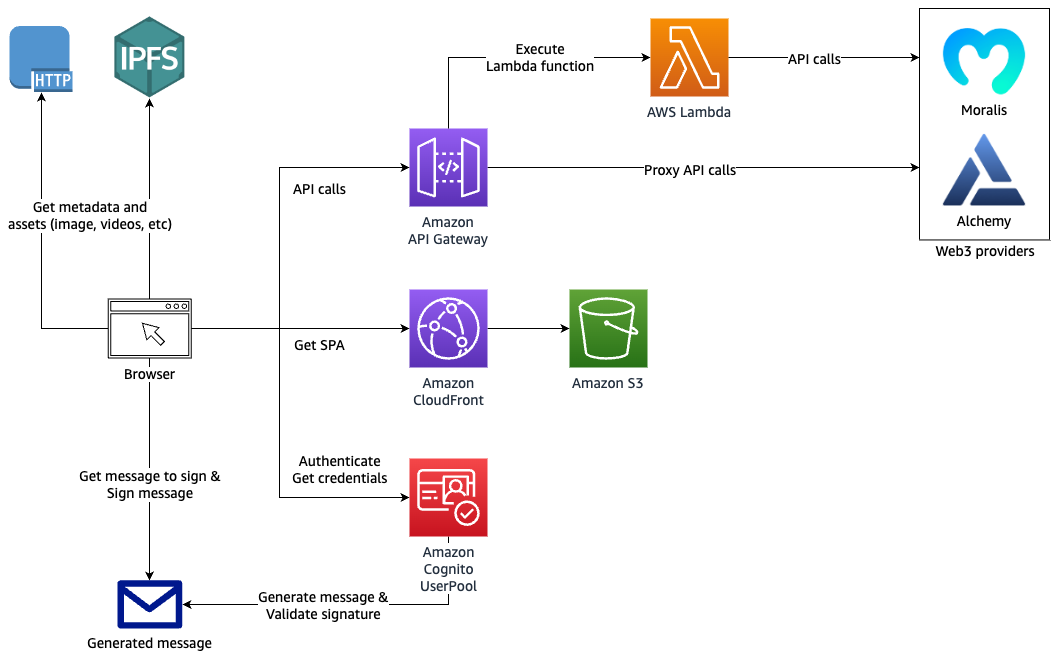


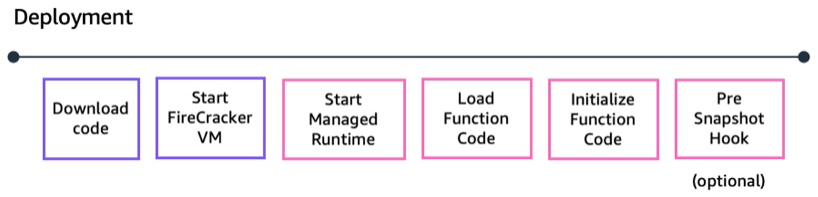


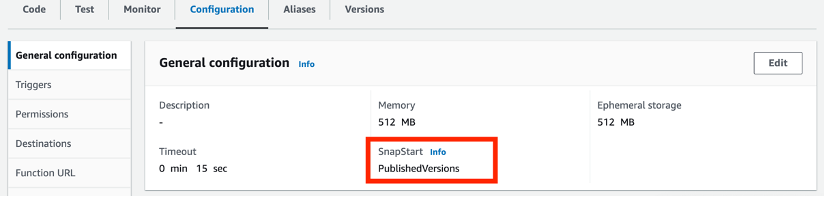
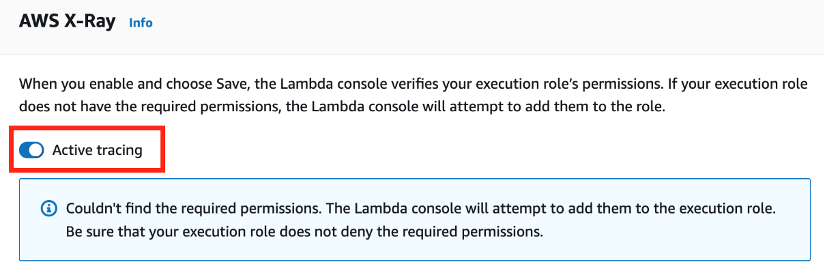


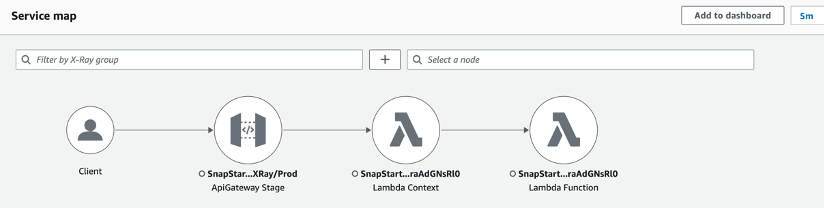


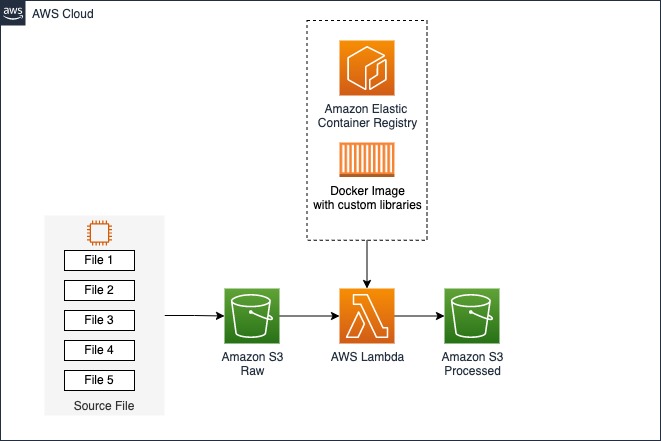




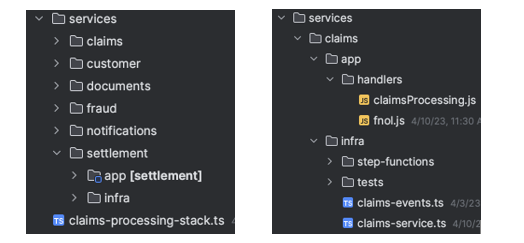




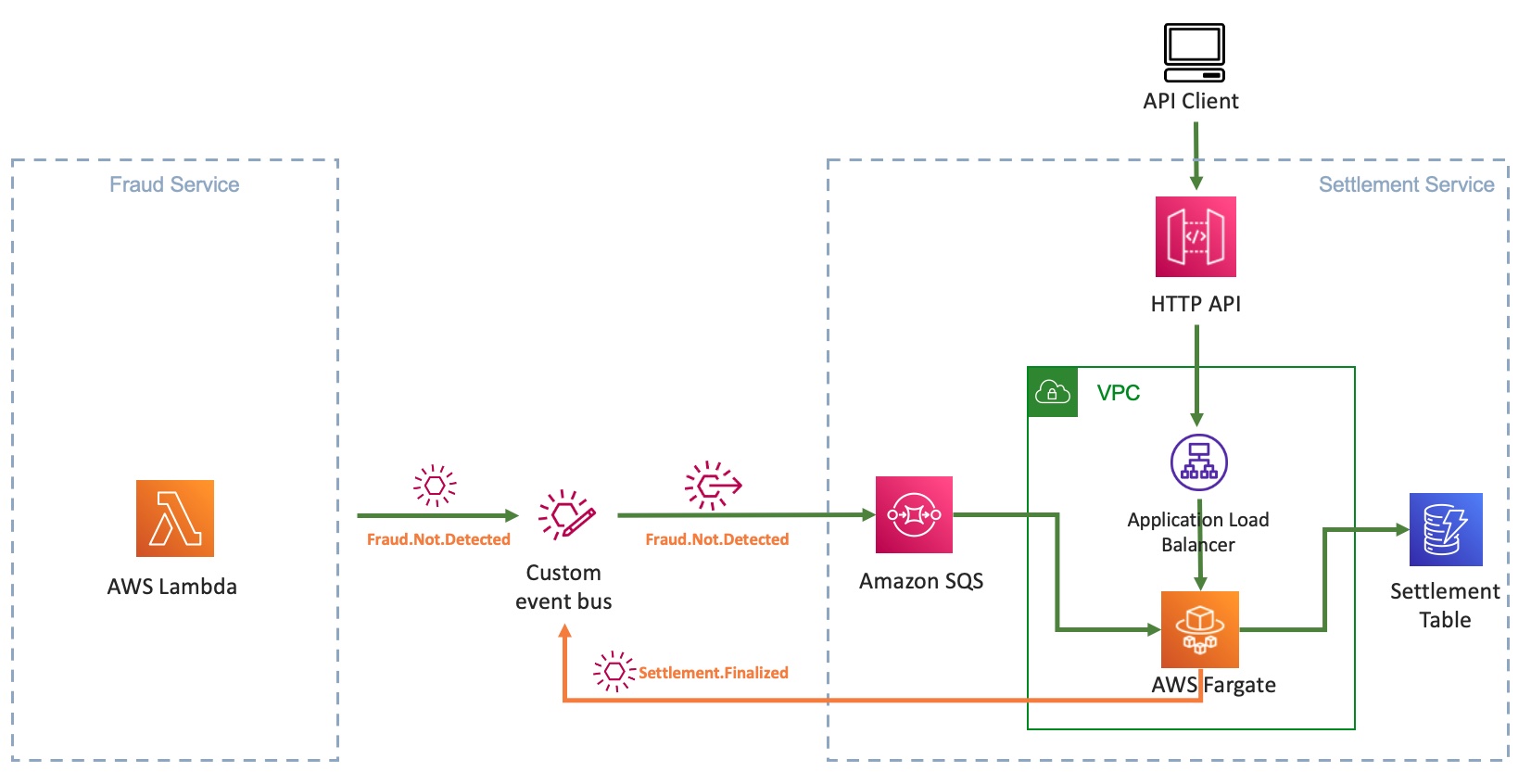


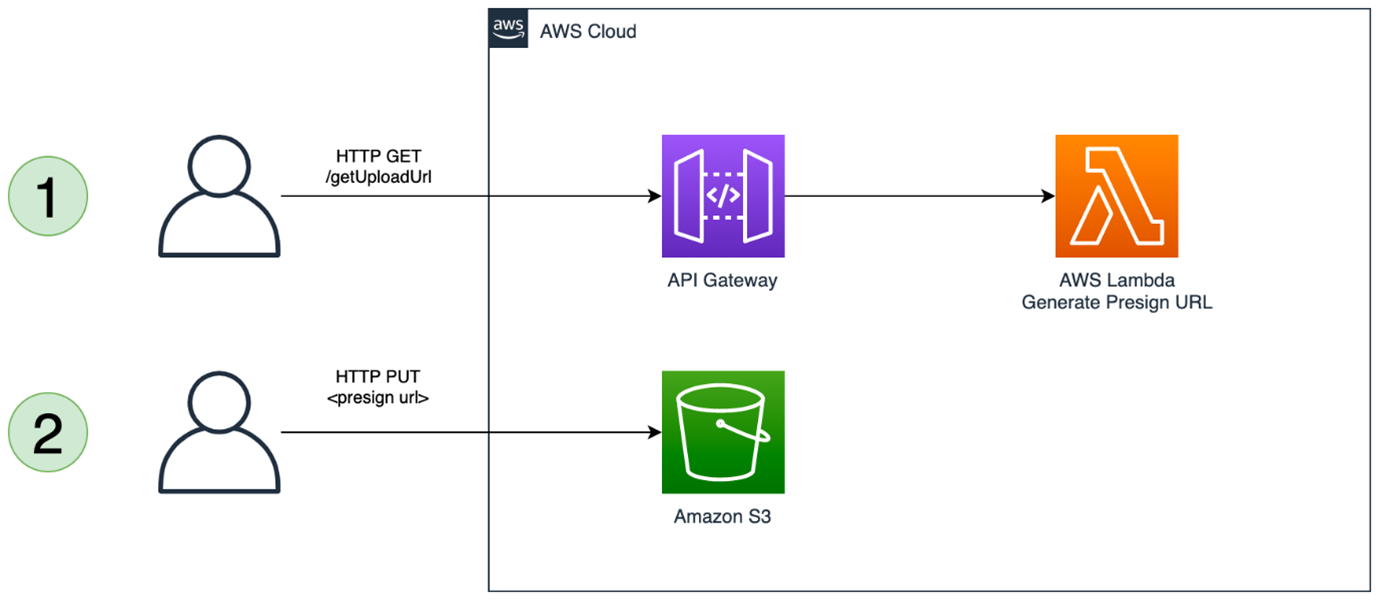

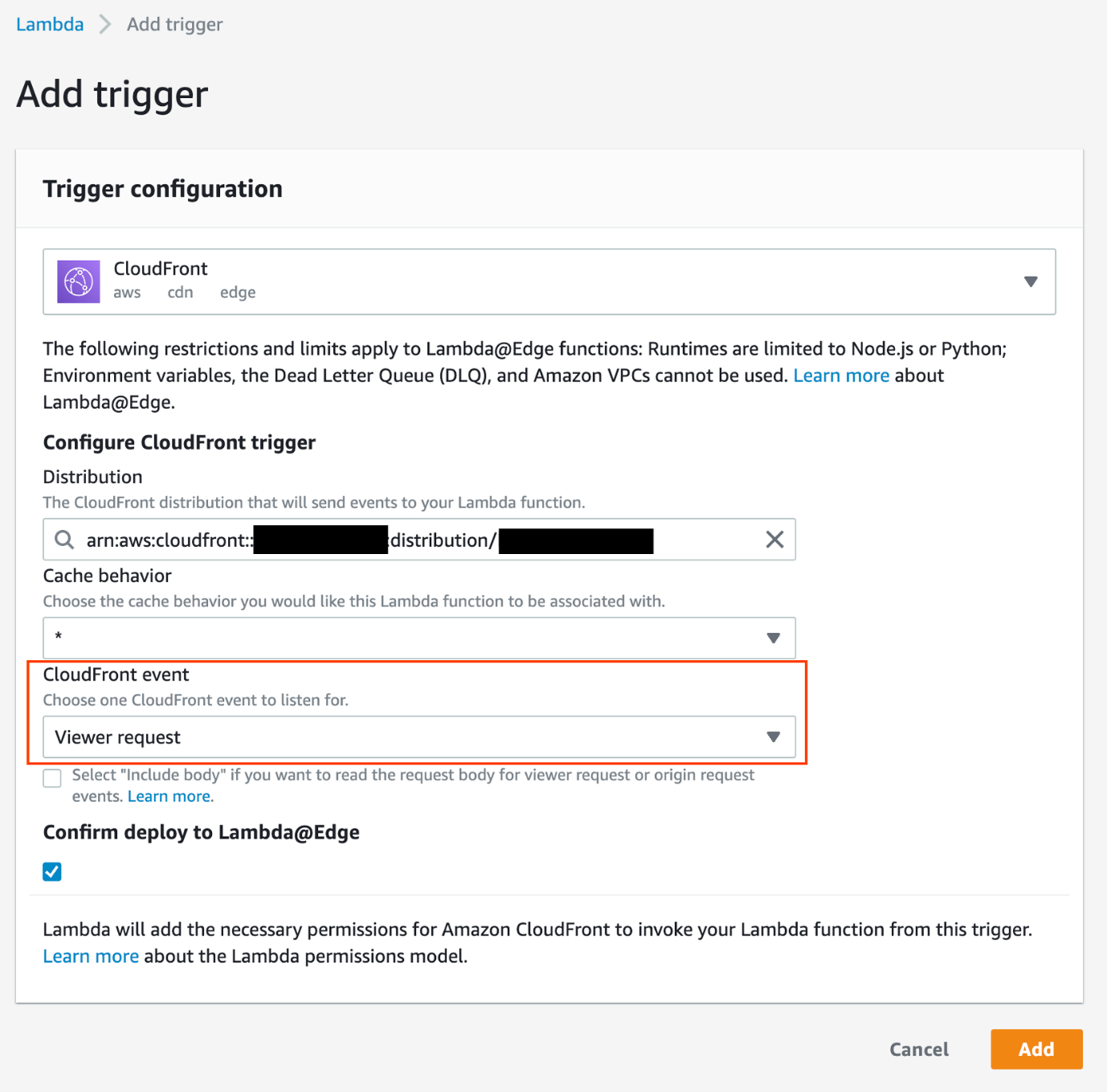
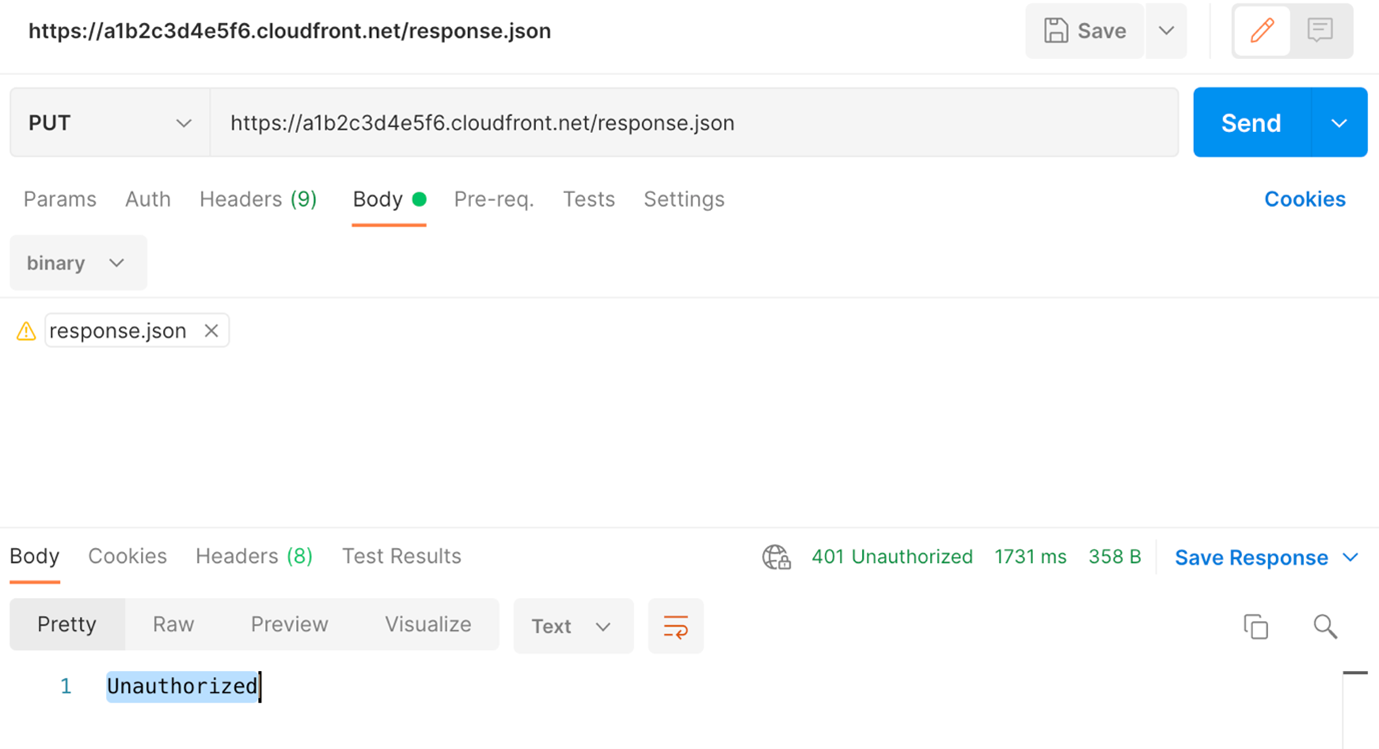
 AWS re:Inforce 2023 – Now register for
  AWS Global Summits – Check your calendars and sign up for the AWS Summit close to where you live or work:
  AWS Community Day – Join community-led conferences driven by


 Corey Johnson is the Lead Data Architect at Huron, where he leads its data architecture for their Global Products Data and Analytics initiatives.
 Sakti Mishra is a Principal Data Analytics Architect at AWS, where he helps customers modernize their data architecture, help define end to end data strategy including data security, accessibility, governance, and more. He is also the author of the book