Tag Archives: Best practices

Multi-Region Terraform Deployments with AWS CodePipeline using Terraform Built CI/CD

Post Syndicated from Lerna Ekmekcioglu original https://aws.amazon.com/blogs/devops/multi-region-terraform-deployments-with-aws-codepipeline-using-terraform-built-ci-cd/

As of February 2022, the AWS Cloud spans 84 Availability Zones within 26 geographic Regions, with announced plans for more Availability Zones and Regions. Customers can leverage this global infrastructure to expand their presence to their primary target of users, satisfying data residency requirements, and implementing disaster recovery strategy to make sure of business continuity. Although leveraging multi-Region architecture would address these requirements, deploying and configuring consistent infrastructure stacks across multi-Regions could be challenging, as AWS Regions are designed to be autonomous in nature. Multi-region deployments with Terraform and AWS CodePipeline can help customers with these challenges.

In this post, we’ll demonstrate the best practice for multi-Region deployments using HashiCorp Terraform as infrastructure as code (IaC), and AWS CodeBuild , CodePipeline as continuous integration and continuous delivery (CI/CD) for consistency and repeatability of deployments into multiple AWS Regions and AWS Accounts. We’ll dive deep on the IaC deployment pipeline architecture and the best practices for structuring the Terraform project and configuration for multi-Region deployment of multiple AWS target accounts.

You can find the sample code for this solution here

Solutions Overview

Architecture

The following architecture diagram illustrates the main components of the multi-Region Terraform deployment pipeline with all of the resources built using IaC.

DevOps engineer initially works against the infrastructure repo in a short-lived branch. Once changes in the short-lived branch are ready, DevOps engineer gets them reviewed and merged into the main branch. Then, DevOps engineer git tags the repo. For any future changes in the infra repo, DevOps engineer repeats this same process.

Git tags named “dev_us-east-1/research/1.0”, “dev_eu-central-1/research/1.0”, “dev_ap-southeast-1/research/1.0”, “dev_us-east-1/risk/1.0”, “dev_eu-central-1/risk/1.0”, “dev_ap-southeast-1/risk/1.0” corresponding to the version 1.0 of the code to release from the main branch using git tagging. Short-lived branch in between each version of the code, followed by git tags corresponding to each subsequent version of the code such as version 1.1 and version 2.0.”

Fig 1. Tagging to release from the main branch.

  1. The deployment is triggered from DevOps engineer git tagging the repo, which contains the Terraform code to be deployed. This action starts the deployment pipeline execution.
    Tagging with ‘dev_us-east-1/research/1.0’ triggers a pipeline to deploy the research dev account to us-east-1. In our example git tag ‘dev_us-east-1/research/1.0’ contains the target environment (i.e., dev), AWS Region (i.e. us-east-1), team (i.e., research), and a version number (i.e., 1.0) that maps to an annotated tag on a commit ID. The target workload account aliases (i.e., research dev, risk qa) are mapped to AWS account numbers in the environment configuration files of the infra repo in AWS CodeCommit.
The central tooling account contains the CodeCommit Terraform infra repo, where DevOps engineer has git access, along with the pipeline trigger, the CodePipeline dev pipeline consisting of the S3 bucket with Terraform infra repo and git tag, CodeBuild terraform tflint scan, checkov scan, plan and apply. Terraform apply points using the cross account role to VPC containing an Application Load Balancer (ALB) in eu-central-1 in the dev target workload account. A qa pipeline, a staging pipeline, a prod pipeline are included along with a qa target workload account, a staging target workload account, a prod target workload account. EventBridge, Key Management Service, CloudTrail, CloudWatch in us-east-1 Region are in the central tooling account along with Identity Access Management service. In addition, the dev target workload account contains us-east-1 and ap-southeast-1 VPC’s each with an ALB as well as Identity Access Management.

Fig 2. Multi-Region AWS deployment with IaC and CI/CD pipelines.

  1. To capture the exact git tag that starts a pipeline, we use an Amazon EventBridge rule. The rule is triggered when the tag is created with an environment prefix for deploying to a respective environment (i.e., dev). The rule kicks off an AWS CodeBuild project that takes the git tag from the AWS CodeCommit event and stores it with a full clone of the repo into a versioned Amazon Simple Storage Service (Amazon S3) bucket for the corresponding environment.
  2. We have a continuous delivery pipeline defined in AWS CodePipeline. To make sure that the pipelines for each environment run independent of each other, we use a separate pipeline per environment. Each pipeline consists of three stages in addition to the Source stage:
    1. IaC linting stage – A stage for linting Terraform code. For illustration purposes, we’ll use the open source tool tflint.
    2. IaC security scanning stage – A stage for static security scanning of Terraform code. There are many tooling choices when it comes to the security scanning of Terraform code. Checkov, TFSec, and Terrascan are the commonly used tools. For illustration purposes, we’ll use the open source tool Checkov.
    3. IaC build stage – A stage for Terraform build. This includes an action for the Terraform execution plan followed by an action to apply the plan to deploy the stack to a specific Region in the target workload account.
  1. Once the Terraform apply is triggered, it deploys the infrastructure components in the target workload account to the AWS Region based on the git tag. In turn, you have the flexibility to point the deployment to any AWS Region or account configured in the repo.
  2. The sample infrastructure in the target workload account consists of an AWS Identity and Access Management (IAM) role, an external facing Application Load Balancer (ALB), as well as all of the required resources down to the Amazon Virtual Private Cloud (Amazon VPC). Upon successful deployment, browsing to the external facing ALB DNS Name URL displays a very simple message including the location of the Region.

Architectural considerations

Multi-account strategy

Leveraging well-architected multi-account strategy, we have a separate central tooling account for housing the code repository and infrastructure pipeline, and a separate target workload account to house our sample workload infra-architecture. The clean account separation lets us easily control the IAM permission for granular access and have different guardrails and security controls applied. Ultimately, this enforces the separation of concerns as well as minimizes the blast radius.

A dev pipeline, a qa pipeline, a staging pipeline and, a prod pipeline in the central tooling account, each targeting the workload account for the respective environment pointing to the Regional resources containing a VPC and an ALB.

Fig 3. A separate pipeline per environment.

The sample architecture shown above contained a pipeline per environment (DEV, QA, STAGING, PROD) in the tooling account deploying to the target workload account for the respective environment. At scale, you can consider having multiple infrastructure deployment pipelines for multiple business units in the central tooling account, thereby targeting workload accounts per environment and business unit. If your organization has a complex business unit structure and is bound to have different levels of compliance and security controls, then the central tooling account can be further divided into the central tooling accounts per business unit.

Pipeline considerations

The infrastructure deployment pipeline is hosted in a central tooling account and targets workload accounts. The pipeline is the authoritative source managing the full lifecycle of resources. The goal is to decrease the risk of ad hoc changes (e.g., manual changes made directly via the console) that can’t be easily reproduced at a future date. The pipeline and the build step each run as their own IAM role that adheres to the principle of least privilege. The pipeline is configured with a stage to lint the Terraform code, as well as a static security scan of the Terraform resources following the principle of shifting security left in the SDLC.

As a further improvement for resiliency and applying the cell architecture principle to the CI/CD deployment, we can consider having multi-Region deployment of the AWS CodePipeline pipeline and AWS CodeBuild build resources, in addition to a clone of the AWS CodeCommit repository. We can use the approach detailed in this post to sync the repo across multiple regions. This means that both the workload architecture and the deployment infrastructure are multi-Region. However, it’s important to note that the business continuity requirements of the infrastructure deployment pipeline are most likely different than the requirements of the workloads themselves.

A dev pipeline in us-east-1, a dev pipeline in eu-central-1, a dev pipeline in ap-southeast-1, all in the central tooling account, each pointing respectively to the regional resources containing a VPC and an ALB for the respective Region in the dev target workload account.

Fig 4. Multi-Region CI/CD dev pipelines targeting the dev workload account resources in the respective Region.

Deeper dive into Terraform code

Backend configuration and state

As a prerequisite, we created Amazon S3 buckets to store the Terraform state files and Amazon DynamoDB tables for the state file locks. The latter is a best practice to prevent concurrent operations on the same state file. For naming the buckets and tables, our code expects the use of the same prefix (i.e., <tf_backend_config_prefix>-<env> for buckets and <tf_backend_config_prefix>-lock-<env> for tables). The value of this prefix must be passed in as an input param (i.e., “tf_backend_config_prefix”). Then, it’s fed into AWS CodeBuild actions for Terraform as an environment variable. Separation of remote state management resources (Amazon S3 bucket and Amazon DynamoDB table) across environments makes sure that we’re minimizing the blast radius.


-backend-config="bucket=${TF_BACKEND_CONFIG_PREFIX}-${ENV}" 
-backend-config="dynamodb_table=${TF_BACKEND_CONFIG_PREFIX}-lock-${ENV}"
A dev Terraform state files bucket named 

<prefix>-dev, a dev Terraform state locks DynamoDB table named <prefix>-lock-dev, a qa Terraform state files bucket named <prefix>-qa, a qa Terraform state locks DynamoDB table named <prefix>-lock-qa, a staging Terraform state files bucket named <prefix>-staging, a staging Terraform state locks DynamoDB table named <prefix>-lock-staging, a prod Terraform state files bucket named <prefix>-prod, a prod Terraform state locks DynamoDB table named <prefix>-lock-prod, in us-east-1 in the central tooling account” width=”600″ height=”456″>
 <p id=Fig 5. Terraform state file buckets and state lock tables per environment in the central tooling account.

The git tag that kicks off the pipeline is named with the following convention of “<env>_<region>/<team>/<version>” for regional deployments and “<env>_global/<team>/<version>” for global resource deployments. The stage following the source stage in our pipeline, tflint stage, is where we parse the git tag. From the tag, we derive the values of environment, deployment scope (i.e., Region or global), and team to determine the Terraform state Amazon S3 object key uniquely identifying the Terraform state file for the deployment. The values of environment, deployment scope, and team are passed as environment variables to the subsequent AWS CodeBuild Terraform plan and apply actions.

-backend-config="key=${TEAM}/${ENV}-${TARGET_DEPLOYMENT_SCOPE}/terraform.tfstate"

We set the Region to the value of AWS_REGION env variable that is made available by AWS CodeBuild, and it’s the Region in which our build is running.

-backend-config="region=$AWS_REGION"

The following is how the Terraform backend config initialization looks in our AWS CodeBuild buildspec files for Terraform actions, such as tflint, plan, and apply.

terraform init -backend-config="key=${TEAM}/${ENV}-
${TARGET_DEPLOYMENT_SCOPE}/terraform.tfstate" -backend-config="region=$AWS_REGION"
-backend-config="bucket=${TF_BACKEND_CONFIG_PREFIX}-${ENV}" 
-backend-config="dynamodb_table=${TF_BACKEND_CONFIG_PREFIX}-lock-${ENV}"
-backend-config="encrypt=true"

Using this approach, the Terraform states for each combination of account and Region are kept in their own distinct state file. This means that if there is an issue with one Terraform state file, then the rest of the state files aren’t impacted.

In the central tooling account us-east-1 Region, Terraform state files named “research/dev-us-east-1/terraform.tfstate”, “risk/dev-ap-southeast-1/terraform.tfstate”, “research/dev-eu-central-1/terraform.tfstate”, “research/dev-global/terraform.tfstate” are in S3 bucket named 

<prefix>-dev along with DynamoDB table for Terraform state locks named <prefix>-lock-dev. The Terraform state files named “research/qa-us-east-1/terraform.tfstate”, “risk/qa-ap-southeast-1/terraform.tfstate”, “research/qa-eu-central-1/terraform.tfstate” are in S3 bucket named <prefix>-qa along with DynamoDB table for Terraform state locks named <prefix>-lock-qa. Similarly for staging and prod.” width=”600″ height=”677″>
 <p id=Fig 6. Terraform state files per account and Region for each environment in the central tooling account

Following the example, a git tag of the form “dev_us-east-1/research/1.0” that kicks off the dev pipeline works against the research team’s dev account’s state file containing us-east-1 Regional resources (i.e., Amazon S3 object key “research/dev-us-east-1/terraform.tfstate” in the S3 bucket <tf_backend_config_prefix>-dev), and a git tag of the form “dev_ap-southeast-1/risk/1.0” that kicks off the dev pipeline works against the risk team’s dev account’s Terraform state file containing ap-southeast-1 Regional resources (i.e., Amazon S3 object key “risk/dev-ap-southeast-1/terraform.tfstate”). For global resources, we use a git tag of the form “dev_global/research/1.0” that kicks off a dev pipeline and works against the research team’s dev account’s global resources as they are at account level (i.e., “research/dev-global/terraform.tfstate).

Git tag “dev_us-east-1/research/1.0” pointing to the Terraform state file named “research/dev-us-east-1/terraform.tfstate”, git tag “dev_ap-southeast-1/risk/1.0 pointing to “risk/dev-ap-southeast-1/terraform.tfstate”, git tag “dev_eu-central-1/research/1.0” pointing to ”research/dev-eu-central-1/terraform.tfstate”, git tag “dev_global/research/1.0” pointing to “research/dev-global/terraform.tfstate”, in dev Terraform state files S3 bucket named <prefix>-dev along with <prefix>-lock-dev DynamoDB dev Terraform state locks table.” width=”600″ height=”318″>
 <p id=Fig 7. Git tags and the respective Terraform state files.

This backend configuration makes sure that the state file for one account and Region is independent of the state file for the same account but different Region. Adding or expanding the workload to additional Regions would have no impact on the state files of existing Regions.

If we look at the further improvement where we make our deployment infrastructure also multi-Region, then we can consider each Region’s CI/CD deployment to be the authoritative source for its local Region’s deployments and Terraform state files. In this case, tagging against the repo triggers a pipeline within the local CI/CD Region to deploy resources in the Region. The Terraform state files in the local Region are used for keeping track of state for the account’s deployment within the Region. This further decreases cross-regional dependencies.

A dev pipeline in the central tooling account in us-east-1, pointing to the VPC containing ALB in us-east-1 in dev target workload account, along with a dev Terraform state files S3 bucket named <prefix>-use1-dev containing us-east-1 Regional resources “research/dev/terraform.tfstate” and “risk/dev/terraform.tfstate” Terraform state files along with DynamoDB dev Terraform state locks table named <prefix>-use1-lock-dev. A dev pipeline in the central tooling account in eu-central-1, pointing to the VPC containing ALB in eu-central-1 in dev target workload account, along with a dev Terraform state files S3 bucket named <prefix>-euc1-dev containing eu-central-1 Regional resources “research/dev/terraform.tfstate” and “risk/dev/terraform.tfstate” Terraform state files along with DynamoDB dev Terraform state locks table named <prefix>-euc1-lock-dev. A dev pipeline in the central tooling account in ap-southeast-1, pointing to the VPC containing ALB in ap-southeast-1 in dev target workload account, along with a dev Terraform state files S3 bucket named <prefix>-apse1-dev containing ap-southeast-1 Regional resources “research/dev/terraform.tfstate” and “risk/dev/terraform.tfstate” Terraform state files along with DynamoDB dev Terraform state locks table named <prefix>-apse1-lock-dev” width=”700″ height=”603″>
 <p id=Fig 8. Multi-Region CI/CD with Terraform state resources stored in the same Region as the workload account resources for the respective Region

Provider

For deployments, we use the default Terraform AWS provider. The provider is parametrized with the value of the region passed in as an input parameter.

provider "aws" {
  region = var.region
   ...
}

Once the provider knows which Region to target, we can refer to the current AWS Region in the rest of the code.

# The value of the current AWS region is the name of the AWS region configured on the provider
# https://registry.terraform.io/providers/hashicorp/aws/latest/docs/data-sources/region
data "aws_region" "current" {} 

locals {
    region = data.aws_region.current.name # then use local.region where region is needed
}

Provider is configured to assume a cross account IAM role defined in the workload account. The value of the account ID is fed as an input parameter.

provider "aws" {
  region = var.region
  assume_role {
    role_arn     = "arn:aws:iam::${var.account}:role/InfraBuildRole"
    session_name = "INFRA_BUILD"
  }
}

This InfraBuildRole IAM role could be created as part of the account creation process. The AWS Control Tower Terraform Account Factory could be used to automate this.

Code

Minimize cross-regional dependencies

We keep the Regional resources and the global resources (e.g., IAM role or policy) in distinct namespaces following the cell architecture principle. We treat each Region as one cell, with the goal of decreasing cross-regional dependencies. Regional resources are created once in each Region. On the other hand, global resources are created once globally and may have cross-regional dependencies (e.g., DynamoDB global table with a replica table in multiple Regions). There’s no “global” Terraform AWS provider since the AWS provider requires a Region. This means that we pick a specific Region from which to deploy our global resources (i.e., global_resource_deploy_from_region input param). By creating a distinct Terraform namespace for Regional resources (e.g., module.regional) and a distinct namespace for global resources (e.g., module.global), we can target a deployment for each using pipelines scoped to the respective namespace (e.g., module.global or module.regional).

Deploying Regional resources: A dev pipeline in the central tooling account triggered via git tag “dev_eu-central-1/research/1.0” pointing to the eu-central-1 VPC containing ALB in the research dev target workload account corresponding to the module.regional Terraform namespace. Deploying global resources: a dev pipeline in the central tooling account triggered via git tag “dev_global/research/1.0” pointing to the IAM resource corresponding to the module.global Terraform namespace.

Fig 9. Deploying regional and global resources scoped to the Terraform namespace

As global resources have a scope of the whole account regardless of Region while Regional resources are scoped for the respective Region in the account, one point of consideration and a trade-off with having to pick a Region to deploy global resources is that this introduces a dependency on that region for the deployment of the global resources. In addition, in the case of a misconfiguration of a global resource, there may be an impact to each Region in which we deployed our workloads. Let’s consider a scenario where an IAM role has access to an S3 bucket. If the IAM role is misconfigured as a result of one of the deployments, then this may impact access to the S3 bucket in each Region.

There are alternate approaches, such as creating an IAM role per Region (myrole-use1 with access to the S3 bucket in us-east-1, myrole-apse1 with access to the S3 bucket in ap-southeast-1, etc.). This would make sure that if the respective IAM role is misconfigured, then the impact is scoped to the Region. Another approach is versioning our global resources (e.g., myrole-v1, myrole-v2) with the ability to move to a new version and roll back to a previous version if needed. Each of these approaches has different drawbacks, such as the duplication of global resources that may make auditing more cumbersome with the tradeoff of minimizing cross Regional dependencies.

We recommend looking at the pros and cons of each approach and selecting the approach that best suits the requirements for your workloads regarding the flexibility to deploy to multiple Regions.

Consistency

We keep one copy of the infrastructure code and deploy the resources targeted for each Region using this same copy. Our code is built using versioned module composition as the “lego blocks”. This follows the DRY (Don’t Repeat Yourself) principle and decreases the risk of code drift per Region. We may deploy to any Region independently, including any Regions added at a future date with zero code changes and minimal additional configuration for that Region. We can see three advantages with this approach.

  1. The total deployment time per Region remains the same regardless of the addition of Regions. This helps for restrictions, such as tight release windows due to business requirements.
  2. If there’s an issue with one of the regional deployments, then the remaining Regions and their deployment pipelines aren’t affected.
  3. It allows the ability to stagger deployments or the possibility of not deploying to every region in non-critical environments (e.g., dev) to minimize costs and remain in line with the Well Architected Sustainability pillar.

Conclusion

In this post, we demonstrated a multi-account, multi-region deployment approach, along with sample code, with a focus on architecture using IaC tool Terraform and CI/CD services AWS CodeBuild and AWS CodePipeline to help customers in their journey through multi-Region deployments.

Thanks to Welly Siauw, Kenneth Jackson, Andy Taylor, Rodney Bozo, Craig Edwards and Curtis Rissi for their contributions reviewing this post and its artifacts.

Author:

Lerna Ekmekcioglu

Lerna Ekmekcioglu is a Senior Solutions Architect with AWS where she helps Global Financial Services customers build secure, scalable and highly available workloads.
She brings over 17 years of platform engineering experience including authentication systems, distributed caching, and multi region deployments using IaC and CI/CD to name a few.
In her spare time, she enjoys hiking, sight seeing and backyard astronomy.

Jack Iu

Jack is a Global Solutions Architect at AWS Financial Services. Jack is based in New York City, where he works with Financial Services customers to help them design, deploy, and scale applications to achieve their business goals. In his spare time, he enjoys badminton and loves to spend time with his wife and Shiba Inu.

Build Health Aware CI/CD Pipelines

Post Syndicated from sangusah original https://aws.amazon.com/blogs/devops/build-health-aware-ci-cd-pipelines/

Everything fails all the time — Werner Vogels, AWS CTO

At the moment of imminent failure, you want to avoid an unlucky deployment. I’ll start here with a short story that demonstrates the purpose of this post.

The DevOps team has just started a database upgrade with a planned outage of 30 minutes. The team automated the entire upgrade flow, triggered a CI/CD pipeline with no human intervention, and the upgrade is progressing smoothly. Then, 20 minutes in, the pipeline is stuck, and your upgrade isn’t progressing. The maintenance window has expired and customers can’t transact. You’ve created a support case, and the AWS engineer confirmed that the upgrade is failing because of a running AWS Health incident in the us-west-2 Region. The engineer has directed the DevOps team to continue monitoring the status.aws.amazon.com page for updates regarding incident resolution. The event continued running for three hours, during which time customers couldn’t transact. Once resolved, the DevOps team retried the failed pipeline, and it completed successfully.

After the incident, the DevOps team explored the possibilities for avoiding these types of incidents in the future. The team was made aware of AWS Health API that provides programmatic access to AWS Health information. In this post, we’ll help the DevOps team make the most of the AWS Health API to proactively prevent unintended outages.

AWS provides Business and Enterprise Support customers with access to the AWS Health API. Customers can have access to running events in the AWS infrastructure that may impact their service usage. Incidents could be Regional, AZ-specific, or even account specific. During these incidents, it isn’t recommended to deploy or change services that are impacted by the event.

In this post, I will walk you through how to embed AWS Health API insights into your CI/CD pipelines to automatically stop deployments whenever an AWS Health event is reported in a Region that you’re operating in. Furthermore, I will demonstrate how you can automate detection and remediation.

The Demo

In this demo, I will use AWS CodePipeline to demonstrate the idea. I will build a simple pipeline that demonstrates the concept without going into the build, test, and deployment specifics.

CodePipeline Flow

The CodePipeline flow consists of three steps:

  1. Source stage that downloads a CloudFormation template from AWS CodeCommit. The template will be deployed in the last stage.
  2. Custom stage that invokes the AWS Lambda function to evaluate the AWS Health. The Lambda function calls the AWS Health API, evaluates the health risk, and calls back CodePipeline with the assessment result.
  3. Deploy stage that deploys the CloudFormation templates downloaded from CodeCommit in the first stage.
The CodePipeline flow consists of 3 steps. First, "source stage" that downloads a CloudFormation template from CodeCommit. The template will be deployed in the last stage. Step 2 is a "custom stage" that invokes the Lambda function to evaluate AWS Health. The Lambda function calls the AWS Health API, evaluates the health risk and calls back CodePipeline with the assessment result. Finally, step 3 is a "deploy stage" that deploys the CloudFormation template downloaded from CodeCommit in the first stage. If a health is detected in step 2, the workflow will retry after a predefined timeout.

Figure 1. CodePipeline workflow.

Lambda evaluation logic

The Lambda function evaluates whether or not a running AWS Health event may be impacted by the deployment. In this case, the following criteria must be met to consider it as safe to deploy:

  • Deployment will take place in the North Virginia Region and accordingly the Lambda function will filter on the us-east-1 Region.
  • A closed event is irrelevant. The Lambda function will filter events with only the open status.
  • AWS Health API can return different event types that may not be relevant, such as: Scheduled Maintenance, and Account and Billing notifications. The Lambda function will filter only “Issue” type events.

The AWS Health API follows a multi-Region application architecture and has two regional endpoints in an active-passive configuration. To support active-passive DNS failover, AWS Health provides a global endpoint. The Python code is available on GitHub with more information in the README on how to build the Lambda code package.

The Lambda function requires the following AWS Identity and Access Management (IAM) permissions to access AWS Health API, CodePipeline, and publish logs to CloudWatch:

{
  "Version": "2012-10-17", 
  "Statement": [
    {
      "Action": [ 
        "logs:CreateLogStream",
        "logs:CreateLogGroup",
        "logs:PutLogEvents"
      ],
      "Effect": "Allow", 
      "Resource": "arn:aws:logs:us-east-1:replaceWithAccountNumber:*"
    },
    {
      "Action": [
        "codepipeline:PutJobSuccessResult",
        "codepipeline:PutJobFailureResult"
        ],
        "Effect": "Allow",
        "Resource": "*"
     },
     {
        "Effect": "Allow",
        "Action": "health:DescribeEvents",
        "Resource": "*"
    }
  ]
}

Solution architecture

This is the solution architecture diagram. It involved three entities: AWS Code Pipeline, AWS Lambda and the AWS Health API. First, AWS Code Pipeline invoke the Lambda function asynchronously. Second, the Lambda function call the AWS Health API, DescribeEvents. Third, the DescribeEvents API will respond back with a list of health events. Finally, the Lambda function will respond with either a success response or a failed one through calling PutJobSuccessResult and PutJobFailureResults consecutively.

Figure 2. Solution architecture diagram.

In CodePipeline, create a new stage with a single action to asynchronously invoke a Lambda function. The function will call AWS Health DescribeEvents API to retrieve the list of active health incidents. Then, the function will complete the event analysis and decide whether or not it may impact the running deployment. Finally, the function will call back CodePipeline with the evaluation results through either PutJobSuccessResult or PutJobFailureResult API operations.

If the Lambda evaluation succeeds, then it will call back the pipeline with a PutJobSuccessResult API. In turn, the pipeline will mark the step as successful and complete the execution.

AWS Code Pipeline workflow execution snapshot from the AWS Console. The first step, Source is a success after completing source code download from AWS CodeCommit service. The second step, check the AWS service health is a success as well.

Figure 3. AWS Code Pipeline workflow successful execution.

If the Lambda evaluation fails, then it will call back the pipeline with a PutJobFailureResult API specifying a failure message. Once the DevOps team is made aware that the event has been resolved, select the Retry button to re-evaluate the health status.

AWS CodePipeline workflow execution snapshot from the AWS Console. The first step, Source is a success after completing source code download from AWS CodeCommit service. The second step, check the AWS service health has failed after detecting a running health event/incident in the operating AWS region.

Figure 4. AWS CodePipeline workflow failed execution.

Your DevOps team must be aware of failed deployments. Therefore, it’s a good idea to configure alerts to notify concerned stakeholders with failed stage executions. Create a notification rule that posts a Slack message if a stage fails. For detailed steps, see Create a notification rule – AWS CodePipeline. In case of failure, a Slack notification will be sent through AWS Chatbot.

A Slack UI snapshot showing the notification to be sent if a deployment fails to execute. The notification shows a title of "AWS CodePipeline Notification". The notification indicates that one action has failed in the stage aws-health-check. The notification also shows that the failure reason is that there is an Incident In Progress. The notification also mentions the Pipeline name as well as the failed stage name.

Figure 5. Slack UI snapshot notification for a failed deployment.

A more elegant solution involves pushing the notification to an SNS topic that in turns calls a Lambda function to retry the failed stage. The Lambda function extracts the pipeline failed stage identifier, and then calls the RetryStageExecution CodePipeline API.

Conclusion

We’ve learned how to create an automation that evaluates the risk associated with proceeding with a deployment in conjunction with a running AWS Health event. Then, the automation decides whether to proceed with the deployment or block the progress to avoid unintended downtime. Accordingly, this results in the improved availability of your application.

This solution isn’t exclusive to CodePipeline. However, the pattern can be applied to other CI/CD tools that your DevOps team uses.

Author:

Islam Ghanim

Islam Ghanim is a Senior Technical Account Manager at Amazon Web Services in Melbourne, Australia. He enjoys helping customers build resilient and cost-efficient architectures. Outside work, he plays squash, tennis and almost any other racket sport.

Implementing Attribute-Based Instance Type Selection using Terraform

Post Syndicated from Sheila Busser original https://aws.amazon.com/blogs/compute/implementing-attribute-based-instance-type-selection-using-terraform/

This blog post is written by Christian Melendez, Senior Specialist Solutions Architect, Flexible Compute – EC2 Spot and Carlos Manzanedo Rueda, WW SA Leader, Flexible Compute – EC2 Spot.

In this blog post we will cover the release of Terraform support for Attribute-Based Instance Type Selection (ABS). ABS simplifies the configuration required to acquire compute capacity for Instance Flexible workloads. Terraform  is an open-source infrastructure as code software tool by HashiCorp. Hashicorp is an AWS Partner Network (APN) Advanced Technology Partner and member of the AWS DevOps Competency.

Introduction

Amazon EC2 provides a wide selection of instance types optimized to fit different use cases. Instance types comprise varying combinations of CPU, memory, storage, and networking capacity and give you the flexibility to choose the appropriate mix of resources for your applications.

Workloads such as continuous integration, analytics, microservices on containers, etc., can use multiple instance types. Customers have been telling us that simplifying the configuration of instance flexible workloads is important. For workloads that are instance flexible, AWS released ABS to express workload requirements as a set of instance attributes such as: vCPU, memory, type of processor, etc. ABS translates these requirements and selects all matching instance types that meet the criteria. To select which instance to launch, Amazon EC2 Auto Scaling Groups and EC2 Fleet chose instances based on the allocation strategy configured. Lowest-price allocation strategy is supported on both Amazon EC2 On-Demand Instances and Amazon EC2 Spot Instances. The recommendation for Spot Instances is to use capacity-optimized, which select the optimal instances that reduce the frequency of interruptions. ABS does also future-proof EC2 Auto Scaling Group and EC2 Fleet configurations: any new instance type we launch that matches the selected attributes, will be included in the list automatically. No need to update your EC2 Auto Scaling Group or EC2 Fleet configuration.

Following our commitment to open-source projects, AWS has added support for ABS in the AWS Terraform provider. You can use ABS for launch templates, EC2 Auto Scaling Group, and EC2 Fleet resources. The minimum required version of the AWS provider is v4.16.0.

Applying instance flexibility is key for running fault-tolerant, elastic, reliable, and cost optimized workloads. By selecting a diversified choice of instances that qualify for your workload, your application will be better prepared to avoid scenarios where lack of capacity on a specific instance type could be an issue. This applies both to On-Demand and Spot Instance-based workloads. For Spot Instances, applying diversification is key. Spot Instances are spare capacity that can be reclaimed by EC2 when it is required. ABS allows you to specify diversification in simple terms, allowing EC2 Auto Scaling Group and EC2 Fleet’s allocation strategy to replace reclaimed Spot Instances with instances from other pools where capacity is available.

Instance Requirement Attributes

To represent the instance requirements for your workload using ABS, there are a set of attributes you can use within the instance_requirements block. When using Terraform, the only two required attributes are memory_mib and vcpu_count. The rest of the attributes provide default values that adhere to Instance Flexible workloads best practices. For example, bare_metal attribute is by default excluded. You can see the full list of ABS attributes in the Terraform docs site.

Once ABS attributes are configured, ABS picks a list of instance types that match the criteria. This list is especially important when you’re using Spot Instances. One of Spot Instances best practices is to diversify the instance types which, in combination with the capacity-optimized allocation strategy, gives you access to the highest amount of Spot capacity pools. For On-Demand Instances, the instance types list is important as well. There might be scenarios where On-Demand Instance pools lack capacity. By applying instance flexibility using ABS, you can avoid the InsufficientInstanceCapacity error. And in combination with the lowest-price allocation strategy, you get the lowest price instance types from your diversified selection.

There are different places where we can specify ABS attributes. We can specify them at the launch templates level and declare a base mechanism to select instances. In most cases, the recommendation is to configure ABS attributes at the EC2 Auto Scaling Group and EC2 Fleet level. Let’s explore each of these options.

Configuring instance requirements within launch templates

Launch templates are instance configuration templates where you specify parameters like AMI ID, instance type, key pair, and security groups to launch instances. You can use ABS attributes in a launch template when you need to be prescriptive, and define sane defaults or guardrails for your workloads. This way, EC2 Auto Scaling Group or EC2 Fleet simply reference and use the launch template.

You should use ABS attributes in launch templates when you want to prevent users from overriding the resources specified by a launch template. Note that is still possible to override those requirements.

Let’s say that we have a Java application that requires a minimum of 4 vCPUs and 8 GiB of memory, and has been using the c5.xlarge instance type. After performance testing we’ve identified that runs better with current instance types generations. The following code snippet represents how to define these requirements in a Launch Template. To see the full list of attributes, visit the launch template doc site.

resource "aws_launch_template" "abs" {
  name_prefix = "abs"
  image_id    = data.aws_ami.abs.id

  instance_requirements {
    memory_mib {
      min = 8192
    }
    vcpu_count {
      min = 4
    }
    instance_generations = ["current"]
  }
}

Note by using instance_requirements block in a LaunchTemplate, you’ll need to use the mixed_instances_policy block in the EC2 Auto Scaling Group.

resource "aws_autoscaling_group" "on_demand" {
  availability_zones = ["us-east-1a", "us-east-1b", "us-east-1c"]
  max_size           = 1
  min_size           = 1
  mixed_instances_policy {
    launch_template {
      launch_template_specification {
        launch_template_id = aws_launch_template.abs.id
      }
    }
  }
}

The EC2 Auto Scaling Group will use instance types that match the requirements in the launch template.

You can preview what are the instances that the EC2 Auto Scaling Group will select. The section “How to Preview Matching Instances without Launching Them” of the ABS blog post, describes how to preview the instances that will be selected.

Launching EC2 Spot Instances with EC2 Auto Scaling

Launch templates are very powerful. They allow you to decouple the attributes such as user_data from the actual instance management. They are idempotent and can be versioned which is key for rolling out changes in the configuration and applying EC2 Auto Scaling Group Instance Refresh.

Our recommendation is to define ABS attributes as overrides within the mixed_instances_policy block in EC2 Auto Scaling Groups. For most of the applications, we recommend using EC2 Auto Scaling Group to provision EC2 instances.

Let’s get back to our previous example. Now we want to be more prescriptive for the instance requirements our Java application uses.

Let’s assume that the Java application is memory intensive, requires a vCPU to Memory ratio of 4GB for every vCPU, and has been using the m5.large instance type. Additionally, it does not need hardware accelerators like GPUs, FPGAs, etc. Our application does also require a minimum of 2 vCPUs, and the range of memory has been reduced to 32GB to avoid large garbage collection scenarios. This time, we’d like to launch only Spot Instances. As mentioned earlier in this blog post, diversification is key for Spot. To improve the experience with Spot, let’s enable the capacity rebalance feature from the EC2 Auto Scaling Group to proactively replace instances that are at an elevated risk of being interrupted. The following code snippet represents the ABS attributes we need for the more prescriptive workload:

resource “aws_autoscaling_group” “spot” {
  availability_zones = [“us-east-1a”, “us-east-1b”, “us-east-1c”]
  desired_capacity   = 1
  max_size           = 1
  min_size           = 1
  capacity_rebalance = true

  mixed_instances_policy {
    instances_distribution {
      spot_allocation_strategy = "capacity-optimized"
    }

    launch_template {
      launch_template_specification {
        launch_template_id = aws_launch_template.x86.id
      }

      override {
        instance_requirements {
          memory_mib {
            min = 4096
            max = 32768
          }

          vcpu_count {
            min = 2
          }

          memory_gib_per_vcpu {
            min = 4
            max = 4
          }

          accelerator_count {
            max = 0
          }
        }
      }
    }
  }
}

Launching EC2 Spot Instances with EC2 Fleet

Another method we have to launch EC2 instances is the EC2 Fleet API. We recommend to use EC2 Fleet for workloads that need granular controls to provision capacity. For example, tight HPC workloads where instances must be close together (single Availability Zone and within the same placement group) and need similar instance types. EC2 Fleet is also used by capacity orchestrators such as Karpenter or Atlassian Escalator that implement tuned up and optimized logic to provision capacity.

Let’s say that this time the workload is a CPU bound workload and has been using the c5.9xlarge instance type. The workload can be retried and the application supports checkpointing, so it qualifies to use Spot Instances. Given we’ll be using Spot Instances, we would like to benefit from the capacity rebalance feature as we did before in the EC2 Auto Scaling Group example. The application requires very prescriptive ranges of vCPU and memory and we also need a minimum of 100 GB SSD local storage. While in most cases EC2 Auto Scaling Groups are appropriate solution to procure and maintain capacity, in this case we will use EC2 Fleet.

The following code snippet represents the ABS attributes we need for this workload:

resource "aws_ec2_fleet" "spot" {
  target_capacity_specification {
    default_target_capacity_type = "spot"
    total_target_capacity        = 5
  }

  spot_options {
    allocation_strategy = "capacity-optimized"
    maintenance_strategies {
      capacity_rebalance {
        replacement_strategy = "launch"
      }
    }
  }

  launch_template_config {
    launch_template_specification {
      launch_template_id = aws_launch_template.x86.id
      version            = aws_launch_template.x86.latest_version
    }

    override {
      instance_requirements {
        memory_mib {
          min = 65536
          max = 73728
        }

        vcpu_count {
          min = 32
          max = 36
        }

        cpu_manufacturers   = ["intel"]
        local_storage       = "required"
        local_storage_types = ["ssd"]

        total_local_storage_gb {
          min = 100
        }
      }
    }
  }
}

Multi-Architecture workloads using Graviton and x86 with EC2 Auto Scaling Groups

Another recent feature from EC2 Auto Scaling Groups is that you can build multi-architecture workloads. EC2 Auto Scaling Group allows you to mix Graviton and x86 instance types in the same EC2 Auto Scaling Group. Unlike the x86_64 instances we have used so far, AWS Graviton processors are custom built by AWS using 64-bit Arm. You need to use different launch templates as each architecture needs to use a different AMI. This can be defined in within the override block.

In the example below, we use ABS to define different attributes depending on the CPU architecture. And what’s great about doing this is that we don’t need to exclude instance types. Instances will be launched with a compatible CPU architecture based on the AMI that you specify in our launch template.

Besides supporting mixing architectures, EC2 Auto Scaling Groups allows to combine purchase models. For our example, this time we’ll use a more complex scenario to showcase how powerful and feature rich EC2 Auto Scaling Group has become. The following code snippet applies many of the configurations we’ve seen before, but the key difference here is that we have two overrides. One is for Graviton instances, and another one for x86 instances.

resource "aws_autoscaling_group" "on_demand_spot" {
  availability_zones = ["us-east-1a", "us-east-1b", "us-east-1c"]
  desired_capacity   = 4
  max_size           = 10
  min_size           = 2
  capacity_rebalance = true

  mixed_instances_policy {
    instances_distribution {
      on_demand_base_capacity                  = 2
      on_demand_percentage_above_base_capacity = 0
      spot_allocation_strategy                 = "capacity-optimized"
    }

    launch_template {
      launch_template_specification {
        launch_template_id = aws_launch_template.arm.id
      }

      override {
        launch_template_specification {
          launch_template_id = aws_launch_template.arm.id
        }

        instance_requirements {
          memory_mib {
            min = 16384
            max = 16384
          }

          vcpu_count {
            max = 4
          }
        }
      }

      override {
        launch_template_specification {
          launch_template_id = aws_launch_template.x86.id
        }

        instance_requirements {
          memory_mib {
            min = 16384
          }

          vcpu_count {
            min = 4
          }
        }
      }
    }
  }
}

Multi-architecture workloads can also be applied to container orchestration. Thanks to the Amazon Elastic Container Registry (Ama­zon ECR) support for multi-architecture container images, you can use manifests to push both container images, and Amazon ECR will pull the proper image based on the CPU architecture. We have a workshop for Elastic Kubernetes Service (Amazon EKS) where you can learn more about how to deploy a multi-architecture workload in Amazon EKS.

Conclusion

In this post you’ve learned how to configure ABS to launch instances using Auto Scaling Groups and EC2 Fleet. You’ve learned and how to mix CPU architectures along with purchase models in the same EC2 Auto Scaling Group using Terraform while simplifying the configuration.

Our commitment with open-source projects such as Terraform is to help customers implement AWS best practices in a larger ecosystem easily. ABS support allows customers to get access to compute capacity by simply specifying the resource requirement attributes of their workloads rather than the instance names.

ABS simplifies the configuration for instance flexible workloads and removes the need to list the instances that qualify for your workload. Instead, it simplifies the configuration and future proof for scenarios where AWS includes new instances that qualify for the workload. For Spot workloads where instance diversification is key, ABS simplifies the selection of instances and helps to increase the total number of pools. For more information, visit the ABS user guide and Terraform documentation for Auto Scaling Groups and EC2 Fleet.

Adding approval notifications to EC2 Image Builder before sharing AMIs

Post Syndicated from Sheila Busser original https://aws.amazon.com/blogs/compute/adding-approval-notifications-to-ec2-image-builder-before-sharing-amis/

This blog post was written by, Glenn Chia Jin Wee, Associate Cloud Architect at AWS and Randall Han, Associate Professional Services Consultant at AWS.

In some situations, you may be required to manually validate the Amazon Machine Image (AMI) built from an Amazon Elastic Compute Cloud (Amazon EC2) Image Builder pipeline before sharing this AMI to other AWS accounts or to an AWS Organization. Currently, Image Builder provides an end-to-end pipeline that automatically shares AMIs after they’ve been built.

In this post, we will walk through the steps to enable approval notifications before AMIs are shared with other AWS accounts. Having a manual approval step could be useful if you would like to verify the AMI configurations before it is shared to other AWS accounts or an AWS Organization. This reduces the possibility of incorrectly configured AMIs being shared to other teams which in turn could lead to downstream issues if applications are installed using this AMI. This solution uses serverless resources to send an email with a link that automatically shares the AMI with the specified AWS accounts. Users select this link after they’ve verified that the AMI is built according to specifications.

Overview

Architecture Diagram

  1. In this solution, an Image Builder Pipeline is run that builds a Golden AMI in Account A. After the AMI is built, Image Builder publishes data about the AMI to an Amazon Simple Notification Service (Amazon SNS) topic.
  2. This SNS Topic passes the data to an AWS Lambda function that subscribes to it.
  3. The Lambda function that subscribes to this topic retrieves the data, formats it, and sends a customized email to another SNS Topic.
  4. The second SNS Topic has an email subscription with the Approver’s email. The approver will receive the customized email with a URL that interacts with the next set of Serverless resources.
  5. Selecting the URL makes a GET request to Amazon API Gateway, thereby passing the AMI ID in the query string.
  6. API Gateway then triggers another Lambda function and passes the AMI ID to it.
  7. The Lambda function obtains the AMI ID from the query string parameter of the API Gateway request, and then shares it with the provided target account.

Prerequisites

For this walkthrough, you will need the following:

Walkthrough

In this section, we will guide you through the steps required to deploy the Image Builder solution that utilizes Serverless resources. The solution is deployed with AWS SAM.

In this scenario, we deploy the solution within the approver’s account. The approval email will be sent to a predefined email address for manual approval, before the newly created AMI is shared to target accounts.

Once the approver selects the approval link, an email notification will be sent to the predefined target account email address, notifying that the AMI has been successfully shared.

The high-level steps we will follow are:

  1. In Account A, deploy the provided AWS SAM template. This includes an example Image Builder Pipeline, Amazon SNS topics, API Gateway, and Lambda functions.
  2. Approve the SNS subscription from your supplied email address.
  3. Run the pipeline from the Amazon EC2 Image Builder Console.
  4. [Optional] After the pipeline runs, launch an Amazon EC2 instance from the built AMI to conduct manual tests
  5. An Amazon SNS email will be sent to you with an API Gateway URL. When clicked, an AWS Lambda function shares the AMI to the Account B.
  6. Log in to Account B and verify that the AMI has been shared.

Step 1: Launch the AWS SAM template

  1. Clone the SAM templates from this GitHub repository.
  2. Run the following command to deploy the templates via SAM. Replace <approver email> with the Approver’s email and <AWS Account B ID> with the AWS Account ID of your second AWS Account.

sam deploy \

–template-file template.yaml \

–stack-name ec2-image-builder-approver-notifications \

–capabilities CAPABILITY_IAM \

–resolve-s3 \

–parameter-overrides \

ApproverEmail=<approver email> \

TargetAccountEmail=<target account email> \

TargetAccountlds=<AWS Account B ID>

Step 2: Verify your email address

  1. After running the deployment, you will receive an email prompting you to confirm the Subscription at the approver email address. Choose Confirm subscription.

Email to confirm SNS topic subscription

  1. This leads to the following screen, which shows that your subscription is confirmed.

SNS topic subscription confirmation

  1. Repeat the previous 2 steps for the target email address.

Step 3: Run the pipeline from the Image Builder console

  1. In the Image Builder console, under Image pipelines, select the checkbox next to the Pipeline created, choose Actions, and select Run pipeline.

Run the Image Builder Pipeline

Note that the pipeline takes approximately 20 to 30 minutes to complete.

Step 4: [Optional] Launch an Amazon EC2 instance from the built AMI

There could be a requirement to manually validate the AMI before sharing it to other AWS accounts or to the AWS organization. With this requirement, approvers will launch an Amazon EC2 instance from the built AMI and conduct manual tests on the EC2 instance to make sure that it is functional.

  1. In the Amazon EC2 console, under Images, choose AMIs. Validate that the AMI is created.

Validate the AMI has been built

  1. Follow AWS docs: Launching an EC2 instances from a custom AMI for steps on how to launch an Amazon EC2 instance from the AMI.

Step 5: Select the approval URL in the email sent

  1. When the pipeline is run successfully, you will receive another email with a URL to share the AMI.

Approval link to share the AMI to Account B

2. Selecting this URL results in the following screen which shows that the AMI share is successful.

Result showing the AMI was successfully shared after selecting the approval link

Step 6: Verify that the AMI is shared to Account B

  1. Log in to Account B.
  2. In the Amazon EC2 console, under Images, choose AMIs. Then, in the dropdown, choose Private images. Validate that the AMI is shared.

AMI is shared when Private images are selected from the dropdown

3. Verify that a success email notification was sent to the target account email address provided.

Successful AMI share email notification sent to Target Account Email Address

Clean up

This section provides the necessary information for deleting various resources created as part of this post.

1. Deregister the AMIs created and shared.

a. Log in to Account A and follow the steps at AWS documentation: Deregister your Linux AMI.

2. Delete the SAM stack with the following command. Replace <region> with the Region of choice.

sam delete –stack-name ec2-image-builder-approver-notifications –no-prompts –region <region>

3. Delete the CloudWatch log groups for the Lambda functions. You’ll identify it with the name `/aws/lambda/ec2-image-builder-approve*`.

4. Consider deleting the Amazon S3 bucket used to store the packaged Lambda artifact.

Conclusion

In this post, we explained how to use Serverless resources to enable approval notifications for an Image Builder pipeline before AMIs are shared to other accounts. This solution can be extended to share to more than one AWS account or even to an AWS organization. With this solution, you will be notified when new golden images are created, allowing you to verify the correctness of their configuration before sharing them to for wider use. This reduces the possibility of sharing AMIs with misconfigurations that the written tests may not have identified.

We invite you to experiment with different AMIs created using Image Builder, and with different Image Builder components. Check out this GitHub repository for various examples that use Image Builder. Also check out this blog on Image builder integrations with EC2 Auto Scaling Instance Refresh. Let us know your questions and findings in the comments, and have fun!

Capturing GPU Telemetry on the Amazon EC2 Accelerated Computing Instances

Post Syndicated from Sheila Busser original https://aws.amazon.com/blogs/compute/capturing-gpu-telemetry-on-the-amazon-ec2-accelerated-computing-instances/

This post is written by Amr Ragab, Principal Solutions Architect EC2.

AWS is excited to announce the native integration of monitoring GPU metrics through the CloudWatch Agent. Customers can now easily monitor GPU utilization and its memory to scale their workloads more effectively without custom scripts. In this post, we’ll describe how to allow GPU monitoring and integrate it into your Amazon Machine Images (AMI). Furthermore, we’ll extend this to include the monitoring of GPU hardware events utilizing CloudWatch Log Streams. By combining this telemetry into the Amazon CloudWatch Console, customers can have a complete picture of GPU activity across their fleets.

Capturing GPU metrics

There is an extensive list of NVIDIA accelerator metrics that can be captured. Depending on the workload type, it may be unnecessary to capture all of the metrics at all times. The following table breaks down the suggested metrics to collect by workload type. This considers a balance of cost and impactful metrics at scale.

Compute (Machine Learning (ML), High Performance Computing (HPC)) Graphics/Gaming
utilization_gpu
power_draw
utilization_memory
memory_total
memory_used
memory_free
pcie_link_gen_current
pcie_link_width_current
clocks_current_smclocks_current_memory
utilization_gpu
utilization_memory
memory_total
memory_usedmemory_free
pcie_link_gen_current
pcie_link_width_current
encoder_stats_session_count
encoder_stats_average_fps
encoder_stats_average_latency
clocks_current_graphics
clocks_current_memory
clocks_current_video

Moreover, this is supported through custom AMIs that are deployed with managed service offerings, including Amazon Elastic Kubernetes Service (Amazon EKS), Amazon Elastic Container Services (Amazon ECS), and AWS ParallelCluster w/ SLURM for HPC clusters.

The following is an example screenshot from the CloudWatch Console showcasing the telemetry captured for a P4d instance. You can see that we captured the preceding metrics on a per-GPU index. Each Amazon Elastic Compute Cloud (Amazon EC2) P4d instance has 8x A100 GPUs.

Cloudwatch Console

Capturing GPU Xid events

Xid events are a reporting mechanism from GPU hardware vendors that emit notable events from the device to the OS in this case we are capturing the events through the NVRM kernel module. Current GPU architecture requires that the full GPU with protections are passed into the running instance. Thus, most errors that manifest inside of the customer instance aren’t directly visible to the Amazon EC2 virtualization stack. Although some of these errors are benign, others indicate problems with the customer application, the NVIDIA driver, and under rare circumstances a defect in the GPU hardware.

For NVIDIA-based Amazon EC2 instances, these errors will be logged in the system journal with an “NVRM:” regular expression.

These events can be collected and pushed to Amazon CloudWatch Logs as a stream. When an Xid event occurs on the GPU, it will parse the event and push it the log stream for that instance ID in the Region in which the instance is running. The following steps are required to get started capturing those events.

Deployment

We’ll cover the deployment in two different use-cases: 1. You have an existing instance running and you want to start to capture metrics and XID events. 2. You want to build and an AMI and use it within Amazon EC2 or additional services.

I. On a running Amazon EC2 instance

Step 1. Attach an IAM Role to the EC2 instance that has permission to CloudWatch Metrics/Logs. The following is an IAM policy that you can attach to your IAM Role.

{
    "Version": "2012-10-17",
    "Statement": [
        {
            "Sid": "1",
            "Effect": "Allow",
            "Action": [
                "cloudwatch:PutMetricStream",
                "logs:CreateLogDelivery",
                "logs:CreateLogStream",
                "cloudwatch:PutMetricData",
                "logs:UpdateLogDelivery",
                "logs:CreateLogGroup",
                "logs:PutLogEvents",
                "cloudwatch:ListMetrics"
            ],
            "Resource": "*"
        }
    ]
}

Step 2. Connect to a shell on the EC2 instance (through SSM or SSH). Install the CloudWatch Agent following the instructions here. There is support across architectures and distributions.

Step 3. Next, we can create our CloudWatch Agent JSON configuration file. The following JSON snippet will capture the logs from gpuerrors.log and push to CloudWatch Logs. Save the contents of the following JSON snippet to a file on the instance at /opt/aws/amazon-cloudwatch-agent/etc/amazon-cloudwatch-agent.json.

{
     "agent": {
         "run_as_user": "root"
     },
     "metrics": {
         "append_dimensions": {
             "AutoScalingGroupName": "${aws:AutoScalingGroupName}",
             "ImageId": "${aws:ImageId}",
             "InstanceId": "${aws:InstanceId}",
             "InstanceType": "${aws:InstanceType}"
         },
         "aggregation_dimensions": [["InstanceId"]],
         "metrics_collected": {
            "nvidia_gpu": {
                "measurement": [
                    "utilization_gpu",
                    "utilization_memory",
                    "memory_total",
                    "memory_used",
                    "memory_free",
                    "clocks_current_graphics",
                    "clocks_current_sm",
                    "clocks_current_memory"
                ]
            }
         }
     },
     "logs": {
         "logs_collected": {
             "files": {
                 "collect_list": [
                     {
                         "file_path": "/var/log/gpuevent.log",
                         "log_group_name": "/ec2/accelerated/accel-event-log",
                         "log_stream_name": "{instance_id}"
                     }
                 ]
             }
         }
     }
 }

Step 4. To start capturing the logs, restart the aws cloudwatch systemd service.

sudo systemctl restart amazon-cloudwatch-agent.service

At this point, if you navigate to the CloudWatch Console in the Region that the instance is running, – All metrics – CWAgent, you should see a table of metrics similar to the following screenshot.

Cloudwatch Agent Metrics

Step 5. To capture the XID events it’s possible to use the same CloudWatch Log directive used in the preceding image were set the GPU metrics to capture. The JSON following snippet defines that we will stream the log in /var/log/gpuevent.log to CloudWatch.

"logs": {
         "logs_collected": {
             "files": {
                 "collect_list": [
                     {
                         "file_path": "/var/log/gpuevent.log",
                         "log_group_name": "/ec2/accelerated/accel-event-log",
                         "log_stream_name": "{instance_id}"
                     }
                 ]
             }
         }
     }

The GitHub project is an open source reference design for capturing these errors in the CloudWatch agent.

https://github.com/aws-samples/aws-efa-nccl-baseami-pipeline

Step 6. Save the following file as /opt/aws/aws-hwaccel-event-parser.py|.go with the following contents, which will write the Xid errors parsed to /var/log/gpuevent.log:

The code is available in either Python3 or Go (> 1.16).

Golang code of the hwaccel-event-parser: https://github.com/aws-samples/aws-efa-nccl-baseami-pipeline/blob/master/nvidia-efa-ami_base/cloudwatch/nvidia/aws-hwaccel-event-parser.go

Python3 code: https://github.com/aws-samples/aws-efa-nccl-baseami-pipeline/blob/master/nvidia-efa-ami_base/cloudwatch/nvidia/aws-hwaccel-event-parser.py

As you can see from the code, this is a blocking thread, and it will be running during the lifetime of the instance or container.

Step 7. For ease of deployment, you can also create a systemd service (aws-hw-monitor.service), which will run at startup before the CloudWatch agent.

[Unit]
Description=HW Error Monitor
Before=amazon-cloudwatch-agent.service
After=syslog.target network-online.target

[Service]
Type=simple
ExecStart=/opt/aws/cloudwatch/aws-cloudwatch-wrapper.sh
RemainAfterExit=1
TimeoutStartSec=0

[Install]
WantedBy=multi-user.target

Where /opt/aws/cloudwatch/aws-cloudwatch-wrapper.sh is a script which contains:

#!/bin/bash
python3 /opt/aws/aws-hwaccel-event-parser.py &

Finally, enable and start the hw monitor service

sudo systemctl enable aws-hw-monitor.service –now

II. Building an AMI

For convenience, the following repo has what is needed to build the AMI for Amazon EC2, Amazon EKS, Amazon ECS, Amazon Linux 2, and Ubuntu 18.04/20.04 distributions. You must have Packer installed on your machine, and it must be authenticated to make API calls on your behalf to AWS. Generally you need to modify the variables:{} json and execute the packer build.

"variables": {
    "region": "us-east-1",
    "flag": "<flag>",
    "subnet_id": "<subnetid>",
    "security_groupids": "<security_group_id,security_group_id",
    "build_ami": "<buildami>",
    "efa_pkg": "aws-efa-installer-latest.tar.gz",
    "intel_mkl_version": "intel-mkl-2020.0-088",
    "nvidia_version": "510.47.03",
    "cuda_version": "cuda-toolkit-11-6 nvidia-gds-11-6",
    "cudnn_version": "libcudnn8",
    "nccl_version": "v2.12.7-1"
  },

After filling in the variables, check that the packer script is validated.

packer validate nvidia-efa-ml-al2.yml
packer build nvidia-efa-ml-al2.yml

The log group namespace is /ec2/accelerated/accel-event-log. However, you may change this to the namespace of your preference in the CloudWatch Agent config file created earlier.

Navigate to the CloudWatch Console – Logs – Log groups – /ec2/accelerated/accel-event-log. It’s sorted by instance ID, where the instance ID of the latest stream is on top.

CloudWatch Log-events

We can see in the preceding screenshot that an example workload ran on instance i-03a7b66de3198977e, which was a p4d.24xlarge triggered a Xid 63 event. Capturing these events is the first step. Next, we must interpret what these events mean. With each Xid error, there is a number associated with each event. As previously mentioned, these can be hardware errors, driver, and/or application errors. If you’re running on an Amazon EC2 accelerated instance, and after code execution run into one of these errors, contact AWS Support with the instance ID and Xid error. The following is a list of the more common Xid errors that you may encounter.

Xid Error Name Description Action
48 Double Bit ECC error Hardware memory error Contact AWS Support with Xid error and instance ID
74 GPU NVLink error Further SXid errors should also be populated which will inform on the error seen with the NVLink fabric Get information on which links are causing the issue by running nvidia-smi nvlink -e
63 GPU Row Remapping Event Specific to Ampere architecture –- a row bank is pending a memory remap Stop all CUDA processes, and reset the GPU (nvidia-smi -r), and make sure thatensure the remap is cleared in nvidia-smi -q
13 Graphics Engine Exception User application fault , illegal instruction or register Rerun the application with CUDA_LAUNCH_BLOCKING=1 enabled which should determine if it’s a NVIDIA driver or hardware issue
31 GPU memory page fault Illegal memory address access error Rerun the application with CUDA_LAUNCH_BLOCKING=1 enabled which should determine if it’s a NVIDIA driver or hardware issue

A quick way to check for row remapping failures is to run the below command on the instance.

nvidia-smi --query-remapped-
rows=gpu_name,gpu_bus_id,remapped_rows.failure,remapped_rows.pending,remapped_rows.correctable,remapped_rows.uncorrectable --format=csv
gpu_name, gpu_bus_id, remapped_rows.failure, remapped_rows.pending, remapped_rows.correctable, remapped_rows.uncorrectable
NVIDIA A100-SXM4-40GB, 00000000:10:1C.0, 0, 0, 0, 0
NVIDIA A100-SXM4-40GB, 00000000:10:1D.0, 0, 0, 0, 0
NVIDIA A100-SXM4-40GB, 00000000:20:1C.0, 0, 0, 0, 0
NVIDIA A100-SXM4-40GB, 00000000:20:1D.0, 0, 0, 0, 0
NVIDIA A100-SXM4-40GB, 00000000:90:1C.0, 0, 0, 0, 0
NVIDIA A100-SXM4-40GB, 00000000:90:1D.0, 0, 0, 0, 0
NVIDIA A100-SXM4-40GB, 00000000:A0:1C.0, 0, 0, 0, 0
NVIDIA A100-SXM4-40GB, 00000000:A0:1D.0, 0, 0, 0, 0

This isn’t an exhaustive list of Xid events, but it provides some of the more common ones that you may come across as you develop your accelerated workload. You can find a more complete table of events here. Furthermore, if you have questions, you can reach out to AWS Support with the output of the tar ball created by executing the nvidia-bug-report.sh script included with the NVIDIA driver.

Conclusion

Get started with integrating this monitoring into your AMIs if you use custom AMIs specifically for key services, such as Amazon EKS, Amazon ECS, or Amazon EC2 with AWS ParallelCluster. This will help you discover utilization metrics for your accelerated computing workloads. If you have any questions about this post, then reach out to your account team.

Running AWS Lambda functions on AWS Outposts using AWS IoT Greengrass

Post Syndicated from Sheila Busser original https://aws.amazon.com/blogs/compute/running-aws-lambda-functions-on-aws-outposts-using-aws-iot-greengrass/

This blog post is written by Adam Imeson, Sr. Hybrid Edge Specialist Solution Architect.

Today, AWS customers can deploy serverless applications in AWS Regions using a variety of AWS services. Customers can also use AWS Outposts to deploy fully managed AWS infrastructure at virtually any datacenter, colocation space, or on-premises facility.

AWS Outposts extends the cloud by bringing AWS services to customers’ premises to support their hybrid and edge workloads. This post will describe how to deploy Lambda functions on an Outpost using AWS IoT Greengrass.

Consider a customer who has built an application that runs in an AWS Region and depends on AWS Lambda. This customer has a business need to enter a new geographic market, but the nearest AWS Region is not close enough to meet application latency or data residency requirements. AWS Outposts can help this customer extend AWS infrastructure and services to their desired geographic region. This blog post will explain how a customer can move their Lambda-dependent application to an Outpost.

Overview

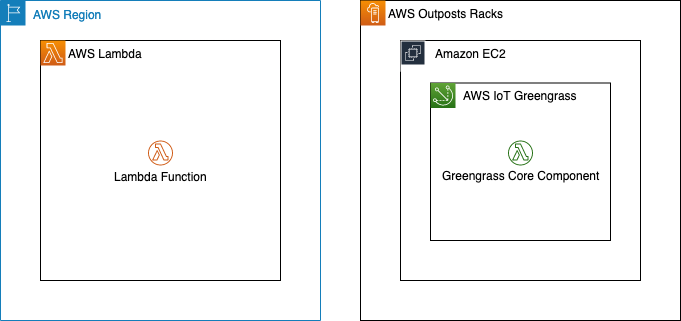
In this walkthrough you will create a Lambda function that can run on AWS IoT Greengrass and deploy it on an Outpost. This architecture results in an AWS-native Lambda function running on the Outpost.

Architecture overview - Lambda functions on AWS Outposts

Deploying Lambda functions on Outposts rack

Prerequisites: Building a VPC

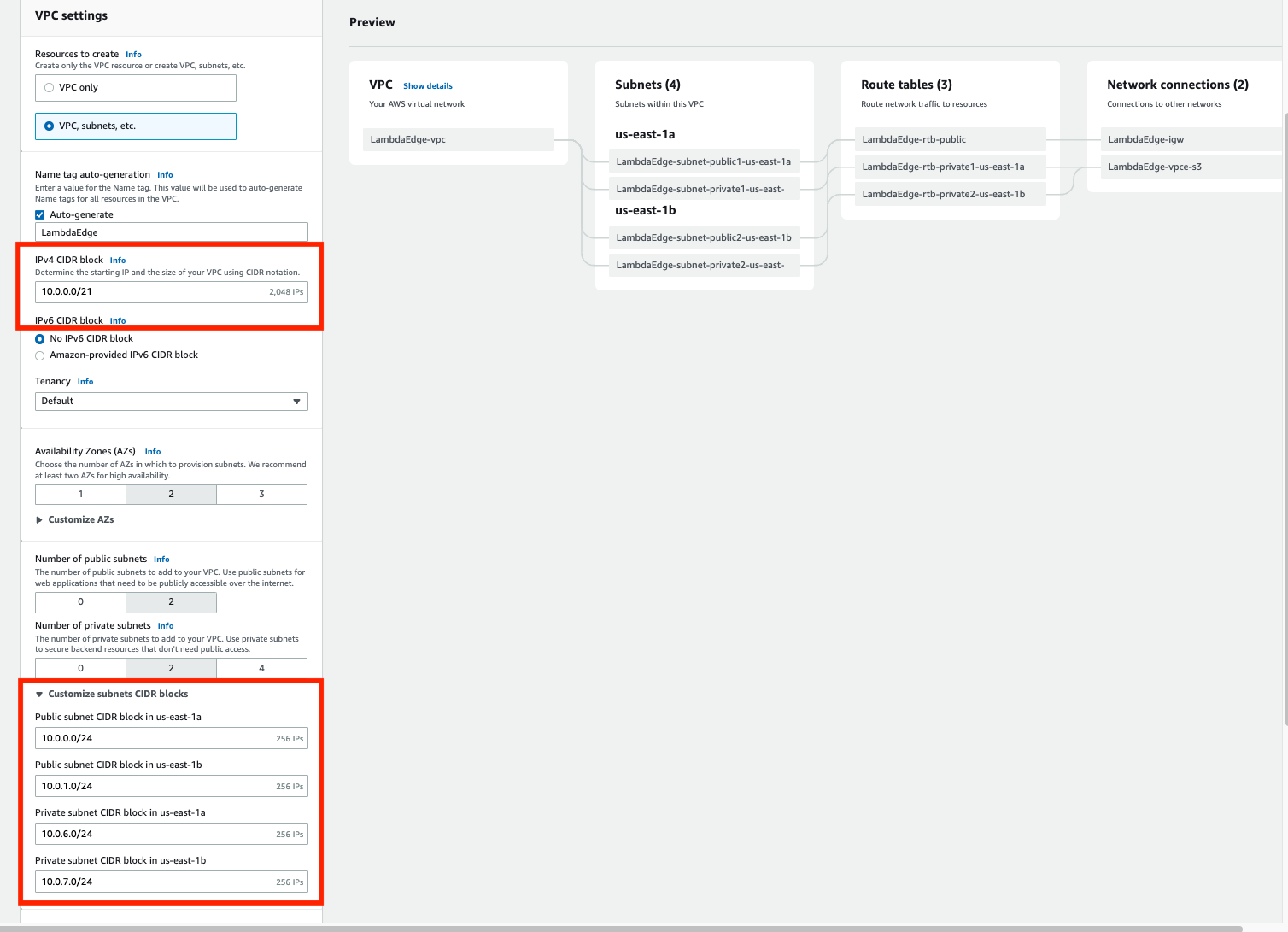
To get started, build a VPC in the same Region as your Outpost. You can do this with the create VPC option in the AWS console. The workflow allows you to set up a VPC with public and private subnets, an internet gateway, and NAT gateways as necessary. Do not consume all of the available IP space in the VPC with your subnets in this step, because you will still need to create Outposts subnets after this.

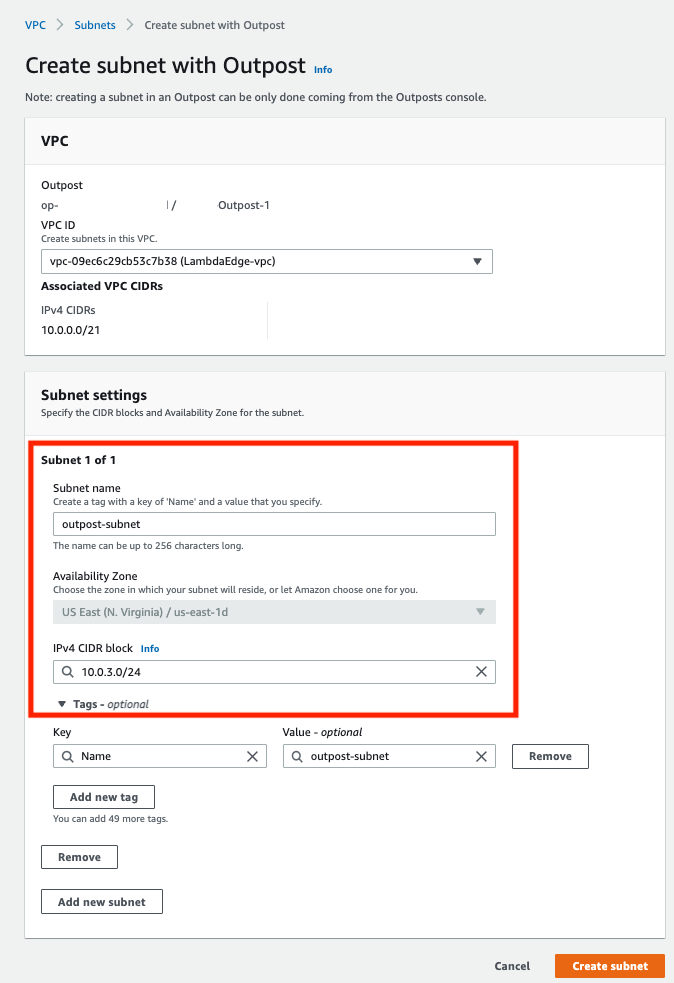
Now, build a subnet on your Outpost. You can do this by selecting your Outpost in the Outposts console and choosing Create Subnet in the drop-down Actions menu in the top right.

Confirm subnet details

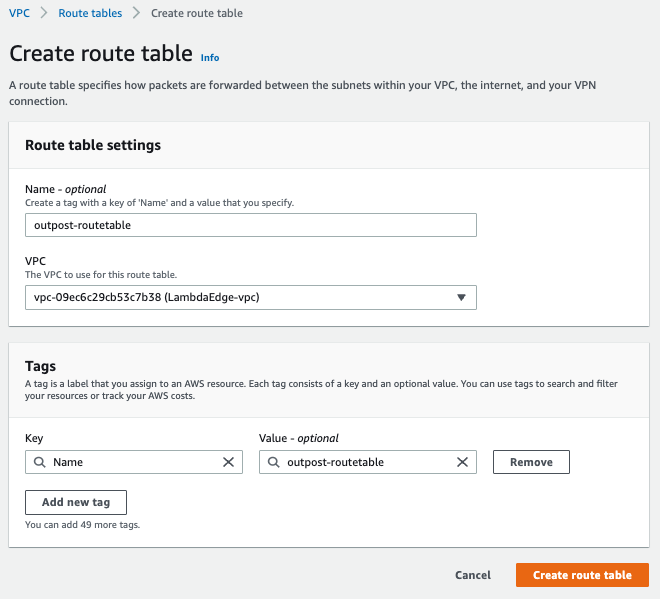
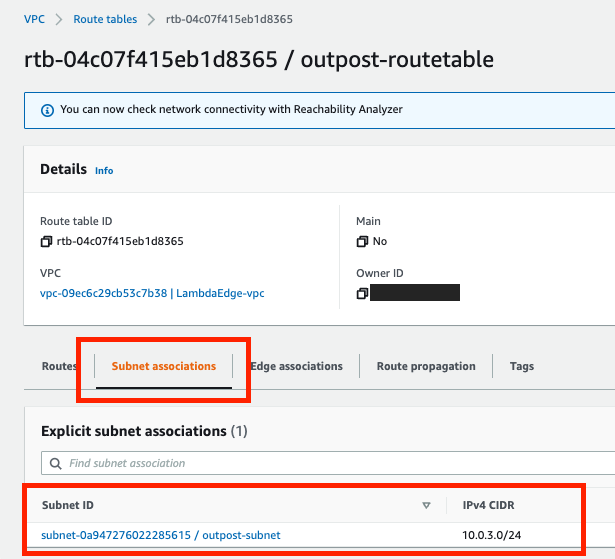
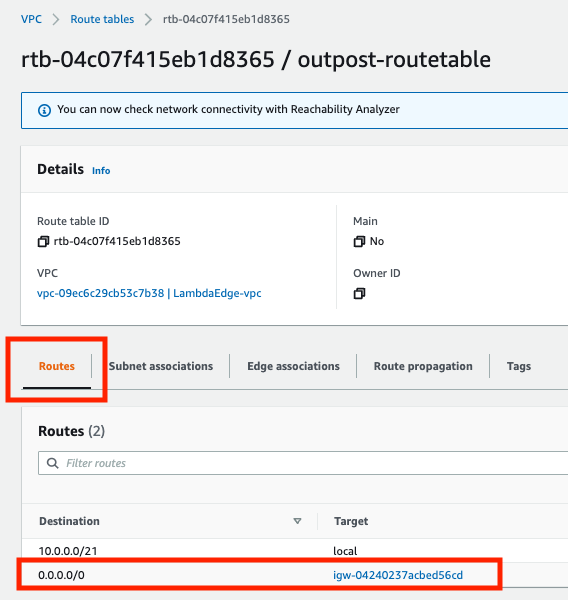
Choose the VPC you just created and select a CIDR range for your new subnet that doesn’t overlap with the other subnets that are already in the VPC. Once you’ve created the subnet, you need to create a new subnet route table and associate it with your new subnet. Go into the subnet route tables section of the VPC console and create a new route table. Associate the route table with your new subnet. Add a 0.0.0.0/0 route pointing at your VPC’s internet gateway. This sets the subnet up as a public subnet, which for the purposes of this post will make it easier to access the instance you are about to build for Greengrass Core. Depending on your requirements, it may make more sense to set up a private subnet on your Outpost instead. You can also add a route pointing at your Outpost’s local gateway here. Although you won’t be using the local gateway during this walkthrough, adding a route to the local gateway makes it possible to trigger your Outpost-hosted Lambda function with on-premises traffic.

Create a new route table

Associate the route table with the new subnet

Add a 0.0.0.0/0 route pointing at your VPC’s internet gateway

Setup: Launching an instance to run Greengrass Core

Create a new EC2 instance in your Outpost subnet. As long as your Outpost has capacity for your desired instance type, this operation will proceed the same way as any other EC2 instance launch. You can check your Outpost’s capacity in the Outposts console or in Amazon CloudWatch:

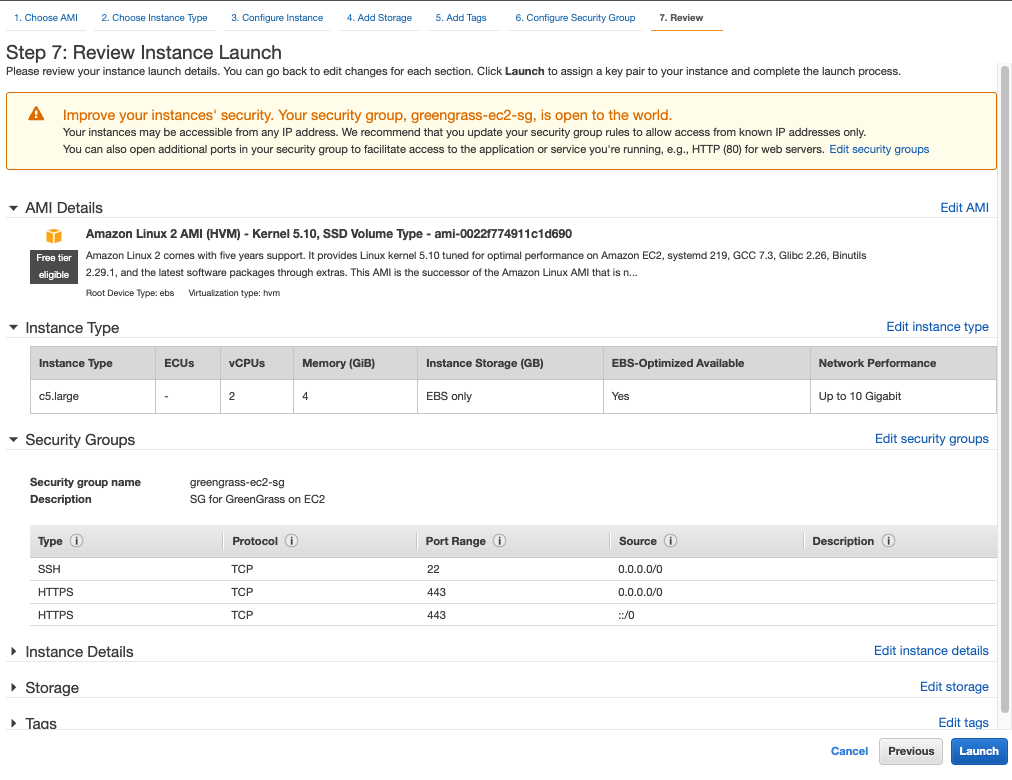
I used a c5.large instance running Amazon Linux 2 with 20 GiB of Amazon EBS storage for this walkthough. You can pick a different instance size or a different operating system in accordance with your application’s needs and the AWS IoT Greengrass documentation. For the purposes of this tutorial, we assign a public IP address to the EC2 instance on creation.

Step 1: Installing the AWS IoT Greengrass Core software

Once your EC2 instance is up and running, you will need to install the AWS IoT Greengrass Core software on the instance. Follow the AWS IoT Greengrass documentation to do this. You will need to do the following:

  1. Ensure that your EC2 instance has appropriate AWS permissions to make AWS API calls. You can do this by attaching an instance profile to the instance, or by providing AWS credentials directly to the instance as environment variables, as in the Greengrass documentation.
  2. Log in to your instance.
  3. Install OpenJDK 11. For Amazon Linux 2, you can use sudo amazon-linux-extras install java-openjdk11 to do this.
  4. Create the default system user and group that runs components on the device, with
    sudo useradd —system —create-home ggc_user
    sudo groupadd —system ggc_group
  5. Edit the /etc/sudoers file with sudo visudosuch that the entry for the root user looks like root ALL=(ALL:ALL) ALL
  6. Enable cgroups and enable and mount the memory and devices cgroups. In Amazon Linux 2, you can do this with the grubby utility as follows:
    sudo grubby --args="cgroup_enable=memory cgroup_memory=1 systemd.unified_cgroup_hierarchy=0" --update-kernel /boot/vmlinuz-$(uname -r)
  7. Type sudo reboot to reboot your instance with the cgroup boot parameters enabled.
  8. Log back in to your instance once it has rebooted.
  9. Use this command to download the AWS IoT Greengrass Core software to the instance:
    curl -s https://d2s8p88vqu9w66.cloudfront.net/releases/greengrass-nucleus-latest.zip > greengrass-nucleus-latest.zip
  10. Unzip the AWS IoT Greengrass Core software:
    unzip greengrass-nucleus-latest.zip -d GreengrassInstaller && rm greengrass-nucleus-latest.zip
  11. Run the following command to launch the installer. Replace each argument with appropriate values for your particular deployment, particularly the aws-region and thing-name arguments.
    sudo -E java -Droot="/greengrass/v2" -Dlog.store=FILE \
    -jar ./GreengrassInstaller/lib/Greengrass.jar \
    --aws-region region \
    --thing-name MyGreengrassCore \
    --thing-group-name MyGreengrassCoreGroup \
    --thing-policy-name GreengrassV2IoTThingPolicy \
    --tes-role-name GreengrassV2TokenExchangeRole \
    --tes-role-alias-name GreengrassCoreTokenExchangeRoleAlias \
    --component-default-user ggc_user:ggc_group \
    --provision true \
    --setup-system-service true \
    --deploy-dev-tools true
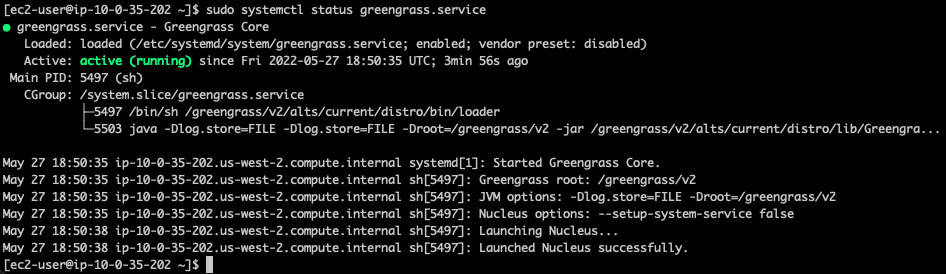
  12. You have now installed the AWS IoT Greengrass Core software on your EC2 instance. If you type sudo systemctl status greengrass.service then you should see output similar to this:

Step 2: Building and deploying a Lambda function

Now build a Lambda function and deploy it to the new Greengrass Core instance. You can find example local Lambda functions in the aws-greengrass-lambda-functions GitHub repository. This example will use the Hello World Python 3 function from that repo.

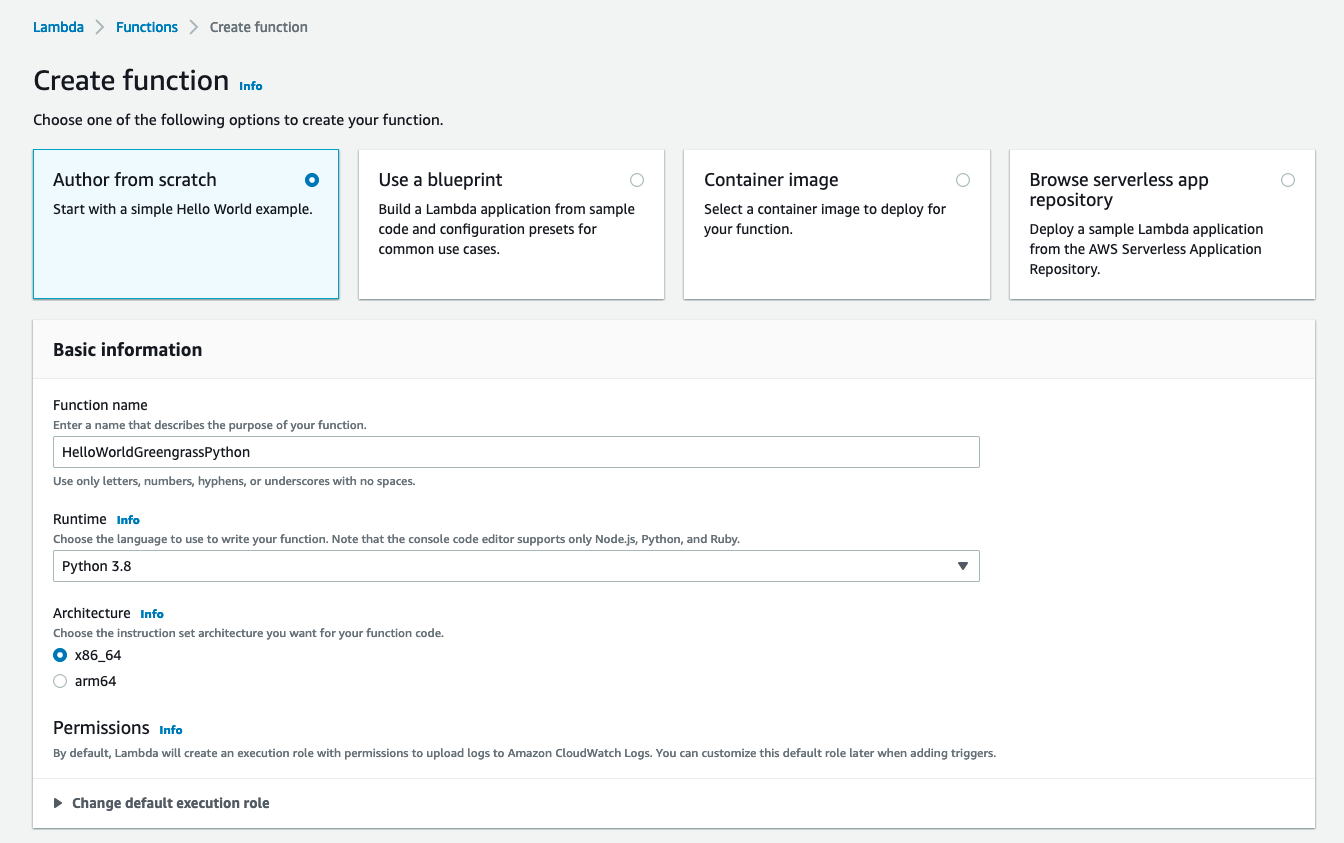
  1. Create the Lambda function. Go to the Lambda console, choose Create function, and select the Python 3.8 runtime:

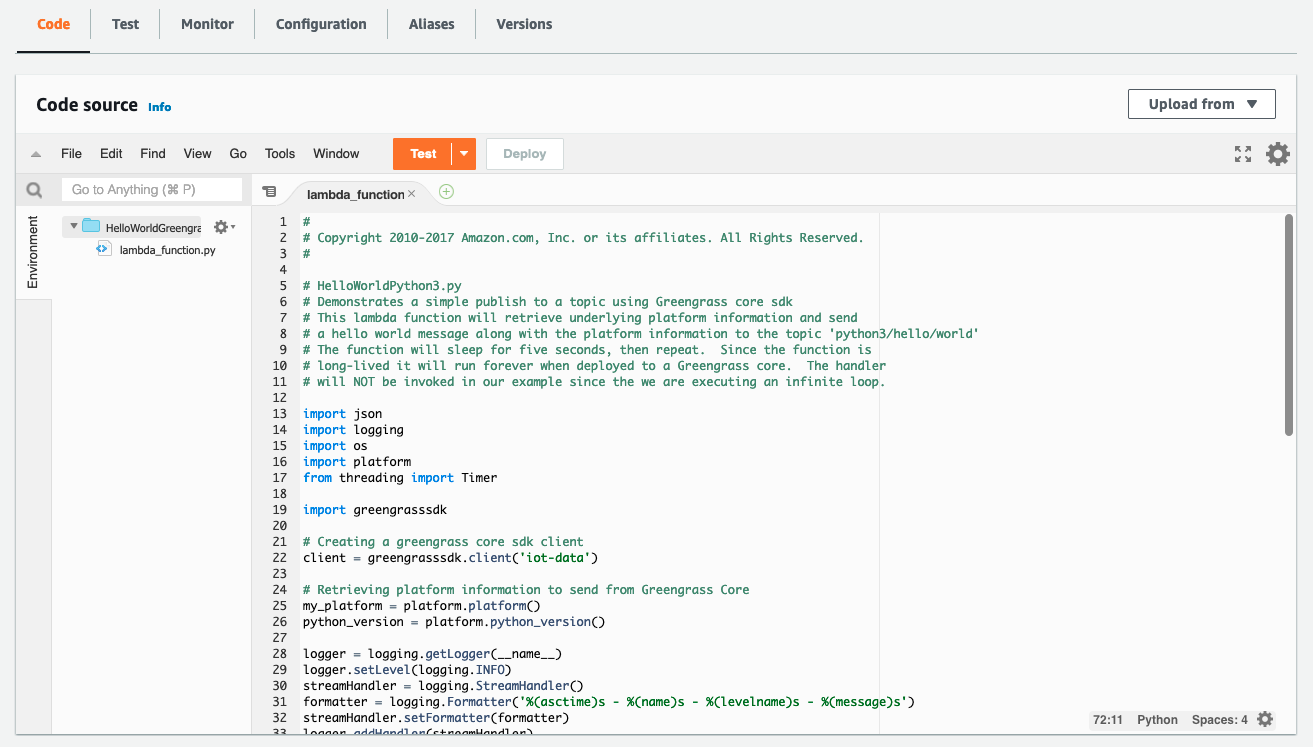
  1. Choose Create function at the bottom of the page. Once your new function has been created, copy the code from the Hello World Python 3 example into your function:

  1. Choose Deploy to deploy your new function’s code.
  2. In the top right, choose Actions and select Publish new version. For this particular function, you would need to create a deployment package with the AWS IoT Greengrass SDK for the function to work on the device. I’ve omitted this step for brevity as it is not a main focus of this post. Please reference the Lambda documentation on deployment packages and the Python-specific deployment package docs if you want to pursue this option.

  1. Go to the AWS IoT Greengrass console and choose Components in the left-side pop-in menu.
  2. On the Components page, choose Create component, and then Import Lambda function. If you prefer to do this programmatically, see the relevant AWS IoT Greengrass documentation or AWS CloudFormation documentation.
  3. Choose your new Lambda function from the drop-down.

Create component

  1. Scroll to the bottom and choose Create component.
  2. Go to the Core devices menu in the left-side nav bar and select your Greengrass Core device. This is the Greengrass Core EC2 instance you set up earlier. Make a note of the core device’s name.

  1. Use the left-side nav bar to go to the Deployments menu. Choose Create to create a new deployment, which will place your Lambda function on your Outpost-hosted core device.
  2. Give the deployment a name and select Core device, providing the name of your core device. Choose Next.

  1. Select your Lambda function and choose Next.

  1. Choose Next again, on both the Configure components and Configure advanced settings On the last page, choose Deploy.

You should see a green message at the top of the screen indicating that your configuration is now being deployed.

Clean up

  1. Delete the Lambda function you created.
  2. Terminate the Greengrass Core EC2 instance.
  3. Delete the VPC.

Conclusion

Many customers use AWS Outposts to expand applications into new geographies. Some customers want to run Lambda-based applications on Outposts. This blog post shows how to use AWS IoT Greengrass to build Lambda functions which run locally on Outposts.

To learn more about Outposts, please contact your AWS representative and visit the Outposts homepage and documentation.

Optimizing your AWS Lambda costs – Part 1

Post Syndicated from James Beswick original https://aws.amazon.com/blogs/compute/optimizing-your-aws-lambda-costs-part-1/

This post is written by Chris Williams, Solutions Architect and Thomas Moore, Solutions Architect, Serverless.

When you develop and architect solutions, cost-optimization should always be part of the process. This is no different for serverless applications that have been developed using AWS Lambda.

Your workloads may vary in terms of complexity, usage patterns, and technology. However, the following advice is applicable to all customers when deciding how to prioritize cost optimization with the tradeoffs of developing the application:

  • Efficient code makes better use of resources.
  • Consider the downstream services in architectural decisions.
  • Optimization should be a continuous cycle of improvement.
  • Prioritize changes that make the greatest improvements first.

The Optimizing your AWS Lambda costs blog series reviews operational and architectural guidance. It can be applied to existing Lambda functions and those that you develop in the future.

Introduction to Lambda pricing

Lambda pricing is calculated as a combination of:

  • Total number of requests
  • Total duration of invocations
  • Configured memory allocated

When you optimize Lambda functions, each of these components impacts the total monthly cost. This pricing applies after you exceed the AWS Free Tier that is offered for Lambda.

Right-Sizing

Right-sizing is a good starting point in the process of cost optimization. This exercise helps to identify the lowest cost for applications without affecting performance or requiring code changes.

For Lambda, this is accomplished by configuring the memory for a function, ranging anywhere from 128 MB up to 10,240 MB (10 GB). By adjusting the memory configuration, you also adjust the amount of vCPU that is available to the function during invocation. Tuning these settings provides memory- or CPU-bound applications with access to additional resources during the execution, which may lead to an overall reduced duration of invocation.

Identifying the optimal configuration for your Lambda functions may be manually intensive, especially if changes are made frequently. The AWS Lambda Power Tuning tool provides a solution powered by AWS Step Functions that can help identify the appropriate configuration. It analyzes a set of memory configurations against an example payload.

In the following example, as the memory increases for this Lambda function, the total invocation time improves. This leads to a reduction in the cost for the total execution without affecting the original performance of the function. For this function, the optimal memory configuration for the function is 512 MB, as this is where the resource utilization is most efficient for the total cost of each invocation. This varies per function, and using the tool on your Lambda functions can identify if they benefit from right-sizing.

Power Tuning results

This exercise should be completed regularly, especially if code is released frequently. Once you have identified the appropriate memory setting for your Lambda functions, you should add right-sizing to your processes. The AWS Lambda Power Tuning tool generates programmatic output that can be used by your CI/CD workflows during the release of new code, allowing the automation of memory configuration.

Performance efficiency

A key component to Lambda pricing is the total duration of the invocation. The longer the function takes to run, the more it costs and the higher the latency in your application. For this reason, it is important to ensure the code you write is as efficient as possible and follows the Lambda best practices.

At a high level, to optimize code :

  • Minimize deployment package size to its runtime necessities. This reduces the amount of time it takes for the package to be downloaded and unpacked.
  • Minimize the complexity of dependencies. Simpler frameworks often load faster.
  • Take advantage of execution reuse. Initialize SDK clients and database connections outside the function handler, and cache static assets locally in the /tmp directory. Subsequent invocations can reuse open connections and resources in memory and in /tmp.
  • Follow general coding performance best practices for your chosen language and runtime.

To help visualize the components of your application and identify performance bottlenecks, use AWS X-Ray with Lambda. You can enable X-Ray active tracing on new and existing functions by editing the function configuration. For example, with the AWS CLI:

aws lambda update-function-configuration --function-name my-function \
--tracing-config Mode=Active

The AWS X-Ray SDK can be used to trace all AWS SDK calls inside Lambda functions. This helps to identify any bottlenecks in the application performance. The X-Ray SDK for Python can be used to capture data for other libraries such as requests, sqlite3, and httplib, as shown in the following example:

Segments timeline

Amazon CodeGuru Profiler is another tool that can help with code optimization. It uses machines learning algorithms to help find the most expensive lines of code and suggests ways to improve efficiency. It can be enabled on existing Lambda functions by enabling code profiling in the function configuration.

The CodeGuru console shows the results as a series of visualizations and recommendations.

Code Guru recommendations

Use these tools together with the documented best practices to evaluate your code’s performance when developing your serverless applications. Efficient code often means faster applications and reduced costs.

AWS Graviton2

In September 2021, Lambda functions powered by Arm-based AWS Graviton2 processors became generally available. Graviton2 functions are designed to deliver up to 19% better performance at 20% lower cost than x86. In addition to the lower billing cost when using Arm, you could also see a reduction in the function duration due to the CPU performance improvement, reducing costs even further.

You can configure both new and existing functions to target the AWS Graviton2 processor. Functions are invoked in the same way and integrations with services, applications and tools are not affected by the architecture change. Many functions only need the configuration change to take advantage of the price/performance of Graviton2. Others may require repackaging to use Arm-specific dependencies.

It’s always recommended to test your workloads before making the change. To see how much your code benefits from using Graviton2, use the Lambda Power Tuning tool to compare against x86. The tool allows you to compare two results on the same chart:

AWS Lambda Power Tuning Results

Provisioned concurrency

Where customers are looking to reduce their Lambda function cold starts or avoid burst throttling, provisioned concurrency provides execution environments that are ready to be invoked. It can also reduce total Lambda cost when there is a consistent volume of traffic. This is because the provisioned concurrency pricing model offers a lower total price when it is fully used.

Similar to the standard Lambda function pricing, there are price components for total requests, total duration, and memory configuration. In addition, there is the cost of each provisioned concurrency environment (based on its memory configuration). When this execution environment is fully utilized, the combined cost of the invocation and the execution environment can offer up to 16% savings on duration cost when compared to the regular on-demand pricing.

If you cannot maximize usage in an execution environment, provisioned concurrency can still offer a lower total price per invocation. In the following example, once it’s consumed for more than 60% of the available time, it becomes cheaper than using the on-demand pricing model. The savings increase in line with capacity usage.

PC vs on-demand comparison

To identify the invocation baseline of a Lambda function, look at the average concurrent execution metrics per hour over the previous 24 hours. This helps you to find a consistent baseline throughout the day where you are consistently using multiple execution environments.

For Lambda functions where peak invocation levels are only expected during particular windows of time, take advantage of a scheduled scaling action. Where traffic patterns are not easy to determine, you can implement Application Auto Scaling to adjust based on the current level of utilization.

Compute savings plans

AWS Savings Plans is a flexible pricing model offering lower prices compared to on-demand pricing, in exchange for a specific usage commitment (measured in $/hour) for a one- or three-year period.

Compute Savings Plans include Amazon EC2, AWS Fargate and Lambda. Lambda usage for duration and provisioned concurrency are charged at a discounted Savings Plans rate of up to 17% for a 1- or 3-year term.

You can implement Savings Plans without any function code or configuration changes. They can be a simpler way to save money for Lambda-based workloads. Before deciding to use a savings plan, analyze previous patterns to understand any variations in your month to month usage.

Conclusion

This blog post explains how Lambda pricing works and how right-sizing applications and tuning them for performance efficiency offers a more cost-efficient utilization model. The results can also reduce latency, creating a better experience for your end users.

The post explores how architectural changes such as moving to Graviton2 and configuring provisioned concurrency can provide cost reductions for the same operations. Finally, you can use Compute Savings Plans to add an additional cost reduction once you establish a baseline of usage per month.

Part 2 introduces further optimization opportunities for reducing Lambda invocations, moving to an asynchronous model, and reducing logging costs.

For more serverless learning resources, visit Serverless Land.

Making your Go workloads up to 20% faster with Go 1.18 and AWS Graviton

Post Syndicated from Sheila Busser original https://aws.amazon.com/blogs/compute/making-your-go-workloads-up-to-20-faster-with-go-1-18-and-aws-graviton/

This blog post was written by Syl Taylor, Professional Services Consultant.

In March 2022, the highly anticipated Go 1.18 was released. Go 1.18 brings to the language some long-awaited features and additions, such as generics. It also brings significant performance improvements for Arm’s 64-bit architecture used in AWS Graviton server processors. In this post, we show how migrating Go workloads from Go 1.17.8 to Go 1.18 can help you run your applications up to 20% faster and more cost-effectively. To achieve this goal, we selected a series of realistic and relatable workloads to showcase how they perform when compiled with Go 1.18.

Overview

Go is an open-source programming language which can be used to create a wide range of applications. It’s developer-friendly and suitable for designing production-grade workloads in areas such as web development, distributed systems, and cloud-native software.

AWS Graviton2 processors are custom-built by AWS using 64-bit Arm Neoverse cores to deliver the best price-performance for your cloud workloads running in Amazon Elastic Compute Cloud (Amazon EC2). They provide up to 40% better price/performance over comparable x86-based instances for a wide variety of workloads and they can run numerous applications, including those written in Go.

Web service throughput

For web applications, the number of HTTP requests that a server can process in a window of time is an important measurement to determine scalability needs and reduce costs.

To demonstrate the performance improvements for a Go-based web service, we selected the popular Caddy web server. To perform the load testing, we selected the hey application, which was also written in Go. We deployed these packages in a client/server scenario on m6g Graviton instances.

Relative performance comparison for requesting a static webpage

The Caddy web server compiled with Go 1.18 brings a 7-8% throughput improvement as compared with the variant compiled with Go 1.17.8.

We conducted a second test where the client downloads a dynamic page on which the request handler performs some additional processing to write the HTTP response content. The performance gains were also noticeable at 10-11%.

Relative performance comparison for requesting a dynamic webpage

Regular expression searches

Searching through large amounts of text is where regular expression patterns excel. They can be used for many use cases, such as:

  • Checking if a string has a valid format (e.g., email address, domain name, IP address),
  • Finding all of the occurrences of a string (e.g., date) in a text document,
  • Identifying a string and replacing it with another.

However, despite their efficiency in search engines, text editors, or log parsers, regular expression evaluation is an expensive operation to run. We recommend identifying optimizations to reduce search time and compute costs.

The following example uses the Go regexp package to compile a pattern and search for the presence of a standard date format in a large generated string. We observed a 13.5% increase in completed executions with a 12% reduction in execution time.

Relative performance comparison for using regular expressions to check that a pattern exists

In a second example, we used the Go regexp package to find all of the occurrences of a pattern for character sequences in a string, and then replace them with a single character. We observed a 12% increase in evaluation rate with an 11% reduction in execution time.

Relative performance comparison for using regular expressions to find and replace all of the occurrences of a pattern

As with most workloads, the improvements will vary depending on the input data, the hardware selected, and the software stack installed. Furthermore, with this use case, the regular expression usage will have an impact on the overall performance. Given the importance of regex patterns in modern applications, as well as the scale at which they’re used, we recommend upgrading to Go 1.18 for any software that relies heavily on regular expression operations.

Database storage engines

Many database storage engines use a key-value store design to benefit from simplicity of use, faster speed, and improved horizontal scalability. Two implementations commonly used are B-trees and LSM (log-structured merge) trees. In the age of cloud technology, building distributed applications that leverage a suitable database service is important to make sure that you maximize your business outcomes.

B-trees are seen in many database management systems (DBMS), and they’re used to efficiently perform queries using indexes. When we tested a sample program for inserting and deleting in a large B-tree structure, we observed a 10.5% throughput increase with a 10% reduction in execution time.

Relative performance comparison for inserting and deleting in a B-Tree structure

On the other hand, LSM trees can achieve high rates of write throughput, thus making them useful for big data or time series events, such as metrics and real-time analytics. They’re used in modern applications due to their ability to handle large write workloads in a time of rapid data growth. The following are examples of databases that use LSM trees:

  • InfluxDB is a powerful database used for high-speed read and writes on time series data. It’s written in Go and its storage engine uses a variation of LSM called the Time-Structured Merge Tree (TSM).
  • CockroachDB is a popular distributed SQL database written in Go with its own LSM tree implementation.
  • Badger is written in Go and is the engine behind Dgraph, a graph database. Its design leverages LSM trees.

When we tested an LSM tree sample program, we observed a 13.5% throughput increase with a 9.5% reduction in execution time.

We also tested InfluxDB using comparison benchmarks to analyze writes and reads to the database server. On the load stress test, we saw a 10% increase of insertion throughput and a 14.5% faster rate when querying at a large scale.

Relative performance comparison for inserting to and querying from an InfluxDB database

In summary, for databases with an engine written in Go, you’ll likely observe better performance when upgrading to a version that has been compiled with Go 1.18.

Machine learning training

A popular unsupervised machine learning (ML) algorithm is K-Means clustering. It aims to group similar data points into k clusters. We used a dataset of 2D coordinates to train K-Means and obtain the cluster distribution in a deterministic manner. The example program uses an OOP design. We noticed an 18% improvement in execution throughput and a 15% reduction in execution time.

Relative performance comparison for training a K-means model

A widely-used and supervised ML algorithm for both classification and regression is Random Forest. It’s composed of numerous individual decision trees, and it uses a voting mechanism to determine which prediction to use. It’s a powerful method for optimizing ML models.

We ran a deterministic example to train a dense Random Forest. The program uses an OOP design and we noted a 20% improvement in execution throughput and a 15% reduction in execution time.

Relative performance comparison for training a Random Forest model

Recursion

An efficient, general-purpose method for sorting data is the merge sort algorithm. It works by repeatedly breaking down the data into parts until it can compare single units to each other. Then, it decides their order in the intermediary steps that will merge repeatedly until the final sorted result. To implement this divide-and-conquer approach, merge sort must use recursion. We ran the program using a large dataset of numbers and observed a 7% improvement in execution throughput and a 4.5% reduction in execution time.

Relative performance comparison for running a merge sort algorithm

Depth-first search (DFS) is a fundamental recursive algorithm for traversing tree or graph data structures. Many complex applications rely on DFS variants to solve or optimize hard problems in various areas, such as path finding, scheduling, or circuit design. We implemented a standard DFS traversal in a fully-connected graph. Then we observed a 14.5% improvement in execution throughput and a 13% reduction in execution time.

Relative performance comparison for running a DFS algorithm

Conclusion

In this post, we’ve shown that a variety of applications, not just those primarily compute-bound, can benefit from the 64-bit Arm CPU performance improvements released in Go 1.18. Programs with an object-oriented design, recursion, or that have many function calls in their implementation will likely benefit more from the new register ABI calling convention.

By using AWS Graviton EC2 instances, you can benefit from up to a 40% price/performance improvement over other instance types. Furthermore, you can save even more with Graviton through the additional performance improvements by simply recompiling your Go applications with Go 1.18.

To learn more about Graviton, see the Getting started with AWS Graviton guide.

Amazon EC2 DL1 instances Deep Dive

Post Syndicated from Sheila Busser original https://aws.amazon.com/blogs/compute/amazon-ec2-dl1-instances-deep-dive/

This post is written by Amr Ragab, Principal Solutions Architect, Amazon EC2.

AWS is excited to announce that the new Amazon Elastic Compute Cloud (Amazon EC2) DL1 instances are now generally available in US-East (N. Virginia) and US-West (Oregon). DL1 provides up to 40% better price performance for training deep learning models as compared to current generation GPU-based EC2 instances. The dl1.24xlarge instance type features eight Intel-Habana Gaudi accelerators, which are custom-built to train deep learning models. Each Gaudi accelerator has 32 GB of high bandwidth memory (HBM2) and a peer-to-peer bidirectional bandwidth of 100 Gbps RoCE, for a total bidirectional interconnect bandwidth of 700 Gbps per card. Further instance specifications are as follows:

Instance Size vCPU Instance Memory (GiB) Gaudi Accelerators Network Bandwidth (Gbps) Total Accelerator Interconnect (Gbs) Local Instance Storage EBS Bandwidth (Gbps)
d1.24xlarge 96 768 8 4×100 Gbps 700 4x1TB NVMe 19

Instance Architecture

System architecture of the amazon ec2 dl1 instances.

As the preceding instance architecture indicates, pairs of Gaudi accelerators (e.g., Gaudi0 and Gaudi1) are attached directly through a PCIe Gen3x16 link. Additionally, peer-to-peer networking via 100 Gbps RoCEv2 links – with seven active links per card – provides a torus configuration with a total of 700 Gbps of interconnect bandwidth per card. This topology is a separate interconnect outside of the two NUMA domains. Furthermore, the instance supports four EFA ENIs and 4x1TB of local NVMe SSD storage. We will provide a peer-direct driver over EFA, which will let you utilize high throughput, low latency peer-direct networking between accelerators across multiple instances to efficiently scale multi-node distributed training workloads.

Quick Start

Quickly get started with DL1 and SynapseAI SDK through with the following options:

1) Habana Deep Learning AMIs provided by AWS.

2) AWS Marketplace AMIs provided by Habana.

3) Using Packer to build a custom Amazon Machine Images (AMI) provided by this GitHub repo. This repo also provides build scripts to create Amazon Elastic Container Service (Amazon ECS) and Amazon Elastic Kubernetes Service (Amazon EKS) AMIs.

After selecting an AMI, launch a dl1.24xlarge instance in either us-east-1 or us-west-2. To help identify in which availability zone(s) dl1.24xlarge is available, run the following command:

aws ec2 describe-instance-type-offerings \
--location-type availability-zone \
--filters Name=instance-type,Values=dl1.24xlarge \
--region us-west-2 \
--output table

Once launched, you can connect to the instance over SSH (with the correct security group attached).

Habana Collectives Communication Library (HCL/HCCL)

As part of the Habana SynapseAI SDK, Habana Gaudi’s use the HCCL library for handling the collectives between HPUs. Get more information on HCCL here. On DL1 through the HCL-tests, we can confirm close to 700 Gbps (689 Gbps) per card for the collectives tested as follows.

You can confirm these tests by cloning the github repo here.

Habana DL1 HCCL tests.

Amazon EKS Quick Start

Support for DL1 on Amazon EKS is available today with Amazon EKS versions > 1.19. The following is a quick start to get up and running quickly with DL1.

The following dependencies will be needed:

eksctl – You need version 0.70.0+ of eksctl.
kubectl – You use Kubernetes version 1.20 in this post.

Create EKS cluster:

eksctl create cluster --region us-east-1 --without-nodegroup \
--vpc-public-subnets subnet-037d8e430963c2d3e,subnet-0abe898359a7d43e9

Nodegroup configuration – save the following codeblock to a file called dl1-managed-ng.yaml. Replace the AMI ID in the code block with the AMI created earlier.

apiVersion: eksctl.io/v1alpha5
kind: ClusterConfig

metadata:
  name: fabulous-rainbow-1635807811
  region: us-west-2

vpc:
  id: vpc-34f1894c
  subnets:
    public:
      endpoint-one:
        id: subnet-4532e73d
      endpoint-two:
        id: subnet-8f8b7dc5

managedNodeGroups:
  - name: dl1-ng-1d
    instanceType: dl1.24xlarge
    volumeSize: 200
    instancePrefix: dl1-ng-1d-worker
    ami: ami-072c632cbbc2255b3
    iam:
      withAddonPolicies:
        imageBuilder: true
        autoScaler: true
        ebs: true
        fsx: true
        cloudWatch: true
    ssh:
      allow: true
      publicKeyName: amrragab-aws
    subnets:
    - endpoint-one
    minSize: 1
    desiredCapacity: 1
    maxSize: 4
    overrideBootstrapCommand: |
      #!/bin/bash
      /etc/eks/bootstrap.sh fabulous-rainbow-1635807811

Create the managed nodegroup with the following command:

eksctl create nodegroup -f dl1-managed-ng.yaml

Once the nodegroup has been completed, you must apply the habana-k8s-device-plugin

kubectl create -f https://vault.habana.ai/artifactory/docker-k8s-device-plugin/habana-k8s-device-plugin.yaml

Once completed, you should see the Gaudi devices as an allocatable resource in your EKS
cluster, presenting 8 Gaudi accelerators per DL1 node in the cluster.

Allocatable:

attachable-volumes-aws-ebs: 39
cpu:                        95690m
ephemeral-storage:          192188443124
habana.ai/gaudi:            8
hugepages-1Gi:              0
hugepages-2Mi:              30000Mi
memory:                     753055132Ki
pods:                       15

Example Distributed Machine Learning (ML) Workloads

The following tables are examples of Mixed Precision/FP32 training results comparing DL1 to the common GPU instances used for ML training.

Model: ResNet50
Framework: TensorFlow 2
Dataset: Imagenet2012
GitHub: https://github.com/HabanaAI/Model-
References/tree/master/TensorFlow/computer_vision/Resnets/resnet_keras

Instance Type Batch Size
Mixed Precision Training Throughput (images/sec)
8x Gaudi – 32 GB (dl1.24xlarge) 256 13036
8x A100 – 40 GB (p4d.24xlarge) 256 17921
8x V100 – 32 GB (p3dn.24xlarge) 256 9685
8x V100 – 16GB (p3.16xlarge) 256 8945

Model: Bert Large – Pretraining
Framework: Pytorch 1.9
Dataset: Wikipedia/BooksCorpus
GitHub: https://github.com/HabanaAI/Model-References/tree/master/PyTorch/nlp/bert

Instance Type Batch Size
@128 Sequence
Length
Mixed Precision Training Throughput (seq/sec)
8x Gaudi – 32 GB (dl1.24xlarge) 256 1318
8x A100 – 40 GB (p4d.24xlarge) 8192 2979
8x V100 – 32 GB (p3dn.24xlarge) 8192 1458
8x V100 – 16GB (p3.16xlarge) 8192 1013

You can find a more comprehensive list of ML models supported with performance data here. Support for containers with TensorFlow and Pytorch are also available. Furthermore, you can stay up-to-date with the operator support for TensorFlow and Pytorch.

CONCLUSION

We are excited to innovate on behalf of our customers and provide a diverse choice in ML accelerators with DL1 instances. The DL1 instances powered by Gaudi accelerators can provide up to 40% better price performance for training deep learning models as compared to current generation GPU-based EC2 instances. DL1 instances use the Habana SynapseAI SDK with framework support in Pytorch and TensorFlow. Additional future support for EFA with peer direct HPUs across nodes will also be supported. Now it’s time to go power up your ML workloads with Amazon EC2 DL1 instances.

Extend your pre-commit hooks with AWS CloudFormation Guard

Post Syndicated from Joaquin Manuel Rinaudo original https://aws.amazon.com/blogs/security/extend-your-pre-commit-hooks-with-aws-cloudformation-guard/

Git hooks are scripts that extend Git functionality when certain events and actions occur during code development. Developer teams often use Git hooks to perform quality checks before they commit their code changes. For example, see the blog post Use Git pre-commit hooks to avoid AWS CloudFormation errors for a description of how the AWS Integration and Automation team uses various pre-commit hooks to help reduce effort and errors when they build AWS Quick Starts.

This blog post shows you how to extend your Git hooks to validate your AWS CloudFormation templates against policy-as-code rules by using AWS CloudFormation Guard. This can help you verify that your code follows organizational best practices for security, compliance, and more by preventing you from commit changes that fail validation rules.

We will also provide patterns you can use to centrally maintain a list of rules that security teams can use to roll out new security best practices across an organization. You will learn how to configure a pre-commit framework by using an example repository while you store Guard rules in both a central Amazon Simple Storage Service (Amazon S3) bucket or in versioned code repositories (such as AWS CodeCommit, GitHub, Bitbucket, or GitLab).

Prerequisites

To complete the steps in this blog post, first perform the following installations.

  1. Install AWS Command Line Interface (AWS CLI).
  2. Install the Git CLI.
  3. Install the pre-commit framework by running the following command.
    pip install pre-commit
  4. Install the Rust programming language by following these instructions.
  5. (Windows only) Install the version of Microsoft Visual C++ Build Tools 2019 that provides just the Visual C++ build tools. 

Solution walkthrough

In this section, we walk you through an exercise to extend a Java service on an Amazon EKS example repository with Git hooks by using AWS CloudFormation Guard. You can choose to upload your Guard rules in either a separate GitHub repository or your own S3 bucket.

First, download the sample repository that you will add the pre-commit framework to.

To clone the test repository

  • Clone the repo to a local directory by running the following command in your local terminal.

    git clone https://github.com/aws-samples/amazon-eks-example-for-stateful-java-service.git

Next, create Guard rules that reflect the organization’s policy-as-code best practices and store them in an S3 bucket.

To set up an S3 bucket with your Guard rules

  1. Create an S3 bucket by running the following command in the AWS CLI.

    aws s3 mb s3://<account-id>-cfn-guard-rules --region <aws-region>

    where <account-id> is the ID of the AWS account you’re using and <aws-region> is the AWS Region you want to use.

  2. (Optional) Alternatively, you can follow the Getting started with Amazon S3 tutorial to create the bucket and upload the object (as described in step 4 that follows) by using the AWS Management Console.

    When you store your Guard rules in an S3 bucket, you can make the rules accessible to other member accounts in your organization by using the aws:PrincipalOrgID condition and setting the value to your organization ID in the bucket policy.

  3. Create a file that contains a Guard rule named rules.guard, with the following content.
    let eks_cluster = Resources.* [ Type == 'AWS::EKS::Cluster' ]
    rule eks_public_disallowed when %eks_cluster !empty {
          %eks_cluster.Properties.ResourcesVpcConfig.EndpointPublicAccess == false
    }

    This rule will verify that public endpoints are disabled by checking that resources that are created by using the AWS::EKS::Cluster resource type have the EndpointPublicAccess property set to false. For more information about authoring your own rules using Guard domain-specific language (DSL), see Introducing AWS CloudFormation Guard 2.0.

  4. Upload the rule set to your S3 bucket by running the following command in the AWS CLI.

    aws s3 cp rules.guard s3://<account-id>-cfn-guard-rules/rules/rules.guard

In the next step, you will set up the pre-commit framework in the repository to run CloudFormation Guard against code changes.

To configure your pre-commit hook to use Guard

  1. Run the following command to create a new branch where you will test your changes.
    git checkout -b feature/guard-hook
  2. Navigate to the root directory of the project that you cloned earlier and create a .pre-commit-config.yaml file with the following configuration.
    repos:
      - repo: local
        hooks:
          -   id: cfn-guard-rules
              name: Rules for AWS
              description: Download Organization rules
              entry: aws s3 cp --recursive s3://<account-id>-cfn-guard-rules/rules  guard-rules/org-rules/
              language: system
              pass_filenames: false
          -   id: cfn-guard
              name: AWS CloudFormation Guard
              description: Validate code against your Guard rules
              entry: bash -c 'for template in "$@"; do cfn-guard validate -r guard-rules -d "$template" || SCAN_RESULT="FAILED"; done; if [[ "$SCAN_RESULT" = "FAILED" ]]; then exit 1; fi'
              language: rust
              files: \.(json|yaml|yml|template\.json|template)$
              additional_dependencies:
                - cli:cfn-guard

    You will need to replace the <account-id> placeholder value with the AWS account ID you entered in the To set up an S3 bucket with your Guard rules procedure.

    This hook configuration uses local pre-commit hooks to download the latest version of Guard rules from the bucket you created previously. This allows you to set up a centralized set of Guard rules across your organization.

    Alternatively, you can create and use a code repository such as GitHub, AWS CodeCommit, or Bitbucket to keep your rules in version control. To do so, replace the command in the Download Organization rules step of the .pre-commit-config.yaml file with:

    bash -c ‘if [ -d guard-rules/org-rules ]; then cd guard-rules/org-rules && git pull; else git clone <guard-rules-repository-target> guard-rules/org-rules; fi’

    Where <guard-rules-repository-target> is the HTTPS or SSH URL of your repository. This command will clone or pull the latest rules from your Git repo by using your Git credentials.

    The hook will also install Guard as an additional dependency by using a Rust hook. Using Guard, it will run the code changes in the repository directory against the downloaded rule set. When misconfigurations are detected, the hook stops the commit.

    You can further extend your organization rules with your own Guard rules by adding them to the cfn-guard-rules folder. You should commit these rules in your repository and add cfn-guard-rules/org-rules/* to your .gitignore file.

  3. Run a pre-commit install command to install the hooks you just created.

Finally, test that the pre-commit’s Guard hook fails commits of code changes that do not follow organizational best practices.

To test pre-commit hooks

  1. Add EndpointPublicAccess: true in cloudformation/eks.template.yaml, as shown following. This describes the test-only intent (meaning that you want to detect and flag errors in your rule) of adding public access to the Amazon Elastic Kubernetes Service (Amazon EKS) cluster.
      EKSCluster:
        Type: AWS::EKS::Cluster
        Properties:
          Name: java-app-demo-cluster
          ResourcesVpcConfig:
            EndpointPublicAccess: true
            SecurityGroupIds:
              - !Ref EKSControlPlaneSecurityGroup

  2. Add your changes with the git add command.

    git add .pre-commit-config.yaml

    git add cloudformation/eks.template.yaml

  3. Commit changes with the following command.

    git commit -m “bad config”

    You should see the following error that disallows the commit to the local repository and shows which one of your Guard rules failed.

    amazon-eks-controlplane.template.yaml Status = FAIL
    		
    FAILED rules
    		
    rules.guard/eks_public_disallowed    FAIL
    		
    ---
    		
    Evaluation of rules rules.guard against data amazon-eks-controlplane.template.yaml
    		
    ---
    		
    Property
    [/Resources/EKS/Properties/ResourcesVpcConfig/EndpointPublicAccess] in data
    [eks.template.yaml] is not compliant with [rules.guard/eks_public_disallowed] 
    because provided value [true] did not match expected value [false]. 
    Error Message []

  4. (Optional) You can also test hooks before committing by using the pre-commit run command to see similar output.

Cleanup

To avoid incurring ongoing charges, follow these cleanup steps to delete the resources and files you created as you followed along with this blog post.

To clean up resources and files

  1. Remove your local repository.
    rm -rf /path/to/repository
  2. Delete the S3 bucket you created by running the following command.
    aws s3 rb s3://<account-id>-cfn-guard-rules --force
  3. (Optional) Remove the pre-commit hooks framework by running this command.
    pip uninstall pre-commit

Conclusion

In this post, you learned how to use AWS CloudFormation Guard with the pre-commit framework locally to validate your infrastructure-as-code solutions before you push remote changes to your repositories.

You also learned how to extend the solution to use a centralized list of security rules that is stored in versioned code repositories (GitHub, Bitbucket, or GitLab) or an S3 bucket. And you learned how to further extend the solution with your own rules. You can find examples of rules to use in Guard’s Github repository or refer to write preventative compliance rules for AWS CloudFormation templates the cfn-guard way. You can then further configure other repositories to prevent misconfigurations by using the same Guard rules.

 
If you have feedback about this post, submit comments in the Comments section below. If you have questions about this post, start a new thread on the KMS re:Post or contact AWS Support.

Want more AWS Security news? Follow us on Twitter.

Author

Joaquin Manuel Rinaudo

Joaquin is a Senior Security Architect with AWS Professional Services. He is passionate about building solutions that help developers improve their software quality. Prior to AWS, he worked across multiple domains in the security industry, from mobile security to cloud and compliance related topics. In his free time, Joaquin enjoys spending time with family and reading science-fiction novels.

New features from Apache Hudi 0.9.0 on Amazon EMR

Post Syndicated from Kunal Gautam original https://aws.amazon.com/blogs/big-data/new-features-from-apache-hudi-0-9-0-on-amazon-emr/

Apache Hudi is an open-source transactional data lake framework that greatly simplifies incremental data processing and data pipeline development. It does this by providing transaction support and record-level insert, update, and delete capabilities on data lakes on Amazon Simple Storage Service (Amazon S3) or Apache HDFS. Apache Hudi is integrated with open-source big data analytics frameworks, such as Apache Spark, Apache Hive, Presto, and Trino. Furthermore, Apache Hudi lets you maintain data in Amazon S3 or Apache HDFS in open formats such as Apache Parquet and Apache Avro.

Common use cases where we see customers use Apache Hudi are as follows:

  • To simplify data ingestion pipelines that deal with late-arriving or updated records from streaming and batch data sources.
  • To ingest data using Change Data Capture (CDC) from transactional systems.
  • To implement data-deletion pipelines to comply with data privacy regulations, e.g., GDPR (General Data Protection Regulation) compliance. Conforming to GDPR is a necessity of today’s modern data architectures, which includes the features of “right to erasure” or “right to be forgotten”, and it can be implemented using Apache Hudi capabilities in place of deletes and updates.

We are excited to announce that Apache Hudi 0.9.0 is available on Amazon EMR 5.34 and EMR 6.5.0. This is a major release, which includes Spark SQL DML and DDL support as its highlight, along with several other writer/reader side improvements. The 3x query performance improvement that we observe over Hudi 0.6.0 is especially remarkable so if you are looking to implement a transactional data lake with record level upserts and deletes or are using an older version of Hudi, this is a great version to use. In this post, we’ll focus on the following new features and improvements that come with the 0.9.0 release:

  • Spark SQL DML and DDL Support: Explore Spark SQL DML and DDL support.
  • Performance Improvements: Explore the performance improvements and new performance related features introduced on the writer and query side.
  • Additional Features: Explore additional useful features, such as Amazon DynamoDB-based locks for Optimistic Concurrency Control (OCC), delete partitions operation, etc.

Spark SQL DML and DDL support

The most exciting new feature is that Apache Hudi 0.9.0 adds support for DDL/DMLs using Spark SQL. This takes a huge step toward making Hudi more easily accessible, operable by all people (non-engineers, analysts, etc.). Moreover, it enables existing datasets to be easily migrated to Apache Hudi tables, and it takes a step closer to a low-code paradigm using Spark SQL DML and DDL hence eliminating the need to write scala/python code.

Users can now create tables using CREATE TABLE....USING HUDI and CREATE TABLE .. AS SELECT SQL statements to directly manage tables in AWS Glue catalog.

Then, users can use INSERT, UPDATE, MERGE INTO, and DELETE SQL statements to manipulate data. The INSERT OVERWRITE statement can be used to overwrite existing data in the table or partition for existing batch ETL pipelines.

Let’s run through a quick example where we create a Hudi table amazon_customer_review_hudi resembling the schema of Amazon Customer reviews Public Dataset and perform the following activities:

  • Pre-requisite: Create Amazon Simple Storage Service (S3) Buckets s3://EXAMPLE-BUCKET and s3://EXAMPLE-BUCKET-1
  • Create a partitioned Hudi table amazon_product_review_hudi
  • Create a source Hudi table amazon_customer_review_parquet_merge_source with contents that will be merged with the amazon_product_review_hudi table
  • Insert data into amazon_customer_review_parquet_merge_source and amazon_product_review_hudi as well as perform a merge operation by reading the data from
    amazon_customer_review_parquet_merge_source and merging with the Hudi table amazon_product_review_hudi
  • Perform a delete operation on amazon_customer_review_hudi over the previously inserted records

Configure Spark Session

We use the following script via EMR studio notebook, to configure Spark Session to work with Apache Hudi DML and DDL support. The following examples demonstrate how to launch the interactive Spark shell, use Spark submit, or use Amazon EMR Notebooks to work with Hudi on Amazon EMR. We recommend launching your EMR cluster with the following Apache Livy configuration:

[
    {
        "Classification": "livy-conf",
        "Properties": {
            "livy.file.local-dir-whitelist": "/usr/lib/hudi"
        }
    }
]

The above configuration lets you directly refer to the local /usr/lib/hudi/hudi-spark-bundle.jar on the EMR leader node while configuring the Spark session. Alternatively, you can also copy /usr/lib/hudi/hudi-spark-bundle.jar over to an HDFS location and refer to that while initializing Spark session. Here is a command for initializing the Spark session from a notebook:

%%configure -f
{
    "conf" : {
        "spark.jars":"file:///usr/lib/hudi/hudi-spark-bundle.jar",
        "spark.serializer":"org.apache.spark.serializer.KryoSerializer",
        "spark.sql.extensions":"org.apache.spark.sql.hudi.HoodieSparkSessionExtension"
    }
}

Create a Table

Let’s create the following Apache Hudi tables amazon_customer_review_hudi and amazon_customer_review_parquet_merge_source

amazon_customer_review_hudi and amazon_customer_review_parquet_merge_source

%%sql 

/****************************
Create a HUDI table having schema same as of Amazon customer reviews table containing selected columns 
*****************************/

-- Hudi 0.9.0 configuration https://hudi.apache.org/docs/configurations
-- Hudi configurations can be set in options block as hoodie.datasource.hive_sync.assume_date_partitioning = 'false',


create table if not exists amazon_customer_review_hudi
    ( marketplace string, 
      review_id string, 
      customer_id string,
      product_title string,
      star_rating int,
      timestamp long ,
      review_date date,
      year string,
      month string ,
      day string
      )
      using hudi
      location 's3://EXAMPLE-BUCKET/my-hudi-dataset/'
      options ( 
      type = 'cow',  
      primaryKey = 'review_id', 
      preCombineField = 'timestamp',
      hoodie.datasource.write.hive_style_partitioning = 'true'
      )
      partitioned by (year,month,day);
      

-- Change Location 's3://EXAMPLE-BUCKET/my-hudi-dataset/' to appropriate S3 bucket you have created in your AWS account

%%sql 
/****************************
Create amazon_customer_review_parquet_merge_source  to be used as source for merging into amazon_customer_review_hudi.
The table contains deleteRecord column to track if deletion of record is needed
*****************************/


create table if not exists amazon_customer_review_parquet_merge_source 
       (
        marketplace string, 
        review_id string, 
        customer_id string,
        product_title string,
        star_rating int,
        review_date date,
        deleteRecord string
       )
       STORED AS PARQUET
       LOCATION 's3://EXAMPLE-BUCKET-1/toBeMergeData/'


-- Change Location (s3://EXAMPLE-BUCKET-1/toBeMergeData/') to appropriate S3 bucket you have created in your AWS account

For comparison if, amazon_customer_review_hudi was to be created using programmatic approach the PySpark sample code is as follows.

# Create a DataFrame
inputDF = spark.createDataFrame(
    [
         ("Italy", "11", "1111", "table", 5, 1648126827, "2015/05/02", "2015", "05", "02"),
         ("Spain", "22", "2222", "chair", 5, 1648126827, "2015/05/02", "2015", "05", "02")        
    ],
    ["marketplace", "review_id", "customer_id", "product_title", "star_rating", "timestamp", "review_date", "year", "month", "day" ]
)

# Print Schema of inputDF 
inputDF.printSchema()

# Specify common DataSourceWriteOptions in the single hudiOptions variable
hudiOptions = {
"hoodie.table.name": "amazon_customer_review_hudi",
"hoodie.datasource.write.recordkey.field": "review_id",
"hoodie.datasource.write.partitionpath.field": "year,month,day",
"hoodie.datasource.write.precombine.field": "timestamp",
"hoodie.datasource.write.hive_style_partitioning": "true", 
"hoodie.datasource.hive_sync.enable": "true",
"hoodie.datasource.hive_sync.table": " amazon_customer_review_hudi",
"hoodie.datasource.hive_sync.partition_fields": "year,month,day",
"hoodie.datasource.hive_sync.partition_extractor_class": "org.apache.hudi.hive.MultiPartKeysValueExtractor"
}


# Create Hudi table and insert data into my_hudi_table_1 hudi table at the S3 location specified 
inputDF.write \
       .format("org.apache.hudi")\
       .option("hoodie.datasource.write.operation", "insert")\
       .options(**hudiOptions)\
       .mode("append")\
       .save("s3://EXAMPLE-BUCKET/my-hudi-dataset/") 

Insert data into the Hudi tables

Let’s insert records into the table amazon_customer_review_parquet_merge_source to be used for the merge operation. This includes inserting a row for fresh insert, update, and delete.

%%sql 

/****************************
 Insert a record into amazon_customer_review_parquet_merge_source for deletion 
*****************************/

-- The record will be deleted from amazon_customer_review_hudi after merge as deleteRecord  is set to yes

insert into amazon_customer_review_parquet_merge_source
    select
    'italy',
    '11',
    '1111',
    'table',
     5,
    TO_DATE(CAST(UNIX_TIMESTAMP('2015/05/02', 'yyyy/MM/dd') AS TIMESTAMP)) as  review_date,
    'yes' 


%%sql
/****************************
 Insert a record into amazon_customer_review_parquet_merge_source used for update
*****************************/

-- The record will be updated from amazon_customer_review_hudi with new Star rating and product_title after merge

insert into amazon_customer_review_parquet_merge_source
    select
    'spain',
    '22',
    '2222',
    'Relaxing chair',
     4,
    TO_DATE(CAST(UNIX_TIMESTAMP('2015/05/02', 'yyyy/MM/dd') AS TIMESTAMP)) as  review_date,
    'no' 


%%sql
/****************************
 Insert a record into amazon_customer_review_parquet_merge_source for insert 
*****************************/

-- The record will be inserted into amazon_customer_review_hudi after merge 

insert into amazon_customer_review_parquet_merge_source
    select
    'uk',
    '33',
    '3333',
    'hanger',
     3,
    TO_DATE(CAST(UNIX_TIMESTAMP('2015/05/02', 'yyyy/MM/dd') AS TIMESTAMP)) as  review_date,
    'no' 

Now let’s insert records into the amazon_customer_review_hudi table used as the destination table for the merge operation.

%%sql

/****************************
 Insert a record into amazon_customer_review_hudi table for deletion after merge 
*****************************/

-- Spark SQL date time functions https://spark.apache.org/docs/latest/api/sql/index.html#date_add

insert into amazon_customer_review_hudi 
    select 
    'italy',
    '11',
    '1111',
    'table',
     5,
    unix_timestamp(current_timestamp()) as timestamp,
    TO_DATE(CAST(UNIX_TIMESTAMP('2015/05/02', 'yyyy/MM/dd') AS TIMESTAMP)) as  review_date,
    date_format(date '2015-05-02', "yyyy") as year, 
    date_format(date '2015-05-02', "MM") as month,
    date_format(date '2015-05-02', "dd") as day  


%%sql
/****************************
 Insert a record into amazon_customer_review_hudi table for update after merge 
*****************************/

insert into  amazon_customer_review_hudi
    select 
    'spain',
    '22',
    '2222',
    'chair ',
     5,
    unix_timestamp(current_timestamp()) as timestamp,
    TO_DATE(CAST(UNIX_TIMESTAMP('2015/05/02', 'yyyy/MM/dd') AS TIMESTAMP)) as  review_date,
    date_format(date '2015-05-02', "yyyy") as year, 
    date_format(date '2015-05-02', "MM") as month,
    date_format(date '2015-05-02', "dd") as day  

Merge into

Let’s perform the merge from amazon_customer_review_parquet_merge_source into amazon_customer_review_hudi.

%%sql 

/*************************************
MergeInto : Merge Source Into Traget 
**************************************/

-- Source amazon_customer_review_parquet_merge_source 
-- Taget amazon_customer_review_hudi

merge into amazon_customer_review_hudi as target
using ( 
        select
        marketplace, 
        review_id, 
        customer_id,
        product_title,
        star_rating,
        review_date,
        deleteRecord,
        date_format(review_date, "yyyy") as year,
        date_format(review_date, "MM") as month,
        date_format(review_date, "dd") as day
        from amazon_customer_review_parquet_merge_source ) source
on target.review_id = source.review_id 
when matched and deleteRecord != 'yes' then 

update set target.timestamp = unix_timestamp(current_timestamp()),  
target.star_rating = source.star_rating, 
target.product_title = source.product_title

when matched and deleteRecord = 'yes' then delete

when not matched then insert 
      ( target.marketplace, 
        target.review_id, 
        target.customer_id,
        target.product_title,
        target.star_rating,
        target.timestamp ,
        target.review_date,
        target.year ,
        target.month  ,
        target.day
      ) 
      values
      (
        source.marketplace,
        source.review_id, 
        source.customer_id,
        source.product_title,
        source.star_rating,
        unix_timestamp(current_timestamp()),
        source.review_date,
        source.year , 
        source.month ,
        source.day 
       )

Considerations and Limitations

  • The merge-on condition can only be applied on primary key as of now.
    -- The merge condition is possible only on primary keys
    on target.review_id = source.review_id
  • Support for partial updates is supported for the Copy on Write (CoW) table, but it isn’t supported for the Merge on Read (MoR) tables.
  • The target table’s fields cannot be the right-value of the update expression for the MoR table:
    -- The update will result in an error as target columns are present on right hand side of the expression
    update set target.star_rating =  target.star_rating +1 

Delete a Record

Now let’s delete the inserted record.

%%sql

/*************************************
Delete the inserted record from amazon_customer_review_hudi table 
**************************************/
Delete from amazon_customer_review_hudi where review_id == '22'


%%sql 
/*************************************
Query the deleted record from amazon_customer_review_hudi table 
**************************************/
select * from amazon_customer_review_hudi where review_id == '22'

Schema Evolution

Hudi supports common schema evolution scenarios, such as adding a nullable field or promoting the datatype of a field. Let’s add a new column ssid (type int) to existing amazon_customer_review_hudi table, and insert a record with extra column. Hudi allows for querying both old and new data with the updated table schema.

%%sql

/*************************************
Adding a new column name ssid of type int to amazon_customer_review_hudi table
**************************************/

ALTER TABLE amazon_customer_review_hudi ADD COLUMNS (ssid int)

%%sql
/*************************************
Adding a new record to altered table amazon_customer_review_hudi 
**************************************/
insert into amazon_customer_review_hudi
    select 
    'germany',
    '55',
    '5555',
    'car',
     5,
    unix_timestamp(current_timestamp()) as timestamp,
    TO_DATE(CAST(UNIX_TIMESTAMP('2015/05/02', 'yyyy/MM/dd') AS TIMESTAMP)) as  review_date,
    10 as ssid,
    date_format(date '2015-05-02', "yyyy") as year, 
    date_format(date '2015-05-02', "MM") as month,
    date_format(date '2015-05-02', "dd") as day  

%%sql 
/*************************************
Promoting ssid type from int to long  
**************************************/
ALTER TABLE amazon_customer_review_hudi CHANGE COLUMN ssid ssid long


%%sql 
/*************************************
Querying data from amazon_customer_review_hudi table
**************************************/
select * from amazon_customer_review_hudi where review_id == '55'

Spark Performance Improvements

Query Side Improvements

Apache Hudi tables are now registered with the metastore as Spark Data Source tables. This enables Spark SQL queries on Hudi tables to use Spark’s native Parquet Reader in case of Copy on Write tables, and Hudi’s custom MergeOnReadSnapshotRelation in case of Merge on Read tables. Therefore, it no longer depends on Hive Input Format fallback within Spark, which isn’t as maintained and efficient as Spark’s native readers. This unlocks many optimizations, such as the use of Spark’s native parquet readers, and implementing Hudi’s own Spark FileIndex implementation. The File Index helps improve file listing performance via optimized caching, support for partition pruning, as well as the ability to list files via Hudi metadata table (instead of listing directly from Amazon S3). In addition, Hudi now supports time travel query via Spark data source, which lets you query snapshot of the dataset as of a historical time instant.

Other important things to note are:

  • Configurations such as spark.sql.hive.convertMetastoreParquet=false and mapreduce.input.pathFilter.class=org.apache.hudi.hadoop.HoodieROTablePathFilter are no longer needed while querying via Spark SQL.
  • Now you can use a non-globbed query path when querying Hudi datasets via Data Source API. This lets you query the table via base path without having to specify * in the query path.

We ran a performance benchmark derived from the 3 TB scale TPC-DS benchmark to determine the query performance improvements for Hudi 0.9.0 on EMR 6.5.0, relative to Hudi 0.6.0 on EMR 6.2.0 (at the beginning of 2021) for Copy on Write tables. The queries were run on 5-node c5.9xlarge EMR clusters.

In terms of Geometric Mean, the queries with Hudi 0.9.0 are three times faster than they were with Hudi 0.6.0. The following graphs compare the total aggregate runtime and geometric mean of runtime for all of the queries in the TPC-DS 3 TB query dataset between the two Amazon EMR/Hudi releases (lower is better):

Hudi-0.9 TPC-DS-1

In terms of Geometric Mean the queries with Hudi 0.9.0 are 3 times faster than they were with Hudi 0.6.0.

Writer side improvements

Virtual Keys Support

Apache Hudi maintains metadata by adding additional columns to the datasets. This lets it support upsert/delete operations and various capabilities around it, such as incremental queries, compaction, etc. These metadata columns (namely _hoodie_commit_time, _hoodie_record_key, _hoodie_partition_path, _hoodie_file_name and _hoodie_commit_seqno) let Hudi uniquely identify a record, the partition/file in which a record exists, and the latest commit that updated a record.

However, generating and maintaining these metadata columns increases the storage footprint for Hudi tables on disk. Some of these columns, such as _hoodie_record_key and _hoodie_partition_path, can be constructed from other data columns already stored in the datasets. Apache Hudi 0.9.0 has introduced support for Virtual Keys. This lets users disable the generation of these metadata columns, and instead depend on actual data columns to construct the record key/partition paths dynamically using appropriate key generators. This helps in reducing the storage footprint, as well as improving ingestion time. However, this feature comes with the following caveats:

  • This is only meant to be used for Append Only / Immutable data. It can’t be used for use cases requiring upserts and deletes, which requires metadata columns such as _hoodie_record_key and _hoodie_partition_path for bloom indexes to work.
  • Incremental queries will not be supported, because they need _hoodie_commit_time to filter records written/updated at a specific time.
  • Once this feature is enabled, it can’t be turned off for an existing table.

The feature is turned off by default, and it can be enabled by setting hoodie.populate.meta.fields to false. We measured the write performance and storage footprint improvements using Bulk Insert with public Amazon Customer Reviews dataset. Here is the code snippet that we used:

import org.apache.hudi.DataSourceWriteOptions
import org.apache.hudi.config.HoodieWriteConfig
import org.apache.spark.sql.SaveMode

var srcPath = "s3://amazon-reviews-pds/parquet/"
var tableName = "amazon_reviews_table"
var tablePath = "s3://<bucket>/<prefix>/" + tableName

val inputDF = spark.read.format("parquet").load(srcPath)

inputDF.write.format("hudi")
 .option(HoodieWriteConfig.TABLE_NAME, tableName)
 .option(DataSourceWriteOptions.OPERATION_OPT_KEY, DataSourceWriteOptions.BULK_INSERT_OPERATION_OPT_VAL)
 .option(DataSourceWriteOptions.TABLE_TYPE_OPT_KEY, DataSourceWriteOptions.COW_TABLE_TYPE_OPT_VAL)
 .option(DataSourceWriteOptions.RECORDKEY_FIELD_OPT_KEY, "review_id")
 .option(DataSourceWriteOptions.PARTITIONPATH_FIELD_OPT_KEY, "product_category") 
 .option(DataSourceWriteOptions.PRECOMBINE_FIELD_OPT_KEY, "review_date")
 .option("hoodie.populate.meta.fields", "<true/false>")
 .mode(SaveMode.Overwrite)
 .save(tablePath)

The experiment was run on a four node c4.2xlarge EMR cluster (one leader, three core). We observed a 10.63% improvement in the write runtime performance, and a 8.67% reduction in storage footprint with virtual keys enabled. The following graph compares the bulk insert runtime and table size with and without virtual keys (lower is better):

BDB-2071-Virtual_key_1

BDB-2071-Virtual_key_2” width=

Timeline Server-based Marker Mechanism

Apache Hudi supports the automatic cleaning up of uncommitted data written during write operations. This cleaning is supported by generating marker files corresponding to each data file, which serves as a method to track data files of interest rather than having to scan the entire table by listing all of the files. Although the existing marker mechanism is much more efficient than scanning the entire table for uncommitted data files, it can still have a performance impact for Amazon S3 data lakes. For example, writing a significant number of marker files (one per-data file) and then deleting them following a successful commit could take a non-trivial amount of time, sometimes in the order of several minutes. In addition, it has the potential to hit Amazon S3 throttling limits when a significant number of data/marker files are being written concurrently.

Apache Hudi 0.9.0 introduces a new timeline server based implementation of this marker mechanism. This makes it more efficient for Amazon S3 workloads by improving the overall write performance, as well as significantly decreasing the probability of hitting Amazon S3 throttle limits. The new mechanism uses Hudi’s timeline server component as a central place for processing all of the marker creation/deletion requests (from all executors), which allows for batching of these requests and reducing the number of requests to Amazon S3. Therefore, users with Amazon S3 data lakes can leverage this to improve write operations performance and avoid throttling due to marker files management. It would be especially impactful for scenarios where a significant number of data files (e.g., 10k or more) are being written.

This new mechanism is not enabled by default, and it can be enabled by setting hoodie.write.markers.type to timeline_server_based, for the write operation. For more details about the feature, refer to this blog post by the Apache Hudi community.

Additional Improvements

DynamoDB-based Locking

Optimistic Concurrency Control was one of the major features introduced with Apache Hudi 0.8.0 to allow multiple concurrent writers to ingest data into the same Hudi table. The feature requires acquiring locks for which either Zookeeper (default on EMR) or Hive Metastore could be used. However, these lock providers require all of the writers to be running on the same cluster on which the Zookeeper/Hive Metastore is running.

Apache Hudi 0.9.0 on Amazon EMR has introduced DynamoDB as a lock provider. This would let multiple writers running across different clusters ingest data into the same Hudi table. This feature was originally added to Hudi 0.9.0 on Amazon EMR, and it contributed back to open source Hudi in version 0.10.0. To configure this, the following properties should be set:

Configuration Value Description Required
hoodie.write.lock.provider org.apache.hudi.client.
transaction.lock.
DynamoDBBasedLockProvider
Lock Provider implementation to be used Yes
hoodie.write.lock.dynamodb.
table
<String> DynamoDB table name to be used for acquiring locks. If the table doesn’t exist, it will be created. The same table can be used across all of your Hudi jobs operating on the same or different tables Yes
hoodie.write.lock.dynamodb.
partition_key
<String> String Value to be used for the locks table partition key attribute. It must be a string that uniquely identifies a Hudi table, such as the Hudi table name No. Default: Hudi Table Name
hoodie.write.lock.dynamodb.
region
<String> AWS Region in which the DynamoDB locks table exists, or must be created.

No. Default:

us-east-1

hoodie.write.lock.dynamodb.
billing_mode
<String> DynamoDB billing mode to be used for the locks table while creating. If the table already exists, then this doesn’t have an effect No. Default:
PAY_PER_REQUEST
hoodie.write.lock.dynamodb.
read_capacity
<Integer> DynamoDB read capacity to be used for the locks table while creating. If the table already exists, then this doesn’t have an effect No. Default: 20
hoodie.write.lock.dynamodb.
write_capacity
<Integer> DynamoDB write capacity to be used for the locks table while creating. If the table already exists, then this doesn’t have an effect No. Default: 10

Furthermore, Optimistic Concurrency Control must be enabled via the following:

hoodie.write.concurrency.mode = optimistic_concurrency_control
hoodie.cleaner.policy.failed.writes = LAZY

You can seamlessly configure these properties at the cluster level, using EMR Configurations API with hudi-defaults classification, to avoid having to configure it with every job.

Delete partitions

Apache Hudi 0.9.0 introduces a DELETE_PARTITION operation for its Spark Data Source API that can be leveraged to delete partitions. Here is a scala example of how to leverage this operation:

import org.apache.hudi.DataSourceWriteOptions
import org.apache.hudi.config.HoodieWriteConfig
import org.apache.spark.sql.SaveMode

val deletePartitionDF = spark.emptyDataFrame

deletePartitionDF.write.format("hudi")
 .option(HoodieWriteConfig.TABLE_NAME, "<table name>")
 .option(DataSourceWriteOptions.OPERATION_OPT_KEY, DataSourceWriteOptions.DELETE_PARTITION_OPERATION_OPT_VAL)
 .option(DataSourceWriteOptions.PARTITIONS_TO_DELETE.key(), "<partition_value1>,<partition_value2>")
 .option(DataSourceWriteOptions.TABLE_TYPE_OPT_KEY, DataSourceWriteOptions.COW_TABLE_TYPE_OPT_VAL)
 .option(DataSourceWriteOptions.RECORDKEY_FIELD_OPT_KEY, "<record key(s)>")
 .option(DataSourceWriteOptions.PARTITIONPATH_FIELD_OPT_KEY, "<partition field(s)>") 
 .option(DataSourceWriteOptions.PRECOMBINE_FIELD_OPT_KEY, "<precombine key>")
 .mode(SaveMode.Append)
 .save("<table path>")

However, there is a known issue:

  • Hive Sync fails when performed along with DELETE_PARTITION operation because of a bug. Hive Sync will succeed for any future insert/upsert/delete operation performed following the delete partition operation. This bug has been fixed in Hudi release 0.10.0.

Asynchronous Clustering

Apache Hudi 0.9.0 introduces support for asynchronous clustering via Spark structured streaming sink and Delta Streamer. This lets users continue ingesting data into the data lake, while the clustering service continues to run in the background to reorganize data for improved query performance and optimal file sizes. This is made possible with the Optimistic Concurrency Control feature introduced in Hudi 0.8.0. Currently, clustering can only be scheduled for partitions that aren’t receiving any concurrent updates. Additional details on how to get started with this feature can be found in this blog post.

Conclusion

In this post, we shared some of the new and exciting features in Hudi 0.9.0 available on Amazon EMR versions 5.34 and 6.5.0 and later. These new features enable the ability for data pipelines to be built solely with SQL statements, thereby making it easier to build transactional data lakes on Amazon S3.

As a next step, for a hands on experience on Hudi 0.9.0 on EMR, try out the notebook here on EMR Studio using Amazon EMR version 6.5.0 and let us know your feedback.


About the Authors

Kunal Gautam is a Senior Big Data Architect at Amazon Web Services. Having experience in building his own Startup and working along with enterprises, he brings a unique perspective to get people, business and technology work in tandem for customers. He is passionate about helping customers in their digital transformation journey and enables them to build scalable data and advance analytics solutions to gain timely insights and make critical business decisions. In his spare time, Kunal enjoys Marathons, Tech Meetups and Meditation retreats.

Gabriele Cacciola is a Senior Data Architect working for the Professional Service team with Amazon Web Services. Coming from a solid Startup experience, he currently helps enterprise customers across EMEA implement their ideas, innovate using the latest tech and build scalable data and analytics solutions to make critical business decisions. In his free time, Gabriele enjoys football and cooking.

Udit Mehrotra is a software development engineer at Amazon Web Services and an Apache Hudi PMC member/committer. He works on cutting-edge features of Amazon EMR and is also involved in open-source projects such as Apache Hudi, Apache Spark, Apache Hadoop, and Apache Hive. In his spare time, he likes to play guitar, travel, binge watch, and hang out with friends.

What to consider when migrating data warehouse to Amazon Redshift

Post Syndicated from Lewis Tang original https://aws.amazon.com/blogs/big-data/what-to-consider-when-migrating-data-warehouse-to-amazon-redshift/

Customers are migrating data warehouses to Amazon Redshift because it’s fast, scalable, and cost-effective. However, data warehouse migration projects can be complex and challenging. In this post, I help you understand the common drivers of data warehouse migration, migration strategies, and what tools and services are available to assist with your migration project.

Let’s first discuss the big data landscape, the meaning of a modern data architecture, and what you need to consider for your data warehouse migration project when building a modern data architecture.

Business opportunities

Data is changing the way we work, live, and play. All of this behavior change and the movement to the cloud has resulted in a data explosion over the past 20 years. The proliferation of Internet of Things and smart phones have accelerated the amount of the data that is generated every day. Business models have shifted, and so have the needs of the people running these businesses. We have moved from talking about terabytes of data just a few years ago to now petabytes and exabytes of data. By putting data to work efficiently and building deep business insights from the data collected, businesses in different industries and of various sizes can achieve a wide range of business outcomes. These can be broadly categorized into the following core business outcomes:

  • Improving operational efficiency – By making sense of the data collected from various operational processes, businesses can improve customer experience, increase production efficiency, and increase sales and marketing agility
  • Making more informed decisions – Through developing more meaningful insights by bringing together full picture of data across an organization, businesses can make more informed decisions
  • Accelerating innovation – Combining internal and external data sources enable a variety of AI and machine learning (ML) use cases that help businesses automate processes and unlock business opportunities that were either impossible to do or too difficult to do before

Business challenges

Exponential data growth has also presented business challenges.

First of all, businesses need to access all data across the organization, and data may be distributed in silos. It comes from a variety of sources, in a wide range of data types and in large volume and velocity. Some data may be stored as structured data in relational databases. Other data may be stored as semi-structured data in object stores, such as media files and the clickstream data that is constantly streaming from mobile devices.

Secondly, to build insights from data, businesses need to dive deep into the data by conducting analytics. These analytics activities generally involve dozens and hundreds of data analysts who need to access the system simultaneously. Having a performant system that is scalable to meet the query demand is often a challenge. It gets more complex when businesses need to share the analyzed data with their customers.

Last but not least, businesses need a cost-effective solution to address data silos, performance, scalability, security, and compliance challenges. Being able to visualize and predict cost is necessary for a business to measure the cost-effectiveness of its solution.

To solve these challenges, businesses need a future proof modern data architecture and a robust, efficient analytics system.

Modern data architecture

A modern data architecture enables organizations to store any amount of data in open formats, break down disconnected data silos, empower users to run analytics or ML using their preferred tool or technique, and manage who has access to specific pieces of data with the proper security and data governance controls.

The AWS data lake architecture is a modern data architecture that enables you to store data in a data lake and use a ring of purpose-built data services around the lake, as shown in the following figure. This allows you to make decisions with speed and agility, at scale, and cost-effectively. For more details, refer to Modern Data Architecture on AWS.

Modern data warehouse

Amazon Redshift is a fully managed, scalable, modern data warehouse that accelerates time to insights with fast, easy, and secure analytics at scale. With Amazon Redshift, you can analyze all your data and get performance at any scale with low and predictable costs.

Amazon Redshift offers the following benefits:

  • Analyze all your data – With Amazon Redshift, you can easily analyze all your data across your data warehouse and data lake with consistent security and governance policies. We call this the modern data architecture. With Amazon Redshift Spectrum, you can query data in your data lake with no need for loading or other data preparation. And with data lake export, you can save the results of an Amazon Redshift query back into the lake. This means you can take advantage of real-time analytics and ML/AI use cases without re-architecture, because Amazon Redshift is fully integrated with your data lake. With new capabilities like data sharing, you can easily share data across Amazon Redshift clusters both internally and externally, so everyone has a live and consistent view of the data. Amazon Redshift ML makes it easy to do more with your data—you can create, train, and deploy ML models using familiar SQL commands directly in Amazon Redshift data warehouses.
  • Fast performance at any scale – Amazon Redshift is a self-tuning and self-learning system that allows you to get the best performance for your workloads without the undifferentiated heavy lifting of tuning your data warehouse with tasks such as defining sort keys and distribution keys, and new capabilities like materialized views, auto-refresh, and auto-query rewrite. Amazon Redshift scales to deliver consistently fast results from gigabytes to petabytes of data, and from a few users to thousands. As your user base scales to thousands of concurrent users, the concurrency scaling capability automatically deploys the necessary compute resources to manage the additional load. Amazon Redshift RA3 instances with managed storage separate compute and storage, so you can scale each independently and only pay for the storage you need. AQUA (Advanced Query Accelerator) for Amazon Redshift is a new distributed and hardware-accelerated cache that automatically boosts certain types of queries.
  • Easy analytics for everyone – Amazon Redshift is a fully managed data warehouse that abstracts away the burden of detailed infrastructure management or performance optimization. You can focus on getting to insights, rather than performing maintenance tasks like provisioning infrastructure, creating backups, setting up the layout of data, and other tasks. You can operate data in open formats, use familiar SQL commands, and take advantage of query visualizations available through the new Query Editor v2. You can also access data from any application through a secure data API without configuring software drivers, managing database connections. Amazon Redshift is compatible with business intelligence (BI) tools, opening up the power and integration of Amazon Redshift to business users who operate from within the BI tool.

A modern data architecture with a data lake architecture and modern data warehouse with Amazon Redshift helps businesses in all different sizes address big data challenges, make sense of a large amount of data, and drive business outcomes. You can start the journey of building a modern data architecture by migrating your data warehouse to Amazon Redshift.

Migration considerations

Data warehouse migration presents a challenge in terms of project complexity and poses a risk in terms of resources, time, and cost. To reduce the complexity of data warehouse migration, it’s essential to choose a right migration strategy based on your existing data warehouse landscape and the amount of transformation required to migrate to Amazon Redshift. The following are the key factors that can influence your migration strategy decision:

  • Size – The total size of the source data warehouse to be migrated is determined by the objects, tables, and databases that are included in the migration. A good understanding of the data sources and data domains required for moving to Amazon Redshift leads to an optimal sizing of the migration project.
  • Data transfer – Data warehouse migration involves data transfer between the source data warehouse servers and AWS. You can either transfer data over a network interconnection between the source location and AWS such as AWS Direct Connect or transfer data offline via the tools or services such as the AWS Snow Family.
  • Data change rate – How often do data updates or changes occur in your data warehouse? Your existing data warehouse data change rate determines the update intervals required to keep the source data warehouse and the target Amazon Redshift in sync. A source data warehouse with a high data change rate requires the service switching from the source to Amazon Redshift to complete within an update interval, which leads to a shorter migration cutover window.
  • Data transformation – Moving your existing data warehouse to Amazon Redshift is a heterogenous migration involving data transformation such as data mapping and schema change. The complexity of data transformation determines the processing time required for an iteration of migration.
  • Migration and ETL tools – The selection of migration and extract, transform, and load (ETL) tools can impact the migration project. For example, the efforts required for deployment and setup of these tools can vary. We look closer at AWS tools and services shortly.

After you have factored in all these considerations, you can pick a migration strategy option for your Amazon Redshift migration project.

Migration strategies

You can choose from three migration strategies: one-step migration, two-step migration, or wave-based migration.

One-step migration is a good option for databases that don’t require continuous operation such as continuous replication to keep ongoing data changes in sync between the source and destination. You can extract existing databases as comma separated value (CSV) files, or columnar format like Parquet, then use AWS Snow Family services such as AWS Snowball to deliver datasets to Amazon Simple Storage Service (Amazon S3) for loading into Amazon Redshift. You then test the destination Amazon Redshift database for data consistency with the source. After all validations have passed, the database is switched over to AWS.

Two-step migration is commonly used for databases of any size that require continuous operation, such as the continuous replication. During the migration, the source databases have ongoing data changes, and continuous replication keeps data changes in sync between the source and Amazon Redshift. The breakdown of the two-step migration strategy is as follows:

  • Initial data migration – The data is extracted from the source database, preferably during non-peak usage to minimize the impact. The data is then migrated to Amazon Redshift by following the one-step migration approach described previously.
  • Changed data migration – Data that changed in the source database after the initial data migration is propagated to the destination before switchover. This step synchronizes the source and destination databases. After all the changed data is migrated, you can validate the data in the destination database and perform necessary tests. If all tests are passed, you then switch over to the Amazon Redshift data warehouse.

Wave-based migration is suitable for large-scale data warehouse migration projects. The principle of wave-based migration is taking precautions to divide a complex migration project into multiple logical and systematic waves. This strategy can significantly reduce the complexity and risk. You start from a workload that covers a good number of data sources and subject areas with medium complexity, then add more data sources and subject areas in each subsequent wave. With this strategy, you run both the source data warehouse and Amazon Redshift production environments in parallel for a certain amount of time before you can fully retire the source data warehouse. See Develop an application migration methodology to modernize your data warehouse with Amazon Redshift for details on how to identify and group data sources and analytics applications to migrate from the source data warehouse to Amazon Redshift using the wave-based migration approach.

To guide your migration strategy decision, refer to the following table to map the consideration factors with a preferred migration strategy.

. One-Step Migration Two-Step Migration Wave-Based Migration
The number of subject areas in migration scope Small Medium to Large Medium to Large
Data transfer volume Small to Large Small to Large Small to Large
Data change rate during migration None Minimal to Frequent Minimal to Frequent
Data transformation complexity Any Any Any
Migration change window for switching from source to target Hours Seconds Seconds
Migration project duration Weeks Weeks to Months Months

Migration process

In this section, we review the three high-level steps of the migration process. The two-step migration strategy and wave-based migration strategy involve all three migration steps. However, the wave-based migration strategy includes a number of iterations. Because only databases that don’t require continuous operations are good fits for one-step migration, only Steps 1 and 2 in the migration process are required.

Step 1: Convert schema and subject area

In this step, you make the source data warehouse schema compatible with the Amazon Redshift schema by converting the source data warehouse schema using schema conversion tools such as AWS Schema Conversion Tool (AWS SCT) and the other tools from AWS partners. In some situations, you may also be required to use custom code to conduct complex schema conversions. We dive deeper into AWS SCT and migration best practices in a later section.

Step 2: Initial data extraction and load

In this step, you complete the initial data extraction and load the source data into Amazon Redshift for the first time. You can use AWS SCT data extractors to extract data from the source data warehouse and load data to Amazon S3 if your data size and data transfer requirements allow you to transfer data over the interconnected network. Alternatively, if there are limitations such as network capacity limit, you can load data to Snowball and from there data gets loaded to Amazon S3. When the data in the source data warehouse is available on Amazon S3, it’s loaded to Amazon Redshift. In situations when the source data warehouse native tools do a better data unload and load job than AWS SCT data extractors, you may choose to use the native tools to complete this step.

Step 3: Delta and incremental load

In this step, you use AWS SCT and sometimes source data warehouse native tools to capture and load delta or incremental changes from sources to Amazon Redshift. This is often referred to change data capture (CDC). CDC is a process that captures changes made in a database, and ensures that those changes are replicated to a destination such as a data warehouse.

You should now have enough information to start developing a migration plan for your data warehouse. In the following section, I dive deeper into the AWS services that can help you migrate your data warehouse to Amazon Redshift, and the best practices of using these services to accelerate a successful delivery of your data warehouse migration project.

Data warehouse migration services

Data warehouse migration involves a set of services and tools to support the migration process. You begin with creating a database migration assessment report and then converting the source data schema to be compatible with Amazon Redshift by using AWS SCT. To move data, you can use the AWS SCT data extraction tool, which has integration with AWS Data Migration Service (AWS DMS) to create and manage AWS DMS tasks and orchestrate data migration.

To transfer source data over the interconnected network between the source and AWS, you can use AWS Storage Gateway, Amazon Kinesis Data Firehose, Direct Connect, AWS Transfer Family services, Amazon S3 Transfer Acceleration, and AWS DataSync. For data warehouse migration involving a large volume of data, or if there are constraints with the interconnected network capacity, you can transfer data using the AWS Snow Family of services. With this approach, you can copy the data to the device, send it back to AWS, and have the data copied to Amazon Redshift via Amazon S3.

AWS SCT is an essential service to accelerate your data warehouse migration to Amazon Redshift. Let’s dive deeper into it.

Migrating using AWS SCT

AWS SCT automates much of the process of converting your data warehouse schema to an Amazon Redshift database schema. Because the source and target database engines can have many different features and capabilities, AWS SCT attempts to create an equivalent schema in your target database wherever possible. If no direct conversion is possible, AWS SCT creates a database migration assessment report to help you convert your schema. The database migration assessment report provides important information about the conversion of the schema from your source database to your target database. The report summarizes all the schema conversion tasks and details the action items for schema objects that can’t be converted to the DB engine of your target database. The report also includes estimates of the amount of effort that it will take to write the equivalent code in your target database that can’t be converted automatically.

Storage optimization is the heart of a data warehouse conversion. When using your Amazon Redshift database as a source and a test Amazon Redshift database as the target, AWS SCT recommends sort keys and distribution keys to optimize your database.

With AWS SCT, you can convert the following data warehouse schemas to Amazon Redshift:

  • Amazon Redshift
  • Azure Synapse Analytics (version 10)
  • Greenplum Database (version 4.3 and later)
  • Microsoft SQL Server (version 2008 and later)
  • Netezza (version 7.0.3 and later)
  • Oracle (version 10.2 and later)
  • Snowflake (version 3)
  • Teradata (version 13 and later)
  • Vertica (version 7.2 and later)

At AWS, we continue to release new features and enhancements to improve our product. For the latest supported conversions, visit the AWS SCT User Guide.

Migrating data using AWS SCT data extraction tool

You can use an AWS SCT data extraction tool to extract data from your on-premises data warehouse and migrate it to Amazon Redshift. The agent extracts your data and uploads the data to either Amazon S3 or, for large-scale migrations, an AWS Snowball Family service. You can then use AWS SCT to copy the data to Amazon Redshift. Amazon S3 is a storage and retrieval service. To store an object in Amazon S3, you upload the file you want to store to an S3 bucket. When you upload a file, you can set permissions on the object and also on any metadata.

In large-scale migrations involving data upload to a AWS Snowball Family service, you can use wizard-based workflows in AWS SCT to automate the process in which the data extraction tool orchestrates AWS DMS to perform the actual migration.

Considerations for Amazon Redshift migration tools

To improve and accelerate data warehouse migration to Amazon Redshift, consider the following tips and best practices. Tthis list is not exhaustive. Make sure you have a good understanding of your data warehouse profile and determine which best practices you can use for your migration project.

  • Use AWS SCT to create a migration assessment report and scope migration effort.
  • Automate migration with AWS SCT where possible. The experience from our customers shows that AWS SCT can automatically create the majority of DDL and SQL scripts.
  • When automated schema conversion is not possible, use custom scripting for the code conversion.
  • Install AWS SCT data extractor agents as close as possible to the data source to improve data migration performance and reliability.
  • To improve data migration performance, properly size your Amazon Elastic Compute Cloud (Amazon EC2) instance and its equivalent virtual machines that the data extractor agents are installed on.
  • Configure multiple data extractor agents to run multiple tasks in parallel to improve data migration performance by maximizing the usage of the allocated network bandwidth.
  • Adjust AWS SCT memory configuration to improve schema conversion performance.
  • Use Amazon S3 to store the large objects such as images, PDFs, and other binary data from your existing data warehouse.
  • To migrate large tables, use virtual partitioning and create sub-tasks to improve data migration performance.
  • Understand the use cases of AWS services such as Direct Connect, the AWS Transfer Family, and the AWS Snow Family. Select the right service or tool to meet your data migration requirements.
  • Understand AWS service quotas and make informed migration design decisions.

Summary

Data is growing in volume and complexity faster than ever. However, only a fraction of this invaluable asset is available for analysis. Traditional on-premises data warehouses have rigid architectures that don’t scale for modern big data analytics use cases. These traditional data warehouses are expensive to set up and operate, and require large upfront investments in both software and hardware.

In this post, we discussed Amazon Redshift as a fully managed, scalable, modern data warehouse that can help you analyze all your data, and achieve performance at any scale with low and predictable cost. To migrate your data warehouse to Amazon Redshift, you need to consider a range of factors, such as the total size of the data warehouse, data change rate, and data transformation complexity, before picking a suitable migration strategy and process to reduce the complexity and cost of your data warehouse migration project. With AWS services such AWS SCT and AWS DMS, and by adopting the tips and the best practices of these services, you can automate migration tasks, scale migration, accelerate the delivery of your data warehouse migration project, and delight your customers.


About the Author

Lewis Tang is a Senior Solutions Architect at Amazon Web Services based in Sydney, Australia. Lewis provides partners guidance to a broad range of AWS services and help partners to accelerate AWS practice growth.

Choosing the right solution for AWS Lambda external parameters

Post Syndicated from Julian Wood original https://aws.amazon.com/blogs/compute/choosing-the-right-solution-for-aws-lambda-external-parameters/

This post is written by Thomas Moore, Solutions Architect, Serverless.

When using AWS Lambda to build serverless applications, customers often need to retrieve parameters from an external source at runtime. This allows you to share parameter values across multiple functions or microservices, providing a single source of truth for updates. A common example is retrieving database connection details from an external source and then using the retrieved hostname, user name, and password to connect to the database:

Lambda function retrieving database credentials from an external source

Lambda function retrieving database credentials from an external source

AWS provides a number of options to store parameter data, including AWS Systems Manager Parameter Store, AWS AppConfig, Amazon S3, and Lambda environment variables. This blog explores the different parameter data that you may need to store. I cover considerations for choosing the right parameter solution and how to retrieve and cache parameter data efficiently within the Lambda function execution environment.

Common use cases

Common parameter examples include:

  • Securely storing secret data, such as credentials or API keys.
  • Database connection details such as hostname, port, and credentials.
  • Schema data (for example, a structured JSON response).
  • TLS certificate for mTLS or JWT validation.
  • Email template.
  • Tenant configuration in a multitenant system.
  • Details of external AWS resources to communicate with such as an Amazon SQS queue URL, Amazon EventBridge event bus name, or AWS Step Functions ARN.

Key considerations

There are a number of key considerations when choosing the right solution for external parameter data.

  1. Cost – how much does it cost to store the data and retrieve it via an API call?
  2. Security – what encryption and fine-grained access control is required?
  3. Performance – what are the retrieval latency requirements?
  4. Data size – how much data is there to store and retrieve?
  5. Update frequency – how often does the parameter change and how does the function handle stale parameters?
  6. Access scope – do multiple functions or services access the parameter?

These considerations help to determine where to store the parameter data and how often to retrieve it.

For example, a 4KB parameter that updates hourly and is used by hundreds of functions needs to be optimized for low retrieval costs and high performance. Choosing a solution that supports low-cost API GET requests at a high transaction per second (TPS) would be better than one that supports large data.

AWS service options

There are a number of AWS services available to store external parameter data.

Amazon S3

S3 is an object storage service offering 99.999999999% (11 9s) of data durability and virtually unlimited scalability at low cost. Objects can be up to 5 TB in size in any format, making S3 a good solution to store larger parameter data.

Amazon DynamoDB

Amazon DynamoDB is a fully managed, serverless, key-value NoSQL database designed for single-digit millisecond performance at any scale. Due to the high performance of this service, it’s a great place to store parameters when low retrieval latency is important.

AWS Secrets Manager

AWS Secrets Manager makes it easier to rotate, manage, and retrieve secret data. This makes it the ideal place to store sensitive parameters such as passwords and API keys.

AWS Systems Manager Parameter Store

Parameter Store provides a centralized store to manage configuration data. This data can be plaintext or encrypted using AWS Key Management Service (KMS). Parameters can be tagged and organized into hierarchies for simpler management. Parameter Store is a good default choice for general-purpose parameters in AWS. The standard version (no additional charge) can store parameters up to 4 KB in size and the advanced version (additional charges apply) up to 8 KB.

For a code example using Parameter Store for Lambda parameters, see the Serverless Land pattern.

AWS AppConfig

AppConfig is a capability of AWS Systems Manager to create, manage, and quickly deploy application configurations. AppConfig allows you to validate changes during roll-outs and automatically roll back, if there is an error. AppConfig deployment strategies help to manage configuration changes safely.

AppConfig also provides a Lambda extension to retrieve and locally cache configuration data. This results in fewer API calls and reduced function duration, reducing costs.

AWS Lambda environment variables

You can store parameter data as Lambda environment variables as part of the function’s version-specific configuration. Lambda environment variables are stored during function creation or updates. You can access these variables directly from your code without needing to contact an external source. Environment variables are ideal for parameter values that don’t need updating regularly and help make function code reusable across different environments. However, unlike the other options, values cannot be accessed centrally by multiple functions or services.

Lambda execution lifecycle

It is worth understanding the Lambda execution lifecycle, which has a number of stages. This helps to decide when to handle parameter retrieval within your Lambda code, including cache management.

Lambda execution lifecycle

Lambda execution lifecycle

When a Lambda function is invoked for the first time, or when Lambda is scaling to handle additional requests, an execution environment is created. The first phase in the execution environment’s lifecycle is initialization (Init), during which the code outside the main handler function runs. This is known as a cold start.

The execution environment can then be re-used for subsequent invocations. This means that the Init phase does not need to run again and only the main handler function code runs. This is known as a warm start.

An execution environment can only run a single invocation at a time. Concurrent invocations require additional execution environments. When a new execution environment is required, this starts a new Init phase, which runs the cold start process.

Caching and updates

Retrieving the parameter during Init

Retrieving the parameter during Init

Retrieving the parameter during Init

As Lambda execution environments are re-used, you can improve the performance and reduce the cost of retrieving an external parameter by caching the value. Writing the value to memory or the Lambda /tmp file system allows it to be available during subsequent invokes in the same execution environment.

This approach reduces API calls, as they are not made during every invocation. However, this can cause an out-of-date parameter and potentially different values across concurrent execution environments.

The following Python example shows how to retrieve a Parameter Store value outside the Lambda handler function during the Init phase.

import boto3
ssm = boto3.client('ssm', region_name='eu-west-1')
parameter = ssm.get_parameter(Name='/my/parameter')
def lambda_handler(event, context):
    # My function code...

Retrieving the parameter on every invocation

Retrieving the parameter on every invocation

Retrieving the parameter on every invocation

Another option is to retrieve the parameter during every invocation by making the API call inside the handler code. This keeps the value up to date, but can lead to higher retrieval costs and longer function durations due to the added API call during every invocation.

The following Python example shows this approach:

import boto3
ssm = boto3.client('ssm', region_name='eu-west-1')
def lambda_handler(event, context):
    parameter = ssm.get_parameter(Name='/my/parameter')
    # My function code...

Using AWS AppConfig Lambda extension

Using AWS AppConfig Lambda extension

Using AWS AppConfig Lambda extension

AppConfig allows you to retrieve and cache values from the service using a Lambda extension. The extension retrieves the values and makes them available via a local HTTP server. The Lambda function then queries the local HTTP server for the value. The AppConfig extension refreshes the values at a configurable poll interval, which defaults to 45 seconds. This improves performance and reduces costs, as the function only needs to make a local HTTP call.

The following Python code example shows how to access the cached parameters.

import urllib.request
def lambda_handler(event, context):
    url = f'http://localhost:2772/applications/application_name/environments/environment_name/configurations/configuration_name'
    config = urllib.request.urlopen(url).read()
    # My function code...

For caching secret values using a Lambda extension local HTTP cache and AWS Secrets Manager, see the AWS Prescriptive Guidance documentation.

Using Lambda Powertools for Python or Java

Lambda Powertools for Python or Lambda Powertools for Java contains utilities to manage parameter caching. You can configure the cache interval, which defaults to 5 seconds. Supported parameter stores include Secrets Manager, AWS Systems Manager Parameter Store, AppConfig, and DynamoDB. You also have the option to bring your own provider. The following example shows the Powertools for Python parameters utility retrieving a single value from Systems Manager Parameter Store.

from aws_lambda_powertools.utilities import parameters
def handler(event, context):
    value = parameters.get_parameter("/my/parameter")
    # My function code…

Security

Parameter security is a key consideration. You should evaluate encryption at rest, in-transit, private network access, and fine-grained permissions for each external parameter solution based on the use case.

All services highlighted in this post support server-side encryption at rest, and you can choose to use AWS KMS to manage your own keys. When accessing parameters using the AWS SDK and CLI tools, connections are encrypted in transit using TLS by default. You can force most to use TLS 1.2.

To access parameters from inside an Amazon Virtual Private Cloud (Amazon VPC) without internet access, you can use AWS PrivateLink and create a VPC endpoint for each service. All the services mentioned in this post support AWS PrivateLink connections.

Use AWS Identity and Access Management (IAM) policies to manage which users or roles can access specific parameters.

General guidance

This blog explores a number of considerations to make when using an external source for Lambda parameters. The correct solution is use-case dependent. There are some general guidelines when selecting an AWS service.

  • For general-purpose low-cost parameters, use AWS Systems Manager Parameter Store.
  • For single function, small parameters, use Lambda environment variables.
  • For secret values that require automatic rotation, use AWS Secrets Manager.
  • When you need a managed cache, use the AWS AppConfig Lambda extension or Lambda Powertools for Python/Java.
  • For items larger than 400 KB, use Amazon S3.
  • When access frequency is high, and low latency is required, use Amazon DynamoDB.

Conclusion

External parameters provide a central source of truth across distributed systems, allowing for efficient updates and code reuse. This blog post highlights a number of considerations when using external parameters with Lambda to help you choose the most appropriate solution for your use case.

Consider how you cache and reuse parameters inside the Lambda execution environment. Doing this correctly can help you reduce costs and improve the performance of your Lambda functions.

There are a number of services to choose from to store parameter data. These include DynamoDB, S3, Parameter Store, Secrets Manager, AppConfig, and Lambda environment variables. Each comes with a number of advantages, depending on the use case. This blog guidance, along with the AWS documentation and Service Quotas, can help you select the most appropriate service for your workload.

For more serverless learning resources, visit Serverless Land.

Managing and Securing AWS Outposts Instances using AWS Systems Manager, Amazon Inspector, and Amazon GuardDuty

Post Syndicated from sbbusser original https://aws.amazon.com/blogs/compute/managing-and-securing-aws-outposts-instances-using-aws-systems-manager-amazon-inspector-and-amazon-guardduty/

This post is written by Sumeeth Siriyur, Specialist Solutions Architect.

AWS Outposts is a family of fully managed solutions that deliver AWS infrastructure and services to virtually any on-premises or edge location for a truly consistent hybrid experience. Outposts is ideal for workloads that need low latency access to on-premises applications or systems, local data processing, and secure storage of sensitive customer data that must remain anywhere without an AWS region, including inside company-controlled environments or a specific country.

A key feature of Outposts is that it offers the same AWS hardware infrastructure, services, APIs, and tools to build and run your applications on-premises and “in AWS Regions”. Outposts is part of the cloud for a truly consistent hybrid experience. AWS compute, storage, database, and other services run locally on Outposts, and you can access the full range of AWS services available in the Region to build, manage, and scale your on-premises applications using familiar AWS services and tools.

Outposts comes in a variety of form factors, from 1U and 2U servers to 42U Outposts rack. This post focuses on the 42U form factor of Outposts.

This post demonstrates how to use some of the existing AWS services in the Region, such as AWS System Manager (SSM), Amazon Inspector, and Amazon GuardDuty to manage and secure your workload environment on Outposts rack. This is no different from how you use these services for workloads in the AWS Regions.

Solution overview

In this scenario, Outposts rack is locally installed in a customer premises. The service link connectivity to the AWS Region can be either via an AWS Direct Connect private virtual interface, a public virtual interface, or the public internet.

The local gateway (LGW) provides connectivity between the Outposts instances and the local on-premises network.

A virtual private cloud (VPC) spans all Availability Zones in its AWS Region. You can extend the VPC in the Region to the Outpost by adding an Outpost subnet. To add an Outpost subnet to a VPC, specify the Amazon Resource Name (ARN) – arn:aws:outposts:region:account-id – of the Outpost when you create the subnet. Outposts rack support multiple subnets. In this scenario, we have extended the VPC from the Region (us-west-2) to the Outpost.

To improve the security posture of the Outposts instance, you can configure AWS SSM to use an interface VPC endpoint in Amazon Virtual Private Cloud (VPC). An interface VPC endpoint lets you connect to services powered by AWS PrivateLink, a technology that lets you privately access AWS SSM APIs by using private IP addresses. See the details in the following AWS SSM section for the VPC endpoints.

Most importantly, to leverage any of the AWS services in the Region, Outposts rack relies on connectivity to the parent AWS Region. Outposts rack is not designed for disconnected operations or environments with limited to no connectivity. We recommend that you have highly-available networking connections back to your AWS Region. For an optimal experience and resiliency, AWS recommends that you use redundant connectivity of at least 500 Mbps (1 Gbps or higher) for the service link connection to the AWS Region.

An overview of the AWS Outposts setup and connectivity back to the region.

Outposts offers a consistent experience with the same hardware infrastructure, services, APIs, management, and operations on-premises as in the AWS Regions. Unlike other hybrid solutions that require different APIs, manual software updates, and purchase of third-party hardware and support, Outposts enables developers and IT operations teams to achieve the same pace of innovation across different environments.

In the first section, let’s see how we can use AWS SSM services for managing and operating Outposts instances.

Managing Outposts instances using AWS SSM

The Amazon Systems Manager Agent (SSM Agent) is installed and running on the Outposts instances.

SSM Agent is installed by default on Amazon Linux, Amazon Linux 2, Ubuntu Server16.04 and Ubuntu Server 18.04 LTS based Amazon Elastic Compute Cloud (EC2) AMIs. If SSM Agent isn’t preinstalled, then you must manually install the agent. Agent communication with SSM is via TCP port 443.

Linux: Manually install SSM Agent on EC2 instances for Linux

Windows: Manually install SSM Agent on EC2 instances for Windows Server

  1. Create an IAM instance profile for SSM

By default, SSM doesn’t have permission to perform actions on your instances. Grant access by using an AWS Identity and Access Management (IAM) instance profile. An instance profile is a container that passes IAM role information to an Amazon EC2 instance at launch. You can create an instance profile for SSM by attaching one or more IAM policies that define the necessary permissions to a new role or to a role that you already created. Make sure that you follow AWS best practices by having a least-privileges policy created.

  1. Create VPC endpoints for SSM.

a. amazonaws.us-west-2.ssm: The endpoint for the Systems Manager service.

b. amazonaws.us-west-2.ec2messages: Systems Manager uses this endpoint to make calls from the SSM Agent to the Systems Manager service.

c. amazonaws.us-west-2.ec2: If you’re using Systems Manager to create VSS-enabled snapshots, then you must make sure that you have an endpoint to the EC2 service. Without the EC2 endpoint defined, a call to enumerate attached Amazon Elastic Block Storage (EBS) volumes fails, which causes the Systems Manager command to fail.

d. amazonaws.us-west-2.ssmmessages: This endpoint is for connecting to your instances with a secure data channel using Session Manager.

e. amazonaws.us-west-2.s3: Systems Manager uses this endpoint to update SSM agent, perform patch operation, and for uploading logs into Amazon Simple Storage Service (S3) buckets.

  1. Once the SSM agent has been installed and the necessary permission has been provided for the Systems Manager, log in to Systems Manager Console and navigate to Fleet Manager to discover the Outposts instances as shown in the following image.

Fleet Manager to discover the Outposts instances.

4. You can use compliance to scan the Outposts instances for patch compliance and configuration inconsistencies.

Compliance to scan the Outposts instances for patch compliance and configuration inconsistencies.

5. AWS Systems Manager Inventory provides visibility into your Outposts computing environment. You can use this inventory to collect metadata about the instances.

AWS SSM inventory to collect metadata about the instances.

6. With Session Manager, you can log into your Outposts instances. You can use either an interactive one-click browser-based shell, or the AWS Command Line Interface (CLI) for Linux based EC2 instances. For Windows instances, you can connect using Remote Desktop Protocol (RDP). For better SEO, suggest replacing this with “Check out”, attach the link to “how to connect to Windows instances from the Fleet Manager console”, and delete can be found here. here.

Note that accessing the Outposts EC2 instances through SSH or RDP via the Region based Session Manager will have more latency via service link than accessing via the LGW.

Session Manager to connect to Outposts EC2 instances.

7. Patch Manager automated the process of patching the Outposts instances with both security-related and other types of updates. In the following you can see that one of the Outposts instances is scanned and updated with an operational update.

AWS SSM Patch Manager to patch the Outposts Instances.

Security at AWS is the highest priority. Security is a shared responsibility between AWS and customers. We offer the security tools and procedures to secure the Outposts instances as in the AWS region. By using AWS services, you can enhance your security posture on Outposts rack in these areas.

In the second section, let’s see how we can use Amazon Inspector running in the AWS Region to scan for vulnerabilities within the Outposts environment. Amazon Inspector uses the widely deployed SSM Agent to automatically scan for vulnerabilities on Outposts instances.

Scan Outposts instances for vulnerabilities using Amazon Inspector

Amazon Inspector is an automated vulnerability management service that continually scans AWS workloads for software vulnerabilities and unintended network exposure. Amazon Inspector automatically discovers all of the Outposts EC2 instances (installed with SSM Agent) and container images residing in Amazon Elastic Container Registry (ECR) that are identified for scanning. Then, it immediately starts scanning them for software vulnerabilities and unintended network exposure.

All workloads are continually rescanned when a new Common Vulnerabilities And Exposures (CVE) is published, or when there are changes in the workloads, such as installation of new software in an Outposts EC2 instance.

Amazon Inspector uses the widely deployed SSM Agent (deployed in the previous scenario) to collect the software inventory and configurations from your Outposts EC2 instances. Use the VPC interface endpoint – com.amazonaws.us-west-2.inspector2 – to privately access Amazon Inspector. The collected application inventory and configurations are used to assess workloads for vulnerabilities.

  1. The following Summary Dashboard provides information on how many Outposts EC2 instances and the container repositories are scanned and discovered.

Amazon Inspector Summary Console.

2. The findings by Vulnerability tab help to identify the most vulnerable Outposts EC2 instances in your environment. In the following, you can see Outposts instances with the following vulnerability highlighted.

a. Port range 0 to 65535 is reachable from an Internet Gateway

b. Port 22 is reachable from an Internet Gateway

Amazon Inspector Vulnerability console.

3. The findings by instance tab shows you all of the active findings for a Single Outposts instance in your environment. In the following, you can see that for this instance there are a total of 12 high and 19 medium findings based on the rules in the Common Vulnerabilities And Exposures (CVE) package.

Amazon Inspector Instances Console.

In the last section, let’s see how we can use GuardDuty to detect any threats within the Outposts environment.

Threat Detection service for your AWS accounts and Outposts workloads using Amazon GuardDuty

GuardDuty is a threat detection service that continuously monitors your AWS accounts and workloads for malicious activities and delivers detailed security findings for visibility and remediation.

GuardDuty continuously monitors and analyses the Outposts instances and reports suspicious activities using the GuardDuty console. It gets this information from CloudTrail Management Events, VPC Flow Logs, and DNS logs.

In this scenario, GuardDuty has detected an SSH brute force attack against an Outposts instance.

Amazon GuardDuty threat detection console.

Costs associated with the scenario

  • Systems Manager: With AWS Systems Manager, you pay only for what you use on the priced feature. In this scenario, we have used the following features.
    1. Inventory – No additional charges
    2. Session Manager – No additional charges
    3. Patch Manager – No additional charges

*Note that there will be charges for the VPC endpoint created.

  • Amazon Inspector: Costs for Amazon Inspector are based on container images scanned to ECR and the EC2 instances being scanned.
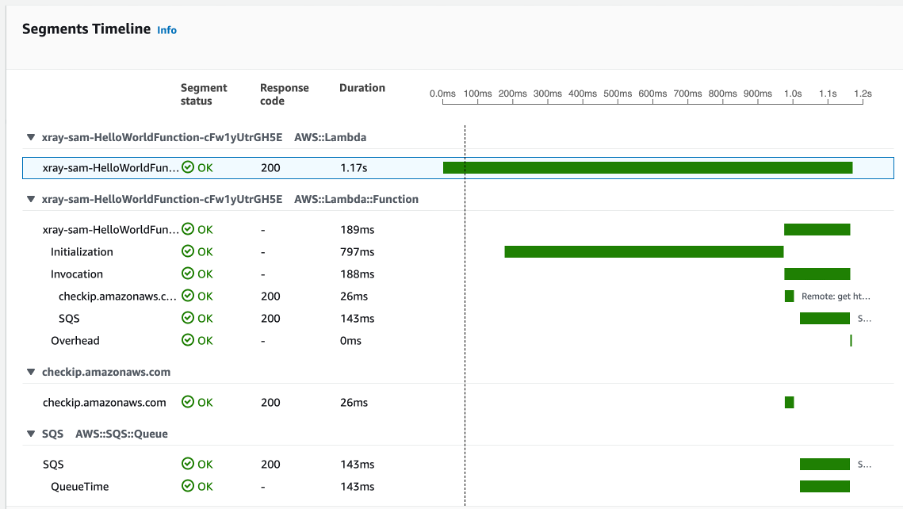
    1. The average number of EC2 instances scanned per month in US-WEST-2 region is $1.258 per instance. In the above scenario, there are three instances within the Outposts at $1.258 = $3.774
  • Amazon GuardDuty: VPC Flow logs and CloudWatch logs are used for GuardDuty analysis. In this scenario, Only VPC Flow logs are considered.
    1. VPC Flow log is charged per GB/month. In US-WEST-2 region – the First 500 GB/month is $1 per GB. In the above scenario, there are three instances within the Outposts that would generate approximately 80 MB of data, which is still within the 500 GB limit.
  • Understand more about AWS Outposts rack pricing on our website.

Cleaning up

Please delete example resources if they are no longer needed to avoid incurring future costs.

  • Amazon Inspector: Disable Amazon Inspector from the Amazon Inspector Console.
  • Amazon GuardDuty: You can use the GuardDuty console to suspend or disable GuardDuty. You are not charged for using GuardDuty when the service is suspended.
  • Delete unused IAM policies

Conclusion

On-premises data centers traditionally use a variety of infrastructure, tools, and APIs. This disparate assortment of hardware and software solutions results in complexity. In turn, this leads to greater management costs, inability of staff to translate skills from one setting to another, and limits in innovation and knowledge-sharing between environments.

Using a common set of tools, services in the AWS Regions and on Outposts on premises allows you to have a consistent operation environment, thereby delivering a true hybrid cloud experience. Equally, by using the same tools to deploy and manage workloads in both environments, you can reduce operational overhead.

To get started with Outposts, see AWS Outposts Family. For more information about Outposts availability, see the Outposts rack FAQ.

Automate the Creation of On-Demand Capacity Reservations for running EC2 instances

Post Syndicated from sbbusser original https://aws.amazon.com/blogs/compute/automate-the-creation-of-on-demand-capacity-reservations-for-running-ec2-instances/

This post is written by Ballu Singh a Principal Solutions Architect at AWS, Neha Joshi a Senior Solutions Architect at AWS, and Naveen Jagathesan a Technical Account Manager at AWS.

Customers have asked how they can “create On-Demand Capacity Reservations (ODCRs) for their existing instances during events, such as the holiday season, Black Friday, marketing campaigns, or others?”

ODCRs let you reserve compute capacity for your your Amazon Elastic Compute Cloud (Amazon EC2) instances. ODCRs further make sure that you always have EC2 capacity access when required, and for as long as you need it. Customers who want to make sure that any instances that are stopped/started during the critical event and are available when needed should be covered by ODCRs.

ODCRs let you reserve compute capacity for your Amazon EC2 instances in a specific availability zone for any duration. This means that you can create and manage capacity reservations independently from the billing discounts offered by Savings Plans or Regional Reserved Instances. You can create ODCR at any time, without entering into a one-year or three-year term commitment, and the capacity is available immediately. Billing starts as soon as the ODCR enters the active state. When you no longer need it, cancel the ODCR to stop incurring charges.

At the time of this blog publication, if you need to create ODCR for existing running instances, you must manually identify your running instances configuration with matching attributes, such as instance type, platform, and Availability Zone. This is a time and resource consuming process.

In this post, we provide an automated way to manage ODCR operations. This includes creating, modifying, and cancelling ODCRs for the running instances across regions in an account, all without requiring any manual intervention of specifying instance configuration attributes. Additionally, it creates an Amazon CloudWatch Alarm for InstanceUtilization and an Amazon Simple Notification Service (Amazon SNS) topic with topic name ODCRAlarmNotificationTopic to notify when the threshold breaches.

Note: This will not create cluster placement group ODCRs. For details on capacity reservations in cluster placement groups, refer here.

Getting started

Before you create Capacity Reservations, note the limitations and restrictions here.

To get started, download the scripts for registering, modifying, and canceling ODCRs and associated requirements.txt, as well as AWS Identity and Access Management (IAM) policy from the GitHub link here.

Pre-requisites

To implement these scripts, you need the following prerequisites:

  1. Access to AWS Management Console, AWS Command Line Interface (CLI),or AWS SDK for ODCR.
  2. The following IAM role permissions for IAM users using the solution as provided in ODCR_IAM.json.
  3. Amazon EC2 instance having supported platform for capacity reservation. Capacity Reservations support the following platforms listed here for Linux and Windows.
  4. Refer to the above GitHub link for the code, and save the requirements.txt file in the same directory with other python scripts. You may want to run the requirements.txt file if you don’t have appropriate dependency to run the rest of the python scripts. You can run this using the following command:
pip3 install -r requirements.txt

Implementation Details

To create ODCR capacity reservation

The following instructions will guide you through creating a capacity reservation of running instances across all of the Regions within an AWS account.
Input variables needed from users:

  • EndDateType (String) – Indicates how the Capacity Reservation ends. A Capacity Reservation can have one of the following end types:
      • unlimited – The Capacity Reservation remains active until you explicitly cancel it. Don’t provide an EndDate if the EndDateType is unlimited.
      • limited – The Capacity Reservation expires automatically at a specified date and time. You must provide an EndDate value if the EndDateType value is limited.
  • EndDate (datetime) – The date and time when the Capacity Reservation expires. When a Capacity Reservation expires, the reserved capacity is released and you can no longer launch instances into it. The Capacity Reservation’s state changes to expired when it reaches its end date and time.

You must provide EndDateType as ‘limited’ and the EndDate in standard UTC format to secure instances for a limited period. Command to execute register ODCR script with limited period:

You must provide EndDateType as ‘unlimited’ to secure instances for unlimited period. Command to execute register ODCR script with unlimited period:

registerODCR.py '<EndDateType>' '<EndDate>'
    Example- registerODCR.py 'limited' '2022-01-31 14:30:00'
  • You must provide EndDateType as ‘unlimited’ to secure instances for unlimited period. Command to execute register ODCR script with unlimited period:
registerODCR.py 'EndDateType'
    Example- registerODCR.py 'unlimited'

This registerODCR.py script does following four things:

1. Describe instances cross-region in an account. It checks for the instance that has:

    • No Capacity reservation
    • State of the instance is running
    • Tenancy is default
    • InstanceLifecycle is None indicates whether this is a Spot Instance or a Scheduled Instance

Note: Describe instances API call is counted toward your account API limit. Therefore, it is advisable to run the script during non-peak hours or before the short-term scaling event begins. Work with AWS Support team if you run into API throttling.

2. Aggregates instances with similar attributes, such as InstanceType, AvailabilityZone, Tenancy, and Platform.

3. Describe reserved instances cross-region in an account. It checks for instance(s) that have Zonal Reservation Instances (ZRIs) and compares them with aggregated instances with similar attributes.

4. Finally,

    • Reserves ODCR(s) for existing running instances with matching attributes for which ZRIs do not exist.

Note: If you have one or more ZRIs in an account, then the script compares them with the existing instances with matching characteristics – Instance Type, AZ, and Platform – and does NOT create ODCR for the ZRIs to avoid incurring redundant charges. If there are more running instances than ZRIs, then the script creates an ODCR for just the delta.

    • Creates an SNS topic with the topic name – ODCRAlarmNotificationTopic in the region where you’re registering ODCR, if it doesn’t already exist.
    • Creates CloudWatch alarm for InstanceUtilization using the best practices, which can be found here.

Note: You must subscribe and confirm to the SNS topic, if you haven’t already, to receive notifications.

The CloudWatch alarm is also created on your behalf in the region for each ODCR. This alarm monitors your ODCR metric- InstanceUtilization. Whenever it breaches threshold (50% in this case), it enters the alarm state and sends an SNS notification using the topic that was created for you if you subscribed to it.

Note: You can change the alarm threshold based on your specific needs.

  • You will receive an email notification when CloudWatch Alarm State changes to Alarm with:
    • SNS Subject (Assuming CW alarms triggers in US East region).
ALARM: "ODCRAlarm-cr-009969c7abf4daxxx" in US East (N. Virginia)
    • SNS Body will have the details
      • CW alarm, region, link to view the alarm, alarm details, and state change actions.

With this, if your ODCR InstanceUtilization drops, then you will be notified in near-real time to help you optimize the capacity and stop unnecessary payments for unused capacity.

To modify ODCR capacity reservation

To modify the attributes of an active capacity reservation after you have created it, adhere to the following instructions.

Note: When modifying a Capacity Reservation, you can only increase or decrease the quantity and change how it is released. You can’t change the instance type, EBS optimization, instance store settings, platform, Availability Zone, or instance eligibility of a Capacity Reservation. If you must modify any of these attributes, then we recommend that you cancel the reservation, and then create a new one with the required attributes. You can’t modify a Capacity Reservation after it has expired or after you have explicitly canceled it.

  • Input variables needed from users:
    • CapacityReservationID – The ID of the Capacity Reservation that you want to modify.
    • InstanceCount (integer) – The number of instances for which to reserve capacity. The number of instances can’t be increased or decreased by more than 1000 in a single request.
    • EndDateType (String) – Indicates how the Capacity Reservation ends. A Capacity Reservation can have one of the following end types:
      • unlimited – The Capacity Reservation remains active until you explicitly cancel it. Don’t provide an EndDate if the EndDateType is unlimited.
      • limited – The Capacity Reservation expires automatically at a specified date and time. You must provide an EndDate value if the EndDateType value is limited.
    • EndDate (datetime) – The date and time of when the Capacity Reservation expires. When a Capacity Reservation expires, the reserved capacity is released, and you can no longer launch
    • instances into it. The Capacity Reservation’s state changes to expired when it reaches its end date and time.
      Example to run the modify ODCR script for ‘limited’ period:
    • You must provide EndDateType as ‘unlimited’ to modify instances for an unlimited period. Command to the run modify ODCR script with unlimited period:
  • Command to execute modify ODCR script:
    modifyODCR.py <CapacityReservationId> <InstanceCount> <EndDateType> <EndDate> 
  • Example to execute the modify ODCR script for limited period:
modifyODCR.py 'cr-05e6a94b99915xxxx' '1' 'limited' '2022-01-31 14:30:00'

Note: EndDate is in the standard UTC time.

  • You must provide EndDateType as ‘unlimited’ to modify instances for unlimited period. Command to execute modify ODCR script with unlimited period:
modifyODCR.py <CapacityReservationId> <InstanceCount> <EndDateType>
  • Example to execute the modify ODCR script for unlimited period:
modifyODCR.py 'cr-05e6a94b99915xxxx' '1' 'unlimited'

To cancel ODCR capacity reservation

To cancel the ODCR that are in the “Active” state, follow these instructions:

Note: Once the cancellation request succeeds, the reservation status will be marked as “cancelled”.

  • Input variables needed from users:
    • CapacityReservationID – The ID of the Capacity Reservation to cancel.
  • You must provide one parameter while executing the cancellation script.
  • Command to execute cancel ODCR script:
cancelODCR.py <CapacityReservationId> 
  • Example to execute the cancel ODCR script:
Example - cancelODCR.py 'cr-05e6a94b99915xxxx'

Monitoring

CloudWatch metrics let you monitor the unused capacity in your Capacity Reservations to optimize the ODCR. ODCRs send metric data to CloudWatch every five minutes. Although Capacity Reservation usage metrics are UsedInstanceCount, AvailableInstanceCount, TotalInstanceCount, and InstanceUtilization, for this solution we will be using the InstanceUtilization metric. This shows the percentage of reserved capacity instances that are currently in use. This will be useful for monitoring and optimizing ODCR consumption.

For example, if your On-Demand Capacity Reservation is for four instances and with matching criteria only one EC2 instance is currently running, then the InstanceUtilization metric will be 25% for your respective capacity reservation.

Let’s look at the steps to create the CloudWatch monitoring dashboard for your On-Demand Capacity Reservation solution:

  1. Open the CloudWatch console at https://console.aws.amazon.com/cloudwatch/.
  2. If necessary, change the Region. From the navigation bar, select the Region where your Capacity Reservation resides. For more information, see Regions and Endpoints.
  3. In the navigation pane, choose Metrics.

Amazon CloudWatch Dashboard

For All metrics, choose EC2 Capacity Reservations.

Amazon CloudWatch Dashboard: Metrics

4. Choose the metric dimension By Capacity Reservation. Metrics will be grouped by

Amazon CloudWatch Metrics: Capacity Reservation Ids

5. Select the dropdown arrow for InstanceUtilization, and select Search for this only.

Amazon CloudWatch Metrics Filter

Once we see the InstanceUtilization metric in the filter list, select Graph Search.

Amazon CloudWatch Metrics: Graph Search

This displays the InstanceUtilization metrics for the selected period.

Amazon CloudWatch Metrics Duration

OPTIONAL: To display the Capacity Reservation IDs for active metrics only:

    • Navigate to Graphed metrics.

Amazon CloudWatch: Graphed Metrics

    • Under Details column, select Edit math expression.

Amazon CloudWatch Metrics: Math Expression

    • Edit the math expression with the following, and select Apply:
REMOVE_EMPTY(SEARCH('{AWS/EC2CapacityReservations,CapacityReservationId} MetricName="InstanceUtilization"', 'Average', 300))

Amazon CloudWatch Graphed Metrics: Math Expression Apply

This displays the Capacity Reservation IDs for active metrics only.

Amazon CloudWatch Metrics: Active Capacity Reservation Ids

With this configuration, whenever new Capacity Reservations are created, the InstanceUtilization metric for respective Capacity Reservation IDs will be populated.

6. From the Actions drop-down menu, select Add to dashboard.

Amazon CloudWatch Metrics: Add to Dashboard

Select Create new to create a new dashboard for monitoring your ODCR metrics.

Amazon CloudWatch: Creat New Dashboard

Specify the new dashboard name, and select Add to dashboard.

Amazon CloudWatch: Create New Dashboard

7. These configuration steps will navigate you to your newly created CloudWatch dashboard under Dashboards.

Amazon CloudWatch Dashboard: ODCR Metrics

Once this is created, if you create new Capacity Reservations, or new instances get added to existing reservations, then those metrics will be automatically be added to your CloudWatch Dashboard.

Note: You may see a delay of approximately 5-10 minutes from the point when changes are made to your environment (ODCR operations or instances launch/termination activities) to those changes getting reflected on your CloudWatch Dashboard metrics.

Conclusion

In this post, we discussed a solution for automating ODCR operations for existing EC2 instances. This included creating capacity reservation, modifying capacity reservation, and cancelling capacity reservation operations that inherit your existing EC2 instances for attribute details. We also discussed monitoring aspects of ODCR metrics using CloudWatch. This solution allows you to automate some of the ODCR operations for existing instances, thereby optimizing and speeding up the entire process.

For more information, see Target a group of Amazon EC2 On-Demand Capacity Reservations blog and Capacity Reservations documentation.

If you have feedback or questions about this post, please submit your comments in the comments section or contact AWS Support.

Queueing Amazon Pinpoint API calls to distribute SMS spikes

Post Syndicated from satyaso original https://aws.amazon.com/blogs/messaging-and-targeting/queueing-amazon-pinpoint-api-calls-to-distribute-sms-spikes/

Organizations across industries and verticals have user bases spread around the globe. Amazon Pinpoint enables them to send SMS messages to a global audience through a single API endpoint, and the messages are routed to destination countries by the service. Amazon Pinpoint utilizes downstream SMS providers to deliver the messages and these SMS providers offer a limited country specific threshold for sending SMS (referred to as Transactions Per Second or TPS). These thresholds are imposed by telecom regulators in each country to prohibit spamming. If customer applications send more messages than the threshold for a country, downstream SMS providers may reject the delivery.

Such scenarios can be avoided by ensuring that upstream systems do not send more than the permitted number of messages per second. This can be achieved using one of the following mechanisms:

  • Implement rate-limiting on upstream systems which call Amazon Pinpoint APIs.
  • Implement queueing and consume jobs at a pre-configured rate.

While rate-limiting and exponential backoffs are regarded best practices for many use cases, they can cause significant delays in message delivery in particular instances when message throughput is very high. Furthermore, utilizing solely a rate-limiting technique eliminates the potential to maximize throughput per country and priorities communications accordingly. In this blog post, we evaluate a solution based on Amazon SQS queues and how they can be leveraged to ensure that messages are sent with predictable delays.

Solution Overview

The solution consists of an Amazon SNS topic that filters and fans-out incoming messages to set of Amazon SQS queues based on a country parameter on the incoming JSON payload. The messages from the queues are then processed by AWS Lambda functions that in-turn invoke the Amazon Pinpoint APIs across one or more Amazon Pinpoint projects or accounts. The following diagram illustrates the architecture:

Step 1: Ingesting message requests

Upstream applications post messages to a pre-configured SNS topic instead of calling the Amazon Pinpoint APIs directly. This allows applications to post messages at a rate that is higher than Amazon Pinpoint’s TPS limits per country. For applications that are hosted externally, an Amazon API Gateway can also be configured to receive the requests and publish them to the SNS topic – allowing features such as routing and authentication.

Step 2: Queueing and prioritization

The SNS topic implements message filtering based on the country parameter and sends incoming JSON messages to separate SQS queues. This allows configuring downstream consumers based on the priority of individual queues and processing these messages at different rates.

The algorithm and attribute used for implementing message filtering can vary based on requirements. Similarly, filtering can be enabled based on business use-cases such as “REMINDERS”,   “VERIFICATION”, “OFFERS”, “EVENT NOTIFICATIONS” etc. as well. In this example, the messages are filtered based on a country attribute shown below:

Based on the filtering logic implemented, the messages are delivered to the corresponding SQS queues for further processing. Delivery failures are handled through a Dead Letter Queue (DLQ), enabling messages to be retried and pushed back into the queues.

Step 3: Consuming queue messages at fixed-rate

The messages from SQS queues are consumed by AWS Lambda functions that are configured per queue. These are light-weight functions that read messages in pre-configured batch sizes and call the Amazon Pinpoint Send Messages API. API call failures are handled through 1/ Exponential Backoff within the AWS SDK calls and 2/ DLQs setup as Destination Configs on the Lambda functions. The Amazon Pinpoint Send Messages API is a batch API that allows sending messages to 100 recipients at a time. As such, it is possible to have requests succeed partially – messages, within a single API call, that fail/throttle should also be sent to the DLQ and retried again.

The Lambda functions are configured to run at a fixed reserve concurrency value. This ensures that a fixed rate of messages is fetched from the queue and processed at any point of time. For example, a Lambda function receives messages from an SQS queue and calls the Amazon Pinpoint APIs. It has a reserved concurrency of 10 with a batch size of 10 items. The SQS queue rapidly receives 1,000 messages. The Lambda function scales up to 10 concurrent instances, each processing 10 messages from the queue. While it takes longer to process the entire queue, this results in a consistent rate of API invocations for Amazon Pinpoint.

Step 4: Monitoring and observability

Monitoring tools record performance statistics over time so that usage patterns can be identified. Timely detection of a problem (ideally before it affects end users) is the first step in observability. Detection should be proactive and multi-faceted, including alarms when performance thresholds are breached. For the architecture proposed in this blog, observability is enabled by using Amazon Cloudwatch and AWS X-Ray.

Some of the key metrics that are monitored using Amazon Cloudwatch are as follows:

  • Amazon Pinpoint
    • DirectSendMessagePermanentFailure
    • DirectSendMessageTemporaryFailure
    • DirectSendMessageThrottled
  • AWS Lambda
    • Invocations
    • Errors
    • Throttles
    • Duration
    • ConcurrentExecutions
  • Amazon SQS
    • ApproximateAgeOfOldestMessage
    • NumberOfMessagesSent
    • NumberOfMessagesReceived
  • Amazon SNS
    • NumberOfMessagesPublished
    • NumberOfNotificationsDelivered
    • NumberOfNotificationsFailed
    • NumberOfNotificationsRedrivenToDlq

AWS X-Ray helps developers analyze and debug production, distributed applications, such as those built using a microservices architecture. With X-Ray, you can understand how the application and its underlying services are performing, to identify and troubleshoot the root cause of performance issues and errors. X-Ray provides an end-to-end view of requests as they travel through your application, and shows a map of your application’s underlying components.

Notes:

  1. If you are using Amazon Pinpoint’s Campaign or Journey feature to deliver SMS to recipients in various countries, you do not need to implement this solution. Amazon Pinpoint will drain messages depending on the MessagesPerSecond configuration pre-defined in the campaign/journey settings.
  2. If you need to send transactional SMS to a small number of countries (one or two), you should work with AWS support to define your SMS sending throughput for those countries to accommodate spikey SMS message traffic instead.

Conclusion

This post shows how customers can leverage Amazon Pinpoint along with Amazon SQS and AWS Lambda to build, regulate and prioritize SMS deliveries across multiple countries or business use-cases. This leads to predictable delays in message deliveries and provides customers with the ability to control the rate and priority of messages sent using Amazon Pinpoint.


About the Authors

Satyasovan Tripathy works as a Senior Specialist Solution Architect at AWS. He is situated in Bengaluru, India, and focuses on the AWS Digital User Engagement product portfolio. He enjoys reading and travelling outside of work.

Rajdeep Tarat is a Senior Solutions Architect at AWS. He lives in Bengaluru, India and helps customers architect and optimize applications on AWS. In his spare time, he enjoys music, programming, and reading.

Women write blogs: a selection of posts from AWS Solutions Architects

Post Syndicated from Bonnie McClure original https://aws.amazon.com/blogs/architecture/women-write-blogs/

This International Women’s Day, we’re featuring more than a week’s worth of posts that highlight female builders and leaders. We’re showcasing women in the industry who are building, creating, and, above all, inspiring, empowering, and encouraging everyone—especially women and girls—in tech.


A blog can be a great starting point for you in finding and implementing a particular solution; learning about new features, services, and products; keeping up with the latest trends and ideas; or even understanding and resolving a tricky problem. Today, as part of our International Women’s Day celebration, we’re showcasing blogs written by women that do just that and more.

We’ve included all kinds of posts for you to peruse:

  • Architecture overview posts
  • Best practices posts
  • Customer/partner (co-written/sponsored/partnered) posts that highlight architectural solutions built with AWS services
  • How-to tutorials that explain the steps the reader needs to take to complete a task

Architecture overviews

How a Grocer Can Deliver Personalized Experiences with Recipes

by Chara Gravani and Stefano Vozza

Chara and Stefano bring us a way to differentiate and reinvent the customer journey for a grocery retailer. Their solution uses Amazon Personalize to deliver personalized recipe recommendations to increase customer satisfaction and loyalty, and in turn, increase revenue. They consider a customer who is shopping for groceries online. As they place products in their basket, they are presented with a list of recipes that contain the same ingredients as those products added to the basket. The suggested recipes are then personalized based on the customer’s profile and historical product preferences.

Best practices posts

Best practices for migrating self-hosted Prometheus on Amazon EKS to Amazon Managed Service for Prometheus

by Elamaran Shanmugam, Deval Parikh, and Ramesh Kumar Venkatraman

With a focus on the five pillars of the AWS Well-Architected Framework, Elamaran, Deval, and Ramesh examine some of the best practices to follow if you’re moving a self-managed Prometheus workload on Amazon Elastic Kubernetes Service (Amazon EKS) to Amazon Managed Service for Prometheus.

Optimizing your AWS Infrastructure for Sustainability Series

by Katja Philipp, Aleena Yunus, Otis Antoniou, and Ceren Tahtasiz

As organizations align their business with sustainable practices, it is important to review every functional area. If you’re building, deploying, and maintaining an IT stack, improving its environmental impact requires informed decision making. In this three-part blog series, Katja, Aleena, Otis, and Cern provide strategies to optimize your AWS architecture within compute, storage, and networking.

Customer/partner posts

Scaling DLT to 1M TPS on AWS: Optimizing a Regulated Liabilities Network

by Erica Salinas and Jack Iu

Erica and Jack discuss how they partnered with SETL to jointly stand up a basic Regulated Liabilities Network (RLN) and refine the scalability of the environment to at least 1 million transactions per second. They show you how scaling characteristics were achieved while maintaining the business requirements of atomicity and finality and discuss how each RLN component was optimized for high performance.

How-to tutorials

Monitor and visualise building occupancy with AWS IoT Core, Amazon QuickSight and Raspberry Pi

by Jamila Jamilova

Occupancy monitoring in buildings is a valuable tool across different industries. For example, museums can analyze occupancy data in near real-time to understand the popularity and number of visitors to decide where a particular gallery should be located. To help with cases like this, Jamila brings you a solution that monitors how building space is being utilized. It shows how busy each area of a building gets during different times of the day based on a motion sensor’s location. This device, a Raspberry Pi with a passive infrared (PIR) sensor, senses motion in direct proximity (in other words, if a human has moved in or out of the sensor’s range) and will generate data that is stored, analyzed, and visualized to help you understand how best to use your space.

Create an iOS tracker application with Amazon Location Service and AWS Amplify

by Panna Shetty and Fernando Rocha

Emergency management teams venture into dangerous situations to rescue those in need, potentially risking their own lives. To keep themselves safe during an event where they cannot easily track each other by line of sight, a muster point is established as a designated safety zone, or a geofence. This geofence may change in response to evolving conditions. One way to improve this process is automating member tracking and response activity, so that emergency managers can quickly account for all members and ensure they are safe. Panna and Fernando bring you a solution to apply to this situation and others like it. It uses Amazon Location Service to create a serverless architecture that is capable of tracking the user’s current location and identify if they are in a safe area or not.

Optimize workforce in your store using Amazon Rekognition

by Laura Reith and Kayla Jing

Retailers often need to make decisions to improve the in-store customer experience through personnel management. Having too few or too many employees working can be detrimental to the business. When store traffic outpaces staffing, it can result in long checkout lines and limited customer interface, creating a poor customer experience. The opposite can be true as well by having too many employees during periods of low traffic, which generates wasted operating costs. In this post, Laura and Kayla show you how to use Amazon Rekognition and AWS DeepLens to detect and analyze occupancy in a retail business to optimize workforce utilization.

Adding Build MLOps workflows with Amazon SageMaker projects, GitLab, and GitLab pipelines

by Lauren Mullennex, Indrajit Ghosalkar, and Kirit Thadaka

In this post, Lauren, Indrajit, and Kirit walk you through using a custom Amazon SageMaker machine learning operations project template to automatically build and configure a continuous integration/continuous delivery (CI/CD) pipeline. This pipeline incorporates your existing CI/CD tooling with SageMaker features for data preparation, model training, model evaluation, and model deployment. In their use case, they focus on using GitLab and GitLab pipelines with SageMaker projects and pipelines.

Deploying Sample UI Forms using React, Formik, and AWS CDK

by Kevin Rivera, Mark Carlson, Shruti Arora, and Britney Tong

Many companies use UI forms to collect customer data for account registrations, online shopping, and surveys. These forms can be difficult to write, maintain, and test. To help with this, Kevin, Mark, Shruti, and Britney show you how to use the JavaScript libraries React and Formik. These third-party libraries provide front-end developers with tools to implement simple forms for a user interface.

Multi-Region Migration using AWS Application Migration Service

by Shreya Pathak and Medha Shree

Shreya and Medha demonstrate how AWS Application Migration Service simplifies, expedites, and reduces the cost of migrating Amazon Elastic Compute Cloud (Amazon EC2)-hosted workloads from one AWS Region to another. It integrates with AWS Migration Hub, which allows you to organize your servers into applications. With the migration services they discuss, you can track the progress of your migration at the server and application level, even as you move servers into multiple Regions.

Tracking Overall Equipment Effectiveness with AWS IoT Analytics and Amazon QuickSight

by Shailaja Suresh and Michael Brown

To drive process efficiencies and optimize costs, manufacturing organizations need a scalable approach to access data across disparate silos across their organization. In this post, Shailaja and Michael demonstrate how overall equipment effectiveness can be calculated, monitored, and scaled out using two key services: AWS IoT Analytics and Amazon QuickSight.

Use AnalyticsIQ with Amazon QuickSight to gain insights for your business

by Sumitha AP

Sumitha shows you how to use the AnalyticsIQ Social Determinants of Health Sample Data dataset to gain insights into society’s health and wellness and how to generate easy-to-understand visualizations using QuickSight that could improve healthcare professionals’ decision making.

We’ve got more content for International Women’s Day!

For more than a week we’re sharing content created by women. Check it out!

Other ways to participate

Deploying service-mesh-based architectures using AWS App Mesh and Amazon ECS

Post Syndicated from Kesha Williams original https://aws.amazon.com/blogs/architecture/deploying-service-mesh-based-architectures-using-aws-app-mesh-and-amazon-ecs/

This International Women’s Day, we’re featuring more than a week’s worth of posts that highlight female builders and leaders. We’re showcasing women in the industry who are building, creating, and, above all, inspiring, empowering, and encouraging everyone—especially women and girls—in tech.


Service-mesh-based architectures provide visibility and control for microservices (a group of loosely coupled services that function together to make an application operate) by providing a consistent way to route and monitor traffic between them. They often appear in concert with containers and microservices in modern, cloud-native development. Containers help simplify the build, test, and deploy phases of the code pipeline for a given microservice. Microservices also offer many benefits over monoliths: faster speed-to-market; better resiliency; increased scalability; and independent, reusable components.

Despite these benefits, not all organizations use containers and microservices. Why? Because refactoring monoliths can be architecturally challenging. It increases the complexity of your workload by adding many, sometimes thousands, of services. These services must then be monitored. The services also have to communicate with each other, so you need to properly route and monitor traffic. Adding services also means there are more APIs and databases that need protection.

If this sounds like an issue you’ve encountered or one you might need help with in the future, you’ll benefit from using a service mesh, a dedicated infrastructure layer for governing microservices and facilitating service-to-service communications. In this post, we’ll explain how to use AWS App Mesh to provide visibility and control for microservices by providing a consistent way to route and monitor traffic between them.

How will a service mesh help me govern my workload?

A service mesh helps you run a fast, reliable, and secure network of microservices, and it can help alleviate many of the pain points encountered when running microservices:

  1. Decouples governance from business logic
  2. Adds service discovery
  3. Maintains load balancing
  4. Provides traffic control
  5. Provides additional observability and monitoring capabilities
  6. Adds resiliency and health checks
  7. Increases security

How does a service mesh work?

A service mesh consists of two high-level components: a control plane and a data plane.

The control plane manages all of the individual microservices in the data plane and provides processes to manipulate and observe the entire application.

The data plane intercepts and processes calls between the different microservices. The data plane is typically implemented as a proxy, which runs alongside each microservice as a sidecar. A sidecar is a container that is automatically injected into the microservice at run time.

Architecture walkthrough

The example architecture in Figure 1 shows a microservices architecture for an Ordering application. It contains four microservices: Inventory, Order, and UI.

This example is a deliberately small and simple example to explore the concepts. Here’s how it works:

  1. The control plane is the central component that manages all the individual microservices in the data plane.
  2. The data plane intercepts and processes calls between the different microservices.
  3. App Mesh forms the service mesh and supports the services registered with AWS Cloud Map.
  4. AWS Cloud Map provides service discovery.
  5. Containers are defined in an ECS task definition.
  6. Envoy is the service mesh proxy that is deployed alongside the microservice container.
  7. The application container represents the application components that run in a Docker container.
  8. Service communication traces are made available to AWS X-Ray.
  9. Service-level logs and metrics are made available to Amazon CloudWatch.
Microservices architecture for an Ordering application managed by App Mesh

Figure 1. Microservices architecture for an Ordering application managed by App Mesh

Implementing the service mesh with App Mesh

To use App Mesh, you’ll need to have an existing service running on Amazon Elastic Container Service (Amazon ECS) and be registered with AWS Cloud Map.

App Mesh forms a service mesh for your application by providing an AWS-managed control plane. The control plane helps you run microservices by providing consistent visibility and network traffic controls for each microservice in your application.

App Mesh separates the logic needed for monitoring and controlling communications into a proxy that runs sideloaded to every microservice. App Mesh works with an open-source, high-performing network proxy called Envoy. After implementing your service mesh, you’ll update your services to use Envoy, which requires the services to communicate with each other through the proxy instead of directly with each other. All service-to-service traffic goes through the Envoy proxy allowing traffic routes to be configured and metrics, logs, and traces exported.

Components

There are several components needed to support the service mesh:

  • Virtual services – Virtual services are abstractions of actual microservices provided by a virtual node through a virtual router.
  • Virtual nodes – Virtual nodes are logical pointers to a particular task group, like an Amazon ECS service. You’ll need to provide the service discovery name found in AWS Cloud Map to connect your microservice.
  • Envoy proxy – The Envoy proxy configures your microservice task group to use App Mesh’s virtual routers and nodes.
  • Virtual routers – Virtual routers route traffic for one or more virtual services within your mesh.
  • Routes – Routes are used by the virtual router to match requests and direct traffic to one or more virtual nodes.

Integrating App Mesh with Amazon ECS

App Mesh integrates with your containerized microservices running on Amazon ECS (and other compute services). Amazon ECS is a container orchestration service that helps you deploy, manage, and scale containerized applications.

With Amazon ECS, your containers are defined in a task definition; you’ll need to add an Envoy proxy Docker container image to the task definition and register the microservices for discovery through AWS Cloud Map.

Conclusion

This post shows how App Mesh helps you solve some of the most common pitfalls of managing microservice architectures. It also shows you how to use App Mesh to provide visibility and control for microservices on AWS by providing a consistent way to route and monitor traffic between them.

App Mesh works as the control plane and uses the open-source Envoy proxy to provide the data plane that intercepts and processes calls between the different microservices. Through integrations with CloudWatch and X-Ray, you’re able to capture application-level metrics, logs, and traces.

Ready to get started? Check out the Learning AWS App Mesh post on the Database blog, the Using Service Meshes in AWS whitepaper, and Introduction to AWS App Mesh AWS Online Tech Talk to learn more. You can connect with Kesha on LinkedIn if you have questions.

Looking for more architecture content? AWS Architecture Center provides reference architecture diagrams, vetted architecture solutions, Well-Architected best practices, patterns, icons, and more!

What is cryptographic computing? A conversation with two AWS experts

Post Syndicated from Supriya Anand original https://aws.amazon.com/blogs/security/a-conversation-about-cryptographic-computing-at-aws/

Joan Feigenbaum
Joan Feigenbaum
Amazon Scholar, AWS Cryptography
Bill Horne
Bill Horne
Principal Product Manager, AWS Cryptography

AWS Cryptography tools and services use a wide range of encryption and storage technologies that can help customers protect their data both at rest and in transit. In some instances, customers also require protection of their data even while it is in use. To address these needs, Amazon Web Services (AWS) is developing new techniques for cryptographic computing, a set of technologies that allow computations to be performed on encrypted data, so that sensitive data is never exposed. This foundation is used to help protect the privacy and intellectual property of data owners, data users, and other parties involved in machine learning activities.

We recently spoke to Bill Horne, Principal Product Manager in AWS Cryptography, and Joan Feigenbaum, Amazon Scholar in AWS Cryptography, about their experiences with cryptographic computing, why it’s such an important topic, and how AWS is addressing it.

Tell me about yourselves: what made you decide to work in cryptographic computing? And, why did you come to AWS to do cryptographic computing?

Joan: I’m a computer science professor at Yale and an Amazon Scholar. I started graduate school at Stanford in Computer Science in the fall of 1981. Before that, I was an undergraduate math major at Harvard. Almost from the beginning, I have been interested in what has now come to be called cryptographic computing. During the fall of 1982, Andrew Yao, who was my PhD advisor, published a paper entitled “Protocols for Secure Computation,” which introduced the millionaire’s problem: Two millionaires want to run a protocol at the end of which they will know which one of them has more millions, but not know exactly how many millions the other one has. If you dig deeper, you’ll find a few antecedents, but that’s the paper that’s usually credited with launching the field of cryptographic computing. Over the course of my 40 years as a computer scientist, I’ve worked in many different areas of computer science research, but I’ve always come back to cryptographic computing, because it’s absolutely fascinating and has many practical applications.

Bill: I originally got my PhD in Machine Learning in 1993, but I switched over to security in the late 1990s. I’ve spent most of my career in industrial research laboratories, where I was always interested in how to bring technology out of the lab and get it into real products. There’s a lot of interest from customers right now around cryptographic computing, and so I think that we’re at a really interesting point in time, where this could take off in the next few years. Being a part of something like this is really exciting.

What exactly is cryptographic computing?

Bill: Cryptographic computing is not a single thing. Rather, it is a methodology for protecting data in use—a set of techniques for doing computation over sensitive data without revealing that data to other parties. For example, if you are a financial services company, you might want to work with other financial services companies to develop machine learning models for credit card fraud detection. You might need to use sensitive data about your customers as training data for your models, but you don’t want to share your customer data in plaintext form with the other companies, and vice versa. Cryptographic computing gives organizations a way to train models collaboratively without exposing plaintext data about their customers to each other, or even to an intermediate third party such as a cloud provider like AWS.

Why is it challenging to protect data in use? How does cryptographic computing help with this challenge?

Bill: Protecting data-at-rest and data-in-transit using cryptography is very well understood.

Protecting data-in-use is a little trickier. When we say we are protecting data-in-use, we mean protecting it while we are doing computation on it. One way to do that is with other types of security mechanisms besides encryption. Specifically, we can use isolation and access control mechanisms to tightly control who or what can gain access to those computations. The level of control can vary greatly from standard virtual machine isolation, all the way down to isolated, hardened, and constrained enclaves backed by a combination of software and specialized hardware. The data is decrypted and processed within the enclave, and is inaccessible to any external code and processes. AWS offers Nitro Enclaves, which is a very tightly controlled environment that uses this kind of approach.

Cryptographic computing offers a completely different approach to protecting data-in-use. Instead of using isolation and access control, data is always cryptographically protected, and the processing happens directly on the protected data. The hardware doing the computation doesn’t even have access to the cryptographic keys used to encrypt the data, so it is computationally intractable for that hardware, any software running on that hardware, or any person who has access to that hardware to learn anything about your data. In fact, you arguably don’t even need isolation and access control if you are using cryptographic computing, since nothing can be learned by viewing the computation.

What are some cryptographic computing techniques and how do they work?

Bill: Two applicable fundamental cryptographic computing techniques are homomorphic encryption and secure multi-party computation. Homomorphic encryption allows for computation on encrypted data. Basically, the idea is that there are special cryptosystems that support basic mathematical operations like addition and multiplication which work on encrypted data. From those simple operations, you can form complex circuits to implement any function you want.

Secure multi-party computation is a very different paradigm. In secure multi-party computation, you have two or more parties who want to jointly compute some function, but they don’t want to reveal their data to each other. An example might be that you have a list of customers and I have a list of customers, and we want to find out what customers we have in common without revealing anything else about our data to each other, in order to protect customer privacy. That’s a special kind of multi-party computation called private set intersection (PSI).

Joan: To add some detail to what Bill said, homomorphic encryption was heavily influenced by a 2009 breakthrough by Craig Gentry, who is now a Research Fellow at the Algorand Foundation. If a customer has dataset X, needs f(X), and is willing to reveal X to the server, he uploads X and has the cloud service compute Y= f(X) and return Y. If he wants (or is required by law or policy) to hide X from the cloud provider, he homomorphically encrypts X on the client side to get X’, uploads it, receives an encrypted result Y’, and homomorphically decrypts Y’ (again on the client side) to get Y. The confidential data, the result, and the cryptographic keys all remain on the client side.

In secure multi-party computation, there are n ≥ 2 parties that have datasets X1, X2, …, Xn, and they wish to compute Y=f(X1, X2, …, Xn). No party wants to reveal to the others anything about his own data that isn’t implied by the result Y. They execute an n-party protocol in which they exchange messages and perform local computations; at the end, all parties know the result, but none has obtained additional information about the others’ inputs or the intermediate results of the (often multi-round) distributed computation. Multi-party computation might use encryption, but often it uses other data-hiding techniques such as secret sharing.

Cryptographic computing seems to be appearing in the popular technical press a lot right now and AWS is leading work in this area. Why is this a hot topic right now?

Joan: There’s strong motivation to deploy this stuff now, because cloud computing has become a big part of our tech economy and a big part of our information infrastructure. Parties that might have previously managed compute environments on-premises where data privacy is easier to reason about are now choosing third-party cloud providers to provide this compute environment. Data privacy is harder to reason about in the cloud, so they’re looking for techniques where they don’t have to completely rely on their cloud provider for data privacy. There’s a tremendous amount of confidential data—in health care, medical research, finance, government, education, and so on—data which organizations want to use in the cloud to take advantage of state-of-the-art computational techniques that are hard to implement in-house. That’s exactly what cryptographic computing is intended for: using data without revealing it.

Bill: Data privacy has become one the most important issues in security. There is clearly a lot of regulatory pressure right now to protect the privacy of individuals. But progressive companies are actually trying to go above and beyond what they are legally required to do. Cryptographic computing offers customers a compelling set of new tools for being able to protect data throughout its lifecycle without exposing it to unauthorized parties.

Also, there’s a lot of hype right now about homomorphic encryption that’s driving a lot of interest in the popular tech press. But I don’t think people fully understand its power, applicability, or limitations. We’re starting to see homomorphic encryption being used in practice for some small-scale applications, but we are just at the beginning of what homomorphic encryption can offer. AWS is actively exploring ideas and finding new opportunities to solve customer problems with this technology.

Can you talk about the research that’s been done at AWS in cryptographic computing?

Joan: We researched and published on a novel use of homomorphic encryption applied to a popular machine learning algorithm called XGBoost. You have an XGBoost model that has been trained in the standard way, and a large set of users that want to query that model. We developed PPXGBoost inference (where the “PP” stands for privacy preserving). Each user stores a personalized, encrypted version of the model on a remote server, and then submits encrypted queries to that server. The user receives encrypted inferences, which are decrypted and stored on a personal device. For example, imagine a healthcare application, where over time the device uses these inferences to build up a health profile that is stored locally. Note that the user never reveals any personal health data to the server, because the submitted queries are all encrypted.

There’s another application our colleague Eric Crockett, Sr. Applied Scientist, published a paper about. It deals with a standard machine-learning technique called logistic regression. Crockett developed HELR, an application that trains logistic-regression models on homomorphically encrypted data.

Both papers are available on the AWS Cryptographic Computing webpage. The HELR code and PPXGBoost code are available there as well. You can download that code, experiment with it, and use it in your applications.

What are you working on right now that you’re excited about?

Bill: We’ve been talking with a lot of internal and external customers about their data protection problems, and have identified a number of areas where cryptographic computing offers solutions. We see a lot of interest in collaborative data analysis using secure multi-party computation. Customers want to jointly compute all sorts of functions and perform analytics without revealing their data to each other. We see interest in everything from simple comparisons of data sets through jointly training machine learning models.

Joan: To add to what Bill said: We’re exploring two use cases in which cryptographic computing (in particular, secure multi-party computation and homomorphic encryption) can be applied to help solve customers’ security and privacy challenges at scale. The first use case is privacy-preserving federated learning, and the second is private set intersection (PSI).

Federated learning makes it possible to take advantage of machine learning while minimizing the need to collect user data. Imagine you have a server and a large set of clients. The server has constructed a model and pushed it out to the clients for use on local devices; one typical use case is voice recognition. As clients use the model, they make personalized updates that improve it. Some of the local improvements made locally in my environment could also be relevant in millions of other users’ environments. The server gathers up all these local improvements and aggregates them into one improvement to the global model; then the next time it pushes out a new model to existing and new clients, it has an improved model to push out. To accomplish privacy-preserving federated learning, one uses cryptographic computing techniques to ensure that individual users’ local improvements are never revealed to the server or to other users in the process of computing a global improvement.

Using PSI, two or more AWS customers who have related datasets can compute the intersection of their datasets—that is, the data elements that they all have in common—while hiding crucial information about the data elements that are not common to all of them. PSI is a key enabler in several business use cases that we have heard about from customers, including data enrichment, advertising, and healthcare.

This post is meant to introduce some of the cryptographic computing and novel use cases AWS is exploring. If you are serious about exploring this approach, we encourage you to reach out to us and discuss what problems you are trying to solve and whether cryptographic computing can help you. Learn more and get in touch with us at our Cryptographic Computing webpage or send us an email at [email protected]

Want more AWS Security news? Follow us on Twitter.

Author

Supriya Anand

Supriya is a Senior Digital Strategist at AWS, focused on marketing, encryption, and emerging areas of cybersecurity. She has worked to drive large scale marketing and content initiatives forward in a variety of regulated industries. She is passionate about helping customers learn best practices to secure their AWS cloud environment so they can innovate faster on behalf of their business.

Author

Maddie Bacon

Maddie (she/her) is a technical writer for AWS Security with a passion for creating meaningful content. She previously worked as a security reporter and editor at TechTarget and has a BA in Mathematics. In her spare time, she enjoys reading, traveling, and all things Harry Potter.

How to mount Linux volume and keep mount point consistency

Post Syndicated from limillan original https://aws.amazon.com/blogs/compute/how-to-mount-linux-volume-and-keep-mount-point-consistency/

This post is written by: Leonardo Azize Martins, Cloud Infrastructure Architect, Professional Services

Customers often use Amazon Elastic Compute Cloud (Amazon EC2) Linux based instances with many Amazon Elastic Block Store (Amazon EBS) volumes attached. In this case, device name can vary depending on some facts, such as virtualization type, instance type, or operating system. As the device name can change, the customer shouldn’t rely on the device name to mount volumes from it. The customer wants to avoid the situation where a volume is mounted on a different mount point just because the device name changed, or the device name doesn’t exist because the name pattern changed.

Customers who want to utilize the latest instance family usually change the instance type when a new one is available. The device name can be different between instance families, such as T2 and T3. T2 uses /dev/sd[a-z], while T3 uses /dev/nvme[0-26]n1. If you mount a device on T2 called /dev/sdc, when you change the instance family to T3 the same device won’t be called /dev/sdc anymore. In this case, it will fail to mount.

Amazon EBS volumes are exposed as NVMe block devices on instances built on the AWS Nitro System. The block device driver can assign NVMe device names in a different order than what you specified for the volumes in the block device mapping. In this situation, a device that should be mounted on /data could end-up being mounted on /logs.

On Linux, you can use the fstab file to mount devices using kernel name descriptors (the traditional way), file system labels, or the file system UUID. Kernel name descriptors aren’t persistent and can change each boot. Therefore, they shouldn’t be used in configuration files.

UUID is a mechanism for giving each filesystem a unique identifier. These identifiers’ attributes are generated by filesystem utilities (mkfs.*) when the device is formatted, and they’re designed so that collisions are unlikely. All GNU/Linux filesystems (including swap and LUKS headers of raw encrypted devices) support UUID.

As UUID is a filesystem attribute, it can also be used with Logical Volume Manager (LVM) and Linux software RAID (mdadm).

Depending on the fstab file configuration, you may find that you can’t access your instance, which requires you to follow a rescue process to fix issues. This is the case if you configure the fstab file with the device name and change the instance type.

This post shows how to mount Linux volumes and keep mount points preserved when the instance type is changed or the instance is rebooted.

Overview of solution

When you create an instance, you specify block devices mapping. It doesn’t mean that the Linux device has the same name or can be discovered in the same order as specified on the instance mapping. This situation can be more evident when using applications that require more volumes.

Using UUID to mount volumes lets you mitigate future issues when you stop and start your instance or change the instance type.

EC2 instance block device mapping

Figure 1: EC2 instance block device mapping

Walkthrough

You will create one instance with three volumes: one root volume and two data volumes. We use Amazon Linux 2 in this post. In this instance type, volumes have a specific name format. Later, you will change the instance type. The new instance type volumes will have another name format.

Follow these steps:

  • Create an instance with three volumes
  • Create the filesystem on the volumes and mount them
  • Change the instance type

Prerequisites

For this walkthrough, you should have the following prerequisites:

Create instance

Create one instance with three volumes: a root volume and two data volumes. Use Launch Instance Wizard with the following details.

Launch Amazon Linux 2 instance

  1. On Step 1, choose Amazon Linux 2 AMI (HVM), SSD Volume Type.
  2. On Step 2, choose micro.
  3. On Step 3, choose Next.
  4. On Step 4, add two new volumes, device /dev/sdb 10 GiB and device /dev/sdc 12 GiB.

Launch instances, add storage

Figure 2: Launch instances, add storage

Create filesystem and mount

Connect to your instance using EC2 Instance Connect or any other method that feels comfortable for you. Mount the device using UUID instead of the device name. Run the following instructions as the user root.

Format and mount the device

  1. Run the following command to confirm that you have three disks:
    $ lsblk
  2. Format disk as xfs, and run the following commands:
    mkfs.xfs /dev/xvdb
    mkfs.xfs /dev/xvdc
  3. Create mount point, and run the following commands:
    mkdir /mnt/disk1
    mkdir /mnt/disk2
  4. Add mount instructions, and run the following commands:
    echo "$(blkid /dev/xvdb | awk '{print $2}') /mnt/disk1 xfs defaults,noatime" | tee -a /etc/fstab
    echo "$(blkid /dev/xvdc | awk '{print $2}') /mnt/disk2 xfs defaults,noatime" | tee -a /etc/fstab
  5. Mount volumes, create dummy file, and run the following commands:
    mount -a
    touch /mnt/disk1/file1.txt
    touch /mnt/disk2/file2.txt

You will have an fstab file like the following:

cat /etc/fstab
UUID=7b355c6b-f82b-4810-94b9-4f3af651f629     /           xfs    defaults,noatime  1   1
UUID="2c160dd6-586c-4258-84bb-c79933b9ae02" /mnt/disk1 xfs defaults,noatime
UUID="3e7a0c28-7cf1-40dc-82a1-2f5cfb53f9a4" /mnt/disk2 xfs defaults,noatime

Change instance type

Change the instance type from t2.micro to t3.micro.

Launch Amazon Linux 2 instance

  1. Stop instance.
  2. Change the instance type to micro.
  3. Start instance.
  4. Connect to your instance using EC2 Instance Connect.
  5. Check the device name, and run the following command:
lsblk
  1. List files, and run the following command:
ls -l /mnt/*

Note that the device names are changed from xvd* to nvme*. All of the devices are mounted without any issue and with the correct mount points.

Cleaning up

To avoid incurring future charges, delete the instance and all of the volumes that you created in this post.

The other side

UUID is an attribute of the filesystem that was generated when you formatted your device. Therefore, it will follow your device even if you create an AMI or snapshot. So you don’t need to worry about a restore process, and it will smoothly proceed to an instance restore. You must be careful if you restore a snapshot from one volume and attach it to the same instance, as you will end-up with two volumes that are using the same UUID. If you try to mount the restored volume on the same instance, then it will fail and you will find this message on /var/log/messages file. kernel: XFS (xvdf1): Filesystem has duplicate UUID f6646b81-f2a6-46ca-9f3d-c746cf015379 - can't mount It is even more important to be careful if you attach a volume created from the snapshot of the root volume and restart your instance. Since both volumes have the same UUID, you may find that a volume other than the one attached to /dev/xvda or /dev/sda has become the root volume of your instance. See the following example for details. Note that both volumes have the same UUID, but the one mounted on / is /dev/xvdf1, not /dev/xvda1, which is the real root volume for this instance.

$ blkid
/dev/xvda1: LABEL="/" UUID="f6646b81-f2a6-46ca-9f3d-c746cf015379" TYPE="xfs" PARTLABEL="Linux" PARTUUID="79fae994-3708-4293-bb29-4d069d1c786b"
/dev/xvdf1: LABEL="/" UUID="f6646b81-f2a6-46ca-9f3d-c746cf015379" TYPE="xfs" PARTLABEL="Linux" PARTUUID="79fae994-3708-4293-bb29-4d069d1c786b"
$ lsblk
NAME    MAJ:MIN RM SIZE RO TYPE MOUNTPOINT
xvda    202:0    0   8G  0 disk
└─xvda1 202:1    0   8G  0 part
xvdf    202:80   0   8G  0 disk
└─xvdf1 202:81   0   8G  0 part /

Conclusion

In this post, we covered how to use UUID to mount Linux devices using fstab file. This keeps the mount point on the correct device. It also lets you change the instance type without changes to the fstab file. You can use UUID with LVM and Linux software RAID (mdadm), UUID, as an attribute of the filesystem, will be the same even after a backup and restore process, snapshot, or clone. To learn more, check out our block device mappings and device names on Linux instances documentation.