In the preceding scenario, neither single-user rotation nor alternating-user rotation would meet your security or compliance standards. Single-user rotation uses database user credentials in the secret to rotate itself (assuming the user has change-password permissions). Alternating-user rotation uses Amazon RDS admin credentials from another secret to create and update a _clone user credential, which means there are two valid user credentials with identical permissions.
In this post, you will learn how to implement a modified alternating-user solution that uses Amazon RDS admin user credentials to rotate database credentials while not creating an identical _clone user. This modified rotation strategy creates a short lag between when the password in the database changes and when the secret is updated. During this brief lag before the new password is updated, database calls using the old credentials might be denied. Test this in your environment to determine if the lag is within an acceptable range.
Walkthrough
In this walkthrough, you will learn how to implement the modified rotation strategy by modifying the existing alternating-user rotation template. To accomplish this, you need to complete the following:
Configure alternating-user rotation on the database credential secret for which you want to implement the modified rotation strategy.
Modify your AWS Lambda rotation function template code to implement the modified rotation strategy.
Test the modified rotation strategy on your database credential secret and verify that the secret was rotated while also not creating a _clone user.
To configure alternating-user rotation on the database credential secret
When configuring rotation for the database user secret in the Secrets Manager console, clear the checkbox for Rotate immediately when the secret is stored. The next rotation will begin on your schedule in the Rotation schedule tab. Make sure that no _clone user is created by the default alternating-user rotation code through your database’s user tables.
Figure 1: Clear the checkbox for Rotate immediately when the secret is stored
To modify your Lambda function rotation Lambda template to implement the modified rotation strategy
In the Secrets Manager console, select the Secrets menu from the left pane. Then, select the new database user secret’s name from the Secret name column.
Figure 2: Select the new database user secret
Select the Rotation tab on the Secrets page, and then choose the link under Lambda rotation function.
Figure 3: Select the Lambda rotation function
From the rotation Lambda menu, Download select Download function code.zip.
Figure 4: Select Download function code .zip from Download
Unzip the .zip file. Open the lambda_function.py file in a code editor and make the following code changes to implement the modified rotation strategy.
The following code changes show how to modify a rotation function for the MySQL alternating-user rotation code template. You must make similar changes in the CreateSecret and SetSecret steps of the alternating-user rotation code template for your database’s engine type.
To make the needed changes, remove the lines of code that are in grey italic and add the lines of code that are bold.
Consider using AWS Lambda function versions to enable reverting your Lambda function to previous iterations in case this modified rotation strategy goes wrong.
In create_secret()
The following code suggestion removes the creation of _clone-suffixed usernames.
Remove:
-- # Get the alternate username swapping between the original user and the user with _clone appended to it
-- current_dict['username'] = get_alt_username(current_dict['username'])
In set_secret()
The following code suggestions remove the creation of _clone-suffixed usernames and subsequent checks for such usernames in conditional logic.
Keep:
# Get username character limit from environment variable
username_limit = int(os.environ.get('USERNAME_CHARACTER_LIMIT', '16'))
Remove:
-- # Get the alternate username swapping between the original user and the user with _clone appended to it
-- current_dict['username'] = get_alt_username(current_dict['username'])
Keep:
# Check that the username is within correct length requirements for version
Remove:
-- if current_dict['username'].endswith('_clone') and len(current_dict['username']) > username_limit:
Add:
++ if len(current_dict[‘username’]) > username_limit:
Keep:
raise ValueError("Unable to clone user, username length with _clone appended would exceed %s character
s" % username_limit)
# Make sure the user from current and pending match
Remove:
-- if get_alt_username(current_dict['username']) != pending_dict['username']:
Add:
++ if current_dict['username'] != pending_dict['username']:
Remove:
-- def get_alt_username(current_username):
--   """Gets the alternate username for the current_username passed in
--
--   This helper function gets the username for the alternate user based on the passed in current username.
--
--   Args:
--       current_username (client): The current username
--
--   Returns:
--      AlternateUsername: Alternate username
--
--   Raises:
--      ValueError: If the new username length would exceed the maximum allowed
--
--   """
--   clone_suffix = "_clone"
--   if current_username.endswith(clone_suffix):
--       return current_username[:(len(clone_suffix) * -1)]
--   else:
--       return current_username + clone_suffix
--
The following code suggestions remove the logic of creating a new _clone user within the database, and rotates the existing user’s password.
Keep:
with conn.cursor() as cur:
Remove:
--   cur.execute("SELECT User FROM mysql.user WHERE User = %s", pending_dict['username'])
--   # Create the user if it does not exist
--   if cur.rowcount == 0:
--      cur.execute("CREATE USER %s IDENTIFIED BY %s", (pending_dict['username'], pending_dict['password']))
--
--   # Copy grants to the new user
--   cur.execute("SHOW GRANTS FOR %s", current_dict['username'])
--   for row in cur.fetchall():
--       grant = row[0].split(' TO ')
--       new_grant_escaped = grant[0].replace('%', '%%')  # % is a special character in Python format strings.
--       cur.execute(new_grant_escaped + " TO %s", (pending_dict['username'],))
Keep:
    # Get the version of MySQL
    cur.execute("SELECT VERSION()")
    ver = cur.fetchone()[0]
Remove:
--   # Copy TLS options to the new user
--   escaped_encryption_statement = get_escaped_encryption_statement(ver)
--   cur.execute("SELECT ssl_type, ssl_cipher, x509_issuer, x509_subject FROM mysql.user WHERE User = %s", current_dict['username'])
--   tls_options = cur.fetchone()
--   ssl_type = tls_options[0]
--   if not ssl_type:
--       cur.execute(escaped_encryption_statement + " NONE", pending_dict['username'])
--   elif ssl_type == "ANY":
--       cur.execute(escaped_encryption_statement + " SSL", pending_dict['username'])
--   elif ssl_type == "X509":
--       cur.execute(escaped_encryption_statement + " X509", pending_dict['username'])
--   else:
--       cur.execute(escaped_encryption_statement + " CIPHER %s AND ISSUER %s AND SUBJECT %s", (pending_dict['username'], tls_options[1], tls_options[2], tls_options[3]))
Keep:
    # Set the password for the user and commit
    password_option = get_password_option(ver)
    cur.execute("SET PASSWORD FOR %s = " + password_option, (pending_dict['username'], pending_dict['password']))
    conn.commit()
    logger.info("setSecret: Successfully set password for %s in MySQL DB for secret arn %s." % (pending_dict['username'], arn))
Re-zip the folder with the local code changes. From the rotation Lambda menu, under the Code tab, choose Upload from and select .zip file. Upload the new .zip file.
Figure 5: Use Upload from to upload the new .zip file as the Code source
To test the modified rotation strategy
During the next scheduled rotation for the new database user secret, the modified rotation code will run. To test this immediately, select the Rotation tab within the Secrets menu and choose Rotate secret immediately in the Rotation configuration section.
Figure 6: Choose Rotate secret immediately to test the new rotation strategy
To verify that the modified rotation strategy worked, verify the sign-in details in both the secret and the database itself.
To verify the Secrets Manager secret, select the Secrets menu in the Secrets Manager console and choose Retrieve secret value under the Overview tab. Verify that the username doesn’t have a _clone suffix and that there is a new password. Alternatively, make a get-secret-value call on the secret through the AWS Command Line Interface (AWS CLI) and verify the username and password details.
Figure 7: Use the secret details page for the database user secret to verify that the value of the username key is unchanged
To verify the sign-in details in the database, sign in to the database with admin credentials. Run the following database command to verify that no users with a _clone suffix exist: SELECT * FROM mysql.user;. Make sure to use the commands appropriate for your database engine type.
Also, verify that the new sign-in credentials in the secret work by signing in to the database with the credentials.
Clean up the resources
Follow the Clean up the resources section from the AWS Security Blog post used at the start of this walkthrough.
Conclusion
In this post, you’ve learned how to configure rotation of Amazon RDS database users using a modified alternating-users rotation strategy to help meet more specific security and compliance standards. The modified strategy ensures that database users don’t rotate themselves and that there are no duplicate users created in the database.
If you have feedback about this post, submit comments in the Comments section below. If you have questions about this post, start a new thread on AWS Secrets Manager re:Post or contact AWS Support.
In this post, we discuss how to architect Zero Trust based remote connectivity to your applications hosted within Amazon Web Services (AWS). Specifically, we show you how to integrate AWS Verified Access with Jamf as a device trust provider. This post is an extension of our previous post explaining how to integrate AWS Verified Access with CrowdStrike. In this post, we also look at how to troubleshoot Verified Access policies and integration issues for when a user with valid access receives access denied or unauthorized error messages.
Verified Access is a networking service that is built on Zero Trust principles and provides secured access to corporate applications without needing a virtual private network (VPN). This enables your corporate users to be able to access their applications from anywhere with a complaint device. Verified Access reduces IT operations overhead because it is built on an open environment and integrates with your existing trust providers and lets you use your existing implementations.
Verified Access lets you centrally define access policies for your applications with additional context beyond only IP address, using claims from user identity and user device coming from the trust providers. Using these access policies, Verified Access evaluates each access request at scale in real time and records each access request centrally, making it easier and quicker for you to respond to security incidents or audit requests.
Jamf is an Apple mobile device management (MDM) software and security provider. Organizations can use Jamf to manage their corporate devices and maintain security posture. Jamf’s Zero Trust product—Jamf Trust—monitors device security posture and reports it back to the administrators on the Jamf Protect console. It monitors the device’s OS settings, patch level, and device settings against an organization’s defined policy and calculates device posture from secure to high risk.
Verified Access integrates with third-party device management providers such as Jamf to gather additional security claims from the device in addition to user identity to either allow or deny access.
Solution overview
In this example, you will set up remote access to a sales application and an HR application. Through the solution, you want to make sure only users from the sales group can access the sales application, and only users from the HR group are able to access the HR application.
You will onboard the applications to Verified Access, and access policies will be defined based on the security requirements using Cedar as the policy language. After you have onboarded the applications and have defined the access policies, engineers and users will be able to access the application from anywhere using the Verified Access endpoint without needing a VPN.
You will also use the claims coming from the device in the access policies to make sure that device is managed by Jamf and is secure—for example, that the device is at the right patch level or there are no security vulnerabilities—before granting user access to the respective application.
Figure 1: High-level solution architecture
Prerequisites
To integrate Verified Access with Jamf device trust provider, you need to have the following prerequisites.
Have users created and mapped to respective groups under AWS IAM Identity Center
Apple device (EC2 Mac for this demo)
Subscription with Jamf Pro and Jamf Security (RADAR)
Jamf tenant ID
Jamf:
Managed devices with Jamf Pro
Volume purchasing for app deployment
MacOS 12 or later
Walkthrough
For this demo, you will use Amazon Elastic Compute Cloud (Amazon EC2) Mac instances, which will be enrolled and managed by Jamf. Because EC2 Mac instances don’t come with MDM capabilities out of the box, you can use the following steps to enroll an EC2 Mac instance with Jamf.
Enroll EC2 Mac instance with Jamf
To start, you need to create some credentials and store them in AWS Secrets Manager. These credentials are Jamf endpoint, Jamf user and password with enrollment privileges, and the EC2 Mac instance local admin and the password. We have used AWS Secrets Manager for this demo, but if desired, you could use Parameter Store, a capability of AWS Systems Manager. You can find AWS CloudFormation and Terraform templates for both Secrets Manager and Systems Manager at our sample code on GitHub.
The CloudFormation template will create:
jamfServerDomain – This is your organization’s Jamf URL, the endpoint for your device to get the enrollment from.
jamfEnrollmentUser – This is the authorized user within Jamf with device enrollment permissions.
jamfEnrollmemtPassword – This is the password for the enrollment user provided in number 2.
localAdmin – This is the admin user on your EC2 Mac instance, with the permissions to install required profiles and apply changes.
localAdminPassword – This is the password for the admin user on your EC2 Mac instance provided in number 4.
To allocate a Dedicated Host and launch an EC2 Mac instance
After you complete deploying the CloudFormation template, allocate an Amazon EC2 Dedicated Host for Mac and launch an EC2 Mac instance on the host. On the Launch an instance screen, after providing the basic details, expand the Advanced details section and select the IAM instance profile that was created as part of CloudFormation deployment.
Figure 2: Advanced details pane showing the selected IAM instance profile
To configure the instance:
Connect to your EC2 Mac instance using Secure Shell (SSH).
Figure 3: The steps for connecting to the instance using SSH client
Enable screen sharing and set the admin password to the one you used when creating credentials. Use the following command:
After screen sharing is enabled, connect to the EC2 Mac instance using VNC Viewer or a similar tool and enable automatic login from System Settings – > Users & Groups
Place the AppleScript provided on the GitHub in /Users/Shared:
You can either download the script to your local machine and then copy it over or download the script directly to the EC2 Mac instance.
If you are using VNC Viewer to connect to the instance, you should be able to drag and drop the file from your local machine to the EC2 Mac instance.
Edit and update the AppleScript with the secret ID from Secrets Manager for the MMSecret variable:
MMSecret is the secret from the Secrets Manager that was created as part of the CloudFormation template deployment. Copy the secret Amazon Resource Name (ARN) from the Secrets Manager console or use the AWS Command Line Interface (AWS CLI) to get the ARN and update it in the AppleScript.
Run the AppleScript using the following command and allow access to Accessibility, App Management, and Disk Access permissions for the script. While the script is running, the screen might flash a few times.
After you see the Successful message, choose OK and restart the instance. After the instance has restarted, sign in to the instance and the enrollment will proceed.
The enrollment will take a few minutes and your EC2 Mac instance will receive the profiles and policies from the Jamf instance as configured by your administrator.
Jamf end setup for Verified Access
In this section, you will be working on your Jamf security portal, RADAR, to integrate Verified Access with Jamf, and then onboard your applications to Verified Access and define access policies. You begin this walkthrough by enabling Verified Access on Jamf first.
Jamf Protect and Jamf Trust are the components that collect device claims and share them with Verified Access. The following section illustrates how to make Jamf ready to send claims over to Verified Access. This section needs to be completed on Jamf Security and Jamf Pro Portals. Jamf UI can differ depending on the Jamf Pro version used.
To enable Verified Access profile and deploy Jamf Trust and Verified Access browser extensions
Create an AWS Verified Access activation profile:
Go to Jamf RADAR portal -> Devices -> Activation profiles.
Choose Create profile. If presented with an option, choose Jamf Trust.
Select Device identity from the options available and choose Next.
Select Without identity provider and Assign random identifier and choose Next.
Leave the following sections as they are and continue to choose Next until you reach the review screen.
Choose Save and Create.
Download the manifest files:
Select the profile created in Step 1.
Select your UEM (Jamf Pro in our case).
Select your OS (macOS in our case).
Download Configuration profiles and Browser manifests.
Deploy Jamf Trust using Jamf Pro:
For Jamf Trust, go to the App Store apps in your Jamf Pro instance.
Search for and add Jamf Trust for deployment.
For deployment method, select Install Automatically.
Define scope for target computers and save.
Deploy configuration profiles using Jamf Pro:
Navigate to Configuration Profiles.
Choose Upload and select the configuration file downloaded from the RADAR portal and upload it.
In the General payload configuration tab, select basic settings and distribution method.
Define scope for target computers and choose Save.
Deploy browser extensions using Jamf Pro:
Navigate to Settings -> computer management, choose Packages, and choose New.
Use the general pane to define basic settings.
Select Choose File and select the Verified Access PKG file downloaded from the RADAR portal to upload and choose Save.
Navigate to Policies under Computers and choose New to create a new policy and use the general pane to define basic settings.
Select Packages and choose Configure.
Choose Add for the package you want to install and choose Install under Actions.
Define scope for target computers and choose Save.
Create and deploy Verified Access browser extensions (Google Chrome):
In Jamf Pro, at the top of the sidebar, select Computers. In the sidebar, select Configuration Profiles and choose New.
In General, use the default basic settings, including the level at which to apply the profile and the distribution method.
Select the Application & Custom Settings, and then choose External Applications and choose Add.
In the Source section, from the Choose source pop-up menu, choose Jamf Repository.
In the Application Domain section, choose com.google.chrome. Select the default options for version and variant choices.
Choose Add/Remove properties and deselect the Cloud Management Enrollment Token and, in the Custom Property field, enter ExtensionInstallForcelist, then choose Add and choose Apply.
In the ExtensionInstallForcelist pop-up menu, select Array. For item 1, select String from the pop-up menu, and enter the following ID for the Google Chrome browser extension: aepkkaojepmbeifpjmonopnjcimcjcbd.
Select the Scope tab and configure the scope of the profile and choose Save.
Create and deploy Verified Access browser extensions (Firefox):
In Jamf Pro, at the top of the sidebar, select Computers.
Select Configuration Profiles in the sidebar and choose New.
In General, use the default basic settings, including the level at which to apply the profile and the distribution method.
Select the Application & Custom Settings payload, choose External Applications > Upload, and choose Add.
In the Preference Domain field, enter org.mozilla.firefox.
Use the following code to create the desired policies for browser extension behavior. Key-value pairs in the following sample PLIST can be modified to match desired policy options.
Navigate to Reports -> Security -> Device view to review current device posture of your managed devices.
Figure 5: Device posture within Jamf
Verified Access setup
There are four steps to onboard your applications to Verified Access:
Onboard Verified Access trust providers.
Create a Verified Access instance.
Create one or more Verified Access groups.
Onboard your application and create Verified Access endpoints.
The following steps explain in detail how to onboard your applications to Verified Access.
Step 1: Onboard Verified Access trust providers
Create a user trust provider
Open the Amazon VPC console. In the navigation pane, choose Verified Access trust providers, and then Create Verified Access trust provider.
Provide a Name and Description. The screenshot shows identitycenter-trust-provider as the name and Identity Center as trust provider as the description.
Provide a Policy Reference name that you will use later while defining policies. This screenshot shows idcpolicy as the policy reference name.
Select User Trust Provider.
Select IAM Identity Center.
Provide additional tags.
Choose Create Verified Access trust provider.
Figure 6: This screenshot shows that user identity trust providers have been created
Create a device trust provider
Open the Amazon VPC console. In the navigation pane, choose Verified Access trust providers, and then Create Verified Access trust provider.
Provide a Name and Description. The screenshot shows device-trust-provider as the name and Jamf as device trust provider as the description.
Provide a Policy Reference name that you will use later while defining policies. The screenshot shows jamfpolicy as the policy reference name.
Select Device trust provider.
In Device details, provide the Jamf tenant ID that you obtained from the Jamf Security console.
Provide additional tags.
Choose Create Verified Access trust provider.
Figure 7: This screenshot shows the device trust provider has been created
Step 2: Create a Verified Access instance
Open the Amazon VPC console. In the navigation pane, choose Verified Access instances, and then Create Verified Access instance. Provide a Name and Description.
From the dropdown list, select one of the trust providers you created in Step 1. You can only select one trust provider at the time of instance creation.
Provide additional tags and choose Create Verified Access instance.
After the instance is created, select the instance and choose Actions.
Choose Attach Verified Access trust provider.
Select the other trust provider from the dropdown list and choose Attach Verified Access trust provider.
Figure 8: The Verified Access instance has been created with both trust providers attached
Step 3: Create Verified Access groups
Open the Amazon VPC console. In the navigation pane, choose Verified Access groups, and then Create Verified Access group.
Provide a Name and Description. The screenshot shows hr-group for the name and AVA Group for HR application as the description.
Select the Verified Access instance from the dropdown list that you created in Step 2.
Leave policy empty for now. You will define the access policy later.
Choose Create Verified Access group.
You need to repeat the preceding steps for HR applications, creating two groups, one for each application.
Figure 9: HR group successfully created
Step 4: Create Verified Access endpoints
Before proceeding with the endpoint creation, make sure you have your application deployed with an internal Application Load Balancer, and you have requested an ACM certificate for your public domain that your users will use to access the application.
Open the Amazon VPC console. In the navigation pane, choose Verified Access endpoints and then Create Verified Access endpoint.
Provide a Name and Description. The example has hr-endpoint for name and AVA endpoint for HR application as the description.
Select the HR Group that you created in Step 3 from the dropdown list.
Under Application Domain, provide the public DNS name for your application and then select the public TLS certificate created and stored to the ACM. For example: hr.xxxxx.people.aws.dev.
Verified Access supports wildcard certificates, which means that you can use a wildcard certificate for all your endpoints, but it doesn’t support wildcard endpoints, which means you cannot have a single endpoint mapping to multiple hostnames.
For attachment type, select VPC.
Select the Security group to be used for the endpoint. Traffic from the endpoint that enters your load balancer is associated with this security group.
For Endpoint type, choose Load balancer. Select the HTTP, port 80, load balancer ARN, and subnet.
Choose Create Verified Access Endpoint.
Repeat the same steps to create an endpoint for the HR application.
It can take a few minutes for the endpoint to become active. Your endpoints are active when you see Active in the Status field.
Figure 10: The HR application endpoint has been created
Create Verified Access policies using trust data from user and device trust providers
Before you make the application available on your public domain for your users, define the access policies for your applications.
Verified Access policies are written in Cedar, an AWS policy language. Review the Verified Access policies documentation for details on policy syntax. The context that is available to use in policies varies based on the trust provider. You can review Trust data from trust providers to learn more about the available trust data for supported trust providers.
To Create or modify group level policy:
You now need to define an access policy for your applications at the group level.
In the Amazon VPC console, select Verified Access groups.
Select one of the groups you created earlier for your application.
From Actions, choose Modify Verified Access Group Policy.
In the policy document, provide the following policy:
permit(principal,action,resource)
when {
    context.idcpolicy.groups has "d6e20264-4081-7021-48df-def4276a19fe" &&
    context.idcpolicy.user.email.address like "*@example.com" &&
    context has "jamfpolicy" &&
    context.jamfpolicy has "risk" &&
    ["LOW","SECURE"].contains(context.jamfpolicy.risk)
};
Choose Modify Verified Access group policy.
The policy checks for claims received from the user trust provider (IAM Identity Center) and the device trust provider (Jamf). Based on these claims, it makes a decision whether the user is authorized to access the application. In the preceding policy, you check whether the user who is trying to access this application belongs to a certain group and has an email ending with example.com in IAM Identity Center by referencing to the idcpolicy context, which you defined while creating the user trust provider. Similarly, you use the jamfpolicy to reference the context coming from Jamf to validate whether the device used for accessing this application is secure or not. If access criteria aren’t matched, the user will receive a 403 Unauthorized error.
You need to repeat the preceding steps for the other group, defining the access policy with relevant group ID and claims for the application.
Amazon Route 53 configuration
After you complete your Verified Access setup and have defined your access policies, you will make your application public for your users to be able to access from anywhere, without a VPN and in a secure manner. For that, you will update your Amazon Route 53 records with the endpoints you created in Step 4: Create Verified Access endpoints.
Select one of the endpoints you created earlier for your application.
From the Details section, make a note of the Endpoint domain. Repeat these two steps for the other endpoint as well and make a note of the endpoint domain.
Go to the Amazon Route53 console and in your hosted zone, choose Click Record.
Provide a Record name. This is the subdomain your users will use to access the application.
For Record type select CNAME.
In the Value section, provide the endpoint domain that you copied from Verified Access endpoints. Leave everything else as the default settings and choose Create records. Repeat these steps for the other endpoint and provide the relevant subdomain and value to the record.
Figure 11: The Route 53 record has been created
And that’s it. You have finished integrating Jamf Trust and Jamf Pro with Verified Access, and your users can now access their applications using the above CNAMES from their managed computers.
Test the solution
To test, use your browser (Firefox or Chrome) on one of your Jamf managed computers with the Verified Access extension installed to access one or both applications. The user will first be directed to the IAM Identity Center sign-in screen to sign in to the application. Then Verified Access will evaluate the user and the device posture before either granting or denying access to the user.
Figure 12: Access has been granted to the user based on identity and device posture
If the user meets the requirements, they will be presented with the application page. If the user doesn’t meet the requirements, they will receive a 403 Unauthorized error.
Figure 13: Access has been denied to the user based on identity and device posture
Troubleshooting on EC2 Mac
During testing or later, if your users receive a 403 Unauthorized error or the Verified Access extension isn’t forwarding the request, use the following steps to verify the browser extension being used and installed on the device is correct.
To verify the extension using Google Chrome:
Verify that the browser extension is installed and is the latest version. If not, update the browser extension.
Verify that Jamf Trust is installed and your device has the corresponding profiles for Jamf Trust. If not, install Jamf Trust and push the Jamf Trust profile to the device.
If the problem persists, verify your local Jamf JSON configuration file and validate that the Chrome extension ID is correct. Follow these steps:
Go to Chrome and select Manage Extensions.
Enable Developer mode.
Check the value of ID for your installed Verified Access browser extension.
Open your terminal.
Use the following command to change your directory to /Library/Google/Chrome/NativeMessagingHosts
cd /Library/Google/Chrome/NativeMessagingHosts
Verify that the value for chrome-extension matches the ID of the installed browser extension.
To verify the extension using Firefox:
Verify that the browser extension is installed and is the latest version. If not, update the browser extension.
Verify that Jamf Trust is installed and your device has the corresponding profiles for Jamf Trust. If not, install Jamf Trust and push the Jamf Trust profile to the device.
If the problem persists, verify your local Jamf JSON configuration file and validate that it points to the correct Verified Access Firefox browser extension deployment.
Open your terminal.
Use the following command to change your directory to /Library/Application\ Support/Mozilla/NativeMessagingHosts:
cd /Library/Application\ Support/Mozilla/NativeMessagingHosts
Verify that the value for allowed_extensions is pointing to verified-access@amazonaws.
Conclusion
In this blog post, you learned how to use additional claims from a device trust provider such as Jamf in addition to user identity to provide access to corporate applications with AWS Verified Access. The access policies defined at Verified Access level consider the user identity and the device posture to determine and grant access to a user. Verified Access aligns with the principles of Zero Trust and evaluates each access request at scale in real time for user identity and device posture. Verified Access helps you keep your applications hosted in AWS securely without relying solely on a network perimeter for protection. To get started with Verified Access, visit the Amazon VPC console.
If you have feedback about this post, submit comments in the Comments section below. If you have questions about this post, contact AWS Support.
Want more AWS Security news? Follow us on Twitter.
When an identity provider (IdP) serves multiple service providers (SPs), IdP-initiated single sign-on provides a consistent sign-in experience that allows users to start the authentication process from one centralized portal or dashboard. It helps administrators have more control over the authentication process and simplifies the management.
However, when you support IdP-initiated authentication, the SP (Amazon Cognito in this case) can’t verify that it has solicited the SAML response that it receives from IdP because there is no SAML request initiated from the SP. To accept unsolicited SAML assertions in your user pool, you must consider its effect on your app security. Although your user pool can’t verify an IdP-initiated sign-in session, Amazon Cognito validates your request parameters and SAML assertions.
Amazon Cognito has recently enhanced support for the SAML 2.0 protocol by adding support to IdP-initiated single sign-on (SSO), SAML request signing and accepting encrypted SAML responses.
Amazon Cognito acts as the SP representing your application and generates a token after federation that can be used by the application to access protected backends. The SAML provider acts as an IdP, where the user identities and credentials are stored, and is responsible for authenticating the user.
This post describes the steps to integrate a SAML IdP, Microsoft Entra ID, with an Amazon Cognito user pool and use SAML IdP-initiated SSO flow. It also describes steps to enable signing authentication requests and accepting encrypted SAML responses.
IdP-initiated authentication flow using SAML federation
Figure 1: High-level diagram for SAML IdP-initiated authentication flow in a web or mobile app
As shown in Figure 1, the high-level flow diagram of an application with federated authentication typically involves the following steps:
An enterprise user opens their SSO portal and signs in. This usually opens a portal with several applications that the user has access to. When the user selects an Amazon Cognito protected application from their SSO portal, an IdP-initiated SSO flow is initiated.
When the user launches an application from the SSO portal, Entra ID sends a SAML assertion to the Cognito endpoint to federate the user.
Amazon Cognito validates the SAML assertion and creates the user in Cognito if this is first-time federation for the user or updates the user’s record if user has signed in before from this IdP. Cognito then generates an authorization code and redirects the user to the application URL with this authorization code. The application exchanges the authorization code for tokens from the Cognito token endpoint.
After the application has tokens, it uses them to authorize access within the application stack as needed.
The SAML response contains claims or assertions that contain user-specific data. The SAML response is transferred over HTTPS to protect confidentiality of the data, but you can also enable encryption to further protect the confidentiality of transferred user information. This enables trusted parties who have the decryption key to decrypt the data. It protects the confidentiality of the data after it’s received by the SP.
Setting up SAML federation between Amazon Cognito and Entra ID
To set up SAML federation and use IdP-initiated SSO, you will complete the following steps:
Create an Amazon Cognito user pool.
Create an app client in the Cognito user pool.
Add Cognito as an enterprise application in Entra ID.
Add Entra ID as the SAML IdP and enable IdP-initiated SSO in Cognito.
Add the newly created SAML IdP to your user pool app client.
Enable encrypting the SAML response.
Add RelayState in Entra ID SAML SSO.
Prerequisites
To implement the solution, you must have the necessary permissions to perform these tasks in Azure portal and in your AWS account.
Step 1: Create an Amazon Cognito user pool
Create a new user pool in Amazon Cognito with the default settings. Make a note of the user pool ID, for example, us-east-1_abcd1234. You will need this value for the next steps.
Add a domain name to user pool
The Cognito user pool’s hosted UI can be used as the OAuth 2.0 authorization server with a customizable web interface for sign-up and sign-in. Cognito OAuth 2.0 endpoints are accessible from a domain name that must be added to the user pool. There are two options for adding a domain name to a user pool. You can either use a Cognito domain or a domain name that you own. This solution uses a Cognito domain, which will look like the following:
In the AWS Management Console for Amazon Cognito, navigate to the App integration tab for your user pool.
On the right side of the pane, choose Actions and select Create Cognito domain.
Figure 2: Create a Cognito domain
Enter an available domain prefix (for example example-corp-prd) to use with the Cognito domain.
Figure 3: Add a domain prefix
Choose Create Cognito domain.
Step 2: Create an app client in the Cognito user pool
Before you can use Amazon Cognito in your web application, you must register your app with Amazon Cognito as an app client. The IdP-initiated SAML flow can’t be enabled on one app client with the other SP-initiated authentication SAML IdPs or social IdPs. IdP-initiated SAML introduces additional risks that other SSO providers aren’t subject to. For example, it’s not possible to add a state parameter, which is usually used for cross-site request forgery (CSRF) mitigation. Because of this, you can’t add IdPs that aren’t SAML, including the user pool itself, to an app client that uses a SAML provider with IdP-initiated SSO.
To create an app client:
In the Amazon Cognito console, navigate to the App integration tab for the same user pool and locate App clients. Choose Create an app client.
Select an Application type. For this example, create a public client.
Enter an App client name.
Choose Don’t generate client secret.
Keep the rest of the settings as default.
Under Hosted UI settings, add Allowed callback URLs for your app client. This is where you will be directed after authentication.
Choose Authorization code grant for OAuth 2.0 grant types.
You can keep the remaining configuration as default and choose Create app client.
After the app client is successfully created, capture the app client ID from the App integration tab of the user pool.
Prepare information for the Entra ID setup
Prepare the Identifier (Entity ID) and Reply URL, which are required to add Amazon Cognito as an enterprise application in Entra ID (Step 3).
Create values for Identifier (Entity ID) and Reply URL according to the following formats:
For Identifier (Entity ID), the format is: urn:amazon:cognito:sp:<yourUserPoolID>
For example: urn:amazon:cognito:sp:us-east-1_abcd1234
For Reply URL, the format is: https://<yourDomainPrefix>.auth.<aws-region>.amazoncognito.com/saml2/idpresponse
For example: https://example-corp-prd.auth.us-east-1.amazoncognito.com/saml2/idpresponse
The reply URL is the endpoint where Entra ID will send the SAML assertion to Amazon Cognito during user authentication.
Step 3: Add Amazon Cognito as an enterprise application in Entra ID
With the user pool and app client created and the information for Entra ID prepared, you can add Amazon Cognito as an application in Entra ID. To complete this step, you will add Cognito as an enterprise application and set up SSO.
To add Cognito as an enterprise application
Sign in to the Azure portal.
In the search box, search for the service Microsoft Entra ID.
In the left sidebar, select Enterprise applications.
Choose New application.
On the Browse Microsoft Entra Gallery page, choose Create your own application.
Figure 4: Create an application in Entra ID
Under What’s the name of your app?, enter a name for your application and select Integrate any other application you don’t find in the gallery (Non-gallery), as shown in Figure 4. Choose Create.
It will take few seconds for the application to be created in Entra ID, and then you should be redirected to the Overview page for the newly added application.
To set up SSO using SAML:
On the Getting started page, in the Set up single sign on tile, choose Get started, as shown in Figure 5.
Figure 5: Choose Set up single sign-on in Getting Started
On the next screen, select SAML.
In the middle pane under Set up Single Sign-On with SAML, in the Basic SAML Configuration section, choose the edit icon.
In the right pane under Basic SAML Configuration, replace the default Identifier ID (Entity ID) with the identifier (entity ID) you created in Step 2. Replace Reply URL (Assertion Consumer Service URL) with the reply URL you created in Step 2.
Figure 6: Add the identifier (entity ID) and reply URL
Now go to Attributes & Claims and note the claims, as shown in Figure 7. You’ll need these when creating attribute mapping in Amazon Cognito.
Figure 7: Entra ID Attributes & Claims
Scroll down to the SAML Certificates section and copy the App Federation Metadata Url by choosing the copy into clipboard icon. Make a note of this URL to use in the next step.
Figure 8: Copy SAML metadata URL from Entra ID
Step 4: Add Entra ID as SAML IdP in Amazon Cognito
In this step, you’ll add Entra ID as a SAML IdP to your user pool and download the signing and encryption certificates.
To add the SAML IdP:
In the Amazon Cognito console, navigate to the Sign-in experience tab of the same user pool. Locate Federated identity provider sign-in and choose Add an Identity provider.
Choose a SAML IdP.
Enter a Provider name, for example, EntraID.
Under IdP-initiated SAML sign-in, choose Accept SP-initiated and IdP-initiated SAML assertions.
Under Metadata document source, enter the metadata document endpoint URL you captured in Step 3.
(Optional) Under SAML signing and encryption, select Require encrypted SAML assertion from this provider.
Enable Required encrypted SAML assertion from this provider only if you can turn on token encryption in the Entra ID application. See Step 6.
Under Map attributes between your SAML provider and your user pool to map SAML provider attributes to the user profile in your user pool. Include your user pool required attributes in your attribute map.
After the IdP has been created, you can navigate to the recently added EntraID IdP in the user pool for downloading the SAML signing and encryption certificate. These certificates must be imported into the Entra ID enterprise application.
To download the certificates
To download the SAML signing certificate, Choose View signing certificate and Download as .crt
To download the SAML encryption certificate, Choose View encryption certificate and Download as .crt.
Step 5: Add the newly created SAML IdP to your user pool app client
Before you can use Amazon Cognito in your web application, you must add the SAML IdP created in Step 4 to your app client.
To add the SAML IdP:
In the Amazon Cognito console, navigate to the App integration tab for the same user pool and locate App clients.
Choose the app client you created in Step 2.
Locate the Hosted UI section and choose Edit.
Under Identity providers, select the identity provider you created in Step 4 and choose Save changes.
Figure 10: Enabling the Entra ID SAML identity provider in the Cognito app client
At this stage, the Amazon Cognito OAuth 2.0 server is up and running and the web interface is accessible and ready to use. You can access the Cognito hosted UI from your app client using the Cognito console to test it further.
Step 6: Enable encrypting the SAML response in EntraID
For additional security and privacy of user data, enable encrypting the SAML response. Amazon Cognito and your IdP can establish confidentiality in SAML responses when users sign in and sign out. Cognito assigns a public-private RSA key pair and a certificate to each external SAML provider that you configure in your user pool. You will use the SAML encryption certificate downloaded in step 4.
To enable encrypting the SAML response:
Navigate to your Enterprise application in Entra ID and in the left menu, under Security, select Token encryption.
Import the SAML encryption certificate you have already downloaded in step 4.
Figure 11: Import the Cognito encryption certificate to Entra ID
After the certificate is imported, it’s inactive by default. To activate it, right-click on the certificate and select Activate token encryption certificate. This enables the encrypted SAML response.
Figure 12: Activate the token encryption certificate in Entra ID
Step 7: Add RelayState in Entra ID SAML SSO
A RelayState parameter is required when using SAML IdP-initiated authentication flow. Set this up in Entra ID for the Amazon Cognito user pool and the enabled app client ID.
To add RelayState in Entra ID SAML SSO:
Sign in to the Azure portal and open the enterprise application created in Step 3.
In the left sidebar, choose Single sign-on.
In the middle pane under Set up Single Sign-On with SAML, in the Basic SAML Configuration section, choose the edit icon.
In the right pane under Basic SAML Configuration, apply the value as the format below to the Relay State (Optional) field.
Replace <IDProviderName> with the name you previously used for ID provider.
Replace <ClientId> with the app client’s ClientID created in Step 2.
Replace <ecallbackURL> with the URL of your web application that will receive the authorization code. It must be an HTTPS endpoint, except for in a local development environment where you can use http://localhost:PORT_NUMBER.
After you are signed in, choose the application icon registered as the IdP-initiated SSO.
Figure 14: Testing IdP-initiated SSO from an Office 365 application
The application will start the IdP-initiated authentication flow and the user will be redirected to the application as a signed-in user.
Signing an authentication request in case of SP-initiated flow
The preceding authentication flow that you tested uses IdP-initiated SSO. If you’re using an SP-initiated flow, you can enable signing of the SAML request that is sent from the SP (Amazon Cognito) to the IdP (Entra ID) for additional security and integrity of communication between them.
You can enable the authentication request signing in Cognito while creating the IdP or by updating your existing IdP.
To enable signing of the SAML request:
In the Amazon Cognito console, when you create or edit your SAML identity provider, under SAML signing and encryption, select the box Sign SAML requests to this provider and choose Save changes.
Figure 15: Enabling signing SAML request
Sign in to the Azure portal and access your Entra ID enterprise application. Go to Set up single sign on and edit Verification certificates (optional).
Select the checkbox Require verification certificates and upload the Cognito user pool SAML signing certificate already downloaded in Step 4 with a .cer file extension. You must convert the .crt file to a .cer file because Entra ID requires a verification certificate in a .cer extension.
To convert the .crt certificate extension to .cer:
Right-click the .crt file and choose Open.
Navigate to the Details tab.
Select Copy to File… and choose Next.
Select Base-64 encoded X.509 (.CER) and choose Next.
Give your export file a name (for example, Entra ID.cer) and choose Save.
Choose Next.
Confirm the details and choose Finish.
Test the SP-initiated flow
Next, do a quick test to check if everything is configured properly.
In the Amazon Cognito console, navigate to the App integration tab for the same user pool and locate App clients.
Choose the app client you created in Step 2.
Locate the Hosted UI section and choose View Hosted UI.
From the hosted UI, authenticate yourself using Entra ID as the identity provider.
After authentication is completed successfully, you will be redirected to the callback URL you configured in your app client with the authorization code.
If you capture the SAML request, you will see that Amazon Cognito is sending a cryptographic signature with the signing certificate in the SAML request to the IdP, and the IdP will match the cryptographic signature with the uploaded certificate to ensure the integrity of the request.
Conclusion
In this post, you learned the benefits of using IdP-initiated single sign-on. It helps centralize administration and lowers dependency on service provider applications. Also, you learned how to integrate an Amazon Cognito user pool with Microsoft Entra ID as an external SAML IdP using IdP-initiated SSO so your users can use their corporate ID to sign in to web or mobile applications. Also, you learned about how to enable signed authentication requests when using an SP-initiated flow and encrypting SAML responses for additional security between Cognito and the SAML IdP.
If you have feedback about this post, submit comments in the Comments section below. If you have questions about this post, contact AWS Support.
Want more AWS Security news? Follow us on Twitter.
According to the MITRE ATT&CK framework, lateral movement consists of techniques that threat actors use to enter and control remote systems on a network. In Amazon Web Services (AWS) environments, threat actors equipped with illegitimately obtained credentials could potentially use APIs to interact with infrastructures and services directly, and they might even be able to use APIs to evade defenses and gain direct access to Amazon Elastic Compute Cloud (Amazon EC2) instances. To help customers secure their AWS environments, AWS offers several security services, such as Amazon GuardDuty, a threat detection service that monitors for malicious activity and anomalous behavior, and Amazon Detective, an investigation service that helps you investigate, and respond to, security events in your AWS environment.
After the service is turned on, Amazon Detective automatically collects logs from your AWS environment to help you analyze and investigate security events in-depth. At re:Invent 2023, Detective released Detective Investigations, a one-click investigation feature that automatically investigates AWS Identity and Access Management (IAM) users and roles for indicators of compromise (IoC), and Security Lake integration, which enables customers to retrieve log data from Amazon Security Lake to use as original evidence for deeper analysis with access to more detailed parameters.
In this post, you will learn about the use cases behind these features, how to run an investigation using the Detective Investigation feature, and how to interpret the contents of investigation reports. In addition, you will also learn how to use the Security Lake integration to retrieve raw logs to get more details of the impacted resources.
Triage a suspicious activity
As a security analyst, one of the common workflows in your daily job is to respond to suspicious activities raised by security event detection systems. The process might start when you get a ticket about a GuardDuty finding in your daily operations queue, alerting you that suspicious or malicious activity has been detected in your environment. To view more details of the finding, one of the options is to use the GuardDuty console.
In the GuardDuty console, you will find more details about the finding, such as the account and AWS resources that are in scope, the activity that caused the finding, the IP address that caused the finding and information about its possible geographic location, and times of the first and last occurrences of the event. To triage the finding, you might need more information to help you determine if it is a false positive.
Every GuardDuty finding has a link labeled Investigate with Detective in the details pane. This link allows you to pivot to the Detective console based on aspects of the finding you are investigating to their respective entity profiles. The finding Recon:IAMUser/MaliciousIPCaller.Custom that’s shown in Figure 1 results from an API call made by an IP address that’s on the custom threat list, and GuardDuty observed it made API calls that were commonly used in reconnaissance activity, which commonly occurs prior to attempts at compromise. To investigate this finding, because it involves an IAM role, you can select the Role session link and it will take you to the role session’s profile in the Detective console.
Figure 1: Example finding in the GuardDuty console, with Investigate with Detective pop-up window
Within the AWS Role session profile page, you will find security findings from GuardDuty and AWS Security Hub that are associated with the AWS role session, API calls the AWS role session made, and most importantly, new behaviors. Behaviors that deviate from expectations can be used as indicators of compromises to give you more information to determine if the AWS resource might be compromised. Detective highlights new behaviors first observed during the scope time of the events related to the finding that weren’t observed during the Detective baseline time window of 45 days.
If you switch to the New behavior tab within the AWS role session profile, you will find the Newly observed geolocations panel (Figure 2). This panel highlights geolocations of IP addresses where API calls were made from that weren’t observed in the baseline profile. Detective determines the location of requests using MaxMind GeoIP databases based on the IP address that was used to issue requests.
If you choose Details on the right side of each row, the row will expand and provide details of the API calls made from the same locations from different AWS resources, and you can drill down and get to the API calls made by the AWS resource from a specific geolocation (Figure 3). When analyzing these newly observed geolocations, a question you might consider is why this specific AWS role session made API calls from Bellevue, US. You’re pretty sure that your company doesn’t have a satellite office there, nor do your coworkers who have access to this role work from there. You also reviewed the AWS CloudTrail management events of this AWS role session, and you found some unusual API calls for services such as IAM.
Figure 3: Detective’s Newly observed geolocations panel expanded on details
You decide that you need to investigate further, because this role session’s anomalous behavior from a new geolocation is sufficiently unexpected, and it made unusual API calls that you would like to know the purpose of. You want to gather anomalous behaviors and high-risk API methods that can be used by threat actors to make impacts. Because you’re investigating an AWS role session rather than investigating a single role session, you decide you want to know what happened in other role sessions associated with the AWS role in case threat actors spread their activities across multiple sessions. To help you examine multiple role sessions automatically with additional analytics and threat intelligence, Detective introduced the Detective Investigation feature at re:Invent 2023.
Run an IAM investigation
Amazon Detective Investigation uses machine learning (ML) models and AWS threat intelligence to automatically analyze resources in your AWS environment to identify potential security events. It identifies tactics, techniques, and procedures (TTPs) used in a potential security event. The MITRE ATT&CK framework is used to classify the TTPs. You can use this feature to help you speed up the investigation and identify indicators of compromise and other TTPs quickly.
To continue with your investigation, you should investigate the role and its usage history as a whole to cover all involved role sessions at once. This addresses the potential case where threat actors assumed the same role under different session names. In the AWS role session profile page that’s shown in Figure 4, you can quickly identify and pivot to the corresponding AWS role profile page under the Assumed role field.
Figure 4: Detective’s AWS role session profile page
After you pivot to the AWS role profile page (Figure 5), you can run the automated investigations by choosing Run investigation.
Figure 5: Role profile page, from which an investigation can be run
The first thing to do in a new investigation is to choose the time scope you want to run the investigation for. Then, choose Confirm (Figure 6).
Figure 6: Setting investigation scope time
Next, you will be directed to the Investigations page (Figure 7), where you will be able to see the status of your investigation. Once the investigation is done, you can choose the hyperlinked investigation ID to access the investigation report.
Figure 7: Investigations page, with new report
Another way to run an investigation is to choose Investigations on the left menu panel in the Detective console, and then choose Run investigation. You will then be taken to the page where you will specify the AWS role Amazon Resource Number (ARN) you’re investigating, and the scope time (Figure 8). Then you can choose Run investigation to commence an investigation.
Figure 8: Configuring a new investigation from scratch rather than from an existing finding
Detective also offers StartInvestigation and GetInvestigation APIs for running Detective Investigations and retrieving investigation reports programmatically.
Interpret the investigation report
The investigation report (Figure 9) includes information on anomalous behaviors, potential TTP mappings of observed CloudTrail events, and indicators of compromises of the resource (in this example, an IAM principal) that was investigated.
At the top of the report, you will find a severity level computed based on the observed behaviors during the scope window, as well as a summary statement to give you a quick understanding of what was found. In Figure 9, the AWS role that was investigated engaged in the following unusual behaviors:
Seven tactics showing that the API calls made by this AWS role were mapped to seven tactics of the MITRE ATT&CK framework.
Eleven cases of impossible travel representing API calls made from two geolocations that are too far apart for the same user to have physically travelled between them to make the calls from both, within the time span involved.
Zero flagged IP addresses. Detective would flag IP addresses that are considered suspicious according to its threat intelligence sources.
Two new Autonomous System Organizations (ASOs) which are entities with assigned Autonomous System Numbers (ASNs) as used in Border Gateway Protocol (BGP) routing.
Nine new user agents were used to make API calls that weren’t observed in the 45 days prior to the events being investigated.
These indicators of compromise represent unusual behaviors that have either not been observed before in the AWS account involved or that are intrinsically considered high risk. The following summary panel includes the report that shows a detailed breakdown of the investigation results.
Unusual activities are important factors that you should look for during investigations, and sudden behavior change can be a sign of compromise. When you’re investigating an AWS role that can be assumed by different users from different AWS Regions, you are likely to need to examine activity at the granularity of the specific AWS role session that made the APIs calls. Within the report, you can do this by choosing the hyperlinked role name in the summary panel, and it will take you to the AWS role profile page.
Figure 9: Investigation report summary page
Further down on the investigation report is the TTP Mapping from CloudTrail Management Events panel. Detective Investigations maps CloudTrail events to the MITRE ATT&CK framework to help you understand how an API can be used by threat actors. For each mapped API, you can see the tactics, techniques, and procedures it can be used for. In Figure 10, at the top there is a summary of TTPs with different severity levels. At the bottom is a breakdown of potential TTP mappings of observed CloudTrail management events during the investigation scope time.
When you select one of the cards, a side panel appears on the right to give you more details about the APIs. It includes information such as the IP address that made the API call, the details of the TTP the API call was mapped to, and if the API call succeeded or failed. This information can help you understand how these APIs can potentially be used by threat actors to modify your environment, and whether or not the API call succeeded tells you if it might have affected the security of your AWS resources. In the example that’s shown in Figure 10, the IAM role successfully made API calls that are mapped to Lateral Movement in the ATT&CK framework.
Figure 10: Investigation report page with event ATT CK mapping
The report also includes additional indicators of compromise (Figure 11). You can find these if you select the Indicators tab next to Overview. Within this tab, you can find the indicators identified during the scope time, and if you select one indicator, details for that indicator will appear on the right. In the example in Figure 11, the IAM role made API calls with a user agent that wasn’t used by this IAM role or other IAM principals in this account, and indicators like this one show sudden behavior change of your IAM principal. You should review them and identify the ones that aren’t expected. To learn more about indicators of compromise in Detective Investigation, see the Amazon Detective User Guide.
Figure 11: Indicators of compromise identified during scope time
At this point, you’ve analyzed the new and unusual behaviors the IAM role made and learned that the IAM role made API calls using new user agents and from new ASOs. In addition, you went through the API calls that were mapped to the MITRE ATT&CK framework. Among the TTPs, there were three API calls that are classified as lateral movements. These should attract attention for the following reasons: first, the purpose of these API calls is to gain access to the EC2 instance involved; and second, ec2-instance-connect:SendSSHPublicKey was run successfully.
Based on the procedure description in the report, this API would grant threat actors temporary SSH access to the target EC2 instance. To gather original evidence, examine the raw logs stored in Security Lake. Security Lake is a fully managed security data lake service that automatically centralizes security data from AWS environments, SaaS providers, on-premises sources, and other sources into a purpose-built data lake stored in your account.
Retrieve raw logs
You can use Security Lake integration to retrieve raw logs from your Security Lake tables within the Detective console as original evidence. If you haven’t enabled the integration yet, you can follow the Integration with Amazon Security Lake guide to enable it. In the context of the example investigation earlier, these logs include details of which EC2 instance was associated with the ec2-instance-connect:SendSSHPublicKey API call. Within the AWS role profile page investigated earlier, if you scroll down to the bottom of the page, you will find the Overall API call volume panel (Figure 12). You can search for the specific API call using the Service and API method filters. Next, choose the magnifier icon, which will initiate a Security Lake query to retrieve the raw logs of the specific CloudTrail event.
Figure 12: Finding the CloudTrail record for a specific API call held in Security Lake
You can identify the target EC2 instance the API was issued against from the query results (Figure 13). To determine whether threat actors actually made an SSH connection to the target EC2 instance as a result of the API call, you should examine the EC2 instance’s profile page:
Figure 13: Reviewing a CloudTrail log record from Security Lake
From the profile page of the EC2 instance in the Detective console, you can go to the Overall VPC flow volume panel and filter the Amazon Virtual Private Cloud (Amazon VPC) flow logs using the attributes related to the threat actor identified as having made the SSH API call. In Figure 14, you can see the IP address that tried to connect to 22/tcp, which is the SSH port of the target instance. It’s common for threat actors to change their IP address in an attempt to evade detection, and you can remove the IP address filter to see inbound connections to port 22/tcp of your EC2 instance.
Figure 14: Examining SSH connections to the target instance in the Detective profile page
Iterate the investigation
At this point, you’ve made progress with the help of Detective Investigations and Security Lake integration. You started with a GuardDuty finding, and you got to the point where you were able to identify some of the intent of the threat actors and uncover the specific EC2 instance they were targeting. Your investigation shouldn’t stop here because you’ve successfully identified the EC2 instance, which is the next target to investigate.
You can reuse this whole workflow by starting with the EC2 instance’s New behavior panel, run Detective Investigations on the IAM role attached to the EC2 instance and other IAM principals you think are worth taking a closer look at, then use the Security Lake integration to gather raw logs of the APIs made by the EC2 instance to identify the specific actions taken and their potential consequences.
Conclusion
In this post, you’ve seen how you can use the Amazon Detective Investigation feature to investigate IAM user and role activity and use the Security Lake integration to determine the specific EC2 instances a threat actor appeared to be targeting.
Amazon Web Services (AWS) customers have been adopting the approach of using AWS PrivateLink to have secure communication to AWS services, their own internal services, and third-party services in the AWS Cloud. As these environments scale, the number of PrivateLink connections outbound to external services and inbound to internal services increase and are spread out across multiple accounts in virtual private clouds (VPCs). While AWS Identity and Access Management (IAM) policies allow you to control access to individual PrivateLink services, customers want centralized governance for the use of PrivateLink in adherence with organizational standards and security needs.
This post provides an approach for centralized governance for PrivateLink based services across your multi-account environment. It provides a way to create preventative controls through the use of service control policies (SCPs) and detective controls through event-driven automation. This allows your application teams to consume internal and external services while adhering to organization policies and provides a mechanism for centralized control as your AWS environment grows.
Scenarios faced by customers
Figure 1 shows an example customer environment comprising a multi-account structure created through AWS Organizations or using AWS Control Tower. There are separate organizational units (OUs) pertaining to different business units (BUs) with respective accounts. The business services’ account hosts several backend services that are utilized by consuming applications for their functionality. Since these services provide functionality to more than one internal application and will require access across VPC and account boundaries, these are exposed through AWS PrivateLink. One such service is shown in the business services account.
The customer has partners that provide services for integration with the customer’s application stack. The approved partner account provides a service that is approved for use by the cloud administration team. The NotApproved partner account provides services that are not approved within the customer’s organization. The customer has another OU dedicated to application teams. The application 1 account has an application that consumes the business service of the approved partner account. It is also planning to use the service from the NotApproved partner, which should be blocked. The application in the application 2 account is planning on using AWS services through interface endpoints as well as the approved partner account through PrivateLink integration.
Note: Throughout this post, “organization” is used to refer to an organization that you create and manage through AWS Organizations.
Figure 1: A multi-account customer environment
Current challenges
Access to individual PrivateLink connections can be controlled through IAM policies. At scale, however, different teams use and adopt PrivateLink for incoming and outgoing connections, and the number of VPC endpoint policies to create and manage increases. As mentioned in the problem statement presented in the introduction, as the customer environment scales and the number of PrivateLink connections increases, customers want centralized guardrails to manage PrivateLink resources at scale. For our example, the customer would like to put the following controls in place:
Preventative controls:
Use case 1:
Allow creation of VPC endpoints and allow access only to PrivateLink enabled AWS services.
Allow creation of VPC endpoints and initiating connection only to approved PrivateLink enabled third-party services.
Allow creation of VPC endpoints and initiating connection only to internal business services owned by accounts in the same organization.
Use case 2:
Allow only a cloud admin role to add permissions to connect to an endpoint service to prevent connections from external clients to internal VPC endpoint services.
Detective controls:
Use case 3:
Detect if connections are made to PrivateLink services exposed by AWS accounts not belonging to the customer’s organization.
Use case 4:
Detect if connections are made by external AWS accounts (not belonging to the customer’s organization) to PrivateLink services exposed for internal use by the customer’s AWS accounts.
This post presents a solution that uses SCPs, AWS CloudTrail, and AWS Config to achieve governance. When the solution is deployed in your account, the following components are created as part of the architecture, as shown in Figure 2.
Figure 2: Resources deployed in the customer environment by the solution
The following architecture is now in place:
SCPs to provide preventative controls for the PrivateLink connections.
Amazon EventBridge rules that are configured to trigger based on events from API calls captured by CloudTrail in specified accounts within specified OUs.
EventBridge rules in member accounts to send events to the event bus in the Audit account, and a central EventBridge rule in that account to trigger an AWS Lambda function based on PrivateLink related API calls.
A Lambda function that receives the events and validates if the VPC endpoint API call is allowed for the PrivateLink service and notifies a cloud administrator if a policy is violated.
An AWS Config rule that checks if PrivateLink enabled VPC endpoint services created within your AWS accounts have enabled auto accept of client connections and disabled notifications.
Use cases and solution approach
This section walks through each use case and how the solution components are used to address each use case.
Preventative control
Use case 1: Allowing the creation of a VPC endpoint connection to only AWS services and approved internal and third-party PrivateLink services
This solution allows creating a VPC endpoint for only approved partner PrivateLink services, PrivateLink services internal to the organization, and AWS services. This is implemented using an SCP and can be enforced at the individual account or OU. The approved partner services as well as the internal accounts that can host allowed PrivateLink services can be specified during the solution deployment. Application teams operating in AWS accounts within the customer environment can then create VPC endpoints to PrivateLink services of approved partners or AWS services. However, they will not be able to create a VPC endpoint to an unapproved PrivateLink service, for example. This is shown in Figure 3.
Figure 3: Allowed and disallowed paths in PrivateLink connections by SCP
The SCP that allows you to do this preventative control is shown in the following code snippet. In this example SCP policy, AllowedPrivateLinkPartnerService-ServiceName refers to the service name of the allowed partner PrivateLink. Also, the SCP allows the creation of VPC endpoints to internal PrivateLink services that are hosted in AllowedPrivateLinkAccount. Make sure that this SCP does not interfere with the other policies you created within your organization. The solution currently uses ec2:VpceServiceName and ec2:VpceServiceOwner conditions to identify the PrivateLink service of AWS services or a third-party partner. These conditions can be used in an SCP to control the creation of VPC endpoints:
Use case 2: Allow only a cloud admin role to add permissions to connect to an endpoint service
This solution makes sure that PrivateLink services that are owned and created in AWS accounts of the customer cannot be connected to consumers unless it is allowed by the cloud administrator role. The cloud administrator can then make sure that only legitimate internal AWS accounts are allowed access to that service and restrict access from other accounts outside of the customer’s organization. This is achieved through the use of a service control policy that will restrict modifications of permissions of the PrivateLink endpoint service. This makes sure that individual teams are not able to use the Allow principals configuration to open access to other entities directly, and only a cloud administrator role with the right permissions can make that change.
This policy can help in achieving the access control, as shown in Figure 4. The cloud administrator uses the Allow principals configuration of the business services PrivateLink service to provide access only to the application 1 account. The SCP allows only the cloud administrator to make the modification and does not allow another member of the team from bypassing that process and adding a nonapproved client application account to access the internal PrivateLink service.
Figure 4: Centralized control on access to the internal PrivateLink service to the customer’s own accounts
Detective controls
For detective controls, we discuss two use cases that are deployed as part of the solution and can be enabled and disabled based on the test that you want to perform.
Use case 3: Detecting if connections are made by external AWS accounts (not belonging to the customer’s organization) to PrivateLink services exposed by the customer’s AWS accounts
In this use case, the customer would like to detect if connections are made to their business services from accounts outside of its organization. The solution uses individual member account trails for capturing API calls across the multi-account structure and cross-account EventBridge integration. CloudTrail events from member accounts capture events when a PrivateLink service connection is accepted through the API call event AcceptVPCConnectionEndpoint and sent to the event bus in the audit account. This triggers a Lambda function that then captures the information of the entity requesting the connection and details of the PrivateLink service and sends a notification to the cloud administrator. This is shown in Figure 5.
Figure 5: Detecting the creation of a VPC endpoint or accepting a PrivateLink service connection using CloudTrail events in EventBridge
Custom AWS Config rule for detective control
This detective control mechanism works in cases where PrivateLink services are configured to manually accept client connections. If the endpoint is configured to automatically accept connections, CloudTrail will not generate an event when a connection is accepted. AWS PrivateLink allows customers to configure connection notifications to send connection notification events to an Amazon Simple Notification Service (Amazon SNS) topic. Cloud administrators can get the notifications if they are subscribed to the SNS topic. However, if the notification configuration is removed by the member account, there is no way for the cloud administrator to have visibility for new connections and effectively apply governance requirements.
This solution employs an AWS Config rule to detect if PrivateLink services are created with the Auto Accept Connections setting enabled or without a connection notification configuration and flag it as noncompliant.
This is depicted in Figure 6.
Figure 6: Custom AWS Config rule and SNS notification deployed as part of the solution
When a PrivateLink service is created by one of the business services teams, an AWS Config organization rule in the audit account will detect the event, and the custom Lambda function will check if the connection notification configuration is present. If not, then the AWS Config rule will flag the resource as noncompliant. Cloud administrators can view these in the AWS Config dashboard or receive notifications configured through AWS Config.
Use case 4: Detecting if connections are made to PrivateLink services exposed by AWS accounts not belonging to the customer’s organization.
Using the same approach as presented in use case 3, connections made to PrivateLink services exposed by AWS accounts outside of the customer’s organization can be detected through the API call event from CloudTrail CreateVPCEndpoint. This event is sent to the centralized event bus and the Lambda function to check against the criteria and provide notifications to the cloud administrator.
Deploy and test the solution
This section walks through how to deploy and test our recommended solution.
Identify an account in your organization to serve as the audit account and set it up as a delegated administrator for CloudFormation, AWS Config, and CloudTrail. Follow these steps to perform this step:
The solution uses the deployment of CloudFormation StackSets with self-managed permissions to set up the resources in the audit account. In order to enable this, create AWSCloudFormationStackSetAdministrationRole in the management account and AWSCloudFormationStackSetExecutionRole in the audit account by using the steps in the topic Grant self-managed permissions.
In a separate AWS account that is different than your multi-account environment, create two PrivateLink VPC endpoint services as explained in the documentation. You can use this template to create a test PrivateLink VPC endpoint service. These will serve as two partner services, one of which is allowed, and another is untrusted and not allowed. Make note of their service names.
Figure 7: Simulated partner services (approved and not approved) in a separate test account
Deploying the solution
Go to the management account of your AWS Organizations multi-account environment and use this CloudFormation template to deploy the solution, or choose the following Launch Stack button:
This initially displays the Create stack page. Leave the details entered by default, and then choose Next.
On the Specify stack details page, enter the details for the input parameters for this solution. The following table shows the details that you will provide when setting up the CloudFormation template on the Specify stack details page on the CloudFormation console.
AWSOrganizationsId
Identifier for your organization. This can be obtained from your management account as described in the AWS Organizations User Guide.
AdminRoleArn
Role of the persona who is allowed to modify PrivateLink endpoint permissions.
AllowedPrivateLinkAccounts
AWS account IDs of accounts in your OU that host PrivateLink services.
AllowedPrivateLinkPartnerServices
Specify the service name of the approved PrivateLink services from partners. If you want to test with a simulated partner PrivateLink, take the service name of PrivateLink services created in Step 4 of the prerequisites as the partner services to which connections should be allowed. The unique service name of the partner’s PrivateLink service is provided by the partner to the customer so that they can connect to it.
AuditAccountId
AWS account ID of the audit account in your multi-account environment.
PLOrganizationUnit
OU identifier for the organizational unit where the solution will perform preventative and detective control.
Figure 8: CloudFormation template input parameters for the solution as it appears on the console
Choose Next and keep the defaults for the rest of the fields. Then, on the Review and create page, choose Submit to finish deploying the solution.
Testing the solution
Once the solution is deployed successfully, follow these steps to test the solution:
Sign in to a member account within the OU that you specified in the CloudFormation template.
From the member account, create a VPC endpoint connection to the internal PrivateLink service created in the account from Step 1. This connection will set up successfully because it is internal to the organization and therefore allowed by the SCP policy, and is not flagged to the cloud administrator as violating organization policy.
From the member account, create a VPC endpoint connection to the AWS service that is supporting PrivateLink, such as AWS Key Management Service (AWS KMS). This connection will set up successfully because it is internal to the organization and therefore allowed by the SCP policy, and is not flagged to the cloud administrator as violating organization policy.
From the member account, create a VPC endpoint connection to the PrivateLink service created in Step 4 of the prerequisites. This connection will set up successfully because it is internal to the organization and therefore allowed by the SCP policy, and is not flagged to the cloud administrator as violating organization policy.
From the member account, create a VPC endpoint connection to the PrivateLink service created in Step 4 of the prerequisites and that is not an allowed partner service. This connection will fail because it is not allowed by the SCP policy.
From an account outside of your organization, create a VPC endpoint connection to the internal PrivateLink service created in Step 1. The connection setup is successful, but the cloud administrator will see the internal PrivateLink service as NOT COMPLIANT because the connection from external clients is considered to be not compliant with organization requirements in this solution. This information allows the cloud admin to quickly find the noncompliant resource and work with the PrivateLink service owner team to remediate the issue.
From the member account, create another VPC endpoint service without configuring the notification configuration, and leave the Acceptance required field unchecked. Navigate to the AWS Config console in the audit account and go to Aggregator->Rules. Check the evaluation of the rule starting with “OrgConfigRule-pl-governance-rule….” Once the evaluation is complete, it will indicate that this VPC endpoint service is NOT COMPLIANT, whereas the service created in Step 1 will show as COMPLIANT.
Considerations
The solution described here takes the approach of allowing all VPC endpoint connections from within a customer’s organization to the PrivateLink services in specified accounts and detecting and notifying all external ones. This can be modified based on your specific use cases and requirements.
The solution uses AWS Config rules that are applied to specific accounts of your organization, even though the solution is applied at an OU level. The AWS Config rules created in this solution are scoped to evaluate VPC endpoint services and should incur charges accordingly. Refer to the AWS Config pricing page to understand usage-based pricing for the service.
Other services, such AWS Lambda and Amazon EventBridge, also incur usage-based charges. Please verify that these are deleted to prevent incurring unnecessary charges.
SCP policies only affect member accounts. They do not apply to the management account, so actions denied through an SCP policy multi-account will still be allowed in the management account.
Cleanup
You can delete the solution by following these steps to avoid unnecessary charges:
Delete the CloudFormation stack created as part of Step 4 of the prerequisites.
Delete the CloudFormation stack of the main solution deployed in the management account as part of the Deploying the solution section.
Delete the CloudFormation stack created as part of Step 1 of Testing the solution.
Summary
As customers adopt AWS PrivateLink throughout their environment, the mechanisms discussed in this post provide a way for administrators to govern and secure their PrivateLink services at scale. This approach can help you create a scalable solution where interconnections are aligned to the organization’s guidelines and security requirements. While this solution presents an approach to governance, customers can tailor this solution to their unique organizational requirements.
If you have feedback about this post, submit comments in the Comments section below. If you have questions about this post, contact AWS Support.
Want more AWS Security news? Follow us on Twitter.
AWS IAM Identity Center is the preferred way to provide workforce access to Amazon Web Services (AWS) accounts, and enables you to provide workforce access to many AWS managed applications, such as Amazon Q Developer (Formerly known as Code Whisperer).
As we continue to release more AWS managed applications, customers have told us they want to onboard to IAM Identity Center to use AWS managed applications, but some aren’t ready to migrate their existing IAM federation for AWS account management to Identity Center.
In this blog post, I’ll show you how you can enable Identity Center and use AWS managed applications—such as Amazon Q Developer—without migrating existing IAM federation flows to Identity Center.
A recap on AWS managed applications and trusted identity propagation
Just before re:Invent 2023, AWS launched trusted identity propagation, a technology that allows you to use a user’s identity and groups when accessing AWS services. This allows you to assign permissions directly to users or groups, rather than model entitlements in AWS Identity and Access Management (IAM). This makes permissions management simpler for users. For example, with trusted identity propagation, you can grant users and groups access to specific Amazon Redshift clusters without modeling all possible unique combinations of permissions in IAM. Trusted identity propagation is available today for Redshift and Amazon Simple Storage Service (Amazon S3), with more services and features coming over time.
In 2023, we released Amazon Q Developer, which is integrated with IAM Identity Center, generally available as an AWS managed application. When you’re using Amazon Q Developer outside of AWS in integrated development environments (IDEs) such as Microsoft Visual Studio Code, Identity Center is used to sign in to Amazon Q Developer.
Amazon Q Developer is one of many AWS managed applications that are integrated with the OAuth 2.0 functionality of IAM Identity Center, and it doesn’t use IAM credentials to access the Q Developer service from within your IDEs. AWS managed applications and trusted identity propagation don’t require you to use the permission sets feature of Identity Center and instead use OpenID Connect to grant your workforce access to AWS applications and features.
IAM Identity Center for AWS application access only
In the following section, we use IAM Identity Center to sign in to Amazon Q Developer as an example of an AWS managed application.
Prerequisites
The steps in this post require that you have administrative level access to an organization in AWS Organizations.
Step 1: Enable an organization instance of IAM Identity Center
To begin, you must enable an organization instance of IAM Identity Center. While it’s possible to use IAM Identity Center without an AWS Organizations organization, we generally recommend that customers operate with such an organization.
The IAM Identity Center documentation provides the steps to enable an organizational instance of IAM Identity Center, as well as prerequisites and considerations. One consideration I would emphasize here is the identity source. We recommend, wherever possible, that you integrate with an external identity provider (IdP), because this provides the most flexibility and allows you to take advantage of the advanced security features of modern identity platforms.
IAM Identity Center is available at no additional cost.
Note: In late 2023, AWS launched account instances for IAM Identity Center. Account instances allow you to create additional Identity Center instances within member accounts of your organization. Wherever possible, we recommend that customers use an organization instance of IAM Identity Center to give them a centralized place to manage their identities and permissions. AWS recommends account instances when you want to perform a proof of concept using Identity Center, when there isn’t a central IdP or directory that contains all the identities you want to use on AWS and you want to use AWS managed applications with distinct directories, or when your AWS account is a member of an organization in AWS Organizations that is managed by another party and you don’t have access to set up an organization instance.
Step 2: Set up your IdP and synchronize identities and groups
After you’ve enabled your IAM Identity Center instance, you need to set up your instance to work with your chosen IdP and synchronize your identities and groups. The IAM Identity Center documentation includes examples of how to do this with many popular IdPs.
After your identity source is connected, IAM Identity Center can act as the single source of identity and authentication for AWS managed applications, bridging your external identity source and AWS managed applications. You don’t have to create a bespoke relationship between each AWS application and your IdP, and you have a single place to manage user permissions.
Step 3: Set up delegated administration for IAM Identity Center
As a best practice, we recommend that you only access the management account of your AWS Organizations organization when absolutely necessary. IAM Identity Center supports delegated administration, which allows you to manage Identity Center from a member account of your organization.
To set up delegated administration
Go to the AWS Management Console and navigate to IAM Identity Center.
In the left navigation pane, select Settings. Then select the Management tab and choose Register account.
From the menu that follows, select the AWS account that will be used for delegated administration for IAM Identity Center. Ideally, this member account is dedicated solely to the purpose of administrating IAM Identity Center and is only accessible to users who are responsible for maintaining IAM Identity Center.
Figure 1: Set up delegated administration
Step 4: Configure Amazon Q Developer
You now have IAM Identity Center set up with the users and groups from your directory, and you’re ready to configure AWS managed applications with IAM Identity Center. From a member account within your organization, you can now enable Amazon Q Developer. This can be any member account in your organization and should not be the one where you set up delegated administration of IAM Identity Center, or the management account.
Note: If you’re doing this step immediately after configuring IAM Identity Center with an external IdP with SCIM synchronization, be aware that the users and groups from your external IdP might not yet be synchronized to Identity Center by your external IdP. Identity Center updates user information and group membership as soon as the data is received from your external IdP. How long it takes to finish synchronizing after the data is received depends on the number of users and groups being synchronized to Identity Center.
To enable Amazon Q Developer
Open the Amazon Q Developer console. This will take you to the setup for Amazon Q Developer.
Figure 2: Open the Amazon Q Developer console
Choose Subscribe to Amazon Q.
Figure 3: The Amazon Q developer console
You’ll be taken to the Amazon Q console. Choose Subscribe to subscribe to Amazon Q Developer Pro.
Figure 4: Subscribe to Amazon Q Developer Pro
After choosing Subscribe, you will be prompted to select users and groups you want to enroll for Amazon Q Developer. Select the users and groups you want and then choose Assign.
Figure 5: Assign user and group access to Amazon Q Developer
After you perform these steps, the setup of Amazon Q Developer as an AWS managed application is complete, and you can now use Amazon Q Developer. No additional configuration is required within your external IdP or on-premises Microsoft Active Directory, and no additional user profiles have to be created or synchronized to Amazon Q Developer.
Note: There are charges associated with using the Amazon Q Developer service.
In their IDE, a user can sign in to Amazon Q Developer by entering the start URL and AWS Region and choosing Sign in. Figure 6 shows what this looks like in Visual Studio Code. The Amazon Q extension for Visual Studio Code is available to download within Visual Studio Code.
Figure 6: Signing in to the Amazon Q Developer extension in Visual Studio Code
After choosing Use with Pro license, and entering their Identity Center’s start URL and Region, the user will be directed to authenticate with IAM Identity Center and grant the Amazon Q Developer application access to use the Amazon Q Developer service.
When this is successful, the user will have the Amazon Q Developer functionality available in their IDE. This was achieved without migrating existing federation or AWS account access patterns to IAM Identity Center.
Clean up
If you don’t wish to continue using IAM Identity Center or Amazon Q Developer, you can delete the Amazon Q Developer Profile and Identity Center instance within their respective consoles, within the AWS account they are deployed into. Deleting your Identity Center instance won’t make changes to existing federation or AWS account access that is not done through IAM Identity Center.
Conclusion
In this post, we talked about some recent significant launches of AWS managed applications and features that integrate with IAM Identity Center and discussed how you can use these features without migrating your AWS account management to permission sets. We also showed how you can set up Amazon Q Developer with IAM Identity Center. While the example in this post uses Amazon Q Developer, the same approach and guidance applies to Amazon Q Business and other AWS managed applications integrated with Identity Center.
As data analytics use cases grow, factors of scalability and concurrency become crucial for businesses. Your analytic solution architecture should be able to handle large data volumes at high concurrency and without compromising speed, thereby delivering a scalable high-performance analytics environment.
Amazon Redshift Serverless provides a fully managed, petabyte-scale, auto scaling cloud data warehouse to support high-concurrency analytics. It offers data analysts, developers, and scientists a fast, flexible analytic environment to gain insights from their data with optimal price-performance. Redshift Serverless auto scales during usage spikes, enabling enterprises to cost-effectively help meet changing business demands. You can benefit from this simplicity without changing your existing analytics and business intelligence (BI) applications.
To help meet demanding performance needs like high concurrency, usage spikes, and fast query response times while optimizing costs, this post proposes using Redshift Serverless. The proposed solution aims to address three key performance requirements:
Support thousands of concurrent connections with high availability by using multiple Redshift Serverless endpoints behind a Network Load Balancer
Accommodate hundreds of concurrent queries with low-latency service level agreements through scalable and distributed workgroups
Enable subsecond response times for short queries against large datasets using the fast query processing of Amazon Redshift
The suggested architecture uses multiple Redshift Serverless endpoints accessed through a single Network Load Balancer client endpoint. The Network Load Balancer evenly distributes incoming requests across workgroups. This improves performance and reduces latency by scaling out resources to meet high throughput and low latency demands.
Solution overview
The following diagram outlines a Redshift Serverless architecture with multiple Amazon Redshift managed VPC endpoints behind a Network Load Balancer.
The following are the main components of this architecture:
Amazon Redshift data sharing – This allows you to securely share live data across Redshift clusters, workgroups, AWS accounts, and AWS Regions without manually moving or copying the data. Users can see up-to-date and consistent information in Amazon Redshift as soon as it’s updated. With Amazon Redshift data sharing, the ingestion can be done at the producer or consumer endpoint, allowing the other consumer endpoints to read and write the same data and thereby enabling horizontal scaling.
Network Load Balancer – This serves as the single point of contact for clients. The load balancer distributes incoming traffic across multiple targets, such as Redshift Serverless managed VPC endpoints. This increases the availability, scalability, and performance of your application. You can add one or more listeners to your load balancer. A listener checks for connection requests from clients, using the protocol and port that you configure, and forwards requests to a target group. A target group routes requests to one or more registered targets, such as Redshift Serverless managed VPC endpoints, using the protocol and the port number that you specify.
VPC – Redshift Serverless is provisioned in a VPC. By creating a Redshift managed VPC endpoint, you enable private access to Redshift Serverless from applications in another VPC. This design allows you to scale by having multiple VPCs as needed. The VPC endpoint provides a dedicate private IP for each Redshift Serverless workgroup to be used as the target groups on the Network Load Balancer.
Create an Amazon Redshift managed VPC endpoint
Complete the following steps to create the Amazon Redshift managed VPC endpoint:
On the Redshift Serverless console, choose Workgroup configuration in the navigation pane.
Choose a workgroup from the list.
On the Data access tab, in the Redshift managed VPC endpoints section, choose Create endpoint.
Enter the endpoint name. Create a name that is meaningful for your organization.
The AWS account ID will be populated. This is your 12-digit account ID.
Choose a VPC where the endpoint will be created.
Choose a subnet ID. In the most common use case, this is a subnet where you have a client that you want to connect to your Redshift Serverless instance.
Choose which VPC security groups to add. Each security group acts as a virtual firewall to control inbound and outbound traffic to resources protected by the security group, such as specific virtual desktop instances.
The following screenshot shows an example of this workgroup. Note down the IP address to use during the creation of the target group.
Repeat these steps to create all your Redshift Serverless workgroups.
Add VPC endpoints for the target group for the Network Load Balancer
To add these VPC endpoints to the target group for the Network Load Balancer using Amazon Elastic Compute Cloud (Amazon EC2), complete the following steps:
On the Amazon EC2 console, choose Target groups under Load Balancing in the navigation pane.
Choose Create target group.
For Choose a target type, select Instances to register targets by instance ID, or select IP addresses to register targets by IP address.
For Target group name, enter a name for the target group.
For Protocol, choose TCP or TCP_UDP.
For Port, use 5439 (Amazon Redshift port).
For IP address type, choose IPv4 or IPv6. This option is available only if the target type is Instances or IP addresses and the protocol is TCP or TLS.
You must associate an IPv6 target group with a dual-stack load balancer. All targets in the target group must have the same IP address type. You can’t change the IP address type of a target group after you create it.
For VPC, choose the VPC with the targets to register.
Leave the default selections for the Health checks section, Attributes section, and Tags section.
Create a load balancer
After you create the target group, you can create your load balancer. We recommend using port 5439 (Amazon Redshift default port) for it.
The Network Load Balancer serves as a single-access endpoint and will be used on connections to reach Amazon Redshift. This allows you to add more Redshift Serverless workgroups and increase the concurrency transparently.
Testing the solution
We tested this architecture to run three BI reports with the TPC-DS dataset (cloud benchmark dataset) as our data. Amazon Redshift includes this dataset for free when you choose to load sample data (sample_data_dev database). The installation also provides the queries to test the setup.
Among all the queries from TPC-DS benchmark, we chose the following three to use as our report queries. We changed the first two report queries to use a CREATE TABLE AS SELECT (CTAS) query on temporary tables instead of the WITH clause to emulate options you can see on a typical BI tool. For our testing, we also disabled the result cache to make sure that Amazon Redshift would run the queries every time.
The set of queries contains the creation of temporary tables, a join between those tables, and the cleanup. The cleanup step drops tables. This isn’t needed because they’re deleted at the end of the session, but this aims to simulate all that the BI tool does.
For the tests, we used the following configurations:
Test 1 – A single 96 RPU Redshift Serverless vs. three workgroups at 32 RPU each
Test 2 – A single 48 RPU Redshift Serverless vs. three workgroups at 16 RPU each
We tested three reports by spawning 100 sessions per report (300 total). There were 14 statements across the three reports (4,200 total). All sessions were triggered simultaneously.
The following table summarizes the tables used in the test.
Table Name
Row Count
Catalog_page
93,744
Catalog_sales
23,064,768
Customer_address
50,000
Customer
100,000
Date_dim
73,049
Item
144,000
Promotion
2,400
Store_returns
4,600,224
Store_sales
46,086,464
Store
96
Web_returns
1,148,208
Web_sales
11,510,144
Web_site
240
Some tables were modified by ingesting more data than what the TPC-DS schema offers on Amazon Redshift. Data was reinserted on the table to increase the size.
Test results
The following table summarizes our test results.
TEST 1
.
Time Consumed
Number of Queries
Cost
Max Scaled RPU
Performance
Single: 96 RPUs
0:02:06
2,100
$6
279
Base
Parallel: 3x 32 RPUs
0:01:06
2,100
$1.20
96
48.03%
Parallel 1 (32 RPU)
0:01:03
688
$0.40
32
50.10%
Parallel 2 (32 RPU)
0:01:03
703
$0.40
32
50.13%
Parallel 3 (32 RPU)
0:01:06
709
$0.40
32
48.03%
TEST 2
.
Time Consumed
Number of Queries
Cost
Max Scaled RPU
Performance
Single: 48 RPUs
0:01:55
2,100
$3.30
168
Base
Parallel: 3x 16 RPUs
0:01:47
2,100
$1.90
96
6.77%
Parallel 1 (16 RPU)
0:01:47
712
$0.70
36
6.77%
Parallel 2 (16 RPU)
0:01:44
696
$0.50
25
9.13%
Parallel 3 (16 RPU)
0:01:46
692
$0.70
35
7.79%
The preceding table shows that the parallel setup was faster than the single at a lower cost. Also, in our tests, even though Test 1 had double the capacity of Test 2 for the parallel setup, the cost was still 36% lower and the speed was 39% faster. Based on these results, we can conclude that for workloads that have high throughput (I/O), low latency, and high concurrency requirements, this architecture is cost-efficient and performant. Refer to the AWS Pricing Cost Calculator for Network Load Balancer and VPC endpoints pricing.
Redshift Serverless automatically scales the capacity to deliver optimal performance during periods of peak workloads including spikes in concurrency of the workload. This is evident from the maximum scaled RPU results in the preceding table.
Recently released features of Redshift Serverless such as MaxRPU and AI-driven scaling were not used for this test. These new features can increase the price-performance of the workload even further.
We recommend enabling cross-zone load balancing on the Network Load Balancer because it distributes requests from clients to registered targets. Enabling cross-zone load balancing will help balance the requests among the Redshift Serverless managed VPC endpoints irrespective of the Availability Zone they are configured in. Also, if the Network Load Balancer receives traffic from only one server (same IP), you should always use an odd number of Redshift Serverless managed VPC endpoints behind the Network Load Balancer.
Conclusion
In this post, we discussed a scalable architecture that increases the throughput of Redshift Serverless in low latency, high concurrency scenarios. Having multiple Redshift Serverless workgroups behind a Network Load Balancer can deliver a horizontally scalable solution at the best price-performance.
Additionally, Redshift Serverless uses AI techniques (currently in preview) to scale automatically with workload changes across all key dimensions—such as data volume changes, concurrent users, and query complexity—to meet and maintain your price-performance targets.
We hope this post provides you with valuable guidance. We welcome any thoughts or questions in the comments section.
About the Authors
Ricardo Serafim is a Senior Analytics Specialist Solutions Architect at AWS.
Harshida Patel is a Analytics Specialist Principal Solutions Architect, with AWS.
Urvish Shah is a Senior Database Engineer at Amazon Redshift. He has more than a decade of experience working on databases, data warehousing and in analytics space. Outside of work, he enjoys cooking, travelling and spending time with his daughter.
Amol Gaikaiwari is a Sr. Redshift Specialist focused on helping customers realize their business outcomes with optimal Redshift price-performance. He loves to simplify data pipelines and enhance capabilities through adoption of latest Redshift features.
In this post, we show you how to use the new views feature the AWS Glue Data Catalog. SQL views are a powerful object used across relational databases. You can use views to decrease the time to insights of data by tailoring the data that is queried. Additionally, you can use the power of SQL in a view to express complex boundaries in data across multiple tables that can’t be expressed with simpler permissions. Data lakes provide customers the flexibility required to derive useful insights from data across many sources and many use cases. Data consumers can consume data where they need to across lines of business, increasing the velocity of insights generation.
Customers use many different processing engines in their data lakes, each of which have their own version of views with different capabilities. The AWS Glue Data Catalog and AWS Lake Formation provide a central location to manage your data across data lake engines.
AWS Glue has released a new feature, SQL views, which allows you to manage a single view object in the Data Catalog that can be queried from SQL engines. You can create a single view object with a different SQL version for each engine you want to query, such as Amazon Athena, Amazon Redshift, and Spark SQL on Amazon EMR. You can then manage access to these resources using the same Lake Formation permissions that are used to control tables in the data lake.
Solution overview
For this post, we use the Women’s E-Commerce Clothing Review. The objective is to create views in the Data Catalog so you can create a single common view schema and metadata object to use across engines (in this case, Athena). Doing so lets you use the same views across your data lakes to fit your use case. We create a view to mask the customer_id column in this dataset, then we will share this view to another user so that they can query this masked view.
Prerequisites
Before you can create a view in the AWS Glue Data Catalog, make sure that you have an AWS Identity and Access Management (IAM) role with the following configuration:
When the stack is complete, you can see a table called clothing_parquet on the Lake Formation console, as shown in the following screenshot.
Create a view on the Athena console
Now that you have your Lake Formation managed table, you can open the Athena console and create a Data Catalog view. Complete the following steps:
In the Athena query editor, run the following query on the Parquet dataset:
SELECT * FROM "clothing_reviews"."clothing_parquet" limit 10;
In the query results, the customer_id column is currently visible.
Next, you create a view called hidden_customerID and mask the customer_id column.
Create a view called hidden_customerID:
CREATE PROTECTED MULTI DIALECT VIEW clothing_reviews.hidden_customerid SECURITY DEFINER AS
SELECT * FROM clothing_reviews.clothing_parquet
In the following screenshot, you can see a view called hidden_customerID was successfully created.
Run the following query to mask the first four characters of the customer_id column for the newly generated view:
ALTER VIEW clothing_reviews.hidden_customerid UPDATE DIALECT AS
SELECT '****' || substring(customer_id, 4) as customer_id,clothing_id,age,title,review_text,rating,recommend_ind,positive_feedback,division_name,department_name,class_name
FROM clothing_reviews.clothing_parquet
You can see in the following screenshot that the view hidden_customerID has the customer_id column’s first four characters masked.
The original table clothing_parquet remains the same unmasked.
Grant access of the view to another user to query
Data Catalog views allow you to use Lake Formation to control access. In this step, you grant this view to another user called amazon_business_analyst and then query from that user.
Sign in to the Lake Formation console as admin.
In the navigation pane, choose Views.
As shown in the following screenshot, you can see the hidden_customerid view.
Sign in as the amazon_business_analyst user and navigate to the Views page.
This user has no visibility to the view.
Grant permission to the amazon_business_analyst user from the data lake admin.
Sign in again as amazon_business_analyst and navigate to the Views page.
On the Athena console, query the hidden_customerid view.
You have successfully shared a view to the user and queried it from the Athena console.
In this post, we demonstrated how to use the AWS Glue Data Catalog to create views. We then showed how to alter the views and mask the data. You can share the view with different users to query using Athena. For more information about this new feature, refer to Using AWS Glue Data Catalog views.
About the Authors
Leonardo Gomez is a Principal Analytics Specialist Solutions Architect at AWS. He has over a decade of experience in data management, helping customers around the globe address their business and technical needs. Connect with him on LinkedIn
Michael Chess – is a Product Manager on the AWS Lake Formation team based out of Palo Alto, CA. He specializes in permissions and data catalog features in the data lake.
Derek Liu – is a Senior Solutions Architect based out of Vancouver, BC. He enjoys helping customers solve big data challenges through AWS analytic services.
Most organizations prioritize protecting their web applications that are exposed to the internet. Using the AWS WAF service, you can create rules to control bot traffic, help prevent account takeover fraud, and block common threat patterns such as SQL injection or cross-site scripting (XSS). Further, for those customers managing multi-account environments, it is possible to enforce security baselines for AWS WAF access control lists (ACLs) across the whole organization by using AWS Firewall Manager.
In a previous AWS Security Blog post, there is a good explanation about how to create Firewall Manager policies to deploy AWS WAF ACLs across multiple accounts. In addition, this AWS Architecture Blog post goes deeper, describing operating models for web applications security governance in Amazon Web Services (AWS). This post will show, in a central or hybrid operating model, how to create a policy to enforce a security baseline in your AWS WAF ACLs while still allowing application administrators or developers to apply specific ACL rules for their particular use case.
Centrally manage firewall policies
It’s a common scenario that a security team in an organization wants to implement a security baseline, consisting of a set of rules, across multiple applications that are distributed in multiple accounts. Those rules are not always applicable for all workloads because different applications might have different needs for protection or exposure to the public. Furthermore, sometimes local teams responsible for managing applications have permissions to create their own rules and decide not to follow policies mandated by the organization.
AWS Firewall Manager solves this problem by allowing you to centrally configure and manage firewall policies, deploy preconfigured AWS WAF rules across your organization, and automatically enforce them in existing and newly created resources.
The following architecture diagram describes how you can design a Firewall Manager policy from a central security account, establishing a security baseline that will be enforced within other member accounts in your organization. To do so, you create a managed AWS WAF ACL with the first and last group rules not editable, but allowing a custom rule group to be modified by administrators of member accounts.
At the time of writing this post, Firewall Manager supports up to 10 administrators who can manage firewall resources in your organization by applying scope conditions. For example, you can define an administrator for specific accounts or even a complete organization unit (OU), AWS Region, or policy type. Using this feature, you can enforce the principle of least privilege access, in addition to assigning administrators to enforce security baselines for your AWS ACL rules across your organization in a more granular way. This delegation needs to be completed from the AWS Organizations management account, as shown in Figure 2.
A Firewall Manager policy contains the rule groups that will be applied to your protected resources. The service creates a web ACL in each account where the policy is enforced. Account administrators can add rules or rule groups to the resulting web ACL in addition to the rules groups defined by the Firewall Manager policy.
Rules groups
AWS WAF ACLs that are managed by Firewall Manager policies contain three sets of rules that provide a higher level of prioritization in the ACL. AWS WAF evaluates rule groups in the following order:
Rule groups that are defined in the Firewall Manager policy with the highest priority
Rules that are defined by the account administrator in the web ACL after the first rule group
Rule groups that are defined in Firewall Manager to be evaluated at the end
Within each rule set, AWS WAF evaluates rules according to their priority settings, evaluating the rules from the lowest number up until either finds a match that terminates the evaluation or exhausts all of the rules.
Security baseline policy
Figure 3 shows an example of a Firewall Manager policy that will serve as the security web ACL baseline across your organization. This policy should be created in a delegated administrator account and enforced across all or specific accounts in your organization where the administrator has permissions. Refer to the service documentation for additional guidance on setting up this type of policy.
Figure 3: AWS Firewall Manager policy rules acting as the security baseline
First rule group
The first rule group in the policy will contain the following:
Organization-level blocked list – Known bad IP addresses by organization.
AWS IP reputation list – Recommended AWS managed rules for IP addresses with a bad reputation.
AWS Anonymous IP list – Recommended AWS managed rules for anonymous IP addresses.
Organization-level rate limit – A high-level rate limit defined by the organization.
Last rule group
The last rule group in the policy will contain the following:
Organization-level allowed list – Even if these are well-known IP addresses, they still need to be evaluated against the set of rules enforced by the organization and specific rules per application. If a “good” IP address is supplanted, it might hide the real source identity, bypassing AWS WAF rules.
AWS bot control – Recommended if you want to enforce bot control across your organization or a set of accounts managed by an administrator.
This configuration will allow individual account administrators to define and include their own rules to protect applications based on specific use cases and the expected number of requests.
When designing your own security baselines, take into consideration that some managed rules, such as bot control, might have additional cost, and enforcing them across your organization would increase the overall cost of the service.
Policy scope
The policy scope for your security baseline defines where the policy applies. It can apply to all accounts and resources in your organization or just a subset of accounts and resources. Based on the settings selected, Firewall Manager will apply policy for accounts in scope by using the following options:
All accounts in your organization
Only a specific list of accounts and organization units
All accounts and OUs except a specific list of those to exclude
On the other hand, when selecting the scope for resources, you can use the following options:
All resources
Resources that have all of the specified tags
All resources except those that have all the specified tags
For delegated administrators, scope definition will apply only for accounts, Regions, or OUs defined during the delegation process. Figure 4 shows an example of the scope definition for a policy.
Figure 4: Firewall Manager scope definition
Use case–specific rule groups
Figure 5 is an example of a specific use case, where AWS WAF administrators in a member account within the Firewall Manager policy scope want to protect their web application by using the following rules.
Figure 5: Web ACL managed by Firewall Manager containing rules in a member account
Middle rule group
The middle rule group is configured in each account within the ACL deployed by Firewall Manager. The examples from Figure 5 are rules oriented to apply protection that is specific for the application where the ACL is assigned:
App-level blocked list – Known IP addresses blocked by the administrator.
App-level rate limit – The rate limit supported by the application.
Core rule set – The recommended rule set, focused on OWASP Top Ten vulnerabilities.
Technology-specific protection – An example for PHP applications.
App-level allowed list – Well-known IP addresses that still need to be evaluated against some rules but bypass others, such as fraud prevention.
Account takeover prevention – This managed rule needs specific configuration per application to work as expected. However, it is recommended that you use it after the bot control managed rule to optimize cost. Take that into consideration when building your own security baseline.
This rule group will be second priority between the first and the last rule groups coming from the Firewall Manager policy. This configuration provides account administrators the ability to design their set of rules to cover the specific use case for their application and also the possibility to override rules evaluated in a lower priority (last rule group). For example, having a higher rate limit in the app-level rule than the org-level rule would have no impact on the traffic being filtered, since the org-level rule in the first group of the policy will have priority. However, having more granular bot control rules at the app-level will supersede the org-level rules contained in the last group of the policy. Take that logic into consideration when you decide which rules need to be in the first and last groups of your Firewall Manager policies.
Recommended approach for testing
Before you deploy your web ACL implementation for production, test and tune it in a staging or testing environment until you are comfortable with the potential impact on your traffic. Then, test and tune the rules in count mode with your production traffic before enabling them.
Prepare the environment for testing:
Enable logging and web request sampling for your ACL.
Configure mitigation rules such as false positive, matching, scope-down, and label match.
Enable protection in production:
Remove any additional rules that are no longer needed.
Enable rules in production accounts.
Closely monitor your application behavior to be sure requests are being handled as expected.
Cleanup
To avoid unexpected charges in your accounts, delete any unnecessary policies and resources. You can do that from the console by following these steps.
On the Firewall Manager policies page, choose the radio button next to the policy name, and then choose Delete.
In the Delete confirmation box, select Delete all policy resources, and then choose Delete again.
AWS WAF removes the policy and any associated resources, like web ACLs, that it created in your account. The changes might take a few minutes to propagate to all accounts.
Conclusion
By using Firewall Manager, you can take advantage of native cloud features to enforce security baseline configurations for your AWS WAF rules in a multi-account environment across your organization. It is possible to centrally design policies with broad rule groups to protect workloads from a high-level perspective while allowing application administrators to design custom rules to protect, for instance, web applications from specific use cases such as OWASP Top Ten or technology-related vulnerabilities.
The examples provided in this post can be further customized and adapted to align with your organization’s needs. Design policies to comply with security requirements and specific use cases to protect your workloads.
If you want to learn more, visit the Automations for AWS Firewall Manager webpage, which provides a solution with preset rules to create a quick security baseline to protect against distributed denial of service (DDoS).
If you have feedback about this post, submit comments in the Comments section below. If you have questions about this post, contact AWS Support.
Software development teams are constantly looking for ways to accelerate their software development lifecycle (SDLC) to release quality software faster. Amazon Q, a generative AI–powered assistant, can help software development teams work more efficiently throughout the SDLC—from research to maintenance.
Software development teams spend significant time on undifferentiated tasks while analyzing requirements, building, testing, and operating applications. Trained on 17 years’ worth of AWS expertise, Amazon Q can transform how you build, deploy, and operate applications and workloads on AWS. By automating mundane tasks, Amazon Q enables development teams to spend more innovating and building. Amazon Q can speed up on-boarding, reduce context switching, and accelerate development of applications on AWS.
This blog post explores how Amazon Q can accelerate development tasks across the SDLC using an example To-Do API project. Throughout this blog, we will navigate through the various phases of the SDLC while implementing To-Do API by leveraging Amazon Q Business and Amazon Q Developer. We will walk through common use cases for Amazon Q Business in the planning and research phases, and Amazon Q Developer in the research, design, development, testing, and maintenance phases.
Planning
As a product owner, you spend significant time on requirements analysis and user story development. You research internal documents like functional specifications and business requirements to understand the desired functionalities and objectives. Manually sifting through documentation is time consuming. You can leverage Amazon Q Business to quickly extract relevant information from your internal documents or wikis, such as Confluence. Amazon Q Business quickly connects to your business data, information, and systems so that you can have tailored conversations, solve problems, generate content, and take actions relevant to your business. Amazon Q Business offers over 40 built-in connectors to popular enterprise applications and document repositories, including Amazon Simple Storage Service (Amazon S3), Confluence, Salesforce and more, enabling you to create a generative AI solution with minimal configuration. Amazon Q Business also provides plugins to interact with third-party applications. These plugins support read and write actions that can help boost end user productivity.
So, instead of digging through the internal documentations, you can simply ask Amazon Q Business about requirements using natural language and it will provide immediate and relevant information to the users, and helps streamline tasks and accelerate problem solving.
For our To-Do API example, let’s consider the business requirements are documented in Confluence, and Jira is utilized for issue management. You can configure Amazon Q Business with Confluence and Jira through the Confluence connector and Jira plugin, respectively. To understand requirements, you may ask Amazon Q Business for an overview of the use case, business drivers, non-functional requirements, and other related questions. Amazon Q Business then pulls the relevant details from the Confluence documents and presents them to you in a clear and concise manner. This allows you to save time gathering requirements and focus more on developing user stories.
Once you have a good understanding of the requirements, you can ask Amazon Q Business to write a user story and even create a Jira issue for you. For the To-Do API use case, Amazon Q Business generates the user stories tailored to the requirements and creates the corresponding Jira ticket ready for your team, saving you time and ensuring efficiency in the project workflow.
Research and Design
Let’s consider a scenario where the above mentioned user story is assigned to you and you have to implement it based on the technology stacks described in the confluence page.
First, you ask Amazon Q Business to gain insights into the technology stacks aligning with the organization’s development guidelines. Amazon Q Business promptly provides you with details sourced from the internal development guidelines document hosted on Confluence along with references and citations.
As a developer, you can use Amazon Q Developer in your integrated development environment (IDE) to get software development assistance, including code explanation, code generation, and code improvements such as debugging and optimization. Amazon Q Developer can help by analyzing the requirements, assessing different approaches, and creating an implementation plan and sample code. It can investigate options, weigh tradeoffs, recommend best practices, and even brainstorm with you to optimize the design.
Let’s see how Amazon Q Developer can help analyze the user story, design, and brainstorm with you arrive at an implementation plan.
Let us further refine the design with adding non-functional requirements such as security and performance.
Develop and Test
Amazon Q Developer can generate code snippets that meet your specified business and technical needs. You can review the auto-generated code, manually copy, and paste it into your editor, or use the Insert at cursor option to directly incorporate it into your source code. This allows you to rapidly prototype and iterate on new capabilities for your application. Amazon Q Developer uses the context of your conversation to inform future responses for the duration of your conversation. This makes it easy to help you focus on building applications because you don’t have to leave your IDE to get answers and context-specific coding guidance.
Amazon Q Developer is particularly useful for answering questions related to the following areas:
Building on AWS, including AWS service selection, limits, and best practices.
General software development concepts, including programming language syntax and application development.
Writing code, including explaining code, debugging code, and writing unit tests.
Expanding on the same user story design generated by Amazon Q Developer, you can ask Amazon Q Developer to implement the API and refine based on additional requirements and parameters. Let’s collaborate with Amazon Q Developer, to expand our design to implementation. You can leverage Amazon Q Developer’s expertise to ideate, evaluate options, and arrive at an optimal solution. Amazon Q Developer can have an intelligent discussion to brainstorm creative new test cases based on the requirements. It can then help construct an implementation plan, suggesting ways to efficiently add robust, comprehensive tests that cover edge cases.
Let’s ask Amazon Q Developer to generate code based on the design.
Now, let’s ask Amazon Q Developer to implement the AWS Lambda function.
Amazon Q Developer can provide code examples and snippets that show how to implement the design. You can review the code, get Amazon Q Developer’s feedback, and seamlessly integrate it into the project. Collaborating with Amazon Q Developer allows you to amplify your productivity by leveraging its knowledge to quickly iterate and enrich our application capabilities.
Amazon Q Developer can also review the code and find opportunities for improvements, optimization based on performance and other parameters. Let us ask Amazon Q Developer to find any opportunities for improvements on the code for our To-do API.
Debugging and Troubleshooting
Amazon Q Developer can assist you with troubleshooting and debugging your code. For unfamiliar error codes or exception types, you can ask Amazon Q Developer to research their meaning and common resolutions. Amazon Q Developer can also help by analyzing your applications’ debug logs, highlighting any anomalies, errors, or warnings that could indicate potential issues.
Amazon Q Developer can troubleshoot network connectivity issues caused by misconfiguration, providing concise problem analysis and resolution suggestions. Amazon Q Developer can also research AWS best practices to identify areas not aligned with recommendations. For code issues, it can answer questions and debug problems within supported IDEs. Leveraging its knowledge of AWS services and their interactions, Amazon Q Developer can provide service-specific guidance. In the AWS Management Console, Amazon Q Developer can troubleshoot errors you receive while working with AWS services such as insufficient permissions, incorrect configuration, and exceeding service limits.
Let’s test our To-Do API by hitting the Amazon API Gateway endpoint using cURL.
The API Gateway endpoint invokes the Lambda function to insert records in the Amazon DynamoDB table. Since it throws Internal Server Error, let’s go to the Lambda console to troubleshoot this further and test the function directly by creating a test event for the POST method. You can troubleshoot different console errors with Amazon Q Developer, directly in the AWS Management Console. For the above error, Amazon Q analyzes the issue and helps find the resolution. Amazon Q explains how to fix this error directly on the console by adding an environment variable for DynamoDB table name.
Now, let’s ask Amazon Q Developer in IDE to generate code to fix this error. Amazon Q Developer then generates a code snippet to set the desired environment variable in the AWS Cloud Development Kit (AWS CDK) code for Lambda function.
Conclusion
In this post, you learned how to leverage Amazon Q Business and Amazon Q Developer to streamline SDLC and accelerate time-to-market. With its deep understanding of code and AWS resources, Amazon Q Developer enables development teams to work efficiently throughout the research, design, development, testing, and review phases. By automating mundane tasks, offering expert guidance, generating code snippets, optimizing implementations, and troubleshooting issues, Amazon Q Developer allows developers to redirect their focus towards higher-value activities that drive innovation. Moreover, through Amazon Q Business, teams can leverage the power of generative AI to expedite the requirements planning and research phases.
Data governance is a key enabler for teams adopting a data-driven culture and operational model to drive innovation with data. Amazon DataZone is a fully managed data management service that makes it faster and easier for customers to catalog, discover, share, and govern data stored across Amazon Web Services (AWS), on premises, and on third-party sources. It also makes it easier for engineers, data scientists, product managers, analysts, and business users to access data throughout an organization to discover, use, and collaborate to derive data-driven insights.
Amazon DataZone allows you to simply and securely govern end-to-end data assets stored in your Amazon Redshift data warehouses or data lakes cataloged with the AWS Glue data catalog. As you experience the benefits of consolidating your data governance strategy on top of Amazon DataZone, you may want to extend its coverage to new, diverse data repositories (either self-managed or as managed services) including relational databases, third-party data warehouses, analytic platforms and more.
This post explains how you can extend the governance capabilities of Amazon DataZone to data assets hosted in relational databases based on MySQL, PostgreSQL, Oracle or SQL Server engines. What’s covered in this post is already implemented and available in the Guidance for Connecting Data Products with Amazon DataZone solution, published in the AWS Solutions Library. This solution was built using the AWS Cloud Development Kit (AWS CDK) and was designed to be easy to set up in any AWS environment. It is based on a serverless stack for cost-effectiveness and simplicity and follows the best practices in the AWS Well-Architected-Framework.
Self-service analytics experience in Amazon DataZone
In Amazon DataZone, data producers populate the business data catalog with data assets from data sources such as the AWS Glue data catalog and Amazon Redshift. They also enrich their assets with business context to make them accessible to the consumers.
After the data asset is available in the Amazon DataZone business catalog, data consumers such as analysts and data scientists can search and access this data by requesting subscriptions. When the request is approved, Amazon DataZone can automatically provision access to the managed data asset by managing permissions in AWS Lake Formation or Amazon Redshift so that the data consumer can start querying the data using tools such as Amazon Athena or Amazon Redshift. Note that a managed data asset is an asset for which Amazon DataZone can manage permissions. It includes those stored in Amazon Simple Storage Service (Amazon S3) data lakes (and cataloged in the AWS Glue data catalog) or Amazon Redshift.
As you’ll see next, when working with relational databases, most of the experience described above will remain the same because Amazon DataZone provides a set features and integrations that data producers and consumers can use with a consistent experience, even when working with additional data sources. However, there are some additional tasks that need to be accounted for to achieve a frictionless experience, which will be addressed later in this post.
The following diagram illustrates a high-level overview of the flow of actions when a data producer and consumer collaborate around a data asset stored in a relational database using Amazon DataZone.
Figure 1: Flow of actions for self-service analytics around data assets stored in relational databases
First, the data producer needs to capture and catalog the technical metadata of the data asset.
The AWS Glue data catalog can be used to store metadata from a variety of data assets, like those stored in relational databases, including their schema, connection details, and more. It offers AWS Glue connections and AWS Glue crawlers as a means to capture the data asset’s metadata easily from their source database and keep it up to date. Later in this post, we’ll introduce how the “Guidance for Connecting Data Products with Amazon DataZone” solution can help data producers easily deploy and run AWS Glue connections and crawlers to capture technical metadata.
Second, the data producer needs to consolidate the data asset’s metadata in the business catalog and enrich it with business metadata. The producer also needs to manage and publish the data asset so it’s discoverable throughout the organization.
Amazon DataZone provides built-in data sources that allow you to easily fetch metadata (such as table name, column name, or data types) of assets in the AWS Glue data catalog into Amazon DataZone’s business catalog. You can also include data quality details thanks to the integration with AWS Glue Data Quality or external data quality solutions. Amazon DataZone also provides metadata forms and generative artificial intelligence (generative AI) driven suggestions to simplify the enrichment of data assets’ metadata with business context. Finally, the Amazon DataZone data portal helps you manage and publish your data assets.
Third, a data consumer needs to subscribe to the data asset published by the producer. To do so, the data consumer will submit a subscription request that, once approved by the producer, triggers a mechanism that automatically provisions read access to the consumer without moving or duplicating data.
In Amazon DataZone, data assets stored in relational databases are considered unmanaged data assets, which means that Amazon DataZone will not be able to manage permissions to them on the customer’s behalf. This is where the “Guidance for Connecting Data Products with Amazon DataZone” solution also comes in handy because it deploys the required mechanism to provision access automatically when subscriptions are approved. You’ll learn how the solution does this later in this post.
Finally, the data consumer needs to access the subscribed data once access has been provisioned. Depending on the use case, consumers would like to use SQL-based engines to run exploratory analysis, business intelligence (BI) tools to build dashboards for decision-making, or data science tools for machine learning (ML) development.
Amazon DataZone provides blueprints to give options for consuming data and provides default ones for Amazon Athena and Amazon Redshift, with more to come soon. Amazon Athena connectors is a good way to run one-time queries on top of relational databases. Later in this post we’ll introduce how the “Guidance for Connecting Data Products with Amazon DataZone” solution can help data consumers deploy Amazon Athena connectors and become a platform to deploy custom tools for data consumers.
Solution’s core components
Now that we have covered what the self-service analytics experience looks like when working with data assets stored in relational databases, let’s review at a high level the core components of the “Guidance for Connecting Data Products with Amazon DataZone” solution.
You’ll be able to identify where some of the core components fit in the flow of actions described in the last section because they were developed to bring simplicity and automation for a frictionless experience. Other components, even though they are not directly tied to the experience, are as relevant since they take care of the prerequisites for the solution to work properly.
Figure 2: Solution’s core components
The toolkit component is a set of tools (in AWS Service Catalog) that producer and consumer teams can easily deploy and use, in a self-service fashion, to support some of the tasks described in the experience, such as the following.
As a data producer, capture metadata from data assets stored in relational databases into the AWS Glue data catalog by leveraging AWS Glue connectors and crawlers.
As a data consumer, query a subscribed data asset directly from its source database with Amazon Athena by deploying and using an Amazon Athena connector.
The workflows component is a set of automated workflows (orchestrated through AWS Step Functions) that will trigger automatically on certain Amazon DataZone events such as:
When a new Amazon DataZone data lake environment is successfully deployed so that its default capabilities are extended to support this solution’s toolkit.
When a subscription request is accepted by a data producer so that access is provisioned automatically for data assets stored in relational databases. This workflow is the mechanism that was referred to in the experience of the last section as the means to provision access to unmanaged data assets governed by Amazon DataZone.
When a subscription is revoked or canceled so that access is revoked automatically for data assets in relational databases.
When an existing Amazon DataZone environment deletion starts so that non default Amazon DataZone capabilities are removed.
The following table lists the multiple AWS services that the solution uses to provide an add-on for Amazon DataZone with the purpose of providing the core components described in this section.
Used to store database credentials as secrets. Each consumer environment with granted subscription to one or many data assets in the same relational database will have its own individual credentials (secret).
Used to provide a complementary toolkit for users (producers and consumers), so that they can provision products to execute tasks specific to their roles in a self-service manner.
Multiple components are used, such as the AWS Glue data catalog as the direct publishing source for Amazon DataZone business catalog and connectors and crawlers to connect on infer schemas from data assets stored in relational databases.
Used as one of the consumption mechanisms that allow users and teams to query data assets that they are subscribed to, either on top of Amazon S3 backed data lakes and relational databases.
Solution overview
Now let’s dive into the workflow that automatically provisions access to an approved subscription request (2b in the last section). Figure 3 outlines the AWS services involved in its execution. It also illustrates when the solution’s toolkit is used to simplify some of the tasks that producers and consumers need to perform before and after a subscription is requested and granted. If you’d like to learn more about other workflows in this solution, please refer to the implementation guide.
The architecture illustrates how the solution works in a multi-account environment, which is a common scenario. In a multi-account environment, the governance account will host the Amazon DataZone domain and the remaining accounts will be associated to it. The producer account hosts the subscription’s data asset and the consumer account hosts the environment subscribing to the data asset.
Figure 3 – Architecture for subscription grant workflow
Solution walkthrough
1. Capture data asset’s metadata
A data producer captures metadata of a data asset to be published from its data source into the AWS Glue catalog. This can be done by using AWS Glue connections and crawlers. To speed up the process, the solution includes a Producer Toolkit using the AWS Service Catalog to simplify the deployment of such resources by just filling out a form.
Once the data asset’s technical metadata is captured, the data producer will run a data source job in Amazon DataZone to publish it into the business catalog. In the Amazon DataZone portal, a consumer will discover the data asset and subsequently, subscribe to it when needed. Any subscription action will create a subscription request in Amazon DataZone.
2. Approve a subscription request
The data producer approves the incoming subscription request. An event is sent to Amazon EventBridge, where a rule deployed by the solution captures it and triggers an instance of the AWS Step Functions primary state machine in the governance account for each environment of the subscribing project.
3. Fulfill read-access in the relational database (producer account)
The primary state machine in the governance account triggers an instance of the AWS Step Functions secondary state machine in the producer account, which will run a set of AWS Lambda functions to:
Retrieve the subscription data asset’s metadata from the AWS Glue catalog, including the details required for connecting to the data source hosting the subscription’s data asset.
Connect to the data source hosting the subscription’s data asset, create credentials for the subscription’s target environment (if nonexistent) and grant read access to the subscription’s data asset.
Store the new data source credentials in an AWS Secrets Manager producer secret (if nonexistent) with a resource policy allowing read cross-account access to the environment’s associated consumer account.
Update tracking records in Amazon DynamoDB in the governance account.
4. Share access credentials to the subscribing environment (consumer account)
The primary state machine in the governance account triggers an instance of the AWS Step Functions secondary state machine in the consumer account, which will run a set of AWS Lambda functions to:
Retrieve connection credentials from the producer secret in the producer account through cross-account access, then copy the credentials into a new consumer secret (if nonexistent) in AWS Secrets Manager local to the consumer account.
Update tracking records in Amazon DynamoDB in the governance account.
5. Access the subscribed data
The data consumer uses the consumer secret to connect to that data source and query the subscribed data asset using any preferred means.
To speed up the process, the solution includes a consumer toolkit using the AWS Service Catalog to simplify the deployment of such resources by just filling out a form. Current scope for this toolkit includes a tool that deploys an Amazon Athena connector for a corresponding MySQL, PostgreSQL, Oracle, or SQL Server data source. However, it could be extended to support other tools on top of AWS Glue, Amazon EMR, Amazon SageMaker, Amazon Quicksight, or other AWS services, and keep the same simple-to-deploy experience.
Conclusion
In this post we went through how teams can extend the governance of Amazon DataZone to cover relational databases, including those with MySQL, Postgres, Oracle, and SQL Server engines. Now, teams are one step further in unifying their data governance strategy in Amazon DataZone to deliver self-service analytics across their organizations for all of their data.
As a final thought, the solution explained in this post introduces a replicable pattern that can be extended to other relational databases. The pattern is based on access grants through environment-specific credentials that are shared as secrets in AWS Secrets Manager. For data sources with different authentication and authorization methods, the solution can be extended to provide the required means to grant access to them (such as through AWS Identity and Access Management (IAM) roles and policies). We encourage teams to experiment with this approach as well.
How to get started
With the “Guidance for Connecting Data Products with Amazon DataZone” solution, you have multiple resources to learn more, test it, and make it your own.
You can learn more on the AWS Solutions Library solutions page. You can download the source code from GitHub and follow the README file to learn more of its underlying components and how to set it up and deploy it in a single or multi-account environment. You can also use it to learn how to think of costs when using the solution. Finally, it explains how best practices from the AWS Well-Architected Framework were included in the solution.
You can follow the solution’s hands-on lab either with the help of the AWS Solutions Architect team or on your own. The lab will take you through the entire workflow described in this post for each of the supported database engines (MySQL, PostgreSQL, Oracle, and SQL Server). We encourage you to start here before trying the solution in your own testing environments and your own sample datasets. Once you have full clarity on how to set up and use the solution, you can test it with your workloads and even customize it to make it your own.
The implementation guide is an asset for customers eager to customize or extend the solution to their specific challenges and needs. It provides an in-depth description of the code repository structure and the solution’s underlying components, as well as all the details to understand the mechanisms used to track all subscriptions handled by the solution.
About the authors
Jose Romero is a Senior Solutions Architect for Startups at AWS, based in Austin, TX, US. He is passionate about helping customers architect modern platforms at scale for data, AI, and ML. As a former senior architect with AWS Professional Services, he enjoys building and sharing solutions for common complex problems so that customers can accelerate their cloud journey and adopt best practices. Connect with him on LinkedIn..
Leonardo Gómez is a Principal Big Data / ETL Solutions Architect at AWS, based in Florida, US. He has over a decade of experience in data management, helping customers around the globe address their business and technical needs. Connect with him on LinkedIn.
In this post, we explore how Amazon Web Services (AWS) customers can use Amazon Security Lake to efficiently collect, query, and centralize logs on AWS. We also discuss new use cases for Security Lake, such as applying generative AI to Security Lake data for threat hunting and incident response, and we share the latest service enhancements and developments from our growing landscape. Security Lake centralizes security data from AWS environments, software as a service (SaaS) providers, and on-premises and cloud sources into a purpose-built data lake that is stored in your AWS account. Using Open Cybersecurity Schema Framework (OCSF) support, Security Lake normalizes and combines security data from AWS and a broad range of third-party data sources. This helps provide your security team with the ability to investigate and respond to security events and analyze possible threats within your environment, which can facilitate timely responses and help to improve your security across multicloud and hybrid environments.
One year ago, AWS embarked on a mission driven by the growing customer need to revolutionize how security professionals centralize, optimize, normalize, and analyze their security data. As we celebrate the one-year general availability milestone of Amazon Security Lake, we’re excited to reflect on the journey and showcase how customers are using the service, yielding both productivity and cost benefits, while maintaining ownership of their data.
In this section, we highlight how some of our customers have found the most value with Security Lake and how you can use Security Lake in your organization.
Simplify the centralization of security data management across hybrid environments to enhance security analytics
Many customers use Security Lake to gather and analyze security data from various sources, including AWS, multicloud, and on-premises systems. By centralizing this data in a single location, organizations can streamline data collection and analysis, help eliminate data silos, and improve cross-environment analysis. This enhanced visibility and efficiency allows security teams to respond more effectively to security events. With Security Lake, customers simplify data gathering and reduce the burden of data retention and extract, transform, and load (ETL) processes with key AWS data sources.
For example, Interpublic Group (IPG), an advertising company, uses Security Lake to gain a comprehensive, organization-wide grasp of their security posture across hybrid environments. Watch this video from re:Inforce 2023 to understand how IPG streamlined their security operations.
Before adopting Security Lake, the IPG team had to work through the challenge of managing diverse log data sources. This involved translating and transforming the data, as well as reconciling complex elements like IP addresses. However, with the implementation of Security Lake, IPG was able to access previously unavailable log sources. This enabled them to consolidate and effectively analyze security-related data. The use of Security Lake has empowered IPG to gain comprehensive insight into their security landscape, resulting in a significant improvement in their overall security posture.
“We can achieve a more complete, organization-wide understanding of our security posture across hybrid environments. We could quickly create a security data lake that centralized security-related data from AWS and third-party sources,” — Troy Wilkinson, Global CISO at Interpublic Group
Streamline incident investigation and reduce mean time to respond
As organizations expand their cloud presence, they need to gather information from diverse sources. Security Lake automates the centralization of security data from AWS environments and third-party logging sources, including firewall logs, storage security, and threat intelligence signals. This removes the need for custom, one-off security consolidation pipelines. The centralized data in Security Lake streamlines security investigations, making security management and investigations simpler. Whether you’re in operations or a security analyst, dealing with multiple applications and scattered data can be tough. Security Lake makes it simpler by centralizing the data, reducing the need for scattered systems. Plus, with data stored in your Amazon Simple Storage Service (Amazon S3) account, Security Lake lets you store a lot of historical data, which helps when looking back for patterns or anomalies indicative of security issues.
For example, SEEK, an Australian online employment marketplace, uses Security Lake to streamline incident investigations and reduce mean time to respond (MTTR). Watch this video from re:Invent 2023 to understand how SEEK improved its incident response. Prior to using Security Lake, SEEK had to rely on a legacy VPC Flow Logs system to identify possible indicators of compromise, which took a long time. With Security Lake, the company was able to more quickly identify a host in one of their accounts that was communicating with a malicious IP. Now, Security Lake has provided SEEK with swift access to comprehensive data across diverse environments, facilitating forensic investigations and enabling them scale their security operations better.
Optimize your log retention strategy
Security Lake simplifies data management for customers who need to store large volumes of security logs to meet compliance requirements. It provides customizable retention settings and automated storage tiering to optimize storage costs and security analytics. It automatically partitions and converts incoming security data into a storage and query-efficient Apache Parquet format. Security Lake uses the Apache Iceberg open table format to enhance query performance for your security analytics. Customers can now choose which logs to keep for compliance reasons, which logs to send to their analytics solutions for further analysis, and which logs to query in place for incident investigation use cases. Security Lake helps customers to retain logs that were previously unfeasible to store and to extend storage beyond their typical retention policy, within their security information and event management (SIEM) system.
Figure 2 shows a section of the Security Lake activation page, which presents users with options to set rollup AWS Regions and storage classes.
Figure 2: Security Lake activation page with options to select a roll-up Region and set storage classes
For example, Carrier, an intelligent climate and energy solutions company, relies on Security Lake to strengthen its security and governance practices. By using Security Lake, Carrier can adhere to compliance with industry standards and regulations, safeguarding its operations and optimizing its log retention.
“Amazon Security Lake simplifies the process of ingesting and analyzing all our security-related log and findings data into a single data lake, strengthening our enterprise-level security and governance practices. This streamlined approach has enhanced our ability to identify and address potential issues within our environment more effectively, enabling us to proactively implement mitigations based on insights derived from the service,” — Justin McDowell, Associate Director for Enterprise Cloud Services at Carrier
Proactive threat and vulnerability detection
Security Lake helps customers identify potential threats and vulnerabilities earlier in the development process by facilitating the correlation of security events across different data sources, allowing security analysts to identify complex attack patterns more effectively. This proactive approach shifts the responsibility for maintaining secure coding and infrastructure to earlier phases, enhancing overall security posture. Security Lake can also optimize security operations by automating safeguard protocols and involving engineering teams in decision-making, validation, and remediation processes. Also, by seamlessly integrating with security orchestration tools, Security Lake can help expedite responses to security incidents and preemptively help mitigate vulnerabilities before exploitation occurs.
For example, SPH Media, a Singapore media company, uses Security Lake to get better visibility into security activity across their organization, enabling proactive identification of potential threats and vulnerabilities.
Security Lake and generative AI for threat hunting and incident response practices
Centralizing security-related data allows organizations to efficiently analyze behaviors from systems and users across their environments, providing deeper insight into potential risks. With Security Lake, customers can centralize their security logs and have them stored in a standardized format using OCSF. OCSF implements a well-documented schema maintained at schema.ocsf.io, which generative AI can use to contextualize the structured data within Security Lake tables. Security personnel can then ask questions of the data using familiar security investigation terminology rather than needing data analytics skills to translate an otherwise simple question into complex SQL (Structured Query Language) queries. Building upon the previous processes, Amazon Bedrock then takes an organization’s natural language incident response playbooks and converts them into a sequence of queries capable of automating what would otherwise be manual investigation tasks.
“Organizations can benefit from using Amazon Security Lake to centralize and manage security data with the OCSF and Apache Parquet format. It simplifies the integration of disparate security log sources and findings, reducing complexity and cost. By applying generative AI to Security Lake data, SecOps can streamline security investigations, facilitate timely responses, and enhance their overall security,” — Phil Bues, Research Manager, Cloud Security at IDC
Enhance incident response workflow with contextual alerts
Incident responders commonly deal with a high volume of automatically generated alerts from their IT environment. Initially, the response team members sift through numerous log sources to uncover relevant details about affected resources and the causes of alerts, which adds time to the remediation process. This manual process also consumes valuable analyst time, particularly if the alert turns out to be a false positive.
To reduce this burden on incident responders, customers can use generative AI to perform initial investigations and generate human-readable context from alerts. Amazon QuickSight Q is a generative AI–powered assistant that can answer questions, provide summaries, generate content, and securely complete tasks based on data and information in your enterprise systems. Incident responders can now combine these capabilities with data in Amazon Security Lake to begin their investigation and build detailed dashboards in minutes. This allows them to visually identify resources and activities that could potentially trigger alerts, giving incident responders a head start in their response efforts. The approach can also be used to validate alert information against alternative sources, enabling faster identification of false positives and allowing responders to focus on genuine security incidents.
As natural language processing (NLP) models evolve they can also interpret incident response playbooks, often written in a human-readable, step-by-step format. Amazon Q Apps will enable the incident responder to use natural language to quickly and securely build their own generative AI playbooks to automate their tasks. This automation can streamline incident response tasks such as creating tickets in the relevant ticketing system, logging bugs in the version control system that hosts application code, and tagging resources as non-compliant if they fail to adhere to the organization’s IT security policy.
Incident investigation with automatic dashboard generation
By using Amazon QuickSight Q and data in Security Lake, incident responders can now generate customized visuals based on the specific characteristics and context of the incident they are investigating. The incident response team can start with a generic investigative question and automatically produce dashboards without writing SQL queries or learning the complexities of how to build a dashboard.
After building a topic in Amazon QuickSight Q. The investigator can either ask their own question or utilize the AI generated questions that Q has provided. In the example shown in Figure 3, the incident responder suspects a potential security incident and is seeking more information about Create or Update API calls in their environment, by asking ” I’m looking for what accounts ran an update or create api call in the last week, can you display the API Operation?
Figure 3: AI Generated visual to begin the investigation
This automatically generated dashboard can be saved for later and from this dashboard the investigator can just focus on one account with a simple right click and get more information about the API calls performed by a single account. as shown in Figure 4.
Figure 4: Investigating API calls for a single account
Using the centralized security data in Amazon Security Lake and Amazon QuickSight Q, incident responders can jump-start investigations and rapidly validate potential threats without having to write complex queries or manually construct dashboards.
Updates since GA launch
Security Lake makes it simpler to analyze security data, gain a more comprehensive understanding of security across your entire organization, and improve the protection of your workloads, applications, and data. Since the general availability release in 2023, we have made various updates to the service. It’s now available in 17 AWS Regions globally. To assist you in evaluating your current and future Security Lake usage and cost estimates, we’ve introduced a new usage page. If you’re currently in a 15-day free trial, your trial usage can serve as a reference for estimating post-trial costs. Accessing Security Lake usage and projected costs is as simple as logging into the Security Lake console.
We have released an integration with Amazon Detective that enables querying and retrieving logs stored in Security Lake. Detective begins pulling raw logs from Security Lake related to AWS CloudTrail management events and Amazon VPC Flow Logs. Security Lake enhances analytics performance with support for OCSF 1.1.0 and Apache Iceberg. Also, Security Lake has integrated several OCSF mapping enhancements, including OCSF Observables, and has adopted the latest version of the OCSF datetime profile for improved usability. Security Lake seamlessly centralizes and normalizes Amazon Elastic Kubernetes Service (Amazon EKS) audit logs, simplifying monitoring and investigation of potential suspicious activities in your Amazon EKS clusters, without requiring additional setup or affecting existing configurations.
The global team of experts in the AWS Professional Services organization can help customers realize their desired business outcomes with AWS. Our teams of data architects and security engineers collaborate with customer security, IT, and business leaders to develop enterprise solutions.
The AWS ProServe Amazon Security Lake Assessment offering is a complimentary workshop for customers. It entails a two-week interactive assessment, delving deep into customer use cases and creating a program roadmap to implement Security Lake alongside a suite of analytics solutions. Through a series of technical and strategic discussions, the AWS ProServe team analyzes use cases for data storage, security, search, visualization, analytics, AI/ML, and generative AI. The team then recommends a target future state architecture to achieve the customer’s security operations goals. At the end of the workshop, customers receive a draft architecture and implementation plan, along with infrastructure cost estimates, training, and other technical recommendations.
Summary
In this post, we showcased how customers use Security Lake to collect, query, and centralize logs on AWS. We discussed new applications for Security Lake and generative AI for threat hunting and incident response. We invite you to discover the benefits of using Security Lake through our 15-day free trial and share your feedback. To help you in getting started and building your first security data lake, we offer a range of resources including an infographic, eBook, demo videos, and webinars. There are many different use cases for Security Lake that can be tailored to suit your AWS environment. Join us at AWS re:Inforce 2024, our annual cloud security event, for more insights and firsthand experiences of how Security Lake can help you centralize, normalize, and optimize your security data.
If you have feedback about this post, submit comments in the Comments section below. If you have questions about this post, contact AWS Support.
In this blog post, we will explore how to simplify Amazon EKS deployments with GitHub Actions and AWS CodeBuild. In today’s fast-paced digital landscape, organizations are turning to DevOps practices to drive innovation and streamline their software development and infrastructure management processes. One key practice within DevOps is Continuous Integration and Continuous Delivery (CI/CD), which automates deployment activities to reduce the time it takes to release new software updates. AWS offers a suite of native tools to support CI/CD, but also allows for flexibility and customization through integration with third-party tools.
Throughout this post, you will learn how to use GitHub Actions to create a CI/CD workflow with AWS CodeBuild and AWS CodePipeline. You’ll leverage the capabilities of GitHub Actions from a vast selection of pre-written actions in the GitHub Marketplace to build and deploy a Python application to an Amazon Elastic Kubernetes Service (EKS) cluster.
GitHub Actions is a powerful feature on GitHub’s development platform that enables you to automate your software development workflows directly within your repository. With Actions, you can write individual tasks to build, test, package, release, or deploy your code, and then combine them into custom workflows to streamline your development process.
Solution Overview
This solution being proposed in this post uses several AWS developer tools to establish a CI/CD pipeline while ensuring a streamlined path from development to deployment:
AWS CodeBuild: A fully managed build service that compiles source code, runs tests, and produces software packages that are ready to deploy.
AWS CodePipeline: A continuous delivery service that orchestrates the build, test, and deploy phases of your release process.
Amazon Elastic Kubernetes Service (EKS): A managed service that makes it easy to run Kubernetes on AWS without needing to install and operate your own Kubernetes control plane.
AWS CloudFormation: AWS CloudFormation lets you model, provision, and manage AWS and third-party resources by treating infrastructure as code. You’ll use AWS CloudFormation to deploy certain baseline resources required to follow along.
Amazon Elastic Container Registry (ECR): A fully managed container registry that makes it easy for developers to store, manage, and deploy Docker container images.
The code’s journey from the developer’s workstation to the final user-facing application is a seamless relay across various AWS services with key build an deploy operations performed via GitHub Actions:
The developer commits the application’s code to the Source Code Repository. In this post we will leverage a repository created in AWS CodeCommit.
The commit to the Source Control Management (SCM) system triggers the AWS CodePipeline, which is the orchestration service that manages the CI/CD pipeline.
AWS CodePipeline proceeds to the Build stage, where AWS CodeBuild, integrated with GitHub Actions, builds the container image from the committed code.
Once the container image is successfully built, AWS CodeBuild, with GitHub Actions, pushes the image to Amazon Elastic Container Registry (ECR) for storage and versioning.
An Approval Stage is included in the pipeline, which allows the developer to manually review and approve the build artifacts before they are deployed.
After receiving approval, AWS CodePipeline advances to the Deploy Stage, where GitHub Actions are used to run helm deployment commands.
Within this Deploy Stage, AWS CodeBuild uses GitHub Actions to install the Helm application on Amazon Elastic Kubernetes Service (EKS), leveraging Helm charts for deployment.
The deployed application is now running on Amazon EKS and is accessible via the automatically provisioned Application Load Balancer.
Pre-requisites
If you choose to replicate the steps in this post, you will need the following items:
Utilities like awscli and eksctl require access to your AWS account. Please make sure you have the AWS CLI configured with credentials. For instructions on setting up the AWS CLI, refer to this documentation.
Walkthrough
Deploy Baseline Resources
To get started you will first deploy an AWS CloudFormation stack that pre-creates some foundational developer resources such as a CodeCommit repository, CodeBuild projects, a CodePipeline pipeline that orchestrates the release of the application across multiple stages. If you’re interested to learn more about the resources being deployed, you can download the template and review its contents.
Additionally, to make use of GitHub Actions in AWS CodeBuild, it is required to authenticate your AWS CodeBuild project with GitHub using an access token – authentication with GitHub is required to ensure consistent access and avoid being rate-limited by GitHub.
First, let’s set up the environment variables required to configure the infrastructure:
In the commands above, replace cluster-name with your EKS cluster name, cluster-region with the AWS region of your EKS cluster, cluster-account with your AWS account ID (12-digit number), and github-pat with your GitHub Personal Access Token (PAT).
Using the AWS CloudFormation template located here, deploy the stack using the AWS CLI:
When you use AWS CodeBuild / GitHub Actions to deploy your application onto Amazon EKS, you’ll need to allow-list the service role associated with the build project(s) by adding the IAM principal to access your Cluster’s aws-auth config-map or using EKS Access Entries (recommended). The CodeBuild service role has been pre-created in the previous step and the role ARN can be retrieved using the command below:
Next, you will create a simple python flask application and the associated helm charts required to deploy the application and commit them to source control repository in AWS CodeCommit. Begin by cloning the CodeCommit repository by following the steps below:
Configure your git client to use the AWS CLI CodeCommit credential helper. For UNIX based systems follow instructions here, and for Windows based systems follow instructions here.
Retrieve the repository HTTPS clone URL using the command below:
git clone $CODECOMMIT_CLONE_URL github-actions-demo && cd github-actions-demo
Create the Application
Now that you’ve set up all the required resources, you can begin building your application and its necessary deployment manifests.
Create the app.py file, which serves as the hello world application using the command below:
cat << EOF >app.py
from flask import Flask
app = Flask(__name__)

@app.route('/')
def demoapp():
  return 'Hello from EKS! This application is built using Github Actions on AWS CodeBuild'

if __name__ == '__main__':
  app.run(port=8080,host='0.0.0.0')
EOF
Create a Dockerfile in the same directory as the application using the command below:
cat << EOF > Dockerfile
FROM public.ecr.aws/docker/library/python:alpine3.18
WORKDIR /app
RUN pip install Flask
RUN apk update && apk upgrade --no-cache
COPY app.py .
CMD [ "python3", "app.py" ]
EOF
Initialize the HELM application
helm create demo-app
rm -rf demo-app/templates/*
Create the manifest files required for the deployment accordingly:
deployment.yaml – Contains the blueprint for deploying instances of the application. It includes the desired state and pod template which has the pod specifications like the container image to be used, ports etc.
service.yaml – Describes the service object in Kubernetes and specifies how to access the set of pods running the application. It acts as an internal load balancer to route traffic to pods based on the defined service type (like ClusterIP, NodePort, or LoadBalancer).
ingress.yaml – Defines the ingress rules for accessing the application from outside the Kubernetes cluster. This file maps HTTP and HTTPS routes to services within the cluster, allowing external traffic to reach the correct services.
values.yaml – This file provides the default configuration values for the Helm chart. This file is crucial for customizing the chart to fit different environments or deployment scenarios. The manifest below assumes that the default namespace is configured as the namespace selector for your Fargate profile.
Each phase in a buildspec can contain multiple steps and each step can run commands or run a GitHub Action. Each step runs in its own process and has access to the build filesystem. A step references a GitHub action by specifying the uses directive and optionally the with directive is used to pass arguments required by the action. Alternatively, a step can specify a series of commands using the run directive. It’s worth noting that, because steps run in their own process, changes to environment variables are not preserved between steps.
To pass environment variables between different steps of a build phase, you will need to assign the value to an existing or new environment variable and then writing this to the GITHUB_ENV environment file. Additionally, these environment variables can also be passed across multiple stage in CodePipeline by leveraging the exported variables directive.
Build Specification (Build Stage)
Here, you will create a file called buildspec-build.yml at the root of the repository – In the following buildspec, we leverage GitHub actions in AWS CodeBuild to build the container image and push the image to ECR. The actions used in this buildspec are:
aws-actions/configure-aws-credentials: Accessing AWS APIs requires the action to be authenticated using AWS credentials. By default, the permissions granted to the CodeBuild service role can be used to sign API actions executed during a build. However, when using a GitHub action in CodeBuild, the credentials from the CodeBuild service role need to be made available to subsequent actions (e.g., to log in to ECR, push the image). This action allows leveraging the CodeBuild service role credentials for subsequent actions.
In the buildspec above the variables IMAGE_REPO and IMAGE_TAG are set as exported-variables that will be used in the subsequent deploy stage.
Build Specification (Deploy Stage)
During the deploy stage, you will utilize AWS CodeBuild to deploy the helm manifests to EKS by leveraging the community provided bitovi/deploy-eks-helm action. Furthermore, the alexellis/arkade-get action is employed to install kubectl, which will be used later to describe the ingress controller and retrieve the application URL.
Create a file called buildspec-deploy.yml at the root of the repository as such:
Now check these files in to the remote repository by running the below commands
git add -A && git commit -m "Initial Commit"
git push --set-upstream origin main
Now, let’s verify the deployment of our application using the load balancer URL. Navigate to the CodePipeline console. The pipeline incorporates a manual approval stage and requires a pipeline operator to review and approve the release to deploy the application. Following this, the URL for the deployed application can be conveniently retrieved from the outputs of the pipeline execution.
Viewing the application
Click the execution ID. This should take you to a detailed overview of the most recent execution.
Figure 2 CodePipeline Console showing the pipeline (release) execution ID
Under the Timeline tab, select the ‘Build’ action for the ‘Deploy’ stage.
Figure 3 Navigating to the timeline view and reviewing the details for the deploy stage
Copy the application load balancer URL from the output variables.
Figure 4 Copy the APP_URL from the Output Variables for the Deploy action
Paste the URL into a browser of your choice and you should see the message below.
Figure 5 Preview of the application deployed on Amazon EKS
You can also review the logs for your build and see the GitHub action at work from the AWS CodeBuild console.
Clean up
To avoid incurring future charges, you should clean up the resources that you created:
Delete the application by executing helm, this will remove the ALB that was provisioned
helm uninstall demo-app
Delete the CloudFormation stack (github-actions-demo-base) by executing the below command
In this walkthrough, you have learned how to leverage the powerful combination of GitHub Actions and AWS CodeBuild to simplify and automate the deployment of a Python application on Amazon EKS. This approach not only streamlines your deployment process but also ensures that your application is built and deployed securely. You can extend this pipeline by incorporating additional stages such as testing and security scanning, depending on your project’s needs. Additionally, this solution can be used for other programming languages.
Amazon CodeCatalyst integrates continuous integration and deployment (CI/CD) by bringing key development tools together on one platform. With the entire application lifecycle managed in one tool, CodeCatalyst empowers rapid, dependable software delivery. CodeCatalyst offers a range of actions which is the main building block of a workflow, and defines a logical unit of work to perform during a workflow run. Typically, a workflow includes multiple actions that run sequentially or in parallel depending on how you’ve configured them.
Introduction
Infrastructure as code (IaC) has become a best practice for managing IT infrastructure. IaC uses code to provision and manage your infrastructure in a consistent, programmatic way. Terraform by HashiCorp is one of most common tools for IaC.
With Terraform, you define the desired end state of your infrastructure resources in declarative configuration files. Terraform determines the necessary steps to reach the desired state and provisions the infrastructure automatically. This removes the need for manual processes while enabling version control, collaboration, and reproducibility across your infrastructure.
In this blog post, we will demonstrate using the “Terraform Community Edition” action in CodeCatalyst to create resources in an AWS account.
Figure 1: Amazon CodeCatalyst Action
Prerequisites
To follow along with the post, you will need the following items:
An Amazon DynamoDB Table to manage the locking of the state file during Terraform operations.
Walkthrough
In this walkthrough we create an Amazon S3 bucket using the Terraform Community Edition action in Amazon CodeCatalyst. The action will execute the Terraform commands needed to apply your configuration. You configure the action with a specified Terraform version. When the action runs it uses that Terraform version to deploy your Terraform templates, provisioning the defined infrastructure. This action will run terraform init to initialize the working directory, terraform plan to preview changes, and terraform apply to create the Amazon S3 bucket based on the Terraform configuration in a target AWS Account. At the end of the post your workflow will look like the following:
Figure 2: Amazon CodeCatalyst Workflow with Terraform Community Action
Create the base workflow
To begin, we create a workflow that will execute our Terraform code. In the CodeCatalyst project, click on CI/CD on left pane and select Workflows. In the Workflows pane, click on Create Workflow.
Figure 3: Creating Amazon CodeCatalyst Workflow
We have taken an existing repository my-sample-terraform-repository as a source repository.
Figure 4 : Creating Workflow from source repository
Once the source repository is selected, select Branch as main and click Create. You will have an empty workflow. You can edit the workflow from within the CodeCatalyst console. Click on the Commit button to create an initial commit:
Figure 5: Initial Workflow commit
On the Commit Workflow dialogue, add a commit message, and click on Commit. Ignore any validation errors at this stage:
Figure 6: Completing Initial Commit for Workflow
Connect to CodeCatalyst Dev Environment
For this post, we will use an AWS Cloud9 Dev Environment to edit our workflow. Your first step is to connect to the dev environment. Select Code→ Dev Environments.
Figure 7 : Navigate to CodeCatalyst Dev Environments
If you do not already have a Dev Environment you can create an instance by selecting the Create Dev Environment dropdown and selecting AWS Cloud9 (in browser). Leave the options as default and click on Create to provision a new Dev Environment.
Figure 8: Create CodeCatalyst Dev Environment
Once the Dev Environment has provisioned, you are redirected to a Cloud9 instance in browser. The Dev Environment automatically clones the existing repository for the Terraform project code. We at first create a main.tf file in root of the repository with the Terraform code for creating an Amazon S3 bucket. To do this, we right click on the repository folder in the tree-pane view on the left side of the Cloud9 Console window and select New File
Figure 9: Creating a new file in Cloud9
We are presented with a new file which we will name main.tf, this file will store the Terraform code. We then edit main.tf by right clicking on the file and selecting open. We insert the code below into main.tf. The code has a Terraform resource block to create an AWS S3 Bucket. The configuration also uses Terraform AWS datasources to obtain AWS region and AWS Account ID data which is used to form part of the bucket name. Finally, we use a backend block to configure Terraform to use an AWS S3 bucket to store Terraform state data. To save our changes we select File -> Save
Figure 10: Adding Terraform Code
Now let’s start creating Terraform Workflow using Amazon CodeCatalyst Terraform Community Action. Within your repository go to .codecatalyst/workflows directory and open the <workflowname.yaml> file.
Figure 11: Creating CodeCatalyst Workflow
The below code snippet is an example workflow definition with terraform plan and terraform apply. We will enter this into our workflow file, with the relevant configuration settings for our environment.
The workflow does the following:
When a change is pushed to the main branch, a new workflow execution is triggered. This workflow carries a Terraform plan and subsequent apply operation.
Name: terraform-action-workflow
Compute:
  Type: EC2
  Fleet: Linux.x86-64.Large
SchemaVersion: "1.0"
Triggers:
  - Type: Push
    Branches:
      -  main
Actions:
  PlanTerraform:
    Identifier: codecatalyst-labs/provision-with-terraform-community@v1
    Environment:
      Name: dev
      Connections:
        - Name: codecatalyst
          Role: CodeCatalystWorkflowDevelopmentRole # The IAM role to be used
    Inputs:
      Sources:
        - WorkflowSource
    Outputs:
      Artifacts:
        - Name: tfplan # generates a tfplan output artifact
          Files:
            - tfplan.out
    Configuration:
      AWSRegion: eu-west-2
      StateBucket: tfstate-bucket # The Terraform state S3 Bucket
      StateKey: terraform.tfstate # The Terraform state file
      StateKeyPrefix: states/ # The path to the state file (optional)
      StateTable: tfstate-table # The Dynamo DB database
      TerraformVersion: ‘1.5.1’ # The Terraform version to be used
      TerraformOperationMode: plan # The Terraform operation- can be plan or apply
  ApplyTerraform:
    Identifier: codecatalyst-labs/provision-with-terraform-community@v1
    DependsOn:
      - PlanTerraform
    Environment:
      Name: dev
      Connections:
        - Name: codecatalyst
          Role: CodeCatalystWorkflowDevelopmentRole
    Inputs:
      Sources:
        - WorkflowSource
      Artifacts:
        - tfplan
    Configuration:
      AWSRegion: eu-west-2
      StateBucket: tfstate-bucket
      StateKey: terraform.tfstate
      StateKeyPrefix: states/
      StateTable: tfstate-table
      TerraformVersion: '1.5.1'
      TerraformOperationMode: apply
Key configuration parameters are:
Environment.Name: The name of our CodeCatalyst Environment
Environment.Connections.Name: The name of the CodeCatalyst connection
Environment.Connections.Role: The IAM role used for the workflow
AWSRegion: The AWS region that hosts the Terraform state bucket
Environment.Name: The name of our CodeCatalyst Environment
The above command adds the workflow file and Terraform code to be tracked by git. It then commits the code and pushes the changes to CodeCatalyst git repository. As we have a branch trigger for main defined, this will trigger a run of the workflow. We can monitor the status of the workflow in the CodeCatalyst console by selecting CICD -> Workflows. Locate your workflow and click on Runs to view the status. You will be able to observe that the workflow has successfully completed and Amazon S3 bucket is created.
Figure 12: CodeCatalyst Workflow Status
Cleaning up
If you have been following along with this workflow, you should delete the resources that you have deployed to avoid further charges. The walkthrough will create an Amazon S3 bucket named <your-aws-account-id>-<your-aws-region>-terraform-sample-bucket in your AWS account. In the AWS Console > S3, locate the bucket that was created, then select and click Delete to remove the bucket.
Conclusion
In this post, we explained how you can easily get started deploying IaC to your AWS accounts with Amazon CodeCatalyst. We outlined how the Terraform Community Edition action can streamline the process of planning and applying Terraform configurations and how to create a workflow that can leverage this action. Get started with Amazon CodeCatalyst today.
In today’s data-driven landscape, managing and analyzing vast amounts of data, especially logs, is crucial for organizations to derive insights and make informed decisions. However, handling this data efficiently presents a significant challenge, prompting organizations to seek scalable solutions without the complexity of infrastructure management.
Amazon OpenSearch Serverless lets you run OpenSearch in the AWS Cloud, without worrying about scaling infrastructure. With OpenSearch Serverless, you can ingest, analyze, and visualize your time-series data. Without the need for infrastructure provisioning, OpenSearch Serverless simplifies data management and enables you to derive actionable insights from extensive repositories.
We recently announced a new capacity level of 10TB for Time-series data per account per Region, which includes one or more indexes within a collection. With the support for larger datasets, you can unlock valuable operational insights and make data-driven decisions to troubleshoot application downtime, improve system performance, or identify fraudulent activities.
In this post, we discuss this new capability and how you can analyze larger time series datasets with OpenSearch Serverless.
10TB Time-series data size support in OpenSearch Serverless
The compute capacity for data ingestion and search or query in OpenSearch Serverless is measured in OpenSearch Compute Units (OCUs). These OCUs are shared among various collections, each containing one or more indexes within the account. To accommodate larger datasets, OpenSearch Serverless now supports up to 200 OCUs per account per AWS Region, each for indexing and search respectively, doubling from the previous limit of 100. You configure the maximum OCU limits on search and indexing independently to manage costs. You can also monitor real-time OCU usage with Amazon CloudWatch metrics to gain a better perspective on your workload’s resource consumption.
Dealing with larger data and analysis needs more memory and CPU. With 10TB data size support, OpenSearch Serverless is introducing vertical scaling up to eight times of 1-OCU systems. For example, the OpenSearch Serverless will deploy a larger system equivalent of eight 1-OCU systems. The system will use hybrid of horizontal and vertical scaling to address the needs of the workloads. There are improvements to shard reallocation algorithm to reduce the shard movement during heat remediation, vertical scaling, or routine deployment.
In our internal testing for 10TB Time-series data, we set the Max OCU to 48 for Search and 48 for Indexing. We set the data retention for 5 days using data lifecycle policies, and set the deployment type to “Enable redundancy” making sure the data is replicated across Availability Zones . This will lead to 12_24 hours of data in hot storage (OCU disk memory) and the rest in Amazon Simple Service (Amazon S3) storage. We observed the average ingestion achieved was 2.3 TiB per day with an average ingestion performance of 49.15 GiB per OCU per day, reaching a max of 52.47 GiB per OCU per day and a minimum of 32.69 Gib per OCU per day in our testing. The performance depends on several aspects, like document size, mapping, and other parameters, which may or may not have a variation for your workload.
Set max OCU to 200
You can start using our expanded capacity today by setting your OCU limits for indexing and search to 200. You can still set the limits to less than 200 to maintain a maximum cost during high traffic spikes. You only pay for the resources consumed, not for the max OCU configuration.
Ingest the data
You can use the load generation scripts shared in the following workshop, or you can use your own application or data generator to create a load. You can run multiple instances of these scripts to generate a burst in indexing requests. As shown in the following screenshot, we tested with an index, sending approximately 10 TB of data. We used our load generator script to send the traffic to a single index, retaining data for 5 days, and used a data life cycle policy to delete data older than 5 days.
Auto scaling in OpenSearch Serverless with new vertical scaling.
Before this release, OpenSearch Serverless auto-scaled by horizontally adding the same-size capacity to handle increases in traffic or load. With the new feature of vertical scaling to a larger size capacity, it can optimize the workload by providing a more powerful compute unit. The system will intelligently decide whether horizontal scaling or vertical scaling is more price-performance optimal. Vertical scaling also improves auto-scaling responsiveness, because vertical scaling helps to reach the optimal capacity faster compared to the incremental steps taken through horizontal scaling. Overall, vertical scaling has significantly improved the response time for auto_scaling.
Conclusion
We encourage you to take advantage of the 10TB index support and put it to the test! Migrate your data, explore the improved throughput, and take advantage of the enhanced scaling capabilities. Our goal is to deliver a seamless and efficient experience that aligns with your requirements.
Satish Nandi is a Senior Product Manager with Amazon OpenSearch Service. He is focused on OpenSearch Serverless and has years of experience in networking, security and ML/AI. He holds a Bachelor’s degree in Computer Science and an MBA in Entrepreneurship. In his free time, he likes to fly airplanes, hang gliders and ride his motorcycle.
Michelle Xue is Sr. Software Development Manager working on Amazon OpenSearch Serverless. She works closely with customers to help them onboard OpenSearch Serverless and incorporates customer’s feedback into their Serverless roadmap. Outside of work, she enjoys hiking and playing tennis.
Prashant Agrawal is a Sr. Search Specialist Solutions Architect with Amazon OpenSearch Service. He works closely with customers to help them migrate their workloads to the cloud and helps existing customers fine-tune their clusters to achieve better performance and save on cost. Before joining AWS, he helped various customers use OpenSearch and Elasticsearch for their search and log analytics use cases. When not working, you can find him traveling and exploring new places. In short, he likes doing Eat → Travel → Repeat.
AWS Glue is a fully managed, serverless data integration service provided by Amazon Web Services (AWS) that uses Apache Spark as one of its backend processing engines (as of this writing, you can use Python Shell, Spark, or Ray).
Data skew occurs when the data being processed is not evenly distributed across the Spark cluster, causing some tasks to take significantly longer to complete than others. This can lead to inefficient resource utilization, longer processing times, and ultimately, slower performance. Data skew can arise from various factors, including uneven data distribution, skewed join keys, or uneven data processing patterns. Even though the biggest issue is often having nodes running out of disk during shuffling, which leads to nodes falling like dominoes and job failures, it’s also important to mention that data skew is hidden. The stealthy nature of data skew means it can often go undetected because monitoring tools might not flag an uneven distribution as a critical issue, and logs don’t always make it evident. As a result, a developer may observe that their AWS Glue jobs are completing without apparent errors, yet the system could be operating far from its optimal efficiency. This hidden inefficiency not only increases operational costs due to longer runtimes but can also lead to unpredictable performance issues that are difficult to diagnose without a deep dive into the data distribution and task run patterns.
For example, in a dataset of customer transactions, if one customer has significantly more transactions than the others, it can cause a skew in the data distribution.
Identifying and handling data skew issues is key to having good performance on Apache Spark and therefore on AWS Glue jobs that use Spark as a backend. In this post, we show how you can identify data skew and discuss the different techniques to mitigate data skew.
How to detect data skew
When an AWS Glue job has issues with local disks (split disk issues), doesn’t scale with the number of workers, or has low CPU usage (you can enable Amazon CloudWatch metrics for your job to be able to see this), you may have a data skew issue. You can detect data skew with data analysis or by using the Spark UI. In this section, we discuss how to use the Spark UI.
The Spark UI provides a comprehensive view of Spark applications, including the number of tasks, stages, and their duration. To use it you need to enable Spark UI event logs for your job runs. It is enabled by default on Glue console and once enabled, Spark event log files will be created during the job run and stored in your S3 bucket. Then, those logs are parsed, and you can use the AWS Glue serverless Spark UI to visualize them. You can refer to this blogpost for more details. In those jobs where the AWS Glue serverless Spark UI does not work as it has a limit of 512 MB of logs, you can set up the Spark UI using an EC2 instance.
You can use the Spark UI to identify which tasks are taking longer to complete than others, and if the data distribution among partitions is balanced or not (remember that in Spark, one partition is mapped to one task). If there is data skew, you will see that some partitions have significantly more data than others. The following figure shows an example of this. We can see that one task is taking a lot more time than the others, which can indicate data skew.
Another thing that you can use is the summary metrics for each stage. The following screenshot shows another example of data skew.
These metrics represent the task-related metrics below which a certain percentage of tasks completed. For example, the 75th percentile task duration indicates that 75% of tasks completed in less time than this value. When the tasks are evenly distributed, you will see similar numbers in all the percentiles. When there is data skew, you will see very biased values in each percentile. In the preceding example, it didn’t write many shuffle files (less than 50 MiB) in Min, 25th percentile, Median, and 75th percentile. However, in Max, it wrote 460 MiB, 10 times the 75th percentile. It means there was at least one task (or up to 25% of tasks) that wrote much bigger shuffle files than the rest of the tasks. You can also see that the duration of the tax in Max is 46 seconds and the Median is 2 seconds. These are all indicators that your dataset may have data skew.
AWS Glue interactive sessions
You can use interactive sessions to load your data from the AWS Glue Data Catalog or just use Spark methods to load the files such as Parquet or CSV that you want to analyze. You can use a similar script to the following to detect data skew from the partition size perspective; the more important issue is related to data skew while shuffling, and this script does not detect that kind of skew:
from pyspark.sql.functions import spark_partition_id, asc, desc
#input_dataframe being the dataframe where you want to check for data skew
partition_sizes_df=input_dataframe\
    .withColumn("partitionId", spark_partition_id())\
    .groupBy("partitionId")\
    .count()\
    .orderBy(asc("count"))\
    .withColumnRenamed("count","partition_size")
#calculate average and standar deviation for the partition sizes
avg_size = partition_sizes_df.agg({"partition_size": "avg"}).collect()[0][0]
std_dev_size = partition_sizes_df.agg({"partition_size": "stddev"}).collect()[0][0]

"""
 the code calculates the absolute difference between each value in the "partition_size" column and the calculated average (avg_size).
 then, calculates twice the standard deviation (std_dev_size) and use
 that as a boolean mask where the condition checks if the absolute difference is greater than twice the standard deviation
 in order to mark a partition 'skewed'
"""
skewed_partitions_df = partition_sizes_df.filter(abs(partition_sizes_df["partition_size"] - avg_size) > 2 * std_dev_size)
if skewed_partitions_df.count() > 0:
    skewed_partitions = [row["partition_id"] for row in skewed_partitions_df.collect()]
    print(f"The following partitions have significantly different sizes: {skewed_partitions}")
else:
    print("No data skew detected.")
You can calculate the average and standard deviation of partition sizes using the agg() function and identify partitions with significantly different sizes using the filter() function, and you can print their indexes if any skewed partitions are detected. Otherwise, the output prints that no data skew is detected.
This code assumes that your data is structured, and you may need to modify it if your data is of a different type.
How to handle data skew
You can use different techniques in AWS Glue to handle data skew; there is no single universal solution. The first thing to do is confirm that you’re using latest AWS Glue version, for example AWS Glue 4.0 based on Spark 3.3 has enabled by default some configs like Adaptative Query Execution (AQE) that can help improve performance when data skew is present.
The following are some of the techniques that you can employ to handle data skew:
Filter and perform – If you know which keys are causing the skew, you can filter them out, perform your operations on the non-skewed data, and then handle the skewed keys separately.
Implementing incremental aggregation – If you are performing a large aggregation operation, you can break it up into smaller stages because in large datasets, a single aggregation operation (like sum, average, or count) can be resource-intensive. In those cases, you can perform intermediate actions. This could involve filtering, grouping, or additional aggregations. This can help distribute the workload across the nodes and reduce the size of intermediate data.
Using a custom partitioner – If your data has a specific structure or distribution, you can create a custom partitioner that partitions your data based on its characteristics. This can help make sure that data with similar characteristics is in the same partition and reduce the size of the largest partition.
Using broadcast join – If your dataset is small but exceeds the spark.sql.autoBroadcastJoinThreshold value (default is 10 MB), you have the option to either provide a hint to use broadcast join or adjust the threshold value to accommodate your dataset. This can be an effective strategy to optimize join operations and mitigate data skew issues resulting from shuffling large amounts of data across nodes.
Salting – This involves adding a random prefix to the key of skewed data. By doing this, you distribute the data more evenly across the partitions. After processing, you can remove the prefix to get the original key values.
These are just a few techniques to handle data skew in PySpark; the best approach will depend on the characteristics of your data and the operations you are performing.
The following is an example of joining skewed data with the salting technique:
from pyspark.sql import SparkSession
from pyspark.sql.functions import lit, ceil, rand, concat, col

# Define the number of salt values
num_salts = 3

# Function to identify skewed keys
def identify_skewed_keys(df, key_column, threshold):
    key_counts = df.groupBy(key_column).count()
    return key_counts.filter(key_counts['count'] > threshold).select(key_column)

# Identify skewed keys
skewed_keys = identify_skewed_keys(skewed_data, "key", skew_threshold)

# Splitting the dataset
skewed_data_subset = skewed_data.join(skewed_keys, ["key"], "inner")
non_skewed_data_subset = skewed_data.join(skewed_keys, ["key"], "left_anti")

# Apply salting to skewed data
skewed_data_subset = skewed_data_subset.withColumn("salt", ceil((rand() * 10) % num_salts))
skewed_data_subset = skewed_data_subset.withColumn("salted_key", concat(col("key"), lit("_"), col("salt")))

# Replicate skewed rows in non-skewed dataset
def replicate_skewed_rows(df, keys, multiplier):
    replicated_df = df.join(keys, ["key"]).crossJoin(spark.range(multiplier).withColumnRenamed("id", "salt"))
    replicated_df = replicated_df.withColumn("salted_key", concat(col("key"), lit("_"), col("salt")))
    return replicated_df.drop("salt")

replicated_non_skewed_data = replicate_skewed_rows(non_skewed_data, skewed_keys, num_salts)

# Perform the JOIN operation on the salted keys for skewed data
result_skewed = skewed_data_subset.join(replicated_non_skewed_data, "salted_key")

# Perform regular join on non-skewed data
result_non_skewed = non_skewed_data_subset.join(non_skewed_data, "key")

# Combine results
final_result = result_skewed.union(result_non_skewed)
In this code, we first define a salt value, which can be a random integer or any other value. We then add a salt column to our DataFrame using the withColumn() function, where we set the value of the salt column to a random number using the rand() function with a fixed seed. The function replicate_salt_rows is defined to replicate each row in the non-skewed dataset (non_skewed_data) num_salts times. This ensures that each key in the non-skewed data has matching salted keys. Finally, a join operation is performed on the salted_key column between the skewed and non-skewed datasets. This join is more balanced compared to a direct join on the original key, because salting and replication have mitigated the data skew.
The rand() function used in this example generates a random number between 0–1 for each row, so it’s important to use a fixed seed to achieve consistent results across different runs of the code. You can choose any fixed integer value for the seed.
The following figures illustrate the data distribution before (left) and after (right) salting. Heavily skewed key2 identified and salted into key2_0, key2_1, and key2_2, balancing the data distribution and preventing any single node from being overloaded. After processing, the results can be aggregated back, so that that the final output is consistent with the unsalted key values.
Other techniques to use on skewed data during the join operation
When you’re performing skewed joins, you can use salting or broadcasting techniques, or divide your data into skewed and regular parts before joining the regular data and broadcasting the skewed data.
If you are using Spark 3, there are automatic optimizations for trying to optimize Data Skew issues on joins. Those can be tuned because they have dedicated configs on Apache Spark.
Conclusion
This post provided details on how to detect data skew in your data integration jobs using AWS Glue and different techniques for handling it. Having a good data distribution is key to achieving the best performance on distributed processing systems like Apache Spark.
Although this post focused on AWS Glue, the same concepts apply to jobs you may be running on Amazon EMR using Apache Spark or Amazon Athena for Apache Spark.
As always, AWS welcomes your feedback. Please leave your comments and questions in the comments section.
About the Authors
Salim Tutuncu is a Sr. PSA Specialist on Data & AI, based from Amsterdam with a focus on the EMEA North and EMEA Central regions. With a rich background in the technology sector that spans roles as a Data Engineer, Data Scientist, and Machine Learning Engineer, Salim has built a formidable expertise in navigating the complex landscape of data and artificial intelligence. His current role involves working closely with partners to develop long-term, profitable businesses leveraging the AWS Platform, particularly in Data and AI use cases.
Angel Conde Manjon is a Sr. PSA Specialist on Data & AI, based in Madrid, and focuses on EMEA South and Israel. He has previously worked on research related to Data Analytics and Artificial Intelligence in diverse European research projects. In his current role, Angel helps partners develop businesses centered on Data and AI.
To enable your workforce users for analytics with fine-grained data access controls and audit data access, you might have to create multiple AWS Identity and Access Management (IAM) roles with different data permissions and map the workforce users to one of those roles. Multiple users are often mapped to the same role where they need similar privileges to enable data access controls at the corporate user or group level and audit data access.
AWS IAM Identity Center enables centralized management of workforce user access to AWS accounts and applications using a local identity store or by connecting corporate directories via identity providers (IdPs). IAM Identity Center now supports trusted identity propagation, a streamlined experience for users who require access to data with AWS analytics services.
Amazon EMR Studio is an integrated development environment (IDE) that makes it straightforward for data scientists and data engineers to build data engineering and data science applications. With trusted identity propagation, data access management can be based on a user’s corporate identity and can be propagated seamlessly as they access data with single sign-on to build analytics applications with Amazon EMR (EMR Studio and Amazon EMR on EC2).
AWS Lake Formation allows data administrators to centrally govern, secure, and share data for analytics and machine learning (ML). With trusted identity propagation, data administrators can directly provide granular access to corporate users using their identity attributes and simplify the traceability of end-to-end data access across AWS services. Because access is managed based on a user’s corporate identity, they don’t need to use database local user credentials or assume an IAM role to access data.
In this post, we show how to bring your workforce identity to EMR Studio for analytics use cases, directly manage fine-grained permissions for the corporate users and groups using Lake Formation, and audit their data access.
Solution overview
For our use case, we want to enable a data analyst user named analyst1 to use their own enterprise credentials to query data they have been granted permissions to and audit their data access. We use Okta as the IdP for this demonstration. The following diagram illustrates the solution architecture.
This architecture is based on the following components:
Okta is responsible for maintaining the corporate user identities, related groups, and user authentication.
IAM Identity Center connects Okta users and centrally manages their access across AWS accounts and applications.
Lake Formation provides fine-grained access controls on data directly to corporate users using trusted identity propagation.
EMR Studio is an IDE for users to build and run applications. It allows users to log in directly with their corporate credentials without signing in to the AWS Management Console.
For this setup, we have created two users, analyst1 and engineer1, and assigned them to the corresponding Okta application. You can validate the integration is working by navigating to the Users page on the IAM Identity Center console, as shown in the following screenshot. Both enterprise users from Okta are provisioned in IAM Identity Center.
The following exact users will not be listed in your account. You can either create similar users or use an existing user.
Each provisioned user in IAM Identity Center has a unique user ID. This ID does not originate from Okta; it’s created in IAM Identity Center to uniquely identify this user. With trusted identity propagation, this user ID will be propagated across services and also used for traceability purposes in CloudTrail. The following screenshot shows the IAM Identity Center user matching the provisioned Okta user analyst1.
Choose the link under AWS access portal URL and log in with the analyst1 Okta user credentials that are already assigned to this application.
If you are able to log in and see the landing page, then all your configurations up to this step are set correctly. You will not see any applications on this page yet.
Set up EMR Studio
In this step, we demonstrate the actions needed from the data lake administrator to set up EMR Studio enabled for trusted identity propagation and with IAM Identity Center integration. This allows users to directly access EMR Studio with their enterprise credentials.
Note: All Amazon S3 buckets (created after January 5, 2023) have encryption configured by default (Amazon S3 managed keys (SSE-S3)), and all new objects that are uploaded to an S3 bucket are automatically encrypted at rest. To use a different type of encryption, to meet your security needs, please update the default encryption configuration for the bucket. See Protecting data for server-side encryption for further details.
On the Amazon EMR console, choose Studios in the navigation pane under EMR Studio.
Choose Create Studio.
For Setup options¸ select Custom.
For Studio name, enter a name (for this post, emr-studio-with-tip).
For S3 location for Workspace storage, select Select existing location and enter an existing S3 bucket (if you have one). Otherwise, select Create new bucket.
For Service role to let Studio access your AWS resources, choose View permissions details to get the trust and IAM policy information that is needed and create a role with those specific policies in IAM. In this case, we create a new role called emr_tip_role.
For Service role to let Studio access your AWS resources, choose the IAM role you created.
For Workspace name, enter a name (for this post, studio-workspace-with-tip).
For Authentication, select IAM Identity Center.
For User role¸ you can create a new role or choose an existing role. For this post, we choose the role we created (emr_tip_role).
To use the same role, add the following statement to the trust policy of the service role:
Select Enable trusted identity propagation to allow you to control and log user access across connected applications.
For Choose who can access your application, select All users and groups.
Later, we restrict access to resources using Lake Formation. However, there is an option here to restrict access to only assigned users and groups.
In the Networking and security section, you can provide optional details for your VPC, subnets, and security group settings.
Choose Create Studio.
On the Studios page of the Amazon EMR console, locate your Studio enabled with IAM Identity Center.
Copy the link for Studio Access URL.
Enter the URL into a web browser and log in using Okta credentials.
You should be able to successfully sign in to the EMR Studio console.
Create an AWS Identity Center enabled security configuration for EMR clusters
EMR security configurations allow you to configure data encryption, Kerberos authentication, and Amazon S3 authorization for the EMR File System (EMRFS) on the clusters. The security configuration is available to use and reuse when you create clusters.
To integrate Amazon EMR with IAM Identity Center, you need to first create an IAM role that authenticates with IAM Identity Center from the EMR cluster. Amazon EMR uses IAM credentials to relay the IAM Identity Center identity to downstream services such as Lake Formation. The IAM role should also have the respective permissions to invoke the downstream services.
Create a role (for this post, called emr-idc-application) with the following trust and permission policy. The role referenced in the trust policy is the InstanceProfile role for EMR clusters. This allows the EC2 instance profile to assume this role and act as an identity broker on behalf of the federated users.
Upload my-certs.zip to an S3 location that will be used to create the security configuration.
The EMR service role should have access to the S3 location. The key allows access to the issuer’s EMR cluster instances in the us-west-2 Region as specified by the *.us-west-2.compute.internal domain name as the common name. You can change this to the Region your cluster is in.
You can view the security configuration on the Amazon EMR console.
Create a Service Catalog product template to create EMR clusters
EMR Studio with trusted identity propagation enabled can only work with clusters created from a template. Complete the following steps to create a product template in Service Catalog:
On the Service Catalog console, choose Portfolios under Administration in the navigation pane.
Choose Create portfolio.
Enter a name for your portfolio (for this post, EMR Clusters Template) and an optional description.
Choose Create.
On the Portfolios page, choose the portfolio you just created to view its details.
On the Products tab, choose Create product.
For Product type, select CloudFormation.
For Product name, enter a name (for this post, EMR-7.0.0).
Use the security configuration IdentityCenterConfiguration-with-lf-tip you created in previous steps with the appropriate Amazon EMR service roles.
Choose Create product.
The following is an example CloudFormation template. Update the account-specific values for SecurityConfiguration, JobFlowRole, ServiceRole, LogUri, Ec2KeyName, and Ec2SubnetId. We provide a sample Amazon EMR service role and trust policy in Appendix A at the end of this post.
Trusted identity propagation is supported from Amazon EMR 6.15 onwards. For Amazon EMR 6.15, add the following bootstrap action to the CloudFormation script:
The portfolio now should have the EMR cluster creation product added.
Grant the EMR Studio role emr_tip_role access to the portfolio.
Grant Lake Formation permissions to users to access data
In this step, we enable Lake Formation integration with IAM Identity Center and grant permissions to the Identity Center user analyst1. If Lake Formation is not already enabled, refer to Getting started with Lake Formation.
To use Lake Formation with Amazon EMR, create a custom role to register S3 locations. You need to create a new custom role with Amazon S3 access and not use the default role AWSServiceRoleForLakeFormationDataAccess. Additionally, enable external data filtering in Lake Formation. For more details, refer to Enable Lake Formation with Amazon EMR.
Complete the following steps to manage access permissions in Lake Formation:
On the Lake Formation console, choose IAM Identity Center integration under Administration in the navigation pane.
Lake Formation will automatically specify the correct IAM Identity Center instance.
Choose Create.
You can now view the IAM Identity Center integration details.
For this post, we have a Marketing database and a customer table on which we grant access to our enterprise user analyst1. You can use an existing database and table in your account or create a new one. For more examples, refer to Tutorials.
The following screenshot shows the details of our customer table.
On the Lake Formation console, choose Data lake permissions under Permissions in the navigation pane.
Choose Grant.
Select Named Data Catalog resources.
For Databases, choose your database (marketing).
For Tables, choose your table (customer).
For Table permissions, select Select and Describe.
For Data permissions, select All data access.
Choose Grant.
The following screenshot shows a summary of permissions that user analyst1 has. They have Select access on the table and Describe permissions on the databases.
Test the solution
To test the solution, we log in to EMR Studio as enterprise user analyst1, create a new Workspace, create an EMR cluster using a template, and use that cluster to perform an analysis. You could also use the Workspace that was created during the Studio setup. In this demonstration, we create a new Workspace.
You need additional permissions in the EMR Studio role to create and list Workspaces, use a template, and create EMR clusters. For more details, refer to Configure EMR Studio user permissions for Amazon EC2 or Amazon EKS. Appendix B at the end of this post contains a sample policy.
When the cluster is available, we attach the cluster to the Workspace and run queries on the customer table, which the user has access to.
User analyst1 is now able to run queries for business use cases using their corporate identity. To open a PySpark notebook, we choose PySpark under Notebook.
When the notebook is open, we run a Spark SQL query to list the databases:
%%sql
show databases
In this case, we query the customer table in the marketing database. We should be able to access the data.
%%sql
select * from marketing.customer
Audit data access
Lake Formation API actions are logged by CloudTrail. The GetDataAccess action is logged whenever a principal or integrated AWS service requests temporary credentials to access data in a data lake location that is registered with Lake Formation. With trusted identity propagation, CloudTrail also logs the IAM Identity Center user ID of the corporate identity who requested access to the data.
The following screenshot shows the details for the analyst1 user.
Choose View event to view the event logs.
The following is an example of the GetDataAccess event log. We can trace that user analyst1, Identity Center user ID c8c11390-00a1-706e-0c7a-bbcc5a1c9a7f, has accessed the customer table.
In this post, we demonstrated how to set up and use trusted identity propagation using IAM Identity Center, EMR Studio, and Lake Formation for analytics. With trusted identity propagation, a user’s corporate identity is seamlessly propagated as they access data using single sign-on across AWS analytics services to build analytics applications. Data administrators can provide fine-grained data access directly to corporate users and groups and audit usage. To learn more, see Integrate Amazon EMR with AWS IAM Identity Center.
About the Authors
Pradeep Misra is a Principal Analytics Solutions Architect at AWS. He works across Amazon to architect and design modern distributed analytics and AI/ML platform solutions. He is passionate about solving customer challenges using data, analytics, and AI/ML. Outside of work, Pradeep likes exploring new places, trying new cuisines, and playing board games with his family. He also likes doing science experiments with his daughters.
Deepmala Agarwal works as an AWS Data Specialist Solutions Architect. She is passionate about helping customers build out scalable, distributed, and data-driven solutions on AWS. When not at work, Deepmala likes spending time with family, walking, listening to music, watching movies, and cooking!
Abhilash Nagilla is a Senior Specialist Solutions Architect at Amazon Web Services (AWS), helping public sector customers on their cloud journey with a focus on AWS analytics services. Outside of work, Abhilash enjoys learning new technologies, watching movies, and visiting new places.
Appendix A
Sample Amazon EMR service role and trust policy:
Note: This is a sample service role. Fine grained access control is done using Lake Formation. Modify the permissions as per your enterprise guidance and to comply with your security team.
Note: This is a sample service role. Fine grained access control is done using Lake Formation. Modify the permissions as per your enterprise guidance and to comply with your security team.
Amazon Managed Workflows for Apache Airflow (Amazon MWAA) is a managed orchestration service for Apache Airflow that you can use to set up and operate data pipelines in the cloud at scale. Apache Airflow is an open source tool used to programmatically author, schedule, and monitor sequences of processes and tasks, referred to as workflows. With Amazon MWAA, you can use Apache Airflow and Python to create workflows without having to manage the underlying infrastructure for scalability, availability, and security.
By using multiple AWS accounts, organizations can effectively scale their workloads and manage their complexity as they grow. This approach provides a robust mechanism to mitigate the potential impact of disruptions or failures, making sure that critical workloads remain operational. Additionally, it enables cost optimization by aligning resources with specific use cases, making sure that expenses are well controlled. By isolating workloads with specific security requirements or compliance needs, organizations can maintain the highest levels of data privacy and security. Furthermore, the ability to organize multiple AWS accounts in a structured manner allows you to align your business processes and resources according to your unique operational, regulatory, and budgetary requirements. This approach promotes efficiency, flexibility, and scalability, enabling large enterprises to meet their evolving needs and achieve their goals.
For this post, we consider a use case where a data engineering team wants to build an ETL process and give the best experience to their end-users when they want to query the latest data after new raw files are added to Amazon S3 in the central account (Account A in the following architecture diagram). The data engineering team wants to separate the raw data into its own AWS account (Account B in the diagram) for increased security and control. They also want to perform the data processing and transformation work in their own account (Account B) to compartmentalize duties and prevent any unintended changes to the source raw data present in the central account (Account A). This approach allows the team to process the raw data extracted from Account A to Account B, which is dedicated for data handling tasks. This makes sure the raw and processed data can be maintained securely separated across multiple accounts, if required, for enhanced data governance and security.
Our solution uses an end-to-end ETL pipeline orchestrated by Amazon MWAA that looks for new incremental files in an Amazon S3 location in Account A, where the raw data is present. This is done by invoking AWS Glue ETL jobs and writing to data objects in a Redshift Serverless cluster in Account B. The pipeline then starts running stored procedures and SQL commands on Redshift Serverless. As the queries finish running, an UNLOAD operation is invoked from the Redshift data warehouse to the S3 bucket in Account A.
Because security is important, this post also covers how to configure an Airflow connection using AWS Secrets Manager to avoid storing database credentials within Airflow connections and variables.
The following diagram illustrates the architectural overview of the components involved in the orchestration of the workflow.
The workflow consists of the following components:
The source and target S3 buckets are in a central account (Account A), whereas Amazon MWAA, AWS Glue, and Amazon Redshift are in a different account (Account B). Cross-account access has been set up between S3 buckets in Account A with resources in Account B to be able to load and unload data.
In the second account, Amazon MWAA is hosted in one VPC and Redshift Serverless in a different VPC, which are connected through VPC peering. A Redshift Serverless workgroup is secured inside private subnets across three Availability Zones.
Secrets like user name, password, DB port, and AWS Region for Redshift Serverless are stored in Secrets Manager.
VPC endpoints are created for Amazon S3 and Secrets Manager to interact with other resources.
Usually, data engineers create an Airflow Directed Acyclic Graph (DAG) and commit their changes to GitHub. With GitHub actions, they are deployed to an S3 bucket in Account B (for this post, we upload the files into S3 bucket directly). The S3 bucket stores Airflow-related files like DAG files, requirements.txt files, and plugins. AWS Glue ETL scripts and assets are stored in another S3 bucket. This separation helps maintain organization and avoid confusion.
The Airflow DAG uses various operators, sensors, connections, tasks, and rules to run the data pipeline as needed.
Because this solution centers around using Amazon MWAA to orchestrate the ETL pipeline, you need to set up certain foundational resources across accounts beforehand. Specifically, you need to create the S3 buckets and folders, AWS Glue resources, and Redshift Serverless resources in their respective accounts prior to implementing the full workflow integration using Amazon MWAA.
Deploy resources in Account A using AWS CloudFormation
In Account A, launch the provided AWS CloudFormation stack to create the following resources:
The source and target S3 buckets and folders. As a best practice, the input and output bucket structures are formatted with hive style partitioning as s3://<bucket>/products/YYYY/MM/DD/.
A sample dataset called products.csv, which we use in this post.
Upload the AWS Glue job to Amazon S3 in Account B
In Account B, create an Amazon S3 location called aws-glue-assets-<account-id>-<region>/scripts (if not present). Replace the parameters for the account ID and Region in the sample_glue_job.py script and upload the AWS Glue job file to the Amazon S3 location.
Deploy resources in Account B using AWS CloudFormation
In Account B, launch the provided CloudFormation stack template to create the following resources:
The S3 bucket airflow-<username>-bucket to store Airflow-related files with the following structure:
dags – The folder for DAG files.
plugins – The file for any custom or community Airflow plugins.
requirements – The requirements.txt file for any Python packages.
scripts – Any SQL scripts used in the DAG.
data – Any datasets used in the DAG.
A Redshift Serverless environment. The name of the workgroup and namespace are prefixed with sample.
An AWS Glue environment, which contains the following:
An AWS Glue crawler, which crawls the data from the S3 source bucket sample-inp-bucket-etl-<username> in Account A.
A database called products_db in the AWS Glue Data Catalog.
An ELT job called sample_glue_job. This job can read files from the products table in the Data Catalog and load data into the Redshift table products.
Create two tables and a stored procedure on an Redshift Serverless workgroup using the products.sql file.
In this example, we create two tables called products and products_f. The name of the stored procedure is sp_products.
Configure Airflow permissions
After the Amazon MWAA environment is created successfully, the status will show as Available. Choose Open Airflow UI to view the Airflow UI. DAGs are automatically synced from the S3 bucket and visible in the UI. However, at this stage, there are no DAGs in the S3 folder.
The policies attached to the Amazon MWAA role have full access and must only be used for testing purposes in a secure test environment. For production deployments, follow the least privilege principle.
Set up the environment
This section outlines the steps to configure the environment. The process involves the following high-level steps:
Update any necessary providers.
Set up cross-account access.
Establish a VPC peering connection between the Amazon MWAA VPC and Amazon Redshift VPC.
Configure Secrets Manager to integrate with Amazon MWAA.
Define Airflow connections.
Update the providers
Follow the steps in this section if your version of Amazon MWAA is less than 2.8.1 (the latest version as of writing this post).
Providers are packages that are maintained by the community and include all the core operators, hooks, and sensors for a given service. The Amazon provider is used to interact with AWS services like Amazon S3, Amazon Redshift Serverless, AWS Glue, and more. There are over 200 modules within the Amazon provider.
Although the version of Airflow supported in Amazon MWAA is 2.6.3, which comes bundled with the Amazon provided package version 8.2.0, support for Amazon Redshift Serverless was not added until the Amazon provided package version 8.4.0. Because the default bundled provider version is older than when Redshift Serverless support was introduced, the provider version must be upgraded in order to use that functionality.
The first step is to update the constraints file and requirements.txt file with the correct versions. Refer to Specifying newer provider packages for steps to update the Amazon provider package.
Navigate to the Amazon MWAA environment and choose Edit.
Under DAG code in Amazon S3, for Requirements file, choose the latest version.
Choose Save.
This will update the environment and new providers will be in effect.
To verify the providers version, go to Providers under the Admin table.
The version for the Amazon provider package should be 8.4.0, as shown in the following screenshot. If not, there was an error while loading requirements.txt. To debug any errors, go to the CloudWatch console and open the requirements_install_ip log in Log streams, where errors are listed. Refer to Enabling logs on the Amazon MWAA console for more details.
Set up cross-account access
You need to set up cross-account policies and roles between Account A and Account B to access the S3 buckets to load and unload data. Complete the following steps:
In Account A, configure the bucket policy for bucket sample-inp-bucket-etl-<username> to grant permissions to the AWS Glue and Amazon MWAA roles in Account B for objects in bucket sample-inp-bucket-etl-<username>:
Similarly, configure the bucket policy for bucket sample-opt-bucket-etl-<username> to grant permissions to Amazon MWAA roles in Account B to put objects in this bucket:
Create a new IAM role called RoleA with Account B as the trusted entity role and add this policy to the role. This allows Account B to assume RoleA to perform necessary Amazon S3 actions on the output bucket.
In Account B, create an IAM policy called s3-cross-account-access with permission to access objects in the bucket sample-inp-bucket-etl-<username>, which is in Account A.
Add this policy to the AWS Glue role and Amazon MWAA role:
In Account B, create the IAM policy policy_for_roleB specifying Account A as a trusted entity. The following is the trust policy to assume RoleA in Account A:
Create a new IAM role called RoleB with Amazon Redshift as the trusted entity type and add this policy to the role. This allows RoleB to assume RoleA in Account A and also to be assumable by Amazon Redshift.
Attach RoleB to the Redshift Serverless namespace, so Amazon Redshift can write objects to the S3 output bucket in Account A.
Attach the policy policy_for_roleB to the Amazon MWAA role, which allows Amazon MWAA to access the output bucket in Account A.
Set up VPC peering between the Amazon MWAA and Amazon Redshift VPCs
Because Amazon MWAA and Amazon Redshift are in two separate VPCs, you need to set up VPC peering between them. You must add a route to the route tables associated with the subnets for both services. Refer to Work with VPC peering connections for details on VPC peering.
Make sure that CIDR range of the Amazon MWAA VPC is allowed in the Redshift security group and the CIDR range of the Amazon Redshift VPC is allowed in the Amazon MWAA security group, as shown in the following screenshot.
If any of the preceding steps are configured incorrectly, you are likely to encounter a “Connection Timeout” error in the DAG run.
Configure the Amazon MWAA connection with Secrets Manager
When the Amazon MWAA pipeline is configured to use Secrets Manager, it will first look for connections and variables in an alternate backend (like Secrets Manager). If the alternate backend contains the needed value, it is returned. Otherwise, it will check the metadata database for the value and return that instead. For more details, refer to Configuring an Apache Airflow connection using an AWS Secrets Manager secret.
Complete the following steps:
Configure a VPC endpoint to link Amazon MWAA and Secrets Manager (com.amazonaws.us-east-1.secretsmanager).
This allows Amazon MWAA to access credentials stored in Secrets Manager.
To provide Amazon MWAA with permission to access Secrets Manager secret keys, add the policy called SecretsManagerReadWrite to the IAM role of the environment.
To create the Secrets Manager backend as an Apache Airflow configuration option, go to the Airflow configuration options, add the following key-value pairs, and save your settings.
This configures Airflow to look for connection strings and variables at the airflow/connections/* and airflow/variables/* paths:
To generate an Airflow connection URI string, go to AWS CloudShell and enter into a Python shell.
Run the following code to generate the connection URI string:
import urllib.parse
conn_type = 'redshift'
host = 'sample-workgroup.<account-id-of-AcctB>.us-east-1.redshift-serverless.amazonaws.com' #Specify the Amazon Redshift workgroup endpoint
port = '5439'
login = 'admin' #Specify the username to use for authentication with Amazon Redshift
password = '<password>' #Specify the password to use for authentication with Amazon Redshift
role_arn = urllib.parse.quote_plus('arn:aws:iam::<account_id>:role/service-role/<MWAA-role>')
database = 'dev'
region = 'us-east-1' #YOUR_REGION
conn_string = '{0}://{1}:{2}@{3}:{4}?role_arn={5}&database={6}®ion={7}'.format(conn_type, login, password, host, port, role_arn, database, region)
print(conn_string)
The connection string should be generated as follows:
redshift://admin:<password>@sample-workgroup.<account_id>.us-east-1.redshift-serverless.amazonaws.com:5439?role_arn=<MWAA role ARN>&database=dev®ion=<region>
Add the connection in Secrets Manager using the following command in the AWS Command Line Interface (AWS CLI).
This can also be done from the Secrets Manager console. This will be added in Secrets Manager as plaintext.
aws secretsmanager create-secret --name airflow/connections/secrets_redshift_connection --description "Apache Airflow to Redshift Cluster" --secret-string "redshift://admin:<password>@sample-workgroup.<account_id>.us-east-1.redshift-serverless.amazonaws.com:5439?role_arn=<MWAA role ARN>&database=dev®ion=us-east-1" --region=us-east-1
Use the connection airflow/connections/secrets_redshift_connection in the DAG. When the DAG is run, it will look for this connection and retrieve the secrets from Secrets Manager. In case of RedshiftDataOperator, pass the secret_arn as a parameter instead of connection name.
You can also add secrets using the Secrets Manager console as key-value pairs.
Add another secret in Secrets Manager in and save it as airflow/connections/redshift_conn_test.
Create an Airflow connection through the metadata database
You can also create connections in the UI. In this case, the connection details will be stored in an Airflow metadata database. If the Amazon MWAA environment is not configured to use the Secrets Manager backend, it will check the metadata database for the value and return that. You can create an Airflow connection using the UI, AWS CLI, or API. In this section, we show how to create a connection using the Airflow UI.
For Connection Id, enter a name for the connection.
For Connection Type, choose Amazon Redshift.
For Host, enter the Redshift endpoint (without port and database) for Redshift Serverless.
For Database, enter dev.
For User, enter your admin user name.
For Password, enter your password.
For Port, use port 5439.
For Extra, set the region and timeout parameters.
Test the connection, then save your settings.
Create and run a DAG
In this section, we describe how to create a DAG using various components. After you create and run the DAG, you can verify the results by querying Redshift tables and checking the target S3 buckets.
Create a DAG
In Airflow, data pipelines are defined in Python code as DAGs. We create a DAG that consists of various operators, sensors, connections, tasks, and rules:
The DAG starts with looking for source files in the S3 bucket sample-inp-bucket-etl-<username> under Account A for the current day using S3KeySensor. S3KeySensor is used to wait for one or multiple keys to be present in an S3 bucket.
For example, our S3 bucket is partitioned as s3://bucket/products/YYYY/MM/DD/, so our sensor should check for folders with the current date. We derived the current date in the DAG and passed this to S3KeySensor, which looks for any new files in the current day folder.
We also set wildcard_match as True, which enables searches on bucket_key to be interpreted as a Unix wildcard pattern. Set the mode to reschedule so that the sensor task frees the worker slot when the criteria is not met and it’s rescheduled at a later time. As a best practice, use this mode when poke_interval is more than 1 minute to prevent too much load on a scheduler.
After the file is available in the S3 bucket, the AWS Glue crawler runs using GlueCrawlerOperator to crawl the S3 source bucket sample-inp-bucket-etl-<username> under Account A and updates the table metadata under the products_db database in the Data Catalog. The crawler uses the AWS Glue role and Data Catalog database that were created in the previous steps.
The DAG uses GlueCrawlerSensor to wait for the crawler to complete.
When the crawler job is complete, GlueJobOperator is used to run the AWS Glue job. The AWS Glue script name (along with location) and is passed to the operator along with the AWS Glue IAM role. Other parameters like GlueVersion, NumberofWorkers, and WorkerType are passed using the create_job_kwargs parameter.
The DAG uses GlueJobSensor to wait for the AWS Glue job to complete. When it’s complete, the Redshift staging table products will be loaded with data from the S3 file.
You can connect to Amazon Redshift from Airflow using three different operators:
PythonOperator.
SQLExecuteQueryOperator, which uses a PostgreSQL connection and redshift_default as the default connection.
RedshiftDataOperator, which uses the Redshift Data API and aws_default as the default connection.
In our DAG, we use SQLExecuteQueryOperator and RedshiftDataOperator to show how to use these operators. The Redshift stored procedures are run RedshiftDataOperator. The DAG also runs SQL commands in Amazon Redshift to delete the data from the staging table using SQLExecuteQueryOperator.
Because we configured our Amazon MWAA environment to look for connections in Secrets Manager, when the DAG runs, it retrieves the Redshift connection details like user name, password, host, port, and Region from Secrets Manager. If the connection is not found in Secrets Manager, the values are retrieved from the default connections.
In SQLExecuteQueryOperator, we pass the connection name that we created in Secrets Manager. It looks for airflow/connections/secrets_redshift_connection and retrieves the secrets from Secrets Manager. If Secrets Manager is not set up, the connection created manually (for example, redshift-conn-id) can be passed.
In RedshiftDataOperator, we pass the secret_arn of the airflow/connections/redshift_conn_test connection created in Secrets Manager as a parameter.
As final task, RedshiftToS3Operator is used to unload data from the Redshift table to an S3 bucket sample-opt-bucket-etl in Account B. airflow/connections/redshift_conn_test from Secrets Manager is used for unloading the data.
TriggerRule is set to ALL_DONE, which enables the next step to run after all upstream tasks are complete.
The dependency of tasks is defined using the chain() function, which allows for parallel runs of tasks if needed. In our case, we want all tasks to run in sequence.
The following is the complete DAG code. The dag_id should match the DAG script name, otherwise it won’t be synced into the Airflow UI.
from datetime import datetime
from airflow import DAG
from airflow.decorators import task
from airflow.models.baseoperator import chain
from airflow.providers.amazon.aws.sensors.s3 import S3KeySensor
from airflow.providers.amazon.aws.operators.glue import GlueJobOperator
from airflow.providers.amazon.aws.operators.glue_crawler import GlueCrawlerOperator
from airflow.providers.amazon.aws.sensors.glue import GlueJobSensor
from airflow.providers.amazon.aws.sensors.glue_crawler import GlueCrawlerSensor
from airflow.providers.amazon.aws.operators.redshift_data import RedshiftDataOperator
from airflow.providers.common.sql.operators.sql import SQLExecuteQueryOperator
from airflow.providers.amazon.aws.transfers.redshift_to_s3 import RedshiftToS3Operator
from airflow.utils.trigger_rule import TriggerRule


dag_id = "data_pipeline"
vYear = datetime.today().strftime("%Y")
vMonth = datetime.today().strftime("%m")
vDay = datetime.today().strftime("%d")
src_bucket_name = "sample-inp-bucket-etl-<username>"
tgt_bucket_name = "sample-opt-bucket-etl-<username>"
s3_folder="products"
#Please replace the variable with the glue_role_arn
glue_role_arn_key = "arn:aws:iam::<account_id>:role/<Glue-role>"
glue_crawler_name = "products"
glue_db_name = "products_db"
glue_job_name = "sample_glue_job"
glue_script_location="s3://aws-glue-assets-<account_id>-<region>/scripts/sample_glue_job.py"
workgroup_name = "sample-workgroup"
redshift_table = "products_f"
redshift_conn_id_name="secrets_redshift_connection"
db_name = "dev"
secret_arn="arn:aws:secretsmanager:us-east-1:<account_id>:secret:airflow/connections/redshift_conn_test-xxxx"
poll_interval = 10

@task
def get_role_name(arn: str) -> str:
    return arn.split("/")[-1]

@task
def get_s3_loc(s3_folder: str) -> str:
    s3_loc  = s3_folder + "/year=" + vYear + "/month=" + vMonth + "/day=" + vDay + "/*.csv"
    return s3_loc

with DAG(
    dag_id=dag_id,
    schedule="@once",
    start_date=datetime(2021, 1, 1),
    tags=["example"],
    catchup=False,
) as dag:
    role_arn = glue_role_arn_key
    glue_role_name = get_role_name(role_arn)
    s3_loc = get_s3_loc(s3_folder)


    # Check for new incremental files in S3 source/input bucket
    sensor_key = S3KeySensor(
        task_id="sensor_key",
        bucket_key=s3_loc,
        bucket_name=src_bucket_name,
        wildcard_match=True,
        #timeout=18*60*60,
        #poke_interval=120,
        timeout=60,
        poke_interval=30,
        mode="reschedule"
    )

    # Run Glue crawler
    glue_crawler_config = {
        "Name": glue_crawler_name,
        "Role": role_arn,
        "DatabaseName": glue_db_name,
    }

    crawl_s3 = GlueCrawlerOperator(
        task_id="crawl_s3",
        config=glue_crawler_config,
    )

    # GlueCrawlerOperator waits by default, setting as False to test the Sensor below.
    crawl_s3.wait_for_completion = False

    # Wait for Glue crawler to complete
    wait_for_crawl = GlueCrawlerSensor(
        task_id="wait_for_crawl",
        crawler_name=glue_crawler_name,
    )

    # Run Glue Job
    submit_glue_job = GlueJobOperator(
        task_id="submit_glue_job",
        job_name=glue_job_name,
        script_location=glue_script_location,
        iam_role_name=glue_role_name,
        create_job_kwargs={"GlueVersion": "4.0", "NumberOfWorkers": 10, "WorkerType": "G.1X"},
    )

    # GlueJobOperator waits by default, setting as False to test the Sensor below.
    submit_glue_job.wait_for_completion = False

    # Wait for Glue Job to complete
    wait_for_job = GlueJobSensor(
        task_id="wait_for_job",
        job_name=glue_job_name,
        # Job ID extracted from previous Glue Job Operator task
        run_id=submit_glue_job.output,
        verbose=True,  # prints glue job logs in airflow logs
    )

    wait_for_job.poke_interval = 5

    # Execute the Stored Procedure in Redshift Serverless using Data Operator
    execute_redshift_stored_proc = RedshiftDataOperator(
        task_id="execute_redshift_stored_proc",
        database=db_name,
        workgroup_name=workgroup_name,
        secret_arn=secret_arn,
        sql="""CALL sp_products();""",
        poll_interval=poll_interval,
        wait_for_completion=True,
    )

    # Execute the Stored Procedure in Redshift Serverless using SQL Operator
    delete_from_table = SQLExecuteQueryOperator(
        task_id="delete_from_table",
        conn_id=redshift_conn_id_name,
        sql="DELETE FROM products;",
        trigger_rule=TriggerRule.ALL_DONE,
    )

    # Unload the data from Redshift table to S3
    transfer_redshift_to_s3 = RedshiftToS3Operator(
        task_id="transfer_redshift_to_s3",
        s3_bucket=tgt_bucket_name,
        s3_key=s3_loc,
        schema="PUBLIC",
        table=redshift_table,
        redshift_conn_id=redshift_conn_id_name,
    )

    transfer_redshift_to_s3.trigger_rule = TriggerRule.ALL_DONE

    #Chain the tasks to be executed
    chain(
        sensor_key,
        crawl_s3,
        wait_for_crawl,
        submit_glue_job,
        wait_for_job,
        execute_redshift_stored_proc,
        delete_from_table,
        transfer_redshift_to_s3
        )
Verify the DAG run
After you create the DAG file (replace the variables in the DAG script) and upload it to the s3://sample-airflow-instance/dags folder, it will be automatically synced with the Airflow UI. All DAGs appear on the DAGs tab. Toggle the ON option to make the DAG runnable. Because our DAG is set to schedule="@once", you need to manually run the job by choosing the run icon under Actions. When the DAG is complete, the status is updated in green, as shown in the following screenshot.
In the Links section, there are options to view the code, graph, grid, log, and more. Choose Graph to visualize the DAG in a graph format. As shown in the following screenshot, each color of the node denotes a specific operator, and the color of the node outline denotes a specific status.
Verify the results
On the Amazon Redshift console, navigate to the Query Editor v2 and select the data in the products_f table. The table should be loaded and have the same number of records as S3 files.
On the Amazon S3 console, navigate to the S3 bucket s3://sample-opt-bucket-etl in Account B. The product_f files should be created under the folder structure s3://sample-opt-bucket-etl/products/YYYY/MM/DD/.
Clean up
Clean up the resources created as part of this post to avoid incurring ongoing charges:
Delete the CloudFormation stacks and S3 bucket that you created as prerequisites.
Delete the VPCs and VPC peering connections, cross-account policies and roles, and secrets in Secrets Manager.
Conclusion
With Amazon MWAA, you can build complex workflows using Airflow and Python without managing clusters, nodes, or any other operational overhead typically associated with deploying and scaling Airflow in production. In this post, we showed how Amazon MWAA provides an automated way to ingest, transform, analyze, and distribute data between different accounts and services within AWS. For more examples of other AWS operators, refer to the following GitHub repository; we encourage you to learn more by trying out some of these examples.
About the Authors
Radhika Jakkula is a Big Data Prototyping Solutions Architect at AWS. She helps customers build prototypes using AWS analytics services and purpose-built databases. She is a specialist in assessing wide range of requirements and applying relevant AWS services, big data tools, and frameworks to create a robust architecture.
Sidhanth Muralidhar is a Principal Technical Account Manager at AWS. He works with large enterprise customers who run their workloads on AWS. He is passionate about working with customers and helping them architect workloads for costs, reliability, performance, and operational excellence at scale in their cloud journey. He has a keen interest in data analytics as well.
Externalizing authorization logic for application APIs can yield multiple benefits for Amazon Web Services (AWS) customers. These benefits can include freeing up development teams to focus on application logic, simplifying application and resource access audits, and improving application security by using continual authorization. Amazon Verified Permissions is a scalable permissions management and fine-grained authorization service that you can use for externalizing application authorization. Along with controlling access to application resources, you can use Verified Permissions to restrict API access to authorized users by using Cedar policies. However, a key challenge in adopting an external authorization system like Verified Permissions is the effort involved in defining the policy logic and integrating with your API. This blog post shows how Verified Permissions accelerates the process of securing REST APIs that are hosted on Amazon API Gateway for Amazon Cognito customers.
Setting up API authorization using Amazon Verified Permissions
As a developer, there are several tasks you need to do in order to use Verified Permissions to store and evaluate policies that define which APIs a user is permitted to access. Although Verified Permissions enables you to decouple authorization logic from your application code, you may need to spend time up front integrating Verified Permissions with your applications. You may also need to spend time learning the Cedar policy language, defining a policy schema, and authoring policies that enforce access control on APIs. Lastly, you may need to spend additional time developing and testing the AWS Lambda authorizer function logic that builds the authorization request for Verified Permissions and enforces the authorization decision.
Getting started with the simplified wizard
Amazon Verified Permissions now includes a console-based wizard that you can use to quickly create building blocks to set up your application’s API Gateway to use Verified Permissions for authorization. Verified Permissions generates an authorization model based on your APIs and policies that allows only authorized Cognito groups access to your APIs. Additionally, it deploys a Lambda authorizer, which you attach to the APIs you want to secure. After the authorizer is attached, API requests are authorized by Verified Permissions. The generated Cedar policies and schema flatten the learning curve, yet allow you full control to modify and help you adhere to your security requirements.
Overview of sample application
In this blog post, we demonstrate how you can simplify the task of securing permissions to a sample application API by using the Verified Permissions console-based wizard. We use a sample pet store application which has two resources:
PetStorePool – An Amazon Cognito user pool with users in one of three groups: customers, employees, and owners.
PetStore – An Amazon API Gateway REST API derived from importing the PetStore example API and extended with a mock integration for administration. This mock integration returns a message with a URI path that uses {“statusCode”: 200} as the integration request and {“Message”: “User authorized for $context.path”} as the integration response.
The PetStore has the following four authorization requirements that allow access to the related resources. All other behaviors should be denied.
Both authenticated and unauthenticated users are allowed to access the root URL.
GET /
All authenticated users are allowed to get the list of pets, or get a pet by its identifier.
GET /pets
GET /pets/{petid}
The employees and owners group are allowed to add new pets.
POST /pets
Only the owners group is allowed to perform administration functions. These are defined using an API Gateway proxy resource that enables a single integration to implement a set of API resources.
ANY /admin/{proxy+}
Walkthrough
Verified Permissions includes a setup wizard that connects a Cognito user pool to an API Gateway REST API and secures resources based on Cognito group membership. In this section, we provide a walkthrough of the wizard that generates authorization building blocks for our sample application.
To set up API authorization based on Cognito groups
On the Specify policy store details page under Starting options, select Set up with Cognito and API Gateway, and then choose Next.
Figure 1: Starting options
On the Import resources and actions pageunder API Gateway details, select the API and Deployment stage from the dropdown lists. (A REST API stage is a named reference to a deployment.) For this example, we selected the PetStore API and the demo stage.
Figure 2: API Gateway and deployment stage
Choose Import API to generate a Map of imported resources and actions. For our example, this list includes Action::”get /pets” for getting the list of pets, Action::”get /pets/{petId}” for getting a single pet, and Action::”post /pets” for adding a new pet. Choose Next.
Figure 3: Map of imported resources and actions
On the Choose identity source page, select an Amazon Cognito user pool (PetStorePool in our example). For Token type to pass to API, select a token type. For our example, we chose the default value, Access token, because Cognito recommends using the access token to authorize API operations. The additional claims available in an id token may support more fine-grained access control. For Client application validation, we also specified the default, to not validate that tokens match a configured app client ID. Consider validation when you have multiple user pool app clients configured with different permissions.
Figure 4: Choose Cognito user pool as identity source
Choose Next.
On the Assign actions to groups page under Group selection, choose the Cognito user pool groups that can take actions in the application. This solution uses native Cognito group membership to control permissions. In Figure 5, the customers group is not used for access control, we deselected it and it isn’t included in the generated policies. Instead, access to get /pets and get/pets/{petId} is granted to all authenticated users using a different authorizer that we define later in this post.
Figure 5: Assign actions to groups
For each of the groups, choose which actions are allowed. In our example, post /pets is the only action selected for the employees group. For the owners group, all of the /admin/{proxy+} actions are additionally selected. Choose Next.
Figure 6: Groups employees and owners
On the Deploy app integration page, review the API Gateway Integration details. Choose Create policy store.
Figure 7: API Gateway integration
On the Create policy store summary page, review the progress of the setup. Choose Check deployment to check the progress of Lambda authorizer.
Figure 8: Create policy store
The setup wizard deployed a CloudFormation stack with a Lambda authorizer. This authorizes access to the API Gateway resources for the employees and owners groups. For the resources that should be authorized for all authenticated users, a separate Cognito User Pool authorizer is required. You can use the following AWS CLI apigateway create-authorizer command to create the authorizer.
After the CloudFormation stack deployment completes and the second Cognito authorizer is created, there are two authorizers that can be attached to PetStore API resources, as shown in Figure 9.
Figure 9: PetStore API Authorizers
In Figure 9, Cognito-PetStorePool is a Cognito user pool authorizer. Because this example uses an access token, an authorization scope (for example, a custom scope like petstore/api) is specified when attached to the GET /pets and GET /pets/{petId} resources.
AVPAuthorizer-XXX is a request parameter-based Lambda authorizer, which determines the caller’s identity from the configured identity sources. In Figure 9, these sources are Authorization (Header), httpMethod (Context), and path (Context). This authorizer is attached to the POST /pets and ANY /admin/{proxy+} resources. Authorization caching is initially set at 120 seconds and can be configured using the API Gateway console.
This combination of multiple authorizers and caching reduces the number of authorization requests to Verified Permissions. For API calls that are available to all authenticated users, using the Cognito-PetStorePool authorizer instead of a policy permitting the customers group helps avoid chargeable authorization requests to Verified Permissions. Applications where the users initiate the same action multiple times or have a predictable sequence of actions will experience high cache hit rates. For repeated API calls that use the same token, AVPAuthorizer-XXX caching results in lower latency, fewer requests per second, and reduced costs from chargeable requests. The use of caching can delay the time between policy updates and policy enforcement, meaning that the policy updates to Verified Permissions are not realized until the timeout or the FlushStageAuthorizersCache API is called.
Deployment architecture
Figure 10 illustrates the runtime architecture after you have used the Verified Permissions setup wizard to perform the deployment and configuration steps. After the users are authenticated with the Cognito PetStorePool, API calls to the PetStore API are authorized with the Cognito access token. Fine-grained authorization is performed by Verified Permissions using a Lambda authorizer. The wizard automatically created the following four items for you, which are labelled in Figure 10:
A Verified Permissions policy store that is connected to a Cognito identity source.
A Cedar schema that defines the User and UserGroup entities, and an action for each API Gateway resource.
Cedar policies that assign permissions for the employees and owners groups to related actions.
Verified Permissions uses the Cedar policy language to define fine-grained permissions. The default decision for an authorization response is “deny.” The Cedar policies that are generated by the setup wizard can determine an “allow” decision. The principal for each policy is a UserGroup entity with an entity ID format of {user pool id}|{group name}. The action IDs for each policy represent the set of selected API Gateway HTTP methods and resource paths. Note that post /pets is permitted for both employees and owners. The resource in the policy scope is unspecified, because the resource is implicitly the application.
permit (
    principal in PetStore::UserGroup::"us-west-2_iwWG5nyux|employees",
    action in [PetStore::Action::"post /pets"],
    resource
);

permit (
    principal in PetStore::UserGroup::"us-west-2_iwWG5nyux|owners",
    action in
        [PetStore::Action::"delete /admin/{proxy+}",
         PetStore::Action::"post /admin/{proxy+}",
         PetStore::Action::"get /admin/{proxy+}",
         PetStore::Action::"patch /admin/{proxy+}",
         PetStore::Action::"put /admin/{proxy+}",
         PetStore::Action::"post /pets"],
    resource
);
Validating API security
A set of terminal-based curl commands validate API security for both authorized and unauthorized users, by using different access tokens. For readability, a set of environment variables is used to represent the actual values. TOKEN_C, TOKEN_E, and TOKEN_O contain valid access tokens for respective users in the customers, employees, and owners groups. API_STAGE is the base URL for the PetStore API and demo stage that we selected earlier.
To test that an unauthenticated user is allowed for the GET / root path (Requirement 1 as described in the Overview section of this post), but not allowed to call the GET /pets API (Requirement 2), run the following curl commands. The Cognito-PetStorePool authorizer should return {“message”:”Unauthorized”}.
curl -X GET ${API_STAGE}/
<html>
...Welcome to your Pet Store API...
</html>

curl -X GET ${API_STAGE}/pets
{"message":"Unauthorized"}
To test that an authenticated user is allowed to call the GET /pets API (Requirement 2) by using an access token (due to the Cognito-PetStorePool authorizer), run the following curl commands. The user should receive an error message when they try to call the POST /pets API (Requirement 3), because of the AVPAuthorizer. There are no Cedar polices defined for the customers group with the action post /pets.
curl -H "Authorization: Bearer ${TOKEN_C}" -X GET ${API_STAGE}/pets
[
  {
    "id": 1,
    "type": "dog",
    "price": 249.99
  },
  {
    "id": 2,
    "type": "cat",
    "price": 124.99
  },
  {
    "id": 3,
    "type": "fish",
    "price": 0.99
  }
]

curl -H "Authorization: Bearer ${TOKEN_C}" -X POST ${API_STAGE}/pets
{"Message":"User is not authorized to access this resource with an explicit deny"}
The following commands will verify that a user in the employees group is allowed the post /pets action (Requirement 3).
The following commands will verify that a user in the employees group is not authorized for the admin APIs, but a user in the owners group is allowed (Requirement 4).
curl -H "Authorization: Bearer ${TOKEN_E}" -X GET ${API_STAGE}/admin/curltest1
{"Message":"User is not authorized to access this resource with an explicit deny"}

curl -H "Authorization: Bearer ${TOKEN_O}" -X GET ${API_STAGE}/admin/curltest1
{"Message": "User authorized for /demo/admin/curltest1"}
Try it yourself
How could this work with your user pool and REST API? Before you try out the solution, make sure that you have the following prerequisites in place, which are required by the Verified Permissions setup wizard:
A Cognito user pool, along with Cognito groups that control authorization to the API endpoints.
An API Gateway REST API in the same Region as the Cognito user pool.
As you review the resources generated by the solution, consider these authorization modeling topics:
Are access tokens or id tokens preferable for your API? Are there custom claims on your tokens that you would use in future Cedar policies for fine-grained authorization?
Do multiple authorizers fit your model, or do you have an “all users” group for use in Cedar policies?
How might you extend the Cedar schema, allowing for new Cedar policies that include URL path parameters, such as {petId} from the example?
Conclusion
This post demonstrated how the Amazon Verified Permissions setup wizard provides you with a step-by-step process to build authorization logic for API Gateway REST APIs using Cognito user groups. The wizard generates a policy store, schema, and Cedar policies to manage access to API endpoints based on the specification of the APIs deployed. In addition, the wizard creates a Lambda authorizer that authorizes access to the API Gateway resources based on the configured Cognito groups. This removes the modeling effort required for initial configuration of API authorization logic and setup of Verified Permissions to receive permission requests. You can use the wizard to set up and test access controls to your APIs based on Cognito groups in non-production accounts. You can further extend the policy schema and policies to accommodate fine-grained or attribute-based access controls, based on specific requirements of the application, without making code changes.
Genomics workflows run on large pools of compute resources and take petabyte-scale datasets as inputs. Workflow runs can cost as much as hundreds of thousands of US dollars. Given this large scale, scientists want to estimate the projected cost of their genomics workflow runs before deciding to launch them.
In Part 6 of this series, we build on the benchmarking concepts presented in Part 5. You will learn how to train machine learning (ML) models on historical data to predict the cost of future runs. While we focus on genomics, the design pattern is broadly applicable to any compute-intensive workflow use case.
Use case
In large life-sciences organizations, multiple research teams often use the same genomics applications. The actual cost of consuming shared resources is only periodically shown or charged back to research teams.
In this blog post’s scenario, scientists want to predict the cost of future workflow runs based on the following input parameters:
Workflow name
Input data set size
Expected output dataset size
In our experience, scientists might not know how to reliably estimate compute cost based on the preceding parameters. This is because workflow run cost doesn’t linearly correlate to the input dataset size. For example, some workflow steps might be highly parallelizable while others aren’t. Otherwise, scientists could simply use the AWS Pricing Calculator or interact programmatically with the AWS Price List API. To solve this problem, we use ML to model the pattern of correlation and predict workflow cost.
Business benefits of predicting the cost of genomics workflow runs
Price prediction brings the following benefits:
Prioritizing workflow runs based on financial impact
Promoting cost awareness and frugality with application users
Supporting enterprise resource planning and prevention of budget overruns by integrating estimation data into management reporting and approval workflows
Prerequisites
To build this solution, you must have workflows running on AWS for which you collect actual cost data after each workflow run. This setup is demonstrated in Part 3 and Part 5 of this blog series. This data provides training data for the solution’s cost prediction models.
Solution overview
This solution includes a friendly user interface, ML models that predict usage parameters, and a metadata storage mechanism to estimate the cost of a workflow run. We use the automated workflow manager presented in Part 3 and the benchmarking solution from Part 5. The data on historical workflow launches and their cost serves as training and testing data for our ML models. We store this in Amazon DynamoDB. We use AWS Amplify to host a serverless user interface and a library/framework such as React to build it.
Scientists input the required parameters about their genomics workflow run to the Amplify frontend React application. The latter makes a request to an Amazon API Gateway REST API. This invokes an AWS Lambda function, which calls an Amazon SageMaker hosted endpoint to return predicted costs (Figure 1).
Figure 1. Automated cost prediction of genomics workflow runs
Each workflow captured in the DynamoDB table has a corresponding ML model trained for the specific use case. Separating out models for specific workflows simplifies the model development process. This solution periodically trains ML models to improve their overall accuracy and performance. A rule in Amazon EventBridge Scheduler invokes model training on a regular basis. An AWS Step Functions state machine automates the model training process.
Implementation considerations
When a scientist submits a request (which includes the name of the workflow they’re running), API Gateway uses Lambda integration. The Lambda function retrieves a record from the DynamoDB table that keeps track of the SageMaker hosted endpoints. The partition key of the table is the workflow name (indicated as workflow_name), as shown in the following example:
Using the input parameters, the Lambda function invokes the SageMaker hosted endpoint and returns the inference values back to the frontend.
Automating model training
Our Step Functions state machine for model training uses native SageMaker SDK integration. It runs as follows:
The state machine invokes a SageMaker training job to train a new ML model. The training job uses the historical workflow run data sourced from the DynamoDB table. After the training job completes, it outputs the ML model to an Amazon Simple Storage Service (Amazon S3) bucket.
A Lambda function compares the performance of the new model with the prior version on the training dataset.
If the new model performs better than the prior model, the state machine creates a new SageMaker hosted endpoint configuration and puts the endpoint name in the DynamoDB table.
Otherwise, the state machine sends a notification to an Amazon Simple Notification Service (Amazon SNS) topic stating that there are no updates.
Conclusion
In this blog post, we demonstrated how genomics research teams can build a price estimator to predict genomics workflow run cost. This solution trains ML models for each workflow based on data from historical workflow runs. A state machine helps automate the entire model training process. You can use price estimation to promote cost awareness in your organization and reduce the risk of budget overruns.
Our solution is particularly suitable if you want to predict the price of individual workflow runs. If you want forecast overall consumption of your shared application infrastructure, consider deploying a forecasting workflow with Amazon Forecast. The Build workflows for Amazon Forecast with AWS Step Functions blog post provides details on the specific use case for using Amazon Forecast workflows.
To provide the best experiences, we use technologies like cookies to store and/or access device information. Consenting to these technologies will allow us to process data such as browsing behavior or unique IDs on this site. Not consenting or withdrawing consent, may adversely affect certain features and functions.
Functional
Always active
The technical storage or access is strictly necessary for the legitimate purpose of enabling the use of a specific service explicitly requested by the subscriber or user, or for the sole purpose of carrying out the transmission of a communication over an electronic communications network.
Preferences
The technical storage or access is necessary for the legitimate purpose of storing preferences that are not requested by the subscriber or user.
Statistics
The technical storage or access that is used exclusively for statistical purposes.The technical storage or access that is used exclusively for anonymous statistical purposes. Without a subpoena, voluntary compliance on the part of your Internet Service Provider, or additional records from a third party, information stored or retrieved for this purpose alone cannot usually be used to identify you.
Marketing
The technical storage or access is required to create user profiles to send advertising, or to track the user on a website or across several websites for similar marketing purposes.


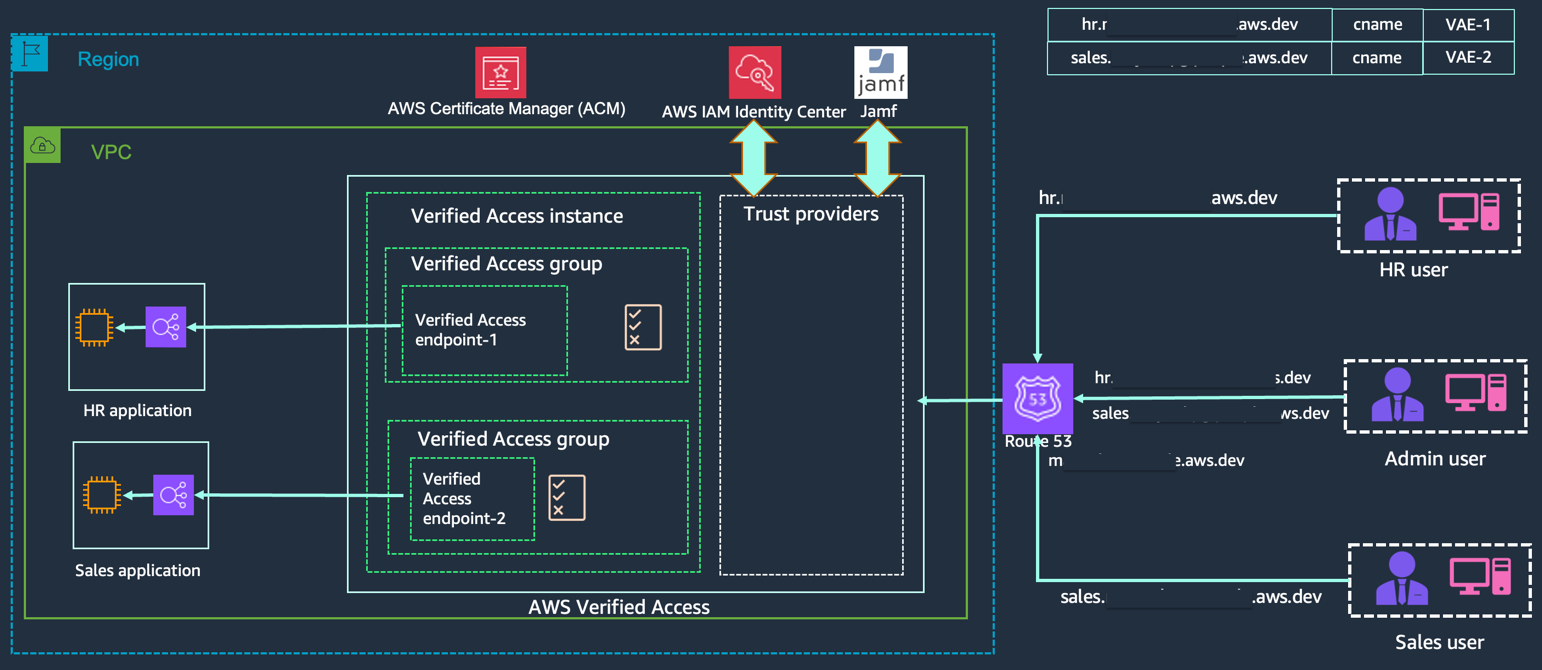
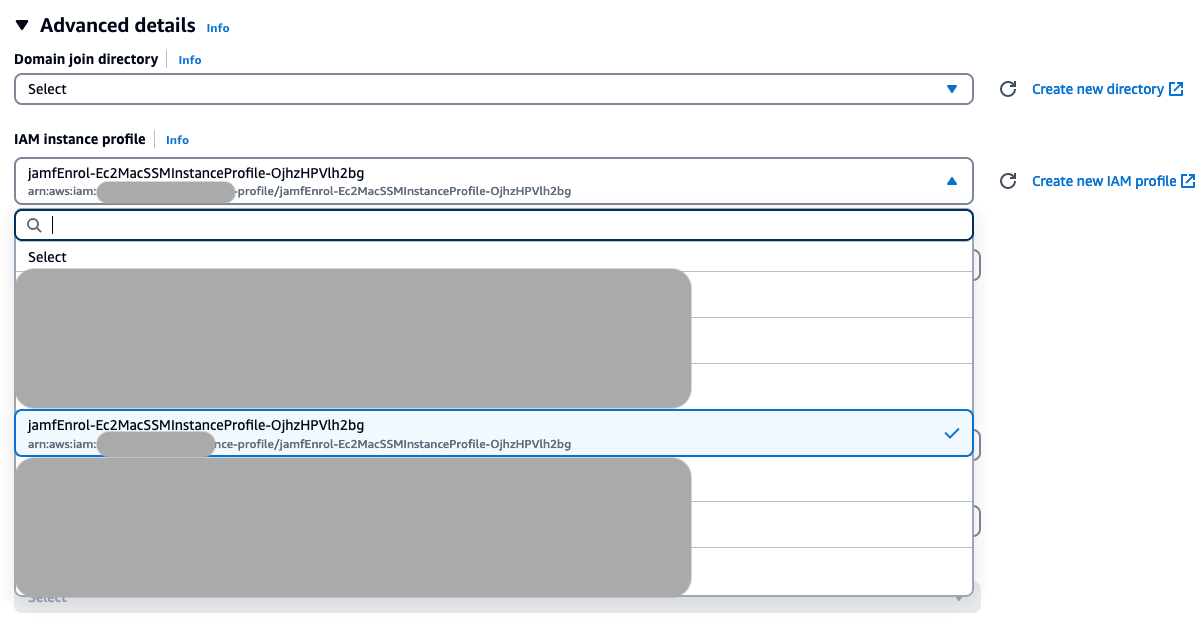


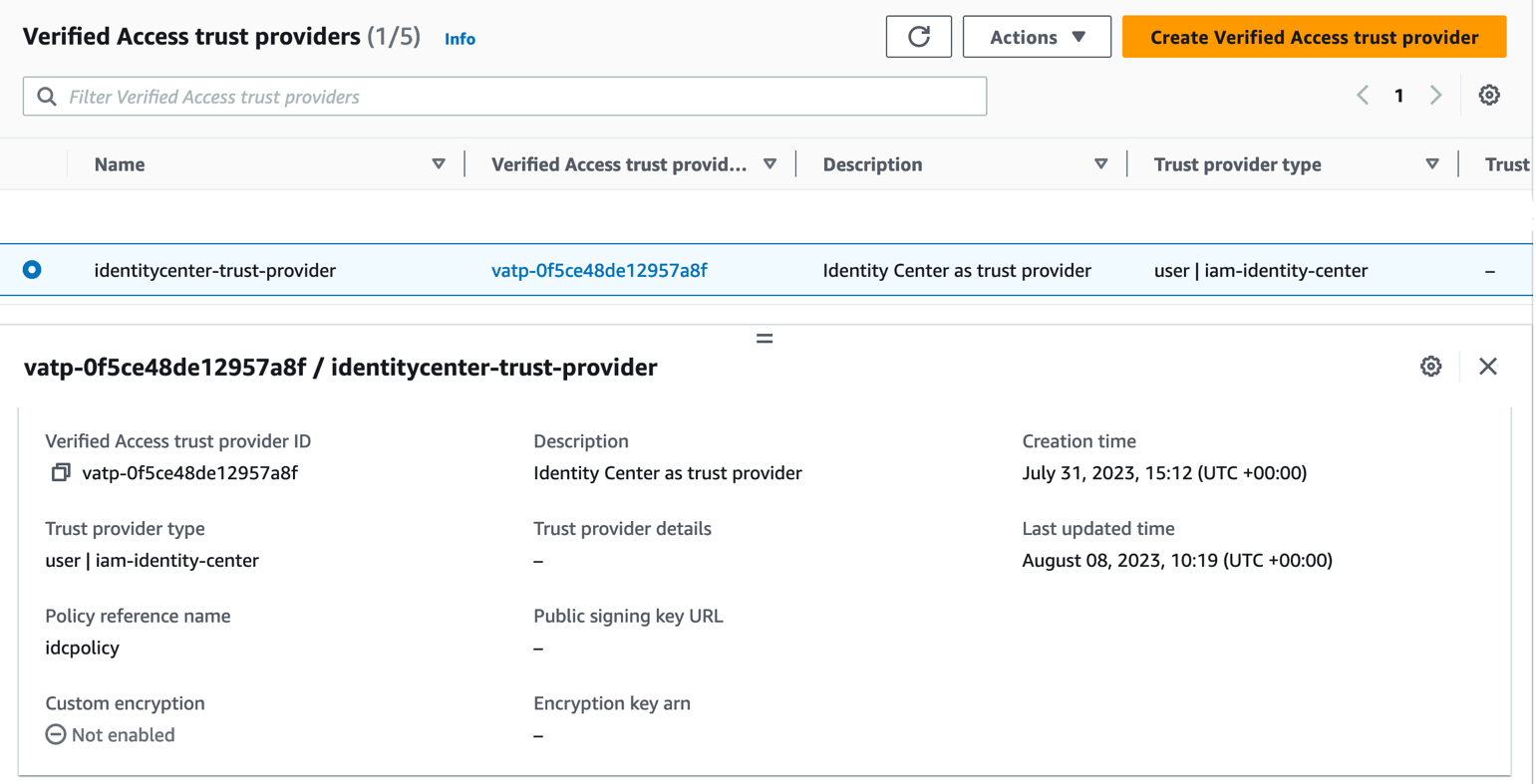
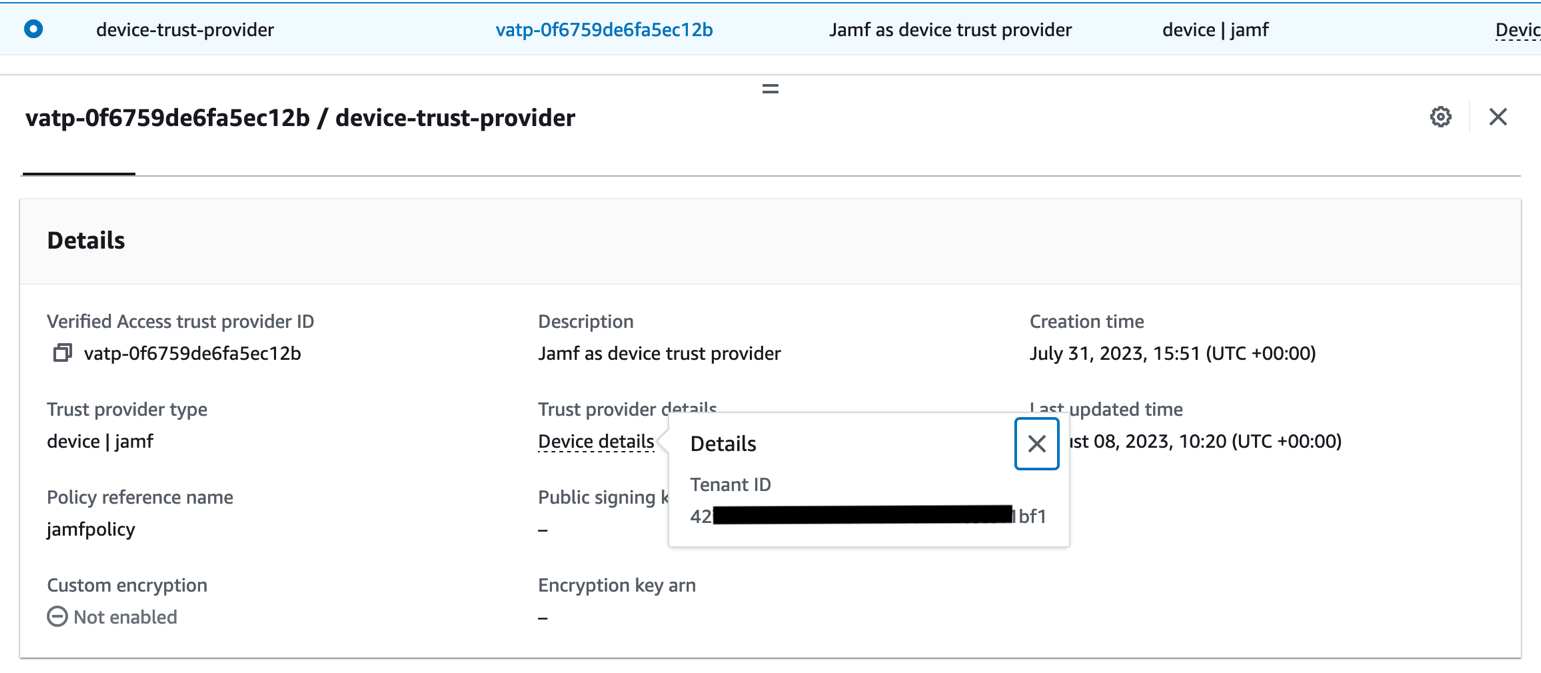
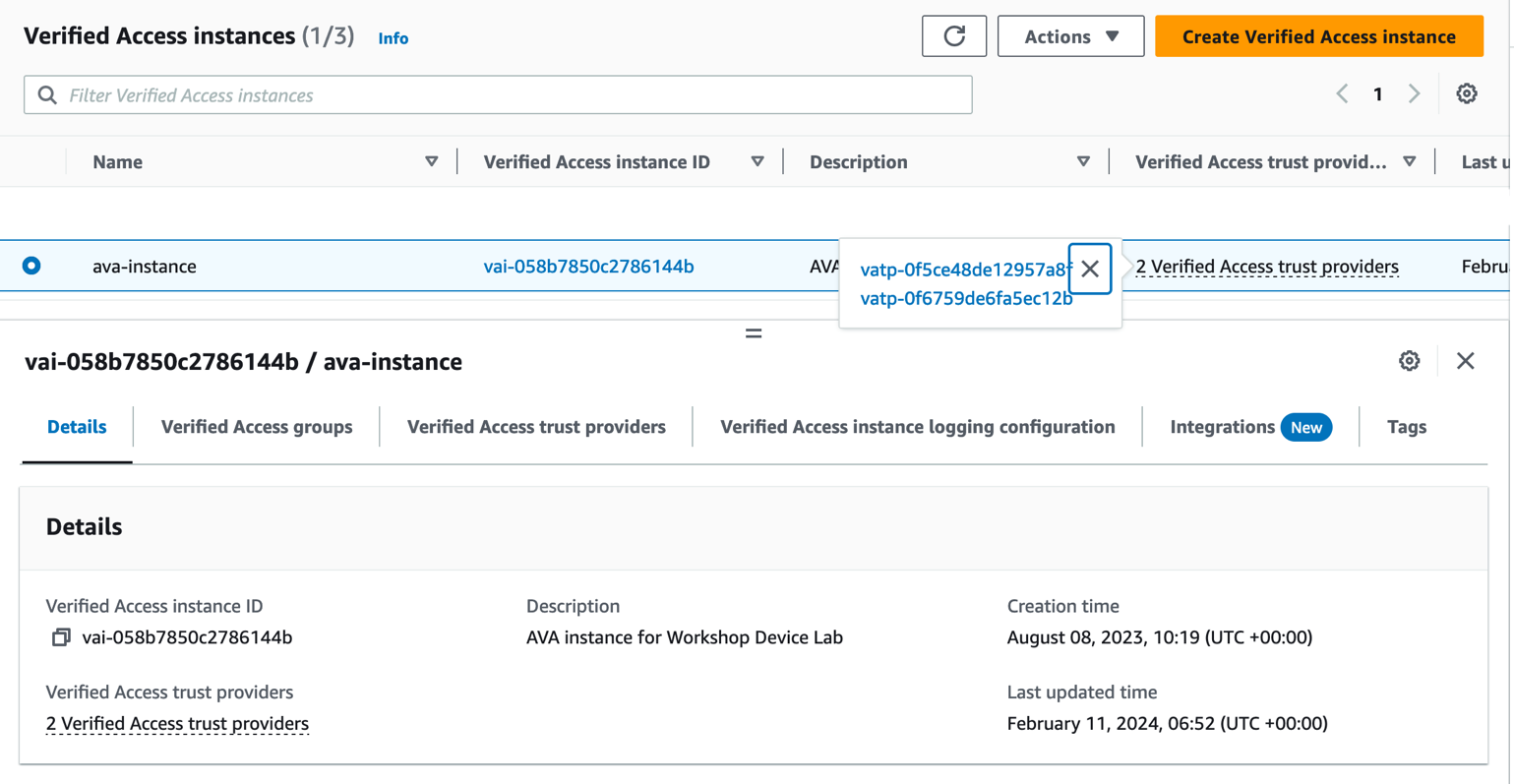
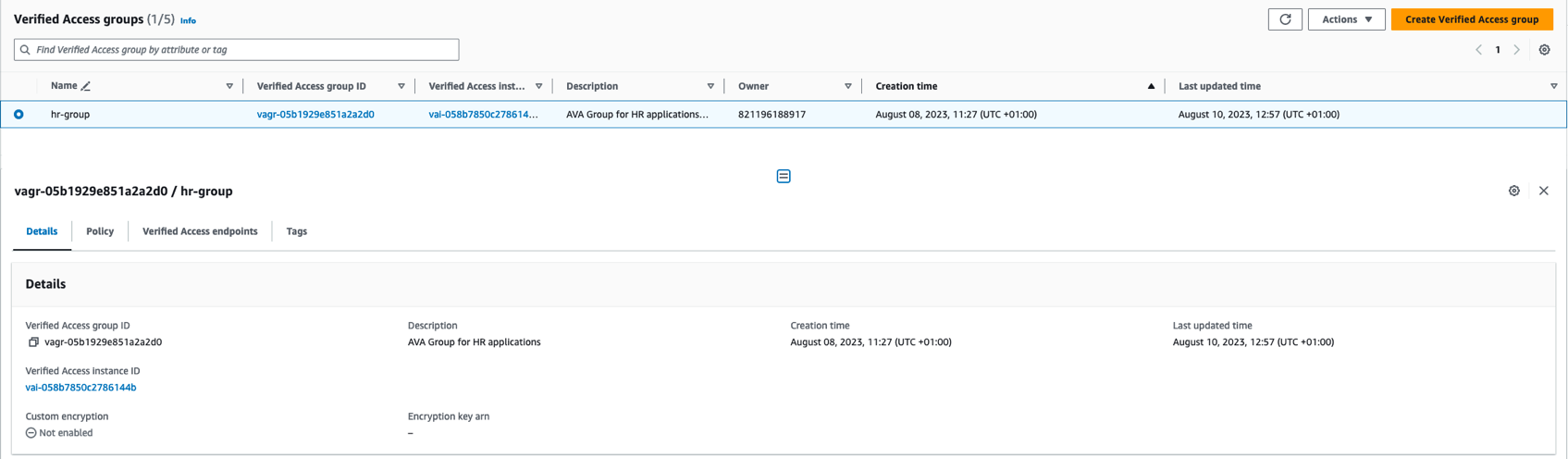
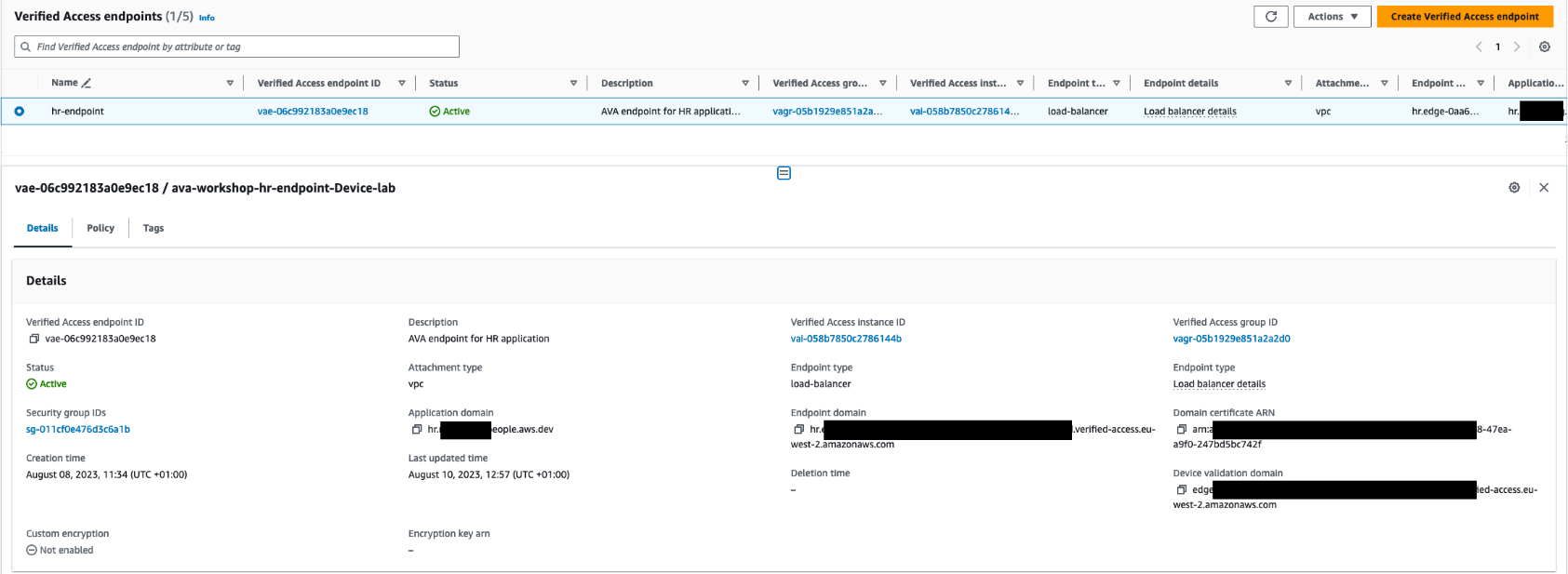
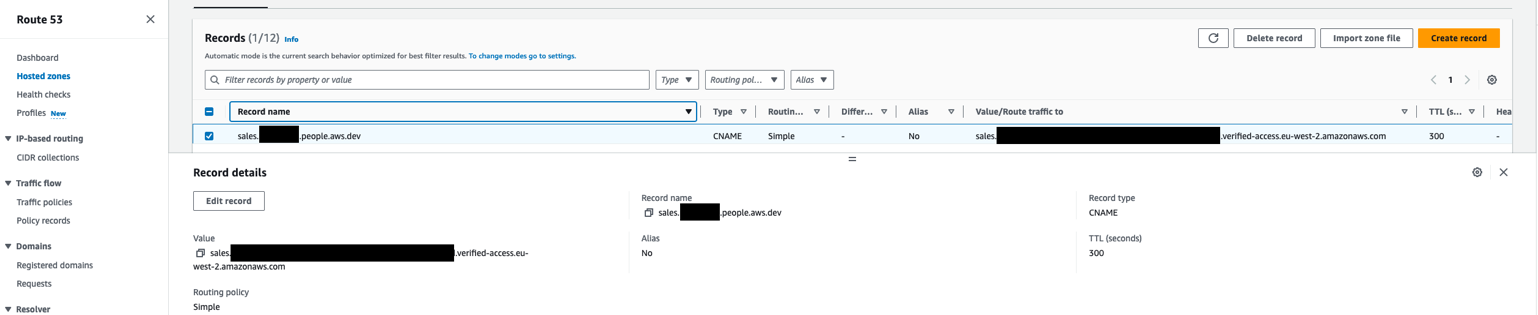
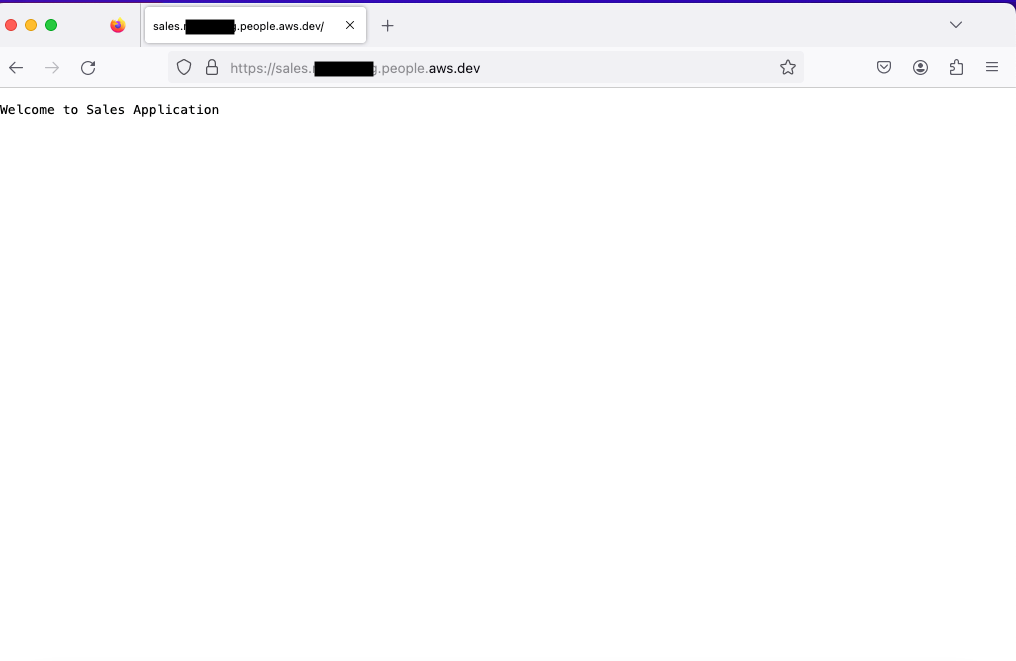
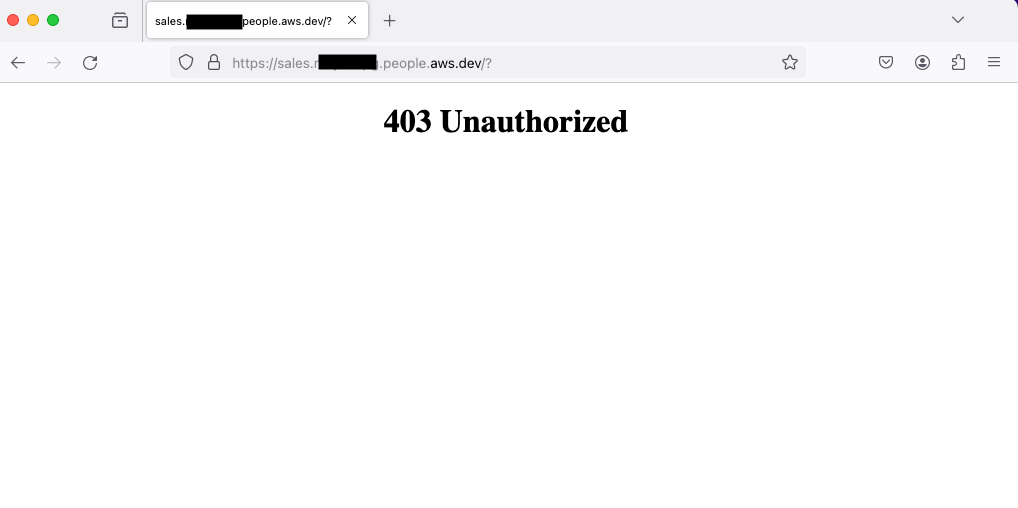
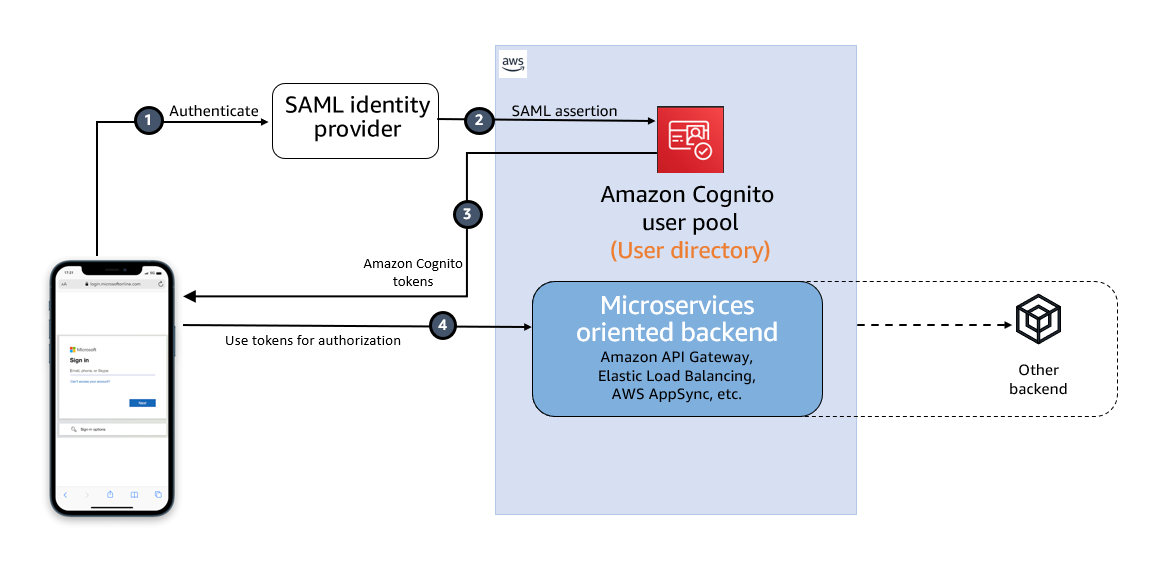


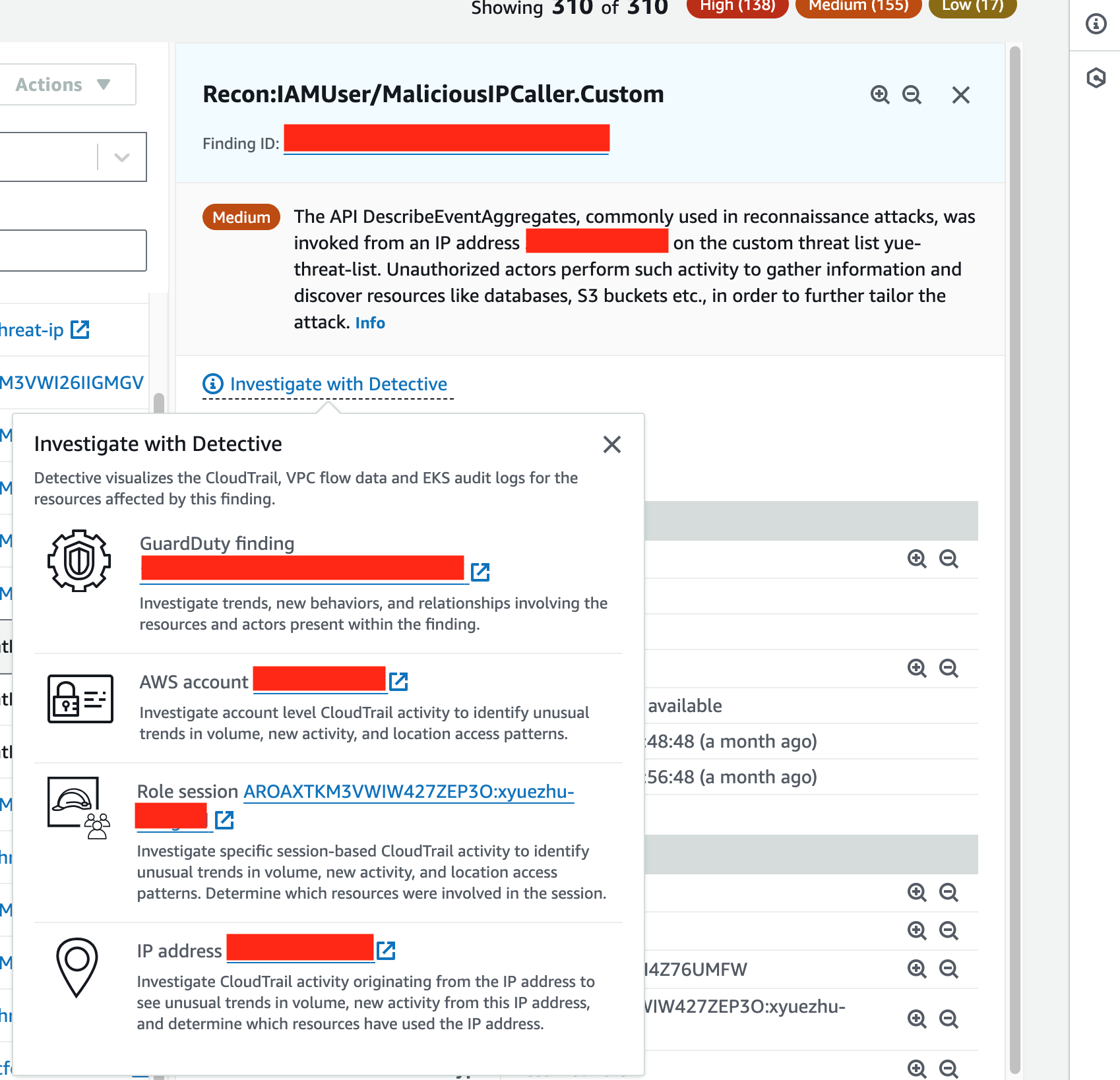
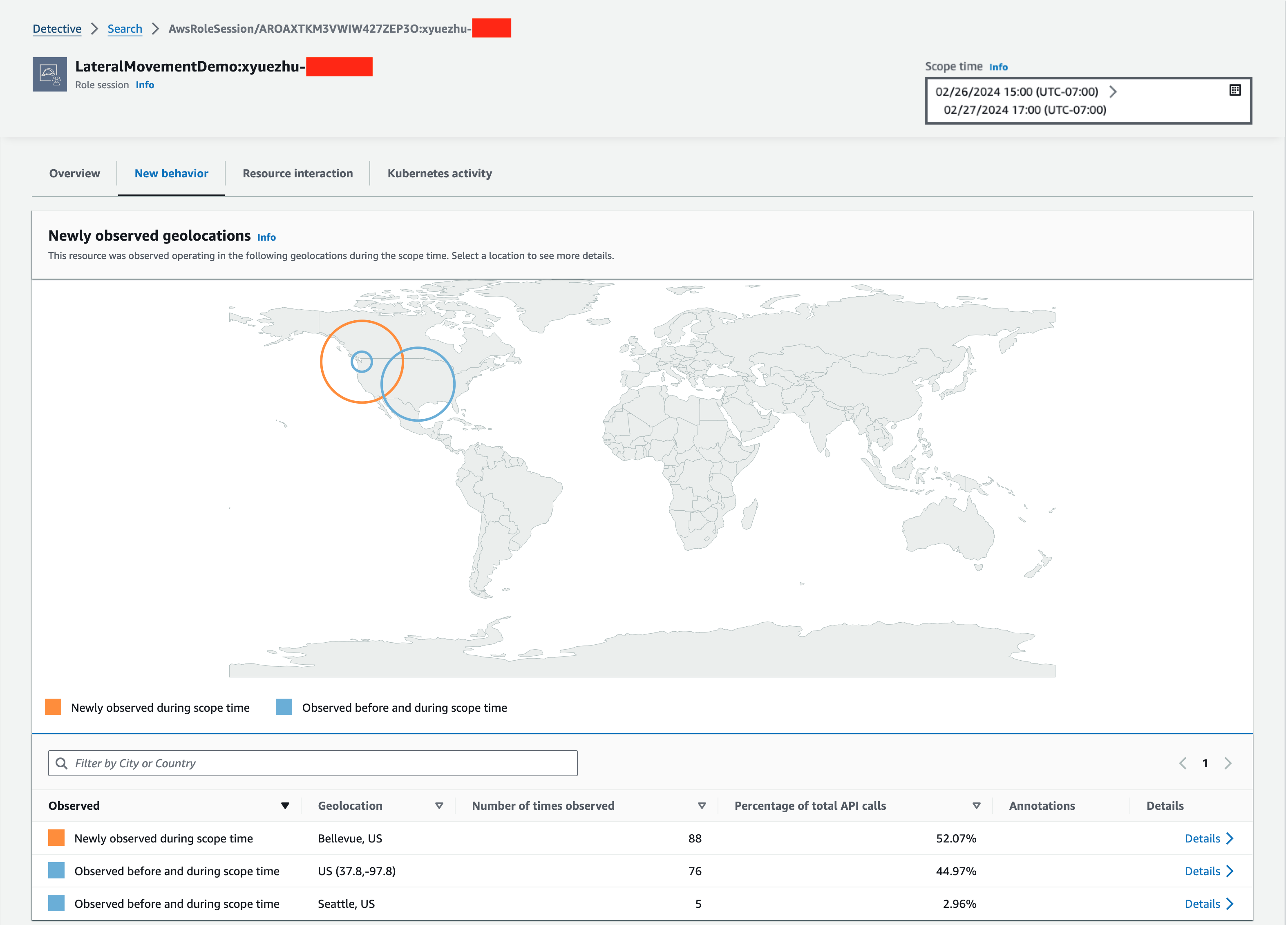
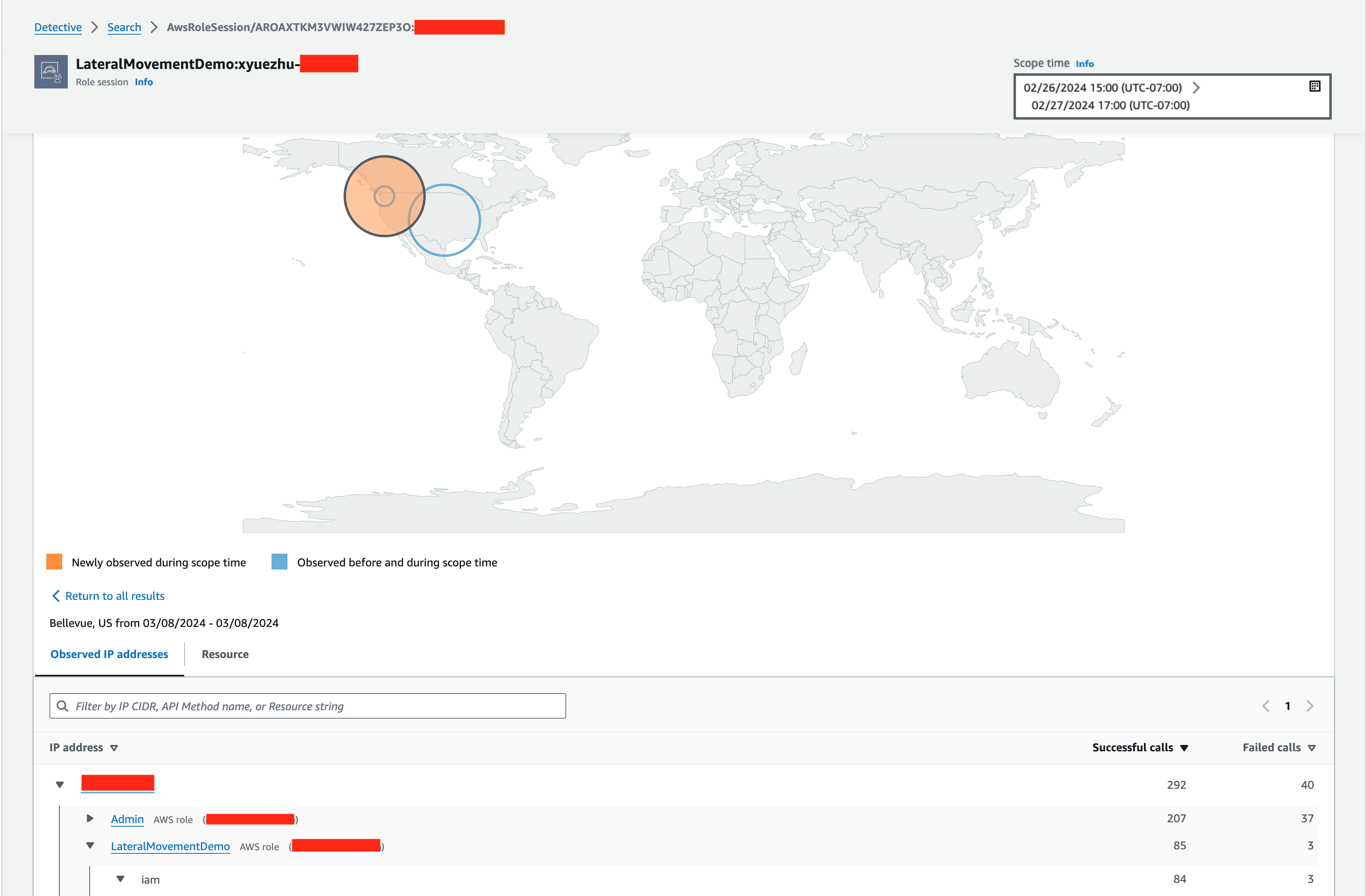
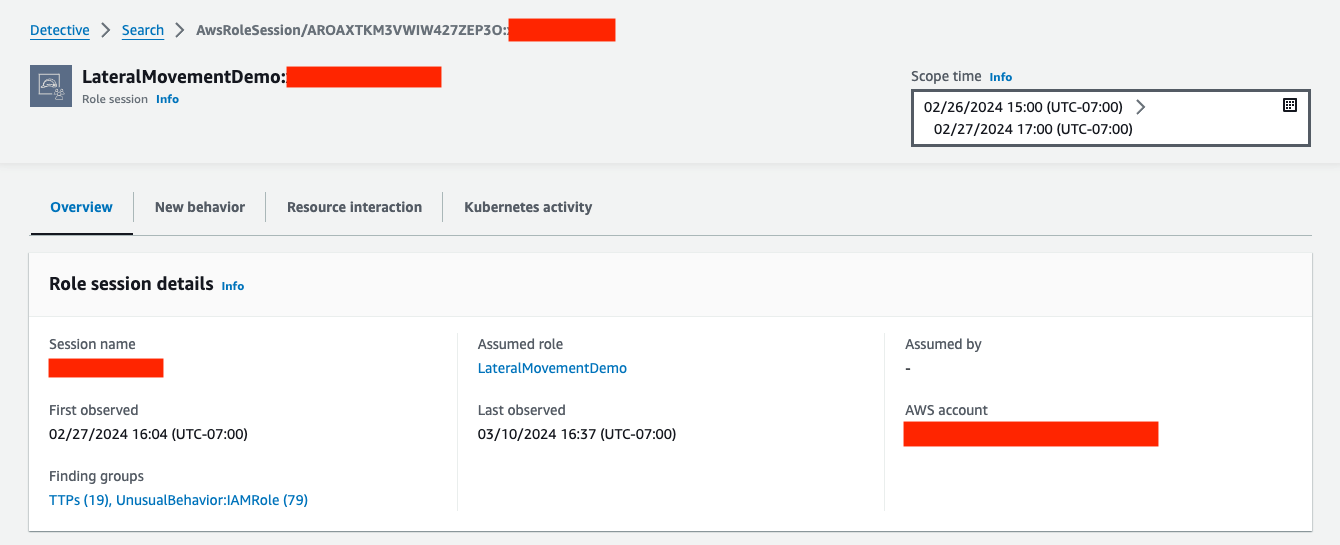
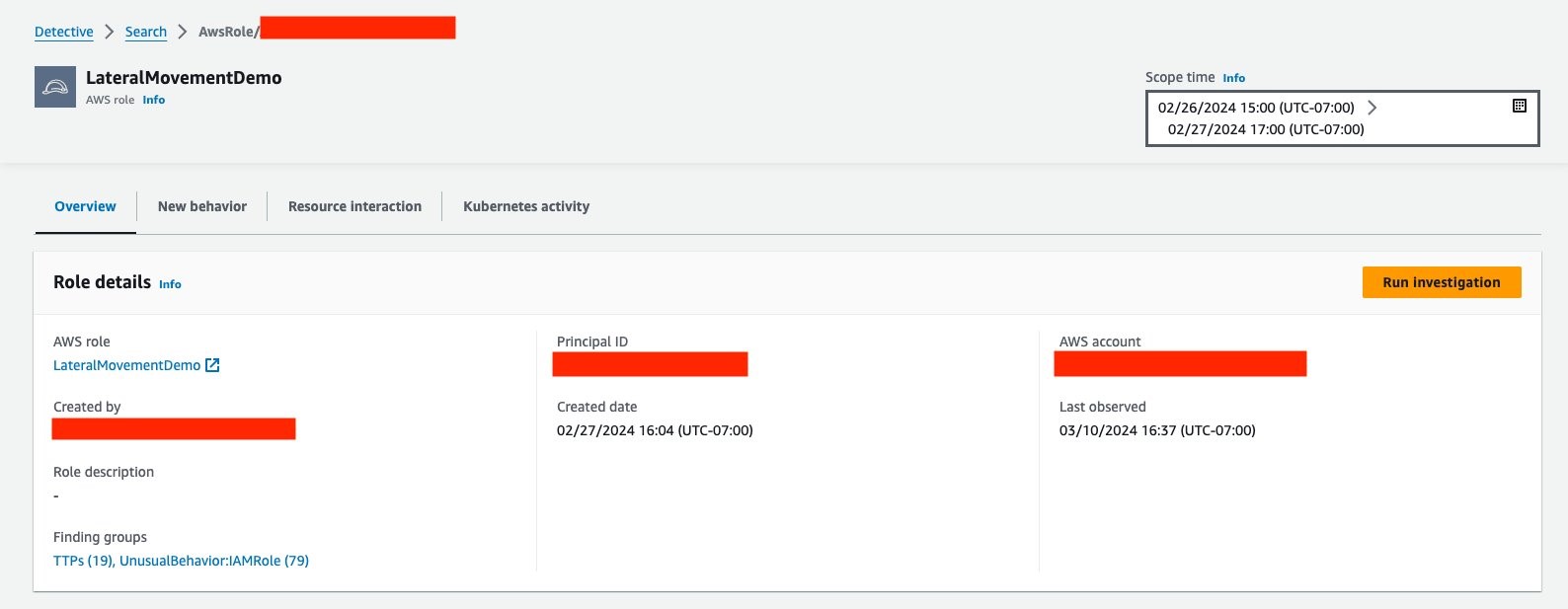
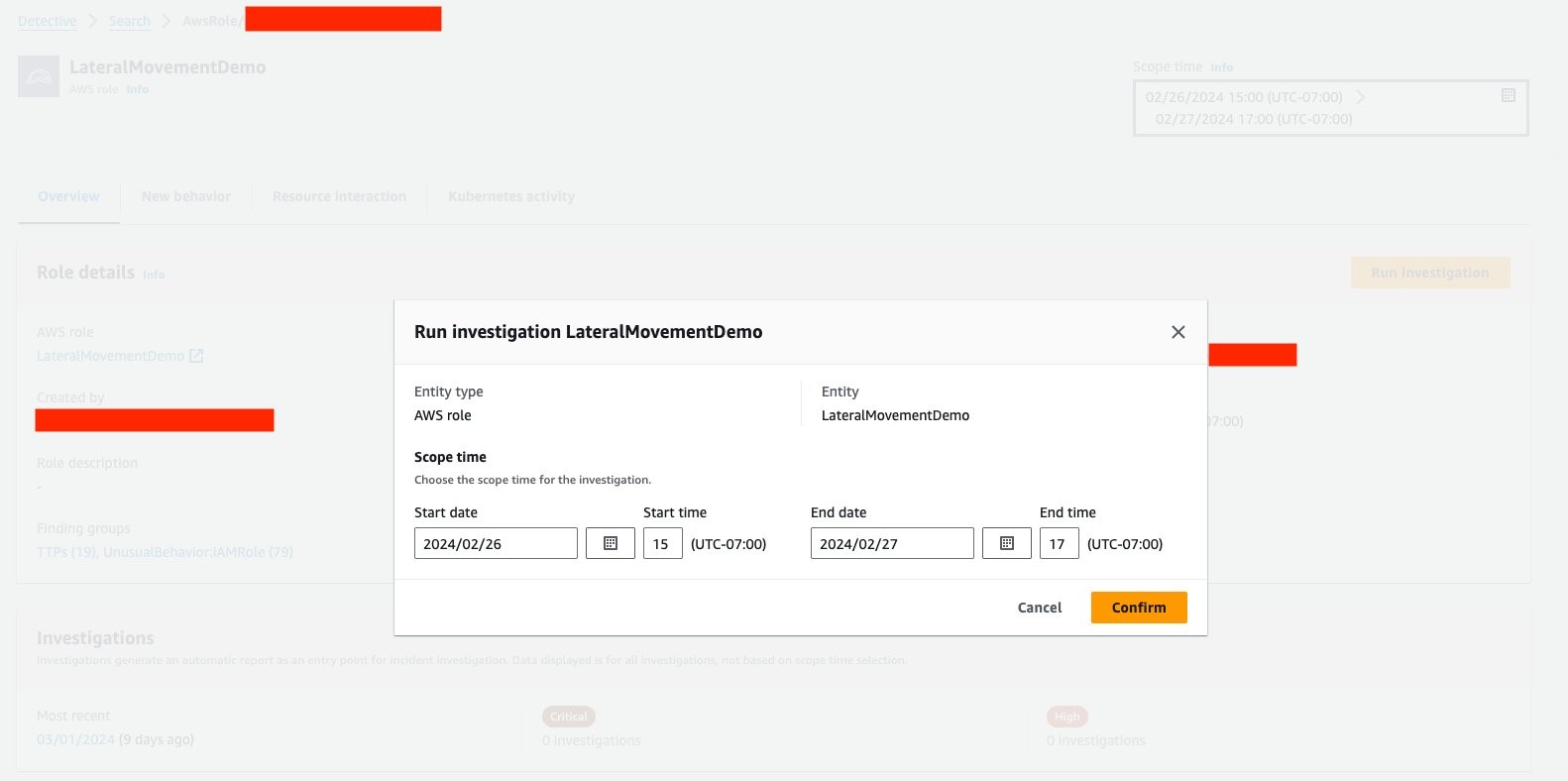
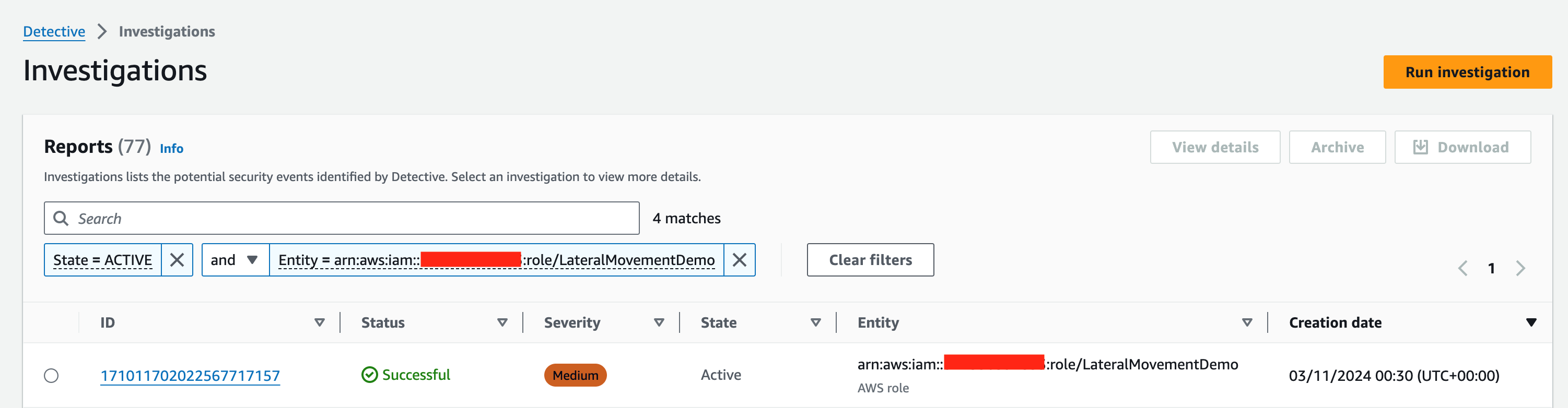
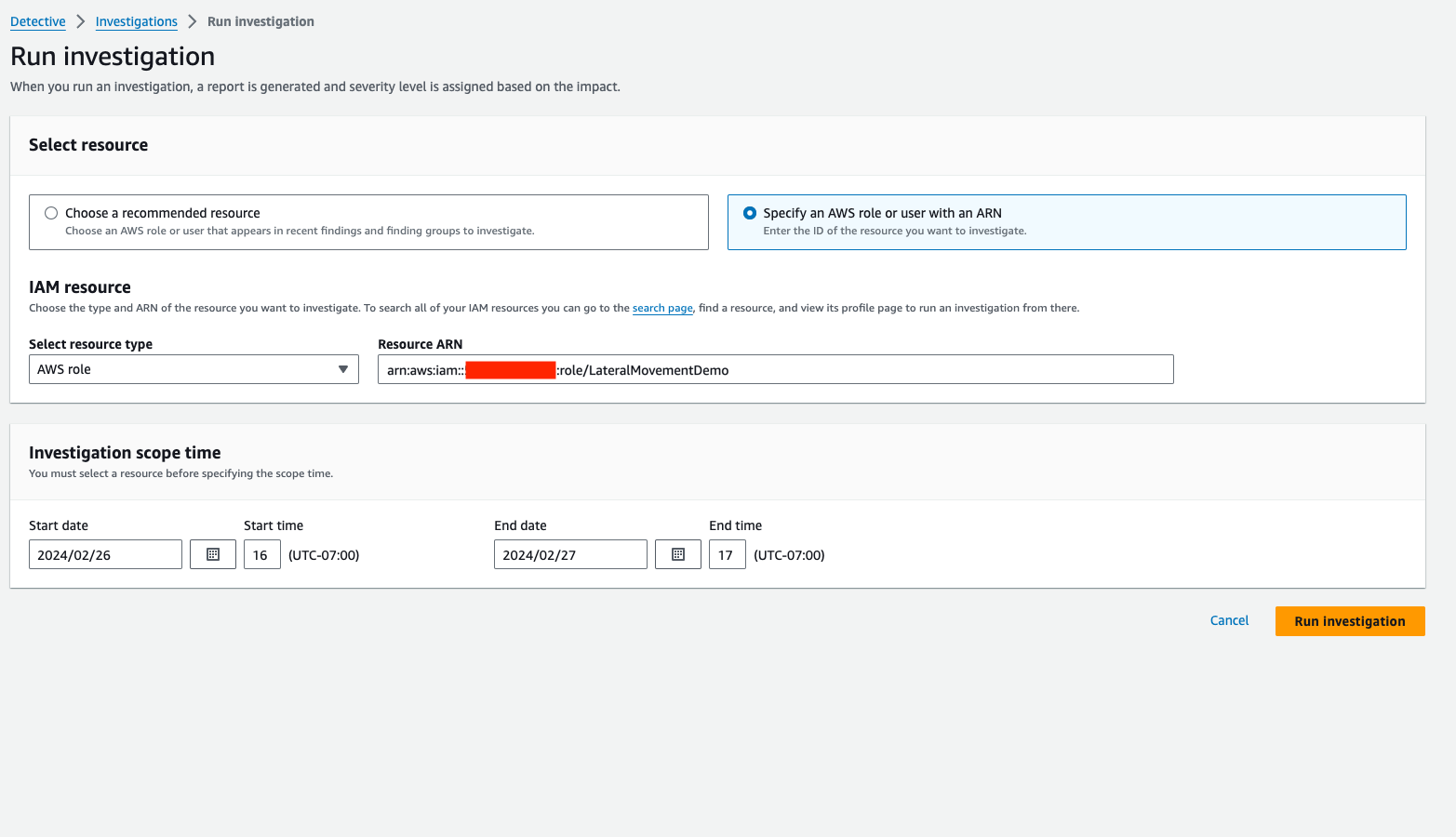
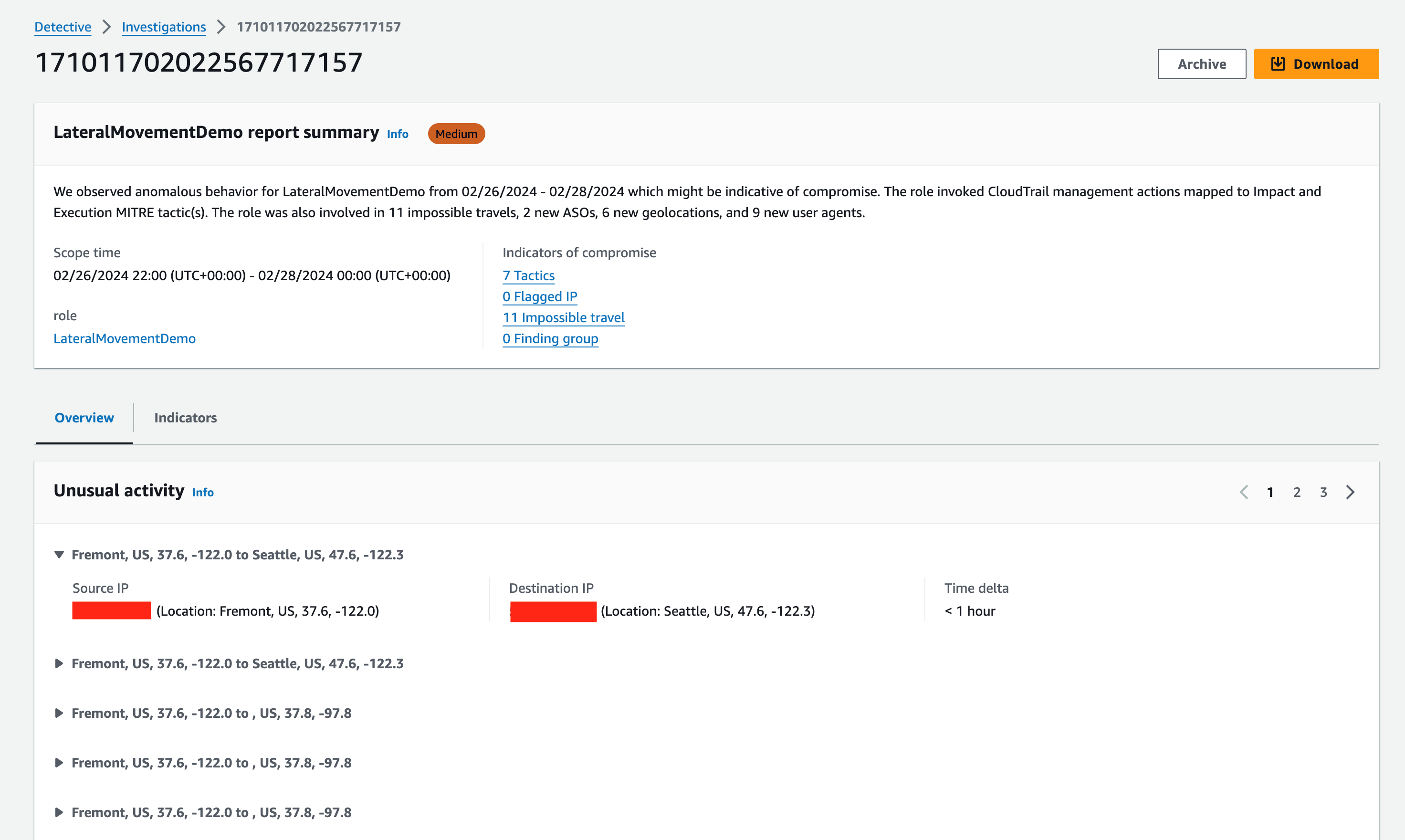
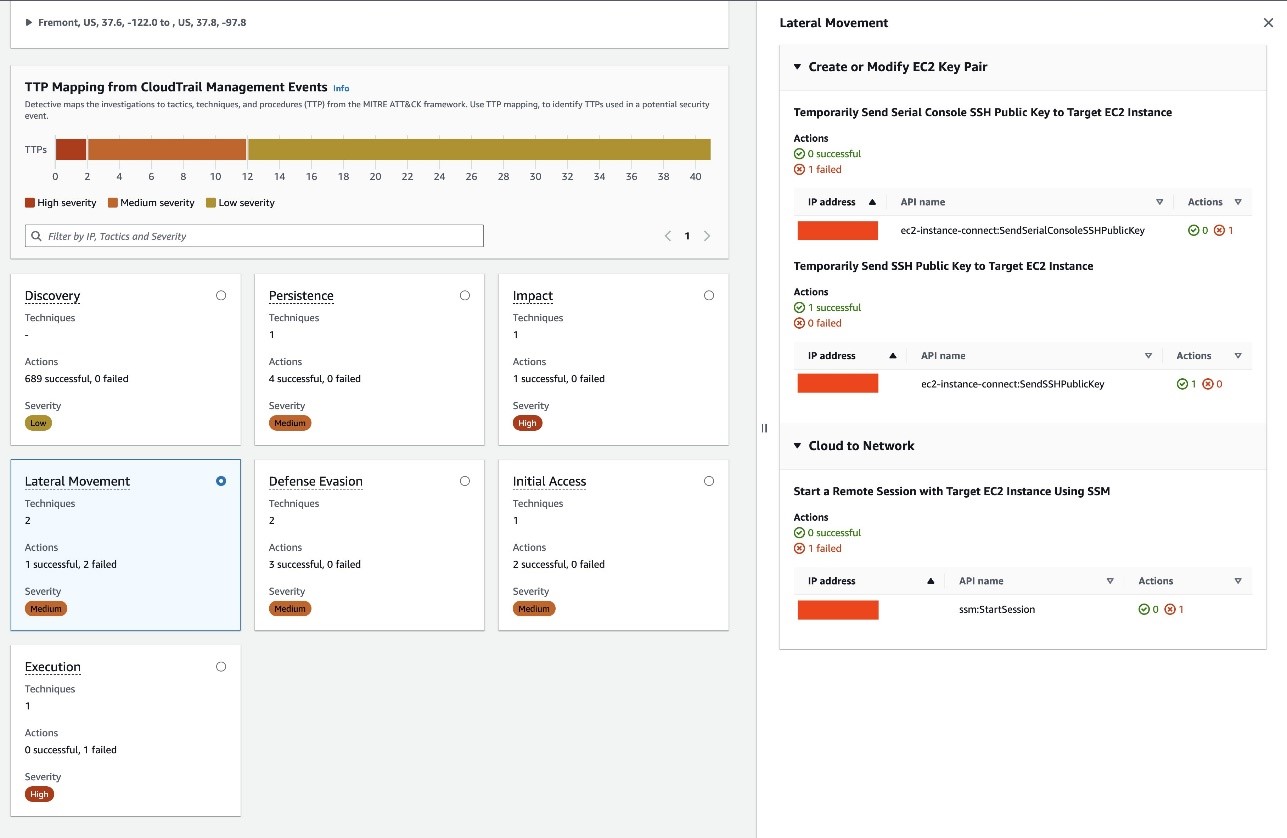
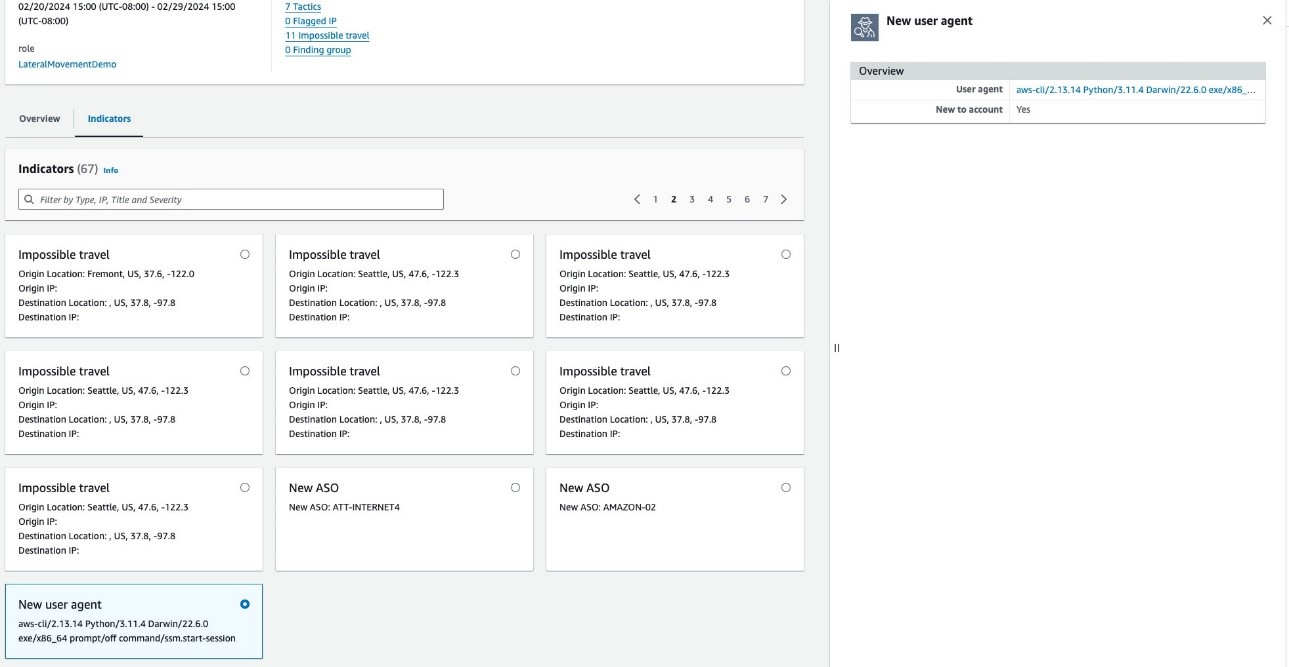
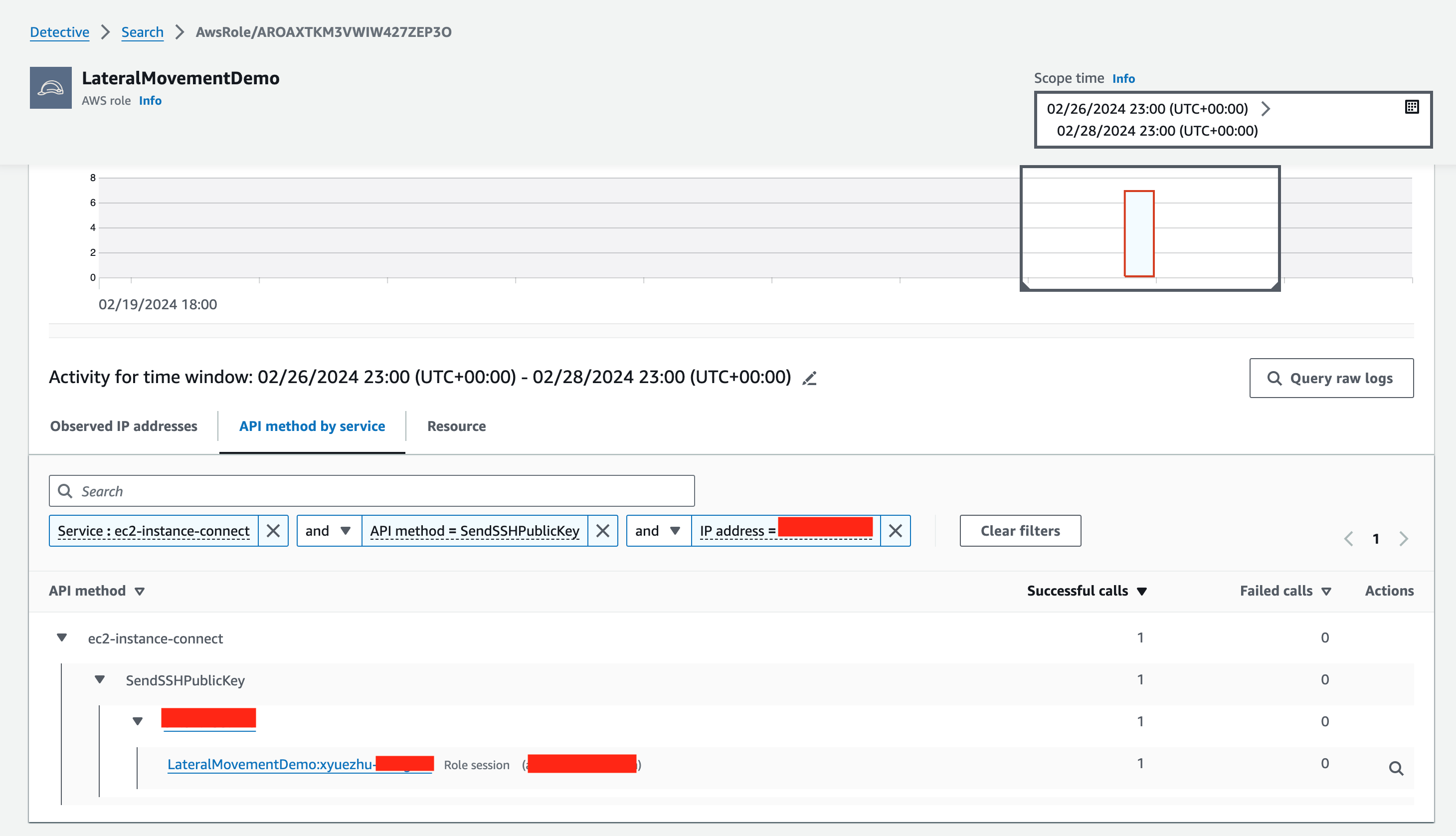
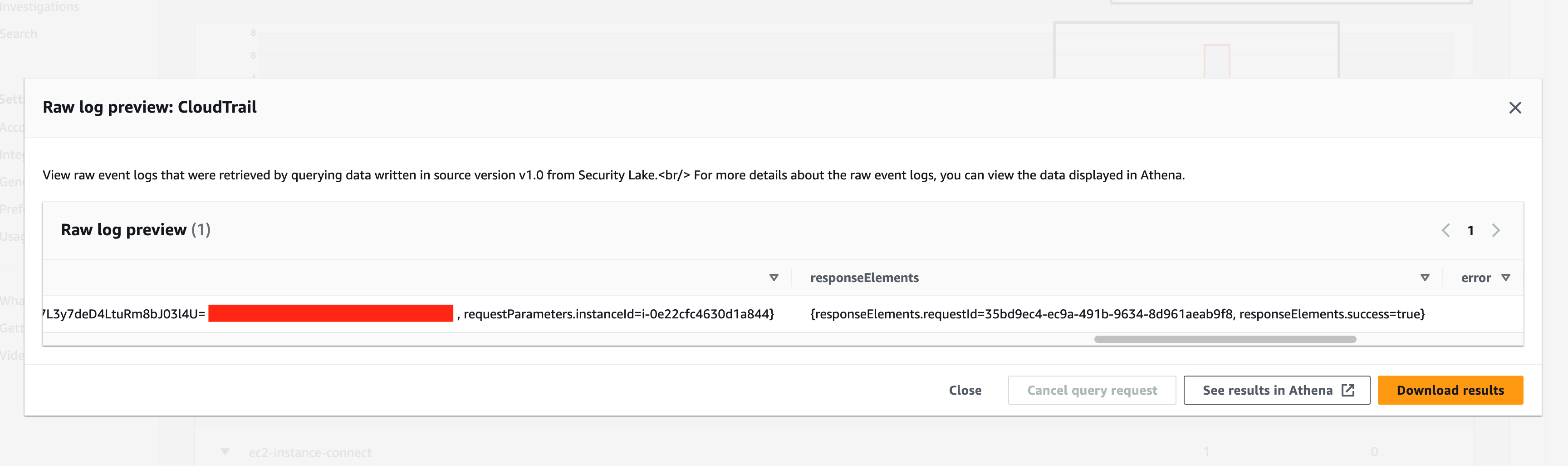
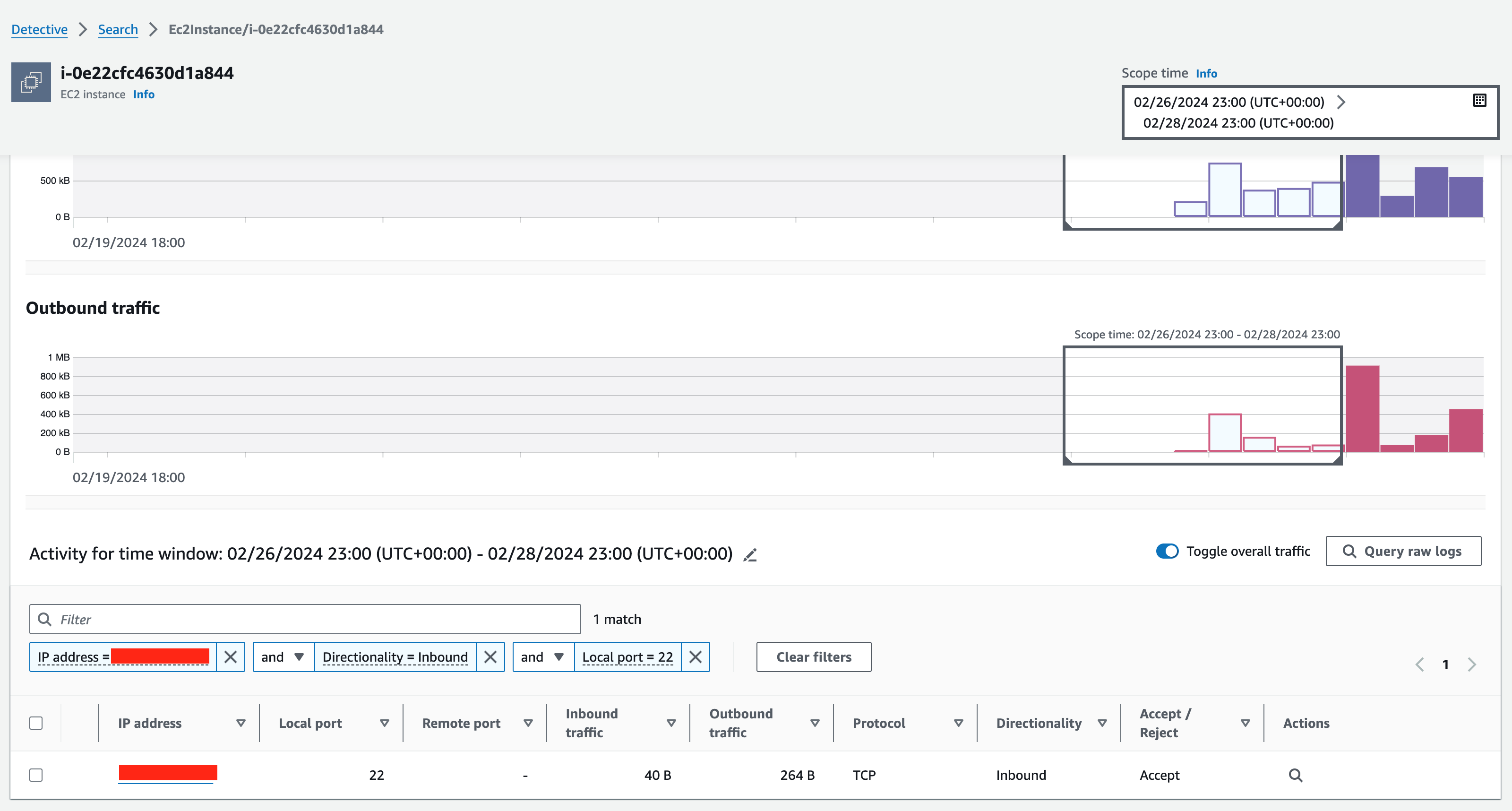






 Ricardo Serafim is a Senior Analytics Specialist Solutions Architect at AWS.
 Harshida Patel is a Analytics Specialist Principal Solutions Architect, with AWS.
 Urvish Shah is a Senior Database Engineer at Amazon Redshift. He has more than a decade of experience working on databases, data warehousing and in analytics space. Outside of work, he enjoys cooking, travelling and spending time with his daughter.
 Amol Gaikaiwari is a Sr. Redshift Specialist focused on helping customers realize their business outcomes with optimal Redshift price-performance. He loves to simplify data pipelines and enhance capabilities through adoption of latest Redshift features.


 Leonardo Gomez is a Principal Analytics Specialist Solutions Architect at AWS. He has over a decade of experience in data management, helping customers around the globe address their business and technical needs. Connect with him on
  Michael Chess – is a Product Manager on the AWS Lake Formation team based out of Palo Alto, CA. He specializes in permissions and data catalog features in the data lake.
 Derek Liu – is a Senior Solutions Architect based out of Vancouver, BC. He enjoys helping customers solve big data challenges through AWS analytic services.


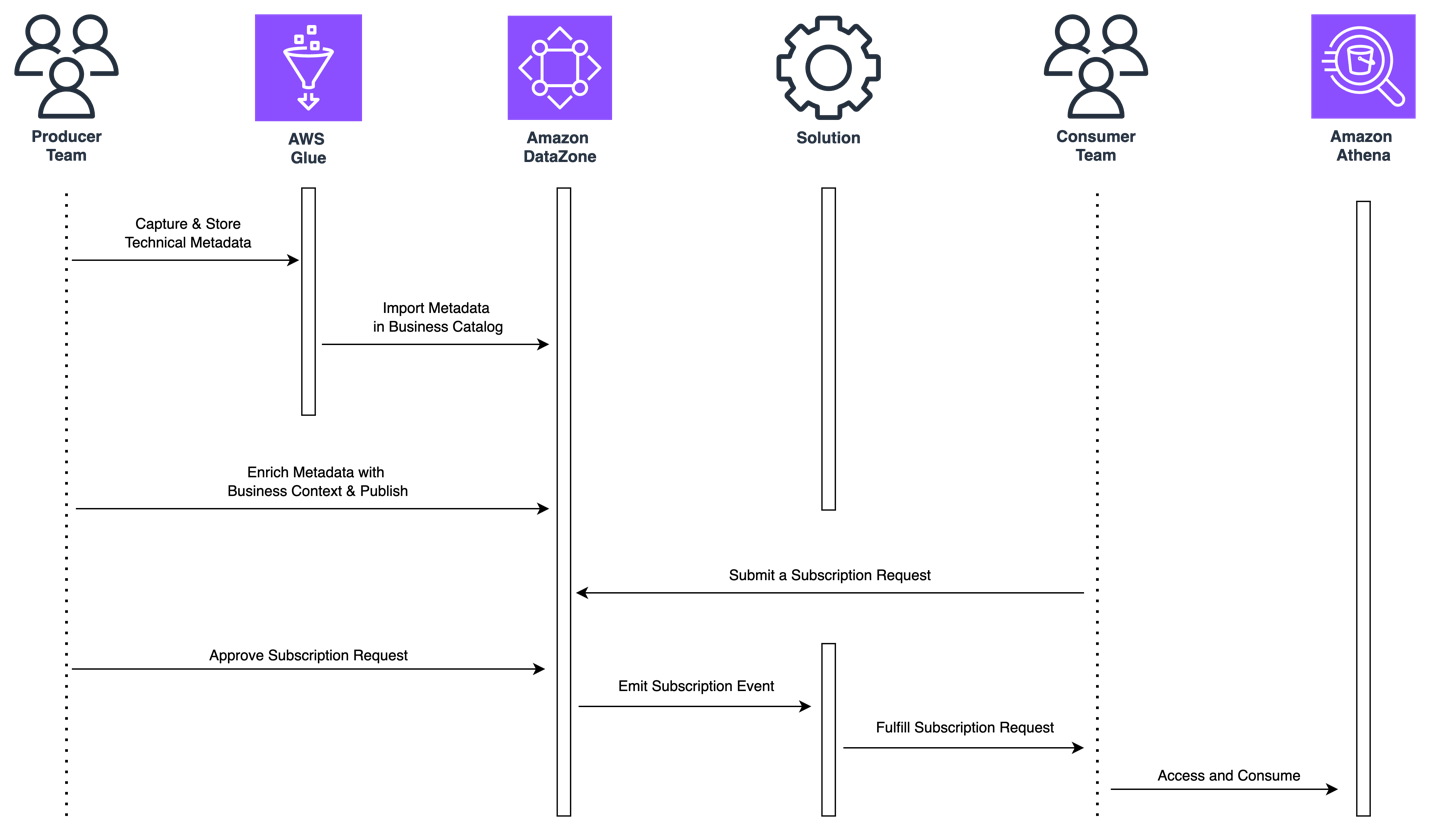


 Jose Romero is a Senior Solutions Architect for Startups at AWS, based in Austin, TX, US. He is passionate about helping customers architect modern platforms at scale for data, AI, and ML. As a former senior architect with AWS Professional Services, he enjoys building and sharing solutions for common complex problems so that customers can accelerate their cloud journey and adopt best practices. Connect with him on
  Leonardo Gómez is a Principal Big Data / ETL Solutions Architect at AWS, based in Florida, US. He has over a decade of experience in data management, helping customers around the globe address their business and technical needs. Connect with him on


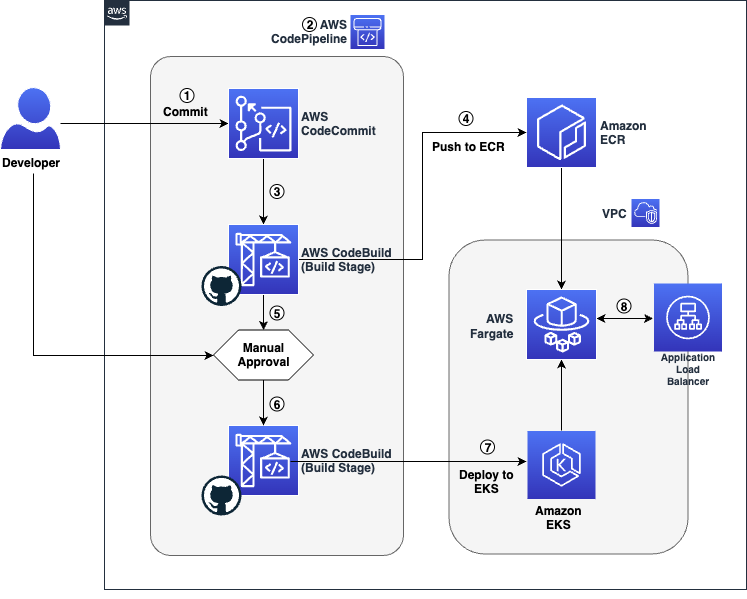



 Satish Nandi is a Senior Product Manager with Amazon OpenSearch Service. He is focused on OpenSearch Serverless and has years of experience in networking, security and ML/AI. He holds a Bachelor’s degree in Computer Science and an MBA in Entrepreneurship. In his free time, he likes to fly airplanes, hang gliders and ride his motorcycle.
 Michelle Xue is Sr. Software Development Manager working on Amazon OpenSearch Serverless. She works closely with customers to help them onboard OpenSearch Serverless and incorporates customer’s feedback into their Serverless roadmap. Outside of work, she enjoys hiking and playing tennis.
 Prashant Agrawal is a Sr. Search Specialist Solutions Architect with Amazon OpenSearch Service. He works closely with customers to help them migrate their workloads to the cloud and helps existing customers fine-tune their clusters to achieve better performance and save on cost. Before joining AWS, he helped various customers use OpenSearch and Elasticsearch for their search and log analytics use cases. When not working, you can find him traveling and exploring new places. In short, he likes doing Eat → Travel → Repeat.


 Salim Tutuncu is a Sr. PSA Specialist on Data & AI, based from Amsterdam with a focus on the EMEA North and EMEA Central regions. With a rich background in the technology sector that spans roles as a Data Engineer, Data Scientist, and Machine Learning Engineer, Salim has built a formidable expertise in navigating the complex landscape of data and artificial intelligence. His current role involves working closely with partners to develop long-term, profitable businesses leveraging the AWS Platform, particularly in Data and AI use cases.
 Angel Conde Manjon is a Sr. PSA Specialist on Data & AI, based in Madrid, and focuses on EMEA South and Israel. He has previously worked on research related to Data Analytics and Artificial Intelligence in diverse European research projects. In his current role, Angel helps partners develop businesses centered on Data and AI.


 Pradeep Misra is a Principal Analytics Solutions Architect at AWS. He works across Amazon to architect and design modern distributed analytics and AI/ML platform solutions. He is passionate about solving customer challenges using data, analytics, and AI/ML. Outside of work, Pradeep likes exploring new places, trying new cuisines, and playing board games with his family. He also likes doing science experiments with his daughters.
 Deepmala Agarwal works as an AWS Data Specialist Solutions Architect. She is passionate about helping customers build out scalable, distributed, and data-driven solutions on AWS. When not at work, Deepmala likes spending time with family, walking, listening to music, watching movies, and cooking!
 Abhilash Nagilla is a Senior Specialist Solutions Architect at Amazon Web Services (AWS), helping public sector customers on their cloud journey with a focus on AWS analytics services. Outside of work, Abhilash enjoys learning new technologies, watching movies, and visiting new places.



 Sidhanth Muralidhar is a Principal Technical Account Manager at AWS. He works with large enterprise customers who run their workloads on AWS. He is passionate about working with customers and helping them architect workloads for costs, reliability, performance, and operational excellence at scale in their cloud journey. He has a keen interest in data analytics as well.