Tag Archives: AWS Step Functions

Building a voice interface for generative AI assistants

Post Syndicated from Reynaldo Hidalgo original https://aws.amazon.com/blogs/messaging-and-targeting/building-voice-interface-for-genai-assistant/

Generative AI is revolutionizing how businesses interact with their customers through natural conversational interfaces. While organizations can implement AI assistants across various channels, phone calls remain a preferred method for many customers seeking support or information.

We’ll demonstrate how to create a voice interface for your existing Amazon Bedrock generative AI assistant, enabling customers to engage in phone-based conversations with your AI implementation.

Solution overview

Using Workflow Studio for Amazon Web Services (AWS) Step Functions, we built a voice communication interface that connects with the Amazon Nova Micro model in Amazon Bedrock (Figure 1). The demo application uses the base model to enable open-ended questions. Organizations can implement either Amazon Bedrock Agents or Flows to address specific business requirements.

A Step Functions workflow diagram illustrating a voice communication system integrated with Amazon Bedrock. The workflow shows a sequential process starting with call handling, followed by parallel branches: one for managing hold music and another for processing voice input through Amazon Transcribe and Amazon Nova Micro model. The diagram demonstrates the complete call flow from initial welcome message through question-answer cycles to call completion.

Figure 1 – Step Functions workflow that enables voice communication to a generative AI assistant

How it works:

  1. Inbound call arrives
  2. System plays welcome message
  3. System asks caller for questions
  4. Voice recording starts, stopping when silence is detected
  5. Parallel flows begin:
    • First flow
      1. Plays some music while the caller is on-hold
    • Second flow
      1. Transcribes the recording using Amazon Transcribe
      2. Sends transcribed question to the Amazon Nova Micro model in Amazon Bedrock
      3. Upon receiving the response, stops the on-hold music
  6. Text-to-speech plays the model’s answer
  7. System asks for additional questions and loops to Step 4 or ends the call

 Expanded capabilities and optimizations

These are potential improvements, additional functionalities, and advanced features that can enhance the demo application:

  • The transcription component is interchangeable with any speech-to-text generative AI model (including Whisper Large V3 Turbo on Amazon Bedrock Marketplace)
  • The PSTN audio service RecordAudio Action can be tuned to adjust silence duration and background noise levels
  • Enabling the PSTN audio service VoiceFocus feature to improve call clarity by reducing background noise and enhancing voice quality
  • PSTN audio service Session Initiation Protocol (SIP) media applications can also handle calls through SIP trunking by using Amazon Chime SDK Voice Connector, streamlining integration with existing phone systems
  • The UpdateSipMediaApplicationCall API is a PSTN audio service feature that lets you regain call control and apply new actions during active calls
  • Parallel workflow states allow user-friendly handling of API service calls by playing music during processing
  • PSTN audio service provides pay-per-minute rates with serverless, scalable telephony infrastructure

Deploying the solution

 The following steps allow you to deploy the voice communication interface workflow (Figure 1) together with the supporting serverless architecture for Step Functions and PSTN audio service integration. In a previous blog, we demonstrated how combining Step Functions and Amazon Chime SDK PSTN audio service streamlines the development of reliable telephony applications through a visual workflow design.

 Prerequisites:

  1. AWS Management Console access
  2. Node.js and npm installed
  3. AWS Command Line Interface (AWS CLI) installed and configured
  4. Enable access to the Amazon Nova Micro model through the Amazon Bedrock console

 Walkthrough:

The AWS Cloud Development Kit (AWS CDK) project on the AWS GitHub repository will deploy the following resources:

  • phoneNumberBedrock – Provisioned phone number for the demo application
  • sipMediaApp – SIP media application that routes calls to lambdaProcessPSTNAudioServiceCalls
  • sipRule – SIP rule that directs calls from phoneNumberBedrock to sipMediaApp
  • lambdaProcessPSTNAudioServiceCallsAWS Lambda function for call processing
  • roleLambdaProcessPSTNAudioServiceCalls – AWS Identity and Access Management (IAM) Role for lambdaProcessPSTNAudioServiceCalls
  • stepfunctionBedrockWorkflow – Step Functions workflow for the telephony application
  • roleStepfuntionBedrockWorkflow – IAM Role for stepfunctionBedrockWorkflow
  • s3BucketApp – Amazon Simple Storage Service (Amazon S3) bucket for storing customer questions recordings
  • s3BucketPolicy IAM Policy granting PSTN audio service access to s3BucketApp
  • lambdaAudioTranscription – Lambda function for audio transcription
  • lambdaLayerForTranscription – Lambda layer required for lambdaAudioTranscription
  • roleLambdaAudioTranscription – IAM Role for lambdaAudioTranscription

Follow these steps to deploy the CDK stack:

  1. Clone the repository.
git clone https://github.com/aws-samples/sample-chime-sdk-bedrock-voice-interface
cd sample-chime-sdk-bedrock-voice-interface
npm install
  1. Bootstrap the stack.
#default AWS CLI credentials are used, otherwise use the –-profile parameter
#provide the <account-id> and <region> to deploy this stack
cdk bootstrap aws://<account-id>/<region>
  1. Deploy the stack.
#default AWS CLI credentials are used, otherwise use the –-profile parameter
#phoneAreaCode: the United States area code used to provision the phone number
cdk deploy –-context phoneAreaCode=NPA
  1. Call the provisioned phone number to test the sample application.

Cleaning up:

To clean up this demo, execute:

cdk destroy

Conclusion

We demonstrated how organizations can add voice capabilities to their existing generative AI implementations using Amazon Bedrock. The solution enables customers to interact with AI assistants through traditional phone calls, expanding accessibility and user engagement. The demo application showcases an architecture combining AWS Step Functions and Amazon Chime SDK PSTN audio service, delivering natural voice conversations with AI models through quick deployment using visual workflows.

Organizations benefit from cost optimization with pay-per-minute pricing, enterprise-ready telephony integration through PSTN or SIP trunking, and automatic scaling to match customer demand. This foundation enables businesses to build practical AI applications ranging from all day customer service agents, to multi-language support services, and knowledge base assistants. By following this solution, you can quickly extend your generative AI investments to voice channels, providing more value to your customers while maintaining operational efficiency.

Contact an AWS Representative to know how we can help accelerate your business.

Visually build telephony applications with AWS Step Functions

Post Syndicated from Reynaldo Hidalgo original https://aws.amazon.com/blogs/messaging-and-targeting/visually-build-telephony-applications-with-aws-step-functions/

Developers face numerous challenges when building telephony applications: managing unpredictable user responses, handling disconnections, processing incorrect inputs, and addressing errors. These challenges extend development cycles and create unstable applications that fail to meet user expectations.

This blog demonstrates how Amazon Web Services (AWS) Step Functions, combined with Amazon Chime SDK Public Switched Telephone Network (PSTN) audio service, offers a solution to overcome these challenges.

Overview of the solution

To demonstrate our solution, we built a sample telephony application that lets business owners manage customer calls through a dedicated business phone number. This solution helps small business owners separate personal and business communications, while managing all calls from their existing phone.

The beta version of this sample application delivers these six core call flows:

  1. During business hours: Routes incoming customer calls to the business owner
  2. After hours: Enables customers to leave voice messages
  3. Message retrieval: Allows owner to access customer voice messages
  4. Business caller ID: Enables owner to call customers using the business number
  5. Call scheduling: Permits owner to schedule customer calls for later in the day
  6. Automated calling: Initiates scheduled calls between owner and customer automatically

Using Workflow Studio, we built a Step Functions workflow (Figure 1) that processes all six call flows and handles unexpected scenarios.

Figure 1 – Visual diagram of a telephony workflow created in Workflow Studio for Step Functions, showing six interconnected call routing paths with decision points and error handling states. Each path represents a different customer interaction scenario, connected by arrows indicating the flow direction.

Figure 1 – Step Functions telephony workflow designed in Workflow Studio

How it works

AWS Step Functions enable agile visual workflow design, through pre-built components and error handling rules. This creates workflows composed of event-driven states that input, process, and output JavaScript Object Notation (JSON)-formatted messages. The PSTN audio service streamlines telephony applications through its serverless approach using a request/response programming model. It invokes AWS Lambda functions with Events and waits for Actions responses, both in predefined JSON formats. This shared JSON format enables seamless integration between the PSTN audio service and Step Functions, leading us to design a serverless architecture (Figure 2) that allows for bidirectional JSON message exchange between the two services.

Figure 2 – Architectural diagram showing the integration flow between AWS Step Functions and PSTN audio service. Arrows indicate JSON message exchange between services, with Lambda functions handling the communication. The diagram illustrates the serverless architecture components and their connections in a top-to-bottom layout.

Figure 2 – Serverless architecture for Step Functions and PSTN audio service integration

Main components:

  • eventRouter: Lambda function managing JSON message exchange
  • appWorkflow: Step Functions implementing call flow logic
  • actionsQueue: Amazon Simple Queue Service (Amazon SQS) queue storing response actions

Architecture flow:

  1. PSTN audio service receives inbound call
  2. Service sends NEW_INBOUND_CALL event to eventRouter
  3. eventRouter creates the actionsQueue
  4. eventRouter asynchronously executes appWorkflow with event data
  5. eventRouter begins long-polling from actionsQueue, waiting for next action(s) message
  6. appWorkflow processes JSON-formatted event data, computing next action(s)
  7. appWorkflow queues next action(s) using Amazon SQS SendMessage API with Wait for Callback with Task Token integration pattern to stop the workflow until the next event call is received
  8. eventRouter retrieves and removes action(s) from actionsQueue
  9. eventRouter returns action(s) to PSTN audio service

Observations:

  • eventRouter code logic is generic and agnostic from the calls and different Step Function workflows
  • eventRouter queries an environment variable to determine the workflow to call
  • Pairs of actionsQueue and appWorkflow instances lives for the duration of each call
  • eventRouter is responsible for the creation and deletion of each actionsQueue
  • appWorkflow instances are created by the eventRouter at the start of each call
  • appWorkflow instances complete its execution when all parties involved on the call hang up

Building your telephony application

Prerequisites:

Implementation Guidelines:

  • Create dedicated Step Functions workflows for each telephony application
  • Design and implement workflows using Workflow Studio
  • Use a Standard workflow type to accommodate extended call durations
  • Update the eventRouter Lambda function’s “CallFlowsDIDMap” environment variable to map phone numbers to their workflow Amazon Resource Name (ARN)
  • Set workflow variables in the “Init” state Variables tab (Figure 3). The eventRouter function automatically sets “QueueUrl”, and adding other variables here removes the need for external storage
Figure 3 – Screenshot of Workflow Studio's Variables tab showing an editable text box for JSON data entry. The interface displays a code editor with syntax highlighting for entering variable names and their values that persist throughout the workflow execution.

Figure 3 – Step Functions “Init” state Variables tab showing workflow data configuration

  • Configure Choice state rules to route calls based on conditions. Rules one through three (Figure 4) handle call routing based on inbound/outbound direction, owner/customer identification, while the default rule manages unexpected scenarios.
Figure 4 – Screenshot of Workflow Studio's Choice state configuration panel. The interface shows a rules editor where multiple condition blocks are displayed. Each block contains dropdown menus and input fields for setting call routing logic based on variable values. The rules appear in a vertical list with options to add, edit, or remove conditions.

Figure 4 – Step Functions Choice state defines rules for call routing decisions

  • Configure the SQS: SendMessage state (Figure 5) to instruct the next action to the PSTN audio service by:
    • Formatting the message content to match supported actions for the PSTN audio service
    • Setting TransactionAttributes to pass back and forth the values of the “WaitToken” and “QueueUrl” throughout the call duration
    • Enabling the Wait for Callback with a Task Token integration pattern
Figure 5 – Screenshot of the SQS: SendMessage state configuration in Step Functions Workflow Studio. The interface shows three main concepts: a message content formatter for PSTN audio service actions, transaction attribute fields for the WaitToken and QueueUrl values, and callback integration pattern settings. The message content input section displays input fields and options for setting up the message structure that enables communication between Step Functions and the PSTN audio service.

Figure 5 – SQS: SendMessage state configuration for PSTN audio service callback integration

  • Leverage AWS service integration states to interact with other AWS services directly from the workflow.
    • Example: Use a DynamoDB PutItem state (Figure 6) to store Amazon Simple Storage Service (Amazon S3) recording files, including bucket name and key, in Amazon DynamoDB.
Figure 6 – Screenshot of Step Functions Workflow Studio showing a DynamoDB PutItem state configuration. The interface displays fields for setting up direct interaction with DynamoDB to store S3 recording file information. The configuration panel includes input parameters for the DynamoDB table, item details, and S3 bucket and key values.

Figure 6 – AWS service integration states enable direct service connections without custom code

  • Utilize JSONata expressions (Figure 7) to minimize the number of Lambda functions.
    • Example: For Amazon EventBridge scheduling, compute time expressions using JSONata functions [$fromMillis(), $millis(), number()] and string concatenation to handle customer call scheduling.
Figure 7 – Screenshot of Step Functions Workflow Studio showing JSONata expression configuration. The interface displays a code editor with syntax highlighting where time calculation expressions are written using JSONata functions like $fromMillis(), $millis(), and number(). The panel demonstrates how to transform data directly within the workflow, eliminating the need for separate Lambda functions. Example expressions show date and time calculations for EventBridge scheduling.

Figure 7 – JSONata expressions for direct data transformation without Lambda functions

  • Use Step Functions error handling with success and fail states (Figure 8) to manage error paths and call termination results.
Figure 8 – Screenshot of Step Functions Workflow Studio showing the error handling configuration interface. The panel displays multiple state configurations: error catching paths for failed calls, success state definitions for completed calls, and termination handling settings. The interface includes dropdown menus and input fields for defining error types, retry attempts, and fallback actions. Visual connections between states illustrate the error handling flow from detection through resolution.

Figure 8 – Call error handling and termination setup

Key benefits

This approach for building telephony applications offers multiple advantages:

  1. Visual workflow-based designer
  2. Self-document call flow logic
  3. Managed versioning and publishing
  4. Native integration with AWS Services
  5. Visual log and inspection for each call
  6. Auto-scalable
  7. Pay-per-use pricing

Deploying the solution

 The following steps allows you to deploy the sample telephony application together with the serverless architecture (Figure 2).

 Prerequisites:

  1. AWS Management Console access
  2. Node.js and npm installed
  3. AWS Command Line Interface (AWS CLI) installed and configured

 Walkthrough:

The Cloud Development Kit (CDK) project on the AWS GitHub repository will deploy the following resources:

  • phoneNumberBusiness – Provisioned phone number for the sample application
  • sipMediaApp – SIP media application that routes calls to lambdaProcessPSTNAudioServiceCalls
  • sipRule – SIP rule that directs calls from phoneNumberBusiness to sipMediaApp.
  • stepfunctionBusinessProxyWorkflow – Step Functions workflow for the sample application
  • roleStepfuntionBusinessProxyWorkflowIAM Role for stepfunctionBusinessProxyWorkflow
  • lambdaProcessPSTNAudioServiceCalls – Lambda function for call processing
  • roleLambdaProcessPSTNAudioServiceCalls – IAM Role for lambdaProcessPSTNAudioServiceCalls
  • dynamoDBTableBusinessVoicemails – DynamoDB table to store customer voicemails
  • s3BucketApp –S3 bucket for storing system recordings and customer voicemails
  • s3BucketPolicy IAM Policy granting PSTN audio service access to s3BucketApp
  • lambdaOutboundCall – Lambda function for placing scheduled customer calls
  • roleLambdaOutboundCall – IAM Role for lambdaOutboundCall
  • roleEventBridgeLambdaCall – IAM Role to allow the EventBridge service to execute lambdaOutboundCall

Follow these steps to deploy the CDK stack:

  1. Clone the repository
git clone https://github.com/aws-samples/amazon-chime-sdk-visual-media-applications 

cd amazon-chime-sdk-visual-media-applications 

npm install
  1. Bootstrap the stack
#default AWS CLI credentials are used, otherwise use the –-profile parameter
#provide the <account-id> and <region> to deploy this stack 
cdk bootstrap aws://<account-id>/<region>
  1. Deploy the stack
#default AWS CLI credentials are used, otherwise use the –-profile parameter
#personalNumber: the personal phone number of the business owner in E.164 format 
#businessAreaCode: the United States area code used to provision the business number 
cdk deploy –-context personalNumber=+1NPAXXXXXXX –-context businessAreaCode=NPA

Call the provisioned phone number to test the sample application. Optionally, edit the workflow to update the business name and working hours on the “Init” Task state, in the Variables tab.

Cleaning up:

To clean up this demo, execute:

cdk destroy

Conclusion

This blog demonstrates how combining AWS Step Functions and Amazon Chime SDK PSTN audio service streamlines the development of reliable telephony applications through visual workflow design and managed error handling. We provided a sample application, implementing six core business phone features, showcasing how the solution effectively manages multiple conditional paths and edge cases like disconnections and invalid inputs.

The serverless architecture created enables seamless integration between the two services through JSON-based communication, while providing automatic scaling and pay-per-use pricing. Together, these components create a robust foundation for building sophisticated telephony applications that reduce maintenance costs and enhance reliability.

Contact an AWS Representative to know how we can help accelerate your business.

AWS Weekly Roundup: Amazon Q CLI agent, AWS Step Functions, AWS Lambda, and more (March 10, 2025)

Post Syndicated from Danilo Poccia original https://aws.amazon.com/blogs/aws/aws-weekly-roundup-amazon-q-cli-agent-aws-step-functions-aws-lambda-and-more-march-10-2025/

As the weather improves in the Northern hemisphere, there are more opportunities to learn and connect. This week, I’ll be in San Francisco, and we can meet at the Nova Networking Night at the AWS GenAI Loft where we’ll dive into the world of Amazon Nova foundation models (FMs) with live demos and real-world implementations.

AWS Pi Day is now a yearly tradition. It started in 2021 as a celebration of the 15th anniversary of Amazon S3. This year, there will be in-depth discussions with AWS product teams on how to build a data foundation for a unified seamless experience, managing and using data for analytics and AI workloads. Join us online to learn about the latest innovations through hands-on demos, and ask questions during our interactive livestream.

Last week’s launches
Another busy week, here are the launches that got my attention.

Amazon Q Developer – You can now use an enhanced agent within the Amazon Q command line interface (CLI) to give you more dynamic conversations, help you read and write files locally, query AWS resources, or create code. This enhanced CLI agent is powered by Anthropic’s most intelligent model to date, Claude 3.7 Sonnet. Read more about this agenic coding experience and how to try it out. Here’s a visual demo of the new capabilities of Amazon Q CLI, by Nathan Peck.

Amazon Q Business – Now supports the ingestion of audio and video data. This capability streamlines information retrieval, enhances knowledge sharing, and improves decision-making processes, by making multimedia content as searchable and accessible as text-based documents.

Amazon BedrockBedrock Data Automation is now generally available, so you can automate the generation of valuable insights from unstructured multimodal content such as documents, images, video, and audio files. Learn more and see code examples in my blog post. Amazon Bedrock Knowledge Bases support for GraphRAG is now also generally available. GraphRAG is a capability that enhances Retrieval-Augmented Generation (RAG) by incorporating graph data and delivers more comprehensive, relevant, and explainable responses by leveraging relationships within your data, improving how Generative AI applications retrieve and synthesize information.

Amazon Nova – The Amazon Nova Pro foundation model now supports latency-optimized inference in preview on Amazon Bedrock, enabling faster response times and improved responsiveness for generative AI applications.

AWS Step Functions – Workflow Studio for VS Code is now available, a visual builder you can use to compose workflows on a canvas. You can generate workflow definitions in the background to create workflows in your local development environment. Read more about this enhanced local IDE experience.

AWS Lambda – Now supports Amazon CloudWatch Logs Live Tail in VS Code. We previously introduced support for Live Tail in the Lambda console to simplify how you can view and analyze Lambda logs in real time. Now, you can also monitor Lambda function logs in real time while staying within the VS Code development environment.

AWS Amplify – Now supports HttpOnly cookies for server-rendered Next.js applications when using Amazon Cognito’s managed login. Because cookies with the HttpOnly attribute can’t be accessed by JavaScript, your applications can gain an additional layer of protection against cross-site scripting (XSS) attacks.

Amazon CognitoYou can now customize access tokens for machine-to-machine (M2M) flows, enabling you to implement fine-grained authorization in your applications, APIs, and workloads. M2M authorization is commonly used for automated processes such as scheduled data synchronization tasks, event-driven workflows, microservices communication, or real-time data streaming between systems.

AWS CodeBuild – Now supports builds on Linux x86, Arm, and Windows on-demand fleets directly on the host operating system without containerization. In this way, you can now execute build commands that require direct access to the host system resources or have specific requirements that make containerization challenging. For example, this is useful when building device drivers, running system-level tests, or working with tools that require host machine access. CodeBuild has also added support for Node 22, Python 3.13, and Go 1.23 in Linux x86, Arm, Windows, and macOS platforms.

Bottlerocket – The open source Linux-based operating system purpose-built for containers now supports NVIDIA’s Multi-Instance GPU (MIG) to help partition NVIDIA GPUs into multiple GPU instances on Kubernetes nodes and maximize GPU resource utilization. Bottlerocket now also supports AWS Neuron accelerated instance types and provides a default bootstrap container image that simplifies system setup tasks.

Amazon GameLift – Introducing Amazon GameLift Streams, a new managed capability that developers can use to stream games at up to 1080p resolution and 60 frames per second to any device with a WebRTC-enabled browser. To learn more, explore Donnie’s blog post.

Amazon FSx for NetApp ONTAP – Starting March 5, 2025, the SnapLock licensing fees for data stored in SnapLock volumes has been eliminated, making it more cost-effective.

Other AWS news
Here are some additional projects, blog posts, and news items that you might find interesting:

Accelerate AWS Well-Architected reviews with Generative AI – In this post, we explore a generative AI solution to streamline the Well-Architected Framework Reviews (WAFRs) process. We demonstrate how to build an intelligent, scalable system that analyzes architecture documents and generates insightful recommendations based on best practices.

Architectural diagram

Build a Multi-Agent System with LangGraph and Mistral on AWS – The Multi-Agent City Information System demonstrated in this post exemplifies the potential of agent-based architectures to create sophisticated, adaptable, and highly capable AI applications.

Reference architecture

Evaluate RAG responses with Amazon Bedrock, LlamaIndex and RAGAS – How to enhance your Retrieval Augmented Generation (RAG) implementations with practical techniques to evaluate and optimize your AI systems and enable more accurate, context-aware responses that align with your specific needs.

Architectural diagram

From community.aws
Here are some of my favorite posts from community.aws. Create your AWS Builder ID to start sharing your tips and connect with fellow builders. Your Builder ID is a universal login credential that gives you access, beyond the AWS Management Console, to AWS tools and resources, including over 600 free training courses, community features, and developer tools such as Amazon Q Developer.

Optimize AWS Lambda Costs with Automated Compute Optimizer Insights (Zechariah Kasina) – An automated and scalable method for optimizing AWS Lambda memory configurations to enhance cost efficiency and performance.

Optimize AWS Costs: Auto-Shutdown for EC2 Instances (Adeleke Adebowale Julius) – Using Amazon CloudWatch alarms to dynamically shut down instances based on inactivity.

The Evolution of the Developer Role in an AI-Assisted Future (Aaron Sempf) – While AI is transforming software development, the need for developing talent remains crucial.

Amazon Q Developer CLI – More coffee, less remembering commands (Cobus Bernard) – Now that you can use Amazon Q Developer directly from your terminal to interact with your files, so let’s add some convenience automations.

Upcoming AWS events
Check your calendars and sign up for these upcoming AWS events:

AWS Community Days – Join community-led conferences that feature technical discussions, workshops, and hands-on labs led by expert AWS users and industry leaders from around the world: Milan, Italy (April 2), Bay Area – Security Edition (April 4), Timișoara, Romania (April 10), and Prague, Czech Republic (April 29).

AWS Innovate: Generative AI + Data – Join a free online conference focusing on generative AI and data innovations. Available in multiple geographic regions: North America (March 13), Greater China Region (March 14), and Latin America (April 8).

AWS Summits – The AWS Summit season is coming along! Join free online and in-person events that bring the cloud computing community together to connect, collaborate, and learn about AWS. Register in your nearest city: Paris (April 9), Amsterdam (April 16), London (April 30), and Poland (May 5).

AWS re:Inforce (June 16–18) – Our annual learning event devoted to all things AWS Cloud security. This year is in Philadelphia, PA. Registration opens in March, so be ready to join more than 5,000 security builders and leaders.

AWS DevDays are free, technical events where developers can learn about some of the hottest topics in cloud computing. DevDays offer hands-on workshops, technical sessions, live demos, and networking with AWS technical experts and your peers. Register to access AWS DevDays sessions on demand.

That’s all for this week. Check back next Monday for another Weekly Roundup!

Danilo

This post is part of our Weekly Roundup series. Check back each week for a quick roundup of interesting news and announcements from AWS!

How is the News Blog doing? Take this 1 minute survey!

(This survey is hosted by an external company. AWS handles your information as described in the AWS Privacy Notice. AWS will own the data gathered via this survey and will not share the information collected with survey respondents.)

Introducing an enhanced local IDE experience for AWS Step Functions

Post Syndicated from Chris McPeek original https://aws.amazon.com/blogs/compute/introducing-an-enhanced-local-ide-experience-for-aws-step-functions/

This post written by Ben Freiberg, Senior Solutions Architect.

AWS Step Functions introduces an enhanced local IDE experience to simplify building state machines. Workflow Studio is now available within Visual Studio Code (VS Code) through the AWS Toolkit extension. With this integration, developers can author and edit state machines in their local IDE using the same powerful visual authoring experience found in the AWS Console.

Step Functions is a visual workflow service that helps developers use AWS services to build distributed applications, automate processes, orchestrate microservices, and create data and machine learning (ML) pipelines.

Customers choose Step Functions to build workflows that involve multiple services such as AWS Lambda, AWS Fargate, Amazon Bedrock, and HTTP API integrations. Developers create these workflows as state machines through the AWS Console using Workflow Studio or as code using Amazon States Language (ASL), a JSON-based domain specific language. Developers maintain their workflows definitions alongside the application and Infrastructure as code (IaC) code. Now, builders have even more capabilities to build and test their workflow in VS Code that matches the same experience as in AWS console.

Simplifying local workflow development

The integrated Workflow Studio provides developers with a seamless experience for building Step Functions workflows within their local IDE. You’ll use the same canvas used in the AWS Console to drag and drop states to build your workflows. As you modify the workflow visually, the ASL definition updates automatically, so you can focus on business logic rather than syntax. The Workflow Studio integration offers the same intuitive and visual approach to designing state machines as the AWS Console, without switching context.

Getting started

To use the updated IDE experience, verify that you have the AWS Toolkit with at least version 3.49.0 installed as a VS Code Extension.

AWS Toolkit extension in VS Code which can be updated.

Figure 1: AWS Toolkit update available

After installing the AWS Toolkit extension, you can start building with Workflow Studio by opening a state machine definition. You can use a definition file from your local workspace or use AWS Explorer to download an existing state machine definition from the cloud. VS Code integration supports ASL definitions in JSON and YAML formats. (Note: Files must end in .asl.json, asl.yml or .asl.yaml for Workflow Studio to automatically open the file.) While working with YAML files, Workflow Studio converts the definition to JSON for editing, then converts back to YAML before saving.

A sample state machine in Workflow Studio with Design mode open.

Figure 2: Design mode in Workflow Studio

Workflow Studio in VS Code supports both the Design and Code mode. Design mode provides a graphical interface to build and inspect your workflows. In Code mode, you can use an integrated code editor to view and edit the Amazon States Language (ASL) definition of your workflows. You can always switch back to text-based editing by selecting the Return to Default Editor link at the top right of Workflow Studio, as shown in the following screen.

A sample state machine in Workflow Studio with Code mode open.

Figure 3: Code mode in Workflow Studio

To open Workflow Studio in VS Code manually, you can use the “Open with Workflow Studio” action at the top of a workflow definition file or the icon in the top right of the editor pane. Both options are highlighted in the following screen. Additionally, you can use the file context-menu to open Workflow Studio from the file explorer pane.

A asl file in the default editor showing the different ways to open Workflow Studio.

Figure 4: Integrations of Workflow Studio into the editor

Edits you make in Workflow Studio are automatically synced to the underlying file as unsaved changes. To persist your changes, you must either save the changes from Workflow Studio or the file editor. Similarly, any changes you make to the local file are synced to Workflow Studio on save.

Workflow Studio is aware of Definition Substitutions, so you can even edit workflows which have been integrated with your IaC tooling like AWS CloudFormation or the AWS Cloud Development Kit (CDK). Definition Substitutions is a feature of CloudFormation that lets you add dynamic references in your workflow definition to a value that you provide in your IaC template.

AWSTemplateFormatVersion: "2010-09-09"
Description: "State machine with Definition Substitutions"
Resources:
  MyStateMachine:
    Type: AWS::StepFunctions::StateMachine
    Properties:
      StateMachineName: HelloWorld-StateMachine
      DefinitionS3Location:
        Bucket: amzn-s3-demo-bucket
        Key: state-machine-definition.json
      DefinitionSubstitutions:
        TableName: DemoTable

You can then use the Definition Substitutions in the definition of your state machine.

"Write message to DynamoDB": {
  "Type": "Task",
  "Resource": "arn:aws:states:::dynamodb:putItem",
  "Next": "Remove message from SQS queue",
  "Arguments": {
    "TableName": "${TableName}",
    "Item": {
      ... omitted for brevity ...
     }
  },
  "Output": "{% $states.input %}"
}

The code defines a Step Functions task state that writes a message to DynamoDB using the putItem operation. The ${TableName} substitution syntax allows for a dynamic DynamoDB table name that can be passed as a parameter when the state machine is executed.

Testing and Deployment

Workflow Studio integration supports testing a single state through Step Functions TestState API. With the TestState API, you can test a state in the cloud from your local IDE without creating a state machine or updating an existing state machine. With the power of localized granular testing, you can build and debug changes for individual states without needing to invoking the entire state machine. For example, you can refine the input or output processing, or update the conditional logic in a choice state without ever leaving your IDE.

Testing a state

  1. Open any state machine definition file in Workflow Studio
  2. Select a state from the canvas or the code tab
  3. Open the Inspector panel on the right side if not already openA DynamoDB PutItem opened in the Workflow Studio inspector panel with the Arguments showing a Definition Substitution..
    Figure 5: Arguments of an Individual state
  4. Select Test state button at the top
  5. Select your IAM role and add the input. Make sure that the role has the necessary permissions for using TestState API
  6. If your state contains any Definition Substitutions, you’ll see an additional section where you can replace them with your specific values.
  7. Select Start Test

Modal popup of the TestState with a role selected and showing the entered value of a Definition Substitution.

Figure 6: TestState configuration with a Definition Substitution

After the test succeeds, you can publish your workflow from the IDE using the AWS Toolkit. You can also use IaC tools such as AWS Serverless Application Model, AWS CDK, or CloudFormation to deploy your state machine.

Conclusion

Step Functions is introducing an enhanced local IDE experience to simplify the development of workflows using the VS Code IDE and AWS Toolkit. This streamlines the code-test-deploy-debug cycle and offers developers a seamless integration of Workflow Studio. By combining visual workflow design with the power of a full-featured IDE, developers can now build Step Functions workflows more efficiently.

To get started, install the AWS Toolkit for Visual Studio Code and visit the user guide on Workflow Studio integration. Find hands-on examples, best practices, and useful resources for AWS serverless at Serverless Land.

AWS Weekly Roundup: AWS Step Functions, AWS CloudFormation, Amazon Q Developer, and more (February 10, 2024)

Post Syndicated from Matheus Guimaraes original https://aws.amazon.com/blogs/aws/aws-weekly-roundup-aws-step-functions-aws-cloudformation-amazon-q-developer-and-more-february-10-2024/

We are well settled into 2025 by now, but many people are still catching up with all the exciting new releases and announcements that came out of re:Invent last year. There have been hundreds of re:Invent recap events around the world since the beginning of the year, including in-person all-day official AWS events with multiple tracks to help you discover and dive deeper into the releases you care about, as well as community and virtual events.

Last month, I was lucky to be a co-host for AWS EMEA re:Invent re:Cap which was a nearly 4-hour livestream with experts featuring demos, whiteboard sessions, and a live Q&A. The good news is that you can now watch it on-demand! We had a great team and thousands of people enjoyed learning through the virtual experience. I recommend you check it out or share it with colleagues who have not been able to attend any re:Invent re:Cap events.

The Korean team also did an amazing job hosting their own virtual re:Invent re:Cap event, and it’s also now available on-demand. So if you speak Korean I do recommend you check it out.

If you’re more of a reader, then we have a treat for you. You can download the full official re:Invent re:Cap deck with all the slides covering releases across all areas by visiting community.aws! While there, you can also check all the upcoming in-person re:Invent re:Cap community events remaining across the globe for a chance to still attend one of those in a city near you.

But as we know, new releases, announcements, and updates don’t stop at re:Invent. Every week there are even more, and this is why we have this Weekly Roundup series that you can read every Monday to get the AWS news highlights from the week before.

So here’s what caught my attention last week.

Last week’s AWS Launches
If you use AWS Step Functions you may be interested in these:

Amazon Q Developer also got a couple of updates:

Here are some other releases that caught my attention this week from a variety of other AWS services:

AWS CloudFormation introduces stack refactoring – You can now split your CloudFormation stacks, move resources from one stack to another, and change the logical name of resources within the same stack. This adds a lot of flexibility enabling you to keep up with changes within your organization and architectures, such as streamlining resource lifecycle management for existing stacks, keeping up with naming convention changes, and other cases. You can refactor your stacks by using the AWS command line interface (CLI) or AWS SDK.

AWS Config now supports 4 new release typesAWS Config is great for monitoring resources across your AWS environment and help you towards ensuring alignment with your company and security policies as well as compliance requirements. It now has four new types of resources enabling you to monitor Amazon VPC block public access settings, any exceptions made within those settings, as well as monitor S3 Express One Zone bucket policies and directory bucket settings.

Automated recovery of Microsoft SQL Server on EC2 instan ces with VSS – You can now use a new feature called Volume Shadow Copy Services (VSS) to backup Microsoft SQL Server databases to Amazon Elastic Block Store (EBS) snapshots while the database is running. You can then use AWS Systems Manager Automation Runbook to set a recovery point of time of your preference and it will restore the database automatically from your VSS-based EBS snapshot without incurring any downtime.

Other updates
Upcoming changes to the AWS Security Token Service (AWS STS) global endpoint – To help improve the resiliency and performance of your applications, we are making changes to the AWS STS global endpoint (https://sts.amazonaws.com), with no action required from customers. Starting in early 2025, requests to the STS global endpoint will be automatically served in the same Region as your AWS deployed workloads. For example, if your application calls sts.amazonaws.com from the US West (Oregon) Region, your calls will be served locally in the US West (Oregon) Region instead of being served by the US East (N. Virginia) Region. These changes will be released in the coming weeks and we will gradually roll it out to AWS Regions that are enabled by default by mid-2025.

Upcoming AWS and community events

AWS Public Sector Day London, February 27 — Join public sector leaders and innovators to explore how AWS is enabling digital transformation in government, education, and healthcare.

AWS Innovate GenAI + Data Edition — A free online conference focusing on generative AI and data innovations. Available in multiple Regions: APJC and EMEA (March 6), North America (March 13), Greater China Region (March 14), and Latin America (April 8).

Browse more upcoming AWS led in-person and virtual developer-focused events.

Looking for some reading recommendations? At the beginning of every year Dr. Werner Vogles, VP and CTO of Amazon, publishes a list of recommended books that he believes should have your attention. This year’s list is looking particularly good in my opinion!

That’s it for this week! For a full list of AWS announcements, be sure to keep an eye on the What’s New with AWS page.

See you next time 🙂

Matheus Guimaraes | @codingmatheus

Introducing JSONL support with Step Functions Distributed Map

Post Syndicated from Eric Johnson original https://aws.amazon.com/blogs/compute/introducing-jsonl-support-with-step-functions-distributed-map/

This post written by Uma Ramadoss, Principal Specialist SA, Serverless and Vinita Shadangi, Senior Specialist SA, Serverless.

Today, AWS Step Functions is expanding the capabilities of Distributed Map by adding support for JSON Lines (JSONL) format. JSONL, a highly efficient text-based format, stores structured data as individual JSON objects separated by newlines, making it particularly suitable for processing large datasets.

This new capability enables you to process large collection of items stored in JSONL format directly through Distribtued Map and optionally exports the output of the Distributed Map as JSONL file. The enhancement also introduces support for additional delimited file formats, including semicolon and tab-delimited files, providing greater flexibility in data source options. Furthermore, new flexible output transformations gives developers more control over result formatting, enabling better integration with downstream processes for efficient data handling.

Overview

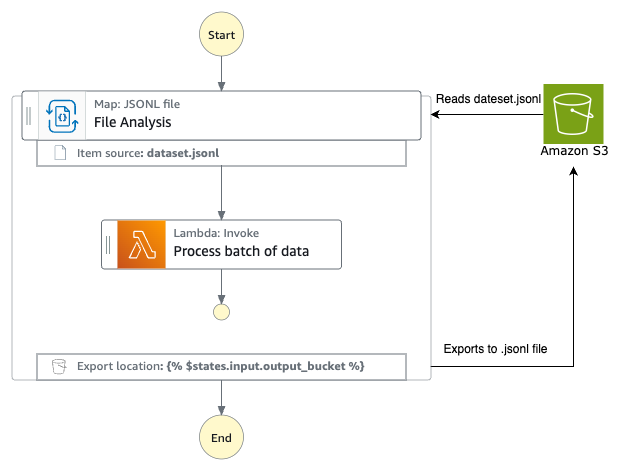
Distributed Map enables parallel processing of large-scale data by concurrently running the same processing steps for millions of entries in a dataset at the maximum scale of 10000. This is particularly useful for use cases like large scale payroll processing, image conversion, document processing and data migrations. Previously, the dataset can come from state input, JSON/CSV files in S3 and collection of S3 objects. With this new feature, the dataset can be a JSONL file in Amazon S3.

A diagram showing the AWSStep Functions workflow

The AWS Step Functions workflow

Consider an example of end-to-end GenAI batch inferencing using Amazon Bedrock. Batch inference helps you process a large number of requests efficiently by bundling them as single request and storing the results in an S3 bucket. Since both input and output are handled as JSONL files, the blog uses the scenario as an example to demonstrate the new capabilities of Distributed Map.

The diagram below shows the end-to-end flow –

  1. Step Functions workflow (Batch inference input generation worfklow) uses Distributed Map to build and bundle AI prompts for a collection of product review data. Workflow then invokes the Amazon Bedrock batch inference API.
  2. Amazon Bedrock stores the results in S3 as JSONL file when the batch inference is completed.
  3. An S3 object created event invokes the second Step Functions workflow (Batch inference output processing workflow) that processes the JSONL file and loads the results into an Amazon DynamoDB table.
Diagram showing the overall architecture for the end to end flow

Batch inferencing workflow

Introducing new output transformations through batch inference input generation workflow

The batch inference input generation workflow processes product review data in S3 using Distributed Map. Distributed Map spins multiple child workflows that generate AI prompts for sentiment analysis of each product review and exports the results of the child workflows to S3 as a JSONL file. The workflow calls Amazon Bedrock batch inference API (CreateModelInvocationJob) with the JSONL file as input upon completion of the Distributed Map state. Since the inference API operates asynchronously, the workflow completes immediately after receiving a successful response from the API.

Diagram of the AWS Step Function workflow that creates the batch process

Batch inference input generation workflow

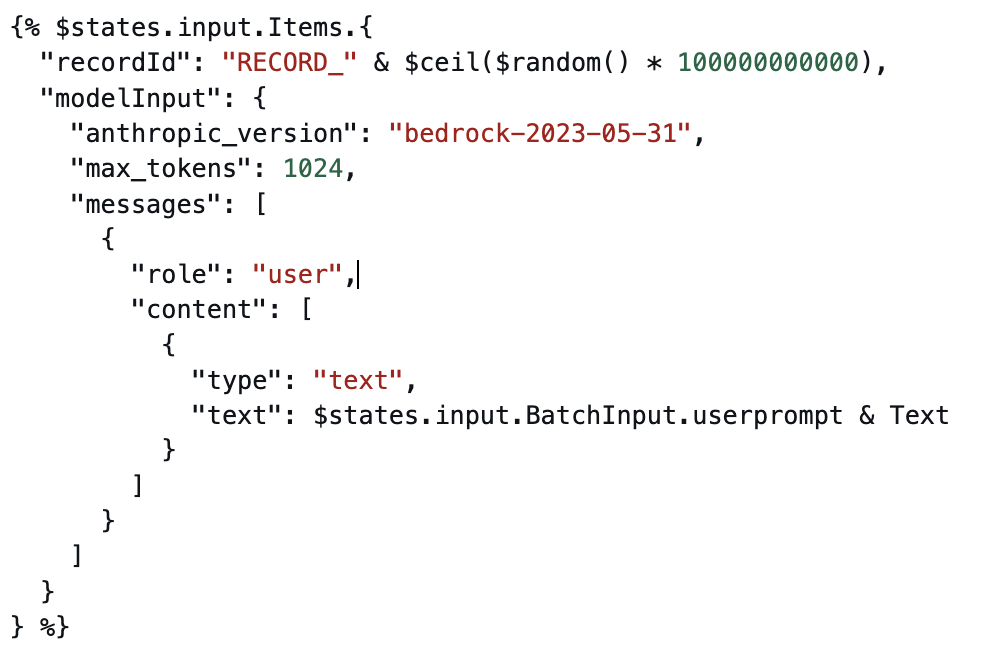
Each child workflow receives a batch of product reviews as an array. It operates on the array using Pass state to create an array of AI prompts, one for each item. The Pass state manipulates the input using JSONata expressions, generates unique recordId using JSONata numeric functions, and outputs the results in a format Amazon Bedrock expects.

JSONata transformation to generate prompts

JSONata transformation to generate prompts

Once all child workflows are complete, Distributed Map uses the new output transformations to export the outputs from child workflows to S3.

Using the new output transformations to export in JSONL format

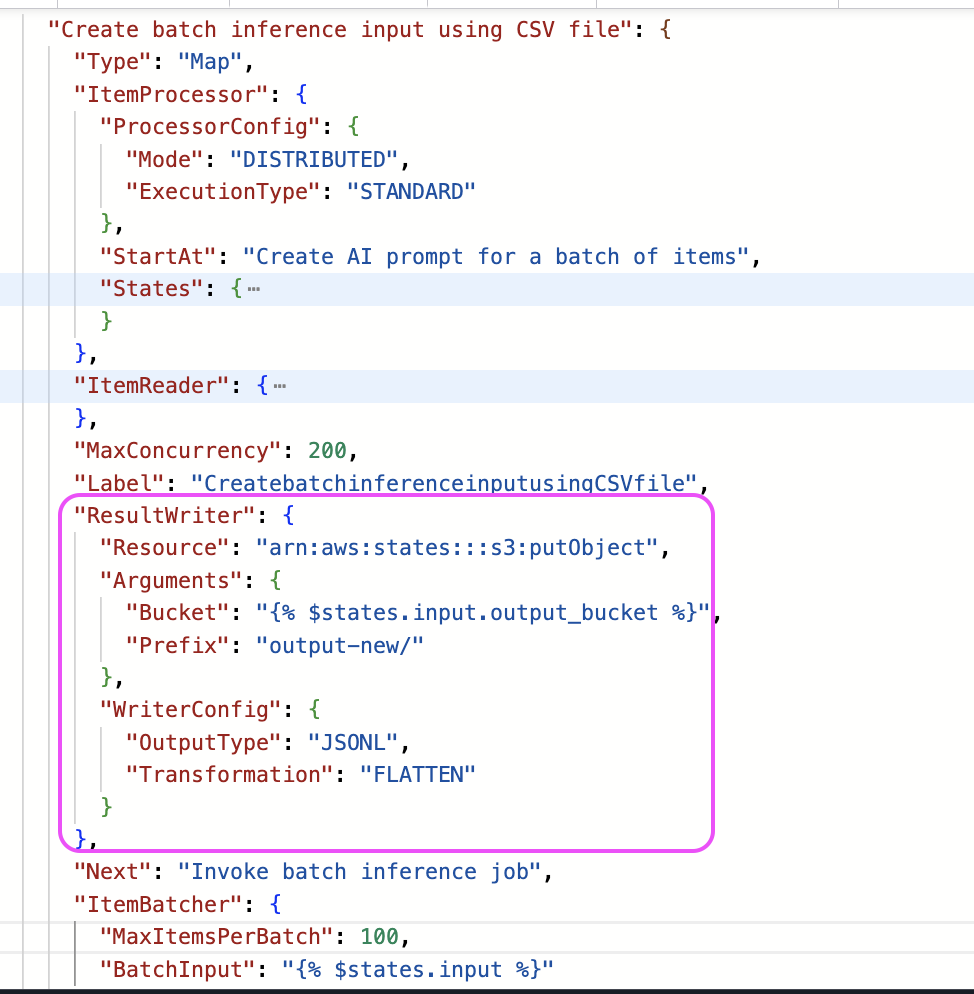
Distributed Map now offers more flexible output handling through an optional writer configuration. While it traditionally exports child workflow execution results to three separate JSON files (successful, failed, and pending), the new writer configuration streamlines the output and supports JSONL format in addition to JSON format.
The previous export option included comprehensive execution details – metadata, child workflow inputs, and outputs. The new configuration allows you to streamline output to include only the child workflow execution results, which are valuable for map/reduce patterns, where the output from one Distributed Map needs to feed directly into another without the need for additional transformation steps.

JSON structure showing the ASL for Step Functions

Output writer config for JSONL

Writer config also allows you to flatten the output array. When a child workflow processes batches of the input, it produces an array of results which will eventually become an array of arrays when the Distributed Map aggregates the outputs from all child workflows. With the new output transformation called FLATTEN, you can choose to flatten the array without additional code.

JSON examples showing the multiple arrays being flattened

Flattening output in JSONL

Introducing the new ItemReader for JSONL using batch inference output processing workflow

The second workflow processes output of the batch inference job by launching multiple child workflows using Distributed Map. Each child workflow processes batches of items, examining them for error objects and separating successful inferences from errors. The workflow then loads all successful inferences into a DynamoDB table while sending errors to a dead letter queue for subsequent analysis.

AWS Step Functions workflow architecture

Processing inference results

Using the new InputType to read the JSONL inference results

The Distributed Map in the batch inference results processing workflow uses the newly supported ItemReader-InputType, JSONL. Previously, the InputType only accepted CSV, JSON, and MANIFEST, which is an S3 Inventory manifest file.

AWS Step Functions ASL showing how to read the JSONL file

Reading JSONL file

There is no other change to how Distributed Map processes and shares data with child workflows. The Pass state in the child workflow receives batches of Items from the Map, and uses JSONata expressions to separate the errors from successful items.

AWS Step Functions ASL showing JSONata to separate processing for errors

Separating successful processing from errors

The following shows the input received by the Pass state and the output generated by the state using the above JSONata expression.

Resulting JSON showing processed records

Sample successful processing records

Using S3 events as connective tissue between the workflows

When Amazon Bedrock completes the batch inference job, it stores the output in the S3 location specified in the API request. An EventBridge rule triggers the batch inference results processing workflow using S3 event notifications. The rule looks for “Object Created” event from the specified S3 bucket and a wildcard pattern for JSONL file extension. When the rule matches the incoming event, it triggers the workflow.

JSON structure of an Amazon EventBridge rule

EventBridge rule

You can detect failed batch inference jobs by setting up EventBridge rules that listen to Amazon Bedrock status events. Since failed jobs don’t create output files in S3, monitoring status events directly ensures you catch and handle job failures.

Key considerations

  1. The new output transformations do not change the information in the FAILED execution results file in order to help you analyze the reasons for failures. To learn more about the output transformation configurations, visit the documentation.
  2. The new transformation mode FLATTEN, COMPACT stores only the output of the execution results. To inspect the results for fact checking or troubleshooting, use the default transformation.
  3. As a best practice, when implementing code changes, it’s advised to use the versioning and aliasing feature for gradual deployment of changes to production.
  4. When using Distributed Map, there is an option to configure the child workflow as either Standard or Express. Express is the recommended choice if each iteration (child workflow) can be completed within 5 minutes, and batching items will help optimize costs. To learn more about optimizations for Distributed Map, visit the workshop.

Conclusion

Step Functions Distributed Map is a powerful feature that enables developers to create large-scale data processing solutions with ease, eliminating concerns about operational aspects and software challenges like batching, concurrency, and failure handling. The addition of JSONL support for both input and output expands workload capabilities and minimizes additional effort through transformations by natively deserializing and flattening the output. This blog demonstrated the new feature’s capabilities through a practical example of building large-scale data processing applications using Distributed Map.

For more information on Distributed Map and how to use it with JSONL files, refer to the user guide.

To explore generative AI samples with Step Functions, visit the the GitiHub repo.

To expand your serverless knowledge, visit Serverless Land.

How Open Universities Australia modernized their data platform and significantly reduced their ETL costs with AWS Cloud Development Kit and AWS Step Functions

Post Syndicated from Michael Davies original https://aws.amazon.com/blogs/big-data/how-open-universities-australia-modernized-their-data-platform-and-significantly-reduced-their-etl-costs-with-aws-cloud-development-kit-and-aws-step-functions/

This is a guest post co-authored by Michael Davies from Open Universities Australia.

At Open Universities Australia (OUA), we empower students to explore a vast array of degrees from renowned Australian universities, all delivered through online learning. We offer students alternative pathways to achieve their educational aspirations, providing them with the flexibility and accessibility to reach their academic goals. Since our founding in 1993, we have supported over 500,000 students to achieve their goals by providing pathways to over 2,600 subjects at 25 universities across Australia.

As a not-for-profit organization, cost is a crucial consideration for OUA. While reviewing our contract for the third-party tool we had been using for our extract, transform, and load (ETL) pipelines, we realized that we could replicate much of the same functionality using Amazon Web Services (AWS) services such as AWS Glue, Amazon AppFlow, and AWS Step Functions. We also recognized that we could consolidate our source code (much of which was stored in the ETL tool itself) into a code repository that could be deployed using the AWS Cloud Development Kit (AWS CDK). By doing so, we had an opportunity to not only reduce costs but also to enhance the visibility and maintainability of our data pipelines.

In this post, we show you how we used AWS services to replace our existing third-party ETL tool, improving the team’s productivity and producing a significant reduction in our ETL operational costs.

Our approach

The migration initiative consisted of two main parts: building the new architecture and migrating data pipelines from the existing tool to the new architecture. Often, we would work on both in parallel, testing one component of the architecture while developing another at the same time.

From early in our migration journey, we began to define a few guiding principles that we would apply throughout the development process. These were:

  • Simple and modular – Use simple, reusable design patterns with as few moving parts as possible. Structure the code base to prioritize ease of use for developers.
  • Cost-effective – Use resources in an efficient, cost-effective way. Aim to minimize situations where resources are running idly while waiting for other processes to be completed.
  • Business continuity – As much as possible, make use of existing code rather than reinventing the wheel. Roll out updates in stages to minimize potential disruption to existing business processes.

Architecture overview

The following Diagram 1 is the high-level architecture for the solution.

Diagram 1: Overall architecture of the solution, using AWS Step Functions, Amazon Redshift and Amazon S3

The following AWS services were used to shape our new ETL architecture:

  • Amazon Redshift – A fully managed, petabyte-scale data warehouse service in the cloud. Amazon Redshift served as our central data repository, where we would store data, apply transformations, and make data available for use in analytics and business intelligence (BI). Note: The provisioned cluster itself was deployed separately from the ETL architecture and remained unchanged throughout the migration process.
  • AWS Cloud Development Kit (AWS CDK) – The AWS Cloud Development Kit (AWS CDK) is an open-source software development framework for defining cloud infrastructure in code and provisioning it through AWS CloudFormation. Our infrastructure was defined as code using the AWS CDK. As a result, we simplified the way we defined the resources we wanted to deploy while using our preferred coding language for development.
  • AWS Step Functions – With AWS Step Functions, you can create workflows, also called State machines, to build distributed applications, automate processes, orchestrate microservices, and create data and machine learning pipelines. AWS Step Functions can call over 200 AWS services including AWS Glue, AWS Lambda, and Amazon Redshift. We used the AWS Step Function state machines to define, orchestrate, and execute our data pipelines.
  • Amazon EventBridge – We used Amazon EventBridge, the serverless event bus service, to define the event-based rules and schedules that would trigger our AWS Step Functions state machines.
  • AWS Glue – A data integration service, AWS Glue consolidates major data integration capabilities into a single service. These include data discovery, modern ETL, cleansing, transforming, and centralized cataloging. It’s also serverless, which means there’s no infrastructure to manage. includes the ability to run Python scripts. We used it for executing long-running scripts, such as for ingesting data from an external API.
  • AWS Lambda – AWS Lambda is a highly scalable, serverless compute service. We used it for executing simple scripts, such as for parsing a single text file.
  • Amazon AppFlow – Amazon AppFlow enables simple integration with software as a service (SaaS) applications. We used it to define flows that would periodically load data from selected operational systems into our data warehouse.
  • Amazon Simple Storage Service (Amazon S3) – An object storage service offering industry-leading scalability, data availability, security, and performance. Amazon S3 served as our staging area, where we would store raw data prior to loading it into other services such as Amazon Redshift. We also used it as a repository for storing code that could be retrieved and used by other services.

Where practical, we made use of the file structure of our code base for defining resources. We set up our AWS CDK to refer to the contents of a specific directory and define a resource (for example, an AWS Step Functions state machine or an AWS Glue job) for each file it found in that directory. We also made use of configuration files so we could customize the attributes of specific resources as required.

Details on specific patterns

In the above architecture Diagram 1, we showed multiple flows by which data could be ingested or unloaded from our Amazon Redshift data warehouse. In this section, we highlight four specific patterns in more detail which were utilized in the final solution.

Pattern 1: Data transformation, load, and unload

Several of our data pipelines included significant data transformation steps, which were primarily performed through SQL statements executed by Amazon Redshift. Others required ingestion or unloading of data from the data warehouse, which could be performed efficiently using COPY or UNLOAD statements executed by Amazon Redshift.

In keeping with our aim of using resources efficiently, we sought to avoid running these statements from within the context of an AWS Glue job or AWS Lambda function because these processes would remain idle while waiting for the SQL statement to be completed. Instead, we opted for an approach where SQL execution tasks would be orchestrated by an AWS Step Functions state machine, which would send the statements to Amazon Redshift and periodically check their progress before marking them as either successful or failed. The following Diagram 2 shows this workflow.

Data transformation, load, and unload

Diagram 2: Data transformation, load, and unload pattern using Amazon Lambda and Amazon Redshift within an AWS Step Function

Pattern 2: Data replication using AWS Glue

In cases where we needed to replicate data from a third-party source, we used AWS Glue to run a script that would query the relevant API, parse the response, and store the relevant data in Amazon S3. From here, we used Amazon Redshift to ingest the data using a COPY statement. The following Diagram 3 shows this workflow.

Image 3: Copying from external API to Redshift with AWS Glue

Diagram 3: Copying from external API to Redshift with AWS Glue

Note: Another option for this step would be to use Amazon Redshift auto-copy, but this wasn’t available at time of development.

Pattern 3: Data replication using Amazon AppFlow

For certain applications, we were able to use Amazon AppFlow flows in place of AWS Glue jobs. As a result, we could abstract some of the complexity of querying external APIs directly. We configured our Amazon AppFlow flows to store the output data in Amazon S3, then used an EventBridge rule based on an End Flow Run Report event (which is an event which is published when a flow run is complete) to trigger a load into Amazon Redshift using a COPY statement. The following Diagram 4 shows this workflow.

By using Amazon S3 as an intermediate data store, we gave ourselves greater control over how the data was processed when it was loaded into Amazon Redshift, when compared with loading the data directly to the data warehouse using Amazon AppFlow.

Image 4: Using Amazon AppFlow to integrate external data

Diagram 4: Using Amazon AppFlow to integrate external data to Amazon S3 and copy to Amazon Redshift

Pattern 4: Reverse ETL

Although most of our workflows involve data being brought into the data warehouse from external sources, in some cases we needed the data to be exported to external systems instead. This way, we could run SQL queries with complex logic drawing on multiple data sources and use this logic to support operational requirements, such as identifying which groups of students should receive specific communications.

In this flow, shown in the following Diagram 5, we start by running an UNLOAD statement in Amazon Redshift to unload the relevant data to files in Amazon S3. From here, each file is processed by an AWS Lambda function, which performs any necessary transformations and sends the data to the external application through one or more API calls.

Image 5: Reverse ETL workflow, sending data back out to external data sources

Diagram 5: Reverse ETL workflow, sending data back out to external data sources

Outcomes

The re-architecture and migration process took 5 months to complete, from the initial concept to the successful decommissioning of the previous third-party tool. Most of the architectural effort was completed by a single full-time employee, with others on the team primarily assisting with the migration of pipelines to the new architecture.

We achieved significant cost reductions, with final expenses on AWS native services representing only a small percentage of projected costs compared to continuing with the third-party ETL tool. Moving to a code-based approach also gave us greater visibility of our pipelines and made the process of maintaining them quicker and easier. Overall, the transition was seamless for our end users, who were able to view the same data and dashboards both during and after the migration, with minimal disruption along the way.

Conclusion

By using the scalability and cost-effectiveness of AWS services, we were able to optimize our data pipelines, reduce our operational costs, and improve our agility.

Pete Allen, an analytics engineer from Open Universities Australia, says, “Modernizing our data architecture with AWS has been transformative. Transitioning from an external platform to an in-house, code-based analytics stack has vastly improved our scalability, flexibility, and performance. With AWS, we can now process and analyze data with much faster turnaround, lower costs, and higher availability, enabling rapid development and deployment of data solutions, leading to deeper insights and better business decisions.”

Additional resources


About the Authors

Michael Davies is a Data Engineer at OUA. He has extensive experience within the education industry, with a particular focus on building robust and efficient data architecture and pipelines.

Emma Arrigo is a Solutions Architect at AWS, focusing on education customers across Australia. She specializes in leveraging cloud technology and machine learning to address complex business challenges in the education sector. Emma’s passion for data extends beyond her professional life, as evidenced by her dog named Data.

Serverless ICYMI Q4 2024

Post Syndicated from Eric Johnson original https://aws.amazon.com/blogs/compute/serverless-icymi-q4-2024/

Welcome to the 27th edition of the AWS Serverless ICYMI (in case you missed it) quarterly recap. At the end of a quarter, we share the most recent product launches, feature enhancements, blog posts, webinars, live streams, and other interesting things that you might have missed!

In case you missed our last ICYMI, check out what happened in Q2 here.

Calendar showing October through December 2024

2024 Q4 calender

Serverless at re:Invent 2024

AWS re:Invent 2024 had 60,000 in-person attendees and 400,000 online viewers for the keynotes. The conference delivered 1,900 sessions from 3,500 speakers and included 546 AWS service and feature announcements.

The serverless content consisted of two tracks: Serverless (SVS) and App Integration (API). These tracks included 70 unique sessions and attracted nearly 11,000 attendees. Serverlesspresso, the coffee shop powered by serverless technology, operated in two locations during the event: the Expo Hall and the certification lounge.

Crowd of people standing around the AWS reI:nvent expo hall waiting to order coffee at the Serverlesspresso booth.

Serverlesspresso booth in the expo hall

Videos are available on Serverless Land YouTube.

AWS Lambda and Amazon Elastic Container Service (Amazon ECS) 10-year anniversary.

AWS marked significant milestones in serverless computing, celebrating 10 years of AWS Lambda and Amazon ECS. Lambda now serves over 1.5 million monthly customers and processes tens of trillions of requests each month. Amazon ECS launches more than 2.4 billion container tasks weekly and is used by over 65% of new AWS container customers.

AWS is commemorating this anniversary with insights from AWS Serverless Heroes, product leads, principal engineers, and AWS leadership sharing their perspectives on serverless evolution and future directions. These stories and insights are available at https://aws.amazon.com/serverless/10th-anniversary/.

AWS Lambda

The AWS Lambda team has spent a significant amount of time improving the Lambda development experience. Several enhancements have been made in the console as well as the local development experience.

Screen capture of the new AWS Lambda console with Code-OSS

Code-OSS as the new AWS Lambda inline editor

Lambda has launched a significant upgrade to its console by integrating Code-OSS, the open-source version of Visual Studio Code, delivering a familiar development experience directly in the cloud. The new Lambda Code Editor supports viewing larger function packages up to 50 MB, features a split-screen interface for simultaneous code editing and testing, and includes built-in Amazon Q Developer AI assistance for real-time coding suggestions. This enhancement comes at no additional cost and prioritizes accessibility with features like screen reader support and keyboard navigation. The update bridges the gap between cloud and local development by simplifying the process of downloading function code and AWS SAM templates, ultimately providing developers with a more streamlined and familiar serverless development experience. Watch the video explaining the changes in detail.

Additionally, the Lambda console enhances developer experience with two new features: a built-in CloudWatch Metrics Insights dashboard that surfaces key function metrics, and CloudWatch Logs Live Tail support for real-time log streaming and analysis, enabling faster troubleshooting without leaving the Lambda environment.

Screen capture of the new top 10 functions in the new AWS Lambda console

Top 10 Functions

Lambda now supports native JSON structured logging for .NET managed runtime applications, improving log searchability and analysis capabilities without requiring manual configuration of logging libraries.

Lambda has expanded its runtime support by adding Python 3.13 and Node.js 22 as both managed runtimes and container base images, providing access to the latest language features and ensuring long-term support through October 2029 and April 2027, respectively.

Lambda SnapStart capability is now available for Python and .NET runtimes, delivering sub-second startup performance for latency-sensitive applications by caching initialized execution environments.

Diagram of how SnapStart works compared to not having SnapStart

SnapStart support comparison

New CloudWatch metrics for Lambda Event Source Mappings provide enhanced visibility into event processing states for Amazon Simple Queue Service (SQS), Amazon Kinesis, and Amazon DynamoDB event sources, helping customers monitor and troubleshoot event processing issues.

Lambda introduces Provisioned Mode for Kafka event source mappings, allowing customers to optimize throughput by configuring dedicated event polling resources for applications with stringent performance requirements.

Finally, Lambda introduces an enhanced local development experience through the AWS Toolkit for Visual Studio Code, streamlining the serverless application development workflow. The update features a new Application Builder interface that guides developers through environment setup, offers sample applications, and provides quick-action buttons for common tasks like build, deploy, and invoke operations. Developers can now efficiently iterate on their code with features such as configurable build settings, step-through debugging, and the ability to sync local changes quickly to the cloud or perform full deployments. The toolkit integrates with AWS Infrastructure Composer for visual application building and includes comprehensive local testing capabilities with shareable test events. This enhancement simplifies the Lambda development process by enabling developers to author, test, debug, and deploy serverless applications without leaving their preferred IDE environment.

Screen capture of the getting started experience for serverless in a local IDE

Local IDE getting started

Amazon ECS and AWS Fargate

AWS enhances observability for containerized applications with CloudWatch Application Signals for Amazon ECS, adding infrastructure metrics correlation to existing traces and logs monitoring, enabling operators to identify and resolve performance issues across their application stack.

Amazon ECS adds service revision and deployment history tracking, allowing customers to monitor changes, track ongoing deployments, and debug deployment failures for long-running applications deployed after October 25, 2024.

A graph explaining the flow for service order and history

Service revisions and deployment history

Amazon ECS expands testing capabilities by supporting network fault injection experiments on AWS Fargate through AWS Fault Injection Service, enabling developers to verify application resilience using six different types of fault injection actions, including network disruptions and resource stress testing.

Amazon EventBridge

Amazon EventBridge announces significant performance improvements, reducing end-to-end latency by up to 94% from 2,235ms to 129.33ms at P99, enabling faster event processing for time-sensitive applications like fraud detection and gaming.

Amazon EventBridge and AWS Step Functions now integrate with private APIs through AWS PrivateLink and Amazon VPC Lattice, enabling secure connectivity between cloud and on-premises applications without custom networking code.

Screen capture of the Amazon EventBridge create connection screen showing the new Private option

Connections to Private APIs

EventBridge API destinations introduces proactive OAuth token refresh for public and private authorization endpoints, helping prevent delays and errors by automatically refreshing tokens before expiration.

AWS Step Functions

AWS Step Functions introduces the ability to export workflows as CloudFormation or SAM templates directly from the AWS console, enabling repeatable provisioning across accounts. Developers can export and customize templates from existing workflows, and use AWS Infrastructure Composer to visually connect workflows with other AWS resources.

Step Functions also adds Variables and JSONata support to enhance workflow development. Variables allow data assignment and reference between states, simplifying payload management, while JSONata provides advanced data transformation capabilities, including date formatting and mathematical operations. These features reduce the need for custom code and intermediate states, making it easier to build distributed serverless applications. Watch the in depth video to learn more.

Screen capture of AWS Step Function workflow studio using JSONata and variables in an example

JSONata and variables

Amazon Kinesis

Amazon Kinesis introduces significant updates to its client libraries. The new Kinesis Client Library (KCL) 3.0 reduces compute costs by up to 33% through enhanced load balancing, while the Kinesis Producer Library (KPL) 1.0 improves performance and security. Both libraries now support AWS SDK for Java 2.x and eliminate dependencies on SDK for Java 1.x, enabling seamless upgrades without requiring application code changes.

Screen capture of CPU usage metrics

KCL 3.0 metrics

Amazon MQ

Amazon MQ adds support for AWS PrivateLink, enabling customers to access Amazon MQ API endpoints directly from their VPC through interface VPC endpoints, eliminating the need for internet access and providing enhanced security through AWS’s internal network infrastructure.

Amazon Finch

AWS announces general availability of Linux support for Finch, an open source container development tool that simplifies building, running, and publishing Linux containers across all major operating systems. The release includes support for the Finch Daemon with Docker API compatibility and is available through RPM packages for Amazon Linux 2 and Amazon Linux 2023.

Amazon Simple Queue Service (SQS)

Amazon SQS increases the in-flight message limit for FIFO queues from 20,000 to 120,000 messages, enabling higher concurrent message processing. This enhancement allows customers to scale their receivers and process up to six times more messages simultaneously, provided they have sufficient publish throughput.

Amazon Managed Streaming for Apache Kafka(Amazon MSK)

Amazon MSK now introduces Managed Streaming for Apache Flink blueprints to simplify real-time AI application development. The service enables vector-embedding generation through Amazon Bedrock, streamlining the integration of streaming data with generative AI models. Using a straightforward configuration process, users can generate and index vector embeddings in Amazon OpenSearch, while leveraging LangChain’s data chunking capabilities for enhanced data retrieval efficiency. The service handles all integration aspects between MSK, embedding models, and Amazon OpenSearch vector stores.

AWS Amplify

AWS Amplify launches the Amplify AI kit for Amazon Bedrock, providing fullstack developers with tools to integrate AI capabilities into web applications. The kit includes a customizable React UI component, secure Bedrock access, and context-sharing features, enabling developers to implement chat, search, and summarization functionalities without machine learning expertise.

AWS AppSync

AWS AppSync launches AppSync Events, enabling developers to broadcast real-time data to multiple subscribers through serverless WebSocket APIs. The service eliminates the need to build and manage WebSocket infrastructure while providing secure, scalable event broadcasting capabilities. Developers can create APIs that automatically scale and integrate with services like Amazon EventBridge. The system supports features such as channel namespaces, event handlers, and multiple authorization modes, and is available in all regions where AWS AppSync operates. Users only pay for API operations and real-time connection minutes used.

Screen capture from the AWS AppSync console to create a new Event API.

Creating an AppSunc Event API

Amazon API Gateway

Amazon API Gateway released a significant enhancement to Amazon API Gateway, enabling customers to manage private REST APIs using custom private DNS names. This highly requested feature allows API providers to use user-friendly domain names like private.example.com, while maintaining TLS encryption for security. The implementation process involves creating a private custom domain, configuring certificates through AWS Certificate Manager (ACM), mapping private APIs, and setting resource policies. The feature supports cross-account sharing through AWS Resource Access Manager (AWS RAM) and is now available in all AWS Regions, including AWS GovCloud (US).

Serverless blog posts

October

November

Serverless Office Hours

Image from YouTube from the latest four Serverless Office Hours

Serverless office hours videos

October

November

Still looking for more?

The Serverless landing page has more information. The Lambda resources page contains case studies, webinars, whitepapers, customer stories, reference architectures, and even more Getting Started tutorials.

You can also follow the Serverless Developer Advocacy team on X (formerly Twitter) to see the latest news, follow conversations, and interact with the team.

And finally, visit the Serverless Land  for all your serverless needs.

Building end-to-end data lineage for one-time and complex queries using Amazon Athena, Amazon Redshift, Amazon Neptune and dbt

Post Syndicated from Nancy Wu original https://aws.amazon.com/blogs/big-data/building-end-to-end-data-lineage-for-one-time-and-complex-queries-using-amazon-athena-amazon-redshift-amazon-neptune-and-dbt/

One-time and complex queries are two common scenarios in enterprise data analytics. One-time queries are flexible and suitable for instant analysis and exploratory research. Complex queries, on the other hand, refer to large-scale data processing and in-depth analysis based on petabyte-level data warehouses in massive data scenarios. These complex queries typically involve data sources from multiple business systems, requiring multilevel nested SQL or associations with numerous tables for highly sophisticated analytical tasks.

However, combining the data lineage of these two query types presents several challenges:

  1. Diversity of data sources
  2. Varying query complexity
  3. Inconsistent granularity in lineage tracking
  4. Different real-time requirements
  5. Difficulties in cross-system integration

Moreover, maintaining the accuracy and completeness of lineage information while providing system performance and scalability are crucial considerations. Addressing these challenges requires a carefully designed architecture and advanced technical solutions.

Amazon Athena offers serverless, flexible SQL analytics for one-time queries, enabling direct querying of Amazon Simple Storage Service (Amazon S3) data for rapid, cost-effective instant analysis. Amazon Redshift, optimized for complex queries, provides high-performance columnar storage and massively parallel processing (MPP) architecture, supporting large-scale data processing and advanced SQL capabilities. Amazon Neptune, as a graph database, is ideal for data lineage analysis, offering efficient relationship traversal and complex graph algorithms to handle large-scale, intricate data lineage relationships. The combination of these three services provides a powerful, comprehensive solution for end-to-end data lineage analysis.

In the context of comprehensive data governance, Amazon DataZone offers organization-wide data lineage visualization using Amazon Web Services (AWS) services, while dbt provides project-level lineage through model analysis and supports cross-project integration between data lakes and warehouses.

In this post, we use dbt for data modeling on both Amazon Athena and Amazon Redshift. dbt on Athena supports real-time queries, while dbt on Amazon Redshift handles complex queries, unifying the development language and significantly reducing the technical learning curve. Using a single dbt modeling language not only simplifies the development process but also automatically generates consistent data lineage information. This approach offers robust adaptability, easily accommodating changes in data structures.

By integrating Amazon Neptune graph database to store and analyze complex lineage relationships, combined with AWS Step Functions and AWS Lambda functions, we achieve a fully automated data lineage generation process. This combination promotes consistency and completeness of lineage data while enhancing the efficiency and scalability of the entire process. The result is a powerful and flexible solution for end-to-end data lineage analysis.

Architecture overview

The experiment’s context involves a customer already using Amazon Athena for one-time queries. To better accommodate massive data processing and complex query scenarios, they aim to adopt a unified data modeling language across different data platforms. This led to the implementation of both Athena on dbt and Amazon Redshift on dbt architectures.

AWS Glue crawler crawls data lake information from Amazon S3, generating a Data Catalog to support dbt on Amazon Athena data modeling. For complex query scenarios, AWS Glue performs extract, transform, and load (ETL) processing, loading data into the petabyte-scale data warehouse, Amazon Redshift. Here, data modeling uses dbt on Amazon Redshift.

Lineage data original files from both parts are loaded into an S3 bucket, providing data support for end-to-end data lineage analysis.

The following image is the architecture diagram for the solution.

Figure 1-Architecture diagram of DBT modeling based on Athena and Redshift

Some important considerations:

This experiment uses the following data dictionary:

Source table Tool Target table
imdb.name_basics DBT/Athena stg_imdb__name_basics
imdb.title_akas DBT/Athena stg_imdb__title_akas
imdb.title_basics DBT/Athena stg_imdb__title_basics
imdb.title_crew DBT/Athena stg_imdb__title_crews
imdb.title_episode DBT/Athena stg_imdb__title_episodes
imdb.title_principals DBT/Athena stg_imdb__title_principals
imdb.title_ratings DBT/Athena stg_imdb__title_ratings
stg_imdb__name_basics DBT/Redshift new_stg_imdb__name_basics
stg_imdb__title_akas DBT/Redshift new_stg_imdb__title_akas
stg_imdb__title_basics DBT/Redshift new_stg_imdb__title_basics
stg_imdb__title_crews DBT/Redshift new_stg_imdb__title_crews
stg_imdb__title_episodes DBT/Redshift new_stg_imdb__title_episodes
stg_imdb__title_principals DBT/Redshift new_stg_imdb__title_principals
stg_imdb__title_ratings DBT/Redshift new_stg_imdb__title_ratings
new_stg_imdb__name_basics DBT/Redshift int_primary_profession_flattened_from_name_basics
new_stg_imdb__name_basics DBT/Redshift int_known_for_titles_flattened_from_name_basics
new_stg_imdb__name_basics DBT/Redshift names
new_stg_imdb__title_akas DBT/Redshift titles
new_stg_imdb__title_basics DBT/Redshift int_genres_flattened_from_title_basics
new_stg_imdb__title_basics DBT/Redshift titles
new_stg_imdb__title_crews DBT/Redshift int_directors_flattened_from_title_crews
new_stg_imdb__title_crews DBT/Redshift int_writers_flattened_from_title_crews
new_stg_imdb__title_episodes DBT/Redshift titles
new_stg_imdb__title_principals DBT/Redshift titles
new_stg_imdb__title_ratings DBT/Redshift titles
int_known_for_titles_flattened_from_name_basics DBT/Redshift titles
int_primary_profession_flattened_from_name_basics DBT/Redshift
int_directors_flattened_from_title_crews DBT/Redshift names
int_genres_flattened_from_title_basics DBT/Redshift genre_titles
int_writers_flattened_from_title_crews DBT/Redshift names
genre_titles DBT/Redshift
names DBT/Redshift
titles DBT/Redshift

The lineage data generated by dbt on Athena includes partial lineage diagrams, as exemplified in the following images. The first image shows the lineage of name_basics in dbt on Athena. The second image shows the lineage of title_crew in dbt on Athena.

Figure 3-Lineage of name_basics in DBT on Athena

Figure 4-Lineage of title_crew in DBT on Athena

The lineage data generated by dbt on Amazon Redshift includes partial lineage diagrams, as illustrated in the following image.

Figure 5-Lineage of name_basics and title_crew in DBT on Redshift

Referring to the data dictionary and screenshots, it’s evident that the complete data lineage information is highly dispersed, spread across 29 lineage diagrams. Understanding the end-to-end comprehensive view requires significant time. In real-world environments, the situation is often more complex, with complete data lineage potentially distributed across hundreds of files. Consequently, integrating a complete end-to-end data lineage diagram becomes crucial and challenging.

This experiment will provide a detailed introduction to processing and merging data lineage files stored in Amazon S3, as illustrated in the following diagram.

Figure 6-Merging data lineage from Athena and Redshift into Neptune

Prerequisites

To perform the solution, you need to have the following prerequisites in place:

  • The Lambda function for preprocessing lineage files must have permissions to access Amazon S3 and Amazon Redshift.
  • The Lambda function for constructing the directed acyclic graph (DAG) must have permissions to access Amazon S3 and Amazon Neptune.

Solution walkthrough

To perform the solution, follow the steps in the next sections.

Preprocess raw lineage data for DAG generation using Lambda functions

Use Lambda to preprocess the raw lineage data generated by dbt, converting it into key-value pair JSON files that are easily understood by Neptune: athena_dbt_lineage_map.json and redshift_dbt_lineage_map.json.

  1. To create a new Lambda function in the Lambda console, enter a Function name, select the Runtime (Python in this example), configure the Architecture and Execution role, then click the “Create function” button.

Figure 7-Basic configuration of athena-data-lineage-process Lambda

  1. Open the created Lambda function and on the Configuration tab, in the navigation pane, select Environment variables and choose your configurations. Using Athena on dbt processing as an example, configure the environment variables as follows (the process for Amazon Redshift on dbt is similar):
    • INPUT_BUCKET: data-lineage-analysis-24-09-22 (replace with the S3 bucket path storing the original Athena on dbt lineage files)
    • INPUT_KEY: athena_manifest.json (the original Athena on dbt lineage file)
    • OUTPUT_BUCKET: data-lineage-analysis-24-09-22 (replace with the S3 bucket path for storing the preprocessed output of Athena on dbt lineage files)
    • OUTPUT_KEY: athena_dbt_lineage_map.json (the output file after preprocessing the original Athena on dbt lineage file)

Figure 8-Environment variable configuration for athena-data-lineage-process-Lambda

  1. On the Code tab, in the lambda_function.py file, enter the preprocessing code for the raw lineage data. Here’s a code reference using Athena on dbt processing as an example (the process for Amazon Redshift on dbt is similar). The preprocessing code for Athena on dbt’s original lineage file is as follows:

The athena_manifest.json, redshift_manifest.json, and other files used in this experiment can be obtained from the Data Lineage Graph Construction GitHub repository.

import json
import boto3
import os

def lambda_handler(event, context):
    # Set up S3 client
    s3 = boto3.client('s3')

    # Get input and output paths from environment variables
    input_bucket = os.environ['INPUT_BUCKET']
    input_key = os.environ['INPUT_KEY']
    output_bucket = os.environ['OUTPUT_BUCKET']
    output_key = os.environ['OUTPUT_KEY']

    # Define helper function
    def dbt_nodename_format(node_name):
        return node_name.split(".")[-1]

    # Read input JSON file from S3
    response = s3.get_object(Bucket=input_bucket, Key=input_key)
    file_content = response['Body'].read().decode('utf-8')
    data = json.loads(file_content)
    lineage_map = data["child_map"]
    node_dict = {}
    dbt_lineage_map = {}

    # Process data
    for item in lineage_map:
        lineage_map[item] = [dbt_nodename_format(child) for child in lineage_map[item]]
        node_dict[item] = dbt_nodename_format(item)

    # Update key names
    lineage_map = {node_dict[old]: value for old, value in lineage_map.items()}
    dbt_lineage_map["lineage_map"] = lineage_map

    # Convert result to JSON string
    result_json = json.dumps(dbt_lineage_map)

    # Write JSON string to S3
    s3.put_object(Body=result_json, Bucket=output_bucket, Key=output_key)
    print(f"Data written to s3://{output_bucket}/{output_key}")

    return {
        'statusCode': 200,
        'body': json.dumps('Athena data lineage processing completed successfully')
    }

Merge preprocessed lineage data and write to Neptune using Lambda functions

  1. Before processing data with the Lambda function, create a Lambda layer by uploading the required Gremlin plugin. For detailed steps on creating and configuring Lambda Layers, see the AWS Lambda Layers documentation.

Because connecting Lambda to Neptune for constructing a DAG requires the Gremlin plugin, it needs to be uploaded before using Lambda. The Gremlin package can be obtained from the Data Lineage Graph Construction GitHub repository.

Figure 9-Lambda layers

  1. Create a new Lambda function. Choose the function to configure. To the recently created layer, at the bottom of the page, choose Add a layer.

Figure 10_Add a layer

Create another Lambda layer for the requests library, similar to how you created the layer for the Gremlin plugin. This library will be used for HTTP client functionality in the Lambda function.

  1. Choose the recently created Lambda function to configure. Connect to Neptune through Lambda to merge the two datasets and construct a DAG. On the Code tab, the reference code to execute is as follows:
import json
import boto3
import os
import requests
from botocore.auth import SigV4Auth
from botocore.awsrequest import AWSRequest
from botocore.credentials import get_credentials
from botocore.session import Session
from concurrent.futures import ThreadPoolExecutor, as_completed

def read_s3_file(s3_client, bucket, key):
    try:
        response = s3_client.get_object(Bucket=bucket, Key=key)
        data = json.loads(response['Body'].read().decode('utf-8'))
        return data.get("lineage_map", {})
    except Exception as e:
        print(f"Error reading S3 file {bucket}/{key}: {str(e)}")
        raise

def merge_data(athena_data, redshift_data):
    return {**athena_data, **redshift_data}

def sign_request(request):
    credentials = get_credentials(Session())
    auth = SigV4Auth(credentials, 'neptune-db', os.environ['AWS_REGION'])
    auth.add_auth(request)
    return dict(request.headers)

def send_request(url, headers, data):
    try:
        response = requests.post(url, headers=headers, data=data, timeout=30)
        response.raise_for_status()
        return response.text
    except requests.exceptions.RequestException as e:
        print(f"Request Error: {str(e)}")
        if hasattr(e.response, 'text'):
            print(f"Response content: {e.response.text}")
        raise

def write_to_neptune(data):
    endpoint = 'https://your neptune endpoint name:8182/gremlin'
    # replace with your neptune endpoint name

    # Clear Neptune database
    clear_query = "g.V().drop()"
    request = AWSRequest(method='POST', url=endpoint, data=json.dumps({'gremlin': clear_query}))
    signed_headers = sign_request(request)
    response = send_request(endpoint, signed_headers, json.dumps({'gremlin': clear_query}))
    print(f"Clear database response: {response}")

    # Verify if the database is empty
    verify_query = "g.V().count()"
    request = AWSRequest(method='POST', url=endpoint, data=json.dumps({'gremlin': verify_query}))
    signed_headers = sign_request(request)
    response = send_request(endpoint, signed_headers, json.dumps({'gremlin': verify_query}))
    print(f"Vertex count after clearing: {response}")
    
    def process_node(node, children):
        # Add node
        query = f"g.V().has('lineage_node', 'node_name', '{node}').fold().coalesce(unfold(), addV('lineage_node').property('node_name', '{node}'))"
        request = AWSRequest(method='POST', url=endpoint, data=json.dumps({'gremlin': query}))
        signed_headers = sign_request(request)
        response = send_request(endpoint, signed_headers, json.dumps({'gremlin': query}))
        print(f"Add node response for {node}: {response}")

        for child_node in children:
            # Add child node
            query = f"g.V().has('lineage_node', 'node_name', '{child_node}').fold().coalesce(unfold(), addV('lineage_node').property('node_name', '{child_node}'))"
            request = AWSRequest(method='POST', url=endpoint, data=json.dumps({'gremlin': query}))
            signed_headers = sign_request(request)
            response = send_request(endpoint, signed_headers, json.dumps({'gremlin': query}))
            print(f"Add child node response for {child_node}: {response}")

            # Add edge
            query = f"g.V().has('lineage_node', 'node_name', '{node}').as('a').V().has('lineage_node', 'node_name', '{child_node}').coalesce(inE('lineage_edge').where(outV().as('a')), addE('lineage_edge').from('a').property('edge_name', ' '))"
            request = AWSRequest(method='POST', url=endpoint, data=json.dumps({'gremlin': query}))
            signed_headers = sign_request(request)
            response = send_request(endpoint, signed_headers, json.dumps({'gremlin': query}))
            print(f"Add edge response for {node} -> {child_node}: {response}")

    with ThreadPoolExecutor(max_workers=10) as executor:
        futures = [executor.submit(process_node, node, children) for node, children in data.items()]
        for future in as_completed(futures):
            try:
                future.result()
            except Exception as e:
                print(f"Error in processing node: {str(e)}")

def lambda_handler(event, context):
    # Initialize S3 client
    s3_client = boto3.client('s3')

    # S3 bucket and file paths
    bucket_name = 'data-lineage-analysis' # Replace with your S3 bucket name
    athena_key = 'athena_dbt_lineage_map.json' # Replace with your athena lineage key value output json name
    redshift_key = 'redshift_dbt_lineage_map.json' # Replace with your redshift lineage key value output json name

    try:
        # Read Athena lineage data
        athena_data = read_s3_file(s3_client, bucket_name, athena_key)
        print(f"Athena data size: {len(athena_data)}")

        # Read Redshift lineage data
        redshift_data = read_s3_file(s3_client, bucket_name, redshift_key)
        print(f"Redshift data size: {len(redshift_data)}")

        # Merge data
        combined_data = merge_data(athena_data, redshift_data)
        print(f"Combined data size: {len(combined_data)}")

        # Write to Neptune (including clearing the database)
        write_to_neptune(combined_data)

        return {
            'statusCode': 200,
            'body': json.dumps('Data successfully written to Neptune')
        }
    except Exception as e:
        print(f"Error in lambda_handler: {str(e)}")
        return {
            'statusCode': 500,
            'body': json.dumps(f'Error: {str(e)}')
        }

Create Step Functions workflow

  1. On the Step Functions console, choose State machines, and then choose Create state machine. On the Choose a template page, select Blank template.

Figure 11-Step Functions blank template

  1. In the Blank template, choose Code to define your state machine. Use the following example code:
{
  "Comment": "Daily Data Lineage Processing Workflow",
  "StartAt": "Parallel Processing",
  "States": {
    "Parallel Processing": {
      "Type": "Parallel",
      "Branches": [
        {
          "StartAt": "Process Athena Data",
          "States": {
            "Process Athena Data": {
              "Type": "Task",
              "Resource": "arn:aws:states:::lambda:invoke",
              "Parameters": {
                "FunctionName": "athena-data-lineange-process-Lambda", ##Replace with your Athena data lineage process Lambda function name
                "Payload": {
                  "input.$": "$"
                }
              },
              "End": true
            }
          }
        },
        {
          "StartAt": "Process Redshift Data",
          "States": {
            "Process Redshift Data": {
              "Type": "Task",
              "Resource": "arn:aws:states:::lambda:invoke",
              "Parameters": {
                "FunctionName": "redshift-data-lineange-process-Lambda", ##Replace with your Redshift data lineage process Lambda function name
                "Payload": {
                  "input.$": "$"
                }
              },
              "End": true
            }
          }
        }
      ],
      "Next": "Load Data to Neptune"
    },
    "Load Data to Neptune": {
      "Type": "Task",
      "Resource": "arn:aws:states:::lambda:invoke",
      "Parameters": {
        "FunctionName": "data-lineage-analysis-lambda" ##Replace with your Lambda function Name
      },
      "End": true
    }
  }
}
  1. After completing the configuration, choose the Design tab to view the workflow shown in the following diagram.

Figure 12-Step Functions design view

Create scheduling rules with Amazon EventBridge

Configure Amazon EventBridge to generate lineage data daily during off-peak business hours. To do this:

  1. Create a new rule in the EventBridge console with a descriptive name.
  2. Set the rule type to “Schedule” and configure it to run once daily (using either a fixed rate or the Cron expression “0 0 * * ? *”).
  3. Select the AWS Step Functions state machine as the target and specify the state machine you created earlier.

Query results in Neptune

  1. On the Neptune console, select Notebooks. Open an existing notebook or create a new one.

Figure 13-Neptune notebook

  1. In the notebook, create a new code cell to perform a query. The following code example shows the query statement and its results:
%%gremlin -d node_name -de edge_name
g.V().hasLabel('lineage_node').outE('lineage_edge').inV().hasLabel('lineage_node').path().by(elementMap())

You can now see the end-to-end data lineage graph information for both dbt on Athena and dbt on Amazon Redshift. The following image shows the merged DAG data lineage graph in Neptune.

Figure 14-Merged DAG data lineage graph in Neptune

You can query the generated data lineage graph for data related to a specific table, such as title_crew.

The sample query statement and its results are shown in the following code example:

%%gremlin -d node_name -de edge_name
g.V().has('lineage_node', 'node_name', 'title_crew')
  .repeat(
    union(
      __.inE('lineage_edge').outV(),
      __.outE('lineage_edge').inV()
    )
  )
  .until(
    __.has('node_name', within('names', 'genre_titles', 'titles'))
    .or()
    .loops().is(gt(10))
  )
  .path()
  .by(elementMap())

The following image shows the filtered results based on title_crew table in Neptune.

Figure 15-Filtered results based on title_crew table in Neptune

Clean up

To clean up your resources, complete the following steps:

  1. Delete EventBridge rules
# Stop new events from triggering while removing dependencies
aws events disable-rule --name <rule-name>
# Break connections between rule and targets (like Lambda functions)
aws events remove-targets --rule <rule-name> --ids <target-id>
# Remove the rule completely from EventBridge
aws events delete-rule --name <rule-name>
  1. Delete Step Functions state machine
# Stop all running executions
aws stepfunctions stop-execution --execution-arn <execution-arn>
# Delete the state machine
aws stepfunctions delete-state-machine --state-machine-arn <state-machine-arn>
  1. Delete Lambda functions
# Delete Lambda function
aws lambda delete-function --function-name <function-name>
# Delete Lambda layers (if used)
aws lambda delete-layer-version --layer-name <layer-name> --version-number <version>
  1. Clean up the Neptune database
# Delete all snapshots
aws neptune delete-db-cluster-snapshot --db-cluster-snapshot-identifier <snapshot-id>
# Delete database instance
aws neptune delete-db-instance --db-instance-identifier <instance-id> --skip-final-snapshot
# Delete database cluster
aws neptune delete-db-cluster --db-cluster-identifier <cluster-id> --skip-final-snapshot
  1. Follow the instructions at Deleting a single object to clean up the S3 buckets

Conclusion

In this post, we demonstrated how dbt enables unified data modeling across Amazon Athena and Amazon Redshift, integrating data lineage from both one-time and complex queries. By using Amazon Neptune, this solution provides comprehensive end-to-end lineage analysis. The architecture uses AWS serverless computing and managed services, including Step Functions, Lambda, and EventBridge, providing a highly flexible and scalable design.

This approach significantly lowers the learning curve through a unified data modeling method while enhancing development efficiency. The end-to-end data lineage graph visualization and analysis not only strengthen data governance capabilities but also offer deep insights for decision-making.

The solution’s flexible and scalable architecture effectively optimizes operational costs and improves business responsiveness. This comprehensive approach balances technical innovation, data governance, operational efficiency, and cost-effectiveness, thus supporting long-term business growth with the adaptability to meet evolving enterprise needs.

With OpenLineage-compatible data lineage now generally available in Amazon DataZone, we plan to explore integration possibilities to further enhance the system’s capability to handle complex data lineage analysis scenarios.

If you have any questions, please feel free to leave a comment in the comments section.


About the authors

nancynwu+photo

Nancy Wu is a Solutions Architect at AWS, responsible for cloud computing architecture consulting and design for multinational enterprise customers. Has many years of experience in big data, enterprise digital transformation research and development, consulting, and project management across telecommunications, entertainment, and financial industries.

Xu+Feng+PhotoXu Feng is a Senior Industry Solution Architect at AWS, responsible for designing, building, and promoting industry solutions for the Media & Entertainment and Advertising sectors, such as intelligent customer service and business intelligence. With 20 years of software industry experience, currently focused on researching and implementing generative AI and AI-powered data solutions.

Xu+Da+PhotoXu Da is a Amazon Web Services (AWS) Partner Solutions Architect based out of Shanghai, China. He has more than 25 years of experience in IT industry, software development and solution architecture. He is passionate about collaborative learning, knowledge sharing, and guiding community in their cloud technologies journey.

Efficient satellite imagery supply with AWS Serverless at BASF Digital Farming GmbH

Post Syndicated from Kevin S. Ridolfi original https://aws.amazon.com/blogs/architecture/efficient-satellite-imagery-supply-with-aws-serverless-at-basf-digital-farming-gmbh/

This post was co-written with Dr. Jan Melchior at BASF Digital Farming GmbH and xarvio Digital Farming Solutions.

BASF Digital Farming’s mission is to support farmers worldwide with cutting-edge digital agronomic decision advice by using its main crop optimization platform, xarvio FIELD MANAGER. This necessitates providing the most recent satellite imagery available as quickly as possible. This blog post describes the serverless architecture developed by BASF Digital Farming for efficiently downloading and supplying satellite imagery from various providers to support its xarvio platform.

Screenshot showing the xarvio Field Manager platform

Figure 1. Screenshot showing the xarvio Field Manager platform

Architecture

Figure 2 shows the serverless architecture implemented with AWS services for downloading and processing satellite imagery. The subscription management components handle subscription creation, updates, and deletions, while the actual data downloading and processing occurs in AWS Step Functions.

Serverless implementation of the new imagery service

Figure 2. Serverless implementation of the new imagery service

  1. Subscriptions are created using Amazon API Gateway for external API access, which provides request throttling and can be used to manage API request authorizations.
  2. An AWS Lambda API function manages subscriptions. It implements common create, read, update, and delete operations with request validations and provides an endpoint for replaying failed requests. Subscriptions contain geometry, data provider, as well as start and end date and other parameters, which are stored in the subscription database (Step 7) before a message is sent out for processing.
    Notice that the entire architecture is serverless and thus allows for theoretically unbounded scaling. In case of a bug, this can lead to severe cost impacts, so we implemented a safety buffer, which enables us to prioritize and limit the number of Step Functions executions of the processing pipeline.
  3. All requests (such as the initial request for imagery when a subscription is created) are sent to the Amazon Simple Queue Service (Amazon SQS) processing queue first, which functions as a processing buffer and allows for request prioritization.
  4. Subsequently, Amazon EventBridge Pipes connects the processing buffer with AWS Step Functions. It handles pipe-internal errors automatically; for example, when the Step Functions concurrency limit is reached, the invocation will be retired automatically. This does not handle exceptions raised within Step Functions, such as runtime errors.
  5. AWS Step Functions then performs the actual downloading, processing, and ingestion to the STAC catalog of satellite data from different providers. In case of failure, the request message with error description is sent to the failure queue.
  6. Step Functions uploads the data to Amazon Simple Storage Service (Amazon S3), which stores satellite imagery data.
  7. Following this, Step Functions updates the subscriptions in the Amazon DynamoDB-based subscription database, which stores relevant metadata, such as start and end date, boundary, provider, collection, and last update.
  8. A notification is sent out to inform the user that new data is available through Amazon Simple Notification Service (Amazon SNS), which informs users and services about any updates on a subscription, such as new data being available or subscriptions having been created, deleted, updated, or having failed.
  9. Next, the data is published to our internal STAC catalog, which registers the satellite imagery and makes it directly accessible for subsequent processing.
  10. In case of failed Step Functions execution in Step 5, the Amazon SQS-based failure queue buffers failed executions. Failure messages contain the error message and request body. Depending on error reasons, they can be replayed using the corresponding API endpoint, enabling reprocessing through the replay endpoint on the API Lambda function. The endpoint also allows users to filter messages based on their failure type and to delete messages that cannot be replayed.
  11. An update checker, built on AWS Lambda, regularly checks whether a subscription can be updated. It is triggered in conjunction with an event scheduler every 5 minutes, checks the database for subscriptions that can be updated, and sends update request messages to the processing buffer. Besides actively checking resources, such as API endpoints and STAC catalogs, it also sends out an update message if a notification was received, for example, through an external notification service.
  12. Finally, a delete checker, also built on AWS Lambda, identifies subscriptions that can be deleted. It is triggered in conjunction with an event scheduler every 12 hours. It regularly checks the database for subscriptions that can be deleted and removes them from the database, the S3 bucket, and the STAC catalog. As a safety mechanism, a subscription will first be marked for deletion for 6 months before it gets deleted.

Imagery step function

The actual downloading and processing of data from different providers is handled by the imagery function, illustrated for two different providers (Public and Planet) in Figure 3.

Diagram showing detail state machine for the Imagery Step Function

Figure 3. Diagram showing detail state machine for the Imagery Step Function

  1. When a request arrives, the provider choice state determines the provider from the request body, depending on which the Step Functions flow routes to different Lambda states.
  2. In case a public provider is selected (for example, Earth Search), the Public_Provider Lambda function downloads the data from STAC-based open data providers and directly uploads it to the S3 data bucket, as shown in Figure 2.
  3. In case Planet data is selected, the data retrieval involves an asynchronous call to an external API: First, the Planet_Requester sends an order to the Planet API, together with a task token for pausing Step Functions and the URL of the Planet_Webhook Lambda function.
  4. The Planet_Webhook function is invoked by Planet when the requested order is available for downloading. Given the transmitted task token, Step Functions is resumed with the next state.
  5. Subsequently, the Planet_Provider Lambda function downloads and processes the Planet data.
  6. For both public providers and Planet, the subsequent Public_Provider Lambda function updates the subscription database entries, as shown in Figure 2 (for example, with the latest available timestamp), and adds the download and processed data to the internal STAC catalog, before it ends in the Success state.
  7. If an error occurs in any of the Lambda functions (2, 3, 5, 6), an error message is prepared in the Error_Parsing If an unknown provider is handed in, an error message, including the request body, is prepared in the Error_Provider_Unknown state. In both cases, the error message is pushed to the Failure_Queue (refer to #10 of Figure 2), before it ends in the Failure state.

Conclusion

BASF Digital Farming GmbH developed a serverless architecture on AWS for efficiently downloading and supplying satellite imagery for use by its xarvio platform. This architecture led to a 5x faster delivery rate, an 80% cost reduction through on-demand data downloading, and a 3x accelerated development cycle. Future work will include optimizing the architecture, exploring additional AWS services, and onboarding more satellite imagery providers. Similar serverless architectures using AWS services like AWS Step Functions, AWS Lambda, and Amazon API Gateway can enhance flexibility, scalability, and cost efficiency in imagery provisioning. Learn more about AWS serverless offerings at aws.amazon.com/serverless.

Securely share AWS resources across VPC and account boundaries with PrivateLink, VPC Lattice, EventBridge, and Step Functions

Post Syndicated from Jeff Barr original https://aws.amazon.com/blogs/aws/securely-share-aws-resources-across-vpc-and-account-boundaries-with-privatelink-vpc-lattice-eventbridge-and-step-functions/

At some point, every AWS customer tells me that they have the desire to move into the future as quickly as possible. They want to simplify their modernization efforts, drive growth, and adapt to the cloud, while also reducing costs as they proceed. These customers typically have a large suite of legacy applications, possibly running on-premises, that are running on diverse technology stacks managed by disparate parts of the organization. To make things even more challenging, these organizations often have to meet stringent security and compliance requirements.

Prepare to Share
You can now share AWS resources such as Amazon Elastic Compute Cloud (Amazon EC2) instances, Amazon Elastic Container Service (Amazon ECS) and Amazon Elastic Kubernetes Service (Amazon EKS) container services, and your own HTTPS services across Amazon Virtual Private Cloud (Amazon VPC) and AWS account boundaries and use them to build event-driven apps via Amazon EventBridge and orchestrate workflows with AWS Step Functions. You can update your existing workloads, connect your modern cloud-native apps to on-premises legacy systems, with all communication routed across private endpoints and networks.

These new features build on Amazon VPC Lattice and AWS PrivateLink, and give you a lot of new options to design and control your network, along with some cool new ways to integrate and orchestrate across all of your technology stacks. For example, you can build hybrid event-driven architectures that make use of your existing on-premises applications.

Today, some customers use AWS Lambda functions or Amazon Simple Queue Service (Amazon SQS) queues to transfer data into VPCs. This undifferentiated heavy lifting can now be replaced with a simpler and more efficient solution.

Bringing all of this together, you get a set of services that will help you to accelerate your modernization efforts and simplify integration between your applications, regardless of where they are situated. EventBridge and Step Functions work hand-in-hand with PrivateLink and VPC Lattice to enable integration of public and private HTTPS-based applications into your event-driven architectures and workflows.

Here are the essential terms and concepts:

Resource Owner VPC – A VPC that has resources to be shared. The owner of this VPC creates a Resource Gateway with one or more associated Resource Configurations, then uses AWS Resource Access Manager (RAM) to share the Resource Configuration with the Resource Consumer, such as another AWS account, or a developer building event-driven architectures and workflows using EventBridge and Step Functions. Let’s define the Resource Owner as the person (maybe you) in your organization who is responsible for the care and feeding of this VPC.

Resource Gateway – Provides a point of ingress to a VPC so that clients can access resources in the Resource Owner VPC, as indicated by the Resource Configurations that are associated with the gateway. One Resource Gateway can make multiple resources available.

Resource – This can be a HTTPS endpoint, a database, a database cluster, an EC2 instance, an Application Load Balancer in front of multiple EC2 instances, an ECS service discoverable via AWS Cloud Map, an Amazon Elastic Kubernetes Service (Amazon EKS) service behind a Network Load Balancer, or a legacy service running in the Resource Owner VPC or running in on-premises across AWS Site-to-Site VPN or AWS Direct Connect.

Resource Configuration – Defines a set of resources that can be accessed through a particular Resource Gateway. The resources can be referenced by IP address, DNS name, or (for AWS resources) an ARN.

Resource Consumer – The person in your organization who is responsible for building applications that connect with and consume services provided by resources in a Resource Owner VPC.

Sharing Resources
You can put all of this power to use in a lot of different ways; I’ll focus on one for this post.

First, I will play the role of the Resource Owner. I click Resource gateways in the VPC Console, see that I don’t have a gateway, and click Create resource gateway to get started:

I assign a name (main-rg) and an IP address type, then pick the VPC and the private subnets where the gateway will have a presence (this is a one-shot selection that cannot be changed without creating a new Resource Gateway). I also choose up to five security groups to control inbound traffic:

I scroll down, assign any desired tags, and click Create resource gateway to proceed:

My new gateway is active within seconds; I nod in appreciation and click Create resource configuration to move ahead:

Now I need to create my first Resource Configuration. Let’s say that I have a HTTPS service running on an EC2 instance on a private subnet in my Resource Owner VPC. I assign a DNS name to the service and use a Amazon Route 53 Alias record which returns the IP address of the instance:

I am using a public hosted zone in this example. We already working on support for private hosted zones.

With DNS all set up, I click Create resource configuration to move ahead. I enter a name (rc-service1), choose Resource as the type, and select the Resource Gateway that I created earlier:

I scroll down and define my EC2 instance as a resource, entering the DNS name and setting up sharing for ports 80 and 443:

Now I take a small detour, and hop over to the RAM Console to create a Resource Share so that other AWS accounts can access the resources (this is optional, and only relevant for cross-account scenarios). I could create one Resource Share for each service, but in most cases I would create one share and use it to package up a collection of related services. I’ll do that, and call it shared-services:

Returning from my detour, I refresh the list of resource shares, pick the one that I created, and click Create resource configuration:

The resource configuration is ready within seconds.

Recap and Planning Time
Before moving ahead, let’s do a quick recap and make some plans. Here’s what I (in the role of Resource Provider) have so far:

  • MainVPC – My Resource Owner VPC.
  • main-rg – A Resource Gateway in MainVPC.
  • rc-service1 – The Resource Configuration for main-rg.
  • service1 – An HTTPS service hosted on an EC2 instance in a private subnet of MainVPC, at a fixed IP address.

Ok, so what’s next?

Share – This is the first and most obvious use use. I can use AWS Resource Access Manager (RAM) to share the Resource Configuration with another AWS account and access the service from another VPC. On the other side (as the Resource Consumer), I take a couple of quick steps to connect to the service that has been shared with me:

  • Service Network – I can create a service network, add the Resource Configuration to the Service Network, and create a VPC endpoint in a VPC to connect to the service network.
  • Endpoint – I can create a VPC endpoint in a VPC and access the shared resource via the endpoint.

Modernize – I can remove my legacy Lambda or SQS integration to get rid of some undifferentiated heavy lifting.

Build – I can use EventBridge and Step Functions to build event-driven architectures and orchestrate applications. I’ll take this option!

Accessing Private Resources with EventBridge and Step Functions
EventBridge and Step Functions already make it easy access to public HTTPS endpoints such as those from SaaS providers like Slack, Salesforce, and Adobe. With today’s launch, consuming private HTTPS services is just as easy.

As a Resource Consumer, I simply create an EventBridge connection, reference a Resource Configuration that was shared with me, and call the service from my event-driven application. Everything that I already know still applies, and I now have the new-found power to access private services.

To create the EventBridge connection, I open the EventBridge console and click Connections in the Integration  menu:

I review my existing connections (none so far), then click Create connection to move ahead:

I enter a name (MyService1) and a description for my connection, select Private as the API type, and choose the Resource Configuration that I created earlier:

Scrolling down, I need to configure the authorization for the service that I am connecting to. I select Custom configuration and Basic authorization, and enter the Username and Password for my service. I also add Action=Forecast to the query string (as you can see there are a lot of options for authorization), and click Create:

The connection is created and ready within minutes. Then I use it in my Step Functions workflows by using the HTTP Task, selecting the connection, entering the URL of my API endpoint, and choosing an HTTP method:

And that’s all there is to it: your Step Functions workflows can now make use of Private Resources!

I can also use this connection as an EventBridge API destination target in Event Buses and Pipes.

Things to Know
Here a couple of things to know about these cool new features:

Pricing – Existing pricing for Step Functions, EventBridge, PrivateLink, and VPC Lattice apply including the per-GB charge for data transfer into the VPC.

Regions – You can create and use Resource Gateways and Resource Configurations in 21 AWS Regions: US East (Ohio, N. Virginia), US West (N. California, Oregon), Africa (Cape Town), Asia Pacific (Hong Kong, Mumbai, Osaka, Seoul, Singapore, Sydney, Tokyo), Canada (Central), Europe (Frankfurt, Ireland, London, Milan, Paris, Stockholm), Middle East (Bahrain), and South America (São Paulo).

In the Works – As I noted earlier, we are already working on support for private hosted zones. We are also planning to support access to other types of AWS resources through EventBridge and Step Functions .

Jeff;

Simplifying developer experience with variables and JSONata in AWS Step Functions

Post Syndicated from Chris McPeek original https://aws.amazon.com/blogs/compute/simplifying-developer-experience-with-variables-and-jsonata-in-aws-step-functions/

This post is written by Uma Ramadoss, Principal Specialist SA, Serverless and Dhiraj Mahapatro, Principal Specialist SA, Amazon Bedrock

AWS Step Functions is introducing variables and JSONata data transformations. Variables allow developers to assign data in one state and reference it in any subsequent steps, simplifying state payload management without the need to pass data through multiple intermediate states. With JSONata, an open source query and transformation language, you now perform advanced data manipulation and transformation, such as date and time formatting and mathematical operations.

This blog post explores the powerful capabilities of these new features, delving deep into simplifying data sharing across states using variables and reducing data manipulation complexity through advanced JSONata expressions.

Overview

Customers choose Step Functions to build complex workflows that involve multiple services such as AWS Lambda, AWS Fargate, Amazon Bedrock, and HTTP API integrations. Within these workflows, you build states to interface with these various services, passing input data and receiving responses as output. While you can use Lambda functions for date, time, and number manipulations beyond Step Functions’ intrinsic capabilities, these methods struggle with increasing complexity, leading to payload restrictions, data conversion burdens, and more state changes. This affects the overall cost of the solution. You use variables and JSONata to address this.

To illustrate these new features, consider the same business use case from the JSONPath blog, a customer onboarding process in the insurance industry. A potential customer provides basic information, including names, addresses, and insurance interests, while signing up. This Know-Your-Customer (KYC) process starts a Step Functions workflow with a payload containing these details. The workflow decides the customer’s approval or denial, followed by sending a notification.

{
  "data": {
    "firstname": "Jane",
    "lastname": "Doe",
    "identity": {
      "email": "[email protected]",
      "ssn": "123-45-6789"
    },
    "address": {
      "street": "123 Main St",
      "city": "Columbus",
      "state": "OH",
      "zip": "43219"
    },
    "interests": [
      {"category": "home", "type": "own", "yearBuilt": 2004, "estimatedValue": 800000},
      {"category": "auto", "type": "car", "yearBuilt": 2012, "estimatedValue": 8000},
      {"category": "boat", "type": "snowmobile", "yearBuilt": 2020, "estimatedValue": 15000},
      {"category": "auto", "type": "motorcycle", "yearBuilt": 2018, "estimatedValue": 25000},
      {"category": "auto", "type": "RV", "yearBuilt": 2015, "estimatedValue": 102000},
      {"category": "home", "type": "business", "yearBuilt": 2009, "estimatedValue": 500000}
    ]
  }
}

The original workflow diagram illustrates the workflow without new features, while the new workflow diagram shows the workflow built by applying variables and JSONata. Access the workflows in the GitHub repository from the main (original workflow) and jsonata-variables (new workflow) branches.

Image of Original Workflow.

Figure 1: Original Workflow

Image of New Workflow.

Figure 2: New Workflow

Setup

Follow the steps in the README to create this state machine and cleanup once testing is complete.

Simplifying data sharing with variables

Variables allow you to instantiate or assign state results to a variable that is referenced in future states. In a single state, you assign multiple variables with different values, including static data, results of a state, JSONPath or JSONata expressions, and intrinsic functions. The following diagram illustrates how variables are assigned and used inside a state machine:

Image of Variable assignment and scope.

Figure 3: Variable assignment and scope

Variable scope

In Step Functions, variables have a scope similar to programming languages. You define variables at different levels, with inner scope and outer scope. Inner scope variables are defined inside map, parallel, or nested workflows and these variables are only accessible within their specific scope. Alternatively, you set outer scope variables at the top level. Once assigned, these variables can be accessed from any downstream state irrespective of their order of execution in the future. However, as of the release of this blog, distributed map state cannot reference variables in outer scopes. The user guide on variable scope elaborates on these edge cases.

Variable assignment and usage
To set a variable’s value, use the special field Assign. The JSONata part of this blog post further down explains the purpose of {%%}.

"Assign": {
  "inputPayload": "{% $states.context.Execution.Input %}",
  "isCustomerValid": "{% $states.result.isIdentityValid and $states.result.isAddressValid %}"
} 

Use a variable by writing a dollar sign ($) before its name.

{
  "TableName": "AccountTable",
  "Item": {
    "email": {
      "S": "{% $inputPayload.data.email %}"
    },
    "firstname": {
      "S": "{% $inputPayload.data.firstname %}"
    },....
} 

Simplifying data manipulations with JSONata

JSONata is a lightweight query and transformation language for Json data. JSONata offers more capabilities compared to JSONPath within Step Functions.

Setting QueryLanguage to “JSONata” and using {%%} tags for JSONata expressions allows you to leverage JSONata within a state machine. Apply this configuration at the top level of the state machine or at each task level. JSONata at the task level gives you fine-grained control of choosing JSONata vs JSONPath. This approach is valuable for complex workflows where you want to simplify a subset of states with JSONata and continue to use JSONPath for the rest. JSONata provides you with more functions and operators than JSONPath and intrinsic functions in Step Functions. Activating the QueryLanguage attribute as JSONata at the state machine level disables JSONPath, therefore, restricting the use of InputPath, ParametersResultPath, ResultSelector, and OutputPath. Instead of these JSONPath parameters, JSONata uses Arguments and Output.

Optimizing simple states

One of the first things to notice in the new state machine is that the Verification process does not use Lambda functions anymore as seen in the following comparison:

Image of Lambda functions replaced with Pass states.

Figure 4: Lambda functions replaced with Pass states

In the previous approach, a Lambda function is used to validate email and SSN using regular expressions:

const ssnRegex = /^\d{3}-?\d{2}-?\d{4}$/;
const emailRegex = /^[a-zA-Z0-9._-]+@[a-zA-Z0-9.-]+\.[a-zA-Z]{2,4}$/;

exports.lambdaHandler = async event => {
  const { ssn, email } = event;
  const approved = ssnRegex.test(ssn) && emailRegex.test(email);

  return {
    statusCode: 200,
    body: JSON.stringify({ 
      approved,
      message: `identity validation ${approved ? 'passed' : 'failed'}`
    })
  }
};

With JSONata, you define regular expressions directly in the state machine’s Amazon States Language (ASL). You use a Pass state and $match() from JSONata to validate the email and the SSN.

{
  "StartAt": "Check Identity",
   "States": {
    "Check Identity": {
      "Type": "Pass",
      "QueryLanguage": "JSONata",
      "End": true,
      "Output": {
        "isIdentityValid": "{% $match($states.input.data.identity.email, /^[a-zA-Z0-9._%+-]+@[a-zA-Z0-9.-]+\\.[a-zA-Z]{2,}$/) and $match($states.input.data.identity.ssn, /^(\\d{3}-?\\d{2}-?\\d{4}|XXX-XX-XXXX)$/) %}"
      }
    }
   }
}

The same applies to validate the address inside a Pass state using sophisticated JSONata string functions like $length, $trim, $each, and $not from JSONata:

{
  "StartAt": "Check Address",
  "States": {
    "Check Address": {
      "Type": "Pass",
      "QueryLanguage": "JSONata",
      "End": true,
      "Output": {
        "isAddressValid": "{% $not(null in $each($states.input.data.address, function($v) { $length($trim($v)) > 0 ? $v : null })) %}"
      }
    }
  }
}

When using JSONata, $states becomes a reserved variable.

Result aggregation

Previously with JSONPath, using an expression outside of a Choice state was not available. That is not the case anymore with JSONata. The parallel state, in the example, gathers identity and address verification results from each sub-step. You merge the results into a boolean variable isCustomerValid.

"Verification": {
  "Type": "Parallel",
  "QueryLanguage": "JSONata",
  ...
  "Assign": {
    "inputPayload": "{% $states.context.Execution.Input %}",
    "isCustomerValid": "{% $states.result.isIdentityValid and $states.result.isAddressValid %}"
  },
  "Next": "Approve or Deny?"
}

The crucial part to note here is the access to results via $states.result and use of AND boolean-operator inside {%%}. This ultimately makes the downstream Choice state, which uses this variable, simpler. Operators in JSONata give you flexibility to write expressions like these wherever possible, which reduces the need of a compute layer to process simple data transformations.

Additionally, the Choice state becomes simpler to use with flexible JSONata operators and expressions, as long as the expressions within {%%} result in a true or false value.

"Approve or Deny?": {
  "Type": "Choice",
  "QueryLanguage": "JSONata",
  "Choices": [
    {
      "Next": "Add Account",
      "Condition": "{% $isCustomerValid %}"
    }
  ],
  "Default": "Deny Message"
}

Intrinsic functions as JSONata functions

Step Functions provides built-in JSONata functions to enable parity with Step Functions’ intrinsic functions. The DynamoDB putItem step shows how you use $uuid() that has the same functionality as States.UUID() intrinsic function. You also get JSONata specific functions on date and time. The following state shows the use of $now() to get the current timestamp as ISO-8601 as a string before inserting this item to the DynamoDB table.

"Add Account": {
  "Type": "Task",
  "QueryLanguage": "JSONata",
  "Resource": "arn:aws:states:::dynamodb:putItem",
  "Arguments": {
    "TableName": "AccountTable",
    "Item": {
      "PK": {
        "S": "{% $uuid() %}"
      },
      "email": {
        "S": "{% $inputPayload.data.identity.email %}"
      },
      "name": {
        "S": "{% $inputPayload.data.firstname & ' ' & $inputPayload.data.lastname  %}"
      },
      "address": {
        "S": "{% $join($each($inputPayload.data.address, function($v) { $v }), ', ') %}"
      },
      "timestamp": {
        "S": "{% $now() %}"
      }
    }
  },
  "Next": "Interests"
}

Notice that you don’t apply the .$ notation in S.$ anymore as JSONata expressions reduces developer pain while building state machine ASL. Explore the additional JSONata functions accessible within Step Functions.

Advanced JSONata

JSONata’s flexibility stems from its pre-built functions, higher-order functions support, and functional programming constructs. With JSONPath, you used the advanced expressions "InputPath": "$..interests[?(@.category==home)]" to filter Home insurance related interests from the interests array. JSONata does much more than filtering. For example, you look for home insurance interests, totalAssetValue of the category type as home, and refer to existing fields like name and email as JSONata variables:

(
    $e := data.identity.email;
    $n := data.firstname & ' ' & data.lastname;
    
    data.interests[category = 'home']{
      'customer': $n,
      'email': $e,
      'totalAssetValue': $sum(estimatedValue),
      category: {type: yearBuilt}
    }
)

The result JSON will be:

{
  "customer": "Jane Doe",
  "email": "[email protected]",
  "totalAssetValue": 1400000,
  "home": {
    "own": 2004,
    "business": 2009
  }
}

By following these steps, you ascend one level by collecting all of the insurance interests and their aggregated results. Notice that the category filter is no longer present.

(
    $e := data.identity.email;
    $n := data.firstname & ' ' & data.lastname;
    
    data.interests{
      'customer': $n,
      'email': $e,
      'totalAssetValue': $sum(estimatedValue),
      category: {type: yearBuilt}
    }
)

which results in:

{
  "customer": "Jane Doe",
  "email": "[email protected]",
  "totalAssetValue": 1549000,
  "home": {
    "own": 2004,
    "business": 2009
  },
  "auto": {
    "car": 2012,
    "motorcycle": 2018,
    "RV": 2015
  },
  "boat": {
    "snowmobile": 2020
  }
}

Discovering complex expressions

Use the JSONata playground with your sample data to discover detailed and complex expressions that fit your requirements. The following is an example of using the JSONata playground:

Image of JSONata playground.

Figure 5: JSONata playground

Considerations

Variable Size

The maximum size of a single variable is 256Kib. This limit helps you bypass the Step Functions payload size restriction by letting you store state outputs in separate variables. While each individual variable can be up to 256Kib in size, the total size of all variables within a single Assign field cannot exceed 256Kib. Use Pass states to workaround this limitation, however, the total size of all stored variables cannot exceed 10MiB per execution.

Variable visibility

Variables are a powerful mechanism to simplify the data sharing across states. Prefer them over ResultPath, OutputPath or JSONata’s Output fields because of their ease of use and flexibility. There are two situations where you might still use Output. First, you can’t access inner-scoped variables in the outer scope. In these cases, fields in Output can help share data between different workflow levels. Second, when sending a response from the final state of the workflow, you may need to use fields in Output fields. The following transition diagram from JSONPath to JSONata provides additional details:

Image of Transition from JSONPath to JSONata.

Figure 6: Transition from JSONPath to JSONata

Additionally, variables assigned to a specific state are not accessible in that same state:

"Assign Variables": {
  "Type": "Pass",
  "Next": "Reassign Variables",
  "Assign": {
    "x": 1,
    "y": 2
  }
},
"Reassign Variables": {
  "Type": "Pass",
  "Assign": {
    "x": 5,
    "y": 10,
      ## The assignment will fail unless you define x and y in a prior state.
      ## otherwise, the value of z will be 3 instead of 15.
    "z": "{% $x+$y %}"
  },
  "Next": "Pass"
}

Best practices

Step Functions’ validation API provides semantic checks for workflows, allowing for early problem identification. To ensure safe workflow updates, it’s best to combine the validation API with versioning and aliases for incremental deployment.

Multi-line expressions in JSONata are not valid JSON. Therefore, use a single line as string delimited by a semicolon “;” where the last line returns the expression.

Mutually exclusive

Use of QueryLanguage type is mutually exclusive. Do not mix JSONPath/intrinsic functions and JSONata during variable assignments. For example, the below task fails because the variable b uses JSONata, whereas c uses an intrinsic function.

"Store Inputs": {
  "Type": "Pass",
  "QueryLanguage": "JSONata"
  "Assign": {
    "inputs": {
      "a": 123,
      "b": "{% $states.input.randomInput %}",
      "c.$": "States.MathRandom($.start, $.end)"
    }
  },
  "Next": "Average"
}

To use variables with JSONPath, set the QueryLanguage to JSONPath or remove this attribute from the task definition.

Conclusion

With variables and JSONata, AWS Step Functions now elevates the developer’s experience to write elegant workflows with simpler code in Amazon States Language (ASL) that matches with the normal programming paradigm. Developers can now build faster and write cleaner code by cutting out extra data transformation steps. These capabilities can be used in both new and existing workflows, giving you the flexibility to upgrade from JSONPath to JSONata and variables.

Variables and JSONata are available at no additional cost to customers in all the AWS regions where AWS Step Functions is available. For more information, refer to the user guide for JSONata and variables, as well as the sample application in the jsonata-variables branch.

To expand your serverless knowledge, visit Serverless Land.

Accelerate your data workflows with Amazon Redshift Data API persistent sessions

Post Syndicated from Dipal Mahajan original https://aws.amazon.com/blogs/big-data/accelerate-your-data-workflows-with-amazon-redshift-data-api-persistent-sessions/

Amazon Redshift is a fast, scalable, secure, and fully managed cloud data warehouse that you can use to analyze your data at scale. Tens of thousands of customers use Amazon Redshift to process exabytes of data to power their analytical workloads.The Amazon Redshift Data API simplifies programmatic access to Amazon Redshift data warehouses by providing a secure HTTP endpoint for executing SQL queries, so that you don’t have to deal with managing drivers, database connections, network configurations, authentication flows, and other connectivity complexities.

Amazon Redshift has launched a session reuse capability for the Data API that can significantly streamline multi-step, stateful workloads such as exchange, transform, and load (ETL) pipelines, reporting processes, and other flows that involve sequential queries. This persistent session model provides the following key benefits:

  1. The ability to create temporary tables that can be referenced across the entire session lifespan.
  2. Maintaining reusable database sessions to help optimize the use of database connections, preventing the API server from exhausting the available connections and improving overall system scalability.
  3. Reusing database sessions to simplify the connection management logic in your API implementation, reducing the complexity of the code and making it more straightforward to maintain and scale.
  4. Redshift Data API provides a secure HTTP endpoint and integration with AWS SDKs. You can use the endpoint to run SQL statements without managing connections. Calls to the Data API are asynchronous. The Data API uses either credentials stored in AWS Secrets Manager or temporary database credentials

A common use case that can particularly benefit from session reuse is ETL pipelines in Amazon Redshift data warehouses. ETL processes often need to stage raw data extracts into temporary tables, run a series of transformations while referencing those interim datasets, and finally load the transformed results into production data marts. Before session reuse was available, the multi-phase nature of ETL workflows meant that data engineers had to persist the intermediate results and repeatedly re-establish database connections after each step, which resulted in continually tearing down sessions; recreating, repopulating, and truncating temporary tables; and incurring overhead from connection cycling. The engineers could also reuse the entire API call, but this could lead to a single point of failure for the entire script because it doesn’t support restarting from the point where it failed.

With Data API session reuse, you can use a single long-lived session at the start of the ETL pipeline and use that persistent context across all ETL phases. You can create temporary tables once and reference them throughout, without having to constantly refresh database connections and restart from scratch.

In this post, we’ll walk through an example ETL process that uses session reuse to efficiently create, populate, and query temporary staging tables across the full data transformation workflow—all within the same persistent Amazon Redshift database session. You’ll learn best practices for optimizing ETL orchestration code, reducing job runtimes by reducing connection overhead, and simplifying pipeline complexity. Whether you’re a data engineer, an analyst generating reports, or working on any other stateful data, understanding how to use Data API session reuse is worth exploring. Let’s dive in!

Scenario

Imagine you’re building an ETL process to maintain a product dimension table for an ecommerce business. This table needs to track changes to product details over time for analysis purposes.

The ETL will:

  1. Load data extracted from the source system into a temporary table
  2. Identify new and updated products by comparing them to the existing dimension
  3. Merge the staged changes into the product dimension using a slowly changing dimension (SCD) Type 2 approach

Prerequisites

To walk through the example in this post, you need:

  • An AWS Account
  • An Amazon Redshift Serverless workgroup or provisioned cluster

Redshift Data API Commands

This command executes a Redshift Data API query to create a temporary table called stage_stores in Redshift.

 aws redshift-data execute-statement 
       --session-keep-alive-seconds 30 
       --sql "CREATE TEMP TABLE stage_stores (LIKE stores)" 
       --database dev 
       --workgroup-name blog_test

This command performs a COUNT(*) operation on the newly created table from the previous command, using the –session-id returned in the response of the first command.

 aws redshift-data execute-statement
    --sql "select count(*) from dev.stage_stores"
    --session-id 5a254dc6-4fc2-4203-87a8-551155432ee4
    --session-keep-alive-seconds 10

Solution walkthrough

  1. You will use AWS Step Functions to call the Data API because this is one of the more straightforward ways to create a codeless ETL. The first step is to load the extracted data into a temporary table.
    • Start by creating a temporary table based on the same columns as the final table using CREATE TEMP TABLE stage_stores (LIKE stores)”.
    • When using Redshift Serverless you must use WorkgroupName. If using Redshift Provisioned cluster, you should use ClusterIdentifier.

Temporary table creation

  1. In the next step, copy data from Amazon Simple Storage Service (Amazon S3) to the temporary table. Instead of re-establishing the session, reuse it.
    • Use SessionId and Sql as parameters.
    • Database is a required parameter for Step Functions, but it doesn’t have to have a value when using the SessionId.

Copy data to Redshift

  1. Lastly, use Merge to merge the target and temporary (source) tables to insert or update data based on the new data from the files.

Merge to Redshift

As shown in the preceding figures, we used a wait component because the query was fast enough for the session not to be captured. If the session isn’t captured, you will receive a Session is not available error. If you encounter that or a similar error, try adding a 1-second wait component.

At the end, the Data API use case should be completed, as shown in the following figure.

Step Function

Other relevant use cases

The Amazon Redshift Data API isn’t a replacement for JDBC and ODBC drivers and is suitable for use cases where you don’t need a persistent connection to a cluster. It’s applicable in the following use cases:

  • Accessing Amazon Redshift from custom applications with any programming language supported by the AWS SDK. This enables you to integrate web-based applications to access data from Amazon Redshift using an API to run SQL statements. For example, you can run SQL from JavaScript.
  • Building a serverless data processing workflow.
  • Designing asynchronous web dashboards because the Data API lets you run long-running queries without having to wait for it to complete.
  • Running your query one time and retrieving the results multiple times without having to run the query again within 24 hours.
  • Building your ETL pipelines with Step Functions, AWS Lambda, and stored procedures.
  • Having simplified access to Amazon Redshift from Amazon SageMaker and Jupyter Notebooks.
  • Building event-driven applications with Amazon EventBridgeand Lambda.
  • Scheduling SQL scripts to simplify data load, unload, and refresh of materialized views.

Key considerations for using session reuse

When you make a Data API request to run a SQL statement, if the parameter SessionKeepAliveSeconds isn’t set, the session where the SQL runs is terminated when the SQL is finished. To keep the session active for a specified number of seconds you must set SessionKeepAliveSeconds in the Data API ExecuteStatement and BatchExecuteStatement. A SessionId field will be present in the response JSON containing the identity of the session, which can then be used in subsequent ExecuteStatement and BatchExecuteStatement operations. In subsequent calls you can specify another SessionKeepAliveSeconds to change the idle timeout time. If the SessionKeepAliveSeconds isn’t changed, the initial idle timeout setting remains. Consider the following when using session reuse:

  • The maximum value of SessionKeepAliveSeconds is 24 hours. After 24 hours the session is forcibly closed, and in-progress queries are terminated.
  • The maximum number of sessions per Amazon Redshift cluster or Redshift Serverless workgroup is 500. Please refer to Redshift Quotas and Limits here.
  • It’s not possible to run parallel executions of the same session. You need to wait until the query is finished to run the next query in the same session. That is, you cannot run queries in parallel in a single session.
  • The Data API can’t queue queries for a given session.

Best practices

We recommend the following best practices when using the Data API:

  • Federate your IAM credentials to the database to connect with Amazon Redshift. Amazon Redshift allows users to get temporary database credentials with GetClusterCredentials. We recommend scoping the access to a specific cluster and database user if you’re granting your users temporary credentials. For more information, see Example policy for using GetClusterCredentials.
  • Use a custom policy to provide fine-grained access to the Data API in the production environment if you don’t want your users to use temporary credentials. You can use AWS Secrets Manager to manage your credentials in such use cases.
  • The maximum record size to be retrieved is 64 KB. More than that will raise an error.
  • Don’t retrieve a large amount of data from your client and use the UNLOAD command to export the query results to Amazon S3. You’re limited to retrieving no more than 100 MB of data using the Data API.
  • Query results are stored by 24 hours and discarded after that. If you need the same result after 24 hours, you will need to rerun the script to obtain the result.
  • Remember that the session will be available for the amount of time specified by the SessionKeepAliveSeconds parameter in the Redshift Data API call. The session will terminate after the specified duration.Based on your security requirements, configure this value according to your ETL and ensure sessions are properly closed by setting SessionKeepAliveSeconds to 1 second to terminate them.
  • When invoking Redshift API commands, all activities, including the user who executed the command and those who reused the session, are logged in CloudWatch. Additionally, you can configure alerts for monitoring.
  • If a Redshift session is terminated or closed and you attempt to access it via the API, you will receive an error message stating, “Session is not available.”

Conclusion

In this post, we introduced you to the newly launched Amazon Redshift Data API session reuse functionality. We also demonstrated how to use the Data API from the Amazon Redshift console query editor and Python using the AWS SDK. We also provided best practices for using the Data API.

To learn more, see Using the Amazon Redshift Data API or visit the Data API GitHub repository for code examples. For serverless, see Use the Amazon Redshift Data API to interact with Amazon Redshift Serverless.

—————————————————————————————————————————————————–

About the Author

Dipal Mahajan is a Lead Consultant with Amazon Web Services based out of India, where he guides global customers to build highly secure, scalable, reliable, and cost-efficient applications on the cloud. He brings extensive experience on Software Development, Architecture and Analytics from industries like finance, telecom, retail and healthcare.

Anusha Challa is a Senior Analytics Specialist Solutions Architect focused on Amazon Redshift. She has helped many customers build large-scale data warehouse solutions in the cloud and on premises. She is passionate about data analytics and data science.

Debu Panda is a Senior Manager, Product Management at AWS. He is an industry leader in analytics, application platform, and database technologies, and has more than 25 years of experience in the IT world.

Ricardo Serafim is a Senior Analytics Specialist Solutions Architect at AWS.

Modernize your legacy databases with AWS data lakes, Part 2: Build a data lake using AWS DMS data on Apache Iceberg

Post Syndicated from Shaheer Mansoor original https://aws.amazon.com/blogs/big-data/modernize-your-legacy-databases-with-aws-data-lakes-part-2-build-a-data-lake-using-aws-dms-data-on-apache-iceberg/

This is part two of a three-part series where we show how to build a data lake on AWS using a modern data architecture. This post shows how to load data from a legacy database (SQL Server) into a transactional data lake (Apache Iceberg) using AWS Glue. We show how to build data pipelines using AWS Glue jobs, optimize them for both cost and performance, and implement schema evolution to automate manual tasks. To review the first part of the series, where we load SQL Server data into Amazon Simple Storage Service (Amazon S3) using AWS Database Migration Service (AWS DMS), see Modernize your legacy databases with AWS data lakes, Part 1: Migrate SQL Server using AWS DMS.

Solution overview

In this post, we go over the process of building a data lake, providing the rationale behind the different decisions, and share best practices when building such a solution.

The following diagram illustrates the different layers of the data lake.

Overall Architecture

To load data into the data lake, AWS Step Functions can define a workflow, Amazon Simple Queue Service (Amazon SQS) can track the order of incoming files, and AWS Glue jobs and the Data Catalog can be used create the data lake silver layer. AWS DMS produces files and writes these files to the bronze bucket (as we explained in Part 1).

We can turn on Amazon S3 notifications and push the new arriving file names to an SQS first-in-first-out (FIFO) queue. A Step Functions state machine can consume messages from this queue to process the files in the order they arrive.

For processing the files, we need to create two types of AWS Glue jobs:

  • Full load – This job loads the entire table data dump into an Iceberg table. Data types from the source are mapped to an Iceberg data type. After the data is loaded, the job updates the Data Catalog with the table schemas.
  • CDC – This job loads the change data capture (CDC) files into the respective Iceberg tables. The AWS Glue job implements the schema evolution feature of Iceberg to handle schema changes such as addition or deletion of columns.

As in Part 1, the AWS DMS jobs will place the full load and CDC data from the source database (SQL Server) in the raw S3 bucket. Now we process this data using AWS Glue and save it to the silver bucket in Iceberg format. AWS Glue has a plugin for Iceberg; for details, see Using the Iceberg framework in AWS Glue.

Along with moving data from the bronze to the silver bucket, we also create and update the Data Catalog for further processing the data for the gold bucket.

The following diagram illustrates how the full load and CDC jobs are defined inside the Step Functions workflow.

Step Functions for loading data into the lake

In this post, we discuss the AWS Glue jobs for defining the workflow. We recommend using AWS Step Functions Workflow Studio, and setting up Amazon S3 event notifications and an SNS FIFO queue to receive the filename as messages.

Prerequisites

To follow the solution, you need the following prerequisites set up as well as certain access rights and AWS Identity and Access Management (IAM) privileges:

  • An IAM role to run Glue jobs
  • IAM privileges to create AWS DMS resources (this role was created in Part 1 of this series; you can use the same role here)
  • The AWS DMS job from Part 1 working and producing files for the source database on Amazon S3.

Create an AWS Glue connection for the source database

We need to create a connection between AWS Glue and the source SQL Server database so the AWS Glue job can query the source for the latest schema while loading the data files. To create the connection, follow these steps:

  1. On the AWS Glue console, choose Connections in the navigation pane.
  2. Choose Create custom connector.
  3. Give the connection a name and choose JDBC as the connection type.
  4. In the JDBC URL section, enter the following string and replace the name of your source database endpoint and database that was set up in Part 1: jdbc:sqlserver://{Your RDS End Point Name}:1433/{Your Database Name}.
  5. Select Require SSL connection, then choose Create connector.

Clue Connections

Create and configure the full load AWS Glue job

Complete the following steps to create the full load job:

  1. On the AWS Glue console, choose ETL jobs in the navigation pane.
  2. Choose Script editor and select Spark.
  3. Choose Start fresh and select Create script.
  4. Enter a name for the full load job and choose the IAM role (mentioned in the prerequisites) for running the job.
  5. Finish creating the job.
  6. On the Job details tab, expand Advanced properties.
  7. In the Connections section, add the connection you created.
  8. Under Job parameters, pass the following arguments to the job:
    1. target_s3_bucket – The silver S3 bucket name.
    2. source_s3_bucket – The raw S3 bucket name.
    3. secret_id – The ID of the AWS Secrets Manager secret for the source database credentials.
    4. dbname – The source database name.
    5. datalake-formats – This sets the data format to iceberg.

Glue Job Parameters

The full load AWS Glue job starts after the AWS DMS task reaches 100%. The job loops over the files located in the raw S3 bucket and processes them one at time. For each file, the job infers the table name from the file name and gets the source table schema, including column names and primary keys.

If the table has one or more primary keys, the job creates an equivalent Iceberg table. If the job has no primary key, the file is not processed. In our use case, all the tables have primary keys, so we enforce this check. Depending on your data, you might need to handle this scenario differently.

You can use the following code to process the full load files. To start the job, choose Run.

import sys, boto3, json
import boto3
import json
from awsglue.utils import getResolvedOptions
from pyspark.context import SparkContext
from awsglue.context import GlueContext
from awsglue.job import Job
from pyspark.sql import SparkSession

#Get the arguments passed to the script
args = getResolvedOptions(sys.argv, ['JOB_NAME',
                           'target_s3_bucket',
                           'secret_id',
                           'source_s3_bucket'])
dbname = "AdventureWorks"
schema = "HumanResources"

#Initialize parameters
target_s3_bucket = args['target_s3_bucket']
source_s3_bucket = args['source_s3_bucket']
secret_id = args['secret_id']
unprocessed_tables = []
drop_column_list = ['db', 'table_name', 'schema_name', 'Op', 'last_update_time']  # DMS added columns

#Helper Function: Get Credentials from Secrets Manager
def get_db_credentials(secret_id):
    secretsmanager = boto3.client('secretsmanager')
    response = secretsmanager.get_secret_value(SecretId=secret_id)
    secrets = json.loads(response['SecretString'])
    return secrets['host'], int(secrets['port']), secrets['username'], secrets['password']

#Helper Function: Load Iceberg table with Primary key(s)
def load_table(full_load_data_df, dbname, table_name):

    try:
        full_load_data_df = full_load_data_df.drop(*drop_column_list)
        full_load_data_df.createOrReplaceTempView('full_data')

        query = """
        CREATE TABLE IF NOT EXISTS glue_catalog.{0}.{1}
        USING iceberg
        LOCATION "s3://{2}/{0}/{1}"
        AS SELECT * FROM full_data
        """.format(dbname, table_name, target_s3_bucket)
        spark.sql(query)
        
        #Update Table property to accept Schema Changes
        spark.sql("""ALTER TABLE glue_catalog.{0}.{1} SET TBLPROPERTIES (
                      'write.spark.accept-any-schema'='true'
                    )""".format(dbname, table_name))
        
    except Exception as ex:
        print(ex)
        failed_table = {"table_name": table_name, "Reason": ex}
        unprocessed_tables.append(failed_table)
        
def get_table_key(host, port, username, password, dbname):
    
    jdbc_url = "jdbc:sqlserver://{0}:{1};databaseName={2}".format(host, port, dbname)
    
    connectionProperties = {
      "user" : username,
      "password" : password
    }
    
    spark.read.jdbc(url=jdbc_url, table='INFORMATION_SCHEMA.TABLE_CONSTRAINTS', properties=connectionProperties).createOrReplaceTempView("TABLE_CONSTRAINTS")
    spark.read.jdbc(url=jdbc_url, table='INFORMATION_SCHEMA.CONSTRAINT_COLUMN_USAGE', properties=connectionProperties).createOrReplaceTempView("CONSTRAINT_COLUMN_USAGE")
    df_table_pkeys = spark.sql("select c.TABLE_NAME, C.COLUMN_NAME as primary_key FROM TABLE_CONSTRAINTS T JOIN CONSTRAINT_COLUMN_USAGE C ON C.CONSTRAINT_NAME=T.CONSTRAINT_NAME WHERE T.CONSTRAINT_TYPE='PRIMARY KEY'")
    return df_table_pkeys


#Setup Spark configuration for reading and writing Iceberg tables
spark = (
    SparkSession.builder
    .config("spark.sql.extensions", "org.apache.iceberg.spark.extensions.IcebergSparkSessionExtensions")
    .config("spark.sql.catalog.glue_catalog", "org.apache.iceberg.spark.SparkCatalog")
    .config("spark.sql.catalog.glue_catalog.warehouse", "s3://{0}".format(dbname))
    .config("spark.sql.catalog.glue_catalog.catalog-impl", "org.apache.iceberg.aws.glue.GlueCatalog")
    .config("spark.sql.catalog.glue_catalog.io-impl", "org.apache.iceberg.aws.s3.S3FileIO")
    .getOrCreate()
)


#Initialize MSSQL credentials
host, port, username, password = get_db_credentials(secret_id)

#Initialize primary keys for all tables
df_table_pkeys = get_table_key(host, port, username, password, dbname)

#Read Full load csv files from s3
s3 = boto3.client('s3')
full_load_tables = s3.list_objects_v2(Bucket=source_s3_bucket, Prefix="raw/{0}/{1}".format(args['dbname'], args['schema']))

#Loop over files
for item in full_load_tables['Contents']:
    pkey_list = []
    table_name = item["Key"].split("/")[3].lower()
    print("Table name {0}".format(table_name))
    current_table_df = df_table_pkeys.where(df_table_pkeys.TABLE_NAME == table_name)

    # Only Process tables with at least 1 Primary key
    if not current_table_df.isEmpty():
        for i in current_table_df.collect():
            pkey_list.append(i["primary_key"])
    else:
        failed_table = {"table_name": table_name, "Reason": "No primary key"}
        unprocessed_tables.append(failed_table)
        # ToDo Handle these cases

    full_data_path = "s3://{0}/{1}".format(source_s3_bucket, item['Key'])
    full_load_data_df = (spark
                        .read
                        .option("header", True)
                        .option("inferSchema", True)
                        .option("recursiveFileLookup", "true")
                        .csv(full_data_path)
                        )

    primary_key = ",".join(pkey_list)

    if table_name not in unprocessed_tables:
        load_table(full_load_data_df, dbname, table_name)

When the job is complete, it creates the database and tables in the Data Catalog, as shown in the following screenshot.

Data lake silver layer data

Create and configure the CDC AWS Glue job

The CDC AWS Glue job is created similar to the full load job. As with the full load AWS Glue job, you need to use the source database connection and pass the job parameters with one additional parameter, cdc_file, which contains the location of the CDC file to be processed. Because a CDC file can contain data for multiple tables, the job loops over the tables in a file and loads the table metadata from the source table ( RDS column names).

If the CDC operation is DELETE, the job deletes the records from the Iceberg table. If the CDC operation is INSERT or UPDATE, the job merges the data into the Iceberg table.

You can use the following code to process the CDC files. To start the job, choose Run

import sys
import boto3
import json
from awsglue.utils import getResolvedOptions
from pyspark.context import SparkContext
from awsglue.context import GlueContext
from awsglue.job import Job
from pyspark.sql import SparkSession

# Get the arguments passed to the script
args = getResolvedOptions(sys.argv, ['JOB_NAME',
                           'target_s3_bucket',
                           'secret_id',
                           'source_s3_bucket',
                           'cdc_file'])
dbname = "AdventureWorks"
schema = "HumanResources"
target_s3_bucket = args['target_s3_bucket']
source_s3_bucket = args['source_s3_bucket']
secret_id = args['secret_id']
cdc_file = args['cdc_file']
unprocessed_tables = []
drop_column_list = ['db', 'table_name', 'schema_name', 'Op', 'last_update_time']  # DMS added columns
source_s3_cdc_file_key = "raw/AdventureWorks/cdc/" + cdc_file


# Helper Function: Get Credentials from Secrets Manager
def get_db_credentials(secret_id):
    secretsmanager = boto3.client('secretsmanager')
    response = secretsmanager.get_secret_value(SecretId=secret_id)
    secrets = json.loads(response['SecretString'])
    return secrets['host'], int(secrets['port']), secrets['username'], secrets['password']

# Helper Function: Column names from RDS
def get_table_colums(table, host, port, username, password, dbname):

    jdbc_url = "jdbc:sqlserver://{0}:{1};databaseName={2}".format(host, port, dbname)
    
    connectionProperties = {
      "user" : username,
      "password" : password
    }
    
    spark.read.jdbc(url=jdbc_url, table='INFORMATION_SCHEMA.COLUMNS', properties= connectionProperties).createOrReplaceTempView("TABLE_COLUMNS")
    columns = list((row.COLUMN_NAME) for (index, row) in spark.sql("select TABLE_NAME, TABLE_CATALOG, COLUMN_NAME from TABLE_COLUMNS where TABLE_NAME = '{0}' and TABLE_CATALOG = '{1}'".format(table, dbname)).select("COLUMN_NAME").toPandas().iterrows())
    return columns

# Helper Function: Get Colum names and datatypes from RDS
def get_table_colum_datatypes(table, host, port, username, password, dbname):

    jdbc_url = "jdbc:sqlserver://{0}:{1};databaseName={2}".format(host, port, dbname)
    
    connectionProperties = {
      "user" : username,
      "password" : password
    }
    
    spark.read.jdbc(url=jdbc_url, table='INFORMATION_SCHEMA.COLUMNS', properties= connectionProperties).createOrReplaceTempView("TABLE_COLUMNS")
    return spark.sql("select TABLE_NAME, COLUMN_NAME, DATA_TYPE from TABLE_COLUMNS WHERE TABLE_NAME ='{0}'".format(table))

# Helper Function: Setup the primary key condition
def get_iceberg_table_condition(database, tablename):
    
    jdbc_url = "jdbc:sqlserver://{0}:{1};databaseName={2}".format(host, port, database)
    
    connectionProperties = {
      "user" : username,
      "password" : password
    }
    
    spark.read.jdbc(url=jdbc_url, table='INFORMATION_SCHEMA.TABLE_CONSTRAINTS', properties=connectionProperties).createOrReplaceTempView("TABLE_CONSTRAINTS")
    spark.read.jdbc(url=jdbc_url, table='INFORMATION_SCHEMA.CONSTRAINT_COLUMN_USAGE', properties=connectionProperties).createOrReplaceTempView("CONSTRAINT_COLUMN_USAGE")
    
    condition = ''
    
    for key in spark.sql("select C.COLUMN_NAME FROM TABLE_CONSTRAINTS T JOIN CONSTRAINT_COLUMN_USAGE C ON C.CONSTRAINT_NAME=T.CONSTRAINT_NAME WHERE T.CONSTRAINT_TYPE='PRIMARY KEY' AND c.TABLE_NAME = '{0}'".format(table)).collect():
        condition += "target.{0} = source.{0} and".format(key.COLUMN_NAME)
    return condition[:-4]

    
# Read incoming data from Amazon S3
def read_cdc_S3(source_s3_bucket, source_s3_cdc_file_key):
    
    inputDf = (spark
                    .read
                    .option("header", False)
                    .option("inferSchema", True)
                    .option("recursiveFileLookup", "true")
                    .csv("s3://" + source_s3_bucket + "/" + source_s3_cdc_file_key)
                    )
    return inputDf

# Setup Spark configuration for reading and writing Iceberg tables
spark = (
    SparkSession.builder
    .config("spark.sql.extensions", "org.apache.iceberg.spark.extensions.IcebergSparkSessionExtensions")
    .config("spark.sql.catalog.glue_catalog", "org.apache.iceberg.spark.SparkCatalog")
    .config("spark.sql.catalog.glue_catalog.warehouse", "s3://{0}".format(target_s3_bucket))
    .config("spark.sql.catalog.glue_catalog.catalog-impl", "org.apache.iceberg.aws.glue.GlueCatalog")
    .config("spark.sql.catalog.glue_catalog.io-impl", "org.apache.iceberg.aws.s3.S3FileIO")
    .getOrCreate()
)

#Initialize MSSQL credentials
host, port, username, password = get_db_credentials(secret_id)

#Read the cdc file 
cdc_df = read_cdc_S3(source_s3_bucket, source_s3_cdc_file_key)

tables = cdc_df.toPandas()._c1.unique().tolist()

#Loop over tables in the cdc file
for table in tables:
    #Create dataframes for delets and for inserts and updates
    table_df_deletes = cdc_df.where((cdc_df._c1 == table) & (cdc_df._c0 == "D")).drop(cdc_df.columns[0], cdc_df.columns[1], cdc_df.columns[2], cdc_df.columns[3])
    table_df_upserts = cdc_df.where((cdc_df._c1 == table) & ((cdc_df._c0 == "I") | (cdc_df._c0 == "U"))).drop(cdc_df.columns[0], cdc_df.columns[1], cdc_df.columns[2], cdc_df.columns[3])
    
    #Update column names for the dataframes
    columns = get_table_colums(table, host, port, username, password, dbname) 
    selectExpr = [] 

    for column in columns: 
        selectExpr.append(cdc_df.where((cdc_df._c1 == table)).drop(cdc_df.columns[0], cdc_df.columns[1], cdc_df.columns[2], cdc_df.columns[3]).columns[columns.index(column)] + " as " + column)

    table_df_deletes = table_df_deletes.selectExpr(selectExpr) 
    table_df_upserts = table_df_upserts.selectExpr(selectExpr)
    
    #Process Deletes
    if table_df_deletes.count() > 0:
        
        print("Delete Triggered")
        table_df_deletes.createOrReplaceTempView('deleted_rows')
        
        sql_string = """MERGE INTO glue_catalog.{0}.{1} target
                        USING (SELECT * FROM deleted_rows) source
                        ON {2}
                        WHEN MATCHED 
                        THEN DELETE""".format(database, table.lower(), get_iceberg_table_condition(database, table.lower()))
        spark.sql(sql_string)
    
    if table_df_upserts.count() > 0:
        print("Upsert triggered")

        #Upsert Records when there are Schema Changes
        if len(table_df_upserts.columns) != len(columns):

            #Handle column deletes
            if len(table_df_upserts.columns) < len(columns):

                drop_columns = list(set(columns) - set(table_df_upserts.columns))

                for drop_column in drop_columns:
                    sql_string = """
                                    ALTER TABLE glue_catalog.{0}.{1}
                                    DROP COLUMN {2}""".format(dbname.lower(), table.lower(), drop_column)
                    spark.sql(sql_string)

            #Handle column additions
            elif len(table_df_upserts.columns) > len(columns):

                column_datatype_df = get_table_colum_datatypes(table, host, port, username, password, dbname)
                add_columns = list(set(table_df_upserts.columns) - set(columns))

                for add_column in add_columns:

                    #Set Iceberg data type
                    data_type = list((row.DATA_TYPE) for (index, row) in column_datatype_df.filter("COLUMN_NAME='{0}'".format(add_column)).select("DATA_TYPE").toPandas().iterrows())[0]

                    # Convert MSSQL Datatypes to Iceberg supported datatypes
                    if data_type.lower() in ["varchar", "char"]:
                        data_type = "string"

                    if data_type.lower() in ["bigint"]:
                        data_type = "long"

                    if data_type.lower() in ["array"]:
                        data_type = "list"

                    sql_string = """
                                    ALTER TABLE glue_catalog.{0}.{1}
                                    ADD COLUMN {2} {3}""".format(dbname.lower(), table.lower(), add_column, data_type)
                    spark.sql(sql_string)
                    
            #Create statement to update columns
            update_table_column_list = ""
            insert_column_list = ""
            columns = get_table_colums(table, host, port, username, password, dbname)             

            for column in columns:

                update_table_column_list+="""target.{0}=source.{0},""".format(column)
                insert_column_list+="""source.{0},""".format(column)

            table_df_upserts.createOrReplaceTempView('updated_rows')

            sql_string = """MERGE INTO glue_catalog.{0}.{1} target
                            USING (SELECT * FROM updated_rows) source
                            ON {2}
                            WHEN MATCHED 
                            THEN UPDATE SET {3} 
                            WHEN NOT MATCHED THEN INSERT ({4}) VALUES ({5})""".format(dbname.lower(), 
                                                                                      table.lower(), 
                                                                                      get_iceberg_table_condition(dbname.lower(), table.lower()), 
                                                                                      update_table_column_list.rstrip(","), 
                                                                                      ",".join(columns), 
                                                                                      insert_column_list.rstrip(","))

            spark.sql(sql_string)

    
print("CDC job complete")

The Iceberg MERGE INTO syntax can handle cases where a new column is added. For more details on this feature, see the Iceberg MERGE INTO syntax documentation. If the CDC job needs to process many tables in the CDC file, the job can be multi-threaded to process the file in parallel.


Configure EventBridge notifications, SQS queue, and Step Functions state machine

You can use EventBridge notifications to send notifications to EventBridge when certain events occur on S3 buckets, such as when new objects are created and deleted. For this post, we’re interested in the events when new CDC files from AWS DMS arrive in the bronze S3 bucket. You can create event notifications for new objects and insert the file names into an SQS queue. A Lambda function within Step Functions would consume from the queue, extract the file name, start a CDC Glue job, and pass the file name as a parameter to the job.

AWS DMS CDC files contain database insert, update, and delete statements. We need to process these in order, so we use an SQS FIFO queue, which preserves the order of messages in which they arrive. You can also configure Amazon SQS to set a time to live (TTL); this parameter defines how long a message stays in the queue before it expires.

Another important parameter to consider when configuring an SQS queue is the message visibility timeout value. While a message is being processed, it disappears from the queue to make sure that the message isn’t consumed by multiple consumers (AWS Glue jobs in our case). If the message is consumed successfully, it should be deleted from the queue before the visibility timeout. However, if the visibility timeout expires and the message isn’t deleted, the message reappears in the queue. In our solution, this timeout must be greater than the time it takes for the CDC job to process a file.

Lastly, we recommend using Step Functions to define a workflow for handling the full load and CDC files. Step Functions has built-in integrations to other AWS services like Amazon SQS, AWS Glue, and Lambda, which makes it a good candidate for this use case.

The Step Functions state machine starts with checking the status of the AWS DMS task. The AWS DMS tasks can be queried to check the status of the full load, and we check the value of the parameter FullLoadProgressPercent. When this value gets to 100%, we can start processing the full load files. After the AWS Glue job processes the full load files, we start polling the SQS queue to check the size of the queue. If the queue size is greater than 0, this means new CDC files have arrived and we can start the AWS Glue CDC job to process these files. The AWS Glue jobs processes the CDC files and deletes the messages from the queue. When the queue size reaches 0, the AWS Glue job exits and we loop in the Step Functions workflow to check the SQS queue size.

Because the Step Functions state machine is supposed to run indefinitely, it’s good to keep in mind that there will be service limits you need to adhere to. Namely, the maximum runtime, which is 1 year, and maximum run history size, i.e., state transitions or events for a state machine which is 25,000. We recommend adding an additional step at the end to check if either of these conditions are being met to stop the current state machine run and start a new one.

The following diagram illustrates how you can use Step Functions state machine history size to monitor and start a new Step Functions state machine run.

Step Functions Workflow

Configure the pipeline

The pipeline needs to be configured to address cost, performance, and resilience goals. You might want a pipeline that can load fresh data into the data lake and make it available quickly, and you might also want to optimize costs by loading large chunks of data into the data lake. At the same time, you should make the pipeline resilient and be able to recover in case of failures. In this section, we cover the different parameters and recommended settings to achieve these goals.

Step Functions is designed to process incoming AWS DMS CDC files by running AWS Glue jobs. AWS Glue jobs can take a couple of minutes to boot up, and when they’re running, it’s efficient to process large chunks of data. You can configure AWS DMS to write CSV files to Amazon S3 by configuring the following AWS DMS task parameters:

  • CdcMaxBatchInterval – Defines the maximum time limit AWS DMS will wait before writing a batch to Amazon S3
  • CdcMinFileSize – Defines the minimum file size AWS DMS will write to Amazon S3

Whichever condition is met first will invoke the write operation. If you want to prioritize data freshness, you should have a short CdcMaxBatchInterval value (10 seconds) and a small CdcMinFileSize value (1–5 MB). This will result in many small CSV files being written to Amazon S3 and will invoke a lot of AWS Glue jobs to process the data, making the extract, transform, and load (ETL) process faster. If you want to optimize costs, you should have a moderate CdcMaxBatchInterval (minutes) and a large CdcMinFileSize value (100–500 MB). In this scenario, we start a few AWS Glue jobs that will process large chunks of data, making the ETL flow more efficient. In a real-world use case, the required values for these parameters might fall somewhere that’s a good compromise between throughput and cost. You can configure these parameters when creating a target endpoint using the AWS DMS console, or by using the create-endpoint command in the AWS Command Line Interface (AWS CLI).

For the full list of parameters, see Using Amazon S3 as a target for AWS Database Migration Service.

Choosing the right AWS Glue worker types for the full load and CDC jobs is also crucial for performance and cost optimization. The AWS Glue (Spark) workers range from G1X to G8X, which have an increasing number of data processing units (DPUs). Full load files are usually much larger in size compared to CDC files, and therefore it’s more cost- and performance-effective to select a larger worker. For CDC files, it would be more cost-effective to select a smaller worker because files sizes are smaller.

You should design the Step Functions state machine in such a way that if anything fails, the pipeline can be redeployed after repair and resume processing from where it left off. One important parameter here is TTL for the messages in the SQS queue. This parameter defines how long a message stays in the queue before expiring. In case of failures, we want this parameter to be long enough for us to deploy a fix. Amazon SQS has a maximum of 14 days for a message’s TTL. We recommend setting this to a large enough value to minimize messages being expired in case of pipeline failures.

Clean up

Complete the following steps to clean up the resources you created in this post:

  1. Delete the AWS Glue jobs:
    1. On the AWS Glue console, choose ETL jobs in the navigation pane.
    2. Select the full load and CDC jobs and on the Actions menu, choose Delete.
    3. Choose Delete to confirm.
  2. Delete the Iceberg tables:
    1. On the AWS Glue console, under Data Catalog in the navigation pane, choose Databases.
    2. Choose the database in which the Iceberg tables reside.
    3. Select the tables to delete, choose Delete, and confirm the deletion.
  3. Delete the S3 bucket:
    1. On the Amazon S3 console, choose Buckets in the navigation pane.
    2. Choose the silver bucket and empty the files in the bucket.
    3. Delete the bucket.

Conclusion

In this post, we showed how to use AWS Glue jobs to load AWS DMS files into a transactional data lake framework such as Iceberg. In our setup, AWS Glue provided highly scalable and simple-to-maintain ETL jobs. Furthermore, we share a proposed solution using Step Functions to create an ETL pipeline workflow, with Amazon S3 notifications and an SQS queue to capture newly arriving files. We shared how to design this system to be resilient towards failures and to automate one of the most time-consuming tasks in maintaining a data lake: schema evolution.

In Part 3, we will share how to process the data lake to create data marts.


About the Authors

Shaheer Mansoor is a Senior Machine Learning Engineer at AWS, where he specializes in developing cutting-edge machine learning platforms. His expertise lies in creating scalable infrastructure to support advanced AI solutions. His focus areas are MLOps, feature stores, data lakes, model hosting, and generative AI.

Anoop Kumar K M is a Data Architect at AWS with focus in the data and analytics area. He helps customers in building scalable data platforms and in their enterprise data strategy. His areas of interest are data platforms, data analytics, security, file systems and operating systems. Anoop loves to travel and enjoys reading books in the crime fiction and financial domains.

Sreenivas Nettem is a Lead Database Consultant at AWS Professional Services. He has experience working with Microsoft technologies with a specialization in SQL Server. He works closely with customers to help migrate and modernize their databases to AWS.

Designing Serverless Integration Patterns for Large Language Models (LLMs)

Post Syndicated from Chris McPeek original https://aws.amazon.com/blogs/compute/designing-serverless-integration-patterns-for-large-language-models-llms/

This post is written by Josh Hart, Principal Solutions Architect and Thomas Moore, Senior Solutions Architect

This post explores best practice integration patterns for using large language models (LLMs) in serverless applications. These approaches optimize performance, resource utilization, and resilience when incorporating generative AI capabilities into your serverless architecture.

Overview of serverless, LLMs and example use case

Organizations of all shapes and sizes are harnessing LLMs to build generative AI applications to deliver new customer experiences. Serverless technologies such as AWS Lambda, AWS Step Functions and Amazon API Gateway enable you to move from idea to market faster without thinking about servers. The pay-for-use billing model also allows for increased agility at an optimal cost.

The examples in this post leverage Amazon Bedrock, a fully managed service to access foundation models (FMs). The same principles apply to LLMs hosted on other platforms such as Amazon SageMaker. Amazon Bedrock allows developers to consume LLMs via an API without the complexities of infrastructure management. Amazon SageMaker is a fully managed service to build, train and deploy machine learning models.

The example use-case in this post is leveraging LLMs to create compelling marketing content for the launch of a new family SUV. Images of the vehicle were pre-generated using Amazon Titan Image Generator in Amazon Bedrock, which are shown below.

Three different images of a new family SUV generated by Amazon Titan Image Generator.

Example use case images generated using Titan Image Generator

As organizations adopt LLMs to power generative AI applications, serverless architectures offer an attractive approach for rapid development and cost-effective scaling. The following sections explore several serverless integration patterns to build cost-effective, performant, and fault-tolerant generative AI applications.

Direct AWS Lambda call

Architecture diagram showing AWS Lambda invoking Amazon Bedrock using the InvokeModel API call.

Direct call to Amazon Bedrock from AWS Lambda

The simplest serverless integration pattern is directly calling Bedrock in Lambda using the AWS SDK. Below is an example Lambda function using the Python SDK (boto3), calling the Bedrock InvokeModel API.

import json
import boto3
brt = boto3.client(service_name='bedrock-runtime')

def lambda_handler(event, context):
    body = json.dumps({
        "anthropic_version": "bedrock-2023-05-31",
        "max_tokens": 1000,
        "messages": [{
            "role": "user",
            "content": [{
                "type": "text",
                "text":"Create a 500 word car advert given these images and the following specification: \n {}".format(event['spec'])
            },
            {
                "type": "image",
                "source": {
                    "type": "base64",
                    "media_type": "image/jpeg",
                    "data": event['image']
                }
            }]
        }]
    })

    modelId = 'anthropic.claude-3-sonnet-20240229-v1:0'
    accept = 'application/json'
    contentType = 'application/json'
    response = brt.invoke_model(body=body, modelId=modelId, accept=accept, contentType=contentType)
    response_body = json.loads(response.get('body').read())

    return {
        'statusCode': 200,
        'body': response_body["content"][0]["text"]
    }

The above code requires the Lambda function execution role to have the correct AWS Identity and Access Management (IAM) permissions to Amazon Bedrock, specifically the bedrock:InvokeModel action.

The example uses the Anthropic Claude 3 Sonnet LLM and the Anthropic Claude Messages API for the payload. The InvokeModel call is synchronous and will therefore wait for a response from the LLM. Depending on the model and prompt, the call can take several seconds. Ensure your Lambda function timeout is set appropriately. In most cases it will need to be increased from the default of 3 seconds.

The boto3 client has a default timeout of 60 seconds. Depending on the use case, you may need to increase the boto3 client timeout as shown in the sample code below.

from botocore.config import Config
# Set the read timeout to 600 seconds (10 minutes)
config = Config(read_timeout=600)

# Create the Bedrock client with the custom read timeout configuration
boto3_bedrock = boto3.client(service_name='bedrock-runtime', config=config)

When working with LLMs, the generated text is often substantial, leading to increased response times or even timeouts. Amazon Bedrock provides the ability to stream responses using InvokeModelWithResponseStream which allows you to process and consume the generated text in chunks as it becomes available. This enables a faster response to the client and allows at least a partial response even if a timeout occurs.

When using response streaming with Lambda functions you should set the boto3 read_timeout to a lower value than the function execution timeout, meaning you will have the option to return at least some content. In some situations this is preferred to no response at all. For example, you might set your Lambda function timeout to 2 minutes and your boto3 read timeout to 90 seconds. This gives you 30 seconds to take additional action. Depending on the failure scenario, you might take various actions:

  • Transient errors such as rate limiting or service quotas: Consider backing off and retrying the request or load-balancing requests to another region with cross-region inference.
  • Timeout errors when the boto3 read timeout is hit: Decide whether to retry the request with a simplified prompt (or a shorter response length) or return a partial response.

Prompt chaining with AWS Step Functions    

The direct Lambda pattern works well for simple single-prompt inference. Accomplishing complex tasks with LLMs requires a technique called prompt chaining, where tasks are broken down into smaller well-defined subtask prompts and each prompt is fed to the LLM in a defined order.

Prompt chaining inside a single Lambda function can be time consuming, and may exceed the maximum Lambda timeout of 15 minutes in some cases. AWS Step Functions can be used to solve this issue by orchestrating calls to LLMs. Bedrock has an optimized integration for Step Functions which allows you to use Run as Job (.sync). This integration pattern means Step Functions will wait for the InvokeModel request to complete before progressing to the next state. With Step Functions Standard Workflows you only pay for state transitions, which reduces the cost for Lambda idle wait time.

The below example shows prompt chaining with Step Functions using direct integrations only. The example eliminates the need of custom Lambda code.

Workflow diagram for AWS Step Functions showing an example prompt chain to generate different text content for showroom vehicles.

Prompt chaining using AWS Step Functions

  1. The user input (vehicle description) is passed to Amazon Bedrock via the Step Functions optimized integration.
  2. The generated output of the InvokeModel API call is passed via the ResultPath to the next step.
  3. The state machine sets the input of the next step based on the output of the previous step using the Pass state.
  4. The output of each inference request continues to be passed between each step in the workflow.
  5. The last step runs an inference request and the final result is returned as the output of the state machine.

Another advantage to using AWS Step Functions to invoke the LLM is the built-in error handling. Step Functions can be setup to automatically retry on error and allows you to configure a backoff rate and add jitter to help control throttling. No custom coding is required.

View of the different error handling options in AWS Step Functions for a particular action. Including internal, max attempts, backoff rate, max delay and jitter.

Built-in error handling options for an action in an AWS Step Functions workflow

Handling throttling is particularly important when you are approaching the Bedrock service quota limits, such as the number of requests processed per minute for a particular model. Be aware that some limits are hard limits and cannot be adjusted. See the Bedrock service quotas documentation for the latest information.

Parallel prompts with AWS Step Functions

The performance of the application can be improved by breaking down tasks into smaller sub-tasks and running them in parallel. This can dramatically decrease the overall response time, especially for larger models and complex prompts. In the following example, parallel processing reduced the total execution time of the state machine from 30.8 seconds to 19.2 seconds, an improvement of 37.7% when compared to the same steps run in sequence.

The below example uses the Step Functions parallel state to perform Bedrock InvokeModel actions in parallel.

Example workflow showing prompt chaining using the AWS Step Functions parallel state.

Prompt chaining example using parallel state in AWS Step Functions

  1. The user input (vehicle description) is passed to Amazon Bedrock via the Step Functions optimized integration.
  2. The Step Functions parallel state allows branching logic to perform multiple steps in parallel.
  3. Complex inference tasks are run in parallel to reduce end-to-end execution time.
  4. Shorter tasks can be combined to balance branch execution time with longer running tasks.
  5. The generated output is combined and the final response returned.

In addition to the parallel state, the Step Functions map state can be used to run the same action multiple times in parallel with different inputs. For example if you wanted to generate marketing materials for 100 vehicles with data stored in Amazon S3 you could run the above workflow nested in a distributed map state.

Result caching

Generating text using LLMs can be a computationally intensive and a time-consuming process, especially for complex prompts or long content generation. To improve performance and reduce latency, caching should be used where possible by storing and reusing previously generated responses. This concept is explored in detail in Mastering LLM Caching for Next-Generation AI.

Caching can be implemented at different levels within your application architecture, each with its own advantages and trade-offs. Here are some examples:

  1. Caching inside the Lambda execution environment: if your Lambda function receives repeated prompts or inputs, you can store these results inside memory or the /tmp directory of a warmed execution environment.
  2. External caching services: to overcome the limitations of in-memory caching and leverage more robust caching solutions, you can integrate with external services to store previous results like Amazon ElastiCache (for Redis or Memcached) or Amazon DynamoDB.

The example below uses a Step Functions workflow to check for a cached response in DynamoDB before invoking the model. The cache key in this case could be the LLM prompt. This helps to reduce costs whilst improving performance. The example generates custom vehicle descriptions based on a particular persona, for example to focus on safety features and luggage space for a family, or performance specifications for a motorsport enthusiast.

Example AWS Step Functions workflow that uses Amazon DynamoDB to store and retrieve previously generated LLM responses.

Example AWS Step Functions that uses Amazon DynamoDB to cache LLM responses

When implementing caching, it is crucial to consider factors such as cache invalidation strategies, cache size limitations, and data consistency requirements. For example, if your LLM generates dynamic or personalized content, caching may not be suitable, as the responses could be stale or incorrect for different users or contexts.

Conclusion

This post explored integration patterns for consuming LLMs in serverless applications, enabling an efficient and reliable next generation experience for customers. Single-prompt inference can be achieved with AWS Lambda using the AWS SDK.

Responses from LLMs can be large and often leads to manipulating large text responses in memory, especially for Retrieval-Augmented Generation (RAG) use cases. It’s therefore important to select an optimal memory configuration for your function, and the recommended way to do this is using the AWS Lambda Power Tuning.

When more complex prompt chaining is required it’s best practice to explore Step Functions as a way to reduce idle wait time and avoid being limited by the Lambda 15 minute timeout. Step Functions also bring the benefits of an optimized integration for Bedrock, as well as the ability to handle errors and run tasks in parallel.

Remember that model choice is also an important consideration to balance cost, performance and output capabilities. This is discussed further in Choose the best foundational model for your AI applications.

To find more serverless patterns using Amazon Bedrock take a look at Serverless Land.

Enrich your serverless data lake with Amazon Bedrock

Post Syndicated from Dave Horne original https://aws.amazon.com/blogs/big-data/enrich-your-serverless-data-lake-with-amazon-bedrock/

Organizations are collecting and storing vast amounts of structured and unstructured data like reports, whitepapers, and research documents. By consolidating this information, analysts can discover and integrate data from across the organization, creating valuable data products based on a unified dataset. For many organizations, this centralized data store follows a data lake architecture.  Although data lakes provide a centralized repository, making sense of this data and extracting valuable insights can be challenging. End-users often struggle to find relevant information buried within extensive documents housed in data lakes, leading to inefficiencies and missed opportunities.

Surfacing relevant information to end-users in a concise and digestible format is crucial for maximizing the value of data assets. Automatic document summarization, natural language processing (NLP), and data analytics powered by generative AI present innovative solutions to this challenge. By generating concise summaries of large documents, performing sentiment analysis, and identifying patterns and trends, end-users can quickly grasp the essence of the information without the need to sift through vast amounts of raw data, streamlining information consumption and enabling more informed decision-making.

This is where Amazon Bedrock comes into play. Amazon Bedrock is a fully managed service that offers a choice of high-performing foundation models (FMs) from leading AI companies like AI21 Labs, Anthropic, Cohere, Meta, Mistral AI, Stability AI, and Amazon through a single API, along with a broad set of capabilities to build generative AI applications with security, privacy, and responsible AI. This post shows how to integrate Amazon Bedrock with the AWS Serverless Data Analytics Pipeline architecture using Amazon EventBridge, AWS Step Functions, and AWS Lambda to automate a wide range of data enrichment tasks in a cost-effective and scalable manner.

Solution overview

The AWS Serverless Data Analytics Pipeline reference architecture provides a comprehensive, serverless solution for ingesting, processing, and analyzing data. At its core, this architecture features a centralized data lake hosted on Amazon Simple Storage Service (Amazon S3), organized into raw, cleaned, and curated zones. The raw zone stores unmodified data from various ingestion sources, the cleaned zone stores validated and normalized data, and the curated zone contains the final, enriched data products.

Building upon this reference architecture, this solution demonstrates how enterprises can use Amazon Bedrock to enhance their data assets through automated data enrichment. Specifically, it showcases the integration of the powerful FMs available in Amazon Bedrock for generating concise summaries of unstructured documents, enabling end-users to quickly grasp the essence of information without sifting through extensive content.

The enrichment process begins when a document is ingested into the raw zone, invoking an Amazon S3 event that initiates a Step Functions workflow. This serverless workflow orchestrates Lambda functions to extract text from the document based on its file type (text, PDF, Word). A Lambda function then constructs a payload with the document’s content and invokes the Amazon Bedrock Runtime service, using state-of-the-art FMs to generate concise summaries. These summaries, encapsulating key insights, are stored alongside the original content in the curated zone, enriching the organization’s data assets for further analysis, visualization, and informed decision-making. Through this seamless integration of serverless AWS services, enterprises can automate data enrichment, unlocking new possibilities for knowledge extraction from their valuable unstructured data.

The serverless nature of this architecture provides inherent benefits, including automatic scaling, seamless updates and patching, comprehensive monitoring capabilities, and robust security measures, enabling organizations to focus on innovation rather than infrastructure management.

The following diagram illustrates the solution architecture.

Let’s walk through the architecture chronologically for a closer look at each step.

Initiation

The process is initiated when an object is written to the raw zone. In this example, the raw zone is a prefix, but it could also be a bucket. Amazon S3 emits an object created event and matches an EventBridge rule. The event invokes a Step Functions state machine. The state machine runs for each object in parallel, so the architecture scales horizontally.

Workflow

The Step Functions state machine provides a workflow to handle different file types for text summarization.  Files are first preprocessed based on the file extension and corresponding Lambda function.  Next, the files are processed by another Lambda function that summarizes the preprocessed content. If the file type is not supported, the workflow fails with an error. The workflow consists of the following states:

  • CheckFileType – The workflow starts with a Choice state that checks the file extension of the uploaded object. Based on the file extension, it routes the workflow to different paths:
    • If the file extension is .txt, it goes to the IngestTextFile state.
    • If the file extension is .pdf, it goes to the IngestPDFFile state.
    • If the file extension is .docx, it goes to the IngestDocFile state.
    • If the file extension doesn’t match any of these options, it goes to the UnsupportedFileType state and fails with an error.
  • IngestTextFile, IngestPDFFile, and IngestDocFile – These are Task states that invoke their respective Lambda functions to ingest (or process) the file based on its type. After ingesting the file, the job moves to the SummarizeTextFile state.
  • SummarizeTextFile – This is another Task state that invokes a Lambda function to summarize the ingested text file. The function takes the source key (object key) and bucket name as input parameters. This is the final state of the workflow.

You can extend this code sample to account for different types of files, including audio, pictures, and video files, by using services like Amazon Transcribe or Amazon Rekognition.

Preprocessing

Lambda enables you to run code without provisioning or managing servers. This solution contains a Lambda function for each file type. These three functions are part of a larger workflow that processes different types of files (Word documents, PDFs, and text files) uploaded to an S3 bucket. The functions are designed to extract text content from these files, handle any encoding issues, and store the extracted text as new text files in the same S3 bucket with a different prefix. The functions are as follows:

  • Word document processing function:
    • Downloads a Word document (.docx) file from the S3 bucket
    • Uses the python-docx library to extract text content from the Word document by iterating over its paragraphs
    • Stores the extracted text as a new text file (.txt) in the same S3 bucket with a cleaned prefix
  • PDF processing function:
    • Downloads a PDF file from the S3 bucket
    • Uses the PyPDF2 library to extract text content from the PDF by iterating over its pages
    • Stores the extracted text as a new text file (.txt) in the same S3 bucket with a cleaned prefix
  • Text file processing function:
    • Downloads a text file from the S3 bucket
    • Uses the chardet library to detect the encoding of the text file
    • Decodes the text content using the detected encoding (or UTF-8 if encoding can’t be detected)
    • Encodes the decoded text content as UTF-8
    • Stores the UTF-8 encoded text as a new text file (.txt) in the same S3 bucket with a cleaned prefix

All three functions follow a similar pattern:

  1. Download the source file from the S3 bucket.
  2. Process the file to extract or convert the text content.
  3. Store the extracted and converted text as a new text file in the same S3 bucket with a different prefix.
  4. Return a response indicating the success of the operation and the location of the output text file.

Processing

After the content has been extracted to the cleaned prefix, the Step Functions state machine initiates the Summarize_text Lambda function. This function acts as an orchestrator in a workflow designed to generate summaries for text files stored in an S3 bucket. When it’s invoked by a Step Functions event, the function retrieves the source file’s path and bucket location, reads the text content using the Boto3 library, and generates a concise summary using Anthropic Claude 3 on Amazon Bedrock. After obtaining the summary, the function encapsulates the original text, generated summary, model details, and a timestamp into a JSON file, which is uploaded back to the same S3 bucket with a specified prefix, providing organized storage and accessibility for further processing or analysis.

Summarization

Amazon Bedrock provides a straightforward way to build and scale generative AI applications with FMs. The Lambda function sends the content to Amazon Bedrock with directions to summarize it. The Amazon Bedrock Runtime service plays a crucial role in this use case by enabling the Lambda function to integrate with the Anthropic Claude 3 model seamlessly. The function constructs a JSON payload containing the prompt, which includes a predefined prompt stored in an environment variable and the input text content, along with parameters like maximum tokens to sample, temperature, and top-p. This payload is sent to the Amazon Bedrock Runtime service, which invokes the Anthropic Claude 3 model and generates a concise summary of the input text. The generated summary is then received by the Lambda function and incorporated into the final JSON file.

If you use this solution for your own use case, you can customize the following parameters:

  • modelId – The model you want Amazon Bedrock to run. We recommend testing your use case and data with different models. Amazon Bedrock has a lot of models to offer, each with their own strengths. Models also vary by context window, which is how much data you can send with a single prompt.
  • prompt – The prompt that you want Anthropic Claude 3 to complete. Customize the prompt for your use case. You can set the prompt in the initial deployment steps as described in the following section.
  • max_tokens_to_sample – The maximum number of tokens to generate before stopping. This sample is currently set at 300 to manage cost, but you will likely want to increase it.
  • Temperature – The amount of randomness injected into the response.
  • top_p – In nucleus sampling, Anthropic’s Claude 3 computes the cumulative distribution over all the options for each subsequent token in decreasing probability order and cuts it off when it reaches a particular probability specified by top_p.

The best way to determine the best parameters for a specific use case is to prototype and test. Fortunately, this can be a quick process by using the following code example or the Amazon Bedrock console. For more details about models and parameters available, refer to Anthropic Claude Text Completions API.

AWS SAM template

This sample is built and deployed with AWS Serverless Application Model (AWS SAM) to streamline development and deployment. AWS SAM is an open source framework for building serverless applications. It provides shorthand syntax to express functions, APIs, databases, and event source mappings. You define the application you want with just a few lines per resource and model it using YAML. In the following sections, we guide you through the process of a sample deployment using AWS SAM that exemplifies the reference architecture.

Prerequisites

For this walkthrough, you should have the following prerequisites:

Set up the environment

This walkthrough uses AWS CloudShell to deploy the solution. CloudShell is a browser-based shell environment provided by AWS that allows you to interact with and manage your AWS resources directly from the AWS Management Console. It offers a pre-authenticated command line interface with popular tools and utilities pre-installed, such as the AWS Command Line Interface (AWS CLI), Python, Node.js, and git. CloudShell eliminates the need to set up and configure your local development environments or manage SSH keys, because it provides secure access to AWS services and resources through a web browser. You can run scripts, run AWS CLI commands, and manage your cloud infrastructure without leaving the AWS console. CloudShell is free to use and comes with 1 GB of persistent storage for each AWS Region, allowing you to store your scripts and configuration files. This tool is particularly useful for quick administrative tasks, troubleshooting, and exploring AWS services without the need for additional setup or local resources.

Complete the following steps to set up the CloudShell environment:

  1. Open the CloudShell console.

If this is your first time using CloudShell, you may see a “Welcome to AWS CloudShell” page.

  1. Choose the option to open an environment in your Region (the Region listed may vary based on your account’s primary Region).

It may take several minutes for the environment to fully initialize if this is your first time using CloudShell.

The display resembles a CLI suitable for deploying AWS SAM sample code.

Download and deploy the solution

This code sample is available on Serverless Land and GitHub. Deploy it according to the directions in the GitHub README on the CloudShell console:

git clone https://github.com/aws-samples/step-functions-workflows-collection

cd step-functions-workflows-collection/s3-sfn-lambda-bedrock

sam build

sam deploy –-guided

For the guided deployment process, use the default values. Also, enter a stack name. AWS SAM will deploy the sample code.

Run the following code to set up the required prefix structure:

bucket=$(aws s3 ls | grep sam-app | cut -f 3 -d ' ') && for each in raw cleaned curated; do aws s3api put-object --bucket $bucket --key $each/; done

The sample application has now been deployed and you’re ready to begin testing.

Test the solution

In this demo, we can initiate the workflow by uploading documents to the raw prefix. In our example, we use PDF files from the AWS Prescriptive Guidance portal. Download the article Prompt engineering best practices to avoid prompt injection attacks on modern LLMs and upload it to the raw prefix.

EventBridge will monitor for new file additions to the raw S3 bucket, invoking the Step Functions workflow.

You can navigate to the Step Functions console and view the state machine. You can observe the status of the job and when it’s complete.

The Step Functions workflow verifies the file type, subsequently invoking the appropriate Lambda function for processing or raising an error if the file type is unsupported. Upon successful content extraction, a second Lambda function is invoked to summarize the content using Amazon Bedrock.

The workflow employs two distinct functions: the first function extracts content from various file types, and the second function processes the extracted information with the assistance of Amazon Bedrock, receiving data from the initial Lambda function.

Upon completion, the processed data is stored back in the curated S3 bucket in JSON format.

The process creates a JSON file with the original_content and summary fields.  The following screenshot shows an example of the process using the Containers On AWS whitepaper.  Results can vary depending on the large language model (LLM) and prompt strategies selected.

Clean up

To avoid incurring future charges, delete the resources you created. Run sam delete from CloudShell.

Solution benefits

Integrating Amazon Bedrock into the AWS Serverless Data Analytics Pipeline for data enrichment offers numerous benefits that can drive significant value for organizations across various industries:

  • Scalability – This serverless approach inherently scales resources up or down as data volumes and processing requirements fluctuate, providing optimal performance and cost-efficiency. Organizations can handle spikes in demand seamlessly without manual capacity planning or infrastructure provisioning.
  • Cost-effectiveness – With the pay-per-use pricing model of AWS serverless services, organizations only pay for the resources consumed during data enrichment. This avoids upfront costs and ongoing maintenance expenses of traditional deployments, resulting in substantial cost savings.
  • Ease of maintenance – AWS handles the provisioning, scaling, and maintenance of serverless services, reducing operational overhead. Organizations can focus on developing and enhancing data enrichment workflows rather than managing infrastructure.
  • Across industries, this solution unlocks numerous use cases:
  • Research and academia – Summarizing research papers, journals, and publications to accelerate literature reviews and knowledge discovery
  • Legal and compliance – Extracting key information from legal documents, contracts, and regulations to support compliance efforts and risk management
    • Healthcare – Summarizing medical records, studies, and patient reports for better patient care and informed decision-making by healthcare professionals
    • Enterprise knowledge management – Enriching internal documents and repositories with summaries, topic modeling, and sentiment analysis to facilitate information sharing and collaboration
  • Customer experience management – Analyzing customer feedback, reviews, and social media data to identify sentiment, issues, and trends for proactive customer service
  • Marketing and sales – Summarizing customer data, sales reports, and market analysis to uncover insights, trends, and opportunities for optimized campaigns and strategies

With Amazon Bedrock and the AWS Serverless Data Analytics Pipeline, organizations can unlock their data assets’ potential, driving innovation, enhancing decision-making, and delivering exceptional user experiences across industries.

The serverless nature of the solution provides scalability, cost-effectiveness, and reduced operational overhead, empowering organizations to focus on data-driven innovation and value creation.

Conclusion

Organizations are inundated with vast information buried within documents, reports, and complex datasets. Unlocking the value of these assets requires innovative solutions that transform raw data into actionable insights.

This post demonstrated how to use Amazon Bedrock, a service providing access to state-of-the-art LLMs, within the AWS Serverless Data Analytics Pipeline. By integrating Amazon Bedrock, organizations can automate data enrichment tasks like document summarization, named entity recognition, sentiment analysis, and topic modeling. Because the solution utilizes a serverless approach, it handles fluctuating data volumes without manual capacity planning, paying only for resources consumed during enrichment and avoiding upfront infrastructure costs.

This solution empowers organizations to unlock their data assets’ potential across industries like research, legal, healthcare, enterprise knowledge management, customer experience, and marketing. By providing summaries, extracting insights, and enriching with metadata, you efficiency add innovative features that provide differentiated user experiences.

Explore the AWS Serverless Data Analytics Pipeline reference architecture and take advantage of the power of Amazon Bedrock. By embracing serverless computing and advanced NLP, organizations can transform data lakes into valuable sources of actionable insights.


About the Authors

Dave Horne is a Sr. Solutions Architect supporting Federal System Integrators at AWS. He is based in Washington, DC, and has 15 years of experience building, modernizing, and integrating systems for public sector customers. Outside of work, Dave enjoys playing with his kids, hiking, and watching Penn State football!

Robert Kessler is a Solutions Architect at AWS supporting Federal Partners, with a recent focus on generative AI technologies. Previously, he worked in the satellite communications segment supporting operational infrastructure globally. Robert is an enthusiast of boats and sailing (despite not owning a vessel), and enjoys tackling house projects, playing with his kids, and spending time in the great outdoors.

Build a serverless data quality pipeline using Deequ on AWS Lambda

Post Syndicated from Vivek Mittal original https://aws.amazon.com/blogs/big-data/build-a-serverless-data-quality-pipeline-using-deequ-on-aws-lambda/

Poor data quality can lead to a variety of problems, including pipeline failures, incorrect reporting, and poor business decisions. For example, if data ingested from one of the systems contains a high number of duplicates, it can result in skewed data in the reporting system. To prevent such issues, data quality checks are integrated into data pipelines, which assess the accuracy and reliability of the data. These checks in the data pipelines send alerts if the data quality standards are not met, enabling data engineers and data stewards to take appropriate actions. Example of these checks include counting records, detecting duplicate data, and checking for null values.

To address these issues, Amazon built an open source framework called Deequ, which performs data quality at scale. In 2023, AWS launched AWS Glue Data Quality, which offers a complete solution to measure and monitor data quality. AWS Glue uses the power of Deequ to run data quality checks, identify records that are bad, provide a data quality score, and detect anomalies using machine learning (ML). However, you may have very small datasets and require faster startup times. In such instances, an effective solution is running Deequ on AWS Lambda.

In this post, we show how to run Deequ on Lambda. Using a sample application as reference, we demonstrate how to build a data pipeline to check and improve the quality of data using AWS Step Functions. The pipeline uses PyDeequ, a Python API for Deequ and a library built on top of Apache Spark to perform data quality checks. We show how to implement data quality checks using the PyDeequ library, deploy an example that showcases how to run PyDeequ in Lambda, and discuss the considerations using Lambda for running PyDeequ.

To help you get started, we’ve set up a GitHub repository with a sample application that you can use to practice running and deploying the application.

Since you are reading this post you may also be interested in the following:

Solution overview

In this use case, the data pipeline checks the quality of Airbnb accommodation data, which includes ratings, reviews, and prices, by neighborhood. Your objective is to perform the data quality check of the input file. If the data quality check passes, then you aggregate the price and reviews by neighborhood. If the data quality check fails, then you fail the pipeline and send a notification to the user. The pipeline is built using Step Functions and comprises three primary steps:

  • Data quality check – This step uses a Lambda function to verify the accuracy and reliability of the data. The Lambda function uses PyDeequ, a library for data quality checks. As PyDeequ runs on Spark, the example employs the Spark Runtime for AWS Lambda (SoAL) framework, which makes it straightforward to run a standalone installation of Spark in Lambda. The Lambda function performs data quality checks and stores the results in an Amazon Simple Storage Service (Amazon S3) bucket.
  • Data aggregation – If the data quality check passes, the pipeline moves to the data aggregation step. This step performs some calculations on the data using a Lambda function that uses Polars, a DataFrames library. The aggregated results are stored in Amazon S3 for further processing.
  • Notification – After the data quality check or data aggregation, the pipeline sends a notification to the user using Amazon Simple Notification Service (Amazon SNS). The notification includes a link to the data quality validation results or the aggregated data.

The following diagram illustrates the solution architecture.

Implement quality checks

The following is an example of data from the sample accommodations CSV file.

id name host_name neighbourhood_group neighbourhood room_type price minimum_nights number_of_reviews
7071 BrightRoom with sunny greenview! Bright Pankow Helmholtzplatz Private room 42 2 197
28268 Cozy Berlin Friedrichshain for1/6 p Elena Friedrichshain-Kreuzberg Frankfurter Allee Sued FK Entire home/apt 90 5 30
42742 Spacious 35m2 in Central Apartment Desiree Friedrichshain-Kreuzberg suedliche Luisenstadt Private room 36 1 25
57792 Bungalow mit Garten in Berlin Zehlendorf Jo Steglitz – Zehlendorf Ostpreu√üendamm Entire home/apt 49 2 3
81081 Beautiful Prenzlauer Berg Apt Bernd+Katja 🙂 Pankow Prenzlauer Berg Nord Entire home/apt 66 3 238
114763 In the heart of Berlin! Julia Tempelhof – Schoeneberg Schoeneberg-Sued Entire home/apt 130 3 53
153015 Central Artist Appartement Prenzlauer Berg Marc Pankow Helmholtzplatz Private room 52 3 127

In a semi-structured data format such as CSV, there is no inherent data validation and integrity checks. You need to verify the data against accuracy, completeness, consistency, uniqueness, timeliness, and validity, which are commonly referred as the six data quality dimensions. For instance, if you want to display the name of the host for a particular property on a dashboard, but the host’s name is missing in the CSV file, this would be an issue of incomplete data. Completeness checks can include looking for missing records, missing attributes, or truncated data, among other things.

As part of the GitHub repository sample application, we provide a PyDeequ script that will perform the quality validation checks on the input file.

The following code is an example of performing the completeness check from the validation script:

checkCompleteness = VerificationSuite(spark)
.onData(dataset) \
.isComplete("host_name")

The following is an example of checking for uniqueness of data:

checkCompleteness = VerificationSuite(spark)
.onData(dataset) \
.isUnique ("id")

You can also chain multiple validation checks as follows:

checkResult = VerificationSuite(spark) \
.onData(dataset) \
.isComplete("name") \
.isUnique("id") \
.isComplete("host_name") \
.isComplete("neighbourhood") \
.isComplete("price") \
.isNonNegative("price")) \
.run()

The following is an example of making sure 99% or more of the records in the file include host_name:

checkCompleteness = VerificationSuite(spark)
.onData(dataset) \
.hasCompleteness("host_name", lambda x: x >= 0.99)

Prerequisites

Before you get started, make sure you complete the following prerequisites:

  1. You should have an AWS account.
  2. Install and configure the AWS Command Line Interface (AWS CLI).
  3. Install the AWS SAM CLI.
  4. Install Docker community edition.
  5. You should have Python 3

Run Deequ on Lambda

To deploy the sample application, complete the following steps:

  1. Clone the GitHub repository.
  2. Use the provided AWS CloudFormation template to create the Amazon Elastic Container Registry (Amazon ECR) image that will be used to run Deequ on Lambda.
  3. Use the AWS SAM CLI to build and deploy the rest of the data pipeline to your AWS account.

For detailed deployment steps, refer to the GitHub repository Readme.md.

When you deploy the sample application, you’ll find that the DataQuality function is in a container packaging format. This is because the SoAL library required for this function is larger than the 250 MB limit for zip archive packaging. During the AWS Serverless Application Model (AWS SAM) deployment process, a Step Functions workflow is also created, along with the necessary data required to run the pipeline.

Run the workflow

After the application has been successfully deployed to your AWS account, complete the following steps to run the workflow:

  1. Go to the S3 bucket that was created earlier.

You will notice a new bucket with the prefix as your stack name.

  1. Follow the instructions in the GitHub repository to upload the Spark script to this S3 bucket. This script is used to perform data quality checks.
  2. Subscribe to the SNS topic created to receive success or failure email notifications as explained in the GitHub repository.
  3. Open the Step Functions console and run the workflow prefixed DataQualityUsingLambdaStateMachine with default inputs.
  4. You can test both success and failure scenarios as explained in the instructions in the GitHub repository.

The following figure illustrates the workflow of the Step Functions state machine.

Review the quality check results and metrics

To review the quality check results, you can navigate to the same S3 bucket. Navigate to the OUTPUT/verification-results folder to see the quality check verification results. Open the file name starting with the prefix part. The following table is a snapshot of the file.

check check_level check_status constraint constraint_status
Accomodations Error Success SizeConstraint(Size(None)) Success
Accomodations Error Success CompletenessConstraint(Completeness(name,None)) Success
Accomodations Error Success UniquenessConstraint(Uniqueness(List(id),None)) Success
Accomodations Error Success CompletenessConstraint(Completeness(host_name,None)) Success
Accomodations Error Success CompletenessConstraint(Completeness(neighbourhood,None)) Success
Accomodations Error Success CompletenessConstraint(Completeness(price,None)) Success

Check_status suggests if the quality check was successful or a failure. The Constraint column suggests the different quality checks that were done by the Deequ engine. Constraint_status suggests the success or failure for each of the constraint.

You can also review the quality check metrics generated by Deequ by navigating to the folder OUTPUT/verification-results-metrics. Open the file name starting with the prefix part. The following table is a snapshot of the file.

entity instance name value
Column price is non-negative Compliance 1
Column neighbourhood Completeness 1
Column price Completeness 1
Column id Uniqueness 1
Column host_name Completeness 0.998831356
Column name Completeness 0.997348076

For the columns with a value of 1, all the records of the input file satisfy the specific constraint. For the columns with a value of 0.99, 99% of the records satisfy the specific constraint.

Considerations for running PyDeequ in Lambda

Consider the following when deploying this solution:

  • Running SoAL on Lambda is a single-node deployment, but is not limited to a single core; a node can have multiple cores in Lambda, which allows for distributed data processing. Adding more memory in Lambda proportionally increases the amount of CPU, increasing the overall computational power available. Multiple CPU with single-node deployment and the quick startup time of Lambda results in faster job processing when it comes to Spark jobs. Additionally, the consolidation of cores within a single node enables faster shuffle operations, enhanced communication between cores, and improved I/O performance.
  • For Spark jobs that run longer than 15 minutes or larger files (more than 1 GB) or complex joins that require more memory and compute resource, we recommend AWS Glue Data Quality. SoAL can also be deployed in Amazon ECS.
  • Choosing the right memory setting for Lambda functions can help balance the speed and cost. You can automate the process of selecting different memory allocations and measuring the time taken using Lambda power tuning.
  • Workloads using multi-threading and multi-processing can benefit from Lambda functions powered by an AWS Graviton processor, which offers better price-performance. You can use Lambda power tuning to run with both x86 and ARM architecture and compare results to choose the optimal architecture for your workload.

Clean up

Complete the following steps to clean up the solution resources:

  1. On the Amazon S3 console, empty the contents of your S3 bucket.

Because this S3 bucket was created as part of the AWS SAM deployment, the next step will delete the S3 bucket.

  1. To delete the sample application that you created, use the AWS CLI. Assuming you used your project name for the stack name, you can run the following code:
sam delete --stack-name "<your stack name>"
  1. To delete the ECR image you created using CloudFormation, delete the stack from the AWS CloudFormation console.

For detailed instructions, refer to the GitHub repository Readme.md file.

Conclusion

Data is crucial for modern enterprises, influencing decision-making, demand forecasting, delivery scheduling, and overall business processes. Poor quality data can negatively impact business decisions and efficiency of the organization.

In this post, we demonstrated how to implement data quality checks and incorporate them in the data pipeline. In the process, we discussed how to use the PyDeequ library, how to deploy it in Lambda, and considerations when running it in Lambda.

You can refer to Data quality prescriptive guidance for learning about best practices for implementing data quality checks. Please refer to Spark on AWS Lambda blog to learn about running analytics workloads using AWS Lambda.


About the Authors

Vivek Mittal is a Solution Architect at Amazon Web Services. He is passionate about serverless and machine learning technologies. Vivek takes great joy in assisting customers with building innovative solutions on the AWS cloud platform.

John Cherian is Senior Solutions Architect at Amazon Web Services helps customers with strategy and architecture for building solutions on AWS.

Uma Ramadoss is a Principal Solutions Architect at Amazon Web Services, focused on the Serverless and Integration Services. She is responsible for helping customers design and operate event-driven cloud-native applications using services like Lambda, API Gateway, EventBridge, Step Functions, and SQS. Uma has a hands on experience leading enterprise-scale serverless delivery projects and possesses strong working knowledge of event-driven, micro service and cloud architecture.

AWS Weekly Roundup: Llama 3.1, Mistral Large 2, AWS Step Functions, AWS Certifications update, and more (July 29, 2024)

Post Syndicated from Antje Barth original https://aws.amazon.com/blogs/aws/aws-weekly-roundup-llama-3-1-mistral-large-2-aws-step-functions-aws-certifications-update-and-more-july-29-2024/

I’m always amazed by the talent and passion of our Amazon Web Services (AWS) community members, especially in their efforts to increase diversity, equity, and inclusion in the tech community.

Last week, I had the honor of speaking at the AWS User Group Women Bay Area meetup, led by Natalie. This group is dedicated to empowering and connecting women, providing a supportive environment to explore cloud computing. In Latin America, we recently had the privilege of supporting 12 women-led AWS User Groups from 10 countries in organizing two regional AWSome Women Community Summits, reaching over 800 women builders. There’s still more work to be done, but initiatives like these highlight the power of community in fostering an inclusive and diverse tech environment.

Women-Led AWS Community Events

Now, let’s turn our attention to other exciting news in the AWS universe from last week.

Last week’s launches
Here are some launches that got my attention:

Meta Llama 3.1 models – The Llama 3.1 models are Meta’s most advanced and capable models to date. The Llama 3.1 models are a collection of 8B, 70B, and 405B parameter size models that demonstrate state-of-the-art performance on a wide range of industry benchmarks and offer new capabilities for your generative artificial intelligence (generative AI) applications. Llama 3.1 models are now available in Amazon Bedrock (see Announcing Llama 3.1 405B, 70B, and 8B models from Meta in Amazon Bedrock) and Amazon SageMaker JumpStart (see Llama 3.1 models are now available in Amazon SageMaker JumpStart).

My colleagues Tiffany and Mike explored Llama 3.1 in last week’s episode of the weekly Build On Generative AI live stream. You can watch the full episode here!

BuildOn Generative AI Llama 3.1 launch

Mistral Large 2 model – Mistral Large 2 is the newest version of Mistral Large, and according to Mistral AI, it offers significant improvements across multilingual capabilities, math, reasoning, coding, and much more. Mistral AI’s Mistral Large 2 foundation model (FM) is now available in Amazon Bedrock. See Mistral Large 2 is now available in Amazon Bedrock for all the details. You can find code examples in the Mistral-on-AWS repo and the Amazon Bedrock User Guide.

Faster auto scaling for generative AI models – This new capability in Amazon SageMaker inference can help you reduce the time it takes for your generative AI models to scale automatically. You can now use sub-minute metrics and significantly reduce overall scaling latency for generative AI models. With this enhancement, you can improve the responsiveness of your generative AI applications as demand fluctuates. For more details, check out Amazon SageMaker inference launches faster auto scaling for generative AI models.

AWS Step Functions now supports customer managed keys – AWS Step Functions now supports the use of customer managed keys with AWS Key Management Service (AWS KMS) to encrypt Step Functions state machine and activity resources. This new capability lets you encrypt your workflow definitions and execution data using your own encryption keys. Visit the AWS Step Functions documentation and the AWS KMS documentation to learn more.

For a full list of AWS announcements, be sure to keep an eye on the What’s New at AWS page.

Other AWS news
Here are some additional news items and posts that you might find interesting:

AWS Certification: Addition of new exam question types – If you are planning to take the AWS Certified AI Practitioner or AWS Certified Machine Learning Engineer – Associate exam anytime soon, check out AWS Certification: Addition of new exam question types. These exams will be the first to include three new question types: ordering, matching, and case study. The post shares insights about the new question types and offers information to help you prepare.

New ordering question type in AWS Certifications

Amazon’s exabyte-scale migration from Apache Spark to Ray on Amazon EC2 – The Business Data Technologies (BDT) team at Amazon Retail has just flipped the switch to start quietly moving management of some of their largest production business intelligence (BI) datasets from Apache Spark over to Ray to help reduce both data processing time and cost. They’ve also contributed a critical component of their work (The Flash Compactor) back to Ray’s open source DeltaCAT project. Find the full story at Amazon’s Exabyte-Scale Migration from Apache Spark to Ray on Amazon EC2.

Running compaction jobs with Ray on Amazon EC2

From community.aws
Here are my top three personal favorites posts from community.aws:

Upcoming AWS events
Check your calendars and sign up for these AWS events:

AWS SummitsAWS Summits – The 2024 AWS Summit season is almost wrapping up! Join free online and in-person events that bring the cloud computing community together to connect, collaborate, and learn about AWS. Register in your nearest city: Mexico City (August 7), São Paulo (August 15), and Jakarta (September 5).

AWS Community DaysAWS Community Days – Join community-led conferences that feature technical discussions, workshops, and hands-on labs led by expert AWS users and industry leaders from around the world: New Zealand (August 15), Colombia (August 24), New York (August 28), Belfast (September 6), and Bay Area (September 13).

You can browse all upcoming in-person and virtual events.

That’s all for this week. Check back next Monday for another Weekly Roundup!

— Antje

This post is part of our Weekly Roundup series. Check back each week for a quick roundup of interesting news and announcements from AWS!

Strengthening data security in AWS Step Functions with a customer-managed AWS KMS key

Post Syndicated from Chris Munns original https://aws.amazon.com/blogs/compute/strengthening-data-security-in-aws-step-functions-with-a-customer-managed-aws-kms-key/

This post is written by Dhiraj Mahapatro, AWS Principal Specialist SA, Serverless.

AWS Step Functions provides enhanced security with a customer-managed AWS KMS key. This allows organizations to maintain complete control over the encryption keys used to protect their data in Step Functions, ensuring that only allowed principals (IAM role, user, or a group) have access to the sensitive information that is processed in a state machine. This post explores the details of this feature and the new console experience of executing Step Functions workflows when a customer-managed KMS key is used.

Step Functions is a serverless orchestration service that enables you to coordinate multiple AWS services, microservices, and third-party integrations into business-critical applications. Step Functions is widely used for orchestrating complex workflows, such as loan processing, fraud detection, risk management, and compliance processes. By breaking down these processes into a series of steps, Step Functions provides a clear overview and control of the entire workflow. This ensures that it executes each stage correctly and in the right order. One of the critical aspects of using Step Functions in regulated industries is the importance of security and data protection. Step Functions manages sensitive customer data, including PII and financial records, and require protection against unauthorized access and data breaches. Enabling a customer-managed KMS key further strengthens the data security in a state machine.

Using customer-managed AWS KMS keys

With this launch, Step Functions enable encryption of the state machine definition and execution details, including event history using customer-managed symmetric KMS keys. As part of this feature, you also have the option to encrypt Step Functions activities using customer-managed key.

This post uses a sample application to show the implementation details of this new feature. See user guide for a detailed explanation of this feature.

The sample application shows a basic stock trading example where the state machine buys or sells a stock if the price of the stock is above or below 50 and finally saves the transaction.

Example workflow

Example workflow

The Step Functions Cloudformation resource of the state machine has a new property EncryptionConfiguration as shown in the following:

StockTradingStateMachine:
  Type: AWS::StepFunctions::StateMachine
  Properties:
    StateMachineName: !FindInMap ['StateMachine', 'Name', 'Value']
    RoleArn: !GetAtt StockTradingStateMachineExecutionRole.Arn
    EncryptionConfiguration:
      KmsKeyId: !Ref StocksKmsKey
      KmsDataKeyReusePeriodSeconds: 100
      Type: CUSTOMER_MANAGED_KMS_KEY
    Definition: . . .

Within EncryptionConfiguration, you specify the KmsKeyId and the Type. This sample application uses a CUSTOMER_MANAGED_KMS_KEY key type. The Type is a required field and it will be AWS_OWNED_KEY if it is not a customer managed key. The state machine also allows to specify the KmsDataKeyReusePeriodSeconds property to a value between 60 and 900 seconds (default: 300), which signifies the maximum duration for which the state machine reuses the data keys. When the period expires, Step Functions will call GenerateDataKey API on AWS KMS. Therefore, besides kms:Decrypt, Step Functions needs access to kms:GenerateDataKey action.

The sample application also creates a customer-managed KMS key with a condition to force the stock trading state machine to only use the key.

Security controls

Within an AWS Organization setup, the best practices guidance is to have a dedicated security organizational unit responsible for managing and enforcing security standards, including ownership of KMS keys. The security account provides cross-account access for the key usage. You grant admin access only to the root of the security account, while external or member accounts can access it for various purposes like decryption, encryption, description, and data key generation. This can be done through an IAM Role, User, or Group in the member account. The standard approach for cross-account access involves combining KMS key policies in the security account and IAM policies to the identity that gives permission for the service in the member account.

Cross account access

Cross account access

For Step Functions, you can go a step further to restrict access to the caller’s role in the member account and provide a condition. The condition forces Step Functions service to only use the key. For example, with a security account (id: 1111111111) and a member account (id: 1234567890), the KMS key policy can use a kms:ViaService condition to restrict access to Step Functions state machines present in us-east-1 region only:

{
  "Sid": "Allow access to member account via Step Functions service",
  "Effect": "Allow",
  "Principal": {
    "AWS": "arn:aws:iam::1234567890:role/MemberAccountRole"
  },
  "Action": ["kms:Decrypt", "kms:GenerateDataKey"],
  "Resource": "*",
  "Condition": {
    "StringEquals": {
      "kms:ViaService": "states.us-east-1.amazonaws.com"
    }
  }
}

Constantly updating the key policy for every new Step Functions workflow in member accounts is cumbersome. Therefore, a combination of KMS key policy and IAM roles grants fine-grained and least-privilege access to key actions. For organizations that do not have a security account or security organizational unit, the member account owns the KMS key, as shown below. The key policy must be more restrictive to the Step Functions execution role and the Step Functions ARN that will use the key.

Member account ownership

Member account ownership

For example, a member account with an account id 1234567890 sets the Step Functions execution role sfn-execution-role as the Principal and restricts the key usage to a specific Step Functions ARN in the same account by using kms:EncryptionContext:aws:states:stateMachineArn condition as shown in the following:

{
  "Effect": "Allow",
  "Principal": {
    "AWS": "arn:aws:iam::1234567890:role/sfn-execution-role"
  },
  "Action": ["kms:Decrypt", "kms:GenerateDataKey"],
  "Resource": "*",
  "Condition": {
    "StringEquals": {
      "kms:EncryptionContext:aws:states:stateMachineArn": 
      "arn:aws:states:us-east-1:1234567890:stateMachine:MyStateMachine"
    }
  }
}

Testing

To setup the application in your AWS account, you need the following tools:

Clone the git repository. To build and deploy your application for the first time, run the following in your shell from the repository home directory:

sam build && sam deploy –guided

You can find the State Machine’s ARN in the output values displayed after deployment.

Once deployed, run the application using the AWS CLI. Run the following command after replacing the state machine ARN from the output of the deployment and the region where you have the state machine:

aws stepfunctions start-execution \
  --state-machine-arn <state-machine-arn> \
  --region <region>

You get a successful response in the CLI. You can also see a corresponding execution listed in the AWS Console as RUNNING:

Running workflow

Running workflow

However, opening the execution details will show an “Access Denied” error as expected:

Access denied error

Access denied error

You get the same error while visualizing the Step Functions definition or editing the state machine. The sample application restricts the decryption by the KMS key to only the Step Functions workflow’s execution role. Therefore, any other entity cannot decrypt the state machine’s workflow execution details and the state machine’s definition. This secures the exposure of information, including the payload passed to Step Functions or the payload passed in between state transitions to external entities. This new feature will securely allow personally identifiable information (PII), credit card information (PCI), and other similar sensitive information in Step Functions. Existing sensitive workloads are now unlocked for Step Functions, therefore easing, making them AWS cloud native.

You can integrate Amazon CloudWatch Logs with Step Functions for logging and monitoring capabilities. To send logs, you must provide access for log delivery to decrypt your logs. In your State Machine customer-managed key policy, you must grant kms:decrypt permission to the principal delivery.logs.amazonaws.com. Logging a workflow will not work without above grant. You encrypted data is sent to CloudWatch logs with the same or different customer managed KMS key. See CloudWatch logs documentation to learn how to set permissions on the KMS key for your log group.

Cleanup

To delete the sample application, use the latest version of the AWS SAM CLI and run:

sam delete

Conclusion

Customer-managed AWS KMS keys in Step Functions allows for access control sensitive data. KMS key policy and IAM identity policies determine who decrypts and access various aspects of the state machine, including the definition, execution details, and input/output payload transitions for each task. This is an essential feature for highly regulated industries like financial services. Apply these security guardrails using customer-managed AWS KMS keys at the organizational unit, business unit, or at the individual account level.

The sample application shows a way of using the customer managed KMS key in Step Functions resource in CloudFormation. The user guide provides additional details. Support for this feature is available in AWS CDK now while Terraform support will fast follow. Dive deeper into additional details from the Step Functions user guide.

For more serverless learning resources, visit Serverless Land.

Migrate workloads from AWS Data Pipeline

Post Syndicated from Noritaka Sekiyama original https://aws.amazon.com/blogs/big-data/migrate-workloads-from-aws-data-pipeline/

AWS Data Pipeline helps customers automate the movement and transformation of data. With Data Pipeline, customers can define data-driven workflows, so that tasks can be dependent on the successful completion of previous tasks. Launched in 2012, Data Pipeline predates several popular Amazon Web Services (AWS) offerings for orchestrating data pipelines such as AWS Glue, AWS Step Functions, and Amazon Managed Workflows for Apache Airflow (Amazon MWAA).

Data Pipeline has been a foundational service for getting customer off the ground for their extract, transform, load (ETL) and infra provisioning use cases. Some customers want a deeper level of control and specificity than possible using Data Pipeline. With the recent advancements in the data industry, customers are looking for a more feature-rich platform to modernize their data pipelines to get them ready for data and machine learning (ML) innovation. This post explains how to migrate from Data Pipeline to alternate AWS services to serve the growing needs of data practitioners. The option you choose depends on your current workload on Data Pipeline. You can migrate typical use cases of Data Pipeline to AWS Glue, Step Functions, or Amazon MWAA.

Note that you will need to modify the configurations and code in the examples provided in this post based on your requirements. Before starting any production workloads after migration, you need to test your new workflows to ensure no disruption to production systems.

Migrating workloads to AWS Glue

AWS Glue is a serverless data integration service that helps analytics users to discover, prepare, move, and integrate data from multiple sources. It includes tooling for authoring, running jobs, and orchestrating workflows. With AWS Glue, you can discover and connect to hundreds of different data sources and manage your data in a centralized data catalog. You can visually create, run, and monitor ETL pipelines to load data into your data lakes. Also, you can immediately search and query cataloged data using Amazon Athena, Amazon EMR, and Amazon Redshift Spectrum.

We recommend migrating your Data Pipeline workload to AWS Glue when:

  • You’re looking for a serverless data integration service that supports various data sources, authoring interfaces including visual editors and notebooks, and advanced data management capabilities such as data quality and sensitive data detection.
  • Your workload can be migrated to AWS Glue workflows, jobs (in Python or Apache Spark) and crawlers (for example, your existing pipeline is built on top of Apache Spark).
  • You need a single platform that can handle all aspects of your data pipeline, including ingestion, processing, transfer, integrity testing, and quality checks.
  • Your existing pipeline was created from a pre-defined template on the AWS Management Console for Data Pipeline, such as exporting a DynamoDB table to Amazon S3, or importing DynamoDB backup data from S3, and you’re looking for the same template.
  • Your workload doesn’t depend on a specific Hadoop ecosystem application such as Apache Hive.
  • Your workload doesn’t require orchestrating on-premises servers, user-managed Amazon Elastic Compute Cloude (Amazon EC2) instances, or a user-managed Amazon EMR cluster.

Example: Migrate EmrActivity on EmrCluster to export DynamoDB tables to S3

One of the most common workloads on Data Pipeline is to backup Amazon DynamoDB tables to Amazon Simple Storage Service (Amazon S3). Data Pipeline has a pre-defined template named Export DynamoDB table to S3 to export DynamoDB table data to a given S3 bucket.

The template uses EmrActivity (named TableBackupActivity) which runs on EmrCluster (named EmrClusterForBackup) and backs up data on DynamoDBDataNode to S3DataNode.

You can migrate these pipelines to AWS Glue because it natively supports reading from DynamoDB.

To define an AWS Glue job for the preceding use case:

  1. Open the AWS Glue console.
  2. Choose ETL jobs.
  3. Choose Visual ETL.
  4. For Sources, select Amazon DynamoDB.
  5. On the node Data source - DynamoDB, for DynamoDB source, select Choose the DynamoDB table directly, then select your source DynamoDB table from the menu.
  6. For Connection options, enter s3.bucket and dynamodb.s3.prefix.
  7. Choose + (plus) to add a new node.
  8. For Targets, select Amazon S3.
  9. On the node Data target - S3 bucket, for Format, select your preferred format, for example, Parquet.
  10. For S3 Target location, enter your destination S3 path.
  11. On Job details tab, select IAM role. In case you do not have the IAM role, follow Configuring IAM permissions for AWS Glue.
  12. Choose Save and Run.

Your AWS Glue job has been successfully created and started.

You might notice that there is no property to manage read I/O rate. It’s because the default DynamoDB reader used in Glue Studio does not scan the source DynamoDB table. Instead it uses DynamoDB export.

Example: Migrate EmrActivity on EmrCluster to import DynamoDB from S3

Another common workload on Data Pipeline is to restore DynamoDB tables using backup data on Amazon S3. Data Pipeline has a pre-defined template named Import DynamoDB backup data from S3 to import DynamoDB table data from a given S3 bucket.

The template uses EmrActivity (named TableLoadActivity) which runs on EmrCluster (named EmrClusterForLoad) and loads data from S3DataNode to DynamoDBDataNode.

You can migrate these pipelines to AWS Glue because it natively supports writing to DynamoDB.

Prerequisites are to create a destination DynamoDB table and catalog it on Glue Data Catalog using Glue crawler, Glue console, or the API.

  1. Open the AWS Glue console.
  2. Choose ETL jobs.
  3. Choose Visual ETL.
  4. For Sources, select Amazon S3.
  5. On the node Data source - S3 bucket, for S3 URL, enter your S3 path.
  6. Choose + (plus) to add a new node.
  7. For Targets, select AWS Glue Data Catalog.
  8. On the node Data target - Data Catalog, for Database, select your destination database on Data Catalog.
  9. For Table, select your destination table on Data Catalog.
  10. On Job details tab, select IAM role. In case you do not have the IAM role, follow Configuring IAM permissions for AWS Glue.
  11. Choose Save and Run.

Your AWS Glue job has been successfully created and started.

Migrating workloads to Step Functions

AWS Step Functions is a serverless orchestration service that lets you build workflows for your business-critical applications. With Step Functions, you use a visual editor to build workflows and integrate directly with over 11,000 actions for over 250 AWS services, including AWS Lambda, Amazon EMR, DynamoDB, and more. You can use Step Functions for orchestrating data processing pipelines, handling errors, and working with the throttling limits on the underlying AWS services. You can create workflows that process and publish machine learning models, orchestrate micro-services, as well as control AWS services, such as AWS Glue, to create ETL workflows. You also can create long-running, automated workflows for applications that require human interaction.

We recommend migrating your Data Pipeline workload to Step Functions when:

  • You’re looking for a serverless, highly available workflow orchestration service.
  • You’re looking for a cost-effective solution that charges at single-task granularity.
  • Your workloads are orchestrating tasks for multiple AWS services, such as Amazon EMR, AWS Lambda, AWS Glue, or DynamoDB.
  • You’re looking for a low-code solution that comes with a drag-and-drop visual designer for workflow creation and doesn’t require learning new programming concepts.
  • You’re looking for a service that provides integrations with over 250 AWS services covering over 11,000 actions out-of-the-box, as well as allowing integrations with custom non-AWS services and activities.
  • Both Data Pipeline and Step Functions use JSON format to define workflows. This allows you to store your workflows in source control, manage versions, control access, and automate with continuous integration and development (CI/CD). Step Functions use a syntax called Amazon State Language, which is fully based on JSON and allows a seamless transition between the textual and visual representations of the workflow.
  • Your workload requires orchestrating on-premises servers, user-managed EC2 instances, or a user-managed EMR cluster.

With Step Functions, you can choose the same version of Amazon EMR that you’re currently using in Data Pipeline.

For migrating activities on Data Pipeline managed resources, you can use AWS SDK service integration on Step Functions to automate resource provisioning and cleaning up. For migrating activities on on-premises servers, user-managed EC2 instances, or a user-managed EMR cluster, you can install an SSM agent to the instance. You can initiate the command through the AWS Systems Manager Run Command from Step Functions. You can also initiate the state machine from the schedule defined in Amazon EventBridge.

Example: Migrate HadoopActivity on EmrCluster

To migrate HadoopActivity on EmrCluster on Data Pipeline to Step Functions:

  1. Open the AWS Step Functions console.
  2. Choose State machines.
  3. Choose Create state machine.
  4. In the Choose a template wizard, search for emr, select Manage an EMR job, and choose Select.
  1. For Choose how to use this template, select Build on it.
  2. Choose Use template.
  1. For Create an EMR cluster state, configure API Parameters based on the EMR release label, EMR capacity, IAM role, and so on based on the existing EmrClusternode configuration on Data Pipeline.
  1. For Run first step state, configure API Parameters based on the JAR file and arguments based on the existing HadoopActivity node configuration on Data Pipeline.
  2. If you have further activities configured on the existing HadoopActivity, repeat step 8.
  3. Choose Create.

Your state machine has been successfully configured. Learn more in Manage an Amazon EMR Job.

Migrating workloads to Amazon MWAA

Amazon MWAA is a managed orchestration service for Apache Airflow that lets you use the Apache Airflow platform to set up and operate end-to-end data pipelines in the cloud at scale. Apache Airflow is an open-source tool used to programmatically author, schedule, and monitor sequences of processes and tasks referred to as workflows. Apache Airflow brings in new concepts like executors, pools, and SLAs that provide you with superior data orchestration capabilities. With Amazon MWAA, you can use Airflow and Python programming language to create workflows without having to manage the underlying infrastructure for scalability, availability, and security. Amazon MWAA automatically scales its workflow runtime capacity to meet your needs and is integrated with AWS security services to help provide you with fast and secure access to your data.

We recommend migrating your Data Pipeline workloads to Amazon MWAA when:

  • You’re looking for a managed, highly available service to orchestrate workflows written in Python.
  • You want to transition to a fully managed, widely adopted open source technology—Apache Airflow—for maximum portability.
  • You require a single platform that can handle all aspects of your data pipeline, including ingestion, processing, transfer, integrity testing, and quality checks.
  • You’re looking for a service designed for data pipeline orchestration with features such as rich UI for observability, restarts for failed workflows, backfills, retries for tasks, and lineage support with OpenLineage.
  • You’re looking for a service that comes with more than 1,000 pre-built operators and sensors, covering AWS as well as non-AWS services.
  • Your workload requires orchestrating on-premises servers, user-managed EC2 instances, or a user-managed EMR cluster.

Amazon MWAA workflows are defined as directed acyclic graphs (DAGs) using Python, so you can also treat them as source code. Airflow’s extensible Python framework enables you to build workflows connecting with virtually any technology. It comes with a rich user interface for viewing and monitoring workflows and can be easily integrated with version control systems to automate the CI/CD process. With Amazon MWAA, you can choose the same version of Amazon EMR that you’re currently using in Data Pipeline.

Example: Migrate HadoopActivity on EmrCluster

Complete the following steps in case you do not have existing MWAA environments:

  1. Create an AWS CloudFormation template on your computer by copying the template from the quick start guide into a local text file.
  2. On the CloudFormation console, choose Stacks in the navigation pane.
  3. Choose Create stack with the option With new resources (standard).
  4. Choose Upload a template file and select the local template file.
  5. Choose Next.
  6. Complete the setup steps, entering a name for the environment, and leave the rest of the parameters as default.
  7. On the last step, acknowledge that resources will be created and choose Submit.

The creation can take 20–30 minutes, until the status of the stack changes to CREATE_COMPLETE. The resource that will take the most time is the Airflow environment. While it’s being created, you can continue with the following steps, until you’re required to open the Airflow UI.

An Airflow workflow is based on a DAG, which is defined by a Python file that programmatically specifies the different tasks involved and its interdependencies. Complete the following scripts to create the DAG:

  1. Create a local file named emr_dag.py using a text editor with following snippets, and configure the EMR related parameters based on the existing Data Pipeline definition:
    from airflow import DAG
    from airflow.providers.amazon.aws.operators.emr import (
        EmrCreateJobFlowOperator,
        EmrAddStepsOperator,
    )
    from airflow.providers.amazon.aws.sensors.emr import EmrStepSensor
    from airflow.utils.dates import days_ago
    from datetime import timedelta
    import os
    DAG_ID = os.path.basename(__file__).replace(".py", "")
    SPARK_STEPS = [
        {
            'Name': 'calculate_pi',
            'ActionOnFailure': 'CONTINUE',
            'HadoopJarStep': {
                'Jar': 'command-runner.jar',
                'Args': ['spark-example', 'SparkPi', '10'],
            },
        }
    ]
    JOB_FLOW_OVERRIDES = {
        'Name': 'my-demo-cluster',
        'ReleaseLabel': 'emr-6.1.0',
        'Applications': [
            {
                'Name': 'Spark'
            },
        ],
        'Instances': {
            'InstanceGroups': [
                {
                    'Name': "Master nodes",
                    'Market': 'ON_DEMAND',
                    'InstanceRole': 'MASTER',
                    'InstanceType': 'm5.xlarge',
                    'InstanceCount': 1,
                },
                {
                    'Name': "Slave nodes",
                    'Market': 'ON_DEMAND',
                    'InstanceRole': 'CORE',
                    'InstanceType': 'm5.xlarge',
                    'InstanceCount': 2,
                }
            ],
            'KeepJobFlowAliveWhenNoSteps': False,
            'TerminationProtected': False,
        },
        'VisibleToAllUsers': True,
        'JobFlowRole': 'EMR_EC2_DefaultRole',
        'ServiceRole': 'EMR_DefaultRole'
    }
    with DAG(
        dag_id=DAG_ID,
        start_date=days_ago(1),
        schedule_interval='@once',
        dagrun_timeout=timedelta(hours=2),
        catchup=False,
        tags=['emr'],
    ) as dag:
        cluster_creator = EmrCreateJobFlowOperator(
            task_id='create_job_flow',
            job_flow_overrides=JOB_FLOW_OVERRIDES,
            aws_conn_id='aws_default',
        )
        step_adder = EmrAddStepsOperator(
            task_id='add_steps',
            job_flow_id=cluster_creator.output,
            aws_conn_id='aws_default',
            steps=SPARK_STEPS,
        )
        step_checker = EmrStepSensor(
            task_id='watch_step',
            job_flow_id=cluster_creator.output,
            step_id="{{ task_instance.xcom_pull(task_ids='add_steps')[0] }}",
            aws_conn_id='aws_default',
        )
        cluster_creator >> step_adder >> step_checker

Defining the schedule in Amazon MWAA is as simple as updating the schedule_interval parameter for the DAG. For example, to run the DAG daily, set schedule_interval='@daily'.

Now, you create a workflow that invokes the Amazon EMR step you just created:

  1. On the Amazon S3 console, locate the bucket created by the CloudFormation template, which will have a name starting with the name of the stack followed by -environmentbucket- (for example, myairflowstack-environmentbucket-ap1qks3nvvr4).
  2. Inside that bucket, create a folder called dags, and inside that folder, upload the DAG file emr_dag.py that you created in the previous section.
  3. On the Amazon MWAA console, navigate to the environment you deployed with the CloudFormation stack.

If the status is not yet Available, wait until it reaches that state. It shouldn’t take longer than 30 minutes after you deployed the CloudFormation stack.

  1. Choose the environment link on the table to see the environment details.

It’s configured to pick up DAGs from the bucket and folder you used in the previous steps. Airflow will monitor that folder for changes.

  1. Choose Open Airflow UI to open a new tab accessing the Airflow UI, using the integrated IAM security to sign you in.

If there are issues with the DAG file you created, it will display an error on top of the page indicating the lines affected. In that case, review the steps and upload again. After a few seconds, it will parse it and update or remove the error banner.

Clean up

After you migrate your existing Data Pipeline workload and verify that the migration was successful, delete your pipelines in Data Pipeline to stop further runs and billing.

Conclusion

In this blog post, we outlined a few alternate AWS services for migrating your existing Data Pipeline workloads. You can migrate to AWS Glue to run and orchestrate Apache Spark applications, AWS Step Functions to orchestrate workflows involving various other AWS services, or Amazon MWAA to help manage workflow orchestration using Apache Airflow. By migrating, you will be able to run your workloads with a broader range of data integration functionalities. If you have additional questions, post in the comments or read about migration examples in our documentation.


About the authors

Noritaka Sekiyama is a Principal Big Data Architect on the AWS Glue team and AWS Data Pipeline team. He is responsible for building software artifacts to help customers. In his spare time, he enjoys cycling with his road bike.

Vaibhav Porwal is a Senior Software Development Engineer on the AWS Glue and AWS Data Pipeline team. He is working on solving problems in orchestration space by building low cost, repeatable, scalable workflow systems that enables customers to create their ETL pipelines seamlessly.

Sriram Ramarathnam is a Software Development Manager on the AWS Glue and AWS Data Pipeline team. His team works on solving challenging distributed systems problems for data integration across AWS serverless and serverfull compute offerings.

Matt Su is a Senior Product Manager on the AWS Glue team and AWS Data Pipeline team. He enjoys helping customers uncover insights and make better decisions using their data with AWS Analytics services. In his spare time, he enjoys skiing and gardening.