Tag Archives: Intermediate (200)

Get the full benefits of IMDSv2 and disable IMDSv1 across your AWS infrastructure

Post Syndicated from Saju Sivaji original https://aws.amazon.com/blogs/security/get-the-full-benefits-of-imdsv2-and-disable-imdsv1-across-your-aws-infrastructure/

The Amazon Elastic Compute Cloud (Amazon EC2) Instance Metadata Service (IMDS) helps customers build secure and scalable applications. IMDS solves a security challenge for cloud users by providing access to temporary and frequently-rotated credentials, and by removing the need to hardcode or distribute sensitive credentials to instances manually or programmatically. The Instance Metadata Service Version 2 (IMDSv2) adds protections; specifically, IMDSv2 uses session-oriented authentication with the following enhancements:

  • IMDSv2 requires the creation of a secret token in a simple HTTP PUT request to start the session, which must be used to retrieve information in IMDSv2 calls.
  • The IMDSv2 session token must be used as a header in subsequent IMDSv2 requests to retrieve information from IMDS. Unlike a static token or fixed header, a session and its token are destroyed when the process using the token terminates. IMDSv2 sessions can last up to six hours.
  • A session token can only be used directly from the EC2 instance where that session began.
  • You can reuse a token or create a new token with every request.
  • Session token PUT requests are blocked if they contain an X-forwarded-for header.

In a previous blog post, we explained how these new protections add defense-in-depth for third-party and external application vulnerabilities that could be used to try to access the IMDS.

You won’t be able to get the full benefits of IMDSv2 until you disable IMDSv1. While IMDS is provided by the instance itself, the calls to IMDS are from your software. This means your software must support IMDSv2 before you can disable IMDSv1. In addition to AWS SDKs, CLIs, and tools like the SSM agents supporting IMDSv2, you can also use the IMDS Packet Analyzer to pinpoint exactly what you need to update to get your instances ready to use only IMDSv2. These tools make it simpler to transition to IMDSv2 as well as launch new infrastructure with IMDSv1 disabled. All instances launched with AL2023 set the instance to provide only IMDSv2 (IMDSv1 is disabled) by default, with AL2023 also not making IMDSv1 calls.

AWS customers who want to get the benefits of IMDSv2 have told us they want to use IMDSv2 across both new and existing, long-running AWS infrastructure. This blog post shows you scalable solutions to identify existing infrastructure that is providing IMDSv1, how to transition to IMDSv2 on your infrastructure, and how to completely disable IMDSv1. After reviewing this blog, you will be able to set new Amazon EC2 launches to IMDSv2. You will also learn how to identify existing software making IMDSv1 calls, so you can take action to update your software and then require IMDSv2 on existing EC2 infrastructure.

Identifying IMDSv1-enabled EC2 instances

The first step in transitioning to IMDSv2 is to identify all existing IMDSv1-enabled EC2 instances. You can do this in various ways.

Using the console

You can identify IMDSv1-enabled instances using the IMDSv2 attribute column in the Amazon EC2 page in the AWS Management Console.

To view the IMDSv2 attribute column:

  1. Open the Amazon EC2 console and go to Instances.
  2. Choose the settings icon in the top right.
  3. Scroll down to IMDSv2, turn on the slider.
  4. Choose Confirm.

This gives you the IMDS status of your instances. A status of optional means that IMDSv1 is enabled on the instance and required means that IMDSv1 is disabled.

Figure 1: Example of IMDS versions for EC2 instances in the console

Figure 1: Example of IMDS versions for EC2 instances in the console

Using the AWS CLI

You can identify IMDSv1-enabled instances using the AWS Command Line Interface (AWS CLI) by running the aws ec2 describe-instances command and checking the value of HttpTokens. The HttpTokens value determines what version of IMDS is enabled, with optional enabling IMDSv1 and IMDSv2 and required means IMDSv2 is required. Similar to using the console, the optional status indicates that IMDSv1 is enabled on the instance and required indicates that IMDSv1 is disabled.

"MetadataOptions": {
                        "State": "applied", 
                        "HttpEndpoint": "enabled", 
                        "HttpTokens": "optional", 
                        "HttpPutResponseHopLimit": 1
                    },

[ec2-user@ip-172-31-24-101 ~]$ aws ec2 describe-instances | grep '"HttpTokens": "optional"' | wc -l
4

Using AWS Config

AWS Config continually assesses, audits, and evaluates the configurations and relationships of your resources on AWS, on premises, and on other clouds. The AWS Config rule ec2-imdsv2-check checks whether your Amazon EC2 instance metadata version is configured with IMDSv2. The rule is NON_COMPLIANT if the HttpTokens is set to optional, which means the EC2 instance has IMDSv1 enabled.

Figure 2: Example of noncompliant EC2 instances in the AWS Config console

Figure 2: Example of noncompliant EC2 instances in the AWS Config console

After this AWS Config rule is enabled, you can set up AWS Config notifications through Amazon Simple notification Service (Amazon SNS).

Using Security Hub

AWS Security Hub provides detection and alerting capability at the account and organization levels. You can configure cross-Region aggregation in Security Hub to gain insight on findings across Regions. If using AWS Organizations, you can configure a Security Hub designated account to aggregate findings across accounts in your organization.

Security Hub has an Amazon EC2 control ([EC2.8] Amazon EC2 instances should use Instance Metadata Service Version 2 (IMDSv2)) that uses the AWS Config rule ec2-imdsv2-check to check if the instance metadata version is configured with IMDSv2. The rule is NON_COMPLIANT if the HttpTokens is set to optional, which means EC2 instance has IMDSv1 enabled.

Figure 3: Example of AWS Security Hub showing noncompliant EC2 instances

Figure 3: Example of AWS Security Hub showing noncompliant EC2 instances

Using Amazon Event Bridge, you can also set up alerting for the Security Hub findings when the EC2 instances are noncompliant for IMDSv2.

{
  "source": ["aws.securityhub"],
  "detail-type": ["Security Hub Findings - Imported"],
  "detail": {
    "findings": {
      "ProductArn": ["arn:aws:securityhub:us-west-2::product/aws/config"],
      "Title": ["ec2-imdsv2-check"]
    }
  }
}

Identifying if EC2 instances are making IMDSv1 calls

Not all of your software will be making IMDSv1 calls; your dependent libraries and tools might already be compatible with IMDSv2. However, to mitigate against compatibility issues in requiring IMDSv2 and disabling IMDSv1 entirely, you must check for remaining IMDSv1 calls from your software. After you’ve identified that there are instances with IMDSv1 enabled, investigate if your software is making IMDSv1 calls. Most applications make IMDSv1 calls at instance launch and shutdown. For long running instances, we recommend monitoring IMDSv1 calls during a launch or a stop and restart cycle.

You can check whether your software is making IMDSv1 calls by checking the MetadataNoToken metric in Amazon CloudWatch. You can further identify the source of IMDSv1 calls by using the IMDS Packet Analyzer tool.

Steps to check IMDSv1 usage with CloudWatch

  1. Open the CloudWatch console.
  2. Go to Metrics and then All Metrics.
  3. Select EC2 and then choose Per-Instance Metrics.
  4. Search and add the Metric MetadataNoToken for the instances you’re interested in.
Figure 4: CloudWatch dashboard for MetadataNoToken per-instance metric

Figure 4: CloudWatch dashboard for MetadataNoToken per-instance metric

You can use expressions in CloudWatch to view account wide metrics.

SEARCH('{AWS/EC2,InstanceId} MetricName="MetadataNoToken"', 'Maximum')
Figure 5: Using CloudWatch expressions to view account wide metrics for MetadataNoToken

Figure 5: Using CloudWatch expressions to view account wide metrics for MetadataNoToken

You can combine SEARCH and SORT expressions in CloudWatch to help identify the instances using IMDSv1.

SORT(SEARCH('{AWS/EC2,InstanceId} MetricName="MetadataNoToken"', 'Sum', 300), SUM, DESC, 10)
Figure 6: Another example of using CloudWatch expressions to view account wide metrics

Figure 6: Another example of using CloudWatch expressions to view account wide metrics

If you have multiple AWS accounts or use AWS Organizations, you can set up a centralized monitoring account using CloudWatch cross account observability.

IMDS Packet Analyzer

The IMDS Packet Analyzer is an open source tool that identifies and logs IMDSv1 calls from your software, including software start-up on your instance. This tool can assist in identifying the software making IMDSv1 calls on EC2 instances, allowing you to pinpoint exactly what you need to update to get your software ready to use IMDSv2. You can run the IMDS Packet Analyzer from a command line or install it as a service. For more information, see IMDS Packet Analyzer on GitHub.

Disabling IMDSv1 and maintaining only IMDSv2 instances

After you’ve monitored and verified that the software on your EC2 instances isn’t making IMDSv1 calls, you can disable IMDSv1 on those instances. For all compatible workloads, we recommend using Amazon Linux 2023, which offers several improvements (see launch announcement), including requiring IMDSv2 (disabling IMDSv1) by default.

You can also create and modify AMIs and EC2 instances to disable IMDSv1. Configure the AMI provides guidance on how to register a new AMI or change an existing AMI by setting the imds-support parameter to v2.0. If you’re using container services (such as ECS or EKS), you might need a bigger hop limit to help avoid falling back to IMDSv1. You can use the modify-instance-metadata-options launch parameter to make the change. We recommend testing with a hop limit of three in container environments.

To create a new instance

For new instances, you can disable IMDSv1 and enable IMDSv2 by specifying the metadata-options parameter using the run-instance CLI command.

aws ec2 run-instances
    --image-id <ami-0123456789example>
    --instance-type c3.large
    --metadata-options “HttpEndpoint=enabled,HttpTokens=required”

To modify the running instance

aws ec2 modify-instance-metadata-options \
--instance-id <instance-0123456789example> \
--http-tokens required \
--http-endpoint enabled

To configure a new AMI

aws ec2 register-image \
    --name <my-image> \
    --root-device-name /dev/xvda \
    --block-device-mappings DeviceName=/dev/xvda,Ebs={SnapshotId=<snap-0123456789example>} \
    --imds-support v2.0

To modify an existing AMI

aws ec2 modify-image-attribute \
    --image-id <ami-0123456789example> \
    --imds-support v2.0

Using the console

If you’re using the console to launch instances, after selecting Launch Instance from AWS Console, choose the Advanced details tab, scroll down to Metadata version and select V2 only (token required).

Figure 7: Modifying IMDS version using the console

Figure 7: Modifying IMDS version using the console

Using EC2 launch templates

You can use an EC2 launch template as an instance configuration template that an Amazon Auto Scaling group can use to launch EC2 instances. When creating the launch template using the console, you can specify the Metadata version and select V2 only (token required).

Figure 8: Modifying the IMDS version in the EC2 launch templates

Figure 8: Modifying the IMDS version in the EC2 launch templates

Using CloudFormation with EC2 launch templates

When creating an EC2 launch template using AWS CloudFormation, you must specify the MetadataOptions property to use only IMDSv2 by setting HttpTokens as required.

In this state, retrieving the AWS Identity and Access Management (IAM) role credentials always returns IMDSv2 credentials; IMDSv1 credentials are not available.

{
"HttpEndpoint" : <String>,
"HttpProtocolIpv6" : <String>,
"HttpPutResponseHopLimit" : <Integer>,
"HttpTokens" : required,
"InstanceMetadataTags" : <String>
}

Using Systems Manager automation runbook

You can run the EnforceEC2InstanceIMDSv2 automation document available in AWS Systems Manager, which will enforce IMDSv2 on the EC2 instance using the ModifyInstanceMetadataOptions API.

  1. Open the Systems Manager console, and then select Automation from the navigation pane.
  2. Choose Execute automation.
  3. On the Owned by Amazon tab, for Automation document, enter EnforceEC2InstanceIMDSv2, and then press Enter.
  4. Choose EnforceEC2InstanceIMDSv2 document, and then choose Next.
  5. For Execute automation document, choose Simple execution.

    Note: If you need to run the automation on multiple targets, then choose Rate Control.

  6. For Input parameters, enter the ID of EC2 instance under InstanceId
  7. For AutomationAssumeRole, select a role.

    Note: To change the target EC2 instance, the AutomationAssumeRole must have ec2:ModifyInstanceMetadataOptions and ec2:DescribeInstances permissions. For more information about creating the assume role for Systems Manager Automation, see Create a service role for Automation.

  8. Choose Execute.

Using the AWS CDK

If you use the AWS Cloud Development Kit (AWS CDK) to launch instances, you can use it to set the requireImdsv2 property to disable IMDSv1 and enable IMDSv2.

new ec2.Instance(this, 'Instance', {
        // <... other parameters>
        requireImdsv2: true,
})

Using AWS SDK

The new clients for AWS SDK for Java 2.x use IMDSv2, and you can use the new clients to retrieve instance metadata for your EC2 instances. See Introducing a new client in the AWS SDK for Java 2.x for retrieving EC2 Instance Metadata for instructions.

Maintain only IMDSv2 EC2 instances

To maintain only IMDSv2 instances, you can implement service control policies and IAM policies that verify that users and software on your EC2 instances can only use instance metadata using IMDSv2. This policy specifies that RunInstance API calls require the EC2 instance use only IMDSv2. We recommend implementing this policy after all of the instances in associated accounts are free of IMDSv1 calls and you have migrated all of the instances to use only IMDSv2.

{
    "Version": "2012-10-17",
    "Statement": [
               {
            "Sid": "RequireImdsV2",
            "Effect": "Deny",
            "Action": "ec2:RunInstances",
            "Resource": "arn:aws:ec2:*:*:instance/*",
            "Condition": {
                "StringNotEquals": {
                    "ec2:MetadataHttpTokens": "required"
                }
            }
        }
    ]
} 

You can find more details on applicable service control policies (SCPs) and IAM policies in the EC2 User Guide.

Restricting credential usage using condition keys

As an additional layer of defence, you can restrict the use of your Amazon EC2 role credentials to work only when used in the EC2 instance to which they are issued. This control is complementary to IMDSv2 since both can work together. The AWS global condition context keys for EC2 credential control properties (aws:EC2InstanceSourceVPC and aws:EC2InstanceSourcePrivateIPv4) restrict the VPC endpoints and private IPs that can use your EC2 instance credentials, and you can use these keys in service control policies (SCPs) or IAM policies. Examples of these policies are in this blog post.

Conclusion

You won’t be able to get the full benefits of IMDSv2 until you disable IMDSv1. In this blog post, we showed you how to identify IMDSv1-enabled EC2 instances and how to determine if and when your software is making IMDSv1 calls. We also showed you how to disable IMDSv1 on new and existing EC2 infrastructure after your software is no longer making IMDSv1 calls. You can use these tools to transition your existing EC2 instances, and set your new EC2 launches, to use only IMDSv2.

If you have feedback about this post, submit comments in the Comments section below. If you have questions about this post, start a new thread on the AWS Compute re:Post or contact AWS Support.

Want more AWS Security news? Follow us on Twitter.

Saju Sivaji

Saju Sivaji

Saju is Senior Technical Program Manager with the AWS Security organization. When Saju isn’t managing security expectation programs to help raise the security bar for both internal and external customers, he enjoys travelling, racket sports, and bicycling.

Joshua Levinson

Joshua Levinson

Joshua is a Principal Product Manager at AWS on the Amazon EC2 team. He is passionate about helping customers with highly scalable features on EC2 and across AWS and enjoys the challenge of building simplified solutions to complex problems. Outside of work, he enjoys cooking, reading with his kids, and Olympic weightlifting.

Improved resiliency with cluster manager task throttling for Amazon OpenSearch Service

Post Syndicated from Dhwanil Patel original https://aws.amazon.com/blogs/big-data/improved-resiliency-with-cluster-manager-task-throttling-for-amazon-opensearch-service/

Amazon OpenSearch Service is a managed service that makes it simple to secure, deploy, and operate OpenSearch clusters at scale in the AWS Cloud. Amazon OpenSearch clusters are comprised of data nodes and cluster manager nodes. The cluster manager nodes elect a leader among themselves. The leader node is the authority on the metadata in the cluster, which is called cluster state. Any changes to the cluster state are processed by the leader node and broadcasted to all of the nodes in the cluster. The data nodes enqueue a new cluster-level task for any cluster state change like creation of an index, dynamic put-mappings, shard started, etc. in the cluster manager’s unbounded queue. The tasks waiting in this queue are called pending tasks. Because it’s unbounded, a large number of pending tasks can be queued, which overloads the leader node. This can affect the leader’s performance and may also in turn affect the stability and availability of the whole cluster.

We have introduced a throttling mechanism for cluster manager nodes to provide protection against a large number of pending tasks. It acts during task submission to the leader node. This feature is available for Amazon OpenSearch engine version 1.3 and above in Amazon OpenSearch Service.

Cluster manager task throttling

Cluster manager task throttling is a mechanism to protect the cluster manager against submission of too many resource-intensive cluster state update tasks from other nodes. For tasks like put-mapping, data nodes have an existing throttling mechanism for cluster-state tasks that helps avoid overload of the cluster manager. For example, if the cluster manager can handle 10 K requests and the domain has 10 data nodes, then each data node gets a throttle at 1,000 put-mapping requests. If the domain grows to 100 data nodes, then each data node must throttle at 100 requests. To avoid having to modify these throttle limit whenever the cluster changes the number of data nodes and to support more task types, we ‘ve introduced throttling at cluster manager node for self-protection.

The cluster state update tasks are of different types ( create-index, put-mapping, and more) and this throttling mechanism rejects a task based on its type. For any incoming task, the cluster manager evaluates the total number of tasks of the same type in the pending task queue. If this number exceeds the threshold for a task type, then the cluster manager rejects the incoming task.

Amazon OpenSearch Service configures different throttling thresholds for different task types and throttling acts independently on each task type. Rejecting a particular task doesn’t affect other tasks of a different type. For example, if the cluster manager rejects a put-mapping task, it can still accept a concurrent create-index task.

All of the tasks generated by data plane APIs( _mapping/, _setting/ and more) have been onboarded for throttling and are listed here.

When the cluster manager rejects a task, the data node performs retries with exponential back off to resubmit the task to the cluster manager until it is successfully submitted. If retries are unsuccessful within the timeout period, then Amazon OpenSearch returns a cluster timeout error.

Sample of error

{
  "error" : {
    "type" : "process_cluster_event_timeout_exception",
    "reason" : "failed to process cluster event (indices:admin/mapping/put) within 30s",
    "suppressed" : [
      {
        "type" : "cluster_manager_throttling_exception",
        "reason" : "Throttling Exception : Limit exceeded for put-mapping"
      }
    ]
  },
  "status" : 503
}

Handling time out errors

The throttling exception is acted upon by data nodes; they perform the retries on throttled task. If API times out during throttling period, you’ll get process_cluster_event_timeout_exception , which is a 503 error. This is the same error that was thrown earlier as well when tasks are timing out in the cluster manager node’s queue. You can retry the API calls with timeout errors.

This solution will improve this feature by exposing the throttling exception directly as an API error.

Monitoring throttling

You can monitor the detailed throttling stats using the _nodes/stats API.

curl -XGET "https://{endpoint}/_nodes/stats/cluster_manager_throttling?pretty"

You can use the cluster_manager_throttling section in the _nodes/stats response to track, which tasks are getting throttled and how many tasks has been throttled.

Sample response

    "cluster_manager_throttling" : {
        "cluster_manager_stats" : {
          "TotalThrottledTasks" : 18,
          "ThrottledTasksPerTaskType" : {
            "put-mapping" : 18
          }
        }
    }

Conclusion

In this post, we showed you how a throttling mechanism for task submission to the cluster manager node makes it more resilient to a high number of pending tasks in Amazon OpenSearch Service, where we have fine-tuned the thresholds per cluster.

Cluster manager throttling is available in Amazon OpenSearch, and we are always looking for external contributions. You can refer to the RFC (Request For Comment) to get started.


About the Authors

Dhwanil Patel is a Software Developer Engineer working on Amazon OpenSearch Service. He likes to contribute to open-source software development, and is passionate about distributed systems.

Shweta Thareja is a Principal Engineer working on Amazon OpenSearch Service. She is interested in building distributed and autonomous systems. She is a maintainer and an active contributor to OpenSearch.

Jon Handler is a Senior Principal Solutions Architect at Amazon Web Services based in Palo Alto, CA. Jon works closely with OpenSearch and Amazon OpenSearch Service, providing help and guidance to a broad range of customers who have search and log analytics workloads that they want to move to the AWS Cloud. Prior to joining AWS, Jon’s career as a software developer included 4 years of coding a large-scale, ecommerce search engine. Jon holds a Bachelor of the Arts from the University of Pennsylvania, and a Master of Science and a PhD in Computer Science and Artificial Intelligence from Northwestern University.

Deploy AWS WAF faster with Security Automations

Post Syndicated from Harith Gaddamanugu original https://aws.amazon.com/blogs/security/deploy-aws-managed-rules-using-security-automations-for-aws-waf/

You can now deploy AWS WAF managed rules as part of the Security Automations for AWS WAF solution. In this post, we show you how to get started and set up monitoring for this automated solution with additional recommendations.

This article discusses AWS WAF, a service that assists you in protecting against typical web attacks and bots that might disrupt availability, compromise security, or consume excessive resources. As requests for your websites are received by the underlying service, they’re forwarded to AWS WAF for inspection against your rules. AWS WAF informs the underlying service to either block, allow, or take another configured action when a request fulfills the criteria stated in your rules. AWS WAF is tightly integrated with Amazon CloudFront, Application Load Balancer (ALB), Amazon API Gateway, and AWS AppSync—all of which are routinely used by AWS customers to provide content for their websites and applications.

To provide a simple, purpose-driven deployment approach, our solutions builder teams developed Security Automations for AWS WAF, a solution that can help organizations that don’t have dedicated security teams to quickly deploy an AWS WAF that filters common web-based malicious activity. Security Automations for AWS WAF deploys a set of preconfigured rules to help you protect your applications from common web exploits.

This solution can be installed in your AWS accounts by launching the provided AWS CloudFormation template.

Security Automations for AWS WAF provides the following features and benefits:

  • Helps secure your web applications with AWS managed rule groups
  • Provide layer 7 flood protection with a predefined HTTP flood custom rule
  • Helps block exploitation of vulnerabilities with a predefined scanners and probes custom rule
  • Detect and deflect intrusion from bots with a honeypot endpoint using a bad bot custom rule
  • Helps block malicious IP addresses based on AWS and external IP reputation lists
  • Building a monitoring dashboard with Amazon CloudWatch
  • Integration with AWS Service Catalog AppRegistry and AWS Systems Manager Application Manager
Figure 1: Design overview of the new Security Automations for AWS WAF solution

Figure 1: Design overview of the new Security Automations for AWS WAF solution

Getting started

Many customers begin their proofs of concept (POC) by using the AWS Management Console for AWS WAF to set up their very first AWS WAF, but quickly realize the benefits of automation, such as increased productivity, enforcing best practices, avoiding repetition, and so on. Manually managing AWS WAF can be time-consuming, especially if you want to duplicate complicated automations across multiple environments.

You can deploy this solution for new and existing supported AWS WAF resources. The implementation guide discusses architectural considerations, configuration steps, and operational best practices for deploying this solution in the AWS Cloud. It includes links to AWS CloudFormation templates and stacks that launch, configure, and run the AWS security, compute, storage, and other services required to deploy this solution on AWS, using AWS best practices for security and availability.

Before you launch the CloudFormation template, review the architecture and configuration considerations discussed in this guide. The template takes about 15 minutes to deploy and includes three basic steps:

Step 1. Launch the stack

  1. Launch the CloudFormation template into your AWS account and select the desired AWS Region.
  2. Enter values for the required parameters: Stack name and Application access log bucket name.
  3. Review the other template parameters and adjust if necessary.

Step 2. Associate the web ACL with your web application

Associate your CloudFront web distributions or ALBs with the web ACL that this solution generates. You can associate as many distributions or load balancers as you want.

Step 3. Configure web access logging

Turn on web access logging for your CloudFront web distributions or ALBs, and send the log files to the appropriate Amazon Simple Storage Service (Amazon S3) bucket. Save the logs in a folder matching the user-defined prefix. If no user-defined prefix is used, save the logs to AWSLogs (default log prefix AWSLogs/).

Customize the solution

This solution provides an example of how to use AWS WAF and other services to build security automations on the AWS Cloud. You can download the open source code from GitHub to apply customizations or build your own security automations that fit your needs. The solution builder team is planning to release a Terraform version for this solution in the near future.

Monitor the solution

This solution includes a Service Catalog AppRegistry resource to register the CloudFormation template and underlying resources as an application in both the Service Catalog AppRegistry and Systems Manager Application Manager. You can monitor the costs and operations data in the Systems Manager console, as shown in Figure 2 that follows.

Figure 2: Example of the application view for the Security Automations for AWS WAF stack in Application Manager

Figure 2: Example of the application view for the Security Automations for AWS WAF stack in Application Manager

CloudWatch dashboards are customizable home pages in the CloudWatch console that you can use to monitor your resources in a single view, including visualizing AWS WAF logs as shown in Figure 3 that follows. The solution creates a simple dashboard that you can customize to monitor additional metrics, alarms and logs. If suspicious activity is reported, you can use the visuals to understand the traffic in more detail and drive incident response actions as needed. From here, you can investigate further by using specific queries with CloudWatch Logs Insights.

Figure 3: Example of an enhanced AWS WAF CloudWatch dashboard that can be built for monitoring your site traffic

Figure 3: Example of an enhanced AWS WAF CloudWatch dashboard that can be built for monitoring your site traffic

Conclusion

In this post, you learned about using the AWS Security Automation template to quickly deploy AWS WAF. If you prefer a simpler solution, we recommend using the one-click CloudFront AWS WAF setup, which offers a simple way to deploy AWS WAF for your CloudFront distribution. By choosing the approach that aligns with your requirements, you can enhance the security of your web applications and safeguard them against potential threats.

For more solutions, visit the AWS Solutions Library.

 
If you have feedback about this post, submit comments in the Comments section below. If you have questions about this post, contact AWS Support.

Want more AWS Security news? Follow us on Twitter.

Harith Gaddamanugu

Harith Gaddamanugu

Harith works at AWS as a Sr. Edge Specialist Solutions Architect. He stays motivated by solving problems for customers across AWS Perimeter Protection and Edge services. When he is not working, he enjoys spending time outdoors with friends and family.

Enable external pipeline deployments to AWS Cloud by using IAM Roles Anywhere

Post Syndicated from Olivier Gaumond original https://aws.amazon.com/blogs/security/enable-external-pipeline-deployments-to-aws-cloud-by-using-iam-roles-anywhere/

Continuous integration and continuous delivery (CI/CD) services help customers automate deployments of infrastructure as code and software within the cloud. Common native Amazon Web Services (AWS) CI/CD services include AWS CodePipeline, AWS CodeBuild, and AWS CodeDeploy. You can also use third-party CI/CD services hosted outside the AWS Cloud, such as Jenkins, GitLab, and Azure DevOps, to deploy code within the AWS Cloud through temporary security credentials use.

Security credentials allow identities (for example, IAM role or IAM user) to verify who they are and the permissions they have to interact with another resource. The AWS Identity and Access Management (IAM) service authentication and authorization process requires identities to present valid security credentials to interact with another AWS resource.

According to AWS security best practices, where possible, we recommend relying on temporary credentials instead of creating long-term credentials such as access keys. Temporary security credentials, also referred to as short-term credentials, can help limit the impact of inadvertently exposed credentials because they have a limited lifespan and don’t require periodic rotation or revocation. After temporary security credentials expire, AWS will no longer approve authentication and authorization requests made with these credentials.

In this blog post, we’ll walk you through the steps on how to obtain AWS temporary credentials for your external CI/CD pipelines by using IAM Roles Anywhere and an on-premises hosted server running Azure DevOps Services.

Deploy securely on AWS using IAM Roles Anywhere

When you run code on AWS compute services, such as AWS Lambda, AWS provides temporary credentials to your workloads. In hybrid information technology environments, when you want to authenticate with AWS services from outside of the cloud, your external services need AWS credentials.

IAM Roles Anywhere provides a secure way for your workloads — such as servers, containers, and applications running outside of AWS — to request and obtain temporary AWS credentials by using private certificates. You can use IAM Roles Anywhere to enable your applications that run outside of AWS to obtain temporary AWS credentials, helping you eliminate the need to manage long-term credentials or complex temporary credential solutions for workloads running outside of AWS.

To use IAM Roles Anywhere, your workloads require an X.509 certificate, issued by your private certificate authority (CA), to request temporary security credentials from the AWS Cloud.

IAM Roles Anywhere can work with your existing client or server certificates that you issue to your workloads today. In this blog post, our objective is to show how you can use X.509 certificates issued by your public key infrastructure (PKI) solution to gain access to AWS resources by using IAM Roles Anywhere. Here we don’t cover PKI solutions options, and we assume that you have your own PKI solution for certificate generation. In this post, we demonstrate the IAM Roles Anywhere setup with a self-signed certificate for the purpose of the demo running in a test environment.

External CI/CD pipeline deployments in AWS

CI/CD services are typically composed of a control plane and user interface. They are used to automate the configuration, orchestration, and deployment of infrastructure code or software. The code build steps are handled by a build agent that can be hosted on a virtual machine or container running on-premises or in the cloud. Build agents are responsible for completing the jobs defined by a CI/CD pipeline.

For this use case, you have an on-premises CI/CD pipeline that uses AWS CloudFormation to deploy resources within a target AWS account. The CloudFormation template, the pipeline definition, and other files are hosted in a Git repository. The on-premises build agent requires permissions to deploy code through AWS CloudFormation within an AWS account. To make calls to AWS APIs, the build agent needs to obtain AWS credentials from an IAM role. The solution architecture is shown in Figure 1.

Figure 1: Using external CI/CD tool with AWS

Figure 1: Using external CI/CD tool with AWS

To make this deployment securely, the main objective is to use short-term credentials and avoid the need to generate and store long-term credentials for your pipelines. This post walks through how to use IAM Roles Anywhere and certificate-based authentication with Azure DevOps build agents. The walkthrough will use Azure DevOps Services with Microsoft-hosted agents. This approach can be used with a self-hosted agent or Azure DevOps Server.

IAM Roles Anywhere and certificate-based authentication

IAM Roles Anywhere uses a private certificate authority (CA) for the temporary security credential issuance process. Your private CA is registered with IAM Roles Anywhere through a service-to-service trust. Once the trust is established, you create an IAM role with an IAM policy that can be assumed by your services running outside of AWS. The external service uses a private CA issued X.509 certificate to request temporary AWS credentials from IAM Roles Anywhere and then assumes the IAM role with permission to finish the authentication process, as shown in Figure 2.

Figure 2: Certificate-based authentication for external CI/CD tool using IAM Roles Anywhere

Figure 2: Certificate-based authentication for external CI/CD tool using IAM Roles Anywhere

The workflow in Figure 2 is as follows:

  1. The external service uses its certificate to sign and issue a request to IAM Roles Anywhere.
  2. IAM Roles Anywhere validates the incoming signature and checks that the certificate was issued by a certificate authority configured as a trust anchor in the account.
  3. Temporary credentials are returned to the external service, which can then be used for other authenticated calls to the AWS APIs.

Walkthrough

In this walkthrough, you accomplish the following steps:

  1. Deploy IAM roles in your workload accounts.
  2. Create a root certificate to simulate your certificate authority. Then request and sign a leaf certificate to distribute to your build agent.
  3. Configure an IAM Roles Anywhere trust anchor in your workload accounts.
  4. Configure your pipelines to use certificate-based authentication with a working example using Azure DevOps pipelines.

Preparation

You can find the sample code for this post in our GitHub repository. We recommend that you locally clone a copy of this repository. This repository includes the following files:

  • DynamoDB_Table.template: This template creates an Amazon DynamoDB table.
  • iamra-trust-policy.json: This trust policy allows the IAM Roles Anywhere service to assume the role and defines the permissions to be granted.
  • parameters.json: This passes parameters when launching the CloudFormation template.
  • pipeline-iamra.yml: The definition of the pipeline that deploys the CloudFormation template using IAM Roles Anywhere authentication.
  • pipeline-iamra-multi.yml: The definition of the pipeline that deploys the CloudFormation template using IAM Roles Anywhere authentication in multi-account environment.

The first step is creating an IAM role in your AWS accounts with the necessary permissions to deploy your resources. For this, you create a role using the AWSCloudFormationFullAccess and AmazonDynamoDBFullAccess managed policies.

When you define the permissions for your actual applications and workloads, make sure to adjust the permissions to meet your specific needs based on the principle of least privilege.

Run the following command to create the CICDRole in the Dev and Prod AWS accounts.

aws iam create-role --role-name CICDRole --assume-role-policy-document file://iamra-trust-policy.json
aws iam attach-role-policy --role-name CICDRole --policy-arn arn:aws:iam::aws:policy/AmazonDynamoDBFullAccess
aws iam attach-role-policy --role-name CICDRole --policy-arn arn:aws:iam::aws:policy/AWSCloudFormationFullAccess

As part of the role creation, you need to apply the trust policy provided in iamra-trust-policy.json. This trust policy allows the IAM Roles Anywhere service to assume the role with the condition that the Subject Common Name (CN) of the certificate is cicdagent.example.com. In a later step you will update this trust policy with the Amazon Resource Name (ARN) of your trust anchor to further restrict how the role can be assumed.

{
    "Version": "2012-10-17",
    "Statement": [
        {
            "Effect": "Allow",
            "Principal": {
                "Service": "rolesanywhere.amazonaws.com"
            },
            "Action": [
                "sts:AssumeRole",
                "sts:TagSession",
                "sts:SetSourceIdentity"
            ],
            "Condition": {
                "StringEquals": {
                    "aws:PrincipalTag/x509Subject/CN": "cicd-agent.example.com"
                }
            }
        }
    ]
}

Issue and sign a self-signed certificate

Use OpenSSL to generate and sign the certificate. Run the following commands to generate a root and leaf certificate.

Note: The following procedure has been tested with OpenSSL 1.1.1 and OpenSSL 3.0.8.

# generate key for CA certificate
openssl genrsa -out ca.key 2048

# generate CA certificate
openssl req -new -x509 -days 1826 -key ca.key -subj /CN=ca.example.com \
    -addext 'keyUsage=critical,keyCertSign,cRLSign,digitalSignature' \
    -addext 'basicConstraints=critical,CA:TRUE' -out ca.crt 

#generate key for leaf certificate
openssl genrsa -out private.key 2048

#request leaf certificate
cat > extensions.cnf <<EOF
[v3_ca]
keyUsage = digitalSignature, nonRepudiation, keyEncipherment, dataEncipherment
EOF

openssl req -new -key private.key -subj /CN=cicd-agent.example.com -out iamra-cert.csr

#sign leaf certificate with CA
openssl x509 -req -days 7 -in iamra-cert.csr -CA ca.crt -CAkey ca.key -set_serial 01 -extfile extensions.cnf -extensions v3_ca -out certificate.crt

The following files are needed in further steps: ca.crt, certificate.crt, private.key.

Configure the IAM Roles Anywhere trust anchor and profile in your workload accounts

In this step, you configure the IAM Roles Anywhere trust anchor, the profile, and the role with the associated IAM policy to define the permissions to be granted to your build agents. Make sure to set the permissions specified in the policy to the least privileged access.

To configure the IAM Role Anywhere trust anchor

  1. Open the IAM console and go to Roles Anywhere.
  2. Choose Create a trust anchor.
  3. Choose External certificate bundle and paste the content of your CA public certificate in the certificate bundle box (the content of the ca.crt file from the previous step). The configuration looks as follows:
Figure 3: IAM Roles Anywhere trust anchor

Figure 3: IAM Roles Anywhere trust anchor

To follow security best practices by applying least privilege access, add a condition statement in the IAM role’s trust policy to match the created trust anchor to make sure that only certificates that you want to assume a role through IAM Roles Anywhere can do so.

To update the trust policy of the created CICDRole

  1. Open the IAM console, select Roles, then search for CICDRole.
  2. Open CICDRole to update its configuration, and then select Trust relationships.
  3. Replace the existing policy with the following updated policy that includes an additional condition to match on the trust anchor. Replace the ARN ID in the policy with the ARN of the trust anchor created in your account.
Figure 4: IAM Roles Anywhere updated trust policy

Figure 4: IAM Roles Anywhere updated trust policy

{
    "Version": "2012-10-17",
    "Statement": [
        {
            "Effect": "Allow",
            "Principal": {
                "Service": "rolesanywhere.amazonaws.com"
            },
            "Action": [
                "sts:AssumeRole",
                "sts:TagSession",
                "sts:SetSourceIdentity"
            ],
            "Condition": {
                "StringEquals": {
                    "aws:PrincipalTag/x509Subject/CN": "cicd-agent.example.com"
                },
                "ArnEquals": {
                    "aws:SourceArn": "arn:aws:rolesanywhere:ca-central-1:111111111111:trust-anchor/9f084b8b-2a32-47f6-aee3-d027f5c4b03b"
                }
            }
        }
    ]
}

To create an IAM Role Anywhere profile and link the profile to CICDRole

  1. Open the IAM console and go to Roles Anywhere.
  2. Choose Create a profile.
  3. In the Profile section, enter a name.
  4. In the Roles section, select CICDRole.
  5. Keep the other options set to default.
Figure 5: IAM Roles Anywhere profile

Figure 5: IAM Roles Anywhere profile

Configure the Azure DevOps pipeline to use certificate-based authentication

Now that you’ve completed the necessary setup in AWS, you move to the configuration of your pipeline in Azure DevOps. You need to have access to an Azure DevOps organization to complete these steps.

Have the following values ready. They’re needed for the Azure DevOps Pipeline configuration. You need this set of information for every AWS account you want to deploy to.

  • Trust anchor ARN – Resource identifier for the trust anchor created when you configured IAM Roles Anywhere.
  • Profile ARN – The identifier of the IAM Roles Anywhere profile you created.
  • Role ARN – The ARN of the role to assume. This role needs to be configured in the profile.
  • Certificate – The certificate tied to the profile (in other words, the issued certificate: file certificate.crt).
  • Private key – The private key of the certificate (private.key).

Azure DevOps configuration steps

The following steps walk you through configuring Azure DevOps.

  1. Create a new project in Azure DevOps.
  2. Add the following files from the sample repository that you previously cloned to the Git Azure repo that was created as part of the project. (The simplest way to do this is to add a new remote to your local Git repository and push the files.)
    • DynamoDB_Table.template – The sample CloudFormation template you will deploy
    • parameters.json – This passes parameters when launching the CloudFormation template
    • pipeline-iamra.yml – The definition of the pipeline that deploys the CloudFormation template using IAM RA authentication
  3. Create a new pipeline:
    1. Select Azure Repos Git as your source.
    2. Select your current repository.
    3. Choose Existing Azure Pipelines YAML file.
    4. For the path, enter pipeline-iamra.yml.
    5. Select Save (don’t run the pipeline yet).
  4. In Azure DevOps, choose Pipelines, and then choose Library.
  5. Create a new variable group called aws-dev that will store the configuration values to deploy to your AWS Dev environment.
  6. Add variables corresponding to the values of the trust anchor profile and role to use for authentication.
    Figure 6: Azure DevOps configuration steps: Adding IAM Roles Anywhere variables

    Figure 6: Azure DevOps configuration steps: Adding IAM Roles Anywhere variables

  7. Save the group.
  8. Update the permissions to allow your pipeline to use the variable group.
    Figure 7: Azure DevOps configuration steps: Pipeline permissions

    Figure 7: Azure DevOps configuration steps: Pipeline permissions

  9. In the Library, choose the Secure files tab to upload the certificate and private key files that you generated previously.
    Figure 8: Azure DevOps configuration steps: Upload certificate and private key

    Figure 8: Azure DevOps configuration steps: Upload certificate and private key

  10. For each file, update the Pipeline permissions to provide access to the pipeline created previously.
    Figure 9: Azure DevOps configuration steps: Pipeline permissions for each file

    Figure 9: Azure DevOps configuration steps: Pipeline permissions for each file

  11. Run the pipeline and validate successful completion. In your AWS account, you should see a stack named my-stack-name that deployed a DynamoDB table.
    Figure 10: Verify CloudFormation stack deployment in your account

    Figure 10: Verify CloudFormation stack deployment in your account

Explanation of the pipeline-iamra.yml

Here are the different steps of the pipeline:

  1. The first step downloads and installs the credential helper tool that allows you to obtain temporary credentials from IAM Roles Anywhere.
    - bash: wget https://rolesanywhere.amazonaws.com/releases/1.0.3/X86_64/Linux/aws_signing_helper; chmod +x aws_signing_helper;
      displayName: Install AWS Signer

  2. The second step uses the DownloadSecureFile built-in task to retrieve the certificate and private key that you stored in the Azure DevOps secure storage.
    - task: DownloadSecureFile@1
      name: Certificate
      displayName: 'Download certificate'
      inputs:
        secureFile: 'certificate.crt'
    
    - task: DownloadSecureFile@1
      name: Privatekey
      displayName: 'Download private key'
      inputs:
        secureFile: 'private.key'

    The credential helper is configured to obtain temporary credentials by providing the certificate and private key as well as the role to assume and an IAM AWS Roles Anywhere profile to use. Every time the AWS CLI or AWS SDK needs to authenticate to AWS, they use this credential helper to obtain temporary credentials.

    bash: |
        aws configure set credential_process "./aws_signing_helper credential-process --certificate $(Certificate.secureFilePath) --private-key $(Privatekey.secureFilePath) --trust-anchor-arn $(TRUSTANCHORARN) --profile-arn $(PROFILEARN) --role-arn $(ROLEARN)" --profile default
        echo "##vso[task.setvariable variable=AWS_SDK_LOAD_CONFIG;]1"
      displayName: Obtain AWS Credentials

  3. The next step is for troubleshooting purposes. The AWS CLI is used to confirm the current assumed identity in your target AWS account.
    task: AWSCLI@1
      displayName: Check AWS identity
      inputs:
        regionName: 'ca-central-1'
        awsCommand: 'sts'
        awsSubCommand: 'get-caller-identity'

  4. The final step uses the CloudFormationCreateOrUpdateStack task from the AWS Toolkit for Azure DevOps to deploy the Cloud Formation stack. Usually, the awsCredentials parameter is used to point the task to the Service Connection with the AWS access keys and secrets. If you omit this parameter, the task looks instead for the credentials in the standard credential provider chain.
    task: CloudFormationCreateOrUpdateStack@1
      displayName: 'Create/Update Stack: Staging-Deployment'
      inputs:
        regionName:     'ca-central-1'
        stackName:      'my-stack-name'
        useChangeSet:   true
        changeSetName:  'my-stack-name-changeset'
        templateFile:   'DynamoDB_Table.template'
        templateParametersFile: 'parameters.json'
        captureStackOutputs: asVariables
        captureAsSecuredVars: false

Multi-account deployments

In this example, the pipeline deploys to a single AWS account. You can quickly extend it to support deployment to multiple accounts by following these steps:

  1. Repeat the Configure IAM Roles Anywhere Trust Anchor for each account.
  2. In Azure DevOps, create a variable group with the configuration specific to the additional account.
  3. In the pipeline definition, add a stage that uses this variable group.

The pipeline-iamra-multi.yml file in the sample repository contains such an example.

Cleanup

To clean up the AWS resources created in this article, follow these steps:

  1. Delete the deployed CloudFormation stack in your workload accounts.
  2. Remove the IAM trust anchor and profile from the workload accounts.
  3. Delete the CICDRole IAM role.

Alternative options available to obtain temporary credentials in AWS for CI/CD pipelines

In addition to the IAM Roles Anywhere option presented in this blog, there are two other options to issue temporary security credentials for the external build agent:

  • Option 1 – Re-host the build agent on an Amazon Elastic Compute Cloud (Amazon EC2) instance in the AWS account and assign an IAM role. (See IAM roles for Amazon EC2). This option resolves the issue of using long-term IAM access keys to deploy self-hosted build agents on an AWS compute service (such as Amazon EC2, AWS Fargate, or Amazon Elastic Kubernetes Service (Amazon EKS)) instead of using fully-managed or on-premises agents, but it would still require using multiple agents for pipelines that need different permissions.
  • Option 2 – Some DevOps tools support the use of OpenID Connect (OIDC). OIDC is an authentication layer based on open standards that makes it simpler for a client and an identity provider to exchange information. CI/CD tools such as GitHub, GitLab, and Bitbucket provide support for OIDC, which helps you to integrate with AWS for secure deployments and resources access without having to store credentials as long-lived secrets. However, not all CI/CD pipeline tools supports OIDC.

Conclusion

In this post, we showed you how to combine IAM Roles Anywhere and an existing public key infrastructure (PKI) to authenticate external build agents to AWS by using short-lived certificates to obtain AWS temporary credentials. We presented the use of Azure Pipelines for the demonstration, but you can adapt the same steps to other CI/CD tools running on premises or in other cloud platforms. For simplicity, the certificate was manually configured in Azure DevOps to be provided to the agents. We encourage you to automate the distribution of short-lived certificates based on an integration with your PKI.

For demonstration purposes, we included the steps of generating a root certificate and manually signing the leaf certificate. For production workloads, you should have access to a private certificate authority to generate certificates for use by your external build agent. If you do not have an existing private certificate authority, consider using AWS Private Certificate Authority.

If you have feedback about this post, submit comments in the Comments section below. If you have questions about this post, start a new thread on the AWS Security, Identity, & Compliance re:Post or contact AWS Support.

Want more AWS Security news? Follow us on Twitter.

Olivier Gaumond

Olivier Gaumond

Olivier is a Senior Solutions Architect supporting public sector customers from Quebec City. His varied experience in consulting, application development, and platform implementation allow him to bring a new perspective to projects. DevSecOps, containers, and cloud native development are among his topics of interest.

Manal Taki

Manal Taki

Manal is a solutions Architect at AWS, based in Toronto. She works with public sector customers to solve business challenges to drive their mission goals by using Amazon Web Services (AWS). She’s passionate about security, and works with customers to enable security best practices to build secure environments and workloads in the cloud.

Explore visualizations with AWS Glue interactive sessions

Post Syndicated from Annie Nelson original https://aws.amazon.com/blogs/big-data/explore-visualizations-with-aws-glue-interactive-sessions/

AWS Glue interactive sessions offer a powerful way to iteratively explore datasets and fine-tune transformations using Jupyter-compatible notebooks. Interactive sessions enable you to work with a choice of popular integrated development environments (IDEs) in your local environment or with AWS Glue or Amazon SageMaker Studio notebooks on the AWS Management Console, all while seamlessly harnessing the power of a scalable, on-demand Apache Spark backend. This post is part of a series exploring the features of AWS Glue interactive sessions.

AWS Glue interactive sessions now include native support for the matplotlib visualization library (AWS Glue version 3.0 and later). In this post, we look at how we can use matplotlib and Seaborn to explore and visualize data using AWS Glue interactive sessions, facilitating rapid insights without complex infrastructure setup.

Solution overview

You can quickly provision new interactive sessions directly from your notebook without needing to interact with the AWS Command Line Interface (AWS CLI) or the console. You can use magic commands to provide configuration options for your session and install any additional Python modules that are needed.

In this post, we use the classic Iris and MNIST datasets to navigate through a few commonly used visualization techniques using matplotlib on AWS Glue interactive sessions.

Create visualizations using AWS Glue interactive sessions

We start by installing the Sklearn and Seaborn libraries using the additional_python_modules Jupyter magic command:

%additional_python_modules scikit-learn, seaborn

You can also upload Python wheel modules to Amazon Simple Storage Service (Amazon S3) and specify the full path as a parameter value to the additional_python_modules magic command.

Now, let’s run a few visualizations on the Iris and MNIST datasets.

  1. Create a pair plot using Seaborn to uncover patterns within sepal and petal measurements across the iris species:
    import seaborn as sns
    import matplotlib.pyplot as plt
    
    # Load the Iris dataset
    iris = sns.load_dataset("iris")
    
    # Create a pair plot
    sns.pairplot(iris, hue="species")
    %matplot plt

  2. Create a violin plot to reveal the distribution of the sepal width measure across the three species of iris flowers:
    # Create a violin plot of the Sepal Width measure
    plt.figure(figsize=(10, 6))
    sns.violinplot(x="species", y="sepal_width", data=iris)
    plt.title("Violin Plot of Sepal Width by Species")
    plt.show()
    %matplot plt

  3. Create a heat map to display correlations across the iris dataset variables:
    # Calculate the correlation matrix
    correlation_matrix = iris.corr()
    
    # Create a heatmap using Seaborn
    plt.figure(figsize=(8, 6))
    sns.heatmap(correlation_matrix, annot=True, cmap="coolwarm")
    plt.title("Correlation Heatmap")
    %matplot plt

  4. Create a scatter plot on the MNIST dataset using PCA to visualize distributions among the handwritten digits:
    import matplotlib.pyplot as plt
    from sklearn.datasets import fetch_openml
    from sklearn.decomposition import PCA
    
    # Load the MNIST dataset
    mnist = fetch_openml('mnist_784', version=1)
    X, y = mnist['data'], mnist['target']
    
    # Apply PCA to reduce dimensions to 2 for visualization
    pca = PCA(n_components=2)
    X_pca = pca.fit_transform(X)
    
    # Scatter plot of the reduced data
    plt.scatter(X_pca[:, 0], X_pca[:, 1], c=y.astype(int), cmap='viridis', s=5)
    plt.xlabel("Principal Component 1")
    plt.ylabel("Principal Component 2")
    plt.title("PCA - MNIST Dataset")
    plt.colorbar(label="Digit Class")
    
    %matplot plt

  5. Create another visualization using matplotlib and the mplot3d toolkit:
    import numpy as np
    import matplotlib.pyplot as plt
    from mpl_toolkits.mplot3d import Axes3D
    
    # Generate mock data
    x = np.linspace(-5, 5, 100)
    y = np.linspace(-5, 5, 100)
    x, y = np.meshgrid(x, y)
    z = np.sin(np.sqrt(x**2 + y**2))
    
    # Create a 3D plot
    fig = plt.figure(figsize=(10, 8))
    ax = fig.add_subplot(111, projection='3d')
    
    # Plot the surface
    surface = ax.plot_surface(x, y, z, cmap='viridis')
    
    # Add color bar to map values to colors
    fig.colorbar(surface, ax=ax, shrink=0.5, aspect=10)
    
    # Set labels and title
    ax.set_xlabel('X')
    ax.set_ylabel('Y')
    ax.set_zlabel('Z')
    ax.set_title('3D Surface Plot Example')
    
    %matplot plt

As illustrated by the preceding examples, you can use any compatible visualization library by installing the required modules and then using the %matplot magic command.

Conclusion

In this post, we discussed how extract, transform, and load (ETL) developers and data scientists can efficiently visualize patterns in their data using familiar libraries through AWS Glue interactive sessions. With this functionality, you’re empowered to focus on extracting valuable insights from their data, while AWS Glue handles the infrastructure heavy lifting using a serverless compute model. To get started today, refer to Developing AWS Glue jobs with Notebooks and Interactive sessions.


About the authors

Annie Nelson is a Senior Solutions Architect at AWS. She is a data enthusiast who enjoys problem solving and tackling complex architectural challenges with customers.

Keerthi Chadalavada is a Senior Software Development Engineer at AWS Glue. She is passionate about designing and building end-to-end solutions to address customer data integration and analytic needs.

Zach Mitchell is a Sr. Big Data Architect. He works within the product team to enhance understanding between product engineers and their customers while guiding customers through their journey to develop their enterprise data architecture on AWS.

Gal blog picGal Heyne is a Product Manager for AWS Glue with a strong focus on AI/ML, data engineering and BI. She is passionate about developing a deep understanding of customer’s business needs and collaborating with engineers to design easy to use data products.

Introducing enhanced support for tagging, cross-account access, and network security in AWS Glue interactive sessions

Post Syndicated from Gonzalo Herreros original https://aws.amazon.com/blogs/big-data/introducing-enhanced-support-for-tagging-cross-account-access-and-network-security-in-aws-glue-interactive-sessions/

AWS Glue interactive sessions allow you to run interactive AWS Glue workloads on demand, which enables rapid development by issuing blocks of code on a cluster and getting prompt results. This technology is enabled by the use of notebook IDEs, such as the AWS Glue Studio notebook, Amazon SageMaker Studio, or your own Jupyter notebooks.

In this post, we discuss the following new management features recently added and how can they give you more control over the configurations and security of your AWS Glue interactive sessions:

  • Tags magic – You can use this new cell magic to tag the session for administration or billing purposes. For example, you can tag each session with the name of the billable department and later run a search to find all spending associated with this department on the AWS Billing console.
  • Assume role magic – Now you can create a session in an account different than the one you’re connected with by assuming an AWS Identity and Access Management (IAM) role owned by the other account. You can designate a dedicated role with permissions to create sessions and have other users assume it when they use sessions.
  • IAM VPC rules – You can require your users to use (or restrict them from using) certain VPCs or subnets for the sessions, to comply with your corporate policies and have control over how your data travels in the network. This feature existed for AWS Glue jobs and is now available for interactive sessions.

Solution overview

For our use case, we’re building a highly secured app and want to have users (developers, analysts, data scientists) running AWS Glue interactive sessions on specific VPCs to control how the data travels through the network.

In addition, users are not allowed to log in directly to the production account, which has the data and the connections they need; instead, users will run their own notebooks via their individual accounts and get permission to assume a specific role enabled on the production account to run their sessions. Users can run AWS Glue interactive sessions by using both AWS Glue Studio notebooks via the AWS Glue console, as well as Jupyter notebooks that run on their local machine.

Lastly, all new resources be tagged with the name of the department for proper billing allocation and cost control.

The following architecture diagram highlights the different roles and accounts involved:

  • Account A – The individual user account. The user ISBlogUser has permissions to create AWS Glue notebook servers via the AWSGlueServiceRole-notebooks role and assume a role in account B (directly or indirectly).
  • Account B – The production account that owns the GlueSessionsCreationRole role, which users assume to create AWS Glue interactive sessions in this account.

architecture

Prerequisites

In this section, we walk through the steps to set up the prerequisite resources and security configurations.

Install AWS CLI and Python library

Install and configure the AWS Command Line Interface (AWS CLI) if you don’t have it already set up. For instructions, refer to Install or update the latest version of the AWS CLI.

Optionally, if you want to use run a local notebook from your computer, install Python 3.7 or later and then install Jupyter and the AWS Glue interactive sessions kernels. For instructions, refer to Getting started with AWS Glue interactive sessions. You can then run Jupyter directly from the command line using jupyter notebook, or via an IDE like VSCode or PyCharm.

Get access to two AWS accounts

If you have access to two accounts, you can reproduce the use case described in this post. The instructions refer to account A as the user account that runs the notebook and account B as the account that runs the sessions (the production account in the use case). This post assumes you have enough administration permissions to create the different components and manage the account security roles.

If you have access to only one account, you can still follow this post and perform all the steps on that single account.

Create a VPC and subnet

We want to limit users to use AWS Glue interactive session only via a specific VPC network. First, let’s create a new VPC in account B using Amazon Virtual Private Cloud (Amazon VPC). We use this VPC connection later to enforce the network restrictions.

  1. Sign in to the AWS Management Console with account B.
  2. On the Amazon VPC console, choose Your VPCs in the navigation pane.
  3. Choose Create VPC.
  4. Enter 10.0.0.0/24 as the IP CIDR.
  5. Leave the remaining parameters as default and create your VPC.
  6. Make a note of the VPC ID (starting with vpc-) to use later.

For more information about creating VPCs, refer to Create a VPC.

  1. In the navigation pane, choose Subnets.
  2. Choose Create subnet.
  3. Select the VPC you created, enter the same CIDR (10.0.0.0/24), and create your subnet.
  4. In the navigation pane, choose Endpoints.
  5. Choose Create endpoint.
  6. For Service category, select AWS services.
  7. Search for the option that ends in s3, such as com.amazonaws.{region}.s3.
  8. In the search results, select the Gateway type option.

add gateway endpoint

  1. Choose your VPC on the drop-down menu.
  2. For Route tables, select the subnet you created.
  3. Complete the endpoint creation.

Create an AWS Glue network connection

You now need to create an AWS Glue connection that uses the VPC, so sessions created with it can meet the VPC requirement.

  1. Sign in to the console with account B.
  2. On the AWS Glue console, choose Data connections in the navigation pane.
  3. Choose Create connection.
  4. For Name, enter session_vpc.
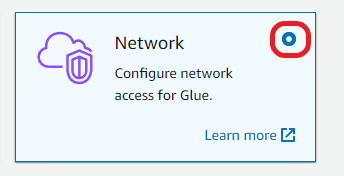
  5. For Connection type, choose Network.
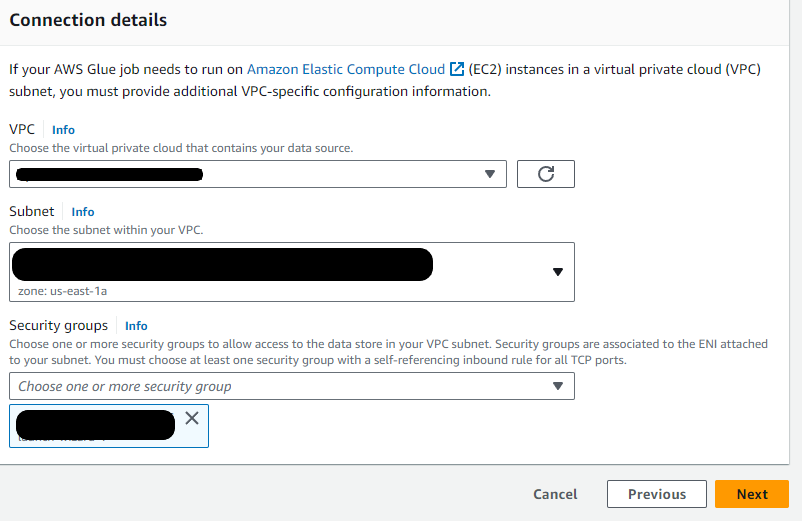
  6. In the Network options section, choose the VPC you created, a subnet, and a security group.
  7. Choose Create connection.

create connection

Account A security setup

Account A is the development account for your users (developers, analysts, data scientists, and so on). They are provided IAM users to access this account programmatically or via the console.

Create the assume role policy

The assume role policy allows users and roles in account A to assume roles in account B (the role in account B also has to allow it). Complete the following steps to create the policy:

  1. On the IAM console, choose Policies in the navigation pane.
  2. Choose Create policy.
  3. Switch to the JSON tab in the policy editor and enter the following policy (provide the account B number):{
{
    "Version": "2012-10-17",
    "Statement": [
        {
            "Effect": "Allow",
            "Action": "sts:AssumeRole",
            "Resource": "arn:aws:iam::{account B number}:role/*"
        }
    ]
}
  1. Name the role AssumeRoleAccountBPolicy and complete the creation.

Create an IAM user

Now you create an IAM user for account A that you can use to run AWS Glue interactive sessions locally or on the console.

  1. On the IAM console, choose Users in the navigation pane.
  2. Choose Create user.
  3. Name the user ISBlogUser.
  4. Select Provide user access to the AWS Management Console.
  5. Select I want to create an IAM user and choose a password.
  6. Attach the policies AWSGlueConsoleFullAccess and AssumeRoleAccountBPolicy.
  7. Review the settings and complete the user creation.

Create an AWS Glue Studio notebook role

To start an AWS Glue Studio notebook, a role is required. Usually, the same role is used both to start a notebook and run a session. In this use case, users of account A only need permissions to run a notebook, because they will create sessions via the assumed role in account B.

  1. On the IAM console, choose Roles in the navigation pane.
  2. Choose Create role.
  3. Select Glue as the use case.
  4. Attach the policies AWSGlueServiceNotebookRole and AssumeRoleAccountBPolicy.
  5. Name the role AWSGlueServiceRole-notebooks (because the name starts with AWSGlueServiceRole, the user doesn’t need explicit PassRole permission), then complete the creation.

Optionally, you can allow Amazon CodeWhisperer to provide code suggestions on the notebook by adding the permission to the role. To do so, navigate to the role AWSGlueServiceRole-notebooks on the IAM console. On the Add permissions menu, choose Create inline policy. Use the following JSON policy and name it CodeWhispererPolicy:

{
    "Version": "2012-10-17",
    "Statement": [
        {
            "Effect": "Allow",
            "Action": "codewhisperer:GenerateRecommendations",
            "Resource": "*"
        }
    ]
}

Account B security setup

Account B is considered the production account that contains the data and connections, and runs the AWS Glue data integration pipelines (using either AWS Glue sessions or jobs). Users don’t have direct access to it; they use it assuming the role created for this purpose.

To follow this post, you need two roles: one the AWS Glue service will assume to run and another that creates sessions, enforcing the VPC restriction.

Create an AWS Glue service role

To create an AWS Glue service role, complete the following steps:

  1. On the IAM console, choose Roles in the navigation pane.
  2. Choose Create role.
  3. Choose Glue for the use case.
  4. Attach the policy AWSGlueServiceRole.
  5. Name the role AWSGlueServiceRole-blog and complete the creation.

Create an AWS Glue interactive session role

This role will be used to create sessions following the VPC requirements. Complete the following steps to create the role:

  1. On the IAM console, choose Policies in the navigation pane.
  2. Choose Create policy.
  3. Switch to the JSON tab in the policy editor and enter the following code (provide your VPC ID). You can also replace the * in the policy with the full ARN of the role AWSGlueServiceRole-blog you just created, to force the notebook to only use that role when creating sessions.
{
    "Version": "2012-10-17",
    "Statement": [
        {
            "Effect": "Deny",
            "Action": [
                "glue:CreateSession"
            ],
            "Resource": [
                "*"
            ],
            "Condition": {
                "ForAnyValue:StringNotEquals": {
                    "glue:VpcIds": [
                        "{enter your vpc id here}"
                    ]
                }
            }
        },
        {
            "Effect": "Deny",
            "Action": [
                "glue:CreateSession"
            ],
            "Resource": [
                "*"
            ],
            "Condition": {
                "Null": {
                    "glue:VpcIds": true
                }
            }
        },
        {
            "Effect": "Allow",
            "Action": [
                "glue:GetTags"
            ],
            "Resource": [
                "*"
            ]
        },
        {
            "Effect": "Allow",
            "Action": "iam:PassRole",
            "Resource": "*"
        }        
    ]
}

This policy complements the AWSGlueServiceRole you attached before and restricts the session creation based on the VPC. You could also restrict the subnet and security group in a similar way using conditions for the resources glue:SubnetIds and glue:SecurityGroupIds respectively.

In this case, the sessions creation requires a VPC, which has to be in the list of IDs listed. If you need to just require any valid VPC to be used, you can remove the first statement and leave the one that denies the creation when the VPC is null.

  1. Name the policy CustomCreateSessionPolicy and complete the creation.
  2. Choose Roles in the navigation pane.
  3. Choose Create role.
  4. Select Custom trust policy.
  5. Replace the trust policy template with the following code (provide your account A number):
{
    "Version": "2012-10-17",
    "Statement": [
        {
            "Effect": "Allow",
            "Principal": {
                "AWS": [
                      "arn:aws:iam::{account A}:role/AWSGlueServiceRole-notebooks", 
                      "arn:aws:iam::{account A}:user/ISBlogUser"
                    ]
            },
            "Action": "sts:AssumeRole"
        }
    ]
}

This allows the role to be assumed directly by the user when using a local notebook and also when using an AWS Glue Studio notebook with a role.

  1. Attach the policies AWSGlueServiceRole and CustomCreateSessionPolicy (which you created on the previous step, so you might need to refresh for them to be listed).
  2. Name the role GlueSessionCreationRole and complete the role creation.

Create the Glue interactive session in the VPC, with assumed role and tags

Now that you have the accounts, roles, VPC, and connection ready, you use them to meet the requirements. You start a new notebook using account A, which assumes the role of account B to create a session in the VPC, and tag it with the department and billing area.

Start a new notebook

Using account A, start a new notebook. You may use either of the following options.

Option 1: Create an AWS Glue Studio notebook

The first option is to create an AWS Glue Studio notebook:

  1. Sign in to the console with account A and the ISBlogUser user.
  2. On the AWS Glue console, choose Notebooks in the navigation pane under ETL jobs.
  3. Select Jupyter Notebook and choose Create.
  4. Enter a name for your notebook.
  5. Specify the role AWSGlueServiceRole-notebooks.
  6. Choose Start notebook.

Option 2: Create a local notebook

Alternatively, you can create a local notebook. Before you start the process that runs Jupyter (or if you run it indirectly, then the IDE that runs it), you need to set the IAM ID and key for the user ISBlogUser, either using aws configure on the command line or setting the values as environment variables AWS_ACCESS_KEY_ID and AWS_SECRET_ACCESS_KEY for the user ID and secret key, respectively. Then create a new Jupyter notebook and select the kernel Glue PySpark.

Start a session from the notebook

After you start the notebook, select the first cell and add four new empty code cells. If you are using an AWS Glue Studio notebook, the notebook already contains some prepopulated cells as examples; we don’t use those sample cells in this post.

  1. In the first cell, enter the following magic configuration with the session creation role ARN, using the ID of account B:
# Configure the role we assume for creating the sessions
# Tip: assume_role is a cell magic (meaning it needs its own cell)
%%assume_role
"arn:aws:iam::{account B}:role/GlueSessionCreationRole"
  1. Run the cell to set up that configuration, either by choosing the button on the toolbar or pressing Shift + Enter.

It should confirm the role was assumed correctly. Now when the session is launched, it will be done by this role. This allowed you to use a role from a different account to run a session on that account.

  1. In the second cell, enter sample tags like the following and run the cell in the same way:
# Set a tag to associate the session with billable department
# Tip: tags is a cell magic (meaning it needs its own cell)
%%tags
{'team':'analytics', 'billing':'Data-Platform'}
  1. In the third cell, enter the following sample configuration (provide the role ARN with account B) and run the cell to set up the configuration:
# Set the configuration of your sessions using magics 
# Tip: non-cell magics can share the same cell 
%idle_timeout 2880
%glue_version 4.0
%worker_type G.1X
%number_of_workers 5
%iam_role arn:aws:iam::{account B}:role/AWSGlueServiceRole-blog

Now the session is configured but hasn’t started yet because you didn’t run any Python code.

  1. In the fourth empty cell, enter the following code to set up the objects required to work with AWS Glue and run the cell:
import sys
from awsglue.transforms import *
from awsglue.utils import getResolvedOptions
from pyspark.context import SparkContext
from awsglue.context import GlueContext
from awsglue.job import Job

sc = SparkContext.getOrCreate()
glueContext = GlueContext(sc)
spark = glueContext.spark_session
job = Job(glueContext)

It should fail with a permission error saying that there is an explicit deny policy activated. This is the VPC condition you set before. By default, the session doesn’t use a VPC, so this is why it’s failing.

notebook error

You can solve the error by assigning the connection you created before, so the session runs inside the VPC authorized.

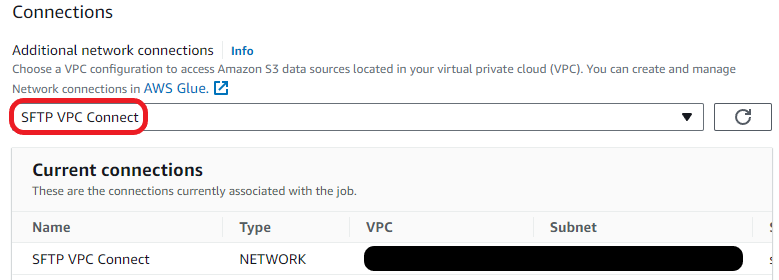
  1. In the third cell, add the %connections magic with the value session_vpc.

The session needs to run in the same Region in which the connection is defined. If that’s not the same as the notebook Region, you can explicitly configure the session Region using the %region magic.

notebook cells

  1. After you have added the new config settings, run the cell again so the magics take effect.
  2. Run the fourth cell again (the one with the code).

This time, it should start the session and after a brief period confirm it has been created correctly.

  1. Add a new cell with the following content and run it: %status

This will display the configuration and other information about the session that the notebook is using, including the tags set before.

status result

You started a notebook in account A and used a role from account B to create a session, which uses the network connection so it runs in the required VPC. You also tagged the session to be able to easily identify it later.

In the next section, we discuss more ways to monitor sessions using tags.

Interactive session tags

Before tags were supported, if you wanted to identify the purpose of sessions running the account, you had to use the magic %session_id_prefix to name your session with something meaningful.

Now, with the new tags magic, you can use more sophisticated ways to categorize your sessions.

In the previous section, you tagged the session with a team and billing department. Let’s imagine now you are an administrator checking the sessions that different teams run in an account and Region.

Explore tags via the AWS CLI

On the command line where you have the AWS CLI installed, run the following command to list the sessions running in the account and Regions configured (use the Region and max results parameters if needed):

aws glue list-sessions

You also have the option to just list sessions that have a specific tag:

aws glue list-sessions --tags team=analytics

You can also list all the tags associated with a specific session with the following command. Provide the Region, account, and session ID (you can get it from the list-sessions command):

aws glue get-tags --resource-arn arn:aws:glue:{region}:{account}:session/{session Id}

Explore tags via the AWS Billing console

You can also use tags to keep track of cost and do more accurate cost assignment in your company. After you have used a tag in your session, the tag will become available for billing purposes (it can take up to 24 hours to be detected).

  1. On the AWS Billing console, choose Cost allocation tags under Billing in the navigation pane.
  2. Search for and select the tags you used in the session: “team” and “billing”.
  3. Choose Activate.

This activation can take up to 24 hours additional hours until the tag is applied for billing purposes. You only have to do this one time when you start using a new tag on an account.

cost allocation tags

  1. After the tags have been correctly activated and applied, choose Cost explorer under Cost Management in the navigation pane.
  2. In the Report parameters pane, for Tag, choose one of the tags you activated.

This adds a drop-down menu for this tag, where you can choose some or all of the tag values to use.

  1. Make your selection and choose Apply to use the filter on the report.

bill barchart

Clean up

Run the %stop_session magic in a cell to stop the session and avoid further charges. If you no longer need the notebook, VPC, or roles you created, you can delete them as well.

Conclusion

In this post, we showed how to use these new features in AWS Glue to have more control over your interactive sessions for management and security. You can enforce network restrictions, allow users from other accounts to use your session, and use tags to help you keep track of the session usage and cost reports. These new features are already available, so you can start using them now.


About the authors

Gonzalo Herreros
Gonzalo Herreros is a Senior Big Data Architect on the AWS Glue team.
Gal Heyne
Gal Heyne is a Technical Product Manager on the AWS Glue team.

Securely process near-real-time data from Amazon MSK Serverless using an AWS Glue streaming ETL job with IAM authentication

Post Syndicated from Shubham Purwar original https://aws.amazon.com/blogs/big-data/securely-process-near-real-time-data-from-amazon-msk-serverless-using-an-aws-glue-streaming-etl-job-with-iam-authentication/

Streaming data has become an indispensable resource for organizations worldwide because it offers real-time insights that are crucial for data analytics. The escalating velocity and magnitude of collected data has created a demand for real-time analytics. This data originates from diverse sources, including social media, sensors, logs, and clickstreams, among others. With streaming data, organizations gain a competitive edge by promptly responding to real-time events and making well-informed decisions.

In streaming applications, a prevalent approach involves ingesting data through Apache Kafka and processing it with Apache Spark Structured Streaming. However, managing, integrating, and authenticating the processing framework (Apache Spark Structured Streaming) with the ingesting framework (Kafka) poses significant challenges, necessitating a managed and serverless framework. For example, integrating and authenticating a client like Spark streaming with Kafka brokers and zookeepers using a manual TLS method requires certificate and keystore management, which is not an easy task and requires a good knowledge of TLS setup.

To address these issues effectively, we propose using Amazon Managed Streaming for Apache Kafka (Amazon MSK), a fully managed Apache Kafka service that offers a seamless way to ingest and process streaming data. In this post, we use Amazon MSK Serverless, a cluster type for Amazon MSK that makes it possible for you to run Apache Kafka without having to manage and scale cluster capacity. To further enhance security and streamline authentication and authorization processes, MSK Serverless enables you to handle both authentication and authorization using AWS Identity and Access Management (IAM) in your cluster. This integration eliminates the need for separate mechanisms for authentication and authorization, simplifying and strengthening data protection. For example, when a client tries to write to your cluster, MSK Serverless uses IAM to check whether that client is an authenticated identity and also whether it is authorized to produce to your cluster.

To process data effectively, we use AWS Glue, a serverless data integration service that uses the Spark Structured Streaming framework and enables near-real-time data processing. An AWS Glue streaming job can handle large volumes of incoming data from MSK Serverless with IAM authentication. This powerful combination ensures that data is processed securely and swiftly.

The post demonstrates how to build an end-to-end implementation to process data from MSK Serverless using an AWS Glue streaming extract, transform, and load (ETL) job with IAM authentication to connect MSK Serverless from the AWS Glue job and query the data using Amazon Athena.

Solution overview

The following diagram illustrates the architecture that you implement in this post.

The workflow consists of the following steps:

  1. Create an MSK Serverless cluster with IAM authentication and an EC2 Kafka client as the producer to ingest sample data into a Kafka topic. For this post, we use the kafka-console-producer.sh Kafka console producer client.
  2. Set up an AWS Glue streaming ETL job to process the incoming data. This job extracts data from the Kafka topic, loads it into Amazon Simple Storage Service (Amazon S3), and creates a table in the AWS Glue Data Catalog. By continuously consuming data from the Kafka topic, the ETL job ensures it remains synchronized with the latest streaming data. Moreover, the job incorporates the checkpointing functionality, which tracks the processed records, enabling it to resume processing seamlessly from the point of interruption in the event of a job run failure.
  3. Following the data processing, the streaming job stores data in Amazon S3 and generates a Data Catalog table. This table acts as a metadata layer for the data. To interact with the data stored in Amazon S3, you can use Athena, a serverless and interactive query service. Athena enables the run of SQL-like queries on the data, facilitating seamless exploration and analysis.

For this post, we create the solution resources in the us-east-1 Region using AWS CloudFormation templates. In the following sections, we show you how to configure your resources and implement the solution.

Configure resources with AWS CloudFormation

In this post, you use the following two CloudFormation templates. The advantage of using two different templates is that you can decouple the resource creation of ingestion and processing part according to your use case and if you have requirements to create specific process resources only.

  • vpc-mskserverless-client.yaml – This template sets up data the ingestion service resources such as a VPC, MSK Serverless cluster, and S3 bucket
  • gluejob-setup.yaml – This template sets up the data processing resources such as the AWS Glue table, database, connection, and streaming job

Create data ingestion resources

The vpc-mskserverless-client.yaml stack creates a VPC, private and public subnets, security groups, S3 VPC Endpoint, MSK Serverless cluster, EC2 instance with Kafka client, and S3 bucket. To create the solution resources for data ingestion, complete the following steps:

  1. Launch the stack vpc-mskserverless-client using the CloudFormation template:
  2. Provide the parameter values as listed in the following table.
Parameters Description Sample Value
EnvironmentName Environment name that is prefixed to resource names .
PrivateSubnet1CIDR IP range (CIDR notation) for the private subnet in the first Availability Zone .
PrivateSubnet2CIDR IP range (CIDR notation) for the private subnet in the second Availability Zone .
PublicSubnet1CIDR IP range (CIDR notation) for the public subnet in the first Availability Zone .
PublicSubnet2CIDR IP range (CIDR notation) for the public subnet in the second Availability Zone .
VpcCIDR IP range (CIDR notation) for this VPC .
InstanceType Instance type for the EC2 instance t2.micro
LatestAmiId AMI used for the EC2 instance /aws/service/ami-amazon-linux- latest/amzn2-ami-hvm-x86_64-gp2
  1. When the stack creation is complete, retrieve the EC2 instance PublicDNS from the vpc-mskserverless-client stack’s Outputs tab.

The stack creation process can take around 15 minutes to complete.

  1. On the Amazon EC2 console, access the EC2 instance that you created using the CloudFormation template.
  2. Choose the EC2 instance whose InstanceId is shown on the stack’s Outputs tab.

Next, you log in to the EC2 instance using Session Manager, a capability of AWS Systems Manager.

  1. On the Amazon EC2 console, select the instanceid and on the Session Manager tab, choose Connect.


After you log in to the EC2 instance, you create a Kafka topic in the MSK Serverless cluster from the EC2 instance.

  1. In the following export command, provide the MSKBootstrapServers value from the vpc-mskserverless- client stack output for your endpoint:
    $ sudo su – ec2-user
    $ BS=<your-msk-serverless-endpoint (e.g.) boot-xxxxxx.yy.kafka-serverless.us-east-1.a>

  2. Run the following command on the EC2 instance to create a topic called msk-serverless-blog. The Kafka client is already installed in the ec2-user home directory (/home/ec2-user).
    $ /home/ec2-user/kafka_2.12-2.8.1/bin/kafka-topics.sh \
    --bootstrap-server $BS \
    --command-config /home/ec2-user/kafka_2.12-2.8.1/bin/client.properties \
    --create –topic msk-serverless-blog \
    --partitions 1
    
    Created topic msk-serverless-blog

After you confirm the topic creation, you can push the data to the MSK Serverless.

  1. Run the following command on the EC2 instance to create a console producer to produce records to the Kafka topic. (For source data, we use nycflights.csv downloaded at the ec2-user home directory /home/ec2-user.)
$ /home/ec2-user/kafka_2.12-2.8.1/bin/kafka-console-producer.sh \
--broker-list $BS \
--producer.config /home/ec2-user/kafka_2.12-2.8.1/bin/client.properties \
--topic msk-serverless-blog < nycflights.csv

Next, you set up the data processing service resources, specifically AWS Glue components like the database, table, and streaming job to process the data.

Create data processing resources

The gluejob-setup.yaml CloudFormation template creates a database, table, AWS Glue connection, and AWS Glue streaming job. Retrieve the values for VpcId, GluePrivateSubnet, GlueconnectionSubnetAZ, SecurityGroup, S3BucketForOutput, and S3BucketForGlueScript from the vpc-mskserverless-client stack’s Outputs tab to use in this template. Complete the following steps:

  1. Launch the stack gluejob-setup:

  1. Provide parameter values as listed in the following table.
Parameters Description Sample value
EnvironmentName Environment name that is prefixed to resource names. Gluejob-setup
VpcId ID of the VPC for security group. Use the VPC ID created with the first stack. Refer to the first stack’s output.
GluePrivateSubnet Private subnet used for creating the AWS Glue connection. Refer to the first stack’s output.
SecurityGroupForGlueConnection Security group used by the AWS Glue connection. Refer to the first stack’s output.
GlueconnectionSubnetAZ Availability Zone for the first private subnet used for the AWS Glue connection. .
GlueDataBaseName Name of the AWS Glue Data Catalog database. glue_kafka_blog_db
GlueTableName Name of the AWS Glue Data Catalog table. blog_kafka_tbl
S3BucketNameForScript Bucket Name for Glue ETL script. Use the S3 bucket name from the previous stack. For example, aws-gluescript-${AWS::AccountId}-${AWS::Region}-${EnvironmentName}
GlueWorkerType Worker type for AWS Glue job. For example, G.1X. G.1X
NumberOfWorkers Number of workers in the AWS Glue job. 3
S3BucketNameForOutput Bucket name for writing data from the AWS Glue job. aws-glueoutput-${AWS::AccountId}-${AWS::Region}-${EnvironmentName}
TopicName MSK topic name that needs to be processed. msk-serverless-blog
MSKBootstrapServers Kafka bootstrap server. boot-30vvr5lg.c1.kafka-serverless.us- east-1.amazonaws.com:9098

The stack creation process can take around 1–2 minutes to complete. You can check the Outputs tab for the stack after the stack is created.

In the gluejob-setup stack, we created a Kafka type AWS Glue connection, which consists of broker information like the MSK bootstrap server, topic name, and VPC in which the MSK Serverless cluster is created. Most importantly, it specifies the IAM authentication option, which helps AWS Glue authenticate and authorize using IAM authentication while consuming the data from the MSK topic. For further clarity, you can examine the AWS Glue connection and the associated AWS Glue table generated through AWS CloudFormation.

After successfully creating the CloudFormation stack, you can now proceed with processing data using the AWS Glue streaming job with IAM authentication.

Run the AWS Glue streaming job

To process the data from the MSK topic using the AWS Glue streaming job that you set up in the previous section, complete the following steps:

  1. On the CloudFormation console, choose the stack gluejob-setup.
  2. On the Outputs tab, retrieve the name of the AWS Glue streaming job from the GlueJobName row. In the following screenshot, the name is GlueStreamingJob-glue-streaming-job.

  1. On the AWS Glue console, choose ETL jobs in the navigation pane.
  2. Search for the AWS Glue streaming job named GlueStreamingJob-glue-streaming-job.
  3. Choose the job name to open its details page.
  4. Choose Run to start the job.
  5. On the Runs tab, confirm if the job ran without failure.

  1. Retrieve the OutputBucketName from the gluejob-setup template outputs.
  2. On the Amazon S3 console, navigate to the S3 bucket to verify the data.

  1. On the AWS Glue console, choose the AWS Glue streaming job you ran, then choose Stop job run.

Because this is a streaming job, it will continue to run indefinitely until manually stopped. After you verify the data is present in the S3 output bucket, you can stop the job to save cost.

Validate the data in Athena

After the AWS Glue streaming job has successfully created the table for the processed data in the Data Catalog, follow these steps to validate the data using Athena:

  1. On the Athena console, navigate to the query editor.
  2. Choose the Data Catalog as the data source.
  3. Choose the database and table that the AWS Glue streaming job created.
  4. To validate the data, run the following query to find the flight number, origin, and destination that covered the highest distance in a year:
SELECT distinct(flight),distance,origin,dest,year from "glue_kafka_blog_db"."output" where distance= (select MAX(distance) from "glue_kafka_blog_db"."output")

The following screenshot shows the output of our example query.

Clean up

To clean up your resources, complete the following steps:

  1. Delete the CloudFormation stack gluejob-setup.
  2. Delete the CloudFormation stack vpc-mskserverless-client.

Conclusion

In this post, we demonstrated a use case for building a serverless ETL pipeline for streaming with IAM authentication, which allows you to focus on the outcomes of your analytics. You can also modify the AWS Glue streaming ETL code in this post with transformations and mappings to ensure that only valid data gets loaded to Amazon S3. This solution enables you to harness the prowess of AWS Glue streaming, seamlessly integrated with MSK Serverless through the IAM authentication method. It’s time to act and revolutionize your streaming processes.

Appendix

This section provides more information about how to create the AWS Glue connection on the AWS Glue console, which helps establish the connection to the MSK Serverless cluster and allow the AWS Glue streaming job to authenticate and authorize using IAM authentication while consuming the data from the MSK topic.

  1. On the AWS Glue console, in the navigation pane, under Data catalog, choose Connections.
  2. Choose Create connection.
  3. For Connection name, enter a unique name for your connection.
  4. For Connection type, choose Kafka.
  5. For Connection access, select Amazon managed streaming for Apache Kafka (MSK).
  6. For Kafka bootstrap server URLs, enter a comma-separated list of bootstrap server URLs. Include the port number. For example, boot-xxxxxxxx.c2.kafka-serverless.us-east- 1.amazonaws.com:9098.

  1. For Authentication, choose IAM Authentication.
  2. Select Require SSL connection.
  3. For VPC, choose the VPC that contains your data source.
  4. For Subnet, choose the private subnet within your VPC.
  5. For Security groups, choose a security group to allow access to the data store in your VPC subnet.

Security groups are associated to the ENI attached to your subnet. You must choose at least one security group with a self-referencing inbound rule for all TCP ports.

  1. Choose Save changes.

After you create the AWS Glue connection, you can use the AWS Glue streaming job to consume data from the MSK topic using IAM authentication.


About the authors

Shubham Purwar is a Cloud Engineer (ETL) at AWS Bengaluru specialized in AWS Glue and Amazon Athena. He is passionate about helping customers solve issues related to their ETL workload and implement scalable data processing and analytics pipelines on AWS. In his free time, Shubham loves to spend time with his family and travel around the world.

Nitin Kumar is a Cloud Engineer (ETL) at AWS with a specialization in AWS Glue. He is dedicated to assisting customers in resolving issues related to their ETL workloads and creating scalable data processing and analytics pipelines on AWS.

Understanding DDoS Simulation Testing in AWS

Post Syndicated from Harith Gaddamanugu original https://aws.amazon.com/blogs/security/understanding-ddos-simulation-testing-at-aws/

Distributed denial of service (DDoS) events occur when a threat actor sends traffic floods from multiple sources to disrupt the availability of a targeted application. DDoS simulation testing uses a controlled DDoS event to allow the owner of an application to assess the application’s resilience and practice event response. DDoS simulation testing is permitted on Amazon Web Services (AWS), subject to Testing policy terms and conditions. In this blog post, we help you understand when it’s appropriate to perform a DDoS simulation test on an application running on AWS, and what options you have for running the test.

DDoS protection at AWS

Security is the top priority at AWS. AWS services include basic DDoS protection as a standard feature to help protect customers from the most common and frequently occurring infrastructure (layer 3 and 4) DDoS events, such as SYN/UDP floods, reflection attacks, and others. While this protection is designed to protect the availability of AWS infrastructure, your application might require more nuanced protections that consider your traffic patterns and integrate with your internal reporting and incident response processes. If you need more nuanced protection, then you should consider subscribing to AWS Shield Advanced in addition to the native resiliency offered by the AWS services you use.

AWS Shield Advanced is a managed service that helps you protect your application against external threats, like DDoS events, volumetric bots, and vulnerability exploitation attempts. When you subscribe to Shield Advanced and add protection to your resources, Shield Advanced provides expanded DDoS event protection for those resources. With advanced protections enabled on your resources, you get tailored detection based on the traffic patterns of your application, assistance with protecting against Layer 7 DDoS events, access to 24×7 specialized support from the Shield Response Team (SRT), access to centralized management of security policies through AWS Firewall Manager, and cost protections to help safeguard against scaling charges resulting from DDoS-related usage spikes. You can also configure AWS WAF (a web application firewall) to integrate with Shield Advanced to create custom layer 7 firewall rules and enable automatic application layer DDoS mitigation.

Acceptable DDoS simulation use cases on AWS

AWS is constantly learning and innovating by delivering new DDoS protection capabilities, which are explained in the DDoS Best Practices whitepaper. This whitepaper provides an overview of DDoS events and the choices that you can make when building on AWS to help you architect your application to absorb or mitigate volumetric events. If your application is architected according to our best practices, then a DDoS simulation test might not be necessary, because these architectures have been through rigorous internal AWS testing and verified as best practices for customers to use.

Using DDoS simulations to explore the limits of AWS infrastructure isn’t a good use case for these tests. Similarly, validating if AWS is effectively protecting its side of the shared responsibility model isn’t a good test motive. Further, using AWS resources as a source to simulate a DDoS attack on other AWS resources isn’t encouraged. Load tests are performed to gain reliable information on application performance under stress and these are different from DDoS tests. For more information, see the Amazon Elastic Compute Cloud (Amazon EC2) testing policy and penetration testing. Application owners, who have a security compliance requirement from a regulator or who want to test the effectiveness of their DDoS mitigation strategies, typically run DDoS simulation tests.

DDoS simulation tests at AWS

AWS offers two options for running DDoS simulation tests. They are:

  • A simulated DDoS attack in production traffic with an authorized pre-approved AWS Partner.
  • A synthetic simulated DDoS attack with the SRT, also referred to as a firedrill.

The motivation for DDoS testing varies from application to application and these engagements don’t offer the same value to all customers. Establishing clear motives for the test can help you choose the right option. If you want to test your incident response strategy, we recommend scheduling a firedrill with our SRT. If you want to test the Shield Advanced features or test application resiliency, we recommend that you work with an AWS approved partner.

DDoS simulation testing with an AWS Partner

AWS DDoS test partners are authorized to conduct DDoS simulation tests on customers’ behalf without prior approval from AWS. Customers can currently contact the following partners to set up these paid engagements:

Before contacting the partners, customers must agree to the terms and conditions for DDoS simulation tests. The application must be well-architected prior to DDoS simulation testing as described in AWS DDoS Best Practices whitepaper. AWS DDoS test partners that want to perform DDoS simulation tests that don’t comply with the technical restrictions set forth in our public DDoS testing policy, or other DDoS test vendors that aren’t approved, can request approval to perform DDoS simulation tests by submitting the DDoS Simulation Testing form at least 14 days before the proposed test date. For questions, please send an email to [email protected].

After choosing a test partner, customers go through various phases of testing. Typically, the first phase involves a discovery discussion, where the customer defines clear goals, assembles technical details, and defines the test schedule with the partner. In the next phase, partners run multiple simulations based on agreed attack vectors, duration, diversity of the attack vectors, and other factors. These tests are usually carried out by slowly ramping up traffic levels from low levels to desired high levels with an ability for an emergency stop. The final stage involves reporting, discussing observed gaps, identifying actionable tasks, and driving those tasks to completion.

These engagements are typically long-term, paid contracts that are planned over months and carried out over weeks, with results analyzed over time. These tests and reports are beneficial to customers who need to evaluate detection and mitigation capabilities on a large scale. If you’re an application owner and want to evaluate the DDoS resiliency of your application, practice event response with real traffic, or have a DDoS compliance or regulation requirement, we recommend this type of engagement. These tests aren’t recommended if you want to learn the volumetric breaking points of the AWS network or understand when AWS starts to throttle requests. AWS services are designed to scale, and when certain dynamic volume thresholds are exceeded, AWS detection systems will be invoked to block traffic. Lastly, it’s critical to distinguish between these tests and stress tests, in which meaningful packets are sent to the application to assess its behavior.

DDoS firedrill testing with the Shield Response Team

Shield Advanced service offers additional assistance through the SRT, this team can also help with testing incident response workflows. Customers can contact the SRT and request firedrill testing. Firedrill testing is a type of synthetic test that doesn’t generate real volumetric traffic but does post a shield event to the requesting customer’s account.

These tests are available for customers who are already on-boarded to Shield Advanced and want to test their Amazon CloudWatch alarms by invoking a DDoSDetected metric, or test their proactive engagement setup or their custom incident response strategy. Because this event isn’t based on real traffic, the customer won’t see traffic generated on their account or see logs that drive helpful reports.

These tests are intended to generate associated Shield Advanced metrics and post a DDoS event for a customer resource. For example, SRT can post a 14 Gbps UDP mock attack on a protected resource for about 15 minutes and customers can test their response capability during such an event.

Note: Not all attack vectors and AWS resource types are supported for a firedrill. Shield Advanced onboarded customers can contact AWS Support teams to request assistance with running a firedrill or understand more about them.

Conclusion

DDoS simulations and incident response testing on AWS through the SRT or an AWS Partner are useful in improving application security controls, identifying Shield Advanced misconfigurations, optimizing existing detection systems, and improving incident readiness. The goal of these engagements is to help you build a DDoS resilient architecture to protect your application’s availability. However, these engagements don’t offer the same value to all customers. Most customers can obtain similar benefits by following AWS Best Practices for DDoS Resiliency. AWS recommends architecting your application according to DDoS best practices and fine tuning AWS Shield Advanced out-of-the-box offerings to your application needs to improve security posture.

 
If you have feedback about this post, submit comments in the Comments section below. If you have questions about this post, contact AWS Support.

Want more AWS Security news? Follow us on Twitter.

Harith Gaddamanugu

Harith Gaddamanugu

Harith works at AWS as a Sr. Edge Specialist Solutions Architect. He stays motivated by solving problems for customers across AWS Perimeter Protection and Edge services. When he is not working, he enjoys spending time outdoors with friends and family.

Using AWS CloudFormation and AWS Cloud Development Kit to provision multicloud resources

Post Syndicated from Aaron Sempf original https://aws.amazon.com/blogs/devops/using-aws-cloudformation-and-aws-cloud-development-kit-to-provision-multicloud-resources/

Customers often need to architect solutions to support components across multiple cloud service providers, a need which may arise if they have acquired a company running on another cloud, or for functional purposes where specific services provide a differentiated capability. In this post, we will show you how to use the AWS Cloud Development Kit (AWS CDK) to create a single pane of glass for managing your multicloud resources.

AWS CDK is an open source framework that builds on the underlying functionality provided by AWS CloudFormation. It allows developers to define cloud resources using common programming languages and an abstraction model based on reusable components called constructs. There is a misconception that CloudFormation and CDK can only be used to provision resources on AWS, but this is not the case. The CloudFormation registry, with support for third party resource types, along with custom resource providers, allow for any resource that can be configured via an API to be created and managed, regardless of where it is located.

Multicloud solution design paradigm

Multicloud solutions are often designed with services grouped and separated by cloud, creating a segregation of resource and functions within the design. This approach leads to a duplication of layers of the solution, most commonly a duplication of resources and the deployment processes for each environment. This duplication increases cost, and leads to a complexity of management increasing the potential break points within the solution or practice. 

Along with simplifying resource deployments, and the ever-increasing complexity of customer needs, so too has the need increased for the capability of IaC solutions to deploy resources across hybrid or multicloud environments. Through meeting this need, a proliferation of supported tools, frameworks, languages, and practices has created “choice overload”. At worst, this scares the non-cloud-savvy away from adopting an IaC solution benefiting their cloud journey, and at best confuses the very reason for adopting an IaC practice.

A single pane of glass

Systems Thinking is a holistic approach that focuses on the way a system’s constituent parts interrelate and how systems work as a whole especially over time and within the context of larger systems. Systems thinking is commonly accepted as the backbone of a successful systems engineering approach. Designing solutions taking a full systems view, based on the component’s function and interrelation within the system across environments, more closely aligns with the ability to handle the deployment of each cloud-specific resource, from a single control plane.

While AWS provides a list of services that can be used to help design, manage and operate hybrid and multicloud solutions, with AWS as the primary cloud you can go beyond just using services to support multicloud. CloudFormation registry resource types model and provision resources using custom logic, as a component of stacks in CloudFormation. Public extensions are not only provided by AWS, but third-party extensions are made available for general use by publishers other than AWS, meaning customers can create their own extensions and publish them for anyone to use.

The AWS CDK, which has a 1:1 mapping of all AWS CloudFormation resources, as well as a library of abstracted constructs, supports the ability to import custom AWS CloudFormation extensions, enabling customers and partners to create custom AWS CDK constructs for their extensions. The chosen programming language can be used to inherit and abstract the custom resource into reusable AWS CDK constructs, allowing developers to create solutions that contain native AWS extensions along with secondary hybrid or alternate cloud resources.

Providing the ability to integrate mixed resources in the same stack more closely aligns with the functional design and often diagrammatic depiction of the solution. In essence, we are creating a single IaC pane of glass over the entire solution, deployed through a single control plane. This lowers the complexity and the cost of maintaining separate modules and deployment pipelines across multiple cloud providers.

A common use case for a multicloud: disaster recovery

One of the most common use cases of the requirement for using components across different cloud providers is the need to maintain data sovereignty while designing disaster recovery (DR) into a solution.

Data sovereignty is the idea that data is subject to the laws of where it is physically located, and in some countries extends to regulations that if data is collected from citizens of a geographical area, then the data must reside in servers located in jurisdictions of that geographical area or in countries with a similar scope and rigor in their protection laws. 

This requires organizations to remain in compliance with their host country, and in cases such as state government agencies, a stricter scope of within state boundaries, data sovereignty regulations. Unfortunately, not all countries, and especially not all states, have multiple AWS regions to select from when designing where their primary and recovery data backups will reside. Therefore, the DR solution needs to take advantage of multiple cloud providers in the same geography, and as such a solution must be designed to backup or replicate data across providers.

The multicloud solution

A multicloud solution to the proposed use case would be the backup of data from an AWS resource such as an Amazon S3 bucket to another cloud provider within the same geography, such as an Azure Blob Storage container, using AWS event driven behaviour to trigger the copying of data from the primary AWS resource to the secondary Azure backup resource.

Following the IaC single pane of glass approach, the Azure Blob Storage container is created as a resource type in the CloudFormation Registry, and imported into the AWS CDK to be used as a construct in the solution. However, before the extension resource type can be used effectively in the CDK as a reusable construct and added to your private library, you will first need to go through the import into CDK process for creating Constructs.

There are three different levels of constructs, beginning with low-level constructs, which are called CFN Resources (or L1, short for “layer 1”). These constructs directly represent all resources available in AWS CloudFormation. They are named CfnXyz, where Xyz is name of the resource.

Layer 1 Construct

In this example, an L1 construct named CfnAzureBlobStorage represents an Azure::BlobStorage AWS CloudFormation extension. Here you also explicitly configure the ref property, in order for higher level constructs to access the Output value which will be the Azure blob container url being provisioned.

import { CfnResource } from "aws-cdk-lib";
import { Secret, ISecret } from "aws-cdk-lib/aws-secretsmanager";
import { Construct } from "constructs";

export interface CfnAzureBlobStorageProps {
  subscriptionId: string;
  clientId: string;
  tenantId: string;
  clientSecretName: string;
}

// L1 Construct
export class CfnAzureBlobStorage extends Construct {
  // Allows accessing the ref property
  public readonly ref: string;

  constructor(scope: Construct, id: string, props: CfnAzureBlobStorageProps) {
    super(scope, id);

    const secret = this.getSecret("AzureClientSecret", props.clientSecretName);
    
    const azureBlobStorage = new CfnResource(
      this,
      "ExtensionAzureBlobStorage",
      {
        type: "Azure::BlobStorage",
        properties: {
          AzureSubscriptionId: props.subscriptionId,
          AzureClientId: props.clientId,
          AzureTenantId: props.tenantId,
          AzureClientSecret: secret.secretValue.unsafeUnwrap()
        },
      }
    );

    this.ref = azureBlobStorage.ref;
  }

  private getSecret(id: string, secretName: string) : ISecret {  
    return Secret.fromSecretNameV2(this, secretName.concat("Value"), secretName);
  }
}

As with every CDK Construct, the constructor arguments are scope, id and props. scope and id are propagated to the cdk.Construct base class. The props argument is of type CfnAzureBlobStorageProps which includes four properties all of type string. This is how the Azure credentials are propagated down from upstream constructs.

Layer 2 Construct

The next level of constructs, L2, also represent AWS resources, but with a higher-level, intent-based API. They provide similar functionality, but incorporate the defaults, boilerplate, and glue logic you’d be writing yourself with a CFN Resource construct. They also provide convenience methods that make it simpler to work with the resource.

In this example, an L2 construct is created to abstract the CfnAzureBlobStorage L1 construct and provides additional properties and methods.

import { Construct } from "constructs";
import { CfnAzureBlobStorage } from "./cfn-azure-blob-storage";

// L2 Construct
export class AzureBlobStorage extends Construct {
  public readonly blobContainerUrl: string;

  constructor(
    scope: Construct,
    id: string,
    subscriptionId: string,
    clientId: string,
    tenantId: string,
    clientSecretName: string
  ) {
    super(scope, id);

    const azureBlobStorage = new CfnAzureBlobStorage(
      this,
      "CfnAzureBlobStorage",
      {
        subscriptionId: subscriptionId,
        clientId: clientId,
        tenantId: tenantId,
        clientSecretName: clientSecretName,
      }
    );

    this.blobContainerUrl = azureBlobStorage.ref;
  }
}

The custom L2 construct class is declared as AzureBlobStorage, this time without the Cfn prefix to represent an L2 construct. This time the constructor arguments include the Azure credentials and client secret, and the ref from the L1 construct us output to the public variable AzureBlobContainerUrl.

As an L2 construct, the AzureBlobStorage construct could be used in CDK Apps along with AWS Resource Constructs in the same Stack, to be provisioned through AWS CloudFormation creating the IaC single pane of glass for a multicloud solution.

Layer 3 Construct

The true value of the CDK construct programming model is in the ability to extend L2 constructs, which represent a single resource, into a composition of multiple constructs that provide a solution for a common task. These are Layer 3, L3, Constructs also known as patterns.

In this example, the L3 construct represents the solution architecture to backup objects uploaded to an Amazon S3 bucket into an Azure Blob Storage container in real-time, using AWS Lambda to process event notifications from Amazon S3.

import { RemovalPolicy, Duration, CfnOutput } from "aws-cdk-lib";
import { Bucket, BlockPublicAccess, EventType } from "aws-cdk-lib/aws-s3";
import { DockerImageFunction, DockerImageCode } from "aws-cdk-lib/aws-lambda";
import { PolicyStatement, Effect } from "aws-cdk-lib/aws-iam";
import { LambdaDestination } from "aws-cdk-lib/aws-s3-notifications";
import { IStringParameter, StringParameter } from "aws-cdk-lib/aws-ssm";
import { Secret, ISecret } from "aws-cdk-lib/aws-secretsmanager";
import { Construct } from "constructs";
import { AzureBlobStorage } from "./azure-blob-storage";

// L3 Construct
export class S3ToAzureBackupService extends Construct {
  constructor(
    scope: Construct,
    id: string,
    azureSubscriptionIdParamName: string,
    azureClientIdParamName: string,
    azureTenantIdParamName: string,
    azureClientSecretName: string
  ) {
    super(scope, id);

    // Retrieve existing SSM Parameters
    const azureSubscriptionIdParameter = this.getSSMParameter("AzureSubscriptionIdParam", azureSubscriptionIdParamName);
    const azureClientIdParameter = this.getSSMParameter("AzureClientIdParam", azureClientIdParamName);
    const azureTenantIdParameter = this.getSSMParameter("AzureTenantIdParam", azureTenantIdParamName);    
    
    // Retrieve existing Azure Client Secret
    const azureClientSecret = this.getSecret("AzureClientSecret", azureClientSecretName);

    // Create an S3 bucket
    const sourceBucket = new Bucket(this, "SourceBucketForAzureBlob", {
      removalPolicy: RemovalPolicy.RETAIN,
      blockPublicAccess: BlockPublicAccess.BLOCK_ALL,
    });

    // Create a corresponding Azure Blob Storage account and a Blob Container
    const azurebBlobStorage = new AzureBlobStorage(
      this,
      "MyCustomAzureBlobStorage",
      azureSubscriptionIdParameter.stringValue,
      azureClientIdParameter.stringValue,
      azureTenantIdParameter.stringValue,
      azureClientSecretName
    );

    // Create a lambda function that will receive notifications from S3 bucket
    // and copy the new uploaded object to Azure Blob Storage
    const copyObjectToAzureLambda = new DockerImageFunction(
      this,
      "CopyObjectsToAzureLambda",
      {
        timeout: Duration.seconds(60),
        code: DockerImageCode.fromImageAsset("copy_s3_fn_code", {
          buildArgs: {
            "--platform": "linux/amd64"
          }
        }),
      },
    );

    // Add an IAM policy statement to allow the Lambda function to access the
    // S3 bucket
    sourceBucket.grantRead(copyObjectToAzureLambda);

    // Add an IAM policy statement to allow the Lambda function to get the contents
    // of an S3 object
    copyObjectToAzureLambda.addToRolePolicy(
      new PolicyStatement({
        effect: Effect.ALLOW,
        actions: ["s3:GetObject"],
        resources: [`arn:aws:s3:::${sourceBucket.bucketName}/*`],
      })
    );

    // Set up an S3 bucket notification to trigger the Lambda function
    // when an object is uploaded
    sourceBucket.addEventNotification(
      EventType.OBJECT_CREATED,
      new LambdaDestination(copyObjectToAzureLambda)
    );

    // Grant the Lambda function read access to existing SSM Parameters
    azureSubscriptionIdParameter.grantRead(copyObjectToAzureLambda);
    azureClientIdParameter.grantRead(copyObjectToAzureLambda);
    azureTenantIdParameter.grantRead(copyObjectToAzureLambda);

    // Put the Azure Blob Container Url into SSM Parameter Store
    this.createStringSSMParameter(
      "AzureBlobContainerUrl",
      "Azure blob container URL",
      "/s3toazurebackupservice/azureblobcontainerurl",
      azurebBlobStorage.blobContainerUrl,
      copyObjectToAzureLambda
    );      

    // Grant the Lambda function read access to the secret
    azureClientSecret.grantRead(copyObjectToAzureLambda);

    // Output S3 bucket arn
    new CfnOutput(this, "sourceBucketArn", {
      value: sourceBucket.bucketArn,
      exportName: "sourceBucketArn",
    });

    // Output the Blob Conatiner Url
    new CfnOutput(this, "azureBlobContainerUrl", {
      value: azurebBlobStorage.blobContainerUrl,
      exportName: "azureBlobContainerUrl",
    });
  }

}

The custom L3 construct can be used in larger IaC solutions by calling the class called S3ToAzureBackupService and providing the Azure credentials and client secret as properties to the constructor.

import * as cdk from "aws-cdk-lib";
import { Construct } from "constructs";
import { S3ToAzureBackupService } from "./s3-to-azure-backup-service";

export class MultiCloudBackupCdkStack extends cdk.Stack {
  constructor(scope: Construct, id: string, props?: cdk.StackProps) {
    super(scope, id, props);

    const s3ToAzureBackupService = new S3ToAzureBackupService(
      this,
      "MyMultiCloudBackupService",
      "/s3toazurebackupservice/azuresubscriptionid",
      "/s3toazurebackupservice/azureclientid",
      "/s3toazurebackupservice/azuretenantid",
      "s3toazurebackupservice/azureclientsecret"
    );
  }
}

Solution Diagram

Diagram 1: IaC Single Control Plane, demonstrates the concept of the Azure Blob Storage extension being imported from the AWS CloudFormation Registry into AWS CDK as an L1 CfnResource, wrapped into an L2 Construct and used in an L3 pattern alongside AWS resources to perform the specific task of backing up from and Amazon s3 Bucket into an Azure Blob Storage Container.

Multicloud IaC with CDK

Diagram 1: IaC Single Control Plan

The CDK application is then synthesized into one or more AWS CloudFormation Templates, which result in the CloudFormation service deploying AWS resource configurations to AWS and Azure resource configurations to Azure.

This solution demonstrates not only how to consolidate the management of secondary cloud resources into a unified infrastructure stack in AWS, but also the improved productivity by eliminating the complexity and cost of operating multiple deployment mechanisms into multiple public cloud environments.

The following video demonstrates an example in real-time of the end-state solution:

Next Steps

While this was just a straightforward example, with the same approach you can use your imagination to come up with even more and complex scenarios where AWS CDK can be used as a single pane of glass for IaC to manage multicloud and hybrid solutions.

To get started with the solution discussed in this post, this workshop will provide you with the instructions you need to understand the steps required to create the S3ToAzureBackupService.

Once you have learned how to create AWS CloudFormation extensions and develop them into AWS CDK Constructs, you will learn how, with just a few lines of code, you can develop reusable multicloud unified IaC solutions that deploy through a single AWS control plane.

Conclusion

By adopting AWS CloudFormation extensions and AWS CDK, deployed through a single AWS control plane, the cost and complexity of maintaining deployment pipelines across multiple cloud providers is reduced to a single holistic solution-focused pipeline. The techniques demonstrated in this post and the related workshop provide a capability to simplify the design of complex systems, improve the management of integration, and more closely align the IaC and deployment management practices with the design.

About the authors:

Aaron Sempf

Aaron Sempf is a Global Principal Partner Solutions Architect, in the Global Systems Integrators team. With over twenty years in software engineering and distributed system, he focuses on solving for large scale integration and event driven systems. When not working with AWS GSI partners, he can be found coding prototypes for autonomous robots, IoT devices, and distributed solutions.

 
Puneet Talwar

Puneet Talwar

Puneet Talwar is a Senior Solutions Architect at Amazon Web Services (AWS) on the Australian Public Sector team. With a background of over twenty years in software engineering, he particularly enjoys helping customers build modern, API Driven software architectures at scale. In his spare time, he can be found building prototypes for micro front ends and event driven architectures.

Build streaming data pipelines with Amazon MSK Serverless and IAM authentication

Post Syndicated from Marvin Gersho original https://aws.amazon.com/blogs/big-data/build-streaming-data-pipelines-with-amazon-msk-serverless-and-iam-authentication/

Currently, MSK Serverless only directly supports IAM for authentication using Java. This example shows how to use this mechanism. Additionally, it provides a pattern creating a proxy that can easily be integrated into solutions built in languages other than Java.

The rising trend in today’s tech landscape is the use of streaming data and event-oriented structures. They are being applied in numerous ways, including monitoring website traffic, tracking industrial Internet of Things (IoT) devices, analyzing video game player behavior, and managing data for cutting-edge analytics systems.

Apache Kafka, a top-tier open-source tool, is making waves in this domain. It’s widely adopted by numerous users for building fast and efficient data pipelines, analyzing streaming data, merging data from different sources, and supporting essential applications.

Amazon’s serverless Apache Kafka offering, Amazon Managed Streaming for Apache Kafka (Amazon MSK) Serverless, is attracting a lot of interest. It’s appreciated for its user-friendly approach, ability to scale automatically, and cost-saving benefits over other Kafka solutions. However, a hurdle encountered by many users is the requirement of MSK Serverless to use AWS Identity and Access Management (IAM) access control. At the time of writing, the Amazon MSK library for IAM is exclusive to Kafka libraries in Java, creating a challenge for users of other programming languages. In this post, we aim to address this issue and present how you can use Amazon API Gateway and AWS Lambda to navigate around this obstacle.

SASL/SCRAM authentication vs. IAM authentication

Compared to the traditional authentication methods like Salted Challenge Response Authentication Mechanism (SCRAM), the IAM extension into Apache Kafka through MSK Serverless provides a lot of benefits. Before we delve into those, it’s important to understand what SASL/SCRAM authentication is. Essentially, it’s a traditional method used to confirm a user’s identity before giving them access to a system. This process requires users or clients to provide a user name and password, which the system then cross-checks against stored credentials (for example, via AWS Secrets Manager) to decide whether or not access should be granted.

Compared to this approach, IAM simplifies permission management across AWS environments, enables the creation and strict enforcement of detailed permissions and policies, and uses temporary credentials rather than the typical user name and password authentication. Another benefit of using IAM is that you can use IAM for both authentication and authorization. If you use SASL/SCRAM, you have to additionally manage ACLs via a separate mechanism. In IAM, you can use the IAM policy attached to the IAM principal to define the fine-grained access control for that IAM principal. All of these improvements make the IAM integration a more efficient and secure solution for most use cases.

However, for applications not built in Java, utilizing MSK Serverless becomes tricky. The standard SASL/SCRAM authentication isn’t available, and non-Java Kafka libraries don’t have a way to use IAM access control. This calls for an alternative approach to connect to MSK Serverless clusters.

But there’s an alternative pattern. Without having to rewrite your existing application in Java, you can employ API Gateway and Lambda as a proxy in front of a cluster. They can handle API requests and relay them to Kafka topics instantly. API Gateway takes in producer requests and channels them to a Lambda function, written in Java using the Amazon MSK IAM library. It then communicates with the MSK Serverless Kafka topic using IAM access control. After the cluster receives the message, it can be further processed within the MSK Serverless setup.

You can also utilize Lambda on the consumer side of MSK Serverless topics, bypassing the Java requirement on the consumer side. You can do this by setting Amazon MSK as an event source for a Lambda function. When the Lambda function is triggered, the data sent to the function includes an array of records from the Kafka topic—no need for direct contact with Amazon MSK.

Solution overview

This example walks you through how to build a serverless real-time stream producer application using API Gateway and Lambda.

For testing, this post includes a sample AWS Cloud Development Kit (AWS CDK) application. This creates a demo environment, including an MSK Serverless cluster, three Lambda functions, and an API Gateway that consumes the messages from the Kafka topic.

The following diagram shows the architecture of the resulting application including its data flows.

The data flow contains the following steps:

  1. The infrastructure is defined in an AWS CDK application. By running this application, a set of AWS CloudFormation templates is created.
  2. AWS CloudFormation creates all infrastructure components, including a Lambda function that runs during the deployment process to create a topic in the MSK Serverless cluster and to retrieve the authentication endpoint needed for the producer Lambda function. On destruction of the CloudFormation stack, the same Lambda function gets triggered again to delete the topic from the cluster.
  3. An external application calls an API Gateway endpoint.
  4. API Gateway forwards the request to a Lambda function.
  5. The Lambda function acts as a Kafka producer and pushes the message to a Kafka topic using IAM authentication.
  6. The Lambda event source mapping mechanism triggers the Lambda consumer function and forwards the message to it.
  7. The Lambda consumer function logs the data to Amazon CloudWatch.

Note that we don’t need to worry about Availability Zones. MSK Serverless automatically replicates the data across multiple Availability Zones to ensure high availability of the data.

The demo additionally shows how to use Lambda Powertools for Java to streamline logging and tracing and the IAM authenticator for the simple authentication process outlined in the introduction.

The following sections take you through the steps to deploy, test, and observe the example application.

Prerequisites

The example has the following prerequisites:

  • An AWS account. If you haven’t signed up, complete the following steps:
  • The following software installed on your development machine, or use an AWS Cloud9 environment, which comes with all requirements preinstalled:
  • Appropriate AWS credentials for interacting with resources in your AWS account.

Deploy the solution

Complete the following steps to deploy the solution:

  1. Clone the project GitHub repository and change the directory to subfolder serverless-kafka-iac:
git clone https://github.com/aws-samples/apigateway-lambda-msk-serverless-integration
cd apigateway-lambda-msk-serverless-integration/serverless-kafka-iac
  1. Configure environment variables:
export CDK_DEFAULT_ACCOUNT=$(aws sts get-caller-identity --query 'Account' --output text)
export CDK_DEFAULT_REGION=$(aws configure get region)
  1. Prepare the virtual Python environment:
python3 -m venv .venv

source .venv/bin/activate

pip3 install -r requirements.txt
  1. Bootstrap your account for AWS CDK usage:
cdk bootstrap aws://$CDK_DEFAULT_ACCOUNT/$CDK_DEFAULT_REGION
  1. Run cdk synth to build the code and test the requirements (ensure docker daemon is running on your machine):
cdk synth
  1. Run cdk deploy to deploy the code to your AWS account:
cdk deploy --all

Test the solution

To test the solution, we generate messages for the Kafka topics by sending calls through the API Gateway from our development machine or AWS Cloud9 environment. We then go to the CloudWatch console to observe incoming messages in the log files of the Lambda consumer function.

  1. Open a terminal on your development machine to test the API with the Python script provided under /serverless_kafka_iac/test_api.py:
python3 test-api.py

  1. On the Lambda console, open the Lambda function named ServerlessKafkaConsumer.

  1. On the Monitor tab, choose View CloudWatch logs to access the logs of the Lambda function.

  1. Choose the latest log stream to access the log files of the last run.

You can review the log entry of the received Kafka messages in the log of the Lambda function.

Trace a request

All components integrate with AWS X-Ray. With AWS X-Ray, you can trace the entire application, which is useful to identify bottlenecks when load testing. You can also trace method runs at the Java method level.

Lambda Powertools for Java allows you to shortcut this process by adding the @Trace annotation to a method to see traces on the method level in X-Ray.

To trace a request end to end, complete the following steps:

  1. On the CloudWatch console, choose Service map in the navigation pane.
  2. Select a component to investigate (for example, the Lambda function where you deployed the Kafka producer).
  3. Choose View traces.

  1. Choose a single Lambda method invocation and investigate further at the Java method level.

Implement a Kafka producer in Lambda

Kafka natively supports Java. To stay open, cloud native, and without third-party dependencies, the producer is written in that language. Currently, the IAM authenticator is only available to Java. In this example, the Lambda handler receives a message from an API Gateway source and pushes this message to an MSK topic called messages.

Typically, Kafka producers are long-living and pushing a message to a Kafka topic is an asynchronous process. Because Lambda is ephemeral, you must enforce a full flush of a submitted message until the Lambda function ends by calling producer.flush():

// Copyright Amazon.com, Inc. or its affiliates. All Rights Reserved.
// SPDX-License-Identifier: MIT-0
package software.amazon.samples.kafka.lambda;
 
// This class is part of the AWS samples package and specifically deals with Kafka integration in a Lambda function.
// It serves as a simple API Gateway to Kafka Proxy, accepting requests and forwarding them to a Kafka topic.
public class SimpleApiGatewayKafkaProxy implements RequestHandler<APIGatewayProxyRequestEvent, APIGatewayProxyResponseEvent> {
 
    // Specifies the name of the Kafka topic where the messages will be sent
    public static final String TOPIC_NAME = "messages";
 
    // Logger instance for logging events of this class
    private static final Logger log = LogManager.getLogger(SimpleApiGatewayKafkaProxy.class);
    
    // Factory to create properties for Kafka Producer
    public KafkaProducerPropertiesFactory kafkaProducerProperties = new KafkaProducerPropertiesFactoryImpl();
    
    // Instance of KafkaProducer
    private KafkaProducer<String, String>[KT1]  producer;
 
    // Overridden method from the RequestHandler interface to handle incoming API Gateway proxy events
    @Override
    @Tracing
    @Logging(logEvent = true)
    public APIGatewayProxyResponseEvent handleRequest(APIGatewayProxyRequestEvent input, Context context) {
        
        // Creating a response object to send back 
        APIGatewayProxyResponseEvent response = createEmptyResponse();
        try {
            // Extracting the message from the request body
            String message = getMessageBody(input);
 
            // Create a Kafka producer
            KafkaProducer<String, String> producer = createProducer();
 
            // Creating a record with topic name, request ID as key and message as value 
            ProducerRecord<String, String> record = new ProducerRecord<String, String>(TOPIC_NAME, context.getAwsRequestId(), message);
 
            // Sending the record to Kafka topic and getting the metadata of the record
            Future<RecordMetadata>[KT2]  send = producer.send(record);
            producer.flush();
 
            // Retrieve metadata about the sent record
            RecordMetadata metadata = send.get();
 
            // Logging the partition where the message was sent
            log.info(String.format("Message was send to partition %s", metadata.partition()));
 
            // If the message was successfully sent, return a 200 status code
            return response.withStatusCode(200).withBody("Message successfully pushed to kafka");
        } catch (Exception e) {
            // In case of exception, log the error message and return a 500 status code
            log.error(e.getMessage(), e);
            return response.withBody(e.getMessage()).withStatusCode(500);
        }
    }
 
    // Creates a Kafka producer if it doesn't already exist
    @Tracing
    private KafkaProducer<String, String> createProducer() {
        if (producer == null) {
            log.info("Connecting to kafka cluster");
            producer = new KafkaProducer<String, String>(kafkaProducerProperties.getProducerProperties());
        }
        return producer;
    }
 
    // Extracts the message from the request body. If it's base64 encoded, it's decoded first.
    private String getMessageBody(APIGatewayProxyRequestEvent input) {
        String body = input.getBody();
 
        if (input.getIsBase64Encoded()) {
            body = decode(body);
        }
        return body;
    }
 
    // Creates an empty API Gateway proxy response event with predefined headers.
    private APIGatewayProxyResponseEvent createEmptyResponse() {
        Map<String, String> headers = new HashMap<>();
        headers.put("Content-Type", "application/json");
        headers.put("X-Custom-Header", "application/json");
        APIGatewayProxyResponseEvent response = new APIGatewayProxyResponseEvent().withHeaders(headers);
        return response;
    }
}

Connect to Amazon MSK using IAM authentication

This post uses IAM authentication to connect to the respective Kafka cluster. For information about how to configure the producer for connectivity, refer to IAM access control.

Because you configure the cluster via IAM, grant Connect and WriteData permissions to the producer so that it can push messages to Kafka:

{
    “Version”: “2012-10-17”,
    “Statement”: [
        {            
            “Effect”: “Allow”,
            “Action”: [
                “kafka-cluster:Connect”
            ],
            “Resource”: “arn:aws:kafka:region:account-id:cluster/cluster-name/cluster-uuid “
        }
    ]
}
 
 
{
    “Version”: “2012-10-17”,
    “Statement”: [
        {            
            “Effect”: “Allow”,
            “Action”: [
                “kafka-cluster:Connect”,
                “kafka-cluster: DescribeTopic”,
            ],
            “Resource”: “arn:aws:kafka:region:account-id:topic/cluster-name/cluster-uuid/topic-name“
        }
    ]
}

This shows the Kafka excerpt of the IAM policy, which must be applied to the Kafka producer. When using IAM authentication, be aware of the current limits of IAM Kafka authentication, which affect the number of concurrent connections and IAM requests for a producer. Refer to Amazon MSK quota and follow the recommendation for authentication backoff in the producer client:

        Map<String, String> configuration = Map.of(
                “key.serializer”, “org.apache.kafka.common.serialization.StringSerializer”,
                “value.serializer”, “org.apache.kafka.common.serialization.StringSerializer”,
                “bootstrap.servers”, getBootstrapServer(),
                “security.protocol”, “SASL_SSL”,
                “sasl.mechanism”, “AWS_MSK_IAM”,
                “sasl.jaas.config”, “software.amazon.msk.auth.iam.IAMLoginModule required;”,
                “sasl.client.callback.handler.class”,
				“software.amazon.msk.auth.iam.IAMClientCallbackHandler”,
                “connections.max.idle.ms”, “60”,
                “reconnect.backoff.ms”, “1000”
        );

Additional considerations

Each MSK Serverless cluster can handle 100 requests per second. To reduce IAM authentication requests from the Kafka producer, place it outside of the handler. For frequent calls, there is a chance that Lambda reuses the previously created class instance and only reruns the handler.

For bursting workloads with a high number of concurrent API Gateway requests, this can lead to dropped messages. Although this might be tolerable for some workloads, for others this might not be the case.

In these cases, you can extend the architecture with a buffering technology like Amazon Simple Queue Service (Amazon SQS) or Amazon Kinesis Data Streams between API Gateway and Lambda.

To reduce latency, reduce cold start times for Java by changing the tiered compilation level to 1, as described in Optimizing AWS Lambda function performance for Java. Provisioned concurrency ensures that polling Lambda functions don’t need to warm up before requests arrive.

Conclusion

In this post, we showed how to create a serverless integration Lambda function between API Gateway and MSK Serverless as a way to do IAM authentication when your producer is not written in Java. You also learned about the native integration of Lambda and Amazon MSK on the consumer side. Additionally, we showed how to deploy such an integration with the AWS CDK.

The general pattern is suitable for many use cases where you want to use IAM authentication but your producers or consumers are not written in Java, but you still want to take advantage of the benefits of MSK Serverless, like its ability to scale up and down with unpredictable or spikey workloads or its little to no operational overhead of running Apache Kafka.

You can also use MSK Serverless to reduce operational complexity by automating provisioning and the management of capacity needs, including the need to constantly monitor brokers and storage.

For more serverless learning resources, visit Serverless Land.

For more information on MSK Serverless, check out the following:


About the Authors

Philipp Klose is a Global Solutions Architect at AWS based in Munich. He works with enterprise FSI customers and helps them solve business problems by architecting serverless platforms. In this free time, Philipp spends time with his family and enjoys every geek hobby possible.

Daniel Wessendorf is a Global Solutions Architect at AWS based in Munich. He works with enterprise FSI customers and is primarily specialized in machine learning and data architectures. In his free time, he enjoys swimming, hiking, skiing, and spending quality time with his family.

Marvin Gersho is a Senior Solutions Architect at AWS based in New York City. He works with a wide range of startup customers. He previously worked for many years in engineering leadership and hands-on application development, and now focuses on helping customers architect secure and scalable workloads on AWS with a minimum of operational overhead. In his free time, Marvin enjoys cycling and strategy board games.

Nathan Lichtenstein is a Senior Solutions Architect at AWS based in New York City. Primarily working with startups, he ensures his customers build smart on AWS, delivering creative solutions to their complex technical challenges. Nathan has worked in cloud and network architecture in the media, financial services, and retail spaces. Outside of work, he can often be found at a Broadway theater.

How to enforce DNS name constraints in AWS Private CA

Post Syndicated from Isaiah Schisler original https://aws.amazon.com/blogs/security/how-to-enforce-dns-name-constraints-in-aws-private-ca/

In March 2022, AWS announced support for custom certificate extensions, including name constraints, using AWS Certificate Manager (ACM) Private Certificate Authority (CA). Defining DNS name constraints with your subordinate CA can help establish guardrails to improve public key infrastructure (PKI) security and mitigate certificate misuse. For example, you can set a DNS name constraint that restricts the CA from issuing certificates to a resource that is using a specific domain name. Certificate requests from resources using an unauthorized domain name will be rejected by your CA and won’t be issued a certificate.

In this blog post, I’ll walk you step-by-step through the process of applying DNS name constraints to a subordinate CA by using the AWS Private CA service.

Prerequisites

You need to have the following prerequisite tools, services, and permissions in place before following the steps presented within this post:

  1. AWS Identity and Access Management (IAM) permissions with full access to AWS Certificate Manager and AWS Private CA. The corresponding AWS managed policies are named AWSCertificateManagerFullAccess and AWSCertificateManagerPrivateCAFullAccess.
  2. AWS Command Line Interface (AWS CLI) 2.9.13 or later installed.
  3. Python 3.7.15 or later installed.
  4. Python’s package manager, pip, 20.2.2 or later installed.
  5. An existing deployment of AWS Private CA with a root and subordinate CA.
  6. The Amazon Resource Names (ARN) for your root and subordinate CAs.
  7. The command-line JSON processor jq.
  8. The Git command-line tool.
  9. All of the examples in this blog post are provided for the us-west-2 AWS Region. You will need to make sure that you have access to resources in your desired Region and specify the Region in the example commands.

Retrieve the solution code

Our GitHub repository contains the Python code that you need in order to replicate the steps presented in this post. There are two methods for cloning the repository provided, HTTPS or SSH. Select the method that you prefer.

To clone the solution repository using HTTPS

  • Run the following command in your terminal.
    git clone https://github.com/aws-samples/aws-private-ca-enforce-dns-name-constraints.git

To clone the solution repository using SSH

  • Run the following command in your terminal.
    git clone [email protected]:aws-samples/aws-private-ca-enforce-dns-name-constraints.git

Set up your Python environment

Creating a Python virtual environment will allow you to run this solution in a fresh environment without impacting your existing Python packages. This will prevent the solution from interfering with dependencies that your other Python scripts may have. The virtual environment has its own set of Python packages installed. Read the official Python documentation on virtual environments for more information on their purpose and functionality.

To create a Python virtual environment

  1. Create a new directory for the Python virtual environment in your home path.
    mkdir ~/python-venv-for-aws-private-ca-name-constraints

  2. Create a Python virtual environment using the directory that you just created.
    python -m venv ~/python-venv-for-aws-private-ca-name-constraints

  3. Activate the Python virtual environment.
    source ~/python-venv-for-aws-private-ca-name-constraints/bin/activate

  4. Upgrade pip to the latest version.
    python -m pip install --upgrade pip

To install the required Python packages

  1. Navigate to the solution source directory. Make sure to replace <~/github> with your information.
    cd <~/github>/aws-private-ca-name-constraints/src/

  2. Install the necessary Python packages and dependencies. Make sure to replace <~/github> with your information.
    pip install -r <~/github>/aws-private-ca-name-constraints/src/requirements.txt

Generate the API passthrough file with encoded name constraints

This step allows you to define the permitted and excluded DNS name constraints to apply to your subordinate CA. Read the documentation on name constraints in RFC 5280 for more information on their usage and functionality.

The Python encoder provided in this solution accepts two arguments for the permitted and excluded name constraints. The -p argument is used to provide the permitted subtrees, and the -e argument is used to provide the excluded subtrees. Use commas without spaces to separate multiple entries. For example: -p .dev.example.com,.test.example.com -e .prod.dev.example.com,.amazon.com.

To encode your name constraints

  1. Run the following command, and update <~/github> with your information and provide your desired name constraints for the permitted (-p) and excluded (-e) arguments.
    python <~/github>/aws-private-ca-name-constraints/src/name-constraints-encoder.py -p <.dev.example.com,.test.example.com> -e <.prod.dev.example.com>

  2. If the command runs successfully, you will see the message “Successfully Encoded Name Constraints” and the name of the generated API passthrough JSON file. The output of Permitted Subtrees will show the domain names you passed with the -p argument, and Excluded Subtrees will show the domain names you passed with the -e argument in the previous step.
    Figure 1: Command line output example for name-constraints-encoder.py

    Figure 1: Command line output example for name-constraints-encoder.py

  3. Use the following command to display the contents of the API passthrough file generated by the Python encoder.
    cat <~/github>/aws-private-ca-name-constraints/src/api_passthrough_config.json | jq .

  4. The contents of api_passthrough_config.json will look similar to the following screenshot. The JSON object will have an ObjectIdentifier key and value of 2.5.29.30, which represents the name constraints OID from the Global OID database. The base64-encoded Value represents the permitted and excluded name constraints you provided to the Python encoder earlier.
    Figure 2: Viewing contents of api_passthrough_config.json

    Figure 2: Viewing contents of api_passthrough_config.json

Generate a CSR from your subordinate CA

You must generate a certificate signing request (CSR) from the subordinate CA to which you intend to have the name constraints applied. Otherwise, you might encounter errors when you attempt to install the new certificate with name constraints.

To generate the CSR

  1. Update and run the following command with your subordinate CA ARN and Region. The ARN is something that uniquely identifies AWS resources, similar to how your home address tells the mail person where to deliver the mail. In this case, the ARN is the unique identifier for your subordinate CA that tells the command which subordinate CA it’s interacting with.
    aws acm-pca get-certificate-authority-csr \
    --certificate-authority-arn <arn:aws:acm-pca:us-west-2:111111111111:certificate-authority/cdd22222-2222-2f22-bb2e-222f222222ab> \
    --output text \
    --region <us-west-2> > ca.csr 

  2. View your subordinate CA’s CSR.
    openssl req -text -noout -verify -in ca.csr

  3. The following screenshot provides an example output for a CSR. Your CSR details will be different; however, you should see something similar. Look for verify OK in the output and make sure that the Subject details match your subordinate CA. The subject details will provide the country, state, and city. The details will also likely contain your organization’s name, organizational unit or department name, and a common name for the subordinate CA.
    Figure 3: Reviewing CSR content using openssl

    Figure 3: Reviewing CSR content using openssl

Use the root CA to issue a new certificate with the name constraints custom extension

This post uses a two-tiered certificate authority architecture for simplicity. However, you can use the steps in this post with a more complex multi-level CA architecture. The name constraints certificate will be generated by the root CA and applied to the intermediary CA.

To issue and download a certificate with name constraints

  1. Run the following command, making sure to update the argument values in red italics with your information. Make sure that the certificate-authority-arn is that of your root CA.
    • Note that the provided template-arn instructs the root CA to use the api_passthrough_config.json file that you created earlier to generate the certificate with the name constraints custom extension. If you use a different template, the new certificate might not be created as you intended.
    • Also, note that the validity period provided in this example is 5 years or 1825 days. The validity period for your subordinate CA must be less than that of your root CA.
    aws acm-pca issue-certificate \
    --certificate-authority-arn <arn:aws:acm-pca:us-west-2:111111111111:certificate-authority/111f1111-ba1b-1111-b11d-11ce1a11afae> \
    --csr fileb://ca.csr \
    --signing-algorithm <SHA256WITHRSA> \
    --template-arn arn:aws:acm-pca:::template/SubordinateCACertificate_PathLen0_APIPassthrough/V1 \
    --api-passthrough file://api_passthrough_config.json \
    --validity Value=<1825>,Type=<DAYS> \
    --region <us-west-2>

  2. If the issue-certificate command is successful, the output will provide the ARN of the new certificate that is issued by the root CA. Copy the certificate ARN, because it will be used in the following command.
    Figure 4: Issuing a certificate with name constraints from the root CA using the AWS CLI

    Figure 4: Issuing a certificate with name constraints from the root CA using the AWS CLI

  3. To download the new certificate, run the following command. Make sure to update the placeholders in red italics with your root CA’s certificate-authority-arn, the certificate-arn you obtained from the previous step, and your region.
    aws acm-pca get-certificate \
    --certificate-authority-arn <arn:aws:acm-pca:us-west-2:111111111111:certificate-authority/111f1111-ba1b-1111-b11d-11ce1a11afae> \
    --certificate-arn <arn:aws:acm-pca:us-west-2:11111111111:certificate-authority/111f1111-ba1b-1111-b11d-11ce1a11afae/certificate/c555ced55c5a55aaa5f555e5555fd5f5> \
    --region <us-west-2> \
    --output json > cert.json

  4. Separate the certificate and certificate chain into two separate files by running the following commands. The new subordinate CA certificate is saved as cert.pem and the certificate chain is saved as cert_chain.pem.
    cat cert.json | jq -r .Certificate > cert.pem 
    cat cert.json | jq -r .CertificateChain > cert_chain.pem

  5. Verify that the certificate and certificate chain are valid and configured as expected.
    openssl x509 -in cert.pem -text -noout
    openssl x509 -in cert_chain.pem -text -noout

  6. The x509v3 Name Constraints portion of cert.pem should match the permitted and excluded name constraints you provided to the Python encoder earlier.
    Figure 5: Verifying the X509v3 name constraints in the newly issued certificate using openssl

    Figure 5: Verifying the X509v3 name constraints in the newly issued certificate using openssl

Install the name constraints certificate on the subordinate CA

In this section, you will install the name constraints certificate on your subordinate CA. Note that this will replace the existing certificate installed on the subordinate CA. The name constraints will go into effect as soon as the new certificate is installed.

To install the name constraints certificate

  1. Run the following command with your subordinate CA’s certificate-authority-arn and path to the cert.pem and cert_chain.pem files you created earlier.
    aws acm-pca import-certificate-authority-certificate \
    --certificate-authority-arn <arn:aws:acm-pca:us-west-2:111111111111:certificate-authority/111f1111-ba1b-1111-b11d-11ce1a11afae> \
    --certificate fileb://cert.pem \
    --certificate-chain fileb://cert_chain.pem 

  2. Run the following command with your subordinate CA’s certificate-authority-arn and region to get the CA’s status.
    aws acm-pca describe-certificate-authority \
    --certificate-authority-arn <arn:aws:acm-pca:us-west-2:111111111111:certificate-authority/cdd22222-2222-2f22-bb2e-222f222222ab> \
    --region <us-west-2> \
    --output json

  3. The output from the previous command will be similar to the following screenshot. The CertificateAuthorityConfiguration and highlighted NotBefore and NotAfter fields in the output should match the name constraints certificate.
    Figure 6: Verifying subordinate CA details using the AWS CLI

    Figure 6: Verifying subordinate CA details using the AWS CLI

Test the name constraints

Now that your subordinate CA has the new certificate installed, you can test to see if the name constraints are being enforced based on the certificate you installed in the previous section.

To request a certificate from your subordinate CA and test the applied name constraints

  1. To request a new certificate, update and run the following command with your subordinate CA’s certificate-authority-arn, region, and desired certificate subject in the domain-name argument.
    aws acm request-certificate \
    --certificate-authority-arn <arn:aws:acm-pca:us-west-2:111111111111:certificate-authority/cdd22222-2222-2f22-bb2e-222f222222ab> \
    --region <us-west-2> \
    --domain-name <app.prod.dev.example.com>

  2. If the request-certificate command is successful, it will output a certificate ARN. Take note of this ARN, because you will need it in the next step.
  3. Update and run the following command with the certificate-arn from the previous step and your region to get the status of the certificate request.
    aws acm describe-certificate \
    --certificate-arn <arn:aws:acm:us-west-2:11111111111:certificate/f11aa1dc-1111-1d1f-1afd-4cb11111b111> \
    --region <us-west-2>

  4. You will see output similar to the following screenshot if the requested certificate domain name was not permitted by the name constraints applied to your subordinate CA. In this example, a certificate for app.prod.dev.example.com was rejected. The Status shows “FAILED” and the FailureReason indicates “PCA_NAME_CONSTRAINTS_VALIDATION”.
    Figure 7: Verifying the status of the certificate request using the AWS CLI describe-certificate command

    Figure 7: Verifying the status of the certificate request using the AWS CLI describe-certificate command

Conclusion

In this blog post, you learned how to apply and test DNS name constraints in AWS Private CA. For additional information on this topic, review the AWS documentation on understanding certificate templates and instructions on how to issue a certificate with custom extensions using an APIPassthrough template. If you prefer to use code in Java language format, see Activate a subordinate CA with the NameConstraints extension.

If you have feedback about this post, submit comments in the Comments section below. If you have questions about this post, start a new thread on the AWS Security, Identity, & Compliance re:Post or contact AWS Support.

Want more AWS Security news? Follow us on Twitter.

Isaiah Schisler

Isaiah Schisler

Isaiah is a Security Consultant with AWS Professional Services. He’s an Air Force Veteran and currently helps organizations secure their cloud environments. He is passionate about security and automation.

Raul Radu

Raul Radu

Raul is a Senior Security Consultant with AWS Professional Services. He helps organizations secure their AWS environments and workloads in the cloud. He is passionate about privacy and security in a connected world.

Establishing a data perimeter on AWS: Allow access to company data only from expected networks

Post Syndicated from Laura Reith original https://aws.amazon.com/blogs/security/establishing-a-data-perimeter-on-aws-allow-access-to-company-data-only-from-expected-networks/

A key part of protecting your organization’s non-public, sensitive data is to understand who can access it and from where. One of the common requirements is to restrict access to authorized users from known locations. To accomplish this, you should be familiar with the expected network access patterns and establish organization-wide guardrails to limit access to known networks. Additionally, you should verify that the credentials associated with your AWS Identity and Access Management (IAM) principals are only usable within these expected networks. On Amazon Web Services (AWS), you can use the network perimeter to apply network coarse-grained controls on your resources and principals. In this fourth blog post of the Establishing a data perimeter on AWS series, we explore the benefits and implementation considerations of defining your network perimeter.

The network perimeter is a set of coarse-grained controls that help you verify that your identities and resources can only be used from expected networks.

To achieve these security objectives, you first must define what expected networks means for your organization. Expected networks usually include approved networks your employees and applications use to access your resources, such as your corporate IP CIDR range and your VPCs. There are also scenarios where you need to permit access from networks of AWS services acting on your behalf or networks of trusted third-party partners that you integrate with. You should consider all intended data access patterns when you create the definition of expected networks. Other networks are considered unexpected and shouldn’t be allowed access.

Security risks addressed by the network perimeter

The network perimeter helps address the following security risks:

Unintended information disclosure through credential use from non-corporate networks

It’s important to consider the security implications of having developers with preconfigured access stored on their laptops. For example, let’s say that to access an application, a developer uses a command line interface (CLI) to assume a role and uses the temporary credentials to work on a new feature. The developer continues their work at a coffee shop that has great public Wi-Fi while their credentials are still valid. Accessing data through a non-corporate network means that they are potentially bypassing their company’s security controls, which might lead to the unintended disclosure of sensitive corporate data in a public space.

Unintended data access through stolen credentials

Organizations are prioritizing protection from credential theft risks, as threat actors can use stolen credentials to gain access to sensitive data. For example, a developer could mistakenly share credentials from an Amazon EC2 instance CLI access over email. After credentials are obtained, a threat actor can use them to access your resources and potentially exfiltrate your corporate data, possibly leading to reputational risk.

Figure 1 outlines an undesirable access pattern: using an employee corporate credential to access corporate resources (in this example, an Amazon Simple Storage Service (Amazon S3) bucket) from a non-corporate network.

Figure 1: Unintended access to your S3 bucket from outside the corporate network

Figure 1: Unintended access to your S3 bucket from outside the corporate network

Implementing the network perimeter

During the network perimeter implementation, you use IAM policies and global condition keys to help you control access to your resources based on which network the API request is coming from. IAM allows you to enforce the origin of a request by making an API call using both identity policies and resource policies.

The following two policies help you control both your principals and resources to verify that the request is coming from your expected network:

  • Service control policies (SCPs) are policies you can use to manage the maximum available permissions for your principals. SCPs help you verify that your accounts stay within your organization’s access control guidelines.
  • Resource based policies are policies that are attached to resources in each AWS account. With resource based policies, you can specify who has access to the resource and what actions they can perform on it. For a list of services that support resource based policies, see AWS services that work with IAM.

With the help of these two policy types, you can enforce the control objectives using the following IAM global condition keys:

  • aws:SourceIp: You can use this condition key to create a policy that only allows request from a specific IP CIDR range. For example, this key helps you define your expected networks as your corporate IP CIDR range.
  • aws:SourceVpc: This condition key helps you check whether the request comes from the list of VPCs that you specified in the policy. In a policy, this condition key is used to only allow access to an S3 bucket if the VPC where the request originated matches the VPC ID listed in your policy.
  • aws:SourceVpce: You can use this condition key to check if the request came from one of the VPC endpoints specified in your policy. Adding this key to your policy helps you restrict access to API calls that originate from VPC endpoints that belong to your organization.
  • aws:ViaAWSService: You can use this key to write a policy to allow an AWS service that uses your credentials to make calls on your behalf. For example, when you upload an object to Amazon S3 with server-side encryption with AWS Key Management Service (AWS KMS) on, S3 needs to encrypt the data on your behalf. To do this, S3 makes a subsequent request to AWS KMS to generate a data key to encrypt the object. The call that S3 makes to AWS KMS is signed with your credentials and originates outside of your network.
  • aws:PrincipalIsAWSService: This condition key helps you write a policy to allow AWS service principals to access your resources. For example, when you create an AWS CloudTrail trail with an S3 bucket as a destination, CloudTrail uses a service principal, cloudtrail.amazonaws.com, to publish logs to your S3 bucket. The API call from CloudTrail comes from the service network.

The following table summarizes the relationship between the control objectives and the capabilities used to implement the network perimeter.

Control objective Implemented by using Primary IAM capability
My resources can only be accessed from expected networks. Resource-based policies aws:SourceIp
aws:SourceVpc
aws:SourceVpce
aws:ViaAWSService
aws:PrincipalIsAWSService
My identities can access resources only from expected networks. SCPs aws:SourceIp
aws:SourceVpc
aws:SourceVpce
aws:ViaAWSService

My resources can only be accessed from expected networks

Start by implementing the network perimeter on your resources using resource based policies. The perimeter should be applied to all resources that support resource- based policies in each AWS account. With this type of policy, you can define which networks can be used to access the resources, helping prevent access to your company resources in case of valid credentials being used from non-corporate networks.

The following is an example of a resource-based policy for an S3 bucket that limits access only to expected networks using the aws:SourceIp, aws:SourceVpc, aws:PrincipalIsAWSService, and aws:ViaAWSService condition keys. Replace <my-data-bucket>, <my-corporate-cidr>, and <my-vpc> with your information.

{
  "Version": "2012-10-17",
  "Statement": [
    {
      "Sid": "EnforceNetworkPerimeter",
      "Effect": "Deny",
      "Principal": "*",
      "Action": "s3:*",
      "Resource": [
        "arn:aws:s3:::<my-data-bucket>",
        "arn:aws:s3:::<my-data-bucket>/*"
      ],
      "Condition": {
        "NotIpAddressIfExists": {
          "aws:SourceIp": "<my-corporate-cidr>"
        },
        "StringNotEqualsIfExists": {
          "aws:SourceVpc": "<my-vpc>"
        },
        "BoolIfExists": {
          "aws:PrincipalIsAWSService": "false",
          "aws:ViaAWSService": "false"
        }
      }
    }
  ]
}

The Deny statement in the preceding policy has four condition keys where all conditions must resolve to true to invoke the Deny effect. Use the IfExists condition operator to clearly state that each of these conditions will still resolve to true if the key is not present on the request context.

This policy will deny Amazon S3 actions unless requested from your corporate CIDR range (NotIpAddressIfExists with aws:SourceIp), or from your VPC (StringNotEqualsIfExists with aws:SourceVpc). Notice that aws:SourceVpc and aws:SourceVpce are only present on the request if the call was made through a VPC endpoint. So, you could also use the aws:SourceVpce condition key in the policy above, however this would mean listing every VPC endpoint in your environment. Since the number of VPC endpoints is greater than the number of VPCs, this example uses the aws:SourceVpc condition key.

This policy also creates a conditional exception for Amazon S3 actions requested by a service principal (BoolIfExists with aws:PrincipalIsAWSService), such as CloudTrail writing events to your S3 bucket, or by an AWS service on your behalf (BoolIfExists with aws:ViaAWSService), such as S3 calling AWS KMS to encrypt or decrypt an object.

Extending the network perimeter on resource

There are cases where you need to extend your perimeter to include AWS services that access your resources from outside your network. For example, if you’re replicating objects using S3 bucket replication, the calls to Amazon S3 originate from the service network outside of your VPC, using a service role. Another case where you need to extend your perimeter is if you integrate with trusted third-party partners that need access to your resources. If you’re using services with the described access pattern in your AWS environment or need to provide access to trusted partners, the policy EnforceNetworkPerimeter that you applied on your S3 bucket in the previous section will deny access to the resource.

In this section, you learn how to extend your network perimeter to include networks of AWS services using service roles to access your resources and trusted third-party partners.

AWS services that use service roles and service-linked roles to access resources on your behalf

Service roles are assumed by AWS services to perform actions on your behalf. An IAM administrator can create, change, and delete a service role from within IAM; this role exists within your AWS account and has an ARN like arn:aws:iam::<AccountNumber>:role/<RoleName>. A key difference between a service-linked role (SLR) and a service role is that the SLR is linked to a specific AWS service and you can view but not edit the permissions and trust policy of the role. An example is AWS Identity and Access Management Access Analyzer using an SLR to analyze resource metadata. To account for this access pattern, you can exempt roles on the service-linked role dedicated path arn:aws:iam::<AccountNumber>:role/aws-service-role/*, and for service roles, you can tag the role with the tag network-perimeter-exception set to true.

If you are exempting service roles in your policy based on a tag-value, you must also include a policy to enforce the identity perimeter on your resource as shown in this sample policy. This helps verify that only identities from your organization can access the resource and cannot circumvent your network perimeter controls with network-perimeter-exception tag.

Partners accessing your resources from their own networks

There might be situations where your company needs to grant access to trusted third parties. For example, providing a trusted partner access to data stored in your S3 bucket. You can account for this type of access by using the aws:PrincipalAccount condition key set to the account ID provided by your partner.

The following is an example of a resource-based policy for an S3 bucket that incorporates the two access patterns described above. Replace <my-data-bucket>, <my-corporate-cidr>, <my-vpc>, <third-party-account-a>, <third-party-account-b>, and <my-account-id> with your information.

{
    "Version": "2012-10-17",
    "Statement": [
        {
            "Sid": "EnforceNetworkPerimeter",
            "Principal": "*",
            "Action": "s3:*",
            "Effect": "Deny",
            "Resource": [
              "arn:aws:s3:::<my-data-bucket>",
              "arn:aws:s3:::<my-data-bucket>/*"
            ],
            "Condition": {
                "NotIpAddressIfExists": {
                  "aws:SourceIp": "<my-corporate-cidr>"
                },
                "StringNotEqualsIfExists": {
                    "aws:SourceVpc": "<my-vpc>",
       "aws:PrincipalTag/network-perimeter-exception": "true",
                    "aws:PrincipalAccount": [
                        "<third-party-account-a>",
                        "<third-party-account-b>"
                    ]
                },
                "BoolIfExists": {
                    "aws:PrincipalIsAWSService": "false",
                    "aws:ViaAWSService": "false"
                },
                "ArnNotLikeIfExists": {
                    "aws:PrincipalArn": "arn:aws:iam::<my-account-id>:role/aws-service-role/*"
                }
            }
        }
    ]
}

There are four condition operators in the policy above, and you need all four of them to resolve to true to invoke the Deny effect. Therefore, this policy only allows access to Amazon S3 from expected networks defined as: your corporate IP CIDR range (NotIpAddressIfExists and aws:SourceIp), your VPC (StringNotEqualsIfExists and aws:SourceVpc), networks of AWS service principals (aws:PrincipalIsAWSService), or an AWS service acting on your behalf (aws:ViaAWSService). It also allows access to networks of trusted third-party accounts (StringNotEqualsIfExists and aws:PrincipalAccount: <third-party-account-a>), and AWS services using an SLR to access your resources (ArnNotLikeIfExists and aws:PrincipalArn).

My identities can access resources only from expected networks

Applying the network perimeter on identity can be more challenging because you need to consider not only calls made directly by your principals, but also calls made by AWS services acting on your behalf. As described in access pattern 3 Intermediate IAM roles for data access in this blog post, many AWS services assume an AWS service role you created to perform actions on your behalf. The complicating factor is that even if the service supports VPC-based access to your data — for example AWS Glue jobs can be deployed within your VPC to access data in your S3 buckets — the service might also use the service role to make other API calls outside of your VPC. For example, with AWS Glue jobs, the service uses the service role to deploy elastic network interfaces (ENIs) in your VPC. However, these calls to create ENIs in your VPC are made from the AWS Glue managed network and not from within your expected network. A broad network restriction in your SCP for all your identities might prevent the AWS service from performing tasks on your behalf.

Therefore, the recommended approach is to only apply the perimeter to identities that represent the highest risk of inappropriate use based on other compensating controls that might exist in your environment. These are identities whose credentials can be obtained and misused by threat actors. For example, if you allow your developers access to the Amazon Elastic Compute Cloud (Amazon EC2) CLI, a developer can obtain credentials from the Amazon EC2 instance profile and use the credentials to access your resources from their own network.

To summarize, to enforce your network perimeter based on identity, evaluate your organization’s security posture and what compensating controls are in place. Then, according to this evaluation, identify which service roles or human roles have the highest risk of inappropriate use, and enforce the network perimeter on those identities by tagging them with data-perimeter-include set to true.

The following policy shows the use of tags to enforce the network perimeter on specific identities. Replace <my-corporate-cidr>, and <my-vpc> with your own information.

{
  "Version": "2012-10-17",
  "Statement": [
    {
      "Sid": "EnforceNetworkPerimeter",
      "Effect": "Deny",
      "Action": "*",
      "Resource": "*",
      "Condition": {
        "BoolIfExists": {
          "aws:ViaAWSService": "false"
        },
        "NotIpAddressIfExists": {
          "aws:SourceIp": [
            "<my-corporate-cidr>"
          ]
        },
        "StringNotEqualsIfExists": {
          "aws:SourceVpc": [
            "<my-vpc>"
          ]
        }, 
       "ArnNotLikeIfExists": {
          "aws:PrincipalArn": [
            "arn:aws:iam::*:role/aws:ec2-infrastructure"
          ]
        },
        "StringEquals": {
          "aws:PrincipalTag/data-perimeter-include": "true"
        }
      }
    }
  ]
}

The above policy statement uses the Deny effect to limit access to expected networks for identities with the tag data-perimeter-include attached to them (StringEquals and aws:PrincipalTag/data-perimeter-include set to true). This policy will deny access to those identities unless the request is done by an AWS service on your behalf (aws:ViaAWSService), is coming from your corporate CIDR range (NotIpAddressIfExists and aws:SourceIp), or is coming from your VPCs (StringNotEqualsIfExists with the aws:SourceVpc).

Amazon EC2 also uses a special service role, also known as infrastructure role, to decrypt Amazon Elastic Block Store (Amazon EBS). When you mount an encrypted Amazon EBS volume to an EC2 instance, EC2 calls AWS KMS to decrypt the data key that was used to encrypt the volume. The call to AWS KMS is signed by an IAM role, arn:aws:iam::*:role/aws:ec2-infrastructure, which is created in your account by EC2. For this use case, as you can see on the preceding policy, you can use the aws:PrincipalArn condition key to exclude this role from the perimeter.

IAM policy samples

This GitHub repository contains policy examples that illustrate how to implement network perimeter controls. The policy samples don’t represent a complete list of valid access patterns and are for reference only. They’re intended for you to tailor and extend to suit the needs of your environment. Make sure you thoroughly test the provided example policies before implementing them in your production environment.

Conclusion

In this blog post you learned about the elements needed to build the network perimeter, including policy examples and strategies on how to extend that perimeter. You now also know different access patterns used by AWS services that act on your behalf, how to evaluate those access patterns, and how to take a risk-based approach to apply the perimeter based on identities in your organization.

For additional learning opportunities, see the Data perimeters on AWS. This information resource provides additional materials such as a data perimeter workshop, blog posts, whitepapers, and webinar sessions.

If you have feedback about this post, submit comments in the Comments section below. If you have questions about this post, start a new thread on the AWS Security, Identity, & Compliance re:Post or contact AWS Support.

Want more AWS Security news? Follow us on Twitter.

Author

Laura Reith

Laura is an Identity Solutions Architect at Amazon Web Services. Before AWS, she worked as a Solutions Architect in Taiwan focusing on physical security and retail analytics.

Accelerating JVM cryptography with Amazon Corretto Crypto Provider 2

Post Syndicated from Will Childs-Klein original https://aws.amazon.com/blogs/security/accelerating-jvm-cryptography-with-amazon-corretto-crypto-provider-2/

Earlier this year, Amazon Web Services (AWS) released Amazon Corretto Crypto Provider (ACCP) 2, a cryptography provider built by AWS for Java virtual machine (JVM) applications. ACCP 2 delivers comprehensive performance enhancements, with some algorithms (such as elliptic curve key generation) seeing a greater than 13-fold improvement over ACCP 1. The new release also brings official support for the AWS Graviton family of processors. In this post, I’ll discuss a use case for ACCP, then review performance benchmarks to illustrate the performance gains. Finally, I’ll show you how to get started using ACCP 2 in applications today.

This release changes the backing cryptography library for ACCP from OpenSSL (used in ACCP 1) to the AWS open source cryptography library, AWS libcrypto (AWS-LC). AWS-LC has extensive formal verification, as well as traditional testing, to assure the correctness of cryptography that it provides. While AWS-LC and OpenSSL are largely compatible, there are some behavioral differences that required the ACCP major version increment to 2.

The move to AWS-LC also allows ACCP to leverage performance optimizations in AWS-LC for modern processors. I’ll illustrate the ACCP 2 performance enhancements through the use case of establishing a secure communications channel with Transport Layer Security version 1.3 (TLS 1.3). Specifically, I’ll examine cryptographic components of the connection’s initial phase, known as the handshake. TLS handshake latency particularly matters for large web service providers, but reducing the time it takes to perform various cryptographic operations is an operational win for any cryptography-intensive workload.

TLS 1.3 requires ephemeral key agreement, which means that a new key pair is generated and exchanged for every connection. During the TLS handshake, each party generates an ephemeral elliptic curve key pair, exchanges public keys using Elliptic Curve Diffie-Hellman (ECDH), and agrees on a shared secret. Finally, the client authenticates the server by verifying the Elliptic Curve Digital Signature Algorithm (ECDSA) signature in the certificate presented by the server after key exchange. All of this needs to happen before you can send data securely over the connection, so these operations directly impact handshake latency and must be fast.

Figure 1 shows benchmarks for the three elliptic curve algorithms that implement the TLS 1.3 handshake: elliptic curve key generation (up to 1,298% latency improvement in ACCP 2.0 over ACCP 1.6), ECDH key agreement (up to 858% latency improvement), and ECDSA digital signature verification (up to 260% latency improvement). These algorithms were benchmarked over three common elliptic curves with different key sizes on both ACCP 1 and ACCP 2. The choice of elliptic curve determines the size of the key used or generated by the algorithm, and key size correlates to performance. The following benchmarks were measured under the Amazon Corretto 11 JDK on a c7g.large instance running Amazon Linux with a Graviton 3 processor.

Figure 1: Percentage improvement of ACCP 2.0 over 1.6 performance benchmarks on c7g.large Amazon Linux Graviton 3

Figure 1: Percentage improvement of ACCP 2.0 over 1.6 performance benchmarks on c7g.large Amazon Linux Graviton 3

The performance improvements due to the optimization of secp384r1 in AWS-LC are particularly noteworthy.

Getting started

Whether you’re introducing ACCP to your project or upgrading from ACCP 1, start the onboarding process for ACCP 2 by updating your dependency manager configuration in your development or testing environment. The Maven and Gradle examples below assume that you’re using linux on an ARM64 processor. If you’re using an x86 processor, substitute linux-x86_64 for linux-aarch64. After you’ve performed this update, sync your application’s dependencies and install ACCP in your JVM process. ACCP can be installed either by specifying our recommended security.properties file in your JVM invocation or programmatically at runtime. The following sections provide more details about all of these steps.

After ACCP has been installed, the Java Cryptography Architecture (JCA) will look for cryptographic implementations in ACCP first before moving on to other providers. So, as long as your application and dependencies obtain algorithms supported by ACCP from the JCA, your application should gain the benefits of ACCP 2 without further configuration or code changes.

Maven

If you’re using Maven to manage dependencies, add or update the following dependency configuration in your pom.xml file.

<dependency>
  <groupId>software.amazon.cryptools</groupId>
  <artifactId>AmazonCorrettoCryptoProvider</artifactId>
  <version>[2.0,3.0)</version>
  <classifier>linux-aarch64</classifier>
</dependency>

Gradle

For Gradle, add or update the following dependency in your build.gradle file.

dependencies {
    implementation 'software.amazon.cryptools:AmazonCorrettoCryptoProvider:2.+:linux-aarch64'
}

Install through security properties

After updating your dependency manager, you’ll need to install ACCP. You can install ACCP using security properties as described in our GitHub repository. This installation method is a good option for users who have control over their JVM invocation.

Install programmatically

If you don’t have control over your JVM invocation, you can install ACCP programmatically. For Java applications, add the following code to your application’s initialization logic (optionally performing a health check).

com.amazon.corretto.crypto.provider.AmazonCorrettoCryptoProvider.install();
com.amazon.corretto.crypto.provider.AmazonCorrettoCryptoProvider.INSTANCE.assertHealthy();

Migrating from ACCP 1 to ACCP 2

Although the migration path to version 2 is straightforward for most ACCP 1 users, ACCP 2 ends support for some outdated algorithms: a finite field Diffie-Hellman key agreement, finite field DSA signatures, and a National Institute of Standards and Technology (NIST)-specified random number generator. The removal of these algorithms is not backwards compatible, so you’ll need to check your code for their usage and, if you do find usage, either migrate to more modern algorithms provided by ACCP 2 or obtain implementations from a different provider, such as one of the default providers that ships with the JDK.

Check your code

Search for unsupported algorithms in your application code by their JCA names:

  • DH: Finite-field Diffie-Hellman key agreement
  • DSA: Finite-field Digital Signature Algorithm
  • NIST800-90A/AES-CTR-256: NIST-specified random number generator

Use ACCP 2 supported algorithms

Where possible, use these supported algorithms in your application code:

  • ECDH for key agreement instead of DH
  • ECDSA or RSA for signatures instead of DSA
  • Default SecureRandom instead of NIST800-90A/AES-CTR-256

If your use case requires the now-unsupported algorithms, check whether any of those algorithms are explicitly requested from ACCP.

  • If ACCP is not explicitly named as the provider, then you should be able to transparently fall back to another provider without a code change.
  • If ACCP is explicitly named as the provider, then remove that provider specification and register a different provider that offers the algorithm. This will allow the JCA to obtain an implementation from another registered provider without breaking backwards compatibility in your application.

Test your code

Some behavioral differences exist between ACCP 2 and other providers, including ACCP 1 (backed by OpenSSL). After onboarding or migrating, it’s important that you test your application code thoroughly to identify potential incompatibilities between cryptography providers.

Conclusion

Integrate ACCP 2 into your application today to benefit from AWS-LC’s security assurance and performance improvements. For a full list of changes, see the ACCP CHANGELOG on GitHub. Linux builds of ACCP 2 are now available on Maven Central for aarch64 and x86-64 processor architectures. If you encounter any issues with your integration, or have any feature suggestions, please reach out to us on GitHub by filing an issue.

 
If you have feedback about this post, submit comments in the Comments section below.

Want more AWS Security news? Follow us on Twitter.

Will Childs-Klein

Will Childs-Klein

Will is a Senior Software Engineer at AWS Cryptography, where he focuses on developing cryptographic libraries, optimizing software performance, and deploying post-quantum cryptography. Previously at AWS, he worked on data storage and transfer services including Storage Gateway, Elastic File System, and DataSync.

Discover the benefits of AWS WAF advanced rate-based rules

Post Syndicated from Rodrigo Ferroni original https://aws.amazon.com/blogs/security/discover-the-benefits-of-aws-waf-advanced-rate-based-rules/

In 2017, AWS announced the release of Rate-based Rules for AWS WAF, a new rule type that helps protect websites and APIs from application-level threats such as distributed denial of service (DDoS) attacks, brute force log-in attempts, and bad bots. Rate-based rules track the rate of requests for each originating IP address and invokes a rule action on IPs with rates that exceed a set limit.

While rate-based rules are useful to detect and mitigate a broad variety of bad actors, threats have evolved to bypass request-rate limit rules. For example, one bypass technique is to send a high volumes of requests by spreading them across thousands of unique IP addresses.

In May 2023, AWS announced AWS WAF enhancements to the existing rate-based rules feature that you can use to create more dynamic and intelligent rules by using additional HTTP request attributes for request rate limiting. For example, you can now choose from the following predefined keys to configure your rules: label namespace, header, cookie, query parameter, query string, HTTP method, URI path and source IP Address or IP Address in a header. Additionally, you can combine up to five composite keys as parameters for stronger rule development. These rule definition enhancements help improve perimeter security measures against sophisticated application-layer DDoS attacks using AWS WAF. For more information about the supported request attributes, see Rate-based rule statement in the AWS WAF Developer Guide.

In this blog post, you will learn more about these new AWS WAF feature enhancements and how you can use alternative request attributes to create more robust and granular sets of rules. In addition, you’ll learn how to combine keys to create a composite aggregation key to uniquely identify a specific combination of elements to improve rate tracking.

Getting started

Configuring advanced rate-based rules is similar to configuring simple rate-based rules. The process starts with creating a new custom rule of type rate-based rule, entering the rate limit value, selecting custom keys, choosing the key from the request aggregation key dropdown menu, and adding additional composite keys by choosing Add a request aggregation key as shown in Figure 1.

Figure 1: Creating an advanced rate-based rule with two aggregation keys

Figure 1: Creating an advanced rate-based rule with two aggregation keys

For existing rules, you can update those rate-based rules to use the new functionality by editing them. For example, you can add a header to be aggregated with the source IP address, as shown in Figure 2. Note that previously created rules will not be modified.

Figure 2: Add a second key to an existing rate-based rule

Figure 2: Add a second key to an existing rate-based rule

You still can set the same rule action, such as block, count, captcha, or challenge. Optionally, you can continue applying a scope-down statement to limit rule action. For example, you can limit the scope to a certain application path or requests with a specified header. You can scope down the inspection criteria so that only certain requests are counted towards rate limiting, and use certain keys to aggregate those requests together. A technique would be to count only requests that have /api at the start of the URI, and aggregate them based on their SessionId cookie value.

Target use cases

Now that you’re familiar with the foundations of advanced rate-based rules, let’s explore how they can improve your security posture using the following use cases:

  • Enhanced Application (Layer 7) DDoS protection
  • Improved API security
  • Enriched request throttling

Use case 1: Enhance Layer 7 DDoS mitigation

The first use case that you might find beneficial is to enhance Layer 7 DDoS mitigation. An HTTP request flood is the most common vector of DDoS attacks. This attack type aims to affect application availability by exhausting available resources to run the application.

Before the release of these enhancements to AWS WAF rules, rules were limited by aggregating requests based on the IP address from the request origin or configured to use a forwarded IP address in an HTTP header such as X-Forwarded-For. Now you can create a more robust rate-based rule to help protect your web application from DDoS attacks by tracking requests based on a different key or a combination of keys. Let’s examine some examples.

To help detect pervasive bots, such as scrapers, scanners, and crawlers, or common bots that are distributed across many unique IP addresses, a rule can look for static request data like a custom header — for example, User-Agent.

Key 1: Custom header (User-Agent)

{
  "Name": "test-rbr",
  "Priority": 0,
  "Statement": {
    "RateBasedStatement": {
      "Limit": 2000,
      "AggregateKeyType": "CUSTOM_KEYS",
      "CustomKeys": [
        {
          "Header": {
            "Name": "User-Agent",
            "TextTransformations": [
              {
                "Priority": 0,
                "Type": "NONE"
              }
            ]
          }
        }
      ]
    }
  },
  "Action": {
    "Block": {}
  },
  "VisibilityConfig": {
    "SampledRequestsEnabled": true,
    "CloudWatchMetricsEnabled": true,
    "MetricName": "test-rbr"
  }
}

To help you decide what unique key to use, you can analyze AWS WAF logs. For more information, review Examples 2 and 3 in the blog post Analyzing AWS WAF Logs in Amazon CloudWatch Logs.

To uniquely identity users behind a NAT gateway, you can use a cookie in addition to an IP address. Before the aggregation keys feature, it was difficult to identify users who connected from a single IP address. Now, you can use the session cookie to aggregate requests by their session identifier and IP address.

Note that for Layer 7 DDoS mitigation, tracking by session ID in cookies can be circumvented, because bots might send random values or not send any cookie at all. It’s a good idea to keep an IP-based blanket rate-limiting rule to block offending IP addresses that reach a certain high rate, regardless of their request attributes. In that case, the keys would look like:

  • Key 1: Session cookie
  • Key 2: IP address

You can reduce false positives when using AWS Managed Rules (AMR) IP reputation lists by rate limiting based on their label namespace. Labelling functionality is a powerful feature that allows you to map the requests that match a specific pattern and apply custom rules to them. In this case, you can match the label namespace provided by the AMR IP reputation list that includes AWSManagedIPDDoSList, which is a list of IP addresses that have been identified as actively engaging in DDoS activities.

You might want to be cautious about using this group list in block mode, because there’s a chance of blocking legitimate users. To mitigate this, use the list in count mode and create an advanced rate-based rule to aggregate all requests with the label namespace awswaf:managed:aws:amazon-ip-list:, targeting captcha as the rule action. This lets you reduce false positives without compromising security. Applying captcha as an action for the rule reduces serving captcha to all users and instead only applies it when the rate of requests exceeds the defined limit. The key for this rule would be:

  • Labels (AMR IP reputation lists).

Use case 2: API security

In this second use case, you learn how to use an advanced rate-based rule to improve the security of an API. Protecting an API with rate-limiting rules helps ensure that requests aren’t being sent too frequently in a short amount of time. Reducing the risk from misusing an API helps to ensure that only legitimate requests are handled and not denied due to an overload of requests.

Now, you can create advanced rate-based rules that track API requests based on two aggregation keys. For example, HTTP method to differentiate between GET, POST, and other requests in combination with a custom header like Authorization to match a JSON Web Token (JWT). JWTs are not decrypted by AWS WAF, and AWS WAF only aggregates requests with the same token. This can help to ensure that a token is not being used maliciously or to bypass rate-limiting rules. An additional benefit of this configuration is that requests with no authorization headers are being aggregated together towards the rate limiting threshold. The keys for this use case are:

  • Key 1: HTTP method
  • Key 2: Custom header (Authorization)

In addition, you can configure a rule to block and add a custom response when the requests limit is reached. For example, by returning HTTP error code 429 (too many requests) with a Retry-After header indicating the requester should wait 900 seconds (15 minutes) before making a new request.

{
  "Name": "test-rbr",
  "Priority": 0,
  "Statement": {
    "RateBasedStatement": {
      "Limit": 600,
      "AggregateKeyType": "CUSTOM_KEYS",
      "CustomKeys": [
        {
          "HTTPMethod": {}
        },
        {
          "Header": {
            "Name": "Authorization",
            "TextTransformations": [
              {
                "Priority": 0,
                "Type": "NONE"
              }
            ]
          }
        }
      ]
    }
  },
  "Action": {
    "Block": {
      "CustomResponse": {
        "ResponseCode": 429,
        "ResponseHeaders": [
          {
            "Name": "Retry-After",
            "Value": "900"
          }
        ]
      }
    }
  },
  "VisibilityConfig": {
    "SampledRequestsEnabled": true,
    "CloudWatchMetricsEnabled": true,
    "MetricName": "test-rbr"
  }
}

Use case 3: Implement request throttling

There are many situations where throttling should be considered. For example, if you want to maintain the performance of a service API by providing fair usage for all users, you can have different rate limits based on the type or purpose of the API, such as mutable or non-mutable requests. To achieve this, you can create two advanced rate-based rules using aggregation keys like IP address, combined with an HTTP request parameter for either mutable or non-mutable that indicates the type of request. Each rule will have its own HTTP request parameter, and you can set different maximum values for the rate limit. The keys for this use case are:

  • Key 1: HTTP request parameter
  • Key 2: IP address

Another example where throttling can be helpful is for a multi-tenant application where you want to track requests made by each tenant’s users. Let’s say you have a free tier but also a paying subscription model for which you want to allow a higher request rate. For this use case, it’s recommended to use two different URI paths to verify that the two tenants are kept separated. Additionally, it is advised to still use a custom header or query string parameter to differentiate between the two tenants, such as a tenant-id header or parameter that contains a unique identifier for each tenant. To implement this type of throttling using advanced rate-based rules, you can create two rules using an IP address in combination with the custom header as aggregation keys. Each rule can have its own maximum value for rate limiting, as well as a scope-down statement that matches requests for each URI path. The keys and scope-down statement for this use case are:

  • Key 1: Custom header (tenant-id)
  • Key 2: IP address
  • Scope down statement (URI path)

As a third example, you can rate-limit web applications based on the total number of requests that can be handled. For this use case, you can use the new Count all as aggregation option. The option counts and rate-limits the requests that match the rule’s scope-down statement, which is required for this type of aggregation. One option is to scope down and inspect the URI path to target a specific functionality like a /history-search page. An option when you need to control how many requests go to a specific domain is to scope down a single header to a specific host, creating one rule for a.example.com and another rule for b.example.com.

  • Request Aggregation: Count all
  • Scope down statement (URI path | Single header)

For these examples, you can block with a custom response when the requests exceed the limit. For example, by returning the same HTTP error code and header, but adding a custom response body with a message like “You have reached the maximum number of requests allowed.”

Logging

The AWS WAF logs now include additional information about request keys used for request-rate tracking and the values of matched request keys. In addition to the existing IP or Forwarded_IP values, you can see the updated log fields limitKey and customValue, where the limitKey field now shows either CustomKeys for custom aggregate key settings or Constant for count all requests. CustomValues shows an array of keys, names, and values.

Figure 3: Example log output for the advanced rate-based rule showing updated limitKey and customValues fields

Figure 3: Example log output for the advanced rate-based rule showing updated limitKey and customValues fields

As mentioned in the first use case, to get more detailed information about the traffic that’s analyzed by the web ACL, consider enabling logging. If you choose to enable Amazon CloudWatch Logs as the log destination, you can use CloudWatch Logs Insights and advanced queries to interactively search and analyze logs.

For example, you can use the following query to get the request information that matches rate-based rules, including the updated keys and values, directly from the AWS WAF console.

| fields terminatingRuleId as RuleName
| filter terminatingRuleType ="RATE_BASED" 
| parse @message ',"customValues":[*],' as customKeys
| limit 100

Figure 4 shows the CloudWatch Log Insights query and the logs output including custom keys, names, and values fields.

Figure 4: The CloudWatch Log Insights query and the logs output

Figure 4: The CloudWatch Log Insights query and the logs output

Pricing

There is no additional cost for using advanced rate-base rules; standard AWS WAF pricing applies when you use this feature. For AWS WAF pricing information, see AWS WAF Pricing. You only need to be aware that using aggregation keys will increase AWS WAF web ACL capacity units (WCU) usage for the rule. WCU usage is calculated based on how many keys you want to use for rate limiting. The current model of 2 WCUs plus any additional WCUs for a nested statement is being updated to 2 WCUs as a base, and 30 WCUs for each custom aggregation key that you specify. For example, if you want to create aggregation keys with an IP address in combination with a session cookie, this will use 62 WCUs, and aggregation keys with an IP address, session cookie, and customer header will use 92 WCUs. For more details about the WCU-based cost structure, visit Rate-based rule statement in the AWS WAF Developer Guide.

Conclusion

In this blog post, you learned about AWS WAF enhancements to existing rate-based rules that now support request parameters in addition to IP addresses. Additionally, these enhancements allow you to create composite keys based on up to five request parameters. This new capability allows you to be either more coarse in aggregating requests (such as all the requests that have an IP reputation label associated with them) or finer (such as aggregate requests for a specific session ID, not its IP address).

For more rule examples that include JSON rule configuration, visit Rate-based rule examples in the AWS WAF Developer Guide.

 
If you have feedback about this post, submit comments in the Comments section below. If you have questions about this post, contact AWS Support.

Want more AWS Security news? Follow us on Twitter.

Author

Rodrigo Ferroni

Rodrigo is a senior Security Specialist at AWS Enterprise Support. He is certified in CISSP, an AWS Security Specialist, and an AWS Solutions Architect Associate. He enjoys helping customers continue adopting AWS security services to improve their security posture in the cloud. Outside of work, he loves to travel as much as he can. In winter, he enjoys snowboarding with his friends.

Maksim Akifev

Maksim Akifev

Maksim is a Senior Product Manager at AWS WAF, partnering with businesses ranging from startups to enterprises to enhance their web application security. Maksim prioritizes quality, security, and user experience. He’s enthusiastic about innovative technology that expedites digital growth for businesses.

Embracing our broad responsibility for securing digital infrastructure in the European Union

Post Syndicated from Frank Adelmann original https://aws.amazon.com/blogs/security/embracing-our-broad-responsibility-for-securing-digital-infrastructure-in-the-european-union/

Over the past few decades, digital technologies have brought tremendous benefits to our societies, governments, businesses, and everyday lives. However, the more we depend on them for critical applications, the more we must do so securely. The increasing reliance on these systems comes with a broad responsibility for society, companies, and governments.

At Amazon Web Services (AWS), every employee, regardless of their role, works to verify that security is an integral component of every facet of the business (see Security at AWS). This goes hand-in-hand with new cybersecurity-related regulations, such as the Directive on Measures for a High Common Level of Cybersecurity Across the Union (NIS 2), formally adopted by the European Parliament and the Counsel of the European Union (EU) in December 2022. NIS 2 will be transposed into the national laws of the EU Member States by October 2024, and aims to strengthen cybersecurity across the EU.

AWS is excited to help customers become more resilient, and we look forward to even closer cooperation with national cybersecurity authorities to raise the bar on cybersecurity across Europe. Building society’s trust in the online environment is key to harnessing the power of innovation for social and economic development. It’s also one of our core Leadership Principles: Success and scale bring broad responsibility.

Compliance with NIS 2

NIS 2 seeks to ensure that entities mitigate the risks posed by cyber threats, minimize the impact of incidents, and protect the continuity of essential and important services in the EU.

Besides increased cooperation between authorities and support for enhanced information sharing amongst covered entities, NIS 2 includes minimum requirements for cybersecurity risk management measures and reporting obligations, which are applicable to a broad range of AWS customers based on their sector. Examples of sectors that must comply with NIS 2 requirements are energy, transport, health, public administration, and digital infrastructures. For the full list of covered sectors, see Annexes I and II of NIS 2. Generally, the NIS 2 Directive applies to a wider pool of entities than those currently covered by the NIS Directive, including medium-sized enterprises, as defined in Article 2 of the Annex to Recommendation 2003/361/EC (over 50 employees or an annual turnover over €10 million).

In several countries, aspects of the AWS service offerings are already part of the national critical infrastructure. For example, in Germany, Amazon Elastic Compute Cloud (Amazon EC2) and Amazon CloudFront are in scope for the KRITIS regulation. For several years, AWS has fulfilled its obligations to secure these services, run audits related to national critical infrastructure, and have established channels for exchanging security information with the German Federal Office for Information Security (BSI) KRITIS office. AWS is also part of the UP KRITIS initiative, a cooperative effort between industry and the German Government to set industry standards.

AWS will continue to support customers in implementing resilient solutions, in accordance with the shared responsibility model. Compliance efforts within AWS will include implementing the requirements of the act and setting out technical and methodological requirements for cloud computing service providers, to be published by the European Commission, as foreseen in Article 21 of NIS 2.

AWS cybersecurity risk management – Current status

Even before the introduction of NIS 2, AWS has been helping customers improve their resilience and incident response capacities. Our core infrastructure is designed to satisfy the security requirements of the military, global banks, and other highly sensitive organizations.

AWS provides information and communication technology services and building blocks that businesses, public authorities, universities, and individuals use to become more secure, innovative, and responsive to their own needs and the needs of their customers. Security and compliance remain a shared responsibility between AWS and the customer. We make sure that the AWS cloud infrastructure complies with applicable regulatory requirements and good practices for cloud providers, and customers remain responsible for building compliant workloads in the cloud.

In total, AWS supports or has obtained over 143 security standards compliance certifications and attestations around the globe, such as ISO 27001, ISO 22301, ISO 20000, ISO 27017, and System and Organization Controls (SOC) 2. The following are some examples of European certifications and attestations that we’ve achieved:

  • C5 — provides a wide-ranging control framework for establishing and evidencing the security of cloud operations in Germany.
  • ENS High — comprises principles for adequate protection applicable to government agencies and public organizations in Spain.
  • HDS — demonstrates an adequate framework for technical and governance measures to secure and protect personal health data, governed by French law.
  • Pinakes — provides a rating framework intended to manage and monitor the cybersecurity controls of service providers upon which Spanish financial entities depend.

These and other AWS Compliance Programs help customers understand the robust controls in place at AWS to help ensure the security and compliance of the cloud. Through dedicated teams, we’re prepared to provide assurance about the approach that AWS has taken to operational resilience and to help customers achieve assurance about the security and resiliency of their workloads. AWS Artifact provides on-demand access to these security and compliance reports and many more.

For security in the cloud, it’s crucial for our customers to make security by design and security by default central tenets of product development. To begin with, customers can use the AWS Well-Architected tool to help build secure, high-performing, resilient, and efficient infrastructure for a variety of applications and workloads. Customers that use the AWS Cloud Adoption Framework (AWS CAF) can improve cloud readiness by identifying and prioritizing transformation opportunities. These foundational resources help customers secure regulated workloads. AWS Security Hub provides customers with a comprehensive view of their security state on AWS and helps them check their environments against industry standards and good practices.

With regards to the cybersecurity risk management measures and reporting obligations that NIS 2 mandates, existing AWS service offerings can help customers fulfill their part of the shared responsibility model and comply with future national implementations of NIS 2. For example, customers can use Amazon GuardDuty to detect a set of specific threats to AWS accounts and watch out for malicious activity. Amazon CloudWatch helps customers monitor the state of their AWS resources. With AWS Config, customers can continually assess, audit, and evaluate the configurations and relationships of selected resources on AWS, on premises, and on other clouds. Furthermore, AWS Whitepapers, such as the AWS Security Incident Response Guide, help customers understand, implement, and manage fundamental security concepts in their cloud architecture.

NIS 2 foresees the development and implementation of comprehensive cybersecurity awareness training programs for management bodies and employees. At AWS, we provide various training programs at no cost to the public to increase awareness on cybersecurity, such as the Amazon cybersecurity awareness training, AWS Cloud Security Learning, AWS re/Start, and AWS Ramp-Up Guides.

AWS cooperation with authorities

At Amazon, we strive to be the world’s most customer-centric company. For AWS Security Assurance, that means having teams that continuously engage with authorities to understand and exceed regulatory and customer obligations on behalf of customers. This is just one way that we raise the security bar in Europe. At the same time, we recommend that national regulators carefully assess potentially conflicting, overlapping, or contradictory measures.

We also cooperate with cybersecurity agencies around the globe because we recognize the importance of their role in keeping the world safe. To that end, we have built the Global Cybersecurity Program (GCSP) to provide agencies with a direct and consistent line of communication to the AWS Security team. Two examples of GCSP members are the Dutch National Cyber Security Centrum (NCSC-NL), with whom we signed a cooperation in May 2023, and the Italian National Cybersecurity Agency (ACN). Together, we will work on cybersecurity initiatives and strengthen the cybersecurity posture across the EU. With the war in Ukraine, we have experienced how important such a collaboration can be. AWS has played an important role in helping Ukraine’s government maintain continuity and provide critical services to citizens since the onset of the war.

The way forward

At AWS, we will continue to provide key stakeholders with greater insights into how we help customers tackle their most challenging cybersecurity issues and provide opportunities to deep dive into what we’re building. We very much look forward to continuing our work with authorities, agencies and, most importantly, our customers to provide for the best solutions and raise the bar on cybersecurity and resilience across the EU and globally.

 
If you have feedback about this post, submit comments in the Comments section below. If you have questions about this post, contact AWS Support.

Want more AWS Security news? Follow us on Twitter.

Frank Adelmann

Frank Adelmann

Frank is the Regulated Industry and Security Engagement Lead for Regulated Commercial Sectors in Europe. He joined AWS in 2022 after working as a regulator in the European financial sector, technical advisor on cybersecurity matters in the International Monetary Fund, and Head of Information Security in the European Commodity Clearing AG. Today, Frank is passionately engaging with European regulators to understand and exceed regulatory and customer expectations.

Build an ETL process for Amazon Redshift using Amazon S3 Event Notifications and AWS Step Functions

Post Syndicated from Ziad Wali original https://aws.amazon.com/blogs/big-data/build-an-etl-process-for-amazon-redshift-using-amazon-s3-event-notifications-and-aws-step-functions/

Data warehousing provides a business with several benefits such as advanced business intelligence and data consistency. It plays a big role within an organization by helping to make the right strategic decision at the right moment which could have a huge impact in a competitive market. One of the major and essential parts in a data warehouse is the extract, transform, and load (ETL) process which extracts the data from different sources, applies business rules and aggregations and then makes the transformed data available for the business users.

This process is always evolving to reflect new business and technical requirements, especially when working in an ambitious market. Nowadays, more verification steps are applied to source data before processing them which so often add an administration overhead. Hence, automatic notifications are more often required in order to accelerate data ingestion, facilitate monitoring and provide accurate tracking about the process.

Amazon Redshift is a fast, fully managed, cloud data warehouse that allows you to process and run your complex SQL analytics workloads on structured and semi-structured data. It also helps you to securely access your data in operational databases, data lakes or third-party datasets with minimal movement or copying. AWS Step Functions is a fully managed service that gives you the ability to orchestrate and coordinate service components. Amazon S3 Event Notifications is an Amazon S3 feature that you can enable in order to receive notifications when specific events occur in your S3 bucket.

In this post we discuss how we can build and orchestrate in a few steps an ETL process for Amazon Redshift using Amazon S3 Event Notifications for automatic verification of source data upon arrival and notification in specific cases. And we show how to use AWS Step Functions for the orchestration of the data pipeline. It can be considered as a starting point for teams within organizations willing to create and build an event driven data pipeline from data source to data warehouse that will help in tracking each phase and in responding to failures quickly. Alternatively, you can also use Amazon Redshift auto-copy from Amazon S3 to simplify data loading from Amazon S3 into Amazon Redshift.

Solution overview

The workflow is composed of the following steps:

  1. A Lambda function is triggered by an S3 event whenever a source file arrives at the S3 bucket. It does the necessary verifications and then classifies the file before processing by sending it to the appropriate Amazon S3 prefix (accepted or rejected).
  2. There are two possibilities:
    • If the file is moved to the rejected Amazon S3 prefix, an Amazon S3 event sends a message to Amazon SNS for further notification.
    • If the file is moved to the accepted Amazon S3 prefix, an Amazon S3 event is triggered and sends a message with the file path to Amazon SQS.
  3. An Amazon EventBridge scheduled event triggers the AWS Step Functions workflow.
  4. The workflow executes a Lambda function that pulls out the messages from the Amazon SQS queue and generates a manifest file for the COPY command.
  5. Once the manifest file is generated, the workflow starts the ETL process using stored procedure.

The following image shows the workflow.

Prerequisites

Before configuring the previous solution, you can use the following AWS CloudFormation template to set up and create the infrastructure

  • Give the stack a name, select a deployment VPC and define the master user for the Amazon Redshift cluster by filling in the two parameters MasterUserName and MasterUserPassword.

The template will create the following services:

  • An S3 bucket
  • An Amazon Redshift cluster composed of two ra3.xlplus nodes
  • An empty AWS Step Functions workflow
  • An Amazon SQS queue
  • An Amazon SNS topic
  • An Amazon EventBridge scheduled rule with a 5-minute rate
  • Two empty AWS Lambda functions
  • IAM roles and policies for the services to communicate with each other

The names of the created services are usually prefixed by the stack’s name or the word blogdemo. You can find the names of the created services in the stack’s resources tab.

Step 1: Configure Amazon S3 Event Notifications

Create the following four folders in the S3 bucket:

  • received
  • rejected
  • accepted
  • manifest

In this scenario, we will create the following three Amazon S3 event notifications:

  1. Trigger an AWS Lambda function on the received folder.
  2. Send a message to the Amazon SNS topic on the rejected folder.
  3. Send a message to Amazon SQS on the accepted folder.

To create an Amazon S3 event notification:

  1. Go to the bucket’s Properties tab.
  2. In the Event Notifications section, select Create Event Notification.
  3. Fill in the necessary properties:
    • Give the event a name.
    • Specify the appropriate prefix or folder (accepted/, rejected/ or received/).
    • Select All object create events as an event type.
    • Select and choose the destination (AWS lambda, Amazon SNS or Amazon SQS).
      Note: for an AWS Lambda destination, choose the function that starts with ${stackname}-blogdemoVerify_%

At the end, you should have three Amazon S3 events:

  • An event for the received prefix with an AWS Lambda function as a destination type.
  • An event for the accepted prefix with an Amazon SQS queue as a destination type.
  • An event for the rejected prefix with an Amazon SNS topic as a destination type.

The following image shows what you should have after creating the three Amazon S3 events:

Step 2: Create objects in Amazon Redshift

Connect to the Amazon Redshift cluster and create the following objects:

  1. Three schemas:
    create schema blogdemo_staging; -- for staging tables
    create schema blogdemo_core; -- for target tables
    create schema blogdemo_proc; -- for stored procedures

  2. A table in the blogdemo_staging and blogdemo_core schemas:
    create table ${schemaname}.rideshare
    (
      id_ride bigint not null,
      date_ride timestamp not null,
      country varchar (20),
      city varchar (20),
      distance_km smallint,
      price decimal (5,2),
      feedback varchar (10)
    ) distkey(id_ride);

  3. A stored procedure to extract and load data into the target schema:
    create or replace procedure blogdemo_proc.elt_rideshare (bucketname in varchar(200),manifestfile in varchar (500))
    as $$
    begin
    -- purge staging table
    truncate blogdemo_staging.rideshare;
    
    -- copy data from s3 bucket to staging schema
    execute 'copy blogdemo_staging.rideshare from ''s3://' + bucketname + '/' + manifestfile + ''' iam_role default delimiter ''|'' manifest;';
    
    -- apply transformation rules here
    
    -- insert data into target table
    insert into blogdemo_core.rideshare
    select * from blogdemo_staging.rideshare;
    
    end;
    $$ language plpgsql;

  4. Set the role ${stackname}-blogdemoRoleRedshift_% as a default role:
    1. In the Amazon Redshift console, go to clusters and click on the cluster blogdemoRedshift%.
    2. Go to the Properties tab.
    3. In the Cluster permissions section, select the role ${stackname}-blogdemoRoleRedshift%.
    4. Click on Set default then Make default.

Step 3: Configure Amazon SQS queue

The Amazon SQS queue can be used as it is; this means with the default values. The only thing you need to do for this demo is to go to the created queue ${stackname}-blogdemoSQS% and purge the test messages generated (if any) by the Amazon S3 event configuration. Copy its URL in a text file for further use (more precisely, in one of the AWS Lambda functions).

Step 4: Setup Amazon SNS topic

  1. In the Amazon SNS console, go to the topic ${stackname}-blogdemoSNS%
  2. Click on the Create subscription button.
  3. Choose the blogdemo topic ARN, email protocol, type your email and then click on Create subscription.
  4. Confirm your subscription in your email that you received.

Step 5: Customize the AWS Lambda functions

  1. The following code verifies the name of a file. If it respects the naming convention, it will move it to the accepted folder. If it does not respect the naming convention, it will move it to the rejected one. Copy it to the AWS Lambda function ${stackname}-blogdemoLambdaVerify and then deploy it:
    import boto3
    import re
    
    def lambda_handler (event, context):
        objectname = event['Records'][0]['s3']['object']['key']
        bucketname = event['Records'][0]['s3']['bucket']['name']
        
        result = re.match('received/rideshare_data_20[0-5][0-9]((0[1-9])|(1[0-2]))([0-2][1-9]|3[0-1])\.csv',objectname)
        targetfolder = ''
        
        if result: targetfolder = 'accepted'
        else: targetfolder = 'rejected'
        
        s3 = boto3.resource('s3')
        copy_source = {
            'Bucket': bucketname,
            'Key': objectname
        }
        target_objectname=objectname.replace('received',targetfolder)
        s3.meta.client.copy(copy_source, bucketname, target_objectname)
        
        s3.Object(bucketname,objectname).delete()
        
        return {'Result': targetfolder}

  2. The second AWS Lambda function ${stackname}-blogdemonLambdaGenerate% retrieves the messages from the Amazon SQS queue and generates and stores a manifest file in the S3 bucket manifest folder. Copy the following content, replace the variable ${sqs_url} by the value retrieved in Step 3 and then click on Deploy.
    import boto3
    import json
    import datetime
    
    def lambda_handler(event, context):
    
        sqs_client = boto3.client('sqs')
        queue_url='${sqs_url}'
        bucketname=''
        keypath='none'
        
        manifest_content='{\n\t"entries": ['
        
        while True:
            response = sqs_client.receive_message(
                QueueUrl=queue_url,
                AttributeNames=['All'],
                MaxNumberOfMessages=1
            )
            try:
                message = response['Messages'][0]
            except KeyError:
                break
            
            message_body=message['Body']
            message_data = json.loads(message_body)
            
            objectname = message_data['Records'][0]['s3']['object']['key']
            bucketname = message_data['Records'][0]['s3']['bucket']['name']
    
            manifest_content = manifest_content + '\n\t\t{"url":"s3://' +bucketname + '/' + objectname + '","mandatory":true},'
            receipt_handle = message['ReceiptHandle']
    
            sqs_client.delete_message(
                QueueUrl=queue_url,
                ReceiptHandle=receipt_handle
            )
            
        if bucketname != '':
            manifest_content=manifest_content[:-1]+'\n\t]\n}'
            s3 = boto3.resource("s3")
            encoded_manifest_content=manifest_content.encode('utf-8')
            current_datetime=datetime.datetime.now()
            keypath='manifest/files_list_'+current_datetime.strftime("%Y%m%d-%H%M%S")+'.manifest'
            s3.Bucket(bucketname).put_object(Key=keypath, Body=encoded_manifest_content)
    
        sf_tasktoken = event['TaskToken']
        
        step_function_client = boto3.client('stepfunctions')
        step_function_client.send_task_success(taskToken=sf_tasktoken,output='{"manifestfilepath":"' + keypath + '",\"bucketname":"' + bucketname +'"}')

Step 6: Add tasks to the AWS Step Functions workflow

Create the following workflow in the state machine ${stackname}-blogdemoStepFunctions%.

If you would like to accelerate this step, you can drag and drop the content of the following JSON file in the definition part when you click on Edit. Make sure to replace the three variables:

  • ${GenerateManifestFileFunctionName} by the ${stackname}-blogdemoLambdaGenerate% arn.
  • ${RedshiftClusterIdentifier} by the Amazon Redshift cluster identifier.
  • ${MasterUserName} by the username that you defined while deploying the CloudFormation template.

Step 7: Enable Amazon EventBridge rule

Enable the rule and add the AWS Step Functions workflow as a rule target:

  1. Go to the Amazon EventBridge console.
  2. Select the rule created by the Amazon CloudFormation template and click on Edit.
  3. Enable the rule and click Next.
  4. You can change the rate if you want. Then select Next.
  5. Add the AWS Step Functions state machine created by the CloudFormation template blogdemoStepFunctions% as a target and use an existing role created by the CloudFormation template ${stackname}-blogdemoRoleEventBridge%
  6. Click on Next and then Update rule.

Test the solution

In order to test the solution, the only thing you should do is upload some csv files in the received prefix of the S3 bucket. Here are some sample data; each file contains 1000 rows of rideshare data.

If you upload them in one click, you should receive an email because the ridesharedata2022.csv does not respect the naming convention. The other three files will be loaded in the target table blogdemo_core.rideshare. You can check the Step Functions workflow to verify that the process finished successfully.

Clean up

  1. Go to the Amazon EventBridge console and delete the rule ${stackname}-blogdemoevenbridge%.
  2. In the Amazon S3 console, select the bucket created by the CloudFormation template ${stackname}-blogdemobucket% and click on Empty.
  3. Go to Subscriptions in the Amazon SNS console and delete the subscription created in Step 4.
  4. In the AWS CloudFormation console, select the stack and delete it.

Conclusion

In this post, we showed how different AWS services can be easily implemented together in order to create an event-driven architecture and automate its data pipeline, which targets the cloud data warehouse Amazon Redshift for business intelligence applications and complex queries.


About the Author

Ziad WALI is an Acceleration Lab Solutions Architect at Amazon Web Services. He has over 10 years of experience in databases and data warehousing where he enjoys building reliable, scalable and efficient solutions. Outside of work, he enjoys sports and spending time in nature.

Two real-life examples of why limiting permissions works: Lessons from AWS CIRT

Post Syndicated from Richard Billington original https://aws.amazon.com/blogs/security/two-real-life-examples-of-why-limiting-permissions-works-lessons-from-aws-cirt/

Welcome to another blog post from the AWS Customer Incident Response Team (CIRT)! For this post, we’re looking at two events that the team was involved in from the viewpoint of a regularly discussed but sometimes misunderstood subject, least privilege. Specifically, we consider the idea that the benefit of reducing permissions in real-life use cases does not always require using the absolute minimum set of privileges. Instead, you need to weigh the cost and effort of creating and maintaining privileges against the risk reduction that is achieved, to make sure that your permissions are appropriate for your needs.

To quote VP and Distinguished Engineer at Amazon Security, Eric Brandwine, “Least privilege equals maximum effort.” This is the idea that creating and maintaining the smallest possible set of privileges needed to perform a given task will require the largest amount of effort, especially as customer needs and service features change over time. However, the correlation between effort and permission reduction is not linear. So, the question you should be asking is: How do you balance the effort of privilege reduction with the benefits it provides?

Unfortunately, this is not an easy question to answer. You need to consider the likelihood of an unwanted issue happening, the impact if that issue did happen, and the cost and effort to prevent (or detect and recover from) that issue. You also need to factor requirements such as your business goals and regulatory requirements into your decision process. Of course, you won’t need to consider just one potential issue, but many. Often it can be useful to start with a rough set of permissions and refine them down as you develop your knowledge of what security level is required. You can also use service control policies (SCPs) to provide a set of permission guardrails if you’re using AWS Organizations. In this post, we tell two real-world stories where limiting AWS Identity and Access Management (IAM) permissions worked by limiting the impact of a security event, but where the permission set did not involve maximum effort.

Story 1: On the hunt for credentials

In this AWS CIRT story, we see how a threat actor was unable to achieve their goal because the access they obtained — a database administrator’s — did not have the IAM permissions they were after.

Background and AWS CIRT engagement

A customer came to us after they discovered unauthorized activity in their on-premises systems and in some of their AWS accounts. They had incident response capability and were looking for an additional set of hands with AWS knowledge to help them with their investigation. This helped to free up the customer’s staff to focus on the on-premises analysis.

Before our engagement, the customer had already performed initial containment activities. This included rotating credentials, revoking temporary credentials, and isolating impacted systems. They also had a good idea of which federated user accounts had been accessed by the threat actor.

The key part of every AWS CIRT engagement is the customer’s ask. Everything our team does falls on the customer side of the AWS Shared Responsibility Model, so we want to make sure that we are aligned to the customer’s desired outcome. The ask was clear—review the potential unauthorized federated users’ access, and investigate the unwanted AWS actions that were taken by those users during the known timeframe. To get a better idea of what was “unwanted,” we talked to the customer to understand at a high level what a typical day would entail for these users, to get some context around what sort of actions would be expected. The users were primarily focused on working with Amazon Relational Database Service (RDS).

Analysis and findings

For this part of the story, we’ll focus on a single federated user whose apparent actions we investigated, because the other federated users had not been impersonated by the threat actor in a meaningful way. We knew the approximate start and end dates to focus on and had discovered that the threat actor had performed a number of unwanted actions.

After reviewing the actions, it was clear that the threat actor had performed a console sign-in on three separate occasions within a 2-hour window. Each time, the threat actor attempted to perform a subset of the following actions:

Note: This list includes only the actions that are displayed as readOnly = false in AWS CloudTrail, because these actions are often (but not always) the more impactful ones, with the potential to change the AWS environment.

This is the point where the benefit of permission restriction became clear. As soon as this list was compiled, we noticed that two fields were present for all of the actions listed:

"errorCode": "Client.UnauthorizedOperation",
"errorMessage": "You are not authorized to perform this operation. [rest of message]"

As this reveals, every single non-readOnly action that was attempted by the threat actor was denied because the federated user account did not have the required IAM permissions.

Customer communication and result

After we confirmed the findings, we had a call with the customer to discuss the results. As you can imagine, they were happy that the results showed no material impact to their data, and said no further investigation or actions were required at that time.

What were the IAM permissions the federated user had, which prevented the set of actions the threat actor attempted?

The answer did not actually involve the absolute minimal set of permissions required by the user to do their job. It’s simply that the federated user had a role that didn’t have an Allow statement for the IAM actions the threat actor tried — their job did not require them. Without an explicit Allow statement, the IAM actions attempted were denied because IAM policies are Deny by default. In this instance, simply not having the desired IAM permissions meant that the threat actor wasn’t able to achieve their goal, and stopped using the access. We’ll never know what their goal actually was, but trying to create access keys, passwords, and update policies means that a fair guess would be that they were attempting to create another way to access that AWS account.

Story 2: More instances for crypto mining

In this AWS CIRT story, we see how a threat actor’s inability to create additional Amazon Elastic Compute Cloud (Amazon EC2) instances resulted in the threat actor leaving without achieving their goal.

Background and AWS CIRT engagement

Our second story involves a customer who had an AWS account they were using to test some new third-party software that uses Amazon Elastic Container Service (Amazon ECS). This customer had Amazon GuardDuty turned on, and found that they were getting GuardDuty alerts for CryptoCurrency:EC2/BitcoinTool related findings.

Because this account was new and currently only used for testing their software, the customer saw that the detection was related to the Amazon ECS cluster and decided to delete all the resources in the account and rebuild. Not too long after doing this, they received a similar GuardDuty alert for the new Amazon ECS cluster they had set up. The second finding resulted in the customer’s security team and AWS being brought in to try to understand what was causing this. The customer’s security team was focused on reviewing the tasks that were being run on the cluster, while AWS CIRT reviewed the AWS account actions and provided insight about the GuardDuty finding and what could have caused it.

Analysis and findings

Working with the customer, it wasn’t long before we discovered that the 3rd party Amazon ECS task definition that the customer was using, was unintentionally exposing a web interface to the internet. That interface allowed unauthenticated users to run commands on the system. This explained why the same alert was also received shortly after the new install had been completed.

This is where the story takes a turn for the better. The AWS CIRT analysis of the AWS CloudTrail logs found that there were a number of attempts to use the credentials of the Task IAM role that was associated with the Amazon ECS task. The majority of actions were attempting to launch multiple Amazon EC2 instances via RunInstances calls. Every one of these actions, along with the other actions attempted, failed with either a Client.UnauthorizedOperation or an AccessDenied error message.

Next, we worked with the customer to understand the permissions provided by the Task IAM role. Once again, the permissions could have been limited more tightly. However, this time the goal of the threat actor — running a number of Amazon EC2 instances (most likely for surreptitious crypto mining) — did not align with the policy given to the role:

{
    "Version": "2012-10-17",
    "Statement": [
        {
          "Effect": "Allow",
          "Action": "s3:*",
          "Resource": "*"
        }
    ]
}

AWS CIRT recommended creating policies to restrict the allowed actions further, providing specific resources where possible, and potentially also adding in some conditions to limit other aspects of the access (such as the two Condition keys launched recently to limit where Amazon EC2 instance credentials can be used from). However, simply having the policy limit access to Amazon Simple Storage Service (Amazon S3) meant that the threat actor decided to leave with just the one Amazon ECS task running crypto mining rather than a larger number of Amazon EC2 instances.

Customer communication and result

After reporting these findings to the customer, there were two clear next steps: First, remove the now unwanted and untrusted Amazon ECS resource from their AWS account. Second, review and re-architect the Amazon ECS task so that access to the web interface was only provided to appropriate users. As part of that re-architecting, an Amazon S3 policy similar to “Allows read and write access to objects in an S3 bucket” was recommended. This separates Amazon S3 bucket actions from Amazon S3 object actions. When applications have a need to read and write objects in Amazon S3, they don’t normally have a need to create or delete entire buckets (or versioning on those buckets).

Some tools to help

We’ve just looked at how limiting privileges helped during two different security events. Now, let’s consider what can help you decide how to reduce your IAM permissions to an appropriate level. There are a number of resources that talk about different approaches:

The first approach is to use Access Analyzer to help generate IAM policies based on access activity from log data. This can then be refined further with the addition of Condition elements as desired. We already have a couple of blog posts about that exact topic:

The second approach is similar, and that is to reduce policy scope based on the last-accessed information:

The third approach is a manual method of creating and refining policies to reduce the amount of work required. For this, you can begin with an appropriate AWS managed IAM policy or an AWS provided example policy as a starting point. Following this, you can add or remove Actions, Resources, and Conditions — using wildcards as desired — to balance your effort and permission reduction.

An example of balancing effort and permission is in the IAM tutorial Create and attach your first customer managed policy. In it, the authors create a policy that uses iam:Get* and iam:List:* in the Actions section. Although not all iam:Get* and iam:List:* Actions may be required, this is a good way to group similar Actions together while minimizing Actions that allow unwanted access — for example, iam:Create* or iam:Delete*. Another example of this balancing was mentioned earlier relating to Amazon S3, allowing access to create, delete, and read objects, but not to change the configuration of the bucket those objects are in.

In addition to limiting permissions, we also recommend that you set up appropriate detection and response capability. This will enable you to know when an issue has occurred and provide the tools to contain and recover from the issue. Further details about performing incident response in an AWS account can be found in the AWS Security Incident Response Guide.

There are also two services that were used to help in the stories we presented here — Amazon GuardDuty and AWS CloudTrail. GuardDuty is a threat detection service that continuously monitors your AWS accounts and workloads for malicious activity. It’s a great way to monitor for unwanted activity within your AWS accounts. CloudTrail records account activity across your AWS infrastructure and provides the logs that were used for the analysis that AWS CIRT performed for both these stories. Making sure that both of these are set up correctly is a great first step towards improving your threat detection and incident response capability in AWS.

Conclusion

In this post, we looked at two examples where limiting privilege provided positive results during a security event. In the second case, the policy used should probably have restricted permissions further, but even as it stood, it was an effective preventative control in stopping the unauthorized user from achieving their assumed goal.

Hopefully these stories will provide new insight into the way your organization thinks about setting permissions, while taking into account the effort of creating the permissions. These stories are a good example of how starting a journey towards least privilege can help stop unauthorized users. Neither of the scenarios had policies that were least privilege, but the policies were restrictive enough that the unauthorized users were prevented from achieving their goals this time, resulting in minimal impact to the customers. However in both cases AWS CIRT recommended further reducing the scope of the IAM policies being used.

Finally, we provided a few ways to go about reducing permissions—first, by using tools to assist with policy creation, and second, by editing existing policies so they better fit your specific needs. You can get started by checking your existing policies against what Access Analyzer would recommend, by looking for and removing overly permissive wildcard characters (*) in some of your existing IAM policies, or by implementing and refining your SCPs.

 
If you have feedback about this post, submit comments in the Comments section below. If you have questions about this post, contact AWS Support.

Want more AWS Security news? Follow us on Twitter.

Richard Billington

Richard Billington

Richard is the Incident Response Watch Lead for the Asia-Pacific region of the AWS Customer Incident Response Team (a team that supports AWS Customers during active security events). He also helps customers prepare for security events using event simulations. Outside of work, he loves wildlife photography and Dr Pepper (which is hard to find in meaningful quantities within Australia).

Monitor Apache Spark applications on Amazon EMR with Amazon Cloudwatch

Post Syndicated from Le Clue Lubbe original https://aws.amazon.com/blogs/big-data/monitor-apache-spark-applications-on-amazon-emr-with-amazon-cloudwatch/

To improve a Spark application’s efficiency, it’s essential to monitor its performance and behavior. In this post, we demonstrate how to publish detailed Spark metrics from Amazon EMR to Amazon CloudWatch. This will give you the ability to identify bottlenecks while optimizing resource utilization.

CloudWatch provides a robust, scalable, and cost-effective monitoring solution for AWS resources and applications, with powerful customization options and seamless integration with other AWS services. By default, Amazon EMR sends basic metrics to CloudWatch to track the activity and health of a cluster. Spark’s configurable metrics system allows metrics to be collected in a variety of sinks, including HTTP, JMX, and CSV files, but additional configuration is required to enable Spark to publish metrics to CloudWatch.

Solution overview

This solution includes Spark configuration to send metrics to a custom sink. The custom sink collects only the metrics defined in a Metricfilter.json file. It utilizes the CloudWatch agent to publish the metrics to a custom Cloudwatch namespace. The bootstrap action script included is responsible for installing and configuring the CloudWatch agent and the metric library on the Amazon Elastic Compute Cloud (Amazon EC2) EMR instances. A CloudWatch dashboard can provide instant insight into the performance of an application.

The following diagram illustrates the solution architecture and workflow.

architectural diagram illustrating the solution overview

The workflow includes the following steps:

  1. Users start a Spark EMR job, creating a step on the EMR cluster. With Apache Spark, the workload is distributed across the different nodes of the EMR cluster.
  2. In each node (EC2 instance) of the cluster, a Spark library captures and pushes metric data to a CloudWatch agent, which aggregates the metric data before pushing them to CloudWatch every 30 seconds.
  3. Users can view the metrics accessing the custom namespace on the CloudWatch console.

We provide an AWS CloudFormation template in this post as a general guide. The template demonstrates how to configure a CloudWatch agent on Amazon EMR to push Spark metrics to CloudWatch. You can review and customize it as needed to include your Amazon EMR security configurations. As a best practice, we recommend including your Amazon EMR security configurations in the template to encrypt data in transit.

You should also be aware that some of the resources deployed by this stack incur costs when they remain in use. Additionally, EMR metrics don’t incur CloudWatch costs. However, custom metrics incur charges based on CloudWatch metrics pricing. For more information, see Amazon CloudWatch Pricing.

In the next sections, we go through the following steps:

  1. Create and upload the metrics library, installation script, and filter definition to an Amazon Simple Storage Service (Amazon S3) bucket.
  2. Use the CloudFormation template to create the following resources:
  3. Monitor the Spark metrics on the CloudWatch console.

Prerequisites

This post assumes that you have the following:

  • An AWS account.
  • An S3 bucket for storing the bootstrap script, library, and metric filter definition.
  • A VPC created in Amazon Virtual Private Cloud (Amazon VPC), where your EMR cluster will be launched.
  • Default IAM service roles for Amazon EMR permissions to AWS services and resources. You can create these roles with the aws emr create-default-roles command in the AWS Command Line Interface (AWS CLI).
  • An optional EC2 key pair, if you plan to connect to your cluster through SSH rather than Session Manager, a capability of AWS Systems Manager.

Define the required metrics

To avoid sending unnecessary data to CloudWatch, our solution implements a metric filter. Review the Spark documentation to get acquainted with the namespaces and their associated metrics. Determine which metrics are relevant to your specific application and performance goals. Different applications may require different metrics to monitor, depending on the workload, data processing requirements, and optimization objectives. The metric names you’d like to monitor should be defined in the Metricfilter.json file, along with their associated namespaces.

We have created an example Metricfilter.json definition, which includes capturing metrics related to data I/O, garbage collection, memory and CPU pressure, and Spark job, stage, and task metrics.

Note that certain metrics are not available in all Spark release versions (for example, appStatus was introduced in Spark 3.0).

Create and upload the required files to an S3 bucket

For more information, see Uploading objects and Installing and running the CloudWatch agent on your servers.

To create and the upload the bootstrap script, complete the following steps:

  1. On the Amazon S3 console, choose your S3 bucket.
  2. On the Objects tab, choose Upload.
  3. Choose Add files, then choose the Metricfilter.json, installer.sh, and examplejob.sh files.
  4. Additionally, upload the emr-custom-cw-sink-0.0.1.jar metrics library file that corresponds to the Amazon EMR release version you will be using:
    1. EMR-6.x.x
    2. EMR-5.x.x
  5. Choose Upload, and take note of the S3 URIs for the files.

Provision resources with the CloudFormation template

Choose Launch Stack to launch a CloudFormation stack in your account and deploy the template:

launch stack 1

This template creates an IAM role, IAM instance profile, EMR cluster, and CloudWatch dashboard. The cluster starts a basic Spark example application. You will be billed for the AWS resources used if you create a stack from this template.

The CloudFormation wizard will ask you to modify or provide these parameters:

  • InstanceType – The type of instance for all instance groups. The default is m5.2xlarge.
  • InstanceCountCore – The number of instances in the core instance group. The default is 4.
  • EMRReleaseLabel – The Amazon EMR release label you want to use. The default is emr-6.9.0.
  • BootstrapScriptPath – The S3 path of the installer.sh installation bootstrap script that you copied earlier.
  • MetricFilterPath – The S3 path of your Metricfilter.json definition that you copied earlier.
  • MetricsLibraryPath – The S3 path of your CloudWatch emr-custom-cw-sink-0.0.1.jar library that you copied earlier.
  • CloudWatchNamespace – The name of the custom CloudWatch namespace to be used.
  • SparkDemoApplicationPath – The S3 path of your examplejob.sh script that you copied earlier.
  • Subnet – The EC2 subnet where the cluster launches. You must provide this parameter.
  • EC2KeyPairName – An optional EC2 key pair for connecting to cluster nodes, as an alternative to Session Manager.

View the metrics

After the CloudFormation stack deploys successfully, the example job starts automatically and takes approximately 15 minutes to complete. On the CloudWatch console, choose Dashboards in the navigation pane. Then filter the list by the prefix SparkMonitoring.

The example dashboard includes information on the cluster and an overview of the Spark jobs, stages, and tasks. Metrics are also available under a custom namespace starting with EMRCustomSparkCloudWatchSink.

CloudWatch dashboard summary section

Memory, CPU, I/O, and additional task distribution metrics are also included.

CloudWatch dashboard executors

Finally, detailed Java garbage collection metrics are available per executor.

CloudWatch dashboard garbage-collection

Clean up

To avoid future charges in your account, delete the resources you created in this walkthrough. The EMR cluster will incur charges as long as the cluster is active, so stop it when you’re done. Complete the following steps:

  1. On the CloudFormation console, in the navigation pane, choose Stacks.
  2. Choose the stack you launched (EMR-CloudWatch-Demo), then choose Delete.
  3. Empty the S3 bucket you created.
  4. Delete the S3 bucket you created.

Conclusion

Now that you have completed the steps in this walkthrough, the CloudWatch agent is running on your cluster hosts and configured to push Spark metrics to CloudWatch. With this feature, you can effectively monitor the health and performance of your Spark jobs running on Amazon EMR, detecting critical issues in real time and identifying root causes quickly.

You can package and deploy this solution through a CloudFormation template like this example template, which creates the IAM instance profile role, CloudWatch dashboard, and EMR cluster. The source code for the library is available on GitHub for customization.

To take this further, consider using these metrics in CloudWatch alarms. You could collect them with other alarms into a composite alarm or configure alarm actions such as sending Amazon Simple Notification Service (Amazon SNS) notifications to trigger event-driven processes such as AWS Lambda functions.


About the Author

author portraitLe Clue Lubbe is a Principal Engineer at AWS. He works with our largest enterprise customers to solve some of their most complex technical problems. He drives broad solutions through innovation to impact and improve the life of our customers.

Improve your security investigations with Detective finding groups visualizations

Post Syndicated from Rich Vorwaller original https://aws.amazon.com/blogs/security/improve-your-security-investigations-with-detective-finding-groups-visualizations/

At AWS, we often hear from customers that they want expanded security coverage for the multiple services that they use on AWS. However, alert fatigue is a common challenge that customers face as we introduce new security protections. The challenge becomes how to operationalize, identify, and prioritize alerts that represent real risk.

In this post, we highlight recent enhancements to Amazon Detective finding groups visualizations. We show you how Detective automatically consolidates multiple security findings into a single security event—called finding groups—and how finding group visualizations help reduce noise and prioritize findings that present true risk. We incorporate additional services like Amazon GuardDuty, Amazon Inspector, and AWS Security Hub to highlight how effective findings groups is at consolidating findings for different AWS security services.

Overview of solution

This post uses several different services. The purpose is twofold: to show how you can enable these services for broader protection, and to show how Detective can help you investigate findings from multiple services without spending a lot of time sifting through logs or querying multiple data sources to find the root cause of a security event. These are the services and their use cases:

  • GuardDuty – a threat detection service that continuously monitors your AWS accounts and workloads for malicious activity. If potential malicious activity, such as anomalous behavior, credential exfiltration, or command and control (C2) infrastructure communication is detected, GuardDuty generates detailed security findings that you can use for visibility and remediation. Recently, GuardDuty released the following threat detections for specific services that we’ll show you how to enable for this walkthrough: GuardDuty RDS Protection, EKS Runtime Monitoring, and Lambda Protection.
  • Amazon Inspector – an automated vulnerability management service that continually scans your AWS workloads for software vulnerabilities and unintended network exposure. Like GuardDuty, Amazon Inspector sends a finding for alerting and remediation when it detects a software vulnerability or a compute instance that’s publicly available.
  • Security Hub – a cloud security posture management service that performs automated, continuous security best practice checks against your AWS resources to help you identify misconfigurations, and aggregates your security findings from integrated AWS security services.
  • Detective – a security service that helps you investigate potential security issues. It does this by collecting log data from AWS CloudTrail, Amazon Virtual Private Cloud (Amazon VPC) flow logs, and other services. Detective then uses machine learning, statistical analysis, and graph theory to build a linked set of data called a security behavior graph that you can use to conduct faster and more efficient security investigations.

The following diagram shows how each service delivers findings along with log sources to Detective.

Figure 1: Amazon Detective log source diagram

Figure 1: Amazon Detective log source diagram

Enable the required services

If you’ve already enabled the services needed for this post—GuardDuty, Amazon Inspector, Security Hub, and Detective—skip to the next section. For instructions on how to enable these services, see the following resources:

Each of these services offers a free 30-day trial and provides estimates on charges after your trial expires. You can also use the AWS Pricing Calculator to get an estimate.

To enable the services across multiple accounts, consider using a delegated administrator account in AWS Organizations. With a delegated administrator account, you can automatically enable services for multiple accounts and manage settings for each account in your organization. You can view other accounts in the organization and add them as member accounts, making central management simpler. For instructions on how to enable the services with AWS Organizations, see the following resources:

Enable GuardDuty protections

The next step is to enable the latest detections in GuardDuty and learn how Detective can identify multiple threats that are related to a single security event.

If you’ve already enabled the different GuardDuty protection plans, skip to the next section. If you recently enabled GuardDuty, the protections plans are enabled by default, except for EKS Runtime Monitoring, which is a two-step process.

For the next steps, we use the delegated administrator account in GuardDuty to make sure that the protection plans are enabled for each AWS account. When you use GuardDuty (or Security Hub, Detective, and Inspector) with AWS Organizations, you can designate an account to be the delegated administrator. This is helpful so that you can configure these security services for multiple accounts at the same time. For instructions on how to enable a delegated administrator account for GuardDuty, see Managing GuardDuty accounts with AWS Organizations.

To enable EKS Protection

  1. Sign in to the GuardDuty console using the delegated administrator account, choose Protection plans, and then choose EKS Protection.
  2. In the Delegated administrator section, choose Edit and then choose Enable for each scope or protection. For this post, select EKS Audit Log Monitoring, EKS Runtime Monitoring, and Manage agent automatically, as shown in Figure 2. For more information on each feature, see the following resources:
  3. To enable these protections for current accounts, in the Active member accounts section, choose Edit and Enable for each scope of protection.
  4. To enable these protections for new accounts, in the New account default configuration section, choose Edit and Enable for each scope of protection.

To enable RDS Protection

The next step is to enable RDS Protection. GuardDuty RDS Protection works by analysing RDS login activity for potential threats to your Amazon Aurora databases (MySQL-Compatible Edition and Aurora PostgreSQL-Compatible Editions). Using this feature, you can identify potentially suspicious login behavior and then use Detective to investigate CloudTrail logs, VPC flow logs, and other useful information around those events.

  1. Navigate to the RDS Protection menu and under Delegated administrator (this account), select Enable and Confirm.
  2. In the Enabled for section, select Enable all if you want RDS Protection enabled on all of your accounts. If you want to select a specific account, choose Manage Accounts and then select the accounts for which you want to enable RDS Protection. With the accounts selected, choose Edit Protection Plans, RDS Login Activity, and Enable for X selected account.
  3. (Optional) For new accounts, turn on Auto-enable RDS Login Activity Monitoring for new member accounts as they join your organization.
Figure 2: Enable EKS Runtime Monitoring

Figure 2: Enable EKS Runtime Monitoring

To enable Lambda Protection

The final step is to enable Lambda Protection. Lambda Protection helps detect potential security threats during the invocation of AWS Lambda functions. By monitoring network activity logs, GuardDuty can generate findings when Lambda functions are involved with malicious activity, such as communicating with command and control servers.

  1. Navigate to the Lambda Protection menu and under Delegated administrator (this account), select Enable and Confirm.
  2. In the Enabled for section, select Enable all if you want Lambda Protection enabled on all of your accounts. If you want to select a specific account, choose Manage Accounts and select the accounts for which you want to enable RDS Protection. With the accounts selected, choose Edit Protection Plans, Lambda Network Activity Monitoring, and Enable for X selected account.
  3. (Optional) For new accounts, turn on Auto-enable Lambda Network Activity Monitoring for new member accounts as they join your organization.
Figure 4: Enable Lambda Network Activity Monitoring

Figure 4: Enable Lambda Network Activity Monitoring

Now that you’ve enabled these new protections, GuardDuty will start monitoring EKS audit logs, EKS runtime activity, RDS login activity, and Lambda network activity. If GuardDuty detects suspicious or malicious activity for these log sources or services, it will generate a finding for the activity, which you can review in the GuardDuty console. In addition, you can automatically forward these findings to Security Hub for consolidation, and to Detective for security investigation.

Detective data sources

If you have Security Hub and other AWS security services such as GuardDuty or Amazon Inspector enabled, findings from these services are forwarded to Security Hub. With the exception of sensitive data findings from Amazon Macie, you’re automatically opted in to other AWS service integrations when you enable Security Hub. For the full list of services that forward findings to Security Hub, see Available AWS service integrations.

With each service enabled and forwarding findings to Security Hub, the next step is to enable the data source in Detective called AWS security findings, which are the findings forwarded to Security Hub. Again, we’re going to use the delegated administrator account for these steps to make sure that AWS security findings are being ingested for your accounts.

To enable AWS security findings

  1. Sign in to the Detective console using the delegated administrator account and navigate to Settings and then General.
  2. Choose Optional source packages, Edit, select AWS security findings, and then choose Save.
    Figure 5: Enable AWS security findings

    Figure 5: Enable AWS security findings

When you enable Detective, it immediately starts creating a security behavior graph for AWS security findings to build a linked dataset between findings and entities, such as RDS login activity from Aurora databases, EKS runtime activity, and suspicious network activity for Lambda functions. For GuardDuty to detect potential threats that affect your database instances, it first needs to undertake a learning period of up to two weeks to establish a baseline of normal behavior. For more information, see How RDS Protection uses RDS login activity monitoring. For the other protections, after suspicious activity is detected, you can start to see findings in both GuardDuty and Security Hub consoles. This is where you can start using Detective to better understand which findings are connected and where to prioritize your investigations.

Detective behavior graph

As Detective ingests data from GuardDuty, Amazon Inspector, and Security Hub, as well as CloudTrail logs, VPC flow logs, and Amazon Elastic Kubernetes Service (Amazon EKS) audit logs, it builds a behavior graph database. Graph databases are purpose-built to store and navigate relationships. Relationships are first-class citizens in graph databases, which means that they’re not computed out-of-band or by interfering with relationships through querying foreign keys. Because Detective stores information on relationships in your graph database, you can effectively answer questions such as “are these security findings related?”. In Detective, you can use the search menu and profile panels to view these connections, but a quicker way to see this information is by using finding groups visualizations.

Finding groups visualizations

Finding groups extract additional information out of the behavior graph to highlight findings that are highly connected. Detective does this by running several machine learning algorithms across your behavior graph to identify related findings and then statically weighs the relationships between those findings and entities. The result is a finding group that shows GuardDuty and Amazon Inspector findings that are connected, along with entities like Amazon Elastic Compute Cloud (Amazon EC2) instances, AWS accounts, and AWS Identity and Access Management (IAM) roles and sessions that were impacted by these findings. With finding groups, you can more quickly understand the relationships between multiple findings and their causes because you don’t need to connect the dots on your own. Detective automatically does this and presents a visualization so that you can see the relationships between various entities and findings.

Enhanced visualizations

Recently, we released several enhancements to finding groups visualizations to aid your understanding of security connections and root causes. These enhancements include:

  • Dynamic legend – the legend now shows icons for entities that you have in the finding group instead of showing all available entities. This helps reduce noise to only those entities that are relevant to your investigation.
  • Aggregated evidence and finding icons – these icons provide a count of similar evidence and findings. Instead of seeing the same finding or evidence repeated multiple times, you’ll see one icon with a counter to help reduce noise.
  • More descriptive side panel information – when you choose a finding or entity, the side panel shows additional information, such as the service that identified the finding and the finding title, in addition to the finding type, to help you understand the action that invoked the finding.
  • Label titles – you can now turn on or off titles for entities and findings in the visualization so that you don’t have to choose each to get a summary of what the different icons mean.

To use the finding groups visualization

  1. Open the Detective console, choose Summary, and then choose View all finding groups.
  2. Choose the title of an available finding group and scroll down to Visualization.
  3. Under the Select layout menu, choose one of the layouts available, or choose and drag each icon to rearrange the layout according to how you’d like to see connections.
  4. For a complete list of involved entities and involved findings, scroll down below the visualization.

Figure 6 shows an example of how you can use finding groups visualization to help identify the root cause of findings quickly. In this example, an IAM role was connected to newly observed geolocations, multiple GuardDuty findings detected malicious API calls, and there were newly observed user agents from the IAM session. The visualization can give you high confidence that the IAM role is compromised. It also provides other entities that you can search against, such as the IP address, S3 bucket, or new user agents.

Figure 6: Finding groups visualization

Figure 6: Finding groups visualization

Now that you have the new GuardDuty protections enabled along with the data source of AWS security findings, you can use finding groups to more quickly visualize which IAM sessions have had multiple findings associated with unauthorized access, or which EC2 instances are publicly exposed with a software vulnerability and active GuardDuty finding—these patterns can help you determine if there is an actual risk.

Conclusion

In this blog post, you learned how to enable new GuardDuty protections and use Detective, finding groups, and visualizations to better identify, operationalize, and prioritize AWS security findings that represent real risk. We also highlighted the new enhancements to visualizations that can help reduce noise and provide summaries of detailed information to help reduce the time it takes to triage findings. If you’d like to see an investigation scenario using Detective, watch the video Amazon Detective Security Scenario Investigation.

If you have feedback about this post, submit comments in the Comments section below. You can also start a new thread on Amazon Detective re:Post or contact AWS Support.

Want more AWS Security how-to content, news, and feature announcements? Follow us on Twitter.

Rich Vorwaller

Rich Vorwaller

Rich is a Principal Product Manager of Amazon Detective. He came to AWS with a passion for walking backwards from customer security problems. AWS is a great place for innovation, and Rich is excited to dive deep on how customers are using AWS to strengthen their security posture in the cloud. In his spare time, Rich loves to read, travel, and perform a little bit of amateur stand-up comedy.

Nicholas Doropoulos

Nicholas Doropoulos

Nicholas is an AWS Cloud Security Engineer, a bestselling Udemy instructor, and a subject matter expert in AWS Shield, Amazon GuardDuty, AWS IAM, and AWS Certificate Manager. Outside work, he enjoys spending time with his wife and their beautiful baby son.

Automate the archive and purge data process for Amazon RDS for PostgreSQL using pg_partman, Amazon S3, and AWS Glue

Post Syndicated from Anand Komandooru original https://aws.amazon.com/blogs/big-data/automate-the-archive-and-purge-data-process-for-amazon-rds-for-postgresql-using-pg_partman-amazon-s3-and-aws-glue/

The post Archive and Purge Data for Amazon RDS for PostgreSQL and Amazon Aurora with PostgreSQL Compatibility using pg_partman and Amazon S3 proposes data archival as a critical part of data management and shows how to efficiently use PostgreSQL’s native range partition to partition current (hot) data with pg_partman and archive historical (cold) data in Amazon Simple Storage Service (Amazon S3). Customers need a cloud-native automated solution to archive historical data from their databases. Customers want the business logic to be maintained and run from outside the database to reduce the compute load on the database server. This post proposes an automated solution by using AWS Glue for automating the PostgreSQL data archiving and restoration process, thereby streamlining the entire procedure.

AWS Glue is a serverless data integration service that makes it easier to discover, prepare, move, and integrate data from multiple sources for analytics, machine learning (ML), and application development. There is no need to pre-provision, configure, or manage infrastructure. It can also automatically scale resources to meet the requirements of your data processing job, providing a high level of abstraction and convenience. AWS Glue integrates seamlessly with AWS services like Amazon S3, Amazon Relational Database Service (Amazon RDS), Amazon Redshift, Amazon DynamoDB, Amazon Kinesis Data Streams, and Amazon DocumentDB (with MongoDB compatibility) to offer a robust, cloud-native data integration solution.

The features of AWS Glue, which include a scheduler for automating tasks, code generation for ETL (extract, transform, and load) processes, notebook integration for interactive development and debugging, as well as robust security and compliance measures, make it a convenient and cost-effective solution for archival and restoration needs.

Solution overview

The solution combines PostgreSQL’s native range partitioning feature with pg_partman, the Amazon S3 export and import functions in Amazon RDS, and AWS Glue as an automation tool.

The solution involves the following steps:

  1. Provision the required AWS services and workflows using the provided AWS Cloud Development Kit (AWS CDK) project.
  2. Set up your database.
  3. Archive the older table partitions to Amazon S3 and purge them from the database with AWS Glue.
  4. Restore the archived data from Amazon S3 to the database with AWS Glue when there is a business need to reload the older table partitions.

The solution is based on AWS Glue, which takes care of archiving and restoring databases with Availability Zone redundancy. The solution is comprised of the following technical components:

  • An Amazon RDS for PostgreSQL Multi-AZ database runs in two private subnets.
  • AWS Secrets Manager stores database credentials.
  • An S3 bucket stores Python scripts and database archives.
  • An S3 Gateway endpoint allows Amazon RDS and AWS Glue to communicate privately with the Amazon S3.
  • AWS Glue uses a Secrets Manager interface endpoint to retrieve database secrets from Secrets Manager.
  • AWS Glue ETL jobs run in either private subnet. They use the S3 endpoint to retrieve Python scripts. The AWS Glue jobs read the database credentials from Secrets Manager to establish JDBC connections to the database.

You can create an AWS Cloud9 environment in one of the private subnets available in your AWS account to set up test data in Amazon RDS. The following diagram illustrates the solution architecture.

Solution Architecture

Prerequisites

For instructions to set up your environment for implementing the solution proposed in this post, refer to Deploy the application in the GitHub repo.

Provision the required AWS resources using AWS CDK

Complete the following steps to provision the necessary AWS resources:

  1. Clone the repository to a new folder on your local desktop.
  2. Create a virtual environment and install the project dependencies.
  3. Deploy the stacks to your AWS account.

The CDK project includes three stacks: vpcstack, dbstack, and gluestack, implemented in the vpc_stack.py, db_stack.py, and glue_stack.py modules, respectively.

These stacks have preconfigured dependencies to simplify the process for you. app.py declares Python modules as a set of nested stacks. It passes a reference from vpcstack to dbstack, and a reference from both vpcstack and dbstack to gluestack.

gluestack reads the following attributes from the parent stacks:

  • The S3 bucket, VPC, and subnets from vpcstack
  • The secret, security group, database endpoint, and database name from dbstack

The deployment of the three stacks creates the technical components listed earlier in this post.

Set up your database

Prepare the database using the information provided in Populate and configure the test data on GitHub.

Archive the historical table partition to Amazon S3 and purge it from the database with AWS Glue

The “Maintain and Archive” AWS Glue workflow created in the first step consists of two jobs: “Partman run maintenance” and “Archive Cold Tables.”

The “Partman run maintenance” job runs the Partman.run_maintenance_proc() procedure to create new partitions and detach old partitions based on the retention setup in the previous step for the configured table. The “Archive Cold Tables” job identifies the detached old partitions and exports the historical data to an Amazon S3 destination using aws_s3.query_export_to_s3. In the end, the job drops the archived partitions from the database, freeing up storage space. The following screenshot shows the results of running this workflow on demand from the AWS Glue console.

Archive job run result

Additionally, you can set up this AWS Glue workflow to be triggered on a schedule, on demand, or with an Amazon EventBridge event. You need to use your business requirement to select the right trigger.

Restore archived data from Amazon S3 to the database

The “Restore from S3” Glue workflow created in the first step consists of one job: “Restore from S3.”

This job initiates the run of the partman.create_partition_time procedure to create a new table partition based on your specified month. It subsequently calls aws_s3.table_import_from_s3 to restore the matched data from Amazon S3 to the newly created table partition.

To start the “Restore from S3” workflow, navigate to the workflow on the AWS Glue console and choose Run.

The following screenshot shows the “Restore from S3” workflow run details.

Restore job run result

Validate the results

The solution provided in this post automated the PostgreSQL data archival and restoration process using AWS Glue.

You can use the following steps to confirm that the historical data in the database is successfully archived after running the “Maintain and Archive” AWS Glue workflow:

  1. On the Amazon S3 console, navigate to your S3 bucket.
  2. Confirm the archived data is stored in an S3 object as shown in the following screenshot.
    Archived data in S3
  3. From a psql command line tool, use the \dt command to list the available tables and confirm the archived table ticket_purchase_hist_p2020_01 does not exist in the database.List table result after post archival

You can use the following steps to confirm that the archived data is restored to the database successfully after running the “Restore from S3” AWS Glue workflow.

  1. From a psql command line tool, use the \dt command to list the available tables and confirm the archived table ticket_history_hist_p2020_01 is restored to the database.List table results after restore

Clean up

Use the information provided in Cleanup to clean up your test environment created for testing the solution proposed in this post.

Summary

This post showed how to use AWS Glue workflows to automate the archive and restore process in RDS for PostgreSQL database table partitions using Amazon S3 as archive storage. The automation is run on demand but can be set up to be trigged on a recurring schedule. It allows you to define the sequence and dependencies of jobs, track the progress of each workflow job, view run logs, and monitor the overall health and performance of your tasks. Although we used Amazon RDS for PostgreSQL as an example, the same solution works for Amazon Aurora-PostgreSQL Compatible Edition as well. Modernize your database cron jobs using AWS Glue by using this post and the GitHub repo. Gain a high-level understanding of AWS Glue and its components by using the following hands-on workshop.


About the Authors

Anand Komandooru is a Senior Cloud Architect at AWS. He joined AWS Professional Services organization in 2021 and helps customers build cloud-native applications on AWS cloud. He has over 20 years of experience building software and his favorite Amazon leadership principle is “Leaders are right a lot.”

Li Liu is a Senior Database Specialty Architect with the Professional Services team at Amazon Web Services. She helps customers migrate traditional on-premise databases to the AWS Cloud. She specializes in database design, architecture, and performance tuning.

Neil Potter is a Senior Cloud Application Architect at AWS. He works with AWS customers to help them migrate their workloads to the AWS Cloud. He specializes in application modernization and cloud-native design and is based in New Jersey.

Vivek Shrivastava is a Principal Data Architect, Data Lake in AWS Professional Services. He is a big data enthusiast and holds 14 AWS Certifications. He is passionate about helping customers build scalable and high-performance data analytics solutions in the cloud. In his spare time, he loves reading and finds areas for home automation.