ityAs you design your Amazon API Gateway applications to rely on mutual certificate authentication (mTLS), you need to consider how your application will verify the revocation status of a client certificate. In your design, you should account for the performance and availability of your verification mechanism to make sure that your application endpoints perform reliably.
In this blog post, I demonstrate an architecture that will help you on your journey to implement custom revocation checks against your certificate revocation list (CRL) for API Gateway. You will also learn advanced Amazon Simple Storage Service (Amazon S3) and AWS Lambda techniques to achieve higher performance and scalability.
Choosing the right certificate verification method
One of your first considerations is whether to use a CRL or the Online Certificate Status Protocol (OCSP), if your certificate authority (CA) offers this option. For an in-depth analysis of these two options, see my earlier blog post, Choosing the right certificate revocation method in ACM Private CA. In that post, I demonstrated that OCSP is a good choice when your application can tolerate high latency or a failure for certificate verification due to TLS service-to-OCSP connectivity. When you rely on mutual TLS authentication in a high-rate transactional environment, increased latency or OCSP reachability failures may affect your application. We strongly recommend that you validate the revocation status of your mutual TLS certificates. Verifying your client certificate status against the CRL is the correct approach for certificate verification if you require reliability and lower, predictable latency. A potential exception to this approach is the use case of AWS Certificate Manager Private Certificate Authority (AWS Private CA) with an OCSP responder hosted on AWS CloudFront.
With an AWS Private CA OCSP responder hosted on CloudFront, you can reduce the risks of network and latency challenges by relying on communication between AWS native services. While this post focuses on the solution that targets CRLs originating from any CA, if you use AWS Private CA with an OCSP responder, you should consider generating an OCSP request in your Lambda authorizer.
Mutual authentication with API Gateway
API Gateway mutual TLS authentication (mTLS) requires you to define a root of trust that will contain your certificate authority public key. During the mutual TLS authentication process, API Gateway performs the undifferentiated heavy lifting by offloading the certificate authentication and negotiation process. During the authentication process, API Gateway validates that your certificate is trusted, has valid dates, and uses a supported algorithm. Additionally, you can refer to the API Gateway documentation and related blog post for details about the mutual TLS authentication process on API Gateway.
Implementing mTLS certificate verification for API Gateway
In the remainder of this blog post, I’ll describe the architecture for a scalable implementation of a client certificate verification mechanism against a CRL on your API Gateway.
The certificate CRL verification process presented here relies on a custom Lambda authorizer that validates the certificate revocation status against the CRL. The Lambda authorizer caches CRL data to optimize the query time for subsequent requests and allows you to define custom business logic that could go beyond CRL verification. For example, you could include other, just-in-time authorization decisions as a part of your evaluation logic.
Implementation mechanisms
This section describes the implementation mechanisms that help you create a high-performing extension to the API Gateway mutual TLS authentication process.
Data repository for your certificate revocation list
API Gateway mutual TLS configuration uses Amazon S3 as a repository for your root of trust. The design for this sample implementation extends the use of S3 buckets to store your CRL and the public key for the certificate authority that signed the CRL.
We strongly recommend that you maintain an updated CRL and verify its signature before data processing. This process is automatic if you use AWS Private CA, because AWS Private CA will update your CRL automatically on revocation. AWS Private CA also allows you to retrieve the CA’s public key by using an API call.
Certificate validation
My sample implementation architecture uses the API Gateway Lambda authorizer to validate the serial number of the client certificate used in the mutual TLS authentication session against the list of serial numbers present in the CRL you publish to the S3 bucket. In the process, the API Gateway custom authorizer will read the client certificate serial number, read and validate the CRL’s digital signature, search for the client’s certificate serial number within the CRL, and return the authorization policy based on the findings.
Optimizing for performance
The mechanisms that enable a predictable, low-latency performance are CRL preprocessing and caching. Your CRL is an ASN.1 data structure that requires a relatively high computing time for processing. Preprocessing your CRL into a simple-to-parse data structure reduces the computational cost you would otherwise incur for every validation; caching the CRL will help you reduce the validation latency and improve predictability further.
Performance optimizations
The process of parsing and validating CRLs is computationally expensive. In the case of large CRL files, parsing the CRL in the Lambda authorizer on every request can result in high latency and timeouts. To improve latency and reduce compute costs, this solution optimizes for performance by preprocessing the CRL and implementing function-level caching.
Preprocessing and generation of a cached CRL file
The first optimization happens when S3 receives a new CRL object. As shown in Figure 1, the S3 PutObject event invokes a preprocessing Lambda that validates the signature of your uploaded CRL and decodes its ASN.1 format. The output of the preprocessing Lambda function is the list of the revoked certificate serial numbers from the CRL, in a data structure that is simpler to read by your programming language of choice, and that won’t require extensive parsing by your Lambda authorizer. The asynchronous approach mitigates the impact of CRL processing on your API Gateway workload.
Figure 1: Sample implementation flow of the pre-processing component
Client certificate lookup in a CRL
The optimization happens as part of your Lambda authorizer that retrieves the preprocessed CRL data generated from the first step and searches through the data structure for your client certificate serial number. If the Lambda authorizer finds your client’s certificate serial number in the CRL, the authorization request fails, and the Lambda authorizer generates a “Deny” policy. Searching through a read-optimized data structure prepared by your preprocessing step is the second optimization that reduces the lookup time and the compute requirements.
Function-level caching
Because of the preprocessing, the Lambda authorizer code no longer needs to perform the expensive operation of decoding the ASN.1 data structures of the original CRL; however, network transfer latency will remain and may impact your application.
To improve performance, and as a third optimization, the Lambda service retains the runtime environment for a recently-run function for a non-deterministic period of time. If the function is invoked again during this time period, the Lambda function doesn’t have to initialize and can start running immediately. This is called a warm start. Function-level caching takes advantage of this warm start to hold the CRL data structure in memory persistently between function invocations so the Lambda function doesn’t have to download the preprocessed CRL data structure from S3 on every request.
The duration of the Lambda container’s warm state depends on multiple factors, such as usage patterns and parallel requests processed by your function. If, in your case, API use is infrequent or its usage pattern is spiky, pre-provisioned concurrency is another technique that can further reduce your Lambda startup times and the duration of your warm cache. Although provisioned concurrency does have additional costs, I recommend you evaluate its benefits for your specific environment. You can also check out the blog dedicated to this topic, Scheduling AWS Lambda Provisioned Concurrency for recurring peak usage.
To validate that the Lambda authorizer has the latest copy of the CRL data structure, the S3 ETag value is used to determine if the object has changed. The preprocessed CRL object’s ETag value is stored as a Lambda global variable, so its value is retained between invocations in the same runtime environment. When API Gateway invokes the Lambda authorizer, the function checks for existing global preprocessed CRL data structure and ETag variables. The process will only retrieve a read-optimized CRL when the ETag is absent, or its value differs from the ETag of the preprocessed CRL object in S3.
Figure 2 demonstrates this process flow.
Figure 2: Sample implementation flow for the Lambda authorizer component
In summary, you will have a Lambda container with a persistent in-memory lookup data structure for your CRL by doing the following:
Asynchronously start your preprocessing workflow by using the S3 PutObject event so you can generate and store your preprocessed CRL data structure in a separate S3 object.
Read the preprocessed CRL from S3 and its ETag value and store both values in global variables.
Compare the value of the ETag stored in your global variables to the current ETag value of the preprocessed CRL S3 object, to reduce unnecessary downloads if the current ETag value of your S3 object is the same as the previous value.
We recommend that you avoid using built-in API Gateway Lambda authorizer result caching, because the status of your certificate might change, and your authorization decision would rest on out-of-date verification results.
Consider setting a reserved concurrency for your CRL verification function so that API Gateway can invoke your function even if the overall capacity for your account in your AWS Region is exhausted.
The sample implementation flow diagram in Figure 3 demonstrates the overall architecture of the solution.
Figure 3: Sample implementation flow for the overall CRL verification architecture
The workflow for the solution overall is as follows:
An administrator publishes a CRL and its signing CA’s certificate to their non-public S3 bucket, which is accessible by the Lambda authorizer and preprocessor roles.
An S3 event invokes the Lambda preprocessor to run upon CRL upload. The function retrieves the CRL from S3, validates its signature against the issuing certificate, and parses the CRL.
The preprocessor Lambda stores the results in an S3 bucket with a name in the form <crlname>.cache.json.
A TLS client requests an mTLS connection and supplies its certificate.
API Gateway completes mTLS negotiation and invokes the Lambda authorizer.
The Lambda authorizer function parses the client’s mTLS certificate, retrieves the cached CRL object, and searches the object for the serial number of the client’s certificate.
The authorizer function returns a deny policy if the certificate is revoked or in error.
API Gateway, if authorized, proceeds with the integrated function or denies the client’s request.
Conclusion
In this post, I presented a design for validating your API Gateway mutual TLS client certificates against a CRL, with support for extra-large certificate revocation files. This approach will help you align with the best security practices for validating client certificates and use advanced S3 access and Lambda caching techniques to minimize time and latency for validation.
AWS Step Functions is a fully managed visual workflow service that enables you to build complex data processing pipelines involving a diverse set of extract, transform, and load (ETL) technologies such as AWS Glue, Amazon EMR, and Amazon Redshift. You can visually build the workflow by wiring individual data pipeline tasks and configuring payloads, retries, and error handling with minimal code.
While Step Functions supports automatic retries and error handling when data pipeline tasks fail due to momentary or transient errors, there can be permanent failures such as incorrect permissions, invalid data, and business logic failure during the pipeline run. This requires you to identify the issue in the step, fix the issue and restart the workflow. Previously, to rerun the failed step, you needed to restart the entire workflow from the very beginning. This leads to delays in completing the workflow, especially if it’s a complex, long-running ETL pipeline. If the pipeline has many steps using map and parallel states, this also leads to increased cost due to increases in the state transition for running the pipeline from the beginning.
Step Functions now supports the ability for you to redrive your workflow from a failed, aborted, or timed-out state so you can complete workflows faster and at a lower cost, and spend more time delivering business value. Now you can recover from unhandled failures faster by redriving failed workflow runs, after downstream issues are resolved, using the same input provided to the failed state.
In this post, we show you an ETL pipeline job that exports data from Amazon Relational Database Service (Amazon RDS) tables using the Step Functions distributed map state. Then we simulate a failure and demonstrate how to use the new redrive feature to restart the failed task from the point of failure.
Solution overview
One of the common functionalities involved in data pipelines is extracting data from multiple data sources and exporting it to a data lake or synchronizing the data to another database. You can use the Step Functions distributed map state to run hundreds of such export or synchronization jobs in parallel. Distributed map can read millions of objects from Amazon Simple Storage Service (Amazon S3) or millions of records from a single S3 object, and distribute the records to downstream steps. Step Functions runs the steps within the distributed map as child workflows at a maximum parallelism of 10,000. A concurrency of 10,000 is well above the concurrency supported by many other AWS services such as AWS Glue, which has a soft limit of 1,000 job runs per job.
The sample data pipeline sources product catalog data from Amazon DynamoDB and customer order data from Amazon RDS for PostgreSQL database. The data is then cleansed, transformed, and uploaded to Amazon S3 for further processing. The data pipeline starts with an AWS Glue crawler to create the Data Catalog for the RDS database. Because starting an AWS Glue crawler is asynchronous, the pipeline has a wait loop to check if the crawler is complete. After the AWS Glue crawler is complete, the pipeline extracts data from the DynamoDB table and RDS tables. Because these two steps are independent, they are run as parallel steps: one using an AWS Lambda function to export, transform, and load the data from DynamoDB to an S3 bucket, and the other using a distributed map with AWS Glue job sync integration to do the same from the RDS tables to an S3 bucket. Note that AWS Identity and Access Management (IAM) permissions are required for invoking an AWS Glue job from Step Functions. For more information, refer to IAM Policies for invoking AWS Glue job from Step Functions.
The following diagram illustrates the Step Functions workflow.
There are multiple tables related to customers and order data in the RDS database. Amazon S3 hosts the metadata of all the tables as a .csv file. The pipeline uses the Step Functions distributed map to read the table metadata from Amazon S3, iterate on every single item, and call the downstream AWS Glue job in parallel to export the data. See the following code:
Appropriate IAM permissions to deploy AWS CloudFormation stack resources
Launch the CloudFormation template
Complete the following steps to deploy the solution resources using AWS CloudFormation:
Choose Launch Stack to launch the CloudFormation stack:
Enter a stack name.
Select all the check boxes under Capabilities and transforms.
Choose Create stack.
The CloudFormation template creates many resources, including the following:
The data pipeline described earlier as a Step Functions workflow
An S3 bucket to store the exported data and the metadata of the tables in Amazon RDS
A product catalog table in DynamoDB
An RDS for PostgreSQL database instance with pre-loaded tables
An AWS Glue crawler that crawls the RDS table and creates an AWS Glue Data Catalog
A parameterized AWS Glue job to export data from the RDS table to an S3 bucket
A Lambda function to export data from DynamoDB to an S3 bucket
Simulate the failure
Complete the following steps to test the solution:
On the Step Functions console, choose State machines in the navigation pane.
Choose the workflow named ETL_Process.
Run the workflow with default input.
Within a few seconds, the workflow fails at the distributed map state.
You can inspect the map run errors by accessing the Step Functions workflow execution events for map runs and child workflows. In this example, you can identity the exception is due to Glue.ConcurrentRunsExceededException from AWS Glue. The error indicates there are more concurrent requests to run an AWS Glue job than are configured. Distributed map reads the table metadata from Amazon S3 and invokes as many AWS Glue jobs as the number of rows in the .csv file, but AWS Glue job is set with the concurrency of 3 when it is created. This resulted in the child workflow failure, cascading the failure to the distributed map state and then the parallel state. The other step in the parallel state to fetch the DynamoDB table ran successfully. If any step in the parallel state fails, the whole state fails, as seen with the cascading failure.
Handle failures with distributed map
By default, when a state reports an error, Step Functions causes the workflow to fail. There are multiple ways you can handle this failure with distributed map state:
Sometimes, businesses can tolerate failures. This is especially true when you are processing millions of items and you expect data quality issues in the dataset. By default, when an iteration of map state fails, all other iterations are aborted. With distributed map, you can specify the maximum number of, or percentage of, failed items as a failure threshold. If the failure is within the tolerable level, the distributed map doesn’t fail.
The distributed map state allows you to control the concurrency of the child workflows. You can set the concurrency to map it to the AWS Glue job concurrency. Remember, this concurrency is applicable only at the workflow execution level—not across workflow executions.
You can redrive the failed state from the point of failure after fixing the root cause of the error.
Redrive the failed state
The root cause of the issue in the sample solution is the AWS Glue job concurrency. To address this by redriving the failed state, complete the following steps:
On the AWS Glue console, navigate to the job named ExportsTableData.
On the Job details tab, under Advanced properties, update Maximum concurrency to 5.
With the launch of redrive feature, You can use redrive to restart executions of standard workflows that didn’t complete successfully in the last 14 days. These include failed, aborted, or timed-out runs. You can only redrive a failed workflow from the step where it failed using the same input as the last non-successful state. You can’t redrive a failed workflow using a state machine definition that is different from the initial workflow execution. After the failed state is redriven successfully, Step Functions runs all the downstream tasks automatically. To learn more about how distributed map redrive works, refer to Redriving Map Runs.
Because the distributed map runs the steps inside the map as child workflows, the workflow IAM execution role needs permission to redrive the map run to restart the distributed map state:
You can redrive a workflow from its failed step programmatically, via the AWS Command Line Interface (AWS CLI) or AWS SDK, or using the Step Functions console, which provides a visual operator experience.
On the Step Functions console, navigate to the failed workflow you want to redrive.
On the Details tab, choose Redrive from failure.
The pipeline now runs successfully because there is enough concurrency to run the AWS Glue jobs.
To redrive a workflow programmatically from its point of failure, call the new Redrive Execution API action. The same workflow starts from the last non-successful state and uses the same input as the last non-successful state from the initial failed workflow. The state to redrive from the workflow definition and the previous input are immutable.
Note the following regarding different types of child workflows:
Redrive for express child workflows – For failed child workflows that are express workflows within a distributed map, the redrive capability ensures a seamless restart from the beginning of the child workflow. This allows you to resolve issues that are specific to individual iterations without restarting the entire map.
Redrive for standard child workflows – For failed child workflows within a distributed map that are standard workflows, the redrive feature functions the same way as with standalone standard workflows. You can restart the failed state within each map iteration from its point of failure, skipping unnecessary steps that have already successfully run.
To clean up your resources, delete the CloudFormation stack via the AWS CloudFormation console.
Conclusion
In this post, we showed you how to use the Step Functions redrive feature to redrive a failed step within a distributed map by restarting the failed step from the point of failure. The distributed map state allows you to write workflows that coordinate large-scale parallel workloads within your serverless applications. Step Functions runs the steps within the distributed map as child workflows at a maximum parallelism of 10,000, which is well above the concurrency supported by many AWS services.
Sriharsh Adari is a Senior Solutions Architect at Amazon Web Services (AWS), where he helps customers work backwards from business outcomes to develop innovative solutions on AWS. Over the years, he has helped multiple customers on data platform transformations across industry verticals. His core area of expertise include Technology Strategy, Data Analytics, and Data Science. In his spare time, he enjoys playing Tennis.
Joe Morotti is a Senior Solutions Architect at Amazon Web Services (AWS), working with Enterprise customers across the Midwest US to develop innovative solutions on AWS. He has held a wide range of technical roles and enjoys showing customers the art of the possible. He has attained seven AWS certification and has a passion for AI/ML and the contact center space. In his free time, he enjoys spending quality time with his family exploring new places and overanalyzing his sports team’s performance.
Uma Ramadoss is a specialist Solutions Architect at Amazon Web Services, focused on the Serverless platform. She is responsible for helping customers design and operate event-driven cloud-native applications and modern business workflows using services like Lambda, EventBridge, Step Functions, and Amazon MWAA.
With the exponential growth of data, companies are handling huge volumes and a wide variety of data including personally identifiable information (PII). PII is a legal term pertaining to information that can identify, contact, or locate a single person. Identifying and protecting sensitive data at scale has become increasingly complex, expensive, and time-consuming. Organizations have to adhere to data privacy, compliance, and regulatory requirements such as GDPR and CCPA, and it’s important to identify and protect PII to maintain compliance. You need to identify sensitive data, including PII such as name, Social Security Number (SSN), address, email, driver’s license, and more. Even after identification, it’s cumbersome to implement redaction, masking, or encryption of sensitive data at scale.
Many companies identify and label PII through manual, time-consuming, and error-prone reviews of their databases, data warehouses and data lakes, thereby rendering their sensitive data unprotected and vulnerable to regulatory penalties and breach incidents.
In this post, we provide an automated solution to detect PII data in Amazon Redshift using AWS Glue.
Solution overview
With this solution, we detect PII in data on our Redshift data warehouse so that the we take and protect the data. We use the following services:
Amazon Redshift is a cloud data warehousing service that uses SQL to analyze structured and semi-structured data across data warehouses, operational databases, and data lakes, using AWS-designed hardware and machine learning (ML) to deliver the best price/performance at any scale. For our solution, we use Amazon Redshift to store the data.
AWS Glue is a serverless data integration service that makes it straightforward to discover, prepare, and combine data for analytics, ML, and application development. We use AWS Glue to discover the PII data that is stored in Amazon Redshift.
Amazon Simple Storage Services (Amazon S3) is a storage service offering industry-leading scalability, data availability, security, and performance.
The following diagram illustrates our solution architecture.
The solution includes the following high-level steps:
The resources created in this post assume that a VPC is in place along with a private subnet and both their identifiers. This ensures that we don’t substantially change the VPC and subnet configuration. Therefore, we want to set up our VPC endpoints based on the VPC and subnet we choose to expose it in.
Before you get started, create the following resources as prerequisites:
An existing VPC
A private subnet in that VPC
A VPC gateway S3 endpoint
A VPC STS gateway endpoint
Set up the infrastructure with AWS CloudFormation
To create your infrastructure with a CloudFormation template, complete the following steps:
Open the AWS CloudFormation console in your AWS account.
Choose Launch Stack:
Choose Next.
Provide the following information:
Stack name
Amazon Redshift user name
Amazon Redshift password
VPC ID
Subnet ID
Availability Zones for the subnet ID
Choose Next.
On the next page, choose Next.
Review the details and select I acknowledge that AWS CloudFormation might create IAM resources.
Choose Create stack.
Note the values for S3BucketName and RedshiftRoleArn on the stack’s Outputs tab.
Load data from Amazon S3 to the Redshift Data warehouse
With the COPY command, we can load data from files located in one or more S3 buckets. We use the FROM clause to indicate how the COPY command locates the files in Amazon S3. You can provide the object path to the data files as part of the FROM clause, or you can provide the location of a manifest file that contains a list of S3 object paths. COPY from Amazon S3 uses an HTTPS connection.
For this post, we use a sample personal health dataset. Load the data with the following steps:
On the Amazon S3 console, navigate to the S3 bucket created from the CloudFormation template and check the dataset.
Connect to the Redshift data warehouse using the Query Editor v2 by establishing a connection with the database you creating using the CloudFormation stack along with the user name and password.
After you’re connected, you can use the following commands to create the table in the Redshift data warehouse and copy the data.
COPY personal_health_identifiable_information
FROM 's3://<S3BucketName>/personal_health_identifiable_information.csv'
IAM_ROLE '<RedshiftRoleArn>'
CSV
delimiter ','
region '<aws region>'
IGNOREHEADER 1;
Provide values for the following placeholders:
RedshiftRoleArn – Locate the ARN on the CloudFormation stack’s Outputs tab
S3BucketName – Replace with the bucket name from the CloudFormation stack
aws region – Change to the Region where you deployed the CloudFormation template
To verify the data was loaded, run the following command:
SELECT * FROM personal_health_identifiable_information LIMIT 10;
Run an AWS Glue crawler to populate the Data Catalog with tables
On the AWS Glue console, select the crawler that you deployed as part of the CloudFormation stack with the name crawler_pii_db, then choose Run crawler.
When the crawler is complete, the tables in the database with the name pii_db are populated in the AWS Glue Data Catalog, and the table schema looks like the following screenshot.
Run an AWS Glue job to detect PII data and mask the corresponding columns in Amazon Redshift
On the AWS Glue console, choose ETL Jobs in the navigation pane and locate the detect-pii-data job to understand its configuration. The basic and advanced properties are configured using the CloudFormation template.
The basic properties are as follows:
Type – Spark
Glue version – Glue 4.0
Language – Python
For demonstration purposes, the job bookmarks option is disabled, along with the auto scaling feature.
We also configure advanced properties regarding connections and job parameters. To access data residing in Amazon Redshift, we created an AWS Glue connection that utilizes the JDBC connection.
We also provide custom parameters as key-value pairs. For this post, we sectionalize the PII into five different detection categories:
If you’re trying this solution from other countries, you can specify the custom PII fields using the custom category, because this solution is created based on US regions.
For demonstration purposes, we use a single table and pass it as the following parameter:
--table_name: table_name
For this post, we name the table personal_health_identifiable_information.
You can customize these parameters based on the individual business use case.
Run the job and wait for the Success status.
The job has two goals. The first goal is to identify PII data-related columns in the Redshift table and produce a list of these column names. The second goal is the obfuscation of data in those specific columns of the target table. As a part of the second goal, it reads the table data, applies a user-defined masking function to those specific columns, and updates the data in the target table using a Redshift staging table (stage_personal_health_identifiable_information) for the upserts.
Alternatively, you can also use dynamic data masking (DDM) in Amazon Redshift to protect sensitive data in your data warehouse.
Analyze the output using CloudWatch
When the job is complete, let’s review the CloudWatch logs to understand how the AWS Glue job ran. We can navigate to the CloudWatch logs by choosing Output logs on the job details page on the AWS Glue console.
The job identified every column that contains PII data, including custom fields passed using the AWS Glue job sensitive data detection fields.
Clean up
To clean up the infrastructure and avoid additional charges, complete the following steps:
Empty the S3 buckets.
Delete the endpoints you created.
Delete the CloudFormation stack via the AWS CloudFormation console to delete the remaining resources.
Conclusion
With this solution, you can automatically scan the data located in Redshift clusters using an AWS Glue job, identify PII, and take necessary actions. This could help your organization with security, compliance, governance, and data protection features, which contribute towards the data security and data governance.
About the Authors
Manikanta Gona is a Data and ML Engineer at AWS Professional Services. He joined AWS in 2021 with 6+ years of experience in IT. At AWS, he is focused on Data Lake implementations, and Search, Analytical workloads using Amazon OpenSearch Service. In his spare time, he love to garden, and go on hikes and biking with his husband.
Denys Novikov is a Senior Data Lake Architect with the Professional Services team at Amazon Web Services. He is specialized in the design and implementation of Analytics, Data Management and Big Data systems for Enterprise customers.
Anjan Mukherjee is a Data Lake Architect at AWS, specializing in big data and analytics solutions. He helps customers build scalable, reliable, secure and high-performance applications on the AWS platform.
Amazon GuardDuty is a threat detection service that continuously monitors your Amazon Web Services (AWS) accounts and workloads for malicious activity and delivers detailed security findings for visibility and remediation. GuardDuty Malware Protection helps detect the presence of malware by performing agentless scans of the Amazon Elastic Block Store (Amazon EBS) volumes that are attached to Amazon Elastic Compute Cloud (Amazon EC2) instances and container workloads. GuardDuty findings for identified malware provide additional insights of potential threats related to EC2 instances and containers running on an instance. Malware findings can also provide additional context for EC2 related threats identified by GuardDuty such as observed cryptocurrency-related activity and communication with a command and control server. Examples of malware categories that GuardDuty Malware Protection helps identify include ransomware, cryptocurrency mining, remote access, credential theft, and phishing. In this blog post, we provide an overview of the On-demand malware scan feature in GuardDuty and walk through several use cases where you can use On-demand malware scanning.
GuardDuty offers two types of malware scanning for EC2 instances: GuardDuty-initiated malware scans and On-demand malware scans. GuardDuty initiated malware scans are launched after GuardDuty generates an EC2 finding that indicates behavior typical of malware on an EC2 instance or container workload. The initial EC2 finding helps to provide insight that a specific threat is being observed based on VPC Flow Logs and DNS logs. Performing a malware scan on the instance goes beyond what can be observed from log activity and helps to provide additional context at the instance file system level, showing a connection between malware and the observed network traffic. This additional context can also help you determine your response and remediation steps for the identified threat.
There are multiple use cases where you would want to scan an EC2 instance for malware even when there’s no GuardDuty EC2 finding for the instance. This could include scanning as part of a security investigation or scanning certain instances on a regular schedule. You can use the On-demand malware scan feature to scan an EC2 instance when you want, providing flexibility in how you maintain the security posture of your EC2 instances.
On-demand malware scanning
To perform on-demand malware scanning, your account must have GuardDuty enabled. If the service-linked role (SLR) permissions for Malware Protection don’t exist in the account the first time that you submit an on-demand scan, the SLR for Malware Protection will automatically be created. An on-demand malware scan is initiated by providing the Amazon Resource Name (ARN) of the EC2 instance to scan. The malware scan of the instance is performed using the same functionality as GuardDuty-initiated scans. The malware scans that GuardDuty performs are agentless and the feature is designed in a way that it won’t affect the performance of your resources.
An on-demand malware scan can be initiated through the GuardDuty Malware Protection section of the AWS Management Console for GuardDuty or through the StartMalwareScan API. On-demand malware scans can be initiated from the GuardDuty delegated administrator account for EC2 instances in a member account where GuardDuty is enabled, or the scan can be initiated from a member account or a stand-alone account for Amazon EC2 instances within that account. High-level details for every malware scan that GuardDuty runs are reported in the Malware scans section of the GuardDuty console. The Malware scans section identifies which EC2 instance the scan was initiated for, the status of the scan (completed, running, skipped, or failed), the result of the scan (clean or infected), and when the malware scan was initiated. This summary information on malware scans is also available through the DescribeMalwareScans API.
When an on-demand scan detects malware on an EC2 instance, a new GuardDuty finding is created. This finding lists the details about the impacted EC2 instance, where malware was found in the instance file system, how many occurrences of malware were found, and details about the actual malware. Additionally, if malware was found in a Docker container, the finding also lists details about the container and, if the EC2 instance is used to support Amazon Elastic Kubernetes Service (Amazon EKS) or Amazon Elastic Container Service (Amazon ECS) container deployments, details about the cluster, task, and pod are also included in the finding. Findings about identified malware can be viewed in the GuardDuty console along with other GuardDuty findings or can be retrieved using the GuardDuty APIs. Additionally, each finding that GuardDuty generates is sent to Amazon EventBridge and AWS Security Hub. With EventBridge, you can author rules that allow you to match certain GuardDuty findings and then send the findings to a defined target in an event-driven flow. Security Hub helps you include GuardDuty findings in your aggregation and prioritization of security findings for your overall AWS environment.
GuardDuty charges for the total amount of Amazon EBS data that’s scanned. You can use the provisioned storage for an Amazon EBS volume to get an initial estimate on what the scan will cost. When the actual malware scan runs, the final cost is based on the amount of data that was actually scanned by GuardDuty to perform a malware scan. To get a more accurate estimate of what a malware scan on an Amazon EBS volume might cost, you must obtain the actual storage amount used from the EC2 instance that the volume is attached to. There are multiple methods available to determine the actual amount of storage currently being used on an EBS volume including using the CloudWatch Logs agent to collect disk-used metrics, and running individual commands to see the amount of free disk space on Linux and Windows EC2 instances.
Use cases using GuardDuty On-demand malware scan
Now that you’ve reviewed the on-demand malware scan feature and how it works, let’s walk through four use cases where you can incorporate it to help you achieve your security goals. In use cases 1 and 2, we provide you with deployable assets to help demonstrate the solution in your own environment.
Use case 1 – Initiating scans for EC2 instances with specific tags
This first use case walks through how on-demand scanning can be performed based on tags applied to an EC2 instance. Each tag is a label consisting of a key and an optional value to store information about the resource or data retained on that resource. Resource tagging can be used to help identify a specific target group of EC2 instances for malware scanning to meet your security requirements. Depending on your organization’s strategy, tags can indicate the data classification strategy, workload type, or the compliance scope of your EC2 instance, which can be used as criteria for malware scanning.
Figure 1 shows the high-level architecture of the solution which depicts an on-demand malware scan being initiated based on a tag key.
Figure 1: Tag based on-demand malware scan architecture
The high-level workflow is:
Enter the tag scan parameters in the SSM document that’s deployed as part of the solution.
When you initiate the SSM document, the GuardDutyMalwareOnDemandScanLambdaFunction Lambda function is invoked, which launches the collection of the associated Amazon EC2 ARNs that match your tag criteria.
The Lambda function obtains ARNs of the EC2 instances and initiates a malware scan for each instance.
GuardDuty scans each instance for malware.
A CloudWatch Logs subscription filter created under the log group /aws/guardduty/malware-scan-events monitors for log file entries of on-demand malware scans which have a status of COMPLETED or SKIPPED. If a scan matches this filter criteria, it’s sent to the GuardDutyMalwareOnDemandNotificationLambda Lambda function.
The GuardDutyMalwareOnDemandNotificationLambda function parses the information from the scan events and sends the details to an Amazon SNS topic if the result of the scan is clean, skipped, or infected.
Amazon SNS sends the message to the topic subscriptions. Information sent in the message will contain the account ID, resource ID, status, volume, and result of the scan.
Systems Manager document
AWS Systems Manager is a secure, end-to-end management solution for resources on AWS and in multi-cloud and hybrid environments. The SSM document feature is used in this solution to provide an interactive way to provide inputs to the Lambda function that’s responsible for identifying EC2 instances to scan for malware.
Identify Amazon EC2 targets Lambda
The GuardDutyMalwareOnDemandScanLambdaFunction obtains the ARN of the associated EC2 instances that match the tag criteria provided in the Systems Manager document parameters. For the EC2 instances that are identified to match the tag criteria, an On-demand malware scan request is submitted by the StartMalwareScan API.
Monitoring and reporting scan status
The solution deploys an Amazon CloudWatch Logs subscription filter that monitors for log file entries of on-demand malware scans which have a status of COMPLETED or SKIPPED. See Monitoring scan status for more information. After an on-demand malware scan finishes, the filter criteria are matched and the scan result is sent to its Lambda function destination GuardDutyMalwareOnDemandNotificationLambda. This Lambda function generates an Amazon SNS notification email that’s sent by the GuardDutyMalwareOnDemandScanTopic Amazon SNS topic.
Deploy the solution
Now that you understand how the on-demand malware scan solution works, you can deploy it to your own AWS account. The solution should be deployed in a single member account. This section walks you through the steps to deploy the solution and shows you how to verify that each of the key steps is working.
Step 1: Activate GuardDuty
The sample solution provided by this blog post requires that you activate GuardDuty in your AWS account. If this service isn’t activated in your account, learn more about the free trial and pricing or this service, and follow the steps in Getting started with Amazon GuardDuty to set up the service and start monitoring your account.
Note: On-demand malware scanning is not part of the GuardDuty free trial.
Step 2: Deploy the AWS CloudFormation template
For this step, deploy the template within the AWS account and AWS Region where you want to test this solution.
Choose the following Launch Stack button to launch an AWS CloudFormation stack in your account. Use the AWS Management Console navigation bar to choose the Region you want to deploy the stack in.
Set the values for the following parameters based on how you want to use the solution:
Create On-demand malware scan sample tester condition — Set the value to True to generate two EC2 instances to test the solution. These instances will serve as targets for an on-demand malware scan. One instance will contain EICAR malware sample files, which contain strings that will be detected as malware but aren’t malicious. The other instance won’t contain malware.
Tag key — Set the key that you want to be added to the test EC2 instances that are launched by this template.
Tag value — Set the value that will be added to the test EC2 instances that are launched by this template.
Latest Amazon Linux instance used for tester — Leave as is.
Scroll to the bottom of the Quick create stack screen and select the checkbox next to I acknowledge that AWS CloudFormation might create IAM resources.
Choose Create stack. The deployment of this CloudFormation stack will take 5–10 minutes.
After the CloudFormation stack has been deployed successfully, you can proceed to reviewing and interacting with the deployed solution.
Step 3: Create an Amazon SNS topic subscription
The CloudFormation stack deploys an Amazon SNS topic to support sending notifications about initiated malware scans. For this post, you create an email subscription for receiving messages sent through the topic.
In the Amazon SNS console, navigate to the Region that the stack was deployed in. On the Amazon SNS topics page, choose the created topic that includes the text GuardDutyMalwareOnDemandScanTopic.
Figure 2: Amazon SNS topic listing
On the Create subscription page, select Email for the Protocol, and for the Endpoint add a valid email address. Choose Create subscription.
Figure 3: Amazon SNS topic subscription
After the subscription has been created, an email notification is sent that must be acknowledged to start receiving malware scan notifications.
Amazon SNS subscriptions support many other types of subscription protocols besides email. You can review the list of Amazon SNS event destinations to learn more about other ways that Amazon SNS notifications can be consumed.
Step 4: Provide scan parameters in an SSM document
After the AWS CloudFormation template has been deployed, the SSM document will be in the Systems Manager console. For this solution, the TagKey and TagValue parameters must be entered before you can run the SSM document.
On the SSM document page, select the Owned by me tab and choose GuardDutyMalwareOnDemandScan. If you have multiple documents, use the search bar to search for the GuardDutyMalwareOnDemandScan document.
Figure 4: Systems Manager documents listing
In the page for the GuardDutyMalwareOnDemandScan, choose Execute automation.
In the Execute automation runbook page, follow the document description and input the required parameters. For this blog example, use the same tags as in the parameter section of the initial CloudFormation template. When you use this solution for your own instances, you can adjust these parameters to fit your tagging strategy.
Figure 5: Automation document details and input parameters
Choose Execute to run the document. This takes you to the Execution detail page for this run of the automation document. In a few minutes the Execution status should update its overall status to Success.
Figure 6: Automation document execution detail
Step 5: Receive status messages about malware scans
Upon completion of the scan, you should get a status of Success and email containing the results of the on-demand scan along with the scan IDs. The scan result includes a message for an INFECTED instance and one message for a CLEAN instance. For EC2 instances without a tag key, you will receive an Amazon SNS notification that says “No instances found that could be scanned.” Figure 7 shows an example email for an INFECTED instance.
Figure 7: Example email for an infected instance
Step 6: Review scan results in GuardDuty
In addition to the emails that are sent about the status of a malware scan, the details about each malware scan and the findings for identified malware can be viewed in GuardDuty.
In the GuardDuty console, select Malware scans from the left navigation pane. The Malware scan page provides you with the results of the scans performed. The scan results, for the instances scanned in this post, should match the email notifications received in the previous step.
Figure 8: GuardDuty malware scan summary
You can select a scan to view its details. The details include the scan ID, the EC2 instance, scan type, scan result (which indicates if the scan is infected or clean), and the scan start time.
Figure 9: GuardDuty malware scan details
In the details for the infected instance, choose Click to see malware findings. This takes you to the GuardDuty findings page with a filter for the specific malware scan.
Figure 10: GuardDuty malware findings
Select the finding for the MalicousFile finding to bring up details about the finding. Details of the Execution:EC2/Malicious file finding include the severity label, the overview of the finding, and the threats detected. We recommend that you treat high severity findings as high priority and immediately investigate and, if necessary, take steps to prevent unauthorized use of your resources.
Figure 11: GuardDuty malware finding details
Use case 2 – Initiating scans on a schedule
This use case walks through how to schedule malware scans. Scheduled malware scanning might be required for particularly sensitive workloads. After an environment is up and running, it’s important to establish a baseline to be able to quickly identify EC2 instances that have been infected with malware. A scheduled malware scan helps you proactively identify malware on key resources and that maintain the desired security baseline.
Solution architecture
Figure 12: Scheduled malware scan architecture
The architecture of this use case is shown in figure 12. The main difference between this and the architecture of use case 1 is the presence of a scheduler that controls submitting the GuardDutyMalwareOnDemandObtainScanLambdaFunction function to identify the EC2 instances to be scanned. This architecture uses Amazon EventBridge Scheduler to set up flexible time windows for when a scheduled scan should be performed.
EventBridge Scheduler is a serverless scheduler that you can use to create, run, and manage tasks from a central, managed service. With EventBridge Scheduler, you can create schedules using cron and rate expressions for recurring patterns or configure one-time invocations. You can set up flexible time windows for delivery, define retry limits, and set the maximum retention time for failed invocations.
Deploying the solution
Step 1: Deploy the AWS CloudFormation template
For this step, you deploy the template within the AWS account and Region where you want to test the solution.
Choose the following Launch Stack button to launch an AWS CloudFormation stack in your account. Use the AWS Management Console navigation bar to choose the Region you want to deploy the stack in.
Set the values for the following parameters based on how you want to use the solution:
Create On-demand malware scan sample tester condition — Set the value to True to generate two EC2 instances to test the solution. These instances will serve as targets for an on-demand malware scan. One instance will contain EICAR malware sample files, which contain strings that will be detected as malware but aren’t malicious. The other instance won’t contain malware.
Tag key — Set the key that you want to be added to the test EC2 instances that are launched by this template.
Tag Value — Set the value that will be added to the test EC2 instances that are launched by this template.
Latest Amazon Linux instance used for tester — Leave as is.
Scheduled malware scan parameters
Tag keys and values parameter — Enter the tag key-value pairs that the scheduled scan will look for. If you populated the tag key and tag value parameters for the sample EC2 instance, then that should be one of the values in this parameter to ensure that the test instances are scanned.
EC2 instances ARNs to scan — [Optional] EC2 instances ID list that should be scanned when the scheduled scan runs.
EC2 instances state — Enter the state the EC2 instances can be in when selecting instances to scan.
AWS Scheduler parameters
Rate for the schedule scan to be run — defines how frequently the schedule should run. Valid options are minutes, hours, or days.
First time scheduled scan will run — Enter the day and time, in UTC format, when the first scheduled scan should run.
Time zone — Enter the time zone that the schedule start time should be applied to. Here is a list of valid time zone values.
Scroll to the bottom of the Quick create stack screen and select the checkbox for I acknowledge that AWS CloudFormation might create IAM resources.
Choose Create stack. The deployment of this CloudFormation stack will take 5–10 minutes.
After the CloudFormation stack has been deployed successfully, you can review and interact with the deployed solution.
Step 2: Amazon SNS topic subscription
As in use case 1, this solution supports using Amazon SNS to send a notification with the results of a malware scan. See the Amazon SNS subscription set up steps in use case 1 for guidance on setting up a subscription for receiving the results. For this use case, the naming convention of the Amazon SNS topic will include GuardDutyMalwareOnDemandScheduledScanTopic.
Step 3: Review scheduled scan configuration
For this use case, the parameters that were filled in during submission of the CloudFormation template build out an initial schedule for scanning EC2 instances. The following details describe the various components of the schedule and where you can make changes to influence how the schedule runs in the future.
In the console, go to the EventBridge service. On the left side of the console under Scheduler, select Schedules. Select the scheduler that was created as part of the CloudFormation deployment.
Figure 13: List of EventBridge schedules
The Specify schedule detail page is where you can set the appropriate Timezone, Start date and time. In this walkthrough, this information for the schedule was provided when launching the CloudFormation template.
Figure 14: EventBridge schedule detail
On the Invoke page, the JSON will include the instance state, tags, and IDs, as well as the tags associated with the instance that were filled in during the deployment of the CloudFormation template. Make additional changes, as needed, and choose Next.
Step 4: Review malware scan results from GuardDuty
After a scheduled scan has been performed, the scan results will be available in the GuardDuty Malware console and generate a GuardDuty finding if malware is found. The output emails and access to the results in GuardDuty is the same as explained in use case 1.
Use case 3 – Initiating scans to support a security investigation
You might receive security signals or events about infrastructure and applications from multiple tools or sources in addition to Amazon GuardDuty. Investigations that arise from these security signals necessitate malware scans on specific EC2 instances that might be a source or target of a security event. With GuardDuty On-demand malware scan, you can incorporate a scan as part of your investigation workflow and use the output of the scan to drive the next steps in your investigation.
From the GuardDuty delegated administrator account, you can initiate a malware scan against EC2 instances in a member account which is associated with the administrator account. This enables you to initiate your malware scans from a centralized location and without the need for access to the account where the EC2 instance is deployed. Initiating a malware scan for an EC2 instance uses the same StartMalwareScan API described in the other use cases of this post. Depending on the tools that you’re using to support your investigations, you can also use the GuardDuty console to initiate a malware scan.
After a malware scan is run, malware findings will be available in the delegated administrator and member accounts, allowing you to get details and orchestrate the next steps in your investigation from a centralized location.
Figure 17 is an example of how a security investigation, using an on-demand malware scan, might function.
Figure 17: Example security investigation using GuardDuty On-demand malware scans
If you’re using GuardDuty as your main source of security findings for EC2 instances, the GuardDuty-initiated malware scan feature can also help facilitate an investigation workflow. With GuardDuty initiated malware scans, you can reduce the time between when an EC2 instance finding is created and when a malware scan of the instance is initiated, making the scan results available to your investigation workflows faster, helping you develop a remediation plan sooner.
Use case 4 – Malware scanning in a deployment pipeline
If you’re using deployment pipelines to build and deploy your infrastructure and applications, you want to make sure that what you’re deploying is secure. In cases where deployments involve third-party software, you want to be sure that the software is free of malware before deploying into environments where the malware could be harmful. This applies to software deployed directly onto an EC2 instance as well as containers that are deployed on an EC2 instance. In this case, you can use the on-demand malware scan in an EC2 instance in a secure test environment prior to deploying it in production. You can use the techniques described earlier in this post to design your deployment pipelines with steps that call the StartMalwareScan API and then check the results of the scan. Based on the scan results, you can decide if the deployment should continue or be stopped due to detected malware.
Running these scans before deployment into production can help to ensure the integrity of your applications and data and increase confidence that the production environment is free of significant security issues.
Figure 18 is an example of how malware scanning might look in a deployment pipeline for a containerized application.
Figure 18: Example deployment pipeline incorporating GuardDuty On-demand malware scan
In the preceding example the following steps are represented:
A container image is built as part of a deployment pipeline.
The container image is deployed into a test environment.
From the test environment, a GuardDuty On-demand malware scan is initiated against the EC2 instance where the container image has been deployed.
After the malware scan is complete, the results of the scan are evaluated.
A decision is made on allowing the image to be deployed into production. If the image is approved, it’s deployed to production. If it’s rejected, a message is sent back to the owner of the container image for remediation of the identified malware.
Conclusion
Scanning for malware on your EC2 instances is key to maintaining that your instances are free of malware before they’re deployed to production, and if malware does find its way onto a deployed instance, it’s quickly identified so that it can be investigated and remediated.
This post outlines four use cases you can use with the On-demand malware scan feature: Scan based on tag, scan on a schedule, scan as part of an investigation, and scan in a deployment pipeline. The examples provided in this post are intended to provide a foundation that you can build upon to meet your specific use cases. You can use the provided code examples and sample architectures to enhance your operational and deployment processes.
In the modern world of cloud computing, Infrastructure as Code (IaC) has become a vital practice for deploying and managing cloud resources. AWS Cloud Development Kit (AWS CDK) is a popular open-source framework that allows developers to define cloud resources using familiar programming languages. A related open source tool called Projen is a powerful project generator that simplifies the management of complex software configurations. In this post, we’ll explore how to get started with Projen and AWS CDK, and discuss the pros and cons of using Projen.
What is Projen?
Building modern and high quality software requires a large number of tools and configuration files to handle tasks like linting, testing, and automating releases. Each tool has its own configuration interface, such as JSON or YAML, and a unique syntax, increasing maintenance complexity.
When starting a new project, you rarely start from scratch, but more often use a scaffolding tool (for instance, create-react-app) to generate a new project structure. A large amount of configuration is created on your behalf, and you get the ownership of those files. Moreover, there is a high number of project generation tools, with new ones created almost everyday.
Projen is a project generator that helps developers to efficiently manage project configuration files and build high quality software. It allows you to define your project structure and configuration in code, making it easier to maintain and share across different environments and projects.
Out of the box, Projen supports multiple project types like AWS CDK construct libraries, react applications, Java projects, and Python projects. New project types can be added by contributors, and projects can be developed in multiple languages. Projen uses the jsii library, which allows us to write APIs once and generate libraries in several languages. Moreover, Projen provides a single interface, the projenrc file, to manage the configuration of your entire project!
The diagram below provides an overview of the deployment process of AWS cloud resources using Projen:
In this example, Projen can be used to generate a new project, for instance, a new CDK Typescript application.
Developers define their infrastructure and application code using AWS CDK resources. To modify the project configuration, developers use the projenrc file instead of directly editing files like package.json.
The project is synthesized to produce an AWS CloudFormation template.
The CloudFormation template is deployed in a AWS account, and provisions AWS cloud resources.
Diagram 1 – Projen packaged features: Projen helps gets your project started and allows you to focus on coding instead of worrying about the other project variables. It comes out of the box with linting, unit test and code coverage, and a number of Github actions for release and versioning and dependency management.
Pros and Cons of using Projen
Pros
Consistency: Projen ensures consistency across different projects by allowing you to define standard project templates. You don’t need to use different project generators, only Projen.
Version Control: Since project configuration is defined in code, it can be version-controlled, making it easier to track changes and collaborate with others.
Extensibility: Projen supports various plugins and extensions, allowing you to customize the project configuration to fit your specific needs.
Integration with AWS CDK: Projen provides seamless integration with AWS CDK, simplifying the process of defining and deploying cloud resources.
Polyglot CDK constructs library: Build once, run in multiple runtimes. Projen can convert and publish a CDK Construct developed in TypeScript to Java (Maven) and Python (PYPI) with JSII support.
API Documentation : Generate API documentation from the comments, if you are building a CDK construct
Deploying stacks with the AWS CDK requires dedicated Amazon S3 buckets and other containers to be available to AWS CloudFormation during deployment (More information).
Note: Projen doesn’t need to be installed globally. You will be using npx to run Projen which takes care of all required setup steps. npx is a tool for running npm packages that:
You can create a new Projen project using the following command:
mkdir test_project && cd test_project npx projen new awscdk-app-ts
This command creates a new TypeScript project with AWS CDK support. The exhaustive list of supported project types is available through the official documentation: Projen.io, or by running the npx projen new command without a project type. It also supports npx projen new awscdk-construct to create a reusable construct which can then be published to other package managers.
The created project structure should be as follows:
Initialization of an empty git repository, with the associated GitHub workflow files to build and upgrade the project. The release workflow can be customized with projen tasks.
.projenrc.js is the main configuration file for project
tasks.json file for integration with Visual Studio Code
src folder containing an empty CDK stack
License and README files
A projen configuration file: projenrc.js
package.json contains functional metadata about the project like name, versions and dependencies.
.gitignore, .gitattributes file to manage your files with git.
.eslintrc identifying and reporting patterns on javascript.
.npmignore to keep files out of package manager.
.mergify.yml for managing the pull requests.
tsconfig.json configure the compiler options
Most of the generated files include a disclaimer:
# ~~ Generated by projen. To modify, edit .projenrc.js and run "npx projen".
Projen’s power lies in its single configuration file, .projenrc.js. By editing this file, you can manage your project’s lint rules, dependencies, .gitignore, and more. Projen will propagate your changes across all generated files, simplifying and unifying dependency management across your projects.
Projen generated files are considered implementation details and are not meant to be edited manually. If you do make manual changes, they will be overwritten the next time you run npx projen.
To edit your project configuration, simply edit .projenrc.js and then run npx projen to synthesize again. For more information on the Projen API, please see the documentation: http://projen.io/api/API.html.
Projen uses the projenrc.js file’s configuration to instantiate a new AwsCdkTypeScriptApp with some basic metadata: the project name, CDK version and the default release branch. Additional APIs are available for this project type to customize it (for instance, add runtime dependencies).
Let’s try to modify a property and see how Projen reacts. As an example, let’s update the project name in projenrc.js :
name: 'test_project_2',
and then run the npx projen command:
npx projen
Once done, you can see that the project name was updated in the package.json file.
Step 3: Define AWS CDK Resources
Inside your Projen project, you can define AWS CDK resources using familiar programming languages like TypeScript. Here’s an example of defining an Amazon Simple Storage Service (Amazon S3) bucket:
1. Navigate to your main.ts file in the src/ directory 2. Modify the imports at the top of the file as follow:
import { App, CfnOutput, Stack, StackProps } from 'aws-cdk-lib'; import * as s3 from 'aws-cdk-lib/aws-s3'; import { Construct } from 'constructs';
1. Replace line 9 “// define resources here…” with the code below:
const bucket = new s3.Bucket(this, 'MyBucket', {
  versioned: true,
});

new CfnOutput(this, 'TestBucket', { value: bucket.bucketArn });
Once you’ve defined your resources, you can synthesize a cloud assembly, which includes a CloudFormation template (or many depending on the application) using:
$ npx projen build
npx projen build will perform several actions:
Build the application
Synthesize the CloudFormation template
Run tests and linter
The synth() method of Projen performs the actual synthesizing (and updating) of all configuration files managed by Projen. This is achieved by deleting all Projen-managed files (if there are any), and then re-synthesizing them based on the latest configuration specified by the user.
You can find an exhaustive list of the available npx projen commands in .projen/tasks.json. You can also use the projen API project.addTask to add a new task to perform any custom action you need ! Tasks are a project-level feature to define a project command system backed by shell scripts.
Deploy the CDK application:
$ npx projen deploy
Projen will use the cdk deploy command to deploy the CloudFormation stack in the configured AWS account by creating and executing a change set based on the template generated by CDK synthesis. The output of the step above should look as follow:
deploy | cdk deploy
✨ Synthesis time: 3.28s
toto-dev: start: Building 387a3a724050aec67aa083b74c69485b08a876f038078ec7ea1018c7131f4605:263905523351-us-east-1 toto-dev: success: Built 387a3a724050aec67aa083b74c69485b08a876f038078ec7ea1018c7131f4605:263905523351-us-east-1 toto-dev: start: Publishing 387a3a724050aec67aa083b74c69485b08a876f038078ec7ea1018c7131f4605:263905523351-us-east-1 toto-dev: success: Published 387a3a724050aec67aa083b74c69485b08a876f038078ec7ea1018c7131f4605:263905523351-us-east-1 toto-dev: deploying... [1/1] toto-dev: creating CloudFormation changeset...
The application was successfully deployed in the configured AWS account! Also, the Amazon Resource Name (ARN) of the S3 bucket created is available through the CloudFormation stack Outputs tab, and displayed in your terminal under the ‘Outputs’ section.
Clean up
Delete CloudFormation Stack
To clean up the resources created in this section of the workshop, navigate to the CloudFormation console and delete the stack created. You can also perform the same task programmatically:
$ npx projen destroy
Which should produce the following output:
destroy | cdk destroy Are you sure you want to delete: testproject-dev (y/n)? y testproject-dev: destroying... [1/1]
testproject-dev: destroyed
Delete S3 Buckets
The S3 bucket will not be deleted since its retention policy was set to RETAIN. Navigate to the S3 console and delete the created bucket. If you added files to that bucket, you will need to empty it before deletion. See the Deleting a bucket documentation for more information.
Conclusion
Projen and AWS CDK together provide a powerful combination for managing cloud resources and project configuration. By leveraging Projen, you can ensure consistency, version control, and extensibility across your projects. The integration with AWS CDK allows you to define and deploy cloud resources using familiar programming languages, making the entire process more developer-friendly.
Whether you’re a seasoned cloud developer or just getting started, Projen and AWS CDK offer a streamlined approach to cloud resource management. Give it a try and experience the benefits of Infrastructure as Code with the flexibility and power of modern development tools.
Data loses value over time. We hear from our customers that they’d like to analyze the business transactions in real time. Traditionally, customers used batch-based approaches for data movement from operational systems to analytical systems. Batch load can run once or several times a day. A batch-based approach can introduce latency in data movement and reduce the value of data for analytics. Change Data Capture (CDC)-based approach has emerged as alternative to batch-based approaches. A CDC-based approach captures the data changes and makes them available in data warehouses for further analytics in real-time.
CDC tracks changes made in source database, such as inserts, updates, and deletes, and continually updates those changes to target database. When the CDC is high-frequency, the source database is changing rapidly, and the target database (i.e., usually a data warehouse) needs to reflect those changes in near real-time.
With the explosion of data, the number of data systems in organizations has grown. Data silos causes data to live in different sources, which makes it difficult to perform analytics.
To gain deeper and richer insights, you can bring all the changes from different data silos into one place, like data warehouse. This post showcases how to use streaming ingestion to bring data to Amazon Redshift.
Redshift streaming ingestion provides low latency, high-throughput data ingestion, which enables customers to derive insights in seconds instead of minutes. It’s simple to set up, and directly ingests streaming data into your data warehouse from Amazon Kinesis Data Streams and Amazon Managed Streaming for Kafka (Amazon MSK) without the need to stage in Amazon Simple Storage Service (Amazon S3). You can create materialized views using SQL statements. After that, using materialized-view refresh, you can ingest hundreds of megabytes of data per second.
Solution overview
In this post, we create a low-latency data replication between Amazon Aurora MySQL to Amazon Redshift Data Warehouse, using Redshift streaming ingestion from Amazon MSK. Using Amazon MSK, we securely stream data with a fully managed, highly available Apache Kafka service. Apache Kafka is an open-source distributed event streaming platform used by thousands of companies for high-performance data pipelines, streaming analytics, data integration, and mission-critical applications. We store CDC events in Amazon MSK, for a set duration of time, which makes it possible to deliver CDC events to additional destinations such as Amazon S3 data lake.
We deploy Debezium MySQL source Kafka connector on Amazon MSK Connect. Amazon MSK Connect makes it easy to deploy, monitor, and automatically scale connectors that move data between Apache Kafka clusters and external systems such as databases, file systems, and search indices. Amazon MSK Connect is a fully compatible with Apache Kafka Connect, which enables you to lift and shift your Apache Kafka Connect applications with zero code changes.
This solution uses Amazon Aurora MySQL hosting the example database salesdb. Users of the database can perform the row-level INSERT, UPDATE, and DELETE operations to produce the change events in the example salesdb database. Debezium MySQL source Kafka Connector reads these change events and emits them to the Kafka topics in Amazon MSK. Amazon Redshift then read the messages from the Kafka topics from Amazon MSK using Amazon Redshift Streaming feature. Amazon Redshift stores these messages using materialized views and process them as they arrive.
You can see how CDC performs create event by looking at this example here. We are going to use OP field – its mandatory string describes the type of operation that caused the connector to generate the event, in our solution for processing. In this example, c indicates that the operation created a row. Valid values for OP field are:
c = create
u = update
d = delete
r = read (applies to only snapshots)
The following diagram illustrates the solution architecture:
The solution workflow consists of the following steps:
Amazon Aurora MySQL has a binary log (i.e., binlog) that records all operations(INSERT, UPDATE, DELETE) in the order in which they are committed to the database.
Amazon MSK Connect runs the source Kafka Connector called Debezium connector for MySQL, reads the binlog, produces change events for row-level INSERT, UPDATE, and DELETE operations, and emits the change events to Kafka topics in amazon MSK.
An Amazon Redshift-provisioned cluster is the stream consumer and can read messages from Kafka topics from Amazon MSK.
A materialized view in Amazon Redshift is the landing area for data read from the stream, which is processed as it arrives.
When the materialized view is refreshed, Amazon Redshift compute nodes allocate a group of Kafka partition to a compute slice.
Each slice consumes data from the allocated partitions until the view reaches parity with last Offset for the Kafka topic.
Subsequent materialized view refreshes read data from the last offset of the previous refresh until it reaches parity with the topic data.
Inside the Amazon Redshift, we created stored procedure to process CDC records and update target table.
Prerequisites
This post assumes you have a running Amazon MSK Connect stack in your environment with the following components:
Aurora MySQL hosting a database. In this post, you use the example database salesdb.
The Debezium MySQL connector running on Amazon MSK Connect, which connects Amazon MSK in your Amazon Virtual Private Cloud (Amazon VPC).
You should provision the Amazon Redshift cluster in same VPC of Amazon MSK cluster. If you haven’t deployed one, then follow the steps here in the AWS Documentation.
We use AWS Identity and Access Management (AWS IAM) authentication for communication between Amazon MSK and Amazon Redshift cluster. Please make sure you have created an AWS IAM role with a trust policy that allows your Amazon Redshift cluster to assume the role. For information about how to configure the trust policy for the AWS IAM role, see Authorizing Amazon Redshift to access other AWS services on your behalf. After it’s created, the role should have the following AWS IAM policy, which provides permission for communication with the Amazon MSK cluster.
Please replace the ARN containing xxx from above example policy with your Amazon MSK cluster’s ARN.
Also, verify that Amazon Redshift cluster has access to Amazon MSK cluster. In Amazon Redshift Cluster’s security group, add the inbound rule for MSK security group allowing port 9098. To see how to manage redshift cluster security group, refer Managing VPC security groups for a cluster.
And, in the Amazon MSK cluster’s security group add the inbound rule allowing port 9098 for leader IP address of your Amazon Redshift Cluster, as shown in the following diagram. You can find the IP address for your Amazon Redshift Cluster’s leader node on properties tab of Amazon Redshift cluster from AWS Management Console.
Walkthrough
Navigate to the Amazon Redshift service from AWS Management Console, then set up Amazon Redshift streaming ingestion for Amazon MSK by performing the following steps:
Enable_case_sensitive_identifier to true – In case you are using default parameter group for Amazon Redshift Cluster, you won’t be able to set enable_case_sensitive_identifier to true. You can create new parameter group with enable_case_sensitive_identifier to true and attach it to Amazon Redshift cluster. After you modify parameter values, you must reboot any clusters that are associated with the modified parameter group. It may take few minutes for Amazon Redshift cluster to reboot.
This configuration value that determines whether name identifiers of databases, tables, and columns are case sensitive. Once done, please open a new Amazon Redshift Query Editor V2, so that config changes we made are reflected, then follow next steps.
Create an external schema that maps to the streaming data source.
CREATE EXTERNAL SCHEMA MySchema
FROM MSK
IAM_ROLE 'arn:aws:iam::YourRole:role/msk-redshift-streaming'
AUTHENTICATION IAM
CLUSTER_ARN 'arn:aws:kafka:us-east-1:2073196*****:cluster/MSKCluster-msk-connect-lab/849b47a0-65f2-439e-b181-1038ea9d4493-10'; // Replace last part with your cluster ARN, this is just for example.//
Once done, verify if you are seeing below tables created from MSK Topics:
Create a materialized view that references the external schema.
CREATE MATERIALIZED VIEW customer_debezium AUTO REFRESH YES AS
SELECT
*,
json_parse(kafka_value) as payload
from
"dev"."myschema"."salesdb.salesdb.CUSTOMER" ; // Replace myshecma with name you have given to your external schema in step 2 //
Now, you can query newly created materialized view customer_debezium using below command.
SELECT * FROM "dev"."public"."customer_debezium" order by refresh_time desc;
Check the materialized view is populated with the CDC records
REFRESH MATERIALIZED VIEW (optional). This step is optional as we have already specified AUTO REFRESH AS YES while creating MV (materialized view).
NOTE: Above the materialized view is auto-refreshed, which means if you don’t see the records immediately, then you have wait for few seconds and rerun the select statement. Amazon Redshift streaming ingestion view also comes with the option of a manual refresh, which allow you to manually refresh the object. You can use the following query that pulls streaming data to Redshift object immediately.
SELECT * FROM "dev"."public"."customer_debezium" order by refresh_time desc;
Process CDC records in Amazon Redshift
In following steps, we create the staging table to hold the CDC data, which is target table that holds the latest snapshot and stored procedure to process CDC records and update in target table.
Create staging table: The staging table is a temporary table that holds all of the data that will be used to make changes to the target table, including both updates and inserts.
CREATE TABLE public.customer_stg (
customer_id character varying(256) ENCODE raw
distkey
,
customer_name character varying(256) ENCODE lzo,
market_segment character varying(256) ENCODE lzo,
ts_ms bigint ENCODE az64,
op character varying(2) ENCODE lzo,
record_rank smallint ENCODE az64,
refresh_time timestamp without time zone ENCODE az64
) DISTSTYLE KEY
SORTKEY
(customer_id); // In this particular example, we have used LZO encoding as LZO encoding works well for CHAR and VARCHAR columns that store very long character strings. You can use BYTEDICT as well if it matches your use case. //
Create target table
We use customer_target table to load the processed CDC events.
CREATE TABLE public.customer_target (
customer_id character varying(256) ENCODE raw
distkey
,
customer_name character varying(256) ENCODE lzo,
market_segment character varying(256) ENCODE lzo,
refresh_time timestamp without time zone ENCODE az64
) DISTSTYLE KEY
SORTKEY
(customer_id);
Create Last_extract_time debezium table and Inserting Dummy value.
We need to store the timestamp of last extracted CDC events. We use of debezium_last_extract table for this purpose. For initial record we insert a dummy value, which enables us to perform a comparison between current and next CDC processing timestamp.
CREATE TABLE public.debezium_last_extract (
process_name character varying(256) ENCODE lzo,
latest_refresh_time timestamp without time zone ENCODE az64
) DISTSTYLE AUTO;

Insert into public.debezium_last_extract VALUES ('customer','1983-01-01 00:00:00');

SELECT * FROM "dev"."public"."debezium_last_extract";
Create stored procedure
This stored procedure processes the CDC records and updates the target table with the latest changes.
CREATE OR REPLACE PROCEDURE public.incremental_sync_customer()

LANGUAGE plpgsql

AS $$

DECLARE

sql VARCHAR(MAX) := '';

max_refresh_time TIMESTAMP;

staged_record_count BIGINT :=0;

BEGIN

-- Get last loaded refresh_time number from target table

sql := 'SELECT MAX(latest_refresh_time) FROM debezium_last_extract where process_name =''customer'';';

EXECUTE sql INTO max_refresh_time;

-- Truncate staging table

EXECUTE 'TRUNCATE customer_stg;';

-- Insert (and transform) latest change record for member with sequence number greater than last loaded sequence number into temp staging table

EXECUTE 'INSERT INTO customer_stg ('||

'select coalesce(payload.after."CUST_ID",payload.before."CUST_ID") ::varchar as customer_id,payload.after."NAME"::varchar as customer_name,payload.after."MKTSEGMENT" ::varchar as market_segment, payload.ts_ms::bigint,payload."op"::varchar, rank() over (partition by coalesce(payload.after."CUST_ID",payload.before."CUST_ID")::varchar order by payload.ts_ms::bigint desc) as record_rank, refresh_time from CUSTOMER_debezium where refresh_time > '''||max_refresh_time||''');';

sql := 'SELECT COUNT(*) FROM customer_stg;';

EXECUTE sql INTO staged_record_count;

RAISE INFO 'Staged member records: %', staged_record_count;

// replace customer_stg with your staging table name //

-- Delete records from target table that also exist in staging table (updated/deleted records)

EXECUTE 'DELETE FROM customer_target using customer_stg WHERE customer_target.customer_id = customer_stg.customer_id';

// replace customer_target with your target table name //

-- Insert all records from staging table into target table

EXECUTE 'INSERT INTO customer_target SELECT customer_id,customer_name, market_segment, refresh_time FROM customer_stg where record_rank =1 and op <> ''d''';

-- Insert max refresh time to control table

EXECUTE 'INSERT INTO debezium_last_extract SELECT ''customer'', max(refresh_time) from customer_target ';

END

$$
Test the solution
Update example salesdb hosted on Amazon Aurora
This will be your Amazon Aurora database and we access it from Amazon Elastic Compute Cloud (Amazon EC2) instance with Name= KafkaClientInstance.
Please replace the Amazon Aurora endpoint with value of your Amazon Aurora endpoint and execute following command and the use salesdb.
mysql -f -u master -h mask-lab-salesdb.xxxx.us-east-1.rds.amazonaws.com --password=S3cretPwd99
Do an update, insert , and delete in any of the tables created. You can also do update more than once to check the last updated record later in Amazon Redshift.
Invoke the stored procedure incremental_sync_customer created in the above steps from Amazon Redshift Query Editor v2. You can manually run proc using following command or schedule it.
call incremental_sync_customer();
Check the target table for latest changes. This step is to check latest values in target table. You’ll see that all the updates and deletes that you did in source table are shown at top as a result order by refresh_time.
SELECT * FROM "dev"."public"."customer_target" order by refresh_time desc;
Extending the solution
In this solution, we showed CDC processing for the customer table, and you can use the same approach to extend it to other tables in the example salesdb database or add more databases to MSK Connect configuration property database.include.list.
Our proposed approach can work with any MySQL source supported by Debezium MySQL source Kafka Connector. Similarly, to extend this example to your workloads and use-cases, you need to create the staging and target tables according to the schema of the source table. Then you need to update the coalesce(payload.after."CUST_ID",payload.before."CUST_ID")::varchar as customer_id statements with the column names and types in your source and target tables. Like in example stated in this post, we used LZO encoding as LZO encoding, which works well for CHAR and VARCHAR columns that store very long character strings. You can use BYTEDICT as well if it matches your use case. Another consideration to keep in mind while creating target and staging tables is choosing a distribution style and key based on data in source database. Here we have chosen distribution style as key with Customer_id, which are based on source data and schema update by following the best practices mentioned here.
In case you don’t want to delete Amazon Redshift clusters, you can manually drop MV and tables created during this post using below commands:
drop MATERIALIZED VIEW customer_debezium;
drop TABLE public.customer_stg;
drop TABLE public.customer_target;
drop TABLE public.debezium_last_extract;
Also, please remove inbound security rules added to your Amazon Redshift and Amazon MSK Clusters, along with AWS IAM roles created in the Prerequisites section.
Conclusion
In this post, we showed you how Amazon Redshift streaming ingestion provided high-throughput, low-latency ingestion of streaming data from Amazon Kinesis Data Streams and Amazon MSK into an Amazon Redshift materialized view. We increased speed and reduced cost of streaming data into Amazon Redshift by eliminating the need to use any intermediary services.
Furthermore, we also showed how CDC data can be processed rapidly after generation, using a simple SQL interface that enables customers to perform near real-time analytics on variety of data sources (e.g., Internet-of-Things [ IoT] devices, system telemetry data, or clickstream data) from a busy website or application.
As you explore the options to simplify and enable near real-time analytics for your CDC data,
We hope this post provides you with valuable guidance. We welcome any thoughts or questions in the comments section.
About the Authors
Umesh Chaudhari is a Streaming Solutions Architect at AWS. He works with AWS customers to design and build real time data processing systems. He has 13 years of working experience in software engineering including architecting, designing, and developing data analytics systems.
Vishal Khatri is a Sr. Technical Account Manager and Analytics specialist at AWS. Vishal works with State and Local Government helping educate and share best practices with customers by leading and owning the development and delivery of technical content while designing end-to-end customer solutions.
Amazon CodeCatalyst is a modern software development service that empowers teams to deliver software on AWS easily and quickly. Amazon CodeCatalyst provides one place where you can plan, code, and build, test, and deploy your container applications with continuous integration/continuous delivery (CI/CD) tools.
In this post, we will walk-through how you can configure Blue/Green and canary deployments for your container workloads within Amazon CodeCatalyst.
Pre-requisites
To follow along with the instructions, you’ll need:
An AWS account. If you don’t have one, you can create a new AWS account.
An Amazon Elastic Container Service (Amazon ECS) service using the Blue/Green deployment type. If you don’t have one, follow the Amazon ECS tutorial and complete steps 1-5.
An Amazon Elastic Container Registry (Amazon ECR) repository named codecatalyst-ecs-image-repo. Follow the Amazon ECR user guide to create one.
An Amazon CodeCatalyst space, with an empty Amazon CodeCatalyst project named codecatalyst-ecs-project and an Amazon CodeCatalyst environment called codecatalyst-ecs-environment. Follow the Amazon CodeCatalyst tutorial to set these up.
Now that you have setup an Amazon ECS cluster and configured Amazon CodeCatalyst to perform deployments, you can configure Blue/Green deployment for your workload. Here are the high-level steps:
Collect details of the Amazon ECS environment that you created in the prerequisites step.
Add source files for the containerized application to Amazon CodeCatalyst.
Create Amazon CodeCatalyst Workflow.
Validate the setup.
Step 1: Collect details from your ECS service and Amazon CodeCatalyst role
In this step, you will collect information from your prerequisites that will be used in the Blue/Green Amazon CodeCatalyst configuration further down this post.
If you followed the prerequisites tutorial, below are AWS CLI commands to extract values that are used in this post. You can run this on your local workstation or with AWS CloudShell in the same region you created your Amazon ECS cluster.
Note down the values of Account_ID, EcsRegionName, EcsClusterArn, EcsServiceName, TaskDefinitionArn and TaskExecutionRoleArn. You will need these values in later steps.
Step 2: Add Amazon IAM roles to Amazon CodeCatalyst
In this step, you will create a role called CodeCatalystWorkflowDevelopmentRole-spacename to provide Amazon CodeCatalyst service permissions to build and deploy applications. This role is only recommended for use with development accounts and uses the AdministratorAccess AWS managed policy, giving it full access to create new policies and resources in this AWS account.
In Amazon CodeCatalyst, navigate to your space. Choose the Settings tab.
In the Navigation page, select AWS accounts. A list of account connections appears. Choose the account connection that represents the AWS account where you created your build and deploy roles.
Choose Manage roles from AWS management console.
The Add IAM role to Amazon CodeCatalyst space page appears. You might need to sign in to access the page.
Choose Create CodeCatalyst development administrator role in IAM. This option creates a service role that contains the permissions policy and trust policy for the development role.
Note down the role name. Choose Create development role.
In this step, you will create a source repository in CodeCatalyst. This repository stores the tutorial’s source files, such as the task definition file.
In Amazon CodeCatalyst, navigate to your project.
In the navigation pane, choose Code, and then choose Source repositories.
Choose Add repository, and then choose Create repository.
In Repository name, enter:
codecatalyst-advanced-deployment
Choose Create.
Step 4: Create Amazon CodeCatalyst Dev Environment
In this step, you will create a Amazon CodeCatalyst Dev environment to work on the sample application code and configuration in the codecatalyst-advanced-deployment repository. Learn more about Amazon CodeCatalyst dev environments in Amazon CodeCatalyst user guide.
In Amazon CodeCatalyst, navigate to your project.
In the navigation pane, choose Code, and then choose Source repositories.
Choose the source repository for which you want to create a dev environment.
Choose Create Dev Environment.
Choose AWS Cloud9 from the drop-down menu.
In Create Dev Environment and open with AWS Cloud9 page (Figure 1), choose Create to create a Cloud9 development environment.
Figure 1: Create Dev Environment in Amazon CodeCatalyst
AWS Cloud9 IDE opens on a new browser tab. Stay in AWS Cloud9 window to continue with Step 5.
Step 5: Add Source files to Amazon CodeCatalyst source repository
In this step, you will add source files from a sample application from GitHub to Amazon CodeCatalyst repository. You will be using this application to configure and test blue-green deployments.
On the menu bar at the top of the AWS Cloud9 IDE, choose Window, New Terminal or use an existing terminal window.
Download the Github project as a zip file, un-compress it and move it to your project folder by running the below commands in the terminal.
Update the task definition file for the sample application. Open task.json in the current directory. Find and replace “<arn:aws:iam::<account_ID>:role/AppRole> with the value collected from step 1: <TaskExecutionRoleArn>.
Amazon CodeCatalyst works with AWS CodeDeploy to perform Blue/Green deployments on Amazon ECS. You will create an Application Specification file, which will be used by CodeDeploy to manage the deployment. Create a file named appspec.yaml inside the codecatalyst-advanced-deployment directory. Update the <TaskDefinitionArn> with value from Step 1.
In this step, you will create the Amazon CodeCatalyst workflow which will automatically build your source code when changes are made. A workflow is an automated procedure that describes how to build, test, and deploy your code as part of a continuous integration and continuous delivery (CI/CD) system. A workflow defines a series of steps, or actions, to take during a workflow run.
In the navigation pane, choose CI/CD, and then choose Workflows.
Choose Create workflow. Select codecatalyst-advanced-deployment from the Source repository dropdown.
Choose main in the branch. Select Create (Figure 2). The workflow definition file appears in the Amazon CodeCatalyst console’s YAML editor.
Figure 2: Create workflow page in Amazon CodeCatalyst
Update the workflow by replacing the contents in the YAML editor with the below. Replace <Account_ID> with your AWS account ID. Replace <EcsRegionName>, <EcsClusterArn>, <EcsServiceName> with values from Step 1. Replace <CodeCatalyst-Dev-Admin-Role> with the Role Name from Step 3.
Whenever a code change is pushed to the repository, a Build action is triggered. The Build action builds a container image and pushes the image to the Amazon ECR repository created in Step 1.
Once the Build stage is complete, the Amazon ECS task definition is updated with the new ECR repository image.
The DeploytoECS action then deploys the new image to Amazon ECS using Blue/Green Approach.
To confirm everything was configured correctly, choose the Validate button. It should add a green banner with The workflow definition is valid at the top.
Select Commit to add the workflow to the repository (Figure 3)
Figure 3: Commit workflow page in Amazon CodeCatalyst
The workflow file is stored in a ~/.codecatalyst/workflows/ folder in the root of your source repository. The file can have a .yml or .yaml extension.
Let’s review our work, using the load balancer’s URL that you created during prerequisites, paste it into your browser. Your page should look similar to (Figure 4).
Figure 4: Sample Application (Blue version)
Step 7: Validate the setup
To validate the setup, you will make a small change to the sample application.
Open Amazon CodeCatalyst dev environment that you created in Step 4.
Update your local copy of the repository. In the terminal run the command below.
git pull
In the terminal, navigate to /templates folder. Open index.html and search for “Las Vegas”. Replace the word with “New York”. Save the file.
Commit the change to the repository using the commands below.
git add . git commit -m "Updating the city to New York" git push
After the change is committed, the workflow should start running automatically. You can monitor of the workflow run in Amazon CodeCatalyst console (Figure 5)
Figure 5: Blue/Green Deployment Progress on Amazon CodeCatalyst
You can also see the deployment status on the AWS CodeDeploy deployment page (Figure 6)
Going back to the AWS console.
In the upper left search bar, type in “CodeDeploy”.
In the left hand menu, select Deployments.
Figure 6: Blue/Green Deployment Progress on AWS CodeDeploy
Let’s review our update, using the load balancer’s URL that you created during pre-requisites, paste it into your browser. Your page should look similar to (Figure 7).
Figure 7: Sample Application (Green version)
Cleanup
If you have been following along with this workflow, you should delete the resources you deployed so you do not continue to incur charges.
Delete the Amazon ECS service and Amazon ECS cluster from AWS console.
Manually delete Amazon CodeCatalyst dev environment, source repository and project from your CodeCatalyst Space.
Delete the AWS CodeDeploy application through console or CLI.
Conclusion
In this post, we demonstrated how you can configure Blue/Green deployments for your container workloads using Amazon CodeCatalyst workflows. The same approach can be used to configure Canary deployments as well. Learn more about AWS CodeDeploy configuration for advanced container deployments in AWS CodeDeploy user guide.
In our increasingly digital world, affordable access to high-speed broadband is a necessity to fully participate in our society, yet there are still millions of American households without internet access. HR&A Advisors—a multi-disciplinary consultancy with extensive work in the broadband and digital equity space is helping its state, county, and municipal clients deliver affordable internet access by analyzing locally specific digital inclusion needs and building tailored digital equity plans.
The first step in this process is mapping the digital divide. Which households don’t have access to the internet at home? Where do they live? What are their specific needs?
Public data sources aren’t sufficient for building a true understanding of digital inclusion needs. To fill in the gaps in existing data, HR&A creates digital equity surveys to build a more complete picture before developing digital equity plans. HR&A has used Amazon Redshift Serverless and CARTO to process survey findings more efficiently and create custom interactive dashboards to facilitate understanding of the results. HR&A’s collaboration with Amazon Redshift and CARTO has resulted in a 75% reduction in overall deployment and dashboard management time and helped the team achieve the following technical goals:
Load survey results (CSV files) and geometry data (shape files) in a data warehouse
Perform geo-spatial transformations using extract, transform, and load (ELT) jobs to join geometry data with survey results within the data warehouse to allow for visualization of survey results on a map
Integrate with a business intelligence (BI) tool for advanced geo-spatial functions, visualizations, and mapping dashboards
Scale data warehouse capacity up or down to address workloads of varying complexity in a cost-efficient manner
In this post, we unpack how HR&A uses Amazon Redshift spatial analytics and CARTO for cost-effective geo-spatial measurement of digital inclusion and internet access across multiple US states.
Before we get to the architecture details, here is what HR&A and its client, Colorado’s Office of the Future of Work, has to say about the solution.
“Working with the team at HR&A Advisors, Colorado’s Digital Equity Team created a custom dashboard that allowed us to very effectively evaluate our reach while surveying historically marginalized populations across Colorado. This dynamic tool, powered by AWS and CARTO, provided robust visualizations of which regions and populations were interacting with our survey, enabling us to zoom in quickly and address gaps in coverage. Ensuring we were able to seek out data from those who are most impacted by the digital divide in Colorado has been vital to addressing digital inequities in our state.”
— Melanie Colletti, Digital Equity Manager at Colorado’s Office of the Future of Work
“AWS allows us to securely house all of our survey data in one place, quickly scrub and analyze it on Amazon Redshift, and mirror the results through integration with data visualization tools such as CARTO without the data ever leaving AWS. This frees up our local computer space, greatly automates the survey cleaning and analysis step, and allows our clients to easily access the data results. Following the proof of concept and development of first prototype, almost all of our state clients showed interest in using the same solution for their states.”
— Harman Singh Dhodi, Analyst at HR&A Advisors, Inc.
Storing and analyzing large survey datasets
HR&A used Redshift Serverless to store large amounts of digital inclusion data in one place and quickly transform and analyze it using CARTO’s analytical toolkit to extend the spatial capabilities of Amazon Redshift and integrate with CARTO’s data visualization tools—all without the data ever leaving the AWS environment. This cut down significantly on analytical turnaround times.
The CARTO Analytics Toolbox for Redshift is composed of a set of user-defined functions and procedures organized in a set of modules based on the functionality they offer.
The following figure shows the solution and workflow steps developed during the proof of concept with a virtual private cloud (VPC) on Amazon Redshift.
Figure 1: Workflow illustrating data ingesting, transformation, and visualization using Redshift and CARTO.
In the following sections, we discuss each phase in the workflow in more detail.
Data ingestion
HR&A receives survey data as wide CSV files with hundreds of columns in each file and related spatial data in hexadecimal Extended Well-Known Binary (EWKB) in the form of shape files. These files are stored in Amazon Simple Storage Service (Amazon S3).
The Redshift COPY command is used to ingest the spatial data from shape files into the native GEOMETRY data type supported in Amazon Redshift. A combination of Amazon Redshift Spectrum and COPY commands are used to ingest the survey data stored as CSV files. For the files with unknown structures, AWS Gluecrawlers are used to extract metadata and create table definitions in the Data Catalog. These table definitions are used as the metadata repository for external tables in Amazon Redshift.
For files with known structures, a Redshift stored procedure is used, which takes the file location and table name as parameters and runs a COPY command to load the raw data into corresponding Redshift tables.
Data transformation
Multiple stored procedures are used to split the raw table data and load it into corresponding target tables while applying the user-defined transformations.
These transformation rules include transformation of GEOMETRY data using native Redshift geo-spatial functions, like ST_Area and ST_length, and CARTO’s advanced spatial functions, which are readily available in Amazon Redshift as part of the CARTO Analytics Toolbox for Redshift installation. Furthermore, all the data ingestion and transformation steps are automated using an AWS Lambda function to run the Redshift query when any dataset in Amazon S3 gets updated.
Data visualization
The HR&A team used CARTO’s Redshift connector to connect to the Redshift Serverless endpoint and built dashboards using CARTO’s SQL interface and widgets to assist mapping while performing dynamic calculations of the map data as per client needs.
The following are sample screenshots of the dashboards that show survey responses by zip code. The counties that are in lighter shades represent limited survey responses and need to be included in the targeted data collection strategy.
The first image shows the dashboard without any active filters. The second image shows filtered map and chats by respondents who took the survey in Spanish. The user can select and toggle between features by clicking on the respective category in any of the bar charts.
The result: A new standard for automatically updating digital inclusion dashboards
After developing the first interactive dashboard prototype with this methodology, five of HR&A’s state clients (CA, TX, NV, CO, and MA) showed interest in the solution. HR&A was able to implement it for each of them within 2 months—an incredibly quick turnaround for a custom, interactive digital inclusion dashboard.
HR&A also realized about a 75% reduction in overall deployment and dashboard management time, which meant the consulting team could redirect their focus from manually analyzing data to helping clients interpret and strategically plan around the results. Finally, the dashboard’s user-friendly interface made survey data more accessible to a wider range of stakeholders. This helped build a shared understanding when assessing gaps in each state’s digital inclusion landscape and allowed for a targeted data collection strategy from areas with limited survey responses, thereby supporting more productive collaboration overall.
Conclusion
In this post, we showed how HR&A was able to analyze geo-spatial data in large volumes using Amazon Redshift Serverless and CARTO.
With HR&A’s successful implementation, it’s evident that Redshift Serverless, with its flexibility and scalability, can be used as a catalyst for positive social change. As HR&A continues to pave the way for digital equity, their story stands as a testament to how AWS services and its partners can be used in addressing real-world challenges.
We encourage you to explore Redshift Serverless with CARTO for analyzing spatial data and let us know your experience in the comments.
About the authors
Harman Singh Dhodi is an Analyst at HR&A Advisors, Harman combines his passion for data analytics with sustainable infrastructure practices, social inclusion, economic viability, climate resiliency, and building stakeholder capacity. Harman’s work often focuses on translating complex datasets into visual stories and accessible tools that help empower communities to understand the challenges they’re facing and create solutions for a brighter future.
Kiran Kumar Tati is an Analytics Specialist Solutions Architect based out of Omaha, NE. He specializes in building end-to-end analytic solutions. He has more than 13 years of experience with designing and implementing large scale Big Data and Analytics solutions. In his spare time, he enjoys playing cricket and watching sports.
Sapna Maheshwari is a Sr. Solutions Architect at Amazon Web Services. She helps customers architect data analytics solutions at scale on AWS. Outside of work she enjoys traveling and trying new cuisines.
Washim Nawaz is an Analytics Specialist Solutions Architect at AWS. He has worked on building and tuning data warehouse and data lake solutions for over 15 years. He is passionate about helping customers modernize their data platforms with efficient, performant, and scalable analytic solutions. Outside of work, he enjoys watching games and traveling.
AWS Identity and Access Management (IAM) Access Analyzer offers tools that help you set, verify, and refine permissions. You can use IAM Access Analyzer external access findings to continuously monitor your AWS Organizations organization and Amazon Web Services (AWS) accounts for public and cross-account access to your resources, and verify that only intended external access is granted. Now, you can use IAM Access Analyzer unused access findings to identify unused access granted to IAM roles and users in your organization.
If you lead a security team, your goal is to manage security for your organization at scale and make sure that your team follows best practices, such as the principle of least privilege. When your developers build on AWS, they create IAM roles for applications and team members to interact with AWS services and resources. They might start with broad permissions while they explore AWS services for their use cases. To identify unused access, you can review the IAM last accessed information for a given IAM role or user and refine permissions gradually. If your company has a multi-account strategy, your roles and policies are created in multiple accounts. You then need visibility across your organization to make sure that teams are working with just the required access.
Now, IAM Access Analyzer simplifies inspection of unused access by reporting unused access findings across your IAM roles and users. IAM Access Analyzer continuously analyzes the accounts in your organization to identify unused access and creates a centralized dashboard with findings. From a delegated administrator account for IAM Access Analyzer, you can use the dashboard to review unused access findings across your organization and prioritize the accounts to inspect based on the volume and type of findings. The findings highlight unused roles, unused access keys for IAM users, and unused passwords for IAM users. For active IAM users and roles, the findings provide visibility into unused services and actions. With the IAM Access Analyzer integration with Amazon EventBridge and AWS Security Hub, you can automate and scale rightsizing of permissions by using event-driven workflows.
In this post, we’ll show you how to set up and use IAM Access Analyzer to identify and review unused access in your organization.
Generate unused access findings
To generate unused access findings, you need to create an analyzer. An analyzer is an IAM Access Analyzer resource that continuously monitors your accounts or organization for a given finding type. You can create an analyzer for the following findings:
An analyzer for unused access findings is a new analyzer that continuously monitors roles and users, looking for permissions that are granted but not actually used. This analyzer is different from an analyzer for external access findings; you need to create a new analyzer for unused access findings even if you already have an analyzer for external access findings.
You can centrally view unused access findings across your accounts by creating an analyzer at the organization level. If you operate a standalone account, you can get unused access findings by creating an analyzer at the account level. This post focuses on the organization-level analyzer setup and management by a central team.
Pricing
IAM Access Analyzer charges for unused access findings based on the number of IAM roles and users analyzed per analyzer per month. You can still use IAM Access Analyzer external access findings at no additional cost. For more details on pricing, see IAM Access Analyzer pricing.
Create an analyzer for unused access findings
To enable unused access findings for your organization, you need to create your analyzer by using the IAM Access Analyzer console or APIs in your management account or a delegated administrator account. A delegated administrator is a member account of the organization that you can delegate with administrator access for IAM Access Analyzer. A best practice is to use your management account only for tasks that require the management account and use a delegated administrator for other tasks. For steps on how to add a delegated administrator for IAM Access Analyzer, see Delegated administrator for IAM Access Analyzer.
To create an analyzer for unused access findings (console)
From the delegated administrator account, open the IAM Access Analyzer console, and in the left navigation pane, select Analyzer settings.
Choose Create analyzer.
On the Create analyzer page, do the following, as shown in Figure 1:
For Findings type, select Unused access analysis.
Provide a Name for the analyzer.
Select a Tracking period. The tracking period is the threshold beyond which IAM Access Analyzer considers access to be unused. For example, if you select a tracking period of 90 days, IAM Access Analyzer highlights the roles that haven’t been used in the last 90 days.
Set your Selected accounts. For this example, we select Current organization to review unused access across the organization.
Select Create.
Figure 1: Create analyzer page
Now that you’ve created the analyzer, IAM Access Analyzer starts reporting findings for unused access across the IAM users and roles in your organization. IAM Access Analyzer will periodically scan your IAM roles and users to update unused access findings. Additionally, if one of your roles, users or policies is updated or deleted, IAM Access Analyzer automatically updates existing findings or creates new ones. IAM Access Analyzer uses a service-linked role to review last accessed information for all roles, user access keys, and user passwords in your organization. For active IAM roles and users, IAM Access Analyzer uses IAM service and action last accessed information to identify unused permissions.
Note: Although IAM Access Analyzer is a regional service (that is, you enable it for a specific AWS Region), unused access findings are linked to IAM resources that are global (that is, not tied to a Region). To avoid duplicate findings and costs, enable your analyzer for unused access in the single Region where you want to review and operate findings.
IAM Access Analyzer findings dashboard
Your analyzer aggregates findings from across your organization and presents them on a dashboard. The dashboard aggregates, in the selected Region, findings for both external access and unused access—although this post focuses on unused access findings only. You can use the dashboard for unused access findings to centrally review the breakdown of findings by account or finding types to identify areas to prioritize for your inspection (for example, sensitive accounts, type of findings, type of environment, or confidence in refinement).
Review the findings overview to identify the total findings for your organization and the breakdown by finding type. Figure 2 shows an example of an organization with 100 active findings. The finding type Unused access keys is present in each of the accounts, with the most findings for unused access. To move toward least privilege and to avoid long-term credentials, the security team should clean up the unused access keys.
Figure 2: Unused access finding dashboard
Unused access findings dashboard – Accounts with most findings
Review the dashboard to identify the accounts with the highest number of findings and the distribution per finding type. In Figure 2, the Audit account has the highest number of findings and might need attention. The account has five unused access keys and six roles with unused permissions. The security team should prioritize this account based on volume of findings and review the findings associated with the account.
Review unused access findings
In this section, we’ll show you how to review findings. We’ll share two examples of unused access findings, including unused access key findings and unused permissions findings.
Finding example: unused access keys
As shown previously in Figure 2, the IAM Access Analyzer dashboard showed that accounts with the most findings were primarily associated with unused access keys. Let’s review a finding linked to unused access keys.
Select your analyzer to view the unused access findings.
In the search dropdown list, select the property Findings type, the Equals operator, and the value Unused access key to get only Findings type = Unused access key, as shown in Figure 3.
Figure 3: List of unused access findings
Select one of the findings to get a view of the available access keys for an IAM user, their status, creation date, and last used date. Figure 4 shows an example in which one of the access keys has never been used, and the other was used 137 days ago.
Figure 4: Finding example – Unused IAM user access keys
From here, you can investigate further with the development teams to identify whether the access keys are still needed. If they aren’t needed, you should delete the access keys.
Finding example: unused permissions
Another goal that your security team might have is to make sure that the IAM roles and users across your organization are following the principle of least privilege. Let’s walk through an example with findings associated with unused permissions.
To review findings for unused permissions
On the list of unused access findings, apply the filter on Findings type = Unused permissions.
The security team now has a view of the unused actions for this role and can investigate with the development teams to check if those permissions are still required.
The development team can then refine the permissions granted to the role to remove the unused permissions.
Unused access findings notify you about unused permissions for all service-level permissions and for 200 services at the action-level. For the list of supported actions, see IAM action last accessed information services and actions.
Take actions on findings
IAM Access Analyzer categorizes findings as active, resolved, and archived. In this section, we’ll show you how you can act on your findings.
Resolve findings
You can resolve unused access findings by deleting unused IAM roles, IAM users, IAM user credentials, or permissions. After you’ve completed this, IAM Access Analyzer automatically resolves the findings on your behalf.
You can suppress a finding by archiving it, which moves the finding from the Active tab to the Archived tab in the IAM Access Analyzer console. To archive a finding, open the IAM Access Analyzer console, select a Finding ID, and in the Next steps section, select Archive, as shown in Figure 6.
Figure 6: Archive finding in the AWS management console
You can automate this process by creating archive rules that archive findings based on their attributes. An archive rule is linked to an analyzer, which means that you can have archive rules exclusively for unused access findings.
To illustrate this point, imagine that you have a subset of IAM roles that you don’t expect to use in your tracking period. For example, you might have an IAM role that is used exclusively for break glass access during your disaster recovery processes—you shouldn’t need to use this role frequently, so you can expect some unused access findings. For this example, let’s call the role DisasterRecoveryRole. You can create an archive rule to automatically archive unused access findings associated with roles named DisasterRecoveryRole, as shown in Figure 7.
Using an EventBridge rule, you can match the incoming events associated with IAM Access Analyzer unused access findings and send them to targets for processing. For example, you can notify the account owners so that they can investigate and remediate unused IAM roles, user credentials, or permissions.
With IAM Access Analyzer, you can centrally identify, review, and refine unused access across your organization. As summarized in Figure 8, you can use the dashboard to review findings and prioritize which accounts to review based on the volume of findings. The findings highlight unused roles, unused access keys for IAM users, and unused passwords for IAM users. For active IAM roles and users, the findings provide visibility into unused services and actions. By reviewing and refining unused access, you can improve your security posture and get closer to the principle of least privilege at scale.
Figure 8: Process to address unused access findings
The new IAM Access Analyzer unused access findings and dashboard are available in AWS Regions, excluding the AWS GovCloud (US) Regions and AWS China Regions. To learn more about how to use IAM Access Analyzer to detect unused accesses, see the IAM Access Analyzer documentation.
If you have feedback about this post, submit comments in the Comments section below. If you have questions about this post, contact AWS Support.
Want more AWS Security news? Follow us on Twitter.
Businesses are constantly looking for better ways to engage with customer communities, but it’s hard to do when profile data is limited to user-completed form input or messaging campaign interaction metrics. Neither of these data sources tell a business much about their customer’s interests or preferences when they’re engaging with that community.
To bridge this gap for their community of customers, AWS Game Tech created the Cohort Modeler: a deployable solution for developers to map out and classify player relationships and identify like behavior within a player base. Additionally, the Cohort Modeler allows customers to aggregate and categorize player metrics by leveraging behavioral science and customer data. In our first blog post, we talked about how to extend Cohort Modeler’s functionality.
In this post, you’ll learn how to:
Use the extension we built to create the first part of the Community Engagement Flywheel.
Process the user extract from the Cohort Modeler and import the data into Amazon Pinpoint as a messaging-ready Segment.
Send email to the users in the Cohort via Pinpoint’s powerful and flexible Campaign functionality.
Use Case Examples for The Cohort Modeler
For this example, we’re going to retrieve a cohort of individuals from our Cohort Modeler who we’ve identified as at risk:
Maybe they’ve triggered internal alarms where they’ve shared potential PII with others over cleartext.
Maybe they’ve joined chat channels known to be frequented by some of the game’s less upstanding citizens.
Either way, we want to make sure they understand the risks of what they’re doing and who they’re dealing with.
Pinpoint provides various robust methods to import user contact and personalization data in specific formats, and once Pinpoint has ingested that data, you can use Campaigns or Journeys to send customized and personalized messaging to your cohort members – either via automation, or manually via the Pinpoint Console.
Architecture overview
In this architecture, you’ll create a simple Amazon DynamoDB table that mimics a game studio’s database of record for its customers. You’ll then create a Trigger for Amazon Simple Storage Service (Amazon S3) bucket that will ingest the Cohort Modeler extract (created in the prior blog post) and convert it into a CSV file that Pinpoint can ingest. Lastly, once generated, the AWS Lambda function will prompt Pinpoint to automatically ingest the CSV as a static segment.
Once the automation is complete, you’ll use Pinpoint’s console to quickly and easily create a Campaign, including an HTML mail template, to the imported segment of players you identified as at risk via the Cohort Modeler.
Prerequisites
At this point, you should have completed the steps in the prior blog post, Extending the Cohort Modeler. This is all you’ll need to proceed.
Walkthrough
Messaging your Cohort
Now that we’ve extended the Cohort Modeler and built a way to extract cohort data into an S3 bucket, we’ll transform that data into a Segment in Pinpoint, and use the Pinpoint Console to send a message to the members of the Cohort via a Pinpoint Campaign. In this walkthrough, you’ll:
Create a Pinpoint Project to import your Cohort Segments.
Create a Dynamo table to emulate your database of record for your players.
Create an S3 bucket to hold the cohort contact data CSV file.
Create a Lambda trigger to respond to Cohort Modeler export events and kick off Pinpoint import jobs.
Create and send a Pinpoint Campaign using the imported Segment.
Create the Pinpoint Project
You’ll need a Pinpoint Project (sometimes referred to as an “App”) to send messaging to your cohort members, so navigate to the Pinpoint console and click Create a Project.
Sign in to the AWS Management Console and open the Pinpoint Console.
If this is your first time using Amazon Pinpoint, you will see a page that introduces you to the features of the service. In the Get started section, you’ll need to enter the name you want to call your project. We used ‘CohortModelerPinpoint‘ but you can use whatever you’d like.
On the following screen, the Configure features page, you’ll want to choose Configure in the Email section.
Pinpoint will ask you for an email address you want to validate, so that when email goes out, it will use your email address as the FROM header in your email. Enter the email address you want to use as your sending address, and Choose Verify email address.
Check the inbox of the address that you entered and look for an email from [email protected]. Open the email and click the link in the email to complete the verification process for the email address.
Note: Once you have verified your email identity, you may receive an alert prompting you to update your email address’ policy. If so, highlight your email under All identities, and choose Update policy. To complete this update, Enter confirm where requested, and choose Update.
Later on, when you’re asked for your Pinpoint Project ID, this can accessed by choosing All projects from the Pinpoint navigation pane. From there, next to your project name, you will see the associated Project ID.
Create the Dynamo Table
For this step, you’re emulating a game studio’s database of record for its players, and therefore the Lambda function that you’re creating, (to merge Cohort Modeler data with the database of record) is also an emulation.
In a real-world situation, you would use the same ingestion method as the S3TriggerCohortIngest.py example that will be created further below. However, instead of using placeholder data, you would use the ‘playerId’ information extracted from the Cohort Modeler. This would allow you to formulate a specific query against your main database, whether it requires an SQL statement, or some other type of database query.
Creating the Table
Navigate to the DynamoDB Console. You’re going to create a table with ‘playerId’ as the Primary key, and four additional attributes: email, favorite role, first name, and last name.
In the navigation pane, choose Tables. On the next page, in the Tables section, choose Create table.
In the Table details section, we entered userdata for our Table name. (In order to maintain simple compatibility with the scripts that follow, it is recommended that you do the same.)
For Partition key, enter playerId and leave the data type as String.
Intentionally leave the Sort key blank and the data type as String.
Below, in the Table settings section, leave everything at their Default settings value.
Scroll to the end of the page and choose Create table.
Adding Synthetic Data
You’ll need some synthetic data in the database, so that your Cohort Modeler-Pinpoint integration can query the database, retrieve contact information, and then import that contact information into Pinpoint as a Segment.
From the DynamoDB Tables section, choose your newly created Table by selecting its name. (The name preferably being userdata).
In the DynamoDB navigation pane, choose Explore items.
From the Items returned section, choose Create item.
Once on the Create item page, ensure that the Formview is highlighted and not the JSON view. You’re going to create a new entry in the table. Cohort Modeler creates the same synthetic information each time it’s built, so all you need to do is to create three entries.
For the first entry, enter wayne96 as the Value for playerID.
Select the Add new attribute dropdown, and choose String.
Enter email as the Attribute name, and the Value should be your own email address since you’ll be receiving this email. This should be the same email used to configure your Pinpoint project from earlier.
Again, select the Add new attribute dropdown, and choose String.
Enter favoriteRole as the Attribute name, and enter Tank as the attribute’s Value.
Again, select the Add new attribute dropdown, and choose String.
Enter firstName as the Attribute name, and enter Wayne as the attribute’s Value.
Finally, select the Add new attribute dropdown, and choose String.
And enter the lastName as the Attribute name, and enter Johnson as the attribute’s value.
Repeat the process for the following two users. You’ll be using the SES Mailbox Simulator on these player IDs – one will simulate a successful delivery (but no opens or clicks), and the other will simulate a bounce notification, which represents an unknown user response code.
Now that the table’s populated, you can build the integration between Cohort Modeler and your new “database of record,” allowing you to use the cohort data to send messages to your players.
Create the Pinpoint Import S3 Bucket
Pinpoint requires a CSV or JSON file stored on S3 to run an Import Segment job, so we’ll need a bucket (separate from our Cohort Modeler Export bucket) to facilitate this.
Navigate to the S3 Console, and inside the Buckets section, choose Create Bucket.
In the General configuration section, enter a bucket a name, remembering that its name must be unique across all of AWS.
You can leave all other settings at their default values, so scroll down to the bottom of the page and choose Create Bucket. Remember the name – We’ll be referring to it as your “Pinpoint import bucket” from here on out.
Create a Pinpoint Role for the S3 Bucket
Before creating the Lambda function, we need to create a role that allows the Cohort Modeler data to be imported into Amazon Pinpoint in the form of a segment.
For more details on how to create an IAM role to allow Amazon Pinpoint to import endpoints from the S3 Bucket, refer to this documentation. Otherwise, you can follow the instructions below:
Navigate to the IAM Dashboard. In the navigation pane, under Access management, choose Roles, followed by Create role.
Once on the Select trusted entity page, highlight and select AWS service, under the Trusted entity type section.
In the Use case section dropdown, type or select S3. Once selected, ensure that S3 is highlighted, and not S3 Batch Operations. Choose, Next.
From the Add permissions page, enter AmazonS3ReadOnlyAccess within Search area. Select the associated checkbox and choose Next.
Once on the Name, review, and create page, For Role name, enter PinpointSegmentImport.
Scroll down and choose Create role.
From the navigation pane, and once again under Access management, choose Roles. Select the name of the role just created.
In the Trust relationships tab, choose Edit trust policy.
Paste the following JSON trust policy. Remember to replace accountId, region and application-id with your AWS account ID, the region you’re running Amazon Pinpoint from, and the Amazon Pinpoint project ID respectively.
You’ll need to create a Lambda function for S3 to trigger when Cohort Modeler drops its export files into the export bucket, as well as the connection to the Cohort Modeler export bucket to set up the trigger. The steps below will take you through the process.
Create the Lambda
Head to the Lambda service menu, and from Functions page, choose Create function. From there:
On the Create function page, select Author from scratch.
For Function Name, enter S3TriggerCohortIngest for consistency.
For Runtime choose Python 3.8
No other complex configuration options are needed, so leave the remaining options as default and click Create function.
In the Code tab, replace the sample code with the code below.
import json
import os
import uuid
import urllib

import boto3
from botocore.exceptions import ClientError

### S3TriggerCohortIngest

# We get activated once we're triggered by an S3 file getting Put.
# We then:
# - grab the file from S3 and ingest it.
# - negotiate with a DB of record (Dynamo in our test case) to pull the corresponding player data.
# - transform that record data into a format Pinpoint will interpret.
# - Save that CSV into a different S3 bucket, and
# - Instruct Pinpoint to ingest it as a Segment.


# save the CSV file to a random unique filename in S3
def save_s3_file(content):

    # generate a random uuid csv filename.
    fname = str(uuid.uuid4()) + ".csv"

    print("Saving data to file: " + fname)

    try:
        # grab the S3 bucket name
        s3_bucket_name = os.environ['S3BucketName']

        # Set up the S3 boto client
        s3 = boto3.resource('s3')

        # Lob the body into the object.
        object = s3.Object(s3_bucket_name, fname)
        object.put(Body=content)

        return fname

    # If we fail, say why and exit.
    except ClientError as error:
        print("Couldn't store file in S3: %s", json.dumps(error.response))
        return {
            'statuscode': 500,
            'body': json.dumps('Failed access to storage.')
        }

# Given a list of users, query the user dynamo db for their account info.
def query_dynamo(userlist):

    # set up the dynamo client.
    ddb_client = boto3.resource('dynamodb')

    # Set up the RequestIems object for our query.
    batch_keys = {
        'userdata': {
            'Keys': [{'playerId': user} for user in userlist]
        }
    }

    # query for the keys. note: currently no explicit error-checking for <= 100 items.
    try:

        db_response = ddb_client.batch_get_item(RequestItems=batch_keys)


        return db_response

    # If we fail, say why and exit.
    except ClientError as error:
        print("Couldn't access data in DynamoDB: %s", json.dumps(error.response))
        return {
            'statuscode': 500,
            'body': json.dumps('Failed access to db.')
        }

def ingest_pinpoint(filename):

    s3url = "s3://" + os.environ.get('S3BucketName') + "/" + filename


    try:
        pinClient = boto3.client('pinpoint')

        response = pinClient.create_import_job(
            ApplicationId=os.environ.get('PinpointApplicationID'),
            ImportJobRequest={
                'DefineSegment': True,
                'Format': 'CSV',
                'RegisterEndpoints': True,
                'RoleArn': 'arn:aws:iam::744969268958:role/PinpointSegmentImport',
                'S3Url': s3url,
                'SegmentName': filename
            }
        )

        return {
            'ImportId': response['ImportJobResponse']['Id'],
            'SegmentId': response['ImportJobResponse']['Definition']['SegmentId'],
            'ExternalId': response['ImportJobResponse']['Definition']['ExternalId'],
        }

    # If we fail, say why and exit.
    except ClientError as error:
        print("Couldn't create Import job for Pinpoint: %s", json.dumps(error.response))
        return {
            'statuscode': 500,
            'body': json.dumps('Failed segment import to Pinpoint.')
        }

# Lambda entry point GO
def lambda_handler(event, context):

    # Get the bucket + obj name from the incoming event
    incoming_bucket = event['Records'][0]['s3']['bucket']['name']
    filename = urllib.parse.unquote_plus(event['Records'][0]['s3']['object']['key'], encoding='utf-8')

    # light up the S3 client
    s3 = boto3.resource('s3')

    # grab the file that triggered us
    try:
        content_object = s3.Object(incoming_bucket, filename)
        file_content = content_object.get()['Body'].read().decode('utf-8')

        # and turn it into JSON.
        json_content = json.loads(file_content)

    except Exception as e:
        print(e)
        print('Error getting object {} from bucket {}. Make sure they exist and your bucket is in the same region as this function.'.format(filename, incoming_bucket))
        raise e

    # Munge the file we got into something we can actually use
    record_content = json.dumps(json_content)

    # load it into json
    record_json = json.loads(record_content)

    # Initialize an empty list for names
    namelist = []

    # Iterate through the records in the list
    for record in record_json:
        # Check if "playerId" key exists in the record
        if "playerId" in record:
            # Append the first element of "playerId" list to namelist
            namelist.append(record["playerId"][0])

    # use the name list and grab the corresponding users from the dynamo table
    userdatalist = query_dynamo(namelist)

    # grab just what we need to create our import file
    userdata_responses = userdatalist["Responses"]["userdata"]

    csvlist = "ChannelType,Address,User.UserId,User.UserAttributes.FirstName,User.UserAttributes.LastName\n"

    for user in userdata_responses:
        newString = "EMAIL," + user["email"] + "," + user["playerId"] + "," + user["firstName"] + "," + user["lastName"] + "\n"
        csvlist += newString

    # Dump it to S3 with a unique filename.
    csvFile = save_s3_file(csvlist)

    # and tell Pinpoint to import it as a Segment.
    pinResponse = ingest_pinpoint(csvFile)

    return {
        'statusCode': 200,
        'body': json.dumps(pinResponse)
    }
Configure the Lambda
Firstly, you’ll need to raise the function timeout, because sometimes it will take time to import large Pinpoint segments. To do so, navigate to the Configuration tab, then General configuration and change the Timeout value to the maximum of 15 minutes.
Next, select Environment variables beneath General configuration in the navigation pane. Choose Edit, followed by Add environment variable, for each Key and Value below.
Create a key – DynamoUserTableName – and give it the name of the DynamoDB table you built in the previous step. (If following our recommendations, it would be userdata. )
Create a key – PinpointApplicationID – and give it the Project ID (not the name), of the Pinpoint Project you created in the first step.
Create a key – S3BucketName – and give it the name of the Pinpoint Import S3 Bucket.
Finally, create a key – PinpointS3RoleARN – and paste the ARN of the Pinpoint S3role you created during the Import Bucket creation step.
Once all Environment Variables are entered, choose Save.
In a production build, you could have this information stored in System Manager Parameter Store, in order to ensure portability and resilience.
While still in the Configuration tab, from the navigation pane, choose the Permissions menu option.
Note that just beneath Execution role, AWS has created an IAM Role for the Lambda. Select the role’s name to view it in the IAM console.
On the Role’s page, in the Permissions tab and within the Permissions policies section, you should see one policy attached to the role: AWSLambdaBasicExecutionRole
You will need to give the Lambda access to your Pinpoint import bucket, so highlight the Policy name and select the Add permissions dropdown and choose Create inline policy – we won’t be needing this role anywhere else.
Replace the placeholder YOUR-CM-BUCKET-NAME-HERE with the name of the S3 Bucket you created in the previous blog post to store, and the YOUR-PINPOINT-BUCKET-NAME-HERE with the bucket to store Amazon Pinpoint segment endpoint you created earlier in the blog.
Remember to replace accountId, region and application-id with your AWS account ID, the region you’re running Amazon Pinpoint from, and the Amazon Pinpoint project ID respectively.
Choose Review Policy.
Give the policy a name – we used S3TriggerCohortIngestPolicy.
Finally, choose Create Policy.
Trigger the Lambda via S3
The goal is for the Lambda to be triggered when Cohort Modeler drops the extract file into its designated S3 delivery bucket. Fortunately, setting this up is a simple process:
Navigate back to the Lambda Functions page. For this particular Lambda script S3TriggerCohortIngest, choose the + Add trigger from the Function overview section.
From the Trigger configuration dropdown, select S3 as the source.
Under Bucket, enter or select the bucket you’ve chosen for Cohort Modeler extract delivery. (Created in the previous blog.)
Leave Event type as “All object create events“
Leave both Prefix and Suffix blank.
Check the box that acknowledges that using the same bucket for input and output is not recommended, as it can increase Lambda usage and thereby costs.
Finally, choose Add.
Lambda will add the appropriate permissions to invoke the trigger when an object is created in the S3 bucket.
Test the Lambda
The best way to test the end to end process is to simply connect to the endpoint you created in the first step of the process and send it a valid query. I personally use Postman, but you can use curl or any other HTTP tool to send the request.
Again, refer back to your prior work to determine the HTTP API endpoint for your Cohort Modeler’s cohort extract endpoint, and then send it the following query:
The Status code confirms that the request was successful, and the body provides the name of the export file which was created.
From the AWS console, navigate to the S3 Dashboard, and select the S3 Bucket you assigned to Cohort Modeler exports. You should see a JSON file corresponding to the response from your API call in that bucket.
Still in S3, navigate back and select the S3 bucket you assigned as your Pinpoint Import bucket. You should find a CSV file with the same file prefix in that bucket.
Finally, navigate to the Pinpoint dashboard and choose your Project.
From the navigation pane, select Segments. You should see a segment name which directly corresponds to the CSV file which you located in the Pinpoint Import bucket.
If these three steps are complete, then the outbound arm of the Community Engagement Flywheel is functional. All that’s left now is to test the Segment by using it in a Campaign.
Create an email template
In order to send your message recipients a message, you’ll need a message template. In this section, we’ll walk you through this process. The Pinpoint Template Editor is a simple HTML editor, but other third-party services like visual designers, can integrate directly with Pinpoint to provide a seamless integration between the design tool and Pinpoint.
From the navigation pane of the Pinpoint console, choose Message templates, and then select Create template.
Leave the Channel set to Email, and under Template name, enter a unique and memorable name.
Under Subject – We entered and used ‘Happy Video Game Day!’, but enter and use whatever you would like.
Locate and copy the contents of EmailTemplate.html, and paste the contents into the Message section of the form.
Finally, choose Create, and your Template will now be available for use.
Create & Send the Pinpoint Campaign
For the final step, you will create and send a campaign to the endpoints included in the Segment that the Community Engagement Flywheel created. Earlier, you mapped three email addresses to the identities that Cohort Modeler generated for your query: your email, and two test emails from the SES Email Simulator. As a result, you should receive one email to the email address you selected when you’ve completed this process, as well as events which indicate the status of all campaign activities.
In the navigation bar of the Pinpoint console, choose All projects, and select the project you’ve created for this exercise.
From the navigation pane, choose Campaigns, and then Create a campaign at the top of the page.
On the Create a campaign page, give your campaign a name, highlight Standard campaign, and choose Email for the Channel. To proceed, choose Next.
On the Choose a segment page, highlight Use an existing segment, and from the Segment dropdown, select the segment .csv that was created earlier. Once selected, choose Next.
On the Create your message page, you have two tasks:
You’re going to use the email template you created in the prior step, so in the Email template section, under Template name, select Choose a template, followed by the template you created, and finally Choose template.
In the Email settings section, ensure you’ve selected the sender email address you verified previously when you initially created the Pinpoint project.
Choose Next.
On the Choose when to send the campaign page, ensure Immediately is highlighted for when you want the campaign to be sent. Scroll down and choose Next.
Finally, on the Review and launch page, verify your selections as you scroll down the page, and finally Launch campaign.
Check your inbox! You will shortly receive the email, and this confirms the Campaign has been successfully sent.
Conclusion
So far you’ve extended the Cohort Modeler to report on the cohorts it’s built for you, you’ve operated on that extract and built an ETL machine to turn that cohort into relevant contact and personalization data, you’ve imported the contact data into Pinpoint as a static Segment, and you’ve created a Pinpoint Campaign witih that Segment to send messaging to that Cohort.
In the next and final blog post, we’ll show how to respond to events that result from your cohort members interacting with the messaging they’ve been sent, and how to enrich the cohort data with those events so you can understand in deeper detail how your messaging works – or doesn’t work – with your cohort members.
Tristan (Tri) Nguyen is an Amazon Pinpoint and Amazon Simple Email Service Specialist Solutions Architect at AWS. At work, he specializes in technical implementation of communications services in enterprise systems and architecture/solutions design. In his spare time, he enjoys chess, rock climbing, hiking and triathlon.
Brett Ezell
Brett Ezell is an Amazon Pinpoint and Amazon Simple Email Service Specialist Solutions Architect at AWS. As a Navy veteran, he joined AWS in 2020 through an AWS technical military apprenticeship program. When he isn’t deep diving into solutions for customer challenges, Brett spends his time collecting vinyl, attending live music, and training at the gym. An admitted comic book nerd, he feeds his addiction every Wednesday by combing through his local shop for new books.
Businesses are constantly looking for better ways to engage with customer communities, but it’s hard to do when profile data is limited to user-completed form input or messaging campaign interaction metrics. Neither of these data sources tell a business much about their customer’s interests or preferences when they’re engaging with that community.
To bridge this gap for their community of customers, AWS Game Tech created the Cohort Modeler: a deployable solution for developers to map out and classify player relationships and identify like behavior within a player base. Additionally, the Cohort Modeler allows customers to aggregate and categorize player metrics by leveraging behavioral science and customer data.
In this series of three blog posts, you’ll learn how to:
Extend the Cohort Modeler’s functionality to provide reporting functionality.
Interact with them through automation to send meaningful messaging to them.
Enrich their behavioral profiles via their interaction with your messaging.
In this blog post, we’ll show how to extend Cohort Modeler’s functionality to include and provide cohort reporting and extraction.
Use Case Examples for The Cohort Modeler
For this example, we’re going to retrieve a cohort of individuals from our Cohort Modeler who we’ve identified as at risk:
Maybe they’ve triggered internal alarms where they’ve shared potential PII with others over cleartext
Maybe they’ve joined chat channels known to be frequented by some of the game’s less upstanding citizens.
Either way, we want to make sure they understand the risks of what they’re doing and who they’re dealing with.
Because the Cohort Modeler’s API automatically translates the data it’s provided into the graph data format, the request we’re making is an easy one: we’re simply asking CM to retrieve all of the player IDs where the player’s ea_atrisk attribute value is greater than 2.
In our case, that either means
They’ve shared PII at least twice, or shared PII at least once.
Joined the #give-me-your-credit-card chat channel, which is frequented by real-life scammers.
These are currently the only two activities which generate at-risk data in our example model.
Architecture overview
In this example, you’ll extend Cohort Modeler’s functionality by creating a new API resource and method, and test that functional extension to verify it’s working. This supports our use case by providing a studio with a mechanism to identify the cohort of users who have engaged in activities that may put them at risk for fraud or malicious targeting.
Prerequisites
This blog post series integrates two tech stacks: the Cohort Modeler and the Digital User Engagement Events Database, both of which you’ll need to install. In addition to setting up your environment, you’ll need to clone the Community Engagement Flywheel repository, which contains the scripts you’ll need to use to integrate Cohort Modeler and Pinpoint.
In order to meet our functional requirements, we’ll need to extend the Cohort Modeler API. This first part will walk you through the mechanisms to do so. In this walkthrough, you’ll:
Normally it’d be enough to just create the S3 Bucket, but because our Cohort Modeler operates inside an Amazon Virtual Private Cloud (VPC), we need to both create the bucket and create an interface endpoint.
Create the Bucket
The size of a Cohort Modeler extract could be considerable depending on the size of a cohort, so it’s a best practice to deliver the extract to an S3 bucket. All you need to do in this step is create a new S3 bucket for Cohort Modeler exports.
Navigate to the S3 Console page, and inside the main pane, choose Create Bucket.
In the General configuration section, enter a bucket a name, remembering that its name must be unique across all of AWS.
You can leave all other settings at their default values, so scroll down to the bottom of the page and choose Create Bucket. Remember the name – I’ll be referring to it as your “CM export bucket” from here on out.
Create S3 Gateway endpoint
When accessing “global” services, like S3 (as opposed to VPC services, like EC2) from inside a private VPC, you need to create an Endpoint for that service inside the VPC. For more information on how Gateway Endpoints for Amazon S3 work, refer to this documentation.
In the navigation pane, under Virtual private cloud, choose Endpoints.
In the Endpoints pane, choose Create endpoint.
In the Endpoint settings section, under Service category, select AWS services.
In the Services section, under find resources by attribute, choose Type, and select the filter Type: Gateway and select com.amazonaws.region.s3.
For VPC section, select the VPC in which to create the endpoint.
For Route tables, section, select the route tables to be used by the endpoint. We automatically add a route that points traffic destined for the service to the endpoint network interface.
In the Policy section, select Full access to allow all operations by all principals on all resources over the VPC endpoint. Otherwise, select Custom to attach a VPC endpoint policy that controls the permissions that principals have to perform actions on resources over the VPC endpoint.
(Optional) To add a tag, choose Add new tag in the Tags section and enter the tag key and the tag value.
Choose Create endpoint.
Create the VPC Endpoint Security Group
When accessing “global” services, like S3 (as opposed to VPC services, like EC2) from inside a private VPC, you need to create an Endpoint for that service inside the VPC. One of the things the Endpoint needs to know is what network interfaces to accept connections from – so we’ll need to create a Security Group to establish that trust.
Navigate to the Amazon VPC console and In the navigation pane, under Security, choose Security groups.
In the Security Groups pane choose Create security group.
Under the Basic details section, name your security group S3 Endpoint SG.
Under the Outbound Rules section, choose Add Rule.
Under Type, select All traffic.
Under Source, leave Custom selected.
For the Custom Source, open the dropdown and choose the S3 gateway endpoint (this should be named pl-63a5400a)
Repeat the process for Outbound rules.
When finished, choose Create security group
Creating a Lambda Layer
You can use the code as provided in a Lambda, but the gremlin libraries required for it to run are another story: gremlin_python doesn’t come as part of the default Lambda libraries. There are two ways to address this:
You can upload the libraries with the code in a .zip file; this will work, but it will mean the Lambda isn’t editable via the built-in editor, which isn’t a scalable technique (and makes debugging quick changes a real chore).
You can create a Lambda Layer, upload those libraries separately, and then associate them with the Lambda you’re creating.
The Layer is a best practice, so that’s what we’re going to do here.
Creating the zip file
In Python, you’ll need to upload a .zip file to the Layer, and all of your libraries need to be included in paths within the /python directory (inside the zip file) to be accessible. Use pip to install the libraries you need into a blank directory so you can zip up only what you need, and no more.
Create a new subdirectory in your user directory,
Create a /python subdirectory,
Invoke pip3 with the —target option:
pip install --target=./python gremlinpython
Ensure that you’re zipping the python folder, the resultant file should be named python.zip and extracts to a python folder.
Creating the Layer
Head to the Lambda console, and select the Layers menu option from the AWS Lambda navigation pane. From there:
Choose Create layer in the Layer’s section
Give it a relevant name – like gremlinpython .
Select Upload a .zip file and upload the zip file you just created
For Compatible architectures, select x86_64.
Select the Python 3.8 as your runtime,
Choose Create.
Assuming all steps have been followed, you’ll receive a message that the layer has been successfully created.
Building the Lambda
You’ll be extending the Cohort Modeler with new functionality, and the way CM manages its functionality is via microservice-based Lambdas. You’ll be building a new API: to query the CM and extract Cohort information to S3.
Create the Lambda
Head back to the Lambda service menu, in the Resources for (your region) section, choose Create Function. From there:
On the Create function page select Author from scratch.
For Function Name enter ApiCohortGet for consistency.
For Runtime choose Python 3.8.
For Architectures, select x86_64.
Under the Advanced Settings pane select Enable VPC – you’re going to need this Lambda to query Cohort Modeler’s Neptune database, which has VPC endpoints.
Under VPC select the VPC created by the Cohort Modeler installation process.
Select all subnets in the VPC.
Select the security group labeled as the Security Group for API Lambda functions (also installed by CM)
Furthermore, select the security group S3 Endpoint SG we created, this allows the Lambda function hosted inside the VPC to access the S3 bucket.
Choose Create Function.
In the Code tab, and within the Code source window, delete all of the sample code and replace it with the code below. This python script will allow you to query Cohort Modeler for cohort extracts.
import os
import json
import boto3
from datetime import datetime
from gremlin_python import statics
from gremlin_python.driver.driver_remote_connection import DriverRemoteConnection
from gremlin_python.driver.protocol import GremlinServerError
from gremlin_python.driver import serializer
from gremlin_python.process.anonymous_traversal import traversal
from gremlin_python.process.graph_traversal import __
from gremlin_python.process.strategies import *
from gremlin_python.process.traversal import T, P
from aiohttp.client_exceptions import ClientConnectorError
import logging

logger = logging.getLogger()
logger.setLevel(logging.INFO)

s3 = boto3.client('s3')

def query(g, cohort, thresh):
    return (g.V().hasLabel('player')
            .has(cohort, P.gt(thresh))
            .valueMap("playerId", cohort)
            .toList())

def doQuery(g, cohort, thresh):
    return query(g, cohort, thresh)

# Lambda handler
def lambda_handler(event, context):

    # Connection instantiation
    conn = create_remote_connection()
    g = create_graph_traversal_source(conn)
    try:
        # Validate the cohort info here if needed.

        # Grab the event resource, method, and parameters.
        resource = event["resource"]
        method = event["httpMethod"]
        pathParameters = event["pathParameters"]

        # Grab query parameters. We should have two: cohort and threshold
        queryParameters = event.get("queryStringParameters", {})

        cohort_val = pathParameters.get("cohort")
        thresh_val = int(queryParameters.get("threshold", 0))

        result = doQuery(g, cohort_val, thresh_val)


        # Convert result to JSON
        result_json = json.dumps(result)

        # Generate the current timestamp in the format YYYY-MM-DD_HH-MM-SS
        current_timestamp = datetime.now().strftime('%Y-%m-%d_%H-%M-%S')

        # Create the S3 key with the timestamp
        s3_key = f"export/{cohort_val}_{thresh_val}_{current_timestamp}.json"

        # Upload to S3
        s3_result = s3.put_object(
            Bucket=os.environ['S3ExportBucket'],
            Key=s3_key,
            Body=result_json,
            ContentType="application/json"
        )
        response = {
            'statusCode': 200,
            'body': s3_key
        }
        return response

    except Exception as e:
        logger.error(f"Error occurred: {e}")
        return {
            'statusCode': 500,
            'body': str(e)
        }

    finally:
        conn.close()

# Connection management
def create_graph_traversal_source(conn):
    return traversal().withRemote(conn)

def create_remote_connection():
    database_url = 'wss://{}:{}/gremlin'.format(os.environ['NeptuneEndpoint'], 8182)
    return DriverRemoteConnection(
        database_url,
        'g',
        pool_size=1,
        message_serializer=serializer.GraphSONSerializersV2d0()
    )
Configure the Lambda
Head back to the Lambda service page, and fom the navigation pane, select Functions. In the Functions section select ApiCohortGet from the list.
In the Function overview section, select the Layers icon beneath your Lambda name.
In the Layers section, choose Add a layer.
From the Choose a layer section, select Layer Source to Custom layers.
From the dropdown menu below, select your recently custom layer, gremlinpython.
For Version, select the appropriate (probably the highest, or most recent) version.
Once finished, choose Add.
Now, underneath the Function overview, navigate to the Configuration tab and choose Environment variables from the navigation pane.
Now choose edit to create a new variable. For the key, enter NeptuneEndpoint , and give it the value of the Cohort Modeler’s Neptune Database endpoint. This value is available from the Neptune control panel under Databases. This should not be the read-only cluster endpoint, so select the ‘writer’ type. Once selected, the Endpoint URL will be listed beneath the Connectivity & security tab
Create an additional new key titled, S3ExportBucket and for the value use the unique name of the S3 bucket you created earlier to receive extracts from Cohort Modeler. Once complete, choose save
In a production build, you can have this information stored in System Manager Parameter Store in order to ensure portability and resilience.
While still in the Configuration tab, under the navigation pane choose Permissions.
Note that AWS has created an IAM Role for the Lambda. select the role name to view it in the IAM console.
Under the Permissions tab, in the Permisions policies section, there should be two policies attached to the role: AWSLambdaBasicExecutionRole and AWSLambdaVPCAccessExecutionRole.
You’ll need to give the Lambda access to your CM export bucket
Also in the Permissions policies section, choose the Add permissions dropdown and select Create Inline policy – we won’t be needing this role anywhere else.
On the new page, choose the JSON tab.
Delete all of the sample code within the Policy editor, and paste the inline policy below into the text area.
Replace the placeholder YOUR-S3-BUCKET-NAME-HERE with the name of your CM export bucket.
Click Review Policy.
Give the policy a name – I used ApiCohortGetS3Policy.
Click Create Policy.
Integrating with API Gateway
Now you’ll need to establish the API Gateway that the Cohort Modeler created with the new Lambda functions that you just created. If you’re on the old console User Interface, we strongly recommend switching over to the new console UI. This is due to the previous UI being deprecated by the 30th of October 2023. Consequently, the following instructions will apply to the new console UI.
Navigate to the main service page for API Gateway.
From the navigation pane, choose Use the new console.
Create the Resource
From the new console UI, select the name of the API Gateway from the APIs Section that corresponds to the name given when you launched the SAM template.
On the Resources navigation pane, choose /data, followed by selecting Create resource.
Under Resource name, enter cohort, followed by Create resource.
We’re not quite finished. We want to be able to ask the Cohort Modeler to give us a cohort based on a path parameter – so that way when we go to /data/cohort/COHORT-NAME/ we receive back information about the cohort name that we provided. Therefore…
Create the Method
Now we’ll create the GET Method we’ll use to request cohort data from Cohort Modeler.
From the same menu, choose the /data/cohort/{cohort} Resource, followed by selecting Get from the Methods dropdown section, and finally choosing Create Method.
From the Create method page, select GET under Method type, and select Lambda function under the Integration type.
For the Lambda proxy integration, turn the toggle switch on.
Under Lamba function, choose the function ApiCohortGet, created previously.
Finally, choose Create method.
API Gateway will prompt and ask for permissions to access the Lambda – this is fine, choose OK.
Create the API Key
You’ll want to access your API securely, so at a minimum you should create an API Key and require it as part of your access model.
Under the API Gateway navigation pane, choose APIs. From there, select API Keys, also under the navigation pane.
In the API keys section, choose Create API key.
On the Create API key page, enter your API Key name, while leaving the remaining fields at their default values. Choose Save to complete.
Returning to the API keys section, select and copy the link for the API key which was generated.
Once again, select APIs from the navigation menu, and continue again by selecting the link to your CM API from the list.
From the navigation pane, choose API settings, folded under your API name, and notthe Settings option at the bottom of the tab.
In the API details section, choose Edit under API details. Once on the Edit API settings page, ensure the Header option is selected under API key source.
Deploy the API
Now that you’ve made your changes, you’ll want to deploy the API with the new endpoint enabled.
Back in the navigation pane, under your CM API’s dropdown menu, choose Resources.
On the Resources page for your CM API, choose Deploy API.
Select the Prod stage (or create a new stage name for testing) and click Deploy.
Test the API
When the API has deployed, the system will display your API’s URL. You should now be able to test your new Cohort Modeler API:
Using your favorite tool (curl, Postman, etc.) create a new request to your API’s URL.
The URL should look like https://randchars.execute-api.us-east-1.amazonaws.com/Stagename. You can retrieve your APIGateway endpoint URL by selecting API Settings, in the navigation pane of your CM API’s dropdown menu.
From the API settings page, under Default endpoint, will see your Active APIGateway endpoint URL. Remember to add the Stagename (for example, “Prod) at the end of the URL.
Be sure you’re adding a header named X-API-Key to the request, and give it the value of the API key you created earlier.
Add the /data/cohort resource to the end of the URL to access the new endpoint.
Add /ea_atrisk after /data/cohort – you’re querying for the cohort of players who belong to the at-risk cohort.
Finally, add ?threshold=2 so that we’re only looking at players whose cohort value (in this case, the number of times they’ve shared personally identifiable information) is greater than 2. The final URL should look something like: https://randchars.execute-api.us-east-1.amazonaws.com/Stagename/data/cohort/ea_atrisk?threshold=2
Once you’ve submitted the query, your response should look like this:
The status code indicates a successful query, and the body indicates the name of the json file in your extract S3 bucket which contains the cohort information. The name comprises of the attribute, the threshold level and the time the export was made. Go ahead and navigate to the S3 bucket, find the file, and download it to see what Cohort Modeler has found for you.
Troubleshooting
Installing the Game Tech Cohort Modeler
Error: Could not find public.ecr.aws/sam/build-python3.8:latest-x86_64 image locally and failed to pull it from docker
Try: docker logout public.ecr.aws.
Attempt to pull the docker image locally first: docker pull public.ecr.aws/sam/build-python3.8:latest-x86_64
Error: RDS does not support creating a DB instance with the following combination:DBInstanceClass=db.r4.large, Engine=neptune, EngineVersion=1.2.0.2, LicenseModel=amazon-license.
The default option r4 family was offered when Neptune was launched in 2018, but now newer instance types offer much better price/performance. As of engine version 1.1.0.0, Neptune no longer supports r4 instance types.
Therefore, we recommend choosing another Neptune instance based on your needs, as detailed on this page.
For testing and development, you can consider the t3.medium and t4g.medium instances, which are eligible for Neptune free-tier offer.
Remember to add the instance type that you want to use in the AllowedValues attributes of the DBInstanceClass and rebuilt using sam build –use-container
Using the data gen script (for automated data generation)
The cohort modeler deployment does not deploy the CohortModelerGraphGenerator.ipynb which is required for dummy data generation as a default.
You will need to login to your Sagemaker instance and upload the CohortModelerGraphGenerator.ipynb file and run through the cells to generate the dummy data into your S3 bucket.
Finally, you’ll need to follow the instructions in this page to load the dummy data from Amazon S3 into your Neptune instance.
For the IAM role for Amazon Neptune to load data from Amazon S3, the stack should have created a role with the name Cohort-neptune-iam-role-gametech-modeler.
You can run the requests script from your jupyter notebook instance, since it already has access to the Amazon Neptune endpoint. The python script should look like below:
Remember to replace the NeptuneEndpointURL, S3FileURI, and NeptuneIAMRoleARN.
Remember to load user_vertices.csv, campaign_vertices.csv, action_vertices.csv, interaction_edges.csv, engagement_edges.csv, campaign_edges.csv, and campaign_bidirectional_edges.csv in that order.
Conclusion
In this post, you’ve extended the Cohort Modeler to respond to requests for cohort data, by both querying the cohort database and providing an extract in an S3 bucket for future use. In the next post, we’ll demonstrate how creating this file triggers an automated process. This process will identify the players from the cohort in the studio’s database, extract their contact and other personalization data, compiling the data into a CSV file from that request, and import that file into Pinpoint for targeted messaging.
Tristan (Tri) Nguyen is an Amazon Pinpoint and Amazon Simple Email Service Specialist Solutions Architect at AWS. At work, he specializes in technical implementation of communications services in enterprise systems and architecture/solutions design. In his spare time, he enjoys chess, rock climbing, hiking and triathlon.
Brett Ezell
Brett Ezell is an Amazon Pinpoint and Amazon Simple Email Service Specialist Solutions Architect at AWS. As a Navy veteran, he joined AWS in 2020 through an AWS technical military apprenticeship program. When he isn’t deep diving into solutions for customer challenges, Brett spends his time collecting vinyl, attending live music, and training at the gym. An admitted comic book nerd, he feeds his addiction every Wednesday by combing through his local shop for new books.
I’ve always loved building things, but when I first began as a software developer, my least favorite part of the job was thinking about security. The security of those first lines of code just didn’t seem too important. Only after struggling through security reviews at the end of a project, did I realize that a security focus at the start can save time and money, and prevent a lot of frustration.
This focus on security at the earliest phases of development is known in the DevOps community as DevSecOps. By adopting this approach, you can identify and improve security issues early, avoiding costly rework and reducing vulnerabilities in live systems. By using the security scanning capabilities of Amazon CodeWhisperer, you can identify potential security issues in your integrated development environment (IDE) as you code. After you identify these potential issues, CodeWhisperer can offer suggestions on how you can refactor to improve the security of your code early enough to help avoid the frustration of a last-minute change to your code.
In this post, I will show you how to get started with the code scanning feature of CodeWhisperer by using the AWS Toolkit for JetBrains extension in PyCharm to identify a potentially weak hashing algorithm in your IDE, and then use CodeWhisperer suggestions to quickly cycle through possible ways to improve the security of your code.
Overview of CodeWhisperer
CodeWhisperer understands comments written in natural language (in English) and can generate multiple code suggestions in real time to help improve developer productivity. The code suggestions are based on a large language model (LLM) trained on Amazon and publicly available code with identified security vulnerabilities removed during the training process. For more details, see Amazon CodeWhisperer FAQs.
Security scans are available in VS Code and JetBrains for Java, Python, JavaScript, C#, TypeScript, CloudFormation, Terraform, and AWS Cloud Development Kit (AWS CDK) with both Python and TypeScript. AWS CodeGuru Security uses a detection engine and a machine leaning model that uses a combination of logistic regression and neural networks, finding relationships and understanding paths through code. CodeGuru Security can detect common security issues, log injection, secrets, and insecure use of AWS APIs and SDKs. The detection engine uses a Detector Library that has descriptions, examples, and additional information to help you understand why CodeWhisperer highlighted your code and whether you need to take action. You can start a scan manually through either the AWS Toolkit for Visual Studio Code or AWS Toolkit for JetBrains. To learn more, see How Amazon CodeGuru Security helps you effectively balance security and velocity.
CodeWhisperer code scan sequence
To illustrate how PyCharm, Amazon CodeWhisperer, and Amazon CodeGuru interact, Figure 1 shows a high-level view of the interactions between PyCharm and services within AWS. For more information about this interaction, see the Amazon CodeWhisperer documentation.
Figure 1: Sequence diagram of the security scan workflow
Communication from PyCharm to CodeWhisperer is HTTPS authenticated by using a bearer token in the authorization header of each request. As shown in Figure 1, when you manually start a security scan from PyCharm, the sequence is as follows:
PyCharm sends a request to CodeWhisperer for a presigned Amazon Simple Storage Service (Amazon S3) upload URL, which initiates a request for an upload URL from CodeGuru. CodeWhisperer returns the URL to PyCharm.
PyCharm archives the code in open PyCharm tabs along with linked third-party libraries into a gzip file and uploads this file directly to the S3 upload URL. The S3 bucket where the code is stored is encrypted at rest with strict access controls.
PyCharm initiates the scan with CodeWhisperer, which creates a scan job with CodeGuru. CodeWhisperer returns the scan job ID that CodeGuru created to PyCharm.
CodeGuru downloads the code from Amazon S3 and starts the code scan.
PyCharm requests the status of the scan job from CodeWhisperer, which gets the scan status from CodeGuru. If the status is pending, PyCharm keeps polling CodeWhisperer for the status until the scan job is complete.
When CodeWhisperer responds that the status of the scan job is complete, PyCharm requests the details of the security findings. The findings include the file path, line numbers, and details about the finding.
The finding details are displayed in the PyCharm code editor window and in the CodeWhisperer Security Issues window.
Walkthrough
For this walkthrough, you will start by configuring PyCharm to use AWS Toolkit for JetBrains. Then you will create an AWS Builder ID to authenticate the extension with AWS. Next, you will scan Python code that CodeWhisperer will identify as a potentially weak hashing algorithm, and learn how to find more details. Finally, you will learn how to use CodeWhisperer to improve the security of your code by using suggestions.
Prerequisites
To follow along with this walkthrough, make sure that you have the following prerequisites in place:
In this step, you will install the latest version of AWS Toolkit for JetBrains, create a new PyCharm project, sign up for an AWS Builder ID, and then use this ID to authenticate the toolkit with AWS. To authenticate with AWS, you need either an AWS Builder ID, AWS IAM Identity Center user details, or AWS IAM credentials. Creating an AWS Builder ID is the fastest way to get started and doesn’t require an AWS account, so that’s the approach I’ll walk you through here.
To install the AWS Toolkit for JetBrains
Open the PyCharm IDE, and in the left navigation pane, choose Plugins.
In the search box, enter AWS Toolkit.
For the result — AWS Toolkit — choose Install.
Figure 2 shows the plugins search dialog and search results for the AWS Toolkit extension.
Figure 2: PyCharm plugins browser
To create a new project
Open the PyCharm IDE.
From the menu bar, choose File > New Project, and then choose Create.
To authenticate CodeWhisperer with AWS
In the navigation pane, choose the AWS icon ().
In the AWS Toolkit section, choose the Developer Tools tab.
Under CodeWhisperer, double-click the Start icon().
Figure 3: Start CodeWhisperer
In the AWS Toolkit: Add Connection section, select Use a personal email to sign up and sign in with AWS Builder ID, and then choose Connect.
Figure 4: AWS Toolkit Add Connection
For the Sign in with AWS Builder ID dialog box, choose Open and Copy Code.
In the opened browser window, in the Authorize request section, in the Code field, paste the code that you copied in the previous step, and then choose Submit and continue.
Figure 5: Authorize request page
On the Create your AWS Builder ID page, do the following:
For Email address, enter a valid current email address.
Choose Next.
For Your name, enter your full name.
Choose Next.
Figure 6: Create your AWS Builder ID
Check your inbox for an email sent from [email protected] titled Verify your AWS Builder ID email address, and copy the verification code that’s in the email.
In your browser, on the Email verification page, for Verification code, paste the verification code, and then choose Verify.
Figure 7: Email verification
On the Choose your password page, enter a Password and Confirm password, and then choose Create AWS Builder ID.
In the Allow AWS Toolkit for JetBrains to access your data? section, choose Allow.
Figure 8: Allow AWS Toolkit for JetBrains to access your data
To confirm that the authentication was successful, in the PyCharm IDE navigation pane, select the AWS icon (). On the AWS Toolkit window, make sure that Connected with AWS Builder ID is displayed.
Identify a potentially weak hashing algorithm by using CodeWhisperer security scans
The next step is to create a file that uses the hashing algorithm, SHA-224. CodeWhisperer considers this algorithm to be potentially weak and references Common Weakness Enumeration (CWE)-328. In this step, you use this weak hashing algorithm instead of the recommend algorithm SHA-256 so that you can see how CodeWhisperer flags this potential issue.
To create the file with the weak hashing algorithm (SHA-224)
Create a new file in your PyCharm project named app.py
Copy the following code snippet and paste it in the app.py file. In this code snippet, PBKDF2 is used with SHA-224, instead of the recommended SHA-256 algorithm.
In the AWS Toolkit section of PyCharm, on the Developer Tools tab, double-click the play icon () next to Run Security Scan. This opens a new tab called CodeWhisperer Security Issues that shows the scan was initiated successfully, as shown in Figure 9.
Figure 9: AWS Toolkit window with security scan in progress
Interpret the CodeWhisperer security scan results
You can now interpret the results of the security scan.
To interpret the CodeWhisperer results
When the security scan completes, CodeWhisperer highlights one of the rows in the main code editor window. To see a description of the identified issue, hover over the highlighted code. In our example, the issue that is displayed is CWE-327/328, as shown in Figure 10.
Figure 10: Code highlighted with issue CWE-327,328 – Insecure hashing
The issue description indicates that the algorithm used in the highlighted line might be weak. The first argument of the pbkdf2_hmac function shown in Figure 10 is the algorithm SHA-224, so we can assume this is the highlighted issue.
CodeWhisperer has highlighted SHA-224 as a potential issue. However, to understand whether or not you need to make changes to improve the security of your code, you must do further investigation. A good starting point for your investigation is the CodeGuru Detector Library, which powers the scanning capabilities of CodeWhisperer. The entry in the Detector Library for insecure hashing provides example code and links to additional information.
This additional information reveals that the SHA-224 output is truncated and is 32 bits shorter than SHA-256. Because the output is truncated, SHA-224 is more susceptible to collision attacks than SHA-256. SHA-224 has 112-bit security compared to the 128-bit security of SHA-256. A collision attack is a way to find another input that yields an identical hash created by the original input. The CodeWhisperer issue description for insecure hashing in Figure 10 describes this as a potential issue and is the reason that CodeWhisperer flagged the code. However, if the size of the hash result is important for your use case, SHA-224 might be the correct solution, and if so, you can ignore this warning. But if you don’t have a specific reason to use SHA-224 over other algorithms, you should consider the alternative suggestions that CodeWhisperer offers, which I describe in the next section.
Use CodeWhisperer suggestions to help remediate security issues
CodeWhisperer automatically generates suggestions in real time as you type based on your existing code and comments. Suggestions range from completing a single line of code to generating complete functions. However, because CodeWhisperer uses an LLM that is trained on vast amounts of data, you might receive multiple different suggestions. These suggestions might change over time, even when you give CodeWhisperer the same context. Therefore, you must use your judgement to decide if a suggestion is the correct solution.
To replace the algorithm
In the previous step, you found that the first argument of the pbkdf2_hmac function contains the potentially vulnerable algorithm SHA-224. To initiate a suggestion for a different algorithm, delete the arguments from the function. The suggestion from CodeWhisperer was to change the algorithm from SHA-224 to SHA-256. However, because of the nature of LLMs, you could get a different suggested algorithm.
To apply this suggestion and update your code, press Tab. Figure 11 shows what the suggestion looks like in the PyCharm IDE.
Figure 11: CodeWhisperer auto-suggestions
Validate CodeWhisperer suggestions by rescanning the code
Although the training data used for the CodeWhisperer machine learning model has identified that security vulnerabilities were removed, it’s still possible that some suggestions will contain security vulnerabilities. Therefore, make sure that you fully understand the CodeWhisperer suggestions before you accept them and use them in your code. You are responsible for the code that you produce. In our example, other algorithms to consider are those from the SHA-3 family, such as SHA3-256. This family of algorithms are built using the sponge function rather than the Merkle-Damgård structure that SHA-1 and SHA-2 families are built with. This means that the SHA-3 family offers greater resistance to certain security events but can be slower to compute in certain configurations and hardware. In this case, you have multiple options to improve the security of SHA-224. Before you decide which algorithm to use, test the performance on your target hardware. Whether you use the solution that CodeWhisperer proposes or an alternative, you should validate changes in the code by running the security scans again.
To validate the CodeWhisperer suggestions
Choose Run Security Scan to rerun the scan. When the scan is complete, the CodeWhisperer Security Issues panel of PyCharm shows a notification that the rescan was completed successfully and no issues were found.
Figure 12: Final security scan results
Conclusion
In this blog post, you learned how to set up PyCharm with CodeWhisperer, how to scan code for potential vulnerabilities with security scans, and how to view the details of these potential issues and understand the implications. To improve the security of your code, you reviewed and accepted CodeWhisperer suggestions, and ran the security scan again, validating the suggestion that CodeWhisperer made. Although many potential security vulnerabilities are removed during training of the CodeWhisperer machine learning model, you should validate these suggestions. CodeWhisperer is a great tool to help you speed up software development, but you are responsible for accepting or rejecting suggestions.
In addition to using CodeWhisperer suggestions, you can also integrate security scanning into your CI/CD pipeline. By combining CodeWhisperer and automated release pipeline checks, you can detect potential vulnerabilities early with validation throughout the delivery process. Catching potential issues earlier can help you resolve them quickly and reduce the chance of frustrating delays late in the delivery process.
Prioritizing security throughout the development lifecycle can help you build robust and secure applications. By using tools such as CodeWhisperer and adopting DevSecOps practices, you can foster a security-conscious culture on your development team and help deliver safer software to your users.
If you want to explore code scanning on your own, CodeWhisperer is now generally available, and the individual tier is free for individual use. With CodeWhisperer, you can enhance the security of your code and minimize potential vulnerabilities before they become significant problems.
If you have feedback about this post, submit comments in the Comments section below. If you have questions about this post, start a new thread on the Amazon CodeWhisperer re:Post or contact AWS Support.
Want more AWS Security news? Follow us on Twitter.
In this post, we explore how to use the AWS Glue native connector for Teradata Vantage to streamline data integrations and unlock the full potential of your data.
Businesses often rely on Amazon Simple Storage Service (Amazon S3) for storing large amounts of data from various data sources in a cost-effective and secure manner. For those using Teradata for data analysis, integrations through the AWS Glue native connector for Teradata Vantage unlock new possibilities. AWS Glue enhances the flexibility and efficiency of data management, allowing companies to seamlessly integrate their data, regardless of its location, with Teradata’s analytical capabilities. This new connector eliminates technical hurdles related to configuration, security, and management, enabling companies to effortlessly export or import their datasets into Teradata Vantage. As a result, businesses can focus more on extracting meaningful insights from their data, rather than dealing with the intricacies of data integration.
AWS Glue is a serverless data integration service that makes it straightforward for analytics users to discover, prepare, move, and integrate data from multiple sources for analytics, machine learning (ML), and application development. With AWS Glue, you can discover and connect to more than 100 diverse data sources and manage your data in a centralized data catalog. You can visually create, run, and monitor extract, transform, and load (ETL) pipelines to load data into your data lakes.
Teradata Corporation is a leading connected multi-cloud data platform for enterprise analytics, focused on helping companies use all their data across an enterprise, at scale. As an AWS Data & Analytics Competency partner, Teradata offers a complete cloud analytics and data platform, including for Machine Learning.
Introducing the AWS Glue native connector for Teradata Vantage
AWS Glue provides support for Teradata, accessible through both AWS Glue Studio and AWS Glue ETL scripts. With AWS Glue Studio, you benefit from a visual interface that simplifies the process of connecting to Teradata and authoring, running, and monitoring AWS Glue ETL jobs. For data developers, this support extends to AWS Glue ETL scripts, where you can use Python or Scala to create and manage more specific data integration and transformation tasks.
The AWS Glue native connector for Teradata Vantage allows you to efficiently read and write data from Teradata without the need to install or manage any connector libraries. You can add Teradata as both the source and target within AWS Glue Studio’s no-code, drag-and-drop visual interface or use the connector directly in an AWS Glue ETL script job.
Solution overview
In this example, you use AWS Glue Studio to enrich and upload data stored on Amazon S3 to Teradata Vantage. You start by joining the Event and Venue files from the TICKIT dataset. Next, you filter the results to a single geographic region. Finally, you upload the refined data to Teradata Vantage.
The TICKIT dataset tracks sales activity for the fictional TICKIT website, where users buy and sell tickets online for sporting events, shows, and concerts. In this dataset, analysts can identify ticket movement over time, success rates for sellers, and best-selling events, venues, and seasons.
For this example, you use AWS Glue Studio to develop a visual ETL pipeline. This pipeline will read data from Amazon S3, perform transformations, and then load the transformed data into Teradata. The following diagram illustrates this architecture.
By the end of this post, your visual ETL job will resemble the following screenshot.
Prerequisites
For this example, you should have access to an existing Teradata database endpoint with network reachability from AWS and permissions to create tables and load and query data.
AWS Glue needs network access to Teradata to read or write data. How this is configured depends on where your Teradata is deployed and the specific network configuration. For Teradata deployed on AWS, you might need to configure VPC peering or AWS PrivateLink, security groups, and network access control lists (NACLs) to allow AWS Glue to communicate with Teradata overt TCP. If Teradata is outside AWS, networking services such as AWS Site-to-Site VPN or AWS Direct Connect may be required. Public internet access is not recommended due to security risks. If you choose public access, it’s safer to run the AWS Glue job in a VPC behind a NAT gateway. This approach enables you to allow list only one IP address for incoming traffic on your network firewall. For more information, refer to Infrastructure security in AWS Glue.
Set up Amazon S3
Every object in Amazon S3 is stored in a bucket. Before you can store data in Amazon S3, you must create an S3 bucket to store the results. Complete the following steps:
On the Amazon S3 console, choose Buckets in the navigation pane.
Choose Create bucket.
For Name, enter a globally unique name for your bucket; for example, tickit8530923.
You must create and store your Teradata credentials in an AWS Secrets Manager secret and then associate that secret with a Teradata AWS Glue connection. We discuss these two steps in more detail later in this post.
Create an IAM role for the AWS Glue ETL job
When you create the AWS Glue ETL job, you specify an AWS Identity and Access Management (IAM) role for the job to use. The role must grant access to all resources used by the job, including Amazon S3 (for any sources, targets, scripts, driver files, and temporary directories) and Secrets Manager. For instructions, see Configure an IAM role for your ETL job.
Create table in Teradata
Using your preferred database tool, log in to Teradata. Run the following code to create the table in Teradata where you will load your data:
An AWS Glue connection is a Data Catalog object that stores login credentials, URI strings, and more. The Teradata connector requires Secrets Manager for storing the Teradata user name and password that you use to connect to Teradata.
To store the Teradata user name and password in Secrets Manager, complete the following steps:
On the Secrets Manager console, choose Secrets in the navigation pane.
Choose Store a new secret.
Select Other type of secret.
Enter the key/value USER and teradata_user, then choose Add row.
Enter the key/value PASSWORD and teradata_user_password, then choose Next.
For Secret name, enter a descriptive name, then choose Next.
Choose Next to move to the review step, then choose Store.
Create the Teradata connection in AWS Glue
Now you’re ready to create an AWS Glue connection to Teradata. Complete the following steps:
On the AWS Glue console, choose Connections under Data Catalog in the navigation pane.
Choose Create connection.
For Name, enter a name (for example, teradata_connection).
For Connection type¸ choose Teradata.
For Teradata URL, enter jdbc:teradata://url_of_teradata/database=name_of_your_database.
For AWS Secret, choose the secret with your Teradata credentials that you created earlier.
Create an AWS Glue visual ETL job to transform and load data to Teradata
Complete the following steps to create your AWS Glue ETL job:
On the AWS Glue console, under ETL Jobs in the navigation pane, choose Visual ETL.
Choose Visual ETL.
Choose the pencil icon to enter a name for your job.
We add venue_pipe.txt as our first dataset.
Choose Add nodes and choose Amazon S3 on the Sources tab.
Enter the following data source properties:
For Name, enter Venue.
For S3 source type, select S3 location.
For S3 URL, enter the S3 path to venue_pipe.txt.
For Data format, choose CSV.
For Delimiter, choose Pipe.
Deselect First line of source file contains column headers.
Now we add allevents_pipe.txt as our second dataset.
Choose Add nodes and choose Amazon S3 on the Sources tab.
Enter the following data source properties:
For Name, enter Event.
For S3 source type, select S3 location.
For S3 URL, enter the S3 path to allevents_pipe.txt.
For Data format, choose CSV.
For Delimiter, choose Pipe.
Deselect First line of source file contains column headers.
Next, we rename the columns of the Venue dataset.
Choose Add nodes and choose Change Schema on the Transforms tab.
Enter the following transform properties:
For Name, enter Rename Venue data.
For Node parents, choose Venue.
In the Change Schema section, map the source keys to the target keys:
col0: venueid
col1: venuename
col2: venuecity
col3: venuestate
col4: venueseats
Now we filter the Venue dataset to a specific geographic region.
Choose Add nodes and choose Filter on the Transforms tab.
Enter the following transform properties:
For Name, enter Location Filter.
For Node parents, choose Venue.
For Filter condition, choose venuestate for Key, choose matches for Operation, and enter DC for Value.
Now we rename the columns in the Event dataset.
Choose Add nodes and choose Change Schema on the Transforms tab.
Enter the following transform properties:
For Name, enter Rename Event data.
For Node parents, choose Event.
In the Change Schema section, map the source keys to the target keys:
col0: eventid
col1: e_venueid
col2: catid
col3: dateid
col4: eventname
col5: starttime
Next, we join the Venue and Event datasets.
Choose Add nodes and choose Join on the Transforms tab.
Enter the following transform properties:
For Name, enter Join.
For Node parents, choose Location Filter and Rename Event data.
For Join type¸ choose Inner join.
For Join conditions, choose venueid for Location Filter and e_venueid for Rename Event data.
Now we drop the duplicate column.
Choose Add nodes and choose Change Schema on the Transforms tab.
Enter the following transform properties:
For Name, enter Drop column.
For Node parents, choose Join.
In the Change Schema section, select Drop for e_venueid .
Next, we load the data into the Teradata table.
Choose Add nodes and choose Teradata on the Targets tab.
Enter the following data sink properties:
For Name, enter Teradata.
For Node parents, choose Drop column.
For Teradata connection, choose teradata_connection.
For Table name, enter schema.tablename of the table you created in Teradata.
Lastly, we run the job and load the data into Teradata.
Choose Save, then choose Run.
A banner will display that the job has started.
Choose Runs, which displays the status of the job.
The run status will change to Succeeded when the job is complete.
Connect to your Teradata and then query the table the data was loaded to it.
The filtered and joined data from the two datasets will be in the table.
Clean up
To avoid incurring additional charges caused by resources created as part of this post, make sure you delete the items you created in the AWS account for this post:
The Secrets Manager key created for the Teradata credentials
The AWS Glue native connector for Teradata Vantage
The data loaded in the S3 bucket
The AWS Glue Visual ETL job
Conclusion
In this post, you created a connection to Teradata using AWS Glue and then created an AWS Glue job to transform and load data into Teradata. The AWS Glue native connector for Teradata Vantage empowers your data analytics journey by providing a seamless and efficient pathway for integrating your data with Teradata. This new capability in AWS Glue not only simplifies your data integration workflows but also opens up new avenues for advanced analytics, business intelligence, and machine learning innovations.
With the AWS Teradata Connector, you have the best tool at your disposal for simplifying data integration tasks. Whether you’re looking to load Amazon S3 data into Teradata for analytics, reporting, or business insights, this new connector streamlines the process, making it more accessible and cost-effective.
Kamen Sharlandjiev is a Sr. Big Data and ETL Solutions Architect and AWS Glue expert. He’s on a mission to make life easier for customers who are facing complex data integration challenges. His secret weapon? Fully managed, low-code AWS services that can get the job done with minimal effort and no coding. Follow Kamen on LinkedIn to keep up to date with the latest AWS Glue news!
Sean Bjurstrom is a Technical Account Manager in ISV accounts at Amazon Web Services, where he specializes in analytics technologies and draws on his background in consulting to support customers on their analytics and cloud journeys. Sean is passionate about helping businesses harness the power of data to drive innovation and growth. Outside of work, he enjoys running and has participated in several marathons.
Vinod Jayendra is an Enterprise Support Lead in ISV accounts at Amazon Web Services, where he helps customers solve their architectural, operational, and cost-optimization challenges. With a particular focus on serverless technologies, he draws from his extensive background in application development to help customers build top-tier solutions. Beyond work, he finds joy in quality family time, embarking on biking adventures, and coaching youth sports teams.
Doug Mbaya is a Senior Partner Solution architect with a focus in analytics and machine learning. Doug works closely with AWS partners and helps them integrate their solutions with AWS analytics and machine learning solutions in the cloud.
Several independent software vendors (ISVs) and software as a service (SaaS) providers need to access their customers’ Amazon Web Services (AWS) accounts, especially if the SaaS product accesses data from customer environments. SaaS providers have adopted multiple variations of this third-party access scenario. In some cases, the providers ask the customer for an access key and a secret key, which is not recommended because these are long-term user credentials and require processes to be built for periodic rotation. However, in most cases, the provider has an integration guide with specific details on creating a cross-account AWS Identity and Access Management (IAM) role.
In all these scenarios, as a SaaS vendor, you should add the necessary protections to your SaaS implementation. At AWS, security is the top priority and we recommend that customers follow best practices and incorporate security in their product design. In this blog post intended for SaaS providers, I describe three ways to improve your cross-account access implementation for your products.
Why is this important?
As a security specialist, I’ve worked with multiple ISV customers on improving the security of their products, specifically on this third-party cross-account access scenario. Consumers of your SaaS products don’t want to give more access permissions than are necessary for the product’s proper functioning. At the same time, you should maintain and provide a secure SaaS product to protect your customers’ and your own AWS accounts from unauthorized access or privilege escalations.
Let’s consider a hypothetical scenario with a simple SaaS implementation where a customer is planning to use a SaaS product. In Figure 1, you can see that the SaaS product has multiple different components performing separate functions, for example, a SaaS product with separate components performing compute analysis, storage analysis, and log analysis. The SaaS provider asks the customer to provide IAM user credentials and uses those in their product to access customer resources. Let’s look at three techniques for improving the cross-account access for this scenario. Each technique builds on the previous one, so you could adopt an incremental approach to implement these techniques.
Figure 1: SaaS architecture using customer IAM user credentials
Technique 1 – Using IAM roles and an external ID
As stated previously, IAM user credentials are long-term, so customers would need to implement processes to rotate these periodically and share them with the ISV.
As a better option, SaaS product components can use IAM roles, which provide short-term credentials to the component assuming the role. These credentials need to be refreshed depending on the role’s session duration setting (the default is 1 hour) to continue accessing the resources. IAM roles also provide an advantage for auditing purposes because each time an IAM principal assumes a role, a new session is created, and this can be used to identify and audit activity for separate sessions.
When using IAM roles for third-party access, an important consideration is the confused deputy problem, where an unauthorized entity could coerce the product components into performing an action against another customers’ resources. To mitigate this problem, a highly recommended approach is to use the external ID parameter when assuming roles in customers’ accounts. It’s important and recommended that you generate these external ID parameters to make sure they’re unique for each of your customers, for example, using a customer ID or similar attribute. For external ID character restrictions, see the IAM quotas page. Your customers will use this external ID in their IAM role’s trust policy, and your product components will pass this as a parameter in all AssumeRole API calls to customer environments. An example of the trust policy principal and condition blocks for the role to be assumed in the customer’s account follows:
    "Principal": {"AWS": "<SaaS Provider’s AWS account ID>"},
    "Condition": {"StringEquals": {"sts:ExternalId": "<Unique ID Assigned by SaaS Provider>"}}
Figure 2: SaaS architecture using an IAM role and external ID
Technique 2 – Using least-privilege IAM policies and role chaining
As an IAM best practice, we recommend that an IAM role should only have the minimum set of permissions as required to perform its functions. When your customers create an IAM role in Technique 1, they might inadvertently provide more permissions than necessary to use your product. The role could have permissions associated with multiple AWS services and might become overly permissive. If you provide granular permissions for separate AWS services, you might reach the policy size quota or policies per role quota. See IAM quotas for more information. That’s why, in addition to Technique 1, we recommend that each component have a separate IAM role in the customer’s account with only the minimum permissions required for its functions.
As a part of your integration guide to the customer, you should ask them to create appropriate IAM policies for these IAM roles. There needs to be a clear separation of duties and least privilege access for the product components. For example, an account-monitoring SaaS provider might use a separate IAM role for Amazon Elastic Compute Cloud (Amazon EC2) monitoring and another one for AWS CloudTrail monitoring. Your components will also use separate IAM roles in your own AWS account. However, you might want to provide a single integration IAM role to customers to establish the trust relationship with each component role in their account. In effect, you will be using the concept of role chaining to access your customer’s accounts. The auditing mechanisms on the customer’s end will only display the integration IAM role sessions.
When using role chaining, you must be aware of certain caveats and limitations. Your components will each have separate roles: Role A, which will assume the integration role (Role B), and then use the Role B credentials to assume the customer role (Role C) in customer’s accounts. You need to properly define the correct permissions for each of these roles, because the permissions of the previous role aren’t passed while assuming the role. Optionally, you can pass an IAM policy document known as a session policy as a parameter while assuming the role, and the effective permissions will be a logical intersection of the passed policy and the attached permissions for the role. To learn more about these session policies, see session policies.
Another consideration of using role chaining is that it limits your AWS Command Line Interface (AWS CLI) or AWS API role session duration to a maximum of one hour. This means that you must track the sessions and perform credential refresh actions every hour to continue accessing the resources.
Figure 3: SaaS architecture with role chaining
Technique 3 – Using role tags and session tags for attribute-based access control
When you create your IAM roles for role chaining, you define which entity can assume the role. You will need to add each component-specific IAM role to the integration role’s trust relationship. As the number of components within your product increases, you might reach the maximum length of the role trust policy. See IAM quotas for more information.
That’s why, in addition to the above two techniques, we recommend using attribute-based access control (ABAC), which is an authorization strategy that defines permissions based on tag attributes. You should tag all the component IAM roles with role tags and use these role tags as conditions in the trust policy for the integration role as shown in the following example. Optionally, you could also include instructions in the product integration guide for tagging customers’ IAM roles with certain role tags and modify the IAM policy of the integration role to allow it to assume only roles with those role tags. This helps in reducing IAM policy length and minimizing the risk of reaching the IAM quota.
Another consideration for improving the auditing and traceability for your product is IAM role session tags. These could be helpful if you use CloudTrail log events for alerting on specific role sessions. If your SaaS product also operates on CloudTrail logs, you could use these session tags to identify the different sessions from your product. As opposed to role tags, which are tags attached to an IAM role, session tags are key-value pair attributes that you pass when you assume an IAM role. These can be used to identify a session and further control or restrict access to resources based on the tags. Session tags can also be used along with role chaining. When you use session tags with role chaining, you can set the keys as transitive to make sure that you pass them to subsequent sessions. CloudTrail log events for these role sessions will contain the session tags, transitive tags, and role (also called principal) tags.
Conclusion
In this post, we discussed three incremental techniques that build on each other and are important for SaaS providers to improve security and access control while implementing cross-account access to their customers. As a SaaS provider, it’s important to verify that your product adheres to security best practices. When you improve security for your product, you’re also improving security for your customers.
To see more tutorials about cross-account access concepts, visit the AWS documentation on IAM Roles, ABAC, and session tags.
As organizations expand their Amazon Web Services (AWS) environment and migrate workloads to the cloud, they find themselves dealing with many AWS Identity and Access Management (IAM) roles and policies. These roles and policies multiply because IAM fills a crucial role in securing and controlling access to AWS resources. Imagine you have a team creating an application. You create an IAM role to grant them access to the necessary AWS resources, such as Amazon Simple Storage Service (Amazon S3) buckets, Amazon Key Management Service (Amazon KMS) keys, and Amazon Elastic File Service (Amazon EFS) shares. With additional workloads and new data access patterns, the number of IAM roles and policies naturally increases. With the growing complexity of resources and data access patterns, it becomes crucial to streamline access and simplify the management of IAM policies and roles
In this blog post, we illustrate how you can use IAM paths to organize IAM policies and roles and provide examples you can use as a foundation for your own use cases.
How to use paths with your IAM roles and policies
When you create a role or policy, you create it with a default path. In IAM, the default path for resources is “/”. Instead of using a default path, you can create and use paths and nested paths as a structure to manage IAM resources. The following example shows an IAM role named S3Access in the path developer:
arn:aws:iam::111122223333:role/developer/S3Access
Service-linked roles are created in a reserved path /aws-service-role/. The following is an example of a service-linked role path.
By using IAM paths with roles and policies, you can create groupings and design a logical separation to simplify management. You can use these groupings to grant access to teams, delegate permissions, and control what roles can be passed to AWS services. In the following sections, we illustrate how to use IAM paths to create groupings of roles and policies by referencing a fictional company and its expansion of AWS resources.
The following is an example of an AWS CLI command that creates a role in an IAM path.
aws iam create-role --role-name <ROLE-NAME> --assume-role-policy-document file://assume-role-doc.json --path <PATH>
Replace <ROLE-NAME> and <PATH> in the command with your role name and role path respectively. Use a trust policy for the trust document that matches your use case. An example trust policy that allows Amazon Elastic Compute Cloud (Amazon EC2) instances to assume this role on your behalf is below:
The following is an example of an AWS CLI command that creates a policy in an IAM path.
aws iam create-policy --policy-name <POLICY-NAME> --path <PATH> --policy-document file://policy.json
IAM paths sample implementation
Let’s assume you’re a cloud platform architect at AnyCompany, a startup that’s planning to expand its AWS environment. By the end of the year, AnyCompany is going to expand from one team of developers to multiple teams, all of which require access to AWS. You want to design a scalable way to manage IAM roles and policies to simplify the administrative process to give permissions to each team’s roles. To do that, you create groupings of roles and policies based on teams.
Organize IAM roles with paths
AnyCompany decided to create the following roles based on teams.
Team name
Role name
IAM path
Has access to
Security
universal-security-readonly
/security/
All resources
Team A database administrators
DBA-role-A
/teamA/
TeamA’s databases
Team B database administrators
DBA-role-B
/teamB/
TeamB’s databases
The following are example Amazon Resource Names (ARNs) for the roles listed above. In this example, you define IAM paths to create a grouping based on team names.
Note: Role names must be unique within your AWS account regardless of their IAM paths. You cannot have two roles named DBA-role, even if they’re in separate paths.
Organize IAM policies with paths
After you’ve created roles in IAM paths, you will create policies to provide permissions to these roles. The same path structure that was defined in the IAM roles is used for the IAM policies. The following is an example of how to create a policy with an IAM path. After you create the policy, you can attach the policy to a role using the attach-role-policy command.
aws iam create-policy --policy-name <POLICY-NAME> --policy-document file://policy-doc.json --path <PATH>
Grant access to groupings of IAM roles with resource-based policies
Now that you’ve created roles and policies in paths, you can more readily define which groups of principals can access a resource. In this deny statement example, you allow only the roles in the IAM path /teamA/ to act on your bucket, and you deny access to all other IAM principals. Rather than use individual roles to deny access to the bucket, which would require you to list every role, you can deny access to an entire group of principals by path. If you create a new role in your AWS account in the specified path, you don’t need to modify the policy to include them. The path-based deny statement will apply automatically.
IAM paths can also enable teams to more safely create IAM roles and policies and allow teams to only use the roles and policies contained by the paths. Paths can help prevent teams from privilege escalation by denying the use of roles that don’t belong to their team.
Continuing the example above, AnyCompany established a process that allows each team to create their own IAM roles and policies, providing they’re in a specified IAM path. For example, AnyCompany allows team A to create IAM roles and policies for team A in the path /teamA/:
Using IAM paths, AnyCompany can allow team A to more safely create and manage their own IAM roles and policies and safely pass those roles to AWS services using the iam:PassRole permission.
At AnyCompany, four IAM policies using IAM paths allow teams to more safely create and manage their own IAM roles and policies. Following recommended best practices, AnyCompany uses infrastructure as code (IaC) for all IAM role and policy creation. The four path-based policies that follow will be attached to each team’s CI/CD pipeline role, which has permissions to create roles. The following example focuses on team A, and how these policies enable them to self-manage their IAM credentials.
Create a role in the path and modify inline policies on the role: This policy allows three actions: iam:CreateRole, iam:PutRolePolicy, and iam:DeleteRolePolicy. When this policy is attached to a principal, that principal is allowed to create roles in the IAM path /teamA/ and add and delete inline policies on roles in that IAM path.
Add and remove managed policies: The second policy example allows two actions: iam:AttachRolePolicy and iam:DetachRolePolicy. This policy allows a principal to attach and detach managed policies in the /teamA/ path to roles that are created in the /teamA/ path.
Delete roles, tag and untag roles, read roles: The third policy allows a principal to delete roles, tag and untag roles, and retrieve information about roles that are created in the /teamA/ path.
Policy management in IAM path: The final policy example allows access to create, modify, get, and delete policies that are created in the /teamA/ path. This includes creating, deleting, and tagging policies.
To pass a role to an AWS service, a principal must have the iam:PassRole permission. IAM paths are the recommended option to restrict which roles a principal can pass when granted the iam:PassRole permission. IAM paths help verify principals can only pass specific roles or groupings of roles to an AWS service.
At AnyCompany, the security team wants to allow team A to add IAM roles to an instance profile and attach it to Amazon EC2 instances, but only if the roles are in the /teamA/ path. The IAM action that allows team A to provide the role to the instance is iam:PassRole. The security team doesn’t want team A to be able to pass other roles in the account, such as an administrator role.
The policy that follows allows passing of a role that was created in the /teamA/ path and does not allow the passing of other roles such as an administrator role.
How to create preventative guardrails for sensitive IAM paths
You can use service control policies (SCP) to restrict access to sensitive roles and policies within specific IAM paths. You can use an SCP to prevent the modification of sensitive roles and policies that are created in a defined path.
You will see the IAM path under the resource and condition portion of the statement. Only the role named IAMAdministrator created in the /security/ path can create or modify roles in the security path. This SCP allows you to delegate IAM role and policy management to developers with confidence that they won’t be able to create, modify, or delete any roles or policies in the security path.
This next example shows you how you can safely exempt IAM roles created in the security path from specific controls in your organization. The policy denies all roles except the roles created in the /security/ IAM path to close member accounts.
You should be aware of some additional considerations when you start using IAM paths.
Paths are immutable for IAM roles and policies. To change a path, you must delete the IAM resource and recreate the IAM resource in the alternative path. Deleting roles or instance profiles has step-by-step instructions to delete an IAM resource.
You can only create IAM paths using AWS API or command line tools. You cannot create IAM paths with the AWS console.
IAM paths aren’t added to the uniqueness of the role name. Role names must be unique within your account without the path taken into consideration.
AWS reserves several paths including /aws-service-role/ and you cannot create roles in this path.
Conclusion
IAM paths provide a powerful mechanism for effectively grouping IAM resources. Path-based groupings can streamline access management across AWS services. In this post, you learned how to use paths with IAM principals to create structured access with IAM roles, how to delegate and segregate access within an account, and safely pass roles using iam:PassRole. These techniques can empower you to fine-tune your AWS access management and help improve security while streamlining operational workflows.
You can use the following references to help extend your knowledge of IAM paths. This post references the processes outlined in the user guides and blog post, and sources the IAM policies from the GitHub repositories.
This blog post demonstrates how to help meet your security goals for a containerized process running outside of Amazon Web Services (AWS) as part of a hybrid cloud architecture. Managing credentials for such systems can be challenging, including when a workload needs to access cloud resources. IAM Roles Anywhere lets you exchange static AWS Identity and Access Management (IAM) user credentials with temporary security credentials in this scenario, reducing security risks while improving developer convenience.
In this blog post, we focus on these key areas to help you set up IAM Roles Anywhere in your own environment: determining whether an existing on-premises public key infrastructure (PKI) can be used with IAM Roles Anywhere, creating the necessary AWS resources, creating an IAM Roles Anywhere enabled Docker image, and using this image to issue AWS Command Line Interface (AWS CLI) commands. In the end, you will be able to issue AWS CLI commands through a Docker container, using credentials from your own PKI.
This post provides a walkthrough for containerized environments. Containers make the setup for different environments and operating systems more uniform, making it simpler for you to follow the solution in this post and directly apply the learnings to your existing containerized setup. However, you can apply the same pattern to non-container environments.
At the end of this walkthrough, you will issue an AWS CLI command to list Amazon S3 buckets in an AWS account (aws s3 ls). This is a simplified mechanism to show that you have successfully authenticated to AWS using IAM Roles Anywhere. Typically, in applications that consume AWS functionality, you instead would use an AWS Software Development Kit (SDK) for the programming language of your application. You can apply the same concepts from this blog post to enable the AWS SDK to use IAM Roles Anywhere.
Prerequisites
To follow along with this post, you must have these tools installed:
The latest version of the AWS CLI, to create IAM Roles Anywhere resources
jq, to extract specific information from AWS API responses
OpenSSL, to create cryptographic keys and certificates
Make sure that the principal used by the AWS CLI has enough permissions to perform the commands described in this blog post. For simplicity, you can apply the following least-privilege IAM policy:
This blog post assumes that you have configured a default AWS Region for the AWS CLI. If you have not, refer to the AWS CLI configuration documentation for different ways to configure the AWS Region.
Considerations for production use cases
To use IAM Roles Anywhere, you must establish trust with a private PKI. Certificates that are issued by this certificate authority (CA) are then used to sign CreateSession API requests. The API returns temporary AWS credentials: the access key ID, secret access key, and session key. For strong security, you should specify that the certificates are short-lived and the CA automatically rotates expiring certificates.
To simplify the setup for demonstration purposes, this post explains how to manually create a CA and certificate by using OpenSSL. For a production environment, this is not a suitable approach, because it ignores security concerns around the CA itself and excludes automatic certificate rotation or revocation capabilities. You need to use your existing PKI to provide short-lived and automatically rotated certificates in your production environment. This post shows how to validate whether your private CA and certificates meet IAM Roles Anywhere requirements.
If you don’t have an existing PKI that fulfils these requirements, you can consider using AWS Private Certificate Authority (Private CA) for a convenient way to help you with this process.
In order to use IAM Roles Anywhere in your container workload, it must have access to certificates that are issued by your private CA.
Solution overview
Figure 1 describes the relationship between the different resources created in this blog post.
Figure 1: IAM Roles Anywhere relationship between different components and resources
To establish a trust relationship with the existing PKI, you will use its CA certificate to create an IAM Roles Anywhere trust anchor. You will create an IAM role with permissions to list all buckets in the account. The IAM role’s trust policy states that it can be assumed only from IAM Roles Anywhere, narrowing down which exact end-entity certificate can be used to assume it. The IAM Roles Anywhere profile defines which IAM role can be assumed in a session.
The container that is authenticating with IAM Roles Anywhere needs to present a valid certificate issued by the PKI, as well as Amazon Resource Names (ARNs) for the trust anchor, profile, and role. The container finally uses the certificate’s private key to sign a CreateSession API call, returning temporary AWS credentials. These temporary credentials are then used to issue the aws s3 ls command, which lists all buckets in the account.
Create and verify the CA and certificate
To start, you can either use your own CA and certificate or, to follow along without your own CA, manually create a CA and certificate by using OpenSSL. Afterwards, you can verify that the CA and certificate comply with IAM Roles Anywhere requirements.
To create the CA and certificate
Note: Manually creating and signing RSA keys into X.509 certificates is not a suitable approach for production environments. This section is intended only for demonstration purposes.
Create an OpenSSL config file called v3.ext, with the following content.
[ req ]
default_bits                    = 2048
distinguished_name              = req_distinguished_name
x509_extensions                 = v3_ca

[ v3_cert ]
basicConstraints                = critical, CA:FALSE
keyUsage                        = critical, digitalSignature

[ v3_ca ]
subjectKeyIdentifier            = hash
authorityKeyIdentifier          = keyid:always,issuer:always
basicConstraints                = CA: true
keyUsage                        = Certificate Sign

[ req_distinguished_name ]
countryName                     = Country Name (2 letter code)
countryName_default             = US
countryName_min                 = 2
countryName_max                 = 2

stateOrProvinceName             = State or Province Name (full name)
stateOrProvinceName_default     = Washington

localityName                    = Locality Name (eg, city)
localityName_default            = Seattle
Create the CA RSA private key ca-key.pem and choose a passphrase.
openssl genrsa -aes256 -out ca-key.pem 2048
Create the CA X.509 certificate ca-cert.pem, keeping the default settings for all options.
The CA certificate is valid for three years. For recommendations on certificate validity, refer to the AWS Private CA documentation.
Create an RSA private key key.pem, choose a new passphrase, and create a certificate signing request (CSR) csr.pem for the container. For Common Name(eg, fully qualified host name), enter myContainer. Leave the rest of the options blank.
Note that IAM Roles Anywhere also supports stronger encryption algorithms than SHA256.
Create IAM resources
After you verify that your PKI complies with IAM Roles Anywhere requirements, you’re ready to create IAM resources. Before you start, make sure you have configured the AWS CLI, including setting a default AWS Region.
To create the IAM role
Create a file named policy.json that specifies a set of permissions that your container process needs. For this walkthrough, you will issue the simple AWS CLI command aws s3 ls, which needs the following permissions:
Create a file named trust-policy.json that contains the assume role policy for an IAM role by the service IAM Roles Anywhere. Note that this policy defines which certificate can assume the role. We define this based on the common name (CN) of the certificate, but you can explore other possibilities in the IAM Roles Anywhere documentation.
aws iam create-role --role-name bucket-lister --assume-role-policy-document file://trust-policy.json
The response should be a JSON document that describes the role.
Attach the IAM policy document that you created earlier.
aws iam put-role-policy --role-name bucket-lister --policy-name list-buckets --policy-document file://policy.json
This command returns without a response.
To enable authentication with IAM Roles Anywhere
Establish trust between IAM Roles Anywhere and an on-premises PKI by making the CA certificate known to IAM Roles Anywhere using a trust anchor. Create an IAM Roles Anywhere trust anchor from the CA certificate by using the following command:
Create a file named Dockerfile. This contains a multi-stage build. The first stage builds the IAM Roles Anywhere signing helper. The second stage copies the compiled signing helper binary into the official AWS CLI Docker image and changes the container entry point to the script you created earlier.
FROM ubuntu:22.04 AS signing-helper-builder
WORKDIR /build

RUN apt update && apt install -y git build-essential golang-go

RUN git clone --branch v1.1.1 https://github.com/aws/rolesanywhere-credential-helper.git
RUN go env -w GOPRIVATE=*
RUN go version

RUN cd rolesanywhere-credential-helper && go build -buildmode=pie -ldflags "-X main.Version=1.0.2 -linkmode=external -extldflags=-static -w -s" -trimpath -o build/bin/aws_signing_helper main.go


FROM amazon/aws-cli:2.11.27
COPY --from=signing-helper-builder /build/rolesanywhere-credential-helper/build/bin/aws_signing_helper /usr/bin/aws_signing_helper

RUN yum install -y openssl shadow-utils

COPY ./docker-entrypoint.sh /docker-entrypoint.sh
RUN chmod +x /docker-entrypoint.sh

RUN useradd user
USER user

RUN mkdir ~/.aws

ENTRYPOINT ["/bin/bash", "/docker-entrypoint.sh", "aws"]
Note that the first build stage can remain the same for other use cases, such as for applications using an AWS SDK. Only the second stage would need to be adapted. Diving deeper into the technical details of the first build stage, note that building the credential helper from its source keeps the build independent of the processor architecture. The build process also statically packages dependencies that are not present in the official aws-cli Docker image. Depending on your use case, you may opt to download pre-built artifacts from the credential helper download page instead.
Create the image as follows.
docker build -t rolesanywhere .
Use the Docker image
To use the Docker image, use the following commands to run the created image manually. Make sure to replace <PRIVATE_KEY_PASSSPHRASE> with your own data.
This command should return a list of buckets in your account.
Because we only granted permissions to list buckets, other commands that use this certificate, like the following, will fail with an UnauthorizedOperation error.
Note that if you use a certificate that uses a different common name than myContainer, this command will instead return an AccessDeniedException error as it fails to assume the role bucket-lister.
To use the image in your own environment, consider the following:
How to provide the private key and certificate to your container. This depends on how and where your PKI provides certificates. As an example, consider a PKI that rotates certificate files in a host directory, which you can then mount as a directory to your container.
How to configure the environment variables. Some variables mentioned earlier, like ROLESANYWHERE_TRUST_ANCHOR_ARN, can be shared across containers, while ROLESANYWHERE_PROFILE_ARN and ROLESANYWHERE_ROLE_ARN should be scoped to a particular container.
Clean up
None of the resources created in this walkthrough incur additional AWS costs. But if you want to clean up AWS resources you created earlier, issue the following commands.
Delete the IAM policy from the IAM role.
aws iam delete-role-policy --role-name bucket-lister --policy-name list-buckets
After you reconfigure your on-premises containerized application to access AWS resources by using IAM Roles Anywhere, assess your other hybrid workloads running on-premises that have access to AWS resources. The technique we described in this post isn’t limited to containerized workloads. We encourage you to identify other places in your on-premises infrastructure that rely on static IAM credentials and gradually switch them to use IAM Roles Anywhere.
Conclusion
In this blog post, you learned how to use IAM Roles Anywhere to help you meet security goals in your on-premises containerized system. Improve your security posture by using temporary credentials instead of static credentials to authenticate against the AWS API. Use your existing private CA to make credentials short-lived and automatically rotate them.
As cloud environments—and security risks associated with them—become more complex, it becomes increasingly critical to understand your cloud security posture so that you can quickly and efficiently mitigate security gaps. AWS Security Hub offers close to 300 automated controls that continuously check whether the configuration of your cloud resources aligns with the best practices identified by Amazon Web Services (AWS) security experts and with industry standards. Furthermore, you can manage your cloud security posture at scale by using a single action to enable Security Hub across your organization with the default settings, and by aggregating findings across your organization accounts and Regions to a single account and Region of your choice.
With the release of the new central configuration feature of Security Hub, the setup and management of control and policy configurations is simplified and centralized to the same account you have already been using to aggregate findings. In this blog post, we will explain the benefits of the new feature and describe how you can quickly onboard to it.
Central configuration overview
With the release of the new central configuration capabilities in Security Hub, you are now able to use your delegated administrator (DA) account (an AWS Organizations account designated to manage Security Hub throughout your organization) to centrally manage Security Hub controls and standards and to view your Security Hub configuration throughout your organization from a single place. To facilitate this functionality, central configuration allows you to set up policies that specify whether or not Security Hub should be enabled and which standards and controls should be turned on. You can then choose to associate your policies with your entire organization or with specific accounts or organizational units (OUs), with your policies applying automatically across linked Regions. Policies applied to specific OUs (or to the entire organization) are inherited by child accounts. This not only applies to existing accounts, but also to new accounts added to those OUs (or to the entire organization) after you created the policy. Furthermore, when you add a new linked Region to Security Hub, your existing policies will be applied to that Region immediately. This allows you to stop maintaining manual lists of accounts and Regions to which you’d like to apply your custom configurations; instead, you can maintain several policies for your organization, with each one being associated to a different set of accounts in your organization. As a result, by using the central configuration capabilities, you can significantly reduce the time spent on configuring Security Hub and switch your focus to remediating its findings.
After applying your policies, Security Hub also provides you with a view of your organization that shows the policy status per OU and account while also preventing drift. This means that after you set up your organization by using central configuration, account owners will not be able to deviate from your chosen settings—your policies will serve as the source of truth for your organizational configuration, and you can use them to understand how Security Hub is configured for your organization.
The use of the new central configuration feature is now the recommended approach to configuring Security Hub, and its standards and controls, across some or all AWS accounts in your AWS Organizations structure.
Prerequisites
To get started with central configuration, you need to complete three prerequisites:
Enable AWS Config in the accounts and Regions where you plan to enable Security Hub. (For more information on how to optimize AWS Config configuration for Security Hub usage, see this blog post.)
Turn on Security Hub in your AWS Organizations management account at least in one Region where you plan to use Security Hub.
Use your Organizations management account to delegate an administrator account for Security Hub.
If you are new to Security Hub, simply navigate to it in the AWS Management Console from your organization management account, and the console will walk you through setting the last two prerequisites listed here. If you already use Security Hub, these can be configured from the Settings page in Security Hub. In both cases, upon completing these three prerequisites, you can proceed with the central configuration setup from the account you set as the DA.
Recommended setup
To begin the setup, open the Security Hub console from your AWS Organizations management account or from your Security Hub delegated administrator account. In the left navigation menu, choose Configuration to open the new Configuration page, shown in Figure 1. Choose Start central configuration.
Figure 1: The new Configuration page, where you can see your current organizational configuration and start using the new capabilities
If you signed in to Security Hub using the AWS Organizations management account, you will be brought to step 1, Designate delegated administrator, where you will be able to designate a new delegated administrator or confirm your existing selection before continuing the setup. If you signed in to Security Hub using your existing delegated administrator account, you will be brought directly to step 2, Centralize organization, which is shown in Figure 2. In step 2, you are first asked to choose your home Region, which is the AWS Region you will use to create your configuration policies. By default, the current Region is selected as your home Region, unless you already use cross-Region finding aggregation — in which case, your existing aggregation Region is pre-selected as your home Region.
You are then prompted to select your linked Regions, which are the Regions you will configure by using central configuration. Regions that were already linked as part of your cross-Region aggregation settings will be pre-selected. You will also be able to add additional Regions or choose to include all AWS Regions, including future Regions. If your selection includes opt-in Regions, note that Security Hub will not be enabled in them until you enable those Regions directly.
Figure 2: The Centralize organization page
Step 3, Configure organization, is shown in Figure 3. You will see a recommendation that you use the AWS recommended Security Hub configuration policy (SHCP) across your entire organization. This includes enabling the AWS Foundational Security Best Practices (FSBP) v1.0.0 standard and enabling new and existing FSBP controls in accounts in your AWS Organizations structure. This is the recommended configuration for most customers, because the AWS FSBP have been carefully curated by AWS security experts and represent trusted security practices for customers to build on.
Alternatively, if you already have a custom configuration in Security Hub and would like to import it into the new capabilities, choose Customize my Security Hub configuration and then choose Pre-populate configuration.
Figure 3: Step 3 – creating your first policy
Step 4, Review and apply, is where you can review the policy you just created. Until you complete this step, your organization’s configuration will not be changed. This step will override previous account configurations and create and apply your new policy. After you choose Create policy and apply, you will be taken to the new Configuration page, which was previously shown in Figure 1. The user interface will now be updated to include three tabs — Organization, Policies, and Invitation account — where you can do the following:
On the Organization tab, which serves as a single pane of glass for your organization configuration in Security Hub, you can see the policy status for each account and OU and verify that your desired configuration is in effect.
On the Policies tab, you can view your policies, update them, and create new ones.
On the Invitation accounts tab, you can view and update findings for invitation accounts, which do not belong to your AWS Organizations structure. These accounts cannot be configured using the new central configuration capabilities.
Together, those tabs serve as a single pane of glass for your organization configuration in Security Hub. To that end, the organization chart you now see shows which of your accounts have already been affected by the policy you just created and which are still pending. Normally, an account will show as pending only for a few minutes after you create new policies or update existing ones. However, an account can stay in pending status for up to 24 hours. During this time, Security Hub will try to configure the account with your chosen policy settings.
If Security Hub determines that a policy cannot be successfully propagated to an account, it will show its status as failed (see Figure 4). This is most likely to happen when you missed completing the prerequisites in the account where the failure is showing. For example, if AWS Config is not yet enabled in an account, the policy will have a failed status. When you hover your pointer over the word “Failed”, Security Hub will show an error message with details about the issue. After you fix the error, you can try again to apply the policy by selecting the failed account and choosing the Re-apply policy button.
Figure 4: The Organization tab on the Configuration page shows all your organization accounts, if they are being managed by a policy, and the policy status for each account and OU
Flexibility in onboarding to central configuration
As mentioned earlier, central configuration makes it significantly more accessible for you to centrally manage Security Hub and its controls and standards. This feature also gives you the granularity to choose the specific accounts to which your chosen settings will be applied. Even though we recommend to use central configuration to configure all your accounts, one advantage of the feature is that you can initially create a test configuration and then apply it across your organization. This is especially useful when you have already configured Security Hub using previously available methods and you would like to check that you have successfully imported your existing configuration.
When you onboard to central configuration, accounts in the organization are self-managed by default, which means that they still maintain their previous configuration until you apply a policy to them, to one of their parent OUs, or to the entire organization. This gives you the option to create a test policy when you onboard, apply it only to a test account or OU, and check that you achieved your desired outcome before applying it to other accounts in the organization.
Configure and deploy different policies per OU
Although we recommend that you use the policy recommended by Security Hub whenever possible, every customer has a different environment and some customization might be required. Central configuration does not require you to use the recommended policy, and you can instead create your own custom policies that specify how Security Hub is used across organization accounts and Regions. You can create one configuration policy for your entire organization, or multiple policies to customize Security Hub settings in different accounts.
In addition, you might need to implement different policies per OU. For example, you might need to do that when you have a finance account or OU in which you want to use Payment Card Industry Data Security Standard (PCI DSS) v3.2.1. In this case, you can go to the Policies tab, choose Create policy, specify the configuration you’d like to have, and apply it to those specific OUs or accounts, as shown in Figure 5. Note that each policy must be complete — which means that it must contain the full configuration settings you would like to apply to the chosen set of accounts or OUs. In particular, an account cannot inherit part of its settings from a policy associated with a parent OU, and the other part from its own policy. The benefit of this requirement is that each policy serves as the source of truth for the configuration of the accounts it is applied to. For more information on this behavior or on how to create new policies, see the Security Hub documentation.
Figure 5: Creation of a new policy with the FSBP and the PCI DSS standards
You might find it necessary to exempt accounts from being centrally configured. You have the option to set an account or OU to self-managed status. Then only the account owner can configure the settings for that account. This is useful if your organization has teams that need to be able to set their own security coverage. Unless you disassociate self-managed accounts from your Security Hub organization, you will still see findings from self-managed accounts, giving you organization-wide visibility into your security posture. However, you won’t be able to view the configuration of those accounts, because they are not centrally managed.
Understand and manage where controls are applied
In addition to being able to centrally create and view your policies, you can use the control details page to define, review, and apply how policies are configured at a control level. To access the control details page, go to the left navigation menu in Security Hub, choose Controls, and then choose any individual control.
The control details page allows you to review the findings of a control in accounts where it is already enabled. Then, if you decide that these findings are not relevant to specific accounts and OUs, or if you decide that you want to use the control in additional accounts where it is not currently enabled, you can choose Configure, view the policies to which the control currently applies, and update the configuration accordingly as shown in Figure 6.
Figure 6: Configuring a control from the control details page
Organizational visibility
As you might already have noticed in the earlier screenshot of the Organization view (Figure 4), the new central configuration capability gives you a new view of the policies applied (and by extension, the controls and standards deployed) to each account and OU. If you need to customize this configuration, you can modify an existing policy or create a new policy to quickly apply to all or a subset of your accounts. At a glance, you can also see which accounts are self-managed or don’t have Security Hub turned on.
Conclusion
Security Hub central configuration helps you to seamlessly configure Security Hub and its controls and standards across your accounts and Regions so that your organization’s accounts have the level of security controls coverage that you want. AWS recommends that you use this feature when configuring, deploying, and managing controls in Security Hub across your organization’s accounts and Regions. Central configuration is now available in all commercial AWS Regions. Try it out today by visiting the new Configuration page in Security Hub from your DA. You can benefit from the Security Hub 30-day free trial even if you use central configuration, and the trial offer will be automatically applied to organization accounts in which you didn’t use Security Hub before.
If you have feedback about this post, submit comments in the Comments section below. If you have questions about this post, contact AWS Support.
Want more AWS Security news? Follow us on Twitter.
You can now use AWS IAM Identity Center application assignment APIs to programmatically manage and audit user and group access to AWS managed applications. Previously, you had to use the IAM Identity Center console to manually assign users and groups to an application. Now, you can automate this task so that you scale more effectively as your organization grows.
In this post, we will show you how to use IAM Identity Center APIs to programmatically manage and audit user and group access to applications. The procedures that we share apply to both organization instances and account instances of IAM Identity Center.
Automate management of user and group assignment to applications
IAM Identity Center is where you create, or connect, your workforce users one time and centrally manage their access to multiple AWS accounts and applications. You configure AWS managed applications to work with IAM Identity Center directly from within the relevant application console, and then manage which users or groups need permissions to the application.
AWS managed applications access user and group information directly from IAM Identity Center. One example of an AWS managed application is Amazon Redshift. When you configure Amazon Redshift as an AWS managed application with IAM Identity Center, and a user from your organization accesses the database, their group memberships defined in IAM Identity Center can map to Amazon Redshift database roles that grant them specific permissions. This makes it simpler for you to manage users because you don’t have to set database-object permissions for each individual. For more information, see The benefits of Redshift integration with AWS IAM Identity Center.
After you configure the integration between IAM Identity Center and Amazon Redshift, you can automate the assignment or removal of users and groups by using the DeleteApplicationAssignment and CreateApplicationAssignment APIs, as shown in Figure 1.
Figure 1: Use the CreateApplicationAssignment API to assign users and groups to Amazon Redshift
In this section, you will learn how to use Identity Center APIs to assign a group to your Amazon Redshift application. You will also learn how to delete the group assignment.
Prerequisites
To follow along with this walkthrough, make sure that you’ve completed the following prerequisites:
Configure Amazon Redshift to use IAM Identity Center as its identity source. When you configure Amazon Redshift to use IAM Identity Center as its identity source, the application requires explicit assignment by default. This means that you must explicitly assign users to the application in the Identity Center console or APIs.
Take note of the IdentityStoreId and the InstanceArn — you will use both in the following steps.
Step 2: Create user and group in your Identity Store
The next step is to create a user and group in your Identity Store.
Note: If you already have a group in your Identity Center instance, get its GroupId and then proceed to Step 3. To get your GroupId, run the following command:
If you have more than one application in your environment, use the filter flag to specify the application account or the application provider. To learn more about the filter option, see the ListApplications API documentation.
In this case, we have only one application: Amazon Redshift. The response should look similar to the following. Take note of the ApplicationArn — you will need it in the next step.
Step 4: Add your group to the Amazon Redshift application
Now you can add your new group to the Amazon Redshift application managed by IAM Identity Center. The principal-id is the GroupId that you created in Step 2.
The group now has access to Amazon Redshift, but with the default permissions in Amazon Redshift. To grant access to databases, you can create roles that control the permissions available on a set of tables or views.
To create these roles in Amazon Redshift, you need to connect to your cluster and run SQL commands. To connect to your cluster, use one of the following options:
Figure 2 shows a connection to Amazon Redshift through the query editor v2.
Figure 2: Query editor v2
By default, all users have CREATE and USAGE permissions on the PUBLIC schema of a database. To disallow users from creating objects in the PUBLIC schema of a database, use the REVOKE command to remove that permission. For more information, see Default database user permissions.
As the Amazon Redshift database administrator, you can create roles where the role name contains the identity provider namespace prefix and the group or user name. To do this, use the following syntax:
CREATE ROLE <identitycenternamespace:rolename>;
The rolename needs to match the group name in IAM Identity Center. Amazon Redshift automatically maps the IAM Identity Center group or user to the role created previously. To expand the permissions of a user, use the GRANT command.
The identityprovidernamespace is assigned when you create the integration between Amazon Redshift and IAM Identity Center. It represents your organization’s name and is added as a prefix to your IAM Identity Center managed users and roles in the Redshift database.
Your syntax should look like the following:
CREATE ROLE <AWSIdentityCenter:MyGroup>;
Step 5: Remove application assignment
If you decide that the new group no longer needs access to the Amazon Redshift application but should remain within the IAM Identity Center instance, run the following command:
Note: Removing an application assignment for a group doesn’t remove the group from your Identity Center instance.
When you remove or add user assignments, we recommend that you review the application’s documentation because you might need to take additional steps to completely onboard or offboard a given user or group. For example, when you remove a user or group assignment, you must also remove the corresponding roles in Amazon Redshift. You can do this by using the DROP ROLE command. For more information, see Managing database security.
Audit user and group access to applications
Let’s consider how you can use the new APIs to help you audit application assignments. In the preceding example, you used the AWS CLI to create and delete assignments to Amazon Redshift. Now, we will show you how to use the new ListApplicationAssignments API to list the groups that are currently assigned to your Amazon Redshift application.
To see the group membership, use the PrincipalId information to query Identity Store and get information on the users assigned to the group with a combination of the ListGroupMemberships and DescribeGroupMembership APIs.
If you have several applications that IAM Identity Center manages, you can also create a script to automatically audit those applications. You can run this script periodically in an AWS Lambda function in your environment to maintain oversight of the members that are added to each application.
To get the script for this use case, see the multiple-instance-management-iam-identity-center GitHub repository. The repository includes instructions to deploy the script using Lambda within the AWS Organizations delegated administrator account. After deployment, you can invoke the Lambda function to get .csv files of every IAM Identity Center instance in your organization, the applications assigned to each instance, and the users that have access to those applications.
Conclusion
In this post, you learned how to use the IAM Identity Center application assignment APIs to assign users to Amazon Redshift and remove them from the application when they are no longer part of the organization. You also learned to list which applications are deployed in each account, and which users are assigned to each of those applications.
If you have feedback about this post, submit comments in the Comments section below. If you have questions about this post, start a new thread on AWS IAM Identity Center re:Post or contact AWS Support.
Want more AWS Security news? Follow us on Twitter.
AWS Identity and Access Management (IAM)Access Analyzer was launched in late 2019. Access Analyzer guides customers toward least-privilege permissions across Amazon Web Services (AWS) by using analysis techniques, such as automated reasoning, to make it simpler for customers to set, verify, and refine IAM permissions. Today, we are excited to announce the general availability of IAM Access Analyzer custom policy checks, a new IAM Access Analyzer feature that helps customers accurately and proactively check IAM policies for critical permissions and increases in policy permissiveness.
In this post, we’ll show how you can integrate custom policy checks into builder workflows to automate the identification of overly permissive IAM policies and IAM policies that contain permissions that you decide are sensitive or critical.
What is the problem?
Although security teams are responsible for the overall security posture of the organization, developers are the ones creating the applications that require permissions. To enable developers to move fast while maintaining high levels of security, organizations look for ways to safely delegate the ability of developers to author IAM policies. Many AWS customers implement manual IAM policy reviews before deploying developer-authored policies to production environments. Customers follow this practice to try to prevent excessive or unwanted permissions finding their way into production. Depending on the volume and complexity of the policies that need to be reviewed; these reviews can be intensive and take time. The result is a slowdown in development and potential delay in deployment of applications and services. Some customers write custom tooling to remove the manual burden of policy reviews, but this can be costly to build and maintain.
How do custom policy checks solve that problem?
Custom policy checks are a new IAM Access Analyzer capability that helps security teams accurately and proactively identify critical permissions in their policies. Custom policy checks can also tell you if a new version of a policy is more permissive than the previous version. Custom policy checks use automated reasoning, a form of static analysis, to provide a higher level of security assurance in the cloud. For more information, see Formal Reasoning About the Security of Amazon Web Services.
Custom policy checks can be embedded in a continuous integration and continuous delivery (CI/CD) pipeline so that checks can be run against policies without having to deploy the policies. In addition, developers can run custom policy checks from their local development environments and get fast feedback about whether or not the policies they are authoring are in line with your organization’s security standards.
How to analyze IAM policies with custom policy checks
In this section, we provide step-by-step instructions for using custom policy checks to analyze IAM policies.
Prerequisites
To complete the examples in our walkthrough, you will need the following:
An AWS account, and an identity that has permissions to use the AWS services, and create the resources, used in the following examples. For more information, see the full sample code used in this blog post on GitHub.
An installed and configured AWS CLI. For more information, see Configure the AWS CLI.
Example 1: Use custom policy checks to compare two IAM policies and check that one does not grant more access than the other
In this example, you will create two IAM identity policy documents, NewPolicyDocument and ExistingPolicyDocument. You will use the new CheckNoNewAccess API to compare these two policies and check that NewPolicyDocument does not grant more access than ExistingPolicyDocument.
Step 1: Create two IAM identity policy documents
Use the following command to create ExistingPolicyDocument.
Notice that ExistingPolicyDocument grants access to the ec2:StartInstances and ec2:StopInstances actions if the condition key aws:ResourceTag/Owner resolves to true. In other words, the value of the tag matches the policy variable aws:username. NewPolicyDocument grants access to the same actions, but does not include a condition key.
Step 2: Check the policies by using the AWS CLI
Use the following command to call the CheckNoNewAccess API to check whether NewPolicyDocument grants more access than ExistingPolicyDocument.
After a moment, you will see a response from Access Analyzer. The response will look similar to the following.
{
    "result": "FAIL",
    "message": "The modified permissions grant new access compared to your existing policy.",
    "reasons": [
        {
            "description": "New access in the statement with index: 1.",
            "statementIndex": 1
        }
    ]
}
In this example, the validation returned a result of FAIL. This is because NewPolicyDocument is missing the condition key, potentially granting any principal with this identity policy attached more access than intended or needed.
Example 2: Use custom policy checks to check that an IAM policy does not contain sensitive permissions
In this example, you will create an IAM identity-based policy that contains a set of permissions. You will use the CheckAccessNotGranted API to check that the new policy does not give permissions to disable AWS CloudTrail or delete any associated trails.
Step 1: Create a new IAM identity policy document
Use the following command to create IamPolicyDocument.
Use the following command to call the CheckAccessNotGranted API to check if the new policy grants permission to the set of sensitive actions. In this example, you are asking Access Analyzer to check that IamPolicyDocument does not contain the actions cloudtrail:StopLogging or cloudtrail:DeleteTrail (passed as a list to the access parameter).
Because the policy that you created contains both cloudtrail:StopLogging and cloudtrail:DeleteTrail actions, Access Analyzer returns a FAIL.
{
    "result": "FAIL",
    "message": "The policy document grants access to perform one or more of the listed actions.",
    "reasons": [
        {
            "description": "One or more of the listed actions in the statement with index: 0.",
            "statementIndex": 0
        }
    ]
}
Example 3: Integrate custom policy checks into the developer workflow
Building on the previous two examples, in this example, you will automate the analysis of the IAM policies defined in an AWS CloudFormation template. Figure 1 shows the workflow that will be used. The workflow will initiate each time a pull request is created against the main branch of an AWS CodeCommit repository called my-iam-policy (the commit stage in Figure 1). The first check uses the CheckNoNewAccess API to determine if the updated policy is more permissive than a reference IAM policy. The second check uses the CheckAccessNotGranted API to automatically check for critical permissions within the policy (the validation stage in Figure 1). In both cases, if the updated policy is more permissive, or contains critical permissions, a comment with the results of the validation is posted to the pull request. This information can then be used to decide whether the pull request is merged into the main branch for deployment (the deploy stage is shown in Figure 1).
Figure 1: Diagram of the pipeline that will check policies
Step 1: Deploy the infrastructure and set up the pipeline
Use the following command to download and unzip the Cloud Development Kit (CDK) project associated with this blog post.
git clone https://github.com/aws-samples/access-analyzer-automated-policy-analysis-blog.git
cd ./access-analyzer-automated-policy-analysis-blog
Create a virtual Python environment to contain the project dependencies by using the following command.
python3 -m venv .venv
Activate the virtual environment with the following command.
source .venv/bin/activate
Install the project requirements by using the following command.
pip install -r requirements.txt
Use the following command to update the CDK CLI to the latest major version.
npm install -g aws-cdk@2 --force
Before you can deploy the CDK project, use the following command to bootstrap your AWS environment. Bootstrapping is the process of creating resources needed for deploying CDK projects. These resources include an Amazon Simple Storage Service (Amazon S3) bucket for storing files and IAM roles that grant permissions needed to perform deployments.
cdk bootstrap
Finally, use the following command to deploy the pipeline infrastructure.
cdk deploy --require-approval never
The deployment will take a few minutes to complete. Feel free to grab a coffee and check back shortly.
When the deployment completes, there will be two stack outputs listed: one with a name that contains CodeCommitRepo and another with a name that contains ConfigBucket. Make a note of the values of these outputs, because you will need them later.
The deployed pipeline is displayed in the AWS CodePipeline console and should look similar to the pipeline shown in Figure 2.
Figure 2: AWS CodePipeline and CodeBuild Management Console view
In addition to initiating when a pull request is created, the newly deployed pipeline can also be initiated when changes to the main branch of the AWS CodeCommit repository are detected. The pipeline has three stages, CheckoutSources, IAMPolicyAnalysis, and deploy. The CheckoutSource stage checks out the contents of the my-iam-policy repository when the pipeline is triggered due to a change in the main branch.
The IAMPolicyAnalysis stage, which runs after the CheckoutSource stage or when a pull request has been created against the main branch, has two actions. The first action, Check no new access, verifies that changes to the IAM policies in the CloudFormation template do not grant more access than a pre-defined reference policy. The second action, Check access not granted, verifies that those same updates do not grant access to API actions that are deemed sensitive or critical. Finally, the Deploy stage will deploy the resources defined in the CloudFormation template, if the actions in the IAMPolicyAnalysis stage are successful.
To analyze the IAM policies, the Check no new access and Check access not granted actions depend on a reference policy and a predefined list of API actions, respectively.
Use the following command to create the reference policy.
This reference policy sets out the maximum permissions for policies that you plan to validate with custom policy checks. The iam:PassRole permission is a permission that allows an IAM principal to pass an IAM role to an AWS service, like Amazon Elastic Compute Cloud (Amazon EC2) or AWS Lambda. The reference policy says that the only way that a policy is more permissive is if it allows iam:PassRole on this group of sensitive resources: arn:aws:iam::*:role/my-sensitive-roles/*”.
Why might a reference policy be useful? A reference policy helps ensure that a particular combination of actions, resources, and conditions is not allowed in your environment. Reference policies typically allow actions and resources in one statement, then deny the problematic permissions in a second statement. This means that a policy that is more permissive than the reference policy allows access to a permission that the reference policy has denied.
In this example, a developer who is authorized to create IAM roles could, intentionally or unintentionally, create an IAM role for an AWS service (like EC2 for AWS Lambda) that has permission to pass a privileged role to another service or principal, leading to an escalation of privilege.
Use the following command to create a list of sensitive actions. This list will be parsed during the build pipeline and passed to the CheckAccessNotGranted API. If the policy grants access to one or more of the sensitive actions in this list, a result of FAIL will be returned. To keep this example simple, add a single API action, as follows.
So that the CodeBuild projects can access the dependencies, use the following command to copy the cnna-reference-policy.file and sensitive-actions.file to an S3 bucket. Refer to the stack outputs you noted earlier and replace <ConfigBucket> with the name of the S3 bucket created in your environment.
Step 2: Create a new CloudFormation template that defines an IAM policy
With the pipeline deployed, the next step is to clone the repository that was created and populate it with a CloudFormation template that defines an IAM policy.
Install git-remote-codecommit by using the following command.
pip install git-remote-codecommit
For more information on installing and configuring git-remote-codecommit, see the AWS CodeCommit User Guide.
With git-remote-codecommit installed, use the following command to clone the my-iam-policy repository from AWS CodeCommit.
git clone codecommit://my-iam-policy && cd ./my-iam-policy
If you’ve configured a named profile for use with the AWS CLI, use the following command, replacing <profile> with the name of your named profile.
git clone codecommit://<profile>@my-iam-policy && cd ./my-iam-policy
Use the following command to create the CloudFormation template in the local clone of the repository.
The actions in the IAMPolicyValidation stage are run by a CodeBuild project. CodeBuild environments run arbitrary commands that are passed to the project using a buildspec file. Each project has already been configured to use an inline buildspec file.
You can inspect the buildspec file for each project by opening the project’s Build details page as shown in Figure 3.
Figure 3: AWS CodeBuild console and build details
Step 3: Run analysis on the IAM policy
The next step involves checking in the first version of the CloudFormation template to the repository and checking two things. First, that the policy does not grant more access than the reference policy. Second, that the policy does not contain any of the sensitive actions defined in the sensitive-actions.file.
To begin tracking the CloudFormation template created earlier, use the following command.
git add ec2-instance-role.yaml
Commit the changes you have made to the repository.
git commit -m 'committing a new CFN template with IAM policy'
Finally, push these changes to the remote repository.
git push
Pushing these changes will initiate the pipeline. After a few minutes the pipeline should complete successfully. To view the status of the pipeline, do the following:
Navigate to https://<region>.console.aws.amazon.com/codesuite/codepipeline/pipelines (replacing <region> with your AWS Region).
Choose the pipeline called accessanalyzer-pipeline.
Scroll down to the IAMPolicyValidation stage of the pipeline.
For both the check no new access and check access not granted actions, choose View Logs to inspect the log output.
If you inspect the build logs for both the check no new access and check access not granted actions within the pipeline, you should see that there were no blocking or non-blocking findings, similar to what is shown in Figure 4. This indicates that the policy was validated successfully. In other words, the policy was not more permissive than the reference policy, and it did not include any of the critical permissions.
Figure 4: CodeBuild log entry confirming that the IAM policy was successfully validated
Step 4: Create a pull request to merge a new update to the CloudFormation template
In this step, you will make a change to the IAM policy in the CloudFormation template. The change deliberately makes the policy grant more access than the reference policy. The change also includes a critical permission.
Use the following command to create a new branch called add-new-permissions in the local clone of the repository.
git checkout -b add-new-permissions
Next, edit the IAM policy in ec2-instance-role.yaml to include an additional API action, dynamodb:Delete* and update the resource property of the inline policy to use an IAM role in the /my-sensitive-roles/*” path. You can copy the following example, if you’re unsure of how to do this.
Commit the policy change and push the updated policy document to the repo by using the following commands.
git add ec2-instance-role.yaml
git commit -m "adding new permission and allowing my ec2 instance to assume a pass sensitive IAM role"
The add-new-permissions branch is currently a local branch. Use the following command to push the branch to the remote repository. This action will not initiate the pipeline, because the pipeline only runs when changes are made to the repository’s main branch.
git push -u origin add-new-permissions
With the new branch and changes pushed to the repository, follow these steps to create a pull request:
Navigate to https://console.aws.amazon.com/codesuite/codecommit/repositories (don’t forget to the switch to the correct Region).
Choose the repository called my-iam-policy.
Choose the branch add-new-permissions from the drop-down list at the top of the repository screen.
Figure 5: my-iam-policy repository with new branch available
Choose Create pull request.
Enter a title and description for the pull request.
(Optional) Scroll down to see the differences between the current version and new version of the CloudFormation template highlighted.
Choose Create pull request.
The creation of the pull request will Initiate the pipeline to fetch the CloudFormation template from the repository and run the check no new access and check access not granted analysis actions.
After a few minutes, choose the Activity tab for the pull request. You should see a comment from the pipeline that contains the results of the failed validation.
Figure 6: Results from the failed validation posted as a comment to the pull request
Why did the validations fail?
The updated IAM role and inline policy failed validation for two reasons. First, the reference policy said that no one should have more permissions than the reference policy does. The reference policy in this example included a deny statement for the iam:PassRole permission with a resource of /my-sensitive-role/*. The new created inline policy included an allow statement for the iam:PassRole permission with a resource of arn:aws:iam::*:role/my-sensitive-roles/my-custom-admin-role. In other words, the new policy had more permissions than the reference policy.
Second, the list of critical permissions included the dynamodb:DeleteTable permission. The inline policy included a statement that would allow the EC2 instance to perform the dynamodb:DeleteTable action.
Cleanup
Use the following command to delete the infrastructure that was provisioned as part of the examples in this blog post.
cdk destroy
Conclusion
In this post, I introduced you to two new IAM Access Analyzer APIs: CheckNoNewAccess and CheckAccessNotGranted. The main example in the post demonstrated one way in which you can use these APIs to automate security testing throughout the development lifecycle. The example did this by integrating both APIs into the developer workflow and validating the developer-authored IAM policy when the developer created a pull request to merge changes into the repository’s main branch. The automation helped the developer to get feedback about the problems with the IAM policy quickly, allowing the developer to take action in a timely way. This is often referred to as shifting security left — identifying misconfigurations early and automatically supporting an iterative, fail-fast model of continuous development and testing. Ultimately, this enables teams to make security an inherent part of a system’s design and architecture and can speed up product development workflow.
You can find the full sample code used in this blog post on GitHub.
AWS CloudFormation, an Infrastructure as Code (IaC) service that lets you model, provision, and manage AWS and third-party resources, now supports using Git sync to automatically trigger a deployment whenever a tracked Git repository is updated. This enables developers to significantly speed up the development cycle for CloudFormation by integrating into their Git workflow and reducing time lost to context switching. The new integration works directly with GitHub, GitHub Enterprise, GitLab, and Bitbucket.
In this post, you’ll explore what a modern development experience looks like using both GitHub’s native tooling as well as the native CloudFormation Git sync integration. You’ll be creating a cloud development environment using GitHub CodeSpaces, integrating direct feedback into Pull Requests using GitHub Actions and the CloudFormation Linter, and automating safe deployments.
Requirements
An AWS account. You will be deploying Amazon Virtual Private Cloud (Amazon VPC) resources, which are provided at no extra cost. AWS Accounts may only have five (5) VPCs without a limit increase.
A GitHub account with access to Codespaces and Actions. These have a free tier but may incur charges if exceeded.
For this, you’ll start with a new GitHub repository. GitHub allows you to create new Git repositories for free. For this example, you’ll create a repository called git-sync.
Setting up a Codespace
Once you create the repository, you’ll have the option to create a Codespace. Codespaces are remote development environments managed by GitHub that allows you to develop from anywhere on standardized virtual machines.
Codespaces uses Visual Studio Code as its code editor of choice. Visual Studio Code is an open-source code editor that has excellent flexibility and extensibility due to the ability to install extensions.
Once it finishes creating, you can set up the environment much like you would your local development environment. You’re going to be adding the CloudFormation Linter extension to provide fast in-editor feedback when developing your template. This lets you avoid having to send CloudFormation your templates for validation and instead have good confidence that your templates are valid before you submit them for provisioning. You’ll install it both using the command line and an extension to Visual Studio Code itself. In the terminal, run:
pip3 install cfn-lint
Once that installs, you can install the linter in the extensions panel:
Next, you’ll create your template in the base directory called vpc.yaml. As you start typing, the linter extension will offer recommendations and auto-complete for you.
Copy the following template into our newly created vpc.yaml file:
This template creates a VPC with a CIDR block of 10.0.0.0/16.
You can verify the template gives no errors by running cfn-lint in the terminal and verifying it returns no errors.
cfn-lint -t vpc.yaml
Adding the deployment file
In order to support many different types of deployments, Git sync supports a deployment file to provide flexibility for managing CloudFormation stacks from within a Git repository. This config file manages the location of the template file, and any parameters or tags you may be interested in using. I strongly encourage you to use a config file for managing your parameters and tags, as it enables easy auditability and deterministic deployments.
You’ll be creating a new file called deployment-file.yaml in your repository. Since this stack doesn’t have parameters or tags, it’ll be relatively simple:
template-file-path: ./vpc.yaml
You also have the ability to add this file in the console later.
Adding Pull Request actions
Now that you’ve configured your development environment just the way you want it, you want to ensure that anyone who submits a pull-request will receive the same high-quality feedback that you’re getting locally. You can do this using GitHub Actions. Actions are a customizable workflow tool that you can leverage to enable pull-request feedback and CI builds.
To do that, you’ll have to create the following folder structure: .github/workflows/pull-request.yaml. The contents of this file are as follows:
Once you push these commits, GitHub will allow you to create a pull request against your main branch. However, once you create it, you’ll notice that your checks fail when your GitHub Actions finish running.
You can see what went wrong by checking the “Files changed” tab. Your linter action will provide feedback directly on the pull request and block your merge action if you’ve set up your branch protection. This repository requires at least one reviewer and all checks to pass, so you’ll have to resolve both these failures.
Now that you have the high-quality feedback as well as the offending line numbers, you can go back to your template and make the necessary fix of changing VpcName to VpcId.
The local linter is happy, and after you commit again you’ll see that your remote linter is equally happy. After getting another approver, you can merge your commit into your main branch.
Enabling Git sync
You now have a high-quality cloud development environment and your pull request process ensures your templates are linted before merging. You can be sure that a CloudFormation template that makes it to the main branch is ready to be deployed. Next, you’ll be leveraging the newly released Git sync feature of CloudFormation to automatically sync your deployed stack with this new template.
First, create the role that will deploy our CloudFormation template. Be sure to note the name you select for this as you’ll be using it to manage your stack later. This example uses vpc-example-cloudformation-deployment-role.
Once the role has been created, you’ll have to create a new stack:
Here, you can see the new option to select Sync from Git template source, which you can configure on the next screen. Since you already created your stack deployment file, you can select I am providing my own file in my repository.
Next, you can configure your Git integration to choose your repository. Since it’s your first time, you’ll need to use the CodeStar Connection you created beforehand and select your repository.
Select GitHub, your connection, the repository, and branch, the deployment file location.
Finally, you will select New IAM Role to create a service managed role. This role will enable Git sync to connect to your repository. You’ll only need to do this once; in the future you’ll be able to use the existing role you’ll create here.
On the next page, you’ll select the IAM Role you created to manage this stack. This role controls the resources that CloudFormation will deploy. Stacks managed by Git sync must have a role already created.
Finally, you can see the status of your sync in the new “Git sync” tab, including the configuration you provided earlier as well as the status of your sync, your previous deployments, and the option to retry or disconnect the sync if needed.
Conclusion
At this point, you’ve configured a remote development environment to get high-quality feedback when creating and updating your CloudFormation templates. You also have the same high-quality feedback when creating a pull request. Finally, when a template does get merged to the main branch, it will be automatically deployed to your stack. This represents a robust and extensible CI/CD system to manage your infrastructure as code. I’m excited to hear your feedback about this feature!
The collective thoughts of the interwebz
Manage Consent
To provide the best experiences, we use technologies like cookies to store and/or access device information. Consenting to these technologies will allow us to process data such as browsing behavior or unique IDs on this site. Not consenting or withdrawing consent, may adversely affect certain features and functions.
Functional
Always active
The technical storage or access is strictly necessary for the legitimate purpose of enabling the use of a specific service explicitly requested by the subscriber or user, or for the sole purpose of carrying out the transmission of a communication over an electronic communications network.
Preferences
The technical storage or access is necessary for the legitimate purpose of storing preferences that are not requested by the subscriber or user.
Statistics
The technical storage or access that is used exclusively for statistical purposes.The technical storage or access that is used exclusively for anonymous statistical purposes. Without a subpoena, voluntary compliance on the part of your Internet Service Provider, or additional records from a third party, information stored or retrieved for this purpose alone cannot usually be used to identify you.
Marketing
The technical storage or access is required to create user profiles to send advertising, or to track the user on a website or across several websites for similar marketing purposes.


 Sriharsh Adari is a Senior Solutions Architect at Amazon Web Services (AWS), where he helps customers work backwards from business outcomes to develop innovative solutions on AWS. Over the years, he has helped multiple customers on data platform transformations across industry verticals. His core area of expertise include Technology Strategy, Data Analytics, and Data Science. In his spare time, he enjoys playing Tennis.
 Joe Morotti is a Senior Solutions Architect at Amazon Web Services (AWS), working with Enterprise customers across the Midwest US to develop innovative solutions on AWS. He has held a wide range of technical roles and enjoys showing customers the art of the possible. He has attained seven AWS certification and has a passion for AI/ML and the contact center space. In his free time, he enjoys spending quality time with his family exploring new places and overanalyzing his sports team’s performance.
 Uma Ramadoss is a specialist Solutions Architect at Amazon Web Services, focused on the Serverless platform. She is responsible for helping customers design and operate event-driven cloud-native applications and modern business workflows using services like Lambda, EventBridge, Step Functions, and Amazon MWAA.


 Manikanta Gona is a Data and ML Engineer at AWS Professional Services. He joined AWS in 2021 with 6+ years of experience in IT. At AWS, he is focused on Data Lake implementations, and Search, Analytical workloads using Amazon OpenSearch Service. In his spare time, he love to garden, and go on hikes and biking with his husband.
 Denys Novikov is a Senior Data Lake Architect with the Professional Services team at Amazon Web Services. He is specialized in the design and implementation of Analytics, Data Management and Big Data systems for Enterprise customers.
 Anjan Mukherjee is a Data Lake Architect at AWS, specializing in big data and analytics solutions. He helps customers build scalable, reliable, secure and high-performance applications on the AWS platform.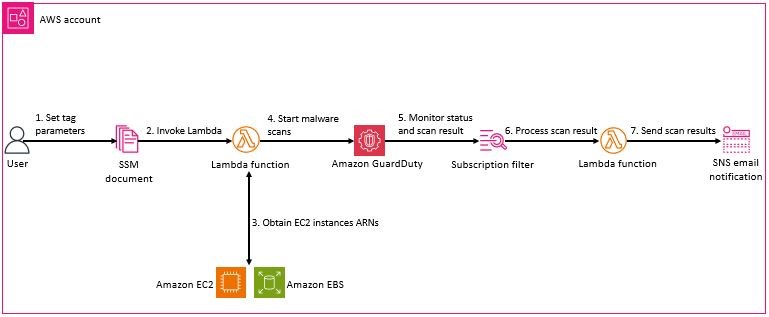


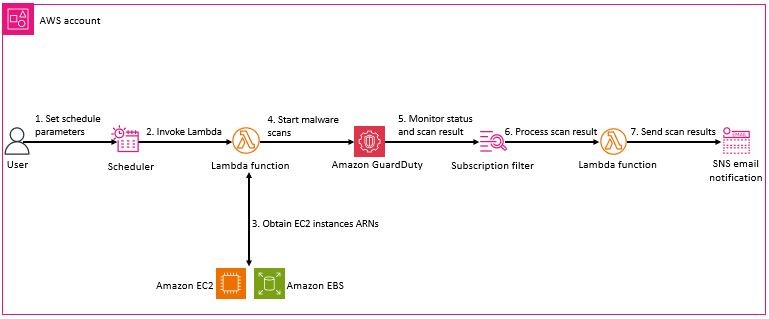


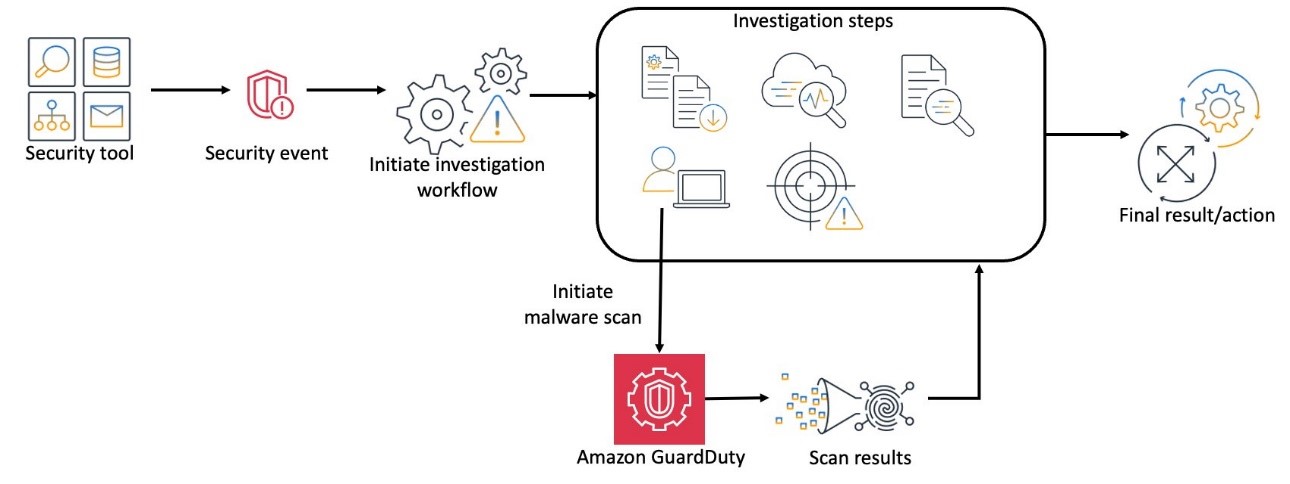
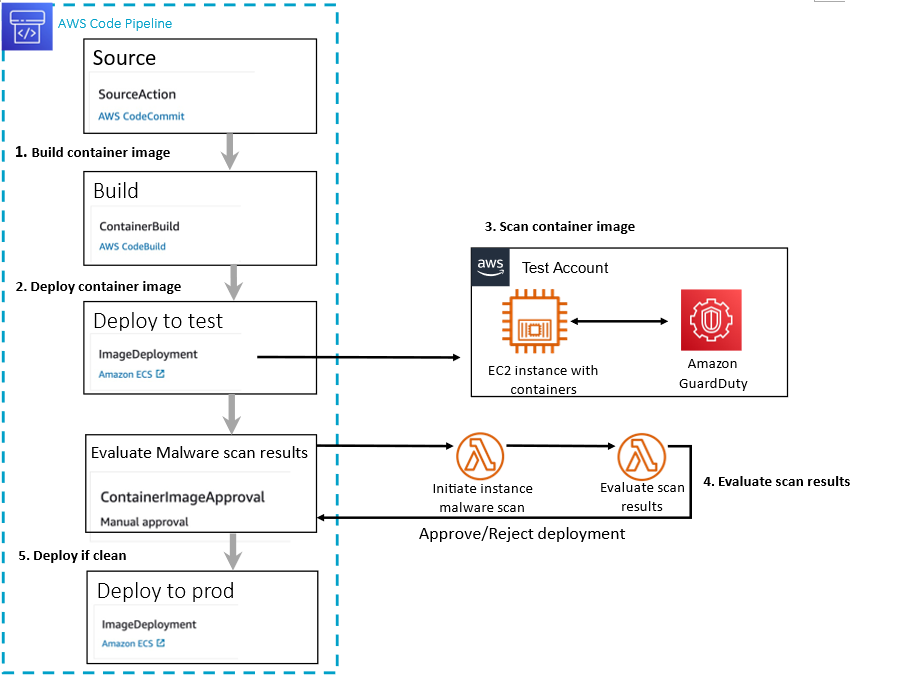


 testproject-dev: destroyed


 Umesh Chaudhari is a Streaming Solutions Architect at AWS. He works with AWS customers to design and build real time data processing systems. He has 13 years of working experience in software engineering including architecting, designing, and developing data analytics systems.
 Vishal Khatri is a Sr. Technical Account Manager and Analytics specialist at AWS. Vishal works with State and Local Government helping educate and share best practices with customers by leading and owning the development and delivery of technical content while designing end-to-end customer solutions.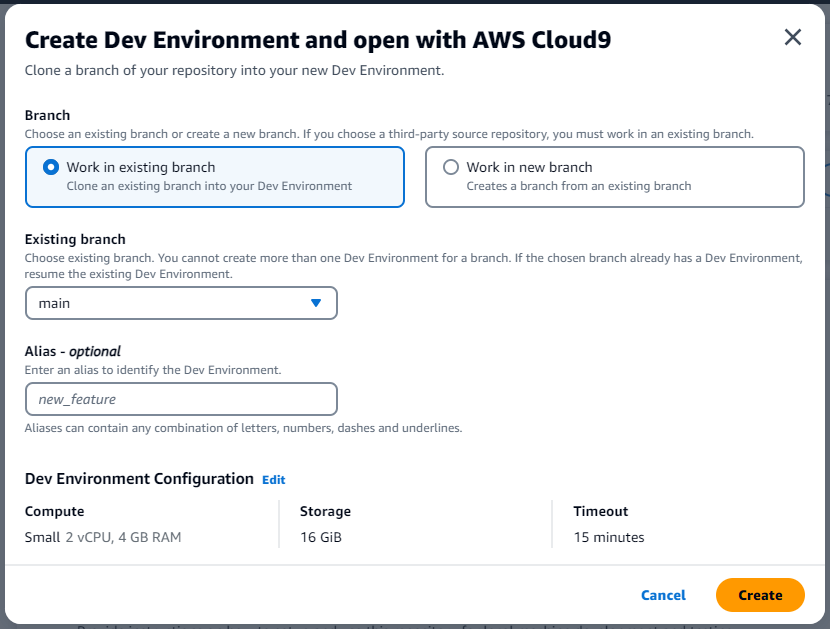

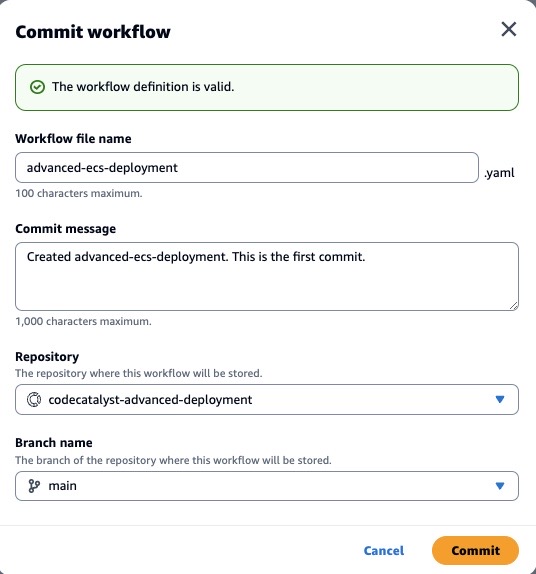




 Harman Singh Dhodi is an Analyst at HR&A Advisors, Harman combines his passion for data analytics with sustainable infrastructure practices, social inclusion, economic viability, climate resiliency, and building stakeholder capacity. Harman’s work often focuses on translating complex datasets into visual stories and accessible tools that help empower communities to understand the challenges they’re facing and create solutions for a brighter future.
 Kiran Kumar Tati is an Analytics Specialist Solutions Architect based out of Omaha, NE. He specializes in building end-to-end analytic solutions. He has more than 13 years of experience with designing and implementing large scale Big Data and Analytics solutions. In his spare time, he enjoys playing cricket and watching sports.
 Sapna Maheshwari is a Sr. Solutions Architect at Amazon Web Services. She helps customers architect data analytics solutions at scale on AWS. Outside of work she enjoys traveling and trying new cuisines.
 Washim Nawaz is an Analytics Specialist Solutions Architect at AWS. He has worked on building and tuning data warehouse and data lake solutions for over 15 years. He is passionate about helping customers modernize their data platforms with efficient, performant, and scalable analytic solutions. Outside of work, he enjoys watching games and traveling.


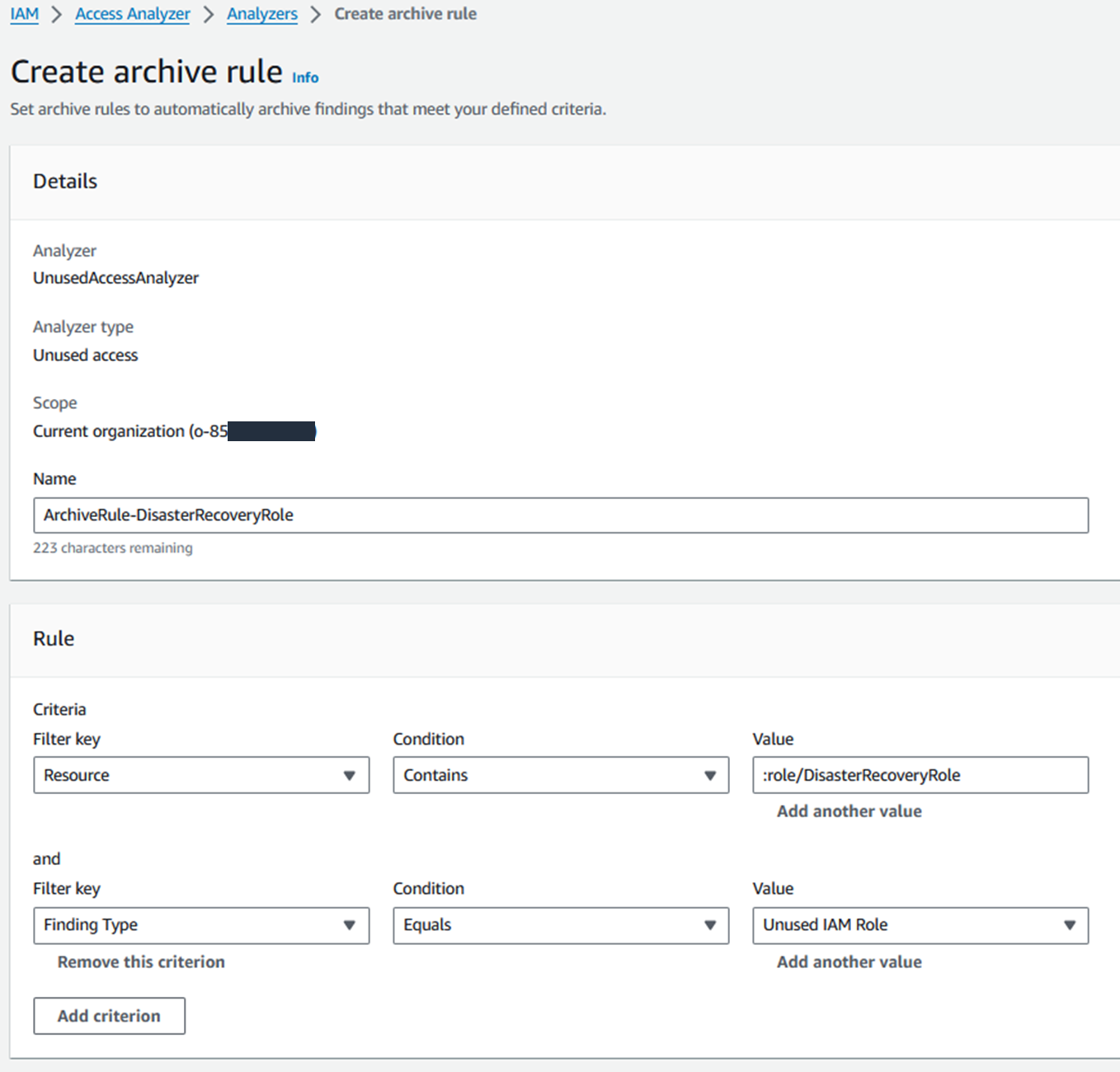



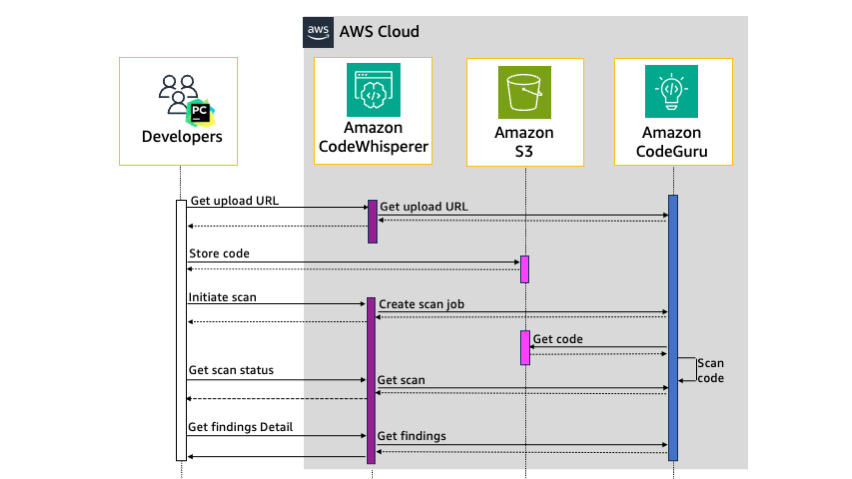
 ).
). ).
).


 Kamen Sharlandjiev is a Sr. Big Data and ETL Solutions Architect and AWS Glue expert. He’s on a mission to make life easier for customers who are facing complex data integration challenges. His secret weapon? Fully managed, low-code AWS services that can get the job done with minimal effort and no coding. Follow Kamen on LinkedIn to keep up to date with the latest AWS Glue news!
 Sean Bjurstrom is a Technical Account Manager in ISV accounts at Amazon Web Services, where he specializes in analytics technologies and draws on his background in consulting to support customers on their analytics and cloud journeys. Sean is passionate about helping businesses harness the power of data to drive innovation and growth. Outside of work, he enjoys running and has participated in several marathons.
 Vinod Jayendra is an Enterprise Support Lead in ISV accounts at Amazon Web Services, where he helps customers solve their architectural, operational, and cost-optimization challenges. With a particular focus on serverless technologies, he draws from his extensive background in application development to help customers build top-tier solutions. Beyond work, he finds joy in quality family time, embarking on biking adventures, and coaching youth sports teams.
 Doug Mbaya is a Senior Partner Solution architect with a focus in analytics and machine learning. Doug works closely with AWS partners and helps them integrate their solutions with AWS analytics and machine learning solutions in the cloud.


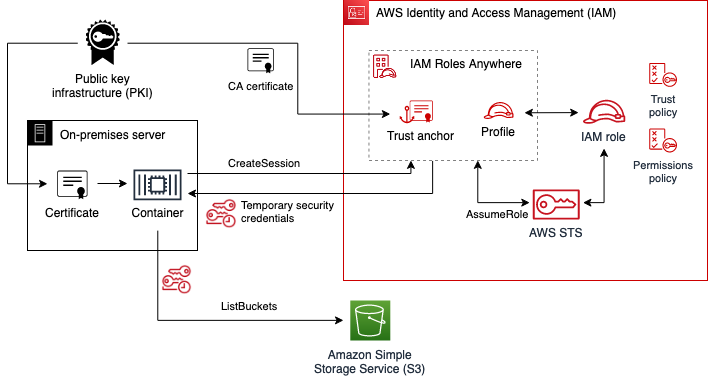
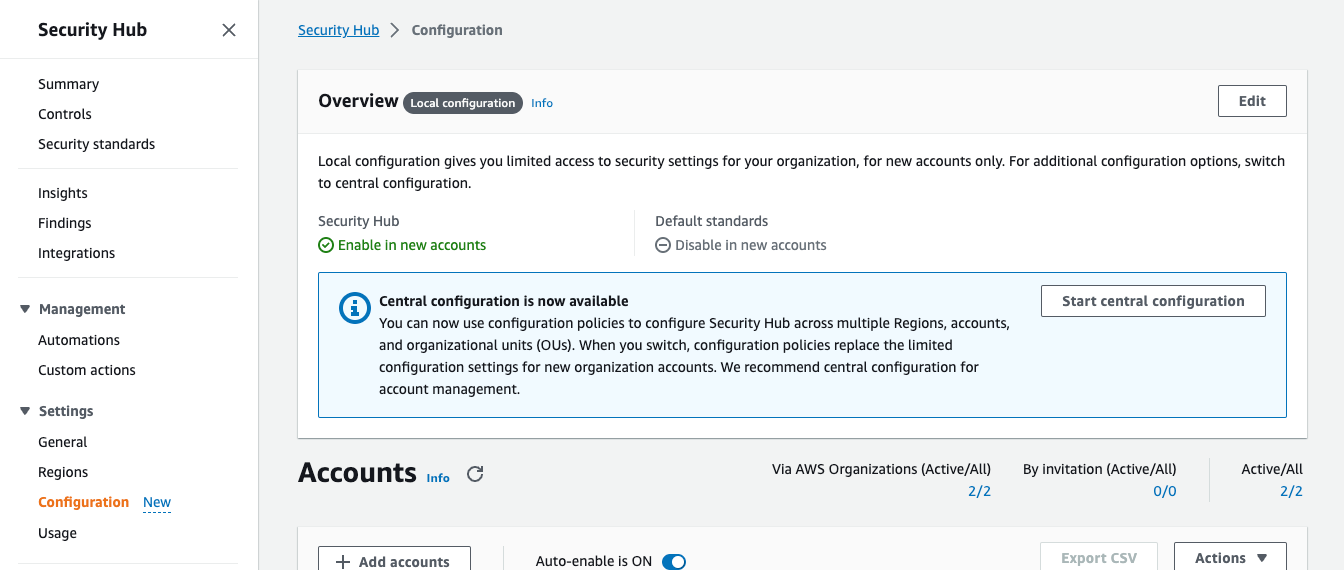
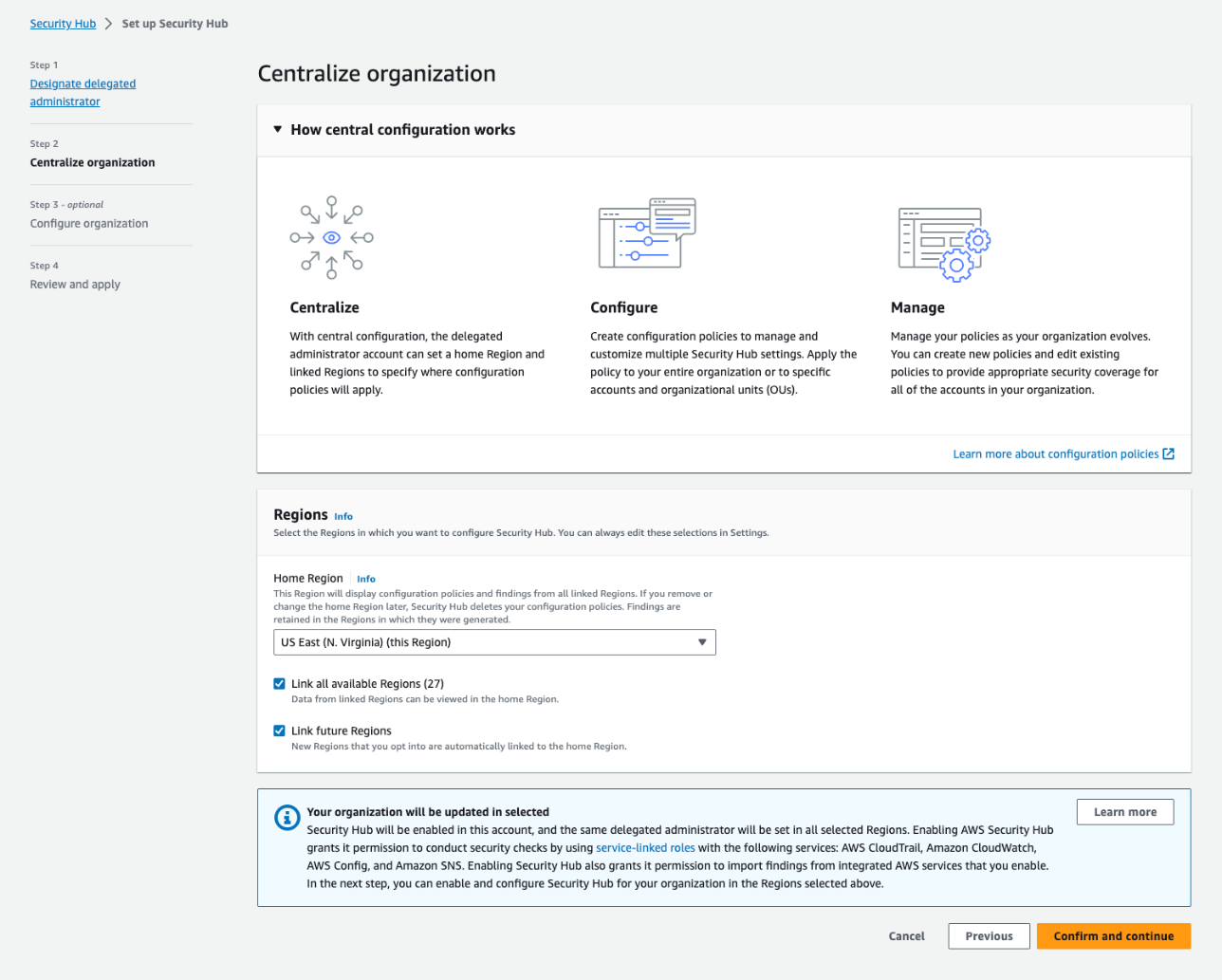
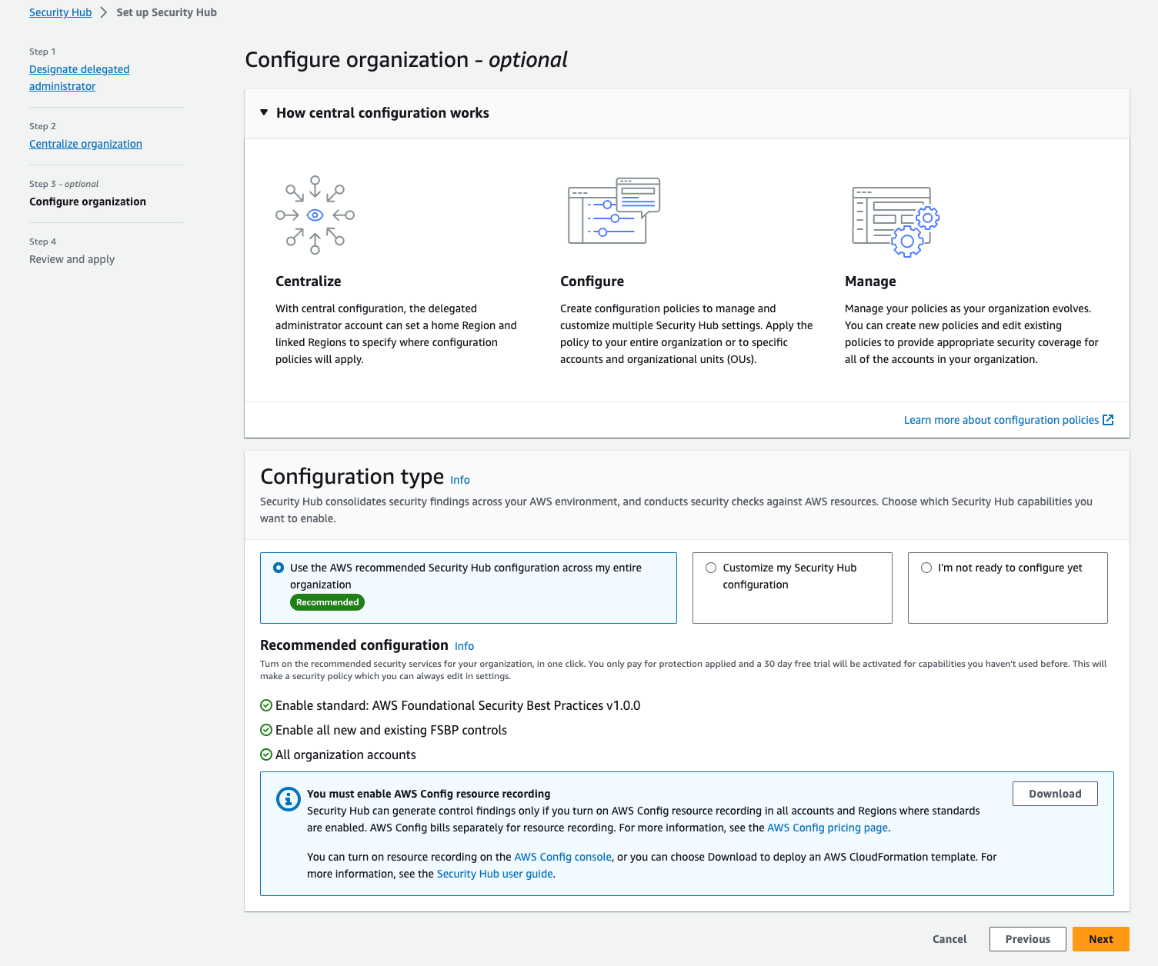
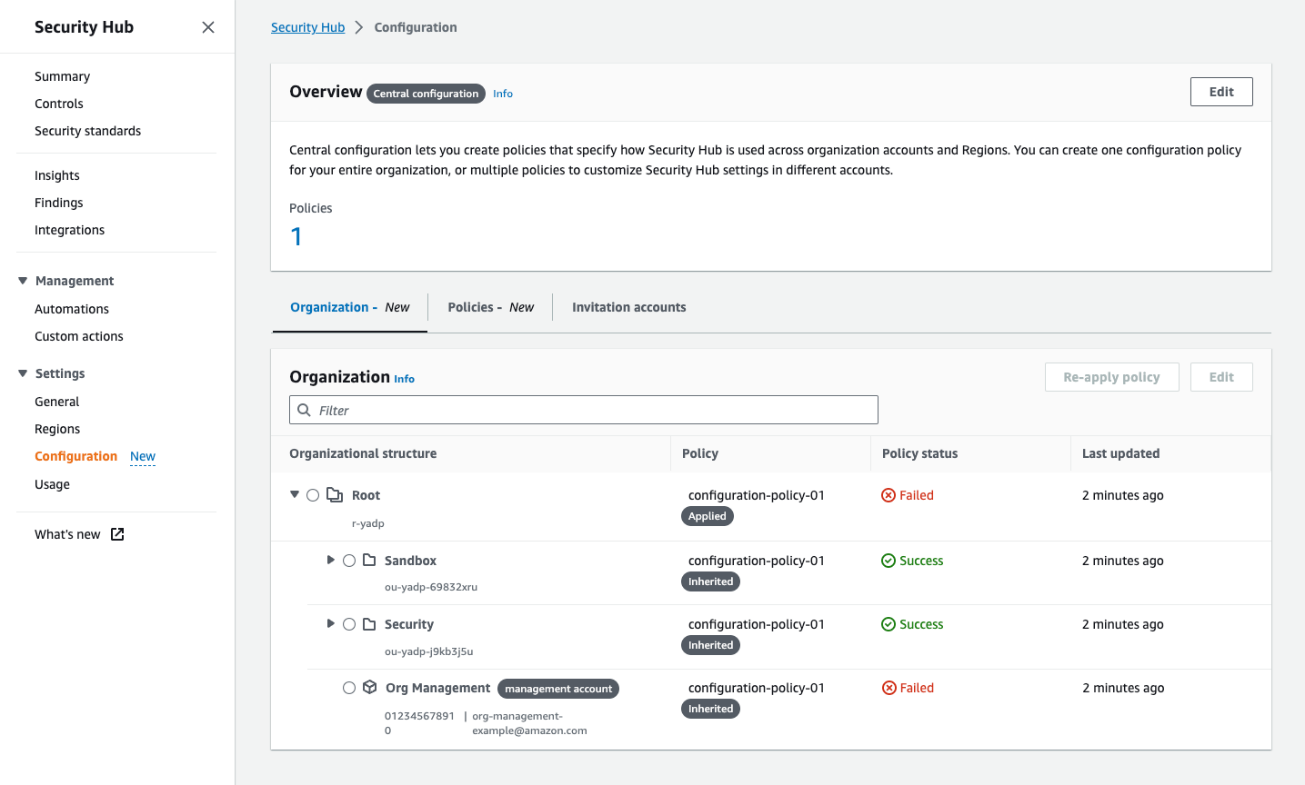 Figure 4: The Organization tab on the Configuration page shows all your organization accounts, if they are being managed by a policy, and the policy status for each account and OU