Tag Archives: Best practices

The most visited AWS DevOps blogs in 2022

Post Syndicated from original https://aws.amazon.com/blogs/devops/the-most-visited-aws-devops-blogs-in-2022/

As we kick off 2023, I wanted to take a moment to highlight the top posts from 2022. Without further ado, here are the top 10 AWS DevOps Blog posts of 2022.

#1: Integrating with GitHub Actions – CI/CD pipeline to deploy a Web App to Amazon EC2

Coming in at #1, Mahesh Biradar, Solutions Architect and Suresh Moolya, Cloud Application Architect use GitHub Actions and AWS CodeDeploy to deploy a sample application to Amazon Elastic Compute Cloud (Amazon EC2).

Architecture diagram from the original post.

#2: Deploy and Manage GitLab Runners on Amazon EC2

Sylvia Qi, Senior DevOps Architect, and Sebastian Carreras, Senior Cloud Application Architect, guide us through utilizing infrastructure as code (IaC) to automate GitLab Runner deployment on Amazon EC2.

Architecture diagram from the original post.

#3 Multi-Region Terraform Deployments with AWS CodePipeline using Terraform Built CI/CD

Lerna Ekmekcioglu, Senior Solutions Architect, and Jack Iu, Global Solutions Architect, demonstrate best practices for multi-Region deployments using HashiCorp Terraform, AWS CodeBuild, and AWS CodePipeline.

Architecture diagram from the original post.

#4 Use the AWS Toolkit for Azure DevOps to automate your deployments to AWS

Mahmoud Abid, Senior Customer Delivery Architect, leverages the AWS Toolkit for Azure DevOps to deploy AWS CloudFormation stacks.

Architecture diagram from the original post.

#5 Deploy and manage OpenAPI/Swagger RESTful APIs with the AWS Cloud Development Kit

Luke Popplewell, Solutions Architect, demonstrates using AWS Cloud Development Kit (AWS CDK) to build and deploy Amazon API Gateway resources using the OpenAPI specification.

Architecture diagram from the original post.

#6: How to unit test and deploy AWS Glue jobs using AWS CodePipeline

Praveen Kumar Jeyarajan, Senior DevOps Consultant, and Vaidyanathan Ganesa Sankaran, Sr Modernization Architect, discuss unit testing Python-based AWS Glue Jobs in AWS CodePipeline.

Architecture diagram from the original post.

#7: Jenkins high availability and disaster recovery on AWS

James Bland, APN Global Tech Lead for DevOps, and Welly Siauw, Sr. Partner solutions architect, discuss the challenges of architecting Jenkins for scale and high availability (HA).

Architecture diagram from the original post.

#8: Monitor AWS resources created by Terraform in Amazon DevOps Guru using tfdevops

Harish Vaswani, Senior Cloud Application Architect, and Rafael Ramos, Solutions Architect, explain how you can configure and use tfdevops to easily enable Amazon DevOps Guru for your existing AWS resources created by Terraform.

Architecture diagram from the original post.

#9: Manage application security and compliance with the AWS Cloud Development Kit and cdk-nag

Arun Donti, Senior Software Engineer with Twitch, demonstrates how to integrate cdk-nag into an AWS Cloud Development Kit (AWS CDK) application to provide continual feedback and help align your applications with best practices.

Featured image from the original post.

#10: Smithy Server and Client Generator for TypeScript (Developer Preview)

Adam Thomas, Senior Software Development Engineer, demonstrate how you can use Smithy to define services and SDKs and deploy them to AWS Lambda using a generated client.

Architecture diagram from the original post.

A big thank you to all our readers! Your feedback and collaboration are appreciated and help us produce better content.


About the author:

Brian Beach

Brian Beach has over 20 years of experience as a Developer and Architect. He is currently a Principal Solutions Architect at Amazon Web Services. He holds a Computer Engineering degree from NYU Poly and an MBA from Rutgers Business School. He is the author of “Pro PowerShell for Amazon Web Services” from Apress. He is a regular author and has spoken at numerous events. Brian lives in North Carolina with his wife and three kids.

Building .NET 7 Applications with AWS CodeBuild

Post Syndicated from Tom Moore original https://aws.amazon.com/blogs/devops/building-net-7-applications-with-aws-codebuild/

AWS CodeBuild is a fully managed DevOps service for building and testing your applications. As a fully managed service, there is no infrastructure to manage and you pay only for the resources that you use when you are building your applications. CodeBuild provides a default build image that contains the current Long Term Support (LTS) version of the .NET SDK.

Microsoft released the latest version of .NET in November. This release, .NET 7, includes performance improvements and functionality, such as native ahead of time compilation. (Native AoT)..NET 7 is a Standard Term Support release of the .NET SDK. At this point CodeBuild’s default image does not support .NET 7. For customers that want to start using.NET 7 right away in their applications, CodeBuild provides two means of customizing your build environment so that you can take advantage of .NET 7.

The first option for customizing your build environment is to provide CodeBuild with a container image you create and maintain. With this method, customers can define the build environment exactly as they need by including any SDKs, runtimes, and tools in the container image. However, this approach requires customers to maintain the build environment themselves, including patching and updating the tools. This approach will not be covered in this blog post.

A second means of customizing your build environment is by using the install phase of the buildspec file. This method uses the default CodeBuild image, and adds additional functionality at the point that a build starts. This has the advantage that customers do not have the overhead of patching and maintaining the build image.

Complete documentation on the syntax of the buildspec file can be found here:

https://docs.aws.amazon.com/codebuild/latest/userguide/build-spec-ref.html

Your application’s buildspec.yml file contains all of the commands necessary to build your application and prepare it for deployment. For a typical .NET application, the buildspec file will look like this:

You might want to say that you are not covering this in the post.

```
version: 0.2
phases:
  build:
    commands:
      - dotnet restore Net7TestApp.sln
      - dotnet build Net7TestApp.sln
```

Note: This build spec file contains only the commands to build the application, commands for packaging and storing build artifacts have been omitted for brevity.

In order to add the .NET 7 SDK to CodeBuild so that we can build your .NET 7 applications, we will leverage the install phase of the buildspec file. The install phase allows you to install any third-party libraries or SDKs prior to beginning your actual build.

```
  install:
    commands:
      - curl -sSL https://dot.net/v1/dotnet-install.sh | bash /dev/stdin --channel STS 
```

The above command downloads the Microsoft install script for .NET and uses that script to download and install the latest version of the .NET SDK, from the Standard Term Support channel. This script will download files and set environment variables within the containerized build environment. You can use this same command to automatically pull the latest Long Term Support version of the .NET SDK by changing the command argument STS to LTS.

Your updated buildspec file will look like this:

```
version: 0.2    
phases:
  install:
    commands:
      - curl -sSL https://dot.net/v1/dotnet-install.sh | bash /dev/stdin --channel STS 
  build:
    commands:
      - dotnet restore Net7TestApp/Net7TestApp.sln
      - dotnet build Net7TestApp/Net7TestApp.sln
```

Once you check in your buildspec file, you can start a build via the CodeBuild console, and your .NET application will be built using the .NET 7 SDK.

As your build runs you will see output similar to this:

 ```
Welcome to .NET 7.0! 
--------------------- 
SDK Version: 7.0.100 
Telemetry 
--------- 
The .NET tools collect usage data in order to help us improve your experience. It is collected by Microsoft and shared with the community. You can opt-out of telemetry by setting the DOTNET_CLI_TELEMETRY_OPTOUT environment variable to '1' or 'true' using your favorite shell. 

Read more about .NET CLI Tools telemetry: https://aka.ms/dotnet-cli-telemetry 
---------------- 
Installed an ASP.NET Core HTTPS development certificate. 
To trust the certificate run 'dotnet dev-certs https --trust' (Windows and macOS only). 
Learn about HTTPS: https://aka.ms/dotnet-https 
---------------- 
Write your first app: https://aka.ms/dotnet-hello-world 
Find out what's new: https://aka.ms/dotnet-whats-new 
Explore documentation: https://aka.ms/dotnet-docs 
Report issues and find source on GitHub: https://github.com/dotnet/core 
Use 'dotnet --help' to see available commands or visit: https://aka.ms/dotnet-cli 
-------------------------------------------------------------------------------------- 
Determining projects to restore... 
Restored /codebuild/output/src095190443/src/git-codecommit.us-east-2.amazonaws.com/v1/repos/net7test/Net7TestApp/Net7TestApp/Net7TestApp.csproj (in 586 ms). 
[Container] 2022/11/18 14:55:08 Running command dotnet build Net7TestApp/Net7TestApp.sln 
MSBuild version 17.4.0+18d5aef85 for .NET 
Determining projects to restore... 
All projects are up-to-date for restore. 
Net7TestApp -> /codebuild/output/src095190443/src/git-codecommit.us-east-2.amazonaws.com/v1/repos/net7test/Net7TestApp/Net7TestApp/bin/Debug/net7.0/Net7TestApp.dll 
Build succeeded. 
0 Warning(s) 
0 Error(s) 
Time Elapsed 00:00:04.63 
[Container] 2022/11/18 14:55:13 Phase complete: BUILD State: SUCCEEDED 
[Container] 2022/11/18 14:55:13 Phase context status code: Message: 
[Container] 2022/11/18 14:55:13 Entering phase POST_BUILD 
[Container] 2022/11/18 14:55:13 Phase complete: POST_BUILD State: SUCCEEDED 
[Container] 2022/11/18 14:55:13 Phase context status code: Message:
```

Conclusion

Adding .NET 7 support to AWS CodeBuild is easily accomplished by adding a single line to your application’s buildspec.yml file, stored alongside your application source code. This change allows you to keep up to date with the latest versions of .NET while still taking advantage of the managed runtime provided by the CodeBuild service.

About the author:

Tom Moore

Tom Moore is a Sr. Specialist Solutions Architect at AWS, and specializes in helping customers migrate and modernize Microsoft .NET and Windows workloads into their AWS environment.

Develop a serverless application in Python using Amazon CodeWhisperer

Post Syndicated from Rafael Ramos original https://aws.amazon.com/blogs/devops/develop-a-serverless-application-in-python-using-amazon-codewhisperer/

While writing code to develop applications, developers must keep up with multiple programming languages, frameworks, software libraries, and popular cloud services from providers such as AWS. Even though developers can find code snippets on developer communities, to either learn from them or repurpose the code, manually searching for the snippets with an exact or even similar use case is a distracting and time-consuming process. They have to do all of this while making sure that they’re following the correct programming syntax and best coding practices.

Amazon CodeWhisperer, a machine learning (ML) powered coding aide for developers, lets you overcome those challenges. Developers can simply write a comment that outlines a specific task in plain English, such as “upload a file to S3.” Based on this, CodeWhisperer automatically determines which cloud services and public libraries are best-suited for the specified task, it creates the specific code on the fly, and then it recommends the generated code snippets directly in the IDE. And this isn’t about copy-pasting code from the web, but generating code based on the context of your file, such as which libraries and versions you have, as well as the existing code. Moreover, CodeWhisperer seamlessly integrates with your Visual Studio Code and JetBrains IDEs so that you can stay focused and never leave the development environment. At the time of this writing, CodeWhisperer supports Java, Python, JavaScript, C#, and TypeScript.

In this post, we’ll build a full-fledged, event-driven, serverless application for image recognition. With the aid of CodeWhisperer, you’ll write your own code that runs on top of AWS Lambda to interact with Amazon Rekognition, Amazon DynamoDB, Amazon Simple Notification Service (Amazon SNS), Amazon Simple Queue Service (Amazon SQS), Amazon Simple Storage Service (Amazon S3), and third-party HTTP APIs to perform image recognition. The users of the application can interact with it by either sending the URL of an image for processing, or by listing the images and the objects present on each image.

Solution overview

To make our application easier to digest, we’ll split it into three segments:

  1. Image download – The user provides an image URL to the first API. A Lambda function downloads the image from the URL and stores it on an S3 bucket. Amazon S3 automatically sends a notification to an Amazon SNS topic informing that a new image is ready for processing. Amazon SNS then delivers the message to an Amazon SQS queue.
  2. Image recognition – A second Lambda function handles the orchestration and processing of the image. It receives the message from the Amazon SQS queue, sends the image for Amazon Rekognition to process, stores the recognition results on a DynamoDB table, and sends a message with those results as JSON to a second Amazon SNS topic used in section three. A user can list the images and the objects present on each image by calling a second API which queries the DynamoDB table.
  3. 3rd-party integration – The last Lambda function reads the message from the second Amazon SQS queue. At this point, the Lambda function must deliver that message to a fictitious external e-mail server HTTP API that supports only XML payloads. Because of that, the Lambda function converts the JSON message to XML. Lastly, the function sends the XML object via HTTP POST to the e-mail server.

The following diagram depicts the architecture of our application:

Architecture diagram depicting the application architecture. It contains the service icons with the component explained on the text above

Figure 1. Architecture diagram depicting the application architecture. It contains the service icons with the component explained on the text above.

Prerequisites

Before getting started, you must have the following prerequisites:

Configure environment

We already created the scaffolding for the application that we’ll build, which you can find on this Git repository. This application is represented by a CDK app that describes the infrastructure according to the architecture diagram above. However, the actual business logic of the application isn’t provided. You’ll implement it using CodeWhisperer. This means that we already declared using AWS CDK components, such as the API Gateway endpoints, DynamoDB table, and topics and queues. If you’re new to AWS CDK, then we encourage you to go through the CDK workshop later on.

Deploying AWS CDK apps into an AWS environment (a combination of an AWS account and region) requires that you provision resources that the AWS CDK needs to perform the deployment. These resources include an Amazon S3 bucket for storing files and IAM roles that grant permissions needed to perform deployments. The process of provisioning these initial resources is called bootstrapping. The required resources are defined in an AWS CloudFormation stack, called the bootstrap stack, which is usually named CDKToolkit. Like any CloudFormation stack, it appears in the CloudFormation console once it has been deployed.

After cloning the repository, let’s deploy the application (still without the business logic, which we’ll implement later on using CodeWhisperer). For this post, we’ll implement the application in Python. Therefore, make sure that you’re under the python directory. Then, use the cdk bootstrap command to bootstrap an AWS environment for AWS CDK. Replace {AWS_ACCOUNT_ID} and {AWS_REGION} with corresponding values first:

cdk bootstrap aws://{AWS_ACCOUNT_ID}/{AWS_REGION}

For more information about bootstrapping, refer to the documentation.

The last step to prepare your environment is to enable CodeWhisperer on your IDE. See Setting up CodeWhisperer for VS Code or Setting up Amazon CodeWhisperer for JetBrains to learn how to do that, depending on which IDE you’re using.

Image download

Let’s get started by implementing the first Lambda function, which is responsible for downloading an image from the provided URL and storing that image in an S3 bucket. Open the get_save_image.py file from the python/api/runtime/ directory. This file contains an empty Lambda function handler and the needed inputs parameters to integrate this Lambda function.

  • url is the URL of the input image provided by the user,
  • name is the name of the image provided by the user, and
  • S3_BUCKET is the S3 bucket name defined by our application infrastructure.

Write a comment in natural language that describes the required functionality, for example:

# Function to get a file from url

To trigger CodeWhisperer, hit the Enter key after entering the comment and wait for a code suggestion. If you want to manually trigger CodeWhisperer, then you can hit Option + C on MacOS or Alt + C on Windows. You can browse through multiple suggestions (if available) with the arrow keys. Accept a code suggestion by pressing Tab. Discard a suggestion by pressing Esc or typing a character.

For more information on how to work with CodeWhisperer, see Working with CodeWhisperer in VS Code or Working with Amazon CodeWhisperer from JetBrains.

You should get a suggested implementation of a function that downloads a file using a specified URL. The following image shows an example of the code snippet that CodeWhisperer suggests:

Screenshot of the code generated by CodeWhisperer on VS Code. It has a function called get_file_from_url with the implementation suggestion to download a file using the requests lib

Figure 2. Screenshot of the code generated by CodeWhisperer on VS Code. It has a function called get_file_from_url with the implementation suggestion to download a file using the requests lib.

Be aware that CodeWhisperer uses artificial intelligence (AI) to provide code recommendations, and that this is non-deterministic. The result you get in your IDE may be different from the one on the image above. If needed, fine-tune the code, as CodeWhisperer generates the core logic, but you might want to customize the details depending on your requirements.

Let’s try another action, this time to upload the image to an S3 bucket:

# Function to upload image to S3

As a result, CodeWhisperer generates a code snippet similar to the following one:

Screenshot of the code generated by CodeWhisperer on VS Code. It has a function called upload_image with the implementation suggestion to download a file using the requests lib and upload it to S3 using the S3 client

Figure 3. Screenshot of the code generated by CodeWhisperer on VS Code. It has a function called upload_image with the implementation suggestion to download a file using the requests lib and upload it to S3 using the S3 client.

Now that you have the functions with the functionalities to download an image from the web and upload it to an S3 bucket, you can wire up both functions in the Lambda handler function by calling each function with the correct inputs.

Image recognition

Now let’s implement the Lambda function responsible for sending the image to Amazon Rekognition for processing, storing the results in a DynamoDB table, and sending a message with those results as JSON to a second Amazon SNS topic. Open the image_recognition.py file from the python/recognition/runtime/ directory. This file contains an empty Lambda and the needed inputs parameters to integrate this Lambda function.

  • queue_url is the URL of the Amazon SQS queue to which this Lambda function is subscribed,
  • table_name is the name of the DynamoDB table, and
  • topic_arn is the ARN of the Amazon SNS topic to which this Lambda function is published.

Using CodeWhisperer, implement the business logic of the next Lambda function as you did in the previous section. For example, to detect the labels from an image using Amazon Rekognition, write the following comment:

# Detect labels from image with Rekognition

And as a result, CodeWhisperer should give you a code snippet similar to the one in the following image:

Screenshot of the code generated by CodeWhisperer on VS Code. It has a function called detect_labels with the implementation suggestion to use the Rekognition SDK to detect labels on the given image

Figure 4. Screenshot of the code generated by CodeWhisperer on VS Code. It has a function called detect_labels with the implementation suggestion to use the Rekognition SDK to detect labels on the given image.

You can continue generating the other functions that you need to fully implement the business logic of your Lambda function. Here are some examples that you can use:

  • # Save labels to DynamoDB
  • # Publish item to SNS
  • # Delete message from SQS

Following the same approach, open the list_images.py file from the python/recognition/runtime/ directory to implement the logic to list all of the labels from the DynamoDB table. As you did previously, type a comment in plain English:

# Function to list all items from a DynamoDB table

Other frequently used code

Interacting with AWS isn’t the only way that you can leverage CodeWhisperer. You can use it to implement repetitive tasks, such as creating unit tests and converting message formats, or to implement algorithms like sorting and string matching and parsing. The last Lambda function that we’ll implement as part of this post is to convert a JSON payload received from Amazon SQS to XML. Then, we’ll POST this XML to an HTTP endpoint.

Open the send_email.py file from the python/integration/runtime/ directory. This file contains an empty Lambda function handler. An event is a JSON-formatted document that contains data for a Lambda function to process. Type a comment with your intent to get the code snippet:

# Transform json to xml

As CodeWhisperer uses the context of your files to generate code, depending on the imports that you have on your file, you’ll get an implementation such as the one in the following image:

Screenshot of the code generated by CodeWhisperer on VS Code. It has a function called json_to_xml with the implementation suggestion to transform JSON payload into XML payload

Figure 5. Screenshot of the code generated by CodeWhisperer on VS Code. It has a function called json_to_xml with the implementation suggestion to transform JSON payload into XML payload.

Repeat the same process with a comment such as # Send XML string with HTTP POST to get the last function implementation. Note that the email server isn’t part of this implementation. You can mock it, or simply ignore this HTTP POST step. Lastly, wire up both functions in the Lambda handler function by calling each function with the correct inputs.

Deploy and test the application

To deploy the application, run the command cdk deploy --all. You should get a confirmation message, and after a few minutes your application will be up and running on your AWS account. As outputs, the APIStack and RekognitionStack will print the API Gateway endpoint URLs. It will look similar to this example:

Outputs:
...
APIStack.RESTAPIEndpoint01234567 = https://examp1eid0.execute-
api.{your-region}.amazonaws.com/prod/
  1. The first endpoint expects two string parameters: url (the image file URL to download) and name (the target file name that will be stored on the S3 bucket). Use any image URL you like, but remember that you must encode an image URL before passing it as a query string parameter to escape the special characters. Use an online URL encoder of your choice for that. Then, use the curl command to invoke the API Gateway endpoint:
curl -X GET 'https://examp1eid0.execute-api.eu-east-
2.amazonaws.com/prod?url={encoded-image-URL}&name={file-name}'

Replace {encoded-image-URL} and {file-name} with the corresponding values. Also, make sure that you use the correct API endpoint that you’ve noted from the AWS CDK deploy command output as mentioned above.

  1. It will take a few seconds for the processing to happen in the background. Once it’s ready, see what has been stored in the DynamoDB table by invoking the List Images API (make sure that you use the correct URL from the output of your deployed AWS CDK stack):
curl -X GET 'https://examp1eid7.execute-api.eu-east-2.amazonaws.com/prod'

After you’re done, to avoid unexpected charges to your account, make sure that you clean up your AWS CDK stacks. Use the cdk destroy command to delete the stacks.

Conclusion

In this post, we’ve seen how to get a significant productivity boost with the help of ML. With that, as a developer, you can stay focused on your IDE and reduce the time that you spend searching online for code snippets that are relevant for your use case. Writing comments in natural language, you get context-based snippets to implement full-fledged applications. In addition, CodeWhisperer comes with a mechanism called reference tracker, which detects whether a code recommendation might be similar to particular CodeWhisperer training data. The reference tracker lets you easily find and review that reference code and see how it’s used in the context of another project. Lastly, CodeWhisperer provides the ability to run scans on your code (generated by CodeWhisperer as well as written by you) to detect security vulnerabilities.

During the preview period, CodeWhisperer is available to all developers across the world for free. Get started with the free preview on JetBrains, VS Code or AWS Cloud9.

About the author:

Rafael Ramos

Rafael is a Solutions Architect at AWS, where he helps ISVs on their journey to the cloud. He spent over 13 years working as a software developer, and is passionate about DevOps and serverless. Outside of work, he enjoys playing tabletop RPG, cooking and running marathons.

Caroline Gluck

Caroline is an AWS Cloud application architect based in New York City, where she helps customers design and build cloud native data science applications. Caroline is a builder at heart, with a passion for serverless architecture and machine learning. In her spare time, she enjoys traveling, cooking, and spending time with family and friends.

Jason Varghese

Jason is a Senior Solutions Architect at AWS guiding enterprise customers on their cloud migration and modernization journeys. He has served in multiple engineering leadership roles and has over 20 years of experience architecting, designing and building scalable software solutions. Jason holds a bachelor’s degree in computer engineering from the University of Oklahoma and an MBA from the University of Central Oklahoma.

Dmitry Balabanov

Dmitry is a Solutions Architect with AWS where he focuses on building reusable assets for customers across multiple industries. With over 15 years of experience in designing, building, and maintaining applications, he still loves learning new things. When not at work, he enjoys paragliding and mountain trekking.

Unlock the power of EC2 Graviton with GitLab CI/CD and EKS Runners

Post Syndicated from Michael Fischer original https://aws.amazon.com/blogs/devops/unlock-the-power-of-ec2-graviton-with-gitlab-ci-cd-and-eks-runners/

Many AWS customers are using GitLab for their DevOps needs, including source control, and continuous integration and continuous delivery (CI/CD). Many of our customers are using GitLab SaaS (the hosted edition), while others are using GitLab Self-managed to meet their security and compliance requirements.

Customers can easily add runners to their GitLab instance to perform various CI/CD jobs. These jobs include compiling source code, building software packages or container images, performing unit and integration testing, etc.—even all the way to production deployment. For the SaaS edition, GitLab offers hosted runners, and customers can provide their own runners as well. Customers who run GitLab Self-managed must provide their own runners.

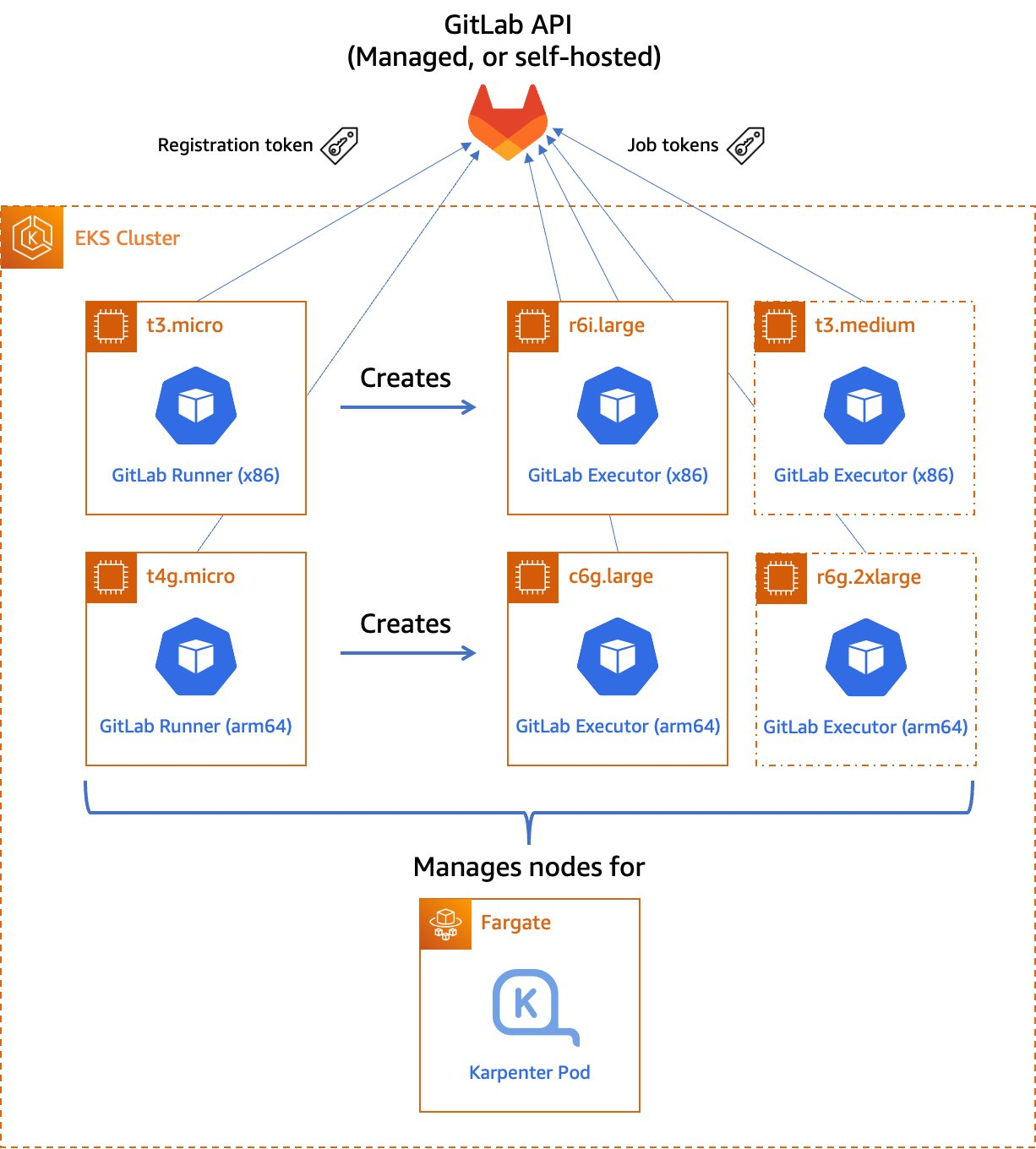
In this post, we’ll discuss how customers can maximize their CI/CD capabilities by managing their GitLab runner and executor fleet with Amazon Elastic Kubernetes Service (Amazon EKS). We’ll leverage both x86 and Graviton runners, allowing customers for the first time to build and test their applications both on x86 and on AWS Graviton, our most powerful, cost-effective, and sustainable instance family. In keeping with AWS’s philosophy of “pay only for what you use,” we’ll keep our Amazon Elastic Compute Cloud (Amazon EC2) instances as small as possible, and launch ephemeral runners on Spot instances. We’ll demonstrate building and testing a simple demo application on both architectures. Finally, we’ll build and deliver a multi-architecture container image that can run on Amazon EC2 instances or AWS Fargate, both on x86 and Graviton.

Figure 1. Managed GitLab runner architecture overview

Figure 1.  Managed GitLab runner architecture overview.

Let’s go through the components:

Runners

A runner is an application to which GitLab sends jobs that are defined in a CI/CD pipeline. The runner receives jobs from GitLab and executes them—either by itself, or by passing it to an executor (we’ll visit the executor in the next section).

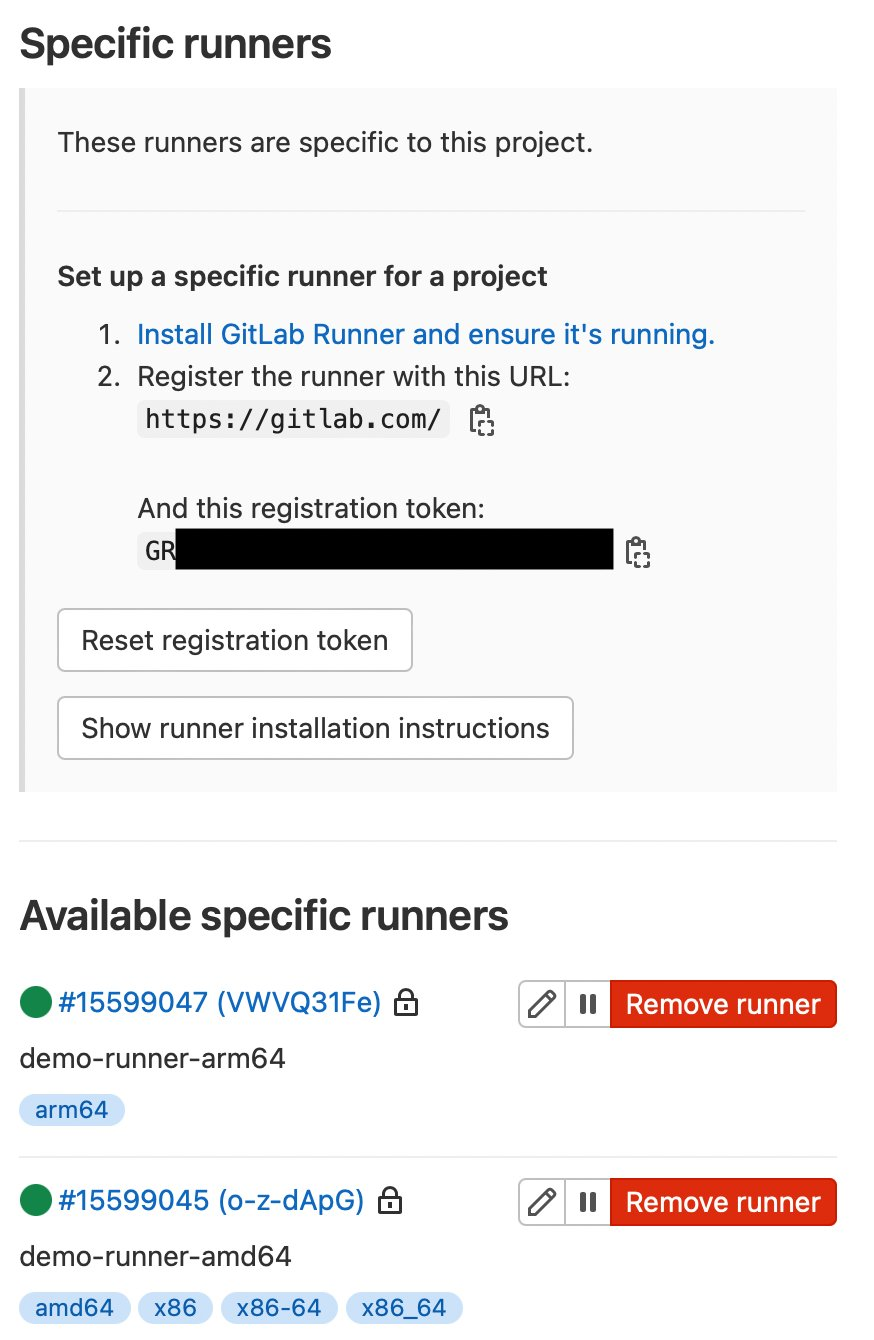
In our design, we’ll be using a pair of self-hosted runners. One runner will accept jobs for the x86 CPU architecture, and the other will accept jobs for the arm64 (Graviton) CPU architecture. To help us route our jobs to the proper runner, we’ll apply some tags to each runner indicating the architecture for which it will be responsible. We’ll tag the x86 runner with x86, x86-64, and amd64, thereby reflecting the most common nicknames for the architecture, and we’ll tag the arm64 runner with arm64.

Currently, these runners must always be running so that they can receive jobs as they are created. Our runners only require a small amount of memory and CPU, so that we can run them on small EC2 instances to minimize cost. These include t4g.micro for Graviton builds, or t3.micro or t3a.micro for x86 builds.

To save money on these runners, consider purchasing a Savings Plan or Reserved Instances for them. Savings Plans and Reserved Instances can save you up to 72% over on-demand pricing, and there’s no minimum spend required to use them.

Kubernetes executors

In GitLab CI/CD, the executor’s job is to perform the actual build. The runner can create hundreds or thousands of executors as needed to meet current demand, subject to the concurrency limits that you specify. Executors are created only when needed, and they are ephemeral: once a job has finished running on an executor, the runner will terminate it.

In our design, we’ll use the Kubernetes executor that’s built into the GitLab runner. The Kubernetes executor simply schedules a new pod to run each job. Once the job completes, the pod terminates, thereby freeing the node to run other jobs.

The Kubernetes executor is highly customizable. We’ll configure each runner with a nodeSelector that makes sure that the jobs are scheduled only onto nodes that are running the specified CPU architecture. Other possible customizations include CPU and memory reservations, node and pod tolerations, service accounts, volume mounts, and much more.

Scaling worker nodes

For most customers, CI/CD jobs aren’t likely to be running all of the time. To save cost, we only want to run worker nodes when there’s a job to run.

To make this happen, we’ll turn to Karpenter. Karpenter provisions EC2 instances as soon as needed to fit newly-scheduled pods. If a new executor pod is scheduled, and there isn’t a qualified instance with enough capacity remaining on it, then Karpenter will quickly and automatically launch a new instance to fit the pod. Karpenter will also periodically scan the cluster and terminate idle nodes, thereby saving on costs. Karpenter can terminate a vacant node in as little as 30 seconds.

Karpenter can launch either Amazon EC2 on-demand or Spot instances depending on your needs. With Spot instances, you can save up to 90% over on-demand instance prices. Since CI/CD jobs often aren’t time-sensitive, Spot instances can be an excellent choice for GitLab execution pods. Karpenter will even automatically find the best Spot instance type to speed up the time it takes to launch an instance and minimize the likelihood of job interruption.

Deploying our solution

To deploy our solution, we’ll write a small application using the AWS Cloud Development Kit (AWS CDK) and the EKS Blueprints library. AWS CDK is an open-source software development framework to define your cloud application resources using familiar programming languages. EKS Blueprints is a library designed to make it simple to deploy complex Kubernetes resources to an Amazon EKS cluster with minimum coding.

The high-level infrastructure code – which can be found in our GitLab repo – is very simple. I’ve included comments to explain how it works.

// All CDK applications start with a new cdk.App object.
const app = new cdk.App();

// Create a new EKS cluster at v1.23. Run all non-DaemonSet pods in the 
// `kube-system` (coredns, etc.) and `karpenter` namespaces in Fargate
// so that we don't have to maintain EC2 instances for them.
const clusterProvider = new blueprints.GenericClusterProvider({
  version: KubernetesVersion.V1_23,
  fargateProfiles: {
    main: {
      selectors: [
        { namespace: 'kube-system' },
        { namespace: 'karpenter' },
      ]
    }
  },
  clusterLogging: [
    ClusterLoggingTypes.API,
    ClusterLoggingTypes.AUDIT,
    ClusterLoggingTypes.AUTHENTICATOR,
    ClusterLoggingTypes.CONTROLLER_MANAGER,
    ClusterLoggingTypes.SCHEDULER
  ]
});

// EKS Blueprints uses a Builder pattern.
blueprints.EksBlueprint.builder()
  .clusterProvider(clusterProvider) // start with the Cluster Provider
  .addOns(
    // Use the EKS add-ons that manage coredns and the VPC CNI plugin
    new blueprints.addons.CoreDnsAddOn('v1.8.7-eksbuild.3'),
    new blueprints.addons.VpcCniAddOn('v1.12.0-eksbuild.1'),
    // Install Karpenter
    new blueprints.addons.KarpenterAddOn({
      provisionerSpecs: {
        // Karpenter examines scheduled pods for the following labels
        // in their `nodeSelector` or `nodeAffinity` rules and routes
        // the pods to the node with the best fit, provisioning a new
        // node if necessary to meet the requirements.
        //
        // Allow either amd64 or arm64 nodes to be provisioned 
        'kubernetes.io/arch': ['amd64', 'arm64'],
        // Allow either Spot or On-Demand nodes to be provisioned
        'karpenter.sh/capacity-type': ['spot', 'on-demand']
      },
      // Launch instances in the VPC private subnets
      subnetTags: {
        Name: 'gitlab-runner-eks-demo/gitlab-runner-eks-demo-vpc/PrivateSubnet*'
      },
      // Apply security groups that match the following tags to the launched instances
      securityGroupTags: {
        'kubernetes.io/cluster/gitlab-runner-eks-demo': 'owned'      
      }
    }),
    // Create a pair of a new GitLab runner deployments, one running on
    // arm64 (Graviton) instance, the other on an x86_64 instance.
    // We'll show the definition of the GitLabRunner class below.
    new GitLabRunner({
      arch: CpuArch.ARM_64,
      // If you're using an on-premise GitLab installation, you'll want
      // to change the URL below.
      gitlabUrl: 'https://gitlab.com',
      // Kubernetes Secret containing the runner registration token
      // (discussed later)
      secretName: 'gitlab-runner-secret'
    }),
    new GitLabRunner({
      arch: CpuArch.X86_64,
      gitlabUrl: 'https://gitlab.com',
      secretName: 'gitlab-runner-secret'
    }),
  )
  .build(app, 
         // Stack name
         'gitlab-runner-eks-demo');
The GitLabRunner class is a HelmAddOn subclass that takes a few parameters from the top-level application:
// The location and name of the GitLab Runner Helm chart
const CHART_REPO = 'https://charts.gitlab.io';
const HELM_CHART = 'gitlab-runner';

// The default namespace for the runner
const DEFAULT_NAMESPACE = 'gitlab';

// The default Helm chart version
const DEFAULT_VERSION = '0.40.1';

export enum CpuArch {
    ARM_64 = 'arm64',
    X86_64 = 'amd64'
}

// Configuration parameters
interface GitLabRunnerProps {
    // The CPU architecture of the node on which the runner pod will reside
    arch: CpuArch
    // The GitLab API URL 
    gitlabUrl: string
    // Kubernetes Secret containing the runner registration token (discussed later)
    secretName: string
    // Optional tags for the runner. These will be added to the default list 
    // corresponding to the runner's CPU architecture.
    tags?: string[]
    // Optional Kubernetes namespace in which the runner will be installed
    namespace?: string
    // Optional Helm chart version
    chartVersion?: string
}

export class GitLabRunner extends HelmAddOn {
    private arch: CpuArch;
    private gitlabUrl: string;
    private secretName: string;
    private tags: string[] = [];

    constructor(props: GitLabRunnerProps) {
        // Invoke the superclass (HelmAddOn) constructor
        super({
            name: `gitlab-runner-${props.arch}`,
            chart: HELM_CHART,
            repository: CHART_REPO,
            namespace: props.namespace || DEFAULT_NAMESPACE,
            version: props.chartVersion || DEFAULT_VERSION,
            release: `gitlab-runner-${props.arch}`,
        });

        this.arch = props.arch;
        this.gitlabUrl = props.gitlabUrl;
        this.secretName = props.secretName;

        // Set default runner tags
        switch (this.arch) {
            case CpuArch.X86_64:
                this.tags.push('amd64', 'x86', 'x86-64', 'x86_64');
                break;
            case CpuArch.ARM_64:
                this.tags.push('arm64');
                break;
        }
        this.tags.push(...props.tags || []); // Add any custom tags
    };

    // `deploy` method required by the abstract class definition. Our implementation
    // simply installs a Helm chart to the cluster with the proper values.
    deploy(clusterInfo: ClusterInfo): void | Promise<Construct> {
        const chart = this.addHelmChart(clusterInfo, this.getValues(), true);
        return Promise.resolve(chart);
    }

    // Returns the values for the GitLab Runner Helm chart
    private getValues(): Values {
        return {
            gitlabUrl: this.gitlabUrl,
            runners: {
                config: this.runnerConfig(), // runner config.toml file, from below
                name: `demo-runner-${this.arch}`, // name as seen in GitLab UI
                tags: uniq(this.tags).join(','),
                secret: this.secretName, // see below
            },
            // Labels to constrain the nodes where this runner can be placed
            nodeSelector: {
                'kubernetes.io/arch': this.arch,
                'karpenter.sh/capacity-type': 'on-demand'
            },
            // Default pod label
            podLabels: {
                'gitlab-role': 'manager'
            },
            // Create all the necessary RBAC resources including the ServiceAccount
            rbac: {
                create: true
            },
            // Required resources (memory/CPU) for the runner pod. The runner
            // is fairly lightweight as it's a self-contained Golang app.
            resources: {
                requests: {
                    memory: '128Mi',
                    cpu: '256m'
                }
            }
        };
    }

    // This string contains the runner's `config.toml` file including the
    // Kubernetes executor's configuration. Note the nodeSelector constraints 
    // (including the use of Spot capacity and the CPU architecture).
    private runnerConfig(): string {
        return `
  [[runners]]
    [runners.kubernetes]
      namespace = "{{.Release.Namespace}}"
      image = "ubuntu:16.04"
    [runners.kubernetes.node_selector]
      "kubernetes.io/arch" = "${this.arch}"
      "kubernetes.io/os" = "linux"
      "karpenter.sh/capacity-type" = "spot"
    [runners.kubernetes.pod_labels]
      gitlab-role = "runner"
      `.trim();
    }
}

For security reasons, we store the GitLab registration token in a Kubernetes Secret – never in our source code. For additional security, we recommend encrypting Secrets using an AWS Key Management Service (AWS KMS) key that you supply by specifying the encryption configuration when you create your Amazon EKS cluster. It’s a good practice to restrict access to this Secret via Kubernetes RBAC rules.

To create the Secret, run the following command:

# These two values must match the parameters supplied to the GitLabRunner constructor
NAMESPACE=gitlab
SECRET_NAME=gitlab-runner-secret
# The value of the registration token.
TOKEN=GRxxxxxxxxxxxxxxxxxxxxxx

kubectl -n $NAMESPACE create secret generic $SECRET_NAME \
        --from-literal="runner-registration-token=$TOKEN" \
        --from-literal="runner-token="

Building a multi-architecture container image

Now that we’ve launched our GitLab runners and configured the executors, we can build and test a simple multi-architecture container image. If the tests pass, we can then upload it to our project’s GitLab container registry. Our application will be pretty simple: we’ll create a web server in Go that simply prints out “Hello World” and prints out the current architecture.

Find the source code of our sample app in our GitLab repo.

In GitLab, the CI/CD configuration lives in the .gitlab-ci.yml file at the root of the source repository. In this file, we declare a list of ordered build stages, and then we declare the specific jobs associated with each stage.

Our stages are:

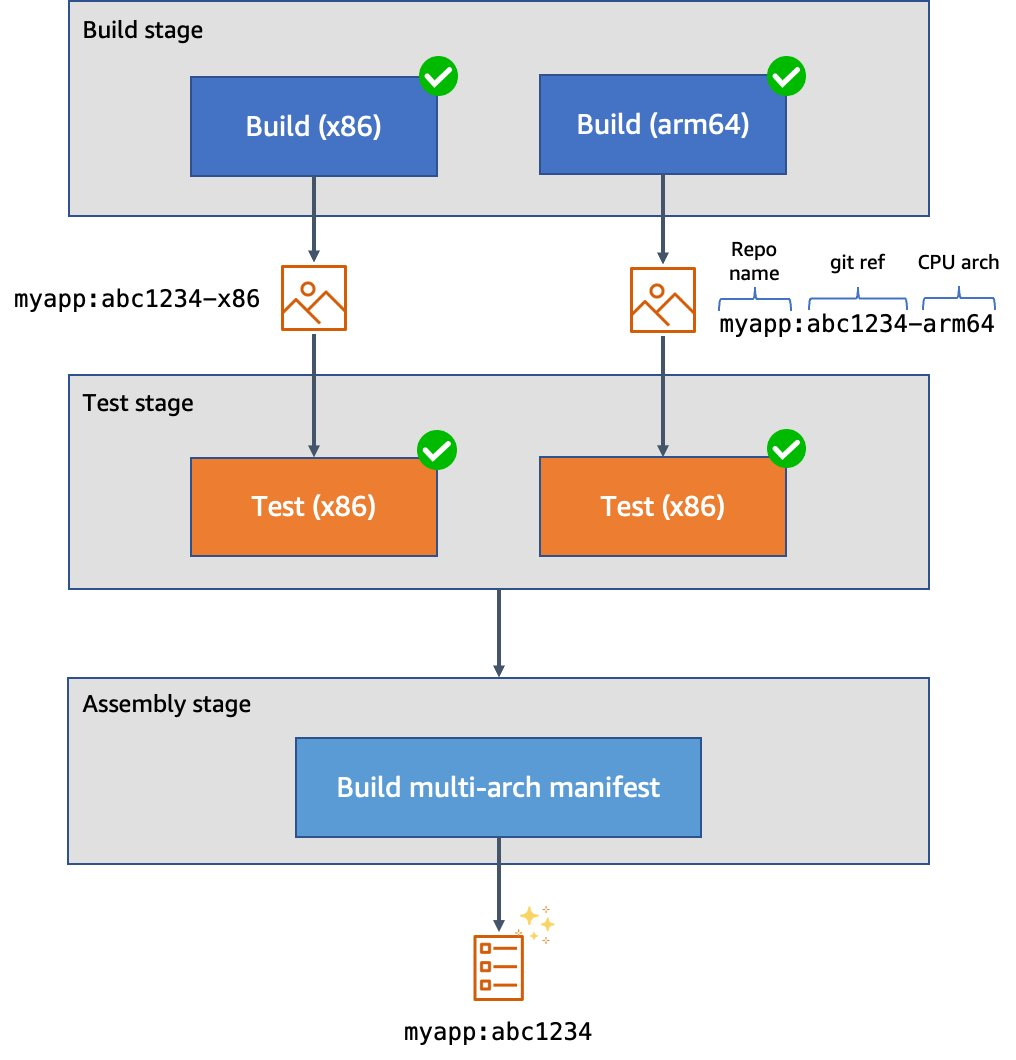
  1. The build stage, in which we compile our code, produce our architecture-specific images, and upload these images to the GitLab container registry. These uploaded images are tagged with a suffix indicating the architecture on which they were built. This job uses a matrix variable to run it in parallel against two different runners – one for each supported architecture. Furthermore, rather than using docker build to produce our images, we use Kaniko to build them. This lets us build our images in an unprivileged container environment and improve the security posture considerably.
  2. The test stage, in which we test the code. As with the build stage, we use a matrix variable to run the tests in parallel in separate pods on each supported architecture.

The assembly stage, in which we create a multi-architecture image manifest from the two architecture-specific images. Then, we push the manifest into the image registry so that we can refer to it in future deployments.

Figure 2. Example CI/CD pipeline for multi-architecture images

Figure 2. Example CI/CD pipeline for multi-architecture images.

Here’s what our top-level configuration looks like:

variables:
  # These are used by the runner to configure the Kubernetes executor, and define
  # the values of spec.containers[].resources.limits.{memory,cpu} for the Pod(s).
  KUBERNETES_MEMORY_REQUEST: 1Gi
  KUBERNETES_CPU_REQUEST: 1

# List of stages for jobs, and their order of execution  
stages:    
  - build
  - test
  - create-multiarch-manifest
Here’s what our build stage job looks like. Note the matrix of variables which are set in BUILD_ARCH as the two jobs are run in parallel:
build-job:
  stage: build
  parallel:
    matrix:              # This job is run twice, once on amd64 (x86), once on arm64
    - BUILD_ARCH: amd64
    - BUILD_ARCH: arm64
  tags: [$BUILD_ARCH]    # Associate the job with the appropriate runner
  image:
    name: gcr.io/kaniko-project/executor:debug
    entrypoint: [""]
  script:
    - mkdir -p /kaniko/.docker
    # Configure authentication data for Kaniko so it can push to the
    # GitLab container registry
    - echo "{\"auths\":{\"${CI_REGISTRY}\":{\"auth\":\"$(printf "%s:%s" "${CI_REGISTRY_USER}" "${CI_REGISTRY_PASSWORD}" | base64 | tr -d '\n')\"}}}" > /kaniko/.docker/config.json
    # Build the image and push to the registry. In this stage, we append the build
    # architecture as a tag suffix.
    - >-
      /kaniko/executor
      --context "${CI_PROJECT_DIR}"
      --dockerfile "${CI_PROJECT_DIR}/Dockerfile"
      --destination "${CI_REGISTRY_IMAGE}:${CI_COMMIT_SHORT_SHA}-${BUILD_ARCH}"

Here’s what our test stage job looks like. This time we use the image that we just produced. Our source code is copied into the application container. Then, we can run make test-api to execute the server test suite.

build-job:
  stage: build
  parallel:
    matrix:              # This job is run twice, once on amd64 (x86), once on arm64
    - BUILD_ARCH: amd64
    - BUILD_ARCH: arm64
  tags: [$BUILD_ARCH]    # Associate the job with the appropriate runner
  image:
    # Use the image we just built
    name: "${CI_REGISTRY_IMAGE}:${CI_COMMIT_SHORT_SHA}-${BUILD_ARCH}"
  script:
    - make test-container

Finally, here’s what our assembly stage looks like. We use Podman to build the multi-architecture manifest and push it into the image registry. Traditionally we might have used docker buildx to do this, but using Podman lets us do this work in an unprivileged container for additional security.

create-manifest-job:
  stage: create-multiarch-manifest
  tags: [arm64] 
  image: public.ecr.aws/docker/library/fedora:36
  script:
    - yum -y install podman
    - echo "${CI_REGISTRY_PASSWORD}" | podman login -u "${CI_REGISTRY_USER}" --password-stdin "${CI_REGISTRY}"
    - COMPOSITE_IMAGE=${CI_REGISTRY_IMAGE}:${CI_COMMIT_SHORT_SHA}
    - podman manifest create ${COMPOSITE_IMAGE}
    - >-
      for arch in arm64 amd64; do
        podman manifest add ${COMPOSITE_IMAGE} docker://${COMPOSITE_IMAGE}-${arch};
      done
    - podman manifest inspect ${COMPOSITE_IMAGE}
    # The composite image manifest omits the architecture from the tag suffix.
    - podman manifest push ${COMPOSITE_IMAGE} docker://${COMPOSITE_IMAGE}

Trying it out

I’ve created a public test GitLab project containing the sample source code, and attached the runners to the project. We can see them at Settings > CI/CD > Runners:

Figure 3. GitLab runner configurations

Figure 3. GitLab runner configurations.

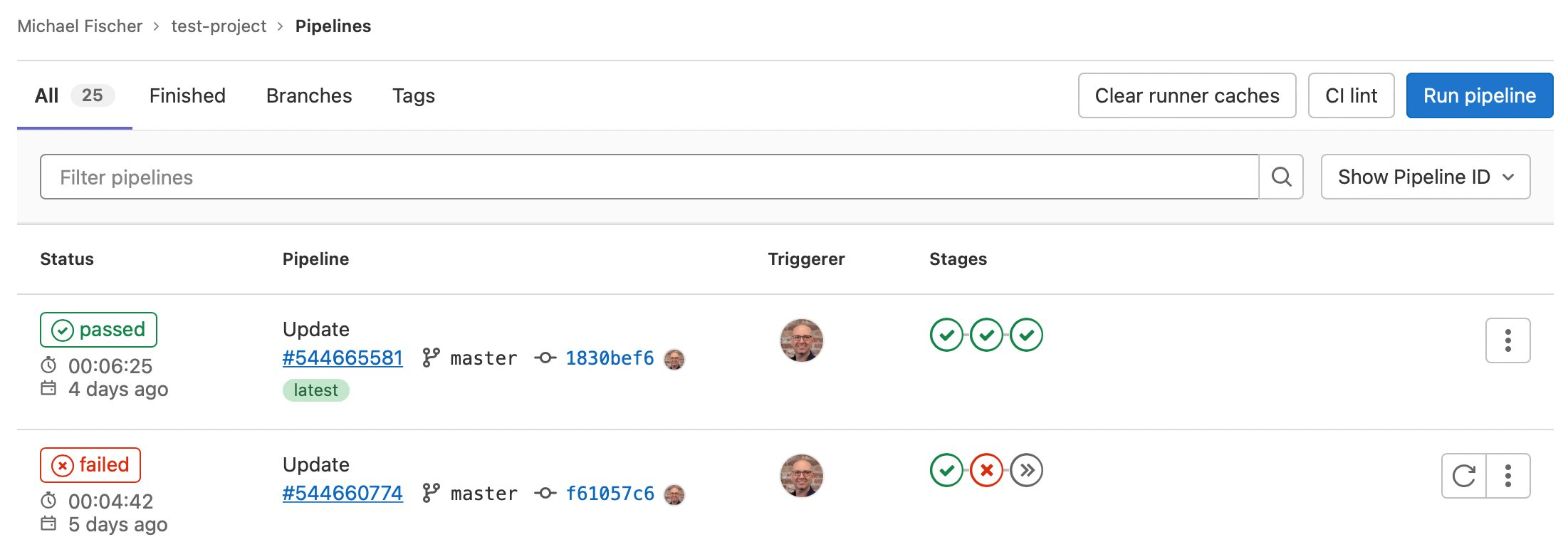
Here we can also see some pipeline executions, where some have succeeded, and others have failed.

Figure 4. GitLab sample pipeline executions

Figure 4. GitLab sample pipeline executions.

We can also see the specific jobs associated with a pipeline execution:

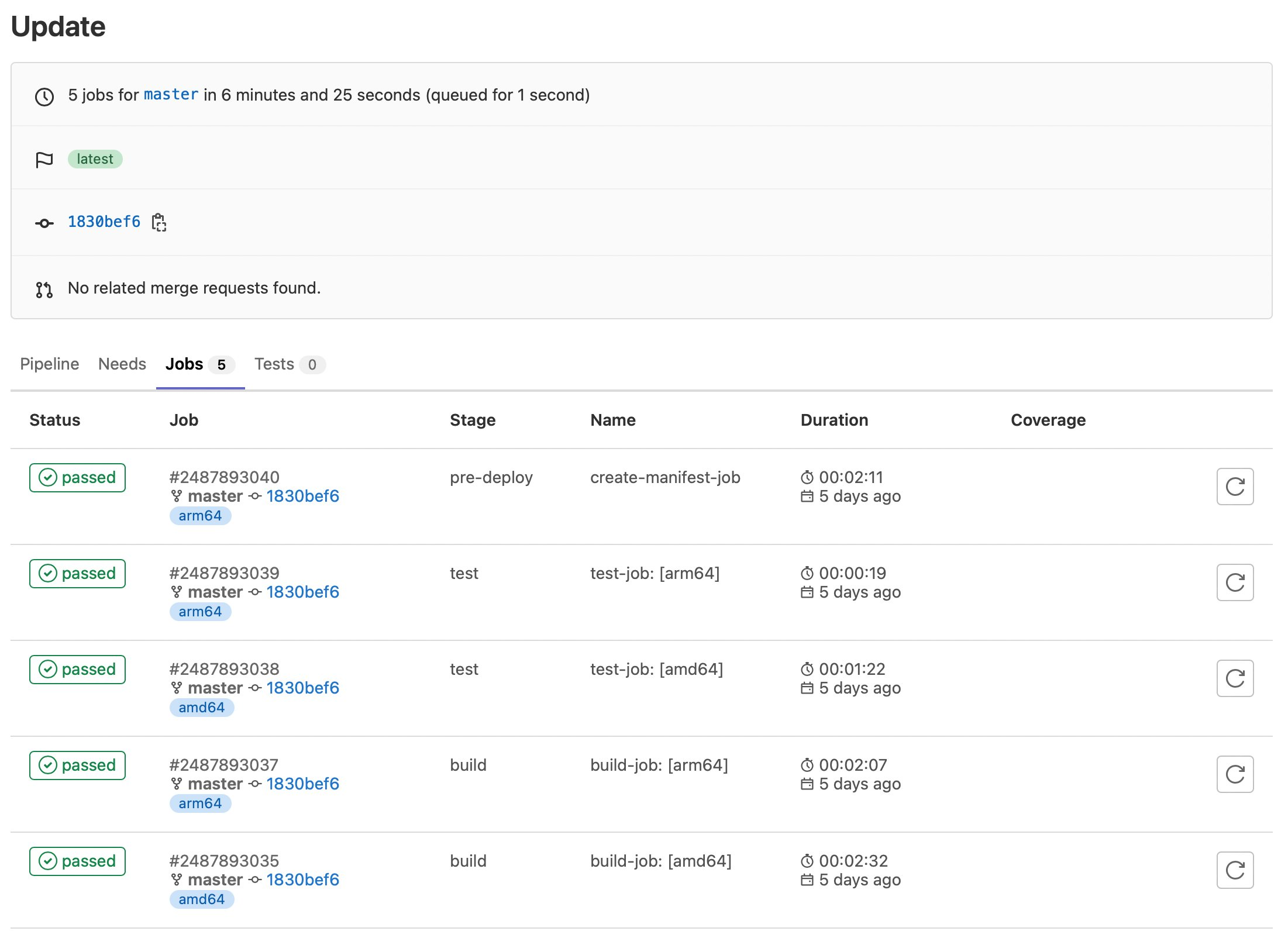
Figure 5. GitLab sample job executions

Figure 5. GitLab sample job executions.

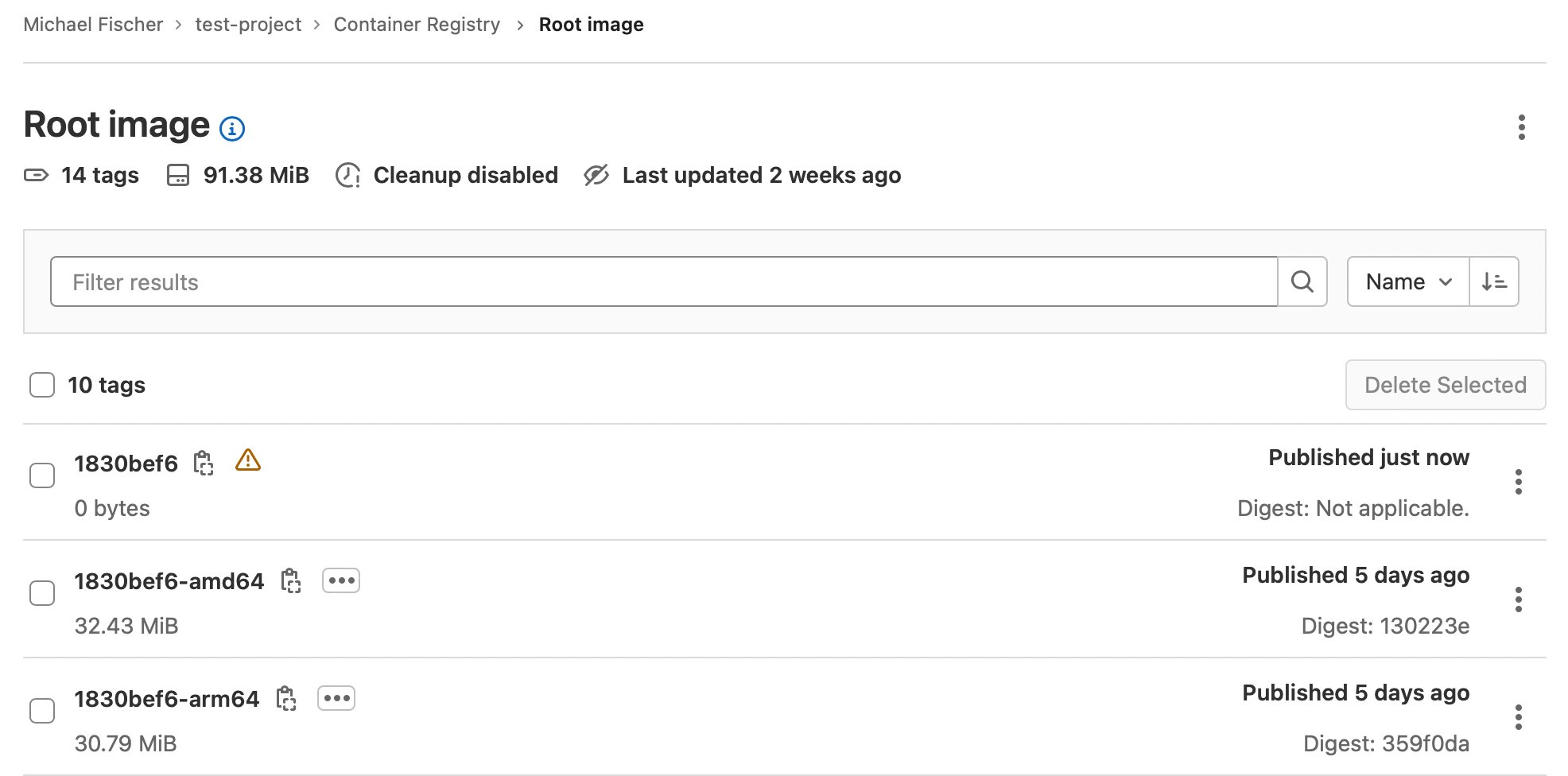
Finally, here are our container images:

Figure 5. GitLab sample job executions

Figure 6. GitLab sample container registry.

Conclusion

In this post, we’ve illustrated how you can quickly and easily construct multi-architecture container images with GitLab, Amazon EKS, Karpenter, and Amazon EC2, using both x86 and Graviton instance families. We indexed on using as many managed services as possible, maximizing security, and minimizing complexity and TCO. We dove deep on multiple facets of the process, and discussed how to save up to 90% of the solution’s cost by using Spot instances for CI/CD executions.

Find the sample code, including everything shown here today, in our GitLab repository.

Building multi-architecture images will unlock the value and performance of running your applications on AWS Graviton and give you increased flexibility over compute choice. We encourage you to get started today.

About the author:

Michael Fischer

Michael Fischer is a Principal Specialist Solutions Architect at Amazon Web Services. He focuses on helping customers build more cost-effectively and sustainably with AWS Graviton. Michael has an extensive background in systems programming, monitoring, and observability. His hobbies include world travel, diving, and playing the drums.

Multi-branch pipeline management and infrastructure deployment using AWS CDK Pipelines

Post Syndicated from Iris Kraja original https://aws.amazon.com/blogs/devops/multi-branch-pipeline-management-and-infrastructure-deployment-using-aws-cdk-pipelines/

This post describes how to use the AWS CDK Pipelines module to follow a Gitflow development model using AWS Cloud Development Kit (AWS CDK). Software development teams often follow a strict branching strategy during a solutions development lifecycle. Newly-created branches commonly need their own isolated copy of infrastructure resources to develop new features.

CDK Pipelines is a construct library module for continuous delivery of AWS CDK applications. CDK Pipelines are self-updating: if you add application stages or stacks, then the pipeline automatically reconfigures itself to deploy those new stages and/or stacks.

The following solution creates a new AWS CDK Pipeline within a development account for every new branch created in the source repository (AWS CodeCommit). When a branch is deleted, the pipeline and all related resources are also destroyed from the account. This GitFlow model for infrastructure provisioning allows developers to work independently from each other, concurrently, even in the same stack of the application.

Solution overview

The following diagram provides an overview of the solution. There is one default pipeline responsible for deploying resources to the different application environments (e.g., Development, Pre-Prod, and Prod). The code is stored in CodeCommit. When new changes are pushed to the default CodeCommit repository branch, AWS CodePipeline runs the default pipeline. When the default pipeline is deployed, it creates two AWS Lambda functions.

These two Lambda functions are invoked by CodeCommit CloudWatch events when a new branch in the repository is created or deleted. The Create Lambda function uses the boto3 CodeBuild module to create an AWS CodeBuild project that builds the pipeline for the feature branch. This feature pipeline consists of a build stage and an optional update pipeline stage for itself. The Destroy Lambda function creates another CodeBuild project which cleans all of the feature branch’s resources and the feature pipeline.

Figure 1. Architecture diagram.

Figure 1. Architecture diagram.

Prerequisites

Before beginning this walkthrough, you should have the following prerequisites:

  • An AWS account
  • AWS CDK installed
  • Python3 installed
  • Jq (JSON processor) installed
  • Basic understanding of continuous integration/continuous development (CI/CD) Pipelines

Initial setup

Download the repository from GitHub:

# Command to clone the repository
git clone https://github.com/aws-samples/multi-branch-cdk-pipelines.git
cd multi-branch-cdk-pipelines

Create a new CodeCommit repository in the AWS Account and region where you want to deploy the pipeline and upload the source code from above to this repository. In the config.ini file, change the repository_name and region variables accordingly.

Make sure that you set up a fresh Python environment. Install the dependencies:

pip install -r requirements.txt

Run the initial-deploy.sh script to bootstrap the development and production environments and to deploy the default pipeline. You’ll be asked to provide the following parameters: (1) Development account ID, (2) Development account AWS profile name, (3) Production account ID, and (4) Production account AWS profile name.

sh ./initial-deploy.sh --dev_account_id <YOUR DEV ACCOUNT ID> --
dev_profile_name <YOUR DEV PROFILE NAME> --prod_account_id <YOUR PRODUCTION
ACCOUNT ID> --prod_profile_name <YOUR PRODUCTION PROFILE NAME>

Default pipeline

In the CI/CD pipeline, we set up an if condition to deploy the default branch resources only if the current branch is the default one. The default branch is retrieved programmatically from the CodeCommit repository. We deploy an Amazon Simple Storage Service (Amazon S3) Bucket and two Lambda functions. The bucket is responsible for storing the feature branches’ CodeBuild artifacts. The first Lambda function is triggered when a new branch is created in CodeCommit. The second one is triggered when a branch is deleted.

if branch == default_branch:
    
...

    # Artifact bucket for feature AWS CodeBuild projects
    artifact_bucket = Bucket(
        self,
        'BranchArtifacts',
        encryption=BucketEncryption.KMS_MANAGED,
        removal_policy=RemovalPolicy.DESTROY,
        auto_delete_objects=True
    )
...
    # AWS Lambda function triggered upon branch creation
    create_branch_func = aws_lambda.Function(
        self,
        'LambdaTriggerCreateBranch',
        runtime=aws_lambda.Runtime.PYTHON_3_8,
        function_name='LambdaTriggerCreateBranch',
        handler='create_branch.handler',
        code=aws_lambda.Code.from_asset(path.join(this_dir, 'code')),
        environment={
            "ACCOUNT_ID": dev_account_id,
            "CODE_BUILD_ROLE_ARN": iam_stack.code_build_role.role_arn,
            "ARTIFACT_BUCKET": artifact_bucket.bucket_name,
            "CODEBUILD_NAME_PREFIX": codebuild_prefix
        },
        role=iam_stack.create_branch_role)


    # AWS Lambda function triggered upon branch deletion
    destroy_branch_func = aws_lambda.Function(
        self,
        'LambdaTriggerDestroyBranch',
        runtime=aws_lambda.Runtime.PYTHON_3_8,
        function_name='LambdaTriggerDestroyBranch',
        handler='destroy_branch.handler',
        role=iam_stack.delete_branch_role,
        environment={
            "ACCOUNT_ID": dev_account_id,
            "CODE_BUILD_ROLE_ARN": iam_stack.code_build_role.role_arn,
            "ARTIFACT_BUCKET": artifact_bucket.bucket_name,
            "CODEBUILD_NAME_PREFIX": codebuild_prefix,
            "DEV_STAGE_NAME": f'{dev_stage_name}-{dev_stage.main_stack_name}'
        },
        code=aws_lambda.Code.from_asset(path.join(this_dir,
                                                  'code')))

Then, the CodeCommit repository is configured to trigger these Lambda functions based on two events:

(1) Reference created

# Configure AWS CodeCommit to trigger the Lambda function when a new branch is created
repo.on_reference_created(
    'BranchCreateTrigger',
    description="AWS CodeCommit reference created event.",
    target=aws_events_targets.LambdaFunction(create_branch_func))

(2) Reference deleted

# Configure AWS CodeCommit to trigger the Lambda function when a branch is deleted
repo.on_reference_deleted(
    'BranchDeleteTrigger',
    description="AWS CodeCommit reference deleted event.",
    target=aws_events_targets.LambdaFunction(destroy_branch_func))

Lambda functions

The two Lambda functions build and destroy application environments mapped to each feature branch. An Amazon CloudWatch event triggers the LambdaTriggerCreateBranch function whenever a new branch is created. The CodeBuild client from boto3 creates the build phase and deploys the feature pipeline.

Create function

The create function deploys a feature pipeline which consists of a build stage and an optional update pipeline stage for itself. The pipeline downloads the feature branch code from the CodeCommit repository, initiates the Build and Test action using CodeBuild, and securely saves the built artifact on the S3 bucket.

The Lambda function handler code is as follows:

def handler(event, context):
    """Lambda function handler"""
    logger.info(event)

    reference_type = event['detail']['referenceType']

    try:
        if reference_type == 'branch':
            branch = event['detail']['referenceName']
            repo_name = event['detail']['repositoryName']

            client.create_project(
                name=f'{codebuild_name_prefix}-{branch}-create',
                description="Build project to deploy branch pipeline",
                source={
                    'type': 'CODECOMMIT',
                    'location': f'https://git-codecommit.{region}.amazonaws.com/v1/repos/{repo_name}',
                    'buildspec': generate_build_spec(branch)
                },
                sourceVersion=f'refs/heads/{branch}',
                artifacts={
                    'type': 'S3',
                    'location': artifact_bucket_name,
                    'path': f'{branch}',
                    'packaging': 'NONE',
                    'artifactIdentifier': 'BranchBuildArtifact'
                },
                environment={
                    'type': 'LINUX_CONTAINER',
                    'image': 'aws/codebuild/standard:4.0',
                    'computeType': 'BUILD_GENERAL1_SMALL'
                },
                serviceRole=role_arn
            )

            client.start_build(
                projectName=f'CodeBuild-{branch}-create'
            )
    except Exception as e:
        logger.error(e)

Create branch CodeBuild project’s buildspec.yaml content:

version: 0.2
env:
  variables:
    BRANCH: {branch}
    DEV_ACCOUNT_ID: {account_id}
    PROD_ACCOUNT_ID: {account_id}
    REGION: {region}
phases:
  pre_build:
    commands:
      - npm install -g aws-cdk && pip install -r requirements.txt
  build:
    commands:
      - cdk synth
      - cdk deploy --require-approval=never
artifacts:
  files:
    - '**/*'

Destroy function

The second Lambda function is responsible for the destruction of a feature branch’s resources. Upon the deletion of a feature branch, an Amazon CloudWatch event triggers this Lambda function. The function creates a CodeBuild Project which destroys the feature pipeline and all of the associated resources created by that pipeline. The source property of the CodeBuild Project is the feature branch’s source code saved as an artifact in Amazon S3.

The Lambda function handler code is as follows:

def handler(event, context):
    logger.info(event)
    reference_type = event['detail']['referenceType']

    try:
        if reference_type == 'branch':
            branch = event['detail']['referenceName']
            client.create_project(
                name=f'{codebuild_name_prefix}-{branch}-destroy',
                description="Build project to destroy branch resources",
                source={
                    'type': 'S3',
                    'location': f'{artifact_bucket_name}/{branch}/CodeBuild-{branch}-create/',
                    'buildspec': generate_build_spec(branch)
                },
                artifacts={
                    'type': 'NO_ARTIFACTS'
                },
                environment={
                    'type': 'LINUX_CONTAINER',
                    'image': 'aws/codebuild/standard:4.0',
                    'computeType': 'BUILD_GENERAL1_SMALL'
                },
                serviceRole=role_arn
            )

            client.start_build(
                projectName=f'CodeBuild-{branch}-destroy'
            )

            client.delete_project(
                name=f'CodeBuild-{branch}-destroy'
            )

            client.delete_project(
                name=f'CodeBuild-{branch}-create'
            )
    except Exception as e:
        logger.error(e)

Destroy the branch CodeBuild project’s buildspec.yaml content:

version: 0.2
env:
  variables:
    BRANCH: {branch}
    DEV_ACCOUNT_ID: {account_id}
    PROD_ACCOUNT_ID: {account_id}
    REGION: {region}
phases:
  pre_build:
    commands:
      - npm install -g aws-cdk && pip install -r requirements.txt
  build:
    commands:
      - cdk destroy cdk-pipelines-multi-branch-{branch} --force
      - aws cloudformation delete-stack --stack-name {dev_stage_name}-{branch}
      - aws s3 rm s3://{artifact_bucket_name}/{branch} --recursive

Create a feature branch

On your machine’s local copy of the repository, create a new feature branch using the following git commands. Replace user-feature-123 with a unique name for your feature branch. Note that this feature branch name must comply with the CodePipeline naming restrictions, as it will be used to name a unique pipeline later in this walkthrough.

# Create the feature branch
git checkout -b user-feature-123
git push origin user-feature-123

The first Lambda function will deploy the CodeBuild project, which then deploys the feature pipeline. This can take a few minutes. You can log in to the AWS Console and see the CodeBuild project running under CodeBuild.

Figure 2. AWS Console - CodeBuild projects.

Figure 2. AWS Console – CodeBuild projects.

After the build is successfully finished, you can see the deployed feature pipeline under CodePipelines.

Figure 3. AWS Console - CodePipeline pipelines.

Figure 3. AWS Console – CodePipeline pipelines.

The Lambda S3 trigger project from AWS CDK Samples is used as the infrastructure resources to demonstrate this solution. The content is placed inside the src directory and is deployed by the pipeline. When visiting the Lambda console page, you can see two functions: one by the default pipeline and one by our feature pipeline.

Figure 4. AWS Console - Lambda functions.

Figure 4. AWS Console – Lambda functions.

Destroy a feature branch

There are two common ways for removing feature branches. The first one is related to a pull request, also known as a “PR”. This occurs when merging a feature branch back into the default branch. Once it’s merged, the feature branch will be automatically closed. The second way is to delete the feature branch explicitly by running the following git commands:

# delete branch local
git branch -d user-feature-123

# delete branch remote
git push origin --delete user-feature-123

The CodeBuild project responsible for destroying the feature resources is now triggered. You can see the project’s logs while the resources are being destroyed in CodeBuild, under Build history.

Figure 5. AWS Console - CodeBuild projects.

Figure 5. AWS Console – CodeBuild projects.

Cleaning up

To avoid incurring future charges, log into the AWS console of the different accounts you used, go to the AWS CloudFormation console of the Region(s) where you chose to deploy, and select and click Delete on the main and branch stacks.

Conclusion

This post showed how you can work with an event-driven strategy and AWS CDK to implement a multi-branch pipeline flow using AWS CDK Pipelines. The described solutions leverage Lambda and CodeBuild to provide a dynamic orchestration of resources for multiple branches and pipelines.
For more information on CDK Pipelines and all the ways it can be used, see the CDK Pipelines reference documentation.

About the authors:

Iris Kraja

Iris is a Cloud Application Architect at AWS Professional Services based in New York City. She is passionate about helping customers design and build modern AWS cloud native solutions, with a keen interest in serverless technology, event-driven architectures and DevOps.  Outside of work, she enjoys hiking and spending as much time as possible in nature.

Jan Bauer

Jan is a Cloud Application Architect at AWS Professional Services. His interests are serverless computing, machine learning, and everything that involves cloud computing.

Rolando Santamaria Maso

Rolando is a senior cloud application development consultant at AWS Professional Services, based in Germany. He helps customers migrate and modernize workloads in the AWS Cloud, with a special focus on modern application architectures and development best practices, but he also creates IaC using AWS CDK. Outside work, he maintains open-source projects and enjoys spending time with family and friends.

Caroline Gluck

Caroline is an AWS Cloud application architect based in New York City, where she helps customers design and build cloud native data science applications. Caroline is a builder at heart, with a passion for serverless architecture and machine learning. In her spare time, she enjoys traveling, cooking, and spending time with family and friends.

Enabling load-balancing of non-HTTP(s) traffic on AWS Wavelength

Post Syndicated from Sheila Busser original https://aws.amazon.com/blogs/compute/enabling-load-balancing-of-non-https-traffic-on-aws-wavelength/

This blog post is written by Jack Chen, Telco Solutions Architect, and Robert Belson, Developer Advocate.

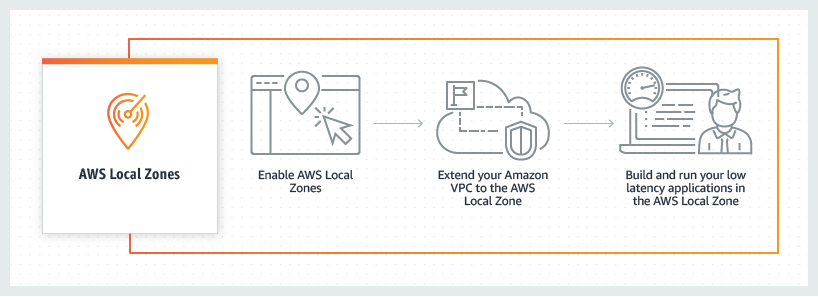
AWS Wavelength embeds AWS compute and storage services within 5G networks, providing mobile edge computing infrastructure for developing, deploying, and scaling ultra-low-latency applications. AWS recently introduced support for Application Load Balancer (ALB) in AWS Wavelength zones. Although ALB addresses Layer-7 load balancing use cases, some low latency applications that get deployed in AWS Wavelength Zones rely on UDP-based protocols, such as QUIC, WebRTC, and SRT, which can’t be load-balanced by Layer-7 Load Balancers. In this post, we’ll review popular load-balancing patterns on AWS Wavelength, including a proposed architecture demonstrating how DNS-based load balancing can address customer requirements for load-balancing non-HTTP(s) traffic across multiple Amazon Elastic Compute Cloud (Amazon EC2) instances. This solution also builds a foundation for automatic scale-up and scale-down capabilities for workloads running in an AWS Wavelength Zone.

Load balancing use cases in AWS Wavelength

In the AWS Regions, customers looking to deploy highly-available edge applications often consider Amazon Elastic Load Balancing (Amazon ELB) as an approach to automatically distribute incoming application traffic across multiple targets in one or more Availability Zones (AZs). However, at the time of this publication, AWS-managed Network Load Balancer (NLB) isn’t supported in AWS Wavelength Zones and ALB is being rolled out to all AWS Wavelength Zones globally. As a result, this post will seek to document general architectural guidance for load balancing solutions on AWS Wavelength.

As one of the most prominent AWS Wavelength use cases, highly-immersive video streaming over UDP using protocols such as WebRTC at scale often require a load balancing solution to accommodate surges in traffic, either due to live events or general customer access patterns. These use cases, relying on Layer-4 traffic, can’t be load-balanced from a Layer-7 ALB. Instead, Layer-4 load balancing is needed.

To date, two infrastructure deployments involving Layer-4 load balancers are most often seen:

  • Amazon EC2-based deployments: Often the environment of choice for earlier-stage enterprises and ISVs, a fleet of EC2 instances will leverage a load balancer for high-throughput use cases, such as video streaming, data analytics, or Industrial IoT (IIoT) applications
  • Amazon EKS deployments: Customers looking to optimize performance and cost efficiency of their infrastructure can leverage containerized deployments at the edge to manage their AWS Wavelength Zone applications. In turn, external load balancers could be configured to point to exposed services via NodePort objects. Furthermore, a more popular choice might be to leverage the AWS Load Balancer Controller to provision an ALB when you create a Kubernetes Ingress.

Regardless of deployment type, the following design constraints must be considered:

  • Target registration: For load balancing solutions not managed by AWS, seamless solutions to load balancer target registration must be managed by the customer. As one potential solution, visit a recent HAProxyConf presentation, Practical Advice for Load Balancing at the Network Edge.
  • Edge Discovery: Although DNS records can be populated into Amazon Route 53 for each carrier-facing endpoint, DNS won’t deterministically route mobile clients to the most optimal mobile endpoint. When available, edge discovery services are required to most effectively route mobile clients to the lowest latency endpoint.
  • Cross-zone load balancing: Given the hub-and-spoke design of AWS Wavelength, customer-managed load balancers should proxy traffic only to that AWS Wavelength Zone.

Solution overview – Amazon EC2

In this solution, we’ll present a solution for a highly-available load balancing solution in a single AWS Wavelength Zone for an Amazon EC2-based deployment. In a separate post, we’ll cover the needed configurations for the AWS Load Balancer Controller in AWS Wavelength for Amazon Elastic Kubernetes Service (Amazon EKS) clusters.

The proposed solution introduces DNS-based load balancing, a technique to abstract away the complexity of intelligent load-balancing software and allow your Domain Name System (DNS) resolvers to distribute traffic (equally, or in a weighted distribution) to your set of endpoints.

Our solution leverages the weighted routing policy in Route 53 to resolve inbound DNS queries to multiple EC2 instances running within an AWS Wavelength zone. As EC2 instances for a given workload get deployed in an AWS Wavelength zone, Carrier IP addresses can be assigned to the network interfaces at launch.

Through this solution, Carrier IP addresses attached to AWS Wavelength instances are automatically added as DNS records for the customer-provided public hosted zone.

To determine how Route 53 responds to queries, given an arbitrary number of records of a public hosted zone, Route53 offers numerous routing policies:

Simple routing policy – In the event that you must route traffic to a single resource in an AWS Wavelength Zone, simple routing can be used. A single record can contain multiple IP addresses, but Route 53 returns the values in a random order to the client.

Weighted routing policy – To route traffic more deterministically using a set of proportions that you specify, this policy can be selected. For example, if you would like Carrier IP A to receive 50% of the traffic and Carrier IP B to receive 50% of the traffic, we’ll create two individual A records (one for each Carrier IP) with a weight of 50 and 50, respectively. Learn more about Route 53 routing policies by visiting the Route 53 Developer Guide.

The proposed solution leverages weighted routing policy in Route 53 DNS to route traffic to multiple EC2 instances running within an AWS Wavelength zone.

Reference architecture

The following diagram illustrates the load-balancing component of the solution, where EC2 instances in an AWS Wavelength zone are assigned Carrier IP addresses. A weighted DNS record for a host (e.g., www.example.com) is updated with Carrier IP addresses.

DNS-based load balancing

When a device makes a DNS query, it will be returned to one of the Carrier IP addresses associated with the given domain name. With a large number of devices, we expect a fair distribution of load across all EC2 instances in the resource pool. Given the highly ephemeral mobile edge environments, it’s likely that Carrier IPs could frequently be allocated to accommodate a workload and released shortly thereafter. However, this unpredictable behavior could yield stale DNS records, resulting in a “blackhole” – routes to endpoints that no longer exist.

Time-To-Live (TTL) is a DNS attribute that specifies the amount of time, in seconds, that you want DNS recursive resolvers to cache information about this record.

In our example, we should set to 30 seconds to force DNS resolvers to retrieve the latest records from the authoritative nameservers and minimize stale DNS responses. However, a lower TTL has a direct impact on cost, as a result of increased number of calls from recursive resolvers to Route53 to constantly retrieve the latest records.

The core components of the solution are as follows:

Alongside the services above in the AWS Wavelength Zone, the following services are also leveraged in the AWS Region:

  • AWS Lambda – a serverless event-driven function that makes API calls to the Route 53 service to update DNS records.
  • Amazon EventBridge– a serverless event bus that reacts to EC2 instance lifecycle events and invokes the Lambda function to make DNS updates.
  • Route 53– cloud DNS service with a domain record pointing to AWS Wavelength-hosted resources.

In this post, we intentionally leave the specific load balancing software solution up to the customer. Customers can leverage various popular load balancers available on the AWS Marketplace, such as HAProxy and NGINX. To focus our solution on the auto-registration of DNS records to create functional load balancing, this solution is designed to support stateless workloads only. To support stateful workloads, sticky sessions – a process in which routes requests to the same target in a target group – must be configured by the underlying load balancer solution and are outside of the scope of what DNS can provide natively.

Automation overview

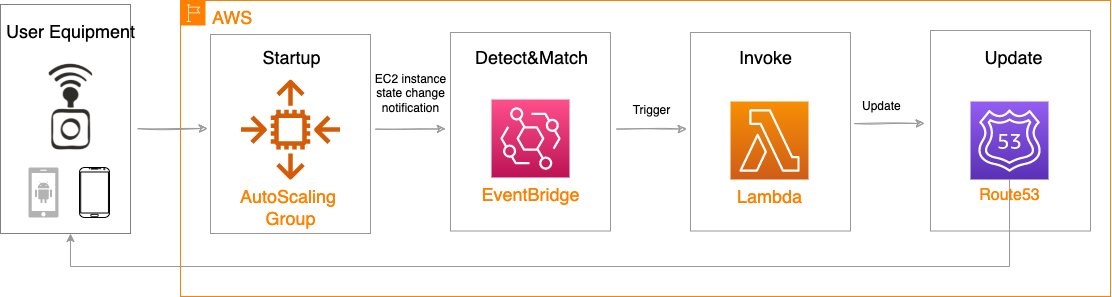
Using the aforementioned components, we can implement the following workflow automation:

Event-driven Auto Scaling Workflow

Amazon CloudWatch alarm can trigger the Auto Scaling group Scale out or Scale in event by adding or removing EC2 instances. Eventbridge will detect the EC2 instance state change event and invoke the Lambda function. This function will update the DNS record in Route53 by either adding (scale out) or deleting (scale in) a weighted A record associated with the EC2 instance changing state.

Configuration of the automatic auto scaling policy is out of the scope of this post. There are many auto scaling triggers that you can consider using, based on predefined and custom metrics such as memory utilization. For the demo purposes, we will be leveraging manual auto scaling.

In addition to the core components that were already described, our solution also utilizes AWS Identity and Access Management (IAM) policies and CloudWatch. Both services are key components to building AWS Well-Architected solutions on AWS. We also use AWS Systems Manager Parameter Store to keep track of user input parameters. The deployment of the solution is automated via AWS CloudFormation templates. The Lambda function provided should be uploaded to an AWS Simple Storage Service (Amazon S3) bucket.

Amazon Virtual Private Cloud (Amazon VPC), subnets, Carrier Gateway, and Route Tables are foundational building blocks for AWS-based networking infrastructure. In our deployment, we are creating a new VPC, one subnet in an AWS Wavelength zone of your choice, a Carrier Gateway, and updating the route table for this subnet to point the default route to the Carrier Gateway.

Wavelength VPC architecture.

Deployment prerequisites

The following are prerequisites to deploy the described solution in your account:

  • Access to an AWS Wavelength zone. If your account is not allow-listed to use AWS Wavelength zones, then opt-in to AWS Wavelength zones here.
  • Public DNS Hosted Zone hosted in Route 53. You must have access to a registered public domain to deploy this solution. The zone for this domain should be hosted in the same account where you plan to deploy AWS Wavelength workloads.
    If you don’t have a public domain, then you can register a new one. Note that there will be a service charge for the domain registration.
  • Amazon S3 bucket. For the Lambda function that updates DNS records in Route 53, store the source code as a .zip file in an Amazon S3 bucket.
  • Amazon EC2 Key pair. You can use an existing Key pair for the deployment. If you don’t have a KeyPair in the region where you plan to deploy this solution, then create one by following these instructions.
  • 4G or 5G-connected device. Although the infrastructure can be deployed independent of the underlying connected devices, testing the connectivity will require a mobile device on one of the Wavelength partner’s networks. View the complete list of Telecommunications providers and Wavelength Zone locations to learn more.

Conclusion

In this post, we demonstrated how to implement DNS-based load balancing for workloads running in an AWS Wavelength zone. We deployed the solution that used the EventBridge Rule and the Lambda function to update DNS records hosted by Route53. If you want to learn more about AWS Wavelength, subscribe to AWS Compute Blog channel here.

Run fault tolerant and cost-optimized Spark clusters using Amazon EMR on EKS and Amazon EC2 Spot Instances

Post Syndicated from Kinnar Kumar Sen original https://aws.amazon.com/blogs/big-data/run-fault-tolerant-and-cost-optimized-spark-clusters-using-amazon-emr-on-eks-and-amazon-ec2-spot-instances/

Amazon EMR on EKS is a deployment option in Amazon EMR that allows you to run Spark jobs on Amazon Elastic Kubernetes Service (Amazon EKS). Amazon Elastic Compute Cloud (Amazon EC2) Spot Instances save you up to 90% over On-Demand Instances, and is a great way to cost optimize the Spark workloads running on Amazon EMR on EKS. Because Spot is an interruptible service, if we can move or reuse the intermediate shuffle files, it improves the overall stability and SLA of the job. The latest versions of Amazon EMR on EKS have integrated Spark features to enable this capability.

In this post, we discuss these features—Node Decommissioning and Persistent Volume Claim (PVC) reuse—and their impact on increasing the fault tolerance of Spark jobs on Amazon EMR on EKS when cost optimizing using EC2 Spot Instances.

Amazon EMR on EKS and Spot

EC2 Spot Instances are spare EC2 capacity provided at a steep discount of up to 90% over On-Demand prices. Spot Instances are a great choice for stateless and flexible workloads. The caveat with this discount and spare capacity is that Amazon EC2 can interrupt an instance with a proactive or reactive (2-minute) warning when it needs the capacity back. You can provision compute capacity in an EKS cluster using Spot Instances using a managed or self-managed node group and provide cost optimization for your workloads.

Amazon EMR on EKS uses Amazon EKS to run jobs with the EMR runtime for Apache Spark, which can be cost optimized by running the Spark executors on Spot. It provides up to 61% lower costs and up to 68% performance improvement for Spark workloads on Amazon EKS. The Spark application launches a driver and executors to run the computation. Spark is a semi-fault tolerant framework that is resilient to executor loss due to an interruption and therefore can run on EC2 Spot. On the other hand, when the driver is interrupted, the job fails. Hence, we recommend running drivers on on-demand instances. Some of the best practices for running Spark on Amazon EKS are applicable with Amazon EMR on EKS.

EC2 Spot instances also helps in cost optimization by improving the overall throughput of the job. This can be achieved by auto-scaling the cluster using Cluster Autoscaler (for managed nodegroups) or Karpenter.

Though Spark executors are resilient to Spot interruptions, the shuffle files and RDD data is lost when the executor gets killed. The lost shuffle files need to be recomputed, which increases the overall runtime of the job. Apache Spark has released two features (in versions 3.1 and 3.2) that addresses this issue. Amazon EMR on EKS released features such as node decommissioning (version 6.3) and PVC reuse (version 6.8) to simplify recovery and reuse shuffle files, which increases the overall resiliency of your application.

Node decommissioning

The node decommissioning feature works by preventing scheduling of new jobs on the nodes that are to be decommissioned. It also moves any shuffle files or cache present in those nodes to other executors (peers). If there are no other available executors, the shuffle files and cache are moved to a remote fallback storage.

Node Decommissioning

Fig 1 : Node Decommissioning

Let’s look at the decommission steps in more detail.

If one of the nodes that is running executors is interrupted, the executor starts the process of decommissioning and sends the message to the driver:

21/05/05 17:41:41 WARN KubernetesClusterSchedulerBackend$KubernetesDriverEndpoint: Received executor 7 decommissioned message
21/05/05 17:41:41 DEBUG TaskSetManager: Valid locality levels for TaskSet 2.0: NO_PREF, ANY
21/05/05 17:41:41 INFO KubernetesClusterSchedulerBackend: Decommission executors: 7
21/05/05 17:41:41 DEBUG TaskSchedulerImpl: parentName: , name: TaskSet_2.0, runningTasks: 10
21/05/05 17:41:41 INFO BlockManagerMasterEndpoint: Mark BlockManagers (BlockManagerId(7, 192.168.82.107, 39007, None)) as being decommissioning.
21/05/05 20:22:17 INFO CoarseGrainedExecutorBackend: Decommission executor 1.
21/05/05 20:22:17 INFO CoarseGrainedExecutorBackend: Will exit when finished decommissioning
21/05/05 20:22:17 INFO BlockManager: Starting block manager decommissioning process...
21/05/05 20:22:17 DEBUG FileSystem: Looking for FS supporting s3a

The executor looks for RDD or shuffle files and tries to replicate or migrate those files. It first tries to find a peer executor. If successful, it will move the files to the peer executor:

22/06/07 20:41:38 INFO ShuffleStatus: Updating map output for 46 to BlockManagerId(4, 192.168.13.235, 34737, None)
22/06/07 20:41:38 DEBUG BlockManagerMasterEndpoint: Received shuffle data block update for 0 46, ignore.
22/06/07 20:41:38 DEBUG BlockManagerMasterEndpoint: Received shuffle index block update for 0 46, updating.

However, if It is not able to find a peer executor, it will try to move the files to a fallback storage if available.

Fallback Storage

Fig 2: Fallback Storage

The executor is then decommissioned. When a new executor comes up, the shuffle files are reused:

22/06/07 20:42:50 INFO BasicExecutorFeatureStep: Adding decommission script to lifecycle
22/06/07 20:42:50 DEBUG ExecutorPodsAllocator: Requested executor with id 19 from Kubernetes.
22/06/07 20:42:50 DEBUG ExecutorPodsWatchSnapshotSource: Received executor pod update for pod named amazon-reviews-word-count-bfd0a5813fd1b80f-exec-19, action ADDED
22/06/07 20:42:50 DEBUG BlockManagerMasterEndpoint: Received shuffle index block update for 0 52, updating.
22/06/07 20:42:50 INFO ShuffleStatus: Recover 52 BlockManagerId(fallback, remote, 7337, None)

The key advantage of this process is that it enables migrates blocks and shuffle data, thereby reducing recomputation, which adds to the overall resiliency of the system and reduces runtime. This process can be triggered by a Spot interruption signal (Sigterm) and node draining. Node draining  may happen due to high-priority task scheduling or independently.

When you use Amazon EMR on EKS with managed node groups/Karpenter, the Spot interruption handling is automated, wherein Amazon EKS gracefully drains and rebalances the Spot nodes to minimize application disruption when a Spot node is at elevated risk of interruption. If you’re using managed node groups/Karpenter, the decommission gets triggered when the nodes are getting drained and because it’s proactive, it gives you more time (at least 2 minutes) to move the files. In the case of self-managed node groups, we recommend installing the AWS Node Termination Handler to handle the interruption, and the decommission is triggered when the reactive (2-minute) notification is received. We recommend to use Karpenter with Spot Instances as it has faster node scheduling with early pod binding and binpacking to optimize the resource utilization.

The following code enables this configuration; more details are available on GitHub:

"spark.decommission.enabled": "true"
"spark.storage.decommission.rddBlocks.enabled": "true"
"spark.storage.decommission.shuffleBlocks.enabled" : "true"
"spark.storage.decommission.enabled": "true"
"spark.storage.decommission.fallbackStorage.path": "s3://<<bucket>>"

PVC reuse

Apache Spark enabled dynamic PVC in version 3.1, which is useful with dynamic allocation because we don’t have to pre-create the claims or volumes for the executors and delete them after completion. PVC enables true decoupling of data and processing when we’re running Spark jobs on Kubernetes, because we can use it as a local storage to spill in-process files too. The latest version of Amazon EMR 6.8 has integrated the PVC reuse feature of Spark, wherein if an executor is terminated due to EC2 Spot interruption or any other reason (JVM), then the PVC is not deleted but persisted and reattached to another executor. If there are shuffle files in that volume, then they are reused.

As with node decommission, this reduces the overall runtime because we don’t have to recompute the shuffle files. We also save the time required to request a new volume for an executor, and shuffle files can be reused without moving the files round.

The following diagram illustrates this workflow.

PVC Reuse

Fig 3: PVC Reuse

Let’s look at the steps in more detail.

If one or more of the nodes that are running executors is interrupted, the underlying pods get terminated and the driver gets the update. Note that the driver is the owner of the PVC of the executors, and they are not terminated. See the following code:

22/06/15 23:25:07 DEBUG ExecutorPodsWatchSnapshotSource: Received executor pod update for pod named amazon-reviews-word-count-9ee82b8169a75183-exec-3, action DELETED
22/06/15 23:25:07 DEBUG ExecutorPodsWatchSnapshotSource: Received executor pod update for pod named amazon-reviews-word-count-9ee82b8169a75183-exec-6, action MODIFIED
22/06/15 23:25:07 DEBUG ExecutorPodsWatchSnapshotSource: Received executor pod update for pod named amazon-reviews-word-count-9ee82b8169a75183-exec-6, action DELETED
22/06/15 23:25:07 DEBUG ExecutorPodsWatchSnapshotSource: Received executor pod update for pod named amazon-reviews-word-count-9ee82b8169a75183-exec-3, action MODIFIED

The ExecutorPodsAllocator tries to allocate new executor pods to replace the ones terminated due to interruption. During the allocation, it figures out how many of the existing PVCs have files and can be reused:

22/06/15 23:25:23 INFO ExecutorPodsAllocator: Found 2 reusable PVCs from 10 PVCs

The ExecutorPodsAllocator requests for a pod and when it launches it, the PVC is reused. In the following example, the PVC from executor 6 is reused for new executor pod 11:

22/06/15 23:25:23 DEBUG ExecutorPodsAllocator: Requested executor with id 11 from Kubernetes.
22/06/15 23:25:24 DEBUG ExecutorPodsWatchSnapshotSource: Received executor pod update for pod named amazon-reviews-word-count-9ee82b8169a75183-exec-11, action ADDED
22/06/15 23:25:24 INFO KubernetesClientUtils: Spark configuration files loaded from Some(/usr/lib/spark/conf) : log4j.properties,spark-env.sh,hive-site.xml,metrics.properties
22/06/15 23:25:24 INFO BasicExecutorFeatureStep: Decommissioning not enabled, skipping shutdown script
22/06/15 23:25:24 DEBUG ExecutorPodsWatchSnapshotSource: Received executor pod update for pod named amazon-reviews-word-count-9ee82b8169a75183-exec-11, action MODIFIED
22/06/15 23:25:24 INFO ExecutorPodsAllocator: Reuse PersistentVolumeClaim amazon-reviews-word-count-9ee82b8169a75183-exec-6-pvc-0

The shuffle files, if present in the PVC are reused.

The key advantage of this technique is that it allows us to reuse pre-computed shuffle files in their original location, thereby reducing the time of the overall job run.

This works for both static and dynamic PVCs. Amazon EKS offers three different storage offerings, which can be encrypted too: Amazon Elastic Block Store (Amazon EBS), Amazon Elastic File System (Amazon EFS), and Amazon FSx for Lustre. We recommend using dynamic PVCs with Amazon EBS because with static PVCs, you would need to create multiple PVCs.

The following code enables this configuration; more details are available on GitHub:

"spark.kubernetes.driver.ownPersistentVolumeClaim": "true"
"spark.kubernetes.driver.reusePersistentVolumeClaim": "true"

For this to work, we need to enable PVC with Amazon EKS and mention the details in the Spark runtime configuration. For instructions, refer to How do I use persistent storage in Amazon EKS? The following code contains the Spark configuration details for using PVC as local storage; other details are available on GitHub:

"spark.kubernetes.executor.volumes.persistentVolumeClaim.spark-local-dir-1.mount.readOnly": "false"
"spark.kubernetes.executor.volumes.persistentVolumeClaim.spark-local-dir-1.options.claimName": "OnDemand"
"spark.kubernetes.executor.volumes.persistentVolumeClaim.spark-local-dir-1.options.storageClass": "spark-sc"
"spark.kubernetes.executor.volumes.persistentVolumeClaim.spark-local-dir-1.options.sizeLimit": "10Gi"
"spark.kubernetes.executor.volumes.persistentVolumeClaim.spark-local-dir-1.mount.path": "/var/data/spill"

Conclusion

With Amazon EMR on EKS (6.9) and the features discussed in this post, you can further reduce the overall runtime for Spark jobs when running with Spot Instances. This also improves the overall resiliency and flexibility of the job while cost optimizing the workload on EC2 Spot.

Try out the EMR on EKS workshop for improved performance when running Spark workloads on Kubernetes and cost optimize using EC2 Spot Instances.


About the Author

Kinnar Kumar Sen is a Sr. Solutions Architect at Amazon Web Services (AWS) focusing on Flexible Compute. As a part of the EC2 Flexible Compute team, he works with customers to guide them to the most elastic and efficient compute options that are suitable for their workload running on AWS. Kinnar has more than 15 years of industry experience working in research, consultancy, engineering, and architecture.

Monitor AWS workloads without a single line of code with Logz.io and Kinesis Firehose

Post Syndicated from Amos Etzion original https://aws.amazon.com/blogs/big-data/monitor-aws-workloads-without-a-single-line-of-code-with-logz-io-and-kinesis-firehose/

Observability data provides near real-time insights into the health and performance of AWS workloads, so that engineers can quickly address production issues and troubleshoot them before widespread customer impact.

As AWS workloads grow, observability data has been exploding, which requires flexible big data solutions to handle the throughput of large and unpredictable volumes of observability data.

Solution overview

One option is Amazon Kinesis Data Firehose, which is a popular service for streaming huge volumes of AWS data for storage and analytics. By pulling data from Amazon CloudWatch, Amazon Kinesis Data Firehose can deliver data to observability solutions.

Among these observability solutions is Logz.io, which can now ingest metric data from Amazon Kinesis Data Firehose and make it easier to get metrics from your AWS account to your Logz.io account for analysis, alerting, and correlation with logs and traces.

In a few clicks and a few configurations, we’ll see how you can start streaming your metric data (and soon, log data!) to Logz.io for storage and analysis.

Prerequisites

  • Logz.io account – Create a free trial here
  • Logz.io shipping token – Learn about metrics tokens here. You need to be a Logz.io administrator.
  • Access to Amazon CloudWatch and Amazon Kinesis Data Firehose with the appropriate permissions to manage HTTP endpoints.
  • Appropriate permissions to create an Amazon Simple Storage Service (Amazon S3) bucket

Sending Amazon CloudWatch metric data to Logz.io with an Amazon Kinesis Data Firehose

Amazon Kinesis Data Firehose is a service for ingesting, processing, and loading data from large, distributed sources such as logs or clickstreams into multiple consumers for storage and real-time analytics. Kinesis Data Firehose supports more than 50 sources and destinations as of today. This integration can be set up in minutes without a single line of code and enables near real-time analytics for observability data generated by AWS services by using Amazon CloudWatch, Amazon Kinesis Data Firehose, and Logz.io.

Once the integration is configured, Logz.io customers can open the Infrastructure Monitoring product to see their data coming in and populating their dashboards. To see some of the data analytics and correlation you get with Logz.io, check out this short demonstration.

Let’s begin a step-by-step tutorial for setting up the integration.

  • Start by going to Amazon Kinesis Data Firehose and creating a delivery stream with Data Firehose.

Kinesis Firehose Console

  • Next you select a source and destination. Select Direct Put as the source and Logz.io the destination.
  • Next, configure the destination settings. Give the HTTP endpoint a name, which should include logz.io.
  • Select from the dropdown the appropriate endpoint you would like to use.

If you’re sending data to a European region, then set it to Logz.io Metrics EU. Or you can use the us-east-1 destination by selecting Logz.io Metrics US.

  • Next, add your Logz.io Shipping Token. You can find this by going to Settings in Logz.io and selecting Manage Tokens, which requires Logz.io administrator to access. This ensures that your account is only ingesting data from the defined sources (e.g., this Amazon Kinesis Data Firehose delivery stream).

Kinesis Stream config

Keep Content encoding on Disabled and set your desired Retry Duration.

You can also configure Buffer hints to your preferences.

  • Next, determine your Backup settings in case something goes wrong. In most cases, it’s only necessary to back up the failed data. Simply choose an Amazon S3 bucket or create a new one to store data if it doesn’t make it to Logz.io. Then, select Create a delivery stream.

Now it’s time to connect Amazon CloudWatch to our Amazon Kinesis Data Firehose Delivery Stream.

  • Navigate to Amazon CloudWatch and select Streams in the Metrics menu. Select Create metrics stream.
  • Next, you can either select to send all your Amazon CloudWatch metrics to Logz.io, or only metrics from specified namespaces.

In this case, we chose Amazon Elastic Compute Cloud (Amazon EC2), Amazon Relational Database Service (Amazon RDS), AWS Lambda, and Elastic Load Balancing (ELB).

  • Under Configuration, choose the Select an existing Firehose owned by your account option and choose the Amazon Kinesis Data Firehose you just configured.

Metric Streams Config

If you’d like, you can choose additional statistics in the Add additional statistics box, which provides helpful metrics in terms of percentiles to monitor like latency metrics (i.e., which services have the highest average latency). This may increase your costs.

  • Lastly, give your metric stream a name and hit Create metric stream.

That’s it! Without writing a single line of code, we configured an integration with AWS and Logz.io that enables fast and easy infrastructure monitoring through Amazon CloudWatch data collection.

Your metrics will be stored in Logz.io for 18 months out of the box, without requiring any overhead management.

You can also begin to build dashboards and alerts to begin monitoring – like this Amazon EC2 monitoring dashboard below.

ec2 monitoring dashboard Logz.io

Conclusion

This post demonstrated how to configure an integration with AWS and Logz.io for efficient infrastructure monitoring through Amazon CloudWatch.

To learn more about building metrics dashboards in Logz.io, you can watch this video.

Currently, some users might find that they are sending more data than they really need, which can raise costs. In future versions of this integration, it will be easier to narrow down the metrics to reduce costs.

Want to try it yourself? Create a Logz.io account today, navigate to our infrastructure monitoring product, and start streaming metric data to Logz.io to start monitoring.


About the authors

Amos Etzion – Product Manager at Logz.io

Charlie Klein – Product Marketing Manager at Logz.io

Mark Kriaf – Partner Solutions Architect at AWS

Organize your AWS Serverless code to prevent merge conflicts

Post Syndicated from Mark Curtis original https://aws.amazon.com/blogs/devops/organize-your-aws-serverless-code-to-prevent-merge-conflicts/

How do you prevent the most common merge conflicts when your team is working on a Serverless application? How do you make sure that your team stays productive and avoids large merge issues while trying to update the same crucial files simultaneously? –The answer to both questions is code organization! You can use cfn-include and swagger-cli to organize, collaborate, and maintain a large serverless application as well as support a large or decentralized development team.

Real life inspiration

WRAP Technologies Inc. (WRAP) creates advanced technologies for the protection and security of public safety. Their WRAP Reality product allows law enforcement agencies to train their officers using virtual reality-based scenarios.

Too many cooks in the kitchen

When multiple developers collaborate on a serverless architecture built with AWS CloudFormation, and its extensions such as the AWS Serverless Application Model (SAM), the nature of specifying resources in both the template.yaml and the optional OpenAPI.yaml specification for Amazon API Gateway leads to merge conflicts, such as the one demonstrated in the following figure  where two developers are adding different API endpoints at the same time. These conflicts detract from the developer’s time and agility. Furthermore, navigating and maintaining the long template files required for a larger serverless architecture slows development  as the developer scans large files to find a particular resource definition.

Figure 1. The frustrating merge conflicts.

Figure 1. The frustrating merge conflicts.

By refactoring and organizing the CloudFormation and OpenAPI files, your development team can realize several benefits:

  • Improve developer efficiency by decomposing large, hard-to-manage files into a series of well-organized and single-purpose files.
  • Enhance developer productivity by allowing each developer to have ownership of their own code, thereby reducing the need to coordinate merges with teammates.
  • Eliminate potential merge issues for files that generate the most conflicts during the development of a typical Serverless API application.

Rapid development

WRAP partnered with AWS to develop and host the backend for their new officer training management platform. This entirely new platform was developed, completed, and available for use in a matter of months. Moreover, it’s a collaboration of developers spread across multiple teams worldwide, all contributing to the same code base. By instituting the norms and techniques of this post, WRAP created a large and maintainable serverless application with minimal developer code collisions.

Development of the WRAP Reality training management system was accomplished using CloudFormation for defining Infrastructure as Code (IaC), and an Amazon API Gateway OpenAPI specification for defining API contracts. The development team for the WRAP Reality training management service leveraged agile development for expediency, including the GitHub Flow branching strategy. However, since project contributors were not co-located, several considerations were put in place to make sure of consistency and speed of code development:

  • The API specifications and contracts were defined in OpenAPI (Swagger) specifications early in the development process, clearly defining the project structure up front, and allowing developers to independently build infrastructure components.
  • The two code assets central to the entire project – the CloudFormation template and the OpenAPI Specification – were decomposed into small, easily manageable components. This enabled components to be organized in a way that enhanced development productivity and practically eliminated the inevitable merge conflicts that come with large source code files that are being modified on a daily basis.

The development process was accelerated by utilizing OpenAPI integrations with AWS Services, as well as techniques for managing the OpenAPI specification and Cloudformation Template files.

Sample project

To demonstrate these techniques, we’ll explore the following sample project comprised of API endpoints for “widget” management, available on GitHub. This project provides the following end points:

  • /widget PUT: Creation of a new widget
  • /widget GET: Retrieval of a new widget
  • /reports/color GET: Retrieval of a set of widgets based on the widget color
  • /reports/filterpage GET: Retrieval of widgets based on specified filters

The overall architecture of the application is shown in the following diagram:

Figure 2. Architecture Diagram

Figure 2. Architecture Diagram

The application comprises:

  • Amazon API Gateway is a fully-managed service that makes it easy for developers to create, publish, maintain, monitor, and secure APIs at any scale. In this example, API Gateway serves as the web service for the API endpoints. The mapping of data to and from the API endpoints to the Lambda functions is formally defined by an OpenAPI specification file.
  • AWS Lambda is a serverless compute service that lets you run code without provisioning or managing servers, creating workload-aware cluster scaling logic, maintaining event integrations, or managing runtimes. In this example, four Lambda functions are used to service each of the four API calls.
  • Amazon DynamoDB is a key-value and document database that delivers single-digit millisecond performance at any scale. DynamoDB is used as a persistent data store for widgets and associated properties.

OpenAPI and AWS service integration

When using API Gateway, developers have the option of using proxy Lambda integrations, or formally defining the API interface in an OpenAPI yaml file. The OpenAPI specification can be leveraged to document the API prior to development, and the example/mock features of the OpenAPI specification facilitates concurrent development by quickly establishing a working infrastructure to build upon. Furthermore, API documentation can be automatically generated from the OpenAPI specification.

As the number of endpoints increases, the OpenAPI specification file can grow in size, reaching thousands of lines of code that must be updated and maintained regularly by multiple developers. To aid in management and usability, the OpenAPI file can be decomposed into separate files for endpoints, responses, fields, and schemas.

Start with a “skeleton” file as an entry point for the OpenAPI definition, and then add a separate file for the definition of each endpoint or construct. For example, the sample project entry point is api/apiSkeleton.yaml, which contains the global definitions and effectively defines a simple list of endpoints and the reference ($ref) file path to each endpoint’s definition.

The application comprises:

/reports/color:
    $ref: './paths/reports/reportsColor.yaml'

  /reports/filterpage:
    $ref: './paths/reports/reportsFilterPage.yaml'

Diving into a file referenced by an endpoint, we see that it contains all of the specification details for that endpoint. Looking at the reportsColor.yaml file reveals the full endpoint specification for /reports/color:

get:
  description: Get widgets by color
  parameters:
    - in: path
      $ref: '../../requestParameters/color.yaml'
  responses:
    200:
      description: Get All the Widgets of a color
      content:
        application/json:
          schema:
            $ref: '../../schemas/widgetList.yaml'
    . . .

In turn, this endpoint specification can include further references to yaml files defining common parameters, schemas, and even full gateway responses. For example, color.yaml defines the color path variable:

  type: string
    description: "The widget's color"
    example: "Red"

To paraphrase a common catch phrase, “With a great many files, comes a great responsibility for organization.” To this end, we offer the following organizational structure as a start. Place all of the related API specifications in an “api” subfolder of your project. Have child subfolders for field, metadata, and gateway response definition files. Then, create child subfolder trees for each branch of your endpoints that mirror the endpoint paths. This will result in a highly-organized directory structure, as seen in the sample project:

├── api
│   ├── apiSkeleton.yaml
│   ├── fields
│   │   ├── color.yaml
│   │   ├── metadata
│   │   │   ├── count.yaml
│   │   │   ├── message.yaml
│   │   └── widgetname.yaml
│   ├── gatewayResponses
│   │   ├── error.yaml
│   │   └── notFound.yaml
│   ├── paths
│   │   ├── reports
│   │   │   ├── reportsColor.yaml
│   │   │   └── reportsFilterPage.yaml
│   │   └── widget
│   │       ├── widgetPut.yaml
│   │       └── widgetWidgetnameGet.yaml

We still need a consolidated single OpenAPI file to provide to CloudFormation during deployment to AWS. Therefore, the multiple files are combined and validated using the swagger-cli bundle command, resulting in a single file for deployment. The bundle command must be executed before a CloudFormation build. This command can also be included as a shortcut in the Makefile as the “buildOpenApi” command:

swagger-cli bundle -o api/api.yaml --dereference --t yaml  api/apiSkeleton.yaml

or

make buildOpenApi

Once compiled, api/api.yaml is then used normally for API Gateway integrations and as a Postman  API Collection import. As api/api.yaml is dynamically compiled, it’s included in .gitignore and not checked in to AWS CodeCommit.

cfn-include and nested stacks

The CloudFormation template that defines the infrastructure for even a simple service can grow to considerable length, perhaps thousands of lines. This presents challenges from a support and continued development perspective, as specific code locations become difficult to find and merge conflicts become commonplace.

CloudFormation Nested Stacks are a method of breaking a large CloudFormation template into separate templates. When there are clear delineations between groups of resources in a stack breaking it into separate nested stacks makes sense. There is also a 500 resource limit in a single CloudFormation stack and in order to go above that nested or separate stacks are necessary. Depending on the complexity of the architecture and frequency of updates however, the Nested Stacks can also become large. Furthermore, in a serverless architecture, the logical separation of architecture layers into separate stacks may not be direct, for example when a Lambda function is triggered by an event sent to an EventBridge event bus, then that Lambda function sends a different event back to the same event bus.

In these cases, CloudFormation templates can be decomposed to further leverage cfn-include . With this technique, the top-level CloudFormation template becomes a skeleton file which contains the stack parameters, global specifications, a list of resource names without properties, and the outputs. The properties of each resource are contained in separate files, referenced by an ‘include’ directive.
CloudFormation template organization

To organize your CloudFormation template, deconstruct the template into one-file-per-resource, with one main “skeleton” file as the main entry point. This skeleton file contains the full parameters, global section, conditions, and output specification. The resources are specified by resource name in this skeleton file, and then an ‘include’ directive points to the file that contains the body of the resource declaration. See the following example of the main skeleton file with two resources:

AWSTemplateFormatVersion: '2010-09-09'
Transform: AWS::Serverless-2016-10-31
Description: >
  Widget API Service
Globals:
  Function:
    Handler: app.lambda_handler
    Runtime: python3.8
Resources:

    WidgetApi:
        !Include ./resources/apigw/widgetApiGW.yaml

    WidgetDdbTable:
        !Include ./resources/dynamodb/widgetDdbTable.yaml

Then, the resource files contain the properties of that specific resource. For example, widgetApiGW.yaml defines an API Gateway:

Type: AWS::Serverless::Api
    Properties:
      DefinitionBody:
        Fn::Transform:
          Name: AWS::Include
          Parameters:
            Location: api/api.yaml
      EndpointConfiguration:
        Type: REGIONAL
      StageName: prod
      TracingEnabled: true

This approach has the benefit of breaking the CloudFormation template into multiple small files, while still maintaining a top-level holistic view. The resource definitions, which normally comprise the majority of the content and can cause merge conflicts, are moved out of the main template.

For organization, you can create a directory in your project to contain the CloudFormation scripts. This directory also contains the entry-point skeleton file. Create further sub-folders for resources, and then further folders by resource type and architecture. We found that placing applicable AWS Identity and Access Management (IAM) role resource definitions in the same folder with the applied resource facilitated easier navigation. For example:

├── cloudformation
│   ├── resources
│   │   ├── apigw
│   │   │   └── widgetApiGW.yaml
│   │   ├── dynamodb
│   │   │   └── widgetDdbTable.yaml
│   │   └── lambda
│   │       ├── layers
│   │       │   └── lambdaDDBEnv.yaml
│   │       ├── reports
│   │       │   ├── reportsColorLambda.yaml
│   │       │   └── reportsColorLambdaRole.yaml
│   │       └── widget
│   │           ├── widgetGetLambda.yaml
│   │           └── widgetGetLambdaRole.yaml
│   └── templateSkeleton.yaml

The files must be reconstituted to a single template.yaml for CloudFormation build and deployment. This is accomplished with the cfn-include command. A convenience command can optionally be included in the Makefile.

cfn-include --yaml  cloudFormation/templateSkeleton.yaml > template.yaml

or

make buildTemplate

As the final template.yaml file is dynamically compiled, it’s included in .gitignore and not checked in to CodeCommit.

Conclusion

This post demonstrates techniques used by WRAP and AWS to rapidly develop and maintain key files in an Serverless architecture. The techniques discussed in this post allowed the WRAP and AWS team to do the following:

  • Improve developer efficiency by decomposing large, hard-to-manage files into a series of well-organized and single purpose files.
  • Enhance developer productivity by allowing each developer to have ownership of their own piece of the code without having to coordinate with teammates.
  • Eliminate potential merge issues on the files that typically generate the most conflicts during the development of a typical Serverless API application.

Applying these techniques was one of the key factors in the rapid development of the WRAP Reality training framework.

About the Authors:

 Tom Romano

Tom Romano is a Solutions Architect from Tampa, FL. Tom is a member the Service Creation team for the World Wide Public Sector, who assists GovTech and EdTech customers as they create new solutions that are cloud-native, event-driven, and serverless. He is an enthusiastic Python programmer for both application development and data analytics. In his free time, Tom flies remote control model airplanes and enjoys vacationing around Florida.

Robert Maefs

Robert Maefs is a lead technologist currently working with Wrap, Inc. developing innovative Virtual Reality training simulations for law enforcement and corrections. He is a repeat entrepreneur with expertise bringing mature technologies to under-served industries. In his personal life, Robert nerds out with board games and 3D printing.

Mark Curtis

Mark Curtis is a Senior Solutions Architect at AWS. At AWS he helps EdTech and GovTech customers architect and modernize their applications using cloud native serverless services. Prior to joining AWS, he spent 18 years developing scalable applications for both EdTech and Government customers.

Juan Peredo

Juan Peredo is a Cloud Application Architect at AWS Professional Services. He enjoys working with customers to design, migrate, and optimize cloud native applications. He is a problem solver at heart who likes using emerging technologies to solve interesting problems.

Scaling AWS Outposts rack deployments with ACE racks

Post Syndicated from Sheila Busser original https://aws.amazon.com/blogs/compute/scaling-aws-outposts-rack-deployments-with-ace-racks/

This blog post is written by Eric Vasquez, Specialist Hybrid Edge Solutions Architect, and Paul Scherer, Senior Network Service Tech.

Overview

AWS Outposts brings managed, monitored AWS infrastructure, compute, and storage to your on-premises environment. It provides the same AWS APIs, and console experience you would get within the AWS Region to which the Outpost is homed to. You may already have an Outposts rack. An Outpost can consist of one or more racks creating a pool of consumable resources as a single logical Outpost. In this post, we will introduce you to an Aggregation, Core, Edge (ACE) rack.

Depending on your familiarity with the Outpost family, you might have already heard about an ACE rack. An ACE rack serves as an aggregation point for multi-rack Outpost deployments. ACE racks reduce the physical networking port requirements as well as the logical interfaces needed, while allowing for connectivity between multiple racks in your logical Outpost. ACE racks are recommended for customers with planned deployments beyond three racks excluding the ACE rack itself.

We recommend that all customers leverage an ACE rack if planning expansions beyond three racks in the long-term, even if the initial deployment is a single rack. An ACE rack contains four routers, and these routers can connect to either two or four customer upstream devices. For the best redundancy, reliability, and resiliency, we recommend deploying an ACE rack to four upstream customer devices.

ACE racks support 10G, 40G, and 100G connections to a customer network. However, 100G connections between each ACE router to a customer device are recommended.

Outpost architecture aceOutpost extension from region and ACE rack deployment in a 15 rack Outpost configuration

Each Outposts rack comes standard with redundant Outpost networking devices, power supplies, and two top-of-rack patch panels which serve as demarcation points between the Outpost rack and your customer networking device (CND). For the remainder of this post, we’ll refer to the Outpost Networking Devices as OND and customer switches/routers as CND. The Outpost rack ONDs form Border Gateway Protocol (BGP) neighbor relationships with either your CND or the ACE rack using point-to-point (P2P) Virtual LAN (VLAN) interfaces.

For Outposts installation without an ACE rack, each Outposts OND connects to your LAN using single-mode or multi-mode fiber with LC connectors supporting 1G, 10G, 40G, or 100G connectivity. We provide flexibility for the CNDs and allow either Layer 2 or Layer 3 devices, including firewalls. Each OND uses a single LACP port channel that carries 2 VLAN point-to-points virtual interfaced (VIF)to establish 2 BGP relationships over the port channel to your upstream CND and aggregate total bandwidth. This results in each Outpost rack requiring a minimum of two physical uplinks, but as a general best practice we recommend two-per-device for a total of four uplinks, along with two LACP port channels and 4 VLAN to establish point-to-points (P2P) BGP peering’s. Note that the IP’s used in the following diagram are just examples.

Outpost Service link and Local Gateway VLANOutpost Service link and Local Gateway VLAN

As we continue to expand rack deployments, so will the number of physical uplinks and VLAN interfaces required for the added OND to a CND. When we introduce the ACE rack, the OND is no longer attached to your CND. Instead, it goes directly to ACE devices, which provide at least one uplink to your network switch/router. In this topology, AWS owns the VLAN interface allocation and configuration between compute rack OND and the ACE routers.

Let’s cover the potential downsides to a multi-rack installation without an ACE rack. In this case, we have a three-rack Outpost deployment, with one uplink (two per rack) from each rack OND to the CND. This would require you to provide: six physical ports on your devices, six fiber cables,12 VLAN VIFs, 12 P2P subnets potentially exhausting 24 ips, and six port channels.

In comparison to a three-rack install that sits behind an ACE rack, you provide fewer physical network ports on your devices, fewer fiber cabling uplinks, fewer VLAN VIFs, fewer port channels, and fewer P2P’s. Each ACE router will have its own LACP port channel with 2x VLAN VIFs in each channel (the same as an Outposts Networking Devices (OND) <> Customer connection). The following table highlights the advantages in using an ACE rack when running a multi-rack Outpost, which becomes more desirable as you continue to scale.

2-Rack Outpost

Installation

3-Rack Outpost

Installation

4-Rack Outpost

Installation

Requirement

Without ACE With ACE Without ACE With ACE Without ACE With ACE

Physical Ports

4

4

6

4

8

4

Fiber Cables

4

4 6 4 8

4

LACP Port Channels

4

4 6 4

8

4

VLAN VIFs

8

8 12 8 16

8

P2P Subnets 8 8 12 8 16

8

ACE VS Non-ACE Rack Components Comparison

Furthermore, you should consider the additional weight, and power requirements that an ACE rack introduces when planning for multi-rack deployments. In addition to initial kVA requirements for the Outpost racks you must account for the resources required for an ACE rack. An ACE rack consumes up to 10kVA of power and weighs up to 705 lbs. Carefully planning additional capacity for these resources with your AWS account team will be critical for a successful deployment.

Similar to an Outpost rack, an ACE rack deployment is monitored by AWS. The rack provides telemetry data transmitted over a set of VPN tunnels back to the anchor points in the Region to which the Outpost is homed. This allows AWS to monitor the rack for hardware failures, performance degradation, and other alarm conditions including Links, Interfaces going down, and BGP drops.

As part of the Outpost ordering process, AWS will work closely with you to determine the location for install, power availability on-site, and the network configuration of both the Outposts rack and ACE rack. This includes BGP configuration, and the Customer Owned IP Address (CoIP), which is the pool of IP addresses for route advertisements back to your CND. The COIP pool allows resources inside your Outpost rack to communicate with on-premises resources and vice-versa. Another connectivity option would be the Direct VPC Routing (DVR) where we advertise VPC subnets associated with your LGW to your on-premises networks. Outposts uses a networking connectivity back to the Region for management purposes called the service link (SL). The SL is an encrypted set of VPN connections used whenever the Outpost communicates with your chosen home Region.

Conclusion

This post addresses the most common questions surrounding ACE racks, how an ACE rack can be deployed, and why an ACE rack would be leveraged for a multi-Outpost rack deployment. In this post, we demonstrated how an ACE rack serves as a consolidation point in your on-premises environment, making multi-rack deployments scalable, while reducing complexity and physical port allocation for connectivity between an Outpost and your LAN. In addition, we described how you can get this process started. If you want to learn more about Outposts fundamentals and how you can build your applications with AWS services using Outposts for hybrid cloud deployments you can learn more check out the Outposts user guide.

Using Workflows to Build, Test, and Deploy with Amazon CodeCatalyst

Post Syndicated from Kumar Karra original https://aws.amazon.com/blogs/devops/using-workflows-to-build-test-and-deploy-with-amazon-codecatalyst/

Amazon CodeCatalyst workflows are continuous integration and continuous delivery (CI/CD) pipelines that enable you to easily build, test and deploy applications. CodeCatalyst was announced at re:Invent 2022 and is currently in preview.

Introduction:

I recently read The Unicorn Project, the follow-up to the bestselling title The Phoenix Project from Gene Kim. After a few years at Amazon, I had forgotten how some companies write software, but it all came back to me as I read. In the book, the main character, Maxine, struggles with a complicated software development lifecycle (SLDC) after joining a new team. Some of the challenges she encounters include:

  • Continually delivering high-quality updates is complicated and slow
  • Collaborating efficiently with others is challenging
  • Managing application environments is increasingly complex
  • Setting up a new project is a time consuming chore

Amazon CodeCatalyst can help address all of these issues. CodeCatalyst is an integrated DevOps service that makes it easy for development teams to quickly build and deliver applications on AWS. Over the next few weeks, my colleagues and I will release a series of blog posts describing the individual features of CodeCatalyst and how they will help you overcome the challenges that Maxine encountered in The Unicorn Project. In this first post, I focus on Workflows and address the first bullet above, “continually delivering high-quality updates is complicated and slow”.

CodeCatalyst Workflows help you reliably deliver high-quality application updates frequently, quickly and securely. CodeCatalyst uses a visual editor — or if you prefer YAML — to quickly assemble and configure actions to compose workflows that automate your CI/CD pipeline, test reporting and other manual processes. Workflows use provisioned compute, lambda compute, custom container images and a managed build infrastructure to scale execution easily without sacrificing flexibility

Prerequisites

If you would like to follow along with this walkthrough, you will need to:

Walkthrough

For this walkthrough, I am going use the Modern Three-tier Web Application blueprint. A CodeCatalyst blueprint provides a template for a new project. If you would like to follow along, you can launch the blueprint as described in Creating a project in Amazon CodeCatalyst.  This will deploy the architecture shown below.

Modern Three-tier Web Application architecture including a presentation, application and data layer

Figure 1. Modern Three-tier Web Application architecture including a presentation, application and data layer

Once the new project is launched, navigate to CI/CD > Workflows. You will see two workflows listed. Click on  ApplicationDeploymentPipeline and you will be presented with the workflow pictured below. The workflow consists of six actions: 1) ensures that CDK is configured in the account; 2) builds the backend, written in Python, including unit tests; 3) deploys the backend to either AWS Lambda or AWS Fargate depending on which you selected when you launched the project; 4) runs a series of integration tests on the deployed backend; 5) builds the frontend, written with Vue, including unit tests; and finally, 6) deploys the frontend to Amazon Simple Storage Service (Amazon S3) and Amazon CloudFront.

Six step Workflow described in the prior paragraph

Figure 2. Six step Workflow described in the prior paragraph

Let’s look at a few of these actions. If you click on each action you will see details about the workflow execution. For example, I clicked on build_backend. On the logs tab, I can see the build action executes a series of steps. In this example,  pip installs requirements and then pytest and coverage run a series of unit test. If this had been a compiled language — like Java or .NET — there would have been a build step as well.

Logs from the build action including pip, pytest, and coverage

Figure 3. Logs from the build action including pip, pytest, and coverage

If I switch to the Reports tab, I see the result of the unit tests as well as code and branch coverage. In each case the test has exceeded the pass rate, indicated by the black bar on the graph. If they had not, the build would have failed.

Results of the unit tests including code and branch coverage

Figure 4. Results of the unit tests including code and branch coverage

Next, let’s examine how the workflow is defined by clicking on the Edit button in the top right corner of the screen. If the editor opens in YAML mode, switch to Visual mode using the toggle above the code. If I click on WorkflowSource, I see that the Workflow is triggered by a push to the main branch. I could add additional triggers. CodeCatalyst supports triggering on Push or Pull Request. In addition, I can trigger off multiple branches, including wildcards (e.g. “release-.*”).  Finally, I can trigger branches when only some files in a repository change (e.g. "src/.*")

Trigger configuration showing various options

Figure 5. Trigger configuration showing various options

Now, let’s look at the build_frontend action. This is a build action, similar to the build_backend action you looked at earlier. On the Configure tab I can see the Shell commands that will be executed during the build. Remember that the frontend is written using Vue. Here I can see  npm install used to install dependencies, npm run test:unit used to run tests, and finally npm run build-only to build the Single Page App (SPA). The resulting artifacts are passed to subsequent actions in the Workflow.

Shell commands run in the build action

Figure 6. Shell commands run in the build action

Next, let’s look at the integration_test action. A managed test action is very similar to a build action, defining a series of commands to execute. On the configuration tab (not shown), I can see that this action is again running pytest. Switching to the Outputs tab, I see that CodeCatalyst is configured to automatically discover the test reports generated by pytest and other test frameworks. In addition, I have defined a minimum pass rate of 100%. This means that the workflow should fail if any of the integration tests fail.

Test report configuration dialog including success criteria

Figure 7. Test report configuration dialog including success criteria

Finally, let’s examine the deploy_frontend action. Note that all of the actions you have looked at so far include a series of commands to run in their configuration. While these actions are highly flexible, CodeCatalyst also supports purpose built actions. The cdk-deploy action is an example of this. As the name implies, this action deploys AWS Cloud Development Kit (CDK) resources. I could have called cdk deploy from the shell commands in a build action. However, using the purpose built action is easier. CodeCatalyst supports many purpose build actions developed by AWS as well as third parties. Click on the + sign in the top left corner of the screen to see a few examples.  In addition, CodeCatalyst supports GitHub actions, but that is a topic for another post.

Cleanup

If you have been following along with this workflow, you should delete the resources you deployed so you do not continue to incur charges (See pricing page for more details). First, delete the two stacks that CDK deployed using the AWS CloudFormation console in the AWS account you associated when you launched the blueprint. These stacks will have names like mysfitsXXXXXWebStack and mysfitsXXXXXAppStack. Second, delete the project from CodeCatalyst by navigating to Project settings and clicking the Delete project button.

Conclusion

In this post, you learned how CodeCatalyst can help you rapidly assemble automation workflows by configuring composable, pre-built actions into CI/CD pipelines. I examined actions to build, test and deploy both frontend and backend applications. In future posts, I will discuss how CodeCatalyst can address the rest of the challenges Maxine encountered in The Unicorn Project.

About the authors:

Kumar Karra

Kumar Karra is a Field Solutions Architect for AWS Small and Medium Business Customers. He has a strong background in designing and developing applications for small consumer facing customers to large mission critical applications for enterprises. He specialized in Builder’s Experience tools and enjoys helping customer shorten their time to value by guiding them on strategies to implement fast, repeatable, testable, and scalable tools and architectures.

Kawshik Sarkar

Kawshik Sarkar is a Field Solutions Architect for AWS Small Medium Business customers . He helps customers by designing solutions using AWS cloud services , to enhance their user experience ,maximize outcomes and improve business agility . He enjoys music , podcasts ,tennis  and being outdoors

Divya Konaka Satyapal

Divya Konaka Satyapal is a Sr.Technical Account Manager for WWPS Edtech/EDU customers. Her expertise lies in DevOps and Serverless architectures. She works with customers heavily on cost optimization and overall operational excellence to accelerate their cloud journey. Outside of work, she enjoys traveling and playing tennis.

Configuration driven dynamic multi-account CI/CD solution on AWS

Post Syndicated from Anshul Saxena original https://aws.amazon.com/blogs/devops/configuration-driven-dynamic-multi-account-ci-cd-solution-on-aws/

Many organizations require durable automated code delivery for their applications. They leverage multi-account continuous integration/continuous deployment (CI/CD) pipelines to deploy code and run automated tests in multiple environments before deploying to Production. In cases where the testing strategy is release specific, you must update the pipeline before every release. Traditional pipeline stages are predefined and static in nature, and once the pipeline stages are defined it’s hard to update them. In this post, we present a configuration driven dynamic CI/CD solution per repository. The pipeline state is maintained and governed by configurations stored in Amazon DynamoDB. This gives you the advantage of automatically customizing the pipeline for every release based on the testing requirements.

By following this post, you will set up a dynamic multi-account CI/CD solution. Your pipeline will deploy and test a sample pet store API application. Refer to Automating your API testing with AWS CodeBuild, AWS CodePipeline, and Postman for more details on this application. New code deployments will be delivered with custom pipeline stages based on the pipeline configuration that you create. This solution uses services such as AWS Cloud Development Kit (AWS CDK), AWS CloudFormation, Amazon DynamoDB, AWS Lambda, and AWS Step Functions.

Solution overview

The following diagram illustrates the solution architecture:

The image represents the solution workflow, highlighting the integration of the AWS components involved.

Figure 1: Architecture Diagram

  1. Users insert/update/delete entry in the DynamoDB table.
  2. The Step Function Trigger Lambda is invoked on all modifications.
  3. The Step Function Trigger Lambda evaluates the incoming event and does the following:
    1. On insert and update, triggers the Step Function.
    2. On delete, finds the appropriate CloudFormation stack and deletes it.
  4. Steps in the Step Function are as follows:
    1. Collect Information (Pass State) – Filters the relevant information from the event, such as repositoryName and referenceName.
    2. Get Mapping Information (Backed by CodeCommit event filter Lambda) – Retrieves the mapping information from the Pipeline config stored in the DynamoDB.
    3. Deployment Configuration Exist? (Choice State) – If the StatusCode == 200, then the DynamoDB entry is found, and Initiate CloudFormation Stack step is invoked, or else StepFunction exits with Successful.
    4. Initiate CloudFormation Stack (Backed by stack create Lambda) – Constructs the CloudFormation parameters and creates/updates the dynamic pipeline based on the configuration stored in the DynamoDB via CloudFormation.

Code deliverables

The code deliverables include the following:

  1. AWS CDK app – The AWS CDK app contains the code for all the Lambdas, Step Functions, and CloudFormation templates.
  2. sample-application-repo – This directory contains the sample application repository used for deployment.
  3. automated-tests-repo– This directory contains the sample automated tests repository for testing the sample repo.

Deploying the CI/CD solution

  1. Clone this repository to your local machine.
  2. Follow the README to deploy the solution to your main CI/CD account. Upon successful deployment, the following resources should be created in the CI/CD account:
    1. A DynamoDB table
    2. Step Function
    3. Lambda Functions
  3. Navigate to the Amazon Simple Storage Service (Amazon S3) console in your main CI/CD account and search for a bucket with the name: cloudformation-template-bucket-<AWS_ACCOUNT_ID>. You should see two CloudFormation templates (templates/codepipeline.yaml and templates/childaccount.yaml) uploaded to this bucket.
  4. Run the childaccount.yaml in every target CI/CD account (Alpha, Beta, Gamma, and Prod) by going to the CloudFormation Console. Provide the main CI/CD account number as the “CentralAwsAccountId” parameter, and execute.
  5. Upon successful creation of Stack, two roles will be created in the Child Accounts:
    1. ChildAccountFormationRole
    2. ChildAccountDeployerRole

Pipeline configuration

Make an entry into devops-pipeline-table-info for the Repository name and branch combination. A sample entry can be found in sample-entry.json.

The pipeline is highly configurable, and everything can be configured through the DynamoDB entry.

The following are the top-level keys:

RepoName: Name of the repository for which AWS CodePipeline is configured.
RepoTag: Name of the branch used in CodePipeline.
BuildImage: Build image used for application AWS CodeBuild project.
BuildSpecFile: Buildspec file used in the application CodeBuild project.
DeploymentConfigurations: This key holds the deployment configurations for the pipeline. Under this key are the environment specific configurations. In our case, we’ve named our environments Alpha, Beta, Gamma, and Prod. You can configure to any name you like, but make sure that the entries in json are the same as in the codepipeline.yaml CloudFormation template. This is because there is a 1:1 mapping between them. Sub-level keys under DeploymentConfigurations are as follows:

  • EnvironmentName. This is the top-level key for environment specific configuration. In our case, it’s Alpha, Beta, Gamma, and Prod. Sub level keys under this are:
    • <Env>AwsAccountId: AWS account ID of the target environment.
    • Deploy<Env>: A key specifying whether or not the artifact should be deployed to this environment. Based on its value, the CodePipeline will have a deployment stage to this environment.
    • ManualApproval<Env>: Key representing whether or not manual approval is required before deployment. Enter your email or set to false.
    • Tests: Once again, this is a top-level key with sub-level keys. This key holds the test related information to be run on specific environments. Each test based on whether or not it will be run will add an additional step to the CodePipeline. The tests’ related information is also configurable with the ability to specify the test repository, branch name, buildspec file, and build image for testing the CodeBuild project.

Execute

  1. Make an entry into the devops-pipeline-table-info DynamoDB table in the main CI/CD account. A sample entry can be found in sample-entry.json. Make sure to replace the configuration values with appropriate values for your environment. An explanation of the values can be found in the Pipeline Configuration section above.
  2. After the entry is made in the DynamoDB table, you should see a CloudFormation stack being created. This CloudFormation stack will deploy the CodePipeline in the main CI/CD account by reading and using the entry in the DynamoDB table.

Customize the solution for different combinations such as deploying to an environment while skipping for others by updating the pipeline configurations stored in the devops-pipeline-table-info DynamoDB table. The following is the pipeline configured for the sample-application repository’s main branch.

The image represents the dynamic CI/CD pipeline deployed in your account.

The image represents the dynamic CI/CD pipeline deployed in your account.

The image represents the dynamic CI/CD pipeline deployed in your account.

The image represents the dynamic CI/CD pipeline deployed in your account.

Figure 2: Dynamic Multi-Account CI/CD Pipeline

Clean up your dynamic multi-account CI/CD solution and related resources

To avoid ongoing charges for the resources that you created following this post, you should delete the following:

  1. The pipeline configuration stored in the DynamoDB
  2. The CloudFormation stacks deployed in the target CI/CD accounts
  3. The AWS CDK app deployed in the main CI/CD account
  4. Empty and delete the retained S3 buckets.

Conclusion

This configuration-driven CI/CD solution provides the ability to dynamically create and configure your pipelines in DynamoDB. IDEMIA, a global leader in identity technologies, adopted this approach for deploying their microservices based application across environments. This solution created by AWS Professional Services allowed them to dynamically create and configure their pipelines per repository per release. As Kunal Bajaj, Tech Lead of IDEMIA, states, “We worked with AWS pro-serve team to create a dynamic CI/CD solution using lambdas, step functions, SQS, and other native AWS services to conduct cross-account deployments to our different environments while providing us the flexibility to add tests and approvals as needed by the business.”

About the authors:

Anshul Saxena

Anshul is a Cloud Application Architect at AWS Professional Services and works with customers helping them in their cloud adoption journey. His expertise lies in DevOps, serverless architectures, and architecting and implementing cloud native solutions aligning with best practices.

Libin Roy

Libin is a Cloud Infrastructure Architect at AWS Professional Services. He enjoys working with customers to design and build cloud native solutions to accelerate their cloud journey. Outside of work, he enjoys traveling, cooking, playing sports and weight training.

Approaches for authenticating external applications in a machine-to-machine scenario

Post Syndicated from Patrick Sard original https://aws.amazon.com/blogs/security/approaches-for-authenticating-external-applications-in-a-machine-to-machine-scenario/

December 8, 2022: This post has been updated to reflect changes for M2M options with the new service of IAMRA. This blog post was first published November 19, 2013.

August 10, 2022: This blog post has been updated to reflect the new name of AWS Single Sign-On (SSO) – AWS IAM Identity Center. Read more about the name change here.


Amazon Web Services (AWS) supports multiple authentication mechanisms (AWS Signature v4, OpenID Connect, SAML 2.0, and more), essential in providing secure access to AWS resources. However, in a strictly machine-to machine (m2m) scenario, not all are a good fit. In these cases, a human is not present to provide user credential input. An example of such a scenario is when an on-premises application sends data to an AWS environment, as shown in Figure 1.

This post is designed to help you decide which approach is best to securely connect your applications, either residing on premises or hosted outside of AWS, to your AWS environment when no human interaction comes into play. We will go through the various alternatives available and highlight the pros and cons of each.

Figure 1: Securely connect your external applications to AWS in machine-to-machine scenarios

Figure 1: Securely connect your external applications to AWS in machine-to-machine scenarios

Determining the best approach

Let’s start by looking at possible authentication mechanisms that AWS supports in the following table. We’ll first identify the AWS service or services where the authentication can be set up—called the AWS front-end service. Then we’ll point out the AWS service that actually handles the authentication with AWS in the background—called the AWS backend service. We will also assess each mechanism based on use case.

Table 1: Authentication mechanisms available in AWS
Authentication mechanism AWS front-end service AWS backend service Good for m2m communication?
AWS Signature v4
  • All
AWS Security Token Service (AWS STS) Yes
Mutual TLS AWS STS Yes
OpenID Connect AWS STS Yes
SAML AWS STS Yes
Kerberos
  • n/a
AWS STS Yes
Microsoft Active Directory communication AWS STS No
IAM Roles Anywhere AWS STS Yes

Notes

We’ll now review each of these alternatives and also evaluate two additional characteristics on a 5-grade scale (from very low to very high) for each authentication mechanism:

  • Complexity: How complex is it to implement the authentication mechanism?
  • Convenience: How convenient is it to use the authentication mechanism on an ongoing basis?

As you’ll see, not all of the mechanisms are necessarily a good fit for a machine-to-machine scenario. Our focus here is on authentication of external applications, but not authentication of servers or other computers or Internet of Things (IoT) devices, which has already been documented extensively.

Active Directory–based authentication is available through either AWS IAM Identity Center or a limited set of AWS services and is meant in both cases to provide end users with access to AWS accounts and business applications. Active Directory–based authentication is also used broadly to authenticate devices such as Windows or Linux computers on a network. However, it isn’t used for authenticating applications with AWS. For that reason, we’ll exclude it from further scrutiny in this article.

Let’s look at the remaining authentication mechanisms one by one, with their respective pros and cons.

AWS Signature v4

The purpose of AWS Signature v4 is to authenticate incoming HTTP(S) requests to AWS services APIs. The AWS Signature v4 process is explained in detail in the documentation for the AWS APIs but, in a nutshell, the caller computes a signature using their credentials and then adds it to the header of the HTTP(S) request. On the other end, AWS accepts the request only if the provided signature is valid.

Figure 2: AWS Signature v4 authentication

Figure 2: AWS Signature v4 authentication

Native to AWS, low in complexity and highly convenient, AWS Signature v4 is the natural choice for machine-to-machine authentication scenarios with AWS. It is used behind the scenes by the AWS Command Line Interface (AWS CLI) and the AWS SDKs.

Pros

  • AWS Signature v4 is very convenient: the signature is built in the SDKs provided by AWS and is automatically computed on the caller’s behalf. If you prefer not to use an SDK, the signature process is a simple computation that can be implemented in any programming language.
  • There are fewer credentials to manage. No need to manage tedious digital certificates or even long-lived AWS credentials, because the AWS Signature v4 process supports temporary AWS credentials.
  • There is no need to interact with a third-party identity provider: once the request is signed, you’re good to go, provided that the signature is valid.

Cons

  • If you prefer not to store long-lived AWS credentials for your on-premises applications, you must first perform authentication through a third-party identity provider to obtain temporary AWS credentials. This would require using either OpenID Connect or SAML, in addition to AWS Signature v4. You could also use IAM Roles Anywhere, which exchanges a trusted certificate for temporary AWS credentials.

Mutual TLS

Mutual TLS, more specifically the mutual authentication mechanism of the Transport Layer Security (TLS) Protocol, allows the authentication of both ends—the client and the server sides—of a communication channel. By default, the server side of the TLS channel is always authenticated. With mutual TLS, the clients must also present a valid X.509 certificate for their identity to be verified.

Amazon API Gateway has recently announced native support for mutual TLS authentication (see this blog post for more details on the new feature). You can enable mutual TLS authentication on custom domains to authenticate your regional REST and HTTP APIs (except for private or edge APIs, for which the new feature is not supported at the time of this writing).

Figure 3: Mutual TLS authentication

Figure 3: Mutual TLS authentication

Mutual TLS can be both time-consuming and complicated to set up, but it is a widespread authentication mechanism.

Pros

  • Mutual TLS is widespread for IoT and business-to-business applications

Cons

  • You need to manage the digital certificates and their lifecycles. This can add significant burden and complexity to your IT operations.
  • You also need, at an application level, to pay special care to revoked certificates to reduce the risk of misuse. Since API Gateway doesn’t automatically verify if a client certificate has been revoked, you have to implement your own logic to do so, such as by using a Lambda authorizer.

OpenID Connect

OpenID Connect (OIDC), specifically OIDC 1.0, is a standard built on top of the OAuth 2.0 authorization framework to provide authentication for mobile and web-based applications. The OIDC client authentication method can be used by a client application to gain access to APIs exposed through Amazon API Gateway. The client application typically authenticates to an OAuth 2.0 authorization server, such as Amazon Cognito or another solution supporting that standard. As a result, the client application obtains a JSON Web Token (JWT) from the OAuth 2.0 authorization server. API Gateway then allows or denies the request based on the JWT validation. For more information about the access control part of this process, see the Amazon API Gateway documentation.

Figure 4: OIDC client authentication

Figure 4: OIDC client authentication

OIDC can be complex to put in place, but it’s a widespread authentication mechanism, especially for mobile and web applications and microservices architecture, including machine-to-machine scenarios.

Pros

  • With OIDC, you avoid storing long-lived AWS credentials for your on-premises applications.
  • OIDC uses REST or JSON message flows over HTTP, which makes it a particularly good fit (compared to SAML) for application developers today.

Cons

  • You need to store and maintain a set of credentials for each client application (such as client id and client secret) and make it accessible to the application. This can add complexity to your IT operations.

SAML

SAML 2.0 is an open standard for exchanging identity and security information between applications and service providers. SAML can be used to delegate authentication to a third-party identity provider, such as an Active Directory environment that is running on premises, and to gain access to AWS by providing a valid SAML assertion. (See About SAML 2.0-based federation to learn how to configure your AWS environment to leverage SAML 2.0.)

IAM validates the SAML assertion with your identity provider and, upon success, provides a set of AWS temporary credentials to the requesting party. The whole process is described in the IAM documentation.

Figure 5: SAML authentication

Figure 5: SAML authentication

SAML can be complex to put in place, but it’s a versatile authentication mechanism that can fit a lot of different use cases, including machine-to-machine scenarios.

Pros

  • With SAML, you not only avoid storing long-lived AWS credentials for your on-premises applications, but you can also use an existing on-premises directory, such as Active Directory, as an identity provider.
  • SAML doesn’t prescribe any particular technology or protocol by which the authentication should take place. The developer has total freedom to employ whichever is more convenient or makes more sense: key-based (such as X.509 certificates), ticket-based (such as Kerberos), or another applicable mechanism.
  • SAML is also a good fit when protocol bindings other than HTTP are needed.

Cons

  • Using SAML with AWS requires a third-party identity provider for your on-premises environment.
  • SAML also requires a trust to be established between your identity provider and your AWS environment, which adds more complexity to the process.
  • Because SAML is XML-based, it isn’t as concise or nimble as AWS Signature v4 or OIDC, for example.
  • You need to manage the SAML assertions and their lifecycles. This can add significant burden and complexity to your IT operations.

Kerberos

Initially developed by MIT, Kerberos v5 is an IETF standard protocol that enables client/server authentication on an unprotected network. It isn’t supported out-of-the-box by AWS, but you can use an identity provider, such as Active Directory, to exchange the Kerberos ticket provided to your application for either an OIDC/OAuth token or a SAML assertion that can be validated by AWS.

Figure 6: Kerberos authentication (through SAML or OIDC)

Figure 6: Kerberos authentication (through SAML or OIDC)

Kerberos is highly complex to set up, but it can make sense in cases where you already have an on-premises environment with Kerberos authentication in place.

Pros

  • With Kerberos, you not only avoid storing long-lived AWS credentials for your on-premises applications, but you can also use an existing on-premises directory, such as Active Directory, as an identity provider.

Cons

  • Using Kerberos with AWS requires the Kerberos ticket to be converted into something that can be accepted by AWS. Therefore, it requires you to use either the OIDC or SAML authentication mechanisms, as described previously.

IAM Roles Anywhere

IAM Roles Anywhere establishes a trust between your AWS account and the certificate authority (CA) that issues certificates to your on-premises workloads using public key infrastructure (PKI). For a detailed overview, see the blog post Extend AWS IAM roles to workloads outside of AWS with IAM Roles Anywhere. Your workloads outside of AWS use IAM Roles Anywhere to exchange x.509 certificates for temporary AWS credentials in order to interact with AWS APIs, thus removing the need for long-term credentials in your on-premises applications. IAM Roles Anywhere enables short-term credentials for numerous hybrid environment use cases including machine-to-machine scenarios.

Figure 7: IAMRA authentication process

Figure 7: IAMRA authentication process

IAM Roles Anywhere is a versatile authentication mechanism that can fit a lot of different use cases, including machine-to-machine scenarios where your on-premises workload is accessing AWS resources.

Pros

  • With IAM Roles Anywhere you avoid storing long-lived AWS credentials for your on-premises workloads.
  • You can import a certificate revocation list (CRL) from your certificate authority (CA) to support certificate revocation.

Cons

  • You need to manage the digital certificates and their lifecycles. This can add complexity to your IT operations.
  • IAM Roles Anywhere does not support callbacks to CRL distribution points (CDPs) or Online Certificate Status Protocol (OCSP) endpoints.

Conclusion

Now we’ll collect and summarize this discussion in the following table, with the pros and cons of each approach.

Authentication mechanism AWS front-end service Complexity Convenience
AWS Signature v4
  • All
Low Very High
Mutual TLS
  • AWS IoT Core
  • Amazon API Gateway
Medium High
OpenID Connect
  • Amazon Cognito
  • Amazon API Gateway
Medium High
SAML
  • Amazon Cognito
  • AWS Identity and Access Management (IAM)
High Medium
Kerberos
  • n/a
Very High Low
IAM Roles Anywhere
  • AWS Identity and Access Management (IAM)
Medium High

AWS Signature v4 is the most convenient and least complex mechanism of these options, but as for every situation, it’s important to start from your own requirements and context before making a choice. Additional factors may influence your choice, such as the structure or the culture of your organization, or the resources available for your project. Keeping the discussion focused on simple factors on purpose, we’ve come up with the following actionable decision helper.

Use AWS Signature v4 when:

  • You have access to AWS credentials (temporary or long-lived)
  • You want to call AWS services directly through their APIs

Use mutual TLS when:

  • The cost and effort of maintaining digital certificates is acceptable for your organization
  • Your organization already has a process in place to maintain digital certificates
  • You plan to call AWS services indirectly through custom-built APIs

Use OpenID Connect when:

  • You need or want to procure temporary AWS credentials by using a REST-based mechanism
  • You want to call AWS services directly through their APIs

Use SAML when:

  • You need to procure temporary AWS credentials
  • You already have a SAML-based authentication process in place
  • You want to call AWS services directly through their APIs

Use Kerberos when:

  • You already have a Kerberos-based authentication process in place
  • None of the previously mentioned mechanisms can be used for your use case

Use IAMRA when:

  • The cost and effort of maintaining digital certificates is acceptable for your organization
  • Your organization already has a process in place to maintain digital certificates
  • You want to call AWS services directly through their APIs
  • You need temporary security credentials for workloads such as servers, containers, and applications that run outside of AWS

We hope this post helps you find your way among the various alternatives that AWS offers to securely connect your external applications to your AWS environment, and to select the most appropriate mechanism for your specific use case. We look forward to your feedback.

If you have feedback about this post, submit comments in the Comments section below. If you have questions about this post, start a new thread on one of the AWS Developer forums or contact AWS Support.

Want more AWS Security how-to content, news, and feature announcements? Follow us on Twitter.

Author

Patrick Sard

Patrick works as a Solutions Architect at AWS. Apart from being a cloud enthusiast, Patrick loves practicing tai-chi (preferably Chen style), enjoys an occasional wine-tasting (he trained as a Sommelier), and is an avid tennis player.

Jeremy Wave

Jeremy Ware

Jeremy is a Security Specialist Solutions Architect focused on Identity and Access Management. Jeremy and his team enable AWS customers to implement sophisticated, scalable, and secure IAM architecture and Authentication workflows to solve business challenges. With a background in Security Engineering, Jeremy has spent many years working to raise the Security Maturity gap at numerous global enterprises. Outside of work, Jeremy loves to explore the mountainous outdoors participate in sports such as Snowboarding, Wakeboarding, and Dirt bike riding.

AWS Local Zones and AWS Outposts, choosing the right technology for your edge workload

Post Syndicated from Sheila Busser original https://aws.amazon.com/blogs/compute/aws-local-zones-and-aws-outposts-choosing-the-right-technology-for-your-edge-workload/

This blog post is written by Joe Sacco, Senior Technical Account Manager.

The AWS Global Cloud Infrastructure includes 30 Launched Regions, 96 Availability Zones (AZs), 410+ Points of Presence with 400+ Edge Locations, and 13 Regional Edge Caches.  With over 200 AWS services, most customer workloads can run in the AWS Regions. However, for some location-sensitive workloads with low-latency or data residency requirements, and when an AWS Region isn’t close enough, AWS offers two additional infrastructure options: AWS Local Zones and AWS Outposts. Although Local Zones and Outposts solve for similar problems, we’ll review use cases as well as the services and features available that can help you decide which offering best suits your needs.

Let’s start with an overview of Local Zones and Outposts.

What are Local Zones?

Local Zones are a new type of infrastructure deployment that places AWS compute, storage, database, and other select AWS services in large metropolitan areas closer to end users. This gives you access to single-digit millisecond latency with the use of AWS Direct Connect and the ability to meet data residency requirements. Local Zones are also connected to their parent Region via AWS’s redundant and high bandwidth private network. This gives applications running in Local Zones fast, secure, and seamless access to a complete list of services in the parent Region.

Unlike Outposts, which you deploy within your datacenter or a co-location of your choice, Local Zones are owned, managed, and operated by AWS. Local Zones eliminate the need for you to manage power, connectivity, and capacity. Furthermore, you can provision workloads on a Local Zone from your AWS Management Console just as you would for AZs and Regions today.

AWS Local Zones how it worksWhat is Outposts?

Outposts is a family of fully managed solutions delivering AWS infrastructure and services to virtually any on-premises or edge location for a truly consistent hybrid experience. Outposts lets you run some AWS services locally and connect to a broad range of services available in the local AWS Region. Outposts comes in two types of offerings: Outposts rack and Outposts servers, with which you can run applications and workloads on-premises using the same AWS infrastructure, services, tools, and APIs as in AWS Regions.

The Outposts rack is available as an industry standard 42U form factor. It provides the same AWS infrastructure, services, tools, and APIs to your data center or co-location space  that you would find in an AWS Region.

Outposts Rack

The Outposts servers come in a 1U or 2U form factor and are designed for locations that have limited space or smaller capacity requirements. Both support different compute instances, as detailed in the Outposts servers feature page.

Outposts ServersCustomer use cases

Now that we have an overview of both Local Zones and Outposts service offerings, let’s dive into use cases, the differences between them, and how your business can leverage each to accomplish your workloads requirements.

Low latency

Customers today require low latency computing for workloads, such as medical imaging, transaction processing for Enterprise Resource Planning (ERP) applications, enterprise migration with hybrid architecture, real-time multiplayer gaming, telco network function virtualization, and regulated gaming workloads.

Outposts can meet ultra-low latency requirements. This is accomplished by bringing AWS services on premises and to the edge at Outpost Sites. An Outpost site is the physical location where your Outpost operates, and it can be local within one of your data centers or at a co-location facility of your choice.

When accessing from within the same metro, Local Zones will provide you with a low, single millisecond latency experience when communicating with your applications. Latency between Local Zones and AWS Regions or Local Zones and on-premises environments varies, and these will depend on how close the nearest Local Zone is as well as the type of modality used for the connection (Public Internet, VPN, and AWS Direct Connect). You should always choose the closest Local Zone location to achieve the lowest possible latency. For use cases such as mobile gaming, you can utilize Local Zones by deploying your applications to a Local Zone location nearest to your end users. Local Zones are generally available in 17 metros across the US, 4 outside the US, and we are continuing to launch Local Zones in 30 cities across 25 countries. Check out updates for more general availability of Local Zones.

Data residency

On occasion, data must remain in a specific geographic region for regulatory or information security reasons. Healthcare and other regulated industries, such as financial services or Oil & Gas, have specific data residency requirements.

Outposts helps meet a customer’s data residency requirements because it’s installed on premises and essentially brings AWS to where the data currently resides. This allows you to pick and control where your workloads run, and where your data will stay. Check out the full list of countries and territories where Outposts is available on the FAQs page of Outposts rack and the FAQs page of Outposts servers.

Local Zones bring AWS closer or within a customer’s geographic boundary in a fully AWS owned and operated mode. Although Local Zones can help meet data residency use cases in some scenarios, data residency requirements vary depending on the jurisdictions. Therefore, you should work closely with your compliance and information security teams when choosing the Local Zone location in which to deploy your regulated workloads.

Migration and modernization

When trying to migrate to the cloud and modernize your stack, some workloads can be challenging. Often there are on-premises applications which are difficult to move into Regions due to latency-sensitive system intermittencies between their various components. As dependencies arise, you may choose to segment these migrations into smaller pieces. Then this will require latency-sensitive connectivity between the various parts of the application.

Outposts and Local Zones both allow for a gradual migration and modernization of your stack. You can choose to migrate parts of their workloads while still maintaining latency-sensitive connectivity between components until the entirety is ready to move.

Factors in selecting Local Zones or Outposts

Choosing between Local Zones and Outposts will depend on the following factors, and you should examine all of them together when selecting a service for your use case.

  1. Latency requirements

Local Zones can achieve low single millisecond latency when accessing within the same metro. On the other hand, Outposts can achieve ultra-low latency requirements when deployed within your datacenter or at a co-location facility of your choice. When selecting one over the other, you must work backward from your goal and workload requirements.

If you’re conducting a migration and modernization strategy which requires ultra-low latency between a workloads application and database tiers that are difficult to migrate to the AWS Regions, then Outposts would be the right solution for you.

Alternatively, if your workload involves streaming live broadcasts to end users which requires low single millisecond latency, but your end users are located where an AWS Region isn’t available, then Local Zones distributed across various metros would work best to serve your content.

  1. Availability of services needed to support your workload

Local Zones and Outposts differ with their list of supported AWS services, and you must review your workload’s service requirements when determining the best fit for you. For example, if a customer has a computer vision workload that requires storing and retrieving large volumes of images locally using Amazon Simple Storage Service (Amazon S3), then Outposts and certain Local Zones meet this requirement while other Local Zones don’t. Learn how you can use Amazon S3 on Outposts for computer vision workloads.

Outposts rack and servers support different sets of AWS services locally. You can view comparisons between them, or visit the Outposts servers and Outposts rack feature sites for more details.

Local Zones’ features vary depending on the location in which you choose to deploy. You can view more details and a full list of supported features and services per location on our Local Zones features page.

  1. Investment and management of infrastructure on-premises

Management of the infrastructure and prerequisites are another factor when considering which AWS service best suits your needs.

Outposts is ordered through AWS, and it requires installation in a customer’s on-premises datacenter or co-location provider of their choice. Outposts rack installation is handled by AWS, while Outposts servers installation is done by the customer or a third-party of their choosing. There are power and redundant networking requirements for the Outpost Site, as well as a required subscription to AWS Enterprise Support or On-Ramp Support.

Local Zones infrastructure is fully-managed by AWS, including the power, networking, and capacity. This reduces operational management as well as the overhead cost for customers. An Enterprise support agreement isn’t required to utilize Local Zones.

You should always choose Regions or Local Zones if your use case allows, and use Outposts when a Region or Local Zone isn’t a good fit. If both Outposts and Local Zones fit a customer’s use case and requirements, then Local Zones will be the preferred choice.

  1. Regulations, compliance, and information security

If a Local Zone is either unavailable or unable to meet your residency requirements within your geographic boundary consider Outposts, which can be deployed to a data center or co-location facility of your choice. Data residency requirements can be a factor based on your industry and the regulations to which your workload must adhere. Furthermore, you should work closely with your compliance and information security teams when choosing between Local Zones or Outposts.

Conclusion

Whether you’re dealing with latency-sensitive applications, data residency requirements, or a migration and modernization strategy, AWS provides options and flexibility for you to leverage the same AWS infrastructure, services, APIs, and tools to metro areas and on-premises locations with Local Zones and Outposts.

The decision of which technology to use will depend on several factors that we discussed above. You must work across teams within your organization to make sure that the latency requirements (low single millisecond latency within a metro for Local Zones vs the ultra low latency of Outposts when deployed close to or within your datacenter), data reseidency needs, installation prerequisites, and availability of services to support your workload are met.

Once these factors are taken into account, and you have made a choice, visit our product pages for Outposts and Local Zones with information on how you can get started.

Monitoring shared AWS Outposts rack capacity

Post Syndicated from Sheila Busser original https://aws.amazon.com/blogs/compute/monitoring-shared-aws-outposts-rack-capacity/

This post is written by Adam Imeson, Sr. Hybrid Edge Specialist Solutions Architect.

AWS Outposts rack is a fully-managed service that offers the same AWS infrastructure, APIs, tools, and a subset of AWS services to any data center, colocation space, or on-premises facility for a consistent hybrid experience. Outposts rack is ideal for workloads that require low latency, access to on-premises systems, local data processing, data residency, and migration of applications with local system interdependencies.

An Outpost is a pool of AWS compute and storage capacity deployed at a customer site. In an Outposts rack deployment, an Outpost may comprise of one or more racks connected together at the site. It’s common for customers to order their Outpost in a dedicated account and then integrate with their multi-account organizational architecture by sharing the Outpost via AWS Resource Access Manager (AWS RAM). This post will explain how to set up cross-account Amazon CloudWatch metrics so that disparate stakeholders within your organization can effectively monitor your Outpost’s capacity to meet their specific needs.

Overview

The AWS account that you use to order an Outpost owns that Outpost. This includes all metrics and health events pertaining to that Outpost. Many customers must integrate Outposts into their multi-account environments, as discussed in the “Best practices: AWS Outposts in a multi-account AWS environment” posts (part 1 and part 2). This post will go into more detail on how to monitor Outposts in these environments.

The nuance here stems from the different ways to share access to AWS resources. AWS RAM allows infrastructure resources to be shared across multiple accounts. Then, the consumer accounts can launch resources on the infrastructure as though they owned it. AWS Identity and Access Management (IAM) allows customers to modify a given account’s permissions such that users in other accounts can make AWS API calls that affect the given account.

An Outpost provides infrastructure resources, so customers can share Outposts via AWS RAM. CloudWatch metrics about Outposts are data which customers retrieve using AWS API calls, so customers can share access to those metrics using IAM.

In a typical customer’s AWS Organization, there are two cases to consider. First, when the customer is sharing an Outpost to multiple development accounts, each account needs to view metrics relevant to the Outpost so that the development accounts can deploy and operate their applications.Diagram depicting an Outpost that a customer has shared to three different accounts using RAM. The three different accounts each have a different application deployed in them.

Second, when the customer has several accounts that each own different Outposts, the customer’s centralized monitoring account needs to track metrics relevant to each of the Outposts.

Diagram depicting three accounts that each own a separate Outpost, with all three accounts sharing Outpost metrics to CloudWatch in the customer’s central monitoring account.

This post will explain strategies for both cases.

Customers must monitor the health of the Outpost’s connection to its regional control plane (the Outpost’s service link), as an Outpost is an extension of an AWS Availability Zone (AZ) and is designed to be connected to an AZ at all times. The health of the Outpost’s service link is a crucial variable when application owners are diagnosing disruptions to their application, and also when infrastructure owners are diagnosing disruptions to a site. Customers can monitor their service link’s status with the ConnectedStatus metric.

Customers also must monitor their Outposts’ current capacity. Outposts necessarily have a limited capacity footprint when compared to an AWS Region. Application owners must make informed decisions about capacity as they scale their apps over time or respond to occasional hardware failures. Infrastructure owners also must maintain a holistic view of capacity across all of the Outposts for which they are responsible so that they can plan for capacity expansion over time. Customers can monitor their Outposts’ capacity using the various capacity metrics that Outposts provide.

For an overview of how to set up a capacity dashboard and capacity-based CloudWatch alarms within a single account, see “Monitoring AWS Outposts capacity.” This post will expand on the single-account strategy by introducing cross-account capabilities. See also “Cross-Account Cross-Region Dashboards with Amazon CloudWatch.” These two posts provide practical walkthroughs for setting up the metric flows explained below.

Setting up Outposts metric permissions for your organization

This post assumes that you have multiple Outposts in different accounts that are all part of the same Organization. You’re sharing these Outposts into accounts that development teams use to deploy and operate their applications. You also have a centralized monitoring account where your infrastructure team tracks various metrics across all accounts. Your Organization might look something like this:

A base diagram depicting six AWS accounts with different names. Outpost Account 1 contains an Outpost. Outpost Account 2 contains a different Outpost. Monitoring Account contains Amazon CloudWatch. Accounts A through C contain Applications A through C respectively.

The first Outpost is shared to Accounts A and B, and the second Outpost is only shared to Account B. This is just an example of how a customer might set up their environment so that Application A can deploy on Outpost 1, and Application B can deploy on both Outpost 1 and 2.

The same base diagram of the six AWS accounts as before, with arrows added to depict AWS RAM resource shares. Outpost Account 1 shares its Outpost to Accounts A and B. Outpost Account 2 shares its Outpost to Account B.

To enable centralized monitoring, each account shares CloudWatch metrics with the central monitoring account as described in “Cross-Account Cross-Region Dashboards with Amazon CloudWatch.”

The same base diagram of the six AWS accounts, with arrows added to depict CloudWatch metrics being shared from all five of the other accounts to the Monitoring Account.

Now there are application accounts which can launch on the desired Outposts, and all of the accounts are sharing metrics with the central monitoring account. The team responsible for procuring and managing the Outposts can now set up dashboards in the central monitoring account in accordance with “Monitoring AWS Outposts capacity” to get a holistic view of capacity. This is valuable for capacity planning as applications naturally grow over time.

However, this may not be sufficient for operations. Consider that each application team needs to understand how much capacity is available on the Outpost that they’re using. This is crucial for teams operating highly available applications to maintain awareness of whether they still have N+1 capacity available on the Outpost to use in the event of a hardware failure. This is also important for planning expansions to the application ahead of time, as application teams have the best understanding of the future needs of their applications. Finally, application teams can use the metrics to track the operational health of the Outpost, which is crucial for root-causing any application disruptions.

You can implement this by sharing CloudWatch metrics from the Outpost accounts to the application accounts which are consuming the Outposts’ capacity, as shown in the following diagram.

The same base diagram of the six AWS accounts, with arrows depicting CloudWatch metrics being shared. Outpost Account 1 is sharing CloudWatch metrics to Accounts A and B. Outpost Account 2 is sharing CloudWatch metrics to Account B.

Walkthrough

Log in to your application account and navigate to the CloudWatch console. Open the Settings menu and choose Configure.

Screenshot of the CloudWatch Console’s Settings menu.

Scroll to the bottom. In the View cross-account cross-region section, choose Edit.

Screenshot of the Cross-account cross-region sub-menu in the CloudWatch console.

Choose your preferred account selection method from the three options and choose Save changes. I recommend the Custom account selector option, as it strikes a good balance between a simple setup and ease of use. If you choose this option, then input the Outpost owner account’s account ID and a human-readable name for the account. This name will appear in the drop-down when you’re using the CloudWatch console to view metrics from other accounts later.

Screenshot of the Cross-account cross-region sub-menu in the CloudWatch console, with the “Custom account selector” option selected and “123456789012 Outpost owner account” in the input field.

Your application account is now prepared to view metrics from the Outpost owner account. Now log in to the account that owns the Outpost and navigate to the CloudWatch console. You still need to share the Outpost’s metrics to the application account. Open the Settings page again, and choose Configure in the Cross-account cross-region section as before. This time, choose Share data in the Share your CloudWatch data section:

Screenshot of the Cross-account cross-region sub-menu in the CloudWatch console, with the “Share data” button circled in red in the “Share your CloudWatch data” section.

Choose Add account and input the application account’s account ID. Then scroll to the bottom of the page and choose Launch CloudFormation template.

Screenshot of the “Share your CloudWatch data sub-menu in the CloudWatch console. The “Specific accounts” option in the “Sharing” section is highlighted, and the sample account ID “234567890123” is typed into the input field.

The AWS CloudFormation template will create the CloudWatch-CrossAccountSharingRole. This role gives CloudWatch read access to the AWS account that you specified, the application account. You can view and modify this role using the IAM console if you want to. For example, you might adjust the role to allow read access to an entire Organizational Unit (OU).

Now, log back in to the application account and navigate to the CloudWatch console. Choose All metrics in the left-side menu. In the Metrics section, select the Outpost owner account from the drop-down.

Screenshot of the CloudWatch console’s “All metrics” sub-page. The account selection drop-down is circled in red in the “Metrics” subsection.

You can now view the metrics from the Outpost owner account and incorporate them into the dashboards in the application account. Now the application teams can track the Outposts’ ConnectedStatus metrics to be alerted on any disconnections from the region, and they can track the Outposts’ capacity metrics as well. It’s a best practice to alarm on Outpost capacity metrics once a consumption threshold defined by business needs has been breached.

Conclusion

Outposts rack allows customers to deploy AWS infrastructure into virtually any data center, colocation space, or on-premises facility. Outposts are tied to the AWS account that ordered them, and customers can share Outposts among AWS accounts within the same Organization. When multiple teams within a customer’s Organization are interacting with the same Outpost, that introduces additional monitoring surface area for capacity and service health. This post explains how customers can accommodate their teams’ different needs by sharing Outposts metrics around their Organization along with their Outposts. As best practices, customers should share their Outposts capacity and ConnectedStatus metrics to teams who are running applications on Outposts. Customers’ operations teams should also work with their stakeholders to define a maximum capacity utilization threshold for a given Outpost and alarm on that threshold.

BloomIP Automatically Identifies production issues with Amazon DevOps Guru

Post Syndicated from David Ernst original https://aws.amazon.com/blogs/devops/bloomip-automatically-identifies-production-issues-with-amazon-devops-guru/

Operational excellence is critical for BloomIP’s customers. In this post, you will see how we built a solution to automate the detection of trends and issues in production workloads by implementing Amazon DevOps Guru for our clients.

BloomIP ensures your business is ready for what’s ahead, with security, scalability, performance, and cost control. We are cloud solutions partner that gets to know both the people and processes in your business.

The Challenge

Identifying operational issues within applications and services is time-consuming. This requires developers and cloud engineers to spend valuable time manually debugging using multiple tools. We needed to quickly identify any operational issues related to our clients applications, including any load balancer errors or user delays in accessing their application. Ensuring the application is up and running during certain times of the day is crucial to the success of our client’s business. We needed to identify any downtime or performance patterns and quickly address any related issues.

Analyzing an AWS environment after any incident requires a combination of tools such as Amazon CloudWatch, AWS Config, AWS CloudTrail, AWS CloudFormation, and AWS X-Ray. We spend hours pouring over the information in each tool to try to identify patterns and troubleshooting steps. Still, identifying issues that correlate between those tools is a manual process.

Automating Identification of Operational Issues

To address the challenges of tedious and manual processes of analyzing different tools to identify patterns, we implemented Amazon DevOps Guru  for many of our clients. Amazon DevOps Guru helps us automatically ingests all related data from the services mentioned above and applies Machine Learning techniques to analyze and recommend fixes for abnormal behaviors. Amazon DevOps Guru organizes its findings into reactive and proactive insights.

We capture Amazon DevOps Guru Insights as events using Amazon EventBridg, and send them to an  Amazon SNS Topic, which then notifies us via email and Slack.

Architecture diagram showing a typical 3 tier web app using AWS services and integrating the application with Amazon DevOps Guru, Amazon Eventbridge and Amazon SNS Topic to send send notifications via Email and Slack

Figure 1. Architecture diagram

Results

BloomIP is leveraging DevOps Guru to scale its operations across multiple customers. Amazon DevOps Guru was easy to enable; it provides us with a single console experience to search and visualize operational data. In addition to detecting anomalies, we can see graphs and timelines related to the numerous anomalous metrics and more contextual information such as relevant events and log snippets. This helps us quickly understand the anomaly scope. Because it integrates data across multiple sources such as Amazon CloudWatch, AWS Config, AWS CloudTrail, AWS CloudFormation, and AWS X-Ray, Amazon DevOps Guru reduces the need for us to use numerous tools.

“We were looking at a way to effortlessly scale our observability needs across multiple clients while ensuring we had the proper coverage. DevOps Guru gives us additional insight and assurance by quickly pointing out anomalies in our client’s environments. With ML-powered recommendations, DevOps Guru has allowed us to remediate repeated production issues automatically. ” – Joshua Haynes, Director of Engineering, BloomIP

Conclusion

Amazon DevOps Guru provides BloomIP with a streamlined approach to visualize operational data by integrating data across multiple sources supporting Amazon CloudWatch, AWS Config, AWS CloudTrail, AWS CloudFormation, and AWS X-Ray and reduces the need to use multiple tools. DevOps Guru gives you a single-console dashboard to look for and visualize anomalies in your operational data.

Start monitoring your AWS applications with AWS DevOps Guru today using this link

About the authors:

David Ernst

David is a Sr. Specialist Solution Architect – DevOps, with 20+ years of experience in designing and implementing software solutions for various industries. David is an automation enthusiast and works with AWS customers to design, deploy, and manage their AWS workloads/architectures.

Abdullahi Olaoye

Abdullahi is a Senior Cloud Architect at AWS Professional Services where he works with customers of different scales to design and build IT solutions that solve business challenges. When he’s not working, he enjoys spending time with his family, traveling and learning history of different varieties through documentaries and podcasts.

Lower your Amazon OpenSearch Service storage cost with gp3 Amazon EBS volumes

Post Syndicated from Siddhant Gupta original https://aws.amazon.com/blogs/big-data/lower-your-amazon-opensearch-service-storage-cost-with-gp3-amazon-ebs-volumes/

Amazon OpenSearch Service makes it easy for you to perform interactive log analytics, real-time application monitoring, website search, and more. OpenSearch is an open-source, distributed search and analytics suite comprising OpenSearch, a distributed search and analytics engine, and OpenSearch Dashboards, a UI and visualization tool. When you use Amazon OpenSearch Service, you configure a set of data nodes to store indexes and serve queries. The service supports instance types for data nodes with different storage options. Some supported Amazon Elastic Compute Cloud (Amazon EC2) instance types, like the R6GD or I3, have local NVMe disks. Others use Amazon Elastic Block Store (Amazon EBS) storage.

On July 2022, OpenSearch Service launched support for the next generation, general purpose SSD (gp3) EBS volumes. OpenSearch Service data nodes require low latency and high throughput storage to provide fast indexing and query. With gp3 EBS volumes, you get higher baseline performance (IOPS and throughput) at a 9.6% lower cost than with the previously offered gp2 EBS volume type. You can provision additional IOPS and throughput independent of volume size using gp3. gp3 volumes are also more stable because they don’t use burst credits. OpenSearch support for gp3 volumes includes doubling the limit on per-data node volume sizes. With these larger volumes, you can reduce the cost of passive data, increasing the amount of storage per node.

We recommend that you consider gp3 as the best Amazon EBS option for price/performance and flexibility. In this post, I discuss the basics of gp3 and various cost-saving use cases. Migrating from previous generation storage (gp2, PIOPS, and magnetic) volumes to the latest generation gp3 volumes allows you to reduce monthly storage costs and optimize instance utilization.

Comparing gp2 and gp3

gp3 is the successor to the general purpose SSD gp2 volume. The key benefits of gp3 include higher baseline performance, 9.6% lower cost, and the ability to provision higher performance regardless of volume. The following table summarizes the key differences between gp2 and gp3.

Volume type gp3 gp2
Volume size Depends on instance type. Max OpenSearch Service supports 24 TiB for R6g.12Xlarge. For the latest instance limits, see Amazon OpenSearch Service quotas. Depends on instance type. Max OpenSearch Service supports 12 TiB for R6g.12Xlarge.
Baseline IOPS 3,000 IOPS for volume size up to 1,024 GiB. For volumes above 1,024 GiB, you get 3 IOPS/GiB, without burst credit complexity. 3 IOPS/GiB (minimum 100 IOPS) to a maximum of 16,000 IOPS. Volumes smaller than 1 TiB can also burst up to 3,000 IOPS.
Max IOPS/volume 16,000 16,000
Baseline throughput 125 MiB/s free for volume size up to 170 GiB, or 250 MiB/s free for volume above 170 GiB. Between 125 MiB/s and 250 MiB/s, depending on the volume size.
Max throughput/volume 1,000 MiB/s 250 MiB/s
Price for us-east-1 Region
  • Storage – $0.122/GB-month.
  • IOPS – 3,000 IOPS free for volumes up to 1,024 GiB, or 3 IOPS/GiB free for volumes above 1,024 GiB. $0.008/provisioned IOPS-month over free limits.
  • Throughput – 125 MiB/s free for volumes up to 170 GiB, or +250 MiB/s free for every 3 TiB for volumes above 170 GiB. $0.064/provisioned MiB/s-month over free limits.
  • Storage – $0.135/GB-month.
  • IOPS and throughput provisioning not allowed.
Instance supported T3, C5, M5, R5, C6g, M6g, and R6g T2, C4, M4, R4, T3, C5, M5, R5, C6g, M6g, and R6g

Lower your monthly bills with gp3

The ability to provision IOPS and throughput independent of volume size and support for denser (twice as large) volume sizes are two significant advantages of gp3 adoption. Together, these benefits enable multiple use cases to lower your monthly bills. In this section, we present a few examples of pricing comparisons for OpenSearch domains.

gp2 vs. gp3

This is the most common scenario, in which existing gp2 customers switch to gp3 and immediately begin saving 9.6% due to the lower monthly price per GB for gp3 storage. You can also benefit from the fact that gp3 supports volume sizes two times larger for the R5, R6g, M5, and M6g instance families. This means that you don’t need to spin up new instances for denser storage requirements and can achieve higher storage on the same instance. OpenSearch Service currently supports a maximum of 24 TiB of gp3 storage on R6g.12Xlarge instances.

PIOPS (io1) vs. gp3

OpenSearch Service supports the PIOPS SSD (io1) EBS volume type. You can switch to gp3 and provision additional IOPS and throughput to meet your specific performance requirements. The following table compares the monthly cost of PIOPS (io1) and gp3 storage with R5.large.search instances for storage requirements of 6 TiB and 16000 IOPS. In this example, you would save 65% with gp3 adoption.

. PIOPS (io1) gp3
Instance cost

6 instances * $0.186/hr = $830/month

(r5.large.search can support up to 1 TiB storage for io1; to support 6 TiB we require six instances.)

3 instances * $0.167Hr = $372/month

(r6g.large.search can support up to 2 TiB storage for gp3; to support 6 TiB we require three instances.)

Storage cost (6 TiB)

6,597 GB * $0.169/GB-month = $1115/month

Notes:
(a) Price for PIOPS(io1) is $0.169 per GB/month.
(b) 6TiB = 6597 GB

6,597 GB * $0.122/GB-month = $805/month

Notes:
(a) Price for gp3 storage is $0.122 per GB/month.
(b) 6TiB = 6597 GB

PIOPS cost (16000 PIOPS)

16000 IOPS * $0.088/IOPS-month = $1408/month

Note: io1 PIOPS rate is $0.088 per IOPS-month.

18,000 IOPS is included in the price for 6 TiB volume of gp3; you don’t need to pay.

Note: 3 IOPS/ GiB Storage IOPS inlcued in price.

Total monthly bills $3,353/month $1,177/month

I3 vs. gp3

I3 instances include Non-Volatile Memory Express (NVMe) SSD-based instance storage optimized for low latency, very high random I/O performance, and high sequential read throughput, and delivers high IOPS. However, I3 uses older third-generation CPUs, and the largest storage supported size is 15 TiB with i3.16xlarge.search instance. You should consider using the largest generation instances such as R6g with gp3 storage to get lower cost and better performance over I3 instances.

To comprehend the cost advantage, let’s compare I3 and gp3 for 12 TiB of data storage needs. By switching to gp3 along with the current generation of instances, you can reduce your monthly bills by 56%, according to the calculations in the following table.

. I3.4xlarge gp3 with R6g.xlarge
On-demand instance cost for us-east-1 Region

4 instances * $1.99/hr = $5,922/month

Note: I3.4xlarge.search supports up to 3.8 TiB, so we require four instances to manage 12 TiB storage. Instance cost is $1.99/hr.

4 instances * $0.335/hr = $996/month

Note: R6g.xlarge.search supports up to 3 TiB with gp3, so we require four instances to manage 12 TiB. Instance cost is $0.335/hr.

Storage cost (12 TiB) N/A (included in instance price)

13,194 GB * $0.122/GB-month = $1,610/month

Notes:
(a) 12 TiB = 13,194 GB
(b) Storage cost is $0.122 per GB / month

Total monthly bills $5,922/month $2,606/month

UltraWarm vs. gp3

UltraWarm is designed to provide inexpensive access to infrequently accessed data, such as logs older than 30 days. Warm storage is useful for indexes that aren’t actively being written to, are queried less frequently, and don’t require high performance. If you have large and query-intensive workloads and are attempting to use UltraWarm to optimize costs but encountering higher query volumes than it can handle, you should consider moving some of the data volume to hot nodes with gp3 storage. UltraWarm will remain the least expensive option for your warm data (less-frequently accessed) type use cases, but you shouldn’t use it for hot data use cases. A combination of low-cost gp3 storage and denser instances can help you achieve cost-optimized higher performance for hot data.

The following table shows the monthly costs associated with running a 30 TiB UltraWarm workload, along with a comparison to the potential monthly costs of gp2 and gp3. With gp3, you can save up to 36% compared to gp2. Please note that UltraWarm setup does require hot data nodes; however, we excluded them in the UltraWarm column to focus on UltraWarm replacement costs with hot data nodes using gp2 and gp3.

. UltraWarm All Hot (gp2 with R6g.8xlarge) All Hot (gp3 with R6g.8xlarge)
Instance cost (On-demand)

2 UW large instances * $2.68/hr = $3,987/month

Note: ultrawarm1.large.search supports max 20 TiB, so we need two instances.

4 instances * $2.677/hr = $7,966/month

Note: r6g.8xlarge.search supports max 8 TiB with gp2, so we require four instances.

2 Instances * $2.677/hr= $3,984/month

Note: r6g.8xlarge.search supports max 16 TiB with gp3, so we only require two instances.

Storage cost (30 TiB)

32,985 GB * $0.024/GB-month = $792/month

Notes:
(1) Storage price is $0.024/per GB/month).
(2) 30 TiB = 32985 GB

32,985 GB * $0.135/GB-month = $4,453/month

Notes:
(1) Storage price is $0.135 per GB/month.
(2) 30 TiB = 32985 GB

32,985 GB * $0.122/GB-month = $4,024/month

Notes:
(1) Storage price is $0.122 per GB/month.
(2) 30 TiB = 32985 GB

Total Monthly Bills $4,779/month $12,419/month $8,008/month

All the preceding use cases are from a cost perspective. Before making any changes to the production environment, we recommend validating performance in a test environment for your unique workload and ensuring that configuration changes don’t result in performance degradation.

Optimize instance cost with gp3’s denser storage

OpenSearch Service increased the maximum volume size supported per instance for gp3 by 100% when compared to gp2 for the R5, R6g, M5, and M6g instance families due to gp3’s improved baseline performance. You can optimize your instance needs by taking advantage of the increased storage per instance volume. For example, R6g.large supports up to 2 TiB with gp3, but only 1 TiB with gp2. If you require support for 12 TiB of data storage, you can reconfigure your domains from six data nodes to three R6g.large in order to reduce your instance costs. For OpenSearch EBS instance-specific volume limits, refer to EBS volume size quotas.

Upgrade from gp2 to gp3

To use the EBS gp3 volume type, you must first upgrade your domain’s instances to supported instance types if they don’t already support gp3. For a list of OpenSearch Service supported instances, see EBS volume size quotas. The transition from gp2 to gp3 is seamless. You can upgrade domain configurations from existing EBS volume types such as gp2, Magnetic, and PIOS (io1) to gp3 through OpenSearch Service console or the UpdatedomainConfig API. The configuration change will initiate blue/green deployment, which runs in the background without impacting your online traffic and, depending on the data size, is complete in a few hours. Blue/green deployments run in the background, ensuring that your online traffic is uninterrupted and preventing data loss.

gp3 baseline performance, and additional provisioning limits

One of the gp3’s key features is the ability to scale IOPS and throughput independent of volume. When your application requires more performance, you can scale up to 16,000 IOPS and 1,000 MiB/s throughput for an additional fee. OpenSearch Service EBS gp3 delivers a baseline performance of 3,000 IOPS and 125 MiB/s throughput at any volume size. In addition, OpenSearch Service provisions additional IOPS and throughput for larger volumes to ensure optimal performance. For volumes above 1,024 GiB, you receive 3 IOPS/GiB, and for volumes above 170 GiB, you get an incremental 250 MiB/s for every 3 TiB of storage.

The following table outlines OpenSearch Service baseline IOPS and throughput, as well as the maximum amount you can provision. Note that your instance type may have additional limitations regarding how much and for how long it can support these performance baselines in a 24-hour period. For more information about instances and their limits, refer to Amazon EBS-optimized instances.

Additional performance customers can provisions

.. Baseline (included in storage price) Additional performance customers can provision
Volume Storage (in GiB) IOPS throughput (MiB/s) IOPS throughput (MiB/s)
170 3,000 125 13,000 875
172 3,000 250 13,000 750
1,024 3,000 250 13,000 750
1,025 3,075 250 12,925 750
3,000 9,000 250 7,000 750
3,001 9,003 500 6,997 500
6,000 18,000 500 NA 500
6,001 18,003 750 NA 250
9,001 27,003 1,000 NA NA
24,000 72,000 2,000 NA NA

Do you need additional performance?

In the majority of use cases, you don’t need to provision additional IOPS and throughput, and gp3 baseline performance should suffice. You can use Amazon CloudWatch metrics to find the usage patterns, and if you observe current limits of IOPS and throughput bottlenecking your index and query performance, you should provision additional performance. For more information, refer to EBS volume metrics.

Conclusion

This post explains how OpenSearch Service general purpose SSD gp3 volumes can significantly reduce monthly storage and instance costs, making them more cost-effective than gp2 volumes. Migration to gp3 volumes with the same size and performance configurations as gp2 is the quickest and simplest way to reduce costs. Additionally, you should also consider reducing instance costs by taking advantage of gp3’s support for denser storage per data node.

For more details, check out Amazon OpenSearch Service pricing and Configuration API reference for Amazon OpenSearch Service.


About the author

Siddhant Gupta is a Sr. Technical Product Manager at Amazon Web Services based in Hyderabad, India. Siddhant has been with Amazon for over five years and is currently working with the OpenSearch Service team, helping with new region launches, pricing strategy, and bringing EC2 and EBS innovations to OpenSearch Service customers . He is passionate about analytics and machine learning. In his free time, he loves traveling, fitness activities, spending time with his family and reading non-fiction books.

Establishing a data perimeter on AWS: Allow only trusted identities to access company data

Post Syndicated from Tatyana Yatskevich original https://aws.amazon.com/blogs/security/establishing-a-data-perimeter-on-aws-allow-only-trusted-identities-to-access-company-data/

As described in an earlier blog post, Establishing a data perimeter on AWS, Amazon Web Services (AWS) offers a set of capabilities you can use to implement a data perimeter to help prevent unintended access. One type of unintended access that companies want to prevent is access to corporate data by users who do not belong to the company. A combination of AWS Identity and Access Management (AWS IAM) features and capabilities that can help you achieve this goal in AWS while fostering innovation and agility form the identity perimeter. In this blog post, I will provide an overview of some of the security risks the identity perimeter is designed to address, policy examples, and implementation guidance for establishing the perimeter.

The identity perimeter is a set of coarse-grained preventative controls that help achieve the following objectives:

  • Only trusted identities can access my resources
  • Only trusted identities are allowed from my network

Trusted identities encompass IAM principals that belong to your company, which is typically represented by an AWS Organizations organization. In AWS, an IAM principal is a person or application that can make a request for an action or operation on an AWS resource. There are also scenarios when AWS services perform actions on your behalf using identities that do not belong to your organization. You should consider both types of data access patterns when you create a definition of trusted identities that is specific to your company and your use of AWS services. All other identities are considered untrusted and should have no access except by explicit exception.

Security risks addressed by the identity perimeter

The identity perimeter helps address several security risks, including the following.

Unintended data disclosure due to misconfiguration. Some AWS services support resource-based IAM policies that you can use to grant principals (including principals outside of your organization) permissions to perform actions on the resources they are attached to. While this allows developers to configure resource-based policies based on their application requirements, you should ensure that access to untrusted identities is prohibited even if the developers grant broad access to your resources, such as Amazon Simple Storage Service (Amazon S3) buckets. Figure 1 illustrates examples of access patterns you would want to prevent—specifically, principals outside of your organization accessing your S3 bucket from a non-corporate AWS account, your on-premises network, or the internet.

Figure 1: Unintended access to your S3 bucket by identities outside of your organization

Figure 1: Unintended access to your S3 bucket by identities outside of your organization

Unintended data disclosure through non-corporate credentials. Some AWS services, such as Amazon Elastic Compute Cloud (Amazon EC2) and AWS Lambda, let you run code using the IAM credentials of your choosing. Similar to on-premises environments where developers might have access to physical and virtual servers, there is a risk that the developers can bring personal IAM credentials to a corporate network and attempt to move company data to personal AWS resources. For example, Figure 2 illustrates unintended access patterns where identities outside of your AWS Organizations organization are used to transfer data from your on-premises networks or VPC to an S3 bucket in a non-corporate AWS account.

Figure 2: Unintended access from your networks by identities outside of your organization

Figure 2: Unintended access from your networks by identities outside of your organization

Implementing the identity perimeter

Before you can implement the identity perimeter by using preventative controls, you need to have a way to evaluate whether a principal is trusted and do this evaluation effectively in a multi-account AWS environment. IAM policies allow you to control access based on whether the IAM principal belongs to a particular account or an organization, with the following IAM condition keys:

  • The aws:PrincipalOrgID condition key gives you a succinct way to refer to all IAM principals that belong to a particular organization. There are similar condition keys, such as aws:PrincipalOrgPaths and aws:PrincipalAccount, that allow you to define different granularities of trust.
  • The aws:PrincipalIsAWSService condition key gives you a way to refer to AWS service principals when those are used to access resources on your behalf. For example, when you create a flow log with an S3 bucket as the destination, VPC Flow Logs uses a service principal, delivery.logs.amazonaws.com, which does not belong to your organization, to publish logs to Amazon S3.

In the context of the identity perimeter, there are two types of IAM policies that can help you ensure that the call to an AWS resource is made by a trusted identity:

Using the IAM condition keys and the policy types just listed, you can now implement the identity perimeter. The following table illustrates the relationship between identity perimeter objectives and the AWS capabilities that you can use to achieve them.

Data perimeter Control objective Implemented by using Primary IAM capability
Identity Only trusted identities can access my resources. Resource-based policies aws:PrincipalOrgID
aws:PrincipalIsAWSService
Only trusted identities are allowed from my network. VPC endpoint policies

Let’s see how you can use these capabilities to mitigate the risk of unintended access to your data.

Only trusted identities can access my resources

Resource-based policies allow you to specify who has access to the resource and what actions they can perform. Resource-based policies also allow you to apply identity perimeter controls to mitigate the risk of unintended data disclosure due to misconfiguration. The following is an example of a resource-based policy for an S3 bucket that limits access to only trusted identities. Make sure to replace <DOC-EXAMPLE-MY-BUCKET> and <MY-ORG-ID> with your information.

{
  "Version": "2012-10-17",
  "Statement": [
    {
      "Sid": "EnforceIdentityPerimeter",
      "Effect": "Deny",
      "Principal": "*",
      "Action": "s3:*",
      "Resource": [
        "arn:aws:s3:::<DOC-EXAMPLE-MY-BUCKET>",
        "arn:aws:s3:::<DOC-EXAMPLE-MY-BUCKET>/*"
      ],
      "Condition": {
        "StringNotEqualsIfExists": {
          "aws:PrincipalOrgID": "<MY-ORG-ID>"
        },
        "BoolIfExists": {
          "aws:PrincipalIsAWSService": "false"
        }
      }
    }
  ]
}

The Deny statement in the preceding policy has two condition keys where both conditions must resolve to true to invoke the Deny effect. This means that this policy will deny any S3 action unless it is performed by an IAM principal within your organization (StringNotEqualsIfExists with aws:PrincipalOrgID) or a service principal (BoolIfExists with aws:PrincipalIsAWSService). Note that resource-based policies on AWS resources do not allow access outside of the account by default. Therefore, in order for another account or an AWS service to be able to access your resource directly, you need to explicitly grant access permissions with appropriate Allow statements added to the preceding policy.

Some AWS resources allow sharing through the use of AWS Resource Access Manager (AWS RAM). When you create a resource share in AWS RAM, you should choose Allow sharing with principals in your organization only to help prevent access from untrusted identities. In addition to the primary capabilities for the identity perimeter, you should also use the ram:RequestedAllowsExternalPrincipals condition key in the AWS Organizations service control policies (SCPs) to specify that resource shares cannot be created or modified to allow sharing with untrusted identities. For an example SCP, see Example service control policies for AWS Organizations and AWS RAM in the AWS RAM User Guide.

Only trusted identities are allowed from my network

When you access AWS services from on-premises networks or VPCs, you can use public service endpoints or connect to supported AWS services by using VPC endpoints. VPC endpoints allow you to apply identity perimeter controls to mitigate the risk of unintended data disclosure through non-corporate credentials. The following is an example of a VPC endpoint policy that allows access to all actions but limits the access to trusted identities only. Replace <MY-ORG-ID> with your information.

{
  "Version": "2012-10-17",
  "Statement": [
    {
      "Sid": "AllowRequestsByOrgsIdentities",
      "Effect": "Allow",
      "Principal": {
        "AWS": "*"
      },
      "Action": "*",
      "Resource": "*",
      "Condition": {
        "StringEquals": {
          "aws:PrincipalOrgID": "<MY-ORG-ID>"
        }
      }
    },
    {
      "Sid": "AllowRequestsByAWSServicePrincipals",
      "Effect": "Allow",
      "Principal": {
        "AWS": "*"
      },
      "Action": "*",
      "Resource": "*",
      "Condition": {
        "Bool": {
          "aws:PrincipalIsAWSService": "true"
        }
      }
    }
  ]
}

As opposed to the resource-based policy example, the preceding policy uses Allow statements to enforce the identity perimeter. This is because VPC endpoint policies do not grant any permissions but define the maximum access allowed through the endpoint. Your developers will be using identity-based or resource-based policies to grant permissions required by their applications. We use two statements in this example policy to invoke the Allow effect in two scenarios: if an action is performed by an IAM principal that belongs to your organization (StringEquals with aws:PrincipalOrgID in the AllowRequestsByOrgsIdentities statement) or if an action is performed by a service principal (Bool with aws:PrincipalIsAWSService in the AllowRequestsByAWSServicePrincipals statement). We do not use IfExists in the end of the condition operators in this case, because we want the condition elements to evaluate to true only if the specified keys exist in the request.

It is important to note that in order to apply the VPC endpoint policies to requests originating from your on-premises environment, you need to configure private connectivity to AWS through AWS Direct Connect and/or AWS Site-to-Site VPN. Proper routing rules and DNS configurations will help you to ensure that traffic to AWS services is flowing through your VPC interface endpoints and is governed by the applied policies for supported services. You might also need to implement a mechanism to prevent cross-Region API requests from bypassing the identity perimeter controls within your network.

Extending your identity perimeter

There might be circumstances when you want to grant access to your resources to principals outside of your organization. For example, you might be hosting a dataset in an Amazon S3 bucket that is being accessed by your business partners from their own AWS accounts. In order to support this access pattern, you can use the aws:PrincipalAccount condition key to include third-party account identities as trusted identities in a policy. This is shown in the following resource-based policy example. Replace <DOC-EXAMPLE-MY-BUCKET>, <MY-ORG-ID>, <THIRD-PARTY-ACCOUNT-A>, and <THIRD-PARTY-ACCOUNT-B> with your information.

{
  "Version": "2012-10-17",
  "Statement": [
    {
      "Sid": "EnforceIdentityPerimeter",
      "Effect": "Deny",
      "Principal": "*",
      "Action": "s3:*",
      "Resource": [
        "arn:aws:s3:::<DOC-EXAMPLE-MY-BUCKET>",
        "arn:aws:s3:::<DOC-EXAMPLE-MY-BUCKET>/*"
      ],
      "Condition": {
        "StringNotEqualsIfExists": {
          "aws:PrincipalOrgID": "<MY-ORG-ID>",
          "aws:PrincipalAccount": [
            "<THIRD-PARTY-ACCOUNT-A>",
            "<THIRD-PARTY-ACCOUNT-B>"
          ]
        },
        "BoolIfExists": {
          "aws:PrincipalIsAWSService": "false"
        }
      }
    }
  ]
}

The preceding policy adds the aws:PrincipalAccount condition key to the StringNotEqualsIfExists operator. You now have a Deny statement with three condition keys where all three conditions must resolve to true to invoke the Deny effect. Therefore, this policy denies any S3 action unless it is performed by an IAM principal that belongs to your organization (StringNotEqualsIfExists with aws:PrincipalOrgID), by an IAM principal that belongs to specified third-party accounts (StringNotEqualsIfExists with aws:PrincipalAccount), or a service principal (BoolIfExists with aws:PrincipalIsAWSService).

There might also be circumstances when you want to grant access from your networks to identities external to your organization. For example, your applications could be uploading or downloading objects to or from a third-party S3 bucket by using third-party generated pre-signed Amazon S3 URLs. The principal that generates the pre-signed URL will belong to the third-party AWS account. Similar to the previously discussed S3 bucket policy, you can extend your identity perimeter to include identities that belong to trusted third-party accounts by using the aws:PrincipalAccount condition key in your VPC endpoint policy.

Additionally, some AWS services make unauthenticated requests to AWS owned resources through your VPC endpoint. An example of such a pattern is Kernel Live Patching on Amazon Linux 2, which allows you to apply security vulnerability and critical bug patches to a running Linux kernel. Amazon EC2 makes an unauthenticated call to Amazon S3 to download packages from Amazon Linux repositories hosted on Amazon EC2 service-owned S3 buckets. To include this access pattern into your identity perimeter definition, you can choose to allow unauthenticated API calls to AWS owned resources in the VPC endpoint policies.

The following example VPC endpoint policy demonstrates how to extend your identity perimeter to include access to Amazon Linux repositories and to Amazon S3 buckets owned by a third-party. Replace <MY-ORG-ID>, <REGION>, <ACTION>, <THIRD-PARTY-ACCOUNT-A>, and <THIRD-PARTY-BUCKET-ARN> with your information.

{
 "Version": "2012-10-17",  
 "Statement": [
    {
      "Sid": "AllowRequestsByOrgsIdentities",
      "Effect": "Allow",     
      "Principal": {
        "AWS": "*"
      },
      "Action": "*",
      "Resource": "*",
      "Condition": {
        "StringEquals": {
          "aws:PrincipalOrgID": "<MY-ORG-ID>"
        }
      }
    },
    {
      "Sid": "AllowRequestsByAWSServicePrincipals",
      "Effect": "Allow",
      "Principal": {
        "AWS": "*"
      },
      "Action": "*",
      "Resource": "*",
      "Condition": {
        "Bool": {
          "aws:PrincipalIsAWSService": "true"
        }
      }
    },
    {
      "Sid": "AllowUnauthenticatedRequestsToAWSResources",
      "Effect": "Allow",
      "Principal": {
        "AWS": "*"
      },
      "Action": [
        "s3:GetObject"
      ],
      "Resource": [
        "arn:aws:s3:::packages.<REGION>.amazonaws.com/*",
        "arn:aws:s3:::repo.<REGION>.amazonaws.com/*",
        "arn:aws:s3:::amazonlinux.<REGION>.amazonaws.com/*",
        "arn:aws:s3:::amazonlinux-2-repos-<REGION>/*"
      ]
    },
    {
      "Sid": "AllowRequestsByThirdPartyIdentitiesToThirdPartyResources",
      "Effect": "Allow",
      "Principal": {
        "AWS": "*"
      },
      "Action": "<ACTION>",
      "Resource": "<THIRD-PARTY-BUCKET-ARN>",
      "Condition": {
        "StringEquals": {
          "aws:PrincipalAccount": [
            "<THIRD-PARTY-ACCOUNT-A>"
          ]
        }
      }
    }
  ]
}

The preceding example adds two new statements to the VPC endpoint policy. The AllowUnauthenticatedRequestsToAWSResources statement allows the s3:GetObject action on buckets that host Amazon Linux repositories. The AllowRequestsByThirdPartyIdentitiesToThirdPartyResources statement allows actions on resources owned by a third-party entity by principals that belong to the third-party account (StringEquals with aws:PrincipalAccount).

Note that identity perimeter controls do not eliminate the need for additional network protections, such as making sure that your private EC2 instances or databases are not inadvertently exposed to the internet due to overly permissive security groups.

Apart from preventative controls established by the identity perimeter, we also recommend that you configure AWS Identity and Access Management Access Analyzer. IAM Access Analyzer helps you identify unintended access to your resources and data by monitoring policies applied to supported resources. You can review IAM Access Analyzer findings to identify resources that are shared with principals that do not belong to your AWS Organizations organization. You should also consider enabling Amazon GuardDuty to detect misconfigurations or anomalous access to your resources that could lead to unintended disclosure of your data. GuardDuty uses threat intelligence, machine learning, and anomaly detection to analyze data from various sources in your AWS accounts. You can review GuardDuty findings to identify unexpected or potentially malicious activity in your AWS environment, such as an IAM principal with no previous history invoking an S3 API.

IAM policy samples

This AWS git repository contains policy examples that illustrate how to implement identity perimeter controls for a variety of AWS services and actions. The policy samples do not represent a complete list of valid data access patterns and are for reference purposes only. They are intended for you to tailor and extend to suit the needs of your environment. Make sure that you thoroughly test the provided example policies before you implement them in your production environment.

Deploying the identity perimeter at scale

As discussed earlier, you implement the identity perimeter as coarse-grained preventative controls. These controls typically need to be implemented for each VPC by using VPC endpoint policies and on all resources that support resource-based policies. The effectiveness of these controls relies on their ability to scale with the environment and to adapt to its dynamic nature.

The methodology you use to deploy identity perimeter controls will depend on the deployment mechanisms you use to create and manage AWS accounts. For example, you might choose to use AWS Control Tower and the Customizations for AWS Control Tower solution (CfCT) to govern your AWS environment at scale. You can use CfCT or your custom CI/CD pipeline to deploy VPC endpoints and VPC endpoint policies that include your identity perimeter controls.

Because developers will be creating resources such as S3 buckets and AWS KMS keys on a regular basis, you might need to implement automation to enforce identity perimeter controls when those resources are created or their policies are changed. One option is to use custom AWS Config rules. Alternatively, you can choose to enforce resource deployment through AWS Service Catalog or a CI/CD pipeline. With the AWS Service Catalog approach, you can have identity perimeter controls built into the centrally controlled products that are made available to developers to deploy within their accounts. With the CI/CD pipeline approach, the pipeline can have built-in compliance checks that enforce identity perimeter controls during the deployment. If you are deploying resources with your CI/CD pipeline by using AWS CloudFormation, see the blog post Proactively keep resources secure and compliant with AWS CloudFormation Hooks.

Regardless of the deployment tools you select, identity perimeter controls, along with other baseline security controls applicable to your multi-account environment, should be included in your account provisioning process. You should also audit your identity perimeter configurations periodically and upon changes in your organization, which could lead to modifications in your identity perimeter controls (for example, disabling a third-party integration). Keeping your identity perimeter controls up to date will help ensure that they are consistently enforced and help prevent unintended access during the entire account lifecycle.

Conclusion

In this blog post, you learned about the foundational elements that are needed to define and implement the identity perimeter, including sample policies that you can use to start defining guardrails that are applicable to your environment and control objectives.

Following are additional resources that will help you further explore the identity perimeter topic, including a whitepaper and a hands-on-workshop.

If you have any questions, comments, or concerns, contact AWS Support or browse AWS re:Post. If you have feedback about this post, submit comments in the Comments section below.

Want more AWS Security news? Follow us on Twitter.

Tatyana Yatskevich

Tatyana Yatskevich

Tatyana is a Principal Solutions Architect in AWS Identity. She works with customers to help them build and operate in AWS in the most secure and efficient manner.

Build your Apache Hudi data lake on AWS using Amazon EMR – Part 1

Post Syndicated from Suthan Phillips original https://aws.amazon.com/blogs/big-data/part-1-build-your-apache-hudi-data-lake-on-aws-using-amazon-emr/

Apache Hudi is an open-source transactional data lake framework that greatly simplifies incremental data processing and data pipeline development. It does this by bringing core warehouse and database functionality directly to a data lake on Amazon Simple Storage Service (Amazon S3) or Apache HDFS. Hudi provides table management, instantaneous views, efficient upserts/deletes, advanced indexes, streaming ingestion services, data and file layout optimizations (through clustering and compaction), and concurrency control, all while keeping your data in open-source file formats such as Apache Parquet and Apache Avro. Furthermore, Apache Hudi is integrated with open-source big data analytics frameworks, such as Apache Spark, Apache Hive, Apache Flink, Presto, and Trino.

In this post, we cover best practices when building Hudi data lakes on AWS using Amazon EMR. This post assumes that you have the understanding of Hudi data layout, file layout, and table and query types. The configuration and features can change with new Hudi versions; the concept of this post applies to Hudi versions of 0.11.0 (Amazon EMR release 6.7), 0.11.1 (Amazon EMR release 6.8) and 0.12.1 (Amazon EMR release 6.9).

Specify the table type: Copy on Write Vs. Merge on Read

When we write data into Hudi, we have the option to specify the table type: Copy on Write (CoW) or Merge on Read (MoR). This decision has to be made at the initial setup, and the table type can’t be changed after the table has been created. These two table types offer different trade-offs between ingest and query performance, and the data files are stored differently based on the chosen table type. If you don’t specify it, the default storage type CoW is used.

The following table summarizes the feature comparison of the two storage types.

CoW MoR
Data is stored in base files (columnar Parquet format). Data is stored as a combination of base files (columnar Parquet format) and log files with incremental changes (row-based Avro format).
COMMIT: Each new write creates a new version of the base files, which contain merged records from older base files and newer incoming records. Each write adds a commit action to the timeline, and each write atomically adds a commit action to the timeline, guaranteeing a write (and all its changes) entirely succeed or get entirely rolled back. DELTA_COMMIT: Each new write creates incremental log files for updates, which are associated with the base Parquet files. For inserts, it creates a new version of the base file similar to CoW. Each write adds a delta commit action to the timeline.
Write
In case of updates, write latency is higher than MoR due to the merge cost because it needs to rewrite the entire affected Parquet files with the merged updates. Additionally, writing in the columnar Parquet format (for CoW updates) is more latent in comparison to the row-based Avro format (for MoR updates). No merge cost for updates during write time, and the write operation is faster because it just appends the data changes to the new log file corresponding to the base file each time.
Compaction isn’t needed because all data is directly written to Parquet files. Compaction is required to merge the base and log files to create a new version of the base file.
Higher write amplification because new versions of base files are created for every write. Write cost will be O(number of files in storage modified by the write). Lower write amplification because updates go to log files. Write cost will be O(1) for update-only datasets and can get higher when there are new inserts.
Read
CoW table supports snapshot query and incremental queries.

MoR offers two ways to query the same underlying storage: ReadOptimized tables and Near-Realtime tables (snapshot queries).

ReadOptimized tables support read-optimized queries, and Near-Realtime tables support snapshot queries and incremental queries.

Read-optimized queries aren’t applicable for CoW because data is already merged to base files while writing. Read-optimized queries show the latest compacted data, which doesn’t include the freshest updates in the not yet compacted log files.
Snapshot queries have no merge cost during read. Snapshot queries merge data while reading if not compacted and therefore can be slower than CoW while querying the latest data.

CoW is the default storage type and is preferred for simple read-heavy use cases. Use cases with the following characteristics are recommended for CoW:

  • Tables with a lower ingestion rate and use cases without real-time ingestion
  • Use cases requiring the freshest data with minimal read latency because merging cost is taken care of at the write phase
  • Append-only workloads where existing data is immutable

MoR is recommended for tables with write-heavy and update-heavy use cases. Use cases with the following characteristics are recommended for MoR:

  • Faster ingestion requirements and real-time ingestion use cases.
  • Varying or bursty write patterns (for example, ingesting bulk random deletes in an upstream database) due to the zero-merge cost for updates during write time
  • Streaming use cases
  • Mix of downstream consumers, where some are looking for fresher data by paying some additional read cost, and others need faster reads with some trade-off in data freshness

For streaming use cases demanding strict ingestion performance with MoR tables, we suggest running the table services (for example, compaction and cleaning) asynchronously, which is discussed in the upcoming Part 3 of this series.

For more details on table types and use cases, refer to How do I choose a storage type for my workload?

Select the record key, key generator, preCombine field, and record payload

This section discusses the basic configurations for the record key, key generator, preCombine field, and record payload.

Record key

Every record in Hudi is uniquely identified by a Hoodie key (similar to primary keys in databases), which is usually a pair of record key and partition path. With Hoodie keys, you can enable efficient updates and deletes on records, as well as avoid duplicate records. Hudi partitions have multiple file groups, and each file group is identified by a file ID. Hudi maps Hoodie keys to file IDs, using an indexing mechanism.

A record key that you select from your data can be unique within a partition or across partitions. If the selected record key is unique within a partition, it can be uniquely identified in the Hudi dataset using the combination of the record key and partition path. You can also combine multiple fields from your dataset into a compound record key. Record keys cannot be null.

Key generator

Key generators are different implementations to generate record keys and partition paths based on the values specified for these fields in the Hudi configuration. The right key generator has to be configured depending on the type of key (simple or composite key) and the column data type used in the record key and partition path columns (for example, TimestampBasedKeyGenerator is used for timestamp data type partition path). Hudi provides several key generators out of the box, which you can specify in your job using the following configuration.

Configuration Parameter Description Value
hoodie.datasource.write.keygenerator.class Key generator class, which generates the record key and partition path Default value is SimpleKeyGenerator

The following table describes the different types of key generators in Hudi.

Key Generators Use-case
SimpleKeyGenerator Use this key generator if your record key refers to a single column by name and similarly your partition path also refers to a single column by name.
ComplexKeyGenerator Use this key generator when record key and partition paths comprise multiple columns. Columns are expected to be comma-separated in the config value (for example, "hoodie.datasource.write.recordkey.field" : “col1,col4”).
GlobalDeleteKeyGenerator

Use this key generator when you can’t determine the partition of incoming records to be deleted and need to delete only based on record key. This key generator ignores the partition path while generating keys to uniquely identify Hudi records.

When using this key generator, set the config hoodie.[bloom|simple|hbase].index.update.partition.path to false in order to avoid redundant data written to the storage.

NonPartitionedKeyGenerator Use this key generator for non-partitioned datasets because it returns an empty partition for all records.
TimestampBasedKeyGenerator Use this key generator for a timestamp data type partition path. With this key generator, the partition path column values are interpreted as timestamps. The record key is the same as before, which is a single column converted to string. If using TimestampBasedKeyGenerator, a few more configs need to be set.
CustomKeyGenerator Use this key generator to take advantage of the benefits of SimpleKeyGenerator, ComplexKeyGenerator, and TimestampBasedKeyGenerator all at the same time. With this you can configure record key and partition paths as a single field or a combination of fields. This is helpful if you want to generate nested partitions with each partition key of different types (for example, field_3:simple,field_5:timestamp). For more information, refer to CustomKeyGenerator.

The key generator class can be automatically inferred by Hudi if the specified record key and partition path require a SimpleKeyGenerator or ComplexKeyGenerator, depending on whether there are single or multiple record key or partition path columns. For all other cases, you need to specify the key generator.

The following flow chart explains how to select the right key generator for your use case.

PreCombine field

This is a mandatory field that Hudi uses to deduplicate the records within the same batch before writing them. When two records have the same record key, they go through the preCombine process, and the record with the largest value for the preCombine key is picked by default. This behavior can be customized through custom implementation of the Hudi payload class, which we describe in the next section.

The following table summarizes the configurations related to preCombine.

Configuration Parameter Description Value
hoodie.datasource.write.precombine.field The field used in preCombining before the actual write. It helps select the latest record whenever there are multiple updates to the same record in a single incoming data batch.

The default value is ts. You can configure it to any column in your dataset that you want Hudi to use to deduplicate the records whenever there are multiple records with the same record key in the same batch. Currently, you can only pick one field as the preCombine field.

Select a column with the timestamp data type or any column that can determine which record holds the latest version, like a monotonically increasing number.

hoodie.combine.before.upsert During upsert, this configuration controls whether deduplication should be done for the incoming batch before ingesting into Hudi. This is applicable only for upsert operations. The default value is true. We recommend keeping it at the default to avoid duplicates.
hoodie.combine.before.delete Same as the preceding config, but applicable only for delete operations. The default value is true. We recommend keeping it at the default to avoid duplicates.
hoodie.combine.before.insert When inserted records share the same key, the configuration controls whether they should be first combined (deduplicated) before writing to storage. The default value is false. We recommend setting it to true if the incoming inserts or bulk inserts can have duplicates.

Record payload

Record payload defines how to merge new incoming records against old stored records for upserts.

The default OverwriteWithLatestAvroPayload payload class always overwrites the stored record with the latest incoming record. This works fine for batch jobs and most use cases. But let’s say you have a streaming job and want to prevent the late-arriving data from overwriting the latest record in storage. You need to use a different payload class implementation (DefaultHoodieRecordPayload) to determine the latest record in storage based on an ordering field, which you provide.

For example, in the following example, Commit 1 has HoodieKey 1, Val 1, preCombine10, and in-flight Commit 2 has HoodieKey 1, Val 2, preCombine 5.

If using the default OverwriteWithLatestAvroPayload, the Val 2 version of the record will be the final version of the record in storage (Amazon S3) because it’s the latest version of the record.

If using DefaultHoodieRecordPayload, it will honor Val 1 because the Val 2’s record version has a lower preCombine value (preCombine 5) compared to Val 1’s record version, while merging multiple versions of the record.

You can select a payload class while writing to the Hudi table using the configuration hoodie.datasource.write.payload.class.

Some useful in-built payload class implementations are described in the following table.

Payload Class Description
OverwriteWithLatestAvroPayload (org.apache.hudi.common.model.OverwriteWithLatestAvroPayload) Chooses the latest incoming record to overwrite any previous version of the records. Default payload class.
DefaultHoodieRecordPayload (org.apache.hudi.common.model.DefaultHoodieRecordPayload) Uses hoodie.payload.ordering.field to determine the final record version while writing to storage.
EmptyHoodieRecordPayload (org.apache.hudi.common.model.EmptyHoodieRecordPayload) Use this as payload class to delete all the records in the dataset.
AWSDmsAvroPayload (org.apache.hudi.common.model.AWSDmsAvroPayload) Use this as payload class if AWS DMS is used as source. It provides support for seamlessly applying changes captured via AWS DMS. This payload implementation performs insert, delete, and update operations on the Hudi table based on the operation type for the CDC record obtained from AWS DMS.

Partitioning

Partitioning is the physical organization of files within a table. They act as virtual columns and can impact the max parallelism we can use on writing.

Extremely fine-grained partitioning (for example, over 20,000 partitions) can create excessive overhead for the Spark engine managing all the small tasks, and can degrade query performance by reducing file sizes. Also, an overly coarse-grained partition strategy, without clustering and data skipping, can negatively impact both read and upsert performance with the need to scan more files in each partition.

Right partitioning helps improve read performance by reducing the amount of data scanned per query. It also improves upsert performance by limiting the number of files scanned to find the file group in which a specific record exists during ingest. A column frequently used in query filters would be a good candidate for partitioning.

For large-scale use cases with evolving query patterns, we suggest coarse-grained partitioning (such as date), while using fine-grained data layout optimization techniques (clustering) within each partition. This opens the possibility of data layout evolution.

By default, Hudi creates the partition folders with just the partition values. We recommend using Hive style partitioning, in which the name of the partition columns is prefixed to the partition values in the path (for example, year=2022/month=07 as opposed to 2022/07). This enables better integration with Hive metastores, such as using msck repair to fix partition paths.

To support Apache Hive style partitions in Hudi, we have to enable it in the config hoodie.datasource.write.hive_style_partitioning.

The following table summarizes the key configurations related to Hudi partitioning.

Configuration Parameter Description Value
hoodie.datasource.write.partitionpath.field Partition path field. This is a required configuration that you need to pass while writing the Hudi dataset. There is no default value set for this. Set it to the column that you have determined for partitioning the data. We recommend that it doesn’t cause extremely fine-grained partitions.
hoodie.datasource.write.hive_style_partitioning Determines whether to use Hive style partitioning. If set to true, the names of partition folders follow <partition_column_name>=<partition_value> format. Default value is false. Set it to true to use Hive style partitioning.
hoodie.datasource.write.partitionpath.urlencode Indicates if we should URL encode the partition path value before creating the folder structure. Default value is false. Set it to true if you want to URL encode the partition path value. For example, if you’re using the data format “yyyy-MM-dd HH:mm:ss“, the URL encode needs to be set to true because it will result in an invalid path due to :.

Note that if the data isn’t partitioned, you need to specifically use NonPartitionedKeyGenerator for the record key, which is explained in the previous section. Additionally, Hudi doesn’t allow partition columns to be changed or evolved.

Choose the right index

After we select the storage type in Hudi and determine the record key and partition path, we need to choose the right index for upsert performance. Apache Hudi employs an index to locate the file group that an update/delete belongs to. This enables efficient upsert and delete operations and enforces uniqueness based on the record keys.

Global index vs. non-global index

When picking the right indexing strategy, the first decision is whether to use a global (table level) or non-global (partition level) index. The main difference between global vs. non-global indexes is the scope of key uniqueness constraints. Global indexes enforce uniqueness of the keys across all partitions of a table. The non-global index implementations enforce this constraint only within a specific partition. Global indexes offer stronger uniqueness guarantees, but they come with a higher update/delete cost, for example global deletes with just the record key need to scan the entire dataset. HBase indexes are an exception here, but come with an operational overhead.

For large-scale global index use cases, use an HBase index or record-level index (available in Hudi 0.13) because for all other global indexes, the update/delete cost grows with the size of the table, O(size of the table).

When using a global index, be aware of the configuration hoodie[bloom|simple|hbase].index.update.partition.path, which is already set to true by default. For existing records getting upserted to a new partition, enabling this configuration will help delete the old record in the old partition and insert it in the new partition.

Hudi index options

After picking the scope of the index, the next step is to decide which indexing option best fits your workload. The following table explains the indexing options available in Hudi as of 0.11.0.

Indexing Option How It Works Characteristic Scope
Simple Index Performs a join of the incoming upsert/delete records against keys extracted from the involved partition in case of non-global datasets and the entire dataset in case of global or non-partitioned datasets. Easiest to configure. Suitable for basic use cases like small tables with evenly spread updates. Even for larger tables where updates are very random to all partitions, a simple index is the right choice because it directly joins with interested fields from every data file without any initial pruning, as compared to Bloom, which in the case of random upserts adds additional overhead and doesn’t give enough pruning benefits because the Bloom filters could indicate true positive for most of the files and end up comparing ranges and filters against all these files. Global/Non-global
Bloom Index (default index in EMR Hudi) Employs Bloom filters built out of the record keys, optionally also pruning candidate files using record key ranges. Bloom filter is stored in the data file footer while writing the data.

More efficient filter compared to simple index for use cases like late-arriving updates to fact tables and deduplication in event tables with ordered record keys such as timestamp. Hudi implements a dynamic Bloom filter mechanism to reduce false positives provided by Bloom filters.

In general, the probability of false positives increases with the number of records in a given file. Check the Hudi FAQ for Bloom filter configuration best practices.

Global/Non-global
Bucket Index It distributes records to buckets using a hash function based on the record keys or subset of it. It uses the same hash function to determine which file group to match with incoming records. New indexing option since hudi 0.11.0. Simple to configure. It has better upsert throughput performance compared to the Bloom filter. As of Hudi 0.11.1, only fixed bucket number is supported. This will no longer be an issue with the upcoming consistent hashing bucket index feature, which can dynamically change bucket numbers. Non-global
HBase Index The index mapping is managed in an external HBase table. Best lookup time, especially for large numbers of partitions and files. It comes with additional operational overhead because you need to manage an external HBase table. Global

Use cases suitable for simple index

Simple indexes are most suitable for workloads with evenly spread updates over partitions and files on small tables, and also for larger tables with dimension kind of workloads because updates are random to all partitions. A common example is a CDC pipeline for a dimension table. In this case, updates end up touching a large number of files and partitions. Therefore, a join with no other pruning is most efficient.

Use cases suitable for Bloom index

Bloom indexes are suitable for most production workloads with uneven update distribution across partitions. For workloads with most updates to recent data like fact tables, Bloom filter rightly fits the bill. It can be clickstream data collected from an ecommerce site, bank transactions in a FinTech application, or CDC logs for a fact table.

When using a Bloom index, be aware of the following configurations:

  • hoodie.bloom.index.use.metadata – By default, it is set to false. When this flag is on, the Hudi writer gets the index metadata information from the metadata table and doesn’t need to open Parquet file footers to get the Bloom filters and stats. You prune out the files by just using the metadata table and therefore have improved performance for larger tables.
  • hoodie.bloom.index.prune.by.ranges– Enable or disable range pruning based on use case. By default, it’s already set to true. When this flag is on, range information from files is used to speed up index lookups. This is helpful if the selected record key is monotonously increasing. You can set any record key to be monotonically increasing by adding a timestamp prefix. If the record key is completely random and has no natural ordering (such as UUIDs), it’s better to turn this off, because range pruning will only add extra overhead to the index lookup.

Use cases suitable for bucket index

Bucket indexes are suitable for upsert use cases on huge datasets with a large number of file groups within partitions, relatively even data distribution across partitions, and can achieve relatively even data distribution on the bucket hash field column. It can have better upsert performance in these cases due to no index lookup involved as file groups are located based on a hashing mechanism, which is very fast. This is totally different from both simple and Bloom indexes, where an explicit index lookup step is involved during write. The buckets here has one-one mapping with the hudi file group and since the total number of buckets (defined by hoodie.bucket.index.num.buckets(default – 4)) is fixed here, it can potentially lead to skewed data (data distributed unevenly across buckets) and scalability (buckets can grow over time) issues over time. These issues will be addressed in the upcoming consistent hashing bucket index, which is going to be a special type of bucket index.

Use cases suitable for HBase index

HBase indexes are suitable for use cases where ingestion performance can’t be met using the other index types. These are mostly use cases with global indexes and large numbers of files and partitions. HBase indexes provide the best lookup time but come with large operational overheads if you’re already using HBase for other workloads.

For more information on choosing the right index and indexing strategies for common use cases, refer to Employing the right indexes for fast updates, deletes in Apache Hudi. As you have already seen, Hudi index performance depends heavily on the actual workload. We encourage you to evaluate different indexes for your workload and choose the one which is best suited for your use case.

Migration guidance

With Apache Hudi growing in popularity, one of the fundamental challenges is to efficiently migrate existing datasets to Apache Hudi. Apache Hudi maintains record-level metadata to perform core operations such as upserts and incremental pulls. To take advantage of Hudi’s upsert and incremental processing support, you need to add Hudi record-level metadata to your original dataset.

Using bulk_insert

The recommended way for data migration to Hudi is to perform a full rewrite using bulk_insert. There is no look-up for existing records in bulk_insert and writer optimizations like small file handling. Performing a one-time full rewrite is a good opportunity to write your data in Hudi format with all the metadata and indexes generated and also potentially control file size and sort data by record keys.

You can set the sort mode in a bulk_insert operation using the configuration hoodie.bulkinsert.sort.mode. bulk_insert offers the following sort modes to configure.

Sort Modes Description
NONE No sorting is done to the records. You can get the fastest performance (comparable to writing parquet files with spark) for initial load with this mode.
GLOBAL_SORT Use this to sort records globally across Spark partitions. It is less performant in initial load than other modes as it repartitions data by partition path and sorts it by record key within each partition. This helps in controlling the number of files generated in the target thereby controlling the target file size. Also, the generated target files will not have overlapping min-max values for record keys which will further help speed up index look-ups during upserts/deletes by pruning out files based on record key ranges in bloom index.
PARTITION_SORT Use this to sort records within Spark partitions. It is more performant for initial load than Global_Sort and if your Spark partitions in the data frame are already fairly mapped to the Hudi partitions (dataframe is already repartitioned by partition column), using this mode would be preferred as you can obtain records sorted by record key within each partition.

We recommend to use Global_Sort mode if you can handle the one-time cost. The default sort mode is changed from Global_Sort to None from EMR 6.9 (Hudi 0.12.1). During bulk_insert with Global_Sort, two configurations control the sizes of target files generated by Hudi.

Configuration Parameter Description Value
hoodie.bulkinsert.shuffle.parallelism The number of files generated from the bulk insert is determined by this configuration. The higher the parallelism, the more Spark tasks processing the data. Default value is 200. To control file size and achieve maximum performance (more parallelism), we recommend setting this to a value such that the files generated are equal to the hoodie.parquet.max.file.size. If you make parallelism really high, the max file size can’t be honored because the Spark tasks are working on smaller amounts of data.
hoodie.parquet.max.file.size Target size for Parquet files produced by Hudi write phases. Default value is 120 MB. If the Spark partitions generated with hoodie.bulkinsert.shuffle.parallelism are larger than this size, it splits it and generates multiple files to not exceed the max file size.

Let’s say we have a 100 GB Parquet source dataset and we’re bulk inserting with Global_Sort into a partitioned Hudi table with 10 evenly distributed Hudi partitions. We want to have the preferred target file size of 120 MB (default value for hoodie.parquet.max.file.size). The Hudi bulk insert shuffle parallelism should be calculated as follows:

  • The total data size in MB is 100 * 1024 = 102400 MB
  • hoodie.bulkinsert.shuffle.parallelism should be set to 102400/120 = ~854

Please note that in reality even with Global_Sort, each spark partition can be mapped to more than one hudi partition and this calculation should only be used as a rough estimate and can potentially end up with more files than the parallelism specified.

Using bootstrapping

For customers operating at scale on hundreds of terabytes or petabytes of data, migrating your datasets to start using Apache Hudi can be time-consuming. Apache Hudi provides a feature called bootstrap to help with this challenge.

The bootstrap operation contains two modes: METADATA_ONLY and FULL_RECORD.

FULL_RECORD is the same as full rewrite, where the original data is copied and rewritten with the metadata as Hudi files.

The METADATA_ONLY mode is the key to accelerating the migration progress. The conceptual idea is to decouple the record-level metadata from the actual data by writing only the metadata columns in the Hudi files generated while the data isn’t copied over and stays in its original location. This significantly reduces the amount of data written, thereby improving the time to migrate and get started with Hudi. However, this comes at the expense of read performance, which involves the overhead merging Hudi files and original data files to get the complete record. Therefore, you may not want to use it for frequently queried partitions.

You can pick and choose these modes at partition level. One common strategy is to tier your data. Use FULL_RECORD mode for a small set of hot partitions, which are accessed frequently, and METADATA_ONLY for a larger set of cold partitions.

Consider the following:

Catalog sync

Hudi supports syncing Hudi table partitions and columns to a catalog. On AWS, you can either use the AWS Glue Data Catalog or Hive metastore as the metadata store for your Hudi tables. To register and synchronize the metadata with your regular write pipeline, you need to either enable hive sync or run the hive_sync_tool or AwsGlueCatalogSyncTool command line utility.

We recommend enabling the hive sync feature with your regular write pipeline to make sure the catalog is up to date. If you don’t expect a new partition to be added or the schema changed as part of each batch, then we recommend enabling hoodie.datasource.meta_sync.condition.sync as well so that it allows Hudi to determine if hive sync is necessary for the job.

If you have frequent ingestion jobs and need to maximize ingestion performance, you can disable hive sync and run the hive_sync_tool asynchronously.

If you have the timestamp data type in your Hudi data, we recommend setting hoodie.datasource.hive_sync.support_timestamp to true to convert the int64 (timestamp_micros) to the hive type timestamp. Otherwise, you will see the values in bigint while querying data.

The following table summarizes the configurations related to hive_sync.

Configuration Parameter Description Value
hoodie.datasource.hive_sync.enable To register or sync the table to a Hive metastore or the AWS Glue Data Catalog. Default value is false. We recommend setting the value to true to make sure the catalog is up to date, and it needs to be enabled in every single write to avoid an out-of-sync metastore.
hoodie.datasource.hive_sync.mode This configuration sets the mode for HiveSynctool to connect to the Hive metastore server. For more information, refer to Sync modes. Valid values are hms, jdbc, and hiveql. If the mode isn’t specified, it defaults to jdbc. Hms and jdbc both talk to the underlying thrift server, but jdbc needs a separate jdbc driver. We recommend setting it to ‘hms’, which uses the Hive metastore client to sync Hudi tables using thrift APIs directly. This helps when using the AWS Glue Data Catalog because you don’t need to install Hive as an application on the EMR cluster (because it doesn’t need the server).
hoodie.datasource.hive_sync.database Name of the destination database that we should sync the Hudi table to. Default value is default. Set this to the database name of your catalog.
hoodie.datasource.hive_sync.table Name of the destination table that we should sync the Hudi table to. In Amazon EMR, the value is inferred from the Hudi table name. You can set this config if you need a different table name.
hoodie.datasource.hive_sync.support_timestamp To convert logical type TIMESTAMP_MICROS as hive type timestamp. Default value is false. Set it to true to convert to hive type timestamp.
hoodie.datasource.meta_sync.condition.sync If true, only sync on conditions like schema change or partition change. Default value is false.

Writing and reading Hudi datasets, and its integration with other AWS services

There are different ways you can write the data to Hudi using Amazon EMR, as explained in the following table.

Hudi Write Options Description
Spark DataSource

You can use this option to do upsert, insert, or bulk insert for the write operation.

Refer to Work with a Hudi dataset for an example of how to write data using DataSourceWrite.

Spark SQL You can easily write data to Hudi with SQL statements. It eliminates the need to write Scala or PySpark code and adopt a low-code paradigm.
Flink SQL, Flink DataStream API If you’re using Flink for real-time streaming ingestion, you can use the high-level Flink SQL or Flink DataStream API to write the data to Hudi.
DeltaStreamer DeltaStreamer is a self-managed tool that supports standard data sources like Apache Kafka, Amazon S3 events, DFS, AWS DMS, JDBC, and SQL sources, built-in checkpoint management, schema validations, as well as lightweight transformations. It can also operate in a continuous mode, in which a single self-contained Spark job can pull data from source, write it out to Hudi tables, and asynchronously perform cleaning, clustering, compactions, and catalog syncing, relying on Spark’s job pools for resource management. It’s easy to use and we recommend using it for all the streaming and ingestion use cases where a low-code approach is preferred. For more information, refer to Streaming Ingestion.
Spark structured streaming For use cases that require complex data transformations of the source data frame written in Spark DataFrame APIs or advanced SQL, we recommend the structured streaming sink. The streaming source can be used to obtain change feeds out of Hudi tables for streaming or incremental processing use cases.
Kafka Connect Sink If you standardize on the Apache Kafka Connect framework for your ingestion needs, you can also use the Hudi Connect Sink.

Refer to the following support matrix for query support on specific query engines. The following table explains the different options to read the Hudi dataset using Amazon EMR.

Hudi Read options Description
Spark DataSource You can read Hudi datasets directly from Amazon S3 using this option. The tables don’t need to be registered with Hive metastore or the AWS Glue Data Catalog for this option. You can use this option if your use case doesn’t require a metadata catalog. Refer to Work with a Hudi dataset for example of how to read data using DataSourceReadOptions.
Spark SQL You can query Hudi tables with DML/DDL statements. The tables need to be registered with Hive metastore or the AWS Glue Data Catalog for this option.
Flink SQL After the Flink Hudi tables have been registered to the Flink catalog, they can be queried using the Flink SQL.
PrestoDB/Trino The tables need to be registered with Hive metastore or the AWS Glue Data Catalog for this option. This engine is preferred for interactive queries. There is a new Trino connector in upcoming Hudi 0.13, and we recommend reading datasets through this connector when using Trino for performance benefits.
Hive The tables need to be registered with Hive metastore or the AWS Glue Data Catalog for this option.

Apache Hudi is well integrated with AWS services, and these integrations work when AWS Glue Data Catalog is used, with the exception of Athena, where you can also use a data source connector to an external Hive metastore. The following table summarizes the service integrations.

AWS Service Description
Amazon Athena

You can use Athena for a serverless option to query a Hudi dataset on Amazon S3. Currently, it supports snapshot queries and read-optimized queries, but not incremental queries.

For more details, refer to Using Athena to query Apache Hudi datasets.

Amazon Redshift Spectrum

You can use Amazon Redshift Spectrum to run analytic queries against tables in your Amazon S3 data lake with Hudi format.

Currently, it supports only CoW tables. For more details, refer to Creating external tables for data managed in Apache Hudi.

AWS Lake Formation AWS Lake Formation is used to secure data lakes and define fine-grained access control on the database and table level. Hudi is not currently supported with Amazon EMR Lake Formation integration.
AWS DMS You can use AWS DMS to ingest data from upstream relational databases to your S3 data lakes into an Hudi dataset. For more details, refer to Apply record level changes from relational databases to Amazon S3 data lake using Apache Hudi on Amazon EMR and AWS Database Migration Service.

Conclusion

This post covered best practices for configuring Apache Hudi data lakes using Amazon EMR. We discussed the key configurations in migrating your existing dataset to Hudi and shared guidance on how to determine the right options for different use cases when setting up Hudi tables.

The upcoming Part 2 of this series focuses on optimizations that can be done on this setup, along with monitoring using Amazon CloudWatch.


About the Authors

Suthan Phillips is a Big Data Architect for Amazon EMR at AWS. He works with customers to provide best practice and technical guidance and helps them achieve highly scalable, reliable and secure solutions for complex applications on Amazon EMR. In his spare time, he enjoys hiking and exploring the Pacific Northwest.

Dylan Qu is an AWS solutions architect responsible for providing architectural guidance across the full AWS stack with a focus on Data Analytics, AI/ML and DevOps.

Three recurring Security Hub usage patterns and how to deploy them

Post Syndicated from Tim Holm original https://aws.amazon.com/blogs/security/three-recurring-security-hub-usage-patterns-and-how-to-deploy-them/

As Amazon Web Services (AWS) Security Solutions Architects, we get to talk to customers of all sizes and industries about how they want to improve their security posture and get visibility into their AWS resources. This blog post identifies the top three most commonly used Security Hub usage patterns and describes how you can use these to improve your strategy for identifying and managing findings.

Customers have told us they want to provide security and compliance visibility to the application owners in an AWS account or to the teams that use the account; others want a single-pane-of-glass view for their security teams; and other customers want to centralize everything into a security information and event management (SIEM) system, most often due to being in a hybrid scenario.

Security Hub was launched as a posture management service that performs security checks, aggregates alerts, and enables automated remediation. Security Hub ingests findings from multiple AWS services, including Amazon GuardDuty, Amazon Inspector, AWS Firewall Manager, and AWS Health, and also from third-party services. It can be integrated with AWS Organizations to provide a single dashboard where you can view findings across your organization.

Security Hub findings are normalized into the AWS Security Findings Format (ASFF) so that users can review them in a standardized format. This reduces the need for time-consuming data conversion efforts and allows for flexible and consistent filtering of findings based on the attributes provided in the finding, as well as the use of customizable responsive actions. Partners who have integrations with Security Hub also send their findings to AWS using the ASFF to allow for consistent attribute definition and enforced criticality ratings, meaning that findings in Security Hub have a measurable rating. This helps to simplify the complexity of managing multiple findings from different providers.

Overview of the usage patterns

In this section, we outline the objectives for each usage pattern, list the typical stakeholders we have seen these patterns support, and discuss the value of deploying each one.

Usage pattern 1: Dashboard for application owners

Use Security Hub to provide visibility to application workload owners regarding the security and compliance posture of their AWS resources.

The application owner is often responsible for the security and compliance posture of the resources they have deployed in AWS. In our experience however, it is common for large enterprises to have a separate team responsible for defining security-related privileges and to not grant application owners the ability to modify configuration settings on the AWS account that is designated as the centralized Security Hub administration account. We’ll walk through how you can enable read-only access for application owners to use Security Hub to see the overall security posture of their AWS resources.

Stakeholders: Developers and cloud teams that are responsible for the security posture of their AWS resources. These individuals are often required to resolve security events and non-compliance findings that are captured with Security Hub.

Value adds for customers: Some organizations we have worked with put the onus on workload owners to own their security findings, because they have a better understanding of the nuances of the engineering, the business needs, and the overall risk that the security findings represent. This usage pattern gives the applications owners clear visibility into the security and compliance status of their workloads in the AWS accounts so that they can define appropriate mitigation actions with consideration to their business needs and risk.

Usage pattern 2: A single pane of glass for security professionals

Use Security Hub as a single pane of glass to view, triage, and take action on AWS security and compliance findings across accounts and AWS Regions.

Security Hub generates findings by running continuous, automated security checks based on supported industry standards. Additionally, Security Hub integrates with other AWS services to collect and correlate findings and uses over 60 partner integrations to simplify and prioritize findings. With these features, security professionals can use Security Hub to manage findings across their AWS landscape.

Stakeholders: Security operations, incident responders, and threat hunters who are responsible for monitoring compliance, as well as security events.

Value adds for customers: This pattern benefits customers who don’t have a SIEM but who are looking for a centralized model of security operations. By using Security Hub and aggregating findings across Regions into a single Security Hub dashboard, they get oversight of their AWS resources without the cost and complexity of managing a SIEM.

Usage pattern 3: Centralized routing to a SIEM solution

Use AWS Security Hub as a single aggregation point for security and compliance findings across AWS accounts and Regions, and route those findings in a normalized format to a centralized SIEM or log management tool.

Customers who have an existing SIEM capability and complex environments typically deploy this usage pattern. By using Security Hub, these customers gather security and compliance-related findings across the workloads in all their accounts, ingest those into their SIEM, and investigate findings or take response and remediation actions directly within their SIEM console. This mechanism also enables customers to define use cases for threat detection and analysis in a single environment, providing a holistic view of their risk.

Stakeholders: Security operations teams, incident responders, and threat hunters. This pattern supports a centralized model of security operations, where the responsibilities for monitoring and identifying both non-compliance with defined practice, as well as security events, fall within single teams within the organization.

Value adds for customers: When Security Hub aggregates the findings from workloads across accounts and Regions in a single place, those finding are normalized by using the ASFF. This means that findings are already normalized under a single format when they are sent to the SIEM. This enables faster analytics, use case definition, and dashboarding because analysts don’t have to create multi-tiered use cases for different finding structures across vendors and services.

The ASFF also enables streamlined response through security orchestration, automation, response (SOAR) tools or AWS native orchestration tools such as AWS EventBridge. With the ASFF, you can effortlessly parse and filter events based on an attribute and customize automation.

Overall, this usage pattern helps to improve the typical key performance indicators (KPIs) the SecOps function is measured against, such as Mean Time to Detect (MTTD) or Mean Time to Respond (MTTR) in the AWS environment.

Setting up each usage pattern

In this section, we’ll go over the steps for setting up each usage pattern

Usage pattern 1: Dashboard for application owners

Use the following steps to set up a Security Hub dashboard for an account owner, where the owner can view and take action on security findings.

Prerequisites for pattern 1

This solution has the following prerequisites:

  1. Enable AWS Security Hub to check your environment against security industry standards and best practices.
  2. Next, enable the AWS service integrations for all accounts and Regions as desired. For more information, refer to Enabling all features in your organization.

Set up read-only permissions for the AWS application owner

The following steps are commonly performed by the security team or those responsible for creating AWS Identity and Access Management (IAM) policies.

  • Assign the AWS managed permission policy AWSSecurityHubReadOnlyAccess to the principal who will be assuming the role. Figure 1 shows an image of the permission statement.
    Figure 1: Assign permissions

    Figure 1: Assign permissions

  • (Optional) Create custom insights in Security Hub. Using custom insights can provide a view of areas of interest for an application owner; however, creating a new insights view is not allowed unless the following additional set of permissions are granted to the application owner role or user.
    {
    "Effect": "Allow",
    "Action": [
    "securityhub:UpdateInsight",
    "securityhub:DeleteInsight",
    "securityhub:CreateInsight"
    ],
    "Resource": "*"
    }

Pattern 1 walkthrough: View the application owner’s security findings

After the read-only IAM policy has been created and applied, the application owner can access Security Hub to view the dashboard, which provides the application owner with a view of the overall security posture of their AWS resources. In this section, we’ll walk through the steps that the application owner can take to quickly view and assess the compliance and security of their AWS resources.

To view the application owner’s dashboard in Security Hub

  1. Sign into the AWS Management Console and navigate to the AWS Security Hub service page. You will be presented with a summary of the findings. Then, depending on the security standards that are enabled, you will be presented with a view similar to the one shown in Figure 2.
    Figure 2: Summary of aggregated Security Hub standard score

    Figure 2: Summary of aggregated Security Hub standard score

    Security Hub generates its own findings by running automated and continuous checks against the rules in a set of supported security standards. On the Summary page, the Security standards card displays the security scores for each enabled standard. It also displays a consolidated security score that represents the proportion of passed controls to enabled controls across the enabled standards.

  2. Choose the hyperlink of a security standard to get an additional summarized view, as shown in Figure 3.
    Figure 3: Security Hubs standards summarized view

    Figure 3: Security Hubs standards summarized view

  3. As you choose the hyperlinks for the specific findings, you will get additional details, along with recommended remediation instructions to take.
    Figure 4: Example of finding details view

    Figure 4: Example of finding details view

  4. In the left menu of the Security Hub console, choose Findings to see the findings ranked according to severity. Choose the link text of the finding title to drill into the details and view additional information on possible remediation actions.
    Figure 5: Findings example

    Figure 5: Findings example

  5. In the left menu of the Security Hub console, choose Insights. You will be presented with a collection of related findings. Security Hub provides several managed insights to get you started with assessing your security posture. As shown in Figure 6, you can quickly see if your Amazon Simple Storage Service (Amazon S3) buckets have public write or read permissions. This is just one example of managed insights that help you quickly identify risks.
    Figure 6: Insights view

    Figure 6: Insights view

  6. You can create custom insights to track issues and resources that are specific to your environment. Note that creating custom insights requires IAM permissions, as described earlier in the Prerequisites for Pattern 1 section. Use the following steps to create a custom insight for compliance status.

    To create a custom insight, use the Group By filter and select how you want your insights to be grouped together:

    1. In the left menu of the Security Hub console, choose Insights, and then choose Create insight in the upper right corner.
    2. By default, there will be filters included in the filter bar. Put the cursor in the filter bar, choose Group By, choose Compliance Status, and then choose Apply.
      Figure 7: Creating a custom insight

      Figure 7: Creating a custom insight

    3. For Insight name, enter a relevant name for your insight, and then choose Create insight. Your custom insight will be created.

In this scenario, you learned how application owners can quickly assess the resources in an AWS account and get details about security risks and recommended remediation steps. For a more hands-on walkthrough that covers how to use Security Hub, consider spending 2–3 hours going through this AWS Security Hub workshop.

Usage pattern 2: A single pane of glass for security professionals

To use Security Hub as a centralized source of security insight, we recommend that you choose to accept security data from the available integrated AWS services and third-party products that generate findings. Check the lists of available integrations often, because AWS continues to release new services that integrate with Security Hub. Figure 8 shows the Integrations page in Security Hub, where you can find information on how to accept findings from the many integrations that are available.

Figure 8: Security Hub integrations page

Figure 8: Security Hub integrations page

Solution architecture and workflow for pattern 2

As Figure 9 shows, you can visualize Security Hub as the centralized security dashboard. Here, Security Hub can act as both the consumer and issuer of findings. Additionally, if you have security findings you want sent to Security Hub that aren’t provided by a AWS Partner or AWS service, you can create a custom provider to provide the central visibility you need.

Figure 9: Security Hub findings flow

Figure 9: Security Hub findings flow

Because Security Hub is integrated with many AWS services and partner solutions, customers get improved security visibility across their AWS landscape. With the integration of Amazon Detective, it’s convenient for security analysts to use Security Hub as the centralized incident triage starting point. Amazon Detective is a security incident response service that can be used to analyze, investigate, and quickly identify the root cause of potential security issues or suspicious activities by collecting log data from AWS resources. To learn how to get started with Amazon Detective, we recommend watching this video.

Programmatically remediate high-volume workflows

Security teams increasingly rely on monitoring and automation to scale and keep up with the demands of their business. Using Security Hub, customers can configure automatic responses to findings based upon preconfigured rules. Security Hub gives you the option to create your own automated response and remediation solution or use the AWS provided solution, Security Hub Automated Response and Remediation (SHARR). SHARR is an extensible solution that provides predefined response and remediation actions (playbooks) based on industry compliance standards and best practices for security threats. For step-by-step instructions for setting up SHARR, refer to this blog post.

Routing to alerting and ticketing systems

For incidents you cannot or do not want to automatically remediate, either because the incident happened in an account with a production workload or some change control process must be followed, routing to an incident management environment may be necessary. The primary goal of incident response is reducing the time to resolution for critical incidents. Customers who use alerting or incident management systems can integrate Security Hub to streamline the time it takes to resolve incidents. ServiceNow ITSM, Slack and PagerDuty are examples of products that integrate with Security Hub. This allows for workflow processing, escalations, and notifications as required.

Additionally, Incident Manager, a capability of AWS Systems Manager, also provides response plans, an escalation path, runbook automation, and active collaboration to recover from incidents. By using runbooks, customers can set up and run automation to recover from incidents. This blog post walks through setting up runbooks.

Usage pattern 3: Centralized routing to a SIEM solution

Here, we will describe how to use Splunk as an AWS Partner SIEM solution. However, note that there are many other SIEM partners available in the marketplace; the instructions to route findings to those partners’ platforms will be available in their documentation.

Solution architecture and workflow for pattern 3

Figure 10: Security Hub findings ingestion to Splunk

Figure 10: Security Hub findings ingestion to Splunk

Figure 10 shows the use of a Security Hub delegated administrator that aggregates findings across multiple accounts and Regions, as well as other AWS services such as GuardDuty, Amazon Macie, and Inspector. These findings are then sent to Splunk through a combination of Amazon EventBridge, AWS Lambda, and Amazon Kinesis Data Firehose.

Prerequisites for pattern 3

This solution has the following prerequisites:

  • Enable Security Hub in your accounts, with one account defined as the delegated admin for other accounts within AWS Organizations, and enable cross-Region aggregation.
  • Set up third-party SIEM solution; you can visit the AWS marketplace for a list of our SIEM partners. For this walkthrough, we will be using Splunk, with the Security Hub app in Splunk and an HTTP Event Collector (HEC) with indexer acknowledgment configured.
  • Generate and deploy a CloudFormation template from Splunk’s automation, provided by Project Trumpet.
  • Enable cross-Region replication. This action can only be performed from within the delegated administrator account, or from within a standalone account that is not controlled by a delegated administrator. The aggregation Region must be a Region that is enabled by default.

Pattern 3 walkthrough: Set up centralized routing to a SIEM

To get started, first designate a Security Hub delegated administrator and configure cross-Region replication. Then you can configure integration with Splunk.

To designate a delegated administrator and configure cross-Region replication

  1. Follow the steps in Designating a Security Hub administrator account to configure the delegated administrator for Security Hub.
  2. Perform these steps to configure cross-Region replication:
    1. Sign in to the account to which you delegated Security Hub administration, and in the console, navigate to the Security Hub dashboard in your desired aggregation Region. You must have the correct permissions to access Security Hub and make this change.
    2. Choose Settings, choose Regions, and then choose Configure finding aggregation.
    3. Select the radio button that displays the Region you are currently in, and then choose Save.
    4. You will then be presented with all available Regions in which you can aggregate findings. Select the Regions you want to be part of the aggregation. You also have the option to automatically link future Regions that Security Hub becomes enabled in.
    5. Choose Save.

You have now enabled multi-Region aggregation. Navigate back to the dashboard, where findings will start to be replicated into a single view. The time it takes to replicate the findings from the Regions will vary. We recommend waiting 24 hours for the findings to be replicated into your aggregation Region.

To configure integration with Splunk

Note: These actions require that you have appropriate permissions to deploy a CloudFormation template.

  1. Navigate to https://splunktrumpet.github.io/ and enter your HEC details: the endpoint URL and HEC token. Leave Automatically generate the required HTTP Event Collector tokens on your Splunk environment unselected.
  2. Under AWS data source configuration, select only AWS CloudWatch Events, with the Security Hub findings – Imported filter applied.
  3. Download the CloudFormation template to your local machine.
  4. Sign in to the AWS Management Console in the account and Region where your Security Hub delegated administrator and Region aggregation are configured.
  5. Navigate to the CloudFormation console and choose Create stack.
  6. Choose Template is ready, and then choose Upload a template file. Upload the CloudFormation template you previously downloaded from the Splunk Trumpet page.
  7. In the CloudFormation console, on the Specify Details page, enter a name for the stack. Keep all the default settings, and then choose Next.
  8. Keep all the default settings for the stack options, and then choose Next to review.
  9. On the review page, scroll to the bottom of the page. Select the check box under the Capabilities section, next to the acknowledgment that AWS CloudFormation might create IAM resources with custom names.

    The CloudFormation template will take approximately 15–20 minutes to complete.

Test the solution for pattern 3

If you have GuardDuty enabled in your account, you can generate sample findings. Security Hub will ingest these findings and invoke the EventBridge rule to push them into Splunk. Alternatively, you can wait for findings to be generated from the periodic checks that are performed by Security Hub. Figure 11 shows an example of findings displayed in the Security Hub dashboard in Splunk.

Figure 11: Example of the Security Hub dashboard in Splunk

Figure 11: Example of the Security Hub dashboard in Splunk

Conclusion

AWS Security Hub provides multiple ways you can use to quickly assess and prioritize your security alerts and security posture. In this post, you learned about three different usage patterns that we have seen our customers implement to take advantage of the benefits and integrations offered by Security Hub. Note that these usage patterns are not mutually exclusive, but can be used together as needed.

To extend these solutions further, you can enrich Security Hub metadata with additional context by using tags, as described in this post. Configure Security Hub to ingest findings from a variety of AWS Partners to provide additional visibility and context to the overall status of your security posture. To start your 30-day free trial of Security Hub, visit AWS Security Hub.
If you have feedback about this blog post, submit comments in the Comments section below. If you have questions about this blog post, please start a new thread on the Security Hub forum or contact AWS Support.

Want more AWS Security news? Follow us on Twitter.

Tim Holm

Tim Holm

Tim is a Principal Solutions Architect at AWS, he joined AWS in 2018 and is deeply passionate about security, cloud services, and building innovative solutions that solve complex business problems.

Danny Cortegaca

Danny Cortegaca

Danny is a Senior Security Specialist at AWS. He joined AWS in 2021 and specializes in security architecture, threat modelling, and driving risk focused conversations.