Tag Archives: Intermediate (200)

Publishing private npm packages with AWS CodeArtifact

Post Syndicated from Ryan Sonshine original https://aws.amazon.com/blogs/devops/publishing-private-npm-packages-aws-codeartifact/

This post demonstrates how to create, publish, and download private npm packages using AWS CodeArtifact, allowing you to share code across your organization without exposing your packages to the public.

The ability to control CodeArtifact repository access using AWS Identity and Access Management (IAM) removes the need to manage additional credentials for a private npm repository when developers already have IAM roles configured.

You can use private npm packages for a variety of use cases, such as:

  • Reducing code duplication
  • Configuration such as code linting and styling
  • CLI tools for internal processes

This post shows how to easily create a sample project in which we publish an npm package and install the package from CodeArtifact. For more information about pipeline integration, see AWS CodeArtifact and your package management flow – Best Practices for Integration.

Solution overview

The following diagram illustrates this solution.

Diagram showing npm package publish and install with CodeArtifact

In this post, you create a private scoped npm package containing a sample function that can be used across your organization. You create a second project to download the npm package. You also learn how to structure your npm package to make logging in to CodeArtifact automatic when you want to build or publish the package.

The code covered in this post is available on GitHub:

Prerequisites

Before you begin, you need to complete the following:

  1. Create an AWS account.
  2. Install the AWS Command Line Interface (AWS CLI). CodeArtifact is supported in these CLI versions:
    1. 18.83 or later: install the AWS CLI version 1
    2. 0.54 or later: install the AWS CLI version 2
  3. Create a CodeArtifact repository.
  4. Add required IAM permissions for CodeArtifact.

Creating your npm package

You can create your npm package in three easy steps: set up the project, create your npm script for authenticating with CodeArtifact, and publish the package.

Setting up your project

Create a directory for your new npm package. We name this directory my-package because it serves as the name of the package. We use an npm scope for this package, where @myorg represents the scope all of our organization’s packages are published under. This helps us distinguish our internal private package from external packages. See the following code:

npm init --scope=@myorg -y

{
  "name": "@myorg/my-package",
  "version": "1.0.0",
  "description": "A sample private scoped npm package",
  "main": "index.js",
  "scripts": {
    "test": "echo \"Error: no test specified\" && exit 1"
  }
}

The package.json file specifies that the main file of the package is called index.js. Next, we create that file and add our package function to it:

module.exports.helloWorld = function() {
  console.log('Hello world!');
}

Creating an npm script

To create your npm script, complete the following steps:

  1. On the CodeArtifact console, choose the repository you created as part of the prerequisites.

If you haven’t created a repository, create one before proceeding.

CodeArtifact repository details console

  1. Select your CodeArtifact repository and choose Details to view the additional details for your repository.

We use two items from this page:

  • Repository name (my-repo)
  • Domain (my-domain)
  1. Create a script named co:login in our package.json. The package.json contains the following code:
{
  "name": "@myorg/my-package",
  "version": "1.0.0",
  "description": "A sample private scoped npm package",
  "main": "index.js",
  "scripts": {
    "co:login": "aws codeartifact login --tool npm --repository my-repo --domain my-domain",
    "test": "echo \"Error: no test specified\" && exit 1"
  }
}

Running this script updates your npm configuration to use your CodeArtifact repository and sets your authentication token, which expires after 12 hours.

  1. To test our new script, enter the following command:

npm run co:login

The following code is the output:

> aws codeartifact login --tool npm --repository my-repo --domain my-domain
Successfully configured npm to use AWS CodeArtifact repository https://my-domain-<ACCOUNT ID>.d.codeartifact.us-east-1.amazonaws.com/npm/my-repo/
Login expires in 12 hours at 2020-09-04 02:16:17-04:00
  1. Add a prepare script to our package.json to run our login command:
{
  "name": "@myorg/my-package",
  "version": "1.0.0",
  "description": "A sample private scoped npm package",
  "main": "index.js",
  "scripts": {
    "prepare": "npm run co:login",
    "co:login": "aws codeartifact login --tool npm --repository my-repo --domain my-domain",
    "test": "echo \"Error: no test specified\" && exit 1"
  }
}

This configures our project to automatically authenticate and generate an access token anytime npm install or npm publish run on the project.

If you see an error containing Invalid choice, valid choices are:, you need to update the AWS CLI according to the versions listed in the perquisites of this post.

Publishing your package

To publish our new package for the first time, run npm publish.

The following screenshot shows the output.

Terminal showing npm publish output

If we navigate to our CodeArtifact repository on the CodeArtifact console, we now see our new private npm package ready to be downloaded.

CodeArtifact console showing published npm package

Installing your private npm package

To install your private npm package, you first set up the project and add the CodeArtifact configs. After you install your package, it’s ready to use.

Setting up your project

Create a directory for a new application and name it my-app. This is a sample project to download our private npm package published in the previous step. You can apply this pattern to all repositories you intend on installing your organization’s npm packages in.

npm init -y

{
  "name": "my-app",
  "version": "1.0.0",
  "description": "A sample application consuming a private scoped npm package",
  "main": "index.js",
  "scripts": {
    "test": "echo \"Error: no test specified\" && exit 1"
  }
}

Adding CodeArtifact configs

Copy the npm scripts prepare and co:login created earlier to your new project:

{
  "name": "my-app",
  "version": "1.0.0",
  "description": "A sample application consuming a private scoped npm package",
  "main": "index.js",
  "scripts": {
    "prepare": "npm run co:login",
    "co:login": "aws codeartifact login --tool npm --repository my-repo --domain my-domain",
    "test": "echo \"Error: no test specified\" && exit 1"
  }
}

Installing your new private npm package

Enter the following command:

npm install @myorg/my-package

Your package.json should now list @myorg/my-package in your dependencies:

{
  "name": "my-app",
  "version": "1.0.0",
  "description": "",
  "main": "index.js",
  "scripts": {
    "prepare": "npm run co:login",
    "co:login": "aws codeartifact login --tool npm --repository my-repo --domain my-domain",
    "test": "echo \"Error: no test specified\" && exit 1"
  },
  "dependencies": {
    "@myorg/my-package": "^1.0.0"
  }
}

Using your new npm package

In our my-app application, create a file named index.js to run code from our package containing the following:

const { helloWorld } = require('@myorg/my-package');

helloWorld();

Run node index.js in your terminal to see the console print the message from our @myorg/my-package helloWorld function.

Cleaning Up

If you created a CodeArtifact repository for the purposes of this post, use one of the following methods to delete the repository:

Remove the changes made to your user profile’s npm configuration by running npm config delete registry, this will remove the CodeArtifact repository from being set as your default npm registry.

Conclusion

In this post, you successfully published a private scoped npm package stored in CodeArtifact, which you can reuse across multiple teams and projects within your organization. You can use npm scripts to streamline the authentication process and apply this pattern to save time.

About the Author

Ryan Sonshine

Ryan Sonshine is a Cloud Application Architect at Amazon Web Services. He works with customers to drive digital transformations while helping them architect, automate, and re-engineer solutions to fully leverage the AWS Cloud.


How to deploy the AWS Solution for Security Hub Automated Response and Remediation

Post Syndicated from Ramesh Venkataraman original https://aws.amazon.com/blogs/security/how-to-deploy-the-aws-solution-for-security-hub-automated-response-and-remediation/

In this blog post I show you how to deploy the Amazon Web Services (AWS) Solution for Security Hub Automated Response and Remediation. The first installment of this series was about how to create playbooks using Amazon CloudWatch Events, AWS Lambda functions, and AWS Security Hub custom actions that you can run manually based on triggers from Security Hub in a specific account. That solution requires an analyst to directly trigger an action using Security Hub custom actions and doesn’t work for customers who want to set up fully automated remediation based on findings across one or more accounts from their Security Hub master account.

The solution described in this post automates the cross-account response and remediation lifecycle from executing the remediation action to resolving the findings in Security Hub and notifying users of the remediation via Amazon Simple Notification Service (Amazon SNS). You can also deploy these automated playbooks as custom actions in Security Hub, which allows analysts to run them on-demand against specific findings. You can deploy these remediations as custom actions or as fully automated remediations.

Currently, the solution includes 10 playbooks aligned to the controls in the Center for Internet Security (CIS) AWS Foundations Benchmark standard in Security Hub, but playbooks for other standards such as AWS Foundational Security Best Practices (FSBP) will be added in the future.

Solution overview

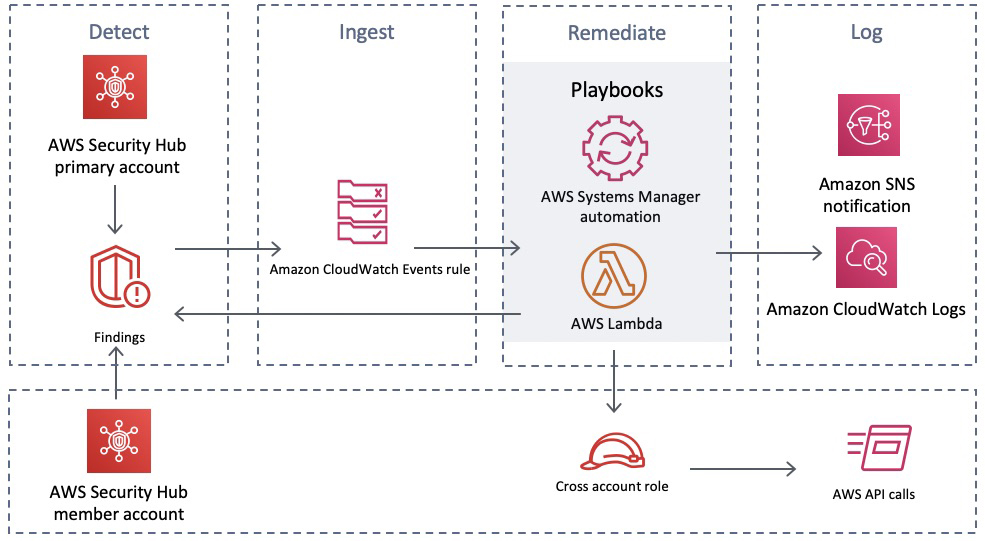
Figure 1 shows the flow of events in the solution described in the following text.

Figure 1: Flow of events

Figure 1: Flow of events

Detect

Security Hub gives you a comprehensive view of your security alerts and security posture across your AWS accounts and automatically detects deviations from defined security standards and best practices.

Security Hub also collects findings from various AWS services and supported third-party partner products to consolidate security detection data across your accounts.

Ingest

All of the findings from Security Hub are automatically sent to CloudWatch Events and Amazon EventBridge and you can set up CloudWatch Events and EventBridge rules to be invoked on specific findings. You can also send findings to CloudWatch Events and EventBridge on demand via Security Hub custom actions.

Remediate

The CloudWatch Event and EventBridge rules can have AWS Lambda functions, AWS Systems Manager automation documents, or AWS Step Functions workflows as the targets of the rules. This solution uses automation documents and Lambda functions as response and remediation playbooks. Using cross-account AWS Identity and Access Management (IAM) roles, the playbook performs the tasks to remediate the findings using the AWS API when a rule is invoked.

Log

The playbook logs the results to the Amazon CloudWatch log group for the solution, sends a notification to an Amazon Simple Notification Service (Amazon SNS) topic, and updates the Security Hub finding. An audit trail of actions taken is maintained in the finding notes. The finding is updated as RESOLVED after the remediation is run. The security finding notes are updated to reflect the remediation performed.

Here are the steps to deploy the solution from this GitHub project.

  • In the Security Hub master account, you deploy the AWS CloudFormation template, which creates an AWS Service Catalog product along with some other resources. For a full set of what resources are deployed as part of an AWS CloudFormation stack deployment, you can find the full set of deployed resources in the Resources section of the deployed AWS CloudFormation stack. The solution uses the AWS Service Catalog to have the remediations available as a product that can be deployed after granting the users the required permissions to launch the product.
  • Add an IAM role that has administrator access to the AWS Service Catalog portfolio.
  • Deploy the CIS playbook from the AWS Service Catalog product list using the IAM role you added in the previous step.
  • Deploy the AWS Security Hub Automated Response and Remediation template in the master account in addition to the member accounts. This template establishes AssumeRole permissions to allow the playbook Lambda functions to perform remediations. Use AWS CloudFormation StackSets in the master account to have a centralized deployment approach across the master account and multiple member accounts.

Deployment steps for automated response and remediation

This section reviews the steps to implement the solution, including screenshots of the solution launched from an AWS account.

Launch AWS CloudFormation stack on the master account

As part of this AWS CloudFormation stack deployment, you create custom actions to configure Security Hub to send findings to CloudWatch Events. Lambda functions are used to provide remediation in response to actions sent to CloudWatch Events.

Note: In this solution, you create custom actions for the CIS standards. There will be more custom actions added for other security standards in the future.

To launch the AWS CloudFormation stack

  1. Deploy the AWS CloudFormation template in the Security Hub master account. In your AWS console, select CloudFormation and choose Create new stack and enter the S3 URL.
  2. Select Next to move to the Specify stack details tab, and then enter a Stack name as shown in Figure 2. In this example, I named the stack SO0111-SHARR, but you can use any name you want.
     
    Figure 2: Creating a CloudFormation stack

    Figure 2: Creating a CloudFormation stack

  3. Creating the stack automatically launches it, creating 21 new resources using AWS CloudFormation, as shown in Figure 3.
     
    Figure 3: Resources launched with AWS CloudFormation

    Figure 3: Resources launched with AWS CloudFormation

  4. An Amazon SNS topic is automatically created from the AWS CloudFormation stack.
  5. When you create a subscription, you’re prompted to enter an endpoint for receiving email notifications from Amazon SNS as shown in Figure 4. To subscribe to that topic that was created using CloudFormation, you must confirm the subscription from the email address you used to receive notifications.
     
    Figure 4: Subscribing to Amazon SNS topic

    Figure 4: Subscribing to Amazon SNS topic

Enable Security Hub

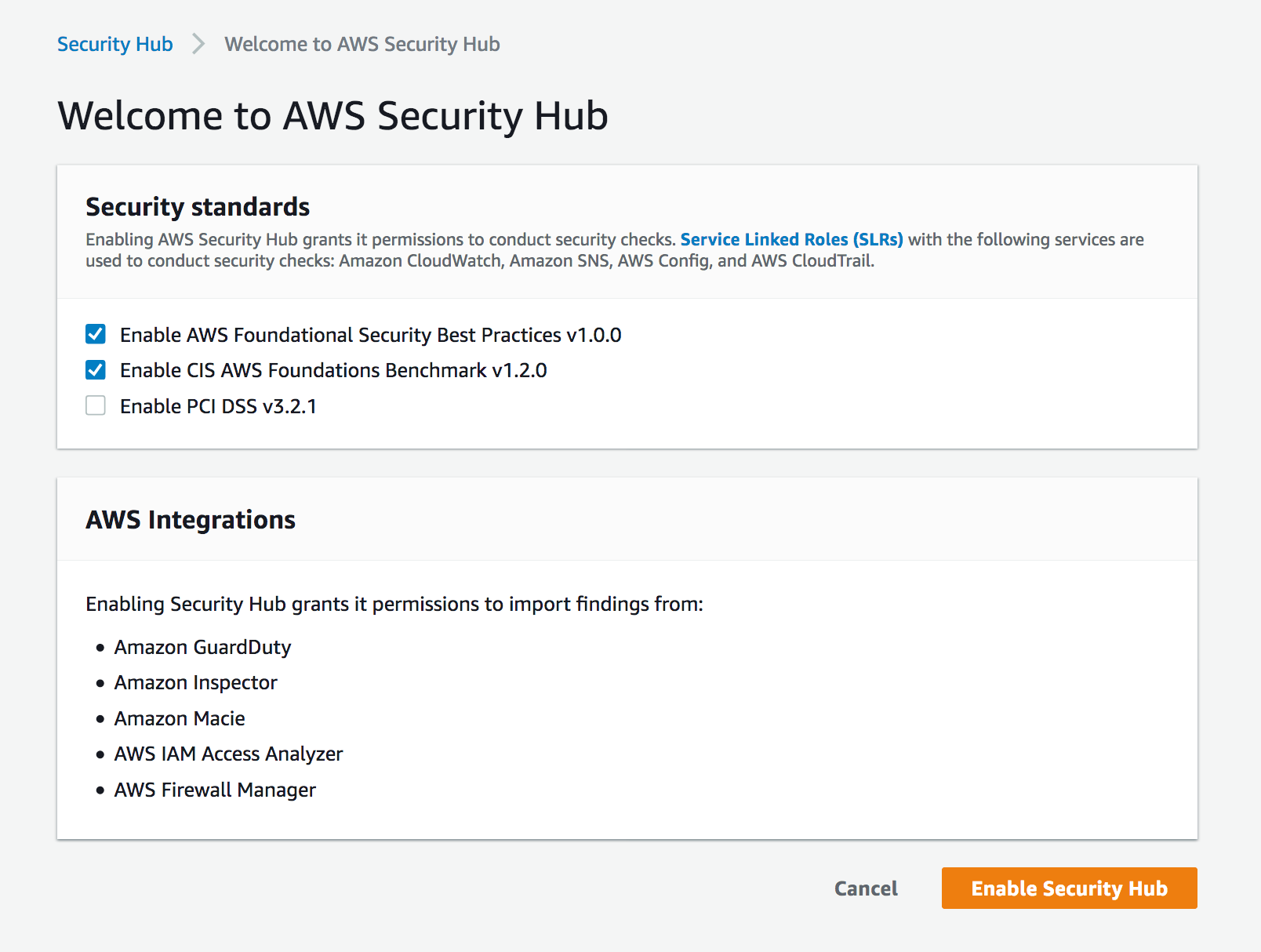
You should already have enabled Security Hub and AWS Config services on your master account and the associated member accounts. If you haven’t, you can refer to the documentation for setting up Security Hub on your master and member accounts. Figure 5 shows an AWS account that doesn’t have Security Hub enabled.
 

Figure 5: Enabling Security Hub for first time

Figure 5: Enabling Security Hub for first time

AWS Service Catalog product deployment

In this section, you use the AWS Service Catalog to deploy Service Catalog products.

To use the AWS Service Catalog for product deployment

  1. In the same master account, add roles that have administrator access and can deploy AWS Service Catalog products. To do this, from Services in the AWS Management Console, choose AWS Service Catalog. In AWS Service Catalog, select Administration, and then navigate to Portfolio details and select Groups, roles, and users as shown in Figure 6.
     
    Figure 6: AWS Service Catalog product

    Figure 6: AWS Service Catalog product

  2. After adding the role, you can see the products available for that role. You can switch roles on the console to assume the role that you granted access to for the product you added from the AWS Service Catalog. Select the three dots near the product name, and then select Launch product to launch the product, as shown in Figure 7.
     
    Figure 7: Launch the product

    Figure 7: Launch the product

  3. While launching the product, you can choose from the parameters to either enable or disable the automated remediation. Even if you do not enable fully automated remediation, you can still invoke a remediation action in the Security Hub console using a custom action. By default, it’s disabled, as highlighted in Figure 8.
     
    Figure 8: Enable or disable automated remediation

    Figure 8: Enable or disable automated remediation

  4. After launching the product, it can take from 3 to 5 minutes to deploy. When the product is deployed, it creates a new CloudFormation stack with a status of CREATE_COMPLETE as part of the provisioned product in the AWS CloudFormation console.

AssumeRole Lambda functions

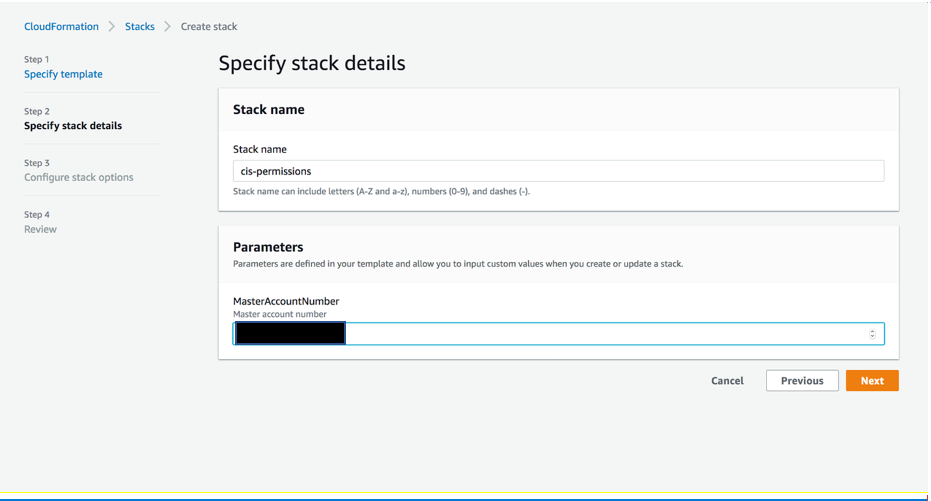
Deploy the template that establishes AssumeRole permissions to allow the playbook Lambda functions to perform remediations. You must deploy this template in the master account in addition to any member accounts. Choose CloudFormation and create a new stack. In Specify stack details, go to Parameters and specify the Master account number as shown in Figure 9.
 

Figure 9: Deploy AssumeRole Lambda function

Figure 9: Deploy AssumeRole Lambda function

Test the automated remediation

Now that you’ve completed the steps to deploy the solution, you can test it to be sure that it works as expected.

To test the automated remediation

  1. To test the solution, verify that there are 10 actions listed in Custom actions tab in the Security Hub master account. From the Security Hub master account, open the Security Hub console and select Settings and then Custom actions. You should see 10 actions, as shown in Figure 10.
     
    Figure 10: Custom actions deployed

    Figure 10: Custom actions deployed

  2. Make sure you have member accounts available for testing the solution. If not, you can add member accounts to the master account as described in Adding and inviting member accounts.
  3. For testing purposes, you can use CIS 1.5 standard, which is to require that the IAM password policy requires at least one uppercase letter. Check the existing settings by navigating to IAM, and then to Account Settings. Under Password policy, you should see that there is no password policy set, as shown in Figure 11.
     
    Figure 11: Password policy not set

    Figure 11: Password policy not set

  4. To check the security settings, go to the Security Hub console and select Security standards. Choose CIS AWS Foundations Benchmark v1.2.0. Select CIS 1.5 from the list to see the Findings. You will see the Status as Failed. This means that the password policy to require at least one uppercase letter hasn’t been applied to either the master or the member account, as shown in Figure 12.
     
    Figure 12: CIS 1.5 finding

    Figure 12: CIS 1.5 finding

  5. Select CIS 1.5 – 1.11 from Actions on the top right dropdown of the Findings section from the previous step. You should see a notification with the heading Successfully sent findings to Amazon CloudWatch Events as shown in Figure 13.
     
    Figure 13: Sending findings to CloudWatch Events

    Figure 13: Sending findings to CloudWatch Events

  6. Return to Findings by selecting Security standards and then choosing CIS AWS Foundations Benchmark v1.2.0. Select CIS 1.5 to review Findings and verify that the Workflow status of CIS 1.5 is RESOLVED, as shown in Figure 14.
     
    Figure 14: Resolved findings

    Figure 14: Resolved findings

  7. After the remediation runs, you can verify that the Password policy is set on the master and the member accounts. To verify that the password policy is set, navigate to IAM, and then to Account Settings. Under Password policy, you should see that the account uses a password policy, as shown in Figure 15.
     
    Figure 15: Password policy set

    Figure 15: Password policy set

  8. To check the CloudWatch logs for the Lambda function, in the console, go to Services, and then select Lambda and choose the Lambda function and within the Lambda function, select View logs in CloudWatch. You can see the details of the function being run, including updating the password policy on both the master account and the member account, as shown in Figure 16.
     
    Figure 15: Lambda function log

    Figure 16: Lambda function log

Conclusion

In this post, you deployed the AWS Solution for Security Hub Automated Response and Remediation using Lambda and CloudWatch Events rules to remediate non-compliant CIS-related controls. With this solution, you can ensure that users in member accounts stay compliant with the CIS AWS Foundations Benchmark by automatically invoking guardrails whenever services move out of compliance. New or updated playbooks will be added to the existing AWS Service Catalog portfolio as they’re developed. You can choose when to take advantage of these new or updated playbooks.

If you have feedback about this post, submit comments in the Comments section below. If you have questions about this post, start a new thread on the AWS Security Hub forum or contact AWS Support.

Want more AWS Security how-to content, news, and feature announcements? Follow us on Twitter.

Author

Ramesh Venkataraman

Ramesh is a Solutions Architect who enjoys working with customers to solve their technical challenges using AWS services. Outside of work, Ramesh enjoys following stack overflow questions and answers them in any way he can.

Set up centralized monitoring for DDoS events and auto-remediate noncompliant resources

Post Syndicated from Fola Bolodeoku original https://aws.amazon.com/blogs/security/set-up-centralized-monitoring-for-ddos-events-and-auto-remediate-noncompliant-resources/

When you build applications on Amazon Web Services (AWS), it’s a common security practice to isolate production resources from non-production resources by logically grouping them into functional units or organizational units. There are many benefits to this approach, such as making it easier to implement the principal of least privilege, or reducing the scope of adversely impactful activities that may occur in non-production environments. After building these applications, setting up monitoring for resource compliance and security risks, such as distributed denial of service (DDoS) attacks across your AWS accounts, is just as important. The recommended best practice to perform this type of monitoring involves using AWS Shield Advanced with AWS Firewall Manager, and integrating these with AWS Security Hub.

In this blog post, I show you how to set up centralized monitoring for Shield Advanced–protected resources across multiple AWS accounts by using Firewall Manager and Security Hub. This enables you to easily manage resources that are out of compliance from your security policy and to view DDoS events that are detected across multiple accounts in a single view.

Shield Advanced is a managed application security service that provides DDoS protection for your workloads against infrastructure layer (Layer 3–4) attacks, as well as application layer (Layer 7) attacks, by using AWS WAF. Firewall Manager is a security management service that enables you to centrally configure and manage firewall rules across your accounts and applications in an organization in AWS. Security Hub consumes, analyzes, and aggregates security events produced by your application running on AWS by consuming security findings. Security Hub integrates with Firewall Manager without the need for any action to be taken by you.

I’m going to cover two different scenarios that show you how to use Firewall Manager for:

  1. Centralized visibility into Shield Advanced DDoS events
  2. Automatic remediation of noncompliant resources

Scenario 1: Centralized visibility of DDoS detected events

This scenario represents a fully native and automated integration, where Shield Advanced DDoSDetected events (indicates whether a DDoS event is underway for a particular Amazon Resource Name (ARN)) are made visible as a security finding in Security Hub, through Firewall Manager.

Solution overview

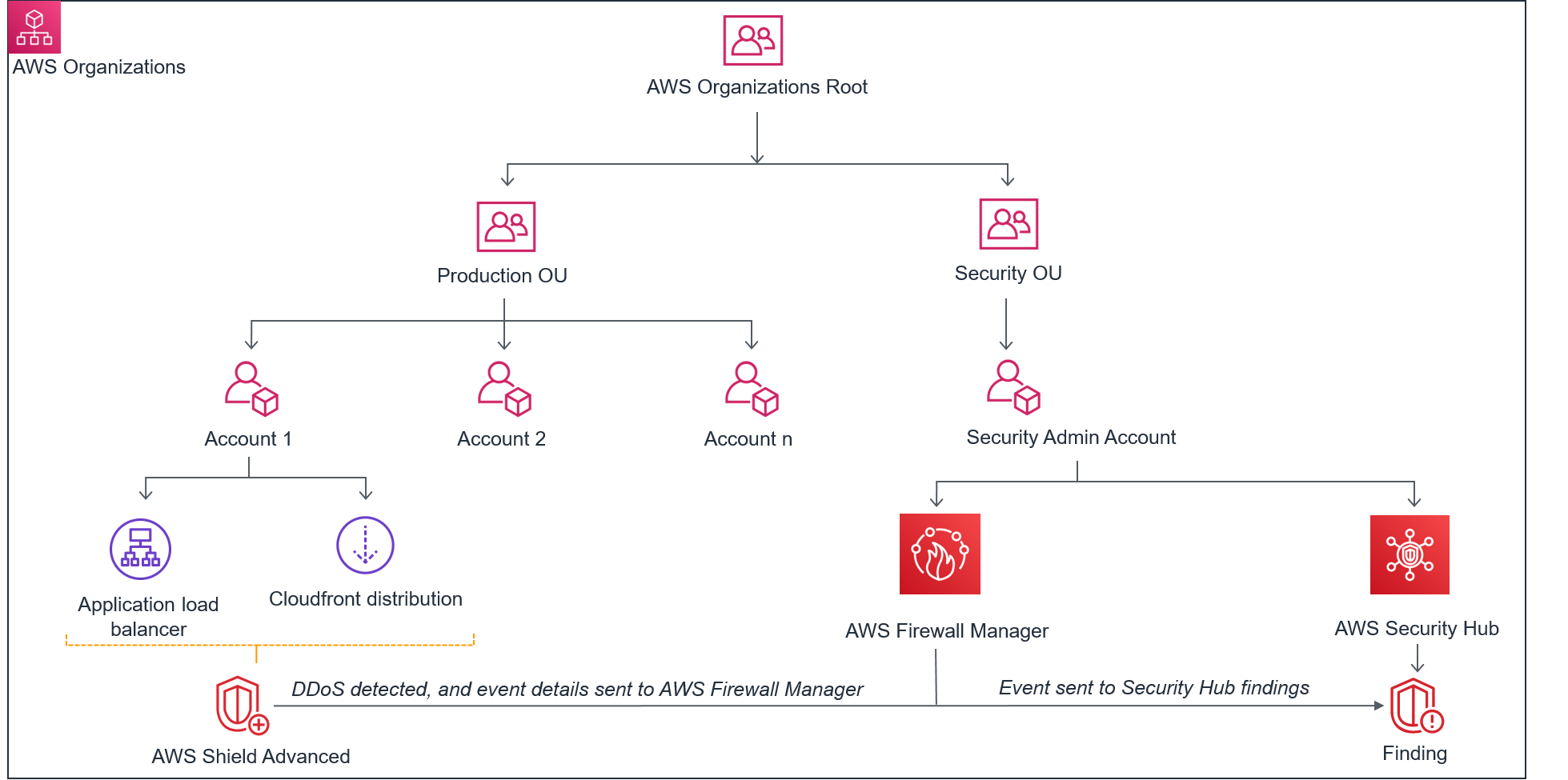
Figure 1 shows the solution architecture for scenario 1.
 

Figure 1: Scenario 1 – Shield Advanced DDoS detected events visible in Security Hub

Figure 1: Scenario 1 – Shield Advanced DDoS detected events visible in Security Hub

The diagram illustrates a customer using AWS Organizations to isolate their production resources into the Production Organizational Unit (OU), with further separation into multiple accounts for each of the mission-critical applications. The resources in Account 1 are protected by Shield Advanced. The Security OU was created to centralize security functions across all AWS accounts and OUs, obscuring the visibility of the production environment resources from the Security Operations Center (SOC) engineers and other security staff. The Security OU is home to the designated administrator account for Firewall Manager and the Security Hub dashboard.

Scenario 1 implementation

You will be setting up Security Hub in an account that has the prerequisite services configured in it as explained below. Before you proceed, see the architecture requirements in the next section. Once Security Hub is enabled for your organization, you can simulate a DDoS event in strict accordance with the AWS DDoS Simulation Testing Policy or use one of AWS DDoS Test Partners.

Architecture requirements

In order to implement these steps, you must have the following:

Once you have all these requirements completed, you can move on to enable Security Hub.

Enable Security Hub

Note: If you plan to protect resources with Shield Advanced across multiple accounts and in multiple Regions, we recommend that you use the AWS Security Hub Multiaccount Scripts from AWS Labs. Security Hub needs to be enabled in all the Regions and all the accounts where you have Shield protected resources. For global resources, like Amazon CloudFront, you should enable Security Hub in the us-east-1 Region.

To enable Security Hub

  1. In the AWS Security Hub console, switch to the account you want to use as the designated Security Hub administrator account.
  2. Select the security standard or standards that are applicable to your application’s use-case, and choose Enable Security Hub.
     
    Figure 2: Enabling Security Hub

    Figure 2: Enabling Security Hub

  3. From the designated Security Hub administrator account, go to the Settings – Account tab, and add accounts by sending invites to all the accounts you want added as member accounts. The invited accounts become associated as member accounts once the owner of the invited account has accepted the invite and Security Hub has been enabled. It’s possible to upload a comma-separated list of accounts you want to send to invites to.
     
    Figure 3: Designating a Security Hub administrator account by adding member accounts

    Figure 3: Designating a Security Hub administrator account by adding member accounts

View detected events in Shield and Security Hub

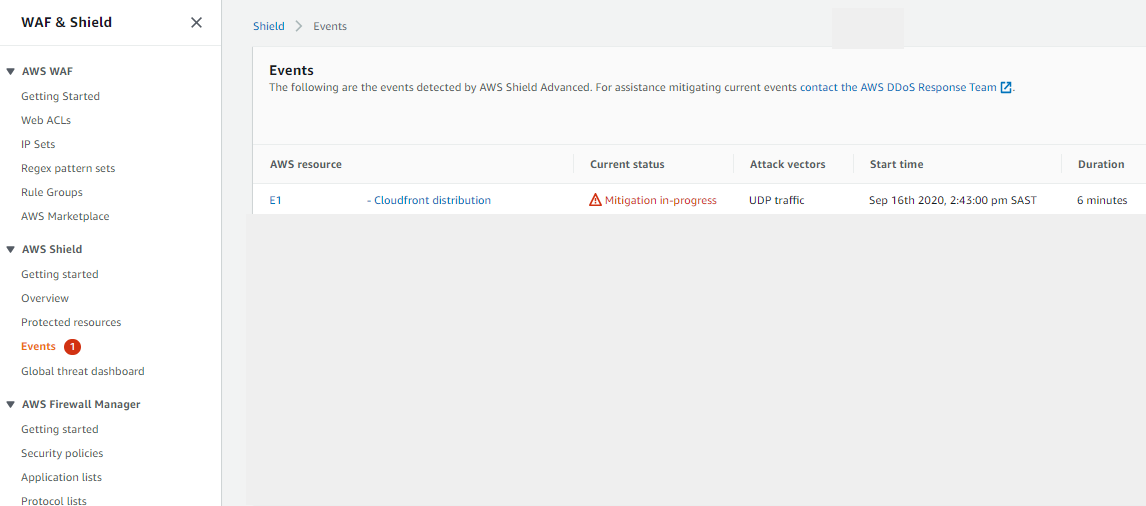
When Shield Advanced detects signs of DDoS traffic that is destined for a protected resource, the Events tab in the Shield console displays information about the event detected and provides a status on the mitigation that has been performed. Following is an example of how this looks in the Shield console.
 

Figure 4: Scenario 1 - The Events tab on the Shield console showing a Shield event in progress

Figure 4: Scenario 1 – The Events tab on the Shield console showing a Shield event in progress

If you’re managing multiple accounts, switching between these accounts to view the Shield console to keep track of DDoS incidents can be cumbersome. Using the Amazon CloudWatch metrics that Shield Advanced reports for Shield events, visibility across multiple accounts and Regions is easier through a custom CloudWatch dashboard or by consuming these metrics in a third-party tool. For example, the DDoSDetected CloudWatch metric has a binary value, where a value of 1 indicates that an event that might be a DDoS has been detected. This metric is automatically updated by Shield when the DDoS event starts and ends. You only need permissions to access the Security Hub dashboard in order to monitor all events on production resources. Following is an example of what you see in the Security Hub console.
 

Figure 5: Scenario 1 - Shield Advanced DDoS alarm showing in Security Hub

Figure 5: Scenario 1 – Shield Advanced DDoS alarm showing in Security Hub

Configure Shield event notification in Firewall Manager

In order to increase your visibility into possible Shield events across your accounts, you must configure Firewall Manager to monitor your protected resources by using Amazon Simple Notification Service (Amazon SNS). With this configuration, Firewall Manager sends you notifications of possible attacks by creating an Amazon SNS topic in Regions where you might have protected resources.

To configure SNS topics in Firewall Manager

  1. In the Firewall Manager console, go to the Settings page.
  2. Under Amazon SNS Topic Configuration, select a Region.
  3. Choose Configure SNS Topic.
     
    Figure 6: The Firewall Manager Settings page for configuring SNS topics

    Figure 6: The Firewall Manager Settings page for configuring SNS topics

  4. Select an existing topic or create a new topic, and then choose Configure SNS Topic.
     
    Figure 7: Configure an SNS topic in a Region

    Figure 7: Configure an SNS topic in a Region

Scenario 2: Automatic remediation of noncompliant resources

The second scenario is an example in which a new production resource is created, and Security Hub has full visibility of the compliance state of the resource.

Solution overview

Figure 8 shows the solution architecture for scenario 2.
 

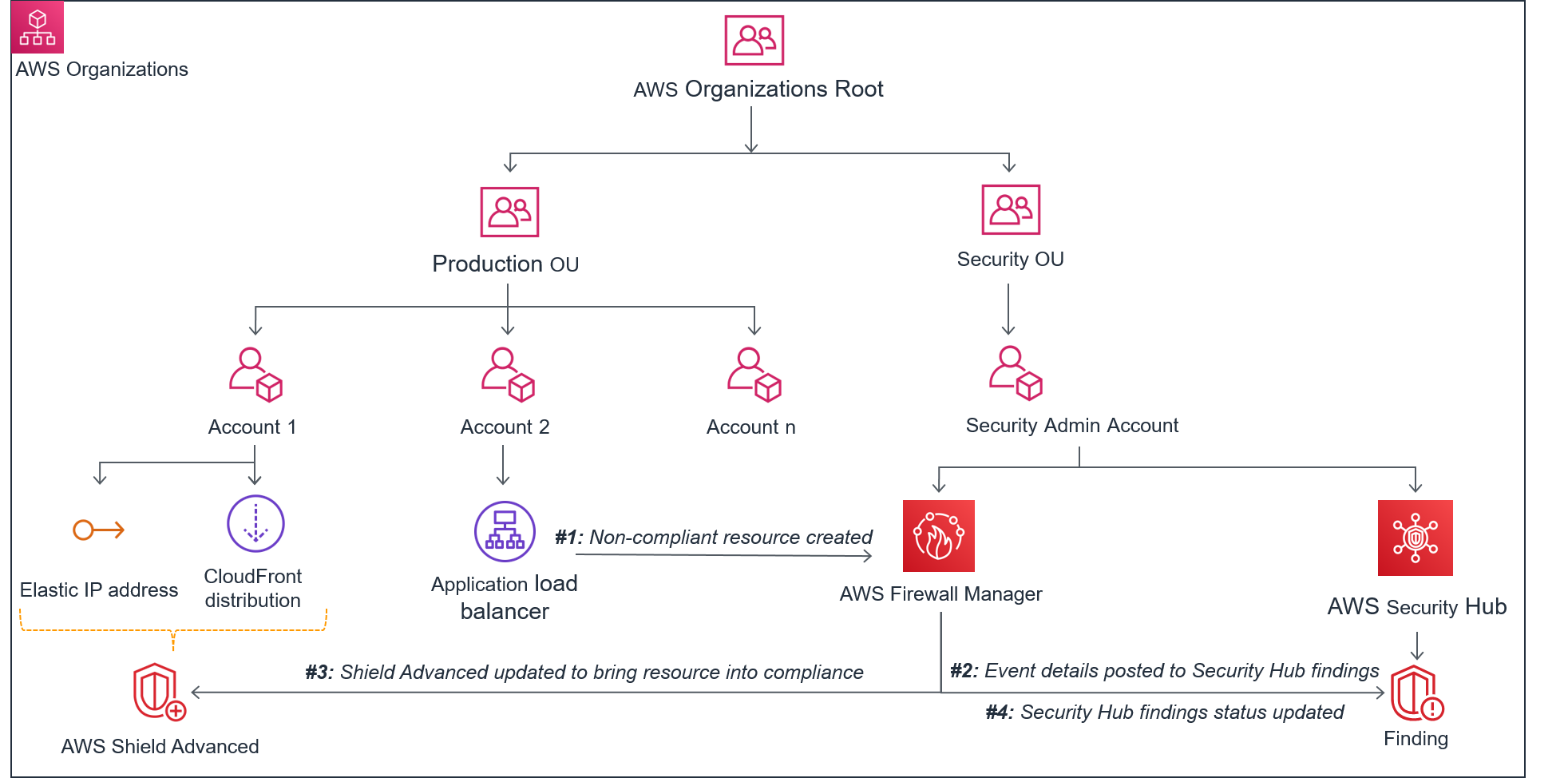
Figure 8: Scenario 2 – Visibility of Shield Advanced noncompliant resources in Security Hub

Figure 8: Scenario 2 – Visibility of Shield Advanced noncompliant resources in Security Hub

Firewall Manager identifies that the resource is out of compliance with the defined policy for Shield Advanced and posts a finding to Security Hub, notifying your operations team that a manual action is required to bring the resource into compliance. If configured, Firewall Manager can automatically bring the resource into compliance by creating it as a Shield Advanced–protected resource, and then update Security Hub when the resource is in a compliant state.

Scenario 2 implementation

The following steps describe how to use Firewall Manager to enforce Shield Advanced protection compliance of an application that is deployed to a member account within AWS Organizations. This implementation assumes that you set up Security Hub as described for scenario 1.

Create a Firewall Manager security policy for Shield Advanced protected resources

In this step, you create a Shield Advanced security policy that will be enforced by Firewall Manager. For the purposes of this walkthrough, you’ll choose to automatically remediate noncompliant resources and apply the policy to Application Load Balancer (ALB) resources.

To create the Shield Advanced policy

  1. Open the Firewall Manager console in the designated Firewall Manager administrator account.
  2. In the left navigation pane, choose Security policies, and then choose Create a security policy.
  3. Select AWS Shield Advanced as the policy type, and select the Region where your protected resources are. Choose Next.

    Note: You will need to create a security policy for each Region where you have regional resources, such as Elastic Load Balancers and Elastic IP addresses, and a security policy for global resources such as CloudFront distributions.

    Figure 9: Select the policy type and Region

    Figure 9: Select the policy type and Region

  4. On the Describe policy page, for Policy name, enter a name for your policy.
  5. For Policy action, you have the option to configure automatic remediation of noncompliant resources or to only send alerts when resources are noncompliant. You can change this setting after the policy has been created. For the purposes of this blog post, I’m selecting Auto remediate any noncompliant resources. Select your option, and then choose Next.

    Important: It’s a best practice to first identify and review noncompliant resources before you enable automatic remediation.

  6. On the Define policy scope page, define the scope of the policy by choosing which AWS accounts, resource type, or resource tags the policy should be applied to. For the purposes of this blog post, I’m selecting to manage Application Load Balancer (ALB) resources across all accounts in my organization, with no preference for resource tags. When you’re finished defining the policy scope, choose Next.
     
    Figure 10: Define the policy scope

    Figure 10: Define the policy scope

  7. Review and create the policy. Once you’ve reviewed and created the policy in the Firewall Manager designated administrator account, the policy will be pushed to all the Firewall Manager member accounts for enforcement. The new policy could take up to 5 minutes to appear in the console. Figure 11 shows a successful security policy propagation across accounts.
     
    Figure 11: View security policies in an account

    Figure 11: View security policies in an account

Test the Firewall Manager and Security Hub integration

You’ve now defined a policy to cover only ALB resources, so the best way to test this configuration is to create an ALB in one of the Firewall Manager member accounts. This policy causes resources within the policy scope to be added as protected resources.

To test the policy

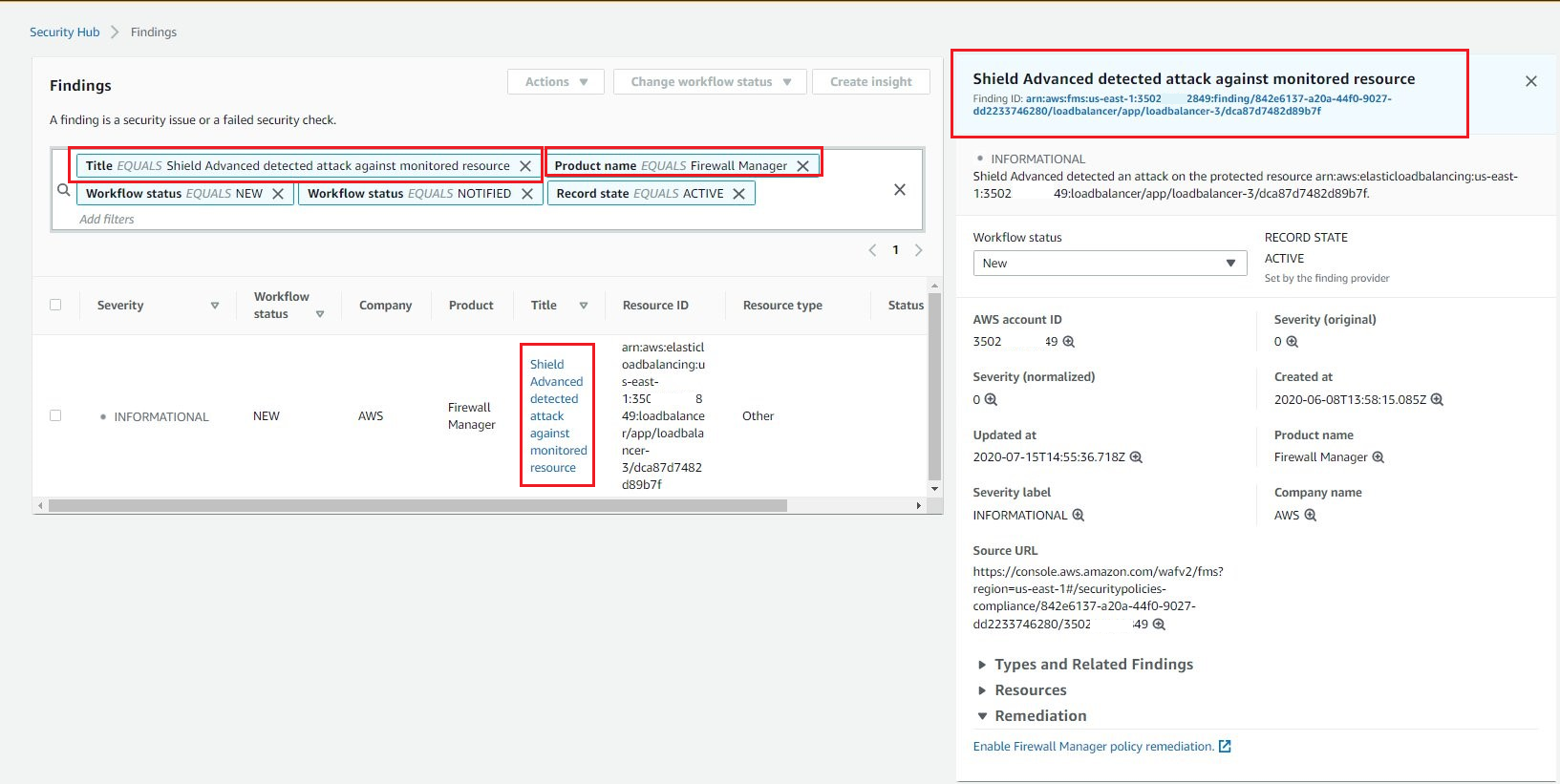
  1. Switch to the Security Hub administrator account and open the Security Hub console in the same Region where you created the ALB. On the Findings page, set the Title filter to Resource lacks Shield Advanced protection and set the Product name filter to Firewall Manager.
     
    Figure 12: Security Hub findings filter

    Figure 12: Security Hub findings filter

    You should see a new security finding flagging the ALB as a noncompliant resource, according to the Shield Advanced policy defined in Firewall Manager. This confirms that Security Hub and Firewall Manager have been enabled correctly.
     

    Figure 13: Security Hub with a noncompliant resource finding

    Figure 13: Security Hub with a noncompliant resource finding

  2. With the automatic remediation feature enabled, you should see the “Updated at” time reflect exactly when the automatic remediation actions were completed. The completion of the automatic remediation actions can take up to 5 minutes to be reflected in Security Hub.
     
    Figure 14: Security Hub with an auto-remediated compliance finding

    Figure 14: Security Hub with an auto-remediated compliance finding

  3. Go back to the account where you created the ALB, and in the Shield Protected Resources console, navigate to the Protected Resources page, where you should see the ALB listed as a protected resource.
     
    Figure 15: Shield console in the member account shows that the new ALB is a protected resource

    Figure 15: Shield console in the member account shows that the new ALB is a protected resource

    Confirming that the ALB has been added automatically as a Shield Advanced–protected resource means that you have successfully configured the Firewall Manager and Security Hub integration.

(Optional): Send a custom action to a third-party provider

You can send all regional Security Hub findings to a ticketing system, Slack, AWS Chatbot, a Security Information and Event Management (SIEM) tool, a Security Orchestration Automation and Response (SOAR), incident management tools, or to custom remediation playbooks by using Security Hub Custom Actions.

Conclusion

In this blog post I showed you how to set up a Firewall Manager security policy for Shield Advanced so that you can monitor your applications for DDoS events, and their compliance to DDoS protection policies in your multi-account environment from the Security Hub findings console. In line with best practices for account governance, organizations should have a centralized security account that performs monitoring for multiple accounts. Security Hub and Firewall Manager provide a centralized solution to help you achieve your compliance and monitoring goals for DDoS protection.

If you’re interested in exploring how Shield Advanced and AWS WAF help to improve the security posture of your application, have a look at the following resources:

If you have feedback about this post, submit comments in the Comments section below. If you have questions about this post, start a new thread on the AWS Security Hub forum or contact AWS Support.

Want more AWS Security how-to content, news, and feature announcements? Follow us on Twitter.

Author

Fola Bolodeoku

Fola is a Security Engineer on the AWS Threat Research Team, where he focuses on helping customers improve their application security posture against DDoS and other application threats. When he is not working, he enjoys spending time exploring the natural beauty of the Western Cape.

Snowflake: Running Millions of Simulation Tests with Amazon EKS

Post Syndicated from Keith Joelner original https://aws.amazon.com/blogs/architecture/snowflake-running-millions-of-simulation-tests-with-amazon-eks/

This post was co-written with Brian Nutt, Senior Software Engineer and Kao Makino, Principal Performance Engineer, both at Snowflake.

Transactional databases are a key component of any production system. Maintaining data integrity while rows are read and written at a massive scale is a major technical challenge for these types of databases. To ensure their stability, it’s necessary to test many different scenarios and configurations. Simulating as many of these as possible allows engineers to quickly catch defects and build resilience. But the Holy Grail is to accomplish this at scale and within a timeframe that allows your developers to iterate quickly.

Snowflake has been using and advancing FoundationDB (FDB), an open-source, ACID-compliant, distributed key-value store since 2014. FDB, running on Amazon Elastic Cloud Compute (EC2) and Amazon Elastic Block Storage (EBS), has proven to be extremely reliable and is a key part of Snowflake’s cloud services layer architecture. To support its development process of creating high quality and stable software, Snowflake developed Project Joshua, an internal system that leverages Amazon Elastic Kubernetes Service (EKS), Amazon Elastic Container Registry (ECR), Amazon EC2 Spot Instances, and AWS PrivateLink to run over one hundred thousand of validation and regression tests an hour.

About Snowflake

Snowflake is a single, integrated data platform delivered as a service. Built from the ground up for the cloud, Snowflake’s unique multi-cluster shared data architecture delivers the performance, scale, elasticity, and concurrency that today’s organizations require. It features storage, compute, and global services layers that are physically separated but logically integrated. Data workloads scale independently from one another, making it an ideal platform for data warehousing, data lakes, data engineering, data science, modern data sharing, and developing data applications.

Snowflake architecture

Developing a simulation-based testing and validation framework

Snowflake’s cloud services layer is composed of a collection of services that manage virtual warehouses, query optimization, and transactions. This layer relies on rich metadata stored in FDB.

Prior to the creation of the simulation framework, Project Joshua, FDB developers ran tests on their laptops and were limited by the number they could run. Additionally, there was a scheduled nightly job for running further tests.

Joshua at Snowflake

Amazon EKS as the foundation

Snowflake’s platform team decided to use Kubernetes to build Project Joshua. Their focus was on helping engineers run their workloads instead of spending cycles on the management of the control plane. They turned to Amazon EKS to achieve their scalability needs. This was a crucial success criterion for Project Joshua since at any point in time there could be hundreds of nodes running in the cluster. Snowflake utilizes the Kubernetes Cluster Autoscaler to dynamically scale worker nodes in minutes to support a tests-based queue of Joshua’s requests.

With the integration of Amazon EKS and Amazon Virtual Private Cloud (Amazon VPC), Snowflake is able to control access to the required resources. For example: the database that serves Joshua’s test queues is external to the EKS cluster. By using the Amazon VPC CNI plugin, each pod receives an IP address in the VPC and Snowflake can control access to the test queue via security groups.

To achieve its desired performance, Snowflake created its own custom pod scaler, which responds quicker to changes than using a custom metric for pod scheduling.

  • The agent scaler is responsible for monitoring a test queue in the coordination database (which, coincidentally, is also FDB) to schedule Joshua agents. The agent scaler communicates directly with Amazon EKS using the Kubernetes API to schedule tests in parallel.
  • Joshua agents (one agent per pod) are responsible for pulling tests from the test queue, executing, and reporting results. Tests are run one at a time within the EKS Cluster until the test queue is drained.

Achieving scale and cost savings with Amazon EC2 Spot

A Spot Fleet is a collection—or fleet—of Amazon EC2 Spot instances that Joshua uses to make the infrastructure more reliable and cost effective. ​ Spot Fleet is used to reduce the cost of worker nodes by running a variety of instance types.

With Spot Fleet, Snowflake requests a combination of different instance types to help ensure that demand gets fulfilled. These options make Fleet more tolerant of surges in demand for instance types. If a surge occurs it will not significantly affect tasks since Joshua is agnostic to the type of instance and can fall back to a different instance type and still be available.

For reservations, Snowflake uses the capacity-optimized allocation strategy to automatically launch Spot Instances into the most available pools by looking at real-time capacity data and predicting which are the most available. This helps Snowflake quickly switch instances reserved to what is most available in the Spot market, instead of spending time contending for the cheapest instances, at the cost of a potentially higher price.

Overcoming hurdles

Snowflake’s usage of a public container registry posed a scalability challenge. When starting hundreds of worker nodes, each node needs to pull images from the public registry. This can lead to a potential rate limiting issue when all outbound traffic goes through a NAT gateway.

For example, consider 1,000 nodes pulling a 10 GB image. Each pull request requires each node to download the image across the public internet. Some issues that need to be addressed are latency, reliability, and increased costs due to the additional time to download an image for each test. Also, container registries can become unavailable or may rate-limit download requests. Lastly, images are pulled through public internet and other services in the cluster can experience pulling issues.

​For anything more than a minimal workload, a local container registry is needed. If an image is first pulled from the public registry and then pushed to a local registry (cache), it only needs to pull once from the public registry, then all worker nodes benefit from a local pull. That’s why Snowflake decided to replicate images to ECR, a fully managed docker container registry, providing a reliable local registry to store images. Additional benefits for the local registry are that it’s not exclusive to Joshua; all platform components required for Snowflake clusters can be cached in the local ECR Registry. For additional security and performance Snowflake uses AWS PrivateLink to keep all network traffic from ECR to the workers nodes within the AWS network. It also resolved rate-limiting issues from pulling images from a public registry with unauthenticated requests, unblocking other cluster nodes from pulling critical images for operation.

Conclusion

Project Joshua allows Snowflake to enable developers to test more scenarios without having to worry about the management of the infrastructure. ​ Snowflake’s engineers can schedule thousands of test simulations and configurations to catch bugs faster. FDB is a key component of ​the Snowflake stack and Project Joshua helps make FDB more stable and resilient. Additionally, Amazon EC2 Spot has provided non-trivial cost savings to Snowflake vs. running on-demand or buying reserved instances.

If you want to know more about how Snowflake built its high performance data warehouse as a Service on AWS, watch the This is My Architecture video below.

How to secure your Amazon WorkSpaces for external users

Post Syndicated from Olivia Carline original https://aws.amazon.com/blogs/security/how-to-secure-your-amazon-workspaces-for-external-users/

In response to the current shift towards a remote workforce, companies are providing greater access to corporate applications from a range of different devices. Amazon WorkSpaces is a desktop-as-a-service solution that can be used to quickly deploy cloud-based desktops to your external users, including employees, third-party vendors, and consultants. Amazon WorkSpaces desktops are accessible from anywhere with an internet connection. In this blog post, I review some key security controls that you can use to architect your Amazon WorkSpaces environment to provide external users access to your corporate applications and data in a way that satisfies your unique security and compliance objectives.

Amazon Workspaces provides a virtual desktop infrastructure that removes the need for upfront infrastructure expenditure. Instead, you can pay for Windows or Linux desktop environments as you need them. These environments can be provisioned in a few minutes, and enable you to scale up to thousands of desktops that can be accessed from wherever your users are located.

As part of the shared responsibility model, security is a shared responsibility between Amazon Web Services (AWS) and you. AWS is responsible for protecting the infrastructure that runs the AWS services while you are responsible for securing your data in AWS through appropriate permissions and WorkSpace management as outlined in the Best Practices for Deploying Amazon WorkSpaces whitepaper. Amazon WorkSpaces has been independently assessed to meet the requirements of a wide range of compliance programs, including IRAP, SOC, PCI DSS, FedRAMP, and HIPAA.

Prerequisites

Define user groups

A user group is a collection of people who all have the same security rights and permissions. Leveraging user groups helps you to identify the types of access and your requirements for user authentication. How you define your user groups should reflect how you classify your data and the access controls associated with the classifications. A common approach is to begin by separating your internal (employees) and external (vendors and consultants) users. Classifying your users into different groups helps you to define your security controls. For example, the security and configuration of your external users’ devices will be different from the configuration for your internal users’ devices. The identification process also helps to ensure that you’re following the principle of least privilege by limiting access to certain applications or resources. These user groups are the building blocks for designing the rest of your security controls, including the directories, access controls, and security groups.

In this blog post, I walk you through the security configurations for the following example external user groups. How you configure security for your user groups will depend on your own security requirements.

Example user groups

Internal users: Employees who need access to company resources from any location. In addition to having access to the internet and the internal network from any supported device, internal users have administrator access on their virtual desktops so they can install applications.

External users: Third-party vendors and consultants who need access to specific websites that are inside the corporate network. They have fewer permissions and tighter guardrails on their virtual desktops and can only access resources through trusted devices. External users should have access to only pre-installed applications and not be able to install additional applications onto their WorkSpaces.

At this stage, it’s okay to separate your user groups broadly based on the preceding requirements. Later, you can configure fine-grained access controls for individual users.

Configure your directories

Amazon WorkSpaces uses directories to manage information and configuration of WorkSpaces and users. Each WorkSpace that you provision exists within a directory. There are a couple of different options for configuring the directory. Amazon Workspaces can create and manage a directory for you so that users are entered into that directory when you provision a WorkSpace. As an alternative, you can integrate WorkSpaces with an existing, on-premises Microsoft Active Directory (AD) so your users can use the credentials they already know to access applications.

Within Amazon WorkSpaces, directories play a large part in how access to workspaces is configured. Directories within Amazon WorkSpaces are used to store and manage information for your WorkSpaces and users. Based on the preceding two example user groups, let’s split your users’ WorkSpaces across two directories. That will help you to establish different access control settings for the two groups.

To define the two directories, you must set up the directories within AWS Directory Service. As previously mentioned, there are various approaches to handling user management that depend on your existing user directories and requirements. For this example, you can configure two simple Active Directories—one for internal users and one for external users. Handling the external users in a separate directory allows you to ensure your user groups are configured with least privilege. With this approach, external users can still be given access to objects inside the internal directory through a trust if required but can be configured with stricter access controls than users inside the internal directory.

A comprehensive guide to setting up your directories is available in the Amazon WorkSpaces administration guide and outlines the steps to configure a directory using AWS Managed Microsoft AD, Simple AD, or AD Connector.

Configure security settings

After you define what privileges and access controls you want in place for your external users and configure the directories you need, it’s time to establish the security controls for your WorkSpaces. This blog will focus on the external users’ security configurations from the prerequisites. Use the following steps to implement the security requirements:

  1. Establish security groups
  2. Disable local administrator rights
  3. Configure IP access control groups
  4. Define trusted devices
  5. Configure monitoring of WorkSpaces

Establish security groups

With your two AD directories configured, you can start implementing the security controls for your external users. Your Amazon WorkSpaces are configured within a logically isolated network known as Amazon Virtual Private Cloud (VPC). A key concept within Amazon VPC is security groups, which act as virtual firewalls to control inbound and outbound traffic to the virtual desktops. A properly configured security group can limit access to resources in your network or to the internet at the individual WorkSpace level or at the directory level.

To ensure that your external users can access only the network resources you want them to, you can define security groups with restrictive network access settings. One approach is to configure security groups so that your external users only have HTTP and HTTPS access to specific internal websites by trusted IP addresses. To define more fine-grained access control for individual users, you can define another restrictive security group and attach it to an individual user’s WorkSpace. This way, you can use a single directory to handle many different users with different network security requirements and ensure that third-party users only have access to authorized data and systems. In addition to security groups, you can use your preferred host-based firewall on a given WorkSpace to limit network access to resources within the VPC.

To establish and configure security groups

  1. In the Amazon WorkSpaces menu, select Directories from the left menu. Choose the directory you created for your external users. Select Actions and then Update Details as shown in the following figure.
     
    Figure 1: Updating details of your directory

    Figure 1: Updating details of your directory

  2. In the Update Directory Details screen that appears, select the down arrow next to Security Group to expand the section. Select Create New next to the dropdown menu to configure a new security group.
     
    Figure 2: Adding a security group to your directory

    Figure 2: Adding a security group to your directory

  3. In the next window, select Create security group.
  4. Enter a descriptive name for the Security group name and a description for the security group in Description. For example, the description could be external-workspaces-users-sg.
  5. Change the VPC using the dropdown menu to the VPC hosting the WorkSpaces.
  6. In the Inbound rules section, leave the rules as default. The default configuration will block everything except for sessions that have been already established from the Workspace.
  7. In the Outbound rules section, configure the following settings:
    1. Select Delete the existing outbound rule.
    2. Select Add rule.
    3. Set Type to HTTP.
    4. Leave Protocol as TCP and Port range as 80.
    5. Change Source to Custom and enter the appropriate range for your Destination based on where your internal resources are located.
    6. Select Add rule again.
    7. Set Type to HTTPS.
    8. Leave Protocol as TCP and Port range as 443.
    9. Change Source to Custom and enter the appropriate range for your Destination based on where your internal resources are located.
    Figure 3: Configuring your security groups

    Figure 3: Configuring your security groups

  8. Select Create security group.
  9. Return to the WorkSpaces directory tab and select Refresh to see the newly created security group.
  10. Select Update and Exit.

Disable local administrator rights

One of the recommendations for external users is to disable the local administrator setting on their WorkSpaces and provide them with access to only specific, preinstalled applications. This guardrail helps to ensure that external users have limited permissions and to reduce the risk that they might access or share sensitive information. If local administrator isn’t disabled, users can install applications and modify settings on their WorkSpaces. You can disable local administrator access from within the external users’ directory. Changes to the directory are applied to all new WorkSpaces that you create and can be applied to existing WorkSpaces by rebuilding them after the making changes.

Note: If your internal users don’t need local administrator access, it’s a best practice to follow the principle of least privilege and disable it for them as well.

To disable local administrator rights for external users

  1. In the Amazon WorkSpaces menu, select Directories from the left menu. Choose the directory you configured for your external users.
  2. Select Actions and then Update Details.
  3. In Update Directory Details, select Local Administrator Setting and choose the Enable radio button.
  4. Select Update and Exit as shown in the following figure.
     
    Figure 4: Disabling your local administrator setting

    Figure 4: Disabling your local administrator setting

Define IP access control

So far the security groups you have defined previously allow external users access to company resources only from inside the corporate network. You can enhance this security configuration by leveraging IP access control groups to limit traffic and only allow certain IPs to access the WorkSpaces. An IP access control group acts as a virtual firewall and filters access to WorkSpaces by controlling the source classless inter-domain routing (CIDR) ranges that users can access their WorkSpaces from. Each IP access control group consists of a set of rules that specify a permitted IP address or range of addresses that Amazon WorkSpaces can be accessed from. Using this feature, you can configure rules that permit access to your WorkSpaces only if they are coming from your company’s VPN. To achieve this control, you must define rules that specify the ranges of IP addresses for your trusted networks within IP access control groups associated to the external users directory.

Note: Currently only IPV4 addresses are permitted.

To define IP access control

  1. Inside the Amazon WorkSpaces page, select IP Access Controls on the left panel. Select Create IP Group and enter a Group Name and Description in the window that appears.
  2. Select Create as shown in the following figure.
     
    Figure 5: Creating an IP group

    Figure 5: Creating an IP group

  3. Select the box next to the IP group you just created to open the new rules form.
  4. Select Add Rule.
  5. Enter the individual IP addresses or CIDR IP ranges that you want to allow WorkSpaces to have access from in Source. If you want to restrict access to your VPN make sure to add the public IPs of the VPN. Enter a description in Description.
  6. Select Save as shown in the following figure.
     
    Figure 6: Adding rules to your IP group

    Figure 6: Adding rules to your IP group

Configure trusted devices

Regulating the devices that can connect to your workspaces can help reduce the risk of unauthorized access to your network and applications. By default, all Amazon WorkSpaces users can access their virtual desktop from any supported device that has internet connectivity. However, it’s a good practice to configure additional guardrails to limit external users to only accessing their WorkSpaces through trusted devices, otherwise known as managed devices (currently this feature only applies to Amazon WorkSpaces Windows and macOS clients). With this feature enabled, only devices that have been authenticated through a certificate-based approach will have access to WorkSpaces. If the WorkSpaces client application cannot verify that a device is trusted, it blocks attempts to log in or connect from the device.

Note: If you haven’t already configured certificates, you will need to follow the steps in the Amazon WorkSpaces Administration Guide that walkthrough the requirements of the certificates as well as the process to generate one.

To configure trusted devices

  1. In the Amazon WorkSpaces menu, select Directories in the left menu. After selecting the directory that has been configured for your external users, select Actions and then Update Details.
  2. In Update Directory Details, select Access Control Options. Select Allow next to Windows and MacOS to allow only trusted Windows and macOS devices to access WorkSpaces.
  3. Select Import to import your root certificate.
  4. Next to Other Platforms select Block so that only Windows and MacOS devices will have access.
  5. Select Update and Exit.
     
    Figure 7: Establishing trusted devices

    Figure 7: Establishing trusted devices

  6. Test your settings by trying to access one of your WorkSpaces from a trusted device and from a non-trusted device.

Use Amazon CloudWatch to monitor your WorkSpaces

Once the guardrails for your external users have been set up, it’s important to monitor your environment for suspicious behavior and potential threats. Monitoring your infrastructure should be a fundamental aspect in your security plan. Amazon WorkSpaces is natively integrated with Amazon CloudWatch, which you can use to gather and analyze metrics to gain visibility into individual WorkSpaces and at a directory level. Alongside metrics, Amazon CloudWatch Events can also be used to provide visibility into your Amazon WorkSpaces fleet so you can view, filter, and respond to logins to your WorkSpaces. This approach lets you create a thorough monitoring pipeline that enhances your security. It lets you filter and automatically respond to suspicious activity in real time. A comprehensive example of this approach is outlined in this blog post that covers the steps involved to set up a CloudWatch based monitoring system for your WorkSpaces.

Conclusion

While you’ve used Amazon WorkSpaces features to help provide secure access for your external users, it’s also important to implement the principle of least privilege across all WorkSpaces users. You can use the design considerations and procedures in this blog post to help secure your WorkSpaces for all users, internal and external. You can learn more about best practices for securing your Amazon WorkSpaces by reading the Best Practices for Deploying Amazon WorkSpaces whitepaper to understand other features and capabilities that are available.

If you have feedback about this post, submit comments in the Comments section below. If you have questions about this post, start a new thread on the Amazon WorkSpaces forum or contact AWS Support.

Want more AWS Security how-to content, news, and feature announcements? Follow us on Twitter.

Author

Olivia Carline

Olivia is an Associate Solutions Architect working in the public sector team. In her role she enjoys helping customers up-skill and build their cloud knowledge with a particular focus on cloud security. In her free time, you can find her exploring local hiking tracks and trying out new recipes.

Integrating CloudEndure Disaster Recovery into your security incident response plan

Post Syndicated from Gonen Stein original https://aws.amazon.com/blogs/security/integrating-cloudendure-disaster-recovery-into-your-security-incident-response-plan/

An incident response plan (also known as procedure) contains the detailed actions an organization takes to prepare for a security incident in its IT environment. It also includes the mechanisms to detect, analyze, contain, eradicate, and recover from a security incident. Every incident response plan should contain a section on recovery, which outlines scenarios ranging from single component to full environment recovery. This recovery section should include disaster recovery (DR), with procedures to recover your environment from complete failure. Effective recovery from an IT disaster requires tools that can automate preparation, testing, and recovery processes. In this post, I explain how to integrate CloudEndure Disaster Recovery into the recovery section of your incident response plan. CloudEndure Disaster Recovery is an Amazon Web Services (AWS) DR solution that enables fast, reliable recovery of physical, virtual, and cloud-based servers on AWS. This post also discusses how you can use CloudEndure Disaster Recovery to reduce downtime and data loss when responding to a security incident, and best practices for maintaining your incident response plan.

How disaster recovery fits into a security incident response plan

The AWS Well-Architected Framework security pillar provides guidance to help you apply best practices and current recommendations in the design, delivery, and maintenance of secure AWS workloads. It includes a recommendation to integrate tools to secure and protect your data. A secure data replication and recovery tool helps you protect your data if there’s a security incident and quickly return to normal business operation as you resolve the incident. The recovery section of your incident response plan should define recovery point objectives (RPOs) and recovery time objectives (RTOs) for your DR-protected workloads. RPO is the window of time that data loss can be tolerated due to a disruption. RTO is the amount of time permitted to recover workloads after a disruption.

Your DR response to a security incident can vary based on the type of incident you encounter. For example, your DR plan for responding to a security incident such as ransomware—which involves data corruption—should describe how to recover workloads on your secondary DR site using a recovery point prior to the data corruption. This use case will be discussed further in the next section.

In addition to tools and processes, your security incident response plan should define the roles and responsibilities necessary during an incident. This includes the people and roles in your organization who perform incident mitigation steps, in addition to those who need to be informed and consulted. This can include technology partners, application owners, or subject matter experts (SMEs) outside of your organization who can offer additional expertise. DR-related roles for your incident response plan include:

  • A person who analyzes the situation and provides visibility to decision-makers.
  • A person who decides whether or not to trigger a DR response.
  • A person who actively triggers the DR response.

Be sure to include all of the stakeholders you identify in your documented security incident response procedures and runbooks. Test your plan to verify that the people in these roles have the pre-provisioned access they need to perform their defined role.

How to use CloudEndure Disaster Recovery during a security incident

CloudEndure Disaster Recovery continuously replicates your servers—including OS, system state configuration, databases, applications, and files—to a staging area in your target AWS Region. The staging area contains low-cost resources automatically provisioned and managed by CloudEndure Disaster Recovery. This reduces the cost of provisioning duplicate resources during normal operation. Your fully provisioned recovery environment is launched only during an incident or drill.

If your organization experiences a security incident that can be remediated using DR, you can use CloudEndure Disaster Recovery to perform failover to your target AWS Region from your source environment. When you perform failover, CloudEndure Disaster Recovery orchestrates the recovery of your environment in your target AWS Region. This enables quick recovery, with RPOs of seconds and RTOs of minutes.

To deploy CloudEndure Disaster Recovery, you must first install the CloudEndure agent on the servers in your environment that you want to replicate for DR, and then initiate data replication to your target AWS Region. Once data replication is complete and your data is in sync, you can launch machines in your target AWS Region from the CloudEndure User Console. CloudEndure Disaster Recovery enables you to launch target machines in either Test Mode or Recovery Mode. Your launched machines behave the same way in either mode; the only difference is how the machine lifecycle is displayed in the CloudEndure User Console. Launch machines by opening the Machines page, shown in the following figure, and selecting the machines you want to launch. Then select either Test Mode or Recovery Mode from the Launch Target Machines menu.
 

Figure 1: Machines page on the CloudEndure User Console

Figure 1: Machines page on the CloudEndure User Console

You can launch your entire environment, a group of servers comprising one or more applications, or a single server in your target AWS Region. When you launch machines from the CloudEndure User Console, you’re prompted to choose a recovery point from the Choose Recovery Point dialog box (shown in the following figure).

Use point-in-time recovery to respond to security incidents that involve data corruption, such as ransomware. Your incident response plan should include a mechanism to determine when data corruption occurred. Knowing how to determine which recovery point to choose in the CloudEndure User Console helps you minimize response time during a security incident. Each recovery point is a point-in-time snapshot of your servers that you can use to launch recovery machines in your target AWS Region. Select the latest recovery point before the data corruption to restore your workloads on AWS, and then choose Continue With Launch.
 

Figure 2: Selection of an earlier recovery point from the Choose Recovery Point dialog box

Figure 2: Selection of an earlier recovery point from the Choose Recovery Point dialog box

Run your recovered workloads in your target AWS Region until you’ve resolved the security incident. When the incident is resolved, you can perform failback to your primary environment using CloudEndure Disaster Recovery. You can learn more about CloudEndure Disaster Recovery setup, operation, and recovery by taking this online CloudEndure Disaster Recovery Technical Training.

Test and maintain the recovery section of your incident response plan

Your entire incident response plan must be kept accurate and up to date in order to effectively remediate security incidents if they occur. A best practice for achieving this is through frequently testing all sections of your plan, including your tools. When you first deploy CloudEndure Disaster Recovery, begin running tests as soon as all of your replicated servers are in sync on your target AWS Region. DR solution implementation is generally considered complete when all initial testing has succeeded.

By correctly configuring the networking and security groups in your target AWS Region, you can use CloudEndure Disaster Recovery to launch a test workload in an isolated environment without impacting your source environment. You can run tests as often as you want. Tests don’t incur additional fees beyond payment for the fully provisioned resources generated during tests.

Testing involves two main components: launching the machines you wish to test on AWS, and performing user acceptance testing (UAT) on the launched machines.

  1. Launch machines to test.
     
    Select the machines to test from the Machines page of the CloudEndure User Console by selecting the check box next to the machine. Then choose Test Mode from the Launch Target Machines menu, as shown in the following figure. You can select the latest recovery point or an earlier recovery point.
     
    Figure 3: Select Test Mode to launch selected machines

    Figure 3: Select Test Mode to launch selected machines


    The following figure shows the CloudEndure User Console. The Disaster Recovery Lifecycle column shows that the machines have been Tested Recently.

    Figure 4: Machines launched in Test Mode display purple icons in the Status column and Tested Recently in the Disaster Recovery Lifecycle column

    Figure 4: Machines launched in Test Mode display purple icons in the Status column and Tested Recently in the Disaster Recovery Lifecycle column

  2. Perform UAT testing.
     
    Begin UAT testing when the machine launch job is successfully completed and your target machines have booted.

After you’ve successfully deployed, configured, and tested CloudEndure Disaster Recovery on your source environment, add it to your ongoing change management processes so that your incident response plan remains accurate and up-to-date. This includes deploying and testing CloudEndure Disaster Recovery every time you add new servers to your environment. In addition, monitor for changes to your existing resources and make corresponding changes to your CloudEndure Disaster Recovery configuration if necessary.

How CloudEndure Disaster Recovery keeps your data secure

CloudEndure Disaster Recovery has multiple mechanisms to keep your data secure and not introduce new security risks. Data replication is performed using AES 256-bit encryption in transit. Data at rest can be encrypted by using Amazon Elastic Block Store (Amazon EBS) encryption with an AWS managed key or a customer key. Amazon EBS encryption is supported by all volume types, and includes built-in key management infrastructure that has no performance impact. Replication traffic is transmitted directly from your source servers to your target AWS Region, and can be restricted to private connectivity such as AWS Direct Connect or a VPN. CloudEndure Disaster Recovery is ISO 27001 and GDPR compliant and HIPAA eligible.

Summary

Each organization tailors its incident response plan to meet its unique security requirements. As described in this post, you can use CloudEndure Disaster Recovery to improve your organization’s incident response plan. I also explained how to recover from an earlier point in time when you respond to security incidents involving data corruption, and how to test your servers as part of maintaining the DR section of your incident response plan. By following the guidance in this post, you can improve your IT resilience and recover more quickly from security incidents. You can also reduce your DR operational costs by avoiding duplicate provisioning of your DR infrastructure.

Visit the CloudEndure Disaster Recovery product page if you would like to learn more. You can also view the AWS Raise the Bar on Data Protection and Security webinar series for additional information on how to protect your data and improve IT resilience on AWS.

If you have feedback about this post, submit comments in the Comments section below.

Want more AWS Security how-to content, news, and feature announcements? Follow us on Twitter.

Author

Gonen Stein

Gonen is the Head of Product Strategy for CloudEndure, an AWS company. He combines his expertise in business, cloud infrastructure, storage, and information security to assist enterprise organizations with developing and deploying IT resilience and business continuity strategies in the cloud.

New! Streamline existing IAM Access Analyzer findings using archive rules

Post Syndicated from Andrea Nedic original https://aws.amazon.com/blogs/security/new-streamline-existing-iam-access-analyzer-findings-using-archive-rules/

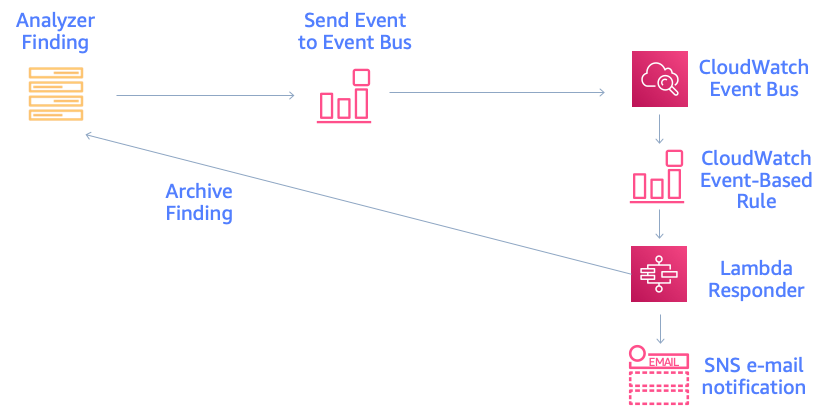
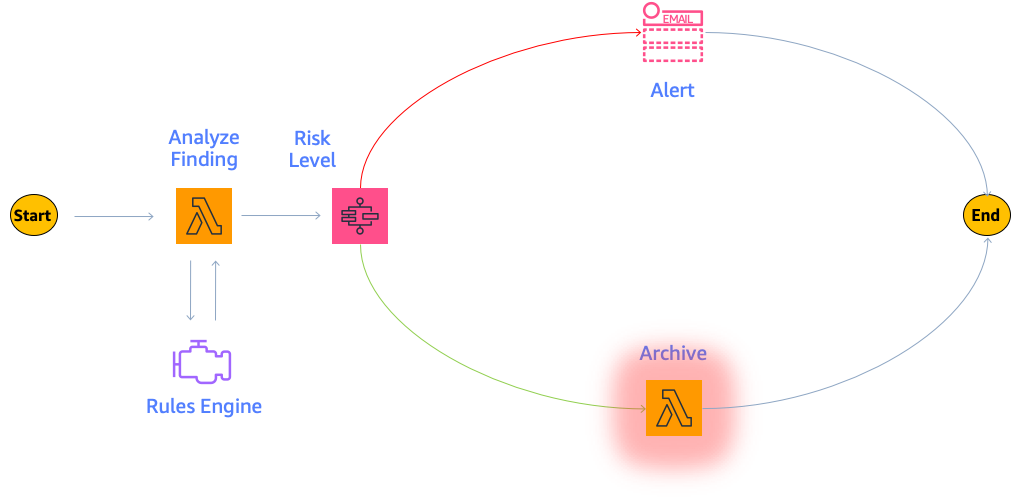
AWS Identity and Access Management (IAM) Access Analyzer generates comprehensive findings to help you identify resources that grant public and cross-account access. Now, you can also apply archive rules to existing findings, so you can better manage findings and focus on the findings that need your attention most.

You can think of archive rules as similar to email rules. You define email rules to automatically organize emails. With IAM Access Analyzer, you can define archive rules to automatically mark findings as intended access. Now, those rules can apply to existing as well as new IAM Access Analyzer findings. This helps you focus on findings for potential unintended access to your resources. You can then easily track and resolve these findings by reducing access, helping you to work towards least privilege.

In this post, first I give a brief overview of IAM Access Analyzer. Then I show you an example of how to create an archive rule to automatically archive findings for intended access. Finally, I show you how to update an archive rule to mark existing active findings as intended.

IAM Access Analyzer overview

IAM Access Analyzer helps you determine which resources can be accessed publicly or from other accounts or organizations. IAM Access Analyzer determines this by mathematically analyzing access control policies attached to resources. This form of analysis—called automated reasoning—applies logic and mathematical inference to determine all possible access paths allowed by a resource policy. This is how IAM Access Analyzer uses provable security to deliver comprehensive findings for potential unintended bucket access. You can enable IAM Access Analyzer in the IAM console by creating an analyzer for an account or an organization. Once you’ve created your analyzer, you can review findings for resources that can be accessed publicly or from other AWS accounts or organizations.

Create an archive rule to automatically archive findings for intended access

When you review findings and discover common patterns for intended access, you can create archive rules to automatically archive those findings. This helps you focus on findings for unintended access to your resources, just like email rules help streamline your inbox.

To create an archive rule

In the IAM console, choose Archive rules under Access Analyzer. Then, choose Create archive rule to display the Create archive rule page shown in Figure 1. There, you find the option to name the rule or use the name generated by default. In the Rule section, you define criteria to match properties of findings you want to archive. Just like email rules, you can add multiple criteria to the archive rule. You can define each criterion by selecting a finding property, an operator, and a value. To help ensure a rule doesn’t archive findings for public access, the criterion Public access is false is suggested by default.
 

Figure 1: IAM Access Analyzer create archive rule page where you add criteria to create a new archive rule

Figure 1: IAM Access Analyzer create archive rule page where you add criteria to create a new archive rule

For example, I have a security audit role external to my account that I expect to have access to resources in my account. To mark that access as intended, I create a rule to archive all findings for Amazon S3 buckets in my account that can be accessed by the security audit role outside of the account. To do this, I include two criteria: Resource type matches S3 bucket, and the AWS Account value matches the security audit role ARN. Once I add these criteria, the Results section displays the list of existing active findings the archive rule matches, as shown in Figure 2.
 

Figure 2: A rule to archive all findings for S3 buckets in an account that can be accessed by the audit role outside of the account, with matching findings displayed

Figure 2: A rule to archive all findings for S3 buckets in an account that can be accessed by the audit role outside of the account, with matching findings displayed

When you’re done adding criteria for your archive rule, select Create and archive active findings to archive new and existing findings based on the rule criteria. Alternatively, you can choose Create rule to create the rule for new findings only. In the preceding example, I chose Create and archive active findings to archive all findings—existing and new—that match the criteria.

Update an archive rule to mark existing findings as intended

You can also update an archive rule to archive existing findings retroactively and streamline your findings. To edit an archive rule, choose Archive rules under Access Analyzer, then select an existing rule and choose Edit. In the Edit archive rule page, update the archive rule criteria and review the list of existing active findings the archive rule applies to. When you save the archive rule, you can apply it retroactively to existing findings by choosing Save and archive active findings as shown in Figure 3. Otherwise, you can choose Save rule to update the rule and apply it to new findings only.

Note: You can also use the new IAM Access Analyzer API operation ApplyArchiveRule to retroactively apply an archive rule to existing findings that meet the archive rule criteria.


Figure 3: IAM Access Analyzer edit archive rule page where you can apply the rule retroactively to existing findings by choosing Save and archive active findings

Figure 3: IAM Access Analyzer edit archive rule page where you can apply the rule retroactively to existing findings by choosing Save and archive active findings

Get started

To turn on IAM Access Analyzer at no additional cost, open the IAM console. IAM Access Analyzer is available at no additional cost in the IAM console and through APIs in all commercial AWS Regions, AWS China Regions, and AWS GovCloud (US). To learn more about IAM Access Analyzer and which resources it supports, visit the feature page.

If you have feedback about this post, submit comments in the Comments section below. If you have questions about this post, start a new thread on the AWS IAM forum or contact AWS Support.

Want more AWS Security how-to content, news, and feature announcements? Follow us on Twitter.

Author

Andrea Nedic

Andrea is a Sr. Tech Product Manager for AWS Identity and Access Management. She enjoys hearing from customers about how they build on AWS. Outside of work, Andrea likes to ski, dance, and be outdoors. She holds a PhD from Princeton University.

How to enhance Amazon CloudFront origin security with AWS WAF and AWS Secrets Manager

Post Syndicated from Cameron Worrell original https://aws.amazon.com/blogs/security/how-to-enhance-amazon-cloudfront-origin-security-with-aws-waf-and-aws-secrets-manager/

Whether your web applications provide static or dynamic content, you can improve their performance, availability, and security by using Amazon CloudFront as your content delivery network (CDN). CloudFront is a web service that speeds up distribution of your web content through a worldwide network of data centers called edge locations. CloudFront ensures that end-user requests are served by the closest edge location. As a result, viewer requests travel a short distance, improving performance for your viewers. When you deliver web content through a CDN such as CloudFront, a best practice is to prevent viewer requests from bypassing the CDN and accessing your origin content directly. In this blog post, you’ll see how to use CloudFront custom headers, AWS WAF, and AWS Secrets Manager to restrict viewer requests from accessing your CloudFront origin resources directly.

You can configure CloudFront to add custom HTTP headers to the requests that it sends to your origin. HTTP header fields are components of the header section of request and response messages in the Hypertext Transfer Protocol (HTTP). These custom headers enable you to send and gather information from your origin that isn’t included in typical viewer requests. You can use custom headers to control access to content. By configuring your origin to respond to requests only when they include a custom header that was added by CloudFront, you prevent users from bypassing CloudFront and accessing your origin content directly. In addition to offloading traffic from your origin servers, this also helps enforce web traffic being processed at CloudFront edge locations according to your AWS WAF rules prior to being forwarded to your origin.

AWS WAF is a web application firewall that helps protect your web applications from common web exploits that could affect application availability, compromise security, or consume excessive resources. It supports managed rules as well as a powerful rule language for custom rules. AWS WAF is tightly integrated with CloudFront and the Application Load Balancer (ALB). AWS Secrets Manager helps you protect the secrets needed to access your applications, services, and IT resources. This service enables you to easily rotate, manage, and retrieve database credentials, API keys, and other secrets throughout their lifecycle.

Solution overview

This blog post includes a sample solution you can deploy to see how its components integrate to implement the origin access restriction. The sample solution includes a web server deployed on Amazon Elastic Compute Cloud (Amazon EC2) Linux instances running in an AWS Auto Scaling group. Elastic Load Balancing distributes the incoming application traffic across the EC2 instances by using an ALB. The ALB is associated with an AWS WAF web access control list (web ACL), which is used to validate the incoming origin requests. Finally, a CloudFront distribution is deployed with an AWS WAF web ACL and configured to point to the origin ALB.

Although the sample solution is designed for deployment with CloudFront with an AWS WAF–associated ALB as its origin, the same approach could be used for origins that use Amazon API Gateway. A custom origin is any origin that is not an Amazon Simple Storage Service (Amazon S3) bucket, with one exception. An S3 bucket that is configured with static website hosting is a custom origin. You can refer to the CloudFront Developer Guide for more information on securing content that CloudFront delivers from S3 origins.

This solution is intended to enhance security for CloudFront custom origins that support AWS WAF, such as ALB, and is not a substitute for authentication and authorization mechanisms within your web applications. In this solution, Secrets Manager is used to control, audit, monitor, and rotate a random string used within your CloudFront and AWS WAF configurations. Although most of these lifecycle attributes could be set manually, Secrets Manager makes it easier.

Figure 1 shows how the provided AWS CloudFormation template creates the sample solution.
 

Figure 1: How the CloudFormation template works

Figure 1: How the CloudFormation template works

Here’s how the solution works, as shown in the diagram:

  1. A viewer accesses your website or application and requests one or more files, such as an image file and an HTML file.
  2. DNS routes the request to the CloudFront edge location that can best serve the request—typically the nearest CloudFront edge location in terms of latency.
  3. At the edge location, AWS WAF inspects the incoming request according to configured web ACL rules.
  4. At the edge location, CloudFront checks its cache for the requested content. If the content is in the cache, CloudFront returns it to the user. If the content isn’t in the cache, CloudFront adds the custom header, X-Origin-Verify, with the value of the secret from Secrets Manager, and forwards the request to the origin.
  5. At the origin Application Load Balancer (ALB), AWS WAF inspects the incoming request header, X-Origin-Verify, and allows the request if the string value is valid. If the header isn’t valid, AWS WAF blocks the request.
  6. At the configured interval, Secrets Manager automatically rotates the custom header value and updates the origin AWS WAF and CloudFront configurations.

Solution deployment

This sample solution includes seven main steps:

  1. Deploy the CloudFormation template.
  2. Confirm successful viewer access to the CloudFront URL.
  3. Confirm that direct viewer access to the origin URL is blocked by AWS WAF.
  4. Review the CloudFront origin custom header configuration.
  5. Review the AWS WAF web ACL header validation rule.
  6. Review the Secrets Manager configuration.
  7. Review the Secrets Manager AWS Lambda rotation function.

Step 1: Deploy the CloudFormation template

The stack will launch in the N. Virginia (us-east-1) Region. It takes approximately 10 minutes for the CloudFormation stack to complete.

Note: The sample solution requires deployment in the N. Virginia (us-east-1) Region. Although out of scope for this blog post, an additional sample template is available in this solution’s GitHub repository for testing this solution with an existing CloudFront distribution and regional AWS WAF web ACL. Refer to the AWS regional service support information for more details on regional service availability.

To launch the CloudFormation stack

  1. Choose the following Launch Stack icon to launch a CloudFormation stack in your account in the N. Virginia Region.
     
    Select the Launch Stack button to launch the template
  2. In the CloudFormation console, leave the configured values, and then choose Next.
  3. On the Specify Details page, provide the following input parameters. You can modify the default values to customize the solution for your environment.

    Input parameter Input parameter description
    EC2InstanceSize The instance size for EC2 web servers.
    HeaderName The HTTP header name for the secret string.
    WAFRulePriority The rule number to use for the regional AWS WAF web ACL. 0 is recommended, because rules are evaluated in order based on the value of priority.
    RotateInterval The rotation interval, in days, for the origin secret value. Full rotation requires two intervals.
    ArtifactsBucket The S3 bucket with artifact files (Lambda functions, templates, HTML files, and so on). Keep the default value.
    ArtifactsPrefix The path for the S3 bucket that contains artifact files. Keep the default value.

    Figure 2 shows an example of values entered under Parameters.
     

    Figure 2: Input parameters for the CloudFormation stack

    Figure 2: Input parameters for the CloudFormation stack

  4. Enter values for all of the input parameters, and then choose Next.
  5. On the Options page, keep the defaults, and then choose Next.
  6. On the Review page, confirm the details, acknowledge the statements under Capabilities and transforms as shown in Figure 3, and then choose Create stack.
     
    Figure 3: CloudFormation Capabilities and Transforms acknowledgments

    Figure 3: CloudFormation Capabilities and Transforms acknowledgments

Step 2: Confirm access to the website through CloudFront

Next, confirm that website access through CloudFront is functioning as intended. After the CloudFormation stack completes deployment, you can access the test website using the domain name that was automatically assigned to the distribution.

To confirm viewer access to the website through CloudFront

  1. In the CloudFormation console, choose Services > CloudFormation > CFOriginVerify stack. On the stack Outputs tab, look for the cfEndpoint entry, similar to that shown in Figure 4.
     
    Figure 4: CloudFormation cfEndpoint stack output

    Figure 4: CloudFormation cfEndpoint stack output

  2. The cfEndpoint is the URL for the site, and it is automatically assigned by CloudFront. Choose the cfEndpoint link to open the test page, as shown in Figure 5.
     
    Figure 5: CloudFormation cfEndpoint test page

    Figure 5: CloudFormation cfEndpoint test page

In this step, you’ve confirmed that website accessibility through CloudFront is functioning as intended.

Step 3: Confirm that direct viewer access to the origin URL is blocked by AWS WAF

In this step, you confirm that direct access to the test website is blocked by the regional AWS WAF web ACL.

To test direct access to the origin URL

  1. In the CloudFormation console, choose Services > CloudFormation > CFOriginVerify stack. On the stack Outputs tab, look for the albEndpoint entry.
  2. Choose the albEndpoint link to go to the test site URL that was automatically assigned to the ALB. Choosing this link will result in a 403 Forbidden response. When AWS WAF blocks a web request based on the conditions that you specify, it returns HTTP status code 403 (Forbidden).

In this step, you’ve confirmed that website accessibility directly to the origin ALB is blocked by the regional AWS WAF web ACL.

Step 4: Review the CloudFront origin custom header configuration

Now that you’ve confirmed that the test website can only be accessed through CloudFront, you can review the detailed CloudFront, WAF, and Secrets Manager configurations that enable this restriction.

To review the custom header configuration

  1. In the CloudFormation console, choose Services > CloudFormation > CFOriginVerify stack. On the stack Outputs tab, look for the cfDistro entry.
  2. Choose the cfDistro link to go to this distribution’s configuration in the CloudFront console. On the Origin Groups tab, under Origins, select the origin as shown in Figure 6.
     
    Figure 6: CloudFront Origins and Origin Groups settings

    Figure 6: CloudFront Origins and Origin Groups settings

  3. Choose Edit to go to the Origin Settings section, scroll to the bottom and review the Origin Custom Headers as shown in Figure 7.
     
    Figure 7: CloudFront Origin Custom Headers settings

    Figure 7: CloudFront Origin Custom Headers settings

    You can see that the custom header, X-Origin-Verify, has been configured using Secrets Manager with a random 32-character alpha-numeric value. This custom header will be added to web requests that are forwarded from CloudFront to your origin. As you learned in steps 2 and 3, requests without this header are blocked by AWS WAF at the origin ALB. In the next two steps, you will dive deeper into how this works.

Step 5: Review the AWS WAF web ACL header validation rule

In this step, you review the AWS WAF rule configuration that validates the CloudFront custom header X-Origin-Verify.

To review the header validation rule

  1. In the CloudFormation console, select Services > CloudFormation > CFOriginVerify stack. On the stack Outputs tab, look for the wafWebACLR entry.
  2. Choose the wafWebACLR link to go to the origin ALB web ACL configuration in the WAF and Shield console. On the Overview tab, you can view the Requests per 5 minute period chart and the Sampled requests list, which shows requests from the last three hours that the ALB has forwarded to AWS WAF for inspection. The sample of requests includes detailed data about each request, such as the originating IP address and Uniform Resource Identifier (URI). You also can view which rule the request matched, and whether the rule Action is configured to ALLOW, BLOCK, or COUNT requests. You can enable AWS WAF logging to get detailed information about traffic that’s analyzed by your web ACL. You send logs from your web ACL to an Amazon Kinesis Data Firehose with a configured storage destination such as Amazon S3. Information that’s contained in the logs includes the time that AWS WAF received the request from your AWS resource, detailed information about the request, and the action for the rule that each request matched.
  3. Choose the Rules tab to review the rules for this web ACL, as shown in Figure 8.
     
    Figure 8: AWS WAF web ACL rules

    Figure 8: AWS WAF web ACL rules

    On the Rules tab, you can see that the CFOriginVerifyXOriginVerify rule has been configured with the Allow action, while the Default web ACL action is Block. This means that any incoming requests that don’t match the conditions in this rule will be blocked.

    In every AWS WAF rule group and every web ACL, rules define how to inspect web requests and what to do when a web request matches the inspection criteria. Each rule requires one top-level statement, which might contain nested statements at any depth, depending on the rule and statement type. You can learn more about AWS WAF rule statements in the AWS WAF Developer Guide, AWS Online Tech Talks, and samples on GitHub.

  4. Choose the CFOriginVerifyXOriginVerify rule, and then choose Edit to bring up the Rule Builder tool. In the Rule Builder, you can see that a rule has been created with two Rule Statements similar to those in Figure 9.
     
    Figure 9: AWS WAF web ACL rule statement

    Figure 9: AWS WAF web ACL rule statement

    In the Rule Builder configuration for Statement 1, you can see that the request Header is being inspected for the x-origin-verify Header field name (HTTP header field names are case insensitive), and the String to match value is set to the value you reviewed in step 4. In the Rule Builder, you can also see a logical OR with an additional rule statement, Statement 2. You will notice that the configuration for Statement 2 is the same as Statement 1, except that the String to match value is different. You will learn about this in detail in step 7, but Statement 2 helps to ensure that valid web requests are processed by your origin servers when Secrets Manager automatically rotates the value of the X-Origin-Verify header. The effect of this rule configuration is that inspected web requests will be allowed if they match either of the two statements.

    In addition to the visual web ACL representation you just reviewed in the WAF Rule visual editor, every web ACL also has a JSON format representation you can edit by using the WAF Rule JSON editor. You can retrieve the complete configuration for a web ACL in JSON format, modify it as you need, and then provide it to AWS WAF through the console, API, or command line interface (CLI).

    This step demonstrated how your request was allowed to access the test website in step 2 and why your request was blocked in step 3.

Step 6: Review Secrets Manager configuration

Now that you’re familiar with the CloudFront and AWS WAF configurations, you will learn how Secrets Manager creates and rotates the secret used for the X-Origin-Verify header field value. Secrets Manager uses an AWS Lambda function to perform the actual rotation of the secret used for the value and update the associated AWS WAF web ACL and CloudFront distribution.

To review the Secrets Manager configuration

  1. In the CloudFormation console, choose Services > CloudFormation > CFOriginVerify stack. On the stack Outputs tab, look for the OriginVerifySecret entry.
  2. Choose the OriginVerifySecret link to go to the configuration for the secret in the Secrets Manager console. Scroll down to the section titled Secret value, and then choose Retrieve secret value to display the Secret key/value as shown in Figure 10.
     
    Figure 10: Secrets Manager retrieve value

    Figure 10: Secrets Manager retrieve value

    When you retrieve the secret, Secrets Manager programmatically decrypts the secret and displays it in the console. You can see that the secret is stored as a key-value pair, where the secret key is HEADERVALUE, and the secret value is the string used in the CloudFront and WAF configurations you reviewed in steps 3 and 4.

  3. While you’re in the Secrets Manager console, review the Rotation configuration section, as shown in Figure 11.
     
    Figure 11: Secrets Manager rotation configuration

    Figure 11: Secrets Manager rotation configuration

    You can see that rotation was enabled for this secret at an interval of one day. This configuration also includes a Lambda rotation function. Secrets Manager uses a Lambda function to perform the actual rotation of a secret. If you use your secret for one of the supported Amazon Relational Database Service (Amazon RDS) databases, then Secrets Manager provides the Lambda function for you. If you use your secret for another service, then you must provide the code for the Lambda function, as we’ve done in this solution.

Step 7: Review the Secrets Manager Lambda rotation function

In this step, you review the Secrets Manager Lambda rotation function.

To review the Secrets Manager Lambda rotation function

  1. In the CloudFormation console, choose Services > CloudFormation > CFOriginVerify stack. In the stack Outputs tab, look for the OriginSecretRotateFunction entry.
  2. Choose the OriginSecretRotateFunction link to go to the Lambda function that is configured for this secret. The code used for this secrets rotation function is based on the AWS Secrets Manager Rotation Template. Choose the Monitoring tab and review the Invocations graph as shown in Figure 12.
     
    Figure 12: Monitoring tab for the Lambda rotation function

    Figure 12: Monitoring tab for the Lambda rotation function

    Shortly after the CloudFormation stack creation completes, you should see several invocations in the Invocations graph. When a configured rotation schedule or a manual process triggers rotation, Secrets Manager calls the Lambda function several times, each time with different parameters. The Lambda function performs several tasks throughout the process of rotating a secret. This includes the following steps: createSecret, setSecret, testSecret, and finishSecret. Secrets Manager uses staging labels, a simple text string, to enable you to identify different versions of a secret during rotation. This includes the following staging labels: AWSPENDING, AWSCURRENT, and AWSPREVIOUS, which are covered in the following step.

  3. To learn more about the rotation steps configured for this solution, choose View logs in CloudWatch on the Monitoring tab.
    1. On the Log streams tab, select the top entry in the list.
    2. Enter Event in the Filter events field, and then choose the arrows to expand the details for each event as shown in Figure 13.
       
      Figure 13: CloudWatch event logs for the Lambda rotation function

      Figure 13: CloudWatch event logs for the Lambda rotation function

The four rotation steps annotated in Figure 13 work as follows:

Note: This section provides an overview of the rotation process for this solution. For more detailed information about the Lambda rotation function, see the Secrets Manager User Guide.

  1. The createSecret step: In this step, the Lambda function generates a new version of the secret. The rotation Lambda function calls the GetRandomPassword method to generate a new random string, and then labels the new version of the secret with the staging label AWSPENDING to mark it as the in-process version of the secret.
  2. The SetSecret step: In this step, the rotation function retrieves the version of the secret labeled AWSPENDING from Secrets Manager and updates the web ACL rule for the AWS WAF associated with the origin ALB. The two rule statements you reviewed in step 5 of this blog post are updated with the AWSPENDING and AWSCURRENT values. The rotation function also updates the value for the Origin Custom Header X-Origin-Verify. When the rotation function updates your distribution configuration, CloudFront starts to propagate the changes to all edge locations. Maintaining both the AWSPENDING and AWSCURRENT secret values helps to ensure that web requests forwarded to your origin by CloudFront are not blocked. Therefore, once a secret value is created, two rotation intervals are required for it to be removed from the configuration.
  3. The testSecret step: This step of the Lambda function verifies the AWSPENDING version of the secret by using it to access the origin ALB endpoint with the X-Origin-Verify header. Both AWSPENDING and AWSCURRENT X-Origin-Verify header values are tested to confirm a “200 OK” response from the origin ALB endpoint.
  4. The finishSecret step: In the last step, the Lambda function moves the label AWSCURRENT from the current version to this new version of the secret. The old version receives the AWSPREVIOUS staging label, and is available for recovery as the last known good version of the secret, if needed. The old version with the AWSPREVIOUS staging label no longer has any staging labels attached, so Secrets Manager considers the old version deprecated and subject to deletion.

When the finishSecret step has successfully completed, Secrets Manager schedules the next rotation by adding the rotation interval (number of days) to the completion date. This automated process causes the values used for the validation headers to be updated at the configured interval. Although out of scope for this blog post, you should monitor your secrets to ensure usage of your secrets and log any changes to them. This helps you to make sure that any unexpected usage or change can be investigated, and unwanted changes can be rolled back.

Summary

You’ve learned how to use Amazon CloudFront, AWS WAF and AWS Secrets Manager to prevent web requests from directly accessing your CloudFront origin resources. You can use this solution to improve security for CloudFront custom origins that support AWS WAF, such as ALB, Amazon API Gateway, and AWS AppSync.

When using this solution, you will incur AWS WAF usage charges for both the ALB and CloudFront associated AWS WAF web ACLs. You might wish to consider subscribing to AWS Shield Advanced, which provides higher levels of protection against distributed denial of service (DDoS) attacks and includes AWS WAF and AWS Firewall Manager at no additional cost for usage on resources protected by AWS Shield Advanced. You can also learn more about pricing for CloudFront, AWS WAF, Secrets Manager, and AWS Shield Advanced.

You can review more options for restricting access to content with CloudFront, additional AWS WAF security automations, or managed rules for AWS WAF. You can explore solutions for using AWS IP address ranges to enhance CloudFront origin security. You might also wish to learn more about Secrets Manager best practices. This code for this solution is available on GitHub.

If you have feedback about this post, submit comments in the Comments section below. If you have questions about using this solution, you can start a thread in the CloudFront, WAF, or Secrets Manager forums, review or open an issue in this solution’s GitHub repository, or contact AWS Support.

Want more AWS Security how-to content, news, and feature announcements? Follow us on Twitter.

Cameron Worrell

Cameron Worrell

Cameron is a Solutions Architect with a passion for security and enterprise transformation. He joined AWS in 2015.

How to automatically archive expected IAM Access Analyzer findings

Post Syndicated from Josh Joy original https://aws.amazon.com/blogs/security/how-to-automatically-archive-expected-iam-access-analyzer-findings/

AWS Identity and Access Management (IAM) Access Analyzer continuously monitors your Amazon Web Services (AWS) resource-based policies for changes in order to identify resources that grant public or cross-account access from outside your AWS account or organization. Access Analyzer findings include detailed information that you can use to make an informed decision about whether access to the shared resource was intended or not. The findings information includes the affected AWS resource, the external principal that has access, the condition from the policy statement that grants the access, and the access level, such as read, write, or the ability to modify permissions.

In this blog post, we show you how to automatically archive Access Analyzer findings for expected events, such as authorized resource access. The benefit of automatically archiving expected findings is to help you reduce distraction from findings that don’t require action, enabling you to concentrate on remediating any unexpected access to your shared resources.

Access Analyzer provides you with the ability to archive findings that show intended cross-account sharing of your AWS resources. The AWS service-provided archive mechanism provides you with built-in archive rules that can automatically archive new findings that meet the criteria you define (such as directive controls). For example, your organizational access controls might allow your auditor to have read-only IAM role cross-account access from your security account into all of your accounts. In this security auditor scenario, you can define a built-in archive rule to automatically archive the findings related to the auditor cross-account IAM role that has authorized read-only access.

A limitation of the built-in archive rules is that they are static and based only on simple pattern matching. To build your own custom archiving logic, you can create an AWS Lambda function that listens to Amazon CloudWatch Events. Access Analyzer forwards all findings to CloudWatch Events, and you can easily configure a CloudWatch Events rule to trigger a Lambda function for each Access Analyzer finding. For example, if you want to look up the tags on a resource, you can make an AWS API call based on the Amazon Resource Name (ARN) for the resource in your Lambda function. As another example, you might want to compute an overall risk score based on the various parts of a finding and archive everything below a certain threshold score that you define.

In this blog post, we show you how to configure a built-in archive rule, how to add context enrichment for more complex rules, and how to trigger an alert for unintended findings. We first cover the scenario of the auditor role using a built-in archive rule. Then, we show how to perform automated archive remediation by using CloudWatch Events with AWS Step Functions to add context enrichment and automatically remediate the authorized sharing of a cross-account AWS Key Management Service (AWS KMS) key. Finally, we show how to trigger alerts for the unintended sharing of a public Amazon Simple Storage Service (Amazon S3) bucket.

Prerequisites

The solution we give here assumes that you have Access Analyzer enabled in your AWS account. You can find more details about enabling Access Analyzer in the Getting Started guide for that feature. Access Analyzer is available at no additional cost in the IAM console and through APIs in all commercial AWS Regions. Access Analyzer is also available through APIs in the AWS GovCloud (US) Regions.

How to use the built-in archive rules

In our first example, there is a security auditor cross-account IAM role that can be assumed by security automation tools from the central security AWS account. We use the built-in archive rules to automatically archive cross-account findings related to the cross-account security auditor IAM role.

To create a built-in archive rule

  1. In the AWS Management Console, choose Identity and Access Management (IAM). On the dashboard, choose Access Analyzer, and then choose Archive rules.
  2. Choose the Create archive rule button.
     
    Figure 1: Create archive rule

    Figure 1: Create archive rule

  3. You can select archive rule criteria based on your use case. For this example, in the search box, choose AWS Account as the criteria, since we want to automatically archive the security auditor account.
     
    Figure 2: Select archive rule criteria

    Figure 2: Select archive rule criteria

  4. You can now enter the value for the selected criteria. In this case, for Criteria, choose AWS Account, and then choose the equals operator.
  5. After you’ve entered your criteria, choose the Create archive rule button.
     
    Figure 3: Finish creating the archive rule

    Figure 3: Finish creating the archive rule

    You should see a message confirming that you’ve successfully created a new archive rule.
     

    Figure 4: Successful creation of a new archive rule

    Figure 4: Successful creation of a new archive rule

How to automatically archive expected findings

We now show you how to automatically archive expected findings by using a serverless workflow that you define by using AWS Step Functions. We show you how to leverage Step Functions to enrich an Access Analyzer finding, evaluate the finding against your customized rule engine logic, and finally either archive the finding or send a notification. A CloudWatch Event Rule will trigger the Step Functions workflow when Access Analyzer generates a new finding.

Solution architecture – serverless workflow

The CloudWatch event bus delivers the Access Analyzer findings to the Step Functions workflow. The Step Functions workflow responds to each Access Analyzer finding and either archives the finding for authorized access or sends an Amazon Simple Notification Service (Amazon SNS) email notification for an unauthorized access finding, as shown in figure 5.
 

Figure 5: Solution architecture for automatic archiving

Figure 5: Solution architecture for automatic archiving

The Step Functions workflow enriches the finding and provides contextual information to the rules engine for evaluation, as shown in figure 6. The Access Analyzer finding is either archived or generates an alert, based on the result of the rules engine evaluation and the associated risk level. If you’re interested in remediating the finding, you can learn more by watching the talk AWS re:Invent 2019: [NEW LAUNCH!] Dive Deep into IAM Access Analyzer (SEC309).
 

Figure 6: Finding analysis and archival

Figure 6: Finding analysis and archival

This example uses four Lambda functions. One function is for context enrichment, a second function is for rule evaluation logic, a third function is to archive expected findings, and finally a fourth function is to send a notification for findings that require investigation by your security operations team.

First, the enrichment Lambda function retrieves the tags associated with the AWS resource. The following code example retrieves the S3 bucket tags.

def lookup_s3_tags(resource_arn):
  tags = {}

  s3_client = boto3.client("s3")
  bucket_tags = s3_client.get_bucket_tagging(Bucket=resource_arn)["TagSet"]

  return bucket_tags

The Lambda function can perform additional enrichment beyond looking up tags, such as looking up the AWS KMS key alias, as shown in the next code example.

def additional_enrichment(resource_type, resource_arn):
  additional_context = {}

  if resource_type == "AWS::KMS::Key":
    kms_client = boto3.client("kms")
    aliases = kms_client.list_aliases(KeyId=resource_arn)["Aliases"]
    additional_context["key_aliases"] = [alias["AliasName"] for alias in aliases]

  return additional_context

Next, the evaluation rule Lambda function determines whether the finding is authorized and can be archived, or whether the finding is unauthorized and a notification needs to be generated. In this example, we first check whether the resource is shared publicly and then immediately alert if there’s an unexpected public sharing of a resource. Additionally, we explicitly don’t want public sharing of resources that are tagged Confidential. Our example method checks whether the value “Confidential” is set as the “Data Classification” tag and correspondingly returns False in order to trigger a notification.

Also, we allow cross-account sharing of a key in the development environment with the tag key “IsAllowedToShare” and tag value “true”, tag key “Environment” with tag value “development”, and a key alias of “DevelopmentKey”.

# Evaluate Risk Level
# Return True to raise alert if risk level exceeds threshold
# Return False to archive finding
def should_raise_alert(finding_details, tags, additional_context):
  if (
      finding_details["isPublic"]
      and not is_allowed_public(finding_details, tags, additional_context)
     ):
    return True
  elif (
        tags.get("IsAllowedToShare") == "true"
        and tags.get("Environment") == "development"
        and "DevelopmentKey" in additional_context.get("key_aliases", [])
    ):
    return False

  return True

def is_allowed_public(finding_details, tags, additional_context):
  # customize your logic here
  # for example, Data Classification is Confidential, return False for no public access
  if "Data Classification" in tags and tags["Data Classification"] == "Confidential":
    return False 

  return True
  if should_raise_alert(finding_details, tags, additional_context):
    return {"status": "NOTIFY"}
  else:
    return {"status": "ARCHIVE"}     

We then use the Choice condition to trigger either the archive or notification step.

 next(sfn.Choice(self, "Archive?"). \
  when(sfn.Condition.string_equals("$.guid.status", "ARCHIVE"), archive_task). \
  when(sfn.Condition.string_equals("$.guid.status", "NOTIFY"), notification_task) \
 )

The archive Lambda step archives the Access Analyzer finding if a rule is successfully evaluated.

def archive_finding(finding_id, analyzer_arn):
  access_analyzer_client = boto3.client("accessanalyzer")
  access_analyzer_client.update_findings(
    analyzerArn=analyzer_arn,
    ids=[finding_id],
    status="ARCHIVED"
  )

Otherwise, we raise an SNS notification because there is unauthorized resource sharing.

  resource_type = event["detail"]["resourceType"]
  resource_arn = event["detail"]["resource"]

  sns_client = boto3.client('sns')
  sns_client.publish(
      TopicArn=sns_topic_arn,
      Message=f"Alert {resource_type} {resource_arn} exceeds risk level.",
      Subject="Alert Access Analyzer Finding"
  )

Solution deployment

You can deploy the solution through either the AWS Management Console or the AWS Cloud Development Kit (AWS CDK).

Prerequisites

Make sure that Access Analyzer is enabled in your AWS account. You can find an AWS CloudFormation template for doing so in the GitHub repository. It’s also possible for you to enable Access Analyzer across your organization by using the scripts for AWS CloudFormation StackSets found in the GitHub repository. See more details in the blog post Enabling AWS IAM Access Analyzer on AWS Control Tower accounts.

To deploy the solution by using the AWS Management Console

  1. In your security account, launch the template by choosing the following Launch Stack button.
     
    Select the Launch Stack button to launch the template
  2. Provide the following parameter for the security account:
    EmailSubscriptionParameter: The email address to receive subscription notifications for any findings that exceed your defined risk level.

To deploy the solution by using the AWS CDK

Additionally, you can find the latest code on GitHub, where you can also contribute to the sample code. The following commands shows how to deploy the solution by using the AWS Cloud Development Kit (AWS CDK). First, upload the Lambda assets to S3. Then, deploy the solution to your account.

cdk bootstrap

cdk deploy --parameters EmailSubscriptionParameter=YOUR_EMAIL_ADDRESS_HERE

To test the solution

  1. Create a cross-account KMS key. You should receive an email notification after several minutes.
  2. Create a cross-account KMS key with the tags IsAllowedToShare=true and Environment=development. Also, create a KMS key alias named alias/DevelopmentKey for this key. After a few seconds, you should see that the finding was automatically archived.

Summary

In this blog post, we showed you how IAM Access Analyzer can help you identify resources in your organization and accounts that are shared with an external identity. We explained how to automatically archive expected findings by using the built-in archive rules. Then, we walked you through how to automatically archive expected shared resources. We showed you how to create a serverless workflow that uses AWS Step Functions, which performs context enrichment and then automatically archives your findings for expected shared resources.

After you follow the steps in this blog post for automatic archiving, you will only receive Access Analyzer findings for unexpected AWS resource sharing. A good way to manage these unexpected Access Analyzer findings is with AWS Security Hub, alongside your other findings. Visit Getting started with AWS Security Hub to learn more. You can also see the blog post Automated Response and Remediation with AWS Security Hub for event patterns and remediation code examples.

If you have feedback about this post, submit comments in the Comments section below.

Want more AWS Security how-to content, news, and feature announcements? Follow us on Twitter.

Author

Josh Joy

Josh is a Security Consultant with the AWS Global Security Practice, a part of our Worldwide Professional Services Organization. Josh helps customers improve their security posture as they migrate their most sensitive workloads to AWS. Josh enjoys diving deep and working backwards in order to help customers achieve positive outcomes.

Author

Andrew Gacek

Andrew is a Principal Applied Scientist in the Automated Reasoning Group at Amazon. He designs analyses to ensure the safety and security of AWS customer configurations. Prior to joining Amazon, Andrew worked at Rockwell Collins where he used automated reasoning to verify aerospace applications. He holds a PhD in Computer Science from the University of Minnesota.

Enable Office 365 with AWS Managed Microsoft AD without user password synchronization

Post Syndicated from Darryn Hendricks original https://aws.amazon.com/blogs/security/enable-office-365-with-aws-managed-microsoft-ad-without-user-password-synchronization/

In this post, we explain how you can use AWS Directory Service for Microsoft Active Directory (AWS Managed Microsoft AD) to enable your users to access Microsoft Office 365 without synchronizing passwords using Azure Active Directory (Azure AD) Pass-through Authentication (PTA). This makes it easier to configure Microsoft Office 365 with AWS Managed Microsoft AD. Azure AD PTA reduces management overhead by eliminating the need to deploy and manage complex federation or password synchronization infrastructure. It also helps you meet your organization’s security standards because you can continue to apply and manage stronger password policies using AWS Managed Microsoft AD.

Previously, AWS enabled you to access Office 365 with credentials that you manage in AWS Managed Microsoft AD. AWS did this by deploying Azure AD Connect and Active Directory Federation Services for Windows Server 2016 (AD FS 2016) with AWS Managed Microsoft AD. While AWS continues to support this model, the focus of this post is to explain a new, supported model that produces the same result without deploying a federation or password synchronization implementation. In the new model, when users sign in to Office 365, Azure AD PTA validates their passwords against AWS Managed Microsoft AD directly.

We explain how to use Azure AD Connect to synchronize users from AWS Managed Microsoft AD into Azure AD. We then show you how to enable Azure AD Connect PTA to automatically authenticate users directly against your AWS Managed Microsoft AD directory. We do this in four steps:

  1. Delegate permissions to your Active Directory Domain Services (AD DS) Connector account.
  2. Configure the AWS security group rules for your Azure AD Connect server.
  3. Install and configure Azure AD Connect Pass-through Authentication with AWS Managed Microsoft AD.
  4. Use an AWS Managed Microsoft AD user account to sign in to Office 365.

Prerequisites

The instructions in this post assume that you understand how to create Amazon Elastic Compute Cloud (Amazon EC2) for Windows Server instances and how to use Remote Desktop Protocol (RDP) to log in to the instances. They also assume you completed the following tasks:

  1. Created an AWS Managed Microsoft AD directory.
  2. Joined an Amazon EC2 for Windows Server instance to the AWS Managed Microsoft AD domain you will use as your Azure AD Connect server. We show you how to install Azure AD Connect on this instance later. Azure AD Connect supports Windows Server 2012 R2 or later, for this post, we use Windows Server 2019. While not in scope of this blog, because the Azure AD Connect server only requires outbound traffic, you should run the Azure AD Connect server in a private subnet, with outbound traffic routed via a NAT gateway or instance in a public subnet, see VPC with public and private subnets.
  3. Joined an Amazon EC2 for Windows Server instance to the AWS Managed Microsoft AD domain you will use as your management server instance (Management).
  4. Install Active Directory Administration Tools on your Management instance.
  5. Using Active Directory Users and Computers on your Management instance, create a standard user named AADConnectSvc in your AWS Managed Microsoft AD directory. The AADConnectSvc standard user will be used as your AD DS Connector account. You will use the AD DS Connector account (AADConnectSvc) in Azure AD Connect later.
  6. Created an active Office 365 subscription.
  7. Added and verified your domain in Office 365.

Solution overview

You can use Azure AD Pass-through Authentication with AWS Managed Microsoft AD to:

  • Synchronize users from AWS Managed Microsoft AD to Azure AD.
  • Assign a license to and use an AWS Managed Microsoft AD identity to sign in to Office 365.

Figure 1 shows how Azure AD Connect Server orchestrates the synchronization of AD identities from AWS Managed Microsoft AD to Azure AD. It also shows you how Azure AD Connect Pass-through authentication validates users’ credentials when a user signs in to Office 365.

Figure 1: Architecture diagram of AD synchronization and pass-through authentication between the AWS Managed Microsoft AD and Office 365

Figure 1: Architecture diagram of AD synchronization and pass-through authentication between the AWS Managed Microsoft AD and Office 365

  1. Delegate AD permissions to the AD DS Connector account using the Management instance.
  2. You install and configure Azure AD Connect Pass-through authentication with AWS Managed Microsoft AD.
  3. AWS Managed Microsoft AD identities are synchronized to Azure AD using the Azure AD Connect server.
  4. User signs in to Office 365.
  5. Azure AD communicates with the Azure AD Connect server to validate user credentials.
  6. Azure AD Connect server validates user’s credentials with the AWS Managed Microsoft AD.
  7. User successfully signed in to Office 365 with AWS Managed Microsoft AD credentials.

Note: This blog post uses a single Microsoft Windows Server running Azure AD Connect Pass-through Authentication agent. For high availability, you can install additional Authentication agents on Microsoft Windows Servers, see Ensure high availability.

Step 1: Delegate permissions to your Active Directory Domain Services (AD DS) Connector account

In this step, you delegate basic read AD permissions to your AD DS Connector account (AADConnectSvc). The AD DS Connector account (AADConnectSvc) is used by Azure AD Connect to connect to and read AD objects in your AWS Managed Microsoft AD directory. To delegate the permissions, download and use the ADSyncConfig PowerShell module included in the Azure AD Connect installation.

Perform the following steps after signing in to the Management instance using the admin user account for the AWS Managed Microsoft AD directory:

A. Download the ADSyncConfig PowerShell module from the Azure AD Connect installation

  1. Download and initiate the Azure AD Connect installation on the Management instance.
  2. On the Welcome page of the Microsoft Azure Active Directory Connect wizard, close the installation by selecting x. At this stage, the Azure AD Connect installation has downloaded the ADSyncConfig PowerShell module to the Management instance.
  3. Verify the ADSyncConfig PowerShell module has been downloaded and is in the following location:
    C:\Program Files\Microsoft Azure Active Directory Connect\AdSyncConfig\AdSyncConfig.psm1
    

B. Configure permissions to your AD DS Connector account

  1. Import the ADSyncConfig PowerShell module, using the following Windows PowerShell command.
    Import-Module "C:\Program Files\Microsoft Azure Active Directory Connect\AdSyncConfig\AdSyncConfig.psm1"
    

  2. Add basic read permissions to your AWS Managed Microsoft AD directory for the AD DS Connector account (AADConnectSvc) by running the following Windows PowerShell command. Be sure to replace the names in <red italic> text with the names from your AWS Managed Microsoft AD directory.
    Set-ADSyncBasicReadPermissions -ADConnectorAccountName AADConnectSvc -ADConnectorAccountDomain “<YourDomain>” -ADobjectDN “OU=Users,OU=<YourNetBIOSName>,DC=<YourDomainSuffix>,DC=<YourDomainRoot>” -SkipAdminSdHolders -Confirm:$false
    

  3. Next, you will add permissions to your AD DS Connector account (AADConnectSvc) by running the following Windows PowerShell command. The permissions allow Azure to manage the source anchor for AWS Managed Microsoft AD identities synchronized to Azure AD. Be sure to replace the names in <red italic> text with the names from your AWS Managed Microsoft AD directory.
    Set-ADSyncMsDsConsistencyGuidPermissions -ADConnectorAccountName AADConnectSvc -ADConnectorAccountDomain “<YourDomain>” -ADobjectDN “OU=Users,OU=<YourNetBIOSName>,DC=<YourDomainSuffix>,DC=<YourDomainRoot>” -SkipAdminSdHolders -Confirm:$false
    

Step 2: Configure the AWS security group rules for your Azure AD Connect server

In this step, you configure the AWS security group rules so that your Azure AD Connect server can communicate with Azure AD. To do this, you must add outbound rules to your Azure AD Connect server AWS security group to allow outbound traffic on HTTPS (port 443) and HTTP (port 80).

Follow these steps to configure AWS security group rules:

  1. In the navigation pane of the Amazon EC2 console, choose Security Groups.
  2. In the list, select the security group for the Azure AD Connect server, and then choose Actions, Edit outbound rules.
  3. Choose Add Rule. Choose HTTPS for Type and Anywhere for Destination. Choose Save rules.
  4. Next, choose Add Rule. Choose HTTP for Type and Anywhere for Destination. Choose Save rules.

Step 3: Install and configure Azure AD Connect Pass-through Authentication with AWS Managed Microsoft AD

Follow the outlined steps to install Azure AD Connect Pass-through Authentication on the Azure AD Connect server. The Azure AD Connect server synchronizes your users from AWS Managed Microsoft AD to Azure AD and manages password validation against your AWS Managed Microsoft AD directory.

Perform the following steps after signing in to the Azure AD Connect server using the admin user account for the AWS Managed Microsoft AD directory:

  1. Download and initiate the installation of Azure AD Connect on the Azure AD Connect server.
  2. On the Welcome page of the Microsoft Azure Active Directory Connect wizard, accept the license terms and privacy notice, and then select Continue.
  3. On the Express Settings page, at the bottom of the page, select Customize.
  4. On the Install required components page, select Install.
  5. On the User sign-in page, select Pass-through authentication, and then select Next.
  6. On the Connect to Azure AD page, enter your Office 365 global administrator account credentials, and then select Next.
  7. On the Connect your directories page, for DIRECTORY TYPE, select Active Directory, and for FOREST, select your AWS Managed Microsoft AD Forest, and then select Add Directory.

    Figure 2: Select a directory to add

    Figure 2: Select a directory to add

  8. In the AD forest account screen, select Use existing AD account, enter your AD DS Connector account (AADConnectSvc) credentials, and then select OK.

    Figure 3: Add an AD forest account

    Figure 3: Add an AD forest account

  9. Now that you’ve added your AWS Managed Microsoft AD directory, on the Connect your directories screen, select Next.
  10. On the Azure AD sign-in configuration page, select userPrincipalName in the USER PRINCIPAL NAME field, and then select Next.
    Figure 4: Select the USER PRINCIPAL NAME

    Figure 4: Select the USER PRINCIPAL NAME

    Note: If you don’t have a matching UPN suffix for your Azure AD domain in AWS Managed Microsoft AD UPN suffix. You can add a new UPN suffix to AWS Managed Microsoft AD. After adding the new UPN suffix to AWS Managed Microsoft AD, you can update your users UPN by following the steps below. The UPN attribute format combines the user’s login name and the UPN suffix. The UPN suffix is your AWS Managed Microsoft AD domain name.

    In the following example from the Account tab of the AWS User Properties in the Active Directory Users and Computers tool, the user’s UPN is [email protected]. The UPN is created by combining the User logon name, awsuser, and the UPN suffix, @awsexample.com.

    Figure 5: Example user properties

    Figure 5: Example user properties

  11. On the Domain and OU filtering page, select Sync selected domains and OUs, choose the Users OU under your NetBIOS OU, and then choose Next.

    Note: AWS Managed Microsoft AD stores your users and computers under a dedicated OU with your domain’s NetBIOS name.


    Figure 6: Domain and OU filtering

    Figure 6: Domain and OU filtering

  12. On the Uniquely identifying your users page, select Next.
  13. On the Filter users and devices page, select Next.
  14. On the Optional features page, select Next.
  15. On the Ready to configure page, select Start the synchronization process when configuration completes, and then select Install.
  16. Select Exit. Your Azure AD Connect installation is complete.

Note: By default, the Azure AD Connect sync scheduler runs every 30 minutes to synchronize your AWS Managed Microsoft AD identities to Azure AD. You can change this schedule using PowerShell. For more information, read Azure AD Connect sync: Scheduler.

Tip: If you need to synchronize a change immediately, you can manually start a sync cycle outside the scheduled sync cycle from the Azure AD Connect sync instance. Open a Windows PowerShell session as an administrator and run the following Windows PowerShell commands:

Import-Module ADSync
Start-ADSyncSyncCycle –PolicyType Delta

Step 4: Use an AWS Managed Microsoft AD user account to sign in to Office 365

The following steps explain how to assign a license to an AWS Managed Microsoft AD user account, and then use that account to sign in to Office 365 with the AWS Managed Microsoft AD user account UPN.

  1. Use a web browser to access the Office 365 admin center using your global administrator account.
  2. Assign a license to a user you created in your AWS Managed Microsoft AD directory.
  3. Sign in with the AWS Managed Microsoft AD user account at https://portal.office.com.

You’ve successfully configured and used Azure AD Pass-through and used it to sign in to Office 365 with your AWS Managed Microsoft AD user account!

Note: You can configure Azure AD smart lock out to compliment your AWS Managed Microsoft AD password policies.

Summary

In this post, we showed you how to use Azure AD Connect to synchronize user names from your Active Directory in AWS into Azure AD so that Office 365 can use those identities. You enabled Azure AD Pass-through Authentication to authenticate the identities against your AWS Managed Microsoft AD directory with no passwords synchronized or stored in Azure AD or Office 365.

If you have feedback about this post, submit comments in the Comments section below. If you have questions about this post, start a new thread on the AWS Directory Service forum or contact AWS Support.

Want more AWS Security how-to content, news, and feature announcements? Follow us on Twitter.

Author

Darryn Hendricks

Darryn is a Senior Cloud Support Engineer for AWS Single Sign-On (SSO) based in Seattle. He is passionate about cloud computing, identities, automation, and helping customers leverage these key building blocks when moving to the cloud. Outside of work, he loves spending time with his wife and daughter.

Author

Rogier van Geest

Rogier is a Senior Specialized Solution Architect for Microsoft Workloads on AWS who loves to help customers move the needle on their migrations into the AWS Cloud. In his spare time Rogier is a foodie who enjoys preparing a fresh meal every day.

Enhance programmatic access for IAM users using a YubiKey for multi-factor authentication

Post Syndicated from Edouard Kachelmann original https://aws.amazon.com/blogs/security/enhance-programmatic-access-for-iam-users-using-yubikey-for-multi-factor-authentication/

Organizations are increasingly providing access to corporate resources from employee laptops and are required to apply the correct permissions to these computing devices to make sure that secrets and sensitive data are adequately protected. The combination of Amazon Web Services (AWS) long-term credentials and a YubiKey security token for multi-factor authentication (MFA) is an option for providing secure programmatic access to AWS for organizations that aren’t yet ready or able to use identity federation. For example, a user should be able to list AWS Identity and Access Management (IAM) roles with their default programmatic access, but would be required to provide MFA to assume an IAM role.

In this blog post, we show you how to use a YubiKey token for MFA with the AWS Command Line Interface (AWS CLI) to create temporary credentials with the permissions that developers need to perform tasks. The user will configure the long-term credentials and then temporarily assume a role with broader permissions by using MFA when needed. MFA adds extra security, because it requires users to provide second-factor authentication from an AWS-supported MFA mechanism in addition to static security credentials such as their user name and password.

The goal for any organization is to move to the recommended best practices for allowing individual programmatic access that include using temporary security credentials that aren’t stored with the user, but are generated dynamically and provided to the user when requested, such as identity federation due to the temporary nature of those credentials. If your organization uses AWS Single Sign-On (AWS SSO) along with an identity provider (IdP) such as Okta, Azure Active Directory (AD), or AWS Managed Microsoft AD, you can then use the instructions from this earlier blog post to leverage the AWS CLI v2 native integration with AWS SSO and take advantage of the multi-factor authentication support of your IdP.

Overview

This post describes the configuration of IAM users and roles and initialization of the YubiKey token as an MFA device by an administrator, and then how developers can use the YubiKey device to retrieve temporary credentials and assume a role with elevated permissions within the AWS CLI.

The overall process flow looks like this:

  1. Create an IAM user with programmatic access, MFA, and a policy that allows you to assume a more privileged IAM role. The user will retrieve a Time-based One-time Password (TOTP) token code by using a YubiKey as MFA.
  2. Assume the more privileged role, which is restricted by an MFA conditional, by using the TOTP token code.

Figure 1 shows the steps of the process.

Figure 1: A visual overview of the steps to assume roles with elevated permissions by using a YubiKey for MFA

Figure 1: A visual overview of the steps to assume roles with elevated permissions by using a YubiKey for MFA

Prerequisites

To get started you need:

  • An AWS account.
  • A YubiKey (available on Amazon.com). YubiKey 4 and 5 series are compatible, because they support the required OATH application.

    Note: The Yubico Security Keys (the blue tokens) aren’t supported, because they lack the OATH application. If you already have a corporate YubiKey device, this capability might have been disabled.

  • To complete the process for:

Notes:

  • AWS CLI v2 doesn’t yet support Universal 2nd factor (U2F) MFA. As a workaround, we use a YubiKey as a virtual device MFA.
  • OATH (Initiative for Open Authentication) is an organization that specifies two open authentication standards: TOTP and HMAC-based One-time Password (HOTP). For this solution, we use the TOTP standard.

Getting started

Initializing YubiKey for MFA

The following steps show you, as cloud administrator, how to initialize the YubiKey as a virtual MFA device and configure an IAM user that can assume a role with elevated permissions, on the condition that the user is using an MFA device. In this example, your developers will assume a role with permissions to access Amazon Elastic Compute Cloud (Amazon EC2).

To configure the IAM user and initialize the YubiKey device as MFA

  1. Create a role with elevated permissions that your developers can assume.
    1. Sign in to the AWS IAM console, and in the right-hand pane, choose Roles. Then choose Create role.

      Figure 2: Create a role in the IAM console

      Figure 2: Create a role in the IAM console

    2. For the type of trusted entity, choose Another AWS account. Enter your account ID, which you can find by using these methods, described in the IAM User Guide. Choose Next:Permissions.

      Figure 3: Select the type of trusted entity and provide the account ID

    3. Search for the AmazonEC2FullAccess policy, and select the check box next to it. Choose Next:Tags, and add relevant tags if needed. Choose Next:Review.
    4. Name the role developer-ec2-mfa, and then choose Create role.
    5. Go back to the role you just created. Change the maximum session duration value to limit how long the developer’s session can be valid after assuming the role. For this example, we set the duration to 1 hour (3,600 seconds) by using a custom value. Limit this duration to abide by your organization’s recommended authentication time.
    6. Take note of the Amazon Resource Name (ARN) for the new role as shown on the summary page.

      Figure 4: Summary page of the new role

      Figure 4: Summary page of the new role

  2. Create a new IAM policy that provides a limited scope of actions for users when they use their long-term credentials.
    1. Navigate to the AWS IAM console, and in the navigation pane, choose Policies. Choose Create policy.

      Figure 5: Create a policy in the IAM console

      Figure 5: Create a policy in the IAM console

    2. Because we’ve already written the policy in JSON, you don’t need to use the Visual Editor, so you can choose the JSON tab and paste the content of the following JSON policy document (remember to replace the placeholder for the role ARN).Following the least privilege approach, add only the Amazon Resource Names (ARNs) of the role or roles with required elevated permissions that the developer will be able to assume. In this case, use the developer-ec2-mfa ARN for the role that you created previously.
      {
         "Version": "2012-10-17",
         "Statement": [
            {
               "Sid": "",
               "Effect": "Allow",
               "Action": "sts:AssumeRole",
               "Resource": <Elevated Role ARN(s)>,
               "Condition": {
                  "Bool": {
                     "aws:multifactorAuthPresent": true
                  }
               }
            }
         ]
      }
      

      Note: The condition “aws:MultiFactorAuthPresent”: “true” requires that the user who assumes the role has been authenticated with an AWS MFA device.

    3. Choose Review policy.
    4. Name the policy yubi-policy-mfa-level-one. Choose Create policy.
  3. Create a new IAM group that lets you specify permissions for multiple users and makes it easier to manage the permissions for those users.
    1. Navigate to the IAM console, and in the navigation pane, choose Groups. Choose Create New Group.

      Figure 6: Create a group in the IAM console

      Figure 6: Create a group in the IAM console

    2. Enter developers-mfa as the group name. Choose Next Step.
    3. On the Attach Policy screen, in the filter box, search for the policy yubi-policy-mfa-level-one that you created in the previous step. Make sure you select the check box next to the policy, and then choose Next Step.

      Figure 7: Attach the policy to the IAM group

      Figure 7: Attach the policy to the IAM group

    4. Review the group information, and then choose Create Group.
  4. Create a user in IAM for the developer using the AWS CLI.
    1. Navigate to the IAM console and in the navigation pane, choose Users. Choose Add user.
    2. On the Add user screen, enter the name for your user. In this example, our developer is named JohnDoe. For Access type, select the check box next to Programmatic access. Choose Next: Permissions.

      Figure 8: Create an IAM user with programmatic access

      Figure 8: Create an IAM user with programmatic access

    3. For permissions, select Add user to group, and select the developers-mfa group. Choose Next: Tags.
    4. Add the relevant tags if needed, and then choose Next: Review.
    5. Review the user configuration, and then choose Create user.
    6. Make sure you save the access key ID and secret access key to share with your user. Choose Close.
  5. Assign an MFA device to the user.
    1. Go back to the Users section of the IAM console. Choose the IAM user that you created previously, and go to the Security credentials tab. For Assigned MFA device, choose Manage.

      Figure 9: Assign MFA device to the IAM user

      Figure 9: Assign MFA device to the IAM user

    2. Select Virtual MFA device, because the AWS CLI doesn’t yet support U2F MFA. Choose Continue.

      Figure 10: Select the Virtual MFA device type

      Figure 10: Select the Virtual MFA device type

    3. Instead of using the QR code, choose Show secret key.

      Note: The secret key is a randomly generated string shared between IAM and the physical YubiKey. It is used to generate a one-time password using a hash function with the current timestamp.


      Figure 11: Retrieve the secret key on the virtual MFA device configuration page

      Figure 11: Retrieve the secret key on the virtual MFA device configuration page

    4. Copy the secret key to use in the next step as the MFA_SECRET to configure the MFA device.
  6. To obtain the TOTP token codes from the YubiKey to synchronize the key with the IAM user, do the following.
    1. Insert the YubiKey token in your USB port, and verify that the OATH application is enabled for your YubiKey by running the following command and looking for Enabled USB interfaces: OTP+FIDO+CCID in the output.
      $ ykman info
      
      Device type: YubiKey 5 NFC
      Serial number: 123456789
      Firmware version: 5.2.4
      Form factor: Keychain (USB-A)
      Enabled USB interfaces: OTP+FIDO+CCID
      NFC interface is enabled.
      
      Applications USB NFC
      OTP Enabled Enabled
      FIDO U2F Enabled Enabled
      OpenPGP Enabled Enabled
      PIV Enabled Enabled
      OATH Enabled Enabled
      FIDO2 Enabled Enabled
      

    2. For each MFA device, you need to generate a unique identifier that will be used during the process. We recommend that you create this identifier based on the ARN of the IAM user, by using the following template.
      arn:aws:iam::<ACCOUNT_ID>:mfa/<IAM_USERNAME>
      

    3. Add a new credential to your YubiKey based on the MFA device ARN. Use the MFA_SECRET that you copied in the previous step (step 5).
      ykman oath add -t arn:aws:iam::<ACCOUNT_ID>:mfa/<IAM_USERNAME> <MFA_SECRET>
      

    4. Obtain two TOTP token codes by using the following command (remember to replace the placeholder for the <MFA device ARN>). Wait up to 30 seconds for the device to generate the second token code (you will be prompted to touch the token).
      ykman oath code <MFA device ARN>
      

    5. After obtaining each of the TOTP token codes, go back to the IAM console where you were setting up the virtual MFA device, and enter the code in the MFA code box. After entering the two MFA codes, choose Assign MFA.

      Figure 12: Enter the two consecutive YubiKey codes in the virtual MFA device configuration page

      Figure 12: Enter the two consecutive YubiKey codes in the virtual MFA device configuration page

  7. You can then provide the following information to your developer:
    1. The YubiKey device along with the generated MFA device ARN
    2. The ARNs for the roles that will be assumed
    3. The long-term AWS credentials

Assuming a role with the YubiKey as MFA

The following steps show how you, as a developer, can retrieve temporary credentials using the YubiKey device as MFA, and assume a role with wider permissions. You can do this after the YubiKey device, one or more role ARNs, and long-term credentials have been shared with you by the cloud administrator.

To assume a role with broader permissions by using YubiKey

  1. As part of the prerequisites, you should have the AWS CLI v2 already installed. Now configure the default profile with the long-term credentials provided by your cloud administrator, by using the following command.
    $ aws configure
    
    AWS Access Key ID [None]: <Enter your AWS access key>
    AWS Secret Access Key [None]: <Enter your AWS secret access key>
    Default region name [None]: <Enter your AWS default region>
    Default output format [None]: <Enter your output default format>
    

  2. Obtain a TOTP code from YubiKey (you will be prompted to touch the token). Submit your request immediately after generating the codes. If you generate the codes and then wait too long to submit the request, the code won’t be valid anymore.
    ykman oath code arn:aws:iam::<ACCOUNT_ID>:mfa/<IAM_USERNAME>
    

  3. Using the MFA token code you obtained by using the YubiKey, assume the relevant role that will provide access to larger permissions. In our example, the ARN is for the role developer-ec2-mfa that was provided by the IAM administrator. Enter a role session name that will uniquely identify a session when the same role is assumed by different principals.
    aws sts assume-role --role-arn <Role ARN> --role-session-name <Role Name> --serial-number <MFA device ARN> --token-code <token code> --duration-seconds 3600 
    

    Note: The user should only have access to sts:AssumeRole for a specific set of roles. Here we chose the session duration of one hour. You can edit the session duration so the developer can authenticate for the duration of a workday (the default value is 1 hour and can be up to 12 hours). Limit this duration to abide by your organization’s recommended authentication time.

    You should see the following output.

    {
       "AssumedRoleUser": {
          "AssumedRoleId": "ABCD123ABCDEFGHIJKLMN:<role-session-name>",
          "Arn": "arn:aws:sts::<ACCOUNT_ID>:assumed-role/developer-ec2-mfa/<role-session-name>"
       },
       "Credentials": {
          "SecretAccessKey": <aws_secret_access_key>,
          "SessionToken": <aws_session_token>,
          "Expiration": "2020-07-13T19:24:20Z",
          "AccessKeyId": <aws_access_key_id>
       }
    }
    

  4. Edit a new AWS CLI profile named johndoe-developer-role as seen following. Copy the access key and secret key that were retrieved as temporary credentials from the get-session-token command. Then set the additional parameter aws_session_token, which was returned along with the temporary credentials. Edit your CLI with the information for the new role.
    aws configure --profile johndoe-developer-role
    aws configure --profile johndoe-developer-role set aws_session_token <Session Token> 
    

  5. Attempt to make a call to relevant services that are allowed by the newly assumed role. Here’s an example using the Amazon EC2 API to describe the EC2 instances.
    aws --profile johndoe-developer-role ec2 describe-instances
    

The developer now has access to the larger permissions set through the assumed role for the next hour.

Summary

In this post, we introduced the capability to further secure long-term AWS credentials with a YubiKey for MFA, for organizations that are still using long-term credentials. These credentials are stored in the ~/.aws/credentials file. If an unauthorized user was able to retrieve these long-term credentials, they wouldn’t be able to use them, because the user needs to have the physical MFA in order to assume a role with broader permissions. The steps in this blog post can be converted to a script that your developers can use repeatedly to simplify the process.

In general, we recommend that all customers move away from using IAM users and static credentials and instead use IAM roles and temporary credentials wherever possible. An easy way to get started down that road is by using AWS SSO for identity federation.

If you have feedback about this post, submit comments in the Comments section below. If you have questions about this post, start a new thread on the AWS IAM forum or contact AWS Support.

Want more AWS Security how-to content, news, and feature announcements? Follow us on Twitter.

Author

Edouard Kachelmann

Edouard is an Enterprise Solutions Architect at Amazon Web Services. He is a passionate technology enthusiast who enjoys working with customers and helping them build innovative solutions. Prior to his work at AWS, Edouard worked for the French National Cybersecurity Agency, sharing its security expertise and assisting government departments and operators of vital importance. In his free time, Edouard likes to explore new places to eat, try new French recipes, and play with his kid.

Author

Anthony Pasquariello

Anthony is an Enterprise Solutions Architect based in New York City. He provides technical consultation to customers during their cloud journey, especially around security best practices. He has an MS and BS in electrical & computer engineering from Boston University. In his free time, he enjoys ramen, writing nonfiction, and philosophy.

Automatically updating AWS WAF Rule in real time using Amazon EventBridge

Post Syndicated from Adam Cerini original https://aws.amazon.com/blogs/security/automatically-updating-aws-waf-rule-in-real-time-using-amazon-eventbridge/

In this post, I demonstrate a method for collecting and sharing threat intelligence between Amazon Web Services (AWS) accounts by using AWS WAF, Amazon Kinesis Data Analytics, and Amazon EventBridge. AWS WAF helps protect against common web exploits and gives you control over which traffic can reach your application.

Attempted exploitation blocked by AWS WAF provides a data source on potential attackers that can be shared proactively across AWS accounts. This solution can be an effective way to block traffic known to be malicious across accounts and public endpoints. AWS WAF managed rules provide an easy way to mitigate and record the details of common web exploit attempts. This solution will use the Admin protection managed rule for demonstration purposes.

In this post you will see references to the Sender account and the Receiver account. There is only one receiver in this example, but the receiving process can be duplicated multiple times across multiple accounts. This post walks through how to set up the solution. You’ll notice there is also an AWS CloudFormation template that makes it easy to test the solution in your own AWS account. The diagram in figure 1 illustrates how this architecture fits together at a high level.
 

Figure 1: Architecture diagram showing the activity flow of traffic blocked on the Sender AWS WAF

Figure 1: Architecture diagram showing the activity flow of traffic blocked on the Sender AWS WAF

Prerequisites

You should know how to do the following tasks:

Extracting threat intelligence

AWS WAF logs using a Kinesis Data Firehose delivery stream. This allows you to not only log to a destination S3 bucket, but also act on the stream in real time using a Kinesis Data Analytics Application. The following SQL code demonstrates how to extract any unique IP addresses that have been blocked by AWS WAF. While this example returns all blocked IPs, more complex SQL could be used for a more granular result. The full list of log fields is included in the documentation.


CREATE OR REPLACE STREAM "wafstream" (
 "clientIp" VARCHAR(16),
 "action" VARCHAR(8),
 "time_stamp" TIMESTAMP
 );

CREATE OR REPLACE PUMP "WAFPUMP" as
INSERT INTO "wafstream" (
"clientIp",
"action",
"time_stamp"
) 

Select STREAM DISTINCT "clientIp", "action", FLOOR(WAF_001.ROWTIME TO MINUTE) as "time_stamp"
FROM "WAF_001"
WHERE "action" = 'BLOCK';

Proactively blocking unwanted traffic

After extracting the IP addresses involved in the abnormal traffic, you will want to proactively block those IPs on your other web facing resources. You can accomplish this in a scalable way using Amazon EventBridge. After the Kinesis Application extracts the IP address, it will use an AWS Lambda function to call PutEvents on an EventBridge event bus. This process will create the event pattern, which is used to determine when to trigger an event bus rule. This example uses a simple pattern, which acts on any event with a source of “custom.waflogs” as shown in Figure 2. A more complex pattern could be used to for finer grain control of when a rule triggers.
 

Figure 2: EventBridge Rule creation

Figure 2: EventBridge Rule creation

Once the event reaches the event bus, the rule will forward the event to an event bus in “Receiver” account, where a second rule will trigger to call a Lambda function to update a WAF IPSet. A Web ACL rule is used to block all traffic sourcing from an IP address contained in the IPSet.

Test the solution by using AWS CloudFormation

Now that you’ve walked through the design of this solution, you can follow these instructions to test it in your own AWS account by using CloudFormation stacks.

To deploy using CloudFormation

  1. Launch the stack to provision resources in the Receiver account.
  2. Provide the account ID of the Sender account. This will correctly configure the permissions for the EventBridge event bus.
  3. Wait for the stack to complete, and then capture the event bus ARN from the output tab.

    This stack creates the following resources:

    • An AWS WAF v2 web ACL
    • An IPSet which will be used to contain the IP addresses to block
    • An AWS WAF rule that will block IP addresses contained in the IPSet
    • A Lambda function to update the IPSet
    • An IAM policy and execution role for the Lambda function
    • An event bus
    • An event bus rule that will trigger the Lambda function
  4. Switch to the Sender account. This should be the account you used in step 2 of this procedure.
  5. Provide the ARN of the event bus that was captured in step 3. This stack will provision the following resources in your account:
    • A virtual private cloud (VPC) with public and private subnets
    • Route tables for the VPC resources
    • An Application Load Balancer (ALB) with a fixed response rule
    • A security group that allows ingress traffic on port 80 to the ALB
    • A web ACL with the AWS Managed Rule for Admin Protection enabled
    • An S3 bucket for AWS WAF logs
    • A Kinesis Data Firehose delivery stream
    • A Kinesis Data Analytics application
    • An EventBridge event bus
    • An event bus rule
    • A Lambda function to send information to the Receiver account event bus
    • A custom CloudFormation resource which enables WAF logging and starts the Kinesis Application
    • An IAM policy and execution role that allows a Lamba function to put events into the event bus
    • An IAM policy and role to allow the custom CloudFormation resource to enable WAF logging and start the Kinesis Application
    • An IAM policy and role that allows the Kinesis Firehose to put logs into S3
    • An IAM policy that allows the WAF Web ACL to put records into the Firehose
    • An IAM policy and role that allows the Kinesis Application to invoke a Lambda function and log to CloudWatch
    • An IAM policy and role that allows the “Sender” account to put events in the “Receiver” event bus

After the CloudFormation stack completes, you should test your environment. To test the solution, check the output tab for the DNS name of the Application Load Balancer and run the following command:

curl ALBDNSname/admin

You should be able to check the Receiver account’s AWS WAF IPSet named WAFBlockIPset and find your IP.

Conclusion

This example is intentionally simple to clearly demonstrate how each component works. You can take these principles and apply them to your own environment. Layering the Amazon managed rules with your own custom rules is the best way to get started with AWS WAF. This example shows how you can use automation to update your WAF rules without needing to rely on humans. A more complete solution would source log data from each Web ACL and update an active IP Set in each account to protect all resources. As seen in Figure 3, a more complete implementation would send all logs in a region to a centralized Kinesis Firehose to be processed by the Kinesis Analytics Application, EventBridge would be used to update a local IPset as well as forward the event to other accounts event buses for processing.
 

Figure 3: Updating across accounts

Figure 3: Updating across accounts

You can also add additional targets to the event bus to do things such as send to a Simple Notification Service topic for notifications, or run additional automation. To learn more about AWS WAF web ACLs, visit the AWS WAF Developer Guide. Using Amazon EventBridge opens up the possibility to send events to partner integrations. Customers or APN Partners like PagerDuty or Zendesk can enrich this solution by taking actions such as automatically opening a ticket or starting an incident. To learn more about the power of Amazon EventBridge, see the EventBridge User Guide.

If you have feedback about this post, submit comments in the Comments section below. If you have questions about this post, start a new thread on the AWS WAF forum or contact AWS Support.

Want more AWS Security how-to content, news, and feature announcements? Follow us on Twitter.

Author

Adam Cerini

Adam is a Senior Solutions Architect with Amazon Web Services. He focuses on helping Public Sector customers architect scalable, secure, and cost effective systems. Adam holds 5 AWS certifications including AWS Certified Solutions Architect – Professional and AWS Certified Security – Specialist.

How Security Operation Centers can use Amazon GuardDuty to detect malicious behavior

Post Syndicated from Darren House original https://aws.amazon.com/blogs/security/how-security-operation-centers-can-use-amazon-guardduty-to-detect-malicious-behavior/

The Security Operations Center (SOC) has a tough job. As customers modernize and shift to cloud architectures, the ability to monitor, detect, and respond to risks poses different challenges.

In this post we address how Amazon GuardDuty can address some common concerns of the SOC regarding the number of security tools and the overhead to integrate and manage them. We describe the GuardDuty service, how the SOC can use GuardDuty threat lists, filtering, and suppression rules to tune detections and reduce noise, and the intentional model used to define and categorize GuardDuty finding types to quickly give detailed information about detections.

Today, the typical SOC has between 10 and 60 tools for managing security. Some larger SOCs can have more than 100 tools, which are mostly point solutions that don’t integrate with each other.

The security market is flush with niche security tools you can deploy to monitor, detect, and respond to events. Each tool has technical and operational overhead in the form of designing system uptime, sensor deployment, data aggregation, tool integration, deployment plans, server and software maintenance, and licensing.

Tuning your detection systems is an example of a process with both technical and operational overhead. To improve your signal-to-noise ratio (S/N), the security systems you deploy have to be tuned to your environment and to emerging risks that are relevant to your environment. Improving the S/N matters for SOC teams because it reduces time and effort spent on activities that don’t bring value to an organization. Spending time tuning detection systems reduces the exhaustion factors that impact your SOC analysts. Tuning is highly technical, yet it’s also operational because it’s a process that continues to evolve, which means you need to manage the operations and maintenance lifecycle of the infrastructure and tools that you use in tuning your detections.

Amazon GuardDuty

GuardDuty is a core part of the modern FedRAMP-authorized cloud SOC, because it provides SOC analysts with a broad range of cloud-specific detective capabilities without requiring the overhead associated with a large number of security tools.

GuardDuty is a continuous security monitoring service that analyzes and processes data from Amazon Virtual Private Cloud (VPC) Flow Logs, AWS CloudTrail event logs that record Amazon Web Services (AWS) API calls, and DNS logs to provide analysis and detection using threat intelligence feeds, signatures, anomaly detection, and machine learning in the AWS Cloud. GuardDuty also helps you to protect your data stored in S3. GuardDuty continuously monitors and profiles S3 data access events (usually referred to as data plane operations) and S3 configurations (control plane APIs) to detect suspicious activities. Detections include unusual geo-location, disabling of preventative controls such as S3 block public access, or API call patterns consistent with an attempt to discover misconfigured bucket permissions. For a full list of GuardDuty S3 threat detections, see GuardDuty S3 finding types. GuardDuty integrates threat intelligence feeds from CrowdStrike, Proofpoint, and AWS Security to detect network and API activity from known malicious IP addresses and domains. It uses machine learning to identify unknown and potentially unauthorized and malicious activity within your AWS environment.

The GuardDuty team continually monitors and manages the tuning of detections for threats related to modern cloud deployments, but your SOC can use trusted IP and threat lists and suppression rules to implement your own custom tuning to fit your unique environment.

GuardDuty is integrated with AWS Organizations, and customers can use AWS Organizations to associate member accounts with a GuardDuty management account. AWS Organizations helps automate the process of enabling and disabling GuardDuty simultaneously across a group of AWS accounts that are in your control. Note that, as of this writing, you can have one management account and up to 5,000 member accounts.

Operational overhead is near zero. There are no agents or sensors to deploy or manage. There are no servers to build, deploy, or manage. There’s nothing to patch or upgrade. There aren’t any highly available architectures to build. You don’t have to buy a subscription to a threat intelligence provider, manage the influx of threat data and most importantly, you don’t have to invest in normalizing all of the datasets to facilitate correlation. Your SOC can enable GuardDuty with a single click or API call. It is a multi-account service where you can create a management account, typically in the security account, that can read all findings information from the member accounts for easy centralization of detections. When deployed in a Management/Member design, GuardDuty provides a flexible model for centralizing your enterprise threat detection capability. The management account can control certain member settings, like update intervals for Amazon CloudWatch Events, use of threat and trusted lists, creation of suppression rules, opening tickets, and automating remediations.

Filters and suppression rules

When GuardDuty detects potential malicious activity, it uses a standardized finding format to communicate the details about the specific finding. The details in a finding can be queried in filters, displayed as saved rules, or used for suppression to improve visibility and reduce analyst fatigue.

Suppress findings from vulnerability scanners

A common example of tuning your GuardDuty deployment is to use suppression rules to automatically archive new Recon:EC2/Portscan findings from vulnerability assessment tools in your accounts. This is a best practice designed to reduce S/N and analyst fatigue.

The first criteria in the suppression rule should use the Finding type attribute with a value of Recon:EC2/Portscan. The second filter criteria should match the instance or instances that host these vulnerability assessment tools. You can use the Instance image ID attribute, the Network connection remote IPv4 address, or the Tag value attribute depending on what criteria is identifiable with the instances that host these tools. In the example shown in Figure 1, we used the remote IPv4 address.

Figure 1: GuardDuty filter for vulnerability scanners

Figure 1: GuardDuty filter for vulnerability scanners

Filter on activity that was not blocked by security groups or NACL

If you want visibility into the GuardDuty detections that weren’t blocked by preventative measures such as a network ACL (NACL) or security group, you can filter by the attribute Network connection blocked = False, as shown in Figure 2. This can provide visibility into potential changes in your filtering strategy to reduce your risk.

Figure 2: GuardDuty filter for activity not blocked by security groups on NACLs

Figure 2: GuardDuty filter for activity not blocked by security groups on NACLs

Filter on specific malicious IP addresses

Some customers want to track specific malicious IP addresses to see whether they are generating findings. If you want to see whether a single source IP address is responsible for CloudTrail-based findings, you can filter by the API caller IPv4 address attribute.

Figure 3: GuardDuty filter for specific malicious IP address

Figure 3: GuardDuty filter for specific malicious IP address

Filter on specific threat provider

Maybe you want to know how many findings are generated from a threat intelligence provider or your own threat lists. You can filter by the attribute Threat list name to see if the potential attacker is on a threat list from CrowdStrike, Proofpoint, AWS, or your threat lists that you uploaded to GuardDuty.

Figure 4: GuardDuty filter for specific threat intelligence list provider

Figure 4: GuardDuty filter for specific threat intelligence list provider

Finding types and formats

Now that you know a little more about GuardDuty and tuning findings by using filters and suppression rules, let’s dive into the finding types that are generated by a GuardDuty detection. The first thing to know is that all GuardDuty findings use the following model:


ThreatPurpose:ResourceTypeAffected/ThreatFamilyName.ThreatFamilyVariant!Artifact

This model is intended to communicate core information to security teams on the nature of the potential risk, the AWS resource types that are potentially impacted, and the threat family name, variants, and artifacts of the detected activity in your account. The Threat Purpose field describes the primary purpose of a threat or a potential attempt on your environment.

Let’s take the Backdoor:EC2/C&CActivity.B!DNS finding as an example.


ThreatPurpose:ResourceTypeAffected/ThreatFamilyName.ThreatFamilyVariant!Artifact
Backdoor     :EC2                 /C&CActivity.    .B                  !DNS

The Backdoor threat purpose indicates an attempt to bypass normal security controls on a specific Amazon Elastic Compute Cloud (EC2) instance. In this example, the EC2 instance in your AWS environment is querying a domain name (DNS) associated with a known command and control (C&CActivity) server. This is a high-severity finding, because there are enough indicators that malware is on your host and acting with malicious intent.

GuardDuty, at the time of this writing, supports the following finding types:

  • Backdoor finding types
  • Behavior finding types
  • CryptoCurrency finding types
  • PenTest finding types
  • Persistence finding types
  • Policy finding types
  • PrivilegeEscalation finding types
  • Recon finding types
  • ResourceConsumption finding types
  • Stealth finding types
  • Trojan finding types
  • Unauthorized finding types

OK, now you know about the model for GuardDuty findings, but how does GuardDuty work?

When you enable GuardDuty, the service evaluates events in both a stateless and stateful manner, which allows us to use machine learning and anomaly detection in addition to signatures and threat intelligence. Some stateless examples include the Backdoor:EC2/C&CActivity.B!DNS or the CryptoCurrency:EC2/BitcoinTool.B finding types, where GuardDuty only needs to see a single DNS query, VPC Flow Log entry, or CloudTrail record to detect potentially malicious activity.

Stateful detections are driven by anomaly detection and machine learning models that identify behaviors that deviate from a baseline. The machine learning detections typically require more time to train the models and potentially use multiple events for triggering the detection.

The typical triggers for behavioral detections vary based on the log source and the detection in question. The behavioral detections learn about typical network or user activity to set a baseline, after which the anomaly detections change from a learning mode to an active mode. In active mode, you only see findings generated from these detections if the service observes behavior that suggests a deviation. Some examples of machine learning–based detections include the Backdoor:EC2/DenialOfService.Dns, UnauthorizedAccess:IAMUser/ConsoleLogin, and Behavior:EC2/NetworkPortUnusual finding types.

Why does this matter?

We know the SOC has the tough job of keeping organizations secure with limited resources, and with a high degree of technical and operational overhead due to a large portfolio of tools. This can impact the ability to detect and respond to security events. For example, CrowdStrike tracks the concept of breakout time—the window of time from when an outside party first gains unauthorized access to an endpoint machine, to when they begin moving laterally across your network. They identified average breakout times are between 19 minutes and 10 hours. If the SOC is overburdened with undifferentiated technical and operational overhead, it can struggle to improve monitoring, detection, and response. To act quickly, we have to decrease detection time and the overhead burden on the SOC caused by the numerous tools used. The best way to decrease detection time is with threat intelligence and machine learning. Threat intelligence can provide context to alerts and gives a broader perspective of cyber risk. Machine learning uses baselines to detect what normal looks like, enabling detection of anomalies in user or resource behavior, and heuristic threats that change over time. The best way to reduce SOC overhead is to share the load so that AWS services manage the undifferentiated heavy lifting, while the SOC focuses on more specific tasks that add value to the organization.

GuardDuty is a cost-optimized service that is in scope for the FedRAMP and DoD compliance programs in the US commercial and GovCloud Regions. It leverages threat intelligence and machine learning to provide detection capabilities without you having to manage, maintain, or patch any infrastructure or manage yet another security tool. With a 30-day trial period, there is no risk to evaluate the service and discover how it can support your cyber risk strategy.

If you want to receive automated updates about GuardDuty, you can subscribe to an SNS notification that will email you whenever new features and detections are released.

If you have feedback about this post, submit comments in the Comments section below. If you have questions about this post, start a new thread on the Amazon GuardDuty forum or contact AWS Support.

Want more AWS Security how-to content, news, and feature announcements? Follow us on Twitter.

Author

Darren House

Darren brings over 20 years’ experience building secure technology architectures and technical strategies to support customer outcomes. He has held several roles including CTO, Director of Technology Solutions, Technologist, Principal Solutions Architect, and Senior Network Engineer for USMC. Today, he is focused on enabling AWS customers to adopt security services and automations that increase visibility and reduce risk.

Author

Trish Cagliostro

Trish is a leader in the security industry where she has spent 10 years advising public and private sector customers like DISA, DHS, and US Senate and commercial entities like Bank of America and United Airlines. Trish is a subject matter expert on a variety of topics, including integrating threat intelligence and has testified before the House Homeland Security Committee about information sharing.

How to configure an LDAPS endpoint for Simple AD

Post Syndicated from Marco Sommella original https://aws.amazon.com/blogs/security/how-to-configure-ldaps-endpoint-for-simple-ad/

In this blog post, we show you how to configure an LDAPS (LDAP over SSL or TLS) encrypted endpoint for Simple AD so that you can extend Simple AD over untrusted networks. Our solution uses Network Load Balancer (NLB) as SSL/TLS termination. The data is then decrypted and sent to Simple AD. Network Load Balancer offers integrated certificate management, SSL/TLS termination, and the ability to use a scalable Amazon Elastic Compute Cloud (Amazon EC2) backend to process decrypted traffic. Network Load Balancer also tightly integrates with Amazon Route 53, enabling you to use a custom domain for the LDAPS endpoint. To simplify testing and deployment, we have provided an AWS CloudFormation template to provision the network load balancer (NLB).

Simple AD, which is powered by Samba 4, supports basic Active Directory (AD) authentication features such as users, groups, and the ability to join domains. Simple AD also includes an integrated Lightweight Directory Access Protocol (LDAP) server. LDAP is a standard application protocol for accessing and managing directory information. You can use the BIND operation from Simple AD to authenticate LDAP client sessions. This makes LDAP a common choice for centralized authentication and authorization for services such as Secure Shell (SSH), client-based virtual private networks (VPNs), and many other applications. Authentication, the process of confirming the identity of a principal, typically involves the transmission of highly sensitive information such as user names and passwords. To protect this information in transit over untrusted networks, companies often require encryption as part of their information security strategy.

This post assumes that you understand concepts such as Amazon Virtual Private Cloud (Amazon VPC) and its components, including subnets, routing, internet and network address translation (NAT) gateways, DNS, and security groups. If needed, you should familiarize yourself with these concepts and review the solution overview and prerequisites in the next section before proceeding with the deployment.

Note: This solution is intended for use by clients who require only an LDAPS endpoint. If your requirements extend beyond this, you should consider accessing the Simple AD servers directly or by using AWS Directory Service for Microsoft AD.

Solution overview

The following description explains the Simple AD LDAPS environment. The AWS CloudFormation template creates the network-load-balancer object.

  1. The LDAP client sends an LDAPS request to the NLB on TCP port 636.
  2. The NLB terminates the SSL/TLS session and decrypts the traffic using a certificate. The NLB sends the decrypted LDAP traffic to Simple AD on TCP port 389.
  3. The Simple AD servers send an LDAP response to the NLB. The NLB encrypts the response and sends it to the client.

The following diagram illustrates how the solution works and shows the prerequisites (listed in the following section).

Figure 1: LDAPS with Simple AD Architecture

Figure 1: LDAPS with Simple AD Architecture

Note: Amazon VPC prevents third parties from intercepting traffic within the VPC. Because of this, the VPC protects the decrypted traffic between the NLB and Simple AD. The NLB encryption provides an additional layer of security for client connections and protects traffic coming from hosts outside the VPC.

Prerequisites

  1. Our approach requires an Amazon VPC with one public and two private subnets. If you don’t have an Amazon VPC that meets that requirement, use the following instructions to set up a sample environment:
    1. Identify an AWS Region that supports Simple AD and network load balancing.
    2. Identify two Availability Zones in that Region to use with Simple AD. The Availability Zones are needed as parameters in the AWS CloudFormation template used later in this process.
    3. Create or choose an Amazon VPC in the region you chose.
    4. Enable DNS support within your VPC so you can use Route 53 to resolve the LDAPS endpoint.
    5. Create two private subnets, one per Availability Zone. The Simple AD servers use the subnets that you create.
    6. Create a public subnet in the same VPC.
    7. The LDAP service requires a DNS domain that resolves within your VPC and from your LDAP clients. If you don’t have an existing DNS domain, create a private hosted zone and associate it with your VPC. To avoid encryption protocol errors, you must ensure that the DNS domain name is consistent across your Route 53 zone and in the SSL/TLS certificate.
  2. Make sure you’ve completed the Simple AD prerequisites.
  3. You can use a certificate issued by your preferred certificate authority or a certificate issued by AWS Certificate Manager (ACM). If you don’t have a certificate authority, you can create a self-signed certificate by following the instructions in section 2 (Create a certificate).

Note: To prevent unauthorized direct connections to your Simple AD servers, you can modify the Simple AD security group on port 389 to block traffic from locations outside of the Simple AD VPC. You can find the security group in the Amazon EC2 console by creating a search filter for your Simple AD directory ID. It is also important to allow the Simple AD servers to communicate with each other as shown on Simple AD Prerequisites.

Solution deployment

This solution includes 5 main parts:

  1. Create a Simple AD directory.
  2. (Optional) Create a SSL/TLS certificate, if you don’t have already have one.
  3. Create the NLB by using the supplied AWS CloudFormation template.
  4. Create a Route 53 record.
  5. Test LDAPS access using an Amazon Linux 2 client.

1. Create a Simple AD directory

With the prerequisites completed, your first step is to create a Simple AD directory in your private VPC subnets.

To create a Simple AD directory:

  1. In the Directory Service console navigation pane, choose Directories and then choose Set up directory.
  2. Choose Simple AD.

    Figure 2: Select directory type

    Figure 2: Select directory type

  3. Provide the following information:
    1. Directory Size: The size of the directory. The options are Small or Large. Which you should choose depends on the anticipated size of your directory.
    2. Directory DNS: The fully qualified domain name (FQDN) of the directory, such as corp.example.com.

      Note: You will need the directory FQDN when you test your solution.

    3. NetBIOS name: The short name for the directory, such as corp.
    4. Administrator password: The password for the directory administrator. The directory creation process creates an administrator account with the user name Administrator and this password. Don’t lose this password, because it can’t be recovered. You also need this password for testing LDAPS access in a later step.
    5. Description: An optional description for the directory.
    Figure 3: Directory information

    Figure 3: Directory information

  4. Select the VPC and subnets, and then choose Next:
    • VPC: Use the dropdown list to select the VPC to install the directory in.
    • Subnets: Use the dropdown lists to select two private subnets for the directory servers. The two subnets must be in different Availability Zones. Make a note of the VPC and subnet IDs to use as input parameters for the AWS CloudFormation template. In the following example, the subnets are in the us-east-1a and us-east-1c Availability Zones.
    Figure 4: Choose VPC and subnets

    Figure 4: Choose VPC and subnets

  5. Review the directory information and make any necessary changes. When the information is correct, choose Create directory.

    Figure 5: Review and create the directory

    Figure 5: Review and create the directory

  6. It takes several minutes to create the directory. From the AWS Directory Service console, refresh the screen periodically and wait until the directory Status value changes to Active before continuing.
  7. When the status has changed to Active, choose your Simple AD directory and note the two IP addresses in the DNS address section. You will enter them in a later step when you run the AWS CloudFormation template.

Note: How to administer your Simple AD implementation is out of scope for this post. See the documentation to add users, groups, or instances to your directory. Also see the previous blog post, How to Manage Identities in Simple AD Directories.

2. Add a certificate

Now that you have a Simple AD directory, you need a SSL/TLS certificate. The certificate will be used with the NLB to secure the LDAPS endpoint. You then import the certificate into ACM, which is integrated with the NLB.

As mentioned earlier, you can use a certificate issued by your preferred certificate authority or a certificate issued by AWS Certificate Manager (ACM).

(Optional) Create a self-signed certificate

If you don’t already have a certificate authority, you can use the following instructions to generate a self-signed certificate using OpenSSL.

Note: OpenSSL is a standard, open source library that supports a wide range of cryptographic functions, including the creation and signing of x509 certificates.

Use the command line interface to create a certificate:

  1. You must have a system with OpenSSL installed to complete this step. If you don’t have OpenSSL, you can install it on Amazon Linux by running the command sudo yum install openssl. If you don’t have access to an Amazon Linux instance you can create one with SSH access enabled to proceed with this step. Use the command line to run the command openssl version to see if you already have OpenSSL installed.
    [ec2-user@ip-10-21-32-162 ~]$ openssl version
    OpenSSL 1.0.1k-fips 8 Jan 2015
    

  2. Create a private key using the openssl genrsa command.
    [ec2-user@ip-10-21-32-162 tmp]$ openssl genrsa 2048 > privatekey.pem
    Generating RSA private key, 2048 bit long modulus
    ......................................................................................................................................................................+++
    ..........................+++
    e is 65537 (0x10001)
    

  3. Generate a certificate signing request (CSR) using the openssl req command. Provide the requested information for each field. The Common Name is the FQDN for your LDAPS endpoint (for example, ldap.corp.example.com). The Common Name must use the domain name you will later register in Route 53. You will encounter certificate errors if the names do not match.
    [ec2-user@ip-10-21-32-162 tmp]$ openssl req -new -key privatekey.pem -out server.csr
    You are about to be asked to enter information that will be incorporated into your certificate request.
    

  4. Use the openssl x509 command to sign the certificate. The following example uses the private key from the previous step (privatekey.pem) and the signing request (server.csr) to create a public certificate named server.crt that is valid for 365 days. This certificate must be updated within 365 days to avoid disruption of LDAPS functionality.
    [ec2-user@ip-10-21-32-162 tmp]$ openssl x509 -req -sha256 -days 365 -in server.csr -signkey privatekey.pem -out server.crt
    Signature ok
    subject=/C=XX/L=Default City/O=Default Company Ltd/CN=ldap.corp.example.com
    Getting Private key
    

  5. You should see three files: privatekey.pem, server.crt, and server.csr.
    [ec2-user@ip-10-21-32-162 tmp]$ ls
    privatekey.pem server.crt server.csr
    

  6. Restrict access to the private key.
    [ec2-user@ip-10-21-32-162 tmp]$ chmod 600 privatekey.pem
    

Note: Keep the private key and public certificate to use later. You can discard the signing request, because you are using a self-signed certificate and not using a certificate authority. Always store the private key in a secure location, and avoid adding it to your source code.

Import a certificate

For this step, you can either use a certificate obtained from a certificate authority, or a self-signed certificate that you created using the optional procedure above.

  1. In the ACM console, choose Import a certificate.
  2. Using a Linux text editor, paste the contents of your certificate file (called server.crt if you followed the procedure above) file in the Certificate body box.
  3. Using a Linux text editor, paste the contents of your privatekey.pem file in the Certificate private key box. (For a self-signed certificate, you can leave the Certificate chain box blank.)
  4. Choose Review and import. Confirm the information and choose Import.
  5. Take note of the Amazon Resource Name (ARN) of the imported certificate.

3. Create the NLB by using the supplied AWS CloudFormation template

Now that you have a Simple AD directory and SSL/TLS certificate, you’re ready to use the AWS CloudFormation template to create the NLB.

Create the NLB:

  1. Load the AWS CloudFormation template to deploy an internal NLB. After you load the template, provide the input parameters from the following table:

    Input parameter Input parameter description
    VPCId The target VPC for this solution. Must be the VPC where you deployed Simple AD and available in your Simple AD directory details page.
    SubnetId1 The Simple AD primary subnet. This information is available in your Simple AD directory details page.
    SubnetId2 The Simple AD secondary subnet. This information is available in your Simple AD directory details page.
    SimpleADPriIP The primary Simple AD Server IP. This information is available in your Simple AD directory details page.
    SimpleADSecIP The secondary Simple AD Server IP. This information is available in your Simple AD directory details page.
    LDAPSCertificateARN The Amazon Resource Name (ARN) for the SSL certificate. This information is available in the ACM console.
  2. Enter the input parameters and choose Next.
  3. On the Options page, accept the defaults and choose Next.
  4. On the Review page, confirm the details and choose Create. The stack will be created in approximately 5 minutes.
  5. Wait until the AWS Cloud formation stack status is CREATE_COMPLETE before starting the next procedure, Create a Route 53 record.
  6. Go to Outputs and note the FQDN of your new NLB. The FQDN is in the output variable named LDAPSURL.

    Note: You can find the parameters of your Simple AD on the directory details page by choosing your Simple AD in the Directory Service console.

4. Create a Route 53 record

The next step is to create a Route 53 record in your private hosted zone so that clients can resolve your LDAPS endpoint.

Note: Don’t start this procedure until the AWS CloudFormation stack status is CREATE_COMPLETE.

Create a Route 53 record:

  1. If you don’t have an existing DNS domain for use with LDAP, create a private hosted zone and associate it with your VPC. The hosted zone name should be consistent with your Simple AD (for example, corp.example.com).
  2. When the AWS CloudFormation stack is in CREATE_COMPLETE status, locate the value of the LDAPSURL on the Outputs tab of the stack. Copy this value for use in the next step.
  3. On the Route 53 console, choose Hosted Zones and then choose the zone you used for the Common Name value for your self-signed certificate. Choose Create Record Set and enter the following information:
    1. Name: A short name for the record set (remember that the FQDN has to match the Common Name of your certificate).
    2. Type: Leave as A – IPv4 address.
    3. Alias: Select Yes.
    4. Alias Target: Paste the value of the LDAPSURL from the Outputs tab of the stack.
  4. Leave the defaults for Routing Policy and Evaluate Target Health, and choose Create.
Figure 6: Create a Route 53 record

Figure 6: Create a Route 53 record

5. Test LDAPS access using an Amazon Linux 2 client

At this point, you’re ready to test your LDAPS endpoint from an Amazon Linux client.

Test LDAPS access:

  1. Create an Amazon Linux 2 instance with SSH access enabled to test the solution. Launch the instance on one of the public subnets in your VPC. Make sure the IP assigned to the instance is in the trusted IP range you specified in the security group associated with the Simple AD.
  2. Use SSH to sign in to the instance and complete the following steps to verify access.
    1. Install the openldap-clients package and any required dependencies:
      sudo yum install -y openldap-clients.
      

    2. Add the server.crt file to the /etc/openldap/certs/ directory so that the LDAPS client will trust your SSL/TLS certificate. You can download the file directly from the NLB the certificate and save it in the proper format, or copy the file using Secure Copy or create it using a text editor:
      openssl s_client -connect <LDAPSURL>:636 -showcerts </dev/null 2>/dev/null | openssl x509 -outform PEM > server.crt 
      

      Replace <LDAPSURL> with the FQDN of your NLB, the address can be found in the Outputs section of the stack created in CloudFormation.

    3. Edit the /etc/openldap/ldap.conf file to define the environment variables:
      • BASE: The Simple AD directory name.
      • URI: Your DNS alias.
      • TLS_CACERT: The path to your public certificate.
      • TLSCACertificateFile: The path to your self-signed certificate authority. If you used the instructions in section 2 (Create a certificate) to create a certificate, the path will be /etc/ssl/certs/ca-bundle.crt.

      Here’s an example of the file:

      BASE dc=corp,dc=example,dc=com
      URI ldaps://ldap.corp.example.com
      TLS_CACERT /etc/openldap/certs/server.crt
      TLSCACertificateFile /etc/ssl/certs/ca-bundle.crt
      

  3. To test the solution, query the directory through the LDAPS endpoint, as shown in the following command. Replace corp.example.com with your domain name and use the Administrator password that you configured in step 3 of section 1 (Create a Simple AD directory).
    $ ldapsearch -D "[email protected]" -W sAMAccountName=Administrator
    

  4. The response will include the directory information in LDAP Data Interchange Format (LDIF) for the administrator distinguished name (DN) from your Simple AD LDAP server.
    # extended LDIF
    #
    # LDAPv3
    # base <dc=corp,dc=example,dc=com> (default) with scope subtree
    # filter: sAMAccountName=Administrator
    # requesting: ALL
    #
    
    # Administrator, Users, corp.example.com
    dn: CN=Administrator,CN=Users,DC=corp,DC=example,DC=com
    objectClass: top
    objectClass: person
    objectClass: organizationalPerson
    objectClass: user
    description: Built-in account for administering the computer/domain
    instanceType: 4
    whenCreated: 20170721123204.0Z
    uSNCreated: 3223
    name: Administrator
    objectGUID:: l3h0HIiKO0a/ShL4yVK/vw==
    userAccountControl: 512
    …
    

You can now use the LDAPS endpoint for directory operations and authentication within your environment. Here are a few resources to learn more about how to interact with an LDAPS endpoint:

Troubleshooting

If the ldapsearch command returns something like the following error, there are a few things you can do to help identify issues.

ldap_sasl_bind(SIMPLE): Can't contact LDAP server (-1)
  1. You might be able to obtain additional error details by adding the -d1 debug flag to the ldapsearch command.
    $ ldapsearch -D "[email protected]" -W sAMAccountName=Administrator –d1
    

  2. Verify that the parameters in ldap.conf match your configured LDAPS URI endpoint and that all parameters can be resolved by DNS. You can use the following dig command, substituting your configured endpoint DNS name.
    $ dig ldap.corp.example.com
    

  3. Confirm that the client instance you’re connecting from is in the trusted IP range you specified in the security associated with your Simple AD directory.
  4. Confirm that the path to your public SSL/TLS certificate in ldap.conf as TLS_CAERT is correct. You configured this as part of step 2 in section 5 (Test LDAPS access using an Amazon Linux 2 client). You can check your SSL/TLS connection with the following command, replacing ldap.corp.example.com with the DNS name of your endpoint.
    $ echo -n | openssl s_client -connect ldap.corp.example.com:636
    

  5. Verify that the status of your Simple AD IPs is Healthy in the Amazon EC2 console.
    1. Open the EC2 console and choose Load Balancing and then Target Groups in the navigation pane.
    2. Choose your LDAPS target and then choose Targets.

Conclusion

You can use NLB to provide an LDAPS endpoint for Simple AD and transport sensitive authentication information over untrusted networks. You can explore using LDAPS to authenticate SSH users or integrate with other software solutions that support LDAP authentication. The AWS CloudFormation template for this solution is available on GitHub.

If you have comments about this post, submit them in the Comments section below. If you have questions about or issues implementing this solution, start a new thread on the AWS Directory Service forum or contact AWS Support.

Want more AWS Security how-to content, news, and feature announcements? Follow us on Twitter.

Marco Somella

Marco Sommella

Marco is a Cloud Support Engineer II in the Windows Team based in Dublin. He is a Subject Matter Expert on Directory Service and EC2 Windows. Marco has over 10 years experience as a Windows and Linux system administrator and is passionate about automation coding. He is actively involved in AWS Systems Manager public Automations released by AWS Support and AWS EC2.

Cameron Worrell

Cameron Worrell

Cameron is a Solutions Architect with a passion for security and enterprise transformation. He joined AWS in 2015.

Deploying defense in depth using AWS Managed Rules for AWS WAF (part 2)

Post Syndicated from Daniel Swart original https://aws.amazon.com/blogs/security/deploying-defense-in-depth-using-aws-managed-rules-for-aws-waf-part-2/

In this post, I show you how to use recent enhancements in AWS WAF to manage a multi-layer web application security enforcement policy. These enhancements will help you to maintain and deploy web application firewall configurations across deployment stages and across different types of applications.

In part 1 of this post I describe the technologies and methods that you can use to build and manage defense in depth for your network. In part 2, I will show you how to use those tools to build your defense in depth using AWS Managed Rules as the starting point and how it can be used for optimal effectiveness

Managing policies for multiple environments can be done with minimal administrative overhead and can now be part of a deployment pipeline where you programmatically enforce policies for broad edge network policy enforcements and protect production workloads without compromising on development speed or safety.

Building robust security policy enforcement relies on a layered approach and the same applies to securing your web applications. Having edge policies, application policies, and even private or internal policy enforcement layers adds to the visibility of communication requests as well as unified policy enforcement.

Using a layered AWS WAF deployment, such as is deployed by the procedure that follows, gives you greater flexibility in the amount of rules you can use and the option to standardize edge policies and production policies. This lets you test and develop new applications without comprising the production environments.

In the following example, the application load balancer is in us-east-1. To create a web ACL for Amazon CloudFront you need to deploy the stack in us-east-1. The Amazon-CloudFront-Application-Load-Balancer-AMR.yml template can create both web ACLs in this scenario.

Note: If you’re using CloudFront and hosting the origin in us-east-1, you only need to maintain one stack. If your origin is in another region, you need to deploy a stack in us-east-1 for CloudFront web ACLs and another in the region where your application load balancer is. That scenario isn’t covered in the following procedure. None of the underlying infrastructure would be deployed with the example AWS CloudFromation templates provided. Only the AWS WAF configurations would be deployed using the example templates.

Solution overview

The following diagram illustrates the traffic flow where traffic comes in via CloudFront and serves the traffic to the backend load balancers. Both CloudFront and the load balancers support AWS WAF. This is where dedicated web security policies can be enforced to build out a defense-in-depth, multi layered policy enforcement.
 

Figure 1: Defense in depth deployment on AWS WAF

Figure 1: Defense in depth deployment on AWS WAF

Creating AWS Managed Rule web ACLs

During this process we create two web ACLs that are designed for policy enforcement for two dedicated layers. The process won’t deploy the required infrastructure, such as the CloudFront distribution or application load balancers. This example template deploys a single stack in us-east-1 where the CloudFront origin load balancer is located.

To create AWS Managed Rule web ACLs

  1. Download the Amazon-CloudFront-Application-Load-Balancer-AMR.yml template.
  2. Open the AWS Management Console and select the region where the origin application load balancer is deployed. The Amazon-CloudFront-Application-Load-Balancer-AMR.yml template that you downloaded deploys both web ACLs for CloudFront and the application load balancer.
     
    Figure 2: Select a region from the console

    Figure 2: Select a region from the console

  3. Under Find Services enter AWS CloudFormation and select Enter.
     
    Figure 3: Find and select AWS CloudFormation

    Figure 3: Find and select AWS CloudFormation

  4. Select Create stack.
     
    Figure 4: Create stack

    Figure 4: Create stack

  5. Select a template file for the stack.
    1. In the Create stack window, select Template is ready and Upload a template file.
    2. Under Upload a template file, select Choose file and select the Amazon-CloudFront-Application-Load-Balancer-AMR.yml example AWS CloudFormation template you downloaded earlier.
    3. Choose Next.
    Figure 5: Prepare and choose a template

    Figure 5: Prepare and choose a template

  6. Add stack details.
    1. Enter a name for the stack in Stack name.
    2. Enter a name for the Edge Network AWS WAF WebACL and for the Public Layer AWS WAF WebACL.
    3. Set a rate-limit for HTTP GET requests in HTTP Get Flood Protection (this rate is applied per IP address over a 5 minute period).
    4. Set a rate limit for HTTP POST requests in HTTP Post Flood Protection.
    5. Use the Login URL to apply the limit to a targeted login page. If you want to rate-limit all HTTP POST requests, leave the login URL section blank.
    Figure 6: Set stack details

    Figure 6: Set stack details

  7. By default, all the rules within the rule-sets are in action override (count mode). This does not include the rate based rules. If you want to deploy selected rules in a block, remove them from the pre-populated list by highlighting and deleting them. It’s best practice to evaluate firewall rules before changing them from count to block mode. Choose Next to move to the next step.
     
    Figure 7: Default managed rules options

    Figure 7: Default managed rules options

  8. Here you can add tags to apply to the resources in the stack that these rules will be deployed to. Tagging is a recommended best practice as it enables you to add metadata information to resources during the creation. For more information on tagging please see the Tagging AWS resources documentation. Then choose Next. On the following page choose Create stack.
     
    Figure 8: Add tags

    Figure 8: Add tags

  9. Wait until the stack has been deployed. When deployment is complete, the status of the stack will change to CREATE_COMPLETE.
     
    Figure 9: Stack deployment status

    Figure 9: Stack deployment status

Associating the web ACLs to resources

During this process we associate the two newly created web ACLs to the corresponding infrastructure resources. In this example, it would be the CloudFront distribution and its origin load balancer which should have been created prior.

To associate the web ACLs to resources

  1. In the console search for and select WAF & Shield.
     
    Figure 10: Select WAF & Shield

    Figure 10: Select WAF & Shield

  2. Select Web ACLs from the list on the left.
     
    Figure 11: Select Web ACLs

    Figure 11: Select Web ACLs

  3. Select Global (CloudFront) from the drop down list at the top of the page. Choose the Edge-Network-Layer-WebACL name that you created in step 6 of the previous procedure (Creating AWS Managed Rule web ACLs).
     
    Figure 12: Select the web ACL

    Figure 12: Select the web ACL

  4. Next select Associated AWS and then choose Add AWS resources.
     
    Figure 13: Add AWS resources

    Figure 13: Add AWS resources

  5. Select the CloudFront distribution you want to protect. Choose Add.
     
    Figure 14: Select the CloudFront distribution to protect

    Figure 14: Select the CloudFront distribution to protect

  6. Select the region the application load balancer is deployed in—this example is us-east-1—and then repeat the same association process as in steps by selecting Web ACLs and now associating the Application Load Balancer similar to steps 3 and 4 above. However, this time, select the application load balancer that serves as the CloudFront Distribution origin. Select US East (N. Virginia) from the drop-down list at the top of the page. Choose the Public-Application-Layer-WebACL name that you created in step 6 of the previous procedure (Creating AWS Managed Rule web ACLs).
     
    Figure 15: Application layer Web ACL association

    Figure 15: Application layer Web ACL association

Conclusion

Using AWS WAF to manage a multi-layer web application security enforcement policy you are able to build defense in depth stack for each specific web application. The configuration will help you to maintain and deploy web application firewall configurations across deployment stages and across different types of applications. Now with AWS Managed Rules this has enabled customers to make use of prebuild rule sets that can easily be deployed to create a layered defense that will fit into customers web application deployment pipelines. For customers that would like to centrally manage and control WAF in their AWS Organization, consider AWS Firewall Manager.

The AWS CloudFormation templates used in this procedure are in this GitHub repository.

If you have feedback about this post, submit comments in the Comments section below. If you have questions about this post, start a new thread on the AWS WAF forum or contact AWS Support.

Want more AWS Security how-to content, news, and feature announcements? Follow us on Twitter.

Author

Daniel Cisco Swart

The AWS Managed Rules was something Daniel worked on personally over a number of years during his time with the AWS Threat Research Team. Currently Daniel is working with Security competency technology partners from the AWS Partner Network as a Partner Solutions Architect enabling customer success through technical collaboration with AWS’s top security partners.

Defense in depth using AWS Managed Rules for AWS WAF (part 1)

Post Syndicated from Daniel Swart original https://aws.amazon.com/blogs/security/defense-in-depth-using-aws-managed-rules-for-aws-waf-part-1/

In this post, I discuss how you can use recent enhancements in AWS WAF to manage a multi-layer web application security enforcement policy. These enhancements will help you to maintain and deploy web application firewall configurations across deployment stages and across different types of applications.

The post is in two parts. This first part describes AWS Managed Rules for AWS WAF and how it can be used to provide defense in depth. The second part shows how to apply AWS Managed Rules for WAF.

AWS Managed Rules for AWS WAF is a service that provides groups of rules created by Amazon Web Services (AWS) or by an AWS technology partner. By using AWS Managed Rules, you can reduce the administrative overhead of configuring rules for AWS WAF. You still need a comprehensive strategy for web application policy enforcement to help you make the best use of AWS Managed Rules for your web applications.

By using a layered policy enforcement strategy, you can create policy enforcement that’s specific to each part of your applications. This helps you avoid having to maintain and manage monolithic AWS WAF configurations for each of your applications. When you can separate policies for the edge network and for the application layer network, replicating separate policies across larger workloads becomes modular. This makes your application security more agile and lets you protect public-facing web applications without writing new rules or including rules that aren’t relevant to your web application.

Policy enforcement becomes even less of an administrative burden when you use AWS Firewall Manager to enforce policies across all accounts. This helps ensure organizations have robust policy enforcement measures across multiple accounts, with increased application layer visibility.

The new AWS WAF JSON document-style configuration enables traditional code review processes. You can now easily manage AWS WAF configurations on multiple layers of your web applications. This has also enabled partners to create more dynamic and robust rules that they can deliver on AWS WAF, which ultimately helps those customers manage their web application security policies.

AWS WAF enhancements

AWS WAF uses web ACL capacity units (WCU) to calculate and control the operating resources that are used to run your rules, rule groups, and web ACLs.

You can use JSON key-value pair document-based configuration to more easily integrate AWS WAF into the development practices of your organization. As noted in the prior paragraph, using document-style configuration removes the need to use multiple API calls to create objects in the correct order before you can create and deploy a web ACL to protect your web applications.

Using this method lets firewall changes be implemented with normal development and operations best practices because it will be infrastructure as code. This enables version control and code review before deploying updates to your production environment.

Solution overview

The following diagram illustrates the layers and functions of a defense-in-depth solution. The text that follows describes each layer.
 

Figure 1: Solution overview diagram

Figure 1: Solution overview diagram

Edge network layer policy enforcement

The edge network is the first layer of policy enforcement and should be used for broad security policy enforcement. This is the ideal place for rules such as AWS Managed Rules Core rule set (CRS), geographical location blocks, IP reputational lists, anonymous IP lists, and basic rate limits enforcement. By limiting known bad traffic at the edge network, the CRS limits the exposure of the application layer to known bad IP address ranges, malicious requests, bad bots, and request floods. This provides broad protection to the inner application layer against malicious activity, which can be applied regardless of the web application being served at the application layer.

Combining Amazon CloudFront with the distributed denial of service (DDoS) mitigation capabilities of AWS Shield is supported by AWS WAF for your outer layer of web application security enforcement.

It’s a common misconception that CloudFront is only a content delivery platform, but it also has robust transparent reverse proxy capabilities. CloudFront can help protect your environment from a broad range of web application risks. For example, you can use CloudFront to ensure that HTTP requests conform to standards on the far outer layer of your web application environment while serving content closer to the user.

Application layer policy enforcement

The next level of enforcement should be an application load balancer in a public subnet with another web ACL at the CloudFront origin. This policy enforcement layer is where you create a regional web ACL for the CloudFront origin. In addition, this layer is where you apply application-specific rules. For example, if you have a web application that uses a LAMP stack, it would be best to use AWS Managed Rules for SQL Injection, Linux, and PHP as an enforcement layer.

Note: IP-based enforcement is not effective on this part of the environment. Consider making use of an origin custom header on the CloudFront distribution. Then using this custom header to create a BLOCK rule within this web ACL to deny any request without the origin custom header as the first rule in your web ACL list. This rule needs to be created manually and will not be configured by the supplied templates.

(Optional) Third-party web application firewall layer policy enforcement

AWS WAF enforces policies on inbound requests and doesn’t have outbound inspection capabilities. If you need to enforce policies based on outbound responses, you can use Amazon Machine Image (AMI) based web application firewalls, which are available via the AWS Marketplace.

Using an instance-based web application firewall is used here because most of the heavy lifting of computational expenditure is done on the AWS WAF enforcement layers. The third-party layer is where you can enforce policies that require requests to be stateful.

Using an AMI from AWS Marketplace also gives you access to capabilities such as higher visibility, threat intelligence, and robust firewall rules. This adds an additional layer of security enhancement to your environment.

(Optional) Private layer policy enforcement

When working with a traditional three-tier web architecture, you can add an additional layer of enforcement on the private layer, which can be used for the web front ends. This stage is where you would deploy an application load balancer in a private subnet serving your web front ends. This load balancer is there for any computational expensive regex-based rule enforcement that you don’t want to enforce on the instances-based WAF. This also gives you another layer of visibility before requests reaches the web front ends themselves. This example can be seen in Figure 2 below as a reference.

Use case examples

The AWS CloudFormation templates supplied can be deployed in a modular fashion. If the application load balancer is located in the us-east-1 region, you can deploy a single template called Amazon-CloudFront-Application-Load-Balancer-AMR.yml.

If the application load balancer isn’t located in us-east-1, you can use the Amazon-CloudFront-EdgeLayer-AMR.yml template to deploy the stack in us-east-1 to support the web ACL on CloudFront and then deploy ApplicationLayer-Load-Balancer-AMR.yml in the region the original application load balancer was deployed for its web ACL.

All CloudFormation templates are available on the Github project page and a summary of each can be found in the main readme.md file.

Note: All the individual rules in each rule set is set to ACTION OVERRIDE for initial deployment. If any of the rule actions in the group are set to block or allow, this override changes the behavior so that matching rules are only counted. You may change the setting to NO ACTION OVERRIDE after a period of evaluation to avoid disrupting production workloads with potential false positives.

Edge network and application load balancer origin using AWS Managed Rules for AWS WAF

When considering some of the web application best practices on AWS for resiliency and security, the recommendation is to use CloudFront where possible, because it can terminate TLS/SSL connections and serve cached content close to the end user. CloudFront has advanced mitigation capabilities such as SYN cookies and a massively distributed network separate from the traditional Amazon Elastic Compute Cloud (Amazon EC2) networking space. CloudFront also supports AWS WAF rate limits, IP blacklists, and broad security policies, which can be enforced at the edge network layer.

In the example Amazon-CloudFront-Application-Load-Balancer-AMR.yml template, we place a rate-limit for HTTP GET and HTTP POST methods. This is dependent upon expected traffic request rates. You can review Amazon CloudWatch metrics for your CloudFront distribution or application load balancer to determine the baseline for your rate limit based on the maximum expected requests per minute.

The rate limit is adjustable within the parameter options at deployment of the AWS CloudFormation template Amazon-CloudFront-Application-Load-Balancer-AMR.yml. The HTTP POST rate limit also helps to slow down credential stuffing attacks—a form of brute force attack—on login pages. The ApplicationLayer-Load-Balancer-AMR.yml template used in part 2 of this post also deploys the Amazon IP reputation list to drop IP addresses based on Amazon internal threat intelligence.

We also use the AWS Managed Rules CommonRuleSet that blocks cross-site scripting (XSS) attacks, request with no user-agents, requests with known bad user-agents, large queries, posts, cookies, and URLs, and known LFI/RFI attacks.

Note: The size constraint rules aren’t recommended for protecting APIs or web applications with large HTTP POSTs or long cookies. Evaluate the possible effects of size constraint rules thoroughly before setting them to block requests.

There is also an AWS Managed Rule for known bad inputs which is based on threat intelligence gathered by the AWS Threat Research Team. Finally, there is an admin protection rule set that drops requests to known management login pages. It’s not advised that web applications have front door access to admin controls.

At the origin, it’s a good idea to use an application load balancer that also supports AWS WAF. This is where you want to apply application-specific web policies. For example, this is where you would apply rules to protect against a SQL injection attack if your web application uses a SQL database.

In the example AWS CloudFormation template Amazon-CloudFront-Application-Load-Balancer-AMR.yml, for the origin application load balancer, we use AWS Managed Rules for SQL injections, Linux rule set, Unix rule set, PHP rule set, and the WordPress rule set to cover most eventualities customers could be using on their web applications.

For the example solution in part 2 of this post, if the origin application load balancer is in us-east-1, you can use Amazon-CloudFront-Application-Load-Balancer-AMR.yml, which will deploy both web ACLs.

If the origin is not in us-east-1, you can use two example templates which are Amazon-CloudFront-EdgeLayer-AMR.yml for the edge network and ApplicationLayer-Load-Balancer-AMR.yml in the origin region.

Using AWS Managed WAF Rules on public and private application load balancers

Some customers have reasons to not use CloudFront and will use two application load balancers. One load balancer for the public facing environment for web front ends and an internal load balancer for the application backends.

The following figure shows a deployment that uses two load balancers. A public load balancer works with the edge network WAF to connect to a web front end in a private subnet and an internal load balancer connects to the backend application.
 

Figure 2: Diagram of stacked load balancers

Figure 2: Diagram of stacked load balancers

In this use case, we can still use the same structure of edge network and application layer network, now only using load balancers. Using a three-tier web application approach to deploy web applications there will be an external facing and an internal application load balancer where you can deploy the same style of policy enforcement, but only on load balancers.

Note: To deploy something similar to this example, you can use the template EdgeLayerALB-PrivateLayerALB-AMR.yml in the relevant regions where the load balancers have been deployed.

Alarms and logging

After deploying these AWS CloudFormation templates you should consider setting CloudWatch alarms on certain metrics for the HTTP GET and HTTP POST flood rules as well as the reputation and anonymous IP lists. Customers that are familiar with developing may also opt to use Lambda responders to use CloudWatch Events to trigger and update to the rule change from COUNT to BLOCK. Also enabling full logging for each web ACL will give you higher visibility into each request and will make potential investigations easier.

Conclusion

Using the new enhancements of AWS WAF makes it easier to manage a multi-layer web application security enforcement policy by using AWS WAF to maintain and deploy web application firewall configurations across their different deployment stages, as well as across different types of applications. By making use of partner or AWS Managed Rules, administrative overhead can be significantly reduced, and with AWS Firewall Manager, customers can enforce these policies across all of an organization’s accounts. Part 2 of this post will show you one example of how this can be done.

If you have feedback about this post, submit comments in the Comments section below. If you have questions about this post, start a new thread on the AWS WAF forum or contact AWS Support.

Want more AWS Security how-to content, news, and feature announcements? Follow us on Twitter.

Author

Daniel Cisco Swart

The AWS Managed Rules was something Daniel worked on personally over a number of years during his time with the AWS Threat Research Team. Currently Daniel is working with Security competency technology partners from the AWS Partner Network as a Partner Solutions Architect enabling customer success through technical collaboration with AWS’s top security partners.

How to think about cloud security governance

Post Syndicated from Paul Hawkins original https://aws.amazon.com/blogs/security/how-to-think-about-cloud-security-governance/

When customers first move to the cloud, their instinct might be to build a cloud security governance model based on one or more regulatory frameworks that are relevant to their industry. Although this can be a helpful first step, it’s also critically important that organizations understand what the control objectives for their workloads should be.

In this post, we discuss what you need to do both organizationally and technically with Amazon Web Services (AWS) to build an efficient and effective governance model. People who are taking their first steps in cloud can use this post to guide their thinking. It can also act as useful context for folks who have been running in the cloud for a while to evaluate their current governance approach.

But before you can build that model, it’s important to understand what governance is and to consider why you need it. Governance is how an organization ensures the consistent application of policies across all teams. The best way to implement consistent governance is by codifying as much of the process as possible. Security governance in particular is used to support business objectives by defining policies and controls to manage risk.

Moving to the cloud provides you with an opportunity to deliver features faster, react to the changing world in a more agile way, and return some decision making to the hands of the people closest to the business. In this fast-paced environment, it’s important to have a way to maintain consistency, scaleability, and security. This is where a strong governance model helps.

Creating the right governance model for your organization may seem like a complex task, but it doesn’t have to be.

Frameworks

Many customers use a standard framework that’s relevant to their industry to inform their decision-making process. Some frameworks that are commonly used to develop a security governance model include: NIST Cybersecurity Framework (CSF), Information Security Registered Assessors Program (IRAP), Payment Card Industry Data Security Standard (PCI DSS), or ISO/IEC 27001:2013

Some of these standards provide requirements that are specific to a particular regulator, or region and others are more widely applicable—you should choose one that fits the needs of your organization.

While frameworks are useful to set the context for a security program and give guidance on governance models, you shouldn’t build either one only to check boxes on a particular standard. It’s critical that you should build for security first and then use the compliance standards as a way to demonstrate that you’re doing the right things.

Control objectives

After you’ve selected a framework to use, the next considerations are controls. A control is a technical- or process-based implementation that’s designed to ensure that the likelihood or consequences of an identified risk are reduced to a level that’s acceptable to the organization’s risk appetite. Examples of controls include firewalls, logging mechanisms, access management tools, and many more.

Controls will evolve over time; sometimes they do so very quickly in the early stages of cloud adoption. During this rapid evolution, it’s easy to focus purely on the implementation of a control rather than the objective of it. However, if you want to build a robust and useful governance model, you must not lose sight of control objectives.

Consider the example of the firewall. When you use a firewall, you implement a control. The objective is to make sure that only traffic that should reach your environment is able to reach it. Although a firewall is one way to meet this objective, you can achieve the same outcome with a layered approach using Amazon Virtual Private Cloud (Amazon VPC) Security Groups, AWS WAF and Amazon VPC network access control lists (ACLs). Splitting the control implementation into multiple places can enable workload owners to have greater flexibility in how they configure resources while the baseline posture is delivered automatically.

Not all areas of a business necessarily have the same cloud maturity level, or use the same methods to deploy or run workloads. As a security architect, your job is to help those different parts of the business deliver outcomes in the way that is appropriate for their maturity or particular workload.

The best way to help drive this goal is for the security part of your organization to clearly communicate the necessary control objectives. As a security architect, it’s easier to have a discussion about the things that need tweaking in an application if the objectives are well communicated. It is much harder if the workload owner doesn’t know they have to meet certain security expectations.

What is the job of security?

At AWS, we talk to customers across a range of industries. One thing that consistently comes up in conversation is how to help customers understand the role of their security team in a distributed cloud-aware environment. The answer is always the same: we as security people are here to help the business deploy and run applications securely. Our job is to guide and educate the rest of the organization on the best way to meet the business objectives while meeting the security, risk, and compliance requirements.

So how do you do this?

Technology and culture are both important to an organization’s security posture, and they enable each other. AWS is a good example of an organization that has a strong culture of security ownership. One thing that all customers can take away from AWS: security is everyone’s job. When you understand that, it becomes easier to build the mechanisms that make the configuration and operation of appropriate security control objectives a reality.

The cloud environment that you build goes a long way to achieving this goal in two key ways. First, it provides guardrails and automated guidance for people building on the platform. Second, it allows solutions to scale.

One of the challenges organizations encounter is that there are more developers than there are security people. The traditional approach of point-in-time risk and control assessments performed by a human looking at an architecture diagram doesn’t scale. You need a way to scale that knowledge and capability without increasing the number of people. The best way to achieve this is to codify as much as possible, early in the build and release process.

One way to do this is to run the AWS platform as a product in its own right. Team members should be able to submit feature requests, and there should be metrics on the features that are enabled through the platform. The more security capability that teams building workloads can inherit from the platform, the less they have to implement at the workload level and the more time they can spend on product features. There will always be some security control objectives that can only be delivered by specific configuration at the workload level; this should build on top of what’s inherited from the cloud platform. Your security team and the other teams need to work together to make sure that the capabilities provided by the cloud platform are available to help people build and release securely.

One part of the governance model that we like to highlight is the concept of platform onboarding. The idea of this part of the governance model is to quickly and consistently get to a baseline set of controls that enable you to use a service safely in a particular environment. A good example here is to give developers access to evaluate a service in an experimentation account. To support this process, you don’t want to spend a long time building controls for every possible outcome. The best approach is to take advantage of the foundational controls that are delivered by the cloud platform as the starting point. Things like federation, logging, and service control policies can be used to provide guard rails that enable you to use services quickly. When the services are being evaluated, your security team can work together with your business to define more specific controls that make sense for the actual use cases.

AWS Well-Architected Framework

The cloud platform you use is the foundation of many of the security controls. These guard rails of federation, logging, service control polices, and automated response apply to workloads of all types. The security pillar in the AWS Well-Architected Framework builds on other risk management and compliance frameworks, provides you with best practices, and helps you to evaluate your architectures. These best practices are a great place to look for what you should do when building in the cloud. The categories—identity and access management, detection, infrastructure protection, data protection, and incident response—align with the most important areas to focus on when you build in AWS.

For example, identity is a foundational control in a cloud environment. One of the AWS Well-Architected security best practices is “Rely on a centralized identity provider.” You can use AWS Single Sign-On (AWS SSO) for this purpose or an equivalent centralized mechanism. If you centralize your identity provider, you can perform identity lifecycle management on users, provide them with access to only the resources that are required, and support users who move between teams. This can apply across the multiple AWS accounts in your AWS environment. AWS Organizations uses service control policies to enable you to use a subset of AWS services in particular environments; this is an identity-centric way of providing guard rails.

In addition to federating users, it’s important to enable logging and monitoring services across your environment. This allows you to generate an event when something unexpected happens, such as a user trying to call AWS Key Management Service (AWS KMS) to decrypt data that they should have access to. Securely storing logs means that you can perform investigations to determine the causes of any issues you might encounter. AWS customers who use Amazon GuardDuty and AWS CloudTrail, and have a set of AWS Config rules enabled, have access to security monitoring and logging capabilities as they build their applications.

The layer cake model

When you think about cloud security, we find it useful to use the layer cake as a good mental model. The base of the cake is the understanding of the below-the-line capability that AWS provides. This includes self-serving the compliance documentation from AWS Artifact and understanding the AWS shared responsibility model.

The middle of the cake is the foundational controls, including those described previously in this post. This is the most important layer, because it’s where the most controls are and therefore where the most value is for the security team. You could describe it as the “solve it once, consume it many times” layer.

The top of the cake is the application-specific layer. This layer includes things that are more context dependent, such as the correct control objectives for a certain type of application or data classification. The work in the middle layer helps support this layer, because the middle layer provides the mechanisms that make it easier to automatically deliver the top layer capability.

The middle and top layers are not just technology layers. They also include the people and process parts of the equation. The technology is just there to support the processes.

One thing to be aware of is that you shouldn’t try to define every possible control for a service before you allow your business to use the service. Make use of the various environments in your organization—experimenting, development, testing, and production—to get the services in the hands of developers as quickly as possible with the minimum guardrails to avoid accidental misconfiguration. Then, use the time when the services are being assessed to collaborate with the developers on control implementation. Control implementations can then be rolled into the middle layer of the cake, and the services can be adopted by other parts of the business.

This is also the ideal time to apply practical threat modelling techniques so you can understand what threats and risks you must address. Working with your business to define recommended implementation patterns also helps provide context for how services are typically used. This means you can focus on the controls that are most relevant.

The architecture, platform, or cloud center of excellence (CoE) teams can help at this stage. They can likely make a quick determination of whether an AWS service fits in with your organization’s architectural direction. This quick triage helps the security team focus their efforts in helping get services safely in the hands of the business without being seen as blocking adoption. A good mechanism for streamlining the use of new services is to make sure the backlog is well communicated, typically on a platform team wiki. This helps the security and non-security parts of your organization prioritize their time on services that deliver the most business value. A consistent development approach means that the services that are used are probably being used in more places across the organization. This helps your organization get the benefits of scale as consistent approaches to control implementation are replicated between teams.

Simplicity, metrics, and culture

The world moves fast. You can’t just define a security posture and control objectives, and then walk away. New services are launched that make it easier to do more complex things, business priorities change, and the threat landscape evolves. How do you keep up with all of it?

The answer is a combination of simplicity, metrics, and culture.

Simplicity is hard, but useful. For example, if you have 100 application teams all building in a different way, you have a large number of different configurations that you must ensure are sensibly defined. Ideally, you do this programmatically, which means that the work to define and maintain that set of security controls is significant. If you have 100 application teams using only 10 main patterns, it’s easier to build controls. This has the added benefit of reducing the complexity at the operations end, which applies to both the day-to-day operations and to incident responses. Simplification of your control environment means that your monitoring is less complex, troubleshooting is easier, and people have time to focus on the development of new controls or processes.

Metrics are important because you can make informed decisions based on data. A good example of the usefulness of metrics is patching. Patching is one of the easiest ways to improve your security posture. Having metrics on patch age, presented where this information is most important in your environment, enables you to focus on the most valuable areas. For example, infrastructure on your edge is more important to keep patched than infrastructure that is behind multiple layers of controls. You should patch everything, but you need to make it easy for application teams to do so as part of their build and release cycles. Exposing metrics to teams and leadership helps your organization learn from high performing areas in the business. These could be teams that are regularly meeting the patching expectations or have low instances of needing to remediate penetration testing findings. Metrics and data about your control effectiveness enables you to provide assurance internally and externally that you’re meeting your control objectives.

This brings us to culture. Security as an enabler is something that we think is the most important concept to take away from this post. You must build capabilities that enable people in your organization to have the secure configuration or design choice be the easiest option. This is the role of security. You should also make sure that, when there are problems, your security team works with the business to help everyone learn the cause and improve for next time.

AWS has a culture that uses trouble ticketing for everything. If our employees think they have a security problem, we tell them to open a ticket; if they’re not sure that they have a security problem, we tell them to open a ticket anyway to get guidance. This kind of culture encourages people to communicate and help means so we can identify and fix issues early. Issues that aren’t as severe thought can be downgraded quickly. This culture of ticketing gives us data to inform what we build, which helps people be more secure. You can get started with a system like this in your own environment, or look to extend the capability if you’ve already started.

Take our recommendation to turn on GuardDuty across all your accounts. We recommend that the resulting high and medium alerts are sent to a ticketing system. Look at how you resolve those issues and use that to prioritize the next two weeks of work. Now you can build automation to fix the issues and, more importantly, build to prevent the issues from happening in the first place. Ask yourself, “What information did I need to diagnose the problem?” Then, build automation to enrich the findings so your tickets have that context. Iterate on the automation to understand the context. For example, you may want to include information to show whether the environment is production or non-production.

Note that having production-like controls in non-production environments means that you reduce the chance of deployment failures. It also gets teams used to working within the security guardrails. This increased rigor earlier on in the process, and helps your change management team, too.

Summary

It doesn’t matter what security frameworks or standards you use to inform your business, and you might not even align with a particular industry standard. What does matter is building a governance model that empowers the people in your organization to consistently make good security decisions and provides the capability for your security team to enable this to happen. To get started or continue to evolve your governance model, follow the AWS Well-Architected security best practices. Then, make sure that the platform you implement helps you deliver the foundational security control objectives so that your business can spend more of its time on the business logic and security configuration that is specific to its workloads.

The technology and governance choices you make are the first step in building a positive security culture. Security is everyone’s job, and it’s key to make sure that your platform, automation, and metrics support making that job easy.

The areas of focus we’ve talked about in this post are what allow security to be an enabler for business and to ultimately help you better help your customers and earn their trust with everything you do.

If you have feedback about this post, submit comments in the Comments section below.

Want more AWS Security how-to content, news, and feature announcements? Follow us on Twitter.

Author

Paul Hawkins

Paul helps customers of all sizes understand how to think about cloud security so they can build the technology and culture where security is a business enabler. He takes an optimistic approach to security and believes that getting the foundations right is the key to improving your security posture.

Author

Maddie Bacon

Maddie (she/her) is a technical writer for AWS Security with a passion for creating meaningful content. She previously worked as a security reporter and editor at TechTarget and has a BA in Mathematics. In her spare time, she enjoys reading, traveling, and all things Harry Potter.