In this blog post, we will walk you through how to create and launch new projects in minutes using Amazon CodeCatalyst Blueprints. Blueprints automatically generate source code and a continuous integration and delivery (CI/CD) pipeline to deploy common patterns to your AWS account without requiring extensive programming knowledge. This functionality boosts productivity and lowers time to market for features. To illustrate how to use blueprints, we will walk through how to deploy a video-on-demand web service to your AWS account.
What is Amazon CodeCatalyst? It is an integrated DevOps service for software development teams adopting continuous integration and deployment practices into their software development process. CodeCatalyst provides one place where you can plan work, collaborate on code, and build, test, and deploy applications with continuous integration and continuous delivery (CI/CD) tools. You can easily integrate AWS resources with your projects by connecting your AWS accounts to your CodeCatalyst space. With all of these stages and aspects of an application’s lifecycle in one tool, you can deliver software quickly and confidently.
Prerequisites
To get started with Amazon CodeCatalyst, you need the following prerequisites. Please review them and ensure you have completed all steps before proceeding:
Create an AWS Builder ID. An AWS Builder ID is a new personal profile for everyone who builds on AWS. It is used to access tools and services within AWS, such as Amazon CodeCatalyst.
Join an Amazon CodeCatalyst space. To join a space, you will need to either:
Create an Amazon CodeCatalyst space. If you are creating the space, you will need to specify an AWS account ID for billing and provisioning of resources. If you have not created an AWS account, follow the AWS documentation to create one.
Create an AWS Identity and Access Management (IAM) role. Amazon CodeCatalyst will need an IAM role to have permissions to deploy the infrastructure to your AWS account. Follow the documentation for steps how to create an IAM role via the Amazon CodeCatalyst console.
Create the Amazon CodeCatalyst Project
Once all of the prerequisites have been met, you can log in to your Amazon CodeCatalyst space and create a project. Once you are logged in, navigate to your projects and select “Create project” (Figure 1).
Figure 1: Project screen with create project button selected
Select Start with a blueprint option and enter into the Choose a blueprint input box, “Video”. Select the Video-on-demand web service blueprint. Choosing this blueprint will open a side panel describing what the blueprint provides and an architecture diagram (Figure 2).
Figure 2: Create project screen with video-on-demand project selected
After selecting Next, you will be prompted for a project name, an AWS account ID and an IAM role to be associated with the project. Project names must be unique within your space and must be within 3-63 characters. See the official documentation for project naming requirements for more information.
Your AWS account ID and IAM role that you created as part of prerequisites should be automatically populated for you (Figure 3). If they are not present, you need to ensure you have properly linked the account and created the IAM role.
Figure 3: Project configurations listed. Linked AWS account ID and IAM role present
For this specific blueprint, there are more configuration options listed below such as: code repository name, automatic triggers of pipeline, CloudFormation stack name, deployment region and more (Figure 4). Leave all fields under Template parameters, Additional configuration, Deployment Location, and S3 Bucket for AWS CloudFormation Template as their default values.
Figure 4: Additional project configurations. Leaving default is fine
Once you have finished editing the configuration, choose Create project in the lower right corner. Amazon CodeCatalyst generates your project space and repository.
Walkthrough of the Project Space
Your new code repository is the first item on the overview dashboard. Select View Repository or Source Repositories (Figure 5) to navigate to the code repository for this project. If the repository details are not present on the overview page, wait for approximately 10-15 seconds and refresh the page.
Figure 5: Project overview screen with view repository and source repositories selected
This blueprint provides you with a functioning video-on-demand solution; however, you can modify the code for your specific use case. Blueprints are a template and give users the freedom to add custom business logic.
Adding IAM Permissions
You should have created an IAM role for Amazon CodeCatalyst workflow to use during the prerequisites section. If you have not, please refer to the prerequisites section.
This specific solution provides an IAM Policy that you can attach to your IAM role such that sufficient IAM permissions are present to deploy the solution to your AWS account. The IAM Policy is within the README.md file. Within README.md, under the connections and permissions section, copy the IAM policy and create a new policy via the AWS console. Make sure to attach this IAM policy to your existing IAM role.
CI/CD Workflows
Start the CI/CD process to deploy the video-on-demand solution to your AWS account. Choose View all from the Overview page. This can also be found by selecting CI/CD from the side menu (Figure 6).
Figure 6: Overview page with View All button selected
This blueprint comes with one, default workflow called build-and-deployOSS. To build and deploy this application to your AWS account, choose Run on the workflow page (Figure 7).
Figure 7: build-and-deployOSS workflow with Run button selected
Select the Runs tab or the RunID from the dialog box to view the status of the deployment (Figure 8). This pipeline is building and deploying the full application and will need approximately 10 minutes to run.
Figure 8: build-and-deployOSS workflow with the RunID and Runs tab selected
Configure a custom workflow
You can configure custom pipelines within CodeCatalyst. To do this, navigate to the Workflows page within Amazon CodeCatalyst and select Create Workflow (Figure 9).
Figure 9: Create a custom workflow
Amazon CodeCatalyst offers a variety of drag and drop solutions to building pipelines using YAML and CloudFormation. For more information on configuring custom workflows within Amazon CodeCatalyst, view the getting started with custom workflows documentation.
Check in on your Workflow
After approximately 10 minutes, the build-and-deployOSS should be complete! The status of the run is listed under Run History (Figure 10).
Figure 10: Run history with the job status highlighted
To validate a successful deployment of the blueprint, login to the AWS Console and navigate to the CloudFormation service. If the status is listed as UPDATE_COMPLETE, then the blueprint has been deployed successfully!
Figure 11: AWS Console showing CloudFormation template successful run
Clean up Your Environment
To avoid incurring future charges, delete the infrastructure provisioned by the Amazon CodeCatalyst workflow. This can be done by deleting the CloudFormation stack. To do this, login to your AWS account and select the CloudFormation service. Select the stack with VideoOnDemand in the title and select the delete button. This will delete the entire stack.
Conclusion
While reading this blog, you learned how to use Amazon CodeCatalyst blueprints by deploying a video-on-demand web service to your AWS account. You used the automatically generated source code and a CI/CD pipeline to deploy the solution in minutes. Now, that you are more familiar with Amazon CodeCatalyst blueprints, you can use it to deliver software quickly and confidently.
This post is co-written with Karthik Kondamudi and Jenny Thompson from Stitch Fix.
Stitch Fix is a personalized clothing styling service for men, women, and kids. At Stitch Fix, we have been powered by data science since its foundation and rely on many modern data lake and data processing technologies. In our infrastructure, Apache Kafka has emerged as a powerful tool for managing event streams and facilitating real-time data processing. At Stitch Fix, we have used Kafka extensively as part of our data infrastructure to support various needs across the business for over six years. Kafka plays a central role in the Stitch Fix efforts to overhaul its event delivery infrastructure and build a self-service data integration platform.
If you’d like to know more background about how we use Kafka at Stitch Fix, please refer to our previously published blog post, Putting the Power of Kafka into the Hands of Data Scientists. This post includes much more information on business use cases, architecture diagrams, and technical infrastructure.
In this post, we will describe how and why we decided to migrate from self-managed Kafka to Amazon Managed Streaming for Apache Kafka (Amazon MSK). We’ll start with an overview of our self-managed Kafka, why we chose to migrate to Amazon MSK, and ultimately how we did it.
Kafka clusters overview
Why migrate to Amazon MSK
How we migrated to Amazon MSK
Navigating challenges and lessons learned
Conclusion
Kafka Clusters Overview
At Stitch Fix, we rely on several different Kafka clusters dedicated to specific purposes. This allows us to scale these clusters independently and apply more stringent SLAs and message delivery guarantees per cluster. This also reduces overall risk by minimizing the impact of changes and upgrades and allows us to isolate and fix any issues that occur within a single cluster.
Our main Kafka cluster serves as the backbone of our data infrastructure. It handles a multitude of critical functions, including managing business events, facilitating microservice communication, supporting feature generation for machine learning workflows, and much more. The stability, reliability, and performance of this cluster are of utmost importance to our operations.
Our logging cluster plays a vital role in our data infrastructure. It serves as a centralized repository for various application logs, including web server logs and Nginx server logs. These logs provide valuable insights for monitoring and troubleshooting purposes. The logging cluster ensures smooth operations and efficient analysis of log data.
Why migrate to Amazon MSK
In the past six years, our data infrastructure team has diligently managed our Kafka clusters. While our team has acquired extensive knowledge in maintaining Kafka, we have also faced challenges such as rolling deployments for version upgrades, applying OS patches, and the overall operational overhead.
At Stitch Fix, our engineers thrive on creating new features and expanding our service offerings to delight our customers. However, we recognized that allocating significant resources to Kafka maintenance was taking away precious time from innovation. To overcome this challenge, we set out to find a managed service provider that could handle maintenance tasks like upgrades and patching while granting us complete control over cluster operations, including partition management and rebalancing. We also sought an effortless scaling solution for storage volumes, keeping our costs in check while being ready to accommodate future growth.
After thorough evaluation of multiple options, we found the perfect match in Amazon MSK because it allows us to offload cluster maintenance to the highly skilled Amazon engineers. With Amazon MSK in place, our teams can now focus their energy on developing innovative applications unique and valuable to Stitch Fix, instead of getting caught up in Kafka administration tasks.
Amazon MSK streamlines the process, eliminating the need for manual configurations, additional software installations, and worries about scaling. It simply works, enabling us to concentrate on delivering exceptional value to our cherished customers.
How we migrated to Amazon MSK
While planning our migration, we desired to switch specific services to Amazon MSK individually with no downtime, ensuring that only a specific subset of services would be migrated at a time. The overall infrastructure would run in a hybrid environment where some services connect to Amazon MSK and others to the existing Kafka infrastructure.
We decided to start the migration with our less critical logging cluster first and then proceed to migrating the main cluster. Although the logs are essential for monitoring and troubleshooting purposes, they hold relatively less significance to the core business operations. Additionally, the number and types of consumers and producers for the logging cluster is smaller, making it an easier choice to start with. Then, we were able to apply our learnings from the logging cluster migration to the main cluster. This deliberate choice enabled us to execute the migration process in a controlled manner, minimizing any potential disruptions to our critical systems.
Over the years, our experienced data infrastructure team has employed Apache Kafka MirrorMaker 2 (MM2) to replicate data between different Kafka clusters. Currently, we rely on MM2 to replicate data from two different production Kafka clusters. Given its proven track record within our organization, we decided to use MM2 as the primary tool for our data migration process.
The general guidance for MM2 is as follows:
Begin with less critical applications.
Perform active migrations.
Familiarize yourself with key best practices for MM2.
Implement monitoring to validate the migration.
Accumulate essential insights for migrating other applications.
MM2 offers flexible deployment options, allowing it to function as a standalone cluster or be embedded within an existing Kafka Connect cluster. For our migration project, we deployed a dedicated Kafka Connect cluster operating in distributed mode.
This setup provided the scalability we needed, allowing us to easily expand the standalone cluster if necessary. Depending on specific use cases such as geoproximity, high availability (HA), or migrations, MM2 can be configured for active-active replication, active-passive replication, or both. In our case, as we migrated from self-managed Kafka to Amazon MSK, we opted for an active-passive configuration, where MirrorMaker was used for migration purposes and subsequently taken offline upon completion.
MirrorMaker configuration and replication policy
By default, MirrorMaker renames replication topics by prefixing the name of the source Kafka cluster to the destination cluster. For instance, if we replicate topic A from the source cluster “existing” to the new cluster “newkafka,” the replicated topic would be named “existing.A” in “newkafka.” However, this default behavior can be modified to maintain consistent topic names within the newly created MSK cluster.
To maintain consistent topic names in the newly created MSK cluster and avoid downstream issues, we utilized the CustomReplicationPolicy jar provided by AWS. This jar, included in our MirrorMaker setup, allowed us to replicate topics with identical names in the MSK cluster. Additionally, we utilized MirrorCheckpointConnector to synchronize consumer offsets from the source cluster to the target cluster and MirrorHeartbeatConnector to ensure connectivity between the clusters.
Monitoring and metrics
MirrorMaker comes equipped with built-in metrics to monitor replication lag and other essential parameters. We integrated these metrics into our MirrorMaker setup, exporting them to Grafana for visualization. Since we have been using Grafana to monitor other systems, we decided to use it during migration as well. This enabled us to closely monitor the replication status during the migration process. The specific metrics we monitored will be described in more detail below.
Additionally, we monitored the MirrorCheckpointConnector included with MirrorMaker, as it periodically emits checkpoints in the destination cluster. These checkpoints contained offsets for each consumer group in the source cluster, ensuring seamless synchronization between the clusters.
Network layout
At Stitch Fix, we use several virtual private clouds (VPCs) through Amazon Virtual Private Cloud (Amazon VPC) for environment isolation in each of our AWS accounts. We have been using separate production and staging VPCs since we initially started using AWS. When necessary, peering of VPCs across accounts is handled through AWS Transit Gateway. To maintain the strong isolation between environments we have been using all along, we created separate MSK clusters in their respective VPCs for production and staging environments.
Side note: It will be easier now to quickly connect Kafka clients hosted in different virtual private clouds with recently announced Amazon MSK multi-VPC private connectivity, which was not available at the time of our migration.
Migration steps: High-level overview
In this section, we outline the high-level sequence of events for the migration process.
Kafka Connect setup and MM2 deploy
First, we deployed a new Kafka Connect cluster on an Amazon Elastic Compute Cloud (Amazon EC2) cluster as an intermediary between the existing Kafka cluster and the new MSK cluster. Next, we deployed the 3 MirrorMaker connectors to this Kafka Connect cluster. Initially, this cluster was configured to mirror all the existing topics and their configurations into the destination MSK cluster. (We eventually changed this configuration to be more granular, as described in the “Navigating challenges and lessons learned” section below.)
Monitor replication progress with MM metrics
Take advantage of the JMX metrics offered by MirrorMaker to monitor the progress of data replication. In addition to comprehensive metrics, we primarily focused on key metrics, namely replication-latency-ms and checkpoint-latency-ms. These metrics provide invaluable insights into the replication status, including crucial aspects such as replication lag and checkpoint latency. By seamlessly exporting these metrics to Grafana, you gain the ability to visualize and closely track the progress of replication, ensuring the successful reproduction of both historical and new data by MirrorMaker.
Evaluate usage metrics and provisioning
Analyze the usage metrics of the new MSK cluster to ensure proper provisioning. Consider factors such as storage, throughput, and performance. If required, resize the cluster to meet the observed usage patterns. While resizing may introduce additional time to the migration process, it is a cost-effective measure in the long run.
Sync consumer offsets between source and target clusters
Ensure that consumer offsets are synchronized between the source in-house clusters and the target MSK clusters. Once the consumer offsets are in sync, redirect the consumers of the existing in-house clusters to consume data from the new MSK cluster. This step ensures a seamless transition for consumers and allows uninterrupted data flow during the migration.
Update producer applications
After confirming that all consumers are successfully consuming data from the new MSK cluster, update the producer applications to write data directly to the new cluster. This final step completes the migration process, ensuring that all data is now being written to the new MSK cluster and taking full advantage of its capabilities.
Navigating challenges and lessons learned
During our migration, we encountered three challenges that required careful attention: scalable storage, more granular configuration of replication configuration, and memory allocation.
Initially, we faced issues with auto scaling Amazon MSK storage. We learned storage auto scaling requires a 24-hour cool-off period before another scaling event can occur. We observed this when migrating the logging cluster, and we applied our learnings from this and factored in the cool-off period during production cluster migration.
Additionally, to optimize MirrorMaker replication speed, we updated the original configuration to divide the replication jobs into batches based on volume and allocated more tasks to high-volume topics.
During the initial phase, we initiated replication using a single connector to transfer all topics from the source to target clusters, encompassing a significant number of tasks. However, we encountered challenges such as increasing replication lag for high-volume topics and slower replication for specific topics. Upon careful examination of the metrics, we adopted an alternative approach by segregating high-volume topics into multiple connectors. In essence, we divided the topics into categories of high, medium, and low volumes, assigning them to respective connectors and adjusting the number of tasks based on replication latency. This strategic adjustment yielded positive outcomes, allowing us to achieve faster and more efficient data replication across the board.
Lastly, we encountered Java virtual machine heap memory exhaustion, resulting in missing metrics while running MirrorMaker replication. To address this, we increased memory allocation and restarted the MirrorMaker process.
Conclusion
Stitch Fix’s migration from self-managed Kafka to Amazon MSK has allowed us to shift our focus from maintenance tasks to delivering value for our customers. It has reduced our infrastructure costs by 40 percent and given us the confidence that we can easily scale the clusters in the future if needed. By strategically planning the migration and using Apache Kafka MirrorMaker, we achieved a seamless transition while ensuring high availability. The integration of monitoring and metrics provided valuable insights during the migration process, and Stitch Fix successfully navigated challenges along the way. The migration to Amazon MSK has empowered Stitch Fix to maximize the capabilities of Kafka while benefiting from the expertise of Amazon engineers, setting the stage for continued growth and innovation.
Karthik Kondamudi is an Engineering Manager in the Data and ML Platform Group at StitchFix. His interests lie in Distributed Systems and large-scale data processing. Beyond work, he enjoys spending time with family and hiking. A dog lover, he’s also passionate about sports, particularly cricket, tennis, and football.
Jenny Thompson is a Data Platform Engineer at Stitch Fix. She works on a variety of systems for Data Scientists, and enjoys making things clean, simple, and easy to use. She also likes making pancakes and Pavlova, browsing for furniture on Craigslist, and getting rained on during picnics.
Rahul Nammireddy is a Senior Solutions Architect at AWS, focusses on guiding digital native customers through their cloud native transformation. With a passion for AI/ML technologies, he works with customers in industries such as retail and telecom, helping them innovate at a rapid pace. Throughout his 23+ years career, Rahul has held key technical leadership roles in a diverse range of companies, from startups to publicly listed organizations, showcasing his expertise as a builder and driving innovation. In his spare time, he enjoys watching football and playing cricket.
Todd McGrath is a data streaming specialist at Amazon Web Services where he advises customers on their streaming strategies, integration, architecture, and solutions. On the personal side, he enjoys watching and supporting his 3 teenagers in their preferred activities as well as following his own pursuits such as fishing, pickleball, ice hockey, and happy hour with friends and family on pontoon boats. Connect with him on LinkedIn.
Many customers have provisioned resources through the AWS Management Console or different Infrastructure as Code (IaC) tools, and then started using AWS Cloud Development Kit (AWS CDK) in a later stage. After introducing AWS CDK into the architecture, you might want to import some of the existing resources to avoid losing data or impacting availability.
In this post, I will show you how to import existing AWS Resources into an AWS CDK Stack.
The AWS CDK is a framework for defining cloud infrastructure through code and provisioning it with AWS CloudFormation stacks. With the AWS CDK, developers can easily provision and manage cloud resources, define complex architectures, and automate infrastructure deployments, all while leveraging the full power of modern software development practices like version control, code reuse, and automated testing. AWS CDK accelerates cloud development using common programming languages such as TypeScript, JavaScript, Python, Java, C#/.Net, and Go.
AWS CDK stacks are a collection of AWS resources that can be programmatically created, updated, or deleted. CDK constructs are the building blocks of CDK applications, representing a blueprint to define cloud architectures.
Solution Overview
The AWS CDK Toolkit (the CLI command cdk), is the primary tool for interacting with your AWS CDK app. I will show you the commands that you will encounter when implementing this solution. When you create a CDK stack, you can deploy it using the cdk deploy command, which also synthesizes the application. The cdk synthesize (synth) command synthesizes and prints the CloudFormation template for one or more specified stacks.
To import existing AWS resources into a CDK stack, you need to create the CDK stack and add the resource you want to import, then generate a CloudFormation template representing this stack. Next, you need to import this resource into the CloudFormation stack using the AWS CloudFormation Console, by uploading the newly generated CloudFormation template. Finally, you need to deploy the CDK stack that includes your resource.
Walkthrough
The walkthrough consists of three main steps:
Step 1: Update the CDK stack with the resource you want to import
Step 2: Import the existing resource into the CloudFormation stack
Step 3: Import the existing resource into the CDK stack
Prerequisites
aws-cdk v2 is installed on your system, in order to be able to use the AWS CDK CLI.
A CDK stack deployed in your AWS Account.
You can skip the following and move to the Step 1 section if you already have an existing CDK stack that you want to import your resources into.
Let’s create a CDK stack into which you will import your existing resources. We need to specify at least 1 resource in order to create it. For this example, you will create a CDK stack with an Amazon Simple Storage Service (Amazon S3) bucket.
After you’ve successfully installed and configured AWS CDK:
Open your IDE and a new terminal window. Create a new folder hello-cdk by running these two commands:
mkdir hello-cdk && cd hello-cdk
cdk init app --language typescript
The cdk init command creates a number of files and folders inside the hello-cdk directory to help you organize the source code for your AWS CDK app. Take a moment to explore. The structure of a basic app is all there; you’ll fill in the details when implementing this solution.
At this point, your app doesn’t do anything because the stack it contains doesn’t define any resources. Let’s add an Amazon S3 bucket.
In lib/hello-cdk-stack.ts replace the code with the following code snippet:
import * as cdk from 'aws-cdk-lib';
import { aws_s3 as s3 } from 'aws-cdk-lib';

export class HelloCdkStack extends cdk.Stack {
  constructor(scope: cdk.App, id: string, props?: cdk.StackProps) {
    super(scope, id, props);

    new s3.Bucket(this, 'MyExampleBucket');
  }
}
NOTE: Amazon S3 provides a number of security features to consider as you develop and implement your own security policies. I recommend you go through the security best practices for Amazon S3 for more details on how to enhance the security of your S3 Bucket.
Now, you can deploy the stack using the cdk deploy command. This command will first create a CloudFormation template in cdk.out/HelloCDKStack.template.json, and then deploy it in your AWS account.
Navigate to the AWS CloudFormation Console and see the stack being created. It might take some time depending on the number and type of resources.
After the stack gets created, you can explore the Resources tab for created resources
Step 1: Update the CDK stack with the resource you want to import
After you’ve created the stack, you need to update the CDK stack with the resources you would like to import. For this example, we will be importing an existing S3 bucket.
Go to your IDE and open the terminal. Open lib/hello-cdk-stack.ts file and add the following code snippet:
new s3.Bucket(this, 'ImportBucket', {
	removalPolicy: cdk.RemovalPolicy.RETAIN
});
Resources to import must have a DeletionPolicy attribute specified in the template. We will set the removalPolicy attribute to RETAIN to avoid resource deletion if you delete the CDK stack.
In the terminal, run cdk synth command to obtain our CloudFormation template. This command will synthesize the CloudFormation template, but it will not deploy it to your AWS account. The template will be saved in cdk.out/HelloCdkStack.template.json.
Step 2: Import the existing resource into CloudFormation stack
Open the CloudFormation Console, and choose your stack.
In the right-upper corner, choose Stack actions -> Import resources into stack.
On the Identify Resources page, choose Next.
On Specify template page, you will be asked to specify a new template that includes the resource you want to import. Choose Upload a template file and specify the template that was created by cdk synth command in cdk.out/HelloCdkStack.template.json. CloudFormation will now use that template which includes the resource you want to import.
Choose Next.
On the Identify resources page, you will be asked to identify the resources to import. For BucketName, choose the name of the S3 bucket you want to import.
Choose Next.
On the Specify stack details page, you will be asked to specify the stack parameters. For BootstrapVersion parameter, leave the default as it is.
Choose Next.
On the Review page, you will be able to see what changes have been made to the CloudFormation template, and which resources have been imported.
Review the changes and choose Import resources.
You can see in the Events tab that the bucket is being imported. Go to the Resources tab, and see the imported bucket.
Step 3: Import the existing resource into CDK stack
The last step is to import the existing resource into your CDK stack. Go back to the terminal and run cdk deploy. You will get the message that no changes have been found in the stack, this is because the CloudFormation template has been updated in the previous step.
Congratulations! You’ve just imported your resources into CDK stack and now you can continue deploying and managing your infrastructure with more flexibility and control.
Cleanup
Destroy the AWS CDK stack and Buckets
When you’re done with the resources you created, you can destroy your CDK stack by running the following commands in your terminal:
cd ~/hello-cdk
cdk destroy HelloCdkStack
When asked to confirm the deletion of the stack, enter yes. NOTE: The S3 buckets you’ve imported won’t get deleted because of the removal policy. If no longer needed, delete the S3 bucket/s.
Conclusion
In this post, I showed you a solution to import existing AWS resources into CDK stacks. As the demand for IaC and DevOps solutions continues to grow, an increasing number of customers are turning to AWS CDK as their preferred IaC solution due to its powerful capabilities and ease of use as you can write infrastructure code using familiar programming languages.
AWS is continuously improving CDK by adding new features and capabilities, in collaboration with the open source community. Here you can find an RFC on adding a new CDK CLI sub-command cdk import that works just like cdk deploy but for newly added constructs in the stack. Instead of creating new AWS resources, it will import corresponding existing resources, which will effectively automate the manual actions demonstrated in this post. Keep an eye on that RFC and provide any feedback you have to the team.
AWS Identity and Access Management (IAM) Roles Anywhere enables workloads that run outside of Amazon Web Services (AWS), such as servers, containers, and applications, to use X.509 digital certificates to obtain temporary AWS credentials and access AWS resources, the same way that you use IAM roles for workloads on AWS. Now, IAM Roles Anywhere allows you to use PKCS #11–compatible cryptographic modules to help you securely store private keys associated with your end-entity X.509 certificates.
Cryptographic modules allow you to generate non-exportable asymmetric keys in the module hardware. The cryptographic module exposes high-level functions, such as encrypt, decrypt, and sign, through an interface such as PKCS #11. Using a cryptographic module with IAM Roles Anywhere helps to ensure that the private keys associated with your end-identity X.509 certificates remain in the module and cannot be accessed or copied to the system.
In this post, I will show how you can use PKCS #11–compatible cryptographic modules, such as YubiKey 5 Series and Thales ID smart cards, with your on-premises servers to securely store private keys. I’ll also show how to use those private keys and certificates to obtain temporary credentials for the AWS Command Line Interface (AWS CLI) and AWS SDKs.
Cryptographic modules use cases
IAM Roles Anywhere reduces the need to manage long-term AWS credentials for workloads running outside of AWS, to help improve your security posture. Now IAM Roles Anywhere has added support for compatible PKCS #11 cryptographic modules to the credential helper tool so that organizations that are currently using these (such as defense, government, or large enterprises) can benefit from storing their private keys on their security devices. This mitigates the risk of storing the private keys as files on servers where they can be accessed or copied by unauthorized users.
Note: If your organization does not implement PKCS #11–compatible modules, IAM Roles Anywhere credential helper supports OS certificate stores (Keychain Access for macOS and Cryptography API: Next Generation (CNG) for Windows) to help protect your certificates and private keys.
Solution overview
This authentication flow is shown in Figure 1 and is described in the following sections.
Figure 1: Authentication flow using crypto modules with IAM Roles Anywhere
How it works
As a prerequisite, you must first create a trust anchor and profile within IAM Roles Anywhere. The trust anchor will establish trust between your public key infrastructure (PKI) and IAM Roles Anywhere, and the profile allows you to specify which roles IAM Roles Anywhere assumes and what your workloads can do with the temporary credentials. You establish trust between IAM Roles Anywhere and your certificate authority (CA) by creating a trust anchor. A trust anchor is a reference to either AWS Private Certificate Authority (AWS Private CA) or an external CA certificate. For this walkthrough, you will use the AWS Private CA.
The one-time initialization process (step “0 – Module initialization” in Figure 1) works as follows:
You first generate the non-exportable private key within the secure container of the cryptographic module.
You then create the X.509 certificate that will bind an identity to a public key:
Create a certificate signing request (CSR).
Submit the CSR to the AWS Private CA.
Obtain the certificate signed by the CA in order to establish trust.
The certificate is then imported into the cryptographic module for mobility purposes, to make it available and simple to locate when the module is connected to the server.
After initialization is done, the module is connected to the server, which can then interact with the AWS CLI and AWS SDK without long-term credentials stored on a disk.
To obtain temporary security credentials from IAM Roles Anywhere:
The server will use the credential helper tool that IAM Roles Anywhere provides. The credential helper works with the credential_process feature of the AWS CLI to provide credentials that can be used by the CLI and the language SDKs. The helper manages the process of creating a signature with the private key.
The credential helper tool calls the IAM Roles Anywhere endpoint to obtain temporary credentials that are issued in a standard JSON format to IAM Roles Anywhere clients via the API method CreateSession action.
The server uses the temporary credentials for programmatic access to AWS services.
Alternatively, you can use the update or serve commands instead of credential-process. The update command will be used as a long-running process that will renew the temporary credentials 5 minutes before the expiration time and replace them in the AWS credentials file. The serve command will be used to vend temporary credentials through an endpoint running on the local host using the same URIs and request headers as IMDSv2 (Instance Metadata Service Version 2).
Supported modules
The credential helper tool for IAM Roles Anywhere supports most devices that are compatible with PKCS #11. The PKCS #11 standard specifies an API for devices that hold cryptographic information and perform cryptographic functions such as signature and encryption.
I will showcase how to use a YubiKey 5 Series device that is a multi-protocol security key that supports Personal Identity Verification (PIV) through PKCS #11. I am using YubiKey 5 Series for the purpose of demonstration, as it is commonly accessible (you can purchase it at the Yubico store or Amazon.com) and is used by some of the world’s largest companies as a means of providing a one-time password (OTP), Fast IDentity Online (FIDO) and PIV for smart card interface for multi-factor authentication. For a production server, we recommend using server-specific PKCS #11–compatible hardware security modules (HSMs) such as the YubiHSM 2, Luna PCIe HSM, or Trusted Platform Modules (TPMs) available on your servers.
Note: The implementation might differ with other modules, because some of these come with their own proprietary tools and drivers.
Implement the solution: Module initialization
You need to have the following prerequisites in order to initialize the module:
The Security Officer (SO) should have permissions to use the AWS Private CA service
Following are the high-level steps for initializing the YubiKey device and generating the certificate that is signed by AWS Private Certificate Authority (AWS Private CA). Note that you could also use your own public key infrastructure (PKI) and register it with IAM Roles Anywhere.
To initialize the module and generate a certificate
Verify that the YubiKey PIV interface is enabled, because some organizations might disable interfaces that are not being used. To do so, run the YubiKey Manager CLI, as follows:
ykman info
The output should look like the following, with the PIV interface enabled for USB.
Figure 2:YubiKey Manager CLI showing that the PIV interface is enabled
Use the YubiKey Manager CLI to generate a new RSA2048 private key on the security module in slot 9a and store the associated public key in a file. Different slots are available on YubiKey, and we will use the slot 9a that is for PIV authentication purpose. Use the following command to generate an asymmetric key pair. The private key is generated on the YubiKey, and the generated public key is saved as a file. Enter the YubiKey management key to proceed:
Create a certificate request (CSR) based on the public key and specify the subject that will identify your server. Enter the user PIN code when prompted.
Import the certificate file on the module by using the YubiKey Manager CLI or through the YubiKey Manager UI. Enter the YubiKey management key to proceed.
The security module is now initialized and can be plugged into the server.
Configuration to use the security module for programmatic access
The following steps will demonstrate how to configure the server to interact with the AWS CLI and AWS SDKs by using the private key stored on the YubiKey or PKCS #11–compatible device.
Install the p11-kit package. Most providers (including opensc) will ship with a p11-kit “module” file that makes them discoverable. Users shouldn’t need to specify the PKCS #11 “provider” library when using the credential helper, because we use p11-kit by default.
If your device library is not supported by p11-kit, you can install that library separately.
Verify the content of the YubiKey by using the following command:
ykman --device 123456 piv info
The output should look like the following.
Figure 3: YubiKey Manager CLI output for the PIV information
This command provides the general status of the PIV application and content in the different slots such as the certificates installed.
Use the credential helper command with the security module. The command will require at least:
The ARN of the trust anchor
The ARN of the target role to assume
The ARN of the profile to pull policies from
The certificate and/or key identifiers in the form of a PKCS #11 URI
You can use the certificate flag to search which slot on the security module contains the private key associated with the user certificate.
To specify an object stored in a cryptographic module, you should use the PKCS #11 URI that is defined in RFC7512. The attributes in the identifier string are a set of search criteria used to filter a set of objects. See a recommended method of locating objects in PKCS #11.
In the following example, we search for an object of type certificate, with the object label as “Certificate for Digital Signature”, in slot 1. The pin-value attribute allows you to directly use the pin to log into the cryptographic device.
From the folder where you have installed the credential helper tool, use the following command. Because we only have one certificate on the device, we can limit the filter to the certificate type in our PKCS #11 URI.
If everything is configured correctly, the credential helper tool will return a JSON that contains the credentials, as follows. The PIN code will be requested if you haven’t specified it in the command.
Please enter your user PIN:
  			{
                    "Version":1,
                    "AccessKeyId": <String>,
                    "SecretAccessKey": <String>,
                    "SessionToken": <String>,
                    "Expiration": <Timestamp>
                 }
To use temporary security credentials with AWS SDKs and the AWS CLI, you can configure the credential helper tool as a credential process. For more information, see Source credentials with an external process. The following example shows a config file (usually in ~/.aws/config) that sets the helper tool as the credential process.
You can provide the PIN as part of the credential command with the option pin-value=<PIN> so that the user input is not required.
If you prefer not to store your PIN in the config file, you can remove the attribute pin-value. In that case, you will be prompted to enter the PIN for every CLI command.
You can use the serve and update commands of the credential helper mentioned in the solution overview to manage credential rotation for unattended workloads. After the successful use of the PIN, the credential helper will store it in memory for the duration of the process and not ask for it anymore.
Auditability and fine-grained access
You can audit the activity of servers that are assuming roles through IAM Roles Anywhere. IAM Roles Anywhere is integrated with AWS CloudTrail, a service that provides a record of actions taken by a user, role, or an AWS service in IAM Roles Anywhere.
For Lookup attributes, filter by Event source and enter rolesanywhere.amazonaws.com in the textbox. You will find all the API calls that relate to IAM Roles Anywhere, including the CreateSession API call that returns temporary security credentials for workloads that have been authenticated with IAM Roles Anywhere to access AWS resources.
Figure 4: CloudTrail Events filtered on the “IAM Roles Anywhere” event source
When you review the CreateSession event record details, you can find the assumed role ID in the form of <PrincipalID>:<serverCertificateSerial>, as in the following example:
Figure 5: Details of the CreateSession event in the CloudTrail console showing which role is being assumed
If you want to identify API calls made by a server, for Lookup attributes, filter by User name, and enter the serverCertificateSerial value from the previous step in the textbox.
Figure 6: CloudTrail console events filtered by the username associated to our certificate on the security module
The API calls to AWS services made with the temporary credentials acquired through IAM Roles Anywhere will contain the identity of the server that made the call in the SourceIdentity field. For example, the EC2 DescribeInstances API call provides the following details:
Figure 7: The event record in the CloudTrail console for the EC2 describe instances call, with details on the assumed role and certificate CN.
Additionally, you can include conditions in the identity policy for the IAM role to apply fine-grained access control. This will allow you to apply a fine-grained access control filter to specify which server in the group of servers can perform the action.
To apply access control per server within the same IAM Roles Anywhere profile
In the IAM Roles Anywhere console, select the profile used by the group of servers, then select one of the roles that is being assumed.
Apply the following policy, which will allow only the server with CN=server1-demo to list all buckets by using the condition on aws:SourceIdentity.
In this blog post, I’ve demonstrated how you can use the YubiKey 5 Series (or any PKCS #11 cryptographic module) to securely store the private keys for the X.509 certificates used with IAM Roles Anywhere. I’ve also highlighted how you can use AWS CloudTrail to audit API actions performed by the roles assumed by the servers.
Amazon CodeCatalyst is a unified software development service for building and delivering applications on AWS. With CodeCatalyst, you can implement your team’s preferred branching strategy. Whether you follow popular models like GitFlow or have your own approach, CodeCatalyst Workflows allow you to design your development process and deploy to multiple environments.
Introduction
In a previous post in this series, Using Workflows to Build, Test, and Deploy with Amazon CodeCatalyst, we discussed creating a continuous integration and continuous delivery (CI/CD) pipeline in CodeCatalyst and how you can continually deliver high-quality updates through the use of one workflow. I will build on these concepts by focusing on how you collaborate across your codebase by using multiple CodeCatalyst Workflows to model your team’s branching strategy.
Having a standardized process for managing changes to the codebase allows developers to collaborate predictably and focus on delivering software. Some popular branching models include GitFlow, GitHub flow, and trunk-based development.
GitFlow is designed to manage large projects with parallel development and releases, featuring multiple long-running branches.
GitHub flow is a lightweight, branch-based workflow that involves creating feature branches and merging changes into the main branch.
Trunk-based development is focused on keeping the main branch always stable and deployable. All changes are made directly to the main branch, and issues are identified and fixed using automated testing and deployment tools.
In this post, I am going to demonstrate how to implement GitFlow with CodeCatalyst. GitFlow uses two permanent branches, main and develop, with supporting branches. The prefix names of the supporting branches give the function they serve — feature, release, and hotfix. I will apply this strategy by separating these branches into production and integration, both with their own workflow and environment. The main branch will deploy to production and the develop branch plus the supporting branches will deploy to integration.
Figure 1. Implementing GitFlow with CodeCatalyst.
Upon completing the walkthrough, you will have the ability to utilize these techniques to implement any of the popular models or even your own.
Prerequisites
If you would like to follow along with the walkthrough, you will need to:
Have an AWS account associated with your space and have the IAM role in that account. For more information about the role and role policy, see Creating a CodeCatalyst service role.
Walkthrough
For this walkthrough, I am going use the Static Website blueprint with the default configuration. A CodeCatalyst blueprint creates new project with everything you need to get started. To try this out yourself, launch the blueprint by following the steps outlined in the Creating a project in Amazon CodeCatalyst.
Once the new project is launched, I navigate to CI/CD > Environments. I see one environment called production. This environment was setup when the project was created by the blueprint. I will now add my integration environment. To do this, I click the Create environment above the list of environments.
Figure 2. Initial environment list with only production.
A CodeCatalyst environment is where code is deployed and are configured to be associated with your AWS account using AWS account connections. Multiple CodeCatalyst environments can be associated with a single AWS account, allowing you to have environments in CodeCatalyst for development, test, and staging associated with one AWS account.
In the next screen, I enter the environment name as integration, select Non-production for the environment type, provide a brief description of the environment, and select the connection of the AWS account I want to deploy to. To learn more about connecting AWS accounts review Working with AWS accounts in Amazon CodeCatalyst. I will make note of my connection Name and Role, as I will need it later in my workflow. After I have entered all the details for the integration environment, I click Create environment on the bottom of the form. When I navigate back to CI/CD > Environments I now see both environments listed.
Figure 3. Environment list with integration and production.
Now that I have my production and integration environment, I want to setup my workflows to deploy my branches into each separate environment. Next, I navigate to CI/CD > Workflows. Just like with the environments, there is already a workflow setup by the blueprint created called OnPushBuildTestAndDeploy. In order to review the workflow, I select Edit under the Actions menu.
By reviewing the workflow YAML, I see the OnPushBuildTestAndDeploy workflow is triggered by the main branch and deploys to production. Below I have highlighted the parts of the YAML that define each of these. The Triggers in the definition determine when a workflow run should start and Environment where code is deployed to.
Since this confirms the production workflow is already done, I will copy this YAML and use it to create my integration workflow. After copying the entire OnPushBuildTestAndDeploy YAML to my clipboard (not just the highlights above), I navigate back to CI/CD > Workflows and click Create Workflow. Then in the Create workflow dialog window click Create.
Figure 5. Create workflow dialog window.
Inside the workflow YAML editor, I replace all the existing content by pasting the OnPushBuildTestAndDeploy YAML from my clipboard. The first thing I edit in the YAML is the name of the workflow. I do this by finding the property called Name and replacing OnPushBuildTestAndDeploy to OnIntegrationPushBuildTestAndDeploy.
Next, I want to change the triggers to the develop branch and match the supporting branches by their prefixes. Triggers allow you to specify multiple branches and you can use regex to define your branch names to match multiple branches. To explore triggers further read Working with triggers.
After my triggers are updated, I need to update the Environment property with my integration environment. I replace both the Name and the Connections properties with the correct values for my integration environment. I use the Name and Role from the integration environment connection I made note of earlier. For additional details about environments in workflows review Working with environments.
Before finishing the integration workflow, I have highlighted the use of ${WorkflowSource.BranchName} in the Deploy action. The workflow uses the BranchName variable to prevent different branch deployments from overwriting one another. This is important to verify as all integration branches use the same environment. The WorkflowSource action outputs both CommitId and BranchName to workflow variables automatically. To learn more about variables in workflows review Working with variables.
I have included the complete sample OnIntegrationPushBuildTestAndDeploy workflow below. It is the developer’s responsibility to delete resources their branches create even after merging and deleting branches as there is no automated cleanup.
Figure 6. Entire sample integration workflow.
After I have validated the syntax of my workflow by clicking Validate, I then click Commit. Confirm this action by clicking Commit in the Commit workflow modal window.
Figure 7. Commit workflow dialog window.
Immediately after committing the workflow, I can see the new OnIntegrationPushBuildTestAndDeploy workflow in my list of workflows. I see that the workflow shows the “Workflow is inactive”. This is expected as I am looking at the main branch and the trigger is not invoked from main.
Now that I have finished the implementation details of GitFlow, I am now going to create the permanent develop branch and a feature branch to test my integration workflow. To add a new branch, I go to Code > Source repositories > static-website-content, select Create branch under the More menu.
Figure 8. Source repository Actions menu.
Enter develop as my branch name, create the branch from main, and then click Create.
Figure 9. Create the develop branch from main.
I now add a feature branch by navigating back to the create branch screen. This time, I enter feature/gitflow-demo as my branch name, create the branch from develop, and then click Create.
Figure 10. Create a feature branch from develop.
To confirm that I have successfully implemented GitFlow, I need to verify that the feature branch workflow is running. I return to CI/CD > Workflows, select feature/gitflow-demo from the branch dropdown, and see the integration workflow is running.
To complete my testing of my implementation of GitFlow, I wait for the workflow to succeed. Then I view the newly deployed branch by navigating to the workflow and clicking on the View app link located on the last workflow action.
Lastly, now that GitFlow is implemented and tested, I will step through getting the feature branch to production. After I make my code changes to the feature branch, I create a pull request to merge feature/gitflow-demo into develop. Note that pull requests were covered in the prior post in this series. When merging the pull request select Delete the source branch after merging this pull request, as the feature branch is not a permanent branch.
Figure 12. Deleting the feature branch when merging.
Now that my changes are in the develop branch, I create a release branch. I navigate back to the create branch screen. This time I enter release/v1 as my branch name, create the branch from develop, and then click Create.
Figure 13. Create the release branch from main.
I am ready to release to production, so I create a pull request to merge release/v1 into main. The release branch is not a permanent branch, so it can also be deleted on merge. When the pull request is merged to main, the OnPushBuildTestAndDeploy workflow runs. After the workflow finishes running, I can verify my changes are in production.
Cleanup
If you have been following along with this workflow, you should delete the resources you deployed so you do not continue to incur charges. First, delete the two stacks that deployed using the AWS CloudFormation console in the AWS account(s) you associated when you launched the blueprint and configured the new environment. These stacks will have names like static-web-XXXXX. Second, delete the project from CodeCatalyst by navigating to Project settings and choosing Delete project.
Conclusion
In this post, you learned how to use triggers and environments in multiple workflows to implement GitFlow with Amazon CodeCatalyst. By consuming variables inside workflows, I was able to further customize my deployment design. Using these concepts, you can now implement your team’s branching strategy with CodeCatalyst. Learn more about Amazon CodeCatalyst and get started today!
Managing configurations for Amazon MSK Connect, a feature of Amazon Managed Streaming for Apache Kafka (Amazon MSK), can become challenging, especially as the number of topics and configurations grows. In this post, we address this complexity by using Terraform to optimize the configuration of the Kafka topic to Amazon S3 Sink connector. By adopting this strategic approach, you can establish a robust and automated mechanism for handling MSK Connect configurations, eliminating the need for manual intervention or connector restarts. This efficient solution will save time, reduce errors, and provide better control over your Kafka data streaming processes. Let’s explore how Terraform can simplify and enhance the management of MSK Connect configurations for seamless integration with your infrastructure.
Solution overview
At a well-known AWS customer, the management of their constantly growing MSK Connect S3 Sink connector topics has become a significant challenge. The challenges lie in the overhead of managing configurations, as well as dealing with patching and upgrades. Manually handling Kubernetes (K8s) configs and restarting connectors can be cumbersome and error-prone, making it difficult to keep track of changes and updates. At the time of writing this post, MSK Connect does not offer native mechanisms to easily externalize the Kafka topic to S3 Sink configuration.
To address these challenges, we introduce Terraform, an infrastructure as code (IaC) tool. Terraform’s declarative approach and extensive ecosystem make it an ideal choice for managing MSK Connect configurations.
By externalizing Kafka topic to S3 configurations, organizations can achieve the following:
Scalability – Effortlessly manage a growing number of topics, ensuring the system can handle increasing data volumes without difficulty
Flexibility – Seamlessly integrate MSK Connect configurations with other infrastructure components and services, enabling adaptability to changing business needs
Automation – Automate the deployment and management of MSK Connect configurations, reducing manual intervention and streamlining operational tasks
Centralized management – Achieve improved governance with centralized management, version control, auditing, and change tracking, ensuring better control and visibility over the configurations
In the following sections, we provide a detailed guide on establishing Terraform for MSK Connect configuration management, defining and decentralizing Topic configurations, and deploying and updating configurations using Terraform.
Prerequisites
Before proceeding with the solution, ensure you have the following resources and access:
You need access to an AWS account with sufficient permissions to create and manage resources, including AWS Identity and Access Management (IAM) roles and MSK clusters.
To simplify the setup, use the provided AWS CloudFormation template. This template will create the necessary MSK cluster and required resources for this post.
For this post, we are using the latest Terraform version (1.5.6).
By ensuring you have these prerequisites in place, you will be ready to follow the instructions and streamline your MSK Connect configurations with Terraform. Let’s get started!
Setup
Setting up Terraform for MSK Connect configuration management includes the following:
Installation of Terraform and setting up the environment
Setting up the necessary authentication and permissions
Defining and decentralizing topic configurations using Terraform includes the following:
Understanding the structure of Terraform configuration files
Determining the required variables and resources
Utilizing Terraform’s modules and interpolation for flexibility
The decision to externalize the configuration was primarily driven by the customer’s business requirement. They anticipated the need to add topics periodically and wanted to avoid the need to bring down and write specific code each time. Given the limitations of MSK Connect (as of this writing), it’s important to note that MSK Connect can handle up to 300 workers. For this proof of concept (POC), we opted for a configuration with 100 topics directed to a single Amazon Simple Storage Service (Amazon S3) bucket. To ensure compatibility within the 300-worker limit, we set the MCU count to 1 and configured auto scaling with a maximum of 2 workers. This ensures that the configuration remains within the bounds of the 300-worker maximum.
To make the configuration more flexible, we specify the variables that can be utilized in the code.(variables.tf):
variable "aws_region" {
description = "The AWS region to deploy resources in."
type = string
}

variable "s3_bucket_name" {
description = "s3_bucket_name."
type = string
}

variable "topics" {
description = "topics"
type = string
}

variable "msk_connect_name" {
description = "Name of the MSK Connect instance."
type = string
}

variable "msk_connect_description" {
description = "Description of the MSK Connect instance."
type = string
}

# Rest of the variables...
To set up the AWS MSK Connector for the S3 Sink, we need to provide various configurations. Let’s examine the connector_configuration block in the code snippet provided in the main.tf file in more detail:
The kafka_cluster block in the code snippet defines the Kafka cluster details, including the bootstrap servers and VPC settings. You can reference the variables to specify the appropriate values:
Once you’ve defined your MSK Connect infrastructure using Terraform, applying these configurations is a straightforward process for creating or updating your infrastructure. This becomes particularly convenient when a new topic needs to be added. Thanks to the externalized configuration, incorporating this change is now a seamless task. The steps are as follows:
Confirm the installation by running the terraform version command on your command line interface.
Ensure that you have configured your AWS credentials using the AWS Command Line Interface (AWS CLI) or by setting environment variables. You can use the aws configure command to configure your credentials if you’re using the AWS CLI.
Place the main.tf, variables.tf, and var.tfvars files in the same Terraform directory.
Open a command line interface, navigate to the directory containing the Terraform files, and run the command terraform init to initialize Terraform and download the required providers.
Run the command terraform plan -var-file="var.tfvars" to review the run plan.
This command shows the changes that Terraform will make to the infrastructure based on the provided variables. This step is optional but is often used as a preview of the changes Terraform will make.
If the plan looks correct, run the command terraform apply -var-file="var.tfvars" to apply the configuration.
Terraform will create the MSK_Connect in your AWS account. This will prompt you for confirmation before proceeding.
After the terraform apply command is complete, verify the infrastructure has been created or updated on the console.
For any changes or updates, modify your Terraform files (main.tf, variables.tf, var.tfvars) as needed, and then rerun the terraform plan and terraform apply commands.
When you no longer need the infrastructure, you can use terraform destroy -var-file="var.tfvars" to remove all resources created by your Terraform files.
Be careful with this command because it will delete all the resources defined in your Terraform files.
Conclusion
In this post, we addressed the challenges faced by a customer in managing MSK Connect configurations and described a Terraform-based solution. By externalizing Kafka topic to Amazon S3 configurations, you can streamline your configuration management processes, achieve scalability, enhance flexibility, automate deployments, and centralize management. We encourage you to use Terraform to optimize your MSK Connect configurations and explore further possibilities in managing your streaming data pipelines efficiently.
Using Terraform to externalize the Kafka topic to Amazon S3 Sink configuration in MSK Connect offers a powerful solution for managing and scaling your streaming data pipelines. By automating the deployment, updating, and central management of configurations, you can ensure efficiency, flexibility, and scalability in your data processing workflows.
About the Author
RamC Venkatasamy is a Solutions Architect based in Bloomington, Illinois. He helps AWS Strategic customers transform their businesses in the cloud. With a fervent enthusiasm for Serverless, Event-Driven Architecture and GenAI.
Traditionally, customers have used role-based access control (RBAC) to manage entitlements within their applications. The application controls what users can do, based on the roles they are assigned. But, the drive for least privilege has led to an exponential growth in the number of roles. Customers can address this role explosion by moving authorization logic out of the application code, and implementing a policy-based access control (PBAC) model that augments RBAC with attribute-based access control (ABAC).
In this blog post, we cover roles and entitlements, how they are applicable in apps authorization decisions, how customers implement roles and authorization in their app today, and how to shift to a centralized PBAC model by using Amazon Verified Permissions.
Describing roles and entitlements, approaches and challenges of current implementations
In RBAC models, a user’s entitlements are assigned based on job role. This role could be that of a developer, which might grant permissions to affect code in the pipeline of an app. Entitlements represent the features, functions, and resources a user has permissions to access. For example, a customer might be able to place orders or view pets in a pet store application, or a store owner might be entitled to review orders made from their store.
The combination of roles assigned to a user and entitlements granted to these roles determines what a human user can do within your application. Traditionally, application access has all been handled in code by hard coding roles that users can be assigned and mapping those roles directly to a set of actions on resources. However, as the need to apply more granular access control grows (as with least privilege), so do the number of required hard-coded roles that are assigned to users to obtain this level of granularity. This problem is frequently called role explosion, where role definitions grow exponentially which requires additional overhead from your teams to manage and audit roles effectively. For example, the code to authorize request to get details of an order has multiple if/else statements, as shown in the following sample.
boolean userAuthorizedForOrder (Order order, User user){
    if (user.storeId == user.storeID) {
        if (user.roles.contains("store-owner-roles") {            // store owners can only access orders for their own stores
            return true;
        } else if (user.roles.contains("store-employee")) {
            if (isStoreOpen(current_time)) {                      // Only allow access for the order to store-employees when
                return true                                       // store is open
            }
        }
    } else {
        if (user.roles("customer-service-associate") &&           // Only allow customer service associates to orders for cases
                user.assignedShift(current_time)) &&              // they are assinged and only during their assigned shift
                user.currentCase.order.orderId == order.orderId
         return true;
    }
    return false;
}
This problem introduces several challenges. First, figuring out why a permission was granted or denied requires a closer look at the code. Second, adding a permission requires code changes. Third, audits can be difficult because you either have to run a battery of tests or explore code across multiple files to demonstrate access controls to auditors. Though there might be additional considerations, these three challenges have led many app owners to begin looking at PBAC methods to address the granularity problem. You can read more about the foundations of PBAC models in Policy-based access control in application development with Amazon Verified Permissions. By shifting to a PBAC model, you can reduce role growth to meet your fine-grained permissions needs. You can also externalize authorization logic from code, develop granular permissions based on roles and attributes, and reduce the time that you spend refactoring code for changes to authorization decisions or reading through the code to audit authorization logic.
In this blog, we demonstrate implementing permissions in a PBAC model through a demo application. The demo application uses Cognito groups to manage role assignment, Verified Permissions to implement entitlements for the roles. The approach restricts the resources that a role can access using attribute-based conditions. This approach works well in usecases when you already have a system in place to manage role assignment and you can define resources that a user may access by matching attributes of the user with attributes of the resource.
Demo app
Let’s look at a sample pet store app. The app is used by 2 types of users – end users and store owners. The app enables end users to search and order pets. The app allows store owners to list orders for the store. This sample app is available for download and local testing on the aws-samples/avp-petstore-sample Github repository. The app is a web app built by using AWS Amplify, Amazon API-Gateway, Amazon Cognito, and Amazon Verified Permissions. The following diagram is a high-level illustration of the app’s architecture.
Steps
The user logs in to the application, and is re-directed to Amazon Cognito to sign-in and obtain a JWT token.
When user take an action (eg. ListOrders) in the application, the application calls Amazon API-Gateway to process the request.
Amazon API-Gateway forwards the request to a lambda function, that call Amazon Verified Permissions to authorize the action. If the authorization results in deny, the lambda returns Unauthorized back to the application.
If the authorization succeed, the application continues to execute the action.
RBAC policies in action
In this section, we focus on building RBAC permissions for the sample pet store app. We will guide you through building RBAC by using Verified Permissions and by focusing on a role for store owners, who are allowed to view all orders for a store. We use Verified Permissions to manage the permissions granted to this role and Amazon Cognito to manage role assignments.
We model the store owner role in Amazon Cognito as a user group called Store-Owner-Role. When a user is assigned the store owner role, the user is added to the “Store-Owner-Role” user group. You can create the users and users groups required to follow along with the sample application by visiting managing users and groups in Amazon Cognito.
After users are assigned to the store owner role, you can enforce that they can list all orders in the store by using the following RBAC policy. The policy provides access to any user in the Store-Owner-Role to perform the ListOrders and GetStoreInventory actions on any resource.
permit (
         principal in MyApplication::Group::"Store-Owner-Role",
         action in [
              MyApplication::Action::"GetStoreInventory",
              MyApplication::Action::"ListOrders"
         ],
         resource
);
Based on the policy we reviewed – the store owner will receive a Success! when they attempt to list existing orders.
This example further demonstrates the division of responsibility between the identity provider (Amazon Cognito) and Verified Permissions. The identity provider (IdP) is responsible for managing roles and memberships in roles. Verified Permissions is responsible for managing policies that describe what those roles are permitted to do. As demonstrated above, you can use this process to add roles without needing to change code.
Using PBAC to help reduce role explosion
Up until the point of role explosion, RBAC has worked well as the sole authorization model. Unfortunately, we have heard from customers that this model does not scale well because of the challenge of role explosion. Role explosion happens when you have hundreds or thousands of roles, and managing and auditing those roles becomes challenging. In extreme cases, you might have more roles than the number of users in your organization. This happens primarily because organizations keep creating more roles, with each role granting access to a smaller set of resources in an effort to follow the principle of least privilege.
Let’s understand the problem of role explosion through our sample pet store app. The pet store app is now being sold as a SaaS product to pet stores in other locations. As a result, the app needs additional access controls to ensure that each store owner can view only the orders from their own store. The most intuitive way to implement these access controls was to create an additional role for each location, which would restrict the scope of access for a store owner to their respective store’s orders. For example, a role named petstore-austin would allow access only to resources in the Austin, Texas store. RBAC models allow developers to predefine sets of permissions that can be used in an application, and ABAC models allow developers to adapt those permissions to the context of the request (such as the client, the resource, and the method used). The adoption of both RBAC and ABAC models leads to an explosion of either roles or attribute-based rules as the number of store locations increases.
To solve this problem, you can combine RBAC and ABAC policies into a PBAC model. RBAC policies determines the actions the user can take. Augmenting these policies with ABAC policies allows you to control the resouces they can take those actions on. For example, you can scope down the resources a user can access based on identity attributes, such as department or business unit, region, and management level. This approach mitigates role explosion because you need to have only a small number of predefined roles, and access is controlled based on attributes. You can use Verified Permissions to combine RBAC and ABAC models in the form of Cedar policies to build this PBAC solution.
We can demonstrate this solution in the sample pet store app by modifying the policy we created earlier and adding ABAC conditions. The conditions specify that users can only ListOrders of the store they own. The store a store owner owns is represented in Amazon Cognito by employmentStoreCode. This policy now expands on the granularity of access of the original RBAC policy without leading to numerous RBAC policies.
permit (
         principal in MyApplication::Group::"Store-Owner-Role",
         action in [
              MyApplication::Action::"GetStoreInventory",
              MyApplication::Action::"ListOrders"
          ],
          resource
) when {
          principal.employmentStoreCode == resource.storeId
};
We demonstrate that our policy restricts access for store owners to the store they own, by creating a user – eve – who is assigned the Store-Owner-Role and owns petstore-london. When Eve lists orders for the petstore-london store, she gets a success response, indicating she has permissions to list orders.
Next, when even tries to list orders for the petstore-seattle store, she gets a Not Authorized response. She is denied access as she does not own petstore-seattle.
Step-by-step walkthrough of trying the Demo App
If you want to go through the demo of our sample pet store app, we recommend forking it from aws-samples/avp-petstore-sample Github repo and going through this process in README.md to ensure hands-on familiarity.
We will first walk through setting up permissions using only RBAC for the sample pet store application. Next, we will see how you can use PBAC to implement least priveledge as the application scales.
Implement RBAC based Permissions
We describe setting up policies to implement entitlements for the store owner role in Verified Permissions.
Navigate to the AWS Management Console, search for Verified Permissions, and select the service to go to the service page.
Create new policy store to create a container for your policies. You can create an Empty Policy Store for the purpose of the walk-through.
Navigate to Policies in the navigation pane and choose Create static policy.
Select Next and paste in the following Cedar policy and select Save.
permit (
        principal in MyApplication::Group::"Store-Owner-Role",
        action in [
               MyApplication::Action::"GetStoreInventory",
               MyApplication::Action::"ListOrders"
         ],
         resource
);
You need to get users and assign the Store-Owner-Role to them. In this case, you will use Amazon Cognito as the IdP and the role can be assigned there. You can create users and groups in Cognito by following the below steps.
Navigate to Amazon Cognito from the AWS Management Console, and select the user group created for the pet store app.
Creating a user by clicking create user and create a user with user name eve
Navigate to the Groups section and create a group called Store-Owner-Role .
Add eve to the Store-Owner-Role group by clicking Add user to Group, selecting eve and clicking the Add.
Now that you have assigned the Store-Owner-Role to the user, and Verified Permissions has a permit policy granting entitlements based on role membership, you can log in to the application as the user – eve – to test functionality. When choosing List All Orders, you can see the approval result in the app’s output.
Implement PBAC based Permissions
As the company grows, you want to be able to limit GetOrders access to a specific store location so that you can follow least privilege. You can update your policy to PBAC by adding an ABAC condition to the existing permit policy. You can add a condition in the policy that restricts listing orders to only those stores the user owns.
Below is the walk-though of updating the application
Navigate to the Verified Permissions console and update the policy to the below.
permit (
         principal in MyApplication::Group::"Store-Owner-Role",
         action in [
              MyApplication::Action::"GetStoreInventory",
              MyApplication::Action::"ListOrders"
          ],
          resource
) when {
          principal.employmentStoreCode == resource.storeId
};
Navigate to the Amazon Cognito console, select the user eve and click “Edit” in the user attributes section to update the “custom:employmentStoreCode”. Set the attribute value to “petstore-london” as eve owns the petstore-london location
You can demonstrate that eve can only list orders of “petstore-london” by following the below steps
We want to make sure that latest changes to the user attributed are passed to the application in the identity token. We will refresh the identity token, by logging out of the app and logging in again as Eve. Navigate back to the application and logout as eve.
In the application, we set the Pet Store Identifier as petstore-london and click the List All Orders. The result is success!, as Eve is authorized to list orders of the store she owns.
Next, we change the Pet Store Identifier to petstore-seattle and and click the List All Orders. The result is Not Authorized, as Eve is authorized to list orders of stores she does not owns.
Clean Up section
You can cleanup the resources that were created in this blog by following these steps.
Conclusion
In this post, we reviewed what roles and entitlements are as well as how they are used to manage user authorization in your app. We’ve also covered RBAC and ABAC policy examples with respect to the demo application, avp-petstore-sample, that is available to you via AWS Samples for hands-on testing. The walk-through also covered our example architecture using Amazon Cognito as the IdP and Verified Permissions as the centralized policy store that assessed authorization results based on the policies set for the app. By leveraging Verified Permissions, we could use PBAC model to define fine-grained access while preventing role explosion. For more information about Verified Permissions, see the Amazon Verified Permissions product details page and Resources page.
The Analytics specialty practice of AWS Professional Services (AWS ProServe) helps customers across the globe with modern data architecture implementations on the AWS Cloud. A modern data architecture is an evolutionary architecture pattern designed to integrate a data lake, data warehouse, and purpose-built stores with a unified governance model. It focuses on defining standards and patterns to integrate data producers and consumers and move data between data lakes and purpose-built data stores securely and efficiently. Out of the many data producer systems that feed data to a data lake, operational databases are most prevalent, where operational data is stored, transformed, analyzed, and finally used to enhance business operations of an organization. With the emergence of open storage formats such as Apache Hudi and its native support from AWS Glue for Apache Spark, many AWS customers have started adding transactional and incremental data processing capabilities to their data lakes.
AWS has invested in native service integration with Apache Hudi and published technical contents to enable you to use Apache Hudi with AWS Glue (for example, refer to Introducing native support for Apache Hudi, Delta Lake, and Apache Iceberg on AWS Glue for Apache Spark, Part 1: Getting Started). In AWS ProServe-led customer engagements, the use cases we work on usually come with technical complexity and scalability requirements. In this post, we discuss a common use case in relation to operational data processing and the solution we built using Apache Hudi and AWS Glue.
Use case overview
AnyCompany Travel and Hospitality wanted to build a data processing framework to seamlessly ingest and process data coming from operational databases (used by reservation and booking systems) in a data lake before applying machine learning (ML) techniques to provide a personalized experience to its users. Due to the sheer volume of direct and indirect sales channels the company has, its booking and promotions data are organized in hundreds of operational databases with thousands of tables. Of those tables, some are larger (such as in terms of record volume) than others, and some are updated more frequently than others. In the data lake, the data to be organized in the following storage zones:
Source-aligned datasets – These have an identical structure to their counterparts at the source
Aggregated datasets – These datasets are created based on one or more source-aligned datasets
Consumer-aligned datasets – These are derived from a combination of source-aligned, aggregated, and reference datasets enriched with relevant business and transformation logics, usually fed as inputs to ML pipelines or any consumer applications
The following are the data ingestion and processing requirements:
Replicate data from operational databases to the data lake, including insert, update, and delete operations.
Keep the source-aligned datasets up to date (typically within the range of 10 minutes to a day) in relation to their counterparts in the operational databases, ensuring analytics pipelines refresh consumer-aligned datasets for downstream ML pipelines in a timely fashion. Moreover, the framework should consume compute resources as optimally as possible per the size of the operational tables.
To minimize DevOps and operational overhead, the company wanted to templatize the source code wherever possible. For example, to create source-aligned datasets in the data lake for 3,000 operational tables, the company didn’t want to deploy 3,000 separate data processing jobs. The smaller the number of jobs and scripts, the better.
The company wanted the ability to continue processing operational data in the secondary Region in the rare event of primary Region failure.
As you can guess, the Apache Hudi framework can solve the first requirement. Therefore, we will put our emphasis on the other requirements. We begin with a Data lake reference architecture followed by an overview of operational data processing framework. By showing you our open-source solution on GitHub, we delve into framework components and walk through their design and implementation aspects. Finally, by testing the framework, we summarize how it meets the aforementioned requirements.
Data lake reference architecture
Let’s begin with a big picture: a data lake solves a variety of analytics and ML use cases dealing with internal and external data producers and consumers. The following diagram represents a generic data lake architecture. To ingest data from operational databases to an Amazon Simple Storage Service (Amazon S3) staging bucket of the data lake, either AWS Database Migration Service (AWS DMS) or any AWS partner solution from AWS Marketplace that has support for change data capture (CDC) can fulfill the requirement. AWS Glue is used to create source-aligned and consumer-aligned datasets and separate AWS Glue jobs to do feature engineering part of ML engineering and operations. Amazon Athena is used for interactive querying and AWS Lake Formation is used for access controls.
Operational data processing framework
The operational data processing (ODP) framework contains three components: File Manager, File Processor, and Configuration Manager. Each component runs independently to solve a portion of the operational data processing use case. We have open-sourced this framework on GitHub—you can clone the code repo and inspect it while we walk you through the design and implementation of the framework components. The source code is organized in three folders, one for each component, and if you customize and adopt this framework for your use case, we recommend promoting these folders as separate code repositories in your version control system. Consider using the following repository names:
aws-glue-hudi-odp-framework-file-manager
aws-glue-hudi-odp-framework-file-processor
aws-glue-hudi-odp-framework-config-manager
With this modular approach, you can independently deploy the components to your data lake environment by following your preferred CI/CD processes. As illustrated in the preceding diagram, these components are deployed in conjunction with a CDC solution.
Component 1: File Manager
File Manager detects files emitted by a CDC process such as AWS DMS and tracks them in an Amazon DynamoDB table. As shown in the following diagram, it consists of an Amazon EventBridge event rule, an Amazon Simple Queue Service (Amazon SQS) queue, an AWS Lambda function, and a DynamoDB table. The EventBridge rule uses Amazon S3 Event Notifications to detect the arrival of CDC files in the S3 bucket. The event rule forwards the object event notifications to the SQS queue as messages. The File Manager Lambda function consumes those messages, parses the metadata, and inserts the metadata to the DynamoDB table odpf_file_tracker. These records will then be processed by File Processor, which we discuss in the next section.
Component 2: File Processor
File Processor is the workhorse of the ODP framework. It processes files from the S3 staging bucket, creates source-aligned datasets in the raw S3 bucket, and adds or updates metadata for the datasets (AWS Glue tables) in the AWS Glue Data Catalog.
We use the following terminology when discussing File Processor:
Refresh cadence – This represents the data ingestion frequency (for example, 10 minutes). It usually goes with AWS Glue worker type (one of G.1X, G.2X, G.4X, G.8X, G.025X, and so on) and batch size.
Table configuration – This includes the Hudi configuration (primary key, partition key, pre-combined key, and table type (Copy on Write or Merge on Read)), table data storage mode (historical or current snapshot), S3 bucket used to store source-aligned datasets, AWS Glue database name, AWS Glue table name, and refresh cadence.
Batch size – This numeric value is used to split tables into smaller batches and process their respective CDC files in parallel. For example, a configuration of 50 tables with a 10-minute refresh cadence and a batch size of 5 results in a total of 10 AWS Glue job runs, each processing CDC files for 5 tables.
Table data storage mode – There are two options:
Historical – This table in the data lake stores historical updates to records (always append).
Current snapshot – This table in the data lake stores latest versioned records (upserts) with the ability to use Hudi time travel for historical updates.
File processing state machine – It processes CDC files that belong to tables that share a common refresh cadence.
EventBridge rule association with the file processing state machine – We use a dedicated EventBridge rule for each refresh cadence with the file processing state machine as target.
File processing AWS Glue job – This is a configuration-driven AWS Glue extract, transform, and load (ETL) job that processes CDC files for one or more tables.
File Processor is implemented as a state machine using AWS Step Functions. Let’s use an example to understand this. The following diagram illustrates running File Processor state machine with a configuration that includes 18 operational tables, a refresh cadence of 10 minutes, a batch size of 5, and an AWS Glue worker type of G.1X.
The workflow includes the following steps:
The EventBridge rule triggers the File Processor state machine every 10 minutes.
Being the first state in the state machine, the Batch Manager Lambda function reads configurations from DynamoDB tables.
The Lambda function creates four batches: three of them will be mapped to five operational tables each, and the fourth one is mapped to three operational tables. Then it feeds the batches to the Step Functions Map state.
For each item in the Map state, the File Processor Trigger Lambda function will be invoked, which in turn runs the File Processor AWS Glue job.
Each AWS Glue job performs the following actions:
Checks the status of an operational table and acquires a lock when it is not processed by any other job. The odpf_file_processing_tracker DynamoDB table is used for this purpose. When a lock is acquired, it inserts a record in the DynamoDB table with the status updating_table for the first time; otherwise, it updates the record.
Processes the CDC files for the given operational table from the S3 staging bucket and creates a source-aligned dataset in the S3 raw bucket. It also updates technical metadata in the AWS Glue Data Catalog.
Updates the status of the operational table to completed in the odpf_file_processing_tracker table. In case of processing errors, it updates the status to refresh_error and logs the stack trace.
It also inserts this record into the odpf_file_processing_tracker_history DynamoDB table along with additional details such as insert, update, and delete row counts.
Moves the records that belong to successfully processed CDC files from odpf_file_tracker to the odpf_file_tracker_history table with file_ingestion_status set to raw_file_processed.
Moves to the next operational table in the given batch.
Note: a failure to process CDC files for one of the operational tables of a given batch does not impact the processing of other operational tables.
Component 3: Configuration Manager
Configuration Manager is used to insert configuration details to the odpf_batch_config and odpf_raw_table_config tables. To keep this post concise, we provide two architecture patterns in the code repo and leave the implementation details to you.
Solution overview
Let’s test the ODP framework by replicating data from 18 operational tables to a data lake and creating source-aligned datasets with 10-minute refresh cadence. We use Amazon Relational Database Service (Amazon RDS) for MySQL to set up an operational database with 18 tables, upload the New York City Taxi – Yellow Trip Data dataset, set up AWS DMS to replicate data to Amazon S3, process the files using the framework, and finally validate the data using Amazon Athena.
Create S3 buckets
For instructions on creating an S3 bucket, refer to Creating a bucket. For this post, we create the following buckets:
odpf-demo-staging-EXAMPLE-BUCKET – You will use this to migrate operational data using AWS DMS
odpf-demo-raw-EXAMPLE-BUCKET – You will use this to store source-aligned datasets
odpf-demo-code-artifacts-EXAMPLE-BUCKET – You will use this to store code artifacts
Deploy File Manager and File Processor
Deploy File Manager and File Processor by following instructions from this README and this README, respectively.
Set up Amazon RDS for MySQL
Complete the following steps to set up Amazon RDS for MySQL as the operational data source:
Complete the following steps to populate data to the operational data source:
To download the New York City Taxi – Yellow Trip Data dataset for January 2021 (Parquet file), navigate to NYC TLC Trip Record Data, expand 2021, and choose Yellow Taxi Trip records. A file called yellow_tripdata_2021-01.parquet will be downloaded to your computer.
On the Amazon S3 console, open the bucket odpf-demo-staging-EXAMPLE-BUCKET and create a folder called nyc_yellow_trip_data.
Upload the yellow_tripdata_2021-01.parquet file to the folder.
Navigate to the bucket odpf-demo-code-artifacts-EXAMPLE-BUCKET and create a folder called glue_scripts.
In the navigation pane of the AWS Glue console, choose Glue ETL jobs, Python Shell script editor, and Upload and edit an existing script under Options.
Choose the file load_nyc_taxi_data_to_rds_mysql.py and choose Create.
Complete the following steps to create your job:
Provide a name for the job, such as load_nyc_taxi_data_to_rds_mysql.
For IAM role, choose load_nyc_taxi_data_to_rds_mysql_glue_role.
Set Data processing units to 1/16 DPU.
Under Advanced properties, Connections, select the connection you created earlier.
Under Job parameters, add the following parameters:
Go back to your MySQL Workbench or DBeaver and validate the record count by running the SQL command select count(1) row_count from taxi_trips.table_1. You will get an output of 1369769.
Get the row count from the 18 tables by running the SQL commands from the ops_data_validation_query_rds_mysql.sql script. The following screenshot shows the output.
Configure DynamoDB tables
Complete the following steps to configure the DynamoDB tables:
Download file load_ops_table_configs_to_ddb.py from the GitHub repo and upload it to the folder glue_scripts in the S3 bucket odpf-demo-code-artifacts-EXAMPLE-BUCKET.
On the DynamoDB console, get the item count from the tables. You will find 1 item in the odpf_batch_config table and 18 items in the odpf_demo_taxi_trips_raw table.
Set up a database in AWS Glue
Complete the following steps to create a database:
On the AWS Glue console, under Data catalog in the navigation pane, choose Databases.
Create a database called odpf_demo_taxi_trips_raw.
Set up AWS DMS for CDC
Complete the following steps to set up AWS DMS for CDC:
Under Migration task startup configuration, select Automatically on create.
When the AWS DMS task starts running, you will see a task summary similar to the following screenshot.
In the Table statistics section, you will see an output similar to the following screenshot. Here, the Full load rows and Total rows columns are important metrics whose counts should match with the record volumes of the 18 tables in the operational data source.
As a result of successful full load completion, you will find Parquet files in the S3 staging bucket—one Parquet file per table in a dedicated folder, similar to the following screenshot. Similarly, you will find 17 such folders in the bucket.
File Manager output
The File Manager Lambda function consumes messages from the SQS queue, extracts metadata for the CDC files, and inserts one item per file to the odpf_file_tracker DynamoDB table. When you check the items, you will find 18 items with file_ingestion_status set to raw_file_landed, as shown in the following screenshot.
File Processor output
On the subsequent tenth minute (since the activation of the EventBridge rule), the event rule triggers the File Processor state machine. On the Step Functions console, you will notice that the state machine is invoked, as shown in the following screenshot.
As shown in the following screenshot, the Batch Generator Lambda function creates four batches and constructs a Map state for parallel running of the File Processor Trigger Lambda function.
Then, the File Processor Trigger Lambda function runs the File Processor Glue Job, as shown in the following screenshot.
Then, you will notice that the File Processor Glue Job runs create source-aligned datasets in Hudi format in the S3 raw bucket. For Table 1, you will see an output similar to the following screenshot. There will be 17 such folders in the S3 raw bucket.
Finally, in AWS Glue Data Catalog, you will notice 18 tables created in the odpf_demo_taxi_trips_raw database, similar to the following screenshot.
Data validation
Complete the following steps to validate the data:
On the Amazon Athena console, open the query editor, and select a workgroup or create a new workgroup.
Choose AwsDataCatalog for Data source and odpf_demo_taxi_trips_raw for Database.
Validation summary: The counts in Amazon Athena match with the counts of the operational tables and it proves that the ODP framework has processed all the files and records successfully. This concludes the demo. To test additional scenarios, refer to Extended Testing in the code repo.
Outcomes
Let’s review how the ODP framework addressed the aforementioned requirements.
As discussed earlier in this post, by logically grouping tables by refresh cadence and associating them to EventBridge rules, we ensured that the source-aligned tables are refreshed by the File Processor AWS Glue jobs. With the AWS Glue worker type configuration setting, we selected the appropriate compute resources while running the AWS Glue jobs (the instances of the AWS Glue job).
By applying table-specific configurations (from odpf_batch_config and odpf_raw_table_config) dynamically, we were able to use one AWS Glue job to process CDC files for 18 tables.
You can use this framework to support a variety of data migration use cases that require quicker data migration from on-premises storage systems to data lakes or analytics platforms on AWS. You can reuse File Manager as is and customize File Processor to work with other storage frameworks such as Apache Iceberg, Delta Lake, and purpose-built data stores such as Amazon Aurora and Amazon Redshift.
To understand how the ODP framework met the company’s disaster recovery (DR) design criterion, we first need to understand the DR architecture strategy at a high level. The DR architecture strategy has the following aspects:
One AWS account and two AWS Regions are used for primary and secondary environments.
The data lake infrastructure in the secondary Region is kept in sync with the one in the primary Region.
Data is stored in S3 buckets, metadata data is stored in the AWS Glue Data Catalog, and access controls in Lake Formation are replicated from the primary to secondary Region.
The data lake source and target systems have their respective DR environments.
CI/CD tooling (version control, CI server, and so on) are to be made highly available.
The DevOps team needs to be able to deploy CI/CD pipelines of analytics frameworks (such as this ODP framework) to either the primary or secondary Region.
As you can imagine, disaster recovery on AWS is a vast subject, so we keep our discussion to the last design aspect.
By designing the ODP framework with three components and externalizing operational table configurations to DynamoDB global tables, the company was able to deploy the framework components to the secondary Region (in the rare event of a single-Region failure) and continue to process CDC files from the point it last processed in the primary Region. Because the CDC file tracking and processing audit data is replicated to the DynamoDB replica tables in the secondary Region, the File Manager microservice and File Processor can seamlessly run.
Clean up
When you’re finished testing this framework, you can delete the provisioned AWS resources to avoid any further charges.
Conclusion
In this post, we took a real-world operational data processing use case and presented you the framework we developed at AWS ProServe. We hope this post and the operational data processing framework using AWS Glue and Apache Hudi will expedite your journey in integrating operational databases into your modern data platforms built on AWS.
About the authors
Ravi Itha is a Principal Consultant at AWS Professional Services with specialization in data and analytics and generalist background in application development. Ravi helps customers with enterprise data strategy initiatives across insurance, airlines, pharmaceutical, and financial services industries. In his 6-year tenure at Amazon, Ravi has helped the AWS builder community by publishing approximately 15 open-source solutions (accessible via GitHub handle), four blogs, and reference architectures. Outside of work, he is passionate about reading India Knowledge Systems and practicing Yoga Asanas.
Srinivas Kandi is a Data Architect at AWS Professional Services. He leads customer engagements related to data lakes, analytics, and data warehouse modernizations. He enjoys reading history and civilizations.
Streaming data has become an indispensable resource for organizations worldwide because it offers real-time insights that are crucial for data analytics. The escalating velocity and magnitude of collected data has created a demand for real-time analytics. This data originates from diverse sources, including social media, sensors, logs, and clickstreams, among others. With streaming data, organizations gain a competitive edge by promptly responding to real-time events and making well-informed decisions.
In streaming applications, a prevalent approach involves ingesting data through Apache Kafka and processing it with Apache Spark Structured Streaming. However, managing, integrating, and authenticating the processing framework (Apache Spark Structured Streaming) with the ingesting framework (Kafka) poses significant challenges, necessitating a managed and serverless framework. For example, integrating and authenticating a client like Spark streaming with Kafka brokers and zookeepers using a manual TLS method requires certificate and keystore management, which is not an easy task and requires a good knowledge of TLS setup.
To address these issues effectively, we propose using Amazon Managed Streaming for Apache Kafka (Amazon MSK), a fully managed Apache Kafka service that offers a seamless way to ingest and process streaming data. In this post, we use Amazon MSK Serverless, a cluster type for Amazon MSK that makes it possible for you to run Apache Kafka without having to manage and scale cluster capacity. To further enhance security and streamline authentication and authorization processes, MSK Serverless enables you to handle both authentication and authorization using AWS Identity and Access Management (IAM) in your cluster. This integration eliminates the need for separate mechanisms for authentication and authorization, simplifying and strengthening data protection. For example, when a client tries to write to your cluster, MSK Serverless uses IAM to check whether that client is an authenticated identity and also whether it is authorized to produce to your cluster.
To process data effectively, we use AWS Glue, a serverless data integration service that uses the Spark Structured Streaming framework and enables near-real-time data processing. An AWS Glue streaming job can handle large volumes of incoming data from MSK Serverless with IAM authentication. This powerful combination ensures that data is processed securely and swiftly.
The post demonstrates how to build an end-to-end implementation to process data from MSK Serverless using an AWS Glue streaming extract, transform, and load (ETL) job with IAM authentication to connect MSK Serverless from the AWS Glue job and query the data using Amazon Athena.
Solution overview
The following diagram illustrates the architecture that you implement in this post.
The workflow consists of the following steps:
Create an MSK Serverless cluster with IAM authentication and an EC2 Kafka client as the producer to ingest sample data into a Kafka topic. For this post, we use the kafka-console-producer.sh Kafka console producer client.
Set up an AWS Glue streaming ETL job to process the incoming data. This job extracts data from the Kafka topic, loads it into Amazon Simple Storage Service (Amazon S3), and creates a table in the AWS Glue Data Catalog. By continuously consuming data from the Kafka topic, the ETL job ensures it remains synchronized with the latest streaming data. Moreover, the job incorporates the checkpointing functionality, which tracks the processed records, enabling it to resume processing seamlessly from the point of interruption in the event of a job run failure.
Following the data processing, the streaming job stores data in Amazon S3 and generates a Data Catalog table. This table acts as a metadata layer for the data. To interact with the data stored in Amazon S3, you can use Athena, a serverless and interactive query service. Athena enables the run of SQL-like queries on the data, facilitating seamless exploration and analysis.
For this post, we create the solution resources in the us-east-1 Region using AWS CloudFormation templates. In the following sections, we show you how to configure your resources and implement the solution.
Configure resources with AWS CloudFormation
In this post, you use the following two CloudFormation templates. The advantage of using two different templates is that you can decouple the resource creation of ingestion and processing part according to your use case and if you have requirements to create specific process resources only.
vpc-mskserverless-client.yaml – This template sets up data the ingestion service resources such as a VPC, MSK Serverless cluster, and S3 bucket
gluejob-setup.yaml – This template sets up the data processing resources such as the AWS Glue table, database, connection, and streaming job
Create data ingestion resources
The vpc-mskserverless-client.yaml stack creates a VPC, private and public subnets, security groups, S3 VPC Endpoint, MSK Serverless cluster, EC2 instance with Kafka client, and S3 bucket. To create the solution resources for data ingestion, complete the following steps:
Launch the stack vpc-mskserverless-client using the CloudFormation template:
Provide the parameter values as listed in the following table.
Parameters
Description
Sample Value
EnvironmentName
Environment name that is prefixed to resource names
.
PrivateSubnet1CIDR
IP range (CIDR notation) for the private subnet in the first Availability Zone
.
PrivateSubnet2CIDR
IP range (CIDR notation) for the private subnet in the second Availability Zone
.
PublicSubnet1CIDR
IP range (CIDR notation) for the public subnet in the first Availability Zone
.
PublicSubnet2CIDR
IP range (CIDR notation) for the public subnet in the second Availability Zone
On the Amazon EC2 console, select the instanceid and on the Session Manager tab, choose Connect.
After you log in to the EC2 instance, you create a Kafka topic in the MSK Serverless cluster from the EC2 instance.
In the following export command, provide the MSKBootstrapServers value from the vpc-mskserverless- client stack output for your endpoint:
$ sudo su – ec2-user
$ BS=<your-msk-serverless-endpoint (e.g.) boot-xxxxxx.yy.kafka-serverless.us-east-1.a>
Run the following command on the EC2 instance to create a topic called msk-serverless-blog. The Kafka client is already installed in the ec2-user home directory (/home/ec2-user).
After you confirm the topic creation, you can push the data to the MSK Serverless.
Run the following command on the EC2 instance to create a console producer to produce records to the Kafka topic. (For source data, we use nycflights.csv downloaded at the ec2-user home directory /home/ec2-user.)
Next, you set up the data processing service resources, specifically AWS Glue components like the database, table, and streaming job to process the data.
Create data processing resources
The gluejob-setup.yaml CloudFormation template creates a database, table, AWS Glue connection, and AWS Glue streaming job. Retrieve the values for VpcId, GluePrivateSubnet, GlueconnectionSubnetAZ, SecurityGroup, S3BucketForOutput, and S3BucketForGlueScript from the vpc-mskserverless-client stack’s Outputs tab to use in this template. Complete the following steps:
Launch the stack gluejob-setup:
Provide parameter values as listed in the following table.
Parameters
Description
Sample value
EnvironmentName
Environment name that is prefixed to resource names.
Gluejob-setup
VpcId
ID of the VPC for security group. Use the VPC ID created with the first stack.
Refer to the first stack’s output.
GluePrivateSubnet
Private subnet used for creating the AWS Glue connection.
Refer to the first stack’s output.
SecurityGroupForGlueConnection
Security group used by the AWS Glue connection.
Refer to the first stack’s output.
GlueconnectionSubnetAZ
Availability Zone for the first private subnet used for the AWS Glue connection.
.
GlueDataBaseName
Name of the AWS Glue Data Catalog database.
glue_kafka_blog_db
GlueTableName
Name of the AWS Glue Data Catalog table.
blog_kafka_tbl
S3BucketNameForScript
Bucket Name for Glue ETL script.
Use the S3 bucket name from the previous stack. For example, aws-gluescript-${AWS::AccountId}-${AWS::Region}-${EnvironmentName}
GlueWorkerType
Worker type for AWS Glue job. For example, G.1X.
G.1X
NumberOfWorkers
Number of workers in the AWS Glue job.
3
S3BucketNameForOutput
Bucket name for writing data from the AWS Glue job.
The stack creation process can take around 1–2 minutes to complete. You can check the Outputs tab for the stack after the stack is created.
In the gluejob-setup stack, we created a Kafka type AWS Glue connection, which consists of broker information like the MSK bootstrap server, topic name, and VPC in which the MSK Serverless cluster is created. Most importantly, it specifies the IAM authentication option, which helps AWS Glue authenticate and authorize using IAM authentication while consuming the data from the MSK topic. For further clarity, you can examine the AWS Glue connection and the associated AWS Glue table generated through AWS CloudFormation.
After successfully creating the CloudFormation stack, you can now proceed with processing data using the AWS Glue streaming job with IAM authentication.
Run the AWS Glue streaming job
To process the data from the MSK topic using the AWS Glue streaming job that you set up in the previous section, complete the following steps:
On the CloudFormation console, choose the stack gluejob-setup.
On the Outputs tab, retrieve the name of the AWS Glue streaming job from the GlueJobName row. In the following screenshot, the name is GlueStreamingJob-glue-streaming-job.
On the AWS Glue console, choose ETL jobs in the navigation pane.
Search for the AWS Glue streaming job named GlueStreamingJob-glue-streaming-job.
Choose the job name to open its details page.
Choose Run to start the job.
On the Runs tab, confirm if the job ran without failure.
Retrieve the OutputBucketName from the gluejob-setup template outputs.
On the Amazon S3 console, navigate to the S3 bucket to verify the data.
On the AWS Glue console, choose the AWS Glue streaming job you ran, then choose Stop job run.
Because this is a streaming job, it will continue to run indefinitely until manually stopped. After you verify the data is present in the S3 output bucket, you can stop the job to save cost.
Validate the data in Athena
After the AWS Glue streaming job has successfully created the table for the processed data in the Data Catalog, follow these steps to validate the data using Athena:
On the Athena console, navigate to the query editor.
Choose the Data Catalog as the data source.
Choose the database and table that the AWS Glue streaming job created.
To validate the data, run the following query to find the flight number, origin, and destination that covered the highest distance in a year:
SELECT distinct(flight),distance,origin,dest,year from "glue_kafka_blog_db"."output" where distance= (select MAX(distance) from "glue_kafka_blog_db"."output")
The following screenshot shows the output of our example query.
Clean up
To clean up your resources, complete the following steps:
Delete the CloudFormation stack gluejob-setup.
Delete the CloudFormation stack vpc-mskserverless-client.
Conclusion
In this post, we demonstrated a use case for building a serverless ETL pipeline for streaming with IAM authentication, which allows you to focus on the outcomes of your analytics. You can also modify the AWS Glue streaming ETL code in this post with transformations and mappings to ensure that only valid data gets loaded to Amazon S3. This solution enables you to harness the prowess of AWS Glue streaming, seamlessly integrated with MSK Serverless through the IAM authentication method. It’s time to act and revolutionize your streaming processes.
Appendix
This section provides more information about how to create the AWS Glue connection on the AWS Glue console, which helps establish the connection to the MSK Serverless cluster and allow the AWS Glue streaming job to authenticate and authorize using IAM authentication while consuming the data from the MSK topic.
On the AWS Glue console, in the navigation pane, under Data catalog, choose Connections.
Choose Create connection.
For Connection name, enter a unique name for your connection.
For Connection type, choose Kafka.
For Connection access, select Amazon managed streaming for Apache Kafka (MSK).
For Kafka bootstrap server URLs, enter a comma-separated list of bootstrap server URLs. Include the port number. For example, boot-xxxxxxxx.c2.kafka-serverless.us-east- 1.amazonaws.com:9098.
For Authentication, choose IAM Authentication.
Select Require SSL connection.
For VPC, choose the VPC that contains your data source.
For Subnet, choose the private subnet within your VPC.
For Security groups, choose a security group to allow access to the data store in your VPC subnet.
Security groups are associated to the ENI attached to your subnet. You must choose at least one security group with a self-referencing inbound rule for all TCP ports.
Choose Save changes.
After you create the AWS Glue connection, you can use the AWS Glue streaming job to consume data from the MSK topic using IAM authentication.
About the authors
Shubham Purwar is a Cloud Engineer (ETL) at AWS Bengaluru specialized in AWS Glue and Amazon Athena. He is passionate about helping customers solve issues related to their ETL workload and implement scalable data processing and analytics pipelines on AWS. In his free time, Shubham loves to spend time with his family and travel around the world.
Nitin Kumar is a Cloud Engineer (ETL) at AWS with a specialization in AWS Glue. He is dedicated to assisting customers in resolving issues related to their ETL workloads and creating scalable data processing and analytics pipelines on AWS.
Customers often need to architect solutions to support components across multiple cloud service providers, a need which may arise if they have acquired a company running on another cloud, or for functional purposes where specific services provide a differentiated capability. In this post, we will show you how to use the AWS Cloud Development Kit (AWS CDK) to create a single pane of glass for managing your multicloud resources.
AWS CDK is an open source framework that builds on the underlying functionality provided by AWS CloudFormation. It allows developers to define cloud resources using common programming languages and an abstraction model based on reusable components called constructs. There is a misconception that CloudFormation and CDK can only be used to provision resources on AWS, but this is not the case. The CloudFormation registry, with support for third party resource types, along with custom resource providers, allow for any resource that can be configured via an API to be created and managed, regardless of where it is located.
Multicloud solution design paradigm
Multicloud solutions are often designed with services grouped and separated by cloud, creating a segregation of resource and functions within the design. This approach leads to a duplication of layers of the solution, most commonly a duplication of resources and the deployment processes for each environment. This duplication increases cost, and leads to a complexity of management increasing the potential break points within the solution or practice.
Along with simplifying resource deployments, and the ever-increasing complexity of customer needs, so too has the need increased for the capability of IaC solutions to deploy resources across hybrid or multicloud environments. Through meeting this need, a proliferation of supported tools, frameworks, languages, and practices has created “choice overload”. At worst, this scares the non-cloud-savvy away from adopting an IaC solution benefiting their cloud journey, and at best confuses the very reason for adopting an IaC practice.
A single pane of glass
Systems Thinking is a holistic approach that focuses on the way a system’s constituent parts interrelate and how systems work as a whole especially over time and within the context of larger systems. Systems thinking is commonly accepted as the backbone of a successful systems engineering approach. Designing solutions taking a full systems view, based on the component’s function and interrelation within the system across environments, more closely aligns with the ability to handle the deployment of each cloud-specific resource, from a single control plane.
While AWS provides a list of services that can be used to help design, manage and operate hybrid and multicloud solutions, with AWS as the primary cloud you can go beyond just using services to support multicloud. CloudFormation registry resource types model and provision resources using custom logic, as a component of stacks in CloudFormation. Public extensions are not only provided by AWS, but third-party extensions are made available for general use by publishers other than AWS, meaning customers can create their own extensions and publish them for anyone to use.
The AWS CDK, which has a 1:1 mapping of all AWS CloudFormation resources, as well as a library of abstracted constructs, supports the ability to import custom AWS CloudFormation extensions, enabling customers and partners to create custom AWS CDK constructs for their extensions. The chosen programming language can be used to inherit and abstract the custom resource into reusable AWS CDK constructs, allowing developers to create solutions that contain native AWS extensions along with secondary hybrid or alternate cloud resources.
Providing the ability to integrate mixed resources in the same stack more closely aligns with the functional design and often diagrammatic depiction of the solution. In essence, we are creating a single IaC pane of glass over the entire solution, deployed through a single control plane. This lowers the complexity and the cost of maintaining separate modules and deployment pipelines across multiple cloud providers.
A common use case for a multicloud: disaster recovery
One of the most common use cases of the requirement for using components across different cloud providers is the need to maintain data sovereignty while designing disaster recovery (DR) into a solution.
Data sovereignty is the idea that data is subject to the laws of where it is physically located, and in some countries extends to regulations that if data is collected from citizens of a geographical area, then the data must reside in servers located in jurisdictions of that geographical area or in countries with a similar scope and rigor in their protection laws.
This requires organizations to remain in compliance with their host country, and in cases such as state government agencies, a stricter scope of within state boundaries, data sovereignty regulations. Unfortunately, not all countries, and especially not all states, have multiple AWS regions to select from when designing where their primary and recovery data backups will reside. Therefore, the DR solution needs to take advantage of multiple cloud providers in the same geography, and as such a solution must be designed to backup or replicate data across providers.
The multicloud solution
A multicloud solution to the proposed use case would be the backup of data from an AWS resource such as an Amazon S3 bucket to another cloud provider within the same geography, such as an Azure Blob Storage container, using AWS event driven behaviour to trigger the copying of data from the primary AWS resource to the secondary Azure backup resource.
Following the IaC single pane of glass approach, the Azure Blob Storage container is created as a resource type in the CloudFormation Registry, and imported into the AWS CDK to be used as a construct in the solution. However, before the extension resource type can be used effectively in the CDK as a reusable construct and added to your private library, you will first need to go through the import into CDK process for creating Constructs.
There are three different levels of constructs, beginning with low-level constructs, which are called CFN Resources (or L1, short for “layer 1”). These constructs directly represent all resources available in AWS CloudFormation. They are named CfnXyz, where Xyz is name of the resource.
Layer 1 Construct
In this example, an L1 construct named CfnAzureBlobStorage represents an Azure::BlobStorage AWS CloudFormation extension. Here you also explicitly configure the ref property, in order for higher level constructs to access the Output value which will be the Azure blob container url being provisioned.
As with every CDK Construct, the constructor arguments are scope, id and props. scope and id are propagated to the cdk.Construct base class. The props argument is of type CfnAzureBlobStorageProps which includes four properties all of type string. This is how the Azure credentials are propagated down from upstream constructs.
Layer 2 Construct
The next level of constructs, L2, also represent AWS resources, but with a higher-level, intent-based API. They provide similar functionality, but incorporate the defaults, boilerplate, and glue logic you’d be writing yourself with a CFN Resource construct. They also provide convenience methods that make it simpler to work with the resource.
In this example, an L2 construct is created to abstract the CfnAzureBlobStorage L1 construct and provides additional properties and methods.
The custom L2 construct class is declared as AzureBlobStorage, this time without the Cfn prefix to represent an L2 construct. This time the constructor arguments include the Azure credentials and client secret, and the ref from the L1 construct us output to the public variable AzureBlobContainerUrl.
As an L2 construct, the AzureBlobStorage construct could be used in CDK Apps along with AWS Resource Constructs in the same Stack, to be provisioned through AWS CloudFormation creating the IaC single pane of glass for a multicloud solution.
Layer 3 Construct
The true value of the CDK construct programming model is in the ability to extend L2 constructs, which represent a single resource, into a composition of multiple constructs that provide a solution for a common task. These are Layer 3, L3, Constructs also known as patterns.
In this example, the L3 construct represents the solution architecture to backup objects uploaded to an Amazon S3 bucket into an Azure Blob Storage container in real-time, using AWS Lambda to process event notifications from Amazon S3.
import { RemovalPolicy, Duration, CfnOutput } from "aws-cdk-lib";
import { Bucket, BlockPublicAccess, EventType } from "aws-cdk-lib/aws-s3";
import { DockerImageFunction, DockerImageCode } from "aws-cdk-lib/aws-lambda";
import { PolicyStatement, Effect } from "aws-cdk-lib/aws-iam";
import { LambdaDestination } from "aws-cdk-lib/aws-s3-notifications";
import { IStringParameter, StringParameter } from "aws-cdk-lib/aws-ssm";
import { Secret, ISecret } from "aws-cdk-lib/aws-secretsmanager";
import { Construct } from "constructs";
import { AzureBlobStorage } from "./azure-blob-storage";

// L3 Construct
export class S3ToAzureBackupService extends Construct {
  constructor(
    scope: Construct,
    id: string,
    azureSubscriptionIdParamName: string,
    azureClientIdParamName: string,
    azureTenantIdParamName: string,
    azureClientSecretName: string
  ) {
    super(scope, id);

    // Retrieve existing SSM Parameters
    const azureSubscriptionIdParameter = this.getSSMParameter("AzureSubscriptionIdParam", azureSubscriptionIdParamName);
    const azureClientIdParameter = this.getSSMParameter("AzureClientIdParam", azureClientIdParamName);
    const azureTenantIdParameter = this.getSSMParameter("AzureTenantIdParam", azureTenantIdParamName);

    // Retrieve existing Azure Client Secret
    const azureClientSecret = this.getSecret("AzureClientSecret", azureClientSecretName);

    // Create an S3 bucket
    const sourceBucket = new Bucket(this, "SourceBucketForAzureBlob", {
      removalPolicy: RemovalPolicy.RETAIN,
      blockPublicAccess: BlockPublicAccess.BLOCK_ALL,
    });

    // Create a corresponding Azure Blob Storage account and a Blob Container
    const azurebBlobStorage = new AzureBlobStorage(
      this,
      "MyCustomAzureBlobStorage",
      azureSubscriptionIdParameter.stringValue,
      azureClientIdParameter.stringValue,
      azureTenantIdParameter.stringValue,
      azureClientSecretName
    );

    // Create a lambda function that will receive notifications from S3 bucket
    // and copy the new uploaded object to Azure Blob Storage
    const copyObjectToAzureLambda = new DockerImageFunction(
      this,
      "CopyObjectsToAzureLambda",
      {
        timeout: Duration.seconds(60),
        code: DockerImageCode.fromImageAsset("copy_s3_fn_code", {
          buildArgs: {
            "--platform": "linux/amd64"
          }
        }),
      },
    );

    // Add an IAM policy statement to allow the Lambda function to access the
    // S3 bucket
    sourceBucket.grantRead(copyObjectToAzureLambda);

    // Add an IAM policy statement to allow the Lambda function to get the contents
    // of an S3 object
    copyObjectToAzureLambda.addToRolePolicy(
      new PolicyStatement({
        effect: Effect.ALLOW,
        actions: ["s3:GetObject"],
        resources: [`arn:aws:s3:::${sourceBucket.bucketName}/*`],
      })
    );

    // Set up an S3 bucket notification to trigger the Lambda function
    // when an object is uploaded
    sourceBucket.addEventNotification(
      EventType.OBJECT_CREATED,
      new LambdaDestination(copyObjectToAzureLambda)
    );

    // Grant the Lambda function read access to existing SSM Parameters
    azureSubscriptionIdParameter.grantRead(copyObjectToAzureLambda);
    azureClientIdParameter.grantRead(copyObjectToAzureLambda);
    azureTenantIdParameter.grantRead(copyObjectToAzureLambda);

    // Put the Azure Blob Container Url into SSM Parameter Store
    this.createStringSSMParameter(
      "AzureBlobContainerUrl",
      "Azure blob container URL",
      "/s3toazurebackupservice/azureblobcontainerurl",
      azurebBlobStorage.blobContainerUrl,
      copyObjectToAzureLambda
    );

    // Grant the Lambda function read access to the secret
    azureClientSecret.grantRead(copyObjectToAzureLambda);

    // Output S3 bucket arn
    new CfnOutput(this, "sourceBucketArn", {
      value: sourceBucket.bucketArn,
      exportName: "sourceBucketArn",
    });

    // Output the Blob Conatiner Url
    new CfnOutput(this, "azureBlobContainerUrl", {
      value: azurebBlobStorage.blobContainerUrl,
      exportName: "azureBlobContainerUrl",
    });
  }

}
The custom L3 construct can be used in larger IaC solutions by calling the class called S3ToAzureBackupService and providing the Azure credentials and client secret as properties to the constructor.
import * as cdk from "aws-cdk-lib";
import { Construct } from "constructs";
import { S3ToAzureBackupService } from "./s3-to-azure-backup-service";

export class MultiCloudBackupCdkStack extends cdk.Stack {
  constructor(scope: Construct, id: string, props?: cdk.StackProps) {
    super(scope, id, props);

    const s3ToAzureBackupService = new S3ToAzureBackupService(
      this,
      "MyMultiCloudBackupService",
      "/s3toazurebackupservice/azuresubscriptionid",
      "/s3toazurebackupservice/azureclientid",
      "/s3toazurebackupservice/azuretenantid",
      "s3toazurebackupservice/azureclientsecret"
    );
  }
}
Solution Diagram
Diagram 1: IaC Single Control Plane, demonstrates the concept of the Azure Blob Storage extension being imported from the AWS CloudFormation Registry into AWS CDK as an L1 CfnResource, wrapped into an L2 Construct and used in an L3 pattern alongside AWS resources to perform the specific task of backing up from and Amazon s3 Bucket into an Azure Blob Storage Container.
Diagram 1: IaC Single Control Plan
The CDK application is then synthesized into one or more AWS CloudFormation Templates, which result in the CloudFormation service deploying AWS resource configurations to AWS and Azure resource configurations to Azure.
This solution demonstrates not only how to consolidate the management of secondary cloud resources into a unified infrastructure stack in AWS, but also the improved productivity by eliminating the complexity and cost of operating multiple deployment mechanisms into multiple public cloud environments.
The following video demonstrates an example in real-time of the end-state solution:
Next Steps
While this was just a straightforward example, with the same approach you can use your imagination to come up with even more and complex scenarios where AWS CDK can be used as a single pane of glass for IaC to manage multicloud and hybrid solutions.
To get started with the solution discussed in this post, this workshop will provide you with the instructions you need to understand the steps required to create the S3ToAzureBackupService.
Once you have learned how to create AWS CloudFormation extensions and develop them into AWS CDK Constructs, you will learn how, with just a few lines of code, you can develop reusable multicloud unified IaC solutions that deploy through a single AWS control plane.
Conclusion
By adopting AWS CloudFormation extensions and AWS CDK, deployed through a single AWS control plane, the cost and complexity of maintaining deployment pipelines across multiple cloud providers is reduced to a single holistic solution-focused pipeline. The techniques demonstrated in this post and the related workshop provide a capability to simplify the design of complex systems, improve the management of integration, and more closely align the IaC and deployment management practices with the design.
In this blog post, we discuss the impact of Amazon Elastic Block Store (Amazon EBS) volume IOPS and throughput limits on Amazon OpenSearch Service domain and how to prevent/mitigate throughput throttling situation.
Amazon OpenSearch Service is a managed service that makes it easy for you to perform website searches, interactive log analytics, real-time application monitoring, and more. Based on the open source OpenSearch suite, Amazon OpenSearch Service allows you to search, visualize, and analyze up to petabytes of text and unstructured data.
An OpenSearch Service domain primarily contains nodes with the following set of roles.
If the OpenSearch Service data node storage is backed by Amazon EBS volumes, depending on your workload, EBS throughput can heavily influence performance of the OpenSearch Service domain. The EBS volume performance metric is defined by the following two key parameters.
IOPS defines the number of IO operations performed per second.
Throughput is a measure of how much data can be transferred in a given amount of time. It is usually measured in bytes per second.
Whenever IOPS or throughput of the data node breaches the maximum allowed limit of the EBS volume or the EC2 instance of the data node, then the OpenSearch Service domain experiences IOPS or throughput throttling. This can result in high search and indexing latency and in the worst scenario node crash as well.
Maximum allowed IOPS and throughput for the data node
The maximum allowed value for IOPS or the throughput for the data node in an OpenSearch Service domain is the minimum of the following two values.
Maximum allowed IOPS or the throughput value of the Amazon EBS volume used by the data node.
Maximum allowed IOPS or the throughput value of the EBS optimized instance type of the data node.
Throughput throttling and its impact on an Amazon OpenSearch Service domain
Throughput throttling happens when the total EBS throughput on a data node exceeds the maximum allowed throughput value of that data node in the OpenSearch Service domain.
The ThroughputThrottle metric for the domain or node can be seen in the Amazon CloudWatch console at the following location.
The value of 1 in the ThroughputThrottle metric signifies a throttling event for the domain or node.
If a data node in the domain experiences throughput throttling for a consistent period, it can result in the following performance degradation for the data node.
Slower EBS volume performance.
High read/write latency.
This can affect the checks performed by the cluster manager or data node. It can result in:
FS (file system) health check failure performed by the data node.
Follower check failure performed by cluster manager due to high request latency.
This will result in the cluster manager marking such data nodes unhealthy, resulting in the data node being removed from the cluster. This can lead to a yellow or red cluster status.
Throughput value calculation
Total throughput for the data node is the total bytes read and written to the EBS volume per second. The following metrics provides the read and write throughput for the data node in the Amazon Opensearch Service domain.
To get total throughput for the data node, follow these steps.
Go to Amazon Cloudwatch metrics.
Go to ES/OpenSearchService > ClientId, DomainName, NodeId.
Select ReadThroughputMicroBursting and WriteThroughputMicroBursting metric.
Go to Graphed metrics.
Use Add math and create formulas to sum ReadThroughputMicroBursting and WriteThroughputMicroBursting values.
Handling throughput throttle
When the maximum allowed throughput limit is breached on the data node in an OpenSearch Service domain, a disk throughput throttle notification is sent to the AWS console. Throughput throttling on the data node can happen due to various reasons, such as the following.
A sudden increase in the index rate or search rate to the data node of the OpenSearch Service domain.
A blue/green event happening on the OpenSearch Service domain during peak hours.
The OpenSearch Service domain is under-scaled.
We suggest the following measures to prevent throughput throttling for the OpenSearch Service domain.
Monitor the traffic to the OpenSearch Service domain and create alarms on the search and index traffic sent to the OpenSearch Service domain.
Set up off-peak hours for OpenSearch Service domain so that the updates that lead to blue/green deployments are executed when there is less demand.
Monitor the ThroughputThrottle cluster metrics for the OpenSearch Service domain.
Monitor shard skewness for the OpenSearch Service domain. Shard skewness can lead to uneven load distribution of traffic to data nodes and can lead to hot nodes in the cluster, which can experience high index and search traffic that results in throttling.
If you are hitting EBS Volume or EC2 instance throughput limits for the data node, you will need to scale up the OpenSearch Service domain to avoid throughput throttling. Check the limits provided by EBS volumes and Amazon EBS optimized instances used by the data node and scale up the OpenSearch cluster accordingly.
Every scenario requires specific investigation and the appropriate measures to resolve it. Still, we suggest the following guidelines as part of a broader approach to handling throughput throttle.
If high throughput is seen on a specific set of data nodes most of the time, shard skewness may be causing hot nodes. In such cases, resolving shard skewness will help the situation.
If OpenSearch Service domain is experiencing uneven traffic patterns, check for sudden bursts resulting in throttling. In such scenarios, streamlining the traffic pattern can be helpful.
If throughput throttling is seen on most of the nodes on the cluster with consistent traffic patterns, scaling up of the OpenSearch Service domain should be considered.
Conclusion
In this post, we covered the Amazon EBS throughput throttling in OpenSearch Service domain, its impact, and ways to monitor and handle it. We provided suggestions that can be used to handle such throttling situations.
Pranit Kumar is a Sr. Software Dev Engineer working on OpenSearch at Amazon Web Services. He is interested in distributed systems and solving complex problems.
Dhrubajyoti Das is an Engineering Manager working on OpenSearch at Amazon Web Services. He is deeply interested in high scalable systems and infrastructure related challenges.
The AWS Cloud spans more than 30 geographic regions around the world and is continuously adding new locations. When a new region launches, a core set of services are included with additional services launching within 12 months of a new region launch. As your business grows, so do your needs to expand to new regions and new markets, and it’s imperative that you understand which services and features are available in a region prior to launching your workload.
In this post, I’ll demonstrate how you can query the AWS CloudFormation registry to identify which services and features are supported within a region, so you can make informed decisions on which regions are currently compatible with your application’s requirements.
CloudFormation registry
The CloudFormation registry contains information about the AWS and third-party extensions, such as resources, modules, and hooks, that are available for use in your AWS account. You can utilize the CloudFormation API to provide a list of all the available AWS public extensions within a region. As resource availability may vary by region, you can refer to the CloudFormation registry for that region to gain an accurate list of that region’s service and feature offerings.
To view the AWS public extensions available in the region, you can use the following AWS Command Line Interface (AWS CLI) command which calls the list-types CloudFormation API. This API call returns summary information about extensions that have been registered with the CloudFormation registry. To learn more about the AWS CLI, please check out our Get started with the AWS CLI documentation page.
aws cloudformation list-types --visibility PUBLIC --filters Category=AWS_TYPES --region us-east-2
The output of this command is the list of CloudFormation extensions available in the us-east-2 region. The call has been filtered to restrict the visibility to PUBLIC which limits the returned list to extensions that are publicly visible and available to be activated within any AWS account. It is also filtered to AWS_TYPES only for Category to only list extensions available for use from Amazon. The region filter determines which region to use and therefore which region’s CloudFormation registry types to list. A snippet of the output of this command is below:
{
  "TypeSummaries": [
    {
      "Type": "RESOURCE",
      "TypeName": "AWS::ACMPCA::Certificate",
      "TypeArn": "arn:aws:cloudformation:us-east-2::type/resource/AWS-ACMPCA-Certificate",
      "LastUpdated": "2023-07-20T13:58:56.947000+00:00",
      "Description": "A certificate issued via a private certificate authority"
    },
    {
      "Type": "RESOURCE",
      "TypeName": "AWS::ACMPCA::CertificateAuthority",
      "TypeArn": "arn:aws:cloudformation:us-east-2::type/resource/AWS-ACMPCA-CertificateAuthority",
      "LastUpdated": "2023-07-19T14:06:07.618000+00:00",
      "Description": "Private certificate authority."
    },
    {
      "Type": "RESOURCE",
      "TypeName": "AWS::ACMPCA::CertificateAuthorityActivation",
      "TypeArn": "arn:aws:cloudformation:us-east-2::type/resource/AWS-ACMPCA-CertificateAuthorityActivation",
      "LastUpdated": "2023-07-20T13:45:58.300000+00:00",
      "Description": "Used to install the certificate authority certificate and update the certificate authority status."
    }
  ]
}
You can also perform client-side filtering and set the output format on the AWS CLI’s response to make the list of resource types easy to parse. In the command below the output parameter is set to text and used with the query parameter to return only the TypeName field for each resource type.
aws cloudformation list-types --visibility PUBLIC --filters Category=AWS_TYPES --region us-east-2 --output text --query 'TypeSummaries[*].[TypeName]'
It removes the extraneous definition information such as description and last updated sections. A snippet of the resulting output looks like this:
Now you have a method of generating a consolidated list of all the resource types CloudFormation supports within the us-east-2 region.
Comparing two regions
Now that you know how to generate a list of CloudFormation resource types in a region, you can compare with a region you plan to expand your workload to, such as the Israel (Tel Aviv) region which just launched in August of 2023. This region launched with core services available, and AWS service teams are hard at work bringing additional services and features to the region.
Adjust your command above by changing the region parameter from us-east-2 to il-central-1 which will allow you to list all the CloudFormation resource types in the Israel (Tel Aviv) region.
aws cloudformation list-types --visibility PUBLIC --filters Category=AWS_TYPES --region il-central-1 --output text --query 'TypeSummaries[*].[TypeName]'
Now compare the differences between the two regions to understand which services and features may not have launched in the Israel (Tel Aviv) region yet. You can use the diff command to compare the output of the two CloudFormation registry queries:
diff -y <(aws cloudformation list-types --visibility PUBLIC --filters Category=AWS_TYPES --region us-east-2 --output text --query 'TypeSummaries[*].[TypeName]') <(aws cloudformation list-types --visibility PUBLIC --filters Category=AWS_TYPES --region il-central-1 --output text --query 'TypeSummaries[*].[TypeName]')
Here’s an example snippet of the command’s output:
Here, you see regional service parity of services supported by CloudFormation, down to the feature level. Amazon Simple Storage Service (Amazon S3) is a core service that was available at Israel (Tel Aviv) region’s launch. However, certain Amazon S3 features such as Storage Lens and Multi-Region Access Points are not yet launched in the region.
With this level of detail, you are able to accurately determine if the region you’re considering for expansion currently has the service and feature offerings necessary to support your workload.
Evaluating CloudFormation stacks
Now that you know how to compare the CloudFormation resource types supported between two regions, you can make this more applicable by evaluating an existing CloudFormation stack and determining if the resource types specified in the stack are available in a region.
You can use the list-stack-resources API to query the stack and return the list of resource types used within it. You again use client-side filtering and set the output format on the AWS CLI’s response to make the list of resource types easy to parse.
Next, use the below command which uses grep with the -v flag to compare the Israel (Tel Aviv) region’s available CloudFormation registry resource types with the resource types used in the CloudFormation stack.
grep -v -f <(aws cloudformation list-types --visibility PUBLIC --filters Category=AWS_TYPES --region il-central-1 --output text --query 'TypeSummaries[*].[TypeName]') <(aws cloudformation list-stack-resources --stack-name PHPHelloWorldSample --region us-east-2 --output text --query 'StackResourceSummaries[*].[ResourceType]')
The output is blank, which indicates all of the CloudFormation resource types specified in the stack are available in the Israel (Tel Aviv) region.
Now try an example where a service or feature may not yet be launched in the region, AWS Cloud9 for example. Update the stack template to include the AWS::Cloud9::EnvironmentEC2 resource type. To do this, include the following lines within the CloudFormation template json file’s Resources section as shown below and update the stack. Instructions on how to modify a CloudFormation template and update the stack can be found in the AWS CloudFormation stack updates documentation.
grep -v -f <(aws cloudformation list-types --visibility PUBLIC --filters Category=AWS_TYPES --region il-central-1 --output text --query 'TypeSummaries[*].[TypeName]') <(aws cloudformation list-stack-resources --stack-name PHPHelloWorldSample --region us-east-2 --output text --query 'StackResourceSummaries[*].[ResourceType]')
The output returns the below line indicating the AWS::Cloud9::EnvironmentEC2 resource type is not present in the CloudFormation registry for the Israel (Tel Aviv), yet. You would not be able to deploy this resource type in that region.
AWS::Cloud9::EnvironmentEC2
To clean-up, delete the stack you deployed by following our documentation on Deleting a stack.
This solution can be expanded to evaluate all of your CloudFormation stacks within a region. To do this, you would use the list-stacks API to list all of your stack names and then loop through each one by calling the list-stack-resources API to generate a list of all the resource types used in your CloudFormation stacks within the region. Finally, you’d use the grep example above to compare the list of resource types contained in all of your stacks with the CloudFormation registry for the region.
A note on opt-in regions
If you intend to compare a newly launched region, you need to first enable the region which will then allow you to perform the AWS CLI queries provided above. This is because only regions introduced prior to March 20, 2019 are all enabled by default. For example, to query the Israel (Tel Aviv) region you must first enable the region. You can learn more about how to enable new AWS Regions on our documentation page, Specifying which AWS Regions your account can use.
Conclusion
In this blog post, I demonstrated how you can query the CloudFormation registry to compare resource availability between two regions. I also showed how you can evaluate existing CloudFormation stacks to determine if they are compatible in another region. With this solution, you can make informed decisions regarding your regional expansion based on the current service and feature offerings within a region. While this is an effective solution to compare regional availability, please consider these key points:
This is a point in time snapshot of a region’s service offerings and service teams are regularly adding services and features following a new region launch. I recommend you share your interest for local region delivery and/or request service roadmap information by contacting your AWS sales representative.
A feature may not yet have CloudFormation support within the region which means it won’t display in the registry, even though the feature may be available via Console or API within the region.
This solution will not provide details on the properties available within a resource type.
Application teams should consider the impact unexpected traffic floods can have on an application’s availability. Internet-facing applications can be susceptible to traffic that some distributed denial of service (DDoS) mitigation systems can’t detect. For example, hit-and-run events are a popular approach that use short-lived floods that reoccur at random intervals. Each burst is small enough to go unnoticed by mitigation systems, but still occur often enough and are large enough to be disruptive. Automatically detecting and blocking temporary sources of invalid traffic, combined with other best practices, can strengthen the resiliency of your applications and maintain customer trust.
Use resilient architectures
AWS customers can use prescriptive guidance to improve DDoS resiliency by reviewing the AWS Best Practices for DDoS Resiliency. It describes a DDoS-resilient reference architecture as a guide to help you protect your application’s availability.
The best practices above address the needs of most AWS customers; however, in this blog we cover a few outlier examples that fall outside normal guidance. Here are a few examples that might describe your situation:
You need to operate functionality that isn’t yet fully supported by an AWS managed service that takes on the responsibility of DDoS mitigation.
Migrating to an AWS managed service such as Amazon Route 53 isn’t immediately possible and you need an interim solution that mitigates risks.
Network ingress must be allowed from a wide public IP space that can’t be restricted.
Network floods are disruptive but not significant enough (too infrequent or too low volume) to be detected by your managed DDoS mitigation systems.
For these situations, VPC network ACLs can be used to deny invalid traffic. Normally, the limit on rules per network ACL makes them unsuitable for handling truly distributed network floods. However, they can be effective at mitigating network floods that aren’t distributed enough or large enough to be detected by DDoS mitigation systems.
Given the dynamic nature of network traffic and the limited size of network ACLs, it helps to automate the lifecycle of network ACL rules. In the following sections, I show you a solution that uses network ACL rules to automatically detect and block infrastructure layer traffic within 2–5 minutes and automatically removes the rules when they’re no longer needed.
Detecting anomalies in network traffic
You need a way to block disruptive traffic while not impacting legitimate traffic. Anomaly detection can isolate the right traffic to block. Every workload is unique, so you need a way to automatically detect anomalies in the workload’s traffic pattern. You can determine what is normal (a baseline) and then detect statistical anomalies that deviate from the baseline. This baseline can change over time, so it needs to be calculated based on a rolling window of recent activity.
Z-scores are a common way to detect anomalies in time-series data. The process for creating a Z-score is to first calculate the average and standard deviation (a measure of how much the values are spread out) across all values over a span of time. Then for each value in the time window calculate the Z-score as follows:
Z-score = (value – average) / standard deviation
A Z-score exceeding 3.0 indicates the value is an outlier that is greater than 99.7 percent of all other values.
To calculate the Z-score for detecting network anomalies, you need to establish a time series for network traffic. This solution uses VPC flow logs to capture information about the IP traffic in your VPC. Each VPC flow log record provides a packet count that’s aggregated over a time interval. Each flow log record aggregates the number of packets over an interval of 60 seconds or less. There isn’t a consistent time boundary for each log record. This means raw flow log records aren’t a predictable way to build a time series. To address this, the solution processes flow logs into packet bins for time series values. A packet bin is the number of packets sent by a unique source IP address within a specific time window. A source IP address is considered an anomaly if any of its packet bins over the past hour exceed the Z-score threshold (default is 3.0).
When overall traffic levels are low, there might be source IP addresses with a high Z-score that aren’t a risk. To mitigate against false positives, source IP addresses are only considered to be an anomaly if the packet bin exceeds a minimum threshold (default is 12,000 packets).
Let’s review the overall solution architecture.
Solution overview
This solution, shown in Figure 1, uses VPC flow logs to capture information about the traffic reaching the network interfaces in your public subnets. CloudWatch Logs Insights queries are used to summarize the most recent IP traffic into packet bins that are stored in Timestream. The time series table is queried to identify source IP addresses responsible for traffic that meets the anomaly threshold. Anomalous source IP addresses are published to an Amazon Simple Notification Service (Amazon SNS) topic. A Lambda function receives the SNS message and decides how to update the network ACL.
Figure 1: Automating the detection and mitigation of traffic floods using network ACLs
How it works
The numbered steps that follow correspond to the numbers in Figure 1.
Capture VPC flow logs. Your VPC is configured to stream flow logs to CloudWatch Logs. To minimize cost, the flow logs are limited to particular subnets and only include log fields required by the CloudWatch query. When protecting an endpoint that spans multiple subnets (such as a Network Load Balancer using multiple availability zones), each subnet shares the same network ACL and is configured with a flow log that shares the same CloudWatch log group.
Scheduled flow log analysis.Amazon EventBridge starts an AWS Step Functions state machine on a time interval (60 seconds by default). The state machine starts a Lambda function immediately, and then again after 30 seconds. The Lambda function performs steps 3–6.
Summarize recent network traffic. The Lambda function runs a CloudWatch Logs Insights query. The query scans the most recent flow logs (5-minute window) to summarize packet frequency grouped by source IP. These groupings are called packet bins, where each bin represents the number of packets sent by a source IP within a given minute of time.
Update time series database. A time series database in Timestream is updated with the most recent packet bins.
Use statistical analysis to detect abusive source IPs. A Timestream query is used to perform several calculations. The query calculates the average bin size over the past hour, along with the standard deviation. These two values are then used to calculate the maximum Z-score for all source IPs over the past hour. This means an abusive IP will remain flagged for one hour even if it stopped sending traffic. Z-scores are sorted so that the most abusive source IPs are prioritized. If a source IP meets these two criteria, it is considered abusive.
Maximum Z-score exceeds a threshold (defaults to 3.0).
Packet bin exceeds a threshold (defaults to 12,000). This avoids flagging source IPs during periods of overall low traffic when there is no need to block traffic.
Publish anomalous source IPs. Publish a message to an Amazon SNS topic with a list of anomalous source IPs. The function also publishes CloudWatch metrics to help you track the number of unique and abusive source IPs over time. At this point, the flow log summarizer function has finished its job until the next time it’s invoked from EventBridge.
Receive anomalous source IPs. The network ACL updater function is subscribed to the SNS topic. It receives the list of anomalous source IPs.
Update the network ACL. The network ACL updater function uses two network ACLs called blue and green. This verifies that the active rules remain in place while updating the rules in the inactive network ACL. When the inactive network ACL rules are updated, the function swaps network ACLs on each subnet. By default, each network ACL has a limit of 20 rules. If the number of anomalous source IPs exceeds the network ACL limit, the source IPs with the highest Z-score are prioritized. CloudWatch metrics are provided to help you track the number of source IPs blocked, and how many source IPs couldn’t be blocked due to network ACL limits.
Prerequisites
This solution assumes you have one or more public subnets used to operate an internet-facing endpoint.
Deploy the solution
Follow these steps to deploy and validate the solution.
Download the latest release from GitHub.
Upload the AWS CloudFormation templates and Python code to an S3 bucket.
Gather the information needed for the CloudFormation template parameters.
Create the CloudFormation stack.
Monitor traffic mitigation activity using the CloudWatch dashboard.
Let’s review the steps I followed in my environment.
Step 1. Download the latest release
I create a new directory on my computer named auto-nacl-deploy. I review the releases on GitHub and choose the latest version. I download auto-nacl.zip into the auto-nacl-deploy directory. Now it’s time to stage this code in Amazon Simple Storage Service (Amazon S3).
Figure 2: Save auto-nacl.zip to the auto-nacl-deploy directory
Step 2. Upload the CloudFormation templates and Python code to an S3 bucket
I extract the auto-nacl.zip file into my auto-nacl-deploy directory.
Figure 3: Expand auto-nacl.zip into the auto-nacl-deploy directory
The template.yaml file is used to create a CloudFormation stack with four nested stacks. You copy all files to an S3 bucket prior to creating the stacks.
To stage these files in Amazon S3, use an existing bucket or create a new one. For this example, I used an existing S3 bucket named auto-nacl-us-east-1. Using the Amazon S3 console, I created a folder named artifacts and then uploaded the extracted files to it. My bucket now looks like Figure 4.
Figure 4: Upload the extracted files to Amazon S3
Step 3. Gather information needed for the CloudFormation template parameters
There are six parameters required by the CloudFormation template.
Template parameter
Parameter description
VpcId
The ID of the VPC that runs your application.
SubnetIds
A comma-delimited list of public subnet IDs used by your endpoint.
The Internet Protocol (TCP or UDP) used by your endpoint.
SourceCodeS3Bucket
The S3 bucket that contains the files you uploaded in Step 2. This bucket must be in the same AWS Region as the CloudFormation stack.
SourceCodeS3Prefix
The S3 prefix (folder) of the files you uploaded in Step 2.
For the VpcId parameter, I use the VPC console to find the VPC ID for my application.
Figure 5: Find the VPC ID
For the SubnetIds parameter, I use the VPC console to find the subnet IDs for my application. My VPC has public and private subnets. For this solution, you only need the public subnets.
Figure 6: Find the subnet IDs
My application uses a Network Load Balancer that listens on port 80 to handle TCP traffic. I use 80 for ListenerPort and TCP for ListenerProtocol.
The next two parameters are based on the Amazon S3 location I used earlier. I use auto-nacl-us-east-1 for SourceCodeS3Bucket and artifacts for SourceCodeS3Prefix.
Step 4. Create the CloudFormation stack
I use the CloudFormation console to create a stack. The Amazon S3 URL format is https://<bucket>.s3.<region>.amazonaws.com/<prefix>/template.yaml. I enter the Amazon S3 URL for my environment, then choose Next.
Figure 7: Specify the CloudFormation template
I enter a name for my stack (for example, auto-nacl-1) along with the parameter values I gathered in Step 3. I leave all optional parameters as they are, then choose Next.
Figure 8: Provide the required parameters
I review the stack options, then scroll to the bottom and choose Next.
Figure 9: Review the default stack options
I scroll down to the Capabilities section and acknowledge the capabilities required by CloudFormation, then choose Submit.
Figure 10: Acknowledge the capabilities required by CloudFormation
I wait for the stack to reach CREATE_COMPLETE status. It takes 10–15 minutes to create all of the nested stacks.
Figure 11: Wait for the stacks to complete
Step 5. Monitor traffic mitigation activity using the CloudWatch dashboard
After the CloudFormation stacks are complete, I navigate to the CloudWatch console to open the dashboard. In my environment, the dashboard is named auto-nacl-1-MitigationDashboard-YS697LIEHKGJ.
Figure 12: Find the CloudWatch dashboard
Initially, the dashboard, shown in Figure 13, has little information to display. After an hour, I can see the following metrics from my sample environment:
The Network Traffic graph shows how many packets are allowed and rejected by network ACL rules. No anomalies have been detected yet, so this only shows allowed traffic.
The All Source IPs graph shows how many total unique source IP addresses are sending traffic.
The Anomalous Source Networks graph shows how many anomalous source networks are being blocked by network ACL rules (or not blocked due to network ACL rule limit). This graph is blank unless anomalies have been detected in the last hour.
The Anomalous Source IPs graph shows how many anomalous source IP addresses are being blocked (or not blocked) by network ACL rules. This graph is blank unless anomalies have been detected in the last hour.
The Packet Statistics graph can help you determine if the sensitivity should be adjusted. This graph shows the average packets-per-minute and the associated standard deviation over the past hour. It also shows the anomaly threshold, which represents the minimum number of packets-per-minute for a source IP address to be considered an anomaly. The anomaly threshold is calculated based on the CloudFormation parameter MinZScore.
anomaly threshold = (MinZScore * standard deviation) + average
Increasing the MinZScore parameter raises the threshold and reduces sensitivity. You can also adjust the CloudFormation parameter MinPacketsPerBin to mitigate against blocking traffic during periods of low volume, even if a source IP address exceeds the minimum Z-score.
The Blocked IPs grid shows which source IP addresses are being blocked during each hour, along with the corresponding packet bin size and Z-score. This grid is blank unless anomalies have been detected in the last hour.
Figure 13: Observe the dashboard after one hour
Let’s review a scenario to see what happens when my endpoint sees two waves of anomalous traffic.
By default, my network ACL allows a maximum of 20 inbound rules. The two default rules count toward this limit, so I only have room for 18 more inbound rules. My application sees a spike of network traffic from 20 unique source IP addresses. When the traffic spike begins, the anomaly is detected in less than five minutes. Network ACL rules are created to block the top 18 source IP addresses (sorted by Z-score). Traffic is blocked for about 5 minutes until the flood subsides. The rules remain in place for 1 hour by default. When the same 20 source IP addresses send another traffic flood a few minutes later, most traffic is immediately blocked. Some traffic is still allowed from two source IP addresses that can’t be blocked due to the limit of 18 rules.
Figure 14: Observe traffic blocked from anomalous source IP addresses
Customize the solution
You can customize the behavior of this solution to fit your use case.
Block many IP addresses per network ACL rule. To enable blocking more source IP addresses than your network ACL rule limit, change the CloudFormation parameter NaclRuleNetworkMask (default is 32). This sets the network mask used in network ACL rules and lets you block IP address ranges instead of individual IP addresses. By default, the IP address 192.0.2.1 is blocked by a network ACL rule for 192.0.2.1/32. Setting this parameter to 24 results in a network ACL rule that blocks 192.0.2.0/24. As a reminder, address ranges that are too wide might result in blocking legitimate traffic.
Only block source IPs that exceed a packet volume threshold. Use the CloudFormation parameter MinPacketsPerBin (default is 12,000) to set the minimum packets per minute. This mitigates against blocking source IPs (even if their Z-score is high) during periods of overall low traffic when there is no need to block traffic.
Adjust the sensitivity of anomaly detection. Use the CloudFormation parameter MinZScore to set the minimum Z-score for a source IP to be considered an anomaly. The default is 3.0, which only blocks source IPs with packet volume that exceeds 99.7 percent of all other source IPs.
Exclude trusted source IPs from anomaly detection. Specify an allow list object in Amazon S3 that contains a list of IP addresses or CIDRs that you want to exclude from network ACL rules. The network ACL updater function reads the allow list every time it handles an SNS message.
Limitations
As covered in the preceding sections, this solution has a few limitations to be aware of:
CloudWatch Logs queries can only return up to 10,000 records. This means the traffic baseline can only be calculated based on the observation of 10,000 unique source IP addresses per minute.
The traffic baseline is based on a rolling 1-hour window. You might need to increase this if a 1-hour window results in a baseline that allows false positives. For example, you might need a longer baseline window if your service normally handles abrupt spikes that occur hourly or daily.
By default, a network ACL can only hold 20 inbound rules. This includes the default allow and deny rules, so there’s room for 18 deny rules. You can increase this limit from 20 to 40 with a support case; however, it means that a maximum of 18 (or 38) source IP addresses can be blocked at one time.
The speed of anomaly detection is dependent on how quickly VPC flow logs are delivered to CloudWatch. This usually takes 2–4 minutes but can take over 6 minutes.
Cost considerations
CloudWatch Logs Insights queries are the main element of cost for this solution. See CloudWatch pricing for more information. The cost is about 7.70 USD per GB of flow logs generated per month.
To optimize the cost of CloudWatch queries, the VPC flow log record format only includes the fields required for anomaly detection. The CloudWatch log group is configured with a retention of 1 day. You can tune your cost by adjusting the anomaly detector function to run less frequently (the default is twice per minute). The tradeoff is that the network ACL rules won’t be updated as frequently. This can lead to the solution taking longer to mitigate a traffic flood.
Conclusion
Maintaining high availability and responsiveness is important to keeping the trust of your customers. The solution described above can help you automatically mitigate a variety of network floods that can impact the availability of your application even if you’ve followed all the applicable best practices for DDoS resiliency. There are limitations to this solution, but it can quickly detect and mitigate disruptive sources of traffic in a cost-effective manner. Your feedback is important. You can share comments below and report issues on GitHub.
If you have feedback about this post, submit comments in the Comments section below.
Want more AWS Security news? Follow us on Twitter.
Currently, MSK Serverless only directly supports IAM for authentication using Java. This example shows how to use this mechanism. Additionally, it provides a pattern creating a proxy that can easily be integrated into solutions built in languages other than Java.
The rising trend in today’s tech landscape is the use of streaming data and event-oriented structures. They are being applied in numerous ways, including monitoring website traffic, tracking industrial Internet of Things (IoT) devices, analyzing video game player behavior, and managing data for cutting-edge analytics systems.
Apache Kafka, a top-tier open-source tool, is making waves in this domain. It’s widely adopted by numerous users for building fast and efficient data pipelines, analyzing streaming data, merging data from different sources, and supporting essential applications.
Amazon’s serverless Apache Kafka offering, Amazon Managed Streaming for Apache Kafka (Amazon MSK) Serverless, is attracting a lot of interest. It’s appreciated for its user-friendly approach, ability to scale automatically, and cost-saving benefits over other Kafka solutions. However, a hurdle encountered by many users is the requirement of MSK Serverless to use AWS Identity and Access Management (IAM) access control. At the time of writing, the Amazon MSK library for IAM is exclusive to Kafka libraries in Java, creating a challenge for users of other programming languages. In this post, we aim to address this issue and present how you can use Amazon API Gateway and AWS Lambda to navigate around this obstacle.
SASL/SCRAM authentication vs. IAM authentication
Compared to the traditional authentication methods like Salted Challenge Response Authentication Mechanism (SCRAM), the IAM extension into Apache Kafka through MSK Serverless provides a lot of benefits. Before we delve into those, it’s important to understand what SASL/SCRAM authentication is. Essentially, it’s a traditional method used to confirm a user’s identity before giving them access to a system. This process requires users or clients to provide a user name and password, which the system then cross-checks against stored credentials (for example, via AWS Secrets Manager) to decide whether or not access should be granted.
Compared to this approach, IAM simplifies permission management across AWS environments, enables the creation and strict enforcement of detailed permissions and policies, and uses temporary credentials rather than the typical user name and password authentication. Another benefit of using IAM is that you can use IAM for both authentication and authorization. If you use SASL/SCRAM, you have to additionally manage ACLs via a separate mechanism. In IAM, you can use the IAM policy attached to the IAM principal to define the fine-grained access control for that IAM principal. All of these improvements make the IAM integration a more efficient and secure solution for most use cases.
However, for applications not built in Java, utilizing MSK Serverless becomes tricky. The standard SASL/SCRAM authentication isn’t available, and non-Java Kafka libraries don’t have a way to use IAM access control. This calls for an alternative approach to connect to MSK Serverless clusters.
But there’s an alternative pattern. Without having to rewrite your existing application in Java, you can employ API Gateway and Lambda as a proxy in front of a cluster. They can handle API requests and relay them to Kafka topics instantly. API Gateway takes in producer requests and channels them to a Lambda function, written in Java using the Amazon MSK IAM library. It then communicates with the MSK Serverless Kafka topic using IAM access control. After the cluster receives the message, it can be further processed within the MSK Serverless setup.
You can also utilize Lambda on the consumer side of MSK Serverless topics, bypassing the Java requirement on the consumer side. You can do this by setting Amazon MSK as an event source for a Lambda function. When the Lambda function is triggered, the data sent to the function includes an array of records from the Kafka topic—no need for direct contact with Amazon MSK.
Solution overview
This example walks you through how to build a serverless real-time stream producer application using API Gateway and Lambda.
For testing, this post includes a sample AWS Cloud Development Kit (AWS CDK) application. This creates a demo environment, including an MSK Serverless cluster, three Lambda functions, and an API Gateway that consumes the messages from the Kafka topic.
The following diagram shows the architecture of the resulting application including its data flows.
The data flow contains the following steps:
The infrastructure is defined in an AWS CDK application. By running this application, a set of AWS CloudFormation templates is created.
AWS CloudFormation creates all infrastructure components, including a Lambda function that runs during the deployment process to create a topic in the MSK Serverless cluster and to retrieve the authentication endpoint needed for the producer Lambda function. On destruction of the CloudFormation stack, the same Lambda function gets triggered again to delete the topic from the cluster.
An external application calls an API Gateway endpoint.
API Gateway forwards the request to a Lambda function.
The Lambda function acts as a Kafka producer and pushes the message to a Kafka topic using IAM authentication.
The Lambda event source mapping mechanism triggers the Lambda consumer function and forwards the message to it.
Note that we don’t need to worry about Availability Zones. MSK Serverless automatically replicates the data across multiple Availability Zones to ensure high availability of the data.
The demo additionally shows how to use Lambda Powertools for Java to streamline logging and tracing and the IAM authenticator for the simple authentication process outlined in the introduction.
The following sections take you through the steps to deploy, test, and observe the example application.
Prerequisites
The example has the following prerequisites:
An AWS account. If you haven’t signed up, complete the following steps:
Appropriate AWS credentials for interacting with resources in your AWS account.
Deploy the solution
Complete the following steps to deploy the solution:
Clone the project GitHub repository and change the directory to subfolder serverless-kafka-iac:
git clone https://github.com/aws-samples/apigateway-lambda-msk-serverless-integration
cd apigateway-lambda-msk-serverless-integration/serverless-kafka-iac
Run cdk synth to build the code and test the requirements (ensure docker daemon is running on your machine):
cdk synth
Run cdk deploy to deploy the code to your AWS account:
cdk deploy --all
Test the solution
To test the solution, we generate messages for the Kafka topics by sending calls through the API Gateway from our development machine or AWS Cloud9 environment. We then go to the CloudWatch console to observe incoming messages in the log files of the Lambda consumer function.
Open a terminal on your development machine to test the API with the Python script provided under /serverless_kafka_iac/test_api.py:
python3 test-api.py
On the Lambda console, open the Lambda function named ServerlessKafkaConsumer.
On the Monitor tab, choose View CloudWatch logs to access the logs of the Lambda function.
Choose the latest log stream to access the log files of the last run.
You can review the log entry of the received Kafka messages in the log of the Lambda function.
Trace a request
All components integrate with AWS X-Ray. With AWS X-Ray, you can trace the entire application, which is useful to identify bottlenecks when load testing. You can also trace method runs at the Java method level.
Lambda Powertools for Java allows you to shortcut this process by adding the @Trace annotation to a method to see traces on the method level in X-Ray.
To trace a request end to end, complete the following steps:
On the CloudWatch console, choose Service map in the navigation pane.
Select a component to investigate (for example, the Lambda function where you deployed the Kafka producer).
Choose View traces.
Choose a single Lambda method invocation and investigate further at the Java method level.
Implement a Kafka producer in Lambda
Kafka natively supports Java. To stay open, cloud native, and without third-party dependencies, the producer is written in that language. Currently, the IAM authenticator is only available to Java. In this example, the Lambda handler receives a message from an API Gateway source and pushes this message to an MSK topic called messages.
Typically, Kafka producers are long-living and pushing a message to a Kafka topic is an asynchronous process. Because Lambda is ephemeral, you must enforce a full flush of a submitted message until the Lambda function ends by calling producer.flush():
// Copyright Amazon.com, Inc. or its affiliates. All Rights Reserved.
// SPDX-License-Identifier: MIT-0
package software.amazon.samples.kafka.lambda;

// This class is part of the AWS samples package and specifically deals with Kafka integration in a Lambda function.
// It serves as a simple API Gateway to Kafka Proxy, accepting requests and forwarding them to a Kafka topic.
public class SimpleApiGatewayKafkaProxy implements RequestHandler<APIGatewayProxyRequestEvent, APIGatewayProxyResponseEvent> {

    // Specifies the name of the Kafka topic where the messages will be sent
    public static final String TOPIC_NAME = "messages";

    // Logger instance for logging events of this class
    private static final Logger log = LogManager.getLogger(SimpleApiGatewayKafkaProxy.class);

    // Factory to create properties for Kafka Producer
    public KafkaProducerPropertiesFactory kafkaProducerProperties = new KafkaProducerPropertiesFactoryImpl();

    // Instance of KafkaProducer
    private KafkaProducer<String, String>[KT1]  producer;

    // Overridden method from the RequestHandler interface to handle incoming API Gateway proxy events
    @Override
    @Tracing
    @Logging(logEvent = true)
    public APIGatewayProxyResponseEvent handleRequest(APIGatewayProxyRequestEvent input, Context context) {

        // Creating a response object to send back
        APIGatewayProxyResponseEvent response = createEmptyResponse();
        try {
            // Extracting the message from the request body
            String message = getMessageBody(input);

            // Create a Kafka producer
            KafkaProducer<String, String> producer = createProducer();

            // Creating a record with topic name, request ID as key and message as value
            ProducerRecord<String, String> record = new ProducerRecord<String, String>(TOPIC_NAME, context.getAwsRequestId(), message);

            // Sending the record to Kafka topic and getting the metadata of the record
            Future<RecordMetadata>[KT2]  send = producer.send(record);
            producer.flush();

            // Retrieve metadata about the sent record
            RecordMetadata metadata = send.get();

            // Logging the partition where the message was sent
            log.info(String.format("Message was send to partition %s", metadata.partition()));

            // If the message was successfully sent, return a 200 status code
            return response.withStatusCode(200).withBody("Message successfully pushed to kafka");
        } catch (Exception e) {
            // In case of exception, log the error message and return a 500 status code
            log.error(e.getMessage(), e);
            return response.withBody(e.getMessage()).withStatusCode(500);
        }
    }

    // Creates a Kafka producer if it doesn't already exist
    @Tracing
    private KafkaProducer<String, String> createProducer() {
        if (producer == null) {
            log.info("Connecting to kafka cluster");
            producer = new KafkaProducer<String, String>(kafkaProducerProperties.getProducerProperties());
        }
        return producer;
    }

    // Extracts the message from the request body. If it's base64 encoded, it's decoded first.
    private String getMessageBody(APIGatewayProxyRequestEvent input) {
        String body = input.getBody();

        if (input.getIsBase64Encoded()) {
            body = decode(body);
        }
        return body;
    }

    // Creates an empty API Gateway proxy response event with predefined headers.
    private APIGatewayProxyResponseEvent createEmptyResponse() {
        Map<String, String> headers = new HashMap<>();
        headers.put("Content-Type", "application/json");
        headers.put("X-Custom-Header", "application/json");
        APIGatewayProxyResponseEvent response = new APIGatewayProxyResponseEvent().withHeaders(headers);
        return response;
    }
}
Connect to Amazon MSK using IAM authentication
This post uses IAM authentication to connect to the respective Kafka cluster. For information about how to configure the producer for connectivity, refer to IAM access control.
Because you configure the cluster via IAM, grant Connect and WriteData permissions to the producer so that it can push messages to Kafka:
This shows the Kafka excerpt of the IAM policy, which must be applied to the Kafka producer. When using IAM authentication, be aware of the current limits of IAM Kafka authentication, which affect the number of concurrent connections and IAM requests for a producer. Refer to Amazon MSK quota and follow the recommendation for authentication backoff in the producer client:
Each MSK Serverless cluster can handle 100 requests per second. To reduce IAM authentication requests from the Kafka producer, place it outside of the handler. For frequent calls, there is a chance that Lambda reuses the previously created class instance and only reruns the handler.
For bursting workloads with a high number of concurrent API Gateway requests, this can lead to dropped messages. Although this might be tolerable for some workloads, for others this might not be the case.
To reduce latency, reduce cold start times for Java by changing the tiered compilation level to 1, as described in Optimizing AWS Lambda function performance for Java. Provisioned concurrency ensures that polling Lambda functions don’t need to warm up before requests arrive.
Conclusion
In this post, we showed how to create a serverless integration Lambda function between API Gateway and MSK Serverless as a way to do IAM authentication when your producer is not written in Java. You also learned about the native integration of Lambda and Amazon MSK on the consumer side. Additionally, we showed how to deploy such an integration with the AWS CDK.
The general pattern is suitable for many use cases where you want to use IAM authentication but your producers or consumers are not written in Java, but you still want to take advantage of the benefits of MSK Serverless, like its ability to scale up and down with unpredictable or spikey workloads or its little to no operational overhead of running Apache Kafka.
You can also use MSK Serverless to reduce operational complexity by automating provisioning and the management of capacity needs, including the need to constantly monitor brokers and storage.
For more serverless learning resources, visit Serverless Land.
For more information on MSK Serverless, check out the following:
Philipp Klose is a Global Solutions Architect at AWS based in Munich. He works with enterprise FSI customers and helps them solve business problems by architecting serverless platforms. In this free time, Philipp spends time with his family and enjoys every geek hobby possible.
Daniel Wessendorf is a Global Solutions Architect at AWS based in Munich. He works with enterprise FSI customers and is primarily specialized in machine learning and data architectures. In his free time, he enjoys swimming, hiking, skiing, and spending quality time with his family.
Marvin Gersho is a Senior Solutions Architect at AWS based in New York City. He works with a wide range of startup customers. He previously worked for many years in engineering leadership and hands-on application development, and now focuses on helping customers architect secure and scalable workloads on AWS with a minimum of operational overhead. In his free time, Marvin enjoys cycling and strategy board games.
Nathan Lichtenstein is a Senior Solutions Architect at AWS based in New York City. Primarily working with startups, he ensures his customers build smart on AWS, delivering creative solutions to their complex technical challenges. Nathan has worked in cloud and network architecture in the media, financial services, and retail spaces. Outside of work, he can often be found at a Broadway theater.
OpenSearch is an open-source RESTful search engine built on top of the Apache Lucene library. OpenSearch full-text search is fast, can give the result of complex queries within a fraction of a second. With OpenSearch, you can convert unstructured text into structured text using different text analyzers, tokenizers, and filters to improve search. OpenSearch uses a default analyzer, called the standard analyzer, which works well for most use cases out of the box. But for some use cases, it may not work best, and you need to use a specific analyzer.
In this post, we show how you can implement a suffix-based search. To find a document with the movie name “saving private ryan” for example, you can use the prefix “saving” with a prefix-based query. Occasionally, you also want to match suffixes as well, such as matching “Harry Potter Goblet of Fire” with the suffix “Fire” To do that, first reverse the string “eriF telboG rettoP yrraH” with the reverse token filter, then query for the prefix “eriF”.
Solution overview
Text analysis involves transforming unstructured text, such as the content of an email or a product description, into a structured format that is finely tuned for effective searching. An analyzer enables the implementation of full-text search using tokenization, which entails breaking down a text into smaller fragments known as tokens, with these tokens commonly representing individual words. To implement a reversed field search, the analyzer does the following.
The analyzer processes text in the following order:
Use a character filter to replace - with _. For example, from “My Driving License Number Is 123-456-789” to “My Driving License Number Is 123_456_789.”
The standard tokenizer splits texts into tokens. For example, from “My Driving License Number Is 123_456_789” to “[ my, driving, license, number, is, 123, 456, 789 ].”
The reverse token filter reverses each token in a stream. For example, from [ my, driving, license, number, is, 123, 456, 789 ] to [ ym, gnivird, esnecil, rebmun, si, 321, 654, 987 ].
The standard analyzer (default analyzer) breaks down input strings into tokens based on word boundaries and removes most punctuation marks. For additional information about analyzers, refer Build-in analyzers.
Indexing and searching
Every document is a collection of fields, each having its own specific data type. When you create a mapping for your data, you create a mapping definition, which contains a list of fields that are pertinent to the document. To know more about index mappings refer to index mapping.
Let’s take the example of an analyzer with the reverse token filter applied on the text field.
First, create an index with mappings as shown in the following code. The new field ‘reverse_title’ is derived from ‘title’ field for suffix search and original field ‘title’ will be used for normal search.
{
        "_index": "movies",
        "_id": "1",
        "_score": 0.2876821,
        "_source": {
          "title": "Harry Potter Goblet of Fire"
        }
}
The query returns a document with the movie name “Harry Potter Goblet of Fire”. If you’re curious to know how search works at high level, refer to A query, or There and Back Again.
Conclusion
In this post, you walked through how text analysis works in OpenSearch and how to implement suffix-based search using a reverse token filter effectively.
If you have feedback about this post, submit your comments in the comments section.
About the Authors
Bharav Patel is a Specialist Solution Architect, Analytics at Amazon Web Services. He primarily works on Amazon OpenSearch Service and helps customers with key concepts and design principles of running OpenSearch workloads on the cloud. Bharav likes to explore new places and try out different cuisines.
In March 2022, AWS announced support for custom certificate extensions, including name constraints, using AWS Certificate Manager (ACM) Private Certificate Authority (CA). Defining DNS name constraints with your subordinate CA can help establish guardrails to improve public key infrastructure (PKI) security and mitigate certificate misuse. For example, you can set a DNS name constraint that restricts the CA from issuing certificates to a resource that is using a specific domain name. Certificate requests from resources using an unauthorized domain name will be rejected by your CA and won’t be issued a certificate.
In this blog post, I’ll walk you step-by-step through the process of applying DNS name constraints to a subordinate CA by using the AWS Private CA service.
Prerequisites
You need to have the following prerequisite tools, services, and permissions in place before following the steps presented within this post:
All of the examples in this blog post are provided for the us-west-2 AWS Region. You will need to make sure that you have access to resources in your desired Region and specify the Region in the example commands.
Retrieve the solution code
Our GitHub repository contains the Python code that you need in order to replicate the steps presented in this post. There are two methods for cloning the repository provided, HTTPS or SSH. Select the method that you prefer.
Creating a Python virtual environment will allow you to run this solution in a fresh environment without impacting your existing Python packages. This will prevent the solution from interfering with dependencies that your other Python scripts may have. The virtual environment has its own set of Python packages installed. Read the official Python documentation on virtual environments for more information on their purpose and functionality.
To create a Python virtual environment
Create a new directory for the Python virtual environment in your home path.
Generate the API passthrough file with encoded name constraints
This step allows you to define the permitted and excluded DNS name constraints to apply to your subordinate CA. Read the documentation on name constraints in RFC 5280 for more information on their usage and functionality.
The Python encoder provided in this solution accepts two arguments for the permitted and excluded name constraints. The -p argument is used to provide the permitted subtrees, and the -e argument is used to provide the excluded subtrees. Use commas without spaces to separate multiple entries. For example: -p .dev.example.com,.test.example.com -e .prod.dev.example.com,.amazon.com.
To encode your name constraints
Run the following command, and update <~/github> with your information and provide your desired name constraints for the permitted (-p) and excluded (-e) arguments.
If the command runs successfully, you will see the message “Successfully Encoded Name Constraints” and the name of the generated API passthrough JSON file. The output of Permitted Subtrees will show the domain names you passed with the -p argument, and Excluded Subtrees will show the domain names you passed with the -e argument in the previous step.
Figure 1: Command line output example for name-constraints-encoder.py
Use the following command to display the contents of the API passthrough file generated by the Python encoder.
The contents of api_passthrough_config.json will look similar to the following screenshot. The JSON object will have an ObjectIdentifier key and value of 2.5.29.30, which represents the name constraints OID from the Global OID database. The base64-encoded Value represents the permitted and excluded name constraints you provided to the Python encoder earlier.
Figure 2: Viewing contents of api_passthrough_config.json
Generate a CSR from your subordinate CA
You must generate a certificate signing request (CSR) from the subordinate CA to which you intend to have the name constraints applied. Otherwise, you might encounter errors when you attempt to install the new certificate with name constraints.
To generate the CSR
Update and run the following command with your subordinate CA ARN and Region. The ARN is something that uniquely identifies AWS resources, similar to how your home address tells the mail person where to deliver the mail. In this case, the ARN is the unique identifier for your subordinate CA that tells the command which subordinate CA it’s interacting with.
The following screenshot provides an example output for a CSR. Your CSR details will be different; however, you should see something similar. Look for verify OK in the output and make sure that the Subject details match your subordinate CA. The subject details will provide the country, state, and city. The details will also likely contain your organization’s name, organizational unit or department name, and a common name for the subordinate CA.
Figure 3: Reviewing CSR content using openssl
Use the root CA to issue a new certificate with the name constraints custom extension
This post uses a two-tiered certificate authority architecture for simplicity. However, you can use the steps in this post with a more complex multi-level CA architecture. The name constraints certificate will be generated by the root CA and applied to the intermediary CA.
To issue and download a certificate with name constraints
Run the following command, making sure to update the argument values in red italics with your information. Make sure that the certificate-authority-arn is that of your root CA.
Note that the provided template-arn instructs the root CA to use the api_passthrough_config.json file that you created earlier to generate the certificate with the name constraints custom extension. If you use a different template, the new certificate might not be created as you intended.
Also, note that the validity period provided in this example is 5 years or 1825 days. The validity period for your subordinate CA must be less than that of your root CA.
If the issue-certificate command is successful, the output will provide the ARN of the new certificate that is issued by the root CA. Copy the certificate ARN, because it will be used in the following command.
Figure 4: Issuing a certificate with name constraints from the root CA using the AWS CLI
To download the new certificate, run the following command. Make sure to update the placeholders in red italics with your root CA’s certificate-authority-arn, the certificate-arn you obtained from the previous step, and your region.
Separate the certificate and certificate chain into two separate files by running the following commands. The new subordinate CA certificate is saved as cert.pem and the certificate chain is saved as cert_chain.pem.
The x509v3 Name Constraints portion of cert.pem should match the permitted and excluded name constraints you provided to the Python encoder earlier.
Figure 5: Verifying the X509v3 name constraints in the newly issued certificate using openssl
Install the name constraints certificate on the subordinate CA
In this section, you will install the name constraints certificate on your subordinate CA. Note that this will replace the existing certificate installed on the subordinate CA. The name constraints will go into effect as soon as the new certificate is installed.
To install the name constraints certificate
Run the following command with your subordinate CA’s certificate-authority-arn and path to the cert.pem and cert_chain.pem files you created earlier.
The output from the previous command will be similar to the following screenshot. The CertificateAuthorityConfiguration and highlighted NotBefore and NotAfter fields in the output should match the name constraints certificate.
Figure 6: Verifying subordinate CA details using the AWS CLI
Test the name constraints
Now that your subordinate CA has the new certificate installed, you can test to see if the name constraints are being enforced based on the certificate you installed in the previous section.
To request a certificate from your subordinate CA and test the applied name constraints
To request a new certificate, update and run the following command with your subordinate CA’s certificate-authority-arn, region, and desired certificate subject in the domain-name argument.
You will see output similar to the following screenshot if the requested certificate domain name was not permitted by the name constraints applied to your subordinate CA. In this example, a certificate for app.prod.dev.example.com was rejected. The Status shows “FAILED” and the FailureReason indicates “PCA_NAME_CONSTRAINTS_VALIDATION”.
Figure 7: Verifying the status of the certificate request using the AWS CLI describe-certificate command
A key part of protecting your organization’s non-public, sensitive data is to understand who can access it and from where. One of the common requirements is to restrict access to authorized users from known locations. To accomplish this, you should be familiar with the expected network access patterns and establish organization-wide guardrails to limit access to known networks. Additionally, you should verify that the credentials associated with your AWS Identity and Access Management (IAM) principals are only usable within these expected networks. On Amazon Web Services (AWS), you can use the network perimeter to apply network coarse-grained controls on your resources and principals. In this fourth blog post of the Establishing a data perimeter on AWS series, we explore the benefits and implementation considerations of defining your network perimeter.
The network perimeter is a set of coarse-grained controls that help you verify that your identities and resources can only be used from expected networks.
To achieve these security objectives, you first must define what expected networks means for your organization. Expected networks usually include approved networks your employees and applications use to access your resources, such as your corporate IP CIDR range and your VPCs. There are also scenarios where you need to permit access from networks of AWS services acting on your behalf or networks of trusted third-party partners that you integrate with. You should consider all intended data access patterns when you create the definition of expected networks. Other networks are considered unexpected and shouldn’t be allowed access.
Security risks addressed by the network perimeter
The network perimeter helps address the following security risks:
Unintended information disclosure through credential use from non-corporate networks
It’s important to consider the security implications of having developers with preconfigured access stored on their laptops. For example, let’s say that to access an application, a developer uses a command line interface (CLI) to assume a role and uses the temporary credentials to work on a new feature. The developer continues their work at a coffee shop that has great public Wi-Fi while their credentials are still valid. Accessing data through a non-corporate network means that they are potentially bypassing their company’s security controls, which might lead to the unintended disclosure of sensitive corporate data in a public space.
Unintended data access through stolen credentials
Organizations are prioritizing protection from credential theft risks, as threat actors can use stolen credentials to gain access to sensitive data. For example, a developer could mistakenly share credentials from an Amazon EC2 instance CLI access over email. After credentials are obtained, a threat actor can use them to access your resources and potentially exfiltrate your corporate data, possibly leading to reputational risk.
Figure 1 outlines an undesirable access pattern: using an employee corporate credential to access corporate resources (in this example, an Amazon Simple Storage Service (Amazon S3) bucket) from a non-corporate network.
Figure 1: Unintended access to your S3 bucket from outside the corporate network
Implementing the network perimeter
During the network perimeter implementation, you use IAM policies and global condition keys to help you control access to your resources based on which network the API request is coming from. IAM allows you to enforce the origin of a request by making an API call using both identity policies and resource policies.
The following two policies help you control both your principals and resources to verify that the request is coming from your expected network:
Service control policies (SCPs) are policies you can use to manage the maximum available permissions for your principals. SCPs help you verify that your accounts stay within your organization’s access control guidelines.
Resource based policies are policies that are attached to resources in each AWS account. With resource based policies, you can specify who has access to the resource and what actions they can perform on it. For a list of services that support resource based policies, see AWS services that work with IAM.
With the help of these two policy types, you can enforce the control objectives using the following IAM global condition keys:
aws:SourceIp: You can use this condition key to create a policy that only allows request from a specific IP CIDR range. For example, this key helps you define your expected networks as your corporate IP CIDR range.
aws:SourceVpc: This condition key helps you check whether the request comes from the list of VPCs that you specified in the policy. In a policy, this condition key is used to only allow access to an S3 bucket if the VPC where the request originated matches the VPC ID listed in your policy.
aws:SourceVpce: You can use this condition key to check if the request came from one of the VPC endpoints specified in your policy. Adding this key to your policy helps you restrict access to API calls that originate from VPC endpoints that belong to your organization.
aws:ViaAWSService: You can use this key to write a policy to allow an AWS service that uses your credentials to make calls on your behalf. For example, when you upload an object to Amazon S3 with server-side encryption with AWS Key Management Service (AWS KMS) on, S3 needs to encrypt the data on your behalf. To do this, S3 makes a subsequent request to AWS KMS to generate a data key to encrypt the object. The call that S3 makes to AWS KMS is signed with your credentials and originates outside of your network.
aws:PrincipalIsAWSService: This condition key helps you write a policy to allow AWS service principals to access your resources. For example, when you create an AWS CloudTrail trail with an S3 bucket as a destination, CloudTrail uses a service principal, cloudtrail.amazonaws.com, to publish logs to your S3 bucket. The API call from CloudTrail comes from the service network.
The following table summarizes the relationship between the control objectives and the capabilities used to implement the network perimeter.
Control objective
Implemented by using
Primary IAM capability
My resources can only be accessed from expected networks.
My resources can only be accessed from expected networks
Start by implementing the network perimeter on your resources using resource based policies. The perimeter should be applied to all resources that support resource- based policies in each AWS account. With this type of policy, you can define which networks can be used to access the resources, helping prevent access to your company resources in case of valid credentials being used from non-corporate networks.
The following is an example of a resource-based policy for an S3 bucket that limits access only to expected networks using the aws:SourceIp, aws:SourceVpc, aws:PrincipalIsAWSService, and aws:ViaAWSService condition keys. Replace <my-data-bucket>, <my-corporate-cidr>, and <my-vpc> with your information.
The Deny statement in the preceding policy has four condition keys where all conditions must resolve to true to invoke the Deny effect. Use the IfExists condition operator to clearly state that each of these conditions will still resolve to true if the key is not present on the request context.
This policy will deny Amazon S3 actions unless requested from your corporate CIDR range (NotIpAddressIfExists with aws:SourceIp), or from your VPC (StringNotEqualsIfExists with aws:SourceVpc). Notice that aws:SourceVpc and aws:SourceVpce are only present on the request if the call was made through a VPC endpoint. So, you could also use the aws:SourceVpce condition key in the policy above, however this would mean listing every VPC endpoint in your environment. Since the number of VPC endpoints is greater than the number of VPCs, this example uses the aws:SourceVpc condition key.
This policy also creates a conditional exception for Amazon S3 actions requested by a service principal (BoolIfExists with aws:PrincipalIsAWSService), such as CloudTrail writing events to your S3 bucket, or by an AWS service on your behalf (BoolIfExists with aws:ViaAWSService), such as S3 calling AWS KMS to encrypt or decrypt an object.
Extending the network perimeter on resource
There are cases where you need to extend your perimeter to include AWS services that access your resources from outside your network. For example, if you’re replicating objects using S3 bucket replication, the calls to Amazon S3 originate from the service network outside of your VPC, using a service role. Another case where you need to extend your perimeter is if you integrate with trusted third-party partners that need access to your resources. If you’re using services with the described access pattern in your AWS environment or need to provide access to trusted partners, the policy EnforceNetworkPerimeter that you applied on your S3 bucket in the previous section will deny access to the resource.
In this section, you learn how to extend your network perimeter to include networks of AWS services using service roles to access your resources and trusted third-party partners.
AWS services that use service roles and service-linked roles to access resources on your behalf
Service roles are assumed by AWS services to perform actions on your behalf. An IAM administrator can create, change, and delete a service role from within IAM; this role exists within your AWS account and has an ARN like arn:aws:iam::<AccountNumber>:role/<RoleName>. A key difference between a service-linked role (SLR) and a service role is that the SLR is linked to a specific AWS service and you can view but not edit the permissions and trust policy of the role. An example is AWS Identity and Access Management Access Analyzer using an SLR to analyze resource metadata. To account for this access pattern, you can exempt roles on the service-linked role dedicated path arn:aws:iam::<AccountNumber>:role/aws-service-role/*, and for service roles, you can tag the role with the tag network-perimeter-exception set to true.
If you are exempting service roles in your policy based on a tag-value, you must also include a policy to enforce the identity perimeter on your resource as shown in this sample policy. This helps verify that only identities from your organization can access the resource and cannot circumvent your network perimeter controls with network-perimeter-exception tag.
Partners accessing your resources from their own networks
There might be situations where your company needs to grant access to trusted third parties. For example, providing a trusted partner access to data stored in your S3 bucket. You can account for this type of access by using the aws:PrincipalAccount condition key set to the account ID provided by your partner.
The following is an example of a resource-based policy for an S3 bucket that incorporates the two access patterns described above. Replace <my-data-bucket>, <my-corporate-cidr>, <my-vpc>, <third-party-account-a>, <third-party-account-b>, and <my-account-id> with your information.
There are four condition operators in the policy above, and you need all four of them to resolve to true to invoke the Deny effect. Therefore, this policy only allows access to Amazon S3 from expected networks defined as: your corporate IP CIDR range (NotIpAddressIfExists and aws:SourceIp), your VPC (StringNotEqualsIfExists and aws:SourceVpc), networks of AWS service principals (aws:PrincipalIsAWSService), or an AWS service acting on your behalf (aws:ViaAWSService). It also allows access to networks of trusted third-party accounts (StringNotEqualsIfExists and aws:PrincipalAccount:<third-party-account-a>), and AWS services using an SLR to access your resources (ArnNotLikeIfExists and aws:PrincipalArn).
My identities can access resources only from expected networks
Applying the network perimeter on identity can be more challenging because you need to consider not only calls made directly by your principals, but also calls made by AWS services acting on your behalf. As described in access pattern 3 Intermediate IAM roles for data access in this blog post, many AWS services assume an AWS service role you created to perform actions on your behalf. The complicating factor is that even if the service supports VPC-based access to your data — for example AWS Glue jobs can be deployed within your VPC to access data in your S3 buckets — the service might also use the service role to make other API calls outside of your VPC. For example, with AWS Glue jobs, the service uses the service role to deploy elastic network interfaces (ENIs) in your VPC. However, these calls to create ENIs in your VPC are made from the AWS Glue managed network and not from within your expected network. A broad network restriction in your SCP for all your identities might prevent the AWS service from performing tasks on your behalf.
Therefore, the recommended approach is to only apply the perimeter to identities that represent the highest risk of inappropriate use based on other compensating controls that might exist in your environment. These are identities whose credentials can be obtained and misused by threat actors. For example, if you allow your developers access to the Amazon Elastic Compute Cloud (Amazon EC2) CLI, a developer can obtain credentials from the Amazon EC2 instance profile and use the credentials to access your resources from their own network.
To summarize, to enforce your network perimeter based on identity, evaluate your organization’s security posture and what compensating controls are in place. Then, according to this evaluation, identify which service roles or human roles have the highest risk of inappropriate use, and enforce the network perimeter on those identities by tagging them with data-perimeter-include set to true.
The following policy shows the use of tags to enforce the network perimeter on specific identities. Replace <my-corporate-cidr>, and <my-vpc> with your own information.
The above policy statement uses the Deny effect to limit access to expected networks for identities with the tag data-perimeter-include attached to them (StringEquals and aws:PrincipalTag/data-perimeter-include set to true). This policy will deny access to those identities unless the request is done by an AWS service on your behalf (aws:ViaAWSService), is coming from your corporate CIDR range (NotIpAddressIfExists and aws:SourceIp), or is coming from your VPCs (StringNotEqualsIfExists with the aws:SourceVpc).
Amazon EC2 also uses a special service role, also known as infrastructure role, to decrypt Amazon Elastic Block Store (Amazon EBS). When you mount an encrypted Amazon EBS volume to an EC2 instance, EC2 calls AWS KMS to decrypt the data key that was used to encrypt the volume. The call to AWS KMS is signed by an IAM role, arn:aws:iam::*:role/aws:ec2-infrastructure, which is created in your account by EC2. For this use case, as you can see on the preceding policy, you can use the aws:PrincipalArn condition key to exclude this role from the perimeter.
IAM policy samples
This GitHub repository contains policy examples that illustrate how to implement network perimeter controls. The policy samples don’t represent a complete list of valid access patterns and are for reference only. They’re intended for you to tailor and extend to suit the needs of your environment. Make sure you thoroughly test the provided example policies before implementing them in your production environment.
Conclusion
In this blog post you learned about the elements needed to build the network perimeter, including policy examples and strategies on how to extend that perimeter. You now also know different access patterns used by AWS services that act on your behalf, how to evaluate those access patterns, and how to take a risk-based approach to apply the perimeter based on identities in your organization.
For additional learning opportunities, see the Data perimeters on AWS. This information resource provides additional materials such as a data perimeter workshop, blog posts, whitepapers, and webinar sessions.
Amazon OpenSearch Serverless provides the search and analytical functionality of OpenSearch without the manual overhead of configuring, managing, and scaling OpenSearch clusters. It automatically scales the resources based on your workload, and you only pay for the resources consumed. Managing OpenSearch Serverless is simple, but with infrastructure as code (IaC) software like Terraform, you can simplify your resource management even more.
This post demonstrates how to use Terraform to create, deploy, and clean up OpenSearch Serverless infrastructure.
Solution overview
To create and deploy an OpenSearch Serverless collection with security and access policies using Terraform, you need to follow these steps:
Terraform 0.12 or greater installed on your workstation. See Install Terraform.
Initialize the Terraform configuration
The sample code is available in the Terraform GitHub repo in the terraform-provider-aws/examples/opensearchserverless directory. This configuration will get you started with OpenSearch Serverless. First, clone the repository to your workstation and navigate to the directory:
$ git clone https://github.com/hashicorp/terraform-provider-aws.git && \
cd ./terraform-provider-aws/examples/opensearchserverless
Initialize the configuration to install the aws provider by running the following command:
$ terraform init
The Terraform configuration first defines the version of Terraform required and configures the AWS provider to launch resources in the Region defined by the aws_region variable:
# Require Terraform 0.12 or greater
terraform {
  required_version = ">= 0.12"
}

# Set AWS provider region
provider "aws" {
  region = var.aws_region
}
The variables used in this Terraform configuration are defined in the variables.tf file. This post assumes the default values are used:
variable "aws_region" {
  description = "The AWS region to create things in."
  default     = "us-east-1"
}

variable "collection_name" {
  description = "Name of the OpenSearch Serverless collection."
  default     = "example-collection"
}
Create an encryption policy
Now that the provider is installed and configured, the Terraform configuration moves on to defining OpenSearch Serverless policies for security. OpenSearch Serverless uses AWS Key Management Service (AWS KMS) to encrypt your data. The encryption is managed by an encryption policy. To create an encryption policy, use the aws_opensearchserverless_security_policy resource, which has a name parameter, a type of encryption, a JSON string that defines the policy, and an optional description:
This encryption policy is named example-encryption-policy, applies to a collection named example-collection, and uses an AWS owned key to encrypt the data.
Create an OpenSearch Serverless collection
You can organize your OpenSearch indexes into a logical grouping called a collection. Create a collection using the aws_opensearchserverless_collection resource, which has a name parameter, and optionally, description, tags, and type:
# Creates a collection
resource "aws_opensearchserverless_collection" "collection" {
  name = var.collection_name

  depends_on = [aws_opensearchserverless_security_policy.encryption_policy]
}
This collection is named example-collection. If type is not specified, a time series collection is created. Supported collection types can be found in the Terraform documentation for the aws_opensearchserverless_collection resource. OpenSearch Serverless requires encryption at rest, so an applicable encryption policy is required before a collection can be created. The Terraform configuration explicitly defines this dependency using the depends_on meta-argument. Errors can arise if this dependency is not defined.
Now that a collection has been created with an AWS owned KMS key, the Terraform configuration goes on to define the network and data access policy to configure access to the collection.
Create a network policy
A network policy allows access to your collection either over the public internet or through OpenSearch Serverless-managed VPC endpoints. Similar to the encryption policy, to create a network policy, use the aws_opensearchserverless_security_policy resource, which has a name parameter, a type of network, a JSON string that defines the policy, and an optional description:
This network policy is named example-network-policy and applies to the collection named example-collection. This policy only allows access to the collection’s OpenSearch endpoint through a VPC endpoint, but allows public access to the OpenSearch Dashboards endpoint.
You’ll notice the VPC endpoint has not been defined yet, but it is referenced in the network policy. Terraform determines this dependency automatically and will not create the network policy until the VPC endpoint has been created.
Creating a VPC and all the required networking resources is out of scope for this post, but the minimum required VPC resources are created here in a separate file to demonstrate the VPC endpoint functionality. Refer to Getting Started with Amazon VPC to learn more.
Create a data access policy
The configuration defines a data source that looks up information about the context Terraform is currently running in. This data source is used when defining the data access policy. More information can be found in the Terraform documentation for aws_caller_identity.
# Gets access to the effective Account ID in which Terraform is authorized
data "aws_caller_identity" "current" {}
A data access policy allows you to define who has access to collections and indexes. The data access policy is defined using the aws_opensearchserverless_access_policy resource, which has a name parameter, a type parameter set to data, a JSON string that defines the policy, and an optional description:
# Creates a data access policy
resource "aws_opensearchserverless_access_policy" "data_access_policy" {
  name        = "example-data-access-policy"
  type        = "data"
  description = "allow index and collection access"
  policy = jsonencode([
    {
      Rules = [
        {
          ResourceType = "index",
          Resource = [
            "index/${var.collection_name}/*"
          ],
          Permission = [
            "aoss:*"
          ]
        },
        {
          ResourceType = "collection",
          Resource = [
            "collection/${var.collection_name}"
          ],
          Permission = [
            "aoss:*"
          ]
        }
      ],
      Principal = [
        data.aws_caller_identity.current.arn
      ]
    }
  ])
}
This data access policy allows the current AWS role or user to perform collection-related actions on the collection named example-collection and index-related actions on the indexes in the collection.
Deploy using Terraform
Now that you have configured the necessary resources, apply the configuration using terraform apply. Before creating the resources, Terraform will describe all the resources that will be created so you can verify your configuration:
$ terraform apply

...

Terraform used the selected providers to generate the following execution plan. Resource actions are indicated with the following symbols:
  + create

Terraform will perform the following actions:

...

Plan: 13 to add, 0 to change, 0 to destroy.

Changes to Outputs:
  + collection_enpdoint = (known after apply)
  + dashboard_endpoint  = (known after apply)

Do you want to perform these actions?
  Terraform will perform the actions described above.
  Only 'yes' will be accepted to approve.

  Enter a value:
Answer yes to proceed.
If this is the first OpenSearch Serverless collection in your account, applying the configuration may take over 10 minutes because Terraform waits for the collection to become active.
You have now deployed an OpenSearch Serverless time series collection with policies to configure encryption and access to the collection!
Clean up
The resources will incur costs as long as they are running, so clean up the resources when you are done using them. Use the terraform destroy command to do this:
$ terraform destroy

...

Terraform used the selected providers to generate the following execution plan. Resource actions are indicated with the following symbols:
  - destroy

Terraform will perform the following actions:

  ...

Plan: 0 to add, 0 to change, 13 to destroy.

Changes to Outputs:

...

Do you really want to destroy all resources?
  Terraform will destroy all your managed infrastructure, as shown above.
  There is no undo. Only 'yes' will be accepted to confirm.

  Enter a value:
Answer yes to run this plan and destroy the infrastructure.
Destroy complete! Resources: 13 destroyed.
All resources created during this walkthrough have now been deleted.
Conclusion
In this post, you created an OpenSearch Serverless collection. Using IaC software like Terraform can make it simple to manage your resources like OpenSearch Serverless collections, encryption, network, and data access policies, and VPC endpoints.
Thank you to all the open-source contributors who help maintain OpenSearch and Terraform.
Joshua Luo is a Software Development Engineer for Amazon OpenSearch Serverless. He works on the systems that enable customers to manage and monitor their OpenSearch Serverless resources. He enjoys bouldering, photography, and videography in his free time.
Satish Nandi is a Senior Technical Product Manager for Amazon OpenSearch Service.
To improve a Spark application’s efficiency, it’s essential to monitor its performance and behavior. In this post, we demonstrate how to publish detailed Spark metrics from Amazon EMR to Amazon CloudWatch. This will give you the ability to identify bottlenecks while optimizing resource utilization.
CloudWatch provides a robust, scalable, and cost-effective monitoring solution for AWS resources and applications, with powerful customization options and seamless integration with other AWS services. By default, Amazon EMR sends basic metrics to CloudWatch to track the activity and health of a cluster. Spark’s configurable metrics system allows metrics to be collected in a variety of sinks, including HTTP, JMX, and CSV files, but additional configuration is required to enable Spark to publish metrics to CloudWatch.
Solution overview
This solution includes Spark configuration to send metrics to a custom sink. The custom sink collects only the metrics defined in a Metricfilter.json file. It utilizes the CloudWatch agent to publish the metrics to a custom Cloudwatch namespace. The bootstrap action script included is responsible for installing and configuring the CloudWatch agent and the metric library on the Amazon Elastic Compute Cloud (Amazon EC2) EMR instances. A CloudWatch dashboard can provide instant insight into the performance of an application.
The following diagram illustrates the solution architecture and workflow.
The workflow includes the following steps:
Users start a Spark EMR job, creating a step on the EMR cluster. With Apache Spark, the workload is distributed across the different nodes of the EMR cluster.
In each node (EC2 instance) of the cluster, a Spark library captures and pushes metric data to a CloudWatch agent, which aggregates the metric data before pushing them to CloudWatch every 30 seconds.
Users can view the metrics accessing the custom namespace on the CloudWatch console.
We provide an AWS CloudFormation template in this post as a general guide. The template demonstrates how to configure a CloudWatch agent on Amazon EMR to push Spark metrics to CloudWatch. You can review and customize it as needed to include your Amazon EMR security configurations. As a best practice, we recommend including your Amazon EMR security configurations in the template to encrypt data in transit.
You should also be aware that some of the resources deployed by this stack incur costs when they remain in use. Additionally, EMR metrics don’t incur CloudWatch costs. However, custom metrics incur charges based on CloudWatch metrics pricing. For more information, see Amazon CloudWatch Pricing.
In the next sections, we go through the following steps:
Create and upload the metrics library, installation script, and filter definition to an Amazon Simple Storage Service (Amazon S3) bucket.
Use the CloudFormation template to create the following resources:
Default IAM service roles for Amazon EMR permissions to AWS services and resources. You can create these roles with the aws emr create-default-roles command in the AWS Command Line Interface (AWS CLI).
An optional EC2 key pair, if you plan to connect to your cluster through SSH rather than Session Manager, a capability of AWS Systems Manager.
Define the required metrics
To avoid sending unnecessary data to CloudWatch, our solution implements a metric filter. Review the Spark documentation to get acquainted with the namespaces and their associated metrics. Determine which metrics are relevant to your specific application and performance goals. Different applications may require different metrics to monitor, depending on the workload, data processing requirements, and optimization objectives. The metric names you’d like to monitor should be defined in the Metricfilter.json file, along with their associated namespaces.
We have created an example Metricfilter.json definition, which includes capturing metrics related to data I/O, garbage collection, memory and CPU pressure, and Spark job, stage, and task metrics.
Note that certain metrics are not available in all Spark release versions (for example, appStatus was introduced in Spark 3.0).
Create and upload the required files to an S3 bucket
Choose Upload, and take note of the S3 URIs for the files.
Provision resources with the CloudFormation template
Choose Launch Stack to launch a CloudFormation stack in your account and deploy the template:
This template creates an IAM role, IAM instance profile, EMR cluster, and CloudWatch dashboard. The cluster starts a basic Spark example application. You will be billed for the AWS resources used if you create a stack from this template.
The CloudFormation wizard will ask you to modify or provide these parameters:
InstanceType – The type of instance for all instance groups. The default is m5.2xlarge.
InstanceCountCore – The number of instances in the core instance group. The default is 4.
BootstrapScriptPath – The S3 path of the installer.sh installation bootstrap script that you copied earlier.
MetricFilterPath – The S3 path of your Metricfilter.json definition that you copied earlier.
MetricsLibraryPath – The S3 path of your CloudWatch emr-custom-cw-sink-0.0.1.jar library that you copied earlier.
CloudWatchNamespace – The name of the custom CloudWatch namespace to be used.
SparkDemoApplicationPath – The S3 path of your examplejob.sh script that you copied earlier.
Subnet – The EC2 subnet where the cluster launches. You must provide this parameter.
EC2KeyPairName – An optional EC2 key pair for connecting to cluster nodes, as an alternative to Session Manager.
View the metrics
After the CloudFormation stack deploys successfully, the example job starts automatically and takes approximately 15 minutes to complete. On the CloudWatch console, choose Dashboards in the navigation pane. Then filter the list by the prefix SparkMonitoring.
The example dashboard includes information on the cluster and an overview of the Spark jobs, stages, and tasks. Metrics are also available under a custom namespace starting with EMRCustomSparkCloudWatchSink.
Memory, CPU, I/O, and additional task distribution metrics are also included.
Finally, detailed Java garbage collection metrics are available per executor.
Clean up
To avoid future charges in your account, delete the resources you created in this walkthrough. The EMR cluster will incur charges as long as the cluster is active, so stop it when you’re done. Complete the following steps:
On the CloudFormation console, in the navigation pane, choose Stacks.
Choose the stack you launched (EMR-CloudWatch-Demo), then choose Delete.
Now that you have completed the steps in this walkthrough, the CloudWatch agent is running on your cluster hosts and configured to push Spark metrics to CloudWatch. With this feature, you can effectively monitor the health and performance of your Spark jobs running on Amazon EMR, detecting critical issues in real time and identifying root causes quickly.
You can package and deploy this solution through a CloudFormation template like this example template, which creates the IAM instance profile role, CloudWatch dashboard, and EMR cluster. The source code for the library is available on GitHub for customization.
To take this further, consider using these metrics in CloudWatch alarms. You could collect them with other alarms into a composite alarm or configure alarm actions such as sending Amazon Simple Notification Service (Amazon SNS) notifications to trigger event-driven processes such as AWS Lambda functions.
About the Author
Le Clue Lubbe is a Principal Engineer at AWS. He works with our largest enterprise customers to solve some of their most complex technical problems. He drives broad solutions through innovation to impact and improve the life of our customers.
With GitHub Actions, you can automate, customize, and run software development workflows directly within a repository. Workflows are defined using YAML and are stored alongside your code. I’ll discuss the specifics of how you can set up and use GitHub actions within a repository in the sections that follow.
The cfn-policy-validator tool is a command-line tool that takes an AWS CloudFormation template, finds and parses the IAM policies that are attached to IAM roles, users, groups, and resources, and then runs the policies through IAM Access Analyzerpolicy checks. Implementing IAM policy validation checks at the time of code check-in helps shift security to the left (closer to the developer) and shortens the time between when developers commit code and when they get feedback on their work.
Let’s walk through an example that checks the policies that are attached to an IAM role in a CloudFormation template. In this example, the cfn-policy-validator tool will find that the trust policy attached to the IAM role allows the role to be assumed by external principals. This configuration could lead to unintended access to your resources and data, which is a security risk.
Prerequisites
To complete this example, you will need the following:
A GitHub account
An AWS account, and an identity within that account that has permissions to create the IAM roles and resources used in this example
Step 1: Create a repository that will host the CloudFormation template to be validated
To begin with, you need to create a GitHub repository to host the CloudFormation template that is going to be validated by the cfn-policy-validator tool.
In the upper-right corner of the page, in the drop-down menu, choose New repository. For Repository name, enter a short, memorable name for your repository.
(Optional) Add a description of your repository.
Choose either the option Public (the repository is accessible to everyone on the internet) or Private (the repository is accessible only to people access is explicitly shared with).
Choose Initialize this repository with: Add a README file.
Choose Create repository. Make a note of the repository’s name.
Step 2: Clone the repository locally
Now that the repository has been created, clone it locally and add a CloudFormation template.
To clone the repository locally and add a CloudFormation template:
Open the command-line tool of your choice.
Use the following command to clone the new repository locally. Make sure to replace <GitHubOrg> and <RepositoryName> with your own values.
Change in to the directory that contains the locally-cloned repository.
cd <RepositoryName>
Now that the repository is locally cloned, populate the locally-cloned repository with the following sample CloudFormation template. This template creates a single IAM role that allows a principal to assume the role to perform the S3:GetObject action.
Use the following command to create the sample CloudFormation template file.
WARNING: This sample role and policy should not be used in production. Using a wildcard in the principal element of a role’s trust policy would allow any IAM principal in any account to assume the role.
Notice that AssumeRolePolicyDocument refers to a trust policy that includes a wildcard value in the principal element. This means that the role could potentially be assumed by an external identity, and that’s a risk you want to know about.
Step 3: Vend temporary AWS credentials for GitHub Actions workflows
In order for the cfn-policy-validator tool that’s running in the GitHub Actions workflow to use the IAM Access Analyzer API, the GitHub Actions workflow needs a set of temporary AWS credentials. The AWS Credentials for GitHub Actions action helps address this requirement. This action implements the AWS SDK credential resolution chain and exports environment variables for other actions to use in a workflow. Environment variable exports are detected by the cfn-policy-validator tool.
AWS Credentials for GitHub Actions supports four methods for fetching credentials from AWS, but the recommended approach is to use GitHub’s OpenID Connect (OIDC) provider in conjunction with a configured IAM identity provider endpoint.
To configure an IAM identity provider endpoint for use in conjunction with GitHub’s OIDC provider:
In the left-hand menu, choose Identity providers, and then choose Add provider.
For Provider type, choose OpenID Connect.
For Provider URL, enter https://token.actions.githubusercontent.com
Choose Get thumbprint.
For Audiences, enter sts.amazonaws.com
Choose Add provider to complete the setup.
At this point, make a note of the OIDC provider name. You’ll need this information in the next step.
After it’s configured, the IAM identity provider endpoint should look similar to the following:
Figure 1: IAM Identity provider details
Step 4: Create an IAM role with permissions to call the IAM Access Analyzer API
In this step, you will create an IAM role that can be assumed by the GitHub Actions workflow and that provides the necessary permissions to run the cfn-policy-validator tool.
To create the IAM role:
In the IAM console, in the left-hand menu, choose Roles, and then choose Create role.
For Trust entity type, choose Web identity.
In the Provider list, choose the new GitHub OIDC provider that you created in the earlier step. For Audience, select sts.amazonaws.com from the list.
After you’ve attached the new policy, choose Next.
Note: For a full explanation of each of these actions and a CloudFormation template example that you can use to create this role, see the IAM Policy Validator for AWS CloudFormation GitHub project.
The default policy you just created allows GitHub Actions from organizations or repositories outside of your control to assume the role. To align with the IAM best practice of granting least privilege, let’s scope it down further to only allow a specific GitHub organization and the repository that you created earlier to assume it.
Replace the policy to look like the following, but don’t forget to replace {AWSAccountID}, {GitHubOrg} and {RepositoryName} with your own values.
At this point, you’ve created and configured the following resources:
A GitHub repository that has been locally cloned and filled with a sample CloudFormation template.
An IAM identity provider endpoint for use in conjunction with GitHub’s OIDC provider.
A role that can be assumed by GitHub actions, and a set of associated permissions that allow the role to make requests to IAM Access Analyzer to validate policies.
Step 5: Create a definition for the GitHub Actions workflow
The workflow runs steps on hosted runners. For this example, we are going to use Ubuntu as the operating system for the hosted runners. The workflow runs the following steps on the runner:
The workflow checks out the CloudFormation template by using the community actions/checkout action.
The workflow then uses the aws-actions/configure-aws-credentials GitHub action to request a set of credentials through the IAM identity provider endpoint and the IAM role that you created earlier.
The workflow runs a validation against the CloudFormation template by using the cfn-policy-validator tool.
The workflow is defined in a YAML document. In order for GitHub Actions to pick up the workflow, you need to place the definition file in a specific location within the repository: .github/workflows/main.yml. Note the “.” prefix in the directory name, indicating that this is a hidden directory.
To create the workflow:
Use the following command to create the folder structure within the locally cloned repository:
mkdir -p .github/workflows
Create the sample workflow definition file in the .github/workflows directory. Make sure to replace <AWSAccountID> and <AWSRegion> with your own information.
Push the local changes to the remote GitHub repository.
git push
After the changes are pushed to the remote repository, go back to https://github.com and open the repository that you created earlier. In the top-right corner of the repository window, there is a small orange indicator, as shown in Figure 2. This shows that your GitHub Actions workflow is running.
Figure 2: GitHub repository window with the orange workflow indicator
Because the sample CloudFormation template used a wildcard value “*” in the principal element of the policy as described in the section Step 2: Clone the repository locally, the orange indicator turns to a red x (shown in Figure 3), which signals that something failed in the workflow.
Figure 3: GitHub repository window with the red cross workflow indicator
Choose the red x to see more information about the workflow’s status, as shown in Figure 4.
Figure 4: Pop-up displayed after choosing the workflow indicator
Choose Details to review the workflow logs.
In this example, the Validate templates step in the workflow has failed. A closer inspection shows that there is a blocking finding with the CloudFormation template. As shown in Figure 5, the finding is labelled as EXTERNAL_PRINCIPAL and has a description of Trust policy allows access from external principals.
Figure 5: Details logs from the workflow showing the blocking finding
To remediate this blocking finding, you need to update the principal element of the trust policy to include a principal from your AWS account (considered a zone of trust). The resources and principals within your account comprises of the zone of trust for the cfn-policy-validator tool. In the initial version of sample-role.yaml, the IAM roles trust policy used a wildcard in the Principal element. This allowed principals outside of your control to assume the associated role, which caused the cfn-policy-validator tool to generate a blocking finding.
In this case, the intent is that principals within the current AWS account (zone of trust) should be able to assume this role. To achieve this result, replace the wildcard value with the account principal by following the remaining steps.
Open sample-role.yaml by using your preferred text editor, such as nano.
nano sample-role.yaml
Replace the wildcard value in the principal element with the account principal arn:aws:iam::<AccountID>:root. Make sure to replace <AWSAccountID> with your own AWS account ID.
Add the updated file, commit the changes, and push the updates to the remote GitHub repository.
git add sample-role.yaml
git commit -m ‘replacing wildcard principal with account principal’
git push
After the changes have been pushed to the remote repository, go back to https://github.com and open the repository. The orange indicator in the top right of the window should change to a green tick (check mark), as shown in Figure 6.
Figure 6: GitHub repository window with the green tick workflow indicator
This indicates that no blocking findings were identified, as shown in Figure 7.
Figure 7: Detailed logs from the workflow showing no more blocking findings
Conclusion
In this post, I showed you how to automate IAM policy validation by using GitHub Actions and the IAM Policy Validator for CloudFormation. Although the example was a simple one, it demonstrates the benefits of automating security testing at the start of the development lifecycle. This is often referred to as shifting security left. Identifying misconfigurations early and automatically supports an iterative, fail-fast model of continuous development and testing. Ultimately, this enables teams to make security an inherent part of a system’s design and architecture and can speed up product development workflows.
In addition to the example I covered today, IAM Policy Validator for CloudFormation can validate IAM policies by using a range of IAM Access Analyzer policy checks. For more information about these policy checks, see Access Analyzer reference policy checks.
If you have feedback about this post, submit comments in the Comments section below. If you have questions about this post, contact AWS Support.
Want more AWS Security news? Follow us on Twitter.
The collective thoughts of the interwebz
Manage Consent
To provide the best experiences, we use technologies like cookies to store and/or access device information. Consenting to these technologies will allow us to process data such as browsing behavior or unique IDs on this site. Not consenting or withdrawing consent, may adversely affect certain features and functions.
Functional
Always active
The technical storage or access is strictly necessary for the legitimate purpose of enabling the use of a specific service explicitly requested by the subscriber or user, or for the sole purpose of carrying out the transmission of a communication over an electronic communications network.
Preferences
The technical storage or access is necessary for the legitimate purpose of storing preferences that are not requested by the subscriber or user.
Statistics
The technical storage or access that is used exclusively for statistical purposes.The technical storage or access that is used exclusively for anonymous statistical purposes. Without a subpoena, voluntary compliance on the part of your Internet Service Provider, or additional records from a third party, information stored or retrieved for this purpose alone cannot usually be used to identify you.
Marketing
The technical storage or access is required to create user profiles to send advertising, or to track the user on a website or across several websites for similar marketing purposes.
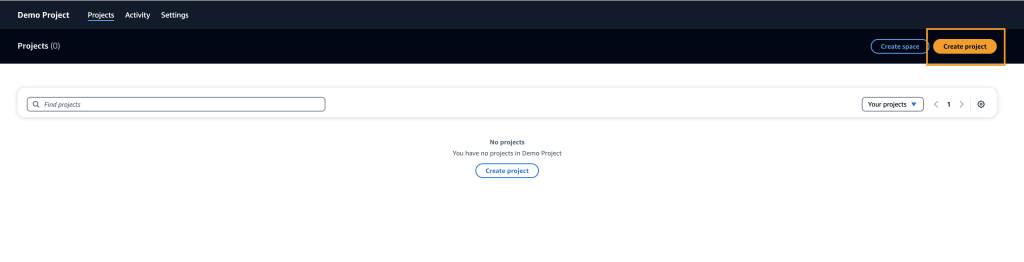
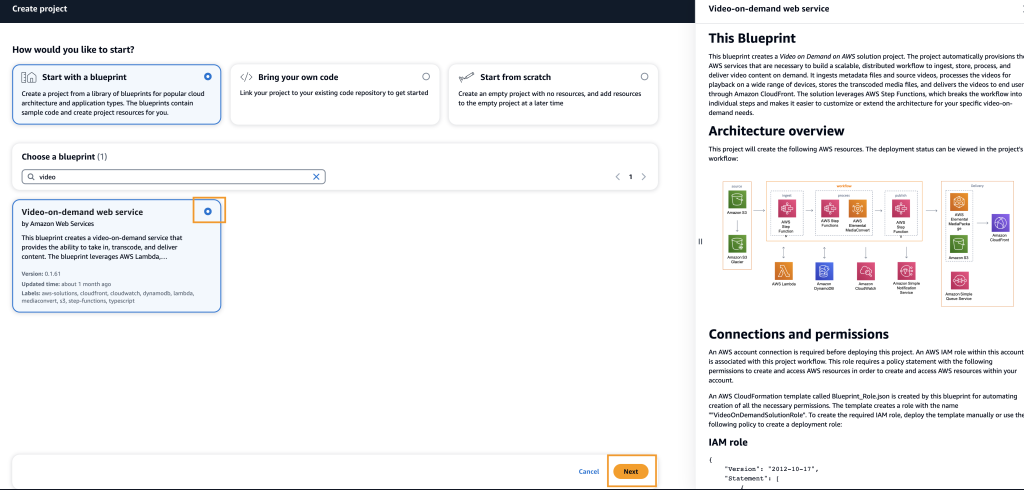
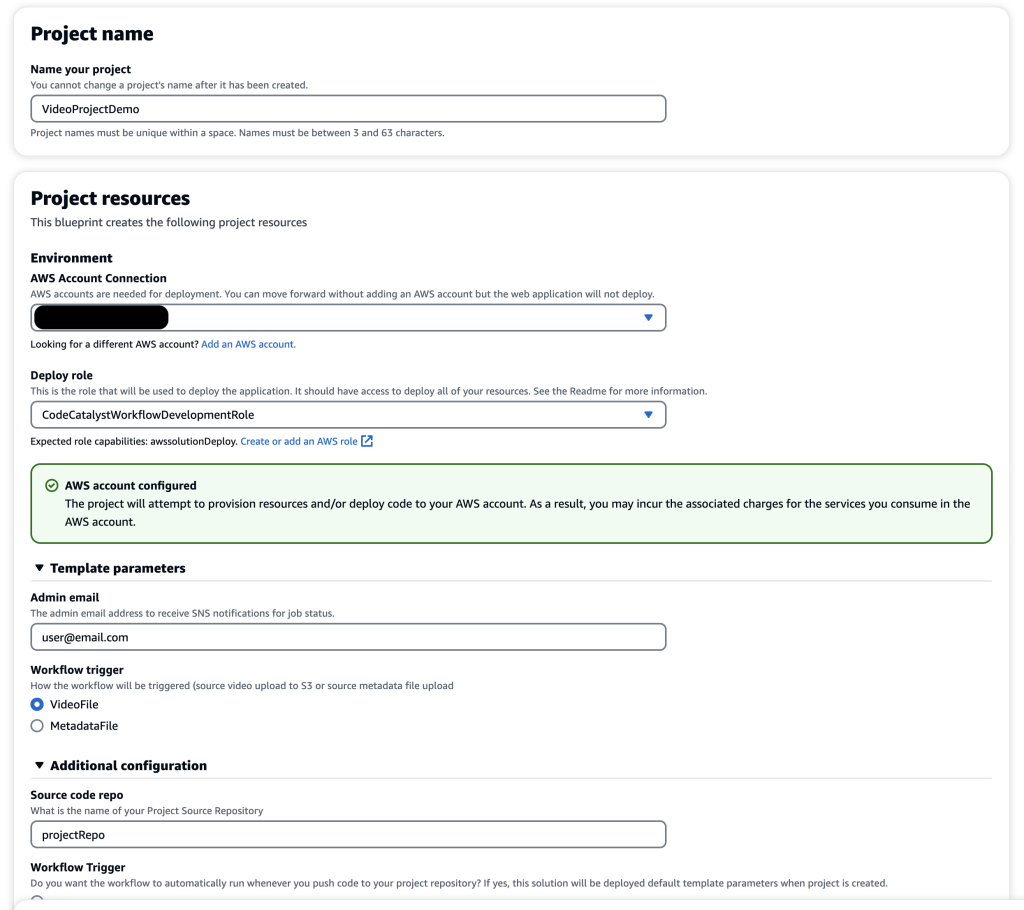
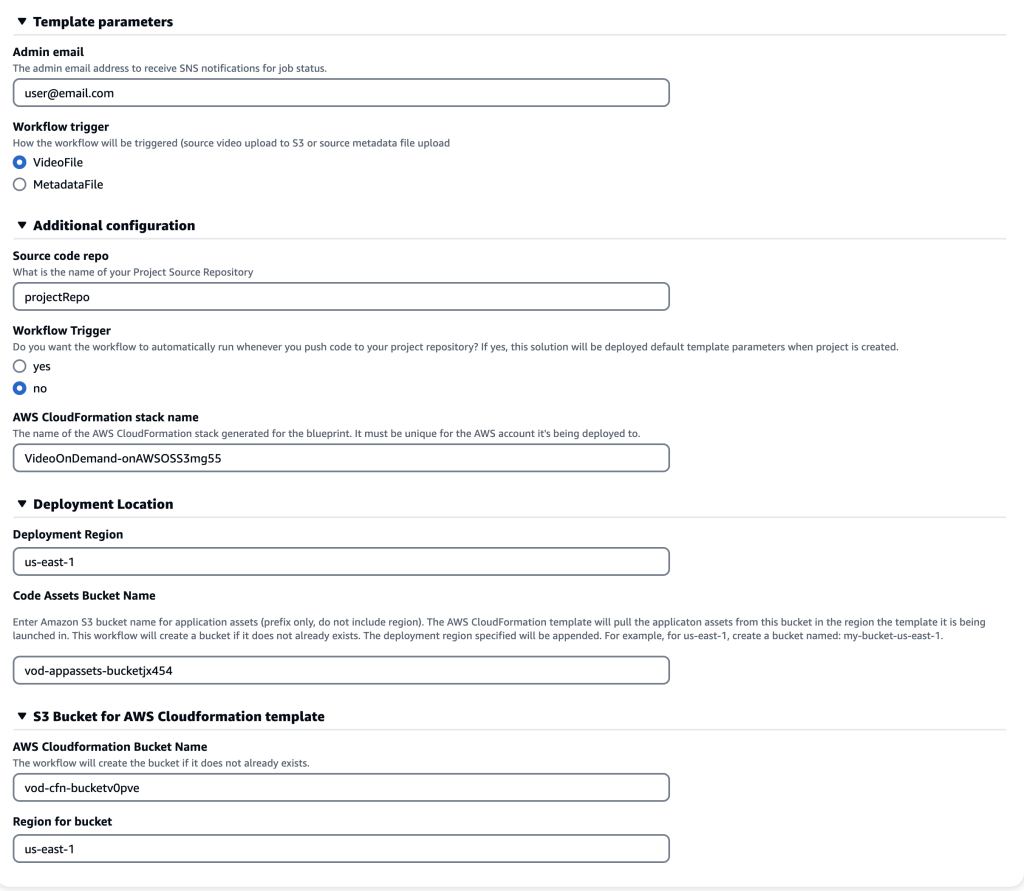
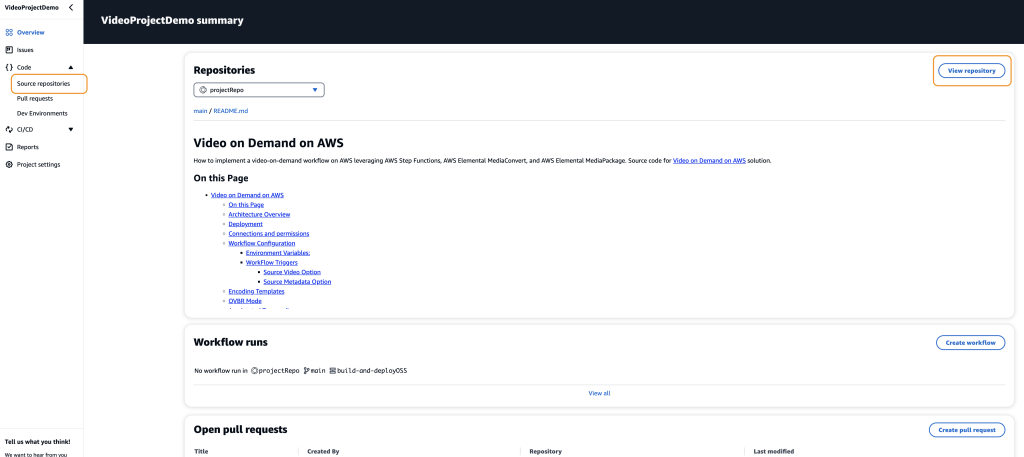
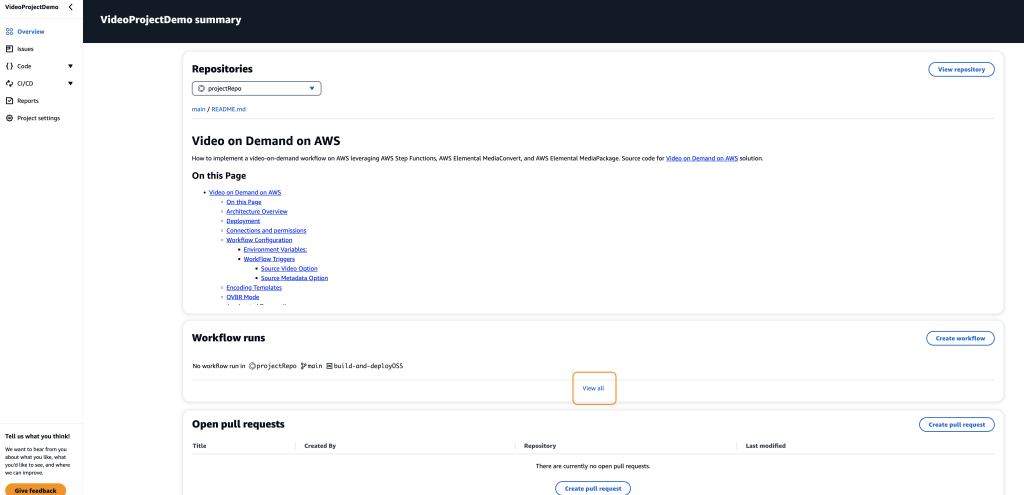
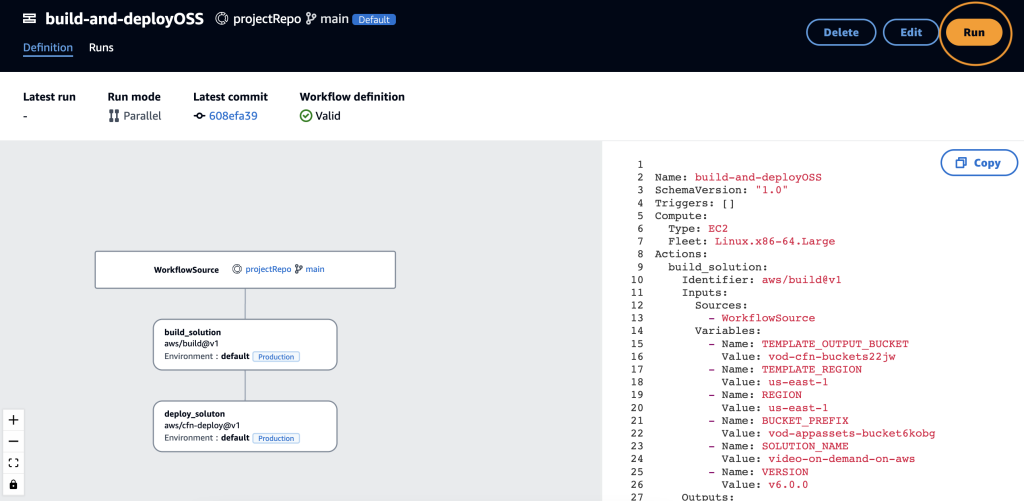
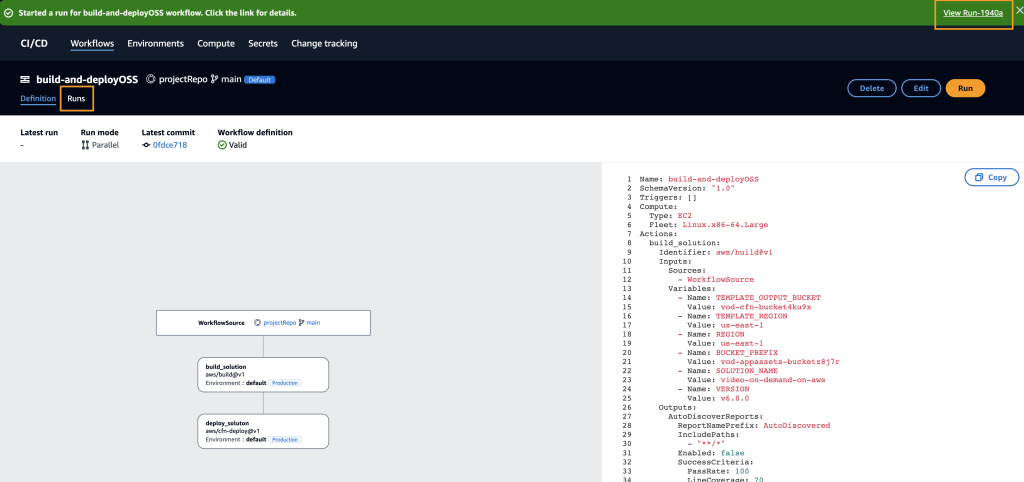
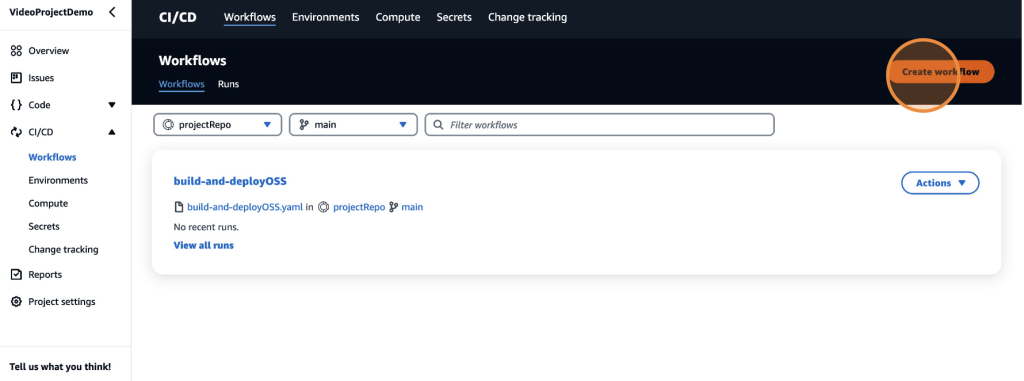
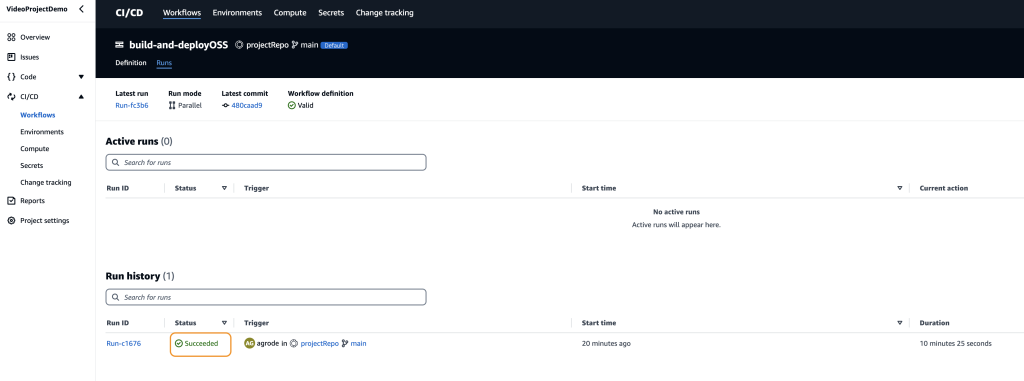
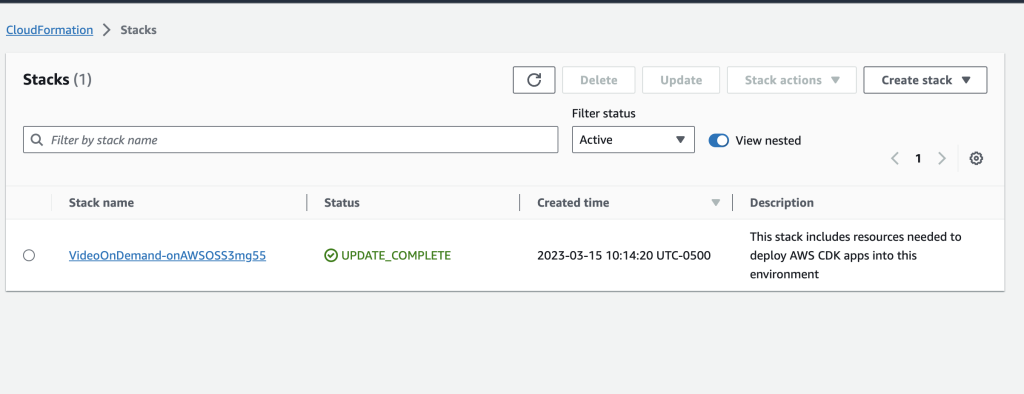
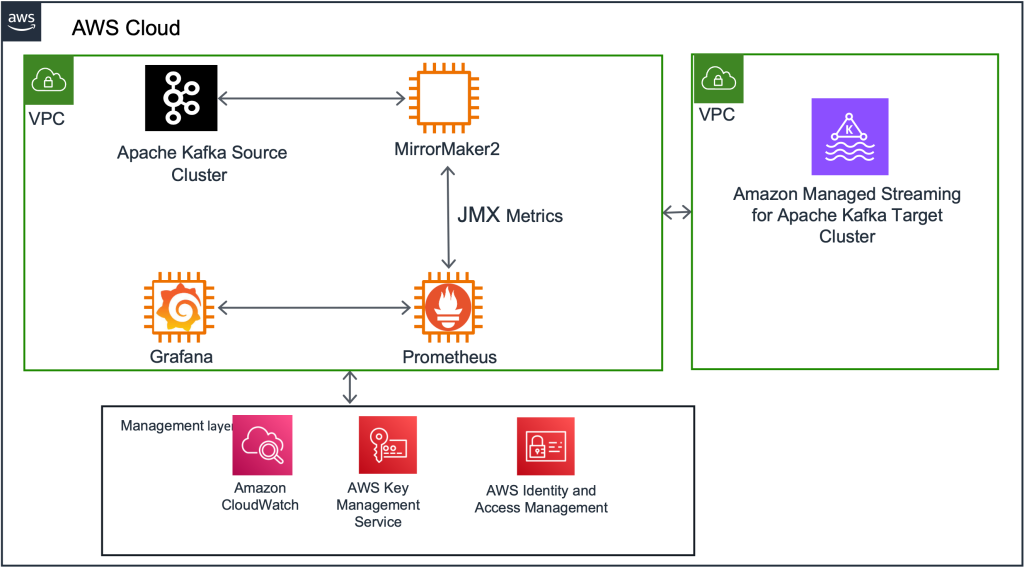


 Rahul Nammireddy is a Senior Solutions Architect at AWS, focusses on guiding digital native customers through their cloud native transformation. With a passion for AI/ML technologies, he works with customers in industries such as retail and telecom, helping them innovate at a rapid pace. Throughout his 23+ years career, Rahul has held key technical leadership roles in a diverse range of companies, from startups to publicly listed organizations, showcasing his expertise as a builder and driving innovation. In his spare time, he enjoys watching football and playing cricket.
 Todd McGrath is a data streaming specialist at Amazon Web Services where he advises customers on their streaming strategies, integration, architecture, and solutions. On the personal side, he enjoys watching and supporting his 3 teenagers in their preferred activities as well as following his own pursuits such as fishing, pickleball, ice hockey, and happy hour with friends and family on pontoon boats. Connect with him on


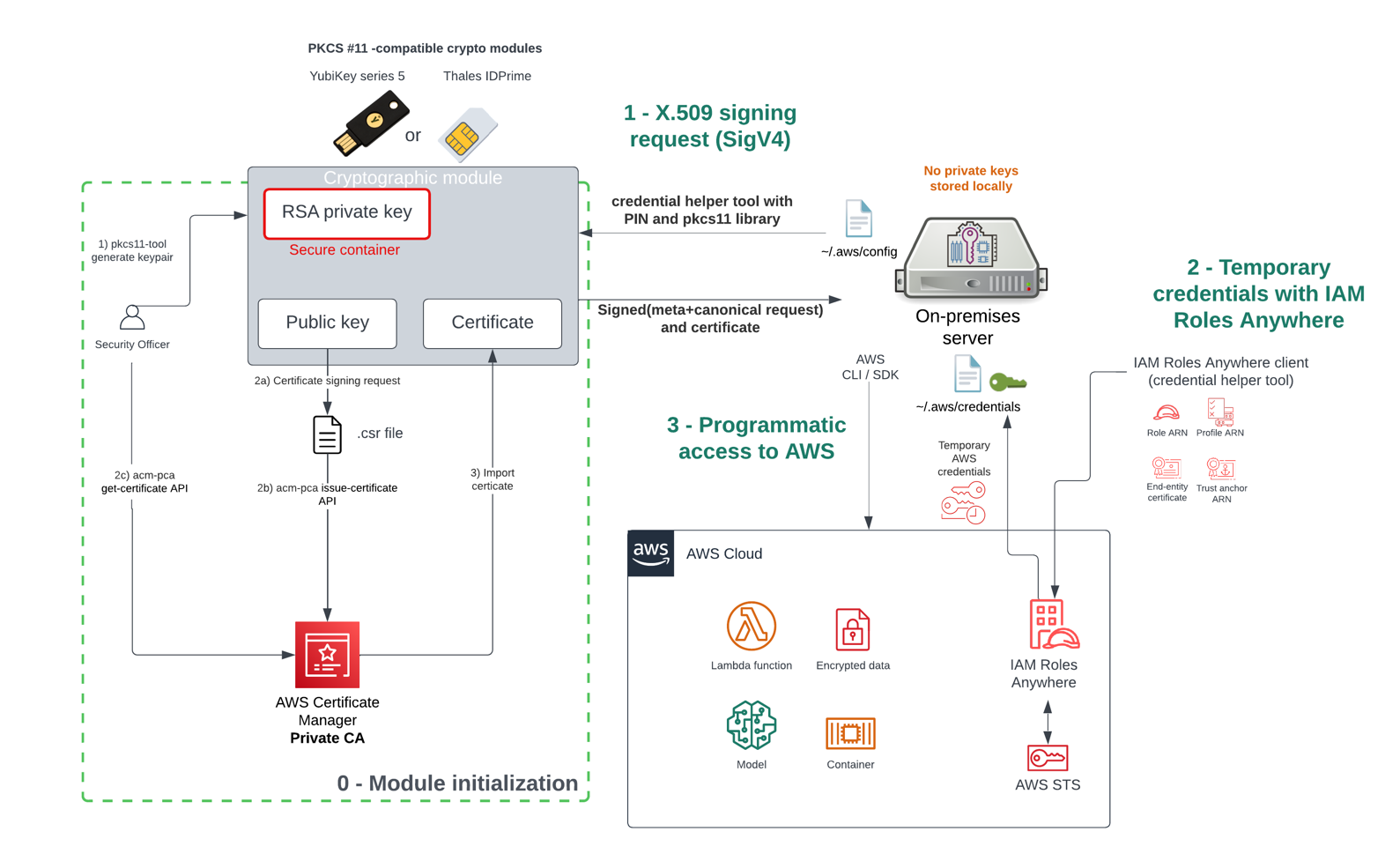


 RamC Venkatasamy is a Solutions Architect based in Bloomington, Illinois. He helps AWS Strategic customers transform their businesses in the cloud. With a fervent enthusiasm for Serverless, Event-Driven Architecture and GenAI.


 Ravi Itha is a Principal Consultant at AWS Professional Services with specialization in data and analytics and generalist background in application development. Ravi helps customers with enterprise data strategy initiatives across insurance, airlines, pharmaceutical, and financial services industries. In his 6-year tenure at Amazon, Ravi has helped the AWS builder community by publishing approximately 15 open-source solutions (accessible via
  Srinivas Kandi is a Data Architect at AWS Professional Services. He leads customer engagements related to data lakes, analytics, and data warehouse modernizations. He enjoys reading history and civilizations.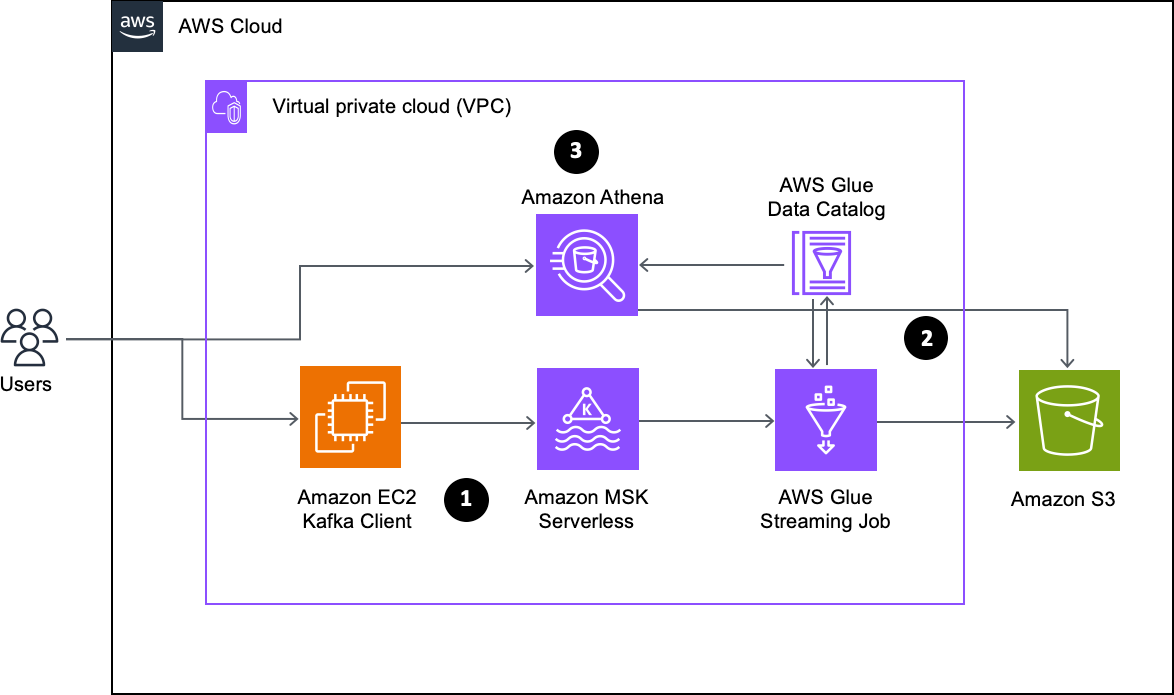


 Shubham Purwar is a Cloud Engineer (ETL) at AWS Bengaluru specialized in AWS Glue and Amazon Athena. He is passionate about helping customers solve issues related to their ETL workload and implement scalable data processing and analytics pipelines on AWS. In his free time, Shubham loves to spend time with his family and travel around the world.
 Nitin Kumar is a Cloud Engineer (ETL) at AWS with a specialization in AWS Glue. He is dedicated to assisting customers in resolving issues related to their ETL workloads and creating scalable data processing and analytics pipelines on AWS.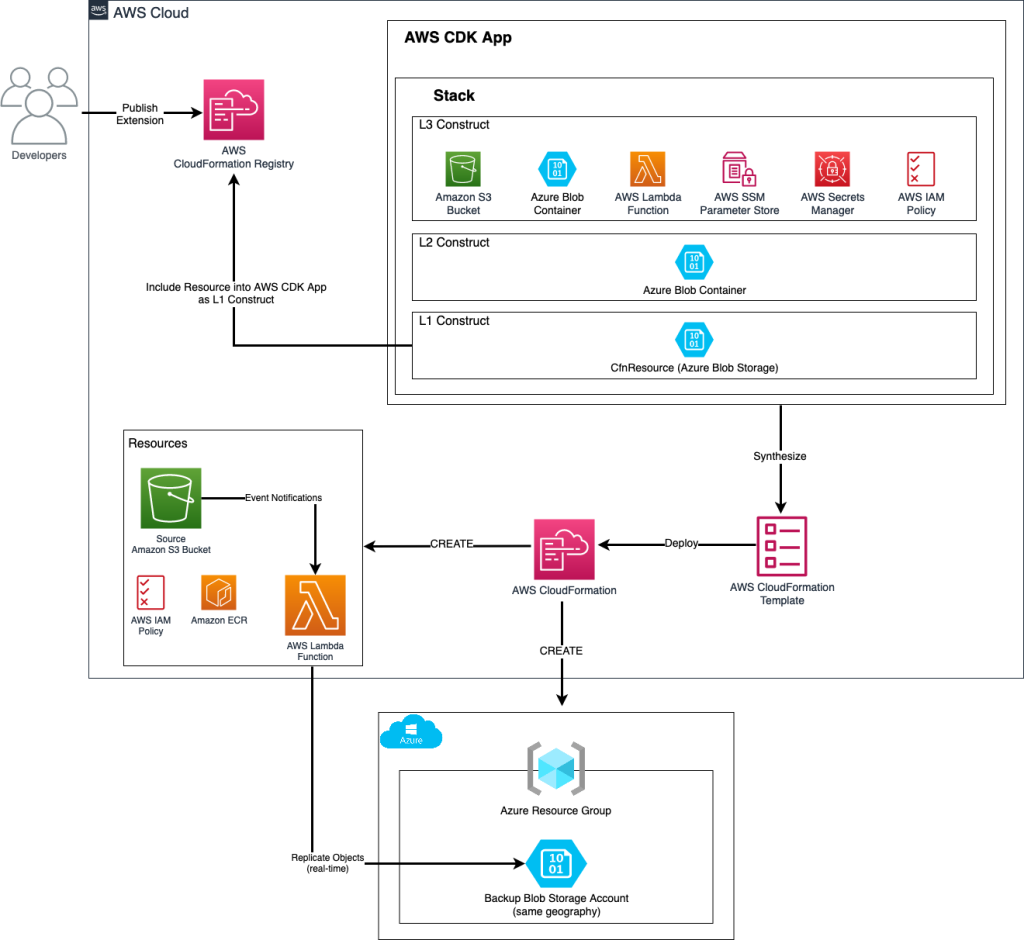


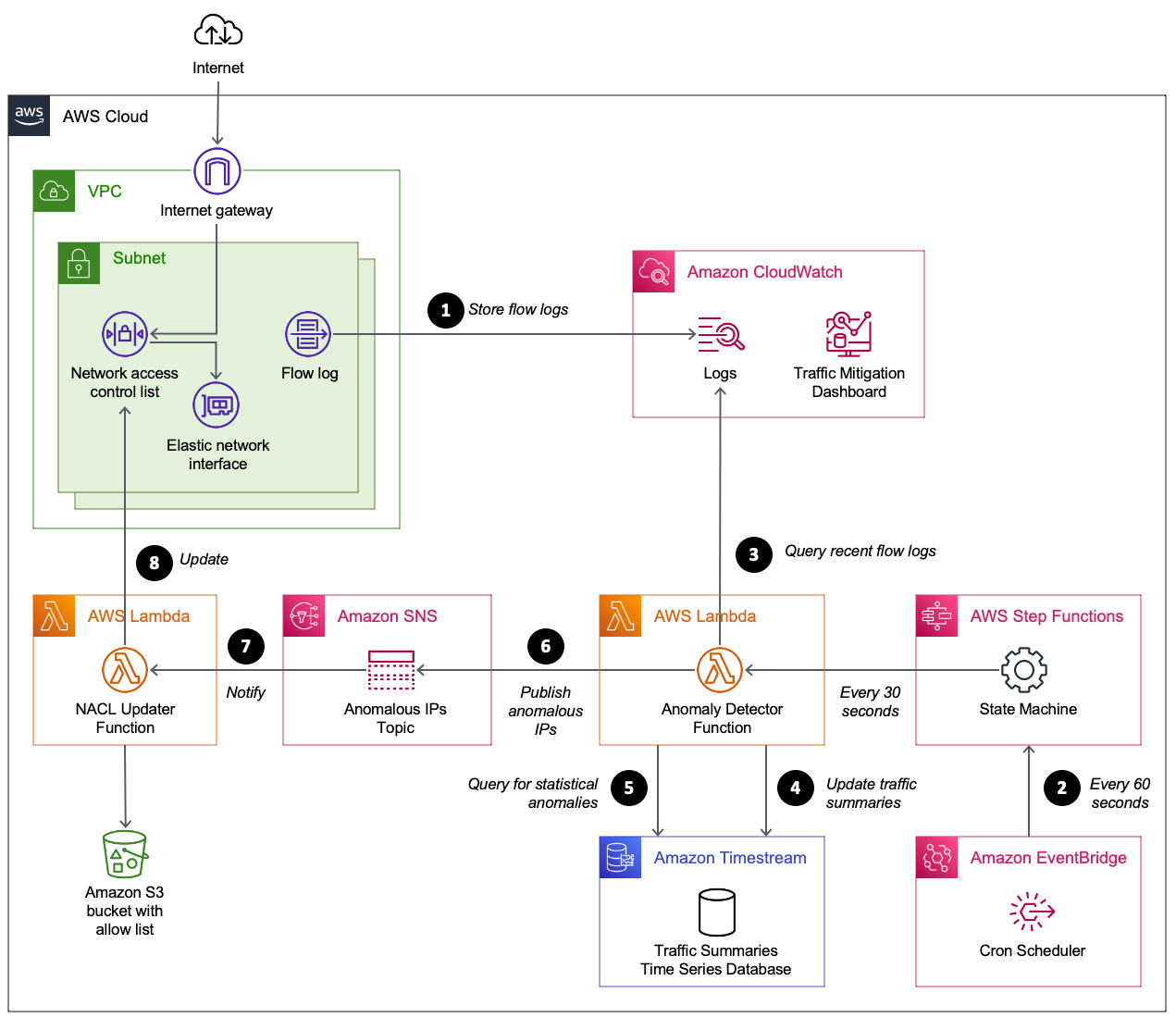
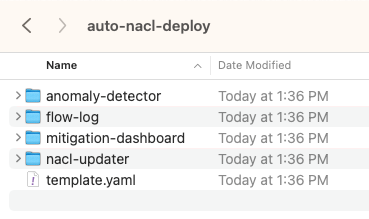
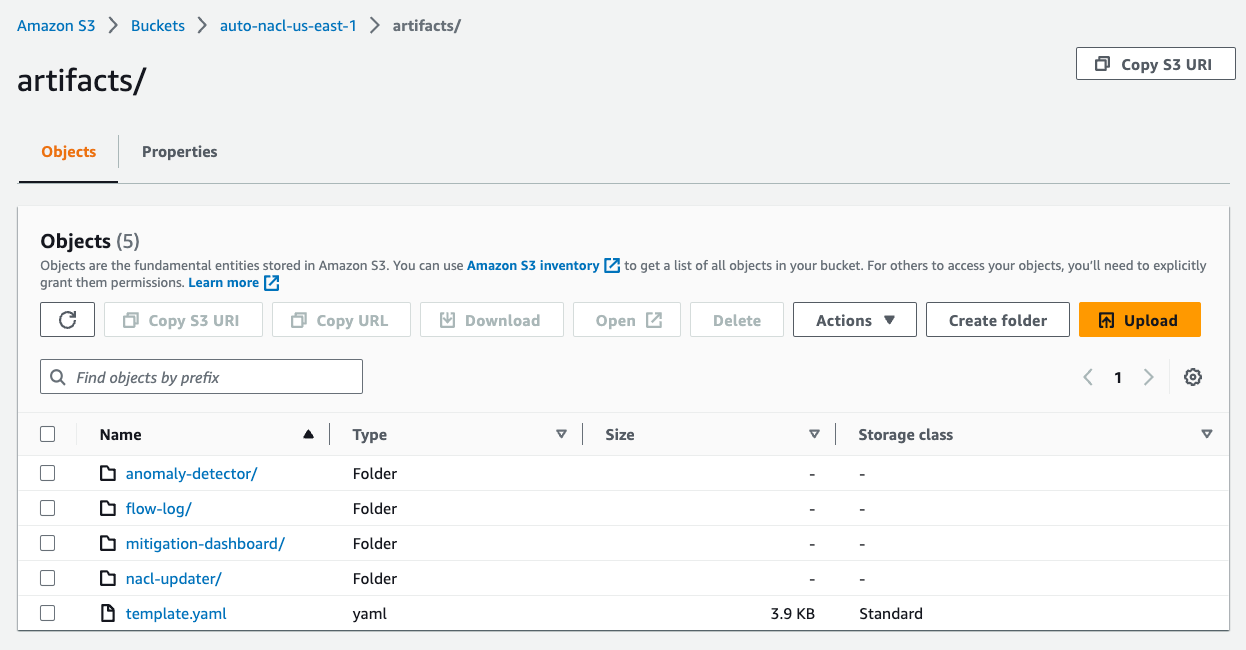
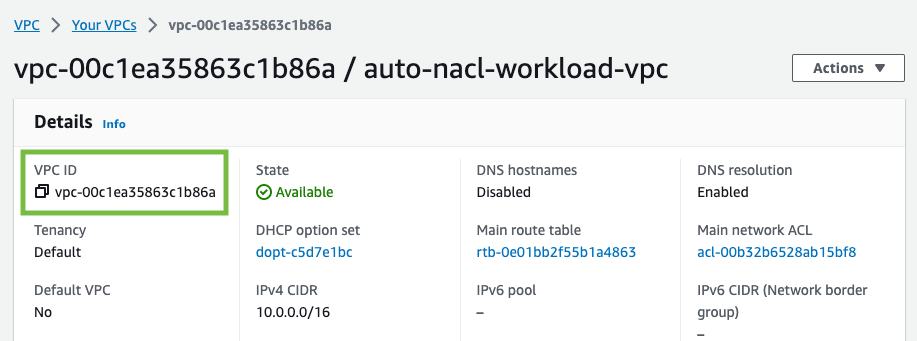
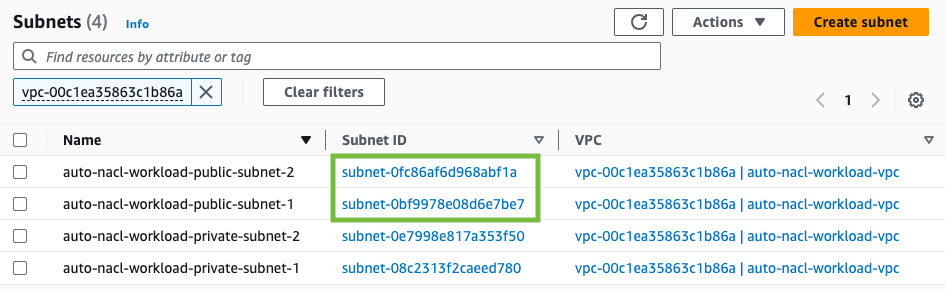
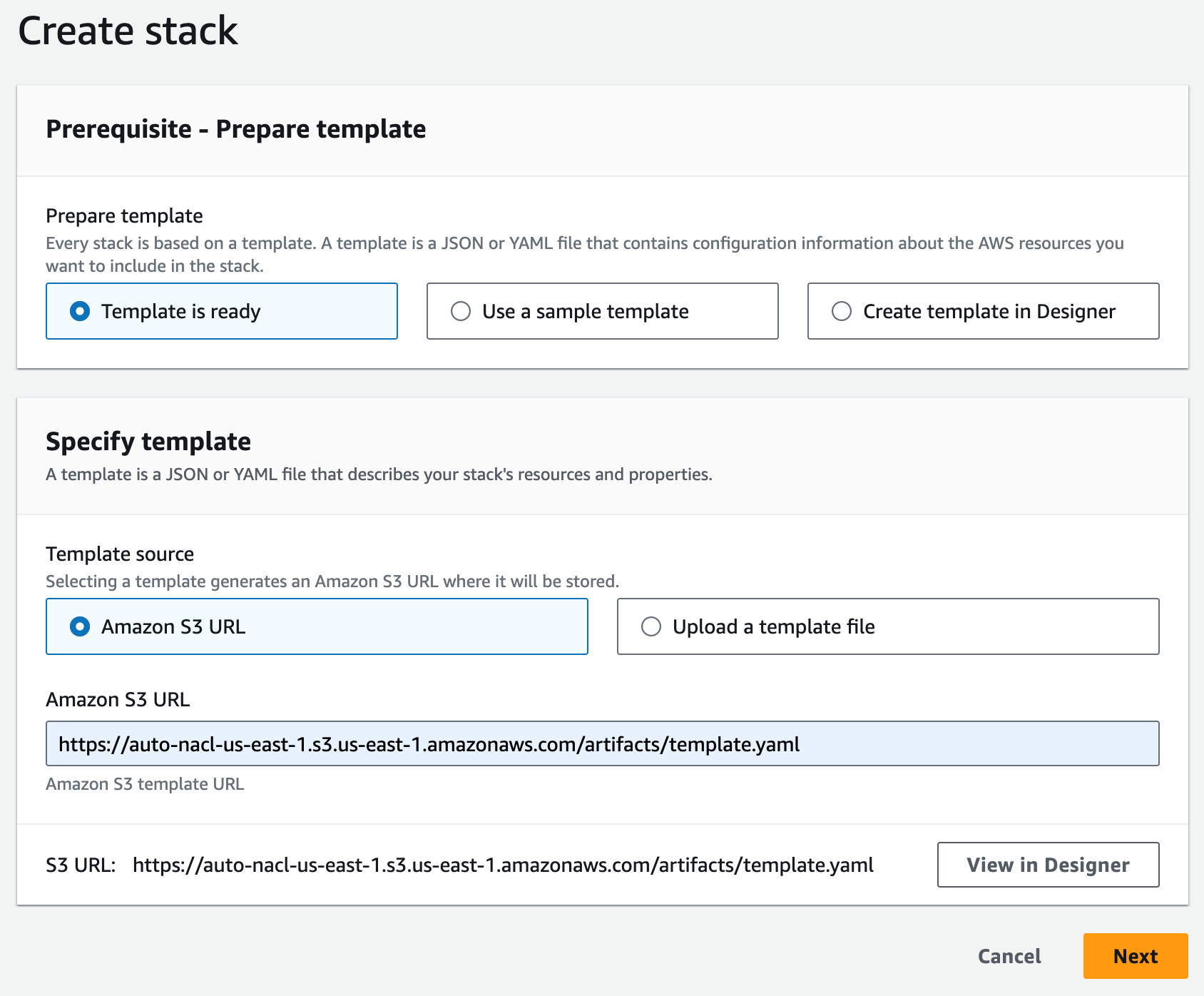
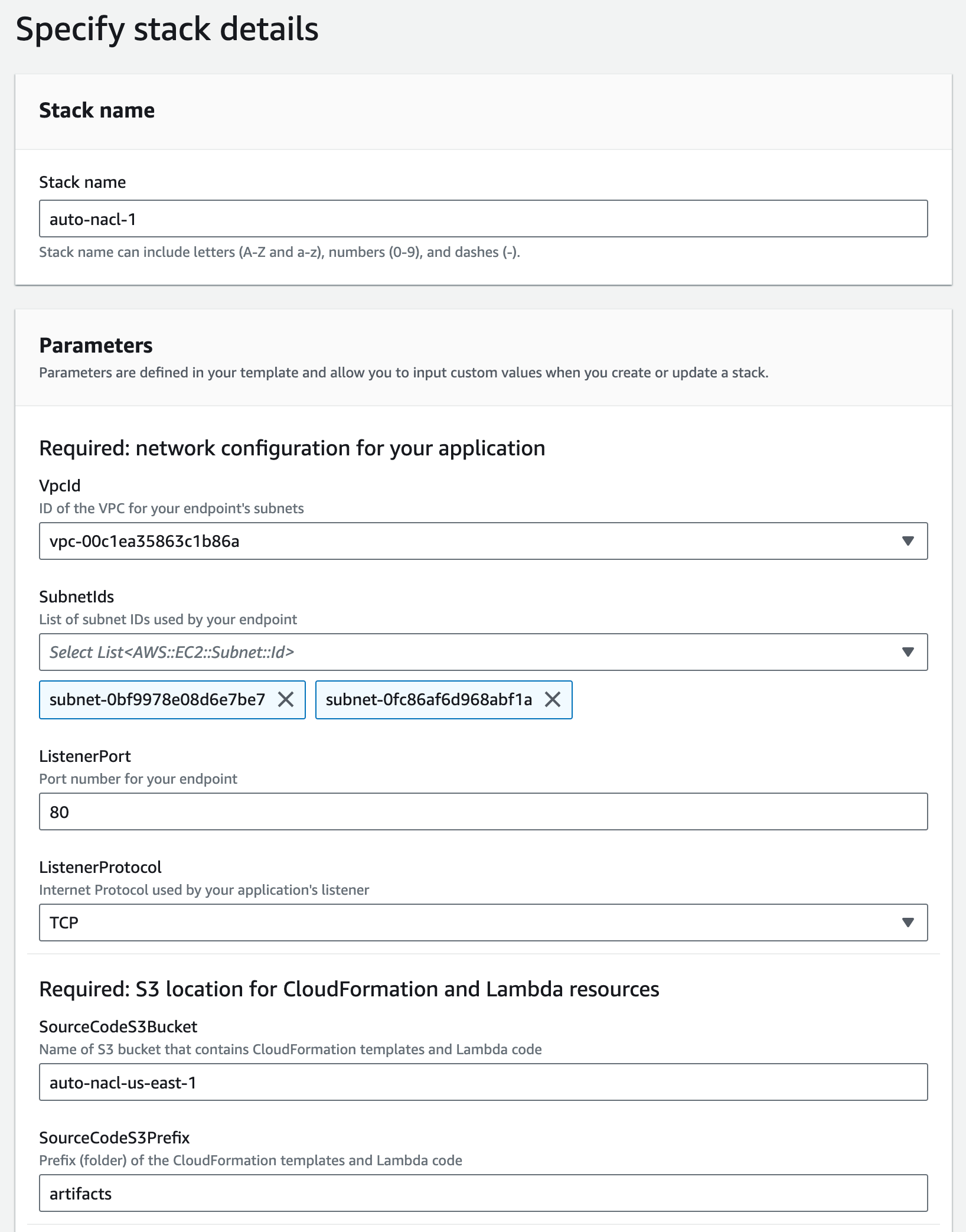
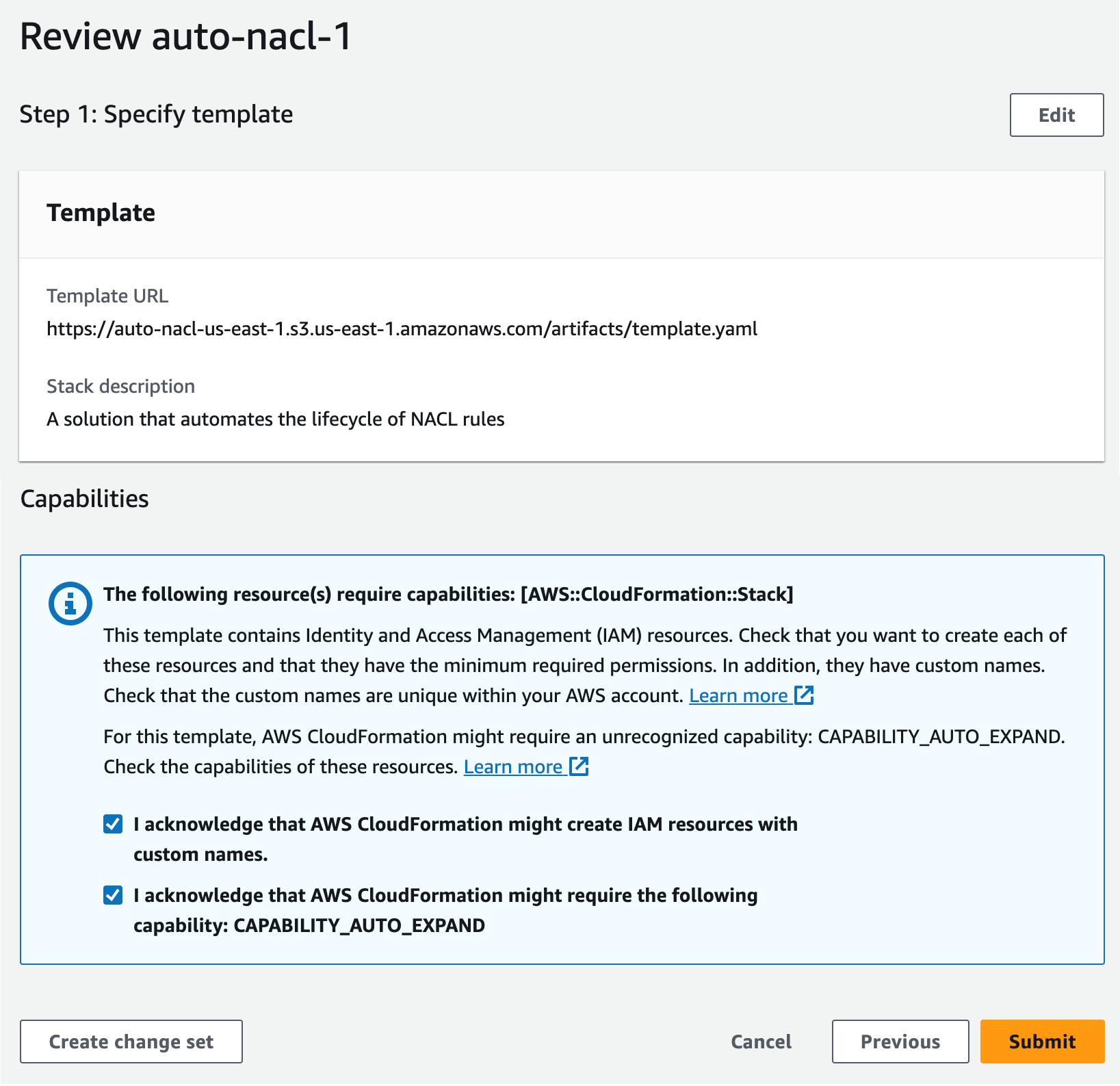
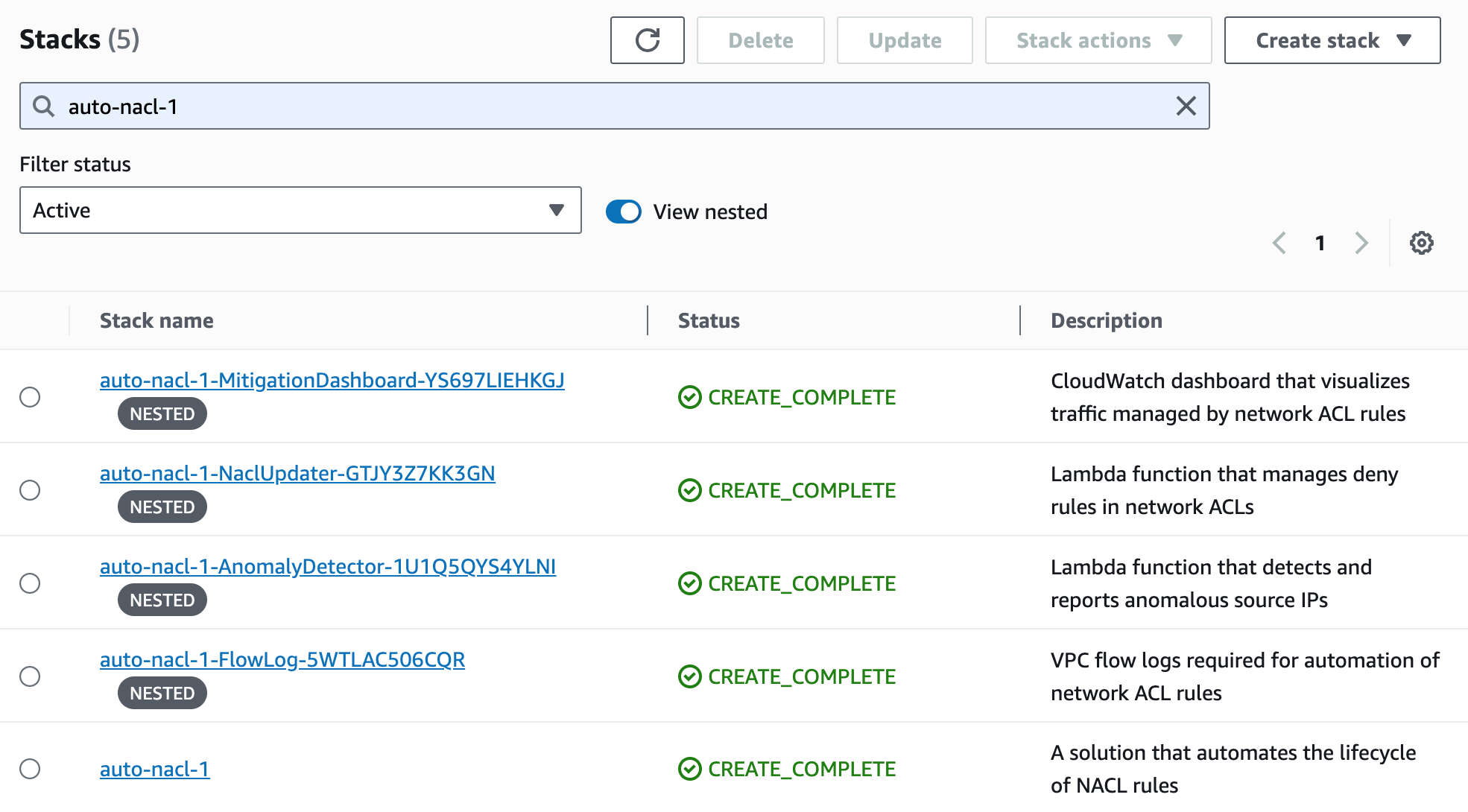
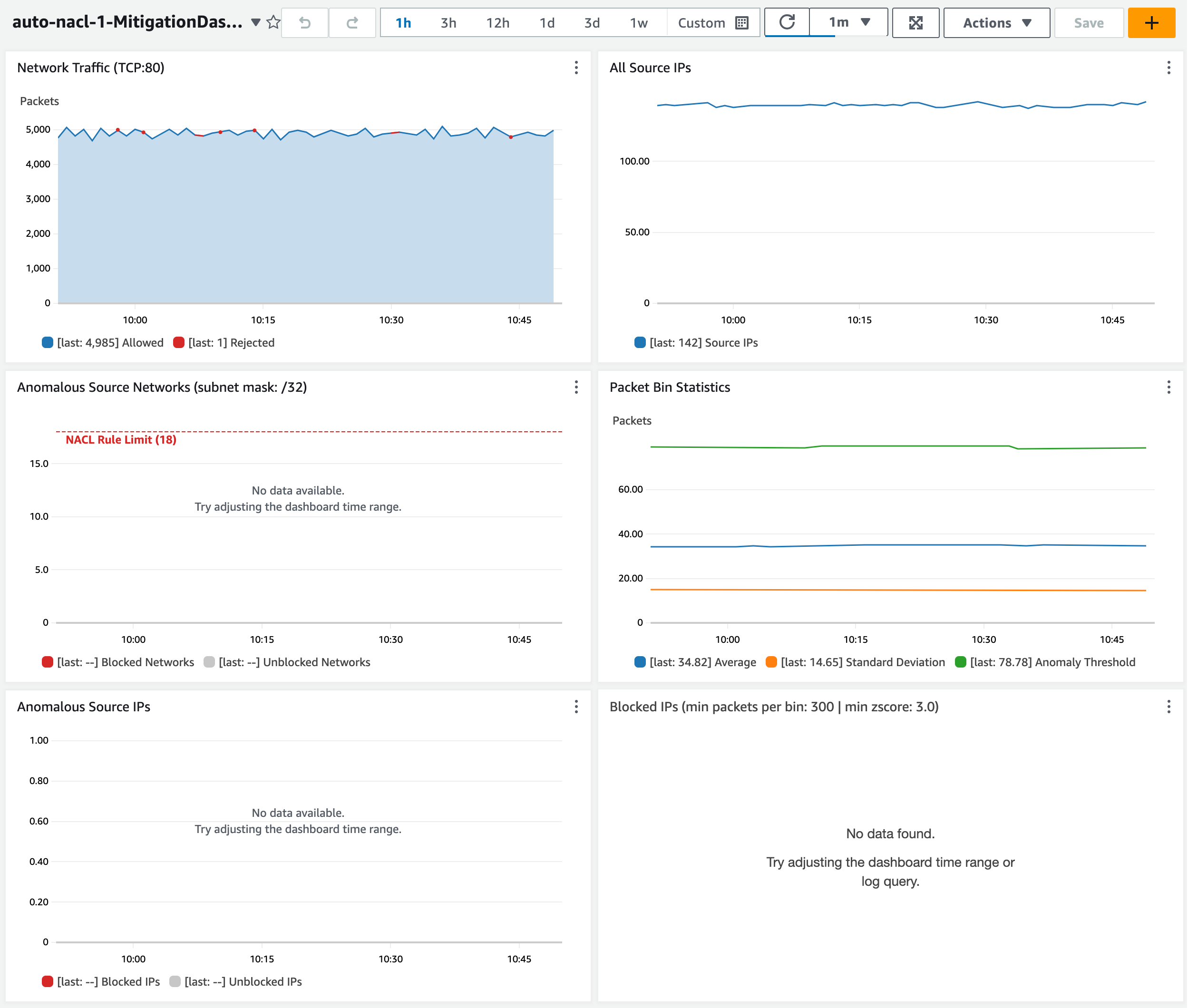
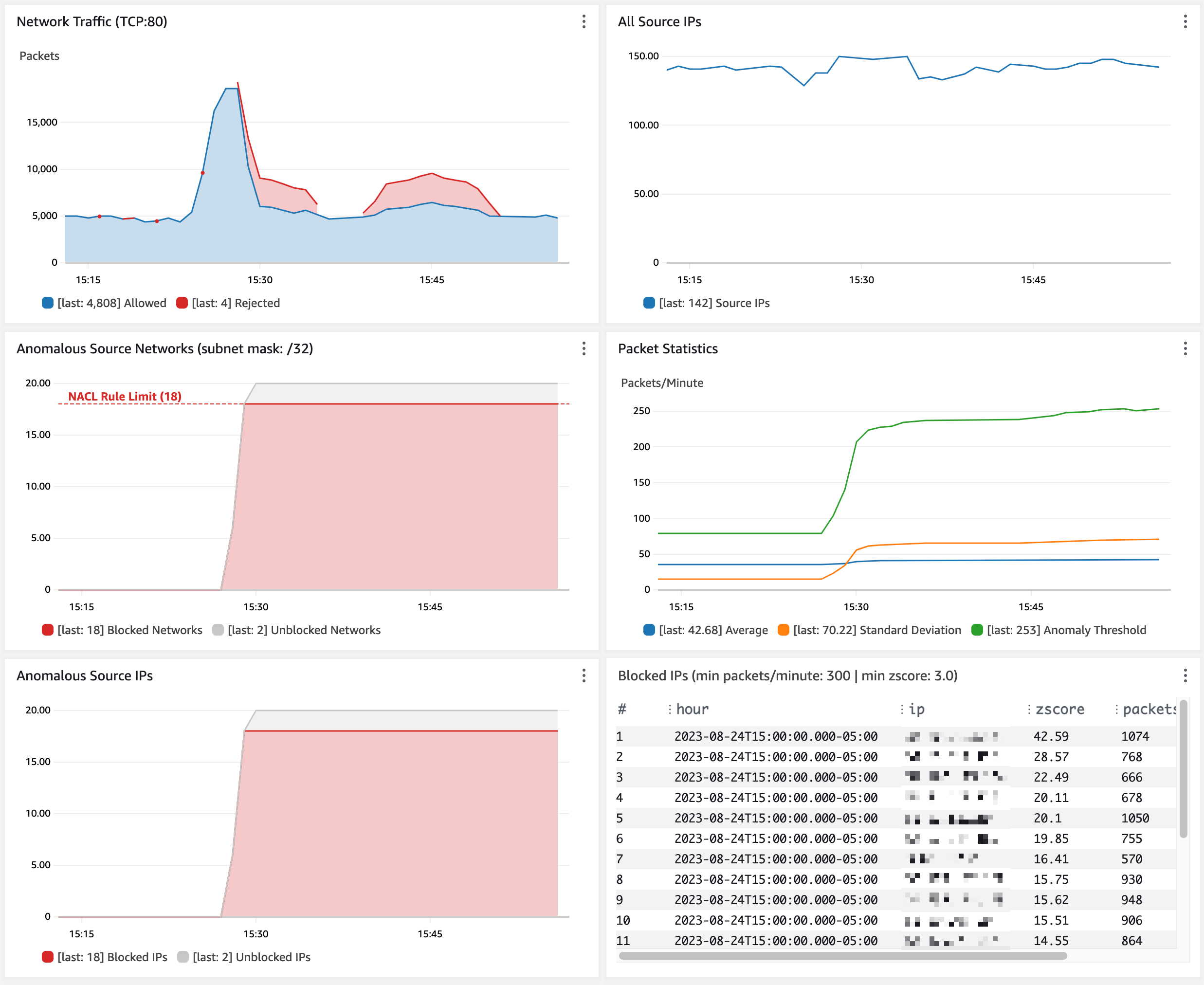
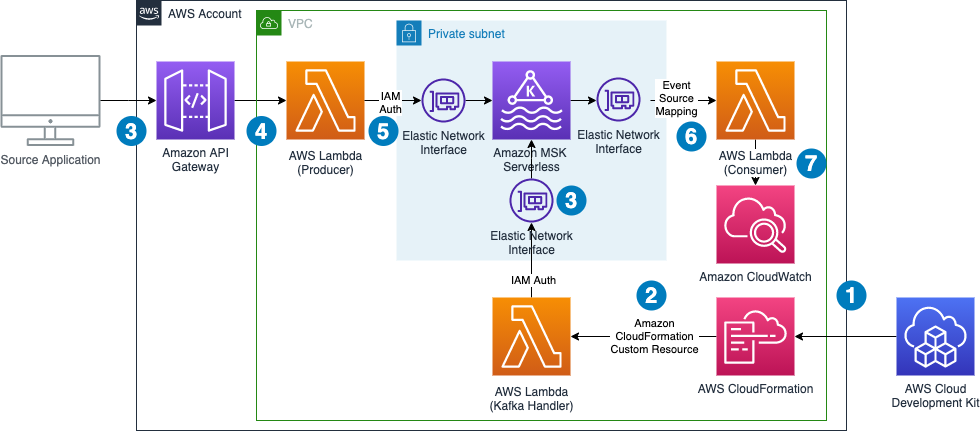
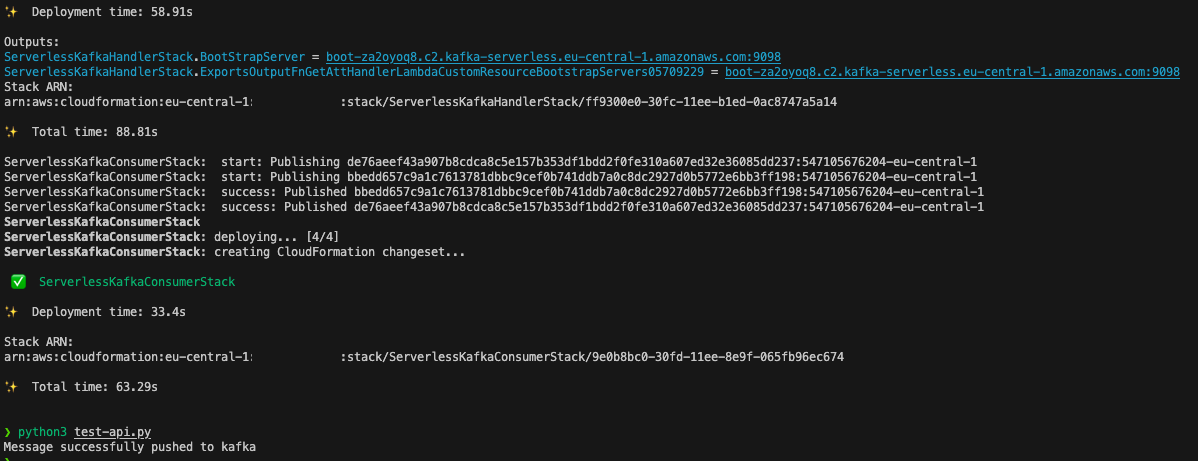
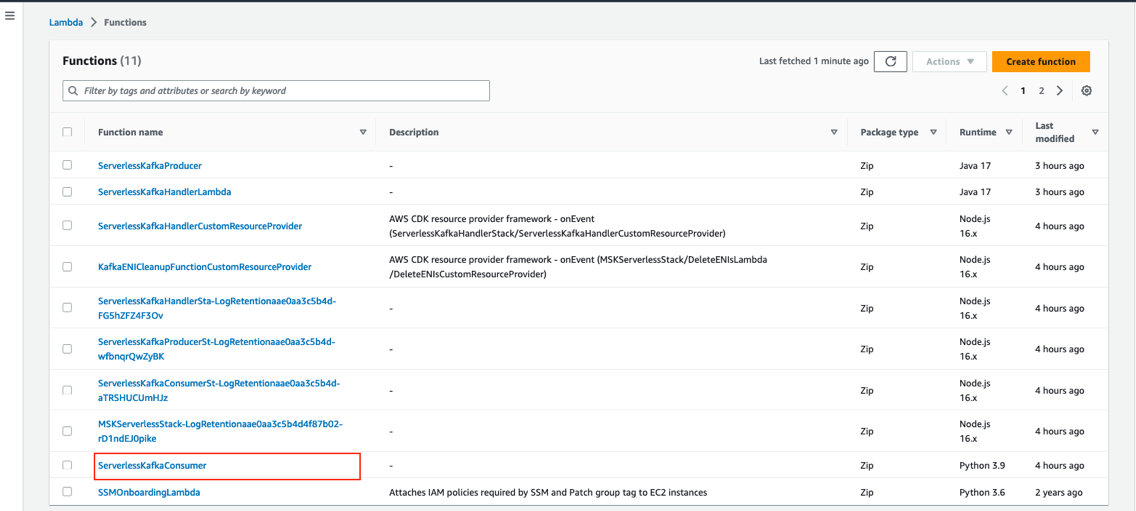
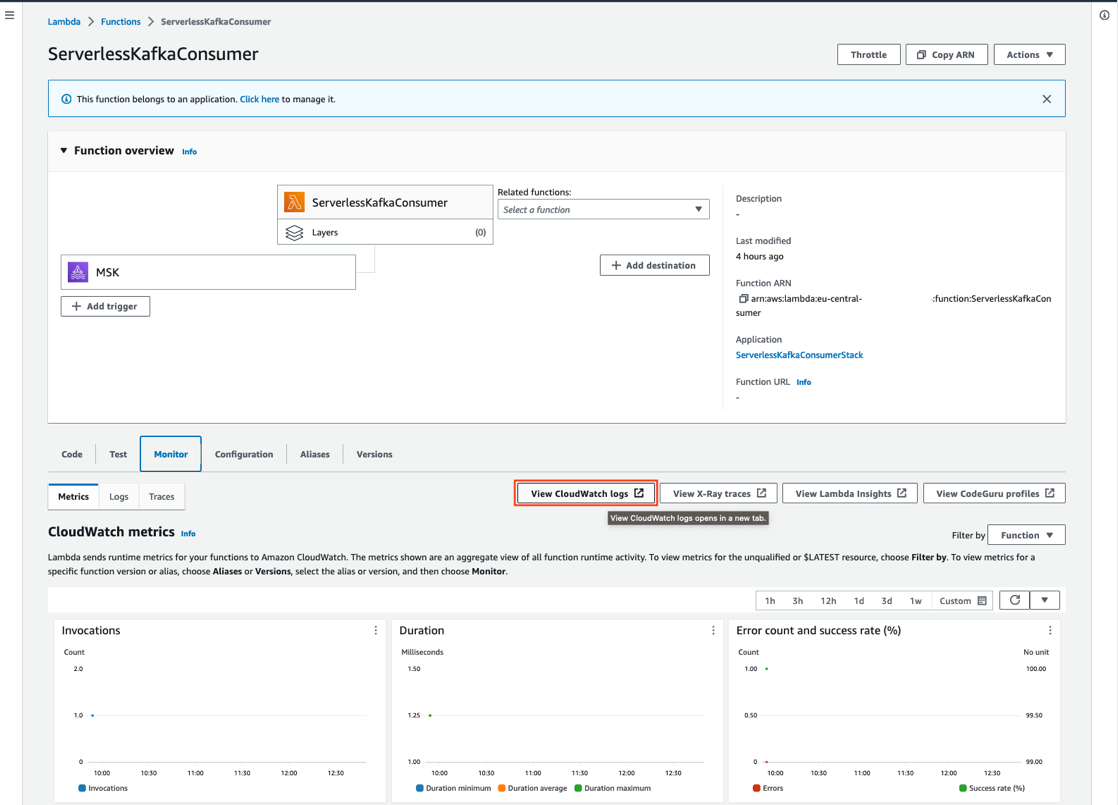
 Philipp Klose is a Global Solutions Architect at AWS based in Munich. He works with enterprise FSI customers and helps them solve business problems by architecting serverless platforms. In this free time, Philipp spends time with his family and enjoys every geek hobby possible.
 Daniel Wessendorf is a Global Solutions Architect at AWS based in Munich. He works with enterprise FSI customers and is primarily specialized in machine learning and data architectures. In his free time, he enjoys swimming, hiking, skiing, and spending quality time with his family.
 Marvin Gersho is a Senior Solutions Architect at AWS based in New York City. He works with a wide range of startup customers. He previously worked for many years in engineering leadership and hands-on application development, and now focuses on helping customers architect secure and scalable workloads on AWS with a minimum of operational overhead. In his free time, Marvin enjoys cycling and strategy board games.
 Nathan Lichtenstein is a Senior Solutions Architect at AWS based in New York City. Primarily working with startups, he ensures his customers build smart on AWS, delivering creative solutions to their complex technical challenges. Nathan has worked in cloud and network architecture in the media, financial services, and retail spaces. Outside of work, he can often be found at a Broadway theater.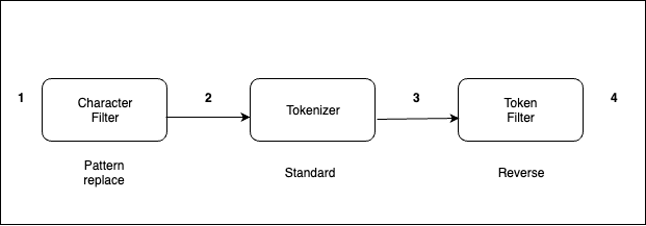
 Bharav Patel is a Specialist Solution Architect, Analytics at Amazon Web Services. He primarily works on Amazon OpenSearch Service and helps customers with key concepts and design principles of running OpenSearch workloads on the cloud. Bharav likes to explore new places and try out different cuisines.


 Joshua Luo is a Software Development Engineer for Amazon OpenSearch Serverless. He works on the systems that enable customers to manage and monitor their OpenSearch Serverless resources. He enjoys bouldering, photography, and videography in his free time.
 Satish Nandi is a Senior Technical Product Manager for Amazon OpenSearch Service.