Tag Archives: Security, Identity & Compliance

AWS is the first global cloud service provider to comply with the new K-ISMS-P standard

Post Syndicated from Seulun Sung original https://aws.amazon.com/blogs/security/aws-is-the-first-global-cloud-service-provider-to-comply-with-the-new-k-isms-p-standard/

We’re excited to announce that Amazon Web Services (AWS) has achieved certification under the Korea-Personal Information & Information Security Management System (K-ISMS-P) standard (effective from December 16, 2020 to December 15, 2023). The assessment by the Korea Internet & Security Agency (KISA) covered the operation of infrastructure (including compute, storage, networking, databases, and security) in the AWS Asia Pacific (Seoul) Region. AWS was the first global cloud service provider (CSP) to obtain K-ISMS certification (the previous version of K-ISMS-P) back in 2017. Now AWS is the first global CSP to achieve compliance with the K-ISMS portion of the new K-ISMS-P standard.

Sponsored by KISA and affiliated with the Korean Ministry of Science and ICT (MSIT), K-ISMS-P serves as a standard for evaluating whether enterprises and organizations operate and manage their information security management systems consistently and securely, such that they thoroughly protect their information assets. The new K-ISMS-P standard combined the K-ISMS and K-PIMS (Personal Information Management System) standards with updated control items. Accordingly, the new K-ISMS certification and K-ISMS-P certification (personal information–focused) are introduced under the updated standard.

In this year’s audit, 110 services running in the Asia Pacific (Seoul) Region are included. The newly launched Availability Zone in 2020 is also added to the certification scope.

This certification helps enterprises and organizations across South Korea, regardless of industry, meet KISA compliance requirements more efficiently. Achieving this certification demonstrates the proactive approach AWS has taken to meet compliance set by the South Korean government and to deliver secure AWS services to customers. In addition, we’ve launched Quick Start and Operational Best Practices (conformance pack) pages to provide customers with a compliance framework that they can utilize for their K-ISMS-P compliance needs. Enterprises and organizations can use these toolkits and AWS certification to reduce the effort and cost of getting their own K-ISMS-P certification. You can download the AWS K-ISMS certification under the K-ISMS-P standard from AWS Artifact. To learn more about the AWS K-ISMS certification, see the AWS K-ISMS page. If you have any questions, don’t hesitate to contact your AWS Account Manager.

If you have feedback about this post, submit comments in the Comments section below.

Want more AWS Security how-to content, news, and feature announcements? Follow us on Twitter.
Author

Seulun Sung

Seulun is a Security Audit Program Manager at AWS, leading security certification programs, with a focus on the K-ISMS-P program in South Korea. She has a decade of experience in deploying global policies and processes to local Regions and helping customers adopt regulations. She is passionate about helping to build customers’ trust and provide them assurance on cloud security.

Best practices and advanced patterns for Lambda code signing

Post Syndicated from Cassia Martin original https://aws.amazon.com/blogs/security/best-practices-and-advanced-patterns-for-lambda-code-signing/

Amazon Web Services (AWS) recently released Code Signing for AWS Lambda. By using this feature, you can help enforce the integrity of your code artifacts and make sure that only trusted developers can deploy code to your AWS Lambda functions. Today, let’s review a basic use case along with best practices for lambda code signing. Then, let’s dive deep and talk about two advanced patterns—one for centralized signing and one for cross account layer validation. You can use these advanced patterns to use code signing in a distributed ownership model, where you have separate groups for developers writing code and for groups responsible for enforcing specific signing profiles or for publishing layers.

Secure software development lifecycle

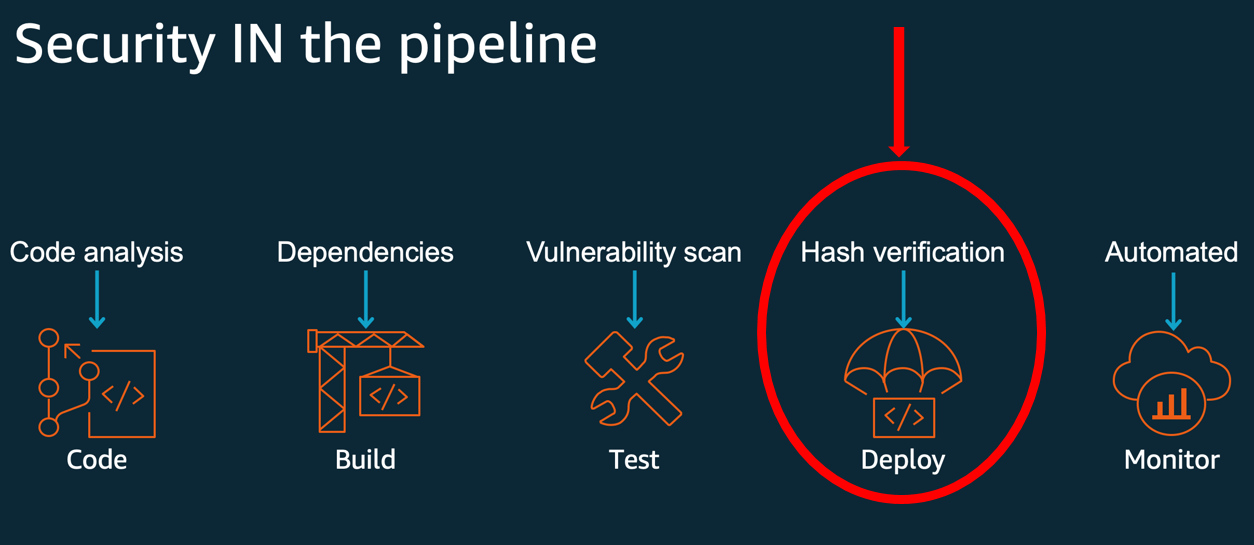
For context of what this capability gives you, let’s look at the secure software development lifecycle (SDLC). You need different kinds of security controls for each of your development phases. An overview of the secure SDLC development stages—code, build, test, deploy, and monitor—, along with applicable security controls, can be found in Figure 1. You can use code signing for Lambda to protect the deployment stage and give a cryptographically strong hash verification.

Figure 1: Code signing provides hash verification in the deployment phase of a secure SDLC

Figure 1: Code signing provides hash verification in the deployment phase of a secure SDLC

Adding Security into DevOps and Implementing DevSecOps Using AWS CodePipeline provide additional information on building a secure SDLC, with a particular focus on the code analysis controls.

Basic pattern:

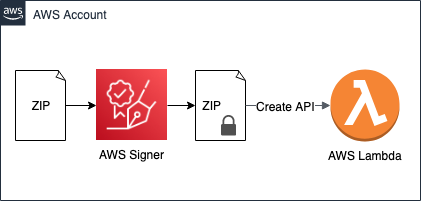
Figure 2 shows the basic pattern described in Code signing for AWS Lambda and in the documentation. The basic code signing pattern uses AWS Signer on a ZIP file and calls a create API to install the signed artifact in Lambda.

Figure 2: The basic code signing pattern

Figure 2: The basic code signing pattern

The basic pattern illustrated in Figure 2 is as follows:

  1. An administrator creates a signing profile in AWS Signer. A signing profile is analogous to a code signing certificate and represents a publisher identity. Administrators can provide access via AWS Identity and Access Management (IAM) for developers to use the signing profile to sign their artifacts.
  2. Administrators create a code signing configuration (CSC)—a new resource in Lambda that specifies the signing profiles that are allowed to sign code and the signature validation policy that defines whether to warn or reject deployments that fail the signature checks. CSC can be attached to existing or new Lambda functions to enable signature validations on deployment.
  3. Developers use one of the allowed signing profiles to sign the deployment artifact—a ZIP file—in AWS Signer.
  4. Developers deploy the signed deployment artifact to a function using either the CreateFunction API or the UpdateFunctionCode API.

Lambda performs signature checks before accepting the deployment. The deployment fails if the signature checks fail and you have set the signature validation policy in the CSC to reject deployments using ENFORCE mode.

Code signing checks

Code signing for Lambda provides four signature checks. First, the integrity check confirms that the deployment artifact hasn’t been modified after it was signed using AWS Signer. Lambda performs this check by matching the hash of the artifact with the hash from the signature. The second check is the source mismatch check, which detects if a signature isn’t present or if the artifact is signed by a signing profile that isn’t specified in the CSC. The third, expiry check, will fail if a signature is past its point of expiration. The fourth is the revocation check, which is used to see if anyone has explicitly marked the signing profile used for signing or the signing job as invalid by revoking it.

The integrity check must succeed or Lambda will not run the artifact. The other three checks can be configured to either block invocation or generate a warning. These checks are performed in order until one check fails or all checks succeed. As a security leader concerned about the security of code deployments, you can use the Lambda code signing checks to satisfy different security assurances:

  • Integrity – Provides assurance that code has not been tampered with, by ensuring that the signature on the build artifact is cryptographically valid.
  • Source mismatch – Provides assurance that only trusted entities or developers can deploy code.
  • Expiry – Provides assurance that code running in your environment is not stale, by making sure that signatures were created within a certain date and time.
  • Revocation – Allows security administrators to remove trust by invalidating signatures after the fact so that they cannot be used for code deployment if they have been exposed or are otherwise no longer trusted.

The last three checks are enforced only if you have set the signature validation policy—UntrustedArtifactOnDeployment parameter—in the CSC to ENFORCE. If the policy is set to WARN, then failures in any of the mismatch, expiry, and revocation checks will log a metric called a signature validation error in Amazon CloudWatch. The best practice for this setting is to initially set the policy to WARN. Then, you can monitor the warnings, if any, and update the policy to enforce when you’re confident in the findings in CloudWatch.

Centralized signing enforcement

In this scenario, you have a security administrators team that centrally manages and approves signing profiles. The team centralizes signing profiles in order to enforce that all code running on Lambda is authored by a trusted developer and isn’t tampered with after it’s signed. To do this, the security administrators team wants to enforce that developers—in the same account—can only create Lambda functions with signing profiles that the team has approved. By owning the signing profiles used by developer teams, the security team controls the lifecycle of the signatures and the ability to revoke the signatures. Here are instructions for creating a signing profile and CSC, and then enforcing their use.

Create a signing profile

To create a signing profile, you’ll use the AWS Command Line Interface (AWS CLI). Start by logging in to your account as the central security role. This is an administrative role that is scoped with permissions needed for setting up code signing. You’ll create a signing profile to use for an application named ABC. These example commands are written with prepopulated values for things like profile names, IDs, and descriptions. Change those as appropriate for your application.

To create a signing profile

  1. Run this command:
    aws signer put-signing-profile --platform-id "AWSLambda-SHA384-ECDSA" --profile-name profile_for_application_ABC
    

    Running this command will give you a signing profile version ARN. It will look something like arn:aws:signer:sa-east-1:XXXXXXXXXXXX:/signing-profiles/profile_for_application_ABC/XXXXXXXXXX. Make a note of this value to use in later commands.

    As the security administrator, you must grant the developers access to use the profile for signing. You do that by using the add-profile-permission command. Note that in this example, you are explicitly only granting permission for the signer:StartSigningJob action. You might want to grant permissions to other actions, such as signer:GetSigningProfile or signer:RevokeSignature, by making additional calls to add-profile-permission.

  2. Run this command, replacing <role-name> with the principal you’re using:
    aws signer add-profile-permission \
    --profile-name profile_for_application_ABC \
    --action signer:StartSigningJob \
    --principal <role-name> \
    --statement-id testStatementId
    

Create a CSC

You also want to make a CSCwith the signing profile that you, as the security administrator, want all your developers to use.

To create a CSC

Run this command, replacing <signing-profile-version-arn> with the output from Step 1 of the preceding procedure—Create a signing profile:

aws lambda create-code-signing-config \
--description "Application ABC CSC" \
--allowed-publishers SigningProfileVersionArns=<signing-profile-version-arn> \
--code-signing-policies "UntrustedArtifactOnDeployment"="Enforce"

Running this command will give you a CSCARN that will look something like arn:aws:lambda:sa-east-1:XXXXXXXXXXXX:code-signing-config:approved-csc-XXXXXXXXXXXXXXXXX. Make a note of this value to use later.

Write an IAM policy using the new CSC

Now that the security administrators team has created this CSC, how do they ensure that all the developers use it? Administrators can use IAM to grant access to the CreateFunction API, while using the new lambda:CodeSigningConfig condition key with the CSC ARN you created. This will ensure that developers can create functions only if code signing is enabled.

This IAM policy will allow the developer roles to create Lambda functions, but only when they are using the approved CSC. The additional clauses Deny the developers from creating their own signing profiles or CSCs, so that they are forced to use the ones provided by the central team.

To write an IAM policy

Run the following command. Replace <code-signing-config-arn> with the CSC ARN you created previously.

{
  "Version": "2012-10-17",
  "Statement": [
    {
      "Effect": "Allow",
      "Action": [
        "lambda:CreateFunction",
        "lambda:PutFunctionCodeSigningConfig"
      ],
      "Resource": "*",
      "Condition": {
        "ForAnyValue:StringEquals": {
          "lambda:CodeSigningConfig": ["<code-signing-config-arn>"]
          }
         }        
        },
       {
         "Effect": "Deny", 
         "Action": [
        "signer:PutSigningProfile",
        "lambda:DeleteFunctionCodeSigningConfig",
        "lambda:UpdateCodeSigningConfig",
        "lambda:DeleteCodeSigningConfig",
        "lambda:CreateCodeSigningConfig"
      ],
         "Resource": "*"
       }
  ]
}

Create a signed Lambda function

Now, the developers have permission to create new Lambda functions, but only if the functions are configured with the approved CSC. The approved CSC can specify the settings for Lambda signing policies, and lists exactly what profiles are approved for signing the function code with. This means that developers in that account will only be able to create functions if the functions are signed with a profile approved by the central team and the developer permissions have been added to the signing profile used.

To create a signed Lambda function

  1. Upload any Lambda code file to an Amazon Simple Storage Service (Amazon S3) bucket with the name main-function.zip. Note that your S3 bucket must be version enabled.
  2. Sign the zipped Lambda function using AWS Signer and the following command, replacing <lambda-bucket> and <version-string> with the correct details from your uploaded main-function.zip.
    aws signer start-signing-job \ 
    --source 's3={bucketName=<lambda-bucket>, version=<version-string>, key=main-function.zip}' \
    --destination 's3={bucketName=<lambda-bucket>, prefix=signed-}' \
    --profile-name profile_for_application_ABC
    

  3. Download the newly created ZIP file from your Lambda bucket. It will be called something like signed-XXXXXXX-XXXX-XXXX-XXXX-XXXXXXXXXXXX.zip.
  4. For convenience, rename it to signed-main-function.zip.
  5. Run the following command, replacing <lambda-role> with the ARN of your Lambda execution role, and replacing <code-signing-config-arn> with the result of the earlier procedure Create a CSC.
    aws lambda create-function \
        --function-name "signed-main-function" \
        --runtime "python3.8" \
        --role <lambda-role> \
        --zip-file "fileb://signed-main-function.zip" \
        --handler lambda_function.lambda_handler \ 
        --code-signing-config-arn <code-signing-config-arn>
    

Cross-account centralization

This pattern supports the use case where the security administrators and the developers are working in the same account. You might want to implement this across different accounts, which requires creating CSCs in specific accounts where developers need to deploy and update Lambda functions. To do this, you can use AWS CloudFormation StackSets to deploy CSCs. Stack sets allow you to roll out CloudFormation stacks across multiple AWS accounts. Use AWS CloudFormation StackSets for Multiple Accounts in an AWS Organization illustrates how to use an AWS CloudFormation template for deployment to multiple accounts.

The security administrators can detect and react to any changes to the stack set deployed CSCs by using drift detection. Drift detection is an AWS CloudFormation feature that detects unmanaged changes to the resources deployed using StackSets. To complete the solution, Implement automatic drift remediation for AWS CloudFormation using Amazon CloudWatch and AWS Lambda shares a solution for taking automated remediation when drift is detected in a CloudFormation stack.

Cross-account validation for Lambda layers

So far, you have the tools to sign your own Lambda code so that no one can tamper with it, and you’ve reviewed a pattern where one team creates and owns the signing profiles to be used by different developers. Let’s look at one more advanced pattern where you publish code as a signed Lambda layer in one account, and you then use it in a Lambda function in a separate account. A Lambda layer is an archive containing additional code that you can include in a function.

For this, let’s consider how to set up code signing when you’re using layers across two accounts. Layers allow you to use libraries in your function without needing to include them in your deployment package. It’s also possible to publish a layer in one account, and have a different account consume that layer. Let’s act as a publisher of a layer. In this use case, you want to use code signing so that consumers of your layer can have the security assurance that no one has tampered with the layer. Note that if you enable code signing to verify signatures on a layer, Lambda will also verify the signatures on the function code. Therefore, all of your deployment artifacts must be signed, using a profile listed in the CSC attached to the function.

Figure 3 illustrates the cross-account layer pattern, where you sign a layer in a publishing account and a function uses that layer in another consuming account.

Figure 3: This advanced pattern supports cross-account layers

Figure 3: This advanced pattern supports cross-account layers

Here are the steps to build this setup. You’ll be logging in to two different accounts, your publishing account and your consuming account.

Make a publisher signing profile

Running this command will give you a profile version ARN. Make a note of the value returned to use in a later step.

To make a publisher signing profile

  1. In the AWS CLI, log in to your publishing account.
  2. Run this command to make a signing profile for your publisher:
    aws signer put-signing-profile --platform-id "AWSLambda-SHA384-ECDSA" --profile-name publisher_approved_profile1
    

Sign your layer code using signing profile

Next, you want to sign your layer code with this signing profile. For this example, use the blank layer code from this GitHub project. You can make your own layer by creating a ZIP file with all your code files included in a directory supported by your Lambda runtime. AWS Lambda layers has instructions for creating your own layer.

You can then sign your layer code using the signing profile.

To sign your layer code

  1. Name your Lambda layer code file blank-python.zip and upload it to your S3 bucket.
  2. Sign the zipped Lambda function using AWS Signer with the following command. Replace <lambda-bucket> and <version-string> with the details from your uploaded blank-python.zip.
    aws signer start-signing-job \ 
    --source 's3={bucketName=<lambda-bucket>, version=<version-string>, key=blank-python.zip}' \
    --destination 's3={bucketName=<lambda-bucket>, prefix=signed-}' \
    --profile-name publisher_approved_profile1
    

Publish your signed layer

Now publish the resulting, signed layer. Note that the layers themselves don’t have signature validation on deployment. However, the signatures will be checked when they’re added to a function.

To publish your signed layer

  1. Download your new signed ZIP file from your S3 bucket, and rename it signed-layer.zip.
  2. Run the following command to publish your layer:
    aws lambda publish-layer-version \
    --layer-name lambda_signing \
    --zip-file "fileb://signed-layer.zip" \
    --compatible-runtimes python3.8 python3.7        
    

This command will return information about your newly published layer. Search for the LayerVersionArn and make a note of it for use later.

Grant read access

For the last step in the publisher account, you must grant read access to the layer using the add-layer-version-permission command. In the following command, you’re granting access to an individual account using the principal parameter.

(Optional) You could instead choose to grant access to all accounts in your organization by using “*” as the principal and adding the organization-id parameter.

To grant read access

  • Run the following command to grant read access to your layer, replacing <consuming-account-id> with the account ID of your second account:
    aws lambda add-layer-version-permission \
    --layer-name lambda_signing \
    --version-number 1 \
    --statement-id for-consuming-account \
    --action lambda:GetLayerVersion \
    --principal <consuming-account-id> 	
    

Create a CSC

It’s time to switch your AWS CLI to work with the consuming account. This consuming account can create a CSC for their Lambda functions that specifies what signing profiles are allowed.

To create a CSC

  1. In the AWS CLI, log out from your publishing account and into your consuming account.
  2. The consuming account will need a signing profile of its own to sign the main Lambda code. Run the following command to create one:
    aws signer put-signing-profile --platform-id "AWSLambda-SHA384-ECDSA" --profile-name consumer_approved_profile1
    

  3. Run the following command to create a CSC that allows code to be signed either by the publisher or the consumer. Replace <consumer-signing-profile-version-arn> with the profile version ARN you created in the preceding step. Replace <publisher-signing-profile-version-arn> with the signing profile from the Make a publisher signing profile procedure. Make a note of the CSC returned by this command to use in later steps.
    aws lambda create-code-signing-config \
    --description "Allow layers from publisher" \
    --allowed-publishers SigningProfileVersionArns="<publisher-signing-profile-version-arn>,<consumer-signing-profile-version-arn>" \
    --code-signing-policies "UntrustedArtifactOnDeployment"="Enforce"
    

Create a Lambda function using the CSC

When creating the function that uses the signed layer, you can pass in the CSC that you created. Lambda will check the signature on the function code in this step.

To create a Lambda function

  1. Use your own lambda code function, or make a copy of blank-python.zip, and rename it consumer-main-function.zip.) Upload consumer-main-function.zip to a versioned S3 bucket in your consumer account.

    Note: If the S3 bucket doesn’t have versioning enabled, the procedure will fail.

  2. Sign the function with the signing profile of the consumer account. Replace <consumers-lambda-bucket> and <version-string> in the following command with the name of the S3 bucket you uploaded the consumer-main-function.zip to and the version.
    aws signer start-signing-job \ 
    --source 's3={bucketName=<consumers-lambda-bucket>, version=<version-string>, key=consumer-main-function.zip}' \
    --destination 's3={bucketName=<consumers-lambda-bucket>, prefix=signed-}' \
    --profile-name consumer_approved_profile1
    

  3. Download your new file and rename it to signed-consumer-main-function.zip.
  4. Run the following command to create a new Lambda function, replacing <lambda-role> with a valid Lambda execution role and <code-signing-config-arn> with the value returned from the previous procedure: Creating a CSC.
    aws lambda create-function \
        --function-name "signed-consumer-main-function" \
        --runtime "python3.8" \
        --role <lambda-role> \
        --zip-file "fileb://signed-consumer-main-function.zip" \
        --handler lambda_function.lambda_handler \ 
        --code-signing-config <code-signing-config-arn>
    

  5. Finally, add the signed layer from the publishing account into the configuration of that function. Run the following command, replacing <lamba-layer-arn> with the result from the preceding step Publish your signed layer.
    aws lambda update-function-configuration \
    --function-name "signed-consumer-main-function" \
    --layers "<lambda-layer-arn>"   
    

Lambda will check the signature on the layer code in this step. If the signature of any deployed layer artifact is corrupt, the Lambda function stops you from attaching the layer and deploying your code. This is true regardless of the mode you choose—WARN or ENFORCE. If you have multiple layers to add to your function, you must sign all layers invoked in a Lambda function.

This capability allows layer publishers to share signed layers. A publisher can sign all layers using a specific signing profile and ask all the layer consumers to use that signing profile as one of the allowed profiles in their CSCs. When someone uses the layer, they can trust that the layer comes from that publisher and hasn’t been tampered with.

Conclusion

You’ve learned some best practices and patterns for using code signing for AWS Lambda. You know how code signing fits in the secure SDLC, and what value you get from each of the code signing checks. You also learned two patterns for using code signing for distributed ownership—one for centralized signing and one for cross account layer validation. No matter your role—as a developer, as a central security team, or as a layer publisher—you can use these tools to help enforce the integrity of code artifacts in your organization.

You can learn more about Lambda code signing in Configure code signing for AWS Lambda.

If you have feedback about this post, submit comments in the Comments section below. If you have questions about this post, start a new thread on the AWS Lambda forum or contact AWS Support.

Want more AWS Security how-to content, news, and feature announcements? Follow us on Twitter.

Author

Cassia Martin

Cassia is a Security Solutions Architect in New York City. She works with large financial institutions to solve security architecture problems and to teach them cloud tools and patterns. Cassia has worked in security for over 10 years, and she has a strong background in application security.

How to approach threat modeling

Post Syndicated from Darran Boyd original https://aws.amazon.com/blogs/security/how-to-approach-threat-modeling/

In this post, I’ll provide my tips on how to integrate threat modeling into your organization’s application development lifecycle. There are many great guides on how to perform the procedural parts of threat modeling, and I’ll briefly touch on these and their methodologies. However, the main aim of this post is to augment the existing guidance with some additional tips on how to handle the people and process components of your threat modeling approach, which in my experience goes a long way to improving the security outcomes, security ownership, speed to market, and general happiness of all involved. Furthermore, I’ll also provide some guidance specific to when you’re using Amazon Web Services (AWS).

Let’s start with a primer on threat modeling.

Why use threat modeling

IT systems are complex, and are becoming increasingly more complex and capable over time, delivering more business value and increased customer satisfaction and engagement. This means that IT design decisions need to account for an ever-increasing number of use cases, and be made in a way that mitigates potential security threats that may lead to business-impacting outcomes, including unauthorized access to data, denial of service, and resource misuse.

This complexity and number of use-case permutations typically makes it ineffective to use unstructured approaches to find and mitigate threats. Instead, you need a systematic approach to enumerate the potential threats to the workload, and to devise mitigations and prioritize these mitigations to make sure that the limited resources of your organization have the maximum impact in improving the overall security posture of the workload. Threat modeling is designed to provide this systematic approach, with the aim of finding and addressing issues early in the design process, when the mitigations have a low relative cost compared to later in the lifecycle.

The AWS Well-Architected Framework calls out threat modeling as a specific best practice within the Security Pillar, under the area of foundational security, under the question SEC 1: How do you securely operate your workload?:

“Identify and prioritize risks using a threat model: Use a threat model to identify and maintain an up-to-date register of potential threats. Prioritize your threats and adapt your security controls to prevent, detect, and respond. Revisit and maintain this in the context of the evolving security landscape.”

Threat modeling is most effective when done at the workload (or workload feature) level, in order to ensure that all context is available for assessment. AWS Well-Architected defines a workload as:

“A set of components that together deliver business value. The workload is usually the level of detail that business and technology leaders communicate about. Examples of workloads are marketing websites, e-commerce websites, the back-ends for a mobile app, analytic platforms, etc. Workloads vary in levels of architectural complexity, from static websites to architectures with multiple data stores and many components.”

The core steps of threat modeling

In my experience, all threat modeling approaches are similar; at a high level, they follow these broad steps:

  1. Identify assets, actors, entry points, components, use cases, and trust levels, and include these in a design diagram.
  2. Identify a list of threats.
  3. Per threat, identify mitigations, which may include security control implementations.
  4. Create and review a risk matrix to determine if the threat is adequately mitigated.

To go deeper into the general practices associated with these steps, I would suggest that you read the SAFECode Tactical Threat Modeling whitepaper and the Open Web Application Security Project (OWASP) Threat Modeling Cheat Sheet. These guides are great resources for you to consider when adopting a particular approach. They also reference a number of tools and methodologies that are helpful to accelerate the threat modeling process, including creating threat model diagrams with the OWASP Threat Dragon project and determining possible threats with the OWASP Top 10, OWASP Application Security Verification Standard (ASVS) and STRIDE. You may choose to adopt some combination of these, or create your own.

When to do threat modeling

Threat modeling is a design-time activity. It’s typical that during the design phase you would go beyond creating a diagram of your architecture, and that you may also be building in a non-production environment—and these activities are performed to inform and develop your production design. Because threat modeling is a design-time activity, it occurs before code review, code analysis (static or dynamic), and penetration testing; these all come later in the security lifecycle.

Always consider potential threats when designing your workload from the earliest phases—typically when people are still on the whiteboard (whether physical or virtual). Threat modeling should be performed during the design phase of a given workload feature or feature change, as these changes may introduce new threats that require you to update your threat model.

Threat modeling tips

Ultimately, threat modeling requires thought, brainstorming, collaboration, and communication. The aim is to bridge the gap between application development, operations, business, and security. There is no shortcut to success. However, there are things I’ve observed that have meaningful impacts on the adoption and success of threat modeling—I’ll be covering these areas in the following sections.

1. Assemble the right team

Threat modeling is a “team sport,” because it requires the knowledge and skill set of a diverse team where all inputs can be viewed as equal in value. For all listed personas in this section, the suggested mindset is to start from your end-customers’ expectations, and work backwards. Think about what your customers expect from this workload or workload feature, both in terms of its security properties and maintaining a balance of functionality and usability.

I recommend that the following perspectives be covered by the team, noting that a single individual can bring more than one of these perspectives to the table:

The Business persona – First, to keep things grounded, you’ll want someone who represents the business outcomes of the workload or feature that is part of the threat modeling process. This person should have an intimate understanding of the functional and non-functional requirements of the workload—and their job is to make sure that these requirements aren’t unduly impacted by any proposed mitigations to address threats. Meaning that if a proposed security control (that is, mitigation) renders an application requirement unusable or overly degraded, then further work is required to come to the right balance of security and functionality.

The Developer persona – This is someone who understands the current proposed design for the workload feature, and has had the most depth of involvement in the design decisions made to date. They were involved in design brainstorming or whiteboarding sessions leading up to this point, when they would typically have been thinking about threats to the design and possible mitigations to include. In cases where you are not developing your own in-house application (e.g. COTS applications) you would bring in the internal application owner.

The Adversary persona – Next, you need someone to play the role of the adversary. The aim of this persona is to put themselves in the shoes of an attacker, and to critically review the workload design and look for ways to take advantage of a design flaw in the workload to achieve a particular objective (for example, unauthorized sharing of data). The “attacks” they perform are a mental exercise, not actual hands-on-keyboard exploitation. If your organization has a so-called Red Team, then they could be a great fit for this role; if not, you may want to have one or more members of your security operations or engineering team play this role. Or alternately, bring in a third party who is specialized in this area.

The Defender persona – Then, you need someone to play the role of the defender. The aim of this persona is to see the possible “attacks” designed by the adversary persona as potential threats, and to devise security controls that mitigate the threats. This persona also evaluates whether the possible mitigations are reasonably manageable in terms of on-going operational support, monitoring, and incident response.

The AppSec SME persona – The Application Security (AppSec) subject matter expert (SME) persona should be the most familiar with the threat modeling process and discussion moderation methods, and should have a depth of IT security knowledge and experience. Discussion moderation is crucial for the overall exercise process to make sure that the overall objectives of the process are kept on-track, and that the appropriate balance between security and delivery of the customer outcome is maintained. Ultimately, it’s this persona who endorses the threat model and advises the scope of the actions beyond the threat modeling exercise—for example, penetration testing scope.

2. Have a consistent approach

In the earlier section, I listed some of the popular threat modeling approaches, and which one you select is not as important as using it consistently both within and across your teams.

By using a consistent approach and format, teams can move faster and estimate effort more accurately. Individuals can learn from examples, by looking at threat models developed by other team members or other teams—saving them from having to start from scratch.

When your team estimates the effort and time required to create a threat model, the experience and time taken from previous threat models can be used to provide more accurate estimations of delivery timelines.

Beyond using a consistent approach and format, consistency in the granularity and relevance of the threats being modeled is key. Later in this post I describe a recommendation for creating a catalog of threats for reuse across your organization.

Finally, and importantly, this approach allows for scalability: if a given workload feature that’s undergoing a threat modeling exercise is using components that have an existing threat model, then the threat model (or individual security controls) of those components can be reused. With this approach, you can effectively take a dependency on a component’s existing threat model, and build on that model, eliminating re-work.

3. Align to the software delivery methodology

Your application development teams already have a particular workflow and delivery style. These days, Agile-style delivery is most popular. Ensure that the approach you take for threat modeling integrates well with both your delivery methodology and your tools.

Just like for any other deliverable, capture the user stories related to threat modeling as part of the workload feature’s sprint, epic, or backlog.

4. Use existing workflow tooling

Your application development teams are already using a suite of tools to support their delivery methodology. This would typically include collaboration tools for documentation (for example, a team wiki), and an issue-tracking tool to track work products through the software development lifecycle. Aim to use these same tools as part of your security review and threat modeling workflow.

Existing workflow tools can provide a single place to provide and view feedback, assign actions, and view the overall status of the threat modeling deliverables of the workload feature. Being part of the workflow reduces the friction of getting the project done and allows threat modeling to become as commonplace as unit testing, QA testing, or other typical steps of the workflow.

By using typical workflow tools, team members working on creating and reviewing the threat model can work asynchronously. For example, when the threat model reviewer adds feedback, the author is notified, and then the author can address the feedback when they have time, without having to set aside dedicated time for a meeting. Also, this allows the AppSec SME to more effectively work across multiple threat model reviews that they may be engaged in.

Having a consistent approach and language as described earlier is an important prerequisite to make this asynchronous process feasible, so that each participant can read and understand the threat model without having to re-learn the correct interpretation each time.

5. Break the workload down into smaller parts

It’s advisable to decompose (break down) the workload into features and perform the threat modeling exercise at the feature level, rather than create a single threat model for an entire workload. This approach has a number of key benefits:

  1. Having smaller chunks of work allows more granular tracking of progress, which aligns well with development teams that are following Agile-style delivery, and gives leadership a constant view of progress.
  2. This approach tends to create threat models that are more detailed, which results in more findings being identified.
  3. Decomposing also opens up the opportunity for the threat model to be reused as a dependency for other workload features that use the same components.
  4. By considering threat mitigations for each component, at the overall workload level this means that a single threat may have multiple mitigations, resulting in an improved resilience against those threats.
  5. Issues with a single threat model, for example a critical threat which is not yet mitigated, does not become launch blocking for the entire workload, but rather just for the individual feature.

The question then becomes, how far should you decompose the workload?

As a general rule, in order to create a threat model, the following context is required, at a minimum:

  • One asset. For example, credentials, customer records, and so on.
  • One entry point. For example, Amazon API Gateway REST API deployment.
  • Two components. For example, a web browser and an API Gateway REST API; or API Gateway and an AWS Lambda function.

Creating a threat model for a given AWS service (for example, API Gateway) in isolation wouldn’t fully meet this criteria—given that the service is a single component, there is no movement of the data from one component to another. Furthermore, the context of all the possible use cases of the service within a workload isn’t known, so you can’t comprehensively derive the threats and mitigations. AWS performs threat modeling of the multiple features that make up a given AWS service. Therefore, for your workload feature that leverages a given AWS service, you wouldn’t need to threat model the AWS service, but instead consider the various AWS service configuration options and your own workload-specific mitigations when you look to mitigate the threats you’ve identified. I go into more depth on this in the “Identify and evaluate mitigations” section, where I go into the concept of baseline security controls.

6. Distribute ownership

Having a central person or department responsible for creation of threat models doesn’t work in the long run. These central entities become bottlenecks and can only scale up with additional head count. Furthermore, centralized ownership doesn’t empower those who are actually designing and implementing your workload features.

Instead, what scales well is distributed ownership of threat model creation by the team that is responsible for designing and implementing each workload feature. Distributed ownership scales and drives behavior change, because now the application teams are in control, and importantly they’re taking security learnings from the threat modeling process and putting those learnings into their next feature release, and therefore constantly improving the security of their workload and features.

This creates the opportunity for the AppSec SME (or team) to effectively play the moderator and security advisor role to all the various application teams in your organization. The AppSec SME will be in a position to drive consistency, adoption, and communication, and to set and raise the security bar among teams.

7. Identify entry points

When you look to identify entry points for AWS services that are components within your overall threat model, it’s important to understand that, depending on the type of AWS service, the entry points may vary based on the architecture of the workload feature included in the scope of the threat model.

For example, with Amazon Simple Storage Service (Amazon S3), the possible types of entry-points to an S3 bucket are limited to what is exposed through the Amazon S3 API, and the service doesn’t offer the capability for you, as a customer, to create additional types of entry points. In this Amazon S3 example, as a customer you make choices about how these existing types of endpoints are exposed—including whether the bucket is private or publicly accessible.

On the other end of the spectrum, Amazon Elastic Compute Cloud (Amazon EC2) allows customers to create additional types of entry-points to EC2 instances (for example, your application API), besides the entry-point types that are provided by the Amazon EC2 API and those native to the operating system running on the EC2 instance (for example, SSH or RDP).

Therefore, make sure that you’re applying the entry points that are specific to the workload feature, in additional to the native endpoints for AWS services, as part of your threat model.

8. Come up with threats

Your aim here is to try to come up with answers to the question “What can go wrong?” There isn’t any canonical list that lists all the possible threats, because determining threats depends on the context of the workload feature that’s under assessment, and the types of threats that are unique to a given industry, geographical area, and so on.

Coming up with threats requires brainstorming. The brainstorming exercise can be facilitated by using a mnemonic like STRIDE (Spoofing, Tampering, Repudiation, Information Disclosure, Denial of Service, and Elevation of Privilege), or by looking through threat lists like the OWASP Top 10 or HiTrust Threat Catalog to get the ideas flowing.

Through this process, it’s recommended that you develop and contribute to a threat catalog that is contextual to your organization and will accelerate the brainstorming process going forward, as well as drive consistency in the granularity of threats that you model.

9. Identify and evaluate mitigations

Here, your aim is to identify the mitigations (security controls) within the workload design and evaluate whether threats have been adequately addressed. Keep in mind that there are typically multiple layers of controls and multiple responsibilities at play.

For your own in-house applications and code, you would want to review the mitigations you’ve included in your design—including, but not limited to, input validation, authentication, session handling, and bounds handling.

Consider all other components of your workload (for example, software as a service (SaaS), infrastructure supporting your COTS applications, or components hosted within your on-premises data centers) and determine the security controls that are part of the workload design.

When you use AWS services, Security and Compliance is a shared responsibility between AWS and you as our customer. This is described on the AWS Shared Responsibility Model page.

This means, for the portions of the AWS services that you’re using that are the responsibility of AWS (Security of the Cloud), the security controls are managed by AWS, along with threat identification and mitigation. The distribution of responsibility between AWS (Security of the Cloud) and you (Security in the Cloud) depends on which AWS service you use. Below, I provide examples of infrastructure, container, and abstracted AWS services to show how your responsibility for identifying and mitigating threats can vary:

  • Amazon EC2 is a good example of an infrastructure service, where you are able to access a virtual server in the cloud, you get to choose the operating system, and you have control of the service and all aspects you run on it—so you would be responsible for mitigating the identified threats.
  • Amazon Relational Database Service (Amazon RDS) is a representative example of a container service, where there is no operating system exposed for you, and instead AWS exposes the selected database engine to you (for example, MySQL). AWS is responsible for the security of the operating system in this example, and you don’t need to devise mitigations. However, the database engine is under your control as well as all aspects above it, so you would need to consider mitigations for these areas. Here, AWS is taking on a larger portion of the responsibility compared to infrastructure services.
  • Amazon S3, AWS Key Management Service (AWS KMS), and Amazon DynamoDB are examples of an abstracted service where AWS exposes the entire service control plane and data plane to you through the service API. Again, here there are no operating systems, database engines, or platforms exposed to you—these are an AWS responsibility. However, the API actions and associated policies are under your control and so are all aspects above the API level, so you should be considering mitigations for these. For this type of service, AWS takes a larger portion of responsibility compared to container and infrastructure types of services.

While these examples do not encompass all types of AWS services that may be in your workload, they demonstrate how your Security and Compliance responsibilities under the Shared Responsibility Model will vary in this context. Understanding the balance of responsibilities between AWS and yourself for the types of AWS services in your workload helps you scope your threat modeling exercise to the mitigations that are under your control, which are typically a combination of AWS service configuration options and your own workload-specific mitigations. For the AWS portion of the responsibility, you will find that AWS services are in-scope of many compliance programs, and the audit reports are available for download for AWS customers (at no cost) from AWS Artifact.

Regardless of which AWS services you’re using, there’s always an element of customer responsibility, and this should be included in your workload threat model.

Specifically, for security control mitigations for the AWS services themselves, you’d want to consider security controls across domains, including these domains: Identity and Access Management (Authentication/Authorization), Data Protection (At-Rest, In-Transit), Infrastructure Security, and Logging and Monitoring. AWS services each have a dedicated security chapter in the documentation, which provides guidance on the security controls to consider as mitigations. When capturing these security controls and mitigations in your threat model, you should aim to include references to the actual code, IAM policies, and AWS CloudFormation templates located in the workload’s infrastructure-as-code repository, and so on. This helps the reviewer or approver of your threat model to get an unambiguous view of the intended mitigation.

As in the case for threat identification, there’s no canonical list enumerating all the possible security controls. Through the process described here, you should consciously develop baseline security controls that align to your organization’s control objectives, and where possible, implement these baseline security controls as platform-level controls, including AWS service-level configurations (for example, encryption at rest) or guardrails (for example, through service control policies). By doing this, you can drive consistency and scale, so that these implemented baseline security controls are automatically inherited and enforced for other workload features that you design and deploy.

When you come up with the baseline security controls, it’s important to note that the context of a given workload feature isn’t known. Therefore, it’s advisable to consider these controls as a negotiable baseline that you can deviate from, provided that when you perform the workload threat modeling exercise, you find that the threat that the baseline control was designed to mitigate isn’t applicable, or there are other mitigations or compensating controls that adequately mitigate the threat. Compensating controls and mitigating factors could include: reduced data asset classification, non-human access, or ephemeral data/workload.

To learn more about how to start thinking about baseline security controls as part of your overall cloud security governance, have a look at the How to think about cloud security governance blog post.

10. Decide when enough is enough

There’s no perfect answer to this question. However, it’s important to have a risk-based perspective on the threat modeling process to create a balanced approach, so that the likelihood and impact of a risk are appropriately considered. Over-emphasis on “let’s build and ship it” could lead to significant costs and delays later. Conversely, over-emphasis on “let’s mitigate every conceivable threat” could lead to the workload feature shipping late (or never), and your customers might move on. In the recommendation I made earlier in the “Assemble the right team” section, the selection of personas is deliberate to make sure that there’s a natural tension between shipping the feature, and mitigating threats. Embrace this healthy tension.

11. Don’t let paralysis stop you before you start

Earlier in the “Break the workload down into smaller parts” section, I gave the recommendation that you should scope your threat models down to a workload feature. You may be thinking to yourself, “We’ve already shipped <X number> of features, how do we threat model those?” This is a completely reasonable question.

My view is that rather than go back to threat model features that are already live, aim to threat model any new features that you are working on now and improve the security properties of the code you ship next, and for each feature you ship after that. During this process you, your team, and your organization will learn—not just about threat modeling—but how to communicate effectively with one another. Make adjustments, iterate, improve. Sometime in the future, when you’re routinely providing high quality, consistent and reusable threat models for your new features, you can start putting activities to perform threat modeling for existing features into your backlog.

Conclusion

Threat modeling is an investment—in my view, it’s a good one, because finding and mitigating threats in the design phase of your workload feature can reduce the relative cost of mitigation, compared to finding the threats later. Consistently implementing threat modeling will likely also improve your security posture over time.

I’ve shared my observations and tips for practical ways to incorporate threat modeling into your organization, which center around communication, collaboration, and human-led expertise to find and address threats that your end customer expects. Armed with these tips, I encourage you to look across the workload features you’re working on now (or have in your backlog) and decide which ones will be the first you’ll threat model.

If you have feedback about this post, submit comments in the Comments section below.

Want more AWS Security how-to content, news, and feature announcements? Follow us on Twitter.
Boyd author photo

Darran Boyd

Darran is a Principal Security Solutions Architect at AWS, responsible for helping customers make good security choices and accelerating their journey to the AWS Cloud. Darran’s focus and passion is to deliver strategic security initiatives that unlock and enable our customers at scale.

Masking field values with Amazon Elasticsearch Service

Post Syndicated from Prashant Agrawal original https://aws.amazon.com/blogs/security/masking-field-values-with-amazon-elasticsearch-service/

Amazon Elasticsearch Service (Amazon ES) is a fully managed service that you can use to deploy, secure, and run Elasticsearch cost-effectively at scale. The service provides support for open-source Elasticsearch APIs, managed Kibana, and integration with Logstash and other AWS services. Amazon ES provides a deep security model that spans many layers of interaction and supports fine-grained access control at the cluster, index, document, and field level, on a per-user basis. The service’s security plugin integrates with federated identity providers for Kibana login.

A common use case for Amazon ES is log analytics. Customers configure their applications to store log data to the Elasticsearch cluster, where the data can be queried for insights into the functionality and use of the applications over time. In many cases, users reviewing those insights should not have access to all the details from the log data. The log data for a web application, for example, might include the source IP addresses of incoming requests. Privacy rules in many countries require that those details be masked, wholly or in part. This post explains how to set up field masking within your Amazon ES domain.

Field masking is an alternative to field-level security that lets you anonymize the data in a field rather than remove it altogether. When creating a role, add a list of fields to mask. Field masking affects whether you can see the contents of a field when you search. You can use field masking to either perform a random hash or pattern-based substitution of sensitive information from users, who shouldn’t have access to that information.

When you use field masking, Amazon ES creates a hash of the actual field values before returning the search results. You can apply field masking on a per-role basis, supporting different levels of visibility depending on the identity of the user making the query. Currently, field masking is only available for string-based fields. A search result with a masked field (clientIP) looks like this:

{
  "_index": "web_logs",
  "_type": "_doc",
  "_id": "1",
  "_score": 1,
  "_source": {
    "agent": "Mozilla/5.0 (X11; Linux x86_64; rv:6.0a1) Gecko/20110421 Firefox/6.0a1",
    "bytes": 0,
    "clientIP": "7e4df8d4df7086ee9c05efe1e21cce8ff017a711ee9addf1155608ca45d38219",
    "host": "www.example.com",
    "extension": "txt",
    "geo": {
      "src": "EG",
      "dest": "CN",
      "coordinates": {
        "lat": 35.98531194,
        "lon": -85.80931806
      }
    },
    "machine": {
      "ram": 17179869184,
      "os": "win 7"
    }
  }
}

To follow along in this post, make sure you have an Amazon ES domain with Elasticsearch version 6.7 or higher, sample data loaded (this example uses the web logs data supplied by Kibana), and access to Kibana through a role with administrator privileges for the domain.

Configure field masking

Field masking is managed by defining specific access controls within the Kibana visualization system. You’ll need to create a new Kibana role, define the fine-grained access-control privileges for that role, specify which fields to mask, and apply that role to specific users.

You can use either the Kibana console or direct-to-API calls to set up field masking. In our first example, we’ll use the Kibana console.

To configure field masking in the Kibana console

  1. Log in to Kibana, choose the Security pane, and then choose Roles, as shown in Figure 1.

    Figure 1: Choose security roles

    Figure 1: Choose security roles

  2. Choose the plus sign (+) to create a new role, as shown in Figure 2.

    Figure 2: Create role

    Figure 2: Create role

  3. Choose the Index Permissions tab, and then choose Add index permissions, as shown in Figure 3.

    Figure 3: Set index permissions

    Figure 3: Set index permissions

  4. Add index patterns and appropriate permissions for data access. See the Amazon ES documentation for details on configuring fine-grained access control.
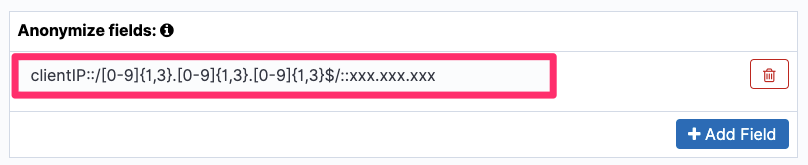
  5. Once you’ve set Index Patterns, Permissions: Action Groups, Document Level Security Query, and Include or exclude fields, you can use the Anonymize fields entry to mask the clientIP, as shown in Figure 4.

    Figure 4: Anonymize field

    Figure 4: Anonymize field

  6. Choose Save Role Definition.
  7. Next, you need to create one or more users and apply the role to the new users. Go back to the Security page and choose Internal User Database, as shown in Figure 5.

    Figure 5: Select Internal User Database

    Figure 5: Select Internal User Database

  8. Choose the plus sign (+) to create a new user, as shown in Figure 6.

    Figure 6: Create user

    Figure 6: Create user

  9. Add a username and password, and under Open Distro Security Roles, select the role es-mask-role, as shown in Figure 7.

    Figure 7: Select the username, password, and roles

    Figure 7: Select the username, password, and roles

  10. Choose Submit.

If you prefer, you can perform the same task by using the Amazon ES REST API using Kibana dev tools.

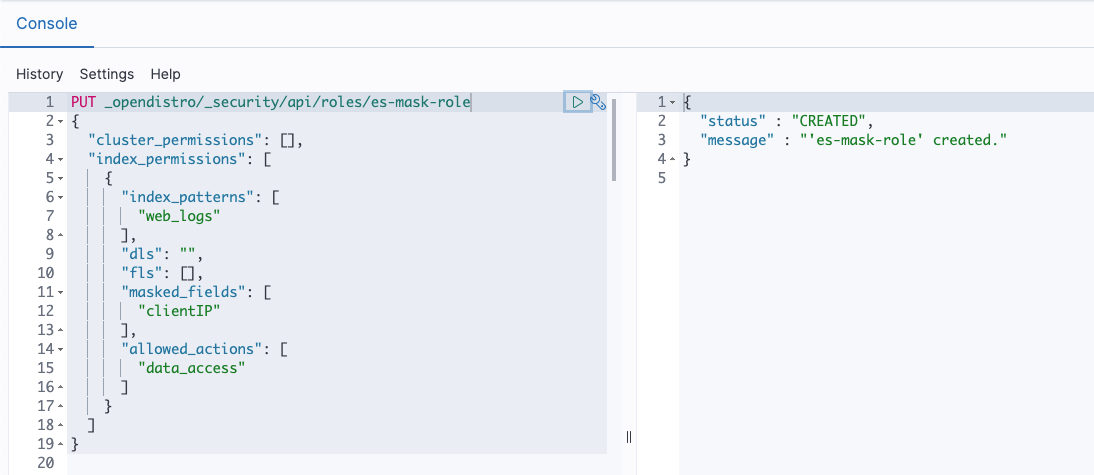
Use the following API to create a role as described in below snippet and shown in Figure 8.

PUT _opendistro/_security/api/roles/es-mask-role
{
  "cluster_permissions": [],
  "index_permissions": [
    {
      "index_patterns": [
        "web_logs"
      ],
      "dls": "",
      "fls": [],
      "masked_fields": [
        "clientIP"
      ],
      "allowed_actions": [
        "data_access"
      ]
    }
  ]
}

Sample response:

{
  "status": "CREATED",
  "message": "'es-mask-role' created."
}
Figure 8: API to create Role

Figure 8: API to create Role

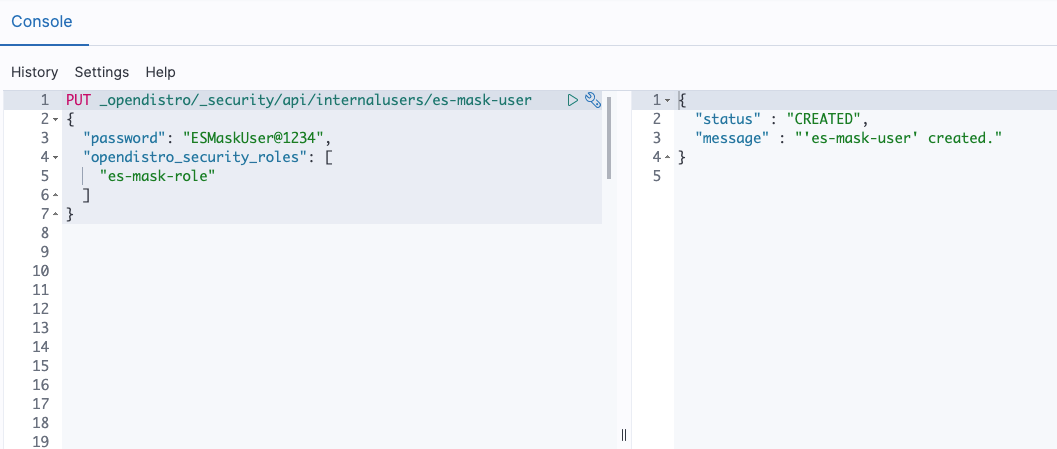
Use the following API to create a user with the role as described in below snippet and shown in Figure 9.

PUT _opendistro/_security/api/internalusers/es-mask-user
{
  "password": "xxxxxxxxxxx",
  "opendistro_security_roles": [
    "es-mask-role"
  ]
}

Sample response:

{
  "status": "CREATED",
  "message": "'es-mask-user' created."
}
Figure 9: API to create User

Figure 9: API to create User

Verify field masking

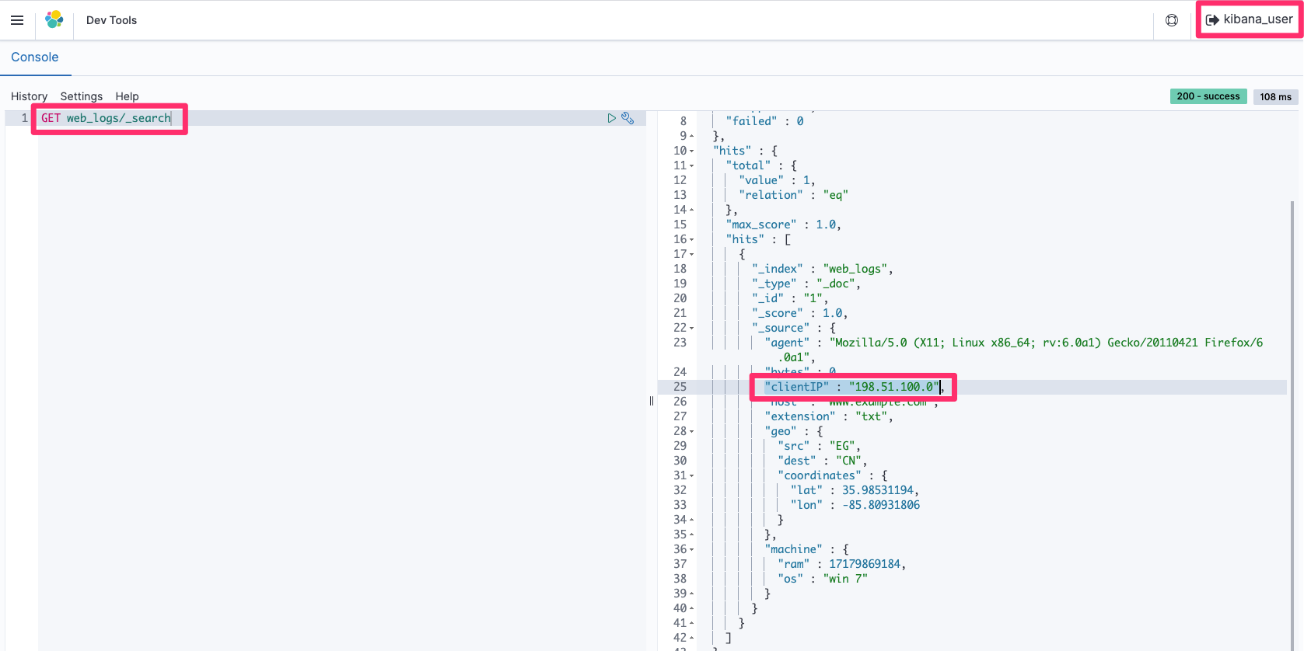
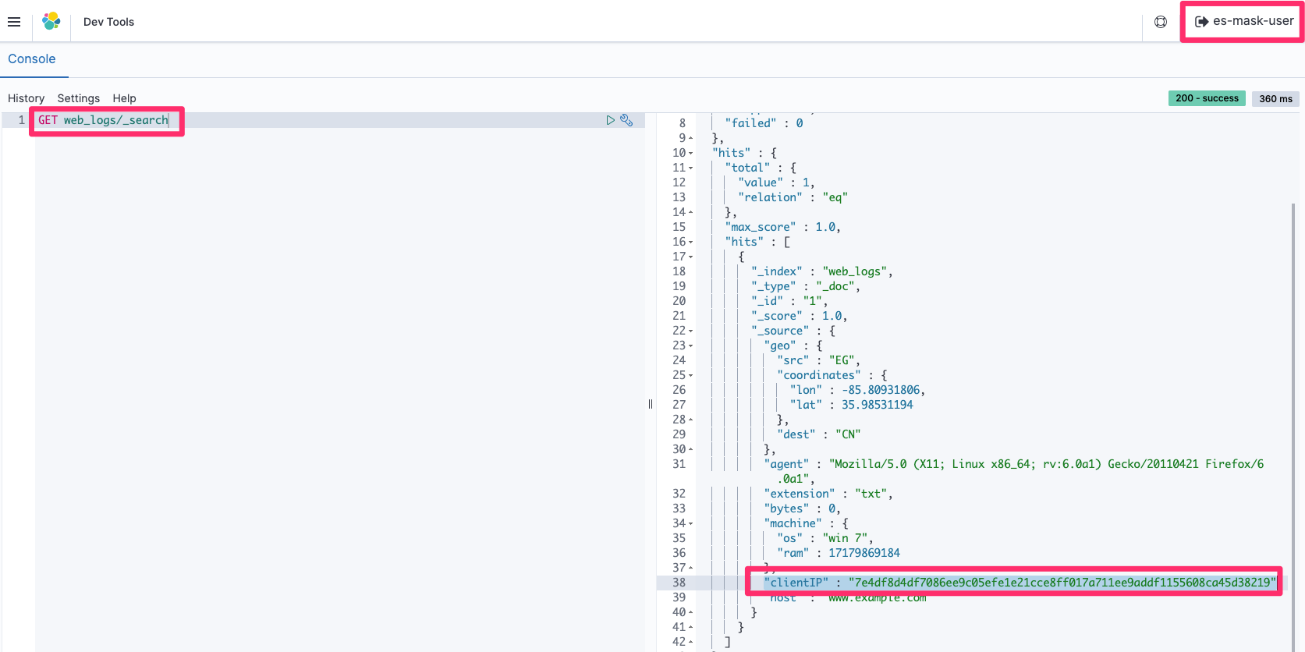
You can verify field masking by running a simple search query using Kibana dev tools (GET web_logs/_search) and retrieving the data first by using the kibana_user (with no field masking), and then by using the es-mask-user (with field masking) you just created.

Query responses run by the kibana_user (all access) have the original values in all fields, as shown in Figure 10.

Figure 10: Retrieval of the full clientIP data with kibana_user

Figure 10: Retrieval of the full clientIP data with kibana_user

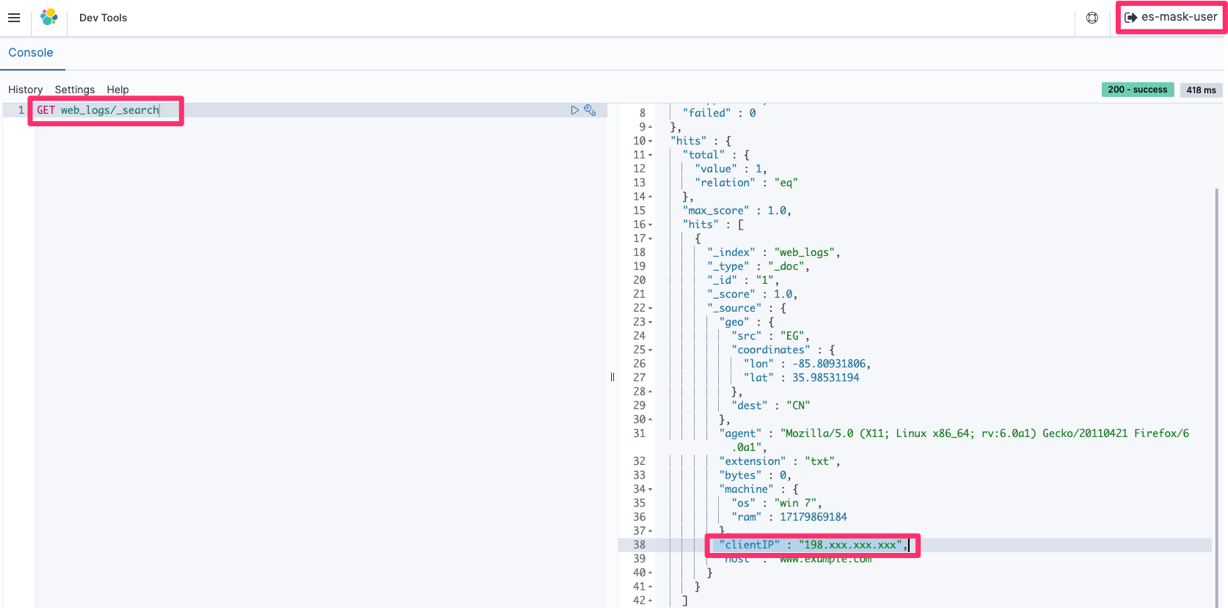
Figure 11, following, shows an example of what you would see if you logged in as the es-mask-user. In this case, the clientIP field is hidden due to the es-mask-role you created.

Figure 11: Retrieval of the masked clientIP data with es-mask-user

Figure 11: Retrieval of the masked clientIP data with es-mask-user

Use pattern-based field masking

Rather than creating a hash, you can use one or more regular expressions and replacement strings to mask a field. The syntax is <field>::/<regular-expression>/::<replacement-string>.

You can use either the Kibana console or direct-to-API calls to set up pattern-based field masking. In the following example, clientIP is masked in such a way that the last three parts of the IP address are masked by xxx using the pattern is clientIP::/[0-9]{1,3}.[0-9]{1,3}.[0-9]{1,3}$/::xxx.xxx.xxx>. You see only the first part of the IP address, as shown in Figure 12.

Figure 12: Anonymize the field with a pattern

Figure 12: Anonymize the field with a pattern

Run the search query to verify that the last three parts of clientIP are masked by custom characters and only the first part is shown to the requester, as shown in Figure 13.

Figure 13: Retrieval of the masked clientIP (according to the defined pattern) with es-mask-user

Figure 13: Retrieval of the masked clientIP (according to the defined pattern) with es-mask-user

Conclusion

Field level security should be the primary approach for ensuring data access security – however if there are specific business requirements that cannot be met with this approach, then field masking may offer a viable alternative. By using field masking, you can selectively allow or prevent your users from seeing private information such as personally identifying information (PII) or personal healthcare information (PHI). For more information about fine-grained access control, see the Amazon Elasticsearch Service Developer Guide.

If you have feedback about this post, submit comments in the Comments section below. If you have questions about this post, start a new thread on the Amazon Elasticsearch Service forum or contact AWS Support.

Want more AWS Security how-to content, news, and feature announcements? Follow us on Twitter.

Author

Prashant Agrawal

Prashant is a Search Specialist Solutions Architect with Amazon Elasticsearch Service. He works closely with team members to help customers migrate their workloads to the cloud. Before joining AWS, he helped various customers use Elasticsearch for their search and analytics use cases.

Use AWS Secrets Manager to simplify the management of private certificates

Post Syndicated from Maitreya Ranganath original https://aws.amazon.com/blogs/security/use-aws-secrets-manager-to-simplify-the-management-of-private-certificates/

AWS Certificate Manager (ACM) lets you easily provision, manage, and deploy public and private Secure Sockets Layer/Transport Layer Security (SSL/TLS) certificates for use with Amazon Web Services (AWS) services and your internal connected resources. For private certificates, AWS Certificate Manager Private Certificate Authority (ACM PCA) can be used to create private CA hierarchies, including root and subordinate CAs, without the investment and maintenance costs of operating an on-premises CA. With these CAs, you can issue custom end-entity certificates or use the ACM defaults.

When you manage the lifecycle of certificates, it’s important to follow best practices. You can think of a certificate as an identity of a service you’re connecting to. You have to ensure that these identities are secure and up to date, ideally with the least amount of manual intervention. AWS Secrets Manager provides a mechanism for managing certificates, and other secrets, at scale. Specifically, you can configure secrets to automatically rotate on a scheduled basis by using pre-built or custom AWS Lambda functions, encrypt them by using AWS Key Management Service (AWS KMS) keys, and automatically retrieve or distribute them for use in applications and services across an AWS environment. This reduces the overhead of manually managing the deployment, creation, and secure storage of these certificates.

In this post, you’ll learn how to use Secrets Manager to manage and distribute certificates created by ACM PCA across AWS Regions and accounts.

We present two use cases in this blog post to demonstrate the difference between issuing private certificates with ACM and with ACM PCA. For the first use case, you will create a certificate by using the ACM defaults for private certificates. You will then deploy the ACM default certificate to an Amazon Elastic Compute Cloud (Amazon EC2) instance that is launched in the same account as the secret and private CA. In the second scenario, you will create a custom certificate by using ACM PCA templates and parameters. This custom certificate will be deployed to an EC2 instance in a different account to demonstrate cross-account sharing of secrets.

Solution overview

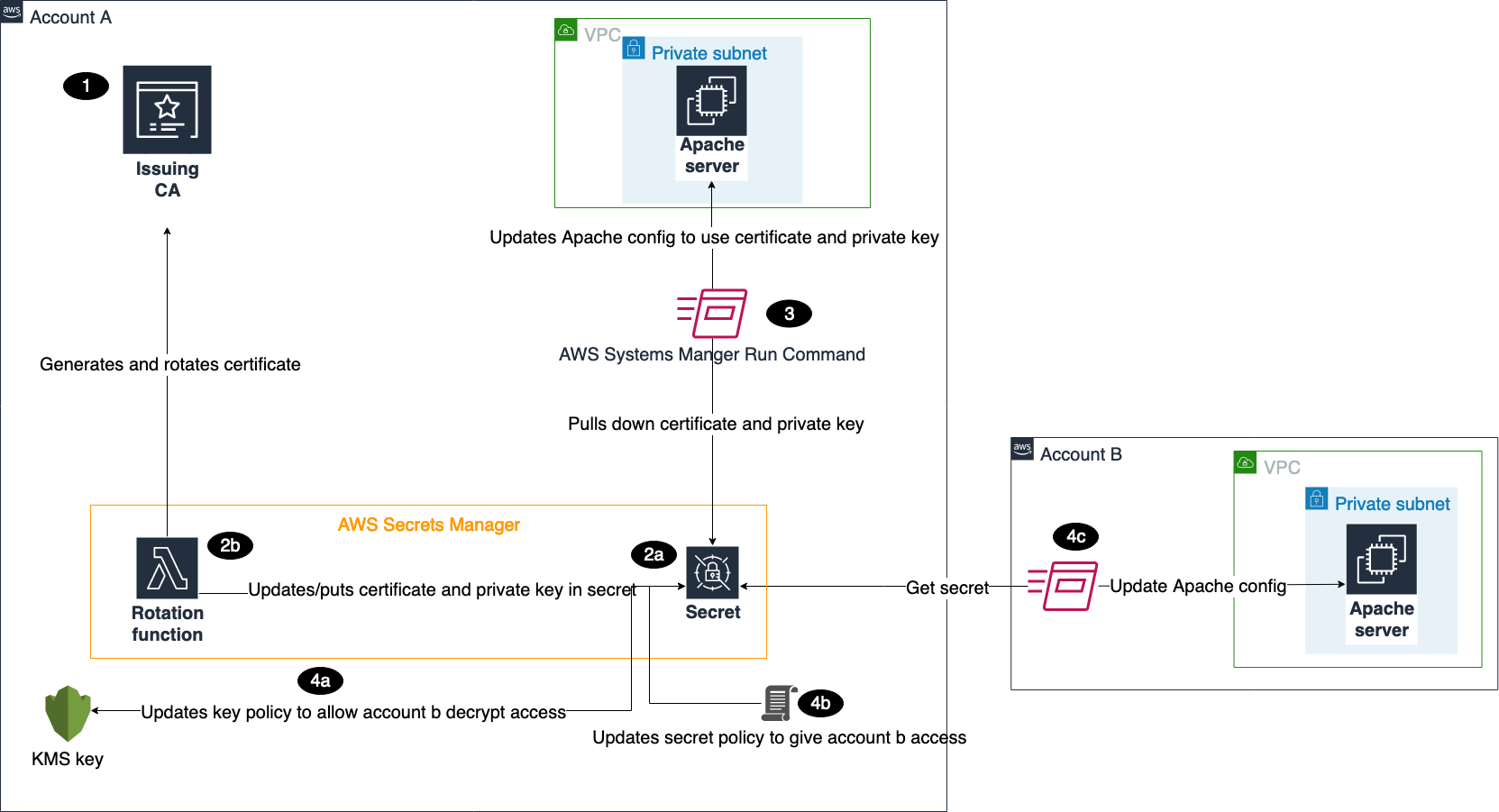
Figure 1 shows the architecture of our solution.

Figure 1: Solution architecture

Figure 1: Solution architecture

This architecture includes resources that you will create during the blog walkthrough and by using AWS CloudFormation templates. This architecture outlines how these services can be used in a multi-account environment. As shown in the diagram:

  1. You create a certificate authority (CA) in ACM PCA to generate end-entity certificates.
  2. In the account where the issuing CA was created, you create secrets in Secrets Manager.
    1. There are several required parameters that you must provide when creating secrets, based on whether you want to create an ACM or ACM PCA issued certificate. These parameters will be passed to our Lambda function to make sure that the certificate is generated and stored properly.
    2. The Lambda rotation function created by the CloudFormation template is attached when configuring secrets rotation. Initially, the function generates two Privacy-Enhanced Mail (PEM) encoded files containing the certificate and private key, based on the provided parameters, and stores those in the secret. Subsequent calls to the function are made when the secret needs to be rotated, and then the function stores the resulting Certificate PEM and Private Key PEM in the desired secret. The function is written using Python, the AWS SDK for Python (Boto3), and OpenSSL. The flow of the function follows the requirements for rotating secrets in Secrets Manager.
  3. The first CloudFormation template creates a Systems Manager Run Command document that can be invoked to install the certificate and private key from the secret on an Apache Server running on EC2 in Account A.
  4. The second CloudFormation template deploys the same Run Command document and EC2 environment in Account B.
    1. To make sure that the account has the ability to pull down the certificate and private key from Secrets Manager, you need to update the key policy in Account A to give Account B access to decrypt the secret.
    2. You also need to add a resource-based policy to the secret that gives Account B access to retrieve the secret from Account A.
    3. Once the proper access is set up in Account A, you can use the Run Command document to install the certificate and private key on the Apache Server.

In a multi-account scenario, it’s common to have a central or shared AWS account that owns the ACM PCA resource, while workloads that are deployed in other AWS accounts use certificates issued by the ACM PCA. This can be achieved in two ways:

  1. Secrets in Secrets Manager can be shared with other AWS accounts by using resource-based policies. Once shared, the secrets can be deployed to resources, such as EC2 instances.
  2. You can share the central ACM PCA with other AWS accounts by using AWS Resource Access Manager or ACM PCA resource-based policies. These two options allow the receiving AWS account or accounts to issue private certificates by using the shared ACM PCA. These issued certificates can then use Secrets Manager to manage the secret in the child account and leverage features like rotation.

We will focus on first case for sharing secrets.

Solution cost

The cost for running this solution comes from the following services:

  • AWS Certificate Manager Private Certificate Authority (ACM PCA)
    Referring to the pricing page for ACM PCA, this solution incurs a prorated monthly charge of $400 for each CA that is created. A CA can be deleted the same day it’s created, leading to a charge of around $13/day (400 * 12 / 365.25). In addition, there is a cost for issuing certificates using ACM PCA. For the first 1000 certificates, this cost is $0.75. For this demonstration, you only need two certificates, resulting in a total charge of $1.50 for issuing certificates using ACM PCA. In all, the use of ACM PCA in this solution results in a charge of $14.50.
  • Amazon EC2
    The CloudFormation templates create t2.micro instances that cost $0.0116/hour, if they’re not eligible for Free Tier.
  • Secrets Manager
    There is a 30-day free trial for Secrets Manager, which is initiated when the first secret is created. After the free trial has completed, it costs $0.40 per secret stored per month. You will use two secrets for this solution and can schedule these for deletion after seven days, resulting in a prorated charge of $0.20.
  • Lambda
    Lambda has a free usage tier that allows for 1 million free requests per month and 400,000 GB-seconds of compute time per month. This fits within the usage for this blog, making the cost $0.
  • AWS KMS
    A single key created by one of the CloudFormation templates costs $1/month. The first 20,000 requests to AWS KMS are free, which fits within the usage of the test environment. In a production scenario, AWS KMS would charge $0.03 per 10,000 requests involving this key.

There are no charges for Systems Manager Run Command.

See the “Clean up resources” section of this blog post to get information on how to delete the resources that you create for this environment.

Deploy the solution

Now we’ll walk through the steps to deploy the solution. The CloudFormation templates and Lambda function code can be found in the AWS GitHub repository.

Create a CA to issue certificates

First, you’ll create an ACM PCA to issue private certificates. A common practice we see with customers is using a subordinate CA in AWS that is used to issue end-entity certificates for applications and workloads in the cloud. This subordinate can either point to a root CA in ACM PCA that is maintained by a central team, or to an existing on-premises public key infrastructure (PKI). There are some considerations when creating a CA hierarchy in ACM.

For demonstration purposes, you need to create a CA that can issue end-entity certificates. If you have an existing PKI that you want to use, you can create a subordinate CA that is signed by an external CA that can issue certificates. Otherwise, you can create a root CA and begin building a PKI on AWS. During creation of the CA, make sure that ACM has permissions to automatically renew certificates, because this feature will be used in later steps.

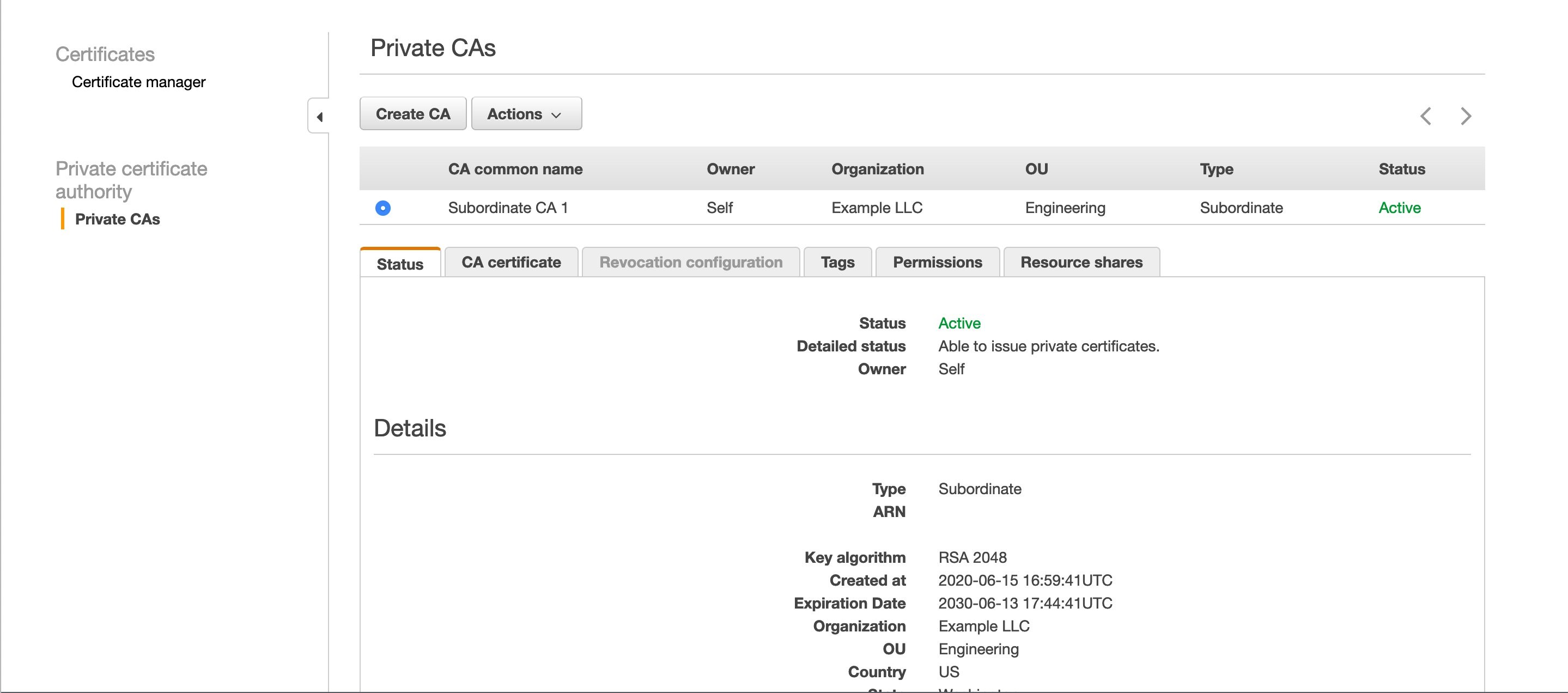
You should have one or more private CAs in the ACM console, as shown in Figure 2.

Figure 2: A private CA in the ACM PCA console

Figure 2: A private CA in the ACM PCA console

You will use two CloudFormation templates for this architecture. The first is launched in the same account where your private CA lives, and the second is launched in a different account. The first template generates the following: a Lambda function used for Secrets Manager rotation, an AWS KMS key to encrypt secrets, and a Systems Manager Run Command document to install the certificate on an Apache Server running on EC2 in Amazon Virtual Private Cloud (Amazon VPC). The second template launches the same Systems Manager Run Command document and EC2 environment.

To deploy the resources for the first template, select the following Launch Stack button. Make sure you’re in the N. Virginia (us-east-1) Region.

Select the Launch Stack button to launch the template

The template takes a few minutes to launch.

Use case #1: Create and deploy an ACM certificate

For the first use case, you’ll create a certificate by using the ACM defaults for private certificates, and then deploy it.

Create a Secrets Manager secret

To begin, create your first secret in Secrets Manager. You will create these secrets in the console to see how the service can be set up and used, but all these actions can be done through the AWS Command Line Interface (AWS CLI) or AWS SDKs.

To create a secret

  1. Navigate to the Secrets Manager console.
  2. Choose Store a new secret.
  3. For the secret type, select Other type of secrets.
  4. The Lambda rotation function has a set of required parameters in the secret type depending on what kind of certificate needs to be generated.For this first secret, you’re going to create an ACM_ISSUED certificate. Provide the following parameters.

    Key Value
    CERTIFICATE_TYPE ACM_ISSUED
    CA_ARN The Amazon Resource Name (ARN) of your certificate-issuing CA in ACM PCA
    COMMON_NAME The end-entity name for your certificate (for example, server1.example)
    ENVIRONMENT TEST (You need this later on to test the renewal of certificates. If using this outside of the blog walkthrough, set it to something like DEV or PROD.)
  5. For Encryption key, select CAKey, and then choose Next.
  6. Give the secret a name and optionally add tags or a description. Choose Next.
  7. Select Enable automatic rotation and choose the Lambda function that starts with <CloudFormation Stack Name>-SecretsRotateFunction. Because you’re creating an ACM-issued certificate, the rotation will be handled 60 days before the certificate expires. The validity is set to 365 days, so any value higher than 305 would work. Choose Next.
  8. Review the configuration, and then choose Store.
  9. This will take you back to a list of your secrets, and you will see your new secret, as shown in Figure 3. Select the new secret.

    Figure 3: The new secret in the Secrets Manager console

    Figure 3: The new secret in the Secrets Manager console

  10. Choose Retrieve secret value to confirm that CERTIFICATE_PEM, PRIVATE_KEY_PEM, CERTIFICATE_CHAIN_PEM, and CERTIFICATE_ARN are set in the secret value.

You now have an ACM-issued certificate that can be deployed to an end entity.

Deploy to an end entity

For testing purposes, you will now deploy the certificate that you just created to an Apache Server.

To deploy the certificate to the Apache Server

  1. In a new tab, navigate to the Systems Manager console.
  2. Choose Documents at the bottom left, and then choose the Owned by me tab.
  3. Choose RunUpdateTLS.
  4. Choose Run command at the top right.
  5. Copy and paste the secret ARN from Secrets Manager and make sure there are no leading or trailing spaces.
  6. Select Choose instances manually, and then choose ApacheServer.
  7. Select CloudWatch output to track progress.
  8. Choose Run.

The certificate and private key are now installed on the server, and it has been restarted.

To verify that the certificate was installed

  1. Navigate to the EC2 console.
  2. In the dashboard, choose Running Instances.
  3. Select ApacheServer, and choose Connect.
  4. Select Session Manager, and choose Connect.
  5. When you’re logged in to the instance, enter the following command.
    openssl s_client -connect localhost:443 | openssl x509 -text -noout
    

    This will display the certificate that the server is using, along with other metadata like the certificate chain and validity period. For the validity period, note the Not Before and Not After dates and times, as shown in figure 4.

    Figure 4: Server certificate

    Figure 4: Server certificate

Now, test the rotation of the certificate manually. In a production scenario, this process would be automated by using maintenance windows. Maintenance windows allow for the least amount of disruption to the applications that are using certificates, because you can determine when the server will update its certificate.

To test the rotation of the certificate

  1. Navigate back to your secret in Secrets Manager.
  2. Choose Rotate secret immediately. Because you set the ENVIRONMENT key to TEST in the secret, this rotation will renew the certificate. When the key isn’t set to TEST, the rotation function pulls down the renewed certificate based on its rotation schedule, because ACM is managing the renewal for you. In a couple of minutes, you’ll receive an email from ACM stating that your certificate was rotated.
  3. Pull the renewed certificate down to the server, following the same steps that you used to deploy the certificate to the Apache Server.
  4. Follow the steps that you used to verify that the certificate was installed to make sure that the validity date and time has changed.

Use case #2: Create and deploy an ACM PCA certificate by using custom templates

Next, use the second CloudFormation template to create a certificate, issued by ACM PCA, which will be deployed to an Apache Server in a different account. Sign in to your other account and select the following Launch Stack button to launch the CloudFormation template.

Select the Launch Stack button to launch the template

This creates the same Run Command document you used previously, as well as the EC2 and Amazon VPC environment running an Apache Server. This template takes in a parameter for the KMS key ARN; this can be found in the first template’s output section, shown in figure 5.

Figure 5: CloudFormation outputs

Figure 5: CloudFormation outputs

While that’s completing, sign in to your original account so that you can create the new secret.

To create the new secret

  1. Follow the same steps you used to create a secret, but change the secret values passed in to the following.

    Key Value
    CA_ARN The ARN of your certificate-issuing CA in ACM PCA
    COMMON_NAME You can use any name you want, such as server2.example
    TEMPLATE_ARN

    For testing purposes, use arn:aws:acm-pca:::template/EndEntityCertificate/V1

    This template ARN determines what type of certificate is being created and your desired path length. For more information, see Understanding Certificate Templates.

    KEY_ALGORITHM TYPE_RSA
    (You can also use TYPE_DSA)
    KEY_SIZE 2048
    (You can also use 1024 or 4096)
    SIGNING_HASH sha256
    (You can also use sha384 or sha512)
    SIGNING_ALGORITHM RSA
    (You can also use ECDSA if the key type for your issuing CA is set to ECDSA P256 or ECDSA P384)
    CERTIFICATE_TYPE ACM_PCA_ISSUED
  2. Add the following resource policy during the name and description step. This gives your other account access to pull this secret down to install the certificate on its Apache Server.
    {
      "Version" : "2012-10-17",
      "Statement" : [ {
        "Effect" : "Allow",
        "Principal" : {
          "AWS" : "<ARN in output of second CloudFormation Template>"
        },
        "Action" : "secretsmanager:GetSecretValue",
        "Resource" : "*"
      } ]
    }
    

  3. Finish creating the secret.

After the secret has been created, the last thing you need to do is add permissions to the KMS key policy so that your other account can decrypt the secret when installing the certificate on your server.

To add AWS KMS permissions

  1. Navigate to the AWS KMS console, and choose CAKey.
  2. Next to the key policy name, choose Edit.
  3. For the Statement ID (SID) Allow use of the key, add the ARN of the EC2 instance role in the other account. This can be found in the CloudFormation templates as an output called ApacheServerInstanceRole, as shown in Figure 5. The Statement should look something like this:
    {
                "Sid": "Allow use of the key",
                "Effect": "Allow",
                "Principal": {
                    "AWS": [
                        "arn:aws:iam::<AccountID with CA>:role/<Apache Server Instance Role>",
                        "arn:aws:iam:<Second AccountID>:role/<Apache Server Instance Role>"
                    ]
                },
                "Action": [
                    "kms:Encrypt",
                    "kms:Decrypt",
                    "kms:ReEncrypt*",
                    "kms:GenerateDataKey*",
                    "kms:DescribeKey"
                ],
                "Resource": "*"
    }
    

Your second account now has permissions to pull down the secret and certificate to the Apache Server. Follow the same steps described in the earlier section, “Deploy to an end entity.” Test rotating the secret the same way, and make sure the validity period has changed. You may notice that you didn’t get an email notifying you of renewal. This is because the certificate isn’t issued by ACM.

In this demonstration, you may have noticed you didn’t create resources that pull down the secret in different Regions, just in different accounts. If you want to deploy certificates in different Regions from the one where you create the secret, the process is exactly the same as what we described here. You don’t need to do anything else to accomplish provisioning and deploying in different Regions.

Clean up resources

Finally, delete the resources you created in the earlier steps, in order to avoid additional charges described in the section, “Solution cost.”

To delete all the resources created:

  1. Navigate to the CloudFormation console in both accounts, and select the stack that you created.
  2. Choose Actions, and then choose Delete Stack. This will take a few minutes to complete.
  3. Navigate to the Secrets Manager console in the CA account, and select the secrets you created.
  4. Choose Actions, and then choose Delete secret. This won’t automatically delete the secret, because you need to set a waiting period that allows for the secret to be restored, if needed. The minimum time is 7 days.
  5. Navigate to the Certificate Manager console in the CA account.
  6. Select the certificates that were created as part of this blog walkthrough, choose Actions, and then choose Delete.
  7. Choose Private CAs.
  8. Select the subordinate CA you created at the beginning of this process, choose Actions, and then choose Disable.
  9. After the CA is disabled, choose Actions, and then Delete. Similar to the secrets, this doesn’t automatically delete the CA but marks it for deletion, and the CA can be recovered during the specified period. The minimum waiting period is also 7 days.

Conclusion

In this blog post, we demonstrated how you could use Secrets Manager to rotate, store, and distribute private certificates issued by ACM and ACM PCA to end entities. Secrets Manager uses AWS KMS to secure these secrets during storage and delivery. You can introduce additional automation for deploying the certificates by using Systems Manager Maintenance Windows. This allows you to define a schedule for when to deploy potentially disruptive changes to EC2 instances.

If you have feedback about this post, submit comments in the Comments section below. If you have questions about this post, start a new thread on the AWS Secrets Manager forum or contact AWS Support.

Want more AWS Security how-to content, news, and feature announcements? Follow us on Twitter.

Author

Maitreya Ranganath

Maitreya is an AWS Security Solutions Architect. He enjoys helping customers solve security and compliance challenges and architect scalable and cost-effective solutions on AWS.

Author

Blake Franzen

Blake is a Security Solutions Architect with AWS in Seattle. His passion is driving customers to a more secure AWS environment while ensuring they can innovate and move fast. Outside of work, he is an avid movie buff and enjoys recreational sports.

re:Invent – New security sessions launching soon

Post Syndicated from Marta Taggart original https://aws.amazon.com/blogs/security/reinvent-new-security-sessions-launching-soon/

Where did the last month go? Were you able to catch all of the sessions in the Security, Identity, and Compliance track you hoped to see at AWS re:Invent? If you missed any, don’t worry—you can stream all the sessions released in 2020 via the AWS re:Invent website. Additionally, we’re starting 2021 with all new sessions that you can stream live January 12–15. Here are the new Security, Identity, and Compliance sessions—each session is offered at multiple times, so you can find the time that works best for your location and schedule.

Protecting sensitive data with Amazon Macie and Amazon GuardDuty – SEC210
Himanshu Verma, AWS Speaker

Tuesday, January 12 – 11:00 AM to 11:30 AM PST
Tuesday, January 12 – 7:00 PM to 7:30 PM PST
Wednesday, January 13 – 3:00 AM to 3:30 AM PST

As organizations manage growing volumes of data, identifying and protecting your sensitive data can become increasingly complex, expensive, and time-consuming. In this session, learn how Amazon Macie and Amazon GuardDuty together provide protection for your data stored in Amazon S3. Amazon Macie automates the discovery of sensitive data at scale and lowers the cost of protecting your data. Amazon GuardDuty continuously monitors and profiles S3 data access events and configurations to detect suspicious activities. Come learn about these security services and how to best use them for protecting data in your environment.

BBC: Driving security best practices in a decentralized organization – SEC211
Apurv Awasthi, AWS Speaker
Andrew Carlson, Sr. Software Engineer – BBC

Tuesday, January 12 – 1:15 PM to 1:45 PM PST
Tuesday, January 12 – 9:15 PM to 9:45 PM PST
Wednesday, January 13 – 5:15 AM to 5:45 AM PST

In this session, Andrew Carlson, engineer at BBC, talks about BBC’s journey while adopting AWS Secrets Manager for lifecycle management of its arbitrary credentials such as database passwords, API keys, and third-party keys. He provides insight on BBC’s secrets management best practices and how the company drives these at enterprise scale in a decentralized environment that has a highly visible scope of impact.

Get ahead of the curve with DDoS Response Team escalations – SEC321
Fola Bolodeoku, AWS Speaker

Tuesday, January 12 – 3:30 PM to 4:00 PM PST
Tuesday, January 12 – 11:30 PM to 12:00 AM PST
Wednesday, January – 7:30 AM to 8:00 AM PST

This session identifies tools and tricks that you can use to prepare for application security escalations, with lessons learned provided by the AWS DDoS Response Team. You learn how AWS customers have used different AWS offerings to protect their applications, including network access control lists, security groups, and AWS WAF. You also learn how to avoid common misconfigurations and mishaps observed by the DDoS Response Team, and you discover simple yet effective actions that you can take to better protect your applications’ availability and security controls.

Network security for serverless workloads – SEC322
Alex Tomic, AWS Speaker

Thursday, January 14 -1:30 PM to 2:00 PM PST
Thursday, January 14 – 9:30 PM to 10:00 PM PST
Friday, January 15 – 5:30 AM to 6:00 AM PST

Are you building a serverless application using services like Amazon API Gateway, AWS Lambda, Amazon DynamoDB, Amazon Aurora, and Amazon SQS? Would you like to apply enterprise network security to these AWS services? This session covers how network security concepts like encryption, firewalls, and traffic monitoring can be applied to a well-architected AWS serverless architecture.

Building your cloud incident response program – SEC323
Freddy Kasprzykowski, AWS Speaker

Wednesday, January 13 – 9:00 AM to 9:30 AM PST
Wednesday, January 13 – 5:00 PM to 5:30 PM PST
Thursday, January 14 – 1:00 AM to 1:30 AM PST

You’ve configured your detection services and now you’ve received your first alert. This session provides patterns that help you understand what capabilities you need to build and run an effective incident response program in the cloud. It includes a review of some logs to see what they tell you and a discussion of tools to analyze those logs. You learn how to make sure that your team has the right access, how automation can help, and which incident response frameworks can guide you.

Beyond authentication: Guide to secure Amazon Cognito applications – SEC324
Mahmoud Matouk, AWS Speaker

Wednesday, January 13 – 2:15 PM to 2:45 PM PST
Wednesday, January 13 – 10:15 PM to 10:45 PM PST
Thursday, January 14 – 6:15 AM to 6:45 AM PST

Amazon Cognito is a flexible user directory that can meet the needs of a number of customer identity management use cases. Web and mobile applications can integrate with Amazon Cognito in minutes to offer user authentication and get standard tokens to be used in token-based authorization scenarios. This session covers best practices that you can implement in your application to secure and protect tokens. You also learn about new Amazon Cognito features that give you more options to improve the security and availability of your application.

Event-driven data security using Amazon Macie – SEC325
Neha Joshi, AWS Speaker

Thursday, January 14 – 8:00 AM to 8:30 AM PST
Thursday, January 14 – 4:00 PM to 4:30 PM PST
Friday, January 15 – 12:00 AM to 12:30 AM PST

Amazon Macie sensitive data discovery jobs for Amazon S3 buckets help you discover sensitive data such as personally identifiable information (PII), financial information, account credentials, and workload-specific sensitive information. In this session, you learn about an automated approach to discover sensitive information whenever changes are made to the objects in your S3 buckets.

Instance containment techniques for effective incident response – SEC327
Jonathon Poling, AWS Speaker

Thursday, January 14 – 10:15 AM to 10:45 AM PST
Thursday, January 14 – 6:15 PM to 6:45 PM PST
Friday, January 15 – 2:15 AM to 2:45 AM PST

In this session, learn about several instance containment and isolation techniques, ranging from simple and effective to more complex and powerful, that leverage native AWS networking services and account configuration techniques. If an incident happens, you may have questions like “How do we isolate the system while preserving all the valuable artifacts?” and “What options do we even have?”. These are valid questions, but there are more important ones to discuss amidst a (possible) incident. Join this session to learn highly effective instance containment techniques in a crawl-walk-run approach that also facilitates preservation and collection of valuable artifacts and intelligence.

Trusted connects for government workloads – SEC402
Brad Dispensa, AWS Speaker

Wednesday, January 13 – 11:15 AM to 11:45 AM PST
Wednesday, January 13 – 7:15 PM to 7:45 PM PST
Thursday, January 14 – 3:15 AM to 3:45 AM PST

Cloud adoption across the public sector is making it easier to provide government workforces with seamless access to applications and data. With this move to the cloud, we also need updated security guidance to ensure public-sector data remain secure. For example, the TIC (Trusted Internet Connections) initiative has been a requirement for US federal agencies for some time. The recent TIC-3 moves from prescriptive guidance to an outcomes-based model. This session walks you through how to leverage AWS features to better protect public-sector data using TIC-3 and the National Institute of Standards and Technology (NIST) Cybersecurity Framework (CSF). Also, learn how this might map into other geographies.

I look forward to seeing you in these sessions. Please see the re:Invent agenda for more details and to build your schedule.

If you have feedback about this post, submit comments in the Comments section below.

Want more AWS Security how-to content, news, and feature announcements? Follow us on Twitter.
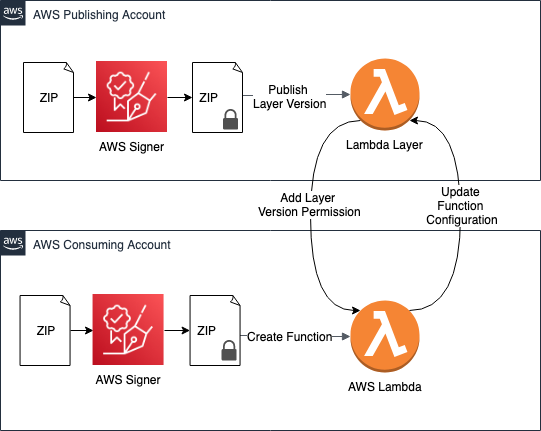
Author

Marta Taggart

Marta is a Seattle-native and Senior Program Manager in AWS Security, where she focuses on privacy, content development, and educational programs. Her interest in education stems from two years she spent in the education sector while serving in the Peace Corps in Romania. In her free time, she’s on a global hunt for the perfect cup of coffee.

Deploy an automated ChatOps solution for remediating Amazon Macie findings

Post Syndicated from Nick Cuneo original https://aws.amazon.com/blogs/security/deploy-an-automated-chatops-solution-for-remediating-amazon-macie-findings/

The amount of data being collected, stored, and processed by Amazon Web Services (AWS) customers is growing at an exponential rate. In order to keep pace with this growth, customers are turning to scalable cloud storage services like Amazon Simple Storage Service (Amazon S3) to build data lakes at the petabyte scale. Customers are looking for new, automated, and scalable ways to address their data security and compliance requirements, including the need to identify and protect their sensitive data. Amazon Macie helps customers address this need by offering a managed data security and data privacy service that uses machine learning and pattern matching to discover and protect your sensitive data that is stored in Amazon S3.

In this blog post, I show you how to deploy a solution that establishes an automated event-driven workflow for notification and remediation of sensitive data findings from Macie. Administrators can review and approve remediation of findings through a ChatOps-style integration with Slack. Slack is a business communication tool that provides messaging functionality, including persistent chat rooms known as channels. With this solution, you can streamline the notification, investigation, and remediation of sensitive data findings in your AWS environment.

Prerequisites

Before you deploy the solution, make sure that your environment is set up with the following prerequisites:

Important: This solution uses various AWS services, and there are costs associated with these resources after the Free Tier usage. See the AWS pricing page for details.

Solution overview

The solution architecture and workflow are detailed in Figure 1.

Figure 1: Solution overview

Figure 1: Solution overview

This solution allows for the configuration of auto-remediation behavior based on finding type and finding severity. For each finding type, you can define whether you want the offending S3 object to be automatically quarantined, or whether you want the finding details to be reviewed and approved by a human in Slack prior to being quarantined. In a similar manner, you can define the minimum severity level (Low, Medium, High) that a finding must have before the solution will take action. By adjusting these parameters, you can manage false positives and tune the volume and type of findings about which you want to be notified and take action. This configurability is important because customers have different security, risk, and regulatory requirements.

Figure 1 details the services used in the solution and the integration points between them. Let’s walk through the full sequence from the detection of sensitive data to the remediation (quarantine) of the offending object.

  1. Macie is configured with sensitive data discovery jobs (scheduled or one-time), which you create and run to detect sensitive data within S3 buckets. When Macie runs a job, it uses a combination of criteria and techniques to analyze objects in S3 buckets that you specify. For a full list of the categories of sensitive data Macie can detect, see the Amazon Macie User Guide.
  2. For each sensitive data finding, an event is sent to Amazon EventBridge that contains the finding details. An EventBridge rule triggers a Lambda function for processing.
  3. The Finding Handler Lambda function parses the event and examines the type of the finding. Based on the auto-remediation configuration, the function either invokes the Finding Remediator function for immediate remediation, or sends the finding details for manual review and remediation approval through Slack.
  4. Delegated security and compliance administrators monitor the configured Slack channel for notifications. Notifications provide high-level finding information, remediation status, and a link to the Macie console for the finding in question. For findings configured for manual review, administrators can choose to approve the remediation in Slack by using an action button on the notification.
  5. After an administrator chooses the Remediate button, Slack issues an API call to an Amazon API Gateway endpoint, supplying both the unique identifier of the finding to be remediated and that of the Slack user. API Gateway proxies the request to a Remediation Handler Lambda function.
  6. The Remediation Handler Lambda function validates the request and request signature, extracts the offending object’s location from the finding, and makes an asynchronous call to the Finding Remediator Lambda function.
  7. The Finding Remediator Lambda function moves the offending object from the source bucket to a designated S3 quarantine bucket with restricted access.
  8. Finally, the Finding Remediator Lambda function uses a callback URL to update the original finding notification in Slack, indicating that the offending object has now been quarantined.

Deploy the solution

Now we’ll walk through the steps for configuring Slack and deploying the solution into your AWS environment by using the AWS CDK. The AWS CDK is a software development framework that you can use to define cloud infrastructure in code and provision through AWS CloudFormation.

The deployment steps can be summarized as follows:

  1. Configure a Slack channel and app
  2. Check the project out from GitHub
  3. Set the configuration parameters
  4. Build and deploy the solution
  5. Configure Slack with an API Gateway endpoint

To configure a Slack channel and app

  1. In your browser, make sure you’re logged into the Slack workspace where you want to integrate the solution.
  2. Create a new channel where you will send the notifications, as follows:
    1. Choose the + icon next to the Channels menu, and select Create a channel.
    2. Give your channel a name, for example macie-findings, and make sure you turn on the Make private setting.

      Important: By providing Slack users with access to this configured channel, you’re providing implicit access to review Macie finding details and approve remediations. To avoid unwanted user access, it’s strongly recommended that you make this channel private and by invite only.

  3. On your Apps page, create a new app by selecting Create New App, and then enter the following information:
    1. For App Name, enter a name of your choosing, for example MacieRemediator.
    2. Select your chosen development Slack workspace that you logged into in step 1.
    3. Choose Create App.
    Figure 2: Create a Slack app

    Figure 2: Create a Slack app

  4. You will then see the Basic Information page for your app. Scroll down to the App Credentials section, and note down the Signing Secret. This secret will be used by the Lambda function that handles all remediation requests from Slack. The function uses the secret with Hash-based Message Authentication Code (HMAC) authentication to validate that requests to the solution are legitimate and originated from your trusted Slack channel.

    Figure 3: Signing secret

    Figure 3: Signing secret

  5. Scroll back to the top of the Basic Information page, and under Add features and functionality, select the Incoming Webhooks tile. Turn on the Activate Incoming Webhooks setting.
  6. At the bottom of the page, choose Add New Webhook to Workspace.
    1. Select the macie-findings channel you created in step 2, and choose Allow.
    2. You should now see webhook URL details under Webhook URLs for Your Workspace. Use the Copy button to note down the URL, which you will need later.

      Figure 4: Webhook URL

      Figure 4: Webhook URL

To check the project out from GitHub

The solution source is available on GitHub in AWS Samples. Clone the project to your local machine or download and extract the available zip file.

To set the configuration parameters

In the root directory of the project you’ve just cloned, there’s a file named cdk.json. This file contains configuration parameters to allow integration with the macie-findings channel you created earlier, and also to allow you to control the auto-remediation behavior of the solution. Open this file and make sure that you review and update the following parameters:

  • autoRemediateConfig – This nested attribute allows you to specify for each sensitive data finding type whether you want to automatically remediate and quarantine the offending object, or first send the finding to Slack for human review and authorization. Note that you will still be notified through Slack that auto-remediation has taken place if this attribute is set to AUTO. Valid values are either AUTO or REVIEW. You can use the default values.
  • minSeverityLevel – Macie assigns all findings a Severity level. With this parameter, you can define a minimum severity level that must be met before the solution will trigger action. For example, if the parameter is set to MEDIUM, the solution won’t take any action or send any notifications when a finding has a LOW severity, but will take action when a finding is classified as MEDIUM or HIGH. Valid values are: LOW, MEDIUM, and HIGH. The default value is set to LOW.
  • slackChannel – The name of the Slack channel you created earlier (macie-findings).
  • slackWebHookUrl – For this parameter, enter the webhook URL that you noted down during Slack app setup in the “Configure a Slack channel and app” step.
  • slackSigningSecret – For this parameter, enter the signing secret that you noted down during Slack app setup.

Save your changes to the configuration file.

To build and deploy the solution

  1. From the command line, make sure that your current working directory is the root directory of the project that you cloned earlier. Run the following commands:
    • npm install – Installs all Node.js dependencies.
    • npm run build – Compiles the CDK TypeScript source.
    • cdk bootstrap – Initializes the CDK environment in your AWS account and Region, as shown in Figure 5.

      Figure 5: CDK bootstrap output

      Figure 5: CDK bootstrap output

    • cdk deploy – Generates a CloudFormation template and deploys the solution resources.

    The resources created can be reviewed in the CloudFormation console and can be summarized as follows:

    • Lambda functions – Finding Handler, Remediation Handler, and Remediator
    • IAM execution roles and associated policy – The roles and policy associated with each Lambda function and the API Gateway
    • S3 bucket – The quarantine S3 bucket
    • EventBridge rule – The rule that triggers the Lambda function for Macie sensitive data findings
    • API Gateway – A single remediation API with proxy integration to the Lambda handler
  2. After you run the deploy command, you’ll be prompted to review the IAM resources deployed as part of the solution. Press y to continue.
  3. Once the deployment is complete, you’ll be presented with an output parameter, shown in Figure 6, which is the endpoint for the API Gateway that was deployed as part of the solution. Copy this URL.

    Figure 6: CDK deploy output

    Figure 6: CDK deploy output

To configure Slack with the API Gateway endpoint

  1. Open Slack and return to the Basic Information page for the Slack app you created earlier.
  2. Under Add features and functionality, select the Interactive Components tile.
  3. Turn on the Interactivity setting.
  4. In the Request URL box, enter the API Gateway endpoint URL you copied earlier.
  5. Choose Save Changes.

    Figure 7: Slack app interactivity

    Figure 7: Slack app interactivity

Now that you have the solution components deployed and Slack configured, it’s time to test things out.

Test the solution

The testing steps can be summarized as follows:

  1. Upload dummy files to S3
  2. Run the Macie sensitive data discovery job
  3. Review and act upon Slack notifications
  4. Confirm that S3 objects are quarantined

To upload dummy files to S3

Two sample text files containing dummy financial and personal data are available in the project you cloned from GitHub. If you haven’t changed the default auto-remediation configurations, these two files will exercise both the auto-remediation and manual remediation review flows.

Find the files under sensitive-data-samples/dummy-financial-data.txt and sensitive-data-samples/dummy-personal-data.txt. Take these two files and upload them to S3 by using either the console, as shown in Figure 8, or AWS CLI. You can choose to use any new or existing bucket, but make sure that the bucket is in the same AWS account and Region that was used to deploy the solution.

Figure 8: Dummy files uploaded to S3

Figure 8: Dummy files uploaded to S3

To run a Macie sensitive data discovery job

  1. Navigate to the Amazon Macie console, and make sure that your selected Region is the same as the one that was used to deploy the solution.
    1. If this is your first time using Macie, choose the Get Started button, and then choose Enable Macie.
  2. On the Macie Summary dashboard, you will see a Create Job button at the top right. Choose this button to launch the Job creation wizard. Configure each step as follows:
    1. Select S3 buckets: Select the bucket where you uploaded the dummy sensitive data file. Choose Next.
    2. Review S3 buckets: No changes are required, choose Next.
    3. Scope: For Job type, choose One-time job. Make sure Sampling depth is set to 100%. Choose Next.
    4. Custom data identifiers: No changes are required, choose Next.
    5. Name and description: For Job name, enter any name you like, such as Dummy job, and then choose Next.
    6. Review and create: Review your settings; they should look like the following sample. Choose Submit.
Figure 9: Configure the Macie sensitive data discovery job

Figure 9: Configure the Macie sensitive data discovery job

Macie will launch the sensitive data discovery job. You can track its status from the Jobs page within the Macie console.

To review and take action on Slack notifications

Within five minutes of submitting the data discovery job, you should expect to see two notifications appear in your configured Slack channel. One notification, similar to the one in Figure 10, is informational only and is related to an auto-remediation action that has taken place.

Figure 10: Slack notification of auto-remediation for the file containing dummy financial data

Figure 10: Slack notification of auto-remediation for the file containing dummy financial data

The other notification, similar to the one in Figure 11, requires end user action and is for a finding that requires administrator review. All notifications will display key information such as the offending S3 object, a description of the finding, the finding severity, and other relevant metadata.

Figure 11: Slack notification for human review of the file containing dummy personal data

Figure 11: Slack notification for human review of the file containing dummy personal data

(Optional) You can review the finding details by choosing the View Macie Finding in Console link in the notification.

In the Slack notification, choose the Remediate button to quarantine the object. The notification will be updated with confirmation of the quarantine action, as shown in Figure 12.

Figure 12: Slack notification of authorized remediation

Figure 12: Slack notification of authorized remediation

To confirm that S3 objects are quarantined

Finally, navigate to the S3 console and validate that the objects have been removed from their original bucket and placed into the quarantine bucket listed in the notification details, as shown in Figure 13. Note that you may need to refresh your S3 object listing in the browser.

Figure 13: Slack notification of authorized remediation

Figure 13: Slack notification of authorized remediation

Congratulations! You now have a fully operational solution to detect and respond to Macie sensitive data findings through a Slack ChatOps workflow.

Solution cleanup

To remove the solution and avoid incurring additional charges from the AWS resources that you deployed, complete the following steps.

To remove the solution and associated resources

  1. Navigate to the Macie console. Under Settings, choose Suspend Macie.
  2. Navigate to the S3 console and delete all objects in the quarantine bucket.
  3. Run the command cdk destroy from the command line within the root directory of the project. You will be prompted to confirm that you want to remove the solution. Press y.

Summary

In this blog post, I showed you how to integrate Amazon Macie sensitive data findings with an auto-remediation and Slack ChatOps workflow. We reviewed the AWS services used, how they are integrated, and the steps to configure, deploy, and test the solution. With Macie and the solution in this blog post, you can substantially reduce the heavy lifting associated with detecting and responding to sensitive data in your AWS environment.

I encourage you to take this solution and customize it to your needs. Further enhancements could include supporting policy findings, adding additional remediation actions, or integrating with additional findings from AWS Security Hub.

If you have feedback about this post, submit comments in the Comments section below. If you have questions about this post, start a new thread on the Amazon Macie forum or contact AWS Support.

Want more AWS Security how-to content, news, and feature announcements? Follow us on Twitter.

Author

Nick Cuneo

Nick is an Enterprise Solutions Architect at AWS who works closely with Australia’s largest financial services organisations. His previous roles span operations, software engineering, and design. Nick is passionate about application and network security, automation, microservices, and event driven architectures. Outside of work, he enjoys motorsport and is found most weekends in his garage wrenching on cars.

Signing executables with HSM-backed certificates using multiple Windows instances

Post Syndicated from Karim Hamdy Abdelmonsif Ibrahim original https://aws.amazon.com/blogs/security/signing-executables-with-hsm-backed-certificates-using-multiple-windows-instances/

Customers use code signing certificates to digitally sign software, documents, and other certificates. Signing is a cryptographic tool that lets users verify that the code hasn’t been altered and that the software, documents or other certificates can be trusted.

This blog post shows you how to configure your applications so you can use a key pair already on your hardware security module (HSM) to generate signatures using any Windows instance. Many customers use multiple Amazon Elastic Compute Cloud (Amazon EC2) instances to sign workloads using the same key pair. You must configure these instances to use a pre-existing key pair from the HSM. In this blog post, I show you how to create a key container on a new Windows instance from an existing key pair in AWS CloudHSM, and then update the certificate store to associate the newly imported certificate with the new container. I also show you how to use a common application to sign executables with this key pair.

Every certificate is associated with a key pair, which includes a private key and a public key. You can only trust a signature if you can be sure that the private key has remained confidential and can be used only by the owner of the certificate. You achieve this goal by generating the key pair on an HSM and securely storing the private key on the HSM. Enterprise certificate authority (CA) or public key infrastructure (PKI) applications are configured to use this private key in the HSM whenever they need to use the corresponding certificate to sign. This configuration is generally handled transparently between the application and the HSM on the Windows instance your application is running on. The process gets tricky when you want to use multiple Windows instances to sign using the same key pair. This is especially true if your current EC2 instance that acts as a Windows Server CA, which you used to issue the HSM-backed certificate, is deleted and you have a backup of the HSM-backed certificate.

Before we get into the details, you need to know about a library called the key storage provider (KSP). Windows systems use KSP libraries to connect applications to an HSM. For each HSM brand, such as CloudHSM, you need a corresponding KSP to run operations that involve cryptographic keys stored on that HSM. From your application, select the KSP that corresponds with the HSM you want to use to store (or use) your keys. All KSPs associate keys on their HSM with metadata in the Microsoft ecosystem using key containers. Key containers map the metadata in certificates with metadata on the HSM, which allows the application to properly address keys. The list of certificates available for Microsoft utilities to sign with is contained in a trust store. To use the same key pair across multiple Windows instances, you must copy the key containers to each instance—or create a new key container from an existing key pair in each instance—and import the corresponding certificate into the trust store for each instance.

Prerequisites

The solution in this post assumes that you’ve completed the steps in Signing executables with Microsoft SignTool.exe using AWS CloudHSM-backed certificates. You should already have your HSM-backed certificate on one Windows instance.

Before you implement the solution, you must:

  1. Install the AWS CloudHSM client on the new instance and make sure that you can interact with HSM in your CloudHSM cluster.
  2. Verify the CloudHSM KSP and CNG providers installation on your new instance.
  3. Set the login credentials for the HSM on your system. Set credentials through Windows Credentials Manager. I recommend that you reboot your instance after setting up the credentials.

Note: The login credentials identify a crypto user (CU) in the HSM that has access to the key pair in CloudHSM.

Architectural overview


Figure 1: Architectural overview

Figure 1: Architectural overview

This diagram shows a virtual private cloud (VPC) that contains an EC2 instance running Windows Server 2016 that resides on private subnet 1. This instance will run the CloudHSM client software and will use your HSM-backed certificate with a key pair already on your HSM to sign executable files. The instance can be accessed through a VPN connection. It will also have security groups that enable RDP access for your on-premises network. Private subnet 2 hosts the elastic network interface for the CloudHSM cluster, which has a single HSM.

Out of scope

The focus of this blog post is how to use an HSM-backed certificate with a key pair already on your HSM to sign executable files from any Windows instance using Microsoft SignTool.exe. This post isn’t intended to represent any best practices for implementing code signing or Amazon EC2. For more information, see the NIST cybersecurity whitepaper Security Considerations for Code Signing and Best practices for Amazon EC2, respectively.

Deploy the solution

To deploy the solution, you use certutil, import_key, and SignTool. Certutil is a Microsoft tool that helps you examine your system for available certificates and key containers. Import_key—a tool provided by CloudHSM—generates a local key container for a key pair that’s on your HSM. To complete the process, use SignTool—a Microsoft tool that enables Windows users to digitally sign files, and verifies signatures in files and timestamps files.

You will need the following:

Certificates or key material Purpose
<my root certificate>.cer Root certificate
<my signed certificate>.cer HSM-backed signing certificate
<signed certificate in base64>.cer HSM-backed signing certificate in base64 format
<public key handle> Public key handle of the signing certificate
<private key handle> Private key handle of the signing certificate

Import the HSM-backed certificate and its RootCA chain certificate into the new instance

Before you can use third-party tools such as SignTool to generate signatures using the HSM-backed certificate, you must move the signing certificate file to the Personal certificate store in the new Windows instance.

To do that, you copy the HSM-backed certificate that your application uses for signing operations and its root certificate chain from the original instance to the new Windows instance.

If you issued your signing certificate through a private CA (like in my example), you must deploy a copy of the root CA certificate and any intermediate certificates from the private CA to any systems you want to use to verify the integrity of your signed file.

To import the HSM-backed certificate and root certificate

  1. Sign in to the Windows Server that has the private CA that you used to issue your signing certificate. Then, run the following certutil command to export the root CA to a new file. Replace <my root certificate> with a name that you can remember easily.
    C:\Users\Administrator\Desktop>certutil -ca.cert <my root certificate>.cer
    
    CA cert[0]: 3 -- Valid
    CA cert[0]:
    
    -----BEGIN CERTIFICATE-----
    MIICiTCCAfICCQD6m7oRw0uXOjANBgkqhkiG9w0BAQUFADCBiDELMAkGA1UEBhMC
    VVMxCzAJBgNVBAgTAldBMRAwDgYDVQQHEwdTZWF0dGxlMQ8wDQYDVQQKEwZBbWF6
    b24xFDASBgNVBAsTC0lBTSBDb25zb2xlMRIwEAYDVQQDEwlUZXN0Q2lsYWMxHzAd
    BgkqhkiG9w0BCQEWEG5vb25lQGFtYXpvbi5jb20wHhcNMTEwNDI1MjA0NTIxWhcN
    MTIwNDI0MjA0NTIxWjCBiDELMAkGA1UEBhMCVVMxCzAJBgNVBAgTAldBMRAwDgYD
    VQQHEwdTZWF0dGxlMQ8wDQYDVQQKEwZBbWF6b24xFDASBgNVBAsTC0lBTSBDb25z
    b2xlMRIwEAYDVQQDEwlUZXN0Q2lsYWMxHzAdBgkqhkiG9w0BCQEWEG5vb25lQGFt
    YXpvbi5jb20wgZ8wDQYJKoZIhvcNAQEBBQADgY0AMIGJAoGBAMaK0dn+a4GmWIWJ
    21uUSfwfEvySWtC2XADZ4nB+BLYgVIk60CpiwsZ3G93vUEIO3IyNoH/f0wYK8m9T
    rDHudUZg3qX4waLG5M43q7Wgc/MbQITxOUSQv7c7ugFFDzQGBzZswY6786m86gpE
    Ibb3OhjZnzcvQAaRHhdlQWIMm2nrAgMBAAEwDQYJKoZIhvcNAQEFBQADgYEAtCu4
    nUhVVxYUntneD9+h8Mg9q6q+auNKyExzyLwaxlAoo7TJHidbtS4J5iNmZgXL0Fkb
    FFBjvSfpJIlJ00zbhNYS5f6GuoEDmFJl0ZxBHjJnyp378OD8uTs7fLvjx79LjSTb
    NYiytVbZPQUQ5Yaxu2jXnimvw3rrszlaEXAMPLE=
    -----END CERTIFICATE-----
            
    CertUtil: -ca.cert command completed successfully.
    
    C:\Users\Administrator\Desktop>
    

  2. Copy the <my root certificate>.cer file to your new Windows instance and run the following certutil command. This moves the root certificate from the file into the Trusted Root Certification Authorities store in Windows. You can verify that it exists by running certlm.msc and viewing the Trusted Root Certification Authorities certificates.
    C:\Users\Administrator\Desktop>certutil -addstore "Root" <my root certificate>.cer
    
    Root "Trusted Root Certification Authorities"
    Signature matches Public Key
    Certificate "MYRootCA" added to store.
    CertUtil: -addstore command completed successfully.
    

  3. Copy the HSM-backed signing certificate from the original instance to the new one, and run the following certutil command. This moves the certificate from the file into the Personal certificate store in Windows.
    C:\Users\Administrator\Desktop>certutil -addstore "My" <my signed certificate>.cer
    
    My "Personal"
    Certificate "www.mydomain.com" added to store.
    CertUtil: -addstore command completed successfully.
    

  4. Verify that the certificate exists in your Personal certificate store by running the following certutil command. The following sample output from certutil shows the serial number. Take note of the certificate serial number to use later.
    C:\Users\Administrator\Desktop>certutil -store my
    
    my "Personal"
    ================ Certificate 0 ================
    Serial Number: <certificate serial number>
    Issuer: CN=MYRootCA
     NotBefore: 2/5/2020 1:38 PM
     NotAfter: 2/5/2021 1:48 PM
    Subject: CN=www.mydomain.com, OU=Certificate Management, O=Information Technology, L=Houston, S=Texas, C=US
    Non-root Certificate
    Cert Hash(sha1): 5aaef93e7e972b1187363d880cfa3f71507c2e24
    No key provider information
    Cannot find the certificate and private key for decryption.
    CertUtil: -store command completed successfully.
    

Retrieve the key handles of the RSA key pair on the HSM

In this step, you retrieve the key handles of the existing public and private key pair on your CloudHSM in order to use that key pair to create a key container on the new Windows instance.

One way to get the key handles of an existing key pair on the CloudHSM is to use the modulus value. Since the certificate and its public and private keys all must have the same modulus value and you have the signing certificate already, you view its modulus value using the OpenSSL tool. Then, you use the findKey command in key_mgmt_util to search for the public and private key handles on the HSM using the value of the certificate modulus.

To retrieve the key handles

  1. Download the OpenSSL for Windows installation package.

    Note: In my example, I downloaded Win64OpenSSL-1_1_1d.exe.

  2. Right-click on the downloaded file and choose Run as administrator.
  3. Follow the installation instructions, accepting all default settings. Then choose Install.
    1. If the error message “The Win64 Open SSL Installation Project setup has detected that the following critical component is missing…”—shown in Figure 2—appears, you need to install Microsoft Visual C++ Redistributables to complete this procedure.

      Figure 2: OpenSSL installation error message

      Figure 2: OpenSSL installation error message

    2. Choose Yes to download and install the required Microsoft Visual C++ package on your system.
    3. Run the OpenSSL installer again and follow the installation instructions, accepting all default settings. Then choose Install.
  4. Choose Finish when the installation is complete.

    With the installation complete, OpenSSL for Windows can be found as OpenSSL.exe in C:\Program Files\OpenSSL-Win64\bin. Always open the program as the administrator.

  5. On the new CloudHSM client instance, copy your certificate to C:\Program Files\OpenSSL-Win64\bin and run the command certutil -encode <my signed certificate>.cer <signed certificate in base64>.cer to export the certificate using base64 .cer format. This exports the certificate to a file with the name you enter in place of <signed certificate in base64>.
    C:\Program Files\OpenSSL-Win64\bin>certutil -encode <my signed certificate>.cer <signed certificate in base64>.cer
    
    Input Length = 1066
    Output Length = 1526
    CertUtil: -encode command completed successfully.
    

  6. Run the command openssl x509 -noout -modulus -in <signed certificate in base64>.cer to view the certificate modulus.
    C:\Program Files\OpenSSL-Win64\bin>openssl x509 -noout -modulus -in <signed certificate in base64>.cer
    
    Modulus=9D1D625C041F7FAF076780E486CA2DB2FB846982E88804030F9C84F6CF553925C287934C18B92606EE9A4438F80E47961D7B2CD28213EADE2078BE1A921E6D164CC07F99DA42CF6DD1767A6392FC4BC2B19592474782E1B8574F4A46A93626CD2A8D56405EA7DFCED8DA7042F6FC6D3716CC1649174E93C66F0A9EC7EEFEC9661D43FD2BC8E2E261C06A619E4AF3B5E13190215F72EE5BDE2090818031F8AAD0AA7E934894DC54DF5F1E7577645137637F400E10B9ECDC0870C78C99E8027A86807CD719AA05931D1A4326A5ED1C3687C8EA8E54DF62BFD1851A92473348C98973DEF850B8A88A443A56E93B997F3286A1DC274E6A8DD187D8C59BAB32A6919F
    

  7. Save the certificate modulus in a text file named modulus.txt.
  8. Run the key_mgmt_util command line tool, and log in as the CU, as described in Getting Started with key_mgmt_util. Replace <cu username> and <cu password> with the username and password of the CU.
    Command: loginHSM -u CU -s <CU username> -p <CU password>
    
         	Cfm3LoginHSM returned: 0x00 : HSM Return: SUCCESS
    
            Cluster Error Status
            Node id 13 and err state 0x00000000 : HSM Return: SUCCESS
            Node id 14 and err state 0x00000000 : HSM Return: SUCCESS
    

  9. Run the following findKey command to find the public key handle that has the same RSA modulus that you generated previously. Enter the path to the modulus.txt file that you created in step 7. Take note of the public key handle that’s returned so that you can use it in the following steps.
    Command: findKey -c 2 -m C:\\Users\\Administrator\\Desktop\\modulus.txt
    
            Total number of keys present: 1
    
            Number of matching keys from start index 0::0
    
            Handles of matching keys:
            <public key handle>
    
            Cluster Error Status
            Node id 13 and err state 0x00000000 : HSM Return: SUCCESS
            Node id 14 and err state 0x00000000 : HSM Return: SUCCESS
    
            Cfm3FindKey returned: 0x00 : HSM Return: SUCCESS
    

  10. Run the following findKey command to find the private key handle that has the same RSA modulus that you generated previously. Enter the path to the modulus.txt file that you created in step 7. Take note of the private key handle that’s returned so that you can use it in the following steps.
    Command: findKey -c 3 -m C:\\Users\\Administrator\\Desktop\\modulus.txt
    
            Total number of keys present: 1
    
            Number of matching keys from start index 0::0
    
            Handles of matching keys:
            <private key handle>
    
            Cluster Error Status
            Node id 13 and err state 0x00000000 : HSM Return: SUCCESS
            Node id 14 and err state 0x00000000 : HSM Return: SUCCESS
    
            Cfm3FindKey returned: 0x00 : HSM Return: SUCCESS
    

Create a new key container for the existing public and private key pair in the CloudHSM

To use the same key pair across new Windows instances, you must copy over the key containers to each instance, or create a new key container from an existing key pair in the key storage provider of each instance. In this step, you create a new key container to hold the public key of the certificate and its corresponding private key metadata. To create a new key container from an existing public and private key pair in the HSM, first make sure to start the CloudHSM client daemon. Then, use the import_key.exe utility, which is included in CloudHSM version 3.0 and later.

To create a new key container

  1. Run the following import_key.exe command, replacing <private key handle> and <public key handle> with the public and private key handles you created in the previous procedure. This creates the HSM key pair in a new key container in the key storage provider.
    C:\Program Files\Amazon\CloudHSM>import_key.exe -from HSM –privateKeyHandle <private key handle> -publicKeyHandle <public key handle>
    
    Represented 1 keypairs in Cavium Key Storage Provider.
    

    Note: If you get the error message n3fips_password is not set, make sure that you set the login credentials for the HSM on your system.

  2. You can verify the new key container by running the following certutil command to list the key containers in your key storage provider (KSP). Take note of the key container name to use in the following steps.
    C:\Program Files\Amazon\CloudHSM>certutil -key -csp "Cavium Key Storage provider"
    
    Cavium Key Storage provider:
      <key container name>
      RSA
    
    
    CertUtil: -key command completed successfully.
    

Update the certificate store

Now you have everything in place: the imported certificate in the Personal certificate store of the new Windows instance and the key container that represents the key pair in CloudHSM. In this step, you associate the certificate to the key container that you made a note of earlier.

To update the certificate store

  1. Create a file named repair.txt as shown following.

    Note: You must use the key container name of your certificate that you got in the previous step as the input for the repair.txt file.

    [Properties]
    11 = "" ; Add friendly name property
    2 = "{text}" ; Add Key Provider Information property
    _continue_="Container=<key container name>&"
    _continue_="Provider=Cavium Key Storage Provider&"
    _continue_="Flags=0&"
    _continue_="KeySpec=2"
    

  2. Make sure that the CloudHSM client daemon is still running. Then, use the certutil verb -repairstore to update the certificate serial number that you took note of earlier, as shown in the following command. The following sample shows the command and output. See the Microsoft documentation for information about the – repairstore verb.
    certutil -repairstore my <certificate serial number> repair.txt
    
    C:\Users\Administrator\Desktop>certutil -repairstore my <certificate serial number> repair.txt
    
    my "Personal"
    ================ Certificate 0 ================
    Serial Number: <certificate serial number>
    Issuer: CN=MYRootCA
     NotBefore: 2/5/2020 1:38 PM
     NotAfter: 2/5/2021 1:48 PM
    Subject: CN=www.mydomain.com, OU=Certificate Management, O=Information Technology, L=Houston, S=Texas, C=US
    Non-root Certificate
    Cert Hash(sha1): 5aaef93e7e972b1187363d880cfa3f71507c2e24
    CertUtil: -repairstore command completed successfully.
    

  3. Run the following certutil command to verify that your certificate has been associated with the new key container successfully.
    C:\Users\Administrator\Desktop>certutil -store my
    
    my "Personal"
    ================ Certificate 0 ================
    Serial Number: <certificate serial number>
    Issuer: CN=MYRootCA
     NotBefore: 2/5/2020 1:38 PM
     NotAfter: 2/5/2021 1:48 PM
    Subject: CN=www.mydomain.com, OU=Certificate Management, O=Information Technology, L=Houston, S=Texas, C=US
    Non-root Certificate
    Cert Hash(sha1): 5aaef93e7e972b1187363d880cfa3f71507c2e24
      Key Container = CNGRSAPriv-3145768-3407903-26dd1d
      Provider = Cavium Key Storage Provider
    Private key is NOT exportable
    Encryption test passed
    CertUtil: -store command completed successfully.
    

Now you can use this certificate and its corresponding private key with any third-party signing tool on Windows.

Use the certificate with Microsoft SignTool

Now that you have everything in place, you can use the certificate to sign a file using the Microsoft SignTool.

To use the certificate

  1. Get the thumbprint of your certificate. To do this, right-click PowerShell and choose Run as administrator. Enter the following command:
    PS C:\>Get-ChildItem -path cert:\LocalMachine\My
    

    If successful, you should see output similar to the following.

    PSParentPath: Microsoft.PowerShell.Security\Certificate::LocalMachine\My
    
    Thumbprint                                Subject
    ----------                                -------
    <thumbprint>   CN=www.mydomain.com, OU=Certificate Management, O=Information Technology, L=Ho...
    

  2. Copy the thumbprint. You need it to perform the actual signing operation on a file.
  3. Download and install one of the following versions of the Microsoft Windows SDK on your Windows EC2 instance:Microsoft Windows 10 SDK
    Microsoft Windows 8.1 SDK
    Microsoft Windows 7 SDK

    Install the latest applicable Windows SDK package for your operating system. For example, for Microsoft Windows 2012 R2 or later versions, you should install the Microsoft Windows 10 SDK.

  4. To open the SignTool application, navigate to the application directory within PowerShell. This is usually:
    C:\Program Files (x86)\Windows Kits\<SDK version>\bin\<version number>\<CPU architecture>\signtool.exe
    

  5. When you’ve located the directory, sign your file by running the following command. Remember to replace <thumbprint> and <test.exe> with your own values. <test.exe> can be any executable file in your directory.
    PS C:\>.\signtool.exe sign /v /fd sha256 /sha1 <thumbprint> /sm /as C:\Users\Administrator\Desktop\<test.exe>
    

    You should see a message like the following:

    Done Adding Additional Store
    Successfully signed: C:\Users\Administrator\Desktop\<test.exe>
    
    Number of files successfully Signed: 1
    Number of warnings: 0
    Number of errors: 0
    

  6. (Optional) To verify the signature on the file, you can use SignTool.exe with the verify option by using the following command.
    PS C:\>.\signtool.exe verify /v /pa C:\Users\Administrators\Desktop\<test.exe>
    

    If successful, you should see output similar to the following.

    Number of files successfully Verified: 1
    

Conclusion

In this post, I walked you through the process of using an HSM-backed certificate on a new Windows instance for signing operations. You used the import_key.exe utility to create a new key container from an existing private/public key pair in CloudHSM. Then, you updated the certificate store to associate your certificate with the key container. Finally, you saw how to use the HSM-backed certificate with the new key container to sign executable files. As you continue to use this solution, it’s important to keep Microsoft Windows SDK, CloudHSM client software, and any other installed software up-to-date.

If you have feedback about this post, submit comments in the Comments section below. If you have questions about this post, start a new thread on the AWS CloudHSM forum or contact AWS Support.

Want more AWS Security how-to content, news, and feature announcements? Follow us on Twitter.

Author

Karim Hamdy Abdelmonsif Ibrahim

Karim is a Cloud Support Engineer II at AWS and a subject matter expert for AWS Shield. He’s an avid pentester and security enthusiast who’s worked in IT for almost 11 years. He obtained OSCP, OSWP, CISSP, CEH, ECSA, CISM, and AWS Certified Security Specialist certifications. Outside of work, he enjoys jet skiing, hanging out with friends, and watching space documentaries.

How to visualize multi-account Amazon Inspector findings with Amazon Elasticsearch Service

Post Syndicated from Moumita Saha original https://aws.amazon.com/blogs/security/how-to-visualize-multi-account-amazon-inspector-findings-with-amazon-elasticsearch-service/

Amazon Inspector helps to improve the security and compliance of your applications that are deployed on Amazon Web Services (AWS). It automatically assesses Amazon Elastic Compute Cloud (Amazon EC2) instances and applications on those instances. From that assessment, it generates findings related to exposure, potential vulnerabilities, and deviations from best practices.

You can use the findings from Amazon Inspector as part of a vulnerability management program for your Amazon EC2 fleet across multiple AWS Regions in multiple accounts. The ability to rank and efficiently respond to potential security issues reduces the time that potential vulnerabilities remain unresolved. This can be accelerated within a single pane of glass for all the accounts in your AWS environment.

Following AWS best practices, in a secure multi-account AWS environment, you can provision (using AWS Control Tower) a group of accounts—known as core accounts, for governing other accounts within the environment. One of the core accounts may be used as a central security account, which you can designate for governing the security and compliance posture across all accounts in your environment. Another core account is a centralized logging account, which you can provision and designate for central storage of log data.

In this blog post, I show you how to:

  1. Use Amazon Inspector, a fully managed security assessment service, to generate security findings.
  2. Gather findings from multiple Regions across multiple accounts using Amazon Simple Notification Service (Amazon SNS) and Amazon Simple Queue Service (Amazon SQS).
  3. Use AWS Lambda to send the findings to a central security account for deeper analysis and reporting.

In this solution, we send the findings to two services inside the central security account:

Solution overview

Overall architecture

The flow of events to implement the solution is shown in Figure 1 and described in the following process flow.

Figure 1: Solution overview architecture

Figure 1: Solution overview architecture

Process flow

The flow of this architecture is divided into two types of processes—a one-time process and a scheduled process. The AWS resources that are part of the one-time process are triggered the first time an Amazon Inspector assessment template is created in each Region of each application account. The AWS resources of the scheduled process are triggered at a designated interval of Amazon Inspector scan in each Region of each application account.

One-time process

  1. An event-based Amazon CloudWatch rule in each Region of every application account triggers a regional AWS Lambda function when an Amazon Inspector assessment template is created for the first time in that Region.

    Note: In order to restrict this event to trigger the Lambda function only the first time an assessment template is created, you must use a specific user-defined tag to trigger the Attach Inspector template to SNS Lambda function for only one Amazon Inspector template per Region. For more information on tags, see the Tagging AWS resources documentation.

  2. The Lambda function attaches the Amazon Inspector assessment template (created in application accounts) to the cross-account Amazon SNS topic (created in the security account). The function, the template, and the topic are all in the same AWS Region.

    Note: This step is needed because Amazon Inspector templates can only be attached to SNS topics in the same account via the AWS Management Console or AWS Command Line Interface (AWS CLI).

Scheduled process

  1. A scheduled Amazon CloudWatch Event in every Region of the application accounts starts the Amazon Inspector scan at a scheduled time interval, which you can configure.
  2. An Amazon Inspector agent conducts the scan on the EC2 instances of the Region where the assessment template is created and sends any findings to Amazon Inspector.
  3. Once the findings are generated, Amazon Inspector notifies the Amazon SNS topic of the security account in the same Region.
  4. The Amazon SNS topics from each Region of the central security account receive notifications of Amazon Inspector findings from all application accounts. The SNS topics then send the notifications to a central Amazon SQS queue in the primary Region of the security account.
  5. The Amazon SQS queue triggers the Send findings Lambda function (as shown in Figure 1) of the security account.

    Note: Each Amazon SQS message represents one Amazon Inspector finding.

  6. The Send findings Lambda function assumes a cross-account role to fetch the following information from all application accounts:
    1. Finding details from the Amazon Inspector API.
    2. Additional Amazon EC2 attributes—VPC, subnet, security group, and IP address—from EC2 instances with potential vulnerabilities.
  7. The Lambda function then sends all the gathered data to a central S3 bucket and a domain in Amazon ES—both in the central security account.

These Amazon Inspector findings, along with additional attributes on the scanned instances, can be used for further analysis and visualization via Kibana—a data visualization dashboard for Amazon ES. Storing a copy of these findings in an S3 bucket gives you the opportunity to forward the findings data to outside monitoring tools that don’t support direct data ingestion from AWS Lambda.

Prerequisites

The following resources must be set up before you can implement this solution:

  1. A multi-account structure. To learn how to set up a multi-account structure, see Setting up AWS Control Tower and AWS Landing zone.
  2. Amazon Inspector agents must be installed on all EC2 instances. See Installing Amazon Inspector agents to learn how to set up Amazon Inspector agents on EC2 instances. Additionally, keep note of all the Regions where you install the Amazon Inspector agent.
  3. An Amazon ES domain with Kibana authentication. See Getting started with Amazon Elasticsearch Service and Use Amazon Cognito for Kibana access control.
  4. An S3 bucket for centralized storage of Amazon Inspector findings.
  5. An S3 bucket for storage of the Lambda source code for the solution.

Set up Amazon Inspector with Amazon ES and S3

Follow these steps to set up centralized Amazon Inspector findings with Amazon ES and Amazon S3:

  1. Upload the solution ZIP file to the S3 bucket used for Lambda code storage.
  2. Collect the input parameters for AWS CloudFormation deployment.
  3. Deploy the base template into the central security account.
  4. Deploy the second template in the primary Region of all application accounts to create global resources.
  5. Deploy the third template in all Regions of all application accounts.

Step 1: Upload the solution ZIP file to the S3 bucket used for Lambda code storage

  1. From GitHub, download the file Inspector-to-S3ES-crossAcnt.zip.
  2. Upload the ZIP file to the S3 bucket you created in the central security account for Lambda code storage. This code is used to create the Lambda function in the first CloudFormation stack set of the solution.

Step 2: Collect input parameters for AWS CloudFormation deployment

In this solution, you deploy three AWS CloudFormation stack sets in succession. Each stack set should be created in the primary Region of the central security account. Underlying stacks are deployed across the central security account and in all the application accounts where the Amazon Inspector scan is performed. You can learn more in Working with AWS CloudFormation StackSets.

Before you proceed to the stack set deployment, you must collect the input parameters for the first stack set: Central-SecurityAcnt-BaseTemplate.yaml.

To collect input parameters for AWS CloudFormation deployment

  1. Fetch the account ID (CentralSecurityAccountID) of the AWS account where the stack set will be created and deployed. You can use the steps in Finding your AWS account ID to help you find the account ID.
  2. Values for the ES domain parameters can be fetched from the Amazon ES console.
    1. Open the Amazon ES Management Console and select the Region where the Amazon ES domain exists.
    2. Select the domain name to view the domain details.
    3. The value for ElasticsearchDomainName is displayed on the top left corner of the domain details.
    4. On the Overview tab in the domain details window, select and copy the URL value of the Endpoint to use as the ElasticsearchEndpoint parameter of the template. Make sure to exclude the https:// at the beginning of the URL.

      Figure 2: Details of the Amazon ES domain for fetching parameter values

      Figure 2: Details of the Amazon ES domain for fetching parameter values

  3. Get the values for the S3 bucket parameters from the Amazon S3 console.
    1. Open the Amazon S3 Management Console.
    2. Copy the name of the S3 bucket that you created for centralized storage of Amazon Inspector findings. Save this bucket name for the LoggingS3Bucket parameter value of the Central-SecurityAcnt-BaseTemplate.yaml template.
    3. Select the S3 bucket used for source code storage. Select the bucket name and copy the name of this bucket for the LambdaSourceCodeS3Bucket parameter of the template.

      Figure 3: The S3 bucket where Lambda code is uploaded

      Figure 3: The S3 bucket where Lambda code is uploaded

  4. On the bucket details page, select the source code ZIP file name that you previously uploaded to the bucket. In the detail page of the ZIP file, choose the Overview tab, and then copy the value in the Key field to use as the value for the LambdaCodeS3Key parameter of the template.

    Figure 4: Details of the Lambda code ZIP file uploaded in Amazon S3 showing the key prefix value

    Figure 4: Details of the Lambda code ZIP file uploaded in Amazon S3 showing the key prefix value

Note: All of the other input parameter values of the template are entered automatically, but you can change them during stack set creation if necessary.

Step 3: Deploy the base template into the central security account

Now that you’ve collected the input parameters, you’re ready to deploy the base template that will create the necessary resources for this solution implementation in the central security account.

Prerequisites for CloudFormation stack set deployment

There are two permission modes that you can choose from for deploying a stack set in AWS CloudFormation. If you’re using AWS Organizations and have all features enabled, you can use the service-managed permissions; otherwise, self-managed permissions mode is recommended. To deploy this solution, you’ll use self-managed permissions mode. To run stack sets in self-managed permissions mode, your administrator account and the target accounts must have two IAM roles—AWSCloudFormationStackSetAdministrationRole and AWSCloudFormationStackSetExecutionRole—as prerequisites. In this solution, the administrator account is the central security account and the target accounts are application accounts. You can use the following CloudFormation templates to create the necessary IAM roles:

To deploy the base template

  1. Download the base template (Central-SecurityAcnt-BaseTemplate.yaml) from GitHub.
  2. Open the AWS CloudFormation Management Console and select the Region where all the stack sets will be created for deployment. This should be the primary Region of your environment.
  3. Select Create StackSet.
    1. In the Create StackSet window, select Template is ready and then select Upload a template file.
    2. Under Upload a template file, select Choose file and select the Central-SecurityAcnt-BaseTemplate.yaml template that you downloaded earlier.
    3. Choose Next.
  4. Add stack set details.
    1. Enter a name for the stack set in StackSet name.
    2. Under Parameters, most of the values are pre-populated except the values you collected in the previous procedure for CentralSecurityAccountID, ElasticsearchDomainName, ElasticsearchEndpoint, LoggingS3Bucket, LambdaSourceCodeS3Bucket, and LambdaCodeS3Key.
    3. After all the values are populated, choose Next.
  5. Configure StackSet options.
    1. (Optional) Add tags as described in the prerequisites to apply to the resources in the stack set that these rules will be deployed to. Tagging is a recommended best practice, because it enables you to add metadata information to resources during their creation.
    2. Under Permissions, choose the Self service permissions mode to be used for deploying the stack set, and then select the AWSCloudFormationStackSetAdministrationRole from the dropdown list.

      Figure 5: Permission mode to be selected for stack set deployment

      Figure 5: Permission mode to be selected for stack set deployment

    3. Choose Next.
  6. Add the account and Region details where the template will be deployed.
    1. Under Deployment locations, select Deploy stacks in accounts. Under Account numbers, enter the account ID of the security account that you collected earlier.

      Figure 6: Values to be provided during the deployment of the first stack set

      Figure 6: Values to be provided during the deployment of the first stack set

    2. Under Specify regions, select all the Regions where the stacks will be created. This should be the list of Regions where you installed the Amazon Inspector agent. Keep note of this list of Regions to use in the deployment of the third template in an upcoming step.
      • Though an Amazon Inspector scan is performed in all the application accounts, the regional Amazon SNS topics that send scan finding notifications are created in the central security account. Therefore, this template is created in all the Regions where Amazon Inspector will notify SNS. The template has the logic needed to handle the creation of specific AWS resources only in the primary Region, even though the template executes in many Regions.
      • The order in which Regions are selected under Specify regions defines the order in which the stack is deployed in the Regions. So you must make sure that the primary Region of your deployment is the first one specified under Specify regions, followed by the other Regions of stack set deployment. This is required because global resources are created using one Region—ideally the primary Region—and so stack deployment in that Region should be done before deployment to other Regions in order to avoid any build dependencies.

        Figure 7: Showing the order of specifying the Regions of stack set deployment

        Figure 7: Showing the order of specifying the Regions of stack set deployment

  7. Review the template settings and select the check box to acknowledge the Capabilities section. This is required if your deployment template creates IAM resources. You can learn more at Controlling access with AWS Identity and Access Management.

    Figure 8: Acknowledge IAM resources creation by AWS CloudFormation

    Figure 8: Acknowledge IAM resources creation by AWS CloudFormation

  8. Choose Submit to deploy the stack set.

Step 4: Deploy the second template in the primary Region of all application accounts to create global resources

This template creates the global resources required for sending Amazon Inspector findings to Amazon ES and Amazon S3.

To deploy the second template

  1. Download the template (ApplicationAcnts-RolesTemplate.yaml) from GitHub and use it to create the second CloudFormation stack set in the primary Region of the central security account.
  2. To deploy the template, follow the steps used to deploy the base template (described in the previous section) through Configure StackSet options.
  3. In Set deployment options, do the following:
    1. Under Account numbers, enter the account IDs of your application accounts as comma-separated values. You can use the steps in Finding your AWS account ID to help you gather the account IDs.
    2. Under Specify regions, select only your primary Region.

      Figure 9: Select account numbers and specify Regions

      Figure 9: Select account numbers and specify Regions

  4. The remaining steps are the same as for the base template deployment.

Step 5: Deploy the third template in all Regions of all application accounts

This template creates the resources in each Region of all application accounts needed for scheduled scanning of EC2 instances using Amazon Inspector. Notifications are sent to the SNS topics of each Region of the central security account.

To deploy the third template

  1. Download the template InspectorRun-SetupTemplate.yaml from GitHub and create the final AWS CloudFormation stack set. Similar to the previous stack sets, this one should also be created in the central security account.
  2. For deployment, follow the same steps you used to deploy the base template through Configure StackSet options.
  3. In Set deployment options:
    1. Under Account numbers, enter the same account IDs of your application accounts (comma-separated values) as you did for the second template deployment.
    2. Under Specify regions, select all the Regions where you installed the Amazon Inspector agent.

      Note: This list of Regions should be the same as the Regions where you deployed the base template.

  4. The remaining steps are the same as for the second template deployment.

Test the solution and delivery of the findings

After successful deployment of the architecture, to test the solution you can wait until the next scheduled Amazon Inspector scan or you can use the following steps to run the Amazon Inspector scan manually.

To run the Amazon Inspector scan manually for testing the solution

  1. In any one of the application accounts, go to any Region where the Amazon Inspector scan was performed.
  2. Open the Amazon Inspector console.
  3. In the left navigation menu, select Assessment templates to see the available assessments.
  4. Choose the assessment template that was created by the third template.
  5. Choose Run to start the assessment immediately.
  6. When the run is complete, Last run status changes from Collecting data to Analysis Complete.

    Figure 10: Amazon Inspector assessment run

    Figure 10: Amazon Inspector assessment run

  7. You can see the recent scan findings in the Amazon Inspector console by selecting Assessment runs from the left navigation menu.

    Figure 11: The assessment run indicates total findings from the last Amazon Inspector run in this Region

    Figure 11: The assessment run indicates total findings from the last Amazon Inspector run in this Region

  8. In the left navigation menu, select Findings to see details of each finding, or use the steps in the following section to verify the delivery of findings to the central security account.

Test the delivery of the Amazon Inspector findings

This solution delivers the Amazon Inspector findings to two AWS services—Amazon ES and Amazon S3—in the primary Region of the central security account. You can either use Kibana to view the findings sent to Amazon ES or you can use the findings sent to Amazon S3 and forward them to the security monitoring software of your preference for further analysis.

To check whether the findings are delivered to Amazon ES

  1. Open the Amazon ES Management Console and select the Region where the Amazon ES domain is located.
  2. Select the domain name to view the domain details.
  3. On the domain details page, select the Kibana URL.

    Figure 12: Amazon ES domain details page

    Figure 12: Amazon ES domain details page

  4. Log in to Kibana using your preferred authentication method as set up in the prerequisites.
    1. In the left panel, select Discover.
    2. In the Discover window, select a Region to view the total number of findings in that Region.

      Figure 13: The total findings in Kibana for the chosen Region of an application account

      Figure 13: The total findings in Kibana for the chosen Region of an application account

To check whether the findings are delivered to Amazon S3

  1. Open the Amazon S3 Management Console.
  2. Select the S3 bucket that you created for storing Amazon Inspector findings.
  3. Select the bucket name to view the bucket details. The total number of findings for the chosen Region is at the top right corner of the Overview tab.

    Figure 14: The total security findings as stored in an S3 bucket for us-east-1 Region

    Figure 14: The total security findings as stored in an S3 bucket for us-east-1 Region

Visualization in Kibana

The data sent to the Amazon ES index can be used to create visualizations in Kibana that make it easier to identify potential security gaps and plan the remediation accordingly.

You can use Kibana to create a dashboard that gives an overview of the potential vulnerabilities identified in different instances of different AWS accounts. Figure 15 shows an example of such a dashboard. The dashboard can help you rank the need for remediation based on criteria such as:

  • The category of vulnerability
  • The most impacted AWS accounts
  • EC2 instances that need immediate attention
Figure 15: A sample Kibana dashboard showing findings from Amazon Inspector

Figure 15: A sample Kibana dashboard showing findings from Amazon Inspector

You can build additional panels to visualize details of the vulnerability findings identified by Amazon Inspector, such as the CVE ID of the security vulnerability, its description, and recommendations on how to remove the vulnerabilities.

Figure 16: A sample Kibana dashboard panel listing the top identified vulnerabilities and their details

Figure 16: A sample Kibana dashboard panel listing the top identified vulnerabilities and their details

Conclusion

By using this solution to combine Amazon Inspector, Amazon SNS topics, Amazon SQS queues, Lambda functions, an Amazon ES domain, and S3 buckets, you can centrally analyze and monitor the vulnerability posture of EC2 instances across your AWS environment, including multiple Regions across multiple AWS accounts. This solution is built following least privilege access through AWS IAM roles and policies to help secure the cross-account architecture.

In this blog post, you learned how to send the findings directly to Amazon ES for visualization in Kibana. These visualizations can be used to build dashboards that security analysts can use for centralized monitoring. Better monitoring capability helps analysts to identify potentially vulnerable assets and perform remediation activities to improve security of your applications in AWS and their underlying assets. This solution also demonstrates how to store the findings from Amazon Inspector in an S3 bucket, which makes it easier for you to use those findings to create visualizations in your preferred security monitoring software.

If you have feedback about this post, submit comments in the Comments section below. If you have questions about this post, contact AWS Support.

Want more AWS Security how-to content, news, and feature announcements? Follow us on Twitter.

Author

Moumita Saha

Moumita is a Security Consultant with AWS Professional Services working to help enterprise customers secure their workloads in the cloud. She assists customers in secure cloud migration, designing automated solutions to protect against cyber threats in the cloud. She is passionate about cyber security, data privacy, and new, emerging cloud-security technologies.

AWS publishes FINMA ISAE 3000 Type 2 attestation report for the Swiss financial industry

Post Syndicated from Niyaz Noor original https://aws.amazon.com/blogs/security/aws-publishes-finma-isae-3000-type-2-attestation-report-for-the-swiss-financial-industry/

Gaining and maintaining customer trust is an ongoing commitment at Amazon Web Services (AWS). Our customers’ industry security requirements drive the scope and portfolio of compliance reports, attestations, and certifications we pursue. Following up on our announcement in November 2020 of the new EU (Zurich) Region, AWS is pleased to announce the issuance of the Swiss Financial Market Supervisory Authority (FINMA) ISAE 3000 Type 2 attestation report.

The FINMA ISAE 3000 Type 2 report, conducted by an independent third-party audit firm, provides Swiss financial industry customers with the assurance that the AWS control environment is appropriately designed and implemented to address key operational risks, as well as risks related to outsourcing and business continuity management. Additionally, the report provides customers with important guidance on complementary user entity controls (CUECs), which customers should consider implementing as part of the shared responsibility model to help them comply with FINMA’s control objectives. The report covers the period from 4/1/2020 to 9/30/2020, with a total of 124 AWS services and 22 global Regions included in the scope. A full list of certified services and Regions are presented within the published FINMA report.

The report covers the five core FINMA circulars that are applicable to Swiss banks and insurers in the context of outsourcing arrangements to the cloud. These FINMA circulars are intended to assist regulated financial institutions in understanding approaches to due diligence, third-party management, and key technical and organizational controls that should be implemented in cloud outsourcing arrangements, particularly for material workloads. The report’s scope covers, in detail, the requirements of the following FINMA circulars:

  • 2018/03 “Outsourcing – banks and insurers” (31.10.2019);
  • 2008/21 “Operational Risks – Banks” – Principle 4 Technology Infrastructure (31.10.2019);
  • 2008/21 “Operational Risks – Banks” – Appendix 3 Handling of electronic Client Identifying Data (31.10.2019);
  • 2013/03 “Auditing” (04.11.2020) – Information Technology (21.04.2020);
  • Business Continuity Management (BCM) minimum standards proposed by the Swiss Insurance Association (01.06.2015) and Swiss Bankers Association (29.08.2013);

The alignment of AWS with FINMA requirements demonstrates our continuous commitment to meeting the heightened expectations for cloud service providers set by Swiss financial services regulators and customers. Customers can use the FINMA report to conduct their due diligence, which may minimize the effort and costs required for compliance. The FINMA report for AWS is now available free of charge to AWS customers within the AWS Artifact. More information on how to download the FINMA report is available here.

Some useful resources related to FINMA:

As always, AWS is committed to bringing new services into the scope of our FINMA program in the future based on customers’ architectural and regulatory needs. Please reach out to your AWS account team if you have questions about the FINMA report.

If you have feedback about this post, submit comments in the Comments section below.

Want more AWS Security how-to content, news, and feature announcements? Follow us on Twitter.

Author

Niyaz Noor

Niyaz is a Security Audit Program Manager at AWS, leading multiple security certification programs across the Asia Pacific, Japan, and Europe Regions. During his career, he has helped multiple cloud service providers obtain global and regional security certification. He is passionate about delivering programs that build customers’ trust and provide them assurance on cloud security.

2020 ISO certificates are here, with a new Region and increased in-scope services

Post Syndicated from Anastasia Strebkova original https://aws.amazon.com/blogs/security/2020-iso-certificates-are-here-with-a-new-region-and-increased-in-scope-services/

Amazon Web Services (AWS) successfully completed the surveillance audits with no findings for ISO 9001, 27001, 27017, or 27018. Ernst and Young Certify Point auditors reissued the certificates on November 6, 2020. The certificates validate ISO compliance of our Information Security Management System from the perspective of third-party auditors.

We included 9 additional AWS services in scope for these audits in 2020, validated against ISO 9001, 27001, 27017, and 27018. We also added a new Cape Town Region to the scope, which was validated against ISO 9001, 27001, 27017, and 27018 standards before the general launch.

The services added to our ISO program during the 2020 audit cycle include the following:

AWS CloudEndure now expands to include ISO 9001, 27017, and 27018, in addition to the existing 27001 certification.

The list of ISO certified services is available on the AWS webpage, and we provide the certifications online and in the console via AWS Artifact, as well.

If you have feedback about this post, submit comments in the Comments section below.

Want more AWS Security how-to content, news, and feature announcements? Follow us on Twitter.

Author

Anastasia Strebkova

Anastasia is a Security Assurance Manager at Amazon Web Services on the Global Audits team, managing the AWS ISO portfolio. She has previously worked on IT audits, governance, risk, privacy, business continuity, and information security program management for cloud enterprises. Anastasia holds a Bachelor of Arts degree in Civil Law from Moscow Law Academy.

138 AWS services achieve CSA STAR Level 2 certification

Post Syndicated from Anastasia Strebkova original https://aws.amazon.com/blogs/security/138-aws-services-achieve-csa-star-level-2-certification/

We’re excited to announce that Amazon Web Services (AWS) has achieved Cloud Security Alliance (CSA) Security Trust Assurance and Risk (STAR) Level 2 certification with no findings.

CSA STAR Level 2 certification is a rigorous third-party independent assessment of the security of a cloud service provider. The certification demonstrates that a cloud service provider conforms to the applicable requirements of the ISO/IEC 27001:2013 management system standard and has addressed requirements critical to cloud security as outlined in the CSA Cloud Controls Matrix criteria. CSA STAR Level 2 certification verifies for cloud customers the use of best practices and the security posture of AWS Cloud offerings.

Ernst and Young Certify Point issued the certificate on November 6, 2020. The covered AWS Regions are included on the CSA STAR Level 2 certificate and the full list of AWS services in scope for CSA STAR Level 2 is available on our ISO and CSA STAR Certified webpage. You can view and download our CSA STAR Level 2 certificate online and in the console via AWS Artifact. The certificate is also available for download from the CSA STAR certification registry.

If you have feedback about this post, submit comments in the Comments section below.

Want more AWS Security how-to content, news, and feature announcements? Follow us on Twitter.

Author

Anastasia Strebkova

Anastasia is a Security Assurance Manager at Amazon Web Services on the Global Audits team, managing the AWS ISO portfolio. She has previously worked on IT audits, governance, risk, privacy, business continuity, and information security program management for cloud enterprises. Anastasia holds a Bachelor of Arts degree in Civil Law from Moscow Law Academy.

AWS extends its TISAX scope to cover the London and Paris Regions

Post Syndicated from Clara Lim original https://aws.amazon.com/blogs/security/aws-extends-tisax-scope-to-cover-london-paris-regions/

We’re excited to announce the completion of Trusted Information Security Assessment Exchange (TISAX) certification on December 08, 2020 for the London and Paris regions. These regions were assessed at the HIGH protection level (AL 2) for the control domains Information Handling and Data Protection, according to article 28 (“Processor”) of the European General Data Protection Regulation (GDPR).

The TISAX certification helps provide automotive industry organizations with the assurance they need to build secure applications and services in the cloud. The certification was established by the German Association of the Automotive Industry (VDA) and is governed by the European Network Exchange (ENX).

With this scope expansion, a total of 10 regions globally (Seattle, Frankfurt, Ireland, Oregon, Ohio, Northern Virginia, Canada, Seoul, London, and Paris) are currently certified for TISAX and demonstrate a consistent and standardized approach to information security systems for the automotive industry.

An independent third-party auditor conducted and accredited the assessment. Automotive customers can rely on the AWS TISAX assessment results and labels published on the ENX Portal for timely exchange of compliance status with their supply chains. The scope ID and assessment ID are STRN58 and AYZ39G, respectively.

For more information, see Trusted Information Security Assessment Exchange.

If you have feedback about this post, submit comments in the Comments section below.

Want more AWS Security how-to content, news, and feature announcements? Follow us on Twitter.

Author

Clara Lim

Clara is the Audit Program Manager for the Asia Pacific Region, leading multiple security certification programs. Clara is passionate about leveraging her decade-long experience to deliver compliance programs that provide assurance and build trust with customers.

Creating a cross-region Active Directory domain with AWS Launch Wizard for Microsoft Active Directory

Post Syndicated from AWS Admin original https://aws.amazon.com/blogs/compute/creating-a-cross-region-active-directory-domain-with-aws-launch-wizard-for-microsoft-active-directory/

AWS Launch Wizard is a console-based service to quickly and easily size, configure, and deploy third party applications, such as Microsoft SQL Server Always On and HANA based SAP systems, on AWS without the need to identify and provision individual AWS resources. AWS Launch Wizard offers an easy way to deploy enterprise applications and optimize costs. Instead of selecting and configuring separate infrastructure services, you go through a few steps in the AWS Launch Wizard and it deploys a ready-to-use application on your behalf. It reduces the time you need to spend on investigating how to provision, cost and configure your application on AWS.

You can now use AWS Launch Wizard to deploy and configure self-managed Microsoft Windows Server Active Directory Domain Services running on Amazon Elastic Compute Cloud (EC2) instances. With Launch Wizard, you can have fully-functioning, production-ready domain controllers within a few hours—all without having to manually deploy and configure your resources.

You can use AWS Directory Service to run Microsoft Active Directory (AD) as a managed service, without the hassle of managing your own infrastructure. If you need to run your own AD infrastructure, you can use AWS Launch Wizard to simplify the deployment and configuration process.

In this post, I walk through creation of a cross-region Active Directory domain using Launch Wizard. First, I deploy a single Active Directory domain spanning two regions. Then, I configure Active Directory Sites and Services to match the network topology. Finally, I create a user account to verify replication of the Active Directory domain.

Diagram of Resources deployed in this post

Figure 1: Diagram of resources deployed in this post

Prerequisites

  1. You must have a VPC in your home. Additionally, you must have remote regions that have CIDRs that do not overlap with each other. If you need to create VPCs and subnets that do not overlap, please refer here.
  2. Each subnet used must have outbound internet connectivity. Feel free to either use a NAT Gateway or Internet Gateway.
  3. The VPCs must be peered in order to complete the steps in this post. For information on creating a VPC Peering connection between regions, please refer here.
  4. If you choose to deploy your Domain Controllers to a private subnet, you must have an RDP jump / bastion instance setup to allow you to RDP to your instance.

Deploy Your Domain Controllers in the Home Region using Launch Wizard

In this section, I deploy the first set of domain controllers into the us-east-1 the home region using Launch Wizard. I refer to US-East-1 as the home region, and US-West-2 as the remote region.

  1. In the AWS Launch Wizard Console, select Active Directory in the navigation pane on the left.
  2. Select Create deployment.
  3. In the Review Permissions page, select Next.
  4. In the Configure application settings page set the following:
    • General:
      • Deployment name: UsEast1AD
    • Active Directory (AD) installation
      • Installation type: Active Directory on EC2
    • Domain Settings:
      • Number of domain controllers: 2
      • AMI installation type: License-included AMI
    • License-included AMI: ami-################# | Windows_Server-2019-English-Full-Base-202#-##-##
    • Connection type: Create new Active Directory
    • Domain DNS name: corp.example.com
    • Domain NetBIOS Name: CORP
    • Connectivity:
      • Key Pair Name: Choose and exiting Key pair or select and existing one.
      • Virtual Private Cloud (VPC): Select Virtual Private Cloud (VPC)
    • VPC: Select your home region VPC
    • Availability Zone (AZ) and private subnets:
      • Select 2 Availability Zones
      • Choose the proper subnet in each subnet
      • Assign a Controller IP address for each domain controller
    • Remote Desktop Gateway preferences: Disregard for now, this is set up later.
    • Check the I confirm that a public subnet has been set up. Each of the selected private subnets have outbound connectivity enabled check box.
  1. Select Next.
  2. In the Define infrastructure requirements page, set the following inputs.
    • Storage and compute: Based on infrastructure requirements
    • Number of AD users: Up to 5000 users
  3. Select Next.
  4. In the Review and deploy page, review your selections. Then, select Deploy.

Note that it may take up to 2 hours for your domain to be deployed. Once the status has changed to Completed, you can proceed to the next section. In the next section, I prepare Active Directory Sites and Services for the second set of domain controller in my other region.

Configure Active Directory Sites and Services

In this section, I configure the Active Directory Sites and Services topology to match my network topology. This step ensures proper Active Directory replication routing so that domain clients can find the closest domain controller. For more information on Active Directory Sites and Services, please refer here.

Retrieve your Administrator Credentials from Secrets Manager

  1. From the AWS Secrets Manager Console in us-east-1, select the Secret that begins with LaunchWizard-UsEast1AD.
  2. In the middle of the Secret page, select Retrieve secret value.
    1. This will display the username and password key with their values.
    2. You need these credentials when you RDP into one of the domain controllers in the next steps.

Rename the Default First Site

  1. Log in to the one of the domain controllers in us-east-1.
  2. Select Start, type dssite and hit Enter on your keyboard.
  3. The Active Directory Sites and Services MMC should appear.
    1. Expand Sites. There is a site named Default-First-Site-Name.
    2. Right click on Default-First-Site-Name select Rename.
    3. Enter us-east-1 as the name.
  4. Leave the Active Directory Sites and Services MMC open for the next set of steps.

Create a New Site and Subnet Definition for US-West-2

  1. Using the Active Directory Sites and Services MMC from the previous steps, right click on Sites.
  2. Select New Site… and enter the following inputs:
    • Name: us-west-2
    • Select DEFAULTIPSITELINK.
  3.  Select OK.
  4. A pop up will appear telling you there will need to be some additional configuration. Select OK.
  5. Expand Sites and right click on Subnets and select New Subnet.
  6. Enter the following information:
    • Prefix: the CIDR of your us-west-2 VPC. An example would be 1.0.0/24
    • Site: select us-west-2
  7. Select OK.
  8. Leave the Active Directory Sites and Services MMC open for the following set of steps.

Configure Site Replication Settings

Using the Active Directory Sites and Services MMC from the previous steps, expand Sites, Inter-Site Transports, and select IP. You should see an object named DEFAULTIPSITELINK,

  1. Right click on DEFAULTIPSITELINK.
  2. Select Properties. Set or verify the following inputs on the General tab:
  3. Select Apply.
  4. In the DEFAULTIPSITELINK Properties, select the Attribute Editor tab and modify the following:
    • Scroll down and double click on Enter 1 for the Value, then select OK twice.
      • For more information on these settings, please refer here.
  5. Close the Active Directory Sites and Services MMC, as it is no longer needed.

Prepare Your Home Region Domain Controllers Security Group

In this section, I modify the Domain Controllers Security Group in us-east-1. This allows the domain controllers deployed in us-west-2 to communicate with each other.

  1. From the Amazon Elastic Compute Cloud (Amazon EC2) console, select Security Groups under the Network & Security navigation section.
  2. Select the Domain Controllers Security Group that was created with Launch Wizard Active Directory.
  3. Select Edit inbound rules. The Security Group should start with LaunchWizard-UsEast1AD-.
  4. Choose Add rule and enter the following:
    • Type: Select All traffic
    • Protocol: All
    • Port range: All
    • Source: Select Custom
    • Enter the CIDR of your remote VPC. An example would be 1.0.0/24
  5. Select Save rules.

Create a Copy of Your Administrator Secret in Your Remote Region

In this section, I create a Secret in Secrets Manager that contains the Administrator credentials when I created a home region.

  1. Find the Secret that being with LaunchWizard-UsEast1AD from the AWS Secrets Manager Console in us-east-1.
  2. In the middle of the Secret page, select Retrieve secret value.
    • This displays the username and password key with their values. Make note of these keys and values, as we need them for the next steps.
  3. From the AWS Secrets Manager Console, change the region to us-west-2.
  4. Select Store a new secret. Then, enter the following inputs:
    • Select secret type: Other type of secrets
    • Add your first keypair
    • Select Add row to add the second keypair
  5. Select Next, then enter the following inputs.
    • Secret name: UsWest2AD
    • Select Next twice
    • Select Store

Deploy Your Domain Controllers in the Remote Region using Launch Wizard

In this section, I deploy the second set of domain controllers into the us-west-1 region using Launch Wizard.

  1. In the AWS Launch Wizard Console, select Active Directory in the navigation pane on the left.
  2. Select Create deployment.
  3. In the Review Permissions page, select Next.
  4. In the Configure application settings page, set the following inputs.
    • General
      • Deployment name: UsWest2AD
    • Active Directory (AD) installation
      • Installation type: Active Directory on EC2
    • Domain Settings:
      • Number of domain controllers: 2
      • AMI installation type: License-included AMI
      • License-included AMI: ami-################# | Windows_Server-2019-English-Full-Base-202#-##-##
    • Connection type: Add domain controllers to existing Active Directory
    • Domain DNS name: corp.example.com
    • Domain NetBIOS Name: CORP
    • Domain Administrator secret name: Select you secret you created above.
    • Add permission to secret
      • After you verified the Secret you created above has the policy listed. Check the checkbox confirming the secret has the required policy.
    • Domain DNS IP address for resolution: The private IP of either domain controller in your home region
    • Connectivity:
      • Key Pair Name: Choose an existing Key pair
      • Virtual Private Cloud (VPC): Select Virtual Private Cloud (VPC)
    • VPC: Select your home region VPC
    • Availability Zone (AZ) and private subnets:
      • Select 2 Availability Zones
      • Choose the proper subnet in each subnet
      • Assign a Controller IP address for each domain controller
    • Remote Desktop Gateway preferences: disregard for now, as I set this later.
    • Check the I confirm that a public subnet has been set up. Each of the selected private subnets have outbound connectivity enabled check box
  1. In the Define infrastructure requirements page set the following:
    • Storage and compute: Based on infrastructure requirements
    • Number of AD users: Up to 5000 users
  2. In the Review and deploy page, review your selections. Then, select Deploy.

Note that it may take up to 2 hours to deploy domain controllers. Once the status has changed to Completed, proceed to the next section. In this next section, I prepare Active Directory Sites and Services for the second set of domain controller in another region.

Prepare Your Remote Region Domain Controllers Security Group

In this section, I modify the Domain Controllers Security Group in us-west-2. This allows the domain controllers deployed in us-west-2 to communicate with each other.

  1. From the Amazon Elastic Compute Cloud (Amazon EC2) console, select Security Groups under the Network & Security navigation section.
  2. Select the Domain Controllers Security Group that was created by your Launch Wizard Active Directory.
  3. Select Edit inbound rules. The Security Group should start with LaunchWizard-UsWest2AD-EC2ADStackExistingVPC-
  4. Choose Add rule and enter the following:
    • Type: Select All traffic
    • Protocol: All
    • Port range: All
    • Source: Select Custom
    • Enter the CIDR of your remote VPC. An example would be 0.0.0/24
  5. Choose Save rules.

Create an AD User and Verify Replication

In this section, I create a user in one region and verify that it replicated to the other region. I also use AD replication diagnostics tools to verify that replication is working properly.

Create a Test User Account

  1. Log in to one of the domain controllers in us-east-1.
  2. Select Start, type dsa and press Enter on your keyboard. The Active Directory Users and Computers MMC should appear.
  3. Right click on the Users container and select New > User.
  4. Enter the following inputs:
    • First name: John
    • Last name: Doe
    • User logon name: jdoe and select Next
    • Password and Confirm password: Your choice of complex password
    • Uncheck User must change password at next logon
  5. Select Next.
  6. Select Finish.

Verify Test User Account Has Replicated

  1. Log in to the one of the domain controllers in us-west-2.
  2. Select Start and type dsa.
  3. Then, press Enter on your keyboard. The Active Directory Users and Computers MMC should appear.
  4. Select Users. You should see a user object named John Doe.

Note that if the user is not present, it may not have been replicated yet. Replication should not take longer than 60 seconds from when the item was created.

Summary

Congratulations, you have created a cross-region Active Directory! In this post you:

  1. Launched a new Active Directory forest in us-east-1 using AWS Launch Wizard.
  2. Configured Active Directory Sites and Service for a multi-region configuration.
  3. Launched a set of new domain controllers in the us-west-2 region using AWS Launch Wizard.
  4. Created a test user and verified replication.

This post only touches on a couple of features that are available in the AWS Launch Wizard Active Directory deployment. AWS Launch Wizard also automates the creation of a Single Tier PKI infrastructure or trust creation. One of the prime benefits of this solution is the simplicity in deploying a fully functional Active Directory environment in just a few clicks. You no longer need to do the undifferentiated heavy lifting required to deploy Active Directory.  For more information, please refer to AWS Launch Wizard documentation.

Use a single AWS Managed Microsoft AD for Amazon RDS for SQL Server instances in multiple Regions

Post Syndicated from Jeremy Girven original https://aws.amazon.com/blogs/security/use-a-single-aws-managed-microsoft-ad-for-amazon-rds-for-sql-server-instances-in-multiple-regions/

Many Amazon Web Services (AWS) customers use Active Directory to centralize user authentication and authorization for a variety of applications and services. For these customers, Active Directory is a critical piece of their IT infrastructure.

AWS offers AWS Directory Service for Microsoft Active Directory, also known as AWS Managed Microsoft AD, to provide a highly accessible and resilient Active Directory service that is built on Microsoft Active Directory.

AWS also offers Amazon Relational Database Service (Amazon RDS) for SQL Server. Amazon RDS enables you to prioritize application development by managing time-consuming database administration tasks including provisioning, backups, software patching, monitoring, and hardware scaling. If you require Windows authentication with Amazon RDS for SQL Server, Amazon RDS for SQL Server instances need to be integrated with AWS Managed Microsoft AD.

With the release of AWS Managed Microsoft AD cross-Region support, you only need one distinct AWS Managed Microsoft AD that spans multiple AWS Regions; this simplifies directory management and configuration. Additionally, it simplifies trusts between the AWS Managed Microsoft AD domain and your on-premises domain. Now, only a single trust between your on-premises domain and AWS Managed Microsoft AD domain is required, as compared to the previous pattern of only one AWS Managed Microsoft AD per Region—each of which would require a trust if you wanted to allow on-premises objects access to your AWS Managed Microsoft AD domain. Further, AWS Managed Microsoft AD cross-Region support provides an additional benefit when using your on-premises users and groups with Amazon RDS for SQL Server: You only need a single, one-way, outgoing trust between your multi-Region AWS Managed Microsoft AD and your on-premises domain.

As detailed in this post, to enable AWS Managed Microsoft AD cross-Region support, you create a new AWS Managed Microsoft AD and extend it to multiple Regions (as shown in Figure 1 below). Once you’ve extended your directory, you deploy an Amazon RDS SQL Server instance in each Region, integrating it to the same directory. Finally, you install SQL Server Management Studio (SSMS) on an instance joined to the AWS Managed Microsoft AD directory. You use that instance to connect to the RDS SQL Server instances using the same domain user account.

Figure 1: High level diagram of resources deployed in this post

Figure 1: High level diagram of resources deployed in this post

The architecture in Figure 1 includes a network connection between the Regions. That connection isn’t required for the AWS Managed Microsoft AD to function. If you don’t require network connectivity between your regions, you can disregard the network link in the diagram. Since you will be using a single Amazon Elastic Compute Cloud (Amazon EC2) instance in one Region, the network connection is needed between Amazon VPCs in the two Regions to allow that instance to connect to a domain controller in each Region.

Prerequisites for AWS Managed Microsoft AD cross-Region Support

  1. An AWS Managed Microsoft AD deployed in a Region of your choice. If you don’t have one already deployed, you can follow the instructions in Create Your AWS Managed Microsoft AD directory to create one. For this post, I recommend that you use us-east-1.
  2. The VPC must be peered in order to complete the steps in this blog. Creating and accepting a VPC peering connection has information on how to create a peering connection between Regions. Be aware of unsupported VPC peering configurations.
  3. A Windows Server instance joined to your managed Active Directory domain. Join an EC2 Instance to Your AWS Managed Microsoft AD Directory has instructions if you need assistance.
  4. Install the Active Directory administration tools onto your domain-joined instance. Installing the Active Directory Administration Tools has detailed instructions.

Extend your AWS Managed Microsoft AD to another Region

We’ve made the process to extend your directory to another Region straightforward. There is no cost to add another Region; you only pay for the resources for your directory running in the new Region. See here for additional information on pricing changes with new Regions. For example, in this post you will be extending your directory into the us-east-2 region. There will be an additional cost for two new domain controllers. Figure 3 shows the additional cost to extend the directory.

Let’s walk through the steps of setting up Windows Authentication with Amazon RDS for SQL Server instances in multiple Regions using a single cross-Region AWS Managed Microsoft AD.

To extend your directory to another Region:

  1. In the AWS Directory Service console navigation pane, choose Directories.

    Note: You should see a list of your AWS Managed Microsoft AD directories.

  2. Choose the Directory ID of the directory you want to expand to another Region.
  3. Go to the Directory details page. In the Multi-region replication section, select Add Region.

    Figure 2: Directory details and new multi-Region replication pane

    Figure 2: Directory details and new multi-Region replication pane

  4. On the Add region page:
    1. For Region to add, select the Region you want to extend your directory to.
    2. For VPC, select the Amazon Virtual Private Cloud (Amazon VPC) for the new domain controllers to use.
    3. For Subnets, select two unique subnets in the Amazon VPC that you selected in the preceding step.
    4. Once you have everything to your liking, choose Add.
      Figure 3: Add a Region

      Figure 3: Add a Region

      In the background, AWS is provisioning two new AWS managed domain controllers in the Region you selected. It could take up to 2 hours for your directory to become available in the Region.

Note: Your managed domain controllers in the home Region are fully functional during this process.

  • On the Directory details page, in Multi-Region replication, the status should be Active when the process has completed. Now you’re ready to deploy your Amazon RDS SQL Server instances.

Enable Amazon RDS for SQL Server

Integrating Amazon RDS into AWS Managed Microsoft AD is exactly the same process as it was before the cross-Region feature was released. This post goes through that original process with only one change, which is that you select the same directory ID for both Regions.

Create an Amazon RDS SQL Server instance in each Region using the same directory

The steps for creating an Amazon RDS SQL Server instance in each Region are the same. The following process will create the first instance. Once you’ve completed the process, you change the AWS Management Console Region to the Region you extended your directory to and repeat the process.

To create an Amazon RDS SQL Server instance:

  1. In the AWS Managed Microsoft AD directory primary Region, go to the Amazon RDS console navigation pane and choose Create database.
  2. Choose Microsoft SQL Server.
  3. You can leave the default values, except for the following settings:
    1. Under Settings select Master and Confirm password.
    2. Under Connectivity, expand Additional connectivity configuration:
      1. Choose Create new to create a new VPC security group.
      2. Enter a name in New VPC security group name.
      3. Select No preference for Availability Zone.
      4. Enter 1433 for Database port.
      Figure 4: Connectivity settings

      Figure 4: Connectivity settings

  4. Select the Enable Microsoft SQL Server Windows authentication check box and then choose Browse Directory.

    Figure 5: Enable Microsoft SQL Server Windows authentication selected

    Figure 5: Enable Microsoft SQL Server Windows authentication selected

  5. Select your directory and select Choose.

    Figure 6: Select a directory

    Figure 6: Select a directory

  6. Choose Create database.
  7. Repeat these steps in your expanded Region. Note that the Directory ID will be the same for both Regions. You can complete the next section while your Amazon RDS SQL instances are provisioning.

Create an Active Directory user and group to delegate SQL administrative rights

The following steps walk you through the process of creating an Active Directory user and group for delegation. Following this process, you add the user to the group you just created and to the AWS Delegated Server Administrators group.

To create a user and group:

  1. Log in to the domain-joined instance with a domain user account that has permissions to create Active Directory users and groups.
  2. Choose Start, enter dsa.msc, and press Enter.
  3. In Active Directory Users and Computers, right-click on the Users OU, select New, and then Group. The New Object – Group window pops up.
    1. Fill in the Group name boxes with your choice of name.
    2. For Group Scope, select Domain local.
    3. For Group type, select Security.
    4. Choose OK.
  4. In Active Directory Users and Computers, right-click on your Users OU and select New and then User. The New Object – User window pops up.
    1. Fill in the boxes with your choice of information, and then choose Next.
    2. Enter your choice of password and clear User must change password at next logon, then choose Next.
    3. On the confirmation page, choose Finish.
  5. Double-click on the user you just created. The user account properties window appears.
    1. Select the Member of tab.
    2. Choose Add.
    3. Enter the name of the group that you previously created and choose Check Names. Next, enter AWS Delegated Server Administrators and choose Check Names again. If you do not receive any error, choose OK, and then OK again.
  6. The Member of tab for the user should include the two groups you just added. Choose OK to close the properties page.

Delegate SQL Server permissions in each Region using the Active Directory group you just created

The following steps guide you through the process of modifying the Amazon RDS SQL security group, installing SQL Server Management Studio (SSMS), and delegating permission in SQL to your Active Directory group.

Modify the Amazon RDS SQL security group

In these next steps, you modify the security group you created with your Amazon RDS instances, allowing your Windows Server instance to connect to the Amazon RDS SQL Server instances over port 1433.

To modify the security group:

  1. From the Amazon Elastic Compute Cloud (Amazon EC2) console, select Security Groups under the Network & Security navigation section.
  2. Select the new Amazon RDS SQL security group that was created with your Amazon RDS SQL instance and select Edit inbound rules.
  3. Choose Add rule and enter the following:
    1. Type – Select Custom TCP.
    2. Protocol – Select TCP.
    3. Port range – Enter 1433.
    4. Source – Select Custom.
    5. Enter the private IP of your instance with a /32. An example would be 10.0.0.10/32.
  4. Choose Save rules.

    Figure 7: Create a security group rule

    Figure 7: Create a security group rule

  5. Repeat these steps on the security group of your other Amazon RDS SQL instance in the other Region.

Install SQL Server Management Studio

All of the steps after the first are done on the Windows Server instance from Prerequisite 3.

To install SMMS:

  1. On your local computer, download SQL Server Management Studio (SSMS).

    Note: If desired, you can disable IE Enhanced Security Configuration and download directly to the Windows Server instance using IE or any other browser, and skip to step 3.

  2. RDP into your Windows Server instance and copy SSMS-Setup-ENU.exe to your RDP session.
  3. Run the file on your Windows Server instance.
  4. Choose Install.

    Figure 8: Install SMMS

    Figure 8: Install SMMS

  5. It might take a few minutes to install. When complete, choose Close.

Delegate permissions in SSMS

All of the following steps are performed on the Windows Server instance from Prerequisite 3. Log in to the Amazon RDS SQL instance using the SQL master user account. Next, create a SQL login for the Active Directory group you created previously and give it elevated permission to the Amazon RDS SQL instance.

To delegate permissions:

  1. Start SMMS.
  2. On the Connect to Server window, enter or select:
    1. Server name – Your Amazon RDS SQL Server endpoint.
    2. Authentication – Select SQL Server Authentication.
    3. Login – Enter the master user name you used when you launched your Amazon RDS SQL instance. The default is admin.
    4. Password – Enter the password for the master user name.
    5. Choose Connect.
    Figure 9: Connect to server

    Figure 9: Connect to server

  3. In SMMS, Choose New Query at the top of the window.

    Figure 10: New query

    Figure 10: New query

  4. In the query window, enter the following query. Replace <CORP\SQL-Admins> with the name of the group you created earlier.
    CREATE LOGIN [<CORP\SQL-Admins>] FROM WINDOWS WITH DEFAULT_DATABASE = [master],
       DEFAULT_LANGUAGE = [us_english];
    

    Figure 11: Query SQL database

    Figure 11: Query SQL database

  5. Choose Execute on the menu bar. You should see a Commands completed successfully message.

    Figure 12: Commands completed successfully

    Figure 12: Commands completed successfully

  6. Next, navigate to the Logins directory on the navigation page. Right-click on the group you added with the SQL command in step 5 and select Properties.

    Figure 13: Open group properties

    Figure 13: Open group properties

  7. Select Server Roles and select the processadmin and setupadmin checkboxes. Then choose OK.

    Figure 14: Configure server roles

    Figure 14: Configure server roles

  8. You can log off from the instance. For the next steps, you log in to the instance using the user account you created previously.
  9. Repeat these steps on the Amazon RDS SQL instance in the other Region.

Connect to the Amazon RDS SQL Server with the same Active Directory user in both Regions

All of the steps are performed on the Windows Server instance from Prerequisite 3. You must log in to the instance using the account you created earlier. You then log in to the Amazon RDS SQL instance using Windows authentication with that account.

  1. Log in to the instance with the user account you created earlier.
  2. Start SSMS.
  3. On the Connect to Server window, enter or select:
    1. Server name: Your Amazon RDS SQL Server endpoint.
    2. Authentication: Select Windows Authentication.
    3. Choose Connect.
    Figure 15: Connect to server

    Figure 15: Connect to server

  4. You should be logged in to SSMS. If you aren’t logged in, make sure you added your user account to the group you created earlier and try again.
  5. Repeat these steps using the other Amazon RDS SQL instance endpoint for the server name. You should be able to connect to both Amazon RDS SQL instances using the same user account.

Summary

In this post, you extended your AWS Managed Microsoft AD into a new Region. You then deployed Amazon RDS for SQL Server in multiple Regions attached to the same AWS Managed Microsoft AD directory. You then tested authentication to both Amazon RDS SQL instances using the same Active Directory user.

To learn more about using AWS Managed Microsoft AD or AD Connector, visit the AWS Directory Service documentation. For general information and pricing, see the AWS Directory Service home page. If you have comments about this blog post, submit a comment in the Comments section below. If you have implementation or troubleshooting questions, start a new thread on the AWS Directory Service forum or contact AWS Support.

Author

Jeremy Girven

Jeremy is a Solutions Architect specializing in Microsoft workloads on AWS. He has over 15 years of experience with Microsoft Active Directory and over 23 years of industry experience. One of his fun projects is using SSM to automate the Active Directory build processes in AWS. To see more please check out the Active Directory AWS QuickStart.

How to bulk import users and groups from CSV into AWS SSO

Post Syndicated from Darryn Hendricks original https://aws.amazon.com/blogs/security/how-to-bulk-import-users-and-groups-from-csv-into-aws-sso/

When you connect an external identity provider (IdP) to AWS Single Sign-On (SSO) using Security Assertion Markup Language (SAML) 2.0 standard, you must create all users and groups into AWS SSO before you can make any assignments to AWS accounts or applications. If your IdP supports user and group provisioning by way of the System for Cross-Domain Identity Management (SCIM), we strongly recommend using SCIM to simplify ongoing lifecycle management for your users and groups in AWS SSO.

If your IdP doesn’t yet support automatic provisioning, you will need to create your users and groups manually in AWS SSO. Although manual creation of users and groups is the least complicated option to get started, it can be tedious and prone to errors.

In this post, we show you how to use a comma-separated values (CSV) file to bulk create users and groups in AWS SSO.

How it works

AWS SSO supports automatic provisioning of user and group information from an external IdP into AWS SSO using the SCIM protocol. For this solution, you use a PowerShell script to simulate a SCIM server, to provision users and groups from a CSV file into AWS SSO. You create and populate the CSV file with your user and group information that is then used by the PowerShell script. Next, on your Windows, Linux, or macOS system with PowerShell Core installed, you run the PowerShell script. The PowerShell script reads users and groups from the CSV file and then programmatically creates the users and groups in AWS SSO using your SCIM configuration for AWS SSO.

Assumptions

In this blog post, we assume the following:

  • You already have an AWS SSO-enabled account (free). For more information, see Enable AWS SSO.
  • You have the permissions needed to add users and groups in AWS SSO.
  • You configured a SAML IdP with AWS SSO, as described in How to Configure SAML 2.0 for AWS Single Sign-On.
  • You’re using a Windows, MacOS, or Linux system with PowerShell Core installed.
  • If you’re not using a system with PowerShell Core installed, you’re using a Windows 7 or later system, with PowerShell 4.0 or later installed.

Note: This article was authored and the code tested on a Microsoft Windows Server 2019 system with PowerShell installed.

Enable automatic provisioning

In this step, you enable automatic provisioning in AWS SSO. You use the automatic provisioning endpoints for AWS SSO to connect and create users and groups in AWS SSO.

To enable automatic provisioning in AWS SSO

    1. On the AWS SSO Console, go to the Single Sign-On page and then go to Settings.
    2. Change the provisioning from Manual to SCIM by selecting Enable automatic provisioning.
Figure 1: Enable automatic provisioning

Figure 1: Enable automatic provisioning

    1. Copy the SCIM endpoint and the Access token (you can have up to two access token IDs). You use these values later.
Figure 2: Copy the SCIM endpoint and access token

Figure 2: Copy the SCIM endpoint and access token

Bulk create users and groups into AWS SSO

In this section, you create your users and groups from a CSV file into AWS SSO. To do this, you create a CSV file with your users’ profile information (for example: first name, last name, display name, and other values.). You also create a PowerShell script to connect to AWS SSO and create the users and groups from the CSV file in AWS SSO.

To bulk create your users from a CSV file

    1. Create a file called csv-example-users.csv with the following column headings: firstName, lastName, userName, displayName, emailAddress, and memberOf.

Note: The memberOf column will include all the groups you want to add the user to in AWS SSO. If the group you plan to add a user to isn’t in AWS SSO, the script automatically creates the group for you. If you want to add a user to multiple groups, you can add the group names separated by semicolons in the memberOf column.

    1. Populate the CSV file csv-example-users.csv with the users you want to create in AWS SSO.

Note: Before you populate the CSV file, take note of the existing users, groups, and group membership in AWS SSO. Make sure that none of the users or groups in the CSV file already exists in AWS SSO.

Note: For this to work, every user in the csv-example-users.csv must have a firstName, lastName, userName, displayName, and emailAddress value specified. If any of these values are missing, that user isn’t created. The userName and emailAddress values must not contain any spaces.

Figure 3: Create the CSV file and populate it with the users to create in AWS SSO

Figure 3: Create the CSV file and populate it with the users to create in AWS SSO

  1. Next, create a create_users.ps1 file and copy the following PowerShell code to it. Use a text editor like Notepad or TextEdit to edit the create_users.ps1 file.
    • Replace <SCIMENDPOINT> with the SCIM endpoint value you copied earlier.
    • Replace <BEARERTOKEN> with the Access token value you copied earlier.
    • Replace <CSVLOCATION> with the location of your CSV file (for example, C:\Users\testuser\Downloads\csv-example-users.csv. Relative paths are also accepted).
    #Input SCIM configuration and CSV file location
    $Url = "<SCIMENDPOINT>"
    $Bearertoken = "<BEARERTOKEN>"
    $CSVfile = "<CSVLOCATION>"
    $Headers = @{ Authorization = "Bearer $Bearertoken" }
    
    #Get users from CSV file and store in variable
    $Users = Import-Csv -Delimiter "," -Path "$CSVfile"
    
     #Read groups in CSV and groups in AWS SSO
        
        $Groups = $Users.memberOf -split ";"
        $Groups = $Groups | Sort-Object -Unique | where {$_ -ne ""}
    
        foreach($Group in $Groups){
             $SSOgroup = @{
                "displayName" = $Group.trim()
                }
    
        #Store group attribute in json format
    
        $Groupjson = $SSOgroup | ConvertTo-Json
    
        #Create groups in AWS SSO
    
        try {
        
            $Response = Invoke-RestMethod -ContentType application/json -Uri "$Url/Groups" -Method POST -Headers $Headers -Body $Groupjson -UseBasicParsing
            Write-Host "Create group: The group $($Group) has been created successfully." -foregroundcolor green
    
        }
        catch 
        {
        
          $ErrorMessage = $_.Exception.Message
    
           if ($ErrorMessage -eq "The remote server returned an error: (409) Conflict.")
           {
             Write-Host "Error creating group: A group with the name $($Group) already exists." -foregroundcolor yellow
           }
           
           else 
           {       
             Write-Host "Error has occurred: $($ErrorMessage)" -foregroundcolor Red
           }
        }
        }
    
    #Loop through each user
    foreach ($User in $Users)
    {
    
        #Get user attributes from each field
        $SSOuser = @{
                name = @{ familyName = $User.lastName.trim(); givenName = $User.firstName.trim() }
                displayName = $User.displayName.trim()
                userName = $User.userName
                emails = @(@{ value = $User.emailAddress; type = "work"; primary = "true" })
                active = "true"
                }
    
        #Store user attributes in json format
        $Userjson = $SSOuser | ConvertTo-Json
    
        #Create users in AWS SSO
    
        try {
        $Response = Invoke-RestMethod -ContentType application/json -Uri "$Url/Users" -Method POST -Headers $Headers -Body $Userjson -UseBasicParsing
        Write-Host "Create user: The user $($User.userName) has been created successfully." -foregroundcolor green
    
        }
        catch 
        {
        
          $ErrorMessage = $_.Exception.Message
    
           if ($ErrorMessage -eq "The remote server returned an error: (409) Conflict.")
           {
             Write-Host "Error creating user: A user with the same username $($User.userName) already exist" -foregroundcolor yellow
           }
           
           else 
           {       
             Write-Host "Error has occurred: $($ErrorMessage)" -foregroundcolor Red
           }
        }   
    
    #Get user information
        $UserName = $User.userName
        $UserId = (Invoke-RestMethod -ContentType application/json -Uri "$Url/Users`?filter=userName%20eq%20%22$UserName%22" -Method GET -Headers $Headers).Resources.id
        $Groups = $User.memberOf -split ";"
    
    #Loop through each group and add user to group
        foreach($Group in $Groups){
    
    If (-not [string]::IsNullOrWhiteSpace($Group)) 
    {
    #Get the GroupName and GroupId
        $GroupName = $Group.trim()
        $GroupId = (Invoke-RestMethod -ContentType application/json -Uri "$Url/Groups`?filter=displayName%20eq%20%22$GroupName%22" -Method GET -Headers $Headers).Resources.id
    
    #Store group membership in variable. 
        $AddUserToGroup = @{
                Operations = @(@{ op = "add"; path = "members"; value = @(@{ value = $UserId })})
                }
                
        #Convert to json format
        $AddUsertoGroupjson = $AddUserToGroup | ConvertTo-Json -Depth 4
    
        #Add users to group in AWS SSO
        
            try {
        $Responses = Invoke-RestMethod -ContentType application/json -Uri "$Url/Groups/$GroupId" -Method PATCH -Headers $Headers -Body $AddUsertoGroupjson -UseBasicParsing
        Write-Host "Add user to group: The user $($User.userName) has been added successfully to group $($GroupName)." -foregroundcolor green
    
        }
        catch 
        {
        
          $ErrorMessage = $_.Exception.Message
    
    	if ($ErrorMessage -eq "The remote server returned an error: (409) Conflict.")
           {
             Write-Host "Error adding user to group: The user $($User.userName) is already added to group $($GroupName)." -foregroundcolor yellow
           }
           
           else 
           {       
             Write-Host "Error has occurred: $($ErrorMessage)" -foregroundcolor Red
           }
        }
       }        
      }
    }
    

  2. Use Windows PowerShell to run the script create_users.ps1, as shown in the following figure.

    Figure 4: Run PowerShell script to create users from CSV in AWS SSO

    Figure 4: Run PowerShell script to create users from CSV in AWS SSO

  3. Use the AWS SSO console to verify that the users and groups were successfully created. In the AWS SSO console, select Users from the left menu, as shown in figure 5.

    Figure 5: View the newly created users in AWS SSO console

    Figure 5: View the newly created users in AWS SSO console

  4. Use the AWS SSO console to verify that the groups were successfully created. In the AWS SSO console, select Groups from the left menu, as shown in figure 6.

    Figure 6: View the newly created groups in AWS SSO console

    Figure 6: View the newly created groups in AWS SSO console

Your users, groups, and group memberships have been created in AWS SSO. You can now manage access for your identities in AWS SSO across your own applications, third-party applications (SaaS), and Amazon Web Services (AWS) environments.

How to run the PowerShell scripts on Linux and macOS

While this post focuses on running the PowerShell script on a Windows system. You can also run the PowerShell script on a Linux or macOS system that has PowerShell Core installed. You can then follow the steps in this post to create the required CSV files for creating a user and group and adding a user to a group. Then, on your Linux or macOS system, you can run the PowerShell script using the following command.

pwsh -File <Path to PowerShell Script>

Conclusion

In this post, we showed you how to programmatically create users and groups from a CSV file into AWS SSO. This solution isn’t a replacement for automatic provisioning. However, it can help you to quickly get up and running with AWS SSO by reducing the administration burden of manually creating users in AWS SSO.

If you have feedback about this post, submit comments in the Comments section below.

Want more AWS Security how-to content, news, and feature announcements? Follow us on Twitter.

Author

Darryn Hendricks

Darryn is a Senior Cloud Support Engineer for AWS Single Sign-On (SSO) based in Seattle, Washington. He is passionate about Cloud computing, identities, automation and helping customers leverage these key building blocks when moving to the Cloud. Outside of work, he loves spending time with his wife and daughter.

Author

Jose Ruiz

Jose is a Senior Solutions Architect – Security Specialist at AWS. He often enjoys “the road less traveled” and knows each technology has a security story often not spoken of. He takes this perspective when working with customers on highly complex solutions and driving security at the beginning of each build.

Detecting sensitive data in DynamoDB with Macie

Post Syndicated from Sheldon Sides original https://aws.amazon.com/blogs/security/detecting-sensitive-data-in-dynamodb-with-macie/

Amazon Macie is a fully managed data security and data privacy service that uses machine learning and pattern matching to discover and protect your sensitive data in Amazon Web Services (AWS). It gives you the ability to automatically scan for sensitive data and get an inventory of your Amazon Simple Storage Service (Amazon S3) buckets. Macie also gives you the added ability to detect which buckets are public, unencrypted, and accessible from other AWS accounts.

In this post, we’ll walk through how to use Macie to detect sensitive data in Amazon DynamoDB tables by exporting the data to Amazon S3 so that Macie can scan the data. An example of why you would deploy a solution like this is if you have potentially sensitive data stored in DynamoDB tables. When we’re finished, you’ll have a solution that can set up on-demand or scheduled Macie discovery jobs to detect sensitive data exported from DynamoDB to S3.

Architecture

In figure 1, you can see an architectural diagram explaining the flow of the solution that you’ll be deploying.

Figure 1: Solution architecture

Figure 1: Solution architecture

Here’s a brief overview of the steps that you’ll take to deploy the solution. Some steps you will do manually, while others will be handled by the provided AWS CloudFormation template. The following outline describes the steps taken to extract the data from DynamoDB and store it in S3, which allows Macie to run a discovery job against the data.

  1. Enable Amazon Macie, if it isn’t already enabled.
  2. Deploy a test DynamoDB dataset.
  3. Create an S3 bucket to export DynamoDB data to.
  4. Configure an AWS Identity and Access Management (IAM) policy and role. (These are used by the Lambda function to access the S3 and DynamoDB tables)
  5. Deploy an AWS Lambda function to export DynamoDB data to S3.
  6. Set up an Amazon EventBridge rule to schedule export of the DynamoDB data.
  7. Create a Macie discovery job to discover sensitive data from the DynamoDB data export.
  8. View the results of the Macie discovery job.

The goal is that when you finish, you have a solution that you can use to set up either on-demand or scheduled Macie discovery jobs to detect sensitive data that was exported from DynamoDB to S3.

Prerequisite: Enable Macie

If Macie hasn’t been enabled in your account, complete Step 1 in Getting started with Amazon Macie to enable Macie. Once you’ve enabled Macie, you can proceed with the deployment of the CloudFormation template.

Deploy the CloudFormation template

In this section, you start by deploying the CloudFormation template that will deploy all the resources needed for the solution. You can then review the output of the resources that have been deployed.

To deploy the CloudFormation template

  1. Download the CloudFormation template: https://github.com/aws-samples/macie-dynamodb-blog/blob/main/src/cft.yaml
  2. Sign in to the AWS Management Console and navigate to the CloudFormation console.
  3. Choose Upload a template file, and then select the CloudFormation template that you downloaded in the previous step. Choose Next.

    Figure 2 - Uploading the CloudFormation template to be deployed

    Figure 2 – Uploading the CloudFormation template to be deployed

  4. For Stack Name, name your stack macie-blog, and then choose Next.

    Figure 3: Naming your CloudFormation stack

    Figure 3: Naming your CloudFormation stack

  5. For Configure stack options, keep the default values and choose Next.
  6. At the bottom of the Review screen, select the I acknowledge that AWS CloudFormation might create IAM resources check box, and then choose Create stack.

    Figure 4: Acknowledging that this CloudFormation template will create IAM roles

    Figure 4: Acknowledging that this CloudFormation template will create IAM roles

You should then see the following screen. It may take several minutes for the CloudFormation template to finish deploying.

Figure 5: CloudFormation stack creation in progress

Figure 5: CloudFormation stack creation in progress

View CloudFormation output

Once the CloudFormation template has been completely deployed, choose the Outputs tab, and you will see the following screen. Here you’ll find the names and URLs for all the AWS resources that are needed to complete the remainder of the solution.

Figure 6: Completed CloudFormation stack output

Figure 6: Completed CloudFormation stack output

For easier reference, open a new browser tab to your AWS Management Console and leave this tab open. This will make it easier to quickly copy and paste the resource URLs as you navigate to different resources during this walkthrough.

Import DynamoDB data

In this section, we walk through importing the test dataset to DynamoDB. You first start by downloading the test CSV datasets, then upload those datasets to S3 and run the Lambda function that imports the data to DynamoDB. Finally, you review the data that was imported into DynamoDB.

Test datasets

Download the following test datasets:

  1. Accounts Info test dataset (accounts.csv): https://github.com/aws-samples/macie-dynamodb-blog/blob/main/datasets/accounts.csv
  2. People test dataset (people.csv): https://github.com/aws-samples/macie-dynamodb-blog/blob/main/datasets/people.csv

Upload data to the S3 import bucket

Now that you’ve downloaded the test datasets, you’ll need to navigate to the data import S3 bucket and upload the data.

To upload the datasets to the S3 import bucket

  1. Navigate to the CloudFormation Outputs tab, where you’ll find the bucket information.

    Figure 7: S3 bucket output values for the CloudFormation stack

    Figure 7: S3 bucket output values for the CloudFormation stack

  2. Copy the ImportS3BucketURL link and navigate to the URL.
  3. Upload the two test CSV datasets, people.csv and accounts.csv, to your S3 bucket.
  4. After the upload is complete, you should see the two CSV files in the S3 bucket. You’ll use these files as your test DynamoDB data.

    Figure 8: Test S3 datasets in the S3 bucket

    Figure 8: Test S3 datasets in the S3 bucket

View the data import Lambda function

Now that you have your test data staged for loading, you’ll import it into DynamoDB by using a Lambda function that was deployed with the CloudFormation template. To start, navigate to the CloudFormation console and get the URL to the Lambda function that will handle the data import to DynamoDB, as shown in figure 9.

Figure 9: CloudFormation output information for the People DynamoDB table

Figure 9: CloudFormation output information for the People DynamoDB table

To run the data import Lambda function

  1. Copy the LambdaImportS3DataToDynamoURL link and navigate to the URL. You will see the Import-Data-To-DynamoDB Lambda function, as shown in figure 10.

    Figure 10: The Lambda function that imports data to DynamoDB

    Figure 10: The Lambda function that imports data to DynamoDB

  2. Choose the Test button in the upper right-hand corner. In the dialog screen, for Event name, enter Test and replace the value with {}.
  3. Your screen should now look as shown in figure 11. Choose Create.

    Figure 11: Configuring a test event to manually run the Lambda function

    Figure 11: Configuring a test event to manually run the Lambda function

  4. Choose the Test button again in the upper right-hand corner. You should now see the Lambda function running, as shown in figure 12.

    Figure 12: View of the Lambda function running

    Figure 12: View of the Lambda function running

  5. Once the Lambda function is finished running, you can expand the Details section. You should see a screen similar to the one in figure 13. When you see this screen, the test datasets have successfully been imported into the DynamoDB tables.

    Figure 13: View of the data import Lambda function after it runs successfully

    Figure 13: View of the data import Lambda function after it runs successfully

View the DynamoDB test dataset

Now that you have the datasets imported, you can look at the data in the console.

To view the test dataset

  1. Navigate to the two DynamoDB tables. You can do this by getting the URL values from the CloudFormation Outputs tab. Figure 14 shows the URL for the accounts tables.
    Figure 14: Output values for CloudFormation stack DynamoDB account tables

    Figure 14: Output values for CloudFormation stack DynamoDB account tables

    Figure 15 shows the URL for the people tables.

    Figure 15: Output values for CloudFormation stack DynamoDB people tables

    Figure 15: Output values for CloudFormation stack DynamoDB people tables

  2. Copy the AccountsDynamoDBTableURL link value and navigate to it in the browser. Then choose the Items tab.
    Figure 16: View of DynamoDB account-info-macie table data

    Figure 16: View of DynamoDB account-info-macie table data

    You should now see a screen showing data similar to the screen in figure 16. This DynamoDB table stores the test account data that you will use to run a Macie discovery job against after the data has been exported to S3.

  3. Navigate to the PeopleDynamoDBTableURL link that is in the CloudFormation output. Then choose the Items tab.

    Figure 17: View of DynamoDB people table data

    Figure 17: View of DynamoDB people table data

You should now see a screen showing data similar to the screen in figure 17. This DynamoDB table stores the test people data that you will use to run a Macie discovery job against after the data has been exported to S3.

Export DynamoDB data to S3

In the previous section, you set everything up and staged the data to DynamoDB. In this section, you will export data from DynamoDB to S3.

View the EventBridge rule

The EventBridge rule that was deployed earlier allows you to automatically schedule the export of DynamoDB data to S3. You will can export data in hours, in minutes, or in days. The purpose of the EventBridge rule is to allow you to set up an automated data pipeline from DynamoDB to S3. For demonstration purposes, you’ll run the Lambda function that the EventBridge rule uses manually, so that you can see the data be exported to S3 without having to wait.

To view the EventBridge rule

  1. Navigate to the CloudFormation Outputs tab for the CloudFormation stack you deployed earlier.

    Figure 18: CloudFormation output information for the EventBridge rule

    Figure 18: CloudFormation output information for the EventBridge rule

  2. Navigate to the EventBridgeRule link. You should see the following screen.

    Figure 19: EventBridge rule configuration details page

    Figure 19: EventBridge rule configuration details page

On this screen, you can see that we’ve set the event schedule to run every hour. The interval can be changed to fit your business needs. We have set it for 1 hour for demonstration purposes only. To make changes to the interval, you can choose the Edit button to make changes and then save the rule.

In the Target(s) section, we’ve configured a Lambda function named Export-DynamoDB-Data-To-S3 to handle the process of exporting data to the S3 bucket the Macie discovery job will run against. We will cover the Lambda function that handles the export of the data from DynamoDB next.

View the data export Lambda function

In this section, you’ll take a look at the Lambda function that handles the exporting of DynamoDB data to the S3 bucket that Macie will run its discovery job against.

To view the Lambda function

  1. Navigate to the CloudFormation Outputs tab for the CloudFormation stack you deployed earlier.

    Figure 20: CloudFormation output information for the Lambda function that exports DynamoDB data to S3

    Figure 20: CloudFormation output information for the Lambda function that exports DynamoDB data to S3

  2. Copy the link value for LambdaExportDynamoDBDataToS3URL and navigate to the URL in your browser. You should see the Python code that will handle the exporting of data to S3. The code has been commented so that you can easily follow it and refactor it for your needs.
  3. Scroll to the Environment variables section.
    Figure 21: Environment variables used by the Lambda function

    Figure 21: Environment variables used by the Lambda function

    You will see two environment variables:

  • bucket_to_export_to – This environment variable is used by the function as the S3 bucket location to save the DynamoDB data to. This is the bucket that the Macie discovery will run against.
  • dynamo_db_tables – This environment variable is a comma-delimited list of DynamoDB tables that will be read and have data exported to S3. If there was another table that you wanted to export data from, you would simply add it to the comma-delimited list and it would be part of the export.

Export DynamoDB data

In this section, you will manually run the Lambda function to export the DynamoDB tables data to S3. As stated previously, you would normally allow the EventBridge rule to handle the automated export of the data to S3. In order to see the export in action, you’re going to manually run the function.

To run the export Lambda function

  1. In the console, scroll back to the top of the screen and choose the Test button.
  2. Name the test dynamoDBExportTest, and for the test data create an empty JSON object “{}” as shown in figure 22.

    Figure 22: Configuring a test event to manually test the data export Lambda function

    Figure 22: Configuring a test event to manually test the data export Lambda function

  3. Choose Create.
  4. Choose the Test button again to run the Lambda function to export the DynamoDB data to S3.

    Figure 23: View of the screen where you run the Lambda function to export data

    Figure 23: View of the screen where you run the Lambda function to export data

  5. It could take about one minute to export the data from DynamoDB to S3. Once the Lambda function exports the data, you should see a screen similar to the following one.

    Figure 24: The result after you successfully run the data export Lambda function

    Figure 24: The result after you successfully run the data export Lambda function

View the exported DynamoDB data

Now that the DynamoDB data has been exported for Macie to run discovery jobs against, you can navigate to S3 to verify that the files exported to the bucket.

To view the data, navigate to the CloudFormation stack Output tab. Find the ExportS3BucketURL, shown in figure 25, and navigate to the link.

Figure 25: CloudFormation output information for the S3 buckets that the DynamoDB data was exported to

Figure 25: CloudFormation output information for the S3 buckets that the DynamoDB data was exported to

You should then see two different JSON files for the two DynamoDB tables that data was exported from, as shown in figure 26.

Figure 26: View of S3 objects that were exported to S3

Figure 26: View of S3 objects that were exported to S3

This is the file naming convention that’s used for the files:

<Service-name>-<DynamoDB-Table-Name>-<AWS-Region>-<DataAndTime>.json

Next, you’ll create a Macie discovery job to run against the files in this S3 bucket to discover sensitive data.

Create the Macie discovery job

In this section, you’ll create a Macie discovery job and view the results after the job has finished running.

To create the discovery job

  1. In the AWS Management Console, navigate to Macie. In the left-hand menu, choose Jobs.

    Figure 27: Navigation menu to Macie discovery jobs

    Figure 27: Navigation menu to Macie discovery jobs

  2. Choose the Create job button.

    Figure 28: Macie discovery job list screen

    Figure 28: Macie discovery job list screen

  3. Using the Bucket Name filter, search for the S3 bucket that the DynamoDB data was exported to. This can be found in the CloudFormation stack output, as shown in figure 29.

    Figure 29: CloudFormation stack output

    Figure 29: CloudFormation stack output

  4. Select the value you see for ExportS3BucketName, as shown in figure 30.

    Note: The value you see for your bucket name will be slightly different, based on the random characters added to the end of the bucket name generated by CloudFormation.

    Figure 30: Selecting the S3 bucket to include in the Macie discovery job

    Figure 30: Selecting the S3 bucket to include in the Macie discovery job

  5. Once you’ve found the S3 bucket, select the check box next to it, and then choose Next.
  6. On the Review S3 Buckets screen, if you’re satisfied with the selected buckets, choose Next.

Following are some important options when setting up Macie data discovery jobs.

Scheduling
You have the following scheduling options for the data discovery job:

  • Daily
  • Weekly
  • Monthly

Data Sampling
This allows you to randomly sample a percentage of the data that the Macie discovery job will run against.

Object criteria
This enables you to target objects based on certain metadata values. The values are:

  • Tags – Target objects with certain tags.
  • Last modified – Target objects based on when they were last modified.
  • File extensions – Target objects based on file extensions.
  • Object size – Target objects based on the file size.

You can include or exclude objects based on these object criteria filters.

Set the discovery job scope

For demonstration purposes, this will be a one-time discovery job.

To set the discovery job scope

  1. On the Scope page that appears after you create the job, set the following options for the job scope:
    1. Select the One-time job option.
    2. Leave Sampling depth set to 100%, and choose Next.

      Figure 31: Selecting the objects that should be in scope for this discovery job

      Figure 31: Selecting the objects that should be in scope for this discovery job

  2. On the Custom data identifiers screen, select account_number, and then choose Next.With the custom identifier, you can create custom business logic to look for certain patterns in files stored in S3. In this example, the job generates a finding for any file that contains data with the following format:

    Account Number Format: Starts with “XYZ-” followed by 11 numbers

    The logic to create a custom data identifier can be found in the CloudFormation template.

    Figure 32: Custom data identifiers

    Figure 32: Custom data identifiers

  3. Give your discovery job the name dynamodb-macie-discovery-job. For Description, enter Discovery job to detect sensitive data exported from DynamoDB, and choose Next.
    Figure 33: Giving the Macie discovery job a name and description

    Figure 33: Giving the Macie discovery job a name and description

    You will then see the Review and create screen, as shown in figure 34.

    Figure 34: The Macie discovery job review screen

    Figure 34: The Macie discovery job review screen

    Note: Macie must have proper permissions to decrypt objects that are part of the Macie discovery job. The CloudFormation template that you deployed during the initial setup has already deployed an AWS Key Management Service (AWS KMS) key with the proper permissions.

    For this proof of concept you won’t store the results, so you can select the check box next to Override this requirement. If you wanted to store detailed results of the discovery job long term, you would configure a repository for data discovery results. To view detailed steps for setting this up, see Storing and retaining discovery results with Amazon Macie.

Submit the discovery job

Next, you can submit the discovery job. On the Review and create screen, choose the Submit button to start the discovery job. You should see a screen similar to the following.

Figure 35: A Macie discovery job run that is in progress

Figure 35: A Macie discovery job run that is in progress

The amount of data that is being scanned dictates how long the job will take to run. You can choose the Refresh button at the top of the screen to see the updated status of the job. This job, based on the size of the test dataset, will take about seven minutes to complete.

Review the job results

Now that the Macie discovery job has run, you can review the results to see what sensitive data was discovered in the data exported from DynamoDB.

You should see the following screen once the job has successfully run.

Figure 36: View of the completed Macie discovery job

Figure 36: View of the completed Macie discovery job

On the right, you should see another pane with more information related to the discovery job. The pane should look like the following screen.

Figure 37: Summary showing which S3 bucket the discovery job ran against and start and complete time

Figure 37: Summary showing which S3 bucket the discovery job ran against and start and complete time

Note: If you don’t see this pane, choose on the discovery job to have this information displayed.

To review the job results

  1. On the page for the discovery job, in the Show Results list, select Show findings.

    Figure 38: Option to view discovery job findings

    Figure 38: Option to view discovery job findings

  2. The Findings screen appears, as follows.
    Figure 39: Viewing the list of findings generated by the Macie discovery job

    Figure 39: Viewing the list of findings generated by the Macie discovery job

    The discovery job that you ran has two different “High Severity” finding types:

    SensitiveData:S3Object/Personal – The object contains personal information, such as full names or identification numbers.

    SensitiveData:S3Object/Multiple – The object contains more than one type of sensitive data.

    Learn more about Macie findings types.

  3. Choose the SensitiveData:S3Object/Personal finding type, and you will see an information pane appear to the right, as shown in figure 40.Some of the key information that you can find here:

    Severity – What the severity of the finding is: Low, Medium, or High.
    Resource – The S3 bucket where the S3 object exists that caused the finding to be generated.
    Region – The Region where the S3 bucket exists.

    Figure 40: Viewing the severity of the discovery job finding

    Figure 40: Viewing the severity of the discovery job finding

    Since the finding is based on the detection of personal information in the S3 object, you get the number of times and type of personal data that was discovered, as shown in figure 41.

    Figure 41: Viewing the number of social security numbers that were discovered in the finding

    Figure 41: Viewing the number of social security numbers that were discovered in the finding

    Here you can see that 10 names were detected in the data that you exported from the DynamoDB table. Occurrences of name equals 10 line ranges, which tells you that the names were found on 10 different lines in the file. If you choose the 10 line ranges link, you are given the starting line and column in the document where the name was discovered.

    The S3 object that triggered the finding is displayed in the Resource affected section, as shown in figure 42.

    Figure 42: The S3 object that generated the Macie finding

    Figure 42: The S3 object that generated the Macie finding

Now that you know which S3 object contains the sensitive data, you can investigate further to take appropriate action to protect the data.

View the Macie finding details

In this section, you will walk through how to read and download the objects related to the Macie discovery job.

To download and view the S3 object that contains the finding

  1. In the Overview section of the finding details, select the value for the Resource link. You will then be taken to the object in the S3 bucket.

    Figure 43: Viewing the S3 bucket where the object is located that generated the Macie finding

    Figure 43: Viewing the S3 bucket where the object is located that generated the Macie finding

  2. You can then download the S3 object from the S3 bucket to view the file content and further investigate the file content for sensitive data. Select the check box next to the S3 object, and choose the Download button at the top of the screen.Next, we will look at the SensitiveData:S3Object/Multiple finding type that was generated. This finding type lets us know that there are multiple types of potentially sensitive data related to an object stored in S3.
  3. In the left navigation menu, navigate back to the Jobs menu.
  4. Choose the job that you created in the previous steps. In the Show Results list, select Show Findings.
  5. Select the SensitiveData:S3Object/Multiple finding type. An information pane appears to the right. As with the previous finding, you will see the severity, Region, S3 bucket location, and other relevant information about the finding. For this finding, we will focus on the Custom data identifiers and Personal info sections.
    Figure 44: Details about the sensitive data that was discovered by the Macie discovery job

    Figure 44: Details about the sensitive data that was discovered by the Macie discovery job

    Here you can see that the discovery job found 10 names on 10 different lines in the file. Also, you can see that 10 account numbers were discovered on 10 different lines in the file, based on the custom identifier that was included as part of the discovery job.

    This finding demonstrates how you can use the built-in Macie identifiers, such as names, and also include custom business logic based on your organization’s needs by using Macie custom data identifiers.

    To view the data and investigate further, follow the same steps as in the previous finding you investigated.

  6. Navigate to the top of the screen and in the Overview section, locate the Resource.

    Figure 45: Viewing the S3 bucket where the object is located that generated the Macie finding

    Figure 45: Viewing the S3 bucket where the object is located that generated the Macie finding

  7. Choose Resource, which will take you to the S3 object to download. You can now view the contents of the file and investigate further.

You’ve now created a Macie discovery job to scan for sensitive data stored in an S3 bucket that originated in DynamoDB. You can also automate this solution further by using EventBridge rules to detect Macie findings to take actions against those objects with sensitive data.

Solution cleanup

In order to clean up the solution that you just deployed, complete the following steps. Note that you need to do these steps to stop data from being exported from DynamoDB to S3 every 1 hour.

To perform cleanup

  1. Navigate to the S3 buckets used to import and export data. You can find the bucket names in the CloudFormation Outputs tab in the console, as shown in figure 7 and figure 25.
  2. After you’ve navigated to each of the buckets, delete all objects from the bucket.
  3. Navigate to the CloudFormation console, and then delete the CloudFormation stack named macie-blog. After the stack is deleted, the solution will no longer be deployed in your AWS account.

Summary

After deploying the solution, we hope you have a better understanding of how you can use Macie to detect sensitive from other data sources, such as DynamoDB, as outlined in this post. The following are links to resources that you can use to further expand your knowledge of Amazon Macie capabilities and features.

Additional resources

If you have feedback about this post, submit comments in the Comments section below.

Want more AWS Security how-to content, news, and feature announcements? Follow us on Twitter.

Author

Sheldon Sides

Sheldon is a Senior Solutions Architect, focused on helping customers implement native AWS security services. He enjoys using his experience as a consultant and running a cloud security startup to help customers build secure AWS Cloud solutions. His interests include working out, software development, and learning about the latest technologies.

Automate domain join for Amazon EC2 instances from multiple AWS accounts and Regions

Post Syndicated from Sanjay Patel original https://aws.amazon.com/blogs/security/automate-domain-join-for-amazon-ec2-instances-multiple-aws-accounts-regions/

As organizations scale up their Amazon Web Services (AWS) presence, they are faced with the challenge of administering user identities and controlling access across multiple accounts and Regions. As this presence grows, managing user access to cloud resources such as Amazon Elastic Compute Cloud (Amazon EC2) becomes increasingly complex. AWS Directory Service for Microsoft Active Directory (also known as an AWS Managed Microsoft AD) makes it easier and more cost-effective for you to manage this complexity. AWS Managed Microsoft AD is built on highly available, AWS managed infrastructure. Each directory is deployed across multiple Availability Zones, and monitoring automatically detects and replaces domain controllers that fail. In addition, data replication and automated daily snapshots are configured for you. You don’t have to install software, and AWS handles all patching and software updates. AWS Managed Microsoft AD enables you to leverage your existing on-premises user credentials to access cloud resources such as the AWS Management Console and EC2 instances.

This blog post describes how EC2 resources launched across multiple AWS accounts and Regions can automatically domain-join a centralized AWS Managed Microsoft AD. The solution we describe in this post is implemented for both Windows and Linux instances. Removal of Computer objects from Active Directory upon instance termination is also implemented. The solution uses Amazon DynamoDB to centrally store account and directory information in a central security account. We also provide AWS CloudFormation templates and platform-specific domain join scripts for you to use with AWS Lambda as a quick start solution.

Architecture

The following diagram shows the domain-join process for EC2 instances across multiple accounts and Regions using AWS Managed Microsoft AD.

Figure 1: EC2 domain join architecture

Figure 1: EC2 domain join architecture

The event flow works as follows:

  1. An EC2 instance is launched in a peered virtual private cloud (VPC) of a workload or security account. VPCs that are hosting EC2 instances need to be peered with the VPC that contains AWS Managed Microsoft AD to enable network connectivity with Active Directory.
  2. An Amazon CloudWatch Events rule detects an EC2 instance in the “running” state.
  3. The CloudWatch event is forwarded to a regional CloudWatch event bus in the security account.
  4. If the CloudWatch event bus is in the same Region as AWS Managed Microsoft AD, it delivers the event to an Amazon Simple Queue Service (Amazon SQS) queue, referred to as the domain-join queue in this post.
  5. If the CloudWatch event bus is in a different Region from AWS Managed Microsoft AD, it delivers the event to an Amazon Simple Notification Service (Amazon SNS) topic. The event is then delivered to the domain-join queue described in step 4, through the Amazon SNS topic subscription.
  6. Messages in the domain-join queue are held for five minutes to allow for EC2 instances to stabilize after they reach the “running” state. This delay allows time for installation of additional software components and agents through the use of EC2 user data and AWS Systems Manager Distributor.
  7. After the holding period is over, messages in the domain-join queue invoke the AWS AD Join/Leave Lambda function. The Lambda function does the following:
    1. Retrieves the AWS account ID that originated the event from the message and retrieves account-specific configurations from a DynamoDB table. This configuration identifies AWS Managed Microsoft AD domain controller IPs, credentials required to perform EC2 domain join, and an AWS Identity and Access Management (IAM) role that can be assumed by the Lambda function to invoke AWS Systems Manager Run Command.
    2. If needed, uses AWS Security Token Service (AWS STS) and prepares a cross-account access session.
    3. Retrieves EC2 instance information, such as the instance state, platform, and tags, and validates the instance state.
    4. Retrieves platform-specific domain-join scripts that are deployed with the Lambda function’s code bundle, and configures invocation of those scripts by using data read from the DynamoDB table (bash script for Linux instances and PowerShell script for Windows instances).
    5. Uses AWS Systems Manager Run Command to invoke the domain-join script on the instance. Run Command enables you to remotely and securely manage the configuration of your managed instances.
    6. The domain-join script runs on the instance. It uses script parameters and instance attributes to configure the instance and perform the domain join. The adGroupName tag value is used to configure the Active Directory user group that will have permissions to log in to the instance. The instance is rebooted to complete the domain join process. Various software components are installed on the instance when the script runs. For the Linux instance, sssd, realmd, krb5, samba-common, adcli, unzip, and packageit are installed. For the Windows instance, the RDS-RD-Server feature is installed.

Removal of EC2 instances from AWS Managed Microsoft AD upon instance termination follows a similar sequence of steps. Each instance that is domain joined creates an Active Directory domain object under the “Computer” hierarchy. This domain object needs to be removed upon instance termination so that a new instance that uses the same private IP address in the subnet (at a future time) can successfully domain join and enable instance access with Active Directory credentials. Removal of the Active Directory Computer object is done by running the leaveDomaini.ps1 script (included with this blog) through Run Command on the Active Directory Tools instance identified in Figure 1.

Prerequisites and setup

To build the solution outlined in this post, you need:

  • AWS Managed Microsoft AD with an appropriate DNS name (for example, example.com). For more information about getting started with AWS Managed Microsoft AD, see Create Your AWS Managed Microsoft AD directory.
  • AD Tools. To install AD Tools and use it to create the required users:
    1. Launch a Windows EC2 instance in the same account and Region, and domain-join it with the directory you created in the previous step. Log in to the instance through Remote Desktop Protocol (RDP) and install AD Tools as described in Installing the Active Directory Administration Tools.
    2. After the AD Tools are installed, launch the AD Users & Computers application to create domain users, and assign those users to an Active Directory security group (for example, my_UserGroup) that has permission to access domain-joined instances.
    3. Create a least-privileged user for performing domain joins as described in Delegate Directory Join Privileges for AWS Managed Microsoft AD. The identity of this user is stored in the DynamoDB table and read by the AD Join Lambda function to invoke Active Directory join scripts.
    4. Store the password for the least-privileged user in an encrypted Systems Manager parameter. The password for this user is stored in the secure string System Manager parameter and read by the AD Join Lambda function at runtime while processing Amazon SQS messages.
    5. Assign a unique tag key and value to identify the AD Tools instance. This instance will be invoked by the Lambda function to delete Computer objects from Active Directory upon termination of domain-joined instances.
  • All VPCs that are hosting EC2 instances to be domain joined must be peered with the VPC that hosts the relevant AWS Managed Microsoft AD. Alternatively, AWS Transit Gateway could be used to establish this connectivity.
  • In addition to having network connectivity to the AWS Managed Microsoft AD domain controllers, domain join scripts that run on EC2 instances must be able to resolve relevant Active Directory resource records. In this solution, we leverage Amazon Route 53 Outbound Resolver to forward DNS queries to the AWS Managed Microsoft AD DNS servers, while still preserving the default DNS capabilities that are available to the VPC. Learn more about deploying Route 53 Outbound Resolver and resolver rules to resolve your directory DNS name to DNS IPs.
  • Each domain-join EC2 instance must have a Systems Manager Agent (SSM Agent) installed and an IAM role that provides equivalent permissions as provided by the AmazonEC2RoleforSSM built-in policy. The SSM Agent is used to allow domain-join scripts to run automatically. See Working with SSM Agent for more information on installing and configuring SSM Agents on EC2 instances.

Solution deployment

The steps in this section deploy AD Join solution components by using the AWS CloudFormation service.

The CloudFormation template provided with this solution (mad_auto_join_leave.json) deploys resources that are identified in the security account’s AWS Region that hosts AWS Managed Microsoft AD (the top left quadrant highlighted in Figure 1). The template deploys a DynamoDB resource with 5 read and 5 write capacity units. This should be adjusted to match your usage. DynamoDB also provides the ability to auto-scale these capacities. You will need to create and deploy additional CloudFormation stacks for cross-account, cross-Region scenarios.

To deploy the solution

  1. Create a versioned Amazon Simple Storage Service (Amazon S3) bucket to store a zip file (for example, adJoinCode.zip) that contains Python Lambda code and domain join/leave bash and PowerShell scripts. Upload the source code zip file to an S3 bucket and find the version associated with the object.
  2. Navigate to the AWS CloudFormation console. Choose the appropriate AWS Region, and then choose Create Stack. Select With new resources.
  3. Choose Upload a template file (for this solution, mad_auto_join_leave.json), select the CloudFormation stack file, and then choose Next.
  4. Enter the stack name and values for the other parameters, and then choose Next.
    Figure 2: Defining the stack name and parameters

    Figure 2: Defining the stack name and parameters

    The parameters are defined as follows:

  • S3CodeBucket: The name of the S3 bucket that holds the Lambda code zip file object.
  • adJoinLambdaCodeFileName: The name of the Lambda code zip file that includes Lambda Python code, bash, and Powershell scripts.
  • adJoinLambdaCodeVersion: The S3 Version ID of the uploaded Lambda code zip file.
  • DynamoDBTableName: The name of the DynamoDB table that will hold account configuration information.
  • CreateDynamoDBTable: The flag that indicates whether to create a new DynamoDB table or use an existing table.
  • ADToolsHostTagKey: The tag key of the Windows EC2 instance that has AD Tools installed and that will be used for removal of Active Directory Computer objects upon instance termination.
  • ADToolsHostTagValue: The tag value for the key identified by the ADToolsHostTagKey parameter.
  • Acknowledge creation of AWS resources and choose to continue to deploy AWS resources through AWS CloudFormation.The CloudFormation stack creation process is initiated, and after a few minutes, upon completion, the stack status is marked as CREATE_COMPLETE. The following resources are created when the CloudFormation stack deploys successfully:
    • An AD Join Lambda function with associated scripts and IAM role.
    • A CloudWatch Events rule to detect the “running” and “terminated” states for EC2 instances.
    • An SQS event queue to hold the EC2 instance “running” and “terminated” events.
    • CloudWatch event mapping to the SQS event queue and further to the Lambda function.
    • A DynamoDB table to hold the account configuration (if you chose this option).

The DynamoDB table hosts account-level configurations. Account-specific configuration is required for an instance from a given account to join the Active Directory domain. Each DynamoDB item contains the account-specific configuration shown in the following table. Storing account-level information in the DynamoDB table provides the ability to use multiple AWS Managed Microsoft AD directories and group various accounts accordingly. Additional account configurations can also be stored in this table for implementation of various centralized security services (instance inspection, patch management, and so on).

Attribute Description
accountId AWS account number
adJoinUserName User ID with AD Join permissions
adJoinUserPwParam Encrypted Systems Manager parameter containing the AD Join user’s password
dnsIP1 Domain controller 1 IP address2
dnsIP2 Domain controller 2 IP address
assumeRoleARN Amazon Resource Name (ARN) of the role assumed by the AD Join Lambda function

Following is an example of how you could insert an item (row) in a DynamoDB table for an account.

aws dynamodb put-item --table-name <DynamoDB-Table-Name> --item file://itemData.json

where itemData.json is as follows.

{
    "accountId": { "S": "123412341234" },
    " adJoinUserName": { "S": "ADJoinUser" },
    " adJoinUserPwParam": { "S": "ADJoinUser-PwParam" },
    "dnsName": { "S": "example.com" },
    "dnsIP1": { "S": "192.0.2.1" },
    "dnsIP2": { "S": "192.0.2.2" },
    "assumeRoleARN": { "S": "arn:aws:iam::111122223333:role/adJoinLambdaRole" }
}

(Update with your own values as appropriate for your environment.)

In the preceding example, adJoinLambdaRole is assumed by the AD Join Lambda function (if needed) to establish cross-account access using AWS Security Token Service (AWS STS). The role needs to provide sufficient privileges for the AD Join Lambda function to retrieve instance information and run cross-account Systems Manager commands.

adJoinUserName identifies a user with the minimum privileges to do the domain join; you created this user in the prerequisite steps.

adJoinUserPwParam identifies the name of the encrypted Systems Manager parameter that stores the password for the AD Join user. You created this parameter in the prerequisite steps.

Solution test

After you successfully deploy the solution using the steps in the previous section, the next step is to test the deployed solution.

To test the solution

  1. Navigate to the AWS EC2 console and launch a Linux instance. Launch the instance in a public subnet of the available VPC.
  2. Choose an IAM role that gives at least AmazonEC2RoleforSSM permissions to the instance.
  3. Add an adGroupName tag with the value that identifies the name of the Active Directory security group whose members should have access to the instance.
  4. Make sure that the security group associated with your instance has permissions for your IP address to log in to the instance by using the Secure Shell (SSH) protocol.
  5. Wait for the instance to launch and perform the Active Directory domain join. You can navigate to the AWS SQS console and observe a delayed message that represents the CloudWatch instance “running” event. This message is processed after five minutes; after that you can observe the Lambda function’s message processing log in CloudWatch logs.
  6. Log in to the instance with Active Directory user credentials. This user must be the member of the Active Directory security group identified by the adGroupName tag value. Following is an example login command.
    ssh ‘[email protected]’@<public-dns-name|public-ip-address>
    

  7. Similarly, launch a Windows EC2 instance to validate the Active Directory domain join by using Remote Desktop Protocol (RDP).
  8. Terminate domain-joined instances. Log in to the AD Tools instance to validate that the Active Directory Computer object that represents the instance is deleted.

The AD Join Lambda function invokes Systems Manager commands to deliver and run domain join scripts on the EC2 instances. The AWS-RunPowerShellScript command is used for Microsoft Windows instances, and the AWS-RunShellScript command is used for Linux instances. Systems Manager command parameters and execution status can be observed in the Systems Manager Run Command console.

The AD user used to perform the domain join is a least-privileged user, as described in Delegate Directory Join Privileges for AWS Managed Microsoft AD. The password for this user is passed to instances by way of SSM Run Commands, as described above. The password is visible in the SSM Command history log and in the domain join scripts run on the instance. Alternatively, all script parameters can be read locally on the instance through the “adjoin” encrypted SSM parameter. Refer to the domain join scripts for details of the “adjoin” SSM parameter.

Additional information

Directory sharing

AWS Managed Microsoft AD can be shared with other AWS accounts in the same Region. Learn how to use this feature and seamlessly domain join Microsoft Windows EC2 instances and Linux instances.

autoadjoin tag

Launching EC2 instances with an autoadjoin tag key with a “false” value excludes the instance from the automated Active Directory join process. You might want to do this in scenarios where you want to install additional agent software before or after the Active Directory join process. You can invoke domain join scripts (bash or PowerShell) by using user data or other means. However, you’ll need to reboot the instance and re-run scripts to complete the domain join process.

Summary

In this blog post, we demonstrated how you could automate the Active Directory domain join process for EC2 instances to AWS Managed Microsoft AD across multiple accounts and Regions, and also centrally manage this configuration by using AWS DynamoDB. By adopting this model, administrators can centrally manage Active Directory–aware applications and resources across their accounts.

If you have feedback about this post, submit comments in the Comments section below. If you have questions about this post, contact AWS Support.

Want more AWS Security how-to content, news, and feature announcements? Follow us on Twitter.

Author

Sanjay Patel

Sanjay is a Senior Cloud Application Architect with AWS Professional Services. He has a diverse background in software design, enterprise architecture, and API integrations. He has helped AWS customers automate infrastructure security. He enjoys working with AWS customers to identify and implement the best fit solution.

Author

Vaibhawa Kumar

Vaibhawa is a Senior Cloud Infrastructure Architect with AWS Professional Services. He helps customers with the architecture, design, and automation to build innovative, secured, and highly available solutions using various AWS services. In his free time, you can find him spending time with family, sports, and cooking.

Author

Kevin Higgins

Kevin is a Senior Cloud Infrastructure Architect with AWS Professional Services. He helps customers with the architecture, design, and development of cloud-optimized infrastructure solutions. As a member of the Microsoft Global Specialty Practice, he collaborates with AWS field sales, training, support, and consultants to help drive AWS product feature roadmap and go-to-market strategies.