Tag Archives: Technical How-to

Accelerate your data exploration and experimentation with the AWS Analytics Reference Architecture library

Post Syndicated from Lotfi Mouhib original https://aws.amazon.com/blogs/big-data/accelerate-your-data-exploration-and-experimentation-with-the-aws-analytics-reference-architecture-library/

Organizations use their data to solve complex problems by starting small, running iterative experiments, and refining the solution. Although the power of experiments can’t be ignored, organizations have to be cautious about the cost-effectiveness of such experiments. If time is spent creating the underlying infrastructure for enabling experiments, it further adds to the cost.

Developers need an integrated development environment (IDE) for data exploration and debugging of workflows, and different compute profiles for running these workflows. If you choose Amazon EMR for such use cases, you can use an IDE called Amazon EMR Studio for data exploration, transformation, version control, and debugging, and run Spark jobs to process large volume of data. Deploying Amazon EMR on Amazon EKS simplifies management, reduces costs, and improves performance. However, a data engineer or IT administrator needs to spend time creating the underlying infrastructure, configuring security, and creating a managed endpoint for users to connect to. This means such projects have to wait until these experts create the infrastructure.

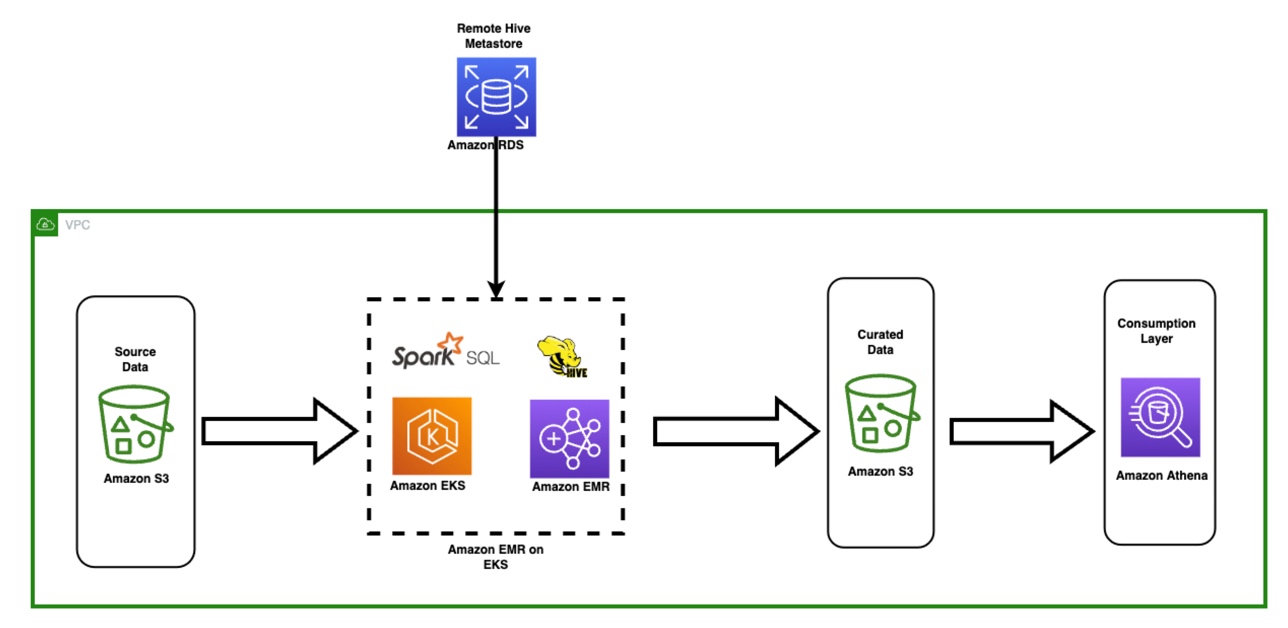
In this post, we show how a data engineer or IT administrator can use the AWS Analytics Reference Architecture (ARA) to accelerate infrastructure deployment, saving your organization both time and money spent on these data analytics experiments. We use the library to deploy an Amazon Elastic Kubernetes (Amazon EKS) cluster, configure it to use Amazon EMR on EKS, and deploy a virtual cluster and managed endpoints and EMR Studio. You can then either run jobs on the virtual cluster or run exploratory data analysis with Jupyter notebooks on Amazon EMR Studio and Amazon EMR on EKS. The architecture below represent the infrastructure you will deploy with the AWS Analytics Reference Architecture.

cdk-emr-eks-studio-architecture

Prerequisites

To follow along, you need to have an AWS account that is bootstrapped with the AWS Cloud Development Kit (AWS CDK). For instructions, refer to Bootstrapping. The following tutorial uses TypeScript, and requires version 2 or later of the AWS CDK. If you don’t have the AWS CDK installed, refer to Install the AWS CDK.

Set up an AWS CDK project

To deploy resources using the ARA, you first need to set up an AWS CDK project and install the ARA library. Complete the following steps:

  1. Create a folder named emr-eks-app:
    mkdir emr-eks-app && cd emr-eks-app

  2. Initialize an AWS CDK project in an empty directory and run the following command:
    cdk init app --language typescript

  3. Install the ARA library:
    npm install aws-analytics-reference-architecture --save

  4. In lib/emr-eks-app.ts, import the ARA library as follows. The first line calls the ARA library, the second one defines AWS Identity and Access Management (IAM) policies:
    import * as ara from 'aws-analytics-reference-architecture'; 
    import * as iam from 'aws-cdk-lib/aws-iam';

Create and define an EKS cluster and compute capacity

To create an EMR on EKS virtual cluster, you first need to deploy an EKS cluster. The ARA library defines a construct called EmrEksCluster. The construct provisions an EKS cluster, enables IAM roles for service accounts, and deploys a set of supporting controllers like certificate manager controller (needed by the managed endpoint that is used by Amazon EMR Studio) as well as a cluster auto scaler to have an elastic cluster and save on cost when no job is submitted to the cluster.

In lib/emr-eks-app.ts, add the following line:

const emrEks = ara.EmrEksCluster.getOrCreate(this,{ 
   eksAdminRoleArn:ROLE_ARN;, 
   eksClusterName:CLUSTER_NAME;
   autoscaling: Autoscaler.KARPENTER, 
});

To learn more about the properties you can customize, refer to EmrEksClusterProps. There are two mandatory parameters in EmrEksCluster construct: The first is eksAdminRoleArn role is mandatory and is the role you use to interact with the Kubernetes control plane. This role must have administrative permissions to create or update the cluster. The second parameter is autoscaling, this parameter allows you to select the autoscaling mechanism, either Karpenter or native Kubernetes Cluster Autoscaler. In this blog we will use Karpenter and we recommend its use due to faster autoscaling, simplified node management and provisioning. Now you’re ready to define the compute capacity.

One way to define worker nodes in Amazon EKS is to use managed node groups. We use one node group called tooling, which hosts the coredns, ingress controller, certificate manager, Karpenter and any other pod that is necessary for the running EMR on EKS jobs or ManagedEndpoint. We also define default Karpenter Provisioners that define capacity to be used for jobs submitted by EMR on EKS. These Provisioners are optimized for different Spark use cases (critical jobs, non-critical job, experimentation and interactive sessions). The construct also allows you to submit your own provisioner defined by a Kubernetes manifest through a method called addKarpenterProvisioner. Let’s discuss the predefined Provisioners.

Default Provisioners configurations

The default provisioners are set for rapid experimentation and are always created by default. However, if you don’t want to use them, you can set the defaultNodeGroups parameter to false in the EmrEksCluster properties at creation time. The Provisioners are defined as follows and are created in each of the subnets that are used by Amazon EKS:

  • Critical provisioner – It is dedicated to supporting jobs with aggressive SLAs and are time sensitive. The provisioner uses On-Demand Instances, which aren’t stopped, unlike Spot Instances, and their lifecycle follows through one of the jobs. The nodes use instance stores, which are NVMe disks physically attached to the host, which offer a high I/O throughput that allow better Spark performance, because it’s used as temporary storage for disk spill and shuffle. The instance types used in the node are of the m6gd family. The instances use the AWS Graviton processor, which offers better price/performance than x86 processors. To use this provisioner in your jobs, you can use the following sample configuration, which is referenced in the configuration override of the EMR on EKS job submission.
  • Non-critical provisioner – This Provisioner leverage Spot Instances to save costs for jobs that aren’t time sensitive or jobs that are used for experiments. This node use Spot Instances because the jobs aren’t critical and can be interrupted. These instances can be stopped if the instance is reclaimed. The instance types used in the node are of the m6gd family, the driver is On-Demand and executors are on spot instances.
  • Notebook provisioner – The Provisioner is for running managed endpoints that are used by Amazon EMR Studio for data exploration using Amazon EMR on EKS. The instances are of t3 family and are On-Demand for driver and Spot Instances for executors to keep the cost low. If the executor instances are stopped, new ones are started by Karpenter. If the executor instances are stopped too often, you can define your own that use On-Demand instances.

The following link provides more details about how each of the provisioner are defined. One import property that is defined in the default Provisioners is there is one for each AZ. This is important because it allows you to reduce inter-AZ network transfer cost when Spark runs a shuffle.

For this post, we use the default Provisioners, so you don’t need to add any lines of code for this section. If you want yo add your own Provisioners you can leverage the method addKarpenterProvisioner to apply your own manifests. You can use helper methods in Utils class like readYamlDocument to read YAML document and loadYaml load YAML files and pass them as arguments to addKarpenterProvisioner method.

Deploy the virtual cluster and an execution role

A virtual cluster is a Kubernetes namespace that Amazon EMR is registered with; when you submit a job, the driver and executor pods are running in the associated namespace. The EmrEksCluster construct offers a method called addEmrVirtualCluster, which creates the virtual cluster for you. The method takes EmrVirtualClusterOptions as a parameter, which has the following attributes:

  • name – The name of your virtual cluster.
  • createNamespace – An optional field that creates the EKS namespace. This is of type Boolean and by default it doesn’t create a separate EKS namespace, so your virtual cluster is created in the default namespace.
  • eksNamespace – The name of the EKS namespace to be linked with the virtual EMR cluster. If no namespace is supplied, the construct uses the default namespace.
  1. In lib/emr-eks-app.ts, add the following line to create your virtual cluster:
    const virtualCluster = emrEks.addEmrVirtualCluster(this,{ 
       name:'my-emr-eks-cluster', 
       eksNamespace: ‘batchjob’, 
       createNamespace: true 
    });

    Now we create the execution role, which is an IAM role that is used by the driver and executor to interact with AWS services. Before we can create the execution role for Amazon EMR, we need to first create the ManagedPolicy. Note that in the following code, we create a policy to allow access to the Amazon Simple Storage Service (Amazon S3) bucket and Amazon CloudWatch logs.

  2. In lib/emr-eks-app.ts, add the following line to create the policy:
    const emrEksPolicy = new iam.ManagedPolicy(this,'managed-policy',
    { statements: [ 
       new iam.PolicyStatement({ 
           effect: iam.Effect.ALLOW, 
           actions:['s3:PutObject','s3:GetObject','s3:ListBucket'], 
           resources:['YOUR-DATA-S3-BUCKET']
        }), 
       new iam.PolicyStatement({ 
           effect: iam.Effect.ALLOW, 
           actions:['logs:PutLogEvents','logs:CreateLogStream','logs:DescribeLogGroups','logs:DescribeLogStreams'], 
           resources:['arn:aws:logs:*:*:*'] 
        })
       ] 
    });

    If you want to use the AWS Glue Data Catalog, add its permission in the preceding policy.

    Now we create the execution role for Amazon EMR on EKS using the policy defined in the previous step using the createExecutionRole instance method. The driver and executor pods can then assume this role to access and process data. The role is scoped in such a way that only pods in the virtual cluster namespace can assume it. To learn more about the condition implemented by this method to restrict access to the role to only pods that are created by Amazon EMR on EKS in the namespace of the virtual cluster, refer to Using job execution roles with Amazon EMR on EKS.

  3. In lib/emr-eks-app.ts, add the following line to create the execution role:
    const role = emrEks.createExecutionRole(this,'emr-eks-execution-role', emrEksPolicy, ‘batchjob’,’ execRoleJob’);

    The preceding code produces an IAM role called execRoleJob with the IAM policy defined in emrekspolicy and scoped to the namespace dataanalysis.

  4. Lastly, we output parameters that are important for the job run:
// Virtual cluster Id to reference in jobs
new cdk.CfnOutput(this, 'VirtualClusterId', { value: virtualCluster.attrId });

// Job config for each nodegroup
new cdk.CfnOutput(this, 'CriticalConfig', { value: emrEks.criticalDefaultConfig });

// Execution role arn
new cdk.CfnOutput(this, 'ExecRoleArn', { value: role.roleArn });

Deploy Amazon EMR Studio and provision users

To deploy an EMR Studio for data exploration and job authoring, the ARA library has a construct called NotebookPlatform. This construct allows you to deploy as many EMR Studios as you need (within the account limit) and set them up with the authentication mode that is suitable for you and assign users to them. To learn more about the authentication modes available in Amazon EMR Studio, refer to Choose an authentication mode for Amazon EMR Studio.

The construct creates all the necessary IAM roles and policies needed by Amazon EMR Studio. It also creates an S3 bucket where all the notebooks are stored by Amazon EMR Studio. The bucket is encrypted with a customer managed key (CMK) generated by the AWS CDK stack. The following steps show you how to create your own EMR Studio with the construct.

The notebook platform construct takes NotebookPlatformProps as a property, which allows you to define your EMR Studio, a namespace, the name of the EMR Studio, and its authentication mode.

  1. In lib/emr-eks-app.ts, add the following line:
    const notebookPlatform = new ara.NotebookPlatform(this, 'platform-notebook', {
    emrEks: emrEks,
    eksNamespace: 'dataanalysis',
    studioName: 'platform',
    studioAuthMode: ara.StudioAuthMode.IAM,
    });

    For this post, we use IAM users so that you can easily reproduce it in your own account. However, if you have IAM federation or single sign-on (SSO) already in place, you can use them instead of IAM users.To learn more about the parameters of NotebookPlatformProps, refer to NotebookPlatformProps.

    Next, we need to create and assign users to the Amazon EMR Studio. For this, the construct has a method called addUser that takes a list of users and either assigns them to Amazon EMR Studio in case of SSO or updates the IAM policy to allows access to Amazon EMR Studio for the provided IAM users. The user can also have multiple managed endpoints, and each user can have their Amazon EMR version defined. They can use a different set of Amazon Elastic Compute Cloud (Amazon EC2) instances and different permissions using job execution roles.

  2. In lib/emr-eks-app.ts, add the following line:
    notebookPlatform.addUser([{
    identityName:<NAME-OF-EXISTING-IAM-USER>,
    notebookManagedEndpoints: [{
    emrOnEksVersion: 'emr-6.8.0-latest',
    executionPolicy: emrEksPolicy,
    managedEndpointName: ‘myendpoint’
    }],
    }]);

    In the preceding code, for the sake of brevity, we reuse the same IAM policy that we created in the execution role.

    Note that the construct optimizes the number of managed endpoints that are created. If two endpoints have the same name, then only one is created.

  3. Now that we have defined our deployment, we can deploy it:
   npm run build && cdk deploy

You can find a sample project that contains all the steps of the walk through in the following GitHub repository.

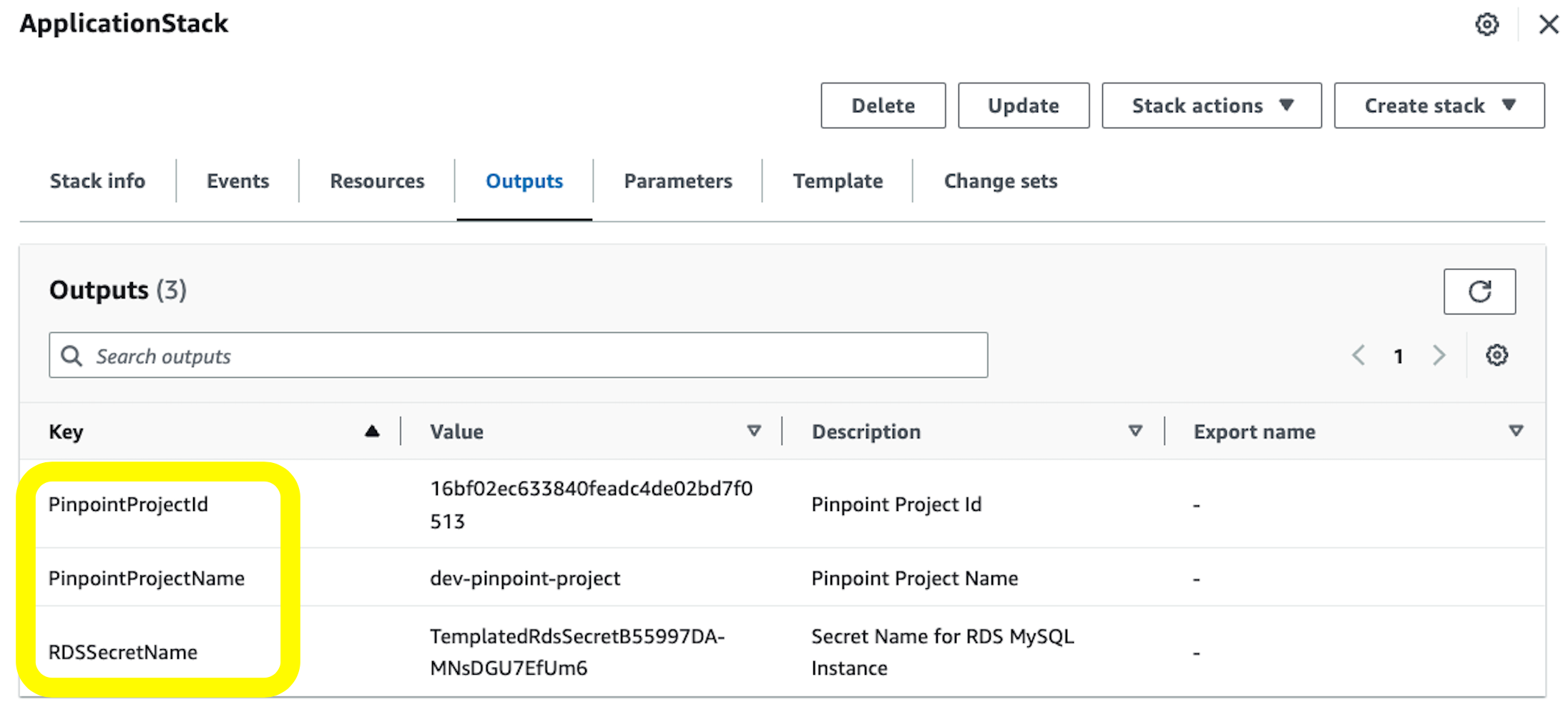
When the deployment is complete, the output contains the S3 bucket containing the assets for podTemplate, the link for the EMR Studio, and the EMR Studio virtual cluster ID. The following screenshot shows the output of the AWS CDK after the deployment is complete.

CDK output
Submit jobs

Because we’re using the default Provisioners, we will use the podTemplate that is defined by the construct available on the ARA GitHub repository. These are uploaded for you by the construct to an S3 bucket called <clustername>-emr-eks-assets; you only need to refer to them in your Spark job. In this job, you also use the job parameters in the output at the end of the AWS CDK deployment. These parameters allow you to use the AWS Glue Data Catalog and implement Spark on Kubernetes best practices like dynamicAllocation and pod collocation. At the end of cdk deploy ARA will output job sample configurations with the best practices listed before that you can use to submit a job. You can submit a job as follows.

A job run is a unit of work such as a Spark JAR file that is submitted to the EMR on EKS cluster. We start a job using the start-job-run command. Note you can use SparkSubmitParameters to specify the Amazon S3 path to the pod template, as shown in the following command:

aws emr-containers start-job-run \

--virtual-cluster-id <CLUSTER-ID>\

--name <SPARK-JOB-NAME>\

--execution-role-arn <ROLE-ARN> \

--release-label emr-6.8.0-latest \

--job-driver '{
"sparkSubmitJobDriver": {
"entryPoint": ""<S3URI-SPARK-JOB>"
}
}' --configuration-overrides '{
"applicationConfiguration": [
{
"classification": "spark-defaults",
"properties": {
"spark.hadoop.hive.metastore.client.factory.class": "com.amazonaws.glue.catalog.metastore.AWSGlueDataCatalogHiveClientFactory",

"spark.sql.catalogImplementation": "hive",

"spark.dynamicAllocation.enabled":"true",

"spark.dynamicAllocation.minExecutors": "8",

"spark.dynamicAllocation.maxExecutors": "40",

"spark.kubernetes.allocation.batch.size": "8",

"spark.executor.cores": "8",

"spark.kubernetes.executor.request.cores": "7",

"spark.executor.memory": "28G",

"spark.driver.cores": "2",

"spark.kubernetes.driver.request.cores": "2",

"spark.driver.memory": "6G",

"spark.dynamicAllocation.executorAllocationRatio": "1",

"spark.dynamicAllocation.shuffleTracking.enabled": "true",

"spark.dynamicAllocation.shuffleTracking.timeout": "300s",

"spark.kubernetes.driver.podTemplateFile": s3://<EKS-CLUSTER-NAME>-emr-eks-assets-<ACCOUNT-ID>-<REGION> /<EKS-CLUSTER-NAME>/pod-template/critical-driver.yaml ",

"spark.kubernetes.executor.podTemplateFile": s3://<EKS-CLUSTER-NAME>-emr-eks-assets-<ACCOUNT-ID>-<REGION> /<EKS-CLUSTER-NAME>/pod-template/critical-executor.yaml "
}
}
],
"monitoringConfiguration": {
"cloudWatchMonitoringConfiguration": {
"logGroupName": ""<Log_Group_Name>",
"logStreamNamePrefix": "<Log_Stream_Prefix>"
}
}'

The code takes the following values:

  • <CLUSTER-ID> – The EMR virtual cluster ID
  • <SPARK-JOB-NAME> – The name of your Spark job
  • <ROLE-ARN> – The execution role you created
  • <S3URI-SPARK-JOB> – The Amazon S3 URI of your Spark job
  • <S3URI-CRITICAL-DRIVER> – The Amazon S3 URI of the driver pod template, which you get from the AWS CDK output
  • <S3URI-CRITICAL-EXECUTOR> – The Amazon S3 URI of the executor pod template
  • <Log_Group_Name> – Your CloudWatch log group name
  • <Log_Stream_Prefix> – Your CloudWatch log stream prefix

You can go to the Amazon EMR console to check the status of your job and to view logs. You can also check the status by running the describe-job-run command:

aws emr-containers describe-job-run --<CLUSTER-ID> cluster-id --id <JOB-RUN-ID>

Explore data using Amazon EMR Studio

In this section, we show how you can create a workspace in Amazon EMR Studio and connect to the Amazon EKS managed endpoint from the workspace. From the output, use the link to Amazon EMR Studio to navigate to the EMR Studio deployment. You must sign in with the IAM username you provided in the addUser method.

Create a Workspace

To create a Workspace, complete the following steps:

  1. Log in to the EMR Studio created by the AWS CDK.
  2. Choose Create Workspace.
  3. Enter a workspace name and an optional description.
  4. Select Allow Workspace Collaboration if you want to work with other Studio users in this Workspace in real time.
  5. Choose Create Workspace.

create-emr-studio-workspace

After you create the Workspace, choose it from the list of Workspaces to open the JupyterLab environment.
emr studio workspace running

The following screenshot shows what the terminal looks like. For more information about the user interface, refer to Understand the Workspace user interface.

EMR Studio workspace view

Connect to an EMR on EKS managed endpoint

You can easily connect to the EMR on EKS managed endpoint from the Workspace.

  1. In the navigation pane, on the Clusters menu, select EMR Cluster on EKS for Cluster type.
    The virtual clusters appear on the EMR Cluster on EKS drop-down menu, and the endpoint appears on the Endpoint drop-down menu. If there are multiple endpoints, they appear here, and you can easily switch between endpoints from the Workspace.
  2. Select the appropriate endpoint and choose Attach.
    attach to managedendpoint

Work with a notebook

You can now open a notebook and connect to a preferred kernel to do your tasks. For instance, you can select a PySpark kernel, as shown in the following screenshot.
select-kernel

Explore your data

The first step of our data exploration exercise is to create a Spark session and then load the New York taxi dataset from the S3 bucket into a data frame. Use the following code block to load the data into a data frame. Copy the Amazon S3 URI for the location where the dataset resides in Amazon S3.

	from pyspark.sql import SparkSession
	from pyspark.sql.functions import *
	from datetime import datetime
	spark = SparkSession.builder.appName("SparkEDAA").getOrCreate()

After we load the data into a data frame, we replace the data of the current_date column with the actual current date, count the number of rows, and save the data into a Parquet file:

print("Total number of records: " + str(updatedNYTaxi.count()))
updatedNYTaxi.write.parquet("<YOUR-S3-PATH>")

The following screenshot shows the result of our notebook running on Amazon EMR Studio and with PySpark running on Amazon EMR on EKS.
notebook execution

Clean up

To clean up after this post, run cdk destroy.

Conclusion

In this post, we showed how you can use the ARA to quickly deploy a data analytics infrastructure and start experimenting with your data. You can find the full example referenced in this post in the GitHub repository. The AWS Analytics Reference Architecture implements common Analytics pattern and AWS best practices to offer you ready to use constructs to for your experiments. One of the patterns is the data mesh, which you can consult how to use in this blog post.

You can also explore other constructs offered in this library to experiment with AWS Analytics services before transitioning your workload for production.


About the Authors

co-author-1Lotfi Mouhib is a Senior Solutions Architect working for the Public Sector team with Amazon Web Services. He helps public sector customers across EMEA realize their ideas, build new services, and innovate for citizens. In his spare time, Lotfi enjoys cycling and running.

Sandipan Bhaumik is a Senior Analytics Specialist Solutions Architect based in London. He has worked with customers in different industries like Banking & Financial Services, Healthcare, Power & Utilities, Manufacturing and Retail helping them solve complex challenges with large-scale data platforms. At AWS he focuses on strategic accounts in the UK and Ireland and helps customers to accelerate their journey to the cloud and innovate using AWS analytics and machine learning services. He loves playing badminton, and reading books.

The most visited AWS DevOps blogs in 2022

Post Syndicated from original https://aws.amazon.com/blogs/devops/the-most-visited-aws-devops-blogs-in-2022/

As we kick off 2023, I wanted to take a moment to highlight the top posts from 2022. Without further ado, here are the top 10 AWS DevOps Blog posts of 2022.

#1: Integrating with GitHub Actions – CI/CD pipeline to deploy a Web App to Amazon EC2

Coming in at #1, Mahesh Biradar, Solutions Architect and Suresh Moolya, Cloud Application Architect use GitHub Actions and AWS CodeDeploy to deploy a sample application to Amazon Elastic Compute Cloud (Amazon EC2).

Architecture diagram from the original post.

#2: Deploy and Manage GitLab Runners on Amazon EC2

Sylvia Qi, Senior DevOps Architect, and Sebastian Carreras, Senior Cloud Application Architect, guide us through utilizing infrastructure as code (IaC) to automate GitLab Runner deployment on Amazon EC2.

Architecture diagram from the original post.

#3 Multi-Region Terraform Deployments with AWS CodePipeline using Terraform Built CI/CD

Lerna Ekmekcioglu, Senior Solutions Architect, and Jack Iu, Global Solutions Architect, demonstrate best practices for multi-Region deployments using HashiCorp Terraform, AWS CodeBuild, and AWS CodePipeline.

Architecture diagram from the original post.

#4 Use the AWS Toolkit for Azure DevOps to automate your deployments to AWS

Mahmoud Abid, Senior Customer Delivery Architect, leverages the AWS Toolkit for Azure DevOps to deploy AWS CloudFormation stacks.

Architecture diagram from the original post.

#5 Deploy and manage OpenAPI/Swagger RESTful APIs with the AWS Cloud Development Kit

Luke Popplewell, Solutions Architect, demonstrates using AWS Cloud Development Kit (AWS CDK) to build and deploy Amazon API Gateway resources using the OpenAPI specification.

Architecture diagram from the original post.

#6: How to unit test and deploy AWS Glue jobs using AWS CodePipeline

Praveen Kumar Jeyarajan, Senior DevOps Consultant, and Vaidyanathan Ganesa Sankaran, Sr Modernization Architect, discuss unit testing Python-based AWS Glue Jobs in AWS CodePipeline.

Architecture diagram from the original post.

#7: Jenkins high availability and disaster recovery on AWS

James Bland, APN Global Tech Lead for DevOps, and Welly Siauw, Sr. Partner solutions architect, discuss the challenges of architecting Jenkins for scale and high availability (HA).

Architecture diagram from the original post.

#8: Monitor AWS resources created by Terraform in Amazon DevOps Guru using tfdevops

Harish Vaswani, Senior Cloud Application Architect, and Rafael Ramos, Solutions Architect, explain how you can configure and use tfdevops to easily enable Amazon DevOps Guru for your existing AWS resources created by Terraform.

Architecture diagram from the original post.

#9: Manage application security and compliance with the AWS Cloud Development Kit and cdk-nag

Arun Donti, Senior Software Engineer with Twitch, demonstrates how to integrate cdk-nag into an AWS Cloud Development Kit (AWS CDK) application to provide continual feedback and help align your applications with best practices.

Featured image from the original post.

#10: Smithy Server and Client Generator for TypeScript (Developer Preview)

Adam Thomas, Senior Software Development Engineer, demonstrate how you can use Smithy to define services and SDKs and deploy them to AWS Lambda using a generated client.

Architecture diagram from the original post.

A big thank you to all our readers! Your feedback and collaboration are appreciated and help us produce better content.


About the author:

Brian Beach

Brian Beach has over 20 years of experience as a Developer and Architect. He is currently a Principal Solutions Architect at Amazon Web Services. He holds a Computer Engineering degree from NYU Poly and an MBA from Rutgers Business School. He is the author of “Pro PowerShell for Amazon Web Services” from Apress. He is a regular author and has spoken at numerous events. Brian lives in North Carolina with his wife and three kids.

Building .NET 7 Applications with AWS CodeBuild

Post Syndicated from Tom Moore original https://aws.amazon.com/blogs/devops/building-net-7-applications-with-aws-codebuild/

AWS CodeBuild is a fully managed DevOps service for building and testing your applications. As a fully managed service, there is no infrastructure to manage and you pay only for the resources that you use when you are building your applications. CodeBuild provides a default build image that contains the current Long Term Support (LTS) version of the .NET SDK.

Microsoft released the latest version of .NET in November. This release, .NET 7, includes performance improvements and functionality, such as native ahead of time compilation. (Native AoT)..NET 7 is a Standard Term Support release of the .NET SDK. At this point CodeBuild’s default image does not support .NET 7. For customers that want to start using.NET 7 right away in their applications, CodeBuild provides two means of customizing your build environment so that you can take advantage of .NET 7.

The first option for customizing your build environment is to provide CodeBuild with a container image you create and maintain. With this method, customers can define the build environment exactly as they need by including any SDKs, runtimes, and tools in the container image. However, this approach requires customers to maintain the build environment themselves, including patching and updating the tools. This approach will not be covered in this blog post.

A second means of customizing your build environment is by using the install phase of the buildspec file. This method uses the default CodeBuild image, and adds additional functionality at the point that a build starts. This has the advantage that customers do not have the overhead of patching and maintaining the build image.

Complete documentation on the syntax of the buildspec file can be found here:

https://docs.aws.amazon.com/codebuild/latest/userguide/build-spec-ref.html

Your application’s buildspec.yml file contains all of the commands necessary to build your application and prepare it for deployment. For a typical .NET application, the buildspec file will look like this:

You might want to say that you are not covering this in the post.

```
version: 0.2
phases:
  build:
    commands:
      - dotnet restore Net7TestApp.sln
      - dotnet build Net7TestApp.sln
```

Note: This build spec file contains only the commands to build the application, commands for packaging and storing build artifacts have been omitted for brevity.

In order to add the .NET 7 SDK to CodeBuild so that we can build your .NET 7 applications, we will leverage the install phase of the buildspec file. The install phase allows you to install any third-party libraries or SDKs prior to beginning your actual build.

```
  install:
    commands:
      - curl -sSL https://dot.net/v1/dotnet-install.sh | bash /dev/stdin --channel STS 
```

The above command downloads the Microsoft install script for .NET and uses that script to download and install the latest version of the .NET SDK, from the Standard Term Support channel. This script will download files and set environment variables within the containerized build environment. You can use this same command to automatically pull the latest Long Term Support version of the .NET SDK by changing the command argument STS to LTS.

Your updated buildspec file will look like this:

```
version: 0.2    
phases:
  install:
    commands:
      - curl -sSL https://dot.net/v1/dotnet-install.sh | bash /dev/stdin --channel STS 
  build:
    commands:
      - dotnet restore Net7TestApp/Net7TestApp.sln
      - dotnet build Net7TestApp/Net7TestApp.sln
```

Once you check in your buildspec file, you can start a build via the CodeBuild console, and your .NET application will be built using the .NET 7 SDK.

As your build runs you will see output similar to this:

 ```
Welcome to .NET 7.0! 
--------------------- 
SDK Version: 7.0.100 
Telemetry 
--------- 
The .NET tools collect usage data in order to help us improve your experience. It is collected by Microsoft and shared with the community. You can opt-out of telemetry by setting the DOTNET_CLI_TELEMETRY_OPTOUT environment variable to '1' or 'true' using your favorite shell. 

Read more about .NET CLI Tools telemetry: https://aka.ms/dotnet-cli-telemetry 
---------------- 
Installed an ASP.NET Core HTTPS development certificate. 
To trust the certificate run 'dotnet dev-certs https --trust' (Windows and macOS only). 
Learn about HTTPS: https://aka.ms/dotnet-https 
---------------- 
Write your first app: https://aka.ms/dotnet-hello-world 
Find out what's new: https://aka.ms/dotnet-whats-new 
Explore documentation: https://aka.ms/dotnet-docs 
Report issues and find source on GitHub: https://github.com/dotnet/core 
Use 'dotnet --help' to see available commands or visit: https://aka.ms/dotnet-cli 
-------------------------------------------------------------------------------------- 
Determining projects to restore... 
Restored /codebuild/output/src095190443/src/git-codecommit.us-east-2.amazonaws.com/v1/repos/net7test/Net7TestApp/Net7TestApp/Net7TestApp.csproj (in 586 ms). 
[Container] 2022/11/18 14:55:08 Running command dotnet build Net7TestApp/Net7TestApp.sln 
MSBuild version 17.4.0+18d5aef85 for .NET 
Determining projects to restore... 
All projects are up-to-date for restore. 
Net7TestApp -> /codebuild/output/src095190443/src/git-codecommit.us-east-2.amazonaws.com/v1/repos/net7test/Net7TestApp/Net7TestApp/bin/Debug/net7.0/Net7TestApp.dll 
Build succeeded. 
0 Warning(s) 
0 Error(s) 
Time Elapsed 00:00:04.63 
[Container] 2022/11/18 14:55:13 Phase complete: BUILD State: SUCCEEDED 
[Container] 2022/11/18 14:55:13 Phase context status code: Message: 
[Container] 2022/11/18 14:55:13 Entering phase POST_BUILD 
[Container] 2022/11/18 14:55:13 Phase complete: POST_BUILD State: SUCCEEDED 
[Container] 2022/11/18 14:55:13 Phase context status code: Message:
```

Conclusion

Adding .NET 7 support to AWS CodeBuild is easily accomplished by adding a single line to your application’s buildspec.yml file, stored alongside your application source code. This change allows you to keep up to date with the latest versions of .NET while still taking advantage of the managed runtime provided by the CodeBuild service.

About the author:

Tom Moore

Tom Moore is a Sr. Specialist Solutions Architect at AWS, and specializes in helping customers migrate and modernize Microsoft .NET and Windows workloads into their AWS environment.

Develop a serverless application in Python using Amazon CodeWhisperer

Post Syndicated from Rafael Ramos original https://aws.amazon.com/blogs/devops/develop-a-serverless-application-in-python-using-amazon-codewhisperer/

While writing code to develop applications, developers must keep up with multiple programming languages, frameworks, software libraries, and popular cloud services from providers such as AWS. Even though developers can find code snippets on developer communities, to either learn from them or repurpose the code, manually searching for the snippets with an exact or even similar use case is a distracting and time-consuming process. They have to do all of this while making sure that they’re following the correct programming syntax and best coding practices.

Amazon CodeWhisperer, a machine learning (ML) powered coding aide for developers, lets you overcome those challenges. Developers can simply write a comment that outlines a specific task in plain English, such as “upload a file to S3.” Based on this, CodeWhisperer automatically determines which cloud services and public libraries are best-suited for the specified task, it creates the specific code on the fly, and then it recommends the generated code snippets directly in the IDE. And this isn’t about copy-pasting code from the web, but generating code based on the context of your file, such as which libraries and versions you have, as well as the existing code. Moreover, CodeWhisperer seamlessly integrates with your Visual Studio Code and JetBrains IDEs so that you can stay focused and never leave the development environment. At the time of this writing, CodeWhisperer supports Java, Python, JavaScript, C#, and TypeScript.

In this post, we’ll build a full-fledged, event-driven, serverless application for image recognition. With the aid of CodeWhisperer, you’ll write your own code that runs on top of AWS Lambda to interact with Amazon Rekognition, Amazon DynamoDB, Amazon Simple Notification Service (Amazon SNS), Amazon Simple Queue Service (Amazon SQS), Amazon Simple Storage Service (Amazon S3), and third-party HTTP APIs to perform image recognition. The users of the application can interact with it by either sending the URL of an image for processing, or by listing the images and the objects present on each image.

Solution overview

To make our application easier to digest, we’ll split it into three segments:

  1. Image download – The user provides an image URL to the first API. A Lambda function downloads the image from the URL and stores it on an S3 bucket. Amazon S3 automatically sends a notification to an Amazon SNS topic informing that a new image is ready for processing. Amazon SNS then delivers the message to an Amazon SQS queue.
  2. Image recognition – A second Lambda function handles the orchestration and processing of the image. It receives the message from the Amazon SQS queue, sends the image for Amazon Rekognition to process, stores the recognition results on a DynamoDB table, and sends a message with those results as JSON to a second Amazon SNS topic used in section three. A user can list the images and the objects present on each image by calling a second API which queries the DynamoDB table.
  3. 3rd-party integration – The last Lambda function reads the message from the second Amazon SQS queue. At this point, the Lambda function must deliver that message to a fictitious external e-mail server HTTP API that supports only XML payloads. Because of that, the Lambda function converts the JSON message to XML. Lastly, the function sends the XML object via HTTP POST to the e-mail server.

The following diagram depicts the architecture of our application:

Architecture diagram depicting the application architecture. It contains the service icons with the component explained on the text above

Figure 1. Architecture diagram depicting the application architecture. It contains the service icons with the component explained on the text above.

Prerequisites

Before getting started, you must have the following prerequisites:

Configure environment

We already created the scaffolding for the application that we’ll build, which you can find on this Git repository. This application is represented by a CDK app that describes the infrastructure according to the architecture diagram above. However, the actual business logic of the application isn’t provided. You’ll implement it using CodeWhisperer. This means that we already declared using AWS CDK components, such as the API Gateway endpoints, DynamoDB table, and topics and queues. If you’re new to AWS CDK, then we encourage you to go through the CDK workshop later on.

Deploying AWS CDK apps into an AWS environment (a combination of an AWS account and region) requires that you provision resources that the AWS CDK needs to perform the deployment. These resources include an Amazon S3 bucket for storing files and IAM roles that grant permissions needed to perform deployments. The process of provisioning these initial resources is called bootstrapping. The required resources are defined in an AWS CloudFormation stack, called the bootstrap stack, which is usually named CDKToolkit. Like any CloudFormation stack, it appears in the CloudFormation console once it has been deployed.

After cloning the repository, let’s deploy the application (still without the business logic, which we’ll implement later on using CodeWhisperer). For this post, we’ll implement the application in Python. Therefore, make sure that you’re under the python directory. Then, use the cdk bootstrap command to bootstrap an AWS environment for AWS CDK. Replace {AWS_ACCOUNT_ID} and {AWS_REGION} with corresponding values first:

cdk bootstrap aws://{AWS_ACCOUNT_ID}/{AWS_REGION}

For more information about bootstrapping, refer to the documentation.

The last step to prepare your environment is to enable CodeWhisperer on your IDE. See Setting up CodeWhisperer for VS Code or Setting up Amazon CodeWhisperer for JetBrains to learn how to do that, depending on which IDE you’re using.

Image download

Let’s get started by implementing the first Lambda function, which is responsible for downloading an image from the provided URL and storing that image in an S3 bucket. Open the get_save_image.py file from the python/api/runtime/ directory. This file contains an empty Lambda function handler and the needed inputs parameters to integrate this Lambda function.

  • url is the URL of the input image provided by the user,
  • name is the name of the image provided by the user, and
  • S3_BUCKET is the S3 bucket name defined by our application infrastructure.

Write a comment in natural language that describes the required functionality, for example:

# Function to get a file from url

To trigger CodeWhisperer, hit the Enter key after entering the comment and wait for a code suggestion. If you want to manually trigger CodeWhisperer, then you can hit Option + C on MacOS or Alt + C on Windows. You can browse through multiple suggestions (if available) with the arrow keys. Accept a code suggestion by pressing Tab. Discard a suggestion by pressing Esc or typing a character.

For more information on how to work with CodeWhisperer, see Working with CodeWhisperer in VS Code or Working with Amazon CodeWhisperer from JetBrains.

You should get a suggested implementation of a function that downloads a file using a specified URL. The following image shows an example of the code snippet that CodeWhisperer suggests:

Screenshot of the code generated by CodeWhisperer on VS Code. It has a function called get_file_from_url with the implementation suggestion to download a file using the requests lib

Figure 2. Screenshot of the code generated by CodeWhisperer on VS Code. It has a function called get_file_from_url with the implementation suggestion to download a file using the requests lib.

Be aware that CodeWhisperer uses artificial intelligence (AI) to provide code recommendations, and that this is non-deterministic. The result you get in your IDE may be different from the one on the image above. If needed, fine-tune the code, as CodeWhisperer generates the core logic, but you might want to customize the details depending on your requirements.

Let’s try another action, this time to upload the image to an S3 bucket:

# Function to upload image to S3

As a result, CodeWhisperer generates a code snippet similar to the following one:

Screenshot of the code generated by CodeWhisperer on VS Code. It has a function called upload_image with the implementation suggestion to download a file using the requests lib and upload it to S3 using the S3 client

Figure 3. Screenshot of the code generated by CodeWhisperer on VS Code. It has a function called upload_image with the implementation suggestion to download a file using the requests lib and upload it to S3 using the S3 client.

Now that you have the functions with the functionalities to download an image from the web and upload it to an S3 bucket, you can wire up both functions in the Lambda handler function by calling each function with the correct inputs.

Image recognition

Now let’s implement the Lambda function responsible for sending the image to Amazon Rekognition for processing, storing the results in a DynamoDB table, and sending a message with those results as JSON to a second Amazon SNS topic. Open the image_recognition.py file from the python/recognition/runtime/ directory. This file contains an empty Lambda and the needed inputs parameters to integrate this Lambda function.

  • queue_url is the URL of the Amazon SQS queue to which this Lambda function is subscribed,
  • table_name is the name of the DynamoDB table, and
  • topic_arn is the ARN of the Amazon SNS topic to which this Lambda function is published.

Using CodeWhisperer, implement the business logic of the next Lambda function as you did in the previous section. For example, to detect the labels from an image using Amazon Rekognition, write the following comment:

# Detect labels from image with Rekognition

And as a result, CodeWhisperer should give you a code snippet similar to the one in the following image:

Screenshot of the code generated by CodeWhisperer on VS Code. It has a function called detect_labels with the implementation suggestion to use the Rekognition SDK to detect labels on the given image

Figure 4. Screenshot of the code generated by CodeWhisperer on VS Code. It has a function called detect_labels with the implementation suggestion to use the Rekognition SDK to detect labels on the given image.

You can continue generating the other functions that you need to fully implement the business logic of your Lambda function. Here are some examples that you can use:

  • # Save labels to DynamoDB
  • # Publish item to SNS
  • # Delete message from SQS

Following the same approach, open the list_images.py file from the python/recognition/runtime/ directory to implement the logic to list all of the labels from the DynamoDB table. As you did previously, type a comment in plain English:

# Function to list all items from a DynamoDB table

Other frequently used code

Interacting with AWS isn’t the only way that you can leverage CodeWhisperer. You can use it to implement repetitive tasks, such as creating unit tests and converting message formats, or to implement algorithms like sorting and string matching and parsing. The last Lambda function that we’ll implement as part of this post is to convert a JSON payload received from Amazon SQS to XML. Then, we’ll POST this XML to an HTTP endpoint.

Open the send_email.py file from the python/integration/runtime/ directory. This file contains an empty Lambda function handler. An event is a JSON-formatted document that contains data for a Lambda function to process. Type a comment with your intent to get the code snippet:

# Transform json to xml

As CodeWhisperer uses the context of your files to generate code, depending on the imports that you have on your file, you’ll get an implementation such as the one in the following image:

Screenshot of the code generated by CodeWhisperer on VS Code. It has a function called json_to_xml with the implementation suggestion to transform JSON payload into XML payload

Figure 5. Screenshot of the code generated by CodeWhisperer on VS Code. It has a function called json_to_xml with the implementation suggestion to transform JSON payload into XML payload.

Repeat the same process with a comment such as # Send XML string with HTTP POST to get the last function implementation. Note that the email server isn’t part of this implementation. You can mock it, or simply ignore this HTTP POST step. Lastly, wire up both functions in the Lambda handler function by calling each function with the correct inputs.

Deploy and test the application

To deploy the application, run the command cdk deploy --all. You should get a confirmation message, and after a few minutes your application will be up and running on your AWS account. As outputs, the APIStack and RekognitionStack will print the API Gateway endpoint URLs. It will look similar to this example:

Outputs:
...
APIStack.RESTAPIEndpoint01234567 = https://examp1eid0.execute-
api.{your-region}.amazonaws.com/prod/
  1. The first endpoint expects two string parameters: url (the image file URL to download) and name (the target file name that will be stored on the S3 bucket). Use any image URL you like, but remember that you must encode an image URL before passing it as a query string parameter to escape the special characters. Use an online URL encoder of your choice for that. Then, use the curl command to invoke the API Gateway endpoint:
curl -X GET 'https://examp1eid0.execute-api.eu-east-
2.amazonaws.com/prod?url={encoded-image-URL}&amp;name={file-name}'

Replace {encoded-image-URL} and {file-name} with the corresponding values. Also, make sure that you use the correct API endpoint that you’ve noted from the AWS CDK deploy command output as mentioned above.

  1. It will take a few seconds for the processing to happen in the background. Once it’s ready, see what has been stored in the DynamoDB table by invoking the List Images API (make sure that you use the correct URL from the output of your deployed AWS CDK stack):
curl -X GET 'https://examp1eid7.execute-api.eu-east-2.amazonaws.com/prod'

After you’re done, to avoid unexpected charges to your account, make sure that you clean up your AWS CDK stacks. Use the cdk destroy command to delete the stacks.

Conclusion

In this post, we’ve seen how to get a significant productivity boost with the help of ML. With that, as a developer, you can stay focused on your IDE and reduce the time that you spend searching online for code snippets that are relevant for your use case. Writing comments in natural language, you get context-based snippets to implement full-fledged applications. In addition, CodeWhisperer comes with a mechanism called reference tracker, which detects whether a code recommendation might be similar to particular CodeWhisperer training data. The reference tracker lets you easily find and review that reference code and see how it’s used in the context of another project. Lastly, CodeWhisperer provides the ability to run scans on your code (generated by CodeWhisperer as well as written by you) to detect security vulnerabilities.

During the preview period, CodeWhisperer is available to all developers across the world for free. Get started with the free preview on JetBrains, VS Code or AWS Cloud9.

About the author:

Rafael Ramos

Rafael is a Solutions Architect at AWS, where he helps ISVs on their journey to the cloud. He spent over 13 years working as a software developer, and is passionate about DevOps and serverless. Outside of work, he enjoys playing tabletop RPG, cooking and running marathons.

Caroline Gluck

Caroline is an AWS Cloud application architect based in New York City, where she helps customers design and build cloud native data science applications. Caroline is a builder at heart, with a passion for serverless architecture and machine learning. In her spare time, she enjoys traveling, cooking, and spending time with family and friends.

Jason Varghese

Jason is a Senior Solutions Architect at AWS guiding enterprise customers on their cloud migration and modernization journeys. He has served in multiple engineering leadership roles and has over 20 years of experience architecting, designing and building scalable software solutions. Jason holds a bachelor’s degree in computer engineering from the University of Oklahoma and an MBA from the University of Central Oklahoma.

Dmitry Balabanov

Dmitry is a Solutions Architect with AWS where he focuses on building reusable assets for customers across multiple industries. With over 15 years of experience in designing, building, and maintaining applications, he still loves learning new things. When not at work, he enjoys paragliding and mountain trekking.

Unlock the power of EC2 Graviton with GitLab CI/CD and EKS Runners

Post Syndicated from Michael Fischer original https://aws.amazon.com/blogs/devops/unlock-the-power-of-ec2-graviton-with-gitlab-ci-cd-and-eks-runners/

Many AWS customers are using GitLab for their DevOps needs, including source control, and continuous integration and continuous delivery (CI/CD). Many of our customers are using GitLab SaaS (the hosted edition), while others are using GitLab Self-managed to meet their security and compliance requirements.

Customers can easily add runners to their GitLab instance to perform various CI/CD jobs. These jobs include compiling source code, building software packages or container images, performing unit and integration testing, etc.—even all the way to production deployment. For the SaaS edition, GitLab offers hosted runners, and customers can provide their own runners as well. Customers who run GitLab Self-managed must provide their own runners.

In this post, we’ll discuss how customers can maximize their CI/CD capabilities by managing their GitLab runner and executor fleet with Amazon Elastic Kubernetes Service (Amazon EKS). We’ll leverage both x86 and Graviton runners, allowing customers for the first time to build and test their applications both on x86 and on AWS Graviton, our most powerful, cost-effective, and sustainable instance family. In keeping with AWS’s philosophy of “pay only for what you use,” we’ll keep our Amazon Elastic Compute Cloud (Amazon EC2) instances as small as possible, and launch ephemeral runners on Spot instances. We’ll demonstrate building and testing a simple demo application on both architectures. Finally, we’ll build and deliver a multi-architecture container image that can run on Amazon EC2 instances or AWS Fargate, both on x86 and Graviton.

Figure 1. Managed GitLab runner architecture overview

Figure 1.  Managed GitLab runner architecture overview.

Let’s go through the components:

Runners

A runner is an application to which GitLab sends jobs that are defined in a CI/CD pipeline. The runner receives jobs from GitLab and executes them—either by itself, or by passing it to an executor (we’ll visit the executor in the next section).

In our design, we’ll be using a pair of self-hosted runners. One runner will accept jobs for the x86 CPU architecture, and the other will accept jobs for the arm64 (Graviton) CPU architecture. To help us route our jobs to the proper runner, we’ll apply some tags to each runner indicating the architecture for which it will be responsible. We’ll tag the x86 runner with x86, x86-64, and amd64, thereby reflecting the most common nicknames for the architecture, and we’ll tag the arm64 runner with arm64.

Currently, these runners must always be running so that they can receive jobs as they are created. Our runners only require a small amount of memory and CPU, so that we can run them on small EC2 instances to minimize cost. These include t4g.micro for Graviton builds, or t3.micro or t3a.micro for x86 builds.

To save money on these runners, consider purchasing a Savings Plan or Reserved Instances for them. Savings Plans and Reserved Instances can save you up to 72% over on-demand pricing, and there’s no minimum spend required to use them.

Kubernetes executors

In GitLab CI/CD, the executor’s job is to perform the actual build. The runner can create hundreds or thousands of executors as needed to meet current demand, subject to the concurrency limits that you specify. Executors are created only when needed, and they are ephemeral: once a job has finished running on an executor, the runner will terminate it.

In our design, we’ll use the Kubernetes executor that’s built into the GitLab runner. The Kubernetes executor simply schedules a new pod to run each job. Once the job completes, the pod terminates, thereby freeing the node to run other jobs.

The Kubernetes executor is highly customizable. We’ll configure each runner with a nodeSelector that makes sure that the jobs are scheduled only onto nodes that are running the specified CPU architecture. Other possible customizations include CPU and memory reservations, node and pod tolerations, service accounts, volume mounts, and much more.

Scaling worker nodes

For most customers, CI/CD jobs aren’t likely to be running all of the time. To save cost, we only want to run worker nodes when there’s a job to run.

To make this happen, we’ll turn to Karpenter. Karpenter provisions EC2 instances as soon as needed to fit newly-scheduled pods. If a new executor pod is scheduled, and there isn’t a qualified instance with enough capacity remaining on it, then Karpenter will quickly and automatically launch a new instance to fit the pod. Karpenter will also periodically scan the cluster and terminate idle nodes, thereby saving on costs. Karpenter can terminate a vacant node in as little as 30 seconds.

Karpenter can launch either Amazon EC2 on-demand or Spot instances depending on your needs. With Spot instances, you can save up to 90% over on-demand instance prices. Since CI/CD jobs often aren’t time-sensitive, Spot instances can be an excellent choice for GitLab execution pods. Karpenter will even automatically find the best Spot instance type to speed up the time it takes to launch an instance and minimize the likelihood of job interruption.

Deploying our solution

To deploy our solution, we’ll write a small application using the AWS Cloud Development Kit (AWS CDK) and the EKS Blueprints library. AWS CDK is an open-source software development framework to define your cloud application resources using familiar programming languages. EKS Blueprints is a library designed to make it simple to deploy complex Kubernetes resources to an Amazon EKS cluster with minimum coding.

The high-level infrastructure code – which can be found in our GitLab repo – is very simple. I’ve included comments to explain how it works.

// All CDK applications start with a new cdk.App object.
const app = new cdk.App();

// Create a new EKS cluster at v1.23. Run all non-DaemonSet pods in the 
// `kube-system` (coredns, etc.) and `karpenter` namespaces in Fargate
// so that we don't have to maintain EC2 instances for them.
const clusterProvider = new blueprints.GenericClusterProvider({
  version: KubernetesVersion.V1_23,
  fargateProfiles: {
    main: {
      selectors: [
        { namespace: 'kube-system' },
        { namespace: 'karpenter' },
      ]
    }
  },
  clusterLogging: [
    ClusterLoggingTypes.API,
    ClusterLoggingTypes.AUDIT,
    ClusterLoggingTypes.AUTHENTICATOR,
    ClusterLoggingTypes.CONTROLLER_MANAGER,
    ClusterLoggingTypes.SCHEDULER
  ]
});

// EKS Blueprints uses a Builder pattern.
blueprints.EksBlueprint.builder()
  .clusterProvider(clusterProvider) // start with the Cluster Provider
  .addOns(
    // Use the EKS add-ons that manage coredns and the VPC CNI plugin
    new blueprints.addons.CoreDnsAddOn('v1.8.7-eksbuild.3'),
    new blueprints.addons.VpcCniAddOn('v1.12.0-eksbuild.1'),
    // Install Karpenter
    new blueprints.addons.KarpenterAddOn({
      provisionerSpecs: {
        // Karpenter examines scheduled pods for the following labels
        // in their `nodeSelector` or `nodeAffinity` rules and routes
        // the pods to the node with the best fit, provisioning a new
        // node if necessary to meet the requirements.
        //
        // Allow either amd64 or arm64 nodes to be provisioned 
        'kubernetes.io/arch': ['amd64', 'arm64'],
        // Allow either Spot or On-Demand nodes to be provisioned
        'karpenter.sh/capacity-type': ['spot', 'on-demand']
      },
      // Launch instances in the VPC private subnets
      subnetTags: {
        Name: 'gitlab-runner-eks-demo/gitlab-runner-eks-demo-vpc/PrivateSubnet*'
      },
      // Apply security groups that match the following tags to the launched instances
      securityGroupTags: {
        'kubernetes.io/cluster/gitlab-runner-eks-demo': 'owned'      
      }
    }),
    // Create a pair of a new GitLab runner deployments, one running on
    // arm64 (Graviton) instance, the other on an x86_64 instance.
    // We'll show the definition of the GitLabRunner class below.
    new GitLabRunner({
      arch: CpuArch.ARM_64,
      // If you're using an on-premise GitLab installation, you'll want
      // to change the URL below.
      gitlabUrl: 'https://gitlab.com',
      // Kubernetes Secret containing the runner registration token
      // (discussed later)
      secretName: 'gitlab-runner-secret'
    }),
    new GitLabRunner({
      arch: CpuArch.X86_64,
      gitlabUrl: 'https://gitlab.com',
      secretName: 'gitlab-runner-secret'
    }),
  )
  .build(app, 
         // Stack name
         'gitlab-runner-eks-demo');
The GitLabRunner class is a HelmAddOn subclass that takes a few parameters from the top-level application:
// The location and name of the GitLab Runner Helm chart
const CHART_REPO = 'https://charts.gitlab.io';
const HELM_CHART = 'gitlab-runner';

// The default namespace for the runner
const DEFAULT_NAMESPACE = 'gitlab';

// The default Helm chart version
const DEFAULT_VERSION = '0.40.1';

export enum CpuArch {
    ARM_64 = 'arm64',
    X86_64 = 'amd64'
}

// Configuration parameters
interface GitLabRunnerProps {
    // The CPU architecture of the node on which the runner pod will reside
    arch: CpuArch
    // The GitLab API URL 
    gitlabUrl: string
    // Kubernetes Secret containing the runner registration token (discussed later)
    secretName: string
    // Optional tags for the runner. These will be added to the default list 
    // corresponding to the runner's CPU architecture.
    tags?: string[]
    // Optional Kubernetes namespace in which the runner will be installed
    namespace?: string
    // Optional Helm chart version
    chartVersion?: string
}

export class GitLabRunner extends HelmAddOn {
    private arch: CpuArch;
    private gitlabUrl: string;
    private secretName: string;
    private tags: string[] = [];

    constructor(props: GitLabRunnerProps) {
        // Invoke the superclass (HelmAddOn) constructor
        super({
            name: `gitlab-runner-${props.arch}`,
            chart: HELM_CHART,
            repository: CHART_REPO,
            namespace: props.namespace || DEFAULT_NAMESPACE,
            version: props.chartVersion || DEFAULT_VERSION,
            release: `gitlab-runner-${props.arch}`,
        });

        this.arch = props.arch;
        this.gitlabUrl = props.gitlabUrl;
        this.secretName = props.secretName;

        // Set default runner tags
        switch (this.arch) {
            case CpuArch.X86_64:
                this.tags.push('amd64', 'x86', 'x86-64', 'x86_64');
                break;
            case CpuArch.ARM_64:
                this.tags.push('arm64');
                break;
        }
        this.tags.push(...props.tags || []); // Add any custom tags
    };

    // `deploy` method required by the abstract class definition. Our implementation
    // simply installs a Helm chart to the cluster with the proper values.
    deploy(clusterInfo: ClusterInfo): void | Promise<Construct> {
        const chart = this.addHelmChart(clusterInfo, this.getValues(), true);
        return Promise.resolve(chart);
    }

    // Returns the values for the GitLab Runner Helm chart
    private getValues(): Values {
        return {
            gitlabUrl: this.gitlabUrl,
            runners: {
                config: this.runnerConfig(), // runner config.toml file, from below
                name: `demo-runner-${this.arch}`, // name as seen in GitLab UI
                tags: uniq(this.tags).join(','),
                secret: this.secretName, // see below
            },
            // Labels to constrain the nodes where this runner can be placed
            nodeSelector: {
                'kubernetes.io/arch': this.arch,
                'karpenter.sh/capacity-type': 'on-demand'
            },
            // Default pod label
            podLabels: {
                'gitlab-role': 'manager'
            },
            // Create all the necessary RBAC resources including the ServiceAccount
            rbac: {
                create: true
            },
            // Required resources (memory/CPU) for the runner pod. The runner
            // is fairly lightweight as it's a self-contained Golang app.
            resources: {
                requests: {
                    memory: '128Mi',
                    cpu: '256m'
                }
            }
        };
    }

    // This string contains the runner's `config.toml` file including the
    // Kubernetes executor's configuration. Note the nodeSelector constraints 
    // (including the use of Spot capacity and the CPU architecture).
    private runnerConfig(): string {
        return `
  [[runners]]
    [runners.kubernetes]
      namespace = "{{.Release.Namespace}}"
      image = "ubuntu:16.04"
    [runners.kubernetes.node_selector]
      "kubernetes.io/arch" = "${this.arch}"
      "kubernetes.io/os" = "linux"
      "karpenter.sh/capacity-type" = "spot"
    [runners.kubernetes.pod_labels]
      gitlab-role = "runner"
      `.trim();
    }
}

For security reasons, we store the GitLab registration token in a Kubernetes Secret – never in our source code. For additional security, we recommend encrypting Secrets using an AWS Key Management Service (AWS KMS) key that you supply by specifying the encryption configuration when you create your Amazon EKS cluster. It’s a good practice to restrict access to this Secret via Kubernetes RBAC rules.

To create the Secret, run the following command:

# These two values must match the parameters supplied to the GitLabRunner constructor
NAMESPACE=gitlab
SECRET_NAME=gitlab-runner-secret
# The value of the registration token.
TOKEN=GRxxxxxxxxxxxxxxxxxxxxxx

kubectl -n $NAMESPACE create secret generic $SECRET_NAME \
        --from-literal="runner-registration-token=$TOKEN" \
        --from-literal="runner-token="

Building a multi-architecture container image

Now that we’ve launched our GitLab runners and configured the executors, we can build and test a simple multi-architecture container image. If the tests pass, we can then upload it to our project’s GitLab container registry. Our application will be pretty simple: we’ll create a web server in Go that simply prints out “Hello World” and prints out the current architecture.

Find the source code of our sample app in our GitLab repo.

In GitLab, the CI/CD configuration lives in the .gitlab-ci.yml file at the root of the source repository. In this file, we declare a list of ordered build stages, and then we declare the specific jobs associated with each stage.

Our stages are:

  1. The build stage, in which we compile our code, produce our architecture-specific images, and upload these images to the GitLab container registry. These uploaded images are tagged with a suffix indicating the architecture on which they were built. This job uses a matrix variable to run it in parallel against two different runners – one for each supported architecture. Furthermore, rather than using docker build to produce our images, we use Kaniko to build them. This lets us build our images in an unprivileged container environment and improve the security posture considerably.
  2. The test stage, in which we test the code. As with the build stage, we use a matrix variable to run the tests in parallel in separate pods on each supported architecture.

The assembly stage, in which we create a multi-architecture image manifest from the two architecture-specific images. Then, we push the manifest into the image registry so that we can refer to it in future deployments.

Figure 2. Example CI/CD pipeline for multi-architecture images

Figure 2. Example CI/CD pipeline for multi-architecture images.

Here’s what our top-level configuration looks like:

variables:
  # These are used by the runner to configure the Kubernetes executor, and define
  # the values of spec.containers[].resources.limits.{memory,cpu} for the Pod(s).
  KUBERNETES_MEMORY_REQUEST: 1Gi
  KUBERNETES_CPU_REQUEST: 1

# List of stages for jobs, and their order of execution  
stages:    
  - build
  - test
  - create-multiarch-manifest
Here’s what our build stage job looks like. Note the matrix of variables which are set in BUILD_ARCH as the two jobs are run in parallel:
build-job:
  stage: build
  parallel:
    matrix:              # This job is run twice, once on amd64 (x86), once on arm64
    - BUILD_ARCH: amd64
    - BUILD_ARCH: arm64
  tags: [$BUILD_ARCH]    # Associate the job with the appropriate runner
  image:
    name: gcr.io/kaniko-project/executor:debug
    entrypoint: [""]
  script:
    - mkdir -p /kaniko/.docker
    # Configure authentication data for Kaniko so it can push to the
    # GitLab container registry
    - echo "{\"auths\":{\"${CI_REGISTRY}\":{\"auth\":\"$(printf "%s:%s" "${CI_REGISTRY_USER}" "${CI_REGISTRY_PASSWORD}" | base64 | tr -d '\n')\"}}}" > /kaniko/.docker/config.json
    # Build the image and push to the registry. In this stage, we append the build
    # architecture as a tag suffix.
    - >-
      /kaniko/executor
      --context "${CI_PROJECT_DIR}"
      --dockerfile "${CI_PROJECT_DIR}/Dockerfile"
      --destination "${CI_REGISTRY_IMAGE}:${CI_COMMIT_SHORT_SHA}-${BUILD_ARCH}"

Here’s what our test stage job looks like. This time we use the image that we just produced. Our source code is copied into the application container. Then, we can run make test-api to execute the server test suite.

build-job:
  stage: build
  parallel:
    matrix:              # This job is run twice, once on amd64 (x86), once on arm64
    - BUILD_ARCH: amd64
    - BUILD_ARCH: arm64
  tags: [$BUILD_ARCH]    # Associate the job with the appropriate runner
  image:
    # Use the image we just built
    name: "${CI_REGISTRY_IMAGE}:${CI_COMMIT_SHORT_SHA}-${BUILD_ARCH}"
  script:
    - make test-container

Finally, here’s what our assembly stage looks like. We use Podman to build the multi-architecture manifest and push it into the image registry. Traditionally we might have used docker buildx to do this, but using Podman lets us do this work in an unprivileged container for additional security.

create-manifest-job:
  stage: create-multiarch-manifest
  tags: [arm64] 
  image: public.ecr.aws/docker/library/fedora:36
  script:
    - yum -y install podman
    - echo "${CI_REGISTRY_PASSWORD}" | podman login -u "${CI_REGISTRY_USER}" --password-stdin "${CI_REGISTRY}"
    - COMPOSITE_IMAGE=${CI_REGISTRY_IMAGE}:${CI_COMMIT_SHORT_SHA}
    - podman manifest create ${COMPOSITE_IMAGE}
    - >-
      for arch in arm64 amd64; do
        podman manifest add ${COMPOSITE_IMAGE} docker://${COMPOSITE_IMAGE}-${arch};
      done
    - podman manifest inspect ${COMPOSITE_IMAGE}
    # The composite image manifest omits the architecture from the tag suffix.
    - podman manifest push ${COMPOSITE_IMAGE} docker://${COMPOSITE_IMAGE}

Trying it out

I’ve created a public test GitLab project containing the sample source code, and attached the runners to the project. We can see them at Settings > CI/CD > Runners:

Figure 3. GitLab runner configurations

Figure 3. GitLab runner configurations.

Here we can also see some pipeline executions, where some have succeeded, and others have failed.

Figure 4. GitLab sample pipeline executions

Figure 4. GitLab sample pipeline executions.

We can also see the specific jobs associated with a pipeline execution:

Figure 5. GitLab sample job executions

Figure 5. GitLab sample job executions.

Finally, here are our container images:

Figure 5. GitLab sample job executions

Figure 6. GitLab sample container registry.

Conclusion

In this post, we’ve illustrated how you can quickly and easily construct multi-architecture container images with GitLab, Amazon EKS, Karpenter, and Amazon EC2, using both x86 and Graviton instance families. We indexed on using as many managed services as possible, maximizing security, and minimizing complexity and TCO. We dove deep on multiple facets of the process, and discussed how to save up to 90% of the solution’s cost by using Spot instances for CI/CD executions.

Find the sample code, including everything shown here today, in our GitLab repository.

Building multi-architecture images will unlock the value and performance of running your applications on AWS Graviton and give you increased flexibility over compute choice. We encourage you to get started today.

About the author:

Michael Fischer

Michael Fischer is a Principal Specialist Solutions Architect at Amazon Web Services. He focuses on helping customers build more cost-effectively and sustainably with AWS Graviton. Michael has an extensive background in systems programming, monitoring, and observability. His hobbies include world travel, diving, and playing the drums.

Multi-branch pipeline management and infrastructure deployment using AWS CDK Pipelines

Post Syndicated from Iris Kraja original https://aws.amazon.com/blogs/devops/multi-branch-pipeline-management-and-infrastructure-deployment-using-aws-cdk-pipelines/

This post describes how to use the AWS CDK Pipelines module to follow a Gitflow development model using AWS Cloud Development Kit (AWS CDK). Software development teams often follow a strict branching strategy during a solutions development lifecycle. Newly-created branches commonly need their own isolated copy of infrastructure resources to develop new features.

CDK Pipelines is a construct library module for continuous delivery of AWS CDK applications. CDK Pipelines are self-updating: if you add application stages or stacks, then the pipeline automatically reconfigures itself to deploy those new stages and/or stacks.

The following solution creates a new AWS CDK Pipeline within a development account for every new branch created in the source repository (AWS CodeCommit). When a branch is deleted, the pipeline and all related resources are also destroyed from the account. This GitFlow model for infrastructure provisioning allows developers to work independently from each other, concurrently, even in the same stack of the application.

Solution overview

The following diagram provides an overview of the solution. There is one default pipeline responsible for deploying resources to the different application environments (e.g., Development, Pre-Prod, and Prod). The code is stored in CodeCommit. When new changes are pushed to the default CodeCommit repository branch, AWS CodePipeline runs the default pipeline. When the default pipeline is deployed, it creates two AWS Lambda functions.

These two Lambda functions are invoked by CodeCommit CloudWatch events when a new branch in the repository is created or deleted. The Create Lambda function uses the boto3 CodeBuild module to create an AWS CodeBuild project that builds the pipeline for the feature branch. This feature pipeline consists of a build stage and an optional update pipeline stage for itself. The Destroy Lambda function creates another CodeBuild project which cleans all of the feature branch’s resources and the feature pipeline.

Figure 1. Architecture diagram.

Figure 1. Architecture diagram.

Prerequisites

Before beginning this walkthrough, you should have the following prerequisites:

  • An AWS account
  • AWS CDK installed
  • Python3 installed
  • Jq (JSON processor) installed
  • Basic understanding of continuous integration/continuous development (CI/CD) Pipelines

Initial setup

Download the repository from GitHub:

# Command to clone the repository
git clone https://github.com/aws-samples/multi-branch-cdk-pipelines.git
cd multi-branch-cdk-pipelines

Create a new CodeCommit repository in the AWS Account and region where you want to deploy the pipeline and upload the source code from above to this repository. In the config.ini file, change the repository_name and region variables accordingly.

Make sure that you set up a fresh Python environment. Install the dependencies:

pip install -r requirements.txt

Run the initial-deploy.sh script to bootstrap the development and production environments and to deploy the default pipeline. You’ll be asked to provide the following parameters: (1) Development account ID, (2) Development account AWS profile name, (3) Production account ID, and (4) Production account AWS profile name.

sh ./initial-deploy.sh --dev_account_id <YOUR DEV ACCOUNT ID> --
dev_profile_name <YOUR DEV PROFILE NAME> --prod_account_id <YOUR PRODUCTION
ACCOUNT ID> --prod_profile_name <YOUR PRODUCTION PROFILE NAME>

Default pipeline

In the CI/CD pipeline, we set up an if condition to deploy the default branch resources only if the current branch is the default one. The default branch is retrieved programmatically from the CodeCommit repository. We deploy an Amazon Simple Storage Service (Amazon S3) Bucket and two Lambda functions. The bucket is responsible for storing the feature branches’ CodeBuild artifacts. The first Lambda function is triggered when a new branch is created in CodeCommit. The second one is triggered when a branch is deleted.

if branch == default_branch:
    
...

    # Artifact bucket for feature AWS CodeBuild projects
    artifact_bucket = Bucket(
        self,
        'BranchArtifacts',
        encryption=BucketEncryption.KMS_MANAGED,
        removal_policy=RemovalPolicy.DESTROY,
        auto_delete_objects=True
    )
...
    # AWS Lambda function triggered upon branch creation
    create_branch_func = aws_lambda.Function(
        self,
        'LambdaTriggerCreateBranch',
        runtime=aws_lambda.Runtime.PYTHON_3_8,
        function_name='LambdaTriggerCreateBranch',
        handler='create_branch.handler',
        code=aws_lambda.Code.from_asset(path.join(this_dir, 'code')),
        environment={
            "ACCOUNT_ID": dev_account_id,
            "CODE_BUILD_ROLE_ARN": iam_stack.code_build_role.role_arn,
            "ARTIFACT_BUCKET": artifact_bucket.bucket_name,
            "CODEBUILD_NAME_PREFIX": codebuild_prefix
        },
        role=iam_stack.create_branch_role)


    # AWS Lambda function triggered upon branch deletion
    destroy_branch_func = aws_lambda.Function(
        self,
        'LambdaTriggerDestroyBranch',
        runtime=aws_lambda.Runtime.PYTHON_3_8,
        function_name='LambdaTriggerDestroyBranch',
        handler='destroy_branch.handler',
        role=iam_stack.delete_branch_role,
        environment={
            "ACCOUNT_ID": dev_account_id,
            "CODE_BUILD_ROLE_ARN": iam_stack.code_build_role.role_arn,
            "ARTIFACT_BUCKET": artifact_bucket.bucket_name,
            "CODEBUILD_NAME_PREFIX": codebuild_prefix,
            "DEV_STAGE_NAME": f'{dev_stage_name}-{dev_stage.main_stack_name}'
        },
        code=aws_lambda.Code.from_asset(path.join(this_dir,
                                                  'code')))

Then, the CodeCommit repository is configured to trigger these Lambda functions based on two events:

(1) Reference created

# Configure AWS CodeCommit to trigger the Lambda function when a new branch is created
repo.on_reference_created(
    'BranchCreateTrigger',
    description="AWS CodeCommit reference created event.",
    target=aws_events_targets.LambdaFunction(create_branch_func))

(2) Reference deleted

# Configure AWS CodeCommit to trigger the Lambda function when a branch is deleted
repo.on_reference_deleted(
    'BranchDeleteTrigger',
    description="AWS CodeCommit reference deleted event.",
    target=aws_events_targets.LambdaFunction(destroy_branch_func))

Lambda functions

The two Lambda functions build and destroy application environments mapped to each feature branch. An Amazon CloudWatch event triggers the LambdaTriggerCreateBranch function whenever a new branch is created. The CodeBuild client from boto3 creates the build phase and deploys the feature pipeline.

Create function

The create function deploys a feature pipeline which consists of a build stage and an optional update pipeline stage for itself. The pipeline downloads the feature branch code from the CodeCommit repository, initiates the Build and Test action using CodeBuild, and securely saves the built artifact on the S3 bucket.

The Lambda function handler code is as follows:

def handler(event, context):
    """Lambda function handler"""
    logger.info(event)

    reference_type = event['detail']['referenceType']

    try:
        if reference_type == 'branch':
            branch = event['detail']['referenceName']
            repo_name = event['detail']['repositoryName']

            client.create_project(
                name=f'{codebuild_name_prefix}-{branch}-create',
                description="Build project to deploy branch pipeline",
                source={
                    'type': 'CODECOMMIT',
                    'location': f'https://git-codecommit.{region}.amazonaws.com/v1/repos/{repo_name}',
                    'buildspec': generate_build_spec(branch)
                },
                sourceVersion=f'refs/heads/{branch}',
                artifacts={
                    'type': 'S3',
                    'location': artifact_bucket_name,
                    'path': f'{branch}',
                    'packaging': 'NONE',
                    'artifactIdentifier': 'BranchBuildArtifact'
                },
                environment={
                    'type': 'LINUX_CONTAINER',
                    'image': 'aws/codebuild/standard:4.0',
                    'computeType': 'BUILD_GENERAL1_SMALL'
                },
                serviceRole=role_arn
            )

            client.start_build(
                projectName=f'CodeBuild-{branch}-create'
            )
    except Exception as e:
        logger.error(e)

Create branch CodeBuild project’s buildspec.yaml content:

version: 0.2
env:
  variables:
    BRANCH: {branch}
    DEV_ACCOUNT_ID: {account_id}
    PROD_ACCOUNT_ID: {account_id}
    REGION: {region}
phases:
  pre_build:
    commands:
      - npm install -g aws-cdk && pip install -r requirements.txt
  build:
    commands:
      - cdk synth
      - cdk deploy --require-approval=never
artifacts:
  files:
    - '**/*'

Destroy function

The second Lambda function is responsible for the destruction of a feature branch’s resources. Upon the deletion of a feature branch, an Amazon CloudWatch event triggers this Lambda function. The function creates a CodeBuild Project which destroys the feature pipeline and all of the associated resources created by that pipeline. The source property of the CodeBuild Project is the feature branch’s source code saved as an artifact in Amazon S3.

The Lambda function handler code is as follows:

def handler(event, context):
    logger.info(event)
    reference_type = event['detail']['referenceType']

    try:
        if reference_type == 'branch':
            branch = event['detail']['referenceName']
            client.create_project(
                name=f'{codebuild_name_prefix}-{branch}-destroy',
                description="Build project to destroy branch resources",
                source={
                    'type': 'S3',
                    'location': f'{artifact_bucket_name}/{branch}/CodeBuild-{branch}-create/',
                    'buildspec': generate_build_spec(branch)
                },
                artifacts={
                    'type': 'NO_ARTIFACTS'
                },
                environment={
                    'type': 'LINUX_CONTAINER',
                    'image': 'aws/codebuild/standard:4.0',
                    'computeType': 'BUILD_GENERAL1_SMALL'
                },
                serviceRole=role_arn
            )

            client.start_build(
                projectName=f'CodeBuild-{branch}-destroy'
            )

            client.delete_project(
                name=f'CodeBuild-{branch}-destroy'
            )

            client.delete_project(
                name=f'CodeBuild-{branch}-create'
            )
    except Exception as e:
        logger.error(e)

Destroy the branch CodeBuild project’s buildspec.yaml content:

version: 0.2
env:
  variables:
    BRANCH: {branch}
    DEV_ACCOUNT_ID: {account_id}
    PROD_ACCOUNT_ID: {account_id}
    REGION: {region}
phases:
  pre_build:
    commands:
      - npm install -g aws-cdk && pip install -r requirements.txt
  build:
    commands:
      - cdk destroy cdk-pipelines-multi-branch-{branch} --force
      - aws cloudformation delete-stack --stack-name {dev_stage_name}-{branch}
      - aws s3 rm s3://{artifact_bucket_name}/{branch} --recursive

Create a feature branch

On your machine’s local copy of the repository, create a new feature branch using the following git commands. Replace user-feature-123 with a unique name for your feature branch. Note that this feature branch name must comply with the CodePipeline naming restrictions, as it will be used to name a unique pipeline later in this walkthrough.

# Create the feature branch
git checkout -b user-feature-123
git push origin user-feature-123

The first Lambda function will deploy the CodeBuild project, which then deploys the feature pipeline. This can take a few minutes. You can log in to the AWS Console and see the CodeBuild project running under CodeBuild.

Figure 2. AWS Console - CodeBuild projects.

Figure 2. AWS Console – CodeBuild projects.

After the build is successfully finished, you can see the deployed feature pipeline under CodePipelines.

Figure 3. AWS Console - CodePipeline pipelines.

Figure 3. AWS Console – CodePipeline pipelines.

The Lambda S3 trigger project from AWS CDK Samples is used as the infrastructure resources to demonstrate this solution. The content is placed inside the src directory and is deployed by the pipeline. When visiting the Lambda console page, you can see two functions: one by the default pipeline and one by our feature pipeline.

Figure 4. AWS Console - Lambda functions.

Figure 4. AWS Console – Lambda functions.

Destroy a feature branch

There are two common ways for removing feature branches. The first one is related to a pull request, also known as a “PR”. This occurs when merging a feature branch back into the default branch. Once it’s merged, the feature branch will be automatically closed. The second way is to delete the feature branch explicitly by running the following git commands:

# delete branch local
git branch -d user-feature-123

# delete branch remote
git push origin --delete user-feature-123

The CodeBuild project responsible for destroying the feature resources is now triggered. You can see the project’s logs while the resources are being destroyed in CodeBuild, under Build history.

Figure 5. AWS Console - CodeBuild projects.

Figure 5. AWS Console – CodeBuild projects.

Cleaning up

To avoid incurring future charges, log into the AWS console of the different accounts you used, go to the AWS CloudFormation console of the Region(s) where you chose to deploy, and select and click Delete on the main and branch stacks.

Conclusion

This post showed how you can work with an event-driven strategy and AWS CDK to implement a multi-branch pipeline flow using AWS CDK Pipelines. The described solutions leverage Lambda and CodeBuild to provide a dynamic orchestration of resources for multiple branches and pipelines.
For more information on CDK Pipelines and all the ways it can be used, see the CDK Pipelines reference documentation.

About the authors:

Iris Kraja

Iris is a Cloud Application Architect at AWS Professional Services based in New York City. She is passionate about helping customers design and build modern AWS cloud native solutions, with a keen interest in serverless technology, event-driven architectures and DevOps.  Outside of work, she enjoys hiking and spending as much time as possible in nature.

Jan Bauer

Jan is a Cloud Application Architect at AWS Professional Services. His interests are serverless computing, machine learning, and everything that involves cloud computing.

Rolando Santamaria Maso

Rolando is a senior cloud application development consultant at AWS Professional Services, based in Germany. He helps customers migrate and modernize workloads in the AWS Cloud, with a special focus on modern application architectures and development best practices, but he also creates IaC using AWS CDK. Outside work, he maintains open-source projects and enjoys spending time with family and friends.

Caroline Gluck

Caroline is an AWS Cloud application architect based in New York City, where she helps customers design and build cloud native data science applications. Caroline is a builder at heart, with a passion for serverless architecture and machine learning. In her spare time, she enjoys traveling, cooking, and spending time with family and friends.

Enabling load-balancing of non-HTTP(s) traffic on AWS Wavelength

Post Syndicated from Sheila Busser original https://aws.amazon.com/blogs/compute/enabling-load-balancing-of-non-https-traffic-on-aws-wavelength/

This blog post is written by Jack Chen, Telco Solutions Architect, and Robert Belson, Developer Advocate.

AWS Wavelength embeds AWS compute and storage services within 5G networks, providing mobile edge computing infrastructure for developing, deploying, and scaling ultra-low-latency applications. AWS recently introduced support for Application Load Balancer (ALB) in AWS Wavelength zones. Although ALB addresses Layer-7 load balancing use cases, some low latency applications that get deployed in AWS Wavelength Zones rely on UDP-based protocols, such as QUIC, WebRTC, and SRT, which can’t be load-balanced by Layer-7 Load Balancers. In this post, we’ll review popular load-balancing patterns on AWS Wavelength, including a proposed architecture demonstrating how DNS-based load balancing can address customer requirements for load-balancing non-HTTP(s) traffic across multiple Amazon Elastic Compute Cloud (Amazon EC2) instances. This solution also builds a foundation for automatic scale-up and scale-down capabilities for workloads running in an AWS Wavelength Zone.

Load balancing use cases in AWS Wavelength

In the AWS Regions, customers looking to deploy highly-available edge applications often consider Amazon Elastic Load Balancing (Amazon ELB) as an approach to automatically distribute incoming application traffic across multiple targets in one or more Availability Zones (AZs). However, at the time of this publication, AWS-managed Network Load Balancer (NLB) isn’t supported in AWS Wavelength Zones and ALB is being rolled out to all AWS Wavelength Zones globally. As a result, this post will seek to document general architectural guidance for load balancing solutions on AWS Wavelength.

As one of the most prominent AWS Wavelength use cases, highly-immersive video streaming over UDP using protocols such as WebRTC at scale often require a load balancing solution to accommodate surges in traffic, either due to live events or general customer access patterns. These use cases, relying on Layer-4 traffic, can’t be load-balanced from a Layer-7 ALB. Instead, Layer-4 load balancing is needed.

To date, two infrastructure deployments involving Layer-4 load balancers are most often seen:

  • Amazon EC2-based deployments: Often the environment of choice for earlier-stage enterprises and ISVs, a fleet of EC2 instances will leverage a load balancer for high-throughput use cases, such as video streaming, data analytics, or Industrial IoT (IIoT) applications
  • Amazon EKS deployments: Customers looking to optimize performance and cost efficiency of their infrastructure can leverage containerized deployments at the edge to manage their AWS Wavelength Zone applications. In turn, external load balancers could be configured to point to exposed services via NodePort objects. Furthermore, a more popular choice might be to leverage the AWS Load Balancer Controller to provision an ALB when you create a Kubernetes Ingress.

Regardless of deployment type, the following design constraints must be considered:

  • Target registration: For load balancing solutions not managed by AWS, seamless solutions to load balancer target registration must be managed by the customer. As one potential solution, visit a recent HAProxyConf presentation, Practical Advice for Load Balancing at the Network Edge.
  • Edge Discovery: Although DNS records can be populated into Amazon Route 53 for each carrier-facing endpoint, DNS won’t deterministically route mobile clients to the most optimal mobile endpoint. When available, edge discovery services are required to most effectively route mobile clients to the lowest latency endpoint.
  • Cross-zone load balancing: Given the hub-and-spoke design of AWS Wavelength, customer-managed load balancers should proxy traffic only to that AWS Wavelength Zone.

Solution overview – Amazon EC2

In this solution, we’ll present a solution for a highly-available load balancing solution in a single AWS Wavelength Zone for an Amazon EC2-based deployment. In a separate post, we’ll cover the needed configurations for the AWS Load Balancer Controller in AWS Wavelength for Amazon Elastic Kubernetes Service (Amazon EKS) clusters.

The proposed solution introduces DNS-based load balancing, a technique to abstract away the complexity of intelligent load-balancing software and allow your Domain Name System (DNS) resolvers to distribute traffic (equally, or in a weighted distribution) to your set of endpoints.

Our solution leverages the weighted routing policy in Route 53 to resolve inbound DNS queries to multiple EC2 instances running within an AWS Wavelength zone. As EC2 instances for a given workload get deployed in an AWS Wavelength zone, Carrier IP addresses can be assigned to the network interfaces at launch.

Through this solution, Carrier IP addresses attached to AWS Wavelength instances are automatically added as DNS records for the customer-provided public hosted zone.

To determine how Route 53 responds to queries, given an arbitrary number of records of a public hosted zone, Route53 offers numerous routing policies:

Simple routing policy – In the event that you must route traffic to a single resource in an AWS Wavelength Zone, simple routing can be used. A single record can contain multiple IP addresses, but Route 53 returns the values in a random order to the client.

Weighted routing policy – To route traffic more deterministically using a set of proportions that you specify, this policy can be selected. For example, if you would like Carrier IP A to receive 50% of the traffic and Carrier IP B to receive 50% of the traffic, we’ll create two individual A records (one for each Carrier IP) with a weight of 50 and 50, respectively. Learn more about Route 53 routing policies by visiting the Route 53 Developer Guide.

The proposed solution leverages weighted routing policy in Route 53 DNS to route traffic to multiple EC2 instances running within an AWS Wavelength zone.

Reference architecture

The following diagram illustrates the load-balancing component of the solution, where EC2 instances in an AWS Wavelength zone are assigned Carrier IP addresses. A weighted DNS record for a host (e.g., www.example.com) is updated with Carrier IP addresses.

DNS-based load balancing

When a device makes a DNS query, it will be returned to one of the Carrier IP addresses associated with the given domain name. With a large number of devices, we expect a fair distribution of load across all EC2 instances in the resource pool. Given the highly ephemeral mobile edge environments, it’s likely that Carrier IPs could frequently be allocated to accommodate a workload and released shortly thereafter. However, this unpredictable behavior could yield stale DNS records, resulting in a “blackhole” – routes to endpoints that no longer exist.

Time-To-Live (TTL) is a DNS attribute that specifies the amount of time, in seconds, that you want DNS recursive resolvers to cache information about this record.

In our example, we should set to 30 seconds to force DNS resolvers to retrieve the latest records from the authoritative nameservers and minimize stale DNS responses. However, a lower TTL has a direct impact on cost, as a result of increased number of calls from recursive resolvers to Route53 to constantly retrieve the latest records.

The core components of the solution are as follows:

Alongside the services above in the AWS Wavelength Zone, the following services are also leveraged in the AWS Region:

  • AWS Lambda – a serverless event-driven function that makes API calls to the Route 53 service to update DNS records.
  • Amazon EventBridge– a serverless event bus that reacts to EC2 instance lifecycle events and invokes the Lambda function to make DNS updates.
  • Route 53– cloud DNS service with a domain record pointing to AWS Wavelength-hosted resources.

In this post, we intentionally leave the specific load balancing software solution up to the customer. Customers can leverage various popular load balancers available on the AWS Marketplace, such as HAProxy and NGINX. To focus our solution on the auto-registration of DNS records to create functional load balancing, this solution is designed to support stateless workloads only. To support stateful workloads, sticky sessions – a process in which routes requests to the same target in a target group – must be configured by the underlying load balancer solution and are outside of the scope of what DNS can provide natively.

Automation overview

Using the aforementioned components, we can implement the following workflow automation:

Event-driven Auto Scaling Workflow

Amazon CloudWatch alarm can trigger the Auto Scaling group Scale out or Scale in event by adding or removing EC2 instances. Eventbridge will detect the EC2 instance state change event and invoke the Lambda function. This function will update the DNS record in Route53 by either adding (scale out) or deleting (scale in) a weighted A record associated with the EC2 instance changing state.

Configuration of the automatic auto scaling policy is out of the scope of this post. There are many auto scaling triggers that you can consider using, based on predefined and custom metrics such as memory utilization. For the demo purposes, we will be leveraging manual auto scaling.

In addition to the core components that were already described, our solution also utilizes AWS Identity and Access Management (IAM) policies and CloudWatch. Both services are key components to building AWS Well-Architected solutions on AWS. We also use AWS Systems Manager Parameter Store to keep track of user input parameters. The deployment of the solution is automated via AWS CloudFormation templates. The Lambda function provided should be uploaded to an AWS Simple Storage Service (Amazon S3) bucket.

Amazon Virtual Private Cloud (Amazon VPC), subnets, Carrier Gateway, and Route Tables are foundational building blocks for AWS-based networking infrastructure. In our deployment, we are creating a new VPC, one subnet in an AWS Wavelength zone of your choice, a Carrier Gateway, and updating the route table for this subnet to point the default route to the Carrier Gateway.

Wavelength VPC architecture.

Deployment prerequisites

The following are prerequisites to deploy the described solution in your account:

  • Access to an AWS Wavelength zone. If your account is not allow-listed to use AWS Wavelength zones, then opt-in to AWS Wavelength zones here.
  • Public DNS Hosted Zone hosted in Route 53. You must have access to a registered public domain to deploy this solution. The zone for this domain should be hosted in the same account where you plan to deploy AWS Wavelength workloads.
    If you don’t have a public domain, then you can register a new one. Note that there will be a service charge for the domain registration.
  • Amazon S3 bucket. For the Lambda function that updates DNS records in Route 53, store the source code as a .zip file in an Amazon S3 bucket.
  • Amazon EC2 Key pair. You can use an existing Key pair for the deployment. If you don’t have a KeyPair in the region where you plan to deploy this solution, then create one by following these instructions.
  • 4G or 5G-connected device. Although the infrastructure can be deployed independent of the underlying connected devices, testing the connectivity will require a mobile device on one of the Wavelength partner’s networks. View the complete list of Telecommunications providers and Wavelength Zone locations to learn more.

Conclusion

In this post, we demonstrated how to implement DNS-based load balancing for workloads running in an AWS Wavelength zone. We deployed the solution that used the EventBridge Rule and the Lambda function to update DNS records hosted by Route53. If you want to learn more about AWS Wavelength, subscribe to AWS Compute Blog channel here.

Stream VPC flow logs to Amazon OpenSearch Service via Amazon Kinesis Data Firehose

Post Syndicated from Chaitanya Shah original https://aws.amazon.com/blogs/big-data/stream-vpc-flow-logs-to-amazon-opensearch-service-via-amazon-kinesis-data-firehose/

Amazon Virtual Private Cloud (Amazon VPC) flow logs enable you to track the IP traffic going to and from the network interfaces in your VPC for your workloads. Analyzing VPC logs helps you understand how your applications are communicating over your VPC network with log records and acts as a main source of information to the network in your VPC. After collecting the flow logs, the next step is performing log analysis to understand user or application behavior and patterns to make informed decisions. You can analyze logs using log analytics tools such as Amazon OpenSearch Service.

Amazon Kinesis Data Firehose is a fully managed service for delivering near real-time streaming data to various destinations for storage and performing near real-time analytics. With its extensible data transformation capabilities, you can also streamline log processing and log delivery pipelines into a single Firehose delivery stream.

Amazon OpenSearch Service makes it easy for you to perform interactive log analytics, real-time application monitoring, website search, and more. Amazon OpenSearch is an open source, distributed search and analytics suite. Amazon OpenSearch Service offers the latest versions of OpenSearch, support for 19 versions of Elasticsearch (1.5 to 7.10 versions), as well as visualization capabilities powered by OpenSearch Dashboards and Kibana (1.5 to 7.10 versions). Amazon OpenSearch Service currently has tens of thousands of active customers with hundreds of thousands of clusters under management processing trillions of requests per month.

In this post, you will learn how to ingest VPC flow logs with Kinesis Data Firehose and deliver them to an Amazon OpenSearch Service for analysis using OpenSearch Service Dashboards.

Overview of solution

This solution uses native integration of VPC flow logs streaming to Kinesis Data Firehose. We use a Firehose delivery stream to buffer the streamed VPC flow logs, and deliver those to an OpenSearch Service destination endpoint. We use Amazon OpenSearch Service Dashboards to create an index pattern for the VPC flow logs to analyze and visualize the logs in a near-real time. The following diagram illustrates this architecture.

Solution Architecture

We walk you through the following high-level steps:

  1. Create an OpenSearch Service domain for storing and analyzing the VPC flow logs.
  2. Create a Firehose delivery stream to deliver the flow logs to the OpenSearch Service domain.
  3. Create a VPC flow log subscription to the delivery stream.
  4. Explore VPC flow logs in OpenSearch Service Dashboards
    • Create role mapping with an OpenSearch Service user to the Kinesis Data Firehose service role. Because we’re using a public access domain for OpenSearch Service, we have to map the delivery stream AWS Identity and Access Management (IAM) role to the OpenSearch Service primary user to deliver logs in bulk to the OpenSearch Service domain.
    • Create an index pattern in OpenSearch Service Dashboards to enable analysis and visualization of VPC logs.

Prerequisites

As a prerequisite, you need to create an Amazon Simple Storage Service (Amazon S3) bucket to store the Firehose delivery stream backups and failed logs.

Create an Amazon OpenSearch Service domain

For demonstration purposes, and to limit the costs, we create an OpenSearch Service domain with the Development and testing deployment type and public access to the dashboard. For instructions, refer to Create an Amazon OpenSearch Service domain. Note that we select Public access only for demo purposes. For production, we recommend using VPC access for security reasons.

When it’s complete, the OpenSearch Service domain shows as Active.

OpenSearch Domain

Create a Kinesis Data Firehose delivery stream

Now that your Amazon OpenSearch Service domain is active, you can create a Firehose delivery stream where VPC flow logs are streamed.

  1. On the Amazon Kinesis console, choose Kinesis Data Firehose in the navigation pane, then choose Create delivery stream.
  2. Choose Direct PUT as the source and set the destination as Amazon OpenSearch Service.
  3. For Delivery stream name, enter PUT-OPENSEARCH-STREAM-DEMO.Kinesis Delivery Stream
  4. In the Destination settings section, choose Browse and choose the previously created Amazon OpenSearch Service domain.
  5. For Index name, enter vpcflowlogs.
  6. For Index rotation, choose Every day.
  7. For this post, we set Buffer size to 5 and Buffer interval to 900.You can modify these settings to optimize ingestion throughput and near-real-time behavior.
    Kinesis Stream Destination setting
  1. In the Backup settings section, for Source record backup in Amazon S3, select Failed events only so you only save the data that fails to deliver to Amazon OpenSearch Service.
  2. For S3 bucket, choose Browse and choose the S3 bucket you created to store failed logs and backups.
  3. Optionally, you can input a prefix for backup files and error files.
  4. Select GZIP for Compression for data records.
  5. For Encryption for data records, select Disabled.Kinesis Stream - Backup Setting
  6. Expand Advanced settings, and for Amazon CloudWatch error logging, select Enabled.
  7. Choose Create delivery stream.Kinesis Stream - Advance Setting

When the delivery stream is active, proceed to the next step.

Create a VPC flow logs subscription

Now you create a VPC flow logs subscription for the Firehose delivery stream you created in the previous step.

  1. On the Amazon VPC console, choose Your VPCs.
  2. Select the VPC for which to create the flow log.
  3. On the Actions menu, choose Create flow log.VPC Flow Log
  4. Select All to send all flow log records to Amazon OpenSearch Service.

If you want to filter the flow logs, you can select either Accept or Reject.

  1. For Maximum aggregation interval, select 10 minutes or the minimum setting of 1 minute if you need the flow log data to be available for near-real-time analysis in Amazon OpenSearch Service.
  2. For Destination, select Send to Kinesis Firehose in the same account if the delivery stream is set up on the same account where you create the VPC flow logs.
  3. For Log record format, if you leave it at AWS default format, the flow logs are sent as version 2 format.

Alternatively, you can specify which fields you need the flow logs to capture and send to an Amazon OpenSearch Service. For more information on log format and available fields, refer to Flow log records.

  1. Choose Create flow log.Create VPC Flow Logs

Now let’s explore the VPC flow logs in Amazon OpenSearch Service.

Explore VPC flow logs in Amazon OpenSearch Service Dashboards

In the final step, we set up OpenSearch Service Dashboards to explore the VPC flow logs.

  1. On the OpenSearch Service console, choose Domains in the navigation pane.
  2. Choose the domain you created.
  3. Under OpenSearch Dashboards URL, choose the link to open a new tab.OpenSearch Dashboard
  4. Log in with the user you created during OpenSearch Service domain setup.OpenSearch Service Dashboard
  5. Select Private for Select your tenant, then choose Confirm.OpenSearch Service Dashboard Tenant

Because we used a public access domain for OpenSearch Service, you need to map the role created for the Firehose delivery stream to the OpenSearch Service Dashboards user, so that the delivery stream can deliver logs in bulk to the OpenSearch Service domain.

  1. On the menu icon, choose Security.
  2. Choose Roles.
  3. Choose the all_access role.OpenSearch Service All Access Role
  4. On the Mapped users tab, choose Manage mapping.OpenSearch Service Dashboard map role
  5. For Backend roles, enter the IAM role ARN created for the Firehose delivery stream.
  6. Choose Map.OpenSearch Service Dashboard Map role arn
  7. Now that mapping is complete, choose the menu icon, then choose Stack management.OpenSearch Service Dashboard Stack Management
  8. Choose Index Patterns, then choose Create index pattern.
  9. For Index pattern name, enter vpcflowlogs*.
  10. Choose Next step.OpenSearch Service Dashboard Create Index
  11. Navigate to the Discover menu option.You can see the VPC flow logs from your VPC in this dashboard. Now you can search and visualize the flow logs that are being streamed in near-real time to the OpenSearch Service domain.
    OpenSearch Service Dashboard Discover

Clean up

After you test out this solution, remember to delete all the resources you created to avoid incurring future charges:

  1. Delete your Amazon OpenSearch Service domain.
  2. Delete the VPC flow logs subscription.
  3. Delete the Firehose delivery stream.
  4. Delete the S3 bucket for the VPC flow logs backup and failed logs.
  5. If you created a new VPC and new resources in the VPC, delete the resources and VPC.

Conclusion

In this post, we walked through a solution of how integrate VPC flow logs with a Kinesis Data Firehose delivery stream and deliver it to an Amazon OpenSearch Service destination with no code and visualize it in OpenSearch Service Dashboards.

Try this new quick and hassle-free way of sending your VPC flow logs to an Amazon OpenSearch Service using Kinesis Data Firehose.


About the Author

Chaitanya Shah is a Sr. Technical Account Manager with AWS, based out of New York. He has over 22 years of experience working with enterprise customers. He loves to code and actively contributes to the AWS solutions labs to help customers solve complex problems. He provides guidance to AWS customers on best practices for their AWS Cloud migrations. He is also specialized in AWS data transfer and the data and analytics domain.

Run fault tolerant and cost-optimized Spark clusters using Amazon EMR on EKS and Amazon EC2 Spot Instances

Post Syndicated from Kinnar Kumar Sen original https://aws.amazon.com/blogs/big-data/run-fault-tolerant-and-cost-optimized-spark-clusters-using-amazon-emr-on-eks-and-amazon-ec2-spot-instances/

Amazon EMR on EKS is a deployment option in Amazon EMR that allows you to run Spark jobs on Amazon Elastic Kubernetes Service (Amazon EKS). Amazon Elastic Compute Cloud (Amazon EC2) Spot Instances save you up to 90% over On-Demand Instances, and is a great way to cost optimize the Spark workloads running on Amazon EMR on EKS. Because Spot is an interruptible service, if we can move or reuse the intermediate shuffle files, it improves the overall stability and SLA of the job. The latest versions of Amazon EMR on EKS have integrated Spark features to enable this capability.

In this post, we discuss these features—Node Decommissioning and Persistent Volume Claim (PVC) reuse—and their impact on increasing the fault tolerance of Spark jobs on Amazon EMR on EKS when cost optimizing using EC2 Spot Instances.

Amazon EMR on EKS and Spot

EC2 Spot Instances are spare EC2 capacity provided at a steep discount of up to 90% over On-Demand prices. Spot Instances are a great choice for stateless and flexible workloads. The caveat with this discount and spare capacity is that Amazon EC2 can interrupt an instance with a proactive or reactive (2-minute) warning when it needs the capacity back. You can provision compute capacity in an EKS cluster using Spot Instances using a managed or self-managed node group and provide cost optimization for your workloads.

Amazon EMR on EKS uses Amazon EKS to run jobs with the EMR runtime for Apache Spark, which can be cost optimized by running the Spark executors on Spot. It provides up to 61% lower costs and up to 68% performance improvement for Spark workloads on Amazon EKS. The Spark application launches a driver and executors to run the computation. Spark is a semi-fault tolerant framework that is resilient to executor loss due to an interruption and therefore can run on EC2 Spot. On the other hand, when the driver is interrupted, the job fails. Hence, we recommend running drivers on on-demand instances. Some of the best practices for running Spark on Amazon EKS are applicable with Amazon EMR on EKS.

EC2 Spot instances also helps in cost optimization by improving the overall throughput of the job. This can be achieved by auto-scaling the cluster using Cluster Autoscaler (for managed nodegroups) or Karpenter.

Though Spark executors are resilient to Spot interruptions, the shuffle files and RDD data is lost when the executor gets killed. The lost shuffle files need to be recomputed, which increases the overall runtime of the job. Apache Spark has released two features (in versions 3.1 and 3.2) that addresses this issue. Amazon EMR on EKS released features such as node decommissioning (version 6.3) and PVC reuse (version 6.8) to simplify recovery and reuse shuffle files, which increases the overall resiliency of your application.

Node decommissioning

The node decommissioning feature works by preventing scheduling of new jobs on the nodes that are to be decommissioned. It also moves any shuffle files or cache present in those nodes to other executors (peers). If there are no other available executors, the shuffle files and cache are moved to a remote fallback storage.

Node Decommissioning

Fig 1 : Node Decommissioning

Let’s look at the decommission steps in more detail.

If one of the nodes that is running executors is interrupted, the executor starts the process of decommissioning and sends the message to the driver:

21/05/05 17:41:41 WARN KubernetesClusterSchedulerBackend$KubernetesDriverEndpoint: Received executor 7 decommissioned message
21/05/05 17:41:41 DEBUG TaskSetManager: Valid locality levels for TaskSet 2.0: NO_PREF, ANY
21/05/05 17:41:41 INFO KubernetesClusterSchedulerBackend: Decommission executors: 7
21/05/05 17:41:41 DEBUG TaskSchedulerImpl: parentName: , name: TaskSet_2.0, runningTasks: 10
21/05/05 17:41:41 INFO BlockManagerMasterEndpoint: Mark BlockManagers (BlockManagerId(7, 192.168.82.107, 39007, None)) as being decommissioning.
21/05/05 20:22:17 INFO CoarseGrainedExecutorBackend: Decommission executor 1.
21/05/05 20:22:17 INFO CoarseGrainedExecutorBackend: Will exit when finished decommissioning
21/05/05 20:22:17 INFO BlockManager: Starting block manager decommissioning process...
21/05/05 20:22:17 DEBUG FileSystem: Looking for FS supporting s3a

The executor looks for RDD or shuffle files and tries to replicate or migrate those files. It first tries to find a peer executor. If successful, it will move the files to the peer executor:

22/06/07 20:41:38 INFO ShuffleStatus: Updating map output for 46 to BlockManagerId(4, 192.168.13.235, 34737, None)
22/06/07 20:41:38 DEBUG BlockManagerMasterEndpoint: Received shuffle data block update for 0 46, ignore.
22/06/07 20:41:38 DEBUG BlockManagerMasterEndpoint: Received shuffle index block update for 0 46, updating.

However, if It is not able to find a peer executor, it will try to move the files to a fallback storage if available.

Fallback Storage

Fig 2: Fallback Storage

The executor is then decommissioned. When a new executor comes up, the shuffle files are reused:

22/06/07 20:42:50 INFO BasicExecutorFeatureStep: Adding decommission script to lifecycle
22/06/07 20:42:50 DEBUG ExecutorPodsAllocator: Requested executor with id 19 from Kubernetes.
22/06/07 20:42:50 DEBUG ExecutorPodsWatchSnapshotSource: Received executor pod update for pod named amazon-reviews-word-count-bfd0a5813fd1b80f-exec-19, action ADDED
22/06/07 20:42:50 DEBUG BlockManagerMasterEndpoint: Received shuffle index block update for 0 52, updating.
22/06/07 20:42:50 INFO ShuffleStatus: Recover 52 BlockManagerId(fallback, remote, 7337, None)

The key advantage of this process is that it enables migrates blocks and shuffle data, thereby reducing recomputation, which adds to the overall resiliency of the system and reduces runtime. This process can be triggered by a Spot interruption signal (Sigterm) and node draining. Node draining  may happen due to high-priority task scheduling or independently.

When you use Amazon EMR on EKS with managed node groups/Karpenter, the Spot interruption handling is automated, wherein Amazon EKS gracefully drains and rebalances the Spot nodes to minimize application disruption when a Spot node is at elevated risk of interruption. If you’re using managed node groups/Karpenter, the decommission gets triggered when the nodes are getting drained and because it’s proactive, it gives you more time (at least 2 minutes) to move the files. In the case of self-managed node groups, we recommend installing the AWS Node Termination Handler to handle the interruption, and the decommission is triggered when the reactive (2-minute) notification is received. We recommend to use Karpenter with Spot Instances as it has faster node scheduling with early pod binding and binpacking to optimize the resource utilization.

The following code enables this configuration; more details are available on GitHub:

"spark.decommission.enabled": "true"
"spark.storage.decommission.rddBlocks.enabled": "true"
"spark.storage.decommission.shuffleBlocks.enabled" : "true"
"spark.storage.decommission.enabled": "true"
"spark.storage.decommission.fallbackStorage.path": "s3://<<bucket>>"

PVC reuse

Apache Spark enabled dynamic PVC in version 3.1, which is useful with dynamic allocation because we don’t have to pre-create the claims or volumes for the executors and delete them after completion. PVC enables true decoupling of data and processing when we’re running Spark jobs on Kubernetes, because we can use it as a local storage to spill in-process files too. The latest version of Amazon EMR 6.8 has integrated the PVC reuse feature of Spark, wherein if an executor is terminated due to EC2 Spot interruption or any other reason (JVM), then the PVC is not deleted but persisted and reattached to another executor. If there are shuffle files in that volume, then they are reused.

As with node decommission, this reduces the overall runtime because we don’t have to recompute the shuffle files. We also save the time required to request a new volume for an executor, and shuffle files can be reused without moving the files round.

The following diagram illustrates this workflow.

PVC Reuse

Fig 3: PVC Reuse

Let’s look at the steps in more detail.

If one or more of the nodes that are running executors is interrupted, the underlying pods get terminated and the driver gets the update. Note that the driver is the owner of the PVC of the executors, and they are not terminated. See the following code:

22/06/15 23:25:07 DEBUG ExecutorPodsWatchSnapshotSource: Received executor pod update for pod named amazon-reviews-word-count-9ee82b8169a75183-exec-3, action DELETED
22/06/15 23:25:07 DEBUG ExecutorPodsWatchSnapshotSource: Received executor pod update for pod named amazon-reviews-word-count-9ee82b8169a75183-exec-6, action MODIFIED
22/06/15 23:25:07 DEBUG ExecutorPodsWatchSnapshotSource: Received executor pod update for pod named amazon-reviews-word-count-9ee82b8169a75183-exec-6, action DELETED
22/06/15 23:25:07 DEBUG ExecutorPodsWatchSnapshotSource: Received executor pod update for pod named amazon-reviews-word-count-9ee82b8169a75183-exec-3, action MODIFIED

The ExecutorPodsAllocator tries to allocate new executor pods to replace the ones terminated due to interruption. During the allocation, it figures out how many of the existing PVCs have files and can be reused:

22/06/15 23:25:23 INFO ExecutorPodsAllocator: Found 2 reusable PVCs from 10 PVCs

The ExecutorPodsAllocator requests for a pod and when it launches it, the PVC is reused. In the following example, the PVC from executor 6 is reused for new executor pod 11:

22/06/15 23:25:23 DEBUG ExecutorPodsAllocator: Requested executor with id 11 from Kubernetes.
22/06/15 23:25:24 DEBUG ExecutorPodsWatchSnapshotSource: Received executor pod update for pod named amazon-reviews-word-count-9ee82b8169a75183-exec-11, action ADDED
22/06/15 23:25:24 INFO KubernetesClientUtils: Spark configuration files loaded from Some(/usr/lib/spark/conf) : log4j.properties,spark-env.sh,hive-site.xml,metrics.properties
22/06/15 23:25:24 INFO BasicExecutorFeatureStep: Decommissioning not enabled, skipping shutdown script
22/06/15 23:25:24 DEBUG ExecutorPodsWatchSnapshotSource: Received executor pod update for pod named amazon-reviews-word-count-9ee82b8169a75183-exec-11, action MODIFIED
22/06/15 23:25:24 INFO ExecutorPodsAllocator: Reuse PersistentVolumeClaim amazon-reviews-word-count-9ee82b8169a75183-exec-6-pvc-0

The shuffle files, if present in the PVC are reused.

The key advantage of this technique is that it allows us to reuse pre-computed shuffle files in their original location, thereby reducing the time of the overall job run.

This works for both static and dynamic PVCs. Amazon EKS offers three different storage offerings, which can be encrypted too: Amazon Elastic Block Store (Amazon EBS), Amazon Elastic File System (Amazon EFS), and Amazon FSx for Lustre. We recommend using dynamic PVCs with Amazon EBS because with static PVCs, you would need to create multiple PVCs.

The following code enables this configuration; more details are available on GitHub:

"spark.kubernetes.driver.ownPersistentVolumeClaim": "true"
"spark.kubernetes.driver.reusePersistentVolumeClaim": "true"

For this to work, we need to enable PVC with Amazon EKS and mention the details in the Spark runtime configuration. For instructions, refer to How do I use persistent storage in Amazon EKS? The following code contains the Spark configuration details for using PVC as local storage; other details are available on GitHub:

"spark.kubernetes.executor.volumes.persistentVolumeClaim.spark-local-dir-1.mount.readOnly": "false"
"spark.kubernetes.executor.volumes.persistentVolumeClaim.spark-local-dir-1.options.claimName": "OnDemand"
"spark.kubernetes.executor.volumes.persistentVolumeClaim.spark-local-dir-1.options.storageClass": "spark-sc"
"spark.kubernetes.executor.volumes.persistentVolumeClaim.spark-local-dir-1.options.sizeLimit": "10Gi"
"spark.kubernetes.executor.volumes.persistentVolumeClaim.spark-local-dir-1.mount.path": "/var/data/spill"

Conclusion

With Amazon EMR on EKS (6.9) and the features discussed in this post, you can further reduce the overall runtime for Spark jobs when running with Spot Instances. This also improves the overall resiliency and flexibility of the job while cost optimizing the workload on EC2 Spot.

Try out the EMR on EKS workshop for improved performance when running Spark workloads on Kubernetes and cost optimize using EC2 Spot Instances.


About the Author

Kinnar Kumar Sen is a Sr. Solutions Architect at Amazon Web Services (AWS) focusing on Flexible Compute. As a part of the EC2 Flexible Compute team, he works with customers to guide them to the most elastic and efficient compute options that are suitable for their workload running on AWS. Kinnar has more than 15 years of industry experience working in research, consultancy, engineering, and architecture.

Monitor AWS workloads without a single line of code with Logz.io and Kinesis Firehose

Post Syndicated from Amos Etzion original https://aws.amazon.com/blogs/big-data/monitor-aws-workloads-without-a-single-line-of-code-with-logz-io-and-kinesis-firehose/

Observability data provides near real-time insights into the health and performance of AWS workloads, so that engineers can quickly address production issues and troubleshoot them before widespread customer impact.

As AWS workloads grow, observability data has been exploding, which requires flexible big data solutions to handle the throughput of large and unpredictable volumes of observability data.

Solution overview

One option is Amazon Kinesis Data Firehose, which is a popular service for streaming huge volumes of AWS data for storage and analytics. By pulling data from Amazon CloudWatch, Amazon Kinesis Data Firehose can deliver data to observability solutions.

Among these observability solutions is Logz.io, which can now ingest metric data from Amazon Kinesis Data Firehose and make it easier to get metrics from your AWS account to your Logz.io account for analysis, alerting, and correlation with logs and traces.

In a few clicks and a few configurations, we’ll see how you can start streaming your metric data (and soon, log data!) to Logz.io for storage and analysis.

Prerequisites

  • Logz.io account – Create a free trial here
  • Logz.io shipping token – Learn about metrics tokens here. You need to be a Logz.io administrator.
  • Access to Amazon CloudWatch and Amazon Kinesis Data Firehose with the appropriate permissions to manage HTTP endpoints.
  • Appropriate permissions to create an Amazon Simple Storage Service (Amazon S3) bucket

Sending Amazon CloudWatch metric data to Logz.io with an Amazon Kinesis Data Firehose

Amazon Kinesis Data Firehose is a service for ingesting, processing, and loading data from large, distributed sources such as logs or clickstreams into multiple consumers for storage and real-time analytics. Kinesis Data Firehose supports more than 50 sources and destinations as of today. This integration can be set up in minutes without a single line of code and enables near real-time analytics for observability data generated by AWS services by using Amazon CloudWatch, Amazon Kinesis Data Firehose, and Logz.io.

Once the integration is configured, Logz.io customers can open the Infrastructure Monitoring product to see their data coming in and populating their dashboards. To see some of the data analytics and correlation you get with Logz.io, check out this short demonstration.

Let’s begin a step-by-step tutorial for setting up the integration.

  • Start by going to Amazon Kinesis Data Firehose and creating a delivery stream with Data Firehose.

Kinesis Firehose Console

  • Next you select a source and destination. Select Direct Put as the source and Logz.io the destination.
  • Next, configure the destination settings. Give the HTTP endpoint a name, which should include logz.io.
  • Select from the dropdown the appropriate endpoint you would like to use.

If you’re sending data to a European region, then set it to Logz.io Metrics EU. Or you can use the us-east-1 destination by selecting Logz.io Metrics US.

  • Next, add your Logz.io Shipping Token. You can find this by going to Settings in Logz.io and selecting Manage Tokens, which requires Logz.io administrator to access. This ensures that your account is only ingesting data from the defined sources (e.g., this Amazon Kinesis Data Firehose delivery stream).

Kinesis Stream config

Keep Content encoding on Disabled and set your desired Retry Duration.

You can also configure Buffer hints to your preferences.

  • Next, determine your Backup settings in case something goes wrong. In most cases, it’s only necessary to back up the failed data. Simply choose an Amazon S3 bucket or create a new one to store data if it doesn’t make it to Logz.io. Then, select Create a delivery stream.

Now it’s time to connect Amazon CloudWatch to our Amazon Kinesis Data Firehose Delivery Stream.

  • Navigate to Amazon CloudWatch and select Streams in the Metrics menu. Select Create metrics stream.
  • Next, you can either select to send all your Amazon CloudWatch metrics to Logz.io, or only metrics from specified namespaces.

In this case, we chose Amazon Elastic Compute Cloud (Amazon EC2), Amazon Relational Database Service (Amazon RDS), AWS Lambda, and Elastic Load Balancing (ELB).

  • Under Configuration, choose the Select an existing Firehose owned by your account option and choose the Amazon Kinesis Data Firehose you just configured.

Metric Streams Config

If you’d like, you can choose additional statistics in the Add additional statistics box, which provides helpful metrics in terms of percentiles to monitor like latency metrics (i.e., which services have the highest average latency). This may increase your costs.

  • Lastly, give your metric stream a name and hit Create metric stream.

That’s it! Without writing a single line of code, we configured an integration with AWS and Logz.io that enables fast and easy infrastructure monitoring through Amazon CloudWatch data collection.

Your metrics will be stored in Logz.io for 18 months out of the box, without requiring any overhead management.

You can also begin to build dashboards and alerts to begin monitoring – like this Amazon EC2 monitoring dashboard below.

ec2 monitoring dashboard Logz.io

Conclusion

This post demonstrated how to configure an integration with AWS and Logz.io for efficient infrastructure monitoring through Amazon CloudWatch.

To learn more about building metrics dashboards in Logz.io, you can watch this video.

Currently, some users might find that they are sending more data than they really need, which can raise costs. In future versions of this integration, it will be easier to narrow down the metrics to reduce costs.

Want to try it yourself? Create a Logz.io account today, navigate to our infrastructure monitoring product, and start streaming metric data to Logz.io to start monitoring.


About the authors

Amos Etzion – Product Manager at Logz.io

Charlie Klein – Product Marketing Manager at Logz.io

Mark Kriaf – Partner Solutions Architect at AWS

Organize your AWS Serverless code to prevent merge conflicts

Post Syndicated from Mark Curtis original https://aws.amazon.com/blogs/devops/organize-your-aws-serverless-code-to-prevent-merge-conflicts/

How do you prevent the most common merge conflicts when your team is working on a Serverless application? How do you make sure that your team stays productive and avoids large merge issues while trying to update the same crucial files simultaneously? –The answer to both questions is code organization! You can use cfn-include and swagger-cli to organize, collaborate, and maintain a large serverless application as well as support a large or decentralized development team.

Real life inspiration

WRAP Technologies Inc. (WRAP) creates advanced technologies for the protection and security of public safety. Their WRAP Reality product allows law enforcement agencies to train their officers using virtual reality-based scenarios.

Too many cooks in the kitchen

When multiple developers collaborate on a serverless architecture built with AWS CloudFormation, and its extensions such as the AWS Serverless Application Model (SAM), the nature of specifying resources in both the template.yaml and the optional OpenAPI.yaml specification for Amazon API Gateway leads to merge conflicts, such as the one demonstrated in the following figure  where two developers are adding different API endpoints at the same time. These conflicts detract from the developer’s time and agility. Furthermore, navigating and maintaining the long template files required for a larger serverless architecture slows development  as the developer scans large files to find a particular resource definition.

Figure 1. The frustrating merge conflicts.

Figure 1. The frustrating merge conflicts.

By refactoring and organizing the CloudFormation and OpenAPI files, your development team can realize several benefits:

  • Improve developer efficiency by decomposing large, hard-to-manage files into a series of well-organized and single-purpose files.
  • Enhance developer productivity by allowing each developer to have ownership of their own code, thereby reducing the need to coordinate merges with teammates.
  • Eliminate potential merge issues for files that generate the most conflicts during the development of a typical Serverless API application.

Rapid development

WRAP partnered with AWS to develop and host the backend for their new officer training management platform. This entirely new platform was developed, completed, and available for use in a matter of months. Moreover, it’s a collaboration of developers spread across multiple teams worldwide, all contributing to the same code base. By instituting the norms and techniques of this post, WRAP created a large and maintainable serverless application with minimal developer code collisions.

Development of the WRAP Reality training management system was accomplished using CloudFormation for defining Infrastructure as Code (IaC), and an Amazon API Gateway OpenAPI specification for defining API contracts. The development team for the WRAP Reality training management service leveraged agile development for expediency, including the GitHub Flow branching strategy. However, since project contributors were not co-located, several considerations were put in place to make sure of consistency and speed of code development:

  • The API specifications and contracts were defined in OpenAPI (Swagger) specifications early in the development process, clearly defining the project structure up front, and allowing developers to independently build infrastructure components.
  • The two code assets central to the entire project – the CloudFormation template and the OpenAPI Specification – were decomposed into small, easily manageable components. This enabled components to be organized in a way that enhanced development productivity and practically eliminated the inevitable merge conflicts that come with large source code files that are being modified on a daily basis.

The development process was accelerated by utilizing OpenAPI integrations with AWS Services, as well as techniques for managing the OpenAPI specification and Cloudformation Template files.

Sample project

To demonstrate these techniques, we’ll explore the following sample project comprised of API endpoints for “widget” management, available on GitHub. This project provides the following end points:

  • /widget PUT: Creation of a new widget
  • /widget GET: Retrieval of a new widget
  • /reports/color GET: Retrieval of a set of widgets based on the widget color
  • /reports/filterpage GET: Retrieval of widgets based on specified filters

The overall architecture of the application is shown in the following diagram:

Figure 2. Architecture Diagram

Figure 2. Architecture Diagram

The application comprises:

  • Amazon API Gateway is a fully-managed service that makes it easy for developers to create, publish, maintain, monitor, and secure APIs at any scale. In this example, API Gateway serves as the web service for the API endpoints. The mapping of data to and from the API endpoints to the Lambda functions is formally defined by an OpenAPI specification file.
  • AWS Lambda is a serverless compute service that lets you run code without provisioning or managing servers, creating workload-aware cluster scaling logic, maintaining event integrations, or managing runtimes. In this example, four Lambda functions are used to service each of the four API calls.
  • Amazon DynamoDB is a key-value and document database that delivers single-digit millisecond performance at any scale. DynamoDB is used as a persistent data store for widgets and associated properties.

OpenAPI and AWS service integration

When using API Gateway, developers have the option of using proxy Lambda integrations, or formally defining the API interface in an OpenAPI yaml file. The OpenAPI specification can be leveraged to document the API prior to development, and the example/mock features of the OpenAPI specification facilitates concurrent development by quickly establishing a working infrastructure to build upon. Furthermore, API documentation can be automatically generated from the OpenAPI specification.

As the number of endpoints increases, the OpenAPI specification file can grow in size, reaching thousands of lines of code that must be updated and maintained regularly by multiple developers. To aid in management and usability, the OpenAPI file can be decomposed into separate files for endpoints, responses, fields, and schemas.

Start with a “skeleton” file as an entry point for the OpenAPI definition, and then add a separate file for the definition of each endpoint or construct. For example, the sample project entry point is api/apiSkeleton.yaml, which contains the global definitions and effectively defines a simple list of endpoints and the reference ($ref) file path to each endpoint’s definition.

The application comprises:

/reports/color:
    $ref: './paths/reports/reportsColor.yaml'

  /reports/filterpage:
    $ref: './paths/reports/reportsFilterPage.yaml'

Diving into a file referenced by an endpoint, we see that it contains all of the specification details for that endpoint. Looking at the reportsColor.yaml file reveals the full endpoint specification for /reports/color:

get:
  description: Get widgets by color
  parameters:
    - in: path
      $ref: '../../requestParameters/color.yaml'
  responses:
    200:
      description: Get All the Widgets of a color
      content:
        application/json:
          schema:
            $ref: '../../schemas/widgetList.yaml'
    . . .

In turn, this endpoint specification can include further references to yaml files defining common parameters, schemas, and even full gateway responses. For example, color.yaml defines the color path variable:

  type: string
    description: "The widget's color"
    example: "Red"

To paraphrase a common catch phrase, “With a great many files, comes a great responsibility for organization.” To this end, we offer the following organizational structure as a start. Place all of the related API specifications in an “api” subfolder of your project. Have child subfolders for field, metadata, and gateway response definition files. Then, create child subfolder trees for each branch of your endpoints that mirror the endpoint paths. This will result in a highly-organized directory structure, as seen in the sample project:

├── api
│   ├── apiSkeleton.yaml
│   ├── fields
│   │   ├── color.yaml
│   │   ├── metadata
│   │   │   ├── count.yaml
│   │   │   ├── message.yaml
│   │   └── widgetname.yaml
│   ├── gatewayResponses
│   │   ├── error.yaml
│   │   └── notFound.yaml
│   ├── paths
│   │   ├── reports
│   │   │   ├── reportsColor.yaml
│   │   │   └── reportsFilterPage.yaml
│   │   └── widget
│   │       ├── widgetPut.yaml
│   │       └── widgetWidgetnameGet.yaml

We still need a consolidated single OpenAPI file to provide to CloudFormation during deployment to AWS. Therefore, the multiple files are combined and validated using the swagger-cli bundle command, resulting in a single file for deployment. The bundle command must be executed before a CloudFormation build. This command can also be included as a shortcut in the Makefile as the “buildOpenApi” command:

swagger-cli bundle -o api/api.yaml --dereference --t yaml  api/apiSkeleton.yaml

or

make buildOpenApi

Once compiled, api/api.yaml is then used normally for API Gateway integrations and as a Postman  API Collection import. As api/api.yaml is dynamically compiled, it’s included in .gitignore and not checked in to AWS CodeCommit.

cfn-include and nested stacks

The CloudFormation template that defines the infrastructure for even a simple service can grow to considerable length, perhaps thousands of lines. This presents challenges from a support and continued development perspective, as specific code locations become difficult to find and merge conflicts become commonplace.

CloudFormation Nested Stacks are a method of breaking a large CloudFormation template into separate templates. When there are clear delineations between groups of resources in a stack breaking it into separate nested stacks makes sense. There is also a 500 resource limit in a single CloudFormation stack and in order to go above that nested or separate stacks are necessary. Depending on the complexity of the architecture and frequency of updates however, the Nested Stacks can also become large. Furthermore, in a serverless architecture, the logical separation of architecture layers into separate stacks may not be direct, for example when a Lambda function is triggered by an event sent to an EventBridge event bus, then that Lambda function sends a different event back to the same event bus.

In these cases, CloudFormation templates can be decomposed to further leverage cfn-include . With this technique, the top-level CloudFormation template becomes a skeleton file which contains the stack parameters, global specifications, a list of resource names without properties, and the outputs. The properties of each resource are contained in separate files, referenced by an ‘include’ directive.
CloudFormation template organization

To organize your CloudFormation template, deconstruct the template into one-file-per-resource, with one main “skeleton” file as the main entry point. This skeleton file contains the full parameters, global section, conditions, and output specification. The resources are specified by resource name in this skeleton file, and then an ‘include’ directive points to the file that contains the body of the resource declaration. See the following example of the main skeleton file with two resources:

AWSTemplateFormatVersion: '2010-09-09'
Transform: AWS::Serverless-2016-10-31
Description: >
  Widget API Service
Globals:
  Function:
    Handler: app.lambda_handler
    Runtime: python3.8
Resources:

    WidgetApi:
        !Include ./resources/apigw/widgetApiGW.yaml

    WidgetDdbTable:
        !Include ./resources/dynamodb/widgetDdbTable.yaml

Then, the resource files contain the properties of that specific resource. For example, widgetApiGW.yaml defines an API Gateway:

Type: AWS::Serverless::Api
    Properties:
      DefinitionBody:
        Fn::Transform:
          Name: AWS::Include
          Parameters:
            Location: api/api.yaml
      EndpointConfiguration:
        Type: REGIONAL
      StageName: prod
      TracingEnabled: true

This approach has the benefit of breaking the CloudFormation template into multiple small files, while still maintaining a top-level holistic view. The resource definitions, which normally comprise the majority of the content and can cause merge conflicts, are moved out of the main template.

For organization, you can create a directory in your project to contain the CloudFormation scripts. This directory also contains the entry-point skeleton file. Create further sub-folders for resources, and then further folders by resource type and architecture. We found that placing applicable AWS Identity and Access Management (IAM) role resource definitions in the same folder with the applied resource facilitated easier navigation. For example:

├── cloudformation
│   ├── resources
│   │   ├── apigw
│   │   │   └── widgetApiGW.yaml
│   │   ├── dynamodb
│   │   │   └── widgetDdbTable.yaml
│   │   └── lambda
│   │       ├── layers
│   │       │   └── lambdaDDBEnv.yaml
│   │       ├── reports
│   │       │   ├── reportsColorLambda.yaml
│   │       │   └── reportsColorLambdaRole.yaml
│   │       └── widget
│   │           ├── widgetGetLambda.yaml
│   │           └── widgetGetLambdaRole.yaml
│   └── templateSkeleton.yaml

The files must be reconstituted to a single template.yaml for CloudFormation build and deployment. This is accomplished with the cfn-include command. A convenience command can optionally be included in the Makefile.

cfn-include --yaml  cloudFormation/templateSkeleton.yaml > template.yaml

or

make buildTemplate

As the final template.yaml file is dynamically compiled, it’s included in .gitignore and not checked in to CodeCommit.

Conclusion

This post demonstrates techniques used by WRAP and AWS to rapidly develop and maintain key files in an Serverless architecture. The techniques discussed in this post allowed the WRAP and AWS team to do the following:

  • Improve developer efficiency by decomposing large, hard-to-manage files into a series of well-organized and single purpose files.
  • Enhance developer productivity by allowing each developer to have ownership of their own piece of the code without having to coordinate with teammates.
  • Eliminate potential merge issues on the files that typically generate the most conflicts during the development of a typical Serverless API application.

Applying these techniques was one of the key factors in the rapid development of the WRAP Reality training framework.

About the Authors:

 Tom Romano

Tom Romano is a Solutions Architect from Tampa, FL. Tom is a member the Service Creation team for the World Wide Public Sector, who assists GovTech and EdTech customers as they create new solutions that are cloud-native, event-driven, and serverless. He is an enthusiastic Python programmer for both application development and data analytics. In his free time, Tom flies remote control model airplanes and enjoys vacationing around Florida.

Robert Maefs

Robert Maefs is a lead technologist currently working with Wrap, Inc. developing innovative Virtual Reality training simulations for law enforcement and corrections. He is a repeat entrepreneur with expertise bringing mature technologies to under-served industries. In his personal life, Robert nerds out with board games and 3D printing.

Mark Curtis

Mark Curtis is a Senior Solutions Architect at AWS. At AWS he helps EdTech and GovTech customers architect and modernize their applications using cloud native serverless services. Prior to joining AWS, he spent 18 years developing scalable applications for both EdTech and Government customers.

Juan Peredo

Juan Peredo is a Cloud Application Architect at AWS Professional Services. He enjoys working with customers to design, migrate, and optimize cloud native applications. He is a problem solver at heart who likes using emerging technologies to solve interesting problems.

Prepare for consolidated controls view and consolidated control findings in AWS Security Hub

Post Syndicated from Priyanka Prakash original https://aws.amazon.com/blogs/security/prepare-for-consolidated-controls-view-and-consolidated-control-findings-in-aws-security-hub/

Currently, AWS Security Hub identifies controls and generates control findings in the context of security standards. Security Hub is aiming to release two new features in the first quarter of 2023 that will decouple controls from standards and streamline how you view and receive control findings.

The new features to be released are consolidated controls view and consolidated control findings. Consolidated controls view will provide you with a comprehensive view within the Security Hub console of your controls across security standards. This feature will also introduce a single unique identifier for each control across security standards.

Consolidated control findings will streamline your control findings. When this feature is turned on, Security Hub will produce a single finding for a security check even when a check is shared across multiple standards. This will reduce finding noise and help you focus on misconfigured resources in your AWS environment.

In this blog post, I’ll summarize the upcoming features, the benefit they bring to your organization, and how you can take advantage of them upon release.

Feature 1: Consolidated controls view

Currently, controls are identified, viewed, and managed in the context of individual security standards. In the Security Hub console, you first have to navigate to a specific standard to see a list of controls for that standard. Within the AWS Foundational Security Best Practices (FSBP) standard, Security Hub identifies controls by the impacted AWS service and a unique number (for example, IAM.1). For other standards, Security Hub includes the standard as part of the control identifier (for example, CIS 1.1 or PCI.AutoScaling.1).

After the release of consolidated controls view, you will be able to see a consolidated list of your controls from a new Controls page in the Security Hub console. Security Hub will also assign controls a consistent security control ID across standards. Following the current naming convention of the AWS FSBP standard, control IDs will include the relevant service and a unique number.

For example, the control AWS Config should be enabled is currently identified as Config.1 in the AWS FSBP standard, CIS 2.5 in the Center for Internet Security (CIS) AWS Foundations Benchmark v1.2.0, CIS 3.5 in the CIS AWS Foundations Benchmark v1.4.0, and PCI.Config.1 in the Payment Card Industry Data Security Standard (PCI DSS). After this release, this control will have a single identifier called Config.1 across standards. The single Controls page and consistent identifier will help you rapidly discover misconfigurations with minimal context-switching.

You’ll be able to enable a control for one or more enabled standards that include the control. You’ll also be able to disable a control for one or more enabled standards. As before, you can enable the standards that apply to your business case.

Changes to control finding fields and values after the release of consolidated controls view

After the release of consolidated controls view, note the following changes to control finding fields and values in the AWS Security Finding Format (ASFF).

ASFF field What changes after consolidated controls view release Example value before consolidated controls view release Example value after consolidated controls view release
Compliance.SecurityControlId A single control ID will apply across standards. ProductFields.ControlId will still provide the standards-based control ID. Not applicable (new field) EC2.2
Compliance.AssociatedStandards Will show the standards that a control is enabled for. Not applicable (new field) [{“StandardsId”: “aws-foundational-security-best-practices/v/1.0.0”}]
ProductFields.RecommendationUrl This field will no longer reference a standard. https://docs.aws.amazon.com/console/securityhub/PCI.EC2.2/remediation https://docs.aws.amazon.com/console/securityhub/EC2.2/remediation
Remediation.Recommendation.Text This field will no longer reference a standard. “For directions on how to fix this issue, please consult the AWS Security Hub PCI DSS documentation.” “For instructions on how to fix this issue, see the AWS Security Hub documentation for EC2.2.”
Remediation.Recommendation.Url This field will no longer reference a standard. https://docs.aws.amazon.com/console/securityhub/PCI.EC2.2/remediation https://docs.aws.amazon.com/console/securityhub/EC2.2/remediation

Feature 2: Consolidated control findings

Currently, multiple standards contain separate controls for the same security check. Security Hub generates a separate finding per standard for each related control that is evaluated by the same security check.

After release of the consolidated control findings feature, you’ll be able to unify control findings across standards and reduce finding noise. This, in turn, will help you more quickly investigate and remediate failed findings. When you turn on consolidated control findings, Security Hub will generate a single finding or finding update for each security check of a control, even if the check is shared across multiple standards.

For example, after you turn on the feature, you will receive a single finding for a security check of Config.1 even if you’ve enabled this control for the AWS FSBP standard, CIS AWS Foundations Benchmark v1.2.0, CIS AWS Foundations Benchmark v1.4.0, and PCI DSS. If you don’t turn on consolidated control findings, you will receive four separate findings for a security check of Config.1 if you’ve enabled this control for the AWS FSBP standard, CIS AWS Foundations Benchmark v1.2.0, CIS AWS Foundations Benchmark v1.4.0, and PCI DSS.

Changes to control finding fields and values after turning on consolidated control findings

If you turn on consolidated control findings, note the following changes to control finding fields and values in the ASFF. These changes are in addition to the changes previously described for consolidated controls view.

ASFF field What changes after consolidated controls view release Example value before consolidated controls view release Example value after consolidated controls view release
GeneratorId This field will no longer reference a standard. aws-foundational-security-best-practices/v/1.0.0/Config.1 security-control/Config.1
Title This field will no longer reference a standard. PCI.Config.1 AWS Config should be enabled {
Id This field will no longer reference a standard. arn:aws:securityhub:eu-central-1:123456789012:subscription/pci-dss/v/3.2.1/PCI.IAM.5/finding/ab6d6a26-a156-48f0-9403-115983e5a956 arn:aws:securityhub:eu-central-1:123456789012:security-control/iam.9/finding/ab6d6a26-a156-48f0-9403-115983e5a956
ProductFields.ControlId This field will be removed in favor of a single, standard-agnostic control ID. PCI.EC2.2 Removed. See Compliance.SecurityControlId instead.
ProductFields.RuleId This field will be removed in favor of a single, standard-agnostic control ID. 1.3 Removed. See Compliance.SecurityControlId instead.
Description This field will no longer reference a standard. This PCI DSS control checks whether AWS Config is enabled in the current account and region. This AWS control checks whether AWS Config is enabled in the current account and region.
Severity Security Hub will no longer use the Product field to describe the severity of a finding. “Severity”: {
“Product”: 90,
“Label”: “CRITICAL”,
“Normalized”: 90,
“Original”: “CRITICAL”
},
“Severity”: {
“Label”: “CRITICAL”,
“Normalized”: 90,
“Original”: “CRITICAL”
},
Types This field will no longer reference a standard. [“Software and Configuration Checks/Industry and Regulatory Standards/PCI-DSS”] [“Software and Configuration Checks/Industry and Regulatory Standards”]
Compliance.RelatedRequirements This field will show related requirements across associated standards. [ “PCI DSS 10.5.2”,
“PCI DSS 11.5”]
[ “PCI DSS v3.2.1/10.5.2”,
“PCI DSS v3.2.1/11.5”,
“CIS AWS Foundations Benchmark v1.2.0/2.5”]
CreatedAt Format will remain the same, but value will reset when you turn on consolidated control findings. 2022-05-05T08:18:13.138Z 2022-09-25T08:18:13.138Z
FirstObservedAt Format will remain the same, but value will reset when you turn on consolidated control findings. 2022-05-07T08:18:13.138Z 2022-09-28T08:18:13.138Z
ProductFields.RecommendationUrl This field will be replaced by Remediation.Recommendation.Url. https://docs.aws.amazon.com/console/securityhub/EC2.2/remediation Removed. See Remediation.Recommendation.Url instead.
ProductFields.StandardsArn This field will be replaced by Compliance.AssociatedStandards. arn:aws:securityhub:::standards/aws-foundational-security-best-practices/v/1.0.0 Removed. See Compliance.AssociatedStandards instead.
ProductFields.StandardsControlArn This field will be removed because Security Hub will generate one finding for a security check across standards. arn:aws:securityhub:us-east-1:123456789012:control/aws-foundational-security-best-practices/v/1.0.0/Config.1 Removed.
ProductFields.StandardsGuideArn This field will be replaced by Compliance.AssociatedStandards. arn:aws:securityhub:::ruleset/cis-aws-foundations-benchmark/v/1.2.0 Removed. See Compliance.AssociatedStandards instead.
ProductFields.StandardsGuideSubscriptionArn This field will be removed because Security Hub will generate one finding for a security check across standards. arn:aws:securityhub:us-east-2:123456789012:subscription/cis-aws-foundations-benchmark/v/1.2.0 Removed.
ProductFields.StandardsSubscriptionArn This field will be removed because Security Hub will generate one finding for a security check across standards. arn:aws:securityhub:us-east-1:123456789012:subscription/aws-foundational-security-best-practices/v/1.0.0 Removed.
ProductFields.aws/securityhub/FindingId This field will no longer reference a standard. arn:aws:securityhub:us-east-1::product/aws/securityhub/arn:aws:securityhub:us-east-1:123456789012:subscription/aws-foundational-security-best-practices/v/1.0.0/Config.1/finding/751c2173-7372-4e12-8656-a5210dfb1d67 arn:aws:securityhub:us-east-1::product/aws/securityhub/arn:aws:securityhub:us-east-1:123456789012:security-control/Config.1/finding/751c2173-7372-4e12-8656-a5210dfb1d67

New values for customer-provided finding fields after turning on consolidated control findings

When you turn on consolidated control findings, Security Hub will archive the existing findings and generate new findings. To view archived findings, you can visit the Findings page of the Security Hub console with the Record state filter set to ARCHIVED, or use the GetFindings API action. Updates you’ve made to the original finding fields in the Security Hub console or by using the BatchUpdateFindings API action will not be preserved in the new findings (if needed, you can recover this data by referring to the archived findings).

Note the following changes to customer-provided control finding fields when you turn on consolidated control findings.

Customer-provided ASFF field Description of change after turning on consolidated control findings
Confidence Will reset to empty state.
Criticality Will reset to empty state.
Note Will reset to empty state.
RelatedFindings Will reset to empty state.
Severity The default severity of the finding (matches the severity of the control).
Types Will reset to standard-agnostic value.
UserDefinedFields Will reset to empty state.
VerificationState Will reset to empty state.
Workflow New failed findings will have a default value of NEW. New passed findings will have a default value of RESOLVED.

How to turn consolidated control findings on and off

Follow these instructions to turn consolidated control findings on and off.

New accounts

If you enable Security Hub for an AWS account for the first time on or after the time when consolidated control findings is released, by default consolidated control findings will be turned on for your account. You can turn it off at any time. However, we recommend keeping it turned on to minimize finding noise.

If you use the Security Hub integration with AWS Organizations, consolidated control findings will be turned on for new member accounts if the administrator account has turned on the feature. If the administrator account has turned it off, it will be turned off for new subordinate AWS accounts (member accounts) as well.

Existing accounts

If your Security Hub account already existed before consolidated control findings is released, your account will have consolidated control findings turned off by default. You can turn it on at any time. We recommend turning it on to minimize finding noise. If you use AWS Organizations, consolidated control findings will be turned on or off for existing member accounts based on the settings of the administrator account.

To turn consolidated control findings on and off (Security Hub console)

  1. In the navigation pane, choose Settings.
  2. Choose the General tab.
  3. For Controls, turn on Consolidated control findings. Turn it off to receive multiple findings for each standard.
  4. Choose Save.

To turn consolidated control findings on and off (Security Hub API)

  • Run the UpdateSecurityHubConfiguration API action. Use the new ControlFindingGenerator attribute to change whether an account uses consolidated control findings:
    • To turn on consolidated control findings, set ControlFindingGenerator equal to SECURITY_CONTROL.
    • To turn it off, set ControlFindingGenerator equal to STANDARD_CONTROL.

To turn consolidated control findings on and off (AWS CLI)

  • In the AWS CLI, run the update-security-hub-configuration command. Use the new control-finding-generator attribute to change whether an account uses consolidated control findings:
    • To turn on consolidated control findings, set control-finding-generator equal to SECURITY_CONTROL.
    • To turn it off, set control-finding-generator equal to STANDARD_CONTROL.

API permissions for consolidated control findings

You’ll need AWS Identity and Access Management (IAM) permissions for the following new API operations in order for consolidated control findings to work as expected:

  • BatchGetSecurityControls – Returns account and Region-specific data about a batch of controls.
  • ListSecurityControlDefinitions – Returns information about controls that apply to a specified standard.
  • ListStandardsControlAssociations – Identifies whether a control is currently associated with or dissociated from each enabled standard.
  • BatchGetStandardsControlAssociations – For a batch of controls, identifies whether each control is currently associated with or dissociated from a specified standard.
  • BatchUpdateStandardsControlAssociations – Used to associate a control with enabled standards that include the control, or to dissociate a control from enabled standards. This is a batch substitute for the UpdateStandardsControl API action if an administrator doesn’t want to allow member accounts to associate or dissociate controls.
  • BatchGetControlEvaluations (private API) – Retrieves the enablement and compliance status of a control, the findings count for a control, and the overall security score for controls.

How to prepare for control finding field and value changes

If your workflows don’t rely on the specific format of any control finding fields, no action is required to prepare for the feature releases. We recommend that you immediately turn on consolidated control findings.

Consider waiting to turn on consolidated control findings if you currently rely on the Automated Security Response on AWS solution for predefined response and remediation actions. That solution does not yet support consolidated control findings. If you turn consolidated control findings on now, actions you deployed using the Automated Security Response solution will no longer work.

If you rely on the specific format of any control finding fields (for example, for custom automation), carefully review the upcoming finding field and value changes to ensure that your workflows will continue to function as intended. Note that the changes noted in the first table in this post might impact you if you rely on the specified control finding fields and values.

The changes noted in the second table and third table in this post will only impact you if you turn on consolidated control findings. For example, if you rely on ProductFields.ControlId, GeneratorId, or Title, you’ll be impacted if you turn on consolidated control findings. As another example, if you’ve created an Amazon CloudWatch Events rule that initiates an action for a specific control ID (such as invoking an AWS Lambda function if the control ID equals CIS 2.7), you’ll need to update the rule to use CloudTrail.2, the new Compliance.SecurityControlId field for that control.

If you’ve created custom insights by using the control finding fields or values that will change (see previous tables), we recommend updating those insights to use the new fields or values.

Conclusion

This post covered the control finding fields and values that will change in Security Hub after release of the consolidated controls view and consolidated control findings features. We recommend that you carefully review the changes and update your workflows to start using the new fields and values as soon as the features become available.

For more information about the upcoming changes, see the Security Hub user guide, which includes value changes for GeneratorId , control title changes, and sample control findings before and after the upcoming feature releases.

If you have feedback about this post, submit comments in the Comments section below. If you have questions about this post, start a new thread on the Security, Identity, & Compliance re:Post or contact AWS Support.

Want more AWS Security news? Follow us on Twitter.

Author

Priyanka Prakash

Priyanka is a technical writer for AWS Security Hub. She enjoys helping customers understand how to effectively monitor their environment and address security issues. Prior to joining AWS, Priyanka worked for a cloud monitoring startup. In her personal time, Priyanka enjoys cooking and hiking.

Using Workflows to Build, Test, and Deploy with Amazon CodeCatalyst

Post Syndicated from Kumar Karra original https://aws.amazon.com/blogs/devops/using-workflows-to-build-test-and-deploy-with-amazon-codecatalyst/

Amazon CodeCatalyst workflows are continuous integration and continuous delivery (CI/CD) pipelines that enable you to easily build, test and deploy applications. CodeCatalyst was announced at re:Invent 2022 and is currently in preview.

Introduction:

I recently read The Unicorn Project, the follow-up to the bestselling title The Phoenix Project from Gene Kim. After a few years at Amazon, I had forgotten how some companies write software, but it all came back to me as I read. In the book, the main character, Maxine, struggles with a complicated software development lifecycle (SLDC) after joining a new team. Some of the challenges she encounters include:

  • Continually delivering high-quality updates is complicated and slow
  • Collaborating efficiently with others is challenging
  • Managing application environments is increasingly complex
  • Setting up a new project is a time consuming chore

Amazon CodeCatalyst can help address all of these issues. CodeCatalyst is an integrated DevOps service that makes it easy for development teams to quickly build and deliver applications on AWS. Over the next few weeks, my colleagues and I will release a series of blog posts describing the individual features of CodeCatalyst and how they will help you overcome the challenges that Maxine encountered in The Unicorn Project. In this first post, I focus on Workflows and address the first bullet above, “continually delivering high-quality updates is complicated and slow”.

CodeCatalyst Workflows help you reliably deliver high-quality application updates frequently, quickly and securely. CodeCatalyst uses a visual editor — or if you prefer YAML — to quickly assemble and configure actions to compose workflows that automate your CI/CD pipeline, test reporting and other manual processes. Workflows use provisioned compute, lambda compute, custom container images and a managed build infrastructure to scale execution easily without sacrificing flexibility

Prerequisites

If you would like to follow along with this walkthrough, you will need to:

Walkthrough

For this walkthrough, I am going use the Modern Three-tier Web Application blueprint. A CodeCatalyst blueprint provides a template for a new project. If you would like to follow along, you can launch the blueprint as described in Creating a project in Amazon CodeCatalyst.  This will deploy the architecture shown below.

Modern Three-tier Web Application architecture including a presentation, application and data layer

Figure 1. Modern Three-tier Web Application architecture including a presentation, application and data layer

Once the new project is launched, navigate to CI/CD > Workflows. You will see two workflows listed. Click on  ApplicationDeploymentPipeline and you will be presented with the workflow pictured below. The workflow consists of six actions: 1) ensures that CDK is configured in the account; 2) builds the backend, written in Python, including unit tests; 3) deploys the backend to either AWS Lambda or AWS Fargate depending on which you selected when you launched the project; 4) runs a series of integration tests on the deployed backend; 5) builds the frontend, written with Vue, including unit tests; and finally, 6) deploys the frontend to Amazon Simple Storage Service (Amazon S3) and Amazon CloudFront.

Six step Workflow described in the prior paragraph

Figure 2. Six step Workflow described in the prior paragraph

Let’s look at a few of these actions. If you click on each action you will see details about the workflow execution. For example, I clicked on build_backend. On the logs tab, I can see the build action executes a series of steps. In this example,  pip installs requirements and then pytest and coverage run a series of unit test. If this had been a compiled language — like Java or .NET — there would have been a build step as well.

Logs from the build action including pip, pytest, and coverage

Figure 3. Logs from the build action including pip, pytest, and coverage

If I switch to the Reports tab, I see the result of the unit tests as well as code and branch coverage. In each case the test has exceeded the pass rate, indicated by the black bar on the graph. If they had not, the build would have failed.

Results of the unit tests including code and branch coverage

Figure 4. Results of the unit tests including code and branch coverage

Next, let’s examine how the workflow is defined by clicking on the Edit button in the top right corner of the screen. If the editor opens in YAML mode, switch to Visual mode using the toggle above the code. If I click on WorkflowSource, I see that the Workflow is triggered by a push to the main branch. I could add additional triggers. CodeCatalyst supports triggering on Push or Pull Request. In addition, I can trigger off multiple branches, including wildcards (e.g. “release-.*”).  Finally, I can trigger branches when only some files in a repository change (e.g. "src/.*")

Trigger configuration showing various options

Figure 5. Trigger configuration showing various options

Now, let’s look at the build_frontend action. This is a build action, similar to the build_backend action you looked at earlier. On the Configure tab I can see the Shell commands that will be executed during the build. Remember that the frontend is written using Vue. Here I can see  npm install used to install dependencies, npm run test:unit used to run tests, and finally npm run build-only to build the Single Page App (SPA). The resulting artifacts are passed to subsequent actions in the Workflow.

Shell commands run in the build action

Figure 6. Shell commands run in the build action

Next, let’s look at the integration_test action. A managed test action is very similar to a build action, defining a series of commands to execute. On the configuration tab (not shown), I can see that this action is again running pytest. Switching to the Outputs tab, I see that CodeCatalyst is configured to automatically discover the test reports generated by pytest and other test frameworks. In addition, I have defined a minimum pass rate of 100%. This means that the workflow should fail if any of the integration tests fail.

Test report configuration dialog including success criteria

Figure 7. Test report configuration dialog including success criteria

Finally, let’s examine the deploy_frontend action. Note that all of the actions you have looked at so far include a series of commands to run in their configuration. While these actions are highly flexible, CodeCatalyst also supports purpose built actions. The cdk-deploy action is an example of this. As the name implies, this action deploys AWS Cloud Development Kit (CDK) resources. I could have called cdk deploy from the shell commands in a build action. However, using the purpose built action is easier. CodeCatalyst supports many purpose build actions developed by AWS as well as third parties. Click on the + sign in the top left corner of the screen to see a few examples.  In addition, CodeCatalyst supports GitHub actions, but that is a topic for another post.

Cleanup

If you have been following along with this workflow, you should delete the resources you deployed so you do not continue to incur charges (See pricing page for more details). First, delete the two stacks that CDK deployed using the AWS CloudFormation console in the AWS account you associated when you launched the blueprint. These stacks will have names like mysfitsXXXXXWebStack and mysfitsXXXXXAppStack. Second, delete the project from CodeCatalyst by navigating to Project settings and clicking the Delete project button.

Conclusion

In this post, you learned how CodeCatalyst can help you rapidly assemble automation workflows by configuring composable, pre-built actions into CI/CD pipelines. I examined actions to build, test and deploy both frontend and backend applications. In future posts, I will discuss how CodeCatalyst can address the rest of the challenges Maxine encountered in The Unicorn Project.

About the authors:

Kumar Karra

Kumar Karra is a Field Solutions Architect for AWS Small and Medium Business Customers. He has a strong background in designing and developing applications for small consumer facing customers to large mission critical applications for enterprises. He specialized in Builder’s Experience tools and enjoys helping customer shorten their time to value by guiding them on strategies to implement fast, repeatable, testable, and scalable tools and architectures.

Kawshik Sarkar

Kawshik Sarkar is a Field Solutions Architect for AWS Small Medium Business customers . He helps customers by designing solutions using AWS cloud services , to enhance their user experience ,maximize outcomes and improve business agility . He enjoys music , podcasts ,tennis  and being outdoors

Divya Konaka Satyapal

Divya Konaka Satyapal is a Sr.Technical Account Manager for WWPS Edtech/EDU customers. Her expertise lies in DevOps and Serverless architectures. She works with customers heavily on cost optimization and overall operational excellence to accelerate their cloud journey. Outside of work, she enjoys traveling and playing tennis.

How to use Amazon Verified Permissions for authorization

Post Syndicated from Jeremy Ware original https://aws.amazon.com/blogs/security/how-to-use-amazon-verified-permissions-for-authorization/

Applications with multiple users and shared data require permissions management. The permissions describe what each user of an application is permitted to do. Permissions are defined as allow or deny decisions for resources in the application.

To manage permissions, developers often combine attribute-based access control (ABAC) and role-based access control (RBAC) models with custom code coupled with business logic. This requires a review of the code to understand the permissions, and changes to the code to modify the permissions. Auditing permissions within an application can require the same level of time and effort as a full application code review. This can cause delays to deliver and require additional time and resources to ascertain permissions across your application.

In this post, I will show you how to use Amazon Verified Permissions to define permissions within custom applications using the Cedar policy language. I’ll also show you how authorization requests are made.

Overview of Amazon Verified Permissions

Amazon Verified Permissions provides a prebuilt, flexible permissions system that you can use to build permissions based on both ABAC and RBAC in your applications. You define and manage fine-grained permissions using both permit policies, that grant permissions, and forbid policies, that restrict an action. This lets you focus on building or modernizing the application.

Amazon Verified Permissions maintains a centralized policy store, which helps you manage permissions throughout an application, authorize actions, and analyze permissions with automated reasoning. It also has an evaluation simulator tool to help you test your authorization decisions and author policies.

Policy creation

To author policies with Amazon Verified Permissions, use the purpose-built Cedar policy language to create specific permission policies that include traits of ABAC and RBAC. This allows you to apply granularity with least privilege in mind.

The following figure shows a permission policy for a document management application. In the figure, between the set of parentheses on lines 1-4 of the policy, RBAC is used, based on the principal’s UserGroup, to limit the permit action to registered users—and not guest or machine principals, for example. Between the brackets on lines 5–7 of the policy, ABAC is used, where resource.owner == principal limits access to the resource to only the owner.

Figure 1: Using the Cedar policy language to create permissions

Figure 1: Using the Cedar policy language to create permissions

Policies are developed in two ways:

  • Developers build out policies as part of the deployment of the application – Policy permissions that are defined as part of deployment are a great way for developers to set up guardrails on actions that should not cross set boundaries.
  • Policies are created through the use of the application by end users – Policy permissions that are configurable within the application provide the freedom for data to be shared between users.

We will walk you through these two approaches in the following sections.

Create policies as part of the deployment of the application

The following figure shows how a developer can configure a permit policy as part of the deployment of an application.

Figure 2: Creating policies as part of the deployment of the application

Figure 2: Creating policies as part of the deployment of the application

Policies configured by developers with pre-defined permissions that are deployed alongside the application is a familiar method for setting up guardrails in an application. Consider the document management application shown in Figure 3. There is a permit policy in place that allows users to view their own documents. Without a policy, the default result is a deny. You should also configure explicit forbid policies to act as guardrails to prevent overly permissive policies. In Figure 3, the policy restricts a user to only GET documents that they own or that are not tagged as private.

Figure 3: Example of a permit policy using Cedar

Figure 3: Example of a permit policy using Cedar

Create policies within the application by end users

The following figure shows how end users can apply policies within the application.

Figure 4: How permissions can be applied using policies for application end users

Figure 4: How permissions can be applied using policies for application end users

In a document sharing application, the application usually provides a simple end-user experience with a menu containing point-and-click actions that allow the user to select predefined permissions, such as read, write, or delete. Abstracted by the application, these permissions are transformed into Amazon Verified Permissions policy statements and stored in the designated policy location for the application. When an end user tries to take actions protected by these permissions, the application queries the Amazon Verified Permissions backend to determine if the principal in question has permissions to do so.

You can allow users of the application to create policies directly with respect to their given environments or current permissions. For example, if the application is targeted to system administrators or engineers who are technically proficient, you might choose not to hide the policy generation process behind a UI. The Amazon Verified Permissions policy grammar is designed for users comfortable with text-based query languages. Figure 5 shows an example policy that allows a user to GET or POST documents that they own.

Figure 5: Amazon Verified Permissions policy grammar written with Cedar to define permissions

Figure 5: Amazon Verified Permissions policy grammar written with Cedar to define permissions

Conclusion

Amazon Verified Permissions is a scalable, fine-grained permissions management and authorization service that helps you build and modernize applications without relying heavily on coding authorization within your applications. By using the Cedar policy language, you can define granular access controls that use both RBAC and ABAC and help end users create policies within the application. This allows for alignment of authorization standards across applications and provides clear visibility into existing permissions for review and audibility.

To learn more about ABAC and RBAC and how to design policy statements, see the blog post Get the best out of Amazon Verified Permissions by using fine-grained authorization methods.

 
If you have feedback about this post, submit comments in the Comments section below. If you have questions about this post, contact AWS Support.

Want more AWS Security news? Follow us on Twitter.

Jeremy Wave

Jeremy Ware

Jeremy is a Security Specialist Solutions Architect focused on Identity and Access Management. Jeremy and his team enable AWS customers to implement sophisticated, scalable, and secure IAM architecture and Authentication workflows to solve business challenges. With a background in Security Engineering, Jeremy has spent many years working to raise the Security Maturity gap at numerous global enterprises. Outside of work, Jeremy loves to explore the mountainous outdoors participate in sports such as Snowboarding, Wakeboarding, and Dirt bike riding.

Configuration driven dynamic multi-account CI/CD solution on AWS

Post Syndicated from Anshul Saxena original https://aws.amazon.com/blogs/devops/configuration-driven-dynamic-multi-account-ci-cd-solution-on-aws/

Many organizations require durable automated code delivery for their applications. They leverage multi-account continuous integration/continuous deployment (CI/CD) pipelines to deploy code and run automated tests in multiple environments before deploying to Production. In cases where the testing strategy is release specific, you must update the pipeline before every release. Traditional pipeline stages are predefined and static in nature, and once the pipeline stages are defined it’s hard to update them. In this post, we present a configuration driven dynamic CI/CD solution per repository. The pipeline state is maintained and governed by configurations stored in Amazon DynamoDB. This gives you the advantage of automatically customizing the pipeline for every release based on the testing requirements.

By following this post, you will set up a dynamic multi-account CI/CD solution. Your pipeline will deploy and test a sample pet store API application. Refer to Automating your API testing with AWS CodeBuild, AWS CodePipeline, and Postman for more details on this application. New code deployments will be delivered with custom pipeline stages based on the pipeline configuration that you create. This solution uses services such as AWS Cloud Development Kit (AWS CDK), AWS CloudFormation, Amazon DynamoDB, AWS Lambda, and AWS Step Functions.

Solution overview

The following diagram illustrates the solution architecture:

The image represents the solution workflow, highlighting the integration of the AWS components involved.

Figure 1: Architecture Diagram

  1. Users insert/update/delete entry in the DynamoDB table.
  2. The Step Function Trigger Lambda is invoked on all modifications.
  3. The Step Function Trigger Lambda evaluates the incoming event and does the following:
    1. On insert and update, triggers the Step Function.
    2. On delete, finds the appropriate CloudFormation stack and deletes it.
  4. Steps in the Step Function are as follows:
    1. Collect Information (Pass State) – Filters the relevant information from the event, such as repositoryName and referenceName.
    2. Get Mapping Information (Backed by CodeCommit event filter Lambda) – Retrieves the mapping information from the Pipeline config stored in the DynamoDB.
    3. Deployment Configuration Exist? (Choice State) – If the StatusCode == 200, then the DynamoDB entry is found, and Initiate CloudFormation Stack step is invoked, or else StepFunction exits with Successful.
    4. Initiate CloudFormation Stack (Backed by stack create Lambda) – Constructs the CloudFormation parameters and creates/updates the dynamic pipeline based on the configuration stored in the DynamoDB via CloudFormation.

Code deliverables

The code deliverables include the following:

  1. AWS CDK app – The AWS CDK app contains the code for all the Lambdas, Step Functions, and CloudFormation templates.
  2. sample-application-repo – This directory contains the sample application repository used for deployment.
  3. automated-tests-repo– This directory contains the sample automated tests repository for testing the sample repo.

Deploying the CI/CD solution

  1. Clone this repository to your local machine.
  2. Follow the README to deploy the solution to your main CI/CD account. Upon successful deployment, the following resources should be created in the CI/CD account:
    1. A DynamoDB table
    2. Step Function
    3. Lambda Functions
  3. Navigate to the Amazon Simple Storage Service (Amazon S3) console in your main CI/CD account and search for a bucket with the name: cloudformation-template-bucket-<AWS_ACCOUNT_ID>. You should see two CloudFormation templates (templates/codepipeline.yaml and templates/childaccount.yaml) uploaded to this bucket.
  4. Run the childaccount.yaml in every target CI/CD account (Alpha, Beta, Gamma, and Prod) by going to the CloudFormation Console. Provide the main CI/CD account number as the “CentralAwsAccountId” parameter, and execute.
  5. Upon successful creation of Stack, two roles will be created in the Child Accounts:
    1. ChildAccountFormationRole
    2. ChildAccountDeployerRole

Pipeline configuration

Make an entry into devops-pipeline-table-info for the Repository name and branch combination. A sample entry can be found in sample-entry.json.

The pipeline is highly configurable, and everything can be configured through the DynamoDB entry.

The following are the top-level keys:

RepoName: Name of the repository for which AWS CodePipeline is configured.
RepoTag: Name of the branch used in CodePipeline.
BuildImage: Build image used for application AWS CodeBuild project.
BuildSpecFile: Buildspec file used in the application CodeBuild project.
DeploymentConfigurations: This key holds the deployment configurations for the pipeline. Under this key are the environment specific configurations. In our case, we’ve named our environments Alpha, Beta, Gamma, and Prod. You can configure to any name you like, but make sure that the entries in json are the same as in the codepipeline.yaml CloudFormation template. This is because there is a 1:1 mapping between them. Sub-level keys under DeploymentConfigurations are as follows:

  • EnvironmentName. This is the top-level key for environment specific configuration. In our case, it’s Alpha, Beta, Gamma, and Prod. Sub level keys under this are:
    • <Env>AwsAccountId: AWS account ID of the target environment.
    • Deploy<Env>: A key specifying whether or not the artifact should be deployed to this environment. Based on its value, the CodePipeline will have a deployment stage to this environment.
    • ManualApproval<Env>: Key representing whether or not manual approval is required before deployment. Enter your email or set to false.
    • Tests: Once again, this is a top-level key with sub-level keys. This key holds the test related information to be run on specific environments. Each test based on whether or not it will be run will add an additional step to the CodePipeline. The tests’ related information is also configurable with the ability to specify the test repository, branch name, buildspec file, and build image for testing the CodeBuild project.

Execute

  1. Make an entry into the devops-pipeline-table-info DynamoDB table in the main CI/CD account. A sample entry can be found in sample-entry.json. Make sure to replace the configuration values with appropriate values for your environment. An explanation of the values can be found in the Pipeline Configuration section above.
  2. After the entry is made in the DynamoDB table, you should see a CloudFormation stack being created. This CloudFormation stack will deploy the CodePipeline in the main CI/CD account by reading and using the entry in the DynamoDB table.

Customize the solution for different combinations such as deploying to an environment while skipping for others by updating the pipeline configurations stored in the devops-pipeline-table-info DynamoDB table. The following is the pipeline configured for the sample-application repository’s main branch.

The image represents the dynamic CI/CD pipeline deployed in your account.

The image represents the dynamic CI/CD pipeline deployed in your account.

The image represents the dynamic CI/CD pipeline deployed in your account.

The image represents the dynamic CI/CD pipeline deployed in your account.

Figure 2: Dynamic Multi-Account CI/CD Pipeline

Clean up your dynamic multi-account CI/CD solution and related resources

To avoid ongoing charges for the resources that you created following this post, you should delete the following:

  1. The pipeline configuration stored in the DynamoDB
  2. The CloudFormation stacks deployed in the target CI/CD accounts
  3. The AWS CDK app deployed in the main CI/CD account
  4. Empty and delete the retained S3 buckets.

Conclusion

This configuration-driven CI/CD solution provides the ability to dynamically create and configure your pipelines in DynamoDB. IDEMIA, a global leader in identity technologies, adopted this approach for deploying their microservices based application across environments. This solution created by AWS Professional Services allowed them to dynamically create and configure their pipelines per repository per release. As Kunal Bajaj, Tech Lead of IDEMIA, states, “We worked with AWS pro-serve team to create a dynamic CI/CD solution using lambdas, step functions, SQS, and other native AWS services to conduct cross-account deployments to our different environments while providing us the flexibility to add tests and approvals as needed by the business.”

About the authors:

Anshul Saxena

Anshul is a Cloud Application Architect at AWS Professional Services and works with customers helping them in their cloud adoption journey. His expertise lies in DevOps, serverless architectures, and architecting and implementing cloud native solutions aligning with best practices.

Libin Roy

Libin is a Cloud Infrastructure Architect at AWS Professional Services. He enjoys working with customers to design and build cloud native solutions to accelerate their cloud journey. Outside of work, he enjoys traveling, cooking, playing sports and weight training.

How to secure your SaaS tenant data in DynamoDB with ABAC and client-side encryption

Post Syndicated from Jani Muuriaisniemi original https://aws.amazon.com/blogs/security/how-to-secure-your-saas-tenant-data-in-dynamodb-with-abac-and-client-side-encryption/

If you’re a SaaS vendor, you may need to store and process personal and sensitive data for large numbers of customers across different geographies. When processing sensitive data at scale, you have an increased responsibility to secure this data end-to-end. Client-side encryption of data, such as your customers’ contact information, provides an additional mechanism that can help you protect your customers and earn their trust.

In this blog post, we show how to implement client-side encryption of your SaaS application’s tenant data in Amazon DynamoDB with the Amazon DynamoDB Encryption Client. This is accomplished by leveraging AWS Identity and Access Management (IAM) together with AWS Key Management Service (AWS KMS) for a more secure and cost-effective isolation of the client-side encrypted data in DynamoDB, both at run-time and at rest.

Encrypting data in Amazon DynamoDB

Amazon DynamoDB supports data encryption at rest using encryption keys stored in AWS KMS. This functionality helps reduce operational burden and complexity involved in protecting sensitive data. In this post, you’ll learn about the benefits of adding client-side encryption to achieve end-to-end encryption in transit and at rest for your data, from its source to storage in DynamoDB. Client-side encryption helps ensure that your plaintext data isn’t available to any third party, including AWS.

You can use the Amazon DynamoDB Encryption Client to implement client-side encryption with DynamoDB. In the solution in this post, client-side encryption refers to the cryptographic operations that are performed on the application-side in the application’s Lambda function, before the data is sent to or retrieved from DynamoDB. The solution in this post uses the DynamoDB Encryption Client with the Direct KMS Materials Provider so that your data is encrypted by using AWS KMS. However, the underlying concept of the solution is not limited to the use of the DynamoDB Encryption Client, you can apply it to any client-side use of AWS KMS, for example using the AWS Encryption SDK.

For detailed information about using the DynamoDB Encryption Client, see the blog post How to encrypt and sign DynamoDB data in your application. This is a great place to start if you are not yet familiar with DynamoDB Encryption Client. If you are unsure about whether you should use client-side encryption, see Client-side and server-side encryption in the Amazon DynamoDB Encryption Client Developer Guide to help you with the decision.

AWS KMS encryption context

AWS KMS gives you the ability to add an additional layer of authentication for your AWS KMS API decrypt operations by using encryption context. The encryption context is one or more key-value pairs of additional data that you want associated with AWS KMS protected information.

Encryption context helps you defend against the risks of ciphertexts being tampered with, modified, or replaced — whether intentionally or unintentionally. Encryption context helps defend against both an unauthorized user replacing one ciphertext with another, as well as problems like operational events. To use encryption context, you specify associated key-value pairs on encrypt. You must provide the exact same key-value pairs in the encryption context on decrypt, or the operation will fail. Encryption context is not secret, and is not an access-control mechanism. The encryption context is a means of authenticating the data, not the caller.

The Direct KMS Materials Provider used in this blog post transparently generates a unique data key by using AWS KMS for each item stored in the DynamoDB table. It automatically sets the item’s partition key and sort key (if any) as AWS KMS encryption context key-value pairs.

The solution in this blog post relies on the partition key of each table item being defined in the encryption context. If you encrypt data with your own implementation, make sure to add your tenant ID to the encryption context in all your AWS KMS API calls.

For more information about the concept of AWS KMS encryption context, see the blog post How to Protect the Integrity of Your Encrypted Data by Using AWS Key Management Service and EncryptionContext. You can also see another example in Exercise 3 of the Busy Engineer’s Document Bucket Workshop.

Attribute-based access control for AWS

Attribute-based access control (ABAC) is an authorization strategy that defines permissions based on attributes. In AWS, these attributes are called tags. In the solution in this post, ABAC helps you create tenant-isolated access policies for your application, without the need to provision tenant specific AWS IAM roles.

If you are new to ABAC, or need a refresher on the concepts and the different isolation methods, see the blog post How to implement SaaS tenant isolation with ABAC and AWS IAM.

Solution overview

If you are a SaaS vendor expecting large numbers of tenants, it is important that your underlying architecture can cost effectively scale with minimal complexity to support the required number of tenants, without compromising on security. One way to meet these criteria is to store your tenant data in a single pooled DynamoDB table, and to encrypt the data using a single AWS KMS key.

Using a single shared KMS key to read and write encrypted data in DynamoDB for multiple tenants reduces your per-tenant costs. This may be especially relevant to manage your costs if you have users on your organization’s free tier, with no direct revenue to offset your costs.

When you use shared resources such as a single pooled DynamoDB table encrypted by using a single KMS key, you need a mechanism to help prevent cross-tenant access to the sensitive data. This is where you can use ABAC for AWS. By using ABAC, you can build an application with strong tenant isolation capabilities, while still using shared and pooled underlying resources for storing your sensitive tenant data.

You can find the solution described in this blog post in the aws-dynamodb-encrypt-with-abac GitHub repository. This solution uses ABAC combined with KMS encryption context to provide isolation of tenant data, both at rest and at run time. By using a single KMS key, the application encrypts tenant data on the client-side, and stores it in a pooled DynamoDB table, which is partitioned by a tenant ID.

Solution Architecture

Figure 1: Components of solution architecture

Figure 1: Components of solution architecture

The presented solution implements an API with a single AWS Lambda function behind an Amazon API Gateway, and implements processing for two types of requests:

  1. GET request: fetch any key-value pairs stored in the tenant data store for the given tenant ID.
  2. POST request: store the provided key-value pairs in the tenant data store for the given tenant ID, overwriting any existing data for the same tenant ID.

The application is written in Python, it uses AWS Lambda Powertools for Python, and you deploy it by using the AWS CDK.

It also uses the DynamoDB Encryption Client for Python, which includes several helper classes that mirror the AWS SDK for Python (Boto3) classes for DynamoDB. This solution uses the EncryptedResource helper class which provides Boto3 compatible get_item and put_item methods. The helper class is used together with the KMS Materials Provider to handle encryption and decryption with AWS KMS transparently for the application.

Note: This example solution provides no authentication of the caller identity. See chapter “Considerations for authentication and authorization” for further guidance.

How it works

Figure 2: Detailed architecture for storing new or updated tenant data

Figure 2: Detailed architecture for storing new or updated tenant data

As requests are made into the application’s API, they are routed by API Gateway to the application’s Lambda function (1). The Lambda function begins to run with the IAM permissions that its IAM execution role (DefaultExecutionRole) has been granted. These permissions do not grant any access to the DynamoDB table or the KMS key. In order to access these resources, the Lambda function first needs to assume the ResourceAccessRole, which does have the necessary permissions. To implement ABAC more securely in this use case, it is important that the application maintains clear separation of IAM permissions between the assumed ResourceAccessRole and the DefaultExecutionRole.

As the application assumes the ResourceAccessRole using the AssumeRole API call (2), it also sets a TenantID session tag. Session tags are key-value pairs that can be passed when you assume an IAM role in AWS Simple Token Service (AWS STS), and are a fundamental core building block of ABAC on AWS. When the session credentials (3) are used to make a subsequent request, the request context includes the aws:PrincipalTag context key, which can be used to access the session’s tags. The chapter “The ResourceAccessRole policy” describes how the aws:PrincipalTag context key is used in IAM policy condition statements to implement ABAC for this solution. Note that for demonstration purposes, this solution receives the value for the TenantID tag directly from the request URL, and it is not authenticated.

The trust policy of the ResourceAccessRole defines the principals that are allowed to assume the role, and to tag the assumed role session. Make sure to limit the principals to the least needed for your application to function. In this solution, the application Lambda function is the only trusted principal defined in the trust policy.

Next, the Lambda function prepares to encrypt or decrypt the data (4). To do so, it uses the DynamoDB Encryption Client. The KMS Materials Provider and the EncryptedResource helper class are both initialized with sessions by using the temporary credentials from the AssumeRole API call. This allows the Lambda function to access the KMS key and DynamoDB table resources, with access restricted to operations on data belonging only to the specific tenant ID.

Finally, using the EncryptedResource helper class provided by the DynamoDB Encryption Library, the data is written to and read from the DynamoDB table (5).

Considerations for authentication and authorization

The solution in this blog post intentionally does not implement authentication or authorization of the client requests. Instead, the requested tenant ID from the request URL is passed as the tenant identity. Your own applications should always authenticate and authorize tenant requests. There are multiple ways you can achieve this.

Modern web applications commonly use OpenID Connect (OIDC) for authentication, and OAuth for authorization. JSON Web Tokens (JWTs) can be used to pass the resulting authorization data from client to the application. You can validate a JWT when using AWS API Gateway with one of the following methods:

  1. When using a REST or a HTTP API, you can use a Lambda authorizer
  2. When using a HTTP API, you can use a JWT authorizer
  3. You can validate the token directly in your application code

If you write your own authorizer code, you can pick a popular open source library or you can choose the AWS provided open source library. To learn more about using a JWT authorizer, see the blog post How to secure API Gateway HTTP endpoints with JWT authorizer.

Regardless of the chosen method, you must be able to map a suitable claim from the user’s JWT, such as the subject, to the tenant ID, so that it can be used as the session tag in this solution.

The ResourceAccessRole policy

A critical part of the correct operation of ABAC in this solution is with the definition of the IAM access policy for the ResourceAccessRole. In the following policy, be sure to replace <region>, <account-id>, <table-name>, and <key-id> with your own values.

{
    "Version": "2012-10-17",
    "Statement": [
        {
            "Effect": "Allow",
            "Action": [
                "dynamodb:DescribeTable",
                "dynamodb:GetItem",
                "dynamodb:PutItem"
            ],
            "Resource": [
                "arn:aws:dynamodb:<region>:<account-id>:table/<table-name>",
           ],
            "Condition": {
                "ForAllValues:StringEquals": {
                    "dynamodb:LeadingKeys": [
                        "${aws:PrincipalTag/TenantID}"
                    ]
                }
            }
        },
        {
            "Effect": "Allow",
            "Action": [
                "kms:Decrypt",
                "kms:GenerateDataKey",
            ],
            "Resource": "arn:aws:kms:<region>:<account-id>:key/<key-id>",
            "Condition": {
                "StringEquals": {
                    "kms:EncryptionContext:tenant_id": "${aws:PrincipalTag/TenantID}"
                }
            }
        }
    ]
}

The policy defines two access statements, both of which apply separate ABAC conditions:

  1. The first statement grants access to the DynamoDB table with the condition that the partition key of the item matches the TenantID session tag in the caller’s session.
  2. The second statement grants access to the KMS key with the condition that one of the key-value pairs in the encryption context of the API call has a key called tenant_id with a value that matches the TenantID session tag in the caller’s session.

Warning: Do not use a ForAnyValue or ForAllValues set operator with the kms:EncryptionContext single-valued condition key. These set operators can create a policy condition that does not require values you intend to require, and allows values you intend to forbid.

Deploying and testing the solution

Prerequisites

To deploy and test the solution, you need the following:

Deploying the solution

After you have the prerequisites installed, run the following steps in a command line environment to deploy the solution. Make sure that your AWS CLI is configured with your AWS account credentials. Note that standard AWS service charges apply to this solution. For more information about pricing, see the AWS Pricing page.

To deploy the solution into your AWS account

  1. Use the following command to download the source code:
    git clone https://github.com/aws-samples/aws-dynamodb-encrypt-with-abac
    cd aws-dynamodb-encrypt-with-abac

  2. (Optional) You will need an AWS CDK version compatible with the application (2.37.0) to deploy. The simplest way is to install a local copy with npm, but you can also use a globally installed version if you already have one. To install locally, use the following command to use npm to install the AWS CDK:
    npm install [email protected]

  3. Use the following commands to initialize a Python virtual environment:
    python3 -m venv demoenv
    source demoenv/bin/activate
    python3 -m pip install -r requirements.txt

  4. (Optional) If you have not used AWS CDK with this account and Region before, you first need to bootstrap the environment:
    npx cdk bootstrap

  5. Use the following command to deploy the application with the AWS CDK:
    npx cdk deploy

  6. Make note of the API endpoint URL https://<api url>/prod/ in the Outputs section of the CDK command. You will need this URL for the next steps.
    Outputs:
    DemoappStack.ApiEndpoint4F160690 = https://<api url>/prod/

Testing the solution with example API calls

With the application deployed, you can test the solution by making API calls against the API URL that you captured from the deployment output. You can start with a simple HTTP POST request to insert data for a tenant. The API expects a JSON string as the data to store, so make sure to post properly formatted JSON in the body of the request.

An example request using curl -command looks like:

curl https://<api url>/prod/tenant/<tenant-name> -X POST --data '{"email":"<[email protected]>"}'

You can then read the same data back with an HTTP GET request:

curl https://<api url>/prod/tenant/<tenant-name>

You can store and retrieve data for any number of tenants, and can store as many attributes as you like. Each time you store data for a tenant, any previously stored data is overwritten.

Additional considerations

A tenant ID is used as the DynamoDB table’s partition key in the example application in this solution. You can replace the tenant ID with another unique partition key, such as a product ID, as long as the ID is consistently used in the IAM access policy, the IAM session tag, and the KMS encryption context. In addition, while this solution does not use a sort key in the table, you can modify the application to support a sort key with only a few changes. For more information, see Working with tables and data in DynamoDB.

Clean up

To clean up the application resources that you deployed while testing the solution, in the solution’s home directory, run the command cdk destroy.

Then, if you no longer plan to deploy to this account and Region using AWS CDK, you can also use the AWS CloudFormation console to delete the bootstrap stack (CDKToolKit).

Conclusion

In this post, you learned a method for simple and cost-efficient client-side encryption for your tenant data. By using the DynamoDB Encryption Client, you were able to implement the encryption with less effort, all while using a standard Boto3 DynamoDB Table resource compatible interface.

Adding to the client-side encryption, you also learned how to apply attribute-based access control (ABAC) to your IAM access policies. You used ABAC for tenant isolation by applying conditions for both the DynamoDB table access, as well as access to the KMS key that is used for encryption of the tenant data in the DynamoDB table. By combining client-side encryption with ABAC, you have increased your data protection with multiple layers of security.

You can start experimenting today on your own by using the provided solution. If you have feedback about this post, submit comments in the Comments section below. If you have questions on the content, consider submitting them to AWS re:Post

Want more AWS Security news? Follow us on Twitter.

Jani Muuriaisniemi

Jani is a Principal Solutions Architect at Amazon Web Services based out of Helsinki, Finland. With more than 20 years of industry experience, he works as a trusted advisor with a broad range of customers across different industries and segments, helping the customers on their cloud journey.

How to investigate and take action on security issues in Amazon EKS clusters with Amazon Detective – Part 2

Post Syndicated from Marshall Jones original https://aws.amazon.com/blogs/security/how-to-investigate-and-take-action-on-security-issues-in-amazon-eks-clusters-with-amazon-detective-part-2/

In part 1 of this of this two-part series, How to detect security issues in Amazon EKS cluster using Amazon GuardDuty, we walked through a real-world observed security issue in an Amazon Elastic Kubernetes Service (Amazon EKS) cluster and saw how Amazon GuardDuty detected each phase by following MITRE ATT&CK tactics.

In this blog post, we’ll walk you through investigative techniques to use with Amazon Detective, paired with the GuardDuty EKS and malware findings from the security issue. After we have identified impacted resources through our investigation, we’ll provide example remediation tactics and preventative controls to address and help prevent security issues in EKS clusters.

Amazon Detective can help you investigate security issues and related resources in your account. Detective provides EKS coverage that you can enable within your accounts. When this coverage is enabled, Detective can help investigate and remediate potentially unauthorized EKS activity that results from misconfiguration of the control plane nodes or application. Although GuardDuty is not a prerequisite to enable Detective, it is recommended that you enable GuardDuty to enhance the visualization capabilities in Detective with GuardDuty findings.

Prerequisites

You must have the following services enabled in your AWS account to generate and investigate findings associated with EKS security events in a similar manner as outlined in this blog. If you do not have GuardDuty enabled, you can still investigate with Detective, but in a limited capacity.

Investigate with Amazon Detective

In the five phases we walked through in part 1, we discussed GuardDuty findings and MITRE ATT&CK tactics that can help you detect and understand each phase of the unauthorized activity, from the initial misconfiguration to the impact on our application when the EKS cluster is used for crypto mining.

The next recommended step is to investigate the EKS cluster and any associated resources. Amazon Detective can help you to investigate whether there was any other related unauthorized activity in the environment. We will walk through Detective capabilities for visualizing and gathering important information to effectively respond to the security issue. If you’re interested in creating detailed incident response playbooks for your security team to follow in your own environment, refer to these sample AWS incident response playbooks.

Depending on your scenario, there are various resources you can use to start your investigation, such as Security Hub findings, GuardDuty findings, related Kubernetes subjects, or an AWS account’s AWS CloudTrail activity. For our walkthrough, we’ll start our investigation from the GuardDuty finding and use the EKS cluster resource to pivot to the Detective console, as shown in Figure 7. Although we initially focus on the EKS cluster, you could start from any entities that are supported in the Detective behavior graph structure in the Amazon Detective User Guide. For example, we could start directly with the Kubernetes subject system:anonymous and find activity associated with the anonymous user.

Figure 7: Example Detective popup from GuardDuty finding for EKS cluster

Figure 7: Example Detective popup from GuardDuty finding for EKS cluster

We’ll now go over the information that you would need to gather from Detective in order to investigate the example security issue.

To investigate EKS cluster findings with Detective

  1. In the GuardDuty console, navigate to an individual finding and hover over Investigate with Detective. Choose one of the specific resources to start. In the image below, we selected the EKS cluster resource to investigate with Detective. You will need to gather some preliminary information about the IAM roles associated with the EKS cluster.
    • Questions: When was the cluster created? What IAM role created the cluster? What IAM role is assigned to the cluster?
    • Why it matters: If you are an incident responder, these details can potentially help you identify the owner of the cluster and help you determine what IAM principals are involved.
    • What next: Start looking into each IAM principal’s activity, as seen in CloudTrail, to investigate whether the IAM entity itself is potentially compromised or what other resources may have been impacted.
    Figure 8: Detective summary page for EKS cluster metadata details

    Figure 8: Detective summary page for EKS cluster metadata details

  2. Next, on the EKS cluster overview page, you can see the container details associated with the cluster.
    • Question: What are some of the other container details for the cluster? Does anything look out of the ordinary? Is it using a public image? Is it missing a network policy?
    • Why it matters: Based on the architecture related to this cluster, you might be able to use this information to determine whether there are unauthorized containers. The contents of unauthorized containers will depend on your organization but typically consist of public images or unauthorized RBAC, pod security policies, or network policy configurations. It’s important to keep in mind that when you look at data in Detective, the scope time is very important. When you pivot from a GuardDuty finding, the scope time will be set to the first time the GuardDuty finding was seen to the last time the finding was seen. The container details reflect the containers that were running during the selected scope time. Changing the scope time might change the containers that are listed in the table shown in Figure 9.
    • What next: Information found on this page can help to highlight unauthorized resources or configurations that will need to be remediated. You will also need to look at how these resources were initially created and if there are missing guardrails that should have been created during the provisioning of the cluster.
    Figure 9: Detective summary page for EKS container metadata details

    Figure 9: Detective summary page for EKS container metadata details

  3. Finally, you will see associated security findings with this specific EKS cluster, similar to Figure 10, at the bottom of the EKS cluster overview page in Detective.
    • Question: Are there any other security findings associated with this cluster that I previously was not aware of?
    • Why it matters: In our example scenario, we walked through the findings that were initially detected and the events that unfolded from those findings. After further investigation, you might see other findings that were not part of the original investigation. This can occur if your security team is only investigating specific findings or severity values. The finding for PrivilegeEscalation:Kubernetes/PrivilegedContainer informs you that a privileged container was launched on your Kubernetes cluster by using an image that has never before been used to launch privileged containers in your cluster. A privileged container has root level access to the host. The other finding, Persistence:Kubernetes/ContainerWithSensitiveMount, informs you that a container was launched with a configuration that included a sensitive host path with write access in the volumeMounts section. This makes the sensitive host path accessible and writable from inside the container. Any finding associated to the suspicious or compromised cluster is valuable because it provides additional insight into what the unauthorized entity was trying to accomplish after the initial detection.
    • What next: With Detective, you might want to continue your investigation by selecting each of these findings and reviewing all details related to the finding. Depending on the findings, you could bring in additional team members to help investigate further. For this example, we will move on to the next step.
    Figure 10: Example Detective summary of security findings associated with the EKS cluster

    Figure 10: Example Detective summary of security findings associated with the EKS cluster

  4. Shift from the EKS cluster overview section to the Kubernetes API activity section, similar to Figure 11 below. This will give you the opportunity to dig into the API activity associated with this cluster.
    1. Question: What other Kubernetes API activity was attempted from the cluster? Which API calls were successful? Which API calls failed? What was the unauthorized user trying to do?
    2. Why it matters: It’s important to determine which actions were successfully invoked by the unauthorized user so that appropriate remediation actions can be taken. You can look at trends of successful and failed API calls, and can even search by Subject, IP address, or Kubernetes API call.
    3. What next: You might want to look at all cluster role binding from days before the first GuardDuty finding was seen to determine if there was any other suspicious activity you should be investigating regarding the cluster.
    Figure 11: Example Detective summary page for Kubernetes API activity on the EKS cluster

    Figure 11: Example Detective summary page for Kubernetes API activity on the EKS cluster

  5. Next, you will want to look at the Newly observed Kubernetes API calls section, similar to Figure 12 below.
    • Question: What are some of the more recent Kubernetes API calls? What are they trying to access right now and are they successful? Do I need to start taking action for other resources outside of EKS?
    • Why it matters: This data shows Kubernetes subjects who were observed issuing API calls to this cluster for the first time during our scope time. Detective provides you this information by keeping a baseline of the activity associated with supported AWS resources. This can help you more quickly determine whether activity might be suspicious and worth looking into. In our example, we used the search functionality to look at API calls associated with the built-in Kubernetes secrets management. A common way to start your search is to see if an unauthorized user has successfully accessed any secrets, which can help you determine what information you might want to search in the overall API call volume section discussed in step 4.
    • What next: If the unauthorized user has successfully accessed any secret, those secrets should be marked as compromised, and they should be rotated immediately.
    Figure 12: Example Detective summary for newly observed Kubernetes API calls from the EKS cluster

    Figure 12: Example Detective summary for newly observed Kubernetes API calls from the EKS cluster

  6. You can also consider the following question when you look at the Newly observed Kubernetes API calls section.
    • Question: Has the IP address associated with the finding been communicating with any other resources in our environment, and if so, what are the details of that communication?
    • Why it matters: To answer this question, you can use Detective’s search functionality and the ability to use wild cards to search for IP addresses with the same first three octets. Also note that you can use CIDR notation to search, as well. Based on the results in the example in Figure 13, you can see that there are a number of related IP addresses associated with the environment. With this information, you now can look at the traffic associated with these different IPs and what resources they were communicating with.
    Figure 13: Example Detective results page from a query against IP addresses associated with the EKS cluster

    Figure 13: Example Detective results page from a query against IP addresses associated with the EKS cluster

  7. You can select one of the IP addresses in the search results to get more information related to it, similar to Figure 14 below.
    1. Question: What was the first time an IP address was observed in the environment? When was the last time it was observed?
    2. Why it matters: You can use this information to start isolating where unauthorized activity is coming from and what actions are being taken. You can also start creating a time series of unauthorized activity and scope.
    3. What next: You can repeat some of the previous investigation steps for each IP address, like looking at the different tabs to review New behavior, Resource interaction, and Kubernetes activity.
    Figure 14: Example Detective results page for specific IP address and associated metadata details

    Figure 14: Example Detective results page for specific IP address and associated metadata details

In summary, we began our investigation with a GuardDuty finding about an anonymous API request that was successful in using system:anonymous on one of our EKS clusters. We then used Detective to investigate and visualize activity associated with that EKS cluster, such as volume of successful or unsuccessful API requests, where and when those actions were attempted and other security findings associated with the resource. Once we have completed the investigation, we can confirm scope and impact of the security event and start moving towards taking action.

Remediation techniques for Amazon EKS

In this section, we will focus on how to remediate the security issue in our example. Your actions will vary based on your organization and the resources affected. It’s important to note that these actions will impact the EKS cluster and associated workloads, and should accordingly be performed by or coordinated with the cluster operator.

Before you take action on the EKS cluster, you will need to preserve forensic artifacts and evidence for the impacted EKS resources. The order of operations for these actions matters, because you want to get all the data from forensic artifacts in order to determine the overall impact to the resources affected. If you quarantine resources before you capture forensic artifacts, there is a risk that running processes will be interrupted or that the malware attempts to destroy resources that are valuable to a forensics investigation, to cover its tracks.

To preserve forensic evidence

  1. Enable termination protection on the impacted worker node and change the shutdown behavior to Stop.
  2. Label the offending pod or node with a label indicating that it is part of an active investigation.
  3. Cordon the worker node.
  4. Capture both volatile (temporary memory) and non-volatile (Amazon EBS snapshots) artifacts on the worker node.

Now that you have the forensic evidence, you can start to quarantine your EKS resources to restrict unauthorized network communication. The main objective is to prevent the affected EKS pods from communicating with internal resources or exfiltrating data externally.

To quarantine EKS resources

  1. Isolate the pod by creating a network policy that denies ingress and egress traffic to the pod.
  2. Attach a security group to the host and remove inbound and outbound rules. Take this action if you believe the underlying host has been compromised.

    Depending on existing inbound and outbound rules on the security group, the connections will either be tracked or untracked. Applying an isolation security group will drop untracked connections. For tracked connections, new connections with the host will not be allowed from the isolation security group, but existing tracked connections will not be interrupted.

    Important: This action will affect all containers running on the host.

  3. Attach a deny rule for the EKS resources in a network access control list (network ACL). Because network ACLs are stateless firewalls, all connections will be interrupted, whether they are tracked or untracked connections.

    Important: This action will affect all subnets using the network ACL and all resources within those subnets.

At this point, the affected EKS resources are quarantined, but the cluster is still configured to allow anonymous, unauthenticated access. You will need to remove all unauthorized permissions that were created or added.

To remove unauthorized permissions

  1. Update the RBAC configuration to remove system:anonymous access.
  2. Revoke temporary security credentials that are assigned to the pod or worker node, if necessary. You can also remove the IAM role associated with the EKS resources.

    Note: Removing IAM policies or attaching IAM policies to restrict permissions will affect the resources that are using the IAM role.

  3. Remove any unauthorized ClusterRoleBinding created by the system:anonymous user.
  4. Redeploy the compromised pod or workload resource.

The actions taken so far primarily target the EKS resource, but based on our Detective investigation, there are other actions you might need to take. Because secrets were involved that could be used outside of the EKS cluster, those secrets will need to be rotated wherever they are referenced. Detective will also suggest additional areas where you can investigate and remediate additional unauthorized activity in your AWS account.

It is important that your team go through game days or run-throughs for investigating and responding to different scenarios in order to make sure the team is prepared. You can run through the EKS security workshop to get your security team more familiar with remediation for EKS.

For more information about responding to EKS cluster related security issues, refer to GuardDuty EKS remediation in the GuardDuty User Guide and the EKS Best Practices Guide.

Preventative controls for EKS

This section covers several preventative controls that you can use to protect EKS clusters.

How can I prevent external access to the EKS cluster?

To help prevent external access to your EKS clusters, limit the exposure of your API server. You can achieve that in two ways:

  1. Set the API server endpoint access to Private. This will effectively forbid anyone outside of the VPC to send Kubernetes API requests to your EKS cluster.
  2. Set an IP address allow list for the EKS cluster public access endpoint.

How can I prevent giving admin access to the EKS cluster?

To help prevent an EKS cluster user from granting any type of access to anonymous or unauthenticated users, you can set up a ValidatingAdmissionWebhook. This is a special type of Kubernetes admission controller that can be configured in the Kubernetes API. (To learn how to build serverless admission webhooks, see the blog post Building serverless admission webhooks for Kubernetes with AWS SAM.)

The ValidatingAdmissionWebhook will deny a Kubernetes API request that matches all of the following checks:

  1. The request is creating or modifying a ClusterRoleBinding or RoleBinding.
  2. The subjects section contains either of the following:
    • The user system:anonymous
    • The group system:unauthenticated

How can I prevent malicious images from being deployed?

Now that you have set controls to prevent external access to the EKS cluster and prevent granting access to anonymous users, you can focus on preventing the deployment of potentially malicious images.

Malicious container images can have different origins, including:

  1. Images stored in public or unauthorized registries
  2. Images replacing the ones that are stored in authorized registries
  3. Authorized images that contain software with existing or newly discovered vulnerabilities

You can address these sources of malicious images by doing the following:

  1. Use admission controllers to verify that images meet your organization’s requirements, including for the image origin. You can also refer to this this blog post to implement a solution with a webhook and admission controllers.
  2. Enable tag immutability in your registry, a control that prevents an actor from maliciously replacing container images without changing the image’s tags. Additionally, you can enable an AWS Config rule to check tag immutability
  3. Configure another ValidatingAdmissionWebhook that will only accept images if they meet all of the following criteria.
    1. Images that come from approved registries.
    2. Images that pass the vulnerability scan during deployment time.
    3. Images that are signed by a trusted party. Amazon Elastic Container Registry (Amazon ECR) is working on a product enhancement to store image signatures. Currently, you can use an open-source cosign tool to verify and store image signatures.

      Note: These criteria can vary based on your use case and internal security and compliance standards.

The above controls will help prevent the deployment of a vulnerable, unauthorized, or potentially malicious container image.

How can I prevent lateral movement inside the cluster?

To prevent lateral movement inside the cluster, it is recommended to use network policies, as follows:

  • Enforce Kubernetes network policies to enforce ingress and egress controls within the cluster. You can implement these policies by following the steps in the Securing your cluster with network policies EKS workshop.

It’s important to note that you could use security groups for the same purpose, but pod security groups should only be used if the cluster is compromised and when you want to control the traffic between a pod and a resource that resides in the VPC, not inter-pod traffic.

In this section, we’ve reviewed different preventative controls that could have helped mitigate our example security incident. With the first preventative control, we could have prevented external actors from connecting to the API server. The second control could have prevented granting access to anonymous users. The third control could have prevented the deployment of an unauthorized or vulnerable container image. Finally, the fourth control could have helped limit the impact of the deployed vulnerable images to only the pods where the images were deployed, making it harder to laterally move to other pods in the cluster.

Conclusion

In this post, we walked you through how to investigate an EKS cluster related security issue with Amazon Detective. We also provided some recommended remediation and preventative controls to put in place for the EKS cluster specific security issues. When pairing GuardDuty’s ability for continuous threat detection and monitoring with Detective’s organization and visualization capabilities, you enable your security team to conduct faster and more effective investigation. By providing the security team the ability quickly view an organized set of data associated with security events within your AWS account, you reduce the overall Mean Time to Respond (MTTR).

Now that you understand the investigative capabilities with Detective, it’s time to try things out! It is important that you provide a mechanism for your security team to practice detection, investigation, and remediation techniques using security incident response simulations. By periodically running simulations, your security team will be prepared to quickly respond to possible security events. You can find more detailed incident response playbooks that can assist you in preparing for events in your environment, see these sample AWS incident response playbooks.

If you have feedback about this post, submit comments in the Comments section below. If you have questions about this post, start a thread on Amazon GuardDuty re:Post.

Want more AWS Security news? Follow us on Twitter.

Author

Marshall Jones

Marshall is a worldwide senior security specialist solutions architect at AWS. His background is in AWS consulting and security architecture, focused on a variety of security domains including edge, threat detection, and compliance. Today, he helps enterprise customers adopt and operationalize AWS security services to increase security effectiveness and reduce risk.

Jonathan Nguyen

Jonathan Nguyen

Jonathan is a shared delivery team senior security consultant at AWS. His background is in AWS security, with a focus on threat detection and incident response. He helps enterprise customers develop a comprehensive AWS security strategy, deploy security solutions at scale, and train customers on AWS security best practices.

Manuel Martinez Arizmendi

Manuel Martinez Arizmendi

Manuel works a Security Engineer at Amazon Detective providing new security investigation capabilities to AWS customers. Based on Boston,MA and originally from Madrid, Spain, when he’s not at work, he enjoys playing and watching soccer, playing videogames, and hanging out with his friends.

How to use Amazon Macie to preview sensitive data in S3 buckets

Post Syndicated from Koulick Ghosh original https://aws.amazon.com/blogs/security/how-to-use-amazon-macie-to-preview-sensitive-data-in-s3-buckets/

Security teams use Amazon Macie to discover and protect sensitive data, such as names, payment card data, and AWS credentials, in Amazon Simple Storage Service (Amazon S3). When Macie discovers sensitive data, these teams will want to see examples of the actual sensitive data found. Reviewing a sampling of the discovered data helps them quickly confirm that the object is truly sensitive according to their data protection and privacy policies.

In this post, we walk you through how your data security teams are able to use a new capability in Amazon Macie to retrieve up to 10 examples of sensitive data found in your S3 objects, so that you are able to confirm the nature of the data at a glance. Additionally, we will discuss how you are able to control who is able to use this capability, so that only authorized personnel have permissions to view these examples.

The challenge customers face

After a Macie sensitive data discovery job is run, security teams start their work. The security team will review the Macie findings to investigate the discovered sensitive data and decide what actions to take to protect such data. The findings provide details that include the severity of the finding, information on the affected S3 object, and a summary of the type, location, and amount of sensitive data found. However, Macie findings only contain pointers to data that Macie found in the object. In order to complete their investigation, customers in the past had to do additional work to extract the contents of a sensitive object, such as navigating to a different AWS account where the object is located, downloading and manually searching for keywords in a file editor, or writing and refining SQL queries by using Amazon S3 Select. The investigations are further slowed down when the object type is one that is not easily readable without additional tooling, such as big-data file types like Avro and Parquet. By using the Macie capability to retrieve sensitive data samples, you are able to review the discovered data and make decisions concerning the finding remediation.

Prerequisites

To implement the ability to retrieve and reveal samples of sensitive data, you’ll need the following prerequisites:

  • Enable Amazon Macie in your AWS account. For instructions, see Getting started with Amazon Macie.
  • Set your account as the delegated Macie administrator account and enable Macie in at least one member account by using AWS Organizations. In this post, we will refer to the delegated administrator account as Account A and the member account as Account B.
  • Configure Macie detailed classification results in Account A.

    Note: The detailed classification results contain a record for each Amazon S3 object that you configure the job to analyze, and include the location of up to 1,000 occurrences of each type of sensitive data that Macie found in an object. Macie uses the location information in the detailed classification results to retrieve the examples of sensitive data. The detailed classification results are stored in an S3 bucket of your choice. In this post, we will refer to this bucket as DOC-EXAMPLE-BUCKET1.

  • Create an S3 bucket that contains sensitive data in Account B. In this post, we will refer to this bucket as DOC-EXAMPLE-BUCKET2.

    Note: You should enable server-side encryption on this bucket by using customer managed AWS Key Management Service (AWS KMS) keys (a type of encryption known as SSE-KMS).

  • (Optional) Add sensitive data to DOC-EXAMPLE-BUCKET2. This post uses a sample dataset that contains fake sensitive data. You are able to download this sample dataset, unarchive the .zip folder, and follow these steps to upload the objects to S3. This is a synthetic dataset generated by AWS that we will use for the examples in this post. All data in this blog post has been artificially created by AWS for demonstration purposes and has not been collected from any individual person. Similarly, such data does not relate back to any individual person, nor is it intended to.
  • Create and run a sensitive data discovery job from Account A to analyze the contents of DOC-EXAMPLE-BUCKET2.
  • (Optional) Set up the AWS Command Line Interface (AWS CLI).

Configure Macie to retrieve and reveal examples of sensitive data

In this section, we’ll describe how to configure Macie so that you are able to retrieve and view examples of sensitive data from Macie findings.

To configure Macie (console)

  • In the AWS Management Console, in the Macie delegated administrator account (Account A), follow these steps from the Amazon Macie User Guide.

To configure Macie (AWS CLI)

  1. Confirm that you have Macie enabled.
    	$ aws macie2 get-macie-session --query 'status'
    	// The expected response is "ENABLED"

  2. Confirm that you have configured the detailed classification results bucket.
    	$ aws macie2 get-classification-export-configuration
    
    	// The expected response is:
    	{
       	 "configuration": {
       		 	    "s3Destination": {
            		    "bucketName": " DOC-EXAMPLE-BUCKET1 ",
               			"kmsKeyArn": "arn:aws:kms:<YOUR-REGION>:<YOUR-ACCOUNT-ID>:key/<KEY-USED-TO-ENCRYPT-DOC-EXAMPLE-BUCKET1>"
         		  	 }
    		}	
    	} 

  3. Create a new KMS key to encrypt the retrieved examples of sensitive data. Make sure that the key is created in the same AWS Region where you are operating Macie.
    $ aws kms create-key
    {
        "KeyMetadata": {
            "Origin": "AWS_KMS",
            "KeyId": "<YOUR-KEY-ID>",
            "Description": "",
            "KeyManager": "CUSTOMER",
            "Enabled": true,
            "KeySpec": "SYMMETRIC_DEFAULT",
            "CustomerMasterKeySpec": "SYMMETRIC_DEFAULT",
            "KeyUsage": "ENCRYPT_DECRYPT",
            "KeyState": "Enabled",
            "CreationDate": 1502910355.475,
            "Arn": "arn:aws:kms: <YOUR-AWS-REGION>:<AWS-ACCOUNT-A>:key/<YOUR-KEY-ID>",
            "AWSAccountId": "<AWS-ACCOUNT-A>",
            "MultiRegion": false
            "EncryptionAlgorithms": [
                "SYMMETRIC_DEFAULT"
            ],
        }
    }

  4. Give this key the alias REVEAL-KMS-KEY.
    $ aws kms CreateAlias
    {
       "AliasName": " <REVEAL-KMS-KEY> ",
       "TargetKeyId": "<YOUR-KEY-ID>"
    }

  5. Enable the feature in Macie and configure it to encrypt the data by using REVEAL-KMS-KEY. You do not specify a key policy for your new KMS key in this step. The key policy will be discussed later in the post.
    $ aws macie2 update-reveal-configuration --configuration '{"status":"ENABLED","kmsKeyId":"alias/ <REVEAL-KMS-KEY> "}'
    
    // The expected response is:
    {
        "configuration": {
            "kmsKeyId": "arn:aws:kms:<YOUR-REGION>: <YOUR ACCOUNT ID>:key/<REVEAL-KMS-KEY>.",
            "status": "ENABLED"
        }
    }

Control access to read sensitive data and protect data displayed in Macie

This new Macie capability uses the AWS Identity and Access Management (IAM) policies, S3 bucket policies, and AWS KMS key policies that you have defined in your accounts. This means that in order to see examples through the Macie console or by invoking the Macie API, the IAM principal needs to have read access to the S3 object and to decrypt the object if it is server-side encrypted. It’s important to note that Macie uses the IAM permissions of the AWS principal to locate, retrieve, and reveal the samples and does not use the Macie service-linked role to perform these tasks.

Using the setup discussed in the previous section, you will walk through how to control access to the ability to retrieve and reveal sensitive data examples. To recap, you created and ran a discovery job from the Amazon Macie delegated administrator account (Account A) to analyze the contents of DOC-EXAMPLE-BUCKET2 in a member account (Account B). You configured Macie to retrieve examples and to encrypt the examples of sensitive data with the REVEAL-KMS-KEY.

The next step is to create and use an IAM role that will be assumed by other users in Account A to retrieve and reveal examples of sensitive data discovered by Macie. In this post, we’ll refer to this role as MACIE-REVEAL-ROLE.

To apply the principle of least privilege and allow only authorized personnel to view the sensitive data samples, grant the following permissions so that Macie users who assume MACIE-REVEAL-ROLE will be able to successfully retrieve and reveal examples of sensitive data:

  • Step 1 – Update the IAM policy for MACIE-REVEAL-ROLE.
  • Step 2 – Update the KMS key policy for REVEAL-KMS-KEY.
  • Step 3 – Update the S3 bucket policy for DOC-EXAMPLE-BUCKET2 and the KMS key policy used for its server-side encryption in Account B.

After you grant these permissions, MACIE-REVEAL-ROLE is succcesfully able to retrieve and reveal examples of sensitive data in DOC-EXAMPLE-BUCKET2, as shown in Figure 1.

Figure 1: Macie runs the discovery job from the delegated administrator account in a member account, and MACIE-REVEAL-ROLE retrieves examples of sensitive data

Figure 1: Macie runs the discovery job from the delegated administrator account in a member account, and MACIE-REVEAL-ROLE retrieves examples of sensitive data

Step 1: Update the IAM policy

Provide the following required permissions to MACIE-REVEAL-ROLE:

  1. Allow GetObject from DOC-EXAMPLE-BUCKET2 in Account B.
  2. Allow decryption of DOC-EXAMPLE-BUCKET2 if it is server-side encrypted with a customer managed key (SSE-KMS).
  3. Allow GetObject from DOC-EXAMPLE-BUCKET1.
  4. Allow decryption of the Macie discovery results.
  5. Allow the necessary Macie actions to retrieve and reveal sensitive data examples.

To set up the required permissions

  • Use the following commands to provide the permissions. Make sure to replace the placeholders with your own data.
    {
        "Version": "2012-10-17",
        "Statement": [
    	{
                "Sid": "AllowGetFromCompanyDataBucket",
                "Effect": "Allow",
                "Action": "s3:GetObject",
                "Resource": "arn:aws:s3:::<DOC-EXAMPLE-BUCKET2>/*"
            },
            {
                "Sid": "AllowKMSDecryptForCompanyDataBucket",
                "Effect": "Allow",
                "Action": [
                    "kms:Decrypt"
                ],
                "Resource": "arn:aws:kms:<AWS-Region>:<AWS-Account-B>:key/<KEY-USED-TO-ENCRYPT-DOC-EXAMPLE-BUCKET2>"
            },
            {
                "Sid": "AllowGetObjectfromMacieResultsBucket",
                "Effect": "Allow",
                "Action": "s3:GetObject",
                "Resource": "arn:aws:s3:::<DOC-EXAMPLE-BUCKET1>/*"
            },
    	{
                "Sid": "AllowKMSDecryptForMacieRoleDiscoveryBucket",
                "Effect": "Allow",
                "Action": [
                    "kms:Decrypt"
                ],
                "Resource": "arn:aws:kms:<AWS-REGION>:<AWS-ACCOUNT-A>:key/<KEY-USED-TO-ENCRYPT-DOC-EXAMPLE-BUCKET1>"
            },
    	{
                "Sid": "AllowActionsRetrieveAndReveal",
                "Effect": "Allow",
                "Action": [
                    "macie2:GetMacieSession",
                    "macie2:GetFindings",
                    "macie2:GetSensitiveDataOccurrencesAvailability",
                    "macie2:GetSensitiveDataOccurrences",
                    "macie2:ListFindingsFilters",
                    "macie2:GetBucketStatistics",
                    "macie2:ListMembers",
                    "macie2:ListFindings",
                    "macie2:GetFindingStatistics",
                    "macie2:GetAdministratorAccount",
                    "macie2:GetClassificationExportConfiguration",
                    "macie2:GetRevealConfiguration",
                    "macie2:DescribeBuckets"
                ],
                "Resource": "*” 
            }
        ]
    }

Step 2: Update the KMS key policy

Next, update the KMS key policy that is used to encrypt sensitive data samples that you retrieve and reveal in your delegated administrator account.

To update the key policy

  • Allow the MACIE-REVEAL-ROLE access to the KMS key that you created for protecting the retrieved sensitive data, using the following commands. Make sure to replace the placeholders with your own data.
    	{
                "Sid": "AllowMacieRoleDecrypt",
                "Effect": "Allow",
                "Principal": {
                    "AWS": "arn:aws:iam:<AWS-REGION>:<AWS-ACCOUNT-A>:role/<MACIE-REVEAL-ROLE>"
                },
                "Action": [
                    "kms:Decrypt",
                    "kms:DescribeKey",
                    "kms:GenerateDataKey"
                ],
                "Resource": "arn:aws:kms:<AWS-REGION>:<AWS-ACCOUNT-A>:key/<REVEAL-KMS-KEY>"
            }

Step 3: Update the bucket policy of the S3 bucket

Finally, update the bucket policy of the S3 bucket in member accounts, and update the key policy of the key used for SSE-KMS.

To update the S3 bucket policy and KMS key policy

  1. Use the following commands to update key policy for the KMS key used for server-side encryption of the DOC-EXAMPLE-BUCKET2 bucket in Account B.
    	{
                "Sid": "AllowMacieRoleDecrypt”
                "Effect": "Allow",
                "Principal": {
                    "AWS": "arn:aws:iam:<AWS-REGION>:<AWS-ACCOUNT-A>:role/<MACIE-REVEAL-ROLE>"
                },
                "Action": "kms:Decrypt",
                "Resource": "arn:aws:kms:<AWS-REGION>:<AWS-ACCOUNT-B>:key/<KEY-USED-TO-ENCRYPT-DOC-EXAMPLE-BUCKET2>"
      }

  2. Use the following commands to update the bucket policy of DOC-EXAMPLE-BUCKET2 to allow cross-account access for MACIE-REVEAL-ROLE to get objects from this bucket.
    {
        "Version": "2012-10-17",
        "Statement": [
            {
                "Sid": "AllowMacieRoleGet",
                "Effect": "Allow",
                "Principal": {
                    "AWS": "arn:aws:iam::<AWS-ACCOUNT-A>:role/<MACIE-REVEAL-ROLE>"
                },
                "Action": "s3:GetObject",
                "Resource": "arn:aws:s3:::<DOC-EXAMPLE-BUCKET2>/*"
            }
        ]
    }

Retrieve and reveal sensitive data samples

Now that you’ve put in place the necessary permissions, users who assume MACIE-REVEAL-ROLE will be able to conveniently retrieve and reveal sensitive data samples.

To retrieve and reveal sensitive data samples

  1. In the Macie console, in the left navigation pane, choose Findings, and select a specific finding. Under Sensitive Data, choose Review.
    Figure 2: The finding details panel

    Figure 2: The finding details panel

  2. On the Reveal sensitive data page, choose Reveal samples.
    Figure 3: The Reveal sensitive data page

    Figure 3: The Reveal sensitive data page

  3. Under Sensitive data, you will be able to view up to 10 examples of the sensitive data found by Amazon Macie.
    Figure 4: Examples of sensitive data revealed in the Amazon Macie console

    Figure 4: Examples of sensitive data revealed in the Amazon Macie console

You are able to find additional information on setting up the Macie Reveal function in the Amazon Macie User Guide.

Conclusion

In this post, we showed how you are to retrieve and review examples of sensitive data that were found in Amazon S3 using Amazon Macie. This capability will make it easier for your data protection teams to review the sensitive contents found in S3 buckets across the accounts in your AWS environment. With this information, security teams are able to quickly take remediation actions, such as updating the configuration of sensitive buckets, quarantining files with sensitive information, or sending a notification to the owner of the account where the sensitive data resides. In certain cases, you are able to add the examples to an allow list in Macie if you don’t want Macie to report those as sensitive data (for example, corporate addresses or sample data that is used for testing).

The following are links to additional resources that you will be able to use to expand your knowledge of Amazon Macie capabilities and features:

If you have feedback about this post, submit comments in the Comments section below. If you have questions about this post, start a new thread on Amazon Macie re:Post.

Want more AWS Security news? Follow us on Twitter.

Koulick Ghosh

Koulick Ghosh

Koulick is a Senior Product Manager in AWS Security based in Seattle, WA. He loves speaking with customers on how AWS Security services can help make them more secure. In his free-time, he enjoys playing the guitar, reading, and exploring the Pacific Northwest.

Author

Michael Ingoldby

Michael is a Senior Security Solutions Architect at AWS based in Frisco, Texas. He provides guidance and helps customers to implement AWS native security services. Michael has been working in the security domain since 2006. When he is not working, he enjoys spending time outdoors.

Robert Wu

Robert Wu

Robert is the Software Development Engineer for AWS Macie, working on enabling customers with more sensitive data discovery capabilities. In his free time, he enjoys exploring and contributing to various open-source projects to widen his domain knowledge.

Use Amazon Macie for automatic, continual, and cost-effective discovery of sensitive data in S3

Post Syndicated from Jonathan Nguyen original https://aws.amazon.com/blogs/security/use-amazon-macie-for-automatic-continual-and-cost-effective-discovery-of-sensitive-data-in-s3/

Customers have an increasing need to collect, store, and process data within their AWS environments for application modernization, reporting, and predictive analytics. AWS Well-Architected security pillar, general data privacy and compliance regulations require that you appropriately identify and secure sensitive information. Knowing where your data is allows you to implement the appropriate security controls which help support meeting a range of objectives including compliance & data privacy.

With Amazon Macie, you can detect sensitive information stored in your organization’s Amazon Simple Storage Service (Amazon S3) storage. Macie provides sensitive data findings and additional metadata to help you protect your data in Amazon S3.

If you have many accounts with a lot of S3 buckets and data, you might find it complex, expensive, and time consuming to discover sensitive data in each bucket and account, and to evaluate the large number of findings. As your applications continue to scale you want to have confidence that you continue to understand where the data is in your environment.

To help discover sensitive data across your entire S3 storage, you can now use a new feature in Macie—automated sensitive data discovery—to automatically build sensitive data profiles on S3 buckets and uncover the presence of sensitive data. The new feature continually and cost-efficiently samples data across your S3 storage. This reduces the data scanning needed to locate sensitive data so that you can focus your time, effort, and resources on additional investigation and remediation if sensitive data is found. This broad visibility can help you develop scalable, repeatable processes for ongoing and proactive protection of data.

In this blog post, we show you how to set up Macie automated sensitive data discovery in your AWS environment and walk you through the insights that it generates. We also share some common patterns on how you can use the findings to improve your data security posture.

Prerequisites

To get started, you’ll need the following prerequisites:

  1. Activate Amazon Macie in your accounts for the AWS Regions of your choosing. Macie is a regional service, so it scans S3 buckets only in the Regions where it’s turned on.
  2. Set up a delegated Macie administrator account, also referred to as the Macie admin account, for these Regions. A Macie admin account has visibility into the S3 buckets of member accounts. It also allows you to restrict access to automated sensitive data discovery results to the appropriate teams, without providing access into the management account.

    To set up the delegated Macie administrator to centrally manage multiple Macie accounts, do one of the following:

    For steps on how to implement these options, see Considerations and recommendations for invitation-based organizations in Amazon Macie.

  3. Make sure that a Macie service-linked IAM role has appropriate permissions to read and decrypt S3 objects. For S3 objects that are server-side encrypted with AWS Key Management Service (AWS KMS), update the associated KMS key policies to grant the required permission for the Macie service-linked role to decrypt existing and future S3 objects.
  4. Configure a S3 bucket for sensitive data results in the Macie admin account to access the results and allow for long-term storage and retention.

Activate automated sensitive data discovery in the delegated Macie administrator account

In this section, we walk you through how to activate automated sensitive data discovery in Macie.

For new Macie admin accounts, automated sensitive data discovery is turned on by default. For existing Macie accounts, you need to activate automated sensitive data discovery in the existing Macie admin accounts.

To activate automated sensitive data discovery in the existing Macie admin accounts

  1. Navigate to the Amazon Macie console.
  2. Under Settings, choose Automated discovery.
  3. For Status, choose Enable, and then edit the following sections according to your needs:
    • S3 buckets – By default, Macie selects and inspects samples of objects across all S3 buckets in your organization. For example, you might want to exclude an S3 bucket that stores AWS CloudTrail logs.
    • Managed data identifiers – You can select managed data identifiers to include or exclude during automated sensitivity data discovery. By default, Macie inspects and samples objects by using a set of managed data identifiers that AWS recommends. This includes most of the managed data identifiers that AWS supports, but excludes some that can potentially cause a high volume of alerts in buckets where you might not expect them. If you know specific data types that could exist within your environment, you can add those managed data identifiers specifically. If you want Macie to exclude detections that aren’t sensitive in your deployment, you can exclude them. For more details, see the Macie administrator user guide.
    • Custom data identifiers – You can select custom data identifiers to include or exclude during automated sensitive data discovery.
    • Allow lists – You can select allow lists to define specific text or a text pattern that you want Macie to exclude from automated sensitive data discovery.
Figure 1: Settings page for Macie automated sensitive data discovery

Figure 1: Settings page for Macie automated sensitive data discovery

Note: When you make changes to the inclusion or exclusion of managed or custom data identifiers for S3 buckets managed by the Macie admin account, those changes apply only to new S3 objects that are discovered. The changes do not apply to detections for existing S3 objects that were previously scanned with automated sensitive data discovery.

How Macie samples data and assigns scores

Macie automated sensitive data discovery analyzes objects in the S3 buckets in your accounts where Macie is turned on. It organizes objects with similar S3 metadata, such as bucket names, object-key prefixes, file-type extensions, and storage class, into groups that are likely to have similar content. It then selects small, but representative, samples from each identified group of objects and scans them to detect the presence of sensitive data. Macie has a feedback loop that uses the results of previously scanned samples to prioritize the next set of samples to inspect.

This systematic exploration of your S3 storage can help identify the presence of unknown sensitive data for a fraction of the cost of targeted sensitive data discovery jobs. A single sample might not be conclusive, so Macie continues sampling to build a security-relevant, interactive map of your S3 buckets. It automatically detects new buckets in your accounts, and keeps track of the previously scanned objects that get deleted from existing buckets to make sure that your map stays up to date.

Review data sensitivity scoring

When you first activate automated sensitive data discovery, Macie assigns each of your S3 buckets a sensitivity score of 50. Then, Macie begins to continually select and scan a sample of objects in your S3 buckets across each member account. Based on the results, Macie adjusts the sensitivity score for each bucket, assigning new scores that range from 1–99. Macie increases the score if sensitive data is found, and decreases the score if sensitive data isn’t found.

Macie calculates this score based on the amount of data inspected, number of sensitive data types discovered, number of occurrences of each sensitive data type, and the nature of the sensitive data. The score can help you identify potential security risks, but it does not indicate the criticality that a given bucket, and its contents, might have for your organization.

Figure 2 shows an example Summary page for the delegated Macie administrator. This page summarizes the results of automated sensitive data discovery for the delegated administrator account and each member account.

Figure 2: Macie summary page showing S3 bucket metadata

Figure 2: Macie summary page showing S3 bucket metadata

From the Summary page, you can choose statistics, such as Publicly accessible or Sensitive, to investigate. When you choose a statistic, you will be redirected to the S3 buckets page that displays a filtered view based on the selected data.

On the S3 buckets page shown in Figure 3, Macie displays a heat map of consolidated information, grouped by account, on whether a bucket is sensitive, not sensitive, or not analyzed yet. Each square in the heat map represents an S3 bucket. In the figure, account 111122223333 has 79 buckets, including 4 buckets with sensitive data findings, 34 buckets that were scanned with no sensitive data found, and 41 buckets that are pending scanning.

Figure 3: Heat map of automated sensitive data discovery in Macie

Figure 3: Heat map of automated sensitive data discovery in Macie

For more information about an S3 bucket, select one of the squares in the heat map. This will show you the sensitivity score and other details, such as types of sensitive data, names of sensitive objects, and profiling statistics.

The following table summarizes Macie sensitivity score categories and how to interpret the heat map.

Data sensitivity score Data sensitivity status Data sensitivity heat map
-1 Unable to analyze Macie was unable to analyze a S3 object(s) due to a permission issue.
1-49 Not sensitive A darker shade of blue, and a lower sensitivity score, indicates that a greater proportion of objects in the bucket were scanned and fewer occurrences of sensitive data were found.

  • A score closer to 1 indicates that Macie scanned most of the objects in the bucket and did not find occurrences of objects with sensitive data.
  • A score closer to 49 indicates that Macie scanned a smaller proportion of objects in the bucket and did not find occurrences of objects with sensitive data.
50 Not analyzed White shading indicates that Macie hasn’t analyzed objects yet.
51-99 Sensitive A darker shade of red, and a higher sensitivity score, indicates that a greater proportion of objects in the bucket were scanned and more occurrences of sensitive data were found.

  • A score closer to 99 indicates that Macie scanned a greater proportion of objects in the bucket, and found several occurrences of objects with sensitive data.
  • A score closer to 51 indicates that Macie scanned a smaller proportion of objects and found some occurrences of objects with sensitive data.
100 Maximum score A solid shade of red. Macie doesn’t assign this score, but you can manually assign it.

Common use cases for Macie automated sensitive data discovery

In this section, we discuss how you can use automated sensitive data discovery in Macie to implement the following common patterns:

  1. Activate continuous monitoring for broad visibility into the presence of sensitive data in your S3 buckets, including existing buckets where sensitive data was not found before.
  2. Manually identify and prioritize a subset of S3 buckets so that you can conduct a full scan based on the sensitivity score.
  3. Build automation that scans S3 buckets by using the sensitivity score and takes actions, such as sending notifications or performing remediation, so that buckets with sensitive data have proper guardrails.

Continuous monitoring of S3 buckets for sensitive data

The dynamic nature of applications and the speed of innovation increases the type and amount of data generated, stored, and processed over time. While development teams work on developing new features for your applications, security teams help the application teams understand where they should take action to protect data.

Discovering sensitive data is an ongoing activity that requires a continuous search for sensitive data in S3 buckets in each account that the Macie admin accounts manage. Macie continually searches for sensitive data and updates the information found on the Summary and S3 buckets pages in the Macie admin accounts.

To help you gain visibility across your S3 storage at an affordable cost, automated sensitive data discovery establishes a baseline profile of the sensitivity of each bucket, while analyzing only a fraction of S3 data for each account in a given month. After you activate this feature in the Macie admin accounts, Macie starts constructing an S3 bucket baseline within 48 hours.

Macie continues to refine bucket profiles and prioritizes those that it has the least information on. For example, Macie might prioritize buckets that were recently created in the monitored accounts or existing buckets from a member account that recently joined your organization. This provides continual visibility that achieves greater fidelity over time while scanning data at a predictable monthly rate.

Automated discovery uses the results of the automated data inspection to create a profile for each bucket. It also tracks previously scanned objects to make sure that each bucket profile is up to date. This means that if a previously scanned object is removed, Macie updates the profile of the bucket to make sure that you have the most current information.

You can also include or exclude specific managed and custom data identifiers from specific S3 buckets or from each S3 bucket that the Macie admin accounts manages. For example, to make sure that the sensitivity score is as accurate as possible, you can exclude specific data identifiers on select S3 buckets where you expect those identifiers.

Let’s walk through an example of how to exclude specific data identifiers on an S3 bucket. Imagine that your company has an S3 bucket where data scientists store a test dataset of fictitious names and addresses. The appropriate teams have verified that the test dataset isn’t sensitive and can be used to create test data models. You want to exclude name and address detections for this bucket while keeping these detections for the rest of your S3 storage.

To exclude the name and address identifiers, navigate to the specific S3 bucket, choose the identifiers to exclude (in this case, NAME and ADDRESS), and choose Exclude from score, as shown in Figure 4. Macie automatically excludes these identifiers from the sensitivity score for that S3 bucket only, for existing and new objects.

Figure 4: Macie S3 bucket list view with sensitivity scores and detections

Figure 4: Macie S3 bucket list view with sensitivity scores and detections

Note: When you change the included or excluded managed or custom data identifiers for an S3 bucket, Macie automatically updates existing detections and sensitivity scores. Macie also applies these changes to new S3 objects that it scans with automated sensitive data discovery.

You can prioritize S3 buckets that need additional review by manually assigning them a maximum sensitivity score. When you select Assign maximum score on an S3 bucket, Macie sets the score to 100, regardless of the sensitive data detections that it found through automated sensitive data discovery. Automated sensitive data discovery continues to scan the bucket and create sensitive data detections unless you select Exclude from automated discovery.

You might want to assign maximum scores for S3 buckets that are publicly accessible, shared across multiple internal or external customers, or part of an environment where sensitive data shouldn’t be present. By assigning a maximum score to an S3 bucket, you can help ensure that your security and privacy teams regularly review high-priority buckets. You can decide whether to assign maximum scores based on your organization’s use cases and security policies.

Identify a subset of S3 buckets to conduct a full scan based on the sensitivity score

You can use sensitivity scores to prioritize specific S3 buckets for full Macie scanning jobs. By running full scanning jobs on specific buckets, you can focus your efforts on buckets where sensitive data could have the greatest impact on your organization. Because full scanning occurs on only a subset of your buckets, this strategy can help lower your overall costs for Macie.

To create a Macie job that scans S3 buckets based on the sensitivity score

  1. Navigate to the Amazon Macie console.
  2. In the left navigation pane, choose S3 buckets.
  3. For Sensitivity, add a filter as follows:
    • For To, enter a minimum sensitivity score.
    • For From, enter a maximum sensitivity score.

    If you leave the To field blank, Macie returns a list of buckets with a score greater than or equal to the value in the From field.

    Note: Sensitivity scores can vary based on the objects analyzed and whether you have the settings configured for Assign maximum score, Automatically discover sensitive data, or both.

  4. After you add the filter, you will see the S3 bucket results for the Sensitivity values that you entered, grouped by account. To view the buckets in list view, choose the list view icon (list view icon). To view the buckets in group view, choose the group view icon (group view icon).

    Note: You can’t create Macie scan jobs from group view. To run Macie scan jobs, switch to list view.

  5. Make sure that you are in list view, select the specific S3 buckets that you want to scan based on the Sensitivity score, and then choose Create Jobs.
    Figure 5: List view of sensitivity scores for S3 buckets

    Figure 5: List view of sensitivity scores for S3 buckets

  6. Review the S3 buckets that you selected. To exclude specific buckets, choose Remove for each bucket. After you review your selection, choose Next.
  7. Select a scheduled job or one-time job. If you select Scheduled job, select the update frequency and whether or not to include existing objects. Configure the sampling depth to be 100%. Optionally, you can configure additional object criteria.
  8. Select managed data identifiers, custom data identifiers, allow lists, and general settings according to your needs.
  9. Confirm the Macie job details and choose Submit to start scanning the S3 buckets based on the sensitivity score. When this job is complete, you will receive findings on sensitive data discovered from the job.

When you are considering whether to run a scheduled job or a one-time job, remember that S3 bucket sensitivity scores can change based on new objects, managed or custom identifiers, and allow lists used by Macie automated sensitive data discovery. If you run a scheduled job on buckets that meet certain sensitivity score criteria, the configurations for the job are immutable in order to support data privacy and protection audits or investigations. If a new bucket meets the sensitivity score criteria, you need to create a new scheduled job to include that bucket.

Use automation to scan S3 buckets by sensitivity score and take actions based on findings

You can use the GetResourceProfile API to query specific S3 buckets and return sensitivity profiling information. With the information returned from the API, you can develop custom automation to take specific actions on buckets based on their sensitivity scores. For example, you can use Amazon EventBridge and AWS Lambda functions to create Macie jobs based on the sensitivity scores of the S3 buckets managed by Macie, as shown in the following architecture.

Figure 6: Example architecture for automated jobs based on sensitivity scores

Figure 6: Example architecture for automated jobs based on sensitivity scores

This architecture has the following steps:

  1. An EventBridge rule runs periodically to invoke a Lambda function that invokes the GetResourceProfile API for S3 buckets managed by the Macie admin accounts.
  2. The Lambda function takes the following actions:
    1. Creates a list of S3 buckets with maximum sensitivity scores, or with automated sensitivity profiling scores that exceed a threshold value, and then stores the results in an Amazon DynamoDB table.
    2. Creates a Macie job by using items in the DynamoDB table to conduct a one-time scan with 100% sampling depth of those S3 buckets. Upon job submission, you can add a last-scanned date to the table for tracking purposes, to help avoid the creation of multiple one-time jobs on the same bucket.
  3. The delegated Macie administrator job starts scan jobs for S3 buckets in member accounts.

After you conduct your Macie scans either manually or with automation, you can implement semi- or fully automated response and remediation actions based on the sensitive data findings. The following are examples of automated response and remediation actions that you can take:

Conclusion

In this blog post, we showed you how to turn on Macie automated sensitive data discovery in your AWS environment and how to use the findings to continually manage your data security posture. This new feature can help you prioritize your remediation efforts and identify buckets on which to run full scans for sensitive data discovery. We also shared a design pattern to build automation by using Macie APIs for automated remediation of Macie findings.

If you have feedback about this post, submit comments in the Comments section below. If you have questions about this post, start a new thread on Amazon Macie re:Post.

Want more AWS Security news? Follow us on Twitter.

Jonathan Nguyen

Jonathan Nguyen

Jonathan is a shared delivery team senior security consultant at AWS. His background is in AWS security, with a focus on threat detection and incident response. He helps enterprise customers develop a comprehensive AWS security strategy, deploy security solutions at scale, and train customers on AWS security best practices.

Ajay Rawat

Ajay Rawat

Ajay is a Security Consultant in a shared delivery team at AWS. He is a technology enthusiast who enjoys working with customers to solve their technical challenges and to improve their security posture in the cloud.

Anuj Gupta

Anuj Gupta

Anuj is a Principal Solutions Architect working with digital native business customers on their cloud native journey. He is passionate about using technology to solve challenging problems and has worked with customers to build highly distributed and low latency applications. He also contributes to open-source solutions. Outside of work, he loves traveling with his family and meeting new people.

Get the best out of Amazon Verified Permissions by using fine-grained authorization methods

Post Syndicated from Jeff Lombardo original https://aws.amazon.com/blogs/security/get-the-best-out-of-amazon-verified-permissions-by-using-fine-grained-authorization-methods/

With the release of Amazon Verified Permissions, developers of custom applications can implement access control logic based on caller and resource information; group membership, hierarchy, and relationship; and session context, such as device posture, location, time, or method of authentication. With Amazon Verified Permissions, you can focus on building simple authorization policies and your applications—instead of, for example, building an authorization engine for your multi-tenant consumer applications.

Amazon Verified Permissions uses the Cedar policy language, which simplifies the implementation, review, and maintenance of large and complex access control strategies.

Amazon Verified Permissions includes schema definitions, policy statement grammar, and automated reasoning that scales across millions of permissions, which enables you to enforce the principles of default deny and of least privilege. These features facilitate the deployment of an in-depth fine-grained authorization model to support your Zero-Trust objectives.

In this blog post, we’ll discuss how you can use Amazon Verified Permissions to create authorization policies that are an improvement over traditional access control models, and we provide some best practices for the use of this feature.

What is fine-grained authorization? Is it a role-based or an attribute-based access control mechanism?

Traditionally, customers deploy access control strategies based on roles or attributes.

Role-based access control (RBAC) is an approach of granting access to resources through group memberships instead of individual users. This approach, although it simplifies the definition of entitlements, can become very complex when you scale out groups’ memberships, hierarchies, and nestings.

Consider a photo sharing application that allows users to upload photos and share those photos with friends. We have a user Alice who uploads their vacation photos to a folder named Austin2022. Alice decides to share these photos with friends.

Alice provides a link to their vacation photos to a friend named Bob. Using the link, Bob is able to view photos in the folder Austin2022, because Bob is in the user group Alice/Friends. That is, Bob has the role of Alice/Friends. If Bob were removed as Alice’s friend, Bob would not be able to view Alice’s photos. This is an example of how role-based access control works.

Attribute-based access control (ABAC) deviates from the static nature of RBAC by introducing access rules based on the characteristics of the following: the requestor identity; the attributes of the resources targeted; or contextual elements such as the request time, where the request originated, or the device used to make the request.

Let’s consider who can delete photos in the example photo sharing application. We want to make sure that only Alice can delete their photos. That is, we make an authorization decision based on the attribute owner of the resource photo.

Fine-grained authorization (FGA) is a model that combines the advantages of both RBAC and ABAC, so that customers can find the right balance between each approach for their individual use case. Understanding the FGA approach is key to writing policy statements in Amazon Verified Permissions.

How does permissions policy statement language work?

To define a policy statement, Amazon Verified Permissions uses a policy language based on the PARC model, as AWS Identity and Access Management (IAM) does for IAM policies. PARC refers to the four objects in the policy language: principal, action, resource, and condition, and these are defined as follows:

  1. The principal is the entity taking the action. Often this will be a human user, but it could also be another service or a device.
  2. The action is the operation being performed, for which permission must be granted. Often the action will map to an API call.
  3. The resource is the target of the call.
  4. The condition limits when or where the principal can make the action on the resource.

Using this language, you can create a policy that allows user Alice (the principal) to call deletePhoto (the action) on VacationPhoto_1.jpg (the resource) when Alice is logged in by using multi-factor authentication (the condition). After the Amazon Verified Permissions policy is authored, you will store it in your Amazon Verified Permissions policy store instance.

Policy statements are divided into two sections:

  1. The policy head, which defines the targets of the policy (principal, action, resource) and whether the policy permits or forbids the action.
  2. The Conditions section, which allows you to place conditions that authorize API actions only when specified criteria are met.

You can use the structure of the policy statements to tell at a glance whether a policy follows an RBAC, an ABAC, or an FGA approach, as shown in the following three examples.

// This style of policy can be used to implement a RBAC approach
permit(
  principal in UserGroup::"Alice/Friends",
  action in [
    Action::"readFile", 
    Action::"writeFile"
  ],
  resource in Folder::"Playa del Sol 2021"
);
// This style of policy can be used to implement an ABAC approach
permit(principal, action, resource)
when {
  principal.permitted_access_level >= resource.access_level
};
// This style of policy can be used to implement a hybrid approach
permit(
  principal in UserGroup::"Alice/Friends",
  action in [
    Action::"readFile", 
    Action::"writeFile"
  ],
  resource in Folder::"Playa del Sol 2021"
)
when {
  principal.permitted_access_level >= resource.access_level
};

Let’s go back to our example of Alice and Bob. Now, Alice can define a policy that allows their friends to view photos in their folder Austin2022, as follows.

permit(
    principal in UserGroup::"Alice/Friends",
    action == Action::"viewPhoto",
    resource in Folder::"Austin2022"
);

The policy head says to permit the viewPhoto action to be performed on resources in the folder Austin2022 for principals in user group Alice/Friends. There is no condition section for this policy. With the preceding policy, Bob can access the photos in Alice’s Austin2022 album as long as Bob is a member of the group Alice/Friends.
We can go back to the photo deletion workflow for a more complex scenario. To delete photos, you want to ensure that the requestor owns the photo. Additionally, you might require the user to be logged in via multi-factor authentication (MFA). This policy can be written as follows.

permit(
    principal,
    action == Action::"deletePhoto",
    resource == File::"photo"
)
when {
    resource.owner == principal.name (http://principal.name/)
    && context.MFA == true
};

The policy head permits a user to call the action deletePhoto on photos. The condition section limits the policy to permit photo deletion only when the resource’s owner attribute is the same as the principal’s name attribute and the context object’s MFA attribute equals true.

Designing well-architected policy statements

In this section, we cover six best practices that help customers scale out efficiently.

Use immutable identifiers to reduce risk of collision

The policy statements in this blog post and in Amazon Verified Permissions documentation intentionally use human-readable values such as Bob for a Principal entity, or Alice/Friends for a Group entity. This is useful when discussing general concepts, but in production systems, customers should utilize unique and immutable values for entities. As an example, what would happen if Alice wants to change their user name?

Instead of creating a user named Alice, you should use an autogenerated and unique identifier such as a Universally Unique Identifier (UUID). Those are generally available from your user directory, JSON Web Token, or file system. That way, you can create a user object with the ID a1b2c3d4-5678-90ab-cdef-EXAMPLE11111 and the name attribute Alice. This would allow you to update Alice’s user name without needing to recreate the user object.

Reduce the number of policies that use entity grouping

Policy statements can only contain a single principal entity and a single resource entity. If you want the same policy to apply to multiple principals or resources, you can group common entities and use an in statement.

In this example, Bob’s user account could be stored as the following object.

{
    "EntityId": {
        "EntityType": "User",
        "EntityId": "Bob"
    },
    "Parents":[
        {
            "EntityType": "UserGroup",
            "EntityId": "Alice/Friends"
        }
    ],
    "Attributes": {
        "username": {
            "String": "Bob"
        },
        "email": {
            "String":"[email protected]"
           },
    }
}

And user group Alice/Friends could be stored as the following object.

{                 
  "EntityId": {                     
    "EntityType": "UserGroup",                     
    "EntityId": "Alice/Friends"
    }
}

The parent relationship defined in Bob’s user account object is what makes Bob a member of the group Alice/Friends.

Now you can define a policy that allows Bob to gain access to Alice’s vacation photos because he is in the group Alice/Friends, as follows.
permit(
    principal in UserGroup::"Alice/Friends",
    action == Action::"viewPhoto",
    resource in Folder::"Austin2022"
);

Use namespaces to remove ambiguity

You can use namespaces to remove ambiguity. Returning to our application, let’s say that you want to give users the ability to delete their photos. But your moderators also need the ability to delete inappropriate photos. How can you distinguish between the user action deletePhoto and the administrator action deletePhoto? Namespaces give you this flexibility.
When creating your entities, you can add namespaces in the EntityType field, as in the following example.

{
  "EntityId": {
    "EntityType": "Admin::Action",
    "EntityId": "\"deletePhoto\""    
  },
  "Parents" : []
  "Attributes": {
    "readOnly": {
      "String": "false",
      },
      "appliesTo": {
        "String": "\"Photo\""
      }
  }
}

You then use the namespace in your permit policy, as follows.

permit(
  principal,
  action == Admin::Action::"deletePhoto",
  resource == File::"Photo")
when {
  principal.role == Moderator
};

This policy requires a user to have the role Moderator to successfully use the administrator deletePhoto action.

Set permission guardrails with forbid statements

The Amazon Verified Permissions policy engine denies any action that is not explicitly allowed with a permit policy. But you might want to establish permission guardrails to ensure that an action will be never allowed. You can create forbid policies for this purpose.

Returning to our photo sharing application, suppose that you want to ensure that no user can delete a photo unless the user has been authenticated with MFA. You could use the following policy.

forbid(
  principal,
  action == Action::"deletePhoto",
  resource == File::"Photo"
)
unless {
  context.MFA == true
}

This permission guardrail will help prevent the accidental grant of overly permissive deletePhoto permissions.

Simplify statements with unless conditions

When you define complex conditions for a policy statement, you might face situations where a policy needs multiple negative conditions. Amazon Verified Permissions provides an alternative keyword for the conditional expression: unless. For example, you might deny moderators the ability to delete photos unless they have flagged the photo as inappropriate, are authenticated using MFA, and are on the company’s network, in order to simplify policy statements.

Unless behaves the same as when, except that using unless requires all conditions to evaluate as false. With this additional expression, you can create statement that are less complex to review and maintain. The following example shows how you can simplify a condition with multiple parameters by using the unless expression.

// Allow access unless a resource was deleted more than 7 days ago
permit(
  principal in Group::"Alice/Friends",
  action == Action::"readPhoto",
  resource in Folder::"Playa del Sol 2021"
)
when {
  !(resource.status == "deleted"
   && resource.deletion_date < (context.time.now - 604800)) //7 days ago
}

The following example shows how you can simplify the previous policy by using an unless expression.

// Allow access unless a resource was deleted more than 7 days ago
permit(
  principal in Group::"Alice/Friends",
  action == Action::"readPhoto",
  resource in Folder::"Playa del Sol 2021"
)
unless {
  (resource.status == "deleted"
   && resource.deletion_date < (context.time.now - 604800)) //7 days ago
}

Rationalize policies with a template

You might face a situation where you are repeatedly creating the same rule for different contexts. In the following example, we demonstrate a policy that permits Alice to describe the folder Alice’s Org. Then we replicate the same policy for Bob and the folder Bob’s Org.

permit(
    principal == "Alice",
    action == Action::"describeFolder",
    resource == Folder::"Alice's Org"
)
when {
    resource.owner == principal.username
};

permit(
    principal == "Bob",
    action == Action::"describeFolder",
    resource == Folder::"Bob's Org"
)
when {
    resource.owner == principal.username
};

In this case, we recommend that you use a policy template to simplify the evaluation, as in the following example.

permit(
    principal == ?principal,
    action == Action::"describeFolder",
    resource == ?resource
)
when {
    resource.owner == principal.username
};

With a policy template, the statement inherits from a placeholder (in this example, ?principal and ?resource) and will be evaluated dynamically for each policy evaluation request, based on context that the application will provide.

Conclusion: Start authorizing with Amazon Verified Permissions

With Amazon Verified Permissions, you can create permission policies with expressiveness, performance, and readability in mind.

Using the best practices described in this post, you are ready to author policies with Amazon Verified Permissions. When combined with services like Amazon Cognito, Amazon API Gateway, an AWS Lambda authorizer, or AWS AppSync, Amazon Verified Permissions allows you to unlock in-depth and explicit access control logic securely using native AWS services.

Over the next months, AWS will release more resources to support our customers in their implementation of Amazon Verified Permissions. Learn more about Amazon Verified Permissions. Stay tuned and happy building.

 
If you have feedback about this post, submit comments in the Comments section below. If you have questions about this post, contact AWS Support.

Want more AWS Security news? Follow us on Twitter.

Author

Jeff Lombardo

Jeff is a Solutions Architect expert in IAM, Application Security, and Data Protection. Through 17 years as a security consultant for enterprises of all sizes and business verticals, he delivered innovative solutions with respect to standards and governance frameworks. Today at AWS, he helps organizations enforce best practices and defense in depth for secure cloud adoption.

Brad Burnett

Brad Burnett

Brad is a Security Specialist Solutions Architect focused on Identity. Before AWS, he worked as a Linux Systems Administrator and Incident Responder. When he isn’t helping customers design robust and secure Identity solutions, Brad can be found sharpening his offensive security skills or playing card games.